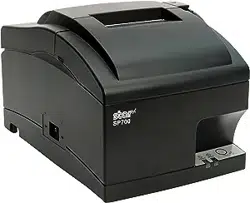
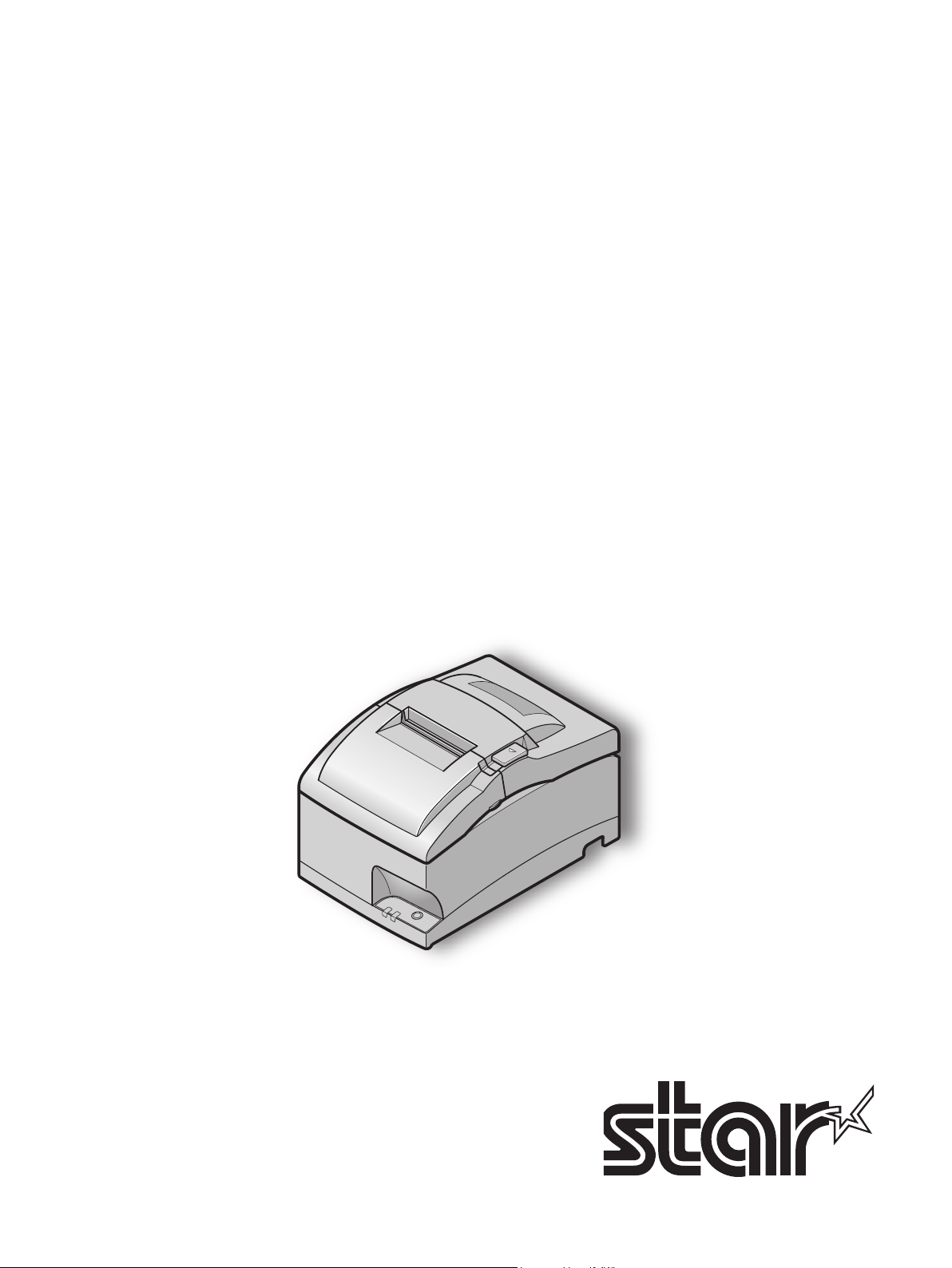
DOT PRINTER
SP712 / 742 SERIES
Hardware Manual

Federal Communications Commission
Radio Frequency Interference
Statement
is device complies with Part 15 of FCC Rules and Industry Canada licence-exempt RSS standard(s). Operation is
subject to the following two conditions:
(1) is device may not cause harmful interference, and
(2) this device must accept any interference received, including interference that may cause undesired operation.
Le présent appareil est conforme aux CNR d'Industrie Canada applicables aux appareils radio exempts de licence.
L'exploitation est autorisée aux deux conditions suivantes :
(1) l'appareil ne doit pas produire de brouillage, et
(2) l'utilisateur de l'appareil doit accepter tout brouillage radioélectrique subi, même si le brouillage est susceptible
d'en compromettre le fonctionnement.
FCC CAUTION
Changes or modifications not expressly approved by the party responsible for compliance could void the user’s
authority to operate the equipment.
For compliance with the Federal Noise Interference Standard, this equipment requires a shielded cable.
For RF interference suppression, if a ferrite core is provided with this device, ax it to the interface cable.
NOTE:
is equipment has been tested and found to comply with the limits for a Class A digital device, pursuant to Part
15 of the FCC Rules. ese limits are designed to provide reasonable protection against harmful interference when
the equipment is operated in a commercial environment. This equipment generates, uses and can radiate radio
frequency energy and, if not installed and used in accordance with the instruction manual, may cause harmful
interference to radio communications. Operation of this equipment in a residential area is likely to cause harmful
interference in which case the user will be required to correct the interference at his own expense.
CAN ICES-3 (A) / NMB-3 (A)
This equipment complies with FCC/IC radiation exposure limits set forth for an uncontrolled environment and
meets the FCC radio frequency (RF) Exposure Guidelines in Supplement C to OET65 and RSS-102 of the IC radio
frequency (RF) Exposure rules. is equipment has very low levels of RF energy that it deemed to comply without
maximum permissive exposure evaluation(MPE). But it is desirable that it should be installed and operated keeping
the radiator at least 20cm or more away from person's body (excluding extremities: hands,wrists,feet and ankles).
Cet équipement est conforme aux limites d"exposition aux rayonnements énoncées pour un environnement non
contrôlé et respecte les règles les radioélectriques (RF) de la FCC lignes directrices d'exposition dans le Supplément
C à OET65 et d"exposition aux fréquences radioélectriques (RF) CNR-102 de l"IC. Cet équipement émet une
énergie RF très faible qui est considérée conforme sans évaluation de l"exposition maximale autorisée. Cependant,
cet équipement doit être installé et utilisé en gardant une distance de 20 cm ou plus entre le dispositif rayonnant et
le corps (à l"exception des extrémités : mains, poignets, pieds et chevilles).

Caution Symbol
This symbol is placed near the print head to indicate that it may be hot. Never touch the print head
immediately after the printer has been used. Let the print head cool for a few minutes before touch-
ing it.
This symbol is placed near the cutter (auto cutter or manual cutter tear bar).
Nevertouchthecutterblade,asyoucouldinjureyourngers.
This symbol label or stamp is placed near the screws securing the case, which should not be opened
by individuals other than service personnel.
Individuals, other than service personnel, should not remove these screws.
High voltage areas in the case can be dangerous.
This symbol is placed near the peripheral drive connector.
Do not connect this to a telephone.
Trademark acknowledgments
SP700 : Star Micronics Co., Ltd.
Notice
All rights reserved. Reproduction of any part of this manual in any form whatsoever, without STAR’s express permission is
forbidden.
e contents of this manual are subject to change without notice.
All eorts have been made to ensure the accuracy of the contents of this manual at the time of going to press. However,
should any errors be detected, STAR would greatly appreciate being informed of them.
e above notwithstanding, STAR can assume no responsibility for any errors in this manual.
IOS is a trademark or registered trademark of Cisco in the U.S. and other countries and is used under license.
Android is a trademark of Google Inc.
Windows is registered trademarks of Microso Corporation.
e Bluetooth® word mark and logos are registered trademarks owned by the Bluetooth SIG, Inc.
Copyright
©
2007-2017 Star Micronics Co., Ltd..

TABLE OF CONTENTS
1. Unpacking and Installation ............................................................................................ 1
1-1. Unpacking .................................................................................................................................................1
1-2. Notes about Installation .......................................................................................................................... 1
1-3. Handling Care ..........................................................................................................................................2
1-4. Maintenance .............................................................................................................................................2
2. Parts Identication and Nomenclature ......................................................................... 3
3. Setup ............................................................................................................................... 4
3-1. Connecting the Cable to the PC ............................................................................................................4
3-2. Connecting the Cable to the Printer .....................................................................................................5
3-3. Connecting to a Peripheral Unit ............................................................................................................8
3-4. Connecting the Power Cord ...................................................................................................................9
3-5. Turning Power On .................................................................................................................................10
3-6. Installing the Cable ................................................................................................................................ 11
3-7. Switch Blind Installation ....................................................................................................................... 11
3-8. Bluetooth Settings
(For
Bluetooth Interface Models only
) ..............................................................12
4. Loading the Ribbon Cartridge and Paper.................................................................... 16
4-1. Loading the Ribbon Cartridge .............................................................................................................16
4-2. Loading the paper .................................................................................................................................. 17
4-3. Installing the Roll Paper Guide ............................................................................................................ 19
4-4. Setup Precautions ..................................................................................................................................20
5. Control Panel and Other Functions ............................................................................. 22
5-1. Control Panel..........................................................................................................................................22
5-2. Basic Indicators ......................................................................................................................................22
5-3. Errors ....................................................................................................................................................... 23
5-4. Adjustment Mode ..................................................................................................................................25
6. Preventing and Clearing Paper Jams ........................................................................... 31
6-1. Preventing Paper Jams ..........................................................................................................................31
6-2. Removing Paper Jam .............................................................................................................................31
6-3. Releasing a Locked Cutter (Auto Cutter Mode only) .......................................................................32

– 1 –
1. Unpacking and Installation
1-1. Unpacking
After unpacking the unit, check that all the necessary accessories are included in the package.
Printer
Switch blind
Power cord
Roll paper guide
Ribbon cartridge
Setup sheets
Note
1-2. Notes about Installation
1. Choose a rm, level surface where the printer will not be exposed to vibration.
2. Make sure that the printer is connected to a reliable power outlet. It should not be on the same electric circuit as
copiers, refrigerators, or other appliances that cause power spikes.
3. e power outlet you plan to connect to for power should be nearby and unobstructed.
4. Make sure that the printer is not exposed to direct sunlight.
5. Make sure that the printer is well away from heaters and other sources of extreme heat.
6. Do not locate the printer in a badly ventilated or dusty environment.
7. Make sure that the room where you are using the printer is not too humid.
8. is device employs a DC motor and switches that have an electrical contact point.
Avoid using the device in environments where silicon gas can become volatile.
9. Use the printer within the boundaries indicated in the environmental requirements. Even when the ambient
temperature and humidity are within the specications, avoid radical changes in environmental conditions. e
suitable operating temperature range is as follows:
Operating temperature: 0°C to 50°C
10. When disposing of the printer, obey local regulations.
Note: The ferrite core and fastener provided with your printer depend
onyourprinterconguration.

– 2 –
1-3. Handling Care
1. Be careful not to drop paper clips, pins or other foreign matter into the unit as these cause the printer to
malfunction.
2. Do not attempt to print when either paper or ribbon cartridge is not located in the printer, otherwise the print head
can be damaged.
3. Do not open the cover while printing.
4. Do not touch the print head immediately after printing as it gets very hot.
5. Use only roll paper that is not glued to the core.
6. When the paper end mark appears on the paper, replace the roll paper before it runs out.
1-4. Maintenance
Essentially, your printer is a robust piece of equipment, but should be treated with a modicum of care in order to avoid
malfunctions. For example:
1. Keep your printer in a “comfortable” environment. Roughly speaking, if you feel comfortable, then the
environment is suitable for your printer.
2. Do not subject the printer to physical shocks or excessive vibration.
3. Avoid over-dusty environments. Dust is the enemy of all precision mechanical devices.
4. To clean the exterior of the printer, use a cloth barely dampened with either water with a little detergent or a little
alcohol, but do not allow any liquid to fall inside the printer.
5. The interior of the printer may be cleaned with a small cleaner or a compressed-air aerosol (sold for this
purpose). When performing this operation, be sure not to bend or damage any cable connections or electronic
components.

– 3 –
2. Parts Identication and Nomenclature
Printer cover
Protects the printer from dust and reduces noise.
Do not open the cover while printing.
Control panel
Features one control switch and two indicators
to indicate printer status.
Interface connector
Connects the printer with host
computer.
Power switch
Turns printer power
on and o.
Peripheral unit drive circuit connector
Connects to peripheral units such as cash
drawers, etc.
Do not connect this to a telephone.
Power connector
For connection of the power cord.

– 4 –
3. Setup
3-1. Connecting the Cable to the PC
3-1-1. Parallel Interface Cable
Connect the parallel interface cable to a parallel port of your PC.
3-1-2. RC-232 Interface Cable
Connect the RC-232 interface cable to a RS-232 port of your PC.
3-1-3. USB Interface Cable
Connect the USB interface cable to a USB port of your PC.
3-1-4. Ethernet Interface cable
Connect the ethernet interface cable to a ethernet port of your PC.

– 5 –
3-2. Connecting the Cable to the Printer
Notethattheinterfacecableisnotprovided.Pleaseuseacablethatmeetsspecications.
CAUTION
Before connecting/disconnecting the interface cable, make sure that power to the printer and
all the devices connected to the printer is turned off. Also make sure the power cable plug is
disconnected from the AC outlet.
3-2-1. Parallel Interface Cable
(1) Make sure the printer is turn off.
(2) Affix the ferrite core onto the cable as shown in the
illustration.
(3) Pass the fastener through the ferrite core.
(4) Loop the fastener around the cable and lock it. Use scissors to
cut off any excess.
(5) Connect the interface cable to the connector on the rear panel
of the printer.
(6) Fasten the connector clasps.
Ferrite core
Interface cable
10 cm
(maximum)
Fastener

– 6 –
3-2-2. RS-232 Interface Cable
(1) Make sure the printer is turn off.
CAUTION
Before connecting/disconnecting the interface cable, make sure that power to the printer and all the devices
connected to the printer is turned off. Also make sure the power cable plug is disconnected from the AC outlet.
(2) Connect the interface cable to the connector on the rear panel of the printer.
(3) Tighten the connector screws.
3-2-3. USB Interface Cable
AfxtheferritecoreontotheUSBcableasshownintheillustrationbelowandmakesuretopassthecablethroughthe
cable support as shown in the illustration.

– 7 –
(1) Make sure the printer is turned off.
(2) Afxtheferritecoreontotheethernetcableasshownintheillustrationbelow.
(3) Pass the fastener through the ferrite core.
(4) Loop the fastener around the cable and lock it. Use scissors to cut off any excess.
Ethernet Interface Board
IFBD-HE06
Ethernet Interface Board
IFBD-HE08
3-2-4. Connecting Ethernet Cable
If a ferrite core is included, install the ferrite core onto the Ethernet cable according to the following procedure to
prevent electrical noise.
If a ferrite core is not included, perform steps (1) and (5) only.
Link disconnection detection feature
The Ethernet interface model is equipped with a link dis connection detection feature. If the printer is turned on when
an Ethernet cable is not connected to it, the POWER and ERROR lamps are simultaneously turned on and off at
2-second intervals to indicate the disconnection.
Be sure to connect the Ethernet cable from a PC or hub to the printer, and then turn the printer on.
(5) Connect the interface cable to the connector on the rear panel of the printer.
Ferrite core
Ethernet cable
1 cm
(maximum)
Fastener

– 8 –
3-3. Connecting to a Peripheral Unit
You can connect a peripheral unit to the printer using a modular plug. Note that this printer does not come with a modular
plug or wire, so it is up to you to obtain one that suits your needs.
Important!
Make sure that the printer is turned off and unplugged from the AC outlet and that the computer is turned off
before making connections.
(1) Connect the peripheral drive cable to the connector on the rear panel of the printer.
Important!
Do not connect a telephone line into the peripheral drive connector. Failure to observe this may result in dam-
age to the printer.
Also, for safety purposes, do not connect wiring to the external drive connector if there is a chance it may carry
peripheral voltage.

– 9 –
3-4. Connecting the Power Cord
Note: Before connecting/disconnecting the power cord, make sure that power to the printer and all the devices
connected to the printer is turned off. Also make sure the power cable plug is disconnected from the AC
outlet.
(1) Check the label on the back or bottom of the printer to make sure its voltage matches that of the AC outlet. Also
make sure the plug on the power cord matches the AC outlet.
(2) If the power cord is not attached to the printer, plug the appropriate end into the AC inlet on the back of the
printer.
(3) Plug the power cord into a properly grounded AC outlet.
Important!
If the voltage shown on the label on the of your printer does not match the voltage for your area, contact your
dealer immediately.
The power cord is designed for use with this printer only. Do not connect it to any other device.
O
F
F
O
N

– 10 –
3-5. Turning Power On
Make sure that the Power cord has been connected as described in "3-4. Connecting the Power Cord".
Turn ON the power switch located on the front of the printer.
The POWER lamp on the control panel will light up.
CAUTION
We recommend that you unplug the printer from the power outlet whenever you do not plan to use it for long
periods. Because of this, you should locate the printer so that the power outlet it is plugged into is nearby and
easy to access.
When an Switch blind is afxed to the printer above the power switch, the ON/OFF marks of the power switch
may be hidden. If this occurs, remove the power cord from the outlet to turn the printer OFF.
Power switch

– 11 –
3-6. Installing the Cable
Install the cable as shown in the diagram below.
3-7. Switch Blind Installation
It is not necessary to install the switch blind. Only install it if it is necessary for you. By installing the switch blind, the
following become possible.
• Preventing the power switch from being operated by mistake.
• Ensuring that other people can not easily operate the power switch.
Install the switch blind as shown in the diagram below.
The power switch can be turned ON ( | ) and OFF (O) by inserting a narrow instrument (ball pen etc) in the holes in the
switch blind.
Important!
We recommend that you unplug the printer from the power outlet whenever you do not plan to use it for long
periods. Because of this, you should locate the printer so that the power outlet it is plugged into is nearby and
easy to access.

– 12 –
PAIR
RST
PAIR
RST
PAIR button
PAIRRST
PAIR buttonRST button
LED
3-8. Bluetooth Settings
(For
Bluetooth Interface Models only
)
(2) After turning the printer's power switch on, press and hold the PAIR button on the rear interface of the printer for
5secondsormore,andthenreleaseit.TheLEDwillashgreen.
Pair the printer with the master device by following the procedure below.
Compatibility list: http://www.star-m.jp/prjump/000031.html
3-8-1. Pairing using SSP (Simple Secure Pairing) [Default]
(1) Working on the master device, tap [Settings] and set [Bluetooth] to ON.
<
LED
>
Indicates the status of the Bluetooth interface.
Green (on): Not connected.
Green(ashing):Readytostartpairing.
Blue (on): Connected.
Purple(ashing):AutoconnectionON.
<
iOS > < Android >
(3) Pairingwillbepossiblefor60secondsfromwhentheLEDbeginsashinggreen.Duringthistime,execute"Search
for devices" from the master device and tap the relevant device from the displayed list.
Device name: Star Micronics (default)
(4) InaniOSdevice,afterpairing,theLEDwillautomaticallybeginashingblue,andtheprinterwillbeautomatically
connected. In an Android device, the LED turns blue only while data is sent.
(5) Connect to the printer from the master device application and perform printing. If the printing is successful, the
pairing process has been completed.
Note: The printer performs various processes immediately after connecting to or disconnecting from a master
device.
Please wait approximately 0.1 seconds after connecting, and approximately 0.5 seconds after
disconnecting, before beginning communications with the printer. This wait will ensure that the next
action you perform is executed correctly.

– 13 –
3-8-2. Pairing using PIN code
Enter the following information in the master device if it does not support SSP, or when otherwise necessary.
PIN: 1234 (default)
Device name: Star Micronics (default)
It is recommended that you change the PIN code for greater security.
For details regard changing the PIN code, please see the “Software Manual -Star Bluetooth Utility- ”.
3-8-3. Auto Connection Function (iOS only)
Each time the wireless connection is disconnected while communicating with upper-level iOS devices including iPad
over Bluetooth, it is necessary to move back to the Bluetooth setting screen in the upper-level iOS device and tap the
desired printer name again to build a connection. is is an iOS specication.
In order to save this labor, this printer is equipped with the Auto Connection function that automatically requests a
connection from an upper-level iOS device that was connected to the printer last time.
You can also check the current ON/OFF setting by performing self-printing.
Caution: If "Auto Connection function" is set to ON when using devices other than iOS, a Bluetooth communi-
cation with the printer may fail. To use devices other than iOS, such as the Android/Windows devices,
make sure you turn o the "Auto Connection" function before using the printer.
For information on how to set up this function, see "3-8-4. Setting up Auto Connection".
Auto Connection ON Auto Connection OFF
Reconnecting without changing
the master device
After the printer is turned on, it
automatically connects to the last
master device that was connected.
After turning on the printer, tap
this printer's name on the Blue-
tooth settings screen on the mas-
ter device.
Changing the connected master
device
Disconnect the Bluetooth connec-
tion in such a way as to turn OFF
the power to the upper-level de-
vice automatically connected.
Then, establish a pairing with a
desired master device.
After turning on the printer, es-
tablish a pairing with a desired
master device.
Example (recommended) When connecting directly to the
printer from one master device.
When using the printer with mul-
tiple master devices.

– 14 –
< Current Setting >
Auto Connection : OFF
To enable this setting, turn
Printer Power OFF and turn ON.
PAIR
RST
PAIR
RST
RST button
3-8-4. Setting up Auto Connection
◆
Setting up from the Main Unit for the SP742
Note: e following procedure explains how to change the Auto Connection function setting from ON to OFF.
If you want to change it from OFF to ON, please follow the same procedure.
(1) When paper is loaded in the printer and it is turned on, the [POWER] LED(green) on the front of the
printer turns on.
(2) Ifyouholddownthe[RST]buttononthebackoftheprinterforatmorethanveseconds,initialoperationsare
performedinthesamewayaswhenthepoweristurnedon,andtheLEDsonthefrontoftheprinterash.Ifyou
pressthe[RST]buttonwhentheprinterisplacedupright,placeithorizontallyagainwhiletheLEDisashing.
(3) The following information is printed. After that, turn the printer off and then back on again to set "Auto
Connection" to OFF.
(4) To make sure "Auto Connection" is set to OFF correctly, perform self-printing as described in "5-4-1. Self
Printing Mode"
u
Setting from the Soware
After pairing your device and the SP700, change "Auto Connection" in the following application provided by our
company.
iOS: Download "Star Setting Utility" from the following Web site.
http://www.star-m.jp/prjump/000003.html
Android: Download "Star Setting Utility" from the following Web site.
http://www.star-m.jp/prjump/000004.html
Windows: Download "Star Bluetooth Utility" from the following Web site.
http://www.star-m.jp/prjump/000006.html

– 15 –
3-8-5. Resetting Bluetooth Settings
The PIN code, device name, and other settings can be reset by following the procedure given below.
(1) While inserting a thin object such as the tip of a pen and holding down the RST button on the rear of the printer, turn
on the printer's power switch. The POWER LED (green) and the ERROR LED (red) on the front of the printer start
ashing.
(2) Hold down the RST button for 4 seconds or more (note 1), and then release it.
PAIR
RST
PAIR
RST
RST button
Hold down for 4 seconds or more
(3) AfteryoureleasetheRSTbutton,iftheLEDstopsashingandthePOWERLEDremainslitgreenwithin12seconds,
initializationiscomplete.IftheLEDcontinuestoashforlongerthan12secondsafterreleasingtheRSTbutton,this
indicates that initialization was not successful. Turn off the printer's power and then try again from step 1.
(4) Turn off the printer's power switch and delete the pairing setup with the master device.
Note 1: In step 2, if you do not hold down the RST button for long enough, initialization will not complete correctly.
For F/W Ver2.0, Ver3.0a, and Ver3.0b interfaces
In step 2, you need to hold down the RST button for 8 seconds or more.
Also, aer nishing steps 1 to 3, to check that initialization was completed correctly, perform self-print-
ing. If the second sheet (*** Bluetooth Information ***) is not printed, initialization has not been com-
pleted correctly. If this happens, turn o the printer's power, and then try again from step 1.
(You can check the firmware version from the self-printing results. See "5-4. Adjustment Mode" for the
self-printing procedure.)
2: Do not turn o the printer during initialization; otherwise initialization will not complete correctly.
3: If initialization is not completed correctly, turn o the printer's power and then try again from step 1.

– 16 –
4. Loading the Ribbon Cartridge and Paper
Finger grip
Finger grip
4-1. Loading the Ribbon Cartridge
1
Turn off power to the printer.
2
Openthefrontcoverbyholdingthengergripsonbothends
of the cover and lifting it up.
Important!
1. Do not touch the print head immediately after printing as
it can be extremely hot.
2. Do not touch the cutter blade.
· There is a cutter inside the paper outlet slot. Not only
should you not put your hand in the paper outlet slot
while printing is in progress, never put your hand into
the outlet even when printing is not in progress.
3
Placetheribboncartridgeinthedirectionshowninthegure
and press it down to load it. If loading of the ribbon cartridge
is not satisfactory, press down the cartridge while rotating the
ribbon feed knob in the direction of the arrow.
4
Turn the ribbon feed knob of the ribbon cartridge in the
direction of the arrow to remove slack in the ribbon.
5
Close the front cover.
Note: Whenremovingtheribboncartridge,raisethenger
gripsasshowninthegure.

– 17 –
4-2. Loading the paper
Useapaperrollthatcomplieswiththeprinterspecications.
1
Open the printer cover by sliding the latch toward you.
3
Push down both sides of the printer cover to close.
Important!
1. Do not touch the print head immediately after printing as it can be extremely hot.
2. Do not touch the cutter blade.
· There is a cutter inside the paper outlet slot. Not only should you not put your hand in the paper outlet slot
while printing is in progress, never put your hand into the outlet even when printing is not in progress.
2
While observing the direction of the roll, set the paper roll into the hollow, and pull on the leading edge of the
paper toward you.
Note: Make sure that the printer cover is securely closed.

– 18 –
4
Tear Bar Model:
Tear off the paper as shown.
Auto Cutter Model:
If the printer cover is closed after turning on the power, the cutter operates automatically and the front end of the
paper is cut.
Note: When the paper end mark appears on the paper, replace the roll paper before it runs out.
4-2-1. Compliant Paper Roll Specications
Paper type
Ordinary bond and carbonless copy paper
Paper width
76±0.5 mm (3.0 inches)/57.5±0.5 mm (2.25 inches)/69.5±0.5 mm (2.75 inches)
ickness
• Single
0.06 mm to 0.085 mm
• Copies
Original + 2 copies (Max. 0.2 mm)
Roll diameter
85mm (3.35 inches) max.
Core
12±1 mm (Inner dia.), 18±1 mm (Outer dia.)
Note 1: Do not glue or tape the paper roll and sha core together.
2: Do not fold the tail end of the paper.

– 19 –
4-3. Installing the Roll Paper Guide
When using paper roll with 57.5 mm or 69.5 mm width, install the attached roll paper guide in the groove in the printer.
The setting for memory switch 2-A and 2-B must be changed to change the print width.
When you change the effective print width (paper roll width), change the printer utility’s memory switch setting.
For details, see the printer utility help.
69.5 mm width
Roll paper guide
57.5 mm width
Roll paper guide

– 20 –
WARNING
P Shut down your equipment immediately if it produces smoke, a strange odor, or unusual noise. Immediately
unplug the equipment and contact your dealer for advice.
P Never attempt to repair this product yourself. Improper repair work can be dangerous.
P Neverdisassembleormodifythisproduct.Tamperingwiththisproductmayresultininjury,re,orelectric
shock.
P Do not touch the cutter blade.
- There is a cutter inside the paper outlet slot. Not only should you not put your hand in the paper outlet slot
while printing is in progress, never put your hand into the outlet even when printing is not in progress.
- The printer cover can be opened when replacing the paper. However, since the cutter blade is on the inside
of the printer cover, be careful not to place your face or hands too close to the cutter blade.
P During and immediately after printing, the area around the print head is very hot. Do not touch it, as you could
be burned.
P Sinceworkingonthecuttermaybedangerous,besuretoturnofftheprinterrst.
4-4. Setup Precautions
CAUTION
P We recommend that you unplug the printer from the power outlet whenever you do not plan to use it for long
periods. Because of this, you should locate the printer so that the power outlet it is plugged into is nearby and
easy to access.
P If the voltage shown on the label on the of your printer does not match the voltage for your area, contact your
dealer immediately.
P Make sure that the printer is turned off and unplugged from the AC outlet and that the computer is turned off
before making connections.
P Do not connect a telephone line into the peripheral drive connector.
Failure to observe this may result in damage to the printer.
Also, for safety purposes, do not connect wiring to the external drive connector if there is a chance it may
carry peripheral voltage.
P Do not operate the cover open lever while pressing on the printer cover with your hand.
P Do not pull the cover open lever and open the printer cover when printing is in progress or when the auto
cutter is operating.
P Do not pull out paper while the printer cover is closed.
P If liquids, foreign objects (coins and paper clips), and so on enter the printer, turn off the printer, unplug it
from the AC outlet, and contact your dealer for advice. Continued use could cause a short circuit, which may
resultinreorelectricshock.
P Place the printer in a horizontal position when installing the paper, even if the model can be installed verti-
cally. If the paper is installed with the printer in a vertical position, the printer will be unstable and could fall,
which may result in injury.

– 21 –
CAUTION
Wireless Communication
P Do not use the device where using wireless devices is prohibited or may cause interference or danger.
P The radio waves generated by the device may interfere with the operation of electronic medical devices. If
you are using any electrical medical device, contact its manufacturer for the restrictions on the use of the
device.
P SecurityfunctionalityforBluetoothisinstalledinthisproduct.Congurethesecuritysettingsaccordingto
the manual (available on the Star Micronics website) to reduce the risk of security issues.
P This device supports Bluetooth.
Sincethisfunctionalitymaybelimitedbylocalregulations,rstreviewtheradiolawsspecictothecountry
in which the product will be used.
P Below is a list of laws this device has been approved by. As Star Micronics is committed to constant innova-
tion, revisions may be made without an announcement. Access the Star Micronics website for the latest listing
of approvals.
P Please refer to Star Micronics website for the latest information and manuals.

– 22 –
5. Control Panel and Other Functions
5-1. Control Panel
2
FEED button
3
ERROR lamp (Red LED)
1
POWER lamp (Green LED)
1
POWER lamp (Green LED)
Lights when the power is ON.
2
FEED button
Press the FEED button to feed roll paper.
3
ERROR lamp (Red LED)
Indicates various errors in combination with POWER lamp.
5-2. Basic Indicators
POWER lamp ERROR lamp Buzzer
Power On/Off On/Off — —
No Error On Off —

– 23 –
5-3. Errors
1) Recoverable error
Error Description POWER lamp ERROR lamp Buzzer
Recovery
Conditions
Paper end error On Flashes (On: 1
sec./Off: 1 sec.)
4 short beeps (0.13
sec.) repeated twice
*1
Printer cover open
error
On On Beep *2
Front cover open
error
Flashes (On: 0.5
sec./Off: 0.5 sec.)
On Beep *3
Head high tempera-
ture detection
Flashes (On: 1 sec./
Off: 1 sec.)
Off None *4
Board high tem-
perature detection
Flashes (On: 2 sec./
Off: 2 sec.)
Off None *5
Cutter error (on
models with cutter)
On Flashes (On: 0.125
sec./Off: 0.125 sec.)
3 short beeps (0.13
sec. + 0.13 sec. +
0.5 sec.)
*6
Mechanical error
(other than cutter
error)
On Flashes (On: 0.25
sec./Off: 0.25 sec.)
2 short beeps (0.13
sec. + 0.5 sec.)
*7
Black mark detec-
tion error
On Flashes (On: 0.5
sec./Off: 0.5 sec.)
3 short beeps (0.13
sec. + 0.13 sec. +
0.13 sec.)
*8
Link disconnection
detection (Physical
link disconnection)
Flashes at 2-second
intervals
Flashes at 2-second
intervals
— *9
Link disconnection
detection (IP ad-
dress lost)
Flashes at
0.125-second in-
tervals
Flashes at
0.125-second in-
tervals
— *10
*1 Automatically recovered by loading a new paper roll, then closing the printer cover.
*2 Automatically recovered by closing the printer cover.
*3 Automatically recovered by closing the front cover.
*4 Automatically the printer is recovered after the print head has cooled.
A print head temperature error is not abnormal.
*5 Automatically the printer is recovered after the board has cooled.

– 24 –
*6
Automatically the printer is recovered if the cutter returns to the home position after turning the power OFF and
ON.
Restoration is also possible with the <DLE> <ENQ> n command when in the ESC/POS mode.
Note
1) If the cutter doesn’t return to the home position, or doesn’t perform the initial movement, it cannot be recov-
ered.
2) If the paper is jammed, turn the power OFF, clear the jammed paper, then turn the power ON.
3) When the error occurs:
STAR Mode: Non recoverable error
ESC/POS Mode: Recoverable error
*7 Turn the power OFF, clear the jammed paper or remedy another problem and then turn the power ON.
Automatically the printer is recovered if the carriage returns to the home position after turning the power OFF
and ON.
Restoration is also possible with the <DLE> <ENQ> n command when in the ESC/POS mode.
When the error occurs:
STAR Mode: Non recoverable error
ESC/POS Mode: Recoverable error
*8 For paper jam errors:
Clear the jammed paper and change the paper roll if necessary.
For incorrect paper format errors:
Change the paper roll and use a paper roll with the correct black mark.
*9
Connect an Ethernet cable. For details, see section "3-2-4. Connecting Ethernet Cable"
※
Ethernet interface model only
*10 Set the correct IP address and restart the printer.
※
Ethernet interface model only
2) Non recoverable error
Error Description POWER lamp ERROR lamp Buzzer
Flash memory write
error
Off Flashes (On: 1 sec./
Off: 1 sec.)
None
Thermistor failure
error
Off Flashes (On: 0.25 sec./
Off: 0.25 sec.)
2 short beeps (0.13 sec. + 0.5 sec.)
Power supply error Off Flashes (On: 2 sec./
Off: 2 sec.)
None
CPU error Off On One long beep (2 sec.)
RAM R/W error Off On None
Note
If a non-recoverable error occurs, turn the power OFF, wait at least 10 seconds, and turn the power back ON. If the
non-recoverable error continues to be indicated, consult a dealer for repairs.

– 25 –
5-4. Adjustment Mode
There are the following seven adjustment modes.
The device will enter the adjustment mode if your turn it on while pressing the FEED switch.
(1) The Self Printing Mode is entered by releasing the FEED switch after the buzzer sounds once. (Refer to Section
"5-4-1. Self Printing Mode".)
(Holding down for 2 more seconds)
(2) Adjusting the Dot Alignment Mode is entered by releasing the FEED switch after the buzzer sounds twice. (Refer
to Section "5-4-2. Adjusting the Dot Alignment Mode".)
(Holding down for 2 more seconds)
(3) The Hexadecimal Dump Mode is entered by releasing the FEED switch after the buzzer sounds three times. (Refer
to Section "5-4-3. Hexadecimal Dump Mode".)
(Holding down for 2 more seconds)
(4) The Black Mark Sensor Alignment Mode is entered by releasing the FEED switch after the buzzer sounds four
times. (Refer to Section "5-4-4. Black Mark Sensor Alignment Mode".)
(Holding down for 2 more seconds)
(5) TheNear EndSensorAdjustment Modeisenteredbyreleasing theFEEDswitchafterthe buzzersounds ve
times.(RefertotheseparateSpecicationsManualfordetails.)
(Holding down for 2 more seconds)
(6) The Memory Switch Manual Setting Mode is entered by releasing the FEED switch after the buzzer sounds six
times.(RefertotheseparateSpecicationsManualfordetails.)
(Holding down for 2 more seconds)
(7) The Memory Switch Override Mode is entered by releasing the FEED switch after the buzzer sounds seven
times.(RefertotheseparateSpecicationsManualfordetails.)
(Holding down for 2 more seconds)
Returns to (1).

– 26 –
5-4-1. Self Printing Mode
Self-printing will be performed to print the Ver. No. and printer settings.

– 27 –
or like this
5-4-2. Adjusting the Dot Alignment Mode
You may never have to use the procedure described in this section, but after you have been using your printer for some
timeyoumayndthatthedotsofsomegraphicsdonotaligncorrectly.Forexample,whatshouldlooklike:
may come out looking like one of the following:
This is caused when mechanical parts of the printer get out of alignment. This happens only rarely and you may never
experience it at all throughout the life of the printer. If you do have problems, use the following procedure to correct it.
(1) Enter the Dot Alignment Adjust Mode according to the procedure described in Section "5-4. Adjustment Mode".
(2) After entering the Dot Alignment Adjust Mode, a printout of the adjustment patterns similar to the printout below
will be printed. The asterisk indicates the current adjustment pattern.

– 28 –
(3) To adjust, use the FEED switch to select the adjustment pattern from the printout with the smallest gap between
therst printingpassand thereturnprinting pass.PresstheFEEDswitchoncetospecify therstadjustment
pattern, twice to specify the second adjustment pattern, and so on up to seven times to specify the seventh
adjustment pattern.
At the number that you want to specify, press and hold (2 seconds) the FEED switch until the long buzzer
sounds. This will specify the setting value. (For example, if you want to select the eighth pattern from the top,
press the FEED switch seven times. Then, at the eighth pattern, press and hold (2 seconds) the FEED switch until
the long buzzer sounds.)
There are only twenty three adjustment patterns. The buzzer will sound each time the FEED switch is pressed.
However, if you press the FEED switch more than twenty three times, a warning alert will sound.
(4) If there is no matching pattern among the adjustment patterns, perform the “Backward” or “Forward” operation
described below in order to print a printing pattern in which the dot alignment settings are changed. Then, repeat
step (3).
Backward:
Press and hold the FEED switch for 2 to 4 seconds. The buzzer will beep, and the printer will print a
pattern in which the forward is adjusted more leftward of the presently indicated pattern and the backward
is adjusted more rightward.
Forward:
Press and hold the FEED switch for 4 seconds or longer. The buzzer will beep-beep, and the printer will
print a pattern in which the forward is adjusted more rightward of the presently indicated pattern and the
backward is adjusted more leftward.
(5) After selecting the adjustment pattern, the setting value is stored in the non-volatile memory. A printout similar
to the one below with the selected adjustment pattern highlighted and the message “Adjust Completed!” will be
printed.
Note: Before the printout is printed, the setting value is stored in the non-volatile memory of the printer after
the adjustment pattern has been selected and the long buzzer sounds. During this period, do not set the
power switch to off. If this power switch is set to off when the setting value is being stored in the non-
volatile memory, the setting value for the adjustment pattern and all of the memory switch settings will
be reset.
(6) The long buzzer sounds once more and the setting value is automatically set.
The adjusting the dot alignment mode is complete.

– 29 –
5-4-3. Hexadecimal Dump Mode
Each of the signals sent from the computer to the printer will be printed out in hexadecimal code.
This function allows you to check if a control code sent to the printer by the program being used is correct or not. The
last line is not printed if its data is less than one full line. However, if the FEED switch is pressed, the last line will be
printed. To turn off the mode, it is necessary to turn off the printer completely.

– 30 –
5-4-4. Black Mark Sensor Alignment Mode
1. Turn the printer off and unplug the power cord.
2. Place the printer upright as shown below to remove the screws and remove the dip switch cover from the bottom
of the printer. Be sure to place the printer upright because you will not be able to properly adjust the printer if it
is placed on its side.
3. Since it is adjusted by rotating the volume VR2, check the position of the volume. Prepare a small slotted
screwdriverthatwilltinthehole.
4. Set the roll paper not for black mark.
5. Enter the black mark sensor adjustment mode according to the procedure described "5-4. Adjustment Mode".
6. Rotate the volume VR2 using micro screwdriver, to adjust it to a position whereat both the ERROR (red LED)
and the POWER (green LED) lamps light.
7. Turn the power OFF.
This completes the black mark sensor adjustment.
81
Power OFF
VR2
VR1

– 31 –
6. Preventing and Clearing Paper Jams
6-1. Preventing Paper Jams
The paper should not be touched during ejection and before it is cut.
Pressing or pulling the paper during ejection may cause a paper jam, paper cutting failure or line feed failure.
6-2. Removing Paper Jam
If a paper jam occurs, clear it as described below.
(1) Set the power switch to off to turn off power to the printer.
(2) Push the cover open lever, and open the printer cover.
If the printer cover will not open on an auto cutter model, it means that the auto cutter is not in the home position (or
locked). In this case, return the auto cutter to the home position by following the instructions provided in Section
"6-3. Releasing a Locked Cutter (Auto Cutter Mode only)".
(3) Remove the jammed paper.
CAUTION
Take care not to damage the printer when removing the jammed paper.
(4) Position the roll paper straight and close the printer cover gently.
Note 1: Make sure that the paper is positioned straight. If the printer cover is closed with the paper skewed, a
paper jam may result.
Note 2: Lock the printer cover by pressing down on the sides. Do not try to close it by pressing down on the
center. The cover may not lock properly.
(5) Set the power switch to on to turn on power to the printer. Make sure that the ERROR LED is not lit.
Note: While the ERROR LED is lit, the printer will not accept any commands such as the print command, so
make sure that the printer cover is locked properly.

– 32 –
6-3. Releasing a Locked Cutter (Auto Cutter Mode only)
If the auto cutter locks up or fails to cut the paper, follow the steps below.
WARNING
Since working on the cutter may be dangerous, be sure to turn off the printer rst.
(1) Set the power switch to OFF to turn off the printer.
(2) Ordinarily, a locked cutter will recover automatically by closing all the covers and turning the power back ON.
Recovery means that the locked cutter has been released, so steps (3) and thereafter are unnecessary. If the cutter
has not recovered, proceed to step (3).
(3) Pull the cover open lever towards you, and open the printer cover. The printer cover may not open due to the
cutterbeinglocked.Inthiscase,followsteps(4)and(5)torstopenthefrontcoverandremovethetearbar.If
the printer cover opens, proceed to step (6).
Front cover
Screws
Tear bar
(4) Openthefrontcoverbyholdingthengergripsonbothendsofthecoverandliftingitup.
Note: Since the print head is hot immediately after printing, be sure not to touch it. On an auto cutter model,
a paper cutter is located at the paper outlet slot. Be careful not to touch the cutter blade.
(5) Remove the two screws to remove the tear bar.
Printer cover

– 33 –
(6) After you have opened the printer cover, remove the four screws to remove the printer cover and reveal the
cutter.
Screws
(7) If the cutter is locked, insert a Phillips screwdriver into the Phillips screw hole on the side of the cutter, and turn
it in the direction of the arrow shown below, in order to return the cutter to its normal position.
(8) Reinstall the printer cover by tightening its screws.
(9) Reinstall the tear bar by tightening its screws.

English:
Hereby, STAR MICRONICS CO.,LTD. declares that this Wireless
Device is in compliance with the essential requirements and
other relevant provisions of Directive 1999/5/EC.
Deutsch:
[German]
Hiermit erklärt STAR MICRONICS CO.,LTD., dass sich das Gerät
Wireless Device in Übereinstimmung mit den grundlegenden
Anforderungen und den übrigen einschlägigen
Bestimmungen der Richtlinie 1999/5/EG bendet.
Svenska:
[Swedish]
Härmed intygar STAR MICRONICS CO.,LTD. att denna
Wireless Device står I överensstämmelse med de väsentliga
egenskapskrav och övriga relevanta bestämmelser som
framgår av direktiv 1999/5/EG.
Español:
[Spanish]
Por medio de la presente STAR MICRONICS CO.,LTD. declara
que el Wireless Device cumple con los requisitos esenciales y
cualesquiera otras disposiciones aplicables o exigibles de la
Directiva 1999/5/CE.
Português:
[Portuguese]
STAR MICRONICS CO.,LTD. declara que este Wireless Device
está conforme com os requisitos essenciais e outras
disposições da Directiva 1999/5/CE.
Français:
[French]
Par la présente STAR MICRONICS CO.,LTD. déclare que l'appareil
Wireless Device est conforme aux exigences essentielles et
aux autres dispositions pertinentes de la directive 1999/5/CE.
Suomi:
[Finnish]
STAR MICRONICS CO.,LTD. vakuuttaa täten että Wireless
Device tyyppinen laite on direktiivin 1999/5/EY oleellisten
vaatimusten ja sitä koskevien direktiivin muiden ehtojen
mukainen.
Italiano:
[Italian]
Con la presente STAR MICRONICS CO.,LTD. dichiara che questo
Wireless Device è conforme ai requisiti essenziali ed alle altre
disposizioni pertinenti stabilite dalla direttiva 1999/5/CE.
Dansk:
[Danish]
Undertegnede STAR MICRONICS CO.,LTD. erklærer herved, at
følgende udstyr Wireless Device overholder de væsentlige
krav og øvrige relevante krav i direktiv 1999/5/EF.
Nederlands:
[Dutch]
Hierbij verklaart STAR MICRONICS CO.,LTD. dat het toestel
Wireless Device in overeenstemming is met de essentiële
eisen en de andere relevante bepalingen van richtlijn 1999/5/
EG.
Eesti:
[Estonian]
Käesolevaga kinnitab STAR MICRONICS CO.,LTD. seadme
Wireless Device vastavust direktiivi 1999/5/EÜ põhinõuetele
ja nimetatud direktiivist tulenevatele teistele asjakohastele
sätetele.
Ελληνική:
[Greek]
ΜΕ ΤΗΝ ΠΑΡΟΥΣΑ STAR MICRONICS CO.,LTD. ΔΗΛΩΝΕΙ ΟΤΙ
Wireless Device ΣΥΜΜΟΡΦΩΝΕΤΑΙ ΠΡΟΣ ΤΙΣ ΟΥΣΙΩΔΕΙΣ
ΑΠΑΙΤΗΣΕΙΣ ΚΑΙ ΤΙΣ ΛΟΙΠΕΣ ΣΧΕΤΙΚΕΣ ΔΙΑΤΑΞΕΙΣ ΤΗΣ
ΟΔΗΓΙΑΣ 1999/5/EK.
Slovensky:
[Slovak]
STAR MICRONICS CO.,LTD. týmto vyhlasuje, že Wireless Device
spĺňa základné požiadavky a všetky príslušné ustanovenia
Smernice 1999/5/ES.
Slovensko:
[Slovenian]
STAR MICRONICS CO.,LTD. izjavlja, da je ta Wireless Device
v skladu z bistvenimi zahtevami in ostalimi relevantnimi
določili direktive 1999/5/ES.
Česky:
[Czech]
STAR MICRONICS CO.,LTD. tímto prohlašuje, že tento Wireless
Device je ve shodě se základními požadavky a dalšími
príslušnými ustanoveními smernice 1999/5/ES.
Magyar:
[
Hungarian
]
Alulírott, STAR MICRONICS CO.,LTD. nyilatkozom, hogy
a Wireless Device megfelel a vonatkozó alapvetõ
követelményeknek és az 1999/5/EK irányelv egyéb
elõírásainak.
Български:
[Bulgarian]
това Безжично устройство е в съответствие със
задължителните изисквания и другите приложими
разпоредби на Директива 1999/5/EO.
Polski:
[Polish]
Niniejszym STAR MICRONICS CO.,LTD. oświadcza, że
Wireless Device jest zgodny z zasadniczymi wymogami
oraz pozostałymi stosownymi postanowieniami Dyrektywy
1999/5/WE.
Malti:
[Maltese]
Hawnhekk, STAR MICRONICS CO.,LTD., jiddikjara li dan
Wireless Device jikkonforma mal-ħtiġijiet essenzjali u ma
provvedimenti oħrajn relevanti li hemm d-Dirrettiva 1999/5/
KE.
Latviski:
[Latvian]
Ar šo STAR MICRONICS CO.,LTD. deklarē, ka Wireless Device
atbilst Direktīvas 1999/5/EK būtiskajām prasībām un citiem ar
to saistītajiem noteikumiem.
Lietuvių :
[Lithuanian]
Šiuo STAR MICRONICS CO.,LTD. deklaruoja, kad šis Wireless
Device atitinka esminius reikalavimus ir kitas 1999/5/EB
Direktyvos nuostatas.
Norsk :
[Norwegian]
STAR MICRONICS CO.,LTD. erklærer herved at utstyret Wireless
Device er i samsvar med de grunnleggende krav og øvrige
relevante krav i direktiv 1999/5/EF.
Română :
[Romanian]
Prin prezenta STAR MICRONICS CO., LTD. declară că acest
dispozitiv este conform cu cerinţele esenţiale și alte prevederi
relevante ale directivei 1999/5/CE.
Hrvatski :
[Croatian]
Ovime Star Micronics CO., LTD. Izjavljuje da je bežični uređaj
u skladu s osnovnim zahtjevima i drugim važnim odredbama
direktive 1999/5/EZ.
Italia: l’uso pubblico è soggetto ad autorizzazione generale da parte del rispettivo provider di servizi.
Norge: Dette avsnittet gjelder ikke det geograske området innenfor en radius på 20 km fra sentrum av Ny-Ålesund.
is statement will be applied only for the printers marketed in Europe.

1999/5/EC
2014/30/EU
2014/35/EU
2011/65/EU , 2015/863
harmonised standard
RADIO : EN 300 328 V1.9.1:2015
EMC : EN 301 489-1 V1.9.2:2011
EN 301 489-17 V2.2.1:2012
EN 55032:2012 Class B (CISPR 32:ed1.0-2012)
EN 61000-3-2:2014 (IEC 61000-3-2:2014)
EN 61000-3-3:2013 (IEC 61000-3-3:2013)
EN 55024:2010 (CISPR 24:ed2.0-2010)
SAFETY : EN 60950-1:2006 / A2:2013
EN 62311:2008
EN 62479:2010
ENVIRONMENT: EN 50581:2012
Manufacturer’s Name
Star Micronics Co.,Ltd.
Manufacturer’s Address
20-10 Naka
y
oshida
,
Suru
g
a-ku
,
Shizuoka-shi
,
Shizuoka 422-8654 Japan
Importer’s Name
Star Micronics Europe Ltd.
Importer’s Address
Star House, Peregrine Business Park, Gomm Road,
High Wycombe, Bucks. HP13 7DL, U.K.
Type of Equipment
Dot Matrix Printer
Model Name
SP700 , SP700R , 4679-GCS
Ref. Radio Report No.
F161591E1, F161591E2
Ref. EMC Report No.
F111592E1 ,
92-146-EMC , 91-119-EMC , 91-002-09-EMC , 90-051-EMC
Ref. Safety Cert. No.
Z1 16 02 15854 192 ,
S161188E1
Ref. Environ. Report No.
SP700-RoHS-02
Place (Signature)
Date (Full Name)
Year of 1st CE mark (Position)
'06 Technical Director
STAR MICRONICS CO.,LTD. Head Office
20-10 Nakayoshida, Suruga-ku, Shizuoka-shi, Shizuoka, 422-8654, Japan
Tel. + 81-54-263-1111 Fax. + 81-54-263-1057
STAR Quality Technical Center
18-12 Nakayoshida, Suruga-ku, Shizuoka-shi, Shizuoka, 422-8001, Japan
Tel. + 81-54-263-1303 Fax. + 81-54-263-6650
Declaration of Conformity
We declare, under our solo responsibility, that the product to which this declaration
relates complies with the provisions of following European Directives:
High Wycombe - U.K.
13-02-2017 David Pearce

URL: http://www.star-m.jp/eng
Rev. 1.7