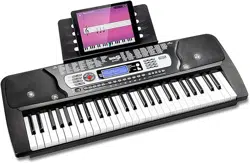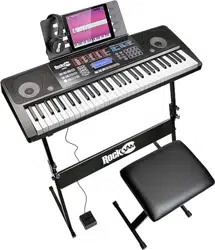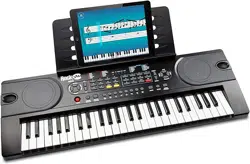

RJ549 Multi-function Keyboard
User Guide

1
Important Information
Be sure to follow this information so as not to harm yourself or others, or damage this instrument or other
external equipment
Power adapter:
•
Please use only the specied DC adapter supplied with the product. An incorrect or faulty adapter can
cause damage to the electronic keyboard.
•
Do not place the DC adapter or power cord near to any source of heat such as radiators or other heaters.
•
To avoid damaging the power cord, please ensure that heavy objects are not placed on it and that it is not
subject to stress or over bending.
•
Check the power plug regularly and ensure it is free from surface dirt. Do not insert or unplug the power cord
with wet hands.
Do not open the body of the electronic keyboard:
•
Do not open the electronic keyboard or try to disassemble any part of it. If the device is not functioning
correctly, please stop using it and send it to a qualied service agent for repair.
Use of the electronic keyboard:
•
To avoid damaging the appearance of the electronic keyboard or damaging the internal parts please do not
place the electronic keyboard in a dusty environment, in direct sunlight or in places where there are very
high or very low temperatures.
•
Do not place the electronic keyboard on an uneven surface. To avoid damaging internal parts do not place
any vessel holding liquid onto the electronic keyboard as spillage may occur.
Maintenance:
•
To clean the body of the electronic keyboard wipe it with a dry, soft cloth only.
During operation:
•
Do not use the keyboard at the loudest volume level for a long period.
•
Do not place heavy objects onto the keyboard or press the keyboard with undue force.
•
The packaging should be opened by a responsible adult only and any plastic packaging should be stored or
disposed of appropriately.
Specifications:
•
Specications are subject to change without notice.

2
Contents
Important Information 1
Power adapter 1
Do not open the body of the electronic keyboard: 1
Use of the Electronic Keyboard 1
Maintenance 1
During operation 1
Specifications 1
Controls, Indicators and External Connections 3
Front Panel 3
Back Panel 4
Power 5
AC/DC power adapter 5
Battery operation 5
Jacks and Accessories 5
Using headphones 5
Connecting an Amplifier or Hi-Fi Equipment 6
LED Display 6
Keyboard Operation 6
Power control 6
Adjusting the Master Volume 7
Tone Selection 7
Demo Songs 7
Effects 8
Percussion 8
Tempo 8
To select a Rhythm 9
Chords 9
Bass Chord & Chord Tone 9
Synchronize 10
Recording 10
Rhythm Recording 10
Chord Table: Single Finger Chords 11
Chord Table: Fingered Chords 12
Trouble Shooting 13
Specifications 13
FCC Class B Part 15 14
Product Disposal Instructions (European Union) 14
3
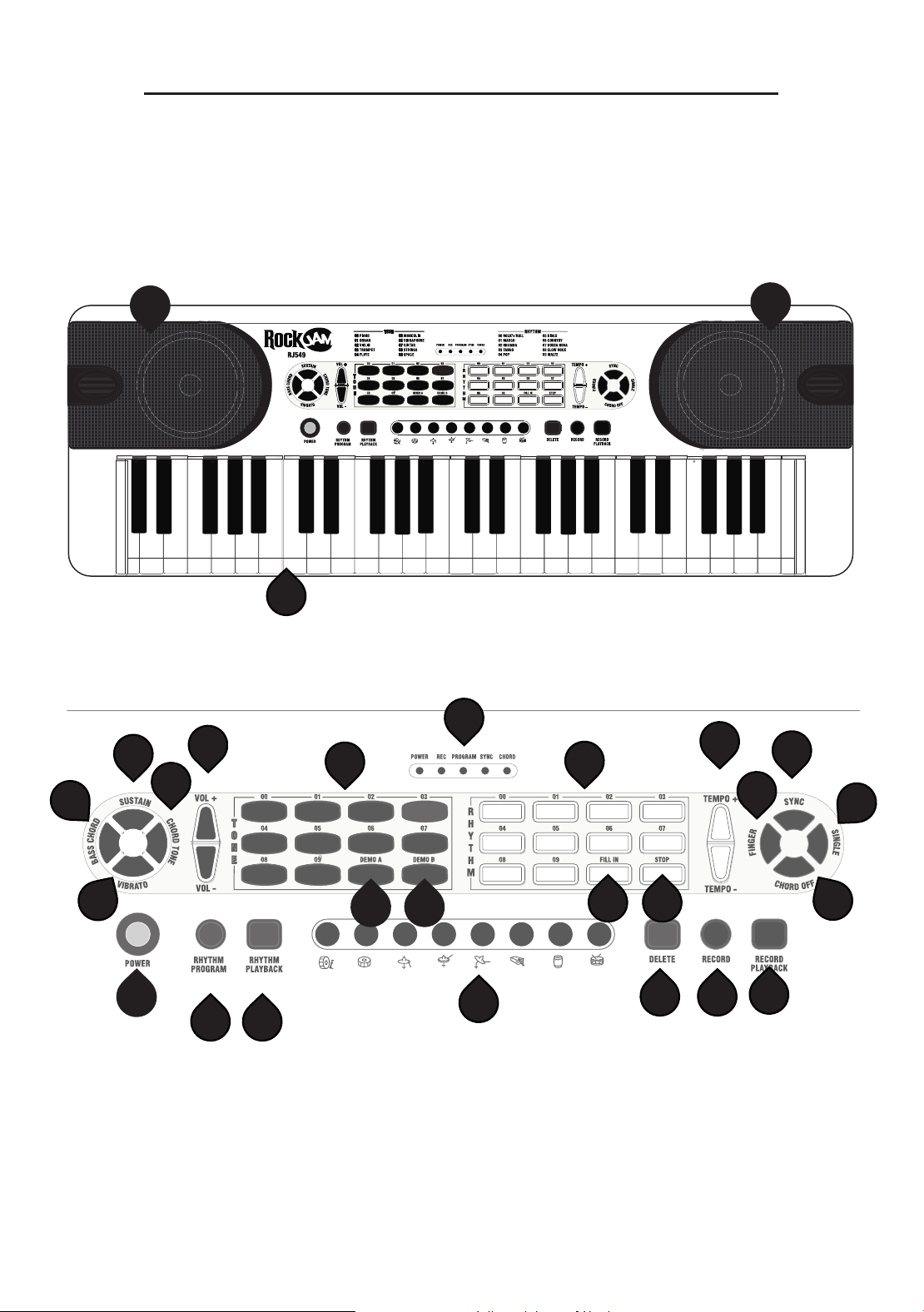
Controls, Indicators and External Connections
Front Panel
1
2
3
4
5
6
7
8
9 10
11
12
13
14
15
16
17
18
19
20
21 22
23
24 25
26
1
4
1. Loudspeaker
2. Power Switch
3. Vibrato
4. Bass Chord
5. Sustain
6. Chord Tone
7. Volume +/-
8. Tone Selection
9. Demo A
10. Demo B
11. LED Display
12. Rhythm Selection
13. Fill In
14. Stop
15. Tempo [Slow/Fast]
16. Multi-Finger Chords
17. Sync
18. Single Finger Chords
19. Chord Off
20. Chord Keyboard
21. Rhythm Program
22. Rhythm Playback
23. Percussion
24. Delete
25. Recording
26. Record Playback
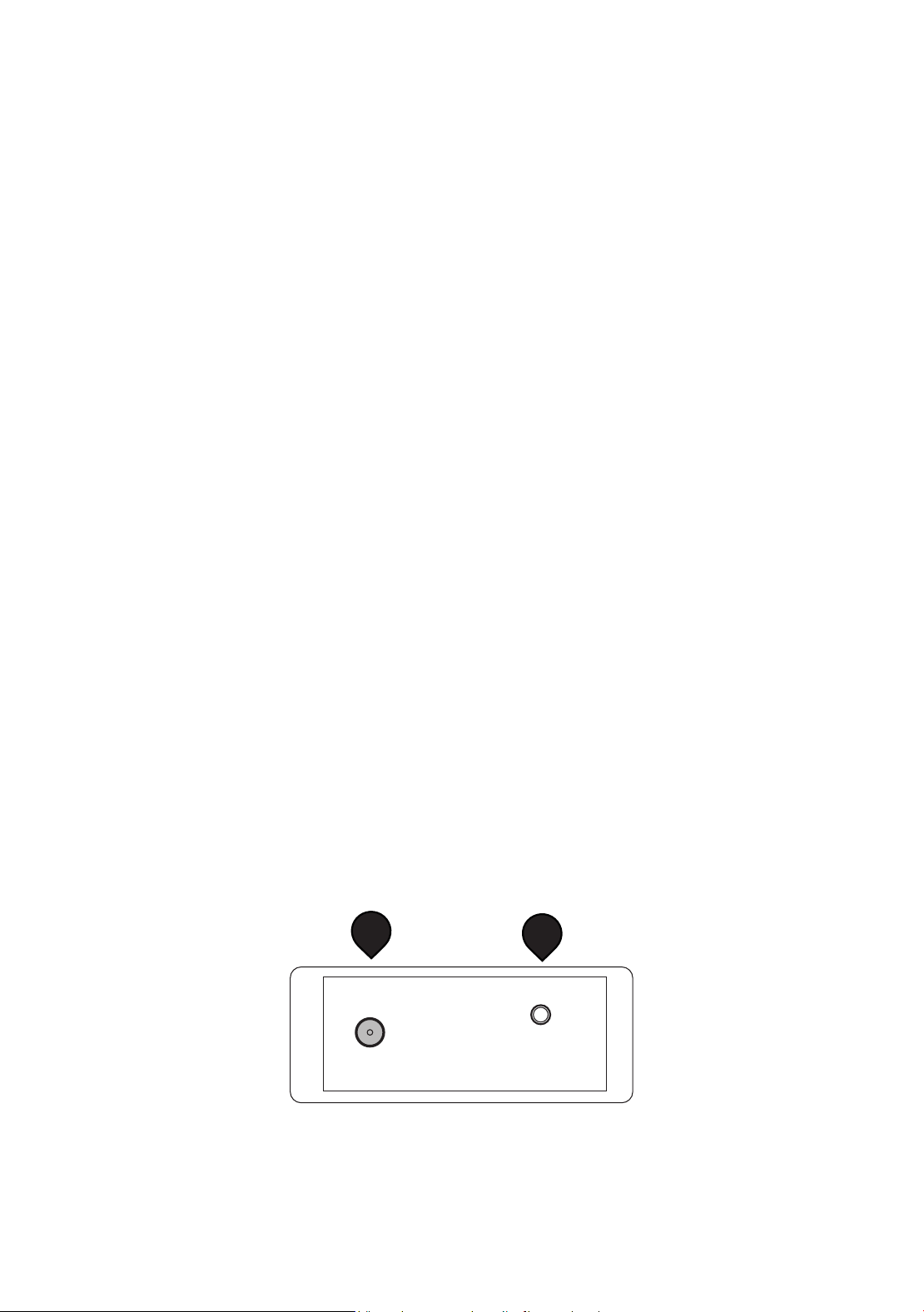
27. DC Power Input
28. Audio Output
DC in 9v
Phones
27
28
Back Panel
5
Power
AC/DC power adapter
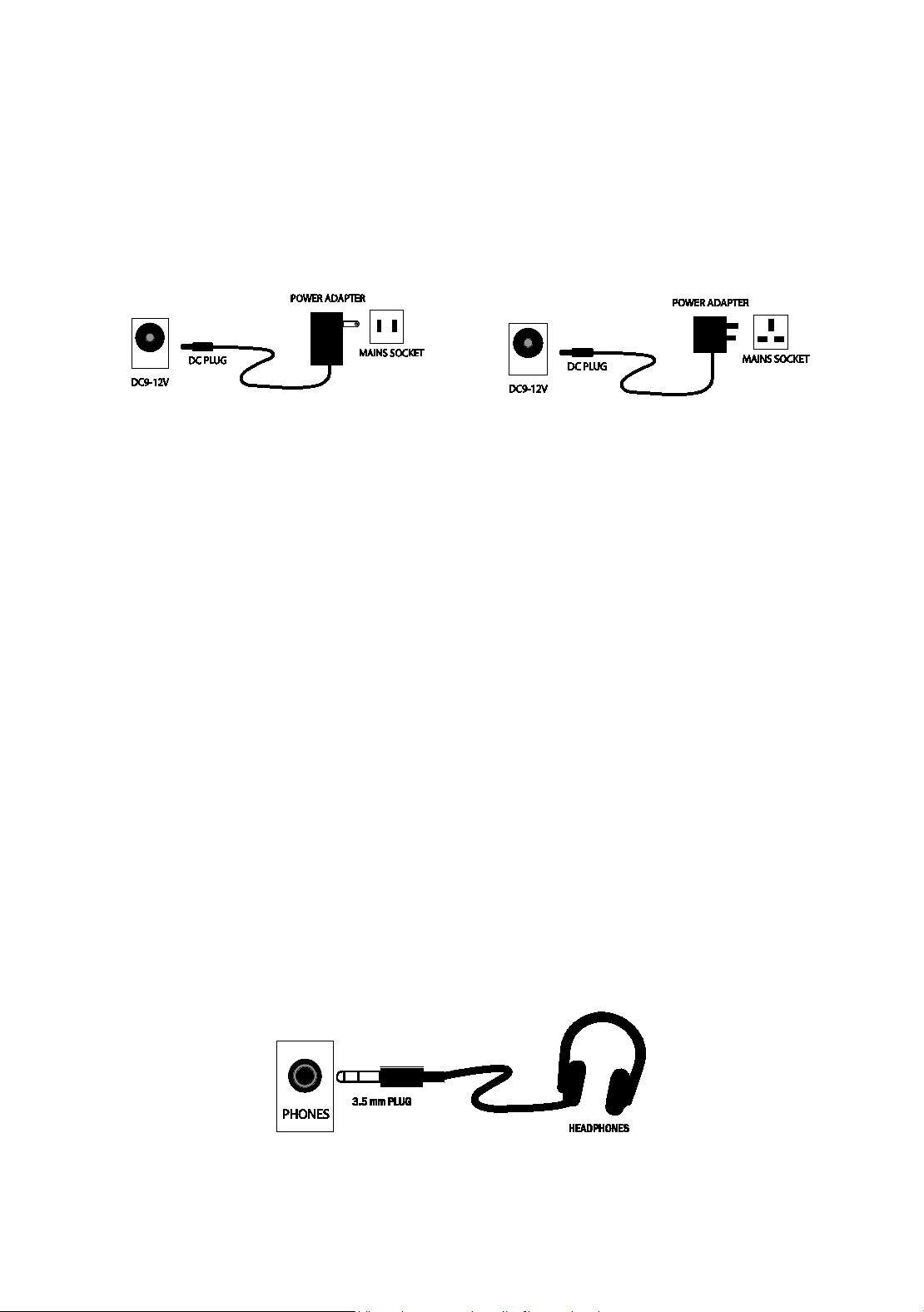
Please use the AC/DC power adapter that came with the electronic keyboard or a power adapter with
DC 9V output voltage and 1,000mA output, with a centre positive plug. Connect the DC plug of the pow-
er adapter into the DC 9V power socket on the rear of the keyboard and then connect to the outlet.
Caution: When the keyboard is not in use you should unplug the power adapter from the mains power socket.
Battery operation
Open the battery lid on the underneath of the electronic keyboard and insert 6 x 1.5V Size AA alkaline batteries.
Ensure the batteries are inserted with the correct polarity and replace the battery lid.
Caution: Do not mix old and new batteries. Do not leave batteries in the keyboard if the keyboard is not going to be
used for any length of time. This will avoid possible damage caused by leaking batteries.
Jacks and Accessories
Using headphones
Connect the 3.5mm headphone plug to the [PHONES] jack on the rear of the keyboard. The internal speaker will cut
off automatically once headphones are connected.
USA / Canada
UK
6
Connecting an Amplier or Hi-Fi Equipment
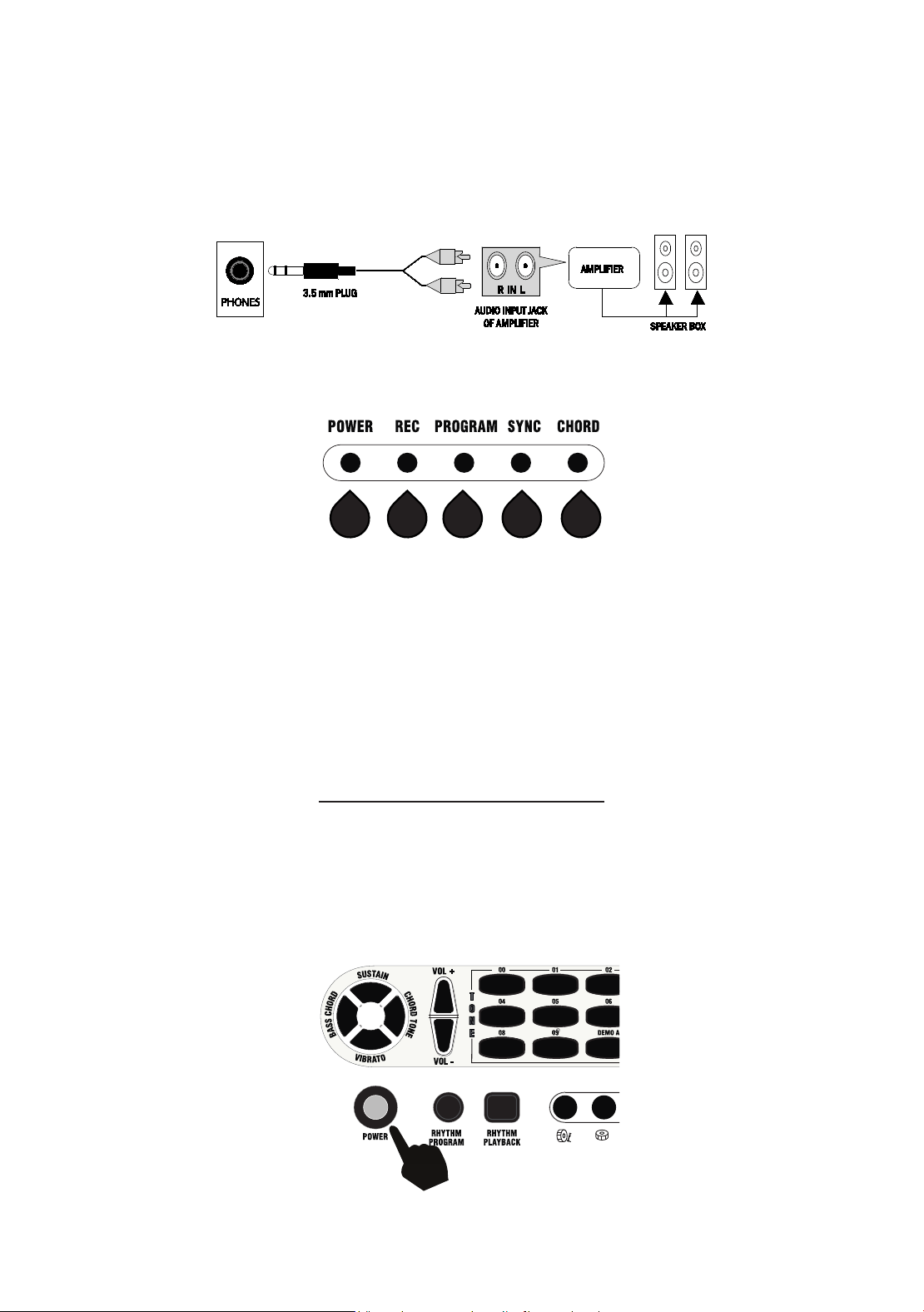
This electronic keyboard has a built-in speaker system, but it can be connected to an external amplifier or other Hi-Fi
equipment. First turn off the power to the keyboard and any external equipment you want to connect. Next insert one
end of a stereo audio cable (not included) into the LINE IN or AUX IN socket on the external equipment and plug the
other end into the [PHONES] jack on the rear of the electronic keyboard.
Keyboard Operation
Power control
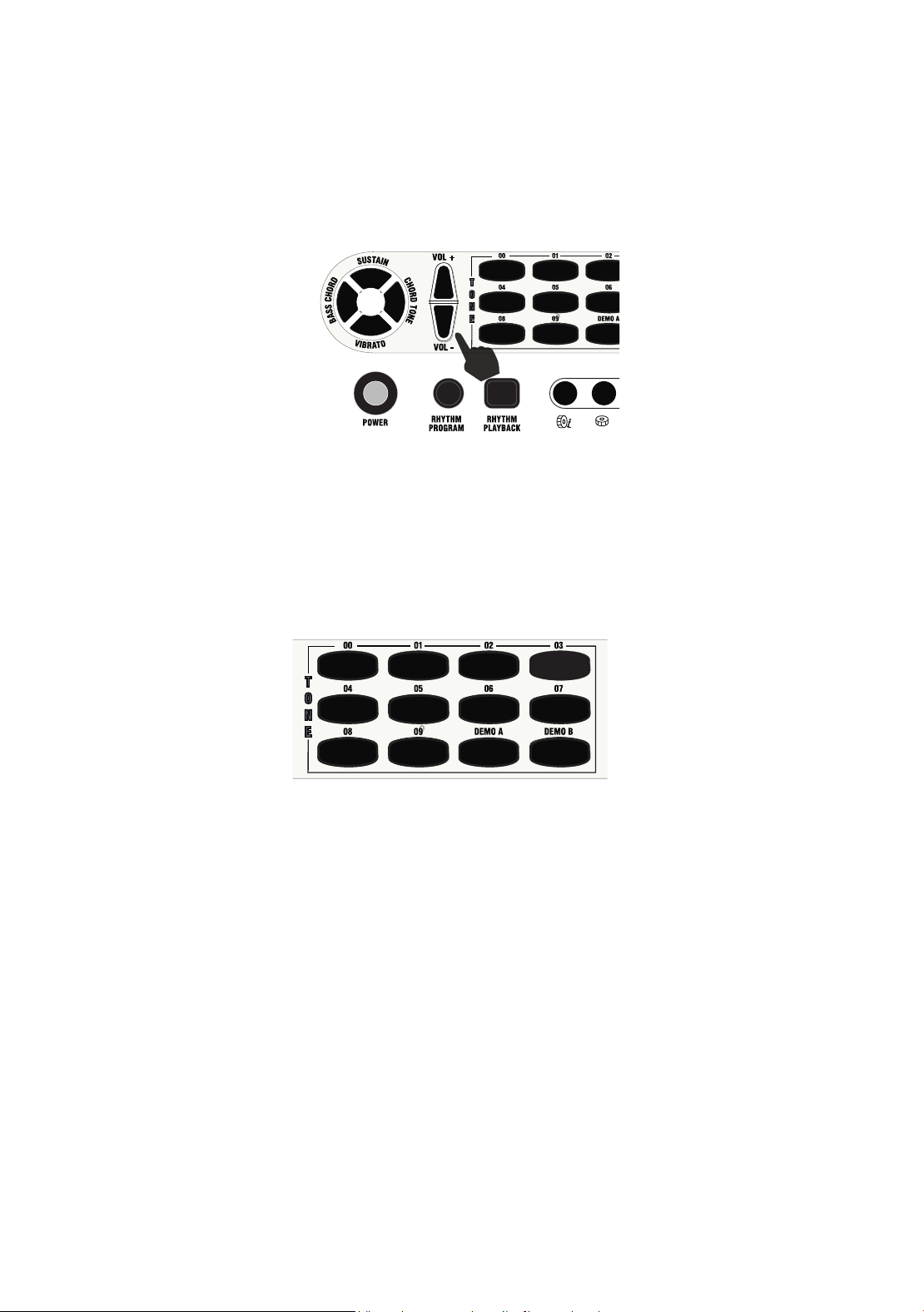
Press the [POWER] button to turn the power ON and again to turn the power OFF. The LED light will indicate that the
power is on.
LED Display
The LED display shows which functions are active:
1. Power: On
2. Recording/Playback function: On
3. Rhythm Programing/Playback function: On
4. Visual Metronome/Sync: One flash per beat: During Sync function: FLASHING
5. Chord function: On
1 2 3 4 5
7
Adjusting the Master Volume
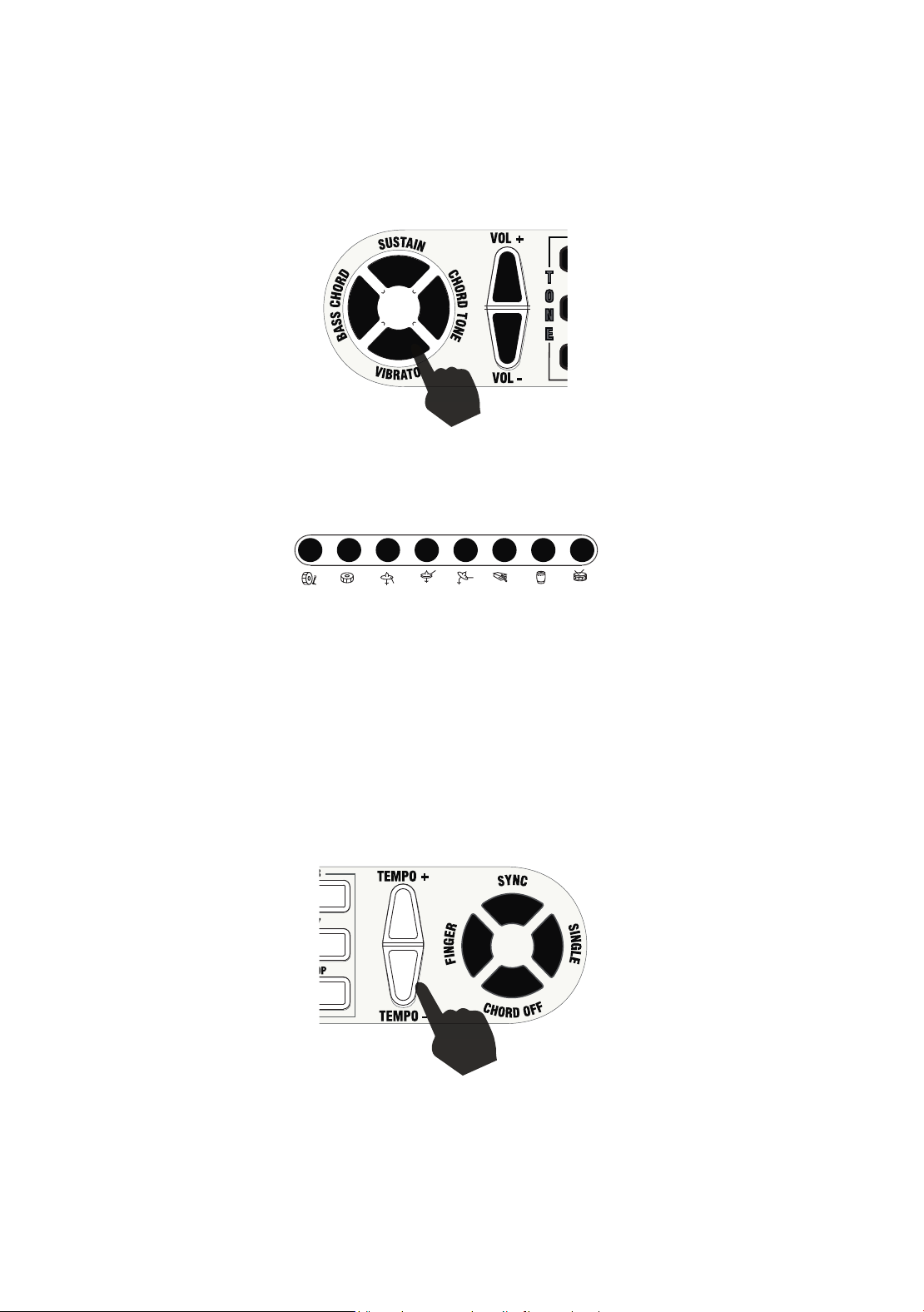
The keyboard has 16 levels of volume, from 0 (off) 15(full). To change the volume, touch the [VOLUME +/-] buttons.
Pressing both the [VOLUME +/-] buttons at the same time will make the Volume return to the default level (level 12).
The volume level will be reset to level 12 after power off and power on.
00. Piano
01. Organ
02. Violin
03. Trumpet
04. Flute
05. Mandolin
06. Vibraphone
07. Guitar
08. Strings
09. Space
Tone Selection
There are 10 possible tones. When the keyboard is switched on the default tone is Piano. To change the tone, touch
any of the tone buttons to select. When a DEMO song is playing, press any tone button to change the instrument
tone.
Demo Songs
There are 8 Demo Songs to choose from. Press [Demo A] to play all the Demo Songs in sequence. Press [Demo
B] to play a Song and have it repeat. Press any [DEMO] button to exit the Demo Mode. Each time [Demo B] is
pressed the next Song in the sequence will play and repeat.
8
Effects
The Keyboard has Vibrato and Sustain sound effects. Press once to activate; press again to deactivate. The
Vibrato and Sustain effects can be used on keynotes, or on a Demo Song.
Percussion
The Keyboard has 8 percussion and drum effects. Press the keys to produce a percussive sound. The percussion
effects can be used in combination with any other mode.
Tempo
The instrument provides 25 levels of tempo; the default level is 10. Press the [TEMPO+] and [TEMPO -] buttons to
increase or decrease the tempo. Press both simultaneously to return to the default value.
9
To select a Rhythm
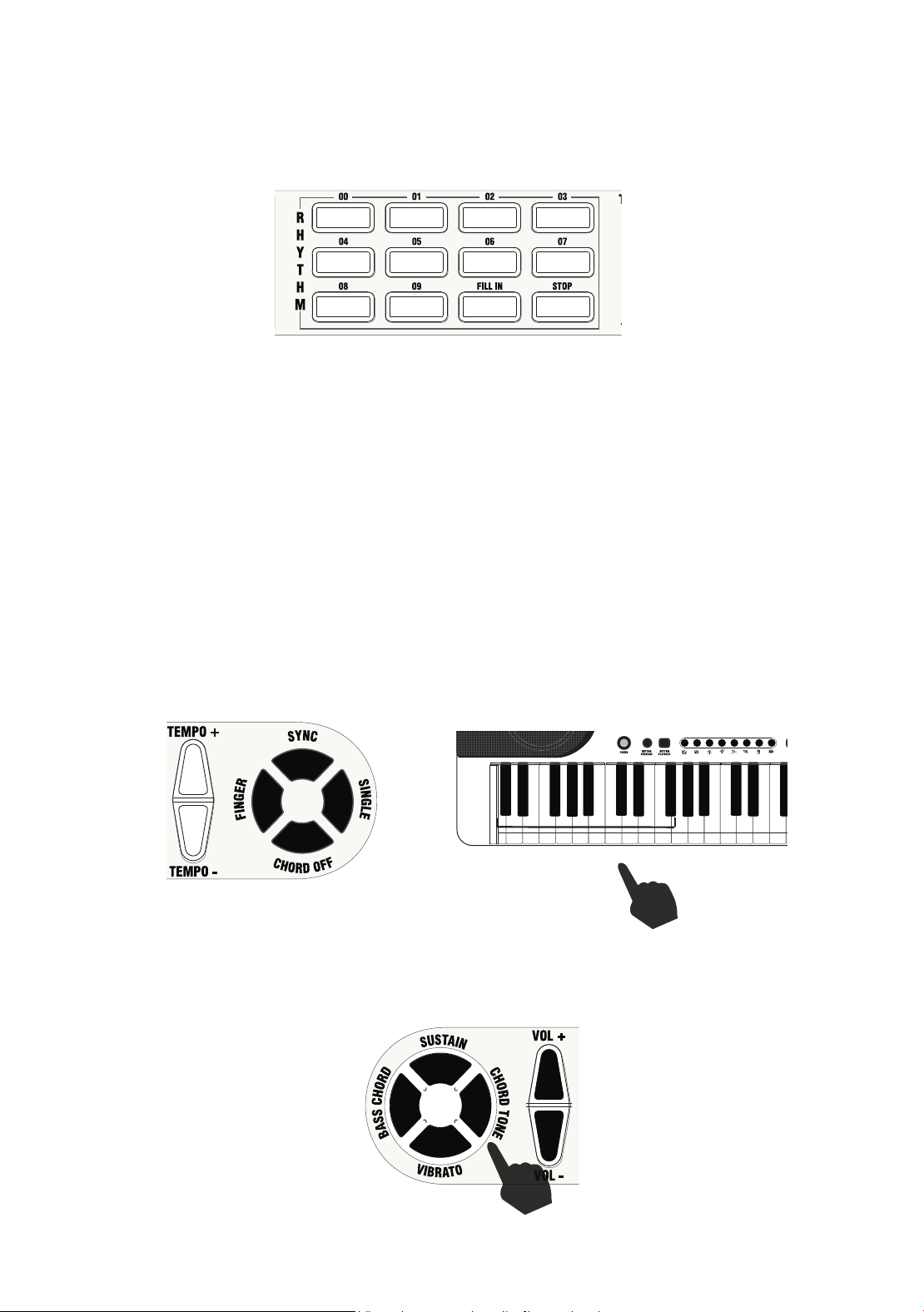
Press any of the [RHYTHM] buttons to turn on that Rhythm function. With a Rhythm playing, press any other
[RHYTHM] button to change to that Rhythm. Press the [STOP] button to stop the Rhythm playing. Press the [FILL IN]
button to add a fill to a rhythm that is playing.
Chords
To play auto-chords in either Single Finger Mode or Multi-Finger Mode, press the [SINGLE] or [FINGER] buttons; the
19 keys on the left of the keyboard will become an Auto Chord Keyboard.
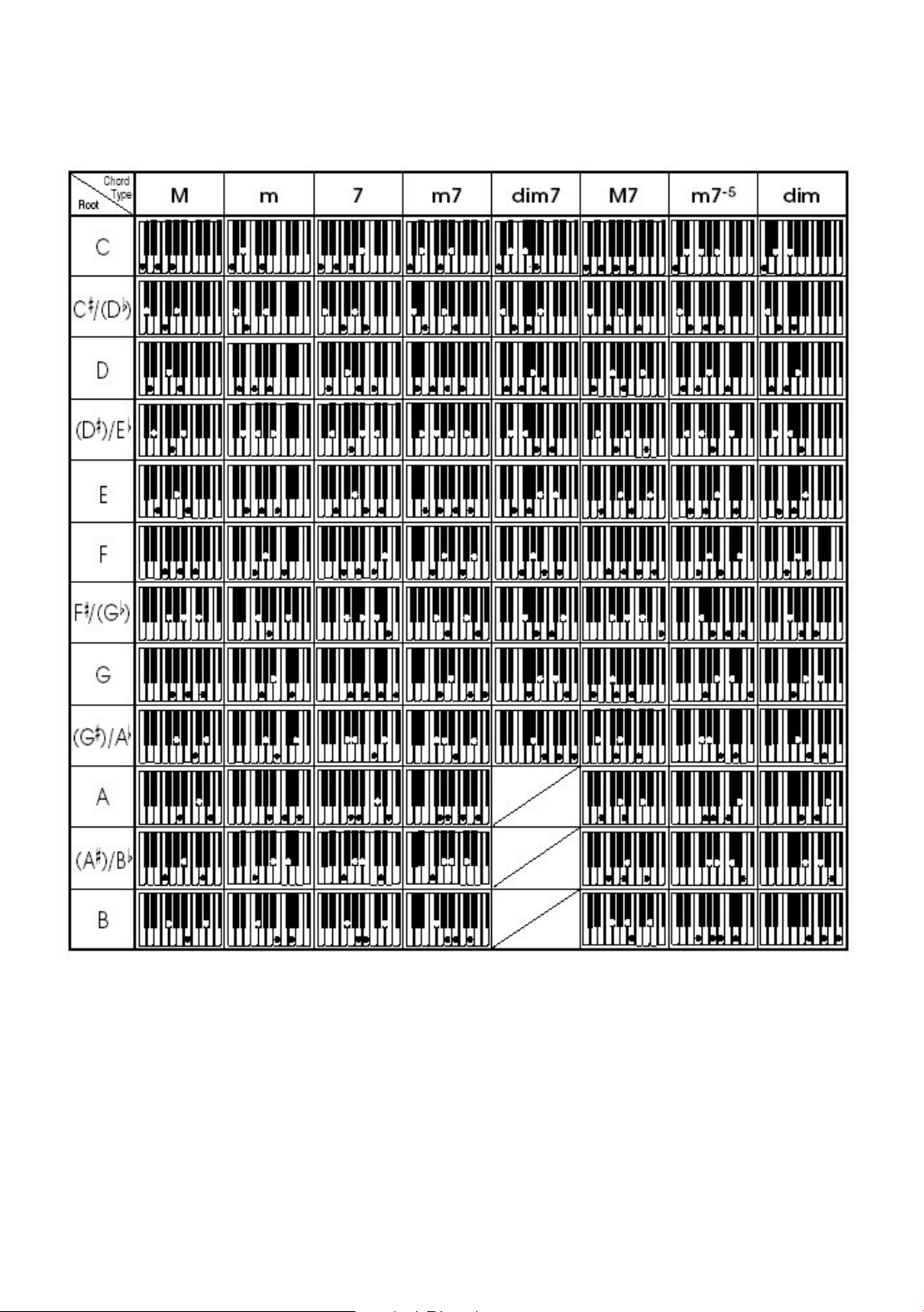
The SINGLE button selects single finger chord mode. You can then play the chords as shown on page 11. The
FINGER button selects the fingered chord function. You can then play the chords as shown on page 12.
With a Rhythm playing: use the 19 keys on the left of the Keyboard to introduce chords into the rhythm. To stop the
chords playing push the [CHORD OFF] button.
Bass Chord & Chord Tone
Press the [BASS CHORD] or [CHORD TONE] buttons to add the effect to the selected rhythm. Press again to cycle
through the three Bass Chord and three Chord Voice effects.
00. Rock ‘n’ Roll
01. March
02. Rhumba
03. Tango
04. Pop
05. Disco
06. Country
07. Bossanova
08. Slow Rock
09. Waltz
10
Synchronize
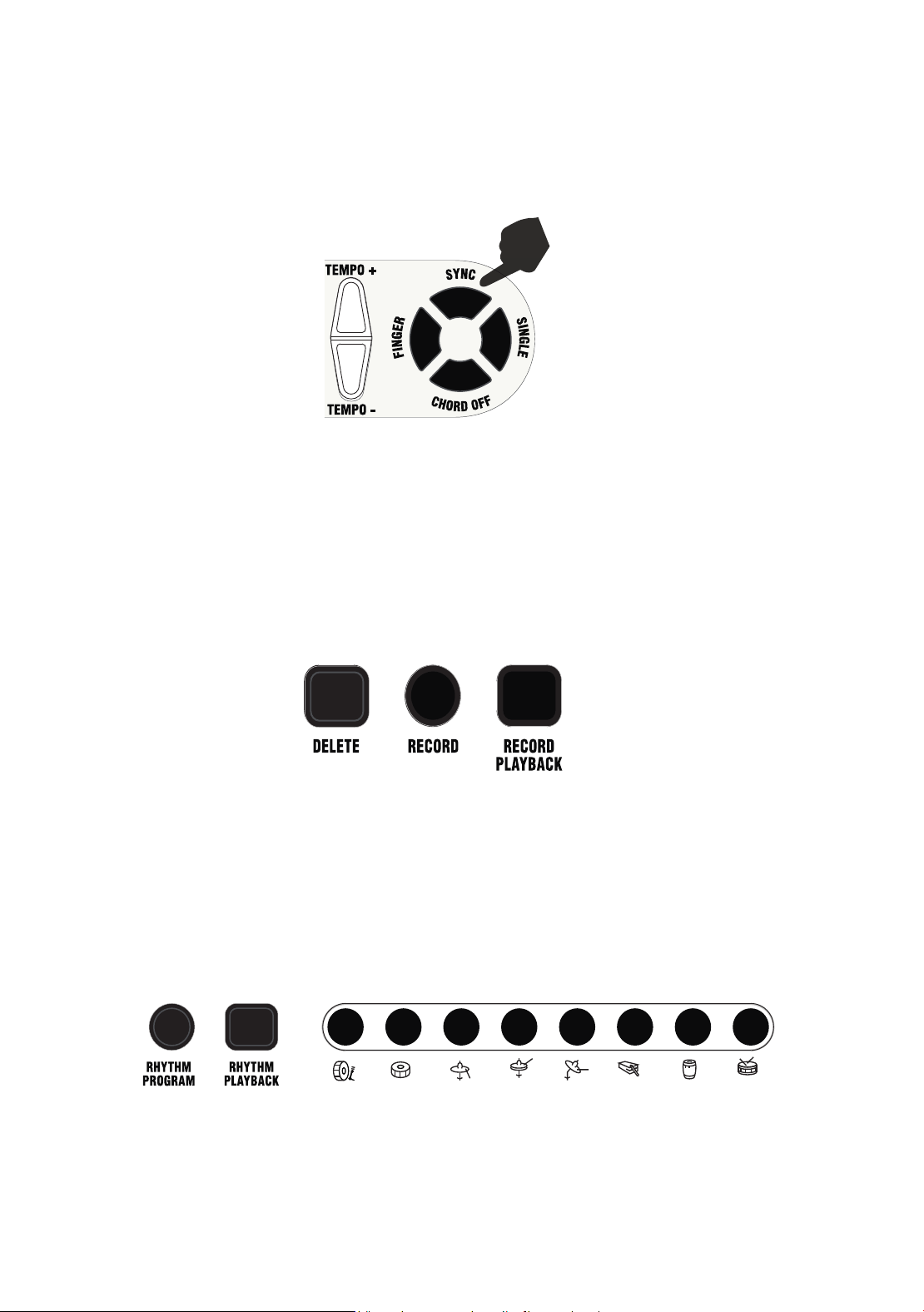
Press the [SYNC] button to activate the synchronize function.
Press any of the 19 keys on the left of the Keyboard to activate the selected Rhythm as you begin to play.
Recording
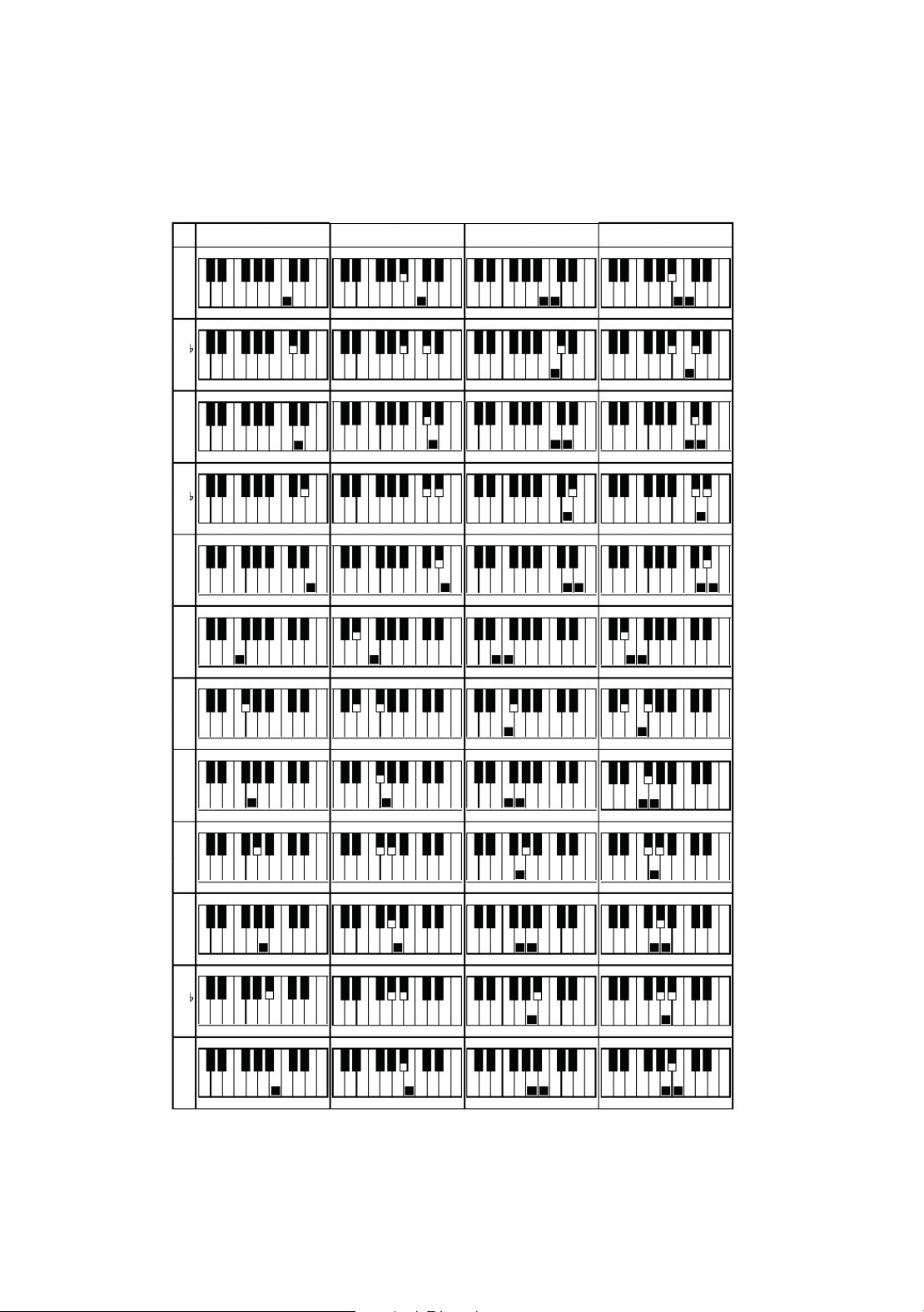
Press the [RECORD] button to enter Record Mode. Play a sequence of notes on the Keyboard for a Recording.
Press the [RECORD] button again to save the Recording. (Note: Only a single note can be recorded at a time. A se-
quence of approximately 40 single notes may be recorded in each recording.) When the memory is full the Record
LED will turn off. Press the [PLAYBACK] button to play the recorded notes. Press the [DELETE] button to delete the
recorded notes from memory.
Rhythm Recording
Press the [RHYTHM PROGRAM] button to activate this mode. Use any of the 8 percussion keys to create a Rhythm.
Press the [RHYTHM PROGRAM] button again to stop recording a Rhythm. Press the [RHYTHM PLAYBACK]
button to play the Rhythm. Press the button again to STOP playback. A rhythm of approximately 30 beats can be
recorded.
11
C
D
D
E
E
F
F#
G
G#
A
B
B
mm
7
M7
Chord Table: Single Finger Chords
12
Chord Table: Fingered Chords
13
Problem Possible Reason / Solution
A faint noise is heard when turning the power on or
off.
This is normal and nothing to worry about.
After turning the power on to the keyboard there
was no sound when the keys were pressed.
Check the volume is set to the correct setting. Check that
headphones or any other equipment are not plugged into
the keyboard as these will cause the built-in speaker system
to cut off automatically.
Sound is distorted or interrupted and the keyboard
is not working properly.
Use of incorrect power adapter, or the batteries may need
replacing. Use the power adapter supplied.
There is a slight difference in timbre of some notes. This is normal and is caused by the many different tone
sampling ranges of the keyboard.
When using the sustain function some tones have
long sustain and some short sustain.
This is normal. The best length of sustain for different tones
has been pre-set.
In SYNC status the auto accompaniment does not
work.
Check to make sure that Chord mode has been selected
and then play a note from the first 19 keys on the left hand
side of the keyboard.
Trouble Shooting
Tones
10 tones
Rhythms
10 rhythms
Demos
8 different demo songs
Effect and Control
Sustain, Vibrato.
Recording and Program-
ming
43 Note record memory, Playback, 32
Beat rhythm programming
Percussion
8 different instruments
Accompaniment Control
Sync, Fill-in, Tempo
External Jacks
Power input, Headphone output
Range of Keyboard
49 C2 - C6
Weight 1.66 kg
Power Adapter
DC 9V, 1,000mA
Output Power
4W x 2
Accessories included
Power adapter, User guide. Sheet music stand
Specifications

14
FCC Class B Part 15
This device complies with Part 15 of the Federal Communications Commission (FCC) Rules. Operation is subject
to the following two conditions:
•
This device may not cause harmful interference.
•
This device must accept any interference received, including interference that may cause undesired
operation.
CAUTION
Changes or modications to this unit not expressly approved by the party responsible for compliance could void
the user’s authority to operate this equipment.
This equipment has been tested and found to comply with the limits for a Class B digital device, pursuant to Part
15 of the FCC Rules. These limits are designed to provide reasonable protection against harmful interference
in a residential installation. This equipment generates, uses, and can radiate radio frequency energy and, if not
installed and used in accordance with the manufacturer’s instructions, may cause interference harmful to radio
communications.
There is no guarantee, however, that interference will not occur in a particular installation. If this equipment does
cause harmful interference to radio or television reception, which can be determined by turning the equipment off
and on, the user is encouraged to try to correct the interference by one or more of the following measures:
•
Reorient or relocate the receiving antenna.
•
Increase the separation between the equipment and receiver. Connect the equipment to an outlet on a
circuit different from that to which the receiver is connected.
•
Consult the dealer or an experienced radio or TV technician for help.
Product Disposal Instructions (European Union)
The symbol shown here and on the product, means that the product is classed as Electrical or Electronic
Equipment and should not be disposed with other household or commercial waste at the end of its working
life. The Waste Electrical and Electronic Equipment (WEEE) Directive (2012/19/EU) has been put in place to
encourage the recycling of products using best available recovery and recycling techniques to minimise the
impact on the environment, treat any hazardous substances and avoid the increase of landll. When you have
no further use for this product, please dispose of it using your local authority’s recycling processes. For more
information please contact your local authority or the retailer where the product was purchased.
PDT Ltd. Unit 4B, Greengate Industrial Estate, White Moss View, Middleton, Manchester,
M24 1UN, United Kingdom - [email protected] - Copyright PDT Ltd. © 2017