
USER MANUAL
Before using the TV, please read this manual
thoroughly and retain it for future reference.
ENGLISH
FRANÇAIS
ESPAÑOL
90604 ES-A23470M-2

USER MANUAL
Before using the TV, please read this manual
thoroughly and retain it for future reference.
ENGLISH

Copyright Statement
© 2024 Hisense Company Ltd. All Rights Reserved.
All material in this User Manual is the property of Hisense Company Ltd. and its subsidiaries, and is
protected under US, CANADA, MEXICO and International copyright and/or other intellectual property
laws. Reproduction or transmission of the materials, in whole or in part, in any manner, electronic, print, or
otherwise, without the prior written consent of Hisense Company Ltd. is a violation of Hisense Company Ltd.
rights under the aforementioned laws.
No part of this publication may be stored, reproduced, transmitted or distributed, in whole or in part, in any
manner, electronic or otherwise, whether or not for a charge or other or no consideration, without the prior
written permission of Hisense Company Ltd.
Requests for permission to store, reproduce, transmit or distribute materials may be made to one of the
following addresses:
USA: Hisense USA Corporation,
105 Satellite BLVD Suite I,
Suwanee, GA 30024
CANADA: Hisense Canada Co., Ltd
2550 Meadowvale Boulevard, Unit 1
Mississauga, ON, Canada
L5N 8C2
MEXICO
IMPORTER:
Hisense Mexico S. de R.L. de C.V.
Blvd. Miguel de Cervantes Saavedra No 301
Torre Norte Piso 2, Col. Ampliación Granada
Miguel Hidalgo, Ciudad de México, C.P. 11520
RFC: HME110512IY3
TEL: (52) (55) 5531-3515
Hisense, and any and all other Hisense product names, logo’s, slogans or marks are registered trademarks
of Hisense Company Ltd. and its subsidiaries. All other trademarks are the property of their respective
holders.
©2024. All rights reserved. Hisense and the Hisense logo are registered trademarks of Hisense. Other brand
and product names are registered trademarks of their respective owners.

Disclaimer Page
**Notwithstanding anything to the contrary, including in any or all descriptions, representations, statements
or other communications related to this Hisense device (hereinafter “Device”) made in any form whatsoever
and at any time, some or all of the pre-installed, or subsequently installed Application Services may not be
available or capable of functioning as intended by the provider of the Application Services in any or all usage
areas for reasons outside of Hisense’s control, including but not limited to, Internet access, local service
limitations, etc. Any purchase or use of the Device, including any Application Services, is purely at the
user’s risk. Application Services are provided on an as-available basis without warranties of any kind, either
expressed or implied, that the Application Service will be uninterrupted or error-free, including but not limited
to vagaries of weather, disruption of Service, acts of God, warranties of title, local or regional limitations,
no infringement, NOR IMPLIED WARRANTIES OF MERCHANTABILITY OR FITNESS FOR A PARTICULAR
PURPOSE. No advice or information given by Hisense, providers, affiliates, or contractors or their respective
employees shall create such a warranty. Hisense specifically disclaims responsibility for any or all Application
Services from functioning at any time, and by purchasing the Device, you accept such disclaimer without any
claim on Hisense. You are solely responsible for providing an active and working connection to the Internet,
along with any and all hardware and/or software necessary to use the Hisense Device as intended.
Disclaimer:
Images throughout this document are for illustrative purposes only and may differ from the actual
product.

Contents
First-Time Use
Using the E-Manual............................................................................................................................3
Home Screen......................................................................................................................................3
Connecting to the Internet..................................................................................................................3
Using a Google Account.................................................................................................................... 5
Selecting Inputs.................................................................................................................................. 6
Using the TV Voice Service...............................................................................................................6
Enjoy Live TV
Channel Scan..................................................................................................................................... 7
Live Menu........................................................................................................................................... 7
Channel Edit....................................................................................................................................... 9
Learn about Live TV Support Settings.............................................................................................12
Benefits of Smart TV
Using Voice Control......................................................................................................................... 15
Content Sharing................................................................................................................................17
Using Apps....................................................................................................................................... 18
Apps Settings and Permissions....................................................................................................... 19
Enhanced Viewing............................................................................................................................19
Connecting to External Devices
Connection Guide.............................................................................................................................21
Remote & Accessories.....................................................................................................................21
Connecting Bluetooth Devices......................................................................................................... 23
Connecting a Set Top Box...............................................................................................................25
Connecting a Blu-ray or DVD Player...............................................................................................25
Sharing your Smart Phone/Computer Screen on the TV................................................................ 25
Using AirPlay and HomeKit..............................................................................................................26
Connecting USB Devices.................................................................................................................27
Connecting Headphones.................................................................................................................. 27
Connecting Audio Visual (AV) Devices............................................................................................28
Connecting Speakers or Other Audio Receivers.............................................................................29
Connecting a Digital Audio System with ARC/eARC.......................................................................29
Connecting a PC.............................................................................................................................. 30
Settings Overview
Picture...............................................................................................................................................31
Screen...............................................................................................................................................36
Sound................................................................................................................................................38
Network & Internet........................................................................................................................... 42
1

Contents
General............................................................................................................................................. 42
System message.............................................................................................................................. 45
Using Parental Control..................................................................................................................... 46
Reset to Factory Default.................................................................................................................. 47
Entertainment
Game................................................................................................................................................ 48
SoundBar Settings............................................................................................................................49
Sports................................................................................................................................................49
Media................................................................................................................................................ 50
Accessibility Features
Captions Setup................................................................................................................................. 54
High contrast text............................................................................................................................. 54
Text to speech..................................................................................................................................55
Accessibility shortcut........................................................................................................................ 55
TalkBack........................................................................................................................................... 55
Accessibility Menu Setup................................................................................................................. 55
Select to speak.................................................................................................................................56
Switch Access.................................................................................................................................. 56
Text-to-Speech (TTS) and Video Description functionalities on TV................................................ 56
Troubleshooting
FAQ...................................................................................................................................................57
Troubleshooting Guide..................................................................................................................... 64
Picture Issues................................................................................................................................... 65
Sound Issues....................................................................................................................................66
Channel and Broadcast Issues........................................................................................................ 67
Network Issues................................................................................................................................. 68
Apps Issues...................................................................................................................................... 69
Remote Control Issues.....................................................................................................................70
External Device Connection Issues................................................................................................. 70
HDMI & CEC Issues........................................................................................................................ 72
Voice Service Issues........................................................................................................................ 73
Media Files....................................................................................................................................... 73
Other Issues..................................................................................................................................... 74
2

First-Time Use
Using the E-Manual
View the embedded E-Manual that contains information about your TV's key features.
Disclaimer:
• Instructions and images through this manual are only for reference and may differ from the actual product.
Launch the E-Manual
Press button on your remote control to select Settings > System > Advanced System > E-Manual.
Scan the QR Code with your Smart Phone to open the E-Manual on your device.
Note:
• The black background icon stands for the button on the remote control.
• The grey background icon stands for the icons on the screen of the device for selecting.
Use the Buttons in the E-Manual
• Search
You can use icon on the top of the E-Manual to search for the product feature information, and the E-
Manual will provide all the titles and content that contains the search information.
• Setting
You can use icon on the top of the E-Manual home screen to adjust the text size.
Home Screen
All TV functions can be accessed from the Home screen.
Display the Home Screen
Press button on your remote control to enter the Home screen.
To exit the Home screen, use your remote control or use the navigation buttons on the screen to move the
cursor to other icons, press button to enter and select your desired service.
Connecting to the Internet
To get access to the Internet using a wired connection or connecting to an available wireless network.
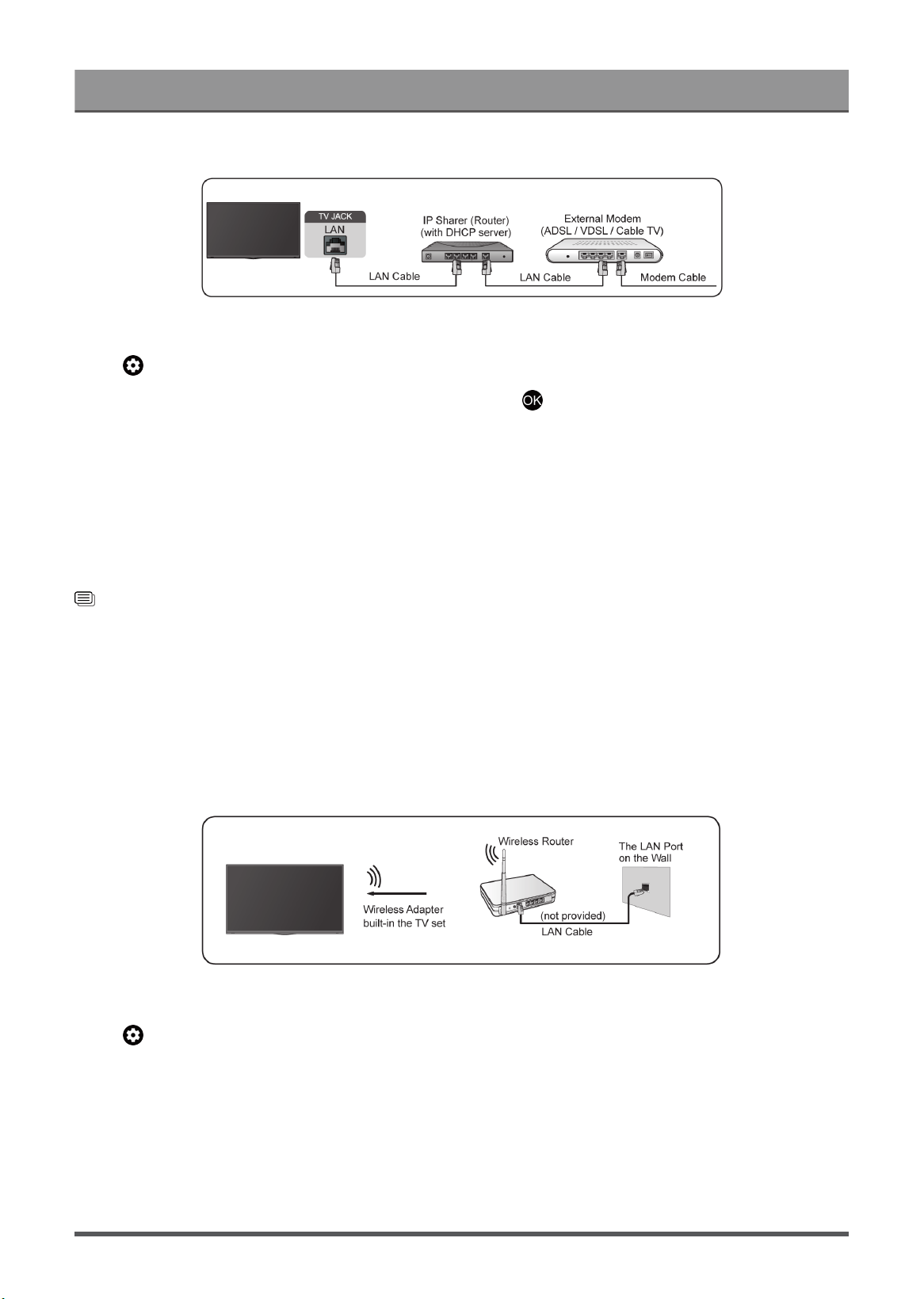
Connect to a Wired (Ethernet) Network
To get access to the Internet using a wired connection, it is recommended to use a modem or router that
supports Dynamic Host Configuration Protocol (DHCP). Modems and routers that support DHCP automatically
provide the IP address, subnet mask, gateway, and DNS, so you do not have to enter them manually. Most
home networks already have DHCP.
See the illustration below.
3
First-Time Use
After connecting to a wired (Ethernet) network:
Press button on your remote control to select Settings > Network & Internet.
Go to ETHERNET section, and set the TV network by pressing button to enter the submenu.
• ETHERNET
Show whether the Ethernet is connected.
• Proxy settings
You can set the proxy server.
• IP settings
Configure the IP setting for your network connection.
Related information
Network & Internet on page 42
Network Issues on page 68
My TV cannot connect to the network. on page 59
Connect to a Wireless Network
To connect to an available wireless network, make sure that you turn on your wireless router and have the
wireless router's SSID and password before attempting to connect.
To get access to the Internet using a wireless connection:
Press button on your remote control to select Settings > Network & Internet > Wi-Fi.
To get access to the Internet in a wireless way:
1. Turn on your Wi-Fi.
2. The list of networks will display automatically.
3. Select a wireless network from the list, and input the password.
4. If the network connection does not appear in the list, select See all to display all the list, or select Add new
network to input a wireless network name, select the type of security mode, and enter password.
4

First-Time Use
Note:
• The device uses the user's WIFI credentials to connect to the network.
Related information
Network & Internet on page 42
Network Issues on page 68
My TV cannot connect to the network. on page 59
Internet Related Features
• Content Sharing
To view media content, like videos, music or photos saved in your Android/iOS/PC device on your TV
screen. For more information, please refer to Benefits of Smart TV > Content Sharing in this manual.
• Sharing your Smart Phone/Computer Screen on the TV
To mirror your mobile device or computer screen to the TV. For more information, please refer to
Connecting to External Devices > Sharing your Smart Phone/Computer Screen on the TV in this manual.
Using a Google Account
Sign in with Google to get apps, Google Assistant, and personalized recommendations.
Signing into an account
When you turn on the TV for the first time, you can select Set up Google TV to sign into a Google Account
by the setup guide, if you select Set up basic TV, you can also set it later by pressing to select Set up
Google TV.
• Set up with the Google Home app
• Set up on TV instead
Before signing into your Google account, make sure your TV is connected to the network. For more about
network settings, please refer to Connect to a Wired (Ethernet) Network or Connect to a Wireless Network in
this manual, after the network is connected, enter your E-mail/phone and password, select Sign In.
Adding a kid account
You can create a personalized space for your kid with access to content they love and tools to help keep you
in control.
1.
After the network is connected, > Settings > Accounts & sign-in > Add a kid.
2. Set up Google TV for a kid in your family, you can do the same for more kids later.
Adding another account
You can use other accounts within Google apps like YouTube, but you won't see recommendations for those
accounts on the Google TV home screen.
Before creating a new account, make sure your TV is connected to the network. For more about network
settings, please refer to Connect to a Wired (Ethernet) Network or Connect to a Wireless Network in this
manual.
1.
After the network is connected, > Settings > Accounts & Sign-in > Add an account.
5

First-Time Use
2. Enter E-mail/phone and password.
3.
Press .
Selecting Inputs
Access to connected external devices including wireless connected devices.
Switch between external devices connected to the TV
1.
Press / button on your remote control.
2. Select your desired input source.
Edit the name of input sources
1.
Press / button on your remote control.
2.
Press button to rename input.
Note:
• Maximum name length is 36 characters.
Using the TV Voice Service
Access the Voice Service
Press button on your remote control to access the Voice Service. Before use Voice Service, please pair
bluetooth remote control to your TV first.
Use the remote microphone
You can enjoy interacting with the voice assistant using your voice by just pressing and holding the button
on your remote control.
Note:
• Voice Service feature may not be applicable in some models/countries/regions.
•
Remote control with button is only available in some models/countries/regions.
• To use this function, End User License Agreement and corresponding Smart feature privacy policy/terms
and conditions may be required to be agreed to.
Hands-free Voice Control
Interacting with Alexa or Google Voice by just using your voice, all hands-free. please refer to Benefits of
Smart TV > Using Voice Control > Hands-free Voice Control
6

Enjoy Live TV
Channel Scan
You can scan for channels automatically or manually.
Note:
• Antenna/cable function may not be applicable in some models/countries/regions.
Auto Channel Scan
Automatically scan for channels to view programs from your TV source.
/ > TV
If no TV channels were saved before, you will be prompted to do a channel search.
In Live TV, / > Channel Settings > Channels > Auto Channel Scan
Before you select Auto Channel Scan, you can press / > Channel Settings > Channels > Tuner
Mode to select Antenna or Cable.
Manual Scan
In Live TV, / > Channel Settings > Channels > Manual Scan
Type in a channel to add it manually to your TV.
In Live TV, / > Channel Settings > Channels > DTV Manual Scan
In Live TV, / > Channel Settings > Channels > ATV Manual Scan
Live Menu
You can obtain quick access to the channel list, favorite channel list or use relevant features with ease when
watching TV programs.
Display Channel List
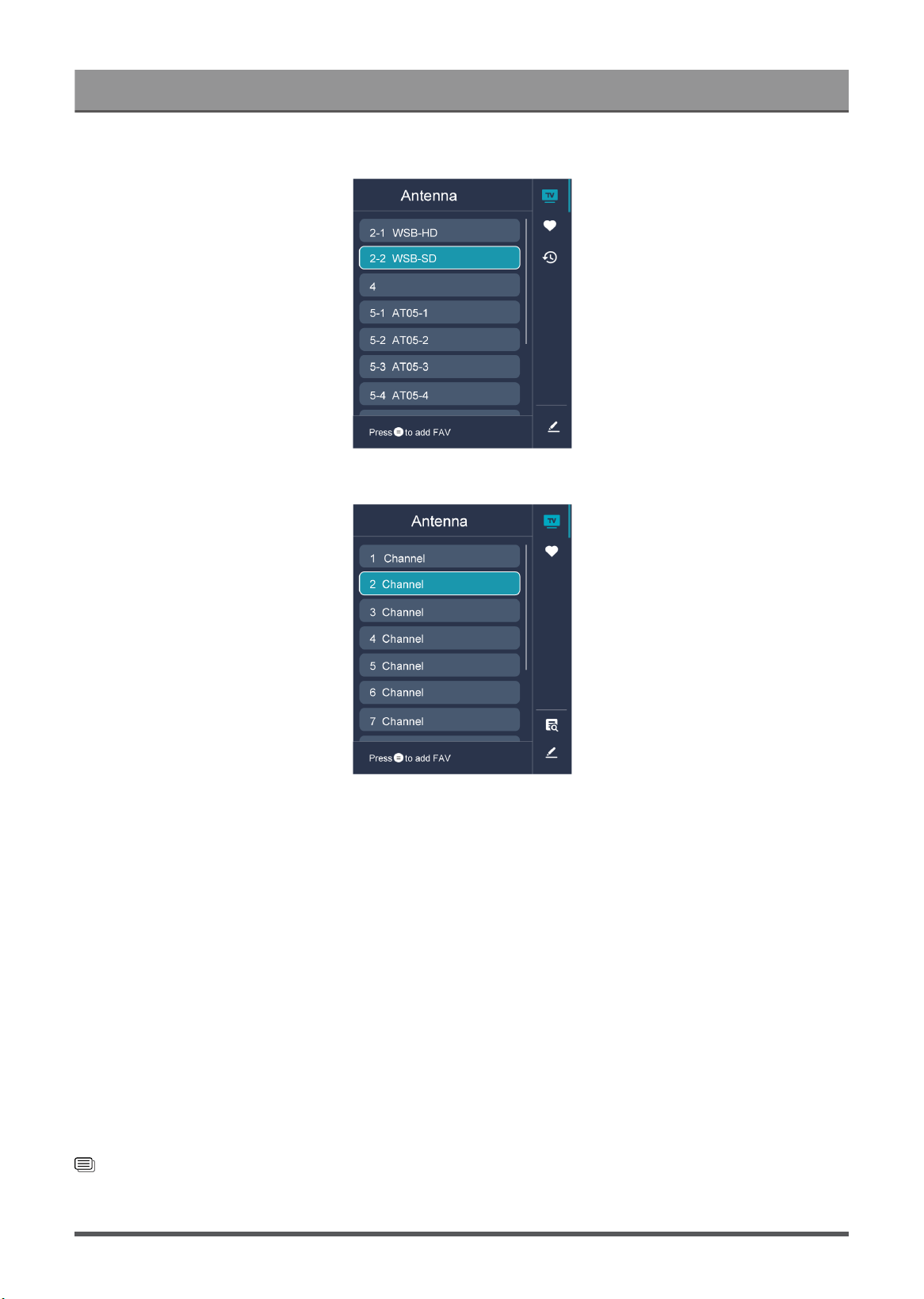
In Live TV, press button on the remote control to display the Channel List menu.
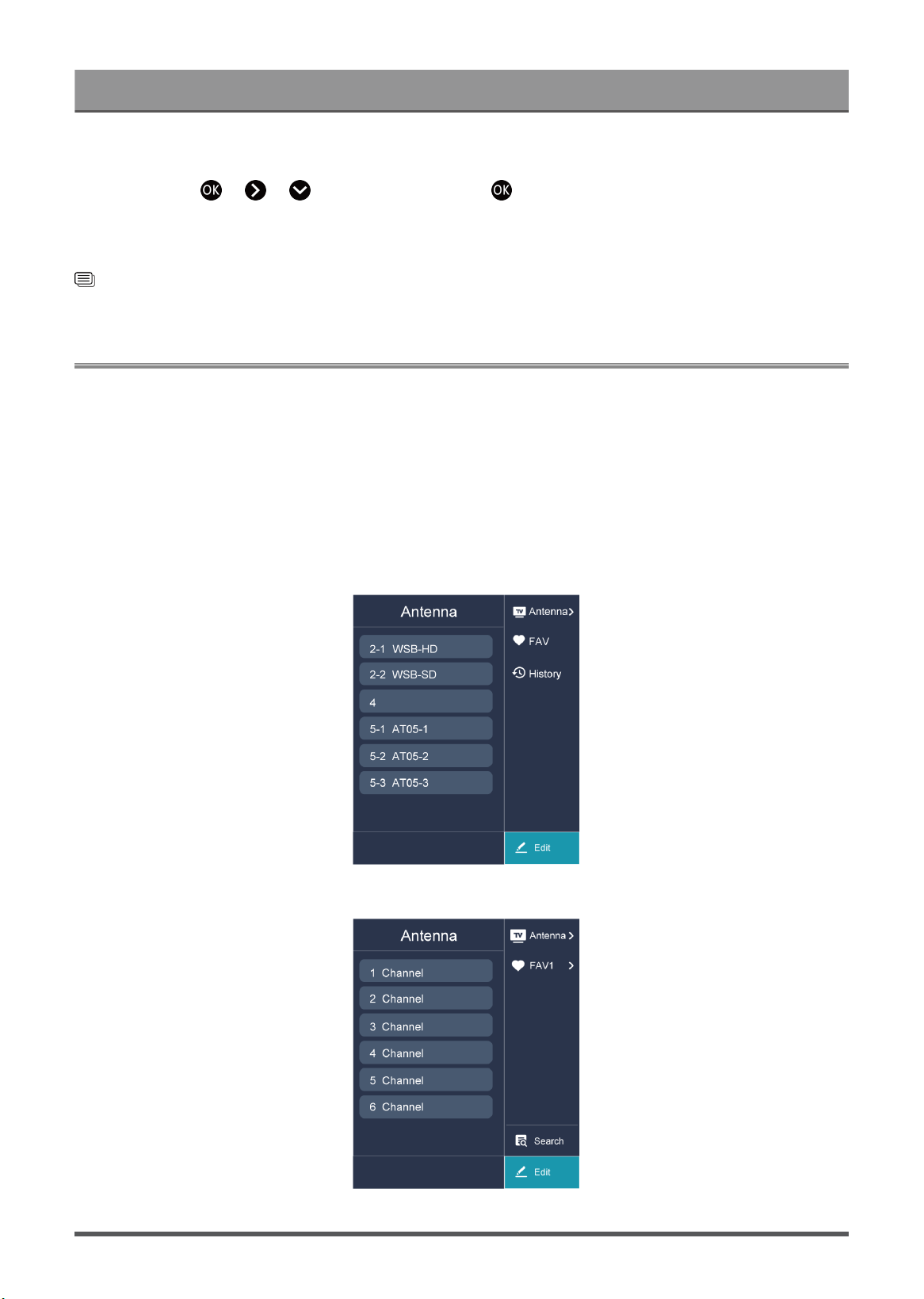
Learn about channel list sub-menu.
In Live TV, >
7
Enjoy Live TV
TV List
Display Live TV channel categories, such as Cable and Antenna.
Fav
Display favorite lists.
History
Display the channels that have been watched for a period of time.
Search
Search for the content you want.
Edit
Edit the channel list.
Note:
• The picture is only for reference, and may differ from the actual product.
• The sub-menu options may vary depending on models/countries/regions.
Related information
Edit Channel List on page 9
8
Enjoy Live TV
Display Favorite Channel List
In Live TV, press > > to select FAV, and press button to display the favorite list.
Note:
• These steps should be operated under TV inputs.
Related information
Edit Favorite Channel List on page 10
Channel Edit
Manually edit the channel list or favorite channel list to your preference.
Edit Channel List
Before you can edit the channel list, Channel Scan must be completed first.
Note:
• The image is only for reference and may differ from the actual product.
• The sub-menu options may vary depending on models/countries/regions.
9
Enjoy Live TV
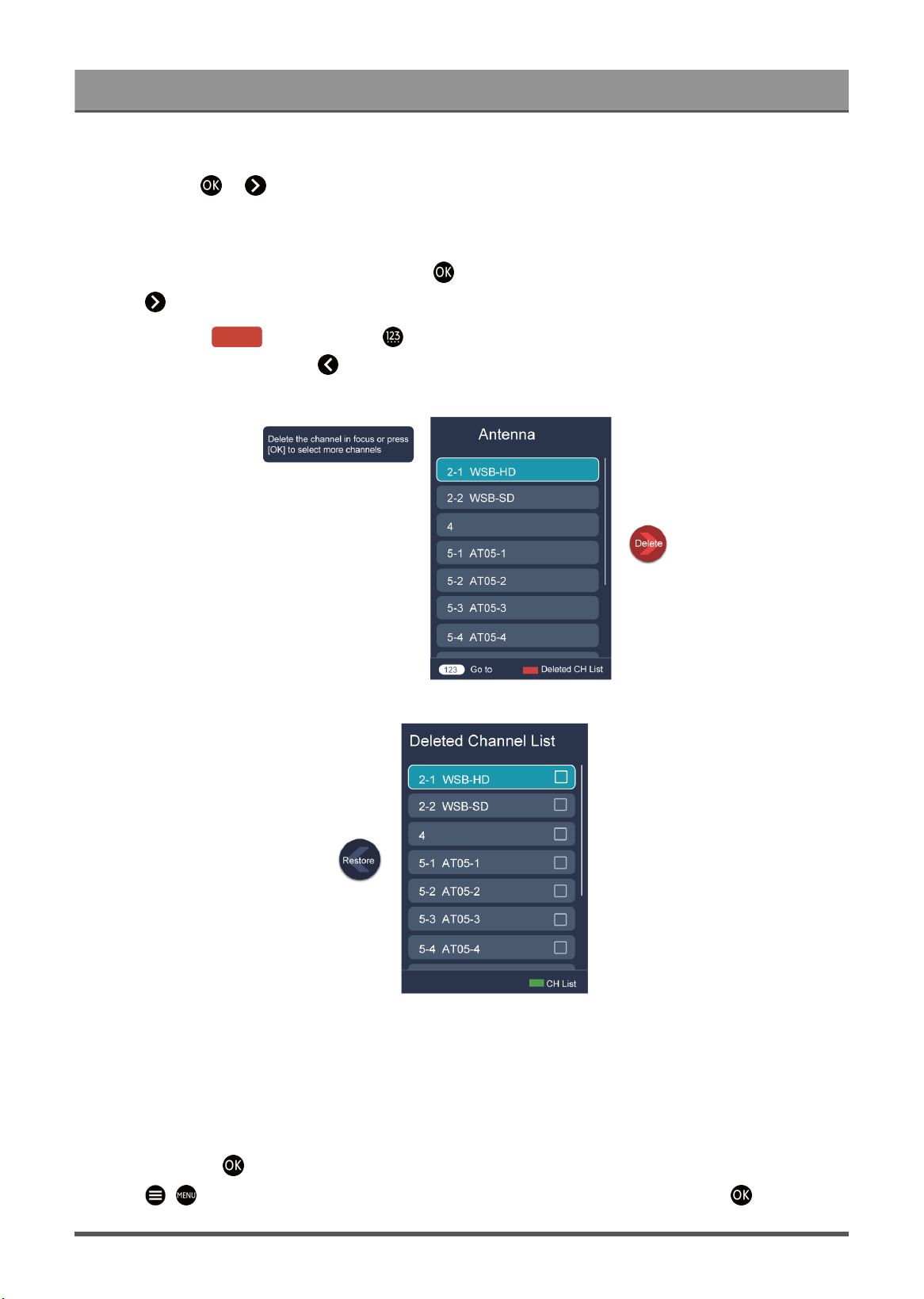
Manage the Channels
In Live TV, press > to select a Live TV channel category such as Antenna or Cable, then use D-pad
to select Edit.
• Delete:
1.
Select the channel you want to delete, or press to select more channels.
2.
Press button to delete.
•
Restore: Press button or press button to display the colour menu and select RED to enter the
list of deleted channels. Press button to restore the deleted channel.
Edit Favorite Channel List
Before you can edit the favorite list, Channel Scan must be completed first.
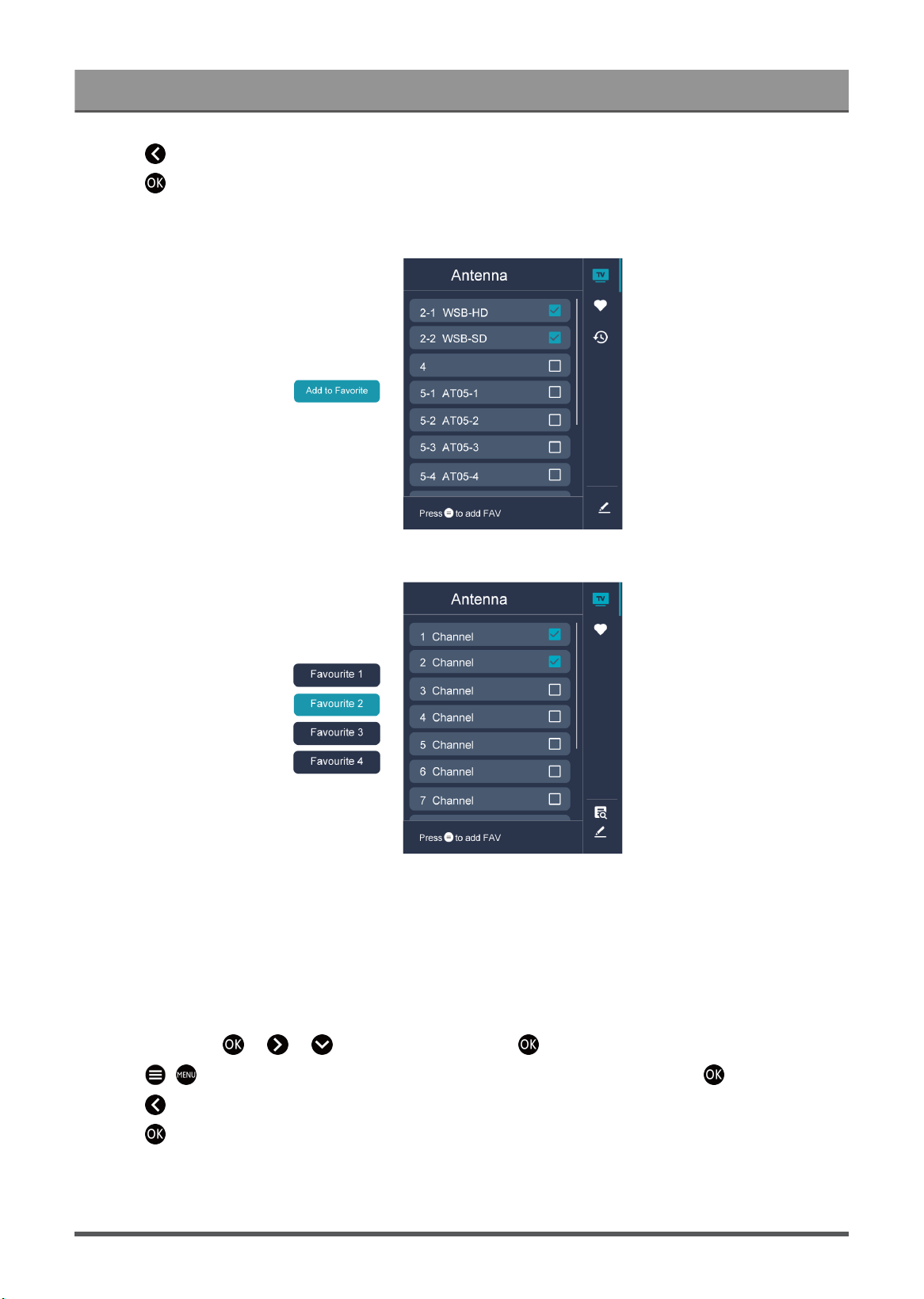
Add a channel to a favorite list
You can add channels from various reception types to the favorite list.
1.
In Live TV, press button to display the channel list.
2.
Press / button, select the channel(s) you want to add to the favorite list by pressing button.
10
Enjoy Live TV
3.
Press button to select Add to Favorite or a favourite list.
4.
Press button to confirm.
5. Then a heart-shape icon will appear next to the added channel.
Note:
• The image is only for reference and may differ from the actual product.
• The sub-menu options may vary depending on models/countries/regions.
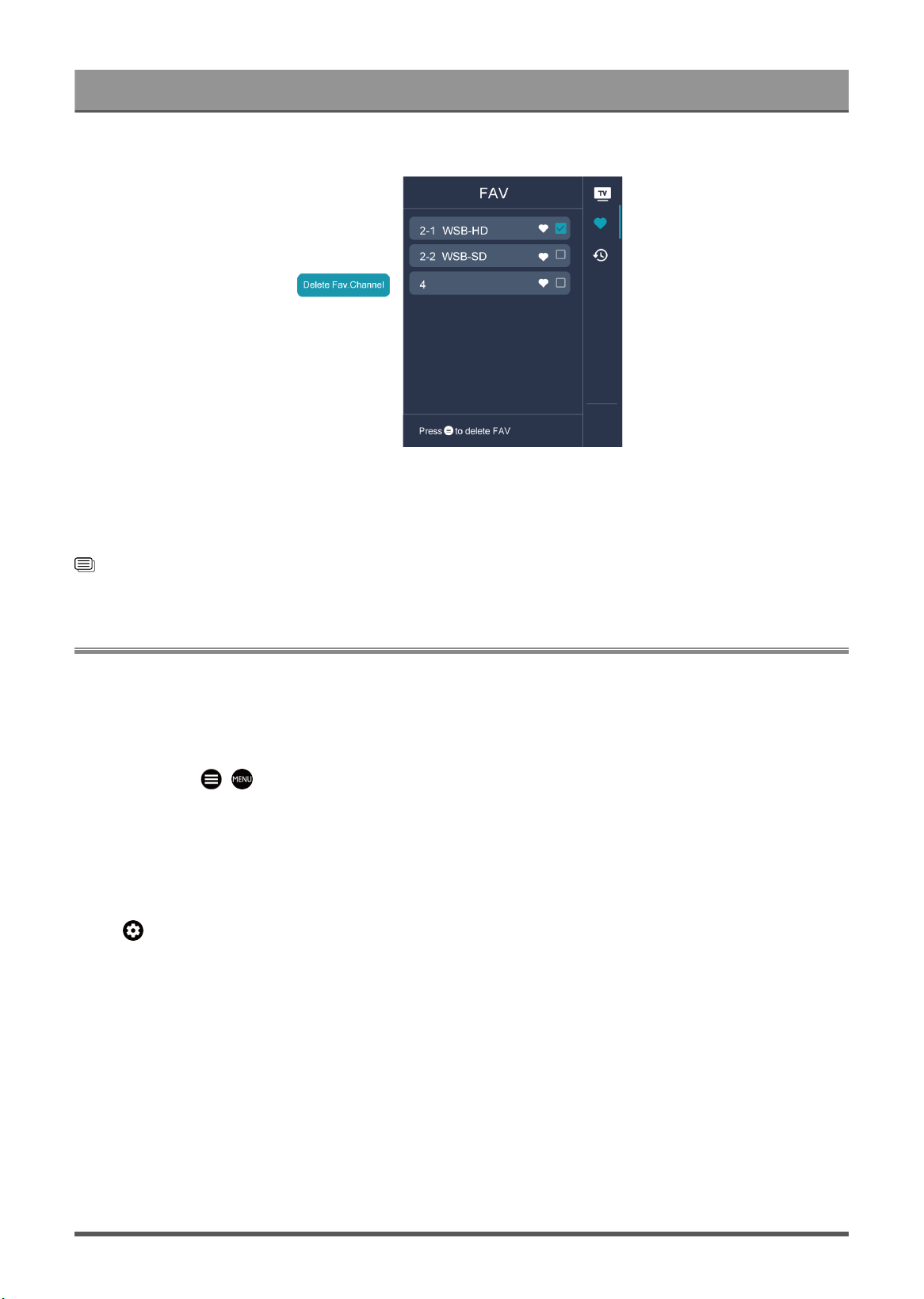
Move or remove channels in a favorite list
If you want to remove favorite channels:
1.
In Live TV, press > > to select FAV, and press button to display the favorite list.
2.
Press / , select the channel(s) you want to delete to the favorite list by pressing button.
3.
Press button to select Delete Fav. Channel.
4.
Press button to confirm.
5. Then the channel you select will disappear on the FAV list.
11
Enjoy Live TV
Note:
• These steps should be operated under TV inputs.
• Before you edit the favorite lists,complete channel scan first.
Related information
Channel Scan on page 7
Learn about Live TV Support Settings
You can set audio language or default audio output language, etc.
Audio Language
You can choose the preferred audio language for the current program.
In Live TV, press / > Channel Settings > Audio Language/Audio Language (MTS).
Note:
• The sub-menu options may vary depending on models/countries/regions.
Primary Audio/Secondary Audio
Press button on your remote control to select Settings > Channels & Inputs > Channels > Primary
Audio/Secondary Audio.
• Primary Audio
Set the default audio output language for the type of digital broadcast content that you are viewing.
• Secondary Audio
Set the secondary audio output language for digital broadcast content.
Note:
• If your selected Primary Audio and Secondary Audio are included in the MTS list, the MTS list defaults to
Primary Audio and Secondary Audio settings after you switch channel or turn on/off the TV.
• Some options in the above table may not be available in some models/countries/regions.
• The menu is only for reference and may differ from the actual product.
12

Enjoy Live TV
Audio Description
Enables broadcasted descriptive audio for visually impaired.
The menu is only for reference and may differ from the actual product.
Press button on your remote control to select Settings > Channels & Inputs > Channels > Audio
Description.
Related information
Accessibility Menu Setup on page 55
Guide
The Guide provides a convenient way to check TV programmes for the upcoming 7 days. The information
displayed by the Guide is made available by the commercial television networks for digital channels only.
The Guide also provides a simple way to record your favourite programmes and a reminder function, which
can switch channels automatically at scheduled times, so that you will not miss programmes of interest. The
availability and amount of programme information will vary depending on the broadcaster.
Note:
• The Guide function is only available for digital channels. Analogue channels are not supported.
Launch the Guide
In Live TV, press / > Channel Settings > Guide to display programme guide.
Learn about the Guide menu
• Watch
In Guide, when a current programme is selected, press to switch to the channel you want to see.
• PVR/Reminder
In Guide, press / button to select the channels. Press / button to select programme based
on the time schedule.
Press button to select PVR or Reminder.
Note:
• The PVR function may not be applicable in some models/countries/regions.
• Scheduled
In Guide, press [RED] button or press button to display the colour menu and select RED. This
will display a list of scheduled reminders and recordings.
• Detail
In Guide, press [GREEN] button or press button to display the colour menu and select
GREEN. Details of the selected programme will be displayed.
Note:
• This function may not be applicable in some models/countries/regions.
• 24h−
In Guide, press [YELLOW] button or press button to display the colour menu and select
YELLOW to select programmes of the previous day.
13

Enjoy Live TV
• 24h+
In Guide, press [BLUE] button or press button to display the colour menu and select BLUE to
select programmes of the next day.
14

Benefits of Smart TV
Using Voice Control
Set up voice assistant to control your TV just by your voice.
Google Voice Setup
Voice Control may not be applicable in some models/countries/regions.
Google Assistant
You can ask for information, search for your favorite movies, control your TV and more, just by asking Google
Assistant.
Before setting up Google Assistant, connect your TV to the network and sign in your Google account.
How to start Google Assistant
You can choose this way to start Google Assistant:
•
Press button on your remote control.
Note:
• To start Google Assistant, you need to pair the remote first.
• The Google Assistant function may not be applicable in some models/countries/regions.
• The setup steps above may vary depending on actual products.
Hands-free Voice Control
Google Assistant can answer your questions or help you change TV configuration.
When you turn on the TV for the first time, you can select Set up Google TV by the setup guide, if you select
Set up basic TV, you can also select Set up Google TV on launcher later.
Note:
• Hands-free Voice Control may not be applicable in some models/countries/regions.
How to set up Hands-free Voice Control
1.
Switch the control button on the bottom of the TV to to turn on the microphone.
2.
Pair the remote first, press button serveral times to select "Yes, I'm in".
3. Start a conversation by saying "Hey Google", and the dialog bar appears at the top of the TV screen. At the
same time, indicator lights illuminate.
4. Continue speaking, such as "What's the weather" or "volume up".
Screenless mode
> Settings > System > Advanced System > Screenless Mode
Talk to Google Assistant when the screen is off.
In Screenless Mode, Google Assistant is always available to help even when the screen is not on. Just say
"Hey Google".
This feature will affect standby power consumption. To turn it off, press button, select Settings > System
> Advanced System > Screenless Mode.
Note:
15

Benefits of Smart TV
• Google Assistant and some features are available on limited country/region/language.
• Screenless mode is only for models with far-field Google Assistant.
Alexa Setup
Set up to control your TV with any Alexa-enabled devices. Alexa can help you change the TV configuration.
Using just your voice, you can change inputs, volume, channels, and more. Just ask Alexa.
What is required to control your TV with Amazon Alexa?
• Android TV models that support the Alexa skill.
• Amazon Echo device or Alexa App.
• Amazon account for Alexa App or Echo device, if you don't have the account, please create one before the
setup process.
• My Brilliant Life account to link your TV, you can create it before the setup process or in the period.
• Home network with Wi-Fi capabilities.
• For issues of accessing your Amazon account and using the Alexa app during setup, please visit
amazon.com for help.
How to set up Alexa
1.
Press , select Settings > System > Advanced System > TV control with Alexa.
2. Select Enable Now.
3. Link the TV to My Brilliant Life account. Scan the QR code with your phone, or visit the website on your
phone or computer, sign in your My Brilliant Life account, and enter the code showed on the TV. The
webpage and code will be expired after a few minutes.
4. Next, your TV screen shows a list of TV name. Select one from it or enter a custom name. Then, your TV
will appear in the device name list on your phone or computer.
5. Download the Alexa app on your smart phone. Open the app and sign in with your Amazon account.
6. In the Alexa app, select Skills section, search and enable My Brilliant Life skill. Follow the instructions to
link your Amazon account by entering the same My Brilliant Life account that you've signed on your TV.
7. After you enabled the skill and the TV is discovered in Alexa app, the TV page will automatically jump.
8. Now you can ask Alexa try some functions available for TV.
Note:
• Use external Alexa-enabled devices (e.g. Alexa App, Echo) to control your smart TV by using just your
voice.
• After your My Brilliant Life account is created but you can't see the Link your TV step on your phone or
computer, please sign out account and re-visit URL and sign in again.
• If you do not see "TV control with Alexa" in the System settings, then your TV does not support Alexa.
• The Alexa function may not be applicable in some models/countries/regions.
• The setup steps above may vary depending on actual products.
Voice Service Other Issues
If you want to turn on your TV with Alexa-enabled devices (e.g. Echo, Echo show) or Google Home devices
(e.g. Google Home, Google Nest Hub), please:
16
Benefits of Smart TV
1.
Turn on Screenless Mode(for FFM)/Wake on Cast (for No-FFM) at > Settings > System >
Advanced System.
2. Make sure your TV and Alexa-enabled devices/Google Home devices are connected to the same network
environment.
Note:
• Only Alexa (Alexa skill is enabled) and Google Smart Home Service support turning on your TV with Alexa
Echo or Google Home.
• This function may not be applicable in some models/countries/regions.
Related information
Connect to a Wired (Ethernet) Network on page 3
Connect to a Wireless Network on page 4
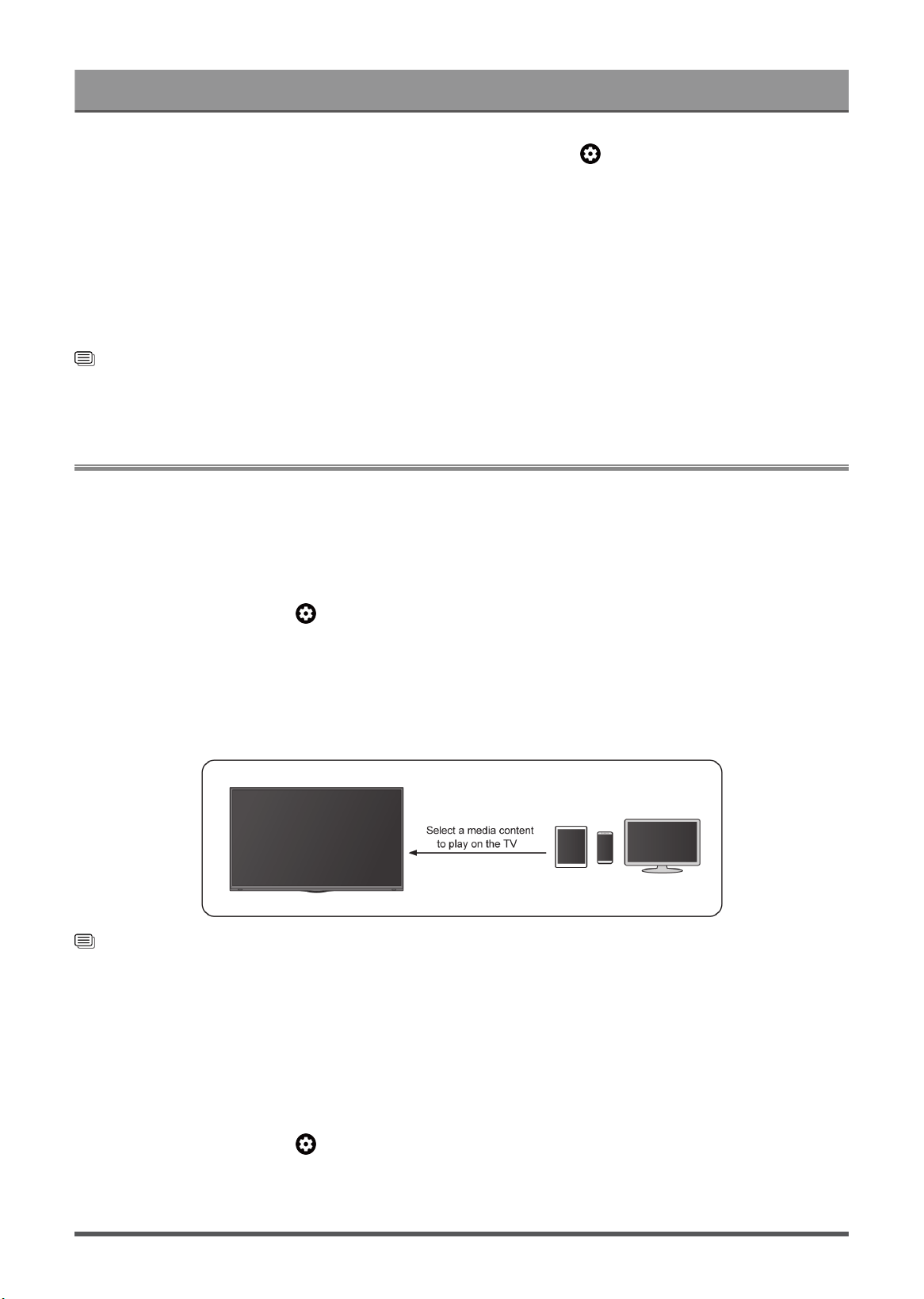
Content Sharing
Content Sharing allows you to view media content, like videos, music or photos saved in your Android/iOS/PC
device on your TV screen.
Share Media Content from your Device
1. Connect your TV and Android/iOS/PC device to the same network.
2.
Turn on Content Sharing at > Settings > System > Advanced System > Content Sharing.
3. Turn on the content sharing function in your Android/iOS/PC device.
4. Find the TV name in the search list of your device and select it. Wait for the connection progress to
complete.
5. On your Android/iOS/PC device, choose the media content you want to share on your TV.
Related information
Connect to a Wired (Ethernet) Network on page 3
Connect to a Wireless Network on page 4
Play Media Content from your Device on the TV
You can connect media content saved in your Android/iOS/PC device to your local network and play the
content on your TV.
1. Connect your TV and Android/iOS/PC device to the same network.
2.
Turn on Content Sharing at > Settings > System > Advanced System > Content Sharing.
3. Make sure your media content in your Android/iOS/PC device are visible through the local network.
17

Benefits of Smart TV
4.
On your TV, select a device with media content at > Settings > Apps > See all apps > MediaCenter,
or > MediaCenter. The media content list in your Android/iOS/PC device appears.
5. Select a media content item from the list to play.
Note:
• Content may not be played depending on the file format.
• Content may not be played smoothly, or the function may not work properly due to the network condition.
Using Apps
> Apps
From the Apps screen, there are many recommended apps for you, you can find your favorites and use them
very easily.
You can find popular apps by App categories, other devices, etc.
Numerous factory-installed apps are available for you to choose for your entertainment preferences.
Install an App
Even though your TV has numerous factory-installed apps, there may be others that you would like to
download.
To install an app:
1. From the Apps screen, you can use the search box to search for your apps and games that you want to
install.
2. Select the Install. The selected app is installed on the TV.
Note:
• To use this function, your TV must be connected to the Internet.
• Adding apps is free, but it might cost you money when using some apps.
Manage Apps
To move an app:
1.
From the Apps screen, use the navigation buttons on your remote control to select the app that you want to
move. Long press button.
2. Select Move.
3.
Use the navigation buttons on your remote control to move the location of the app. Press button to
confirm.
4.
Press button to finish.
Remove an App
You can only delete apps that you've installed to the TV. Factory-installed apps can not be deleted.
To delete an app:
1.
From the Apps screen, use the D-pad on your remote control to select the app that you want to remove.
Long press button and select view details.
18

Benefits of Smart TV
2. Select Uninstall.
3. A dialog message displays that asks "Do you want to uninstall this app?". Confirm OK and the app will be
removed from all users on the device.
Note:
•
If you don't find the app that you want to remove on the home page, you can press > Settings > Apps
> See all apps.
Apps Settings and Permissions
You can find all the apps on the TV at > Settings > Apps > See all apps.
Select the app, you can see the app's Version, Storage used, or you can Open, Uninstall/Force stop,
Uninstall updates, Disable, etc.
Clear data
> Settings > Apps, select the app, then select Clear data.
All this app's data will be deleted permanently. This includes all files, settings, accounts, databases, etc.
Clear cache
Clear cache of applications and system.
Clear defaults
Clear defaults for apps.
Permissions
If you turn on Remove permissions and free up space, you can protect your data, permissions for this app
will be removed if the app is unused for a few months.
Enhanced Viewing
Press button on your remote control to select Settings > System > Advanced System > Enhanced
Viewing
You can turn on Enhanced Viewing features to enhance viewing experience.
This function may not be applicable in some models/countries/regions.
Automatic Content Recognition
Provide picture quality and audio quality adjustment for the current content.
This function may not be applicable in some models/countries/regions.
To use this function, you should accept End User License Agreement and smart feature privacy policy/terms
and conditions.
You will see the other Enhanced Viewing settings change from a greyed out state to highlighted. When this
occurs, Picture Mode Auto Adaptation and Sound Mode Auto Adaptation features will be enabled.
19

Benefits of Smart TV
Picture Mode Auto Adaptation
Automatically switch to the best picture mode for the current content.
This function may not be applicable in some models/countries/regions.
Sound Mode Auto Adaptation
Automatically switch to the best sound mode for the current content.
This function may not be applicable in some models/countries/regions.
20

Connecting to External Devices
Connection Guide
Remote & Accessories
• Connect Remote Control
• Use HDMI & CEC
• Control the TV with a Keyboard, Mouse or Gamepad
Connecting Bluetooth Devices
• Turn on Bluetooth Feature on your TV
• Connect a Bluetooth Device
• Listen to the Audio through Bluetooth Devices
• Listen to your Mobile Device Audio through the TV Bluetooth Speaker
Using AirPlay and HomeKit
• Using AirPlay
• Using HomeKit
Connecting Input Devices
• Set Top Bpx
• Blu-ray or DVD Player
• Sharing your Smart Phone/Computer Screen on the TV
• USB Devices
• Audio Visual(AV) Devices
• PC
Connecting Output Devices
• Headphones
• Speakers or other Audio Receivers
• Digital Audio System with ARC/eARC
Remote & Accessories
Connect remote controls or other accessories, such as keyboard, mouse and gamepad, to interact with your
Smart TV easily.
Connect Remote Control
Pair the Bluetooth remote control with the TV
1. To pair the Bluetooth remote control to the TV after you power the TV on for the first time, there will be
instructions on how to pair the remote control.
2.
If your remote control fails to pair with TV, keep the remote control within 10 feet (304.8 cm) from the TV,
hold and at the same time at least 3 seconds to start pairing until you see the light pulsing on the
remote control.
21

Connecting to External Devices
Note:
•
If your remote control fails to pair with TV, check the Bluetooth is set On by pressing button to select
Settings > Remotes & Accessories > Bluetooth to On.
• This function may not be applicable in some models/countries/regions.
• If an error occurred while trying to pair the remote control, it could have been caused by interference. Try
to remove what is causing the interference and try pairing again.
• If an error occurred with the remote control while using sufficiently charged batteries, you can take out the
batteries for 1~2 seconds then insert them back again. Now the remote control will work normally.
• The remote control cannot be paired to the TV while the TV is in standby mode.
Use HDMI&CEC
Use the TV's remote to control external devices that are connected to the TV by an HDMI cable. The external
devices need to support HDMI&CEC function.
Connecting an external device through HDMI&CEC function
Press button to select Settings > Channels & Inputs > Inputs > HDMI control.
1. Set HDMI control to On.
2. Connect an HDMI&CEC compliant device to the TV.
3. Turn on the connected external device. The device is automatically connected to the TV. After connection
is finished, you can access the menu of the connected device on your TV screen using your TV remote
control and control the device.
Enabling device auto power off
Press button to select Settings > Channels & Inputs > Inputs > Device auto power off.
Set to On to turn off CEC compatible external devices when the TV is turned off.
Enabling Serial/IP Control Port
Establish communication with PC through LAN or serial port on the TV, you can input commands on PC to
control the TV, such as turn on/off the TV, select an input source or adjust the OSD menu , etc.
Press button to select Settings > Channels & Inputs > Inputs > Serial/IP Control Port .
When set to On, the serial/IP control port can be used.
This function may not be applicable in some models/countries/regions.
Enabling TV auto power on
Press button to select Settings > Channels & Inputs > Inputs > TV auto power on.
Set to On to turn on the TV when CEC compatible external devices is turned on.
This function may not be applicable in some models/countries/regions.
HDMI format function
In HDMI source, press / button to select HDMI Format.
22

Connecting to External Devices
Please select Enhanced format if your HDMI device supports 4K HDR. If it does not support 4K HDR, please
select Standard format.
Note:
• HDMI cables must be used to connect HDMI & CEC compatible devices to your TV.
• The HDMI & CEC feature of the connected device must be turned on.
• If you connect an HDMI device that is not HDMI & CEC compatible, all the HDMI & CEC control features
do not work.
• Depending on the connected HDMI device, the HDMI & CEC control feature may not work.
• The HDMI & CEC feature supports One Touch Play, Routing Control, System Standby, Device OSD Name
Transfer, Remote Control Pass Through, Give Device Power Status, System Audio Control.
Related information
HDMI & CEC Issues on page 72
Control the TV with a Keyboard, Mouse or Gamepad
Connect a keyboard, mouse or gamepad to control your TV easily.
Connect a USB keyboard, mouse or gamepad
Plug the keyboard, mouse or gamepad cable into the USB port of your TV.
Connect a Bluetooth keyboard, mouse or gamepad
Find the Bluetooth device name in Settings > Remotes & Accessories and select it.
Note:
• Keyboard, mouse, or gamepad connected via USB or Bluetooth technology may not be usable with some
Apps.
• Bluetooth function may not be supported depending on the models/countries/regions.
• For more information about how to connect a Bluetooth device, refer to the Bluetooth device's user
manual.
Related information
Connecting a Bluetooth Device on page 24
Connecting Bluetooth Devices
Press button to select Settings > Remotes & Accessories > Bluetooth.
You can connect to devices using Bluetooth technology.
Note:
• Bluetooth function may not be applicable in some models/countries/regions.
Turn on Bluetooth Feature on your TV
Press button on your remote and select Settings > Remotes & Accessories and set Bluetooth to On.
If you want the TV can be searched by other Bluetooth devices, press button to select Settings >
Remotes & Accessories > Bluetooth Visibility to On.
23

Connecting to External Devices
Connecting a Bluetooth Device
To pair a Bluetooth device, such as Bluetooth headphones, speakers, keyboards, mouse or even mobile
devices:
1.
Press button on your remote and select Settings > Remotes & Accessories and set Bluetooth to
On.
2. Before pairing your Bluetooth devices, make sure they're in pairing mode and put devices within range of
the TV. To put your Bluetooth devices in pairing mode, refer to the user manual of devices.
3.
Press button to select Settings > Remotes & Accessories > Pair accessory to put the TV in pairing
mode. A list of available Bluetooth devices will be displayed.
4. Select the desired device from the list, then follow the onscreen instructions. If you are prompted to enter a
passcode, refer to the user manual of the device. After pairing is completed, the device is connected and is
stored to the TV.
Note:
• You need to unpair a paired device first if the maximum number of paired devices was reached.
For more information, please refer to Settings Overview > Sound > Configure Advanced Settings > Wired
Headphone
Note:
• One Bluetooth speaker or Bluetooth headphone can be connected to the TV all the time, also you can
select HeadPhone Only.
• Some compatibility issues may occur depending on the Bluetooth device support.
• Bluetooth keyboards may not be functional with some applications.
• The TV and Bluetooth devices may become disconnected if the distance between them is too long.
• This function may not be applicable in some models/countries/regions.
Listen to the Audio through Bluetooth Devices
1. Pair the Bluetooth audio devices using the TV’s Bluetooth function. Refer to the user manual of your audio
device such as Bluetooth speaker, sound bar and headphones for detailed connection steps and usage.
2.
Press button on your remote control to select Settings > Display & Sound > Audio Output, and then
select the Bluetooth Speaker option to listen to the audio through bluetooth devices.
Note:
• Compatibility issues may occur depending on the Bluetooth device.
• The TV and Bluetooth devices may become disconnected if the distance between them is too long.
• This function may not be applicable in some models/countries/regions.
Listen to your Mobile Device Audio through the TV Bluetooth Speaker
Mobile devices are connected to the TV via Bluetooth and audio is played via the TV speaker.
When your mobile device is connected to the TV via Bluetooth, you can play your mobile device music
through the TV built-in speakers.
Go to your mobile settings to enable Bluetooth and choose the TV to connect.
To use this function, make sure to select TV Speaker at > Settings > Display & Sound > Audio
Output.
24
Connecting to External Devices
Note:
• This function may not be applicable in some models/countries/regions.
Related information
Select Speakers on page 39
Connecting a Set Top Box
Before connecting a Set Top Box to the TV, make sure the TV and Set Top Box are switched off.
Most STB's can be connected via HDMI, HDMI offers the best picture and sound quality. For more information
about how to connect a Set Top Box to your TV, please refer to Connecting to External Devices > Connecting
Audio Visual (AV) Devices in this manual.
When the connection is completed, turn on your TV and Set Top Box, switch to the input source by pressing
the / button, then select the Input icon on Home screen or press the / button to change
to the port that you connected your Set Top Box to.
Connecting a Blu-ray or DVD Player
Before connecting a Blu-ray or DVD player to the TV, make sure the TV and Blu-ray or DVD player are
switched off.
It is recommended to connect your devices with a HDMI cable (if HDMI port is available) to enjoy better picture
and sound quality. For more information about how to connect a Blu-ray or DVD player to your TV, please
refer to Connecting to External Devices > Connecting Audio Visual (AV) Devices in this manual.
When the connection is completed, turn on your TV and Blu-ray or DVD player, switch to the input source by
pressing the button, then select the Input icon on Home screen or press the / button to
change to the port that you connected your Blu-ray or DVD player to.
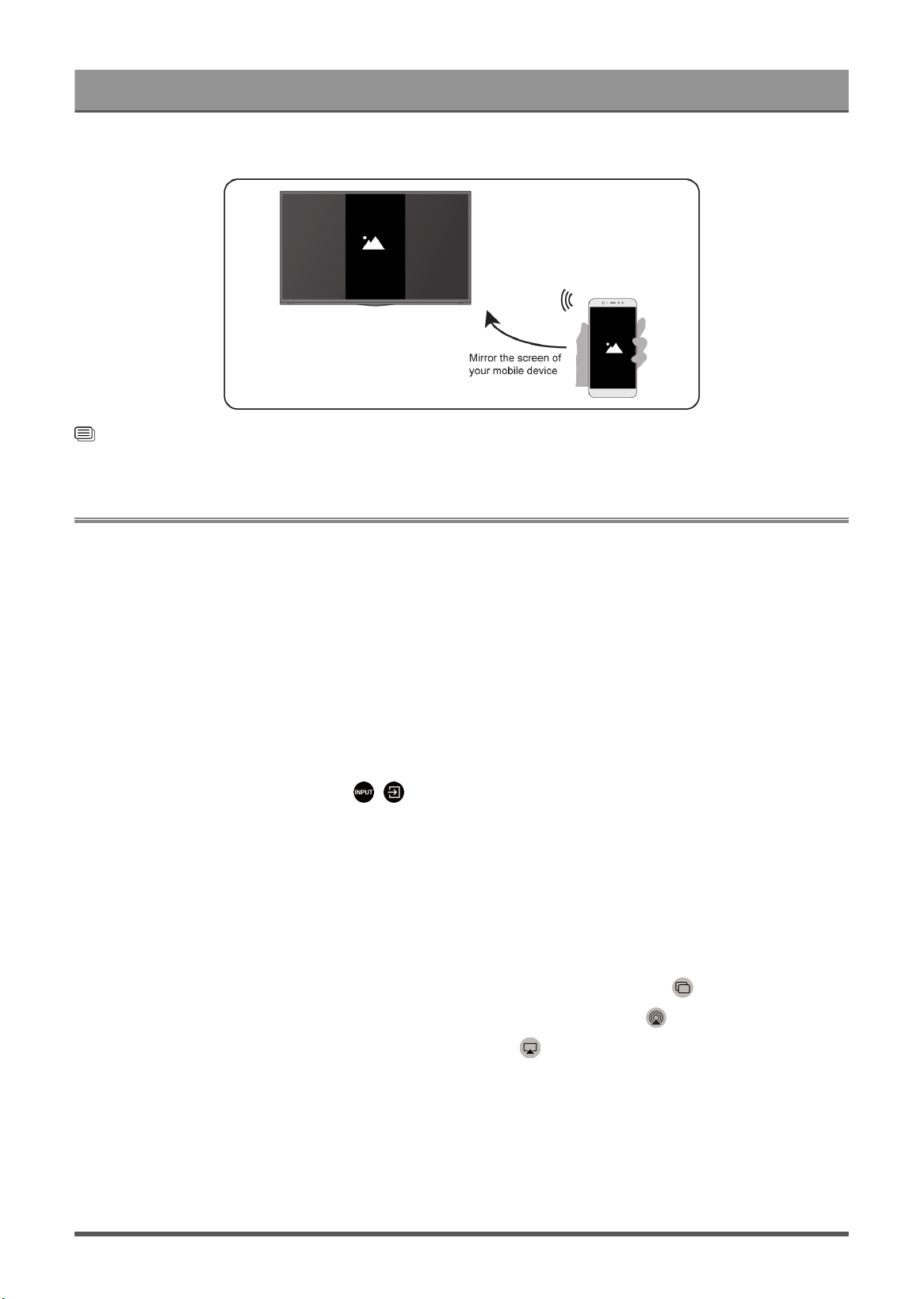
Sharing your Smart Phone/Computer Screen on the TV
Mirror content from your mobile device to the TV. View videos, photos and more from your device on your TV
screen.
Press button to select Apps > Connection Tips select Screen Sharing.
1. Connect your mobile device to the WLAN network.
2. Turn on the casting function of your Android/Windows10 device. The function name and location will be
different according to your device. The feature may be called "Wireless display", "Smart view", "Wireless
projection", etc.
3. Find the TV name in the searching list of your device and select it to connect to your TV. Your mobile
device's screen will be mirrored once you select your TV. You can close Screen sharing application with
BACK or EXIT button.
Note:
• Some mobile devices may not support casting feature.
25
Connecting to External Devices
Related information
Connect to a Wireless Network on page 4
Using AirPlay and HomeKit
Note:
• This function may not be applicable in some models/countries/regions.
• Use of the Works with Apple badge means that an accessory has been designed to work specifically with
the technology identified in the badge and has been certified by the developer to meet Apple performance
standards. Apple is not responsible for the operation of this device or its compliance with safety and
regulatory standards.
Using AirPlay
Use AirPlay to wirelessly share audio and video content from your iPhone, iPad, or Mac to your TV. Stream
music and videos, share your photos, or mirror exactly whatʼs on your deviceʼs screen.
AirPlay is a source in Inputs. Press the / button on your remote control to show the input list, then
select AirPlay to enter AirPlay. Then you can select AirPlay and HomeKit Settings. You can also find AirPlay
and HomeKit settings in system settings on your TV.
How to use AirPlay:
1. Make sure your Apple device is connected to the same network as your TV.
2.
Locate the AirPlay icon on supported media apps, or the Screen Mirroring icon in Control Center on your
Apple device. Depending on the content, these steps may vary:
•
To mirror your deviceʼs screen, open Control Center and tap Screen Mirroring .
•
To stream audio from supported music or podcast apps, tap AirPlay audio .
•
To stream video from supported apps, tap AirPlay video .
3. Select your TV from the list to begin using AirPlay.
Note:
• An AirPlay-enabled TV.
• The TV and Apple devices are connected to the same network.
• The icon is only for reference. In some apps, you may have to tap another icon first.
• If an AirPlay passcode appears on your TV screen, enter the passcode on your Apple device to continue.
26
Connecting to External Devices
Using HomeKit
Use HomeKit to easily and securely control your TV using your Apple devices.
1. To set up HomeKit, open AirPlay and HomeKit settings on the TV. Locate the HomeKit section and select
'Set Up'.
2. The HomeKit setup screen will display a pairing QR code on the TV. Use your iPhone or iPad to scan the
QR code, then follow the on-screen directions to complete HomeKit setup.
Note:
• Available operations vary depending on the version of the app and software.
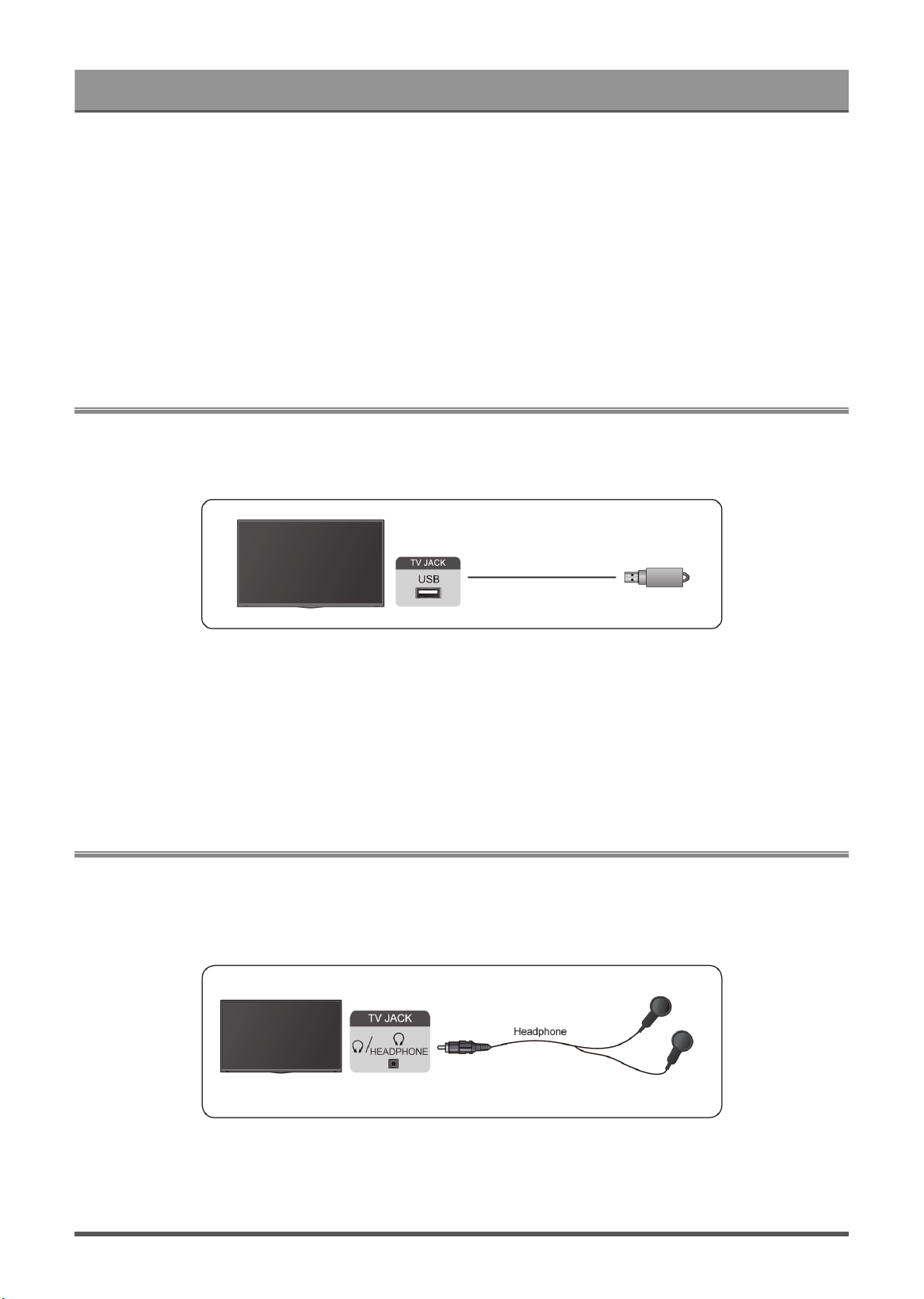
Connecting USB Devices
Connect the USB devices such as hard drives, USB sticks and digital cameras for browsing photos, listening
to music.
• Support the USB disk 4G, 8G, 16G, 32G, 64G, 128G and other common market size, and 8T hard drive is
currently supported.
• Support format: NTFS, FAT32.
• Certain digital cameras may not be compatible with the TV.
Select the content you want to play or view. For more information, please refer to Entertainment > Media in
this manual.
Connecting Headphones
You can connect a pair of headphones (not provided) to the HEADPHONE port on your TV. While the
headphone is connected, the sound from the built-in speakers will be disabled. For more information, please
refer to Settings Overview > Sound > Configure Advanced Settings > Wired Headphone
Note:
• Headphone port may not be available in some models.
• Headphones with microphones are not supported.
27
Connecting to External Devices
• If Wired Headphone is selected in Settings > Display & Sound > Audio Output, the headphone will
have sound output.
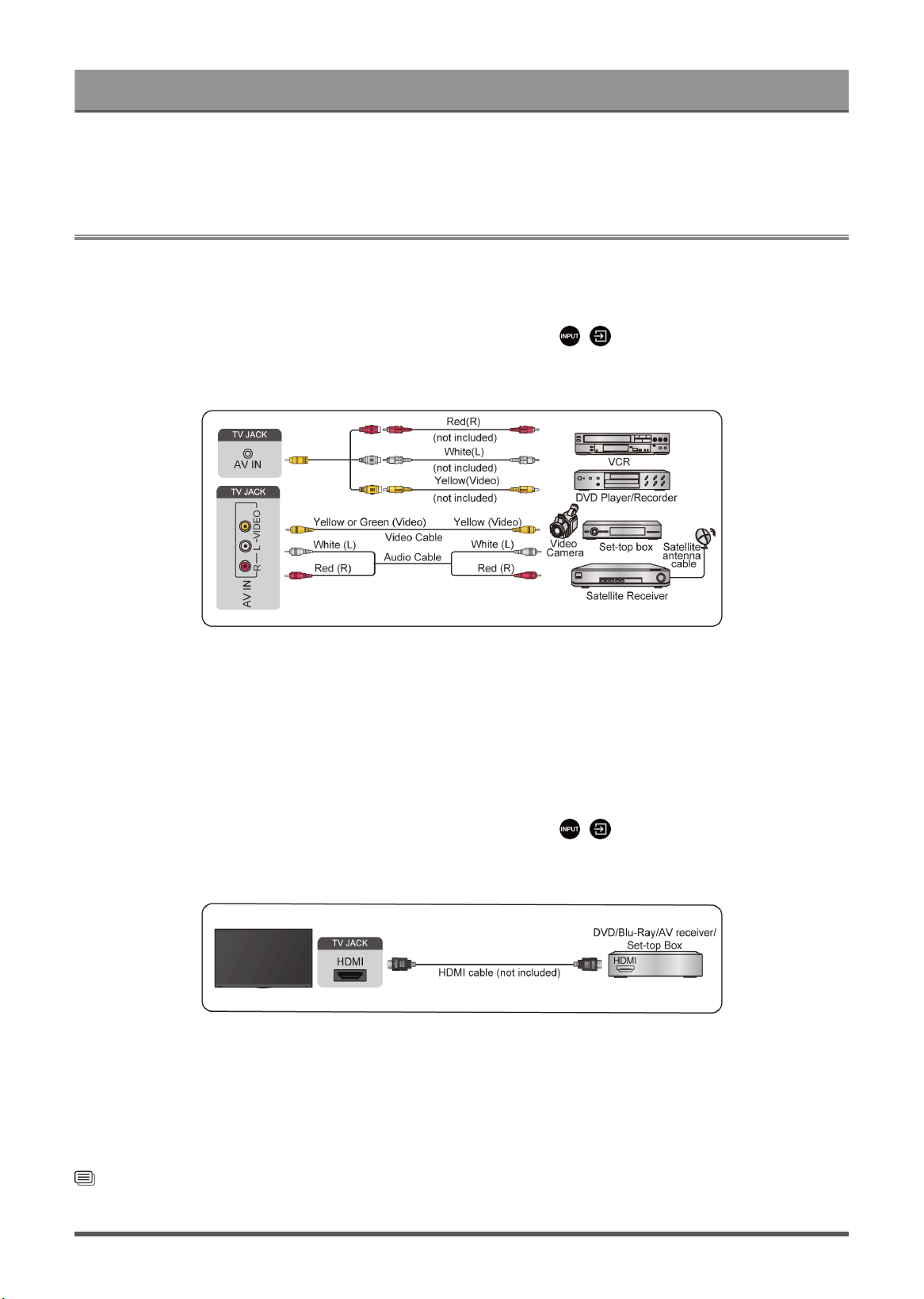
Connecting Audio Visual (AV) Devices
Connect with a composite video cable
To connect an AV device with a composite video cable (not provided), see the illustration below.
When the connection is completed, using your remote control, press / button and select AV as the
input source.
Note:
• AV IN port(s) may vary depending on model type.
• AV IN port(s) may not be available in some models. Please use other port(s) to connect AV devices.
Connect with a HDMI cable
To connect an AV device with a HDMI cable (not provided), see the illustration below.
When the connection is completed, using your remote control, press / button, and select the
corresponding HDMI input.
Note:
• Please refer to the User Manual of your device for step-by-step instructions.
• Some devices, such as DVD players, require the HDMI signal to be set to the correct format in the device
settings. Please consult your device user manual for instructions.
• If there is no sound from your TV, configure the device audio settings.
Related information
Use HDMI&CEC on page 22
28
Connecting to External Devices
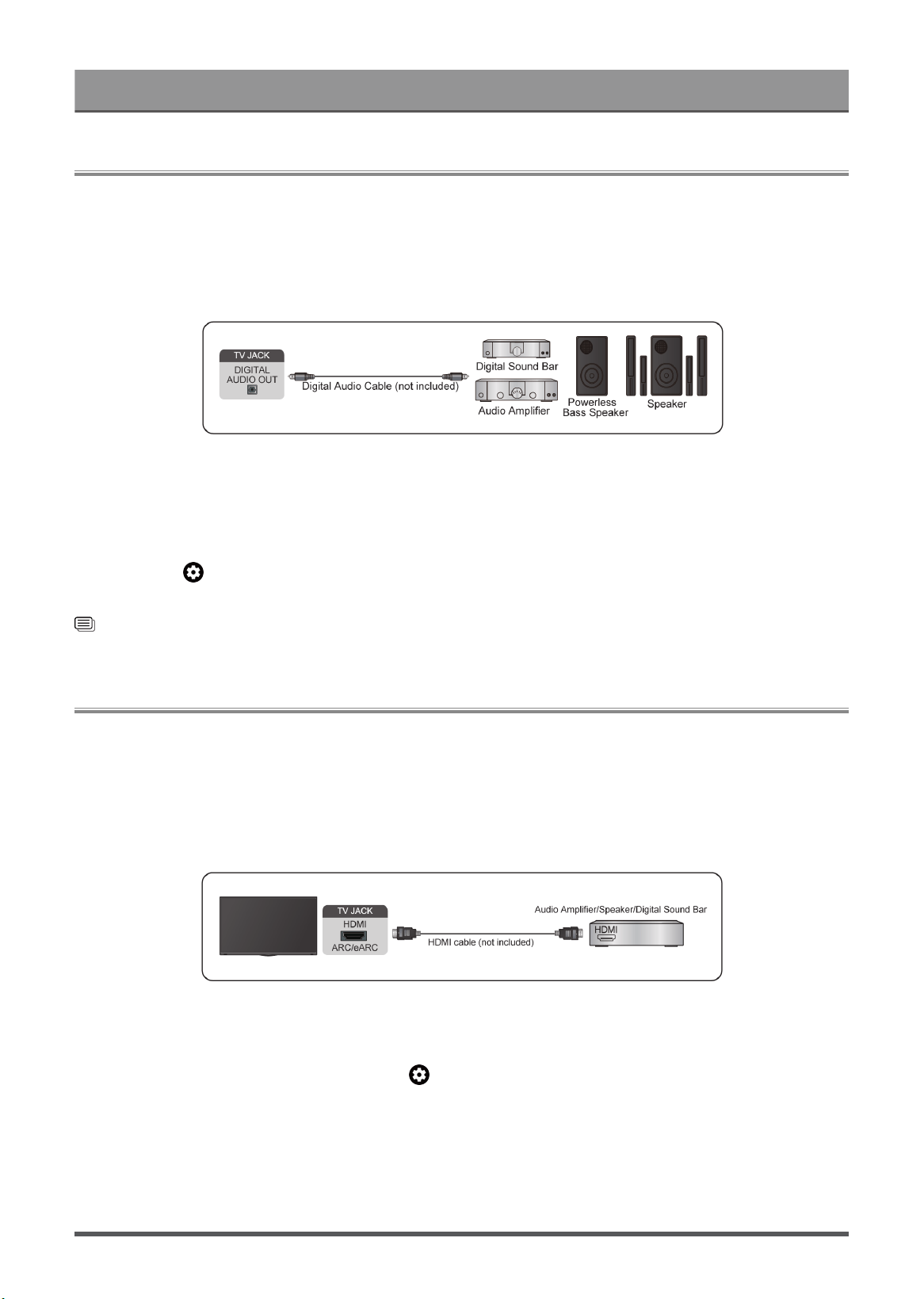
Connecting Speakers or Other Audio Receivers
To connect speakers or other audio receivers with an audio cable (not provided), see the illustration below.
Ensure the audio connected devices are switched on before switching on the TV.
When a digital audio system is connected to the DIGITAL AUDIO OUT port, decrease the TV volume, and use
your digital audio system to control the volume.
Note:
• If you prefer to use Audio Return Channel/Enhanced Audio Return Channel, please refer to Connecting to
External Devices > Connecting a Digital Audio System with ARC in this manual.
•
You can connect the DIGITAL AUDIO OUT port on the back of the TV to the optical port on the amplifier.
Then go to > Settings > Display & Sound > Sound > Digital Audio Output > Digital Audio Format
to choose to select Dolby Audio - Dolby Digital to receive the Dolby Digital audio.
Related information
Select Speakers on page 39
Connecting a Digital Audio System with ARC/eARC
If you would like to use the Audio Return Channel (ARC) or enhanced Audio Return Channel (eARC) feature
to send sound from the TV by a HDMI cable to a digital sound system, you can connect it to the HDMI (ARC/
eARC) port of your TV.
By using this feature, you can also control the sound system with your TV remote instead of using the remotes
for each device.
After the connection:
1. Power on the sound system.
2.
If the device supports eARC function, press button on your remote control to select Settings > Display
& Sound > Audio Output > HDMI (ARC/eARC).
Note:
• Audio receiver must support ARC function.
• If the device has an Input Selector feature, then make sure to change it to TV.
29
Connecting to External Devices
• When this port is used for ARC function, it can be used as signal input when a DVD is connected to an
amplifier and the amplifier is connected to the TV at the same time. Some amplifiers may not support
series connection.
Related information
Select Speakers on page 39
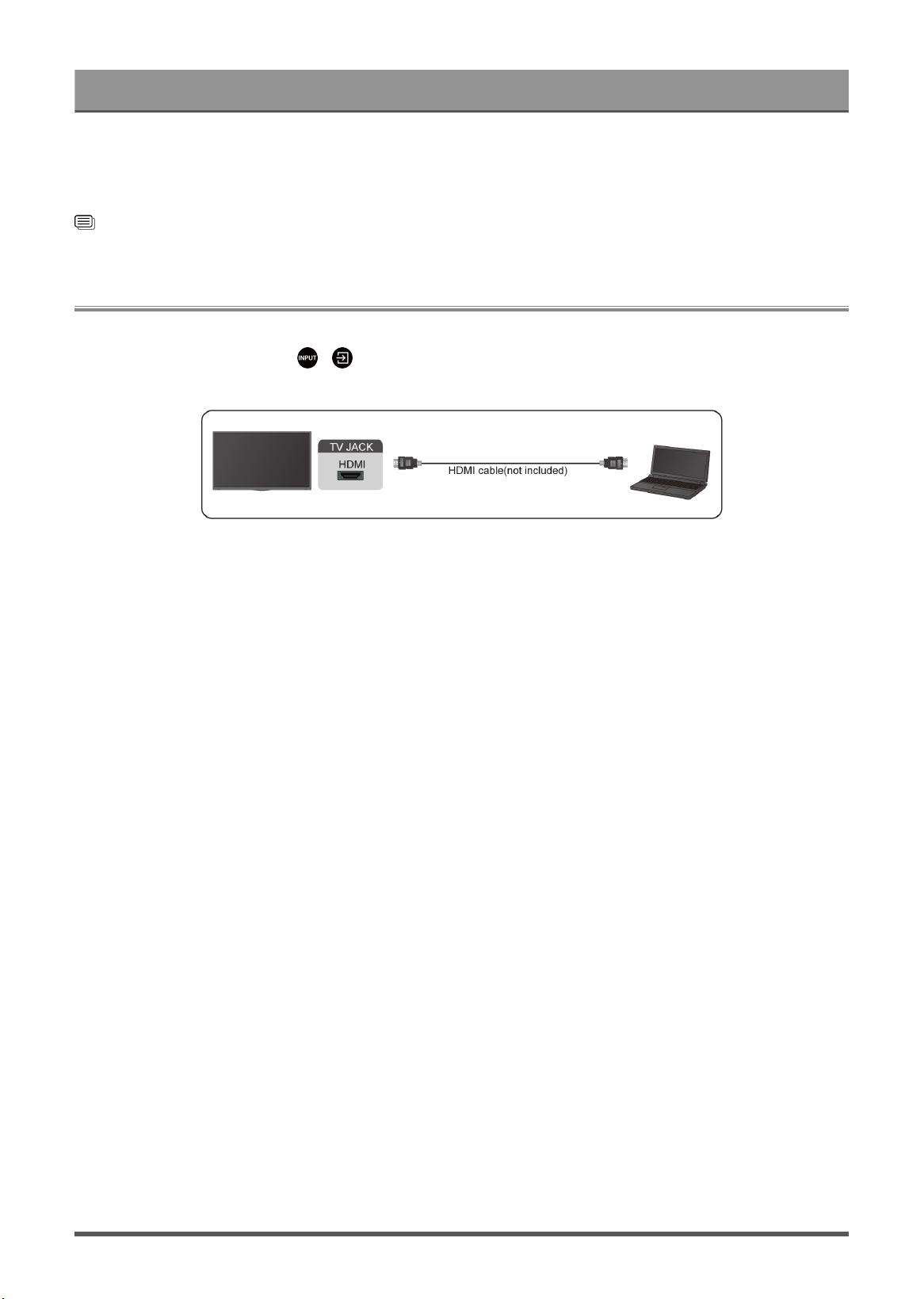
Connecting a PC
You can connect a PC to the TV with a HDMI cable to use your TV as a PC monitor.
After connecting the PC, press / button. Select the connected PC as the input source.
Note:
• For better image quality, set the PC's resolution, and make sure the resolution is supported by the TV.
• If there is no sound from your TV, change the PC's audio settings.
• If you want to connect your PC and TV wirelessly, please refer to Benefits of Smart TV > Content Sharing
or Connecting to External Devices > Sharing your Smart Phone/Computer Screen on the TV in this
manual.
30

Settings Overview
Picture
Adjust picture general settings and other advanced picture settings.
General Settings
Press button on your remote control to select Settings > Display & Sound > Picture > General.
Choose a picture mode
Apply Picture Settings
Content Type Auto Detection
Auto Picture Mode
Netflix Calibrated Mode
Smart Scene
Enhanced Viewing Angle
Automatic Light Sensor
Light Sensor Shift
Auto White Balance
Choose a picture mode
Press button on your remote control to select Settings > Display & Sound > Picture > General >
Picture Mode.
Select a pre-set picture mode to best suit the content you are viewing.
Note:
• Options may differ depending on your model/country/region and the content you are watching. Please refer
to the specific product.
When you use a normal signal
If you would like to configure the settings for your picture, then there are some types of picture modes
available:
• Vivid(Dynamic)
You can enjoy vivid experience.
• Standard
Use Standard mode for watching normal content, such as News, Drama or Documentaries.
• Energy Saving
Energy Saving mode can save energy.
• PC/Game
Enable Game Mode to optimize the TV's settings to enjoy a better gaming experience with a PC or a game
console connected to the TV.
• Sports(Football)
Optimized picture for watching sports.
• Theater
Theater corresponds to the quality effect of different ambient brightness scenes.
31

Settings Overview
• FILMMAKER MODE
A picture quality mode.
When you use a HDR signal
HDR (high dynamic range) can improve the viewing experience with higher contrast and vivid colors. Bright
whites look brighter and dark blacks look darker. TV can display a wide range of colors.
Note:
• When you use a HDR signal, the picture mode is HDR picture mode.
When you use a Dolby Vision signal
Inspired by cinema technology, Dolby Vision is the format that allows your TV to deliver a full range of colors,
high dynamic range images, brighter whites and dark blacks using scene-by-scene calibration.
Note:
• When you use a Dolby Vision signal, the picture mode is Dolby Vision picture mode.
Apply Picture Settings
Press button on your remote control to select Settings > Display & Sound > Picture > General > Apply
Picture Settings.
Adjust current picture mode to apply to all sources (Including both external devices and OTT sources) or just
current source.
Content Type Auto Detection
Press button on your remote control to select Settings > Display & Sound > Picture > General >
Content Type Auto Detection.
Enable to automatically detect the Filmmaker Mode or IMAX Mode tags in the content, and implement the
preferred picture settings contained within.
Auto Picture Mode
Press button on your remote control to select Settings > Display & Sound > Picture > General > Auto
Picture Mode.
Automatically sets the picture mode based on the content.
Note:
• This menu is displayed only when ACR is turned on. It is automatically set to On.
• This function may not be applicable in some models/countries/regions.
Netflix Calibrated Mode
Press button on your remote control to select Settings > Display & Sound > Picture > General > Netflix
Calibrated Mode.
Watch Netflix with originally intended picture quality.
Note:
• This function may not be applicable in some models/countries/regions.
32

Settings Overview
Smart Scene
Press button on your remote control to select Settings > Display & Sound > Picture > General > Smart
Scene.
Set to On to enable your TV to analyzes the current scene and automatically optimizes the picture quality on
all input sources.
Note:
• Some specific application has explicit constraints that the content recognition is not allowed.
• This function may not be applicable in some models/countries/regions.
Enhanced Viewing Angle
Press button on your remote control to select Settings > Display & Sound > Picture > General >
Enhanced Viewing Angle.
Set to On to optimize your viewing angle to improve the picture quality when watching the TV from the side,
and you will enjoy a better watching experience.
Note:
• This function may not be applicable in some models/countries/regions.
Automatic Light Sensor
Press button on your remote control to select Settings > Display & Sound > Picture > General >
Automatic Light Sensor.
Enable the TV to automatically adjust the picture settings according to the amount of ambient light in your
room.
You can turn on or off the Automatic Light Sensor. Automatically adjust screen colour temperature based on
ambient colour temperature, and you can adjust the Colour temperature level of the screen.
Note:
• This function may not be applicable in some models/countries/regions.
• When this menu is turned on, picture mode can't be used.
Light Sensor Shift
Press button on your remote control to select Settings > Display & Sound > Picture > General > Light
Sensor Shift.
Adjust the lower point of the dynamic backlight adjustment scope. This is a money-saving feature because it
reduces power consumption.
Note:
• If you set Automatic Light Sensor to be On, The Light Sensor Shift menu can be selected.
• When you select Dolby Vision as picture mode, this menu can't be showed.
• This function may not be applicable in some models/countries/regions.
Auto White Balance
Press button on your remote control to select Settings > Display & Sound > Picture > General > Auto
White Balance.
33

Settings Overview
Optimize the color temperature for the current condition of ambient light.
Note:
• If you set Automatic Light Sensor to be On, The Auto White Balance menu can be selected.
• This function may not be applicable in some models/countries/regions.
Related information
Picture Issues on page 65
Use the Brightness function
Press button on your remote control to select Settings > Display & Sound > Picture > Brightness.
You can configure picture mode settings that provides the best viewing experience. Options may not be
applicable depending on your model/country/region and the picture mode you selected.
• Dynamic Backlight Control (or Local Dimming if support)
Enable the TV to automatically adjust the backlight by sections according to the changes in the image and
increase the contrast.
• Peaking Brightness
Adjust the Peaking Brightness by sections according to the changes in image. This feature is adjustable
only when Local dimming is on.
• Brightness
Adjust the Brightness level to generate lighter or darker images.
• Contrast
Adjust the Contrast level to increase or decrease how bright images appear.
• Black Level
Adjust the HDMI Level to enhance current content.
• Dark Detail
Enhance the dark details by analysing the luminance level of the signal in real time.
• Gamma
Adjust the Gamma to alter how the TV will respond to the grayscale content. In a dark room choose a
Higher number like 2.2. In a brighter area select a Lower number like 2.0. In general, 2.4 is normally
recommended.
• Active Contrast
Automatically darken dark areas and lighten light areas of images to see more details.
• Dynamic Tone Mapping
Automatically adjust brightness and gradient balance by analysing the brightness level of HDR content.
This function may not be applicable in some models/countries/regions and only be visible when in HDR
mode.
• HDMI Dynamic Range
Adjust the HDMI signal range to be more suitable for the content. (HDMI mode only)
34

Settings Overview
Adjust the picture quality for each picture mode
Options may differ depending on your model/country/region and the content you are watching. Please refer to
the specific product.
Color
Press button on your remote control to select Settings > Display & Sound > Picture > Color.
Adjust the Hue, Saturation and Brightness of the color.
• Color
Adjust the color intensity of the picture for a more vibrant image.
• Hue
Adjust the hue of the picture.
• Color Temperature
Adjust how warm (red) or cool (blue) the white areas of an image appears.
• Low Blue Light
Eye care: reduce the emission of blue light.
This function may not be applicable in some models/countries/regions.
• Color Space
Change the range of colors the TV displays.
Clarity
Press button on your remote control to select Settings > Display & Sound > Picture > Clarity.
Enhance the sharpness and details of the picture. Adjust the fast-moving object's smoothness and motion
clarity.
• Sharpness
Adjust how sharp or soft edges of images appear.
• Smooth Gradient
Eliminates image layering and dark field noise.
This function may not be applicable in some models/countries/regions.
• Super Resolution
Enhance image detail, eliminate image edge jagging, and adjust dynamically according to the image
content.
• Noise Reduction
Improve how clear the picture appears by reducing noise.
• MPEG Noise Reduction
Reduce MPEG block noise to provide clearer edge transitions.
• Motion Enhancement
Reduce seeing afterimages that are left on the screen when viewing fast-moving objects.
If you select Custom, you can configure Blur Reduction and Judder Reduction manually.
35

Settings Overview
• Motion Clearness
Improve how clear the picture appears when viewing.
This function may not be applicable in some models/countries/regions.
Configure Calibration Settings
Press button on your remote control to select Settings > Display & Sound > Picture > Calibration
Settings.
• Color Tuner
Adjust the Hue, Saturation and Brightness of the six primary color and Flesh Tone.
• White Balance
Adjust the intensity of red, green and blue lights to view the true colors of all images in the picture.
• Gamma Calibration
Adjust selected Gamma curve. Advanced 20 point gamma calibration and required professional color
calibration tools.
• RGB Only
View images based on default settings or choose the color red, blue or green.
• Calman Service
Adjust the picture quality of the TV by a Calman client on PC.
Note:
• Some function may not be applicable in some models/countries/regions.
• Options may differ depending on your model/country/region and the content you are watching. Please refer
to the specific product.
Reset the picture settings
Press button on your remote control to select Settings > Display & Sound > Picture > Reset.
Reset current picture settings back to the factory setting.
Screen
Change the picture size and use the overscan function.
Note:
• This function may vary depending on the version of the software.
Change the Picture Size
Press button on your remote control to select Settings > Display & Sound > Screen > Picture Size.
You can adjust the Aspect Ratio to stretch or zoom the picture.
You can choose from the following settings: Auto, 4:3, Zoom, 16:9, 21:9 or 32:9.
Note:
• The options above may not be applicable in some input sources.
36

Settings Overview
• Using special functions to change the size of the displayed image (e.g. changing the height/width ratio) for
the purpose of public display or commercial gain, may infringe on copyright laws.
• If the aspect ratio of the selected format is different from the TV transmission or video content, it can distort
the picture.
• When connecting a PC to the TV via HDMI input, fast moving images may become distorted.
Related information
Picture Issues on page 65
Use the Overscan function
Press button on your remote control to select Settings > Display & Sound > Screen > Overscan.
Change the video size settings to slightly crop the edges of the displayed image.
Panel Maintenance
Panel Refresh
Perform the panel refresh function to reduce image retention effects.
Due to the optical characteristics of OLED displays, image retention may occur after the TV has been used
for an extended period of time. Panel Refresh is recommended to correct picture quality issues and prevent
image retention.
Do not remove the power plug from the socket when you want to turn off the TV. Please press the power
button on the remote to turn the TV off and Panel Refresh will be operated automatically when the TV is in
standby mode.
The power indicator light will blink when Panel Refresh is in progress. The whole progress will be completed
within 10 minutes, during the process, the screen will be turned off, once completed the TV will go to standby
mode.
You could also choose to manually start Panel Refresh.
To manually start Panel Refresh, press button on your remote control to select Settings > Display &
Sound > Screen > Panel Refresh.
Note:
• This function is only available for OLED models.
Panel Maintenance
Perform fast maintenance to correct picture quality issues after your TV has been turned on for an extended
period of time. This process will be completed within 10 minutes. During the process, the screen will be turned
off, please do not disconnect the power to the TV.
Flashing light indicates panel maintenance in progress.(The colour and position of the flashing light will vary
depending on the model.)
If the TV is switched on during the maintenance, the process will be stopped.
You could also choose to manually start Panel Maintenance. To manually start this function, press button
on your remote control to select Settings > Display & Sound > Screen > Panel Maintenance.
Note:
• This function is only available for OLED models.
37

Settings Overview
• Do not touch the display during the maintenance process.
Screen Shift
Helps to reduce image retention on the OLED TV by employing an imperceivable pixel shift algorithm.
Press button on your remote control to select Settings > Display & Sound > Screen > Screen Shift.
Note:
• This function is only available for OLED models.
• When you select Panel Refresh menu, press"0000", show this menu.
Sound
Adjust sound mode and other advanced sound settings.
Choose a Sound Mode
Press button on your remote control to select Settings > Display & Sound > Sound > TV Sound Effect
> Sound Mode.
You can select a preset sound mode suitable for the content type or the listening environment.
• Auto Mode
The sound mode will be adjusted automatically.
• Standard
In Standard mode, the TV delivers a flat frequency response, which preserves the natural characteristics of
the original sound.
• Theater
Theater mode increases the surround sound effect and provides a more prominent bass response.
• Sports(Football)
Optimized sound for watching Sports events.
• Music
In Music mode, low and high frequencies are emphasised to enhance musical instrument reproduction.
• Speech
In Speech mode, low and high frequencies are attenuated to improve the reproduction and clarity of the
human voice.
• Late Night
In Late Night mode, the TV will improve the reproduction and clarity of the human voice with a low volume
level.
• Intelligent Sound
When the Intelligent Sound is on, the TV recognizes the sound and enhances the sound quality.
Note:
• Auto mode and Intelligent Sound may not be applicable in some models/countries/regions.
• Options may differ depending on your model/country/region and the content you are watching. Please refer
to the specific product.
38

Settings Overview
Related information
Sound Issues on page 66
Select Speakers
Press button on your remote control to select Settings > Display & Sound > Audio Output.
Select the speakers which you want to use.
• TV Speaker
• HDMI (ARC/eARC)
• OPTICAL (S/PDIF)
• Bluetooth Speaker
• Wired Headphone
Adjust the Sound Quality
Note:
• Some function may not be applicable in some models/countries/regions.
• Options may differ depending on your model/country/region and the content you are watching. Please refer
to the specific product.
Dolby Atmos
Press button on your remote control to select Settings > Display & Sound > Sound > TV Sound Effect
> Dolby Atmos.
Set Dolby Atmos to On to enhance the richness of sound, and you can enjoy an immersive listening
experience.
This function is only applicable when Intelligent Sound Mode is not selected.
DTS Virtual:X
Press button on your remote control to select Settings > Display & Sound > Sound > TV Sound Effect
> DTS Virtual:X.
Enable for getting three-dimensional surround sound.
This function is only applicable when Intelligent Sound Mode is not selected.
Auto Acoustic Tuning
Press button on your remote control to select Settings > Display & Sound > Sound > TV Sound Effect
> Advanced > Auto Acoustic Tuning.
Optimise the sound output acoustics according to the listening environment.
Note:
• This function is only applicable when Intelligent Sound Mode is not selected.
• This function may not be applicable in some models/countries/regions.
Equalizer
Press button on your remote control to select Settings > Display & Sound > Sound > TV Sound Effect
> Advanced > Equalizer.
39

Settings Overview
Boost the volume at different frequencies.
This function is only applicable when Intelligent Sound Mode is not selected.
Wall Mount Setup
Press button on your remote control to select Settings > Display & Sound > Sound > TV Sound Effect
> Advanced > Wall Mount Setup.
Automatically optimize the sound based on the position of the TV.
Wall Mount Setup is only available when you select TV speaker as audio output.
Subwoofer
Press button on your remote control to select Settings > Display & Sound > Sound > TV Sound Effect
> Advanced > Subwoofer.
Internal subwoofer provides a better bass effect. The switch needs to be turned on when the subwoofer is
connected to the TV.
Balance
Press button on your remote control to select Settings > Display & Sound > Sound > TV Sound Effect
> Advanced > Balance.
Adjust the left and right speaker strength to optimize audio for a specific location.
Auto Volume Control
Press button on your remote control to select Settings > Display & Sound > Sound > TV Sound Effect
> Auto Volume Control.
Activate to prevent the volume from changing when you switch TV channels.
Volume Level
Press button on your remote control to select Settings > Display & Sound > Sound > TV Sound Effect
> Volume Level.
Balance the sound volume of each source.
Lip Sync
Press button on your remote control to select Settings > Display & Sound > Sound > TV Sound Effect
> Lip Sync.
Synchronize the displayed image with the audio output.
Related information
Sound Issues
Configure Advanced Settings
Tune the audio settings and quality of the TV.
Note:
• Some function may not be applicable in some models/countries/regions.
40

Settings Overview
• Options may differ depending on your model/country/region and the content you are watching. Please refer
to the specific product.
eARC
Press button on your remote control to select Settings > Display & Sound > Sound > eARC.
Enable for higher fidelity audio transmission supported by audio device. This feature is available to set when
> > Settings > Display & Sound > Audio Output is set to HDMI (ARC/eARC).
Digital Audio Out
Press button on your remote control to select Settings > Display & Sound > Sound > Digital Audio
Out.
Select the digital audio output format that best suits the audio device type.
• Pass Through
The audio device outputs without any processing.
• Digital Audio Format
Select the digital audio output format that best suits the audio device type.
• Digital Audio Delay
Adjust the digital audio output delay time to sync audio from an external speaker with the images on the
TV.
Note:
•
This feature is available to set when > > Settings > Display & Sound > Audio Output is set to
HDMI (ARC/eARC) or OPTICAL (S/PDIF).
• When using optical connection, PCM and Dolby Digital are suggested.
• If your external audio device does not support Dolby or DTS, PCM is suggested.
HDMI Audio Device Guide
Press button on your remote control to select Settings > Display & Sound > Sound > HDMI Audio
Device Guide.
Click this menu to jump to the connection guide page.
Wired Headphone
Press button on your remote control to select Settings > Display & Sound > Sound > Wired
Headphone.
Set the sound output mode through headphones.
After connecting your wired or Bluetooth headphone, or other external audio amplifiers, you can set up your
TV to your preference.
• Headphone Mode
Change the way audio is sent through the type of device that's connected to your TV Audio Out port.
This function may not be applicable in some models/countries/regions.
• Headphone Volume
Independently adjust the volume of wired headphones.
41

Settings Overview
Audio Only
Press button on your remote control to select Settings > Display & Sound > Sound > Audio Only.
When you select this option, the screen will not display the picture. You can only listen to the audio.
Press any button except the power button, volume buttons and mute button to restore the picture.
Related information
Connecting Bluetooth Devices on page 23
Connecting Headphones on page 27
Connecting Speakers or Other Audio Receivers on page 29
Connecting a Digital Audio System with ARC on page 29
Resetting the sound settings
Press button on your remote control to select Settings > Display & Sound > Sound > TV Sound Effect
> Reset.
Reset current audio settings to factory mode.
Network & Internet
You can connect to the internet with Wi-Fi, ethernet, or your phones hotspot.
For additional information about Network & Internet, please refer to First Time Use > Connecting to the
Internet in this manual.
Scanning always available
Press button on your remote control to select Settings > Network & Internet > Scanning always
available.
Let Google's location service and other apps scan for networks, even when Wi-Fi is off.
Related information
My TV cannot connect to the network. on page 59
Connect to a Wired (Ethernet) Network on page 3
Connect to a Wireless Network on page 4
General
You can set up system settings.
Note:
• The menus displayed vary depending on models/countries/regions.
Set Time
Press button on your remote control to select Settings > System > Date & Time.
• Automatic date & time
Set to use network-provided time. You can also set the current time manually when Off is selected. When
Off is selected, the TV Network may not be working properly.
42

Settings Overview
• Set date
Set the date.
• Set time
Set the time.
• Set time zone
Select your time zone.
• Use 24-hour format
Set the time to display in a 12 or 24-hour format.
Use Timer
Press button on your remote control to select Settings > System > Power & Energy > Power.
• Sleep Timer
Set the sleep timer to automatically turn the TV off within a specified time: off, 10 Minutes, 20 Minutes, 30
Minutes, 40 Minutes, 50 Minutes, 60 Minutes, 90 Minutes and 120 Minutes.
• Power On Timer Type
Set the type: Off, Daily, Once.
• Power On Timer
Set the clock for the time you want the TV to turn on automatically.
• Power Off Timer Type
Set the type: Off, Daily, Once.
• Power Off Timer
Set the clock for the time you want the TV to turn off automatically.
Set Language
Press button on your remote control to select Settings > System > Language.
Adjust the default Language settings for the TV.
Configure Device Preferences Settings
Keyboard
Press button on your remote control to select Settings > System > Keyboard.
Adjust the default settings for the keyboard.
Storage
Press button on your remote control to select Settings > System > Storage.
View the TV storage.
Ambient mode
Press button on your remote control to select Settings > System > Ambient mode.
43

Settings Overview
Activate a screensaver when your TV displays a still image for a period of time. Set the time according to your
preference.
Power & Energy
Press button on your remote control to select Settings > System > Power & Energy.
Power on behavior
Select the screen to start when powering on the TV.
You can select Home screen or Last input.
Power & Energy
Turn off display after 15 minutes, 20 minutes, 30 minutes, 1 hour, 4 hours, 8 hours, 12 hours, 24 hours, Never.
Power
You can set Power LED ON or OFF, set Power On Mode to Remember, Standby, On, set Sleep Timer,
Auto Sleep, and Power On Timer Type.
System sounds
Press button on your remote control to select Settings > System > System sounds.
This is a switch for system sounds.
Related information
Use Timer on page 43
Configure Advanced System Settings
Press button on your remote control to select Settings > System > Advanced System.
Screenless Mode
If your models support Hands-free Voice Control function,when the Screenless Mode is set to Off, the Google
Assistant will not available when the screen is off, you also will not be able to remotely wake up the TV
through external devices. In screenless Mode, the Google Assistant is always available to help even when the
screen is not on. Just say "OK Google/Hey Google".
This feature will affect standby power consumption when it is set to On.
Note:
• The Google Assistant and some features are available on limited country/region/language.
• This function may not be applicable in some models.
Wake on Cast
You can enable or disable Wake on Cast function which is able to remotely wake up the TV through external
devices.
Note:
• This function may not be applicable in some models/countries/regions.
Product Registration
Visit https://www.hisense-usa.com/support/register or scan the QR code with another device (cellphone,
tablet..) to complete your registration.
44

Settings Overview
Note:
• The website and the QR code may be different in some countries/regions.
• This function may not be applicable in some models/countries/regions.
E-Manual
Scan QR code to display E-Manual.
Using the E-Manual
Clear Cache
Clear cache of applications and system.
System message
You can set up support settings.
Note:
• The menus displayed vary depending on models/countries/regions.
System message
Press button on your remote control to select Settings > System > Advanced System > Help > System
message.
View system message, including: Serial Number, Service Code, Software Version, etc.
Support information
Press button on your remote control to select Settings > System > Advanced System > Help > Support
information.
View Support URL, Support Number, Email, etc.
Signal Information
Press / button on your remote control to select Help > Signal Information.
Perform self diagnosis to test Video Format, Audio Format, Color Depth, etc.
System Update
Press button on your remote control to select Settings > System > About > System update.
Set your TV to receive the latest firmware. Provide software updates to continuously enhance your TV
and correct any issues that may impact your user experience; therefore, recommend you to keep your TV
connected to the Internet to automatically receive updates when they are available.
Set Usage Mode
Set the TV to use in Home or Store mode.
Home Mode
Select Home Mode for normal TV usage.
45

Settings Overview
If you want to switch to Store Mode when the TV is in Home Mode, turn on Store Mode at > Settings >
System > Advanced System.
Store Mode
Select Store Mode to setup the TV in a retail setting. This mode enables E-Pos and other demo functions and
is only intended for use in retail stores.
When Store Mode is selected, press / button on your remote control to enter store mode settings.
If you want to switch to Home Mode when the TV is in Store Mode, press / button on your remote
control to enter Store Mode Settings and choose Home Mode. Alternatively, turn off Store Mode at >
Settings > System > Advanced System.
Note:
• Enabling Store Mode could increase energy consumption.
• How to exit Store Mode varies depending on models/countries/regions.
Using Parental Control
Press button to select Settings > System > Advanced System > Parental Control.
The Parental Control setting allows you to block content that is not appropriate for children to watch.
• Locks
Turning Parental Control On
1. Turn on Locks to enable the Parental Control function.
2. Create PIN window displays. Using the D-pad on your remote control, create the password.
3. You will see other Parental Control settings change from a greyed out state to highlighted. When this
occurs, begin adding other settings to the Scheduled Blocking, Channel Blocking, Program Blocking,
Input Blocking, Change PIN and Reset features.
• Scheduled Blocking
Block certain channels, programs and inputs during certain periods of time.
• Channel Blocking
Block selected channels.
• Program Blocking
Block programs by ratings.
• Input Blocking
Block selected inputs.
• Change PIN
Change the PIN that you use to access Parental Control.
Note:
If you forget your password, call the Consumer Electronics Care Centre.
• Reset
Reset Parental Control back to the factory setting.
46

Settings Overview
Reset to Factory Default
Press button on your remote control to select Settings > System > About > Reset > Factory reset.
Restore your device to default settings and erase all data, accounts, files, and downloaded apps.
47

Entertainment
Game
You can connect to your game console and set up settings to optimize the TV screen for better gaming
performance.
Connect a Game Console
You can connect your game console with an HDMI cable to the TV.
To start a game from a game console:
1. Switch on your game console.
2.
Press button on your remote control to select Inputs or press / button. Select the connected
game console as the input source.
3. Start the game.
You can enable the game mode to optimize your TV's settings when playing games with a game console.
Related information
Enabling game mode on page 48
Enabling game mode
Press button on your remote control to select Settings > Display & Sound > Picture > General >
Picture Mode > Game.
Enable Game Mode to optimize the TV's settings to enjoy a better gaming experience with a PC or a game
console connected to the TV.
Game Mode will allow:
• Reducing input lag to make sure every press or click matches what is happening on the screen;
• Improving responsiveness to produce very little motion blur;
• Processing YUV 4:4:4 format signals precisely to present accurate image colors.
Note:
• This function may not be applicable in some input sources or applications.
Related information
Connect a Game Console on page 48
Enabling instant game response
Press button to select Settings > Display & Sound > Game Settings > Instant Game Response.
You can enjoy a smooth viewing experience with external device connected to the TV when Instant Game
Response is turned on.
Note:
• When Game mode is selected, Instant Game Response will not be switched off automatically.
Enabling FreeSync/PC Sync
Press button to select Settings > Display & Sound > Game Settings > FreeSync/PC Sync.
48

Entertainment
You can enjoy a smooth viewing experience with external device connected to the TV when FreeSync/PC
Sync is turned on.
This function may not be applicable in some models/countries/regions.
Enabling High Refresh Rate Mode
Press button to select Settings > Display & Sound > Game Settings > High Refresh Rate Mode.
Activation of the high refresh rate mode can improve the smoothness of the game screen.
This function may not be applicable in some models/countries/regions.
SoundBar Settings
When the soundbar device is connected to the TV, You can change the SoundBar Settings at Settings menu
for best device sound quality.
When the ARC device is connected to the TV, the sound output is automatically switched to ARC, if the user
switches to other sound output channels, the soundbar menu cannot be adjusted, and the sound menu of TV
can be adjusted.
Press button on your remote control to select Settings > Display & Sound > Sound > SoundBar
Settings.
When you connect a soundbar with an HDMI cable, you should set HDMI control to On. > Settings >
Channels & InputsInputs > HDMI control.
• EQ Modes
You can select Music, Movie, News, Sport, Night.
• Surround Modes
You can set to On to turn on the Surround Modes.
• Bass Level/Treble Level/Dimmer Level
You can adjust Bass Level/Treble Level/Dimmer Level.
• Reset
Reset current SoundBar Settings to factory mode.
Note:
• This function is only applicable for the specific soundbar types.
• Options may differ depending on the model type.
Sports
Sports mode setup in picture or sound settings
Press button on your remote control to select Settings > Display & Sound > Picture > General >
Picture Mode > Sports(Football).
Optimized picture for watching sports.
Press button on your remote control to select Settings > Display & Sound > Sound > TV Sound Effect
> Sound Mode > Sports(Football).
49
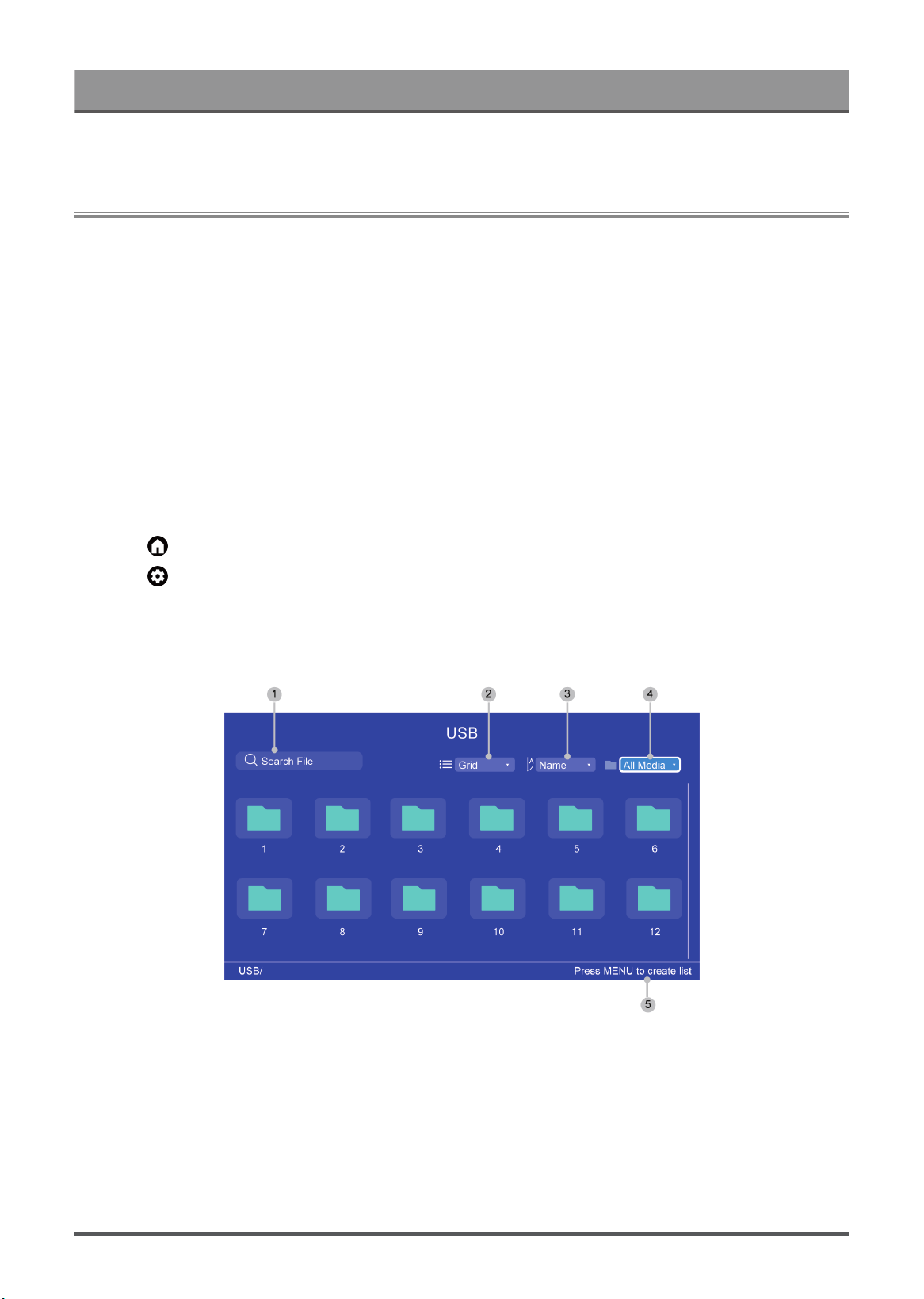
Entertainment
Optimized sound for watching sports events.
Media
Media is a central location for you to view or listen to different types of content, such as photos, music and
movies. You can view media content through the following methods:
• A USB thumb drive or hard drive.
• Compatible mobile phone, tablet or other personal devices: you can stream movies, music and photos that
are stored on compatible personal device and play or view the content on your TV.
By default, there is Content Sharing displayed on the Media screen. If your mobile device is connected to the
TV, its name also appears on the Media screen.
For more information about Content Sharing, please refer to Benefits of Smart TV > Content Sharing in this
manual.
Enjoy Photos/Audio/Video Stored on a USB Device
You have some ways to enter Media:
•
Press button to select MediaCenter from your Apps list on home page.
•
Press button to select Settings > Apps > See all apps > MediaCenter > Open.
Then select connected devices.
Select the content you want to play on the screen, like pictures, videos and music.
1 Search the content you want to play.
2 Arrange the content list by Grid, List.
3 Sort the content list by Name, Date Modified, Size.
4
Filter the content list by All Media, Music, Photos, Videos, Recording.
5 Create a photo, music, or video playlist.
50
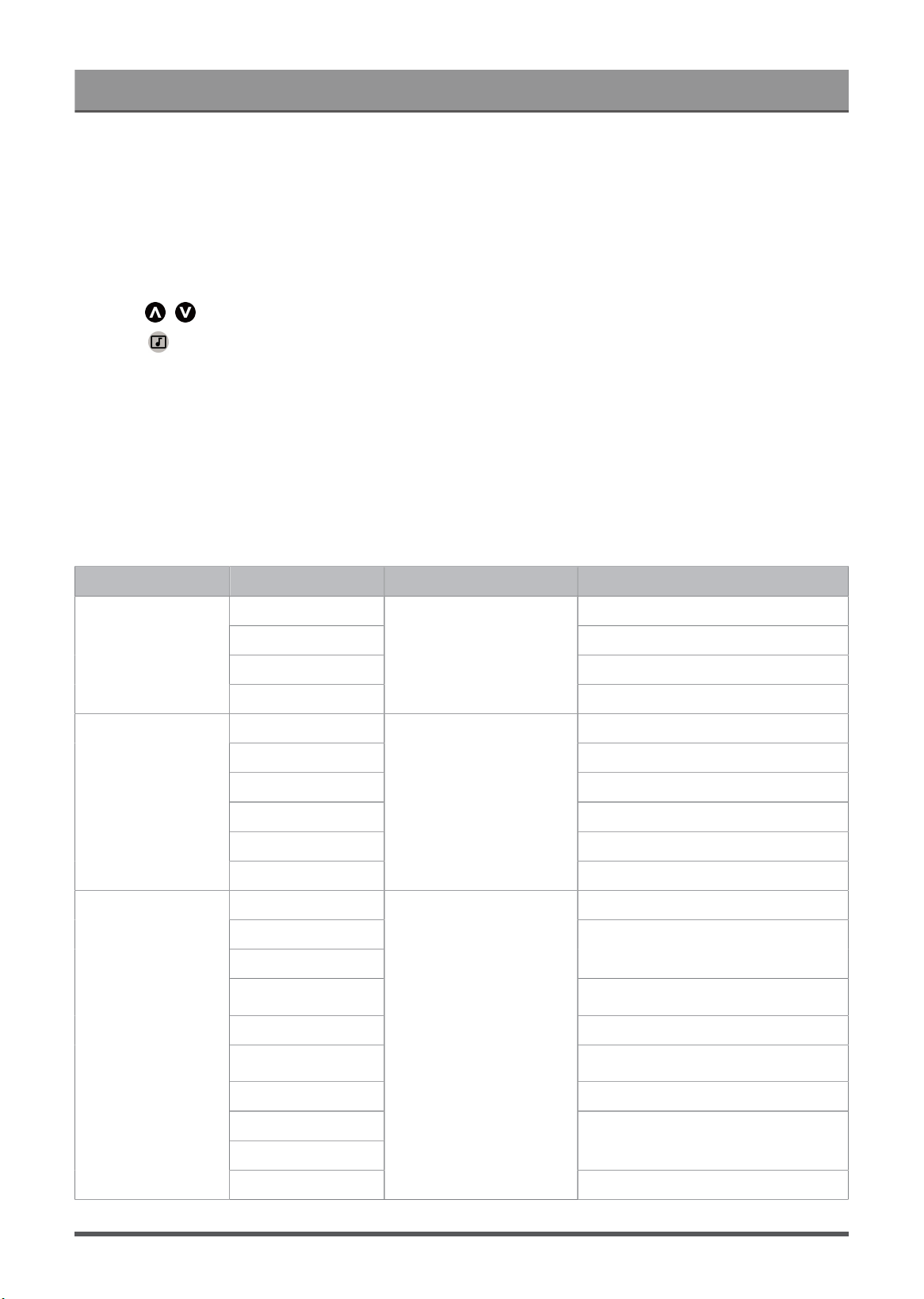
Entertainment
Note:
• Some options in the above table may not be available in some models/countries/regions.
• The image is only for reference and may differ from the actual product.
Play Background Music while Viewing Pictures
1. Choose a picture to display.
2.
Press / button to display control bar.
3.
Select and choose your music to create a Music Playlist.
Now you can play background music while viewing pictures.
Media format
Due to differences in programming tools and other factors, some of the file formats that are listed may not be
supported.
The listed formats may not be supported depending on the model.
Video Format
Container Video Codec File Extension Name Resolution and Frame Rate
MPEG1 720 x 576 @ 30fps
MPEG2 3840 x 2160 @ 30fps
MPEG4 1920 x 1080 @ 60fps
MPEG program
stream
H.264
.DAT, .VOB, .MPG,
.MPEG
3840 x 2160 @ 60fps
HEVC/H.265 3840 x 2160 @ 60fps
MPEG4 1920 x 1080 @ 60fps
H.264 3840 x 2160 @ 60fps
VC1 1920 x 1080 @ 60fps
MPEG1 720 x 576 @ 30fps
MPEG transport
stream
MPEG2
.ts, .trp, .tp
3840 x 2160 @ 30fps
VP8 1920 x 1080 @ 60fps
AV1
HEVC/H.265
3840 x 2160 @ 60fps
MPEG1
720 x 576 @ 30fps
MPEG2 3840 x 2160 @ 30fps
MPEG4
1920 x 1080 @ 60fps
H.263 1408 x 1152 @ 60fps
WMV3
VC1
1920 x 1080 @ 60fps
MP4
H.264
.mp4, .mov
3840 x 2160 @ 60fps
51
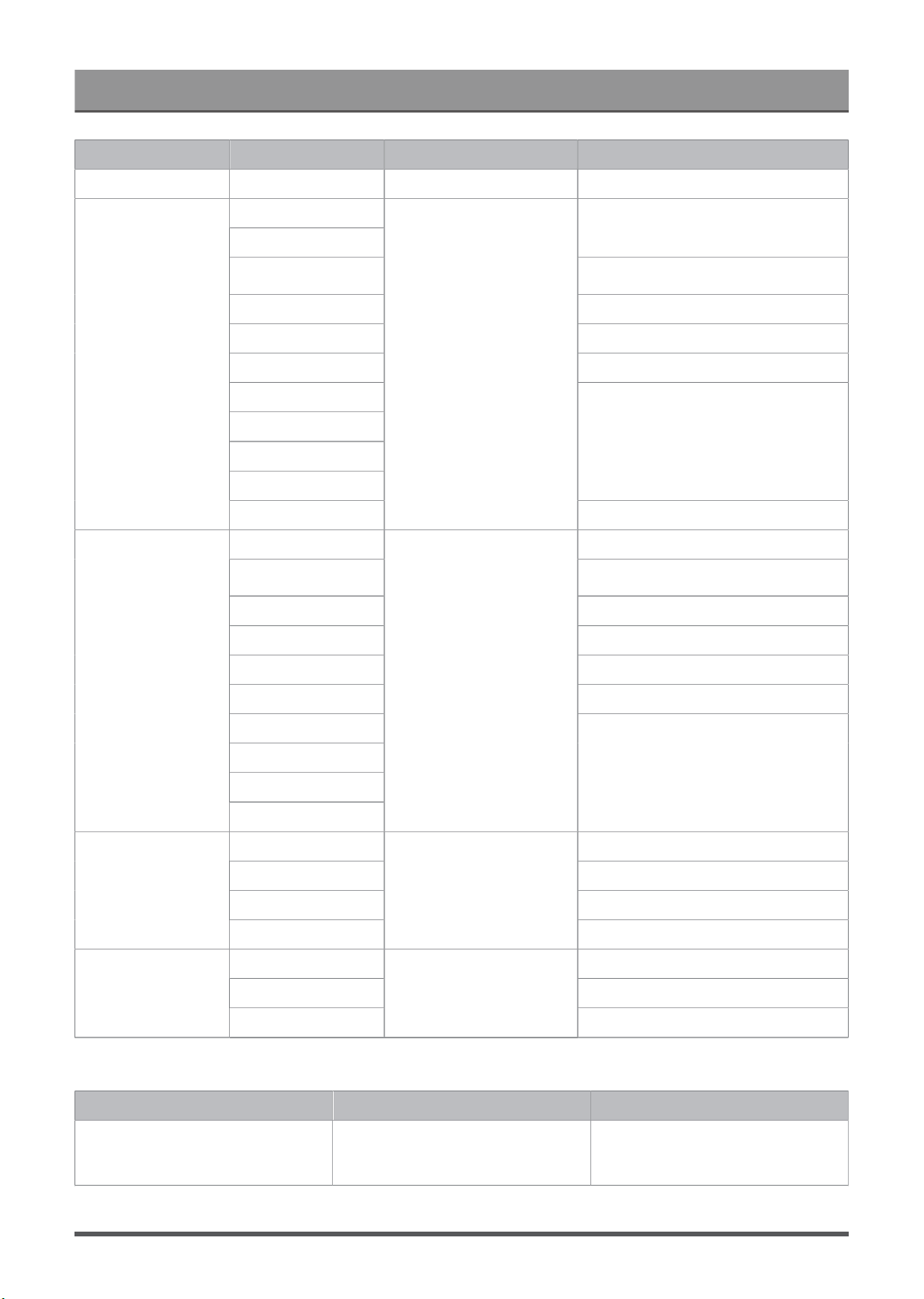
Entertainment
Container Video Codec File Extension Name Resolution and Frame Rate
Motion JPEG 1920 x 1080 @ 60fps
VP9
HEVC/H.265
3840 x 2160 @ 60fps
MPEG1
720 x 576 @ 30fps
MPEG2 3840 x 2160 @ 30fps
MPEG4 1920 x 1080 @ 60fps
H.264 3840 x 2160 @ 60fps
WMV3
VC1
Motion JPEG
VP8
1920 x 1080 @ 60fps
MKV
AV1
.mkv
3840 x 2160 @ 60fps
HEVC/H.265 3840 x 2160 @ 60fps
MPEG1
720 x 576 @ 30fps
MPEG2 3840 x 2160 @ 30fps
MPEG4 1920 x 1080 @ 60fps
H.263 1408 x 1152 @ 60fps
H.264 3840 x 2160 @ 60fps
WMV3
VC1
Motion JPEG
AVI
VP8
.avi
1920 x 1080 @ 60fps
HEVC/H.265 3840 x 2160 @ 60fps
MPEG4 1920 x 1080 @ 60fps
H.263 1408 x 1152 @ 60fps
FLV
H.264
.flv
3840 x 2160 @ 60fps
VP9 3840 x 2160 @ 60fps
VP8 1920 x 1080 @ 60fps
WEBM
AV1
.webm
3840 x 2160 @ 60fps
Audio Format
Container Audio Codec File Extension Name
WAV
MPEG1/2
Layer1
.wav
52
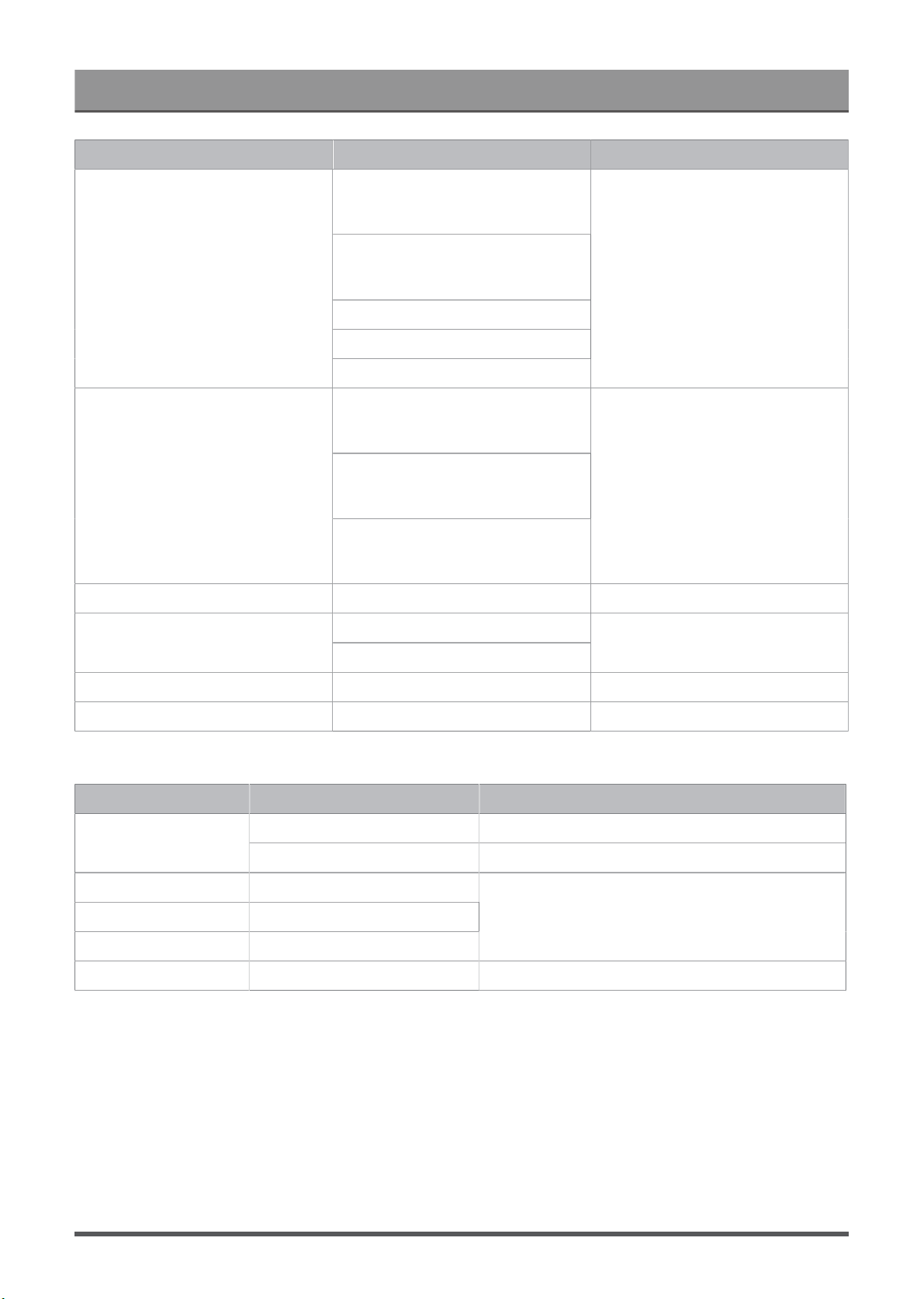
Entertainment
Container Audio Codec File Extension Name
MPEG1/2
Layer2
MPEG1/2/2.5
Layer3
AAC-LC, HEAAC
DTS, DTS HD
LPCM
MPEG1/2
Layer1
MPEG1/2
Layer2
MP3
MPEG1/2/2.5
Layer3
.mp3
AAC AAC-LC, HEAAC .aac
WMA7, WMA8, WMA9WMA
WMA10 Pro
.wma, .wmv
FLAC FLAC .flac
OGG OPUS .ogg
Photo Format
Image Photo Resolution
Baseline 16383 x 16383JPEG
Progressive 1920 x 1080
PNG
BMP
GIF
8192 x 4320
WebP 3840 x 2160
THIS PRODUCT IS LICENSED UNDER THE AVC PATENT PORTFOLIO LICENSE FOR THE PERSONAL
USE OF A CONSUMER OR OTHER USES IN WHICH IT DOES NOT RECEIVE REMUNERATION TO (i)
ENCODE VIDEO IN COMPLIANCE WITH THE AVC STANDARD (“AVC VIDEO”) AND/OR (ii) DECODE AVC
VIDEO THAT WAS ENCODED BY A CONSUMER ENGAGED IN A PERSONAL ACTIVITY AND/OR WAS
OBTAINED FROM A VIDEO PROVIDER LICENSED TO PROVIDE AVC VIDEO. NO LICENSE IS GRANTED
OR SHALL BE IMPLIED FOR ANY OTHER USE. ADDITIONAL INFORMATION MAY BE OBTAINED FROM
MPEG LA, L.L.C. SEE HTTP://WWW.MPEGLA.COM
53

Accessibility Features
Captions Setup
Press button on your remote control to select Settings > System > Accessibility > Captions.
Displays and sets the closed captions. You can set display options and select caption style.
Options may differ depending on your model/country/region and the content you are watching. Please refer to
the specific product.
Closed Captioning
This function may not be applicable in TV source.
• Closed Captioning
You can switch between Off, On and On when mute in Channel mode.
Analog Closed Caption
Select an Analog Closed Caption setting from Off, CC1-CC4, TEXT1-TEXT4.
• Digital Closed Caption
Select a Digital Closed Caption: Off, Service1-Service6.
• Digital Caption Style
There are two caption styles. One is the Auto, while the other is the Custom style where you can adjust the
Font Size, Font Style, Font Color, Font Opacity, Background Color etc.
Display Options
• Display
Turn on or off display menu.
• Language
Set the Menu Audio language.
• Text size
Set the menu text size.
Caption Style
• White on black
• Black on white
• Yellow on black
• Yellow on blue
• Custom
High contrast text
Press button on your remote control to select Settings > System > Accessibility > High contrast text.
Improves contrast for visually impaired.
54

Accessibility Features
Text to speech
Press button on your remote control to select Settings > System > Accessibility > Text to speech.
Let you specify text-to-speech engine details and speech rate.
• Speech Services by Google
• Engine configuration
• Speech rate
Speed at which the text is spoken.
• Listen to an example
Play a short demonstration of speech synthesis.
• Default language status
English (United Stated) is fully supported.
Accessibility shortcut
Press button on your remote control to select Settings > System > Accessibility > Accessibility
shortcut.
When the shortcut is on, you can press both the back and down buttons for 3 seconds to start an accessibility
feature.
TalkBack
Press button on your remote control to select Settings > System > Accessibility > TalkBack
Controls spoken feedback for visually impaired users.
Enable TalkBack
• Enable
You can trun on or stop TalkBack. TalkBack can collect all of the text you type, except passwords. This
includes personal data such as credit card numbers.
TalkBack settings
• Speech volume
Set the Menu Audio volume.
• Verbosity
• Sound
• Cusomize Focus indicator
• Help
• Advanced settings
• Open TalkBack at the Play Store
Accessibility Menu Setup
Press button on your remote control to select Settings > System > Accessibility > Accessibility menu.
55

Accessibility Features
Accessibility function provides menu options and audio descriptions to aid the visually or hearing impaired.
Enable Accessibility Menu
• Enable
You can trun on or stop Accessibility Menu.
• Large buttons
• Help & feedback
Select to speak
Press button on your remote control to select Settings > System > Accessibility > Select to speak.
Switch Access
Press button on your remote control to select Setting > System > Accessibility > Switch Access
Switch Access can collect all of the text you type, except passwords. This includes personal data such as
credit card numbers.
Text-to-Speech (TTS) and Video Description functionalities on TV
Text-to-Speech (TTS) and Video Description can help you to navigate the menus on the screen and hear
an audio description of relevant programmes. Text-to-Speech can convert written text into voice to help
visually impaired people listen to the information they are unable to read. In addition, the Video Description
has an audio narration added to certain programmes that will describe the main visual elements which visually
impaired users may not be able to see.
Follow the steps below to enable the functions:
1.
Press button on your remote control.
2.
Next, select Settings > Channels & Inputs > Channels .
3. Select Audio Description to turn On or Off.
When Audio Description is turned On, then the contents of each menu displayed can be broadcasted out.
Note:
• This function may not be applicable in some models/countries/regions.
56
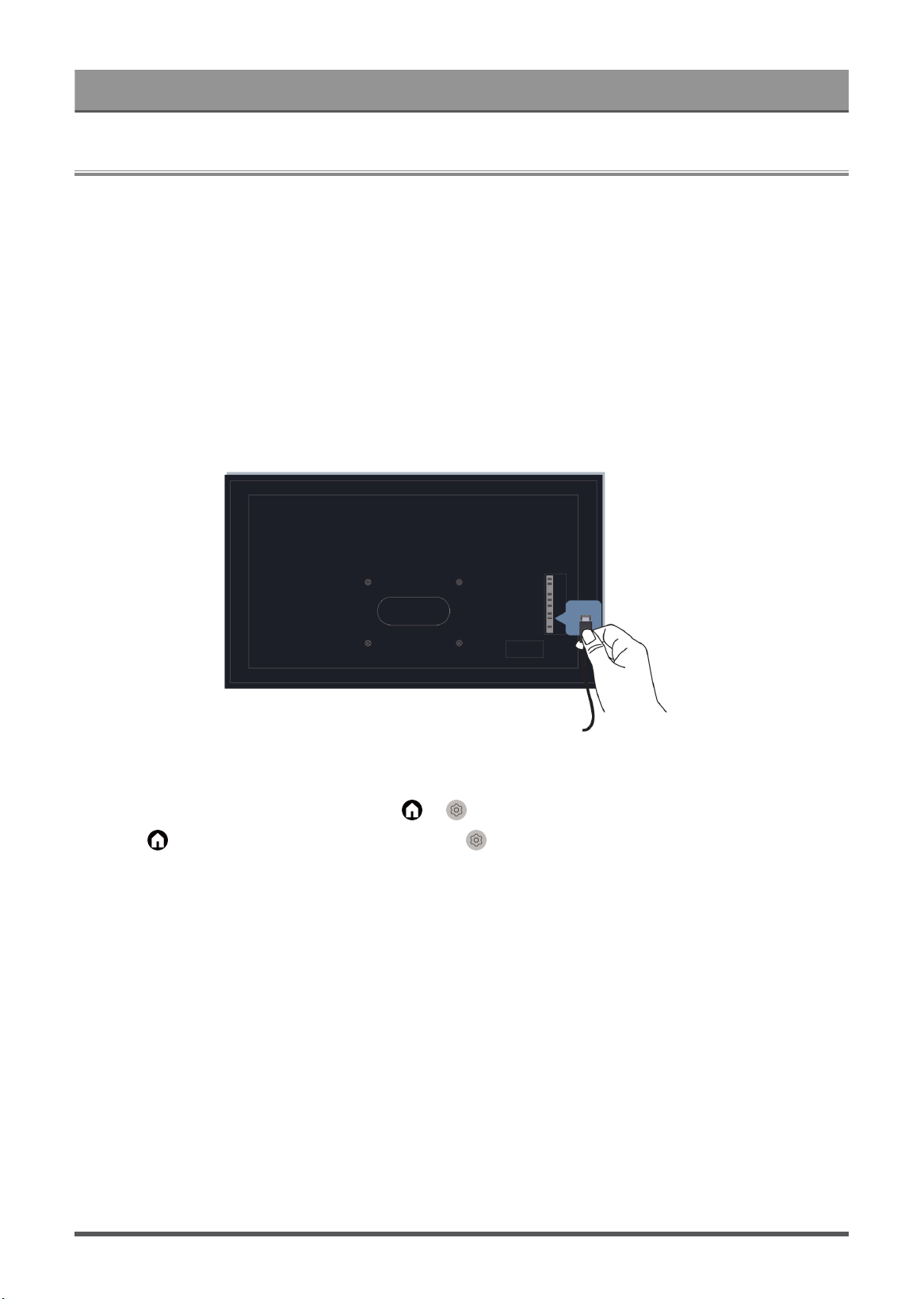
Troubleshooting
FAQ
In this section you will find the answers to the most frequently asked questions.
• There is no picture, or the picture is black and white.
• There is no sound or the sound is too low at maximum volume.
• My TV cannot connect to the network.
• I have connected an external source to my TV but I get no picture and/or sound.
• The remote control does not work.
• Schedule Recording cannot be used.
There is no picture, or the picture is black and white.
• Check input cable connections. Incorrect connections may cause colour problems or a blank screen.
• Make sure that you select the corresponding input source. For example, if you connect HDMI cable to
HDMI 1 port, please select HDMI 1 as the input source on TV.
•
Check if the Color is set to 50 or higher at > Settings > Display & Sound > Picture > Color.
•
Press button on your remote control and select Settings > Display & Sound > Picture >
Brightness and Color, check and adjust the settings.
• Switch to other channels or contents to check if the picture colour is normal.
• Unplug the TV power cord from AC outlet and re-plug it after 60 seconds.
57
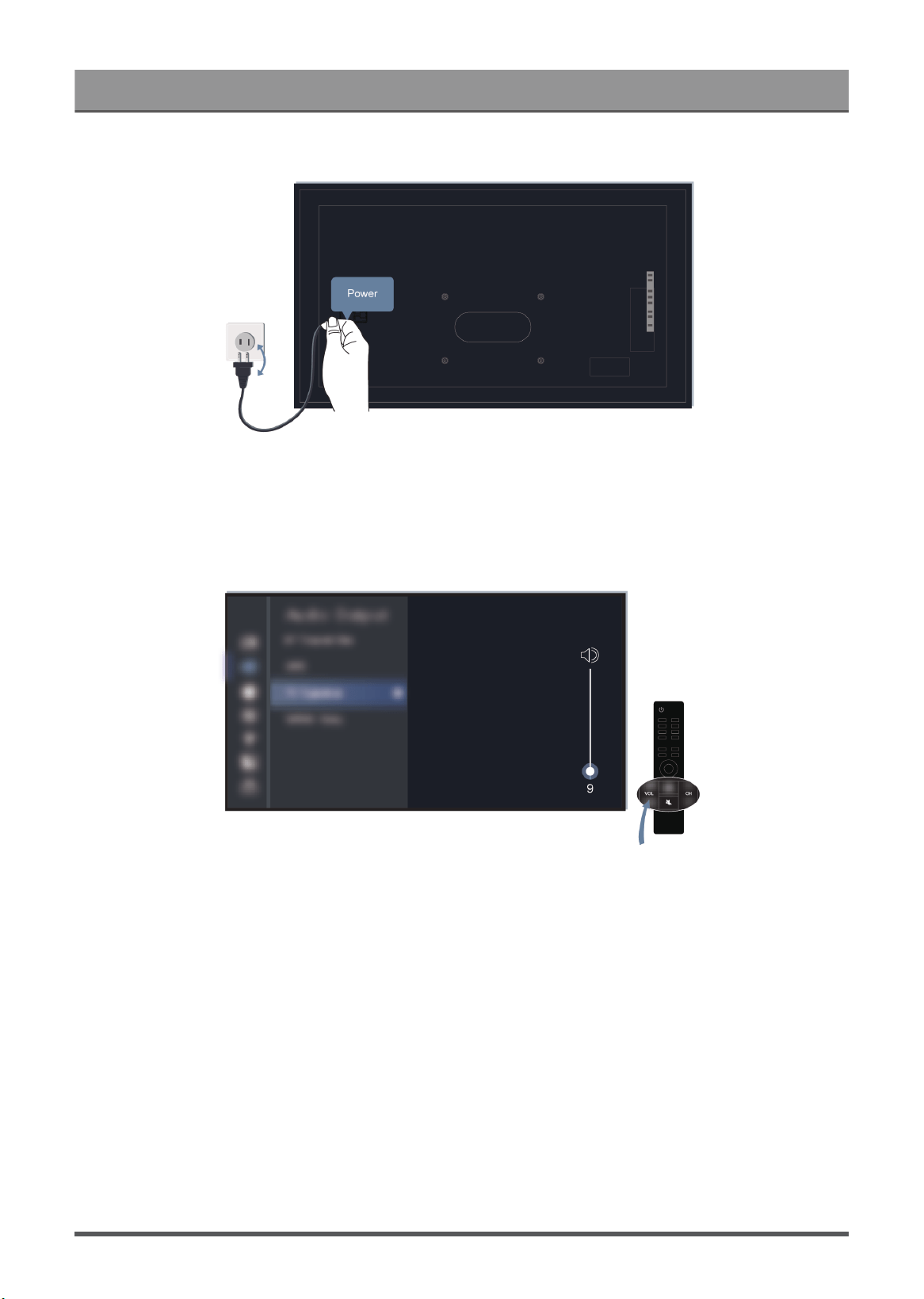
Troubleshooting
There is no sound or the sound is too low at maximum volume.
• Check if Mute mode is set to On. If so, press the mute button on your remote to restore the sound.
• Press volume button on your remote control to check the volume settings.
• Check the volume control of the device (cable or satellite box, DVD, Blu-ray, etc.) connected to your TV.
• Make sure that the audio cable is connected to the correct audio output connector on the external device.
• Check input cable connection to the TV. Incorrect connections may cause no sound.
58
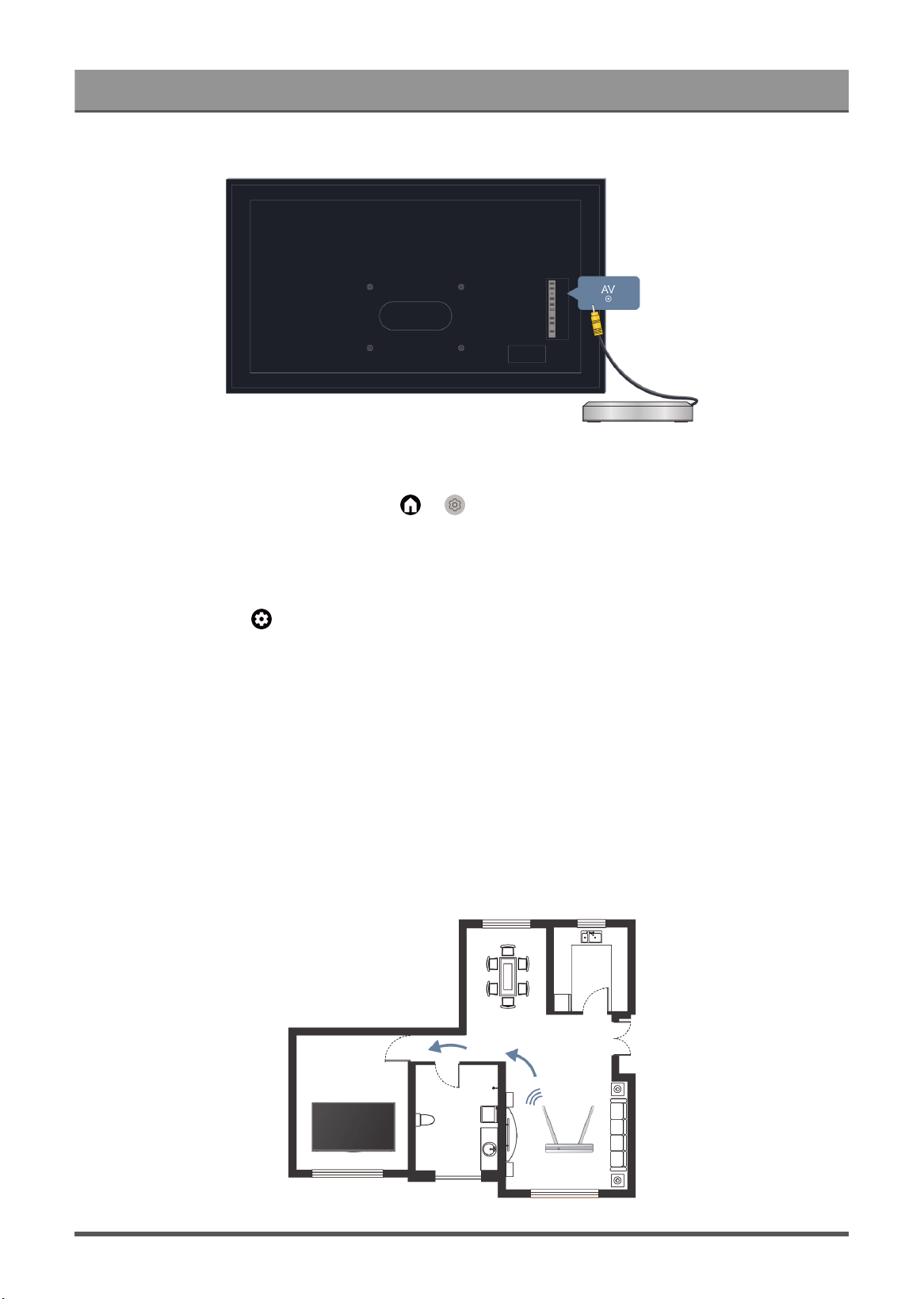
Troubleshooting
• Make sure that you select the corresponding input source. For example, if you connect HDMI cable to
HDMI 1 port, please select HDMI 1 as the input source on TV.
•
Check whether TV Speaker is selected at > Settings > Display & Sound > Audio Output.
My TV cannot connect to the network.
Before you review the solutions below, perform self-diagnosis to find the problem.
Check network status at > Settings > System > About > Status.
When connected to a wireless network
• Try to connect a wireless network again. Please carefully enter the password, especially for capital and
small letters. For specific information please refer to First-Time Use > Connecting to the Internet > Connect
to a Wireless Network in this manual.
• You can connect other wireless device to the same network. If the connection also fails, contact your
Internet service provider.
• You can connect the TV to a wired network. If the wired network connection succeeds, there is an issue
with your wireless modem/router.
• Position your wireless router, modem router, or access point close to the TV. Avoid putting it in a corner.
As much as possible, make sure there's no wall between the TV and router.
59
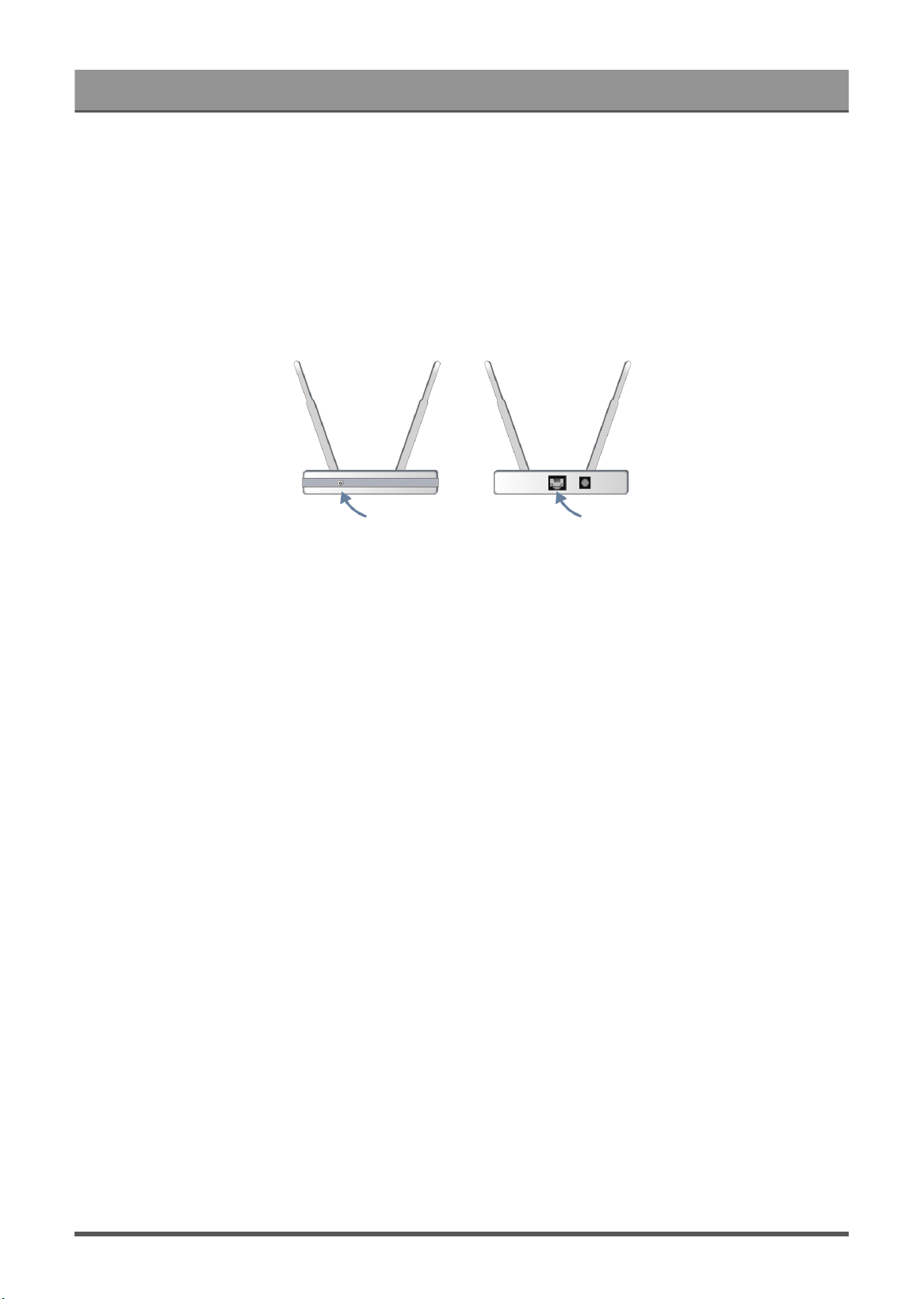
Troubleshooting
• Check whether there is radio wave interference. Wireless devices such as microwaves, mobile phones,
operating within the same radio frequency range may interfere with the TV. If you use the TV and other
wireless devices simultaneously, you may experience a worse network performance. Please power off
these wireless devices or move them further away.
• Restart your modem/router. Power off your modem/router and power it on after at least 60 seconds. It may
take time for your modem/router to reconnect to the Internet.
• Check your modem/router. Make sure cables are securely connected to your modem/router and the lights
flash intermittently and regularly.
• If the issue is not improved after following the steps above, you can try using a wired network connection.
For specific information please refer to First-Time Use > Connecting to the Internet > Connect to a Wired
(Ethernet) Network in this manual.
When connected to a wired network
• Restart your modem/router. Power off your modem/router and power it on after at least 60 seconds. It may
take time for your modem/router to reconnect to the Internet.
• Check your modem/router. Make sure cables are securely connected to your modem/router and the lights
flash intermittently and regularly.
• Make sure one end of the network cable is securely connected on the back of the TV, the other
end securely connected to an external modem/router. Any loose connection may cause unstable or
disconnected network.
I have connected an external source to my TV but I get no picture and/or
sound.
• Check whether the connection between the external device and your TV is correct and secure.
60
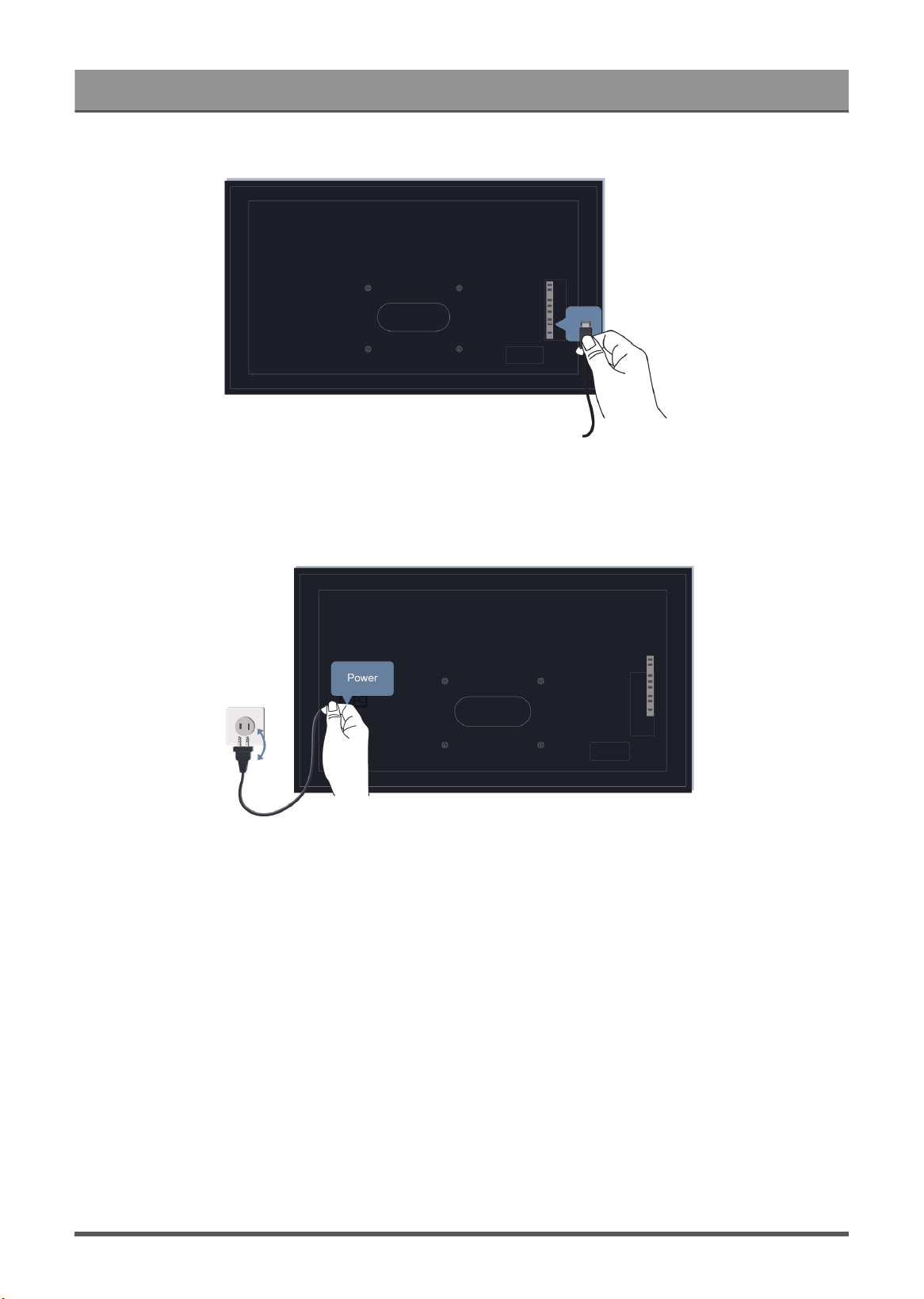
Troubleshooting
• Make sure that you select the corresponding input source. For example, if you connect HDMI cable to
HDMI 1 port, please select HDMI 1 as the input source on TV.
• If the signal is intermittent, unplug the TV power cord from AC outlet and reconnect after 60 seconds.
The remote control does not work.
• Confirm that the TV still has power and is operational. Press the power button on the TV to determine if the
problem is with the remote control or not.
61
Troubleshooting
• Check the indicator on the remote control. (some remote controls do not support this function)
If the TV is not responding to the remote control, then please check if the indicator on the remote control
flashes when any button is pressed.
If the indicator does not flash when the remote control button is pressed, the battery power may be low.
You can replace the batteries with new ones. For solar remote control, you can charge it by exposing the
solar panel to light or using a USB type-C cable.
• Check the orientation of each battery. Make sure to match the (+) and ( - ) ends of the batteries with the (+)
and ( - ) ends indicated in the battery compartment. This method is only applicable for battery-replaceable
remote control models.
• If the battery power is normal, take out the batteries, press any key for 1~2 seconds, and install batteries
back into the remote. This method is only applicable for battery-replaceable remote control models.
• Use the remote control within an appropriate operation range. The remote control can work at a distance of
up to 8 meters in front of the TV.
• Keep the TV remote sensor area clear from obstacles. Use the remote control when there are no obstacles
between the TV and the remote control.
• If the remote is not working, try to keep interferences such as wireless LAN access point, microwaves, or
other Bluetooth devices away when using the remote control.
•
For Bluetooth remote controls, try re-pairing the remote control with the TV by pressing and holding the
and button at the same time at least 3 seconds.
62
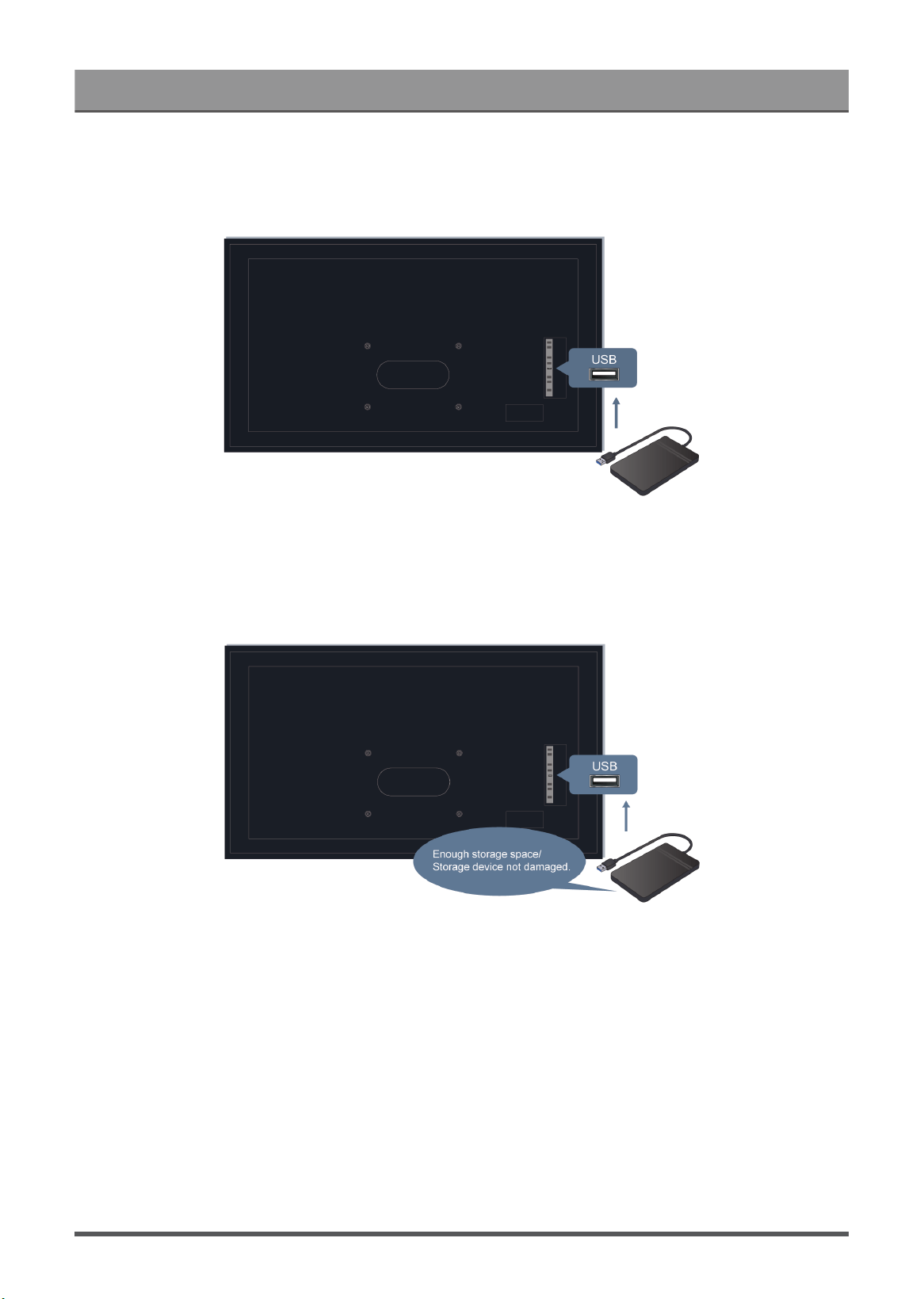
Troubleshooting
Schedule Recording cannot be used.
• Check if there is a storage device connected to the TV.
• Check the free space of the storage device. The function will not work if there is not enough storage space
on the device.
• Check whether your storage device is damaged. In this case, files cannot be stored. If so, it is suggested
to format your storage device.
• Recording will automatically stop if the signal becomes too weak.
63
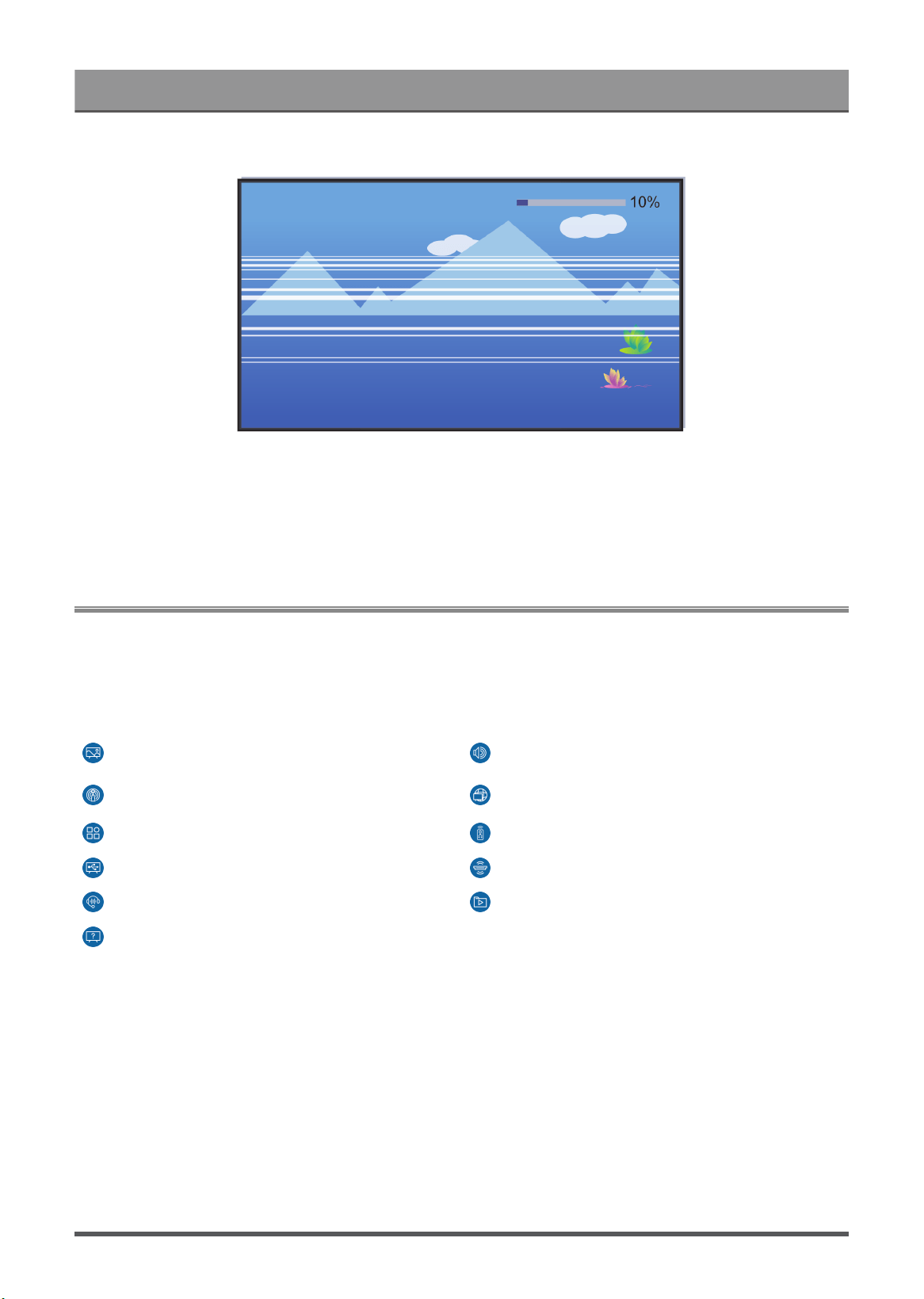
Troubleshooting
Note:
• Recording function may not work if the read/write speed of the USB device is too slow.
• Recording function may not work because the storage format of your device is unsupported.
• The Recording functions may not be applicable in some models/countries/regions.
Troubleshooting Guide
Please first try the following steps to resolve the issues:
• Check whether the TV has updated the latest software
• Restart or reset the TV
If the issue persists, select the following issues bellow to start troubleshooting:
Picture Issues Sound Issues
Channel and Broadcast Issues Network Issues
App Issues Remote Control Issues
External Device Connection Issues HDMI & CEC Issues
Voice Service Issues Media Files
Other Issues
If the solutions do not help you resolve the issues, please contact our service centre.
Restart or reset your TV
If the TV has problems such as a delay between the picture and sound or connection fails to external devices,
you can try to restart your TV first to troubleshoot the issue. If the problems persist, reset your TV to the
factory default. Before you start, remove any external USB devices from the TV.
64

Troubleshooting
Restart your TV
1. Press the power button on your remote control or press the power button on the TV to turn it off. For some
models, press the power button on the TV to display the on-screen menu, and press the button again to
move the focus to Power off to turn off the TV.
2. Unplug the TV power cord from AC outlet and reconnect after 60 seconds.
3. Press the power button on your remote control or press the power button on the TV to turn it on.
Note:
• Restart your TV will not clear your personal settings, information and data.
Reset your TV
Please note that reset will clear your personal settings, information and data. Find more specific operation
steps in Settings Overview > Reset to Factory Default in this manual.
Picture Issues
Please check the items below.
The picture is distorted, blurry or flickering, or cuts out momentarily.
There are dots, horizontal or vertical lines on the screen.
The brightness cannot be adjusted.
The picture is distorted, blurry or flickering, or cuts out momentarily.
•
Press button on your remote control and select Settings > Display & Sound > Picture > Clarity
to adjust Clarity settings.
• Make sure that the connection cable or the cable connector is not damaged.
• Make sure that the connection cable is securely connected to the TV and the external device.
• Some electrical appliances may affect the TV. For example, microwaves used close to the TV may cause
noise on analogue and digital channels. If you turn off the appliance and the interference disappears, it
proves that the appliance does affect the picture performance. Please move it further away from your TV.
• If you choose TV as the input source, adjust the direction and position of the antenna, reset or fine tune the
channel.
• When connecting the TV to external devices, leave some space between the external devices and the TV.
Note:
• Picture distortion caused by weak or poor signal reception is not a TV malfunction.
• The compressed video may cause picture distortion, especially for the fast moving pictures from sports
programmes and action movies.
There are dots, horizontal or vertical lines on the screen.
• Switch to other channels or contents to check if the picture is normal.
• Change the output resolution of your external device. When the TV is not compatible with the output
resolution, dots or lines may occur.
• Check if the TV is located in a humid space for a long time. It is suggested to use the TV in a relatively dry
environment.
65

Troubleshooting
• Some electrical appliances may affect the TV. For example, microwaves used close to the TV may cause
noise on analogue and digital channels. If you turn off the appliance and the interference disappears, it
proves that the appliance does affect the picture performance. Please move it further away from your TV.
The brightness cannot be adjusted.
•
Check Light Sensor settings at > Settings > Display & Sound > Picture > General > Automatic
Light Sensor. If Automatic Light Sensor is on, remove the objects that may block the TV light sensor.
•
Turn off Automatic Light Sensor. Press button on your remote control and select Settings >
Display & Sound > Picture > General > Light Sensor Shift to adjust the setting.
Note:
• The light sensor feature settings may not be applicable in some models/countries/regions.
Sound Issues
Please check the items below.
There is a delay between the picture and sound.
Sound is distorted or cuts out momentarily.
Volume cannot be changed or it changes on its own.
There is a delay between the picture and sound.
•
Press button on your remote control and select Settings > Display & Sound > Sound > Digital
Audio Output > Digital Audio Delay. Set the value to 0.
•
Press button on your remote control and select Settings > Display & Sound > Sound > TV
Sound Effect > Lip Sync. Adjust the value as you desire.
• Check the signal information. If the signal is weak or poor, a delay between the picture and sound may
occur but it is not a malfunction.
Note:
• Options may not be applicable depending on your model/country/region and the Audio Output you select.
Please refer to the specific product.
Sound is distorted or cuts out momentarily.
• Some electrical appliances may affect the TV. For example, microwaves used close to the TV may cause
noise on analogue and digital channels. If you turn off the appliance and the interference disappears, it
proves that the appliance does affect the picture performance. Please move it further away from your TV.
• Make sure that the connection cable or the cable connector is not damaged.
• If you use an external audio output device, make sure that the audio cable is connected to the correct
audio output connector on the external device. Place the device as close as possible to the TV without any
obstacles between them.
• Check the signal Information. A weak or poor signal may cause sound distortion, but it is not a malfunction.
66

Troubleshooting
Volume cannot be changed or it changes on its own.
• Press the power button on the TV to check if the TV responds. If there is no response, the TV may not
be normally working. If the TV responds, press the remote control to check if it can control the TV. If
not, please check the remote control. For specific information please refer to Troubleshooting > Remote
Control Issues in this manual.
•
Check if Auto Volume Control is turned on at > Settings > Display & Sound > Sound > TV
Sound Effect.
•
When connecting an external speaker via HDMI, first check the cable connection, then press button
on your remote control and select Settings > Channels & Inputs > Inputs, set HDMI control to On.
• Insufficient TV memory causes a lag when you change the volume. Please clear cache.
• If you have just turned on the TV, there may exist a delay after you press the volume up/down button on
the remote control. Please wait a while for the TV to start up fully.
• If the problem persists, restart your TV.
Channel and Broadcast Issues
Please check the items below.
In Live TV, there is no signal, or a weak signal, or you cannot find any channels.
The subtitles are not displaying or are in the wrong place on the TV screen.
The channel list sorting is lost after several days, or previously deleted channels return in the channel list.
I want to put channels in order of preference.
In Live TV, there is no signal, or a weak signal, or you cannot find any
channels.
• Please check the following things first.
a. The cable or cable connector of the antenna is not damaged.
b. The antenna cable is not loose or disconnected.
c. The antenna cable is connected to the correct port.
d. "TV" is selected as the input source.
• If no signal or weak signal occasionally happens, disconnect the antenna cable and reconnect it.
• If you use a set-top box or cable box, check the broadcast signals or the network status that is connected
to the external device.
•
If the problem persists, scan channels again. In Live TV, press button on your remote control and
select Settings > Channels & Inputs > Channels > Auto Channel Scan / Manual Scan. For specific
information please refer to Enjoy Live TV > Channel Scan in this manual.
The subtitles are not displaying or are in the wrong place on the TV
screen.
•
To turn on/off the subtitle function, press button on your remote control and select Settings >
System > Accessibility > Caption. For specific information please refer to Accessibility Features >
Captions Setup in this manual.
67

Troubleshooting
• If you are watching a channel through an external device such as a set-top box and cable box, turn on/off
the subtitle function on the external device and adjust the subtitle location on screen. For more information,
refer to the user manual of external device or contact your service provider.
Note:
• Some channels may not have subtitle data. In this case, even if you turn on the subtitle function, subtitles
are not provided on TV screen.
The channel list sorting is lost after several days, or previously deleted
channels return in the channel list.
• Make sure that you have not reset the TV to factory default before. Resetting the TV will reset all your user
settings.
• Check if the channels in the channel list have updated or your subscription expires.
• Re-scan channels to find lost channels in your channel list. For specific information please refer to Enjoy
Live TV > Channel Scan in this manual.
I want to put channels in order of preference.
• You can edit the order of channels to your preference or you can add channels that you like to the
favourite list. For specific information please refer to Enjoy Live TV > Channel Edit > Edit Channel List or
Edit Favourite Channel List in this manual.
Network Issues
Please check the items below.
• The signal strength is weak.
• The network connection is unstable, often disconnected.
The signal strength is weak.
• See Number 1, 2, 3, 6 in Common solutions to network issues.
The network connection is unstable, often disconnected.
When connected to a wireless network
• See Number 1, 2, 3, 4, 6 in Common solutions to network issues.
When connected to a wired network
• See Number 3, 4, 5 in Common solutions to network issues.
Common solutions to network issues
1. Position your wireless router, modem router, or access point close to the TV. Avoid putting it in a corner. As
much as possible, make sure there is no wall between the TV and router.
2. Check whether there is radio wave interference. Wireless devices such as microwaves, mobile phones,
operating within the same radio frequency range may interfere with the TV. If you use the TV and other
wireless devices simultaneously, you may experience a worse network performance. Please power off
these wireless devices or keep them away from the TV.
68

Troubleshooting
3. Restart your modem/router. Power off your modem/router and power it on again after at least 60 seconds.
It may take time for your modem/router to reconnect to the Internet.
4. Check your modem/router. Make sure cables are securely connected to your modem/router and the lights
flash intermittently and regularly.
5. Make sure one end of the network cable is securely connected on the back of the TV, the other
end securely connected to an external modem/router. Any loose connection may cause unstable or
disconnected network.
6. If the issue is not improved after following the steps above, you can try using a wired network connection.
For specific information please refer to First-Time Use > Connecting to the Internet > Connect to a Wired
(Ethernet) Network in this manual.
Apps Issues
Choose the issue your TV occurs.
• Apps cannot be installed, opened, updated or uninstalled.
• The app exits itself.
• It is freezed or not smooth while using an app. Its image quality is poor.
• Problems occur when using Browser to stream videos.
• The app language is different from the TV menu language.
Apps cannot be installed, opened, updated or uninstalled.
• If you have just turned on the TV, please wait a while until the TV's setup is ready.
• You can only install apps that are compatible with the TV. We recommend to Install an App. The apk files
downloaded from the Internet may not be installed on the TV.
• You can only delete apps that you have installed to the TV. Factory-installed apps cannot be deleted.
• See Number 1, 2, 3 in Common solutions to apps issues.
The app exits itself.
• See Number 2 in Common solutions to apps issues.
It is freezed or not smooth while using an app. Its image quality is poor.
• Exit the app and then open it again.
• Uninstall and reinstall the app. For specific information please refer to Benefits of Smart TV > Using Apps
in this manual.
• See Number 1, 2, 3 in Common solutions to apps issues.
Problems occur when using Browser to stream videos.
• Exit the Browser and then open it again.
• See Number 1, 2 in Common solutions to apps issues.
The app language is different from the TV menu language.
• The language in an app could be different from the TV menu's language because they may be separately
set up. You can change the language in the app's settings. Please note that whether you can change the
language in an app depends on the app's service provider.
69

Troubleshooting
Common solutions to apps issues
1. Check whether there are network issues with your TV.
2. The storage is insufficient. Try to clear cache or uninstall uncommonly used apps. You can clear cache for
browser and apps. This will permanently remove all the user data and temporary files.
3. The service of the app may not be available currently. Try using apps later.
Remote Control Issues
Choose the issue your device occurs.
• The TV is slow to respond to the remote control.
• I want to use the remote control to control other devices.
The TV is slow to respond to the remote control.
When the TV has just started, the response delay may occur between the TV and remote control. Please wait
a while to use the remote control.
• The battery power of the remote control may be low. You can replace the batteries with new ones. For
solar remote control, you can charge by exposing the solar panel to light or using a type-C cable.
• If the battery power is normal, take out the batteries, press any key for 1~2 seconds, and install batteries
back. This method is only applicable for battery-replaceable remote control models.
I want to use the remote control to control other devices.
•
Turn on HDMI Control on the TV. Press button on your remote control and select Settings >
Channels & Inputs > Inputs > HDMI control.
• Confirm that the external device is HDMI & CEC compatible and the HDMI & CEC feature of the connected
device is turned on. For specific information, please refer to the user manual with the external device.
• Check whether the power cable of the external device is properly connected and the HDMI cable
connection between the external device and the TV is secure. Please use a HDMI cable of standard
specification and make sure the cable lis not damaged.
External Device Connection Issues
Please check the items below.
• No sound from the TV while using the casting feature.
• I cannot mirror the screen or cast the content of my mobile device or PC on the TV.
• The TV cannot be connected to my soundbar, Bluetooth wireless headphones or speakers.
• Connection between external devices and the TV is unstable.
• I cannot select a connected device or find a connected HDMI device.
• I want to output sound from headphones and TV speakers, or from Bluetooth speaker and TV speakers at
the same time.
No sound from the TV while using the casting feature.
• Check if Mute mode is set to On. If so, press the mute button on your remote to restore the sound. If not,
turn up the volume.
•
Check if TV Speaker is selected at > Settings > Display&Sound > Audio Output.
70

Troubleshooting
• Check the network status. If the network signal is weak or low, there may exist a sound delay between the
TV and the mobile device. For specific information please refer to Troubleshooting > Network Issues in this
manual.
I cannot mirror the screen or cast the content of my mobile device or PC
on the TV.
•
Check if your TV supports Screen Sharing/Content Sharing at > Apps > Connections Tips >
Screen Sharing/Application Sharing.
• Some TV models may not support Content Sharing.
•
For iPhone, iPad, or Mac, use AirPlay to share content on the TV. Check if your TV supports AirPlay at
> Apps > Connections Tips > Airplay. Some TV models may not support AirPlay.
•
Check if Screen Sharing/Content Sharing is turned on. Press button on your remote control and
select Apps > Connections Tips > Screen Sharing/Application Sharing and switch it to On.
• Make sure that the TV and the mobile device are connected to the same network.
• Check if the content that you are playing is copyrighted. Some copyrighted files may not be cast to the TV.
• Check the network status. Casting failure may result from weak or low signal strength. For specific
information please refer to Troubleshooting > Network Issues in this manual.
• Exit and re-enter Screen Sharing/Content Sharing in case that there is a software bug.
The TV cannot be connected to my soundbar, Bluetooth wireless
headphones or speakers.
• Check if the Bluetooth device is compatible with the TV.
• Check if connection cable or cable connector is damaged.
•
Check if the Bluetooth is turned on at > Settings > Remotes & accessories > Bluetooth.
•
Turn off and restart Bluetooth at > Settings > Remotes & accessories > Bluetooth.
Connection between external devices and the TV is unstable.
• Check if the connection cable is securely connected to the TV and soundbar.
• When the external device and the TV are connected via wireless, make sure that there are no obstacles
between them.
• Make sure that the distance between the Bluetooth device and the TV is within 10 metres.
• Check if the Bluetooth device is powered on or its battery is fully charged.
• Check Bluetooth module specifications. Make sure that the frequency range of Bluetooth devices is not the
same as other electric appliances, otherwise Bluetooth devices may be affected.
I cannot select a connected device or find a connected HDMI device.
•
Press / button on your remote control to select the corresponding input source. For example, if
you connect HDMI cable to HDMI 1 port, please select HDMI 1 as the input source on TV.
• Check if the external device is powered on.
• Check if connection cable or cable connector is damaged.
• Check if the cable is securely connected.
• Check if the external device is compatible with the TV.
71

Troubleshooting
I want to output sound from headphones and TV speakers, or from
Bluetooth speaker.
•
If you connect wired headphones to the TV, press button on your remote control to select Settings
> Display & Sound > Audio Output to choose Wired Headphone.
•
If you want to connect bluetooth headphones/bluetooth speaker to the TV:
a. Turn on bluetooth at > Settings > Remotes & accessories > Bluetooth.
b. Connect your bluetooth headphones/bluetooth speaker and set the external device as BT Headphone
in Settings > Display & Sound > Audio Output > Bluetooth Speaker.
c. Press button on your remote control, select Settings > Display & Sound > Audio Output to
choose TV Speaker.
HDMI & CEC Issues
Choose the issue your TV occurs.
• I want to turn the TV and external device off or on at the same time.
• I want to disenable HDMI & CEC function.
• An external device cannot be controlled by using the TV's remote control.
Note:
• If the connected HDMI device may not support HDMI & CEC control, the feature may not work.
I want to turn the TV and external device off or on at the same time.
• Confirm that the external device is HDMI & CEC compatible and the HDMI & CEC feature of the connected
device is turned on. For specific information, please refer to the user manual with the external device.
• Check whether HDMI & CEC feature of your TV is turned on or device auto power off and device auto
power on are enabled. For specific information please refer to Connecting to External Devices > Remote &
Accessories > Use HDMI & CEC in this manual.
I want to disenable HDMI & CEC function.
•
To turn off the HDMI & CEC feature of your TV, press button on your remote control and select
Settings > Channels & Inputs > Inputs > HDMI control. Set HDMI control to Off.
An external device cannot be controlled by using the TV's remote control.
• Check whether there is an issue with your remote control. For specific information please refer to
Troubleshooting > Remote Control Issues in this manual.
• Check whether the power cable of the external device is properly connected and the HDMI cable
connection between the external device and the TV is secure. Please use a HDMI cable of standard
specification and make sure the cable is not damaged.
• Confirm that the external device is HDMI & CEC compatible and the HDMI & CEC feature of the connected
device is turned on. For specific information, please refer to the user manual with the external device.
•
Check whether HDMI & CEC feature of your TV is turned on. Press button on your remote control and
select Settings > Channels & Inputs > Inputs > HDMI control. Set HDMI control to On.
72

Troubleshooting
• Some menu of the HDMI & CEC compatible device may not be available for use.
• Some buttons on the remote control may not work. You can try the external device's remote control.
Voice Service Issues
Choose the issue your TV occurs.
• Voice button on remote control doesn't work.
• The TV fails to receive voice command. I spoke wake-up words, but there's no answer.
Before you perform the following solutions, please note that:
• Make sure your TV is turned on. The TV cannot respond in standby mode.
• If you have just turned on the TV, please wait a while until the TV's setup is ready.
• Your voice should be clear and recognisable. If the voice is too loud or too low, this may result in a failure.
• Please say your command and wait the device to respond.
• When the TV is connected with external devices, the performance of voice service may be affected.
Voice button on remote control doesn't work.
• Check the status of your remote control. For specific information please refer to Troubleshooting > Remote
Control Issues in this manual.
• Keep the remote control within 3 metres from the TV.
• Change account or log out of the account.
The TV fails to receive voice command. I spoke wake-up words, but
there's no answer.
• Check whether the built-in microphone control button at the bottom of the TV is switched on.
•
After the Voice Assistant setup has been completed, check whether the Hands-Free mode is turned on.
Press button, select Set up Google TV on lancher.
• Wake-up words may differ depending on Voice Assistant. For specific information please refer to First-
Time Use > Using the TV Voice Service > Hands-Free Wake-up in this manual.
• When the TV is far from you or the noise is loud, the TV may not receive voice command accurately.
• Change account or log out of the account.
Note:
• The Hands-Free Wake-up and some of its features are available on limited country/region/language.
Media Files
Some files are interrupted during playback./Some files can't be played.
Most files can be played back, but you might experience problems with the TV or the files.
73

Troubleshooting
• First check if there are problems with files.
a. The files are not corrupted. After you have saved files to a storage device (a USB flash drive) from PC,
please eject the storage device first before you disconnect it from PC.
b. The format of files that can be played depends on the codec and driver of the TV. For example, high-
bitrate or high-resolution files may not be played back smoothly or can't be played. For more information
about the supported codecs, please refer to Entertainment > Media > Media Format in this manual.
• Then check if there are problems with TV.
a. Make sure the memory is sufficient. If the memory is full, clear cache and play the file again.
b. Make sure the cable connected to the TV and the external device is not loose or disconnected.
Other Issues
Choose the issue your TV occurs.
• The TV automatically turns on or off by itself, or the TV cannot be turned on or off.
• System update cannot be completed.
• Some features of the TV do not work after the system update.
• The settings are lost and need re-configure every time when the TV is turned on.
• I want to sign out my account or delete account usage data.
• The TV is hot.
• I can hear the voice-over of the TV on-screen menu or contents.
The TV automatically turns on or off by itself, or the TV cannot be turned
on or off.
When the TV is under configurations, such as Remove User Data or Reset to Factory Default, the TV will
retart by itself. This is normal.
Turns off by itself
• Check if the power cord is connected to AC outlet. Disconnection will let the TV shut down.
• Check if Sleep Timer, Power Off Timer or Auto Sleep is set. These features will help the TV to
automatically turn off at the specified time.
Press button on your remote control and select Settings > System > Power & Energy. Please
find these features in Power & Energy.
• Check if CEC Control is enabled. When CEC control is enabled and HDMI & CEC compatible external
devices are turned off, the TV will enter the standby mode.
Press button on your remote control and select Settings > System > Channels & Inputs >
Inputs > Device auto power off. .
Turns on by itself
• Check if Power On Timer is enabled. This feature will help the TV to automatically turn on.
Press button on your remote control and select Settings > System > Power & Energy > Power >
Power On Timer.
74

Troubleshooting
• Check if TV Auto Power On is enabled. This feature will help the TV to automatically turn on when HDMI
& CEC compatible external devices are turned on.
Press button on your remote control and select Settings > Channels & Inputs > Inputs > TV
auto power on.
Cannot be turned on
• Check if the power cord is connected to AC outlet. You can unplug the TV power cord from AC outlet and
re-plug it after 60 seconds.
• Try to turn on the TV with the remote control. Press the power button on the remote control and check if
the TV turns on. If you cannot turn on the TV with the remote control, please refer to Troubleshooting >
Remote Control Issues in this manual to troubleshoot.
• Try to turn on the TV with the power button on the TV. Press the power button and check if the TV turns
on.
Cannot be turned off
• When the TV cannot be turned off with the remote control, the remote control may not work. Please refer
to Troubleshooting > Remote Control Issues in this manual to troubleshoot.
• Try to press the power button on the TV to turn it off. For some models, press the power button on the TV
to display the on-screen menu, and press the button again to move the focus to Power off to turn off the
TV.
• If the TV cannot be turned off by pressing the power button on the TV, disconnect the power cord from the
AC outlet.
System update cannot be completed.
The software update takes a couple of minutes. Please wait a while.
• Check whether there are network issues with your TV. Try to upgrade again when network issues are
fixed.
• Restart your TV then try to perform system update.
• If the issue persists, you can upgrade the software using a USB drive. For specific information please refer
to Settings Overview > Support > System Update in this manual.
Some features of the TV do not work after the system update.
• See Troubleshooting > Troubleshooting Guide > Restart or reset your TV in this manual.
The settings are lost and need re-configure every time when the TV is
turned on.
• Make sure that you didn't factory reset the TV before. Factory reset will erase all the settings.
• Make sure that you didn't remove user data before. This operation will clear relative settings.
• Make sure that the TV is not in store mode. When the TV is in store mode, TV settings will be reset every
few minutes.
• Check if you have updated the software recently. The system may be unstable after the TV is upgraded.
• When you turn off the TV, some settings will be automatically switched off.
75

Troubleshooting
I want to sign out my account or delete account usage data.
1.
Press button on your remote control and select Account in the navigation bar on the Home
screen.
2. Select Manage accounts > Remove.
Note:
• This setting will completely delete your usage data (including account, Live TV favourite channel list,
bluetooth equipment management information, TV name, etc.) and the data cannot be restored.
• The TV will restart after you confirm to clear data.
The TV is hot.
• This is normal because the panel generates heat when you use the TV for a period of time, but the heat
does not affect the TV's functionality. As long as the TV runs normally, you don't need to worry.
• We recommend you to place the TV in a proper ventilation for air circulation. If you find that the TV is too
hot, you can try to turn off the TV.
• When the TV is in standby mode, you may also feel the heat because the TV may be under Standby
Recording.
I can hear the voice-over of the TV on-screen menu or contents.
•
The voice-over is due to the enabling of Voice Guide. To turn off Voice Guide, press button on your
remote control and select Settings > System > System sounds and turn System sounds off. This
function may not be applicable in some models/countries/regions.
76