1
3139 246 16472
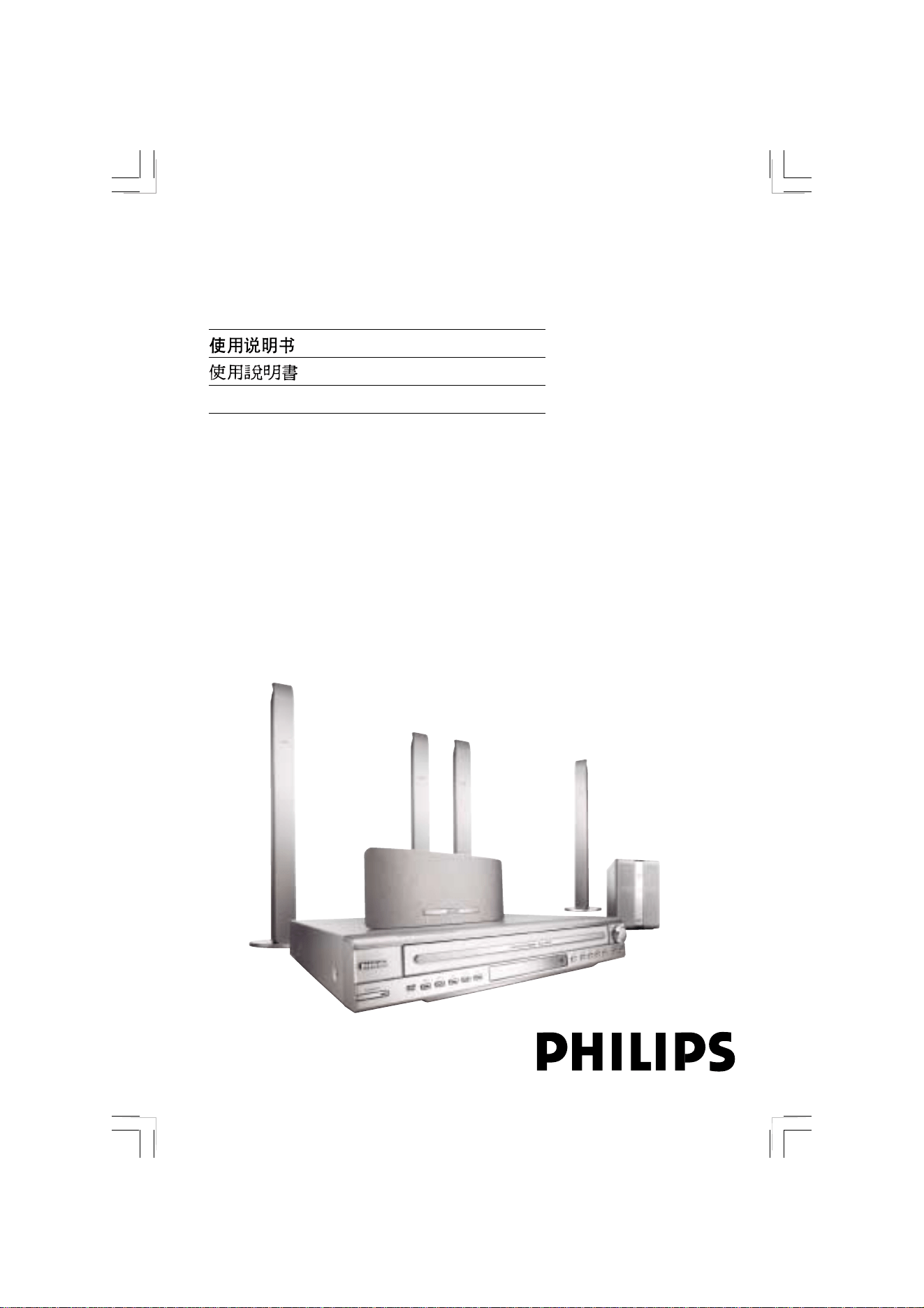
DVD HOME THEATER SYSTEM
Thank you for choosing Philips.
Need help fast?
Read your Quick-Start Guide and/or User Manual first for quick
tips that make using your Philips product more enjoyable.
If you have read your instructions and still need assistance,
you may access our online help at www.philips.com/support
HTS5510C
User Manual 6
52
94
Bahasa Melayu 138
2
3139 246 16472––
For Customer Use:
Read carefully the information located at
the bottom of your DVD VIDEO player
and enter below the Serial No. Retain this
information for future reference.
Model No. DVD VIDEO HTS5510C
Serial No. _______________
‘CONSUMERS SHOULD NOTE THAT NOT ALL HIGH
DEFINITION TELEVISION SETS ARE FULLY
COMPATIBLE WITH THIS PRODUCT AND MAY CAUSE
ARTIFACTS TO BE DISPLAYED IN THE PICTURE. IN
CASE OF 525 OR 625 PROGRESSIVE SCAN PICTURE
PROBLEMS, IT IS RECOMMENDED THAT THE USER
SWITCH THE CONNECTION TO THE ‘STANDARD
DEFINITION’ OUTPUT. IF THERE ARE QUESTIONS
REGARDING OUR TV SET COMPATIBILITY WITH THIS
MODEL 525p AND 625p DVD PLAYER, PLEASE
CONTACT OUR CUSTOMER SERVICE CENTRE’.
DivX
®
, DivX Certified, and
associated logos are
trademarks of
DivXNetworks, Inc and are
used under license.
As an ENERGY STAR
®
partner;
Philips has determined that this
product meets the ENERGY STAR
®
guidelines for energy efficiency.
3
3139 246 16472
Index
English ----------------------------------------- 4
--------------------------------------------------------52
--------------------------------------------------------94
Bahasa Melayu----------------------------138
English
Bahasa Melayu

4
3139 246 16472––
LASER
Type Semiconductor laser
GaAlAs
Wave length 650~660 nm (DVD)
784~796 nm (CD)
Output Power 7 mW (DVD)
10 mW (VCD/CD)
Beam divergence 60 degree
Manufactured under license from
Dolby Laboratories. “Dolby”, “Pro
Logic” and the double-D symbol are
trademarks of Dolby Laboratories.
Manufactured under license from
Digital Theater Systems, Inc. U.S.
Pat. Noís. 5,451,942; 5,956,674;
5,974,380;
5,978,762; 6,226,616; 6,487,535 and
other U.S. and world-wide patents
issued and pending. “DTS” and
“DTS Digital Surround” are
registered trademarks of Digital
Theater Systems, Inc. Copyright
1996, 2003 Digital Theater Systems,
Inc. All Rights Reserved.
CAUTION
Use of controls or adjustments or
performance of procedures other than
herein may result in hazardous
radiation exposure or other unsafe
operation.

5
3139 246 16472
Language Code
Abkhazian 6566
Afar 6565
Afrikaans 6570
Amharic 6577
Arabic 6582
Armenian 7289
Assamese 6583
Avestan 6569
Aymara 6589
Azerhaijani 6590
Bahasa Melayu 7783
Bashkir 6665
Belarusian 6669
Bengali 6678
Bihari 6672
Bislama 6673
Bokmål, Norwegian 7866
Bosanski 6683
Brezhoneg 6682
Bulgarian 6671
Burmese 7789
Castellano, Español 6983
Catalán 6765
Chamorro 6772
Chechen 6769
Chewa; Chichewa; Nyanja 7889
9072
Chuang; Zhuang 9065
Church Slavic; Slavonic 6785
Chuvash 6786
Corsican 6779
Česky 6783
Dansk 6865
Deutsch 6869
Dzongkha 6890
English 6978
Esperanto 6979
Estonian 6984
Euskara 6985
6976
Faroese 7079
Français 7082
Frysk 7089
Fijian 7074
Gaelic; Scottish Gaelic 7168
Gallegan 7176
Georgian 7565
Gikuyu; Kikuyu 7573
Guarani 7178
Gujarati 7185
Hausa 7265
Herero 7290
Hindi 7273
Hiri Motu 7279
Hrwatski 6779
Ido 7379
Interlingua (International)7365
Interlingue 7365
Inuktitut 7385
Inupiaq 7375
Irish 7165
Íslenska 7383
Italiano 7384
Ivrit 7269
Japanese 7465
Javanese 7486
Kalaallisut 7576
Kannada 7578
Kashmiri 7583
Kazakh 7575
Kernewek 7587
Khmer 7577
Kinyarwanda 8287
Kirghiz 7589
Komi 7586
Korean 7579
Kuanyama; Kwanyama 7574
Kurdish 7585
Lao 7679
Latina 7665
Latvian 7686
Letzeburgesch; 7666
Limburgan; Limburger 7673
Lingala 7678
Lithuanian 7684
Luxembourgish; 7666
Macedonian 7775
Malagasy 7771
Magyar 7285
Malayalam 7776
Maltese 7784
Manx 7186
Maori 7773
Marathi 7782
Marshallese 7772
Moldavian 7779
Mongolian 7778
Nauru 7865
Navaho; Navajo 7886
Ndebele, North 7868
Ndebele, South 7882
Ndonga 7871
Nederlands 7876
Nepali 7869
Norsk 7879
Northern Sami 8369
North Ndebele 7868
Norwegian Nynorsk; 7878
Occitan; Provencal 7967
Old Bulgarian; Old Slavonic 6785
Oriya 7982
Oromo 7977
Ossetian; Ossetic 7983
Pali 8073
Panjabi 8065
Persian 7065
Polski 8076
Português 8084
Pushto 8083
Russian 8285
Quechua 8185
Raeto-Romance 8277
Romanian 8279
Rundi 8278
Samoan 8377
Sango 8371
Sanskrit 8365
Sardinian 8367
Serbian 8382
Shona 8378
Shqip 8381
Sindhi 8368
Sinhalese 8373
Slovensky 8373
Slovenian 8376
Somali 8379
Sotho; Southern 8384
South Ndebele 7882
Sundanese 8385
Suomi 7073
Swahili 8387
Swati 8383
Svenska 8386
Tagalog 8476
Tahitian 8489
Tajik 8471
Tamil 8465
Tatar 8484
Telugu 8469
Thai 8472
Tibetan 6679
Tigrinya 8473
Tonga (Tonga Islands) 8479
Tsonga 8483
Tswana 8478
Türkçe 8482
Turkmen 8475
Twi 8487
Uighur 8571
Ukrainian 8575
Urdu 8582
Uzbek 8590
Vietnamese 8673
Volapuk 8679
Walloon 8765
Welsh 6789
Wolof 8779
Xhosa 8872
Yiddish 8973
Yoruba 8979
Zulu 9085

6
3139 246 16473
English
Language Code ......................................5
General Information
Supplied accessories................................... 8
Care and safety information..................... 8
Connections
Step 1: Set-up the speakers....................... 9
Step 2: Placing the speakers and AV
subwoofer..................................................... 9
Step 3: Connecting the DVD system,
speakers and AV subwoofer....................10
Step 4: Connecting TV..............................11
Using Composite Video jack..............11
Using S-Video jack ...............................11
Using Component (Y Pb Pr) Video jack
..................................................................12
Using an accessory RF modulator....12
Step 5: Connecting FM/MW antennas ... 13
Step 6: Connecting the power cord .....13
Optional Connections
Connecting a VCR or Cable/
Satellite Box ...............................................14
Viewing and listening to the
playback ..................................................14
Using the VCR for recording
DVD playback .......................................14
Connecting digital audio equipment .....15
Listening to the playback ....................15
Functional Overview
Remote Control................................. 16–17
Top and front panel ..................................18
Getting Started
Step 1: Inserting batteries into the
remote control ..........................................19
Using the remote control to
operate the system..............................19
Step 2: Setting the TV ...............................19
Setting up Progressive Scan feature (for
Progressive Scan TV only) ..................20
Selecting the colour system that
corresponds to your TV .....................21
Setting the TV Display.........................21
Step 3: Setting language preferences.....22
On-Screen Display (OSD) language.22
Audio, Subtitle and Disc menu
languages ................................................22
Disc Operations
Playable discs ..............................................23
Playing discs ................................................24
Auto Eco Power standby mode........24
Basic playback controls............................24
Selecting various repeat/shuffle
functions......................................................25
Repeat play ............................................25
Repeating a specific segment (A-B).....25
Random play (Audio CDs and MP3
only) ........................................................25
Other operations for video playback
(DVD/VCD/SVCD).................................26
Using the Disc Menu ...........................26
Display the disc information and
current status........................................26
Advancing by frame .............................26
Resuming playback from the last
stopped point........................................27
Zooming in ............................................27
Changing sound track language.........27
Changing subtitle language
(DVD only) ............................................27
Selecting a title (DVD only)...............27
Playback Control (PBC) (VCD only)...
..................................................................28
Preview function (VCD and CD only)
..................................................................28
Contents

English
7
3139 246 16473
Playing an MP3/JPEG/MPEG-4 disc .........29
Playing MP3 music and JPEG
picture simultaneously ........................29
Playing a picture disc (slide show).........30
Preview Function..................................30
Zooming a picture ...............................30
Rotating/Fliping the picture................30
Supported JPEG picture formats......30
Playing a DivX disc....................................31
DVD Setup Menu Options
Accessing to General Setup Page..........32
Locking/Unlocking the disc
for viewing .............................................32
Dimming system’s display panel ........32
Program tracks on a single disc ........33
Program discs........................................33
OSD language .......................................34
Screen Saver – turning on/off ...........34
DivX(R) VOD registration code .......34
Accessing to Audio Setup Page..............35
Speakers Volume/Speakers Delay ......35
CD Upsampling ....................................35
Night mode – turning on/off ............35
Accessing to Video Setup Page...............36
TV Type ...................................................36
TV Display .............................................36
Progressive function-turning on/off .36
Picture Setting.......................................37
Accessing to Preference Setup Page.....38
Audio, Subtitle, Disc Menu .................38
Restricting playback by Parental
Control............................................ 38–39
PBC .........................................................39
MP3/JPEG Navigator – turning
on/off......................................................39
Changing the Password.......................40
Setting the DivX Subtitle font...........40
Restoring to original settings ............40
Other Functions
Switching on/off ........................................ 41
Switching to an active mode.............. 41
Switching to Eco Power standby
mode.......................................................41
Using the remote to operate your
‘Philips’ television ......................................41
Setting the Sleep timer ............................41
Tuner Operations
Tuning to radio stations...........................42
Presetting radio stations..........................42
Using the Plug and Play .......................42
Automatic presetting ..........................43
Manual presetting.................................43
Selecting a preset radio station .............43
Deleting a preset radio station ..............43
Changing tuning grid.................................44
Sound and Volume Controls
Individual speakers volume adjustment....
.......................................................................45
Selecting surround sound........................46
Selecting digital sound effects.................46
Volume control ..........................................46
Specifications ......................................47
Troubleshooting ......................... 48–49
Glossary ............................................. 50–51
Contents
8
3139 246 16473
English
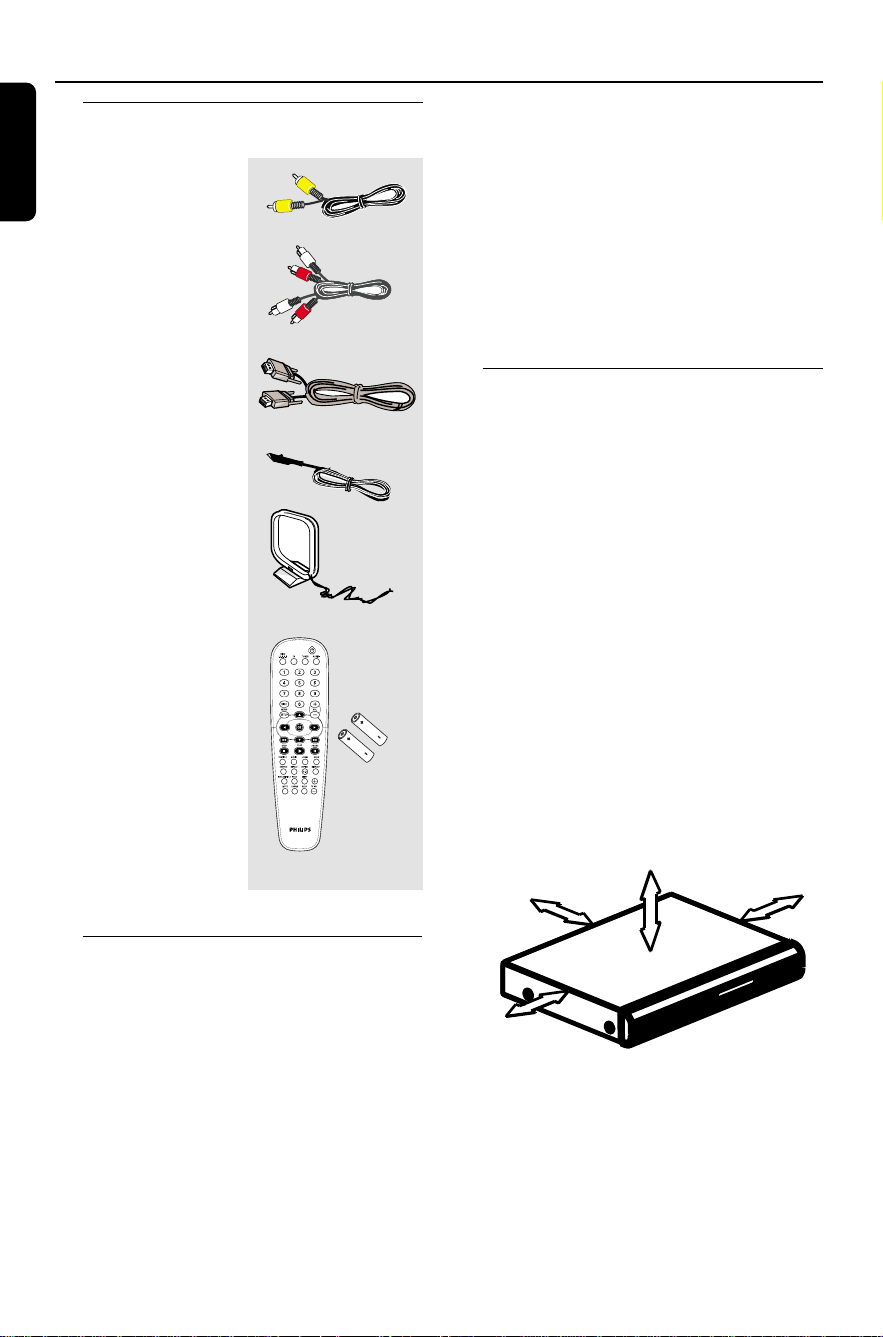
Supplied accessories
Composite video
cable (yellow)
Audio cables
(red/white)
Interconnect cable
FM wire antenna
MW loop antenna
Remote control
and two batteries
(12nc: 3139 258 70091)
Cleaning discs
To clean a disc, use a micro fibre cleaning
cloth and wipe the disc from the center
to the edge in a straight line.
General Information
CAUTION!
Do not use solvents such as benzene,
thinner, commercially available cleaners,
or anti-static sprays intended for discs.
Since the optical unit (laser) of the DVD
system operates at a higher power than
regular DVD or CD players, cleaning CDs
intended for DVD or CD players may
damage the optical unit (laser). Therefore,
refrain from using a cleaning CD.
Setup
Finding a suitable location
– Place the set on a flat, hard and stable
surface. Do not place the set on a carpet.
– Do not position the set on top of
other equipment that might heat it up
(e.g., receiver or amplifier).
– Do not put anything under the set
(e.g., CDs, magazines).
– Install this system near the AC outlet
and where the AC power plug can be
reached easily.
Space for ventilation
– Place the apparatus in a location with
adequate ventilation to prevent internal
heat build up. Allow at least 10 cm (4.5”)
clearance from the rear and the top of
the set and 5cm (2.3”) from the left and
right to prevent overheating.
10cm (4.5")
10cm (4.5")
5cm (2.3")
5cm (2.3")
Avoid high temperatures, moisture,
water and dust
– Apparatus shall not be exposed to
dripping or splashing.
– Do not place any sources of danger on
the apparatus (e.g., liquid filled objects,
lighted candles).
English
9
3139 246 16473
Connections
For best possible surround sound, all the
speakers (except subwoofer) should be
placed at the same distance from the
listening position.
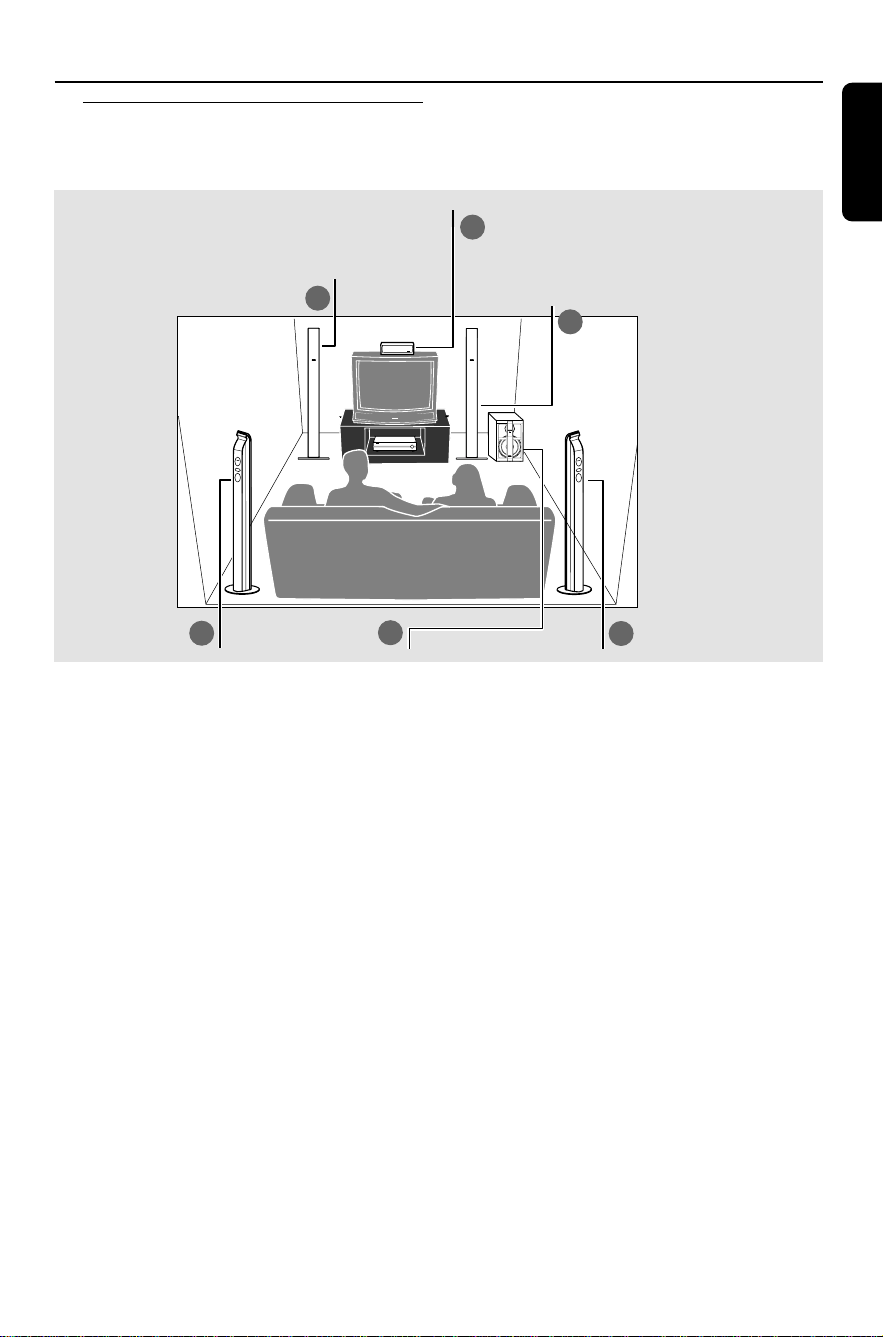
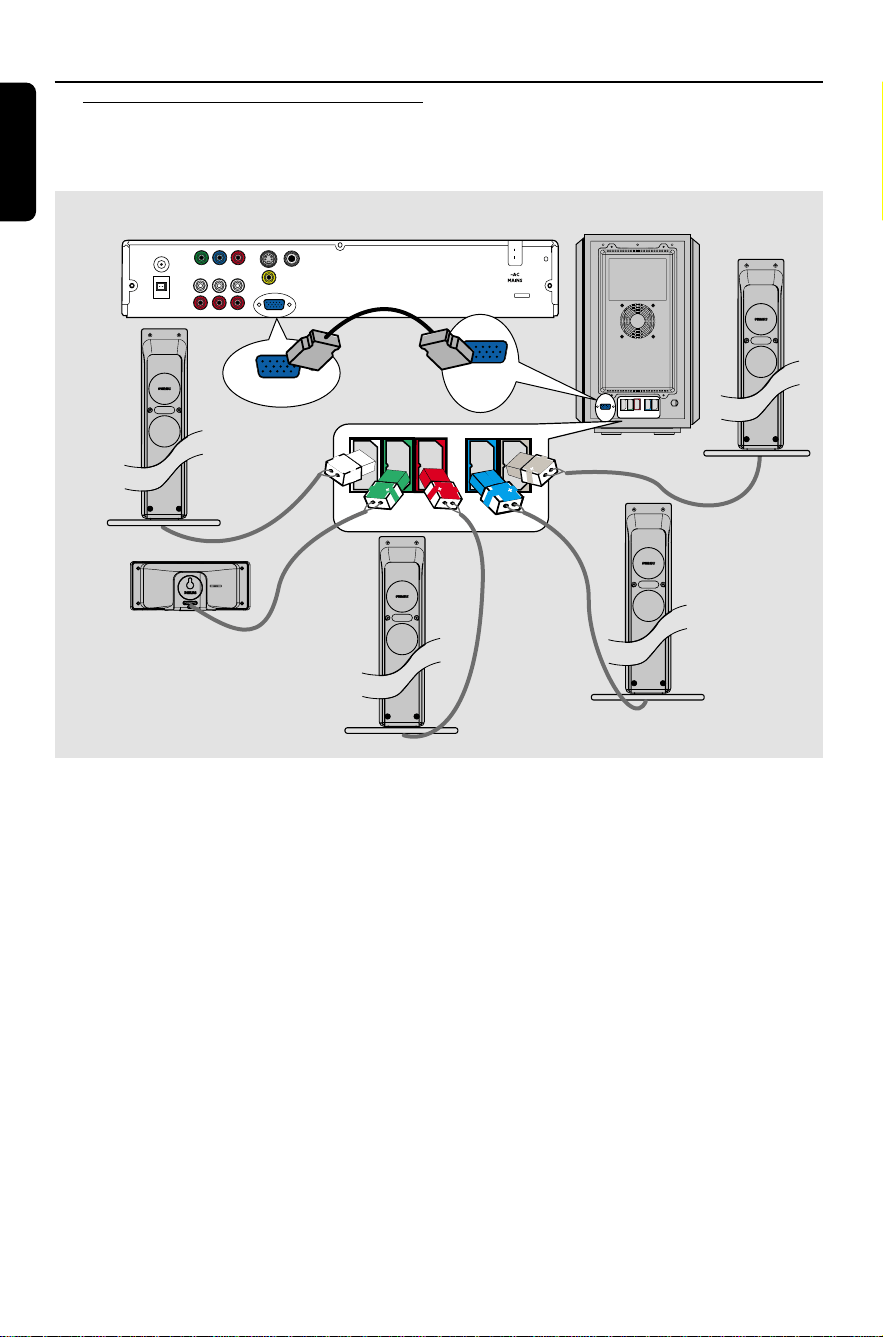
1 Place the front left and right speakers at
equal distances from the TV and at an
angle of approximately 45 degrees from
the listening position.
2 Place the centre speaker above the TV or
the DVD system so that the centre
channel’s sound is localised.
3 Place the rear speakers at normal
listening ear level facing each other or
hang on the wall.
4 Place the subwoofer on the floor near
the TV.
Step 1: Placing the speakers
and subwoofer
1
1
3
3
4
2
Helpful Hints:
– To avoid magnetic interference, do not
position the front speakers too close to your
TV.
– Allow adequate ventilation around the
DVD system.
10
3139 246 16473
English
Connections (continued)
1 Connect the supplied speaker to the rear
of the AV subwoofer using the fixed
speaker cables by matching the colours of
the jacks and speaker connectors.
2 Use the inter-connect cable to connect the
DVD system’s TO AV SUBWOOFER
socket to the TO DVD SYSTEM socket
at the back of the AV subwoofer.
Helpful Hints:
– Ensure that the speaker cables are
correctly connected. Improper connections
may damage the system due to a short-
circuit.
– To prevent unwanted noise, do not place
the AV subwoofer too close to the DVD
system, AC power adapter, TV or other
radiation sources.
Step 2: Connecting the DVD
system, speakers and
AV subwoofer
FM
ANT
S-VIDEO
L
R
MW
ANT
PR
PB
Y
COMPONENT
VIDEO OUT
AUX-INTV-IN
LINE-OUT
VIDEO
COAXIAL
DIGITAL IN
TO AV SUBWOOFER
~ AC
MAINS
TO DVD
SYSTEM
FRONT
LEFT
CENTERFRONT
RIGHT
REAR
LEFT
REAR
RIGHT
FRONT
LEFT
FRONT
RIGHT
CENTER REAR
LEFT
REAR
RIGHT
TO AV SUBWOOFER
TO DVD
SYSTEM
REAR L
REAR R
FRONT R
FRONT L
CENTER
Front Right
Speaker
Rear Right
Speaker
Rear Left
Speaker
Center Speaker
AV Subwoofer
Front Left
Speaker
DVD System
English
11
3139 246 16473
Connections (continued)
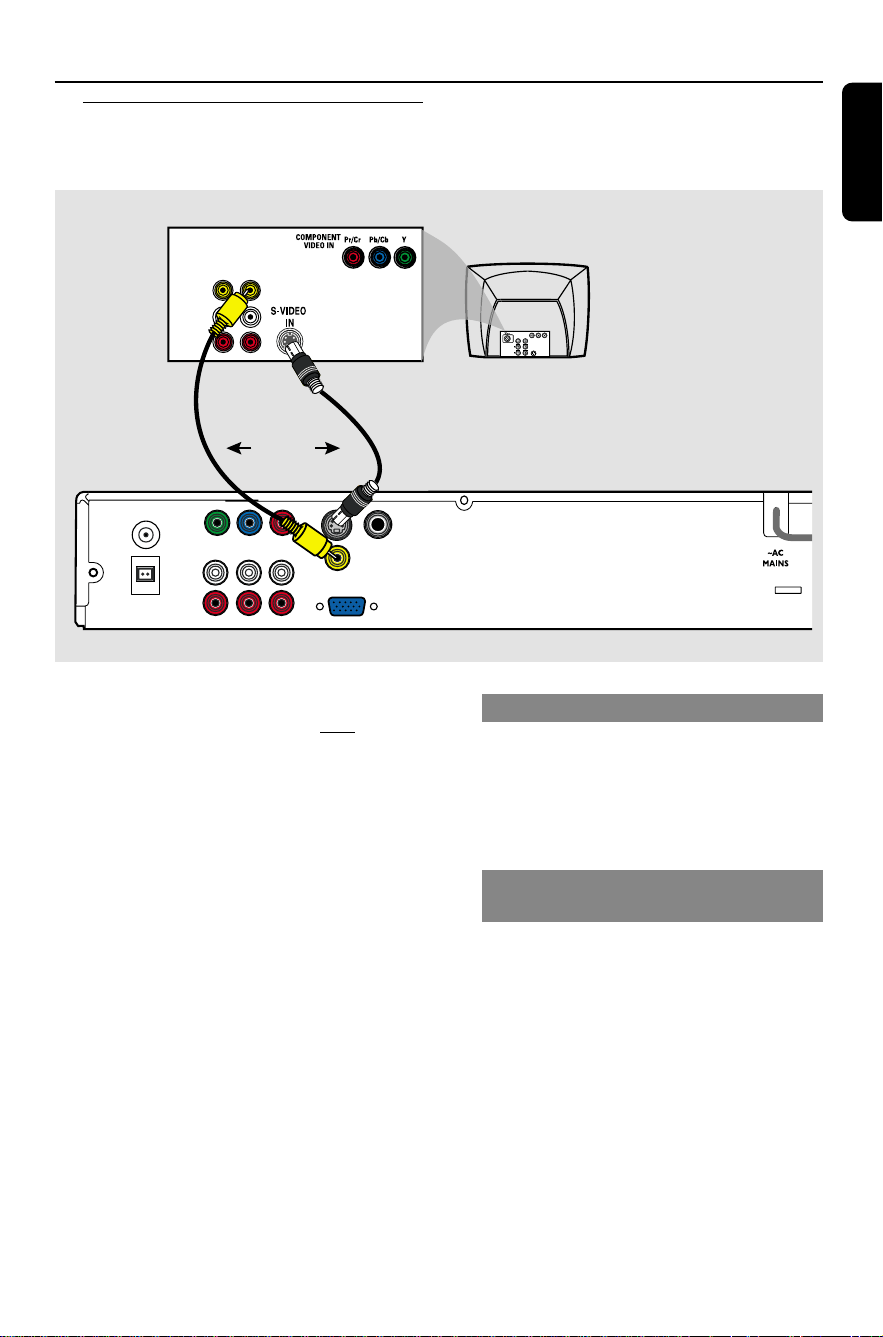
IMPORTANT!
– You only need to make one video
connection from the following
options, depending on the
capabilities of your TV.
– Connect the DVD system directly
to the TV.
– Proceed to page 19 for setting up
the TV once you have completed
the connections.
Helpful Hints:
– To hear the TV channels through this DVD
system, use the audio cables (white/red - not
supplied) to connect AUDIO-TV IN sockets to
the corresponding AUDIO OUT sockets on
the TV.
Step 3: Connecting to TV
Option 1: Using S-Video socket
● Use an S-video cable (not supplied) to
connect the DVD system’s S-VIDEO
socket to the S-Video input socket (or
labelled as Y/C or S-VHS) on the TV.
OR
Option 2: Using Composite Video
socket
● Use the supplied composite video cable
(yellow) to connect the DVD system’s
CVBS socket to the video input socket
(or labelled as A/V In, Video In, Composite
or Baseband) on the TV.
FM
ANT
S-VIDEO
L
R
AM
ANT
PR
PB
Y
VIDEO OUT
AUX-INTV-IN
LINE-OUT
VIDEO
COAXIAL
DIGITAL IN
TO AV SUBWOOFER
VIDEO
AUDIO
OUT IN
TV
OR
12
3139 246 16473
English
Connections (continued)
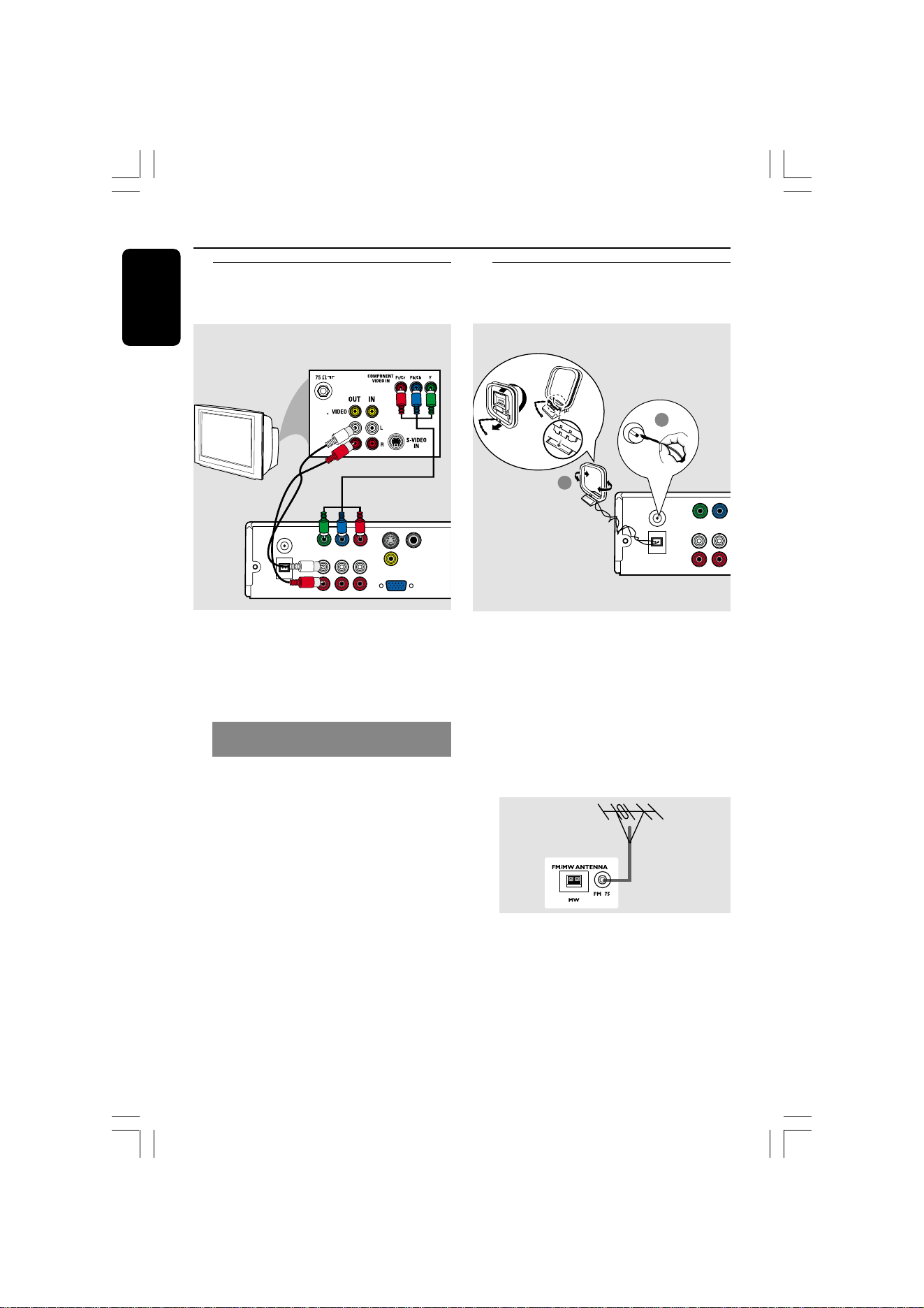
IMPORTANT!
The progressive scan video quality is
only possible when using Y Pb Pr
and a progressive scan TV is
required.
Option 3: Using Component
(Y Pb Pr) Video jack
1 Use the component video cables (red/
blue/green - not supplied) to connect the
DVD system’s Y Pb Pr jacks to the
corresponding component video input
jacks (or labeled as Y Pb/Cb Pr/Cr or
YUV) on the TV.
2 To hear the TV channels through this
DVD system, use the audio cables (white/
red - supplied) to connect the DVD
system’s TV IN jacks to the audio input
jacks on the TV.
3 Proceed to page 20 for detailed
Progressive Scan set up.
FM
ANT
S-VIDEO
L
R
AM
ANT
PR
PB
Y
VIDEO OUT
AUX-INTV-IN
LINE-OUT
VIDEO
COAXIAL
DIGITAL IN
TO AV SUBWOOFER
Step 4: Connecting to a
Progressive Scan TV
(optional)
FM
ANT
L
R
AM
ANT
PB
Y
VIDEO OUT
AUX-INTV-IN
L
1
➠
2
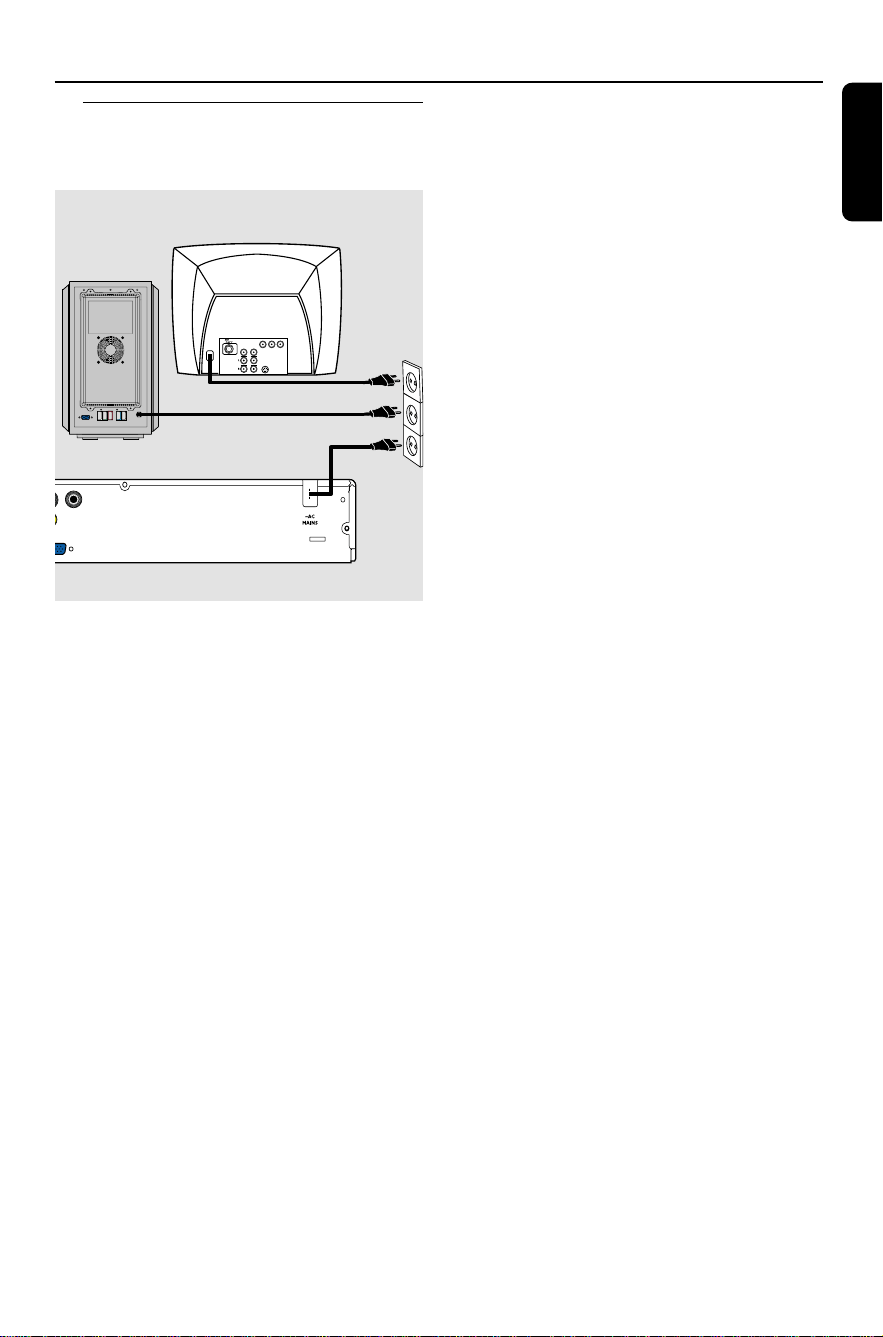
1 Connect the supplied MW loop antenna
to the MW jack. Place the MW loop
antenna on a shelf, or attach it to a stand
or wall.
2 Connect the supplied FM antenna to the
FM jack. Extend the FM antenna and fix
its ends to the wall.
For better FM stereo reception, connect
an external FM antenna (not supplied).
Helpful Hints:
– Adjust the position of the antennas for
optimal reception.
– Position the antennas as far as possible
from your TV, VCR or other radiation source
to prevent unwanted interference.
MW
antenna
fix the claw
into the slot
Step 5: Connecting FM/MW
antennas
FM
antenna
English
13
3139 246 16473
Connections (continued)
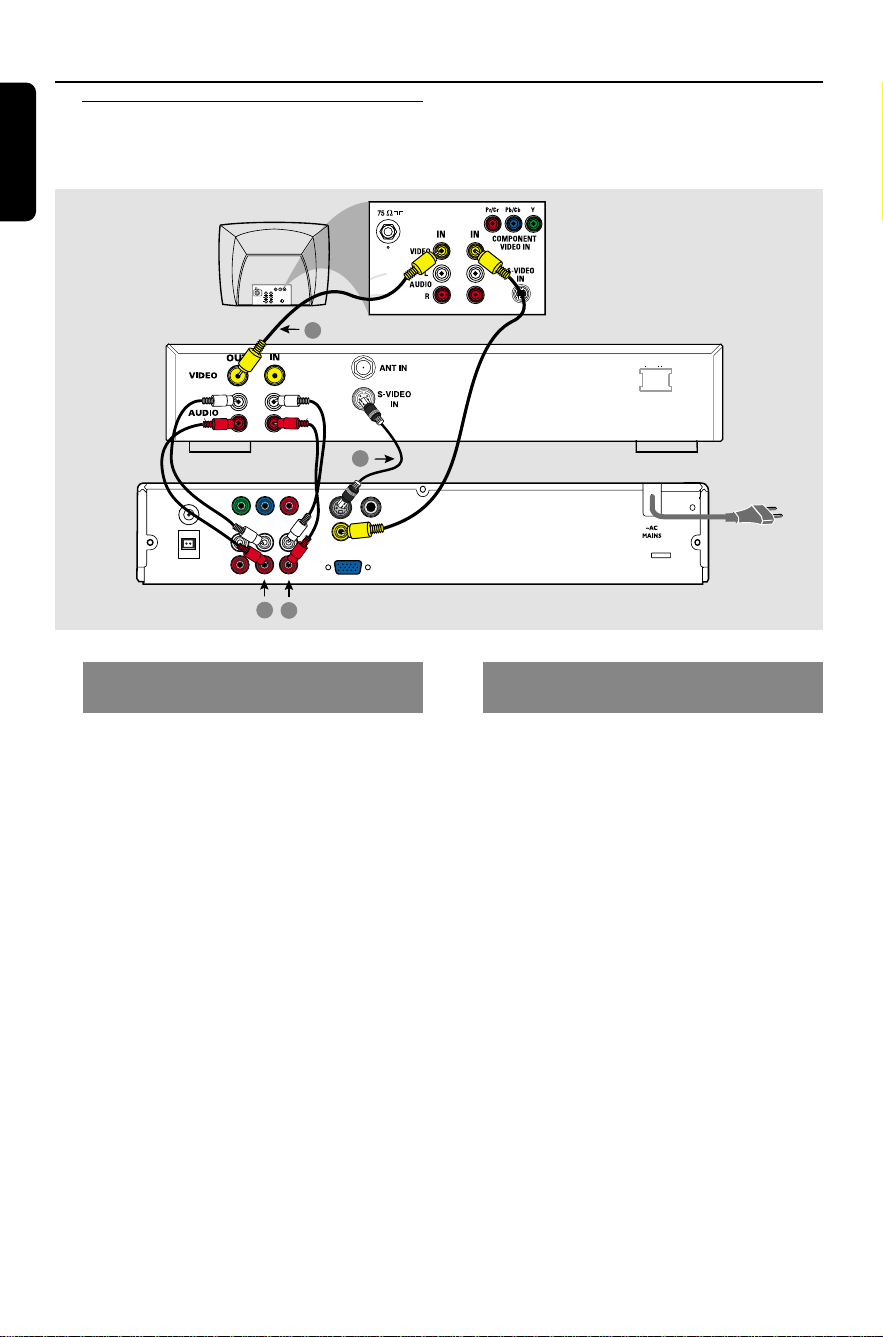
Step 6: Connecting the
power cord
O
O
COAXIAL
DIGITAL IN
B
WOOFER
TV
~ AC
MAINS
TO DVD
SYSTEM
FRONT
LEFT
CENTERFRONT
RIGHT
REAR
LEFT
REAR
RIGHT
DVD system
After everything is connected
properly, plug the AC power cord
into the power outlet.
The ECO POWER LED on the DVD
system and AV Subwoofer LED will light
up. Never make or change any
connections with the power switched on.
Helpful Hint:
– Refer to the type plate on the rear or
bottom of the product for identification and
supply ratings.
14
3139 246 16473
English
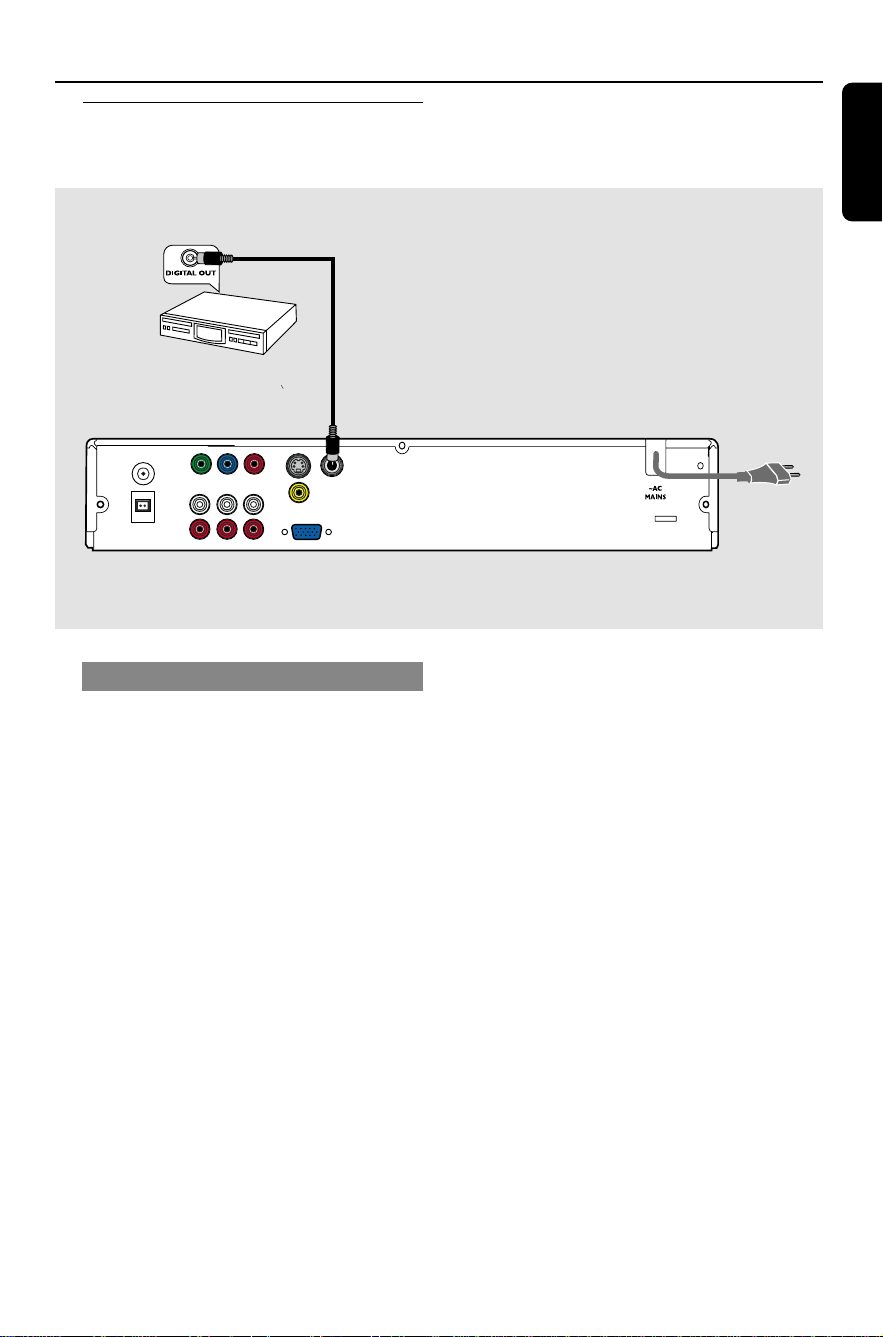
Viewing and listening to the
playback
1 Connect the VCR or Cable/Satellite Box
to the TV as shown.
2 Connect the DVD system’s AUX IN
(R/L) jacks to the AUDIO OUT jacks on
the VCR or cable/satellite box.
Press SOURCE to select “AUX/
ANALOG” in order to activate the input
source.
Optional Connections
Connecting a VCR or
Cable/Satellite Box
FM
ANT
S-VIDEO
L
R
MW
ANT
PR
PB
Y
COMPONENT
VIDEO OUT
AUX-INTV-IN
LINE-OUT
VIDEO
COAXIAL
DIGITAL IN
TO AV SUBWOOFER
~ AC MAINS
4
1
3
2
VCR or Cable/
Satellite Box
Using the VCR for recording DVD
playback
Some DVDs are copy-protected. You
cannot record or dub protected discs
using a VCR.
3 Connect the DVD system’s S-VIDEO
jack to the S-VIDEO IN jack on the VCR.
4 Connect the DVD system’s LINE OUT
(R/L) jacks to the AUDIO IN jacks on
the VCR.
This will allow you to make analog stereo
(two channel, right and left) recordings.
Before recording, set the volume level of
the DVD system to level 1 and below, in
order to enable sound output from the
LINE OUT sockets.
To view DVD playback while
recording,
you must connect the DVD system to
your TV using a VIDEO OUT (as shown
above) connection.
DVD System
English
15
3139 246 16473
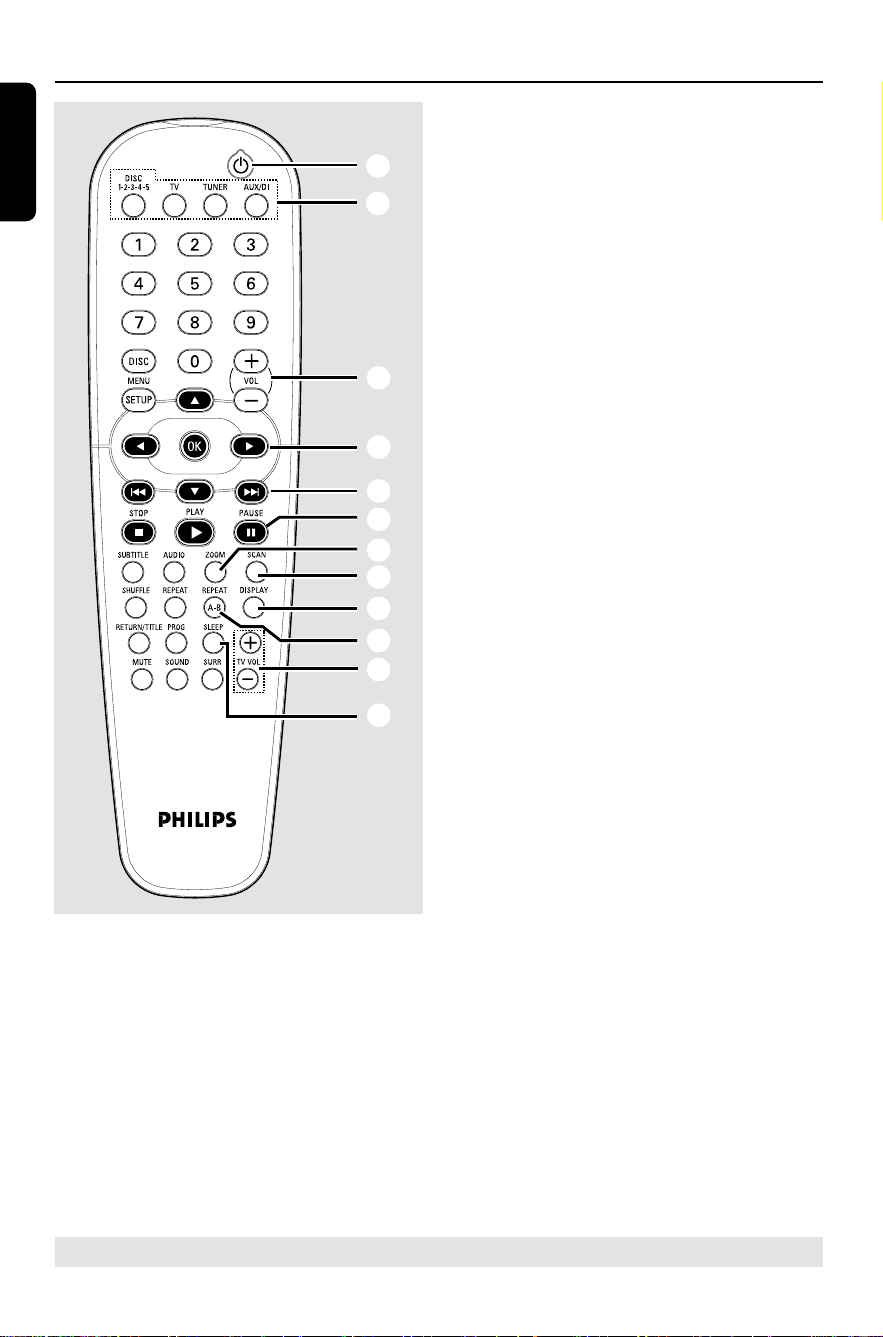
Listening to the playback
● Connect the DVD system’s DIGITAL
IN jack to the DIGITAL OUT jack on a
digital audio device.
Press SOURCE to select “AUX/
DIGITAL” in order to activate the input
source.
Helpful Hints:
– Always refer to the user manual of the
other equipment for complete connection
and use details.
– For your playback through DIGITAL IN
connection, set the digital output of that
player to PCM format.
Connecting digital audio
equipment
(for example)
Set-Top Box/
Game Console
FM
ANT
S-VIDEO
L
R
MW
ANT
PR
PB
Y
COMPONENT
VIDEO OUT
AUX-INTV-IN
LINE-OUT
VIDEO
COAXIAL
DIGITAL IN
TO AV SUBWOOFER
Optional Connections (continued)
16
3139 246 16473
English
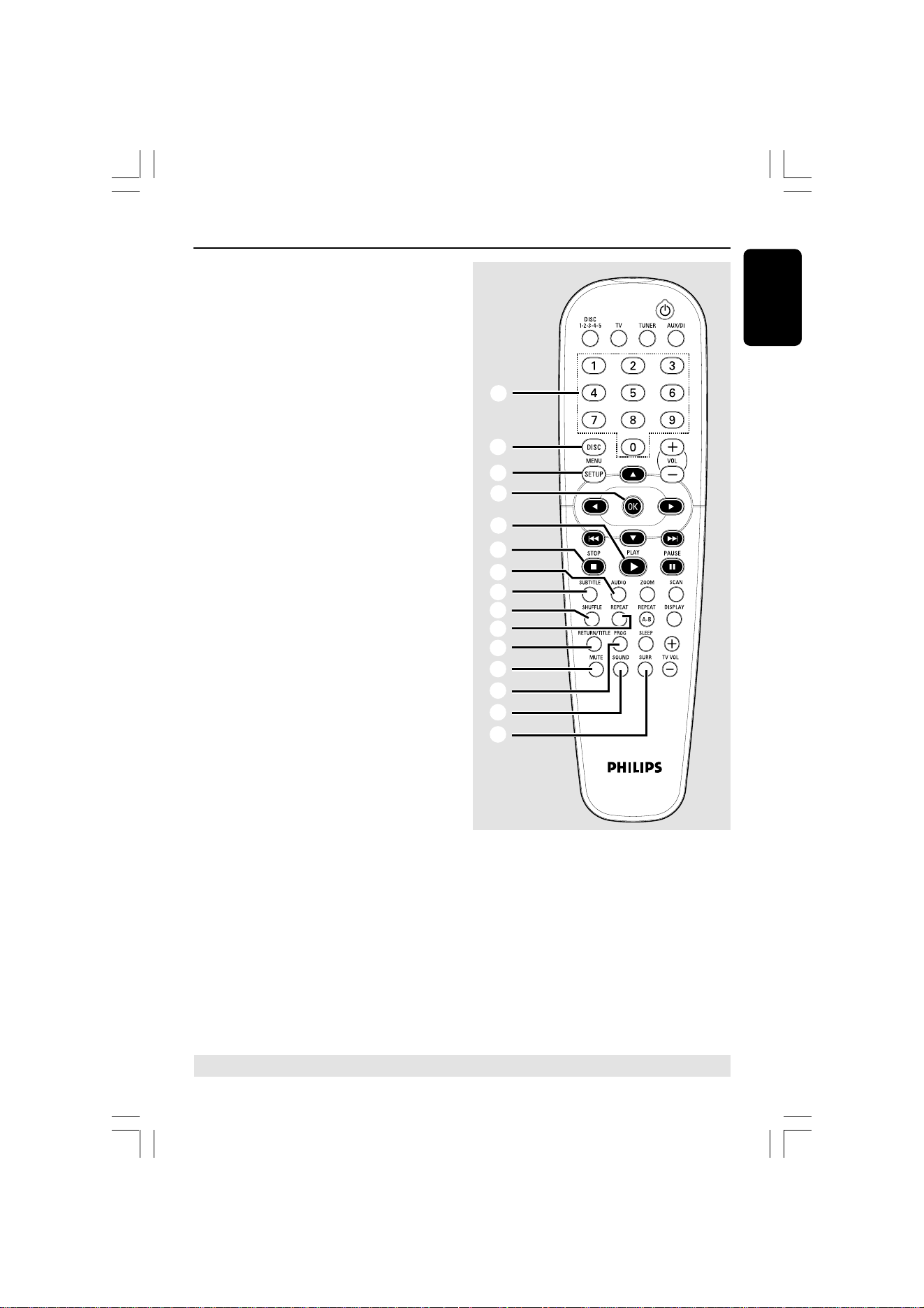
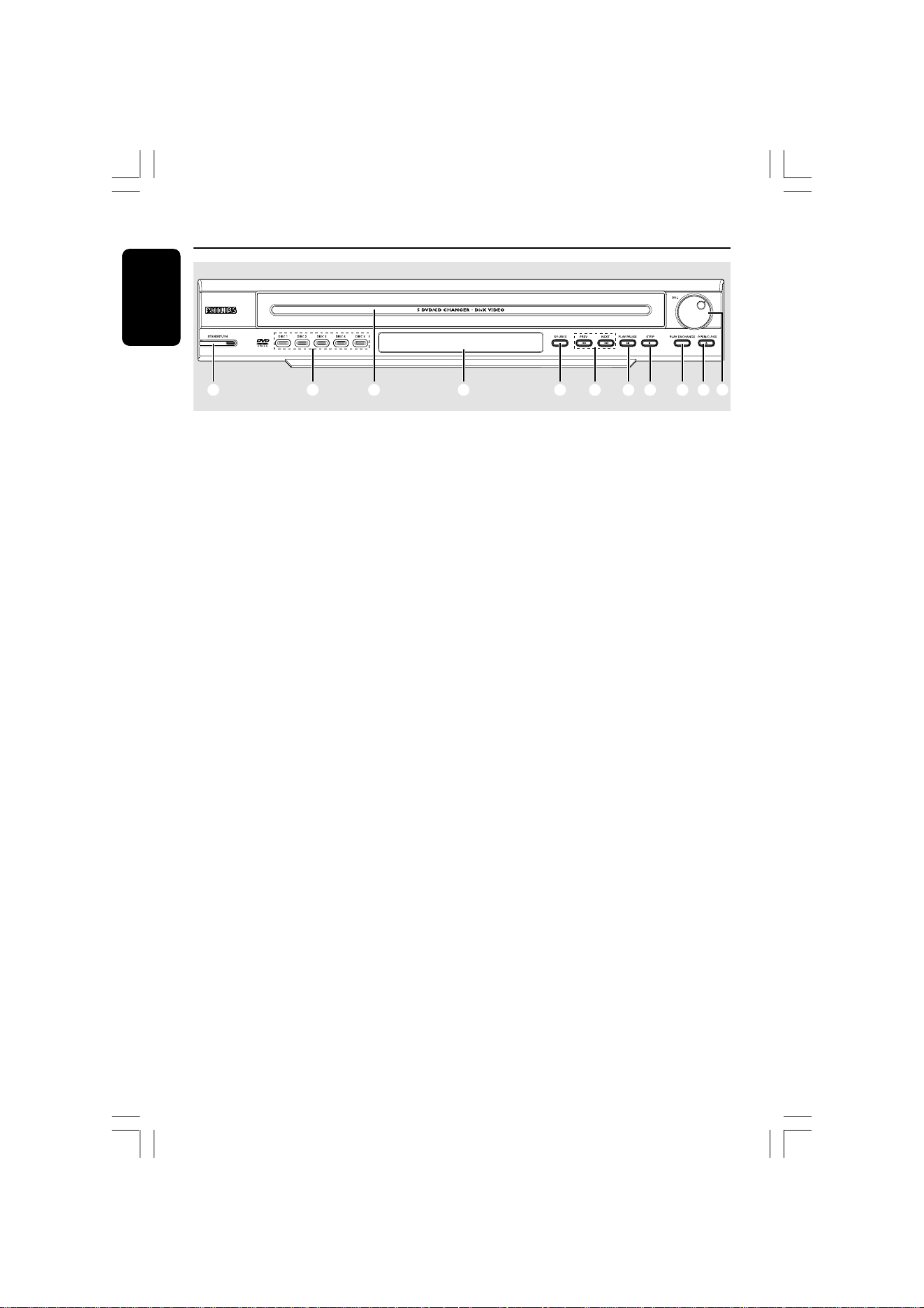
Remote Control
* = Press and hold the button for more than two seconds.
1 B
– Switches to Eco Power standby mode, or
turns on the system.
2 Source buttons
DISC 1-2-3-4-5: switches to DISC
source mode and select a desired disc
tray for playback.
1
3
4
5
6
7
8
9
0
@
2
!
TV: switches to TV source mode / *will
switch Philips TV to AV source.
The sound from TV will come out
through the DVD system.
TUNER: toggles between FM and MW
band.
AUX/DI: toggles between AUX and
DIGITAL IN external source mode.
3 VOL +-
– Adjusts the volume level.
4 1 2 3 4
– DISC: selects movement direction in the
menu or use 1 2 to search backward/
forward when not in menu.
– TUNER: use 1 2 to tune the radio
frequency up/down, use 3 4 to start
auto tuning.
5 S / T
– DISC: *searches backward/forward or
selects a track.
– TUNER: selects a preset radio station.
6 PAUSE Å
– DISC: pauses playback.
7 ZOOM
– DISC: enlarges a picture on the TV screen.
8 SCAN
– DISC: preview the contents of a VCD or
plays the first few seconds of each track
within an Audio CD.
9 DISPLAY
– DISC: displays the current status or disc
information and turns off PBC VCD2.0 (if
PBC was on).
0 REPEAT A-B
– DISC: repeats a specific section on a disc.
! TV VOL +-
– Adjusts TV volume (Philips TV only.)
@ SLEEP
– Sets the sleep timer function.
English
17
3139 246 16473
Remote Control (continued)
* = Press and hold the button for more than two seconds.
# Numeric Keypad (0-9)
– DISC: enters a track/title number.
– TUNER: enters the preset radio station
number.
$ DISC MENU
– DISC: enters or exits disc contents menu.
– For VCD version 2.0 only;
Turns on/off playback controls (PBC)
mode.
% SETUP MENU
– DISC: enters or exits system setup menu.
^ OK
– Confirms a selection.
& PLAYÉ
– DISC: starts playback.
* STOPÇ
– Exits an operation.
– DISC: stops playback. Hold down this
button will open and close the disc tray.
– TUNER: *erases the current preset radio
station.
( AUDIO
– DISC: selects an audio language (DVD/
VCD) or an audio channel (CD.)
) SUBTITLE
– DISC: selects a subtitle language.
¡ SHUFFLE
– DISC: plays AudioCD tracks in random
order.
™ REPEAT
– DISC: selects various repeat modes.
£ RETURN/TITLE
– To go back to previous menu.
– Displays the disc’s Title menu (if available.)
≤ MUTE
– Mutes or restores the volume.
%
^
#
$
&
*
§
∞
≤
£
™
¡
(
)
≥
∞ PROG
– DISC: starts programming.
– TUNER: starts *automatic/ manual preset
programming.
§ SOUND
– Selects a sound effect.
≥ SURR
– Selects multichannel surround or stereo
mode.
18
3139 246 16473
English
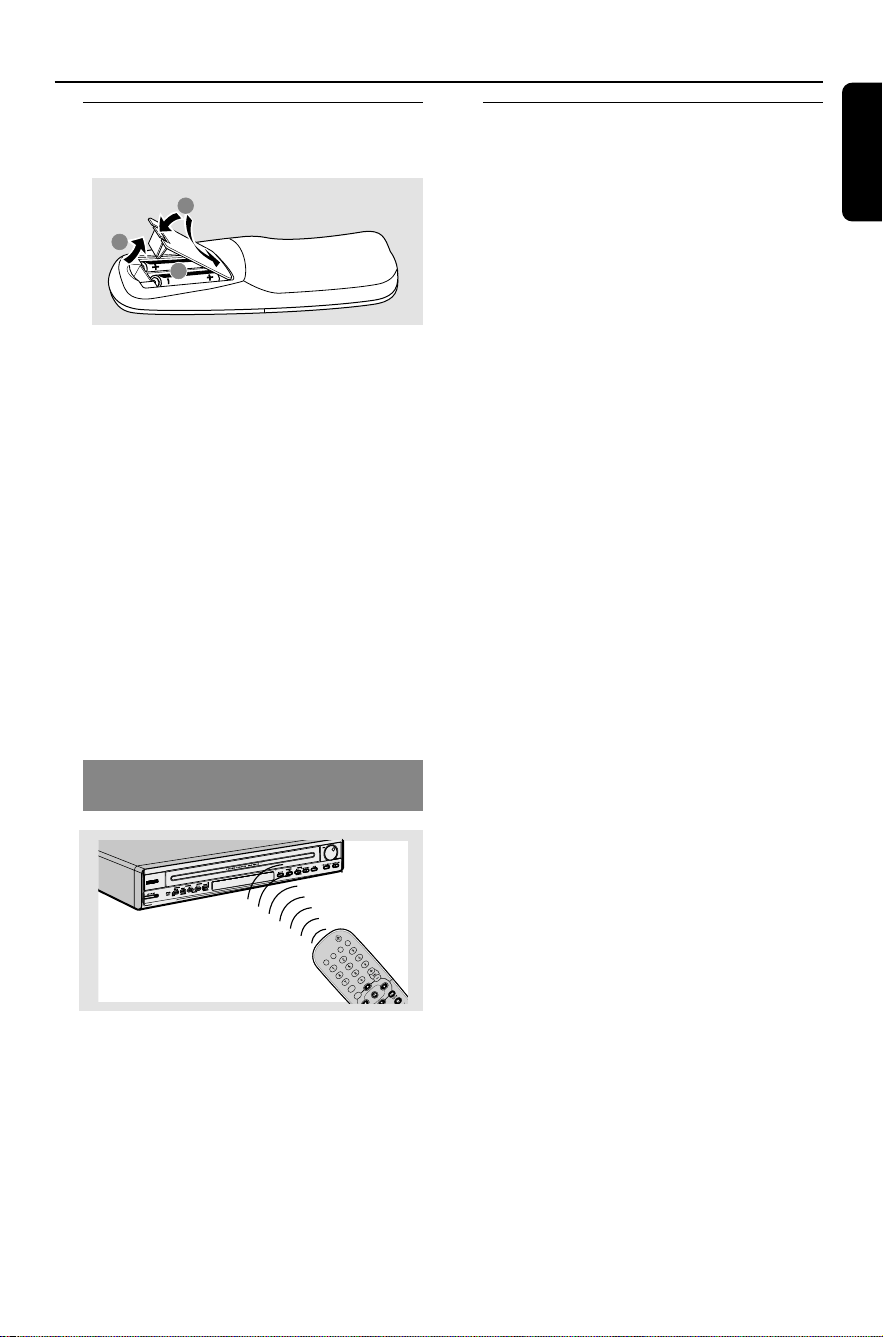
Main Unit
1 STANDBY ON (B)
– Switches to Eco Power standby mode, or
turns on the system.
2 Disc direct play button (DISC 1~5)
– Selects a disc for playback.
3 5 disc carousel tray
4 System display panel
5 SOURCE
– Selects the relevant active source mode:
DISC, TUNER (FM/MW), TVor AUX/DI.
6 S PREV / NEXT T
– DISC: *searches backward/forward or
selects a track.
– TUNER: selects a preset radio station.
1
2
3 4 5
6
7 8 9 0
!
7 ÉÅ PLAY/PAUSE
– DISC: starts/pauses playback.
8 Ç STOP
– Exits an operation.
– DISC: stops playback.
– TUNER: *erases the current preset radio
station.
9 PLAY EXCHANGE
– Opens/Closes the disc tray without
interrupting the current playback.
0 OPEN/CLOSE 0
– Opens/Closes the disc tray.
! VOL
– Adjusts the volume level.
English
19
3139 246 16473
Getting Started
Step 1: Inserting batteries into
the remote control
1
3
2
1 Open the battery compartment.
2 Insert two batteries type R06 or AA,
following the indications (+-) inside
the compartment.
3 Close the cover.
CAUTION!
– Remove batteries if they are
exhausted or if the remote control
is not to be used for a long time.
– Do not use old and new, or
different types of batteries in
combination.
– Batteries contain hazardous
chemical substances, so they should
be disposed of properly.
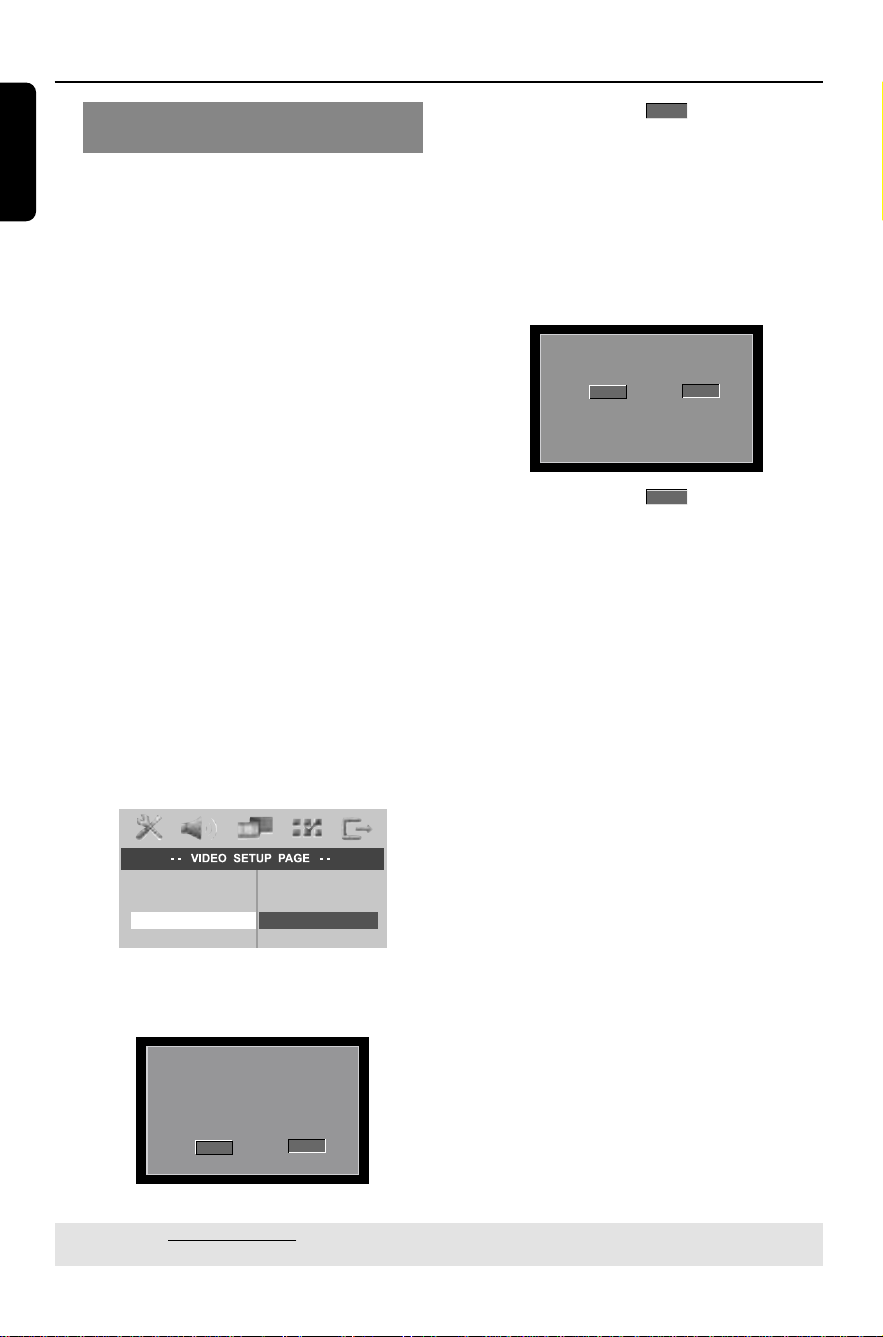
Using the remote control to
operate the system
1 Aim the remote control directly at the
remote sensor (iR) on the front panel.
2 Select the source you wish to control by
pressing one of the source select buttons
on the remote control (for example TV,
TUNER.)
3 Then select the desired function (for
example É,
S,
T.)
Step 2: Setting the TV
IMPORTANT!
Make sure you have completed all
the necessary connections. (See
page 11-12 “Connecting to TV”)
1 Press SOURCE control until “DVD/CD”
appears on the display panel.
2 Turn on the TV and set it to the correct
video-in channel. You should see the blue
DVD background screen on the TV.
➜Or, the TV remote control may have a
button or switch that chooses between
different video modes.
➜Or, set the TV to channel 3 or 4 if you
are using an RF modulator.
20
3139 246 16473
English
Setting up Progressive Scan feature
(for Progressive Scan TV only)
The progressive scan display twice the
number of frames per seconds than
interlaced scanning (ordinary normal TV
system.) With nearly double the number
of lines, progressive scan offers higher
picture resolution and quality.
IMPORTANT!
Before enabling the progressive scan
feature, you must ensure :
1) Your TV can accept progressive signals,
a progressive scan TV is required.
2) You have connected the DVD system
to your TV using Y Pb Pr (see page 12.)
1 Turn off your TV progressive scan mode
or turn on interlaced mode (refer to
your TV user manual.)
2 Press DISC on the remote control to
turn on the DVD system.
3 Turn on your TV and select the correct
Video Input channel (see page 19.)
➜The blue DVD background screen will
appear on the TV.
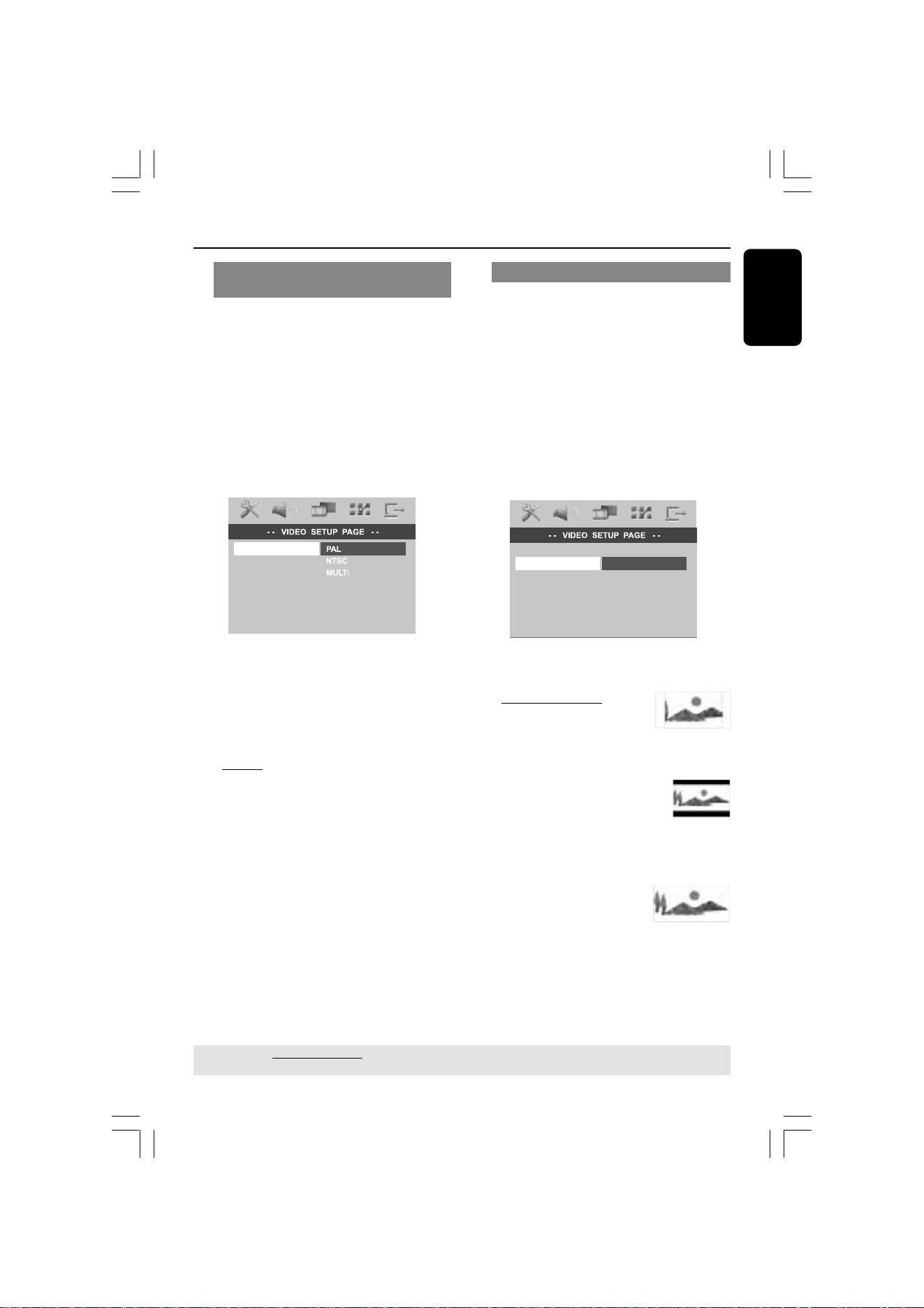
4 Press SETUP on the remote control.
5 Press 2 to select ‘VIDEO SETUP PAGE.’
TV TYPE
TV DISPLAY
PROGRESSIVE
PICTURE SETTING
ON
OFF
6 Select { PROGRESSIVE } > { ON, }
then OK to confirm.
➜The below menu will appear on the TV.
HINTS:(refer to the owner's manual)
ACTIVATING PROGRESSIVE:
1. Ensure your TV has progressive scan.
2. Connect with YPbPr(GBR) video cable.
3. If there is a blank screen on normal TV,
wait 15 seconds for auto recover.
Cancel
OK
< > - Move
OK - Select
7 Press 1 to highlight
OK
in the menu
and press OK to confirm.
There will be no picture on your TV
at this state until you turn on the
progressive scan mode on your TV.
8 Turn on your TV progressive scan mode
(refer to your TV user manual.)
➜The below menu will appear on the TV.
Confirm again to use progressive scan
If picture is good press OK on remote
TO DEACTIVATE PROGRESSIVE:
1. Open tray
2. Press '1' Key
Cancel
OK
< > - Move
OK - Select
9 Press 1 to highlight
OK
in the menu
and press OK to confirm.
➜The set up is complete now and you
can start enjoy the high quality picture.
If no picture:
● Wait for 15 seconds for the auto recovery.
OR
1 Deactivate Progressive Scan feature by
pressing the OPEN CLOSE 0 on the
DVD system to open the disc tray.
2 Press 1 on the remote control.
3 Press MUTE on the remote control.
➜The blue DVD background screen will
appear on the TV.
Helpful Hint:
– There are some progressive scan TV and
High-Definition TV sets that are not fully
compatible with this DVD system, resulting in
the unnatural picture when playing back a
DVD VIDEO disc in the progressive scan
mode. In such a case, turn off the
progressive scan feature on both the DVD
system and your TV set.
TIPS: The underlined option is the factory default setting.
To return to the previous menu, press 1. To remove the menu, press SETUP.
Getting Started (continued)
English
21
3139 246 16473
Getting Started (continued)
Selecting the correspond color
system
The color system of the DVD system,
DVD and TV should match. Only then will
it be possible to play a DVD on this
system. Before changing the TV system,
determine the color system of your TV.
1 In disc mode, press SETUP.
2 Press 2 repeatedly to select ‘VIDEO
SETUP PAGE.’
3 Press 34 to highlight { TV TYPE, } then
press 2.
TV TYPE
TV DISPLAY
PROGRESSIVE
PICTURE SETTING
4 Press 34 to highlight one of the options
below:
{ PA L }
Select this if the connected TV has the PAL
color system. It will change the video signal of
an NTSC disc and output it to PAL format.
{ NTSC }
Select this if the connected TV has the NTSC
color system. It will change the video signal of
a PAL disc and output it to NTSC format.
{ MULTI }
Select this if the connected TV is compatible
with both NTSC and PAL (multi-system.)
The output format will be in accordance with
the video signal of the disc.
5 Select a setting and press OK.
➜Follow the instructions shown on the
TV to confirm the selection (if any.)
➜If a blank/distorted TV screen appears,
wait for 15 seconds for the auto
recovery.
Setting the TV Display
Set the aspect ratio of the DVD system
according to the TV you have connected.
The format you select must be available
on the disc. If it is not, the setting for TV
display will not affect the picture during
playback.
1 In disc mode, press SETUP.
2 Press 2 repeatedly to select ‘VIDEO
SETUP PAGE.’
3 Press 34 to highlight { TV DISPLAY, }
then press 2.
TV TYPE
TV DISPLAY
PROGRESSIVE
PICTURE SETTING
4:3 PAN SCAN
4:3 LETTER BOX
16:9
4 Press 34 to highlight one of the options
below:
{ 4:3 PAN SCAN }
Select this if you have a
conventional TV and want
both sides of the picture to be
trimmed or formatted to fit your TV screen.
{ 4:3 LETTER BOX }
Select this if you have a
conventional TV. In this case, a
wide picture with black bands on
the upper and lower portions of the TV screen
will be displayed.
{ 16:9 }
Select this if you have a wide-
screen TV.
5 Select a setting and press OK.
TIPS: The underlined option is the factory default setting.
To return to the previous menu, press 1. To remove the menu, press SETUP.

22
3139 246 16473
English
Getting Started (continued)
Step 3: Setting language
preferences
You can select your preferred language
settings so that this DVD system will
automatically switch to the language for
you whenever you load a disc. If the
language selected is not available on the
disc, the disc’s default language will be
used instead.
The OSD (On-Screen Display) language
for the system menu will remain as you
set it, regardless of the default and
optional disc languages.
On-screen display (OSD) language
1 In disc mode, press SETUP.
2 Press 2 to select ‘GENERAL SETUP
PAGE.’
3 Press 34 to highlight { OSD
LANGUAGE, } then press 2.
DISPLAY DIM
PROGRAM
OSD LANGUAGE
SCREEN SAVER
DISC LOCK
DIVX(R) VOD CODE
4 Press 34 to select a language and press
OK to confirm.
Audio, Subtitle and Disc menu
languages
1 In disc mode, press Ç twice to stop
playback (if any,) then press SETUP.
2 Press 2 repeatedly to select
‘PREFERENCE PAGE.’
3 Press 34 to highlight one of the options
below, then press 2.
– { AUDIO } (disc’s soundtrack)
– { SUBTITLE } (disc’s subtitles)
– { DISC MENU } (disc’s menu)
AUDIO
SUBTITLE
DISC MENU
PARENTAL
PBC
MP3/JPEG NAV
PASSWORD
DIVX SUBTITLE
DEFAULT
4 Press 34 to select a language and press
OK to confirm.
If the language you want is not in
the list, then select { OTHERS. }
Use the numeric keypad (0-9) on the
remote to enter the 4-digit language code
‘XXXX’ (see page 5) and press OK to
confirm.
5 Repeat steps 3~4 for other settings.
TIPS: The underlined option is the factory default setting.
To return to the previous menu, press 1. To remove the menu, press SETUP.
English
23
3139 246 16473
Disc Operations
IMPORTANT!
– If the inhibit icon (
or X)
appears on the TV screen when a
button is pressed, it means the
function is not available on the
current disc or at the current time.
– DVD discs and players are
designed with regional restrictions.
Before playing a disc, make sure the
disc is for the same zone as your
player.
– Do not push on the disc tray or
put any objects other than discs on
the disc tray. Doing so may cause
the disc player to malfunction.
Playable discs
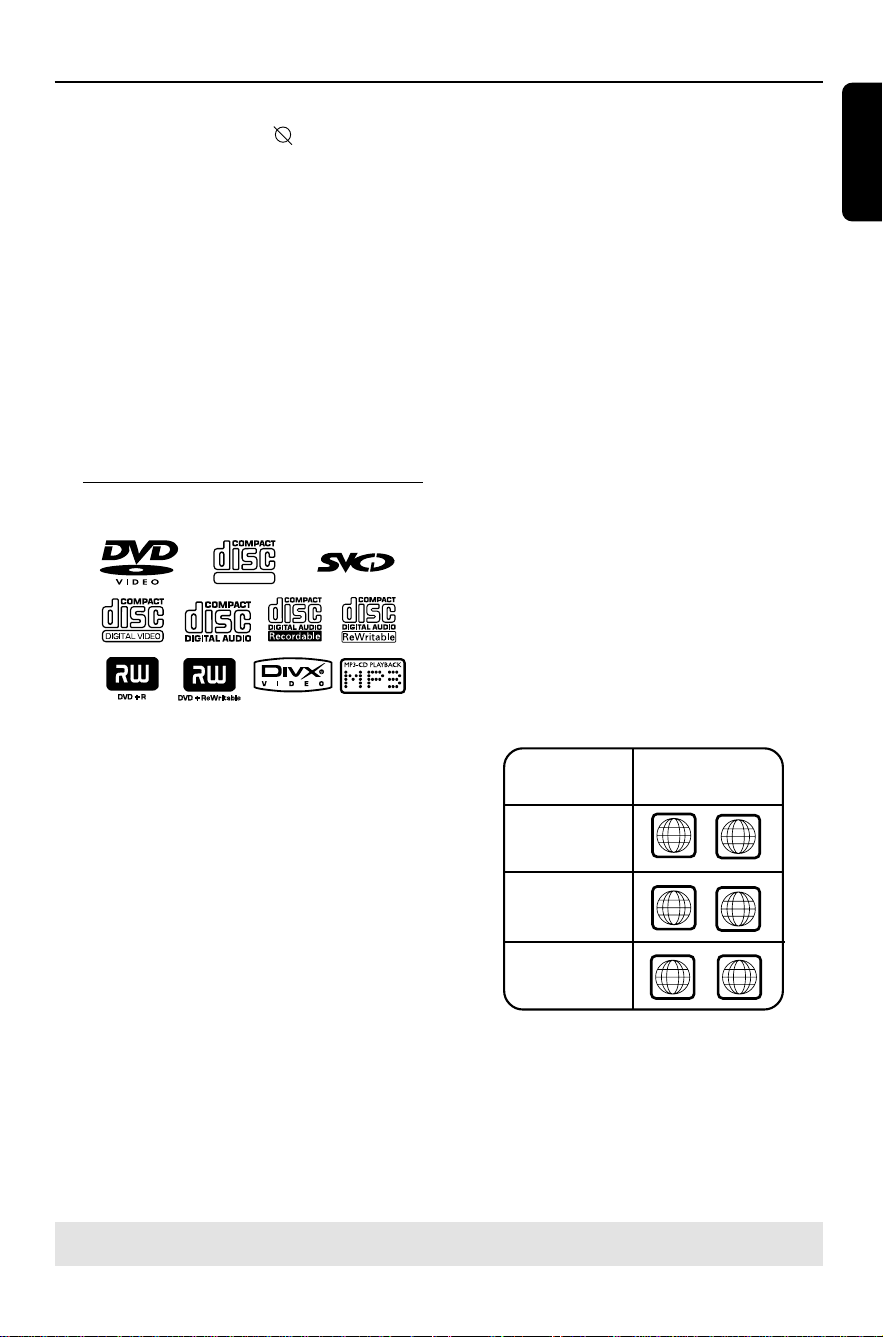
SUPER VIDEO
Your DVD home theater system will
play:
– Digital Versatile Discs (DVDs)
– Video CDs (VCDs)
– Super Video CDs (SVCDs)
– Finalized DVD+Recordable[Rewritable]
(DVD+R[W])
– Audio Compact Discs (CDs)
– MP3 discs, picture (Kodak, JPEG) files
on CD-R(W).
– JPEG/ISO 9660/UDF format
– Progressive JPEG not supported
– JPEG resolution support up to
3072 x 2048
– Supported sampling frequencies :
32 kHz, 44.1 kHz, 48 kHz
– Supported Bit-rates : 32~256 (kbps),
variable bit rates
– MPEG-4 files on CD-R[W]:
– Simple profile
– Advanced simple profile (640-480)
– DivX disc on CD-R[W]/DVD+R[W]:
– DivX 3.11, 4.x and 5.x
– GMC (Global Motion Compensation)
and QP (Quarter Pixel) not supported.
– File structure: Up to 299 folders;
up to 648 folders and files combined
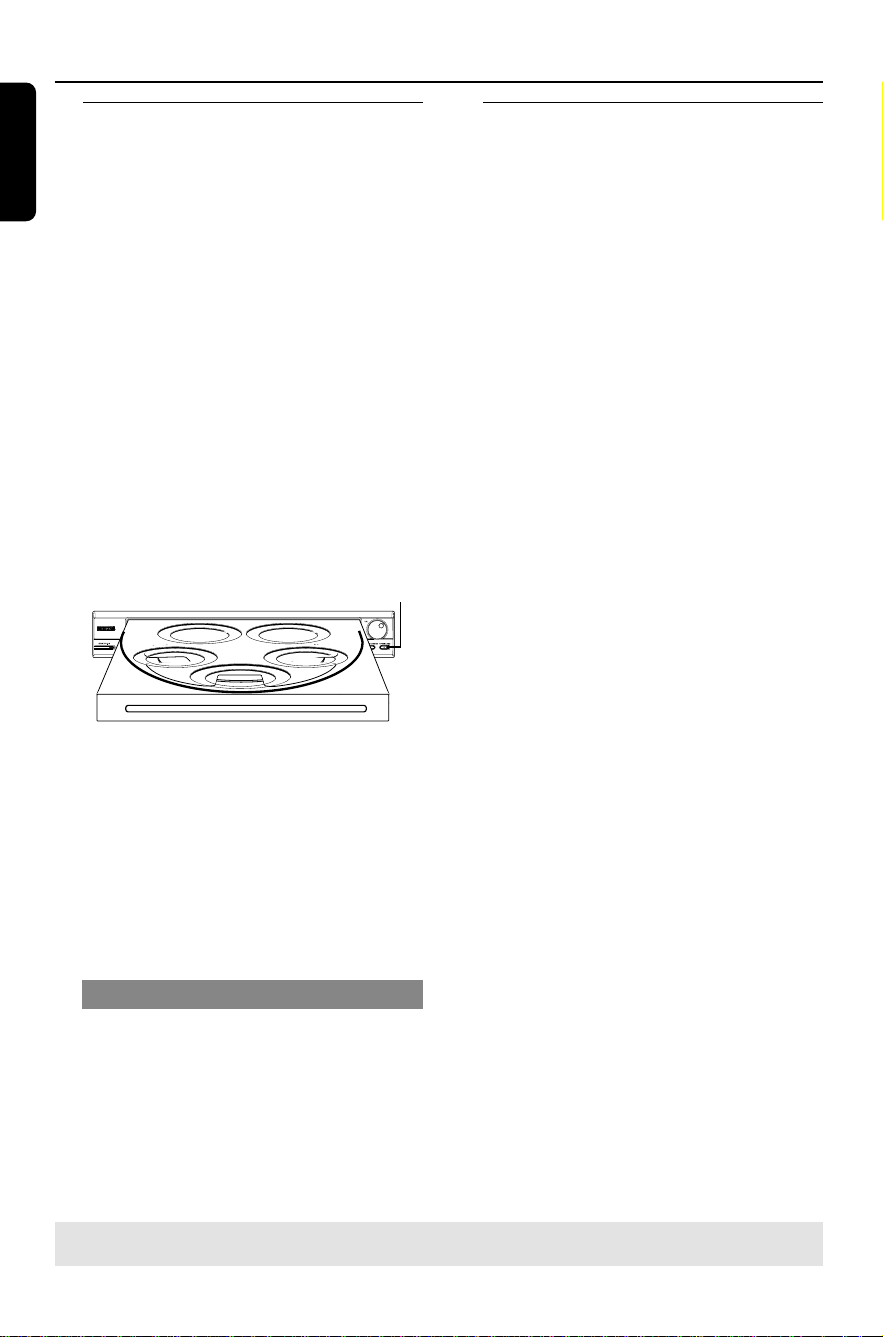
Region Codes
DVD films are usually not released at the
same time in all regions of the world,
thus, all DVD players are keyed to a
specific region code.
The regional code is shown at the back
panel of this device. If the DVD is marked
with a different region code, it cannot be
played on this device.
Helpful Hints:
– It may not be possible to play CD-R/RW or
DVD-R/RW in all cases due to the type of
disc or condition of the recording.
– If you are having trouble playing a certain
disc, remove the disc and try a different one.
Improperly formatted discs will not play on
this DVD system.
TIPS: Some discs cannot be played on this DVD system due to the configuration and characteristics
of the disc, or due to the condition of recording and authoring software that was used.
ALL
ALL
3
4
Region
DVD that can
be played
Asia Pacific, Taiwan,
Korea
China, Calcos
Islands, Walls and
Futuna Islands
Australia, New
Zealand, Latam
ALL
6
24
3139 246 16473
English
Playing discs
1
Press SOURCE control until “DVD/CD”
appears on the display panel (or press
DISC 1-2-3-4-5 on the remote until
“LOAD X” appears).
2 Turn on the TV power and set to the
correct Video In channel. (See page 19
“Setting the TV”.)
➜You should see the blue DVD
background screen on the TV.
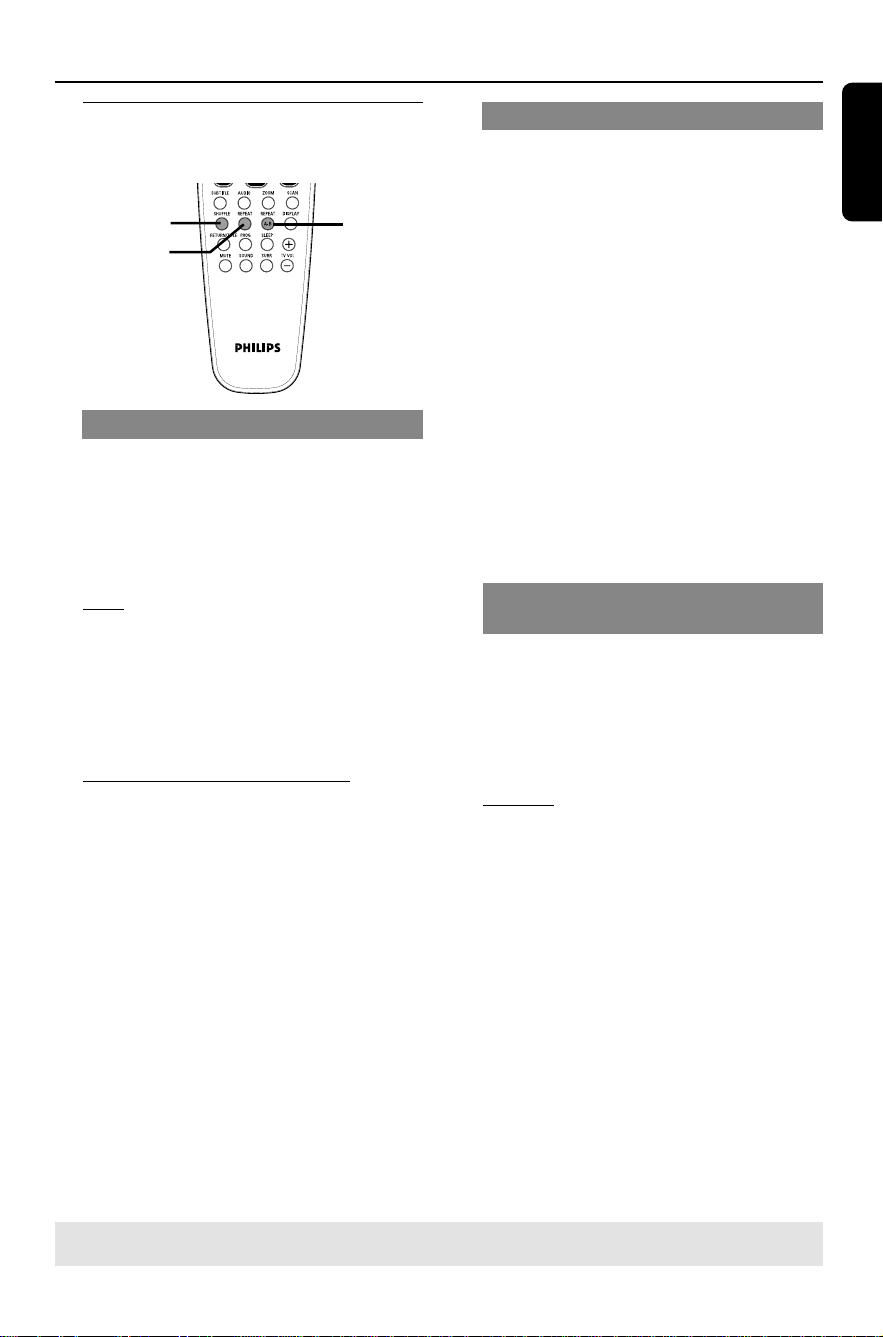
3 Press OPEN CLOSE 0 to open the
disc tray and load in discs, then press the
same button again to close the disc tray.
➜Maximum up to 5 discs could be
loaded in the disc tray.
➜Make sure the disc label is facing up.
For double-sided discs, load the side you
want to play facing up.
LEVELPHONES
OPEN/CLOSE
4 Playback will start automatically.
➜If a disc menu shows on the TV, see
page 26 “Using the Disc Menu.”
➜If the disc is locked by parental control,
you must enter your six-digit password.
(See pages 40.)
➜Playback will stop after all discs have
been played.
Auto Eco Power standby mode
This is a power-saving feature, the system
will automatically switch to Eco Power
standby mode if you do not press any
buttons within 30 minutes after a disc has
stopped playing.
Disc Operations (continued)
Basic playback controls
Playing a specific disc directly
● Press DISC 1-2-3-4-5 on the front
panel or remote control to playback a
specific disc directly.
Reload or unload any discs without
interrupting current disc playback
● Press PLAY EXCHANGE on the front
panel to open and close the disc tray.
Pausing playback
● During playback, press Å (2;).
➜To resume normal playback,
press PLAY B (or 2;).
Selecting another track/chapter
● Press S / T or use the numeric
keypad (0-9) to key in a track/chapter
number.
➜If repeat track mode is active, pressing
S / T will replay the same track/
chapter.
Searching backward/forward
● Press and hold S / T.
To resume normal playback, press
PLAY B (or 2;).
➜While searching, pressing S / T
again will decrease/increase the search
speed.
➜For MP3 and DivX disc, it only allows
to search within the currently playing
track.
Stopping playback
● Press Ç.
TIPS: The operating features described here might not be possible for certain discs.
Always refer to the instructions supplied with the discs.
English
25
3139 246 16473
Disc Operations (continued)
Selecting various repeat/
shuffle functions
SHUFFLE
REPEAT
REPEAT
A-B
Repeat play
You can select a Chapter, Track, Title,
entire disc or all available discs for repeat
playback.
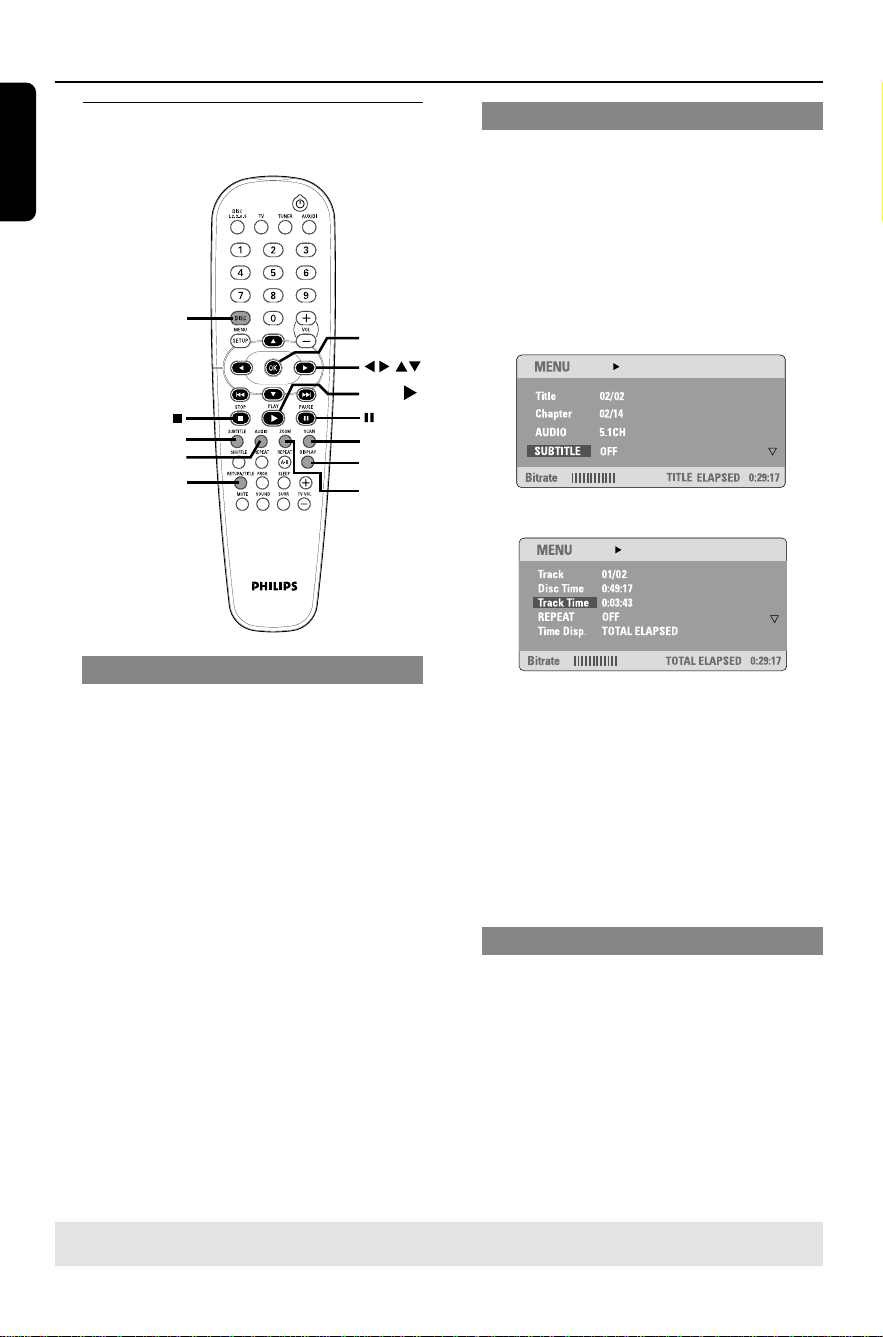
● While playing a disc, press REPEAT
repeatedly to choose a repeat play mode.
DVD
™ CHAPTER (repeat chapter)
™ TITLE (repeat title)
™ DISC (repeat the entire disc)
™ ALL DISC (repeat all discs loaded on
the tray)
™ REPEAT OFF (exit repeat mode)
CD/MP3/JPEG/VCD/SVCD/DivX
™ TRACK (repeat track)
™ DISC (repeat the entire disc)
™ ALL DISC (repeat all discs loaded on
the tray)
™ REPEAT OFF (exit repeat mode)
Helpful Hint:
– VCDs do not allow repeat playback as
long as the PBC mode is switched on.
Repeating a specific segment (A-B)
You can repeat the playback of a specific
segment within a title/chapter/track. To
do this, you must mark the start and end
of the segment you want.
1 While playing a disc, press REPEAT A-B
to mark the starting point.
2 Press REPEAT A-B again to mark the
end of the segment.
➜The section A and B can be set only
within the same chapter/track.
➜Playback skips to the start of the
marked segment. The segment is
repeated until the repeat mode is
cancelled.
3 To cancel repeat playback, press
REPEAT A-B.
Random play (Audio CDs and MP3
only)
Shuffle function allows you to play tracks
in random order.
● While playing a disc, press SHUFFLE
repeatedly to choose a random play
mode.
CD/MP3
™ SHUFFLE DISC (all the tracks on
the current active disc will be played
in random order)
™ SHUFFLE ALL DISC (tracks from all
discs will be played in random
order)
™ SHUFFLE OFF (exit random play
mode)
Helpful Hint:
– Only discs with the same type will be
shuffled.
TIPS: The operating features described here might not be possible for certain discs.
Always refer to the instructions supplied with the discs.
26
3139 246 16473
English
Disc Operations (continued)
Other operations for video
playback (DVD/VCD/SVCD)
OK
PLAY
SUBTITLE
AUDIO
SCAN
DISPLAY
ZOOM
DISC
MENU
RETURN/TITLE
Using the Disc Menu
A menu may appear on the TV screen
once you load in the disc, depending on
the disc
To select a playback feature or item
● Use 1 2 3 4 keys or numeric keypad
(0-9) on the remote, then press OK to
start playback.
To access or remove the menu
● Press DISC MENU on the remote.
Viewing playback information
It will show the disc playback information
(for example, title or chapter number,
elapsed playing time, audio/subtitle
language,) a number of operations can be
done without interrupting disc playback.
1 During playback, press DISPLAY.
➜A list of available disc information
appears on the TV screen.
OR
2 Press 34 to view the information and
press OK to access.
3 Use the numeric keypad (0-9) to input
the number/time or press 34 to make
the selection, then press OK to confirm.
➜Playback will change to the chosen
time or to the selected title/chapter/
track.
Advancing by frame
1 During playback, press Å on the remote.
➜Play will pause and sound will be
muted.
2 Press Å repeatedly to view the next
picture frame.
3 To resume normal playback, press
PLAY B (or 2;).
TIPS: The operating features described here might not be possible for certain discs.
Always refer to the instructions supplied with the discs.

English
27
3139 246 16473
Resuming playback from the last
stopped point
Resume playback of the last 10 discs is
possible, even if the disc was ejected or
the power switched off.
1 Load one of the last played 10 discs.
2 While “LOADING” appears on the display
panel, press PLAY B (or 2;) to start
playback from the last stop point.
To cancel the resume mode
● In stop mode, press Ç again.
Zooming in
This function allows you to enlarge the
picture on the TV screen and to pan
through the enlarged picture.
1 During playback, press ZOOM
repeatedly to select a different zoom
factor.
➜Use 1 2 3 4 keys to move through
the zoomed image.
➜Playback will continue.
2 Press ZOOM repeatedly to return to
the original size.
Changing sound track language
This operation works only on DVDs with
multiple soundtrack languages, you can
change the language you want while
playing a DVD.
● Press AUDIO repeatedly to select the
available audio languages.
For VCD - changing the audio
channel
● Press AUDIO repeatedly to select the
available audio channels provided by the
disc (STEREO, LEFT MONO, RIGHT
MONO or MIX MONO.)
Changing subtitle language (DVD
only)
This operation works only on DVDs with
multiple subtitle languages, you can
change the language you want while
playing a DVD.
● Press SUBTITLE repeatedly to select
different subtitle languages.
Selecting a title (DVD only)
Some DVDs may contain several titles. If
the disc has a title menu recorded on it,
you can start playback from the selected
movie title.
1 Press RETURN/TITLE.
➜The disc title menu appears on the TV
screen.
2 Use 1 2 3 4 keys or numeric keypad
(0-9) to select a play option.
3 Press OK to confirm.
Disc Operations (continued)
TIPS: The operating features described here might not be possible for certain discs.
Always refer to the instructions supplied with the discs.
28
3139 246 16473
English
Playback Control (PBC) (VCD only)
PBC playback allows you to play Video
CDs interactively, following the menu on
the display. This function can also be
accessed via the ‘PREFERENCE PAGE’
menu (see page 40.)
For VCDs with Playback Control
(PBC) feature (version 2.0 only)
● When play is stopped, press DISC
MENU to toggle between ‘PBC ON’ and
‘PBC OFF.’
➜If you select ‘PBC ON,’ the disc menu
(if available) will appear on the TV. Use
S / T or numeric keypad (0-9) to
select a play option and press OK to
confirm.
➜If you select ‘PBC OFF,’ the VCD will
skip the index menu and start playback
directly from the beginning.
● During playback, press RETURN/TITLE
will return to the menu screen (if PBC is
on.)
Preview Function (VCD and CD
only)
1 Press SCAN.
2 Press 34 to highlight { TRACK
DIGEST, } { DISC INTERVAL } or
{ TRACK INTERVAL. }
3 Press OK to open one option.
{ TRACK DIGEST }
This function will minimize the picture of every
track in order to display every six of these
tracks on the screen to help you know the
content of every track on the disc.
{ DISC INTERVAL }
This function is used to divide a disc into six
parts by regular intervals and display them on
one page to preview the whole disc.
{ TRACK INTERVAL }
This function is used to divide a single track
into six parts by regular intervals and display
them on one page to help you preview the
selected track.
This function is only accessible in playback
mode and the Playback Control (PBC) is
turned off.
(example for 6 thumbnail pictures display)
4 Use 1 2 3 4 keys to select a track or
use numeric keypad (0-9) to input the
selected track number next to
{ SELECT }.
5 Press S / T to open the previous
or next page.
6 Press OK to confirm.
To quit preview function
● Use 1 2 3 4 keys to highlight { EXIT }
and press OK to confirm.
To return to preview menu
● Use 1 2 3 4 keys to highlight { MENU }
and press OK to confirm.
For CD - play the first few seconds
of each track
● Press Çto stop playback, then press
SCAN.
Disc Operations (continued)
TIPS: The operating features described here might not be possible for certain discs.
Always refer to the instructions supplied with the discs.
English
29
3139 246 16473
Disc Operations (continued)
Playing an MP3/JPEG/MPEG-4
disc
This DVD system can playback MPEG-4,
MP3, JPEG, VCD & SVCD files on a
personally recorded CD-R/RW disc or
commercial CD.
IMPORTANT!
You have to turn on your TV and set to
the correct Video In channel. (See page
19 “Setting the TV”.)
1 Load a disc.
➜The disc reading time may exceed 30
seconds due to the complexity of the
directory/file configuration.
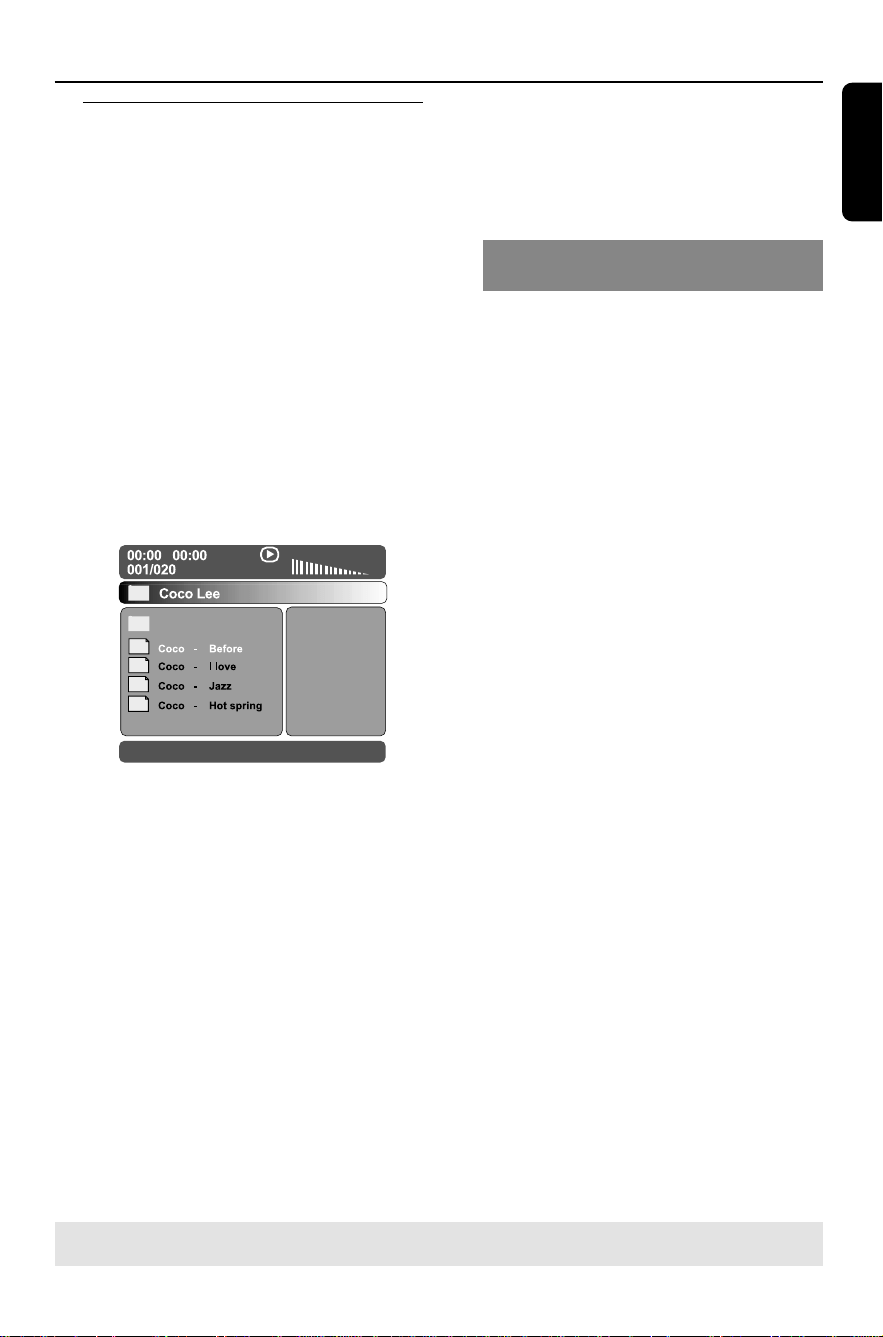
➜The disc menu appears on the TV
screen.
MP3
MP3
MP3
MP3
2 If the disc main menu contains various
folders, press 3 4 to select a desired
folder and press OK to open the folder.
3 Press 3 4 to select a track/file and press
OK to start playback.
➜Playback will start from the selected
file and continue to the end of the folder.
During playback, you can;
● Press S / T to select another
track/file in the current folder.
● To select another folder from the current
disc, press 1 to return to the root menu,
then press 34 to make your selection
and press OK to confirm.
● Press REPEAT continuously to access
various repeat play mode.
● Press Å to pause or PLAY B (or 2;)
to resume playback.
Playing MP3 music and JPEG
picture simultaneously
1 Load a MP3 disc that contains music and
pictures.
➜The disc menu appears on the TV
screen.
2 Select an MP3 track and press B (or 2;)
to start playback.
3 During MP3 music playback, use 1 2 3 4
keys to select a picture folder from the
disc menu and press PLAY B (or 2;) or
OK on the remote control.
➜The picture files will be played back
until the end of the folder.
4 To quit simultaneous playback, press
DISC MENU and followed by Ç.
Helpful Hints:
– It may not be possible to play certain
MP3/JPEG/MPEG-4 disc due to the
configuration and characteristics of the disc
or condition of the recording.
– It is normal to experience an occasional
“skip” while listening to your MP3 disc.
– System supports ISO9660 and will only
display 12 characters of the file names.
– For multi-session discs with different
formats, only the first session will be available.
TIPS: Some discs cannot be played on this DVD system due to the configuration and characteristics
of the disc, or due to the condition of recording and authoring software that was used.
30
3139 246 16473
English
Disc Operations (continued)
Playing a picture disc (slide
show)
IMPORTANT!
You have to turn on your TV and set to
the correct Video In channel. (See page
19 “Setting the TV”.)
● Load a Picture disc (Kodak Picture CD,
JPEG.)
➜For a Kodak disc, the slide show will
begin automatically.
➜For a JPEG disc, the picture menu will
appear on the TV screen. Press PLAY B
(or 2;) to start the slide-show playback.
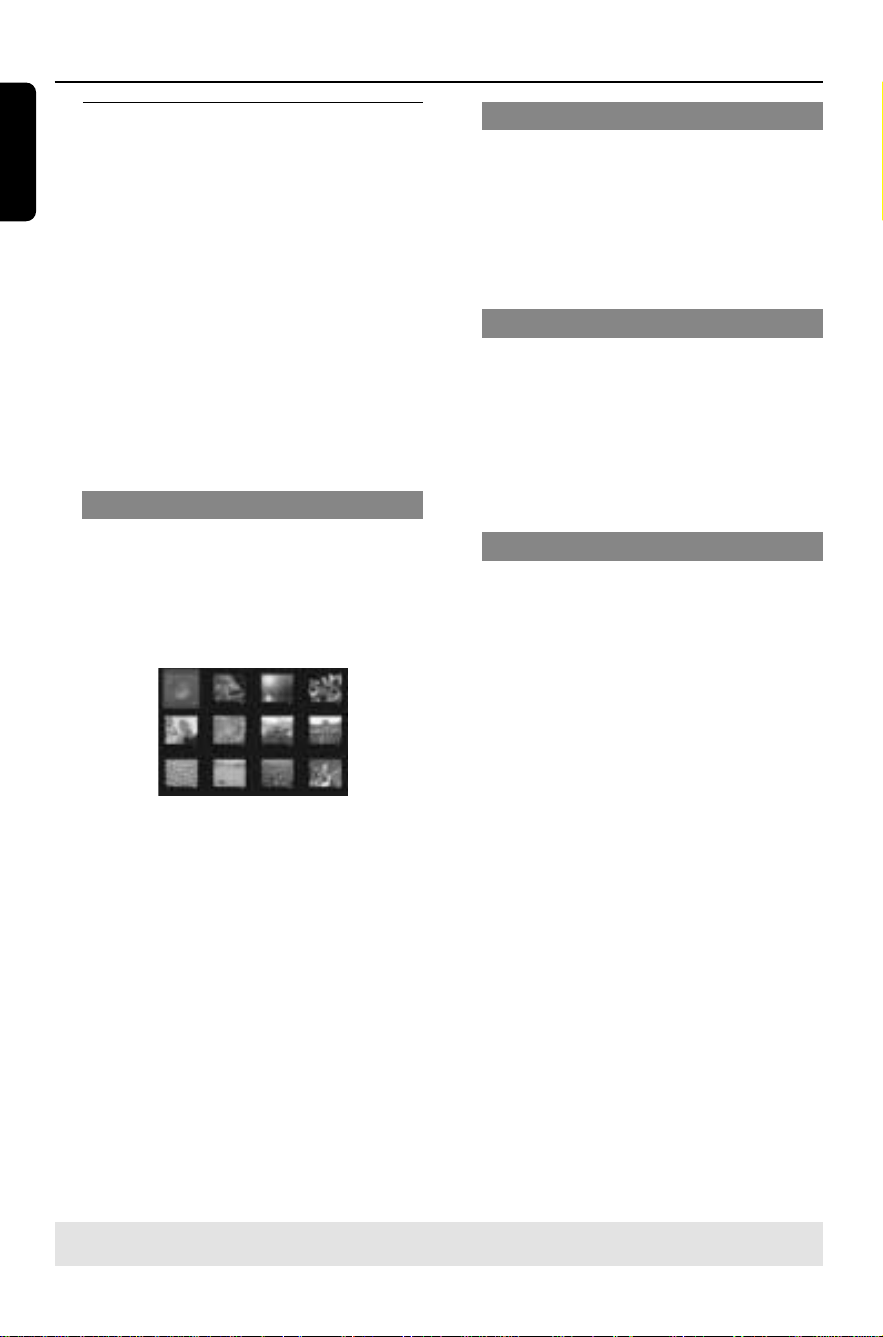
Preview Function
This function shows the content of the
current folder or the whole disc.
1 During playback, press Ç.
➜12 thumbnail pictures will appear on
the TV screen.
2 Press S / T to display the other
pictures on the previous/next page.
3 Use 1 2 3 4 keys to highlight one of the
picture and press OK to start playback.
4 Press DISC MENU to return to Picture
CD menu.
Zooming a picture
1 During playback, press ZOOM
repeatedly to select different zoom
factor.
2 Use 1 2 3 4 keys to move through the
zoomed image.
Rotating/Fliping the picture
● During playback, use 1 2 3 4 keys to
rotate/flip the picture on the TV screen.
3
: flip the picture vertically
4
: flip the picture horizontally
1 : rotate the picture anti-clockwise
2
: rotate the picture clockwise
Supported JPEG picture formats
File format:
– The file extension has to be '*.JPG' and
not '*.JPEG'.
– It can only display DCF-standard still
pictures or JPEG pictures e.g. TIFF. It
cannot play back moving pictures, Motion
JPEG, progressive JPEG and other
formats, or pictures in formats other than
JPEG, or pictures associated with sound.
– It may require longer time for the
DVD system to display the disc content
on the TV due to the large number of
songs/pictures compiled into one disc.
TIPS: Some discs cannot be played on this DVD system due to the configuration and characteristics
of the disc, or due to the condition of recording and authoring software that was used.

English
31
3139 246 16473
Disc Operations (continued)
TIPS: Some discs cannot be played on this DVD system due to the configuration and characteristics
of the disc, or due to the condition of recording and authoring software that was used.
Playing a DivX disc
This DVD system supports the DivX
movie playback, which you download
from your computer onto a CD-R/RW
(see page 34 for more information.)
1 Load a DivX disc.
➜Playback will start automatically. If not
press PLAY B or OK on the remote.
2 If the DivX movie contains external
subtitles, the subtitle menu will appear on
the TV.
● In this case, pressing SUBTITLE on the
remote control will turn on or off the
subtitle display.
● If multilingual subtitles are embedded on
the DivX disc, you can press SUBTITLE
to change the subtitle language while
playing.
Helpful Hints:
– Subtitle files with the following filename
extensions (.srt, .smi, .sub, .ssa, .ass) are
supported but do not appear on the file
navigation menu.
– The subtitle filename has to be the same
as the filename of the movie.
– The subtitle can only be displayed up to
maximum of 35 characters.
– It is normal to experience an occasional
pixelation during MPEG-4/DivX playback
due to poor clarity of digital contents during
internet downloading.
32
3139 246 16473
English
This DVD system setup is carried out via
the TV, enabling you to customize the
DVD system to suit your particular
requirements.
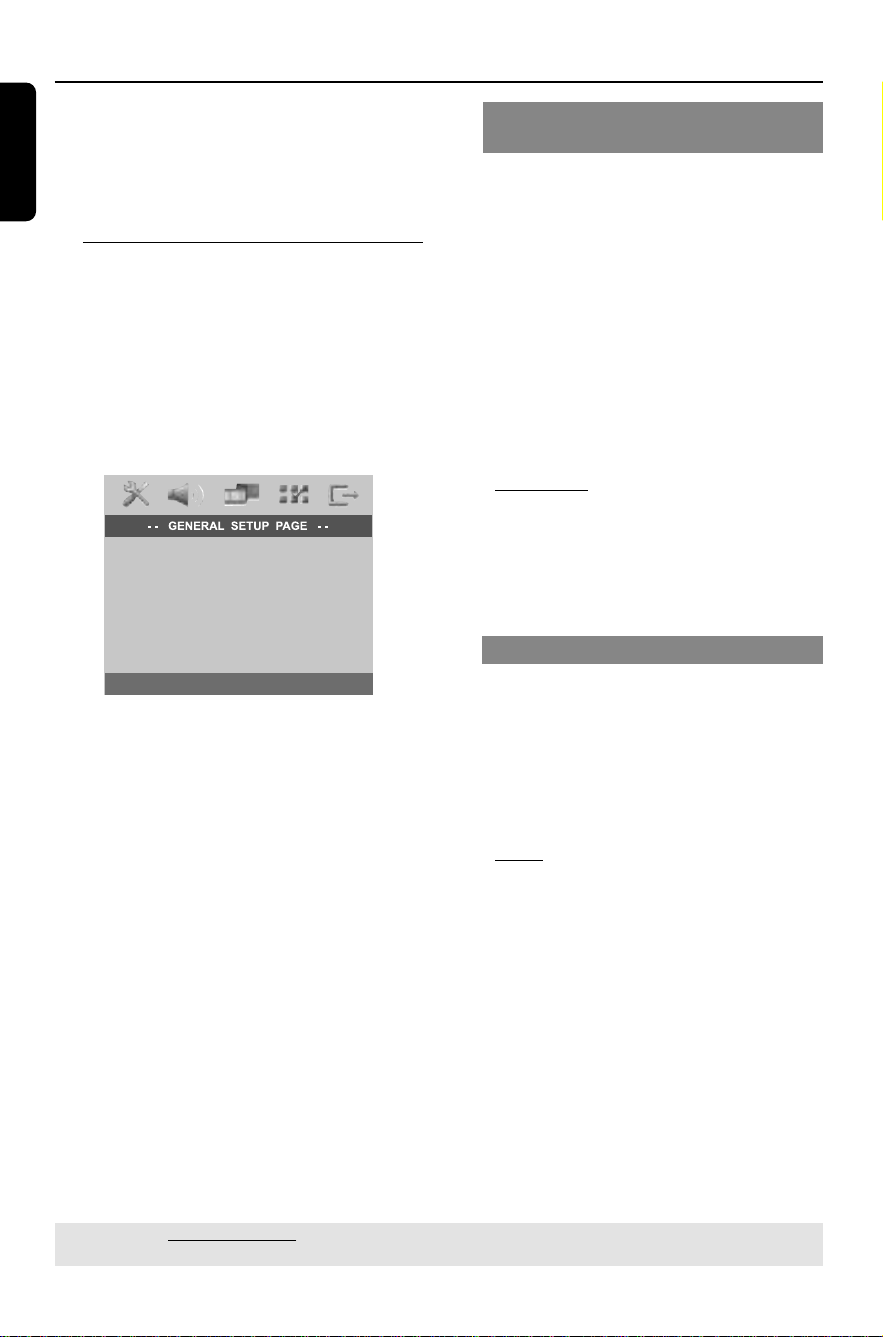
Accessing to General Setup
Page
1
Press DISC and followed by SETUP on
the remote.
2 Press 1 2 to select ‘GENERAL SETUP
PAGE.’
3 Press OK to confirm.
DISPLAY DIM
PROGRAM
OSD LANGUAGE
SCREEN SAVER
DISC LOCK
DIVX(R) VOD CODE
DVD Setup Menu Options
TIPS: The underlined option is the factory default setting.
To return to the previous menu, press 1. To remove the menu, press SETUP.
Locking/Unlocking the disc for
viewing
Not all discs are rated or coded by the
disc maker. You can prevent a specific
disc from playing by locking the disc. Up
to 40 discs can be locked.
1 In ‘GENERAL SETUP PAGE,’ press 34 to
highlight { DISC LOCK }, then press 2.
{ LOCK }
Select this to block the playback of the current
disc. Subsequent access to a locked disc
requires six-digit password. The default
password is ‘136900’ (see page 40 “Changing
the password”.)
{ UNLOCK }
Select this to unlock the disc and allow future
playback.
2 Press 34 to select a setting and press
OK to confirm.
Dimming system’s display panel
You can select different levels of
brightness for the DVD system display
screen.
1 In ‘GENERAL SETUP PAGE,’ press 34 to
highlight { DISPLAY DIM, } then press
2.
{ 100% }
Select this for full brightness.
{ 70% }
Select this for medium brightness.
{ 40% }
Select this for the dimmest display.
2 Press 34 to select a setting and press
OK to confirm.
English
33
3139 246 16473
DVD Setup Menu Options (continued)
TIPS: The underlined option is the factory default setting.
To return to the previous menu, press 1. To remove the menu, press SETUP.
Program tracks on a single disc
(for CD, VCD, SVCD, DVD only)
You can program the tracks in the
current selected disc in the order you
want them to be played. Up to 20 tracks
can be stored. You can press PROG to
enter into program menu directly.
OR
1 In ‘GENERAL SETUP PAGE,’ press 34 to
highlight { PROGRAM, } then press 2.
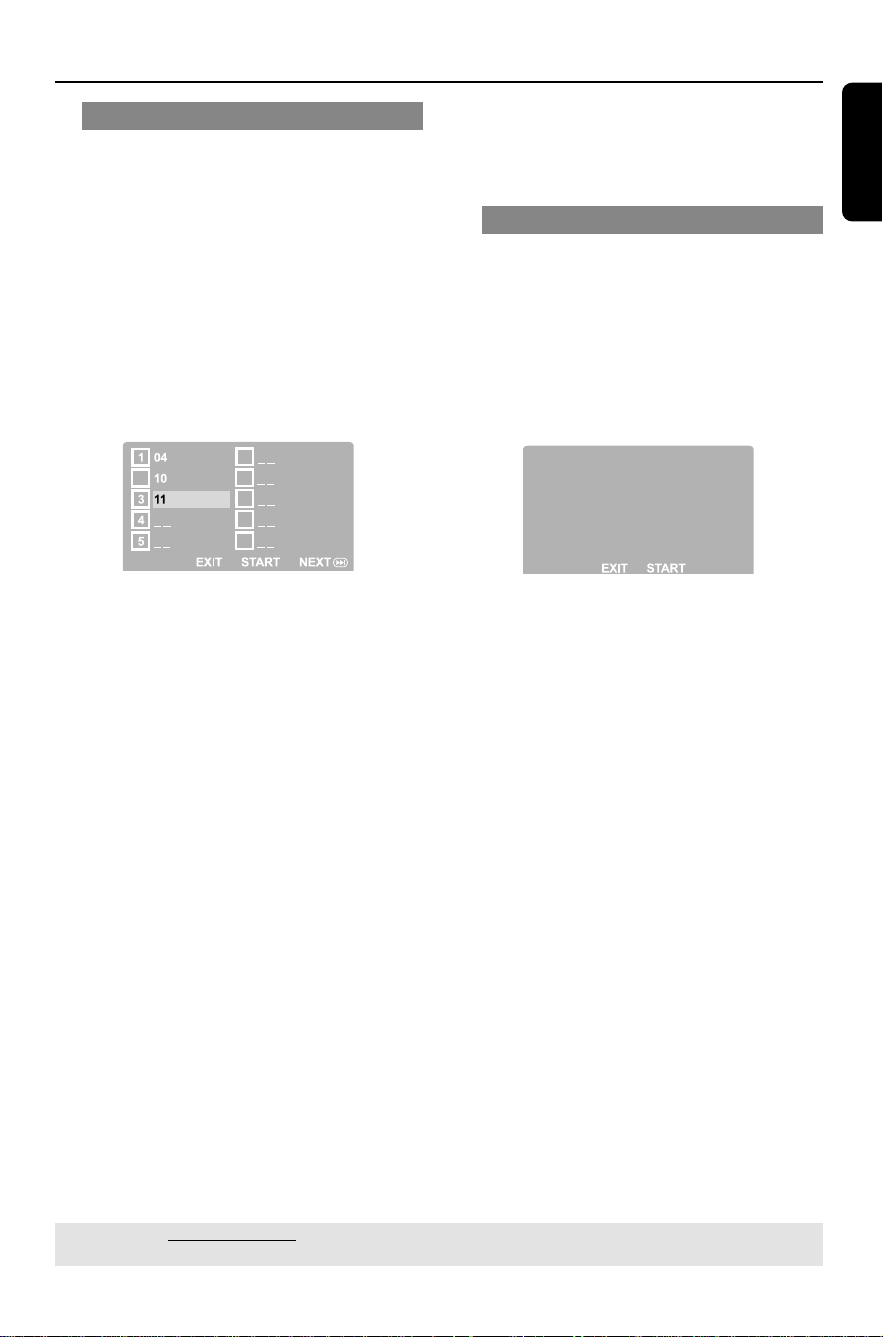
2 Press 34 to select { FTS } (Favorite
Track Selection) and press OK to
confirm.
2
6
7
8
9
10
To input your favorite tracks/chapter
3 Use the numeric keypad (0-9) to enter
a valid track/chapter number.
4 Use 1 2 3 4 keys to move the cursor to
the next position.
➜If the total program tracks are more
than ten, press T to open the next
page and proceed with programming or,
➜Use 1 2 3 4 keys to highlight
{ NEXT } on the program menu, then
press OK.
5 Repeat steps 3~4 to input another
track/chapter number.
If you want to remove a track
6 Select the track/chapter number and
press OK to remove this track/chapter
from the program menu.
To start program playback
7 Use 1 2 3 4 keys to highlight { START }
on the program menu, then press OK.
To exit program playback
8 Use 1 2 3 4 keys to highlight { EXIT }
on the program menu, then press OK.
Program discs
You can program the discs sequence in
the order you want them to be played.
Up to 5 discs can be stored.
1 In ‘GENERAL SETUP PAGE,’ press 34 to
highlight { PROGRAM, } then press 2.
2 Press 34 to select { FDS } (Favorite
Disc Selection) and press OK to confirm.
(1) Disc : 3
(2) Disc : 5
(3) Disc : 1
(4) Disc : 4
(5) Disc : 2
To input your favorite disc
3 Use the numeric keypad (0-9) to enter
a valid disc number (1-5).
4 Use 1 2 3 4 keys to move the cursor to
the next position.
5 Repeat steps 3~4 to input another disc
number.
If you want to remove a disc
6 Move to the disc number and press
numeric keypad ‘0’ to remove this disc
from the program menu.
To start program playback
7 Use 1 2 3 4 keys to highlight { START }
on the program menu, then press OK.
To exit program playback
8 Use 1 2 3 4 keys to highlight { EXIT }
on the program menu, then press OK.

34
3139 246 16473
English
DVD Setup Menu Options (continued)
OSD Language
This menu contains various language
options for language displayed on the
screen. For details, see page 22.
Screen Saver - turning on/off
The screen saver will help prevent
damage to your TV display device.
1 In ‘GENERAL SETUP PAGE,’ press 34 to
highlight { SCREEN SAVER, } then
press 2.
{ ON }
Select this if you wish to turn off the TV screen
when play is stopped or paused for more than
15 minutes.
{ OFF }
Select this to disable the screen saver function.
2 Press 34 to select a setting and press
OK to confirm.
DivX
®
VOD registration code
Philips provide you the DivX
®
VOD
(Video On Demand) registration code
that allows you to rent and purchase
videos using the DivX
®
VOD service.
For more information, visit us at
www.divx.com/vod.
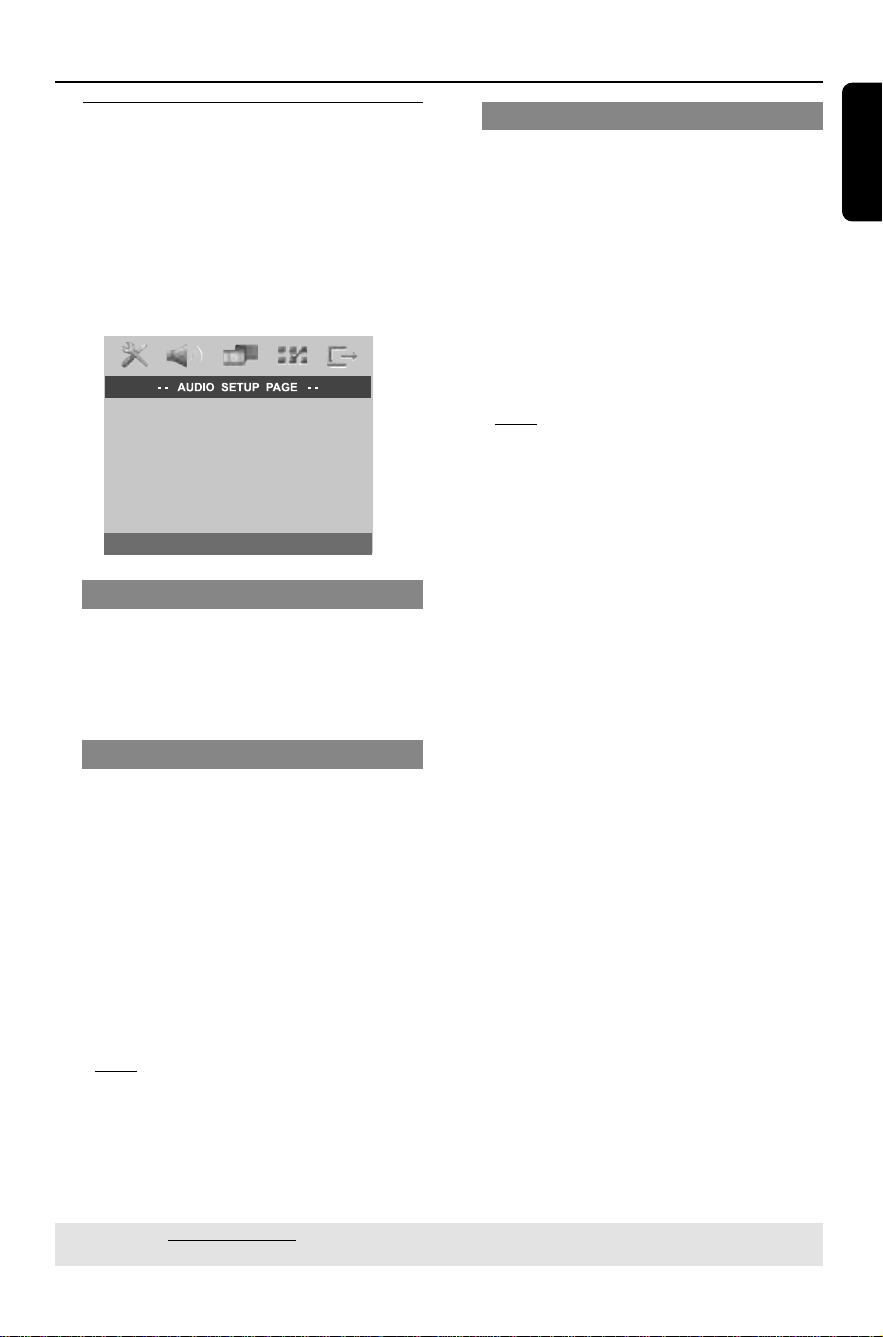
1 In ‘GENERAL SETUP PAGE,’ press 34 to
highlight { DIVX(R) VOD CODE, } then
press 2.
➜The registration code will appear.
2 Press OK to exit.
3 Use the registration code to purchase or
rent the videos from DivX
®
VOD service
at www.divx.com/vod. Follow the
instructions and download the video
from your computer onto a CD-R/RW
for playback on this DVD system.
Helpful Hints:
– All the downloaded videos from DivX
®
VOD can only be played back on this DVD
system.
– Time search feature is not available during
DivX
®
movie playback.
TIPS: The underlined option is the factory default setting.
To return to the previous menu, press 1. To remove the menu, press SETUP.
English
35
3139 246 16473
DVD Setup Menu Options (continued)
TIPS: The underlined option is the factory default setting.
To return to the previous menu, press 1. To remove the menu, press SETUP.
Accessing to Audio Setup
Page
1
Press DISC and followed by SETUP on
the remote.
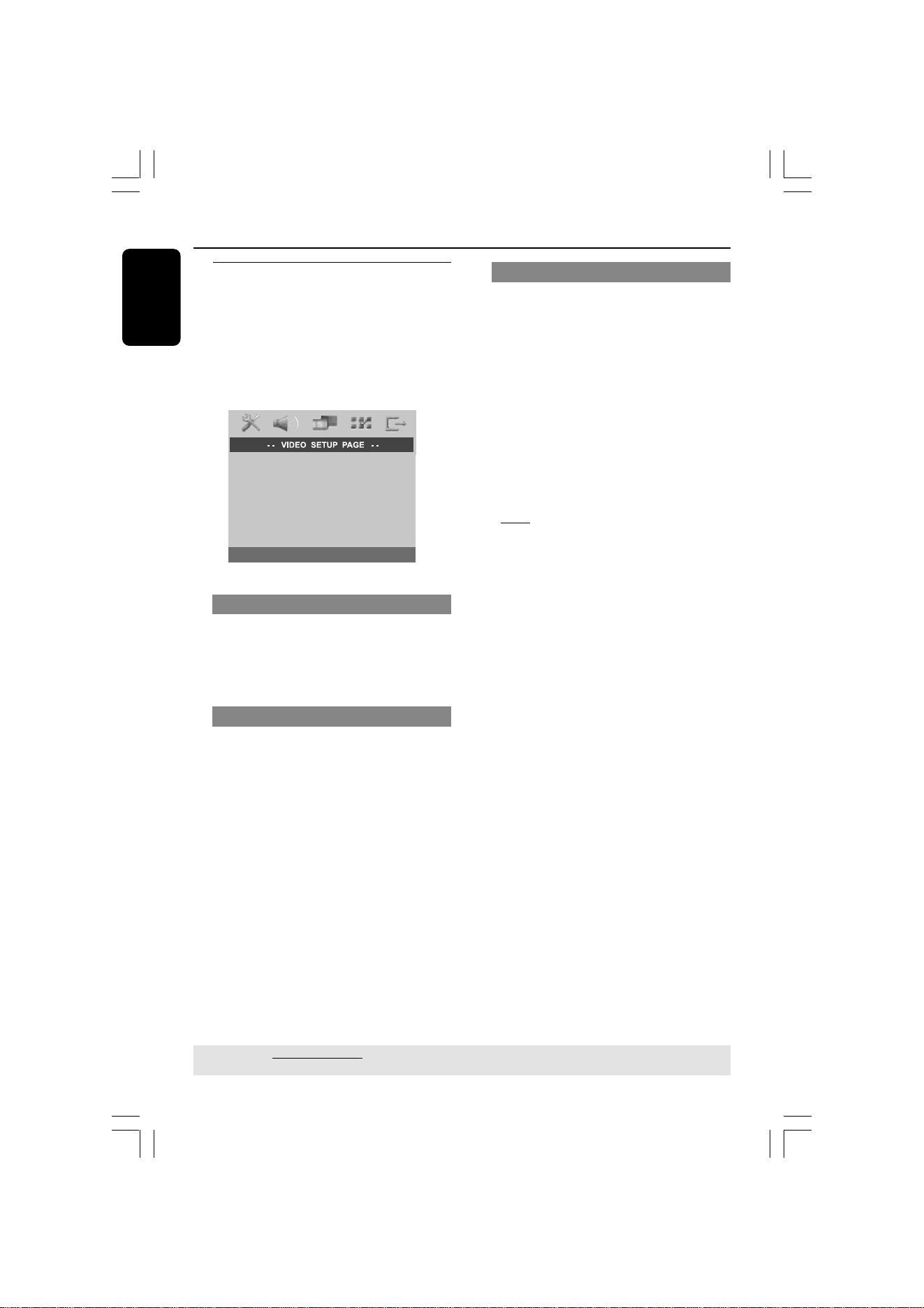
2 Press 1 2 to select ‘AUDIO SETUP
PAGE.’
3 Press OK to confirm.
SPEAKER SETUP
CD UPSAMPLING
NIGHT MODE
Speaker Setup
These menus contain speaker setup
options that allow you to adjust the
individual speakers volume and delay time.
For details, see page 45.
Night Mode - turning on/off
When night mode is activated, the high
volume outputs are softened and low
volume outputs are brought upward to
an audible level (for DVD only.) It is
useful for watching action movies without
disturbing others at night.
1 In ‘AUDIO SETUP PAGE,’ press 34 to
highlight { NIGHT MODE, } then press 2.
{ ON }
Select this to level out the volume.
{ OFF }
Select this when you want to enjoy the
surround sound with its full dynamic range.
2 Press 34 to select a setting and press
OK to confirm.
CD Upsampling
This feature allows you to convert your
music CD to a higher sampling rate using
sophisticated digital signal processing for
better sound quality.
If you have activated the CD
upsampling, the system will
automatically switch to stereo mode.
1 In ‘AUDIO SETUP PAGE,’ press 34 to
highlight { CD UPSAMPLING, } then
press 2.
{ OFF }
Select this to disable CD-upsampling.
{ 88.2 kHz (X2) }
Select this to convert the sampling rate of the
CDs twice higher than the original.
2 Press 34 to select a setting and press
OK to confirm.
Helpful Hint:
– If you press SURR button on the remote
control to select “Multi-Channel” mode, it will
disable the CD upsampling feature.
36
3139 246 16473
English
DVD Setup Menu Options (continued)
TIPS: The underlined option is the factory default setting.
To return to the previous menu, press 1. To remove the menu, press SETUP.
Accessing to Video Setup
Page
1
Press DISC and followed by SETUP on
the remote.
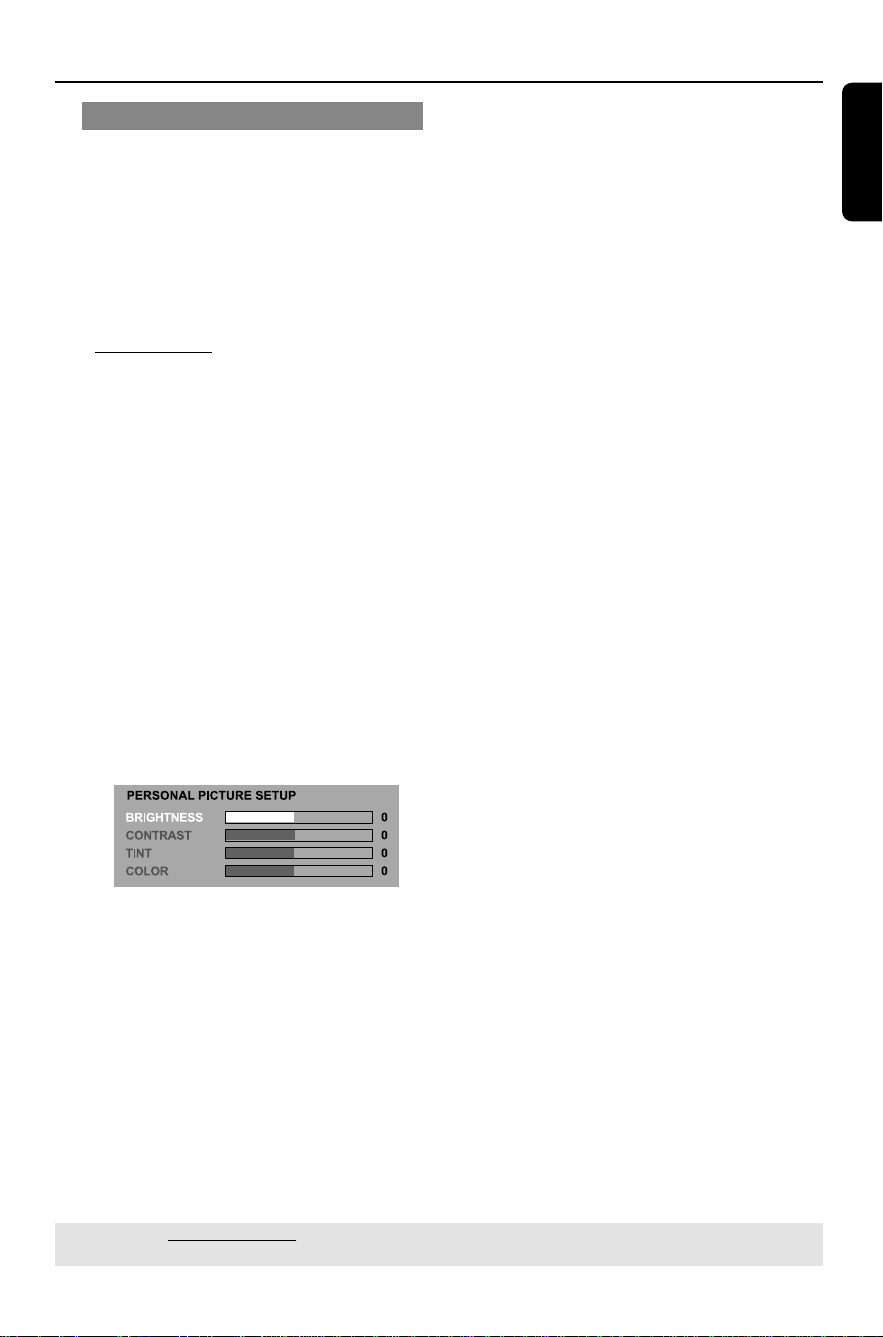
2 Press 1 2 to select ‘VIDEO SETUP PAGE.’
3 Press OK to confirm.
TV TYPE
TV DISPLAY
PROGRESSIVE
PICTURE SETTING
TV Type
This menu contains the options for
selecting the color system that matches
the connected TV. For details, see page
21.
TV Display
This menu contains the options for
setting the aspect ratio of the DVD
system according to the connected TV.
For details, see page 21.
Progressive Scan - turning on/off
In the progressive scan mode, you can
enjoy the high quality picture with less
flickers. It only works when you have
connected the DVD system’s Y Pb Pr
jacks to your TV that supports the
progressive video input. Otherwise, the
image may not appear or will be distored.
For proper progressive scan set up, see
page 20.
1 In ‘VIDEO SETUP PAGE,’ press 34 to
highlight { PROGRESSIVE, } then press
2.
{ OFF }
Select this to disable progressive scan feature.
{ ON }
Select this to enable progressive scan feature.
2 Press 34 to select a setting and press
OK to confirm.
➜Follow the instructions shown on the
TV to confirm the selection (if any.)
➜If a blank/distorted TV screen appears,
wait for 15 seconds for the auto
recovery.
English
37
3139 246 16473
DVD Setup Menu Options (continued)
TIPS: The underlined option is the factory default setting.
To return to the previous menu, press 1. To remove the menu, press SETUP.
Picture Setting
This DVD system provides three
predefined sets of picture color settings
and one personal setting which you can
define yourself.
1 In ‘VIDEO SETUP PAGE,’ press 34 to
highlight { PICTURE SETTING, } then
press 2.
{ STANDARD }
Select this for original color setting.
{ BRIGHT }
Select this for vibrant color setting.
{ SOFT }
Select this for warm color setting.
{ PERSONAL }
Select this to personalize your picture color by
adjusting the brightness, contrast, tint and
color (saturation.)
2 Press 34 to select a setting and press
OK to confirm.
3 If you select { PERSONAL, } then
proceed to steps 4~7.
➜The ‘PERSONAL PICTURE SETUP’
menu appears.
4 Press 34 to highlight one of the
following options.
{ BRIGHTNESS }
Increase this value to brighten the picture
color or vice versa. Choose zero (0) for the
average setting.
{ CONTRAST }
Increase this value to sharpen the picture
color or vice versa. Choose zero (0) to
balance the contrast.
{ TINT }
Increase or decrease this value to change the
color phase of the picture. Choose zero (0)
for the average setting.
{ COLOR }
Increase this value to enhance the picture
color or vice versa. Choose zero (0) to
balance the color.
5 Press 1 2 to adjust the setting that best
suit your personal preference.
6 Repeat steps 4~5 to adjust other
settings.
7 Press OK to confirm.
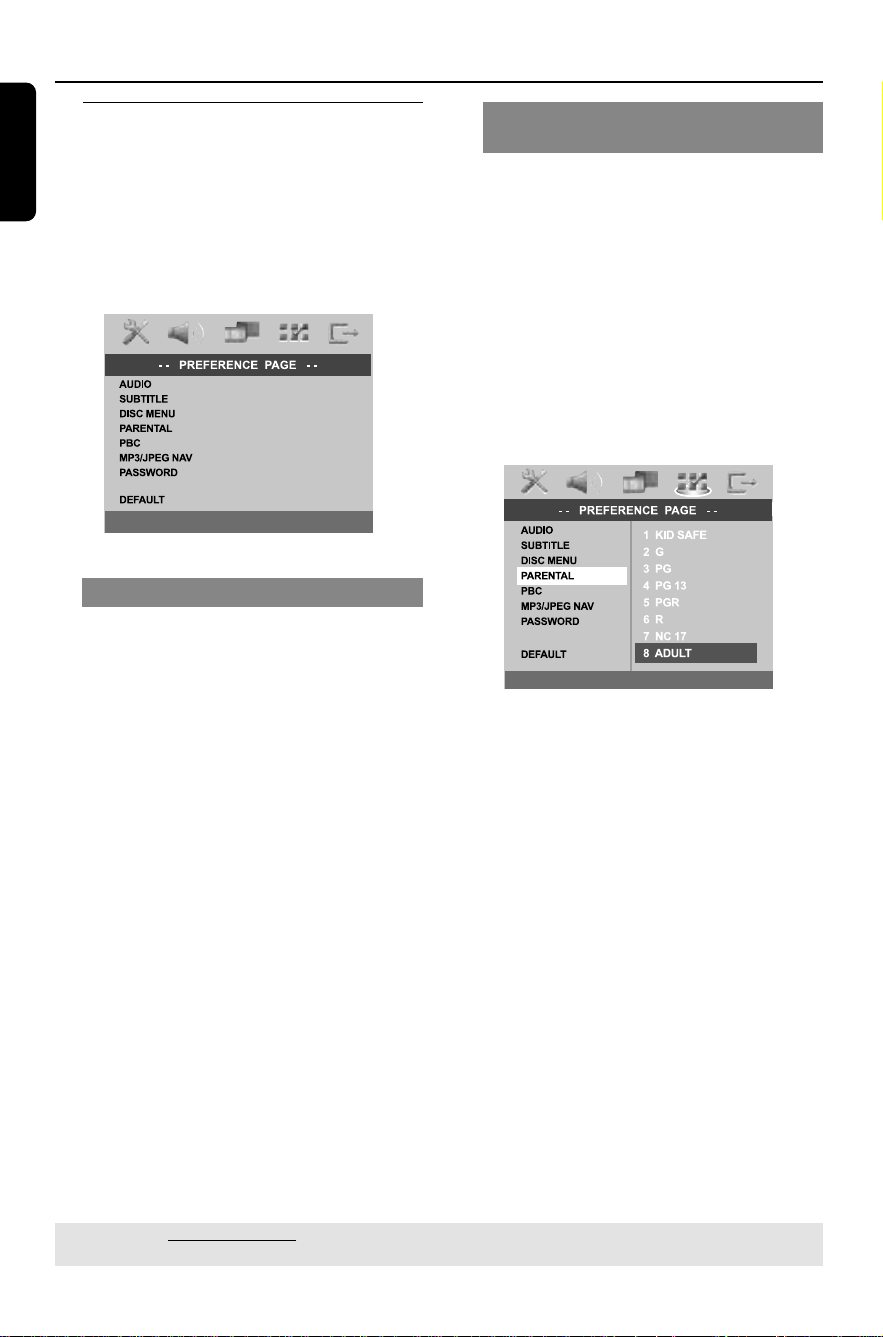
38
3139 246 16473
English
DVD Setup Menu Options (continued)
TIPS: The underlined option is the factory default setting.
To return to the previous menu, press 1. To remove the menu, press SETUP.
Accessing to Preference
Setup Page
1
Press Ç twice to stop playback (if any),
then press SETUP.
2 Press 1 2 to select the ‘Preference Page’.
3 Press OK to confirm.
DIVX SUBTITLE
Audio, Subtitle, Disc Menu
These menus contain various language
options for audio, subtitle and disc menu
that may be recorded on the DVD. For
details, see page 22.
Restricting playback by Parental
Control
Some DVDs may have a parental level
assigned to the complete disc or to
certain scenes on the disc. This feature
lets you set a playback limitation level.
The rating levels are from 1 to 8 and are
country dependent. You can prohibit the
playing of certain discs that are not
suitable for your children, or have certain
discs played with alternative scenes.
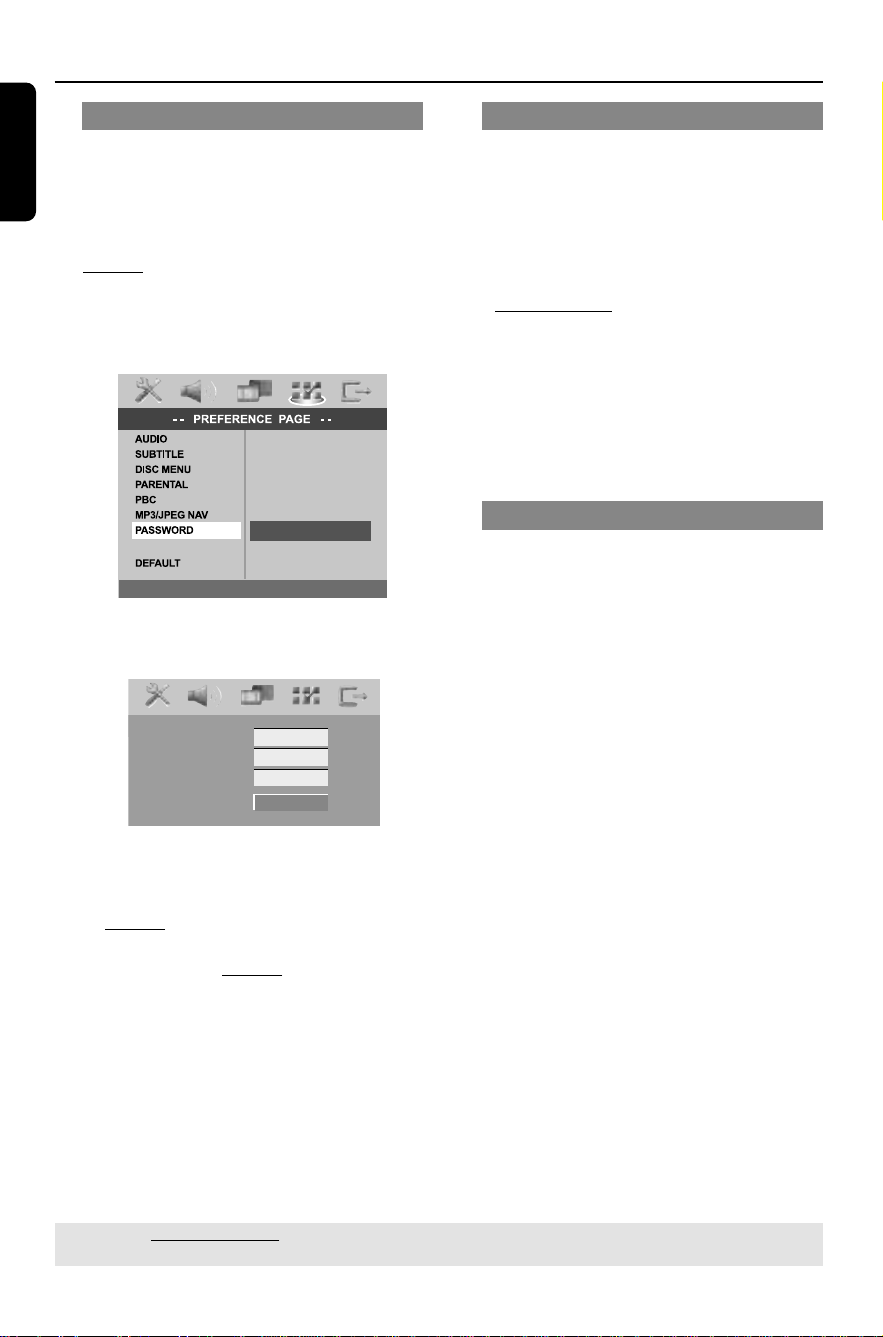
1 In ‘Preference Page’, press 34 to highlight
{ Parental }, then press 2.
DIVX SUBTITLE
2 Press 34 to highlight a rating level for
the disc inserted and press OK.
3 Use the numeric keypad (0-9) to enter
the six-digit password (see page 40
“Changing the password”).
➜DVDs that are rated above the level
you selected will not play unless you
enter your six-digit password.

English
39
3139 246 16473
DVD Setup Menu Options (continued)
TIPS: The underlined option is the factory default setting.
To return to the previous menu, press 1. To remove the menu, press SETUP.
Rating explanations
1KID SAFE – 2 G
– General Audience; recommended as
acceptable for viewers of all ages.
3 PG
– Parental Guidance suggested.
4 PG13
– Material is unsuitable for children under age
13.
5 PGR – 6 R
– Parental Guidance - Restricted;
recommended that parents restrict children
under 17 from viewing or allow them to view
the material only when supervised by a parent
or adult guardian.
7 NC-17
– No children under age 17; not recommended
viewing for children under age 17.
8 ADULT
– Mature material; should be viewed only by
adults due to graphic sexual material, violence
or language.
Helpful Hints:
– VCD, SVCD, CD have no level indication, so
parental control has no effect on these type
of discs. This also applies to most illegal
DVDs.
– Some DVDs are not encoded with a rating
though the movie rating may be printed on
the Disc cover. The rating level feature does
not prohibit play of such Discs.
PBC
You can set the PBC to ON or OFF. This
feature is available only on Video CD 2.0
with playback control (PBC) feature. For
details, see page 28.
MP3/JPEG Menu - turning on/off
MP3/JPEG Navigator can be set only if the
disc is recorded with a menu. It allows
you to select different display menus for
easy navigation.
1 In ‘Preference Page’, press 34 to highlight
{ MP3/JPEG Nav }, then press 2.
{ Without Menu }
Select this to display all the files contained in
the MP3/Picture CD.
{ With Menu }
Select this to display only the folder menu of
the MP3/Picture CD.
2 Press 34 to select a setting and press
OK to confirm.
40
3139 246 16473
English
TIPS: The underlined option is the factory default setting.
To return to the previous menu, press 1. To remove the menu, press SETUP.
DVD Setup Menu Options (continued)
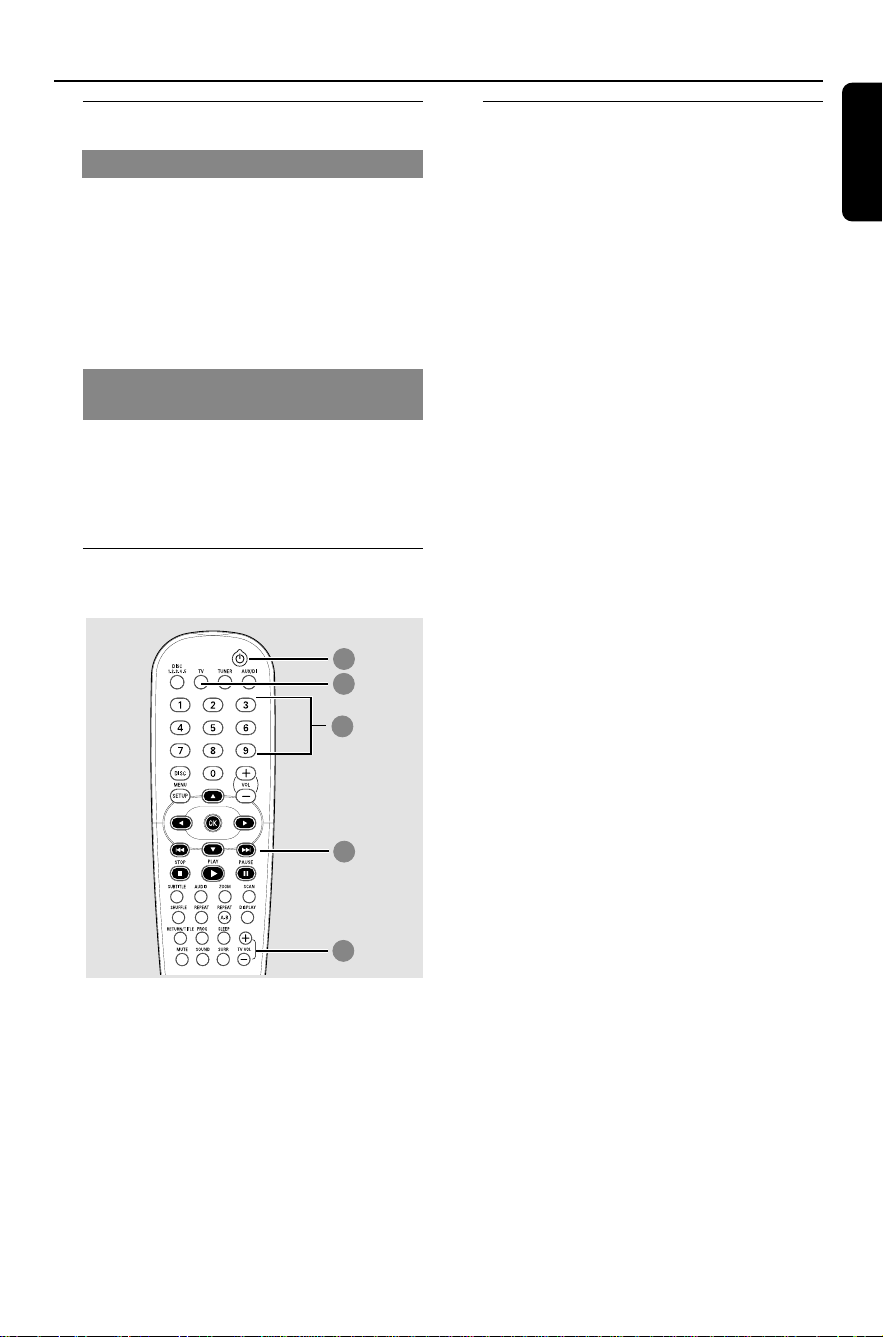
Changing the Password
The same password is used for both
Parental Control and Disc Lock. Enter
your six-digit password to play a
prohibited disc or if prompted for a
password. The default password is
136900.
1 In ‘Preference Page’, press 34 to highlight
{ Password }, then press 2 to select
{ Change }.
DIVX SUBTITLE
CHANGE
2 Press OK to enter the ‘Password Change
Page’.
Old Password
New Password
Confirm Pwd
OK
3 Use the numeric keypad (0-9) to enter
your old six-digit password.
➜When doing this for the first time, key
in ‘
136900’.
➜If you forget your old six-digit
password, key in ‘
136900’.
4 Enter the new six-digit password.
5 Enter the new six-digit password a
second time to confirm.
➜The new six-digit password will now
take effect.
6 Press OK to confirm.
Setting the DivX Subtitle font
You can set the font type that supports
the recorded DivX subtitle.
1 In ‘PREFERENCE PAGE’, press 3 4 to
highlight { DIVX SUBTITLE }, then
press 2.
{ STANDARD }
Select this to display a standard list of Roman
subtitle fonts provided by this DVD system.
{ CYRILLIC }
Select this to display cyrillic subtitle fonts.
2 Press 34 to select a setting and press
2OK to confirm.
Restoring to original settings
You can reset all the system menu
options and your personal settings to the
factory defaults, except your password
for Parental Control and Disc Lock.
1 In ‘Preference Page’, press 34 to highlight
{ Default }, then press 2 to select
{ Reset }.
2 Press OK to confirm.
➜All settings will now reset to factory
defaults.
English
41
3139 246 16473
Switching on/off
Switching to active mode
● Press the SOURCE control to select :
DISC 1~5 ™ FM ™ MW ™ TV ™
AUX ™ DI ™ DISC 1~5 ....
OR
Press DISC 1-2-3-4-5, TV, TUNER or
AUX/DI on the remote.
Switching to Eco Power standby
mode
● Press STANDBY ON (B).
➜The display screen will go blank and
Standby LED lights up.
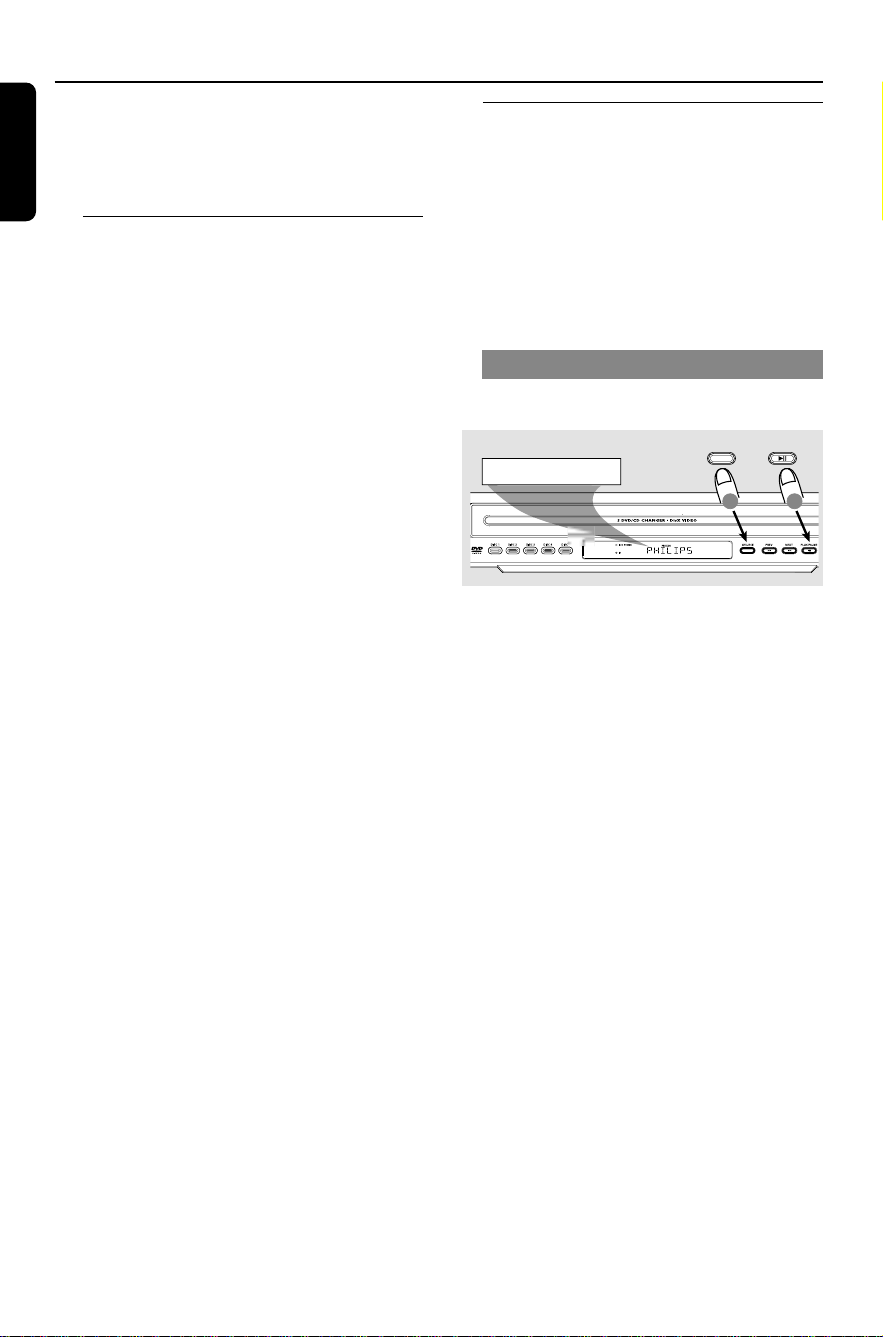
Using the remote to operate
your ‘Philips’ television
4
2
2
3
1
1 Press and hold TV to switch to TV AV.
2 Press TV VOL +/- to adjust the TV’s
volume level.
Setting the Sleep timer
The sleep timer enables the system to
switch to Eco Power standby mode
automatically at a preset time.
● Press SLEEP on the remote repeatedly
until it reaches the desired preset turn-off
time.
➜The selections are as follows (time in
minutes):
15 ™ 30 ™ 45 ™ 60 ™ OFF ™ 15…
➜Before the system switches to Eco
Power standby mode, a countdown of 10
seconds is displayed.
"SLEEP10" ™ "SLEEP 9".... ™
"SLEEP1" ™ "STANDBY"
To cancel the sleep timer
● Press SLEEP repeatedly until "OFF"
appears or press the STANDBY ON
(B) button.
Other Functions
42
3139 246 16473
English
IMPORTANT!
Make sure the FM and MW
antennas are connected.
Tuning to radio stations
1 Press TUNER on the remote (or press
SOURCE control at the front panel) to
select “TUNER/FM” or “TUNER/MW.”
2 Press 3 / 4 briefly on the remote.
➜The display panel will show
"SEARCH >" until a radio station with
sufficient signal strength is found.
3 Repeat step 2 if necessary until you find
the desired radio station.
4 To tune to a weak station, press 1 / 2
briefly and repeatedly until an optimal
reception is found.
● If the FM station reception is weak, you
can switch the FM mode from stereo to
mono. Press SURR button will toggle
through:
DOLBY PL II FM ST (stereo)
™ DOLBY PL II FM MONO
™ STEREO FM MONO
™ STEREO FM ST
Presetting radio stations
You can store up to 20 FM and 10 MW
preset radio stations in the memory.
Helpful Hints:
– The system will exit presetting mode if no
button is pressed within 20 seconds.
– If no valid frequency is detected during
Plug and Play,"CHK ANTENNA" appears.
Using the Plug and Play
Plug and Play allows you to store all
available radio stations automatically.
AUTO PRESET PRESS PLAY
2
PLAY PAUSE
1
SOURCE
1 For first time setup, press SOURCE
on front panel to select TUNER mode.
➜"AUTO PRESET PRESS PLAY"
appears.
2 Press 2; on the top panel or 2 on the
remote control to enter into auto install
mode.
➜ The system will start searching from
FM band and followed by MW band.
All the available radio stations with strong
signal strength will be stored
automatically.
➜Once complete, the last tuned radio
station will play.
Tuner Operations
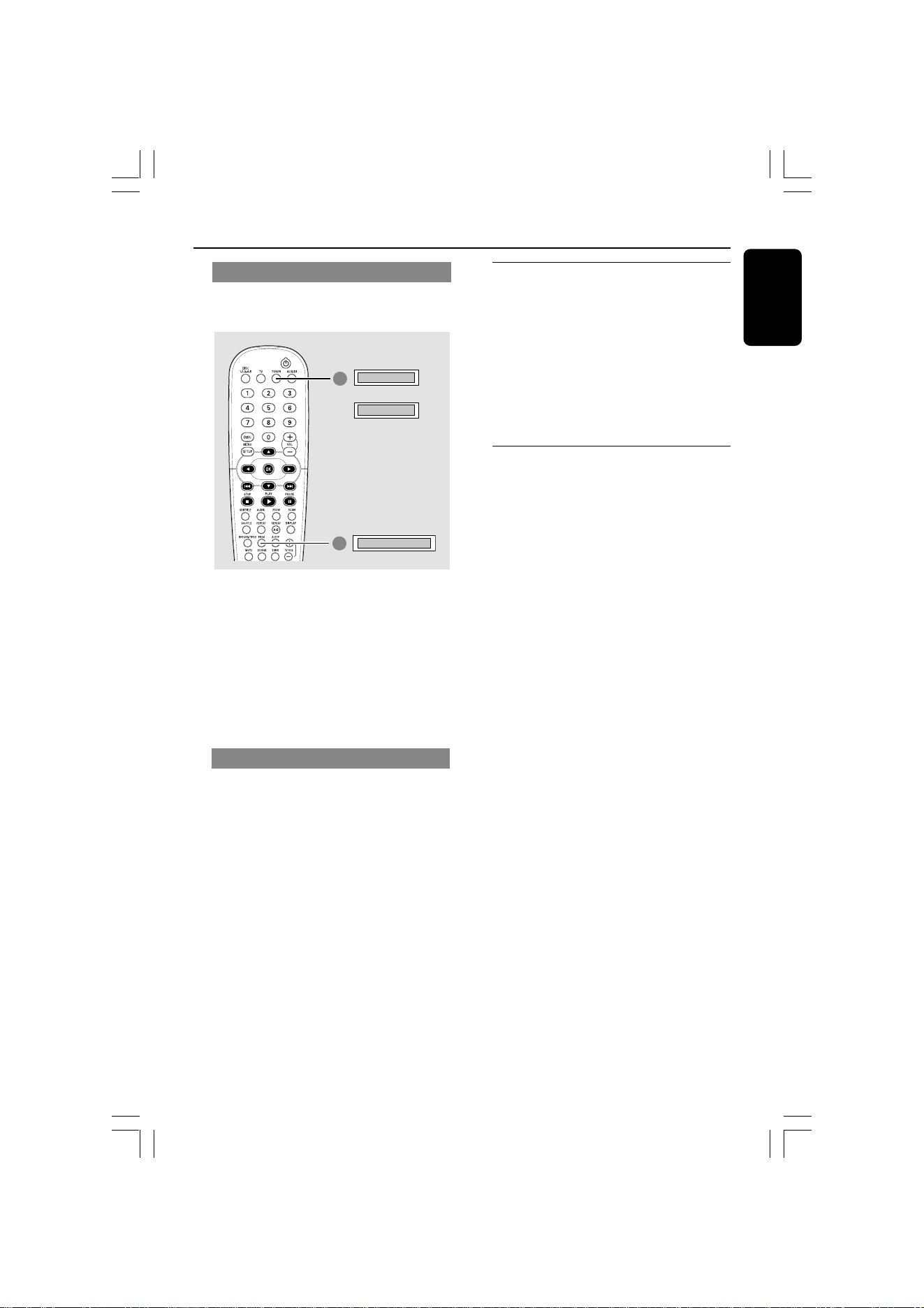
English
43
3139 246 16473
Automatic presetting
Use automatic presetting to store or
reinstall all the preset radio stations.
1
TUNER/FM
AUTO PRESET
2
TUNER/MW
OR
1 Press TUNER on the remote to select
“TUNER/FM” or “TUNER/MW”.
2 Press and hold PROG until "AUTO
PRESET" appears.
➜If auto program is started from preset
‘X’, then programs will be stored starting
from ‘X’. All preset stored before ‘X’
point still remain.
Manual presetting
Use manual presetting to store only your
favourite radio stations.
1 Tune to your desired radio station (see
“Tuning to radio stations”.)
2 Press PROG.
3 Press S / T to select a preset
number that you want to store the
current radio station.
4 Press PROG again to store.
Selecting a preset radio
station
● Press TUNER on the remote, then press
S / T to select a preset number
(or use the numeric keypad on the
remote.)
➜The waveband, preset number and
radio frequency will appear.
Deleting a preset radio
station
1
In tuner mode, press S / T on the
remote to select a preset radio station.
2 Press and hold 9 until “FM XX DELTD”,
“MW XX DELTD”, appears.
➜“X” is the preset number.
➜The radio station continues to play but
has been deleted from the preset list.
Tuner Operations (continued)
DVD system’s
display panel
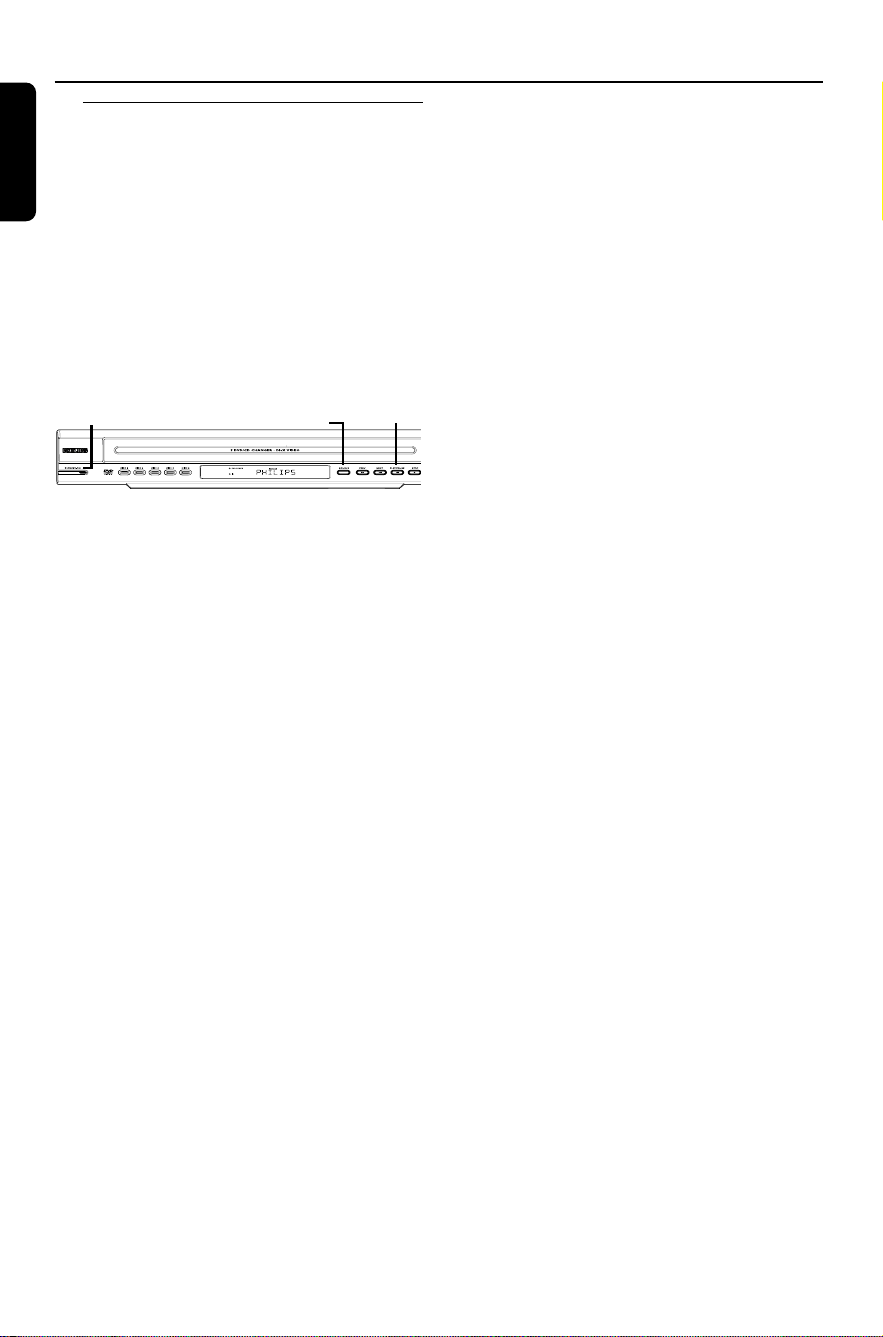
44
3139 246 16473
English
Changing tuning grid (not available
for all versions)
In North and South America, the
frequency step between adjacent channels
in the MW band is 10 kHz (9 kHz in some
areas). The preset frequency step in the
factory is 9 kHz.
IMPORTANT!
Changing the tuning grid will erase all
previously stored preset radio
stations.
STANDBY ON
SOURCE
PLAY/PAUSE
1 Press TUNER on the remote (or press
SOURCE control on front panel) to
select “FM” or “MW”.
2 Press STANDBY ON to switch the
DVD system to standby mode.
3 While holding down SOURCE and S
PREV on the front panel, disconnect and
connect the power cord to the power
supply again.
➜The display will show "GRID 9" or
"GRID 10".
Helpful hints:
– GRID 9 and GRID 10 indicate that the
tuning grid is in step of 9 kHz and 10 kHz
respectively.
– The FM tuning grid also will be changed
from 50 kHz to 100 kHz or vice versa.
Tuner Operations (continued)
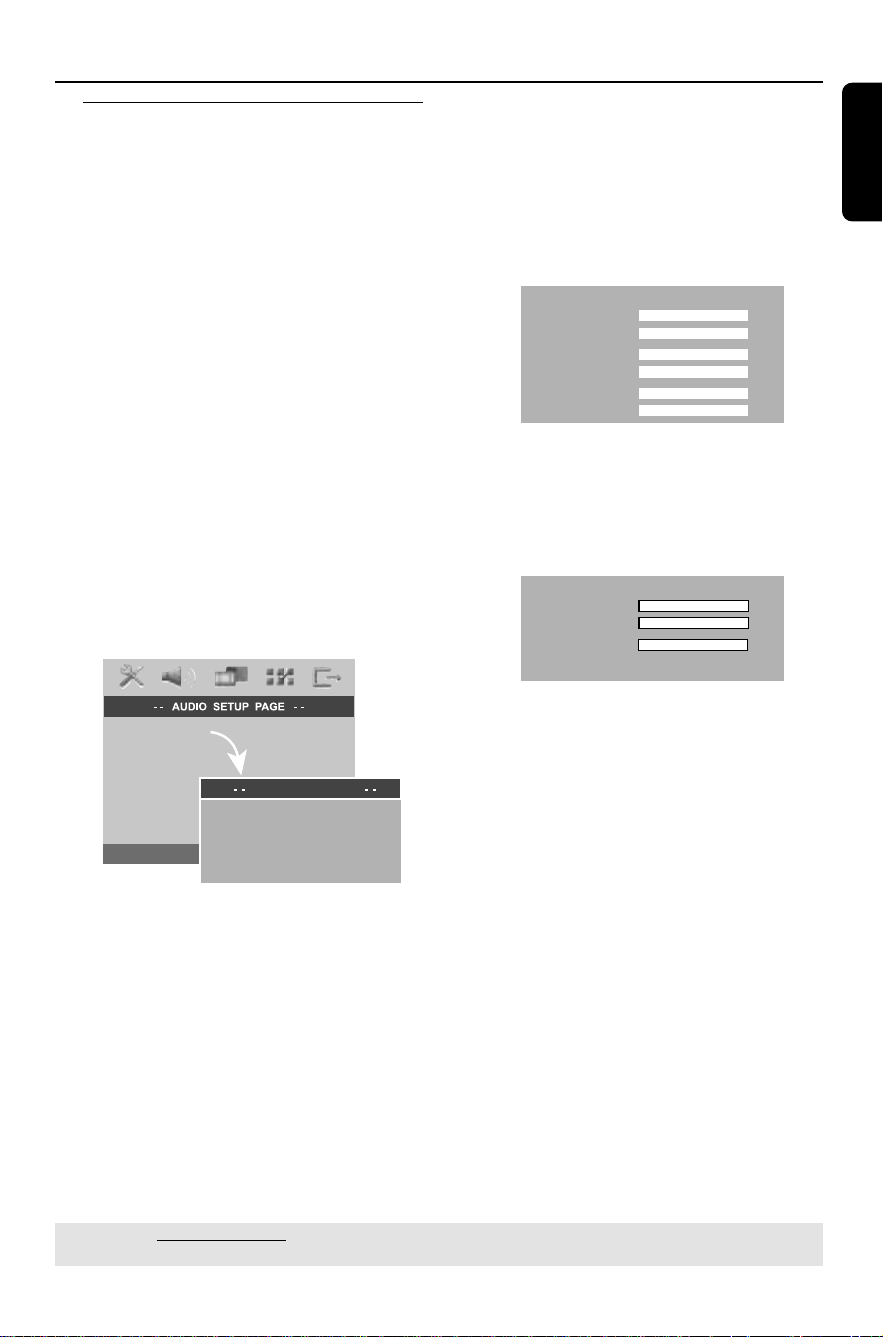
English
45
3139 246 16473
Sound and Volume Controls
Individual speakers volume
adjustment
You can adjust the delay times (center
rear speakers and subwoofer only) and
volume level for individual speakers.
These adjustments let you optimise the
sound according to your surroundings
and setup.
IMPORTANT!
Press SURR button on the remote
to select Multi-channel surround
mode before adjusting the speaker
settings.
1 Press Ç to stop playback, then press
SETUP.
2 Press 2 repeatedly to select ‘Audio Setup
Page’.
3 Press 34 to highlight { SPEAKERS
SETUP } then press 2.
SPEAKER SETUP
CD UPSAMPLING
NIGHT MODE
SPEAKER SETUP PAGE
SPEAKERS VOLUME
SPEAKERS DELAY
4 Enter its submenu by pressing 2.
5 Press 34 to highlight one of the options
below, then press 2.
{ SPEAKERS VOLUME }
– Volume level setting for individual
speakers (-6dB ~ +6dB).
Front Left
Front Right
Center
Subwoofer
Rear Left
Rear Right
+6dB
+6dB
+6dB
+0dB
+6dB
+6dB
Speakers Volume Setup
{ SPEAKERS DELAY }
– Delay times setting in relation to the
listening position/distance for center and
rear speakers.
Center
Rear Left
Rear Right
0 ms
0 ms
0 ms
Speakers Delay Setup
6 Press 1 2 to adjust the setting that best
suit your surround sound needs.
7 Press OK to confirm.
Helpful Hints:
– A 1ms increase/decrease of delay time is
equivalent to 30cm change in distance.
– Use the longer delay time settings when
the rear speakers are closer to the listener
than the front speakers.
– The test tone will be automatically
generated to help you judge the sound level
of each speaker.
TIPS: The underlined option is the factory default setting.
To return to the previous menu, press 1. To remove the menu, press SETUP.

46
3139 246 16473
English
Selecting surround sound
● Press SURR on the remote to select :
MULTI-CHANNEL or STEREO.
➜The availability of the various surround
sound modes depends on the number of
speakers used and the sound available on
the disc.
➜The center and rear speakers operate
only in Multi-channel surround mode.
➜The available output modes for Multi-
channel include: Dolby Digital, DTS
(Digital Theater Systems) Surround and
Dolby Pro Logic II.
➜Stereo broadcasts or recordings will
produce some surround channel effects
when played in a surround mode.
However, mono (single channel sound)
sources will not produce any sound from
the rear speakers.
Helpful Hints:
– You are not able to select the surround
sound mode if the system setup menu is
turned on.
Selecting digital sound effects
Select a preset digital sound effects that
matches your disc’s content or that
optimizes the sound of the musical style
you are playing.
● Press SOUND to select the available
sound effect.
When playing movie discs or in TV mode,
you can select :
CONCERT, DRAMA, ACTION or SCI-FI.
When playing music discs or while in
TUNER or AUX/DI mode, you can select :
ROCK, DIGITAL, CLASSIC or JAZZ
(except for DivX/MP3).
Helpful Hints:
– For flat sound output, select CONCERT or
CLASSIC.
– Sound effect is not active during line-out
connection.
Volume control
● Adjust VOLUME control (or press
VOL +/- on the remote) to increase
or decrease the volume level.
➜"VOL MIN" is the minimum volume
level and “VOL MAX” is the maximum
volume level.
To turn off the volume temporarily
● Press MUTE on the remote.
➜Playback will continue without sound
and "MUTE" appears.
➜To restore the volume, press MUTE
again, or increase/decrease the volume
level.
Sound and Volume Controls (continued)

English
47
3139 246 16473
AMPLIFIER SECTION
Output power 900 W RMS
11000 W PMPO
- Front 150 W RMS / channel
- Rear 150 W RMS / channel
- Centre 150 W RMS
- Subwoofer 150 W RMS
Frequency Response 20 Hz – 50 kHz / –3 dB
Signal-to-Noise Ratio > 65 dB (CCIR)
Input Sensitivity
- TV In 500 mV
- AUX In 1000 mV
TUNER SECTION
Tuning Range FM 87,5 – 108 MHz (50 kHz)
MW 531 – 1602 kHz (9 kHz)
MW 530 – 1700 kHz (10 kHz)
26 dB Quieting Sensitivity FM 20 dB
MW 4 µV/m
Image Rejection Radio FM 25 dB
MW 28 dB
IF Rejection Ratio FM 60 dB
MW 45 dB
Signal-to-Noise Ratio FM 60 dB
MW 40 dB
MW Suppression Ratio FM 30 dB
Harmonic Distortion FM Mono 3%
FM Stereo 3%
MW 5%
Frequency Response FM 180 Hz – 10 kHz / ±6 dB
Stereo Separation FM 26 dB (1 kHz)
Stereo Threshold FM 23.5 dB
DISC SECTION
Laser Type Semiconductor
Disc Diametre 12cm / 8cm
Video Decoding MPEG-1 / MPEG-2 / MPEG-4
/ DivX 3.11, 4.x & 5.x
Video DAC 12 Bits, 108 MHz
Signal System PAL / NTSC
Video Format 4:3 / 16:9
Video S/N 56 dB (minimum)
Composite Video Output 1.0 Vp-p, 75 Ω
S-Video Output Y - 1.0 Vp-p, 75 Ω
C - 0.286 Vp-p, 75 Ω
Audio DAC 24 Bits / 96 kHz
Frequency Response 4 Hz – 20 kHz (44.1 kHz)
4 Hz – 22 kHz (48 kHz)
4 Hz – 44 kHz (96 kHz)
PCM IEC 60958
Dolby Digital IEC 60958, IEC 61937
DTS IEC 60958, IEC 61937
Specifications
MAIN UNIT
Power Supply Rating 110 – 240 V; 50/60 Hz
Power Consumption 20 W
Dimensions (w x h x d) 435 mm x 74.7 mm x 441.4 mm
Weight 5.6 kg
FRONT AND REAR SPEAKERS
System 1-way
Impedance 6 Ω
Speaker drivers 1 x 76mm (3”) woofer
Frequency response 120 Hz – 20 kHz
Dimensions (w x h x d) 94 mm x 1078 mm x 68 mm
Base Dimensions (dia x h) ¯255 mm x 15 mm
Weight 2.72 kg/each
CENTRE SPEAKER
System 1-way
Impedance 6 Ω
Speaker drivers 1 x 76mm (3”) woofer
Frequency response 120 Hz – 20 kHz
Dimensions (w x h x d) 225 mm x 94 mm x 75 mm
Weight 0.78 kg
AV SUBWOOFER
Power Supply Rating 110 / 240V; 50/60 Hz
Power Consumption 360 W
System Bass Reflex System
Impedance 6 Ω
Speaker drivers 8” woofer
Frequency response 30 Hz – 120 Hz
Dimensions (w x h x d) 236 mm x 360 mm x 470 mm
Weight 10.76 kg
Specifications subject to change without prior
notice
48
3139 246 16473
English
WARNING
Under no circumstances should you try to repair the system yourself, as this will
invalidate the warranty. Do not open the system as there is a risk of electric shock.
If a fault occurs, first check the points listed below before taking the system for repair. If
you are unable to remedy a problem by following these hints, consult your dealer or
Philips for help.
Problem
Solution
Troubleshooting
Need Help? Visit us at www.philips.com/support
No power.
No picture.
Completely distorted
picture or black/white
picture.
The aspect ratio of the
screen cannot be changed
even though you have set the
TV display.
No sound or distorted
sound.
Cannot activate some
features such as Angles,
Subtitles, or multi-language
Audio.
– Check if the AC power cord is properly connected.
– Press the STANDBY ON on the front of the DVD system to
turn on the power.
– Refer to your TV user manual for correct Video In channel
selection. Change the TV channel until you see the DVD screen.
– Press DISC on the remote control.
– If the progressive scan feature is activated but the connected TV
does not support progressive signals or the cables are not
connected accordingly, see page 20 for proper progressive scan
set up or deactivate the progressive scan feature as below:
1) Turn off your TV progressive scan mode or turn on to interlaced
mode.
2) Press OPEN CLOSE to open the disc tray.
3) Press 1 on the remote control.
4) Press MUTE on the remote control.
– If this happens when you are changing the setting of the ‘TV
TYPE’, wait for 15 seconds for the auto recovery.
– If this happens when you are turning on the progressive scan
feature, wait for 15 seconds for the auto recovery.
– Check the video connection.
– Sometimes a small amount of picture distortion may appear. This
is not a malfunction.
– Clean the disc.
– The aspect ratio is fixed on the DVD disc.
– Depending on the TV, it may not be possible to change the
aspect ratio.
– Adjust the volume.
– Check the speaker connections and settings.
– Make sure that the audio cables are connected and press the
SOURCE button to select the correct input source (TV or AUX/
DI, for example) to choose the equipment that you want to hear
through the DVD system.
– The features may not be available on the DVD.
– Changing the language for the sound or subtitle is prohibited on
this DVD.

English
49
3139 246 16473
Troubleshooting (continued)
Not able to select some
Items in the setup/system
menu.
The DVD system does not
start playback.
There is no sound from the
centre and surround
speakers.
Radio reception is poor.
The remote control does not
function properly.
Unable to play DivX movies.
The DVD system does not
work.
No output from all speakers
and ‘SPEAKER ERR’ appears
on the front display
– Press STOP button twice before selecting the setup/system
menu.
– Depending on the disc availability, some menu items cannot be
selected.
– Insert a readable disc with the playback side facing down. The
DVD+R/CD-R must be finalized.
– Check the disc type, color system (PAL or NTSC) and region
code.
– Check for any scratches or smudges on the disc.
– Press SETUP to turn off the setup menu screen.
– You may need to enter the password in order to change the
parental control rating level or to unlock the disc for playback.
– Moisture may have condensed inside the system. Remove the
disc and leave the system turned on for about an hour.
– Make sure the center and rear speakers are connected
correctly.
– Press SURR button to select a correct surround sound setting.
– Make sure the source you are playing is recorded or broadcast
in surround sound (DTS, Dolby Digital, etc.)
– If the signal is too weak, adjust the antenna or connect an
external antenna for better reception.
– Increase the distance between the system and your TV or
VCR.
– Tune in to the correct frequency.
– Place the antenna further away from any equipment that may be
causing the interference.
– Select the source (DISC or TUNER, for example) before
pressing the function button (É, S ,
T.)
– Reduce the distance between the remote control and the
system.
– Replace the batteries with new ones.
– Point the remote control directly toward the IR sensor.
– Check that the batteries are loaded correctly.
– Check that the DivX file is encoded in ‘Home Theater’ mode
with DivX 5.x encoder.
– Disconnect the power cord from the power outlet for a few
minutes. Reconnect the power cord and try to operate again as
usual.
– Disconnect and reconnect again the power cord from both the
subwoofer and system.
– Check the speaker connections. They should be color-matched.
Problem
Solution
Need Help? Visit us at www.philips.com/support

50
3139 246 16473
English
Analog: Sound that has not been turned into
numbers. Analog sound varies, while digital sound
has specific numerical values. These jacks send
audio through two channels, the left and right.
Aspect ratio: The ratio of vertical and horizontal
sizes of a displayed image. The horizontal vs.
vertical ratio of conventional TVs. is 4:3, and that of
wide-screens is 16:9.
AUDIO OUT Jacks: Red and white jacks on the
back of the DVD System that send audio to
another system (TV, Stereo, etc.)
Bit Rate: The amount of data used to hold a
given length of music; measured in kilobits per
second, or kbps. Or, the speed at which you
record. Generally, the higher the bit rate, or the
higher the recording speed, the better the sound
quality. However, higher bit rates use more space
on a Disc.
Chapter: Sections of a picture or a music piece
on a DVD that are smaller than titles. A title is
composed of several chapters. Each chapter is
assigned a chapter number enabling you to locate
the chapter you want.
Component Video Out Jacks: Jacks on the
back of the DVD System that send high-quality
video to a TV that has Component Video In jacks
(R/G/B, Y/Pb/Pr, etc.)
Disc menu: A screen display prepared for
allowing selection of images, sounds, subtitles,
multi-angles, etc recorded on a DVD.
DivX 3.11/4.x/5.x: The DivX code is a patent-
pending, MPEG-4 based video compression
technology, developed by DivXNetworks, Inc., that
can shrink digital video to sizes small enough to be
transported over the internet, while maintaining
high visual quality.
Dolby Digital: A surround sound system
developed by Dolby Laboratories containing up to
six channels of digital audio (front left and right,
rear left and right, center and subwoofer).
Dolby Surround Pro Logic II: It is an improved
matrix decoding technology that provides better
spatiality and directionality on Dolby Surround
program material; provides a convincing three-
dimensional soundfield on convertional stereo
music recordings; and is ideally suited to bring the
surround experience to automotive sound. While
conventional surround programming is fully
campatible with Dolby Surround Pro Logic II
decoders, soundtracks will be able to be encoded
specifically to take full advantage of Pro Logic II
playback, including separate left and right surround
channels. (Such material also compatible with
conventional Pro Logic decoders.)
DTS: Digital Theater Systems. This is a surround
sound system, but it is different from Dolby Digital.
The formats were developed by different
companies.
JPEG: A very common digital still picture format. A
still-picture data compression system proposed by
the Joint Photographic Expert Group, which
features small decrease in image quality in spite of
its high compression ratio.
MP3: A file format with a sound data compression
system. “MP3” is the abbreviation of Motion
Picture Experts Group 1 (or MPEG-1) Audio Layer
3. By using the MP3 format. One CD-R or CD-RW
can contain about 10 times more data then a
regular CD.
Multichannel: DVDs are formatted to have each
sound track constitute one sound field.
Multichannel refers to a structure of sound tracks
having three or more channels.
Parental control: Limits Disc play according to
the age of the users or the limitation level in each
country. The limitation varies from disc to disc;
when it is activated, playback will be prohibited if
the software’s level is higher than the user-set
level.
Playback control (PBC): Refers to the signal
recorded on video CDs or SVCDs for controlling
playback. By using menu screens recorded on a
Video CD or SVCD that supports PBC, you can
enjoy interactive playback and searching.
Glossary
English
51
3139 246 16473
Plug and Play: First time power up to the Tuner
mode, the system will prompt the user to proceed
with the automatic installation of radio stations by
simply pressing the PLAY button on the main unit.
Progressive Scan: It displays all the horizontal
lines of a picture at one time, as a signal frame.
This system can convert the interlaced video from
DVD into progressive format for connection to a
progressive display. It dramatically increases the
vertical resolution.
Region code: A system allowing discs to be
played only in the region designated. This unit will
only play discs that have compatible region codes.
You can find the region code of your unit by
looking on the product label. Some discs are
compatible with more than one region (or ALL
regions.)
S-Video: Produces a clear picture by sending
separate signals for the luminance and the color.
You can use S-Video only if your TV has an S-Video
In jack.
Surround: A system for creating realistic three-
dimensional sound fields full of realism by
arranging multiple speakers around the listener.
Title: The longest section of a movie or music
feature on DVD. Each title is assigned a title
number, enabling you to locate the title you want.
VIDEO OUT jack: Yellow jack on the back of
the DVD system that sends the DVD picture video
to a TV.
Glossary (continued)