8239 300 32141
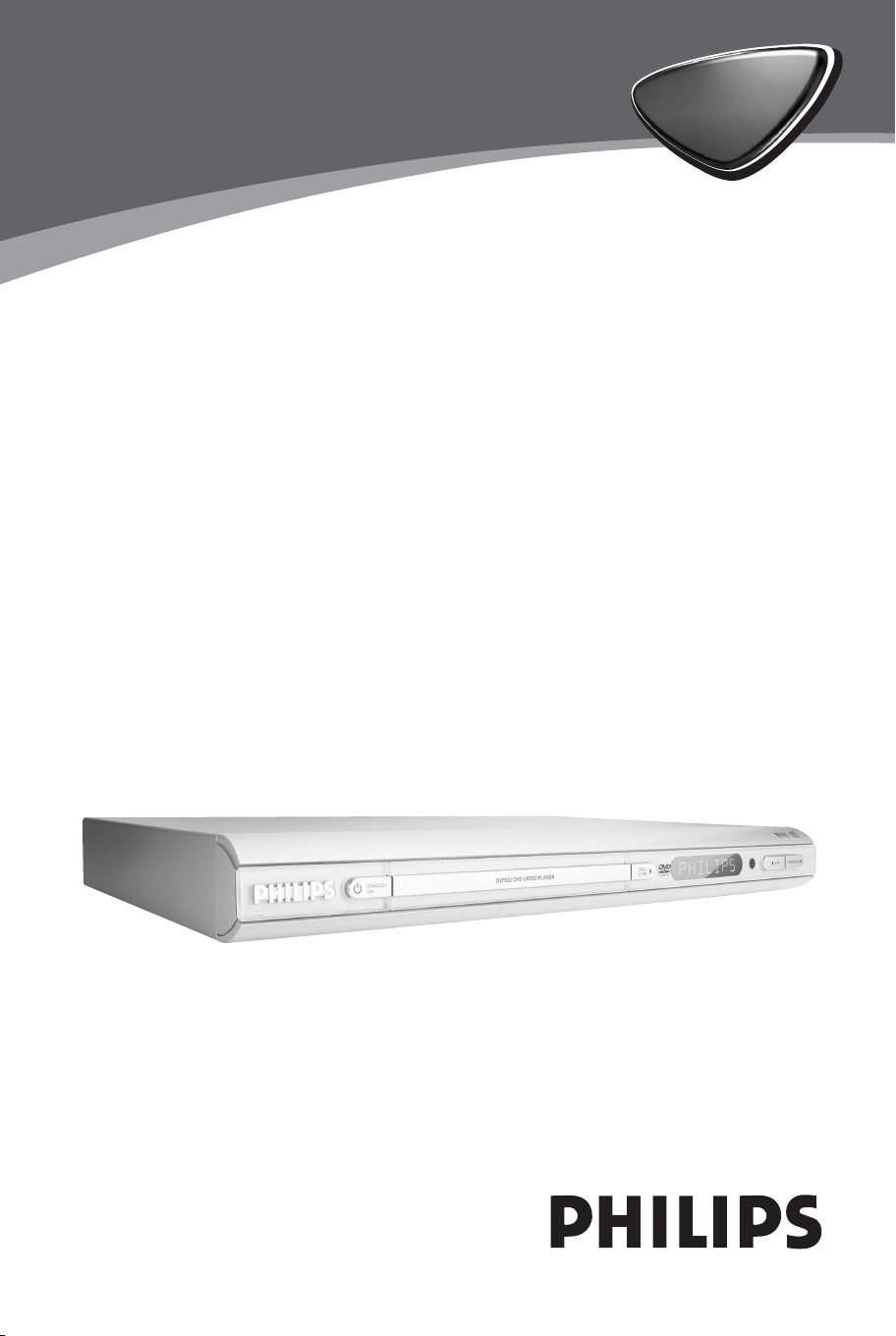
DVD VIDEO PLAYER
DVP
522
DVP
522
01-30 DVP522_69 24/02/2004, 2:10 PM1
8239 300 32141
General Information
Environmental Information
All unnecessary packaging has been
omitted. The packaging has been made
easy to separate into three materials:
cardboard (box), polystyrene foam
(buffer) and polyethylene (bags, protective
foam sheet).
Your DVD player consists of materials
which can be recycled and reused if
disassembled by a specialised company.
Please observe the local regulations
regarding the disposal of packaging
materials, exhausted batteries and old
equipment.
Important Note:
Due to the numerous versions of new
CD-Audio copy protection or
enhanced CD-Audio protection
recently available on certain discs,
Philips is unable to guarantee that
this DVD Player is fully compatible
with such new discs. Should you have
difficulty playing any such CD-Audio
discs, kindly refer them to your CD-
Audio disc retailer.
For Customer Use:
Read carefully the information located at
the bottom of your DVD VIDEO player
and enter below the Serial No. Retain this
information for future reference.
Model No. DVP530
Serial No. _______________
Manufactured under license from Dolby
Laboratories. “Dolby”, “Pro Logic” and the
double-D symbol are trademarks of Dolby
Laboratories.
CAUTION
(WARNING LOCATION: ON THE
BACKPLATE OF THE SET)
NEVER MAKE OR CHANGE
CONNECTIONS WITH THE
POWER SWITCHED ON.
Laser safety
This unit employs a laser. Due to possible
eye injury, only a qualified service person
should remove the cover or attempt to
service this device.
NOTE:
PICTURES SHOWN MAYBE
DIFFERENT BETWEEN
COUNTRIES.
LASER
Type Semiconductor laser
GaAlAs
Wave length 650 nm (DVD)
780 nm (VCD/CD)
Output Power 7 mW (DVD)
10 mW (VCD/CD)
Beam divergence 60 degree
‘CONSUMERS SHOULD NOTE THAT NOT
ALL HIGH DEFINITION TELEVISION SETS
ARE FULLY COMPATIBLE WITH THIS
PRODUCT AND MAY CAUSE ARTIFACTS
TO BE DISPLAYED IN THE PICTURE. IN
CASE OF 525 OR 625 PROGRESSIVE SCAN
PICTURE PROBLEMS, IT IS RECOMMENDED
THAT THE USER SWITCH THE
CONNECTION TO THE ‘STANDARD
DEFINITION’ OUTPUT. IF THERE ARE
QUESTIONS REGARDING OUR TV SET
COMPATIBILITY WITH THIS MODEL 525p
AND 625p DVD PLAYER, PLEASE CONTACT
OUR CUSTOMER SERVICE CENTER.’
The apparatus shall not be exposed to dripping
or splashing and that no objects filled with
liquids, such as vases, shall be placed on
apparatus.
01-30 DVP522_69 24/02/2004, 2:10 PM2
8239 300 32141
3
English
Manufactured under license from Dolby
Laboratories. “Dolby”, “Pro-Logic” and the
double-D symbol are trademarks of
Dolby Laboratories.
Manufactured under license from Digital
Theater Systems, inc. US Pat. No.
5,451,942 and other worldwide patents
issued and pending. “DTS” and “DTS
Digital Surround” are trademarks of
Digital Theater Systems, Inc. 1996 Digital
Theater Systems, Inc. All rights reserved.
This product incorporates copyright
protection technology that is protected by
method claims of certain U.S. patents and
other intellectual property rights owned by
Macrovision Corporation and other rights
owners. Use of this copyright protection
technology must be authorized by
Macrovision Corporation, and is intended
for home and other limited viewing uses
only unless otherwise authorized by
Macrovision Corporation. Reverse
engineering or disassembly is prohibited.
English --------------------------------------- 6
-------------------------------- 31
Index
01-30 DVP522_69 24/02/2004, 2:10 PM3

8239 300 32141
English
4
Introduction
Supplied accessories ....................................... 5
Care and safety information .......................... 5
Connections
Connecting TV .............................................. 6-7
Using Component Video jacks (Y Pb Pr) .. 6
Using Composite Video jack (CVBS) ......... 6
Using S-Video jack .......................................... 7
Using an accessory RF modulator .............. 7
Connecting the power cord.......................... 8
Optional : Connecting to an Audio System .
............................................................................. 9
Stereo system has Dolby Pro Logic or Right
/ Left Audio In jack ......................................... 9
Optional: Connecting Digital AV Receiver ...
............................................................................. 9
Receiver has a PCM, Dolby Digital, or
MPEG2 decoder .............................................. 9
Functional Overview
Front and Rear Panels .................................. 10
Remote Control ............................................ 11
Getting Started
Step 1: Inserting batteries into the
Remote Control ............................................ 12
Using the Remote Control to operate the
Player ............................................................... 12
Step 2: Setting up the TV .............................. 12
Selecting the colour system that
corresponds to your TV .............................. 13
Step 3: Setting language preference ........... 14
Setting the OSD Language .......................... 14
Setting the Audio, Subtitle and Disc menu
language .......................................................... 14
Disc Operations
Playable Discs ................................................. 15
Playing discs ..................................................... 15
Using the Disc Menu ..................................... 16
Basic playback controls........................... 16-17
Pausing playback ............................................ 16
Selecting track/chapter ................................ 16
Resuming playback from the last stopped
point ................................................................ 16
Zoom .............................................................. 16
Repeat ............................................................. 17
Repeat A-B ..................................................... 17
Slow Motion .................................................. 17
Forward / Reverse Searching ..................... 17
Time Search ................................................... 17
Special disc features ...................................... 18
Playing a Title ................................................. 18
Camera Angle ................................................ 18
Changing the Audio Language .................... 18
Subtitles .......................................................... 18
Preview Function .......................................... 18
Playing MP3/JPEG Picture CD ............... 18-19
General Operation ....................................... 18
Playback selection ......................................... 19
Repeat (MP3/JPEG) ...................................... 19
Program playback ......................................... 19
Fast forward / reverse (MP3) ..................... 19
Special JPEG features .................................... 19
Preview Function (JPEG) ............................. 19
Zoom picture (JPEG) ................................... 19
Playback with multi-angles (JPEG) ............. 19
System Menu Options
Basic Operations ........................................... 20
General Setup Page ....................................... 20
Program .......................................................... 20
Screen Saver .................................................. 20
Audio Setup Page ..................................... 21-23
Speaker Setup ................................................ 21
Digital Audio Setup ....................................... 21
Dolby Digital Setup ...................................... 22
Equalizer ......................................................... 22
3D Processing ................................................ 23
Video Setup Page ..................................... 23-25
TV Display ...................................................... 23
Closed Captions ........................................... 24
Angle Mark ..................................................... 24
Smart Picture ................................................. 24
Picture Setting ............................................... 25
Preference Page........................................ 25-26
Parental .................................................... 25-26
Password ........................................................ 26
Default ............................................................. 26
Specifications ...................................... 27
Troubleshooting ......................... 28–29
Glossary ...................................................................... 30
Contents
01-30 DVP522_69 24/02/2004, 2:10 PM4
8239 300 32141
English
5
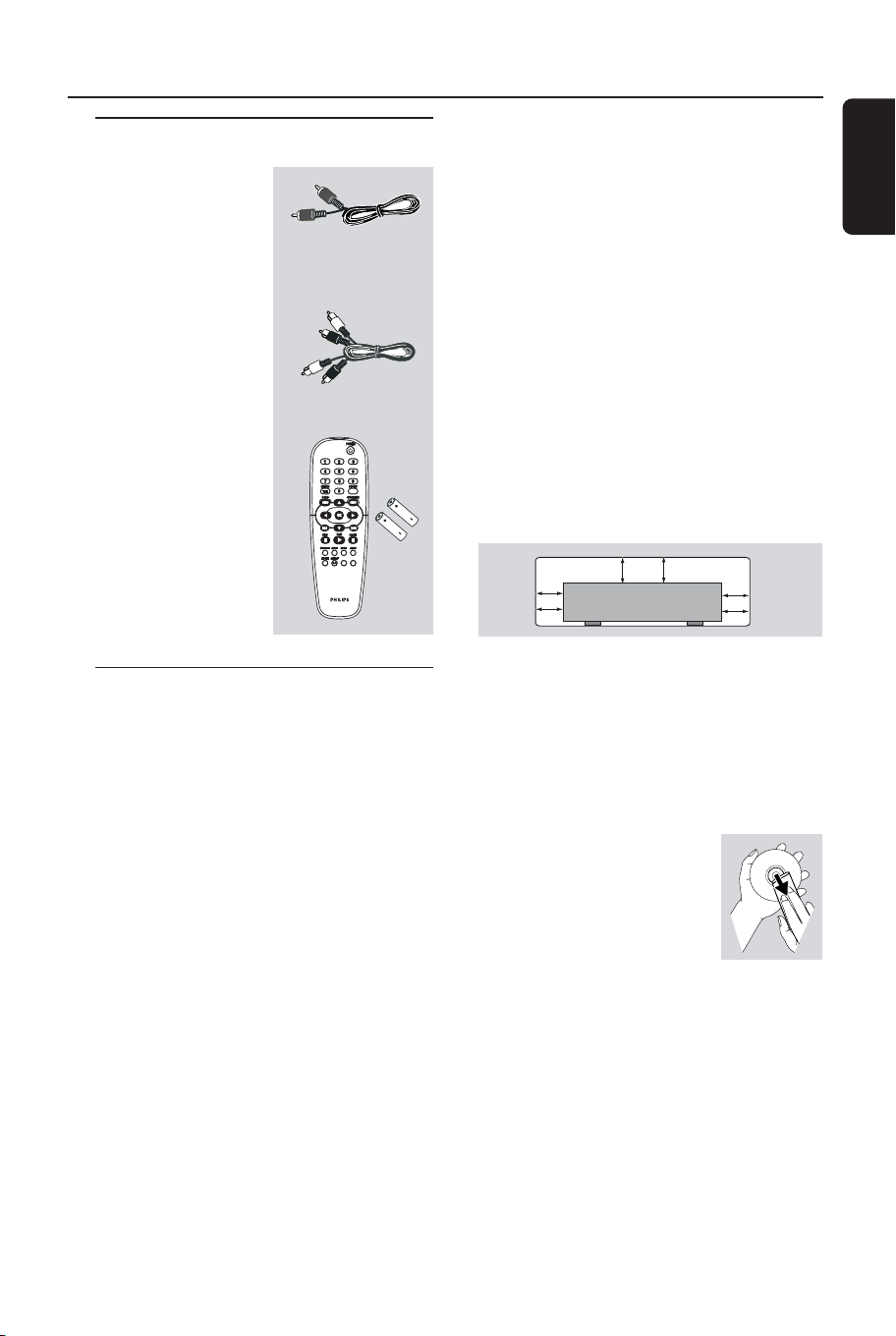
Supplied accessories
Remote Control
and
two AA batteries
Introduction
Care and safety information
● Power consumption
– Check that the operating voltage
indicated on the typeplate (or beside the
voltage selector) is identical to the voltage
of your local power supply. If not, please
consult your dealer.
– When the system is switched to
Standby mode, it is still consuming power.
To disconnect the system from the power
supply completely, remove the AC power
plug from the wall jack.
PREVIEW
PREVIEW
MUTE
MUTE
● Avoid high temperatures, moisture,
water and dust
– Do not expose the player, batteries or
discs to humidity, rain, sand or excessive
heat (caused by heating equipment or
direct sunlight.)
● Avoid condensation problem
– The lens may cloud over when the
player is suddenly moved from cold to
warm surroundings, making it impossible
to play a disc. Leave the player in the
warm environment until the moisture
evaporates.
● Do not block the vents
– Do not operate the DVD Player in an
enclosed cabinet, allow about 10 cm (4
inches) of free space all around the player
for adequate ventilation.
10 cm
(4 inches)
10 cm
(4 inches)
10 cm
(4 inches)
DVD Home Cinema System
PHILIPS
● Care of the cabinet
– Use a soft cloth slightly moistened with
a mild detergent solution. Do not use a
solution containing alcohol, spirits,
ammonia or abrasives.
● Finding a suitable location
– Place the player on a flat, hard, and
stable surface.
● Disc handling
–To clean a CD, wipe it in a
straight line from the center
towards the edge using a soft,
lint-free cloth. A cleaning
agent may damage the disc!
– Write only on the printed side of a
CDR(W) and only with a soft felt-tipped
pen.
– Handle the disc by its edge, do not
touch the surface.
Audio cable
(white, red)
Video cable
(yellow)
01-30 DVP522_69 24/02/2004, 2:10 PM5
8239 300 32141
English
6
Connections
Connecting TV
Y
VIDEO OUT
S-VIDEO OUT
COAXIAL
MAINS
DIGITAL OUT
L
R
AUDIO OUT
Pb
Pr
COMPONENT
VIDEO OUT
AUDIO
IN
V (Pr/Cr)
U (Pb/Cb)
Y
S-VIDEO
IN
VIDEO IN
COMPONENT
VIDEO IN
AUDIO
IN
V (Pr/Cr)
U (Pb/Cb)
Y
S-VIDEO
IN
VIDEO IN
COMPONENT
VIDEO IN
2
1
IMPORTANT!
–You only need to make
one video
connection from the following
options, depending on the
capabilities of your TV system.
– Connect the DVD system directly
to the TV.
– Component Video connection
provides highest picture quality.
These options must be available on
your TV.
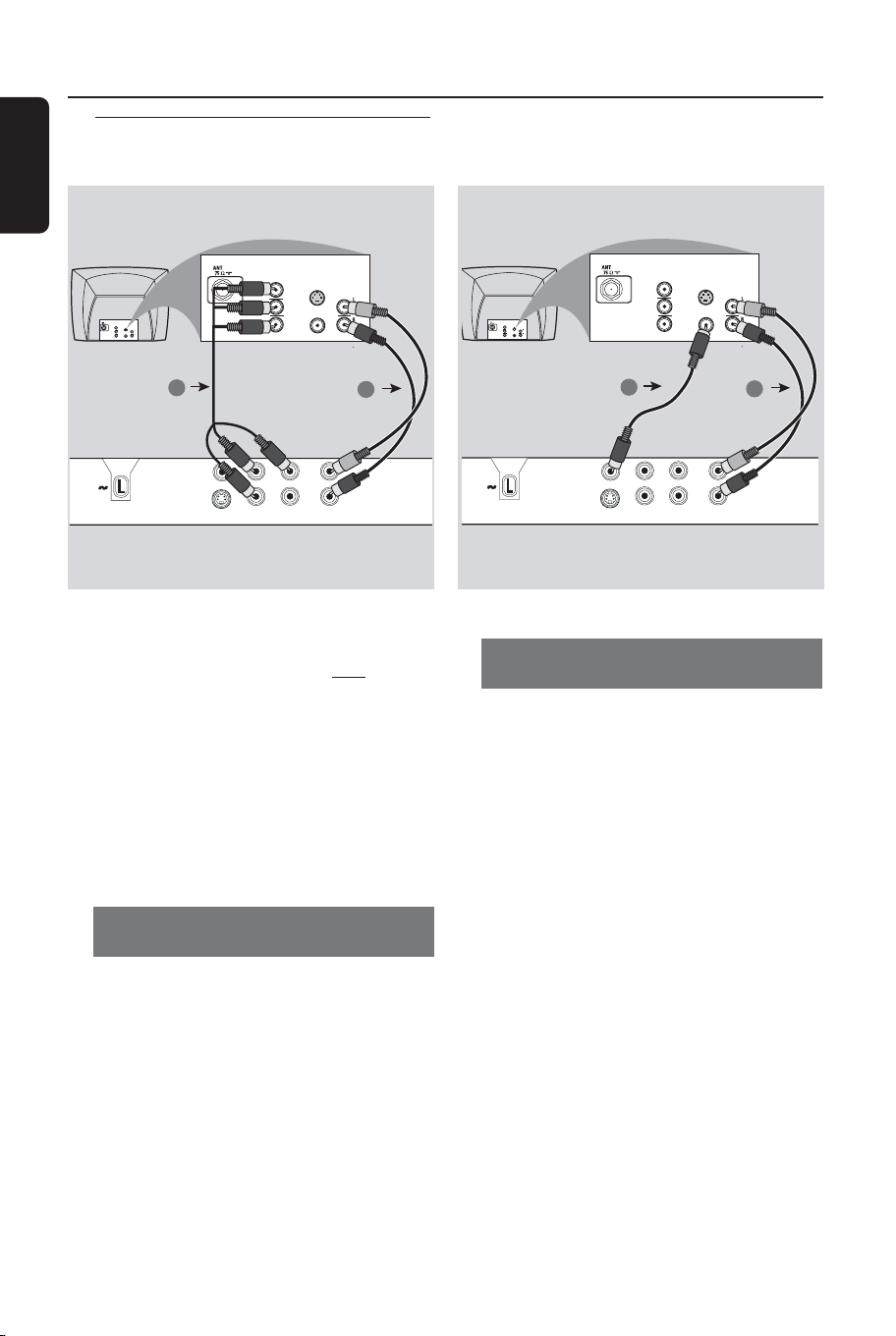
Using Component Video jack
(Y Pb Pr)
1 Use the component video cables (red/
blue/green) to connect the DVD Player’s
Y Pb Pr jacks to the corresponding
Component video input jacks (or labeled
as Y Pb Pr or YUV) on the TV (cable not
supplied).
2 To hear the sound of this DVD Player
through your TV, use the audio cables
(white/red) to connect AUDIO OUT (L/
R) jacks of the DVD Player to the
corresponding AUDIO IN jacks on the TV
(cable supplied).
Y
VIDEO OUT
S-VIDEO OUT
COAXIAL
MAINS
DIGITAL OUT
L
R
AUDIO OUT
Pb
Pr
COMPONENT
VIDEO OUT
AUDIO
IN
V (Pr/Cr)
U (Pb/Cb)
Y
S-VIDEO
IN
VIDEO IN
COMPONENT
VIDEO IN
AUDIO
IN
V (Pr/Cr)
U (Pb/Cb)
Y
S-VIDEO
IN
VIDEO IN
COMPONENT
VIDEO IN
2
1
Using Composite Video jacks
(CVBS)
1 Use the composite video cable (yellow) to
connect the DVD Player’s CVBS (VIDEO
OUT) jack to the video input jack (or
labeled as A/V In, Video In, Composite or
Baseband) on the TV (cable supplied).
2 To hear the sound of this DVD Player
through your TV, use the audio cables
(white/red) to connect AUDIO OUT (L/
R) jacks of the DVD Player to the
corresponding AUDIO IN jacks on the TV
(cable supplied).
01-30 DVP522_69 24/02/2004, 2:10 PM6
8239 300 32141
English
7
Connections
Y
VIDEO OUT
S-VIDEO OUT
COAXIAL
MAINS
DIGITAL OUT
L
R
AUDIO OUT
Pb
Pr
COMPONENT
VIDEO OUT
AUDIO
IN
V (Pr/Cr)
U (Pb/Cb)
Y
S-VIDEO
IN
VIDEO IN
COMPONENT
VIDEO IN
AUDIO
IN
V (Pr/Cr)
U (Pb/Cb)
Y
S-VIDEO
IN
VIDEO IN
COMPONENT
VIDEO IN
2
1
IMPORTANT!
– S-Video connection provides
better picture quality. This option
must be available on your TV.
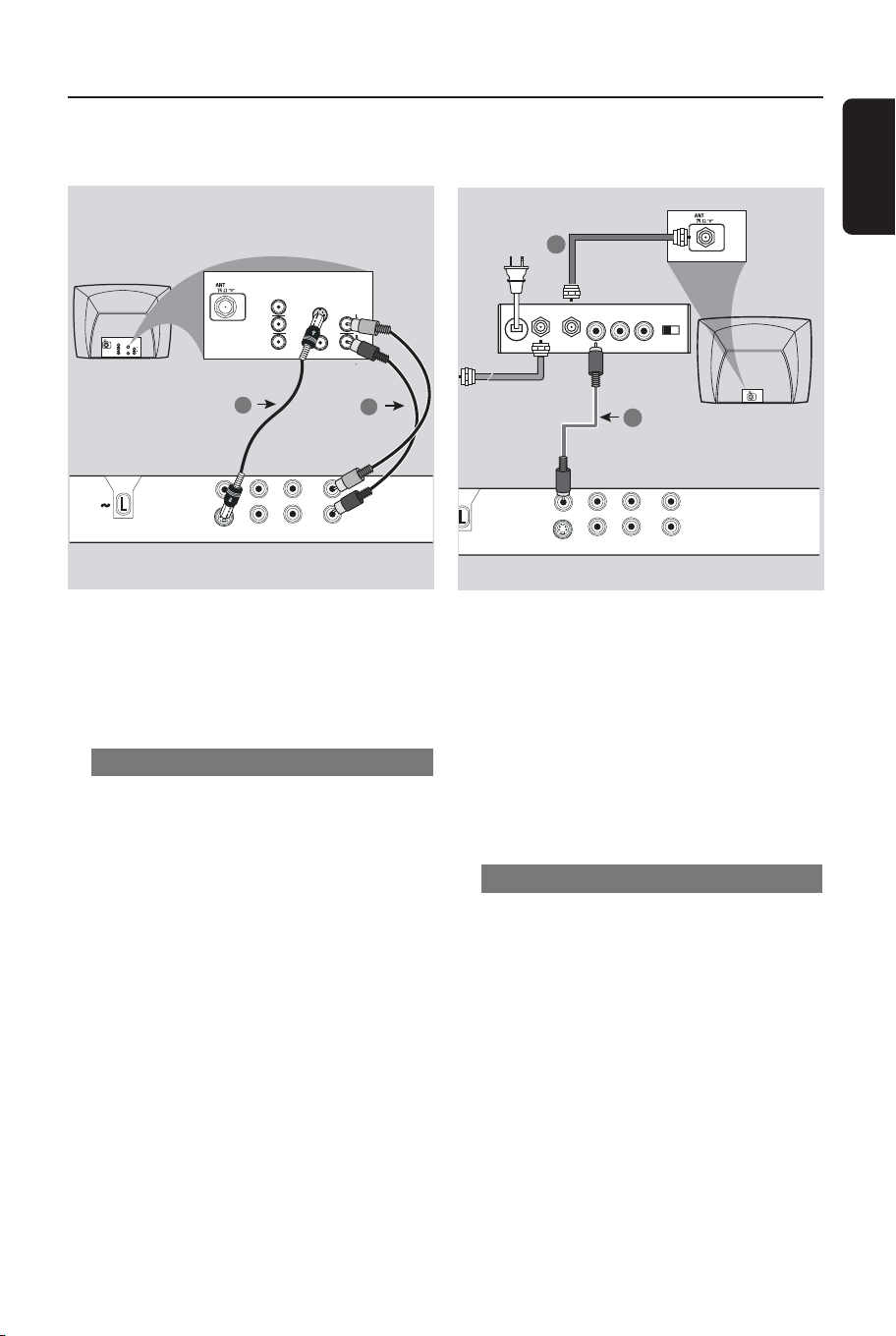
Using S-Video jack
1 Use the S-video cable to connect the
DVD system’s S-VIDEO OUT jack to
the S-Video input jack (or labeled as Y/C
or S-VHS) on the TV (cable not supplied).
2 To hear the sound of this DVD Player
through your TV, use the audio cables
(white/red) to connect AUDIO OUT (L/
R) jacks of the DVD Player to the
corresponding AUDIO IN jacks on the TV
(cable supplied).
IMPORTANT!
– If your TV only has a single
Antenna In jack (or labeled as 75
ohm or RF In,) you will need an RF
modulator in order to view the DVD
playback on the TV. See your
electronics retailer or contact
Philips for details on RF modulator
availability and operations.
Using an accessory RF modulator
1 Use the composite video cable (yellow) to
connect the DVD Player’s CVBS (VIDEO
OUT) jack to the video input jack on the
RF modulator.
2 Use the RF coaxial cable (not supplied) to
connect the RF modulator to your TV’s
RF jack.
Y
VIDEO OUT
S-VIDEO OUT
COAXIAL
DIGITAL OUT
L
R
AUDIO OUT
Pb
Pr
COMPONENT
VIDEO OUT
AUDIO IN
R L
VIDEO
IN
TO TVANT IN
CH3 CH4
2
1
RF coaxial cable to TV
Back of RF Modulator
(example only)
Antenna or
Cable TV signal
01-30 DVP522_69 24/02/2004, 2:10 PM7
8239 300 32141
English
8
Connections
Y
VIDEO OUT
S-VIDEO OUT
COAXIAL
MAINS
DIGITAL OUT AUDIO O
Pb
Pr
COMPONENT
VIDEO OUT
~ AC MAINS
AUDIO
IN
V (Pr/Cr)
U (Pb/Cb)
Y
S-VIDEO
IN
VIDEO IN
COMPONENT
VIDEO IN
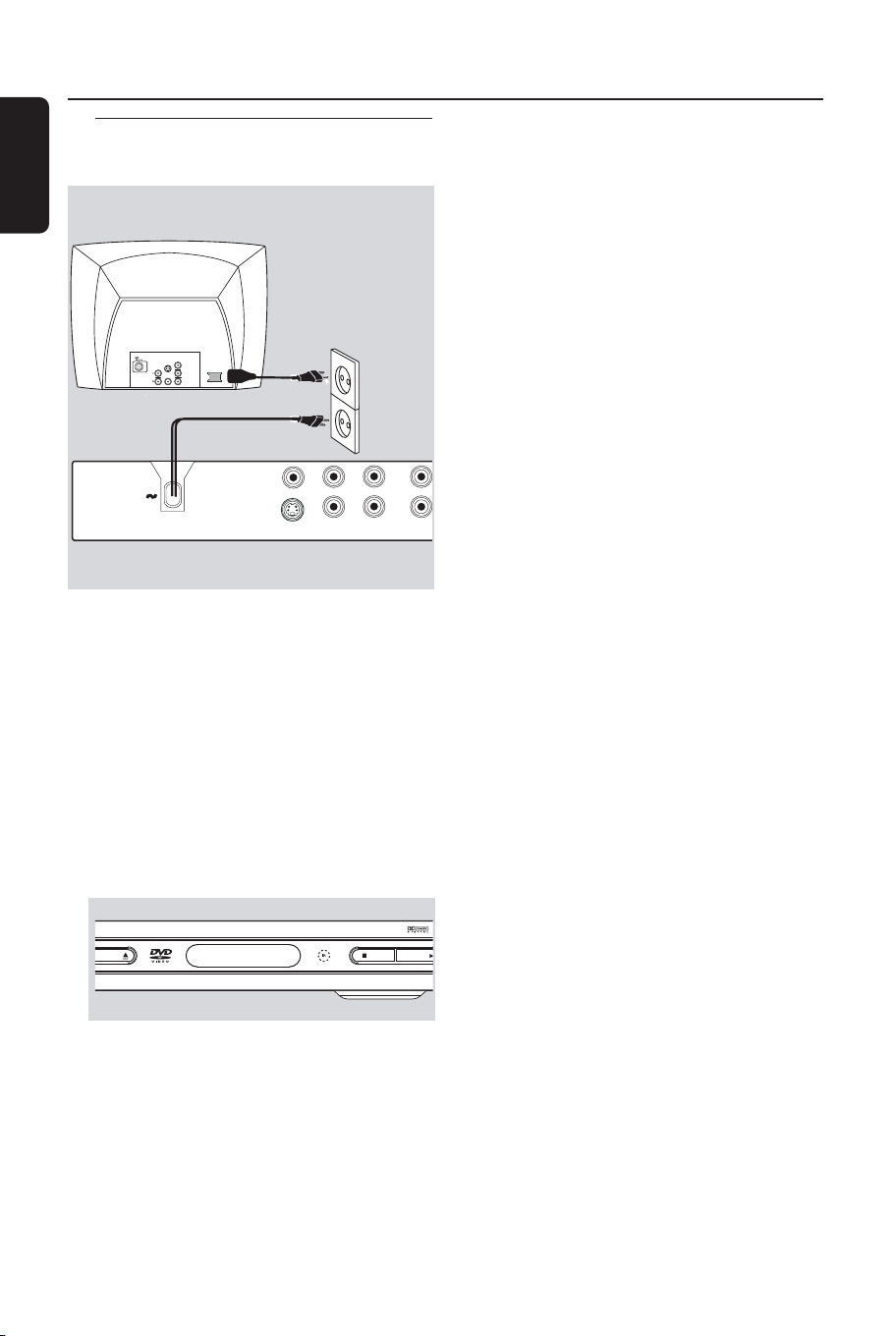
After everything is connected
properly, plug in the AC power cord
to the power outlet.
Never make or change any connections
with the power switched on.
When no disc is loaded, press
STANDBY ON on the DVD Player
front panel,
“NO DISC” may appear on the
display panel.
EN/CLOSE
STOP PLAY/PAUSE
Connecting the power cord
NO DISC
01-30 DVP522_69 24/02/2004, 2:10 PM8
8239 300 32141
English
9
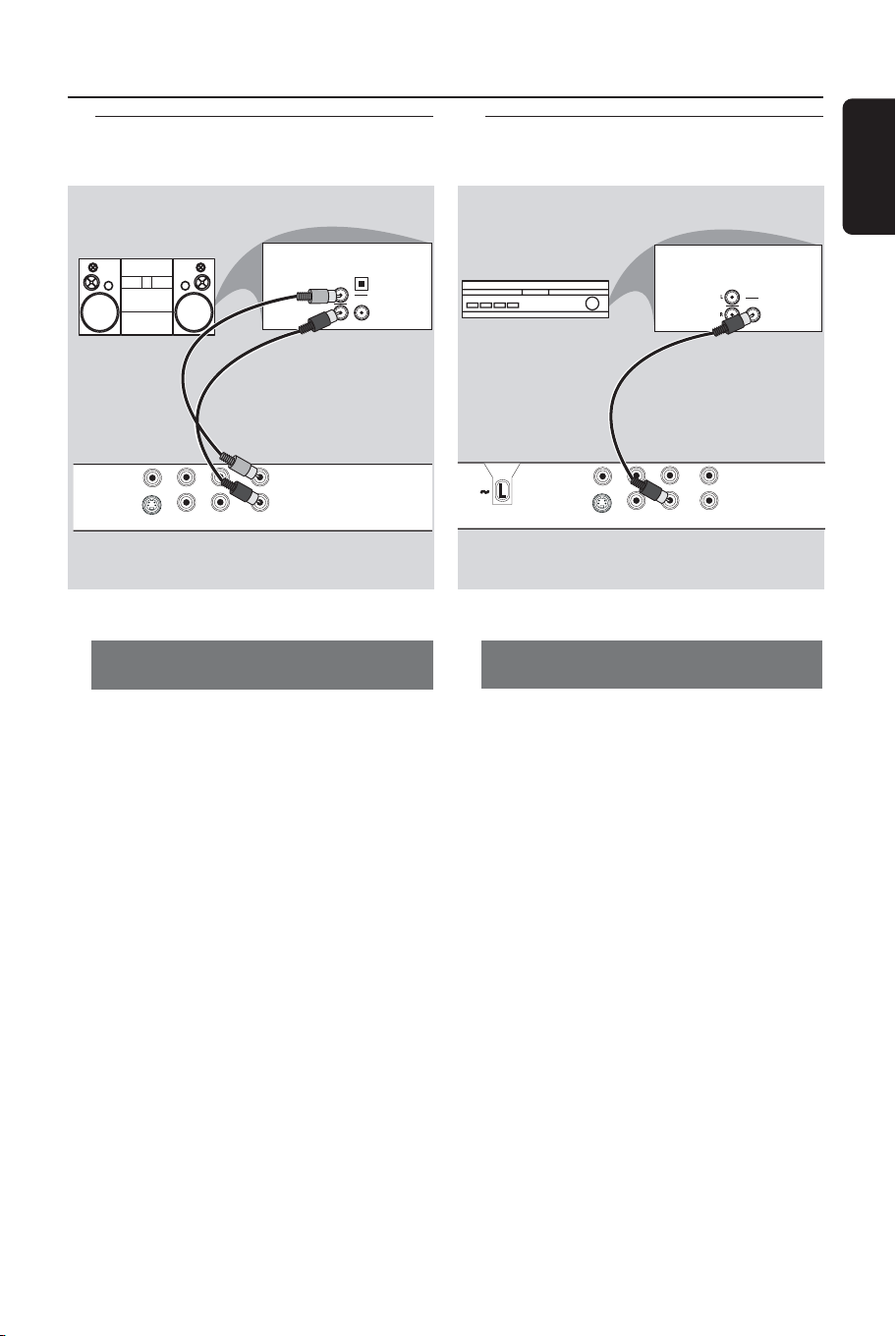
Stereo system has Dolby Pro Logic
or Right / Left Audio In jack
1 Select one of the video connections
(VIDEO IN, S-VIDEO IN or Component
Video (Y Pb Pr) jack depending on the
options available on your TV.
2 Use the audio cables (white/red) to
connect AUDIO OUT (L/R) jacks of
the DVD Player to the corresponding
AUDIO IN jacks on the stereo system
(cable supplied).
Connections
Y
VIDEO OUT
S-VIDEO OUT
COAXIAL
DIGITAL OUT
L
R
AUDIO OUT
Pb
Pr
COMPONENT
VIDEO OUT
AUDIO
IN
STEREO
DIGITAL
OPTICAL
Optional: Connecting to an
Audio System
Optional: Connecting Digital AV
Receiver
Y
VIDEO OUT
S-VIDEO OUT
COAXIAL
MAINS
DIGITAL OUT
L
R
AUDIO OUT
Pb
Pr
COMPONENT
VIDEO OUT
AUDIO
IN
COAXIAL
AV Receiver
Receiver has a PCM, Dolby Digital,
or MPEG2 decoder
1 Select one of the video connections
VIDEO IN, S-VIDEO IN or Component
Video (Y Pb Pr) jack depending on the
options available on your TV.
2 Connect the COAXIAL jack of the DVD
Player to the corresponding Digital Audio
In jack on your Receiver (cable not
supplied).
3 Set the DVD Player’s Digital Output to
PCM-ONLY or ALL depending on the
capabilities of your Receiver (see page 21
“Digital Output”).
Helpful Hint:
– If the audio format of the Digital Output
does not match the capabilities of your
receiver, the receiver will produce a strong,
distorted sound or no sound at all.
01-30 DVP522_69 24/02/2004, 2:10 PM9
8239 300 32141
English
10
Functional Overview
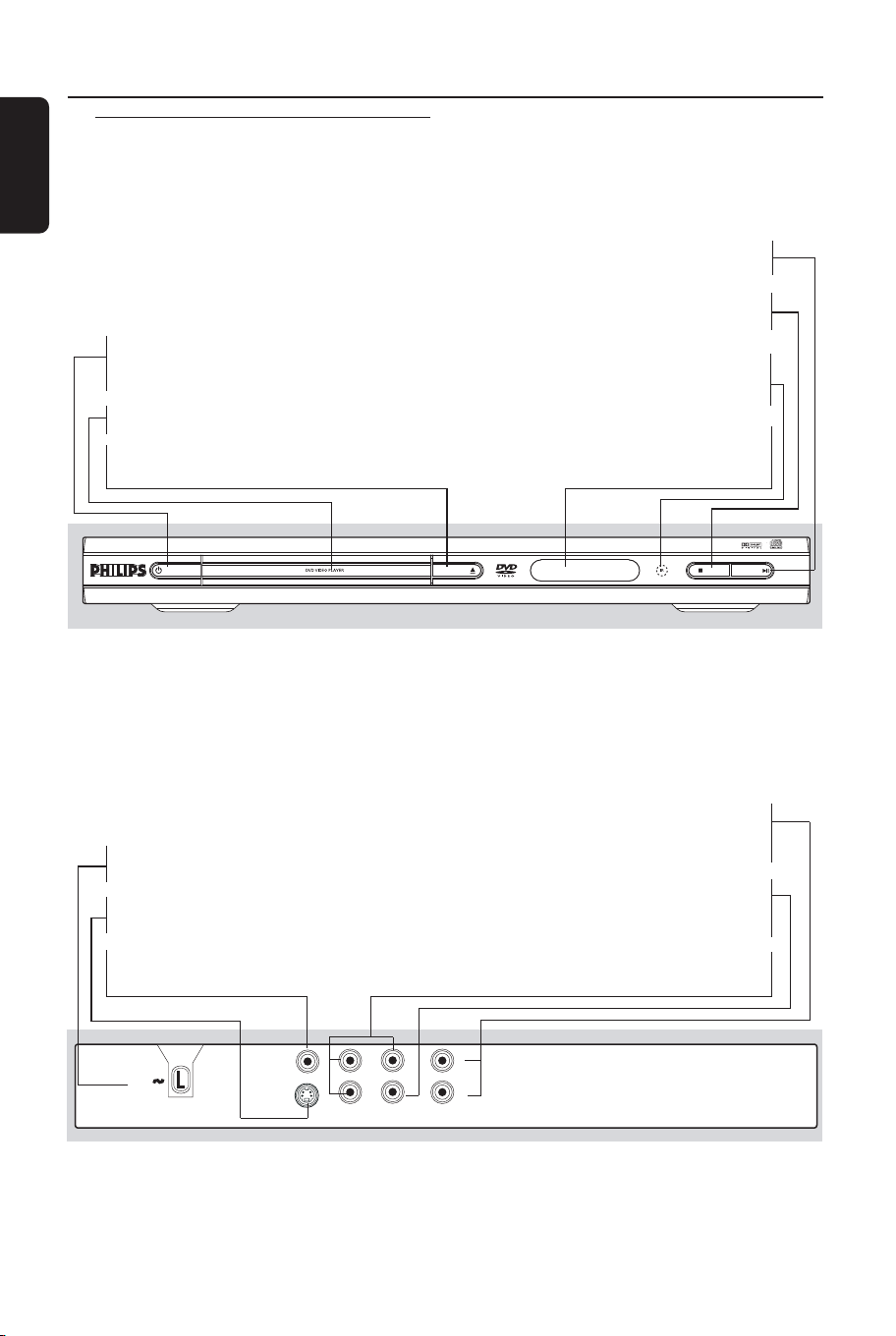
Front and Rear Panels
Audio Out (Left/Right)
– Connect to AUDIO inputs of an amplifier,
receiver or stereo system
Digital Out (Coaxial)
– Connect to coaxial AUDIO input of a
digital audio equipment
Component Video Out (Y Pb Pr)
– Connect to a TV with Y Pb Pr inputs
STANDBY-ON OPEN/CLOSE
STOP PLAY/PAUSE
STANDBY-ON B
–To switch the DVD Player to Standby
mode or ON
Disc tray
OPEN/CLOSE /
– Open/Close the disc tray
2; PLAY/PAUSE
– To start or interrupt playback
9 STOP
– To stop playback
IR Sensor
– Point the remote control towards this
sensor
Display
– Shows the current status of the DVD
Player
Y
VIDEO OUT
S-VIDEO OUT
COAXIAL
MAINS
DIGITAL OUT
L
R
AUDIO OUT
Pb
Pr
COMPONENT
VIDEO OUT
Mains (AC Power Cord)
– Connect to a standard AC outlet
S-Video Out
– Connect to S-Video input of a TV
Video Out (CVBS)
– Connect to CVBS Video input of a TV
Caution: Do not touch the inner pins of the jacks on the rear panel.
Electrostatic discharge may cause permanent damage to the unit.
01-30 DVP522_69 24/02/2004, 2:10 PM10
8239 300 32141
English
11
Functional Overview
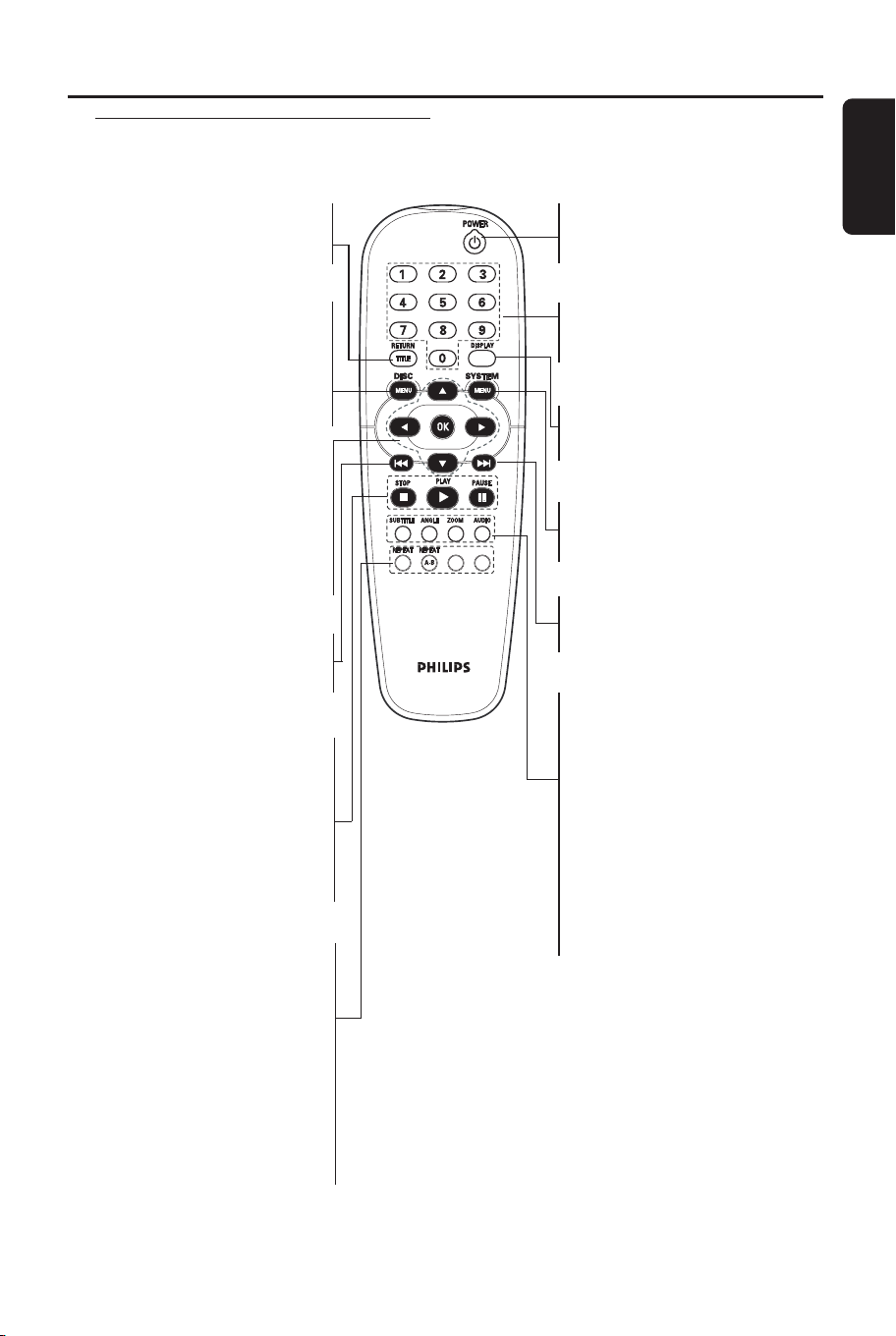
Remote Control
PREVIEW MUTE
MUTE
RETURN / TITLE
– To go back to previous menu /
show title menu
DISC MENU
– Enters or exits the disc contents
menu
– Switches on or off the playback
control mode (for VCD version
2.0 only)
1 2 3 4
– Selects an item in the menu/
fast backward/forward, slow forward/
backward
OK
– Acknowledge menu selection
S
– To search or select previous
chapter or track
STOP ( 9 )
– To stop playback
PLAY ( B )
– To start playback
PAUSE ( ; )
– To pause playback temporarily /
frame-by-frame playback
REPEAT
– Selects various repeat modes
REPEAT (A-B)
– Repeats playback a specific section
on a disc
PREVIEW
– To preview the content of a track
or whole disc
MUTE
– Disables or enables sound output
POWER B
–To switch the DVD player to
standby mode or ON
0-9 numerical key pad
– Selects numbered items in a
menu
DISPLAY
– Displays information on TV
screen during playback
SYSTEM MENU
– Access or exit DVD Player’s
system menu
T
–To search or select next chapter
or track
SUBTITLE
–To access subtitle language in disc
menu
ANGLE
– Selects a DVD camera angle
ZOOM
– Enlarge or reduce a picture on
the TV screen
AUDIO
–To access audio language in disc
menu
01-30 DVP522_69 24/02/2004, 2:10 PM11
8239 300 32141
English
12
STOP
PREVIEWPREVIEW MUTEMUTE
Getting Started
Step 1: Inserting batteries into
the Remote Control
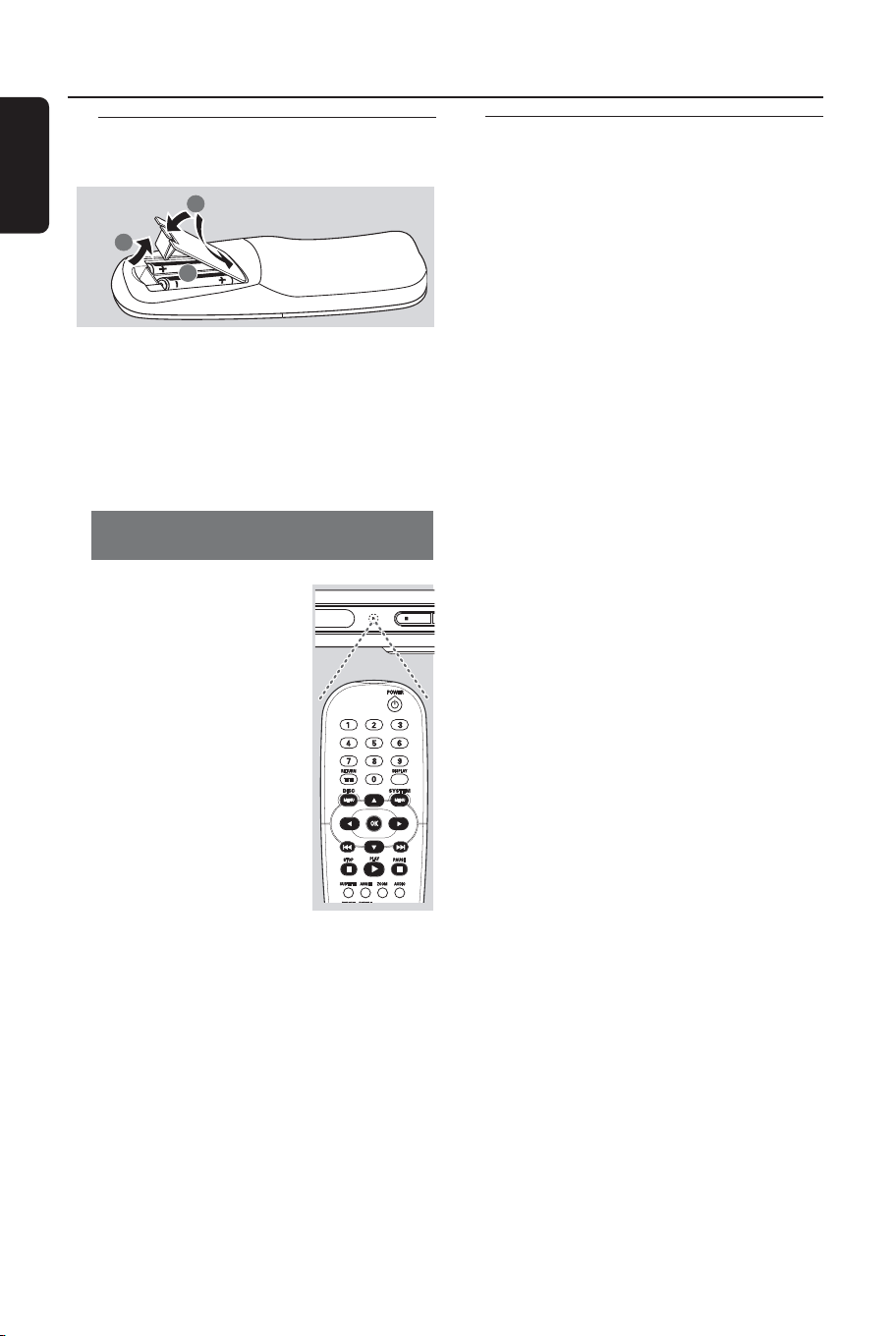
1
3
2
1 Open the battery compartment.
2 Insert two batteries type R06 or AA,
following the indications (+-) inside
the compartment.
3 Close the cover.
Using the Remote Control to
operate the Player
1 Aim the Remote Control
directly at the remote
sensor (IR) on the front
panel.
2 Do not put any objects
between the Remote
Control and the DVD
Player while operating the
DVD Player.
CAUTION!
– Remove batteries if they are
exhausted or if the Remote Control
is not being used for a long time.
– Do not use old and new or
different types of batteries in
combination.
– Batteries contain chemical
substances, so they should be
disposed properly.
Step 2: Setting up the TV
IMPORTANT!
Make sure you have completed all
the necessary connections. (See
pages 6-7 “Connecting TV”).
1 Turn on the TV and set to the correct
video-in channel. You should see the blue
Philips DVD background screen on the
TV.
➜Usually these channels are between the
lowest and highest channels and may be
called FRONT, A/V IN, or VIDEO. See your
TV manual for more details.
➜Or, you may go to channel 1 on your
TV, then press the Channel down button
repeatedly until you see the Video In
channel.
➜Or, the TV Remote Control may have a
button or switch that chooses different
video modes.
➜Or, set the TV to channel 3 or 4 if you
are using an RF modulator.
2 If you are using external equipment, (eg.
audio system or receiver), turn it on and
select the appropriate input source for
the DVD Player output. Refer to the
equipment owner’s manual for detail.
01-30 DVP522_69 24/02/2004, 2:10 PM12
8239 300 32141
English
13
Getting Started
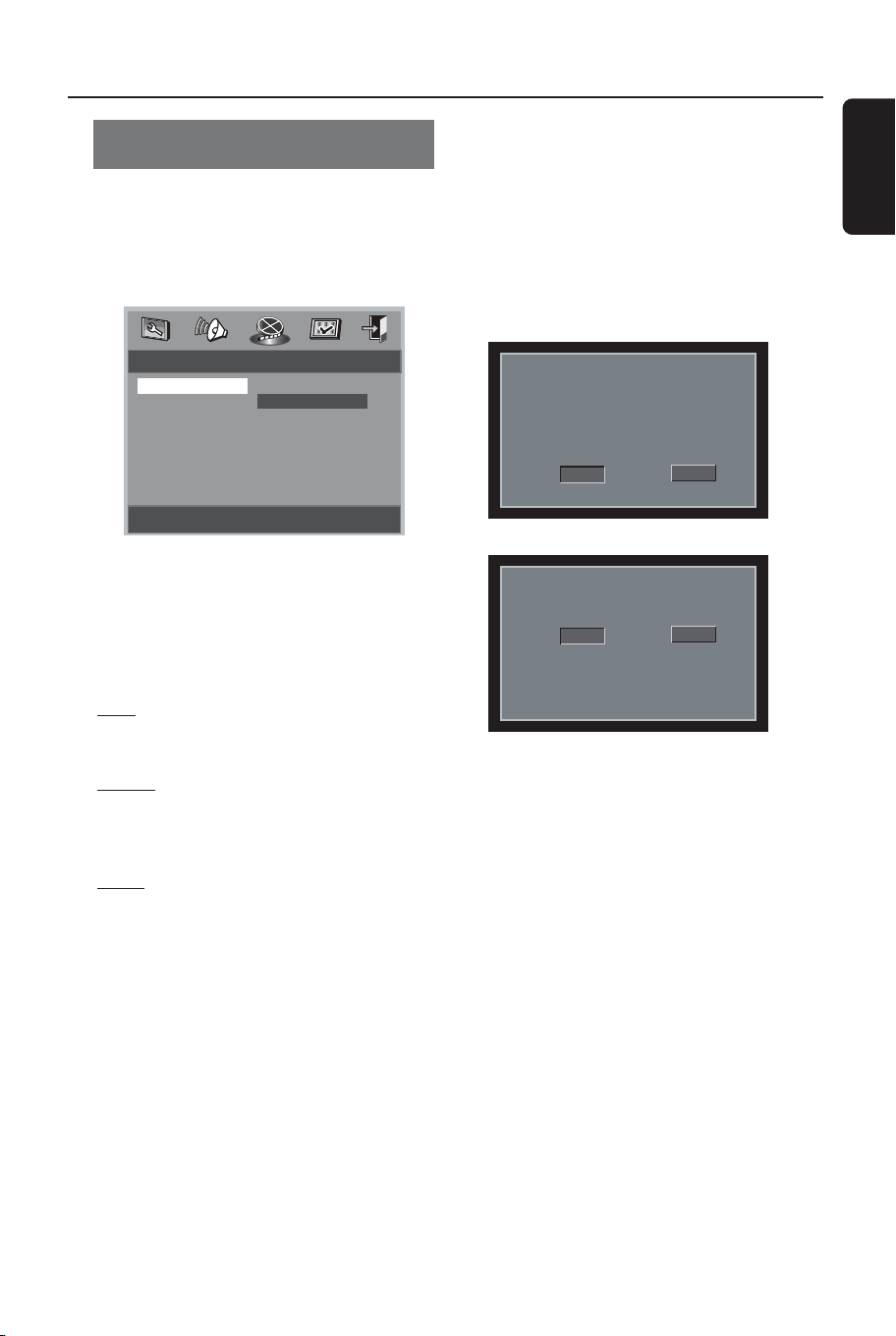
1 Press SYSTEM MENU.
2 Press 1 2 to select ‘Video Setup Page’.
3 Use the 1 2 3 4 keys on the Remote
Control to navigate in the menu.
Move to ‘TV Type’ and press 2.
PAL – Select this if the connected TV is
PAL system. It will change the video signal
of a NTSC disc and output in PAL format.
NTSC – Select this if the connected TV
is NTSC system. It will change the video
signal of a PAL disc and output in NTSC
format.
Multi – Select this if the connected TV is
compatible with both NTSC and PAL
(multi-system). The output format will be
in accordance with the video signal of the
disc.
4 Select an item and press OK.
Selecting the colour system that
corresponds to your TV
This DVD Player is compatible with both
NTSC and PAL. In order for a DVD disc
to play on this Player, the colour system of
the Disc, the TV and the DVD Player
should match.
- - Video Setup Page - -
Set TV Standard
TV Type PAL
TV Display NTSC
Closed Captions Multi
Angle Mark
Progressive
Smart Picture
Picture Setting
Helpful Hint:
– Before changing the current TV
Type setting, ensure that your TV
supports the ‘selected TV Type’ system.
–Follow the instructions that
appears on the TV screen.
– If there is no proper picture on
your TV, wait for 15 seconds for auto
recovery.
HINTS:(refer to the owner's manual
Changing to (selected TV Type)
1. Ensure your TV supports it.
2. If there is a blank screen on normal TV,
wait 15 seconds for auto recover
< > - Move
OK - Select
Cancel
OK
Confirm again to use (selected TV Type)
If picture is good press OK on remote
TO GO BACK TO (Current TV Type):
1. Open tray
2. Press '3' Key
< > - Move
OK - Select
Cancel
OK
To exit from the menu
Press SYSTEM MENU or select ‘Exit
Setup Menu’ and then press OK.
01-30 DVP522_69 24/02/2004, 2:10 PM13
8239 300 32141
English
14
Step 3: Setting language
preference
You can select your own preferred
language settings.This DVD system will
automatically switch to the selected
language whenever you load a disc. If the
language selected is not available on the
disc, the disc’s default language will be
used instead. The OSD language in the
system menu will remain once selected.
Setting the OSD Language
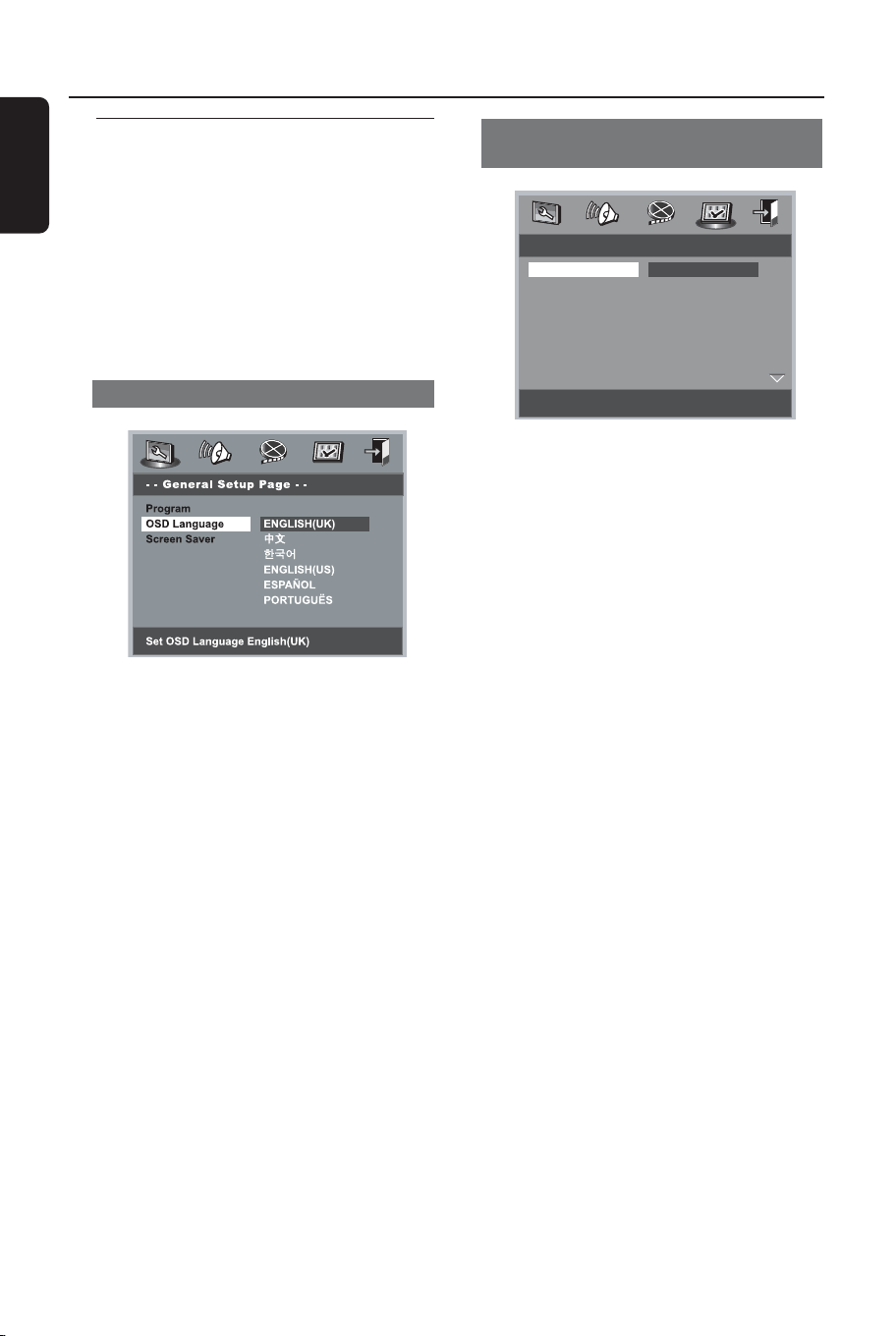
1 Press SYSTEM MENU.
2 Press 1 2 to select ‘General Setup’ page.
3 Use the 1 2 3 4 keys on the Remote
Control to navigate in the menu.
Move to ‘OSD Language’ and press 2.
4 Select a language and press OK.
To exit from the menu
Press SYSTEM MENU or select ‘Exit
Setup Menu’ and then press OK.
Setting the Audio, Subtitle and Disc
menu language
- - Preference Page - -
Set Preference To English
Audio English
Subtitle Chinese
Disc Menu Japanese
Parental French
Password German
Default Spanish
Dutch
Italian
1 Press STOP twice then, press SYSTEM
MENU.
2 Press 1 2 to select ‘Preference Page’.
3 Press 3 4 to highlight the following in the
Preference Page.
–‘Audio’ (disc’s soundtrack)
– ‘Subtitle’ (disc’s subtitles)
– ‘Disc Menu’ (disc’s menu)
4 Enter its submenu by pressing B.
5 Select a language and press OK.
6 Repeat steps 3~5 for other language
settings.
To exit from the menu
Press SYSTEM MENU or select ‘Exit
Setup Menu’ and then press OK.
If you choose OTHERS in Audio,
Subtitle or Disc Menu,
1 Press 3 4 to highlight ‘Others’.
2 Press OK and when you are asked to
enter a language code (see ‘Language
Code’ on page 59).
3 Input a language code by using the
numeric keypad (0-9).
4 Press OK to confirm.
Getting Started
01-30 DVP522_69 24/02/2004, 2:10 PM14
8239 300 32141
English
15
Disc Operations
IMPORTANT!
– Depending on the DVD or VIDEO
CD, some operations may be
different or restricted.
– Do not push on the disc tray or
put any objects other than disc on
the disc tray. Doing so may cause
the disc player malfunction.
Playable Discs
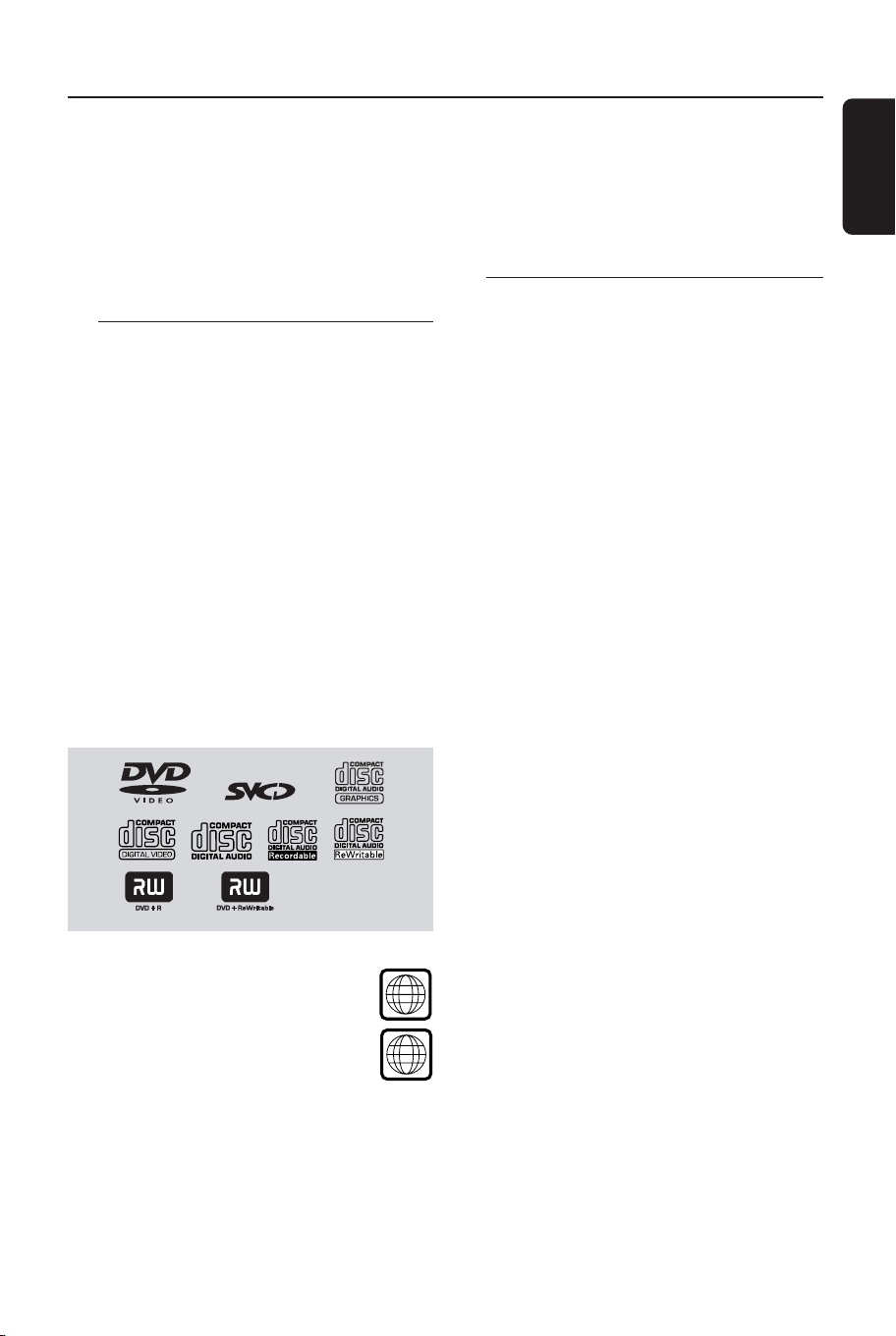
Your DVD Player will play:
– Digital Versatile Discs (DVDs)
– Video CDs (VCDs)
– Super Video CDs (SVCDs)
– Digital Versatile Discs + Recordable
(DVD+R)
– Digital Versatile Discs + Rewritable
(DVD+RW)
– Compact Discs (CDs)
– MP3 disc on CD-R(W):
– Maximum 30 characters display.
– Supported sampling frequencies :
32 kHz, 44.1 kHz, 48 kHz
– Supported Bit-rates : 32~256 kbps
variable bitrates
– Picture (JPEG) files on CD-R(W):
– JPEG/ISO 9660 format.
Region Codes
DVDs must be labelled for ALL
regions or Region 3 in order to
play on this DVD system. You
cannot play discs that are labelled
for other regions.
Helpful Hint:
– If you are having trouble playing a
certain disc, remove the disc and try a
different one. Improper formatted disc will
not play on this DVD Player.
ALL
IMPORTANT!
If the inhibit icon (
ø) appears on the
TV screen when a button is pressed,
it means the function is not available
on the current disc or at the current
time.
Playing discs
1 Connect the power cords of the DVD
Player and TV (and any optional stereo or
AV receiver) to a power outlet.
2 Turn on the TV power and set to the
correct Video In channel. (See page 12
“Setting up the TV”).
3 Press STANDBY-ON on the DVD Player
front panel.
➜You should see the blue Philips DVD
background screen on the TV.
4 Press OPEN•CLOSE 0 button to open
the disc tray and load in a disc, then press
the same button again to close the disc
tray.
➜Make sure the label side is facing up.
For double-sided discs, load the side you
want to play facing up.
5 Playback will start automatically
(depending on the disc type).
➜If a disc menu appears on the TV, see
“Using the Disc Menu”.
➜If the disc is locked by parental control,
you must enter your four-digit password.
(See page 26).
6 At any time, simply press STOP to stop
playback.
3
01-30 DVP522_69 24/02/2004, 2:10 PM15

8239 300 32141
English
16
Disc Operations
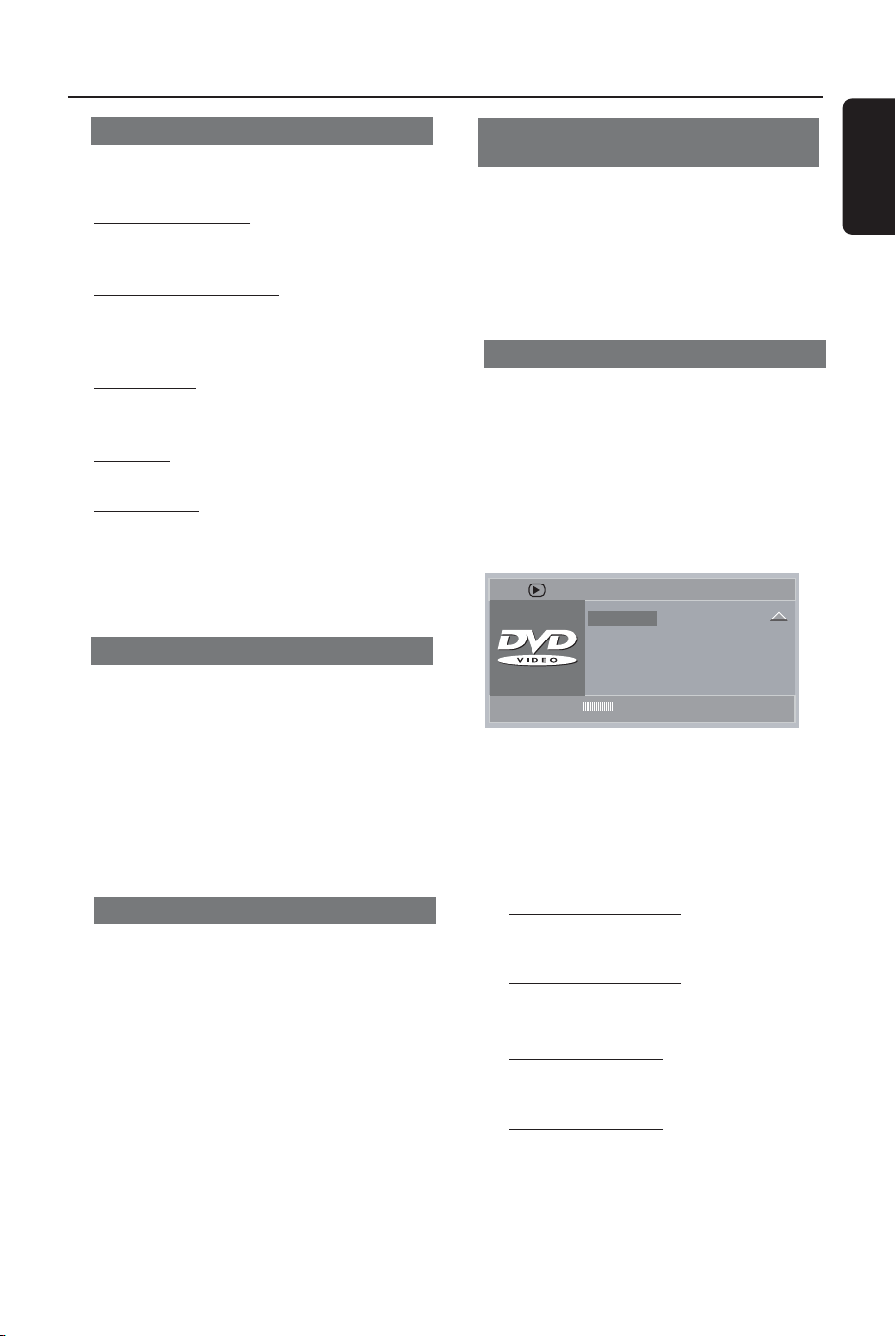
Using the Disc Menu
Depending on the disc, a menu may
appear on the TV screen once you load
the disc.
To select a playback feature or item
● Use the 1 2 3 4 or numeric keypad
(0-9) on the Remote Control, then press
PLAY B to start playback.
To access or exit from the menu
● Press DISC MENU on the Remote
Control.
For VCD with Playback Control
(PBC) feature (version 2.0 only)
PBC playback allows you to play Video
CDs interactively, following the menu on
the display.
● In stop mode, use the numeric keypad
(0-9) to select a track and PBC will turn
off.
➜ Playback will start automatically
● During playback, press DISC MENU;
➜ If PBC was ON, it will switch to OFF
and continue playback.
➜If PBC was OFF, it will switch to ON
and return to menu screen.
● During playback, pressing RETURN/
TITLE will return to the menu screen (if
PBC is on).
Basic playback controls
Unless otherwise stated, all operations
described are based on the use of
Remote Control.
Pausing playback
(DVD/SVCD/VCD/CD/MP3)
1 During playback, press PAUSE ;.
➜Playback will pause and sound will be
muted.
2 Press PAUSE ; again to select the next
picture frame.
3 To r e turn to normal playback, press
PLAY B.
Selecting track/chapter
(DVD/SVCD/VCD/CD)
1 Press T briefly during playback to go
to the next chapter/track
2 Press S to go to the previous track
(VCD/CD) or return to the beginning of
the current chapter (SVCD/DVD).
● Press S twice briefly to step back to
the previous chapter (SVCD/DVD).
3 To go directly to any chapter/track, enter
the chapter/track number using the
numerical keys (0-9).
Resuming playback from the last
stopped point (DVD/VCD/CD/MP3)
● In stop mode and when the disc has not
been ejected, press PLAY B.
To cancel resume mode
● In stop mode, press STOP 9 again.
Zoom (DVD/VCD/JPEG)
Zooming allows you to enlarge or reduce
the video image during playback.
1 Press ZOOM repeatedly to increase and
decrease the playback video image.
2 Press 1 2 3 4 to pan across the TV
screen.
01-30 DVP522_69 24/02/2004, 2:10 PM16
8239 300 32141
English
17
Disc Operations
Repeat (DVD/SVCD/VCD/CD)
● Press REPEAT continuously to choose a
Repeat mode during playback.
REPEAT CHAPTER (DVD)
– to repeat playback of the current
chapter.
REPEAT TRACK/TITLE (CD/SVCD/VCD/
DVD)
– to repeat playback of the current
track (CD/SVCD/VCD)/title (DVD).
REPEAT ALL
– to repeat playback of all the disc and
all the programmed tracks.
SHUFFLE
– to repeat playback at random order.
REPEAT OFF
– to cancel the repeat mode.
Helpful Hint:
– REPEAT function is not available for VCD
2.0 when PCB is on.
Repeat A-B (DVD/VCD/CD)
1 Press REPEAT A-B at your chosen
starting point.
2 Press REPEAT A-B again at your chosen
end point.
➜The section A and B can be set only
within the same chapter/track.
➜The section will now repeat continuously.
3 To exit the sequence, press REPEAT A-B.
Forward / Reverse Searching
(DVD/VCD/CD)
1 Press 1 2 during playback to select the
required speed: 2X, 4X, 8X, 16X or 32X
(backward or forward).
➜Sound will be muted (DVD/VCD) or
intermittent (CD).
2 To return to normal speed, press PLAY B.
Slow Motion (DVD/VCD)
1 Press 3 4 during playback to select the
required speed: 1/2, 1/4, 1/8 or 1/16
(backward or forward).
➜Sound will be muted.
2 To return to normal speed, press PLAY B.
Helpful Hint:
– Slow backward is not possible on VCDs.
Time Search (DVD/VCD)
The Time Search function allows you to
start playing at any chosen time on the
disc.
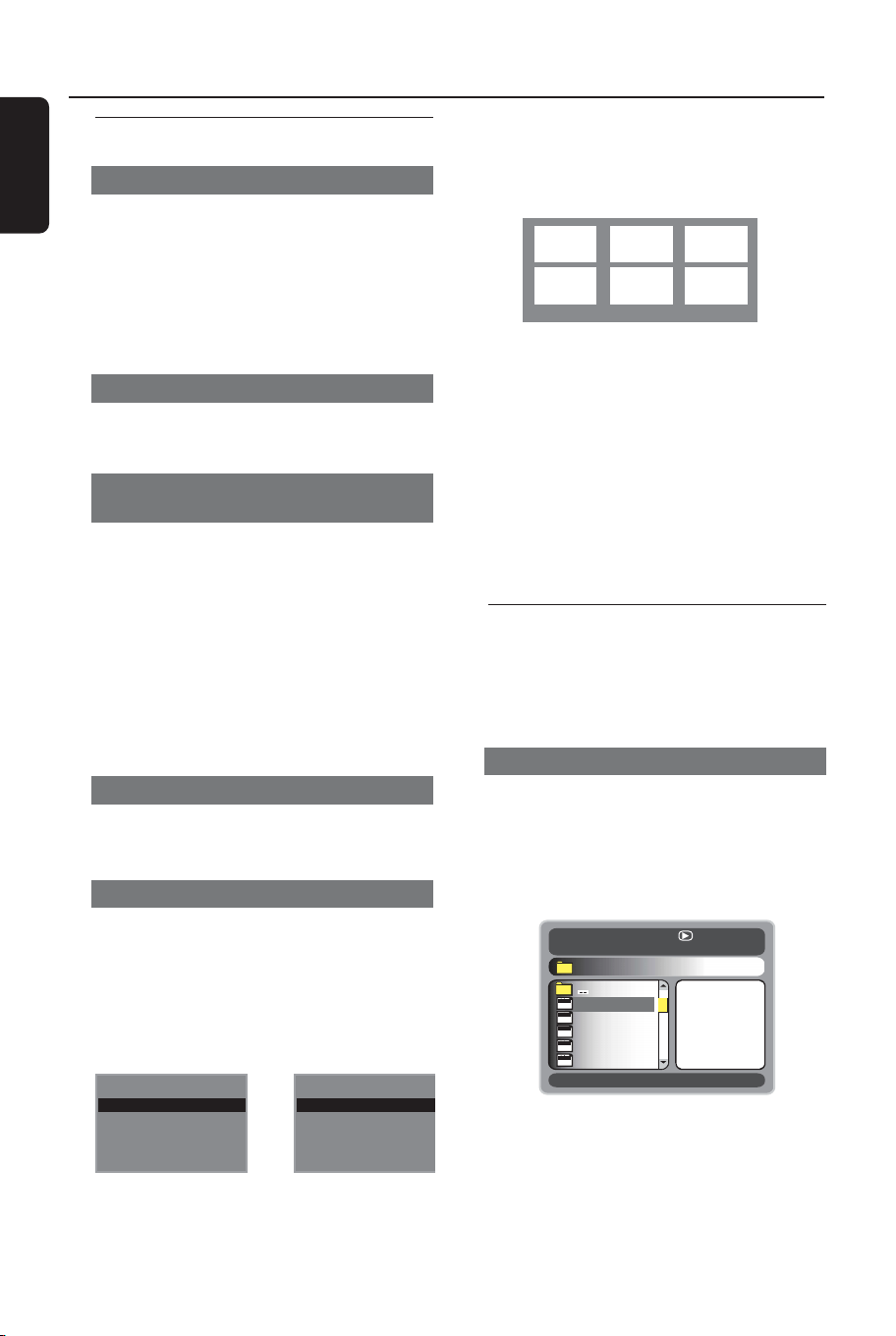
1 Press DISPLAY.
2 Press 3 4 to highlight time search box.
➜The on-screen display shows the total
playing time of the title/chapter.
Bitrate 67 TT Elapsed 0:16:35
Bitrate 67 TT Elapsed 0:16:35
TT Time
TT Time
0:03:01
0:03:01
CH Time
CH Time
0:01:08
0:01:08
Repeat
Repeat
Off
Off
Time Disp.
Time Disp.
TT Elapsed
TT Elapsed
Menu
Menu
3 Use 2 keys to select an option.
4 Enter hours, minutes and seconds from
left to right in the time edit box using
remote control numerical key pad.
(e.g. 0:34:27)
For DVD
➜
Title/Chapter Remain: displays the
remaining time of the current title/
chapter.
➜
Title/Chapter Elapsed: displays the
elapsed time of the current title/chapter.
For Super VCD or VCD
➜
Total/Single Remain: displays the
remaining time of the current total/single
track.
➜
Total/Single Elapsed: displays the
elapsed time of the current total/single
track.
5 Press the DISPLAY key to confirm.
➜Playback starts from the selected time
on the disc.
01-30 DVP522_69 24/02/2004, 2:10 PM17
8239 300 32141
English
18
Disc Operations
Special disc features
Playing a Title (DVD)
1 Press DISC MENU.
➜The disc title menu appears on the TV
screen.
2 Use 341 2 keys or numeric keypad
(0-9) to select a play option.
3 Press OK key to confirm.
Camera Angle (DVD)
● Press ANGLE repeatedly to select
different desired angle.
Changing the Audio Language
(DVD/VCD)
For DVD
● Press AUDIO repeatedly to select
different audio languages.
Changing the Audio Channel
For VCD
● Press AUDIO to select the available
audio channels provided by the disc
(STEREO, MONO LEFT, MONO RIGHT
or MIX MONO).
Subtitles (DVD)
● Press SUBTITLE repeatedly to select
different subtitle languages.
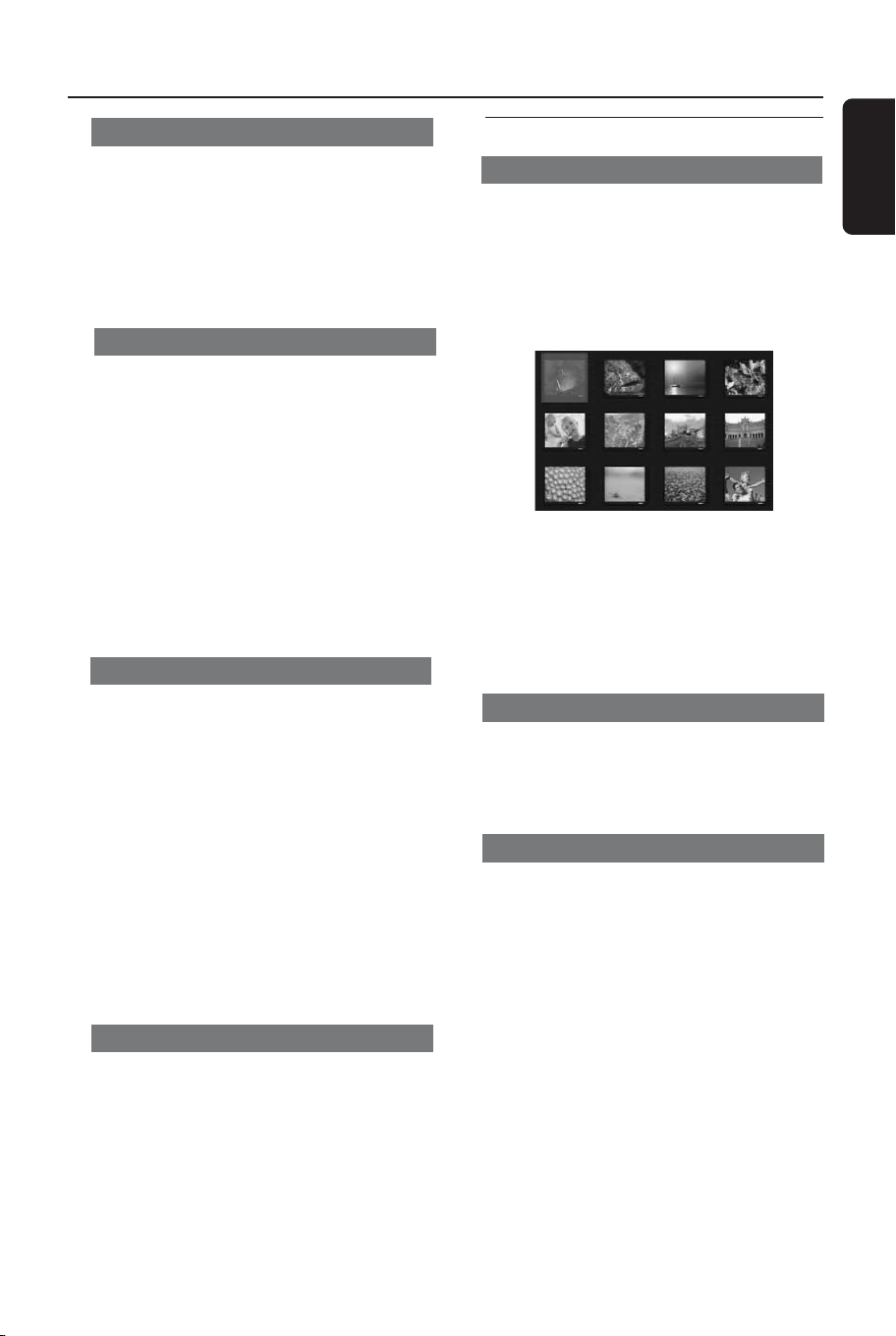
Preview Function (DVD/VCD)
The preview function allows you to see
the content of the Tracks (6 tracks shown
on screen at any one time).
1 Press PREVIEW.
➜The preview menu appears on the TV
screen.
Select Digest Type:
Title Digest
Chapter Digest
Title Interval
Chapter Interval
Select Digest Type:
Title Digest
Chapter Digest
Title Interval
Chapter Interval
Select Digest Type:
Track Digest
Disc Interval
Track Interval
Select Digest Type:
Track Digest
Disc Interval
Track Interval
(DVD example)
(Video CD example)
2 Press 3 4 to select the PREVIEW type,
then press OK.
➜The picture of each segment will
appear on the screen.
ABC
DE F
(example for 6 thumbnail pictures display)
3 Press 3 4 1 2 to select a track and input
your selected track number using the
numeric keypad (0-9), then press OK.
➜ Playback will start automatically on the
selected track.
● For CDDA (Musical CD)
➜ Press PREVIEW to listen to the first
10 seconds of each sound track in the
disc.
Playing MP3/JPEG Picture CD
IMPORTANT!
You have to turn on your TV and set to
the correct Video In channel. (See page
12 “Setting up the TV”).
General Operation
1 Load an MP3/JPEG Picture CD disc.
➜The data disc menu appears on the TV
screen.
2 Use 3 4 to select the folder and press
OK to open the folder.
00:37 03:50 128kbps
001/162
\MP3\
Song 1
Song 2
Song 3
Song 4
Song 5
MP3
MP3
MP3
MP3
MP3
3 Press 3 4 or use the numeric keypad
(0-9) to highlight an option.
4 Press OK to confirm.
➜The playback will start from the
selected file to the end of the folder.
01-30 DVP522_69 24/02/2004, 2:10 PM18
8239 300 32141
English
19
Disc Operations
Playback selection
During playback, you can;
● Press S / T to select another file in
the current folder.
● Use 1 2 3 4 on the remote to rotate/flip
the picture files.
● Press
; repeatedly to pause/resume playback.
Program playback
● In Stop mode, press DISC MENU
repeatedly to toggle the menu between
Folder and Filelist.
1 When Filelist is on the screen, press 3 4
to select the files and press 2 to add the
files to the playlist.
2 Press DISC MENU to display the playlist.
3 Press 1 to delete unwanted files from the
playlist.
Helpful Hint:
– The disc reading time may exceed 10
seconds due to large number of songs
compiled onto the disc.
Fast forward / reverse (MP3)
● During playback, press
1 2 to fast forward
or reverse playback.
● To resume normal playback, press PLAY
B.
Repeat (MP3/JPEG)
● Press REPEAT continuously to access
different ‘Play Mode’.
➜SINGLE: play the selected file once,
then return to the menu.
➜REPEAT ONE: keep a JPEG image still on
the screen or play an MP3 file repeatedly.
➜REPEAT FOLDER: play all files in the
selected folder repeatedly.
➜SHUFFLE: play all files in the selected
folder in random order.
➜FOLDER : play all files in the selected
folder.
Special JPEG features
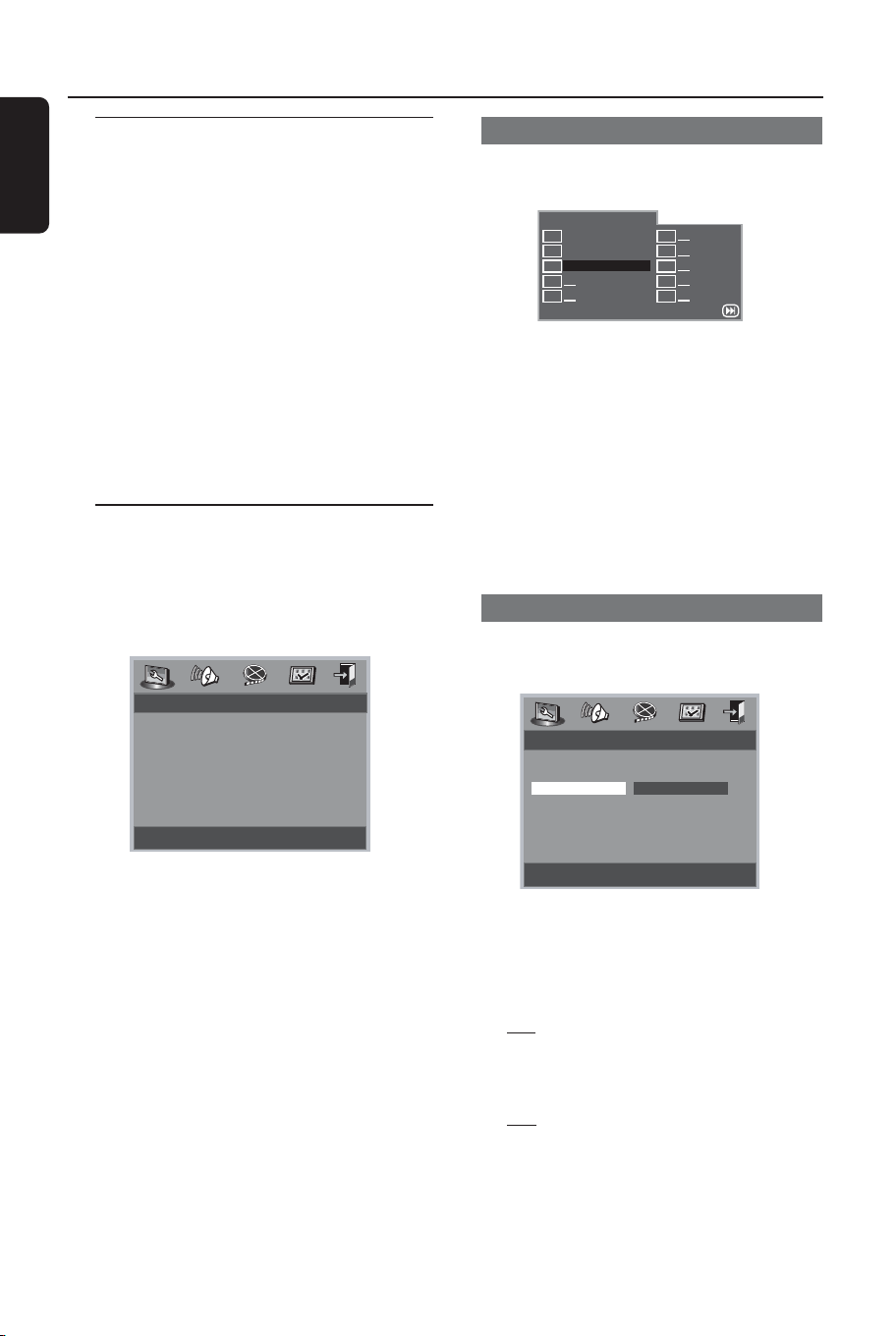
Preview Function (JPEG)
This function shows the content of the
current folder or the whole disc.
1 Press PREVIEW during playback.
➜Thumbnails of 12 pictures appears on
the TV screen.
(example for 12 thumbnail pictures display)
2 Press S / T to display the other
pictures on the previous/next page.
3 Use 1 2 3 4 to highlight one of the
picture and press OK to start playback,
4 Press DISC MENU to return to MP3/
Picture CD menu.
Zoom picture (JPEG)
● During playback, press ZOOM repeatedly
to display the picture with different scales.
● Use 1 2 3 4 to view the zoomed picture.
Playback with multi-angles (JPEG)
● During playback, press
3 4 1 2 to rotate
the picture on the TV screen.
3: flip the picture vertically
4: flip the picture horizontally
1: rotate the picture anti-clockwise
2: rotate the picture clockwise
01-30 DVP522_69 24/02/2004, 2:10 PM19
8239 300 32141
English
20
Basic Operations
1 Press SYSTEM MENU to enter the
Setup Menu.
2 Press OK to enter the next level
submenu or confirm your selection.
3 Press 1 2 to enter the submenu or
return to the previous menu.
4 Press 34 to highlight the desired menu.
To exit from the menu
Press SYSTEM MENU or select ‘Exit
Setup Menu’ and then press OK.
➜The settings will be stored in the
player’s memory even if the player is
switched off.
General Setup Page
The options included in General Setup
page are: ‘Program’, ‘OSD Language’, and
‘Screen Saver’.
Follow the steps below:
- - General Setup Page - -
Go To General Setup Page
Program
OSD Language
Screen Saver
1 Press SYSTEM MENU to enter the
setup menu.
2 Press 1 2 to select the ‘General Setup’
page.
System Menu Options
NOTE:
Some of the features in the System
Menu Options are described in
“Getting Started”.
Program (not for Picture CD/MP3)
To select favourite tracks/chapters
playback in preferred sequence.
Program:Chapter(01-12)
START NEXTExit
1
12
2
01
3
4
5
6
7
8
9
10
05
1 Use the numerical keypad (0-9) to
direct input the tracks or chapters (single
track number with digit ‘0’ in front, for
example ‘05’).
2 Move the cursor by pressing 3 4 1 2 to
select START.
3 Press OK to start playback.
Helpful Hint:
–Program can be activated only when a
disc is in the DVD player.
Screen Saver
This function is used to turn the screen
saver on or off.
- - General Setup Page - -
Screen Saver
Program
OSD Language
Screen Saver On
Off
1 Press 34 to highlight ‘Screen Saver’.
2 Enter its submenu by pressing 2.
3 Move the cursor by pressing 34 to
highlight the selected item.
➜
On: In STOP, PAUSE or No DISC
mode, if no actions are performed about
5 minutes, the screen saver will be
activated.
➜Off: Screen saver is disabled.
01-30 DVP522_69 24/02/2004, 2:10 PM20
8239 300 32141
English
21
System Menu Options
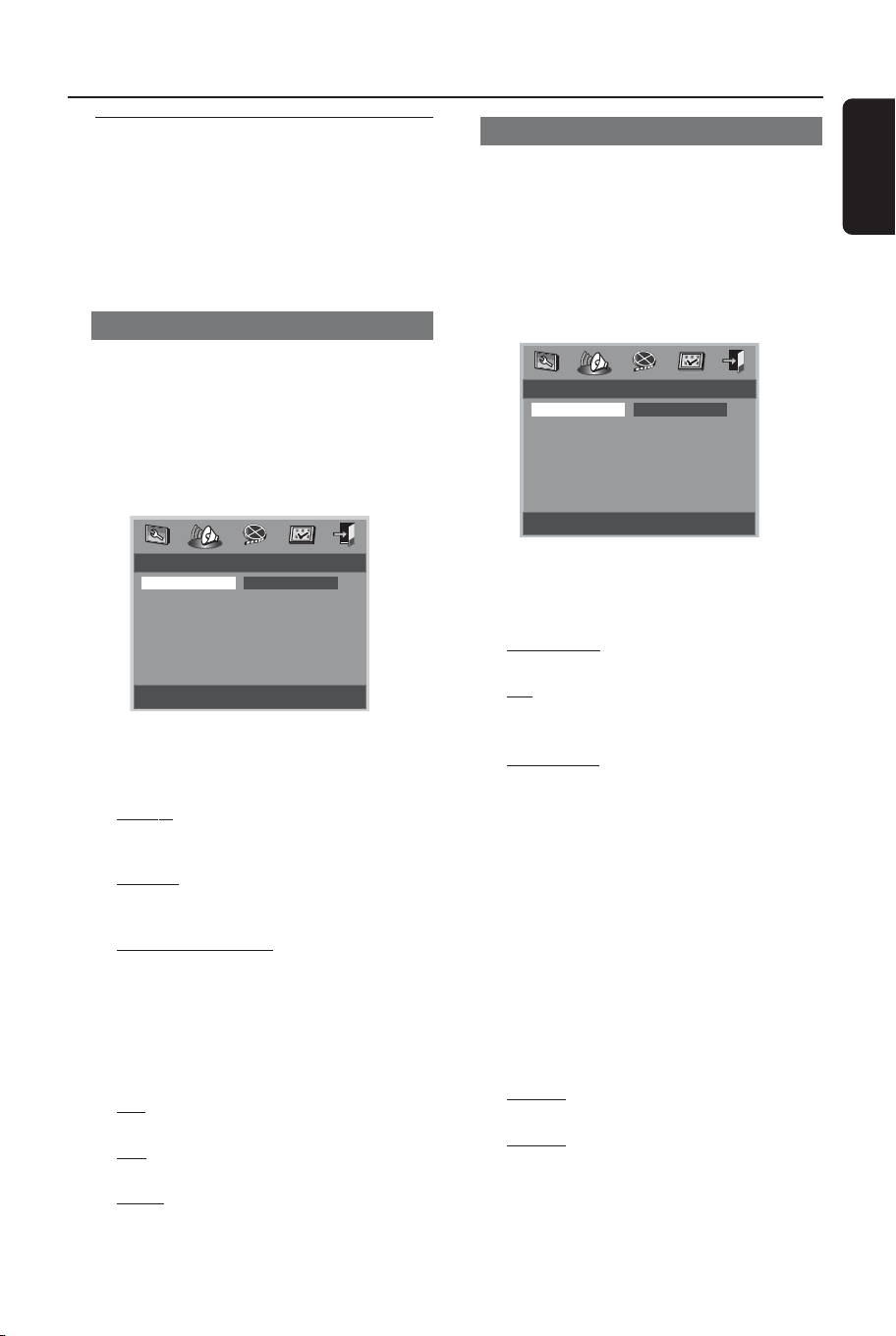
Speaker Setup
The options included in Speaker Setup
are: ‘Downmix’ and ‘D.R.C’.
1 Press the 34 keys to highlight an option.
2 Enter its submenu by pressing 2.
3 Move the cursor by pressing the 34 keys
to highlight the selected item.
- - Speaker Setup Page - -
Set Downmix Mode
Downmix LT/ RT
D.R.C Stereo
Virtual Surround
Downmix
This options allows you to set the stereo
analog output of your DVD Player.
➜
LT/RT: Select this option if your DVD
Player is connected to a Dolby Pro Logic
decoder.
➜
Stereo: Select this option when output
delivers sound from only the two front
speakers.
➜
Virtual Surround: Allows the DVD
player to use virtual surround sound
effects.
D.R.C (Dynamic Range Control)
Analogue sound dynamic range
compression.
➜
On: Audio with fully compressed
dynamic range.
➜
Off: Audio with uncompressed dynamic
range.
➜Auto: Select ‘Auto’ to adjust the
dynamic level automatically according to
the disc record.
Digital Audio Setup
The options included in Digital Audio
Setup are: ‘Digital Output’ and ‘LPCM
Output’.
1 Press the 34 keys to highlight an option.
2 Enter its submenu by pressing 2.
3 Move the cursor by pressing the 34 keys
to highlight the selected item.
- - Digital Audio Page - -
Setup SPDIF
Digital Output SPDIF Off
LPCM Output All
PCM Only
Digital Output
Set the Digital output according to your
optional audio equipment connection.
➜
SPDIF Off: Turns off the SPDIF
output.
➜
All: If you have connected your
DIGITAL AUDIO OUT to a multi-channel
decoder/receiver.
➜
PCM Only: Only if your receiver is not
capable of decoding multi-channel audio.
Helpful Hint:
– If DIGITAL OUTPUT is set to ‘All’, all
audio settings except MUTE are invalid.
LPCM Output
If you connect the DVD Player to a PCM
compatible receiver via the digital
terminals, such as coaxial or optical etc,
you may need to adjust ‘LPCM Output’.
Discs are recorded at a certain sampling
rate. The higher the sampling rate, the
better the sound quality.
➜
48kHz: Playback a disc recorded at the
sampling rate of 48kHz.
➜
96kHz: Playback a disc recorded at the
sampling rate of 96kHz.
Helpful Hint:
– LPCM Output can be selected only when
PCM Only is activated.
Audio Setup Page
The options included in Audio Setup page
are: ‘Speaker Setup’, ‘Digital Audio Setup’,
‘Dolby Digital Setup’, ‘Equalizer’ and ‘3D’.
1 Press SYSTEM MENU.
2 Press 1 2 to select the ‘Audio Setup’ page.
01-30 DVP522_69 24/02/2004, 2:10 PM21
8239 300 32141
English
22
System Menu Options
Dolby Digital Setup
The options included in Dolby Digital
Setup are: ‘Dual Mono’ and ‘Dynamic’.
1 Press the 34 keys to highlight an option.
2 Enter its submenu by pressing 2.
3 Move the cursor by pressing the 34 keys
to highlight the selected item.
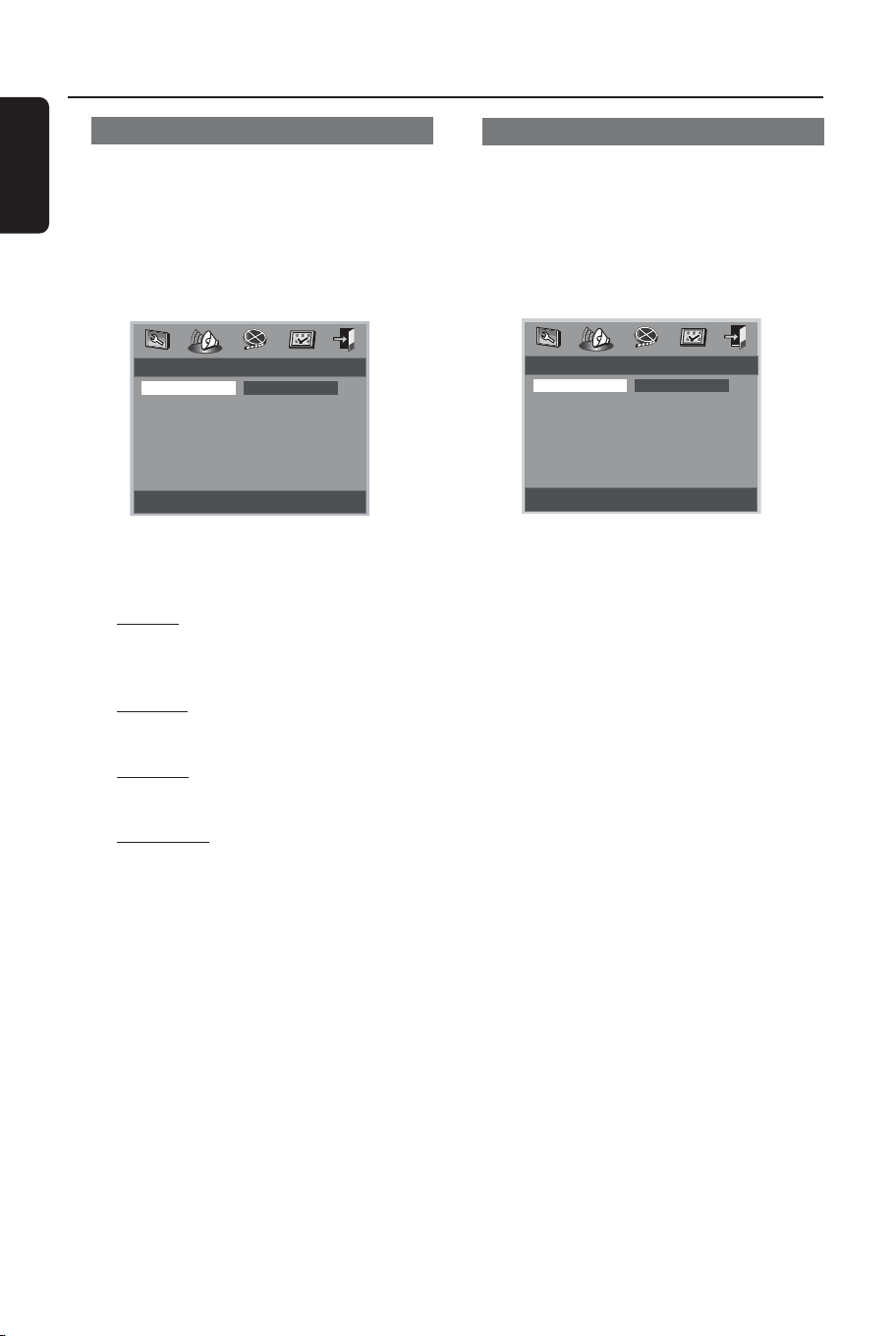
- - Dolby Digital Setup - -
Dual Mono (1 + 1) Setup
Dual Mono Stereo
Dynamic L-Mono
R-Mono
MIX-Mono
Dual Mono
To select the setting that matches the
number of speakers you have connected.
➜
Stereo: Left mono sound will send
output signals to Left speaker and Right
mono sound will send output signals to
Right speaker.
➜L-Mono: Left mono sound will send
output signals to Left speaker and Right
speaker.
➜
R-Mono: Right mono sound will send
output signals to Left speaker and Right
speaker.
➜
Mix-Mono: Left and Right mixed
mono sound will send output signals to
Left and Right speakers.
Dynamic
To optimize the dynamic sound output
high volume outputs are softened,
enabling you to watch your favourite
movie without disturbing others.
➜The levels for dynamic selection:
Full, 3/4, 1/2, 1/4 and Off.
Helpful Hint:
– DTS surround audio output are not
available in this DVD player.
Equalizer
The option included in Equalizer is: ‘Sound
Mode’.
1 Press 34 to highlight ‘Sound Mode’.
2 Enter its submenu by pressing 2.
3 Move the cursor by pressing the 34 keys
to highlight the selected item.
- - Equalizer Page - -
None
Sound Mode None
Rock
Pop
Live
Dance
Techno
Classic
Soft
Sound Mode
Select a Sound Mode that matches the
type of music you are playing. These
preset Sound Mode adjust the frequency
bands of the audio to enhance your
favourite music.
➜None, Rock, Pop, Live, Dance,
Techno, Classic and Soft
01-30 DVP522_69 24/02/2004, 2:10 PM22
8239 300 32141
English
23
3D Processing
The option included in 3D Processing is:
‘Reverb Mode’.
1 Press 34 to highlight ‘Reverb Mode’.
2 Enter its submenu by pressing 2.
3 Move the cursor by pressing the 34 keys
to highlight the selected item.
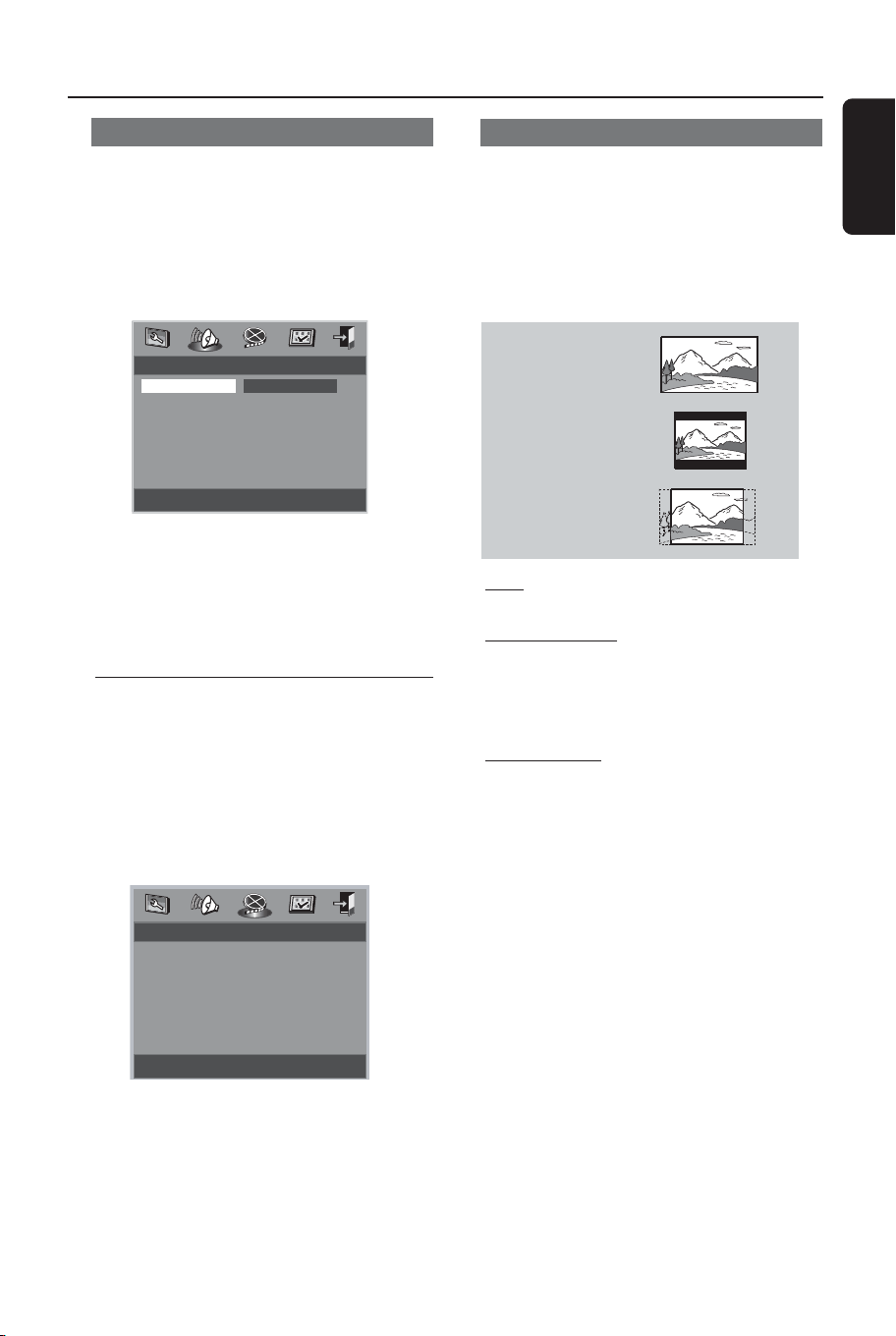
- - 3D Processing Page - -
Reverb Mode
Reverb Mode Off
Concert
Living Room
Hall
Bathroom
Cave
Arena
Church
Reverb Mode
Reverb mode provides a virtual surround
sound experience using just two speakers.
➜Off, Concert, Living Room, Hall,
Bathroom, Cave, Arena and Church
Video Setup Page
The options included in Video Setup page
are: ‘TV Type’, ‘TV Display’, ‘Closed
Captions’, ‘Angle Mark’, ‘Smart Picture’,
and ‘Picture Setting’.
1 Press SYSTEM MENU.
2 Press 1 2 to select the ‘Video Setup’ page.
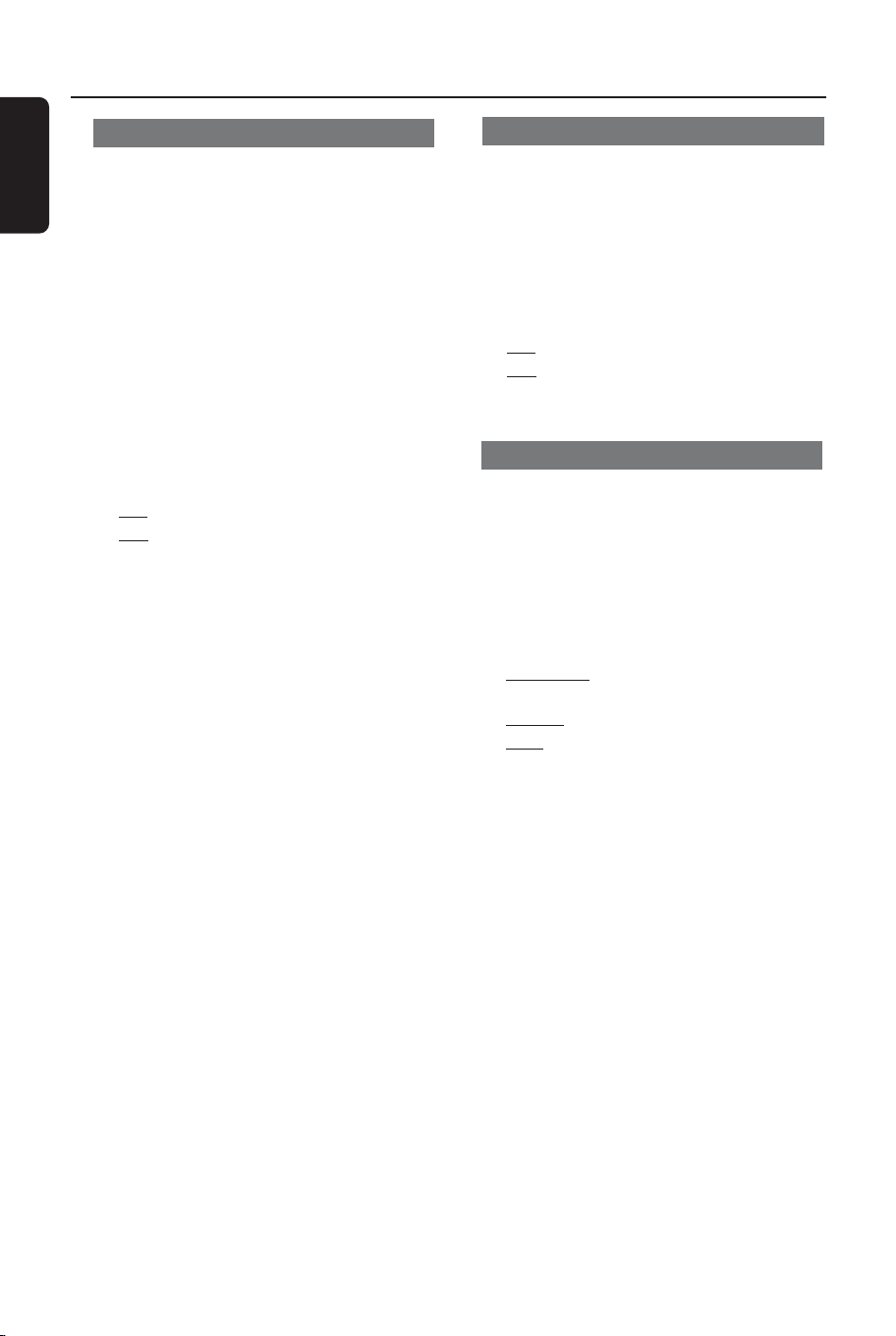
- - Video Setup Page - -
Go To Video Setup Page
TV Type
TV Display
Closed Captions
Angle Mark
Smart Picture
Picture Setting
TV Display
Set the aspect ratio of the DVD Player
according to the TV you have connected.
1 Press 34 to highlight ‘TV Display’.
2 Enter its submenu by pressing 2.
3 Move the cursor by pressing 34 to
highlight the selected item.
16:9
4:3
Letter Box
4:3
Pan Scan
16:9
➜If you have a wide-screen TV.
4:3 Letter Box
➜If you have a normal TV. In this case, a
wide picture with black bands on the
upper and lower portions of the TV
screen will be displayed.
4:3 Pan Scan
➜If you have a normal TV and want both
sides of the picture to be trimmed or
formatted to fit your TV screen.
System Menu Options
01-30 DVP522_69 24/02/2004, 2:10 PM23
8239 300 32141
English
24
System menu Options
Closed Captions
Closed captions are data that are hidden
in the video signal of some discs. Captions
are different from subtitles because
captions hearing are impaired by showing
the sound effects (e.g., “phone ringing”
and “footsteps”), while subtitles do not.
Before you select this function, please
ensure that the disc contains closed
captions information and your TV set also
has this function.
1 Press 34 to highlight ‘Closed Captions’.
2 Enter its submenu by pressing 2.
3 Move the cursor by pressing 34 to
highlight the selected item.
➜
On: Enable Closed Captions.
➜Off: Disable Closed Captions.
Angle Mark
Displays current angle setting information
on the right hand corner of the TV screen
if available on the disc.
1 Press 34 to highlight ‘Angle Mark’.
2 Enter its submenu by pressing 2.
3 Move the cursor by pressing 34 to
highlight the selected item.
➜
On: Enable Angle Mark.
➜Off: Disable the current angle setting
display.
Smart Picture
In this menu, you can choose a picture
setting from a fixed set of predefined
picture settings.
1 Press 34 to highlight ‘Smart Picture’.
2 Enter its submenu by pressing 2.
3 Move the cursor by pressing 34 to
highlight the selected item.
➜Standard: select the standard picture
setting.
➜
Bright: make the TV picture brighter.
➜
Soft: make the TV picture softer.
01-30 DVP522_69 24/02/2004, 2:10 PM24
8239 300 32141
English
25
System Menu Options
Picture Setting
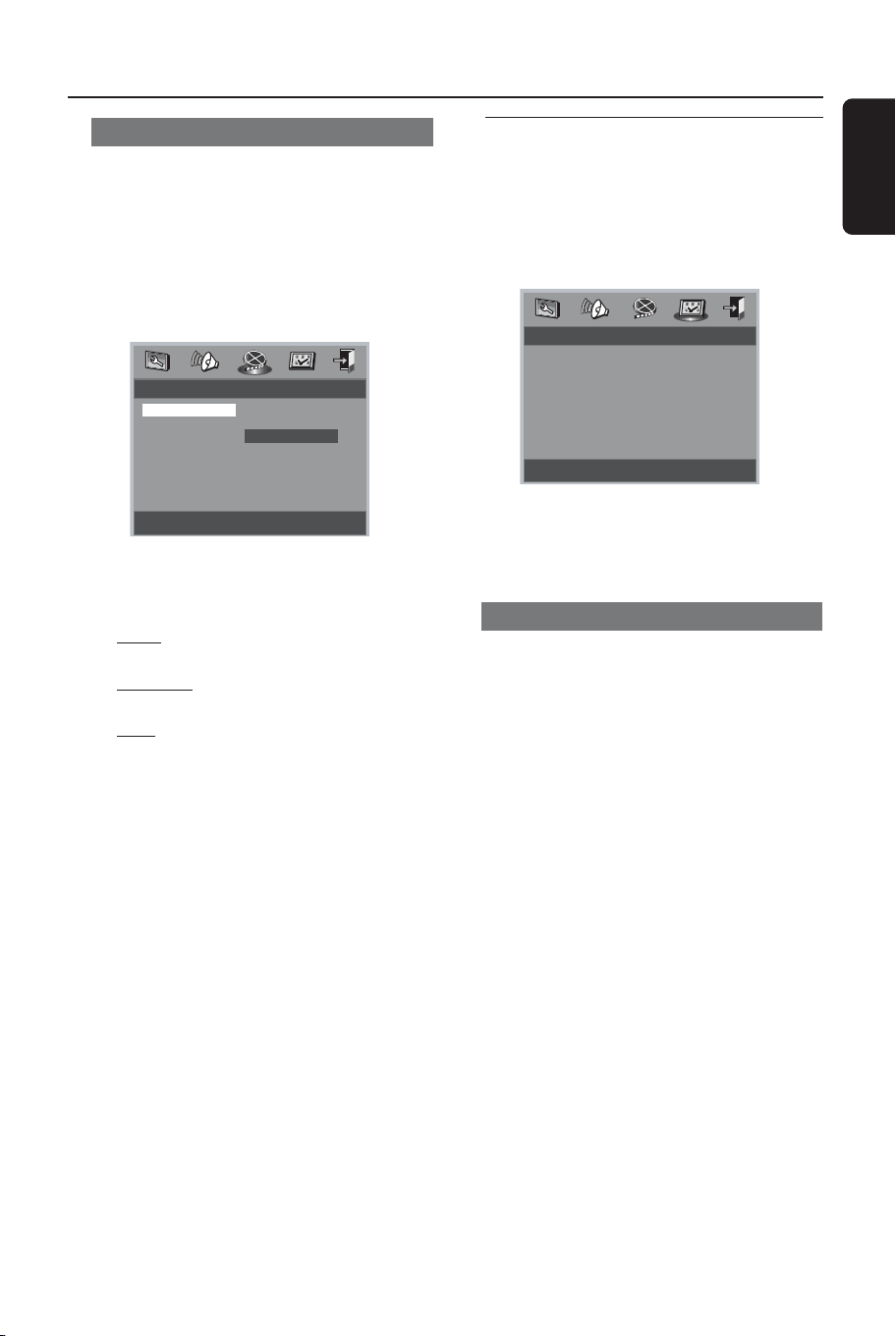
The options included in Picture Setting
Setup page are: ‘Sharpness’, ‘Brightness’
and ‘Contrast’.
1 Press the 34 keys to highlight an option.
2 Enter its submenu by pressing 2.
3 Move the cursor by pressing the 34 keys
to highlight the selected item.
- - Picture Setting Setup - -
Low
Sharpness High
Brightness 00 Medium
Contrast 00 Low
Sharpness
You can personalise your picture colour by
adjusting sharpness, brightness or contrast.
➜
High: Choose high to make the
picture’s edge sharper.
➜
Medium: Choose medium to get a
standard picture.
➜
Low: Choose low to make the
picture’s edge softer.
Brightness/Contrast
Choose a positive value to increase the
brightness/contrast level or move to a
negative value to decrease the brightness/
contrast level.
Preference Page
The options included in Preference page
are: ‘Audio’, ‘Subtitle’, ‘Disc Menu’,
‘Parental’, ‘Password’ and ‘Default’.
1 Press SYSTEM MENU.
2 Press 1 2 to select the ‘Preference Page’.
- - Preference Page - -
Go To Preference Page
Audio
Subtitle
Disc Menu
Parental
Password
Default
Note:
Preference features can be selected
only during ‘No Disc’ condition or
STOP mode.
Parental
Some DVDs may have a parental level
assigned to the complete disc or to
certain scenes on the disc. This feature
lets you set a playback limitation level.
The rating levels are from 1 to 8 and are
country dependent. You can prohibit the
playing of certain discs that are not
suitable for your children or have certain
discs played with alternative scenes.
● VCD, SVCD, CD have no level indication,
so parental control function has no effect
on those kinds of discs. This applies to
most illegal DVD discs.
1 Press 34 to highlight ‘Parental’.
2 Enter its submenu by pressing 2.
3 Use 34 to highlight a rating level for the
disc inserted.
➜DVDs that are rated above the level
you selected will not play unless you enter
your four-digit password and choose a
higher level rating.
➜To disable Parental controls and have
all Discs play, choose ‘Off’.
01-30 DVP522_69 24/02/2004, 2:10 PM25
8239 300 32141
English
26
System Menu Options
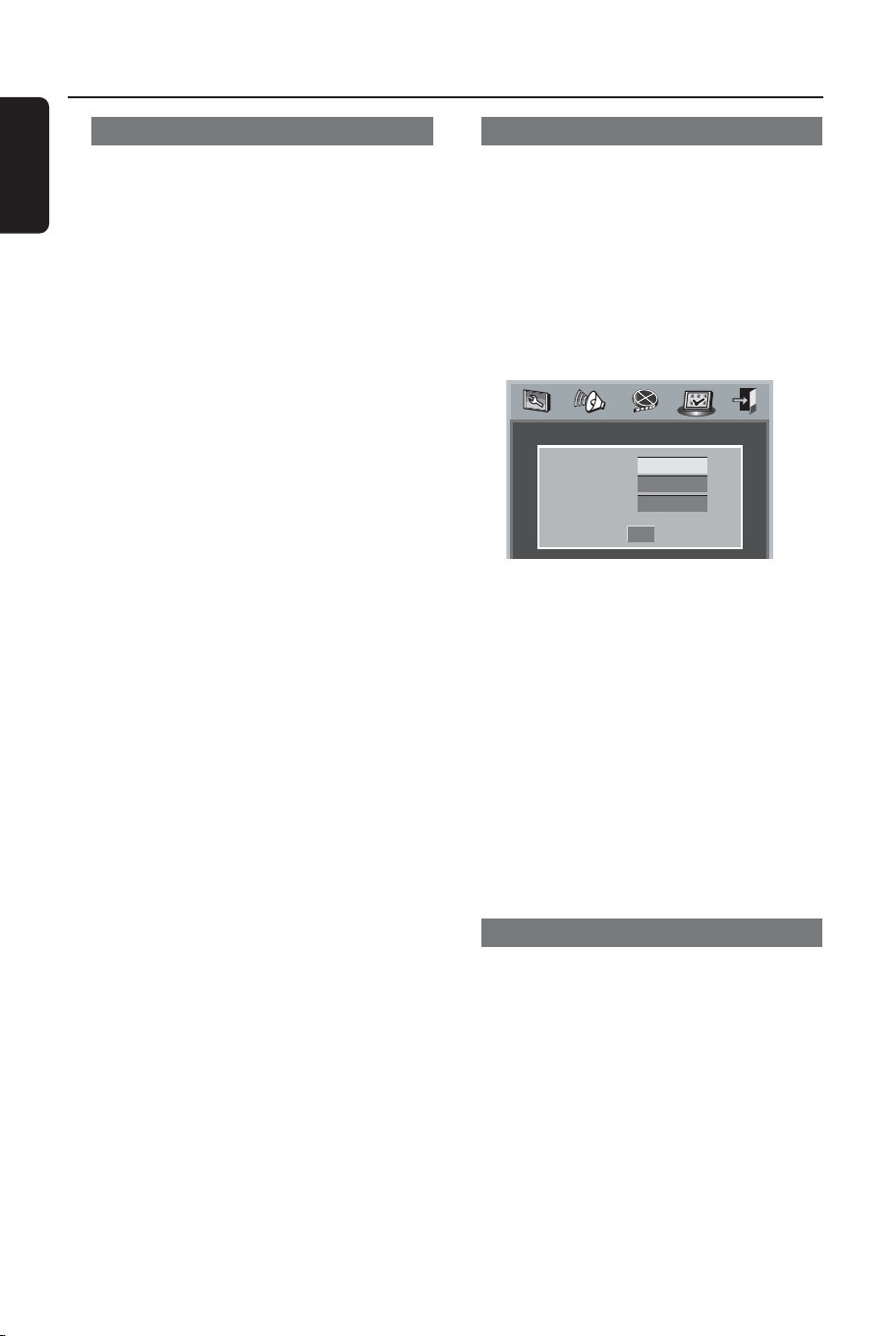
Password
This feature is used for Parental Control.
Enter your four digit password when a
hint is displayed on the screen. The default
password is 1009.
1 Press 34 to highlight ‘Password’.
2 Enter its submenu by pressing 2.
3 Press OK to open the ‘New Password’
page.
Old Password
New Password
Confirm PWD
OK
4 Enter the default password 4-digit code.
5 Enter the new 4-digit code.
6 Enter the new 4-digit code a second time
to confirm.
➜ The new 4 digit code will be take effect.
7 Press OK to exit.
Helpful Hints:
– If the password has been changed, the
parental and disc lock code will also be
changed.
– The default password (1009) is always
active even the password has been changed.
Parental - cont’d
Helpful Hint:
– Some DVDs are not encoded with a
rating though the movie rating may be
printed on the Disc cover. The rating level
feature does not work for such Discs.
Rating explanations
1 KID SAFE
– Kids material; recommended especially for
children and viewers of all ages.
2 G
– General Audience; recommended as acceptable
for viewers of all ages.
3 PG
– Parental Guidance suggested.
4 PG13
– Material is unsuitable for children under age 13.
5-6 PG-R
– Parental Guidance - Restricted; recommended
that parents restrict children under 17 from
viewing or allow to view only when supervised by
a parent or adult guardian.
7 NC-17
– No children under age 17; not recommended
viewing for children under age 17.
8 ADULT
–Mature material; should be viewed only by
adults due to graphic sexual material, violence or
language.
OFF
– It will play all discs.
Default
Setting the ‘Default’ function will reset all
options and your personal settings to the
factory defaults and all your personal
settings will be erased.
1 Press 34 to highlight ‘Default’.
2 Highlight RESET by pressing 2.
3 Press OK to confirm selection.
Caution!
– When this function is activated, all
settings will be reset to factory
defaults.
01-30 DVP522_69 24/02/2004, 2:10 PM26

8239 300 32141
English
27
TV STANDARD (PAL/50Hz) (NTSC/60Hz)
Number of lines 625 525
Playback Multistandard (PAL/NTSC)
VIDEO PERFORMANCE
DA Converter 12 bit, 54mHz
Component video Y: 1 Vpp into 75 ohm
output (480i/p) PbPr: 0.7 Vpp into 75 ohm
Video Output 1Vpp — 75 ohm
S-Video Output Y: 1Vpp — 75 ohm
C: 0.3 Vpp — 75 ohm
AUDIO FORMAT
Digital Mpeg compressed Digital
Dolby Digital 16, 20, 24 bits
PCM fs, 44.1, 48, 96 kHz
MP3(ISO 9660) 96, 112, 128, 256 kbps
& variable bit rate fs, 32,
44.1, 48 kHz
Analog Sound Stereo
Dolby Surround-compatible downmix from Dolby Digital
multi-channel sound
Specifications
AUDIO PERFORMANCE
DA Converter 24 bit, 96kHz
DVD fs 96 kHz 4Hz- 44kHz
fs 48 kHz 4Hz- 22kHz
SVCD fs 48 kHz 4Hz- 22kHz
fs 44.1kHz 4Hz- 20kHz
CD/VCD fs 44.1kHz 4Hz- 20kHz
Signal-Noise (1kHz) > 90 dB
Dynamic range(1kHz) > 80 dB
Crosstalk (1kHz) > 80 dB
Distortion/noise (1kHz) > 80 dB
MPEG MP3 MPEG Audio L3
CONNECTIONS
Y Pb Pr output (480i/p) Cinch 3x (green, blue, red)
S-Video Output Mini DIN, 4 pins
Video Output Cinch (yellow)
Audio Output(L+R) Cinch (white/red)
Digital Output 1 coaxial
IEC60958 for CDDA / LPCM
IEC61937 for MPEG 1/2,
Dolby Digital
CABINET
Dimensions (w x h x d) 360 x 43 x 285 mm
Weight Approximately 2.0 kg
POWER CONSUMPTION
Power inlet 120-230V, 50-60Hz
Power consumption 12 W
Power consumption in Standby mode < 1 W
Specifications subject to change without prior notice
01-30 DVP522_69 24/02/2004, 2:10 PM27

8239 300 32141
English
28
WARNING
Under no circumstances should you try to repair the system yourself, as this will
invalidate the warranty. Do not open the system as there is a risk of electric shock.
If a fault occurs, first check the points listed below before taking the system for repair. If
you are unable to remedy a problem by following these hints, consult your dealer or
Philips for help.
Problem Solution
No power – Check if the AC power cord is properly connected.
– Press the STANDBY ON on the front of the DVD
system to turn on the power.
No picture – Refer to your TV’s manual for correct Video In
channel selection. Change the TV channel until you
see the DVD screen.
– Check if the TV is switched on.
Distorted picture – Sometimes a small amount of picture distortion may
appear depending on the disc being played back. This
is not a malfunction.
Completely distorted picture or – Connect DVD Player directly to the TV.
black/white picture with DVD – Make sure the disc is compatible with the DVD
Player.
– Ensure that the DVD Player’s TV Type is set to match
that of the Disc and your TV.
No sound or distorted sound – Adjust the volume.
– Ensure to select stereo output on your disc (except
multichannel).
– Check that the speakers are connected correctly.
– Ensure that the DTS disc also supports Dolby Digital
output.
No audio at digital output – Check the digital connections.
– Check if your receiver can decode MPEG-2 or DTS
and if not, please make sure the digital output is set
to PCM.
– Check if the audio format of the selected audio
language matches your receiver capabilities.
Disc can’t be played – The DVD+R/CD-R must be finalized.
– Ensure the disc label is facing up.
– Check if the disc is defective by trying another disc.
– If you have recorded a Picture CD or MP3 CD
yourself, ensure that your disc contains at least 10
pictures or 5 MP3 tracks.
– Region code incorrect.
Picture freezes momentarily – Check the disc for fingerprints/scratches and
during playback clean with a soft cloth wiping from centre to edge.
No return to start-up screen when – Reset the unit by switching the player off, then on
disc is removed again.
Troubleshooting
01-30 DVP522_69 24/02/2004, 2:10 PM28

8239 300 32141
English
29
Problem Solution
The player does not respond to –Aim the Remote Control directly at the sensor
the Remote Control on the front of the player.
– Reduce the distance to the player.
– Replace the batteries in the Remote Control.
– Re-insert the batteries with their polarities (+/–
signs) as indicated.
Buttons do not work –To completely reset the player, unplug the AC
cord from the AC outlet for 5-10 seconds.
Player does not respond to some – Operations may not be permitted by the disc.
operating commands during playback. Refer to the instructions of the disc jacket.
DVD Player cannot read – Use a commonly available cleaning CD/DVD to
CDs/DVDs clean the lens before sending the DVD Player for
repair.
Menu items cannot be selected – Press STOP twice before selecting System Menu.
– Depending on the disc availability, some menu items
cannot be selected.
If you are unable to remedy a problem by following these hints, consult your dealer
or service center (HOTLINE).
Troubleshooting
01-30 DVP522_69 24/02/2004, 2:10 PM29

8239 300 32141
English
30
Analog: Sound that has not been turned into
numbers. Analog sound varies, while digital
sound has specific numerical values. These
jacks send audio through two channels, the left
and right.
Aspect ratio: The ratio of vertical and
horizontal sizes of a displayed image. The
horizontal vs. vertical ratio of conventional TVs.
is 4:3, and that of wide-screens is 16:9.
AUDIO OUT Jacks: Jacks on the back of
the DVD System that send audio to another
system (TV, Stereo, etc.).
Bit Rate: The amount of data used to hold a
given length of music; measured in kilobits per
seconds, or kbps. Or, the speed at which you
record. Generally, the higher the bit rate, or the
higher the recording speed, the better the
sound quality. However, higher bit rates use
more space on a Disc.
Chapter: Sections of a picture or a music
piece on a DVD that are smaller than titles. A
title is composed of several chapters. Each
chapter is assigned a chapter number enabling
you to locate the chapter you want.
Component Video Out Jacks: Jacks on the
back of the DVD System that send high-quality
video to a TV that has Component Video In
jacks (R/G/B, Y/Pb/Pr, etc.).
Disc menu: A screen display prepared for
allowing selection of images, sounds, subtitles,
multi-angles, etc recorded on a DVD.
Digital: Sound that has been converted into
numerical values. Digital sound is available
when you use the DIGITAL AUDIO OUT
COAXIAL or OPTICAL jacks. These jacks send
audio through multiple channels, instead of just
two channels as analog does.
Dolby Digital: A surround sound system
developed by Dolby Laboratories containing up
to six channels of digital audio (front left and
right, surround left and right, center and
subwoofer).
JPEG: A very common digital still picture
format. A still-picture data compression system
proposed by the Joint Photographic Expert
Group, which features small decrease in image
quality in spite of its high compression ratio.
MP3: A file format with a sound data
compression system. “MP3” is the abbreviation
of Motion Picture Experts Group 1 (or MPEG-
1) Audio Layer 3. By using MP3 format. one
CD-R or CD-RW can contain about 10 times
as much data volume as a regular CD can.
Multichannel: DVD is specified to have each
sound track constitute one sound field.
Multichannel refers to a structure of sound
tracks having three or more channels.
Parental Control: A function of the DVD to
limit playback of the disc by the age of the
users according to the limitation level in each
country. The limitation varies from disc to disc;
when it is activated, playback will be prohibited
if the software’s level is higher than the user-set
level.
PCM (Pulse Code Modulation): A system
for converting analog sound signal to digital
signal for later processing, with no data
compression used in conversion.
Playback control (PBC): Refers to the
signal recorded on video CDs or SVCDs for
controlling reproduction. By using menu
screens recorded on a Video CD or SVCD that
supports PBC, you can enjoy interactive-type
software as well as software having a search
function.
Region code: A system for allowing discs to
be played back only in the region designated
beforehand. This unit will only play discs that
have compatible region codes. You can find the
region code of your unit by looking on the
product label. Some discs are compatible with
more than one region (or ALL regions).
S-Video: Produces a clear picture by sending
separate signals for the luminance and the
color. You can use S-Video only if your TV has
S- video In jack.
Title: The longest section of a picture or
music feature on DVD, music, etc., in video
software, or the entire album in audio software.
Each title is assigned a title number enabling
you to locate the title you want.
VIDEO OUT jack: Jack on the back of the
DVD System that sends video to a TV.
Glossary
01-30 DVP522_69 24/02/2004, 2:10 PM30
59
8239 300 32141
Abkhazian 6566
Afar 6565
Afrikaans 6570
Amharic 6577
Arabic 6582
Armenian 7289
Assamese 6583
Avestan 6569
Aymara 6589
Azerhaijani 6590
Bahasa Melayu 7783
Bashkir 6665
Belarusian 6669
Bengali 6678
Bihari 6672
Bislama 6673
Bokmål, Norwegian 7866
Bosanski 6683
Brezhoneg 6682
Bulgarian 6671
Burmese 7789
Castellano, Español 6983
Catalán 6765
Chamorro 6772
Chechen 6769
Chewa; Chichewa; Nyanja 7889
9072
Chuang; Zhuang 9065
Church Slavic; Slavonic 6785
Chuvash 6786
Corsican 6779
Česky 6783
Dansk 6865
Deutsch 6869
Dzongkha 6890
English 6978
Esperanto 6979
Estonian 6984
Euskara 6985
6976
Faroese 7079
Français 7082
Frysk 7089
Fijian 7074
Gaelic; Scottish Gaelic 7168
Gallegan 7176
Georgian 7565
Gikuyu; Kikuyu 7573
Guarani 7178
Gujarati 7185
Hausa 7265
Herero 7290
Hindi 7273
Hiri Motu 7279
Hrwatski 6779
Ido 7379
Interlingua (International)7365
Interlingue 7365
Inuktitut 7385
Inupiaq 7375
Irish 7165
Íslenska 7383
Italiano 7384
Ivrit 7269
Japanese 7465
Javanese 7486
Kalaallisut 7576
Kannada 7578
Kashmiri 7583
Kazakh 7575
Kernewek 7587
Khmer 7577
Kinyarwanda 8287
Kirghiz 7589
Komi 7586
Korean 7579
Kuanyama; Kwanyama 7574
Kurdish 7585
Lao 7679
Latina 7665
Latvian 7686
Letzeburgesch; 7666
Limburgan; Limburger 7673
Lingala 7678
Lithuanian 7684
Luxembourgish; 7666
Macedonian 7775
Malagasy 7771
Magyar 7285
Malayalam 7776
Maltese 7784
Manx 7186
Maori 7773
Marathi 7782
Marshallese 7772
Moldavian 7779
Mongolian 7778
Nauru 7865
Navaho; Navajo 7886
Ndebele, North 7868
Ndebele, South 7882
Ndonga 7871
Nederlands 7876
Nepali 7869
Norsk 7879
Northern Sami 8369
North Ndebele 7868
Norwegian Nynorsk; 7878
Occitan; Provencal 7967
Old Bulgarian; Old Slavonic 6785
Oriya 7982
Oromo 7977
Ossetian; Ossetic 7983
Pali 8073
Panjabi 8065
Persian 7065
Polski 8076
Português 8084
Pushto 8083
Russian 8285
Quechua 8185
Raeto-Romance 8277
Romanian 8279
Rundi 8278
Samoan 8377
Sango 8371
Sanskrit 8365
Sardinian 8367
Serbian 8382
Shona 8378
Shqip 8381
Sindhi 8368
Sinhalese 8373
Slovensky 8373
Slovenian 8376
Somali 8379
Sotho; Southern 8384
South Ndebele 7882
Sundanese 8385
Suomi 7073
Swahili 8387
Swati 8383
Svenska 8386
Ta ga log 8476
Tahitian 8489
Ta jik 8471
Tamil 8465
Ta tar 8484
Te lugu 8469
Thai 8472
Tibetan 6679
Tigrinya 8473
Tonga (Tonga Islands) 8479
Tsonga 8483
Tswana 8478
Türkçe 8482
Turkmen 8475
Tw i 8487
Uighur 8571
Ukrainian 8575
Urdu 8582
Uzbek 8590
Vietnamese 8673
Volapuk 8679
Walloon 8765
Welsh 6789
Wolof 8779
Xhosa 8872
Yiddish 8973
Yo ruba 8979
Zulu 9085
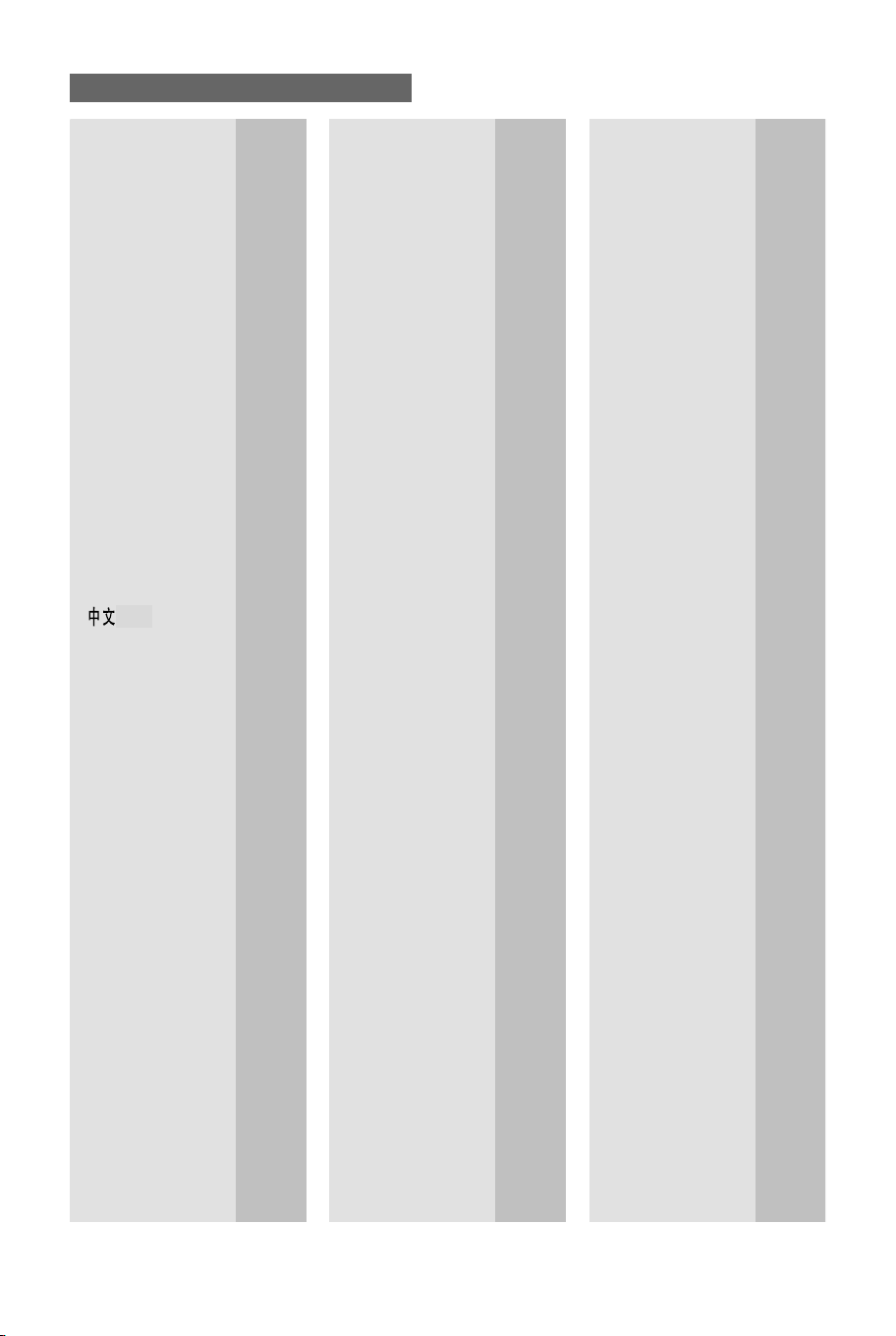
Language Code
pg Back_DVP522_69 24/02/2004, 1:47 PM59
English
The products and services described herein are not necessarily
available in all countries
Due to continuous product improvements this document is subject to
change without notice.
Philips Service Centre
100 Kazi Nazrul Islam
Avenue Kawran Bazar C/A
Dhaka - 1215
BANGLADESH
Phone: (02)-812909
PHILIPS Authorized
Service Centre
148 Fu Jian Road M
200001 Shanghai, CHINA
Phone: (02)-812909
PHILIPS Authorized
Service Centre
801 Dong Feng Road East
Guangzhou 510080, CHINA
Phone: (020)-7766990
PHILIPS Service
Logistic Centre
P. O. Box 002-027, Nextage
Department Store
Puding New District
200002 Shanghai, CHINA
Phone: (021)-63511263
Beijing Authorized
Service Centre
Building 6, West Street
Chong Wen Men, Beijing, Jin
Bang Co. Led.
100051 Beijing, CHINA
Phone: (010)-65122276
Philips Hong Kong Ltd.
16/F Hopewell Centre
17 Kennedy Road
Wanchai, HONG KONG
Phone: 2821-5345
PHILIPS India.
Bandbox House
254-D Dr.A Besant Road, Worli
Bombay 400 025
Phone: (022)-4926611
Consumer Relation Centre
7 Justice Chandra Madhab Road
Clacutta 700 020
INDIA
Phone: (033)-747333
Customer Relation Centre
3, Haddows Road
Madras 600 006
INDIA
Phone: (044)-8292221
Customer Relation Centre
68, Shivaji Marg
New Delhi 110 015
INDIA
Phone: (011)-5469692
Philips Group of
Companies in Indonesia
Jl. Buncit Raya Kav. 99-100
12510 Jakarta
INDONESIA
Phone: (021)-7940040
Philips Consumer Electronics
1-11-9, Ebisuminami
Shibuya-Ku
Tokyo 150, JAPAN
Phone: (03)-3719 2235
Philips Korea Ltd.
Philips House
C.P. O. box 3680
260-199, Itaewon-Dong
Yongsan-Ku, Seoul 140-202
KOREA
Phone: (02)-5961195/1196
(02)-5967632/76325
Philips Malaysia Sdn. Berhad
Service Department.
No.5, sect. 13 Jalan University,
46200 Petaling Jaya, Selangor,
PO Box 12163
50768 Kuala Lumpur, MALAYSIA
Phone: (03)-7562144
Philips Elect. Ind. of Pakistan
F-54, S.I.T.E. PO Box 7101
75730 Karachi
PAKISTAN
Phone: (021)-2560071-82
Philips Consumer
Service Centre
168-F, Adamjee Road,
Rawalpindi Cantt.
PAKISTAN
Phone: (051)-580902-3
Philips Electronics
and Lighting Inc.
106 Valero St. Salcedo-Village
Makati, Metro Manilla.
PHILIPPINES
Phone: (02)-8100161
Philips Elect. Singapore P/L
Lorong 1, Toa Payoh
PO Box 340
Singapore 319762
Phone: 6882 3000
Philips Taiwan Ltd.
Nr. 96 Sect.1, Chien-Kuo N. Road
TAIPEI
Phone: (02)-382 4567
Philps Elect. (Thailand) Ltd.
209/2 Sanpavut Road,
Bangna, Bangkok 10260
THAILAND
Phone: (02)-3980141/3980790
Meet Philips at the Internet
http://www.philips.com
Printed in China
8239 300 32141
Sgp-SL-0409/69-2
HOTLINE
CLASS 1
LASER PRODUCT
pg Back_DVP522_69 24/02/2004, 1:47 PM60