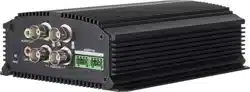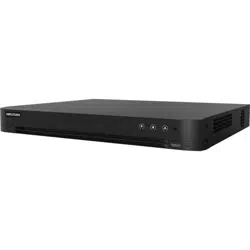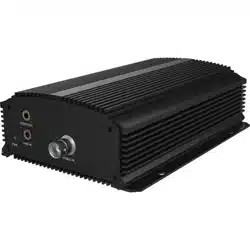

DS-6700HUHI Series Encoder
Quick Start Guide

DS-6700HUHI Series Encoder Quick Start Guide
ii
Quick Start Guide
COPYRIGHT ©2019 Hangzhou Hikvision Digital Technology Co., Ltd.
ALL RIGHTS RESERVED.
Any and all information, including, among others, wordings, pictures, graphs are the properties of Hangzhou
Hikvision Digital Technology Co., Ltd. or its subsidiaries (hereinafter referred to be “Hikvision”). This user manual
(hereinafter referred to be “the Manual”) cannot be reproduced, changed, translated, or distributed, partially or
wholly, by any means, without the prior written permission of Hikvision. Unless otherwise stipulated, Hikvision
does not make any warranties, guarantees or representations, express or implied, regarding to the Manual.
About this Manual
This Manual is applicable to DS-6700HUHI Series Encoder.
The Manual includes instructions for using and managing the product. Pictures, charts, images and all other
information hereinafter are for description and explanation only. The information contained in the Manual is subject
to change, without notice, due to firmware updates or other reasons. Please find the latest version in the company
website (http://overseas.hikvision.com/en/).
Please use this user manual under the guidance of professionals.
Trademarks Acknowledgement
and other Hikvision’s trademarks and logos are the properties of Hikvision in various jurisdictions.
Other trademarks and logos mentioned below are the properties of their respective owners.
Legal Disclaimer
TO THE MAXIMUM EXTENT PERMITTED BY APPLICABLE LAW, THIS MANUAL AND THE PRODUCT
DESCRIBED, WITH ITS HARDWARE, SOFTWARE AND FIRMWARE, ARE PROVIDED “AS IS” AND
“WITH ALL FAULTS AND ERRORS”. HIKVISION MAKES NO WARRANTIES, EXPRESS OR IMPLIED,
INCLUDING WITHOUT LIMITATION, MERCHANTABILITY, SATISFACTORY QUALITY, OR FITNESS
FOR A PARTICULAR PURPOSE. THE USE OF THE PRODUCT BY YOU IS AT YOUR OWN RISK. IN NO
EVENT WILL HIKVISION BE LIABLE TO YOU FOR ANY SPECIAL, CONSEQUENTIAL, INCIDENTAL,
OR INDIRECT DAMAGES, INCLUDING, AMONG OTHERS, DAMAGES FOR LOSS OF BUSINESS
PROFITS, BUSINESS INTERRUPTION, OR LOSS OF DATA, CORRUPTION OF SYSTEMS, OR LOSS OF
DOCUMENTATION, WHETHER BASED ON BREACH OF CONTRACT, TORT (INCLUDING
NEGLIGENCE), PRODUCT LIABILITY, OR OTHERWISE, IN CONNECTION WITH THE USE OF THE
PRODUCT, EVEN IF HIKVISION HAS BEEN ADVISED OF THE POSSIBILITY OF SUCH DAMAGES OR
LOSS.
YOU ACKNOWLEDGE THAT THE NATURE OF THE INTERNET PROVIDES FOR INHERENT SECURITY
RISKS, AND HIKVISION SHALL NOT TAKE ANY RESPONSIBILITIES FOR ABNORMAL OPERATION,
PRIVACY LEAKAGE OR OTHER DAMAGES RESULTING FROM CYBER-ATTACK, HACKER ATTACK,
VIRUS INFECTION, OR OTHER INTERNET SECURITY RISKS; HOWEVER, HIKVISION WILL PROVIDE
TIMELY TECHNICAL SUPPORT IF REQUIRED.
YOU AGREE TO USE THIS PRODUCT IN COMPLIANCE WITH ALL APPLICABLE LAWS, AND YOU ARE
SOLELY RESPONSIBLE FOR ENSURING THAT YOUR USE CONFORMS TO THE APPLICABLE LAW.
ESPECIALLY, YOU ARE RESPONSIBLE, FOR USING THIS PRODUCT IN A MANNER THAT DOES NOT
INFRINGE ON THE RIGHTS OF THIRD PARTIES, INCLUDING WITHOUT LIMITATION, RIGHTS OF
PUBLICITY, INTELLECTUAL PROPERTY RIGHTS, OR DATA PROTECTION AND OTHER PRIVACY
RIGHTS. YOU SHALL NOT USE THIS PRODUCT FOR ANY PROHIBITED END-USES, INCLUDING THE
DEVELOPMENT OR PRODUCTION OF WEAPONS OF MASS DESTRUCTION, THE DEVELOPMENT OR
PRODUCTION OF CHEMICAL OR BIOLOGICAL WEAPONS, ANY ACTIVITIES IN THE CONTEXT
RELATED TO ANY NUCLEAR EXPLOSIVE OR UNSAFE NUCLEAR FUEL-CYCLE, OR IN SUPPORT OF
HUMAN RIGHTS ABUSES.
IN THE EVENT OF ANY CONFLICTS BETWEEN THIS MANUAL AND THE APPLICABLE LAW, THE
LATER PREVAILS.

DS-6700HUHI Series Encoder Quick Start Guide
iii
Regulatory Information
FCC Information
Please take attention that changes or modification not expressly approved by the party responsible for compliance
could void the user’s authority to operate the equipment.
FCC compliance: This equipment has been tested and found to comply with the limits for a Class A digital
device, pursuant to part 15 of the FCC Rules. These limits are designed to provide reasonable protection against
harmful interference when the equipment is operated in a commercial environment. This equipment generates,
uses, and can radiate radio frequency energy and, if not installed and used in accordance with the instruction
manual, may cause harmful interference to radio communications. Operation of this equipment in a residential area
is likely to cause harmful interference in which case the user will be required to correct the interference at his own
expense.
FCC Conditions
This device complies with part 15 of the FCC Rules. Operation is subject to the following two conditions:
1. This device may not cause harmful interference.
2. This device must accept any interference received, including interference that may cause undesired operation.
EU Conformity Statement
This product and - if applicable - the supplied accessories too are marked with "CE" and comply
therefore with the applicable harmonized European standards listed under the EMC Directive
2014/30/EU, the LVD Directive 2014/35/EU, the RoHS Directive 2011/65/EU.
2012/19/EU (WEEE directive): Products marked with this symbol cannot be disposed of as unsorted
municipal waste in the European Union. For proper recycling, return this product to your local supplier
upon the purchase of equivalent new equipment, or dispose of it at designated collection points. For
more information see: www.recyclethis.info
2006/66/EC (battery directive): This product contains a battery that cannot be disposed of as unsorted
municipal waste in the European Union. See the product documentation for specific battery information.
The battery is marked with this symbol, which may include lettering to indicate cadmium (Cd), lead
(Pb), or mercury (Hg). For proper recycling, return the battery to your supplier or to a designated collection point.
For more information see: www.recyclethis.info
Industry Canada ICES-003 Compliance
This device meets the CAN ICES-3 (A)/NMB-3(A) standards requirements.
DS-6700HUHI Series Encoder Quick Start Guide
iv
Applicable Models
This manual is applicable to the models listed in the following table.
Series
Model
DS-6700HUHI
DS-6701HUHI
DS-6704HUHI
Symbol Conventions
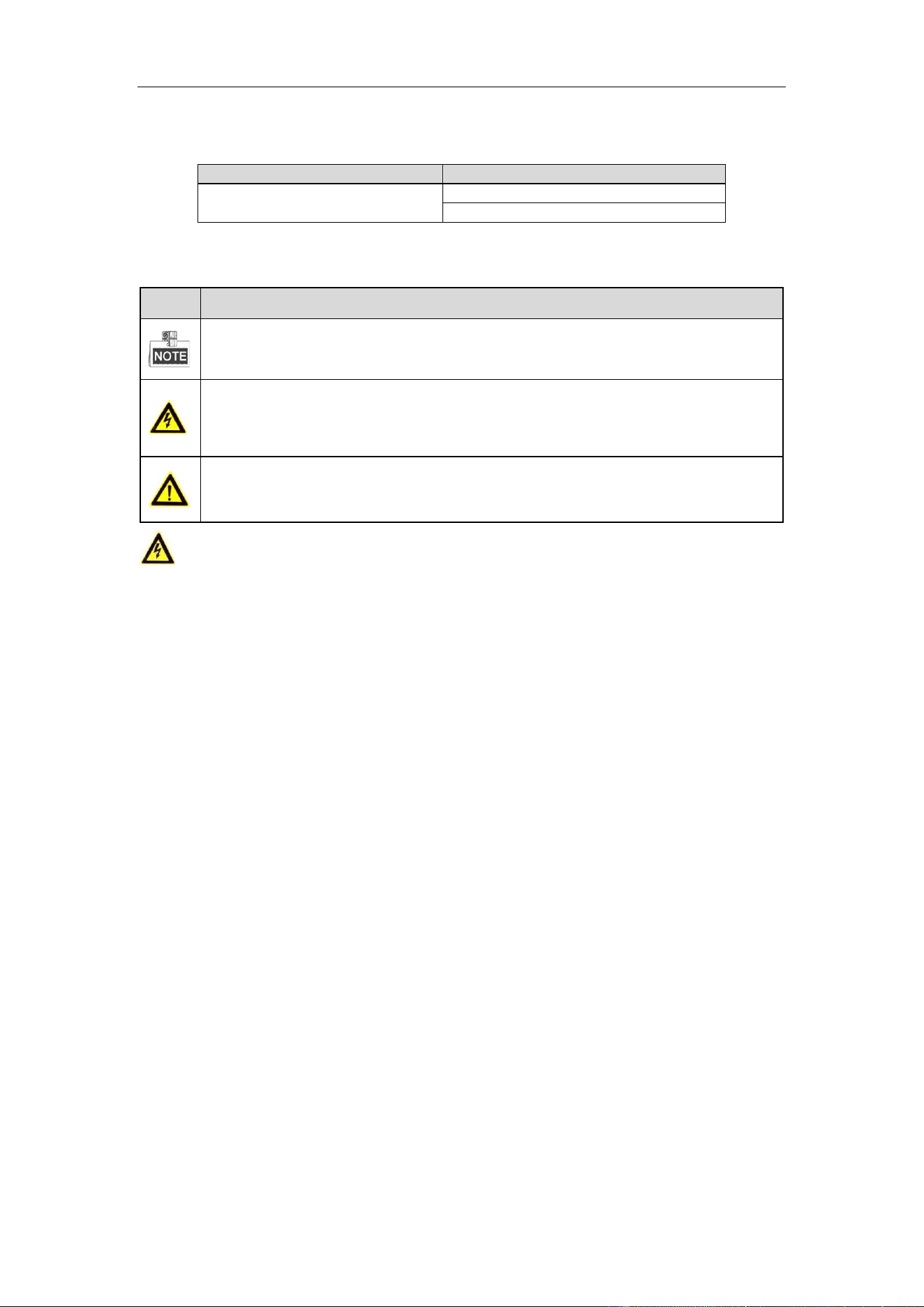
The symbols that may be found in this document are defined as follows.
Symbol
Description
Provides additional information to emphasize or supplement important points of the main text.
Indicates a potentially hazardous situation, which if not avoided, could result in equipment damage,
data loss, performance degradation, or unexpected results.
Follow these precautions to prevent potential injury or material damage.
Warnings
● Proper configuration of all passwords and other security settings is the responsibility of the installer and/or
end-user.
● In the use of the product, you must be in strict compliance with the electrical safety regulations of the nation
and region. Please refer to technical specifications for detailed information.
● Input voltage should meet both the SELV (Safety Extra Low Voltage) and the Limited Power Source with
100~240 VAC, 48VDC or 12 VDC according to the IEC60950-1 standard. Please refer to technical
specifications for detailed information.
● Do not connect several devices to one power adapter as adapter overload may cause over-heating or a fire
hazard.
● Please make sure that the plug is firmly connected to the power socket.
● If smoke, odor or noise rise from the device, turn off the power at once and unplug the power cable, and then
please contact the service center.

DS-6700HUHI Series Encoder Quick Start Guide
v
Preventive and Cautionary Tips
Before connecting and operating your device, please be advised of the following tips:
• Ensure unit is installed in a well-ventilated, dust-free environment.
• Unit is designed for indoor use only.
• Keep all liquids away from the device.
• Ensure environmental conditions meet factory specifications.
• Ensure unit is properly secured to a rack or shelf. Major shocks or jolts to the unit as a result of dropping it
may cause damage to the sensitive electronics within the unit.
• Use the device in conjunction with an UPS if possible.
• Power down the unit before connecting and disconnecting accessories and peripherals.
• A factory recommended SD card should be used for this device.
• Improper use or replacement of the battery may result in hazard of explosion. Replace with the same or
equivalent type only. Dispose of used batteries according to the instructions provided by the battery
manufacturer.

DS-6700HUHI Series Encoder Quick Start Guide
VI
Table of Content
Chapter 1 Panel Description ................................................ 1
1.1 Front Panel................................................................................................................... 1
1.2 Rear Panel .................................................................................................................... 2
Chapter 2 Installation ........................................................... 3
2.1 Pre-Installation ............................................................................................................. 3
2.2 Installation ................................................................................................................... 3
Chapter 3 Activation ............................................................ 4
3.1 Activating via Web Browser .......................................................................................... 4
3.2 Activating via Client Software ....................................................................................... 4
Chapter 4 Access via Web Browser ..................................... 7
4.1 Login ............................................................................................................................ 7
4.2 Starting Live View ......................................................................................................... 7
4.3 Operating PTZ Control .................................................................................................. 9
4.4 Recording ................................................................................................................... 10
4.5 Playback ..................................................................................................................... 11
4.6 Log ............................................................................................................................. 12

DS-6700HUHI Series Encoder Quick Start Guide
1
Chapter 1 Panel Description
1.1 Front Panel
Figure 1. 1 DS-6701HUHI Front Panel
Figure 1. 2 DS-6704HUHI Front Panel
Table 1. 1 Front Panel Description
DS-6700HUHI Series Encoder Quick Start Guide
2
No.
Description
1
Power Indicator
2
AUDIO OUT
3
LINE IN
4
VIDEO IN
5
AUDIO IN
1.2 Rear Panel
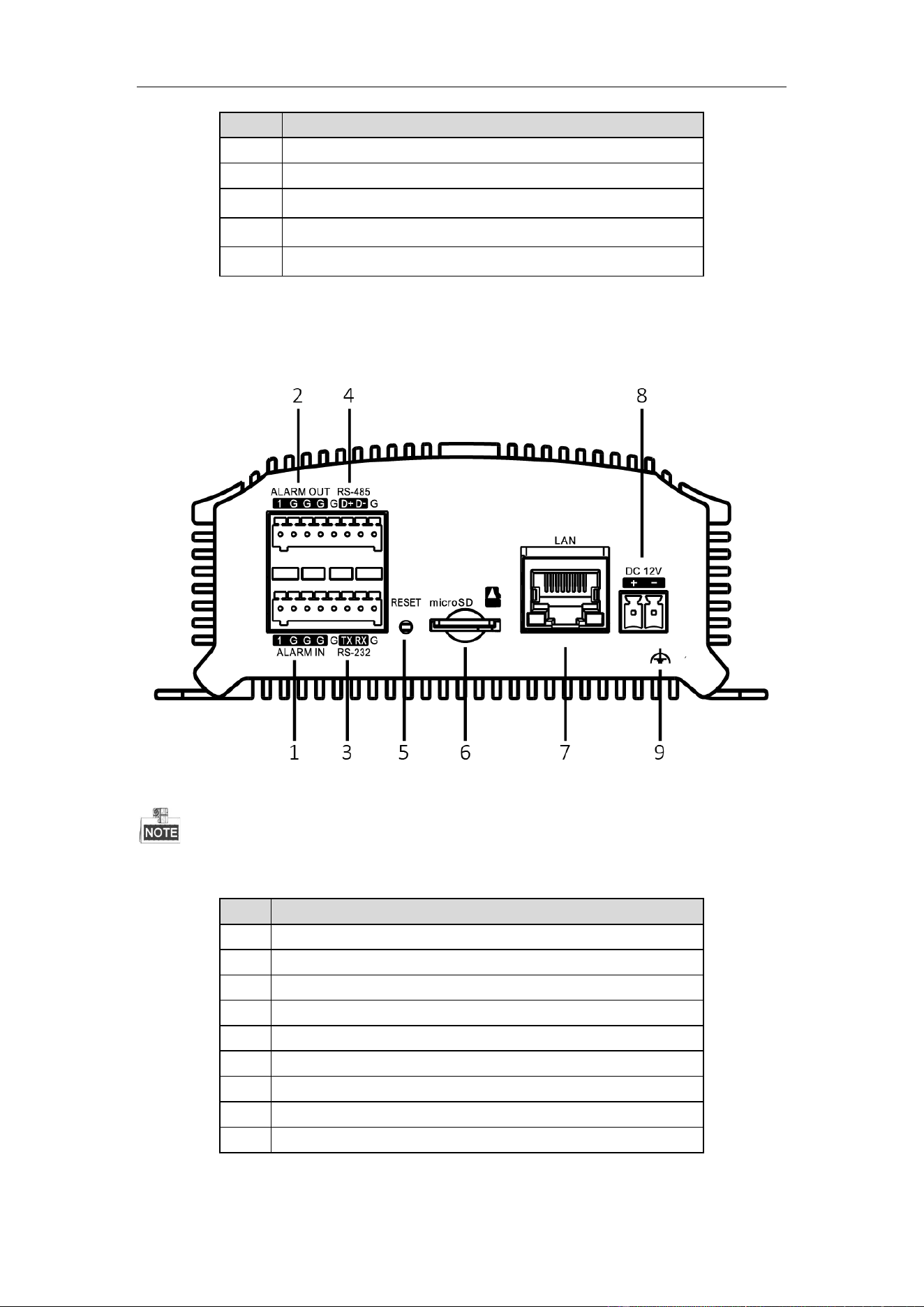
Figure 1. 3 DS-6701HUHI Rear Panel
The rear panel of DS-6704HUHI provides 4 alarm in and 2 alarm out interfaces.
Table 1. 2 Rear Panel Description
No.
Description
1
Alarm In
2
Alarm Out
3
RS-232 Serial Interface
4
RS-485 Serial Interface
5
RESET Button
6
Micro SD Card Slot
7
LAN Network Interface
8
12 VDC Power Input
9
GND

DS-6700HUHI Series Encoder Quick Start Guide
3
Chapter 2 Installation
2.1 Pre-Installation
The DS-6700HUHI Series Encoder should be installed with care. Please take the following
precautionary steps into consideration before installing the encoder.
1. Keep all liquids away from the Encoder.
2. Install the Encoder in a well-ventilated and dust-free area.
3. Ensure environmental conditions meet factory specifications.
4. Install a manufacturer recommended SD card.
2.2 Installation
During the installation of the Encoder:
1. Use brackets for rack mounting.
2. Ensure there is ample room for audio and video cables.
3. When installing cables, ensure that the bend radius of the cables are no less than five times than
its diameter.
4. Connect both the alarm and RS-485 cable.
5. Allow at least 2cm (≈0.75") of space between racks mounted devices.
6. Ensure the Encoder is grounded.
7. Environmental temperature should be within the range of -10º C to 55º C, 14º F to 131º F.
8. Environmental humidity should be within the range of 10% to 90%.
DS-6700HUHI Series Encoder Quick Start Guide
4
Chapter 3 Activation
3.1 Activating via Web Browser
Steps:
1. Power on the encoder, and connect the encoder to the network.
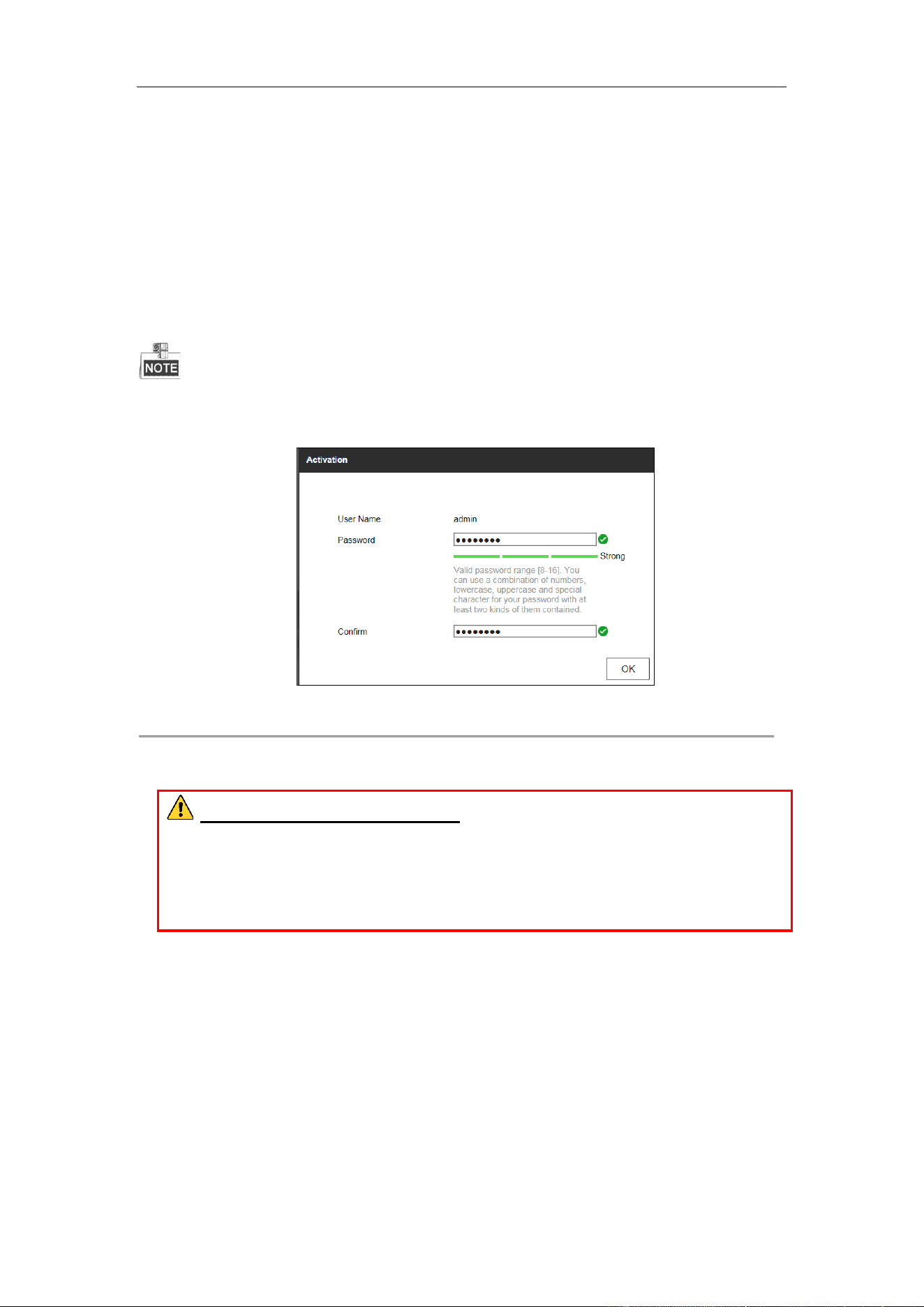
2. Input the IP address into the address bar of the web browser, and click Enter to enter the activation interface.
The default IP address of the network encoder is 192.168.1.64. You are recommended to change the default IP
address after your access.
Figure 3. 1 Activation Interface
3. Create a password and input the password into the Password text field.
STRONG PASSWORD RECOMMENDED– We highly recommend that you create a strong password
of your own choosing (using 8-16 characters, including upper case letters, lower case letters, numbers, and
special characters) in order to increase the security of your product. And we recommend that you reset your
password regularly, especially in the high security system, resetting the password monthly or weekly can better
protect your product.
4. Confirm the password.
5. Click OK to activate the device.
3.2 Activating via Client Software
The client software is versatile video management software for multiple kinds of devices.
Get the client software from the supplied disk or the official website, and install the software according to the prompts.
Follow the steps to activate the camera.
Steps:
1. Run the client software and the control panel of the software pops up, as shown in the figure below.

DS-6700HUHI Series Encoder Quick Start Guide
5
Figure 3. 2 Main Interface
2. Click the Device Management icon to enter the Device Management interface, as shown in the figure below.
Figure 3. 3 Device Management
3. Check the device status from the device list, and select an inactive device.
4. Click Activate to pop up the Activation interface.
5. Create a password and input the password in the password field, and confirm the password.
STRONG PASSWORD RECOMMENDED– We highly recommend that you create a strong password
of your own choosing (using 8-16 characters, including upper case letters, lower case letters, numbers, and
special characters) in order to increase the security of your product. And we recommend that you reset your
password regularly, especially in the high security system, resetting the password monthly or weekly can better
protect your product.

DS-6700HUHI Series Encoder Quick Start Guide
6
Figure 3. 4 Activation Interface
6. Click OK to start activation.
7. Click Modify Netinfo to pop up the Network Parameter Modification interface, as shown in the figure below.
Figure 3. 5 Modify Network Parameter
8. Change the device IP address to the same subnet with your computer by either modifying the IP address
manually or checking the checkbox of Enable DHCP.
9. Input the password to activate your IP address modification.

DS-6700HUHI Series Encoder Quick Start Guide
7
Chapter 4 Access via Web Browser
The device can also be accessed by WEB Browser for configuration and operation. The supported WEB browsers
include: Internet Explorer 6/7/8/9, Firefox 3.5 and above, Chrome 8 and above, Safari 5.0.2 and above, Windows
XP SP1 and above (32-bit).
4.1 Login
Open WEB browser, input the IP address of the device (e.g., http://192.168.1.64) and then press the Enter key on
PC. The login interface is displayed.
When the HTTPS feature is enabled, the system will use the HTTPS login mode (e.g., https://192.168.1.64) by
default. You can also input http://IP address/index.asp (e.g., http://192.168.1.64/index.asp) if you want to use HTTP
mode to log into the device.
Figure 4. 1 Login Page
Input the user name and password to log into the system.
In the Login dialog box, if you have entered the wrong password for 7 times for the admin user or 5 times for
the normal user, the current user account will be locked for 60 seconds.
You should download and install the plug-in for the first time to use.
Figure 4. 2 Message from Webpage
4.2 Starting Live View
1. In the live view window, select a playing window by clicking the mouse.
DS-6700HUHI Series Encoder Quick Start Guide
8
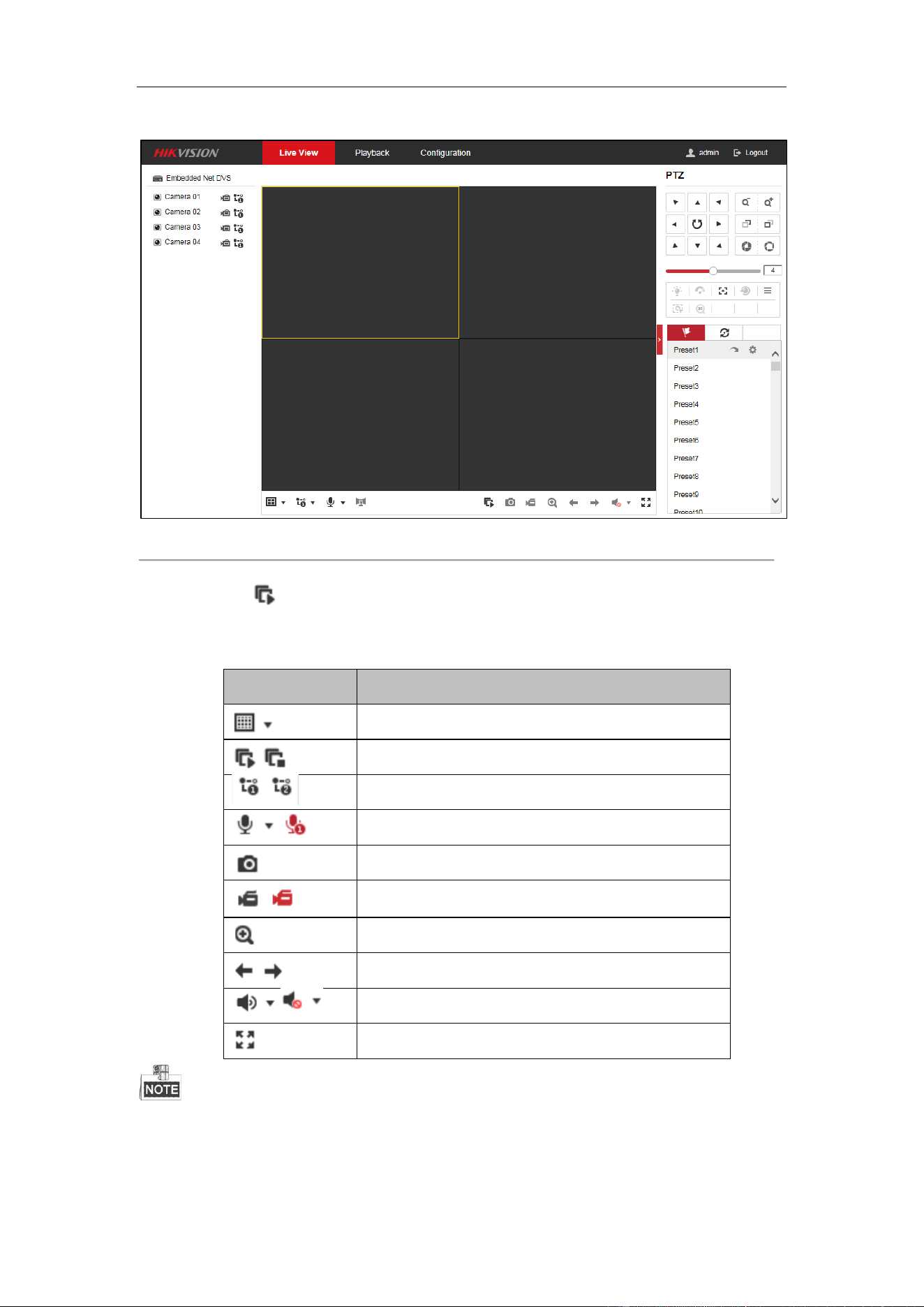
2. Double-click a camera from the device list to start the live view.
Figure 4. 3 Start Live View
3. You can click on the toolbar to start the live view of all cameras on the device list.
Refer to the following table for the description of buttons on the live view window:
Table 4.1 Description of Toolbar
Icon
Description
Select the window-division mode with 1/4/9/16 split screens
available
/
Start/Stop live view
Select main stream or sub-stream
/
Start/Stop two-way audio
Capture pictures in live view mode
/
Manually start/stop recording
Enable e-PTZ
/
Previous/Next page
/
Audio on/off
Switch to full-screen live view mode.
Before using two-way audio function or recording with audio, please select the Video Type to Video & Audio under
Configuration > Video/Audio > Video.

DS-6700HUHI Series Encoder Quick Start Guide
9
4.3 Operating PTZ Control
Before you start:
1. Make sure the encoder is connected with the camera/dome which supports PTZ function. Connect the R+ and
R
-
terminals of the pan/tilt unit or speed dome to RS-485 T+ and RS-485 T- terminals of the device respectively.
2. The baud rate, PTZ control and address configured in the RS-485 Settings interface (Remote Configuration >
Serial Port Settings > 485 Serial Port) must be the same with the parameters of the connected pan/tilt unit or
speed dome.
Operating PTZ Control
In live view mode, you can use the PTZ control buttons to realize pan/tilt/zoom control of the camera lens.
There will be 8 directional buttons (up, down, left, right, upper left, upper right, bottom left, bottom right) on the
display window when the mouse is located in the relative positions.
Click on the directional buttons to control the pan/tilt movement.
Figure 4. 4 PTZ
Click the zoom/iris/focus buttons to realize lens control.
Refer to the following table for description of PTZ control buttons:
Table 4.2 Description of PTZ Control Buttons
Button
Description
Zoom in/out
Focus near/far
Iris +/-
Light on/off
Wiper on/off
Adjust speed of pan/tilt movement
Auxiliary focus
Initialize lens

DS-6700HUHI Series Encoder Quick Start Guide
10
Adjust speed of pan/tilt movements
Start Manual Tracking
Start 3D Zoom
4.4 Recording
Before you start
Make sure the Encoder is connected with SD card or network disk, and the SD card or network disk has been
initialized for the first time to use.
Two recording types can be configured: Manual and Scheduled. The following section introduces the configuration
of scheduled recording.
Steps:
1. Go to Configuration > Storage > Schedule Settings > Record Schedule to enter record schedule settings
page.
Figure 4. 5 Record Schedule Settings
2. Select the camera to configure the record schedule.
3. Check the checkbox of Enable to enable scheduled recording.
4. Select a Record Type. The record type can be Continuous, Motion Detection, Alarm, Motion | Alarm, Motion
& Alarm, and Event.
5. Drag the mouse on the time bar to set the record schedule.
6. Click Advanced to configure advanced record parameters.
7. If you want to copy the record schedule settings of the current camera to other cameras, click Copy to to copy
the settings.
8. Click Save to save the settings.

DS-6700HUHI Series Encoder Quick Start Guide
11
4.5 Playback
Purpose:
The recorded video files can be remotely played back through the WEB browser.
Steps:
1. Click Playback on the menu bar to enter playback interface:
Figure 4. 6 Playback
2. Click the camera from the device list for playback.
3. Select the date from the calendar.
4. Select the Stream Type.
5. Click Search.
Figure 4. 7 Select Date and Stream Type for Search

DS-6700HUHI Series Encoder Quick Start Guide
12
6. Click to play the video file searched on the current date.
7. Use the buttons on the toolbar to operate in playback mode
Figure 4. 8 Toolbar
Table 4. 1 Description of Toolbar Icons
Icon
Operation
Icon
Operation
Select window-division mode
Reverse playback
/
Play/Pause
Stop playing
Slow forward
Fast forward
Play by single frame
Stop all channels from playing
Capture pictures in playback mode
Download video files
/
Start/Stop clipping video files
/
Audio on/off
Enable e-PTZ
Full screen
8. You can drag the progress bar with the mouse to locate the exact playback point, or input the time and click
button to locate the playback point.
Figure 4. 9 Playback Point
Figure 4. 10 Progress Bar
The color of the video on the progress bar stands for the different video types.
Figure 4. 11 Video Types
9. (Optional) Click to realize synchronous playback. Up to 4 cameras can be played back simultaneously. Click
to stop synchronous playback.
4.6 Log
Purpose:
The operation, alarm, exception and information of the device can be stored in log files, which can be viewed and
exported at any time.

DS-6700HUHI Series Encoder Quick Start Guide
13
Before you start
The Log function can be realized only when the Encoder is connected with SD card or network disk. And make
sure the SD card or network disk has been initialized for the first time to use.
Steps:
1. Go to Configuration > System > Maintenance > Log.
2. Set the log search conditions to refine your search, including the Major Type, Minor Type, Start Time and
End Time.
3. Click Search to start searching log files.
4. The matched log files will be displayed on the list shown below.
Up to 2000 log files can be displayed each time.
Figure 4. 12 Search Log
5. You can click Export to save the searched log files to local directory.

DS-6700HUHI Series Encoder Quick Start Guide
14
UD12144B-A