User’s Guide
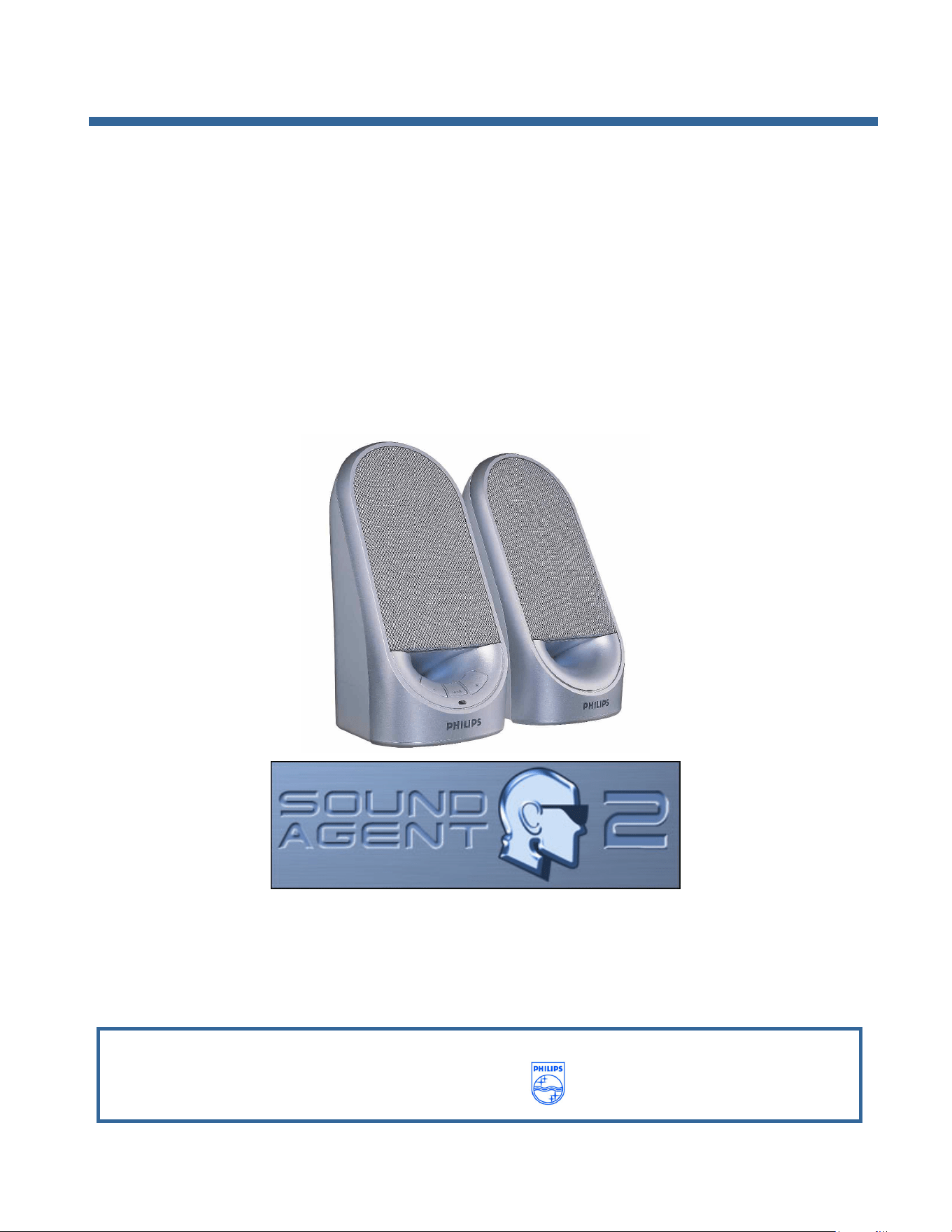
DGX220 Speaker System
with
Philips Sound Agent 2
™
NOTE: Please install Philips Sound Agent 2 software to utilize all the advanced
features of the DGX220 Speaker System.
Philips Sound Solutions
PHILIPS

Philips Sound Solutions
ii
Software End User License Agreement
ATTENTION: THIS SOFTWARE IS SUBJECT TO THE LICENSE TERMS DESCRIBED BELOW. USE OF THIS SOFTWARE INDICATES
ACCEPTANCE OF THE LICENSE TERMS. IF YOU DO NOT ACCEPT THESE LICENSE TERMS, YOU MAY RETURN THE SOFTWARE
FOR A FULL REFUND. IF THE SOFTWARE IS PACKAGED WITH ANOTHER PRODUCT, YOU MAY RETURN THE ENTIRE UNUSED
PRODUCT FOR A FULL REFUND.
*************************************************************************************************************************************************************
© KONINKLIJKE PHILIPS ELECTRONICS N.V. 2002 All rights reserved. Reproduction in whole or in part is prohibited without the written
consent of the copyright owner. This software has been made available for use by end users only.
*************************************************************************************************************************************************************
1. Copyright
The Licensed Software is a proprietary product of Philips, and is protected by copyright laws. Title, ownership rights and intellectual
property rights in and to the Licensed Software shall remain with Philips.
2. Right to use
Philips hereby grants you the personal, non-exclusive license to use the Licensed Software only on and in conjunction with one (1)
computer at one time. You may not sell, rent, redistribute, sublicense or lease the Licensed Software, or otherwise transfer or assign
the right to use it. You may not decompile, disassemble, reverse engineer, or in any way modify program code, except where this
restriction is expressly prohibited by applicable law. Except for one (1) copy which may be made for backup purposes only, you may
not copy the Licensed Software. You are not allowed to alter or remove any proprietary notices, including copyright notices, in the
Licensed Software.
3. Disclaimer of Warranty
THE LICENSED SOFTWARE IS PROVIDED AS IS WITHOUT WARRANTY OF ANY KIND. THE ENTIRE RISK OF USE OF THE
LICENSED SOFTWARE REMAINS WITH YOU. TO THE MAXIMUM EXTENT PERMITTED BY LAW, PHILIPS MAKES NO FURTHER
REPRESENTATIONS OR WARRANTIES EXPRESSLY OR IMPLIED SUCH AS BY WAY OF EXAMPLE BUT NOT OF LIMITATION
REGARDING MERCHANTABILITY OR FITNESS FOR ANY PARTICULAR PURPOSE, OR THAT LICENSED SOFTWARE IS ERROR
FREE, OR THAT THE USE OF THE LICENSED SOFTWARE OR ANY COPIES THEREOF WILL NOT INFRINGE ANY PATENT,
COPYRIGHT, TRADEMARK OR OTHER RIGHT OF THIRD PARTIES.
4. Updated
This license does not grant you the right to any upgrades or updates of the Licensed Software. However, Philips will be entitled to offer
updates and/or modifications to the Licensed Software at its discretion.
5. Changes of the agreement
No changes of this Agreement are valid unless with Philips' and your written approval. Any terms and conditions provided by you are
inapplicable, whether or not contained in order forms or otherwise, unless specifically accepted by Philips in writing by means of a duly
signed addition to this Agreement.
6. Limitations of liability
PHILIPS ACCEPTS NO LIABILITY FOR ANY DAMAGES, INCLUDING ANY LOSS OF PROFIT, LOSS SAVINGS, LOSS OF DATA,
BUSINESS INTERRUPTIONS, OR ANY DIRECT, INDIRECT, INCIDENTAL, CONSEQUENTIAL, SPECIAL OR PUNITIVE DAMAGES
ARISING OUT OF YOUR USE OR INABILITY TO USE THE LICENSED SOFTWARE, EVEN IF PHILIPS OR ITS
REPRESENTATIVES HAVE BEEN ADVISED OF THE POSSIBILITY OF SUCH DAMAGES, OR FOR ANY CLAIM BY ANY OTHER
PARTY. SINCE SOME JURISDICTIONS DO NOT ALLOW THIS LIMITATION OF LIABILITY, THIS LIMITATION OF LIABILITY MAY
NOT APPLY TO YOU.
7. Validity and Termination
The license granted hereunder shall terminate automatically and without notice if you do not comply with all the terms and conditions of
this End User License Agreement. In the event of termination, you shall immediately stop any use of the Licensed Software and
destroy all copies thereof. In addition, in the event of termination because of your failure to comply with your obligations, Philips
reserves the right to invoke any and all other remedies available to it in law or contract including the right to claim damages.
8. Applicable Law
This contract shall exclusively be governed by the laws of the Kingdom of The Netherlands without regard to its conflict of law
provisions.
9. Competent Court
The competent court for any dispute between you and Philips pursuant to this End User License Agreement is the court of 's-
Hertogenbosch, the Netherlands.
© Philips Consumer Electronics B.V., 1999-2003, Eindhoven, The Netherlands
V-1 991214

Philips Sound Solutions
iii
Philips Sound Agent 2™
© Copyright 2004
Philips Sound Agent 2™ and PSA2™ are trademarks of Philips Sound Solutions.
QSound™, QEM™, QSound Environment Modeling, QSound Multi-Speaker Systems, QMSS™, Q3D™,
QSurround™, QXpander™, QInteractive3D™, Audio Pix™, and the Q logo are trademarks of QSound
Labs, Inc.
EAX™ and Environmental Audio Extensions are trademarks of Creative Technology Ltd. In the United
States and other countries.
Microsoft™ and Windows™ are registered trademarks of Microsoft Corporation.
DirectX™ and DirectSound™ are trademarks of Microsoft Corporation.
All other trademarks are the property of their respective owners.
Minimum System Requirements
350 MHz CPU
64 MB RAM
One CD ROM drive
One available USB port
800 X 600 Screen resolution (1024 X 768 recommended)
20 MB of available hard drive space
Windows® 2000 or Windows® XP operating system.
Please Note: Each operating system has its own minimum requirements, which should be
observed. In addition, various games and DVD applications may require higher limits than listed
above.

Philips Sound Solutions
iv
Table Of Contents
Minimum System Requirements..................................................................................iii
1. Introduction ............................................................................................................ 5
1.1. KEY FEATURES............................................................................................... 5
2. Software Installation.............................................................................................. 6
2.1. Installation Procedure ....................................................................................... 6
3. The Philips Sound Agent 2 Interface Operation.................................................. 7
3.1. Launching the PSA2 ......................................................................................... 7
3.2. Compact Control Panel..................................................................................... 9
3.3. Main Control Panel ......................................................................................... 11
3.3.1. Effects Tab............................................................................................... 11
3.3.2. Equalizer Tab........................................................................................... 13
3.3.3. Setup Tab ................................................................................................ 14
3.3.4. Mixer Tab................................................................................................. 15
3.3.4.1. Playback source controls.................................................................. 15
3.3.4.2. Recording source controls................................................................ 15
3.3.5. Presets Tab ............................................................................................. 16
3.3.6. Info Tab.................................................................................................... 17
3.4. Visualization Control Panel ............................................................................. 18
4. Uninstalling PSA2 ................................................................................................ 19
5. Technical Support And Warranty ....................................................................... 20
5.1. Internet Address:............................................................................................. 20
5.2. Technical Support Information: ....................................................................... 20
6. Appendix B, USB Hub Considerations............................................................... 21
6.1. Introduction to USB Hub ................................................................................. 21
6.1.1. Power Limitation ...................................................................................... 21
6.1.2. Bandwidth Limitation Issues .................................................................... 21
7. Appendix C, Troubleshooting............................................................................. 22

Philips Sound Solutions
5
1. Introduction
The Philips Sound Agent 2 (PSA2) is a computer graphical audio control center, designed to
work with Philips DGX220 Bus Powered Speaker. The PSA2 utilizes the computing power of
any compatible personal computer to enhance the quality of the audio that is played by PC
resident audio players. PSA2 includes a full suite of studio quality audio DSP processor that
adds features, depth and richness to all audio sources.
1.1. KEY FEATURES
• QSurround enhances Dolby Digital 6-channel sources by filling the sound gap
between speakers to create a complete 360-degree wrap-around audio experience
that is smooth and natural. But more importantly, it creates virtual 3D surround over
a two-speaker setup.
• Active Dynamic Filtering found in the new QSizzle and QRumble components
feature low, mid and high frequency enrichment algorithms that help restore sonic
fidelity for highly compressed digital audio files such as MP3s and WMAs. Simply
put, it makes MP3’s sound great.
• UltraBass is a bass-enhancement system, which uses the way humans perceived
sound and signal processing to enhance bass quality of small loudspeakers.
• QInteractive3D technology offers precise 3D sound positioning with headphone and
speaker output and is compatible with DirectSound3D, EAX 1.0, EAX 2.0/I3D Level 2,
and A3D enabled games.
• QXpander converts ANY ordinary stereo input to virtual 3D surround sound with
headphones or speakers.
• Professional style 10-Band Equalizer for precise sound tailoring of all digital audio
media.
• 15 unique reverb environments using the exclusive QSound Environmental
Modeling (QEM) algorithms for totally immersive gaming and dramatic musical
performances.
• Normalization smoothes out the volume differences within audio files and reduces
the volume variations for all audio sources - automatically.
• Default and user defined Presets for most settings to personalize all your games,
music, and movies - exactly the way you like it.
Philips Sound Solutions
6
2. Software Installation
IMPORTANT:
• Plug the speaker system into available USB port
•
Install Philips Sound Agent 2 software from the Install CD.
NOTE: To get all the advanced features of DGX220 Speaker System, Philips Sound Agent 2
must be installed on the PC.
2.1. Installation Procedure
Insert the Installation CD into the CD-ROM drive and run the Setup. Follow the directions on the
screen to install Philips Sound Agent 2.
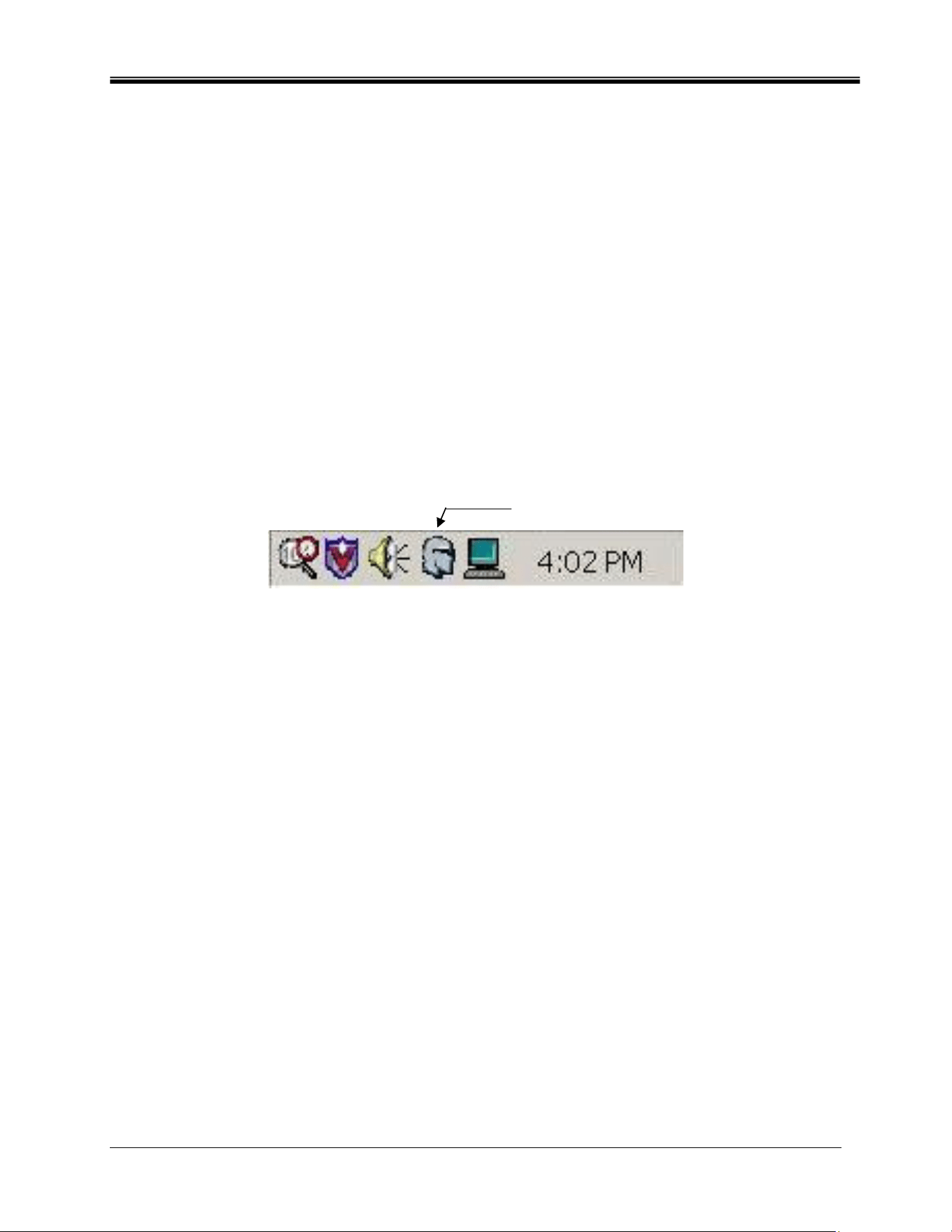
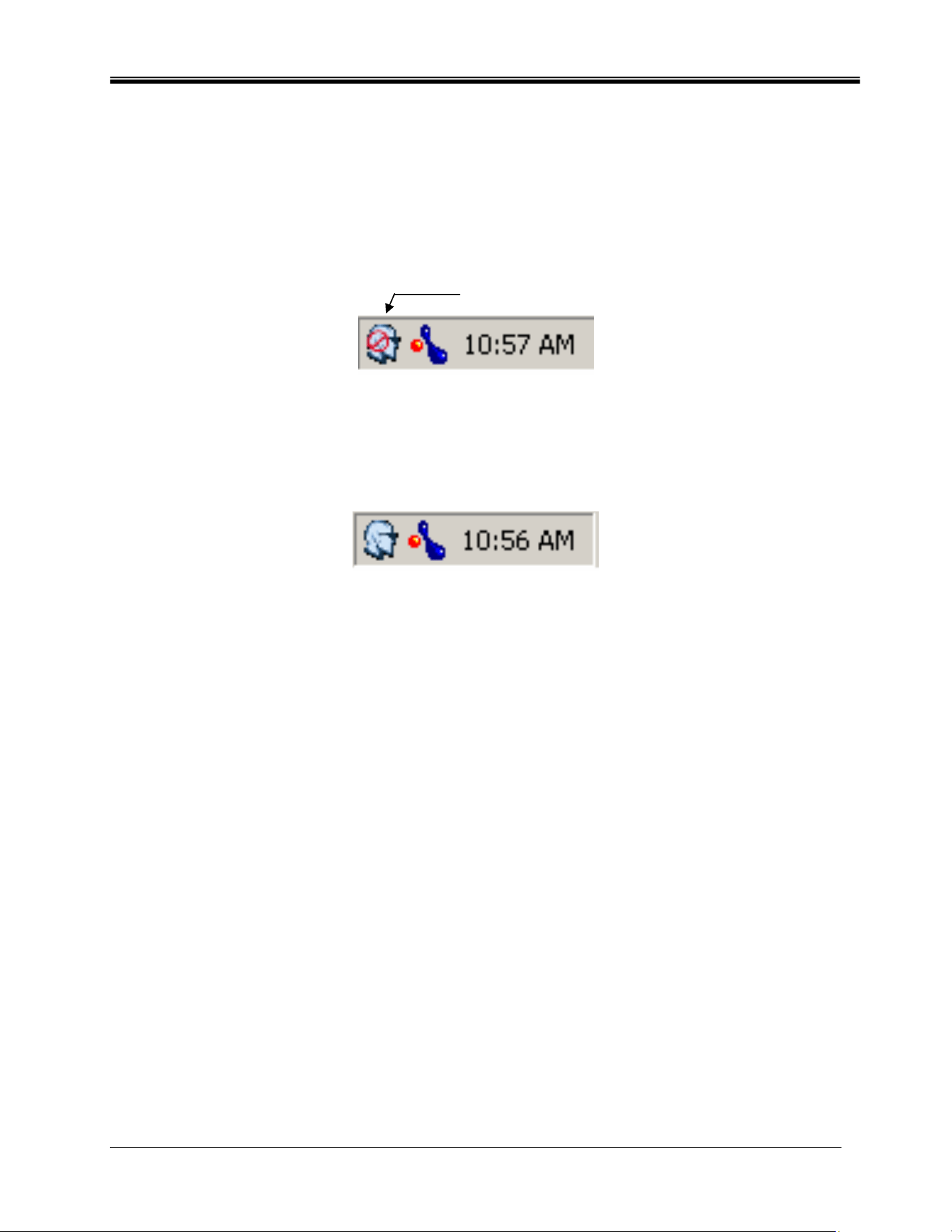
Please reboot the system to complete the installation. After reboot, the Sound Agent icon will
appear in the system tray. See Figure 1. Please note that the number and types of icons in the
system tray varies from computer to computer.
Sound Agent 2 icon
Figure 1
Philips Sound Solutions
7
3. The Philips Sound Agent 2 Interface Operation
The following sections provide a detail description of the PSA2 features.
3.1. Launching the PSA2
DGX220 must be connected to the PC through the USB port. When DGX220 is not connected
to the PC, PSA2 icon in the system tray will appear with the red void mark. See Figure 2.
Sound Agent 2 icon
Figure 2
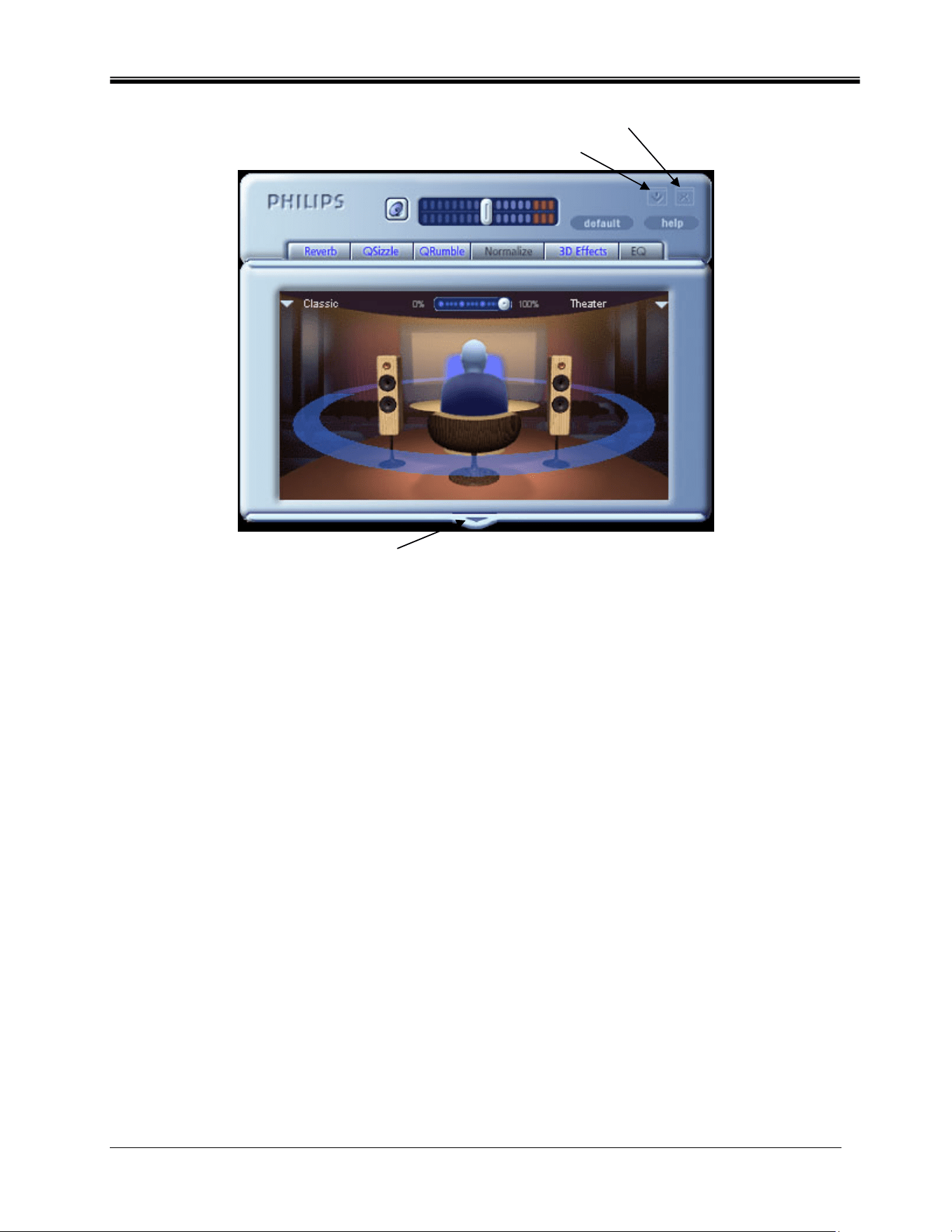
To open the control panel, double click on the PSA2 icon in the System Tray (normally the lower
right hand corner of the screen). This method can be used only if the icon does not have red
void mark on it. See Figure 3.
Figure 3
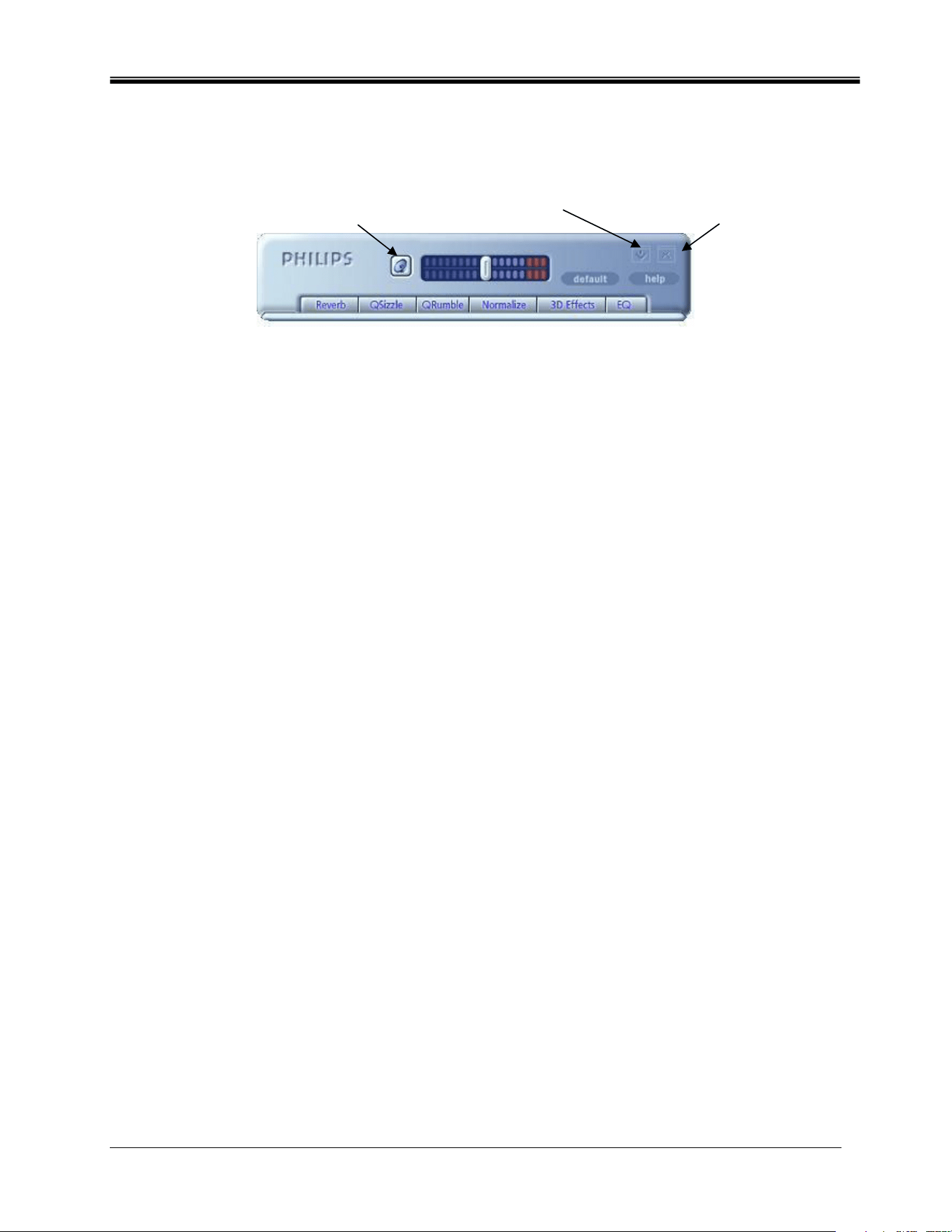
When you first launch the PSA2 it appears as partially expanded form as shown in Figure 4. To
reveal the Main Control Panel click on the Drop-down arrow at the bottom side of the
Visualization Control Panel.
The panel contains three distinct sections: Compact Control Panel, Main Control Panel and
Visualization Control Panel. To reduce the expanded form to a compact form, use the Resize
button. The Compact Control Panel takes up very little space on the screen and it contains the
top-level controls. However, to set or change some of the settings, you need to expand to the
Main Control Panel. Use the Resize button when you need to expand the Main control panel
again.
Philips Sound Solutions
8
Close Button
Resize Button
Drop-down/Pull-up arrow
Figure 4
The Visualization Control Panel provides a graphic representation of the advanced audio
processing features of the PSA2. It also includes controls to enable the environmental effects.
The Visualization Control Panel only appears in the expanded mode as a sliding cover for the
Main Control Panel.
Compact
Control panel
Visualization
Control Panel
Philips Sound Solutions
9
3.2. Compact Control Panel
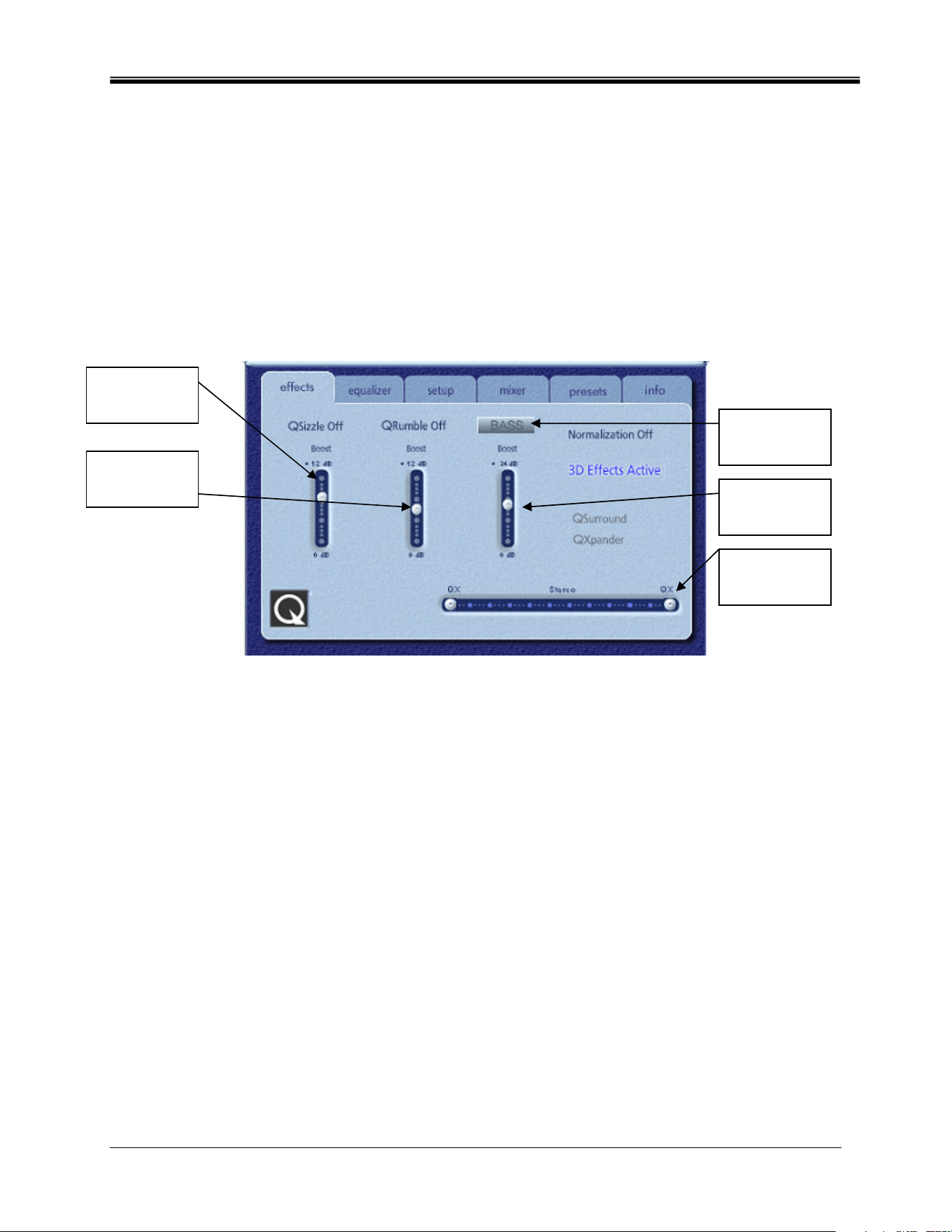
The Compact Control Panel contains the following controls:
Mute Button Resize Button Close Button
Figure 5
Master Volume
Master Volume controls the overall output level of the sound system. This volume control is
synchronized with the volume control on the system tray (the yellow speaker icon).
Mute
This button toggles the sound on or off to attached speakers or headphones. It mutes the sound
but does not stop the player.
Resize
Resize button toggles between the compact mode (basic controls) and the expanded mode (for
more advanced options).
Close
Closes the PSA2 control panel without affecting audio operation.
Default
Pushing the Default button resets most controls to a predefined functional state.
Help
This button launches the on-line help system. It contains detail descriptions of all features of the
PSA2 interface and its operation.
Reverb
This button toggles the QSound Environmental Modeling (QEM) on or off. However, some
games apply their own environmental effects, which are not controlled by this button.
Environmental modeling uses reverb (reflected sound) and delay to create the impression that
the listener is in a particular environment.
QEM provides a wide range of high-quality environmental modeling effects that are selectable
from the Visualization Control Panel. By selecting a default environment, you impose
the
effects of that environment for music, movies, or games that do not use the EAX feature.
PSA2 responds automatically to games that use the EAX and EAX2.0 commands. These
games automatically control the selection of environments (regardless of what is selected from
the Visualization Control Panel) to match various scenes and locations, and change these
selections as the environment changes. The applied intensity of reverb is controllable by a slider
in the Visualization Control Panel. If the level of Reverb is not as expected, check the slider in
the Visualization Control Panel and adjust properly.

Philips Sound Solutions
10
QSizzle
Toggles the QSizzle effect. When on, enhances the mid/high frequency range of a digitally
compressed audio stream. The button label illuminates when QSizzle is enabled.
QRumble
Toggles the QRumble effect. When on, it enhances the low frequency range of the audio stream.
The button label illuminates when QRumble is enabled.
Normalize
Toggles Normalization (automatic volume leveling) on or off. The button label illuminates when
Normalization is enabled.
3D Effects
Toggles 3D Effects on or off. This does not affect 3D audio games, but does affect non-3D
audio games utilizing the 2D to 3D remixing feature. The button label illuminates when 3D
Effects are enabled. To enable automatic audio features such as QSurround, and QXpander
this feature must be enabled
EQ
Toggles the 10-band Equalizer on and off. The button label lights up when the Equalizer is
enabled. When the button is not activated the EQ remains inoperative.
Philips Sound Solutions
11
3.3. Main Control Panel
The Main Control Panel is in the center of the expanded mode, and it provides access to
advanced settings for most PSA2 controls, which are grouped in five separate tabs. See
Figure 6.
If only the Compact Control Panel is visible, you must expand it by clicking on the Resize button
on the right hand corner, next to the Close icon. See Figure 5.
If the Visualization Control Panel is covering the Main Control Panel, slide the Visualization
Control Panel cover down to reveal the Main Control Panel by clicking on the arrow at the
middle of the lower edge of the Visualization Control Panel. See Figure 4.
Figure 6
Once the Main Control Panel is open, you can choose any of the tabs to select the desired set
of controls. The following is a description of each tab from left to right:
3.3.1. Effects Tab
The Effects Tab is the first of the Main Control Panel tabs. Below is a description of all the
features on the Effects tab.
QSizzle
QSizzle is a mid and high frequency (treble) enhancement algorithm that helps to compensate
for the loss of presence, punch and signal detail that often results from compressed digital
media, such as MP3 and WMA formats.
QSizzle self-adjusts in real time according to frequency response of the input signal. This is
different from the Equalizer, which is a fixed frequency processor. The Equalizer does not
monitor the input signal or perform self-adjustment. The label QSizzle Active appears in
illuminated text when QSizzle is enabled, and QSizzle Off when disabled.
QSizzle
slider
QRumble
slider
UltraBass
button
Qxpander
slider
UltraBass
slider

Philips Sound Solutions
12
QRumble
QRumble is a powerful low frequency enhancement algorithm that helps to compensate for loss
of bass that may result from compressed digital media such as MP3’s or WMA formats.
QRumble responds in real time to the varying nature of the input signal, automatically adjusting
itself accordingly. This is very different from the Equalizer, which is a static frequency processor.
The Equalizer does not monitor the input signal or perform self-adjustment.
The label QRumble Active appears in illuminated text when QRumble is enabled, and
QRumble Off when disabled.
Normalization
Normalization automatically adjusts the volume variations in various audio files or streams.
Quieter signals are amplified to match the level of louder ones, so that the listening volume
maintains a consistent level. This means that when playing files with various output levels, the
need to constantly adjust your speaker volume is minimized.
The label Normalization Active appears in illuminated text when Normalization is enabled, and
Normalization Off when disabled.
NOTE: If the pre-recorded volume of the source is too high, the playback might sounds ‘wavy’.
This is ‘as designed’ and can be minimized by turning off the Normalization for that particular
song.
UltraBass
UltraBass is a bass-enhancement system, which uses the way humans perceived sound and
signal processing to enhance bass quality of small loudspeakers.
3D Effects
Three separate 3D audio enhancement algorithms are provided to maximize the spatial
experience no matter what the combination of signal type and output hardware.
When 3D Effects are enabled, the audio processor will automatically choose the appropriate
algorithm (3D mode) according to your output configuration and the type of input signal. The 3D
Effects indicator LED’s on front panel and the indicators on the Effects Tab illuminate to show
which algorithm is active at any given time.
QXpander optimizes stereo input played over 2 speakers or headphones. When QXpander is
active it provides a wider sound field far exceeding physical position of the speakers.
QSurround optimizes a multi-channel source (e.g. a 5.1 channel DVD) to create “virtual”
speakers and immerse the listener in surround sound.
NOTE: The source must be a multi-channel in order for this feature to be activated (e.g. on 5.1
DVD playback, please make sure the software-DVD player is set to 6-channel output).
Philips Sound Solutions
13
3.3.2. Equalizer Tab
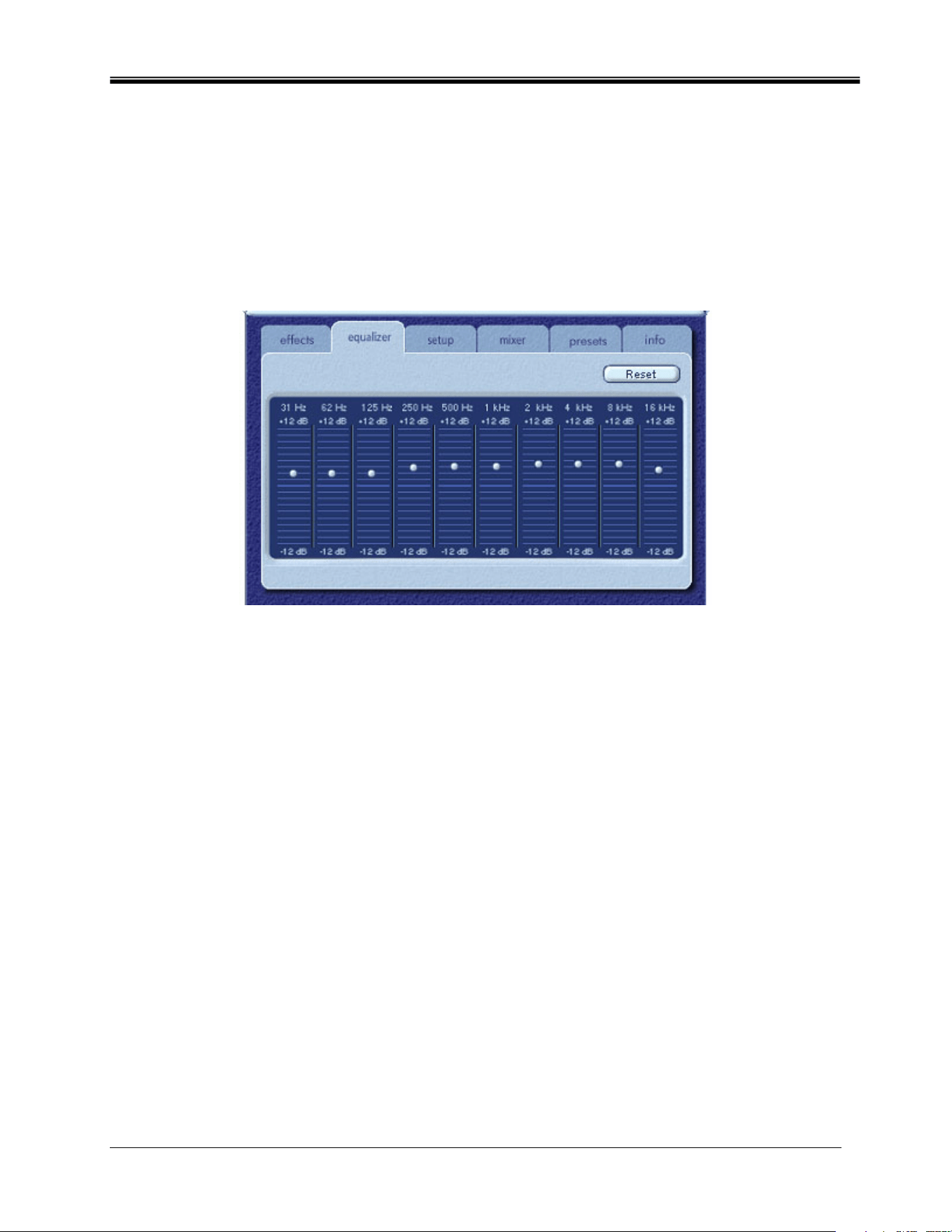
The Equalizer (EQ) controls the frequency response of the system by increasing or decreasing
the frequency response of ten independent frequency bands.
This Equalizer works very much the same as the equalizers in high quality sound systems. Each
slider controls the relative level of a band (range) of frequencies. The number listed above each
slider column is the center frequency of the band controlled by that slider. When a slider is set to
the center position, frequencies within this band left flat and the gain is 0dB. See Figure 7.
Figure 7
To boost the level of a given band, move its slider above the centerline. To cut the relative level
of a given band, move its slider below the centerline. Maximum boost or cut is ±12dB on each
frequency level.
Sliders can be individually centered by right clicking anywhere within the slider area, or
collectively by clicking the Reset button on top right corner of the panel. Clicking the default
button on the Compact Control Panel can also collectively center the sliders. Please note that
the default button resets several other features as well.
Philips Sound Solutions
14
3.3.3. Setup Tab
Figure 8
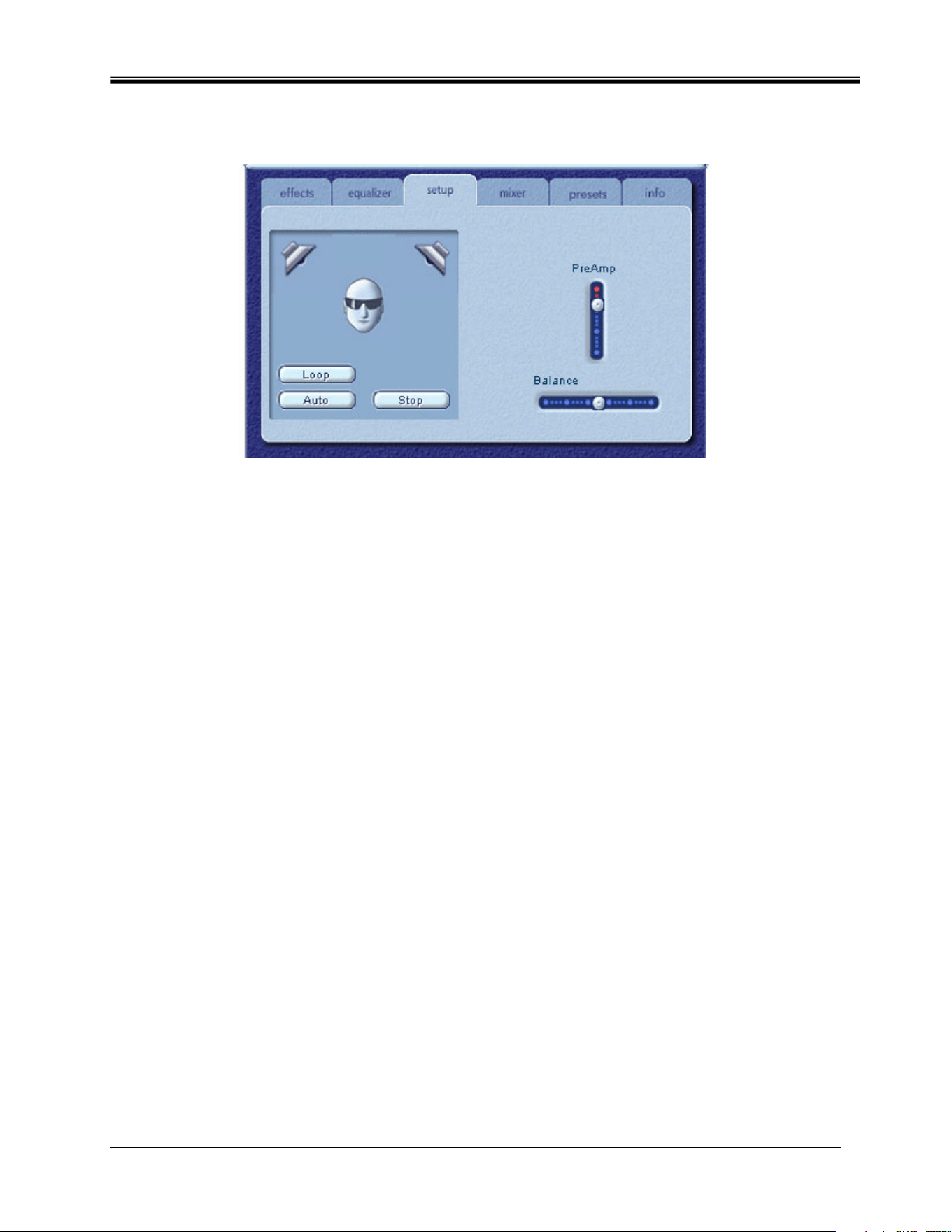
Speaker Test Utility
The Speaker Test Utility can be used for troubleshooting, in case no sound is coming out of the
speakers when expecting to have sound.
The test utility highlights each speaker that is being tested. Click either speaker to send the test
sound to the corresponding speaker. See Figure 8.
The Loop test button allows the test to repeat until the Stop button is pressed. If the Loop is off,
the sound will play once for each click of a speaker button.
The Auto button sends the test sound to each speaker once and moves to the next speaker
automatically. If the Loop and the Auto buttons are used in conjunction, the test signal will loop
through the speakers until the Stop button is pressed.
Preamp Slider
The Preamp Level control allows you to boost the input audio signal before it is processed by
the PSA2. It has a similar effect as the master volume, but should not be used instead of it.
NOTE: Increasing the PreAmp may cause audio distortion on some high level input signals. In
some cases, an input signal can be of such amplitude that audio distortion can occur at the
preamp default level. If this is the case simply lower the preamp level to help eliminate any
distortion.
Balance Slider
This slider allows you to balance the left and the right speakers.
Philips Sound Solutions
15
3.3.4. Mixer Tab
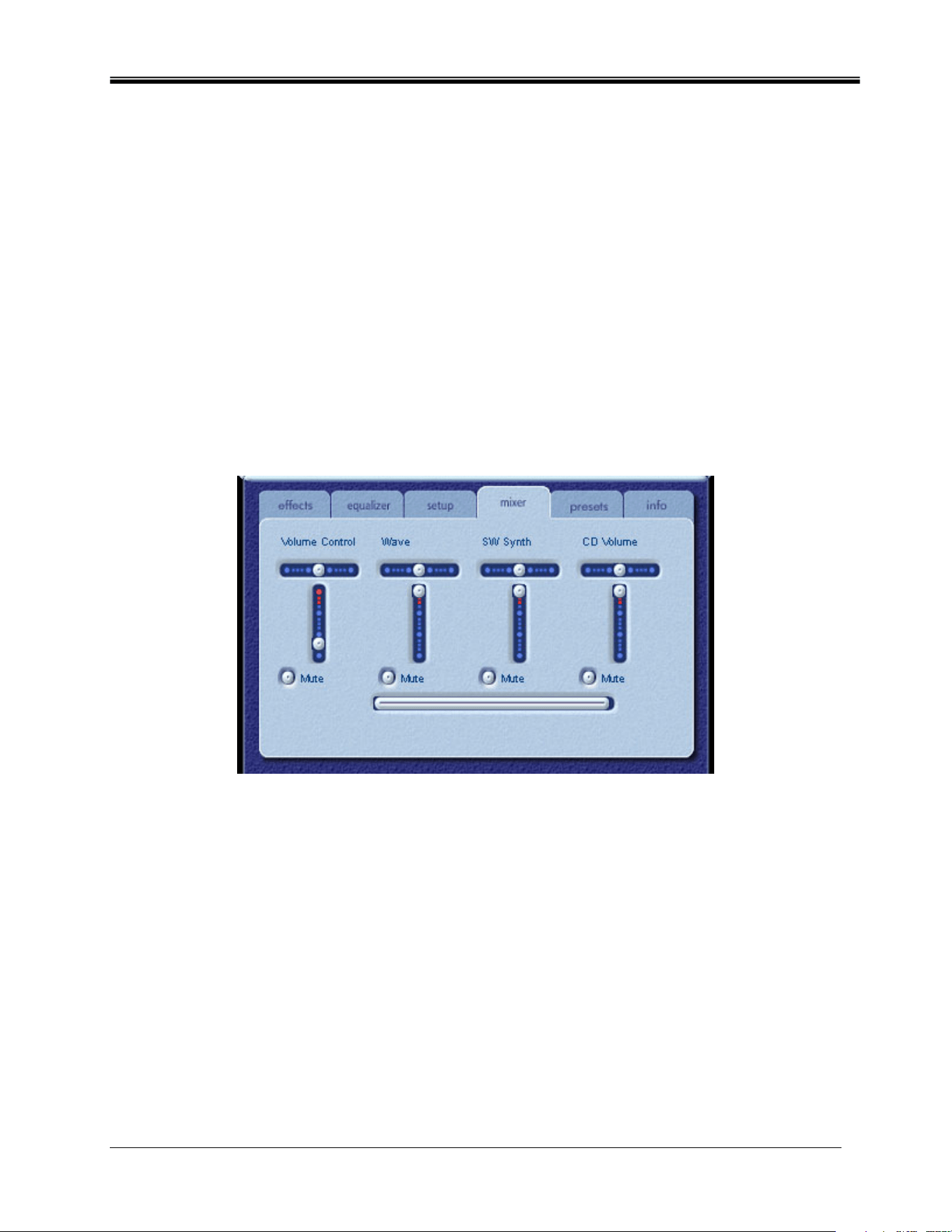
Mixer controls allow you to control playback sources.
3.3.4.1. Playback source controls
You can individually mute or un-mute as many playback sources as you wish.
Volume sliders set the playback level for each source.
Balance sliders adjust the relative left and right output levels for each stereo source. Balance
sliders should normally be left in the center, which is the default position. Right-click any of the
balance sliders to center it.
Depending on the number of available playback sources in your PC, the number of horizontal
and vertical slider may vary, and a scrollbar may or may not be preset. The viewing area on the
Mixer Tab displays controls for a maximum of four playback sources at one time. Use the
Playback Source Scrollbar (if present) to reveal more source controls. See Figure 9.
Figure 9
When playing audio CD’s using the CD ROM driver of the PC, one should enable the digital
audio extraction in the system device manager. If you need more information refer to the
TroubleShooting section in Appendix C of this document.
3.3.4.2. Recording source controls
To simplify the operation of recording control on PSA2, the recording source have been pre-
selected at Mic In. To record from Mic In, connect the Microphone and launch your favorite
recording software and just hit Record.
Philips Sound Solutions
16
3.3.5. Presets Tab
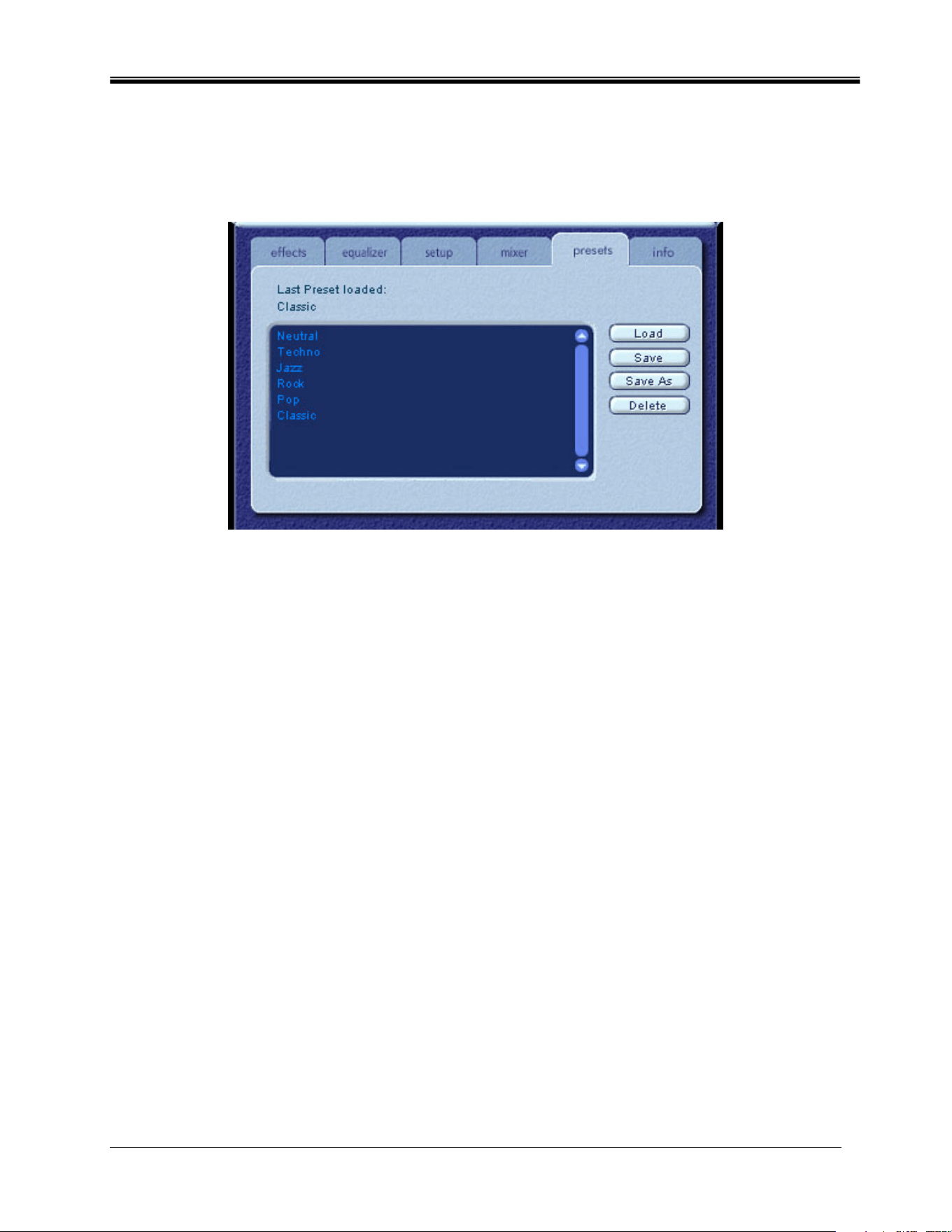
The Preset functions enable you to make snapshots of the state of all Philips Sound Agent 2
controls, so that you can conveniently reload the same settings at any time.
Figure 10
The Preset system enables you to save the state of PSA2 controls once you have made
adjustments to customize your listening experience, so you can recall settings for any source
and playback environment.
For example, if you have been listening to music with predominant drums and bass and have
adjusted the controls to suit your taste, you can quickly save a preset called “Drums’n’Bass”.
Whenever you listen to this type of music again, simply load this preset, and all the controls will
return to the settings you had in effect when you saved it.
Sound Agent 2 comes with six factory presets as listed on the Presets tab. The following is a
description of each feature on the Presets tab.

Philips Sound Solutions
17
Load
Clicking on this button loads an existing preset. To load another preset, highlight it on the list
and click the Load.
Save
When you load one of your presets and make changes to it, you can save it by clicking on the
Save button. If you have selected one of the factory presets and made changes to it, you will
have to save it under a different name. Sound Agent 2 will not overwrite factory presets, but
you can overwrite your own unique presets.
Save As
You can load an existing preset (factory or one of yours), modify it to your taste, and save it as a
new preset.
Delete
Deletes the selected preset permanently from the list. When you select one of your presets and
click on this button, a confirmation dialog box will appear and when you confirm by clicking the
OK button, the preset will be removed from the list. This button will not delete any of the factory
presets.
3.3.6. Info Tab
This tab contains useful information regarding the product. It includes the software driver’s
version number, manufacturer’s name, and web page addresses.
Figure 11
Philips Sound Solutions
18
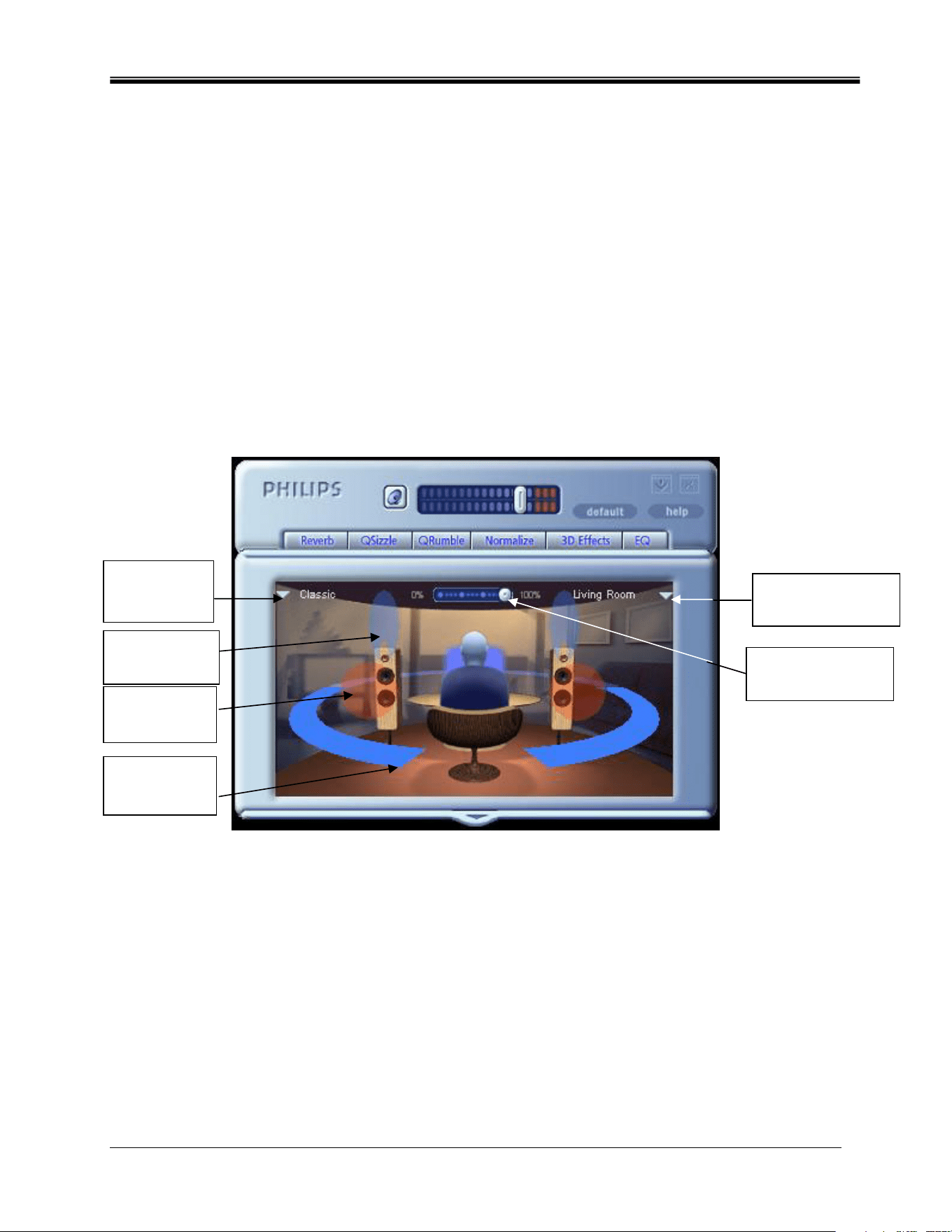
3.4. Visualization Control Panel
The Visualization Control Panel provides a graphical representation of the environments and
effects that are created by Sound Agent 2. It also contains two drop-down menus and the
Reverb Intensity Slider.
The drop-down menu on the right contains sixteen different reverb environmental effects to
select. To select a reverb environment, the Reverb button located on the Compact Control
Panel must be enabled.
The drop-down menu on the left contains all factory and user defined presets for various types
of music. This menu allows easy preset access via the Visualization Control Panel.
The top center horizontal slider controls the intensity of the reverb effect that is being applied.
Adjust as necessary to achieve the right amount of Reverb based on individual content.
The Visualization Control Panel may be moved up and down to conceal or reveal the Main
Control Panel by clicking the arrow at the bottom center of the panel.
Figure 12
Presets
Menu
Reverb
Intensit
y
Slider
Environmental
Menu
QSizzle
Control
QRumble
Control
QXpander
Control

Philips Sound Solutions
19
4. Uninstalling PSA2
If for any reason it becomes necessary to uninstall the PSA2 drivers, you can choose one of two
available methods. You may go to the system control panel and launch the “Add/Remove
Programs” utility. From the list of programs find PSA2 (or Philips Sound Agent 2) and click on it
so it is highlighted. Click the “Change/Remove” button.
Or, you may choose the uninstall program that comes with PSA2 program. For this you click on
the Windows Start button, click on the “Programs”, (“All Programs” in XP), click on the Philips
folder, then select and execute the Philips Uninstall program.

Philips Sound Solutions
20
5. Technical Support And Warranty
Before calling the technical support number please make sure you have the following
information available:
• Model number and date of purchase.
• Computer type, processor speed, and memory available.
• Computer operating system (IE; Windows® 2000, or XP).
• On-screen error information.
5.1. Internet Address:
Technical support and driver:
http://www.philips.com/support
The web site for Europe is:
http://www.philips.com/pcstuff
Philips general web site is:
http://www.philips.com/ce
5.2. Technical Support Information:
Toll-Free telephone numbers:
Available 6:00 AM – 10:00 PM Central Standard Time
USA: 1-800-835-3506
Elsewhere: See the Warranty Conditions document in your package.

Philips Sound Solutions
21
6. Appendix B, USB Hub Considerations
6.1. Introduction to USB Hub
A hub is a USB device that uses one USB port for connection to a PC and typically provides
four additional ports for connection to USB devices. The function is similar to an electrical plug
expander or an extension cord with multiple receptacles.
Some of the earlier computers have only two USB ports that are usually located on the backside
of the computer. In this case if we have more than two USB devices for connection to the PC we
need to use a USB hub. Using a hub not only provides more USB ports, but also provides easy
access to the ports that are located in the back of the computer.
Most newer computers have two USB ports in the back and two additional ports in the front. The
front ports are usually concealed under a flip up or flip down cover. Refer to your PC document
to locate these ports.
A USB host controller card may be added to a computer if it does not have any USB ports at all.
These cards need to be installed inside the computer in a PCI slot.
6.1.1. Power Limitation
Hubs, like any USB device, may be bus-powered or self-powered. A self-powered hub has an
external power supply, which plugs into an electrical outlet, and can provide maximum specified
power to all its USB ports. A bus-powered hub draws power from the root USB port, and thus, it
has limited power available to the connecting USB devices.
6.1.2. Bandwidth Limitation Issues
Each USB port on the PC has a maximum bandwidth of 12 Mega-bits per second (Mbps).
Different USB devices require different amount of bandwidth. Connecting more than two high
bandwidth-demanding devices to a hub may cause degradation of functionality for some or all of
the devices on that hub. For example, connecting a web camera and an audio device to the
same hub may cause gaps in the displayed video, or gaps in the audio stream. It may even
cause the devices not to function at all. This usually happens to the device that is used last
when other USB devices are active.
Philips Sound Solutions
22
7. Appendix C, Troubleshooting
9 No Sound is coming out
1. Ensure the speaker system is plugged in.
2. Check the mute button to ensure it is deactivated.
3. Check the volume button and turn it up.
4. Click on default button on the PSA2 Compact Control Panel.
9 System Error Message
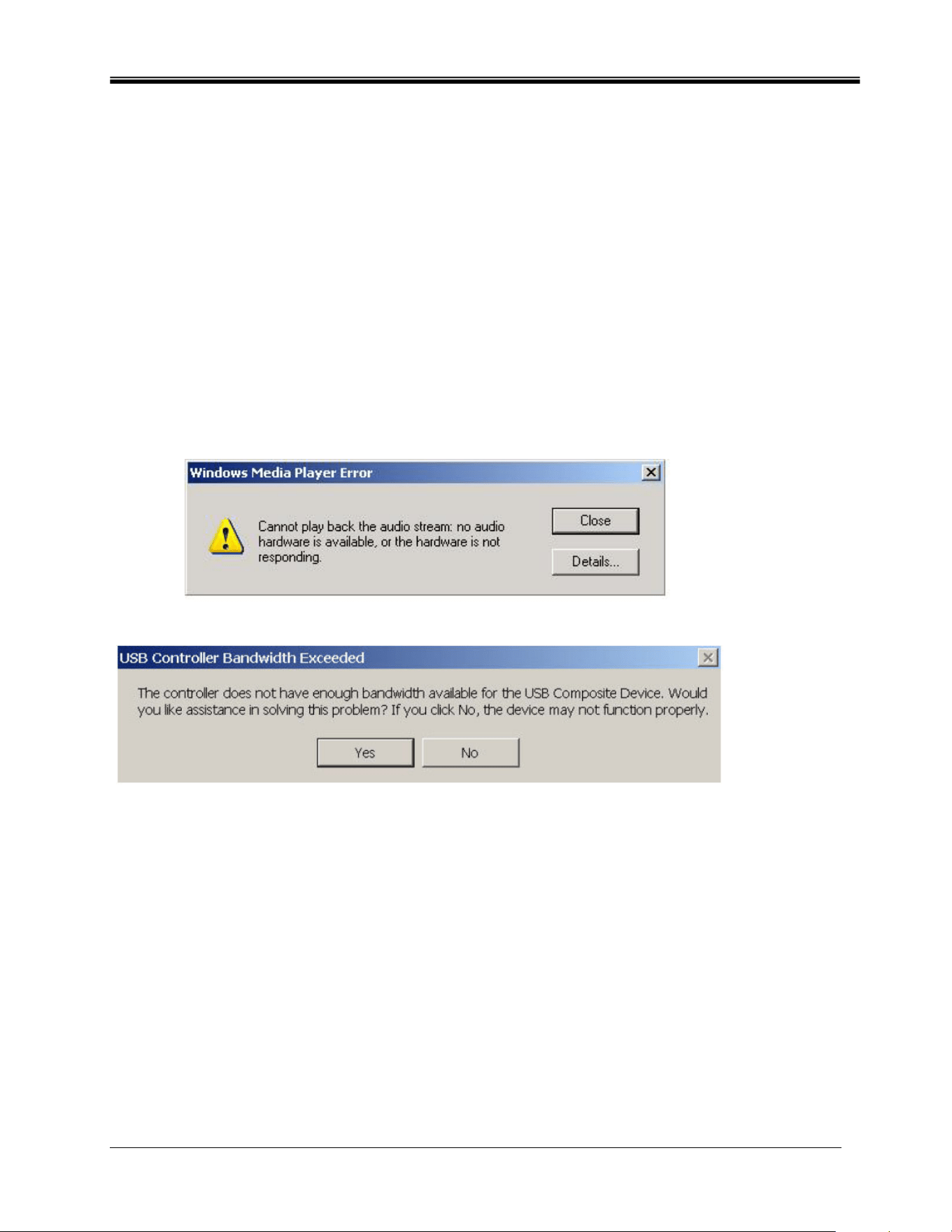
When attempting to launch an audio player application, on a rare occasion you may see one of
the following error messages depending on the operating system of the PC. This error message
also causes no audio to be played.
Windows XP
Windows 2000
Figure 13
This error message is generated due to lack of sufficient bandwidth on the USB hub that the
Audio System is plugged into. If you have a USB imaging device (such as a webcam or a
scanner) and you have an imaging application open, and try to open an audio player application
such as Winamp or Windows Media Player.
Solution
Click “Close” or “No” depending of which error message you have.
Close the audio player application.
Close the imaging application.
Reopen the audio player application and play the audio stream.
Philips Sound Solutions
23
9 No Audio When Playing Audio CD in the CD Drive
The system CD ROM drive could be used to play audio CD’s. However, the Audio Digital
Extraction feature of the PC should be enabled. Here are the steps to enable this feature:
Windows 2000
1. Right click on “My Computer”. On Windows 2000 this icon on desktop. On Windows XP
it is in the upper right portion of the Start menu.
2. Scroll down to “Properties” and click on it.
3. Click on “Hardware” tab.
4. Click on “Device Manager” button at the middle of panel.
5. Click on the + sign next to the DVD/CD-ROM Drives.
6. Right click on the CD ROM drive that appears. If there are more than one CD ROM
drives, click on the one that is being used for audio CD playing.
7. Scroll down to “Properties” and click on it.
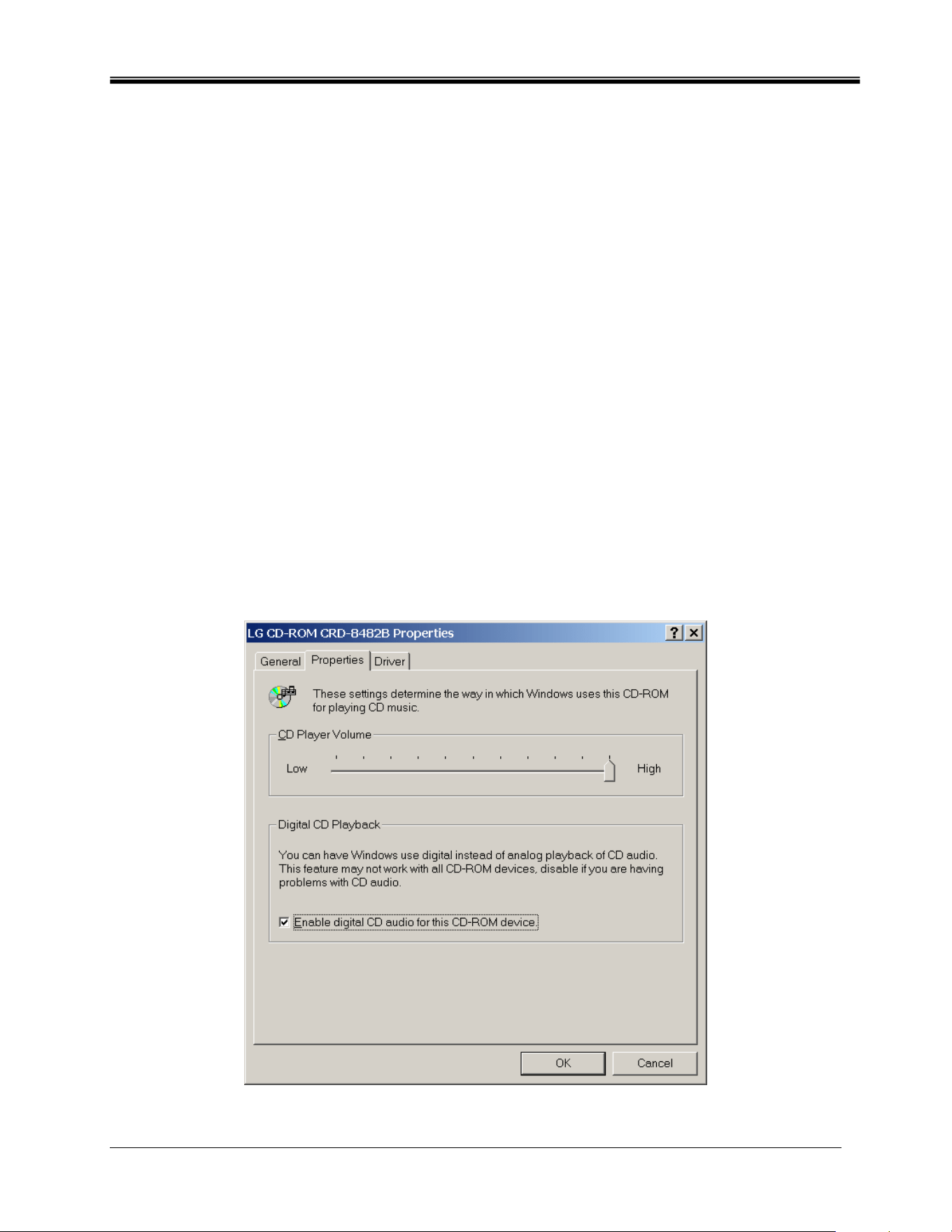
8. A new panel opens. See Figure 14
9. Click on the Properties tab
10. Click to select the box with the label “Enable digital CD for this CD-ROM device
11. Click the OK button and close all the relating windows.
Figure 14

Philips Sound Solutions
24
9 CD Player Control in the mixer playback tab does not have any effects on
the output when Playing Audio CD in the CD Drive
Because the CD player sends the audio streams via the digital data lines, Windows treats this
source like other digital audio sources such as MP3 files. Therefore, to control the volume and
balance use the controls for “wave”.
9 No PSA2 Icon in the System Tray
After you have installed PSA2 from the installation CD, if the PSA2 icon disappears from the
System Tray, go to the start menu, click on Programs (Windows 2000 or Windows XP), click on
Philips, then click on Sound Agent 2, then click on Control Panel.