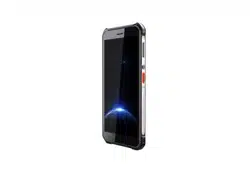

Portable Code Scanner
User Manual

Legal Informaon
About this Document
●
This Document includes instrucons for using and managing the Product. Pictures, charts,
images and all other
informaon hereinaer are for descripon and explanaon only.
●
The
informaon contained in the Document is subject to change, without noce, due to
rmware updates or other reasons. Please nd the latest version of the Document at the
Hikvision website ( hps://www.hikvision.com ). Unless otherwise agreed, Hangzhou Hikvision
Digital Technology Co., Ltd. or its aliates (hereinaer referred to as "Hikvision") makes no
warranes, express or implied.
●
Please use the Document with the guidance and assistance of professionals trained in
supporng the Product.
About this Product
●
This product can only enjoy the aer-sales service support in the country or region where the
purchase is made.
●
If the product you choose is a video product, please scan the following QR code to obtain the
"Iniaves on the Use of Video Products", and read it carefully.
Acknowledgment of Intellectual Property Rights
●
Hikvision owns the copyrights and/or patents related to the technology embodied in the
Products described in this Document, which may include licenses obtained from third pares.
●
Any part of the Document, including text, pictures, graphics, etc., belongs to Hikvision. No part
of this Document may be excerpted, copied, translated, or modied in whole or in part by any
means without
wrien permission.
●
and other Hikvision’s trademarks and logos are the properes of Hikvision in
various
jurisdicons.
●
Other trademarks and logos menoned are the properes of their respecve owners.
LEGAL DISCLAIMER
●
TO THE MAXIMUM EXTENT PERMITTED BY APPLICABLE LAW, THIS DOCUMENT AND THE
PRODUCT DESCRIBED, WITH ITS HARDWARE, SOFTWARE AND FIRMWARE, ARE PROVIDED "AS
IS" AND "WITH ALL FAULTS AND ERRORS". HIKVISION MAKES NO WARRANTIES, EXPRESS OR
Portable Code Scanner User Manual
i

IMPLIED, INCLUDING WITHOUT LIMITATION, MERCHANTABILITY, SATISFACTORY QUALITY, OR
FITNESS FOR A PARTICULAR PURPOSE. THE USE OF THE PRODUCT BY YOU IS AT YOUR OWN RISK.
IN NO EVENT WILL HIKVISION BE LIABLE TO YOU FOR ANY SPECIAL, CONSEQUENTIAL,
INCIDENTAL, OR INDIRECT DAMAGES, INCLUDING, AMONG OTHERS, DAMAGES FOR LOSS OF
BUSINESS PROFITS, BUSINESS INTERRUPTION, OR LOSS OF DATA, CORRUPTION OF SYSTEMS, OR
LOSS OF DOCUMENTATION, WHETHER BASED ON BREACH OF CONTRACT, TORT (INCLUDING
NEGLIGENCE), PRODUCT LIABILITY, OR OTHERWISE, IN CONNECTION WITH THE USE OF THE
PRODUCT, EVEN IF HIKVISION HAS BEEN ADVISED OF THE POSSIBILITY OF SUCH DAMAGES OR
LOSS.
●
YOU ACKNOWLEDGE THAT THE NATURE OF THE INTERNET PROVIDES FOR INHERENT SECURITY
RISKS, AND HIKVISION SHALL NOT TAKE ANY RESPONSIBILITIES FOR ABNORMAL OPERATION,
PRIVACY LEAKAGE OR OTHER DAMAGES RESULTING FROM CYBER-ATTACK, HACKER ATTACK,
VIRUS INFECTION, OR OTHER INTERNET SECURITY RISKS; HOWEVER, HIKVISION WILL PROVIDE
TIMELY TECHNICAL SUPPORT IF REQUIRED.
●
YOU AGREE TO USE THIS PRODUCT IN COMPLIANCE WITH ALL APPLICABLE LAWS, AND YOU ARE
SOLELY RESPONSIBLE FOR ENSURING THAT YOUR USE CONFORMS TO THE APPLICABLE LAW.
ESPECIALLY, YOU ARE RESPONSIBLE, FOR USING THIS PRODUCT IN A MANNER THAT DOES NOT
INFRINGE ON THE RIGHTS OF THIRD PARTIES, INCLUDING WITHOUT LIMITATION, RIGHTS OF
PUBLICITY, INTELLECTUAL PROPERTY RIGHTS, OR DATA PROTECTION AND OTHER PRIVACY
RIGHTS. YOU SHALL NOT USE THIS PRODUCT FOR ANY PROHIBITED END-USES, INCLUDING THE
DEVELOPMENT OR PRODUCTION OF WEAPONS OF MASS DESTRUCTION, THE DEVELOPMENT OR
PRODUCTION OF CHEMICAL OR BIOLOGICAL WEAPONS, ANY ACTIVITIES IN THE CONTEXT
RELATED TO ANY NUCLEAR EXPLOSIVE OR UNSAFE NUCLEAR FUEL-CYCLE, OR IN SUPPORT OF
HUMAN RIGHTS ABUSES.
●
IN THE EVENT OF ANY CONFLICTS BETWEEN THIS DOCUMENT AND THE APPLICABLE LAW, THE
LATTER PREVAILS.
© Hangzhou Hikvision Digital Technology Co., Ltd. All rights reserved.
Portable Code Scanner User Manual
ii
Symbol Convenons
The symbols that may be found in this document are dened as follows.
Symbol Descripon
Danger
Indicates a hazardous situaon which, if not avoided, will or could
result in death or serious injury.
Cauon
Indicates a potenally hazardous situaon which, if not avoided, could
result in equipment damage, data loss, performance degradaon, or
unexpected results.
Note
Provides addional informaon to emphasize or supplement
important points of the main text.
Portable Code Scanner User Manual
iii

Contents
Chapter 1 Introducon ............................................................................................................... 1
1.1 Product Introducon .............................................................................................................. 1
1.2 Key Feature ............................................................................................................................ 1
Chapter 2 Scan Sengs .............................................................................................................. 2
2.1 Set Scan Parameters .............................................................................................................. 2
2.1.1 Set Scan Mode .............................................................................................................. 2
2.1.2 Set Scan Prompt ............................................................................................................ 3
2.2 Set Output Parameters .......................................................................................................... 4
2.2.1 Set Output Mode .......................................................................................................... 4
2.2.2 Set Output Rule ............................................................................................................. 6
2.2.3 Set Encoding Format ..................................................................................................... 8
2.2.4 Set Mul-Code Scan ...................................................................................................... 9
2.3 Set Code System .................................................................................................................. 10
2.4 Set Code Scanner ................................................................................................................. 11
2.4.1 Set Code Scanner Parameters ..................................................................................... 11
2.4.2 Set Scanner Tool .......................................................................................................... 13
2.4.3 View Version
Informaon ........................................................................................... 14
2.5 Set OCR Parameters ............................................................................................................. 14
2.6 Set Other Parameters ........................................................................................................... 15
2.7 Quick
Sengs ...................................................................................................................... 16
2.8 Scan Test .............................................................................................................................. 17
Chapter 3 Network
Sengs ...................................................................................................... 19
3.1 Set Data Trac ..................................................................................................................... 19
3.2 Set Wi-Fi ............................................................................................................................... 19
3.3 Set Tethering ........................................................................................................................ 20
3.4 Set Bluetooth ....................................................................................................................... 20
Portable Code Scanner User Manual
iv

3.5 Set NFC ................................................................................................................................. 20
3.6 Set Android Beam ................................................................................................................ 20
3.7 Access System Management
Plaorm ................................................................................. 21
Chapter 4 System Sengs ........................................................................................................ 22
4.1 Manage Baery ................................................................................................................... 22
4.2 Set Display Parameters ........................................................................................................ 22
4.3 Set Sound Parameters .......................................................................................................... 22
4.4 Manage Storage ................................................................................................................... 22
4.5 Set Locaon ......................................................................................................................... 23
Chapter 5 System Maintenance ................................................................................................ 24
5.1 Export Running Informaon ................................................................................................ 24
5.2 Upgrade Device System ....................................................................................................... 24
5.3 Set Shortcut Menu ............................................................................................................... 24
5.4 Restore Factory Sengs ....................................................................................................... 25
5.5 View Device Informaon ...................................................................................................... 25
Portable Code Scanner User Manual
v

Chapter 1 Introducon
1.1 Product Introducon
Portable Code Scanner (hereinaer referred to as "device") is a code scanning device integrang
with intelligent algorithm. It supports quick recognion of codes to improve the working eciency.
1.2 Key Feature
●
Professional code scanner, supporng one dimensional codes, QR codes, broken codes,
crumpled codes, and
deled codes recognion.
●
NFC patrol.
●
OCR.
●
Waterproof, dustproof, and drop resistant.
Portable Code Scanner User Manual
1
Chapter 2 Scan Sengs
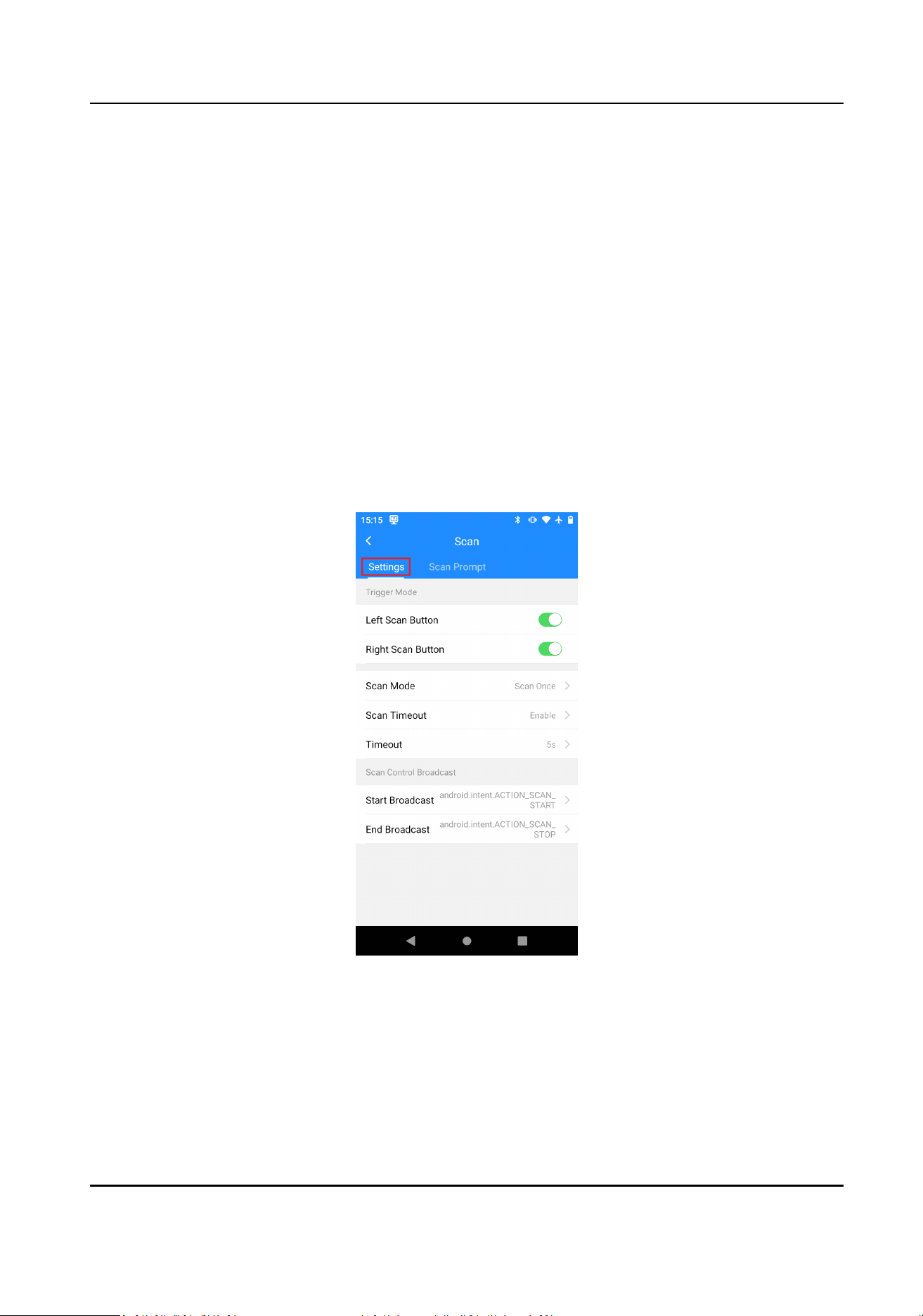
Tap Code Scanner to Enable Scan. Set scan parameters according to the actual scene. Then you can
scan bar codes or QR codes to get the code
informaon.
2.1 Set Scan Parameters
2.1.1 Set Scan Mode
You can set the scan buon and the scan mode according to your actual needs.
Steps
1.
Tap Scan →
Sengs .
Figure 2-1 Set Scan Mode
2.
Enable Le Scan Buon or Right Scan Buon.
You can press the scan buon on the le/right side of the device to scan codes aer seng.
3.
Set Scan Mode.
Portable Code Scanner User Manual
2

Scan Once a. Select Scan Once.
b. Enable Scan Timeout if you want the device to disable scanning
automacally. Disable Scan Timeout if you want the device to disable
scanning when releasing the scan
buon.
Note
Set Timeout if you enable Scan Timeout. The device will disable scanning
automacally if it has not recognized the code informaon beyond the set
meout period.
Connuous
Scan
a. Select Connuous Scan.
b. Set Scan Interval. The device will scan connuously based on the set
interval.
c. Set Repeated Filter Timeout. The device will only output the scan result
once in the set meout period if the result keeps the same.
d. Set Timeout. The device will lock the screen
automacally beyond the set
meout period.
4.
Oponal: Set Scan Control Broadcast if you want to control the device to start/end scan via
sending broadcast.
2.1.2 Set Scan Prompt
Set the prompt sound, vibraon, or indicator if you want to get a prompt when you scan.
Steps
1.
Tap Scan → Scan Prompt .
Portable Code Scanner User Manual
3
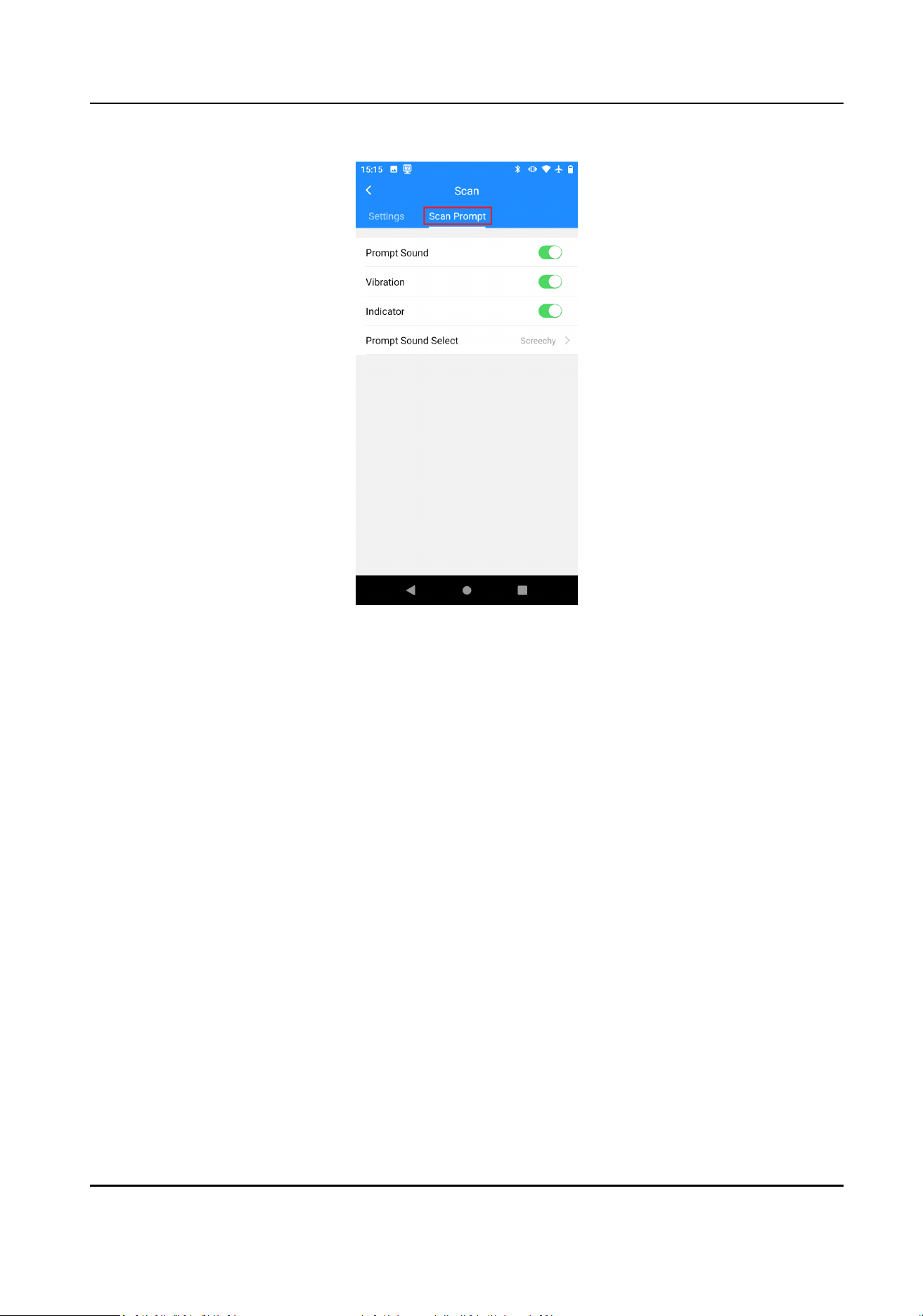
Figure 2-2 Set Scan Prompt
2.
Enable Prompt Sound, Vibraon, or Indicator as required.
3.
Oponal: Select the prompt sound if you enable Prompt Sound.
2.2 Set Output Parameters
2.2.1 Set Output Mode
You can set the output mode of the scan result.
Steps
1.
Tap Output Sengs → Output Mode .
Portable Code Scanner User Manual
4
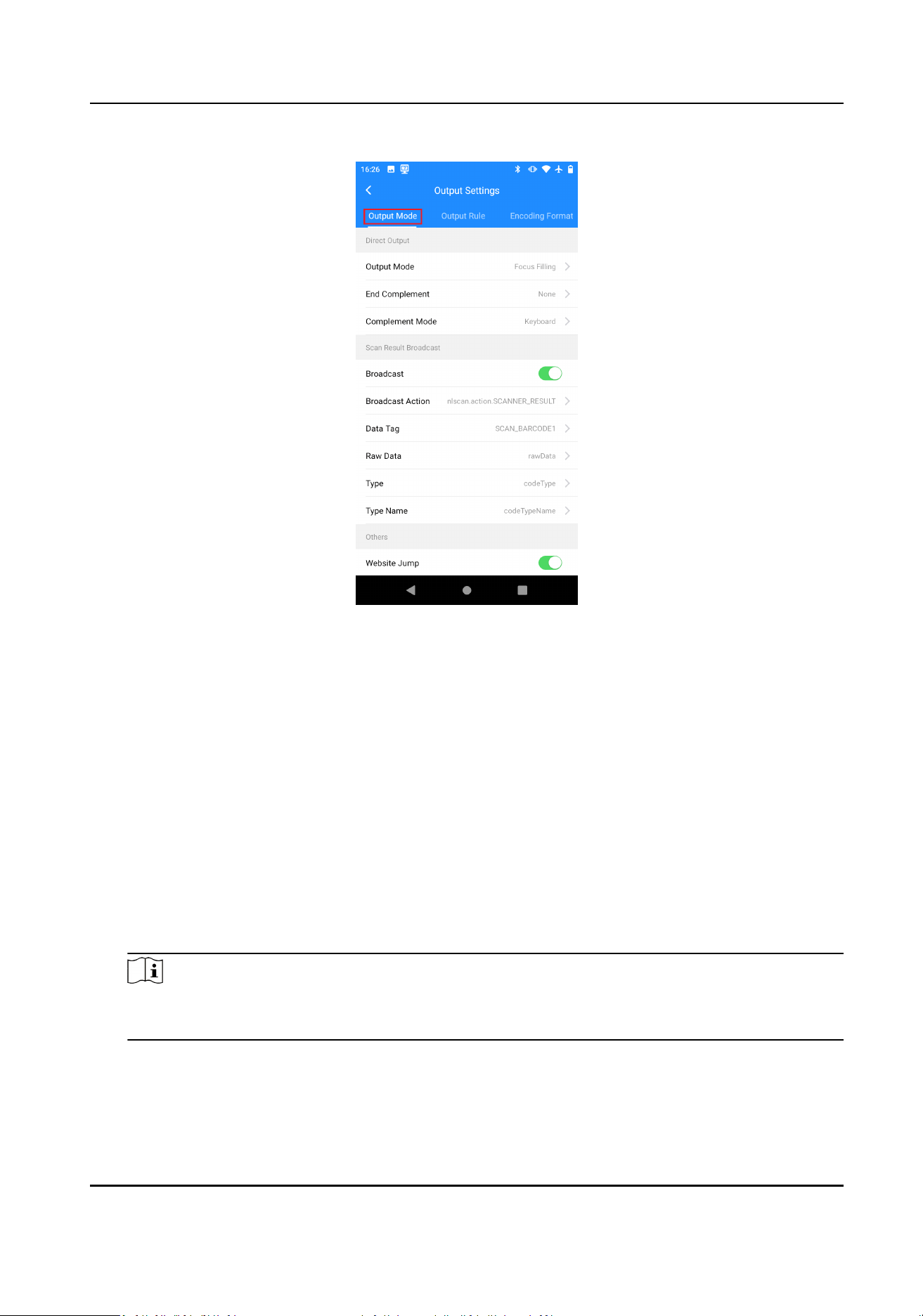
Figure 2-3 Set Output Mode
2.
Set the output mode.
1) Set Output Mode.
Focus Filling
When scanning outside the scan page, if there are text
elds on the current page, the scan
result will be
automacally output in the text eld where the cursor is located.
Focus Coverage
When scanning outside the scan page, if there are lled text elds on the current page, the
scan result will automacally cover the content of the text eld where the cursor is
located.
No Output
The scan result will not be output.
2) Set End Complement.
Note
When the output mode is focus lling or focus coverage, the set end complement will be
added at the end of the scan result.
None
End complement will not be added at the end of the scan result.
Portable Code Scanner User Manual
5

Return
Add a carriage return at the end of the scan result.
Tab
Add a tab at the end of the scan result.
Space
Add a space at the end of the scan result.
3) Set Complement Mode.
Keyboard
The scan result will be output to the text page
simulang the keyboard.
Symbol
The scan result will be output to the text page simulang the input method. The
complement symbol will be replaced with \t or \n.
Input Method
The scan result will be output to the text page simulang the input method.
3.
Oponal: Set Scan Result Broadcast according to the actual needs.
1) Enable Broadcast.
2) Set Broadcast
Acon, Data Tag, and other parameters.
4.
Oponal: Enable Website Jump.
If the scan result is a website, you will be automacally redirected to that website aer scan.
2.2.2 Set Output Rule
You can set the output rule of the scan result.
Steps
1.
Tap Output Sengs → Output Rule .
Portable Code Scanner User Manual
6
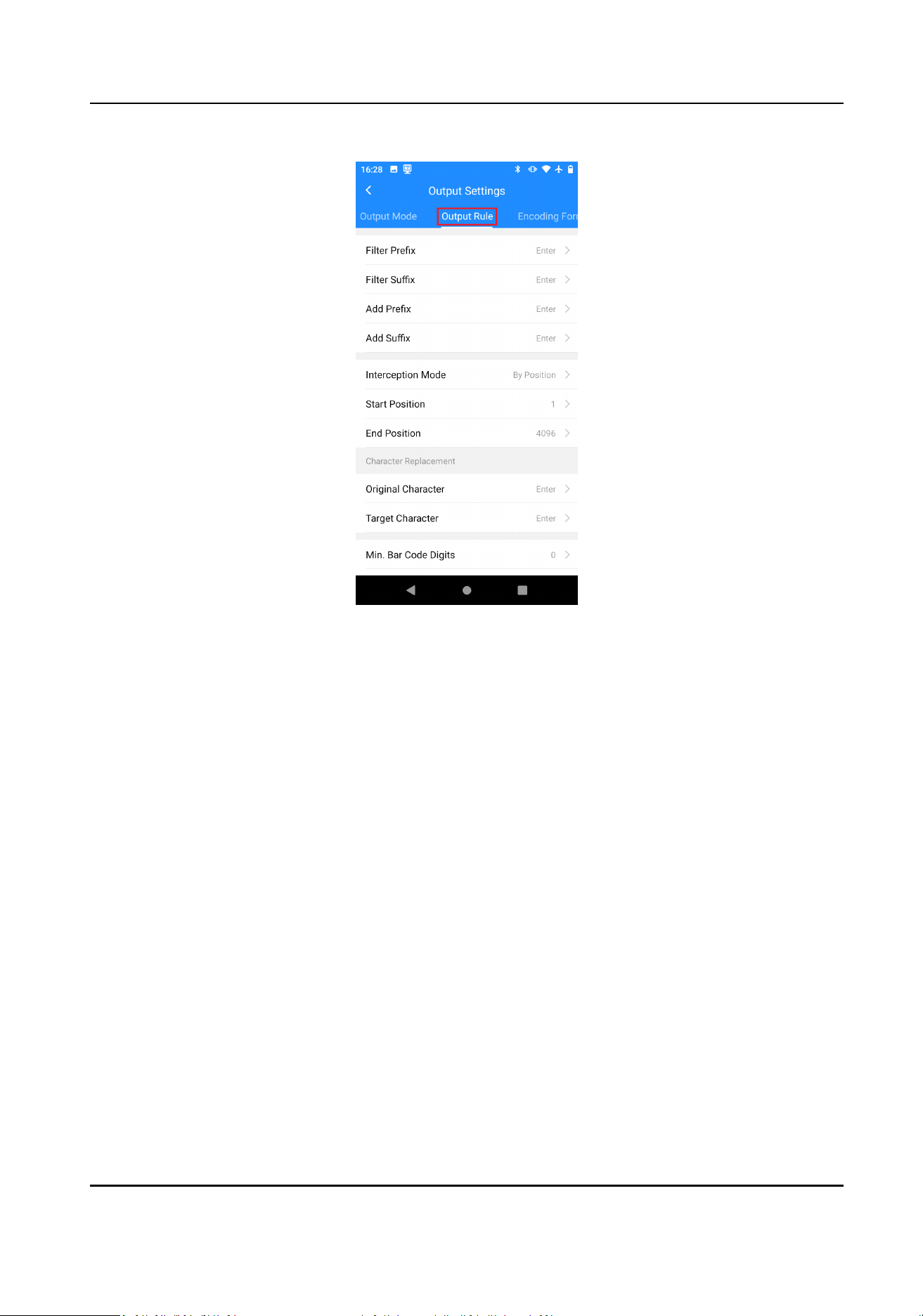
Figure 2-4 Set Output Rule
2.
Set the parameters below.
Filter
Prex/Filter Sux
The set prex/sux will be automacally ltered in the scan result.
Add Prex/Add Sux
The set prex/sux will be automacally added to the scan result.
Intercepon Mode
By Posion
The scan result will be intercepted according to the set Start Posion and End Posion.
By Character
The scan result will be intercepted according to the set Start Character and End Character.
Original/Target Character
The scanning result will automacally replace the set Original Character as the Target
Character.
Max./Min. Bar Code Digits
If the scan result is shorter than the set min. bar code digits or longer than the set max. bar
code digits, it will not be output.
3.
Oponal: If you need to split the data according to the GS1 format when you scan the barcode
in GS1 format, enable GS1
Applicaon Idener Separaon.
Portable Code Scanner User Manual
7
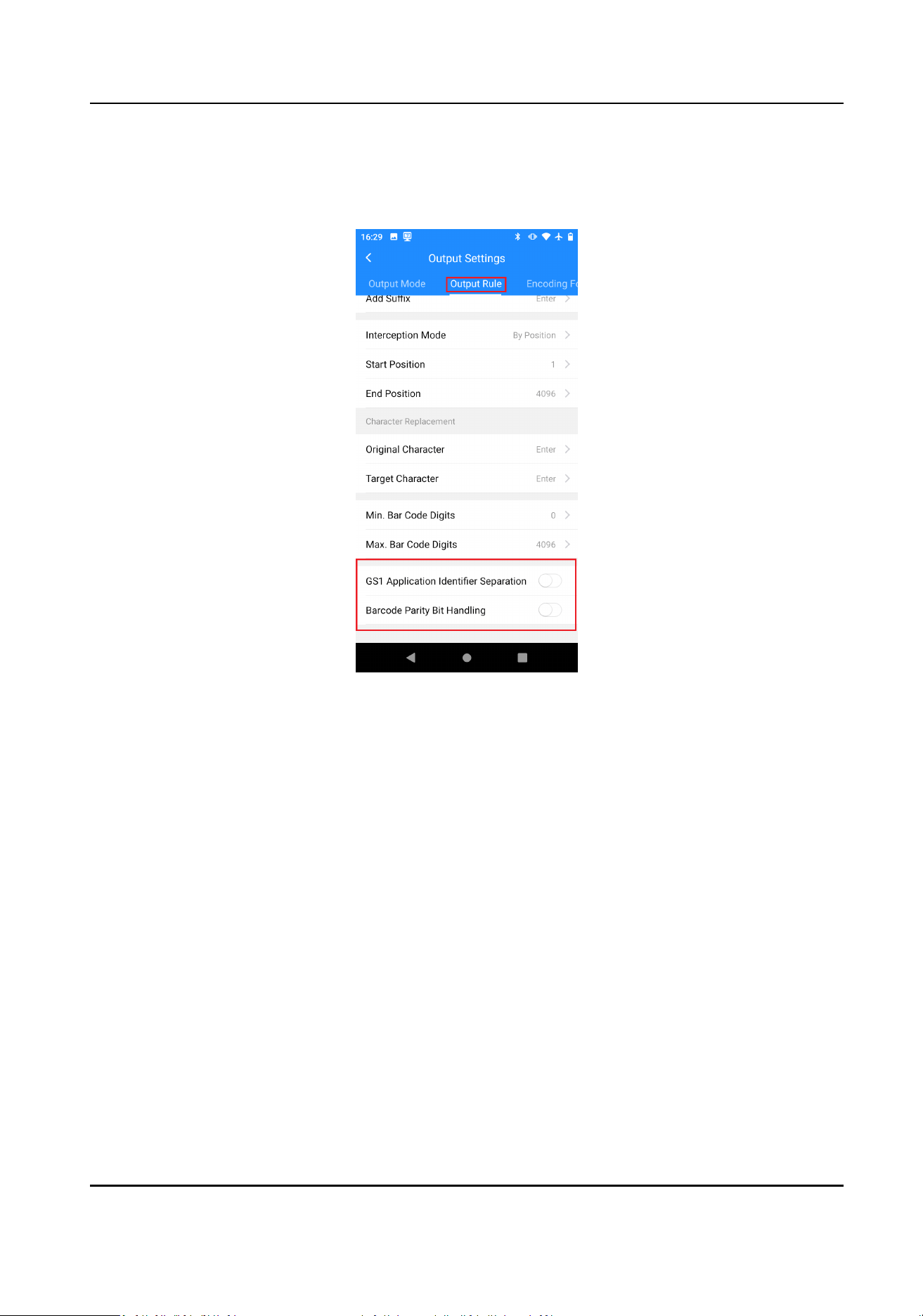
4.
Oponal: If you need the device to perform force parity bit handling for barcodes with parity
bits, not to recognize barcodes with incorrect parity bits and no parity bits, enable Barcode
Parity Bit Handling.
Figure 2-5 Oponal Operaons
2.2.3 Set Encoding Format
You can set the encoding format according to the actual needs.
Steps
1.
Tap Output Sengs → Encoding Format .
Portable Code Scanner User Manual
8
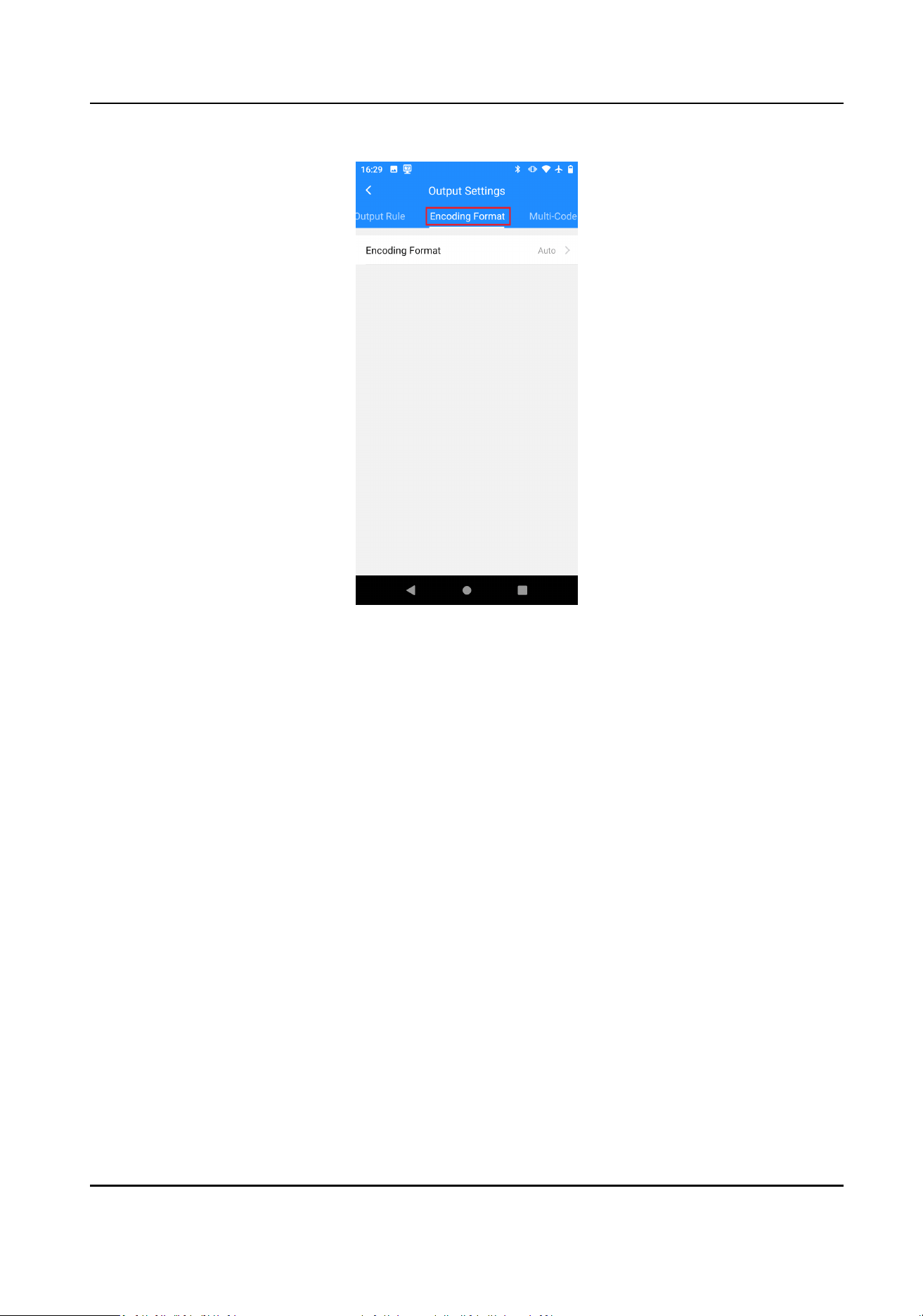
Figure 2-6 Set Encoding Format
2.
Tap Encoding Format to select the encoding format.
2.2.4 Set
Mul-Code Scan
You can set mul-code scan if you need to scan mulple codes at the same me.
Steps
1.
Tap Output Sengs → Mul-Code Scan .
Portable Code Scanner User Manual
9
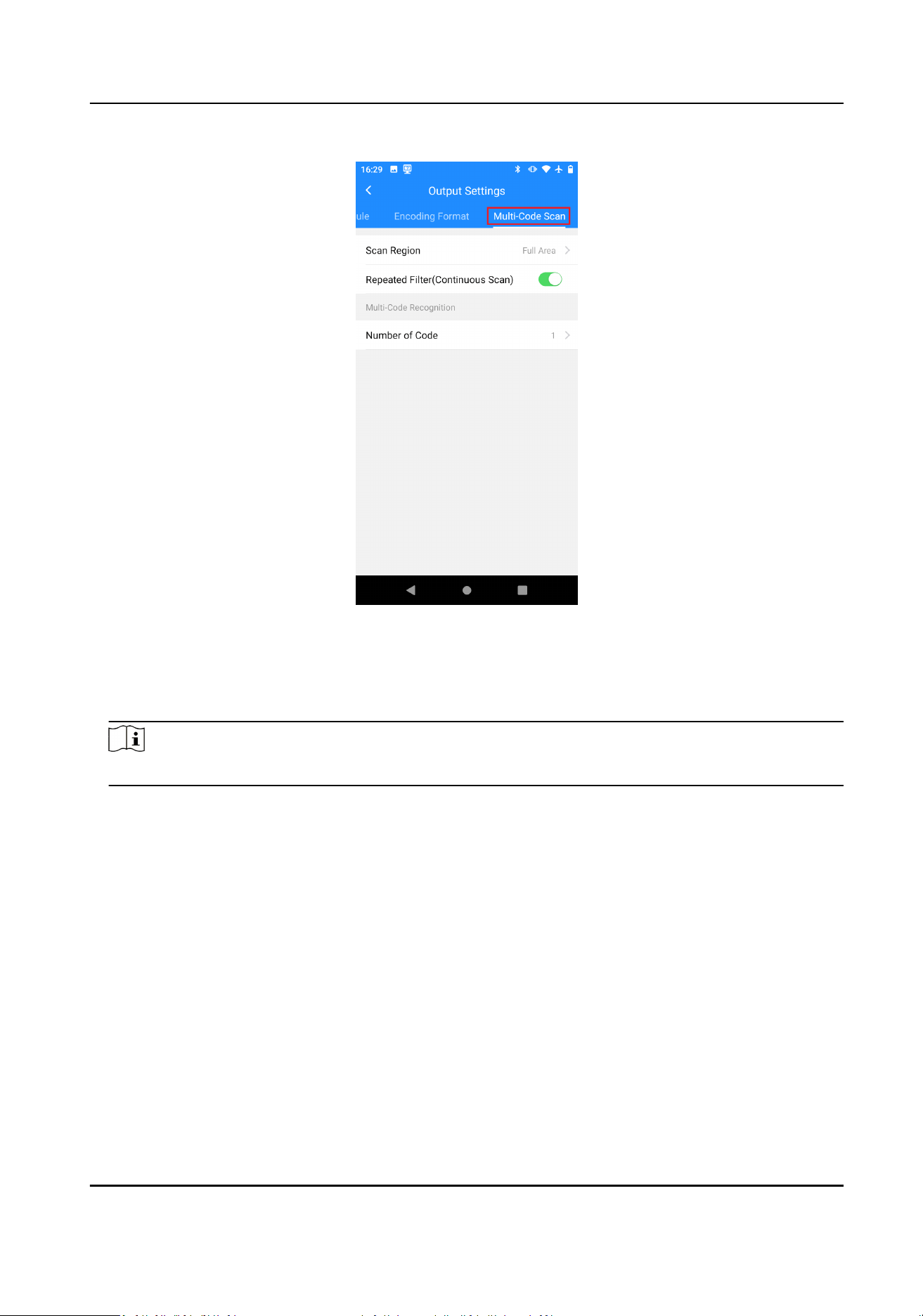
Figure 2-7 Set Mul-Code Scan
2.
Select Scan Region.
3.
Set Number of Code.
4.
Oponal: Enable Repeated Filter (Connuous Scan) as required.
Note
Repeated Filter (Connuous Scan) is only available when the scan mode is connuous scan.
The similar scan result will be ltered out aer enabling Repeated Filter (Connuous Scan).
2.3 Set Code System
You can set the supported bar code type.
Steps
1.
Tap Code System.
Portable Code Scanner User Manual
10
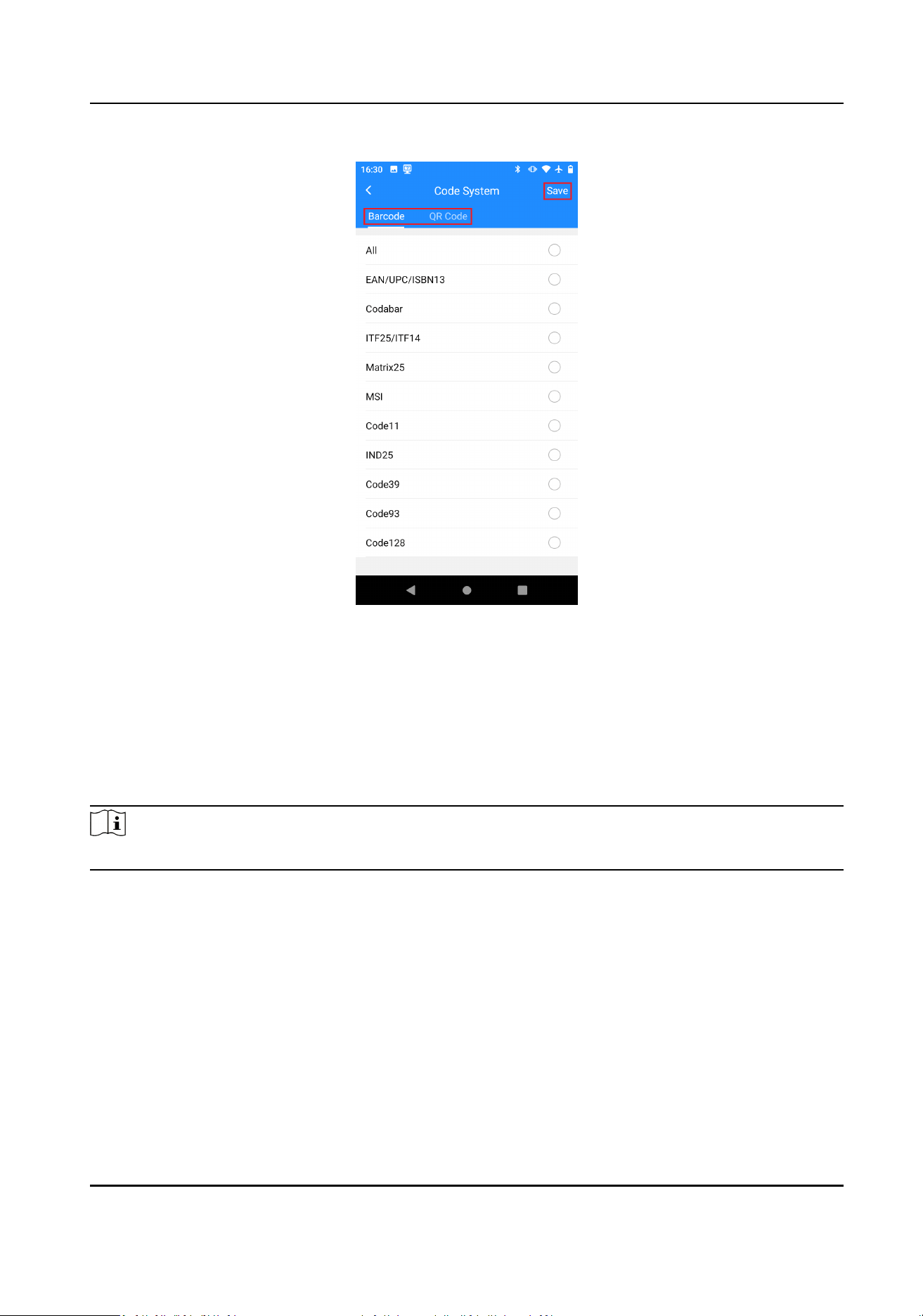
Figure 2-8 Set Code System
2.
Select barcode types or QR code types according to the actual needs.
3.
Tap Save.
2.4 Set Code Scanner
You can set the code scanner according to the actual needs.
Note
The original password of the device is 123456.
2.4.1 Set Code Scanner Parameters
You can set the supplement light, laser light, and other parameters of the code scanner as
required.
Steps
1.
Tap Code Scanner →
Sengs .
Portable Code Scanner User Manual
11
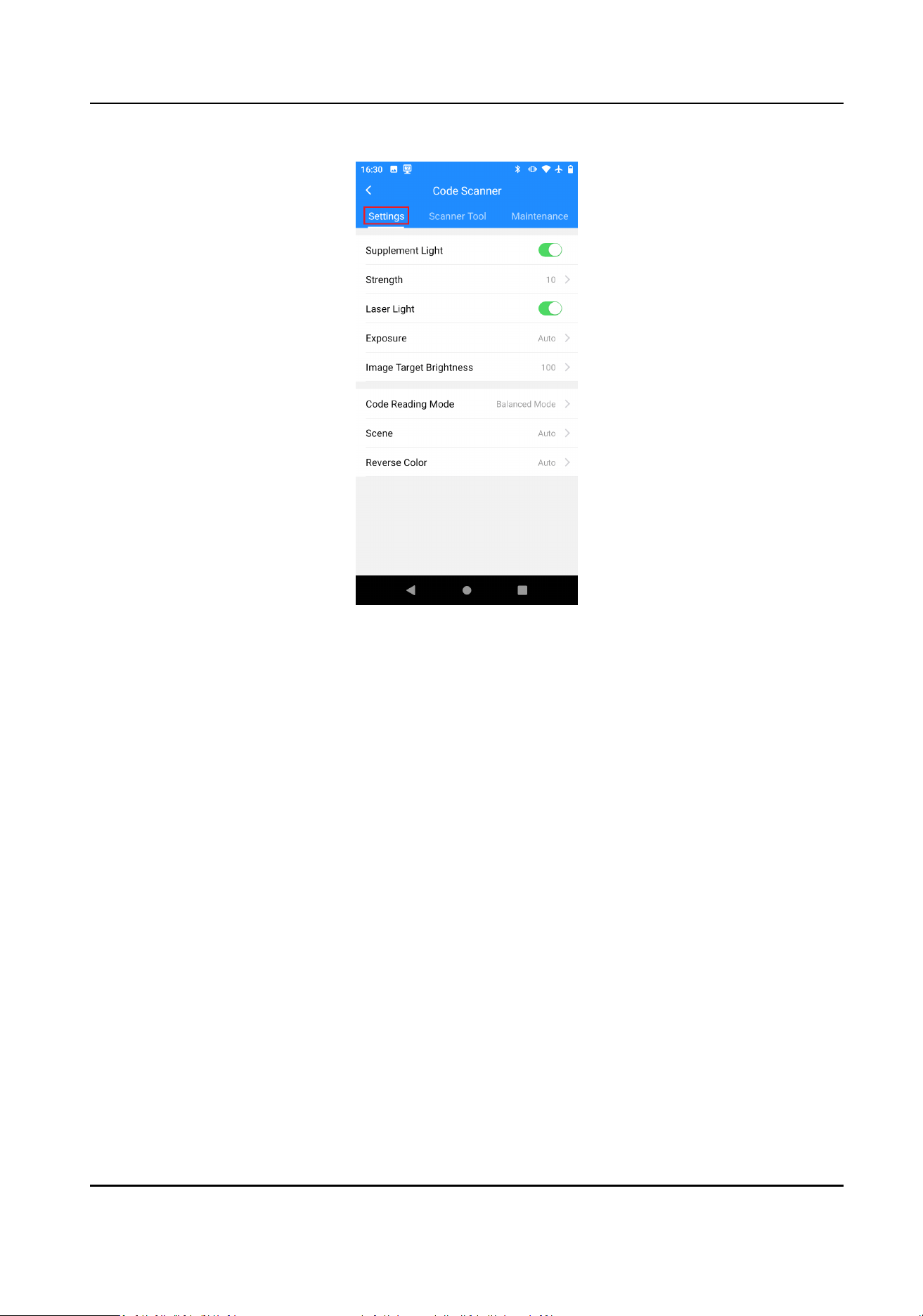
Figure 2-9 Set Code Scanner Parameters
2.
Oponal: Enable Supplement Light and Laser Light as required, and set the corresponding
parameters.
Strength
The higher the value, the higher the upper limit of
automac brightness adjustment of the
supplement light.
Exposure
Manual
Tap Exposure Time and Gain to set the parameters manually.
Auto
The device will adjust Exposure Time and Gain
automacally according to the actual
scene.
Image Target Brightness
The larger the value, the higher the brightness of the image.
3.
Oponal: Tap Code Reading Mode to select as required.
Balanced Mode
The device CPU and other resources will be used in balance mode.
High Performance Mode
Portable Code Scanner User Manual
12
The device CPU and other resources will be used mainly on scanning to improve recognion
eciency.
Quick Mode
Enable fast data reading and output.
4.
Oponal: Tap Scene and Reverse Color to select as required.
2.4.2 Set Scanner Tool
You can calculate code reading module size and calibrate laser via scanner tool.
Steps
1.
Tap Code Scanner → Scanner Tool .
2.
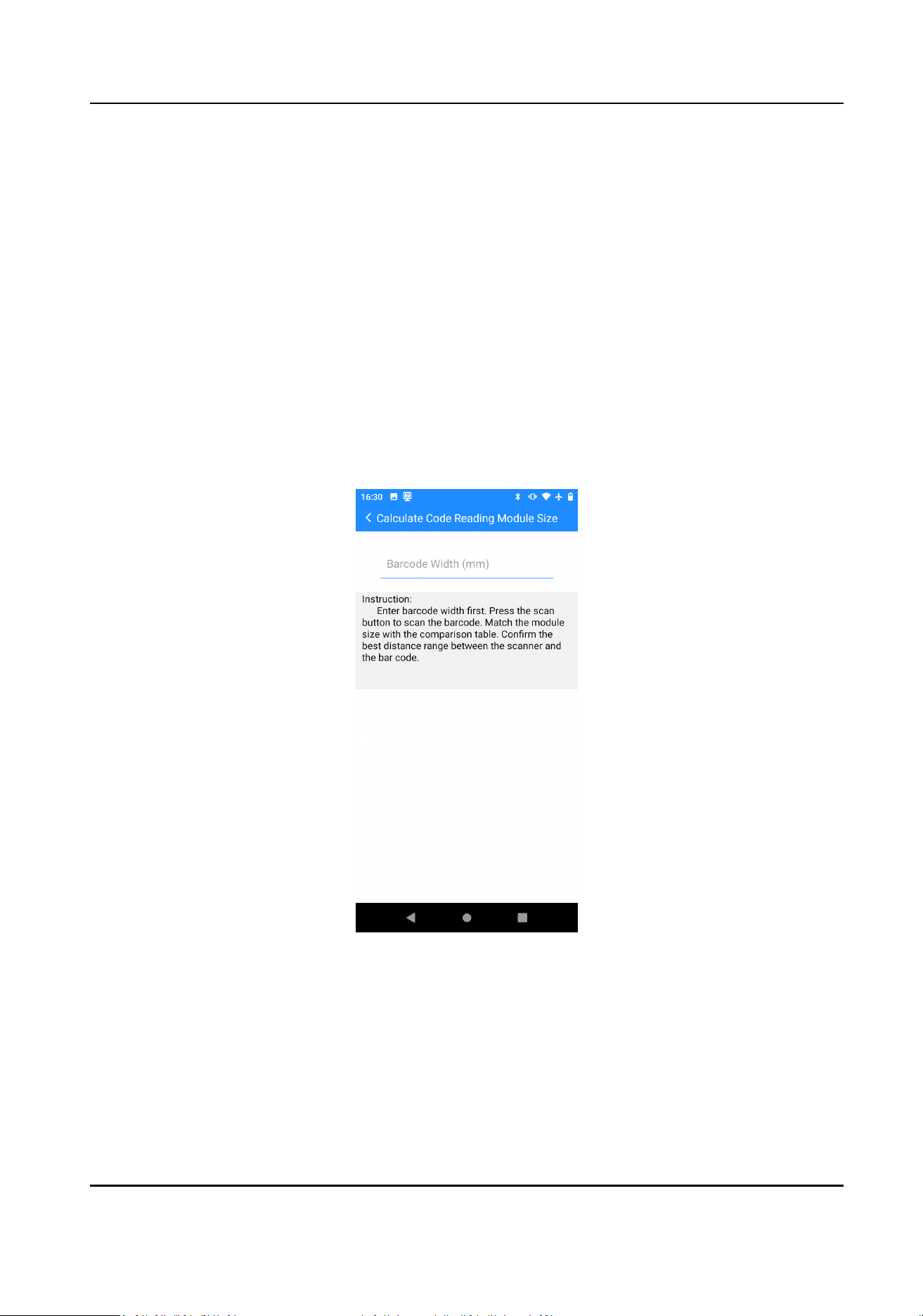
Tap Calculate Code Reading Module Size or Laser
Calibraon. Follow the instrucons to
operate.
Figure 2-10 Calculate Code Reading Module Size
Portable Code Scanner User Manual
13
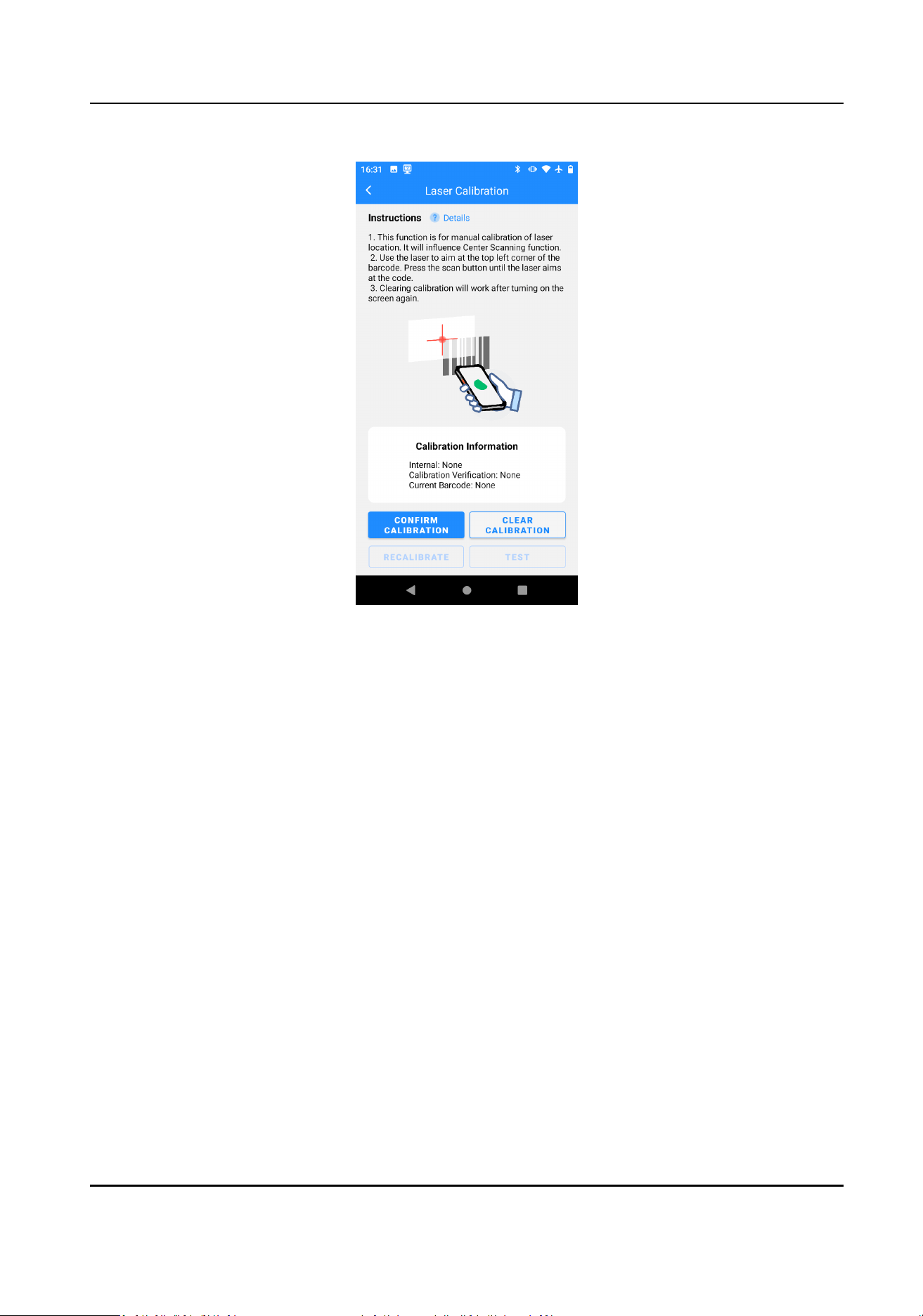
Figure 2-11 Laser Calibraon
2.4.3 View Version
Informaon
Tap Code Scanner → Maintenance to view the version informaon.
2.5 Set OCR Parameters
You can set the OCR parameters if you want to realize OCR.
Steps
1.
Tap OCR.
2.
Tap Trigger Mode to select the trigger mode.
3.
If you want to recognize the data in specied Chinese or English mode, tap Select Algorithm to
set as required.
4.
Tap OCR Rule to set the OCR rule.
1) Tap Add New Rule.
2) Enter the new rule name. Tap OK.
3) Tap Add New String Format.
4) Select the string formats to add to My
Sengs.
Portable Code Scanner User Manual
14
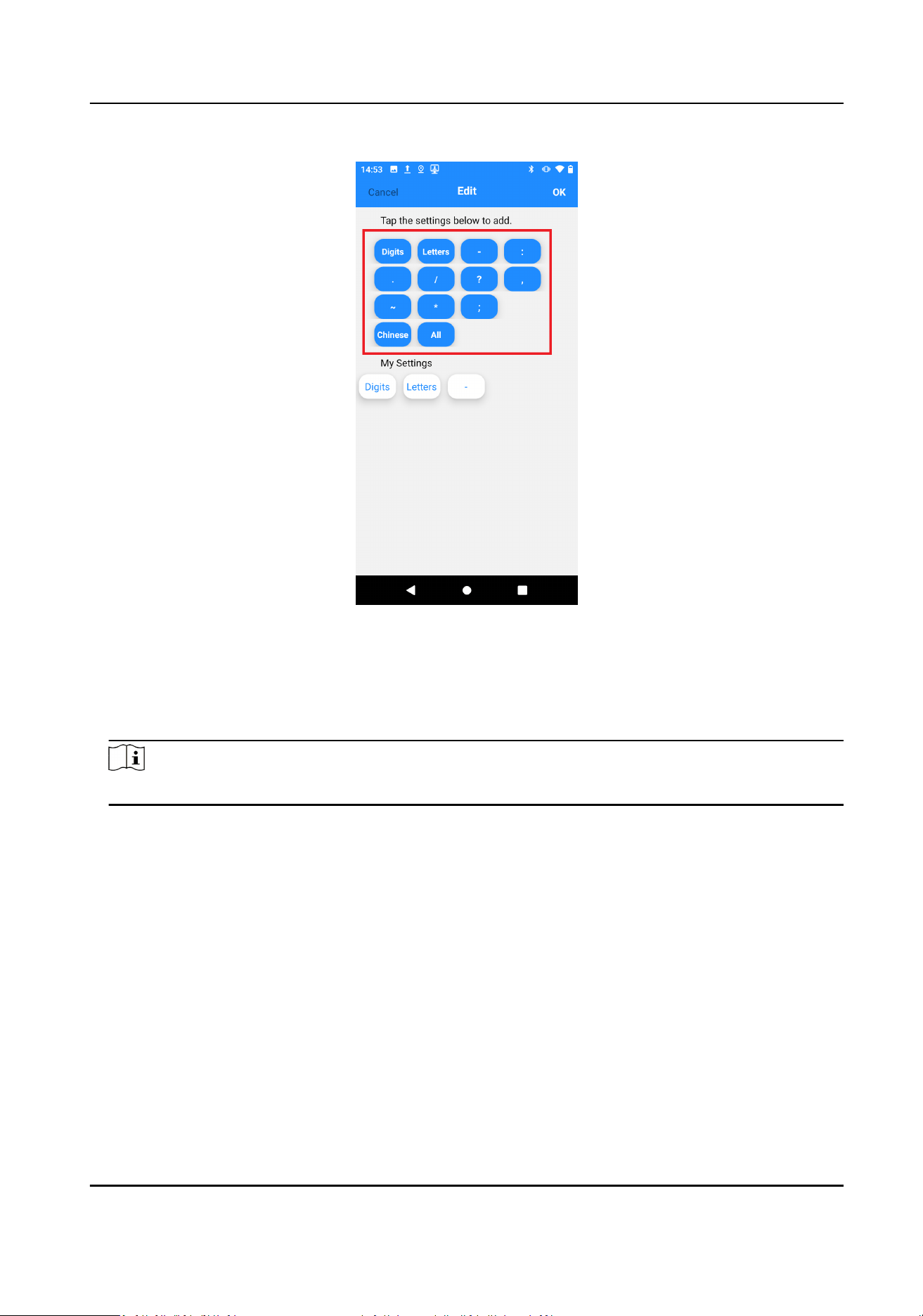
Figure 2-12 Add String Format
5) Tap OK.
6) Enable the rule that you need.
5.
Oponal: If you want to improve the accuracy of recognizing the laser-aimed string data, enable
Laser Aim.
Note
Enable Laser Aim aer laser calibraon.
6.
Oponal: If you want to save the picture informaon used for OCR to the "ocrtest" folder,
enable Recognion Capture.
2.6 Set Other Parameters
You can enable password, scan preview, and other features for the device.
Steps
1.
Tap Others.
Portable Code Scanner User Manual
15
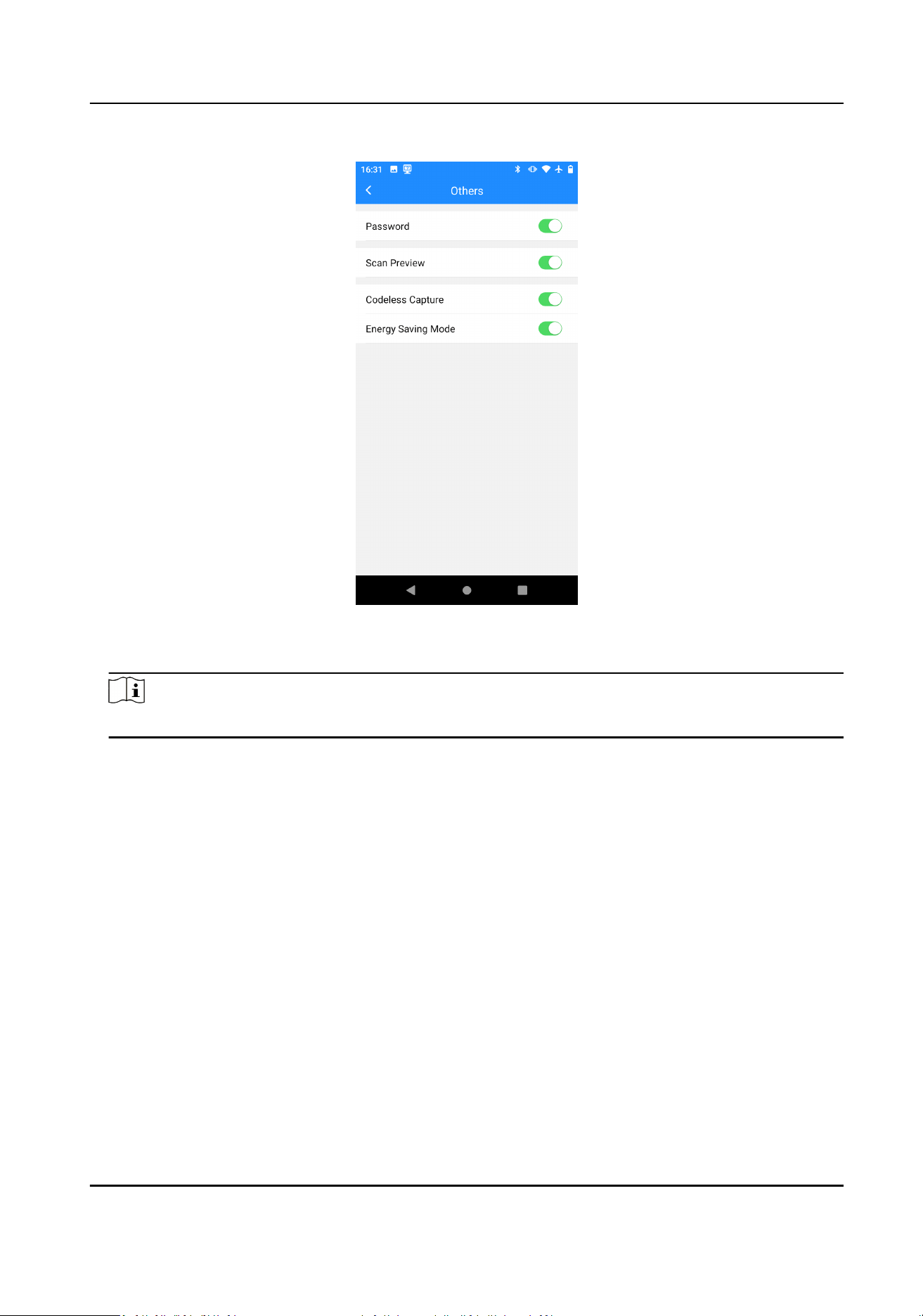
Figure 2-13 Set Other Parameters
2.
Enter password. Tap Login.
Note
The original password of the device is 123456.
3.
Oponal: Set the parameters as required.
Password
You need to enter the password aer enabling Password.
Scan Preview You can preview the scanning result picture in real me on the scan test
page.
Codeless
Capture
When the device fails to recognize the QR code in the picture, it will save
the picture and use the algorithm to analyze the reason.
Energy Saving
Mode
The device defaults to energy saving mode, and the baery is consumed
normally. If energy saving mode is turned o, the device will concentrate
resources on scanning to improve scanning eciency.
2.7 Quick Sengs
You can import or export device sengs via mulple methods.
Portable Code Scanner User Manual
16
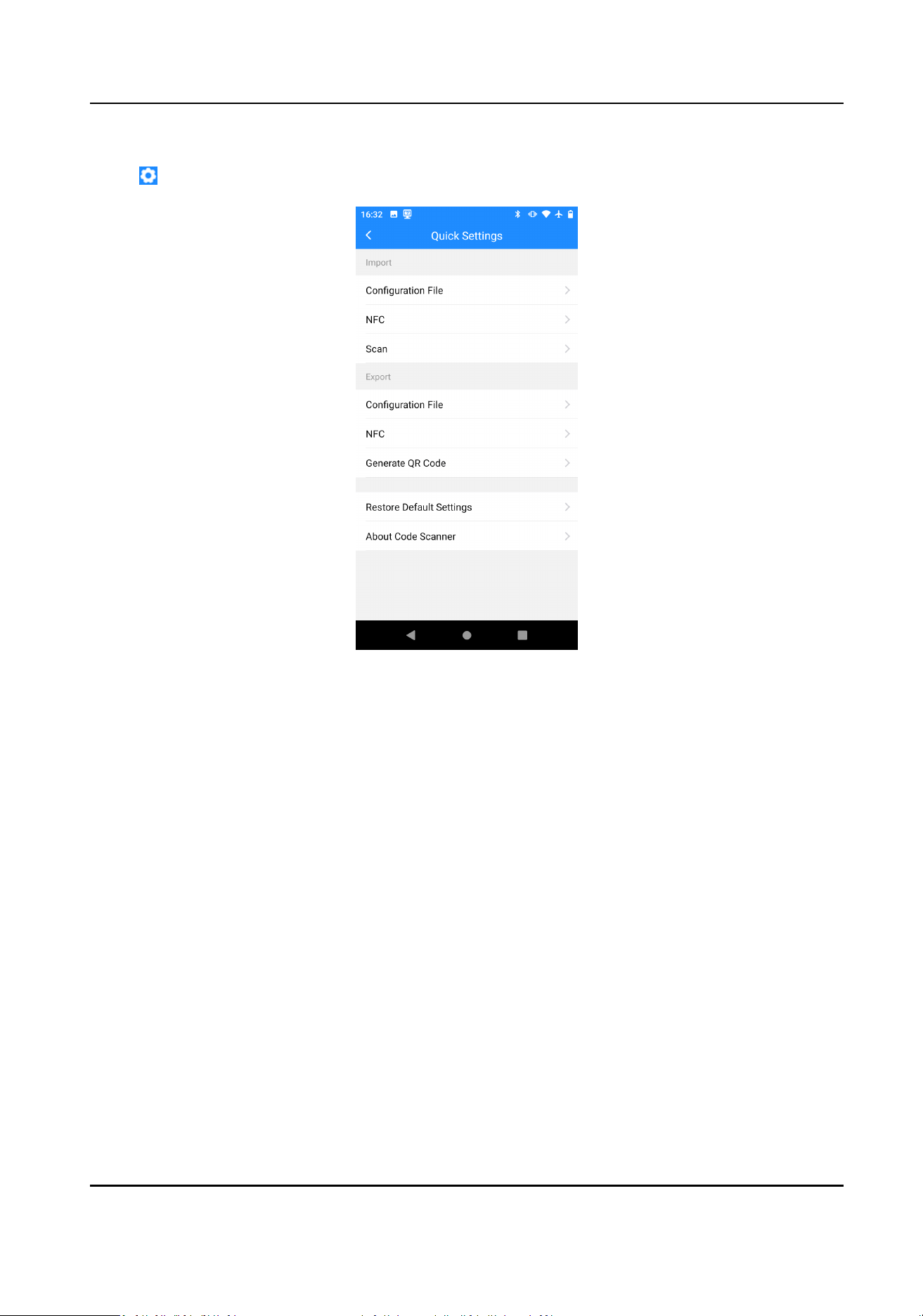
Steps
1.
Tap .
Figure 2-14 Quick Sengs
2.
Select the corresponding methods to import or export device sengs as required. Follow the
prompts to operate.
3.
Oponal: If you want to restore the device to default sengs, tap Restore Default Sengs and
tap OK.
4.
Oponal: Tap About Code Scanner to view the current applicaon version.
2.8 Scan Test
You can check the sengs via scan test aer compleng scan sengs.
Before You Start
Enable the scan funcon.
Steps
1.
Tap Scan Test.
Portable Code Scanner User Manual
17
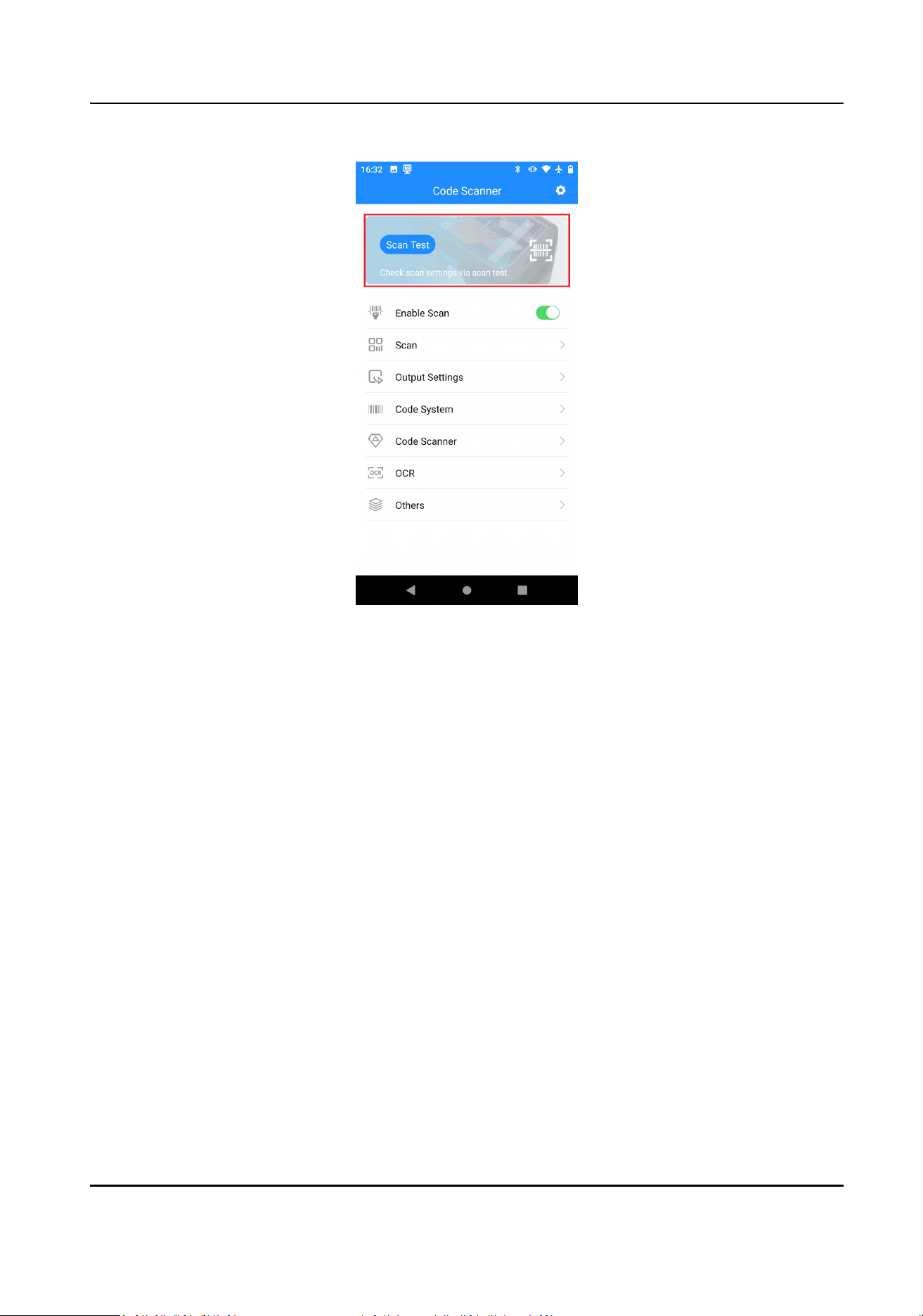
Figure 2-15 Scan Test
2.
Press the scan buon on the side of the device, and point the scan sensor to the code to scan.
Result
The scan result and me will be displayed on the scan page.
What to do next
You can use the device to scan codes aer passing the test.
Portable Code Scanner User Manual
18

Chapter 3 Network Sengs
3.1 Set Data Trac
The device can be connected to the Internet using data trac via SIM card.
Before You Start
Install the SIM card rst.
Steps
Note
You can install two SIM cards, or one SIM card and one SD card.
1.
Tap → Network & Internet → Advanced → SIM Card .
2.
Oponal: If you have installed two SIM cards, tap Mobile Data to select the preferred SIM card
for connecng to mobile data networks.
3.
Enable SIM Slot 1 or SIM Slot 2.
4.
Slide down nocaon center. Tap Mobile Data to enable data trac.
5.
Oponal: Tap Private DNS to set the DNS mode if you want to access the Internet by domain
name.
3.2 Set Wi-Fi
You can set Wi-Fi if you want to transfer data via Wi-Fi.
Steps
1.
Tap → Network & Internet .
2.
Enable Wi-Fi.
3.
Tap Wi-Fi to connect it.
Connect to the searched Wi-Fi
a. Select Wi-Fi.
b. Enter the Wi-Fi password.
c. Tap Connect.
Add new network a. Tap Add Network.
b. Enter SSID.
c. Set Security.
d. Tap Advanced
opons to set Proxy and IP Sengs.
e. Tap Connect.
Portable Code Scanner User Manual
19

3.3 Set Tethering
If you need to use the device as a hotspot to share network to other devices, you can set tethering.
Before You Start
Please ensure the device network is normal.
Steps
1.
Tap → Network & Internet → Hotspot & Tethering .
2.
Select the tethering methods below.
-
If you want to share the network via Wi-Fi hotspot, tap Wi-Fi Hotspot. Enable Wi-Fi Hotspot
and set the hotspot
informaon.
-
If you want to share the network via the USB cable, enable USB Tethering.
-
If you want to share the network via Bluetooth, enable Bluetooth Tethering.
3.4 Set Bluetooth
You can use the device to communicate and transfer data with paired Bluetooth devices.
Before You Start
Prepare the device with Bluetooth.
Steps
1.
Enter Bluetooth sengs in the following two ways.
-
Slide down the
nocaon center. Hold Bluetooth.
-
Tap → Connected Device .
2.
Tap the Bluetooth that you want in Available Device to pair.
The paired devices will be displayed in the Currently Connected list.
3.5 Set NFC
You can enable NFC if you want to exchange data with other devices via NFC.
Steps
1.
Tap → Connected Device → Connecon Preference .
2.
Enable NFC.
What to do next
Install payment applicaon for NFC payment.
3.6 Set Android Beam
You can share les via Android Beam.
Portable Code Scanner User Manual
20

Steps
1.
Tap → Connected Device → Connecon Preference → Android Beam .
2.
Enable Android Beam.
3.7 Access System Management Plaorm
You can access the device to the system management plaorm.
Before You Start
●
Please download the management
soware beforehand.
●
Please ensure that the device network is normal.
Steps
1.
Tap Sengs → System Management Plaorm .
2.
Enter the password.
Note
The original password of the device is 123456.
3.
Tap Conrm.
4.
Enable ISUP5.
5.
Set
Plaorm Address, Plaorm Port, and other parameters.
Portable Code Scanner User Manual
21

Chapter 4 System Sengs
4.1 Manage Baery
You can enable baery saver and view baery percentage.
Steps
1.
Tap → Baery .
2.
Oponal: Enable Baery Saver.
1) Tap
Baery Saver.
2) Tap Set a Schedule. Set the baer y percentage below which the baery saver is enabled.
3) Enable Turn o when Fully Charged according to actual needs.
The
baery saver will disable automacally aer the device is fully charged.
4) Tap Turn on Now.
3.
Oponal: Tap Baery Manager. Enable Use Baery Manager to detect the baery consumpon
of the applicaons.
4.
Oponal: Enable Baery Percentage if you want the device to show baery percentage in the
status bar.
4.2 Set Display Parameters
You can set display parameters.
Steps
1.
Tap → Display .
2.
Set brightness level, screen meout, display size, and other parameters.
4.3 Set Sound Parameters
You can set sound parameters.
Steps
1.
Tap → Sound .
2.
Oponal: Set media volume, call volume, ring volume, and alarm volume according to the actual
needs.
3.
Oponal: Enable Vibrate for Calls if you need.
4.4 Manage Storage
You can view and manage storage space.
Portable Code Scanner User Manual
22

Steps
1.
Tap → Storage .
2.
Oponal: Tap Free up Space to clear the cache.
3.
Oponal: Enable Storage Manager. Tap → Remove Photos & Videos to set the me beyond
which the
les will be deleted automacally.
4.
You can view the storage space of dierent types of les.
4.5 Set Locaon
If you want to locate the device, enable locaon and set the parameters.
Steps
1.
Tap
→ Locaon .
2.
Enable Use Locaon.
3.
Oponal: Tap APP Permission. Manage the locaon permission for applicaons according to the
actual needs.
4.
Oponal: Tap Wi-Fi and Bluetooth Scanning. Enable scanning features if you need.
Wi-Fi Scanning
System applicaons and services will detect Wi-Fi network to improve locaon informaon
accuracy.
Bluetooth Scanning
System applicaons and services will detect Bluetooth to improve locaon informaon
accuracy.
Portable Code Scanner User Manual
23
Chapter 5 System Maintenance
5.1 Export Running Informaon
Technicians can export running informaon for troubleshoong and device maintenance.
Steps
1.
Tap Sengs → Export Running Info .
2.
Select the exporng path.
3.
Tap Export.
5.2 Upgrade Device System
You can upgrade the device system version.
Before You Start
Prepare the upgrade package.
Steps
Cauon
The operang system only supports ocial upgrades. If you use a non-ocial system, you are
responsible for any security risks or losses (possible risks include but are not limited to the of user
informaon, automac sending of SMS, leakage of locaon, etc.).
1.
Tap Sengs → Device Upgrade → Local Upgrade .
2.
Select the local upgrade package.
3.
Tap Install Now.
Note
Do not operate during upgrading, or it may cause device excepons (such as not being able to
turn on the device), etc.
5.3 Set Shortcut Menu
You can set the shortcut menu.
Steps
1.
Tap Sengs → Shortcut Menu .
2.
Enable the features based on the actual needs.
Portable Code Scanner User Manual
24

5.4 Restore Factory Sengs
You can restore factory sengs when parameters errors cause device excepons.
Steps
1.
Tap
→ System → Reset Opon .
2.
Select the reset opon.
Reset Wi-Fi & Mobile & Bluetooth
Reset the network and Bluetooth parameters.
Reset App Preferences
Reset all the app preferences.
Erase all Data (Factory Reset)
Erase all the data in the device storage space.
5.5 View Device
Informaon
You can view the device informaon.
Steps
1.
Tap
→ About Device .
2.
You can view the model, build number, etc.
Portable Code Scanner User Manual
25

UD36100B