
INSTRUCTION BOOK
SP3000M
User Guide

CONTENTS
Package Contents
Product Overview
Power Management
Charging
Connections
Firmware Updates
02
03
05
06
07
12
Getting Started
_01
Basic Operations
Home Screen
Menu Category Screen
Main Menu Screen
Music Player Screen
Notification Bar
Using Open APP Service
AK CONNECT
AK File Drop
Listening to Music
Playlist Management
VU Meter
ReplayGain
USB DAC Installation
How to Use USB Audio
CD Ripping
AK CD-Player
Car Mode
Bookmark Function
Favorites Function
Settings
Connecting to Wi-Fi
Using Bluetooth
Equalizer Setup
Using the Device
_02
Precautions
Troubleshooting
Copyright
Certifications
Registered Trademarks
Disclaimers
Specifications
13
17
18
20
21
24
26
27
32
34
37
40
41
42
43
44
46
47
48
49
50
58
59
62
64
66
67
68
70
71
72
Miscellaneous
_03
User Guide
Contents may be changed without prior notice to improve the
performance or quality of the product.
Package
Contents
Getting Started 02
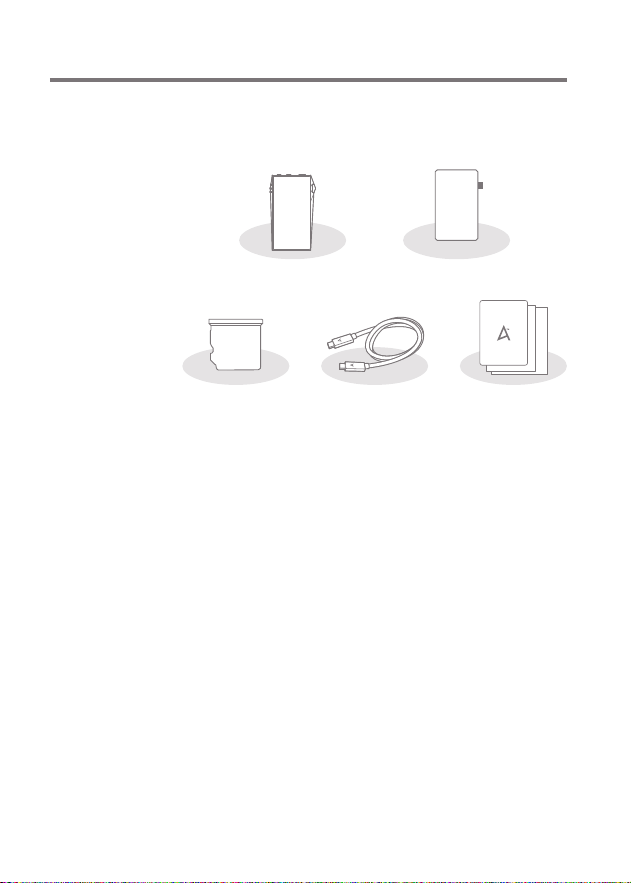
Protective Film: Protect the device and its screen.
microSD Card Slot Cover: The cover is used to protect the
microSD card slot when not in use. It is installed in the
product by default.
USB Type-C Cable: Please use a separate conversion
adapter when connecting to a PC that cannot connect Type C.
(Conversion adapters are not included in the component.)
Quick Start Guide: Basic overview of device functionality.
Warranty Card: Provides warranty details for your device.
Maintain a copy of this card as it may be required for future
technical support requests.
User Guide: The User Guide can be downloaded from the
Astell&Kern website.
[http://www.astellnkern.com > Support > Download]
Quick Start Guide
& Warranty Card
USB Type-C CablemicroSD Card
Slot Cover
SP3000M Protective Film
Getting Started
03
User Guide
The appearance of the product, as well as the printed and
engraved information, may vary depending on the model.
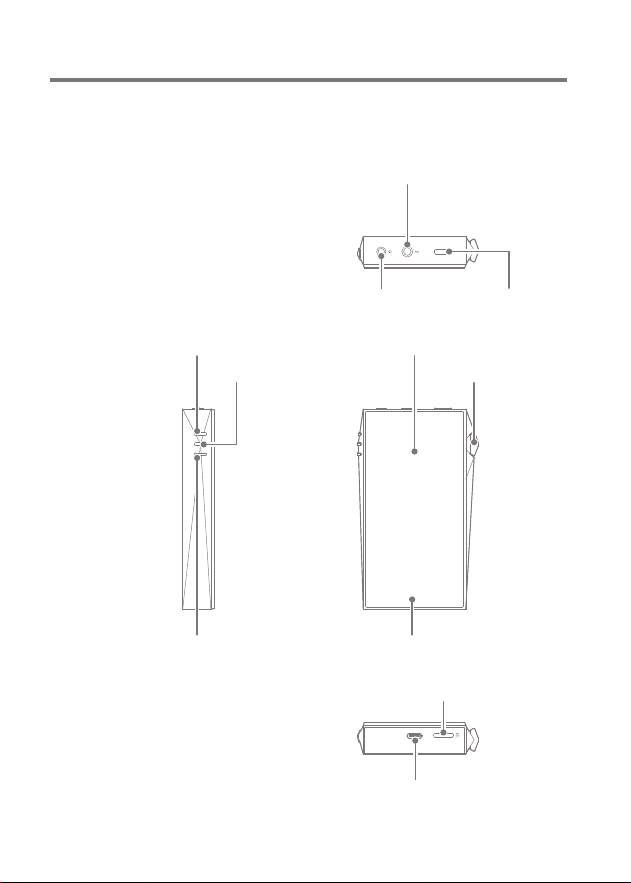
Product
Overview
USB Type-C Port
Previous/Rewind
Play/Pause
LCD Touchscreen
4.4mm Balanced Port
Volume
3.5mm Unbalanced Port
Home ButtonNext/Fast-Forward
microSD Card Slot
Power

4.4mm Balanced Port: - 4.4mm Balanced Port symbol.
For audio output, connect earphones or headphones that
utilize a 4.4mm jack.
Power: - Power symbol.
Short press - Turns the screen on or off.
Press and hold - Turns the device on or off.
Volume: Turn the wheel to adjust the playback output
volume level.
3.5mm Unbalanced Port:
- 3.5mm Unbalanced Port symbol.
For audio output, connect earphones or headphones that
utilize a 3.5mm jack.
Previous/Rewind:
Short press - Play the previous song or restart the current
song.
Press and hold - Rewind the current song.
Play/Pause: Play or pause the current song.
LCD Touchscreen: Display screen with touch control features.
Next/Fast-Forward:
Short press - Play the next song.
Press and hold - Fast-forward the current song.
Home Button: Press to return to the Home Screen.
microSD Card Slot: - microSD Card Slot symbol.
Insert a microSD card to access its files.
USB Type-C Port: For charging and data transfer.
User Guide
Getting Started
04
Getting Started
05
User Guide
Resetting the device will not affect stored data or time settings. Do
not use the reset function while the product is in use. Doing so may
corrupt the data on the device.
This device has an automatic timeout feature to save battery power.
The screen will turn off if there is no user input during the period
defined in [Menu - Settings - Display - Screen Timeout]. (See Page 54)
Reset Function
1. In case of unexpected device failure or freeze, press and
hold [Power] for 7 seconds to force a shutdown. The device
can then be restarted after the shutdown is complete.
Turning the Screen On/Off
1. While the screen is on, press the [Power] button to turn
off the screen.
2. Press [Power] button again to turn it on.
This device has an automatic shutdown feature to save battery
power. The device will turn off if there is no user input during the
period defined in [Menu - Settings - Power and Battery - Auto Power
Off] (See Page 55)
Powering the Device On/Off
1. Press and hold the [Power] button to turn on the device.
2. While the device is on, press and hold the [Power] button
to shut down the device. A confirmation message
will appear.
3. Press [OK] to turn off the device.
Power
Manage-
ment

User Guide
Getting Started
06
Charging via USB Wall Adapter
1. A QC 3.0 adaptor can be purchased separately and used
for charging.
Charging
Fast charging time: Approx. 3 hours 30 minutes (Fully discharged,
Power-off, 9V 1.67A adapter) / Normal charging: Approx. 5 hours
(Fully discharged, Power-off, 5V 2A adapter)
We recommend using a QC 3.0 charger at 5V 2A / 9V 1.67A.
If you use a charger exceeding 9V and 1.67A, it may not operate
normally and may result in product damage or failure.
The manufacturer shall not be responsible for problems caused by
the use of adapters that do not adhere to the recommended
specifications.
Getting Started
07
User Guide
Connec-
tions
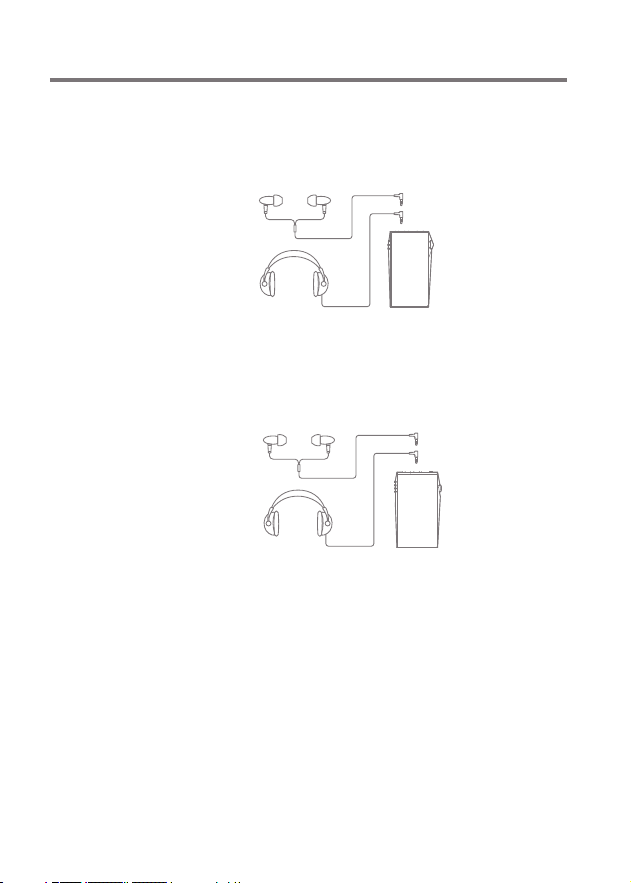
3.5mm Unbalanced Port
1. Connect earphones or headphones to the 3.5mm
unbalanced port.
OR
4.4mm Balanced Port
1. Connect earphones or headphones that support a 4.4mm
headphone jack to the 4.4mm balanced port.
OR
Getting Started
08
User Guide
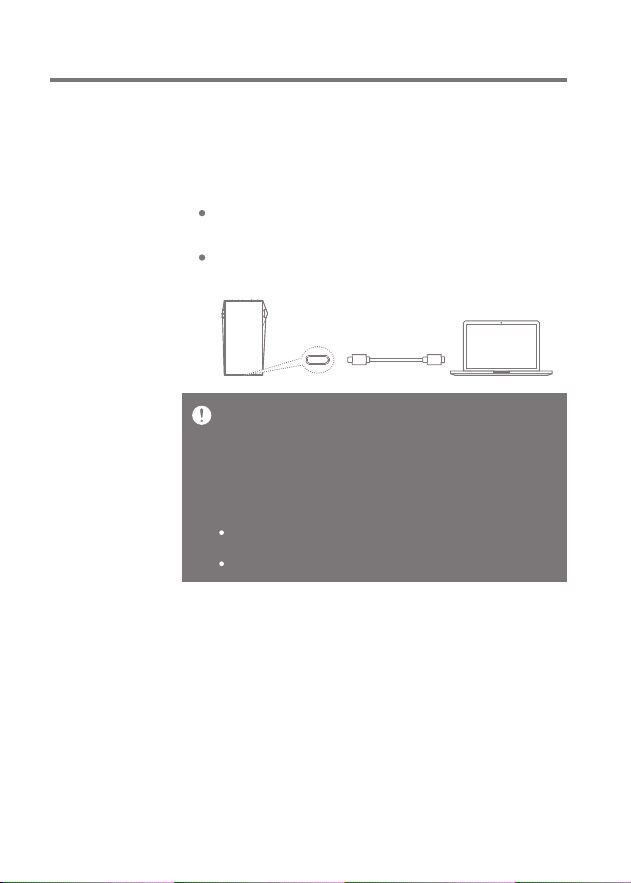
Connecting to a Computer
1. Turn on the device and your computer.
2.
Use the USB Type-C cable to connect the device to a computer
in accordance with settings in [Menu - Settings - USB Mode].
[Default] Media Device (USB Drive): Transfer files from a
computer to the device.
DAC Input: Listen to music on a connected computer
through the device. (See Page 42)
For an optimal connection, quit any unnecessary programs before
connecting the device to the computer.
Do not use cables other than the USB Type-C cable provided with the
device. Doing so may cause malfunctions.
Use USB 2.0 only on Mac.
When a USB connection is established while playing a DSD or DXD
file, a mode selection pop-up box will appear with the following
options:
External device connection: Connect the player to the computer to
transfer files, USB DAC for audio playback or CD Ripper connection.
Charge device: Charge the device.
Getting Started
09
User Guide
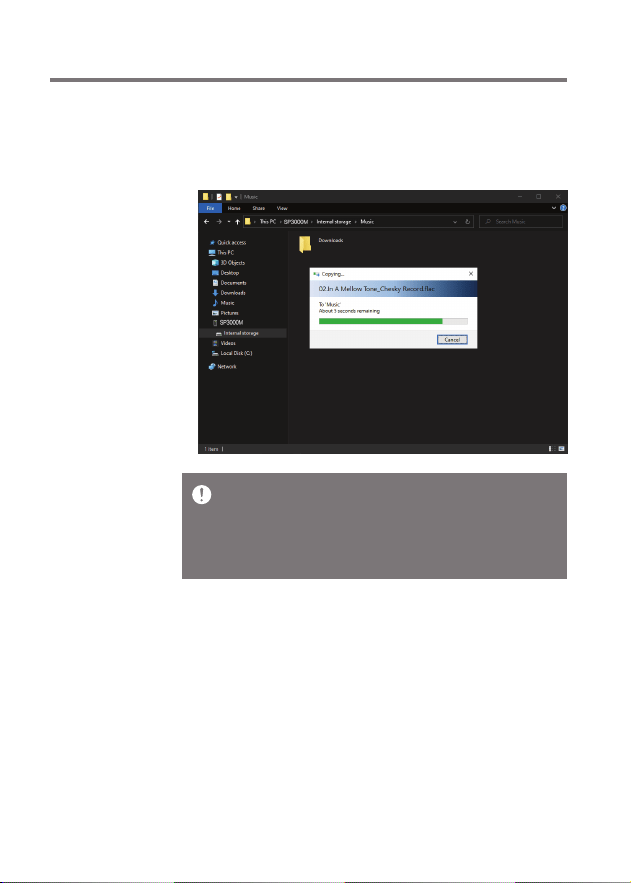
Copy Files (Folders) to the Device
1. To copy files/folders from your computer, select the desired
files/folders and drag & drop them into the device folder.
Ensure the USB Type-C cable is properly connected.
Turning off the device, computer or disconnecting the USB Type-C
cable while copying or moving files/folders may corrupt files or
device memory.
File transfer speeds may be affected by the computer and/or the OS
environment.
Getting Started
10
User Guide
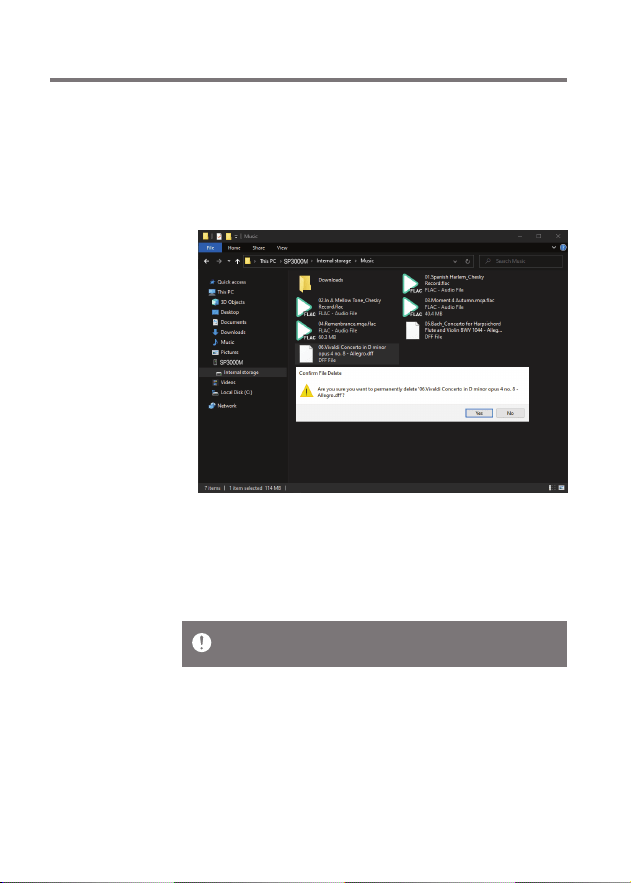
Delete Files (or Folders) from the Device
1. Select the file/folder to delete, right-click the mouse, and
then select [Delete].
2. Select [Yes] in the [Confirm File/Folder Deletion] window
to delete the selected files/folders.
Disconnecting from the Computer
1. Disconnect the USB Type-C cable after the transfer between
the device and computer is complete.
Disconnecting the device from the computer during a file transfer
may corrupt data on the device.
Maximum Capacity: 1.5TB
Notes on Inserting a microSD Card
Do not force the microSD card into the slot. Doing so may cause
malfunction of the product and damage to the card.
Do not repeatedly insert/remove the microSD card.
If not inserted properly, the microSD card may cause product
malfunctions and may become lodged in the product.
Notes on Removing a microSD Card
Be sure to safely remove the microSD card from the device.
Not following the proper procedure may corrupt data and cause
serious damage to the both the card and device.
Do not remove the microSD card during use. Doing so may cause
malfunction, delete data and damage the microSD card.
Recommended microSD Cards
SAMSUNG, SANDISK
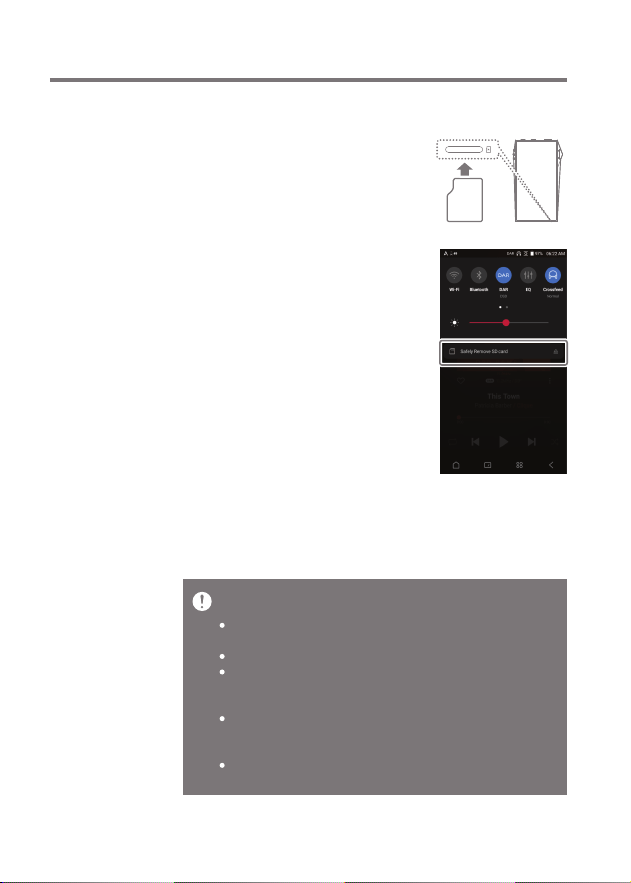
Insert/Remove a microSD Card
1. Refer to the diagram and gently
insert a microSD card into the
microSD card slot.
2. To safely remove a microSD card,
on the Home Screen, select
[Safely remove SD card] from the
Notification Bar or select
[Unmount SD card] from
[Menu - Settings - System
Information].
3. Gently press the microSD card in
to unlock and release it from the
slot.
Getting Started
11
User Guide
Notes on Using a microSD Card
If the microSD card is not recognized or functions improperly,
format the card, preferably in the FAT32 system.
Using cards other than the recommended microSD card types
may cause malfunctions.
A microSD card is not included in the product package. Please
purchase separately.
For Wi-Fi connections, see Page 58.
The firmware update may not start if the battery level is too low.
(A minimum battery level of 20% is required.)
Do not disconnect from the wireless network while downloading the
update file. Doing so may cause data corruption and/or damage to
the system.
If an error occurs or the notice in the Notification Bar disappears
during an update, download the firmware update again through
[Menu - Settings - Update - System].
Moving to another screen during a file download will cancel the
download.
Wi-Fi Update / OTA (Over-the-Air)
1. Connect to a wireless network.
2. If a new firmware update is available, the screen will
display a Firmware Update Guide window.
3. Select [Update].
4. Follow the on-screen instructions to proceed with the
firmware update.
Firmware
Updates
Getting Started
12
User Guide
Basic
Operations
LCD Touchscreen
1. This device features an LCD touchscreen that allows you
to perform operations by touch.
Use the touchscreen to access various features on the
device.
To prevent damage to the screen, do not use a sharp object or
excessive force.
Using the Device
13
User Guide
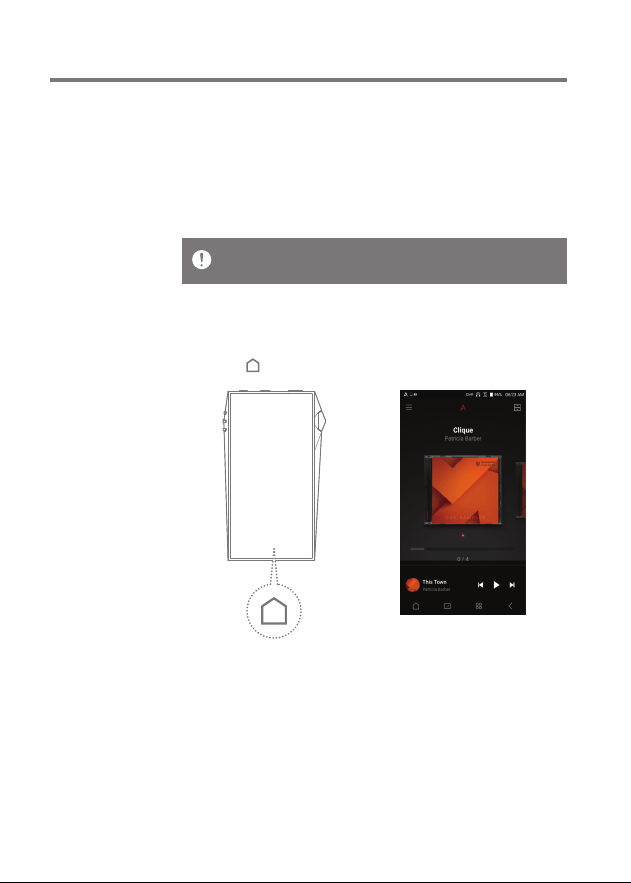
Return to the Home Screen
Home Screen
1. Press [ ] at any time to return to the Home Screen.
Using the Device
14
User Guide
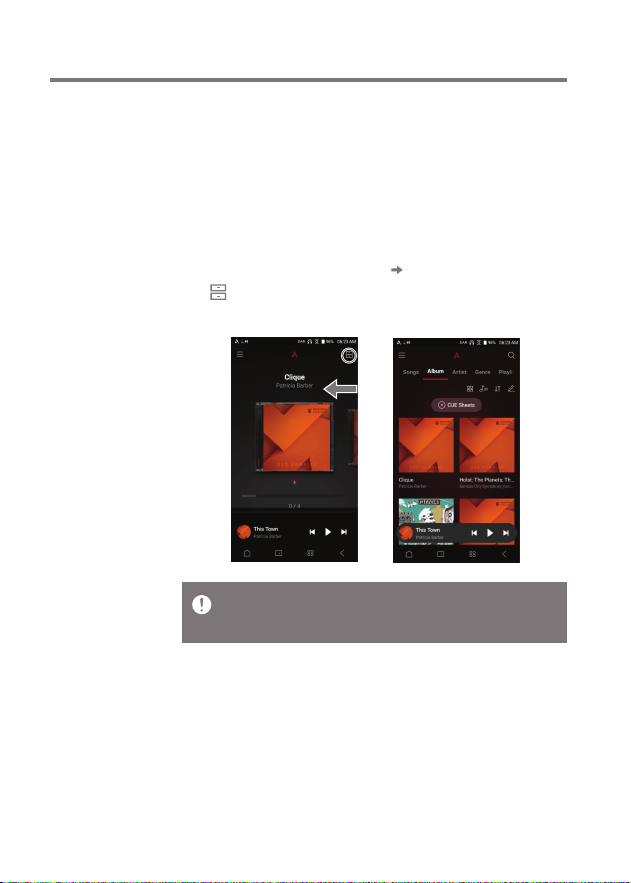
Menu Category Screen
1. Swipe the screen in the [right left] direction, or press
[ ] in the upper right to move to the Menu Category
Screen.
From the Home Screen, swipe your finger to the left, right,
up or down from any edge of the touchscreen to access display
menus. Each side of the Home Screen will activate a different
display menu.
Music files extracted using the AK CD-Ripper accessory that are
stored in the Ripping folder of the internal memory will be displayed
in the CD library menu.
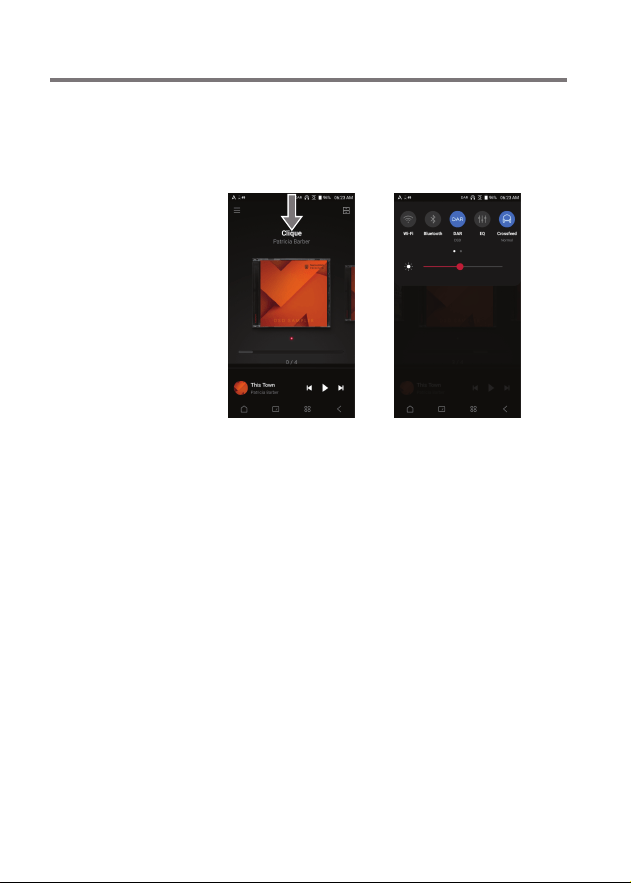
Notification Bar
1. From the top edge of the touchscreen, swipe your finger
down to display the Notification Bar.
Using the Device
15
User Guide
Using the Device
16
User Guide
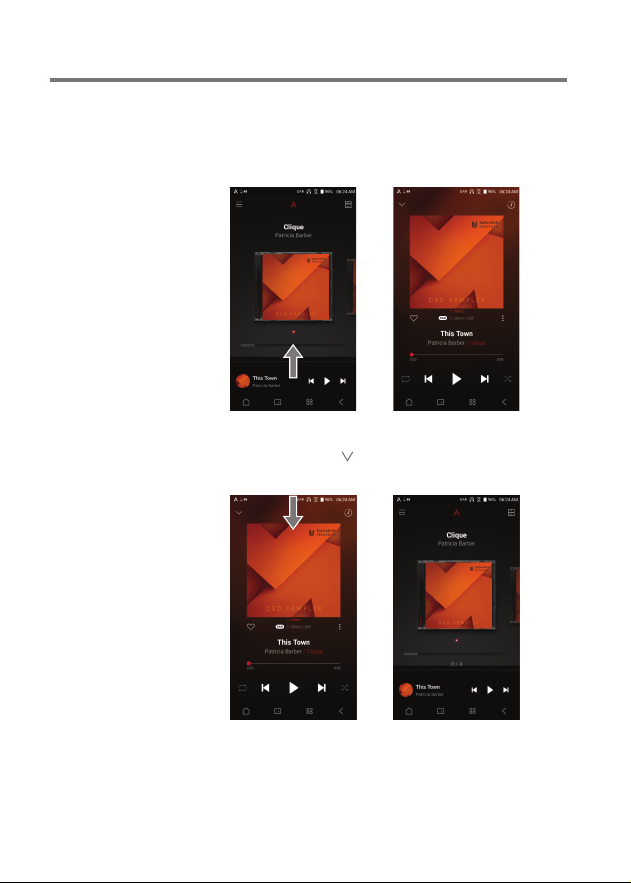
Mini Player Screen
1. Swipe up or tap on the Mini Player Screen to expand to the
Music Player Screen.
2. Swipe down or press [ ] in the upper left to collapse the
Music Player Screen.
Using the Device
17
User Guide
Home
Screen
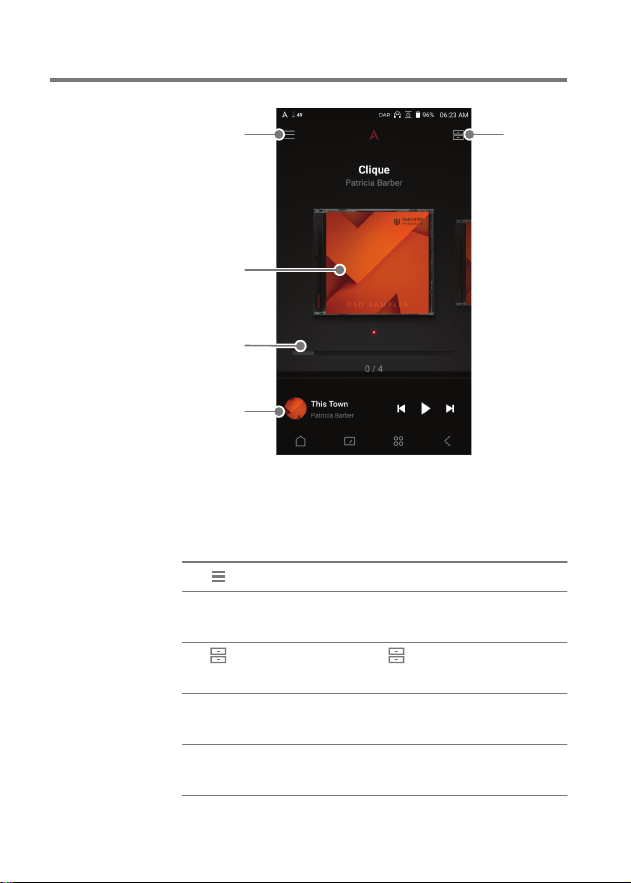
1
2
4
5
3
Go to the Main Menu.
Press on an album image to go to
that album.
Press [ ] in the upper right to go
to the menu category screen.
Use the bottom bar to go to other
albums.
Go to the playback screen by
operating the Mini Player Screen.
Menu
Album Cover
Menu
Category
Album
Seek Bar
Music Player
Screen
1
2
3
4
5
Using the Device
18
User Guide
Menu
Category
Screen
1
2
5
6
3
10
7
9
8
4
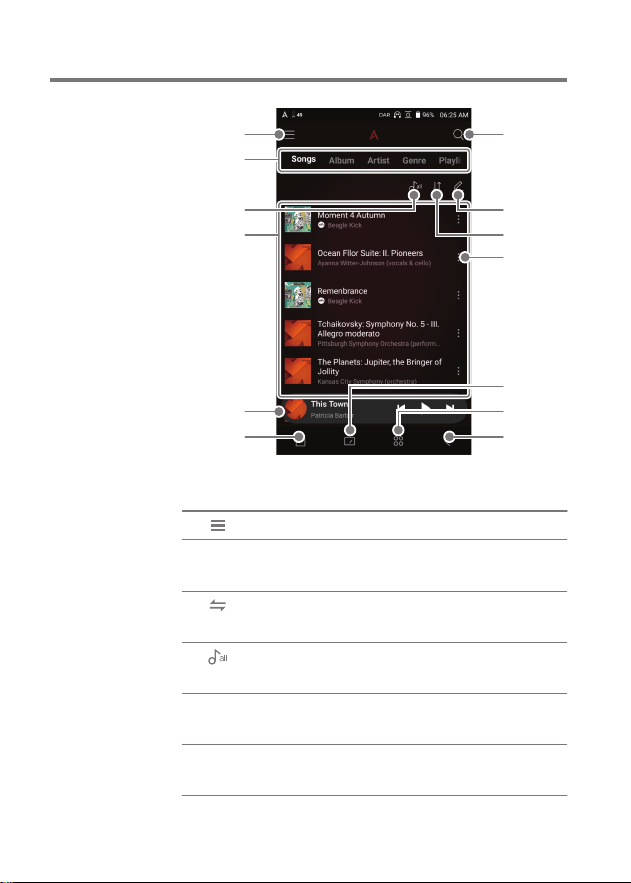
Go to the Main Menu.
Swipe left and right to switch
between categories.
Changes the order of the Home
screen settings or menu categories.
Play all songs in the selected
category.
Display the playlist in the current
category.
A mini player screen for the
current song.
Menu
Category
Home/Category
Setting
Play All
Music List
Music Player
Screen
1
2
2-1
3
4
5
13
12
11
Using the Device
19
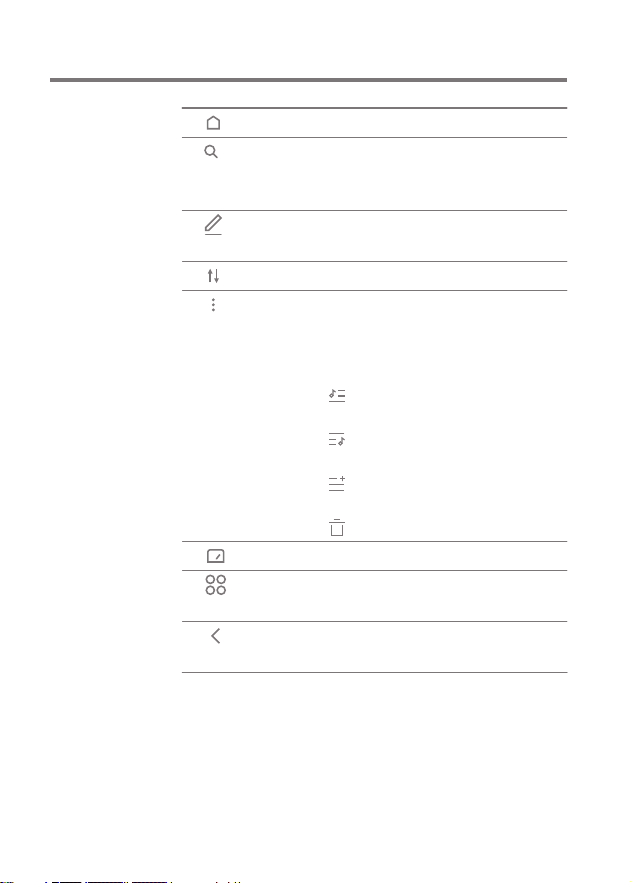
Go to the Home screen.
Enter keywords to display a list of
songs with the search terms in
their names.
Home Screen
Search
6
7
User Guide
Display the editing options for
the playlist.
Set the sort options for the playlist.
Go to the More menu for the
selected song. Different items are
displayed depending on the
selected category.
: Add the selected song to play
next
: Add the selected song to play
last
: Add the selected song to the
playlist
: Delete the selected song
Launches the VU meter.
View the service app list and install
/run apps.
Return to the previous screen.
Edit Mode
Sort
More
VU Meter
Services
Previous
Screen
8
9
10
11
12
13
Using the Device
20
User Guide
3
1
2
4
5
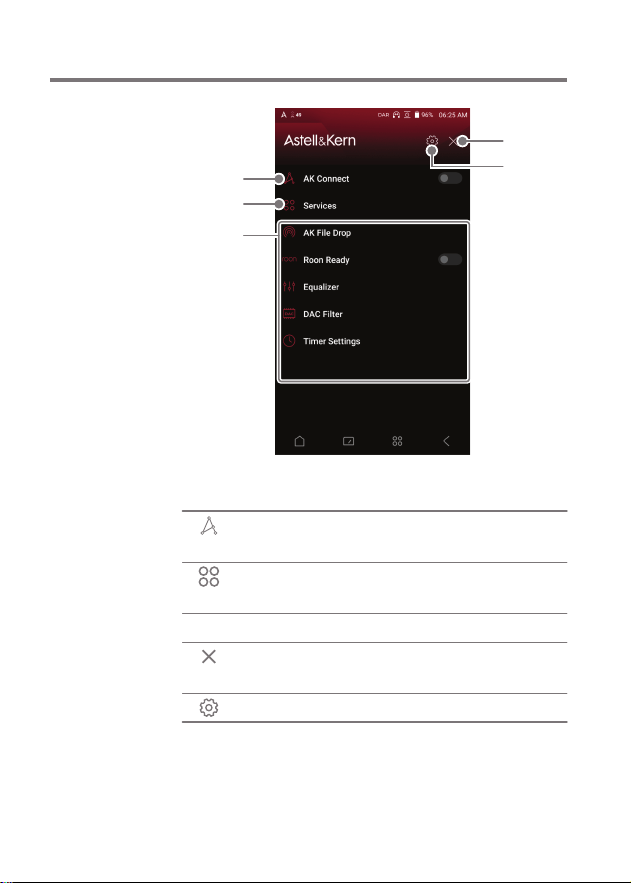
Enable/disable AK Connect and set
the library and speaker options.
View the service app list and install
/run apps.
Set the EQ, Power, and more.
Close the menu list and display
the previous screen.
Show various settings menus.
AK CONNECT
Services
Key Settings
Close Menu
Settings
1
2
3
4
5
Main
Menu
Screen
Using the Device
21
User Guide
Music
Player
Screen
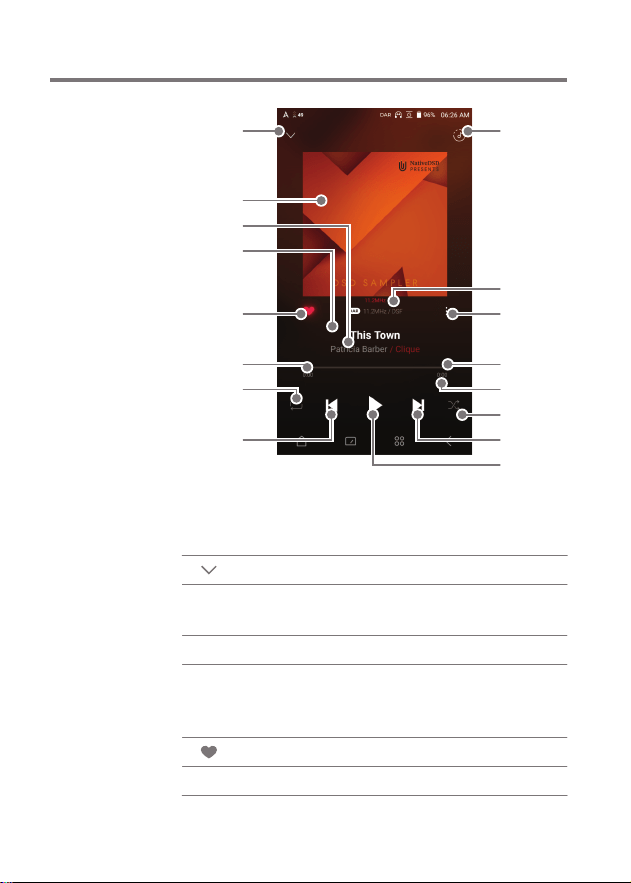
Return to the previous screen.
Displays album cover of current song.
Tap image to view the song lyrics.
Displays the artist info.
Song title information. File name
is displayed when the title is
unavailable.
Add or remove song from Favorites.
Display the current play time.
Previous
Album Cover
Artist
Title
Favorites
Current Play Time
1
2
3
4
5
6
2
5
1
9
10
11
12
14
8
13
15
16
3
4
7
6
Using the Device
22
User Guide
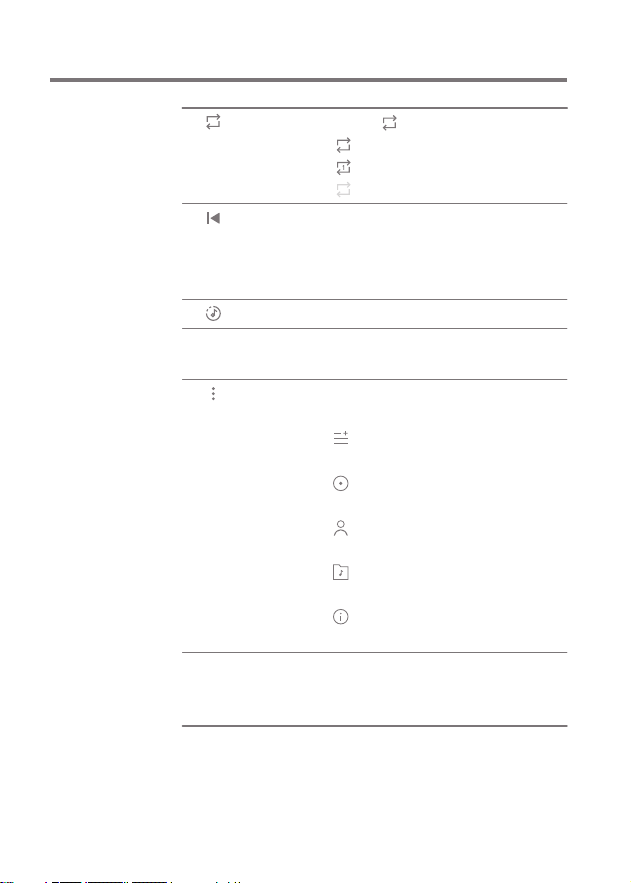
Press [ ] to set the Repeat mode.
: Repeat entire playlist.
: Repeat current track.
: Repeat mode off.
Short press: Play the previous
song or restart the current song.
Press and hold: Rewind the current
song.
Display the current playlist.
Displays the bit rate and sampling
frequency data.
Go to the More menu for the current
song.
Add to Playlist: Add the current
song to the playlist
Go to Album: Go to the album
that contains the current song
Go to Artist: Go to the artist
menu for the current song
Go to Folder: Go to the folder
that contains the current song
File Info: Display current song
information
Shows the current track playback
progress. Drag the Playback Progress
Bar to move to the desired track time.
Repeat Mode
Previous/
Rewind
Now Playing
Format
Information
More
Playback
Progress Bar
7
8
9
10
11
12
Using the Device
23
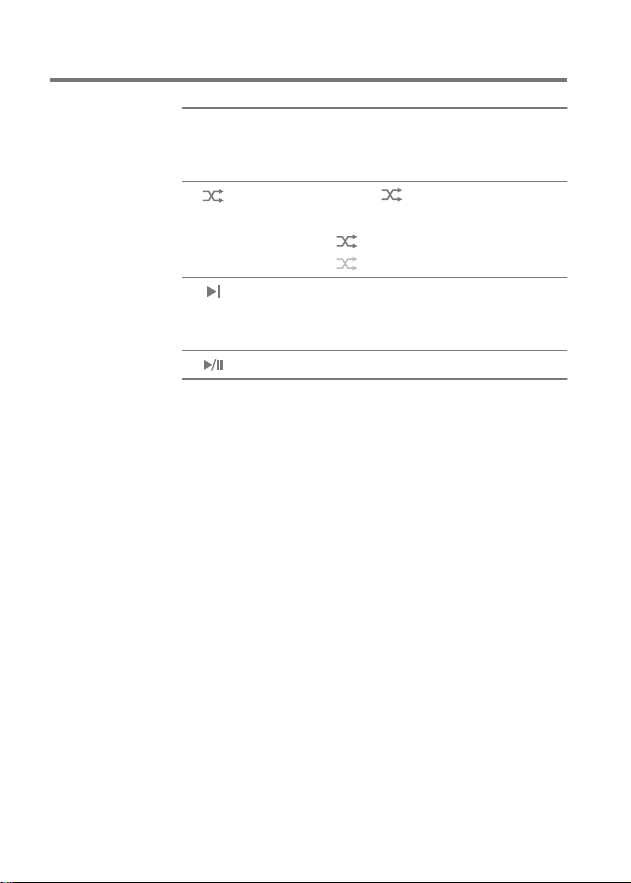
Indicates the song’s total duration.
Press to switch from elapsed time
to remaining time.
Press [ ] to set track sequence
for playback.
: Shuffle mode on.
: Shuffle mode off.
User Guide
Song Duration
Shuffle Mode
13
14
Short press: Play the next song.
Press and hold: Fast-forward the
current song.
Play or pause the current song.
Next/FF
Play/Pause
15
16
Using the Device
24
User Guide
Notifi-
cation
Bar
11
12
1 2 3 4 5 6 7 98 10
DAR
Using the Device
25
User Guide
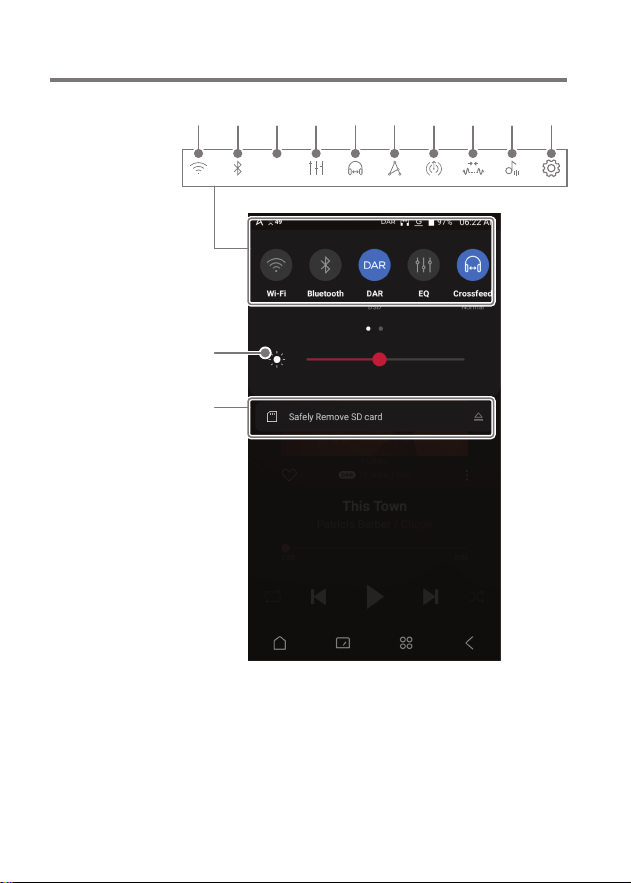
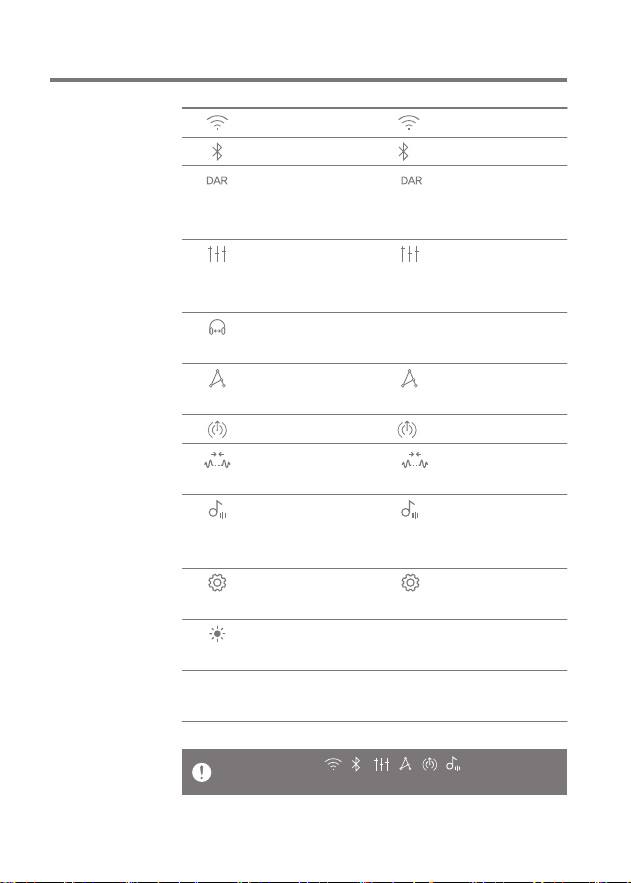
Press [ ] to turn Wi-Fi on/off.
Press [ ] to turn Bluetooth on/off.
Press [ ] to turn DAR on/off.
When enabled, sample rate
conversion will be applied.
Press [ ] to turn the EQ on/
off. The most recent EQ settings
are applied by default.
Turn Crossfeed on or off and
select the Crossfeed options.
Press [ ] to turn AK Connect
on/off.
Press [ ] to turn line-out on/off.
Press [ ] to turn Gapless
Playback on/off.
Press [ ] to turn ReplayGain
on/off. When enabled, a uniform
volume level will be applied.
Press [ ] to display the
full settings menu.
Use the adjustment bar to
control the display brightness.
Device notifications are
displayed in this area.
Wi-Fi
Bluetooth
Digital Audio
Remaster
EQ
Crossfeed
AK CONNECT
Line-out
Gapless
Playback
ReplayGain
Settings
Brightness
Notifications
Display
1
2
3
4
5
6
7
8
9
10
11
12
Long-press an icon [ / / / / / ] to navigate to the
corresponding full settings menu screen.

User Guide
The Open APP Service enables the user to install specific
APK music streaming apps to the device.
You can download the desired APK from the Service menu.
Using
Open APP
Service
The source of the app you are trying to install is unknown. Be aware that
if the app is installed, the device may be damaged and personal data
compromised. Depending on the APP, some functions may not work.
Restrictions may apply to the use of the open app that can be installed
and used for each product due to S/W version, etc. This is not a product
issue, and cannot be a reason for refund or exchange.
If you install an app from an unknown source, despite this warning, the
company is not responsible for any damages to the device and data
resulting from the app’s installation, and downloading and installing
such apps may limit the scope of after-sales services provided under the
manufacturer warranty.
For more information and full instructions on how to install music
streaming services, please visit the Astell&Kern website
[http://www.astellnkern.com > Support > FAQ > Using Open APP Service].
Using the Device
26
Using the Device
27
User Guide
Access and play back music files stored on a computer, NAS
drive or AK Device on the same network, as well as output
sound through compatible speakers with AK Connect.
AK Connect is available on your AK device and also available
as an app for your smartphone or tablet via Apple’s App store
or Google Play Store.
AK
CONNECT
Using AK Connect to Link Music Libraries/Speakers
1. Turn on the music library device
and/or speaker and AK player.
2. Connect all devices to the same
Wi-Fi network.
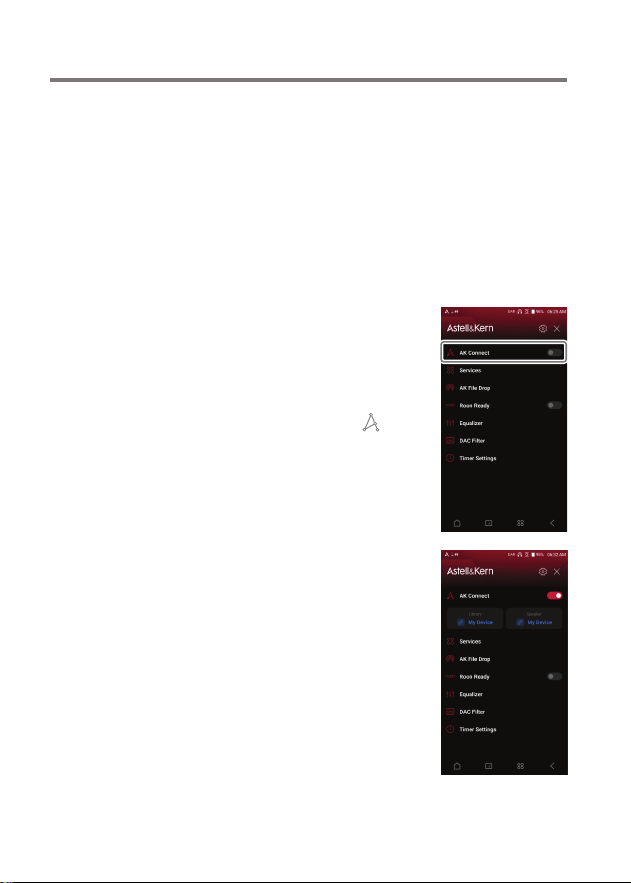
3. Turn on the AK CONNECT feature
by pressing and holding [ ] in the
Notification Bar or selecting [Menu-
Settings-AK CONNECT].
4. Select the library or speaker to use.
5. A list of libraries / speakers that
are on the same network with the
AK player will be displayed.
6. Select a library / speaker to
connect.
Using the Device
28
User Guide
For Wi-Fi connections, see Page 58.
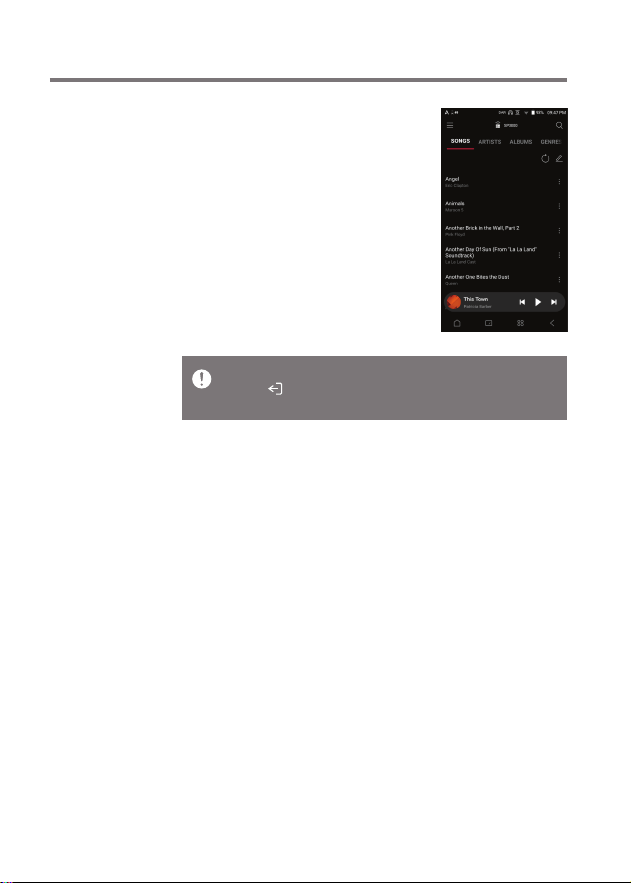
Tap the [ ] button at the top left of the screen while connecting
to the speaker to cancel the connection.
7. After selecting a library / speaker,
select a category from the menu
to display the corresponding music
list.
Using the Device
29
User Guide
Streaming Music from Your Library
1. Select a category from the library
menu to see your list of music.
2. Select a song to begin streaming.
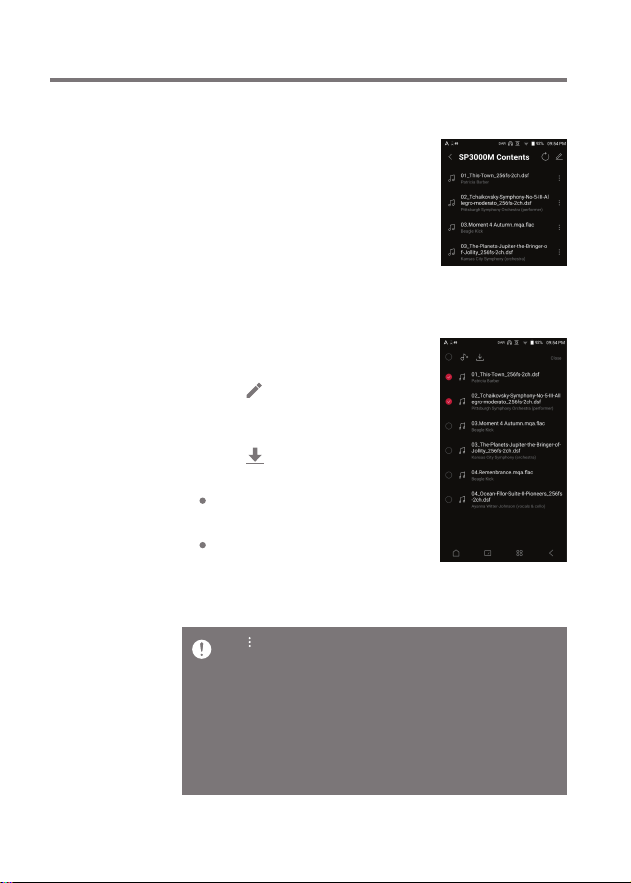
Downloading Music from Your Library
1. Select a category from the library
menu to see your list of music.
2. Press [ ] button at the upper-
right corner of the music list.
3. Select the desired music and
press [ ] to initiate the
download.
The song will be saved in the
location set in Settings > Download.
A message on the Notification
Bar will indicate when the
download is complete.
Tap [ ] to the right of the playlist to select the position in the queue
for the selected song or download the song directly.
Depending on network conditions, song loading may be slow and
streaming may stutter.
Using a library for other processes can slow down the response
time of the library.
If you stream and download at the same time, it may slow the device’s
response time depending on the speed of the Wi-Fi network or server.
To stop a download in progress, tap the notification in the Notification
Bar to go to the download screen. Then, select the items to pause or delete.
Using the Device
30
User Guide
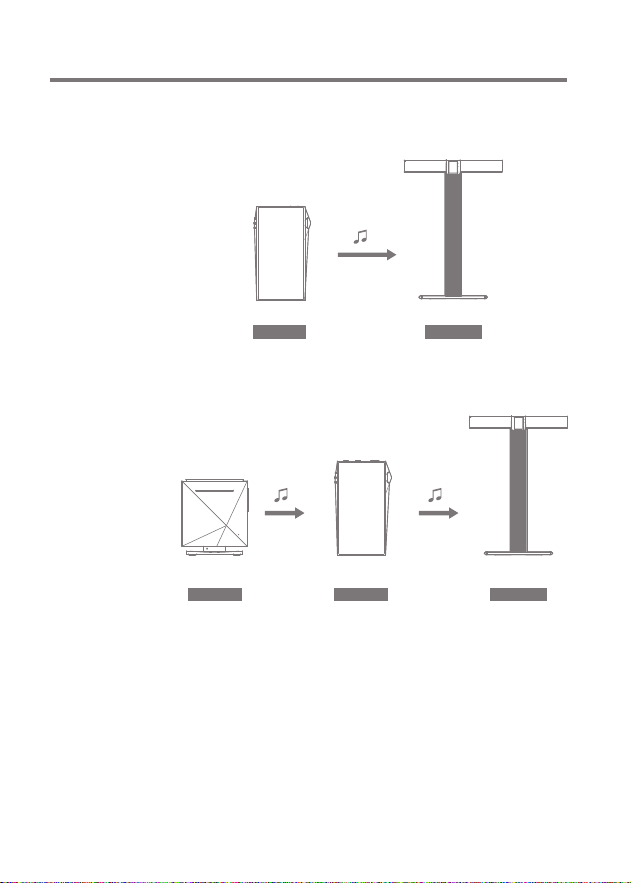
SP3000M
AK Connect Usage Examples
Case 1
LIBRARY SPEAKER
AK T1
Case 2
AK500N
LIBRARY REMOTE SPEAKER
AK T1SP3000M
Using the Device
31
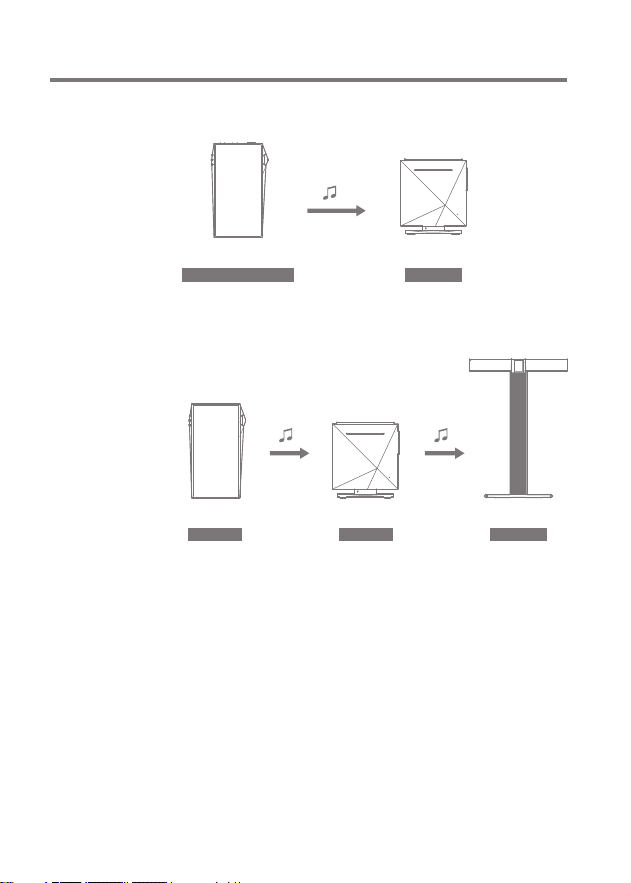
User Guide
Case 3
REMOTE & LIBRARY
SP3000M
SPEAKER
AK500N
Case 4
LIBRARY SPEAKER
AK T1SP3000M
AK500N
REMOTE
Using the Device
32
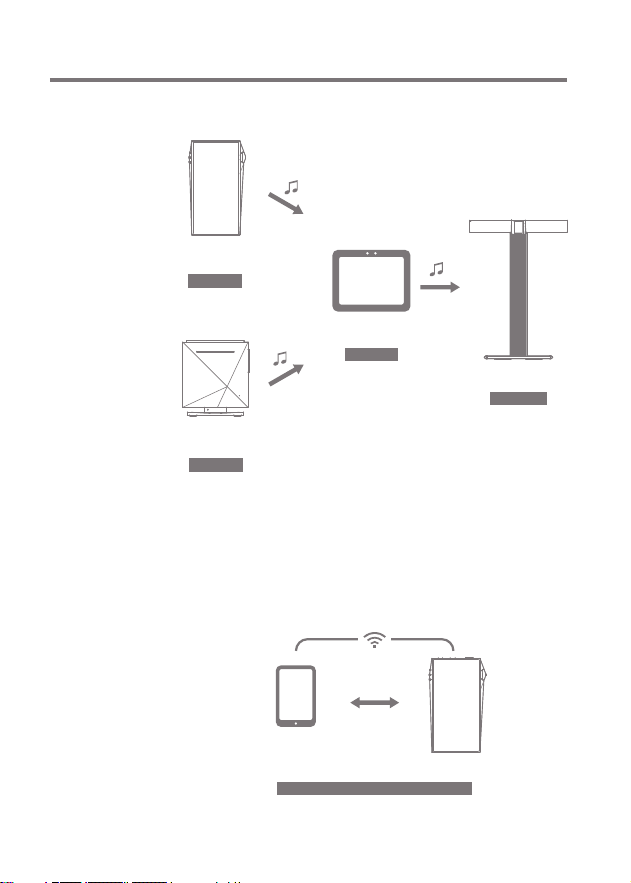
User Guide
Case 5
SPEAKER
AK T1
LIBRARY
SP3000M
or
REMOTE
AK Connect APP
AK500N
LIBRARY
PC/TABLET/
SMARTPHONE
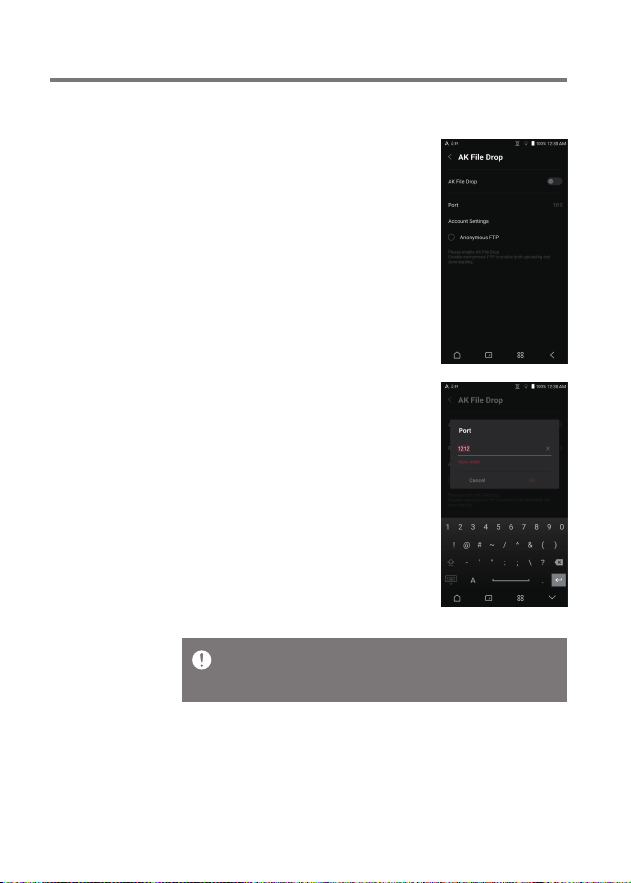
Wirelessly upload or download files to and from devices on
the same network (PC, tablet, smartphone, etc.) using the
SP3000M via an FTP program.
AK File
Drop
FTP CONNECT (DOWNLOAD/UPLOAD)
SP3000M
Using the Device
33
User Guide
Using AK File Drop
1. Connect the SP3000M and the
desired device to the same network,
and enable the AK File Drop feature
on the SP3000M.
2. Enter the address, ID, and password
displayed on the SP3000M into the
FTP program of the device to be
connected.
3. Use the connected device to
download or upload the desired
file(s).
You can connect without logging in via anonymous FTP, but only
downloads will be enabled.
AK File Drop can be added to the notification panel.
Using the Device
34
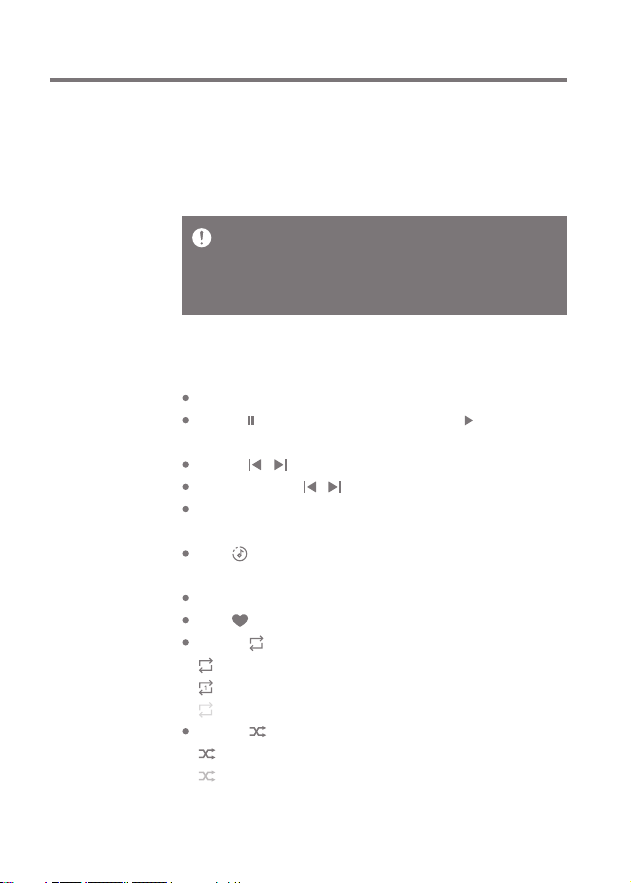
Turn the [Volume] wheel to adjust the volume.
Press [ ] during playback to pause and [ ] to resume
playback.
Press [ / ] during playback for the previous/next track.
Press and hold [ / ] to rewind/fast-forward the track.
Drag the indicator on the Playback Progress Bar to a desired
location of a track during playback.
Tap [ ] in the upper right corner to display the current
playlist.
Tap the album art to view the lyrics.
Tap [ ] to add the current song to Favorites.
Press [ ] to set the Repeat mode.
: Repeat entire playlist.
: Repeat current track.
: Repeat mode off.
Press [ ] to set track sequence for playback.
: Shuffle mode on.
: Shuffle mode off.
User Guide
Listening
to Music
Selecting Music
1. Select a category from the Menu Category Screen to
display the corresponding music list.
2. Select a song from the list to begin playback.
Listening to Music
Select [Folder] to search music by folder.
Continuous Playing Time: Approx. 10 hours (Music: FLAC,16bit,
44.1kHz, Unbalanced, Volume 50, EQ Off, LCD off)
Supported Formats: PCM 8~768kHz (8/16/24/32bit)
DSD [2.8/5.6.11.2/22.4MHz]
Using the Device
35
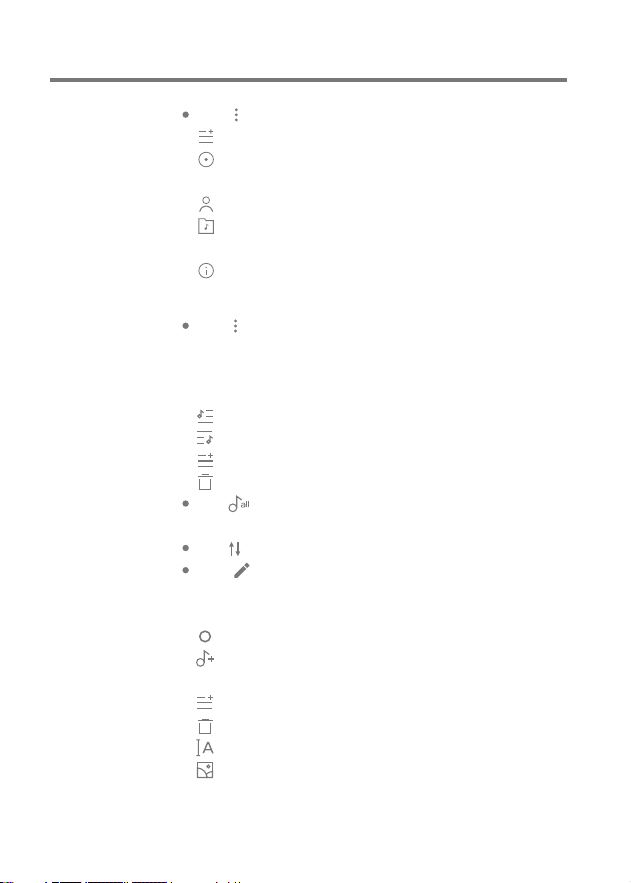
Tap [ ] to enter the More menu for the current song.
Add to Playlist: Add the current song to the playlist
Go to Album: Go to the album that contains the current
song
Go to Artist: Go to the artist menu for the current song
Go to Folder: Go to the folder that contains the current
song
File Info: Display current song information
Playlist Screen
Tap [ ] to enter the More menu for the selected song.
Different items are displayed depending on the selected
category.
Adding to the current playlist
: Add the selected song to play next
: Add the selected song to play last
: Add the selected song to the playlist
: Delete the selected song
Tap [ ] to add all songs in the selected category to the
playlist and play them immediately.
Tap [ ] to edit the sort order for the playlist.
Tap [ ] in the upper right corner to open the Edit mode.
Different items are displayed depending on the selected
category.
: Select / deselect entire list
: Add the selected list at the top / bottom / after the
current song of Now Playing
: Add selected list to a playlist
: Delete selected list
: Changing the playlist name (in the Play menu)
: Changing the album image (in the CD library)
Close: Exit Edit mode
User Guide
Using the Device
36
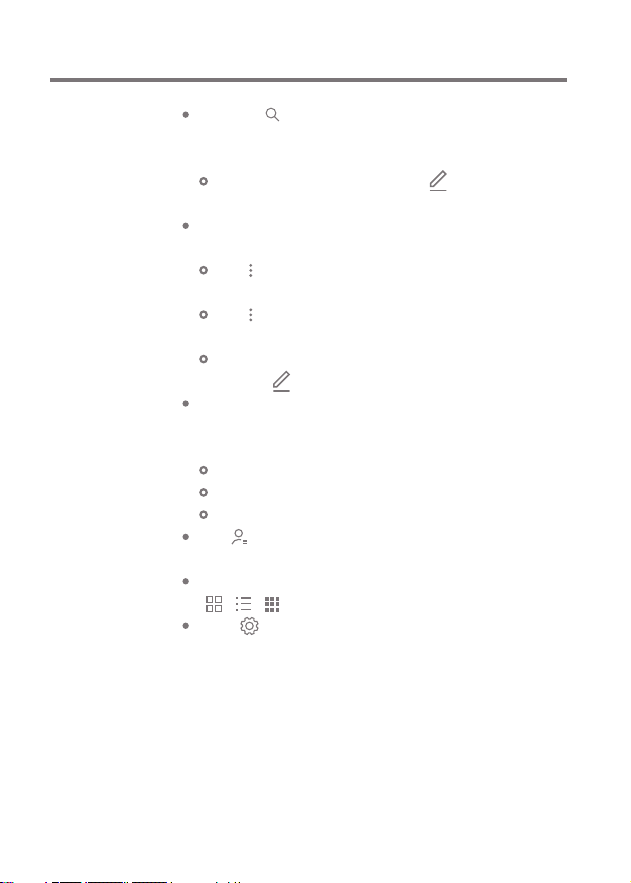
If you tap [ ] in the [Songs/Albums/Artists] category and
enter keywords in the input window, a list of items with
the search terms in their names will be displayed.
In the search results screen, tap [ ] in the upper right
corner to play a song or add it to the playlist.
Select the [Folder] category to check the internal / external
memory capacity and number of files / folders.
Tap [ ] in the folder list to play/add to the bookmarks/
copy/move/remove the selected folder.
Tap [ ] in the file list to play/copy/move/edit tags for/
remove the selected file.
You can also move/copy/remove files or folders by
tapping [ ] at the top of the Folder category.
In the [HD Audio] category, the HD Audio tab shows MQA
files and PCM files of 24 bits or more, and the DSD tab
shows DSD files.
HD Audio: MQA [44.1-384kHz(24bit)]
HD Audio: PCM [8-768kHz(24/32bit)]
DSD: DSD [2.8/5.6/11.2/22.4MHz]
Tap [ ] in the [Artist] category to sort the list of artists/
album artists.
After selecting [ALBUM] or [CD LIBRARY] category, press
[ / / ] at the top to sort by different viewing options.
Click [ ] to the right of the category to display the
playback settings.
User Guide
Using the Device
37
Playlist
Manage-
ment
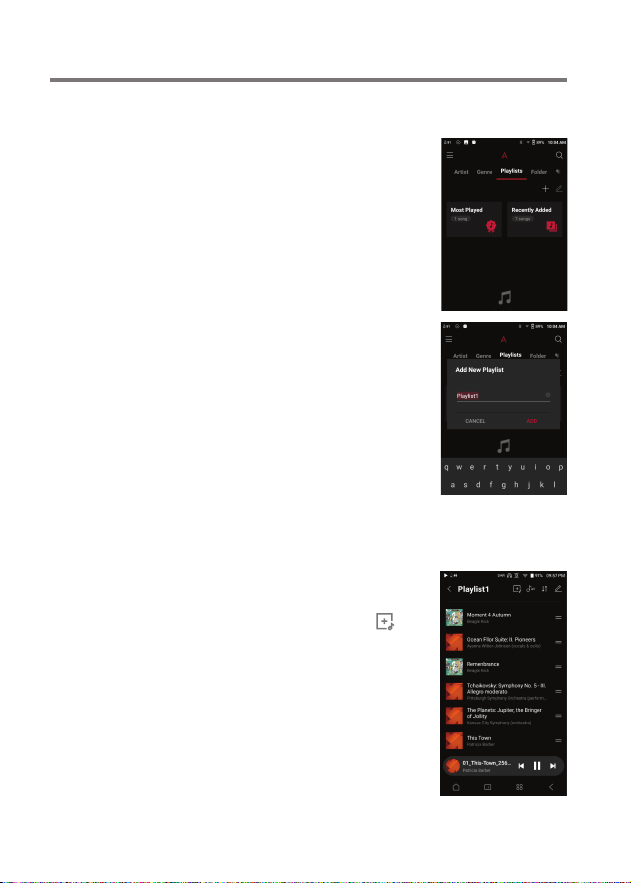
Creating a Playlist
1. From the Menu Category Screen,
select the [Playlist] category to
display the playlists.
2. Select [ + ] in the upper right corner
of the screen.
3. Enter a name for the playlist and
then press [Add] to create a new
playlist.
Adding a Song to a Playlist
1. Press [Playlists] to display the
list of playlists.
2. Select a playlist and press [ ]
to display [Song/Recently Added
List], and you can select the
desired item.
3. Select a song and press [Complete]
to add the song to the selected
playlist.
User Guide
Using the Device
38
User Guide
Removing a Song from a Playlist
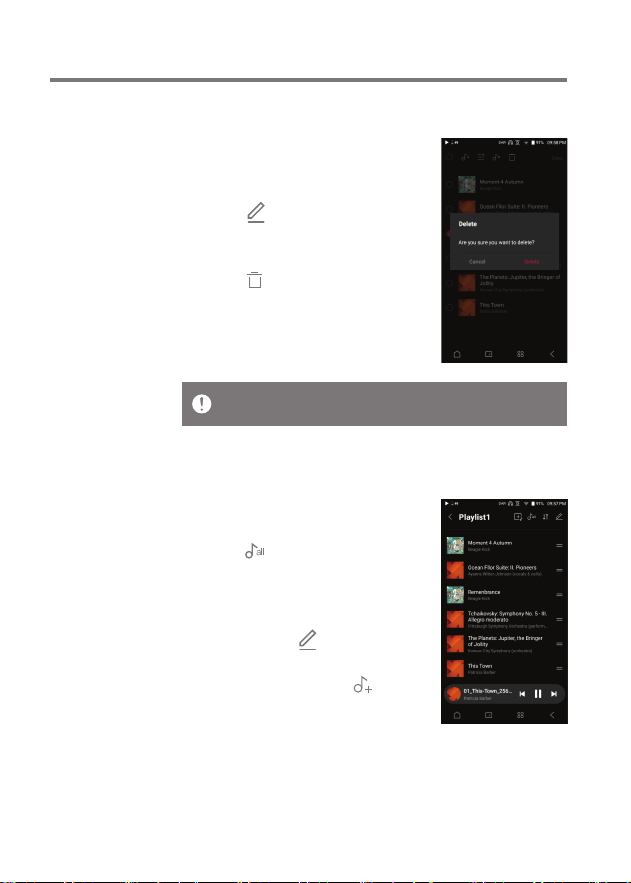
1. Press [Playlists] to display the
list of playlists.
2. Select the playlist to edit.
3. Press [ ] at the top, then select
the song you want to delete from
the playlist.
4. Press [ ] on top of the screen.
5. Press [DELETE] to remove the
song from the selected playlist.
Playing a Playlist
1. Select the desired playlist for
playback.
2. Press [ ] at the top right of the
screen to play the entire playlist.
3. To playback part of the playlist or
add it to a current Now Playing
playlist, press [ ] at the top of
the playlist, select the music you
want to play and press [ ] to
add the selected list to the top /
bottom / after the current song
of Now Playing.
This action will only remove the song from the selected playlist, not
the memory.
Using the Device
39
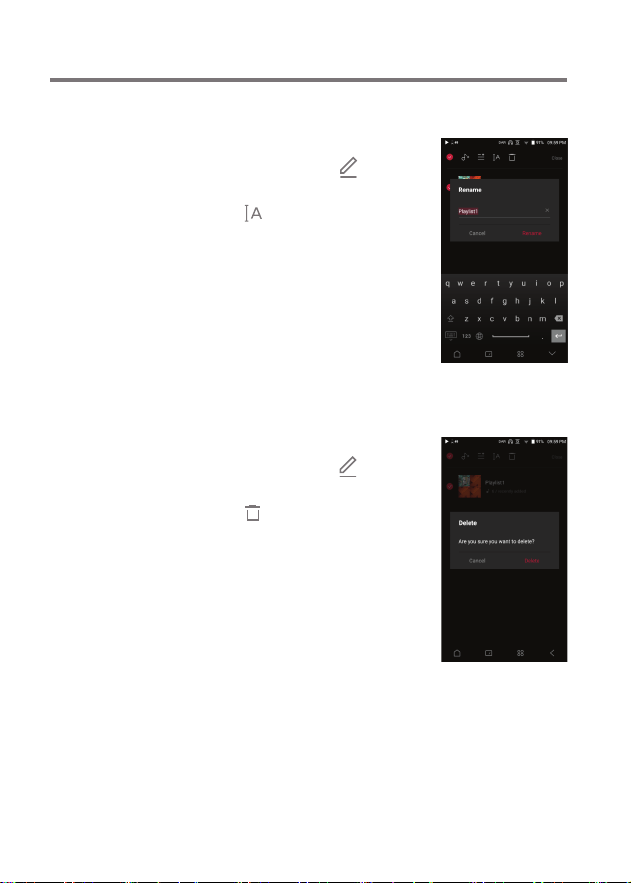
1. Press [Playlists] to view the
playlists, then press [ ].
2. Select the playlist to be deleted.
3. Press [ ] at the top of the screen.
4. Press [DELETE] to delete the
selected playlist.
1. Press [Playlists] to view the
playlists, then press [ ].
2. Select a playlist to be renamed.
3. Press [ ] at the top of the
screen to display the RENAME
window.
4. Enter a name for the playlist and
then press [RENAME] to confirm
the change.
User Guide
Renaming a Playlist
Deleting a Playlist
Using the Device
40
VU Meter
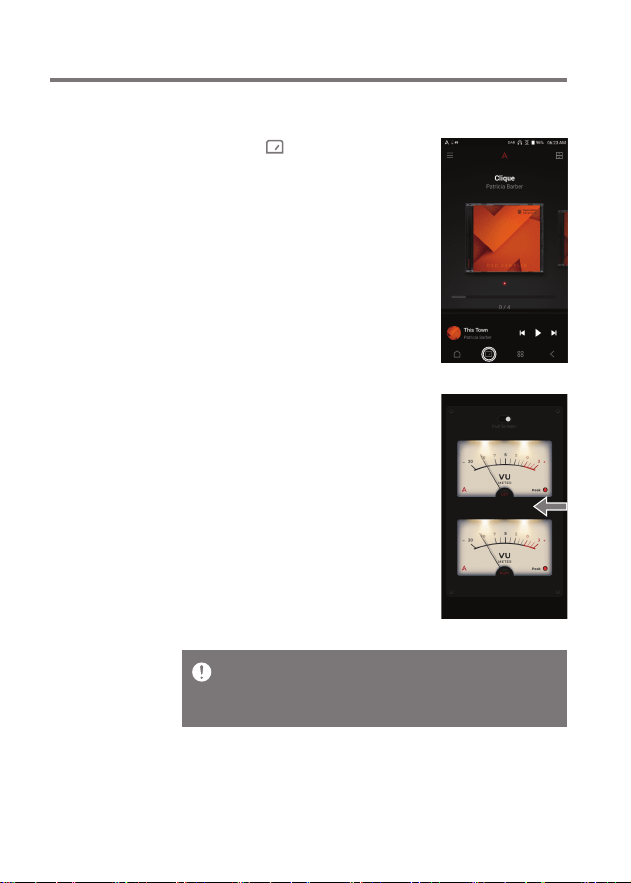
Launch VU Meter
1. Pressing [ ] on the Home
screen switches to the VU meter
screen.
2. Pressing the [Full Screen] button
at the top of the screen keeps the
VU meter on without turning off
the screen.
3. Dragging the screen [left↔right]
allows you to change the VU meter
design.
Running the VU meter in Full Screen mode for a long time can cause
the device to heat up and battery to deplete quickly.
If the device overheats, it may not charge properly even when
connected to a charger.
User Guide
Using the Device
41
User Guide
Replay
Gain
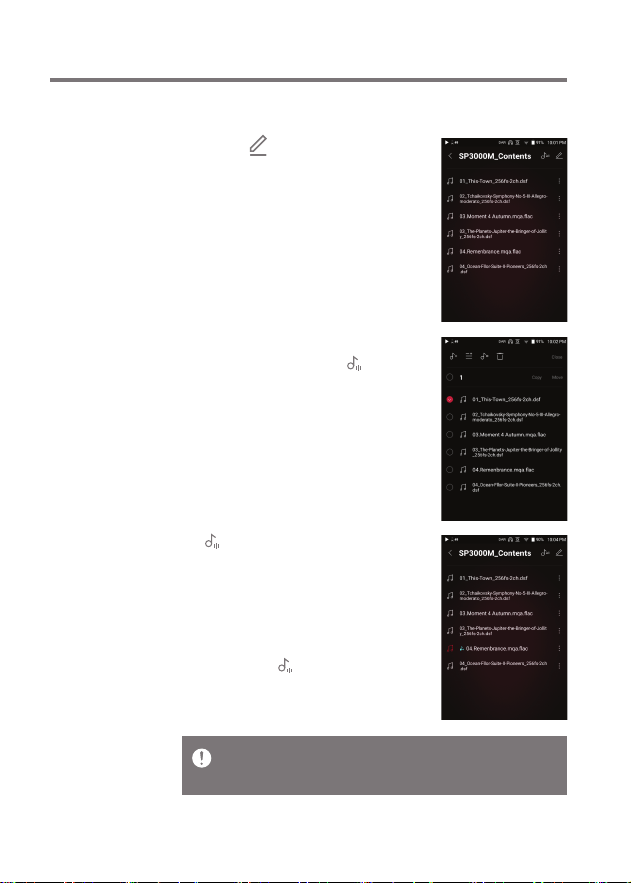
Calibrate Loudness
1. Select [ ] at the top of the music
list.
2. Select the desired music from the
music list, then press [ ] at the
top to start the calibration process.
3. [ ] will be displayed for the songs
that have been calibrated in the
Music List.
4. ReplayGain can be turned on/off
by clicking [ ] on the notification
bar screen or in [Menu-Settings-
ReplayGain].
You can calibrate the loudness in the Albums, Playlists, or Folders
menu.
ReplayGain is only supported on 24bit/192kHz or lower formats.
Using the Device
42
User Guide
Playback is unavailable when settings exceed the supported formats.
The Previous, Play, and Next buttons are unavailable when connected
as a USB DAC.
Playback may stutter when computer performance is slow or the
USB connection is experiencing heavy usage.
There may be issues with audio-to-video synchronization during
video playback depending on the sound quality and operating environment.
Volume cannot be adjusted via the Windows volume control. The
volume wheel on the device or volume control on the appropriate
program must be used to adjust the volume.
Install a dedicated driver to use the AK device as a USB DAC.
The driver file is located in SP3000M\Internal_Storage\SP3000M_
Contents\Driver.
USB DAC
Installation
The USB DAC function allows the device to be recognized
as a sound card on a computer. Music from the computer is
played through the device’s headphone port for an enhanced
listening experience.
USB DAC Specifications
Supported OS
Windows 10/11 (32/64bit)
MAC OS 10.7(Lion) or later
USB DAC Support Specifications
Supported Formats: PCM [8~384kHz(8/16/32bit)]
DSD [2.8/5.6/11.2/22.4MHz]
Control the volume with the AK device’s volume wheel.
Using the Device
43
User Guide
How to
Use USB
Audio
Connect the device to a portable amp or DAC using USB Audio Out.
How to Connect a Portable USB DAC
1. Connect the portable USB DAC to the AK device’s USB
Type-C port with a dedicated cable.
2. Check the connected messages in the Notifications Display.
3.
After connection, the function is automatically enabled, allowing you
to listen to music through the portable USB DAC’s audio output jack.
How to Change USB Audio DSD Output Type
You can change the type of DSD data that is outputted through
the USB audio out.
1. Select a DSD output type in [Menu - Settings - USB Audio].
PCM : DSD audio is converted into PCM before being
outputted through the USB audio out.
DoP : DSD audio is converted into DoP before being
outputted through the USB audio out.
MQA : Optional activation of S/W MQA decoding.
Options may differ depending on the connected external
device. Please refer to the specifications of each device.
The USB Type-C cable that comes packaged with the device is only
to be used for computer data transfer or to charge the device.
The type of dedicated cable needed to connect to the portable DAC
varies; please refer to USB DAC manufacturer instructions for
correct cable type.
A USB DAC cable is not included with the device and must be
purchased separately.
Depending on the OTG cable used, the connection may be unstable.
When a USB connection is established while playing a DSD or DXD
file, a mode selection pop-up box will appear with the following options:
External device connection: Connect the player to the computer to
transfer files, USB DAC for audio playback or CD Ripper connection.
Charge device: Charge the device.
Using the Device
44
User Guide
The portable USB DAC must be able to receive digital input through
the micro-USB's OTG.
Audio output may vary widely depending on the digital input specs
of the portable USB DAC used. This is not a defect in the device
output and not a reason for exchange or refund.
When using DoP as a DSD output type, no sound may be outputted
except noise depending on the portable USB DAC.
CD
Ripping
CDs can be ripped directly to the device using the AK CD-
RIPPER (sold separately).
Connecting the AK CD-RIPPER
1. Connecting the Type-C USB Port of SP3000M and the AK
CD ripper with a dedicated cable allows you to select the
function you want to use on the Notifications Display.
2. When a function is automatically selected in the settings,
the function will be executed.
Automatically select the CD ripper function.
1. Select the function to automatically execute in [Menu-
Settings-CD Ripper-Default run].
2. Select the [CD Player] / [CD Ripping] function.
3. When [Ask every time] is selected, the function selection
popup will be displayed each time a CD is inserted.
The USB Type-C cable provided with the device is to be used to
connect to the computer or to charge the product.
Depending on the CD-Ripper model the dedicated USB Type-C OTG
cable may not be provided in the product package.
Depending on the OTG cable used, the connection may be unstable.
When a USB connection is established while playing a DSD or DXD
file, a mode selection pop-up box will appear with the following options:
External device connection: Connect the player to the computer to
transfer files, USB DAC for audio playback or CD Ripper connection.
Charge device: Charge the device.
Using the Device
45
User Guide
CD Ripping Results
: Indicates that CD ripping is complete, or that CD ripping
was successfully completed after correcting an error
via error correction.
: Indicates that the song currently being ripped can be
canceled by user.
: Indicates that CD ripping failed due to an error that
can’t be corrected, such as a scratched CD, or that CD
ripping was canceled by user.
To search the Gracenote database, the device must be connected to
Wi-Fi. Database access time may vary depending on the network
environment.
Please note that metadata for certain CDs may not be available on
the Gracenote database.
You cannot access the Home Screen while CD ripping is in progress.
The AK Connect service will be disabled during CD ripping. The
service will automatically restart when CD ripping is completed.
Music playback is disabled during ripping.
You can select the ripping speed from the Menu > Settings > CD
Ripper menu, and depending on the ripping speed selected, noise
may occur when ripping is performed.
Several attempts at correction will be made for data with errors
when the feature is enabled under [Menu - Settings - CD Ripping -
Error Correction]. Please note that the CD ripping speed will be
affected when this feature is enabled.
CD Ripping
1. Select the ripping function in [Menu-Settings-CD Ripper-
Default run-CD Ripping].
2. Connect the AK CD-Ripper to the device and select CD
Ripping if not set as the default run function.
3. Insert a CD and metadata (ID3 tags) for the inserted CD
will be retrieved via Gracenote if Wi-Fi is turned on.
4. CD ripping will begin automatically after the metadata has
been downloaded.
5. When finished, press [OK] when prompted to complete the
automatic CD ripping process.

Using the Device
46
User Guide
AK CD-
Player
Using the AK CD-Player Function
1. Connect the AK CD-Ripper to the device and select CD
Player if not set as the default run function.
2. After inserting the CD, select the function you want to use
in the Notifications Display.
3. When a function is automatically selected in the settings,
the function will be executed.
The USB Type-C cable provided with the device is to be used to
connect to the computer or to charge the product.
Depending on the CD-Ripper model the dedicated USB Type-C OTG
cable may not be provided in the product package.
Depending on the OTG cable used, the connection may be unstable.
To search the Gracenote database, the device must be connected to
Wi-Fi. Database access time may vary depending on the network
environment.
Please note that metadata for certain CDs may not be available on
the Gracenote database.
General audio CD and MQA-CD playback is supported, but MP3-CD
won't play.
Using the Device
47
User Guide
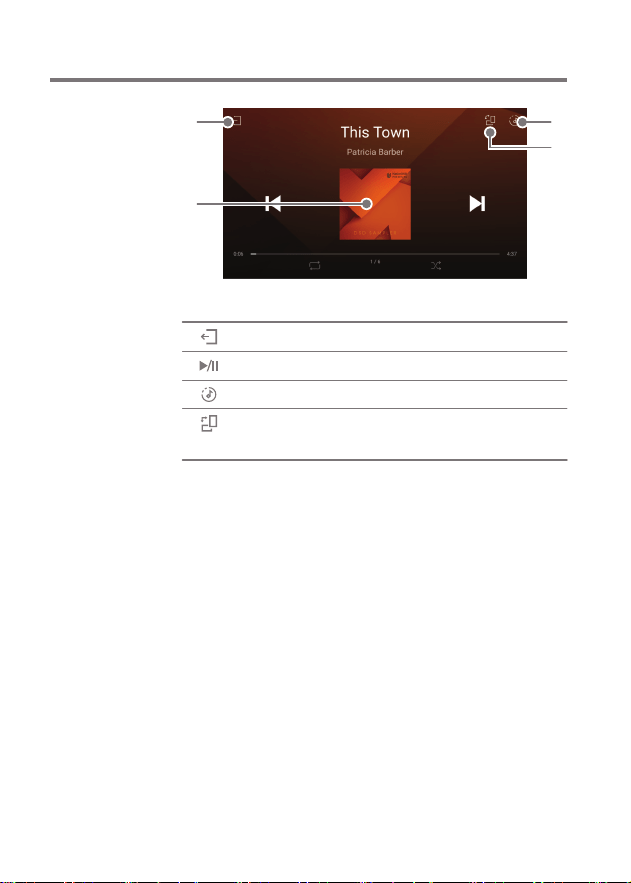
Car Mode
Exit car mode.
Play or pause music.
Display current playlist.
Switch the screen orientation to
horizontal mode/vertical mode.
Exit
Play/Pause
Playlist
Screen Rotation
1
2
3
4
1
2
3
4
Using the Device
48
User Guide
Bookmark
Function
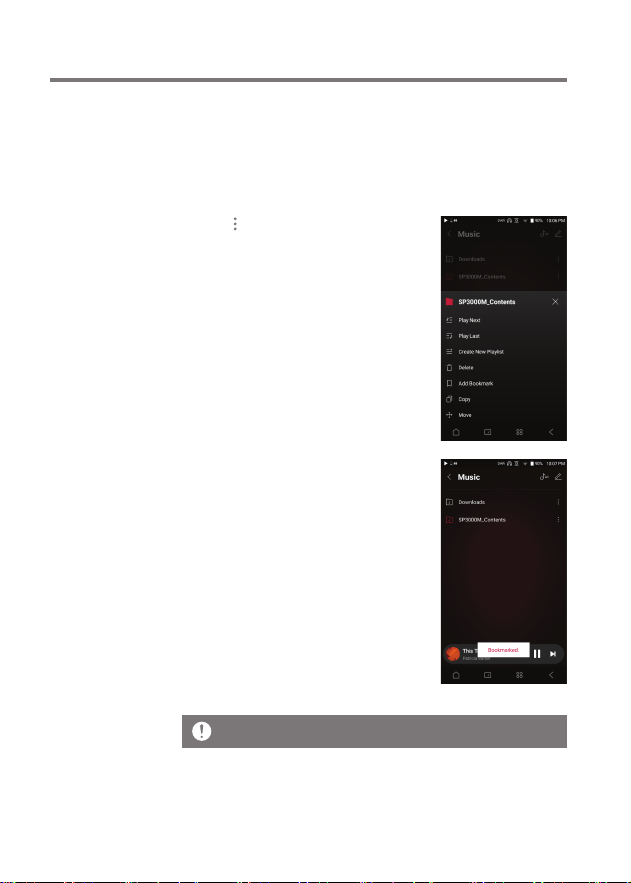
Allows user to select up to five folders for display on the top
of the screen.
Setting a bookmark
Up to 5 bookmarks can be set.
1. Tap [ ] to the right of the
desired folder in the playlist
to add a bookmark.
Using the Device
49
User Guide
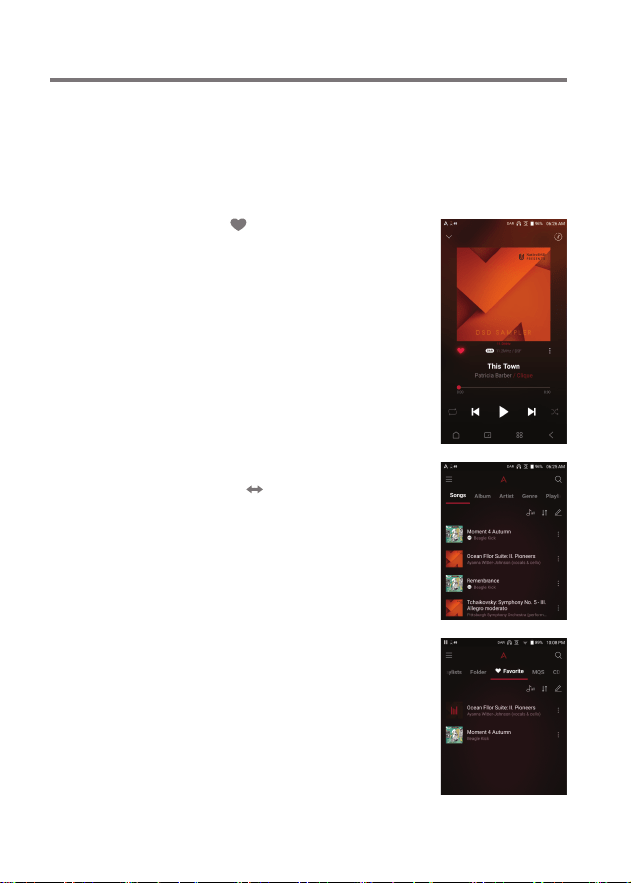
1. Tap [ ] on the playback screen
to add the current song to
Favorites or remove it from the list.
2. From the Home Screen, swipe
[Rightt Lef] direction to display
the Menu Category Screen.
Press [Favorites] to display the
list of favorite songs.
Favorites
Function
Favorites function allows users to mark a currently playing
song as a favorite and add it to the Favorites folder.
Setting favorites
Using the Device
50
User Guide
Settings
The settings menu allows users to customize the device.
The settings menu may vary depending on the firmware
version.
Setup
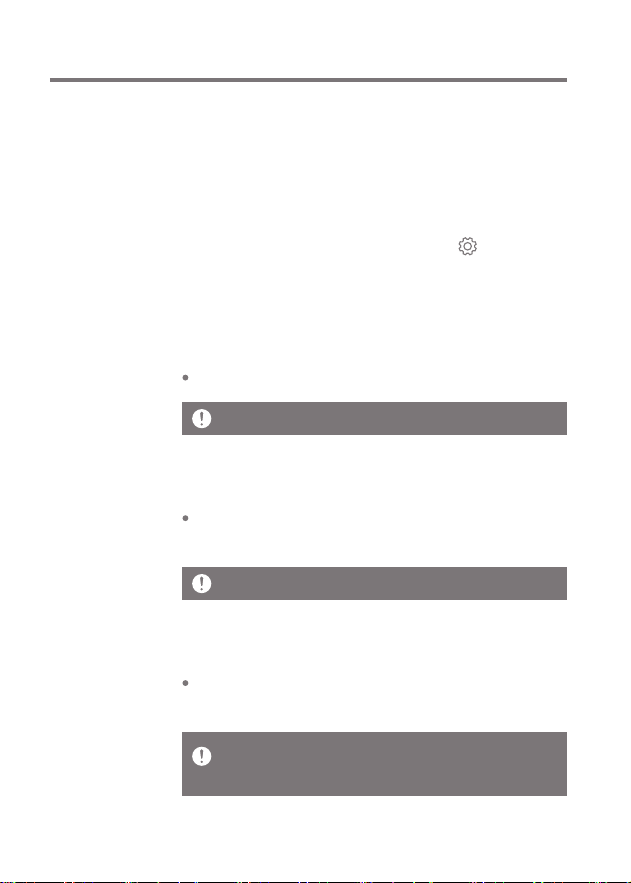
1. Select [Main Menu - Settings] or select [ ] from the
Notification Bar menu.
2. Select the feature to view setting options.
Wi-Fi
Change wireless network settings and turn Wi-Fi on/off.
Bluetooth Codec
When Bluetooth is activated, the applicable codec can be
set.
See page 58 for more information on connecting to Wi-Fi.
Reconnect the Bluetooth device to apply the changed settings. If a
codec is not supported by the connected device, the player will
automatically select another supported codec.
Bluetooth
Configures two-way Bluetooth (RX/TX) to listen to music
wirelessly using a device that supports Bluetooth.
See page 59 for more information on using Bluetooth.
Using the Device
51
User Guide
Supported Formats for EQ: PCM [8~192kHz(8/16/24bit)]
When Wi-Fi is connected, other EQs can be added as default without
prior notice.
Using the equalizer may negatively affect device performance.
See pages 62 - 63 for more information on using the equalizer.
Equalizer
Set the equalizer according to the user's preferences.
USER EQ: Adjust the frequencies according to the user's
preferences.
AK CONNECT
Turn AK Connect on/off and set AK Connect options.
AK File Drop
Enables or disables AK File Drop.
Roon Ready
Enable Roon Ready support.
Crossfeed supported formats : PCM [8~192kHz (8/16/24bit)]
Makes listening through headphones sound like listening
to speakers.
Adjusts detailed settings for Shelf Cutoff and Shelf Gain
to your preferences.
Crossfeed
Using the Device
52
User Guide
Gapless
Plays the next song without any interruption.
Gapless playback is only supported between two files
with identical bit rates, sample rates, and channels.
LR Balance
Adjust the left-right balance for earphones/headphones.
MQA audio does not apply the DAR function.
Digital Audio Remaster
With DAR enabled, PCM tracks can be converted and
played up to DSD256.
DAC Filter
User can select between various DAC filers provided by the
DAC manufacturer.
Supported Formats for DAC Filter: PCM [8 ~ 192kHz(8/16/24bit)].
MQA and DSD formats are not supported.
ReplayGain
Set a consistent volume playback level between tracks.
Using the Device
53
User Guide
CD Ripper
Set the automatic CD ripping function as well as the file
format and ripping speed.
Playback Settings
Set how to add a song to Now Playing when a song is
selected from a music list.
USB Mode
Media Device (USB Drive): When connected to a computer,
device appears as a removable drive.
DAC Input: Output sound from a connected computer to the device.
Line Out
Set the voltage value generated when Line Out is activated.
Do not use earphones with the Line Out feature enabled. Doing so
may cause permanent hearing loss.
Bluetooth functionality cannot be used while USB audio is being
used.
USB Audio
Select the type of DSD sound being outputted through
USB Audio Out to a connected portable DAC.
Enable/Disable MQA decoding software.

Using the Device
54
User Guide
Volume Limit
Displays a warning when the volume reaches a certain
level and sets related options.
Notification Panel
Add, delete, or reorganize Quick Settings buttons on the
notification bar. Drag and drop icons to add quick settings
buttons or change the preferred order.
Car Mode
Turn car mode on/off.
Set the default screen mode to landscape or portrait.
Display
Screen Brightness: Adjust screen brightness settings.
Double-Tap Screen to Wake: Wake up the device by double
-tapping the screen when off.
Screen Timeout: The screen will turn off after the
selected amount of time of no user activity.
Date & Time
Set the current date and time.
Device Name
Set the name of the device.
The maximum name length is 50 characters.
Using the Device
55
User Guide
Input Method
Keyboard: Select a language for the keyboard.
Supported languages are English, Korean, Japanese,
Chinese (Simplified/Traditional), French, Russian,
German, and Spanish.
Supported languages may vary depending on your location.
Language
Select the display language.
Supported languages are English, Korean, Japanese,
French, Russian, German, and Spanish.
Power and Battery
Auto Power Off: The device will automatically power off after
the selected amount of time of no user and device activity.
Sleep Timer: After a set amount of time, playback will stop,
and the device will turn off according to the time set in
[Auto Power Off].
Battery Protection Mode: To extend battery life, set the
battery to charge only up to 85%.
Using the Device
56
User Guide
Downloads
Select a folder for downloaded files to be saved by default.
Update
System Update: Update the device when a new firmware
version is available.
Application Update: Update the default applications when
new versions are available.
Automatic updates for Open APP applications are not
available through the Settings Menu of the device.
When using AK Connect to download music, if the [Default folder] is
selected in Settings, downloading will automatically begin to the
pre-set Downloads folder.
When [Select Folder] is selected, the user is prompted to choose a
download folder each time a file is downloaded.
System Information
System Information: View model number, firmware version,
MAC address and memory usage information. The microSD
card can be mounted/dismounted and data can be deleted.
Legal information: Check open source licenses and regulations.
Formatting the microSD card will delete all data on the memory
card. Be sure to backup any important files before formatting.
When formatting the microSD card on a computer, use of the FAT32
system is recommended.

Using the Device
57
User Guide
System Reset
Initialize Media Scan: Resets and rescans the internal database.
Database initialization time may vary depending on the
number of files stored on the device.
Settings Reset: Resets all user settings back to the default settings.
Factory Data Reset: Deletes all user data and resets all
user settings back to the default setting.
Using the Device
58
User Guide
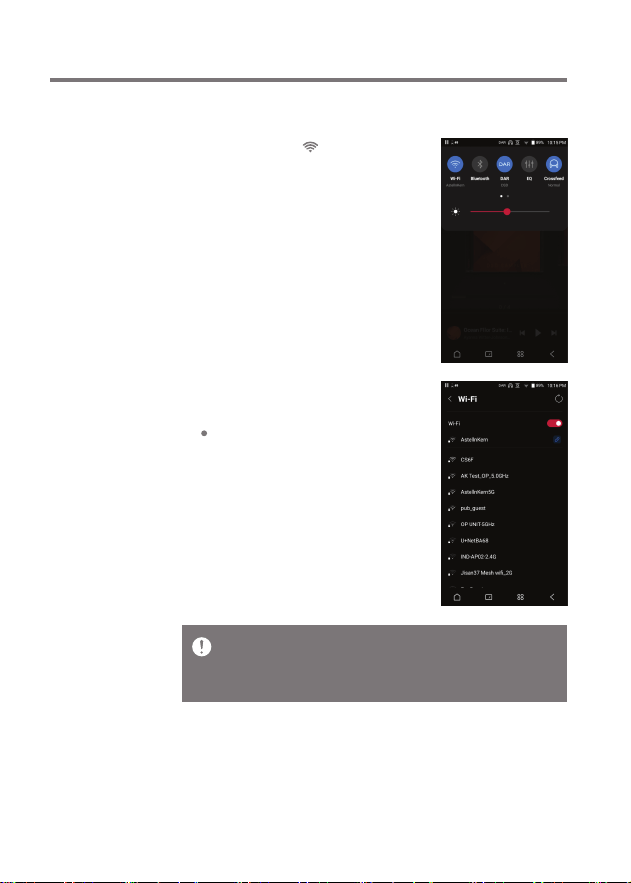
Connecting
to Wi-Fi
2. Select the desired AP to connect to
the wireless network.
Additional information such as
Wi-Fi password may be required
depending on Wi-Fi settings.
Connecting to a Wi-Fi Network
1. Press and hold [ ] from the
Notification Bar or select [Menu
- Settings - Wi-Fi] to display a
list of available Wi-Fi networks.
Networks requiring browser or other additional certifications are
not supported.
Wi-Fi Channels 1 through 13 supported, except in the USA, channels
12 and 13 are disabled.
Using the Device
59
User Guide
Using
Bluetooth
Configures two-way Bluetooth (RX/TX) to listen to music
wirelessly using a device that supports Bluetooth.
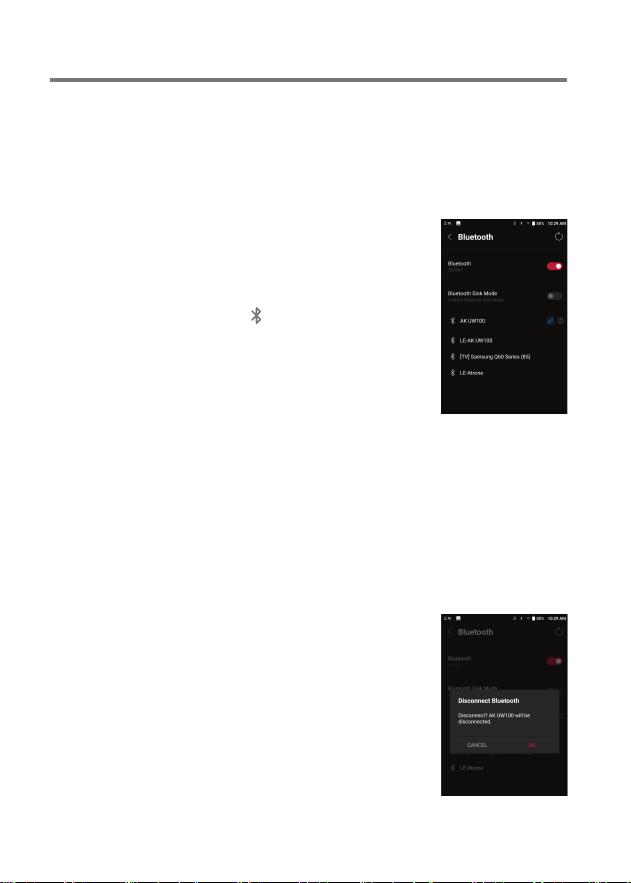
Turning Bluetooth On/Off
A Bluetooth device must be paired
with the device prior to use.
Refer to the Bluetooth device's
instruction manual for details.
1. Select [ ] from the Notification
Bar menu or select [On/Off] from
[Menu - Settings - Bluetooth].
Bluetooth Pairing
1. In the Settings Menu, select the appropriate Bluetooth
device from the list of available devices.
Disconnect a Bluetooth Device
1. Press the connected Bluetooth
device and confirm the message
prompt to disconnect the device.
Using the Device
60
User Guide
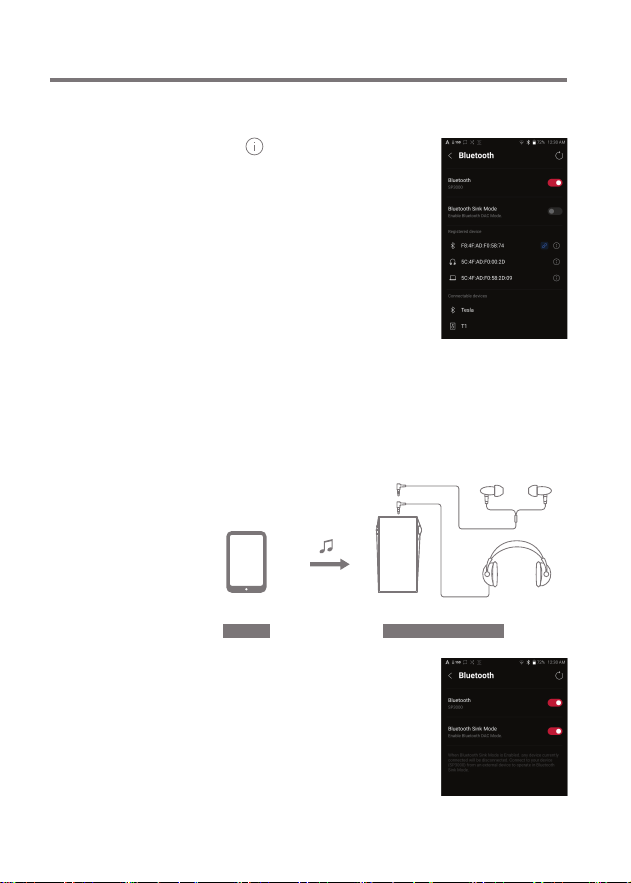
Removing a Bluetooth Pairing
1. Press [ ] to the right of the
paired device to go to settings.
2. Select [Remove] to complete
the process.
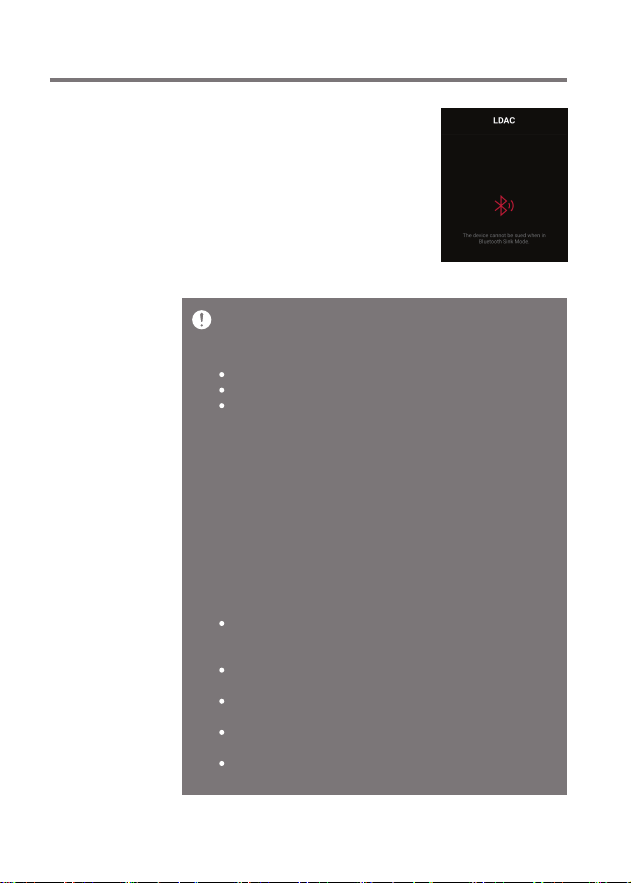
Using Bluetooth Sink Mode
Similar to connecting to a Bluetooth speaker from a
smartphone, music being played on an external device can
be played on the SP3000M by connecting to the SP3000M
from the external device.
1. Enable Bluetooth Sink Mode.
2. Search for and connect to the
SP3000M from the Bluetooth
menu of the external device.
SOURCE DEVICE SP3000M
OR
BLUETOOTH SPEAKERDEVICE
Using the Device
61
User Guide
3. Music will be outputted through
the SP3000M when played on the
connected device.
When Bluetooth Sink Mode is enabled, any device currently connected
will be disconnected.
The Bluetooth codec can be set on the source device playing music.
Bluetooth Support Specifications
Profile: A2DP, AVRCP
Supported Codecs: Qualcomm® aptX™ HD, LDAC, LHDC, AAC, SBC
Device performance may be affected during Hi-Res playback.
Do not turn off the device while connected to Bluetooth.
Turn the Bluetooth device off then on in case of issue.
Pairing methods may differ for each individual Bluetooth device.
Always refer to the respective instruction manual for details.
When connecting the product to a Bluetooth device, the distance
between the two must be within 20 cm.
Audio quality will degrade with longer distances and the pairing may
disconnect at a distance of 2 m (6.5 ft.) or more. (Distances may vary
depending on device and environment.)
Crosstalk may be heard while using Bluetooth.
For multipoint devices, make the necessary connections prior to use.
Malfunction, noise, and other undesirable effects may occur due to the
device's battery level and the environment.
If signal interference affects data transmission. (e.g., holding
the device while wearing a Bluetooth device, holding the device
while holding another electronic device, etc.)
If the device or Bluetooth headset's radio transmitters are
touching parts of the body.
If the transmission strength is affected by walls, corners,
partitions, etc.
If devices using the same frequencies cause interference. (e.g.,
medical devices, microwave ovens, Wi-Fi, etc.)
Areas with an excessive amount of interference or weak signals.
(e.g., elevators, underground, etc.)
Using the Device
62
User Guide
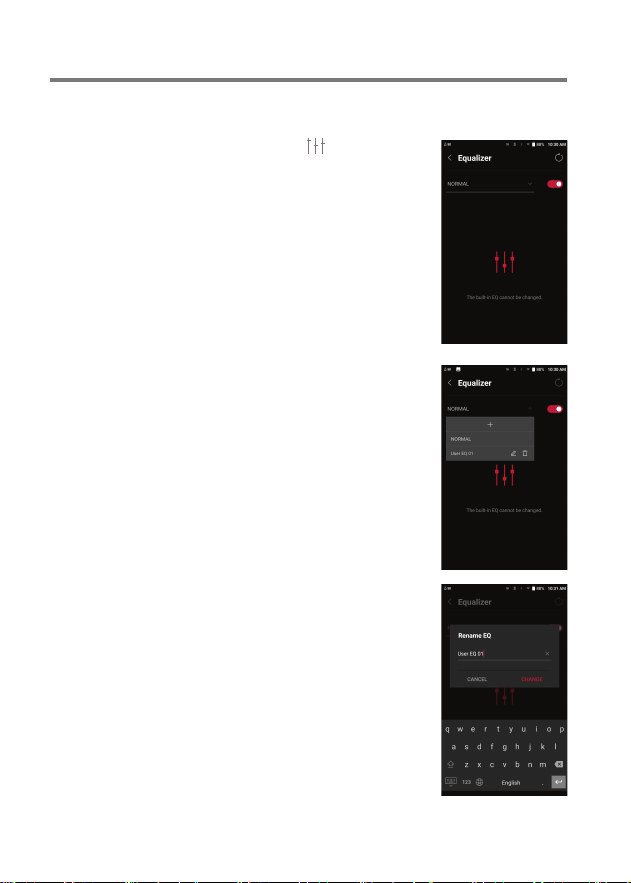
3. Enter a name for the custom
EQ settings and select [SAVE].
Equalizer Setup
1. Press and hold [ ] on the
Notification Bar or turn on
[Menu - Settings - Equalizer].
2. Press [Normal EQ], then select [+].
Equalizer
Setup
Using the Device
63
User Guide
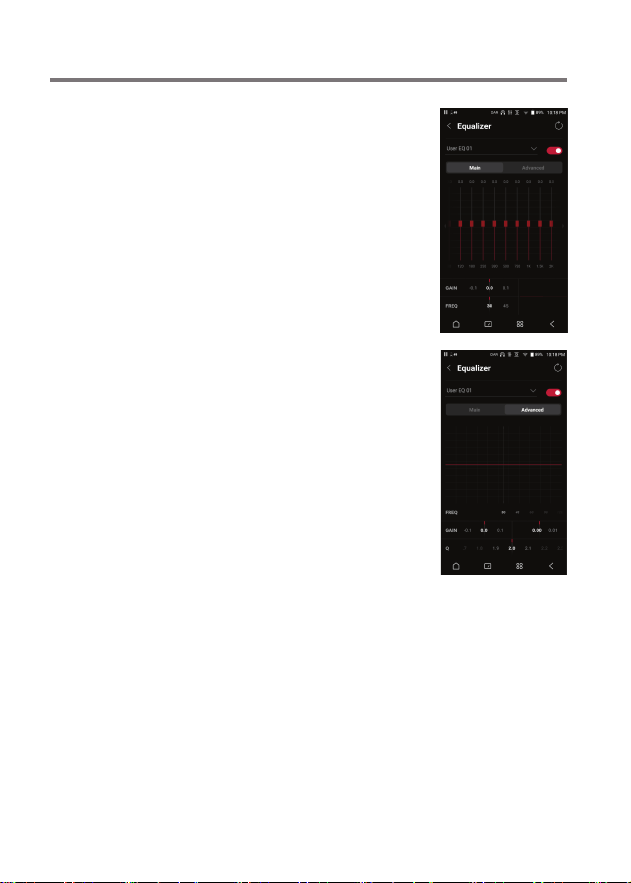
4. Adjust the frequencies up and
down according to the user's
preferences.
5. The number values at the lower-
left corner of the screen can be
adjusted for fine-tuning.
6. Press the [Advanced] tab on the
top to display PEQ settings screen.
Adjust Freq/Gain/Q.

Miscellaneous
64
User Guide
Pre
Cautions
Device
When a plug is inserted into the unbalanced, balanced, or
USB port, do not apply any force or impact to the plug.
Do not insert any metal objects (coins, hairpins, etc.) or
flammable debris into the device.
Do not put heavy objects on the device.
If the device gets wet (rain, water, chemicals, medicine,
cosmetics, sweat, moisture, etc.), allow the device to dry
thoroughly before powering on. (Damage may not be
repairable, however if deemed repairable, any damage
due to liquid exposure will be repaired for an additional
fee even if the device is under warranty.)
Avoid exposing the device to direct sunlight or extreme
temperatures (0℃ - +40℃) such as the
inside of a car during the summer.
Do not store or use in hot and humid places such as saunas.
Avoid places with excessive dust or smoke.
Do not use for extended periods on blankets, electric
blankets, or carpet.
Do not place near a fire or in a microwave.
Never disassemble, repair, or alter the product.
Do not store for extended periods in a confined space with
the power on.
Do not place the device near magnetic objects (magnets,
televisions, monitors, speakers, etc.).
Do not let chemicals or detergents come in contact with
the product since they may damage the surface and paint.
Do not drop or expose the product to strong impacts
(places where there is strong vibration, etc.).
Do not press multiple buttons simultaneously.
Do not disconnect the USB Type-C cable during data transfer.
When connecting the device to a computer with the USB
Type-C cable, use a USB port on the back of the computer
for best results.

Miscellaneous
65
User Guide
Other
Do not use earphones/headphones or use the device while
operating any type of vehicle. It is not only dangerous,
but may be a violation of the law in certain regions.
Do not use the product during physical activities (driving,
walking, hiking, etc.).
Always use in a safe environment to avoid the risk of an
accident.
When using the device while moving, make sure the area
is free of obstacles.
Avoid using the device during thunderstorms to reduce
the possibility of electric shock.
If there is a ringing in the ears, reduce the volume or stop
using the device.
Do not listen to music at excessive volumes for extended periods.
Do not use earphones/headphones at excessive volumes.
Make sure that the headphone/earphone does not get stuck
in another object or get caught between other objects.
Do not sleep with earphones in your ears or leave them in
for extended periods.
Connecting the cable to a defective or damaged USB port
on a computer may damage the device.
Displaying one image for an extended period may cause
screen burn-in (afterimage).
Using poor quality protective films or adhesive stickers
on the screen may cause damage.
Do not insert any foreign objects into the device ports.
The device may become warm while playing and charging,
so handle it carefully.
Product’s corners may be sharp, so handle carefully.

Miscellaneous
66
User Guide
1. The device won't turn on.
The battery may need to be recharged. Charge the device
for at least one hour and try again.
Reset the device. (See Page 5)
2. The device will not charge when connected to a computer
via USB cable.
Connect to the computer using the provided USB Type-C
cable. Charging may not occur depending on the condition
and specifications of your computer.
(In this case, charging via computer is not recommended.)
Connect the device to a USB wall adapter using the provided
USB Type-C cable to charge directly from a wall outlet.
3. The computer won't recognize the device or an error
occurs when connected.
Use a USB port on the back of the computer.
Check if the USB Type-C cable is connected correctly.
For Mac, check to ensure the MTP program is installed
properly.
Check if the device connects properly on a different computer.
4. The screen turns off repeatedly.
The screen turns off automatically after a defined period
to reduce battery consumption. Set the time at [Menu-
Settings - Display - Screen Timeout].
5. The screen does not display images properly.
Check the screen for debris.
6. There is no sound or there is static/interference.
Check that the volume setting is above [0].
Check that the earphones are plugged in properly and
make sure nothing is obstructing the port connection.
Verify that the music file is not corrupt.
Verify that the audio settings have been set properly.
(Balanced out, line out, etc.)
Trouble-
shooting
Solutions to Common Issues

Miscellaneous
67
User Guide
7. A file does not play or the product becomes unstable
when a certain file is played.
File may be damaged or corrupt if the following occurs:
Playback stops or freezes.
Device may act erratically or freeze.
File may sound different on another device.
There may be a difference in the performance of
playback or other functions.
There may be differences in the file specs.
Converting the file to a different format or use of a different
file is recommended.
Copyright
Dreamus Company retains the rights to patents, trademarks,
copyrights, and other intellectual property rights related to
this manual. No contents of this user manual may be
duplicated or reproduced in any format or by any means
without the prior approval of Dreamus Company.
Using or reproducing, in whole or part, the contents of this
document is subject to penalties. Software, audio, video,
and any other copyrighted contents are protected in
accordance with relevant copyright laws.
The user accepts all legal responsibility for the unauthorized
reproduction or distribution of the copyrighted contents from
this product.
Companies, organizations, products, people, and events used
in the examples are fictional. Dreamus Company has no
intention to be associated with any company, institution,
product, person, or incident through this instruction book,
and no such inference should be made. It is the responsibility
of the user to comply with applicable copyright laws.
Copyright © Dreamus Company. All Rights Reserved.

Miscellaneous
68
User Guide
Certifica-
tions
KC / FCC / CE / TELEC
Class B Device (Communication equipment for residential
use): This is a Class B Device and is registered for EMC
requirements for residential use. This device can be used in
residential areas and all other areas.
Check information about KC/FCC/CE/TELEC certification at
[settings - system information - regulations]
Instruction
of E-Label
You can view the FCC ID of the device. To view the FCC ID,
tap Settings → System Information → Regulatory
FCC ID: QDMPPF43
This device complies with Part 15 of the FCC Rules, Operation is
subject to the following two conditions: (1) this device may not cause
harmful interference, and (2) this device must accept any
interference received, including interference that may cause
undesired operation.
FCC Caution: Any changes or modifications not expressly
approved by the party responsible for compliance could void
the user's authority to operate this equipment.

Miscellaneous
69
User Guide
(b) For a Class B digital device or peripheral, the instructions furnished
to the user shall include the following or similar statement, placed in a
prominent location in the text of the manual: NOTE: This equipment
has been tested and found to comply with the limits for a Class B
digital device, pursuant to part 15 of the FCC Rules. These limits are
designed to provide reasonable protection against harmful interference
in a residential installation.
This equipment generates, uses and can radiate radio frequency
energy and, if not installed and used in accordance with the
instructions, may cause harmful interference to radio communications.
However, there is no guarantee that interference will not occur in a
particular installation. If this equipment does cause harmful
interference to radio or television reception, which can be determined
by turning the equipment off and on, the user is encouraged to try to
correct the interference by one or more of the following measures:
- Reorient or relocate the receiving antenna.
- Increase the separation between the equipment and receiver.
- Connect the equipment into an outlet on a circuit different from that
to which the receiver is connected.
- Consult the dealer or an experienced radio/TV technician for help.
Body-Worn Operation
This device was tested for typical body-worn operations with the back
of the portable music player kept 5mm from the body. To maintain
compliance requirements, use only belt-clips, holsters or similar
accessories that maintain a 5mm separation distance between the
user’s body and the back of the portable music player, including the
antenna. The use of belt-clips, holsters and similar accessories should
not contain metallic components in its assembly. The use of
accessories that do not satisfy these requirements may not comply
with CE RF exposure requirements and should be avoided.
Body-worn accessory exposure conditions “Specific information must
be included in the operating manuals to enable users to select
body-worn accessories that meet the minimum test separation
distance requirements. Users must be fully informed of
the operating requirements and restrictions, to the extent that the
typical user can easily understand the information, to acquire the
required body-worn accessories to maintain compliance. Instructions
on how to place and orient a device in body-worn accessories, in
accordance with the test results, should also be included in the user
instructions. All supported body-worn accessory operating
configurations must be clearly disclosed to users through conspicuous
instructions in the user guide and user manual to ensure unsupported
operations are avoided. All body-worn accessories containing metallic
components must be tested for compliance and clearly identified in the
operating manual. The instruction must inform users to avoid using
other body-worn accessories containing metallic components to
ensure RF exposure compliance.”
Miscellaneous
70
User Guide
MQA (Master Quality Authenticated)
MQA is an award-winning British technology that delivers the sound
of the original master recording. The master MQA file is fully
authenticated and is small enough to stream or download. Visit
mqa.co.uk for more information.
Astell&Kern PPF43 includes MQA technology, which enables you to
play back MQA audio files and streams, delivering the sound of the
original master recording.
The PPF43 Now Playing status shows a green or blue light to indicate
that the unit is decoding and playing a MQA stream or file, and
denotes provenance to ensure that the sound is identical to that of
the source material. A blue light indicates it is playing a MQA Studio
file, which has either been approved in the studio by the
artist/producer or has been verified by the copyright owner.
MQA and the Sound Wave Device are registered trademarks of MQA
Limited.© 2016
Registered
Trademarks
Windows 10, Windows 11, and Windows Media Player are
registered trademarks of Microsoft Corp.
Qualcomm aptX is a product of Qualcomm Technologies, Inc.
and/or its subsidiaries.
Qualcomm is a trademark of Qualcomm Incorporated, registered
in the United States and other countries.
aptX is a trademark of Qualcomm Technologies International,
Ltd., registered in the United States and other countries.
LDAC and LDAC logo are trademarks of Sony Corporation.

Miscellaneous
71
User Guide
Disclai-
mers
The manufacturer, importer, and distributor shall not be liable
for damages including accidental and personal injury due to
the improper use or operation of this product. The information
in this user manual was written based on current product
specifications. The manufacturer, Dreamus Company, regularly
adds new features via OTA updates and will continue to apply new
technologies in the future. Product specifications may be changed
without prior notice. There is no warranty against data loss due to
the use of this product.
CAUTION
RISK OF EXPLOSION IF BATTERY IS REPLACED
BY AN INCORRECT TYPE.
DISPOSE OF USED BATTERIES ACCORDING
TO THE INSTRUCTIONS
The device must be used a minimum of 5mm away from the body in
normal use conditions.
Please ensure that you use only adapters that have been
safety-certified and are rated for 15 watts or lower.
The excessive sound pressure from earphones and headphones can
cause hearing loss.

Miscellaneous
72
User Guide
Specifi-
cations
SP3000M
PPF43
Rich Gray
Aluminum
4.1inch HD 720 x 1280 touch screen
WAV, FLAC, WMA, MP3, OGG, APE, AAC, ALAC, AIFF, DFF, DSF
PCM : 8kHz ~ 768kHz (8/16/24/32bits per Sample)
DSD : DSD64(1bit 2.8MHz), Stereo/ DSD128(1bit 5.6MHz), Stereo /
DSD256(1bit 11.2MHz), Stereo / DSD512(1bit, 22.4MHz), Stereo
Unbalanced 3.3Vrms │ Balanced 6.3Vrms (Condition No Load)
Octa-core
AKM AK4191EQ x2 & AK4499EX x4
Support up to 32bit / 768kHz playback
USB Type-C input (for charging & PC & MAC)
Unbalanced Out (3.5mm), Balanced Out 4.4m (only 5-pole supported)
802.11 a/b/g/n/ac (2.4/5GHz)
V5.0 (A2DP, AVRCP, Qualcomm® aptX™ HD, LDAC, LHDC)
2.72” (69.1mm)[W] x 4.70” (119.6mm)[H] x 0.74” (18.8mm)[D]
Aluminum about 8.36oz (237g)
Firmware upgrade supported (OTA)
0℃ ~ + 40℃ (32℉~ 104℉)
±0.020dB (Condition : 20Hz~20kHz)Unbalanced │
±0.025dB (Condition : 20Hz~20kHz) Balanced
±0.032dB (Condition : 20Hz~70kHz)Unbalanced │
±0.025dB (Condition : 20Hz~70kHz) Balanced
126dB @ 1kHz, Unbalanced │ 130dB @ 1kHz, Balanced
-140dB @ 1kHz, Unbalanced │ -144dB @ 1kHz, Balanced
0.0005% @ 1kHz, Unbalanced │ 0.0003% @ 1kHz, Balanced
0.0004% 800Hz 10kHz (4:1) Unbalanced │Balanced
Unbalanced Out 3.5mm (0.6ohm) │ Balanced Out 4.4mm(1.2ohm)
25pS (Typ)
200 Femto Seconds
256GB [NAND]
microSD x1 (Max. 1.5TB)
4,200mAh 3.8V Li-Polymer
about 3.5hours (QC3.0 Charging)
about 10hours (Standard : FLAC, 16bit, 44.1kHz, Vol.80, LCD Off, Low Gain)
Windows 10,11(32/64bit) MAC OS X 10.7
Body 10g(W/kg) WLAN 2.4GHz : 0.145, WLAN 5.2GHz : 0.594
General Specifications
Product Name
Model
Body Color
Body Material
Display
Supported Audio Formats
Sample rate
Output Level
CPU
DAC
Decoding
Input
Outputs
Wi-Fi
Bluetooth
Dimensions
Weight
Feature Enhancements
Operating Temperature
Audio Specifications
Frequency Response
S/N
Crosstalk
THD+N
IMD SMPTE
Output Impedance
Clock Source
Clock Jitter
Reference Clock Jitter
Storage Capacity
Built-in Memory
External Memory
Battery
Capacity
Charge Time
Playback Time
Supported OS
Supported OS
SAR