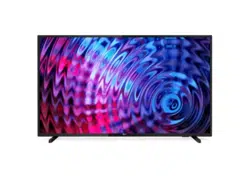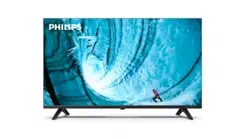

Register your product and get support at
www.philips.com/TVsupport
User Manual
32PHS6009
40PFS6009
6009 Series
2
3
1. Home Screen
Overview
To enjoy the bene�ts of your Smart TV, connect the TV to
the Internet. Press on your remote control to
get your Home screen. Like on your smartphone or
tablet, the Home screen is the centre of your TV. From
the Home screen you can decide what to watch by
browsing entertainment options from apps.
The Home screen is organized in rows to let you discover
great contents from your favourite apps. Apps may
populate their recommendation (if available) according
to their own choice as an individual row in the home
screen.
With multiple tabs like
, ,
and , you can discover movies and shows from
your services and popular apps.The tab is
a collection of free online contents including news, TV
and movies, life style, entertainment, sports, music, kid
and comedy channels. The tab is an app collection
to let you rent movies online, read newspapers, watch
videos and listen to music, also shop online, or watch TV
programmes when it suits you with On-line TV. You can
also trigger input �eld for searching with tab.
Your favourite Apps are placed on the �rst row. This row
contains number of apps pre-installed. The order of
these apps are according to business agreements with
content service providers. In this row you will also �nd
the Apps, like
, , and
others.
This row contains your Recommended, Subscriptions or
Trending YouTube and Net�ix videos.
You can access
menu via the icon at the top
right corner. You can also �nd the and
with common settings in the Philips TV
Menu, which can be invoked directly from the remote
control.
Select
to open the TV Guide of your
installed TV channels.
Select
to view and change to available
sources in this TV.
: If your installed country is Germany, there will be
additional tab on home screen to list
apps.
4
2. Get Support
You might be asked to provide the TV product model
number and serial number. Find these numbers on the
packaging label or on the type label on the back or
bottom of the TV.
Register your TV and enjoy a range of bene�ts including
full support (including downloads), privileged access to
information about new products, exclusive offers and
discounts, the chance to win prizes and even participate
in special surveys about new releases.
Go to
www.philips.com/TVsupport
>
You can use Help function to diagnose and get more
information about your TV.
•
•
• - Run the TV diagnose to check the
condition of your TV.
• - You can check if the picture, sound,
network and other settings are working �ne.
• - Check available software updates.
• - Read the user manual for TV
information.
• - Find a solution for frequently asked
questions.
• - Reset all settings to factory settings.
• - Reinstall and redo the complete TV
installation.
• - Show the telephone number or web
address for your country or region.
* Sorting channels is only applicable for certain countries.
** Ambilight setting is only for models which support
Ambilight function.
You can run the TV diagnose test to check the condition
of your TV. At the end of the diagnose, TV will clear the
cache memory and close any unused apps to continue
the smooth functioning of your TV.
To run the TV diagnose test:
1 - Select
> > and
press .
2 - Select to run a series of diagnostic tests.
3 - When the test completed, you can view the status of
following items.
- Power
- Picture
- Sound
- Connect external devices
- Network
- TV tuner
- Clear cache memory
- Apps
4 - Select to close the result page and go back to
wizard.
5 - Press to exit from , select
to do other diagnostic check, select
to view the result page again.
Self-diagnose can help you to do troubleshooting of your
TV by checking the con�gurations of the TV.
To run the Self-diagnose:
1 - Select
> > and
press .
2 - Select following items to check the con�gurations.
• - You can check if the picture, sound and
other settings are working �ne..
• - Check the network connection.
• - Perform the test to verify
the TV bundled remote control functionality.
• - Display the list of channel
numbers that were automatically saved when signal
strength was weak.
For support and repair, call the Consumer Care hotline in
your country. Our service engineers will take care of a
repair, if necessary.
5

Find the telephone number in the printed
documentation that came with the TV.
Or consult our website www.philips.com/TVsupport and
select your country if needed.
You might be asked to provide the TV product model
number and serial number. Find these numbers on the
packaging label or on the type label on the back or
bottom of the TV.
Do not attempt to repair the TV yourself. This may cause
severe injury, irreparable damage to your TV or void your
warranty.
6
3. Quick Guide
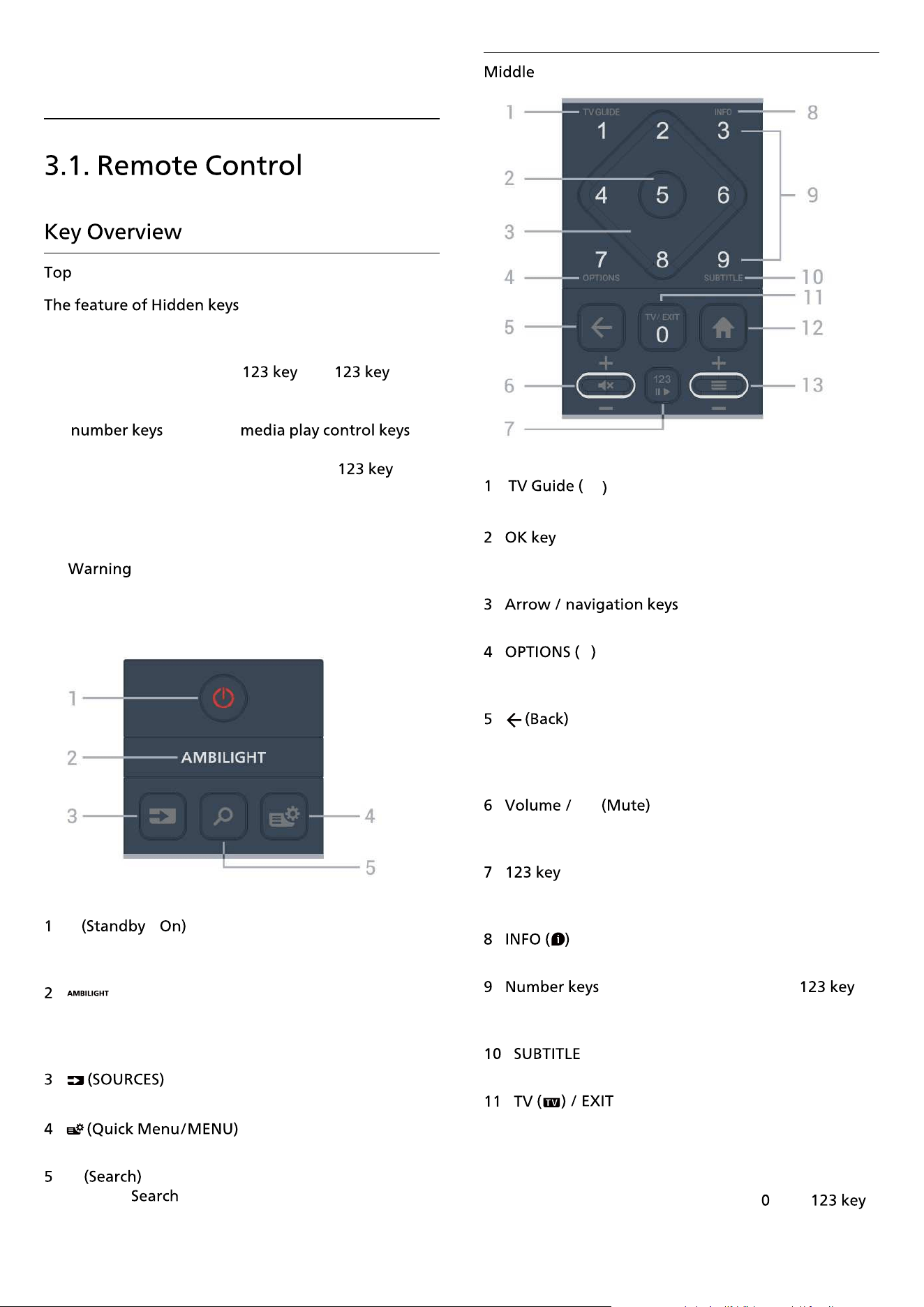
Hidden keys will be appeared to extend more control
functions while pressing the . The is on
middle of remote control, which is used to turn on/off
hidden keys mode. When hidden key mode is turned on,
the 0 to 9 and will
appear with backlight and trigger the functions. When
hidden key mode is turned off by pressing again
or automatically turned off, the remote control will work
with normal keys.
Choking Hazard! This TV remote control contains small
parts, not suitable for children under 5 years old.
- /
To switch the TV on or back to Standby. Long press for
three seconds to reboot the TV.
-
To select one of the Ambilight style.
* Ambilight setting is only for models which support
Ambilight function.
-
To open or close the Sources menu.
-
To open the Quick Menu with typical TV functions.
-
To open the tab on Home screen.
-
To open or close the TV Guide.
-
To con�rm a selection or setting. To open the channel list
while watching TV.
-
To navigate up, down, left or right.
-
To open or close the options menu. Long press to open
programme info.
-
To switch back to the previous channel you selected.
To return to previous menu.
To go back to the previous App/Internet page.
-
Move down or up to adjust the volume level. Press the
middle of key to mute the sound or to restore it.
-
To turn on or off the hidden function keys and switch the
keys between different sets of operations.
-
To open or close programme info.
- (hidden keys, available after is
pressed)
To select a channel directly.
-
To open Subtitle page. Long press to open Text/Teletext.
-
To switch back to watch TV or to stop an interactive TV
application. However, it might not work on some
applications; behaviour is dependent on third party TV
apps.
This key will be changed to Number key
after
7
is pressed.
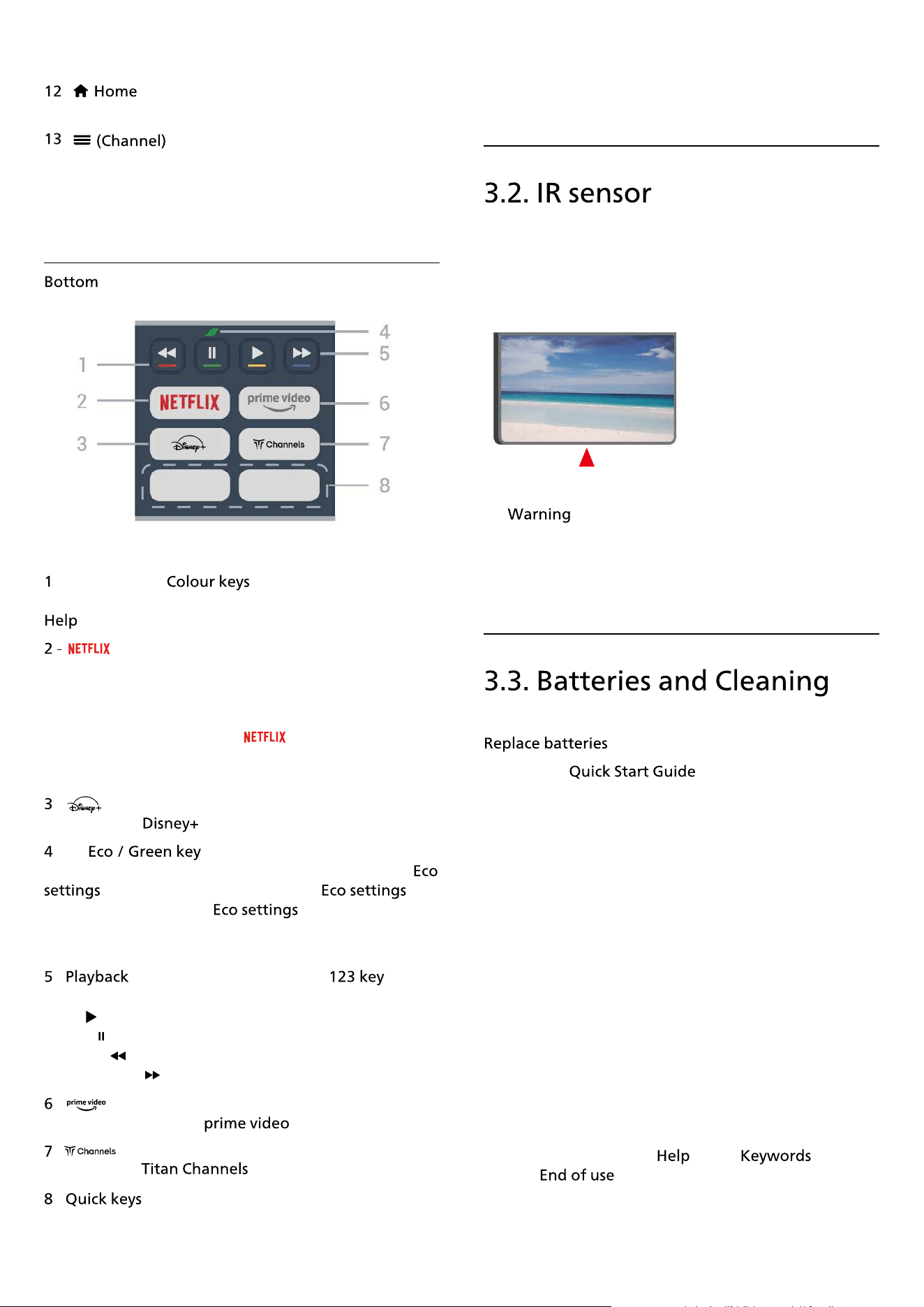
-
To open the Home menu.
-
Move down or up to switch to the next or previous
channel in the channel list. To open the next or previous
page in Text/Teletext. Press the middle of key to open
the channel list.
-
Direct selection of options. Press Blue key to open the
.
• If you have a Net�ix membership subscription, you can
enjoy Net�ix on this TV. Your TV must be connected to
the Internet.
• To launch the Net�ix, press to open Net�ix
immediately with the TV switched on or from standby.
www.net�ix.com
-
To launch the
App.
-
Press to invoke a message to remind you to enter the
menu; long press to invoke the
menu directly. Once the menu is triggered
via long press the key few times, the message will no
longer to show.
- (hidden keys, available after is
pressed)
• Play , to playback.
• Pause , to pause playback
• Rewind , to rewind
• Fast forward , to go fast forward
-
To launch the Amazon App.
-
To launch the
App.
-
Press the quick key to launch app or streaming media
directly. The actual quick keys are varied between
regions or countries.
The TV can receive commands from a remote control
that uses IR (infrared) to send commands. If you use such
a remote control, always make sure you point the remote
control at the infrared sensor on the front of the TV.
Do not put any objects in front of IR sensor of the TV, it
may block the IR signal.
Refer to the
in your product package
for detailed information about the remote control
batteries.
If the TV does not react on a key press on the remote
control, the batteries might be empty.
To replace the batteries, open the battery compartment
on the back of the remote control.
1 - Slide the battery door in the direction shown by the
arrow.
2 - Replace the old batteries with new batteries. Make
sure the + and the - ends of the batteries line up
correctly.
3 - Reposition the battery door and slide it back until it
clicks.
• Remove the batteries if you are not using the remote
control for a long time.
• Safely dispose of your old batteries according to the
end of use directions.
For more information, in
, select and
look up .
8

Your remote control is treated with a scratch-resistant
coating.
To clean the remote control, use a soft damp cloth. Never
use substances such as alcohol, chemicals or household
cleaners on the remote control.
9
4. Setting Up
Please read the safety instructions before you use the TV.
To read the instructions, in
> , press
the colour key and look up
.
• Position the TV where light does not shine directly on
the screen.
• The ideal distance to watch TV is 2 to 5 times its
diagonal screen size. When seated, your eyes should be
level with the centre of the screen.
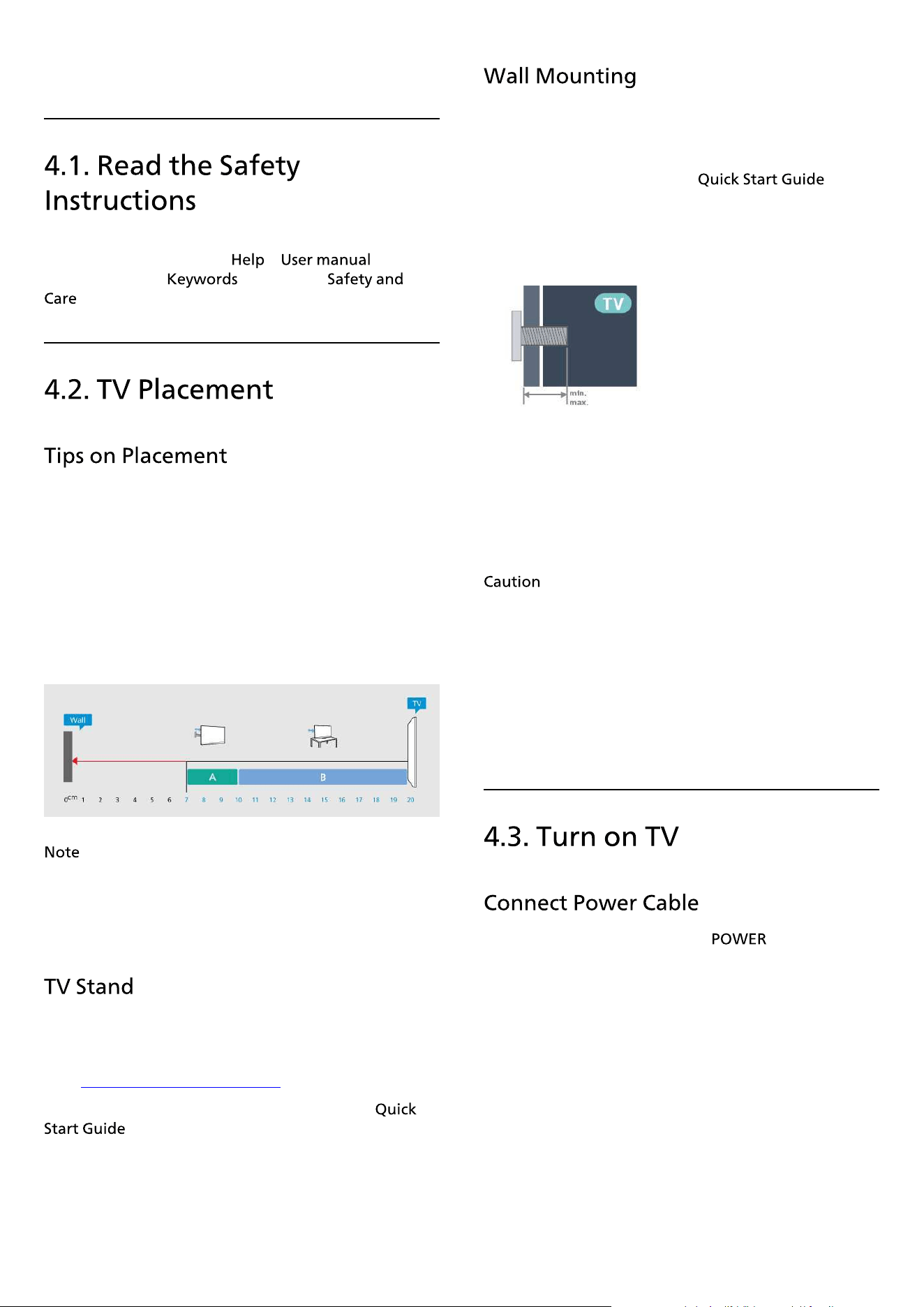
• Recommended distance to the wall:
A. When wall mounted, position the TV 7 to 10 cm away
from the wall.
B. When TV is with stand, position the TV 10 to 20 cm
away from the wall depends on the size of stand.
:
Please keep the TV away from dust-producing sources
such as stoves. It is suggested to clean the dust regularly
to avoid getting dust into the TV.
You can �nd the instructions for mounting the TV stand
in the Quick Start Guide that came with the TV. In case
you lost this guide, you can download it
from www.philips.com/TVsupport.
Use the model number of the TV to look for the
to download.
Your TV is also prepared for the wall mount bracket (sold
separately).
The wall mount size may vary depending on different
type of back cases; refer to the
in your
product package to see which size is applied to your TV.
Use the following wall mount dimension when
purchasing the wall mount.
• 32PHS6009
• 40PFS6009
Wall mounting the TV requires special skills and should
only be performed by quali�ed personnel. The TV wall
mounting should meet safety standards according to the
TVs weight. Also read the safety precautions before
positioning the TV.
TP Vision Europe B.V. bears no responsibility for improper
mounting or any mounting that results in accident or
injury.
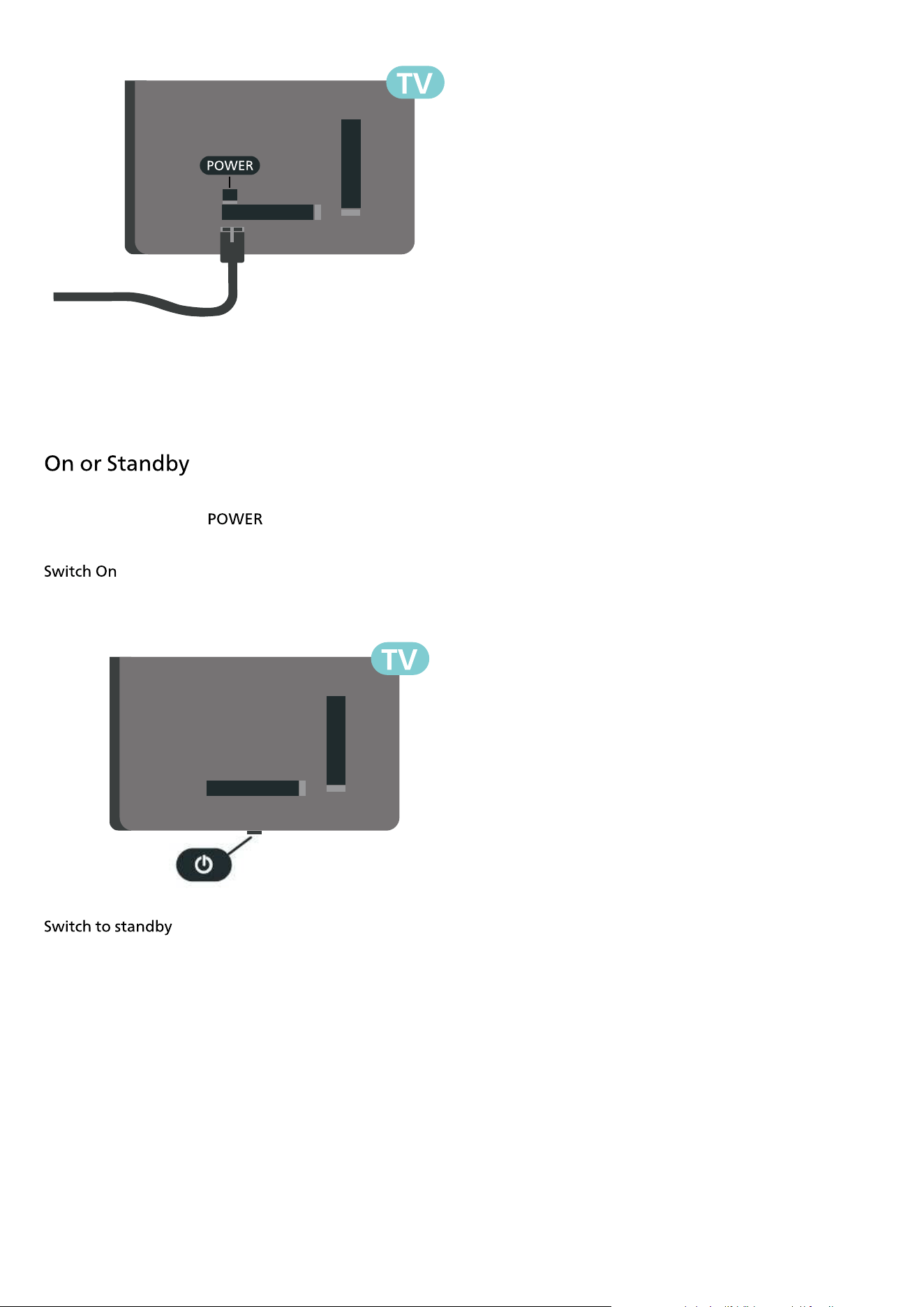
• Insert the power cable into the connector on
the back of the TV.
• Make sure the power cable is securely inserted in the
connector.
• Make sure that the power plug, in the wall socket, is
accessible at all times.
• When you unplug the power cable, always pull the
plug, never pull the cable.
10
200x200 mm, M4 (min.:6 mm, max.: 9 mm)
200x200 mm, M4 (min.:6 mm, max.: 9 mm)
Although this TV has a very low standby power
consumption, unplug the power cable to save energy if
you do not use the TV for a long period of time.
Before you switch on the TV, make sure you plugged in
the mains power in the connector on the back
of the TV.
Press the small joystick key on the bottom of the TV.
To switch the TV to standby, press
on the remote
control. You can also press the small joystick key on the
bottom of the TV.
In standby mode, the TV is still connected to the mains
power but consumes very little energy.
To switch off the TV completely, disconnect the power
plug.
When disconnecting the power plug, always pull the
power plug, never the cord. Ensure that you have full
access to the power plug, power cord and outlet socket
at all times.
11
5. Connections
Always connect a device to the TV with the highest
quality connection available. Also, use good quality
cables to ensure a good transfer of picture and sound.
When you connect a device, the TV recognizes its type
and gives each device a correct type name. You can
change the type name if you wish. If a correct type name
for a device is set, the TV automatically switches to the
ideal TV settings when you switch to this device in the
Sources menu.
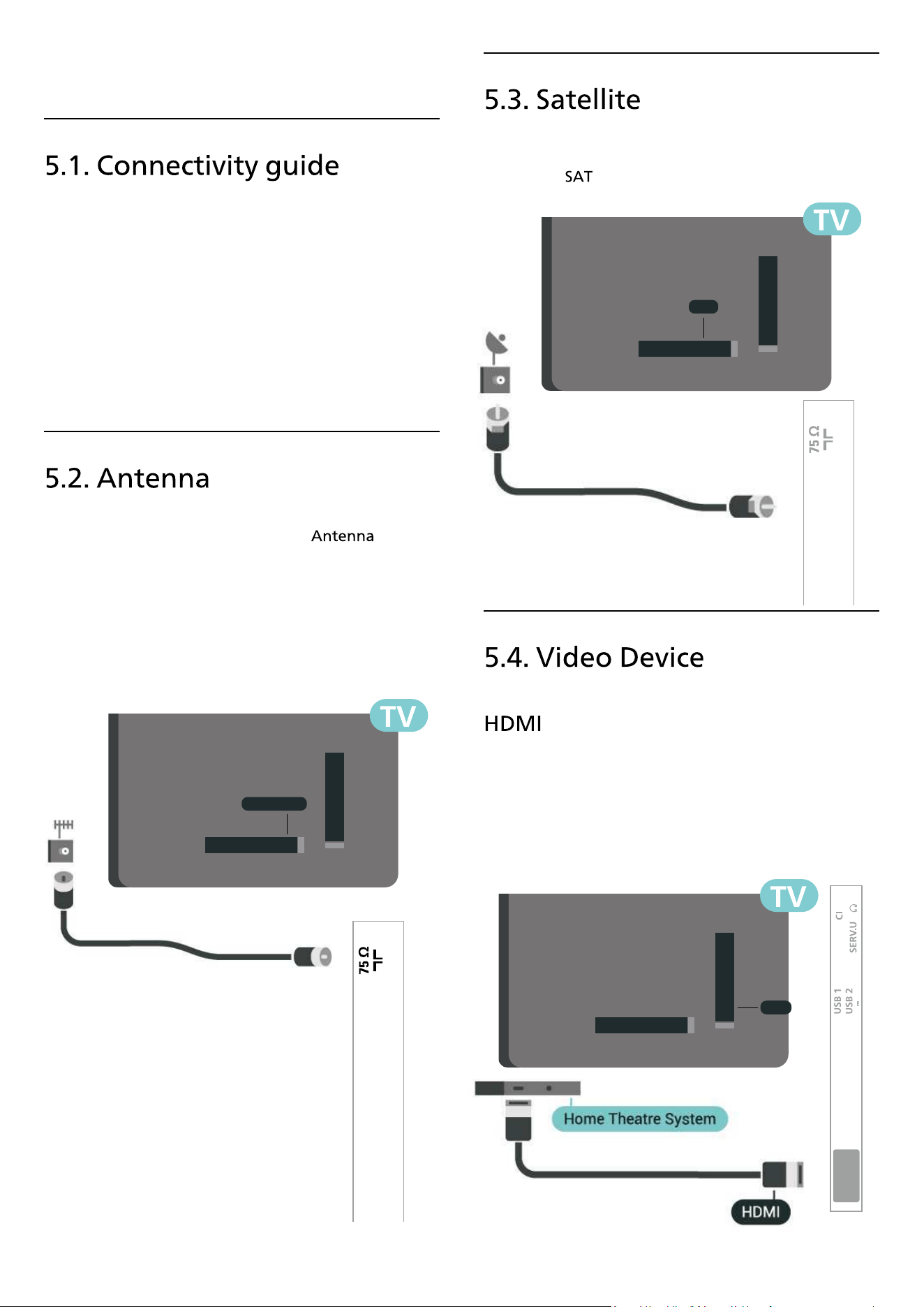
Insert the antenna plug �rmly into the socket
at the back of the TV.
You can connect your own antenna or an antenna signal
from an antenna distribution system. Use an IEC Coax 75
Ohm RF antenna connector.
Use this antenna connection for DVB-T and DVB-C input
signals.
Attach the satellite F-type connector to the satellite
connection at the back of the TV.
An HDMI connection has the best picture and sound
quality.
For best signal quality transfer, use a High speed HDMI
cable and do not use an HDMI cable longer than 5 m,
and also connect devices supporting HDR on any one of
HDMI connections.
12
NETWORK
DIGITAL
AUDIO
OUT
SAT
TV ANTENNA
TV ANTENNA
HDMI 2 HDMI 3
(ARC)
HDMI 1
5.0V 500mA
HDMI
DIGITAL
AUDIO
OUT
SAT
TV ANTENNA
SAT
HDMI ports support HDCP (High-bandwidth Digital
Content Protection). HDCP is a copy protection signal
that prevents copying content from a DVD disc or Blu-ray
Disc. Also referred to as DRM (Digital Rights
Management).
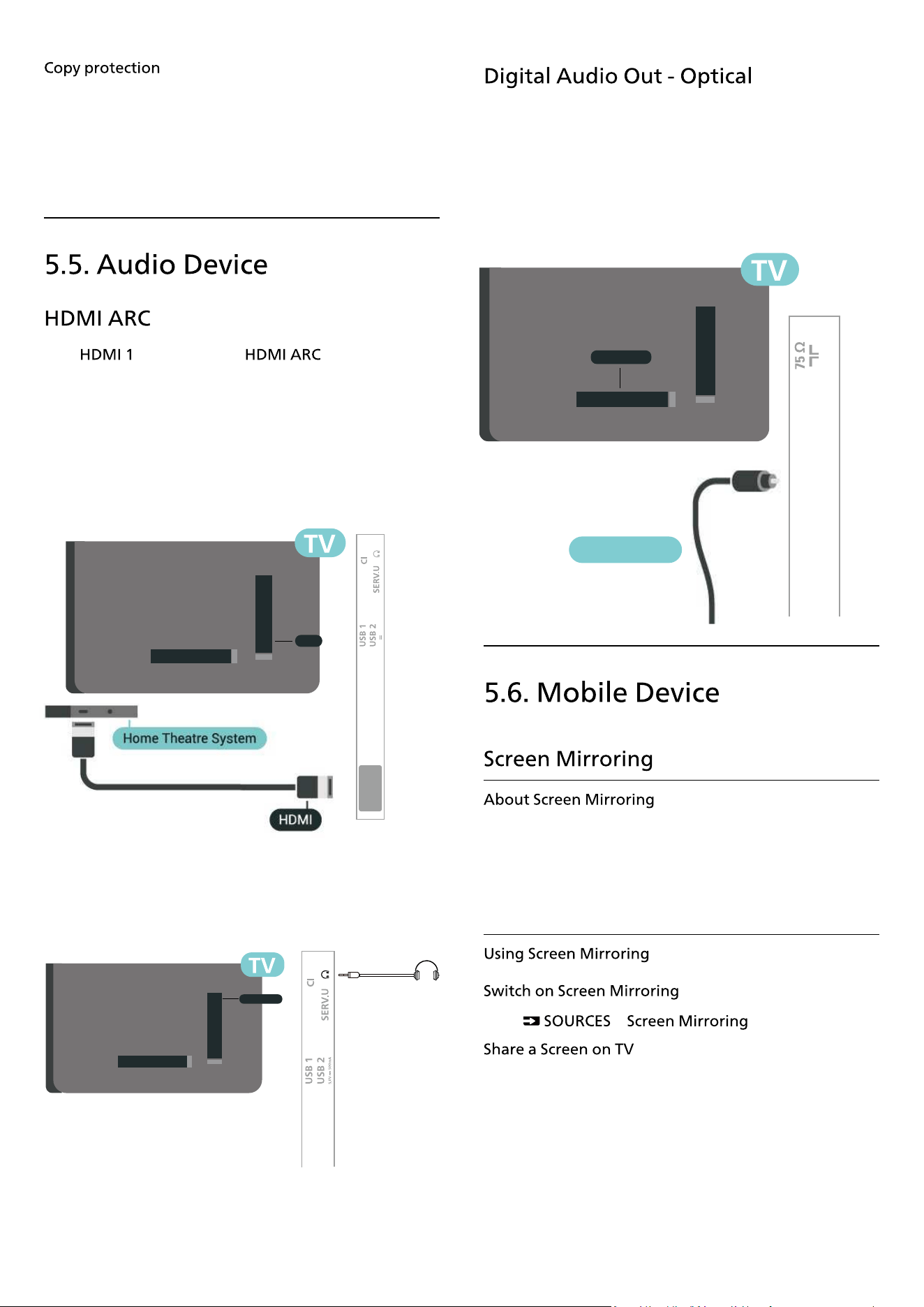
Only on the TV have (Audio Return
Channel).
If the device, typically a Home Theatre System (HTS), also
has the HDMI ARC connection, connect it to any of the
HDMI connections on this TV. With the HDMI ARC
connection, you do not need to connect the extra audio
Output the TV sound to the connected headphone.
cable that sends the sound of the TV picture to the HTS.
The HDMI ARC connection combines both signals.
Audio Out - Optical is a high quality sound connection.
This optical connection can carry 5.1 audio channels. If
your device, typically a Home Theatre System (HTS), has
no HDMI ARC connection, you can use this connection
with the Audio In - Optical connection on the HTS. The
Audio Out - Optical connection sends the sound from
the TV to the HTS.
You can view your photos or play your music and videos
from a mobile device on your TV with Screen Mirroring.
The mobile device and the TV should be within range,
which usually means being in the same room.
Press
>
1 - Activate Screen mirroring on your mobile device.
2 - On your mobile device, select the TV. (This TV will be
displayed as TV model name)
3 - Select the TV name on your mobile device, after
connection, you can enjoy using Screen Mirroring.
13
OPTICAL
NETWORK
DIGITAL
AUDIO
OUT
SAT
TV ANTENNA
HDMI 2 HDMI 3
(ARC)
HDMI 1
5.0V 500mA
HDMI
AUDIO OUT
HDMI 3
Headphone
HEADPHONE
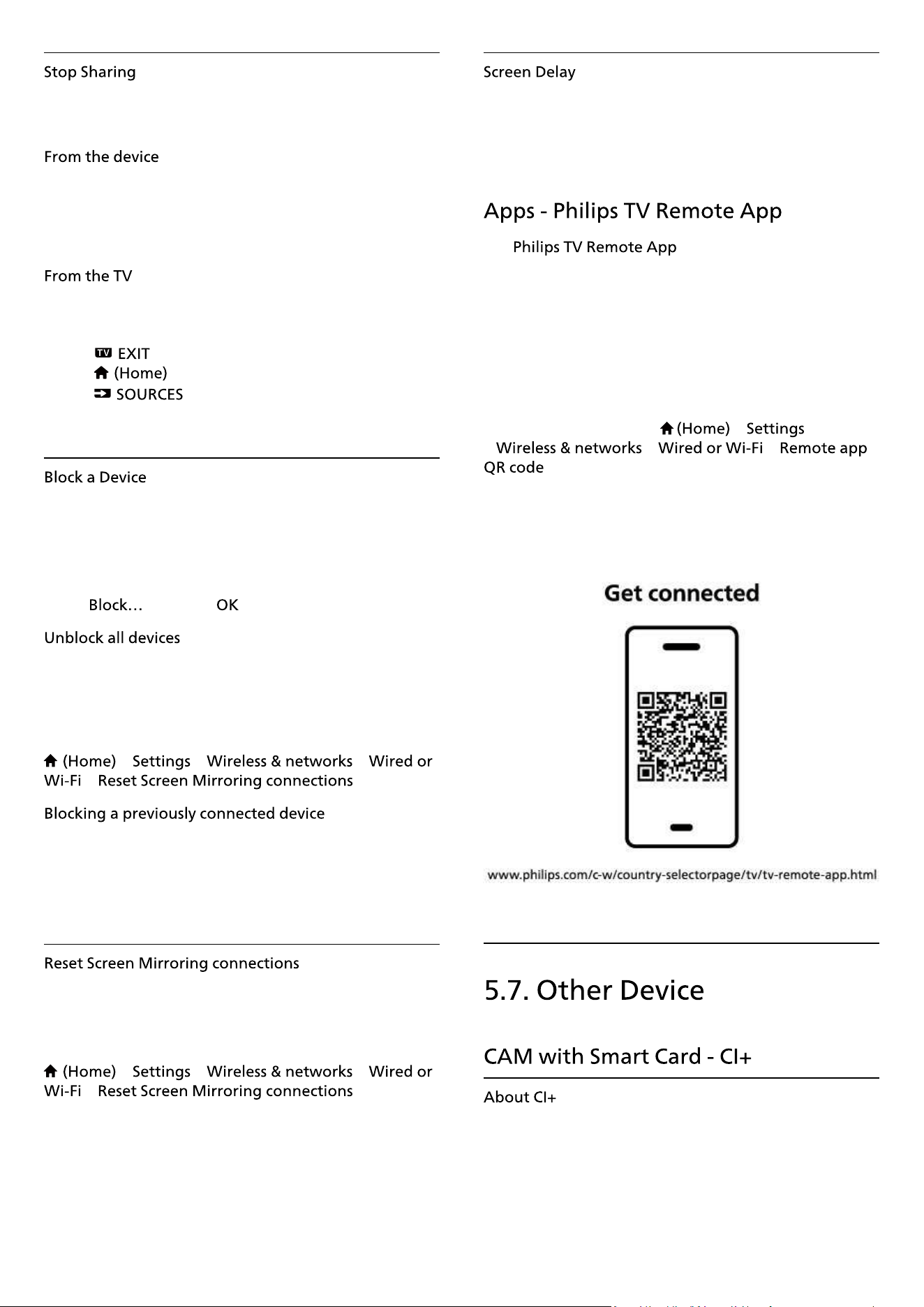
You can stop sharing a screen from the TV or from the
mobile device.
With the application you use to start Screen Mirroring,
you can disconnect and stop watching the screen of the
device on TV. The TV will switch back to the last selected
programme.
To stop watching the screen of the device on TV, you can
. . .
• press
to watch a TV broadcast
• press to start another activity on TV
• press
to open the Sources menu and
select a connected device.
The �rst time you receive a request to connect from a
device, you can block the device. The request from this
device and all its requests in the future, will be ignored.
To block a device…
Select
and press .
All previously connected and also blocked devices are
stored in the Screen Mirroring list of connections. If you
clear this list, all blocked devices will be unblocked.
To unblock all blocked devices…
> > >
> .
If you want to block a device that you previously
connected, you need to clear the Screen Mirroring
connections list �rst. If you clear this list, you will have to
con�rm or block the connection for every device again.
All previously connected devices are stored in the Screen
Mirroring list of connections.
To clear all connected Screen Mirroring devices:
> > >
> .
The normal delay when sharing a screen with Screen
Mirroring is about 1 second. The delay might be longer if
you are using older devices with less processing power.
The on your smartphone or
tablet is your new TV buddy. The app lets you switch
channels and adjust the volume — just like a remote
control.
Download the Philips TV Remote App from your
favourite app store today.
The Philips TV Remote App is available for iOS and
Android and is free of charge.
Alternatively, you can go
>
> > >
and press OK; a QR code will be presented on
TV screen. Scan the QR code with your mobile device and
follow the instruction to download and install the Philips
TV Remote App. When using the app, your mobile device
and Philips TV need to connect to the same Wi-Fi
network.
This TV is ready for the CI+ Conditional Access.
With CI+ you can watch premium HD programmes, like
movies and sports, offered by digital TV operators in your
region. These programmes are scrambled by the TV
14
operator and descrambled with a prepaid CI+ module.
Digital TV operators provide a CI+ module (Conditional
Access Module - CAM) and an accompanying smart card,
when you subscribe to their premium programmes.
These programmes have a high level of copy protection.
Contact a digital TV operator for more information on
terms & conditions.
Digital TV operators provide a CI+ module (Conditional
Access Module - CAM) and an accompanying smart card,
when you subscribe to their premium programmes.
Insert the smart card into the CAM module. See the
instruction you received from the operator.
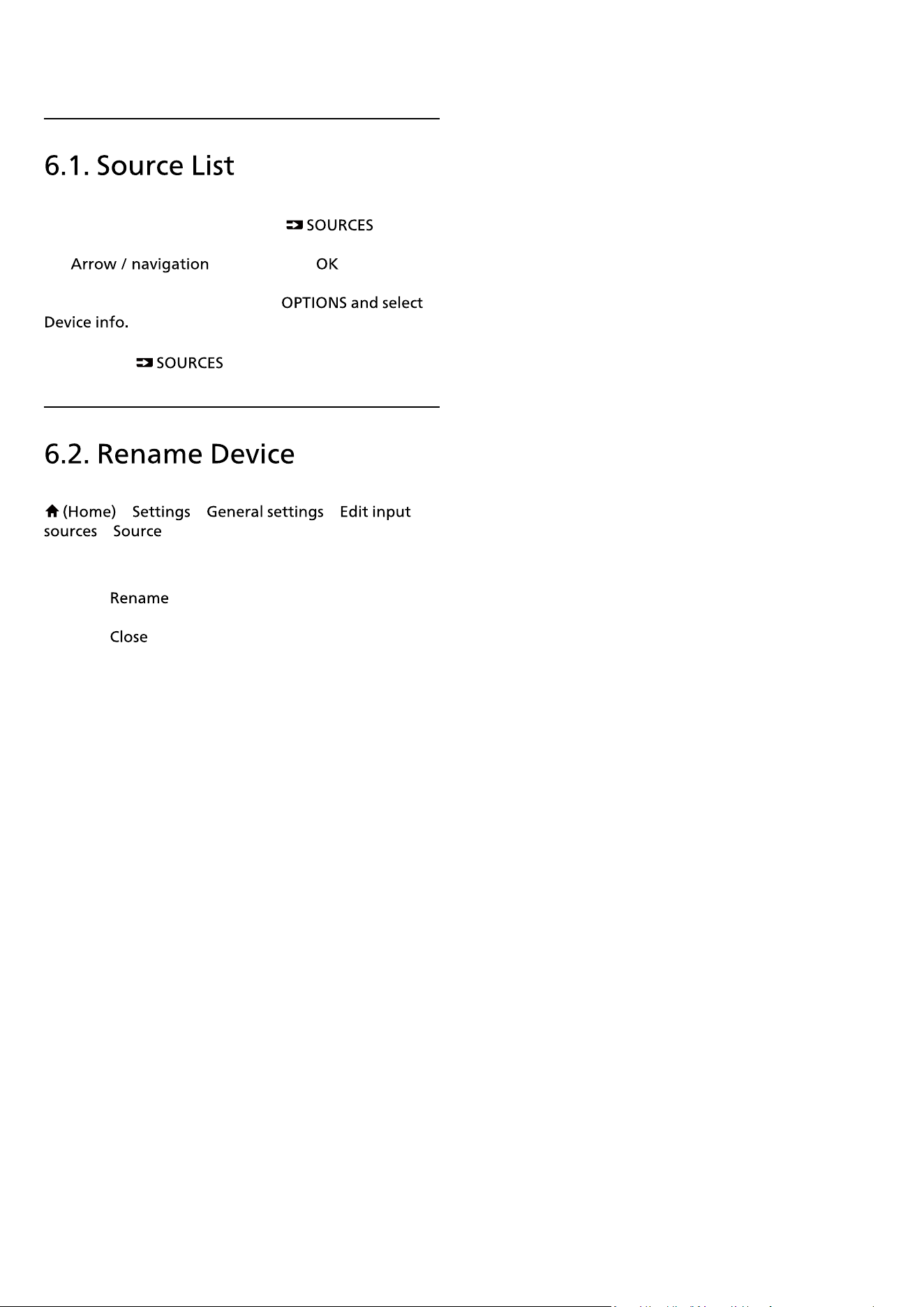
To insert the CAM in the TV…
1. Look on the CAM for the correct method of insertion.
Incorrect insertion can damage the CAM and TV.
2. While looking at the back of the TV, with the front of
the CAM facing towards you, gently insert the CAM into
the slot
.
3. Push the CAM in as far as it will go. Leave it in the slot
permanently.
When you switch on the TV, it may take a few minutes
before the CAM is activated. If a CAM is inserted and
subscription fees are paid (subscription methods can
differ), you can watch the scrambled channels supported
by the CAM smart card.
The CAM and smart card are exclusively for your TV. If
you remove the CAM, you will no longer be able to
watch the scrambled channels supported by the CAM.
For some CAMs, you must enter a PIN code to watch its
channels. When you set the PIN code for the CAM, we
recommend you to use the same code you are using to
unlock the TV.
To set the PIN code for the CAM…
1. Press
.
2. Select the channel type you are using the CAM for.
3. Press and select .
4. Select the TV operator of the CAM. The following
screens come from the TV operator. Follow the on-screen
instruction to look up the PIN code setting.
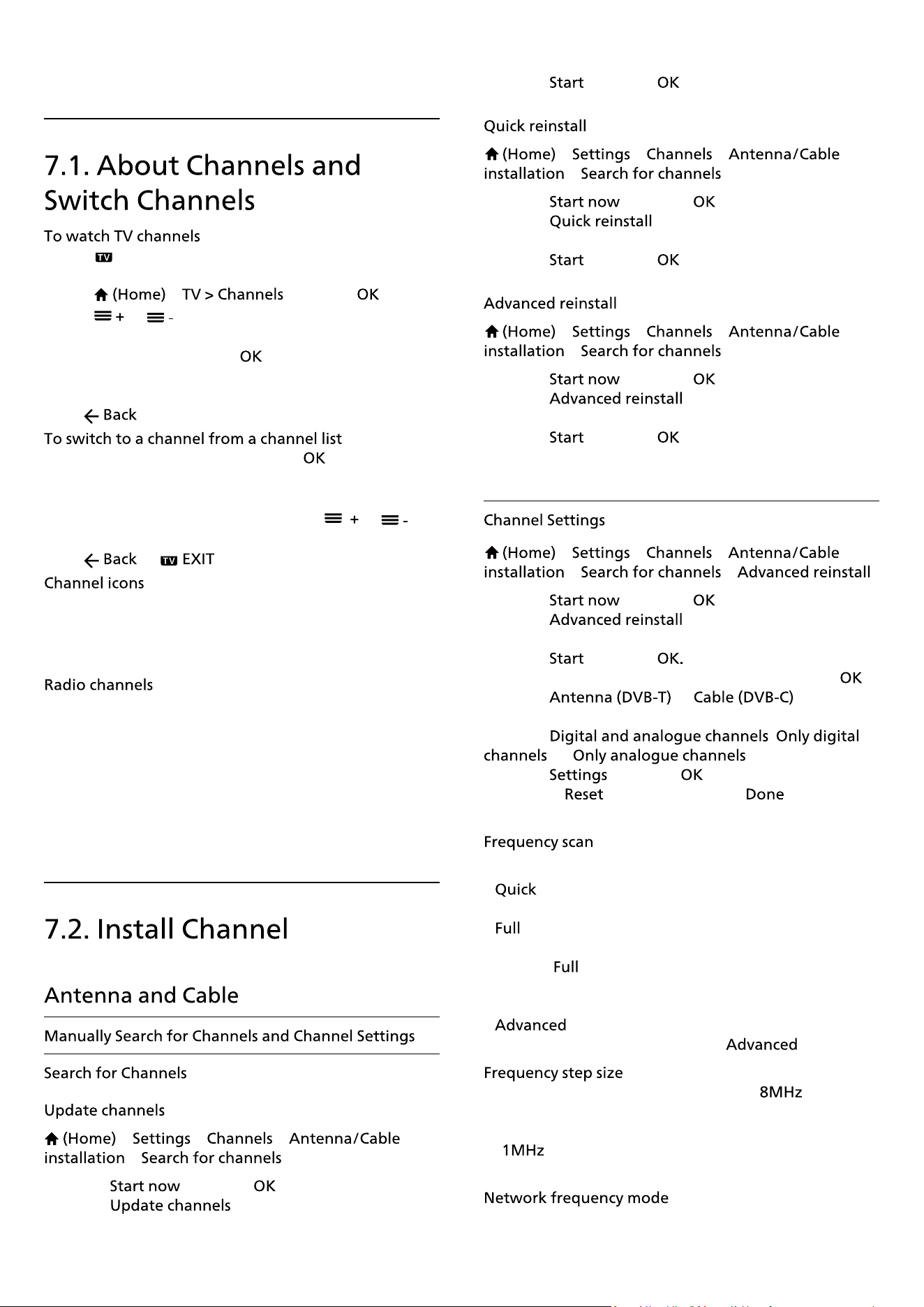
You can view photos or play your music and videos from
a connected USB �ash drive. Insert a USB �ash drive in
one of the connections on the TV while the TV is
switched on.
The TV detects the �ash drive and opens a list showing
its content.
If the contents list does not appear automatically,
press
and select .
For more information on watching or playing content
from a USB �ash drive, in
, press the colour
key and look up
.
You can connect your computer to the TV using a high
quality HDMI cable and use the TV as a PC monitor.
* Note for Nvidia Graphics card users:
15
HDMI 2 HDMI 3
(ARC)
HDMI 1
5.0V 500mA
USB
HDMI 3
COMMON INTERFACE

If you connect your computer to TV via HDMI, Nvidia card
may automatically output Variable Refresh Rate (VRR)
video to TV when TV’s setting is
or .
Please always ensure to turn off VRR function in graphics
card before you change TV’s to
or , the TV UI selection or
will turn off VRR support in TV.
* Note for AMD Graphics card users:
If you connect your computer to TV via HDMI, please
ensure following settings in graphics card used to have
proper performance.
- If graphics card output video is 4096 x 2160p or 3840 x
2160p and RGB pixel format is used, RGB 4:4:4 pixel
format studio (limited RGB) shall be set in computer
graphic card.
16
6. Switch Source
• To open the sources menu, press
.
• To switch to a connected device, select the device with
the keys and press .
• To view the technical information of the connected
device you are watching, press
• To close the source menu without switching to a
device, press
again.
> > >
>
1 - Select one of the device icons, the preset name
appears in the typing �eld and select.
2 - Select to open on-screen keyboard.
3 - Use navigation keys to select characters.
4 - Select when complete the editing.
17
7. Channels
• Press . The TV tunes to the TV channel you last
watched.
• Press
> and press .
• Press
or
to switch channels.
• If you know the channel number, type in the number
with the number keys. Press after you entered the
number to switch channels.
• To switch back to the previously tuned channel,
press .
• While watching a TV channel, press to open the
channel lists.
• The channel list can have several pages with channels.
To view the next or previous page, press
or
.
• To close the channel lists without switching channels,
press or .
After an Automatic channel update of the channel list,
newly found channels are marked with a (star).
If you lock a channel, it will be marked with a (lock).
If digital broadcasting is available, digital radio stations
are installed during installation. Switch to a radio
channel just like you switch to a TV channel.
This TV can receive digital television standard DVB. TV
may not work properly with some operators of digital
television , non-compliance with requirements of the
standard in full.
> > >
>
1 - Select and press .
2 - Select to only add new digital
channels.
3 - Select
and press to update channels. This can
take a few minutes.
> > >
>
1 - Select and press .
2 - Select to install all channels again with
default settings.
3 - Select and press to update channels. This can
take a few minutes.
> > >
>
1 - Select and press .
2 - Select to do a full re-installation
which takes you through each step.
3 - Select and press to update channels. This can
take a few minutes.
> > >
> >
1 - Select and press .
2 - Select to do a full re-installation
which takes you through each step.
3 - Select and press
4 - Select the country where you are now and press .
5 - Select or , and select
one item you need to re-install.
6 - Select ,
, or .
7 - Select and press .
8 - Press to reset, or press when
complete the settings.
Select the method of searching for channels.
•
: select the faster method and use the prede�ned
settings used by most cable providers in your country.
• : If this results in having no channels installed or if
some channels are missing, you can select the
extended method. This method will take more time
to search for and install channels.
• : If you received a speci�c network frequency
value to search for channels, select .
The TV searches for channels in steps of .
If this results in having no channels installed or if some
channels are missing, you can search in smaller steps
of
. Using the 1MHz steps will take more time to
search for and install channels.
18
If you intend to use the fast method in
to search for channels, select . The TV will
use 1 of the prede�ned network frequencies (or HC -
homing channel) as used by most cable providers in your
country.
If you received a speci�c network frequency value to
search for channels, select .
With the set to , you
can enter the network frequency value received from
your cable provider here. To enter the value, use the
number keys.
Enter the network ID supplied by your cable provider.
If your cable provider did not give you a speci�c
value to install the TV channels, leave the
setting on .
If you received a speci�c symbol rate value,
select .
With the set to , you can
enter the symbol rate value by using the number keys.
If you have a subscription and a CAM - Conditional
Access Module for pay TV services, select
. If you did not subscribe to pay TV channels or
services, you can select .
> > >
>
If you receive digital channels, you can set the TV to
automatically update the list with new channels.
Alternatively, you can start a channel update yourself.
Once a day, at 6 AM, the TV updates the channels and
stores new channels. New channels are stored in the All
channels list but also in the New channels list. Empty
channels are removed.
If new channels are found or if channels are updated or
removed, a message is shown at TV start up. The TV must
be in standby to automatically update channels.
> > >
>
When new channels are found or if channels are
updated or removed, a message is shown at TV start up.
To avoid this message to appear after every channel
update, you can switch it off.
> > >
>
The digital frequency is shown for this channel. If the
reception is poor, you can reposition your antenna. To
check the signal quality of this frequency again,
select and press .
To enter a speci�c digital frequency yourself, use the
remote control digit keys. Alternatively, select the
frequency, position the arrows on a number
with and and change the number with and . To
check the frequency, select and press .
> > >
>
Analogue TV channels can be manually installed, channel
by channel.
•
To set up the TV system, select .
Select your country or the part of the world where you
are now and press .
•
To �nd a channel, select and press .
You can enter a frequency yourself to �nd a channel or
let the TV search for a channel. Press ,
select and press to search for a channel
automatically. The found channel is shown on screen and
if the reception is poor, press again. If you want
to store the channel, select and press .
•
To �ne tune a channel, select and press .
You can �ne tune the channel with or .
If you want to store the channel found, select and
press .
•
You can store the channel on the current channel
number or as a new channel number.
Select and press . The new channel number is
shown brie�y.
You can redo these steps until you have found all
available analogue TV channels.
19
> > >
>
> >
• Select the group of channels you want to install.
• Satellite operators can offer channel packages that
bundle free channels (free-to-air) and offer a sorting that
suits a country. Some satellites offer subscription
packages - a collection of channels you pay for.
Select the number of satellites you want to install. The TV
sets the appropriate connection type automatically.
•
- You can install up to 4 satellites (4
LNBs) on this TV. Select the exact number of satellites
you wish to install at the start of the installation. This will
speed up the installation.
• - You can use an Unicable system to connect
the antenna dish to the TV. You can select Unicable for 1
or for 2 satellites at the start of the installation.
In some countries, you can adjust the expert settings for
homing transponder and each LNB. Only use or change
these settings when a normal installation fails. If you
have non-standard satellite equipment, you can use
these settings to overrule the standard settings. Some
providers might give you some transponder or LNB
values which you can enter here.
• Universal or Circular - The general type of LNB, usually
you can select this type for your LNB.
• Low LO Frequency / High LO Frequency - The local
oscillator frequencies are set to standard values. Adjust
the values only in case of exceptional equipment that
needs different values.
• 22 kHz Tone - By default, the Tone is set to Automatic.
• LNB Power - By default, LNB Power is set to Automatic.
> > >
>
If you receive digital channels, you can set the TV to
automatically update the list with new channels.
Alternatively, you can start a channel update yourself.
Once a day, at 6 AM, the TV updates the channels and
stores new channels. New channels are stored in the All
channels list but also in the New channels list. Empty
channels are removed.
If new channels are found or if channels are updated or
removed, a message is shown at TV start up. The TV must
be in standby to automatically update channels.
* Only available when
is set to
> > >
>
When new channels are found or if channels are
updated or removed, a message is shown at TV start up.
To avoid this message to appear after every channel
update, you can switch it off.
> > >
>
Unselect a satellite if you do not want to update
automatically.
* Only available when
is set to
> > >
>
Manually install satellite.
• LNB - Select the LNB for which you want to add new
channels.
• Polarisation - Select the polarisation you need.
• Symbol rate mode - Select Manual to enter symbol rate.
• Frequency - Enter the frequency for the transponder.
• Search - Search for transponder.
If you use a CAM – a Conditional Access Module with a
smart card – to watch satellite channels, we recommend
to do the satellite installation with the CAM inserted in
the TV.
Most CAMs are used to descramble channels.
CAMs (CI+ 1.3 with Operator Pro�le) can install all the
satellite channels by themselves on your TV. The CAM
will invite you to install its satellite(s) and channels. These
CAMs not only install and descramble the channels but
also handle regular channel updates.
20
HD+ OpApp* is an app provided by HD+ for Germany
users that can run a virtual set-top box on TV. The app
has the applications and features that you previously
needed a physical set-top box to access.
You need internet connection and accept the Philips
Terms of Use, the Privacy Policy and Smart TV Terms of
Use to install the HD+ OpApp. You can install the App
either using the Apps Screen or the
option in the Menu.
If the HD+ OpApp cannot be downloaded or installed,
you may try to download again later. If problem persists,
please contact HD+.
Once the HD+ OpApp has been installed successfully,
you can start the free period. Please switch the source to
after the installation. If you have been
using a CAM Module for HD+ before, you can remove it
now. If a CICAM is inserted in the TV, it will not be used
to descramble the signal when you are watching a
satellite channel.
After HD+ OpApp is installed, there are some features
will be affected.
• Recording and reminder functionalities are not allowed
for satellite channels.
• Favourite list is only available in Antenna/Cable.
• The channel selection,
, channel information
are replaced by the OpApp user interface
• Satellite channels renaming and cloning will be
disabled.
* Note: HD+ OpApp is only available for HD+ subscriber
and the country setting is Germany.
and are intended for
dealers and expert users.
With
/ you can copy
the channels installed on one TV onto another Philips TV
of the same range. You can avoid the time-consuming
channel search by uploading a prede�ned channel list on
a TV.
• Both TVs are from the same year range.
• Both TVs have the same hardware type. Check the
hardware type on the TV type plate on the back of the
TV.
• Both TVs have compatible software versions.
• Use a USB �ash drive of minimum 1 GB.
To copy a channel list…
1 - Switch on the TV. This TV should have channels
installed.
2 - Plug in a USB �ash drive to
* port.
3 - Select > > >
or and press .
4 - Select and press .
5 - When copying is done, unplug the USB �ash drive.
Now you can upload the copied channel list onto
another Philips TV.
* Note: only the USB port that marked with
supports copying channel list operation.
> > > or
>
Depending on whether your TV is already installed or
not, you must use a different method to upload a
channel list.
1 - Plug in the power plug to start the installation and
select language and country. You can skip the channel
search. Finish the installation.
2 - Plug in the USB �ash drive that holds the channel list
of the other TV.
3 - To start the channel list upload, select
> > > or
> and press . Enter your
PIN code if necessary.
4 - The TV noti�es you if the channel list is copied to the
TV successfully. Unplug the USB �ash drive.
Depending on whether your TV is already installed or
not, you must use a different method to upload a
channel list.
1 - Verify the country setting of the TV. (To verify this
setting, see section. Start this
procedure until you reach the country setting.
Press to cancel the installation.)
If the country is correct continue with step 2.
If the country is not correct, you need to start a
reinstallation. See
section and start
21
the installation. Select the correct country and skip the
channels search. Finish the installation. When done,
continue with step 2.
2 - Plug in the USB �ash drive that holds the channel list
of the other TV.
3 - To start the channel list upload, select
> > > or
> and press . Enter your
PIN code if necessary.
4 - The TV noti�es you if the channel list is copied to the
TV successfully. Unplug the USB �ash drive.
While watching a channel, you can set some options.
Depending on the type of channel you are watching or
depending on the TV settings you made, some options
are available.
To open the options menu…
1 - While watching a channel, press
.
2 - Press again to close.
Select to view the information of the
programme you are watching.
To call up the details of the selected programme…
1 - Tune to the channel.
2 - Press
to open or close programme info.
3 - Alternatively, you can press ,
select and press to open the
programme info.
4 - Press to close the programme info.
To switch on Subtitles, press and select
.
You can switch subtitles
or .
Alternatively you can select .
If language information is part of the digital broadcast
and the broadcasted programme is not in your language
(the language set on TV), the TV can show subtitles
automatically in one of your preferred subtitle
languages. One of these subtitle languages must also be
part of the broadcast.
You can select your preferred subtitle languages
in
.
If none of the preferred subtitle languages are available,
you can select another subtitle language if available. If
no subtitle languages are available, you cannot select
this option.
To read more information, in Help, press the colour
key
and look up .
If none of the preferred audio languages are available,
you can select another audio language if available. If no
audio languages are available, you cannot select this
option.
To read more information, in Help, press the colour
key
and look up .
If an audio signal contains two audio languages but one
language or both has no language indication, this option
is available.
If prepaid premium content is available from a CAM, you
can set the provider settings with this option.
You can switch the sound of an analogue channel to
Mono or Stereo.
To switch to Mono or Stereo…
Tune to an analogue channel.
1 - Press
, select and
press (right).
2 - Select or and press .
3 - Press (left) repeatedly if necessary, to close the
menu.
Select to view the technical information of
the channel.
To call up the details of the selected channel…
1 - Tune to the channel.
2 - Press
, select and press
to open the channel info.
3 - Press again or press to close the
programme info.
22
If you want to avoid access to HbbTV pages on a speci�c
channel, you can block the HbbTV pages for this channel
only.
1 - Tune to the channel of which you want to block the
HbbTV pages.
2 - Press
and select
and press (right).
3 - Select and press .
4 - Press (left) to go back one step or press to
close the menu.
To block HbbTV on TV completely:
> > >
> >
Only available when set to .
> > >
> .
To read more information, in Help, press the colour
key
and look up .
> > >
>
If a TV Channel offers HbbTV services, you must �rst
switch on HbbTV in the TV settings to access to these
advanced services, e.g. video on-demand and catch-up
TV services.
> > >
>
Switch the tracking of HbbTV browsing behaviour on or
off. Switching off will inform the HbbTV services not to
track your browsing behaviour.
> > >
>
Switch the storage of third-party cookies, site data and
cache from HbbTV services on or off.
> > > >
You can reset your TV unique device identi�er. A new
identi�er will be created.
> > > >
Allow you to clear the list of HbbTV applications that you
have allowed to be launched on the TV.
> > >
When CAM pro�le installation is done, select to enable
or disable CAM Operator pro�le UI pop up message.
> > >
When is enabled, select to display
the pro�le name of current connected CAM card.
To open the current channel list…
1 - Press , to switch to TV.
2 - Press
to open the channel list if Interactive Service
is not available, or press to open the
channel list.
3 - Press > .
4 - Select one channel list you want to watch.
5 - Press to close the channel list.
The channels displayed in All Channel list is listed based
on genre*. For example: Premium, Premium News,
Premium Local, Children, Sport and etc. The Premium
genre are top broadcast channels positioned with
market share above 3%.
* Note: The listed by genre function is only apply to
Germany.
To open the channel list option menu:
• Press , to switch to TV.
• Press
to open the channel list.
• Press , and select one of options.
• Press to close the channel list.
23
1 - Press , to switch to TV.
2 - Press to open the channel list..
3 - Select one channel you want to rename.
4 - Press > , and press
to open on-screen keyboard.
5 - Use navigation keys to select characters.
6 - Select when complete the editing.
7 - Press to close the channel list.
* Note: Not available when UK Freeview Play is activated.
1 - Press , to switch to TV.
2 - Press to open the channel list.
3 - Press > ,
4 - Select one of channel combinations showing in the
channel list.
> > >
Select a channel then press to add in a favourites
channel list, once completed, press .
>
> >
Select a channel then press to add in or remove from
a favourites channel list, once completed, press .
> > >
Select a range of channels in a channel list. Press to
mark the beginning of range and then press again to
end the range selection. The selected channels will be
marked as favourites.
> > >
Select one of channel lists that sorted by different kinds
of channels.
> > >
You can search for a channel to �nd it in a long list of
channels. The search will return the matching channel
name with the result arranged in alphabetical order.
1 - Press
, to switch to TV.
2 - Press
to open the channel list.
3 - Press > , and press to
open on-screen keyboard.
4 - Use navigation keys to select a character, then
press .
5 - Select when complete the input.
6 - Press to close the channel list.
> > > ,
To prevent children from watching a channel, you can
lock a channel. To watch a locked channel, you must
enter the 4 digit PIN code �rst. You cannot
lock programmes from connected devices.
The locked channel will have next to the channel logo.
> > >
To remove existing favourite list, select .
You can create a favourite channel list that only holds
the channels you want to watch. With the Favourite
channel list selected, you will only see your favourite
channels when you switch through channels.
1 - While watching a TV channel, press to
open the channel list.
2 - Select the channel, and press
to mark as favourite.
3 - The selected channel is marked with a .
4 - To �nish, press . The channels are added to
the Favourites list.
To remove a channel from the favourites list, select the
channel with , then press
again to unmark as favourite.
24
You can reorder — reposition — channels in the
Favourite channel list (only available for certain
countries).
1 - While watching a TV channel, press
> > .
2 - Select , or
, and press .
3 - Select , select the channel you want
to reorder, and press .
4 - Press the to move the
highlighted channel to another location and press .
5 - Once completed, press .
* Satellite channel only can be searched on xxPxSxxxx TV
models.
You can link the TV Guide for your Favourite List.
1 - While watching a TV
channel, press
> > .
2 - Select , or
, and press .
3 - Press to open it.
With the TV Guide you can view a list of the current and
scheduled TV programmes of your favourite channels.
Along with your favourite channels, the �rst 3 most used
channels from the broadcasters’ default list will be
appended after your favourite channels for your preview.
You need to add these channels into your favourite list
to enable its operation (refer to "TV Guide" chapter).
On each page of TV Guide, there is a "Did you know" grid
inserted on your favourite channel list. The "Did you
know"-channel provides useful tips to improve the way
you use your TV.
* Satellite channel only can be searched on xxPxSxxxx TV
models.
If your remote control is with key, you can
press to open Text/Teletext while you are watching
TV channels. To close Text, press key again.
If your remote control is not with
key, press
while you are watching TV channels, select
to open Text/Teletext.
To select a page . . .
1 - Enter the page number with the number keys.
2 - Use the arrow keys to navigate.
3 - Press a colour key to select a colour-coded subject at
the bottom of the screen.
A Text page number can hold several subpages. The
subpage numbers are shown on a bar next to the main
page number.
To select a subpage, press or .
Some broadcasters offer T.O.P. Text.
To open T.O.P. Text pages within Text, press
and select .
* The teletext can only be reached when the channels
are installed directly on the TV’s internal tuner and the
set is on TV mode. If a set-top box is being used, the
teletext will be unavailable via TV. In that case, the set-
top box’s teletext can be used instead.
In Text/Teletext, press to select the following…
•
To stop the automatic rotation of subpages.
•
To show the TV channel and Text alongside each other.
•
To open T.O.P. Text.
•
To enlarge the Text page for comfortable reading.
•
To unhide hidden information on a page.
•
To cycle subpages when these are available.
•
To switch the group of characters that Text uses to
display correctly.
•
To activate the Text 2.5 for more colours and better
graphics.
Some digital TV broadcasters have several Text
languages available.
> >
> > ,
25

If available, Text 2.5 offers more colours and better
graphics. Text 2.5 is activated as a standard factory
setting.
To switch off Text 2.5…
1 - Press
or press and then select
.
2 - With Text/Teletext open on screen,
press .
3 - Select > .
4 - Press (left) repeatedly if necessary, to close the
menu.
26
8. TV Guide
With the TV guide you can view a list of the current and
scheduled TV programmes of your channels. Depending
on where the TV guide information (data) is coming
from, analogue and digital channels or only digital
channels are shown. Not all channels offer TV guide
information.
The TV can collect TV guide information for the channels
that are installed on the TV (e.g the channels you watch
with Watch TV). The TV cannot collect the TV guide
information for channels viewed from a digital receiver.
To open the TV guide, press .
Press
again to close.
The �rst time you open the TV Guide, the TV scans all TV
channels for programme information. This may take
several minutes. TV guide data is stored on TV.
• From the TV guide, you can switch to a current
programme.
• To select a programme, use the arrow keys to highlight
the programme name.
• Navigate to the right to view programmes scheduled
later that day.
• To switch to the programme (channel), select the
programme and press
.
To call up the details of the selected programme,
press
.
You can update the TV guide to get the latest
programmes information.
To update the TV guide, press
and select
*. It may take few minutes to complete
the update.
* Note: Not available when UK Freeview Play is activated.
If the TV guide information comes from the broadcaster,
you can press to view the schedule of one of
the next days. Press to go back to the
previous day.
Alternatively, you can press
and
select .
If the information is available, you can look up scheduled
programmes by genre like movies, sports, etc.
To search for programmes by genre,
press
and select *.
Select a genre and press . A list with the found
programmes appears.
* Note: Not available when UK Freeview Play is activated.
27
9. Freeview Play (for
UK models)
To enjoy , you need to connect your TV to
Internet �rst.
Freeview Play offers:
• Watch TV programmes you missed from the last seven
days.
• Watch live TV and on demand, all in one place without
entering an app, you can search Freeview Play
programmes in TV Guide.
• Watch over 70 standard channels and upto 15 HD
channels.
• Enjoy on demand services like BBC iPlayer, the ITV Hub,
All 4, Demand 5, BBC NEWS and BBC SPORT.
• There are no contracts and no monthly costs, you’re in
control.
For detail, please visit: https://www.freeview.co.uk
* Freeview Play is only for UK models.
To open *…
1 - Press (Home) to open the home menu.
2 - Press (right) to overview available Freeview players
(apps) or select
to enter Freeview
Play page.
3 - You can press or enter a keyword in search
bar at the right-top to search channels.
4 - You can press on TV Guide to
sort different types of programmes on selecting a speci�c
genre.
5 - Select a programme and press to
view the details of the selected programme.
6 - Select a programme and press to start watching.
7 - Press to close.
* Freeview Play is only for UK models.
When * is activated, press
can open the TV guide, press again
to close.
If the TV guide information comes from the broadcaster,
you can press
to view the schedule of one of
the next days. Press to go back to the
previous day.
Alternatively, you can press
and
select .
Press
on TV guide and select
to adjust the preference of sorting
programmes:
• Show only programmes with audio description
• Show only programmes with subtitles
• Show only programmes with sign language
Press
on TV guide and select
to view the Privacy Policy terms. You can select
to decline the Privacy Policy terms and disable the
; or select to accept the Privacy Policy terms
and enable .
* Freeview Play is only for UK models.
28
10. Videos, Photos
and Music
You can view your photos or play your music and videos
from a connected USB �ash drive or USB Hard Drive.
With the TV switched on, plug in a USB �ash drive or a
USB Hard Drive to one of the USB connections.
Press
, then select you can browse
your �les in folder structure you have organised on the
USB Hard Drive.
You can view your photos or play your music and videos
from a computer or a NAS (Network Attached Storage)
in your home network.
The TV and computer or NAS must be in the same home
network. On your computer or NAS, you need to install
Media Server Software. Your Media Server must be set to
share your �les with the TV. The TV shows your �les and
folders as they are organised by the Media Server or as
they are structured on your computer or NAS.
The TV does not support subtitles on video streams from
a computer or NAS.
If the Media Server supports searching for �les, a search
�eld is available.
To browse and play the �les on your computer…
1 - Press
, select and press .
2 - Once a device is connected, the item
will be replaced by connected device name.
3 - You can browse and play your �les.
4 - To stop playing videos, photos and music,
press .
1 - Press
, select and press .
2 - Select and then select the USB device
you need.
3 - Select , you can press to browse your
photos by day, month or year.
4 - Select one of photos, and press to view the
selected photo.
• To view photos, select in the menu bar, select a
photo thumbnail and press .
• If there are several photos in the same folder, select a
photo and press to start a slide show of all
photos in this folder.
• Watch a photo and press to show below:
Progress bar, Playback control bar, (Jump to the
previous photo in a folder), (Jump to the next photo in
a folder), (Start slideshow playback), (Pause the
playback), (Start slideshow), (Rotate photo)
When viewing a photo �le, press
to…
View the pictures in sequential order, or at random.
View the pictures repeatedly or once only.
Stop the music if the music playback is in progress.
Set the speed of the slideshow.
Set the transition from one picture to the next.
When browsing photo �les, press to…
View photos with list view or thumbnails view.
View the pictures in sequential order, or at random.
View the pictures repeatedly or once only.
Stop the music if the music playback is in progress.
Set the speed of the slideshow.
Set the transition from one picture to the next.
29
To play a video on TV:
Select
, and select the �le name and press .
• To pause the video, press
. Press again to
continue.
• To rewind or go fast forward, press or . Press the
keys several times to speed up - 2x, 4x, 8x, 16x, 32x.
• To jump to the next video in a folder, press to pause
and select on screen and press .
• To go back to the folder, press .
1 - Press
, select and press .
2 - Select and then select the USB device
you need.
3 - Select and select one of video, you
can press to play the selected video.
• Select a video and press to show �le
information.
• Playback a video and press to show below:
Progress bar, Playback control bar, (Jump to the
previous video in a folder), (Jump to the next video in a
folder), (Playback), (Rewind), (Fast
forward), (Pause the playback), (Play all/Play
one), (Shuffle on/Shuffle off)
During the video playback, press
to…
Display the subtitles if available, select , , or
.
Select subtitles language if available.
Select the character set if external subtitle is available.
Select audio language if available.
Display the information of the video �le.
Play videos repeatedly or once.
Set the Font size, Subtitle colour, Subtitle position and
Time sync offset if the options are available.
When browsing video �les, press to…
View video �les with list view or thumbnails view.
Display the subtitles if available, select , , or
.
Play videos in sequential order, or at random.
Play videos repeatedly or once.
Open music folder
1 - Press
, select and press .
2 - Select and press (right) to select the
USB device you need.
3 - Select and select one of music, you
can press to play the selected music.
• Select a music and press to show �le
information.
• Playback a music and press to show below:
Progress bar, Playback control bar, (Jump to the
previous music in a folder), (Jump to the next music in
a folder), (Playback), (Rewind), (Fast
forward), (Pause the playback), (Play all/Play one)
During the music playback, press
to…
Play songs repeatedly or once.
When browsing music �les, press to…
Play songs in sequential order, or at random.
Play songs repeatedly or once.
30
11. Open TV Setting
Menus
Press key on the remote control
to �nd the , then press the arrows (Left) to
�nd the .
•
- Diagnose and get more information about your
TV.
• - View all settings menu.
• - To open the Sources menu.
• - To launch the .
• - To switch back to watch TV.
• - To open the TV Guide.
• - To open the channel list.
• - To open the Eco settings menu.
• - To launch media �le player to play �les from
USB or network.
• - To manage demo �les.
•
- Select one of preset picture styles for
ideal picture viewing.
• - Select one of preset picture format
which �ts the screen.
• - Select one of preset sound styles for ideal
sound settings.
• - Control and adjust settings of the
EasyLink 2.0 compliant HDMI sound system.
• - Set the TV to play the sound on TV or on
the connected audio system.
• - Personalise your TV speakers
sound.
• - Select one of preset Ambilight styles.
• - Turn on or adjust the settings of
Ambisleep, which simulates sunset to help you unwind
before you fall asleep.
• - Connect to your home
network or adjust the network settings.
• - If you only listen to music on TV, you can
switch off the TV screen.
• - Set the TV to switch to standby
automatically after a preset time.
• - Check for TV software update.
You can press
to enable or disable the
items from the list of Frequent settings.
Press
key on the remote control will go back
to the Home screen. You can access
menu via
the settings icon at the top right corner on Home screen.
* Ambilight setting is only for models which support
Ambilight function.
For easy picture adjustment, you can select a preset
picture style.
> > > , press
to change to next available option.
The available Picture styles are:
•
- The picture preferences you set during the
�rst start up.
• - Ideal for daylight viewing.
• - Ideal for daily movie home
entertainment experience.
• - Most energy conscious setting
• - Ideal for watching movies with original studio
effect.
• * - Ideal for playing games.
• ** - Ideal for computer application display.
Original video is displaying with minimum processing.
* Picture style - Game is only available in HDMI video and
streaming video apps application.
** Picture style - Monitor is only available when HDMI
source video is applicable for PC application.
• The TV can play HDR programmes from any one of
HDMI connections, broadcasting, from an Internet
source (e.g. Net�ix) or from a connected USB memory
device.
• The TV will automatically switch to HDR mode with
indication. TV supports following HDR formats: Hybrid
Log Gamma, HDR10, and HDR10+ but it is subject to the
availability of such HDR format in content providers.
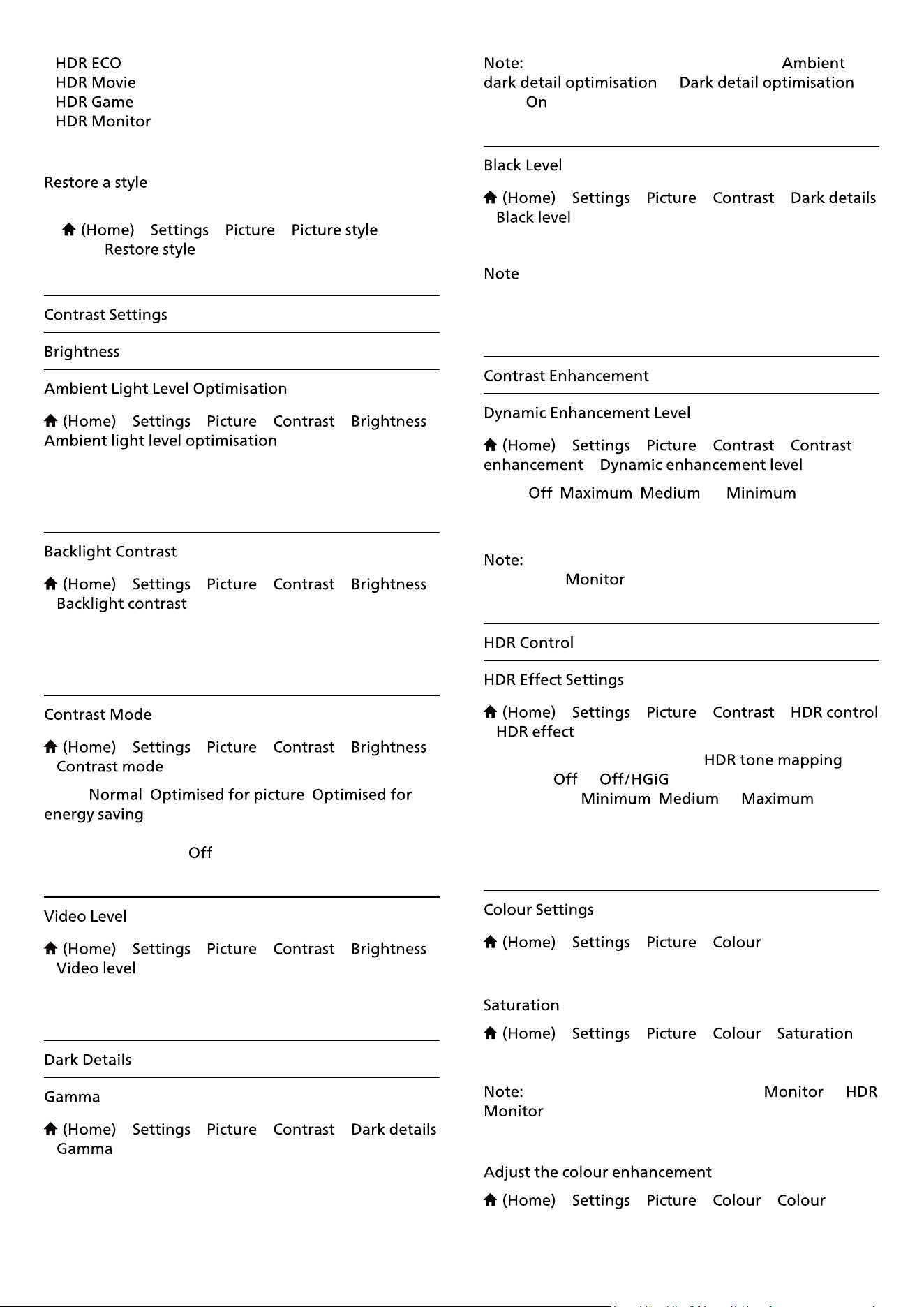
The styles for HDR (Hybrid Log Gamma, HDR10 and
HDR10+) content are:
•
•
•
31
•
•
•
•
To restore the style to its original setting, go
to
> > > , then
press .
> > > > >
.
Switch on to automatically reduce eye strain under
different ambient light conditions.
> > > >
> .
Adjust the contrast value of the picture. You can
decrease contrast value to reduce power consumption.
> > > >
> .
Select
, ,
to set the TV automatically reduces the
contrast, for best power consumption or for best picture
experience, or select to switch off the adjustment.
> > > >
> .
Adjust the video contrast level.
> > > >
> .
To set a non-linear setting for picture luminance and
contrast.
Not available on some models when
or is
set to .
> > > >
> .
To set the black level of picture.
: Setting of black level much away from reference
value (50) may result lower contrast (dark detail
disappear or black picture become grey).
> > > >
> .
Select
, , , or to set the
level at which the TV automatically enhances the details
in the dark, middle and light areas of the picture.
Not available when HDR signal is detected. Not
available in mode.
> > > >
> .
When HDR signal detected and
is
not set to or , you can adjust the HDR
effect level to , or for the
HDR contents.
> > > .
> > > > .
To adjust the value of saturation for the colours.
not available when picture style is or
.
> > > >
32
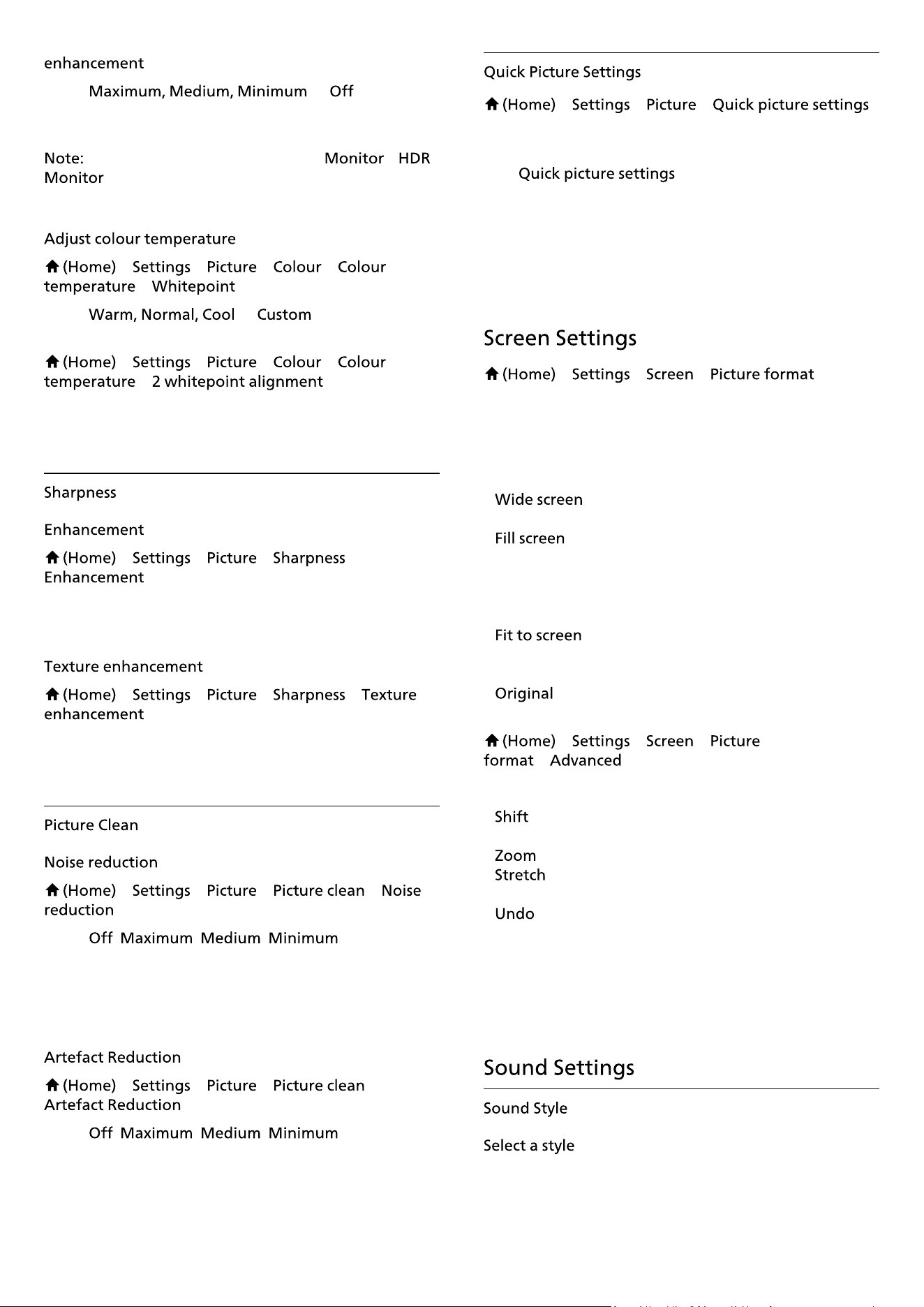
.
Select
or to set the
level of the colour intensity and the details in bright
colours.
not available when picture style is /
> > > >
> .
Select
or to set the colour
temperature for your preference.
> > > >
> .
Customise the whitepoint alignment based on the
selected colour temperature of the picture.
> > > >
.
To adjust the sharpness value of the picture.
> > > >
.
Switch on to have a superior sharpness in line edges and
details.
> > > >
Select , , , to set the
level for removing the noise in video content.
Noise is mostly visible as small moving dots in on-screen
picture.
> > > >
Select , , , to have
different degrees of smoothing the artefact in digital
video content.
Artefact is mostly visible as small blocks or jagged edges
in on-screen images.
> > >
• During the �rst installation, you did some picture
settings in a few easy steps. You can redo these steps
with menu.
• Select the picture setting you prefer and go to the next
setting.
• To do these steps, make sure the TV can tune to a TV
channel or can show a programme from a connected
device.
> > >
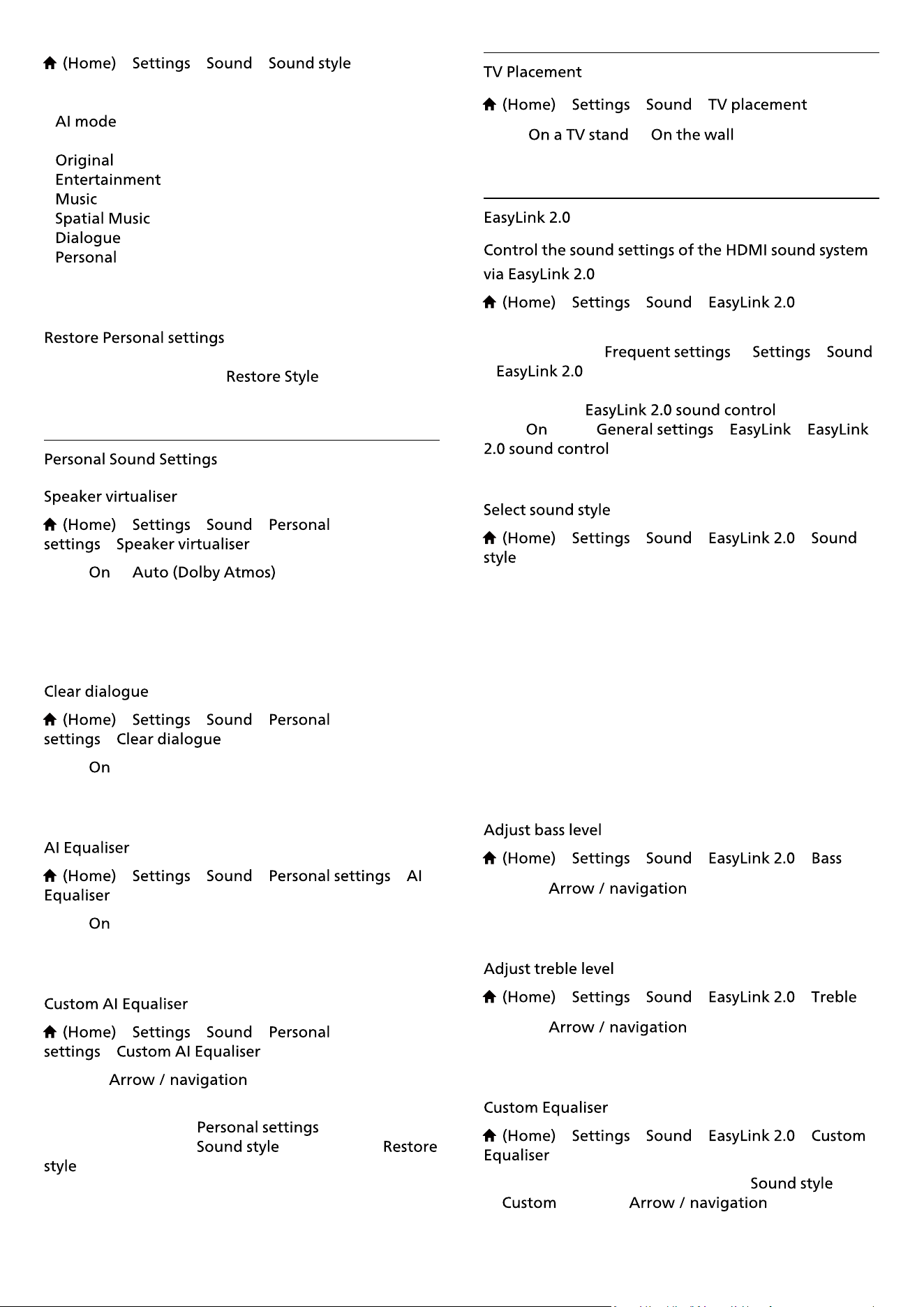
If the picture is not �lling the whole screen, if black bars
are showing on the top or bottom or at both sides, you
can adjust the picture to �ll the screen completely.
To select one of the basic settings to �ll the screen…
•
– automatically zooms in the picture to
16:9 full screen. Picture content aspect ratio may change.
• – automatically enlarges the picture to �ll
the screen. Picture distortion is minimal, subtitles remain
visible. Not suitable for PC input. Some extreme picture
formats can still show black bars. Picture content aspect
ratio may change.
• – automatically zooms in the picture to �ll
the screen without distortion. Black bars may be visible.
Not supported for PC input.
• – automatically zooms in the picture to �t the
screen with original aspect ratio. No content lost visible.
> > >
>
To format the picture manually…
•
– select on the arrows to shift the picture. You can
only shift the picture when it is zoomed in.
• – select on the arrows to zoom in.
• – select on the arrows to stretch the picture
vertically or horizontally.
• – select to return to the picture format you
started with.
Some Picture format setting selections may not be
available in some conditions. For example, in video
streaming, Android app application, gaming mode, etc.
For easy sound adjustment, you can select a preset sound
style.
33
> > >
The available sound styles are:
•
- Select AI mode for intelligent switching of
sound style based on audio content.
• - Most neutral sound setting
• - Ideal for watching movies
• - Ideal for listening to music
• - Ideal for gaming
• - Ideal for speech
• - Select to adjust your preferred sound
settings
1 - Set the sound style to Personal.
2 - Press the colour key , and
press OK. The style is restored.
> > >
>
Select or to enable Dolby Atmos
which can add height dimension in sound. With height
dimension, sound can be precisely placed and moved in
three-dimensional space.
> > >
>
Select to improve the sound for speech. Ideal for
news programmes.
> > > >
Select to enable intelligent equaliser adjustment
based on audio content and custom settings.
> > >
>
Press the keys to adjust the equaliser
settings.
* Note: To restore the
to its original
setting, select back to
, then press
.
> > >
Select or to have best sound
reproduction according to the setting.
> > > .
You can adjust the individual sound settings of the HDMI
sound system via
or >
> . This is only applicable with EasyLink 2.0
compliant HDMI sound system. To switch on the control,
make sure the menu item is
set to under > >
.
> > > >
.
Switch between the preset sound styles. There are ideal
styles for watching movies, listening to music, or other
sound contents.
• Movie - Ideal sound style for watching movie.
• Music - Optimised for listening to music.
• Voice - Enhanced the dialog in the vocals.
• Stadium - Gives a feel of a large open-air stadium.
• Custom - Personalised sound mode. The setting is only
available when connected device is compatible with TV
for the feature.
> > > > .
Press the
keys to adjust the level of
bass.
> > > > .
Press the
keys to adjust the level of
treble.
> > > >
.
Adjustable frequency bands when the
is set
to . Press the keys to
34
adjust the level of AI Equaliser. The setting is only
available when connected device is compatible with TV
for the feature.
> > > >
.
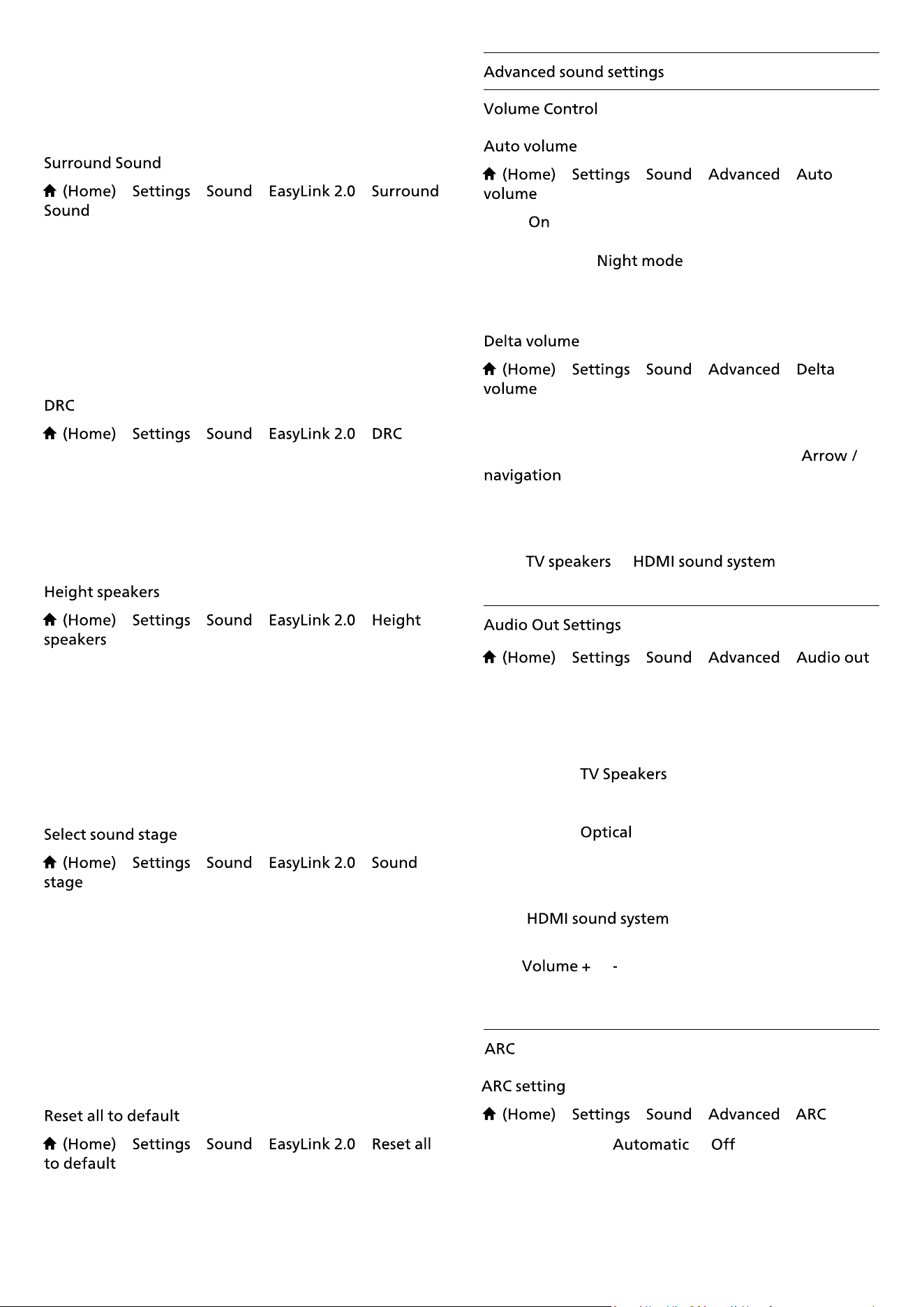
Select a surround effect from the preset types.
• Upmix - Upmix to take full advantage of all speakers.
• Standard - Speakers output follow the original
channels.
• Surround AI - Optimum surround effect using AI
analysis.
> > > > .
Select the preferred Dynamic Range Control (DRC).
• Auto - Dynamic range is automatically adjusted.
• On - Optimize the dynamic range.
• Off - Turn off dynamic range adjustment.
> > > >
.
Select the preferred height speakers movement. The
setting is only available when connected device is
compatible with TV for the feature.
• Auto - Dynamic movement follow contents.
• On - Always elevated.
• Off - Flat position.
> > > >
.
Select a listening experience. The setting is only available
when connected device is compatible with TV for the
feature.
• Auto - Dynamic setting follow contents.
• On - Immersive Sound Stage, good for watching
movies.
• Off - Crystal Sound Stage, good for listening to music
and dialogue.
> > > >
.
Reset all the EasyLink 2.0 sound settings back to the
original factory settings.
> > > >
Select to automatically level out sudden volume
differences. Typically when you are switching
channels. Select for a more comfortable
quiet listening experience.
> > > >
The Delta volume setting can be used to adjust to
balance the sound level difference between the TV
channel and the HDMI source input. Press the
keys to adjust the delta value for TV speaker
volume.
* Note: Delta volume is available when the input source
is set to HDMI or Analogue sources and the Audio out is
set to
or .
> > > >
Set the TV to play the sound on TV or on the connected
audio system.
You can select where you want to hear the TV sound and
how you want to control it.
• If you select
, the TV speakers are always
on. All the sound related settings are applicable to this
mode.
• If you select , the TV speakers are switched off
and the sound will be played through the device
connected to Digital Audio Out - Optical.
With an audio device connected with HDMI CEC,
select
. The TV will switch off the TV
speakers when the device is playing the sound.
Press
or to adjust the volume level of selected
output source.
> > > >
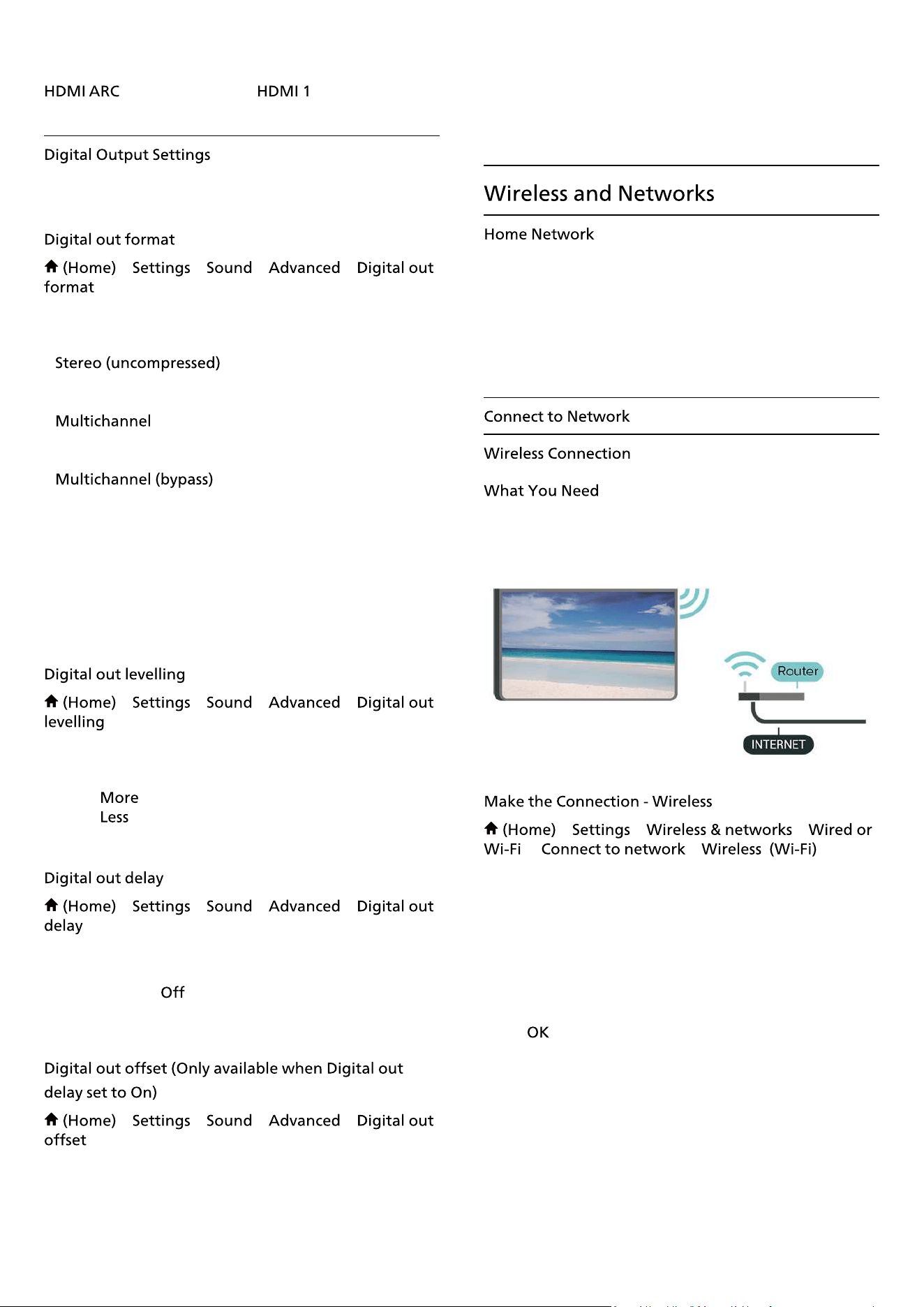
Set ARC mode to or . HDMI ARC
(Enhanced Audio Return Channel) is an advancement
over the previous ARC. It supports the latest high-bitrate
audio formats up to192kHz, 24-bit, and uncompressed
35
5.1 and 7.1, and 32-channel uncompressed audio.
is only available on .
Digital output settings are available for SPDIF output
(optical) and HDMI ARC sound signals.
> > > >
Set the audio out signal of the TV to �t the sound
capabilities of the connected Home Theatre System.
•
: If your audio playback devices
have no multichannel sound processing, select to only
output stereo content to your audio playback devices.
• : Select to output multichannel audio
content (compressed multichannel sound signal) or
stereo audio content to your audio playback devices.
• : Select to send original
bitstream from HDMI ARC to the connected HDMI Sound
System.
- Make sure your audio playback devices support Dolby
Atmos feature.
- SPDIF output (DIGITAL AUDIO OUT) will be disabled
when streaming Dolby Digital Plus content.
> > > >
Adjust the loudness level from device which is connected
to digital audio output (SPDIF) or HDMI.
• Select
to have louder volume.
• Select to have softer volume.
> > > >
For some Home Theatre Systems you might need to
adjust the audio sync delay to synchronise the audio to
the video. Select if a sound delay is set on your Home
Theatre System.
> > > >
• If you cannot set a delay on the Home Theatre System,
you can set the TV to sync the sound.
• You can set an offset that compensates for the time
necessary for the Home Theatre System to process the
sound of the TV picture.
• You can set the value in steps of 5ms. Maximum setting
is 60ms.
To enjoy the full capabilities of your Philips Smart TV,
your TV must be connected to the Internet.
Connect the TV to a home network with a high-speed
Internet connection. You can connect your TV wirelessly
or wired to your network router.
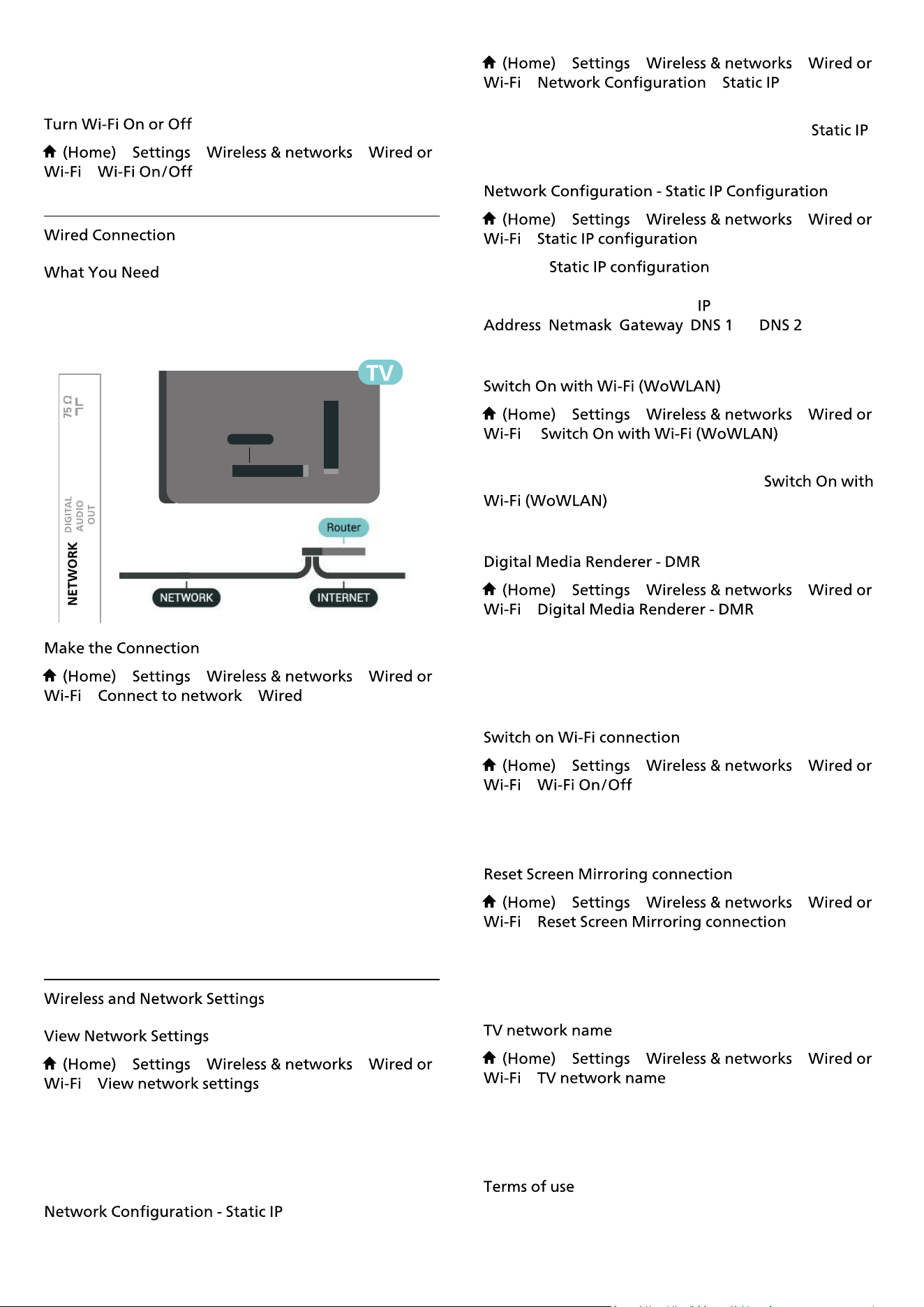
To connect the TV to the Internet wirelessly, you need a
Wi-Fi router with a connection to the Internet. Use a high-
speed (broadband) connection to the Internet.
> > >
> >
1 - In the list of found networks, select on your wireless
network. If your network is not in the list because the
network name is hidden (you switched off the SSID
broadcast of the router), select Add New Network to
enter the network name yourself.
2 - Enter your encryption key. If you entered the
encryption key for this network before, you can
select to make the connection immediately.
3 - A message will be shown when the connection is
36
successful.
> > >
>
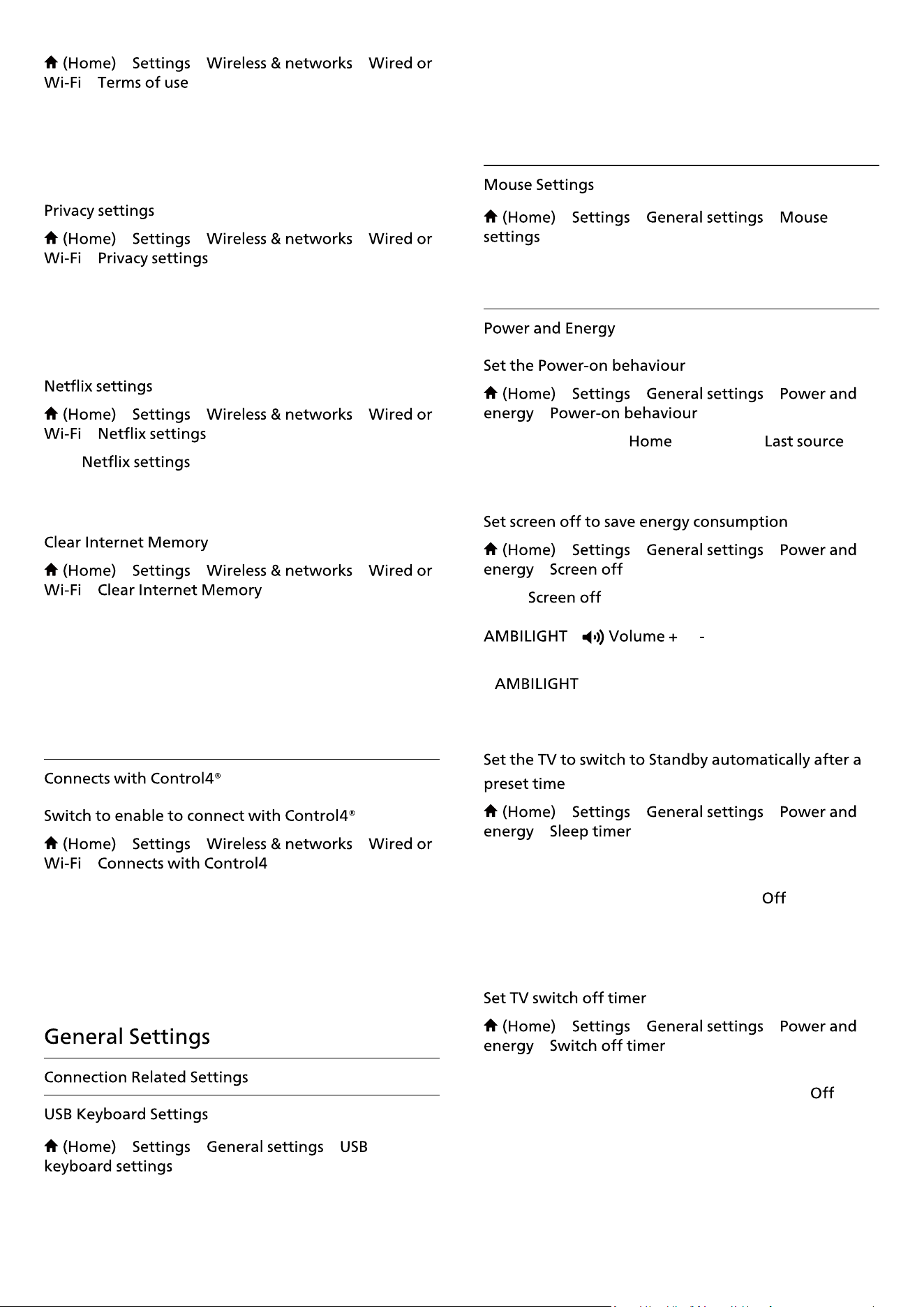
To connect the TV to the Internet, you need a
network router with a connection to the Internet. Use a
high-speed (broadband) connection to the Internet.
> > >
> >
1 - Connect the router to the TV with a network cable
(Ethernet cable**).
2 - Make sure that the router is switched on.
3 - The TV constantly searches for the network
connection.
4 - A message will be shown when the connection is
successful.
If the connection fails, you can check the DHCP setting of
the router. DHCP should be switched on.
**To ful�ll EMC regulations, use a shielded FTP Cat. 5E
Ethernet cable.
> > >
>
You can view all current network settings here. The IP
and MAC address, signal strength, speed, encryption
method, etc.
> > >
> >
If you are an advanced user and want to install your
network with Static IP addressing, set the TV to .
> > >
>
1 - Select and con�gure the
connection.
2 - You can set the number for
, , , , or .
> > >
>
You can switch this TV on from your smartphone or
tablet if the TV is in Standby. The setting
must be switched on.
> > >
>
If your media �les do not play on your TV, make sure that
the Digital Media Renderer is switched on. As a factory
setting, DMR is switched on.
> > >
>
You can switch on or off Wi-Fi connection on your TV.
> > >
>
Clear the list of connected and blocked devices that are
used with Screen Mirroring.
> > >
>
If you have more than one TV in your home network, you
can give the TV a unique name.
37
SAT
TV ANTENNA
NETWORK
> > >
>
You can view the contents of Terms of use, which is
displayed when you �rst time to connect your TV to the
Internet.
> > >
>
You can view the contents of Privacy settings, which is
displayed when you �rst time to connect your TV to the
Internet.
> > >
>
With , you can view ESN number
or deactivate Net�ix device.
> > >
>
With Clear Internet Memory you clear your Philips server
registration and parental rating settings, your video store
app logins, all Philips App Gallery favourites, Internet
bookmarks and history. Interactive MHEG applications
can also save so-called 'cookies', on your TV. These �les
will also be cleared.
> > >
>
Control4® is the provider of personalised automation
and control solutions, helping to control multiple devices
in your home. To join your Philips Smart TV to Control4®,
please make sure your Control4® environment and
devices are properly set.
> > >
To install the USB keyboard, switch on the TV and
connect the USB keyboard to one of the USB connections
on the TV. When the TV detects the keyboard for the �rst
time, you can select your keyboard lay-out and test your
selection.
> > >
Adjust the motion speed of the USB mouse.
> > >
>
Set the TV to stay on screen or on
when power on the TV.
> > >
>
Select , the TV screen is switched off, to switch
the TV screen back on, press any key (except
*, or keys) on the remote
control.
*
key is only available on models which
support Ambilight function.
> > >
>
Set the TV to switch to Standby automatically after a
preset time. You can set the time to up to 180 minutes in
increments of 10 or 30 minutes. If set to , the sleep
timer is switched off. You can always switch off your TV
earlier or reset the time during the countdown.
> > >
>
Set the Switch off timer, the TV switches off
automatically to save energy. The setting value
deactivates the automatic switch off.
• TV switches off if receiving a TV signal but you don't
press a key on the remote control during a 4 hour period.
• TV switches off if not receiving a TV signal nor a remote
control command for 10 minutes.
38
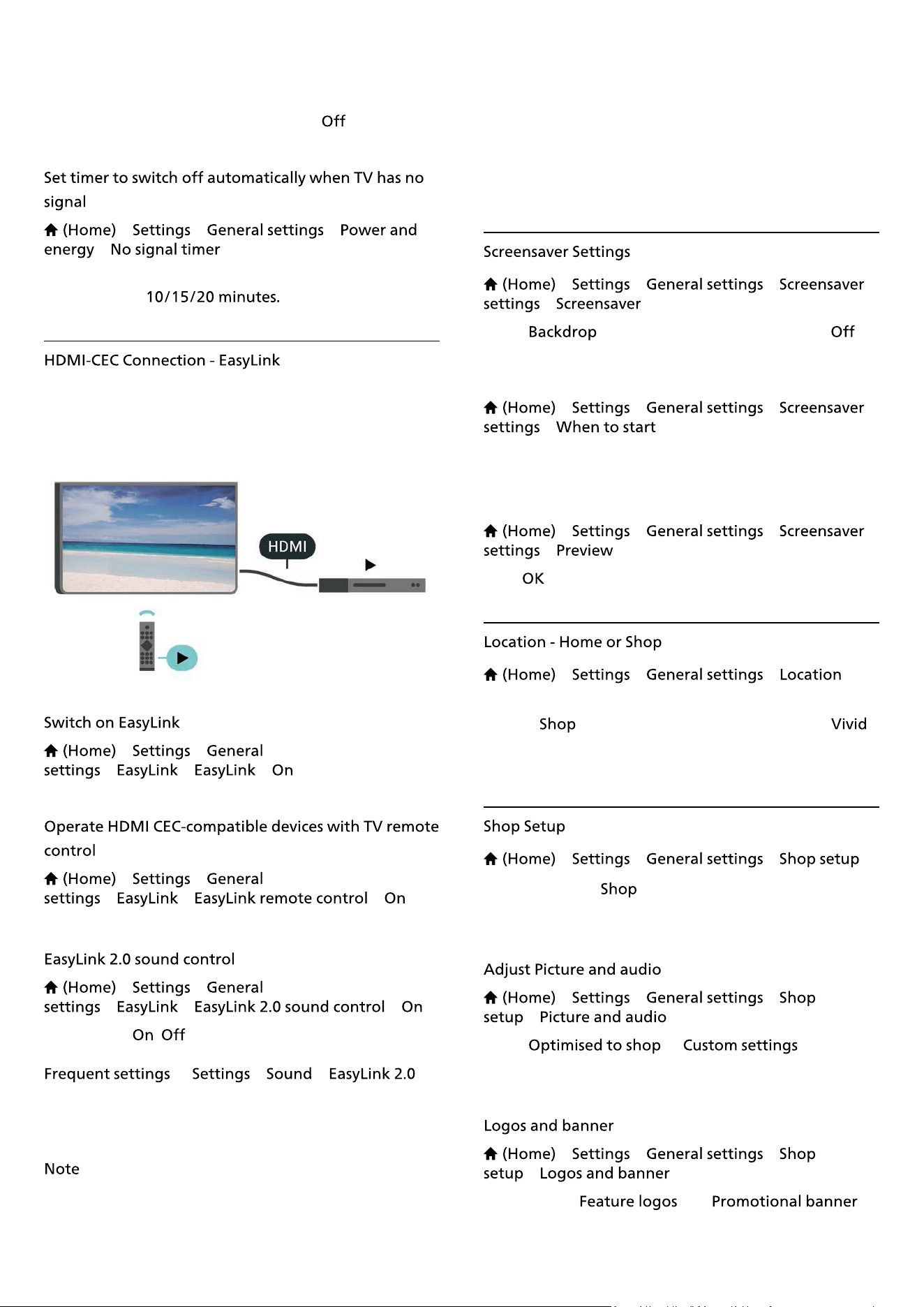
• If you use the TV as a monitor or use a digital receiver
to watch TV (a Set-Top Box - STB) and you do not use the
remote control of the TV, you should deactivate this
automatic switch off, to set the value to .
> > >
>
Your TV will switch off automatically if there is no signal
available after
Connect HDMI CEC-compatible devices to your TV, you
can operate them with the TV remote control. EasyLink
HDMI CEC must be switched on on the TV and the
connected device.
> >
> > >
> >
> > >
> >
> > >
Slide to turn / to control the sound settings of the
HDMI sound system. You can adjust these settings via
or > > .
This is only applicable with EasyLink 2.0 compliant HDMI
sound system.
:
- EasyLink might not work with devices from other
brands.
- The HDMI CEC functionality has different names on
different brands. Some examples are: Anynet, Aquos
Link, Bravia Theatre Sync, Kuro Link, Simplink and Viera
Link. Not all brands are fully compatible with EasyLink.
Example HDMI CEC branding names are property of their
respective owners.
> > >
>
Select to enable the Screensaver. Select to
disable the Screensaver.
> > >
>
Set the duration (in minutes) when TV is in idle state
before activating the Screensaver.
> > >
>
Press to preview the Screensaver.
> > >
• Select the location of your TV
• Select , the picture style is switched back to ,
and can adjust shop settings.
• Shop mode is for in-store promotion.
> > >
If the TV is set to , you can view feature logos or set
the availability of a speci�c demo for in store use.
> > >
>
Select or for picture
and audio settings.
> > >
>
Set to display and .
39
> > >
>
Turn On/Off the Demo Me autostart
> > >
>
This TV can display Ultra HD signals. Some devices -
connected with HDMI - do not recognise a TV with Ultra
HD and might not work correctly or show distorted
picture or sound.
To avoid the malfunctioning of such a device, you can
adjust
setting when TV is in the HDMI
source. Recommended setting for legacy device is
.
• The setting
allows maximum up to Ultra HD
(50Hz or 60Hz) RGB 4:4:4 or YCbCr 4:4:4/4:2:2/4:2:0
signals.
• The setting allows maximum up to Ultra HD
(50Hz or 60Hz) YCbCr 4:2:0 signals.
Maximum supported video timing format for HDMI Ultra
HD options:
• Resolution: 3840 x 2160
• Frame rate (Hz): 50Hz, 59.94Hz, 60Hz
• Video data sub-sampling (bit-depth)
- 8 bit: YCbCr 4:2:0, YCbCr 4:2:2*, YCbCr 4:4:4*, RGB
4:4:4*
- 10 bit: YCbCr 4:2:0*, YCbCr 4:2:2*
- 12 bit: YCbCr 4:2:0*, YCbCr 4:2:2*
* Supported only when
is set
to , or .
Select
if the picture or sound are distorted.
• Set
to enable TV to
support the HDMI Variable Refresh Rate* video (on some
models only and the setting is not
). This option also enables TV to automatically
set Picture/Sound style to Game whenever it is informed
by the HDMI device connected to TV.
* With HDMI Variable Refresh Rate supported, the TV
changes its refresh rate in real time according to the
frame rate signal to synchronize with every picture. It is
applied to reduce the lag, judder and frame tearing for
better gaming experience.
To watch HDR10+ content from HDMI source, you may
need to power off your player and power on again when
the player connected to TV playing such content for the
�rst time. HDR10+ content is supported only when
is set to or
.
> > >
Set to , if you want TV to
automatically set to whenever it is
informed by the HDMI device connected to TV.
> > >
If the TV is set to , you can manage the demo videos
in app.
> > > >
Select a demo video �le and play.
> > > >
Copy demo �le to USB drive.
> > >
>
Delete demo �le from your TV.
> > >
>
Set the TV to or .
> > >
>
If the is set to , you can
download new demo �le.
> > > >
Set the Auto delay time from to .
> > > >
Select a demo �le for auto loop playing.
40
> > >
> > >
Enter PIN code and select , the TV will reinstall
completely. All settings will be reset and installed
channels will be replaced. The installation can take a few
minutes.
> >
With switched on, the TV is prepared
for use for the deaf, hard of hearing, blind or partially
sighted people.
> > >
> .
> > >
>
• Some digital TV channels broadcast special audio and
subtitles adapted for the hard of hearing or deaf people.
• Switched on, the TV automatically switches to the
adapted audio and subtitles, if available.
> > >
> >
Digital TV channels can broadcast special audio
commentary describing what is happening on screen.
> > >
> > ,
,
• Select , you can mix the volume of the
normal audio with the audio commentary. Press
the arrows (Right) or (Left) to adjust the value.
• Set
to for extra audio effects in the
commentary audio, like stereo or fading sound.
• Select to set speech
preference,
or .
> > >
Increase the intelligibility of dialogue and commentary.
Only available when sound setting is
and audio stream is AC-4.
> > >
Turn on to magnify selected texts and display on the
upper screen.
> > > ,
Set new code or reset change code. The child lock code is
used to lock or unlock channels or programmes.
: If you forgot your PIN code, you can override the
current code use and enter a new code.
> > >
Set a minimum age to watch rated programmes.
> > >
You can lock apps unsuited for children. The App lock
will ask for a PIN code when you try to start an 18+ rated
app. This lock is only valid for 18+ rated apps from the
Philips apps.
> > >
Set the PIN code to lock or unlock the TV.
41
> >
>
> >
> >
> >
> >
Digital TV channels can broadcast audio with several
spoken languages for a programme. You can set a
preferred primary and secondary audio language. If
audio in one of these languages is available, the TV will
switch to this audio.
> >
> >
Digital channels can offer several subtitle languages for a
programme. You can set a preferred primary and
secondary subtitle language. If subtitles in one of these
languages are available, the TV will show the subtitles
you selected.
> >
> > ,
Some digital TV broadcasters have several Text
languages available.
> > >
> >
> >
• The standard setting for the TV clock is . The
time information comes from the broadcasted UTC -
Coordinated Universal Time information.
• If the clock is not correct, you can set the TV clock
to
.
• When select
, you can set the time
for , , or .
> >
> > >
> >
> >
Go to previous menu, and select and to adjust
the value.
:
• If none of the automatic settings display the time
correctly, you can set the time manually.
• The Auto clock mode setting will be back to Automatic
after the TV power is turned off and on again.
> >
> >
Select one of the time zones.
> >
Press key on the remote control to �nd the
, select to set the options. Select and
con�rm to apply the Eco settings on TV. This may reset
some picture settings to original and reduce some
brightness of the Ambilight*. Please note that TV
experience might be affected by this setting. The
green leaf icon will be appended when Eco settings are
applied.
* Ambilight setting is only for models which support
Ambilight function.
> >
Select , the TV screen is switched off, to switch
the TV screen back on, press any key (except *,
or , and keys) on the remote
control.
42

> > .
Set the TV to switch to Standby automatically after a
preset time. You can set the time to up to 180 minutes in
increments of 10 or 30 minutes. If set to
, the sleep
timer is switched off. You can always switch off your TV
earlier or reset the time during the countdown.
> >
Set the Switch off timer, the TV switches off
automatically to save energy. The setting value
deactivates the automatic switch off.
• TV switches off if receiving a TV signal but you don't
press a key on the remote control during a 4 hour period.
• TV switches off if not receiving a TV signal nor a remote
control command for 10 minutes.
• If you use the TV as a monitor or use a digital receiver
to watch TV (a Set-Top Box - STB) and you do not use the
remote control of the TV, you should deactivate this
automatic switch off, to set the value to
.
> >
Your TV will switch off automatically if there is no signal
available after
43
12. Gaming Control
Bar
The Gaming control bar is an integrated centre for
information display and setting control while playing
game. It is applicable for HDMI source as long as the
is set to
.
When TV auto switch to Game mode (via game
detection), the TV will show a message to inform user
that Game mode is enabled and the gaming control bar
can be enabled via long pressing the
key.
Long press the
key to launch the gaming control
bar while in mode. To deactivate the gaming
control bar, you can press or it will be close
automatically after 25 seconds without interaction.
The Gaming control bar contains
and
, you can press the arrows (Right) or (Left) to
switch between and .
The
will show the key information for the
gaming:
: current input lag status
: current FPS (frame per second)
: video source resolution
: video content is General or Movie or
VRR/Freesync/G-Sync
: the supported source HDR or SDR
type
: supported source colour space type
The
contains related settings that can improve
your gaming experience. Select and press on the
setting icons to change following settings:
: select / to show or hide the dial point.
: select to use current black level in
; select to change the setting to
higher black level.
: select the colour temperature for
your preference.
: select the device to output the sound.
: select to turn on the Ambilight
with gaming style; select
to turn off the Ambilight.
* Ambilight setting is only for models which support
Ambilight function.
44
13. Smart TV and
Apps
The �rst time you open Smart TV, you need to con�gure
your connection. Read and agree to the terms and
conditions to continue.
The Smart TV Home screen is your link to the Internet.
You can rent movies online, read newspapers, watch
videos and listen to music, also shop online, or watch TV
programmes when it suits you with On-line TV.
TP Vision Europe B.V. bears no responsibility regarding
the content and the quality of the content provided by
the content service providers.
Open the tab on Home screen to browse the Apps,
the collection of tailored websites for TV.
Find the App for YouTube videos, a national newspaper,
an online photo album, etc. There are Apps to rent a
video from an online video store and Apps for watching
programmes you missed. If the App in
does not
hold what you are looking for, try the World Wide Web
and surf the Internet on TV.
You can sort the Apps in
by different categories
like , , , or .
In this area, Philips presents a range of recommended
Apps for you. You can select and install them to enrich
your Smart TV life.
The Internet App opens the World Wide Web on your
TV.
On your TV, you can view any Internet website but most
of them are not tailored for a TV screen.
- Some plug-ins (e.g. to view pages or videos) are not
available on your TV.
- Internet pages are shown one page at a time and full
screen.
45

14. Net�ix
If you have a Net�ix membership subscription, you can
enjoy Net�ix on this TV. Your TV must be connected to
the Internet.
To open Net�ix, press to open the Net�ix App.
You can open Net�ix immediately from a TV in standby.
www.net�ix.com
46

15. Amazon Prime
Video
With an Amazon prime membership, you gain access to
thousands of popular movies and TV show, including
exclusive Prime Originals.
Press the key to open the Amazon Prime Video
app. Your TV must be connected to the Internet to use
the app. For more information about Amazon Prime
Video, please visit www.primevideo.com.
47

16. YouTube
YouTube provides a platform to connect to the world.
Watch and discover popular videos that uploaded by
YouTube users around the world. Use the YouTube app
to explore the latest topics on music, news, and more.
Press the app icon to open the YouTube app. Your TV
must be connected to the Internet to use the app. For
more information about YouTube, please visit
www.youtube.com.
48
17. Google Assistant
Your TV can work with the Google Assistant. Google
Assistant allows you to use your voice to control your TV
– e.g. changing volume, channels and more.
: Google Assistant is not available in all languages
and countries.
To enable Google Assistant on your TV, you will need:
• A Google Home device, like Google Home Mini
• Internet connection on TV
• Google account
• Google Home app (mobile/tablet version)
1 - Follow the instructions on screen to accept the Privacy
Policy for the usage of Google Assistant voice control
feature on this TV.
2 - Choose a name for the TV so that Google Assistant
can recognise it.
3 - Sign in Google account. If you already have a Google
account, please sign in. If not, please create an account
and sign in. After you have signed in successfully, select
"Get Code" to get the device code of this TV for your
device registration.
4 - On your mobile/tablet, search for "Google Home" app
in app store (iOS and Android). Download and open the
Google Home app. Sign in with the same Google
account, which is used to register this TV. You need to
continue the setup on Google Home app in
mobile/tablet to control your TV with voice commands.
5 - On Google Home app, select “Set up device”, then
select 'Works with Google' and search for Philips Smart
TV. Sign in to link to your Google account and enable TV
control on Google Home app.
6 - You can use Google Assistant to turn on your TV using
voice command. For this, the TV needs to remain in a
special power mode, which may result in slightly higher
power consumption during standby.
You are ready to use your Google Home device to
control this TV. Here are some things to try:
- Turn off TV
- Switch to channel 10 on TV
- Channel down on TV
- Increase volume on TV
- Mute TV
: If you logout from Google Assistant, you will no
longer be able to use voice commands on this TV. You
will need to redo the Setup TV control with Google
Assistant to use the feature again.
Google Assistant is available in selected languages and
countries with English-UK and German-DE being
supported from the start. Supported language/countries
list is going to be expanded overtime. For latest
language and countries support list please contact our
consumer care.
Services availability depends on region. A part or whole
of software/services installed into or accessible through
the product may be changed, discontinued, removed,
suspended, or terminated without notice.
49
18. Software
> > >
>
Look for a software update yourself.
• If the TV is connected to the Internet, you may receive a
message to update the TV software. You need a high-
speed (broadband) Internet connection. If you receive
this message, we recommend you to carry out the
update.
• During the software update, there is no picture and the
TV will switch off and on again. This might happen
several times. The update can take a few minutes.
• Wait until the TV picture comes back up. Do not press
the power switch
on the TV or on the remote control
during the software update.
) > > >
>
• You need a computer with a high-speed Internet
connection and a USB memory device to upload the
software on the TV.
• Use a USB memory device with 512MB free space.
Make sure that write protection is switched off.
1 -
Select > > ,
then press .
2 -
Insert the USB memory into one of the USB connections
of the TV.
Select and press . An identi�cation �le is written
on the USB memory device.
3 -
- Insert the USB memory into your computer.
- On the USB memory device, locate the
�le and double click it.
- Click on .
- If new software is available, download the .zip �le.
- After the download, unzip the �le and copy the
�le onto the USB memory device.
- Do not place this �le in a folder.
4 -
Insert the USB memory into the TV again. The update
starts automatically.
The TV switches itself off for 10 seconds and then back
on again. Please wait.
• use the remote control
• remove the USB memory device from the TV
• press twice
• press the power switch on the TV
The TV switches itself off (for 10 seconds) and then back
on again. Please wait.
The TV software has been updated. You can use the TV
again.
To prevent an accidental update of the TV software,
delete the autorun.upg �le from the USB memory device.
> > >
> > .
For dealers and expert users.
> > >
To view the current TV software version.
> > >
To switch on Automatic software update to update your
TV software automatically. Leave the TV in standby.
When the setting is enabled, the upgrade gets
downloaded when the TV is powered ON and installed
15min after the TV has gone to standby (as long as there
is no alarm scheduled).
When the setting is disabled, the "Upgrade Now" /
"Later" OSD will be shown.
> > >
Display the list of software versions that are successfully
50

update on the TV.
51
52
19. Environmental
The informs you on the energy
efficiency class of this product. The greener the energy
efficiency class of this product is, the lower the energy it
consumes.
On the label, you can �nd the energy efficiency class, the
average power consumption of this product in use. You
can also �nd the power consumption values for this
product on the Philips website for your country
at www.philips.com/TVsupport
Your product is designed and manufactured with high
quality materials and components, which can be recycled
and reused.
When this crossed-out wheeled bin symbol is attached to
a product it means that the product is covered by the
European Directive 2012/19/EU.
Please inform yourself about the local separate collection
system for electrical and electronic products.
Please act according to your local rules and do not
dispose of your old products with your normal
household waste. Correct disposal of your old product
helps to prevent potential negative consequences for the
environment and human health.
Your product contains batteries covered by the European
Directive 2006/66/EC, which cannot be disposed with
normal household waste.
Please �nd out for yourself about the local rules on
separate collection of batteries because correct disposal
will help to prevent negative consequences for the
environment and human health.
32PHS6009/05 EPREL Registra�on No. 1965864
40PFS6009/05 EPREL Registra�on No. 1965880
20. Speci�cations
Product speci�cations are subject to change without
notice. For more speci�cation details of this product,
see www.philips.com/TVsupport
• Mains power : AC 220-240V
• Ambient temperature : 5°C to 35°C
• Aerial input : 75 ohm coaxial (IEC75)
• Tuner bands : Hyperband, S-Channel, UHF, VHF
• DVB : DVB-T/T2, DVB-C (cable) QAM
• Analogue video playback : SECAM, PAL
• Digital video playback : MPEG2 SD/HD (ISO/IEC
13818-2), MPEG4 SD/HD (ISO/IEC 14496-10), HEVC*
• Digital audio playback (ISO/IEC 13818-3)
• Satellite aerial input : 75 ohm F-type
• Input frequency range : 950 to 2150MHz
• Input level range : 25 to 65 dBm
• DVB-S/S2 QPSK, symbol rate 2 to 45M symbols, SCPC
and MCPC
• LNB : DiSEqC 1.0, 1 to 4 LNBs supported, Polarity
selection 14/18V, Band selection 22kHz, Tone burst
mode, LNB current 300mA max
* Only for DVB-T2, DVB-S2
• 80 cm / 32 inch
• 99 cm / 40 inch
• 1366 x 768 (32 inch)
• 1920 x 1080 (40 inch)
Resolution — Refresh rate
Video Input format supported (TV can be in
Video/Game/Computer mode)
• 640 x 480 - 60Hz
• 576p - 50Hz
• 720p - 50Hz, 60Hz
• 1920 x 1080p - 24Hz, 25Hz, 30Hz, 50Hz, 60Hz
Resolution — Refresh rate
Video Inputs (TV can be Video or Game Mode )
• 480i - 60Hz (when
is set to )
• 576i - 50Hz (when is set to )
• 1080i - 50Hz, 60Hz
• Variable refresh rate video 1080p, 1440p, 2160p with
frame rate up to 48-60Hz when is set to
* Note: Some resolution and frame rate may not be
supported in all input sources.
• Output power (RMS) : 10W
• Dolby MS12 V2.6.2
• Dolby Audio
• Surround Virtualiser + Height Virtualiser
• Dolby Volume Leveler / Night mode
• Dolby Bass Enhancement
• Dolby Dialogue Enhancement
• Clear Dialogue
• AI Sound
• AI EQ
• USB 2.0
• Ethernet LAN RJ-45
53
• Wi-Fi 802.11n, Single Band
• FAT, NTFS
• Video Codec : AVI, MKV, HEVC, H.264/MPEG-4 AVC,
MPEG1, MPEG2, MPEG4, VP9, HEVC (H.265), AV1
• Audio Codec : MP3, WAV, AAC, FLAC
• Subtitles :
- Format : SRT, SMI, SSA, SUB, ASS, TXT
- Character encodings : Western Europe, Turkish, Central
Europe, Cyrillic, Greek, UTF-8 (Unicode), Hebrew, Arabic,
Baltic
• Maximum Supported Data Rate :
– MPEG-4 AVC (H.264) is supported up to High Pro�le @
L5.1. 30Mbps
– H.265 (HEVC) is supported up to Main / Main 10 Pro�le
up to Level 5.1 40Mbps
• Image Codec : JPEG, GIF, PNG, BMP, HEIF
This TV is Wi-Fi Certi�ed device.
• USB 1 - USB 2.0
• USB 2 - USB 2.0
• Common Interface slot: CI+/CAM
• HDMI 3 in - FHD - HDR
• HDMI 2 in - FHD - HDR
• HDMI 1 in - ARC - FHD - HDR
• HEADPHONE
• Antenna (75 ohm)
• Satellite tuner
• Audio out - Optical Toslink
• Network LAN - RJ45
54
21. Troubleshooting
If you can't �nd a solution for your TV problem in
, you can use in >
to �nd the information you are looking for.
Select a keyword to go the most relevant page in the
User manual.
If the User manual doesn't answer your question, you
can go to the support website of Philips.
To solve any Philips TV related problem, you can consult
our online support. You can select your language and
enter your product model number.
Go to
www.philips.com/TVsupport
.
On the support site you can �nd your country's
telephone number to contact us as well as answers to
frequently asked questions (FAQs). In some countries,
you can chat with one of our collaborators and ask your
question directly or send a question by email.
You can download new TV software or the manual to
read on your computer.
To carry out extended sequences of instructions more
easily, you can download the TV Help in PDF format to
read on your smartphone, tablet or
computer. Alternatively, you can print the relevant Help
page from your computer.
To download the Help (user manual) go
to
www.philips.com/TVsupport
• Disconnect the power cable from the power outlet.
Wait for one minute then reconnect it. Make sure that
the power cable is securely connected. Try switching on
again.
• Connect the TV to another wall mains socket and try
switching on.
• Disconnect all connected devices from the TV and try
switching on.
• If the standby light on TV is on, the TV might not
respond to the remote control.
When you are turning the TV on or standby, you hear a
creaking sound from the TV chassis. The creaking sound
is due to the normal expansion and contraction of the TV
as it cools and warms up. This does not affect
performance.
When the TV is in standby, a Philips startup screen is
displayed, then the TV returns to standby mode. This is
normal behaviour. When the TV is disconnected and
reconnected to the power supply, the startup screen is
displayed at the next startup. To switch on the TV from
standby, press
(Standby / On) the remote control or
the TV.
Disconnect the power cable from the power outlet. Wait
5 minutes before you reconnect the power cable. If the
blinking reoccurs, contact Philips TV Consumer Care.
In
> , press the colour
key and look up .
If the TV switches off suddenly, the setting
might be switched on. With the
TV switches off after 4 hours if no remote control signals
were received. To avoid this automatic switch off, you
can deactivate this switch off. In > ,
press the colour key and look up
.
Also, if the TV does not receive a TV signal nor a remote
control command for 10 minutes, the TV switches off
automatically.
• The TV requires some time to start up. During this time,
the TV does not respond to the remote control or TV
controls. This is normal behaviour.
• The batteries of the remote control might be empty.
Replace the batteries with new ones.
• Check if the TV was connected with an antenna or is
using a provider signal. Check the cable connections.
• Check if the country where you install the TV, has
digital channels available.
• Check if you selected the correct DVB (Digital Video
Broadcast) system. Select DVB-T (terrestrial) when you
55
use an antenna or common antenna, select DVB-C
(cable) if you use a TV cable service.
• Redo the installation and check if you select the correct
country and system.
• Check if the TV was connected with an antenna. Check
the cable connections.
• Check if you selected the correct DVB (Digital Video
Broadcast) system. Select DVB-T (terrestrial) when you
use an antenna or common antenna.
• Redo the installation and select
during the installation.
• Check if you selected the correct
or you normally use.
• Some channels might be moved or even deleted by the
broadcaster. In the normal channels list, try to search for
the channel you're missing. If the channel is still
available, you can put it back in the favourites list.
• A channel can be deleted from the channel list during
. These automatic updates
are done overnight if the TV is on standby.
Channels that do not exist anymore are deleted and new
channels will be added to the channel list. Exceptionally,
a channel can be deleted because the TV could not �nd it
while checking for its presence. It might not broadcast at
night.
To avoid channels being deleted during the
because the TV could not �nd them
although these channels are still there, you can switch
off .
> > >
, >
* Satellite installation is only for models which support
satellite functions.
• See the technical speci�cations to make sure that your
TV supports DVB-T2 HEVC in your country and reinstall
DVB-T channel.
Check if the correct number of satellites is set in settings
at the start of the installation. You can set the TV to
search for One, Two or 3/4 satellites.
• If the TV �nds one satellite but cannot �nd a second
one, turn the dish a few degrees. Align the dish to get
the strongest signal on the �rst satellite. Check the signal
strength indicator of the �rst satellite on-screen.
• Check if the settings are set to two satellites.
All settings, satellites and channels are only stored at the
end of the installation when you �nish.
If you use an Unicable system, It might be that another
satellite receiver in your Unicable system is using the
same user band number.
If some channels seem to be gone or displaced, the
broadcaster might have changed the transponder
location of these channels. To restore the channel
positions in the channel list, you can try an update of the
channel package.
Subscription packages do not allow removing a satellite.
To remove the satellite, you have to do a complete
installation again and select another package.
• Check if the satellite dish is solidly mounted. Strong
winds can move the dish.
• Snow and rain can degrade the reception.
• Check if the TV is connected with an antenna or is using
a provider signal. Check the cable connections.
• Check if the correct source/input is selected in the
sources menu. Press
and select the
source/input you need.
• Check if the external device or source is properly
connected.
• Check if the reception is poor.
• Check if the picture is set to a minimal value.
Select and select a style and press .
• To check if the TV is broken, try to play a video clip.
Press > > >
. If the video clip stays black, call Philips. Wait until
the clip ends and select in the Help menu.
Call the telephone number for your country.
• Change to other video sources and then change back
to current source.
• Select
and select a style and press .
• Restore picture style, select back to , then
press .
56
• Reset all TV settings, go to >
> > .
• Check the connections of the source/input devices.
If the TV picture is distorted or variable in quality, the
input signal might be poor. A weak digital signal is seen
as a picture that is breaking up in square blocks and
freezes occasionally. Much sooner than a bad analogue
signal, a bad digital signal will fall away.
• Check if the antenna cable is properly connected.
• Large loudspeakers, unearthed audio devices, neon
lights, high buildings and other large objects can
in�uence reception quality when you are using an
antenna. Try to improve the reception by changing the
antenna direction or moving devices away from the
TV. Bad weather might deteriorate the reception.
• Check if all connections, to and from your devices, are
properly connected.
• If reception on only one channel is poor, �ne-tune this
channel with
. (Only for
analogue channels)
• Check if the incoming digital signal is sufficiently
strong. While watching a digital channel,
press and select and press . Check
the and .
• Make sure that the device is connected properly. Make
sure that the device's output video setting is the highest
possible resolution if applicable.
• Restore picture style or change to another picture style.
Make sure that
is set to . You can change
and save settings in this mode.
> > >
If an on screen promotion banner appears occasionally
or the
automatically switches back to
at startup, the TV is in location. Set the TV to
location for use at home.
> > >
• If the picture size - its aspect ratio - does not �t the
screen, with black bars on the top and bottom or left and
right side of the screen, press
>
> > > .
• If the picture size changes all the
time, press > > >
> .
• If the position of the picture is incorrect on the screen,
try to check the signal resolution and output type of the
connected device, press
>
> > > .
Make sure that your PC uses the supported resolution
and refresh rate.
• Check if the sound settings of the TV are OK, press
the volume or mute key.
• If you use a digital receiver (set-top box), check if the
volume on this receiver is not set to zero or mute.
• Check if the TV - the audio signal - is properly
connected with the Home Theatre System, if you use
such a system for the TV sound. Check if you connected
the HDMI cable to an connection on the
Home Theatre System.
• Make sure that the TV audio output is connected to the
audio input on the Home Theatre System.
Sound should be heard from the HTS (Home Theatre
System) speakers.
If you watch a video from a plugged in USB �ash drive or
connected computer, the sound from your Home
Theatre System might be distorted. This noise is heard
when the audio or video �le has DTS sound but the
Home Theatre System has no DTS sound processing. You
can �x this by setting the
of the TV
to .
Press >
> > >
• Note that HDCP (High-bandwidth Digital Content
Protection) support can delay the time taken for a TV to
display content from an HDMI device.
• If the TV does not recognise the HDMI device and no
picture is displayed, switch the source from one device to
another and back again.
• This is an Ultra HD TV. Some older devices - connected
with HDMI - do not recognise an Ultra HD TV
electronically and might not work correctly or show
distorted picture or sound. To avoid the malfunctioning
of such a device, you can set the signal quality to a level
the device can handle. If the device is not using Ultra HD
signals, you can switch off Ultra HD for this HDMI
connection.
If the picture and sound of a device connected with
HDMI is distorted, check if a different
setting can solve this problem. In >
, press the colour key and look
57
up .
• If there are intermittent sound disruptions, make sure
that output settings from the HDMI device are correct.
• Check if your HDMI devices are HDMI-CEC compatible.
EasyLink features only work with devices that are HDMI-
CEC compatible.
• Make sure the HDMI cable is connected to .
• Make sure the is used
for eARC connection.
• Only one eARC device is available at a time.
• When an HDMI-CEC audio device is connected and you
use the TV Remote Control to adjust the volume level
from the device, this behaviour is normal.
• Check if the USB storage device is set to Mass Storage
Class compliant, as described in the storage device's
documentation.
• Check if the USB storage device is compatible with the
TV.
• Check if the audio and picture �le formats are
supported by the TV. For more information, in ,
press the colour key and look
up .
• The transfer performance of the USB storage device
may limit the data transfer rate to the TV which causes
poor playback.
• Check if the �rewalls in your network allow access to
the TV's wireless connection.
• If the wireless network does not work properly in your
home, try the wired network installation.
• If the connection to the router is OK, check the router
connection to the Internet.
• Look in your wireless router's user manual for
information on indoor range, transfer rate and other
factors of signal quality.
• Use a high-speed (broadband) Internet connection for
your router.
• If the connection fails, you can check the DHCP
(Dynamic Host Con�guration Protocol) setting of the
router. DHCP should be switched on.
1 - Press
and select via the icon at the
top right corner.
2 - Press 8 times (down) and press .
3 - Press again to enter , select the �rst
item and press .
4 - Select your language and press .
58

22. Safety and Care
Read and understand all safety instructions before you
use the TV. If damage is caused by failure to follow
instructions, the warranty does not apply.
• Never expose the TV to rain or water. Never place liquid
containers, such as vases, near the TV.
If liquids are spilt on or into the TV, disconnect the TV
from the power outlet immediately.
Contact Philips TV Consumer Care to have the TV
checked before use.
• Never expose the TV, remote control or batteries to
excessive heat. Never place them near burning candles,
naked �ames or other heat sources, including direct
sunlight.
• Never insert objects into the ventilation slots or other
openings on the TV.
• Never place heavy objects on the power cord.
• Avoid force coming onto power plugs. Loose power
plugs can cause arcing or �re. Ensure that no strain is
exerted on the power cord when you swivel the TV
screen.
• To disconnect the TV from the mains power, the power
plug of the TV must be disconnected. When
disconnecting the power, always pull the power plug,
never the cord. Ensure that you have full access to the
power plug, power cord and outlet socket at all times.
• Two people are required to lift and carry a TV that
weighs more than 25 kg or 55 lbs.
• If you mount the TV on a stand, only use the supplied
stand. Secure the stand to the TV tightly.
Place the TV on a �at, level surface that can support the
weight of the TV and the stand.
• When wall mounted, ensure that the wall mount can
safely bear the weight of the TV set. TP Vision bears no
responsibility for improper wall mounting that results in
accident, injury or damage.
• Parts of this product are made of glass. Handle with
care to avoid injury or damage.
Before you connect the TV to the power outlet, ensure
that the power voltage matches the value printed on the
back of the TV. Never connect the TV to the power outlet
if the voltage is different.
This product is designed and intended for consumers
and personal use in a domestic home environment,
unless agreed otherwise with the manufacturer in
writing. Failure to follow this recommendation or the
instructions provided in the product user manual and the
product supportive documentation can cause damage to
the product and will void the warranty for such cases.
A television set may fall, causing serious personal injury
or death. Many injuries, particularly to children, can be
avoided by taking simple precautions such as:
• ALWAYS ensure the television set is not overhanging
the edge of the supporting furniture.
• ALWAYS use cabinets or stands or mounting methods
recommended by the manufacturer of the television set.
• ALWAYS use furniture that can safely support the
television set.
• ALWAYS educate children about the dangers of
climbing on furniture to reach the television set or its
controls.
• ALWAYS route cords and cables connected to your
television so they cannot be tripped over, pulled or
grabbed.
• NEVER place a television set in an unstable location.
• NEVER place the television set on tall furniture (for
example, cupboards or bookcases) without anchoring
both the furniture and the television set to a suitable
support.
• NEVER place the television set on cloth or other
materials that may be located between the television set
and supporting furniture.
• NEVER place items that might tempt children to climb,
such as toys and remote controls, on the top of the
television or furniture on which the television is placed.
If the existing television set is going to be retained and
relocated, the same considerations as above should be
applied.
• Do not ingest the battery. Chemical burn hazard.
• The remote control may contain a coin/button cell
battery. If the coin/button cell battery is swallowed, it
can cause severe internal burns in just 2 hours and can
lead to death.
• Keep new and used batteries away from children.
• If the battery compartment does not close securely,
stop using the product and keep it away from children.
• If you think batteries might have been swallowed or
placed inside any part of the body, seek immediate
medical attention.
• Risk of �re or explosion if the battery is replaced by an
59

incorrect type.
• Replacement of a battery with an incorrect type that
can defeat a safeguard (for example, in the case of some
lithium battery types).
• Disposal of a battery into �re or a hot oven, or
mechanically crushing or cutting of a battery, that can
result in an explosion.
• Leaving a battery in an extremely high temperature
surrounding environment that can result in an explosion
or the leakage of �ammable liquid or gas.
• A battery subjected to extremely low air pressure that
may result in an explosion or the leakage of �ammable
liquid or gas.
Never install the TV in a con�ned space. Always leave a
space of at least 20 cm or 8 inches around the TV for
ventilation. Ensure curtains or other objects never cover
the ventilation slots on the TV.
Disconnect the TV from the power outlet and antenna
before lightning storms.
During lightning storms, never touch any part of the TV,
power cord or antenna cable.
If the TV is transported in temperatures below 5°C or
41°F, unpack the TV and wait until the TV temperature
reaches room temperature before connecting the TV to
the power outlet.
In rare occasions, depending on temperature and
humidity, minor condensation can occur on the inside of
the TV glass front (on some models). To prevent this, do
not expose the TV to direct sunlight, heat or extreme
humidity. If condensation occurs, it will disappear
spontaneously while the TV is playing for a few hours.
The condensation moisture will not harm the TV or cause
malfunction.
• Never touch, push, rub or strike the screen with any
object.
• Unplug the TV before cleaning.
• Clean the TV and frame with a soft damp cloth and
wipe gently. Never use substances such as alcohol,
chemicals or household cleaners on the TV.
• To avoid deformations and colour fading, wipe off
water drops as quickly as possible.
• Avoid stationary images as much as possible. Stationary
images are images that remain onscreen for extended
periods of time. Stationary images include onscreen
menus, black bars, time displays, etc. If you must use
stationary images, reduce screen contrast and brightness
to avoid screen damage.
60

23. Terms of Use
2024 © TP Vision Europe B.V. All rights reserved.
This product was brought to the market by TP Vision
Europe B.V. or one of its affiliates, hereinafter referred to
as TP Vision, which is the manufacturer of the product.
TP Vision is the warrantor in relation to the TV with
which this booklet was packaged. Philips and the Philips
Shield Emblem are registered trademarks of Koninklijke
Philips N.V.
Speci�cations are subject to change without notice.
Trademarks are the property of Koninklijke Philips N.V or
their respective owners. TP Vision reserves the right to
change products at any time without being obliged to
adjust earlier supplies accordingly.
The written material packaged with the TV and the
manual stored in the memory of the TV or downloaded
from the Philips website
www.philips.com/TVsupport
are
believed to be adequate for the intended use of the
system.
The material in this manual is believed adequate for the
intended use of the system. If the product, or its
individual modules or procedures, are used for purposes
other than those speci�ed herein, con�rmation of their
validity and suitability must be obtained. TP Vision
warrants that the material itself does not infringe any
United States patents. No further warranty is expressed
or implied. TP Vision cannot be held responsible neither
for any errors in the content of this document nor for any
problems as a result of the content in this document.
Errors reported to Philips will be adapted and published
on the Philips support website as soon as possible.
Terms of warranty - Risk of injury, damage to TV or void
of warranty!
Never attempt to repair the TV yourself. Use the TV and
accessories only as intended by the manufacturer. The
caution sign printed on the back of the TV indicates risk
of electric shock. Never remove the TV cover. Always
contact Philips TV Customer Care for service or repairs.
Find the telephone number in the printed
documentation that came with the TV. Or consult our
website
www.philips.com/TVsupport
and select your
country if needed. Any operation expressly prohibited in
this manual, or any adjustments and assembly
procedures not recommended or authorised in this
manual, shall void the warranty.
Pixel characteristics
This TV product has a high number of colour pixels.
Although it has effective pixels of 99.999% or more,
black dots or bright points of light (red, green or blue)
may appear constantly on the screen. This is a structural
property of the display (within common industry
standards) and is not a malfunction. Therefore, please
note this is not subjected to repair, exchange or refund
within and/or out of the warranty period.
Backlight characteristics
All Philips TV have gone through stringent tests and
checks before shipping to you. You can be rest assured
that we place the quality of our TVs the utmost
importance so that you do not suffer any viewing
displeasure while watching your TV. However, please
note that backlight bleeding (“Mura effect”) and /or
unevenness of background light that can only be
observed in dark images or in a very dark and dim room
are considered to be within TV speci�cations. Such
occurrences do not represent a deterioration nor shall be
regarded as a defect of the TV. Hence, we regret that
claims of this nature for warranty, free of charge service,
replacement or refund cannot be accepted within
and/or out of the warranty period.
CE compliance
Hereby, TP Vision Europe B.V. declares that this television
is in compliance with the essential requirements and
other relevant provisions of Directives 2014/53/EU
(RED), 2009/125/EC (Regulation (EU) 2019/2021) (Eco
Design) and 2011/65/EC (RoHS).
61
Compliance with EMF
UKCA compliance
TP Vision manufactures and sells many products targeted
at consumers which, like any electronic apparatus, in
general have the ability to emit and receive
electromagnetic signals. One of TP Vision’s leading
business principles is to take all necessary health and
safety measures for our products, to comply with all
applicable legal requirements and to stay well within the
Electro Magnetic Field (EMF) standards applicable at the
time of producing the products.
TP Vision is committed to developing, producing and
marketing products that cause no adverse health effects.
TP Vision con�rms that, as long as its products are
handled properly for their intended use, they are safe to
use according to scienti�c evidence available today. TP
Vision plays an active role in the development of
international EMF and safety standards, enabling TP
Vision to anticipate further developments in
standardisation for early integration in its products.
Hereby, TP Vision Europe B.V. declares that this television
is in compliance with the essential requirements and
other relevant provisions of Directives Radio Equipment
Regulations 2017 and the Ecodesign for Energy-Related
Products and Energy Information (Amendment) (EU Exit)
Regulations 2019 and the Restriction of the Use of
Certain Hazardous Substances in Electrical and Electronic
Equipment Regulations 2012.

24. Copyrights
The terms HDMI, HDMI High-De�nition Multimedia
Interface, HDMI trade dress and the HDMI Logos are
trademarks or registered trademarks of HDMI Licensing
Administrator, Inc.
Covered by one or more claims of the HEVC patents
listed at patentlist.accessadvance.com.
Future proof with advanced HEVC decoding.
The Wi-Fi CERTIFIED™ Logo is a registered trademark of
Wi-Fi Alliance®.
All other registered and unregistered trademarks are the
property of their respective owners.
62
Manufactured under license from Dolby Laboratories.
Dolby, Dolby Audio, and the double-D symbol are
trademarks of Dolby Laboratories Licensing Corporation.
Dolby AUDIO24.3.
24.4.
24.5.
25. Open Source
This television contains open source software. TP Vision
Europe B.V. hereby offers to deliver, upon request, a copy
of the complete corresponding source code for the
copyrighted open source software packages used in this
product for which such offer is requested by the
respective licences.
This offer is valid up to three years after product
purchase to anyone in receipt of this information.
To obtain the source code, please write in English to . . .
README for the source code of the parts of TP Vision
Europe B.V. TV software that fall under open source
licenses.
This is a document describing the distribution of the
source code used on the TP Vision Europe B.V. TV, which
fall either under the GNU General Public License (the
GPL), or the GNU Lesser General Public License (the
LGPL), or any other open source license. Instructions to
obtain copies of this software can be found in the
Directions For Use.
TP Vision Europe B.V. MAKES NO WARRANTIES
WHATSOEVER, EITHER EXPRESS OR IMPLIED, INCLUDING
ANY WARRANTIES OF MERCHANTABILITY OR FITNESS
FOR A PARTICULAR PURPOSE, REGARDING THIS
SOFTWARE. TP Vision Europe B.V. offers no support for
this software. The preceding does not affect your
warranties and statutory rights regarding any TP Vision
Europe B.V. product(s) you purchased. It only applies to
this source code made available to you.
apr (1.7.0)
The Apache Portable Runtime Library provides a
predictable and
consistent interface to underlying platform-speci�c
implementations, with an API to which software
developers may code
and be assured of predictable if not identical behavior
regardless
of the platform on which their software is built, relieving
them of
the need to code special-case conditions to work around
or take
advantage of platform-speci�c de�ciencies or features.
Source: https://github.com/apache/apr
bind ( 9.11.36)
BIND (Berkeley Internet Name Domain) is a complete,
highly portable implementation of the Domain Name
System (DNS) protocol.
Source: https://github.com/isc-projects/bind9
busybox (1.31.1)
BusyBox combines tiny versions of many common UNIX
utilities into a single small executable. It provides
replacements for most of the utilities you usually �nd in
GNU �leutils, shellutils, etc. The utilities in BusyBox
generally have fewer options than their full-featured
GNU cousins; however, the options that are included
provide the expected functionality and behave very
much like their GNU counterparts. BusyBox provides a
fairly complete environment for any small or embedded
system.
Source: https://www.busybox.net/downloads/
binutils (2.31.510
The GNU Binutils are a collection of binary tools. The
main ones are:
ld - the GNU linker.
as - the GNU assembler.
Source: https://www.gnu.org/software/binutils/
bzip2 (1.0.6)
bzip2 is a free and open-source �le compression
program that uses the Burrows–Wheeler algorithm. It
only compresses single �les and is not a �le archiver. It
was developed by Julian Seward, and maintained by
Mark Wielaard and Micah Snyder.
Source: https://sourceware.org/bzip2/
c-ares (1.10.1)
c-ares is a C library for asynchronous DNS requests
(including name resolves)
Source: https://c-ares.org/
cario (1.16.0)
Cairo is a 2D graphics library with support for multiple
output devices. Currently supported output targets
include the X Window System (via both Xlib and XCB),
Quartz, Win32, image buffers, PostScript, PDF, and SVG
�le output. Experimental backends include OpenGL,
BeOS, OS/2, and DirectFB.
source https://www.cairographics.org/
dbus (1.11.2)
D-Bus is a simple system for interprocess communication
and coordination.
The "and coordination" part is important; D-Bus provides
63

a bus daemon that does things like:
- notify applications when other apps exit
- start services on demand
- support single-instance applications
Source: https://github.com/freedesktop/dbus
e2fsprogs (1.43.3)
e2fsprogs (sometimes called the e2fs programs) is a set
of utilities for maintaining the ext2, ext3 and ext4 �le
systems. Since those �le systems are often the default for
Linux distributions, it is commonly considered to be
essential software
Source: http://e2fsprogs.sourceforge.net/
expat (2.2.9)
xml paser; Expat is an XML parser library written in C. It is
a stream-oriented parser in which an application
registers handlers for things the parser might �nd in the
XML document (like start tags). An introductory article
on using.
This piece of software is made available under the terms
and conditions of the Expat license, which can be found
below.
Source: http://expat.sourceforge.net/
fuse (2.9.7)
JBoss Fuse is an open source ESB with capabilities based
on Apache Camel, Apache CXF, Apache ActiveMQ,
Apache Karaf and Fabric8 in a single integrated
distribution.
Source https://github.com/jboss-fuse/fuse
gdb (8.2.1)
GDB, the GNU Project debugger, allows you to see what
is going on `inside' another program while it executes --
or what another program was doing at the moment it
crashed.
Source: https://www.sourceware.org/gdb/
glibc (2.30.0)
Any Unix-like operating system needs a C library: the
library which de�nes the “system calls” and other basic
facilities such as open, malloc, printf, exit...The GNU C
library is used as the C library in the GNU system and
most systems with the Linux kernel
This piece of software is made available under the terms
and conditions of the glibc license, which can be found
below.
Source: http://www.gnu.org/software/libc/
gstreamer (1.18.3)
The GStreamer team is excited to announce a new major
feature release of your favourite cross-platform
multimedia framework!
Source: https://gstreamer.freedesktop.org/
libasound (1.1.8)
The Advanced Linux Sound Architecture (ALSA) provides
audio and MIDI functionality to the Linux operating
system. ALSA has the following signi�cant features:
Efficient support for all types of audio interfaces, from
consumer sound cards to professional multichannel
audio interfaces.
Fully modularized sound drivers.
SMP and thread-safe design (PLEASE READ THIS).
User space library (alsa-lib) to simplify application
programming and provide higher level functionality.
Support for the older Open Sound System (OSS) API,
providing binary compatibility for most OSS programs.
Source: https://www.alsa-project.org/wiki/Main_Page
Libcurl (7.79.1)
HTTP client;libcurl is a free and easy-to-use client-side
URL transfer library, supporting FTP, FTPS, HTTP, HTTPS,
SCP, SFTP, TFTP, TELNET, DICT, LDAP, LDAPS, FILE, IMAP,
SMTP, POP3 and RTSP. libcurl supports SSL certi�cates,
HTTP POST, HTTP PUT, FTP uploading, HTTP form based
upload, proxies, cookies, user+password authentication
(Basic, Digest, NTLM, Negotiate, Kerberos4), �le transfer
resume, http proxy tunneling and more!
This piece of software is made available under the terms
and conditions of the Libcurl license, which can be found
below.
Source: http://curl.haxx.se/
libevent (1.4.13)
The libevent API provides a mechanism to execute a
callback function when a speci�c event occurs on a �le
descriptor or after a timeout has been reached.
Furthermore, libevent also support callbacks due to
signals or regular timeouts.
source: https://libevent.org/
libjpeg-turbo (2.1.1)
libjpeg-turbo is a JPEG image codec that uses SIMD
instructions (MMX, SSE2, AVX2, Neon, AltiVec) to
accelerate baseline JPEG compression and
decompression on x86, x86-64, Arm, and PowerPC
systems, as well as progressive JPEG compression on x86
and x86-64 systems. On such systems, libjpeg-turbo is
generally 2-6x as fast as libjpeg, all else being equal. On
other types of systems, libjpeg-turbo can still outperform
libjpeg by a signi�cant amount, by virtue of its highly-
optimized Huffman coding routines. In many cases, the
performance of libjpeg-turbo rivals that of proprietary
high-speed JPEG codecs.
Source: https://libjpeg-turbo.org/
libjpg (6b)
This library is used to perform JPEG decoding tasks.
This piece of software is made available under the terms
and conditions of the libjpg license, which can be found
below.
Source: http://www.ijg.org/
libpng (1.0.1)
libpng -THE reference library for reading, displaying,
writing and examining png Image Network Graphics.
This piece of software is made available under the terms
and conditions of the libpng license, which can be found
64

below.
Source: http://sourceforge.net/projects/libpng/�les/
libffi (3.2.1)
Compilers for high level languages generate code that
follows certain conventions. These conventions are
necessary, in part, for separate compilation to work. One
such convention is the "calling convention". The "calling
convention" is a set of assumptions made by the
compiler about where function arguments will be found
on entry to a function. A "calling convention" also
speci�es where the return value for a function is found.
Source: https://sourceware.org/libffi/
libjansson (2.13.1)
Jansson is a C library for encoding, decoding and
manipulating JSON data. Its main features and design
principles are:
Simple and intuitive API and data model
Comprehensive documentation
No dependencies on other libraries
Full Unicode support (UTF-8)
Extensive test suite
Source: https://github.com/akheron/jansson
libmicrohttpd (0.9.73)
GNU libmicrohttpd is a small C library that is supposed to
make it easy to run an HTTP server as part of another
application. GNU Libmicrohttpd is free software and part
of the GNU project
Source:https://www.gnu.org/software/libmicrohttpd/
libupnp (1.6.10)
The portable SDK for UPnP™ Devices (libupnp) provides
developers with an API and open source code for
building control points, devices, and bridges that are
compliant with Version 1.0 of the Universal Plug and Play
Device Architecture Speci�cation and support several
operating systems like Linux, *BSD, Solaris and others.
Source: https://pupnp.sourceforge.io/
libuuid (1.3.0)
This library is free software; you can redistribute it and/or
modify it under the terms of the Modi�ed BSD License.
The complete text of the license is available at the
Documentation/licenses/COPYING.BSD-3 �le
Source:https://sourceforge.net/projects/libuuid/
Libxml2 (2.9.12)
The "libxml2" library is used in AstroTV as a support for
the execution of NCL application. This library was
developed for the GNOME software suite and is available
under a "MIT" license.
Source: http://www.xmlsoft.org
linux_kernel (4.19)
The Linux kernel is a mostly free and open-source,[11]
monolithic, modular, multitasking, Unix-like operating
system kernel. It was originally authored in 1991 by Linus
Torvalds for his i386-based PC, and it was soon adopted
as the kernel for the GNU operating system, which was
written to be a free (libre) replacement for UNIX.
Source: https://www.kernel.org/
mbed TLS (2.26.0)
Mbed TLS is a C library that implements cryptographic
primitives, X.509 certi�cate manipulation and the
SSL/TLS and DTLS protocols. Its small code footprint
makes it suitable for embedded systems.
Source: https://github.com/ARMmbed/mbedtls
ncurses (6.1)
The ncurses (new curses) library is a free software
emulation of curses in System V Release 4.0 (SVr4), and
more. It uses terminfo format, supports pads and color
and multiple highlights and forms characters and
function-key mapping, and has all the other SVr4-curses
enhancements over BSD curses. SVr4 curses is better
known today as X/Open Curses.
Source: http://www.gnu.org/software/ncurses/
nghttp2 (1.6.3)
nghttp2 is an implementation of HTTP/2 and its header
compression algorithm HPACK in C
Source: https://nghttp2.org/
NTFS-3G (7.8)
NTFS-3G is an open source cross-platform
implementation of the Microsoft Windows NTFS �le
system with read-write support. NTFS-3G often uses the
FUSE �le system interface, so it can run unmodi�ed on
many different operating systems. It is runnable on Linux,
FreeBSD, NetBSD, OpenSolaris, BeOS, QNX, WinCE,
Nucleus, VxWorks, Haiku,MorphOS, and Mac OS X It is
licensed under either the GNU General Public License or
a proprietary license. It is a partial fork of ntfsprogs and is
under active maintenance and development.
This piece of software is made available under the terms
and conditions of the NTFS-3G Read/Write Driver license,
which can be found below.
Source: http://www.tuxera.com
openssl (1.1.1l)
OpenSSL is an open source implementation of the SSL
and TLS protocols. The core library (written in the C
programming language) implements the basic
cryptographic functions and provides various utility
functions. Wrappers allowing the use of the OpenSSL
library in a variety of computer languages are available.
Source: http://www.openssl.org/
pcre (8.45)
The PCRE library is a set of functions that implement
regular expression pattern matching using the same
syntax and semantics as Perl 5. PCRE has its own native
API, as well as a set of wrapper functions that correspond
to the POSIX regular expression API. The PCRE library is
free, even for building proprietary software.
https://www.pcre.org/
65

procps (ps, top) (3.3.15)
procps is the package that has a bunch of small useful
utilities that give information about processes using the
/proc �lesystem.
The package includes the programs ps, top, vmstat, w,
kill, free, slabtop, and skill.
Source: http://procps.sourceforge.net/index.html
SQLite3 (3.36.0)
SQLite is a in-process library that implements a self-
contained, serverless, zero-con�guration, transactional
SQL database engine.
This piece of software is made available under the terms
and conditions of the SQLite3 license, which can be
found below.
Source: http://www.sqlite.org/
util-linux-ng (2.35.2)
Various system utilities.
Source: http://userweb.kernel.org/~kzak/util-linux-ng/
wpa_supplicant (2.9)
wpa_supplicant is a WPA Supplicant for Linux, BSD, Mac
OS X, and Windows with support for WPA and WPA2
(IEEE 802.11i / RSN). It is suitable for both
desktop/laptop computers and embedded systems.
Supplicant is the IEEE 802.1X/WPA component that is
used in the client stations. It implements key negotiation
with a WPA Authenticator and it controls the roaming
and IEEE 802.11 authentication/association of the wlan
driver.
Source: https://w1.�/wpa_supplicant/
zlib (1.2.8)
The 'zlib' compression library provides in-memory
compression and decompression functions, including
integrity checks of the uncompressed data.
This piece of software is made available under the terms
and conditions of the zlib license, which can be found
below.
Source: http://www.zlib.net/
66

26. Disclaimer
regarding services
and/or software
offered by third
parties
Services and/or software offered by third parties may be
changed, suspended, or terminated without prior notice.
TP Vision does not bear any responsibility in these sorts
of situations.
67

A
Advanced Sound Settings 35
AI Equalizer 34
Ambient Light Level Optimisation 32
Antenna 12
App lock 41
Audio Language 42
Audio Out Menu 35
Auto Clock Mode 42
Auto movie mode 40
Automatic software update 50
B
Backlight Contrast 32
Black Level 32
C
CAM PIN 41
Channel List 23
Channel List Copy 21
Channel Options 22
Channel, Channel Filter 24
Channel, Rename Channel 24
Channels 18
Child Lock 41
Child Lock, Change Code 41
Child Lock, Set Code 41
CI Card 14
Clear dialogue 34
Clear Internet Memory 37
Clock 42
Colour Temperature 32
Connect Device 12
Connection - Power Cable 10
Connects with Control4® 38
Consumer Care 5
Contact Info 5
D
Date 42
Daylight Saving 42
Dialogue enhancement 41
Digital Audio Out - Optical 13
Digital Media Renderer - DMR 37
Digital Out Delay 36
Digital Out Format 36
Digital Out Levelling 36
Digital Out Menu 36
Digital Out Offset 36
Dolby Atmos Noti�cation 36
E
EasyLink 2.0 34
Eco Settings 42
End of Use 52
European Eco-label 52
F
Favourite Channel, Channel Range 24
Favourite Channel, Create 24
Favourite Channel, Edit 24
Favourite Channels 24
Frequent settings 31
G
Gaming Control Bar 44
Gamma 32
General Settings 38
Get Support 5
Google Assistant 49
H
HbbTV 23
HDMI 12
HDMI - ARC/eARC 13
HDMI - CEC 39
HDMI Sound System 35
HDMI Ultra HD 40
HDR Effect Settings 32
Help Menu 5
Home or Shop 39
I
Identify TV 5
Install Channel - Antenna 18
Install Channel - Cable 18
Install Channel - Satellite 20
L
Location 39
Lock Channel 24
M
Menu Languages 42
Mouse Settings 38
N
Net�ix Settings 37
Network - Wired 37
Network - Wireless 36
Network Settings 36
Network Settings Menu 37
No signal timer 38
P
Parental Rating 41
Philips TV Remote App 14
Photos, Videos and Music 29
Picture Clean, Artefact Reduction 33
Picture Clean, Noise Reduction 33
Picture Contrast Menu 32
Picture Contrast Mode 32
Picture Format 33
Picture Style 31
Picture, Sharpness 33
Power and Energy 38
Power-on behaviour 38
Privacy settings 37
Problems 55
Q
Quick menu 31
Quick Picture Settings 33
68

R
Reception 53
Register TV 5
Remote Control - IR Sensor 8
Rename or replace device icon 17
Repair 5
Reset Settings 41
S
Safety and Care 59
Satellite 12
Screen Mirroring 13
Screen Mirroring Connection 13
Screen Off 38
Screensaver settings 39
Self-diagnose 5
Shop Setup 39
Sleep timer 38
Smart TV 45
Software Version 50
Sound Menu 33
Sound Style 33
Sound, Auto Volume Levelling 35
Sound, Delta Volume 35
Source List 17
Standby Mode 11
Static IP 37
Store 45
Subtitle Language 42
Switch Off Timer 38
Switch On with Wi-Fi 37
Switching On 11
T
Teletext 25
Terms of use 37
Text 25
Time 42
Time Zone 42
Troubleshooting 55
TV Diagnose 5
TV Guide 27
TV Information 5
TV Network Name 37
TV Placement 34
TV Speaker 35
U
Universal Access 41
Universal Access, Audio Description 41
Universal Access, Audio Effects 41
Universal Access, Hearing Impaired 41
Universal Access, Mixed Volume 41
Universal Access, Speech 41
Unlock Channel 24
Update Software 50
Update Software - Internet 50
Update Software - Local Updates 50
Update Software - USB 50
USB Flash Drive 15
USB Keyboard Settings 38
User Manual 5
V
Video Level 32
View Network Settings 37
View software update history 50
Viewing Distance 10
W
Whitepoint Alignment 32
Wi-Fi 37
69

70