User Manual
Manuel d'utilisation
Manual del usario
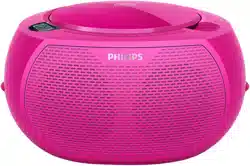
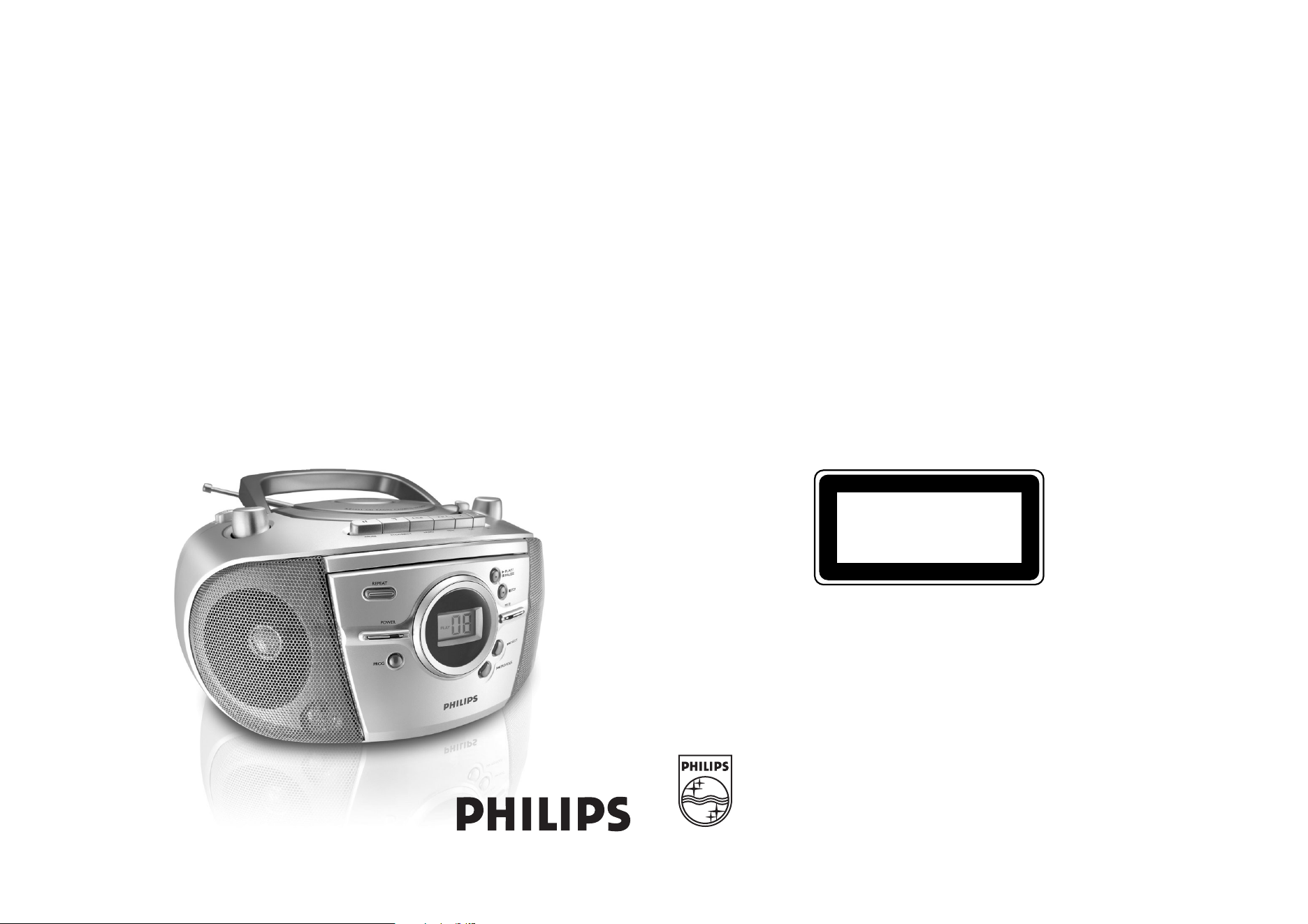
AZ1301CD Soundmachine
Meet Philips at the Internet
http://www.philips.com
Printed in China PDCC-JH-0520
W
CLASS 1
LASER PRODUCT
AZ 1031
Important notes for users in the U.K.
Mains plug
This apparatus is fitted with an approved 13 Amp plug.To change a fuse in this type of
plug proceed as follows:
1. Remove fuse cover and fuse.
2. Fix new fuse which should be a BS1362 3 Amp, A.S.T.A. or BSI approved type.
3. Refit the fuse cover.
If the fitted plug is not suitable for your socket outlets, it should be cut off and an
appropriate plug fitted in its place. If the mains plug contains a fuse, this should have a
value of 3 Amp. If a plug without a fuse is used, the fuse at the distribution board
should not be greater than 3 Amp.
Note:The severed plug must be disposed of to avoid a possible shock hazard should
it be inserted into a 13 Amp socket elsewhere.
How to connect a plug
The wires in the mains lead are coloured with the following code: blue = neutral (N),
brown = live (L). As these colours may not correspond with the colour markings
identifying the terminals in your plug, proceed as follows:
• Connect the blue wire to the terminal marked N or coloured black.
• Connect the brown wire to the terminal marked L or coloured red.
• Do not connect either wire to the earth terminal in the plug, marked E (or e) or
coloured green (or green and yellow).
Before replacing the plug cover, make certain that the cord grip is clamped over the
sheath of the lead - not simply over the two wires.
Copyright in the U.K.
Recording and playback of material may require consent. See Copyright Act 1956 and
The Performer’s Protection Acts 1958 to 1972.
A AB
C
X
PLAY
PROG
PLAY
REP.
PLAY
REP.A
3
4
5
6
7
8
A
Z
1
0
3
1
C
D
R
A
D
I
O
C
A
S
S
E
T
T
E
R
E
C
O
R
D
E
R
L
I
F
T
T
O
O
P
E
N
TUNING
88
92
96
100
100
104
106
107
140
160
108
53
60
70
80
120
x10
MW
FM
MW
BAND
FM FM ST.
kHz
MHz
VOLUME
TUNER
TAPE
CD
BASS BOOST
OFF ON
OFF
POWER FM ST.
REPEAT
PROG
PLAY/
PAUSE
STOP
PREVIOUS
NEXT
1
%
$
#
@
2
3
4
5
8
9
0
!
6
7
1
^
&
*
(
6xR14•UM-2•C-CELLS
2

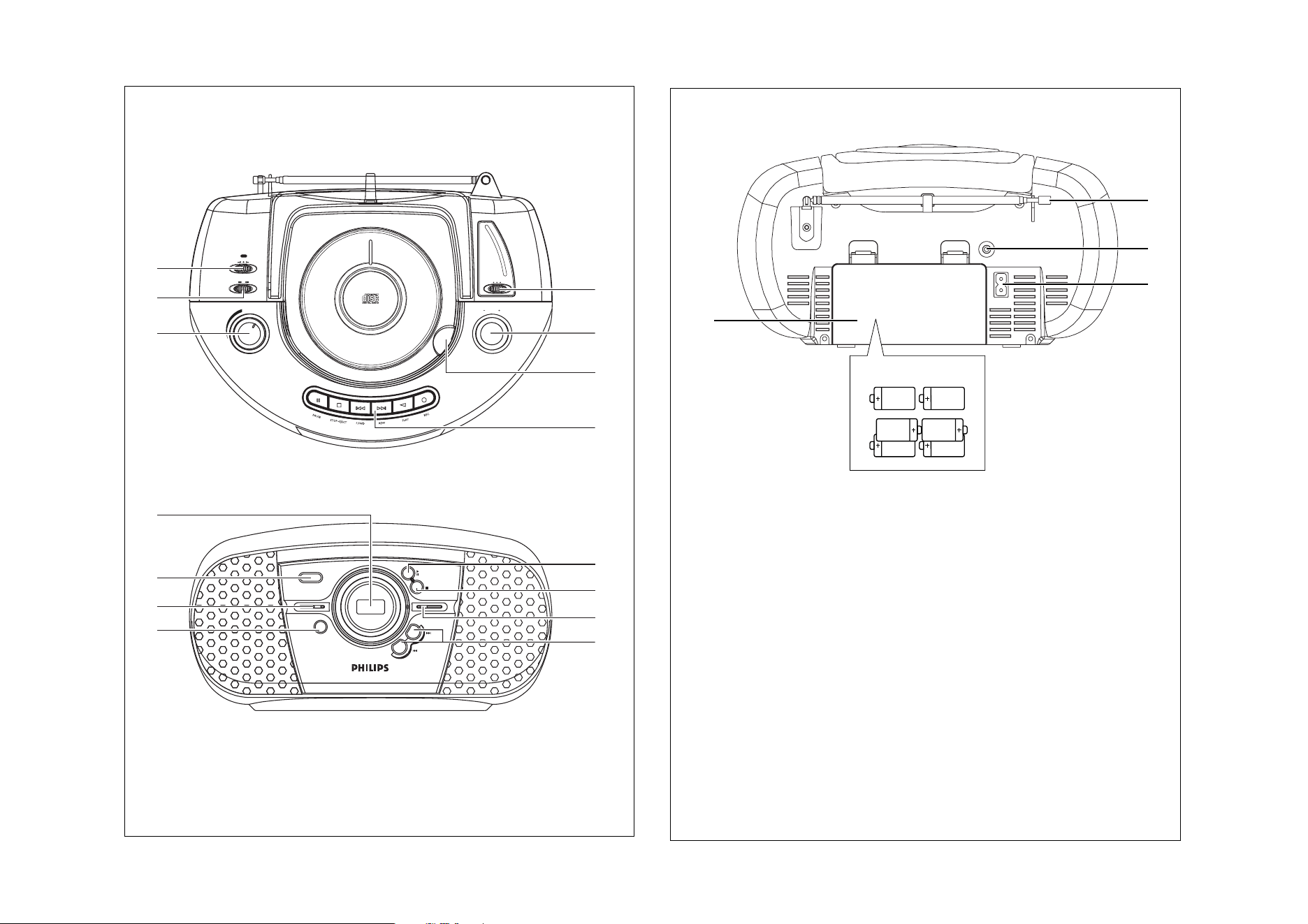
English Controls/Power Supply
Supplied Accessories
– AC power cord
Top and front panels (See 1)
1
VOLUME
–
adjusts volume level.
2
BASS BOOST
–
turns the bass enhance-
ment on/off.
3
Source selector: CD,TUNER,TAPE/OFF
–
selects CD, radio or tape source of sound
–
power off switch
4 BAND –
selects waveband
5
TUNING
– tunes to radio stations
6 LIFT TO OPEN – opens/ closes the CD
door.
7
CASSETTE RECORDER keys:
PAUSE–
pauses playback or recording
STOP•EJECT
–
stops the tape;
–
opens the cassette holder.
F.FWD / REW –
fast winds/ rewinds tape;
PLAY –
starts playback;
REC –
starts recording.
8 2 PLAY
/
; PAUSE - starts or pause CD
playback
9 9
STOP –
stops CD playback;;
–
erases a CD program
0
FM ST. indicator – lights up for stereo FM
reception.
! § NEXT, ∞ PREVIOUS
–
selects the next/previous track
– searches forwards/backwards (press and
hold the button) within the current track
@
PROG – programs tracks and reviews the
program
#
POWER indicator – lights up when the set
is powered on.
$
REPEAT
–
repeats a track/
CD program/entire CD.
% Display
–
shows the CD functions
Back panel (See 2)
^ Telescopic antenna - improves FM
reception.
& p – 3.5 mm stereo headphone socket
Helpful hints: The speakers will be muted
when headphones are connected to the set.
* AC ~ - inlet for power cord.
( Battery door - open to insert 6 x 1.5V
R-14/ UM-2/ C-cells.
CAUTION
Use of controls or adjustments or per-
formance of procedures other than
herein may result in unsafe operation.
Power Supply
Whenever convenient, use the power supply
cord if you want to conserve battery life.
Make sure you remove the plug from the set
and wall outlet before inserting batteries.
Batteries (not included)
1 Open the battery door and insert 6 batteries,
type R-14, UM-2 or C-cells, (preferably
alkaline) with the correct polarity as indicated
by the "+" and "–" symbols inside the com-
partment. (See 2)
2 Replace the battery door, making sure the bat-
teries are firmly and correctly in place.The set is
now ready to operate.
Batteries contain chemical substances, so
they should be disposed of properly.
Power Supply General Operation/Tuner
• Incorrect use of batteries can cause
electrolyte leakage and will corrode the
compartment or cause the batteries to burst:
• Do not mix battery types: e.g. alkaline with car-
bon zinc. Only use batteries of the same type
for the set.
• When inserting new batteries, do not try to mix
old batteries with the new ones.
• Remove the batteries if the set is not to be used
for a long time.
Using AC power
WARNING:Always check you have
completely switched off the set, before you
change or disconnect power supply.
1 Check if the power voltage, as shown on
the type plate located on the
rear of the set, corresponds to your local
power supply. If it does not, consult your deal-
er or service center.
2 Connect the power cord to the AC ~ inlet
and the wall socket.The set is now connected
and ready for use.
3 To switch the set off completely, withdraw the
power cord from the wall socket.
• Disconnect the power cord from the wall
socket to protect your set during heavy
thunderstorms.
The type plate is located on the
rear of the set.
Helpful hints:
– To avoid unnecessary energy consumption,
always adjust the
Source selector
to
TAPE/ OFF
after using the set. Also check
that the tape deck keys are released.
General operation
1 To select your sound source, adjust the
Source selector to: CD,
TUNER
or
TAPE/ OFF.
2 To switch off the set, adjust the Source
selector to
TAPE/ OFF
position and
check the cassette keys are released.
Adjusting volume and sound
Adjust the sound with the VOLUME and
BASS BOOST controls.
Radio reception
1 Adjust the Source selector to
TUNER
.
2 Adjust BAND to select your desired
waveband, MW, or FM ST. (stereo)
3 Tu r n TUNING to tune to a station.
- FM ST. indicator lights up for stereo FM
reception.
To improve radio reception:
• For FM, extend and turn the telescopic
antenna for best reception. Reduce its length
if the signal is too strong.
To tune to a weak FM station, adjust BAND
to FM (mono).
• For MW, the set uses a built-in antenna.
Direct this antenna for best reception by
turning the whole set.

Playing a CD
This CD player plays Audio Discs
including CD-Recordables (CD-R) and CD-
Rewritables (CD-RW).
• MP3, CD-ROM, CD-I, CDV,VCD, DVD or
computer CDs are not possible for playback.
1 Adjust the Source selector to CD.
2 Open the CD door, and insert a CD with
the printed side facing up, then press the CD
door gently to close.
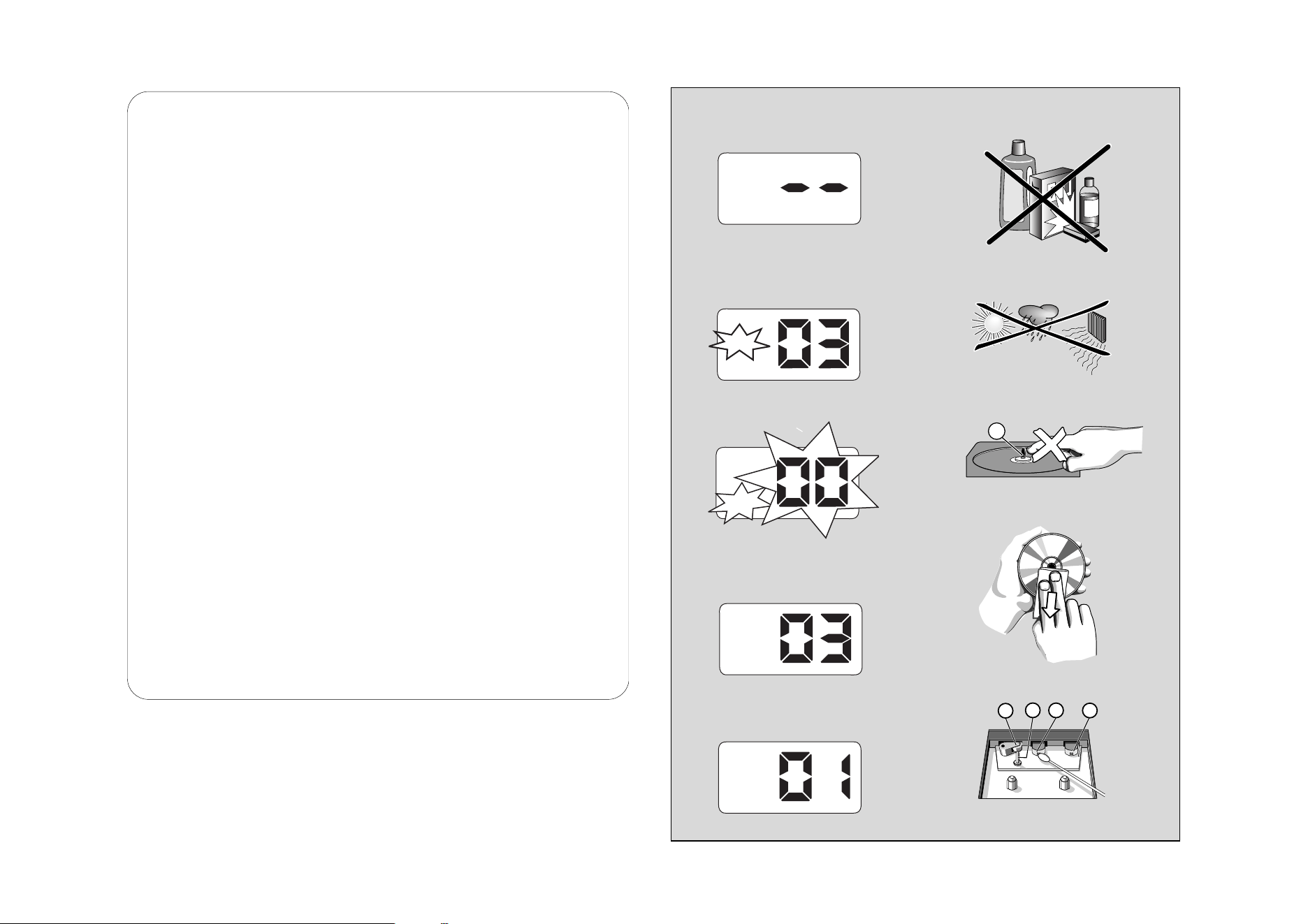
➜ Display shows --, and later the total
number of tracks. (See 3)
3 Press
2 PLAY
/
; PAUSE
to start playback.
4 To pause playback, press
2
/
;
.
➜
Display: PLAY flashes.
(See 4)
5 To resume, press
2
/
;
again
6 To stop CD playback, press
9
.
Helpful hints : CD play will also stop when:
– you open the CD door;
– you select
TUNER
or
TAPE/ OFF
sound
source;
– the CD has reached the end.
Selecting a different track
• Press
∞/ §
once or repeatedly until the
desired track number appears in the display.
• In the pause/stop position, press 2/; to start
playback.
Finding a passage within a
track
1 During playback, press and hold ∞ or § .
➜ The CD is played at high speed and with
reduced volume.
2 When you recognize the passage you want,
release ∞ or § to resume normal playback.
Helpful hints : When searching within a final
track and you reach the end of the last track, the
CD goes to stop mode.
Programming track
numbers
You may store up to 20 tracks in the desired
sequence. If you like, store any track more
than once.
1 In the stop position, press PROG to
activate programming.
➜ Display: PROG and 00 flash. (See 5)
2 Press
∞
or
§
to select your desired track
number.
3 Press PROG to store the desired track
number.
➜ Display: PROG and 00 flash for you to
program the next track..
4 Repeat steps 2 to 3 to select and store all
desired tracks in this way.
➜ If you attempt to store more than 20
tracks, no track can be selected and the
display shows --.
5 To play your program, press
2
/
;
.
Helpful hints :
– When playback of your program comes to
the stop position, your set will return to
normal playback.To re-enter program
mode, press PROG in the stop position.
Reviewing the program
In the stop position, press PROG repeatedly
to see your stored tracks.
Erasing a program
You can erase the contents of the memory
by:
– selecting
TUNER
or
TAPE/ OFF
sound
source;
– opening the CD door;
– in the stop position, press PROG to enter
program mode, and then press
9.
Different play modes:
REP. and REP. A (See 6
, 7)
You can select and change the play modes
before or during playback, and combine the
modes with PROG.
REP. – plays the current track continuously.
REP. A – repeats the entire CD/program
1 To select play mode, press REPEAT once or
more.
➜ The display shows REP. or REP.A.
2 Press 2; to start playback if in the stop
position.
3 To return to normal playback, press
REPEAT
repeatedly until the modes are no longer
displayed.
– You can also press 9 to cancel your play
mode.
Cassette playback
1 Adjust
the Source selector
to
TAPE/
OFF
.
2 Press STOP•EJECT to open the cassette
holder and insert a cassette, and close the
deck.
3 Press PLAY to start playback.
4 To pause playback, press PAUSE.To resume,
press the key again.
5 By pressing F.FWD/ REW, fast winding of
the tape is possible in both directions.To
stop fast winding, press STOP•EJECT.
6 To stop the tape, press STOP•EJECT.
Helpful hints:
– During playback, the keys are automatically
released at the end of a tape and the set is
switched off (unless PAUSE mode has been
activated.)
– During fast forwarding/rewinding, the keys will
not be released at the end of a tape.To switch
off the set, make sure the cassette keys are also
released.
General information on recording
• Recording is permissible insofar as copyright
or. other rights of third parties are not
infringed.
• For recording, use only NORMAL type cas-
settes (IEC type I) on which the tabs have not
yet been broken.This deck is not suited for
recording on CHROME (IEC II) or METAL
(IEC IV) type cassettes.
• The best recording level is set automatically.
Altering the VOLUME or BASS BOOST
will not affect the recording.
•To protect a tape from accidental erasure,
break out the tabs. If you wish to record again,
cover the tabs with a piece of adhesive tape.
Recording from the CD Player
1 Select CD source.
2 Insert a CD, or if desired, program track
numbers.
3 Press STOP•EJECT to open the cassette
holder. Insert a blank tape and close the
deck.
4 Press REC to start recording.
5 Press
2
/
;
PLAY/PAUSE to start CD
playback.
6 For brief interruptions press PAUSE.To
resume recording, press PAUSE again.
7 To stop recording, press STOP•EJECT.
Recording from the Radio
1 Select
TUNER
source.
2 Tune to the desired radio station (see Radio
reception).
3 Follows steps 3, 4, 6,7 under Recording
from the CD Player.
CD Player
CD Player
Cassette Recorder

CD player and CD handling
• If the CD player cannot read CDs correctly,
use a cleaning CD to clean the lens before
taking the set to repair.
• The lens of the CD player should never be
touched!
• Sudden changes in the surrounding
temperature can cause condensation on the
lens of your CD player. Playing a CD is then
not possible. Do not attempt to clean the
lens but leave the set in a warm environment
until the moisture evaporates.
•Always close the CD-tape door to avoid dust
on the lens.
•To clean the CD, wipe in a straight line from
the center towards the edge using a soft,
lint-free cloth. Do not use cleaning agents as
they may damage the disc.
• Never write on a CD or attach any stickers
to it.
Ta pe deck maintenance
To ensure quality recording and playback of
the tape deck, clean parts A, B and C as
shown, once a month. Use a cotton bud
slightly moistened with alcohol or a special
head cleaning fluid to clean the deck.
1 Open the cassette holder by pressing
STOP•EJECT.
2 Press PLAY and clean the roller C.
3 Press PA USE and clean the heads A, and
the capstan B.
4 After cleaning, press STOP•EJECT.
➜ Cleaning of the heads can also be done by
playing a cleaning cassette through once.
Safety information
• Place the set on a flat, hard and stable surface
so that the system does not tilt.
• Do not expose the set, batteries, CDs to
humidity, rain, sand or excessive heat caused
by heating equipment or direct sunlight.
• The apparatus shall not be exposed to drip-
ping or splashing.
• Adequate ventilation with a minimum gap of
15cm (6 inches) between the ventilation
holes and surrounding surfaces is necessary
to prevent heat build-up.
• Do not cover the ventilation openings with
items such as newspapers, table-cloths, cur-
tains, etc.
• No objects filled with liquids, such as vases,
shall be placed on the apparatus.
• No naked flame sources, such as lighted can-
dles, should be placed on the apparatus.
• The mechanical parts of the set contain
self-lubricating bearings and must not be oiled
or lubricated.
•To clean the set, use a dry cloth. Do not use
any cleaning agents containing alcohol,
ammonia, benzene or abrasives as these may
harm the housing.
Problem
– Possible cause
• Remedy
No sound /power
– Volume not adjusted
• Adjust the VOL
– Power cord not securely connected
• Connect the AC power cord properly
– Batteries dead/ incorrectly inserted
• Insert (fresh) batteries correctly
– Headphones connected to the set
•
Disconnect headphones.
– CD contains non-audio files
• Press
∞ , §
once or more to skip to a CD audio
track, instead of the data file.
Display does not function properly/ No
reaction to operation of any of the con-
trols
– Electrostatic discharge
• Switch off and unplug the set. Reconnect after a
few seconds
The CD skips tracks
– CD damaged or dirty
• Replace or clean CD
– Program is active
• Quit program mode
--, Er
or
01indication
– No CD inserted
•
Insert a CD
– CD badly scratched or dirty
•
Replace/ clean CD, see Maintenance
Note: A CD badly scratch or dirty may result in
improper operation.
– Laser lens steamed up
•Wait until lens has cleared
– CD-R/CD-RW is blank or not finalized
•
Use a finalized CD-R/CD-RW or suitable CD
Audio disc only
Poor cassette sound quality
– Dust and dirt on the heads, etc.
• Clean deck parts, see Maintenance
– Use of incompatible cassette types (METAL or
CHROME)
• Only use NORMAL (IEC
I
) for recording
Recording does not work
– Cassette tab(s) may be broken
• Apply adhesive tape over the missing tab space
Maintenance & safety (See 8) Troubleshooting
If a fault occurs, first check the points listed below before taking the set for repair.
If you are unable to remedy a problem by following these hints, consult your dealer or service centre.
WARNING: Do not open the set as there is a risk of electric shock. Under no
circumstances should you try to repair the set yourself, as this will
invalidate the guarantee.
Environmental information
All unnecessary packaging material has been omitted.The packaging can be easily separated
into three materials: cardboard, polystyrene and plastic.
Your set consists of materials which can be recycled if disassembled by a
specialized company. Please observe the local regulations regarding the
disposal of packaging, dead batteries and old equipment.
Disposal of your old product
Your product is designed and manufactured with high quality materials and
components, which can be recycled and reused.
When this crossed-out wheeled bin symbol is attached to a product it means
the product is covered by the European Directive 2002/96/EC
Please inform yourself about the local separate collection system for electrical and elec-
tronic products.
Please act according to your local rules and do not dispose of your old products with
your normal household waste.The correct disposal of your old product will help prevent
potential negative consequences for the environment and human health.
NOTES