

ENG-3
ABOUT THIS MANUAL
The user manual has two parts: this simple paper USER MANUAL and a de-
tailed FULL MANUAL you can download.
Design and specications are subject to change without prior notice.
USER MANUAL
See this manual for product installation, components and connections.
FULL MANUAL
You can access the FULL MANUAL or download it in document format from
OXS’s website. (http://www.oxsaudio.com/support)

ENG-4
CONTENTS
What’s inside ENG-5
Device layout ENG-6
Remote ENG-7
How to use ENG-8
Setting up your soundbar ENG-8
Positioning ENG-8
Power on ENG-8
Connecting to an audio source ENG-9
Connecting via HDMI cable ENG-9
Connecting via the optical cable ENG-9
Connecting via the analog cable ENG-9
Connecting via Bluetooth ENG-10
Setting the speaker as the default device with USB-C input ENG-11
For Windows PC users ENG-11
For MAC users ENG-11
Changing the input source ENG-12
ENG-5
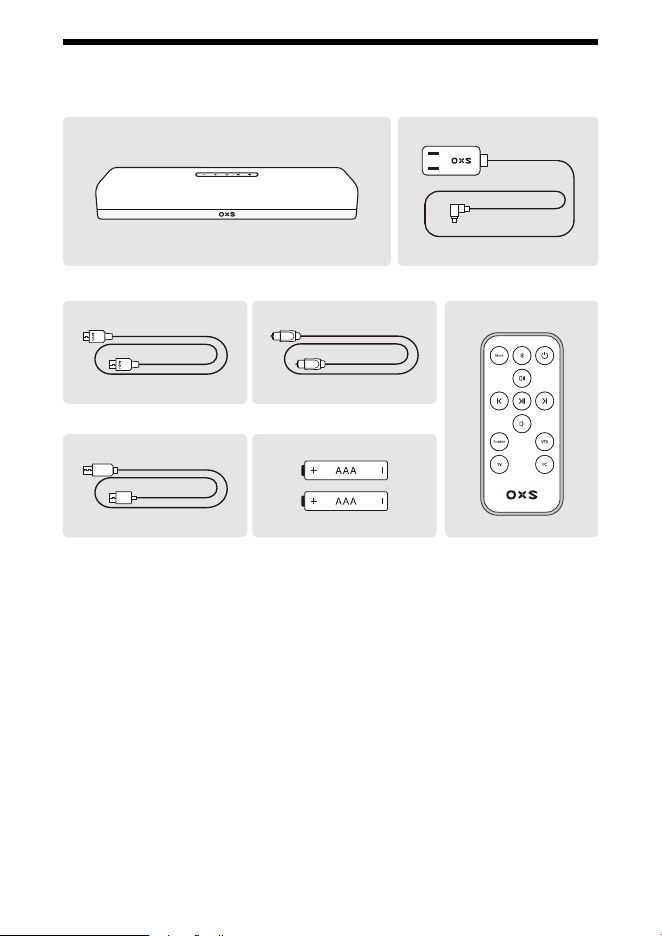
WHAT’S INSIDE
Speaker Power cord
USB-A
USB-C
Remote controlAAA Batteries
HDMI cable
Optical ber line
USB-C to A cable
ENG-6
DEVICE LAYOUT
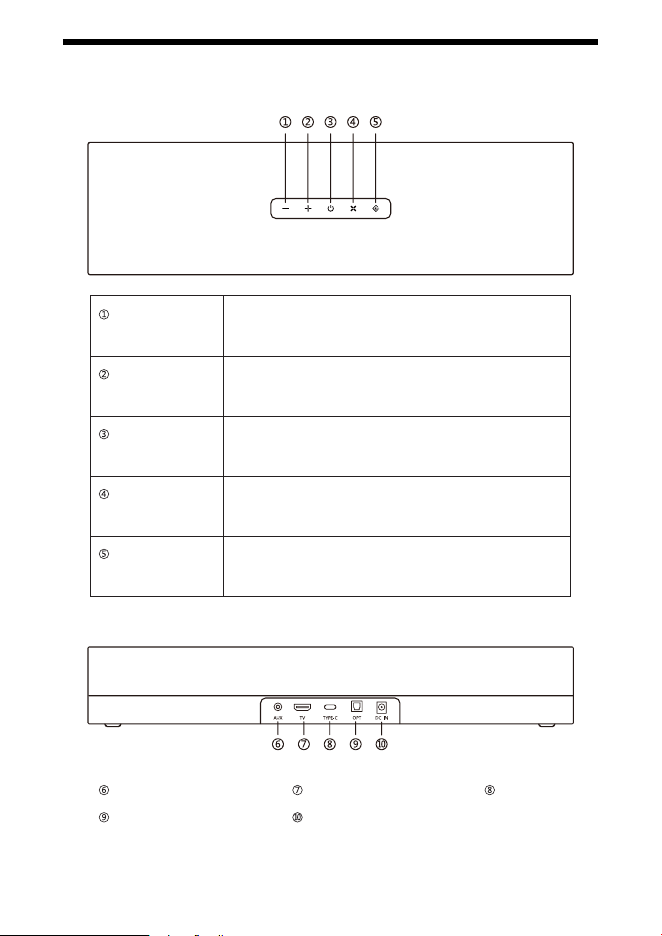
AUX (3.5mm jack)
Power (DC-IN)Optical
Type-CTV (ARC)
Volume down
Volume up
Power
Virtual surround
Input selector
Short press: Volume down
Press & hold: Volume goes down continuously
Short press: Volume up
Press & hold: Volume goes up continuously
Short press: Power on, standby, or o
LED indicates: Orange = on / Dimmed Orange = standby
Short press: Activates the virtual surround sound eect
LED indicates: Orange = on
Toggles between the 5 types of input:
TV -> OPT -> AUX -> BT -> USB C
ENG-7
REMOTE
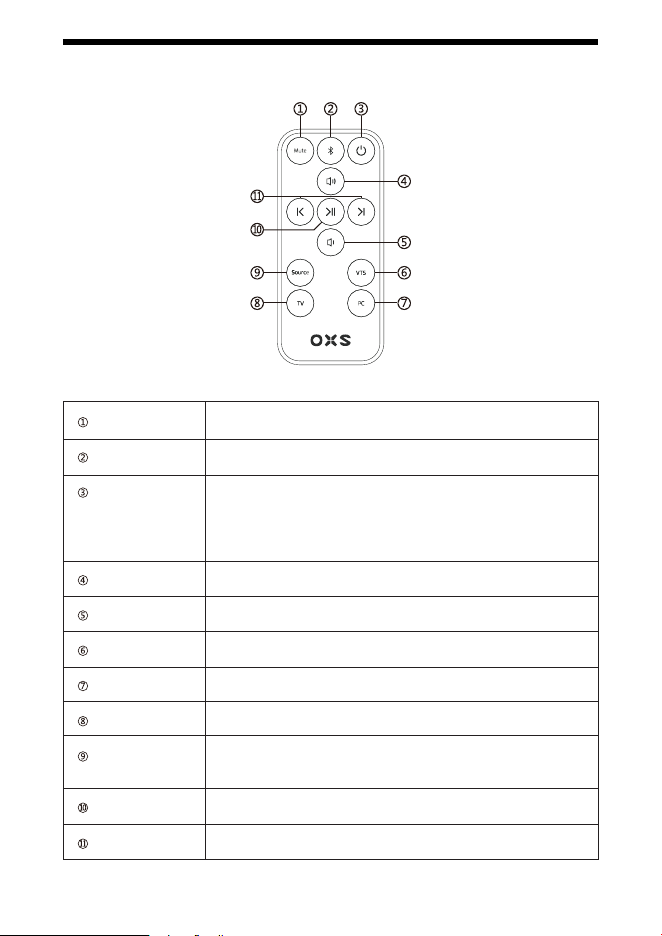
Mute/unmute
Bluetooth
Power
Volume up
Volume down
Virtual surround
PC
TV
Input selector
Play/Pause
Pre/Next
Mutes / unmutes the sound bar
Bluetooth mode / Bluetooth pairing
Turn on, o, or standby the soundbar.
Auto Standby will shut down the soundbar in the following cases:
- No audio signal input for 15 minutes in AUX /OPT/ HDMI/BT mode
- Press the power button in standby mode to power on the speaker.
Short press: Volume up
Short press: Volume down
Orange = on
Switch to the Type-C input
Switch to the TV input
Toggles between the 5 types of input: HDMI -> OPT -> AUX ->
BT -> Type-C
Play/pause the music le
Select the previous or next music le
ENG-8
HOW TO USE
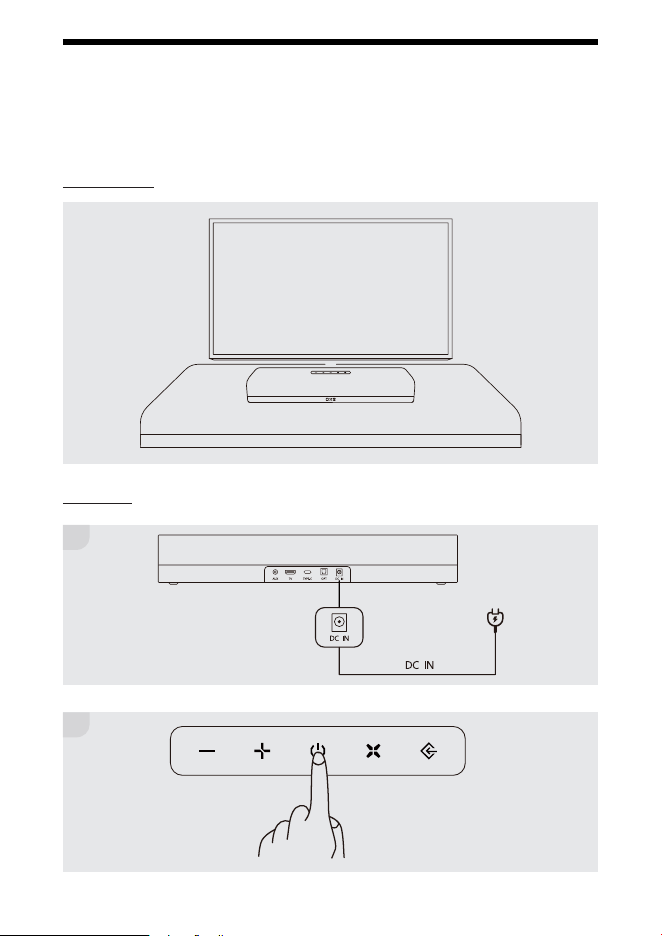
SETTING UP YOUR SOUNDBAR
Positioning
Power on
1
2
ENG-9
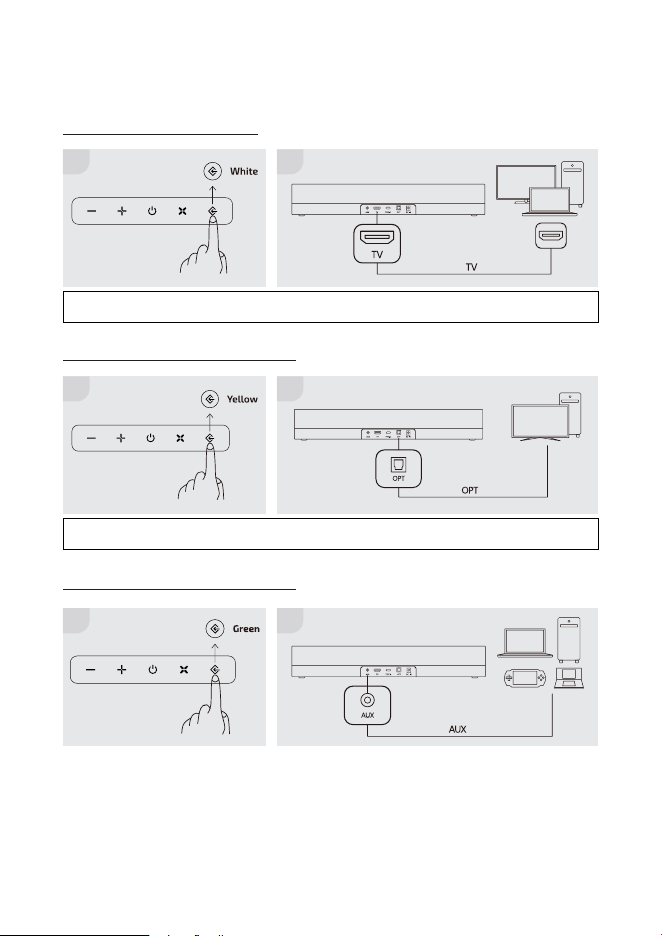
CONNECTING TO AN AUDIO SOURCE
Connecting via HDMI cable
Connecting via the optical cable
Connecting via the analog cable
NOTE: Please change your console output to optical, and change the audio setting of the console to PCM
format.
NOTE: Please change your console output to HDMI, and change the audio setting of the console to PCM
format.
1
1
1 2
2
2
ENG-10
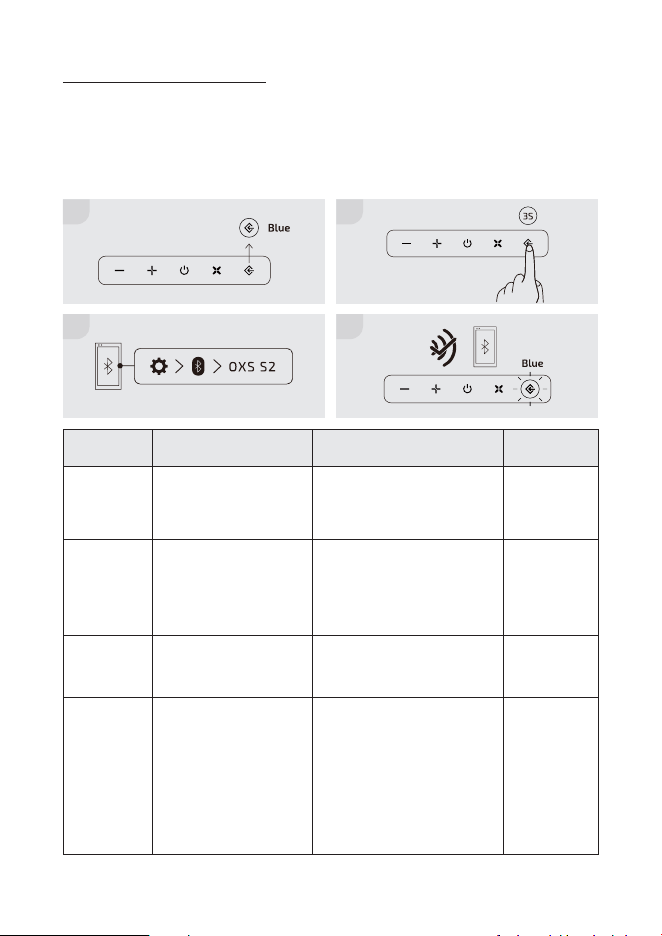
Connecting via Bluetooth
Check before connection
- Only one device can be connected at a time.
- You can connect to a Bluetooth-enabled Computer.
- Make sure the device you need to connect is close to the soundbar within a 10m range.
- Enter <0000> if a PIN code is required during the connection.
Modes
Pairing
Connect-
able
Connected
Disconnect
LED behavior
Flashing blue
Flashing blue
Solid blue
From solid
blue to ash-
ing blue
Description
Pairing with new
devices
Ready to connect to the
last paired device. Turn
on Bluetooth on your
device and select OXS
S2 to connect.
When a device is con-
nected to the sound bar
via Bluetooth
To disconnect your de-
vice from the soundbar
How to activate*
Hold and press the input se-
lector button on the top of the
soundbar or on the remote
control for 3 seconds
Automatically activated
when the soundbar is not
connected
Automatically activated when
a device is successfully paired
Hold and press the input
selector button on the top
of the soundbar or on the
remote control.
- Disconnection takes some
time because the TV must
receive a response from the
soundbar. The time varies on
the model.
*All these actions must be done when the input selector is set to Bluetooth mode (LED: blue).
1
3
2
4
ENG-11
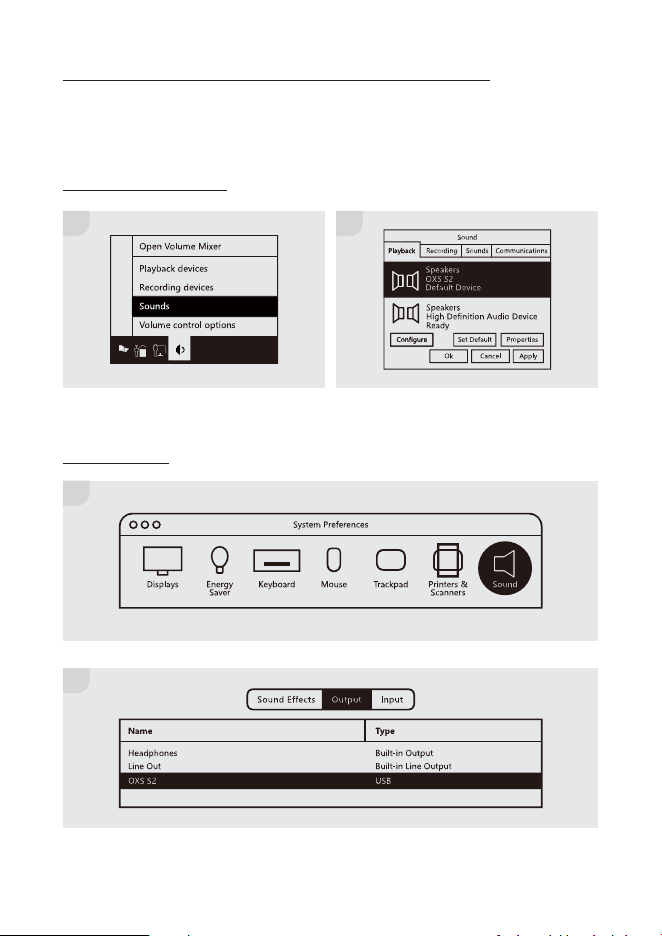
Setting the speaker as the default device with USB-C input
For Windows PC users
For MAC users
If you are using the S2 for the rst time, you may be required to set up the device as your
system’s default playback device.
1 2
1
2
ENG-12
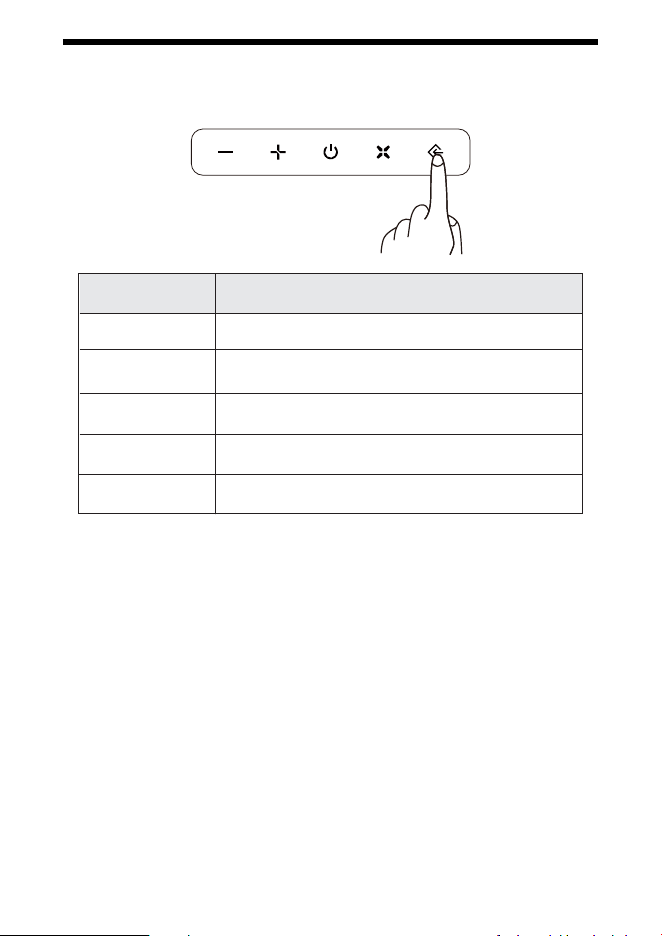
CHANGING THE INPUT SOURCE
Input Source
TV ARC
OPT
AUX
Bluetooth
USB-C
LED Indicates
White
Yellow
Green
Blue
Purple