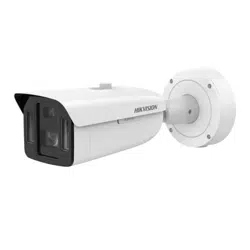

Network Camera
User Manual

Iniaves on the Use of Video Products
Thank you for choosing Hikvision products.
Technology aects every aspect of our life. As a high-tech company, we are increasingly aware of
the role technology plays in improving business eciency and quality of life, but at the same me,
the potenal harm of its improper usage. For example, video products are capable of recording
real, complete and clear images. This provides a high value in retrospect and preserving real-me
facts. However, it may also result in the infringement of a third party's legimate rights and
interests if improper distribuon, use and/or processing of video data takes place. With the
philosophy of "Technology for the Good", Hikvision requests that every end user of video
technology and video products shall comply with all the applicable laws and regulaons, as well as
ethical customs, aiming to jointly create a beer community.
Please read the following iniaves carefully:
●
Everyone has a reasonable expectaon of privacy, and the installaon of video products should
not be in conict with this reasonable expectaon. Therefore, a warning noce shall be given in
a reasonable and eecve manner and clarify the monitoring range, when installing video
products in public areas. For non-public areas, a third party's rights and interests shall be
evaluated when installing video products, including but not limited to, installing video products
only aer obtaining the consent of the stakeholders, and not installing highly-invisible video
products.
●
The purpose of video products is to record real acvies within a specic me and space and
under specic condions. Therefore, every user shall rst reasonably dene his/her own rights in
such specic scope, in order to avoid infringing on a third party's portraits, privacy or other
legimate rights.
●
During the use of video products, video image data derived from real scenes will connue to be
generated, including a large amount of biological data (such as facial images), and the data could
be further applied or reprocessed. Video products themselves could not disnguish good from
bad regarding how to use the data based solely on the images captured by the video products.
The result of data usage depends on the method and purpose of use of the data controllers.
Therefore, data controllers shall not only comply with all the applicable laws and regulaons and
other normave requirements, but also respect internaonal norms, social morality, good
morals, common pracces and other non-mandatory requirements, and respect individual
privacy, portrait and other rights and interests.
●
The rights, values and other demands of various stakeholders should always be considered when
processing video data that is connuously generated by video products. In this regard, product
security and data security are extremely crucial. Therefore, every end user and data controller,
shall undertake all reasonable and necessary measures to ensure data security and avoid data
leakage, improper disclosure and improper use, including but not limited to, seng up access
Network Camera User Manual
i

control, selecng a suitable network environment (the Internet or Intranet) where video
products are connected, establishing and constantly opmizing network security.
●
Video products have made great contribuons to the improvement of social security around the
world, and we believe that these products will also play an acve role in more aspects of social
life. Any abuse of video products in violaon of human rights or leading to criminal acvies are
contrary to the original intent of technological innovaon and product development. Therefore,
each user shall establish an evaluaon and tracking mechanism of their product applicaon to
ensure that every product is used in a proper and reasonable manner and with good faith.
Network Camera User Manual
ii

Legal Informaon
©2022 Hangzhou Hikvision Digital Technology Co., Ltd. All rights reserved.
About this Manual
The Manual includes instrucons for using and managing the Product. Pictures, charts, images and
all other informaon hereinaer are for descripon and explanaon only. The informaon
contained in the Manual is subject to change, without noce, due to rmware updates or other
reasons. Please nd the latest version of this Manual at the Hikvision website ( hps://
www.hikvision.com/ ).
Please use this Manual with the guidance and assistance of professionals trained in supporng the
Product.
Trademarks
and other Hikvision's trademarks and logos are the properes of
Hikvision in various jurisdicons.
Other trademarks and logos menoned are the properes of their respecve owners.
Disclaimer
TO THE MAXIMUM EXTENT PERMITTED BY APPLICABLE LAW, THIS MANUAL AND THE PRODUCT
DESCRIBED, WITH ITS HARDWARE, SOFTWARE AND FIRMWARE, ARE PROVIDED "AS IS" AND "WITH
ALL FAULTS AND ERRORS". HIKVISION MAKES NO WARRANTIES, EXPRESS OR IMPLIED, INCLUDING
WITHOUT LIMITATION, MERCHANTABILITY, SATISFACTORY QUALITY, OR FITNESS FOR A PARTICULAR
PURPOSE. THE USE OF THE PRODUCT BY YOU IS AT YOUR OWN RISK. IN NO EVENT WILL HIKVISION
BE LIABLE TO YOU FOR ANY SPECIAL, CONSEQUENTIAL, INCIDENTAL, OR INDIRECT DAMAGES,
INCLUDING, AMONG OTHERS, DAMAGES FOR LOSS OF BUSINESS PROFITS, BUSINESS
INTERRUPTION, OR LOSS OF DATA, CORRUPTION OF SYSTEMS, OR LOSS OF DOCUMENTATION,
WHETHER BASED ON BREACH OF CONTRACT, TORT (INCLUDING NEGLIGENCE), PRODUCT LIABILITY,
OR OTHERWISE, IN CONNECTION WITH THE USE OF THE PRODUCT, EVEN IF HIKVISION HAS BEEN
ADVISED OF THE POSSIBILITY OF SUCH DAMAGES OR LOSS.
YOU ACKNOWLEDGE THAT THE NATURE OF THE INTERNET PROVIDES FOR INHERENT SECURITY
RISKS, AND HIKVISION SHALL NOT TAKE ANY RESPONSIBILITIES FOR ABNORMAL OPERATION,
PRIVACY LEAKAGE OR OTHER DAMAGES RESULTING FROM CYBER-ATTACK, HACKER ATTACK, VIRUS
INFECTION, OR OTHER INTERNET SECURITY RISKS; HOWEVER, HIKVISION WILL PROVIDE TIMELY
TECHNICAL SUPPORT IF REQUIRED.
YOU AGREE TO USE THIS PRODUCT IN COMPLIANCE WITH ALL APPLICABLE LAWS, AND YOU ARE
SOLELY RESPONSIBLE FOR ENSURING THAT YOUR USE CONFORMS TO THE APPLICABLE LAW.
ESPECIALLY, YOU ARE RESPONSIBLE, FOR USING THIS PRODUCT IN A MANNER THAT DOES NOT
INFRINGE ON THE RIGHTS OF THIRD PARTIES, INCLUDING WITHOUT LIMITATION, RIGHTS OF
PUBLICITY, INTELLECTUAL PROPERTY RIGHTS, OR DATA PROTECTION AND OTHER PRIVACY RIGHTS.
YOU SHALL NOT USE THIS PRODUCT FOR ANY PROHIBITED END-USES, INCLUDING THE
Network Camera User Manual
iii

DEVELOPMENT OR PRODUCTION OF WEAPONS OF MASS DESTRUCTION, THE DEVELOPMENT OR
PRODUCTION OF CHEMICAL OR BIOLOGICAL WEAPONS, ANY ACTIVITIES IN THE CONTEXT RELATED
TO ANY NUCLEAR EXPLOSIVE OR UNSAFE NUCLEAR FUEL-CYCLE, OR IN SUPPORT OF HUMAN
RIGHTS ABUSES.
IN THE EVENT OF ANY CONFLICTS BETWEEN THIS MANUAL AND THE APPLICABLE LAW, THE LATTER
PREVAILS.
Network Camera User Manual
iv
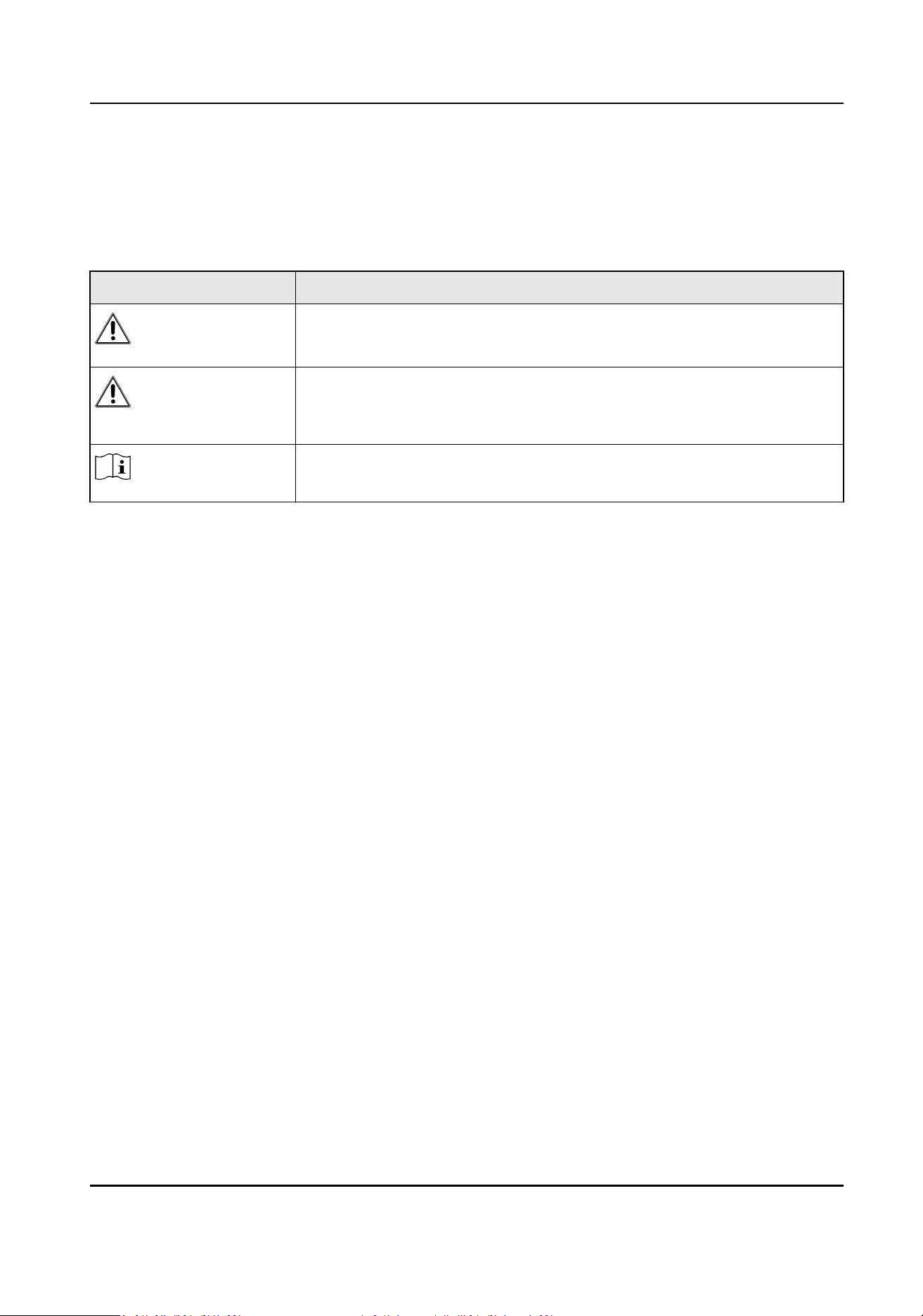
Symbol Convenons
The symbols that may be found in this document are dened as follows.
Symbol Descripon
Danger
Indicates a hazardous situaon which, if not avoided, will or could
result in death or serious injury.
Cauon
Indicates a potenally hazardous situaon which, if not avoided, could
result in equipment damage, data loss, performance degradaon, or
unexpected results.
Note
Provides addional informaon to emphasize or supplement
important points of the main text.
Network Camera User Manual
v

Safety Instrucon
These instrucons are intended to ensure that user can use the product correctly to avoid danger
or property loss.
Laws and Regulaons
●
The device should be used in compliance with local laws, electrical safety regulaons, and re
prevenon regulaons.
Electricity
●
In the use of the product, you must be in strict compliance with the electrical safety regulaons
of the naon and region.
●
The equipment shall not be exposed to dripping or splashing and that no objects lled with
liquids, such as vases, shall be placed on the equipment.
●
Provide a surge suppressor at the inlet opening of the equipment under special condions such
as the mountain top, iron tower, and forest.
●
CAUTION: To reduce the risk of re, replace only with the same type and rang of fuse.
●
The equipment must be connected to an earthed mains socket-outlet.
●
An appropriate readily accessible disconnect device shall be incorporated external to the
equipment.
●
An appropriate overcurrent protecve device shall be incorporated external to the equipment,
not exceeding the specicaon of the building.
●
An all-pole mains switch shall be incorporated in the electrical installaon of the building.
●
Ensure correct wiring of the terminals for connecon to an AC mains supply.
●
The equipment has been designed, when required, modied for connecon to an IT power
distribuon system.
Baery
●
Do not ingest baery. Chemical burn hazard!
●
This product contains a coin/buon cell baery. If the coin/buon cell baery is swallowed, it
can cause severe internal burns in just 2 hours and can lead to death.
●
Keep new and used baeries away from children.
●
If the baery compartment does not close securely, stop using the product and keep it away
from children.
●
If you think baeries might have been swallowed or placed inside any part of the body, seek
immediate medical aenon.
●
CAUTION: Risk of explosion if the baery is replaced by an incorrect type. Dispose of used
baeries according to the instrucons.
●
ATTENTION: IL Y A RISQUE D'EXPLOSION SI LA BATTERIE EST REMPLACÉE PAR UNE BATTERIE DE
TYPE INCORRECT. METTRE AU REBUT LES BATTERIES USAGÉES CONFORMÉMENT AUX
INSTRUCTIONS.
Network Camera User Manual
vi

●
Improper replacement of the baery with an incorrect type may defeat a safeguard (for
example, in the case of some lithium baery types).
●
Do not dispose of the baery into re or a hot oven, or mechanically crush or cut the baery,
which may result in an explosion.
●
Do not leave the baery in an extremely high temperature surrounding environment, which may
result in an explosion or the leakage of ammable liquid or gas.
●
Do not subject the baery to extremely low air pressure, which may result in an explosion or the
leakage of ammable liquid or gas.
●
+ idenes the posive terminal(s) of equipment which is used with, or generates direct current.
- idenes the negave terminal(s) of equipment which is used with, or generates direct current.
Fire Prevenon
●
No naked ame sources, such as lighted candles, should be placed on the equipment.
●
The serial port of the equipment is used for debugging only.
Hot Surface Prevenon
●
CAUTION: Hot parts! Burned ngers when handling the parts. Wait one-half hour
aer switching o before handling parts. This scker is to indicate that the marked item can be
hot and should not be touched without taking care. For device with this scker, this device is
intended for installaon in a restricted access locaon, access can only be gained by service
persons or by users who have been instructed about the reasons for the restricons applied to
the locaon and about any precauons that shall be taken.
Installaon
●
Install the equipment according to the instrucons in this manual.
●
To prevent injury, this equipment must be securely aached to the oor/wall in accordance with
the installaon instrucons.
●
Never place the equipment in an unstable locaon. The equipment may fall, causing serious
personal injury or death.
Power Supply
●
The input voltage should conform to IEC60950-1 standard: SELV (Safety Extra Low Voltage) and
the Limited Power Source. Refer to the appropriate documentaon for detailed informaon.
●
The power source should meet limited power source or PS2 requirements according to IEC
60950-1 or IEC 62368-1 standard.
●
DO NOT connect mulple devices to one power adapter, to avoid over-heang or re hazards
caused by overload.
●
Make sure the plug is properly connected to the power socket.
Network Camera User Manual
vii

White Light Illuminator (If supported)
●
Possibly hazardous opcal radiaon emied from this product.
●
DO NOT stare at operang light source. May be harmful to the eyes.
●
Wear appropriate eye protecon or DO NOT turn on the white light when you assemble, install
or maintain the camera.
Transportaon
●
Keep the device in original or similar packaging while transporng it.
System Security
●
The installer and user are responsible for password and security conguraon.
Maintenance
●
If the product does not work properly, please contact your dealer or the nearest service center.
●
We shall not assume any responsibility for problems caused by unauthorized repair or
maintenance.
●
A few device components (e.g., electrolyc capacitor) require regular replacement. The average
lifespan varies, so periodic checking is recommended. Contact your dealer for details.
Cleaning
●
Please use a so and dry cloth when clean inside and outside surfaces of the product cover. Do
not use alkaline detergents.
Using Environment
●
When any laser equipment is in use, make sure that the device lens is not exposed to the laser
beam, or it may burn out.
●
DO NOT expose the device to high electromagnec radiaon or dusty environments.
●
For indoor-only device, place it in a dry and well-venlated environment.
●
DO NOT aim the lens at the sun or any other bright light.
●
Make sure the running environment meets the requirement of the device. The operang
temperature shall be -30 °C to 60 °C (-22 °F to 140 °F), and the operang humidity shall be 95%
or less (no condensing).
●
DO NOT place the camera in extremely hot, cold, dusty or damp locaons, and do not expose it
to high electromagnec radiaon.
Emergency
●
If smoke, odor, or noise arises from the device, immediately turn o the power, unplug the
power cable, and contact the service center.
Network Camera User Manual
viii

Time Synchronizaon
●
Set up device me manually for the rst me access if the local me is not synchronized with
that of the network. Visit the device via Web browse/client soware and go to me sengs
interface.
Reecon
●
Make sure that no reecve surface is too close to the device lens. The IR light from the device
may reect back into the lens causing reecon.
Network Camera User Manual
ix

Contents
Chapter 1 System Requirement .................................................................................................. 1
Chapter 2 Device Acvaon and Accessing ................................................................................. 2
2.1 Acvate the Device via SADP ................................................................................................. 2
2.2 Acvate the Device via Browser ............................................................................................. 2
2.3 Login ...................................................................................................................................... 3
2.3.1 Plug-in Installaon ........................................................................................................ 3
2.3.2 Admin Password Recovery ............................................................................................ 4
2.3.3 Illegal Login Lock ........................................................................................................... 5
Chapter 3 Live View .................................................................................................................... 6
3.1 Live View Parameters ............................................................................................................. 6
3.1.1 Enable and Disable Live View ........................................................................................ 6
3.1.2 Adjust Aspect Rao ....................................................................................................... 6
3.1.3 Live View Stream Type .................................................................................................. 6
3.1.4 Select the Third-Party Plug-in ....................................................................................... 6
3.1.5 Window Division ........................................................................................................... 7
3.1.6 Light .............................................................................................................................. 7
3.1.7 Count Pixel .................................................................................................................... 7
3.1.8 Start Digital Zoom ......................................................................................................... 7
3.1.9 Auxiliary Focus .............................................................................................................. 7
3.1.10 Lens Inializaon ........................................................................................................ 8
3.1.11 Quick Set Live View ..................................................................................................... 8
3.1.12 Lens Parameters Adjustment ...................................................................................... 9
3.1.13 Conduct 3D Posioning ............................................................................................... 9
3.2 Set Transmission Parameters ................................................................................................. 9
Chapter 4 Video and Audio ....................................................................................................... 11
4.1 Video Sengs ...................................................................................................................... 11
Network Camera User Manual
x

4.1.1 Stream Type ................................................................................................................ 11
4.1.2 Video Type .................................................................................................................. 11
4.1.3 Resoluon ................................................................................................................... 12
4.1.4 Bitrate Type and Max. Bitrate ..................................................................................... 12
4.1.5 Video Quality .............................................................................................................. 12
4.1.6 Frame Rate .................................................................................................................. 12
4.1.7 Video Encoding ........................................................................................................... 12
4.1.8 Smoothing ................................................................................................................... 14
4.2 ROI ....................................................................................................................................... 15
4.2.1 Set ROI ........................................................................................................................ 15
4.3 Display Info. on Stream ........................................................................................................ 15
4.4 Audio Sengs ...................................................................................................................... 16
4.4.1 Audio Encoding ........................................................................................................... 16
4.4.2 Audio Input ................................................................................................................. 16
4.4.3 Audio Output .............................................................................................................. 16
4.4.4 Environmental Noise Filter .......................................................................................... 17
4.5 Two-way Audio .................................................................................................................... 17
4.6 Display Sengs .................................................................................................................... 17
4.6.1 Scene Mode ................................................................................................................ 17
4.6.2 Image Parameters Switch ............................................................................................ 24
4.6.3 Video Standard ........................................................................................................... 24
4.6.4 Local Video Output ..................................................................................................... 25
4.7 OSD ...................................................................................................................................... 25
4.8 Set Privacy Mask .................................................................................................................. 25
4.9 Overlay Picture ..................................................................................................................... 26
4.10 Set Target Cropping ............................................................................................................ 26
Chapter 5 Video Recording and Picture Capture ........................................................................ 28
5.1 Storage Sengs ................................................................................................................... 28
Network Camera User Manual
xi

5.1.1 Set New or Unencrypted Memory Card ...................................................................... 28
5.1.2 Set FTP ........................................................................................................................ 30
5.1.3 Set NAS ....................................................................................................................... 31
5.1.4 eMMC Protecon ........................................................................................................ 31
5.1.5 Set Cloud Storage ........................................................................................................ 32
5.2 Video Recording ................................................................................................................... 32
5.2.1 Record Automacally .................................................................................................. 32
5.2.2 Record Manually ......................................................................................................... 34
5.2.3 Playback and Download Video .................................................................................... 34
5.3 Capture Conguraon .......................................................................................................... 35
5.3.1 Capture Automacally ................................................................................................ 35
5.3.2 Capture Manually ........................................................................................................ 35
5.3.3 View and Download Picture ........................................................................................ 35
Chapter 6 Event and Alarm ....................................................................................................... 37
6.1 Set Moon Detecon ........................................................................................................... 37
6.1.1 Expert Mode ............................................................................................................... 37
6.1.2 Normal Mode .............................................................................................................. 38
6.2 Set Video Tampering Alarm ................................................................................................. 39
6.3 Set Excepon Alarm ............................................................................................................. 40
6.4 Set Alarm Input .................................................................................................................... 41
6.5 Set Video Quality Diagnosis ................................................................................................. 41
6.6 Set Vibraon Detecon ........................................................................................................ 42
6.7 Detect Audio Excepon ........................................................................................................ 42
6.8 Detect Scene Change ........................................................................................................... 43
6.9 Set Defocus Detecon .......................................................................................................... 44
6.10 Set Size Filter ...................................................................................................................... 44
6.11 Draw Area .......................................................................................................................... 44
Chapter 7 Network Sengs ...................................................................................................... 45
Network Camera User Manual
xii

7.1 TCP/IP ................................................................................................................................... 45
7.1.1 Mulcast ..................................................................................................................... 46
7.2 SNMP ................................................................................................................................... 46
7.3 Set SRTP ............................................................................................................................... 47
7.4 Port Mapping ....................................................................................................................... 47
7.4.1 Set Auto Port Mapping ................................................................................................ 48
7.4.2 Set Manual Port Mapping ........................................................................................... 48
7.4.3 Set Port Mapping on Router ....................................................................................... 48
7.5 Port ...................................................................................................................................... 49
7.6 Access to Device via Domain Name ..................................................................................... 50
7.7 Access to Device via PPPoE Dial Up Connecon .................................................................. 51
7.8 Set Network Service ............................................................................................................. 52
7.9 Set Open Network Video Interface ...................................................................................... 53
7.10 Set ISUP .............................................................................................................................. 53
7.11 Set Alarm Server ................................................................................................................ 54
7.12 Access Camera via Hik-Connect ......................................................................................... 54
7.12.1 Enable Hik-Connect Service on Camera .................................................................... 55
7.12.2 Set Up Hik-Connect ................................................................................................... 56
7.12.3 Add Camera to Hik-Connect ...................................................................................... 56
Chapter 8 Arming Schedule and Alarm Linkage ......................................................................... 58
8.1 Set Arming Schedule ............................................................................................................ 58
8.2 Linkage Method Sengs ...................................................................................................... 58
8.2.1 Trigger Alarm Output .................................................................................................. 58
8.2.2 FTP/NAS/Memory Card Uploading ............................................................................. 60
8.2.3 Send Email .................................................................................................................. 60
8.2.4 Nofy Surveillance Center .......................................................................................... 61
8.2.5 Trigger Recording ........................................................................................................ 61
8.2.6 Flashing Light .............................................................................................................. 61
Network Camera User Manual
xiii

8.2.7 Audible Warning ......................................................................................................... 62
Chapter 9 System and Security ................................................................................................. 63
9.1 View Device Informaon ...................................................................................................... 63
9.2 Search and Manage Log ....................................................................................................... 63
9.3 Simultaneous Login .............................................................................................................. 63
9.4 Import and Export Conguraon File .................................................................................. 63
9.5 Export Diagnose Informaon ............................................................................................... 64
9.6 Reboot ................................................................................................................................. 64
9.7 Restore and Default ............................................................................................................. 64
9.8 Upgrade ............................................................................................................................... 64
9.9 View Open Source Soware License .................................................................................... 65
9.10 Wiegand ............................................................................................................................. 65
9.11 Metadata ........................................................................................................................... 65
9.12 Time and Date .................................................................................................................... 66
9.12.1 Synchronize Time Manually ...................................................................................... 66
9.12.2 Set NTP Server .......................................................................................................... 66
9.12.3 Synchronize Time by Satellite ................................................................................... 67
9.12.4 Set DST ...................................................................................................................... 67
9.13 Set RS-485 .......................................................................................................................... 67
9.14 Set RS-232 .......................................................................................................................... 68
9.15 External Device .................................................................................................................. 68
9.15.1 Window Heater ......................................................................................................... 68
9.16 Security .............................................................................................................................. 68
9.16.1 Authencaon .......................................................................................................... 68
9.16.2 Set IP Address Filter .................................................................................................. 69
9.16.3 Set MAC Address Filter ............................................................................................. 70
9.16.4 Set HTTPS .................................................................................................................. 70
9.16.5 Set QoS ...................................................................................................................... 70
Network Camera User Manual
xiv

9.16.6 Set IEEE 802.1X ......................................................................................................... 71
9.16.7 Control Timeout Sengs .......................................................................................... 71
9.16.8 Search Security Audit Logs ........................................................................................ 72
9.16.9 SSH ............................................................................................................................ 72
9.17 Cercate Management .................................................................................................... 72
9.17.1 Create Self-signed Cercate .................................................................................... 72
9.17.2 Create Cercate Request ........................................................................................ 73
9.17.3 Import Cercate ...................................................................................................... 73
9.17.4 Install Server/Client Cercate ................................................................................. 73
9.17.5 Install CA Cercate .................................................................................................. 74
9.17.6 Enable Cercate Expiraon Alarm .......................................................................... 74
9.18 User and Account ............................................................................................................... 74
9.18.1 Set User Account and Permission ............................................................................. 74
9.18.2 Simultaneous Login ................................................................................................... 75
9.18.3 Online Users .............................................................................................................. 75
Chapter 10 VCA Resource ......................................................................................................... 76
10.1 Allocate VCA Resource ....................................................................................................... 76
10.2 Set Camera Info .................................................................................................................. 76
10.3 Smart Event ........................................................................................................................ 76
10.3.1 Set Intrusion Detecon ............................................................................................. 76
10.3.2 Set Line Crossing Detecon ....................................................................................... 77
10.3.3 Set Region Entrance Detecon ................................................................................. 79
10.3.4 Set Region Exing Detecon ..................................................................................... 80
10.4 Face Capture ...................................................................................................................... 82
10.4.1 Set Face Capture ....................................................................................................... 82
10.4.2 Overlay and Capture ................................................................................................. 83
10.4.3 Face Capture Algorithms Parameters ........................................................................ 83
10.4.4 Set Shield Region ...................................................................................................... 85
Network Camera User Manual
xv

10.5 Mul-Target-Type Detecon (Capture Target With Feature) ............................................. 86
10.5.1 Set Mul-Target-Type Detecon Rule ....................................................................... 86
10.5.2 Overlay and Capture ................................................................................................. 86
10.5.3 Mul-Target-Type Detecon Algorithm Parameters ................................................. 87
10.5.4 Set Shield Region ...................................................................................................... 89
10.6 Face Comparison and Modeling ........................................................................................ 89
10.6.1 Face Comparison ....................................................................................................... 89
10.7 Road Trac ........................................................................................................................ 91
10.7.1 Set Vehicle Detecon ................................................................................................ 92
10.7.2 Set Mixed-Trac Detecon Rule ............................................................................... 93
10.7.3 Uploading Pictures Sengs ...................................................................................... 94
10.7.4 Advanced Parameters Conguraon ........................................................................ 95
10.7.5 Import or Export Blocklist & Allowlist ....................................................................... 95
10.8 People Management .......................................................................................................... 95
10.8.1 Queue Management ................................................................................................. 96
10.8.2 Advanced Sengs ................................................................................................... 101
10.8.3 Overlay and Capture ............................................................................................... 102
Chapter 11 Smart Display ....................................................................................................... 103
Chapter 12 EPTZ ..................................................................................................................... 105
12.1 Patrol ................................................................................................................................ 105
12.2 Auto-Tracking ................................................................................................................... 105
Appendix A. Device Command ................................................................................................ 107
Appendix B. Device Communicaon Matrix ............................................................................ 108
Appendix C. FAQ ..................................................................................................................... 109
Network Camera User Manual
xvi

Chapter 1 System Requirement
Your computer should meet the requirements for proper vising and operang the product.
Operang System Microso Windows XP SP1 and above version
CPU 2.0 GHz or higher
RAM 1G or higher
Display 1024×768 resoluon or higher
Web Browser For the details, see Plug-in Installaon
Network Camera User Manual
1

Chapter 2 Device Acvaon and Accessing
To protect the security and privacy of the user account and data, you should set a login password
to acvate the device when access the device via network.
Note
Refer to the user manual of the soware client for the detailed informaon about the client
soware acvaon.
2.1 Acvate the Device via SADP
Search and acvate the online devices via SADP soware.
Before You Start
Access www.hikvision.com to get SADP soware to install.
Steps
1.
Connect the device to network using the network cable.
2.
Run SADP soware to search the online devices.
3.
Check Device Status from the device list, and select Inacve device.
4.
Create and input the new password in the password eld, and conrm the password.
Cauon
We highly recommend you create a strong password of your own choosing (using a minimum of
8 characters, including upper case leers, lower case leers, numbers, and special characters) in
order to increase the security of your product. And we recommend you reset your password
regularly, especially in the high security system, reseng the password monthly or weekly can
beer protect your product.
5.
Click OK.
Device Status changes into Acve.
6.
Oponal: Change the network parameters of the device in Modify Network Parameters.
2.2 Acvate the Device via Browser
You can access and acvate the device via the browser.
Steps
1.
Connect the device to the PC using the network cables.
2.
Change the IP address of the PC and device to the same segment.
Network Camera User Manual
2
Note
The default IP address of the device is 192.168.1.64. You can set the IP address of the PC from
192.168.1.2 to 192.168.1.253 (except 192.168.1.64). For example, you can set the IP address of
the PC to 192.168.1.100.
3.
Input 192.168.1.64 in the browser.
4.
Set device acvaon password.
Cauon
We highly recommend you create a strong password of your own choosing (using a minimum of
8 characters, including at least three of the following categories: upper case leers, lower case
leers, numbers, and special characters) in order to increase the security of your product. And
we recommend you reset your password regularly, especially in the high security system,
reseng the password monthly or weekly can beer protect your product.
5.
Click OK.
6.
Input the acvaon password to log in to the device.
7.
Oponal: Go to Conguraon → Network → Basic → TCP/IP to change the IP address of the
device to the same segment of your network.
2.3 Login
Log in to the device via Web browser.
2.3.1 Plug-in Installaon
Certain operaon systems and web browser may restrict the display and operaon of the camera
funcon. You should install plug-in or complete certain sengs to ensure normal display and
operaon. For detailed restricted funcon, refer to the actual device.
Operang System Web Browser Operaon
Windows
●
Internet Explorer 8+
●
Google Chrome 57 and
earlier version
●
Mozilla Firefox 52 and earlier
version
Follow pop-up prompts to
complete plug-in installaon.
●
Google Chrome 57+
●
Mozilla Firefox 52+
Click
to
download and install plug-in.
Mac OS
●
Google Chrome 57+
●
Mozilla Firefox 52+
●
Mac Safari 16+
Plug-in installaon is not
required.
Network Camera User Manual
3

Operang System Web Browser Operaon
Go to Conguraon →
Network → Advanced Sengs
→ Network Service to enable
WebSocket or Websockets for
normal view. Display and
operaon of certain funcons
are restricted. For example,
Playback and Picture are not
available. For detailed
restricted funcon, refer to the
actual device.
Note
The camera only supports Windows and Mac OS system and do not support Linux system.
2.3.2 Admin Password Recovery
If you forget the admin password, you can reset the password by clicking Forget Password on the
login page aer compleng the account security sengs.
You can reset the password by seng the security queson or email.
Note
When you need to reset the password, make sure that the device and the PC are on the same
network segment.
Security Queson
You can set the account security during the acvaon. Or you can go to Conguraon → System →
User Management , click Account Security Sengs, select the security queson and input your
answer.
You can click Forget Password and answer the security queson to reset the admin password when
access the device via browser.
Email
You can set the account security during the acvaon. Or you can go to Conguraon → System →
User Management , click Account Security Sengs, input your email address to receive the
vericaon code during the recovering operaon process.
Network Camera User Manual
4

2.3.3 Illegal Login Lock
It helps to improve the security when accessing the device via Internet.
Go to Conguraon → System → Security → Security Service , and enable Enable Illegal Login
Lock. Illegal Login Aempts and Locking Duraon are congurable.
Illegal Login Aempts
When your login aempts with the wrong password reach the set mes, the device is locked.
Locking Duraon
The device releases the lock aer the seng duraon.
Network Camera User Manual
5

Chapter 3 Live View
It introduces the live view parameters, funcon icons and transmission parameters sengs.
3.1 Live View Parameters
The supported funcons vary depending on the model.
Note
For mulchannel devices, select the desired channel rst before live view sengs.
3.1.1 Enable and Disable Live View
This funcon is used to quickly enable or disable live view of all channels.
●
Click to start live view of all channels.
●
Click to stop live view of all channels.
3.1.2 Adjust Aspect Rao
Steps
1.
Click Live View.
2.
Click to select the aspect rao.
●
refers to 4:3 window size.
●
refers to 16:9 window size.
●
refers to original window size.
●
refers to self-adapve window size.
●
refers to original rao window size.
3.1.3 Live View Stream Type
Select the live view stream type according to your needs. For the detailed informaon about the
stream type selecon, refer to Stream Type .
3.1.4 Select the Third-Party Plug-in
When the live view cannot display via certain browsers, you can change the plug-in for live view
according to the browser.
Network Camera User Manual
6

Steps
1.
Click Live View.
2.
Click to select the plug-in.
-
When you access the device via Internet Explorer, you can select Webcomponents or
QuickTime.
-
When you access the device via the other browsers, you can select Webcomponents,
QuickTime, VLC or MJPEG.
3.1.5 Window Division
●
refers to 1 × 1 window division.
●
refers to 2 × 2 window division.
●
refers to 3 × 3 window division.
●
refers to 4 × 4 window division.
3.1.6 Light
Click to turn on or turn o the illuminator.
3.1.7 Count Pixel
It helps to get the height and width pixel of the selected region in the live view image.
Steps
1.
Click to enable the funcon.
2.
Drag the mouse on the image to select a desired rectangle area.
The width pixel and height pixel are displayed on the boom of the live view image.
3.1.8 Start Digital Zoom
It helps to see a detailed informaon of any region in the image.
Steps
1.
Click
to enable the digital zoom.
2.
In live view image, drag the mouse to select the desired region.
3.
Click in the live view image to back to the original image.
3.1.9 Auxiliary Focus
It is used for motorized device. It can improve the image if the device cannot focus clearly.
Network Camera User Manual
7

For the device that supports ABF, adjust the lens angle, then focus and click ABF buon on the
device. The device can focus clearly.
Click to focus automacally.
Note
●
If the device cannot focus with auxiliary focus, you can use Lens Inializaon , then use auxiliary
focus again to make the image clear.
●
If auxiliary focus cannot help the device focus clearly, you can use manual focus.
3.1.10 Lens Inializaon
Lens inializaon is used on the device equipped with motorized lens. The funcon can reset lens
when long me zoom or focus results in blurred image. This funcon varies according to dierent
models.
Manual Lens Inializaon
Click to operate lens inializaon.
Auto Lens Inializaon
Go to Conguraon → System → Maintenance → Lens Correcon to enable this funcon. You
can set the arming schedule, and the device will correct lens automacally during the
congured me periods.
3.1.11 Quick Set Live View
It oers a quick setup of PTZ, display sengs, OSD, video/audio and VCA resource sengs on live
view page.
Steps
1.
Click to show quick setup page.
2.
Set PTZ, display sengs, OSD, video/audio and VCA resource parameters.
-
For PTZ sengs, see
Lens Parameters Adjustment .
-
For display sengs, see
Display Sengs .
-
For OSD sengs, see
OSD .
-
For audio and video sengs, see
Video and Audio .
-
For VCA sengs, see
Allocate VCA Resource .
Note
The funcon is only supported by certain models.
Network Camera User Manual
8

3.1.12 Lens Parameters Adjustment
It is used to adjust the lens focus, zoom and iris.
Zoom
●
Click , and the lens zooms in.
●
Click , and the lens zooms out.
Focus
●
Click , then the lens focuses far and the distant object gets clear.
●
Click , then the lens focuses near and the nearby object gets clear.
PTZ Speed
●
Slide to adjust the speed of the pan/lt movement.
Iris
●
When the image is too dark, click to enlarge the iris.
●
When the image is too bright, click to stop down the iris.
3.1.13 Conduct 3D Posioning
3D posioning is to relocate the selected area to the image center.
Steps
1.
Click to enable the funcon.
2.
Select a target area in live image.
-
Le click on a point on live image: the point is relocated to the center of the live image. With
no zooming in or out eect.
-
Hold and drag the mouse to a lower right posion to frame an area on the live: the framed
area is zoomed in and relocated to the center of the live image.
-
Hold and drag the mouse to an upper le posion to frame an area on the live: the framed
area is zoomed out and relocated to the center of the live image.
3.
Click the buon again to turn o the funcon.
3.2 Set Transmission Parameters
The live view image may be displayed abnormally according to the network condions. In dierent
network environments, you can adjust the transmission parameters to solve the problem.
Steps
1.
Go to Conguraon → Local .
2.
Set the transmission parameters as required.
Network Camera User Manual
9

Protocol
TCP
TCP ensures complete delivery of streaming data and beer video quality, yet the real-me
transmission will be aected. It is suitable for the stable network environment.
UDP
UDP is suitable for the unstable network environment that does not demand high video
uency.
MULTICAST
MULTICAST is suitable for the situaon that there are mulple clients. You should set the
mulcast address for them before selecon.
Note
For detailed informaon about mulcast, refer to Mulcast .
HTTP
HTTP is suitable for the situaon that the third-party needs to get the stream from the
device.
Play Performance
Shortest Delay
The device takes the real-me video image as the priority over the video uency.
Balanced
The device ensures both the real-me video image and the uency.
Fluent
The device takes the video uency as the priority over teal-me. In poor network
environment, the device cannot ensures video uency even the uency is enabled.
Custom
You can set the frame rate manually. In poor network environment, you can reduce the
frame rate to get a uent live view. But the rule informaon may cannot display.
Auto Start Live View
●
Yes means the live view is started automacally. It requires a high performance monitoring
device and a stable network environment.
●
No means the live view should be started manually.
3.
Click OK.
Network Camera User Manual
10

Chapter 4 Video and Audio
This part introduces the conguraon of video and audio related parameters.
4.1 Video Sengs
This part introduces the sengs of video parameters, such as, stream type, video encoding, and
resoluon.
Go to seng page: Conguraon → Video/Audio → Video .
Note
For device with mulple camera channels, select a channel before other sengs.
4.1.1 Stream Type
For device supports more than one stream, you can specify parameters for each stream type.
Main Stream
The stream stands for the best stream performance the device supports. It usually oers the
best resoluon and frame rate the device can do. But high resoluon and frame rate usually
means larger storage space and higher bandwidth requirements in transmission.
Sub Stream
The stream usually oers comparavely low resoluon opons, which consumes less bandwidth
and storage space.
Other Streams
Steams other than the main stream and sub stream may also be oered for customized usage.
4.1.2 Video Type
Select the content (video and audio) that should be contained in the stream.
Video
Only video content is contained in the stream.
Video & Audio
Video content and audio content are contained in the composite stream.
Network Camera User Manual
11

4.1.3 Resoluon
Select video resoluon according to actual needs. Higher resoluon requires higher bandwidth and
storage.
4.1.4 Bitrate Type and Max. Bitrate
Constant Bitrate
It means that the stream is compressed and transmied at a comparavely xed bitrate. The
compression speed is fast, but mosaic may occur on the image.
Variable Bitrate
It means that the device automacally adjust the bitrate under the set Max. Bitrate. The
compression speed is slower than that of the constant bitrate. But it guarantees the image
quality of complex scenes.
4.1.5 Video Quality
When Bitrate Type is set as Variable, video quality is congurable. Select a video quality according
to actual needs. Note that higher video quality requires higher bandwidth.
4.1.6 Frame Rate
The frame rate is to describe the frequency at which the video stream is updated and it is
measured by frames per second (fps).
A higher frame rate is advantageous when there is movement in the video stream, as it maintains
image quality throughout. Note that higher frame rate requires higher bandwidth and larger
storage space.
4.1.7 Video Encoding
It stands for the compression standard the device adopts for video encoding.
Note
Available compression standards vary according to device models.
Network Camera User Manual
12

H.264
H.264, also known as MPEG-4 Part 10, Advanced Video Coding, is a compression standard. Without
compressing image quality, it increases compression rao and reduces the size of video le than
MJPEG or MPEG-4 Part 2.
H.264+
H.264+ is an improved compression coding technology based on H.264. By enabling H.264+, you
can esmate the HDD consumpon by its maximum average bitrate. Compared to H.264, H.264+
reduces storage by up to 50% with the same maximum bitrate in most scenes.
When H.264+ is enabled, Max. Average Bitrate is congurable. The device gives a recommended
max. average bitrate by default. You can adjust the parameter to a higher value if the video quality
is less sasfactory. Max. average bitrate should not be higher than max. bitrate.
Note
When H.264+ is enabled, Video Quality, I Frame Interval, Prole, SVC, Main Stream Smoothing
and ROI are not supported.
H.265
H.265, also known as High Eciency Video Coding (HEVC) and MPEG-H Part 2, is a compression
standard. In comparison to H.264, it oers beer video compression at the same resoluon, frame
rate and image quality.
H.265+
H.265+ is an improved compression coding technology based on H.265. By enabling H.265+, you
can esmate the HDD consumpon by its maximum average bitrate. Compared to H.265, H.265+
reduces storage by up to 50% with the same maximum bitrate in most scenes.
When H.265+ is enabled, Max. Average Bitrate is congurable. The device gives a recommended
max. average bitrate by default. You can adjust the parameter to a higher value if the video quality
is less sasfactory. Max. average bitrate should not be higher than max. bitrate.
Note
When H.265+ is enabled, I Frame Interval is not congurable.
I-Frame Interval
I-frame interval denes the number of frames between 2 I-frames.
Network Camera User Manual
13

In H.264 and H.265, an I-frame, or intra frame, is a self-contained frame that can be independently
decoded without any reference to other images. An I-frame consumes more bits than other
frames. Thus, video with more I-frames, in other words, smaller I-frame interval, generates more
steady and reliable data bits while requiring more storage space.
SVC
Scalable Video Coding (SVC) is the name for the Annex G extension of the H.264 or H.265 video
compression standard.
The objecve of the SVC standardizaon has been to enable the encoding of a high-quality video
bitstream that contains one or more subset bitstreams that can themselves be decoded with a
complexity and reconstrucon quality similar to that achieved using the exisng H.264 or H.265
design with the same quanty of data as in the subset bitstream. The subset bitstream is derived
by dropping packets from the larger bitstream.
SVC enables forward compability for older hardware: the same bitstream can be consumed by
basic hardware which can only decode a low-resoluon subset, while more advanced hardware
will be able decode high quality video stream.
MPEG4
MPEG4, referring to MPEG-4 Part 2, is a video compression format developed by Moving Picture
Experts Group (MPEG).
MJPEG
Moon JPEG (M-JPEG or MJPEG) is a video compression format in which intraframe coding
technology is used. Images in a MJPEG format is compressed as individual JPEG images.
Prole
This funcon means that under the same bitrate, the more complex the prole is, the higher the
quality of the image is, and the requirement for network bandwidth is also higher.
4.1.8 Smoothing
It refers to the smoothness of the stream. The higher value of the smoothing is, the beer uency
of the stream will be, though, the video quality may not be so sasfactory. The lower value of the
smoothing is, the higher quality of the stream will be, though it may appear not uent.
Network Camera User Manual
14

4.2 ROI
ROI (Region of Interest) encoding helps to discriminate the ROI and background informaon in
video compression. The technology assigns more encoding resource to the region of interest, thus
to increase the quality of the ROI whereas the background informaon is less focused.
4.2.1 Set ROI
ROI (Region of Interest) encoding helps to assign more encoding resource to the region of interest,
thus to increase the quality of the ROI whereas the background informaon is less focused.
Before You Start
Please check the video coding type. ROI is supported when the video coding type is H.264 or H.
265.
Steps
1.
Go to Conguraon → Video/Audio → ROI .
2.
Check Enable.
3.
Select the channel No. according to your need.
4.
Select Stream Type.
5.
Select Region No. in Fixed Region to draw ROI region.
1) Click Draw Area.
2) Click and drag the mouse on the view screen to draw the xed region.
3) Click Stop Drawing.
Note
Select the xed region that needs to be adjusted and drag the mouse to adjust its posion.
6.
Input the Region Name and ROI Level.
7.
Click Save.
Note
The higher the ROI level is, the clearer the image of the detected region is.
8.
Oponal: Select other region No. and repeat the above steps if you need to draw mulple xed
regions.
4.3 Display Info. on Stream
The informaon of the objects (e.g. human, vehicle, etc.) is marked in the video stream. You can
set rules on the connected rear-end device or client soware to detect the events including line
crossing, intrusion, etc.
Network Camera User Manual
15
Steps
1.
Go to the seng page: Conguraon → Video/Audio → Display Info. on Stream .
2.
Select a channel.
3.
Check Enable Dual-VCA.
4.
Click Save.
4.4 Audio Sengs
It is a funcon to set audio parameters such as audio encoding, environment noise ltering.
Go to the audio sengs page: Conguraon → Video/Audio → Audio .
4.4.1 Audio Encoding
Select the audio encoding compression of the audio.
4.4.2 Audio Input
Note
●
Connect the audio input device as required.
●
The audio input display varies with the device models.
LineIn Set Audio Input to LineIn when the device connects to the audio
input device with the high output power, such as MP3,
synthesizer or acve pickup.
MicIn Set Audio Input to MicIn when the device connects to the audio
input device with the low output power, such as microphone or
passive pickup.
4.4.3 Audio Output
Note
Connect the audio output device as required.
It is a switch of the device audio output. When it is disabled, all the device audio cannot output.
The audio output display varies with the device modes.
Network Camera User Manual
16

4.4.4 Environmental Noise Filter
Set it as OFF or ON. When the funcon is enabled, the noise in the environment can be ltered to
some extent.
4.5 Two-way Audio
It is used to realize the two-way audio funcon between the monitoring center and the target in
the monitoring screen.
Before You Start
●
Make sure the audio input device (pick-up or microphone) and audio output device (speaker)
connected to the device is working properly. Refer to specicaons of audio input and output
devices for device connecon.
●
If the device has built-in microphone and speaker, two-way audio funcon can be enabled
directly.
Steps
1.
Click Live View.
2.
Click on the toolbar to enable two-way audio funcon of the camera.
3.
Click , disable the two-way audio funcon.
4.6 Display Sengs
It oers the parameter sengs to adjust image features.
Go to Conguraon → Image → Display Sengs .
For device that supports mulple channels, display sengs of each channel is required. The
sengs for dierent channels may be dierent. This part introduces all possible parameters among
the channels.
Click Default to restore sengs.
4.6.1 Scene Mode
There are several sets of image parameters predened for dierent installaon environments.
Select a scene according to the actual installaon environment to speed up the display sengs.
Image Adjustment
By adjusng the Brightness, Saturaon, Hue, Contrast and Sharpness, the image can be best
displayed.
Network Camera User Manual
17
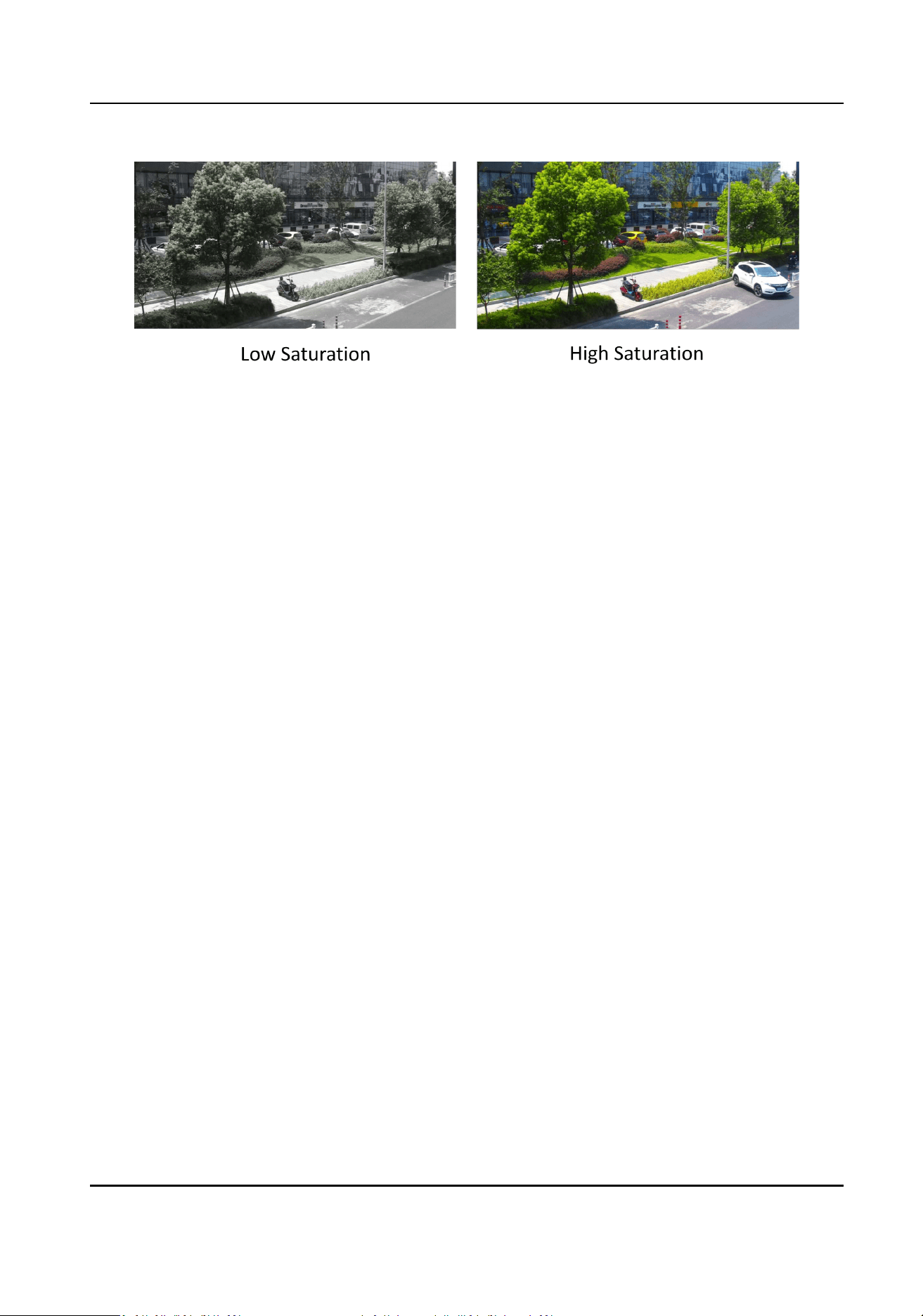
Figure 4-1 Saturaon
Exposure Sengs
Exposure is controlled by the combinaon of iris, shuer, and photo sensibility. You can adjust
image eect by seng exposure parameters.
In manual mode, you need to set Exposure Time, Gain and Slow Shuer.
Focus
It oers opons to adjust the focus mode and the minimum focus distance.
Focus Mode
Auto
The device focuses automacally as the scene changes. If you cannot get a well-focused
image under auto mode, reduce light sources in the image and avoid ashing lights.
Semi-auto
The device focuses once aer the PTZ and lens zooming. If the image is clear, the focus does
not change when the scene changes.
Manual
You can adjust the focus manually on the live view page.
Min. Focus Distance
When the distance between the scene and lens is shorter than the Min. Focus Distance, the lens
does not focus.
Network Camera User Manual
18

Day/Night Switch
Day/Night Switch funcon can provide color images and black/white images in day and night
mode. Switch mode is congurable.
Note
●
Day/Night Switch funcon varies according to models.
●
You can turn on the smart supplement light for beer image eect. For supplement light
sengs, refer to Supplement Light Sengs .
Day
The image is always in color.
Night
The image is black/white or colorful and the supplement light will be enabled to ensure clear
live view image at night.
Note
Only certain device models support the supplement light and colorful image.
Auto
The camera switches between the day mode and the night mode according to the light
condion of environment.
Scheduled-Switch
Set the Start Time and the End Time to dene the duraon for day mode.
Triggered by alarm input
You can set Triggering Status as Day or Night. For example, if the Triggering Status is Night, the
mode turns into Night when the device receives alarm input signal.
Triggered by video
The camera switches between the day mode and the night mode according to the light
condion of environment. This mode is applicable when the device supports road trac and
vehicle detecon.
Parameter Sengs for DarkFighterX
The following parameter sengs is applicable for DarkFighterX device models.
Day
The image is always in color and the supplement light is o by default.
Night
The image is black/white.
Day (DarkghterX)
Network Camera User Manual
19

The image is always in color and the supplement light mode is mixed light.
Auto (DarkghterX)
The camera switches between the day mode and the day (DarkghterX) mode according to the
light condion of environment.
Schedule (DarkghterX)
Set the Start Time and the End Time to dene the duraon for day mode. Outside the set me
period, it will switch to the day (DarkghterX) mode.
Full Time Color
The image is always in color and only white light can be turned on if supported for supplement
light mode.
Supplement Light Sengs
You can set supplement light and refer to the actual device for relevant parameters.
Smart Supplement Light
Smart supplement light avoids over exposure when the supplement light is on.
Supplement Light Mode
When the device supports supplement light, you can select supplement light mode.
IR Supplement Light
IR light is enabled.
White Light
White light is enabled.
Mixed Light
Both IR light and white light are enabled.
Smart
When you select this mode aer enabling certain smart events or moon detecon, in the
night state, the default supplement light mode is IR supplement light mode. When the alarm
is triggered, the white light is enabled and the device captures the target. Aer the alarm
ends, the supplement light mode will switch to IR supplement light mode.
Only device models with IR and white light or hybrid supplement light with IR and white light
support this funcon.
O
Supplement light is disabled.
Note
The supplement light mode may vary according to dierent device models.
Brightness Adjustment Mode
Network Camera User Manual
20
Auto
The brightness adjusts according to the actual environment automacally.
Manual
You can drag the slider or set value to adjust the brightness.
BLC
If you focus on an object against strong backlight, the object will be too dark to be seen clearly. BLC
(backlight compensaon) compensates light to the object in the front to make it clear. If BLC mode
is set as Custom, you can draw a red rectangle on the live view image as the BLC area.
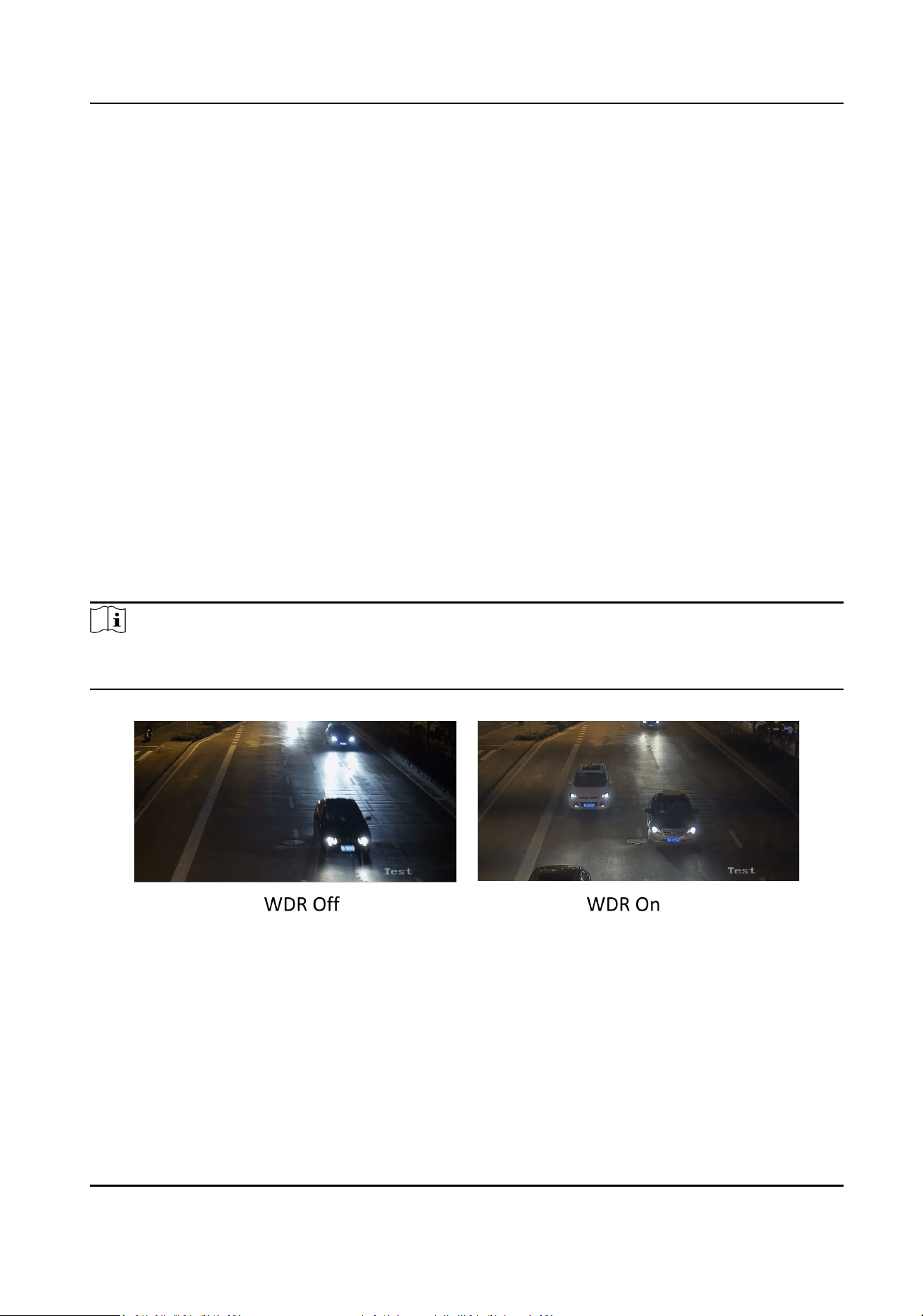
WDR
The WDR (Wide Dynamic Range) funcon helps the camera provide clear images in environment
with strong illuminaon dierences.
When there are both very bright and very dark areas simultaneously in the eld of view, you can
enable the WDR funcon and set the level. WDR automacally balances the brightness level of the
whole image and provides clear images with more details.
Note
When WDR is enabled, some other funcons may be not supported. Refer to the actual interface
for details.
Figure 4-2 WDR
HLC
When the bright area of the image is over-exposed and the dark area is under-exposed, the HLC
(High Light Compression) funcon can be enabled to weaken the bright area and brighten the dark
area, so as to achieve the light balance of the overall picture.
Network Camera User Manual
21
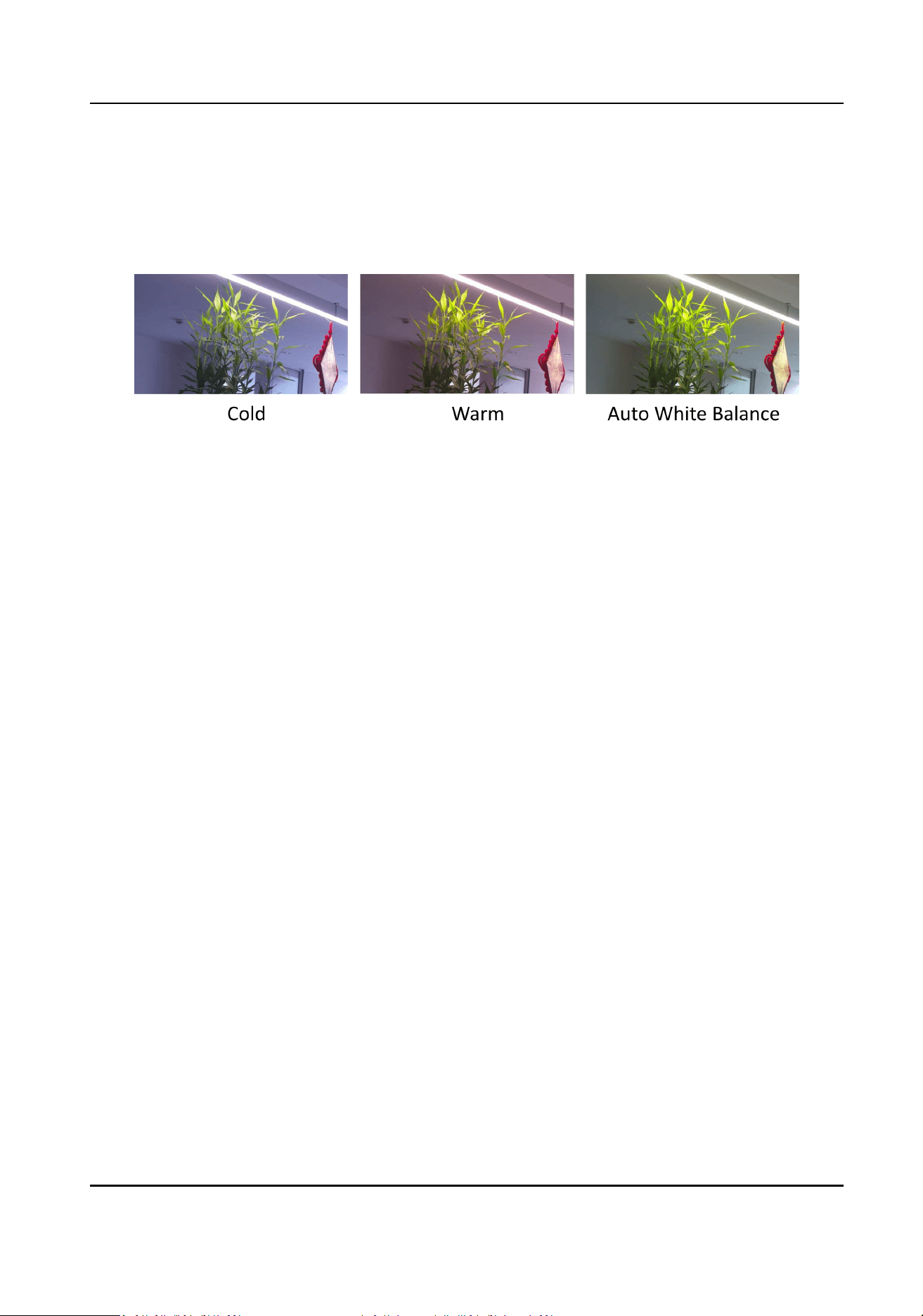
White Balance
White balance is the white rendion funcon of the camera. It is used to adjust the color
temperature according to the environment.
Figure 4-3 White Balance
DNR
Digital Noise Reducon is used to reduce the image noise and improve the image quality. Normal
and Expert modes are selectable.
Normal
Set the DNR level to control the noise reducon degree. The higher level means stronger
reducon degree.
Expert
Set the DNR level for both space DNR and me DNR to control the noise reducon degree. The
higher level means stronger reducon degree.
Network Camera User Manual
22
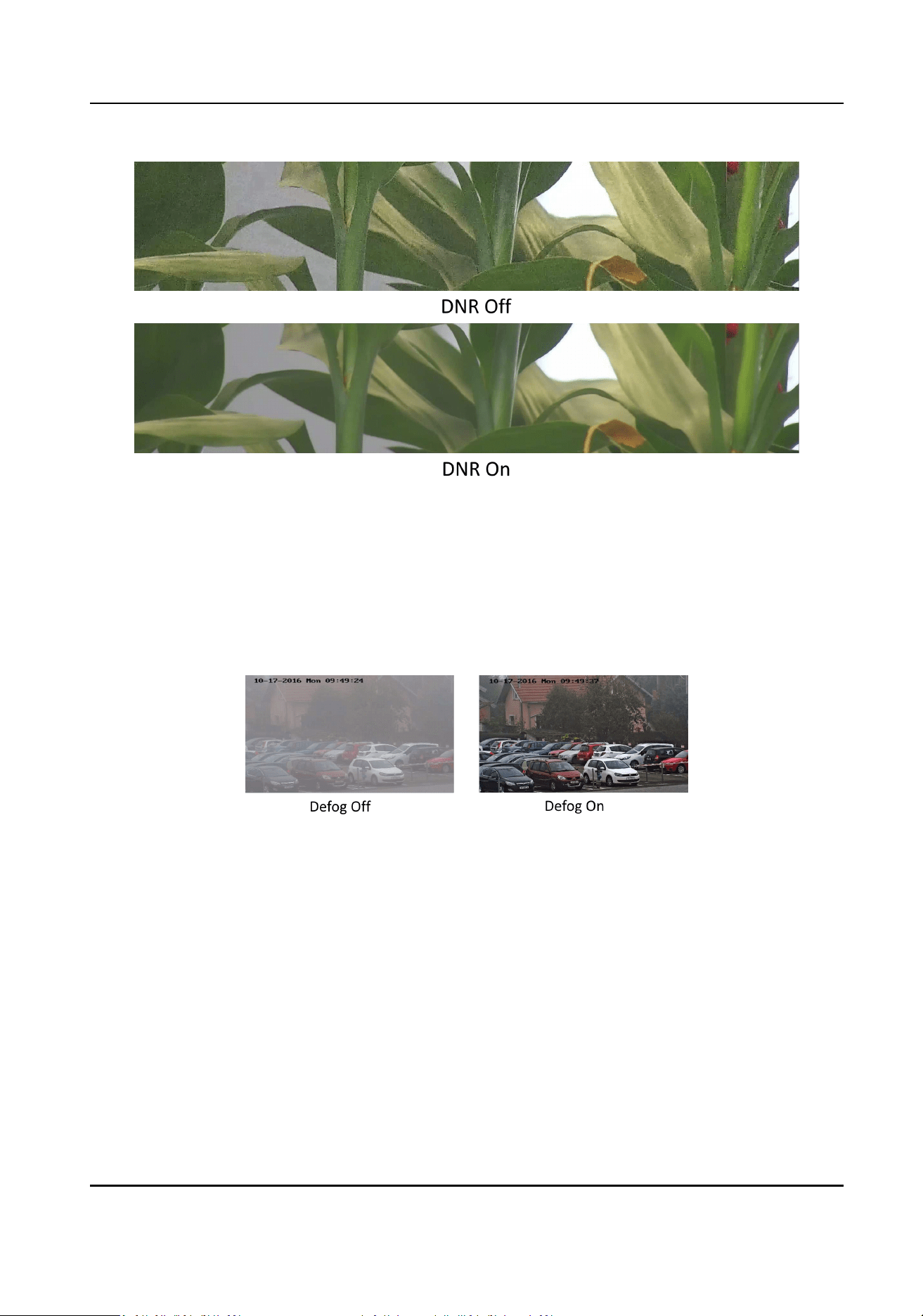
Figure 4-4 DNR
Defog
You can enable the defog funcon when the environment is foggy and the image is misty. It
enhances the subtle details so that the image appears clearer.
Figure 4-5 Defog
EIS
Increase the stability of video image by using jier compensaon technology.
Mirror
When the live view image is the reverse of the actual scene, this funcon helps to display the
image normally.
Select the mirror mode as needed.
Network Camera User Manual
23

Note
The video recording will be shortly interrupted when the funcon is enabled.
Gray Scale
You can choose the range of the Gray Scale as [0-255] or [16-235].
Rotate
When enabled, the live view will rotate 90 ° counterclockwise. For example, 1280 × 720 is rotated
to 720 × 1280.
Enabling this funcon can change the eecve range of monitoring in the vercal direcon.
4.6.2 Image Parameters Switch
The device automacally switches image parameters in set me periods.
Go to image parameters switch seng page: Conguraon → Image → Image Parameters Switch ,
and set parameters as needed.
Set Switch
Switch the image parameters to the scene automacally in certain me periods.
Steps
1.
Check Enable.
2.
Select and congure the corresponding me period and the scene.
Note
For the scene conguraon, refer to Scene Mode .
3.
Click Save.
4.6.3 Video Standard
Video standard is an ability of a video card or video display device that denes the amount of
colors that are shown and the resoluon. The two most common video standard used are NTSC
and PAL. In NTSC, 30 frames are transmied each second. Each frame is made up of 525 individual
scan lines. In PAL, 25 frames are transmied each second. Each frame is made up of 625 individual
scan lines. Select video signal standard according to the video system in your country/region.
Network Camera User Manual
24

4.6.4 Local Video Output
If the device is equipped with video output interfaces, such as BNC, CVBS, HDMI, and SDI, you can
preview the live image directly by connecng the device to a monitor screen.
Select the output mode as ON/OFF to control the output.
4.7 OSD
You can customize OSD (On-screen Display) informaon such as device name, me/date, font,
color, and text overlay displayed on video stream.
Go to OSD seng page: Conguraon → Image → OSD Sengs .
Select a channel.
Set the corresponding parameters, and click Save to take eect.
Character Set
Select character set for displayed informaon. If Korean is required to be displayed on screen,
select EUC-KR. Otherwise, select GBK.
Displayed Informaon
Set camera name, date, week, and their related display format. For certain device models, you can
also set lt angle as the displayed informaon.
Text Overlay
Set customized overlay text on image.
OSD Parameters
Set OSD parameters, such as Display Mode, OSD Size, Font Color, and Alignment.
4.8 Set Privacy Mask
The funcon blocks certain areas in the live view to protect privacy. No maer how the device
moves, the blocked scene will never be seen.
Steps
1.
Go to privacy mask seng page: Conguraon → Image → Privacy Mask .
2.
Select the channel No.
3.
Check Enable Privacy Mask.
4.
Click Draw Area. Drag the mouse in the live view to draw a closed area.
Drag the corners of the area Adjust the size of the area.
Drag the area Adjust the posion of the area.
Network Camera User Manual
25

Click Clear All Clear all the areas you set.
5.
Click Stop Drawing.
6.
Click Save.
4.9 Overlay Picture
Overlay a customized picture on live view.
Before You Start
The picture to overlay has to be in BMP format with 24-bit, and the maximum picture size is 128 ×
128 pixel.
Steps
1.
Go to picture overlay seng page: Conguraon → Image → Picture Overlay .
2.
Select a channel to overlay picture.
3.
Click Browse to select a picture, and click Upload.
The picture with a red rectangle will appear in live view aer successfully uploading.
4.
Check Enable Picture Overlay.
5.
Drag the picture to adjust its posion.
6.
Click Save.
4.10 Set Target Cropping
You can crop the image, transmit and save only the images of the target area to save transmission
bandwidth and storage.
Steps
1.
Go to Conguraon → Video/Audio → Target Cropping .
2.
Select a channel to set target cropping.
3.
Check Enable Target Cropping and set Third Stream as the Stream Type.
Note
Aer enabling target cropping, the third stream resoluon cannot be congured.
4.
Select a Cropping Resoluon.
A red frame appears in the live view.
5.
Drag the frame to the target area.
6.
Click Save.
Network Camera User Manual
26

Note
●
Only certain models support target cropping and the funcon varies according to dierent
camera models.
●
Some funcons may be disabled aer enabling target cropping.
Network Camera User Manual
27

Chapter 5 Video Recording and Picture Capture
This part introduces the operaons of capturing video clips and snapshots, playback, and
downloading captured les.
5.1 Storage Sengs
This part introduces the conguraon of several common storage paths.
5.1.1 Set New or Unencrypted Memory Card
Before You Start
Insert a new or unencrypted memory card to the device. For detailed installaon, refer to Quick
Start Guide of the device.
Steps
1.
Go to Conguraon → Storage → Storage Management → HDD Management .
2.
Select the memory card.
Note
If an Unlock buon appears, you need to unlock the memory card rst. See Detect Memory
Card Status for details.
3.
Click Format to inialize the memory card.
When the Status of memory card turns from Uninialized to Normal, the memory card is ready
for use.
4.
Oponal: Encrypt the memory card.
1) Click Encrypted Format.
2) Set the encrypon password.
3) Click OK.
When the Encrypon Status turns to Encrypted, the memory card is ready for use.
Note
Keep your encrypon password properly. Encrypon password cannot be found if forgoen.
5.
Oponal: Dene the Quota of the memory card. Input the percentage for storing dierent
contents according to your needs.
6.
Click Save.
Network Camera User Manual
28

Detect Memory Card Status
The device detects the status of Hikvision memory card. You receive nocaons when your
memory card is detected abnormal.
Before You Start
The conguraon page only appears when a Hikvision memory card is installed to the device.
Steps
1.
Go to Conguraon → Storage → Storage Management → Memory Card Detecon .
2.
Click Status Detecon to check the Remaining Lifespan and Health Status of your memory card.
Remaining Lifespan
It shows the percentage of the remaining lifespan. The lifespan of a memory card may be
inuenced by factors such as its capacity and the bitrate. You need to change the memory
card if the remaining lifespan is not enough.
Health Status
It shows the condion of your memory card. There are three status descripons: good, bad,
and damaged. You will receive a nocaon if the health status is anything other than good
when the Arming Schedule and Linkage Method are set.
Note
It is recommended that you change the memory card when the health status is not "good".
3.
Click R/W Lock to set the permission of reading and wring to the memory card.
-
Add a Lock
a. Select the Lock Switch as ON.
b. Enter the password.
c. Click Save
-
Unlock
●
If you use the memory card on the device that locks it, unlocking will be done automacally
and no unlocking procedures are required on the part of users.
●
If you use the memory card (with a lock) on a dierent device, you can go to HDD
Management to unlock the memory card manually. Select the memory card, and click
Unlock. Enter the correct password to unlock it.
-
Remove the Lock
a. Select the Lock Switch as OFF.
b. Enter the password in Password Sengs.
c. Click Save.
Network Camera User Manual
29

Note
●
Only admin user can set the R/W Lock.
●
The memory card can only be read and wrien when it is unlocked.
●
If the device, which adds a lock to a memory card, is restored to the factory sengs, you can
go to HDD Management to unlock the memory card.
4.
Set Arming Schedule and Linkage Method. See Set Arming Schedule and Linkage Method
Sengs for details.
5.
Click Save.
5.1.2 Set FTP
You can congure the FTP server to save images which are captured by events or a med snapshot
task.
Before You Start
Get the FTP server address rst.
Steps
1.
Go to Conguraon → Network → Advanced Sengs → FTP .
2.
Congure FTP sengs.
FTP Protocol
FTP and SFTP are selectable. The les uploading is encrypted by using SFTP protocol.
Server Address and Port
The FTP server address and corresponding port.
User Name and Password
The FTP user should have the permission to upload pictures.
If the FTP server supports picture uploading by anonymous users, you can check Anonymous
to hide your device informaon during uploading.
Directory Structure
The saving path of snapshots in the FTP server.
Picture Filing Interval
For beer picture management, you can set the picture ling interval from 1 day to 30 days.
Pictures captured in the same me interval will be saved in one folder named aer the
beginning date and ending date of the me interval.
Picture Name
Set the naming rule for captured pictures. You can choose Default in the drop-down list to
use the default rule, that is, IP address_channel number_capture me_event type.jpg (e.g.,
10.11.37.189_01_20150917094425492_FACE_DETECTION.jpg). Or you can customize it by
adding a Custom Prex to the default naming rule.
3.
Check Upload Picture to enable uploading snapshots to the FTP server.
Network Camera User Manual
30

4.
Check Enable Automac Network Replenishment.
Note
Upload to FTP/Memory Card/NAS in Linkage Method and Enable Automac Network
Replenishment should be both enabled simultaneously.
5.
Click Test to verify the FTP server.
6.
Click Save.
5.1.3 Set NAS
Take network server as network disk to store the record les, captured images, etc.
Before You Start
Get the IP address of the network disk rst.
Steps
1.
Go to NAS seng page: Conguraon → Storage → Storage Management → Net HDD .
2.
Click HDD No.. Enter the server address and le path for the disk.
Server Address
The IP address of the network disk.
File Path
The saving path of network disk les.
Mounng Type
Select le system protocol according to the operaon system.
Enter user name and password of the net HDD to guarantee the security if SMB/CIFS is
selected.
3.
Click Test to check whether the network disk is available.
4.
Click Save.
5.1.4 eMMC Protecon
It is to automacally stop the use of eMMC as a storage media when its health status is poor.
Note
The eMMC protecon is only supported by certain device models with an eMMC hardware.
Go to Conguraon → System → Maintenance → System Service for the sengs.
eMMC, short for embedded mulmedia card, is an embedded non-volale memory system. It is
able to store the captured images or videos of the device.
The device monitors the eMMC health status and turns o the eMMC when its status is poor.
Otherwise, using a worn-out eMMC may lead to device boot failure.
Network Camera User Manual
31

5.1.5 Set Cloud Storage
It helps to upload the captured pictures and data to the cloud. The plaorm requests picture
directly from the cloud for picture and analysis. The funcon is only supported by certain models.
Steps
Cauon
If the cloud storage is enabled, the pictures are stored in the cloud video manager rstly.
1.
Go to Conguraon → Storage → Storage Management → Cloud Storage .
2.
Check Enable Cloud Storage.
3.
Set basic parameters.
Protocol Version The protocol version of the cloud video manager.
Server IP The IP address of the cloud video manager. It supports IPv4 address.
Serve Port The port of the cloud video manager. You are recommended to use the
default port.
AccessKey The key to log in to the cloud video manager.
SecretKey The key to encrypt the data stored in the cloud video manager.
User Name and
Password
The user name and password of the cloud video manager.
Picture Storage
Pool ID
The ID of the picture storage region in the cloud video manager. Make
sure storage pool ID and the storage region ID are the same.
4.
Click Test to test the congured sengs.
5.
Click Save.
5.2 Video Recording
This part introduces the operaons of manual and scheduled recording, playback, and
downloading recorded les.
5.2.1 Record Automacally
This funcon can record video automacally during congured me periods.
Before You Start
Select Trigger Recording in event sengs for each record type except Connuous. See
Event and
Alarm for details.
Network Camera User Manual
32

Steps
1.
Go to Conguraon → Storage → Schedule Sengs → Record Schedule .
2.
Select channel No.
3.
Check Enable.
4.
Select a record type.
Note
The record type is vary according to dierent models.
Connuous
The video will be recorded connuously according to the schedule.
Moon
When moon detecon is enabled and trigger recording is selected as linkage method, object
movement is recorded.
Alarm
When alarm input is enabled and trigger recording is selected as linkage method, the video is
recorded aer receiving alarm signal from external alarm input device.
Moon | Alarm
Video is recorded when moon is detected or alarm signal is received from the external
alarm input device.
Moon & Alarm
Video is recorded only when moon is detected and alarm signal is received from the
external alarm input device.
Event
The video is recorded when congured event is detected.
5.
Set schedule for the selected record type. Refer to Set Arming Schedule for the seng
operaon.
6.
Click Advanced to set the advanced sengs.
Overwrite
Enable Overwrite to overwrite the video records when the storage space is full. Otherwise
the camera cannot record new videos.
Pre-record
The me period you set to record before the scheduled me.
Post-record
The me period you set to stop recording aer the scheduled me.
Stream Type
Select the stream type for recording.
Network Camera User Manual
33

Note
When you select the stream type with higher bitrate, the actual me of the pre-record and
post-record may be less than the set value.
Recording Expiraon
The recordings are deleted when they exceed the expired me. The expired me is
congurable. Note that once the recordings are deleted, they can not be recovered.
7.
Click Save.
5.2.2 Record Manually
Steps
1.
Go to Conguraon → Local .
2.
Set the Record File Size and saving path to for recorded les.
3.
Click Save.
4.
Click in the live view interface to start recording. Click to stop recording.
5.2.3 Playback and Download Video
You can search, playback and download the videos stored in the local storage or network storage.
Steps
1.
Click Playback.
2.
Select channel No.
3.
Set search condion and click Search.
The matched video les showed on the ming bar.
4.
Click to play the video les.
-
Click
to clip video les.
-
Double click the live view image to play video les in full screen. Press ESC to exit full screen.
Note
Go to Conguraon → Local , click Save clips to to change the saving path of clipped video les.
5.
Click on the playback interface to download les.
1) Set search condion and click Search.
2) Select the video les and then click Download.
Note
Go to Conguraon → Local , click Save downloaded les to to change the saving path of
downloaded video les.
Network Camera User Manual
34

5.3 Capture Conguraon
The device can capture the pictures manually or automacally and save them in congured saving
path. You can view and download the snapshots.
5.3.1 Capture Automacally
This funcon can capture pictures automacally during congured me periods.
Steps
1.
Go to Conguraon → Storage → Schedule Sengs → Capture → Capture Parameters .
2.
Select a channel to set capture parameters.
3.
Set the capture type.
Timing
Capture a picture at the congured me interval.
Event-Triggered
Capture a picture when an event is triggered. You should congure related linkage methods in
event sengs rst. Refer to Event and Alarm for event sengs.
4.
Set the Format, Resoluon, Quality, Interval, and Capture Number.
5.
Refer to Set Arming Schedule for conguring schedule me.
6.
Click Save.
5.3.2 Capture Manually
Steps
1.
Go to Conguraon → Local .
2.
Set the Image Format and saving path to for snapshots.
JPEG
The picture size of this format is comparavely small, which is beer for network
transmission.
BMP
The picture is compressed with good quality.
3.
Click Save.
4.
Click near the live view or play back window to capture a picture manually.
5.3.3 View and Download Picture
You can search, view and download the pictures stored in the local storage or network storage.
Network Camera User Manual
35

Steps
1.
Click Picture.
2.
Select channel No.
3.
Set search condion and click Search.
The matched pictures showed in the le list.
4.
Select the pictures then click Download to download them.
Note
Go to Conguraon → Local , click Save snapshots when playback to change the saving path of
pictures.
Network Camera User Manual
36

Chapter 6 Event and Alarm
This part introduces the conguraon of events. The device takes certain response to triggered
alarm. Certain events may not be supported by certain device models.
6.1 Set Moon Detecon
It helps to detect the moving objects in the detecon region and trigger the linkage acons.
Steps
1.
Go to Conguraon → Event → Basic Event → Moon Detecon .
2.
Select the channel No.
3.
Check Enable Moon Detecon.
4.
Oponal: Highlight to display the moving object in the image in green.
1) Check Enable Dynamic Analysis for Moon.
2) Go to Conguraon → Local .
3) Set Rules to Enable.
5.
Select Conguraon Mode, and set rule region and rule parameters.
-
For the informaon about normal mode, see
Normal Mode .
-
For the informaon about expert mode, see
Expert Mode .
6.
Set the arming schedule and linkage methods. For the informaon about arming schedule
sengs, see Set Arming Schedule . For the informaon about linkage methods, see Linkage
Method Sengs .
7.
Click Save.
6.1.1 Expert Mode
You can congure dierent moon detecon parameters for day and night according to the actual
needs.
Steps
1.
Select Expert Mode in Conguraon.
2.
Set parameters of expert mode.
Scheduled Image Sengs
OFF
Image switch is disabled.
Auto-Switch
The system switches day/night mode automacally according to environment. It displays
colored image at day and black and white image at night.
Network Camera User Manual
37
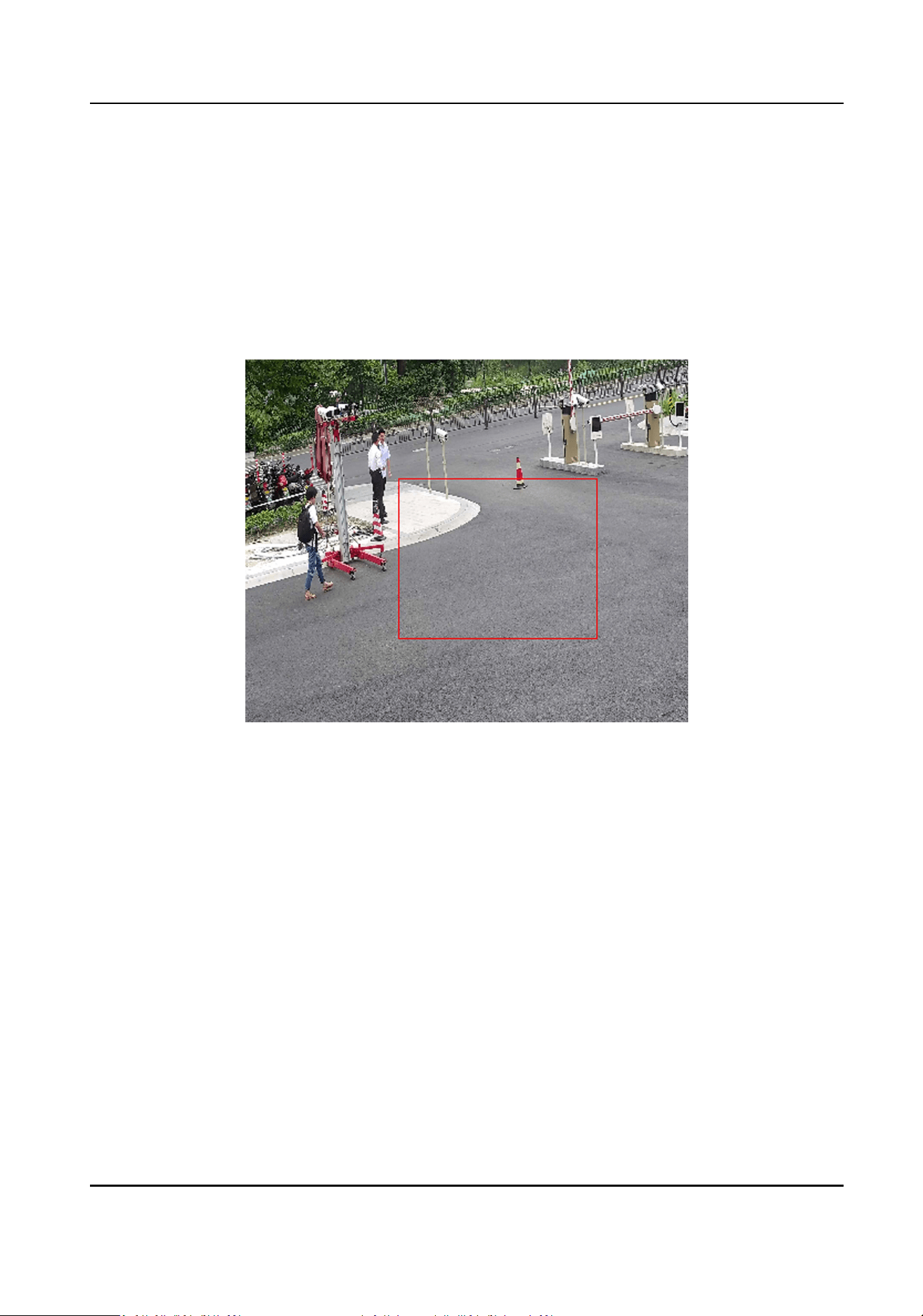
Scheduled-Switch
The system switches day/night mode according to the schedule. It switches to day mode
during the set periods and switches to night mode during the other periods.
Sensivity
The higher the value of sensivity is, the more sensive the moon detecon is. If scheduled
image sengs is enabled, the sensivity of day and night can be set separately.
3.
Select an Area and click Draw Area. Click and drag the mouse on the live image and then release
the mouse to nish drawing one area.
Figure 6-1 Set Rules
Stop Drawing Finish drawing one area.
Clear All Delete all the areas.
4.
Click Save.
5.
Oponal: Repeat above steps to set mulple areas.
6.1.2 Normal Mode
You can set moon detecon parameters according to the device default parameters.
Steps
1.
Select normal mode in Conguraon.
2.
Set the sensivity of normal mode. The higher the value of sensivity is, the more sensive the
moon detecon is. If the sensivity is set to 0, moon detecon and dynamic analysis do not
take eect.
Network Camera User Manual
38

3.
Set Detecon Target. Human and vehicle are available. If the detecon target is not selected, all
the detected targets will be reported, including the human and vehicle.
4.
Click Draw Area. Click and drag the mouse on the live video, and then right click the mouse to
nish drawing one area.
Clear Clear the selected area.
Clear All Clear all the areas.
5.
Oponal: You can set the parameters of mulple areas by repeang the above steps.
6.2 Set Video Tampering Alarm
When the congured area is covered and cannot be monitored normally, the alarm is triggered and
the device takes certain alarm response acons.
Steps
1.
Go to Conguraon → Event → Basic Event → Video Tampering .
2.
Select the channel number.
3.
Check Enable.
4.
Set the Sensivity. The higher the value is, the easier to detect the area covering.
5.
Click Draw Area and drag the mouse in the live view to draw the area.
Stop Drawing Finish drawing.
Clear All Delete all the drawn areas.
Network Camera User Manual
39

Figure 6-2 Set Video Tampering Area
6.
Refer to Set Arming Schedule for seng scheduled me. Refer to Linkage Method Sengs for
seng linkage method.
7.
Click Save.
6.3 Set Excepon Alarm
Excepon such as network disconnecon can trigger the device to take corresponding acon.
Steps
1.
Go to Conguraon → Event → Basic Event → Excepon .
2.
Select Excepon Type.
HDD Full
The HDD storage is full.
HDD Error
Error occurs in HDD.
Network Camera User Manual
40

Network Disconnected
The device is oine.
IP Address Conicted
The IP address of current device is same as that of other device in the network.
Illegal Login
Incorrect user name or password is entered.
Abnormal Reboot
The device reboots abnormally.
3.
Refer to Linkage Method Sengs for seng linkage method.
4.
Click Save.
6.4 Set Alarm Input
Alarm signal from the external device triggers the corresponding acons of the current device.
Before You Start
Make sure the external alarm device is connected. See Quick Start Guide for cable connecon.
Steps
1.
Go to Conguraon → Event → Basic Event → Alarm Input .
2.
Check Enable Alarm Input Handling.
3.
Select Alarm Input NO. and Alarm Type from the dropdown list. Edit the Alarm Name.
4.
Refer to Set Arming Schedule for seng scheduled me. Refer to Linkage Method Sengs for
seng linkage method.
5.
Click Copy to... to copy the sengs to other alarm input channels.
6.
Click Save.
6.5 Set Video Quality Diagnosis
When the video quality of the device is abnormal and the alarm linkage is set, the alarm will be
triggered automacally.
Steps
1.
Go to Conguraon → Event → Basic Event → Video Quality Diagnosis .
2.
Select a channel No.
3.
Select Diagnosis Type.
4.
Set the corresponding parameters.
Alarm Detecon Interval
The me interval to detect the excepon.
Sensivity
Network Camera User Manual
41

The higher the value is, the more easily the excepon will be detected, and the higher
possibility of misinformaon would be.
Alarm Delay Times
The device uploads the alarm when the alarm reaches the set number of mes.
5.
Check Enable, and the selected diagnosis type will be detected.
6.
Set arming schedule. See Set Arming Schedule .
7.
Set linkage method. See Linkage Method Sengs .
8.
Click Save.
Note
The funcon is only supported by certain models. The actual display varies with models.
6.6 Set Vibraon Detecon
It is used to detect whether the device is vibrang. The device reports an alarm and triggers linkage
acons if the funcon is enabled.
Steps
1.
Go to Conguraon → Event → Basic Event → Vibraon Detecon .
2.
Check Enable.
3.
Drag the slider to set the detecon sensivity. You can also enter number to set the sensivity.
4.
Set the arming schedule. See Set Arming Schedule .
5.
Set the linkage method. See Linkage Method Sengs .
6.
Click Save.
Note
The funcon is only supported by certain models. The actual display varies with models.
6.7 Detect Audio Excepon
Audio excepon detecon funcon detects the abnormal sound in the scene, such as the sudden
increase/decrease of the sound intensity, and some certain acons can be taken as response.
Steps
1.
Go to Conguraon → Event → Smart Event → Audio Excepon Detecon .
2.
Select one or several audio excepon detecon types.
Audio Loss Detecon
Detect sudden loss of audio track.
Sudden Increase of Sound Intensity Detecon
Network Camera User Manual
42

Detect sudden increase of sound intensity. Sensivity and Sound Intensity Threshold are
congurable.
Note
●
The lower the sensivity is, the more signicant the change should be to trigger the
detecon.
●
The sound intensity threshold refers to the sound intensity reference for the detecon. It is
recommended to set as the average sound intensity in the environment. The louder the
environment sound, the higher the value should be. You can adjust it according to the real
environment.
Sudden Decrease of Sound Intensity Detecon
Detect sudden decrease of sound intensity. Sensivity is congurable.
3.
Refer to Set Arming Schedule for seng scheduled me. Refer to Linkage Method Sengs for
seng linkage methods.
4.
Click Save.
Note
The funcon varies according to dierent models.
6.8 Detect Scene Change
Scene change detecon funcon detects the change of the scene. Some certain acons can be
taken when the alarm is triggered.
Steps
1.
Go to Conguraon → Event → Smart Event → Scene Change Detecon .
2.
Select a channel No.
3.
Click Enable.
4.
Set the Sensivity.
Note
The higher the value is, the more easily the change of scene can be detected. But the detecon
accuracy is reduced.
5.
Refer to Set Arming Schedule for seng scheduled me. Refer to Linkage Method Sengs for
seng linkage method.
6.
Click Save.
Note
The funcon varies according to dierent models.
Network Camera User Manual
43

6.9 Set Defocus Detecon
The blurred image caused by lens defocus can be detected. If it occurs, the device can take linkage
acons.
Steps
1.
Go to Conguraon → Event → Smart Event → Defocus Detecon .
2.
Select Channel No.
3.
Check Enable.
4.
Set Sensivity. The higher the value is, the more easily the defocus image can trigger the alarm.
You can adjust the value according to the actual environment.
5.
For the linkage method sengs, refer to Linkage Method Sengs .
6.
Click Save.
Note
The funcon is only supported by certain models. The actual display varies with models.
6.10 Set Size Filter
This part introduces the seng of size lter. Only the target whose size is between the minimum
value and maximum value is detected and triggers alarm.
Steps
1.
Click Max. Size, and drag the mouse in the live view to draw the maximum target size.
2.
Click Min. Size, and drag the mouse in the live view to draw the minimum target size.
3.
Click Save.
6.11 Draw Area
This secon introduces the conguraon of area.
Steps
1.
Click Detecon Area.
2.
Click on the live view to draw the boundaries of the detecon region, and right click to complete
drawing.
3.
Click Save.
Note
●
Click Clear to clear the selected area.
●
Click Clear All to clear all pre-dened areas.
Network Camera User Manual
44

Chapter 7 Network Sengs
7.1 TCP/IP
TCP/IP sengs must be properly congured before you operate the device over network. IPv4 and
IPv6 are both supported. Both versions can be congured simultaneously without conicng to
each other.
Go to Conguraon → Network → Basic Sengs → TCP/IP for parameter sengs.
NIC Type
Select a NIC (Network Interface Card) type according to your network condion.
IPv4
Two IPv4 modes are available.
DHCP
The device automacally gets the IPv4 parameters from the network if you check DHCP. The
device IP address is changed aer enabling the funcon. You can use SADP to get the device IP
address.
Note
The network that the device is connected to should support DHCP (Dynamic Host
Conguraon Protocol).
Manual
You can set the device IPv4 parameters manually. Input IPv4 Address, IPv4 Subnet Mask, and
IPv4 Default Gateway, and click Test to see if the IP address is available.
IPv6
Three IPv6 modes are available.
Route Adversement
The IPv6 address is generated by combining the route adversement and the device Mac
address.
Note
Route adversement mode requires the support from the router that the device is connected
to.
DHCP
The IPv6 address is assigned by the server, router, or gateway.
Manual
Network Camera User Manual
45

Input IPv6 Address, IPv6 Subnet, IPv6 Default Gateway. Consult the network administrator for
required informaon.
MTU
It stands for maximum transmission unit. It is the size of the largest protocol data unit that can
be communicated in a single network layer transacon.
The valid value range of MTU is 1280 to 1500.
DNS
It stands for domain name server. It is required if you need to visit the device with domain
name. And it is also required for some applicaons (e.g., sending email). Set Preferred DNS
Server and Alternate DNS server properly if needed.
Dynamic Domain Name
Check Enable Dynamic Domain Name and input Register Domain Name. The device is
registered under the register domain name for easier management within the local area
network.
Note
DHCP should be enabled for the dynamic domain name to take eect.
7.1.1 Mulcast
Mulcast is group communicaon where data transmission is addressed to a group of desnaon
devices simultaneously.
Go to Conguraon → Network → Basic Sengs → Mulcast for the mulcast sengs.
For a device with more than one channel, mulcast can be set independently for each channel.
IP Address
It stands for the address of mulcast host.
Stream Type
The stream type as the mulcast source.
Video Port
The video port of the selected stream.
Audio Port
The audio port of the selected stream.
7.2 SNMP
You can set the SNMP network management protocol to get the alarm event and excepon
messages in network transmission.
Network Camera User Manual
46

Before You Start
Before seng the SNMP, you should download the SNMP soware and manage to receive the
device informaon via SNMP port.
Steps
1.
Go to the sengs page: Conguraon → Network → Advanced Sengs → SNMP .
2.
Check Enable SNMPv1, Enable SNMP v2c or Enable SNMPv3.
Note
The SNMP version you select should be the same as that of the SNMP soware.
And you also need to use the dierent version according to the security level required. SNMP v1
is not secure and SNMP v2 requires password for access. And SNMP v3 provides encrypon and
if you use the third version, HTTPS protocol must be enabled.
3.
Congure the SNMP sengs.
4.
Click Save.
7.3 Set SRTP
The Secure Real-me Transport Protocol (SRTP) is a Real-me Transport Protocol (RTP) internet
protocol, intended to provide encrypon, message authencaon and integrity, and replay aack
protecon to the RTP data in both unicast and mulcast applicaons.
Steps
1.
Go to Conguraon → Network → Advanced Sengs → SRTP .
2.
Select Server Cercate.
3.
Select Encrypted Algorithm.
4.
Click Save.
Note
●
Only certain device models support this funcon.
●
If the funcon is abnormal, check if the selected cercate is abnormal in cercate
management.
7.4 Port Mapping
By seng port mapping, you can access devices through the specied port.
Before You Start
When the ports in the device are the same as those of other devices in the network, refer to Port
to modify the device ports.
Steps
1.
Go to Conguraon → Network → Basic Sengs → NAT .
Network Camera User Manual
47

2.
Select the port mapping mode.
Auto Port Mapping Refer to
Set Auto Port Mapping for detailed informaon.
Manual Port Mapping Refer to
Set Manual Port Mapping for detailed informaon.
3.
Click Save.
7.4.1 Set Auto Port Mapping
Steps
1.
Check Enable UPnP™, and choose a friendly name for the camera, or you can use the default
name.
2.
Select the port mapping mode to Auto.
3.
Click Save.
Note
UPnP™ funcon on the router should be enabled at the same me.
7.4.2 Set Manual Port Mapping
Steps
1.
Check Enable UPnP™, and choose a friendly name for the device, or you can use the default
name.
2.
Select the port mapping mode to Manual, and set the external port to be the same as the
internal port.
3.
Click Save.
What to do next
Go to the router port mapping sengs interface and set the port number and IP address to be the
same as those on the device. For more informaon, refer to the router user manual.
7.4.3 Set Port Mapping on Router
The following sengs are for a certain router. The sengs vary depending on dierent models of
routers.
Steps
1.
Select the WAN Connecon Type.
2.
Set the IP Address, Subnet Mask and other network parameters of the router.
3.
Go to Forwarding → Virtual Severs , and input the Port Number and IP Address.
4.
Click Save.
Network Camera User Manual
48
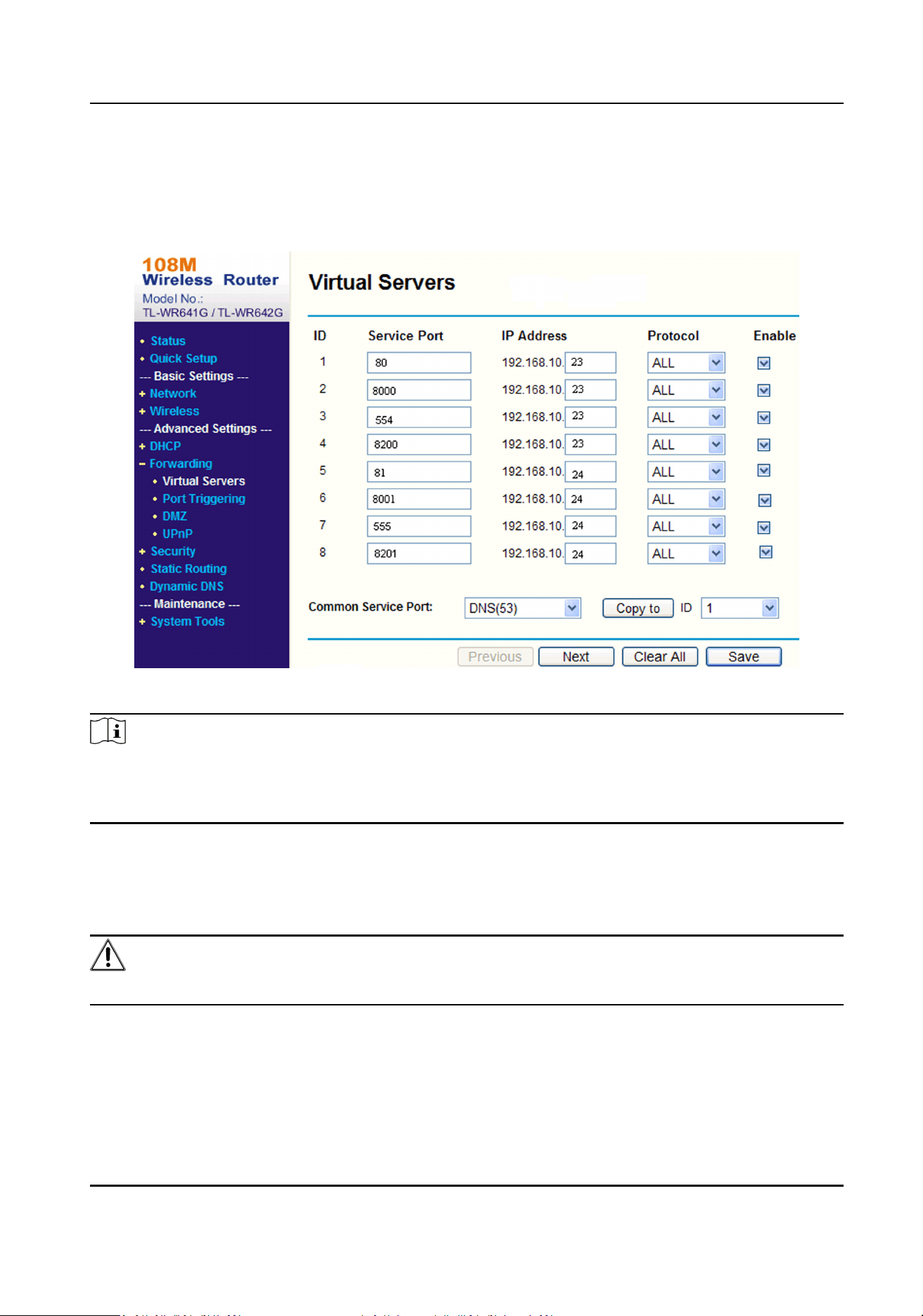
Example
When the cameras are connected to the same router, you can congure the ports of a camera as
80, 8000, and 554 with IP address 192.168.1.23, and the ports of another camera as 81, 8001, 555,
8201 with IP 192.168.1.24.
Figure 7-1 Port Mapping on Router
Note
The port of the network camera cannot conict with other ports. For example, some web
management port of the router is 80. Change the camera port if it is the same as the management
port.
7.5 Port
The device port can be modied when the device cannot access the network due to port conicts.
Cauon
Do not modify the default port parameters at will, otherwise the device may be inaccessible.
Go to Conguraon → Network → Basic Sengs → Port for port sengs.
HTTP Port
Network Camera User Manual
49

It refers to the port through which the browser accesses the device. For example, when the
HTTP Port is modied to 81, you need to enter hp://192.168.1.64:81 in the browser for login.
HTTPS Port
It refers to the port through which the browser accesses the device with cercate. Cercate
vericaon is required to ensure the secure access.
RTSP Port
It refers to the port of real-me streaming protocol.
SRTP Port
It refers to the port of secure real-me transport protocol.
Server Port
It refers to the port through which the client adds the device.
Enhanced SDK Service Port
It refers to the port through which the client adds the device. Cercate vericaon is required
to ensure the secure access.
WebSocket Port
TCP-based full-duplex communicaon protocol port for plug-in free preview.
WebSockets Port
TCP-based full-duplex communicaon protocol port for plug-in free preview. Cercate
vericaon is required to ensure the secure access.
Note
●
Enhanced SDK Service Port, WebSocket Port, and WebSockets Port are only supported by certain
models.
●
For device models that support that funcon, go to Conguraon → Network → Advanced
Sengs → Network Service to enable it.
7.6 Access to Device via Domain Name
You can use the Dynamic DNS (DDNS) for network access. The dynamic IP address of the device can
be mapped to a domain name resoluon server to realize the network access via domain name.
Before You Start
Registraon on the DDNS server is required before conguring the DDNS sengs of the device.
Steps
1.
Refer to
TCP/IP to set DNS parameters.
2.
Go to the DDNS sengs page: Conguraon → Network → Basic Sengs → DDNS .
3.
Check Enable DDNS and select DDNS type.
DynDNS
Network Camera User Manual
50

Dynamic DNS server is used for domain name resoluon.
NO-IP
NO-IP server is used for domain name resoluon.
4.
Input the domain name informaon, and click Save.
5.
Check the device ports and complete port mapping. Refer to Port to check the device port, and
refer to Port Mapping for port mapping sengs.
6.
Access the device.
By Browsers Enter the domain name in the browser address bar to access the device.
By Client Soware Add domain name to the client soware. Refer to the client manual for
specic adding methods.
7.7 Access to Device via PPPoE Dial Up Connecon
This device supports the PPPoE auto dial-up funcon. The device gets a public IP address by ADSL
dial-up aer the device is connected to a modem. You need to congure the PPPoE parameters of
the device.
Steps
1.
Go to Conguraon → Network → Basic Sengs → PPPoE .
2.
Check Enable PPPoE.
3.
Set the PPPoE parameters.
Dynamic IP
Aer successful dial-up, the dynamic IP address of the WAN is displayed.
User Name
User name for dial-up network access.
Password
Password for dial-up network access.
Conrm
Input your dial-up password again.
4.
Click Save.
5.
Access the device.
By Browsers Enter the WAN dynamic IP address in the browser address bar to access
the device.
By Client Soware Add the WAN dynamic IP address to the client soware. Refer to the
client manual for details.
Network Camera User Manual
51

Note
The obtained IP address is dynamically assigned via PPPoE, so the IP address always changes
aer reboong the camera. To solve the inconvenience of the dynamic IP, you need to get a
domain name from the DDNS provider (e.g. DynDns.com). Refer to Access to Device via Domain
Name for detail informaon.
7.8 Set Network Service
You can control the ON/OFF status of certain protocol as desired.
Steps
Note
This funcon varies according to dierent models.
1.
Go to Conguraon → Network → Advanced Sengs → Network Service .
2.
Set network service.
WebSocket & WebSockets
WebSocket or WebSockets protocol should be enabled if you use Google Chrome 57 and its
above version or Mozilla Firefox 52 and its above version to visit the device. Otherwise, live
view, image capture, digital zoom, etc. cannot be used.
If the device uses HTTP, enable WebSocket.
If the device uses HTTPS, enable WebSockets.
When you use WebSockets, select the Server Cercate.
Note
Complete cercate management before selecng server cercate. Refer to Cercate
Management for detailed informaon.
SDK Service & Enhanced SDK Service
Check Enable SDK Service to add the device to the client soware with SDK protocol.
Check Enable Enhanced SDK Service to add the device to the client soware with SDK over
TLS protocol.
When you use Enhanced SDK Service, select the Server Cercate.
Network Camera User Manual
52

Note
●
Complete cercate management before selecng server cercate. Refer to Cercate
Management for detailed informaon.
●
When set up connecon between the device and the client soware, it is recommended to
use Enhanced SDK Service and set the communicaon in Arming Mode to encrypt the data
transmission. See the user manual of the client soware for the arming mode sengs.
TLS (Transport Layer Security)
The device oers TLS1.1, TLS1.2 and TLS1.3. Enable one or more protocol versions according
to your need.
Bonjour
Uncheck to disable the protocol.
3.
Click Save.
7.9 Set Open Network Video Interface
If you need to access the device through Open Network Video Interface protocol, you can
congure the user sengs to enhance the network security.
Steps
1.
Go to Conguraon → Network → Advanced Sengs → Integraon Protocol .
2.
Check Enable Open Network Video Interface.
3.
Click Add to congure the Open Network Video Interface user.
Delete Delete the selected Open Network Video Interface user.
Modify Modify the selected Open Network Video Interface user.
4.
Click Save.
5.
Oponal: Repeat the steps above to add more Open Network Video Interface users.
7.10 Set ISUP
When the device is registered on ISUP plaorm (formerly called Ehome), you can visit and manage
the device, transmit data, and forward alarm informaon over public network.
Steps
1.
Go to Conguraon → Network → Advanced Sengs → Plaorm Access .
2.
Select ISUP as the plaorm access mode.
3.
Select Enable.
4.
Select a protocol version and input related parameters.
5.
Click Save.
Register status turns to Online when the funcon is correctly set.
Network Camera User Manual
53

7.11 Set Alarm Server
The device can send alarms to desnaon IP address or host name through HTTP, HTTPS, or ISUP
protocol. The desnaon IP address or host name should support HTTP, HTTP, or ISUP data
transmission.
Steps
1.
Go to Conguraon → Network → Advanced Sengs → Alarm Server .
2.
Enter Desnaon IP or Host Name, URL, and Port.
3.
Oponal: Check Enable to enable ANR.
4.
Select Protocol.
Note
HTTP, HTTPS, and ISUP are selectable. It is recommended to use HTTPS, as it encrypts the data
transmission during communicaon.
5.
Click Test to check if the IP or host is available.
6.
Click Save.
7.12 Access Camera via Hik-Connect
Hik-Connect is an applicaon for mobile devices. Using the App, you can view live image, receive
alarm nocaon and so on.
Before You Start
Connect the camera to network with network cables.
Steps
1.
Get and install Hik-Connect applicaon by the following ways.
-
Visit
hps://appstore.hikvision.com to download the applicaon according to your mobile
phone system.
-
Visit the ocial site of our company. Then go to Support → Tools → Hikvision App Store .
-
Scan the QR code below to download the applicaon.
Note
If errors like "Unknown app" occur during the installaon, solve the problem in two ways.
Network Camera User Manual
54

●
Visit hps://appstore.hikvision.com/stac/help/index.html to refer to the troubleshoong.
●
Visit hps://appstore.hikvision.com/ , and click Installaon Help at the upper right corner of
the interface to refer to the troubleshoong.
2.
Start the applicaon and register for a Hik-Connect user account.
3.
Log in aer registraon.
4.
In the app, tap "+" on the upper-right corner and then scan the QR code of the camera to add
the camera. You can nd the QR code on the camera or on the cover of the Quick Start Guide of
the camera in the package.
5.
Follow the prompts to set the network connecon and add the camera to your Hik-Connect
account.
For detailed informaon, refer to the user manual of the Hik-Connect app.
7.12.1 Enable Hik-Connect Service on Camera
Hik-Connect service should be enabled on your camera before using the service.
You can enable the service through SADP soware or Web browser.
Enable Hik-Connect Service via Web Browser
Follow the following steps to enable Hik-Connect Service via Web Browser.
Before You Start
You need to acvate the camera before enabling the service.
Steps
1.
Access the camera via web browser.
2.
Enter plaorm access conguraon interface. Conguraon → Network → Advanced Sengs
→ Plaorm Access
3.
Select Hik-Connect as the Plaorm Access Mode.
4.
Check Enable.
5.
Click and read "Terms of Service" and "Privacy Policy" in pop-up window.
6.
Create a vericaon code or change the old vericaon code for the camera.
Note
The vericaon code is required when you add the camera to Hik-Connect service.
7.
Save the sengs.
Enable Hik-Connect Service via SADP Soware
This part introduce how to enable Hik-Connect service via SADP soware of an acvated camera.
Network Camera User Manual
55
Steps
1.
Run SADP soware.
2.
Select a camera and enter Modify Network Parameters page.
3.
Check Enable Hik-Connect.
4.
Create a vericaon code or change the old vericaon code.
Note
The vericaon code is required when you add the camera to Hik-Connect service.
5.
Click and read "Terms of Service" and "Privacy Policy".
6.
Conrm the sengs.
7.12.2 Set Up Hik-Connect
Steps
1.
Get and install Hik-Connect applicaon by the following ways.
-
Visit
hps://appstore.hikvision.com to download the applicaon according to your mobile
phone system.
-
Visit the ocial site of our company. Then go to Support → Tools → Hikvision App Store .
-
Scan the QR code below to download the applicaon.
Note
If errors like "Unknown app" occur during the installaon, solve the problem in two ways.
●
Visit hps://appstore.hikvision.com/stac/help/index.html to refer to the troubleshoong.
●
Visit hps://appstore.hikvision.com/ , and click Installaon Help at the upper right corner of
the interface to refer to the troubleshoong.
2.
Start the applicaon and register for a Hik-Connect user account.
3.
Log in aer registraon.
7.12.3 Add Camera to Hik-Connect
Steps
1.
Connect your mobile device to a Wi-Fi.
2.
Log into the Hik-Connect app.
3.
In the home page, tap "+" on the upper-right corner to add a camera.
Network Camera User Manual
56

4.
Scan the QR code on camera body or on the Quick Start Guide cover.
Note
If the QR code is missing or too blur to be recognized, you can also add the camera by inpung
the camera's serial number.
5.
Input the vericaon code of your camera.
Note
●
The required vericaon code is the code you create or change when you enable Hik-Connect
service on the camera.
●
If you forget the vericaon code, you can check the current vericaon code on Plaorm
Access conguraon page via web browser.
6.
Tap Connect to a Network buon in the popup interface.
7.
Choose Wired Connecon or Wireless Connecon according to your camera funcon.
Wireless
Connecon
Input the Wi-Fi password that your mobile phone has connected to, and
tap Next to start the Wi-Fi connecon process. (Locate the camera within 3
meters from the router when seng up the Wi-Fi.)
Wired
Connecon
Connect the camera to the router with a network cable and tap Connected
in the result interface.
Note
The router should be the same one which your mobile phone has connected to.
8.
Tap Add in the next interface to nish adding.
For detailed informaon, refer to the user manual of the Hik-Connect app.
Network Camera User Manual
57

Chapter 8 Arming Schedule and Alarm Linkage
Arming schedule is a customized me period in which the device performs certain tasks. Alarm
linkage is the response to the detected certain incident or target during the scheduled me.
8.1 Set Arming Schedule
Set the valid me of the device tasks.
Steps
1.
Click Arming Schedule.
2.
Drag the me bar to draw desired valid me.
Note
Up to 8 periods can be congured for one day.
3.
Adjust the me period.
-
Click on the selected me period, and enter the desired value. Click Save.
-
Click on the selected me period. Drag the both ends to adjust the me period.
-
Click on the selected me period, and drag it on the me bar.
4.
Oponal: Click Copy to... to copy the same sengs to other days.
5.
Click Save.
8.2 Linkage Method Sengs
You can enable the linkage funcons when an event or alarm occurs.
8.2.1 Trigger Alarm Output
If the device has been connected to an alarm output device, and the alarm output No. has been
congured, the device sends alarm informaon to the connected alarm output device when an
alarm is triggered.
Steps
Note
This funcon is only supported by certain models.
1.
Go to Conguraon → Event → Basic Event → Alarm Output .
2.
Set alarm output parameters.
Automac Alarm For the informaon about the conguraon, see
Automac Alarm .
Network Camera User Manual
58

Manual Alarm For the informaon about the conguraon, see Manual Alarm .
3.
Click Save.
Manual Alarm
You can trigger an alarm output manually.
Steps
1.
Set the manual alarm parameters.
Alarm Output No.
Select the alarm output No. according to the alarm interface connected to the external alarm
device.
Alarm Name
Edit a name for the alarm output.
Delay
Select Manual.
2.
Click Manual Alarm to enable manual alarm output.
3.
Oponal: Click Clear Alarm to disable manual alarm output.
Automac Alarm
Set the automac alarm parameters, then the device triggers an alarm output automacally in the
set arming schedule.
Steps
1.
Set automac alarm parameters.
Alarm Output No.
Select the alarm output No. according to the alarm interface connected to the external alarm
device.
Alarm Name
Custom a name for the alarm output.
Delay
It refers to the me duraon that the alarm output remains aer an alarm occurs.
2.
Set the alarming schedule. For the informaon about the sengs, see
Set Arming Schedule .
3.
Click Copy to… to copy the parameters to other alarm output channels.
4.
Click Save.
Network Camera User Manual
59

8.2.2 FTP/NAS/Memory Card Uploading
If you have enabled and congured the FTP/NAS/memory card uploading, the device sends the
alarm informaon to the FTP server, network aached storage and memory card when an alarm is
triggered.
Refer to Set FTP to set the FTP server.
Refer to Set NAS for NAS conguraon.
Refer to Set New or Unencrypted Memory Card for memory card storage conguraon.
8.2.3 Send Email
Check Send Email, and the device sends an email to the designated addresses with alarm
informaon when an alarm event is detected.
For email sengs, refer to Set Email .
Set Email
When the email is congured and Send Email is enabled as a linkage method, the device sends an
email nocaon to all designated receivers if an alarm event is detected.
Before You Start
Set the DNS server before using the Email funcon. Go to Conguraon → Network → Basic
Sengs → TCP/IP for DNS sengs.
Steps
1.
Go to email sengs page: Conguraon → Network → Advanced Sengs → Email .
2.
Set email parameters.
1) Input the sender's email informaon, including the Sender's Address, SMTP Server, and
SMTP Port.
2) Oponal: If your email server requires authencaon, check Authencaon and input your
user name and password to log in to the server.
3) Set the E-mail Encrypon.
●
When you select SSL or TLS, and disable STARTTLS, emails are sent aer encrypted by SSL or
TLS. The SMTP port should be set as 465.
●
When you select SSL or TLS and Enable STARTTLS, emails are sent aer encrypted by
STARTTLS, and the SMTP port should be set as 25.
Note
If you want to use STARTTLS, make sure that the protocol is supported by your email server.
If you check the Enable STARTTLS while the protocol is not supported by your email sever,
your email is sent with no encrypon.
Network Camera User Manual
60

4) Oponal: If you want to receive nocaon with alarm pictures, check Aached Image. The
nocaon email has 3 aached alarm pictures about the event with congurable image
capturing interval.
5) Input the receiver's informaon, including the receiver's name and address.
6) Click Test to see if the funcon is well congured.
3.
Click Save.
8.2.4 Nofy Surveillance Center
Check Nofy Surveillance Center, the alarm informaon is uploaded to the surveillance center
when an alarm event is detected.
8.2.5 Trigger Recording
Check Trigger Recording, and the device records the video about the detected alarm event.
For device with more than one camera channels, you can set one or more channels to take
recordings if needed.
For recording sengs, refer to Video Recording and Picture Capture .
8.2.6 Flashing Light
Aer enabling Flashing Light and seng the Flashing Light Alarm Output, the light ashes when
an alarm event is detected.
Set Flashing Alarm Light Output
When events occur, the ashing light on the device can be triggered as an alarm.
Steps
1.
Go to Conguraon → Event → Basic Event → Flashing Alarm Light Output .
2.
Set Flashing Duraon, Flashing Frequency and Brightness.
Flashing Duraon
The me that the ashing lasts when one alarm happens.
Flashing Frequency
The rate at which the light ashes. High frequency, medium frequency, low frequency, and
normally on are selectable.
Brightness
The brightness of the light.
3.
Set the arming schedule. See
Set Arming Schedule for details.
4.
Click Save.
Network Camera User Manual
61

Note
Only certain device models support the funcon.
8.2.7 Audible Warning
Aer enabling Audible Warning and seng Audible Alarm Output, the built-in speaker of the
device or connected external speaker plays warning sounds when an alarm happens.
For audible alarm output sengs, refer to Set Audible Alarm Output .
Note
The funcon is only supported by certain camera models.
Set Audible Alarm Output
When the device detects targets in the detecon area, audible alarm can be triggered as a
warning.
Steps
1.
Go to Conguraon → Event → Basic Event → Audible Alarm Output .
2.
Select Sound Type and set related parameters.
-
Select Prompt and set the alarm mes you need.
-
Select Warning and its contents. Set the alarm mes you need.
-
Select Custom Audio. You can select a custom audio le from the drop-down list. If no le is
available, you can click Add to upload an audio le that meets the requirement. Up to three
audio les can be uploaded.
3.
Oponal: Click Test to play the selected audio le on the device.
4.
Set arming schedule for audible alarm. See
Set Arming Schedule for details.
5.
Click Save.
Note
The funcon is only supported by certain device models.
Network Camera User Manual
62

Chapter 9 System and Security
It introduces system maintenance, system sengs and security management, and explains how to
congure relevant parameters.
9.1 View Device Informaon
You can view device informaon, such as Device No., Model, Serial No. and Firmware Version.
Enter Conguraon → System → System Sengs → Basic Informaon to view the device
informaon.
9.2 Search and Manage Log
Log helps locate and troubleshoot problems.
Steps
1.
Go to Conguraon → System → Maintenance → Log .
2.
Set search condions Major Type, Minor Type, Start Time, and End Time.
3.
Click Search.
The matched log les will be displayed on the log list.
4.
Oponal: Click Export to save the log les in your computer.
9.3 Simultaneous Login
The administrator can set the maximum number of users logging into the system through web
browser simultaneously.
Go to Conguraon → System → User Management , click General and set Simultaneous Login.
9.4 Import and Export Conguraon File
It helps speed up batch conguraon on other devices with the same parameters.
Enter Conguraon → System → Maintenance → Upgrade & Maintenance . Choose device
parameters that need to be imported or exported and follow the instrucons on the interface to
import or export conguraon le.
Network Camera User Manual
63

9.5 Export Diagnose Informaon
Diagnose informaon includes running log, system informaon, hardware informaon.
Go to Conguraon → System → Maintenance → Upgrade & Maintenance , and click Diagnose
Informaon to export diagnose informaon of the device.
9.6 Reboot
You can reboot the device via browser.
Go to Conguraon → System → Maintenance → Upgrade & Maintenance , and click Reboot.
9.7 Restore and Default
Restore and Default helps restore the device parameters to the default sengs.
Steps
1.
Go to Conguraon → System → Maintenance → Upgrade & Maintenance .
2.
Click Restore or Default according to your needs.
Restore Reset device parameters, except user informaon, IP parameters and video format
to the default sengs.
Default Reset all the parameters to the factory default.
Note
Be careful when using this funcon. Aer reseng to the factory default, all the
parameters are reset to the default sengs.
9.8 Upgrade
Before You Start
You need to obtain the correct upgrade package.
Cauon
DO NOT disconnect power during the process, and the device reboots automacally aer upgrade.
Steps
1.
Go to Conguraon → System → Maintenance → Upgrade & Maintenance .
2.
Choose one method to upgrade.
Firmware Locate the exact path of the upgrade le.
Network Camera User Manual
64

Firmware Directory Locate the directory which the upgrade le belongs to.
3.
Click Browse to select the upgrade le.
4.
Click Upgrade.
9.9 View Open Source Soware License
Go to Conguraon → System → System Sengs → About , and click View Licenses.
9.10 Wiegand
Note
This funcon is only supported by certain camera models.
Check Enable and select the protocol. The default protocol is SHA-1 26bit.
If enabled, the recognized license plate number will be output via the selected Wiegand protocol.
9.11 Metadata
Metadata is the raw data that the camera and the radar collect before algorithm processing. It
provide the opon to users to explore various data usages.
Go to Conguraon → System → Metadata Sengs to enable metadata uploading of the desired
funcon.
Note
This funcon may vary according to dierent camera models.
Smart Event
The metadata of the smart event includes the target ID, target coordinate, me, etc.
You can check Enable Stream Rule to overlay the stream rule on the live view image. Make sure
you have checked Sub-stream and selected the sub-stream in the live view.
You can check Overlay Rule Frame and Target Frame on Background Picture to overlay rule and
target on the sub-stream. Make sure you have checked Sub-stream and selected the sub-stream
in the live view.
Face Recognion
The metadata of face recognion includes the rule informaon, target ID, target coordinate,
face grading, me informaon, etc. The camera detects the whole image by default. If the
region is congured in the face capture sengs, the camera detects the congured region.
Mul-target-type Detecon
Network Camera User Manual
65

The metadata of mul-target-type detecon includes the vehicle informaon and face
recognion informaon, such as the target ID, target coordinate, me informaon, vehicle
moving direcon, etc.
Road Trac
The metadata of road trac is detected vehicle informaon, including the vehicle locaon in
the scene, vehicle ID, license plate, validity, moving direcon, country/region, etc.
9.12 Time and Date
You can congure me and date of the device by conguring me zone, me synchronizaon and
Daylight Saving Time (DST).
9.12.1 Synchronize Time Manually
Steps
1.
Go to Conguraon → System → System Sengs → Time Sengs .
2.
Select Time Zone.
3.
Click Manual Time Sync..
4.
Choose one me synchronizaon method.
-
Select Set Time, and manually input or select date and me from the pop-up calendar.
-
Check Sync. with computer me to synchronize the me of the device with that of the local
PC.
5.
Click Save.
9.12.2 Set NTP Server
You can use NTP server when accurate and reliable me source is required.
Before You Start
Set up a NTP server or obtain NTP server informaon.
Steps
1.
Go to Conguraon → System → System Sengs → Time Sengs .
2.
Select Time Zone.
3.
Click NTP.
4.
Set Server Address, NTP Port and Interval.
Note
Server Address is NTP server IP address.
5.
Click Test to test server connecon.
6.
Click Save.
Network Camera User Manual
66

9.12.3 Synchronize Time by Satellite
Note
This funcon varies depending on dierent devices.
Steps
1.
Enter Conguraon → System → System Sengs → Time Sengs .
2.
Select Satellite Time Sync..
3.
Set Interval.
4.
Click Save.
9.12.4 Set DST
If the region where the device is located adopts Daylight Saving Time (DST), you can set this
funcon.
Steps
1.
Go to Conguraon → System → System Sengs → DST .
2.
Check Enable DST.
3.
Select Start Time, End Time and DST Bias.
4.
Click Save.
9.13 Set RS-485
RS-485 is used to connect the device to external device. You can use RS-485 to transmit the data
between the device and the computer or terminal when the communicaon distance is too long.
Before You Start
Connect the device and computer or terminal with RS-485 cable.
Steps
1.
Go to Conguraon → System → System Sengs → RS-485 .
2.
Set the RS-485 parameters.
Note
You should keep the parameters of the device and the computer or terminal all the same.
3.
Click Save.
Network Camera User Manual
67

9.14 Set RS-232
RS-232 can be used to debug device or access peripheral device. RS-232 can realize communicaon
between the device and computer or terminal when the communicaon distance is short.
Before You Start
Connect the device to computer or terminal with RS-232 cable.
Steps
1.
Go to Conguraon → System → System Sengs → RS-232 .
2.
Set RS-232 parameters to match the device with computer or terminal.
3.
Click Save.
9.15 External Device
For the device supporng external devices, including the supplement light, wiper on the housing,
the LED light, and heater, you can control them via the Web browser when it is used with the
housing. External devices vary with models.
9.15.1 Window Heater
You can enable the window heater to remove mist around the lens of the device.
Go to Conguraon → System → System Sengs → External Device and select the mode as
required.
Note
When the supplement light is on, the power of window heater will be decreased.
9.16 Security
You can improve system security by seng security parameters.
9.16.1 Authencaon
You can improve network access security by seng RTSP and WEB authencaon.
Go to Conguraon → System → Security → Authencaon to choose authencaon protocol
and method according to your needs.
RTSP Authencaon
Network Camera User Manual
68

Digest and digest/basic are supported, which means authencaon informaon is needed when
RTSP request is sent to the device. If you select digest/basic, it means the device supports
digest or basic authencaon. If you select digest, the device only supports digest
authencaon.
RTSP Digest Algorithm
MD5, SHA256 and MD5/SHA256 encrypted algorithm in RTSP authencaon. If you enable the
digest algorithm except for MD5, the third-party plaorm might not be able to log in to the
device or enable live view because of compability. The encrypted algorithm with high strength
is recommended.
WEB Authencaon
Digest and digest/basic are supported, which means authencaon informaon is needed when
WEB request is sent to the device. If you select digest/basic, it means the device supports digest
or basic authencaon. If you select digest, the device only supports digest authencaon.
WEB Digest Algorithm
MD5, SHA256 and MD5/SHA256 encrypted algorithm in WEB authencaon. If you enable the
digest algorithm except for MD5, the third-party plaorm might not be able to log in to the
device or enable live view because of compability. The encrypted algorithm with high strength
is recommended.
Note
Refer to the specic content of protocol to view authencaon requirements.
9.16.2 Set IP Address Filter
IP address lter is a tool for access control. You can enable the IP address lter to allow or forbid
the visits from the certain IP addresses.
IP address refers to IPv4.
Steps
1.
Go to Conguraon → System → Security → IP Address Filter .
2.
Check Enable IP Address Filter.
3.
Select the type of IP address lter.
Forbidden IP addresses in the list cannot access the device.
Allowed Only IP addresses in the list can access the device.
4.
Edit the IP address lter list.
Add Add a new IP address or IP address range to the list.
Modify Modify the selected IP address or IP address range in the list.
Delete Delete the selected IP address or IP address range in the list.
5.
Click Save.
Network Camera User Manual
69

9.16.3 Set MAC Address Filter
MAC address lter is a tool for access control. You can enable the MAC address lter to allow or
forbid the visits from the certain MAC addresses.
Steps
1.
Go to Conguraon → System → Security → MAC Address Filter .
2.
Check Enable MAC Address Filter.
3.
Select the type of MAC address lter.
Forbidden MAC addresses in the list cannot access the device.
Allowed Only MAC addresses in the list can access the device.
4.
Edit the MAC address lter list.
Add Add a new MAC address to the list.
Modify Modify the selected MAC address in the list.
Delete Delete the selected MAC address in the list.
5.
Click Save.
9.16.4 Set HTTPS
HTTPS is a network protocol that enables encrypted transmission and identy authencaon,
which improves the security of remote access.
Steps
1.
Go to Conguraon → Network → Advanced Sengs → HTTPS .
2.
Check Enable to access the camera via HTTP or HTTPS protocol.
3.
Check Enable HTTPS Browsing to access the camera only via HTTPS protocol.
4.
Select the Server Cercate.
5.
Click Save.
Note
If the funcon is abnormal, check if the selected cercate is abnormal in Cercate
Management.
9.16.5 Set QoS
QoS (Quality of Service) can help improve the network delay and network congeson by seng
the priority of data sending.
Network Camera User Manual
70

Note
QoS needs support from network device such as router and switch.
Steps
1.
Go to Conguraon → Network → Advanced Conguraon → QoS .
2.
Set Video/Audio DSCP, Alarm DSCP and Management DSCP.
Note
Network can idenfy the priority of data transmission. The bigger the DSCP value is, the higher
the priority is. You need to set the same value in router while conguraon.
3.
Click Save.
9.16.6 Set IEEE 802.1X
IEEE 802.1x is a port-based network access control. It enhances the security level of the LAN/
WLAN. When devices connect to the network with IEEE 802.1x standard, the authencaon is
needed.
Go to Conguraon → Network → Advanced Sengs → 802.1X , and enable the funcon.
Set Protocol and EAPOL Version according to router informaon.
Protocol
EAP-LEAP, EAP-TLS, and EAP-MD5 are selectable
EAP-LEAP and EAP-MD5
If you use EAP-LEAP or EAP-MD5, the authencaon server must be congured. Register a
user name and password for 802.1X in the server in advance. Input the user name and
password for authencaon.
EAP-TLS
If you use EAP-TLS, input Idenfy, Private Key Password, and upload CA Cercate, User
Cercate and Private Key.
EAPOL Version
The EAPOL version must be idencal with that of the router or the switch.
9.16.7 Control Timeout Sengs
If this funcon is enabled, you will be logged out when you make no operaon (not including
viewing live image) to the device via web browser within the set meout period.
Go to Conguraon → System → Security → Advanced Security to complete sengs.
Network Camera User Manual
71

9.16.8 Search Security Audit Logs
You can search and analyze the security log les of the device so as to nd out the illegal intrusion
and troubleshoot the security events.
Steps
Note
This funcon is only supported by certain camera models.
1.
Go to Conguraon → System → Maintenance → Security Audit Log .
2.
Select log types, Start Time, and End Time.
3.
Click Search.
The log les that match the search condions will be displayed on the Log List.
4.
Oponal: Click Export to save the log les to your computer.
9.16.9 SSH
Secure Shell (SSH) is a cryptographic network protocol for operang network services over an
unsecured network.
Go to Conguraon → System → Security → Security Service , and check Enable SSH.
The SSH funcon is disabled by default.
Cauon
Use the funcon with cauon. The security risk of device internal informaon leakage exists when
the funcon is enabled.
9.17 Cercate Management
It helps to manage the server/client cercates and CA cercate, and to send an alarm if the
cercates are close to expiry date, or are expired/abnormal.
Note
The funcon is only supported by certain device models.
9.17.1 Create Self-signed Cercate
Steps
1.
Click Create Self-signed Cercate.
2.
Follow the prompt to enter Cercate ID, Country/Region, Hostname/IP, Validity and other
parameters.
Network Camera User Manual
72

Note
The cercate ID should be digits or leers and be no more than 64 characters.
3.
Click OK.
4.
Oponal: Click Export to export the cercate, or click Delete to delete the cercate to
recreate a cercate, or click Cercate Properes to view the cercate details.
9.17.2 Create Cercate Request
Before You Start
Select a self-signed cercate.
Steps
1.
Click Create Cercate Request.
2.
Enter the related informaon.
3.
Click OK.
9.17.3 Import Cercate
Steps
1.
Click Import.
2.
Click Create Cercate Request.
3.
Enter the Cercate ID.
4.
Click Browser to select the desired server/client cercate.
5.
Select the desired import method and enter the required informaon.
6.
Click OK.
7.
Oponal: Click Export to export the cercate, or click Delete to delete the cercate to
recreate a cercate, or click Cercate Properes to view the cercate details.
Note
●
Up to 16 cercates are allowed.
●
If certain funcons are using the cercate, it cannot be deleted.
●
You can view the funcons that are using the cercate in the funcons column.
●
You cannot create a cercate that has the same ID with that of the exisng cercate and
import a cercate that has the same content with that of the exisng cercate.
9.17.4 Install Server/Client Cercate
Steps
1.
Go to Conguraon → System → Security → Cercate Management .
2.
Click Create Self-signed Cercate, Create Cercate Request and Import to install server/client
cercate.
Network Camera User Manual
73

Create self-signed cercate Refer to Create Self-signed Cercate
Create cercate request Refer to
Create Cercate Request
Import Cercate Refer to
Import Cercate
9.17.5 Install CA Cercate
Steps
1.
Click Import.
2.
Enter the Cercate ID.
3.
Click Browser to select the desired server/client cercate.
4.
Select the desired import method and enter the required informaon.
5.
Click OK.
Note
Up to 16 cercates are allowed.
9.17.6 Enable Cercate Expiraon Alarm
Steps
1.
Check Enable Cercate Expiraon Alarm. If enabled, you will receive an email or the camera
links to the surveillance center that the cercate will expire soon, or is expired or abnormal.
2.
Set the Remind Me Before Expiraon (day), Alarm Frequency (day) and Detecon Time (hour).
Note
●
If you set the reminding day before expiraon to 1, then the camera will remind you the day
before the expiraon day. 1 to 30 days are available. Seven days is the default reminding days.
●
If you set the reminding day before expiraon to 1, and the detecon me to 10:00, and the
cercate will expire in 9:00 the next day, the camera will remind you in 10:00 the rst day.
3.
Click Save.
9.18 User and Account
9.18.1 Set User Account and Permission
The administrator can add, modify, or delete other accounts, and grant dierent permission to
dierent user levels.
Network Camera User Manual
74

Cauon
To increase security of using the device on the network, please change the password of your
account regularly. Changing the password every 3 months is recommended. If the device is used in
high-risk environment, it is recommended that the password should be changed every month or
week.
Steps
1.
Go to Conguraon → System → User Management → User Management .
2.
Click Add. Enter User Name, select Level, and enter Password. Assign remote permission to
users based on needs.
Administrator
The administrator has the authority to all operaons and can add users and operators and
assign permission.
User
Users can be assigned permission of viewing live video, seng PTZ parameters, and changing
their own passwords, but no permission for other operaons.
Operator
Operators can be assigned all permission except for operaons on the administrator and
creang accounts.
Modify Select a user and click Modify to change the password and permission.
Delete Select a user and click Delete.
Note
The administrator can add up to 31 user accounts.
3.
Click OK.
9.18.2 Simultaneous Login
The administrator can set the maximum number of users logging into the system through web
browser simultaneously.
Go to Conguraon → System → User Management , click General and set Simultaneous Login.
9.18.3 Online Users
The informaon of users logging into the device is shown.
Go to Conguraon → System → User Management → Online Users to view the list of online
users.
Network Camera User Manual
75

Chapter 10 VCA Resource
VCA resource is a collecon of smart funcons supported by the device.
10.1 Allocate VCA Resource
VCA resource oers you opons to enable certain VCA funcons according to actual needs. It helps
allocate more resources to the desired funcons.
Steps
1.
Go to VCA → VCA Resource .
2.
Select desired VCA funcons.
3.
Save the sengs.
Note
Certain VCA funcons are mutually exclusive. When a certain funcon or funcons are selected
and saved, others will be hidden.
10.2 Set Camera Info
Customize specic informaon for the device. It may help idenfy a certain device when mulple
devices are under management.
Go to VCA → General VCA Sengs to set Device No. and Camera Info.
10.3 Smart Event
Note
●
For certain device models, you need to enable the smart event funcon on VCA Resource page
rst to show the funcon conguraon page.
●
The funcon varies according to dierent models.
10.3.1 Set Intrusion Detecon
It is used to detect objects entering and loitering in a predened virtual region. If it occurs, the
device can take linkage acons.
Before You Start
●
Go to VCA → VCA Resource , and select Smart Event.
●
For the device supporng HEOP, go to VCA → APP to import and enable Smart Event.
Network Camera User Manual
76
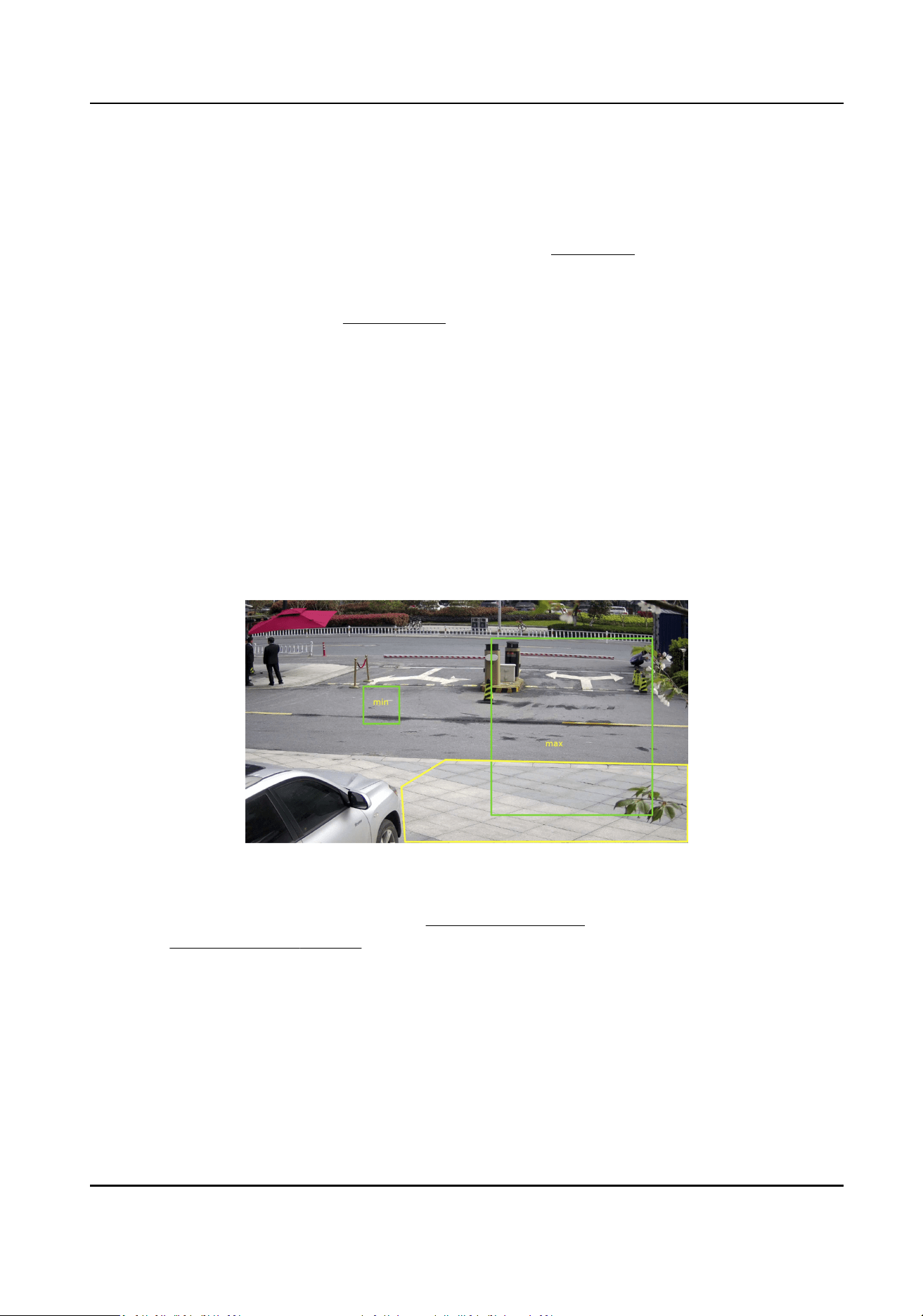
Steps
1.
Go to VCA → Smart Event → Intrusion Detecon .
2.
Select Channel No.
3.
Check Enable.
4.
Select a Region. For the detecon region sengs, refer to Draw Area .
5.
Set the minimum size and the maximum size for the target to improve detecon accuracy. Only
targets whose size are between the maximum size and the minimum size trigger the detecon.
For the detail sengs, refer to Set Size Filter .
6.
Set rules.
Sensivity
Sensivity stands for the percentage of the body part of an acceptable target that enters the
predened region. Sensivity = 100 - S1/ST × 100. S1 stands for the target body part that goes
across the predened region. ST stands for the complete target body. The higher the value of
sensivity is, the more easily the alarm can be triggered.
Threshold
Threshold stands for the threshold for the me of the object loitering in the region. If the
me that one object stays exceeds the threshold, the alarm is triggered. The larger the value
of the threshold is, the longer the alarm triggering me is.
Figure 10-1 Set Rule
7.
Oponal: You can set the parameters of mulple areas by repeang the above steps.
8.
For the arming schedule sengs, refer to Set Arming Schedule . For the linkage method sengs,
refer to Linkage Method Sengs .
9.
Click Save.
10.3.2 Set Line Crossing Detecon
It is used to detect objects crossing a predened virtual line. If it occurs, the device can take linkage
acons.
Network Camera User Manual
77

Before You Start
●
Go to VCA → VCA Resource , and select Smart Event.
●
For the device supporng HEOP, go to VCA → APP to import and enable Smart Event.
Steps
1.
Go to VCA → Smart Event → Line Crossing Detecon .
2.
Select Channel No.
3.
Check Enable.
4.
Select one Line and set the size lter. For the size lter sengs, refer to Set Size Filter .
5.
Click Draw Area and a line with an arrow appears in the live video. Drag the line to the locaon
on the live video as desired.
6.
Set rules.
Direcon
It stands for the direcon from which the object goes across the line.
A<->B: The object going across the line from both direcons can be detected and alarms are
triggered.
A->B: Only the object crossing the congured line from the A side to the B side can be
detected.
B->A: Only the object crossing the congured line from the B side to the A side can be
detected.
Sensivity
It stands for the percentage of the body part of an acceptable target that goes across the pre-
dened line. Sensivity = 100 - S1/ST × 100. S1 stands for the target body part that goes
across the pre-dened line. ST stands for the complete target body. The higher the value of
sensivity is, the more easily the alarm can be triggered.
Detecon Target
Human and vehicle are available. If the detecon target is not selected, all the detected
targets will be reported, including the human and vehicle.
Target Validity
If you set a higher validity, the required target features should be more obvious, and the
alarm accuracy would be higher. The target with less obvious features would be missing.
Network Camera User Manual
78
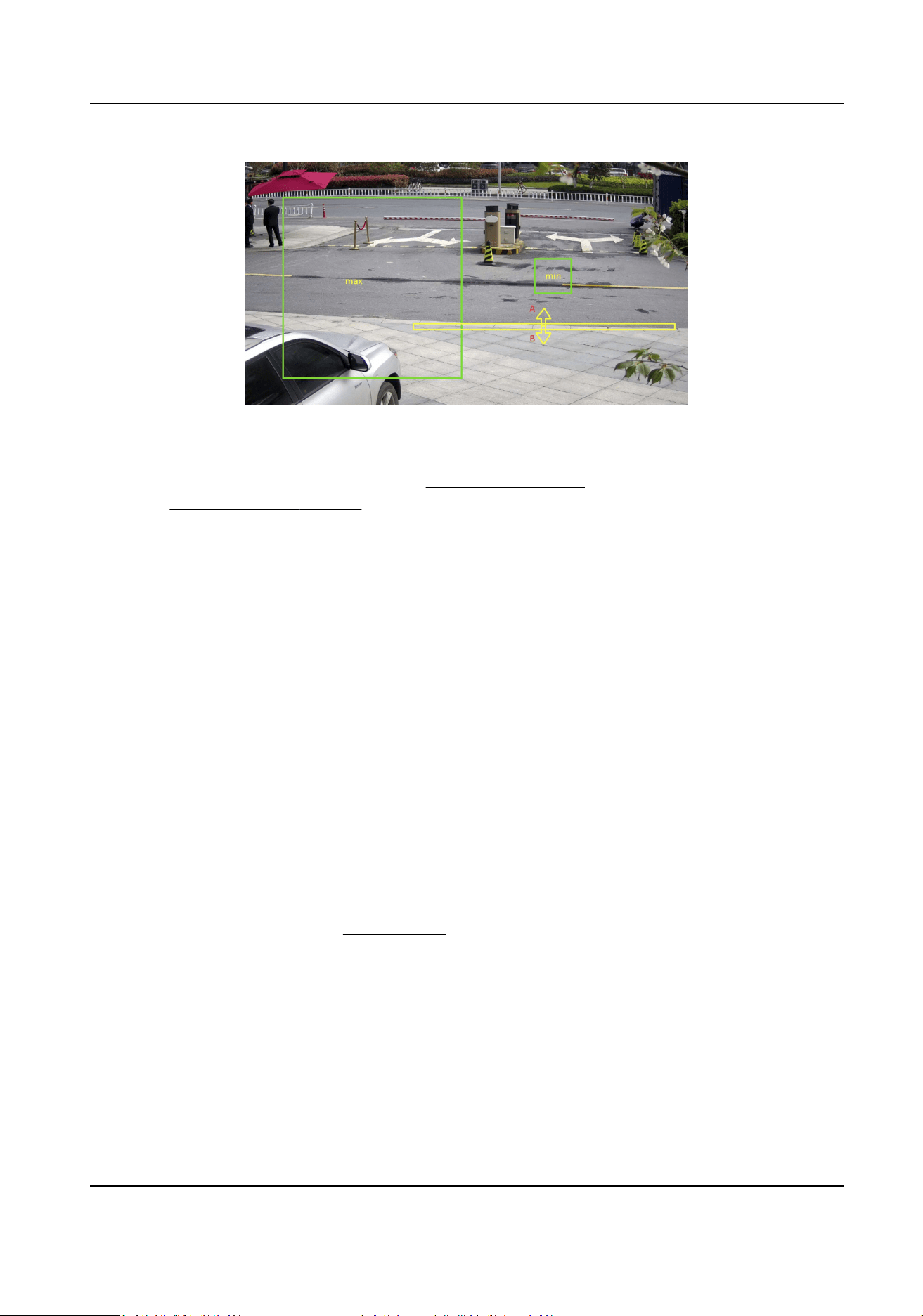
Figure 10-2 Set Rule
7.
Oponal: You can set the parameters of mulple areas by repeang the above steps.
8.
For the arming schedule sengs, refer to Set Arming Schedule . For the linkage method sengs,
refer to Linkage Method Sengs .
9.
Click Save.
10.3.3 Set Region Entrance Detecon
It is used to detect objects entering a predened virtual region from the outside place. If it occurs,
the device can take linkage acons.
Before You Start
●
Go to VCA → VCA Resource , and select Smart Event.
●
For the device supporng HEOP, go to VCA → APP to import and enable Smart Event.
Steps
1.
Go to VCA → Smart Event → Region Entrance Detecon .
2.
Select Channel No.
3.
Check Enable.
4.
Select a Region. For the detecon region sengs, refer to Draw Area .
5.
Set the minimum size and the maximum size for the target to improve detecon accuracy. Only
targets whose size are between the maximum size and the minimum size trigger the detecon.
For the detail sengs, refer to
Set Size Filter .
6.
Set the detecon target, sensivity and the target validity.
Sensivity
It stands for the percentage of the body part of an acceptable target that goes across the
predened region. Sensivity = 100 - S1/ST × 100. S1 stands for the target body part that goes
across the predened region. ST stands for the complete target body. The higher the value of
sensivity is, the more easily the alarm can be triggered.
Detecon Target
Network Camera User Manual
79
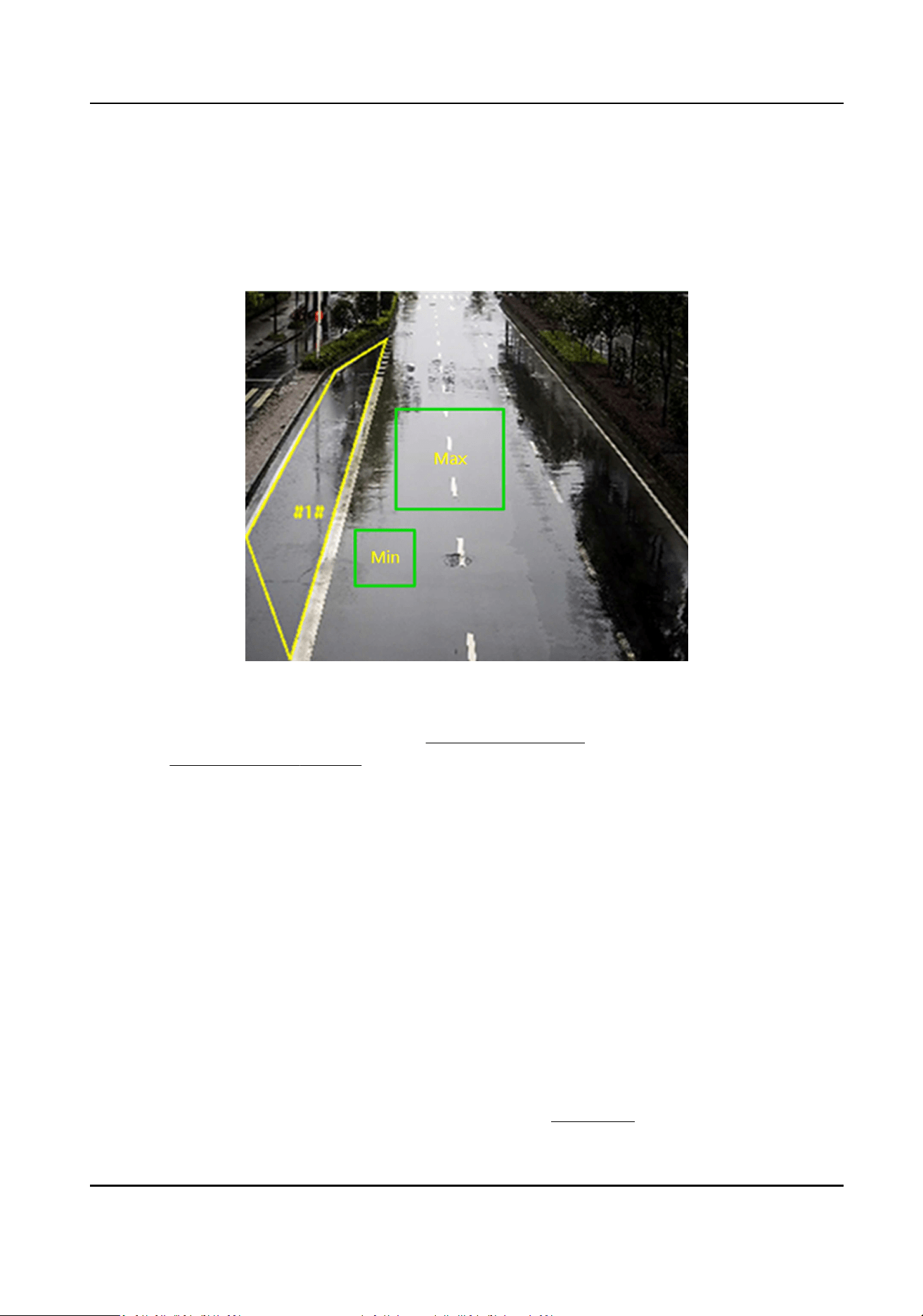
Human and vehicle are available. If the detecon target is not selected, all the detected
targets will be reported, including the human and vehicle.
Target Validity
If you set a higher validity, the required target features should be more obvious, and the
alarm accuracy would be higher. The target with less obvious features would be missing.
Figure 10-3 Set Rule
7.
Oponal: You can set the parameters of mulple areas by repeang the above steps.
8.
For the arming schedule sengs, refer to Set Arming Schedule . For the linkage method sengs,
refer to Linkage Method Sengs .
9.
Click Save.
10.3.4 Set Region Exing Detecon
It is used to detect objects exing from a predened virtual region. If it occurs, the device can take
linkage acons.
Before You Start
●
Go to VCA → VCA Resource , and select Smart Event.
●
For the device supporng HEOP, go to VCA → APP to import and enable Smart Event.
Steps
1.
Go to VCA → Smart Event → Region Exing Detecon
2.
Select Channel No.
3.
Check Enable.
4.
Select a Region. For the detecon region sengs, refer to
Draw Area .
Network Camera User Manual
80
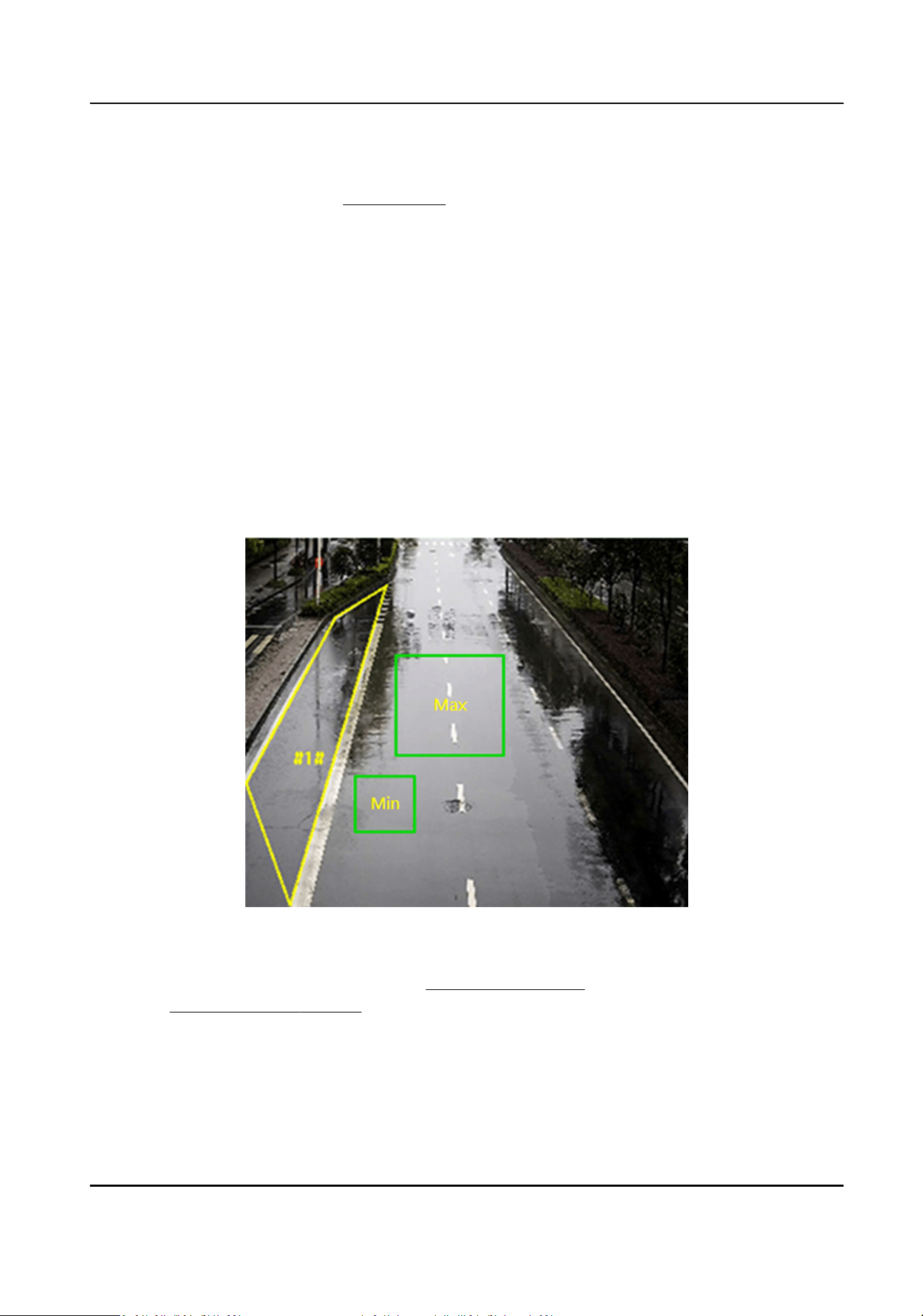
5.
Set the minimum size and the maximum size for the target to improve detecon accuracy. Only
targets whose size are between the maximum size and the minimum size trigger the detecon.
For the detail sengs, refer to Set Size Filter .
6.
Set the detecon target, sensivity and the target validity.
Sensivity
It stands for the percentage of the body part of an acceptable target that goes across the
predened region. Sensivity = 100 - S1/ST × 100. S1 stands for the target body part that goes
across the predened region. ST stands for the complete target body. The higher the value of
sensivity is, the more easily the alarm can be triggered.
Detecon Target
Human and vehicle are available. If the detecon target is not selected, all the detected
targets will be reported, including the human and vehicle.
Target Validity
If you set a higher validity, the required target features should be more obvious, and the
alarm accuracy would be higher. The target with less obvious features would be missing.
Figure 10-4 Set Rule
7.
Oponal: You can set the parameters of mulple areas by repeang the above steps.
8.
For the arming schedule sengs, refer to Set Arming Schedule . For the linkage method sengs,
refer to Linkage Method Sengs .
9.
Click Save.
Network Camera User Manual
81

10.4 Face Capture
The device can capture the face that appears in the congured area, and the face informaon will
be uploaded with the captured picture as well.
Note
●
For device that supports face capture, you need to enable the funcon in VCA Resource. Refer to
Allocate VCA Resource for details.
●
Face capture is only supported by certain models.
10.4.1 Set Face Capture
The face that appears in the congured area can be captured.
Before You Start
To enable the funcon, go to VCA → VCA Resource and select Face Recognion.
Steps
1.
Go to VCA → Face Capture .
2.
For shield region sengs, refer to Set Shield Region .
3.
Select Rule and check Rule.
4.
Input the min. pupil distance in the text eld, or click to draw the min. pupil distance.
Min. Pupil Distance
The min. pupil distance refers to the minimum area between two pupils, and it is basic for the
device to recognize a face.
5.
Input the max. pupil distance in the text eld, or click to draw the max. pupil distance.
6.
Click to draw the detecon area you want the face capture to take eect. Draw area by le-
clicking end-points in the live view window, and right-clicking to nish the area drawing. It is
recommended that the drawn area occupies 1/2 to 2/3 of the live view image.
7.
For the arming schedule sengs, refer to Set Arming Schedule . For the linkage method sengs,
refer to Linkage Method Sengs .
8.
Click Save.
9.
For overlay and capture sengs, refer to Overlay and Capture . For advanced parameters
sengs, refer to
Face Capture Algorithms Parameters .
Result
You can view and download captured face images in Picture. Refer to View and Download Picture
for details.
Network Camera User Manual
82

10.4.2 Overlay and Capture
Choose to congure capture parameters and the informaon you want to display on stream and
picture.
Display VCA info. on Stream
Display smart informaon on stream, including the target and rules informaon.
Display Target info. on Alarm Picture
Overlay the alarm picture with target informaon.
Target Picture Sengs
Custom, Head Shot, Half-Body Shot and Full-Body Shot are selectable.
Note
If you select Custom, you can customize width, head height and body height as required.
You can check Fixed Value to set the picture height.
Face Beaucaon
Check Face Beaucaon and adjust the beaucaon level as needed.
Note
Face Beaucaon slightly adjusts skin tone and reduces facial noise.
Face Enhancement
Check Face Enhancement and the device is able to capture beer and clearer face pictures
when it is dark.
Background Picture Sengs
Comparing to target picture, background picture is the scene image which oers extra
environmental informaon. You can set the background picture quality and resoluon. If the
background image need to be uploaded to the surveillance center, check Background Upload.
For some devices, you can also check Face Picture to upload the captured face picture.
Camera
You can set Device No. and Camera Info. for the camera, which can be overlaid on captured
picture.
Text Overlay
You can check desired items and adjust their order to display on captured pictures by .
The content of Device No. and Camera Info should be on the same page.
10.4.3 Face Capture Algorithms Parameters
It is used to set and opmize the parameters of the algorithm library for face capture.
Network Camera User Manual
83

Go to VCA → Face Capture → Advanced Parameters Conguraon .
Face Capture Version
It lists the version of the algorithms library.
Capture Parameters
Upload Feature
Feature stands for the feature informaon the algorithm can tell from face pictures. Check the
funcon to upload the informaon.
Best Shot
The best shot aer target leaves the detecon area.
Capture Times
It refers to the capture mes a face will be captured during its stay in the congured area. The
default value is 1.
Capture Threshold
It stands for the quality of face to trigger capture and alarm. Higher value means beer quality
should be met to trigger capture and alarm.
Quick Shot
You can dene quick shot threshold and max. capture interval.
Quick Shot Threshold
It stands for the quality of face to trigger quick shot.
Remove Duplicated Faces
This funcon can lter out repeated captures of certain face.
Similarity Threshold for Duplicates Removing
It is the similarity between the newly captured face and the picture in the duplicates removing
library. When the similarity is higher than the value you set, the captured picture is regarded
as a duplicated face and will be dropped.
Duplicates Removing Library Grading Threshold
It is the face grading threshold that triggers duplicates checking. When the face grading is
higher than the set value, the captured face is compared with the face pictures that are
already in the duplicates removing library.
Duplicates Removing Library Update Time
Every face picture is kept in the duplicates removing library for the set update me.
Face Exposure
Check the checkbox to enable the face exposure.
Reference Brightness
Network Camera User Manual
84

The reference brightness of a face in the face exposure mode. If a face is detected, the camera
adjusts the face brightness according to the value you set. The higher the value, the brighter the
face is.
Minimum Duraon
The minimum duraon of the camera exposures the face.
Note
If the face exposure is enabled, please make sure the WDR funcon is disabled, and the manual
iris is selected.
Face Filtering Time
It means the me interval between the camera detecng a face and taking a capture acon. If
the detected face stays in the scene for less than the set ltering me, capture will not be
triggered. For example, if the face ltering me is set as 5 seconds, the camera will capture the
detected face when the face keeps staying in the scene for 5 seconds.
Note
The face ltering me (longer than 0s) may increase the possibility of the actual capture mes
less than the set value above.
Facial Posture Filter
Facial posture lter can lter out face of certain postures. The gure on the right of the slider
stands for the posture angle which is acceptable in the face capture acon. Click to display
the diagram illustrang the face turning direcon when seng up this lter.
Restore Default
Click Restore to restore all the sengs in advanced conguraon to the factory default.
10.4.4 Set Shield Region
The shield region allows you to set the specic region in which the set smart funcon rule is
invalid.
Steps
1.
Select Shield Region.
2.
Click
to draw shield area. Repeat this step above to set more shield regions.
3.
Oponal: Click to delete the drawn areas.
4.
Click Save.
Network Camera User Manual
85

10.5 Mul-Target-Type Detecon (Capture Target With Feature)
Mul-Target-Type Detecon is to detect, capture and upload data of targets in mulple types, such
as human face, human body, and vehicle.
Note
●
The funcon is only supported by certain device models.
●
For certain device models, you need to enable Mul-Target-Type Detecon (Capture Target
with Feature) on VCA Resource page rst.
10.5.1 Set Mul-Target-Type Detecon Rule
Aer seng the mul-target-type detecon rules and algorithm parameters, the device captures
targets of mulple types and triggers linkage acons automacally.
Steps
1.
Go to VCA → Mul-Target-Type Detecon (Capture Target with Feature) → Rule .
2.
Check Rule.
3.
Click , and draw a detecon area on live image.
4.
Enter the min. pupil distance in the text eld, or click to draw min. pupil distance.
Min. Pupil Distance
The min. pupil distance refers to the minimum area between two pupils, and it is basic for the
device to recognize a face.
5.
Set arming schedule. See Set Arming Schedule .
6.
Set linkage method. See Linkage Method Sengs .
7.
Click Save.
What to do next
Go to Picture to search and view the captured pictures.
Go to Smart Display to see currently captured target pictures.
10.5.2 Overlay and Capture
Choose to congure capture parameters and the informaon you want to display on stream and
picture.
Display VCA info. on Stream
Display smart informaon on stream, including the target and rules informaon.
Display Target info. on Alarm Picture
Overlay the alarm picture with target informaon.
Target Picture Sengs
Network Camera User Manual
86

Custom, Head Shot, Half-Body Shot and Full-Body Shot are selectable.
Note
If you select Custom, you can customize width, head height and body height as required.
You can check Fixed Value to set the picture height.
Face Beaucaon
Check Face Beaucaon and adjust the beaucaon level as needed.
Note
Face Beaucaon slightly adjusts skin tone and reduces facial noise.
Face Enhancement
Check Face Enhancement and the device is able to capture beer and clearer face pictures
when it is dark.
Background Picture Sengs
Comparing to target picture, background picture is the scene image which oers extra
environmental informaon. You can set the background picture quality and resoluon. If the
background image need to be uploaded to the surveillance center, check Background Upload.
For some devices, you can also check Face Picture to upload the captured face picture.
Camera
You can set Device No. and Camera Info. for the camera, which can be overlaid on captured
picture.
Text Overlay
You can check desired items and adjust their order to display on captured pictures by
.
The content of Device No. and Camera Info should be on the same page.
10.5.3 Mul-Target-Type Detecon Algorithm Parameters
It is used to set and opmize the parameters of the algorithm library for Mul-Target-Type
Detecon.
Go to the VCA → Mul-Target-Type Detecon (Capture Target with Feature) → Advanced
Parameters Conguraon for conguraon.
HMS Version
It refers to the current algorithm version, which cannot be edited.
Restore Defaults
Click Restore to restore all the sengs in advanced conguraon to the factory default.
Network Camera User Manual
87

Capture Parameters
Best Shot
Capture Threshold
It refers for the quality of face to trigger capture and alarm. Higher value means beer quality
should be met to trigger capture and alarm.
Remove Duplicated Faces
This funcon can lter out repeated captures of certain face.
Similarity Threshold for Duplicates Removing
It is the similarity between the newly captured face and the picture in the duplicates removing
library. When the similarity is higher than the value you set, the captured picture is regarded
as a duplicated face and will be dropped.
Duplicates Removing Library Grading Threshold
It is the face grading threshold that triggers duplicates checking. When the face grading is
higher than the set value, the captured face is compared with the face pictures that are
already in the duplicates removing library.
Duplicates Removing Library Update Time
Every face picture is kept in the duplicates removing library for the set update me.
Face Exposure
Enable the funcon, and the device automacally adjusts exposure level when human faces
appear in the scene.
Reference Brightness
It refers to the reference brightness of a face in the face exposure mode. If a face in the
actual scene is brighter than the set reference brightness, the device lower the exposure
level. If a face in the actual scene is darker than the set reference, the device increases the
exposure level.
Minimum Duraon
The extra me the device keeps the face exposure level aer the face disappears in the
scene.
Face Filtering Time
It means the me interval between the camera detecng a face and taking a capture acon. If
the detected face stays in the scene for less than the set ltering me, capture will not be
triggered. For example, if the face ltering me is set as 5 seconds, the camera will capture the
detected face when the face keeps staying in the scene for 5 seconds.
Data Upload
Check one or more desired target types for picture uploading.
Network Camera User Manual
88

10.5.4 Set Shield Region
The shield region allows you to set the specic region in which the set smart funcon rule is
invalid.
Steps
1.
Select Shield Region.
2.
Click to draw shield area. Repeat this step above to set more shield regions.
3.
Oponal: Click to delete the drawn areas.
4.
Click Save.
10.6 Face Comparison and Modeling
For certain device models, you need to enable Face Picture Comparison on VCA Resource page
rst.
Note
The funcon is only supported by certain device models.
10.6.1 Face Comparison
Face comparison serves the purpose of face recognion by comparing the captured faces with
those in face picture library.
Set Face Picture Library
Face picture library is used to store modeled human faces and informaon.
Steps
1.
Go to VCA → Face Picture Library .
2.
Create a face picture library.
1) Click
to add a face picture library.
2) Input library name, threshold and remarks.
Threshold
Face similarity higher than the set threshold triggers face picture comparison alarm
uploading.
3) Click OK.
4) Oponal: Modify a face picture library. Select the desired library and click and change
related parameters.
5) Oponal: Delete a library. Select the desired library and click .
3.
Add face pictures to the library.
Network Camera User Manual
89

Note
The picture format should be JPEG, and the size no larger than 300 KB per le.
Add one face
picture
Click Add and upload the face picture with detailed face informaon.
Import face
pictures in
batch
Click Import and select picture path.
Note
●
When you import face pictures in batch, the picture name is saved as the
face name. For other face informaon, you should modify one by one
manually.
●
The vericaon code for exporng and imporng should be a
combinaon of 8 to 16 digits, containing numerics, upper case and lower
case leers.
4.
Oponal: Modify face informaon.
1) Select a face picture library.
2) Select the target face picture. You can use the search funcon to locate the picture by
inpung search condions, and click Search.
3) Click Modify.
4) Edit detailed informaon.
Note
Face picture is not allowed to change.
5) Click OK.
5.
Create models for each face picture in library.
Modeling process builds up face model for each face picture. Face model is required for face
picture comparison to take eect.
Modeling Select one or more face pictures, and click Modeling.
Batch Modeling Select a face picture library, and click Batch Modeling.
6.
Oponal: Repeat to create more face libraries.
7.
Click Save.
Set Face Picture Comparison
The funcon compares captured pictures with face pictures in library and outputs comparison
result. Comparison result can trigger certain acons when arming schedule and linkage method are
set.
Before You Start
You should rst create a face picture library and add face pictures. See Set Face Picture Library .
Network Camera User Manual
90

Steps
1.
Go to VCA → Comparison and Modeling → Face Comparison and Modeling .
2.
Select Face Picture Comparison.
3.
Check Enable Face Picture Comparison.
4.
Select a face picture library as the reference.
5.
Select desired face informaon to upload.
6.
Select the desired linked comparison alarm.
7.
Select a face comparison mode.
Best
Comparison
The device captures and compares the target face connuously when the
face target stays in the detecon area, and upload the best scored face
picture and related alarm informaon when the target face leaves the area.
Quick
Comparison
The device capture and compares the target face when the face grading
exceeds the set Face Grading Threshold for Capture.
Face Grading Threshold for Capture
The face grading threshold for the device to judge whether to capture and
upload the face or not.
Max. Capture Interval
The max. interval between two captures when the target is in the
detecon area. The camera takes the capture when it reaches the max.
interval even if the face grading does not reach the set threshold.
Quick Setup Mode
Select the mode according to actual using scenarios. In custom mode, you
can set Comparison Timeout and Comparison Times.
8.
Set arming schedule. See
Set Arming Schedule .
9.
Set linkage method. See Linkage Method Sengs .
View Face Comparison Result
Steps
1.
Go to Applicaon.
2.
Set search condion and click Counng.
Matched results are shown in Face Picture Comparison Stascs area.
10.7 Road Trac
Vehicle Detecon and Mixed-trac Detecon are available for the road trac monitoring. The
device captures the passing motor vehicles and non-motor vehicles and uploads the relevant
informaon together with the captured pictures.
Network Camera User Manual
91

Note
●
For certain device models, you need to select Road Trac on VCA Resource page rst.
●
This funcon is only supported by certain device models.
10.7.1 Set Vehicle Detecon
The vehicles that enter the set lane can be detected and the picture of the vehicle and its license
plate can be captured and stored. Alarms will be triggered and captures can be uploaded.
Before You Start
Go to VCA → VCA Resource , and select Road Trac.
Steps
1.
Go to VCA → Road Trac → Detecon Conguraon , and select Vehicle Detecon as detecon
type.
2.
Check Enable.
3.
Select the total number of lanes.
4.
Click and drag the lane line to set its posion, or click and drag the line end to adjust the length
and angle of the line.
5.
Adjust the zoom rao of the camera so that the size of the vehicle in the image is close to that of
the red frame. Only the posion of red frame is adjustable.
Note
Only 1 license plate can be captured at one me for each lane.
6.
Select Region and Country/Region.
7.
Select the license plate informaon upload mode.
Entrance/Exit The license plate informaon of the detected vehicle will be uploaded when
the vehicle passes the detecon area and triggers the detecon in entrance/
exit.
City Street The license plate informaon of the detected vehicle will be uploaded when
the vehicle passes the detecon area and triggers the detecon in city
streets.
Alarm Input It means the input alarm will trigger a license plate capture and recognion
acon.
Network Camera User Manual
92

Note
●
When Alarm Input is selected, the alarm input A<-1 will automacally be assigned to trigger
vehicle detecon and its alarm type is always NO.
●
If the A<-1 alarm input is used to trigger vehicle detecon, it can not be used for other basic
events.
●
When Alarm Input is selected and saved, previously congured linkage method for A<-1 will
be canceled.
8.
Select the Detecon mode.
9.
Check Remove Duplicated License Plates and set the Time Interval. The default me interval is
4 minutes.
10.
Set arming schedule and linkage method. For the arming schedule sengs, refer to Set Arming
Schedule . For the linkage method sengs, refer to Linkage Method Sengs .
11.
Click Save.
10.7.2 Set Mixed-Trac Detecon Rule
The motor vehicles and non-motor vehicles that enter the set lane can be detected, and the
picture of targets can be captured and stored. Alarms will be triggered and captures can be
uploaded.
Before You Start
Go to VCA → VCA Resource , and select Road Trac.
Steps
1.
Go to VCA → Road Trac → Detecon Conguraon , and select Mixed-trac Detecon as
detecon type.
2.
Check Enable.
3.
Select the total number of lanes.
4.
Click and drag the lane line to set its posion, or click and drag the line end to adjust the length
and angle of the line.
5.
Adjust the zoom rao of the camera so that the size of the vehicle in the image is close to that of
the red frame. Only the posion of red frame is adjustable.
Note
Only 1 license plate can be captured at one me for each lane.
6.
Select Region and Country/Region.
7.
Check Remove Duplicated License Plates and set Time Interval. The default me interval is 4
minutes.
8.
Set arming schedule and linkage method. For the arming schedule sengs, refer to
Set Arming
Schedule . For the linkage method sengs, refer to Linkage Method Sengs .
9.
Click Save.
Network Camera User Manual
93

10.7.3 Uploading Pictures Sengs
You can set the image parameters of the captured images in vehicle detecon and mixed-trac
detecon.
Go to VCA → VCA Resource , and select Road Trac.
Go to VCA → Road Trac → Picture .
Picture Quality
The larger the value is, the clearer the picture is, but larger storage space is also required.
Picture Size
The larger the value is, the larger the storage space is needed. And the level of network
transmission requirement is also higher.
Picture Resoluon
The captured background picture resoluon.
Picture Capture Interval
The camera supports connuously trigger the alarm and upload captured picture each interval.
Check Picture Capture Interval and set the interval.
Sync Background Capture from Another Channel
Check this funcon to upload addional captured background picture from another channel.
When an alarm is triggered, an addional captured background picture from another channel
(panoramic channel) will be uploaded synchronously.
License Plate Enhancement
The larger the value is, the clearer the license plate is, but larger storage space is also required.
Check License Plate Enhancement and set the level. The default level is 50.
Note
Only certain device models support this funcon.
Overlay
You can overlay camera, device or vehicle informaon on the captured image and click to
adjust the order of overlay texts.
FTP Picture Name
You can set the naming rule for captured pictures in vehicle detecon and mixed-trac
detecon in the FTP server.
Select Default to use the default rule.
Select Custom, select informaon for the picture name, and click to adjust the order of
picture name parameters. If Capture Time is not selected in custom mode, the captured picture
Network Camera User Manual
94

triggered by the same vehicle later will replace the captured picture before due to the same
picture name.
Note
For more informaon about FTP sengs, refer to Set FTP .
10.7.4 Advanced Parameters Conguraon
Go to VCA → VCA Resource , and select Road Trac.
Version
It stands for the current algorithm version.
10.7.5 Import or Export Blocklist & Allowlist
You can import and export the blocklist and allowlist as desired, and check the list content in this
interface.
Steps
1.
Click Browse to open the PC local directory.
2.
Find the blocklist & allowlist le and click to select it. Click Open to conrm.
Note
●
The le to import should corresponds with the le template that is required by the camera.
You are recommended to export an empty blocklist & allowlist le from the camera as the
template and ll in the content.
●
The le should be in the .xls format and the cell format should be Text.
3.
Click Import to import the selected le.
4.
Click Export to open the PC local directory.
5.
Select a directory in your PC local directory.
6.
Name the le in the le name text led.
7.
Click Save.
10.8 People Management
People management is used to detect and analyze people number and changes in a predened
region. It can be applied to the entrances and exits, supermarkets, etc.
Note
●
For certain device models, you need to enable People Management on VCA Resource page rst.
●
The funcon is only supported by certain device models.
Network Camera User Manual
95

10.8.1 Queue Management
It is used to count queuing-up people number and waing me of each person.
Refer to Set Regional People Queuing-Up to set regional people queuing-up detecon.
Refer to Set Waing Time Detecon to set waing me detecon.
Refer to Queue Management Stascs to set and view queue management stascs.
Note
Queue management is only supported by certain models.
Set Regional People Queuing-Up
It is used to count queuing-up persons in dened regions. Alarms are triggered when the alarm
threshold condion and the alarm trigger are both met.
Before You Start
To enable the funcon, go to VCA → VCA Resource , and enable People Management.
Steps
1.
Go to VCA → People Management → Queue Management .
2.
Select Regional People Queuing-Up.
3.
Select a color and click Add Region to draw a detecon region. Set Region Name and Alarm
Interval. Repeat this step above to set more areas.
Alarm Interval
During the set alarm interval, alarms of the same type only trigger one nocaon.
Network Camera User Manual
96
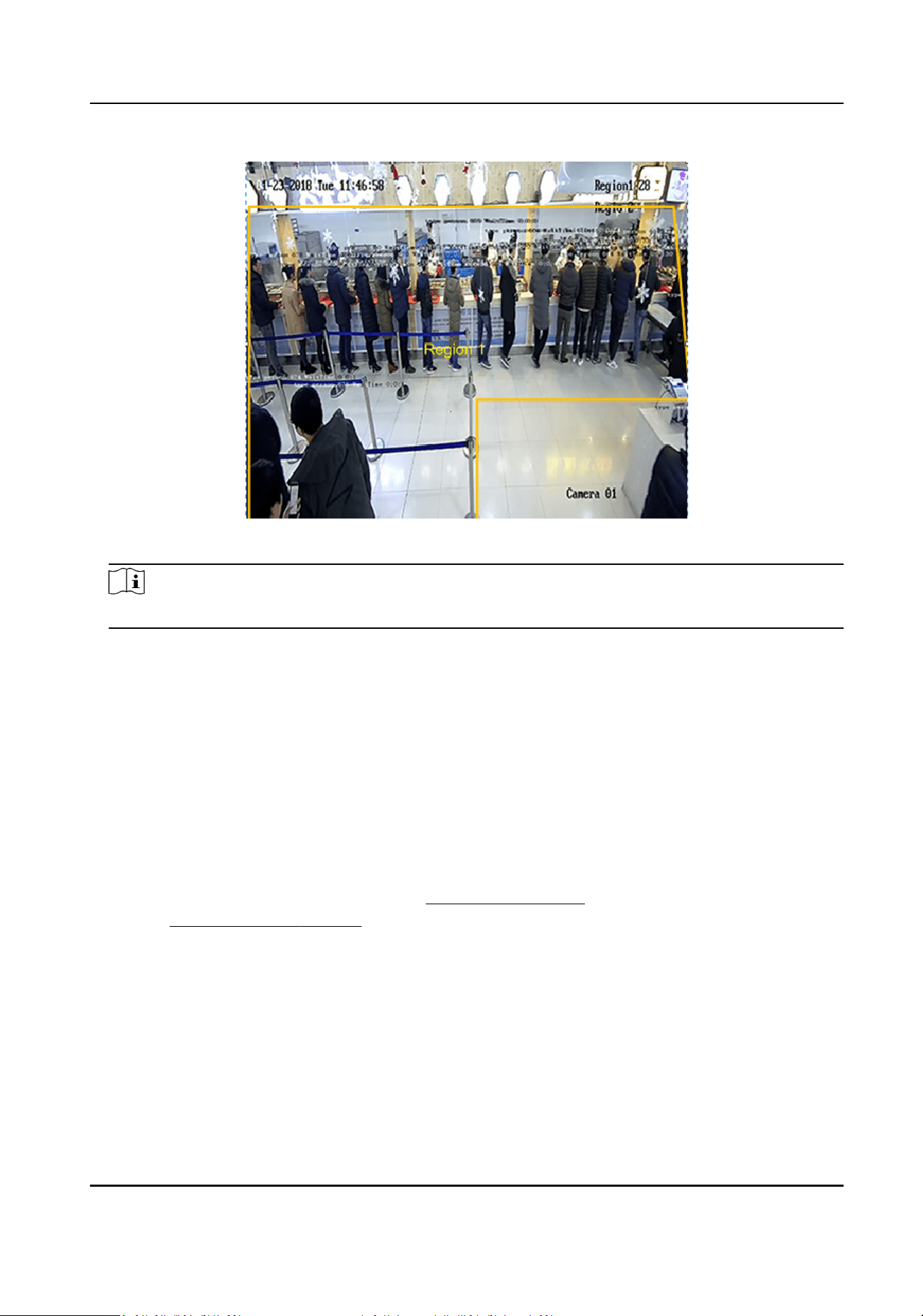
Figure 10-5 Set Regional People Queuing-Up
Note
Try not to overlap the regions.
4.
Set rules for regional people queuing-up.
People Number OSD
It displays people number in the live view window.
Ignore Situaon of No People
The device will not trigger an alarm when there is no people in the scene. This funcon can
lter the potenal alarm condion under which the value is less than the set alarm threshold
and no people is in the scene.
Alarm Trigger Condion and Alarm Threshold
When the people number in the set region reaches alarm threshold and triggering condion,
an alarm will be triggered.
5.
For the arming schedule sengs, refer to
Set Arming Schedule . For the linkage method sengs,
refer to Linkage Method Sengs .
6.
Oponal: Set scheduled data uploading. Both real-me uploading and scheduled uploading are
supported.
Real-Time Uploading
Check Real-Time Upload and the device uploads the detected target ID, waing duraon, and
regional people number in real-me.
Scheduled Uploading
Network Camera User Manual
97

The device uploads the people number whose waing duraon is equal to or larger than the
Minimum Duraon of Stay at the integral point.
For example, if the minimum duraon of stay is set as 10 sec and two regions are covered,
the device, at the integral point, will upload the people number when the duraon of stay is
equal to or longer than 10 sec in two regions respecvely.
7.
Click Save.
8.
Oponal: Set text overlay. For detailed sengs, refer to Overlay and Capture .
9.
Oponal: View version and set ltering condion. For detailed sengs, refer to Advanced
Sengs .
What to do next
Go to Applicaon → Queue Management Stascs to view detailed data analysis. For detailed
sengs, refer to Queue Management Stascs .
Set Waing Time Detecon
It is used to count the waing me of each person that enters a detecon area. Alarms are
triggered when the alarm threshold condion and the alarm trigger are both met.
Before You Start
To enable the funcon, go to VCA → VCA Resource , and enable People Management.
Steps
1.
Go to VCA → People Management → Queue Management .
2.
Select Waing Time Detecon.
3.
Select a color and click Add Region to draw a detecon region. Set Region Name and Alarm
Interval. Repeat this step above to set more areas.
Alarm Interval
During the set alarm interval, alarms of the same type only trigger one nocaon
Network Camera User Manual
98
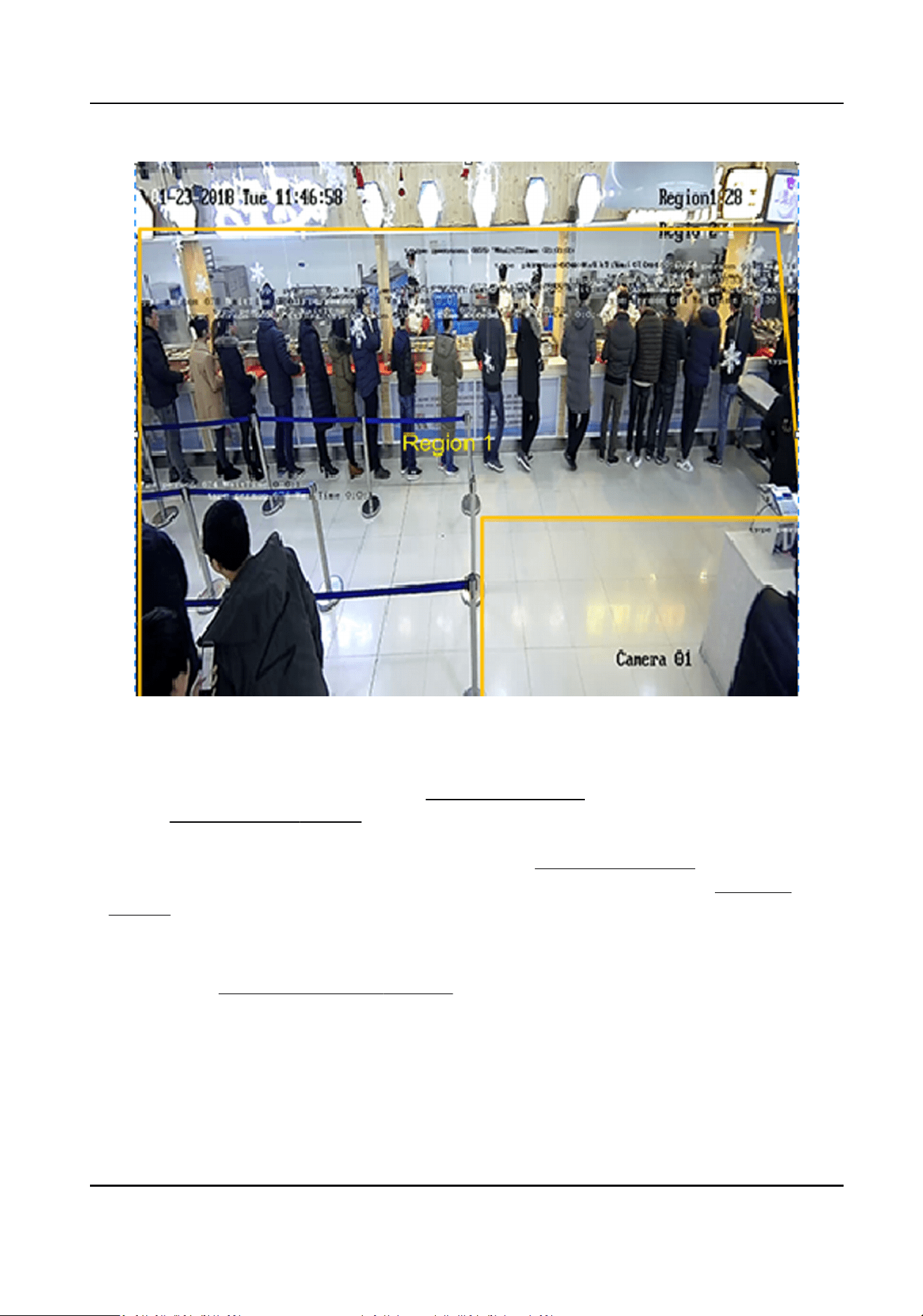
Figure 10-6 Set Waing Time Detecon
4.
Set Alarm Trigger Condion and Alarm Threshold. When the waing me in the set region
reaches alarm threshold and triggering condion, an alarm will be triggered.
5.
For the arming schedule sengs, refer to Set Arming Schedule . For the linkage method sengs,
refer to Linkage Method Sengs .
6.
Click Save.
7.
Oponal: Set text overlay. For detailed sengs, refer to Overlay and Capture .
8.
Oponal: View version and set ltering condion. For detailed sengs, refer to Advanced
Sengs .
What to do next
Go to Applicaon → Queue Management Stascs to view detailed data analysis. For detailed
sengs, refer to Queue Management Stascs .
Queue Management Stascs
Queue management supports data analysis and report output.
Network Camera User Manual
99
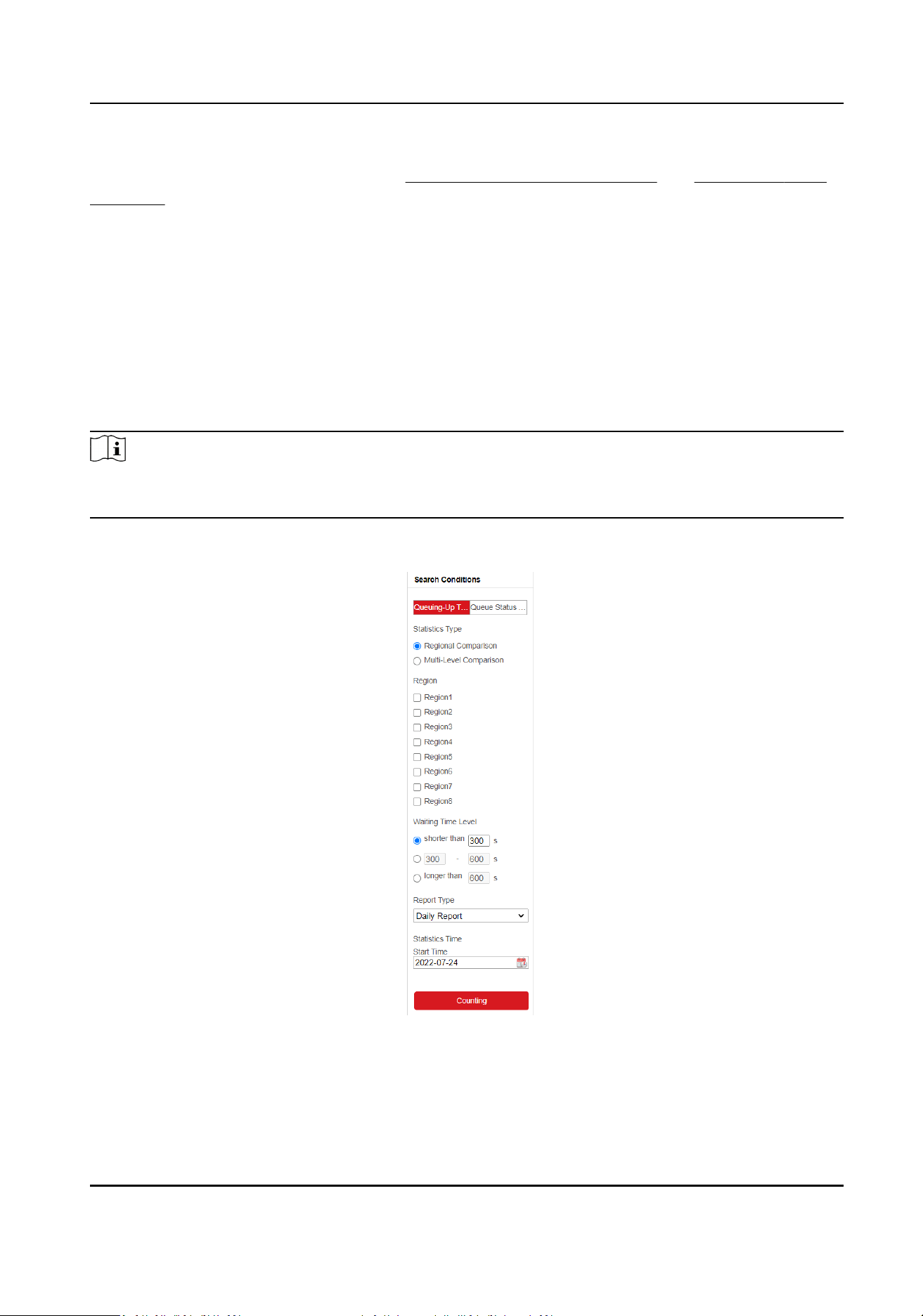
Before You Start
For queue management sengs, refer to Set Regional People Queuing-Up and Set Waing Time
Detecon .
●
Select Queuing-Up Time Analysis and Regional Comparison to compare queuing-up people
number of dierent regions.
●
Select Queuing-Up Time Analysis and Mul-Level Comparison to compare queuing-up people
number of dierent waing me levels.
●
Select Queue Status Analysis and Regional Comparison to compare the me and duraon that a
queue stays at a certain length in dierent regions.
●
Select Queue Status Analysis and Mul-Level Comparison to compare the me and duraon of
the queue at dierent queue length levels.
Steps
Note
With an on-board memory card installed, the device can save up to one mouth's data. With NO
memory card installed, the device can only save up to one week's data.
1.
Go to Applicaon → Queue Management Stascs .
Figure 10-7 Queue Management Stascs
2.
Select the analysis mode.
Queuing-Up Time Analysis
Network Camera User Manual
100

Queuing-Up me analysis calculates people number of dierent waing me levels.
Queue Status Analysis
Queue status analysis calculates the me and duraon that a queue stays a certain length.
3.
Select Stasc Type.
Regional Comparison
Mulple regions and one level can be selected for analysis, and an analysis chart can be
drawn.
Mul-Level Comparison
Mulple levels and regions can be selected for analysis, and one analysis chart is drawn for
each region.
4.
Check one or more regions.
5.
Set the waing me level. Check one desired range and enter values.
6.
Select Report Type and Stascs Time.
7.
Click Counng to generate the report.
10.8.2 Advanced Sengs
Go to VCA → People Management → Advanced Parameters Conguraon → Advanced . Set the
parameters and click Save.
Version
It stands for the current algorithm version.
Algorithm Mode
Select a mode according to the installaon scene.
Filter
Target Size
It stands for the size of the target detecon window. A target larger than this pixel can be
counted as a real target. It can remove the false alarm of a certain xed target.
Displacement
It stands for target displacement or the target width. A target will not be counted if its
displacement is less than the set percentage.
Min. Waing Duraon
Waing me shorter than the set value will be ltered.
Validity
The higher the threshold is, the more dicult a target will be detected, but the higher the
accuracy is.
Network Camera User Manual
101

Note
The ltering sengs should be operated by the professionals. The lter sengs can adjust the
algorithm for detecon to change the detecon range, sensivity, etc.
10.8.3 Overlay and Capture
Go to VCA → People Management → Advanced Parameters Conguraon → Overlay and
Capture . Check the informaon you want to overlay on the captured pictures. You can also click
to adjust the order.
Network Camera User Manual
102
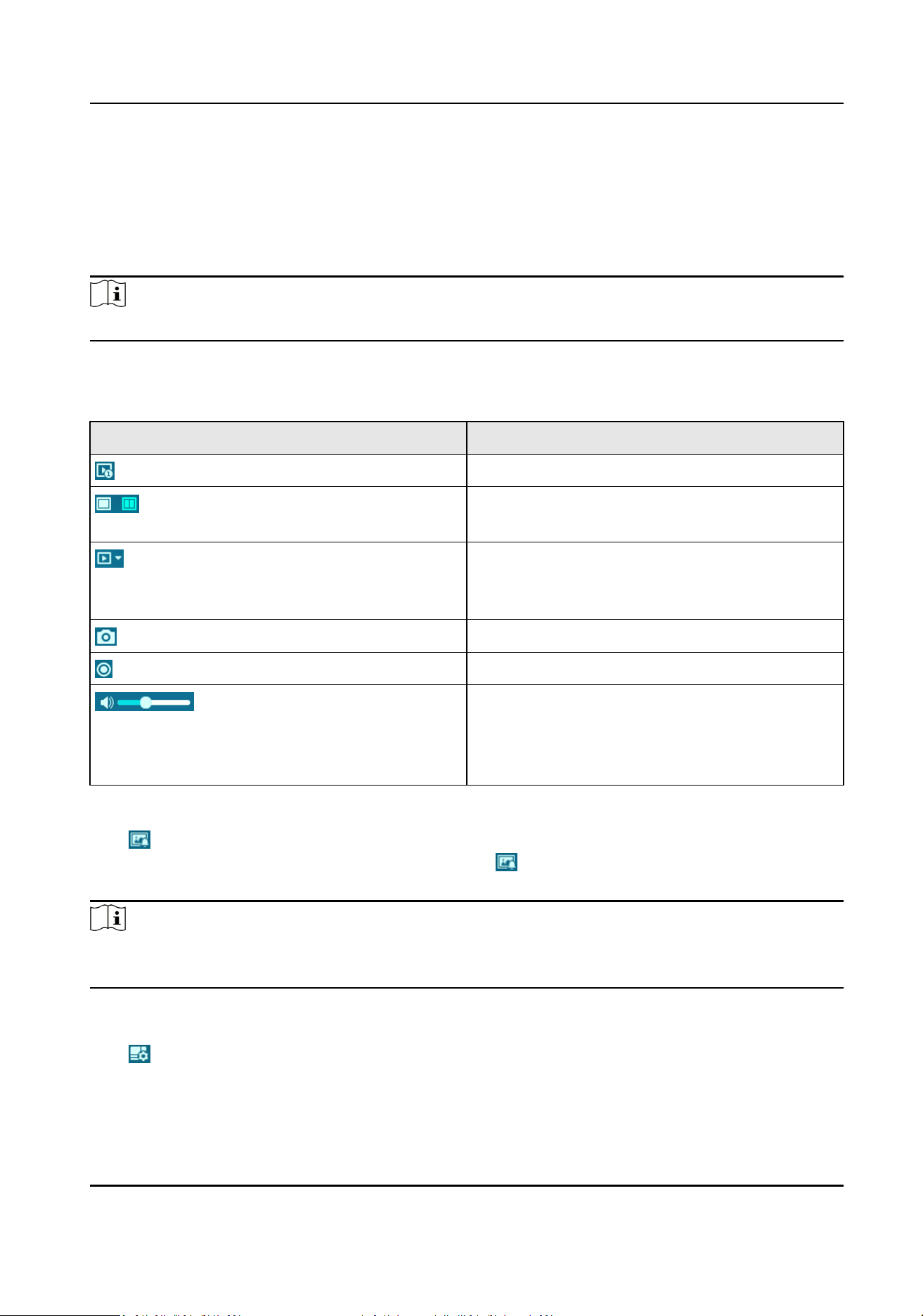
Chapter 11 Smart Display
This funcon displays real me pictures captured by smart funcons and analyzes the target in real
me.
Note
The funcon is only supported when certain smart funcons are enabled.
Live View Parameter
Icon Funcon
Start/stop live view.
For the device with more than one channel, you
can select a window division mode.
For the device with more than one channel, you
can select one or more channels to start live
view.
Capture a picture.
Start or stop recording.
Adjust the volume of live view. Move the slider
to right to turn up the volume and le to turn
down the volume. Move to the le end to mute
the live view.
Download Display Pictures
Click and the device stores captured pictures to the browser cache. Hover the pointer over the
icon to see the number of pictures in the cache. Click again to download the pictures in a
package.
Note
The browser cache has a limited size. The recommended number of pictures to download is no
more than 200.
Layout
Click and choose Layout. Check the display content you need to add it to the smart display
page. When real-me analyze is selected, you can choose the contents you want to display.
Network Camera User Manual
103

Detect Feature
Click and choose Detect Feature. Check the corresponding checkbox to display the features of
the detecon target.
Network Camera User Manual
104

Chapter 12 EPTZ
EPTZ (Electronic PTZ) is a high-resoluon funcon that digitally zooms and pans into porons of the
image, with no physical camera movement. If you want to use the EPTZ funcon, make sure your
device supports the Third Stream. Third stream and EPTZ should be both enabled simultaneously.
For the device with more than one channel, select a channel No. before seng EPTZ.
Note
The funcon is only supported by certain device models.
12.1 Patrol
Steps
1.
Go to Conguraon → EPTZ .
2.
Check Enable EPTZ.
3.
The default Stream Type is Third Stream and cannot be congured.
4.
Select Patrol in Applicaon.
5.
Click Save.
What to do next
For the detailed informaon about the patrol sengs, see the PTZ operaons on live view page.
12.2 Auto-Tracking
Steps
1.
Go to Conguraon → EPTZ .
2.
Check Enable EPTZ.
3.
The default Stream Type is Third Stream and cannot be congured.
4.
Select Auto-tracking in Applicaon.
5.
Click Detecon Area to start drawing.
6.
Click on the live video to specify the four vertexes of the detecon area, and right click to
complete drawing.
7.
Set rules.
Detecon Target
Human and vehicle are available. If the detecon target is not selected, all the detected
targets will be tracked, including the human and vehicle.
Note
Only certain camera models support this funcon.
Network Camera User Manual
105

Sensivity
It stands for the percentage of the body part of an acceptable target that is tracked.
Sensivity = 100 - S1/ST × 100. S1 stands for the target body part that enters the pre-dened
area. ST stands for the complete target body. The higher the value of sensivity is, the more
easily the target can be tracked.
8.
Click Save.
Network Camera User Manual
106

Appendix A. Device Command
Scan the following QR code to get device common serial port commands.
Note that the command list contains the commonly used serial port commands for all Hikvision
network cameras.
Network Camera User Manual
107

Appendix B. Device Communicaon Matrix
Scan the following QR code to get device communicaon matrix.
Note that the matrix contains all communicaon ports of Hikvision network cameras.
Network Camera User Manual
108

Appendix C. FAQ
Scan the following QR code to nd the frequently asked quesons of the device.
Note that some frequently asked quesons only apply to certain models.
Network Camera User Manual
109

UD31117B