
2 C6644M (10/21)

C6644M (10/21) 3
Contents
Contents. . . . . . . . . . . . . . . . . . . . . . . . . . . . . . . . . . . . . . . . . . . . . . . . . . . . . . . . . . . . . . . . . . . . . . . . . . . . . . . . . . . . . . . . . . . . . . . . . . . . . . . . . . . . . 3
Important Notices . . . . . . . . . . . . . . . . . . . . . . . . . . . . . . . . . . . . . . . . . . . . . . . . . . . . . . . . . . . . . . . . . . . . . . . . . .
. . . . . . . . . . . . . . . . . . . . . . . . . . . 5
Regulatory Notices (FCC Class A). . . . . . . . . . . . . . . . . . . . . . . . . . . . . . . . . . . . . . . . . . . . . . . . . . . . . . . . . . . . . . . . . . . . . . . . . . . . . . . . . . . . . 5
Radio and Television Interference . . . . . . . . . . . . . . . . . . . . . . . . . . . . . . . . . . . . . . . . . . . . . . . . . . . . . . .
. . . . . . . . . . . . . . . . . . . . . . . . . . . . . 5
Legal Notice (Audio Notice) . . . . . . . . . . . . . . . . . . . . . . . . . . . . . . . . . . . . . . . . . . . . . . . . . . . . . . . . . . . . . . . . . . . . . . . . . . . . . . . . . . . . . . . . . 5
Video Quality Caution . . . . . . . . . . . . . . . . . . . . . . . . . . . . . . . . . . . . . . . . . . . . . . . . . . . . . . . . . .
. . . . . . . . . . . . . . . . . . . . . . . . . . . . . . . . . . . . 5
Open Source Software . . . . . . . . . . . . . . . . . . . . . . . . . . . . . . . . . . . . . . . . . . . . . . . . . . . . . . . . . . . . . . . . . . . . . . . . . . . . . . . . . . . . . . . . . . . . . 5
Power Source . . . . . . . . . . . . . . . . . . . . . . . . . . . . . . . . . . . . . . . . . . . . . . . . . . . . . .
. . . . . . . . . . . . . . . . . . . . . . . . . . . . . . . . . . . . . . . . . . . . . . 6
ESD Warning. . . . . . . . . . . . . . . . . . . . . . . . . . . . . . . . . . . . . . . . . . . . . . . . . . . . . . . . . . . . . . . . . . . . . . . . . . . . . . . . . . . . . . . . . . . . . . . . . . . . . 6
Warranty Statement . . . . . . . . . . . . . . . . . . . . . . . . . . . . . . . . . . . . . .
. . . . . . . . . . . . . . . . . . . . . . . . . . . . . . . . . . . . . . . . . . . . . . . . . . . . . . . . . 6
Supplemental Resources . . . . . . . . . . . . . . . . . . . . . . . . . . . . . . . . . . . . . . . . . . . . . . . . . . . . . . . . . . . . . . . . . . . . . . . . . . . . . . . . . . . . . . . . . . . 6
Firmware Version . . . . . . . . . . . . . . . . . . . . . . . . . . . . . . . .
. . . . . . . . . . . . . . . . . . . . . . . . . . . . . . . . . . . . . . . . . . . . . . . . . . . . . . . . . . . . . . . . . 6
Description. . . . . . . . . . . . . . . . . . . . . . . . . . . . . . . . . . . . . . . . . . . . . . . . . . . . . . . . . . . . . . . . . . . . . . . . . . . . . . . . . . . . . . . . . . . . . . . . . . . . . . . . . . . 8
System Model Numbers . . . . . . . . . . . .
. . . . . . . . . . . . . . . . . . . . . . . . . . . . . . . . . . . . . . . . . . . . . . . . . . . . . . . . . . . . . . . . . . . . . . . . . . . . . . . 9
Recommended Mounts . . . . . . . . . . . . . . . . . . . . . . . . . . . . . . . . . . . . . . . . . . . . . . . . . . . . . . . . . . . . . . . . . . . . . . . . . . . . . . . . . . . . . . . . . . . . 9
Optional Accessories . . . . . . . .
. . . . . . . . . . . . . . . . . . . . . . . . . . . . . . . . . . . . . . . . . . . . . . . . . . . . . . . . . . . . . . . . . . . . . . . . . . . . . . . . . . . . . . 9
Getting Started . . . . . . . . . . . . . . . . . . . . . . . . . . . . . . . . . . . . . . . . . . . . . . . . . . . . . . . . . . . . . . . . . . . . . . . . . . . . . . . . . . . . . . . . . . . . . . . . . . . 9
Dome Camera Mod
els . . . . . . . . . . . . . . . . . . . . . . . . . . . . . . . . . . . . . . . . . . . . . . . . . . . . . . . . . . . . . . . . . . . . . . . . . . . . . . . . . . . . . . . . . . . . . . . . . 10
Supplied Parts List . . . . . . . . . . . . . . . . . . . . . . . . . . . . . . . . . . . . . . . . . . . . . . . . . . . . . . . . . . . . . . . . . . . . . . . . . . . . . . . . . . . . . . . . . . .
. . . . 10
User-Supplied Parts List . . . . . . . . . . . . . . . . . . . . . . . . . . . . . . . . . . . . . . . . . . . . . . . . . . . . . . . . . . . . . . . . . . . . . . . . . . . . . . . . . . . . . . . . . . . 10
Product Label . . . . . . . . . . . . . . . . . . . . . . . . . . . . . . . . . . . . . . . . . . . . . . . . . . . . . . . . . . . . . . . . . . . . . . . . . . . . . . . . . . . . .
. . . . . . . . . . . . . . 10
Product Overview. . . . . . . . . . . . . . . . . . . . . . . . . . . . . . . . . . . . . . . . . . . . . . . . . . . . . . . . . . . . . . . . . . . . . . . . . . . . . . . . . . . . . . . . . . . . . . . . . . . . . 11
Conduit Plug Options . . . . . . . . . . . . . . . . . . . . . . . . . . . . . . . . . . . . . . . . . . . . . . . . . . . . . . . . . . . . . . . . . .
. . . . . . . . . . . . . . . . . . . . . . . . . . . . . . . . 12
Installation . . . . . . . . . . . . . . . . . . . . . . . . . . . . . . . . . . . . . . . . . . . . . . . . . . . . . . . . . . . . . . . . . . . . . . . . . . . . . . . . . . . . . . . . . . . . . . . . . . . . . . . . . . 13
Installing the Camera . . . . . . . . . . . . . . . . . . . . . . . . . . . . . . . . . . . . . . . . . . . .
. . . . . . . . . . . . . . . . . . . . . . . . . . . . . . . . . . . . . . . . . . . . . . . . . 13
Preparing the camera For Installation . . . . . . . . . . . . . . . . . . . . . . . . . . . . . . . . . . . . . . . . . . . . . . . . . . . . . . . . . . . . . . . . . . . . . . . . . . . . . . . . 13
In-Ceiling Installation: with IME3ICM-E (Not Supplied). . . . . . . . . . . . . . . . . . . . . . . .
. . . . . . . . . . . . . . . . . . . . . . . . . . . . . . . . . . . . . . . . . . . 14
Pendant Installation with IME3PM-E (Not supplied) and WMVE-SW (Not Supplied). . . . . . . . . . . . . . . . . . . . . . . . . . . . . . . . . . . . . . . . . . . . 16
Surface Mount: Installation to a Wall/Ceiling . . . . . . . . . . . . . . . . . . . . . . . . . . . . . . . . . . . . . . . . . . . . . . . . . . . .
. . . . . . . . . . . . . . . . . . . . . . 17
Surface Mount Installation to an Outlet Box with IME3EBAP-E (Not Supplied) . . . . . . . . . . . . . . . . . . . . . . . . . . . . . . . . . . . . . . . . . . . . . . . . 18
Connecting the Cables. . . . . . . . . . . . . . . . . . . . . . . . . . . . . . . . . . . . . . . . . . . . . . . . . . . . . . . . . . . . . . . . . . . . . . . . . . . . . . . . .
. . . . . . . . . . . . . . . . 19
Ethernet Wiring Requirement for PoE+ . . . . . . . . . . . . . . . . . . . . . . . . . . . . . . . . . . . . . . . . . . . . . . . . . . . . . . . . . . . . . . . . . . . . . . . . . . . . . . . 19
Power Wiring . . . . . . . . . . . . . . . . . . . . . . . . . . . . . . . . . . . . . . . . . . . . . . . . . . . . . . . . . . . . . . . . . . . . . . . . . . . . . . .
. . . . . . . . . . . . . . . . . . . . 19
Alarm/Relay/Audio Port. . . . . . . . . . . . . . . . . . . . . . . . . . . . . . . . . . . . . . . . . . . . . . . . . . . . . . . . . . . . . . . . . . . . . . . . . . . . . . . . . . . . . . . . . . . . . . . . 20
Positioning the Camera. . . . . . . . . . . . . . . . . . . . . . . . . . . . . . . . . . . . . . . . . . . . . . . . . . . . . . . . . . . . .
. . . . . . . . . . . . . . . . . . . . . . . . . . . . . . . 20
Completing the Camera Installation . . . . . . . . . . . . . . . . . . . . . . . . . . . . . . . . . . . . . . . . . . . . . . . . . . . . . . . . . . . . . . . . . . . . . . . . . . . . . . . . . . . . . . 21
Accessing the Camera . . . . . . . . . . . . . . . . . . . . . . . . . . . . . . . . . . . . . . . . . . . . . . . . . . . . . .
. . . . . . . . . . . . . . . . . . . . . . . . . . . . . . . . . . . . . . . . . . . 22
Pelco Troubleshooting Contact Information . . . . . . . . . . . . . . . . . . . . . . . . . . . . . . . . . . . . . . . . . . . . . . . . . . . . . . . . . . . . . . . . . . . . . . . . . . . . 22

4 C6644M (10/21)

5 C6644M (10/21)
Important Notices
REGULATORY NOTICES (FCC CLASS A)
This device complies with Part 15 of the FCC Rules. Operation is subject to the following two conditions: (1) this device may not cause harmful
interference, and (2) this device must accept any interference received, including interference that may cause undesired operation.
RADIO AND TELEVISION INTERFERENCE
This equipment has been tested and found to comply with the limits of a Class A digital device, pursuant to Part 15 of the FCC rules. These limits
are designed to provide reasonable protection against harmful interference when the equipment is operated in a commercial environment. This
equipment generates, uses, and can radiate radio frequency energy and, if not installed and used in accordance with the instruction manual, may
cause harmfu
l interference to radio communications. Operation of this equipment in a residential area is likely to cause harmful interference in
which case the user will be required to correct the interference at his own expense.
Changes and Modifications not expressly approved by the manufacturer or registrant of this equipment can void your authority to operate this
equipment under Federal Communications Commission’s rules.
This Class A digital apparatus complies
with Canadian ICES-003.
Cet appareil numérique de la classe A est conforme à la norme NMB-003 du Canada
LEGAL NOTICE (AUDIO NOTICE)
SOME PELCO EQUIPMENT CONTAINS, AND THE SOFTWARE ENABLES, AUDIO/VISUAL AND RECORDING CAPABILITIES, THE IMPROPER USE OF
WHICH MAY SUBJECT YOU TO CIVIL AND CRIMINAL PENALTIES. APPLICABLE LAWS REGARDING THE USE OF SUCH CAPABILITIES VARY
BETWEEN JURISDICTIONS AND MAY REQUIRE, AMONG OTHER THINGS, EXPRESS WRITTEN CONSENT FROM RECORDED SUBJECTS. YOU
ARE
SOLELY RESPONSIBLE FOR INSURING STRICT COMPLIANCE WITH SUCH LAWS AND FOR STRICT ADHERENCE TO ANY/ALL RIGHTS OF
PRIVACY AND PERSONALTY. USE OF THIS EQUIPMENT AND/OR SOFTWARE FOR ILLEGAL SURVEILLANCE OR MONITORING SHALL BE DEEMED
UNAUTHORIZED USE IN VIOLATION OF THE END USER SOFTWARE AGREEMENT AND RESULT IN THE IMMEDIATE TERMINATION OF YOUR
LICENSE RIGHTS THEREUNDER.
NOTE: Improper use of audio/visu
al recording equipment may subject you to civil and criminal penalties. Applicable laws regarding the use of
such capabilities vary between jurisdictions and may require, among other things, express written consent from the recorded subjects. You are
solely responsible for insuring strict compliance with such laws and for strict adherence to any/all right of privacy and personality.
VIDEO QUALITY CAUTION
Frame Rate Notice Regarding User-Selected Options
Pelco systems are capable of providing high quality video for both live viewing and playback. However, the systems can be used in lower quality
modes, which can degrade picture quality, to allow for a slower rate of data transfer and to reduce the amount of video data stored. The picture
quality can be degraded by either lowering the resolutio
n, reducing the picture rate, or both. A picture degraded by having a reduced resolution
may result in an image that is less clear or even indiscernible. A picture degraded by reducing the picture rate has fewer frames per second,
which can result in images that appear to jump or move more quickly than normal during playback. Lower frame rates may result in a key event
not being recorded by the sy
stem.
Judgment as to the suitability of the products for users’ purposes is solely the users’ responsibility. Users shall determine the suitability of the
products for their own intended application, picture rate and picture quality. In the event users intend to use the video for evidentiary purposes in
a judicial proceeding or otherwise, users should consult with their attorney regarding any particular requirements for such use.
OPEN SOURCE SOFTWARE
This product includes certain open source or other software originated from third parties that is subject to the GNU General Public License (GPL),
GNU Library/Lesser General Public License (LGPL) and different and/or additional copyright licenses, disclaimers, and notices.
The exact terms of GPL, LGPL, and some other licenses are provided to you with this product. Please refer to the exact terms of the GPL and LGPL
at http://www.fsf.org (Free Software Foundation) or http://www.opensource.org
(Open Source Initiative) regarding your rights under said license.
You may obtain a complete corresponding machine-readable copy of the source code of such software under the GPL or LGPL by sending your
request to [email protected]; the subject line should read Source Code Request. You will then receive an email with a link for you to
download the source code.
This offer is valid for a perio
d of three (3) years from the date of the distribution of this product by Pelco.
6 C6644M (10/21)
POWER SOURCE
This product is intended to be supplied by a Listed Power Adapter or DC power source marked “L.P.S.” (or “Limited Power Source”), rated 12Vdc,
2A, 24Vac (50/60 Hz), 1.5A or POE 56Vdc, 0.6A, Tma = 60 degree C, and the altitude of operation = 2000m. If you need further assistance with
purchasing the power source, please contact to PELCO, INC for further information.
KOREAN CLASS A EMC
ESD WARNING
WARRANTY STATEMENT
For information about Pelco’s product warranty and thereto related information, refer to www.pelco.com/warranty.
SUPPLEMENTAL RESOURCES
All resources are available in one location: https://www.pelco.com/fixed-ip-sarix-enhanced-series
From this location, select the asset(s) you want to download.
FIRMWARE VERSION
Before installing the camera, visit the online Pelco supplemental resources to check for firmware updates.
Name Description
Sarix Enhanced Series Firmware Download the latest firmware for your Sarix Enhanced Series camera system.
Sarix Enhanced Series Documentation Download the latest
specification sheets as well as installation and operations
manuals for the Sarix Enhanced Series.
VxToolbox Download the latest firmware for camera management utility. This software
helps you discover the camera and update firmware.
WARNING: This product is sensitive to Electrostatic Discharge (ESD). To avoid ESD damage to this product, use ESD safe
practices during installation. Before touching, adjusting or handling this product, correctly attach an ESD wrist strap to your wrist
and appropriately discharge your body and tools. For more information about ESD control and safe handling practices of
electronics, please refer to
ANSI/ESD S20.20-1999 or contact the Electrostatic Discharge. Association (www.esda.org).

C6644M (10/21) 7

C6644M (10/21) 8
Description
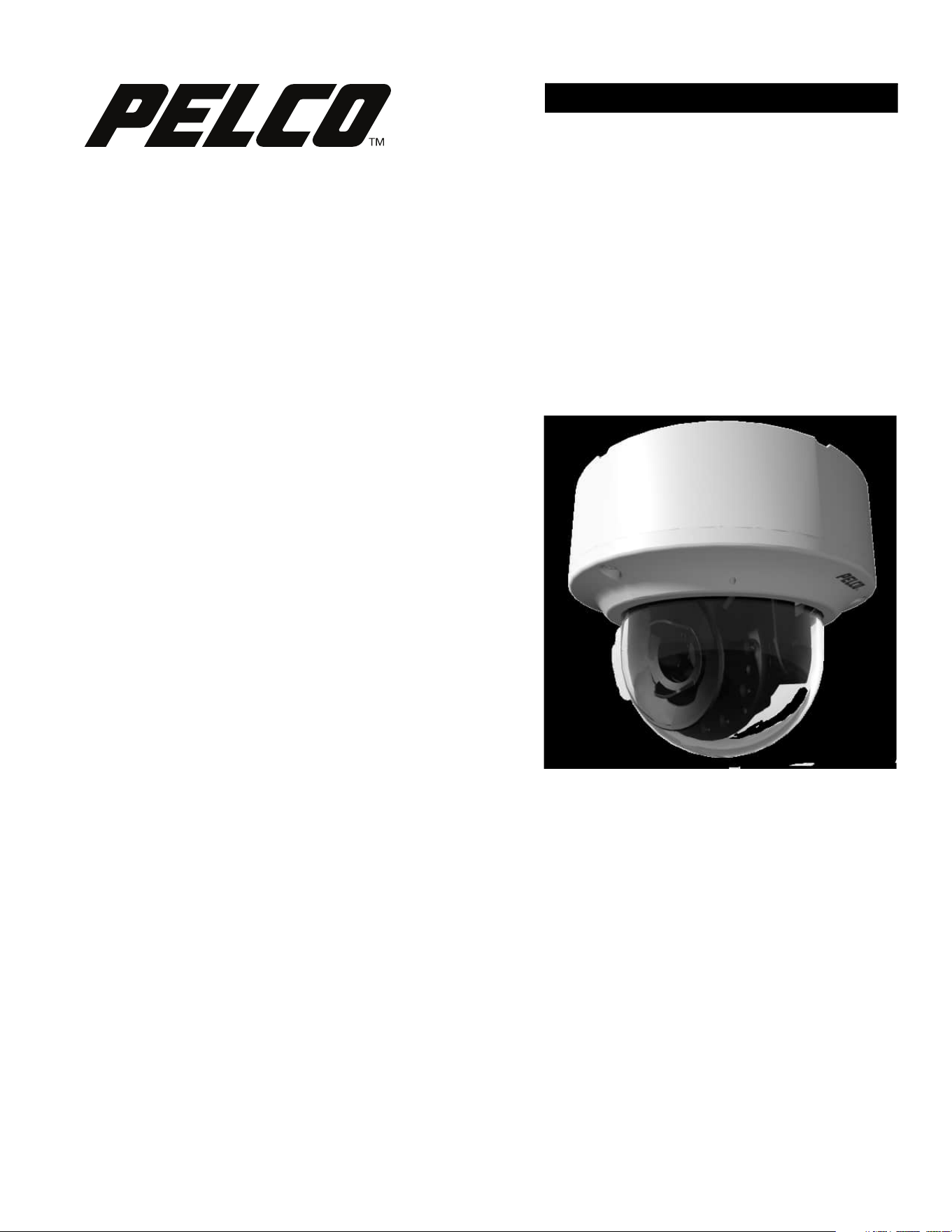
The Sarix Enhanced IME Series dome cameras include indoor and environmental domes. All environmental models feature a robust design that is
IK10+ (50 Joules) rated and vandal resistant. The environmental models feature worry-free use in harsh environments with IP66, IP67, IP68, and
Type 4X ratings, and a wide range of operating temperatures. Indoor models are rated to IK10 (20 Joules) a
nd IP66.
The Sarix Enhanced Series dome camera is easy to install, offers flexible mounting options, and uses a standard Web browser for easy remote
setup and administration.
The Sarix Enhanced Series dome camera easily connects to Pelco IP and hybrid systems such as VideoXpert and Digital Sentry version 7.3 (or
later). The camera also conforms with ONVIF Profile S, Profile G, Profile T, and Profile
Q for connection with third-party software. Pelco offers an
Application Programming Interface (API) and Software Developer’s Kit (SDK) for interfacing with Pelco’s IP cameras.
This document describes the installation and initial setup procedures to begin operating the camera. For more information about operating your
camera, refer to the operation manual specific to the product.

9 C6644M (10/21)
SYSTEM MODEL NUMBERS
RECOMMENDED MOUNTS
OPTIONAL ACCESSORIES
GETTING STARTED
• Before installing your device, thoroughly familiarize yourself with the information in the installation section of this manual.
• Pelco recommends connecting the device to a network that uses a Dynamic Host Configuration Protocol (DHCP) server to address devices.
• Do not use a network hub when configuring the
network settings for the device.
• To ensure secure access, place the device behind a firewall when it is connected to a network.
Back Box Resolution Lens Model Number Description
Surface
2 MP 2.8 to 8 mm IME238-1ERS Sarix Enhanced Environmental IR Dome
2 MP 2.8 to 8 mm IME238-1IRS Sarix Enhanced Indoor IR Dome
3 MP 8 to 20 mm IME332-1ERS Sarix Enhanced Environmental IR Dome
3 MP 8 to 20 mm IME332-1IRS Sarix Enhanced I
ndoor IR Dome
3 MP 2.8 to 8 mm IME338-1ERS Sarix Enhanced Environmental IR Dome
3 MP 2.8 to 8 mm IME338-1IRS Sarix Enhanced Indoor IR Dome
5 MP 4 to 9 mm IME539-1ERS Sarix Enhanced Environmental IR Dome
5 MP 4 to 9 mm IME539-1IRS Sarix Enhanced Indoor IR Dome
8 MP 9 to 20 mm IME832-1ERS Sarix Enhanced Environmental IR Dome 4K
8 MP 9 to 20 mm IME832-1IRS Sarix Enhanced Indoor IR Dome 4K
8 MP 4 to 9 mm IME839-1ERS Sarix Enhanc
ed Environmental IR Dome 4K
8 MP 4 to 9 mm IME839-1IRS Sarix Enhanced Indoor IR Dome 4K
Mounts Description
PA101 with WMVE-SW & IME3PM-E Pole mount for use with WMVE-SW & IME3PM-E
IME3ICM-E In-ceiling mount
IME3PM-E Pendant mount
IMM-CM with WMVE-SW & IME3PM-E Corner mount for use with WMVE-SW & IME3PM-E
IME3EBAP-E Electrical box adapter
WMVE-SW Wall mount, 1.5 in. NPT
Accessory Description
IMELD3-0E Smoked lower dome
for environmental dome cameras
IMELD3-1E Clear lower dome for environmental dome cameras
IME3LD-0 Smoked lower dome for indoor dome cameras
IME3LD-1 Clear lower dome for indoor dome cameras

C6644M (10/21) 10
Dome Camera Models
SUPPLIED PARTS LIST
USER-SUPPLIED PARTS LIST
In addition to the standard tools and cables required for a video security installation, you will need to provide the following items:
PRODUCT LABEL
The product label lists the model number, serial number, and Media Access Control (MAC) address. This information might be required for setup. A product
label is located on the bottom of the camera and on the side of the product box.
Qty Description
1 Camera
1 Surface mounting template
1 Installation manual
1 China RoHS document
1 Power terminal block
2 Plastic expansion anchors
2 M4 x 35 mm self-tapping Phillips screws
1 Torx T20 security L-key
1 Grommet
1 Important Safety Instructions document
Qty Description
1 Conduit (if applicable)
1 Conduit adapters (if applicable)
1 RJ-45 connector to terminate cables
1 Cat5e
(or higher) cable
1 #2 Phillips screwdrivers
1 Tool for drilling
1 24-28 AWG 4, 8 or 10 multi conductor cable for alarms and/or audio (optional) and/or power
1 16-20 AWG 2 conductor cable for power (optional)
1 Up to a 256 GB Micro SDHC or SDXC card capable of a minimum write speed of 10 MB/sec is recommended for recording HD video
(optional)

11 C6644M (10/21)
Product Overview
Figure 1. Sarix Enhanced IME Series Dome Camera
1. Power Connector: A two-pin connector for 12 VDC or 24 VAC.
2. RJ-45 Network Port: Connects the camera to the IP network. also supplies power to the camera (POE+), through the same connector. (Note: To
purchase a power supply, please contact Pelco for further information.)
a. Green LED: With solid green, the LED indicates a live connectio
n is established.
b. Orange LED: With flashing orange, the LED indicates data is being transmitted/received between camera and switch.
3. NPT 3/4”-14: Gland/conduit connection. It is recommended to use conduit when possible for cable entry into the housing. The Sarix IME Series
camera comes with two conduit openings (side and top entry). Only one entry is intended to be used. The other entry must be blocked with
the
conduit plug (supplied).
4. Alarm/Relay/Audio Port: Connects to alarms, relays, and audio in/out.
5. Connector: Not used.
6. Micro SD Card Slot: Install the SD card into the card slot to store videos and snapshots. Do not remove the micro SD card when the camera is
powered on.
a. To install the micro SD card, the dome cover must be taken off from the camera.
7. Reset Button: Cycles power to the camera and initiates a reset. Press and release the reset button once to reboot the camera.
8. Defaults Button: Press and hold the button for 4 seconds to restore the camera to factory default settings.
9. Microphone: Microphone for capturing sound.
10. Status LED Indicator:
a. Solid red for more than 5 seconds indicates there is a booting error. Flashing green indicates booting is normal.
b. Flashing orange indi
cates a firmware update is in progress.
c. LED will turn off after a successful boot up.
d. Solid Amber indicates the camera is in a cold start state (warming up before fully booting).
11. Camera Module Screws: Three screws used to attach the camera module to the back box. Camera module can be removed during installation to
make it easier to install the product and protect the camera during the installa
tion process (optional).
12. Camera Module: The physical main body of the camera.
13. Backbox: Bottom camera cover enclosure.
14. Lower Dome: Top camera cover enclosure. (Not shown)
C6644M (10/21) 12
Conduit Plug Options
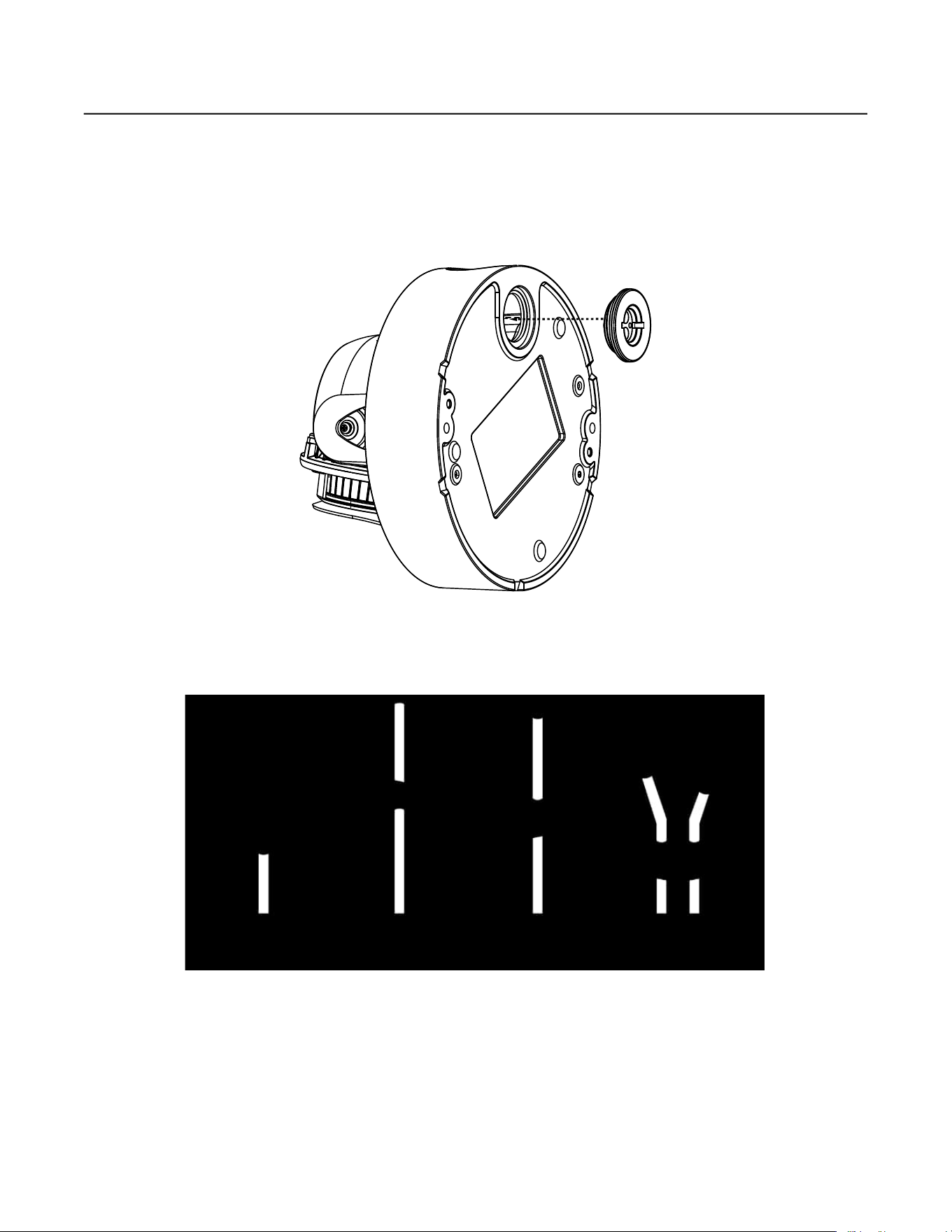
It is recommended to use conduit when possible for cable entry into the housing. The Sarix IME Series camera comes with two conduit openings
(side and top entry). Only one entry is intended to be used. the other entry must be blocked with the conduit plug (supplied). Alternatively, a
grommet is supplied for cable entry through the top conduit opening when it is not possible to
use the conduit. If using the supplied grommet,
puncture a round hole(s) as needed in the grommet that is smaller than the diameter of the cable that will be passed through the grommet.
The grommet can be installed in the following way:
1. Remove the lower dome, if necessary, and press the grommet into the top conduit entry hole.
Figure 2. Press in Grommet
2. Feed an unterminated cable through the hole
in the grommet.
3. Terminate the cable with the appropriate connector.
Figure 3. New Grommet

13 C6644M (10/21)
Installation
INSTALLING THE CAMERA
You can install the Sarix IME Series dome cameras to a solid surface (wall or ceiling) out of the box. Additionally, the following installation
methods can be used with the compatible Pelco mounts (not supplied):
• Installation on a wall or a fixed ceiling. Refer to Surface Mount: Installation to a wall/ceiling or to an outlet box with IME3EBAP-E (not
supplied).
• Inst
allation in a suspended ceiling or a fixed ceiling. Refer to In-Ceiling Installation: with IME3ICM-E (not supplied).
• Installation using a pendant mount. Refer to Pendant Installation: With WMVE-SW (not supplied) and IME3PM-E (not supplied).
NOTE: The IME3EBAP-E will attach the dome camera to a single gang, double gang, or 4” square outlet box.
PREPARING THE CAMERA FOR INSTALLATION
1. On a bench, loosen the three screws on the Lower Dome with the T20 security L-Key (supplied).
2. Gently separate th
e Lower Dome from the backbox. (Optional) Remove the Lower Dome from the backbox by unscrewing the safety lanyard
from the backbox. Set aside for later: Completing the Camera Installation.
NOTE: Leave the protective film on the dome to protect it from scratches.
Figure 4. Safety Lanyard
3. (Optional) Remove the camera module from the backbox by loosening the three camera module screws. Set aside for l
ater: Completing the
Camera Installation.
4. Remove the foam insert from the camera module body. The foam insert is for protection during shipping and must be removed before use.
Figure 5. Foam Insert

C6644M (10/21) 14
IN-CEILING INSTALLATION: WITH IME3ICM-E (NOT SUPPLIED)
PARTS LIST SUPPLIED WITH THE MOUNT
1. Secure the back box to the in-ceiling mounting bracket with the M4 screws (supplied).
NOTE: When mounting the backbox, be mindful of the location of the microphone (See Figure 1) so that it is pointed towards areas of
interest.
Figure 6. Attaching the Back Box to the In-Ceiling Mounting Bracket
2.
Determine the mounting location in the ceiling. NOTE: In-ceiling mount can attach to a minimum surface thickness of 3/8” (0.375 inches).
3. Use the template to mark the hole on the ceiling or ceiling tile.
4. Cut the hole for the camera.
5. Pull the wiring through the hole.
6. Based on your needs, move the conduit plug to the side or the top to use the other hole for cable entry. Tighten the plug.
7. Install the mount into the ceiling as follows:
a. If using conduit (not supplied): Feed t
he cables into the back box, then attach and seal the conduit to the backbox.
b. Fold the paddles inside to clear the hole.
c. Push the mount through the hole.
d. Rotate the screws clockwise and fasten completely to secure the bracket to the ceiling.
8. Refer to Connecting the Cables, Positioning the Camera, and Completing the Camera Installation sections before proceeding.
Qty Description
1 In-Ceiling mount
1
Ceiling template
2 M4 x 8 mm Phillips screws
1 Trim ring

C6644M (10/21) 15
Figure 7. Ceiling Bracket Rotation
9. Refer to Connecting the Cables, Positioning the camera, and Completing the Camera Installation sections before proceeding.

16 C6644M (10/21)
PENDANT INSTALLATION WITH IME3PM-E (NOT SUPPLIED) AND WMVE-SW (NOT
SUPPLIED)
PARTS LIST SUPPLIED WITH THE MOUNT
INSTALLATION GUIDE
The pendant cap can be installed to 1-1/2” NPT pipe or a 1-1/2” NPT wall mount arm like the WMVE-SW (not supplied). Cabling should be pulled
through the pipe or wall mount arm prior to attaching the pendant cap to it.
10. Apply grease or Teflon tape to the pendant threads.
CAUTION: Threads may be sharp. Wear protective gloves when applying Teflon tape or grease.
11. Pull the wiring through the hole
on the top of the pendant cap.
12. Screw on the pendant cap to the pipe or WMVE-SW wall mount (refer to WMVE-SW installation manual on pelco.com for installing the
wall mount arm).
13. Feed the cables into the camera backbox. The supplied grommet must be used to maintain ingress protection. Refer to the Conduit Plug
Section for feeding the cables through the grommet and into the backbox.
14. Place the
camera back box into the pendant cap. Attach the backbox to the pendant cap with the two M4x20mm screws (supplied).
Figure 8. Dome Arm and Pendant
15. Refer to Connecting the Cables, Positioning the Camera, and Completing the Camera Installation sections before proceeding.
Qty Description
1 Pendant cap
2 M4 x 20 mm Phillips screws

C6644M (10/21) 17
SURFACE MOUNT: INSTALLATION TO A WALL/CEILING
1. Use the supplied surface mounting template to mark the position of the mounting holes, and if using the top conduit entry, mark the cable
feed-through hole.
NOTE: If not using conduit for the top entry hole, the grommet must be used to maintain ingress protection.
NOTE: When mounting the backbox, be mindful of the location of the microph
one (See Figure 1) so that it is pointed toward areas of interest.
2. Attach the backbox to the surface:
a. Using a 1/4” drill bit, drill the mounting holes.
b. Press in the plastic anchors (supplied) into the holes.
c. Feed the cables into the backbox:
(1) If using the side conduit entry, move the conduit plug to the top entry position, tighten completely, and then fasten the backbox
to the anchors with the two M4 x 35 mm screws (supplied with the camer
a). Feed cables through the side conduit opening and
then attach the conduit to the backbox.
(2) If using the top conduit entry, feed the cables through the hole in the surface, and then through the top conduit opening in the
backbox. Attach the conduit to the backbox and then attach the backbox to the anchors with the two M4 x 35 mm screws
(supplied with the camera).
3. Refer to the Connecting the Ca
bles, Positioning the Camera, and Completing the Camera Installation sections before proceeding.

18 C6644M (10/21)
SURFACE MOUNT INSTALLATION TO AN OUTLET BOX WITH IME3EBAP-E (NOT
SUPPLIED)
INSTALLATION GUIDE
PARTS LIST SUPPLIED WITH THE MOUNT
1. Attach the Electrical Adapter Plate to:
a. Single Gang Electrical Box using two 6-32x1in screws (supplied).
b. Double Gang Electrical Box using four 6-32x1in screws (supplied).
c. 4” Square Outlet Box using two 8-32x1in screws (supplied).
Figure 9. Adapter Plate
2. Feed the cables through the hole in the plate.
3. Attach th
e backbox to the plate with the two M4x16mm screws (supplied with the camera).
4. Refer to Connecting the Cables, Positioning the Camera, and Completing the Camera Installation sections before proceeding.
Qty Description
1 Electrical Adapter Plate
2 M4x16mm Phillips screws
2 8-32x1in Phillips screws
4 6-32x1in Phillips screws

C6644M (10/21) 19
Connecting the Cables
If previously removed, reinstall the camera module by screwing it into the backbox.
The I/O interfaces will be seen on the front of the camera module. Make the appropriate cable connections.
ETHERNET WIRING REQUIREMENT FOR POE+
Connect a Cat5e cable or higher cable (not supplied) to the RJ-45 network connector. the 8-pin port includes video over Ethernet, and PoE+ for the
camera.
PoE+ injects power over the same cabling that carries the network data, eliminating the need for a separate power supply. This
simplifies the installation and operation of the camera without affecting network performance.
Figure 10. Pin Numbering
Figure 11. Pin Functions
POWER WIRING
To wire the connector, insert cables into the power connector (supplied). Attach the cables per Figure 1 (e.g. Pin 1 is 12 VDC or 24 VAC 1; Pin 2 is
GND or 24 VAC 2) with a small slotted screwdriver and then plug the adapter plug into the camera.
NOTES:
• 12 VDC OR 24 VAC may be used instead of PoE+ or in addition to PoE+ for power failover in case PoE+/network is temporarily lost.
• Power failover is only supported when the camera is connected to a dedicated auxiliary power supply, 12 VDC/24 VAC. No other cameras
can
be connected to this auxiliary power supply. It is OK for the camera to share PoE from a switch that has other cameras connected to it.
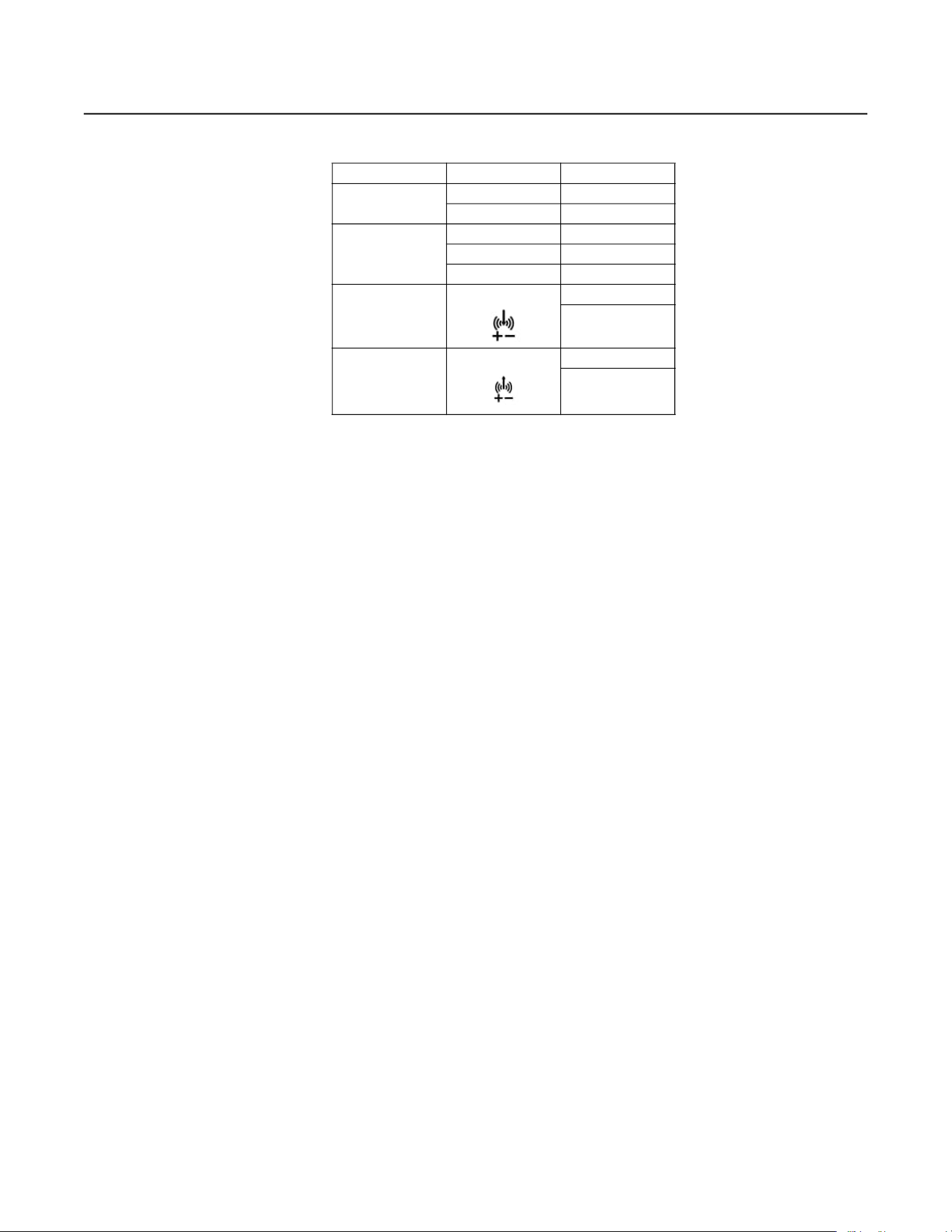
1000BASE-TX
Pin Function
1 BI_DA+
2 BI_DA-
3 BI_DB+
4 BI_DC+
5 BI_DC-
6 BI_DB-
7 BI_DD+
8 BI_DD-
20 C6644M (10/21)
Alarm/Relay/Audio Port
Figure 12. Relay and Alarm Connections
POSITIONING THE CAMERA
• Pan Adjustment: Rotate the lens base until you are satisfied with the field of view.
• Horizontal Rotation: Rotate 3D assembly in the lens base.
• Tilt Adjustment: Lift to open the inner liner, and tilt the camera lens to your designed angle. Restore the inner liner back to its default
position after adjustment.
• NOTE: Li
mitation for three axes position:
• Pan range: 370°
• Rotate range:
±100°
• Tilt range: -10° to -90°
• The camera field of view is set by making adjustments to zoom and focus via the Web UI. Refer to the operations manual.
Designation Function
Alarm Input
AI Alarm In +
GND Ground
Alarm Output
GND Ground
AO Alarm Out +
COM Common
Audio In
Audio In +
Audio In -
Audio Out
Audio Out +
Audio Out -

C6644M (10/21) 21
Completing the Camera Installation
1. If previously removed, reattach the safety lanyard to the backbox.
2. Reattach the lower dome to the backbox by fastening the three screws. Refer to the following figures for the appropriate method to
reattach the lower dome.
Figure 13. Incorrect Dome Cover Attachment Method
Figure 14. Correct Dome Cover Attachment Method
Figure 15. Align Small Hole for Microphone
3. Put
on the trim ring and rotate it clockwise to secure the trim ring on the bracket.

22 C6644M (10/21)
Accessing the Camera
Anyone who access the camera can view live video. If you want to prevent users from viewing video without logging in, you must change the
permissions for public users.
The recommended browsers for your camera are the latest version of Internet Explorer®, Microsoft™ Edge™, Google Chrome™ browser, or
Mozilla® Firefox®. for supported browser versions, refer to the specification sheet.
1. Open a web browser.
2. Type the camera’s IP address (192.168.0.20) or host name in your browser’s address bar, and the press Enter.
NOTE: You can obtain your camera’s IP address or access the camera using the Pelco Device Utility or VxToolbox software. If DHCP is enabled
but a DHCP server is not on the network, the camera automatically assigns itself both an IPv4 link local address (169.254.x.x, where the lower
two octets are random) and a 192.168
.0.20 address. Additional cameras will assign themselves different IPv4 link local addresses and the next
available 192.168.0xIP addresses in sequential order. For example, if three cameras are connected to a network without a DHCP server, the first
camera to connect assigns itself the IP address 192.168.0.20, the second camera assigns itself 192.168.0.21, and the third camera assigns itself
192.1
68.0.22.
3. Click Login.
4. If needed, type your user name and password.
NOTE: For security purposes, it is recommended that you create a user account when you login to the camera for the first time.
• In its out-of-the-box configuration, the camera has no user name and password assigned. For security purposes, it is recommended that you
set an administrative user name and password after initial configu
ration of the camera. Creation of an administrative user name changes
the state of the camera to its “operational mode,” where credentials must be provided in order to change its configuration.
• There is no provision for recovering a forgotten administrator user name or password. The camera can be restored to its out-of-the-box, no-
password configuration by powering down, depressing the Factory Defaults button, and holding the button down for at least four seconds
while power the camera back up.
• If a user name and pas
sword exist, a Login link appears in the upper right area of your web browser.
5. Click Log In.
PELCO TROUBLESHOOTING CONTACT INFORMATION
If the instructions provided fail to solve your problem, contact Pelco Product Support at 1-800-289-9100 (USA and Canada) or +1-559-292-1981
(international) for assistance. Be sure to have the serial number available when calling.
Do not try to repair the unit your
self. Leave maintenance and repairs to qualified technical personnel only.

C6644M (10/21) 23
REVISION HISTORY
Manual # Date Comments
C6644M 2/20 Original version.
Pelco, the Pelco logo, and other trademarks associated with Pelco products referred to in this publication are trademarks of Pelco, Inc. or its affiliates. © Copyright 2020, Pelco, Inc.
ONVIF and the ONVIF logo are trademarks of ONVIF Inc. All other product names and services are the property of their respective companies. All rights reserved.
Produc
t specifications and availability are subject to change without notice.