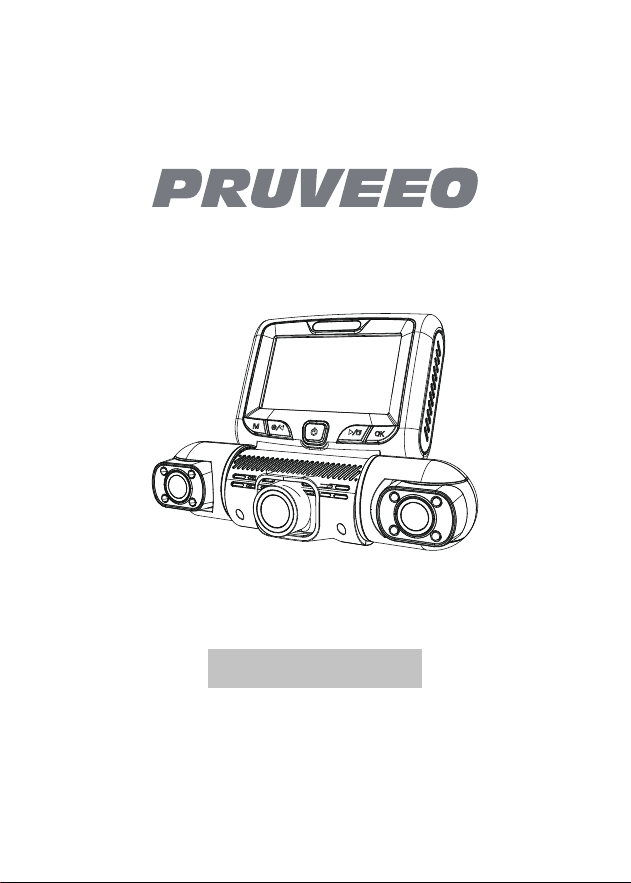
User Manual

12
Safety information
To prevent injury to yourself or others, or damage to your device,
read all safety information before using.
Failure to comply with safety warnings and regulations can result in
serious injury or death.
PRUVEEO Dash Cam is not intended to be touched, modied, or
calibrated while operating a vehicle. PRUVEEO is not responsible for
any damages resulting from the user's misuse of the camera.
Do not use damaged power cords or plugs, or loose electrical
sockets. Faulty connections can cause electric shock or re.
Do not touch the car charger with wet hands or disconnect the
charger by pulling the cord. Doing so may result in electrocution.
Do not use a bent or damaged car charger. Doing so may cause
electric shock or re.
Do not use your device while it is charging or touch your device with
wet hands. Doing so may cause electric shock.
Warning

13
Use only manufacturer-approved chargers, accessories,
and supplies.
- Use only the manufacturer-approved charger specically
designed for your device. Using an incompatible charger can
cause serious personal injury or damage to your device.
- PRUVEEO cannot be responsible for the user's safety when using
accessories or supplies that are not approved by PRUVEEO.
Do not drop the charger or device, or subject them to
impact. Handle and dispose of the charger and device with
care.
- Never crush or puncture the device.
- Never dispose of the device in a re.
- Never place the device in or on heating devices, such as
microwave ovens, stoves, or radiators. The device may explode if
overheated. Follow all local regulations when disposing of a used
device.
- Avoid exposing the device to high external pressure, which can
lead to an internal short circuit and overheating.
Protect the device and charger from damage.
- Avoid exposing your device to excessive cold or heat. Extreme
temperatures can damage the device and reduce the charging
capacity and life of your device.
- Do not allow children or animals to bite or chew the device.
Doing so can result in re or explosion, and small parts can be a
choking hazard. If children use the device, make sure they use the
device properly.
- Never use a damaged charger.

14
Failure to comply with safety precautions and regulations can result
in property damage, serious injury, or death.
Do not use your device near other electronic devices. Most electronic
devices use radio frequency signals. Your device may interfere with
other nearby electronic devices.
Do not use your device near other devices that emit radio signals,
such as sound systems or radio towers. Radio signals from these
may cause your device to malfunction.
Do not expose the device to heavy smoke or fumes. Doing so may
damage the outside of the device or cause it to malfunction.
If you notice strange smells or sounds coming from your device, or if
you see smoke or liquid leaking from the device, stop using the
device immediately and take it to a PRUVEEO Service Center. Failure
to do so may result in re or explosion.
For your safety, do not operate the controls of this product while
driving. The window mount is needed when using the dash cam in a
car. Make sure that you place the dash cam in a location where it will
not obstruct the driver's view.
Always keep the camera lens clean, and ensure that the lens is not
blocked by any object or placed near any reective material. If the
car's windshield is tinted with a dark coating, recording quality may
be affected.
Your device is recommended for use and storage within a tempera-
ture range of 15 degrees Fahrenheit to 150 degrees Fahrenheit, and a
humidity range of 10% to 80%.
If your device becomes overheated, allow it to cool down before use.
Prolonged exposure of skin to an overheated device may cause
low-temperature burn symptoms, such as red spots or areas of
darker pigmentation.
Caution

15
Install mobile devices and equipment with caution.
- Ensure that any mobile devices or related equipment installed in
your vehicle are securely mounted.
- Avoid placing your device and accessories in or near an airbag
deployment area. Improperly installed wired equipment can cause
serious injury in a situation where airbags inate rapidly.
Do not drop your device or subject your device to impact. If the
device is bent, deformed, or damaged, malfunction may occur.
Do not attempt to disassemble, repair, or modify your device.
- Any changes or modications to your device can void your
manufacturer's warranty. If your device needs servicing, take it to an
authorized PRUVEEO Service Center.
Clean your device and charger by wiping it with a towel or eraser. Do
not use chemicals or detergents. Doing so can discolor or corrode
the outside of the device, and may result in electric shock or re.
Do not distribute copyright-protected material. Doing so without the
permission of the content owners may violate copyright laws. The
manufacturer is not responsible or liable for any legal issues that
result from the user's illegal use of copyrighted material.

Correct disposal of this product01
This symbol, found on the device, accessories, or accompanying
literature, indicates that the product and its electronic accessories
(e.g. charger, headset, USB cable) should not be disposed of with
other household waste.
To prevent possible harm to the environment or human health from
uncontrolled waste disposal, please separate these items from other
types of waste and recycle them responsibly to promote the
sustainable reuse of material resources.
Household users should contact either the retailer where they
purchased this product, or their local government oce, for
information on where and how they can take these items for
environmentally safe recycling.
Business users should contact their supplier and check the terms and
conditions of the purchase contract. This product and its electronic
accessories should not be mixed with other commercial wastes for
disposal.
16
(applicable in countries with separate waste collection systems)
Waste Electrical & Electronic Equipment

17
Disclaimer 02
Some content and services accessible through this device belong to third
parties and are protected by copyright, patent, trademark, and/or other
intellectual property laws. Such content and services are provided solely for
your personal non-commercial use.
You may not use any content or services in a manner that has not been
authorized by the content owner or service provider. Without limiting the
foregoing, unless expressly authorized by the applicable content owner or
service provider, you may not modify, copy, republish, upload, post, transmit,
translate, sell, create derivative works, exploit, or distribute in any manner or
medium any content or services displayed through this device.
"THIRD PARTY CONTENT AND SERVICES ARE PROVIDED "AS IS." PRUVEEO DOES
NOT WARRANT CONTENT OR SERVICES SO PROVIDED, EITHER EXPRESSLY OR
IMPLIEDLY, FOR ANY PURPOSE. PRUVEEO EXPRESSLY DISCLAIMS ANY
IMPLIED WARRANTIES, INCLUDING BUT NOT LIMITED TO, WARRANTIES OF
MERCHANTABILITY OR FITNESS FOR A PARTICULAR PURPOSE. PRUVEEO DOES
NOT GUARANTEE THE ACCURACY, VALIDITY, TIMELINESS, LEGALITY, OR
COMPLETENESS OF ANY CONTENT OR SERVICE MADE AVAILABLE THROUGH
THIS DEVICE AND UNDER NO CIRCUMSTANCES, INCLUDING NEGLIGENCE,
SHALL PRUVEEO BE LIABLE, WHETHER IN CONTRACT OR TORT, FOR ANY
DIRECT, INDIRECT, INCIDENTAL, SPECIAL OR CONSEQUENTIAL DAMAGES,
ATTORNEY FEES, EXPENSES, OR ANY OTHER DAMAGES ARISING OUT OF, OR IN
CONNECTION WITH, ANY INFORMATION CONTAINED IN, OR AS A RESULT OF
THE USE OF ANY CONTENT OR SERVICE BY YOU OR ANY THIRD PARTY, EVEN IF
ADVISED OF THE POSSIBILITY OF SUCH DAMAGES."
Third-party services may be terminated or interrupted at any time, and
PRUVEEO makes no representation or warranty that any content or service
will remain available for any period. Content and services are transmitted by
third parties using networks and transmission facilities over which PRUVEEO
has no control. Without limiting the generality of this disclaimer, PRUVEEO
expressly disclaims any responsibility or liability for any interruption or
suspension of any content or service made available through this device.
PRUVEEO is neither responsible nor liable for customer service related to the
content and services. Any question or request for service relating to the
content or services should be made directly to the respective content and
service providers.

18
FCC Statement03
This device complies with part 15 of the FCC Rules. Operation is subject to the
Following two conditions:
This device may not cause harmful interference, and this The device must
accept any interference received, including interference that may cause
undesired operation.
This equipment has been tested and found to comply with the limits for a
Class B digital device, pursuant to part 15 of the FCC Rules. These limits are
designed to provide reasonable protection against harmful interference in a
residential installation. This equipmentgenerates, usesand can radiate radio
frequency energy and, ifnot installed and used in accordance with the
instructions, may cause harmful interference to radio communications.
However, there is no guarantee that interference will not occur in a
particularinstallation.Ifthisequipmentdoescauseharmfulinter ferencetoradio-
ortelevision reception, which can be determined by turning the equipment off
and on, the user is encouraged to try to correct the interference by one or
more of the following measures:
—Reorient or relocate the receiving antenna.
—Increase the separation between the equipment and receiver.
—Connect the equipment into an outlet on a circuit different from that to
which the receiver is connected.
—Consult the dealer or an experienced radio/TV technician for help.
Caution: Any changes or modications not expressly approved by the party
Responsible for compliance could void the user's authority to operate the
equipment.
This equipment complies with FCC radiation exposure limits set forth for an
uncontrolled environment. This transmitter must not be co-located or
operating in conjunction with any other antenna or transmitter.
This equipment should be installed and operated with minimum distance
20cm between the radiator&your body.

19
Warm Prompt 04
We recommend that you read this manual carefully before using the dash cam,
and then read it again with the dash cam in your hands to familiarize yourself
with its many features. The dash cam is constantly being improved over time,
so the specications of the dash cam may change.
Please note that each button has multiple functions, so please be careful
which buttons you press for each mode/function. There is no need to get
frustrated as you should only have to do this once to set it up the way you
want.
1. Please make sure that the dash cam is switched off when inserting or
removing a Micro SD card to avoid damage.
2. Please make sure that the Micro SD card is inserted correctly. If it is
backward, it may damage the dash cam and the card.
3. If the Micro SD Card is not compatible with the dash cam, please DO NOT
insert it again, as you will damage the card and the dash cam. Please buy the
correct card and then try again.
4. The dash cam supports the micro SD card from 32GB to the max capacity of
256GB.
5. Adjust the position of the lens to make sure you can properly record what
you want.
6. We recommend our high endurance 128GB or 256G MicroSDXC memory card
for this dash cam (www.amazon.com/dp/B0C1NL4BS8). Please DO NOT use
"Generic Class 10" cards from third parties. They are NOT designed for
4-channel recording dash cam.
7. In the video recording mode, if you want to press the Menu / Mode button,
please stop video recording rst.
8. We recommend to use the factory default settings, once the MENU is set,
connect the car charger to the unit and insert the card. When the car starts,
the unit will automatically start recording. When the car is turned off, the unit
will automatically stop recording. Please note that the car's cigarette lighter
socket has no power when the ignition is turned off.

1:
9. This dash cam must be always connected to a power source via a 5V
charger as there is no built-in battery.
10. If you set the SCREEN SAVER option to ON, the dash cam will continue to
record in video recording mode when the screen is turned off. You can turn on
the screen by pressing the power button once.
11. If you want to play the videos, we recommend that you remove the micro SD
card and insert it into your PC with a card reader. We recommend using the
VLC video player on Windows OS and Movist + VLC on MAC OS.
12. After several weeks of daily recording, you may need to format your Micro
SD card - if this happens, please note that you will lose all your les, so please
make a backup copy on your computer in a unique dash cam folder that you
have created.
13. If your dash cam crashes / screen goes black, the phenomenon may be
caused by improper operation or crash, please press the R = Reset button, the
hole at the top corner, gently with a cocktail stick. Just like you would do for a
computer, printer, phone, etc.
14. The dash cam only supports micro SD cards with FAT32 le format. Please
format your micro SD card on the dash cam before using it.
15. Currently, GPS technology struggles to get signals and accuracy indoors.
There are two main reasons why GPS can't be used indoors: low signal
strength and low accuracy.
21
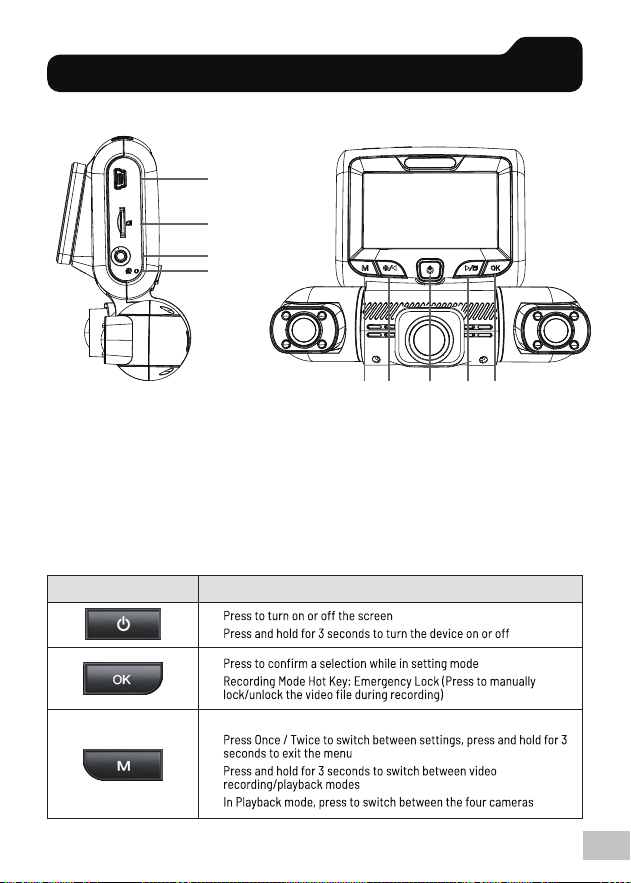
1. Power Slot
2. Micro SD Card Slot
3. Rear Camera Slot
4. Reset Button
5. Menu Button / Mode Switch Button
6. Video On/Off / Take Photo Button
7. Power Button / Screen On/Off Button
8. Screen Switching / Audio On/Off Button
9. Conrm Button / Emergency Lock Button
1
2
3
4
Cvuupo Gvodujpot
Please stop recording rst
Device Layout 05
5V IN
POWER
U3 V30 SPEED
PEAR
CAMERA
8 95 76
22
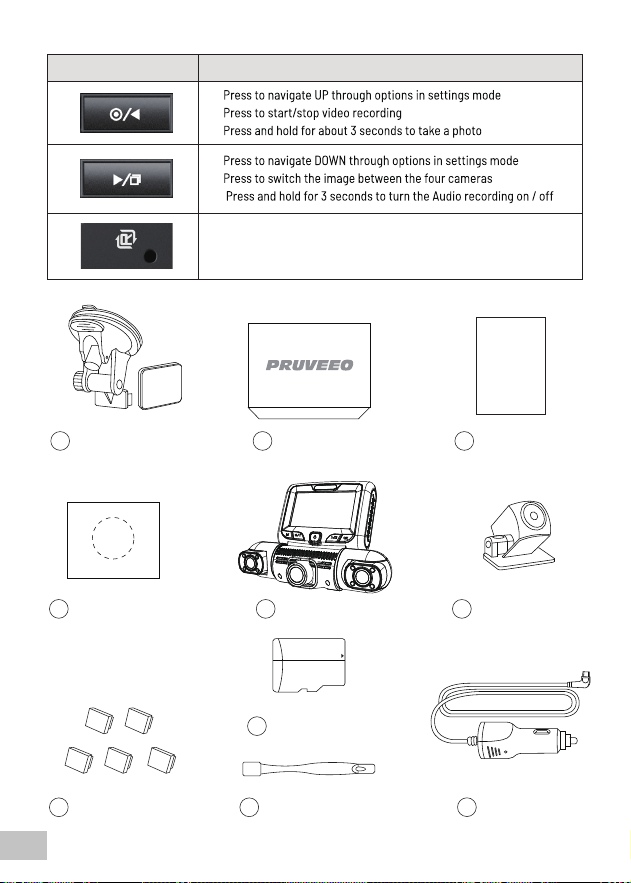
Suction Cup and
Adhesive Mount
1 Packing Box2 User Manual3
Windshield
Electrostatic
Sticker
4 Dash Cam5 Rear Camera
6
Cable Adhesive
Spacer
7
Cable Management
Tool
9
Micro SD Card8
Car Power
Connector
10
VTFS!NBOVBM
Njdsp!TE
Cvuupo
Press and hold for 5 seconds to reset the device if operates erratically,
hangs up or freezes
Gvodujpot
23
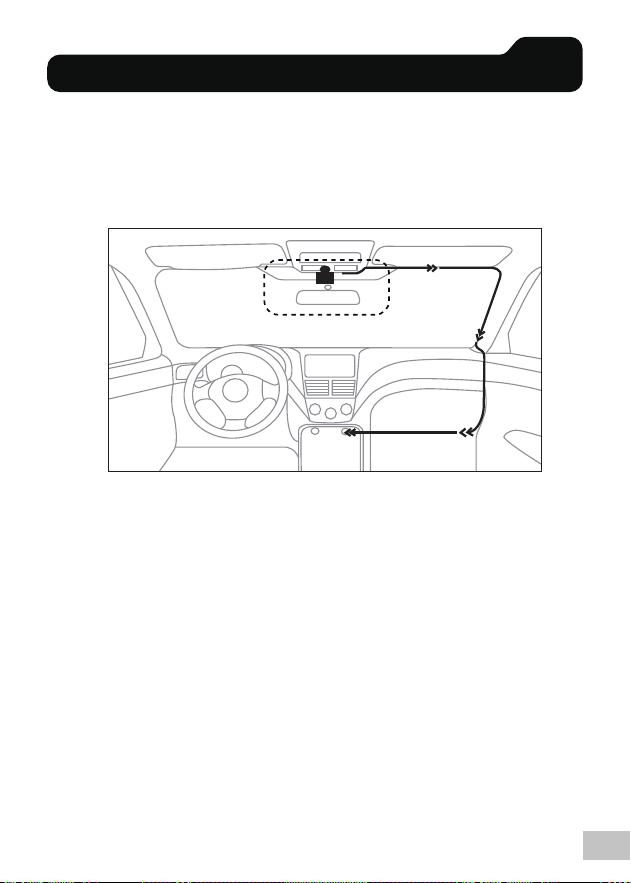
Place the dash cam on the mount carefully route the power cable around the
windscreen and tuck it in under the trim.
Plug the power cord into a 12V DC power outlet or the car cigarette lighter.
Connect the power cord to the camera. The camera will auto-start recording
once powered on.
The dash cam is automatically powered on when plugged into a 12V accessory
socket or cigarette lighter and receives a charge (i.e.: the vehicle is started).
To turn the device on manually, press and hold the power button until the
welcome screen appears.
The camera will automatically start recording when powered on.
You will need to insert a memory card before you can begin recording. Before
inserting or removing a memory card, rst ensure you’ve powered down the
dash cam. Gently push the memory card in until you hear a click, and allow the
spring release to push the card out.
Power the dash cam by connecting the charger to the car cigarette lighter and
dash cam. Ensure the dash cam records to your memory card properly and
without error. Before you start using a new memory card, you must format the
card within the camera using the format function. Always back up important
data stored on the memory card before formatting.
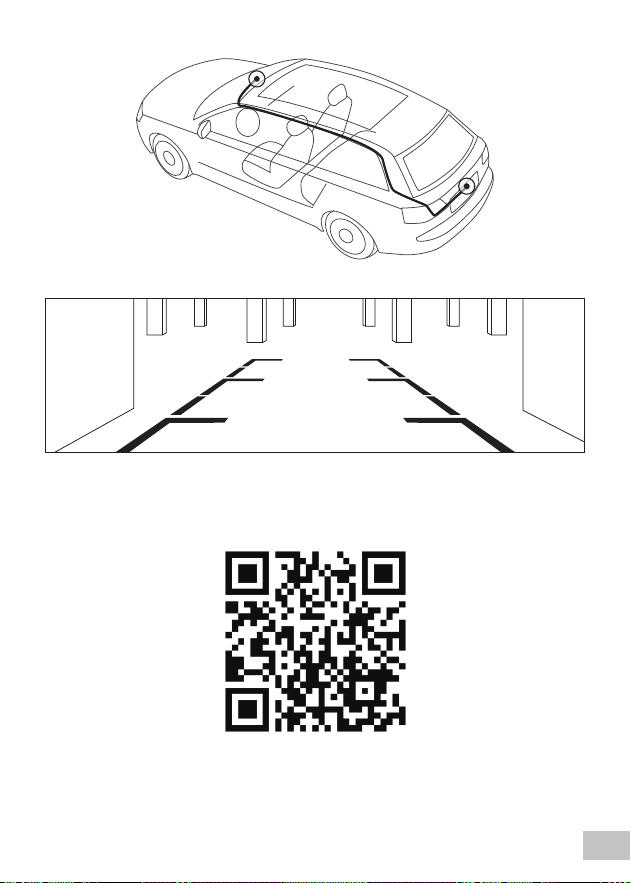
Mount the rear camera and dash cam as shown below. Use the provided rear
camera cable to connect the rear camera to the front camera.
Dash Cam Installation 06

1. Locate a suitable mounting position for the rear camera, typically on the rear windshield
or license plate area. Ensure it provides a clear view behind the vehicle.
2. Clean the mounting surface thoroughly with an alcohol wipe to ensure proper adhesion.
3. If mounting on the rear windshield, use the included mounting bracket or adhesive pad to
secure the camera in place. If mounting on the license plate area, use the license plate
mounting bracket.
4. Route the rear camera cable along the interior trim panels, headliner, and pillars towards
the front of the vehicle. Use cable clips or tucks to secure the cable neatly.
5. Connect the rear camera cable to the corresponding port on the main dash cam unit,
usually labeled "Rear Cam" or similar.
6. For the parking assist function, you'll need to connect the rear camera's trigger wire to the
reverse light circuit. Locate the reverse light wires, typically near the rear lights or trunk
area. Use a multimeter or circuit tester to identify the wire that powers the reverse lights.
7. Once identied, use a wire tap or solder to connect the rear camera's trigger wire to the
reverse light wire. This will enable the rear camera to automatically display when the vehicle
is in reverse gear.
8. Test the rear camera and parking assist function by shifting the vehicle into reverse. The
dash cam's display should switch to the rear camera view, and parking assist lines should
appear on the screen to guide you during reversing maneuvers.
9. Adjust the rear camera's angle and position as needed for optimal viewing. Some cameras
allow you to ip or mirror the image if the camera is mounted upside down.
10. Secure any loose cables using cable ties or tucks to prevent interference with vehicle
operation.
11. The rear camera red wire provides 12-volt power to the rear camera. It is not necessary to
connect the red wire to the power source if you do not want to use the park assist function.
But if you want to use the parking assist function, you need to connect the red wire to the
power source of your reverse light, so that the dash cam screen will automatically display
the image of the rear camera when the vehicle is in reverse.
24
To install the waterproof rear camera of a dash cam with a parking assist
function, follow these detailed steps:
Rear Camera Installation
07
Please scan the QR code with your mobile phone or open the following URL in
your browser to view the installation video for the dash cam and rear camera.
25
t.ly/w5JSE
26
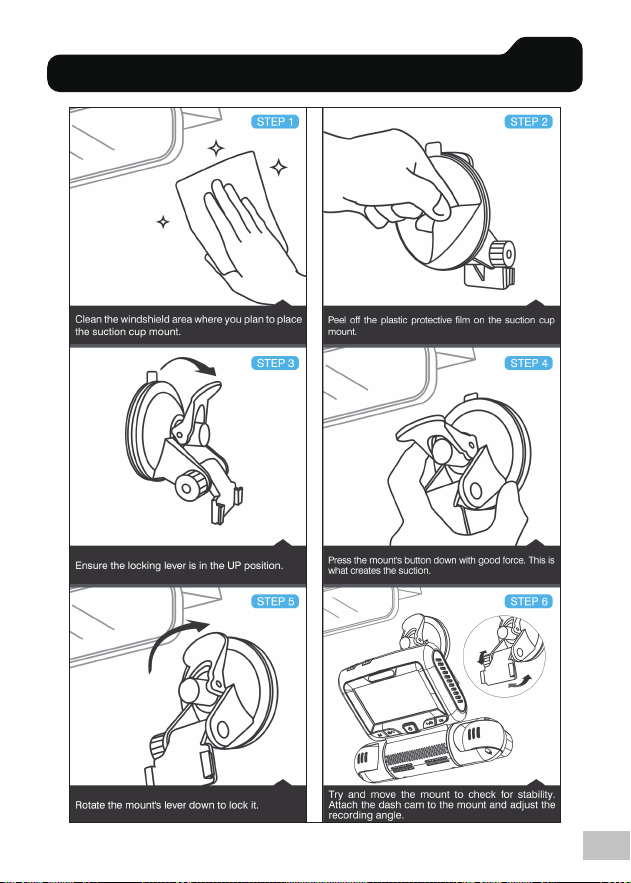
3M Adhesive Mount Installation
08
27
Suction Cup Mount Installation: 09
28
Inserting the memory card10
Your device accepts memory cards with a maximum capacity of 256 GB.
Depending on the memory card manufacturer and type, some cards may not
be compatible with your device. Using an incompatible card may damage the
unit or the memory card, or corrupt the data stored on it.
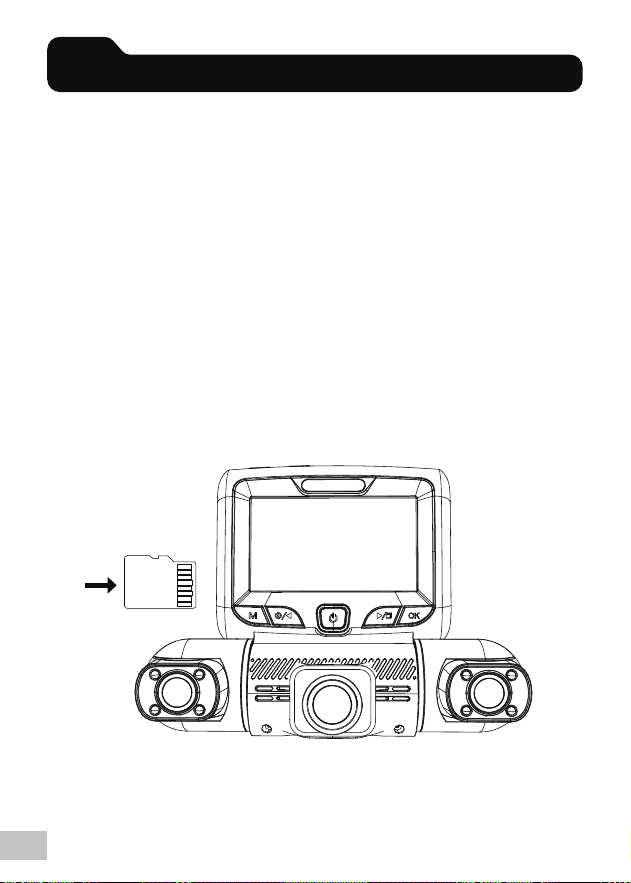
Please face the screen of the D90-4CH Dash Cam.
- Insert a memory card with the gold-colored contacts facing you.
- Push the memory card into the slot until it clicks.
It is recommended that you reformat a memory card each time you transfer
videos from it to a computer, or at least once a month.
Reformatting a memory card keeps important elements of the data and le
structure clean, which helps prevent error messages and missing images.
Reformatting also restores the memory card, which can help prevent it from
becoming corrupted.

29
Before removing a memory card from your dash cam, you must rst unmount
it for safe removal.
To remove a memory card from your device
1. Press the Video Capture button to stop recording.
2. Press and hold the power button to turn off the unit.
3. Gently push in and release the memory card until it unlocks.
PLEASE DO NOT remove the memory card while the device is transferring or
accessing information. Doing so may result in data loss, corruption, or damage
to the memory card or device. PRUVEEO is not responsible for any loss,
including loss of data, resulting from the use of damaged memory cards.
1. Press the Video Record button to stop the device from recording.
2. Press the MENU button twice to enter the General Settings.
3. Press the DOWN button to navigate to the Format options.
4. Press OK to format the SD card.
Please format the card on the dash cam before using it. Before formatting a
memory card, always remember to make backup copies of all important data
stored on the device. The manufacturer's warranty does not cover loss of data
due to user actions.
Removing the Memory Card 11
Formatting the Memory Card 12

2:
Menu Operation Instruction13
All four cameras have FHD 1080P (1920 x 1080P) resolution.
Camera Resolution
When Loop Recording mode is enabled, the unit continuously erases older
video while recording new video, keeping only the video captured within a
user-selected time range. Any video older than this range will be replaced with
a new video. (Note: any locked video les on the memory card remain
protected and are not automatically deleted during loop recording).
It is recommended that you reformat a memory card every time you transfer
videos from it to a computer, or at least once a month. This keeps important
elements of the data and le structure clean, which helps prevent error
messages and missing videos.
Remember to always make backup copies of all important data stored on the
device. The manufacturer's warranty does not cover loss of data due to user
actions.
1. Press MENU once to enter Video Settings.
2. Press the UP or DOWN button to navigate to the "Loop Recording" option.
3. Press OK to view the current selection: 1 minute
4. Press the UP or DOWN button to make your selection.
5. Press OK to conrm your selection.
6. Press and hold the Menu button for 3 seconds to exit.
7. It is recommended to use the 1 minute option.
Loop Recording
If a change in gravity is detected, such as a car crash, the G-sensor will
accident, the G-sensor will signal the camera and an automatic le lock will be
placed on the current video, preserving your most important footage.
Note: Locked video les won't be deleted by Loop Recording, they will remain
on the memory card until they are manually deleted or the card is formatted.
Gravity Sensing

You have the option to display the date and time in your videos. Note that the
date and time stamp cannot be removed from videos if this feature was
enabled when they were recorded.
1. Press MENU once to enter the Video Settings.
2. Press the UP or DOWN button to navigate to the "Date Stamp" option.
3. Press OK to view the current selection ON/OFF status.
4. Press the UP or DOWN button to enable or disable this feature.
5. Press OK to conrm your entry.
6. Press and hold the Menu button for 3 seconds to exit.
Date Stamp
You can choose to record audio with video or turn off the microphone so that
all recorded video is muted.
1. Press MENU once to enter Video Settings.
2. Press the UP or DOWN button to navigate to the "Recording Audio" option.
3. Press OK to view the current selection On/Off.
4. Press the UP or DOWN button to turn this feature on or off.
5. Press OK to conrm your entry.
6. Press and hold the Menu key for 3 seconds to exit.
Alternatively, you can use a hotkey shortcut for this function. Press and hold 7
for about 3 seconds to mute/unmute the microphone for video recording.
Recording Audio
31
1. Press MENU once to enter Video Settings.
2. Press the UP or DOWN button to navigate to the "Gravity Sensing" option.
3. Press OK to view the current selection High/Middle/Low/Close status
4. Press the UP or DOWN button to enable or disable this feature.
5. Press OK to conrm your entry.
6. Press and hold the Menu button for 3 seconds to exit.

32
Adjust the camera's exposure value to make the recorded video brighter or
darker according to your preference.
1. Press MENU once to enter Video Settings.
2. Press the UP or DOWN button to navigate to the "Exposure" option.
3. Press OK to display the current selection: +0.0, +1/3, -1/3, etc.
4. Press the UP or DOWN button to make your selection.
5. Press OK to conrm your selection.
6. Press and hold the Menu button for 3 seconds to exit.
Exposure
This option should be set according to the power supply specication used in
your country or geographical region (U.S. users should select the "60Hz"
option).
1. Press MENU once to enter the Video Settings.
2. Press the UP or DOWN button to navigate to the "Light Frequency" option.
3. Press OK to display the current selection: 50Hz / 60Hz
4. Press the UP or DOWN button to change your selection.
5. Press OK to conrm your selection.
6. Press and hold the Menu button for 3 seconds to exit.
Light Frequency
Performing this operation will format the memory card and erase all les.
Note: Locked video will also be deleted, so make sure you have backed up your
important footage before formatting the card.
Please format your micro SD card on the dash cam before using it.
1. Press the Video Capture button to start recording rst.
2. Press the MENU button twice to enter the general settings.
3. Press the DOWN button to navigate to the "Format" option.
4. Press OK to format the SD card.
5. Press and hold the Menu button for 3 seconds to exit.
Format

33
Select a time for the screen to remain lit after the recording starts.
1. Press MENU twice to display the General Setup screen.
2. Press the UP or DOWN button to navigate to the "Screen Saver" option.
3. Press OK to display the current selection: 1 min / 3 min / OFF
4. Press the UP or DOWN button to make your selection.
5. Press OK to conrm your selection.
6. Press and hold the Menu button for 3 seconds to exit.
Alternatively, you can use a hotkey shortcut for this function. While in Capture
mode, press the Power button to turn on/off the LCD screen.
Screen Saver
Use the following procedure to change the language of the unit.
1. Press MENU twice to enter General Settings.
2. Press the UP or DOWN button to navigate to the "Language" option.
3. Press OK to display the current language selection.
4. Press the UP or DOWN button to change the selection.
5. Press OK again to conrm your selection.
6. Press and hold the Menu button for 3 seconds to exit.
Language
Parking Mode allows you to monitor your parked vehicle. When the engine is
turned off, a hardwire kit is used to provide continuous power and protect
your car battery from draining.
1. Press MENU twice to enter General Settings
2. Press the UP or DOWN button to navigate to the "Parking Monitor" option.
3. Press OK to view the current selection: Off / Gravity Sensing/ Time Lapse.
4. Press OK to conrm.
5. Press UP or DOWN button to change your selection.
6. Press OK to conrm your selection.
7. Press and hold the Menu button for 3 seconds to exit.
Parking Monitor (Parking Mode)
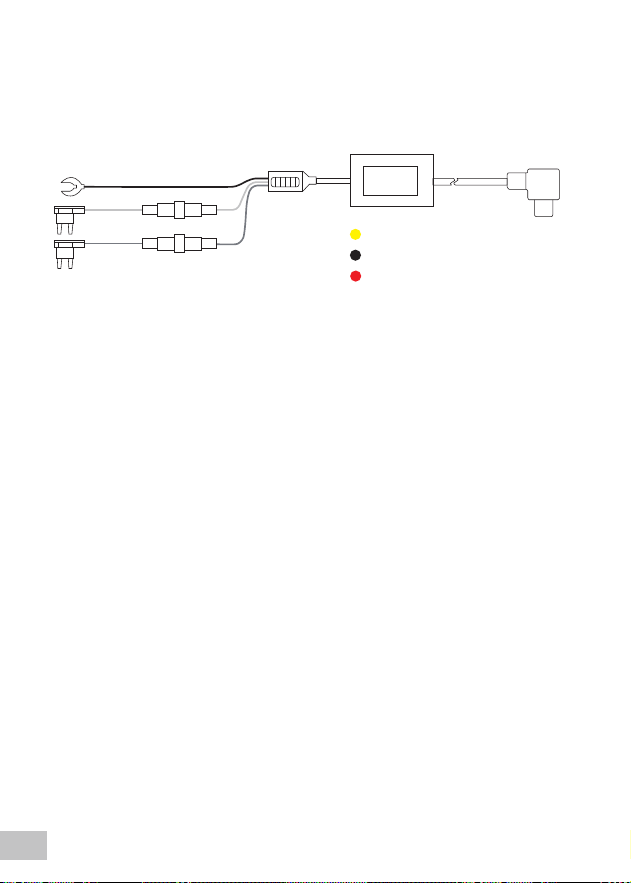
Automatic Parking Mode. The ACC (ignition-switched) detection feature will
allow the dash cam to switch to parking mode automatically if the vehicle’s
engine turns off and switch back to normal recording after the vehicle’s
engine turns on.
Regarding the installation of the ACC hardwire kit, if you need more
information, please search for”acc hardwire kit parking mode” on
YouTube.com.
You are welcome to show us your Fuse Schematics by email asking for our
help if you have diculties in the HWK installation.
※ There are 2 options under parking mode, we recommend using the Time
Lapse option.
• Time Lapse Recording:
Record video in one frame per second to conserve memory and reduce the
time it takes to review video.
Warm Tips:
When installing the ACC hardwire kit, please refer to the actual product.
34
To use the Parking Mode feature, you must also use the ACC Hardwire Kit.
Please search for and purchase the "PRUVEEO ACC Hardwire Kit" on
Amazon.com.
Zfmmpx!xjsf!.!CBU!),*
Cmbdl!xjsf!.!HOE!).*
Sfe!xjsf!.!BDD

35
• Gravity Sensing Record:
The Gravity Sensing detects signicant or sudden movement (such as an
impact or collision), and it will trigger an event recording. We suggest setting
the “Gravity Sensing” to High sensitivity for parking mode Recording.
※ If you do not use the parking mode function, please change "Gravity
Sensing" to LOW sensitivity. Otherwise, the dash cam will easily lock the
video and cannot be deleted by the loop recording function. This will cause
the memory card to be full of locked videos and cause the recorder to fail
normal work.
Time-lapse is a creative lming and video editing technique that manipulates
the way the frame rate is captured. ... In most videos, the frame rate and
playback speed are the same. In a time-lapse video, the frame rate is
stretched much more: when played back at average speed, time appears to be
speeding up.
Record video at one frame per second to conserve memory and reduce the
time it takes to review the video.
All the Time-lapse recordings are saved in the VIDEO folder. These video les
have images but without sound.
Time-lapse Recording
When you DO NOT use the parking monitoring function, please turn off this
option, otherwise, the recorded video will be in fast-forward mode.
Caution
1. Press MENU twice to enter General Settings
2. Press the UP or DOWN button to navigate to the "Parking Monitor" option
3. Press OK to view the current selection: Off / Gravity Sensing/ Time Lapse
4. Press the UP or DOWN button to to select the OFF option
5. Press OK to conrm your entry
6. Press and hold the Menu button for 3 seconds to exit
Please scan the QR code with your mobile phone or open the following URL
in your browser to view the installation video for the ACC hardwire kit.

36
Use the following procedure to turn the infrared lights on or off.
1. Press MENU twice to access General Settings.
2. Press the UP or DOWN button to navigate to the "IR LED" option.
3. Press OK to conrm your entry.
4. We recommend to use the Auto option.
5. Press and hold the Menu button for 3 seconds to exit.
IR LED
Increase or decrease the volume of your dash cam.
1. Press MENU twice to enter General Settings.
2. Press the UP or DOWN button to navigate to the "System Volume" option.
3. Press OK to display the current selection High/Middle/Low/Close
4. Press OK to conrm your selection.
5. Press and hold Menu for 3 seconds to exit.
System Volume
Allows you to turn the device's button sound effect on or off.
1. Press MENU twice to enter General Setup.
2. Press the UP or DOWN button to navigate to the "Key Sound" option.
3. Press OK to see the current selection On/Off.
Key Sound
t.ly/21NNu

4. Press the UP or DOWN button to turn this feature on or off.
5. Press OK to conrm your entry.
6. Press and hold the Menu button for 3 seconds to exit.
37
Use the following procedure to change the time and date of the unit.
1. Press MENU twice to enter General Settings.
2. Press the UP or DOWN button to navigate to the "Date and Time" option.
3. Press OK to display the date/time in the format YYYY/MM/DD HH:MM:SS.
4. Press the UP or DOWN key to change the highlighted number.
5. Press OK to move to the next date/time segment and repeat step 4.
6. Press OK again to conrm your entry.
7. Press the Menu button to exit the date and time setting.
8. Press and hold the Menu button for 3 seconds to exit.
Date and Time
Updates the time automatically with your time zone.
1. Press MENU twice to enter General Settings
2. Press the UP or DOWN button to navigate to the "Set Time Zone" option
3. Press OK to view the current selection
4. Press the UP or DOWN button to make your selection
5. Press OK to conrm your entry
6. Press MENU to exit settings
Set Time Zone
Enable / Disable Daylight Saving Time
1. Press MENU twice to enter General Settings
2. Press the UP or DOWN button to navigate to the "Daylight Saving" option
3. Press OK to view the current ON/OFF status for this feature
Daylight Saving

4. Press the UP or DOWN button to enable or disable this feature
5. Press OK to conrm your entry
6. Press MENU to exit settings
Select GPS speed unit (built-in GPS logger)
1. Press MENU button twice to enter General Settings
2. Press the UP or DOWN button to navigate to the "GPS Speed Unit" option
3. Press OK to view the current selection: KM/H / MP/H / OFF
4. Press the UP or DOWN button to make your selection
5. Press OK to conrm your entry
6. Press MENU to exit settings
GPS Speed Unit
1. Press MENU twice to enter General Settings
2. Press the UP or DOWN button to navigate to the "GPS Information" option
3. Press OK to view the current GPS signal status
4. Press MENU to exit
GPS Information
WiFi connection rst when you want to operate the dash cam.
1. Press MENU twice to enter General Settings.
2. Press the UP or DOWN button to navigate to the "WiFi" option.
3. Press OK to see the current ON/OFF status of this feature.
4. Press the UP or DOWN button to change your selection.
5. Press OK to conrm your selection.
6. Press MENU to exit settings.
Alternatively, you can use a hotkey shortcut for this feature. Press and hold OK
for about 3 seconds to turn the WiFi feature on/off.
Wi-Fi
38
If a change in gravity is detected, such as a car crash, the G-sensor will
accident, the G-sensor will signal the camera and an automatic le lock will be
placed on the current video, preserving your most important footage.
Note: Locked video les won't be deleted by Loop Recording, they will remain
on the memory card until they are manually deleted or the card is formatted.
With the dash cam's built-in Wi-Fi, you can change the dash cam's settings
and play and download recorded video using the APP on your cell phone.
If you want to see the GPS track of the video, please download the video to
your phone rst, then the GPS track will be displayed.
The effective working distance of Wi-Fi is 5 meters.
Downloading the Wi-Fi App
- The Wi-Fi app is available for free download from the Apple App Store™ and
Google Play Store™.
- Android users: Go to the Google Play Store™, search for GFG CAM, download
and install, and follow these instructions to connect and operate the Wi-Fi.
- iPhone users: Enter the Apple App Store™, search for GFG CAM, download
and install, follow this user guide to connect the Wi-Fi and operate.
To pair the camera with your device
1. Turn on the camera, please stop recording rst by pressing the Video
Recording button, then you can operate other buttons, please press and hold
the OK button for about 3 seconds to start the Wi-Fi function, you can also
start the Wi-Fi function in the menu.
2. The LCD screen will display the Wi-Fi SSID and password.
3. Search for a Wi-Fi hotspot on your smartphone/tablet, select the network
and you will be prompted for a password; enter '12345678' to proceed, once
connected, only the Wi-Fi function key can be used, press and hold the Wi-Fi
key to exit the Wi-Fi function.
4. Open the GFGCAM application on your smartphone/tablet.
Wi-Fi Connection Guide
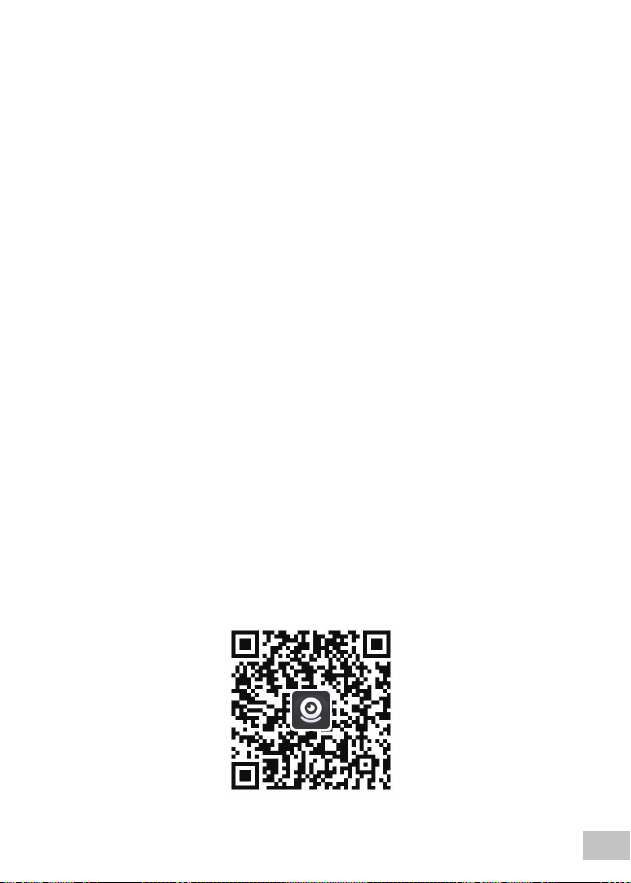
You can also scan the QR code to download the GFGCAM APP
39
Performing this operation will reset all of your device's settings to their original
values. Note: All custom settings will be lost.
1. Press MENU twice to access General Settings.
2. Press the UP or DOWN button to navigate to the "Restore Factory Settings”
option.
3. Press OK to display YES / NO conrmation for this operation.
4. Press the UP or DOWN key to make your selection.
5. Press OK to conrm your selection.
6. Press and hold the Menu button for 3 seconds to exit.
Restore Factory Settings
3:
You can play videos on a device or a computer.
To play a video on the computer, either use an SD card adapter. To play a video
using an SD card adapter, remove the memory card and insert it into an SD
card adapter. Insert the adapter into the computer.
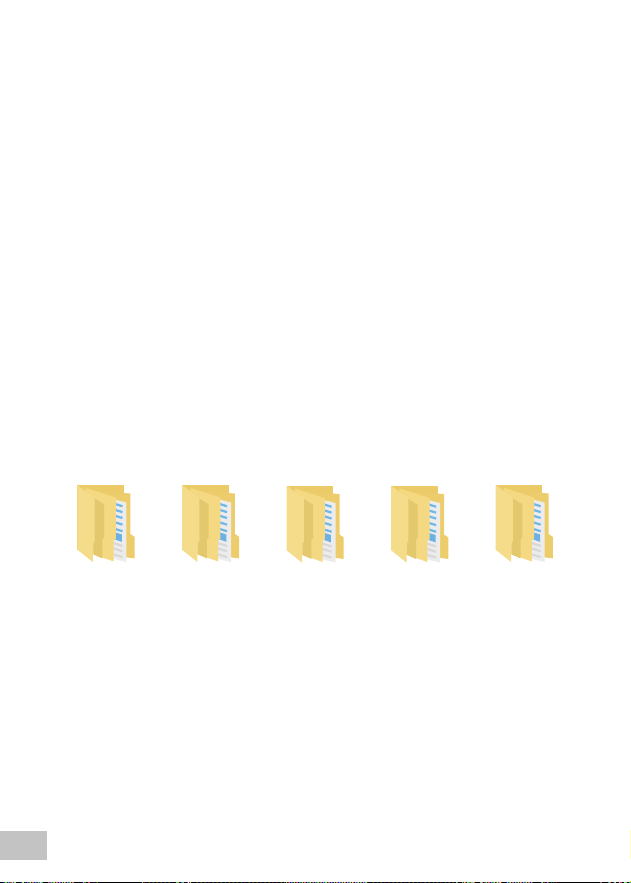
Event folder: Used to store the gravity-sensitive locked video les.
Park folder: Used to store the video les for parking monitoring.
Photo folder: Used to store the photos.
Version folder: Used to store the system les, please do not delete it.
Video folder: Used to store the video les recorded by the dash cam.
Video Playback
event park photo version video

1. Once you've opened the application, navigate to the top menu bar and click
File > Open to browse your les.
2. Browse to the video le you want to add to the playback queue, select it,
and click Open to load it into the application. You can also select multiple
videos at once.
To open a GPS video le:
You can play back your recordings in a special application that lets you view
speed and location information along with your footage.
GPS Video Playback
Please download the software from the following ocial website:
https://pruveeo.us/pages/download
Windows:
Insert the micro SD card into your computer to access the video les.
Access Video Files:
Visit the Apple App Store™, search for 'GXPlayer', download and install.
Mac OS:
41
The video les and photos recorded by the four cameras of the Dash Cam are
stored in the four folders above.
To play a video on the device, rst stop recording and press and hold the M
button to switch to Playback mode. Use the UP and DOWN buttons to scroll to
the desired video. Press the OK button to play. During playback, use the OK
(pause), UP (press and hold to rewind), and DOWN (press and hold to fast
forward) buttons to control the video playback.
FRONT
LEFT REAR
RIGHT
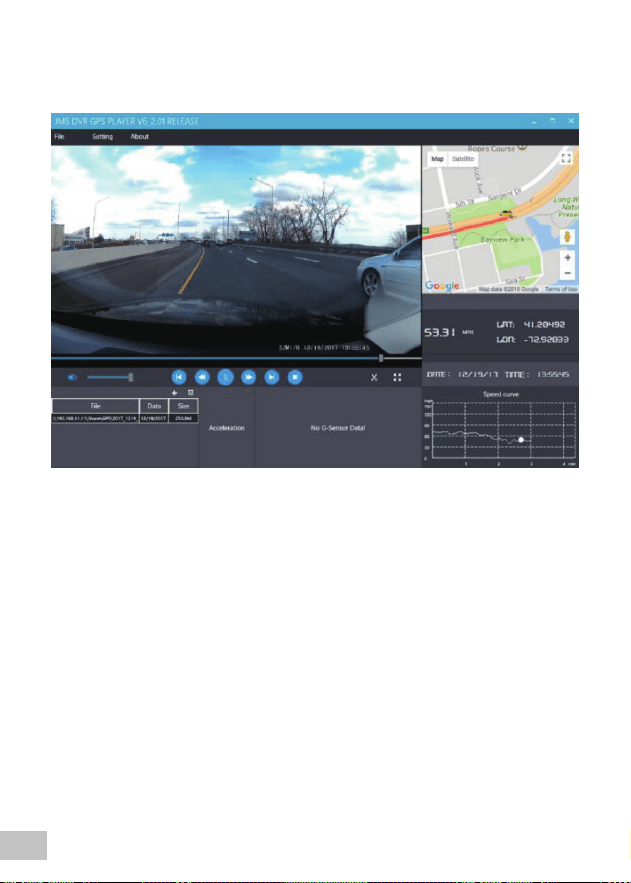
3. After a short loading time, the (rst) video should start playing automatical-
ly, with real-time speed and location information displayed in the right panels.
After many analyses, we found that most of the dash cam problems are
caused by the card, because the speed and number of erasing and writing of
the memory card cannot meet the requirements.
Therefore, we recommend our High Endurance 128GB or 256G MicroSDXC
memory card for this car dash cam, which can make the D90-4CH car dash
cam more stable, reliable and work continuously for a long time.
128G Link: www.amazon.com/dp/B0C1NL4BS8
256G Link: www.amazon.com/dp/B0C1NN48HT
*PLEASE DO NOT USE "Generic Class 10" cards from third party suppliers.
They are NOT made for 4 channel recording dash cam.
Warm Tips:
42