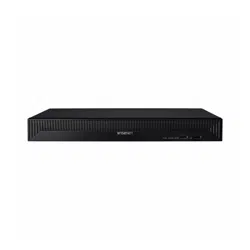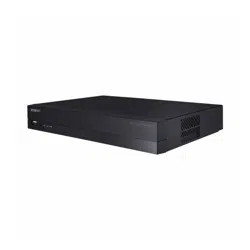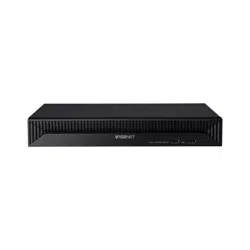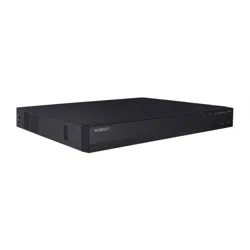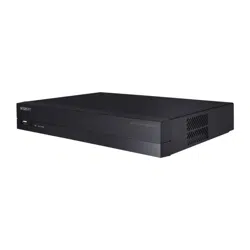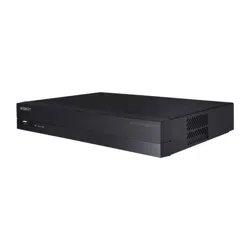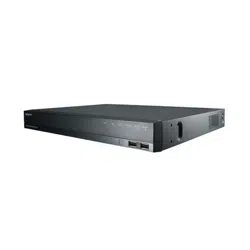

NETWORK VIDEO RECORDER
Product Specification Manual
XRN-1620B2/XRN-1620SB1/XRN-820S

Copyright
©2020 Hanwha Techwin Co., Ltd. All rights reserved.
Trademark
Each of trademarks herein is registered. The name of this product and other trademarks mentioned in this manual are the registered
trademark of their respective company.
Restriction
Copyright of this document is reserved. Under no circumstances, this document shall be reproduced, distributed or changed, partially
or wholly, without formal authorization.
Disclaimer
Hanwha Techwin makes the best to verify the integrity and correctness of the contents in this document, but no formal guarantee
shall be provided. Use of this document and the subsequent results shall be entirely on the user’s own responsibility.
Hanwha
Techwin
reserves the right to change the contents of this document without prior notice.
❖ Design and specifications are subject to change without prior notice.
You can download the latest version from the Hanwha Techwin web site. (www.hanwha-security.com)
❖ The initial administrator ID is “admin” and the password should be set when logging in for the first time.
Please change your password every three months to safely protect personal information and to prevent the damage of the
information theft.
Please, take note that it’s a user’s responsibility for the security and any other problems caused by mismanaging a password.
Network Video Recorder
Product Specification Manual
English _3
overview
ImPorTanT SafeTY InSTrucTIonS
Read these operating instructions carefully before using the unit.
Follow all the safety instructions listed below.
Keep these operating instructions handy for future reference.
1) Read these instructions.
2) Keep these instructions.
3) Heed all warnings.
4) Follow all instructions.
5) Do not use this apparatus near water.
6) Clean the contaminated area on the product surface with a soft, dry cloth or a damp cloth.
(Do not use a detergent or cosmetic products that contain alcohol, solvents or surfactants or oil
constituents as they may deform or cause damage to the product.)
7) Do not block any ventilation openings, Install in accordance with the manufacturer's instructions.
8) Do not install near any heat sources such as radiators, heat registers, stoves, or other apparatus (including
amplifiers) that produce heat.
9) Do not defeat the safety purpose of the polarized or grounding- type plug. A polarized plug has two
blades with one wider than the other. A grounding type plug has two blades and a third grounding prong.
The wide blade or the third prong are provided for your safety. if the provided plug does not fit into your
outlet, consult an electrician for replacement of the obsolete outlet.
10) Protect the power cord from being walked on or pinched particularly at plugs, convenience receptacles,
and the point where they exit from the apparatus.
11) Only use attachments/accessories specified by the manufacturer.
12) Use only with the cart, stand, tripod, bracket, or table specified by the manufacturer,
or sold with the apparatus. When a cart is used, use caution when moving the cart/
apparatus combination to avoid injury from tip-over.
13) Unplug this apparatus during lightning storms or when unused for long periods of
time.
14) Refer all servicing to qualified service personnel. Servicing is required when the
apparatus has been damaged in any way, such as power-supply cord or plug is
damaged, liquid has been spilled or objects have fallen into the apparatus, the
apparatus has been exposed to rain or moisture, does not operate normally, or has been dropped.
Standards approvals
■
Any changes or modifications in construction of this device which are not expressly approved by the party responsible for compliance
could void the user's authority to operate the equipment.
■
This device complies with part 15 of the FCC Rules. Operation is subject to the following two conditions: (1) This device may not cause
harmful interference, and (2) this device must accept any interference received, including interference that may cause undesired
operation.
■
This equipment has been tested and found to comply with the limits for a Class A digital device, pursuant to part 15 of the FCC
Rules. These limits are designed to provide reasonable protection against harmful interference when the equipment is operated in a
commercial environment.
This equipment generates, uses, and can radiate radio frequency energy and, if not installed and used in accordance with the instruction
manual, may cause harmful interference to radio communications. Operation of this equipment in a residential area is likely to cause
harmful interference in which case the user will be required to correct the interference at his own expense.
■
Reorient or relocate the receiving antenna.
■
Increase the separation between the equipment and receiver.
■
Connect the equipment into an outlet on a circuit different from that to which the receiver is connected.
■
Consult the dealer or an experienced radio/TV technician for help.
Before STarT
This manual provides operational information necessary for using the product and contains a description about each
component part and its function as well as menu or network settings.
You have to keep in mind the following notices :
●
Hanwha Techwin retains the copyright on this manual.
●
This manual cannot be copied without Hanwha Techwin's prior written approval.
●
We are not liable for any or all losses to the product incurred by your use of non-standard product or violation of
instructions mentioned in this manual.
●
Prior to opening the case, please consult a qualified technician first. Whenever this is needed power must be
removed from the unit.
●
Before adding a hard disk drive or external storage (USB memory, USB HDD, etc), check if it is compliant with this
product. For the compatibility list, contact the retailer.
Warning
Battery
It is essential that when changing the battery in the unit, the replacement battery must be of the same type
otherwise there may be a possibility of an explosion.
The following are the specifications of the battery you are using now.
●
Normal voltage : 3V
●
Normal capacity : 210mAh
●
Continuous standard load : 0.4mA
●
Operating temperature : -20°C ~ +60°C
(-4°F ~ +140°F)
moving fan blades
Keep body parts away from fan blades.
cauTIon
●
Connect the power cord into a grounded outlet.
●
The Mains plug is used as a disconnect device and shall stay readily operable at any time.
●
When the HDD reaches its end of life, the stored video data may be damaged, and not be able to be
recovered.
●
The HDD status LED on the front of the system continuously blinks to indicate that the system's connection
to the HDD is normal. Check the HDD status LED regularly to see if it blinks continuously. Recording may not
be possible when there is an HDD failure.
Periodically check the recording status and backup important data regularly.
●
Batteries shall not be exposed to excessive heat such as sunshine, fire or the like.
●
RISK OF EXPLOSION IF BATTERY IS REPLACED BY AN INCORRECT TYPE. DISPOSE OF USED BATTERIES
ACCORDING TO THE INSTRUCTIONS.
●
Do not ingest battery, Chemical Burn Hazard.
●
This product contains a coin / button cell battery. If the coin / button cell battery is swallowed, it can cause
severe internal burns in just 2 hours and can lead to death.
●
Keep new and used batteries away from children.If the battery compartment does not close securely, stop
using the product and keep it away from children.
If you think batteries might have been swallowed or placed inside any part or the body, seek immediate
medical attention.
CALIFORNIA USA ONLY
This Perchlorate warning applies only to primary CR (Manganese Dioxide)
Lithium coin cells in the product sold or distributed ONLY in California USA.
"Perchlorate Material - special handling may apply,
See www.dtsc.ca.gov/hazardouswaste/perchlorate."
4_ overview
overview
aTTenTIon
●
IL Y A RISQUE D'EXPLOSION SI LA BATTERIE EST REMPLACÉE PAR UNE BATTERIE DE TYPE INCORRECT.
METTRE AU REBUT LES BATTERIES USAGÉES CONFORMÉMENT AUX INSTRUCTIONS.
●
Ne pas ingérer la pile, risque de brûlure chimique.
●
Ce produit contient une pile de type bouton/pièce de monnaie. Si la pile de type bouton/pièce de monnaie
est avalée, elle peut causer de graves brûlures internes en seulement 2 heures et peut entraîner la mort.
●
Gardez les piles neuves et usagées hors de portée des enfants. Si le compartiment de la pile ne se ferme pas
correctement, cessez d’utiliser le produit et gardez-le d’atteinte des enfants.
Si vous suspectez que des piles ont été avalées ou insérées dans une partie du corps, consultez un médecin
sans tarder.
System Shutdown
Turning off the power while the product is in operation, or undertaking improper actions may cause damage
or malfunction to the hard drive or the product.
Press <OK> on the system shutdown popup window and then remove the power cable to ensure a safe power
off.
You may want to install a UPS system for safe operation in order to prevent damage caused by an unexpected
power stoppage. (Any questions concerning UPS, consult your UPS retailer.)
■
If powered off abnormally, restarting may take more time for restoring data from hard disk drive for proper operation.
operating Temperature
The guaranteed operating temperature range of this product is 0°C ~ 40°C (32°F ~ 104°F).
This product may not work properly if you run right after a long period of storage at a temperature below the
guaranteed one.
Prior to using a device that has been stored for a long period in low temperatures, allow the product to stand
at room temperature for a period.
Especially for the built-in HDD in the product, its guaranteed temperature range is 5°C ~ 55°C (41°F ~ 131°F).
Likewise, the hard drive may not work at a temperature below the guaranteed one.
ethernet Port
This equipment is in door use and all the communication wirings are limited to inside of the building.
Security Precautions
The initial administrator ID is “admin” and the password should be set when logging in for the first time.
Please change your password every three months to safely protect personal information and to prevent the
damage of the information theft.
Please, take note that it’s a user’s responsibility for the security and any other problems caused by
mismanaging a password.
Products supporting each feature
Function Products
Fan XRN-1620SB1/XRN-1620B2/XRN-820S
P2P XRN-1620SB1/XRN-1620B2/XRN-820S
Alarm XRN-1620SB1/XRN-1620B2/XRN-820S
AI compatible function XRN-1620SB1/XRN-1620B2/XRN-820S
Joystick XRN-1620SB1/XRN-1620B2/XRN-820S
Extended monitor XRN-1620SB1/XRN-1620B2/XRN-820S
Failover XRN-1620SB1/XRN-1620B2/XRN-820S
PoE XRN-1620SB1/XRN-820S
■
In duplicated mode, a 4K resolution monitor supports up to 30 fps. In extended mode, the resolution of a primary monitor supports up
to 1080p.
■
Als het totale vermogen van de poort of het maximale vermogen per poort wordt overschreden, worden alle poorten een voor een
uitgeschakeld.
For PoE power consumption of each product, see below.
‐ XRN-1620SB1: Total power of 200W, max power of 30W per port
‐ XRN-820S : Total power of 100W, max power of 30W per port
English _5
overview
conTenTS
overvIeW
3
3 Important Safety Instructions
3 Before Start
5 Contents
6 Features
6 Package Contents
7 Part Names and Functions (Front)
8 Part Names and Functions (Rear)
InSTallaTIon
9
9 Checking the Installation Environment
9 Rack Installation
9 Installing the HDD
12 Cleaning up the Dust Filter
(XRN-1620SB1/XRN-1620B2)
connecTIng WITH oTHer DevIce
13
13 Connecting to an External Device
13 Connecting the USB
14 Connecting the Alarm Input/Output
14 Connecting the Network
6_ overview
overview
Package conTenTS
Please unwrap the product, and place the product on a flat place or in the place to be installed.
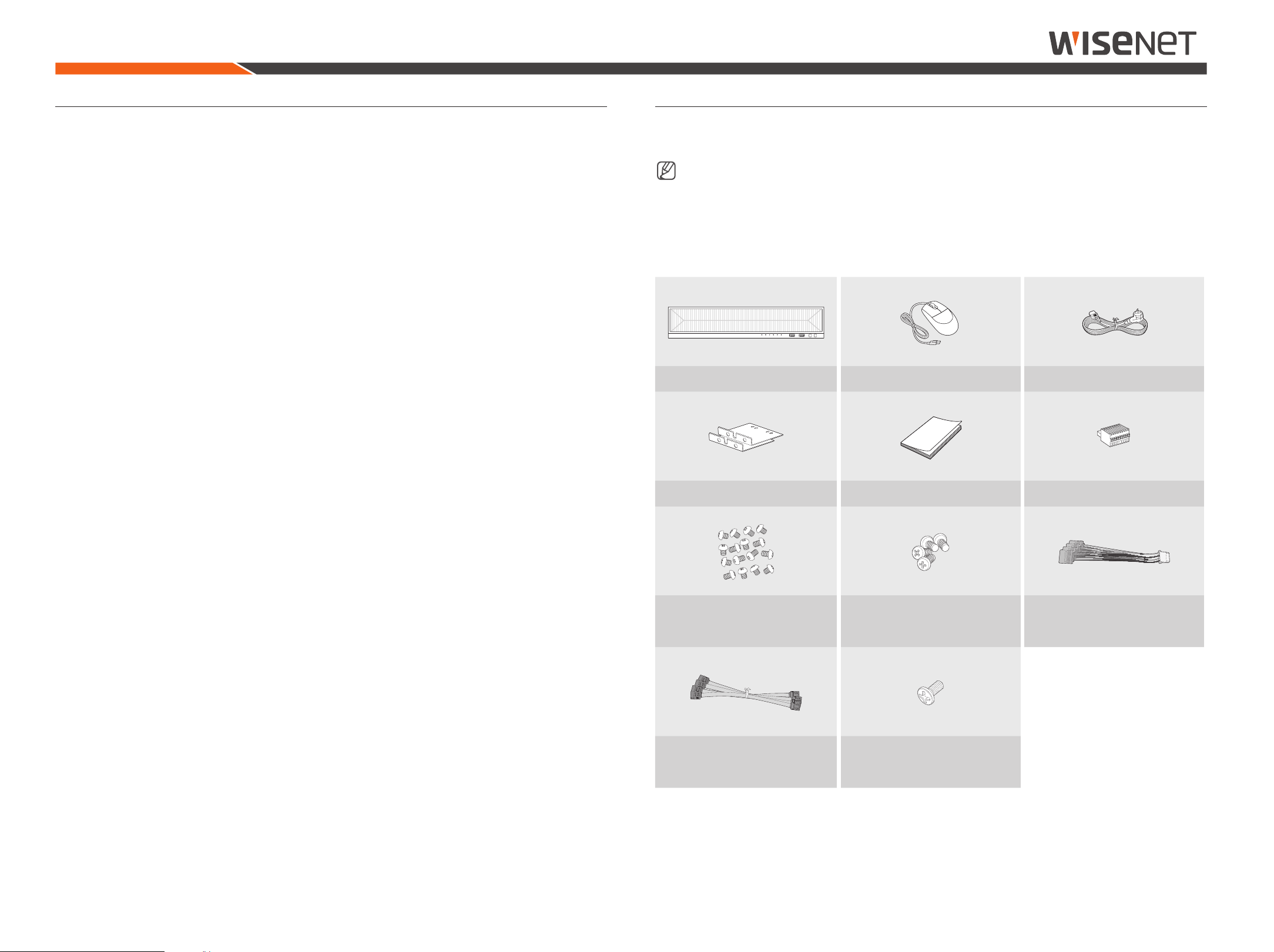
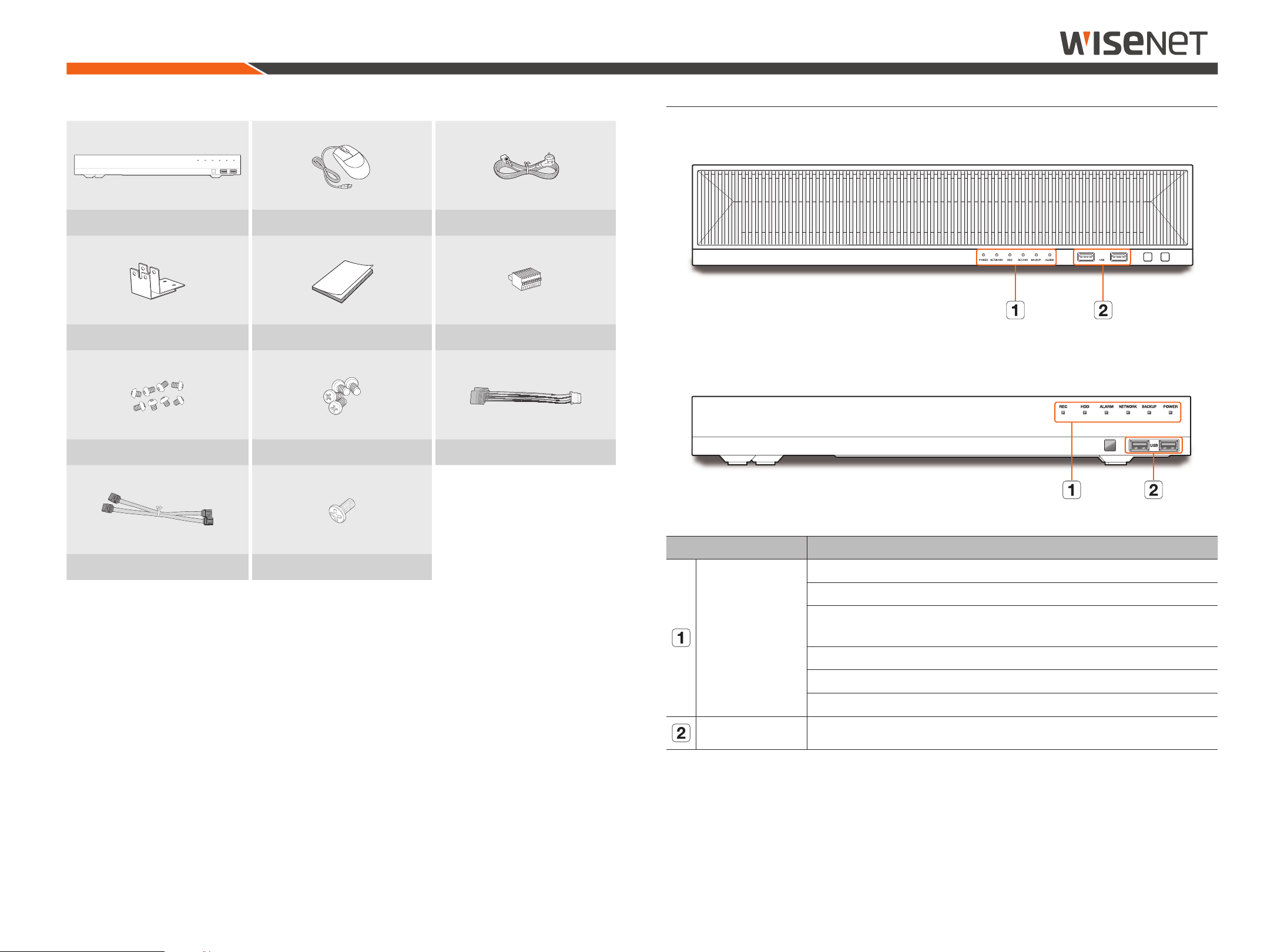
Please check the following contents are included in addition to the main unit.
■
The appearance of the components may differ from the image shown.
■
Accessory category and quantity may differ depending on sales region.
■
For some regions, HDD is not pre-installed. HDD Fixing Screw, SATA Cable quantity vary depending on the model.
Xrn-1620SB1/Xrn-1620B2
Recorder Mouse Power Cable
Bracket Rack Quick Guide Terminal block
HDD Fixing Screw
(XRN-1620SB1: 16 ea / XRN-1620B2: 32 ea)
Bracket Fixing Screw (4 ea)
SATA Power Cable
(XRN-1620SB1: 1 ea / XRN-1620B2: 2 ea)
SATA Data Cable
(XRN-1620SB1: 4 ea / XRN-1620B2: 8 ea)
Mounting screw for M.2 card (1 ea)
feaTureS
The product records video and audio from network cameras to a hard disk, and enables playback from the hard disk.
It also provides remote monitoring environment for video and audio over the network using a remote computer.
●
Provides new UI 2.0
●
Supports instant viewer
●
Can be linked to AI camera
●
Supports AI search (people, face, vehicle, license plate)
●
Supports BestShot view
●
Bookmark function
●
Thumbnail function
●
View camera event list in real time
●
Convenient event rule setup
●
Various sequence (layout, page) functions
●
Extended search period
●
Convenient log search
●
Supports thermal imaging camera/PTZ linked camera
●
Supports a range of 4K camera resolutions
●
Outputs a 4K high definition image using HDMI
●
Supports dual monitor output (expand, duplicate)
●
Record and play video
●
Record and play audio
●
Supports ONVIF Profile S standard and RTP / RTSP protocols
●
Display the HDD operation status by HDD SMART
●
HDD overwrite enabled
●
Function to export using USB memory and external hard disk
●
Simultaneous play of 8, 16 channels
●
View multi-channel time line when playing videos
●
Various Search Modes (Time, Event, Smart, Text, Export, ARB)
●
ARB support (configuration feature for saving period by channel)
●
Various recording modes (Normal, Event, Scheduled Recording)
●
Alarm Input / Output
●
Remote monitoring function by Windows Network Viewer
●
Live monitoring of the network camera
●
Installation Wizard Function (Recorder, Web Viewer)
●
Supports the smartphone remote monitoring feature by P2P support
●
Provides smartphone event alarm (sending real-time event messages)
English _7
overview
Xrn-820S
Recorder Mouse Power Cable
Bracket Rack Quick Guide Terminal block
HDD Fixing Screw (8 ea) Bracket Fixing Screw (4 ea) SATA Power Cable
SATA Data Cable Mounting screw for M.2 card (1 ea)
ParT nameS anD funcTIonS (fronT)
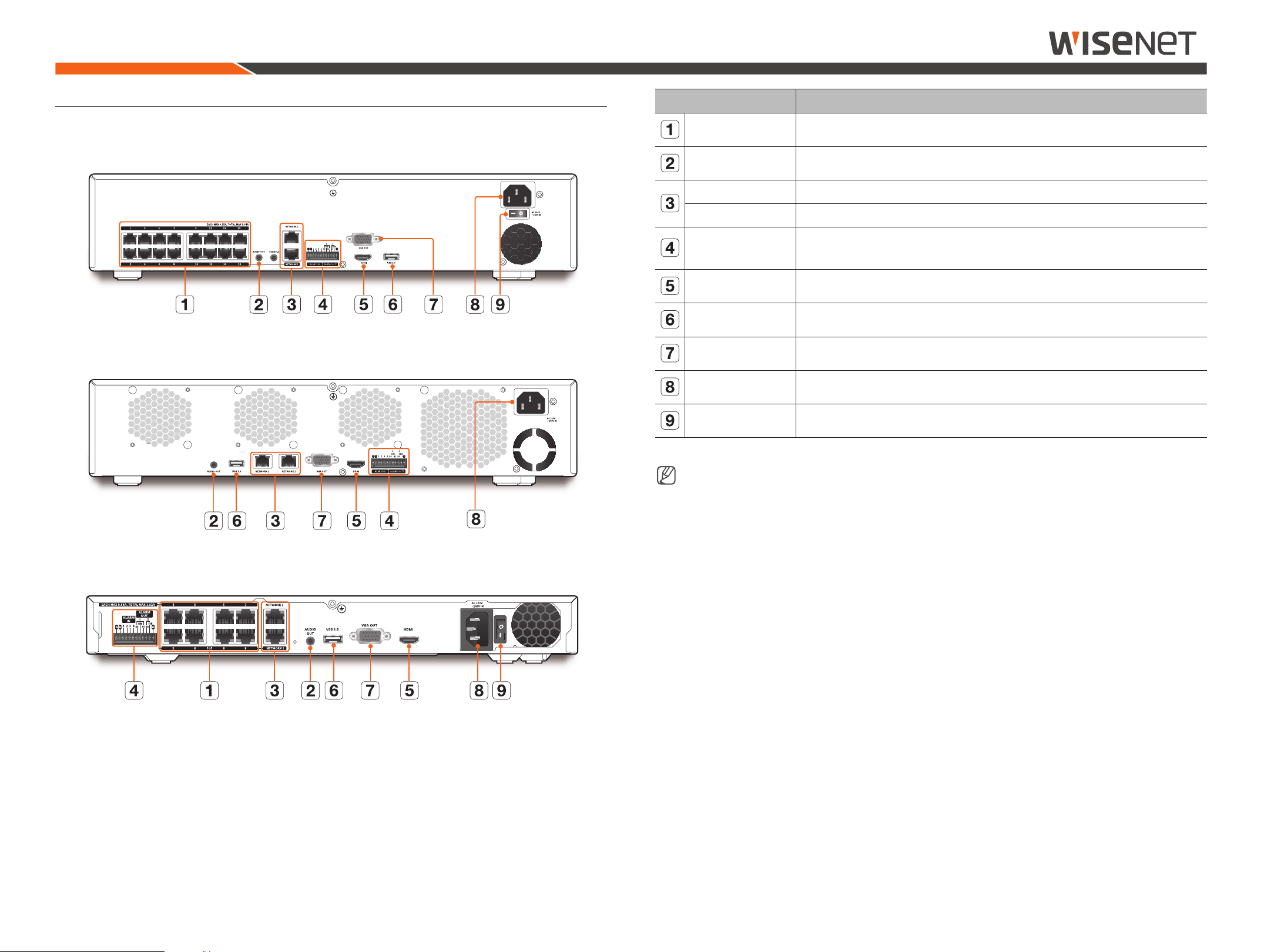
Xrn-1620SB1/Xrn-1620B2
Xrn-820S
Name Functions
LED Indicator
POWER : Shows the power ON/OFF status.
NETWORK : Displays both network connection and data transfer status.
HDD : Displays the normal access to HDD.
LED turns on when accessing the hard disk.
RECORD : Lights on when recording is in progress.
BACKUP : The LED will light up when the Export Recorded Video is in operation.
ALARM : Lights on when an event occurs.
USB Connects the USB devices. (USB 2.0 supported)
8_ overview
overview
ParT nameS anD funcTIonS (rear)
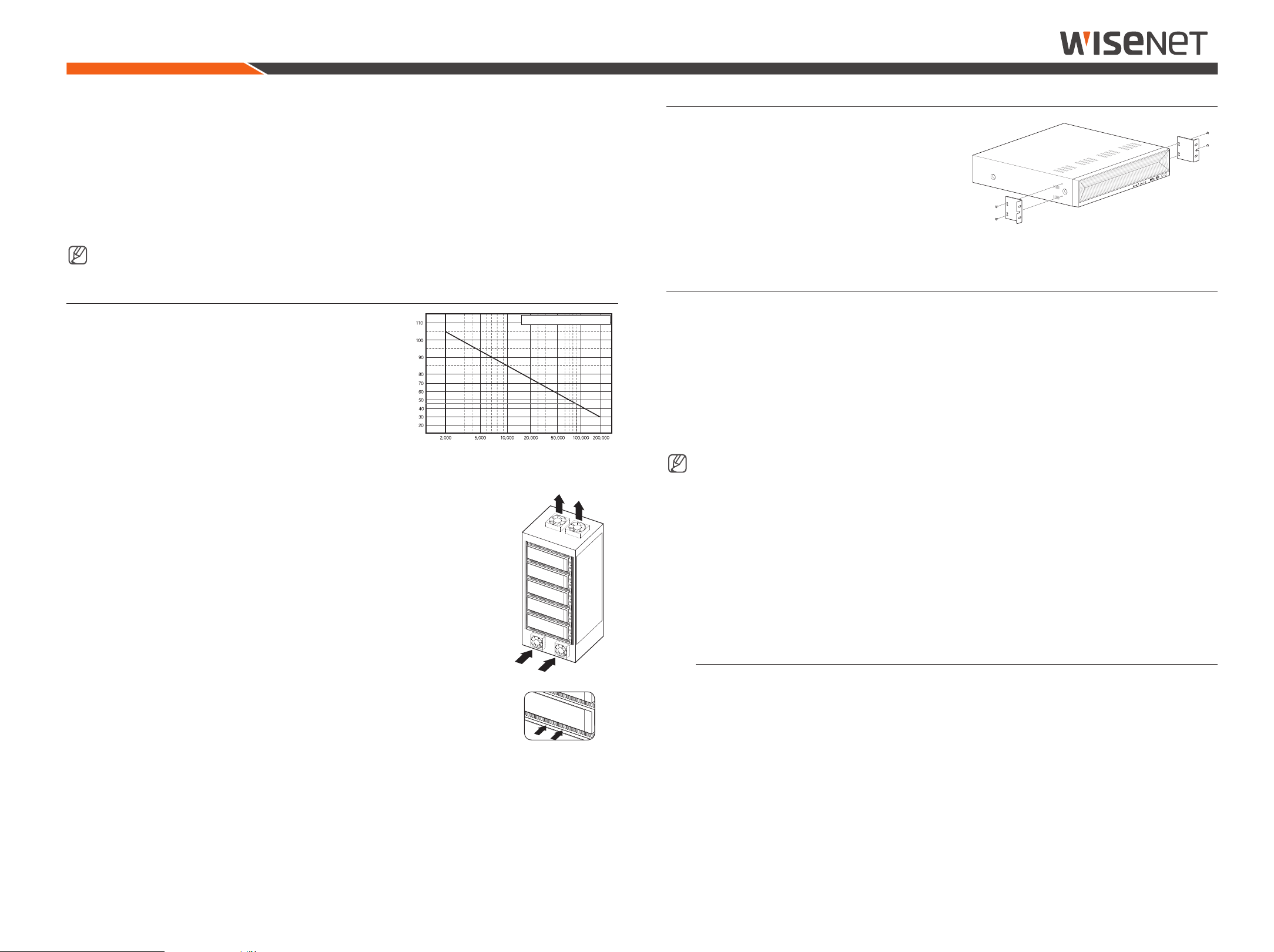
Xrn-1620SB1
Xrn-1620B2
Xrn-820S
Name Functions
PoE (CAMERA) Power supply port to connect to a camera. (XRN-1620SB1/XRN-820S)
AUDIO OUT Audio signal output port.
NETWORK 1 Port for camera connections; it receives video from a camera.
NETWORK 2 Port recommended for connection with a network, web viewer.
ALARM
●
ALARM IN : Alarm input ports. (1~4 CH)
●
ALARM OUT : Alarm output ports. (1~2 CH)
HDMI HDMI connector port.
USB Connects the USB devices. (USB 3.0 supported)
VGA OUT VGA Video signal output port.
Power Terminal to connect power to.
Power Switch Power on/off switch. (XRN-1620SB1/XRN-820S)
■
When connecting the AC power cord or turning on the power switch, there may be a luminous (light) phenomenon inside the SMPS. This
phenomenon is the normal operation of the SMPS protection element.
■
CONSOLE is designed for the service repair purpose only.
English _9
installation
Please take note of the followings before using this product.
●
Do not use the product outdoor.
●
Do not spill water or liquid in the connection part of the product.
●
Do not impose the system to excessive shock or force.
●
Do not pull out the power plug forcefully.
●
Do not disassemble the product on your own.
●
Do not exceed the rated input/output range.
●
Use a certified power cord only.
●
For the product with an input ground, use a grounded power plug.
■
Depending on the hard disk configuration and the surrounding temperature, there may be some noise from the product.
cHeckIng THe InSTallaTIon envIronmenT
This product is a top-notch security device that is equipped
with a high-capacity HDD and other key circuit boards.
Note that an excessive internal temperature of the product
may cause a system failure or a shortened product life (see the
right figure). Keep in mind the following instructions before
installing the product.
One Year: 24HR X 365 DAY =8,760 HR
Temperature
Unit: ºC
Life (Unit: HOURS)
[Figure 1]
When mounting the product on a rack, comply with the following instructions.
1.
Please ensure that the rack inside is not sealed.
2.
Please ensure the air is circulated through the inlet/outlet as shown in the picture.
3.
If you pile up the products or other rack-mount devices as shown in figure 2, secure room
for ventilation or install a vent.
4.
For natural air convection, place the inlet at the bottom of the rack and the outlet on top.
5.
It is strongly recommended that a fan motor is installed at the inlet and the outlet for air
circulation.
(Please fit a filter at the inlet to screen dust or foreign substances.)
6.
It is recommended to keep the temperature inside the rack or around the product at 25°C.
Rack Mount Instructions - The following or similar rack-mount instructions are included with
the installation instructions :
A) Elevated Operating Ambient - If installed in a closed or multi-unit rack assembly, the
operating ambient temperature of the rack environment may be greater than room
ambient. Therefore, consideration should be given to installing the equipment in an
environment compatible with the maximum ambient temperature (Tma) specified by the
manufacturer.
B) Reduced Air Flow - Installation of the equipment in a rack should be such that the amount
of air flow required for safe operation of the equipment is not compromised.
C) Mechanical Loading - Mounting of the equipment in the rack should be such that a
hazardous condition is not achieved due to uneven mechanical loading.
D) Circuit Overloading - Consideration should be given to the connection of the equipment to
the supply circuit and the effect that overloading of the circuits might have on overcurrent
protection and supply wiring. Appropriate consideration of equipment nameplate ratings
should be used when addressing this concern.
E) Reliable Earthing - Reliable earthing of rack-mounted equipment should be maintained.
Particular attention should be given to supply connections other than direct connections
to the branch circuit (e.g. use of power strips).
[Figure 2]
rack InSTallaTIon
Install the Bracket-Rack as shown in the figure, and then fasten
the screws on both sides.
■
Fix the screws not to be loosened by vibrations.
<
XRN-1620B2>
InSTallIng THe HDD
Make sure to unplug the power cord from the wall outlet to prevent possible electric shock, injury or product
damage.
Please consult your provider for further information on HDD installation since improper installation or settings may
damage the product.
■
Number of HDDs supported :
- XRN-820S : Max. 2 EA
- XRN-1620SB1 : Max. 4 EA
- XRN-1620B2 : Max. 8 EA
■
Make sure to unplug the power cord from the wall outlet before proceeding with the installation.
■
Cautions for data loss (HDD care)
Please pay attention so that the data inside the HDD is not damaged.
Before adding a HDD, please check the compatibility with this product.
HDD is vulnerable to malfunction due to its sensitive nature especially against shock when operating. Please ensure that the HDD is free from
such shock.
We are not liable for any damage to the HDD incurred by user's carelessness or miss use.
■
Cases might cause damage to HDD or recorded data
To minimize the risk of data loss from a damaged HDD, please backup data as often as possible.
If exposed to shock when disassembling or installing, data stored in the hard disk may be damaged.
A sudden power failure or turning off the product while in HDD operation may damage the hard disk drive.
HDD or files stored inside may be damaged if the main body is moved or impacted during the HDD operation.
cautions when installing a HDD
1.
Do not apply excessive force to the HDD.
2.
Pay attention so as not to lose the disassembly screws or accessories.
■
If the screws or accessories are not put together correctly, the product may breakdown or not operate properly.
3.
Please check the HDD compatibility before adding a HDD.
■
Please contact your nearest dealer to obtain the list of compatible devices.
4.
If you wish to replace or add an HDD, contact your dealer or our customer service first.
installation
10_ installation
installation
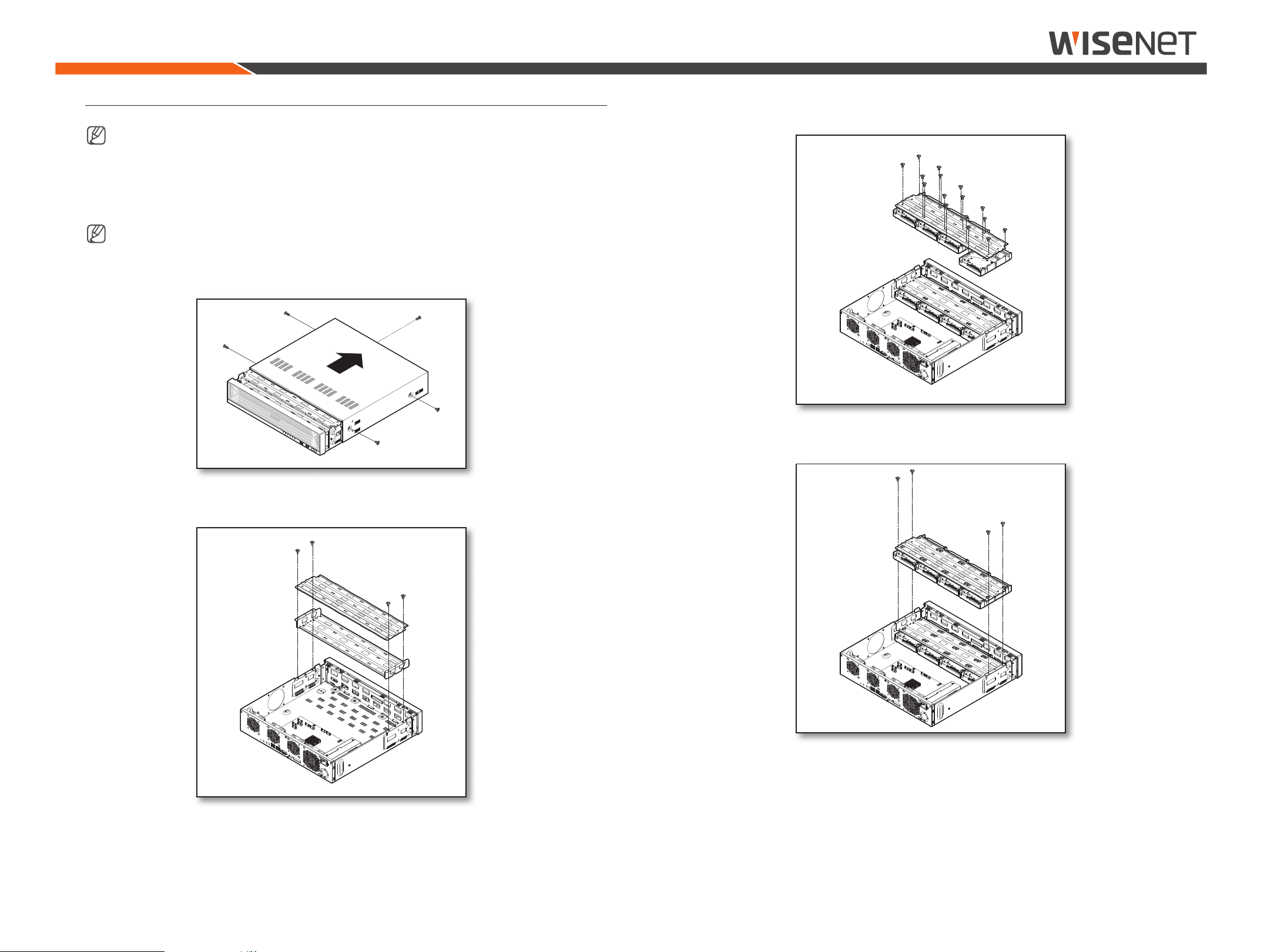
3.
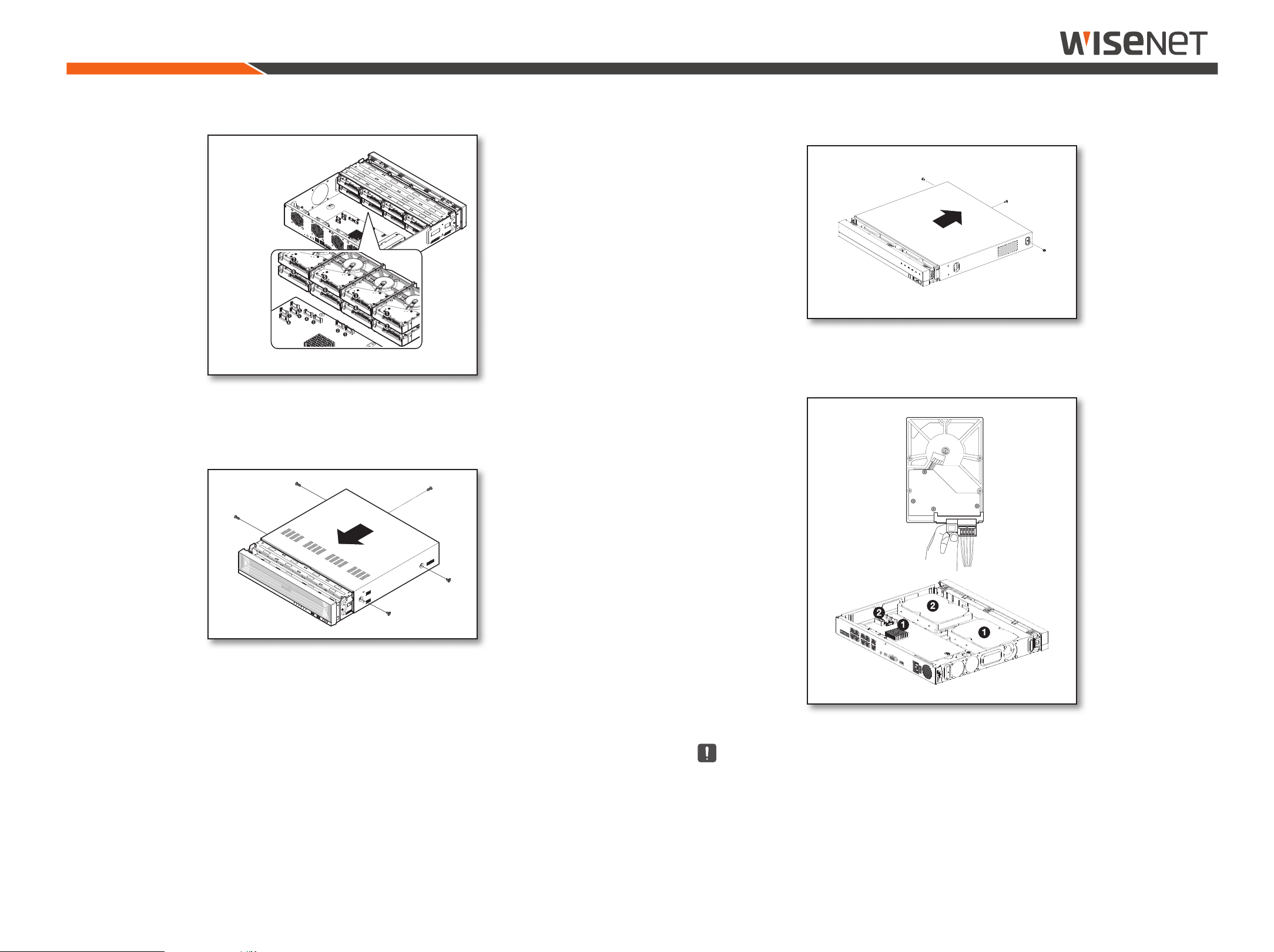
Mount 8 hard disks into the bracket, and fix it using screws.
■
For XRN-1620SB1 model, mount hard disks into the bottom bracket.
4.
Fix the hard-disk-mounted bracket to the recorder using screws.
Installing the HDD
■
If you are adding a new or previously used HDD to this product in addition to the HDD(s) originally installed, format the new HDD
manually in the set before use. To learn how to format, see "Device/Format" in the User Manual.
How to install an HDD in XRN-1620B2/XRN-1620SB1
■
The following figures are based on Model XRN-1620B2.
1.
Remove the screws from the left/right sides and back side, and push the cover back to release it.
2.
Remove the screws from the left/right sides and release the bracket.
English _11
installation
5.
Connect the SATA/power cable of the hard disk to the connector of the main board.
■
Refer to the figure below for the hard disk location number and connector number.
6.
Make sure that there is no problem in the connection port and routing inside the recorder, and then fix it
using screws after closing the cover.
■
When closing the cover, be careful not to damage the cable.
How to install an HDD in XRN-820S
1.
Remove the screws from the left/right sides and back side, and push the cover back to release it.
2.
Connect the SATA/power cable of the hard disk to the connector of the main board.
■
Refer to the figure below for the hard disk location number and connector number.
■
Gently press the connector before removing the HDD. Do not force to pull the cable.
12_ installation
installation
3.
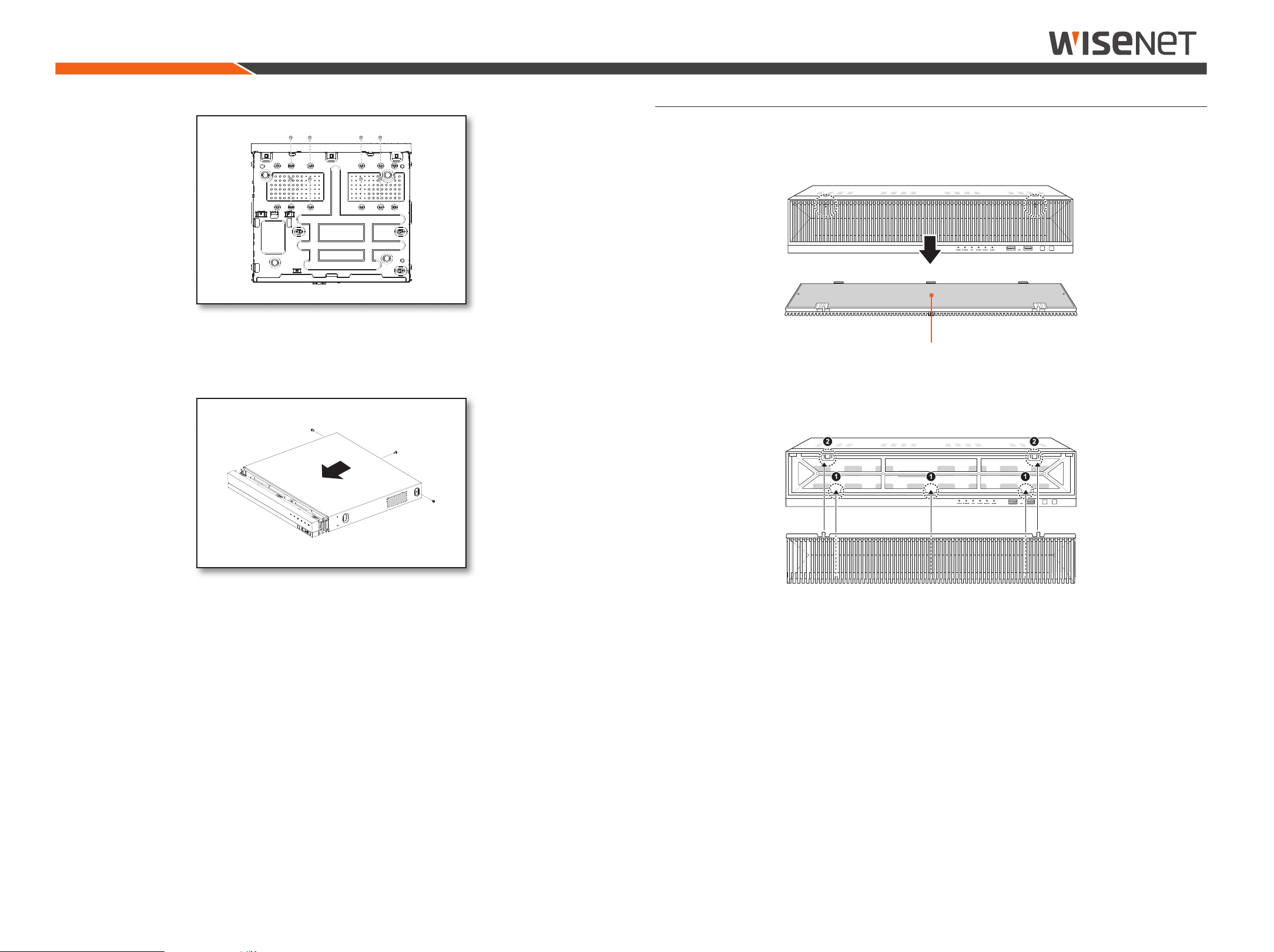
Use the screws to fix the hard disk to the bottom of the recorder.
4.
Make sure that there is no problem in the connection port and routing inside the recorder, and then fix it
using screws after closing the cover.
■
When closing the cover, be careful not to damage the cable.
cleanIng uP THe DuST fIlTer (Xrn-1620SB1/Xrn-1620B2)
There is a dust filter mounted inside the front cover of the recorder. Dust in the filter can cause airflow problems,
which may increase the temperature of the recorder and hard disk. Clean the dust filter regularly.
1.
To remove the front cover from the recorder, press the two top parts of the cover.
Dust Filter
2.
To mount the front cover to the recorder, fit the front cover into the bottom notch of the recorder, and press the
two top parts of the cover.
English _13
connecting with other device
connecTIng THe uSB
1.
On the front of the product, there is a USB port.
2.
You can connect a USB HDD, USB memory or mouse to the USB port.
3.
If your USB HDD is connected to the system, it can be detected and set up by following the steps in “Setup >
Setting the Device > Storage Device” of the User Manual.
4.
The product supports hot plugging function that enables connecting/disconnecting USB devices while in
operating the system.
■
If the USB device for Export Recorded Video is not formatted in the recorder, format it as FAT32 on the PC.
■
Some USB devices may fail to function properly due to compatibility issue, please check the device before using.
■
Only USB storage devices that comply with the standards (having a metal cover) are guaranteed for data transfer.
■
In case if the USB device’s electric contacts have been worn out, data transfer between the devices may not properly function.
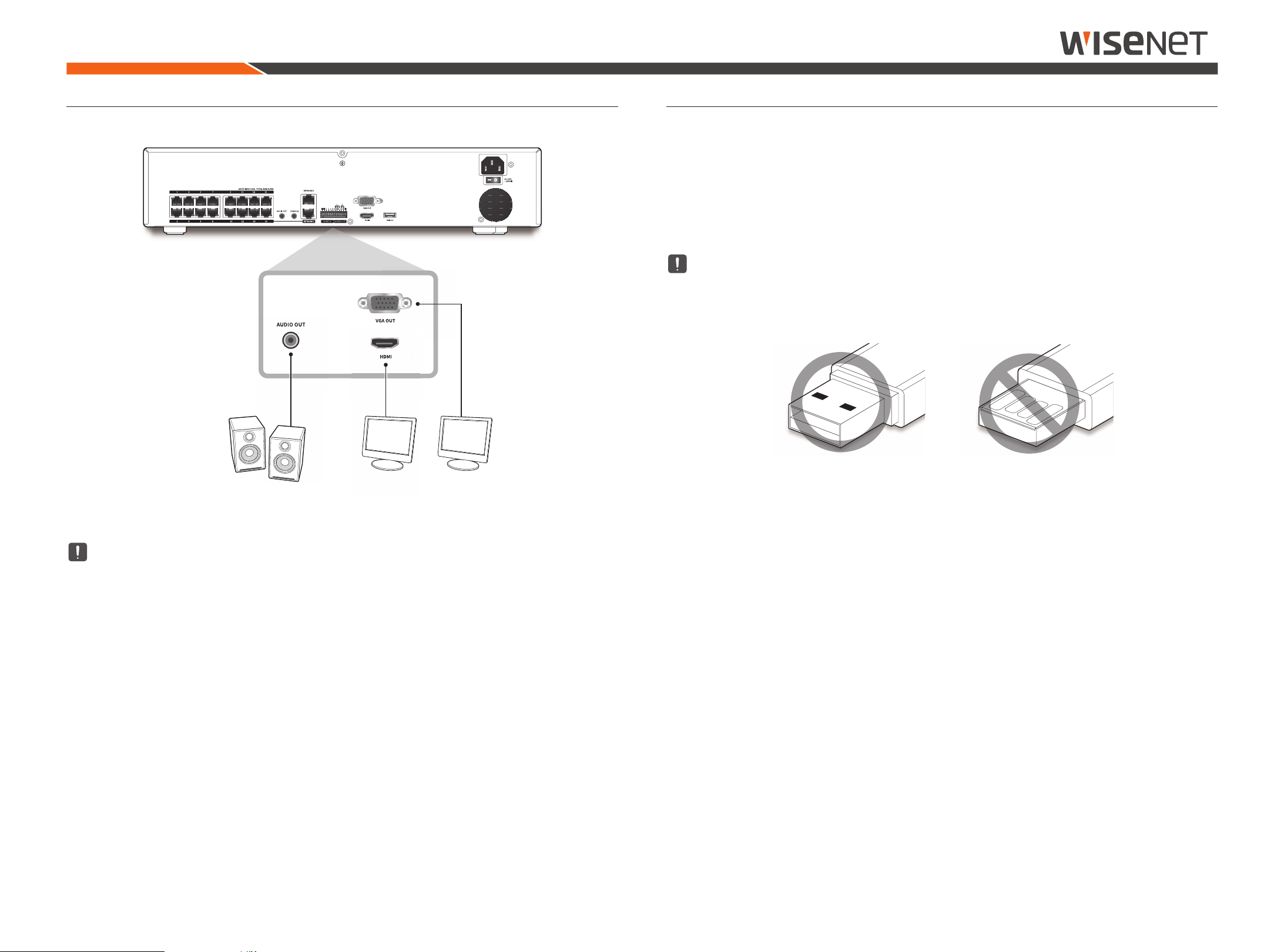
connecTIng To an eXTernal DevIce
■
The following figures are based on Model XRN-1620SB1.
HDMI OUT
AUDIO OUT
VIDEO OUT (VGA)
■
Unrated or improper power source may cause damage to the system. Ensure that you use only the rated power source before pressing the POWER
button.
connecting with other device
14_ connecting with other device
connecting with other device
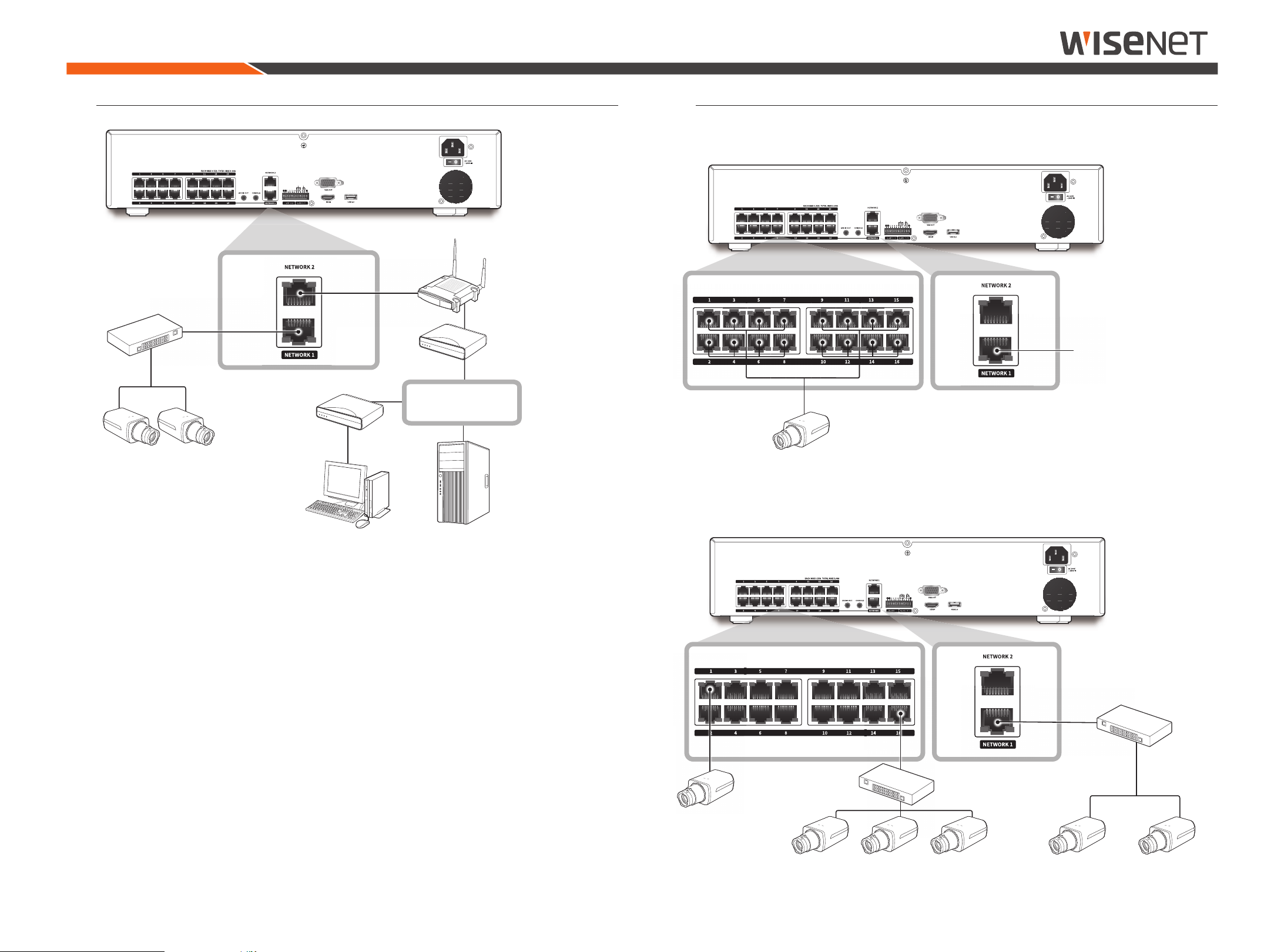
connecTIng THe neTWork
■
For more information about network connection, see "Network Configuration" in the User Manual.
network connection via ethernet (10/100/1000BaseT)
Windows
Network Viewer
Network Camera
Switch
Switch
connecTIng THe alarm InPuT/ouTPuT
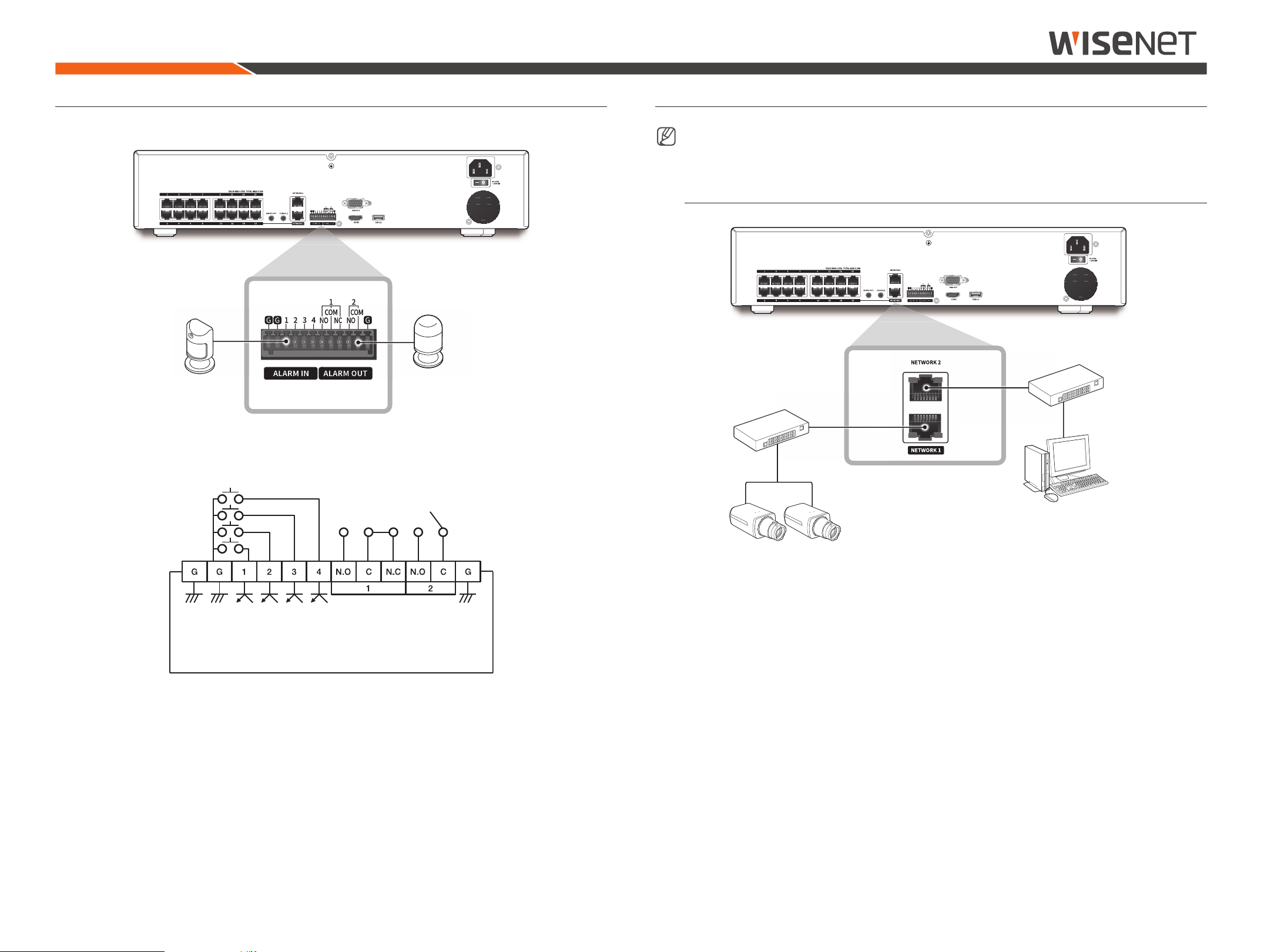
The Alarm In/Out port at the back is composed of the following.
Alarm
Sensors
●
ALARM IN 1 ~ 4 : Alarm Input Port
●
ALARM OUT 1 ~ 2 : Alarm Output Port
ALARM IN (5mA sink)
ALARM OUT
(Max. DC30V 2A, Typical DC12V 2A)
English _15
connecting with other device
network connection via router
Broadband Router
Windows
Network Viewer
Network Camera
DDNS Server
(Data Center)
NETWORK
xDSL or Cable Modem
xDSL or Cable
Modem
Switch
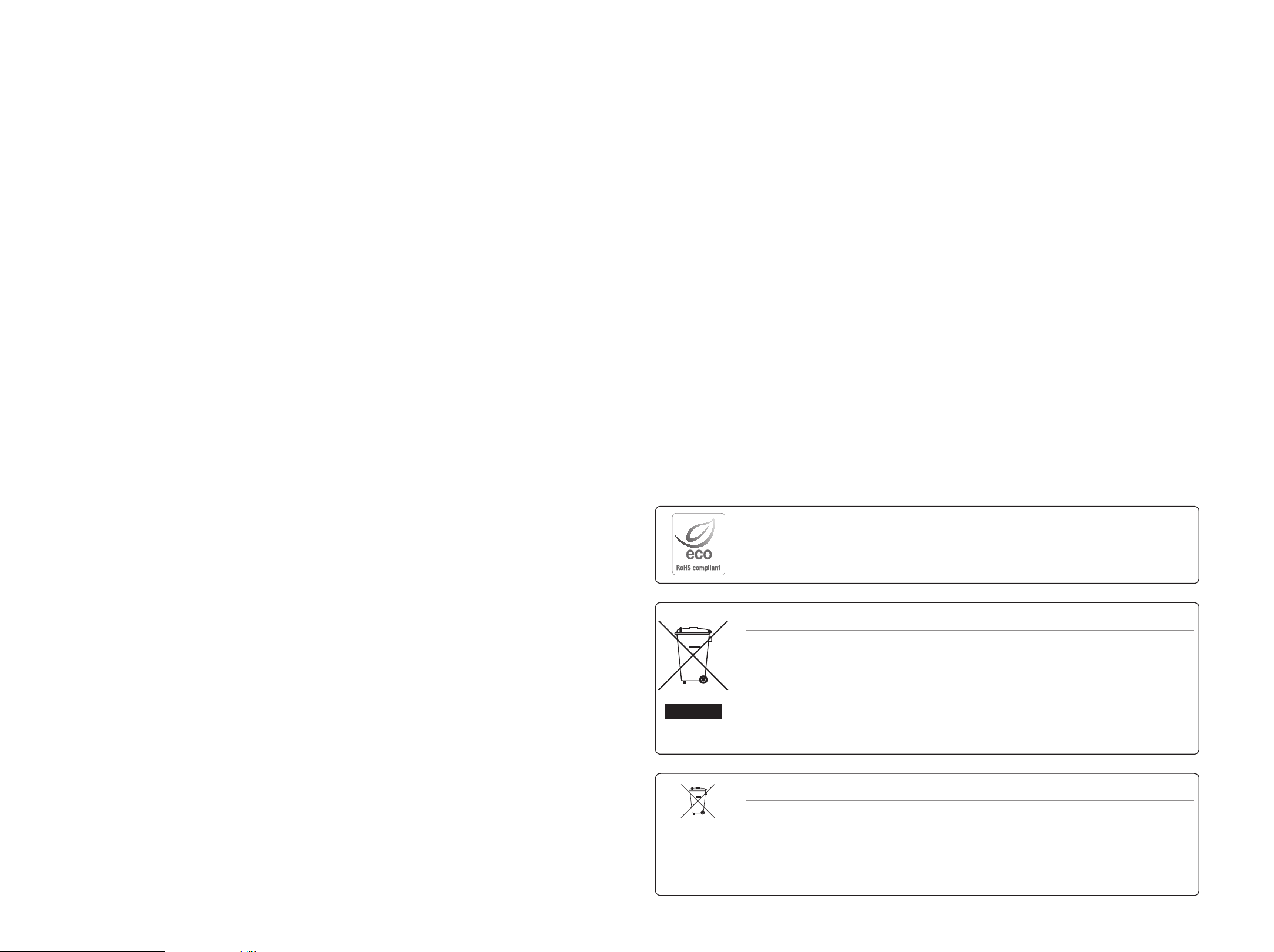
connecting the network cameras
example 1)
Network Camera
ex) IP : 192.168.231.10
Please do not connect
any equipments through
network1 in PnP mode.
ex) IP : 192.168.231.100
example 2)
Network Camera
ex) IP : 192.168.231.10
Network Camera
ex) IP : 192.168.231.20
ex) IP : 192.168.231.100
Network Camera
Network Camera Network Camera Network Camera
Switch
Switch
Correct Disposal of This Product
(Waste Electrical & Electronic Equipment)
(Applicable in the European Union and other European countries with separate collection systems)
This marking on the product, accessories or literature indicates that the product and its electronic accessories (e.g. charger, headset, USB cable)
should not be disposed of with other household waste at the end of their working life. To prevent possible harm to the environment or human health
from uncontrolled waste disposal, please separate these items from other types of waste and recycle them responsibly to promote the sustainable
reuse of material resources.
Household users should contact either the retailer where they purchased this product, or their local government oce, for details of where and how
they can take these items for environmentally safe recycling.
Business users should contact their supplier and check the terms and conditions of the purchase contract. This product and its electronic accessories
should not be mixed with other commercial wastes for disposal.
Correct disposal of batteries in this product
(Applicable in the European Union and other European countries with separate battery return systems.)
This marking on the battery, manual or packaging indicates that the batteries in this product should not be disposed of with other household waste at the end of their working
life. Where marked, the chemical symbols Hg, Cd or Pb indicate that the battery contains mercury, cadmium or lead above the reference levels in EC Directive 2006/66. If batteries
are not properly disposed of, these substances can cause harm to human health or the environment.
To protect natural resources and to promote material reuse, please separate batteries from other types of waste and recycle them through your local, free battery return system.
Hanwha Techwin cares for the environment at all product manufacturing stages, and is taking measures to provide
customers with more environmentally friendly products.
The Eco mark represents Hanwha Techwin's devotion to creating environmentally friendly products, and indicates that the
product satises the EU RoHS Directive.