Item No. 207182
LIGHTNING FLASH DRIVE
User Guide
- 1 -
Thank you for purchasing the Lightning Flash Drive for iPhones and iPads. Please
take a moment to read this guide and store it for future reference.

- 2 -
FEATURES
• High-speed storage drive
• Frees up space on your device
• Store, transfer, backup and stream data
• Transfer files between iPhone/iPad and Mac/PC
GETTING STARTED
1. Please make sure you are running iOS 10.0 or later on your iPhone/
iPad.
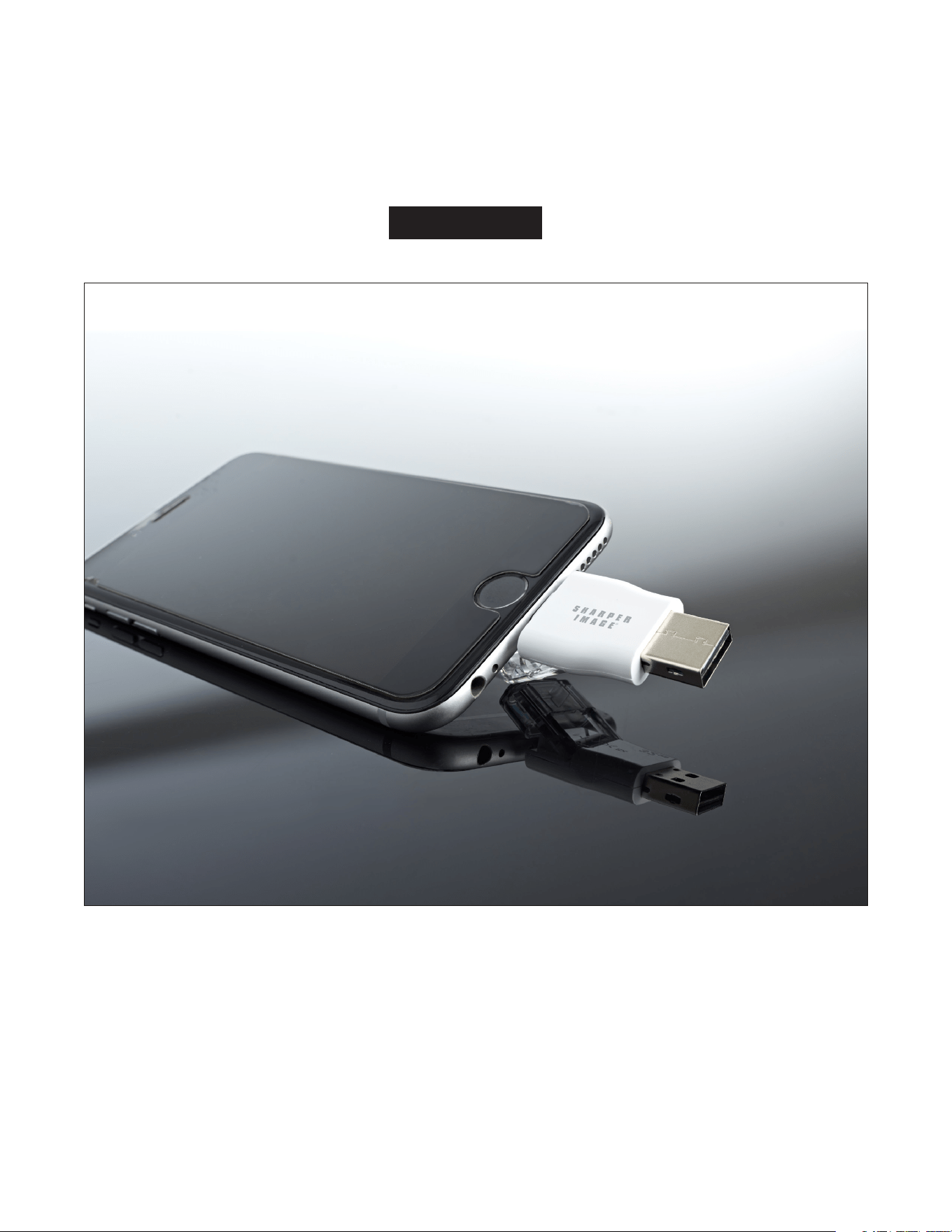
2. Plug the Lightning Flash Drive into your iPhone/iPad.
3. You will be prompted to download the PhotoFast ONE app.
4. Click DOWNLOAD and install the app.
NOTE: If you accidentally tap “ignore,” you can find PhotoFast ONE in the
iTunes App Store.
FILE BACKUP
In addition to file transfer, the Lightning Flash Drive can also back up your
photos, contacts, calendar and other data.
1. During setup, you will be asked to authorize your Lightning Flash Drive
to backup your photos, contacts and/or calendar if you like. This is
optional.
2. After setup, the Lightning Flash Drive will automatically backup
whatever data you have specified. Go to the Settings menu for more
backup options.
TRANSFERRING FILES FROM MAC OR PC
1. Plug the Lightning Flash Drive into a USB port on your computer (Mac
or PC).
2. The Lightning Flash Drive will appear on your desktop as iFlashDrive.
3. Drag files from your computer hard drive (movies, videos, photos,
music, documents, etc.) into the iFlashDrive icon.
4. Your files will be copied and stored on the Lightning Flash Drive. You
can now access them the next time you connect the Lightning Flash
Drive to your iPhone/iPad and launch the PhotoFast ONE app.
MAC LAPTOP USERS: The 2015 MacBook Pro was the last MacBook to
feature the standard USB Type-A connection. If you want to connect this
device to a newer version of MacBook, you will need a USB-C to USB-A
adapter or hub (not included).
- 3 -
NOTE: The PhotoFast ONE App only accepts file formats that are
supported by iOS. Currently, it supports more than 40 different types of
file formats, including:
TYPES OF FILES FORMATS SUPPORTED
Documents Pages, Numbers, Keynote, doc, docx, xls, xlsx, ppt,
pptx, rtf, txt, html, pdf
Images jpg, png, bmp, gif, tif, tiff, ico, xbm, cur, RAW
Audio mp3, aac, aif, aiff, wav, m4a, caf, FLAC
Video mp4, mov, m4v (without DRM), mkv, avi, flv, rm,
rmvb, wmv, vob, 3gp
Compressed zip
EXPLORING THE APP
HOME PAGE
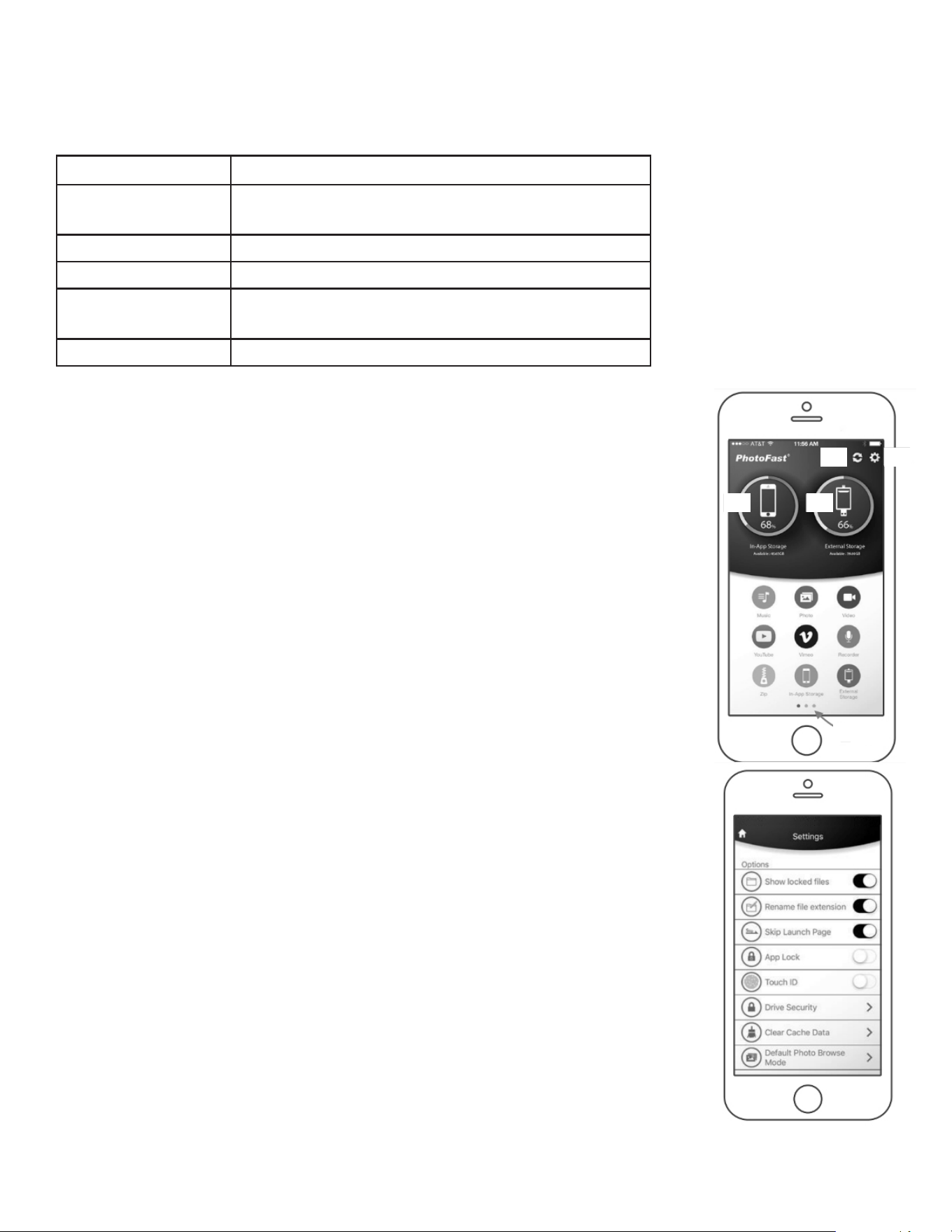
A. In-App Storage – Displays the storage on your iPhone/iPad (iOS
memory). Tap to access, manage and transfer data.
B. External Storage – Displays the storage on your Lightning Flash
Drive. Tap to access, manage and transfer data.
C. Refresh – Tap to refresh In-App Storage and External Storage
memory usage. External Storage usage will refresh every time the
Lightning Flash Drive is connected to your device.
D. Settings – Tap to access Options, Help, Auto Backup and Cloud.
E. Functions Panel – Swipe left to go to the next page.
SETTINGS / OPTIONS PAGE
Show Locked Files – Show or hide locked folders or files.
Rename File Extension – Edit file extension when renaming a file.
Skip Launch Page – Skip the app launch page when the app is opened.
App Lock – Set a 4-digit passcode for the app.
Touch ID – Use Touch ID to unlock App Lock.
Drive Security – Lightning Lock and USB Lock keep your data secure
from unwanted access.
Clear Cache Data – Delete temp files used by the app.
Default Photo Browse Mode – Set the default browse mode for Photo.
C D
A B
E
- 4 -
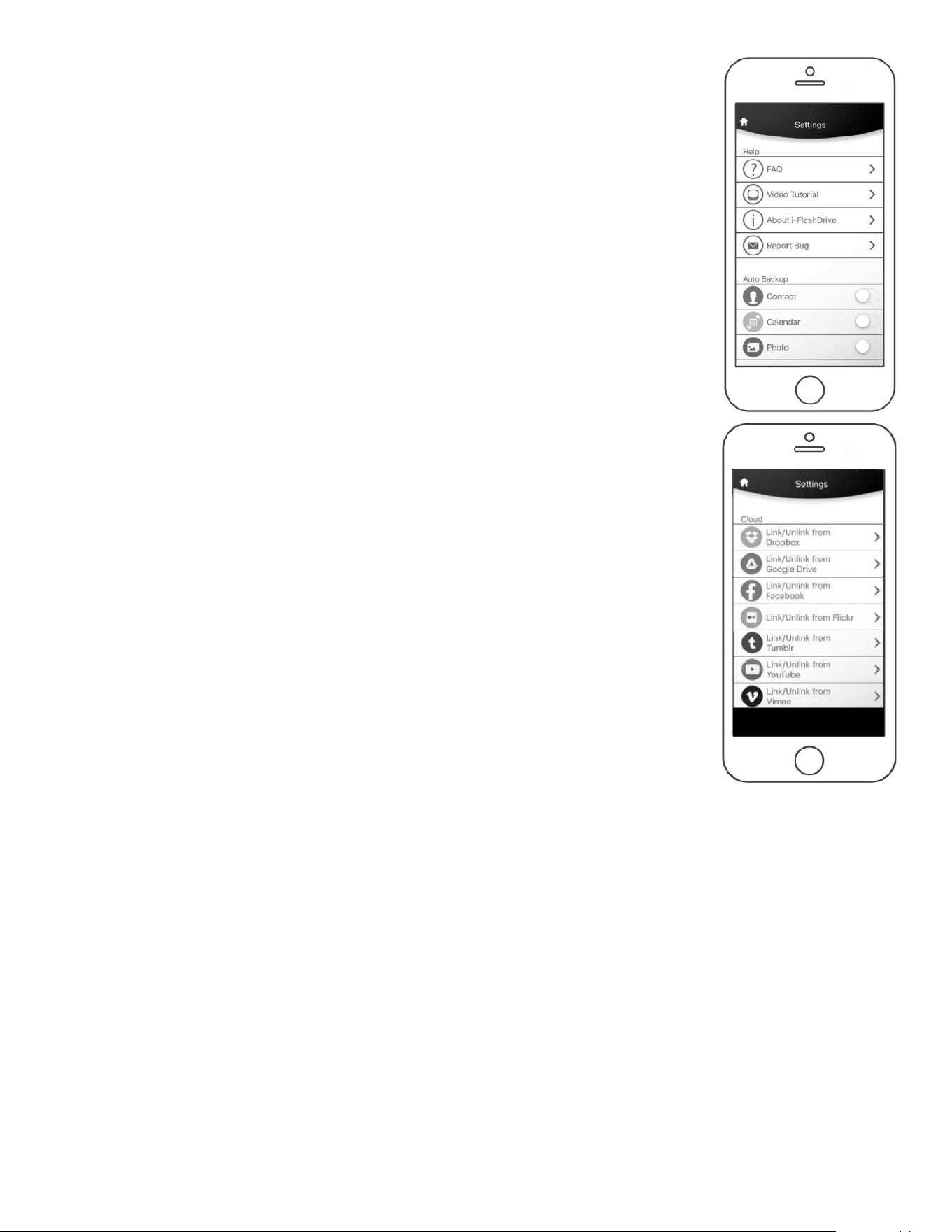
SETTINGS / HELP PAGE
FAQ – Frequently Asked Questions
Video Tutorial – Instructional video for the app.
About i-FlashDrive – Legal information about the app.
Report Bug – Send bug information for future improvements.
SETTINGS / AUTO BACKUP
Select the data to backup automatically every time the Lightning Flash
Drive is connected to your iPhone or iPad (contacts, calendar and/or
photos). Use the toggle buttons to turn On or Off.
SETTINGS / CLOUD PAGE
Tap each icon to link or unlink from your respective app accounts.
Supported apps include: Dropbox, Google Drive, Facebook, Flickr,
Tumblr, YouTube and Vimeo.
WARNING
1. Do not disconnect the Lightning Flash Drive during file transfer.
2. Do not connect both sides of the Lightning Flash Drive at the same
time.
3. Do not use the Lightning Flash Drive as a cable.
4. Place the plastic caps on the Lightning Flash Drive when not in use.
5. If there are too many files/photos in a folder on the external storage,
the transfer rates will decrease due to Apple limitations.
6. If your iPhone/iPad displays the message “this accessory is not
optimized for this iPhone,” simply disconnect the Lightning Flash
Drive and reconnect.
FOR MORE INFORMATION
The PhotoFast ONE app has many advanced features. For instructions,
watch the Video Tutorial located on the Help Page in the app. For
complete details, please visit https://www.photofast.com. Click on the
PRODUCTS menu, then click FAQ to download the App Quick Start Guide
PDF.