
June 2013 Rev. 1, 5/16
© 2013-2016 Fluke Corporation. All rights reserved. Specifications are subject to change without notice.
All product names are trademarks of their respective companies.
2638A
HYDRA Series III Data Acquisition Unit
Users Manual
1.888.610.7664 sales@GlobalTestSupply.com
Fluke-Direct.com

LIMITED WARRANTY AND LIMITATION OF LIABILITY
Each Fluke product is warranted to be free from defects in material and workmanship under normal use and
service. The warranty period is one year and begins on the date of shipment. Parts, product repairs, and
services are warranted for 90 days. This warranty extends only to the original buyer or end-user customer of
a Fluke authorized reseller, and does not apply to fuses, disposable batteries, or to any product which, in
Fluke's opinion, has been misused, altered, neglected, contaminated, or damaged by accident or abnormal
conditions of operation or handling. Fluke warrants that software will operate substantially in accordance
with its functional specifications for 90 days and that it has been properly recorded on non-defective media.
Fluke does not warrant that software will be error free or operate without interruption.
Fluke authorized resellers shall extend this warranty on new and unused products to end-user customers
only but have no authority to extend a greater or different warranty on behalf of Fluke. Warranty support is
available only if product is purchased through a Fluke authorized sales outlet or Buyer has paid the
applicable international price. Fluke reserves the right to invoice Buyer for importation costs of
repair/replacement parts when product purchased in one country is submitted for repair in another country.
Fluke's warranty obligation is limited, at Fluke's option, to refund of the purchase price, free of charge repair,
or replacement of a defective product which is returned to a Fluke authorized service center within the
warranty period.
To obtain warranty service, contact your nearest Fluke authorized service center to obtain return
authorization information, then send the product to that service center, with a description of the difficulty,
postage and insurance prepaid (FOB Destination). Fluke assumes no risk for damage in transit. Following
warranty repair, the product will be returned to Buyer, transportation prepaid (FOB Destination). If Fluke
determines that failure was caused by neglect, misuse, contamination, alteration, accident, or abnormal
condition of operation or handling, including overvoltage failures caused by use outside the product’s
specified rating, or normal wear and tear of mechanical components, Fluke will provide an estimate of repair
costs and obtain authorization before commencing the work. Following repair, the product will be returned to
the Buyer transportation prepaid and the Buyer will be billed for the repair and return transportation charges
(FOB Shipping Point).
THIS WARRANTY IS BUYER'S SOLE AND EXCLUSIVE REMEDY AND IS IN LIEU OF ALL OTHER
WARRANTIES, EXPRESS OR IMPLIED, INCLUDING BUT NOT LIMITED TO ANY IMPLIED WARRANTY
OF MERCHANTABILITY OR FITNESS FOR A PARTICULAR PURPOSE. FLUKE SHALL NOT BE LIABLE
FOR ANY SPECIAL, INDIRECT, INCIDENTAL, OR CONSEQUENTIAL DAMAGES OR LOSSES,
INCLUDING LOSS OF DATA, ARISING FROM ANY CAUSE OR THEORY.
Since some countries or states do not allow limitation of the term of an implied warranty, or exclusion or
limitation of incidental or consequential damages, the limitations and exclusions of this warranty may not
apply to every buyer. If any provision of this Warranty is held invalid or unenforceable by a court or other
decision-maker of competent jurisdiction, such holding will not affect the validity or enforceability of any other
provision.
11/99
1.888.610.7664 sales@GlobalTestSupply.com
Fluke-Direct.com

i
Table of Contents
Chapter Title Page
1 Product Overview and Specifications ............................................... 1-1
Introduction ........................................................................................................ 1-1
Product Overview .............................................................................................. 1-1
Front and Rear-Panel Overview ......................................................................... 1-3
Safety Information ............................................................................................. 1-7
Screen Capture Feature ...................................................................................... 1-9
About this Manual ............................................................................................. 1-10
The Product Manual Set .................................................................................... 1-10
How to Contact Fluke Calibration ..................................................................... 1-11
Calibration and Repair Information ................................................................... 1-11
General Specifications ....................................................................................... 1-12
Measurement Specifications .............................................................................. 1-14
DC Voltage .................................................................................................... 1-14
DC Voltage Input Characteristics ............................................................. 1-14
DC Voltage Accuracy ............................................................................... 1-14
DC Voltage Additional Errors .................................................................. 1-15
AC Voltage .................................................................................................... 1-15
AC Voltage Input Characteristics ............................................................. 1-15
AC Voltage Accuracy .................................................................................... 1-16
Additional Low Frequency Errors ................................................................. 1-16
DC Current .................................................................................................... 1-16
DC Current Input Characteristics .............................................................. 1-16
DC Current Accuracy ................................................................................ 1-17
DC Current Additional Errors ................................................................... 1-17
AC Current .................................................................................................... 1-17
AC Current Input Characteristics .............................................................. 1-17
AC Current Accuracy ................................................................................ 1-18
Additional Low Frequency Errors ................................................................. 1-18
Frequency ...................................................................................................... 1-18
Frequency Accuracy .................................................................................. 1-18
Resistance ...................................................................................................... 1-18
Resistance Input Characteristics ............................................................... 1-19
Resistance Accuracy ................................................................................. 1-19
Resistance Additional Errors ..................................................................... 1-19
1.888.610.7664 sales@GlobalTestSupply.com
Fluke-Direct.com

2638A
Users Manual
ii
RTD ............................................................................................................... 1-19
RTD Temperature Accuracy ..................................................................... 1-20
RTD Measurement Characteristics ........................................................... 1-20
Thermistor ..................................................................................................... 1-20
Thermistor Temperature Accuracy ........................................................... 1-20
Thermistor Measurement Characteristics .................................................. 1-21
Thermocouple ................................................................................................ 1-21
Thermocouple Temperature Accuracy ...................................................... 1-21
Thermocouple Measurement Characteristics ............................................ 1-22
Digital I/O ...................................................................................................... 1-22
Totalizer ......................................................................................................... 1-22
Trigger ........................................................................................................... 1-23
Alarm Output ................................................................................................. 1-23
2638A-100 Universal Input Module .................................................................. 1-23
General .......................................................................................................... 1-23
2 Initial Setup and Configuration .......................................................... 2-1
Introduction ........................................................................................................ 2-1
Set the Regional Voltage ................................................................................... 2-1
Connect to Mains Power .................................................................................... 2-3
Set the Handle Position ...................................................................................... 2-4
Power On and Standby ...................................................................................... 2-5
Warm-Up the Product ........................................................................................ 2-6
Configure the Product ........................................................................................ 2-6
Input Module and Relay Card Installation ......................................................... 2-7
Set Up Security .................................................................................................. 2-10
3 Input and Channel Configuration ....................................................... 3-1
Introduction ........................................................................................................ 3-1
Input Wiring ....................................................................................................... 3-1
The Universal Input Module.......................................................................... 3-1
Wiring Safety and Considerations ................................................................. 3-2
3-Wire and 4-Wire Sense Input Configuration .............................................. 3-3
Input Types and Wiring Diagrams ................................................................ 3-5
Input Wiring Instructions .............................................................................. 3-6
Channel Configuration ....................................................................................... 3-7
About Channel Numbers ............................................................................... 3-7
Basic Channel Operations ............................................................................. 3-10
Open the Channel Setup Menu ................................................................. 3-10
Set Channels to ON or OFF ...................................................................... 3-11
Verify a Channel ....................................................................................... 3-12
Zero a Channel .......................................................................................... 3-12
Copy a Channel ......................................................................................... 3-13
Save or Load a Channel Configuration (Setup File) ................................. 3-14
Reset the Channel and Test Configuration ................................................ 3-16
Analog Channel Configuration (Ch001, Ch101 to Ch322) ........................... 3-16
Current and Voltage Channels .................................................................. 3-17
Resistance Channels .................................................................................. 3-18
Thermocouple Channels ............................................................................ 3-19
Frequency Channels .................................................................................. 3-20
Thermistor Channels ................................................................................. 3-21
PRT Channels............................................................................................ 3-22
Digital I/O (DIO) Channel Configuration (Ch401) ....................................... 3-23
Totalizer Channel Configuration (Ch402) ..................................................... 3-24
1.888.610.7664 sales@GlobalTestSupply.com
Fluke-Direct.com

Contents (continued)
iii
Read Mode ................................................................................................ 3-24
Debounce .................................................................................................. 3-24
Math Channel Configuration (Ch501 to Ch520) ........................................... 3-26
Mx+B, Alarms, and Channel Options ................................................................ 3-29
Mx+B Scaling ................................................................................................ 3-29
HI and LO Channel Alarms ........................................................................... 3-30
Channel Delay ............................................................................................... 3-32
Rate of Change .............................................................................................. 3-32
NPLC ............................................................................................................. 3-33
Input Impedance ............................................................................................ 3-33
Bandwidth ..................................................................................................... 3-33
Display As ..................................................................................................... 3-33
Open Detect ................................................................................................... 3-33
4 Scan/Monitor, Record, and Data ........................................................ 4-1
Introduction ........................................................................................................ 4-1
Scan .................................................................................................................... 4-1
About Scan Timing and Sampling ................................................................. 4-3
Configure a Scan ........................................................................................... 4-5
Trigger Type.............................................................................................. 4-6
Auto Recording ......................................................................................... 4-7
File Destination ......................................................................................... 4-7
Sample Rate .............................................................................................. 4-7
Data Security ............................................................................................. 4-8
Temperature Unit ...................................................................................... 4-9
Align Channels .......................................................................................... 4-9
Automatic Power Loss Scan Resume ........................................................ 4-10
Basic Scan Procedures ................................................................................... 4-10
Start a Scan ................................................................................................ 4-10
View Scan Data and Statistics ................................................................... 4-11
Graph the Measurements ........................................................................... 4-12
Monitor .............................................................................................................. 4-13
Record ................................................................................................................ 4-14
Record Measurement Data ............................................................................ 4-14
Memory Consumption for Recorded Data .................................................... 4-15
Open and View Measurement Data on a PC ................................................. 4-15
How to Read the Setup CSV File .................................................................. 4-17
How to Read the Data CSV File .................................................................... 4-19
5 DMM Operation .................................................................................... 5-1
Introduction ........................................................................................................ 5-1
About the DMM Function ................................................................................. 5-1
Input Type Selection and Range Adjustment .................................................... 5-2
More Functions (PT385 or PT392) .................................................................... 5-2
Relative Measurements ...................................................................................... 5-2
Graph the Measurements ................................................................................... 5-3
Measurement Statistics ...................................................................................... 5-4
6 Maintenance and Care ........................................................................ 6-1
Introduction ........................................................................................................ 6-1
Clean the Product ............................................................................................... 6-1
Replace the Fuse ................................................................................................ 6-1
Memory Reset and Factory Reset ...................................................................... 6-2
Firmware Update ............................................................................................... 6-3
1.888.610.7664 sales@GlobalTestSupply.com
Fluke-Direct.com

2638A
Users Manual
iv
User-Replaceable Parts and Accessories ........................................................... 6-5
7 Error Messages and Troubleshooting ............................................... 7-1
Introduction ........................................................................................................ 7-1
Error Messages .................................................................................................. 7-1
Troubleshooting ................................................................................................. 7-17
1.888.610.7664 sales@GlobalTestSupply.com
Fluke-Direct.com

v
List of Tables
Table Title Page
1-1. Front-Panel Features .............................................................................................. 1-3
1-2. Rear-Panel Features ............................................................................................... 1-5
1-3. Sy mbols .................................................................................................................. 1-7
2-1. Fuses ....................................................................................................................... 2-1
2-2. Instrument Setup Menu .......................................................................................... 2-6
3-1. Types of Inputs ....................................................................................................... 3-5
3-2. Channel Types and Numbers ................................................................................. 3-8
3-3. Channel Setup Menu .............................................................................................. 3-10
3-4. Current and Voltage Channel Configuration .......................................................... 3-17
3-5. Resistance Channel Configuration ......................................................................... 3-18
3-6. Thermocouple Channel Configuration ................................................................... 3-19
3-7. Frequency Channel Configuration ......................................................................... 3-20
3-8. Thermistor Channel Setup ...................................................................................... 3-21
3-9. PRT Channel Setup ................................................................................................ 3-22
3-10. Totalizer Channel Configuration ............................................................................ 3-25
3-11. Math Channel Formulas ......................................................................................... 3-26
3-12. Math Channel Configuration .................................................................................. 3-28
4-1. The Scan Menu ...................................................................................................... 4-2
4-2. Settling Time Delay Values ................................................................................... 4-4
4-3. Scan Sample Rates ................................................................................................. 4-8
4-4. Scan Statistics ......................................................................................................... 4-12
4-5. Scan Data Memory Usage ...................................................................................... 4-15
5-1. Statistics ................................................................................................................. 5-4
6-1. Fuses ....................................................................................................................... 6-1
6-2. Comparison of the Memory Clear Functions ......................................................... 6-2
6-3. User-Replaceable Parts and Accessories ................................................................ 6-5
7-1. Error Messages ....................................................................................................... 7-1
7-2. Troublehooti ng Chart ............................................................................................. 7-17
1.888.610.7664 sales@GlobalTestSupply.com
Fluke-Direct.com

vii
List of Figures
Figure Title Page
1-1. Screen Capture ....................................................................................................... 1-9
2-1. Fuse Replacement and Line-Voltage Selection...................................................... 2-2
2-2. Mains Power Cord Connection .............................................................................. 2-3
2-3. Handle Positions and Boot Removal ...................................................................... 2-4
2-4. Main Power Switch and Standby Key .................................................................... 2-5
2-5. Module Indicator Example ..................................................................................... 2-8
2-6. Relay Card Installation ........................................................................................... 2-9
3-1. 2-Wire, 3-Wire, and 4-Wire Example Connections ............................................... 3-2
3-2. 3-Wire and 4-Wire Channel Reservation ............................................................... 3-4
3-3. Module Indicator (Input Module Installed Shown) ................................................ 3-7
3-4. Example Channel Assignment ............................................................................... 3-9
3-5. Channel Status Indicators ....................................................................................... 3-11
3-6. Zero Function ......................................................................................................... 3-13
3-7. DIO Connector ....................................................................................................... 3-23
3-8. Totalizer Input (TOT) ............................................................................................ 3-24
3-9. Rear-Panel Alarm Outputs ..................................................................................... 3-31
3-10. Alarm Output Example .......................................................................................... 3-31
4-1. Scan Data ............................................................................................................... 4-2
4-2. Illustration of a Scan Sweep ................................................................................... 4-4
4-3. Test Setup Menu Example ..................................................................................... 4-6
4-4. Scan Data ............................................................................................................... 4-11
4-5. Graph Feature ......................................................................................................... 4-12
4-6. Monitor Menu ........................................................................................................ 4-13
4-7. Scan Data File Name Convention .......................................................................... 4-16
4-8. Setup.csv and Dat00001.csv Files .......................................................................... 4-17
5-1. Example Voltage Front-Panel Connection ............................................................. 5-1
5-2. Input Function Selection ........................................................................................ 5-2
5-3. Relative Measurement ............................................................................................ 5-3
5-4. Graph Function ....................................................................................................... 5-3
5-5. DMM Statistics ...................................................................................................... 5-4
6-1. Fuse Replacement .................................................................................................. 6-2
1.888.610.7664 sales@GlobalTestSupply.com
Fluke-Direct.com

1-1
fChapter 1
Product Overview and Specifications
Introduction
This chapter supplies information about the Product, the manual set, safety information,
contact information, and specifications.
Product Overview
The Fluke 2638A HYDRA Series III Data Acquisition Unit (the Product or Instrument) is
a portable bench-top data logger that measures and records dc volts, ac volts, dc current,
ac current, resistance, frequency, and temperature (see Table 1-1). See the Specifications
section for information on the types and ranges of the measurement inputs the Product
can accept.
Features of the Product include:
•
Scan – Sequentially scan up to 67 analog channels per scan sweep. In addition, the
Product also has 20 math channels, one DIO channel, and one TOT channel that can
be included in scan. A scan can be manually controlled from the front panel or
triggered with a variety of triggers such a timer, an alarm, an external source, or a
remote SCPI command.
While a scan is in progress, all channel values can be viewed on the display in a
spreadsheet format along with statistics such as average, standard deviation,
minimum, maximum, peak-to-peak, and rate-of-change. With the Graph feature,
channel measurement data for up to four channels can be plotted and viewed on the
display. Users can toggle the data mode with a softkey to view live data or historical
data.
•
Monitor – View the measurement value or the statistics of a single channel. Monitor
is an independent feature that can be used while a scan is in progress or inactive.
Much like the Scan feature, the statistics of the single measurement can be viewed on
the display or be shown in a graph.
•
Data Storage - Store up to 20 Mb of data and channel setup files directly to the
internal non-volatile memory or an external USB drive. Data can also be transferred
to a PC with a USB drive or LAN TCP/IP interface at the rear of the unit with SCPI
interface command sets.
1.888.610.7664 sales@GlobalTestSupply.com
Fluke-Direct.com

2638A
Users Manual
1-2
• Alarms – Each channel can be assigned two independent alarms to indicate when
either an upper (HI) or lower (LO) range has been exceeded. The alarms can be
configured to output a digital signal from the rear-panel alarm output for control of
external devices.
•
Digital I/O (DIO) – The Product is equipped with a digital 8-bit transistor-transistor
logic (TTL) port that can sense and output. When the DIO channel is included in the
scan list, the value of this port is recorded in the scan data record on each scan with a
value range of 0 to 255 based on the port state when it is read.
•
Totalizer – The Product is equipped with a unidirectional, resettable totalizer with an
input count capability of 1,048,575 (20 bits). Counter increment is accomplished
through a change to a digital signal or contact closure to the totalizer input terminals
on the rear of the Instrument.
•
Digital Multimeter Functionality (DMM) – Function that presents the user with
familiar DMM features and controls like a standard bench DMM. The DMM can
show 6 ½ digits on the display. To visualize trend data, the DMM provides additional
functionality to graph and see measurement statistics.
•
Remote Operation – Remotely operate the Product with remote SCPI commands or
the FlukeDAQ application software over a rear-panel USB or LAN TCP/IP
connection.
1.888.610.7664 sales@GlobalTestSupply.com
Fluke-Direct.com
Product Overview and Specifications
Front and Rear-Panel Overview 1
1-3
Front and Rear-Panel Overview
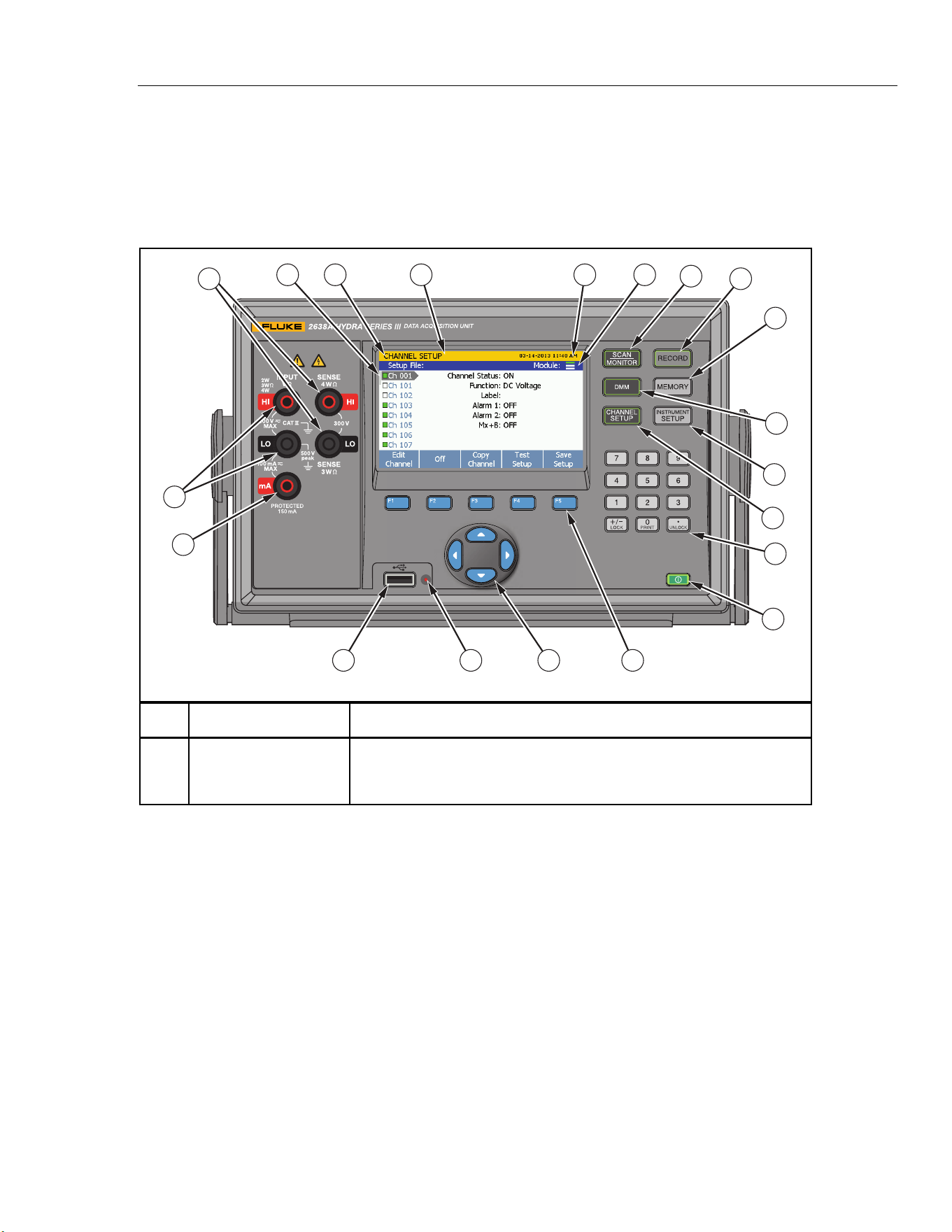
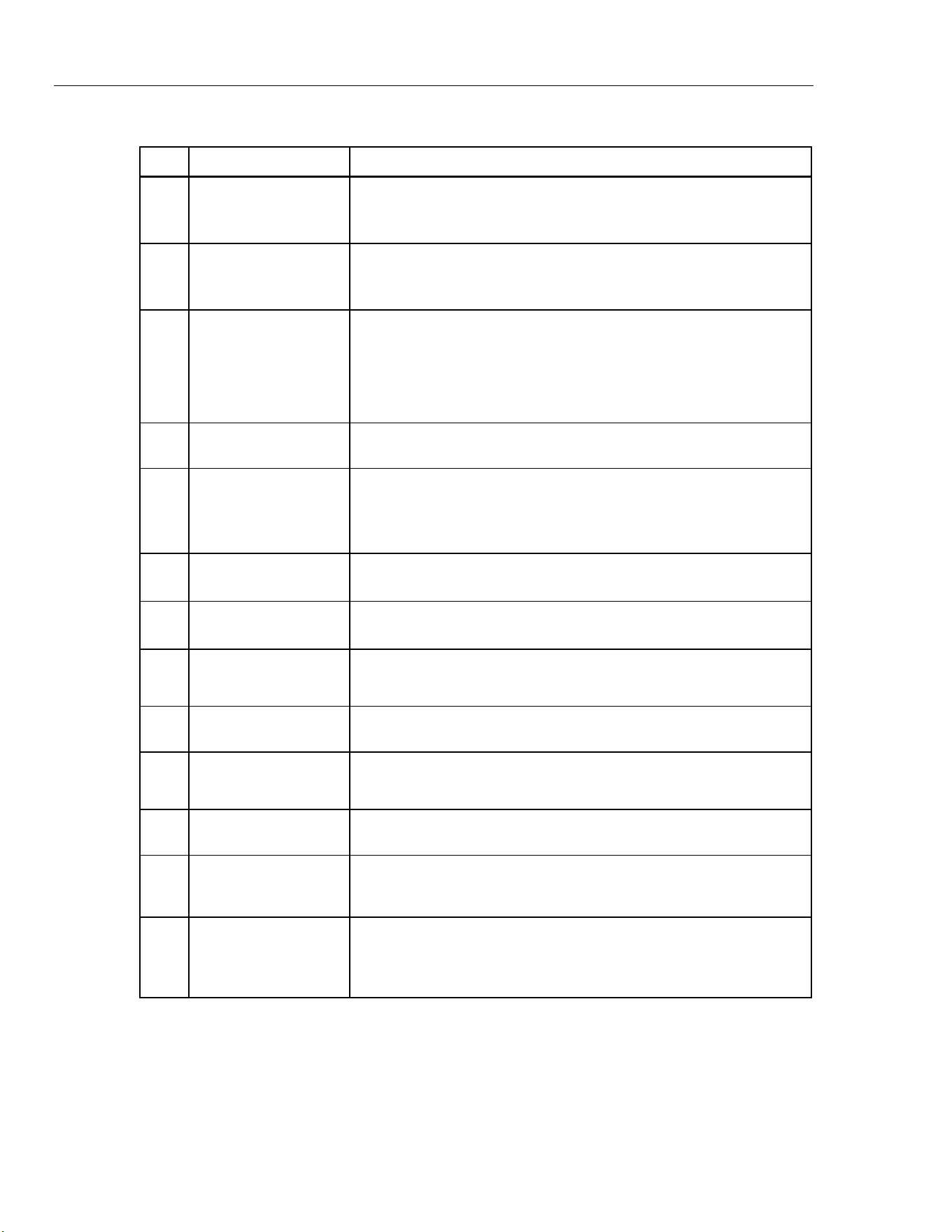
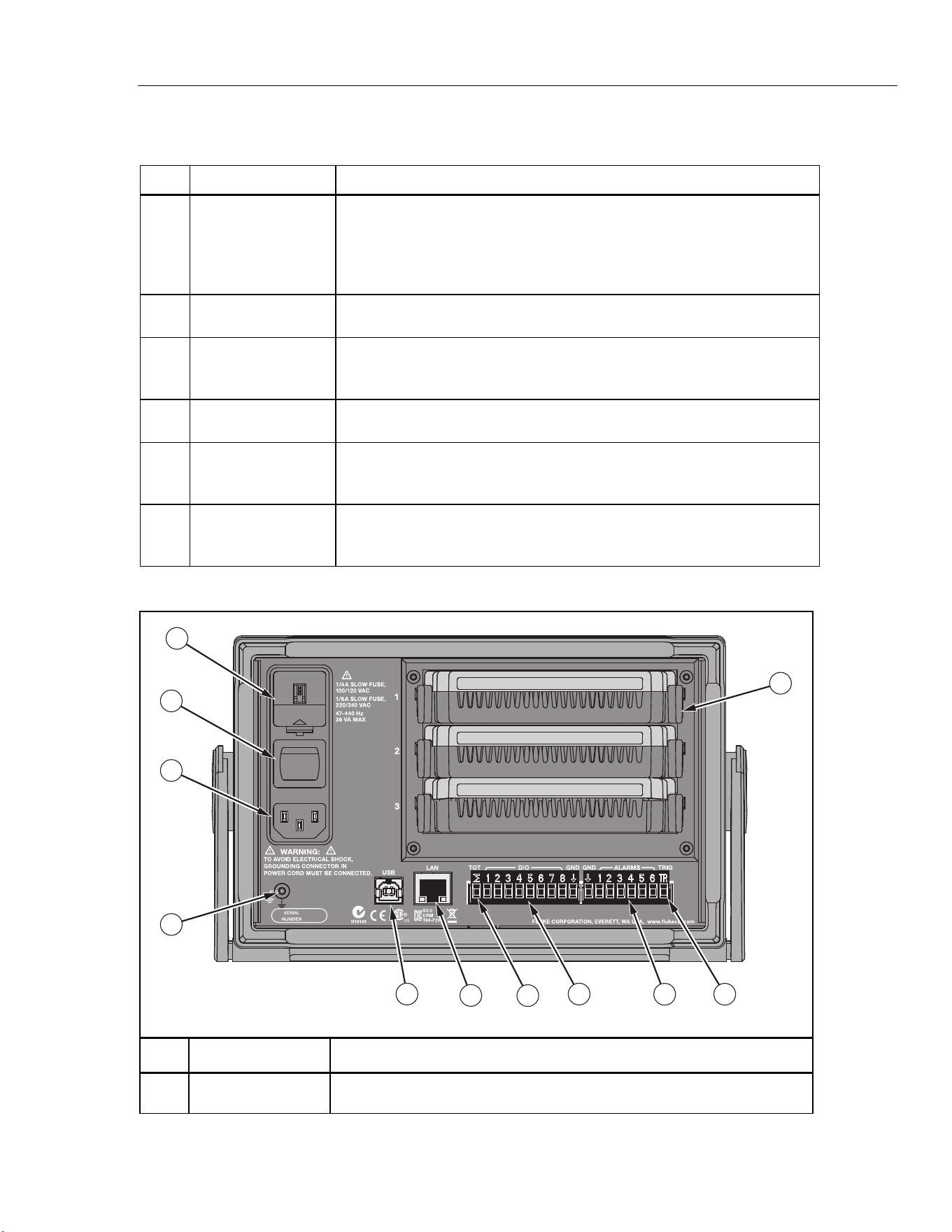
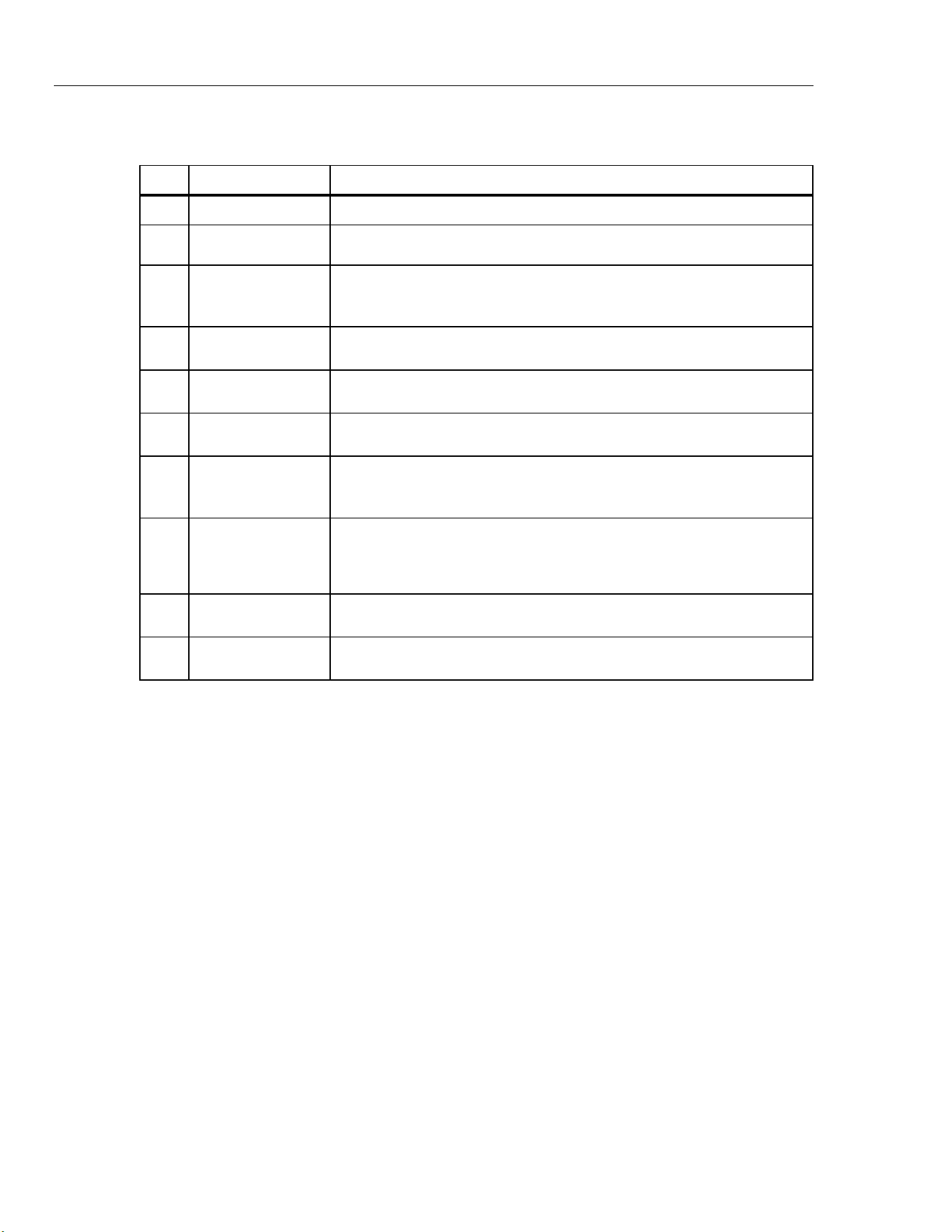
Table 1-1 identifies and describes the front-panel features and Table 1-2 identifies and
describes the rear-panel features.
Table 1-1. Front-Panel Features
X
19
14
1
345 2
6
7
10
9
11
12
13
8
15
17
16
18
20
hce001.eps
Item Name Function
Standby Key
Puts the Product in the standby mode. In standby, the display is off and
the keys are disabled. Standby mode also disables remote operation.
See “Power ON and Standby” in Chapter 2.
1.888.610.7664 sales@GlobalTestSupply.com
Fluke-Direct.com
2638A
Users Manual
1-4
Table 1-1. Front-Panel Features (cont.)
Item Name Function
Function Softkeys
Function softkeys to open submenus and set selections. The function of
the softkey changes with each menu and is shown above the softkey
on the display.
Arrow Keys
Scroll menus, increase or decrease values, and highlight selections.
The keys also let the user cycle through measurement values in data
menus and also change the view of graphs.
USB Data Transfer
Indicator
Red LED that illuminates when the USB drive is recognized and flashes
red when data is transferred to or from the USB drive.
WCaution
To prevent data loss, do not remove the USB drive when
the LED is flashing.
Front-Panel USB Port
USB port to insert a USB drive.
Current Input Terminal
Input terminal to make current measurements up to 100 mA. The
current input is connected to a thermal over-current protection circuit
that disconnects the input when an overcurrent occurs and reconnects
the input when the condition is removed.
V, Ω, mA Input
Terminals
Input terminals that connect to test leads to measure ac and dc volts,
ac and dc milliamps, hertz, and ohms.
4WΩ Sense Terminals
Sense input terminals to make 3-wire and 4-wire compensated
resistance measurements.
Channel Status
Indicator
Square green box that shows when a channel is set to ON. When a
channel is set to ON, it is referred to as “active”.
Menu Name Name of the menu.
X Hazardous Voltage
Indicator
Warns the user of hazardous voltage on an input. Shows when voltage
is >30 V dc or ac rms.
Date and Time
Shows the current date and time that is set in the Instrument Setup
menu. This date and time is used for timestamps when data is logged.
Module Indicator
Visually shows how many and which slots the Input Modules are
connected to. See “Input Module and Relay Card Installation” in
Chapter 2. The model 2638A/05 will only indicate one active slot.
Scan/Monitor
Scan all active channels. The Scan function samples all active
channels directed by the test setup file. The Monitor function shows
measurement data of a single channel. See Chapter 4 for more
information and operation instructions.
1.888.610.7664 sales@GlobalTestSupply.com
Fluke-Direct.com
Product Overview and Specifications
Front and Rear-Panel Overview 1
1-5
Table 1-1. Front-Panel Features (cont.)
Item Name Function
Record
Starts and stops data recording. When recording, the key illuminates and
“RECORDING” shows on the top of the display. Recording can be set to
automatically start and stop with a scan. In addition to recording scan data,
measurements made with the front-panel DMM can also be recorded. See
Chapter 4 for more information and operation instructions.
Memory
Manage setup files, scan data files, and DMM data files on either the
internal memory or USB drive.
DMM
Digital multimeter (DMM) function that lets the user quickly configure and
make measurements with the front-panel inputs. See Chapter 5 for DMM
operation instructions.
Instrument Setup
Configure the Product. Menu contains many user-configurable settings to
customize the Product. See “Configure the Product” in Chapter 2.
Channel Setup
Configure and verify channels. Channel Setup is the default menu that
shows on the display when the Product is powered on. See Chapter 3 for
instructions on how to wire and configure a channel.
Numeric Keypad
Use to input numerical values when prompted. Push and hold the PRINT
or “0” key to take a screenshot of the display. Push and hold the LOCK key
to lock the front panel to prevent changes and UNLOCK to unlock.
Table 1-2. Rear-Panel Features
12345678 123456
1
2
3
4
5
6
8
9
11
7
10
hce002.eps
Item Name Function
Line Voltage
Selector and Fuse
Regional voltage selector. See “Set the Regional Voltage” in Chapter 2.
1.888.610.7664 sales@GlobalTestSupply.com
Fluke-Direct.com
2638A
Users Manual
1-6
Table 1-2. Rear-Panel Features (cont.)
Item Name Function
Main Power Switch
Supplies and disconnects mains power to the unit.
Mains Power
Connector
Mains power cord receptacle.
Chassis Ground
Terminal that is internally grounded to the chassis. If the Product is the
location of the ground reference point in a system, this binding post can be
used to connect other instruments to earth ground.
Serial USB Port
USB port used for remote operation. See the 2638A Remote Programmers
Guide.
LAN Connection
Network port used for remote operation. See the 2638A Remote
Programmers Guide.
Totalizer Input
Input terminal for the Totalizer feature. See “Totalizer Channel
Configuration” in Chapter 3.
DIO (Digital I/O
Input Ports)
Eight digital ports used to sense and output a digital, 8-bit transistor-
transistor logic (TTL) value that can be displayed as the 8-bit TTL value and
be recorded as the decimal equivalent.
Digital External
Alarm Trigger
Outputs
Six digital outputs that can be used to trigger a digital external alarm if a
channel exceeds the set alarm limits. See “HI and LO Channel Alarms” in
Chapter 3.
Trigger Input
Input terminal to trigger a scan when the External trigger type is used. See
Scan Test Setup” in Chapter 4.
Input Module Slots
Slots that accept the Input Modules. See “Input Module and Relay Card
Installation” in Chapter 2. The 2638A/05 has only one usable slot.
1.888.610.7664 sales@GlobalTestSupply.com
Fluke-Direct.com
Product Overview and Specifications
Safety Information 1
1-7
Safety Information
A Warning identifies conditions and procedures that are dangerous to the user. A
Caution identifies conditions and procedures that can cause damage to the Product or
the equipment under test.
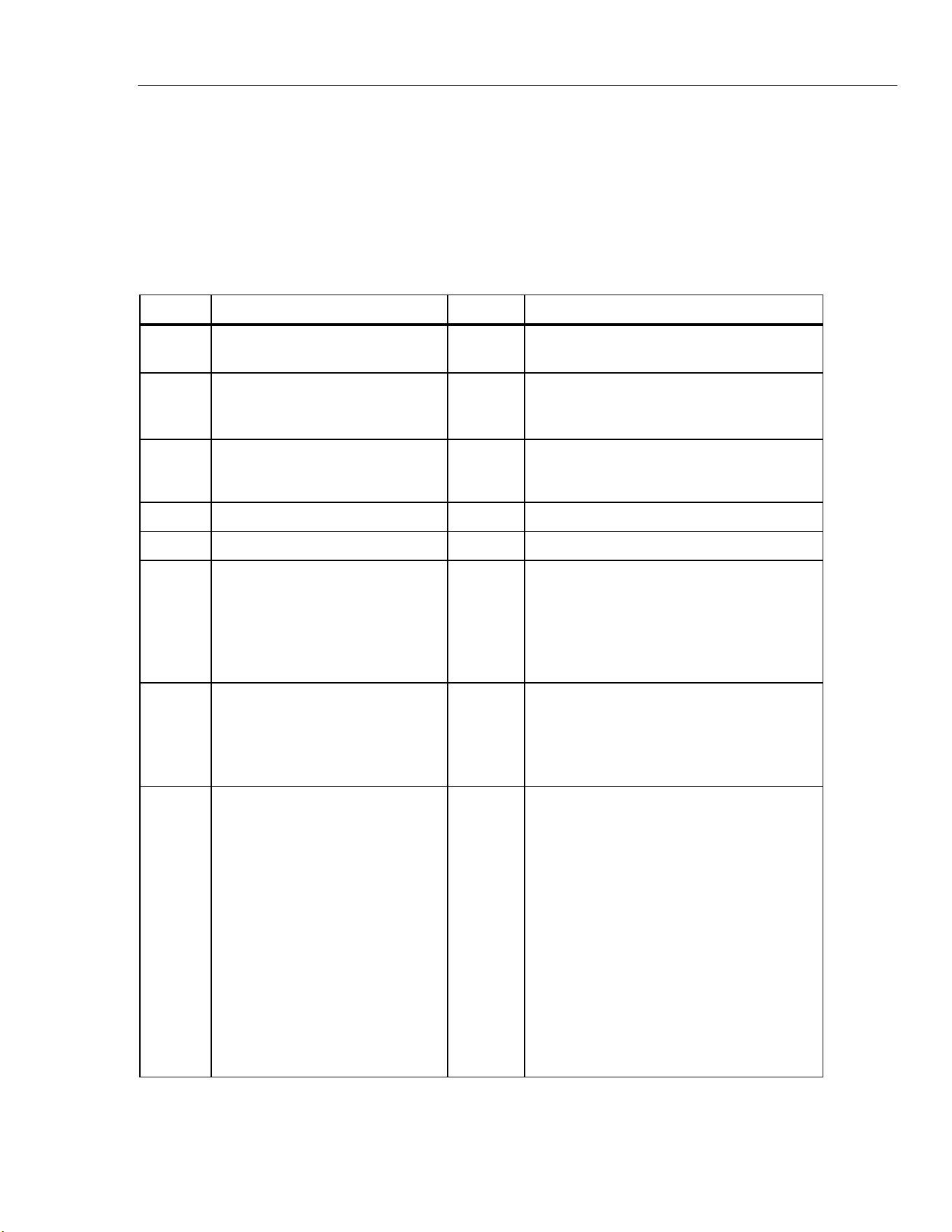
See Table 1-3 for a list of symbols used in this manual and on the Product.
Table 1-3. Symbols
Symbol Description Symbol Description
W
Risk of danger. Important
information. See manual.
AC (Alternating Current)
X
Hazardous voltage. Voltage
>30 V dc or ac peak might be
present.
DC (Direct Current)
or
AC or DC (Alternating or Direct
Current)
Digital signal.
Earth ground.
+
Power ON / OFF
Recycle.
T
Double insulated.
CAT II
Measurement Category II is
applicable to test and measuring
circuits connected directly to
utilization points (socket outlets
and similar points) of the low-
voltage MAINS installation.
CAT III
Measurement Category III is applicable to
test and measuring circuits connected to the
distribution part of the building’s low-voltage
MAINS installation.
CAT IV
Measurement Category IV is
applicable to test and measuring
circuits connected at the source
of the building’s low-voltage
MAINS installation.
P
Product conforms with the requirements of
the applicable EC directives.
~
This product complies with the
WEEE Directive (2002/96/EC)
marking requirements. The
affixed label indicates that you
must not discard this
electrical/electronic product in
domestic household waste.
Product Category: With reference
to the equipment types in the
WEEE Directive Annex I, this
product is classed as category 9
"Monitoring and Control
Instrumentation” product. Do not
dispose of this product as
unsorted municipal waste.
Ã
Conforms to relevant South Korean EMC
Standards.
1.888.610.7664 sales@GlobalTestSupply.com
Fluke-Direct.com

2638A
Users Manual
1-8
WXWarning
To prevent possible electrical shock, fire, or personal injury:
• Read all safety information before you use the Product.
• Carefully read all instructions.
• Use the Product only as specified, or the protection supplied
by the Product can be compromised.
• Examine the case before you use the Product. Look for cracks
or missing plastic. Carefully look at the insulation around the
terminals.
• Do not use the Product if it operates incorrectly.
• Do not use and disable the Product if it is damaged.
• Use only the mains power cord and connector approved for
the voltage and plug configuration in your country and rated
for the Product.
• Replace the mains power cord if the insulation is damaged or
if the insulation shows signs of wear.
• Make sure the ground conductor in the mains power cord is
connected to a protective earth ground. Disruption of the
protective earth could put voltage on the chassis that could
cause death.
• Do not put the Product where access to the mains power cord
is blocked.
• Use only correct measurement category (CAT), voltage, and
amperage rated probes, test leads, and adapters for the
measurement.
• Use only cables with correct voltage ratings.
• Do not use test leads if they are damaged. Examine the test
leads for damaged insulation and measure a known voltage.
• Do not exceed the Measurement Category (CAT) rating of the
lowest rated individual component of a Product, probe, or
accessory.
• Keep fingers behind the finger guards on the probes.
• Do not apply more than the rated voltage, between the
terminals or between each terminal and earth ground.
• Do not touch voltages >30 V ac rms, 42 V ac peak, or 60 V dc.
• Limit operation to the specified measurement category,
voltage, or amperage ratings.
• Measure a known voltage first to make sure that the Product
operates correctly.
1.888.610.7664 sales@GlobalTestSupply.com
Fluke-Direct.com
Product Overview and Specifications
Screen Capture Feature 1
1-9
• Consider all accessible channels to be hazardous live and an
electric shock hazard if any channel is connected to a
hazardous voltage source.
• Do not remove, touch, or change the internal wiring of
hazardous inputs until the input source is turned off.
• Remove inputs from hazardous voltage sources before an
input module is opened.
• Use the correct terminals, function, and range for
measurements.
• Use this Product indoors only.
• Do not use the Product around explosive gas, vapor, or in
damp or wet environments.
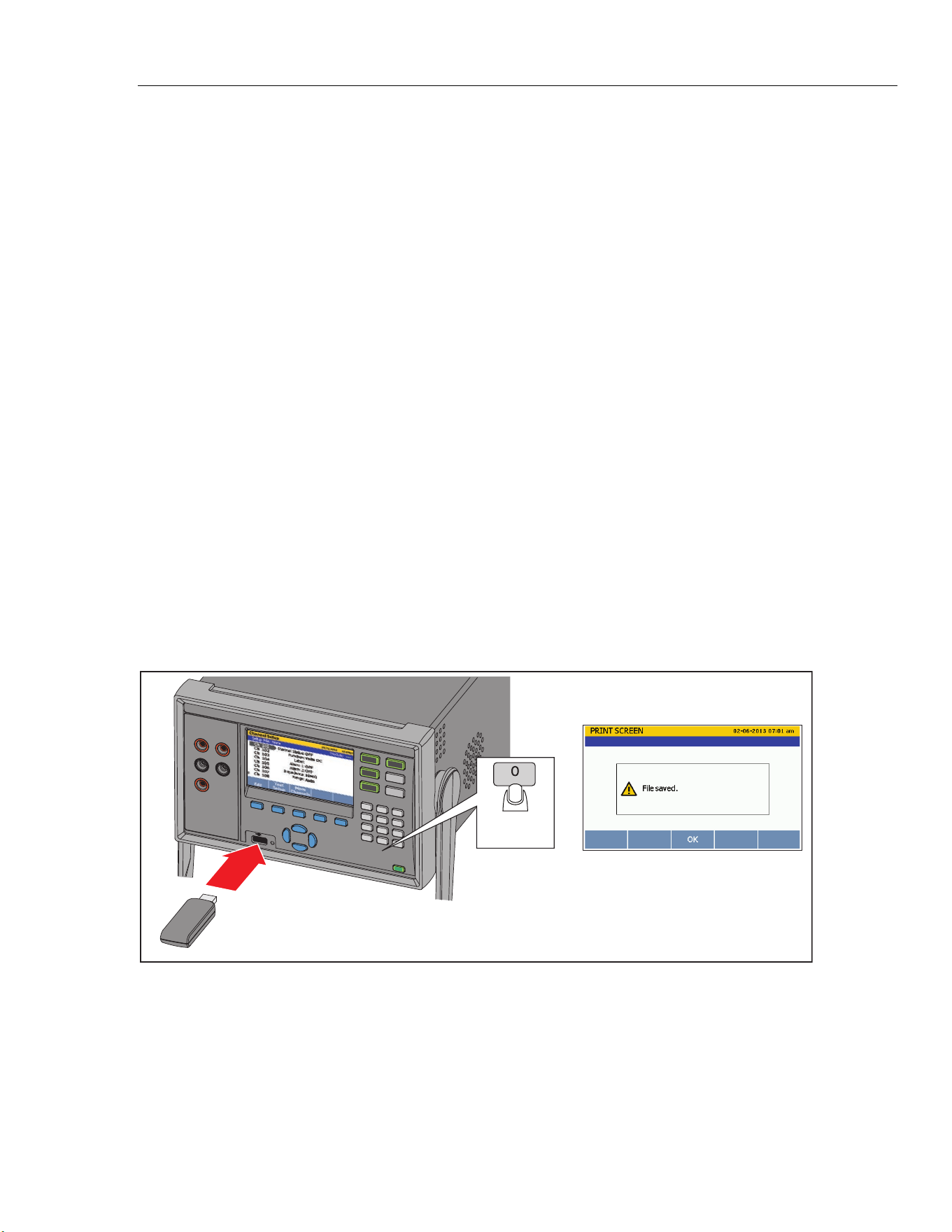
Screen Capture Feature
The Product can take a screenshot of the display and save it directly to the USB drive.
To take a screenshot of the display (see Figure 1-1):
1. Insert a USB drive in the front panel and wait for the USB Data Transfer Indicator to
show solid red.
2. Push and hold the PRINT or “0” key on the numeric keypad for 3 seconds and then
release. The display shows “File Saved”.
3. Remove the USB from the front panel and connect it to a USB drive on a PC.
4. Open the USB drive and navigate to the image folder with this path:
\\fluke\2638A\[Product Serial Number]\Image
3 seconds
=
PRINT
hce059.eps
Figure 1-1. Screen Capture
1.888.610.7664 sales@GlobalTestSupply.com
Fluke-Direct.com

2638A
Users Manual
1-10
About this Manual
This manual has seven chapters:
•
Chapter 1 supplies product information, safety information, contact information, and
product specifications.
•
Chapter 2 supplies information and instructions on how to set up and configure the
Product for first time use.
•
Chapter 3 supplies instructions on how to wire inputs to the Input Module then
configure the associated channel.
•
Chapter 4 supplies information and instructions on how to do a scan, monitor a
channel, and record measurement data.
•
Chapter 5 supplies instructions on how to operate the DMM function of the Product.
•
Chapter 6 supplies information on how to clean the Product and replace the fuse in
the rear of the Product.
•
Chapter 7 supplies information on error messages and how to troubleshoot the
Product.
The Product Manual Set
The Product manual set includes:
• This 2638A Users Manual that contains feature information, operation instructions,
and basic user maintenance and troubleshooting information. The Users Manual is
translated into many languages.
• The 2638A Safety Information is printed and contains important safety information for
this Product. The Safety Information is translated into many languages.
• The 2638A Remote Programmers Guide contains information on how to remotely
operate the Product. The Programmers Guide alphabetically lists all commands and
provides example code for different applications.
• The 2638A Calibration Manual contains calibration and adjustment procedures to
keep the Product within specifications.
1.888.610.7664 sales@GlobalTestSupply.com
Fluke-Direct.com

2638A
Users Manual
1-12
General Specifications
Mains Voltage
100 V Setting ...................................................... 90 V to 110 V
120 V Setting ...................................................... 108 V to 132 V
220 V Setting ...................................................... 198 V to 242 V
240 V Setting ...................................................... 216 V to 264 V
Frequency .............................................................. 47 Hz to 440 Hz
Power Consumption ............................................. 36 VA peak (24 W average)
Environment Temperature
Operating ............................................................ 0 °C to 50 °C
Full accuracy ....................................................... 18 °C to 28 °C
Storage ............................................................... -20 °C to 70 °C
Warm-up ............................................................. 1 hour to full accuracy specifications
Relative Humidity (non-condensing)
Operating ............................................................ 0 °C to 28 °C <90 %
28 °C to 40 °C <75 %
40 °C to 50 °C <45 %
Storage ............................................................... -20 °C to 70 °C <95 %
Altitude
Operating ............................................................ 2,000 m
Storage ............................................................... 12,000 m
Channel Capacity
Total analog channels ........................................ 67
Voltage/resistance channels ............................... 61
Current channels ................................................ 7
Digital I/O ............................................................ 8 bits
Totalizer .............................................................. 1
Alarm outputs...................................................... 6
Trigger input ........................................................ 1
Channel Capacity: 2638A/05
Total analog channels .................................................. 23
Voltage/resistance channels ...................................... 21
Current channels ............................................................. 2
Safety Protection
Mains Input ....................................................... IEC 61010-1, Overvoltage Category II, Pollution Degree 2
Measurement Front Panel ................................ IEC 61010-2-030: CAT II 300 V
Measurement Rear Panel ................................. IEC 61010-2-030: CAT II 150 V CAT II, 250 V rms with maximum
transient voltage of 1000 V peak. These terminals are not intended for
connection to mains voltage above 150 V without external transient
suppression. The maximum input that can be applied between rear-
module terminals or between any rear-module terminal and earth
ground is 250 V dc or ac rms.
Electromagnetic Compatibility (EMC)
International ........................................................ IEC 61326-1: Basic Electromagnetic Environment
CISPR 11: Group 1, Class A
Group 1: Equipment has intentionally generated and/or uses
conductively-coupled radio frequency energy that is necessary for
the internal function of the equipment itself.
Class A: Equipment is suitable for use in all establishments other
than domestic and those directly connected to a low-voltage power
supply network that supplies buildings used for domestic purposes.
There may be potential difficulties in ensuring electromagnetic
compatibility in other environments due to conducted and radiated
disturbances.
Emissions that exceed the levels required by CISPR 11 can occur
when the equipment is connected to a test object.
1.888.610.7664 sales@GlobalTestSupply.com
Fluke-Direct.com

Product Overview and Specifications
General Specifications 1
1-13
Korea (KCC) ....................................................... Class A Equipment (Industrial Broadcasting & Communication
Equipment)
Class A: Equipment meets requirements for industrial
electromagnetic wave equipment and the seller or user should take
notice of it. This equipment is intended for use in business
environments and not to be used in homes.
USA (FCC) .......................................................... 47 CFR 15 subpart B. This product is considered an exempt device per
clause 15.103.
Math Channels
Number of channels............................................ 20
Operations .......................................................... sum, difference, multiply, divide, polynomial, power, square root,
reciprocal, exponential, logarithm, absolute value, average, maximum,
minimum
Triggers .................................................................. interval, external (trigger input), alarm, remote (bus), manual
Battery life ............................................................. 5 years
Memory
Scan data RAM................................................... 75,000 readings with timestamp
Data/Setup flash memory ................................... 20 MB
Non-volatile memory life ..................................... 5 years
USB Host Port
Standard ............................................................. 2.0, full speed
Connector type ................................................... Type A
Function .............................................................. Memory
File system .......................................................... FAT32
Memory capacity................................................. 32 GB
USB Device Port
Connector type ................................................... Type B
Class ................................................................... Instrument
Function .............................................................. Control and data transfer
Command protocol ............................................. SCPI
LAN
Function .............................................................. Control and data transfer
Network protocols ............................................... Ethernet 10/100, TCP/IP
Command protocol ............................................. SCPI
Dimensions
Height ................................................................. 150 mm
Width ................................................................... 245 mm
Depth .................................................................. 385 mm
Weight ................................................................. 6 kg (typical configuration)
Shipping Weight.................................................. 9.5 kg (typical configuration)
Conformity ............................................................. CE, CSA, IEC 61010 3
rd
ed.
1.888.610.7664 sales@GlobalTestSupply.com
Fluke-Direct.com
2638A
Users Manual
1-14
Measurement Specifications
Accuracy specifications generally are valid for 6 ½ digit resolution mode (unless otherwise noted) for front panel input
(Channel 001), after a minimum of 1-hour warm-up, and within an environment temperature range of 18 °C to 28 °C.
24-hour specifications are relative to calibration standards and assume a controlled electromagnetic environment per EN
61326. The confidence level for accuracy specifications is 99 % within 1 year of calibration (unless otherwise noted).
Scan rate (typical, depending on function and range)
Fast ..................................................................... 46 channels per second max (0.02 seconds per channel)
Medium ............................................................... 10 channels per second (0.1 seconds per channel)
Slow .................................................................... 2 channels per second (0.5 seconds per channel)
Display Resolution ................................................ 4 ½ to 6 ½ digits, depending on Sample Rate or NPLC
DC Voltage
Maximum Input ...................................................... 300 V on any range
Common Mode Rejection ..................................... 140 dB at 50 Hz or 60 Hz (1 kΩ unbalance for NPLC of 1 or greater,
±500 V peak maximum in the low lead)
Normal Mode Rejection ........................................ 55 dB for NPLC of 1 or greater and power-line frequency ±0.1 %,
±20 % of range peak maximum
Measurement Method ........................................... Multi-ramp A/D
A/D Linearity .......................................................... 2 ppm of measurement + 1 ppm off range
Input Bias Current ................................................. <30 pA at 25 °C
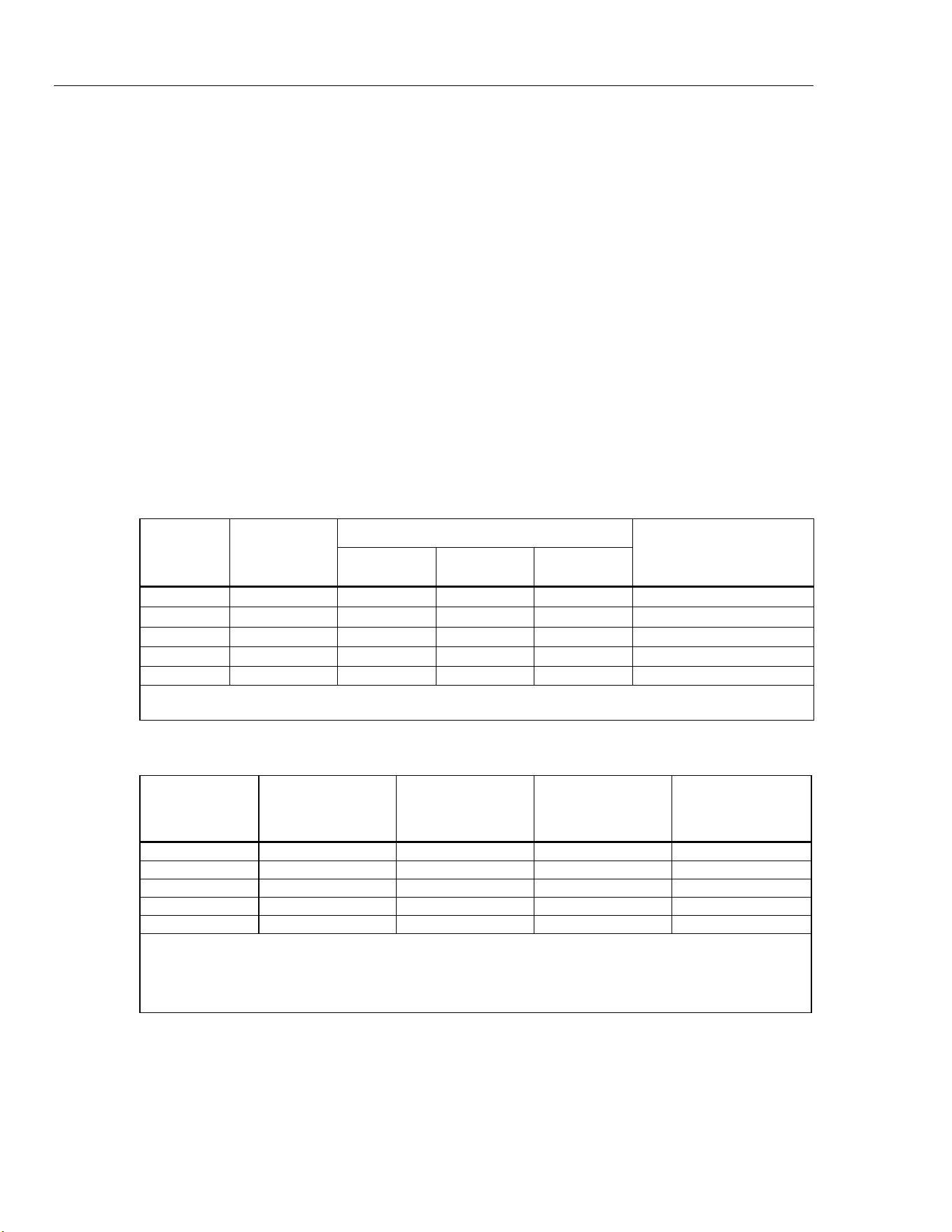
DC Voltage Input Characteristics
Range Resolution
Resolution
Input Impedance
Fast
4½ Digits
Medium
5 ½ Digits
Slow
6 ½ Digits
100 mV 100.0000 mV
10 µV 1 µV 0.1 µV
10 MΩ or >10 GΩ
[1]
1 V 1.000000 V
100 µV 10 µV 1 µV
10 MΩ or >10 GΩ
[1]
10 V 10.00000 V 1 mV
100 µV 10 µV
10 MΩ or >10 GΩ
[1]
100 V 100.0000 V 10 mV 1 mV
100 µV 10 MΩ ±1 %
300 V 300.000 V 100 mV 10 mV 1 mV
10 MΩ ±1 %
Note:
Input beyond ±12 V is clamped. The clamp current is up to 3 mA. 10 MΩ is default input impedance.
DC Voltage Accuracy
Accuracy is given as ± (% measurement + % of range).
Range
24 Hour
(23 ±1 °C)
90 Days
(23 ±5 °C)
1 Year
(23 ±5 °C)
T.C./ °C
Outside
18 °C to 28 °C
100 mV 0.0025 % + 0.003 % 0.0025 % + 0.0035 % 0.0037 % + 0.0035 % 0.0005 % + 0.0005 %
1 V 0.0018 % + 0.0006 % 0.0018 % + 0.0007 % 0.0025 % + 0.0007 % 0.0005 % + 0.0001 %
10 V 0.0013 % + 0.0004 % 0.0018 % + 0.0005 % 0.0024 % + 0.0005 % 0.0005 % + 0.0001 %
100 V 0.0018 % + 0.0006 % 0.0027 % + 0.0006 % 0.0038 % + 0.0006 % 0.0005 % + 0.0001 %
300 V 0.0018 % + 0.002 % 0.0031 % + 0.002 % 0.0041 % + 0.002 % 0.0005 % + 0.0003 %
Notes:
• For conducted disturbances on mains input >1 V from 10 MHz to 20 MHz, add 0.02 % of range. For disturbances
>3 V, accuracy is unspecified.
• For radiated disturbances >1V/m from 450 MHz to 550 MHz, add 0.02 % of range. For disturbances > 3 V/m,
accuracy is unspecified.
1.888.610.7664 sales@GlobalTestSupply.com
Fluke-Direct.com
Product Overview and Specifications
Measurement Specifications 1
1-15
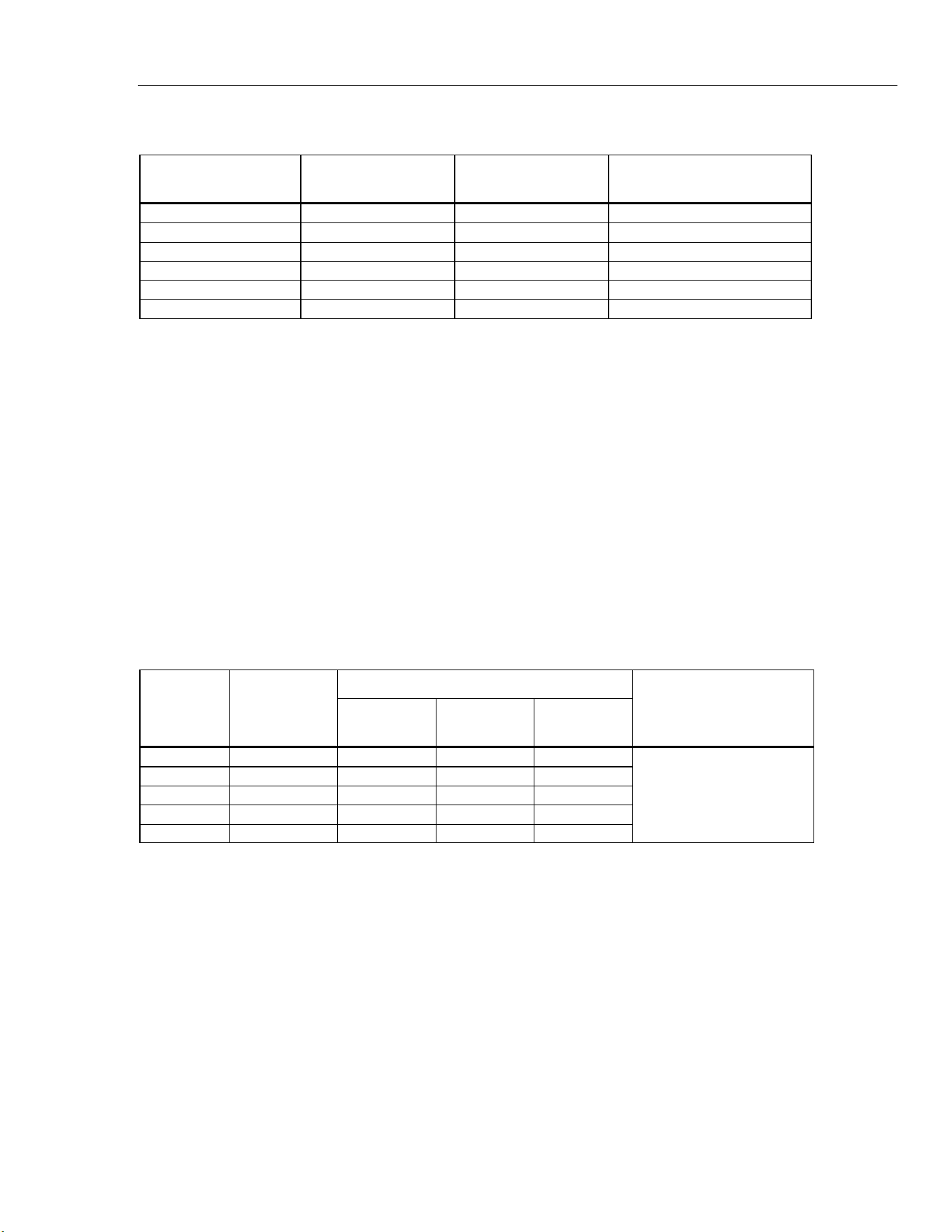
DC Voltage Additional Errors
Digits NPLC Ch. x01 – x20
Additional NPLC Noise
Error
6 ½ 200
add 2 µV
-
6 ½
100
add 2 µV
-
6 ½
10 (Slow)
add 2 µV
-
5 ½ 1 (Medium)
add 2 µV
add 0.0008 % of range
4 ½ 0.2 (Fast) -
add 0.002 % of range + 12 µV
4 ½ 0.02 -
add 0.014 % of range + 17 µV
AC Voltage
AC voltage specifications are for ac sine wave signals >5 % of range. For inputs from 1 % to 5 % of range and <50 kHz,
add an additional error of 0.1 % of range. For 50 kHz to 100 kHz, add 0.13 % of range.
Maximum Input ...................................................... 300 V rms or 425 V peak or 3 × 10
7
volts-Hertz product (whichever is
less) for any range.
Measurement Method ........................................... AC-coupled true-rms. Measures the ac component of input with up to
300 V dc bias on any range.
AC Filter Bandwidth:
Slow .................................................................... 20 Hz
Fast ..................................................................... 200 Hz
Maximum Crest Factor ......................................... 5:1 at full scale
Additional Crest Factor Errors ............................ Crest factor 1-2, 0.05 % of full scale
Crest factor 2-3, 0.2 % of full scale
Crest factor 3-4, 0.4 % of full scale
Crest factor 4-5, 0.5 % of full scale
AC Voltage Input Characteristics
Range Resolution
Resolution
Input Impedance
4 ½
Digits
5 ½
Digits
6 ½
Digits
100 mV 100.0000 mV
10 µV 1 µV 0.1 µV
1 MΩ ±2 % shunted by 150 pF
1 V 1.000000 V
100 µV 10 µV 1 µV
10 V 10.00000 V 1 mV 100 µV
10 µV
100 V 100.0000 V 10 mV 1 mV
100 µV
300 V 300.000 V 100 mV 10 mV 1 mV
1.888.610.7664 sales@GlobalTestSupply.com
Fluke-Direct.com
2638A
Users Manual
1-16
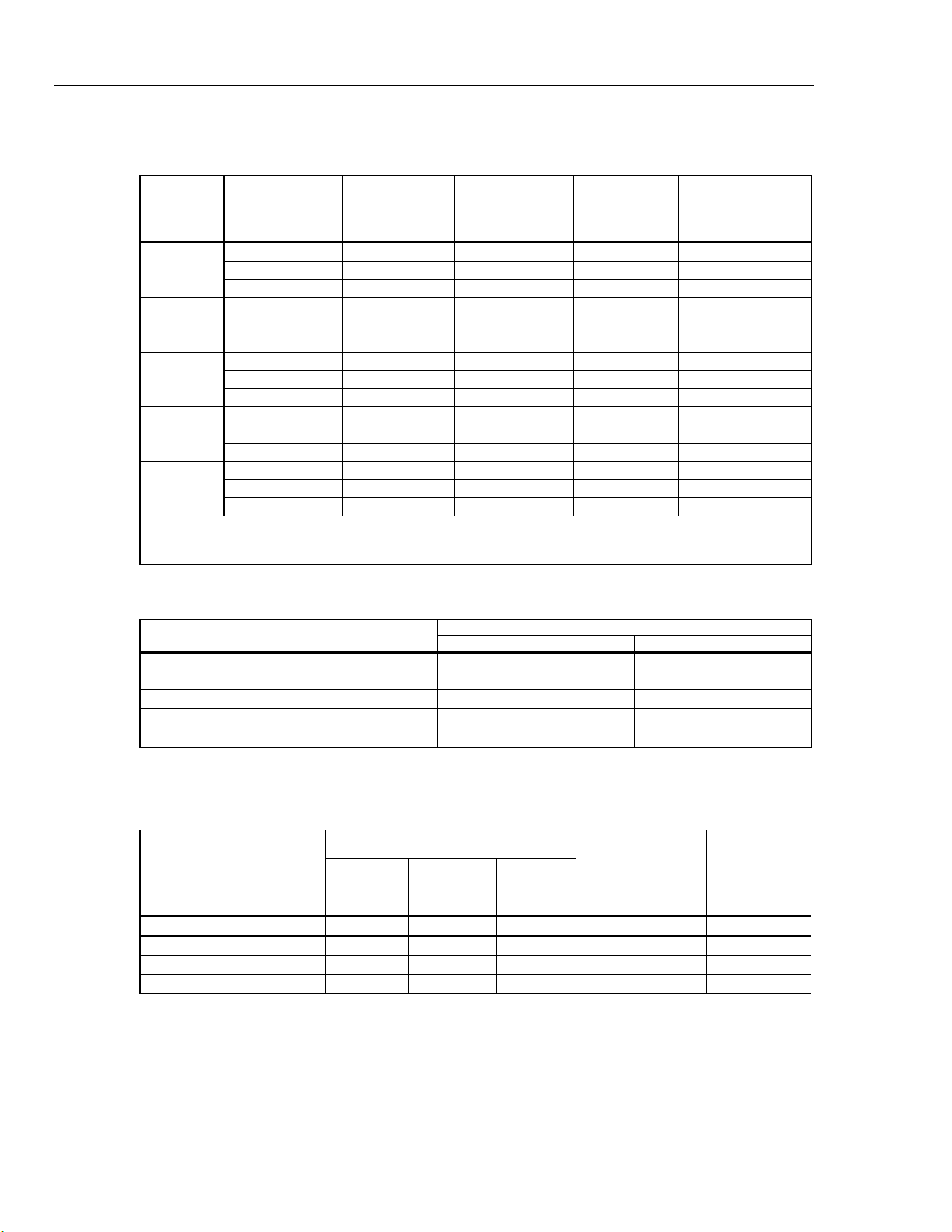
AC Voltage Accuracy
Accuracy is given as ± (% measurement + % of range).
Range Frequency
24 Hour
(23 ±1 °C)
90 Days
(23 ±5 °C)
1 Year
(23 ±5 °C)
T.C./ °C
Outside
18 °C to 28 °C
100 mV
20 Hz to 20 kHz 0.1 % + 0.05 % 0.11 % + 0.05 % 0.11 % + 0.05 % 0.01 % + 0.005 %
20 kHz to 50 kHz 0.2 % + 0.05 % 0.22 % + 0.05 % 0.22 % + 0.05 % 0.01 % + 0.005 %
50 kHz to 100 kHz 0.55 % + 0.08 % 0.6 % + 0.08 % 0.6 % + 0.08 % 0.05 % + 0.01 %
1 V
20 Hz to 20 kHz 0.1 % + 0.05 % 0.11 % + 0.05 % 0.11 % + 0.05 % 0.01 % + 0.005 %
20 kHz to 50 kHz 0.2 % + 0.05 % 0.22 % + 0.05 % 0.22 % + 0.05 % 0.01 % + 0.005 %
50 kHz to 100 kHz 0.55 % + 0.08 % 0.6 % + 0.08 % 0.6 % + 0.08 % 0.05 % + 0.01 %
10 V
20 Hz to 20 kHz 0.1 % + 0.05 % 0.11 % + 0.05 % 0.11 % + 0.05 % 0.01 % + 0.005 %
20 kHz to 50 kHz 0.2 % + 0.05 % 0.22 % + 0.05 % 0.22 % + 0.05 % 0.01 % + 0.005 %
50 kHz to 100 kHz 0.55 % + 0.08 % 0.6 % + 0.08 % 0.6 % + 0.08 % 0.05 % + 0.01 %
100 V
20 Hz to 20 kHz 0.1 % + 0.05 % 0.11 % + 0.05 % 0.11 % + 0.05 % 0.01 % + 0.005 %
20 kHz to 50 kHz 0.2 % + 0.05 % 0.22 % + 0.05 % 0.22 % + 0.05 % 0.01 % + 0.005 %
50 kHz to 100 kHz 0.55 % + 0.08 % 0.6 % + 0.08 % 0.6 % + 0.08 % 0.05 % + 0.01 %
300 V
20 Hz to 20 kHz 0.1 % + 0.05 % 0.11 % + 0.05 % 0.11 % + 0.05 % 0.01 % + 0.005 %
20 kHz to 50 kHz 0.2 % + 0.05 % 0.22 % + 0.05 % 0.22 % + 0.05 % 0.01 % + 0.005 %
50 kHz to 100 kHz 0.55 % + 0.27 % 0.6 % + 0.27 % 0.6 % + 0.27 % 0.05 % + 0.03 %
Note:
For conducted disturbances on mains input >1 V from 10 MHz to 40 MHz, add 0.02 % of range. For disturbances >3 V,
accuracy is unspecified.
Additional Low Frequency Errors
Error is stated as % of reading.
Frequency
AC Filte
r
20 Hz 200 Hz
20 Hz to 40 Hz 0 % −
40 Hz to 100 Hz
0 % 0.55 %
100 Hz to 200 Hz
0 %
0.2 %
200 Hz to 1 kHz
0 %
0.02 %
>1 kHz
0 %
0 %
DC Current
Input Protection .................................................... 0.15 A / 600 V Resettable PTC
DC Current Input Characteristics
Range Resolution
Resolution
Reference
Resistance
(Ohms)
Burden
Voltage
Fast
4½
Digits
Medium
5 ½
Digits
Slow
6 ½
Digits
100 µA
100.0000 µA 10 nA 1 nA 0.1 nA
1k Ω
<1 mV
1 mA 1.000000 mA 100 nA 10 nA 1 nA
1k Ω
<1 mV
10 mA 10.00000 mA
1 µA
100 nA 10 nA
10 Ω
<1 mV
100 mA 100.0000 mA
10 µA 1 µA
100 nA
10 Ω
<1 mV
1.888.610.7664 sales@GlobalTestSupply.com
Fluke-Direct.com
Product Overview and Specifications
Measurement Specifications 1
1-17
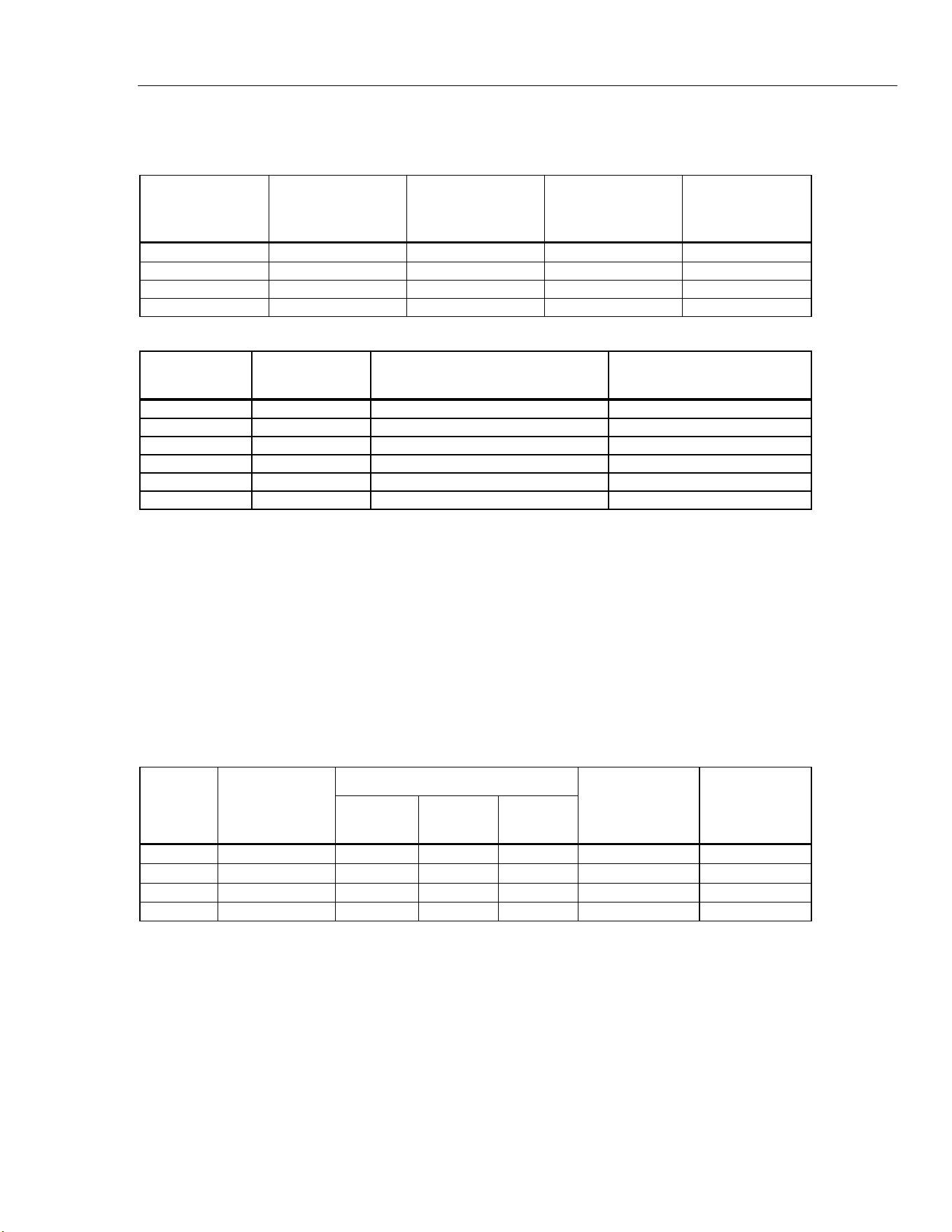
DC Current Accuracy
Accuracy is given as ± (% measurement + % of range).
Range
24 Hour
(23 ±1 °C)
90 Days
(23 ±5 °C)
1 Year
(23 ±5 °C)
T.C./ °C
Outside
18 °C to 28 °C
100 µA
0.005 % + 0.003 % 0.015 % + 0.0035 % 0.015 % + 0.0035 % 0.002 % + 0.001 %
1 mA 0.005 % + 0.001 % 0.015 % + 0.0011 % 0.015 % + 0.0011 % 0.002 % + 0.001 %
10 mA 0.005 % + 0.003 % 0.015 % + 0.0035 % 0.015 % + 0.0035 % 0.002 % + 0.001 %
100 mA 0.005 % + 0.001 % 0.015 % + 0.0035 % 0.015 % + 0.0035 % 0.002 % + 0.001 %
DC Current Additional Errors
Digits NPLC
Additional NPLC Noise Error
for 10 mA, 100 mA
Additional NPLC Noise
Error for 100 µA, 1 mA
6 ½ 200 - -
6 ½ 100 - -
6 ½ 10 (Slow) - -
5 ½ 1 (Medium) 0.0008 % of range 0.0008 % of range
4 ½ 0.2 (Fast) 0.002 % of range + 1.2 µA 0.002 % of range + 12 nA
4 ½ 0.02 0.014 % of range + 1.7 µA 0.014 % of range + 17 nA
AC Current
Input Protection .................................................... 0.15 A / 600 V resettable PTC
Measurement Method ........................................... AC-coupled true-rms, dc-coupled to the shunt (no blocking capacitor).
AC Filter Bandwidth:
Slow .................................................................... 20 Hz
Fast ..................................................................... 200 Hz
Maximum Crest Factor ......................................... 5:1 at full scale
Additional Crest Factor Errors ............................ Crest factor 1-2, 0.05 % of full scale
Crest factor 2-3, 0.2 % of full scale
Crest factor 3-4, 0.4 % of full scale
Crest factor 4-5, 0.5 % of full scale
AC Current Input Characteristics
Range Resolution
Resolution
Reference
Resistance
Burden
Voltage
4 ½
Digits
5 ½
Digits
6 ½
Digits
100 µA
100.0000 µA 10 nA 1 nA 0.1 nA
1 kΩ
<10 mV (RMS)
1 mA 1.000000 mA 100 nA 10 nA 1 nA
1 kΩ
<10 mV (RMS)
10 mA 10.00000 mA
1 µA
100 nA 10 nA
10 Ω
<20 mV (RMS)
100 mA 100.0000 mA
10 µA 1 µA
100 nA
10 Ω
<50 mV (RMS)
1.888.610.7664 sales@GlobalTestSupply.com
Fluke-Direct.com
2638A
Users Manual
1-18
AC Current Accuracy
Accuracy is given as ± (% measurement + % of range). Basic accuracy specification is for a sinusoidal signal with
amplitude greater than 5 % of range. For input signals between 1 % to 5 % of range, add 0.1 % of range.
Range Frequency
24 Hour
(23 ±1 °C)
90 Days
(23 ±5 °C)
1 Year
(23 ±5 °C)
T.C./ °C Outside
18 °C to 28 °C
100 µA
20 Hz to 2 kHz
0.2 % + 0.06 % 0.25 % + 0.06 % 0.3 % + 0.06 % 0.015 % + 0.005 %
1 mA 20 Hz to 2 kHz 0.2 % + 0.06 % 0.25 % + 0.06 % 0.3 % + 0.06 % 0.015 % + 0.005 %
10 mA 20 Hz to 2 kHz 0.2 % + 0.06 % 0.25 % + 0.06 % 0.3 % + 0.06 % 0.015 % + 0.005 %
100 mA 20 Hz to 2 kHz 0.2 % + 0.06 % 0.25 % + 0.06 % 0.3 % + 0.06 % 0.015 % + 0.005 %
Additional Low Frequency Errors
Error is stated as % of reading.
Frequency
AC Filte
r
20 Hz 200 Hz
20 Hz to 40 Hz
0 %
−
40 Hz to 100 Hz
0 %
0.55 %
100 Hz to 200 Hz
0 %
0.2 %
200 Hz to 1 kHz
0 %
0.02 %
>1 kHz
0 %
0 %
Frequency
Gate Times ............................................................. 100 milliseconds to 1 second.
Measurement Method ........................................... Flexible counting technique. AC-coupled input using the ac voltage
measurement function.
Settling Considerations........................................ When measuring frequency after a dc offset voltage change, errors
may occur. For the most accurate measurement, wait up to 1 second
for the input blocking capacitor to settle.
Measurement Considerations.............................. To minimize measurement errors, shield inputs from external noise
when measuring low-voltage, low-frequency signals.
Frequency Accuracy
Accuracy is given as ± % of measurement.
Range Frequency
24 Hour
(23 ±1 °C)
90 Days
(23 ±5 °C)
1 Year
(23 ±5 °C)
T.C./ °C
Outside 18
°C to 28 °C
100 mV to
300 V
[1] [2]
20 Hz to 40 Hz 0.03 % 0.03 % 0.03 % 0.001 %
40 Hz to 1 MHz
0.006 % 0.01 % 0.01 % 0.001 %
[1] Input >100 mV. For 10 mV to 100 mV, multiply percent measurement error by 10.
[2] Limited to 3 x 10
7
volt-Hertz
Resistance
Measurement Method ........................................... Current source referenced to LO input.
Max. Lead Resistance (4-wire ohms) .................. 10 Ω per lead for 100 Ω, 1 kΩ ranges. 1 kΩ per lead on all other
ranges.
Input Protection .................................................... 300 V on all ranges.
1.888.610.7664 sales@GlobalTestSupply.com
Fluke-Direct.com

Product Overview and Specifications
Measurement Specifications 1
1-19
Resistance Input Characteristics
Range Resolution
Resolution
Source Current
Fast
4½ Digits
Medium
5 ½ Digits
Slow
6 ½ Digits
100 Ω 100.0000 Ω 10 mΩ 1 mΩ 0.1 mΩ
1 mA / 4 V
1 kΩ 1.000000 kΩ 100 mΩ 10 mΩ 1 mΩ
1 mA / 4 V
10 kΩ 10.00000 kΩ 1 Ω 100 mΩ 10 mΩ
100 µA / 6 V
100 kΩ 100.0000 kΩ 10 Ω 1 Ω 100 mΩ
100 µA / 12 V
1 MΩ 1.000000 MΩ 100 Ω 10 Ω 1 Ω
10 µA / 12 V
10 MΩ 10.00000 MΩ 1 kΩ 100 Ω 10 Ω
1 µA / 12 V
100 MΩ 100.0000 MΩ 10 kΩ 1 kΩ 100 Ω
0.1 µA / 12 V
Resistance Accuracy
Accuracy is given as ± (% measurement + % of range). Basic accuracy specification is for 4-wire resistance. For 2-wire
resistance add 0.02 Ω internal resistance if using Channel 1 or 1.5 Ω if using channels x01 through x20, and add external
lead wire resistance.
Range
24 Hour
(23 ±1 °C)
90 Days
(23 ±5 °C)
1 Year
(23 ±5 °C)
T.C./ °C
Outside 18 °C
to 28 °C
100 Ω
0.003 % + 0.003 % 0.008 % + 0.004 % 0.01 % + 0.004 % 0.0006 % + 0.0005 %
1 kΩ
0.002 % + 0.0005 % 0.008 % + 0.001 % 0.01 % + 0.001 % 0.0006 % + 0.0001 %
10 kΩ
0.002 % + 0.0005 % 0.008 % + 0.001 % 0.01 % + 0.001 % 0.0006 % + 0.0001 %
100 kΩ
0.002 % + 0.0005 % 0.008 % + 0.001 % 0.01 % + 0.001 % 0.0006 % + 0.0001 %
1 MΩ
0.002 % + 0.001 % 0.008 % + 0.001 % 0.01 % + 0.001 % 0.001 % + 0.0002 %
10 MΩ
0.015 % + 0.001 % 0.02 % + 0.001 % 0.04 % + 0.001 % 0.003 % + 0.0004 %
100 MΩ
0.3 % + 0.01 % 0.8 % + 0.01 % 0.8 % + 0.01 % 0.05 % + 0.002 %
Note:
For conducted disturbances on mains input >1 V from 10 MHz to 40 MHz, add 0.6 % of range. For disturbances >3 V,
accuracy is unspecified.
Resistance Additional Errors
Digits NPLC Additional NPLC Noise Error
6 ½ 200 0 % of range
6 ½ 100 0 % of range
6 ½ 10 (Slow) 0 % of range
5 ½ 1 (Medium) 0.0008 % of range
4 ½ 0.2 (Fast)(only for 2-wire)
0.002 % of range + 12 mΩ
4 ½ 0.02 (only for 2-wire)
0.01 % of range + 17 mΩ
RTD
Temperature Range .............................................. -200 °C to 1200 °C (depending on the sensor)
Resistance Range ................................................. 0 Ω to 4 kΩ
Maximum Lead Resistance (4-wire Ω) ................ 2.5 % of range per lead for 400 Ω and 4 kΩ ranges
Sample Rate
Slow .................................................................... 10 PLC
Medium ............................................................... 2 PLC
Fast ..................................................................... 1 PLC
1.888.610.7664 sales@GlobalTestSupply.com
Fluke-Direct.com
2638A
Users Manual
1-20
RTD Temperature Accuracy
Accuracy is for 4-wire 100 Ω nominal RTD, using the slow sample rate. With 3-wire PRT/RTD add 0.015 °C if using
Channel 1, or add 0.15 °C internal resistance mismatch to the accuracy specification if using channels x01 through x20,
and add external lead wire resistance mismatch. When using medium or fast sample rate (NPLC <10), add the number
given in the table to the accuracy specification. If the environment temperature is outside the specified range, multiply the
Temperature Coefficient number by the temperature deviation and add to the accuracy specification. Linear interpolation
may be used between points in the table. Specifications do not include sensor accuracy. The practical range of
temperature measurement depends on the sensor and characterization.
Temperature Accuracy
Medium/Fast Sample
Rate (NPLC <10)
T.C./ °C Outside
18 °C to 28 °C
-200 °C 0.016 °C add 0.02 °C 0.0026 °C
0 °C 0.038 °C add 0.02 °C 0.0041 °C
300 °C 0.073 °C add 0.03 °C 0.0063 °C
600 °C 0.113 °C add 0.03 °C 0.0089 °C
Note:
For conducted disturbances on mains input >1 V from 10 MHz to 40 MHz, add 0.2 Celsius. For disturbances >3 V,
accuracy is unspecified.
RTD Measurement Characteristics
Range
Temperature Display Resolution
Source Current
Slow
Sample Rate
Medium/Fast
Sample Rate
0 Ω to 400 Ω
0.001 °C 0.01 °C
1 mA
400 Ω to 4 kΩ
0.001 °C 0.01 °C
0.1 mA
Thermistor
Temperature Range .............................................. -200 °C to 400 °C (depending on the sensor)
Resistance Range ................................................. 0 Ω to 1 MΩ
Sample Rate
Slow .................................................................... 10 PLC
Medium ............................................................... 2 PLC
Fast ..................................................................... 1 PLC
Thermistor Temperature Accuracy
Accuracy specifications are for a 4-wire thermistor using medium or slow sample rate. With 2-wire thermistor add the
number given in the table to the accuracy specification for internal resistance. When using fast sample rate (NPLC <10),
multiply the accuracy specification by 3. If the environment temperature is outside the specified range, increase the
accuracy specification by 25 % for every 1 °C outside the specified environment temperature range. Specifications do not
include sensor accuracy. The practical range of temperature measurement depends on the sensor.
Temperature
Accuracy
2.2 kΩ
thermistor
5 kΩ
thermistor
10 kΩ
thermistor
2-wire
-40 °C 0.002 °C 0.007 °C 0.007 °C add 0.002 °C
0 °C 0.005 °C 0.004 °C 0.003 °C add 0.004 °C
25 °C 0.013 °C 0.007 °C 0.005 °C add 0.016 °C
50 °C 0.019 °C 0.01 °C 0.011 °C add 0.05 °C
100 °C 0.116 °C 0.054 °C 0.026 °C add 0.34 °C
150 °C 0.527 °C 0.239 °C 0.1 °C add 1.7 °C
Note:
For conducted disturbances on mains input >1 V from 10 MHz to 40 MHz, add 0.2 Celsius. For disturbances >3 V,
accuracy is unspecified.
1.888.610.7664 sales@GlobalTestSupply.com
Fluke-Direct.com
Product Overview and Specifications
Measurement Specifications 1
1-21
Thermistor Measurement Characteristics
Range
Temperature Display Resolution
Source Current
Slow
Sample Rate
Medium/Fast
Sample Rate
0 Ω to 98 kΩ
0.001 °C 0.01 °C
10 µA
95 kΩ to 1 MΩ
0.001 °C 0.01 °C
1 µA
Thermocouple
Temperature Range .............................................. -270 °C to 2315 °C (depending on the sensor)
Voltage Range ....................................................... -15 mV to 100 mV
Sample Rate
Slow .................................................................... 10 PLC
Medium ............................................................... 2 PLC
Fast ..................................................................... 1 PLC
Thermocouple Temperature Accuracy
Accuracy specifications apply using a slow sample rate. When using a medium or fast sample rate (NPLC < 10), increase
the accuracy specification by 25 %. If the environment temperature is outside the specified range, increase the accuracy
specification by 12 % for every 1 °C outside the specified environment temperature range. Accuracy with fixed/external
CJC does not include the accuracy of the reference junction temperature. Linear interpolation may be used between
points in the table. Specifications do not include sensor accuracy. The practical range of temperature measurement
depends on the sensor.
Type
(Range)
Temperature
Accuracy
Fixed / External CJC Internal CJC
Channel 1 Ch. x01 – x20 Ch. x01 – x20
K
-270 °C to 1372 °C
-200 °C
0 °C
1000 °C
0.28 °C
0.10 °C
0.14 °C
0.41 °C
0.15 °C
0.20 °C
1.60 °C
0.62 °C
0.64 °C
T
-270 °C to 400 °C
-200 °C
0 °C
200 °C
400 °C
0.27 °C
0.10 °C
0.08 °C
0.08 °C
0.40 °C
0.15 °C
0.12 °C
0.11 °C
1.60 °C
0.65 °C
0.47 °C
0.41 °C
R
-50 °C to 1768 °C
0 °C
300 °C
1200 °C
1600 °C
0.76 °C
0.42 °C
0.33 °C
0.34 °C
1.13 °C
0.63 °C
0.47 °C
0.49 °C
1.28 °C
0.71 °C
0.52 °C
0.54 °C
S
-50 °C to 1768 °C
0 °C
300 °C
1200 °C
1600 °C
0.74 °C
0.45 °C
0.37 °C
0.39 °C
1.11 °C
0.67 °C
0.54 °C
0.56 °C
1.26 °C
0.76 °C
0.60 °C
0.63 °C
J
-210 °C to 1200 °C
-200 °C
0 °C
1000 °C
0.20 °C
0.08 °C
0.11 °C
0.29 °C
0.12 °C
0.14 °C
1.41 °C
0.61 °C
0.53 °C
N
-270 °C to 1300 °C
-200 °C
0 °C
500 °C
1000 °C
0.42 °C
0.15 °C
0.12 °C
0.14 °C
0.62 °C
0.23 °C
0.17 °C
0.19 °C
1.69 °C
0.64 °C
0.44 °C
0.45 °C
E
-270 °C to 1000 °C
-200 °C
0 °C
300 °C
700 °C
0.17 °C
0.07 °C
0.06 °C
0.08 °C
0.25 °C
0.10 °C
0.09 °C
0.10 °C
1.42 °C
0.61 °C
0.46 °C
0.45 °C
1.888.610.7664 sales@GlobalTestSupply.com
Fluke-Direct.com
2638A
Users Manual
1-22
B
100 °C to 1820 °C
300 °C
600 °C
1200 °C
1600 °C
1.32 °C
0.68 °C
0.41 °C
0.38 °C
1.97 °C
1.02 °C
0.60 °C
0.55 °C
1.97 °C
1.02 °C
0.60 °C
0.55 °C
C
0 °C to 2315 °C
600 °C
1200 °C
2000 °C
0.23 °C
0.28 °C
0.44 °C
0.33 °C
0.40 °C
0.60 °C
0.54 °C
0.63 °C
0.91 °C
D
0 °C to 2315 °C
600 °C
1200 °C
2000 °C
0.22 °C
0.26 °C
0.39 °C
0.32 °C
0.36 °C
0.53 °C
0.44 °C
0.49 °C
0.69 °C
G
0 °C to 2315 °C
600 °C
1200 °C
2000 °C
0.24 °C
0.22 °C
0.33 °C
0.36 °C
0.32 °C
0.46 °C
0.36 °C
0.33 °C
0.46 °C
L
-200 °C to 900 °C
-200 °C
0 °C
800 °C
0.13 °C
0.08 °C
0.09 °C
0.19 °C
0.12 °C
0.12 °C
0.99 °C
0.62 °C
0.48 °C
M
-50 °C to 1410 °C
0 °C
500 °C
1000 °C
0.11 °C
0.10 °C
0.10 °C
0.16 °C
0.15 °C
0.14 °C
0.64 °C
0.51 °C
0.41 °C
U
-200 °C to 600 °C
-200 °C
0 °C
400 °C
0.25 °C
0.10 °C
0.08 °C
0.37 °C
0.15 °C
0.11 °C
1.48 °C
0.63 °C
0.40 °C
W
0 °C to 2315 °C
600 °C
1200 °C
2000 °C
0.24 °C
0.22 °C
0.33 °C
0.36 °C
0.32 °C
0.46 °C
0.36 °C
0.33 °C
0.46 °C
Thermocouple Measurement Characteristics
Range
Temperature Display Resolution
Slow
Sample Rate
Medium/Fast
Sample Rate
-270 °C to 2315 °C 0.01 °C 0.1 °C
Digital I/O
Absolute Voltage Range ......................................... -4 V to 30 V
Input Minimum Logic High ...................................... 2.0 V
Input Maximum Logic Low ...................................... 0.7 V
Output Type ............................................................ open drain active low
Output Logic Low (<1 mA) ...................................... 0 V to 0.7 V
Maximum Sink Current ........................................... 50 mA
Output Resistance .................................................. 47 Ω
Totalizer
Absolute Voltage Range ......................................... -4 V to 30 V
Minimum Logic High ............................................... 2.0 V
Maximum Logic Low ............................................... 0.7 V
Minimum Pulse Width ............................................. 50 µs
Maximum Frequency .............................................. 10 kHz
Debounce Time ....................................................... 1.7 ms
Maximum Count ...................................................... 1048575 (20 bits)
1.888.610.7664 sales@GlobalTestSupply.com
Fluke-Direct.com

Product Overview and Specifications
2638A-100 Universal Input Module 1
1-23
Trigger
Absolute Voltage Range ......................................... -4 V to 30 V
Minimum Logic High ............................................... 2.0 V
Maximum Logic Low ............................................... 0.7 V
Minimum Pulse Width ............................................. 50 µs
Maximum Latency ................................................... 100 ms
Alarm Output
Absolute Voltage Range ......................................... -4 V to 30 V
Output Type ............................................................ open drain active low
Output Logic Low (<1 mA) ...................................... 0 V to 0.7 V
Maximum Sink Current ........................................... 50 mA
Output Resistance ................................................. 47 Ω
2638A-100 Universal Input Module
General
Measurement .......................................................... IEC 61010-2-030: CAT II 150 V, on any range. 250 V Max. (see safety
notice in this manual under input protection)
Offset Voltage ......................................................... <2 µV
3-Wire Internal Resistance Mismatch ..................... <50 mΩ
Basic CJC Accuracy ............................................... 0.6 °C
1.888.610.7664 sales@GlobalTestSupply.com
Fluke-Direct.com
2-1
Chapter 2
Initial Setup and Configuration
Introduction
This chapter supplies information and instructions on how to set up and configure the
Product for first time use.
Set the Regional Voltage
The Product is equipped with a voltage selector that must be set for the region of use
before the mains power cord is connected. The selector can be set to 100 V, 120 V,
220 V, or 240 V. See Figure 2-1 for an illustration on how to set the voltage selector.
See Chapter 6 for instructions on how to change the fuse. Each voltage selection requires
a specific fuse. See Table 2-1.
Table 2-1. Fuses
Voltage Selector Fuse Fluke Calibration Part Number
100 V 0.25 A, 250 V (slow blow) 166306
120 V 0.25 A, 250 V (slow blow) 166306
220 V 160 mA, 250 V (slow blow) 4394437
240 V 160 mA, 250 V (slow blow) 4394437
WCaution
To prevent damage to the Product, make sure the regional
voltage selector is in the correct position for the region of use
before mains power is connected.
1.888.610.7664 sales@GlobalTestSupply.com
Fluke-Direct.com
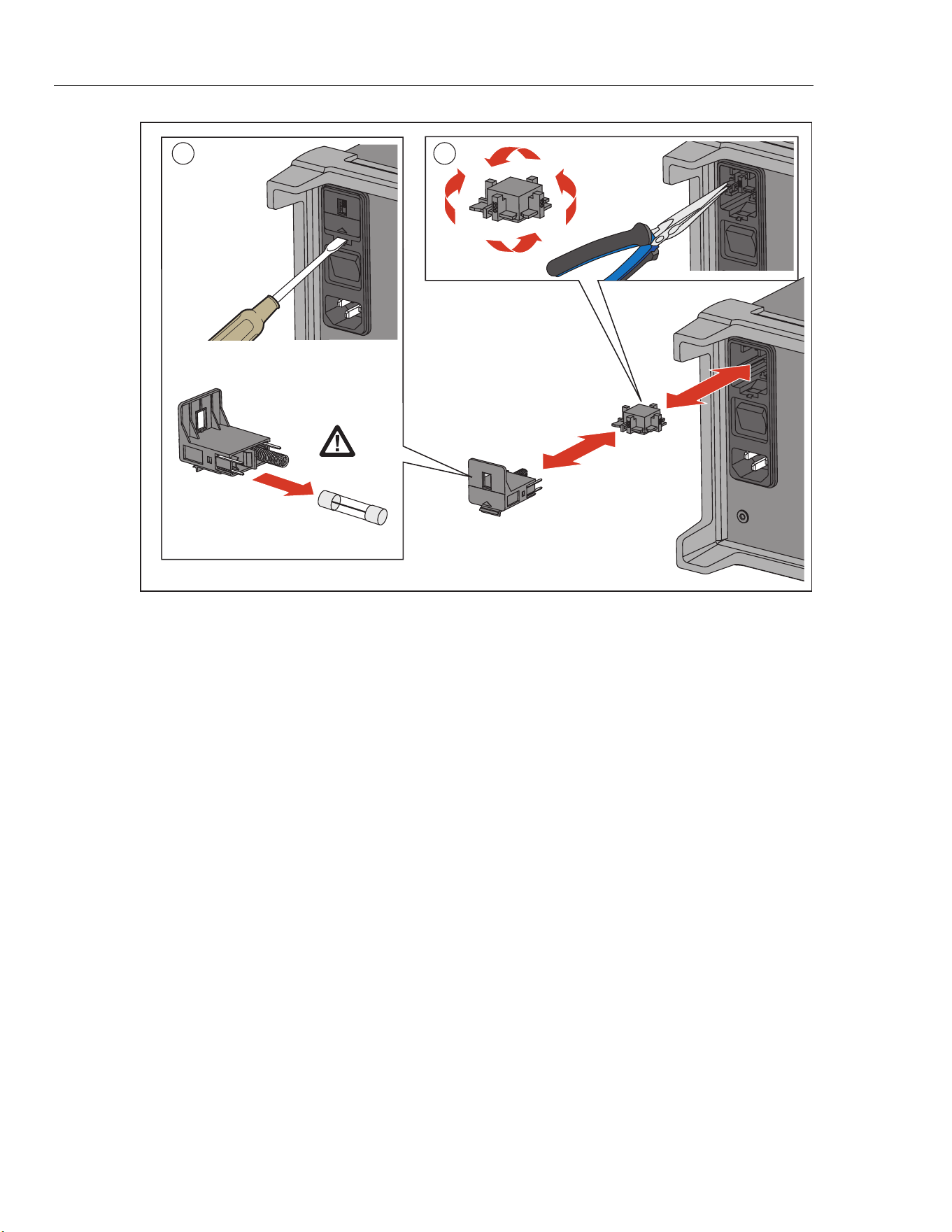
2638A
Users Manual
2-2
1 2
hce016.eps
Figure 2-1. Fuse Replacement and Line-Voltage Selection
1.888.610.7664 sales@GlobalTestSupply.com
Fluke-Direct.com
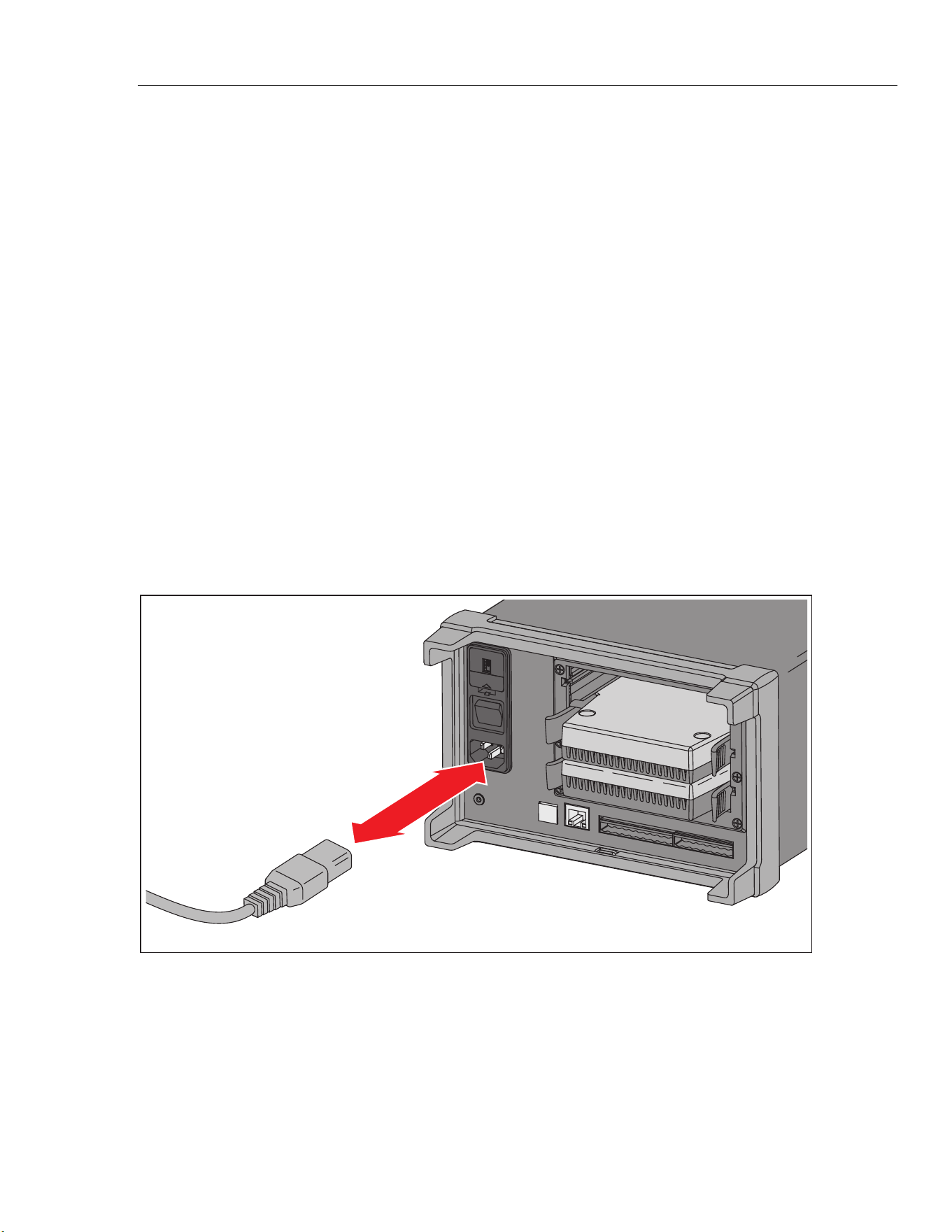
Initial Setup and Configuration
Connect to Mains Power 2
2-3
Connect to Mains Power
Use the mains power cord to connect the Product to a 100 V ac, 120 V ac, or 230 V ac
nominal outlet as shown in Figure 2-2.
WXWarning
To prevent possible electrical shock, fire, or personal injury:
• Use only the mains power cord and connector approved for
the voltage and plug configuration in your country and rated
for the Product.
• Replace the mains power cord if the insulation is damaged
or if the insulation shows signs of wear.
• Make sure the ground conductor in the mains power cord is
connected to a protective earth ground. Disruption of the
protective earth could put voltage on the chassis that could
cause death.
• Do not put the Product where access to the mains power
cord is blocked.
WCaution
To prevent damage to the Product, make sure the regional
voltage selector is in the correct position for the region of use
before mains power is connected.
hcn051.eps
Figure 2-2. Mains Power Cord Connection
1.888.610.7664 sales@GlobalTestSupply.com
Fluke-Direct.com
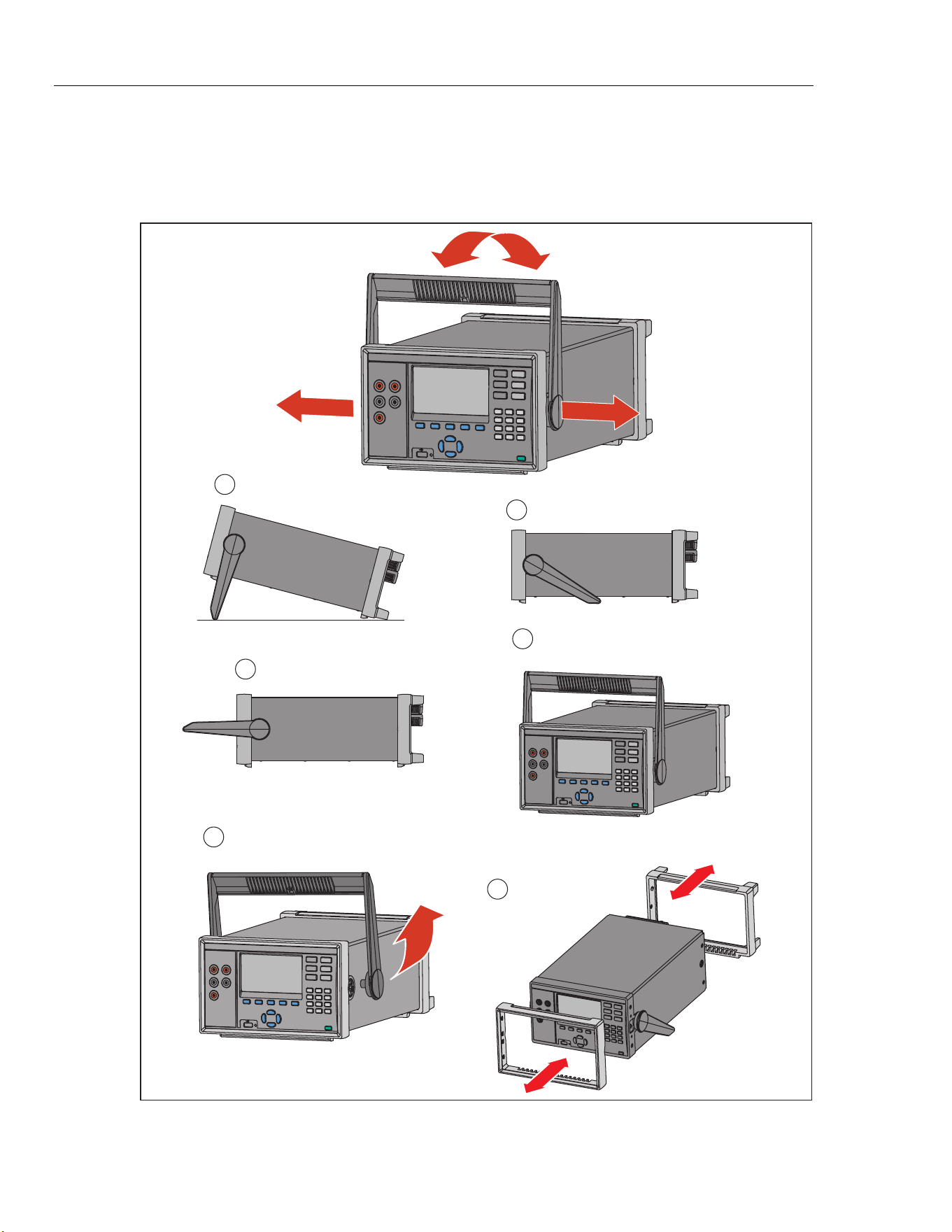
2638A
Users Manual
2-4
Set the Handle Position
The handle is used to easily transport the Product but can also be used as a stand.
Figure 2-3 shows the various handle positions and also shows how to remove and install
the handle and the protective rubber boots.
Carrying Position
Viewing Position
Alternate Viewing Position
Removal Position (to Remove,
Pull Ends Out)
To Remove, Pull End From Unit
4
5
Boot Removal
6
2
1
3
hce007.eps
Figure 2-3. Handle Positions and Boot Removal
1.888.610.7664 sales@GlobalTestSupply.com
Fluke-Direct.com
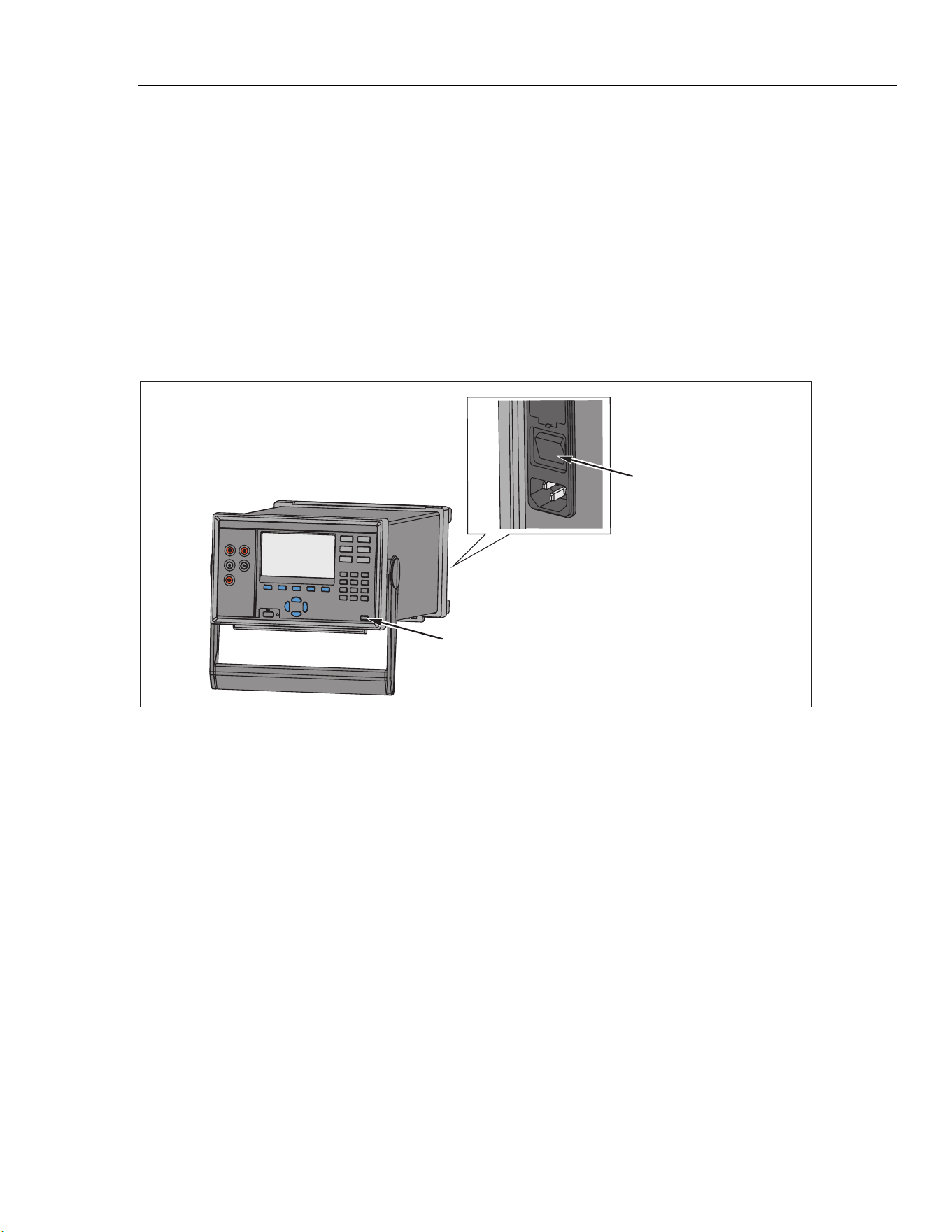
Initial Setup and Configuration
Power On and Standby 2
2-5
Power On and Standby
As shown in Figure 2-4, the Product has a main power switch located on the rear panel
that supplies power to the unit, and a Standby key () on the front panel that puts the
Product in a standby mode. Push the (I) side of the main power switch to power on the
Product. As the Product powers on, a startup screen is shown on the display while the
Product performs a self-check. This self-check can take up to 2 minutes to complete and
if the Product detects any errors, an error message is shown on the display that contains
the error description along with an error code to help troubleshoot the problem (see
“Error Messages” in Chapter 7).
Once the Product is powered on, use the Standby key () to put the Product in
standby. When in standby, the display, keys, and functions are disabled while the internal
components remain powered on and warmed up (see “Warm-Up the Product”).
Main Power Switch
Standby Key
hcn042.eps
Figure 2-4. Main Power Switch and Standby Key
1.888.610.7664 sales@GlobalTestSupply.com
Fluke-Direct.com
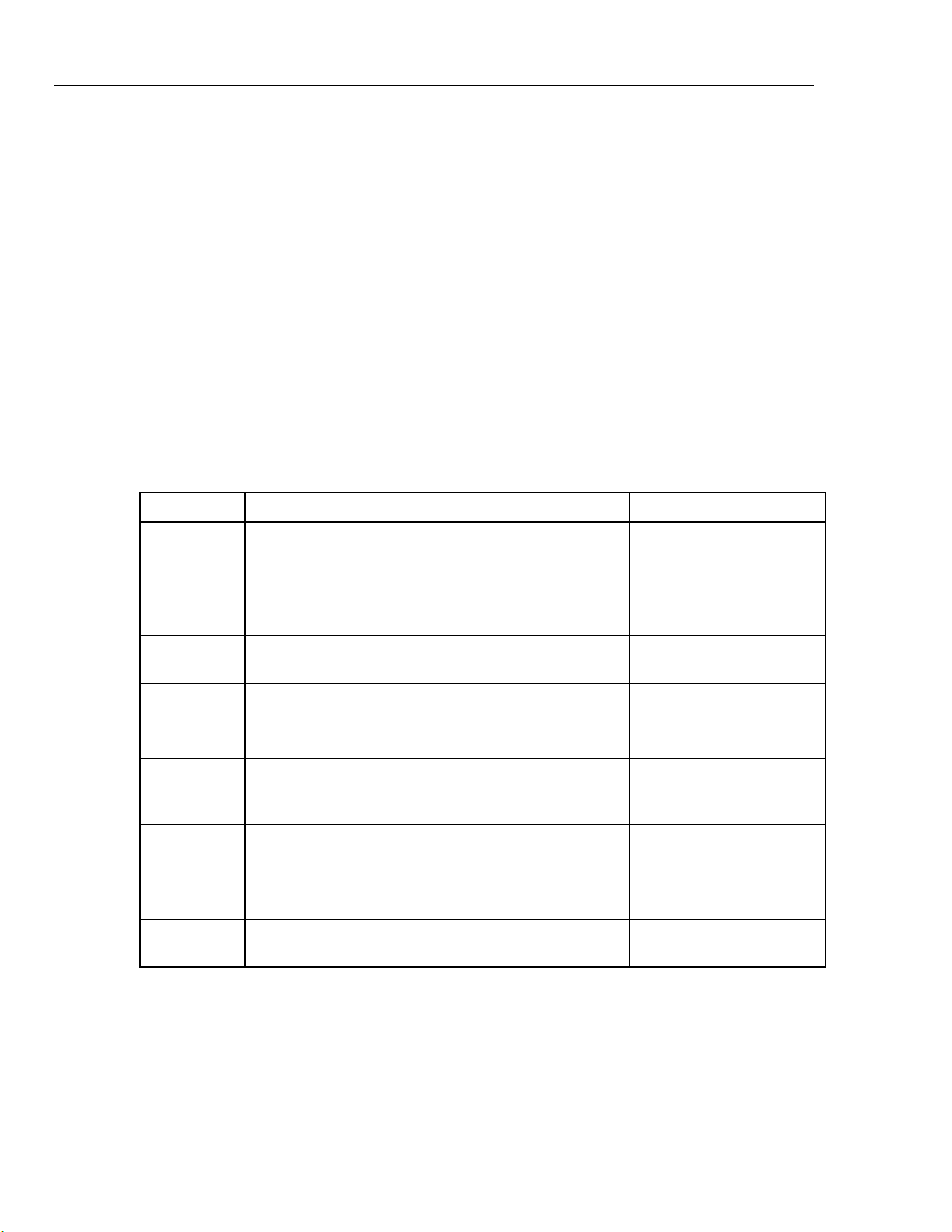
2638A
Users Manual
2-6
Warm-Up the Product
It is recommended that the Product be warmed up before use to stabilize the
environmentally controlled components. This will ensure the best performance to the
specification listed in Chapter 1. Sufficient warm-up times are as follows:
• If the Product has been powered off for 30 minutes or more, let it warm-up for 1 hour
or more.
• If the Product has been powered off for less than 30 minutes, let it warm-up for a
minimum of two times the length of time it was powered off. For example, if Product
has been turned off for 10 minutes, let it warm-up for 20 minutes.
Configure the Product
Use the Instrument Setup menu to configure the Product. To open the Instrument Setup
menu, push
on the front panel. To change a setting, highlight the setting then use
the menu softkeys shown on the display to edit the settings.
Table 2-2 shows the menu items and selections available in the Instrument Setup menu.
Table 2-2. Instrument Setup Menu
Menu Item Description Selections Available
Language
Changes the display language.
Note
If the incorrect language is set by accident, push
then push . This temporarily resets the language to
English.
English
中文
Français
Deutsch
Portugués
Español
Русский
日本語
한국어
Firmware
Shows the firmware version installed, model number, and
serial number
--
Date
Changes the date and date format shown on the top-right
corner of the display. This date is also used for
timestamps in the data log.
MM-DD-YYYY
YYYY-MM-DD
DD/MM/YYYY
Time
Changes the time and time format shown on the top-right
corner of the display. This time is also used for
timestamps in the data log.
12H or 24H
Decimal
Format
Changes the decimal format to show a comma or
decimal.
Period (0.000) or
Comma (0,000)
Display
Brightness
Changes the display brightness level. High, Med, or Low
Keypad Beep
Turn on or turn off the key beep that sounds when a key
is pushed.
ON or OFF
1.888.610.7664 sales@GlobalTestSupply.com
Fluke-Direct.com
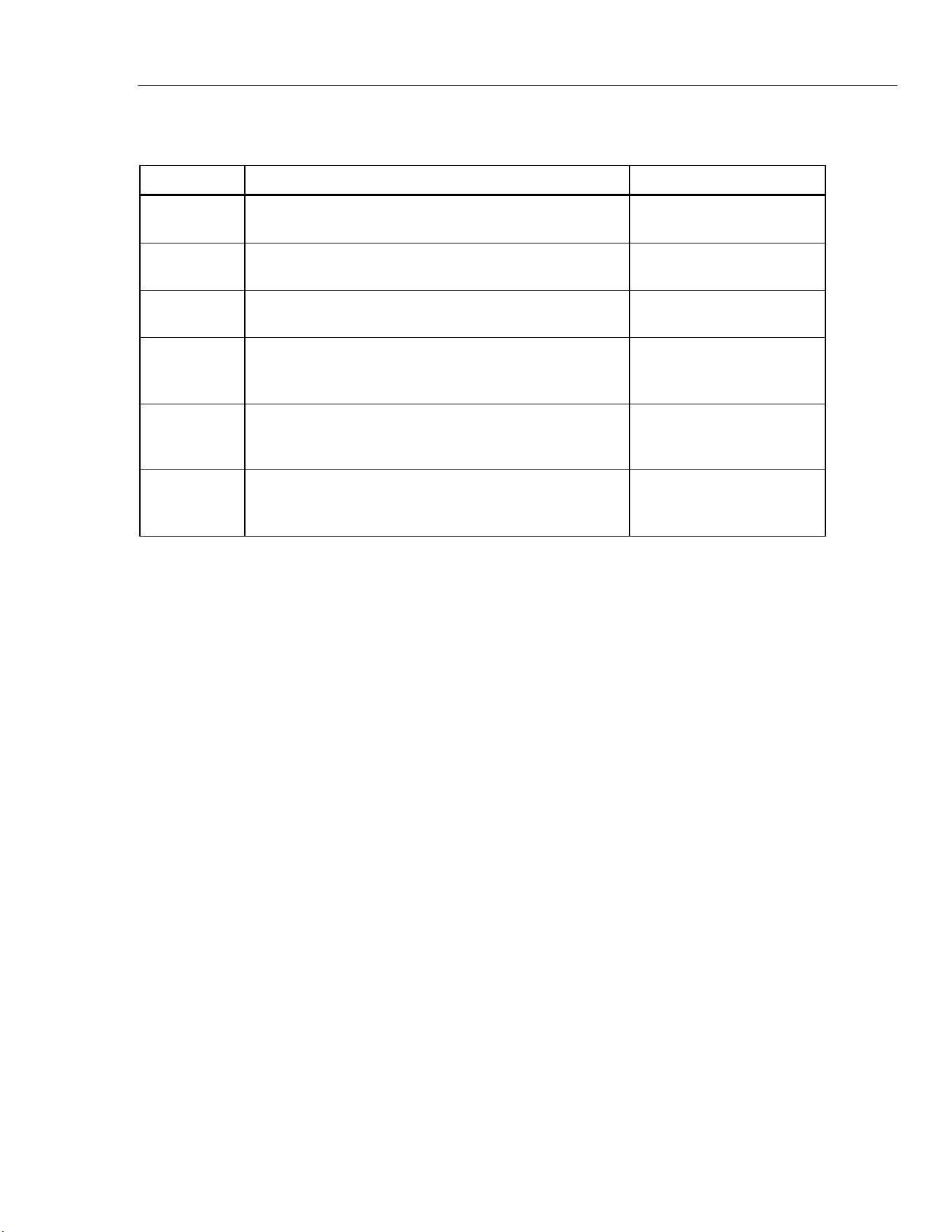
Initial Setup and Configuration
Input Module and Relay Card Installation 2
2-7
Table 2-2. Instrument Setup Menu (cont.)
Menu Item Description Selections Available
Screen Saver Change the wait time or disable the screensaver.
Never, 15 Min, 30 Min, or
60 Min
Calibration
Date
Shows the date that the Product was last calibrated. See
the 2638A Calibration Manual for more information.
--
Password
Management
Change the Admin and User profile passwords.
See “Set Up Security” in this
chapter for more information.
Resume Scan
Sets the Product to automatically turn on and resume
scanning and recording after a power loss.
See “Automatic Power Loss
Scan Resume” in Chapter 4
for more information.
Remote Port
Configure the LAN Ethernet or serial USB communication
settings.
See the 2638 Remote
Programmers Guide for more
information.
Relay Counter
Shows how many times the channel relays have been
scanned along with the name, serial number, and
calibration date of the Input Module.
--
Input Module and Relay Card Installation
Before an Input Module can be inserted into the rear panel, a relay card must be installed.
Use the procedure below and refer to Figure 2-6 as necessary to install the relay card:
1. Power off the Product with the main power switch.
2. Remove the six screws that secures the plastic frame to the rear panel.
3. Remove the plastic frame.
4. Slide the aluminum slot protector out of the Product.
5. Carefully align the rails of the relay card into the slot guides.
6. Slowly push the relay card into the Product until the card is fully seated.
WCaution
Do not force the relay card into the slot. The card should easily
move when the rails of the relay card are properly aligned in the
slot guides.
The 2638A/05 has only one available relay slot. Do not remove
the cover plates on slots 2 and 3. This will damage the Product
and require a return for service.
7. Install the plastic frame and secure it to the rear panel with six screws.
1.888.610.7664 sales@GlobalTestSupply.com
Fluke-Direct.com
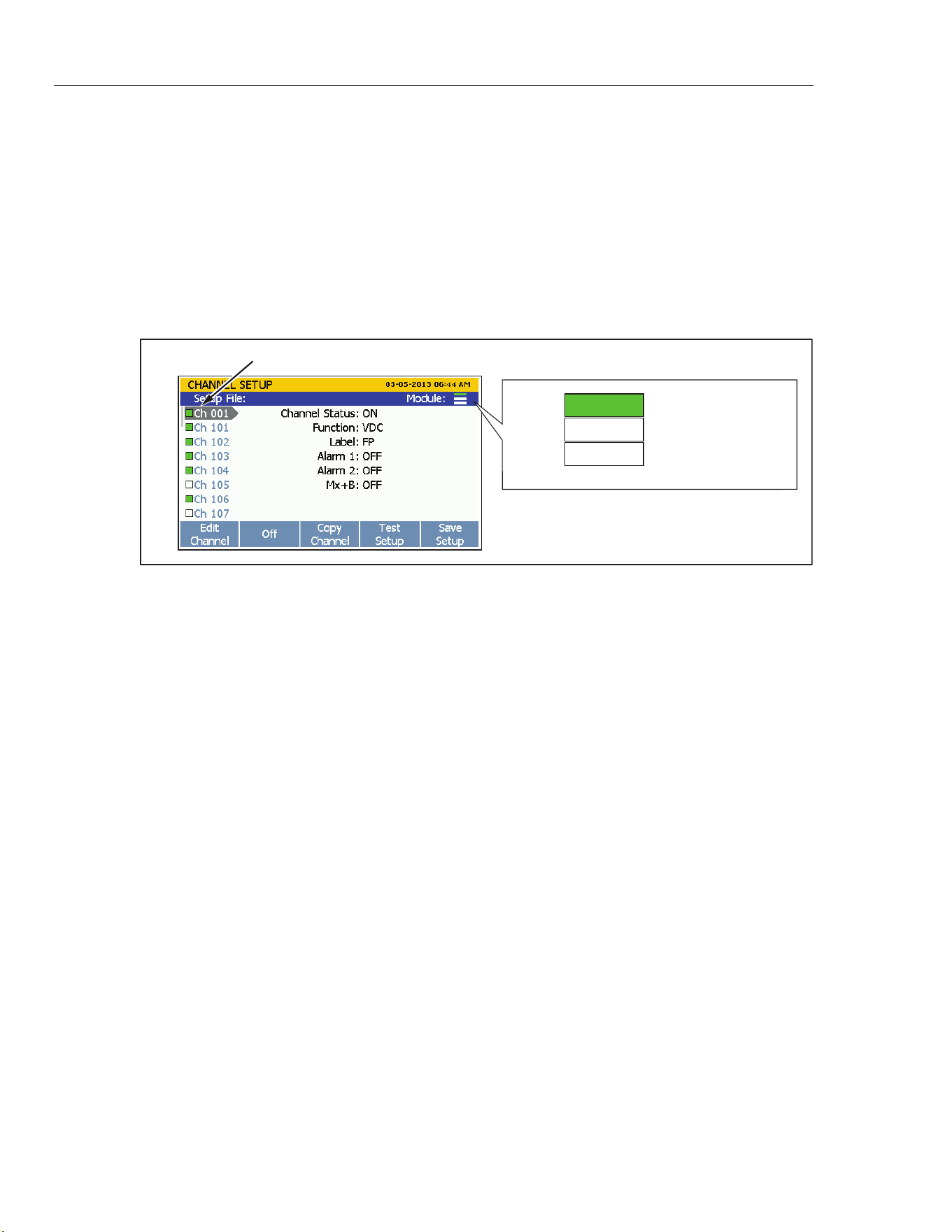
2638A
Users Manual
2-8
To install the Input Module:
1. Power off the Product with the main power switch.
2. Slide an Input Module into the slot the relay card was installed.
3. Power on the Product with the main power switch.
4. Verify that the module indicator appears green on the main screen (see Figure 2-5).
Note
If the module indicator is not green, the Product did not recognize the Input
Module or relay card. Refer to the troubleshooting section in Chapter 7.
Channel List
Slot 1
Slot 2
Empty
Module Installed
Slot 3
Empty
hce031.eps
Figure 2-5. Module Indicator Example
1.888.610.7664 sales@GlobalTestSupply.com
Fluke-Direct.com
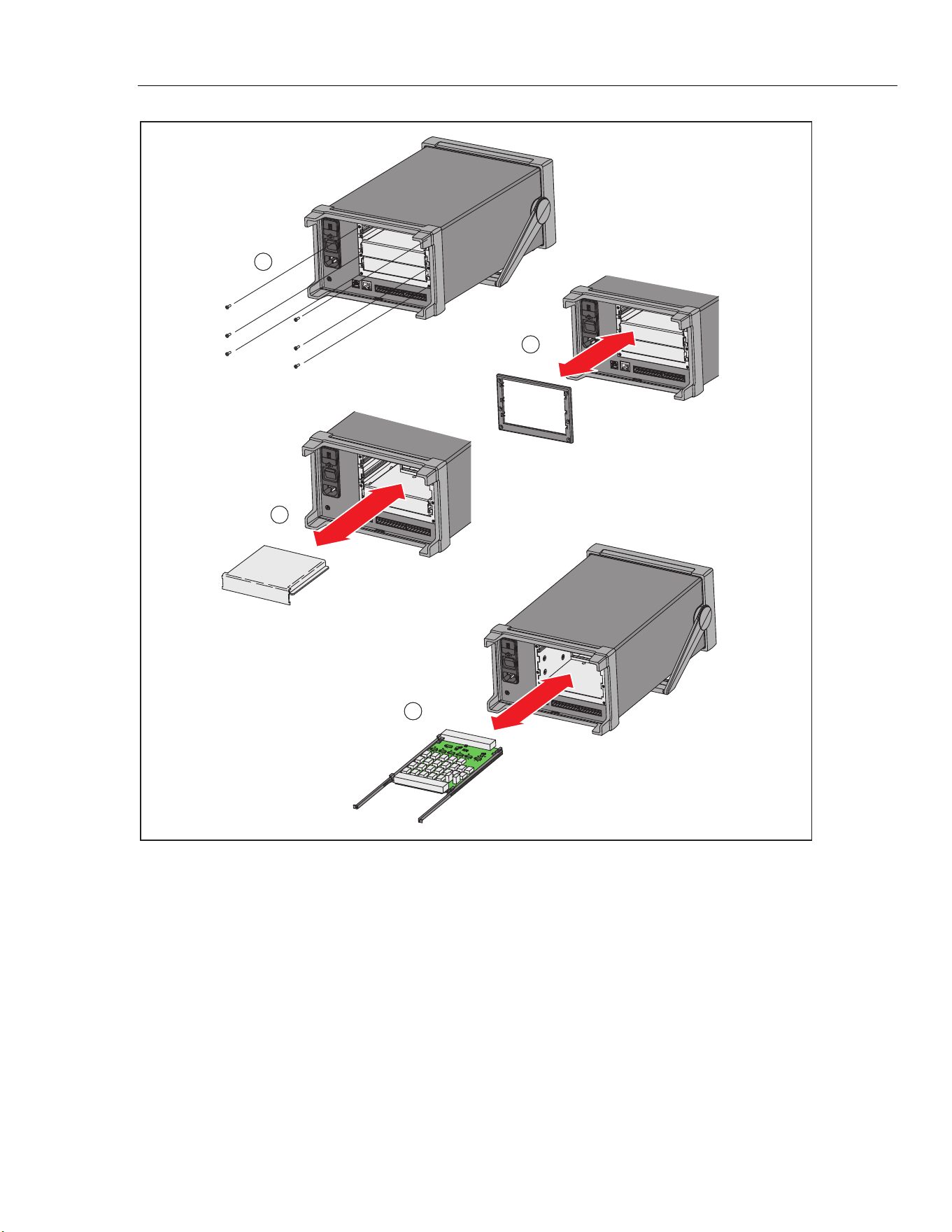
Initial Setup and Configuration
Input Module and Relay Card Installation 2
2-9
1
2
3
5
hcn037.eps
Figure 2-6. Relay Card Installation
1.888.610.7664 sales@GlobalTestSupply.com
Fluke-Direct.com

2638A
Users Manual
2-10
Set Up Security
The Product has one administration (Admin) and five User profiles. The Admin profile is
used for three purposes:
• To protect the Product from accidental or unintentional changes to the calibration
coefficients. The Admin profile is the only profile that can open the Calibration menu
to calibrate the Product. Refer to the 2638A Calibration Manual for calibration and
adjustment instructions.
• To clear the memory or reset the Product to factory defaults. See Chapter 6.
• To change passwords of the User profiles.
The User profiles sole purpose is to produce secure data files that are traceable back to
the user who performed the test (commonly referred to as test traceability). See Chapter 4
for more information.
Note
The user profile names are fixed and cannot be changed.
The Product ships from the factory with a default Admin password of “2638”. To change
the Admin or User profile password:
1. Push .
2. Highlight
Password Management then push .
3. Enter the default password of
2638 (or the current Admin password if it was
previously changed) then push .
4. Select an
Admin or User profile then push .
5. Enter a new password then push .
6. Enter the password again to confirm then push .
1.888.610.7664 sales@GlobalTestSupply.com
Fluke-Direct.com

3-1
Chapter 3
Input and Channel Configuration
Introduction
This chapter supplies instructions on how to wire inputs to the Input Module then
configure the associated channel.
Input Wiring
The Universal Input Module
The 2686A-100 Universal Input Module (the Input Module) is used to wire inputs of
various types to the Product (see Figure 3-1). Each Input Module has 22 analog channels
(ChX01 through ChX20) that can be configured to measure dc volts, ac volts, resistance,
frequency, and temperature and two low-burden current channels (ChX21 and ChX22)
that can be configured to measure ac and dc current without the use of an external shunt
resistor.
Note
To expand the functionality of the Product, current sources can also be connected
to channels ChX01 through ChX20 by the use of an accessory shunt resistor. See
Chapter 6 for part number and ordering information.
1.888.610.7664 sales@GlobalTestSupply.com
Fluke-Direct.com
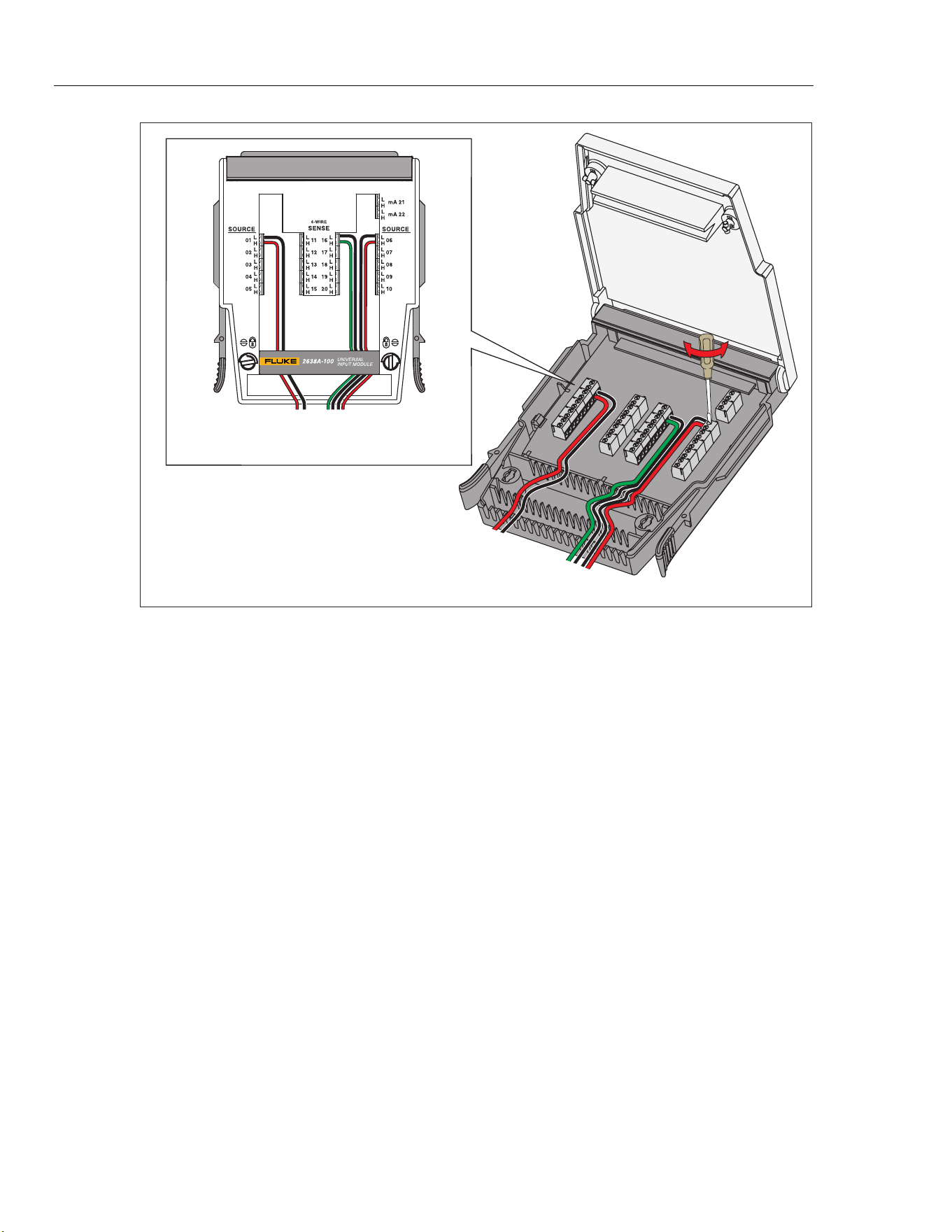
2638A
Users Manual
3-2
3-Wire or
4-Wire Connection
3-Wire or 4-Wire Connection
2-Wire
Connection
2-Wire Connection
Note: For 3-Wire connections, leave the H sense open.
hcn024.eps
Figure 3-1. 2-Wire, 3-Wire, and 4-Wire Example Connections
Wiring Safety and Considerations
WXWarning
To prevent possible electrical shock, fire, or personal injury:
• Consider all accessible channels to be hazardous live and an
electric shock hazard if any channel is connected to a
hazardous voltage source.
• Do not remove, touch, or change the internal wiring of
hazardous inputs until the input source is turned off.
• Remove inputs from hazardous voltage sources before an
input module is opened.
• Use the correct terminals, function, and range for
measurements.
• Make sure proper insulation is maintained between channel
wiring terminations and that no loose strands are outside of
the terminal block connections.
WCaution
To prevent damage to the Product, do not exceed the specified
input voltage levels.
1.888.610.7664 sales@GlobalTestSupply.com
Fluke-Direct.com

Input and Channel Configuration
Input Wiring 3
3-3
Shielded wires and sensors (such as thermocouples) should be used in environments
where "noisy" voltage sources are present. When shielded wiring is used, the shield is
normally connected to the L (low) input terminals for each channel. Alternate
configurations should be examined for each equipment application.
In situations where multiple inputs of different types are connected, a phenomenon
known as crosstalk can cause one signal to interfere with another and thereby introduce
measurement errors. The typical effect is an ac voltage channel can be interfered by
another high frequency/high voltage ac signal on the same Input Module.
3-Wire and 4-Wire Sense Input Configuration
For improved resistance measurement accuracy, the Product can connect to 3-wire (PRT
only) and 4-wire instruments with sense connections.
Sense connections cancel out the resistance of the test lead or wire that significantly
improves the accuracy of the measurement. As shown in Table 3-1, many thermistors,
platinum-resistance thermometers (PRTs) and resistors use a 3-wire or 4-wire sense
connection to eliminate lead wire resistance errors.
For 2-wire measurements, the wires can be connected to either the source or sense
channels ChX01 through ChX20. For 3-wire or 4-wire resistance measurements, the
source wires must be connected to channels ChX01 through ChX10 and the sense wires
to the set of terminals directly across from where the source is connected (channels
ChX11 through ChX20).
Note
The Product will not show or let the user select a 3-wire or 4-wire input on
channels ChX11 through ChX20.
Figure 3-2 shows an example of a 4-wire input (PRT) with sense wires connected to the
Input Module, then how it would look in the Channel Setup menu once it is properly
configured.
To use the sense connections, the channel connected to the source wires must be
configured as a 3-wire or 4-wire input as described in “Channel Configuration
Procedures” on page 3-7. When a channel is configured as a 3-wire or 4-wire input, the
Product automatically reserves the sense channel across from the source that prevents the
channel from being independently configured, as shown in Figure 3-2.
1.888.610.7664 sales@GlobalTestSupply.com
Fluke-Direct.com
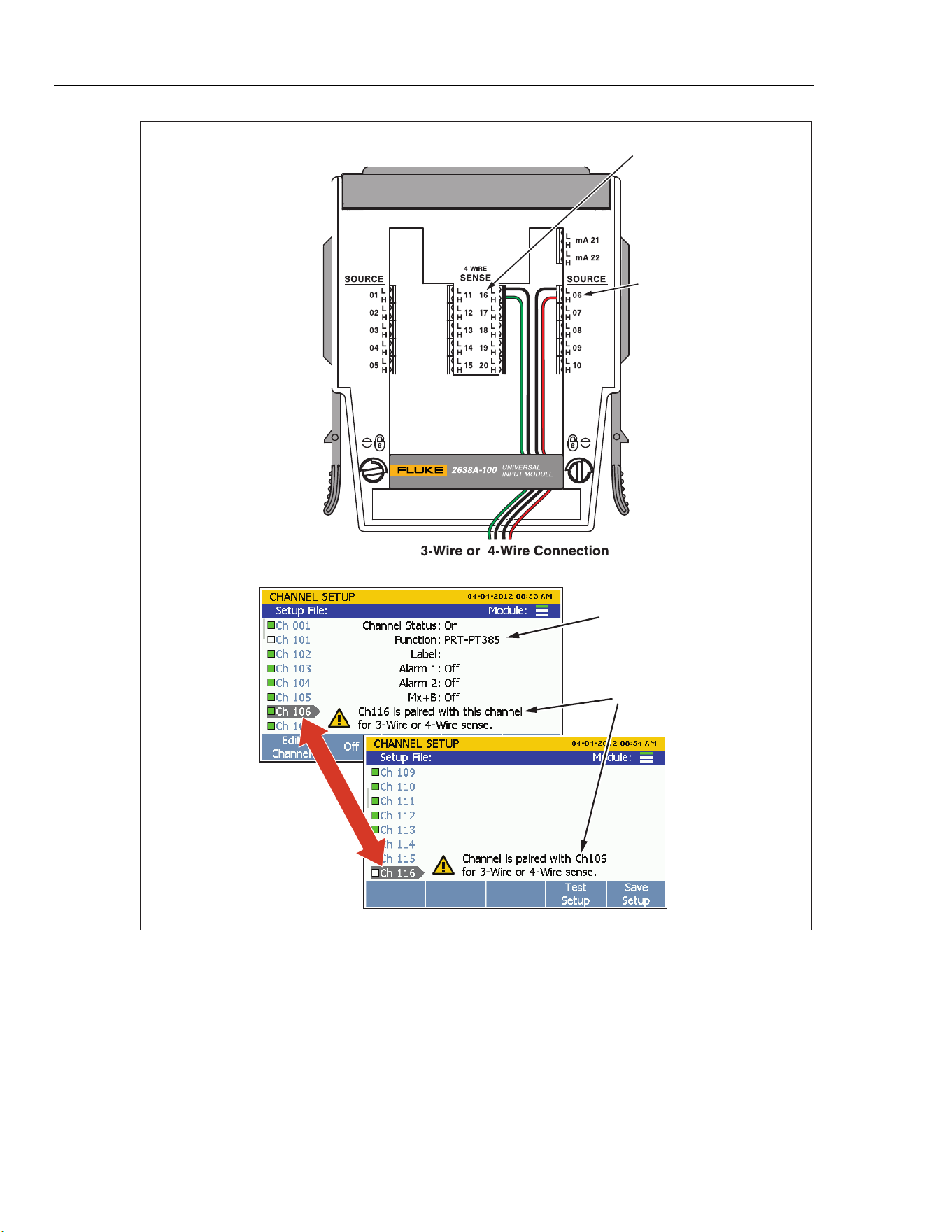
2638A
Users Manual
3-4
Source on Channel 106.
Channel Reserved
3-Wire or 4-Wire Function
Sense wires connected
directly across from source
on Channel 116.
Note: For 3-Wire
connections, leave the
H sense open.
hce026.eps
Figure 3-2. 3-Wire and 4-Wire Channel Reservation
1.888.610.7664 sales@GlobalTestSupply.com
Fluke-Direct.com
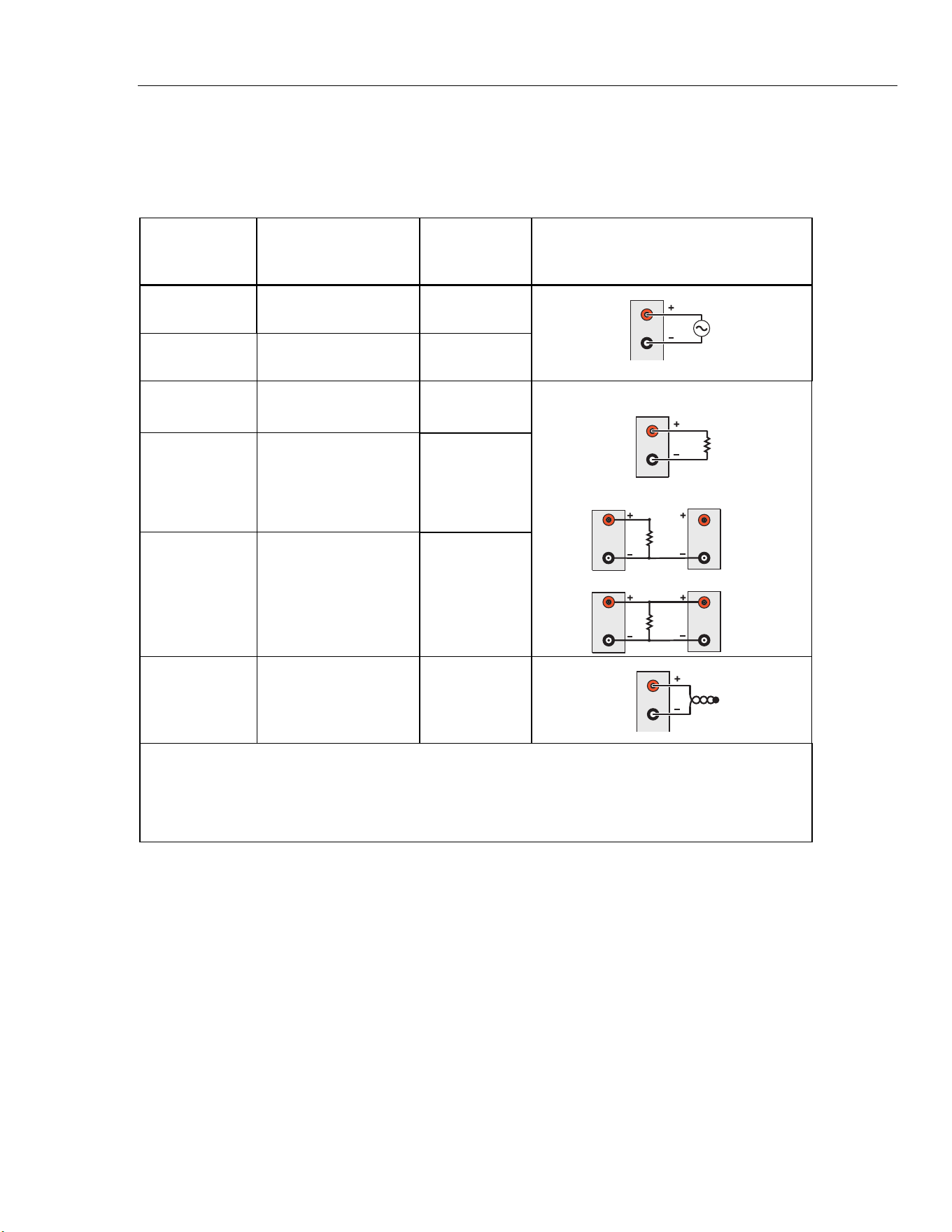
Input and Channel Configuration
Input Wiring 3
3-5
Input Types and Wiring Diagrams
Table 3-1 lists the type of input types the Product can measure and the wiring polarity
that should be used to wire it to the Input Module.
Table 3-1. Types of Inputs
Type of Input Range and Types
Channel
Configuration
Reference
Wiring Polarity
ac and dc
Voltage
Range: 0 V to 300 V
[2]
Page 3-17
H
L
V
ac and dc
Current
[1]
Range: 0 mA to ±100
mA
Page 3-17
Resistance (Ω)
2-Wire or 4-Wire
[3]
Range: 0 Ω to 100 MΩ
Page 3-18
H
L
R
2-Wire
H
Source
Sense
L
R
4-Wire
H
L
H
Source
Sense
L
R
3-Wire
H
L
Platinum
Resistance
Thermometer
(PRT)
2-Wire, 3-Wire or 4-Wire
Types:
• PT385 or PT392
• R0: 0.09 Ω to 1.2 kΩ
Page 3-22
Thermistor
2-Wire or 4-Wire
Types:
• 2.252 kΩ
• 5 kΩ
• 10 kΩ
Page 3-20
Thermocouple
Types: B, C, D, E, G, J,
K, L, M, N, R, S, T, U,
W,
Page 3-19
H
L
Note
[1] − Each Input Module has two terminal sets (mA 21 and mA 22) that are dedicated to current measurements.
[2] − 300 V is for Ch001 only. Other analog channels are 150 V max.
[3] − 100 M
Ω is for Ch001 only. Other analog channels are 10 MΩ Max.
1.888.610.7664 sales@GlobalTestSupply.com
Fluke-Direct.com

2638A
Users Manual
3-6
Input Wiring Instructions
Use the procedure below and refer to Figure 3-1 for instructions on how to wire a 2-wire,
3-wire, or 4-wire input to the Input Module.
WXWarning
To prevent possible electrical shock, fire, or personal injury,
read the Wiring Safety and Considerations section on page 3-2.
1. Power off the Product with the main power switch.
2. Squeeze together the release tabs located on both sides of the Input Module then pull
the module out of the Product.
3. Use a straight-head screw driver to rotate the cover locks to the unlock position then
open the cover.
W Caution
To prevent damage to the module, never turn the cover locks
more than quarter of a turn.
4. Connect the positive source wire to the H terminal and the negative source wire to the
L terminal. For 3-wire and 4-wire sense connections, connect the sense wires to the
terminals directly across from the source wires. See “Sense Input Configuration” on
page 3-3.
5. Route the wires through the strain-relief pins then out the back of the Input Module.
If necessary, the rubber wire compressor used to secure the wires can be removed for
more room.
6. Close the Input Module cover and rotate the cover locks to the locked position.
7. Align the Input Module on the guide rails and carefully slide the module into the
connector at the rear of the Product until it latches in place.
8. Power on the Product with the main power switch. After powered on, the Product
tests the connection to the Input Module. If the Input Module is recognized, the
module indicator changes to green and shows all channels available on the left side of
the Channel Setup menu as shown in Figure 3-3. If the module indicator does not
turn green, refer to the troubleshooting information in Chapter 4.
9. Configure the channel. For instructions on how to configure the various input types,
see “Channel Configuration” on page 3-7.
1.888.610.7664 sales@GlobalTestSupply.com
Fluke-Direct.com
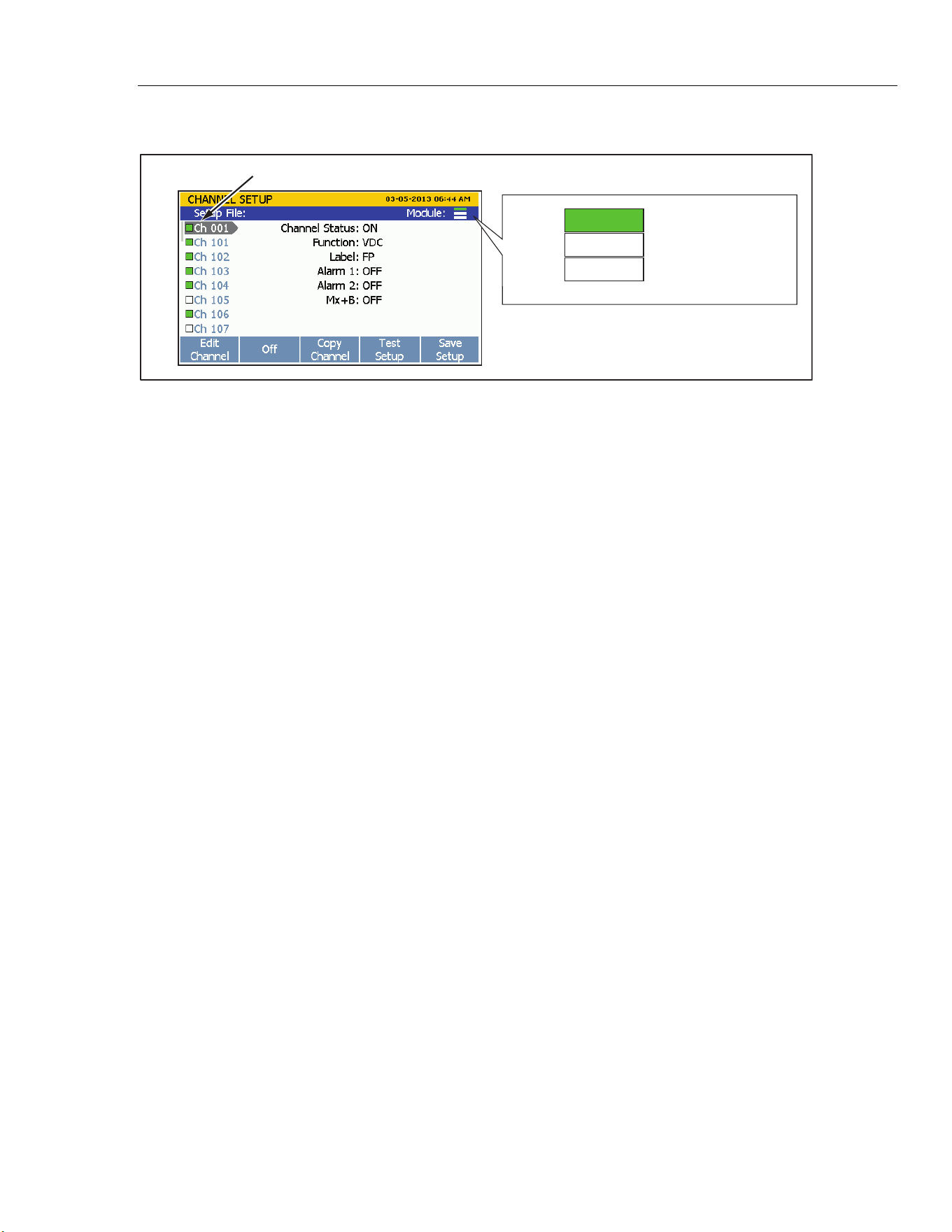
Input and Channel Configuration
Channel Configuration 3
3-7
Channel List
Slot 1
Slot 2
Empty
Module Installed
Slot 3
Empty
hce031.eps
Figure 3-3. Module Indicator (Input Module Installed Shown)
Channel Configuration
This section contains instructions on how to configure the channels after the inputs are
connected to the Input Module.
About Channel Numbers
A channel number (Ch) is a numerical identification associated with a set of terminals on
the Input Module. The channel number of the input is determined by the slot number the
Input Module is in (1, 2, or 3) followed by the number of the terminal the input is
connected to (1 to 22) as illustrated in Figure 3-4. The front-panel inputs are permanently
assigned to channel Ch001. Here are some examples on how to determine the channel
number of an input:
• A voltage source is connected to input terminal 4 (04) in the Input Module and then
slid into slot 1. The channel is Ch104.
• A thermistor source is connected to input terminal 8 (08) in the Input Module and then
slid into slot 2. The channel is Ch208.
• A voltage source is connected to the front-panel terminals. The channel is Ch001.
Table 3-2 shows channel types and channel numbers.
1.888.610.7664 sales@GlobalTestSupply.com
Fluke-Direct.com
2638A
Users Manual
3-8
Table 3-2. Channel Types and Numbers
Channel Type
Channel Numbers
and Range
Reference
Input Channel (front panel) Ch001
See “Analog Channel Configuration (Ch001,
Ch102 to Ch322)” on page 3-16. Channels
201 to Ch222 and Ch301 to Ch322 are not
available on 2638A/05.
Input Channel (rear panel, slot 1) Ch101 to Ch122
Input Channel (rear panel, slot 2) Ch201 to Ch222
Input Channel (rear panel, slot 3) Ch301 to Ch322
Digital I/O Channel Ch401
See “Digital I/O Channel Configuration
(Ch401)” on page 3-23.
Totalizer Channel Ch402
See “Totalizer Channel Configuration
(Ch402)” on page 3-24.
Math Channel Ch501 to Ch520
See “Math Channel Configuration (Ch501 to
Ch520)” on page 3-25.
1.888.610.7664 sales@GlobalTestSupply.com
Fluke-Direct.com
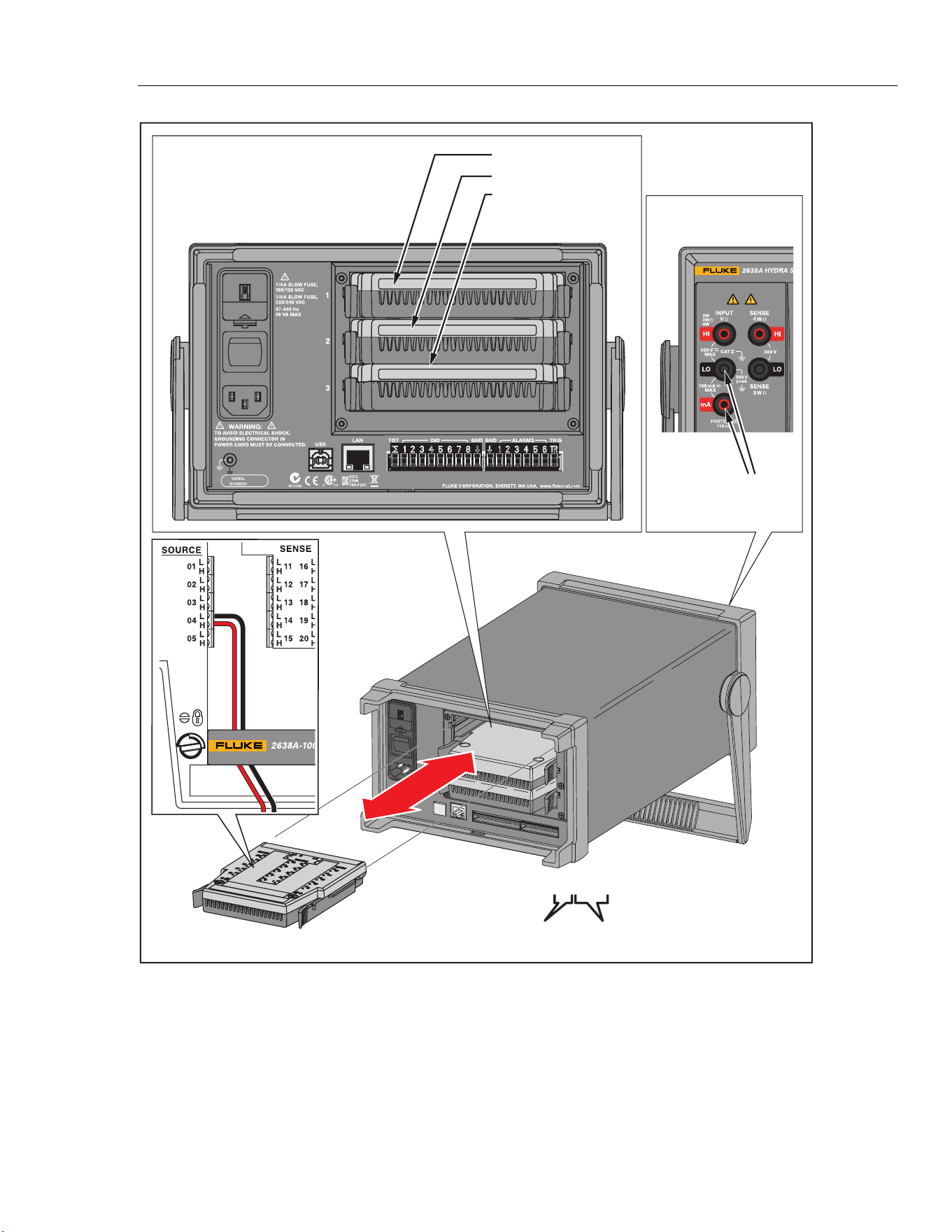
Input and Channel Configuration
Channel Configuration 3
3-9
Slot: Channel 101 - 122
Slot: Channel 201 - 222
Slot: Channel 301 - 322
Channel 001
Rear View
Front View
Input Module
Terminal Number
Channel: 104
Rear-Panel Slot
hce014.eps
Figure 3-4. Example Channel Assignment
Note
Channels 201 to 222 and 301 to 322 and relay slots 2 and 3 are not
available on 2638A/05.
1.888.610.7664 sales@GlobalTestSupply.com
Fluke-Direct.com
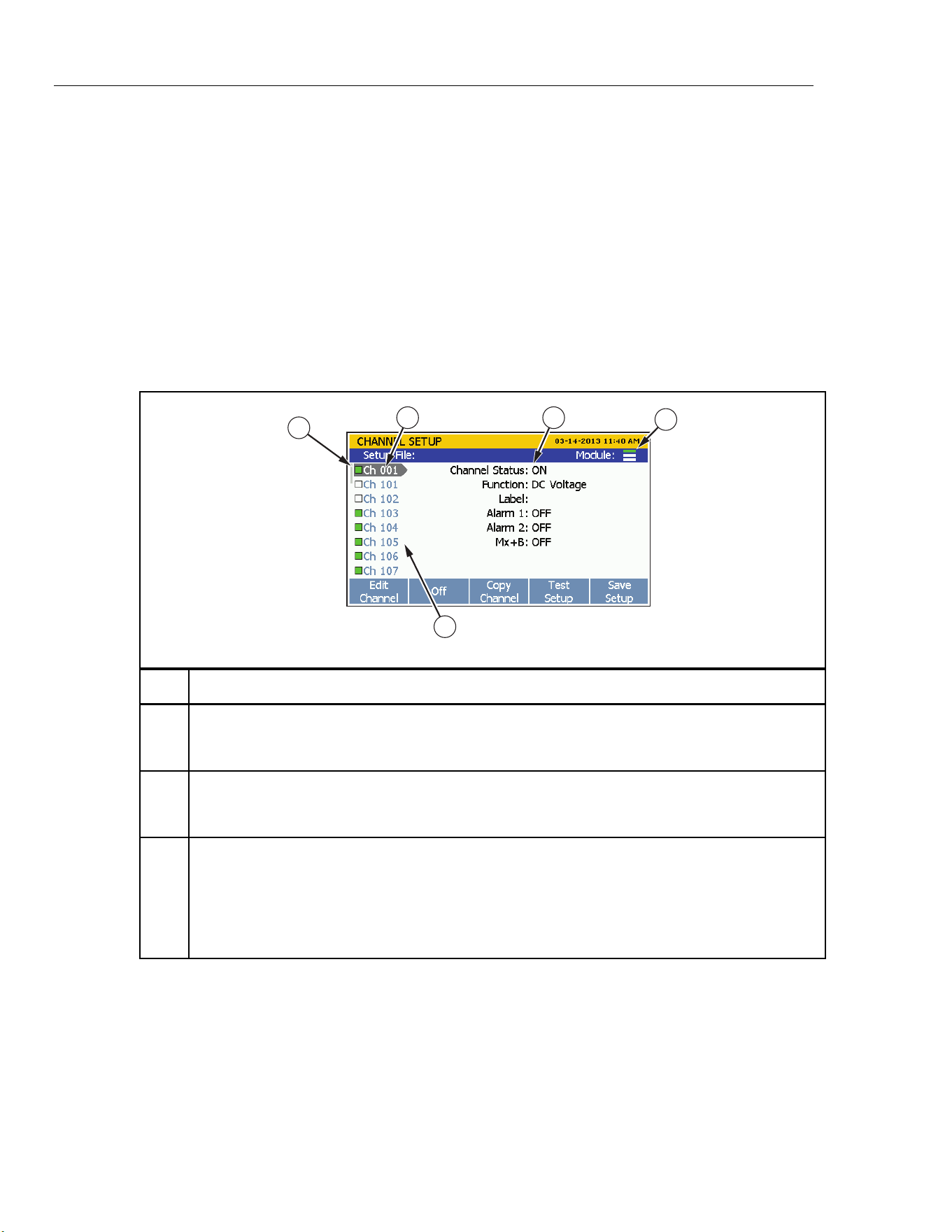
2638A
Users Manual
3-10
Basic Channel Operations
Use the instructions in this section to perform basic channel operations.
Open the Channel Setup Menu
The Channel Setup menu lets the user manage channels, verify inputs, and also set up
tests. To open the menu, push
on the front panel.
To select channels, use the and arrow keys. To quickly move up and down the list
of channels, use the and arrow keys.
Note
The Channel Setup menu cannot be accessed while a scan is in progress.
Table 3-3. Channel Setup Menu
1
4
3 2
5
hce032.eps
Item Function
Module indicator that has three bars to show which Input Modules are connected and registered.
The top indicator is slot 1, the middle indicator is slot 2, and the bottom indicator is slot 3. When a
module is in a slot, the indicator is green. When a slot is empty, the indicator is white.
Channel status. When ON, the channel can be configured and the channel status indicator to the
left of the channel is green. When OFF, the channel information is not shown and the channel
status indicator is white.
List of available channels. Channels show in the list only when an Input Module relay card is
installed in a slot. For example, Ch201 through Ch222 will not show in the channel list until an
Input Module relay card is installed into slot 2.
Note
Ch001 is always the front-panel terminals and always shows in the channel list.
1.888.610.7664 sales@GlobalTestSupply.com
Fluke-Direct.com
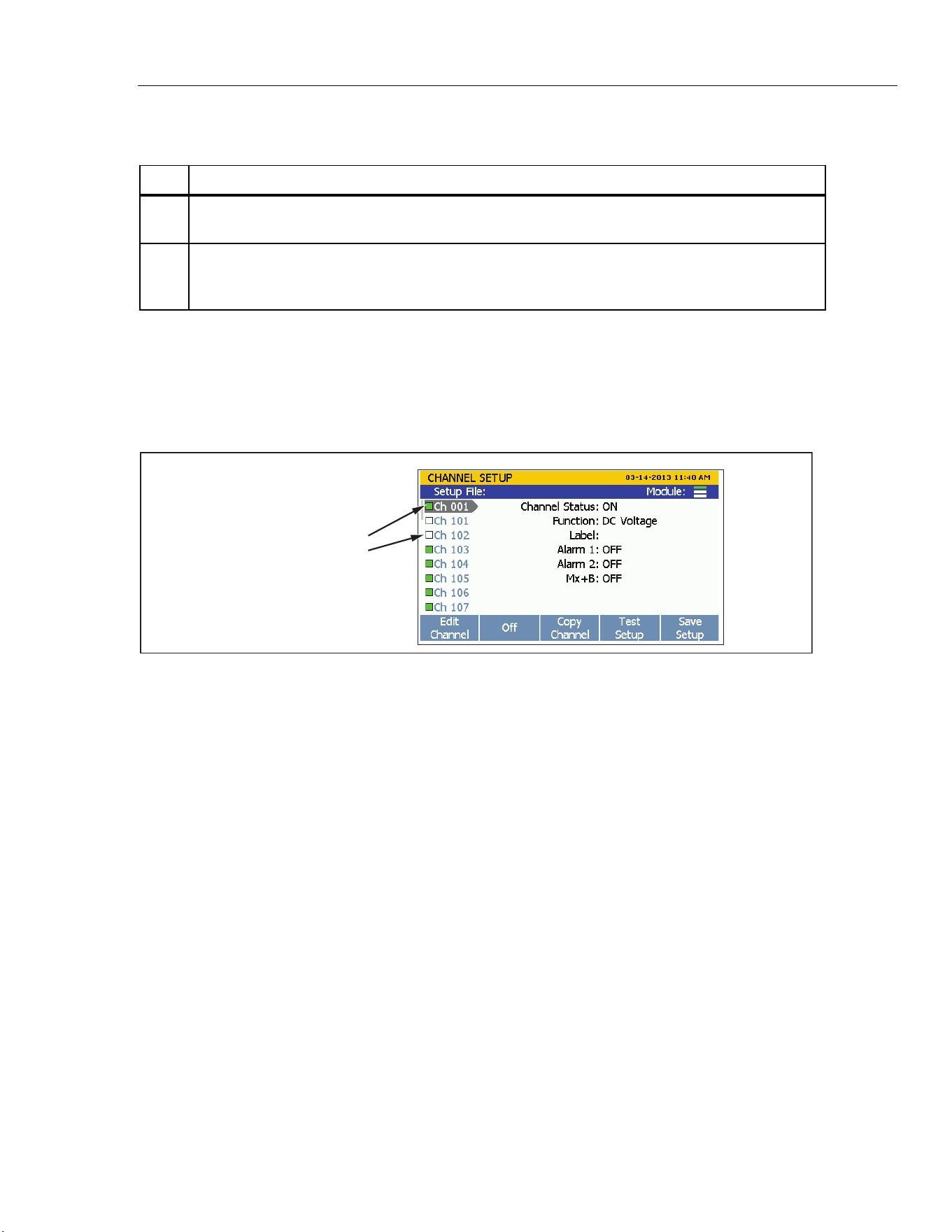
Input and Channel Configuration
Channel Configuration 3
3-11
Table 3-3. Channel Setup Menu (cont.)
Item Function
Channel status indicator. When a channel is set to ON, the channel status indicator is green. When
OFF, the channel status indicator is white.
Channel selection indicator. When a channel is selected, the channel information shows on the
screen. Use and to move up or down one channel at a time. Use or to jump to the next
module number (for example, to jump from channel Ch101 to channel Ch201).
Set Channels to ON or OFF
To scan, monitor, or record an input, the associated channel must be set to ON and
configured. When a channel is set to ON, it is referred to as “active”. The channel
indicator appears green when set to ON and white when set to OFF as shown in
Figure 3-5. To set a channel to ON, push
then push . Push again to set
the channel to OFF.
Channel Status Indicators
Green = ON
White = OFF
hce018.eps
Figure 3-5. Channel Status Indicators
When a channel is set to ON, the channel loads the previous channel configuration. If the
channel was not previously configured, the default channel settings are loaded. To change
the or edit the channel:
1. Push
.
2. Push or to highlight a channel.
3. Push to edit the channel.
4. Set the
Channel Status to ON if necessary.
1.888.610.7664 sales@GlobalTestSupply.com
Fluke-Direct.com

2638A
Users Manual
3-12
The display opens a channel configuration sequence that prompts the user to select key
parameters for the specific channel type. These sequences are shown and described in the
analog channel configuration section that starts on page 3-16.
Note
If the configuration sequence is skipped or stopped before the sequence is
complete, the default channel settings are used for the skipped steps. Some
channel settings are not able to be configured or changed outside of the
setup sequence.
Use the or to select the settings and input values with the numeric keypad. Once a
parameter is set, push to save the setting.
Verify a Channel
After a channel is set to ON and configured, a direct measurement can be made to verify
that the channel is configured properly.
To verify a channel:
1. Turn on the input source that is connected to the Product.
2. Push .
3. Push or to highlight a channel.
4. Set the channel to
ON.
5. Push to edit the channel.
6. Push to open the Verify Channel menu.
7. Evaluate the measurement and zero the channel if necessary. See “Zero a Channel”.
Zero a Channel
In certain applications, it may be necessary to zero the channel in order to make
measurements without unwanted offsets or noise levels. The zero channel function is
located in the Verify Channel menu that is accessed by a softkey in the Channel Setup
menu. The Product uses the Mx+B offset value to zero a channel. To do this, the Product
calculates the offset required to convert the measurement to a zero value, sets Mx+B to
ON, and loads the calculated offset value into the Mx+B settings. To clear the zero, the
offset value can be manually set back to the original value (usually “0”) or Mx+B can be
set to OFF if it was off before the channel was zeroed. Zero offset values can be viewed
in the setup file associated with the scan data file (see Chapter 4).
Note
When a zero is performed, the Product will overwrite any custom offset
values in the Mx+B settings. If a channel has a custom Mx+B offset, make
note of the offset value before the channel is zeroed so it can be referred to
later if necessary.
To zero a channel:
1. Turn on the input source that is connected to the Product.
1.888.610.7664 sales@GlobalTestSupply.com
Fluke-Direct.com
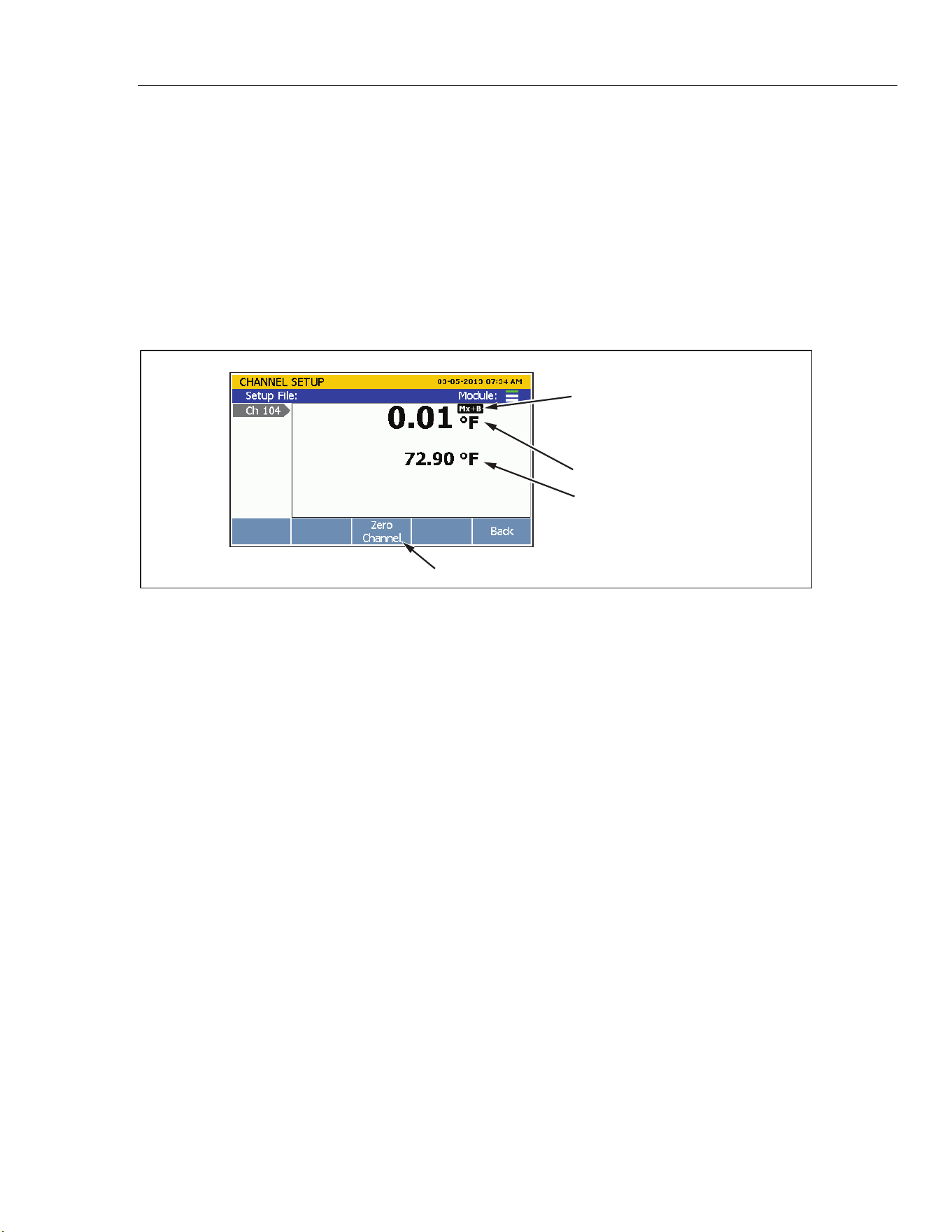
Input and Channel Configuration
Channel Configuration 3
3-13
2. Push .
3. Push or to highlight a channel.
4. Push to edit the channel.
5. Push to open the Verify Channel menu.
6. Push to zero the channel. A confirmation message appears, select
OK to
continue or
Cancel to disregard the changes and return to previous menu. After OK
is selected, the Product sets the Mx+B to
ON and loads the calculated offset into the
Mx+B offset setting. To clear the zero function, set the Mx+B back to the original
values. See “Mx+B Scaling” on page 3-29 for instructions.
Relative Measurement Value
Baseline Measurement
Zero Function Softkey
Mx+B Indicator
hcn052.eps
Figure 3-6. Zero Function
Copy a Channel
The Product has a copy and paste function to help duplicate channels. When a channel is
duplicated, all of the channel configuration settings are copied and pasted to a new
channel number. The copy channel softkey in located in the Channel Setup menu.
Note
When a channel is copied to another channel, the channel configuration of
the target channel is overwritten without a notification. Confirm the
channel selections before OK is pushed to prevent accidental overwrites.
To duplicate a channel with copy and paste:
1. Push
.
2. Push or to highlight a channel.
1.888.610.7664 sales@GlobalTestSupply.com
Fluke-Direct.com

2638A
Users Manual
3-14
3. Set the channel to ON if necessary.
4. Push to open the Copy Channel menu.
5. Use or to highlight a channel then push to select the channels to paste to.
6. Push to paste the channels.
Save or Load a Channel Configuration (Setup File)
The channel and test configuration can be saved to a file referred to as the Setup file.
When the Setup file is saved, the Product saves the present configuration of each channel
(including Mx+B and Alarms) in their current state (ON or OFF). Setup files can be
loaded at a later time or transferred to another Product with a USB drive. Setup files are
managed and loaded from the internal memory in the Memory menu.
Notes
• Setup files cannot be directly saved to or loaded from the USB drive.
To save Setup files to a USB drive, save the file to the internal
memory, then copy it to the USB drive. To load a Setup file from a
USB drive, copy the file to internal memory then load the file. See the
instructions below.
• The Product will not load a Setup file if the present configuration does
not match the configuration in the Setup file. This is caused by missing
Input Modules. Match the configuration and try to load the Setup file
again.
To save a Setup File:
1. Push
.
2. Push .
3. Follow the on-screen directions to name the file then push to save.
To save a Setup file to a USB drive:
1. Save the current Setup file to internal memory.
2. Insert a USB drive into the front-panel USB port.
Note
Wait about 15 seconds to let the Product recognize the USB drive. The LED
illuminates solid red when the USB drive is recognized and ready.
3. Push .
4. Push to select
Internal Files.
1.888.610.7664 sales@GlobalTestSupply.com
Fluke-Direct.com

Input and Channel Configuration
Channel Configuration 3
3-15
5. Choose Setup Files then push .
6. Use the and keys to select the file to be copied.
7. Push to manage the file.
8. Push to copy to the USB drive.
Note
Do not remove the USB drive until you see a file transfer complete
message.
To load a Setup File:
1. Push .
2. Push to select internal files.
3. Select
Setup Files then push .
4. Use and to highlight the Setup File.
5. Push to load and use the Setup File.
To load a Setup File from a USB drive:
1. Insert a USB drive into the front-panel USB port.
Note
Wait 15 seconds to let the Product recognize the USB drive.
2. Push .
3. Push to select
USB Files.
4. Choose
Setup Files then push .
5. Use the and keys to select the file to be copied.
6. Push to manage the file.
7. Push to copy to the internal memory.
Note
Do not remove the USB drive until you see a file transfer complete
message.
1.888.610.7664 sales@GlobalTestSupply.com
Fluke-Direct.com

2638A
Users Manual
3-16
Reset the Channel and Test Configuration
To reset the entire channel configuration and test setup:
Note
All channels are set to the default settings when reset and cannot be
restored unless the configuration was saved.
1. Push and hold
for 3 seconds.
2. Push to confirm to reset channel setup, or push to cancel.
Analog Channel Configuration (Ch001, Ch101 to Ch322)
After an analog input is connected to the Input Module and/or the front-panel connectors,
the channel must be configured for the type of input that is connected. Analog inputs are
channels Ch101 to Ch122, Ch201 to Ch222, and Ch301 to Ch322. Use the procedure
below and the tables in this section to set up channels for specific input types.
Please read the considerations below to help with channel configuration:
• For new channels that have not been previously set up, the user is prompted to
configure the channel when it is set to ON for the first time. Push the cancel softkey
() while in the setup sequence to: (1) accept the default settings for new channels
or (2) use the previous configuration for channels previously configured.
• A channel can be configured with the Edit Channel softkey in the Channel Setup
menu.
• Each channel has independent channel options such as Channel Delay, Rate of
Change, NPLC, and Input Impedance, that can be accessed with the Channel Options
softkey in the Edit Channel menu. The channel options listed vary based on the on
the input type.
• After a channel is configured, it is important to verify the channel with the Verify
Channel softkey on the Channel Setup menu. This ensures that the channel was
configured properly before data is collected from a scan. See “Verify a Channel” on
page 3-12.
To configure an analog channel:
1. Push
.
2. Set the channel to ON (see “Set Channels to ON or OFF” on page 3-10). When the
channel is set to ON, a channel configuration sequence shows on the display that
steps the user through an initial configuration sequence as shown in Table 3-5. If the
channel was previously configured, push to cancel the configuration sequence
to use the last channel configuration.
3. Use the information in the tables in this section to configure the channel. Push or
to highlight the channel setting then push to edit the setting.
1.888.610.7664 sales@GlobalTestSupply.com
Fluke-Direct.com
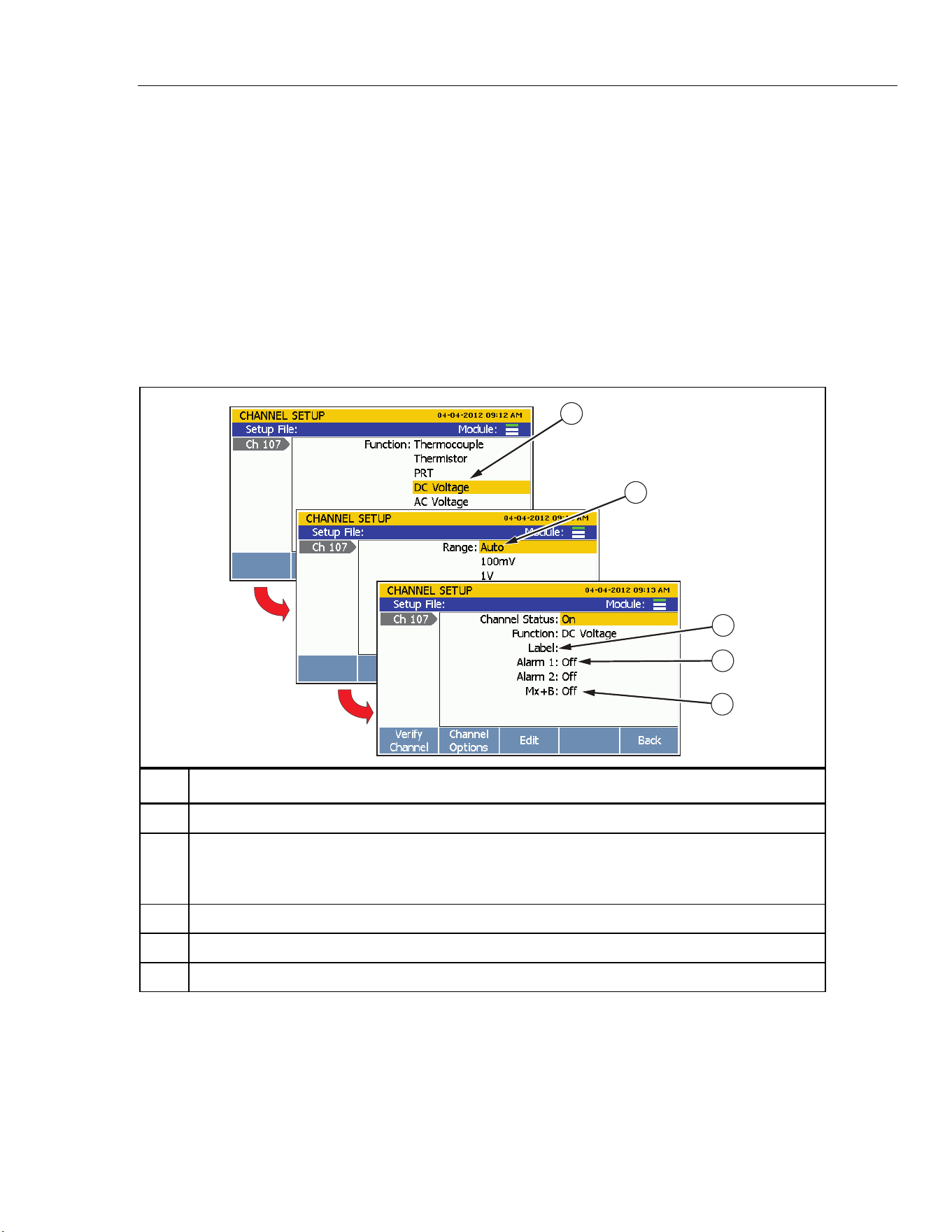
Input and Channel Configuration
Channel Configuration 3
3-17
4. After the channel is configured, verify that the channel is configured properly and
reading the input. For instructions, see “Verify a Channel” on page 3-12.
Current and Voltage Channels
Refer to Table 3-4 to configure an ac or dc voltage or current channel.
Note
Ch001 can be set up for all measurements. ChX21 and ChX22 are the only
channels that can be set up for current measurements. To expand the
functionality of the Product, current sources can also be connected to
ChX01 through ChX20 by the use of an accessory shunt resistor. See
Chapter 2 for part number and ordering information.
Table 3-4. Current and Voltage Channel Configuration
1
2
3
4
5
hcn042.e
p
s
Item Function
DC voltage, AC voltage, DC current, or AC current function selection.
For voltage, set the voltage range to: Auto, 100 mV, 1 V, 10 V, 100 V, or 150 V. Ch001 can be set to
300 V.
For current, set the current range to: Auto, 100 µA, 1 mA, 10mA, or 100 mA.
Input a custom alpha-numeric label to help identify the channel (optional).
Set an alarm for this channel (optional). See “HI and LO Channel Alarms” on page 3-30.
Apply Mx+B scaling to the measurement (optional). See “Mx+B Scaling” on page 3-29.
1.888.610.7664 sales@GlobalTestSupply.com
Fluke-Direct.com
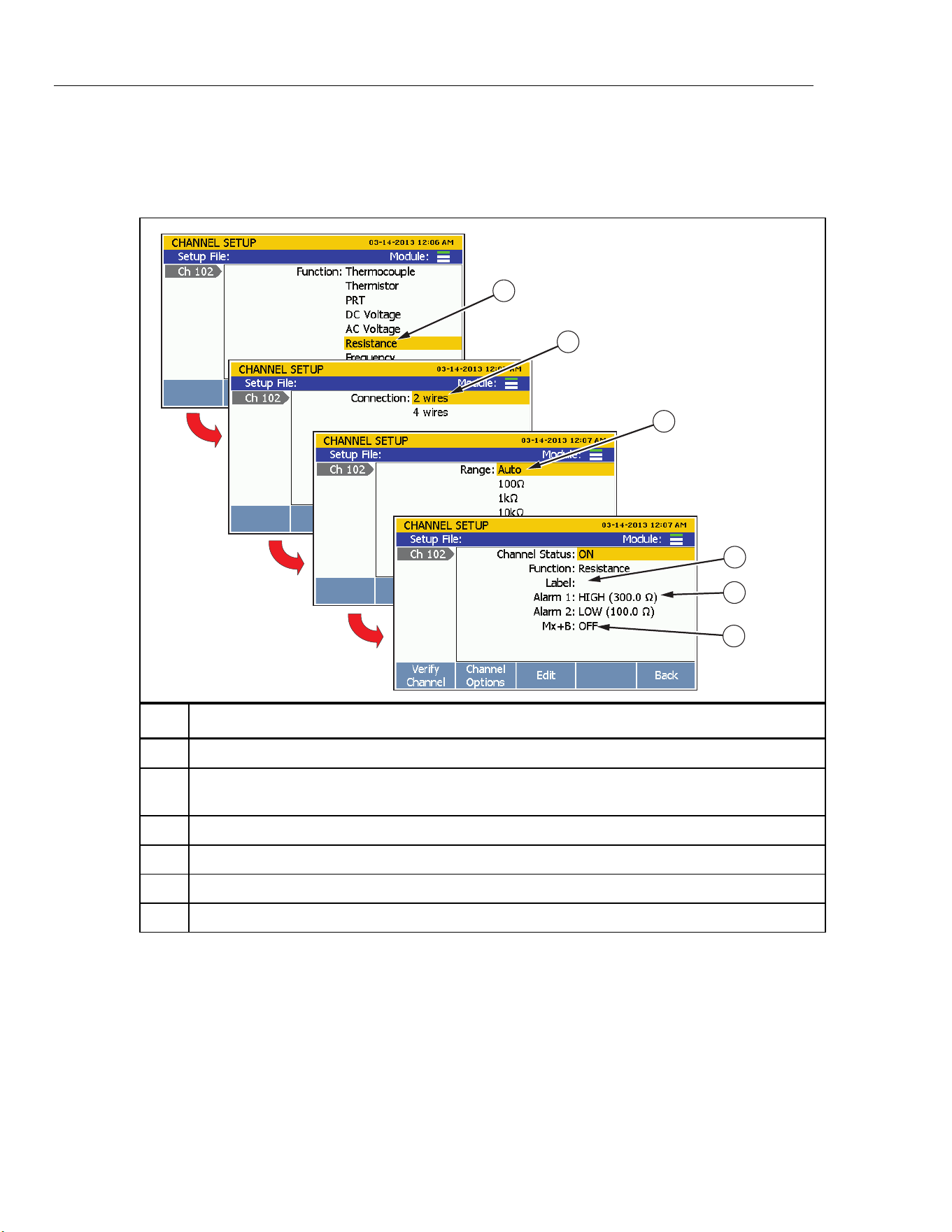
2638A
Users Manual
3-18
Resistance Channels
Refer to Table 3-5 to configure a resistance channel.
Table 3-5. Resistance Channel Configuration
1
2
3
4
5
6
hce020.e
p
s
Item Function
Resistance function selection.
Set up the channel for a 2-wire or 4-wire resistance measurement connection. See “Sense Input
Configuration” on page 3-3.
Set the range to: Auto, 100 Ω, 1 kΩ, 10 kΩ, 100 kΩ, 1 MΩ or 10 MΩ. Ch001 can be set to 100 MΩ.
Input a custom alpha-numeric label to help identify the channel (optional).
Set an alarm for this channel (optional). See “HI and LO Channel Alarms” on page 3-30.
Apply Mx+B scaling to the measurement (optional). See “Mx+B Scaling” on page 3-29.
1.888.610.7664 sales@GlobalTestSupply.com
Fluke-Direct.com
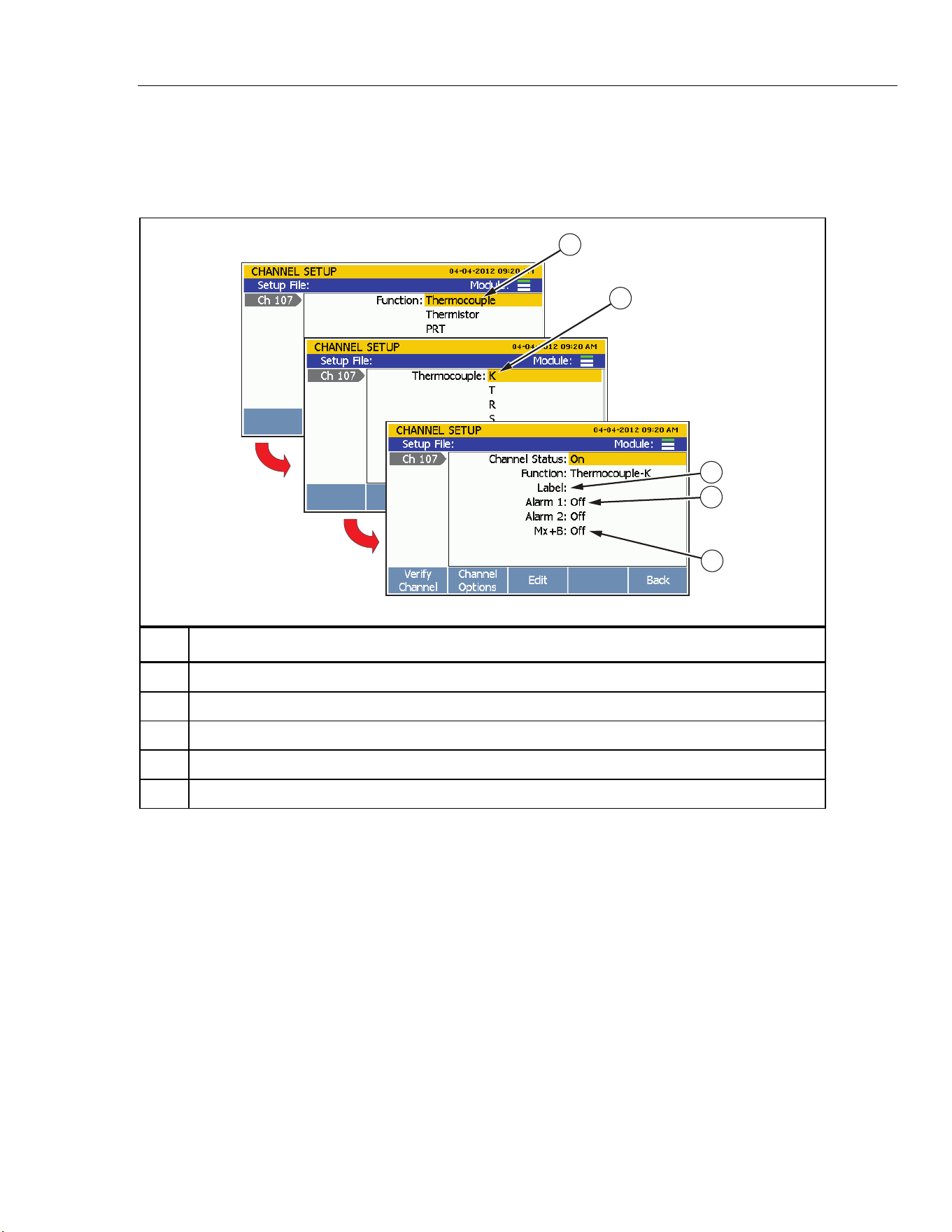
Input and Channel Configuration
Channel Configuration 3
3-19
Thermocouple Channels
Refer to Table 3-6 to configure a thermocouple channel.
Table 3-6. Thermocouple Channel Configuration
1
2
3
4
5
hce021.eps
Item Function
Thermocouple function selection.
Select the thermocouple type.
Input a custom alpha-numeric label to help identify the channel (optional).
Set an alarm for this channel (optional). See “HI and LO Channel Alarms” on page 3-30.
Apply Mx+B scaling to the measurement (optional). See “Mx+B Scaling” on page 3-29.
1.888.610.7664 sales@GlobalTestSupply.com
Fluke-Direct.com
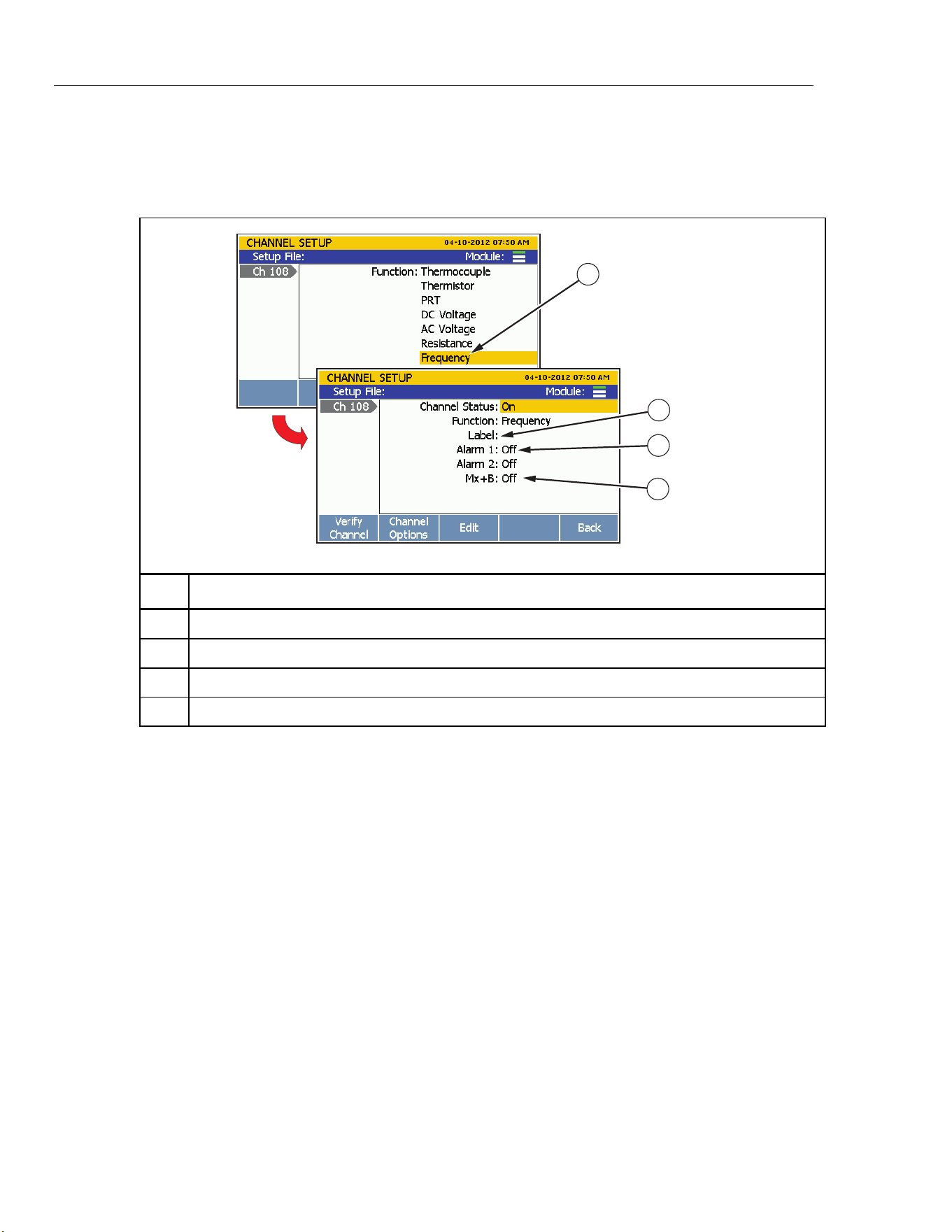
2638A
Users Manual
3-20
Frequency Channels
Refer to Table 3-7 to configure a frequency channel.
Table 3-7. Frequency Channel Configuration
2
3
4
1
hce044.eps
Item Function
Frequency function selection.
Input a custom alpha-numeric label to help identify the channel (optional).
Set an alarm for this channel (optional). See “HI and LO Channel Alarms” on page 3-30.
Apply Mx+B scaling to the measurement (optional). See “Mx+B Scaling” on page 3-29.
1.888.610.7664 sales@GlobalTestSupply.com
Fluke-Direct.com
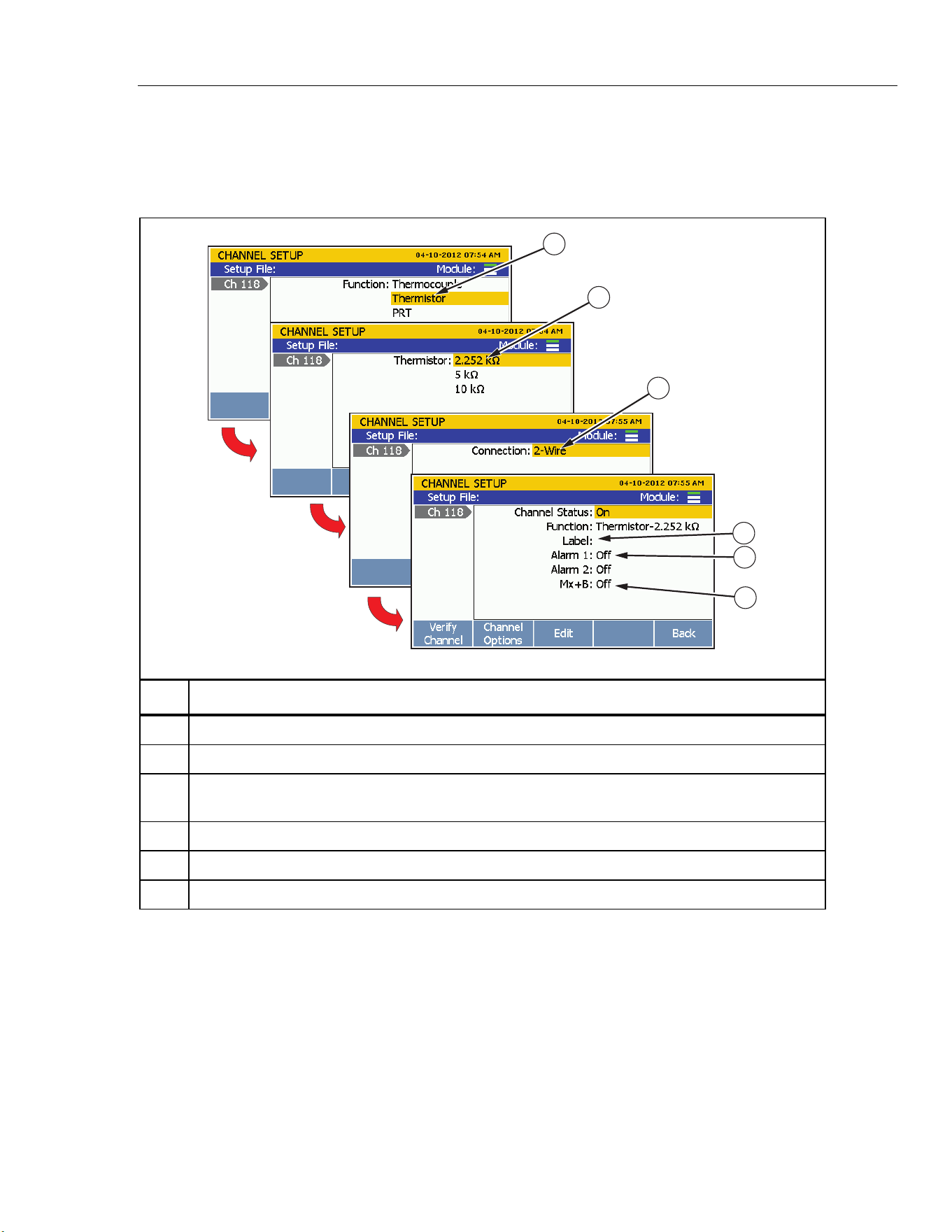
Input and Channel Configuration
Channel Configuration 3
3-21
Thermistor Channels
Refer to Table 3-8 to configure a thermistor channel.
Table 3-8. Thermistor Channel Setup
1
2
3
4
5
6
hce022.eps
Item Function
Thermistor function selection.
Select the thermistor type. Types available: 2.252 kΩ, 5 kΩ, and 10 kΩ.
Set up the channel for a 2-wire measurement connection. See “Sense Input Configuration” on
page 3-3.
Input a custom alpha-numeric label to help identify the channel (optional).
Set an alarm for this channel (optional). See “HI and LO Channel Alarms” on page 3-30.
Apply Mx+B scaling to the measurement (optional). See “Mx+B Scaling” on page 3-29.
1.888.610.7664 sales@GlobalTestSupply.com
Fluke-Direct.com
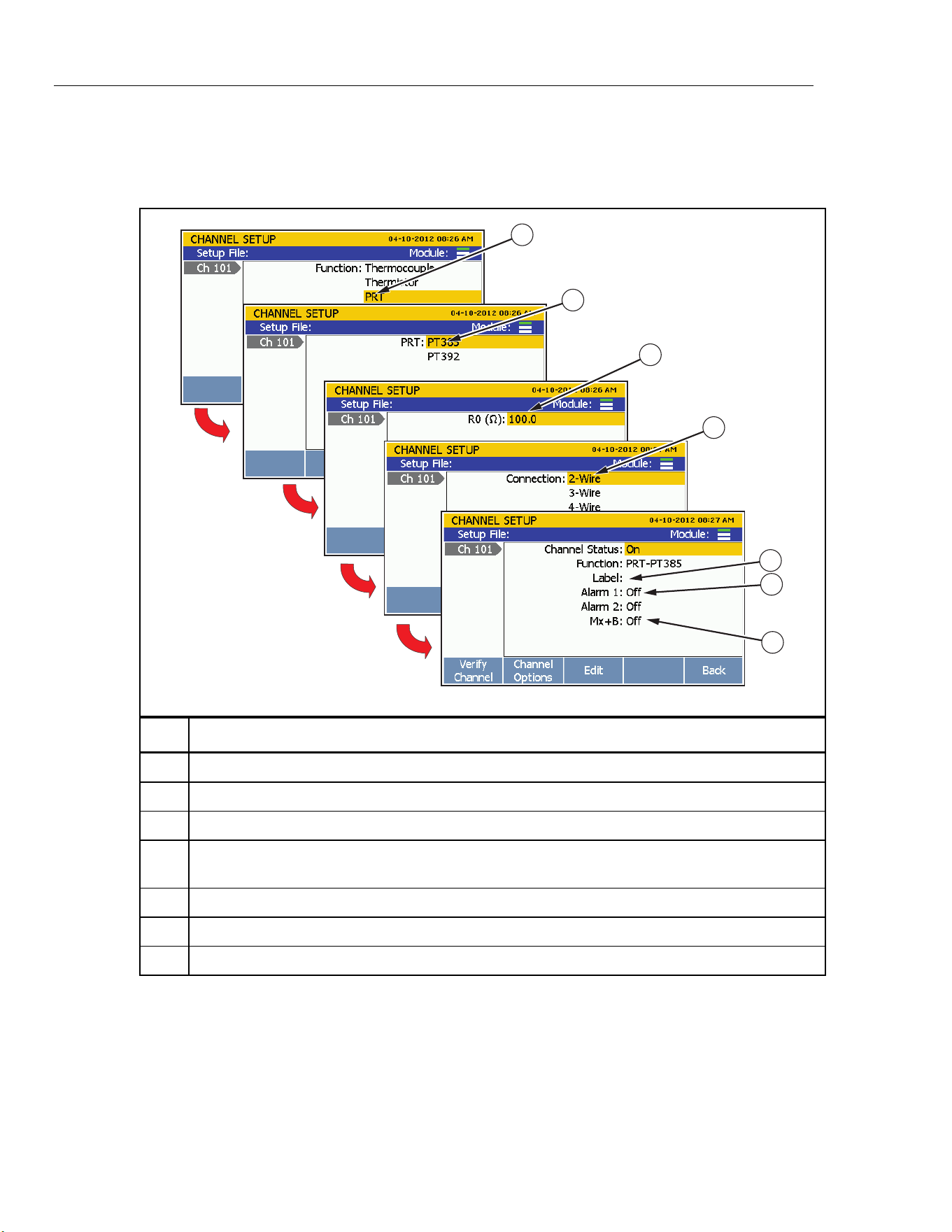
2638A
Users Manual
3-22
PRT Channels
Refer to Table 3-9 to configure a Platinum Resistance Thermometer (PRT) channel.
Table 3-9. PRT Channel Setup
1
2
3
4
5
6
7
hce023.eps
Item Function
PRT function selection.
Select the PRT type. Types available: PT-385 and PT-392
Set the PRT resistance value at 0 °C.
Set up the channel for a 2-wire, 3-wire, or 4-wire measurement connection. See “Sense Input
Configuration” on page 3-3.
Input a custom alpha-numeric label to help identify the channel (optional).
Set an alarm for this channel (optional). See “HI and LO Channel Alarms” on page 3-30.
Apply Mx+B scaling to the measurement (optional). See “Mx+B Scaling” on page 3-29.
1.888.610.7664 sales@GlobalTestSupply.com
Fluke-Direct.com
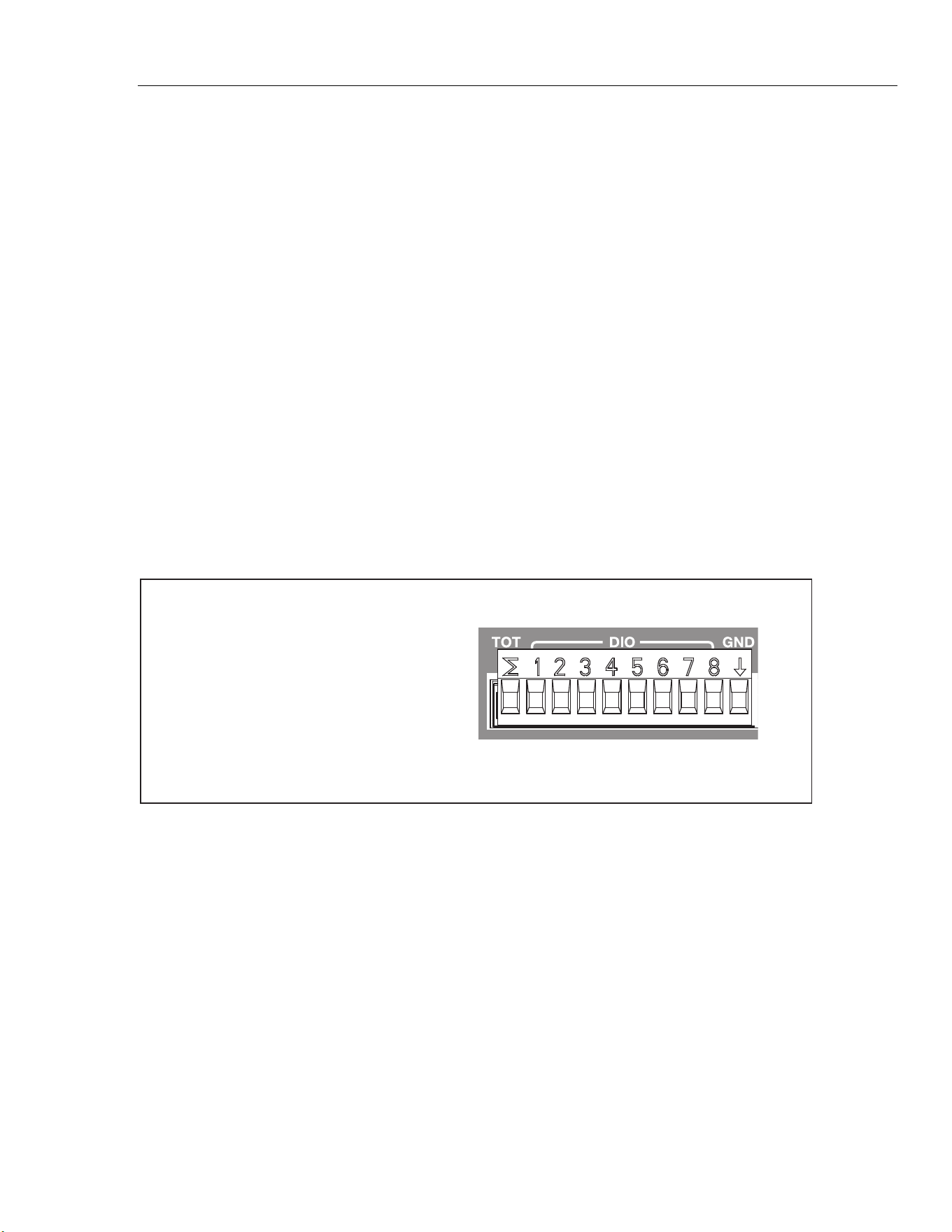
Input and Channel Configuration
Channel Configuration 3
3-23
Digital I/O (DIO) Channel Configuration (Ch401)
The Product can sense and output a digital, 8-bit transistor-transistor logic (TTL) value
that can be displayed as the 8-bit TTL value and be recorded as the decimal equivalent.
This is accomplished with the rear-panel digital I/O connectors (DIO) that are shown in
Figure 3-7.
When a DIO input is sensed, the Product displays the status of the digital I/O as 8-bit
TTL value and records the decimal equivalent. The 8-bit TTL value can also be seen
when a channel is monitored. The default value is a high state that shows as “11111111”
until the Product senses a low state or is used as an output. A few examples of some 8-bit
TTL values and their decimal equivalents are shown below:
• 11111111 is represented by decimal 255
• 00001111 is represented by decimal 15
• 00010001 is represented by decimal 17
• 10000101 is represented by decimal 133
Notes
For input and output specifications such as input and output voltages, see
“Digital I/O” in Chapter 1.
The DIO channel will be read-only when it is set to ON (active).
With a remote command, the Product can output an 8-bit TTL value. See the
2638A Remote Programmers Guide for more information.
Terminal
TOT
1
2
3
4
5
6
7
8
GND
Function
Totalizer Input
Input/Output Line 1
Input/Output Line 2
Input/Output Line 3
Input/Output Line 4
Input/Output Line 5
Input/Output Line 6
Input/Output Line 7
Input/Output Line 8
Ground Terminal
hcn040.eps
Figure 3-7. DIO Connector
Set up the DIO channel as follows:
1. Connect the equipment to the DIO input terminal then insert it into the rear-panel
digital I/O (DIO) port.
2. Push
.
1.888.610.7664 sales@GlobalTestSupply.com
Fluke-Direct.com
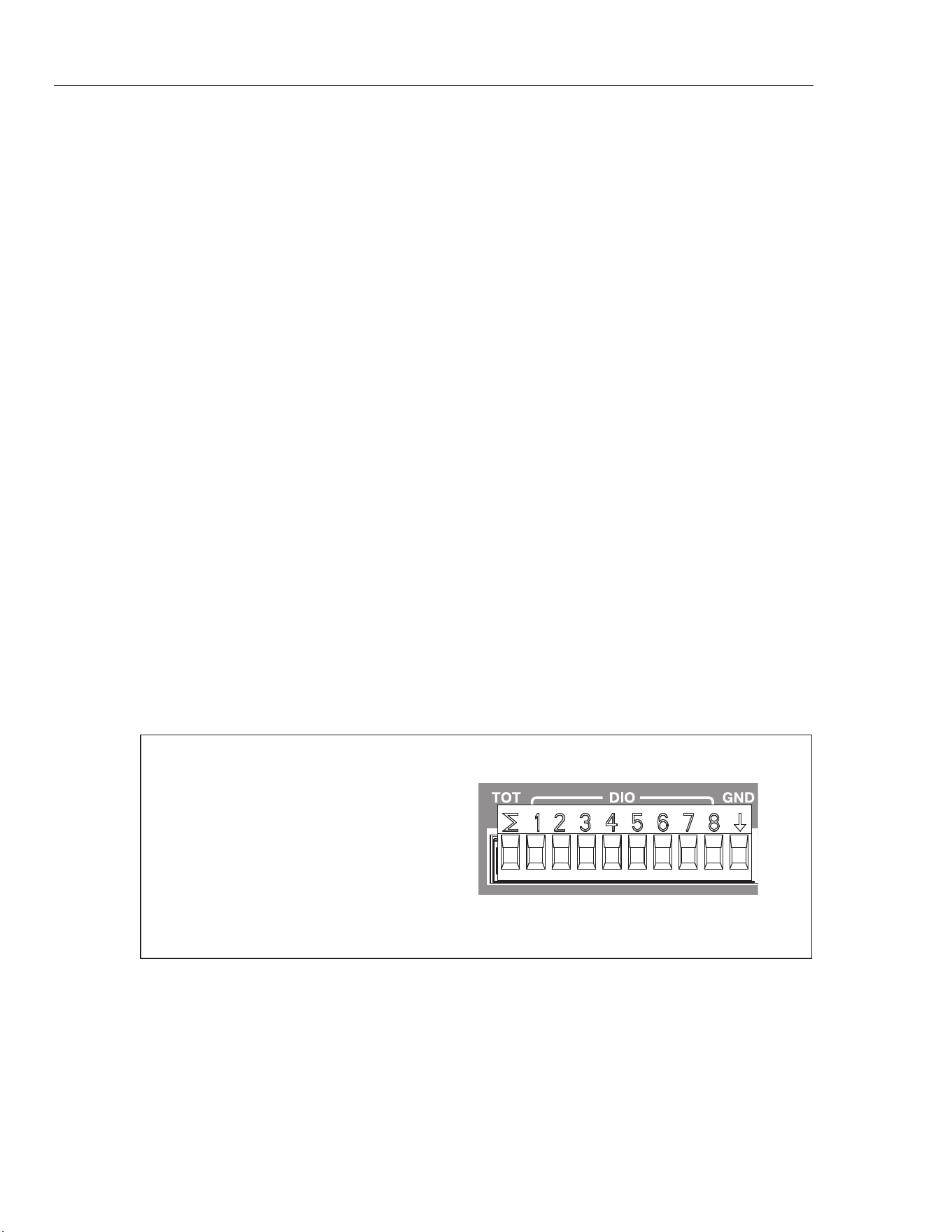
2638A
Users Manual
3-24
3. Set channel 401 to ON (see “Set Channels to ON or OFF” on page 3-11).
4. Assign a label to the channel if desired.
5. To measure the DIO, monitor channel Ch401 in the Scan/Monitor menu. The
8-bit TTL value is shown on the display and the decimal equivalent will be recorded
to the data file.
Totalizer Channel Configuration (Ch402)
The Product is equipped with a unidirectional, resettable totalizer with an input count
capability of 0 to 1048575 (20 bits). When a digital input is connected to the TOT input
on the rear panel and Ch402 is set to on, the Product counts each time the dc voltage of
the signal transitions from high to low or a contact closes to the ground (GND). When a
scan started, the TOT counter is reset to 0. The totalizer count can be manually reset at
any time with in the Scan menu.
Read Mode
The totalizer function has two read modes: read and read/reset. The mode can be set in
Channel Setup or by remote command. The default totalizer mode is read.
In read mode, the count is not effected when read during the scan sweep or read by
remote command.
In read/reset mode, the totalizer count is automatically reset to 0 when it is read during a
scan sweep or read by remote command. It is not effected by pause scan. The totalizer
count is not reset when it is viewed with the Monitor function.
Debounce
In some applications, contacts can “bounce” when they close that results in multiple
signals on one line. Without a filter the Product detects multiple closures that can cause
duplicate counts for one closure. To filter the signal, the Product has a debounce feature
that can detect bounce on the signal and ignore it. Debounce (600 Hz) can be turned on
with the Edit channel function of the Totalizer channel (Ch402). If the debounce feature
is disabled, 10 kHz is the maximum frequency the Totalizer input can support.
Terminal
TOT
1
2
3
4
5
6
7
8
GND
Function
Totalizer Input
Input/Output Line 1
Input/Output Line 2
Input/Output Line 3
Input/Output Line 4
Input/Output Line 5
Input/Output Line 6
Input/Output Line 7
Input/Output Line 8
Ground Terminal
hce040.eps
Figure 3-8. Totalizer Input (TOT)
1.888.610.7664 sales@GlobalTestSupply.com
Fluke-Direct.com
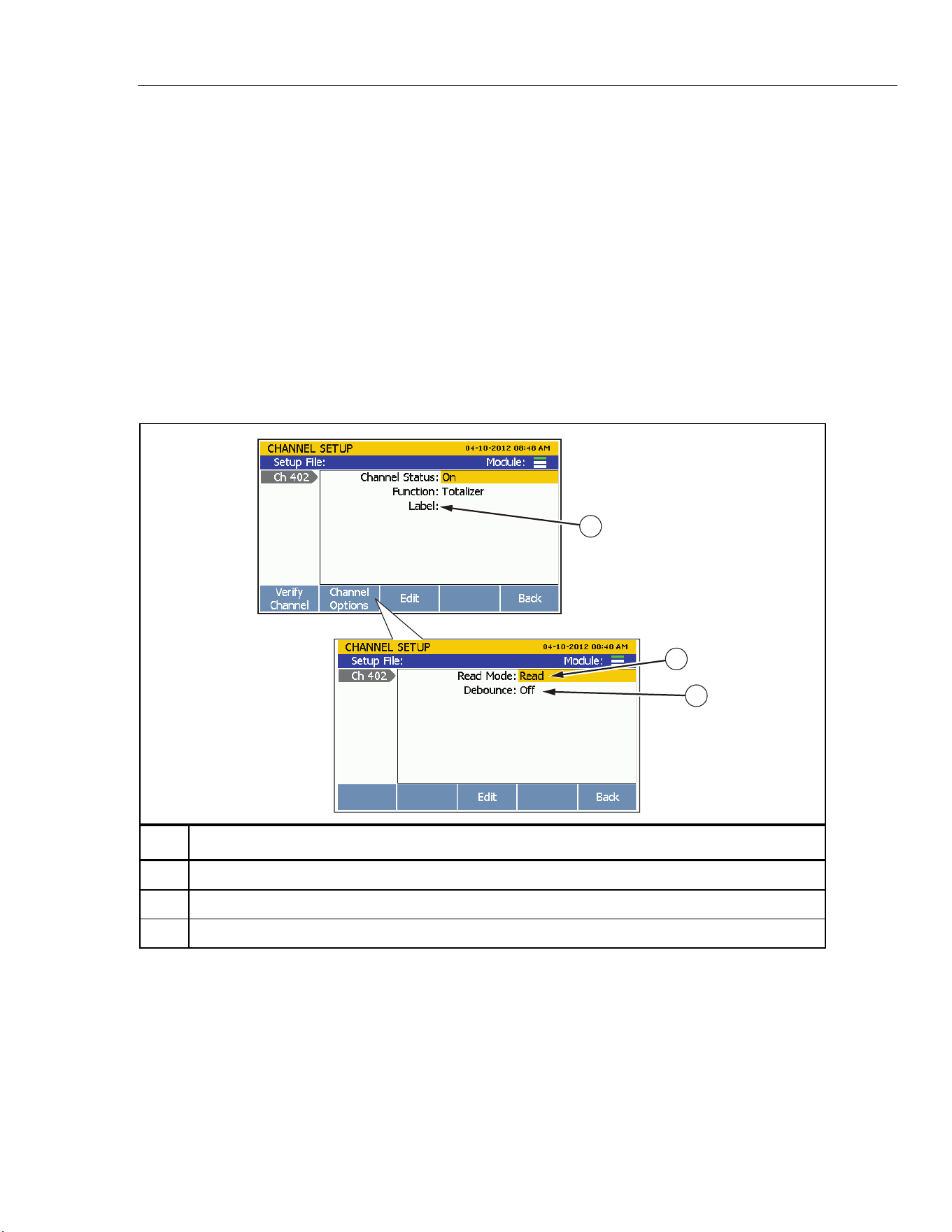
Input and Channel Configuration
Channel Configuration 3
3-25
Set up a totalizer channel as follows (see Table 3-10):
1. Connect the input to the TOT input terminal then insert it into the rear-panel Digital
I/O port.
2. Set the channel to ON (see “Set Channels to ON or OFF” on page 3-10). When the
channel is set to ON, a channel configuration sequence shows on the display that
steps the user through an initial configuration sequence as shown in Table 3-10. If the
channel was previously configured, push to cancel the configuration sequence
to use the last channel configuration.
3. Use the information in Table 3-10 to configure the totalizer channel. Push or to
highlight the channel setting then push to edit the setting.
4. To see the totalizer count, monitor Ch402 in the Scan/Monitor menu.
Table 3-10. Totalizer Channel Configuration
1
2
3
hce054.eps
Item Function
Input a custom alpha-numeric label to help identify the channel (optional).
Read mode selection. See “Read Mode” on page 3-24.
Set the Debounce feature to ON or OFF. See “Debounce” on page 3-24.
1.888.610.7664 sales@GlobalTestSupply.com
Fluke-Direct.com
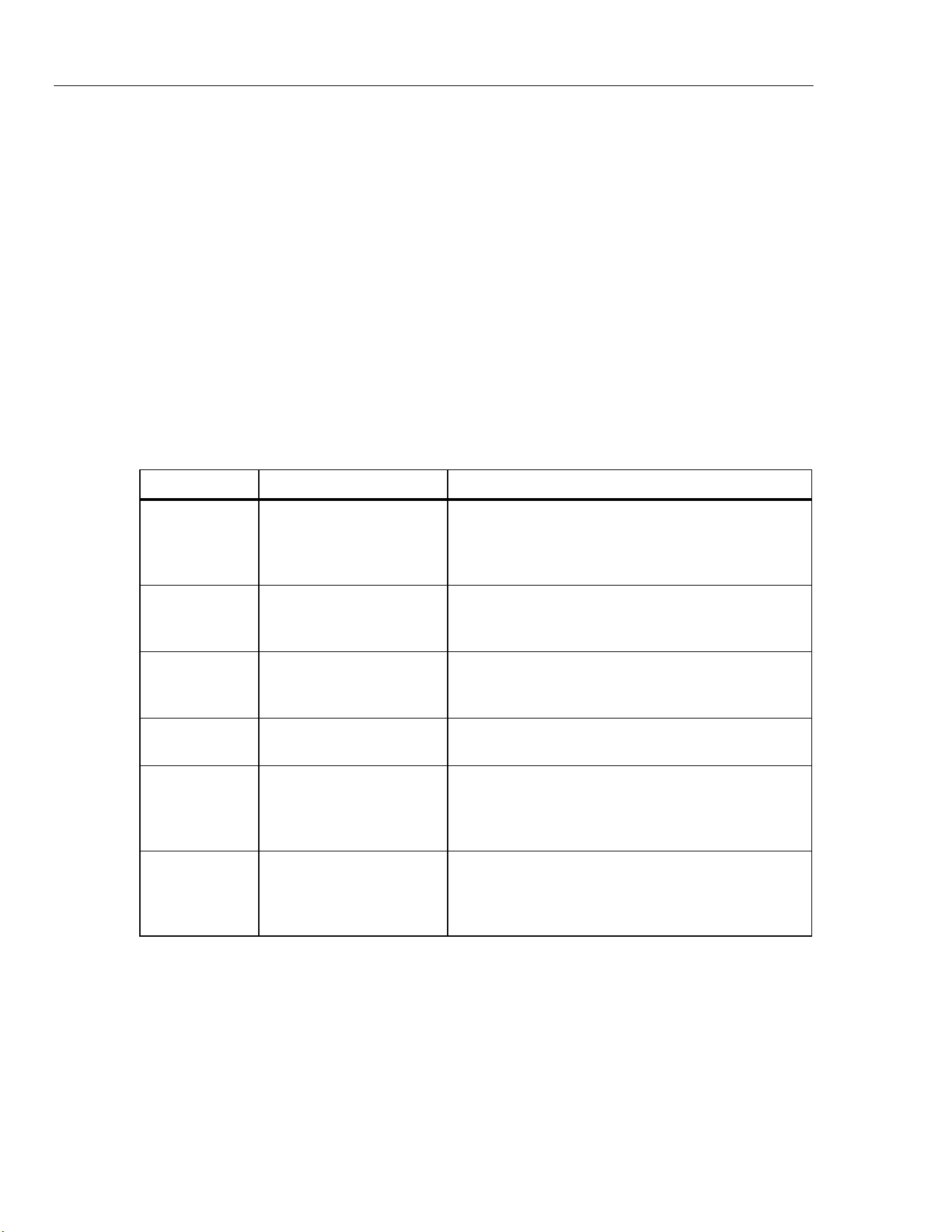
2638A
Users Manual
3-26
Math Channel Configuration (Ch501 to Ch520)
The Product has 20 math channels that lets the user apply a math conversion to a single
channel or to a range of channels through the use of preset math functions. Table 3-11
lists the math functions available for use.
Math channels are commonly used to combine the measurement values then display them
as one number without the need to manually calculate the values. Like all other channels,
math channels can be scanned and recorded.
Another use of the math channels is to apply a math conversion to a single channel that is
more advanced than Mx+B scaling. For example, a more accurate conversion of an
output of a transducer to a physical parameter.
More complicated expressions can be made with a math channel that uses the
calculations from two other math channels. For example, a math channel could be
configured to calculate the exponential function of another math channel that is
configured to calculate a polynomial function of an input channel.
Table 3-11. Math Channel Formulas
Formula Equation Description
Polynomial
C
6
A
6
+ C
5
A
5
+ C
4
A
4
+ C
3
A
3
+ C
2
A
2
+ C
1
A + C
0
Calculates a polynomial expression of up to sixth order.
Coefficients may be set to arbitrary constants. A
polynomial of order less than six is created by setting
high order coefficients to 0.
Square Root √A
Calculates the square root function. The argument must
be a positive number, otherwise the result will be "+OL"
(over limit).
Power A
x
Calculates the power of the variable. The exponent can
be a noninteger number but the result will be "+OL" if the
argument is negative.
Exponential e
A
Calculates the exponential function of a variable, where
e is 2.718.
Log10 Log10(A)
Calculates the logarithm, base 10, of a variable. The
argument must be positive or the result will be "+OL".
This formula is helpful when used with an Mx+B scale
factor of 20 to convert a reading to decibels.
|A| ABS(A)
Calculates the absolute value of a variable, converting a
value to a positive number if it happens to be negative.
The absolute value function can be useful to ensure that
the argument to another math channel is always positive.
1.888.610.7664 sales@GlobalTestSupply.com
Fluke-Direct.com
Input and Channel Configuration
Channel Configuration 3
3-27
Table 3-11. Math Channel Formulas (cont.)
Formula Equation Description
1 / A 1 / A
Calculates the reciprocal of a variable. The argument
cannot be 0 or the result will be "+OL".
A + B A + B
Adds the readings of two source channels. This is useful
to create expressions of more than one independent
variable.
A – B A – B
Calculates the difference between readings of two
source channels.
A x B A x B
Multiplies the readings of two source channels. This can
be useful for calculating electric power from a voltage
reading on one channel and a current reading on
another channel.
A / B A / B
Divides the reading of one source channel by the
reading of another channel. This can be useful for
observing the ratio of two related parameters. The
argument cannot be 0 or the result will be "+OL".
Average
[1]
A1 + A2 + A3…
N
Calculates the arithmetic mean of the readings of
selected channels.
Maximum
[1]
N/A Finds the maximum reading among selected channels.
Minimum
[1]
N/A Finds the minimum reading among selected channels.
Sum
[1]
A1 + A2 + A3… Calculates the sum of the readings of selected channels.
Note
[1] - Maximum of 10 channels can be calculated.
Set up a math channel as follows (see Table 3-12):
1. Connect and configure the channel or channels to apply the math formula to.
2. Set the channel to ON (see “Set Channels to ON or OFF” on page 3-10). When the
channel is set to ON, a channel configuration sequence shows on the display that
steps the user through an initial configuration sequence as shown in Table 3-12. If the
channel was previously configured, push to cancel the configuration sequence
to use the last channel configuration.
3. Use the information in the Table 3-12 to configure the math channel. Push or
to highlight the channel setting then push to edit the setting.
1.888.610.7664 sales@GlobalTestSupply.com
Fluke-Direct.com
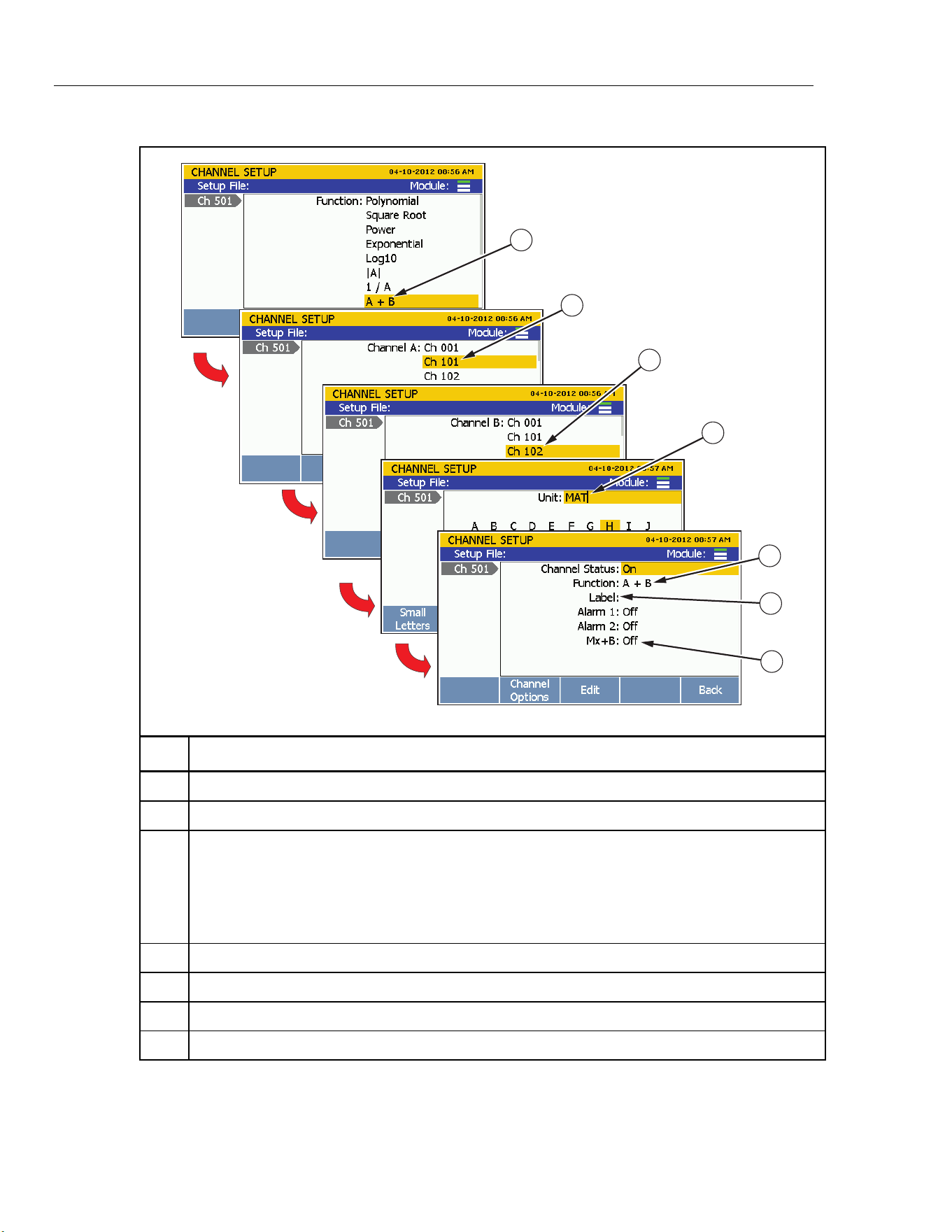
2638A
Users Manual
3-28
Table 3-12. Math Channel Configuration
1
2
3
4
5
6
7
hce043.eps
Item Function
Math formula selection.
Channel selection for the first base channel “A”.
Channel selection for the second base channel “B”.
Note
Only channels “A” and “B” are shown in the example because the sum math formula only
combines two channels. Some formulas have only one source channel while some others allow
more than two source channels.
Set the unique unit to be associated with the measurement value.
Input a custom alpha-numeric label to help identify the channel (optional).
Set an alarm for this channel (optional). See “HI and LO Channel Alarms” on page 3-30.
Apply Mx+B scaling to the measurement (optional). See “Mx+B Scaling” on page 3-29.
1.888.610.7664 sales@GlobalTestSupply.com
Fluke-Direct.com

Input and Channel Configuration
Mx+B, Alarms, and Channel Options 3
3-29
Mx+B, Alarms, and Channel Options
The subsequent sections supply information and procedures on how to apply Mx+B
scaling, set up channel alarms, and configure additional channel options.
Mx+B Scaling
Mx+B is a calculation that can be applied to a channel to scale a measurement value. This
feature is useful in applications where an input measurement needs to be converted to a
different unit or value to simulate an output. Common scaling conversions are:
• Scaling of a milliamp output of a pressure transducer to the equivalent kPa or psi
value.
• Scaling of a temperature reading from degrees Celsius to kelvins.
• Conversion of shunt resistor voltage to current in amperes.
To calculate Mx+B, the "M" value is referred to as the “gain” and is used as a multiplier
of the actual reading. After the gain is calculated, the "B" value or the “offset” is added to
the resultant.
For example, if a channel measures a voltage of 3 volts and the gain was set to 3.3, the
measurement on the display would read 9.9 volts (3 V * 3.3 gain = 9.9 V). Now the offset
is added to the gain. If the offset was set to 11.0, it would be added to the 9.9 volts and
the display would read 20.9 volts (9.9 V + 11.0 offset = 20.9 V).
More examples:
(6.9 gain * 20 mA) + 16.0 offset = 154 kPa
(1.0 gain * 25.0 °C) + 273.15 offset = 298.15 K
(10.0 gain * 0.32 V) + 0.0 offset = 3.2 A
If necessary, the Mx+B menu lets the user designate a new unit to accurately represent
the scaled measurement. This unit shows on the display and in the recorded scan data as
long as Mx+B is set to ON. If the Mx+B is set to OFF, the unit reverts back to the
original unit. When a channel has Mx+B scaling applied, a [Mx+B] icon is shown above
the unit next to the measurement value.
Note
If the scaled value is too large, "OL" (overload) is displayed. Adjust the
gain or the offset and try again.
1.888.610.7664 sales@GlobalTestSupply.com
Fluke-Direct.com

2638A
Users Manual
3-30
The Product uses the offset to zero a channel. To do this, the Product calculates the offset
required to convert the measurement to a zero value, sets Mx+B to ON, and loads the
calculated offset value into the Mx+B settings. To clear the zero, the offset value can be
manually set back to the original value (usually “0”) or Mx+B can be set to OFF if it was
off before the channel was zeroed. See “Zero a Channel” on page 3-12 for instructions on
how to zero a channel.
To apply an Mx+B scaling to a channel:
1. Push .
2. Push or to highlight a channel.
3. Set the channel to
ON if necessary.
4. Push to edit the channel.
5. Select Mx+B and push .
6. Input the Gain and Offset values and set the unit as desired. When complete, push
to return to the previous menu.
7. Verify the channel. If the scaled channel gives unexpected results (like zero or
“OL”):
• Verify that the correct gain and offset values are set.
• Manually calculate the result with the entered gain and offset values. See the
examples in this section.
• Temporarily set the gain to 1 and the offset to 0 to verify that the measurements
are in the expected range. Unexpected measurements could result from a wiring
error or the wrong range or function selected.
HI and LO Channel Alarms
Each channel has two channel alarms that can have custom values assigned to trip when a
channel measurement exceeds the assigned high (HI) or low (LO) limit. If an alarm trips,
the measurement value on the display changes to red and will stay red until the
measurement is back in the normal range.
In addition to the visual indication, the channel alarm can be tied to one of the six alarm
outputs on the rear panel (see Figure 3-9 and Figure 3-10). An alarm output can have
multiple channels assigned to it. If an alarm trips, the alarm outputs a low condition
signal (<0.7 V dc). A common use of this feature is to connect to an external audio alarm
that will sound if the channel alarm is tripped.
To set a channel alarm:
1. Push
.
2. Push or to highlight a channel then push .
3. Push or to highlight
Alarm then push .
4. Select
Alarm 1 or Alarm 2 then push .
1.888.610.7664 sales@GlobalTestSupply.com
Fluke-Direct.com
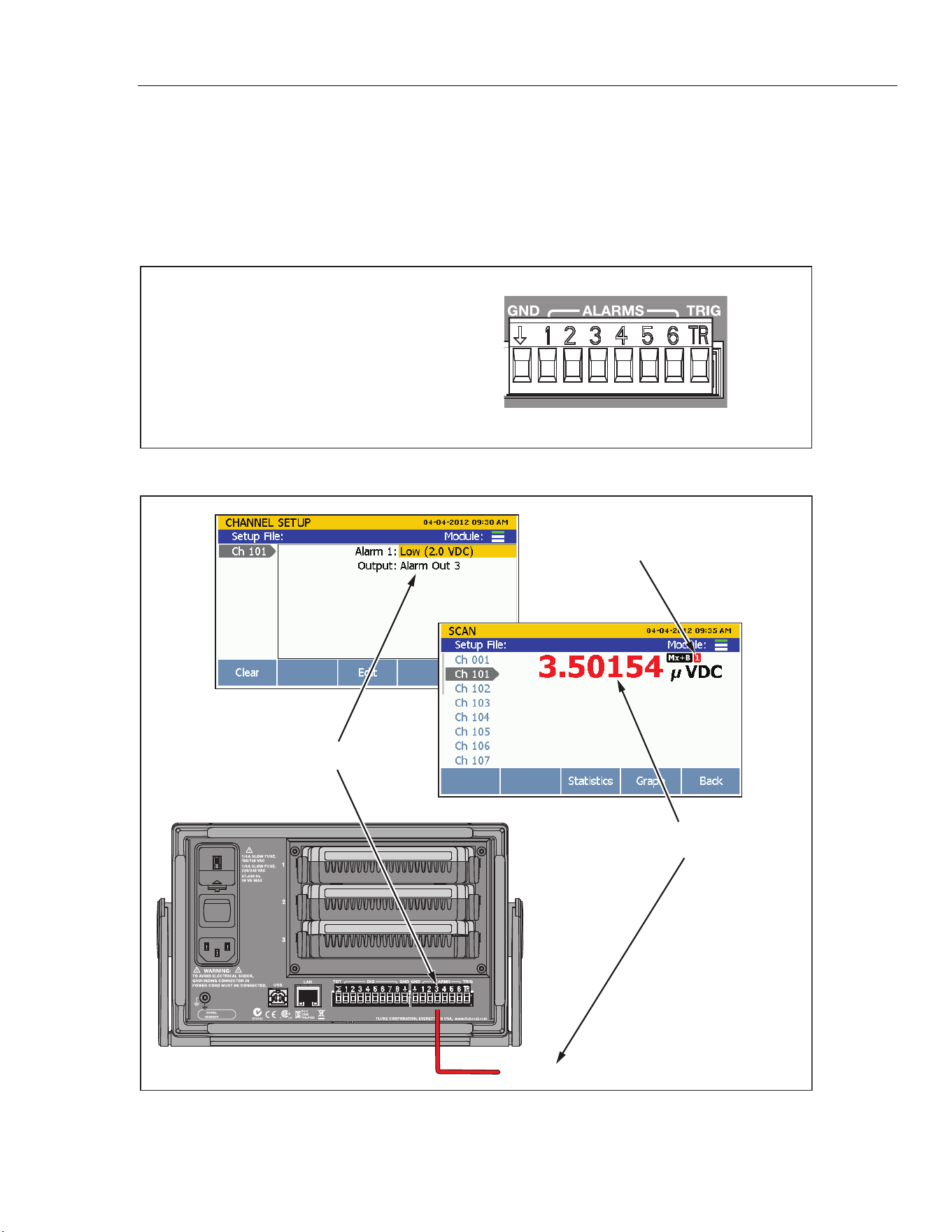
Input and Channel Configuration
Mx+B, Alarms, and Channel Options 3
3-31
5. Highlight High or Low then push .
6. Use the numeric keypad to input the limit (
Setpoint).
7. To turn on an alarm output:
a. Highlight
Output the then push .
b. Highlight an alarm output to assign to the channel then push .
Terminal
GND
1
2
3
4
5
6
TRIG
Function
Ground Terminal
Alarm Output 1
Alarm Output 2
Alarm Output 3
Alarm Output 4
Alarm Output 5
Alarm Output 6
External Trigger Input
hcn041.eps
Figure 3-9. Rear-Panel Alarm Outputs
= Low Condition (<0.7 V dc)
Alarm Setup
Lower-limit exceeded, alarm
output 3 outputs <0.7 V dc
Monitor Screen
Rear View
Alarm output 3 low limit set to 2 V dc
Alarm Indicator
hcn035.eps
Figure 3-10. Alarm Output Example
1.888.610.7664 sales@GlobalTestSupply.com
Fluke-Direct.com

2638A
Users Manual
3-32
Channel Delay
A channel delay is a measurement time delay that can be individually assigned to each
channel to delay the measurement. Channel delays can be used for various applications,
but they are most useful in applications where the source impedance or circuit
capacitance is high. Use of a channel delay in these applications allow the input signal to
settle before a measurement is made. This provides better measurement accuracy.
When a channel delay is set, the Product inserts the delay after the channel relays switch
and waits until the channel delay time runs out before it measures the channel. Channel
delays are set in seconds and the default setting is 0 seconds.
To set a channel delay:
1. Push
.
2. Push or to highlight a channel then push .
3. Push to open the Channel Options menu.
4. Select
Channel Delay then push .
5. Set the custom channel delay. The delay can be manually set in 1 millisecond
increments from 1 millisecond to 600 seconds.
Rate of Change
Rate of Change is a statistical calculation that shows the user how much a measurement
value has changed over a period of time. The Rate of Change is viewed in the
statistics/graphing area in the Scan Menu. The Rate of Change setting in the Channel
Options menu sets the scaling to per second (/s) or per minute (/min).
Note
Per minute (/min) is the default scaling selection unless otherwise changed.
To determine the rate of change, the Product compares two readings of a channel
sampled at different times. First, the product computes the difference between the two
readings and then divides it by the time difference between the samples in seconds. The
result is then multiplied by the time base in seconds (60 for per minute) to determine the
Rate of Change.
Note
If a channel is sampled more frequently than once every 10 seconds, two
readings about 10 seconds apart are selected. If the interval between
readings is 10 seconds or longer, the latest two readings are used.
To change the Rate of Change time base for a channel:
1. Push
.
2. Push or to highlight a channel then push .
3. Push to open the Channel Options menu.
4. Select
Rate of Change then push .
5. Select per second or per minute then push .
1.888.610.7664 sales@GlobalTestSupply.com
Fluke-Direct.com

Input and Channel Configuration
Mx+B, Alarms, and Channel Options 3
3-33
NPLC
NPLC (Number of Power Line Cycles) is a user defined measurement speed selection
used to filter out induced ac signal noise and other inherent noise signals (line frequency
noise typically) on dc voltage, dc current, and resistance channels. It gives the user fine
control of the measurement time for either faster speed or better accuracy. Lower NPLC
increases the scan speed, but results in lower measurement accuracy. Higher NPLC
improves the measurement accuracy, but reduces the scan speed.
Higher NPLC settings are necessary in some precise measurement applications where
power line induced ac noise can affect precise dc signal measurements. Induced ac noise
is usually not uniform and requires multiple samples to accurately read the induced ac
signal. The more samples (the higher the NPLC setting), the better the ac noise can be
counteracted and filtered out. To increase the measurement accuracy and to better filter
the ac noise, the NPLC setting can be manually increased so that the Product samples the
ac noise signal over multiple cycles to get a better average of the signal.
In summary, when higher NPLC settings are set, the measurement value is more accurate,
but the tradeoff is that it takes longer for the Product to complete the measurement (see
“About Scan Timing and Sampling” in Chapter 5). For applications where ac noise will
not affect the test outcome (such as a true or false digital logic), a lower NPLC setting is
recommended for faster measurements.
Input Impedance
This setting is used to set the input impedance on the channels. For the 100 mV, 1 V,
10 V dc voltage function, there are two available choices: 10M or >10G. The default
setting is 10M.
Bandwidth
This setting is used to select the bandwidth of ac filter for ac voltage and ac current
functions. The available choices are: 20Hz or 200Hz. The default setting is 20Hz.
Display As
This setting is used to set the display to show temperature or the mV equivalent for
thermocouple channels.
Open Detect
This setting enables the Product to automatically detect an open circuit in the probe. This
setting only shows in a thermocouple channel.
1.888.610.7664 sales@GlobalTestSupply.com
Fluke-Direct.com

4-1
Chapter 4
Scan/Monitor, Record, and Data
Introduction
This chapter supplies information on the Scan, Monitor, and Record functions along with
procedures and instructions.
Scan
Scan is a function of the Product that sequentially measures each channel and either
temporarily shows the data on the display or records it to file if the recording feature is
enabled (see “Record” on page 4-14). Scans are started manually by the user or by an
internal or external trigger. To scan a channel, the Product sequentially cycles through the
channels that are active and makes measurements as directed by the Test Setup file (see
“Configure a Scan” on page 4-5).
Note
Monitor is a function to see the measurement data from a single channel
while a scan is in progress (see “Monitor” on page 4-13). Use of the
monitor function does not interrupt the active scan and only shows the
measurement data from the last scan cycle completed.
In order for the Product to scan, the applicable channels need to be active and the unit
under test (UUT) must be connected and ready. After these steps are complete, a scan can
be started from the Scan/Monitor menu. If “Auto Recording” in the Test Setup menu is
set to ON, the Product automatically records the scan data when the scan is started. If set
to OFF, the user must manually push the Record key () to record the measurement
data to file. The scan data is stored to memory where it can be transferred to a PC to be
viewed with Microsoft Excel (see “Open and View Measurement Data on a PC” on
page 4-15).
While a scan is in progress, the measurements and statistics for all channels can be
viewed in a chart or in a graph without interruption to the scan (see Figure 4-4). After a
scan is stopped, this scan data stays in temporary memory and remains available until a
new scan is started.
1.888.610.7664 sales@GlobalTestSupply.com
Fluke-Direct.com
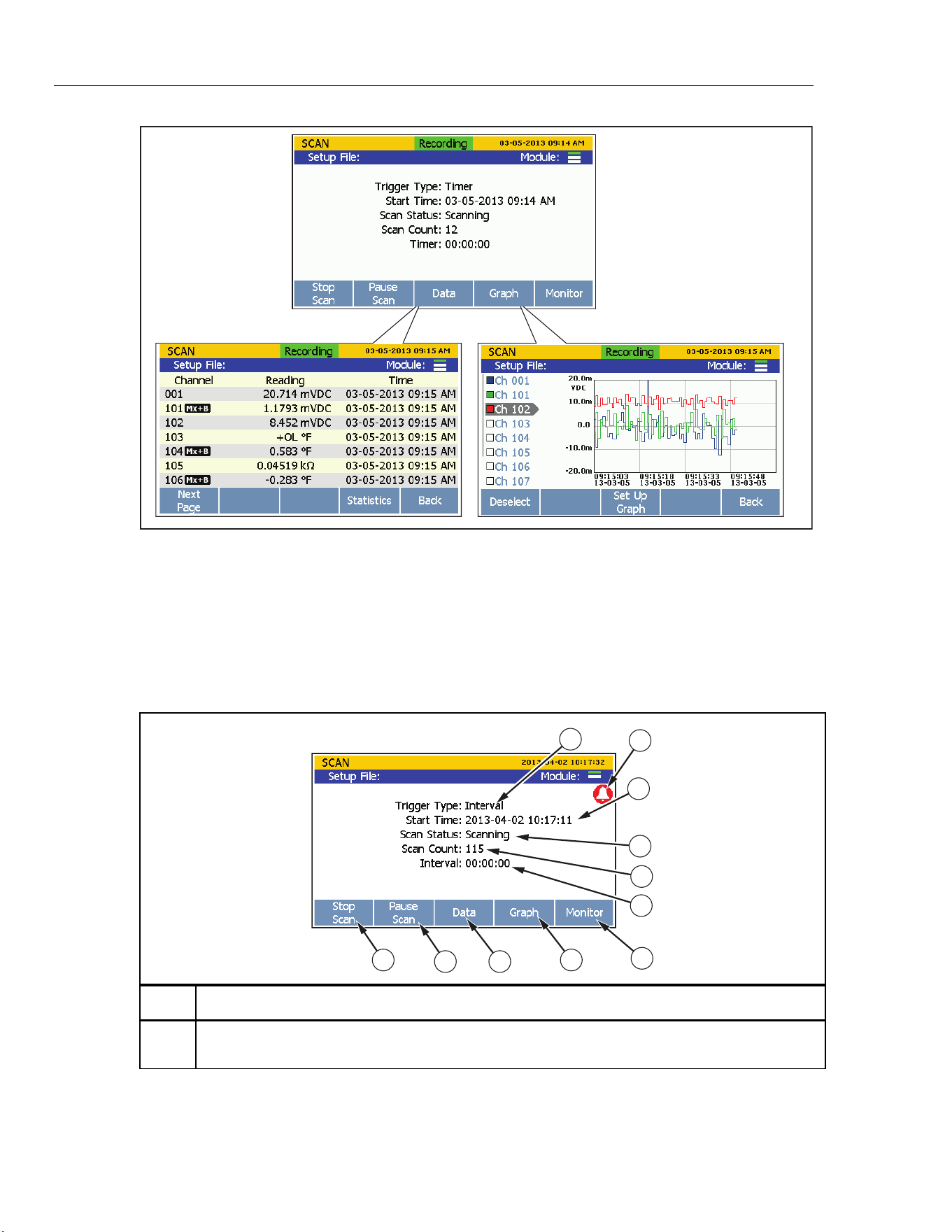
2638A
Users Manual
4-2
hcn038.eps
Figure 4-1. Scan Data
The Scan menu lets the user control the scan and view the scan data. The Scan menu also
shows important status indicators to quickly inform the user of the scan status and
progress of the scan. Table 4-1 shows the Scan menu and describes the status indicators
and functions that can be performed from this menu. To open the Scan menu, push
on the front panel.
Table 4-1. The Scan Menu
1
5
4
3
6
7
8
910
11
2
hce055.e
p
s
Item Function
Shows the type of trigger configured in the Test Setup. The trigger type determines when a scan
starts and stops. See “Trigger Type” on page 4-6.
1.888.610.7664 sales@GlobalTestSupply.com
Fluke-Direct.com
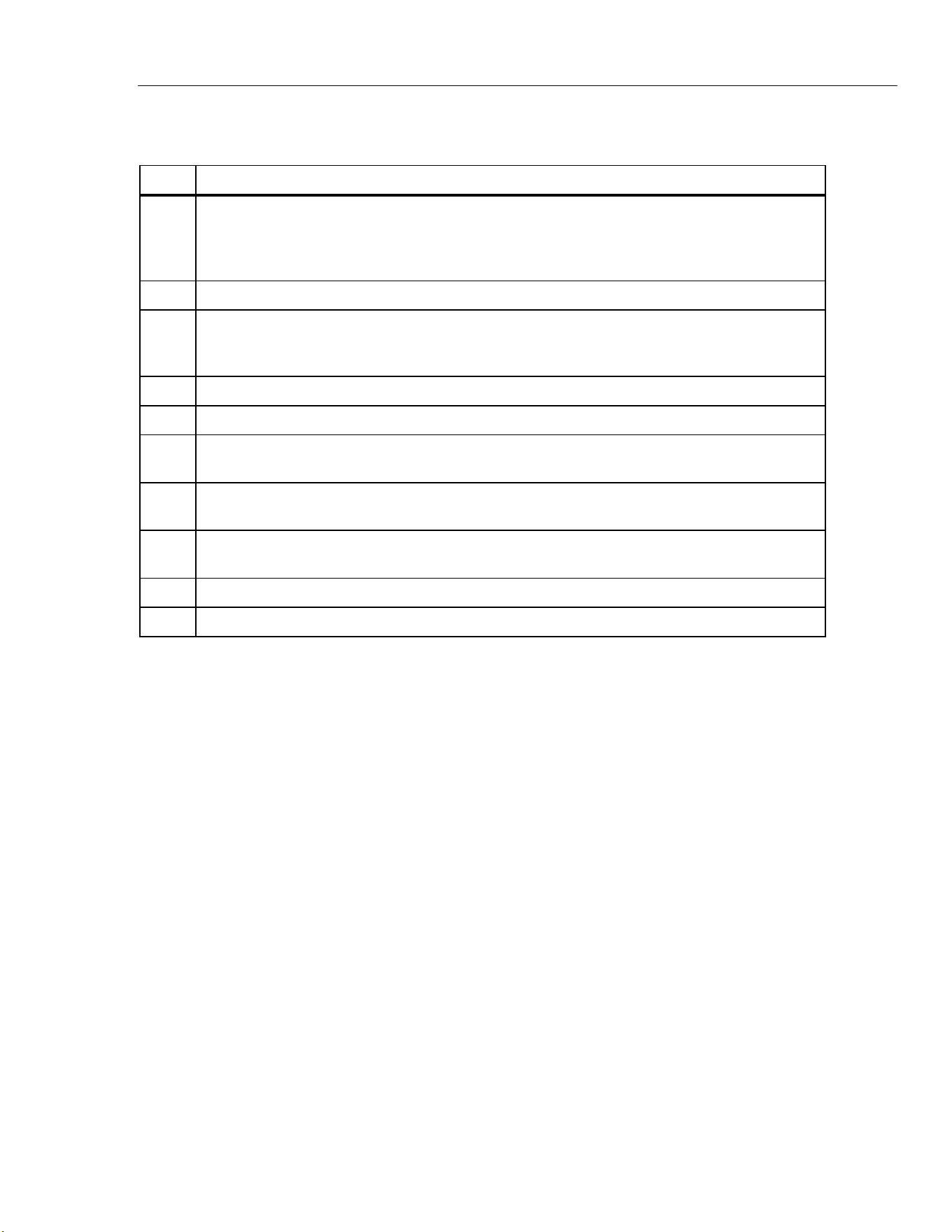
Scan/Monitor, Record, and Data
Scan 4
4-3
Table 4-1. The Scan Menu (cont.)
Item Function
Master alarm indicator that displays when any configured channel alarm is tripped while a scan is
in progress. To see which alarm tripped, push on the Scan menu to open the channel data.
If an alarm has tripped, a [1] or [2] icon will show next to the channel to indicate which alarm is
tripped.
Shows then the scan was started. This field is blank until the first scan is started.
Shows the status of the scan. This field shows “Scanning” when a scan is in progress, "Paused"
when the scan is paused, "Waiting" when the Instrument is waiting for the trigger, and “Inactive”
when scanning is stopped.
Shows the number of scan sweeps have been completed since the start of the scan.
Countdown timer displayed only when the trigger source is Timer, Alarm or External.
Opens the Monitor function to take measurements of a single channel between scan sweeps. See
“Monitor” on page 4-13.
Opens the Graph feature that lets the user plot the measurement data on a scalable graph. See
“Graph the Measurements” on page 4-12.
Opens a spreadsheet view of all the most recent samples for each channel along with helpful
statistics. See “View Scan Data and Statistics” on page 4-11.
Pause a scan after it is started. The softkey is not visible when the scan is inactive.
Start or stop a scan. See “Start a Scan” on page 4-10.
About Scan Timing and Sampling
When a scan is started, the Product sequentially scans and measures (samples) each
active channel in ascending channel order. How long it takes to sample a channel
depends on the measurement function, the user-programmed channel delay, and the
sample rate of the scan or the NPLC setting of the channel. Collectively, the sum of
channel sample times determine how long it takes to complete a full scan cycle and is
referred to as the sweep time. See Figure 4-2 for an illustration of how the scan process
works.
The channel sample times and scan sweep times vary based on the channel and test
settings. The items below provide information on how these times can be impacted:
• The minimum channel sample time depends on the sample rate or NPLC setting and
the measurement function (see Table 4-3).
• The channel sample time includes any necessary settling delay prior to the ADC
sample to meet accuracy specifications in usual conditions. Table 4-4 lists the
internal fixed settling delays for each parameter type and range.
• In some conditions, it may be necessary to add channel delay to allow for longer
settling times. See “Channel Delay” in Chapter 3 for more information.
1.888.610.7664 sales@GlobalTestSupply.com
Fluke-Direct.com
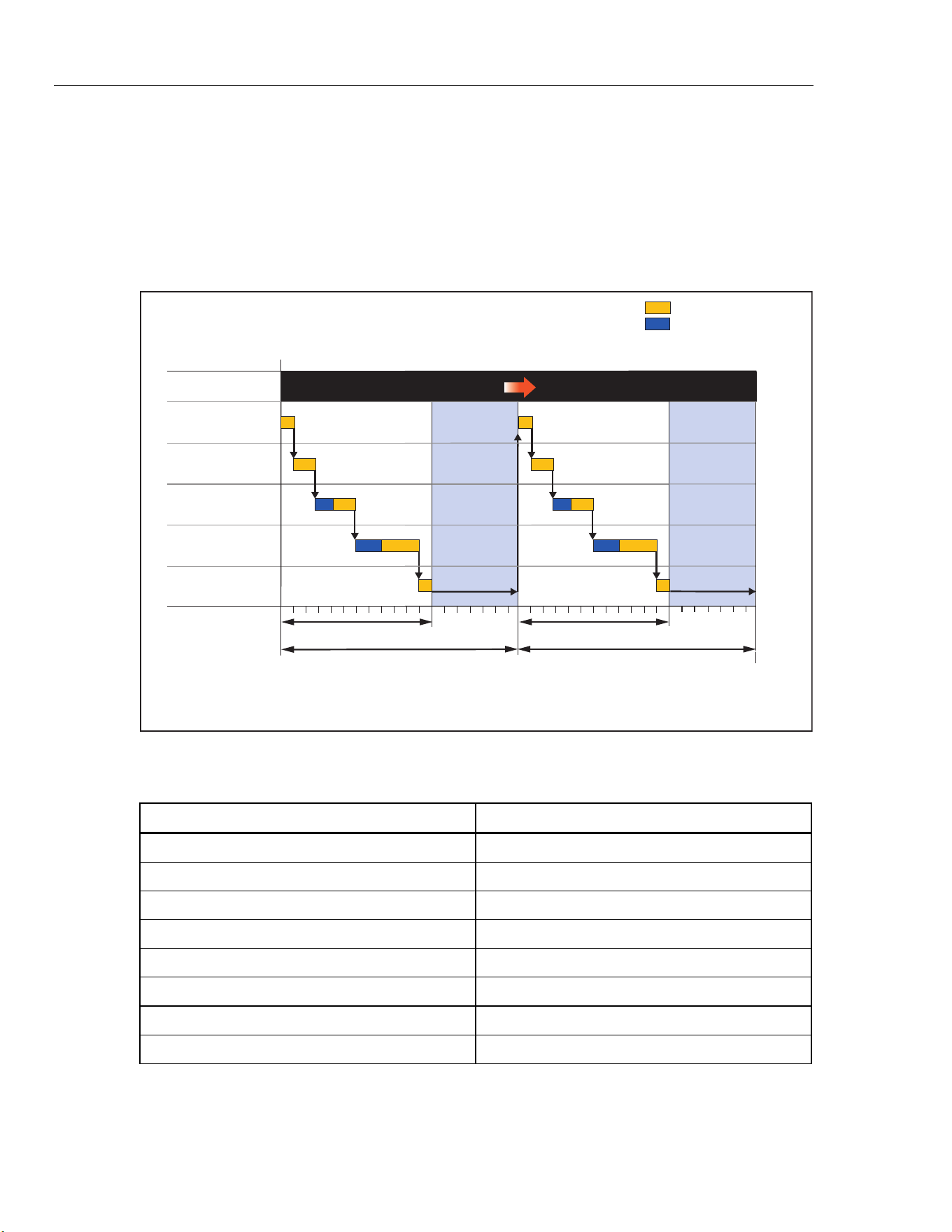
2638A
Users Manual
4-4
• The total channel sample time is the minimum sample time plus the user-
programmed channel delay. The longer the channel delay, the longer it takes to
sample the channel.
• The total scan sweep time is sum of the channel sample times of all the channels
scanned. A scan sweep will start when the selected trigger source is asserted if a
previous scan sweep is not still in progress (see "Trigger Type" on page 4-6).
• The interval at which scan sweeps occur can be fixed by programming the trigger
type to Timer and setting an interval time.
Channel List
SCAN START
Channel 102
Channel 104
Channel 115
Channel Delay Set
Channel 117
Channel Delay Set
Channel 121
- Sample Time*Key:
*Consists of NPLC time, settling time, and ADC samples.
- Channel Delay
Sweep Time
SCAN FINISH
Sweep Time
Scan Cycle 1
Scan Cycle 2
Scan IntervalScan Interval
Remaining
Interval
Remaining
Interval
Remaining
Interval
hcn050.eps
Figure 4-2. Illustration of a Scan Sweep
Table 4-2. Settling Time Delay Values
Type and Range Time Delay
100 mV dc 0 ms
1 V dc 0 ms
10 V dc 0 ms
100 V dc 100 ms
300 V dc 100 ms
ACV all ranges 20 Hz filter 400 ms
ACV all ranges 200 Hz filter 100 ms
A dc (all ranges) 0 ms
1.888.610.7664 sales@GlobalTestSupply.com
Fluke-Direct.com
Scan/Monitor, Record, and Data
Scan 4
4-5
Figure 4-2. Settling Time Delay Values (cont.)
Type and Range Time Delay
ACI all ranges 20 Hz filter 400 ms
ACI all ranges 200 Hz filter 100 ms
100 Ω 0 ms
1 kΩ 0 ms
10 kΩ 100 ms
100 kΩ 100 ms
1 MΩ 500 ms
10 MΩ 1 s
100 MΩ 1 s
Thermocouple all types 0 ms
PRT 400 Ω 0 ms
PRT 4 kΩ 100 ms
Thermistor 2 kΩ 500 ms
Thermistor 90 kΩ 500 ms
Thermistor 1 MΩ 1 s
Configure a Scan
Scans are configured in the Test Setup menu that is opened in the Channel Setup menu
(push
then push ). This section contains information on each parameter in the
Test Setup menu to help configure the scan. Figure 4-3 shows the Test Setup menu.
1.888.610.7664 sales@GlobalTestSupply.com
Fluke-Direct.com
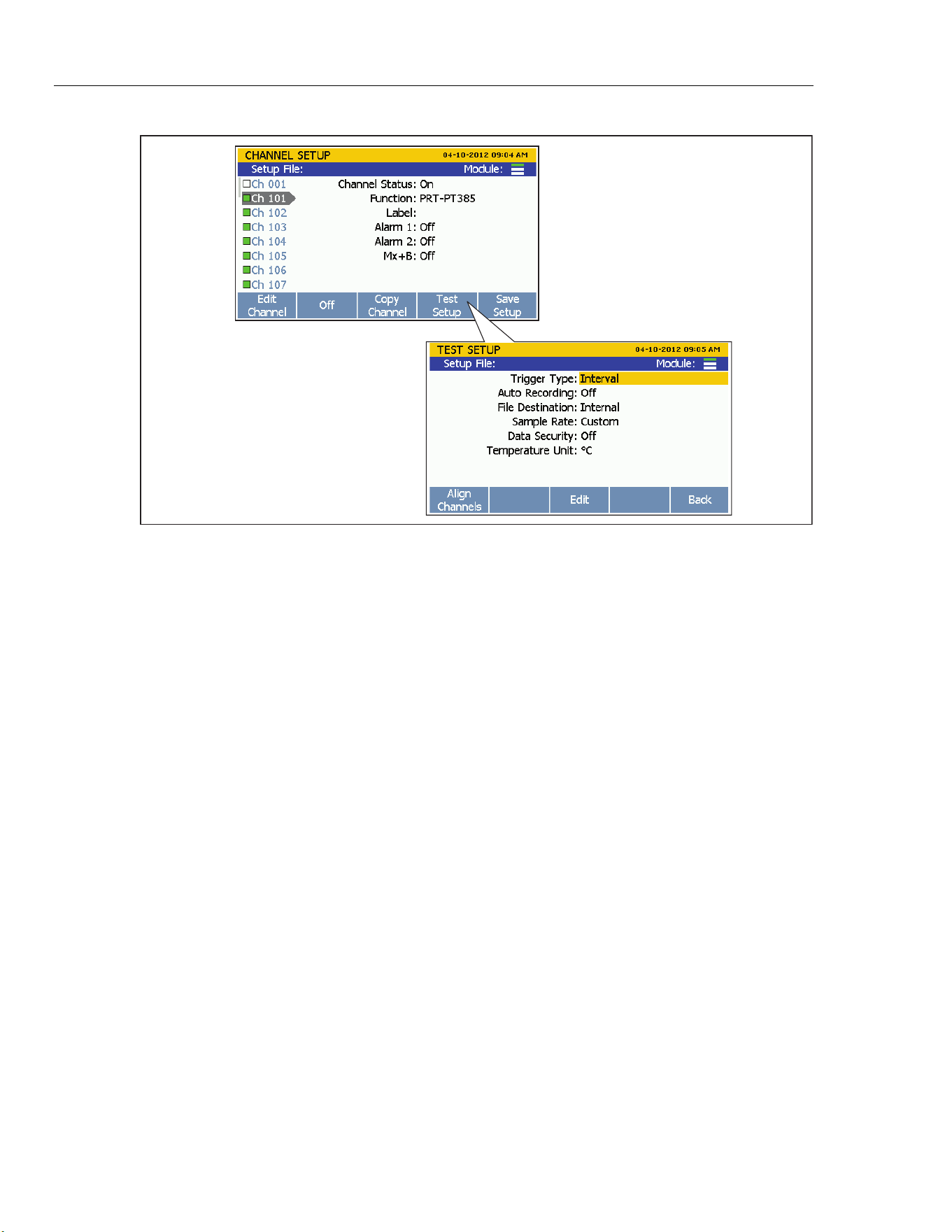
2638A
Users Manual
4-6
hcn032.eps
Figure 4-3. Test Setup Menu Example
Trigger Type
The Trigger Type tells the Product when and how to start and stop a scan. There are four
trigger types:
Note
If a Scan Count of 0 is set or if the scan interval is shorter than the scan
sweep time, the scan continuously repeats until the scan is stopped or the
Product runs out of memory.
• The
Interval trigger type sets the scan to happen on a user-defined numeric interval
that is started by a front-panel softkey in the Scan/Monitor menu. The user sets the
number of times to scan (Scan Count) and how often the scans occur (Interval).
• The External trigger type set the scan to start when a set TRIG input on the Digital
I/O port detects a low condition. Like Interval, the user manually sets the number of
times to scan (Scan Count) and the time between the scans (Interval).
• The
Alarm trigger type sets the scan to start when a HI or LO channel alarm is tripped
on a monitored channel. Like Interval, the user manually sets the number of times to
scan (Scan Count) and the time between the scans (Interval).
• The
Manual trigger type sets the scan to happen only when the user manually pushes
the Scan/Monitor key on the front panel. This trigger type lets the user set the number
of times to scan (Scan Count) when the key is pushed, but does not have an interval
time because the interval is a manual key push.
1.888.610.7664 sales@GlobalTestSupply.com
Fluke-Direct.com

Scan/Monitor, Record, and Data
Scan 4
4-7
Auto Recording
The Auto Recording feature automates the recording process. If Auto Recording is set to
ON, the Product automatically records the scan data to file when the scan is started. If set
to OFF, the user must manually push
to start recording.
File Destination
Scan data can be stored to internal memory or a USB drive. If set to Internal, scan data is
saved to the internal nonvolatile memory. If set to USB, scan data is saved to the USB
drive connected to the front-panel USB port.
Note
Scan data stored directly to the USB drive is not visible to the user through
the Memory menu. However, the Memory menu does show the user how
much memory is available on the USB drive. To manage the scan data files
on the USB drive, connect the USB drive to a PC and open the folder
named “Scan Data”. See “Open and View Measurement Data on a PC” on
page 4-15.
Sample Rate
The Sample Rate sets the speed the channels are scanned. When set to Fast, the Product
scans each channel very quickly that lets the user monitor the channels for rapid
measurements changes. As a result of the quicker scan speed, the Product is not given the
time to fine tune the measurement and results in a loss of one digit of measurement
resolution. For example, a temperature measurement would read 22.41 ºC with Slow and
22.4 ºC in Fast.
Note
Sample Rate should not be confused with Channel Delay and Rate of
Change in the advanced channel options. See “Scan Sweep” for more
information.
The four Sample Rates are: Fast, Medium, Slow, and Custom. Table 4-3 shows the
sample speeds for the different input types and ranges.
1.888.610.7664 sales@GlobalTestSupply.com
Fluke-Direct.com
2638A
Users Manual
4-8
Table 4-3. Scan Sample Rates
Functions
Sample Time (s)
Fast
[1]
Medium Slow
DC Current
DC Voltage
Resistance
0.2 PLC 1 PLC 10 PLC
AC Current
AC Voltage
Fixed to 10 PLC
Frequency Fixed to 1 PLC
PRT
Thermocouple
Thermistor
1 PLC 2 PLC 10 PLC
Data Security
Data security is used to secure data files that are traceable back to the user that performed
the test (commonly referred to as test traceability). This is necessary for test
environments and applications that require a method to guarantee that the test data has
not been forged, changed, or tampered with, and was produced by trained, authorized
personnel.
If the data security setting in the Test Setup menu is set to ON, the user must select a user
profile and enter the associated password in order to start and record a scan. The user
information is recorded into the scan data file that contains the user profile number and
test information. For more information on the scan data files, see “Record” on page 4-14.
For instructions on how to change the Admin or User profile passwords, see “Change the
Admin and User Passwords” in Chapter 2.
When Data Security is on, Setup files are also protected. A setup file created with Data
Security on cannot be changed or deleted except by an authorized user.
Note
If the guest option is used to start a scan, the user is recorded as "Guest"
and the data file is not considered authorized and traceable.
1.888.610.7664 sales@GlobalTestSupply.com
Fluke-Direct.com

Scan/Monitor, Record, and Data
Scan 4
4-9
Temperature Unit
This is an overall Product setting that sets the temperature units to be shown in either
Celsius or Fahrenheit.
Notes
• The ability to change this setting to Fahrenheit is not available in
some regions.
• Mx+B and Alarm settings of temperature channels are reset when the
temperature unit is changed.
Align Channels
The Align Channels function lets the user designate a reference channel to align other
channels to so that all the displayed measurements will be the same. This is accomplished
with an Mx+B offset that is automatically applied to the selected channels to make them
match the reference channel.
An application where this is commonly used is for temperature measurements. For
example, a reference probe that is fully calibrated is put into a chamber with other probes
that reads 250.52 °C. With the align function, the user sets the calibrated reference probe
channel to be the reference channel. The user then sets four probes channels to be aligned
with that reference that currently read 250.52 °C, 250.68 °C, 250.71 °C, 250.33 °C. When
the user aligns the probes, the Product calculates and applies an Mx+B offset to the
probes so that the displayed measurement value is the same as the reference probe. The
result is that all four probes now measure 250.52 °C.
To align to a reference channel:
1. Push
.
2. Push .
3. Push .
4. Use and to select a channel as the reference then push .
5. Use and to highlight a channel then push to set. Multiple channels can be
selected to align.
6. Push to align the channels. The Product will take measurements on the
reference channel and selected channels, then use Mx+B function to align these
channels to the reference.
1.888.610.7664 sales@GlobalTestSupply.com
Fluke-Direct.com

2638A
Users Manual
4-10
Automatic Power Loss Scan Resume
In the event that the Product experiences a loss of mains power while a scan is in
progress, it can be configured to resume the scan when mains power comes on. This
feature is referred to as “Power Loss Resume State”.
Note
This setting is located in the Instrument Setup menu and not the Test Setup
menu.
Unlike when a new scan is started, the Product will resume recoding to the file that it was
recording to when the mains power was lost.
To turn on this feature:
1. Push
.
2. Push or to highlight
Resume Scan then .
3. Set to
ON then push .
Basic Scan Procedures
Start a Scan
To start a scan:
Note
Once a scan is started, the scan must be paused or stopped before the
Channel Setup or the Instrument Setup menu can be accessed.
1. Configure the Test Setup. See “Configure a Scan” on page 4-5.
2. Set all channels to be scanned to
ON. See “Set Channels to ON of OFF” in Chapter 3.
3. Push .
4. Start the scan as follows:
• For the
Interval trigger type: Push to start the scan. The scan completes the
amount of scan cycles set then automatically stops. At any time, push again
to stop the test or push to pause the test. If automatic recording is set to
OFF, push to record data.
• For the
External trigger type: Push to start the scan. The scan is triggered
by a low condition in the rear-panel Trig input. Once the low condition is
detected, the scan sweep starts and runs as directed by the interval configuration.
When the low condition that triggered the scan is removed, the Product will
finish the scan in progress then stop and wait for next external trigger.
1.888.610.7664 sales@GlobalTestSupply.com
Fluke-Direct.com
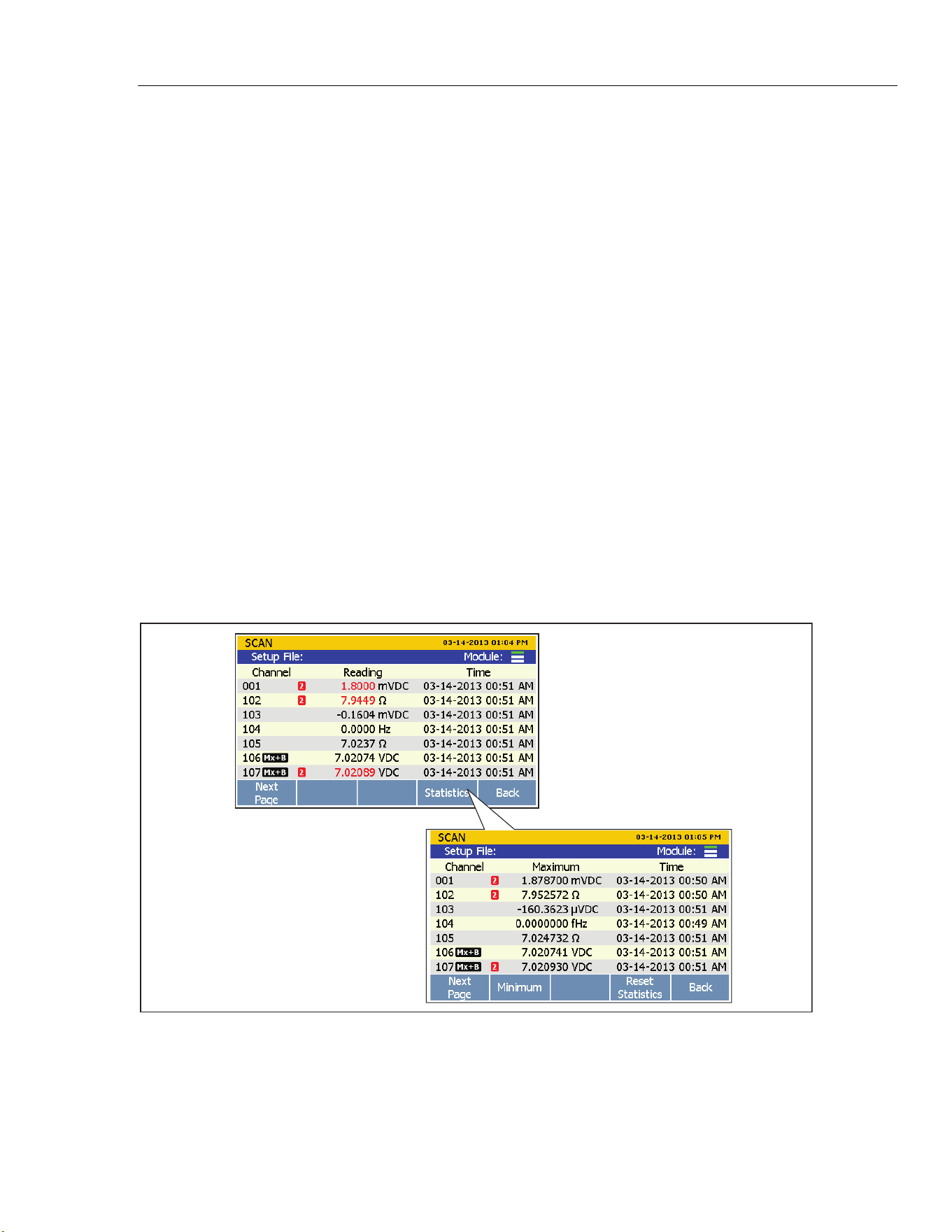
Scan/Monitor, Record, and Data
Scan 4
4-11
• For the Alarm trigger type: The scan sweep is triggered by an alarm that has
tripped. To do this, select the Alarm trigger type in the test setup and assign a
channel to be a trigger. When the scan is started, the Product automatically starts
to monitor the channel set as the trigger for a tripped alarm. Once an alarm is
tripped, the scan sweep starts and runs as directed by the test setup. Scan sweeps
will continue as long as the alarm is tripped. If the alarm is no longer tripped, the
Product will finish the scan in progress then wait for next alarm trip.
a. Configure the applicable channel alarm as previously described.
b. Push
then push to start the scan.
• For the
Manual trigger type: Push to start the scan. The scan performs one
scan cycle then stops. Push again to trigger another scan cycle. At any
time, push again to stop the test or push to pause the test. If automatic
recording is set to OFF, push to record data.
View Scan Data and Statistics
The Scan Data feature lets the user see the scan data from the last scan sweep (see
Figure 4-4). This feature is located in the Scan menu (push
then push ). The
data on this menu updates in real-time. From the Scan Data menu, the user can open a
Statistics menu to view minimum, maximum, average, and standard deviation statistics
for each channel (see Table 4-4).
If Mx+B is applied to the channel, an [Mx+B] icon will show next to the channel
number. If an alarm is tripped, the alarm number will show next to the channel as a red
icon and also the measurement value will be red. See Figure 4-4.
hcn055.eps
Figure 4-4. Scan Data
1.888.610.7664 sales@GlobalTestSupply.com
Fluke-Direct.com
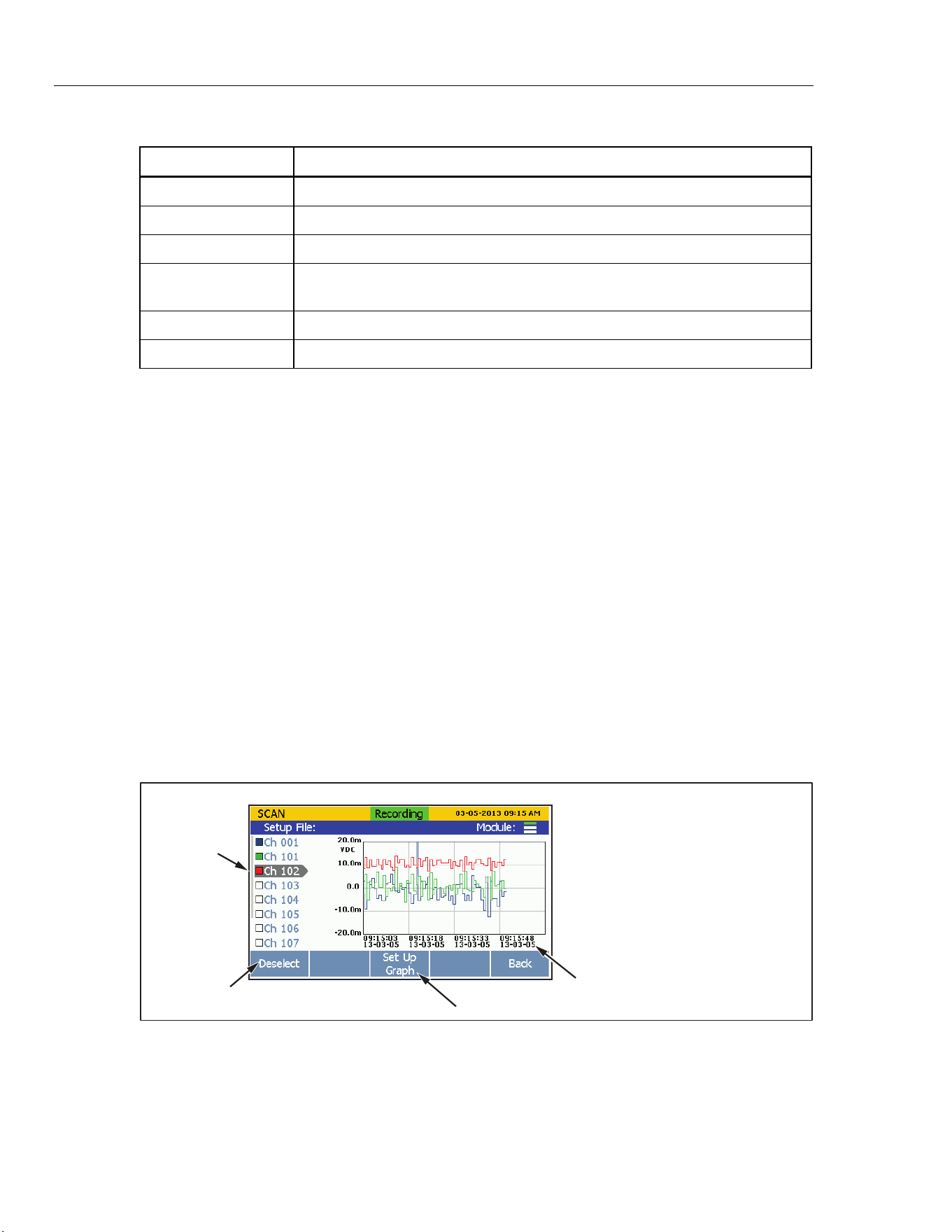
2638A
Users Manual
4-12
Table 4-4. Scan Statistics
Statistic Description
Maximum Maximum measurement.
Minimum Minimum measurement.
Average Average of all the measurements taken.
Standard Deviation
A measure of the distribution of a set of data from its mean. The more spread
apart the data, the higher the deviation.
Peak-to-Peak Difference between the Maximum and the Minimum.
Rate of Change A measure of how much the readings change over time.
To view the scan data:
1. Start a scan. See “Start a Scan” on page 4-10.
2. Push to open the Scan Data menu. After the menu opens, push to cycle the menu
pages to view more channels.
3. To view channel statistics, push .
Graph the Measurements
The Scan function has a graph feature that lets the user display the measurement data in a
graph. This feature is located in the Scan menu (push
then push ).The graph
automatically scales to fit all the information on the display when opened. To refine the
data, the graph can be manipulated with the front-panel arrow keys as shown in
Figure 4-5.
Notes
The maximum number of channels that can be graphed at once is four.
Selection of two or more channels with different input types (such as
temperature and milliamps) can make the graph difficult to read because
they do not share the same unit. To prevent this, only select channels of the
same input type or view the channels one at a time.
Selected
Channels
and Key
Time Stamps
Select or Deselect
Additional Setup Options
Graph Controls
(Front-Panel Keys)
Zoom Out
Zoom In
Move Right (in History Mode)
Move Left (in History Mode)
hcn056.eps
Figure 4-5. Graph Feature
1.888.610.7664 sales@GlobalTestSupply.com
Fluke-Direct.com

Scan/Monitor, Record, and Data
Monitor 4
4-13
To see the measurement data in a graph:
1. Push
.
2. Push to show the graph. To show a channel on the graph, use and to
select a channel, then push to select or deselect. To view additional graph
options, push .
Monitor
Monitor lets the user measure a single channel between scan sweeps. In addition, the user
can view statistics and a graph of the measurement data since the scan began. To monitor
a channel, push on the Scan menu. When a scan is in progress, the display shows
the measurement from the last reading. If a scan is not in progress, the display shows a
real-time measurement.
MONITOR
MONITORMONITOR
hcn046.eps
Figure 4-6. Monitor Menu
To monitor a channel:
1. Set all channels to be scanned to ON. See “Set Channels to ON or OFF” in Chapter 3.
2. Push .
3. Push to open the Monitor menu. The first active channel is displayed.
4. Push or to switch between channels.
1.888.610.7664 sales@GlobalTestSupply.com
Fluke-Direct.com

2638A
Users Manual
4-14
Record
The Record function saves the scan or DMM measurement results to a file that can be
transferred to a PC for further evaluation. When the Product is recording data, the
Record key is illuminated and “RECORDING” shows on the top of the display. Data is
recorded for as long as the key is illuminated and “RECORDING” shows on the display.
Note
Scans can be completed without recording the results. In this scenario, the
data is saved to temporary memory and will be overwritten the next time a
scan is started or if the temporary memory becomes full (approximately
60,000 readings).
Record Measurement Data
For the Scan function, the behavior of the Record key is dependent on the Auto
Recording setting in the Test Setup menu. If set to ON, the Product automatically records
the scan data when the scan is started. If set to OFF, the user must manually push
to record scan data to file after the scan is started.
Note
Auto Recording is associated only with the Scan/Monitor function and does
not work with the DMM function. To record a DMM measurement, push
to start recording DMM data regardless of the Auto Recording
setting in the Test Setup menu.
Each time a scan or a DMM measurement is recorded, a new data folder is made with a
unique timestamp so that it can be easily found and managed (see “Open a Data File on a
PC”). Data files made from a scan are saved in the scan folder and the DMM data files
are saved in the DMM folder.
Note
Scan data or DMM data stored directly to the USB drive is not visible to
the user through the Memory menu. However, the Memory menu shows the
user how much memory is available on the USB drive. To manage the scan
data files on the USB drive, connect the USB drive to a PC and open the
folder named “Scan Data” or “DMM Data”.
1.888.610.7664 sales@GlobalTestSupply.com
Fluke-Direct.com
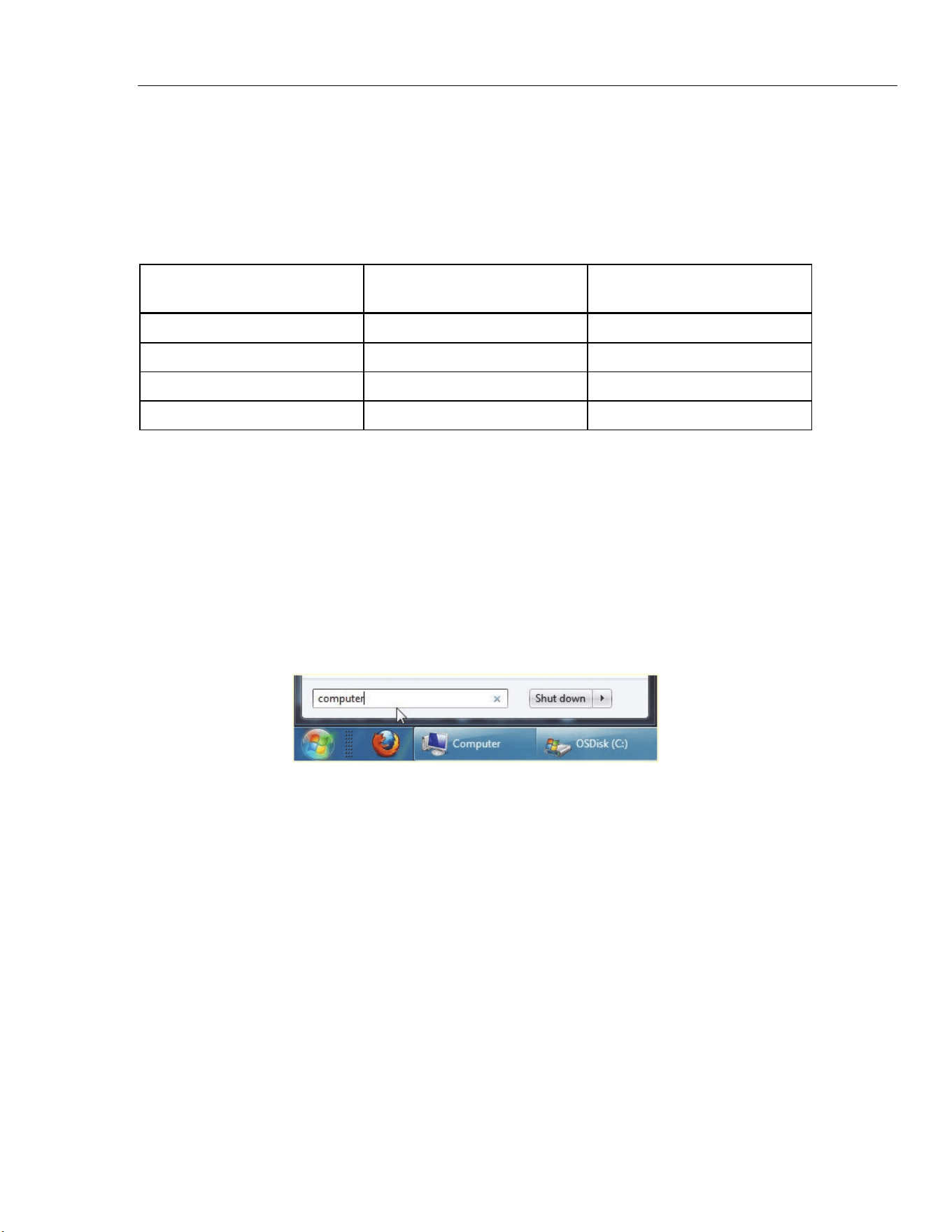
Scan/Monitor, Record, and Data
Record 4
4-15
Memory Consumption for Recorded Data
The amount of memory consumed by recorded scan data varies based on how many
channels are recorded and the number of scan cycles completed. See the information in
Table 4-5 to estimate memory consumption. For front-panel DMM recording, it takes
approximately 25 hours to consume 1 GB of memory.
Table 4-5. Scan Data Memory Usage
Channels Recorded Bytes Used Per Scan
Approximate Scans Cycles to
Reach 1 GB
20 Channels 320 bytes 3,125,000 scans cycles
40 Channels 600 bytes 1,666,000 scans cycles
60 Channels 880 bytes 1,136,000 scan cycles
80 Channels 1,160 bytes 862,000 scan cycles
Open and View Measurement Data on a PC
After a recorded scan is finished, the data file can be transferred to a PC where the results
can be viewed in Microsoft Excel. To open the a data file on a PC:
1. Put the data on the USB drive to be transferred to the PC. If the Data file is on the
internal memory, copy the file to the USB drive. If the scan was set up to record
directly to the USB, the data file is already on the USB drive and no action is
necessary.
2. Remove the USB drive from the front panel and insert it into a USB port on the PC.
3. Open the Start menu and search for the word “Computer” to open the Computer
Drive manager (see image below).
4. Find the USB drive and double-click on it to explore the contents.
5. Navigate to the data folder as follows (see Figure 4-8 for an example of the folder
structure):
a. Double-click on the
fluke folder.
b. Double-click on the
2638A folder.
c. Double-click on the serial number of the Product used to record the data. In the
example,
12345678 is the serial number of the Product.
1.888.610.7664 sales@GlobalTestSupply.com
Fluke-Direct.com
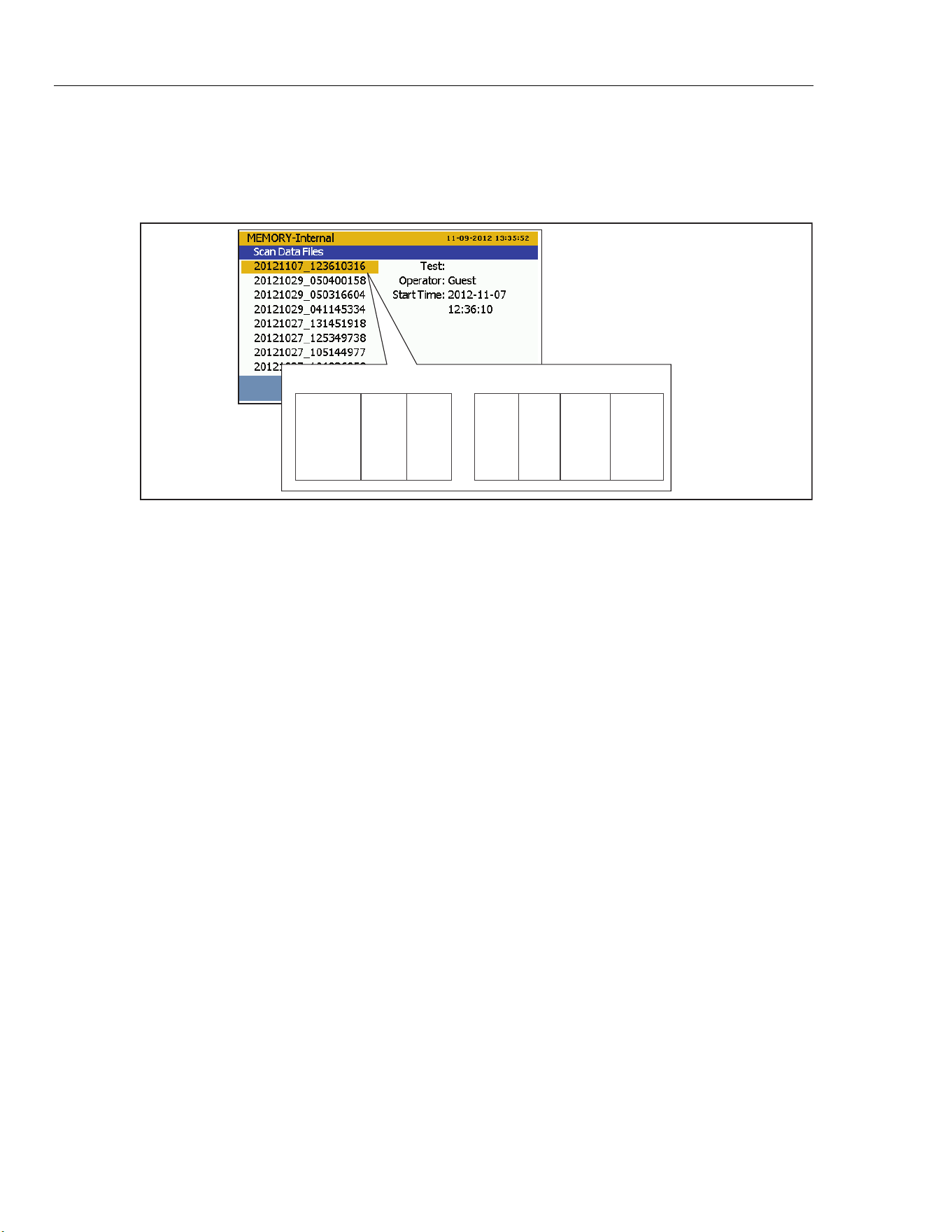
2638A
Users Manual
4-16
d. Double-click on the data folder.
e. Double-click on the
scan folder to see scan data files or the DMM folder to see
DMM data files. The data files are saved within a folder that was named with a
timestamp of when the scan or measurement was recorded. This file naming
convention is illustrated in Figure 4-7.
2012 11 07 _ 12 36 10 316
Day MonthYear
Hour Minute
Seconds
Milli-
seconds
hcn039.eps
Figure 4-7. Scan Data File Name Convention
6. Choose a file to open then double-click on the file. The time-stamped data folder
contains two comma-separated values (.csv) files:
setup.csv and dat00001.csv.
The setup.csv file contains all the test parameters that were configured when the data
was recorded. The dat00001.csv contains all of the recorded measurement data. See
Figure 4-8.
Note
The Product will make a new data file when the number of lines exceed
65535. For example, Dat00002.csv will be made when Dat00001.csv is
filled.
1.888.610.7664 sales@GlobalTestSupply.com
Fluke-Direct.com
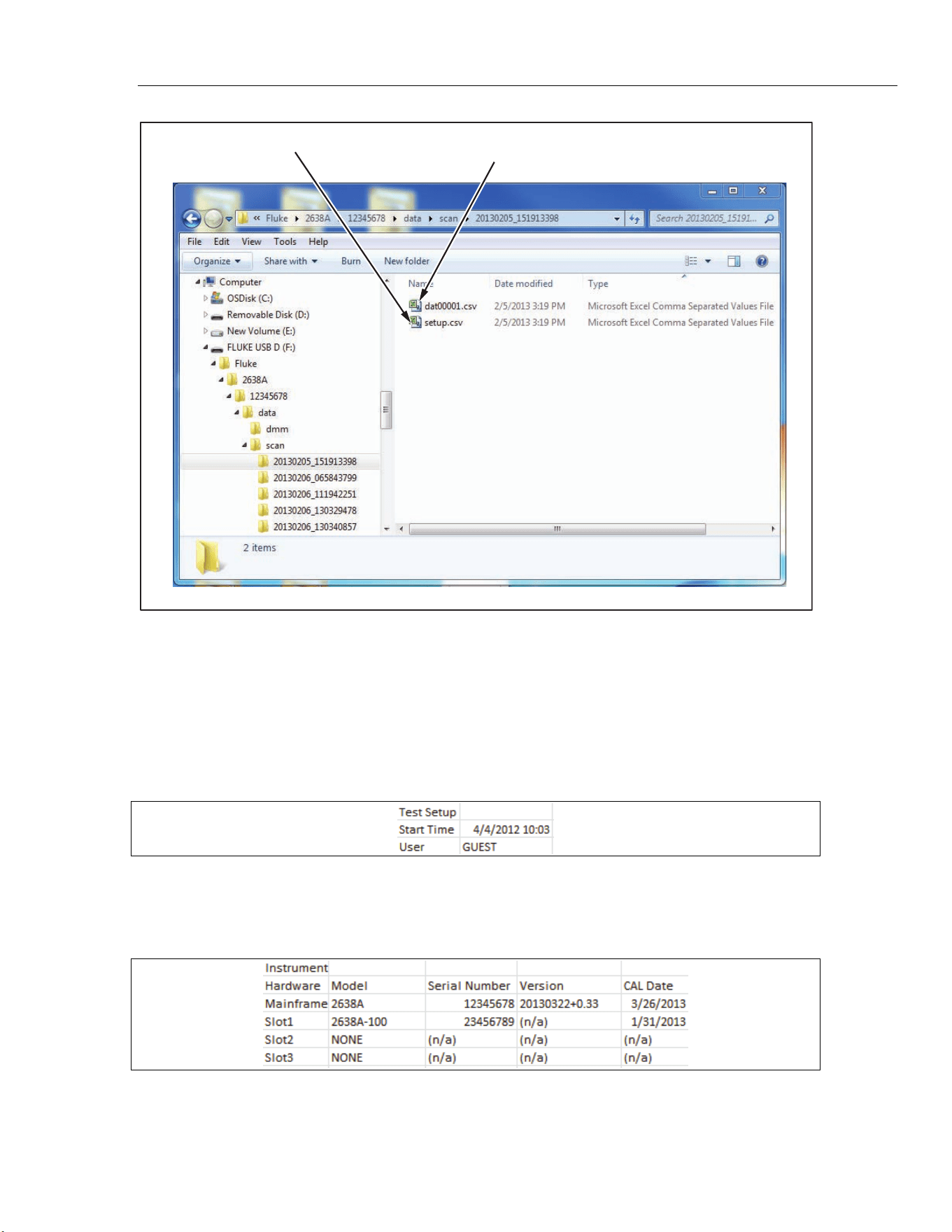
Scan/Monitor, Record, and Data
Record 4
4-17
Contains all test
configuration settings
Measurement data
hcn058.eps
Figure 4-8. Setup.csv and Dat00001.csv Files
How to Read the Setup CSV File
The six sections of the setup.csv spreadsheet are discussed and shown in the subsequent
sections.
General Information
This section of the spreadsheet shown below contains general information on the scan
performed such as the start time and the Operator.
Instrument Information
This section of the spreadsheet shown below contains general information on the Product
such as the serial number and last calibration date. This section also shows the Input
Module configuration used.
1.888.610.7664 sales@GlobalTestSupply.com
Fluke-Direct.com
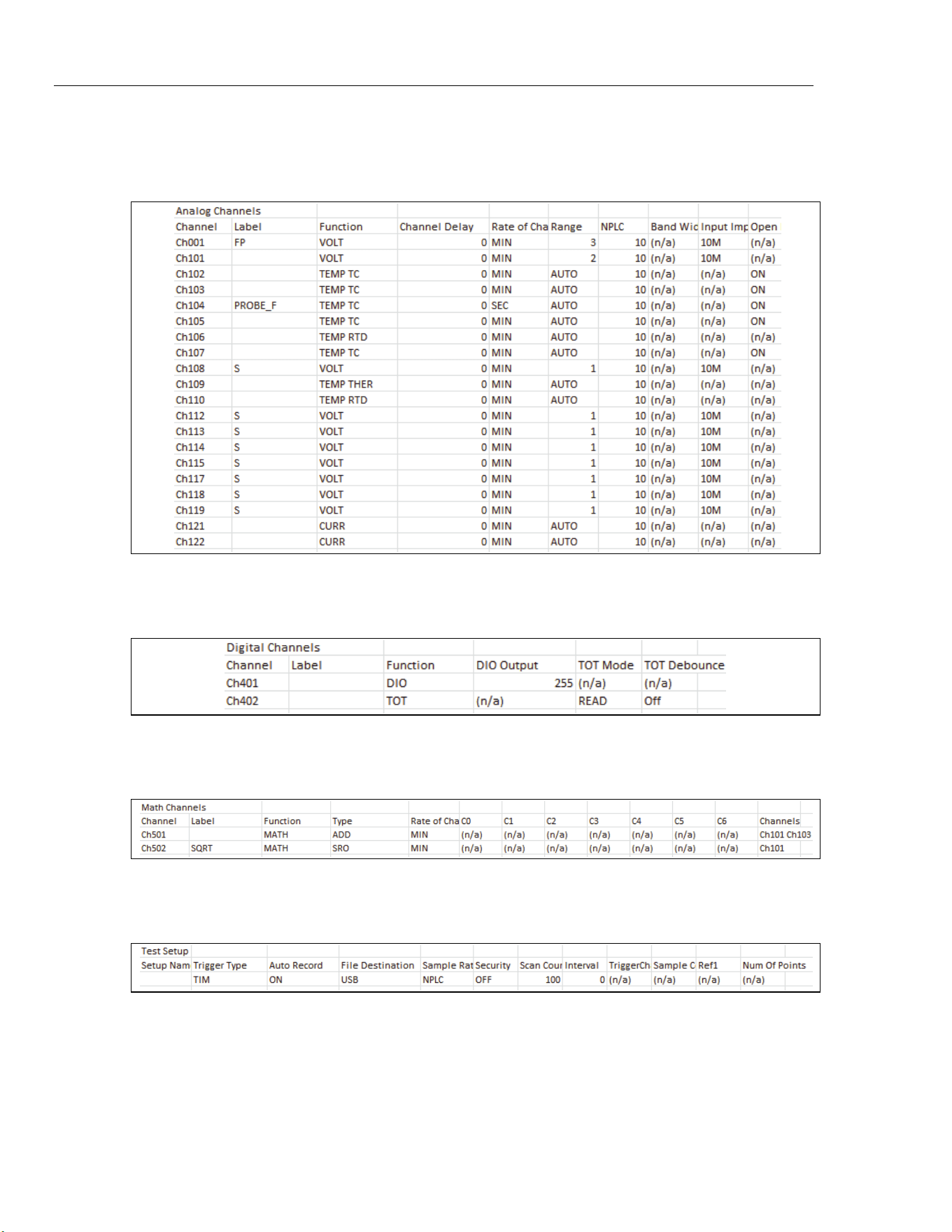
2638A
Users Manual
4-18
Analog Channels
This section of the spreadsheet shown below contains configuration information on each
analog channel that was recorded.
Digital Channels
This section of the spreadsheet shown below contains configuration information for the
DIO channel and the TOT channel.
Math Channels
This section of the spreadsheet shown below contains configuration information for the
math channels.
Test Setup Parameters
This section of the spreadsheet shown below contains the test setup settings that were
used to run the scan.
1.888.610.7664 sales@GlobalTestSupply.com
Fluke-Direct.com
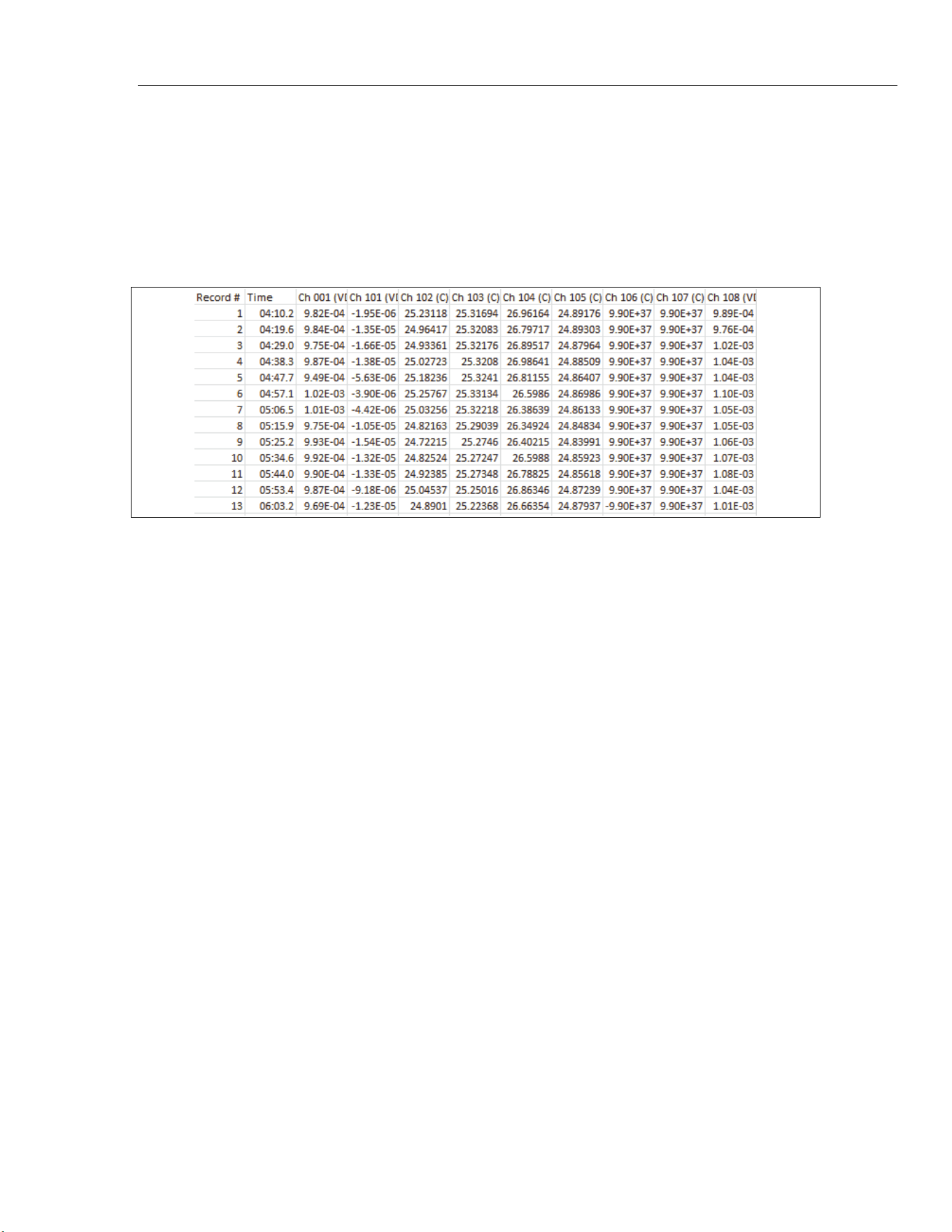
Scan/Monitor, Record, and Data
Record 4
4-19
How to Read the Data CSV File
The dat00001.csv file contains the measurement data from the scan. Each row contains
measurement data for a single scan sweep and shows the time when the sweep completed.
To see how the test and channels were configured, view the information in the setup.csv
file (see “How to Read the Setup.csv File”).
All measurements can easily be toggled to engineering notation with the cell formatting
options within Microsoft Excel. An example of the spreadsheet is shown below.
1.888.610.7664 sales@GlobalTestSupply.com
Fluke-Direct.com
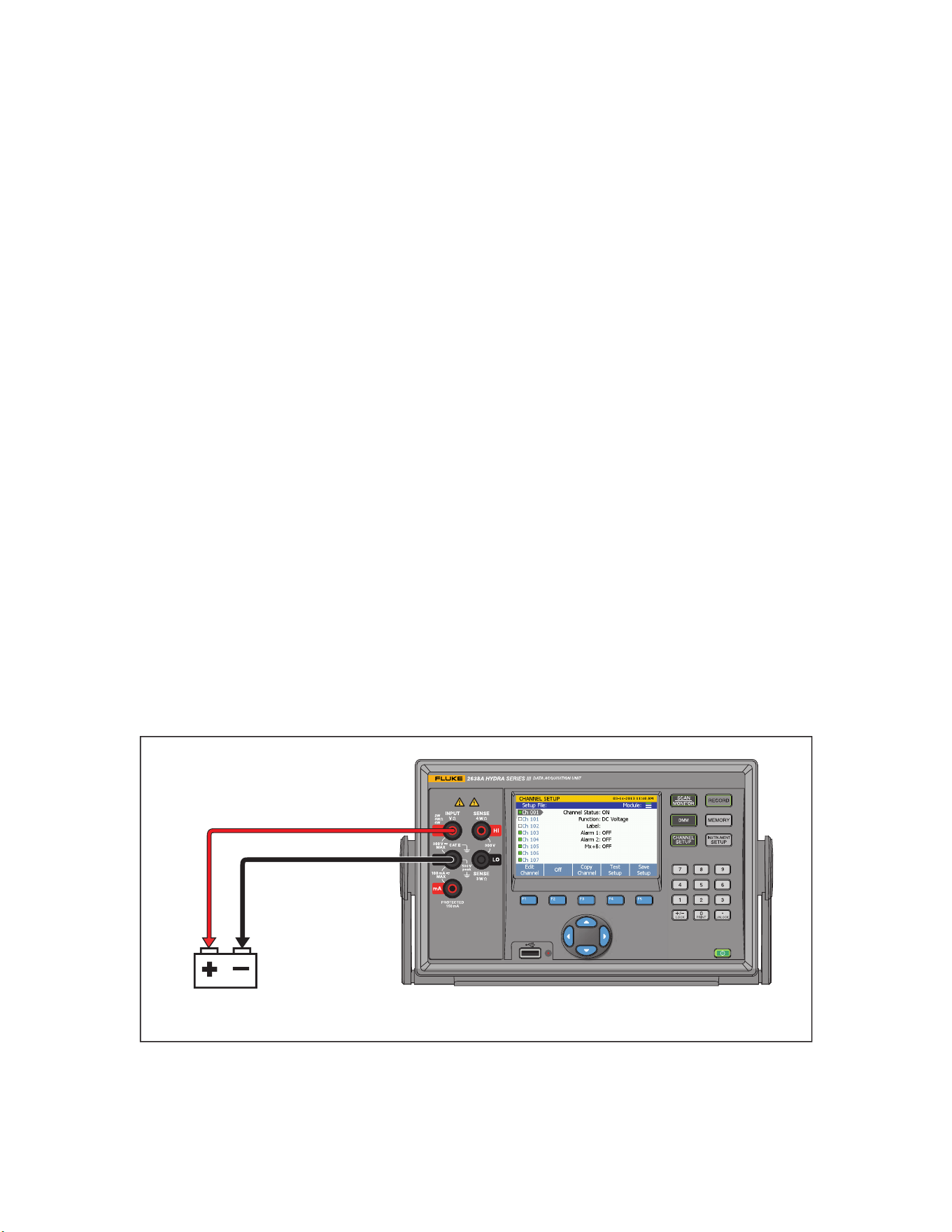
5-1
Chapter 5
DMM Operation
Introduction
This chapter supplies instructions on how to operate the DMM function of the Product.
About the DMM Function
The DMM is a digital multimeter feature lets users quickly connect test leads to the front-
panel to make voltage, resistance, current, frequency, and temperature measurements. As
these measurements are taken, these measurements values are shown on the screen and
can also be recorded to file. These recorded files are referred to as DMM Data files. The
DMM feature is easily accessed and configured with the DMM key on the front panel.
Note
The DMM function is an individual function of the Product that does not
read or share configuration information with channel 001 in the channel
list. For example, use of the DMM feature does not automatically configure
and set channel 001 to ON in the Channel Setup menu.
Figure 5-1 shows an example of a front-panel input configuration.
X
hce025.eps
Figure 5-1. Example Voltage Front-Panel Connection
1.888.610.7664 sales@GlobalTestSupply.com
Fluke-Direct.com
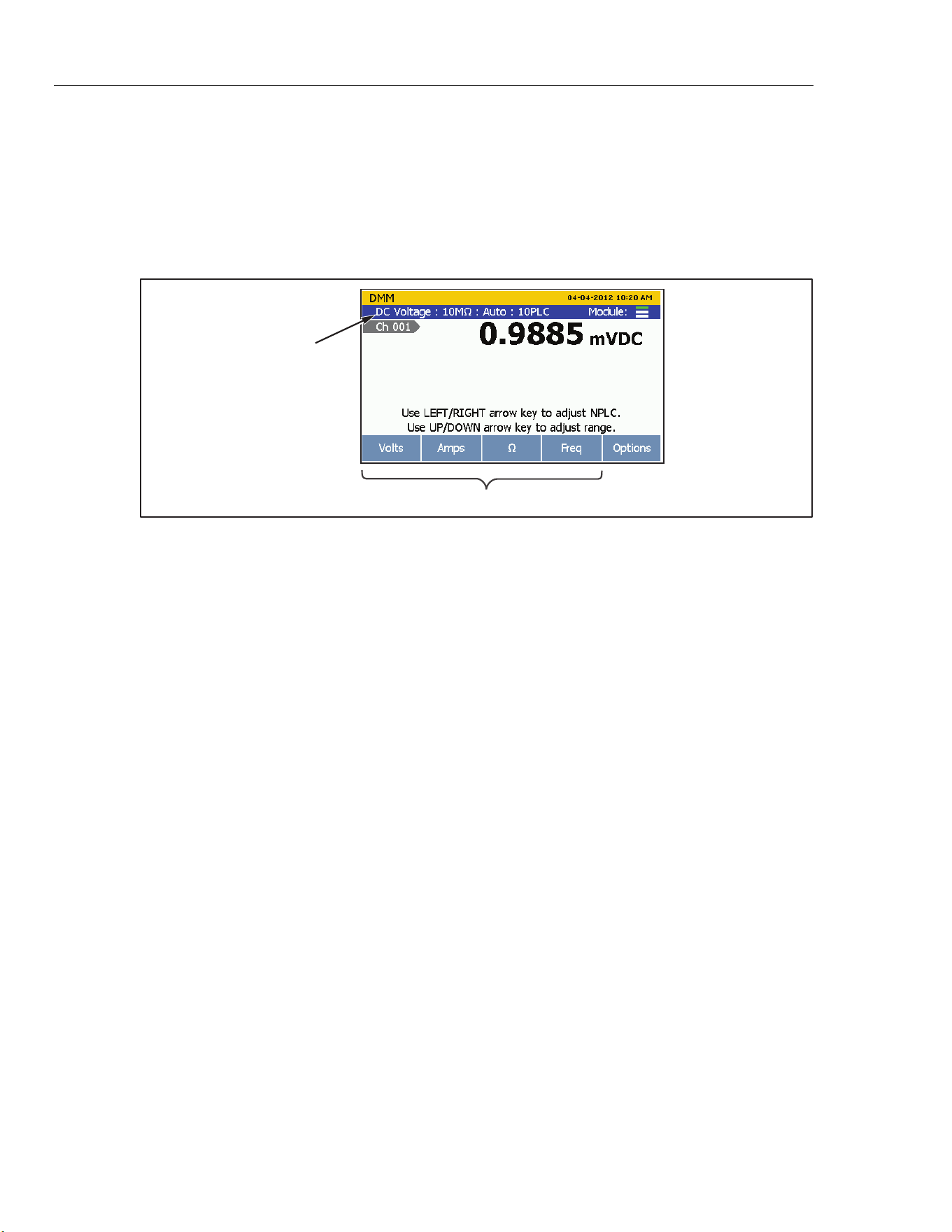
2638A
Users Manual
5-2
Input Type Selection and Range Adjustment
The DMM menu has four softkeys available to select and configure the front-panel inputs
for the measurement type. After a softkey is pushed, the user is prompted for additional
input information to fully configure the input. To adjust the range of the measurement
after the input is configured, push the and keys on the front panel to cycle through
the available range selections. Push the and to adjust the NPLC setting, which
determines the sample rate.
Input Function Selection
Input Type and Range
hcn037.eps
Figure 5-2. Input Function Selection
More Functions (PT385 or PT392)
Under More Function menu, users can configure the front-panel inputs to measure PT100
(PT385 or PT392).
1. Push .
2. Push to show Channel Options.
3. Push to show More Functions;
4. Push or to select PT385 or PT392.
5. Follow the onscreen directions to complete the configuration.
Relative Measurements
The DMM feature has a relative function that lets the user make relative measurements.
A relative measurement is the difference above or below a baseline measurement value.
To make a relative measurement, a measurement is made from the front panel then the
REL softkey is pushed (). The Product takes the measurement and freezes it as the
baseline measurement as shown in Figure 5-3. Any measurements made after this point is
shown as the amount above or below the baseline measurement that is referred to as the
relative measurement value. When REL function is activated, the range is locked
automatically.
To make a relative measurement:
1. Push
.
2. Configure the input.
3. Push to show the channel options.
1.888.610.7664 sales@GlobalTestSupply.com
Fluke-Direct.com
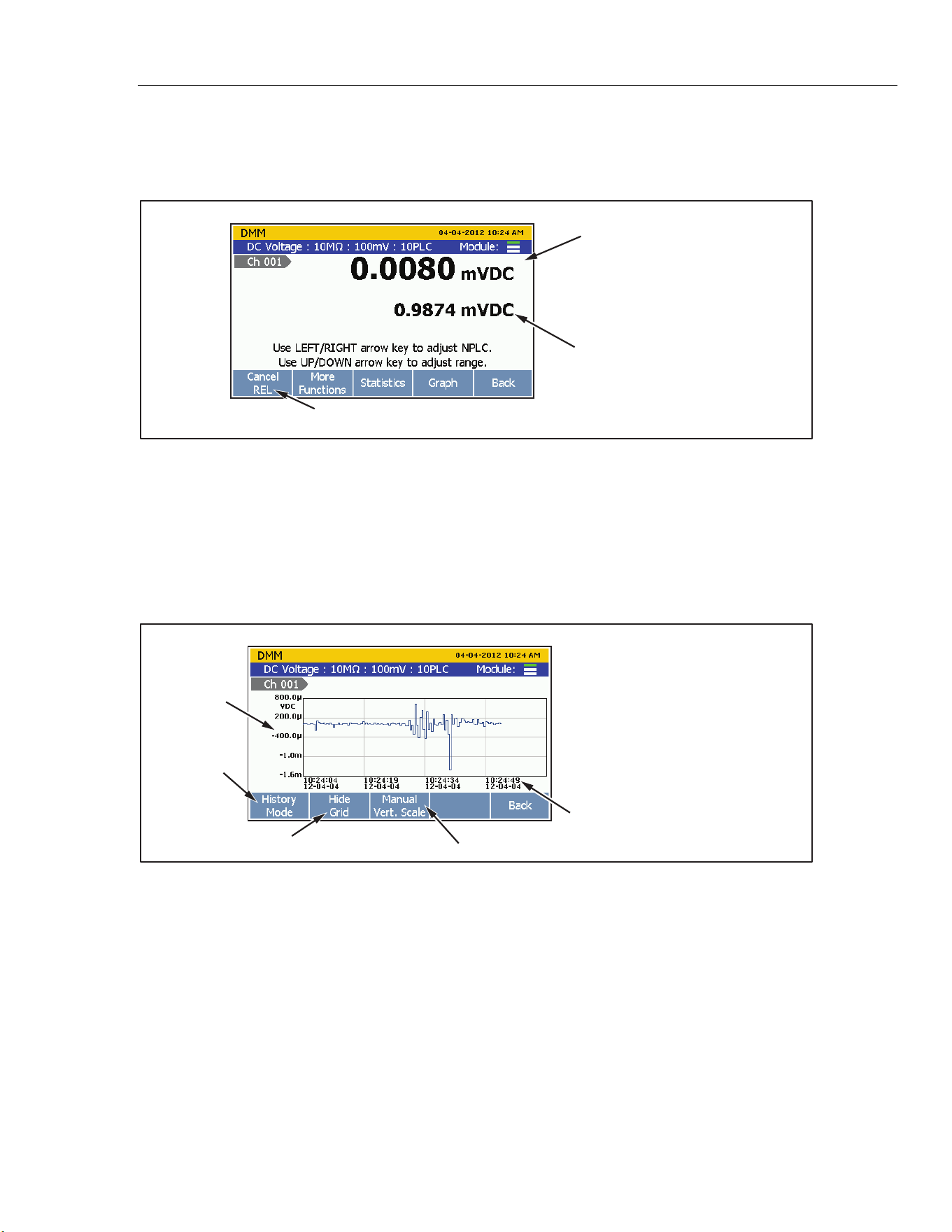
DMM Operation
Graph the Measurements 5
5-3
4. Make a measurement from the front panel. After the measurement is stable, push
(REL) to set the baseline.
5. Observe subsequent readings as relative measurements.
Relative Measurement Value
Baseline Measurement
Releative Function Softkey
hcn047.eps
Figure 5-3. Relative Measurement
Graph the Measurements
The DMM has a graph feature that lets the user display the measurement data in a graph.
The graph has features such as History mode and Live mode to let the user evaluate the
data on the display. The graph automatically scales to fit all the information on the
display when opened. To refine the data, the graph can be manipulated with the arrow
keys as shown in Figure 5-4.
Range
Time Stamps
History or
Live Mode
Toggle Grid
Graph Controls
(Front-Panel Keys)
Zoom Out
Zoom In
Move Right (in History Mode)
Move Left (in History Mode)
Manually change the Scale
hcn048.eps
Figure 5-4. Graph Function
To see the measurement data in a graph:
1. Push
.
2. Configure the input.
1.888.610.7664 sales@GlobalTestSupply.com
Fluke-Direct.com
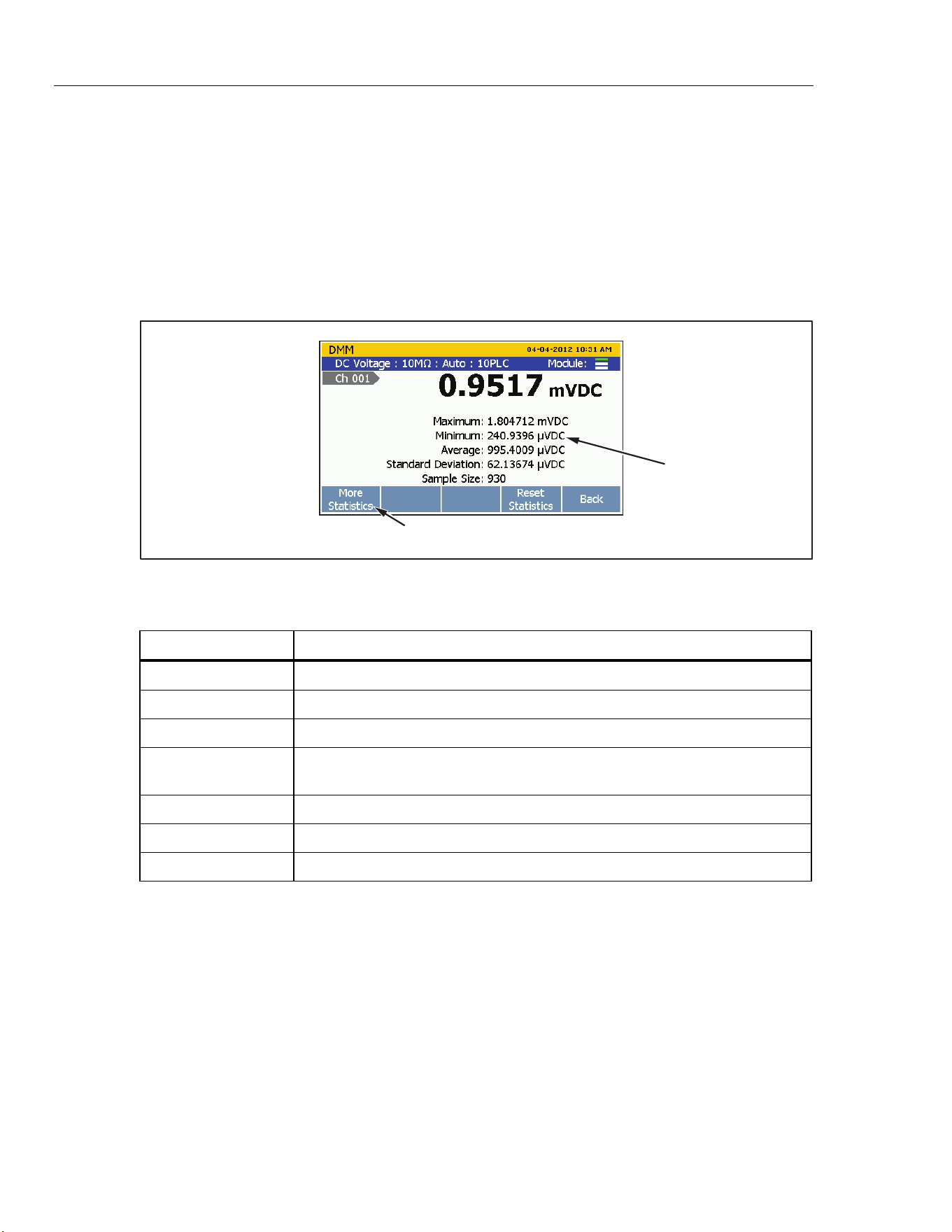
2638A
Users Manual
5-4
3. Push to show the channel options.
4. Push to show the graph. Use and to zoom in and out. To see historical
data, push to switch between History Mode and Live Mode. When in History
Mode, use and to move the graph left and right.
Measurement Statistics
The DMM has a statistics feature that lets the user see statistical information for the
measurements made. Table 5-1 lists the statistics available along with a brief description.
The statistics start when the user pushes the key or the statistics are reset.
Statistics
More Softkey
hcn049.eps
Figure 5-5. DMM Statistics
Table 5-1. Statistics
Statistic Description
Maximum Maximum measurement.
Minimum Minimum measurement.
Average Average of all the measurements taken.
Standard Deviation A measure of the distribution of a set of data from its mean. The more spread
apart the data, the higher the deviation.
Sample Size The number of readings used in the statistical calculations.
Rate of Change A measure of how much the readings change over time.
Peak to Peak Difference between the Maximum and the Minimum.
To see the statistics data:
1. Push
.
2. Configure the input.
3. Push to show the channel options.
4. Push to show the statistics. Push to view more statistics. To reset the
statistics, push .
1.888.610.7664 sales@GlobalTestSupply.com
Fluke-Direct.com
6-1
Chapter 6
Maintenance and Care
Introduction
This section supplies information on how to clean the Product, reset the memory, and
replace the fuse in the rear of the Product.
Clean the Product
To clean the Product, wipe the instrument with a cloth that is lightly dampened with
water or mild detergent. Do not use aromatic hydrocarbons, chlorinated solvents, or
methanol based fluids.
Replace the Fuse
The Product has a product fuse that protects from overcurrent. Each voltage selection
requires a specific fuse. See Table 6-1.
XWWarning
To prevent possible electrical shock, fire, or personal injury,
use only specified replacement parts.
Table 6-1. Fuses
Voltage Selector Fuse Fluke Calibration Part Number
100 V 0.25 A, 250 V (slow blow) 166306
120 V 0.25 A, 250 V (slow blow) 166306
220 V 160 mA, 250 V (slow blow) 4394437
240 V 160 mA, 250 V (slow blow) 4394437
To replace the fuses (see Figure 6-1):
1. Disconnect the mains-power cord from the power-entry module.
2. Open the power entry module and remove the fuse holder.
3. Replace the fuses with exact replacements as listed in Table 6-1.
1.888.610.7664 sales@GlobalTestSupply.com
Fluke-Direct.com
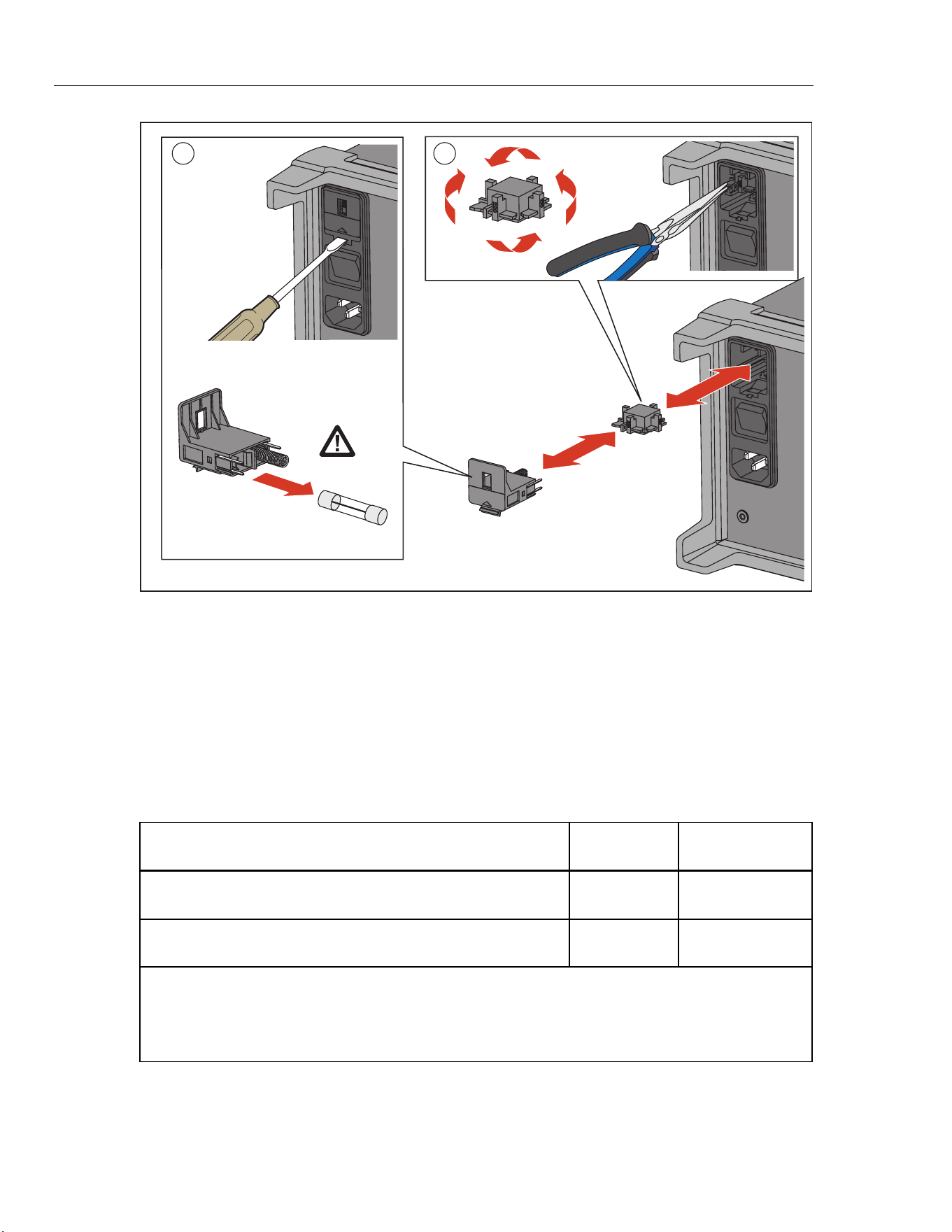
2638A
Users Manual
6-2
1 2
hce016.eps
Figure 6-1. Fuse Replacement
Memory Reset and Factory Reset
The Product has two memory reset functions to remove data from the memory and to
reset the Product: Clear all Files and Factory Reset. See Table 6-2 for a comparison of the
three functions.
Note
All memory reset functions require the Admin password to accomplish.
Table 6-2. Comparison of the Memory Clear Functions
Task
Clear All
Files
Factory Reset
Deletes Test Setup files, DMM Data files, and Scan Data files from
the internal memory.
[1]
•
Clears the configuration of the Channel Setup, Test Setup, and
Instrument Setup
[2]
•
Notes:
[1] – Does not remove data from the USB drive.
[2] – Does not reset the MAC address, the serial number, calibration, clock time, nor the Admin or User
passwords.
1.888.610.7664 sales@GlobalTestSupply.com
Fluke-Direct.com

Maintenance and Care
Firmware Update 6
6-3
To Clear all Files:
1. Push .
2. Push .
3. Push .
4. Enter the Admin password, then push .
5. Push to confirm.
To reset the Product to factory settings:
1. Push .
2. Push .
3. Enter the Admin password, then push .
Firmware Update
For Products with a firmware version 1.03 or higher, firmware may be updated by the
product administrator with the front-panel USB port. New firmware versions are
available from the Fluke Calibration web page for the Product under the Knowledge and
Information tab.
For Products that have firmware versions below 1.03, contact Fluke Calibration Service
to schedule a firmware update as these versions do not support the USB firmware update
process.
Update instructions for Products that use version 1.03 and above:
WCaution
• Do not cycle the power or remove the USB device while the
firmware update is in process. These actions will cause an
instrument failure during the update process and require a
return to a Fluke Calibration Service center to correct.
• The Product automatically re-boots when the update
process is complete. Updates can take several minutes to
complete and the display screen will not illuminate until the
re-boot.
Note
Fluke Calibration recommends that you move all internal data files and
setup files from the Product to a USB device before the update of the
firmware.
Before the update process starts, verify that the current firmware is version 1.03 or above
by viewing “Firmware” under . If your firmware version is below 1.03, do not
continue the update process. You must return the Product to Fluke Calibration Service for
the firmware update.
1.888.610.7664 sales@GlobalTestSupply.com
Fluke-Direct.com

2638A
Users Manual
6-4
Firmware update steps:
1. Download and extract the firmware update files (AuxInfo.txt and mtv.flt) to your
computer from the Fluke Calibration website.
2. Create a new folder “firmware” on a USB flash drive (1 GB or greater), and then
copy these files into this folder. To prevent file corruption, use the Windows utility to
safely eject your USB flash drive from your computer.
3. Plug the USB flash drive into the Product and wait for the red light on the USB port
to illuminate and show that the drive is recognized.
Note
Some USB flash drives may not be recognized by the Product. Test the USB
flash drive prior to starting this update process to ensure it is recognized.
4. Push to enter the Setup menu.
5. Push the Up/Down arrow button to select “Firmware” then push to enter the
firmware menu.
6. Push and enter the administrator password and then push to start the
update process.
7. WAIT until the Product automatically re-boots. There will be no screen display for
several minutes during this time. Do not cycle the power or remove the USB device
while the firmware update is in process.
8. After the automatic re-boot, push to verify that the update was successful.
Verify the firmware version that you have installed is displayed on the screen.
1.888.610.7664 sales@GlobalTestSupply.com
Fluke-Direct.com
Maintenance and Care
User-Replaceable Parts and Accessories 6
6-5
User-Replaceable Parts and Accessories
Table 6-3 lists the part numbers of each user-replaceable part or accessory for the
Product.
Table 6-3. User-Replaceable Parts and Accessories
Part Number Name Quantity
4410441 Transit Case 1
4298499 USB Cable 1
4121552 USB Drive (4 GB) 1
4396147 884X-ETH Ethernet Interface Cable, 1 Meter 1
3980562 TL71 Test Lead Set 1
4281980 Protective Rubber Boot (front) 1
4281971 Protective Rubber Boot (rear) 1
4281998 Handle 1
4374731 Protective Slot Cover 1
166306 W Fuse 0.25A, 250V (slow blow)
[2]
1
4394437 W Fuse 0.160 mA, 250V (slow blow)
[2]
1
4410418 Relay Card 1
[1]
4410452 2638A-100 Universal Input Module 1
[1]
Notes:
[1] – Quantity of items listed can vary based on kit or model ordered.
[2] – Only use exact replacements.
1.888.610.7664 sales@GlobalTestSupply.com
Fluke-Direct.com

Error Messages and Troubleshooting
Troubleshooting 7
7-17
Troubleshooting
In the event that the Product functions abnormally, Table 7-2 can help find and solve the
problem. Several possible problem conditions are described with likely causes and
solutions. If a problem occurs, please read this section carefully and attempt to
understand and solve the problem. If the Product seems faulty or the problem cannot
otherwise be solved, contact an Authorized Service Center for assistance, see Chapter 1.
Be sure to have the instrument model number, serial number, and regional voltage
available to tell the Service Technician.
Table 7-2. Troubleshooting Chart
Problem Causes and Solutions
The Product does not
power on.
Cause 1: Fuses.
Solution 1: If a fuse blows, it could be because of a power surge or a
component failure. Replace the fuse once. DO NOT replace the fuse with one
of a higher current rating. Always replace the fuse with one of the same rating,
voltage, and type. If the fuse blows a second time, it is likely caused by failure
of a component part.
Cause 1: Power Cord.
Solution 1: Check that the power cord is plugged in and connected to the
Product.
Cause 2: AC mains power.
Solution 2: Make sure the circuit that supplies power to the Product is on.
Cause 3: Power entry is not properly set.
Solution 3: Make sure the power entry setting is matching with the AC mains
power supply rate.
LED lights are
illuminated but the
display is blank.
Cause 1: The unit is standby mode (the power LED should be amber).
Solution 1: Press the Standby key on the front panel to exit the standby
mode.
Cause 2: Screen saver activated.
Solution 2: Press any front panel key to exit the screen saver.
Cause 3: Screen or unit is malfunctioning.
Solution 3: Contact Fluke Calibration. See Chapter 1.
Input Module is not
recognized.
Cause 1: Input Module not fully seated.
Solution 1: Reinstall the Input Module and make sure it is fully seated in the
slot.
Cause 2: Relay card not installed.
Solution 2: Make sure the relay card is installed.
Cause 3: Input Module has failed.
Solution 3: Contact an Authorized Customer Service Center.
1.888.610.7664 sales@GlobalTestSupply.com
Fluke-Direct.com
2638A
Users Manual
7-18
Table 7-2. Troubleshooting Chart (cont.)
Problem Causes and Solutions
Cannot read USB drive. Cause 1: USB drive not installed properly.
Solution 1: Make sure the USB drive is fully inserted. The LED light will
illuminate in less than 30 seconds.
Cause 2: USB driver locked by application (LED lights always illuminated even
if USB drive is not installed.)
Solution 2: Cycle the power with the main power switch and insert the USB
drive again.
Cause 3: USB drive not recognized.
Solution 3: Replace the USB drive.
Cause 4: USB drive inoperative or damaged.
Solution 4: Replace USB drive.
Product does not start
to scan after the scan is
started.
Cause 1: The Product is waiting to be triggered.
Solution 1: Check the trigger type in the test setup and make sure the trigger is
properly configured.
Product does not record
when I start a scan.
Cause 1: The Auto Recording feature is not turned on.
Solution: Manually push record to start recording or turn on Auto Recording in
the test setup.
Product is out of
memory.
Cause: The internal memory or USB drive is out of space.
Solution: Delete or transfer some files to free up memory.
1.888.610.7664 sales@GlobalTestSupply.com
Fluke-Direct.com