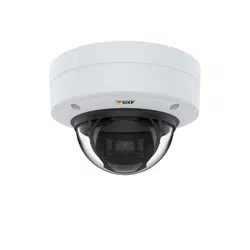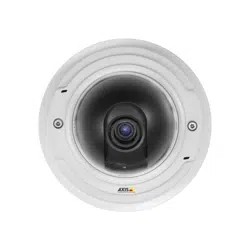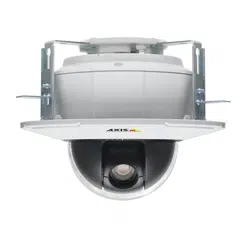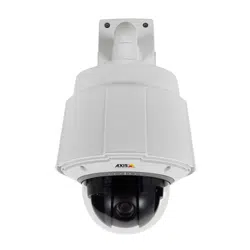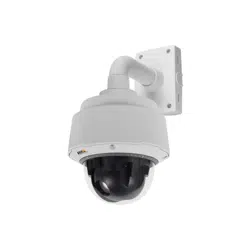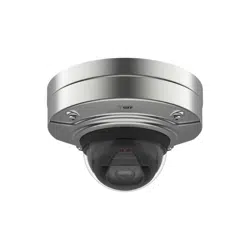


AXISQ3517-SLVENetworkCamera
TableofContents
Solutionoverview...........................................3
Productoverview...........................................4
Findthedeviceonthenetwork................................6
Accessthedevice...............................................6
Securepasswords...............................................6
Additionalsettings..........................................8
Webpageoverview..............................................8
Imagequality...................................................10
Privacymasks..................................................13
Overlays.......................................................14
Streamingandstorage...........................................14
Events........................................................16
Applications....................................................18
Troubleshooting............................................20
Resettofactorydefaultsettings...................................20
Checkthecurrentrmware.......................................20
Upgradethermware............................................20
Technicalissues,cluesandsolutions................................21
Performanceconsiderations.......................................22
Specications..............................................24
LEDIndicators..................................................
24
SDcardslot....................................................
24
Buttons.......................................................
24
Connectors....................................................
25
2

AXISQ3517-SLVENetworkCamera
Solutionoverview
Solutionoverview
3
AXISQ3517-SLVENetworkCamera
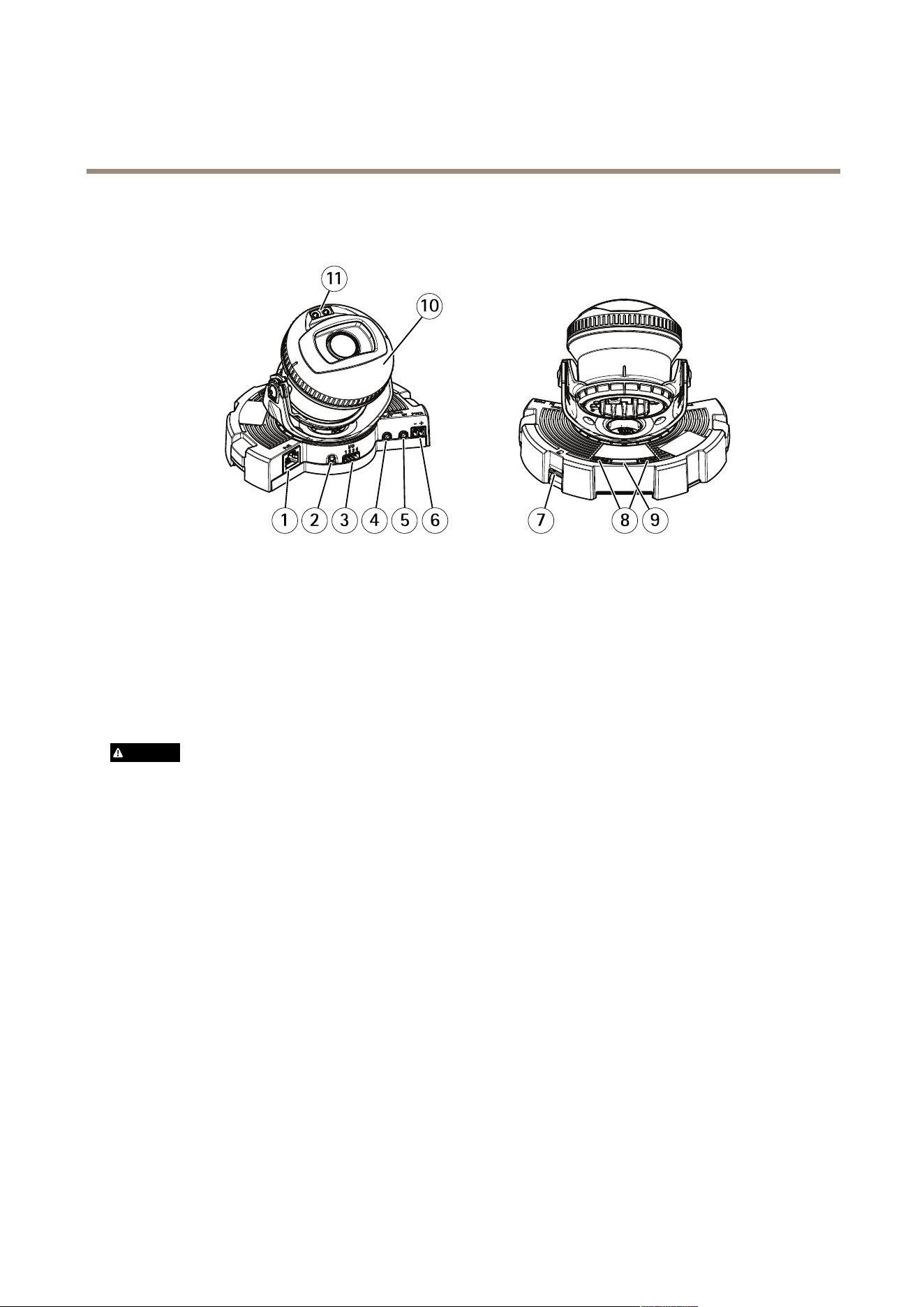
Productoverview
Productoverview
1
Networkconnector
2
Controlbutton
3
I/Oconnector
4
Audioout
5
Audioin
6
DCconnector
7
SDcardslot
8
StatusLED(2x)
9
Functionbutton
10
Heater
11
IRLED(2x)
CAUTION
Theheatermaybehot.
4

AXISQ3517-SLVENetworkCamera
Productoverview
1
Mountingbracket
2
Unitcasing
3
Cameraunit
4
Viewprotector
5
Domecover
5

AXISQ3517-SLVENetworkCamera
Findthedeviceonthenetwork
Findthedeviceonthenetwork
TondAxisdevicesonthenetworkandassignthemIPaddressesinWindows®,useAXISIPUtilityorAXISDeviceManager.Both
applicationsarefreeandcanbedownloadedfromaxis.com/support.
FormoreinformationabouthowtondandassignIPaddresses,gotoHowtoassignanIPaddressandaccessyourdevice.
Accessthedevice
1.OpenabrowserandentertheIPaddressorhostnameoftheAxisdevice.
IfyoudonotknowtheIPaddress,useAXISIPUtilityorAXISDeviceManagertondthedeviceonthenetwork.
2.Entertheusernameandpassword.Ifyouaccessthedeviceforthersttime,youmustsettherootpassword.SeeSeta
newpasswordfortherootaccountonpage6.
3.Theliveviewpageopensinyourbrowser.
Securepasswords
Important
Axisdevicessendtheinitiallysetpasswordincleartextoverthenetwork.Toprotectyourdeviceaftertherstlogin,set
upasecureandencryptedHTTPSconnectionandthenchangethepassword.
Thedevicepasswordistheprimaryprotectionforyourdataandservices.Axisdevicesdonotimposeapasswordpolicyasthey
maybeusedinvarioustypesofinstallations.
Toprotectyourdatawestronglyrecommendthatyou:
•Useapasswordwithatleast8characters,preferablycreatedbyapasswordgenerator.
•Don’texposethepassword.
•Changethepasswordatarecurringinterval,atleastonceayear.
Setanewpasswordfortherootaccount
Important
Thedefaultadministratorusernameisroot.Ifthepasswordforrootislost,resetthedevicetofactorydefaultsettings.
Towatchthisvideo,gotothewebversionofthisdocument.
www.axis.com/products/online-manual/43183#t10098905
Supporttip:Passwordsecurityconrmationcheck
1.Typeapassword.Followtheinstructionsaboutsecurepasswords.SeeSecurepasswordsonpage6.
6

AXISQ3517-SLVENetworkCamera
Findthedeviceonthenetwork
2.Retypethepasswordtoconrmthespelling.
3.ClickCreatelogin.Thepasswordhasnowbeencongured.
7

AXISQ3517-SLVENetworkCamera
Additionalsettings
Additionalsettings
Webpageoverview
1
Liveviewcontrolbar
2
Liveview
3
Productname
4
Userinformation,colorthemes,andhelp
5
Videocontrolbar
6
Settingstoggle
8

AXISQ3517-SLVENetworkCamera
Additionalsettings
7
Settingstabs
Needmorehelp?
Youcanaccessthebuilt-inhelpfromthedevice’swebpage.Thehelpprovidesmoredetailedinformationonthedevice’sfeaturesand
theirsettings.
9

AXISQ3517-SLVENetworkCamera
Additionalsettings
Imagequality
Capturemodes
CapturemodedenesthemaximumframerateavailableintheAxisproduct.Dependingonwhichcapturemodeyouselect,you
maynotbeabletouseWDR.
Acapturemodeconsistsofaresolutionandthecorrespondingframerateavailableintheproduct.Thecapturemodesetting
affectsthecamera’seldofviewandaspectratio.
Thelowerresolutioncapturemodeiscroppedoutfromthehighestresolution.
Theimageshowshowtheeldofviewandaspectratiocanchangebetweentwodifferentcapturemodes.
Whichcapturemodetochoosedependsontherequirementsofframerateandresolutionforthespecicsurveillancesetup.For
specicationsaboutavailablecapturemodes,seetheproduct’sdatasheetataxis.com.
Remotefocusandzoom
Theremotefocusandzoomfunctionalityallowsyoutomakefocusandzoomadjustmentstoyourcamerafromacomputer.Itisa
convenientwaytoensurethatthescene’sfocus,viewingangleandresolutionareoptimizedwithouthavingtovisitthecamera’s
installationlocation.
Straightenaskewimage
Youcanstraightenaskewimagebyrotatingandcroppingitdigitally.Duetothecropping,apartoftheoriginalimageislost.The
functionalityisideallyusedtostraightentheimageduringinstallation.
10

AXISQ3517-SLVENetworkCamera
Additionalsettings
Theillustrationshowsbeforeandafteranimagehasbeenstraightened.
1.GotoSettings>Image>Imagecorrection.
2.TurnonStraightenimage.
Reducenoiseinlow-lightconditions
Toreducenoiseinlow-lightconditions,youcanadjustoneormoreofthefollowingsettings:
•Adjustthetrade-offbetweennoiseandmotionblur.GotoSettings>Image>ExposureandmovetheBlur-noise
trade-offslidertowardLownoise.
•Settheexposuremodetoautomatic.
Note
Ahighmaxshuttervaluecanresultinmotionblur.
•Toslowdowntheshutterspeed,setmaxshuttertothehighestpossiblevalue.
•Reducesharpnessintheimage.
•Opentheaperture.
BenetfromIRlightinlow-lightconditionsusingnightmode
Yourcamerausesvisiblelighttodelivercolorimagesduringtheday.Astheavailablelightdiminishes,youcansetthecamerato
automaticallyshifttonightmode,inwhichthecamerausesbothvisiblelightandnear-infraredlighttodeliverblack-and-white
images.Sincethecamerausesmoreoftheavailablelightitcandeliverbrighter,moredetailed,images.
1.GotoSettings>Image>Dayandnight,andmakesurethattheIRcutlterissettoAuto.
Selectexposuremode
Therearedifferentexposuremodeoptionsinthecamerathatadjustsaperture,shutterspeed,andgaintoimproveimagequalityfor
specicsurveillancescenes.GotoSettings>Image>Exposureandselectbetweenthefollowingexposuremodes:
•Formostusecases,selectAutomaticexposure.
•Forenvironmentswithcertainarticiallighting,forexampleuorescentlighting,selectFlicker-free.
Selectthesamefrequencyasthepowerlinefrequency.
11

AXISQ3517-SLVENetworkCamera
Additionalsettings
•Forenvironmentswithcertainarticiallightandbrightlight,forexampleoutdoorswithuorescentlightingatnightand
sunduringdaytime,selectFlicker-reduced.
Selectthesamefrequencyasthepowerlinefrequency.
•Tolockthecurrentexposuresettings,selectHoldcurrent.
StabilizeashakyimagewithElectronicImageStabilization(EIS)
ElectronicImageStabilization(EIS)canbeusedinenvironmentswheretheproductismountedinanexposedlocationandsubjectto
vibrations,forexample,windorpassingtrafc.TurnonEIStogetasmootherandsteadierimagewithoutblur.
EISalsoreducesthelesizeofthecompressedimageandlowersthebitrateofthevideostream.
Note
WhenEISisturnedontheimageiscroppedslightly,loweringthemaximumresolution.
1.GotoSettings>Image>Imagecorrection.
2.TurnonEIS.
Handlesceneswithstrongbacklight
Dynamicrangeisthedifferenceinlightlevelsinanimage.Insomecasesthedifferencebetweenthedarkestandthebrightest
areascanbesignicant.Theresultisoftenanimagewhereeitherthedarkorthebrightareasarevisible.Widedynamicrange
(WDR)makesbothdarkandbrightareasoftheimagevisible.
ImagewithoutWDR.
ImagewithWDR.
Note
•WDRcancauseartifactsintheimage.
•WDRmaynotbeavailableforallcapturemodes.
12

AXISQ3517-SLVENetworkCamera
Additionalsettings
1.GotoSettings>Image>Widedynamicrange.
2.TurnonWDR.
3.Ifyoustillhaveproblems,gotoExposureandadjusttheExposurezonetocovertheareaofinterest.
FindoutmoreaboutWDRandhowtouseitataxis.com/web-articles/wdr.
Privacymasks
Aprivacymaskisauser-denedareathatpreventsusersfromviewingapartofthemonitoredarea.Inthevideostream,privacy
masksappearasblocksofsolidcolororblurredimageelements.
You’llseetheprivacymaskonallsnapshots,recordedvideo,andlivestreams.
YoucanusetheVAPIX®applicationprogramminginterface(API)toturnofftheprivacymasks.
Important
Ifyouusemultipleprivacymasksitmayaffecttheproduct’sperformance.
Hidepartsoftheimagewithprivacymasks
Youcancreateoneorseveralprivacymaskstohidepartsoftheimage.
Towatchthisvideo,gotothewebversionofthisdocument.
www.axis.com/products/online-manual/43183#t10106902
Howtocreateaprivacymask
1.GotoSettings>Privacymask.
2.ClickNew.
3.Adjustthesize,color,andnameoftheprivacymaskaccordingtoyourneeds.
Towatchthisvideo,gotothewebversionofthisdocument.
www.axis.com/products/online-manual/43183#t10106902
Howtochangetheappearanceofthemask
13

AXISQ3517-SLVENetworkCamera
Additionalsettings
Overlays
Overlaysaresuperimposedoverthevideostream.Theyareusedtoprovideextrainformationduringrecordings,suchasatimestamp,
orduringproductinstallationandconguration.Youcanaddeithertextoranimage.
Showatextoverlayinthevideostreamwhenthedevicedetectsmotion
Thisexampleexplainshowtodisplaythetext“Motiondetected”whenthedevicedetectsmotion.
MakesurethatAXISVideoMotionDetectionisrunning:
1.GotoSettings>Apps>AXISVideoMotionDetection.
2.Starttheapplicationifitisnotalreadyrunning.
3.Makesureyouhavesetuptheapplicationaccordingtoyourneeds.Ifyouneedhelp,seethe
usermanualforAXISVideoMotionDetection4.
Addtheoverlaytext:
4.GotoSettings>Overlay.
5.SelectCreateoverlayandselectTextoverlay.
6.Enter#Dinthetexteld.
7.Choosetextsizeandappearance.
8.Topositionthetextoverlay,chooseCustomoroneofthepresets.
Createanactionrule:
9.GotoSettings>System>Events>Actionrules.
10.CreateanactionrulewithAXISVideoMotionDetectionastrigger.
11.Fromthelistofactions,selectOverlaytext.
12.Type“Motiondetected”.
13.Settheduration.
Note
Ifyouupdatetheoverlaytextitwillbeautomaticallyupdatedonallvideostreamsdynamically.
Streamingandstorage
Videocompressionformats
Decidewhichcompressionmethodtousebasedonyourviewingrequirements,andonthepropertiesofyournetwork.The
availableoptionsare:
MotionJPEG
MotionJPEG,orMJPEG,isadigitalvideosequencethatismadeupofaseriesofindividualJPEGimages.Theseimagesarethen
displayedandupdatedataratesufcienttocreateastreamthatshowsconstantlyupdatedmotion.Fortheviewertoperceivemotion
videotheratemustbeatleast16imageframespersecond.Fullmotionvideoisperceivedat30(NTSC)or25(PAL)framespersecond.
TheMotionJPEGstreamusesconsiderableamountsofbandwidth,butprovidesexcellentimagequalityandaccesstoeveryimage
containedinthestream.
H.264orMPEG-4Part10/AVC
14

AXISQ3517-SLVENetworkCamera
Additionalsettings
Note
H.264isalicensedtechnology.TheAxisproductincludesoneH.264viewingclientlicense.Toinstalladditionalunlicensed
copiesoftheclientisprohibited.Topurchaseadditionallicenses,contactyourAxisreseller.
H.264can,withoutcompromisingimagequality,reducethesizeofadigitalvideolebymorethan80%comparedtotheMotion
JPEGformatandbyasmuchas50%comparedtotheMPEG-4standard.Thismeansthatlessnetworkbandwidthandstoragespace
arerequiredforavideole.Orseenanotherway,highervideoqualitycanbeachievedforagivenbitrate.
Reducebandwidthandstorage
Important
Ifyoureducethebandwidthitcanresultinlossofdetailsinthepicture.
1.GotoliveviewandselectH.264.
2.GotoSettings>Stream.
3.Dooneormoreofthefollowing:
-TurnondynamicGOPandsetahighGOPlengthvalue.
-Increasethecompression.
-TurnondynamicFPS.
Setupnetworkstorage
Tostorerecordingsonthenetwork,youneedtosetupyournetworkstorage.
1.GotoSettings>System>Storage.
2.ClickSetupunderNetworkstorage.
3.EntertheIPaddressofthehostserver.
4.Enterthenameofthesharedlocationonthehostserver.
5.Movetheswitchifthesharerequiresalogin,andenterusernameandpassword.
6.ClickConnect.
Addaudiotoyourrecording
Turnonaudio:
1.GotoSettings>AudioandturnonAllowaudio.
2.GotoInput>Typeandselectyouraudiosource.
Editthestreamprolewhichisusedfortherecording:
3.GotoSettings>StreamandclickStreamproles.
4.SelectthestreamproleandclickAudio.
5.SelectthecheckboxandselectInclude.
6.ClickSave.
7.ClickClose.
15

AXISQ3517-SLVENetworkCamera
Additionalsettings
Recordandwatchvideo
Torecordvideoyoumustrstsetupnetworkstorage,seeSetupnetworkstorageonpage15,orhaveanSDcardinstalled.
Recordvideo
1.Gototheliveview.
2.Tostartarecording,clickRecord.Clickagaintostoptherecording.
Watchvideo
1.ClickStorage>Gotorecordings.
2.Selectyourrecordinginthelistanditwillplayautomatically.
Events
Setuprulesandalerts
Youcancreaterulestomakeyourdeviceperformanactionwhencertaineventsoccur.Aruleconsistsofconditionsandactions.
Theconditionscanbeusedtotriggertheactions.Forexample,thedevicecanstartarecordingorsendanemailwhenitdetects
motion,orshowanoverlaytextwhilethedeviceisrecording.
Triggeranaction
1.GotoSettings>System>Eventstosetupanactionrule.Theactionruledeneswhenthedevicewillperformcertain
actions.Actionrulescanbesetupasscheduled,recurring,orforexample,triggeredbymotiondetection.
2.SelectwhatTriggermustbemettotriggertheaction.Ifyouspecifymorethanonetriggerfortheactionrule,all
ofthemmustbemettotriggertheaction.
3.SelectwhichActionthedeviceshouldperformwhentheconditionsaremet.
Note
Ifyoumakechangestoanactiveactionrule,youhavetorestarttheactionruleforthechangestotakeeffect.
Recordvideowhenthecameradetectsmotion
ThisexampleexplainshowtosetupthecameratostartrecordingtotheSDcardvesecondsbeforeitdetectsmotionandto
stoponeminuteafter.
MakesurethatAXISVideoMotionDetectionisrunning:
1.GotoSettings>Apps>AXISVideoMotionDetection.
2.Starttheapplicationifitisnotalreadyrunning.
3.Makesureyouhavesetuptheapplicationaccordingtoyourneeds.Ifyouneedhelp,seethe
usermanualforAXISVideoMotionDetection4.
Createanactionrule:
1.GotoSettings>System>Eventsandaddanactionrule.
2.Typeanamefortheactionrule.
3.Fromthelistoftriggers,selectApplicationsandthenselectAXISVideoMotionDetection(VMD).
4.Fromthelistofactions,selectRecordvideo.
5.Selectanexistingstreamproleorcreateanewone.
16

AXISQ3517-SLVENetworkCamera
Additionalsettings
6.Enableandsetthepre-triggertimeto5seconds.
7.EnableWhiletheruleisactive.
8.Enableandsetthepost-triggertimeto60seconds.
9.SelectSDcardfromthelistofstorageoptions.
10.ClickOk.
RecordvideowhenaPIRdetectorsensesmotion
ThisexampleexplainshowtoconnectanAxisPIRdetectortothecamera,andsetupthecameratostartrecordingwhenthe
detectorsensesmotion.
Requiredhardware
•3-wirecable(ground,power,I/O)
•AxisPIRdetector
NO NO
NO
TICE TICE
TICE
Disconnectthecamerafrompowerbeforeconnectingthewires.Reconnecttopowerafterallconnectionsaredone.
Connectthewirestothecamera’sI/Oconnector
Note
ForinformationontheI/Oconnector,seeConnectorsonpage25.
1.Connectthegroundwiretopin1(GND/-).
2.Connectthepowerwiretopin2(12VDCoutput).
3.ConnecttheI/Owiretopin3(I/Oinput).
ConnectthewirestothePIRdetector’sI/Oconnector
1.Connecttheotherendofthegroundwiretopin1(GND/-).
2.Connecttheotherendofthepowerwiretopin2(DCinput/+).
3.ConnecttheotherendoftheI/Owiretopin3(I/Ooutput).
ConguretheI/Oportinthecamera’swebpage
1.GotoSettings>System>I/Oports.
2.SelectInputinthePort1drop-downlist.
3.Givetheinputmoduleadescriptivename.
4.TomakethePIRdetectorsendasignaltothecamerawhenitsensesmotion,selectClosedcircuitinthedrop-downlist.
TotriggerthecameratostartrecordingwhenitreceivesasignalfromthePIRdetector,youneedtocreateanactionrulein
thecamera’swebpage.
17

AXISQ3517-SLVENetworkCamera
Additionalsettings
Recordvideowhenthecameradetectsimpact
Shockdetectionallowsthecameratodetecttamperingcausedbyvibrationsorshock.Vibrationsduetotheenvironmentortoan
objectcantriggeranactiondependingontheshocksensitivityrange,whichcanbesetfrom0to100.Inthisscenario,someoneis
throwingrocksatthecameraafterhoursandyouwouldliketogetavideoclipoftheevent.
1.GotoSettings>System>Detectors.
2.Setshockdetectiontoon,andsetavaluefortheshocksensitivity.
Createanactionrule:
3.GotoSettings>System>Eventsandaddanactionrule.
4.Typeanamefortheactionrule.
5.Fromthelistoftriggers,selectDetectorsandthenselectShockdetection.
6.Fromthelistofschedules,selectAfterHours.
7.Fromthelistofactions,selectSendVideoClip.
8.Selectanexistingstreamproleorcreateanewone.
9.Enableandsetthepre-triggertimeto5seconds.
10.EnableWhiletheruleisactive.
11.Enableandsetthepost-triggertimeto60seconds.
12.Selectanexistingrecipientorcreateanewone.
13.ClickOK.
Detecttamperingwithinputsignal
Thisexampleexplainshowtotriggeranalarmwhentheinputsignalhasbeencutorshort-circuited.Formoreinformationaboutthe
I/Oconnector,seepage25.
1.GotoSettings>System>I/OPortsandturnonSupervisedI/Oforoneoftheports.
Createanactionrule:
1.GotoSettings>System>Eventsandcreateanactionrule.
2.Typeanamefortheactionrule.
3.Fromthelistoftriggers,selectInputSignalandthenSupervisedinputport.SetTamperedtoYes.
4.Fromthelistofschedules,selectAlways.
5.Fromthelistofactions,selectSendNoticationandthenselectarecipientorcreateanewrecipient.
6.ClickOK.
Applications
Applications
AXISCameraApplicationPlatform(ACAP)isanopenplatformthatenablesthirdpartiestodevelopanalyticsandotherapplications
forAxisproducts.Tondoutmoreaboutavailableapplications,downloads,trialsandlicenses,gotoaxis.com/applications.
TondtheusermanualsforAxisapplications,gotoaxis.com.
18

AXISQ3517-SLVENetworkCamera
Additionalsettings
Note
•Werecommendedrunningoneapplicationatatime.
•Avoidrunningapplicationswhenthebuilt-inmotiondetectionisactive.
Towatchthisvideo,gotothewebversionofthisdocument.
www.axis.com/products/online-manual/43183#t10001688
Howtodownloadandinstallanapplication
19

AXISQ3517-SLVENetworkCamera
Troubleshooting
Troubleshooting
Resettofactorydefaultsettings
Important
Resettofactorydefaultshouldbeusedwithcaution.Aresettofactorydefaultresetsallsettings,includingtheIPaddress,to
thefactorydefaultvalues.
Toresettheproducttothefactorydefaultsettings:
1.Disconnectpowerfromtheproduct.
2.Pressandholdthecontrolbuttonwhilereconnectingpower.SeeProductoverviewonpage4.
3.Keepthecontrolbuttonpressedfor15–30secondsuntilthestatusLEDindicatorashesamber.
4.Releasethecontrolbutton.TheprocessiscompletewhenthestatusLEDindicatorturnsgreen.Theproducthasbeenreset
tothefactorydefaultsettings.IfnoDHCPserverisavailableonthenetwork,thedefaultIPaddressis192.168.0.90.
5.UsetheinstallationandmanagementsoftwaretoolstoassignanIPaddress,setthepassword,andaccessthevideostream.
Theinstallationandmanagementsoftwaretoolsareavailablefromthesupportpagesonaxis.com/support.
Itisalsopossibletoresetparameterstofactorydefaultthroughthewebinterface.GotoSettings>System>Maintenanceand
clickDefault.
Checkthecurrentrmware
Firmwareisthesoftwarethatdeterminesthefunctionalityofnetworkdevices.Oneofyourrstactionswhentroubleshootinga
problemshouldbetocheckthecurrentrmwareversion.Thelatestversionmaycontainacorrectionthatxesyourparticular
problem.
Tocheckthecurrentrmware:
1.Gototheproduct’swebpage.
2.Clickonthehelpmenu
.
3.ClickAbout.
Upgradethermware
Important
Preconguredandcustomizedsettingsaresavedwhenthermwareisupgraded(providedthatthefeaturesareavailablein
thenewrmware)althoughthisisnotguaranteedbyAxisCommunicationsAB.
Important
Makesuretheproductremainsconnectedtothepowersourcethroughouttheupgradeprocess.
Note
Whenyouupgradetheproductwiththelatestrmwareintheactivetrack,theproductreceivesthelatestfunctionality
available.Alwaysreadtheupgradeinstructionsandreleasenotesavailablewitheachnewreleasebeforeupgradingthe
rmware.Tondthelatestrmwareandthereleasenotes,gotoaxis.com/support/rmware.
AXISDeviceManagercanbeusedformultipleupgrades.Findoutmoreataxis.com/products/axis-device-manager.
20

AXISQ3517-SLVENetworkCamera
Troubleshooting
Towatchthisvideo,gotothewebversionofthisdocument.
www.axis.com/products/online-manual/43183#t10095327
Howtoupgradethermware
1.Downloadthermwareletoyourcomputer,availablefreeofchargeataxis.com/support/rmware.
2.Logintotheproductasanadministrator.
3.GotoSettings>System>Maintenance.Followtheinstructionsonthepage.Whentheupgradehasnished,the
productrestartsautomatically.
Technicalissues,cluesandsolutions
Ifyoucan’tndwhatyou’relookingforhere,trythetroubleshootingsectionataxis.com/support.
Problemsupgradingthermware
FirmwareupgradefailureIfthermwareupgradefails,thedevicereloadsthepreviousrmware.Themostcommonreason
isthatthewrongrmwarelehasbeenuploaded.Checkthatthenameofthermwarele
correspondstoyourdeviceandtryagain.
ProblemssettingtheIPaddress
Thedeviceislocatedona
differentsubnet
IftheIPaddressintendedforthedeviceandtheIPaddressofthecomputerusedtoaccessthe
devicearelocatedondifferentsubnets,youcannotsettheIPaddress.Contactyournetwork
administratortoobtainanIPaddress.
TheIPaddressisbeingused
byanotherdevice
DisconnecttheAxisdevicefromthenetwork.Runthepingcommand(inaCommand/DOSwindow,
typepingandtheIPaddressofthedevice):
•Ifyoureceive:Replyfrom<IPaddress>:bytes=32;time=10...
thismeansthattheIPaddressmayalreadybeinusebyanotherdeviceonthenetwork.
ObtainanewIPaddressfromthenetworkadministratorandreinstallthedevice.
•Ifyoureceive:Requesttimedout,thismeansthattheIPaddressisavailable
forusewiththeAxisdevice.Checkallcablingandreinstallthedevice.
PossibleIPaddressconict
withanotherdeviceonthe
samesubnet
ThestaticIPaddressintheAxisdeviceisusedbeforetheDHCPserversetsadynamicaddress.
ThismeansthatifthesamedefaultstaticIPaddressisalsousedbyanotherdevice,theremay
beproblemsaccessingthedevice.
Thedevicecannotbeaccessedfromabrowser
Cannotlogin
WhenHTTPSisenabled,ensurethatthecorrectprotocol(HTTPorHTTPS)isusedwhenattempting
tologin.Youmayneedtomanuallytypehttporhttpsinthebrowser’saddresseld.
Ifthepasswordfortheuserrootislost,thedevicemustberesettothefactorydefaultsettings.
SeeResettofactorydefaultsettingsonpage20.
21

AXISQ3517-SLVENetworkCamera
Troubleshooting
TheIPaddresshasbeen
changedbyDHCP
IPaddressesobtainedfromaDHCPserveraredynamicandmaychange.IftheIPaddresshasbeen
changed,useAXISIPUtilityorAXISDeviceManagertolocatethedeviceonthenetwork.Identify
thedeviceusingitsmodelorserialnumber,orbytheDNSname(ifthenamehasbeencongured).
Ifrequired,astaticIPaddresscanbeassignedmanually.Forinstructions,gotoaxis.com/support.
Certicateerrorwhenusing
IEEE802.1X
Forauthenticationtoworkproperly,thedateandtimesettingsintheAxisdevicemustbe
synchronizedwithanNTPserver.GotoSettings>System>Dateandtime.
Thedeviceisaccessiblelocallybutnotexternally
Toaccessthedeviceexternally,werecommendusingoneofthefollowingapplicationsforWindows
®
:
•AXISCompanion:freeofcharge,idealforsmallsystemswithbasicsurveillanceneeds.
•AXISCameraStation:30-daytrialversionfreeofcharge,idealforsmalltomid-sizesystems.
Forinstructionsanddownload,gotoaxis.com/vms.
Problemswithstreaming
MulticastH.264only
accessiblebylocalclients
Checkifyourroutersupportsmulticasting,oriftheroutersettingsbetweentheclientandthe
deviceneedtobecongured.TheTTL(TimeToLive)valuemayneedtobeincreased.
NomulticastH.264
displayedintheclient
CheckwithyournetworkadministratorthatthemulticastaddressesusedbytheAxisdevice
arevalidforyournetwork.
Checkwithyournetworkadministratortoseeifthereisarewallpreventingviewing.
PoorrenderingofH.264
images
Ensurethatyourgraphicscardisusingthelatestdriver.Thelatestdriverscanusuallybe
downloadedfromthemanufacturer’swebsite.
Colorsaturationisdifferent
inH.264andMotionJPEG
Modifythesettingsforyourgraphicsadapter.Gototheadapter’sdocumentationformore
information.
Lowerframeratethan
expected
•SeePerformanceconsiderationsonpage22.
•Reducethenumberofapplicationsrunningontheclientcomputer.
•Limitthenumberofsimultaneousviewers.
•Checkwiththenetworkadministratorthatthereisenoughbandwidthavailable.
•Lowertheimageresolution.
•Logintothedevice’swebpageandsetacapturemodethatprioritizesframerate.
Changingthecapturemodetoprioritizeframeratemightlowerthemaximum
resolutiondependingonthedeviceusedandcapturemodesavailable.
•Themaximumframespersecondisdependentontheutilityfrequency(60/50Hz)
oftheAxisdevice.
Performanceconsiderations
Whensettingupyoursystem,itisimportanttoconsiderhowvarioussettingsandsituationsaffecttheperformance.Somefactors
affecttheamountofbandwidth(thebitrate)required,otherscanaffecttheframerate,andsomeaffectboth.Iftheloadonthe
CPUreachesitsmaximum,thisalsoaffectstheframerate.
Thefollowingfactorsarethemostimportanttoconsider:
•Highimageresolutionorlowercompressionlevelsresultinimagescontainingmoredatawhichinturnaffectsthe
bandwidth.
•RotatingtheimageintheGUIwillincreasetheproduct'sCPUload.
•AccessbylargenumbersofMotionJPEGorunicastH.264clientsaffectsthebandwidth.
•Simultaneousviewingofdifferentstreams(resolution,compression)bydifferentclientsaffectsbothframerateand
bandwidth.
22

AXISQ3517-SLVENetworkCamera
Troubleshooting
Useidenticalstreamswhereverpossibletomaintainahighframerate.Streamprolescanbeusedtoensurethat
streamsareidentical.
•AccessingMotionJPEGandH.264videostreamssimultaneouslyaffectsbothframerateandbandwidth.
•Heavyusageofeventsettingsaffectstheproduct’sCPUloadwhichinturnaffectstheframerate.
•UsingHTTPSmayreduceframerate,inparticularifstreamingMotionJPEG.
•Heavynetworkutilizationduetopoorinfrastructureaffectsthebandwidth.
•Viewingonpoorlyperformingclientcomputerslowersperceivedperformanceandaffectsframerate.
•RunningmultipleAXISCameraApplicationPlatform(ACAP)applicationssimultaneouslymayaffecttheframerateand
thegeneralperformance.
23

AXISQ3517-SLVENetworkCamera
Specifications
Specifications
LEDIndicators
Note
•TheStatusLEDcanbeconguredtoashwhileaneventisactive.
StatusLED
Indication
Unlit
Connectionandnormaloperation.
GreenSteadygreenfor10secondsfornormaloperationafterstartupcompleted.
Amber
Steadyduringstartup.Flashesduringrmwareupgradeorresettofactorydefault.
Amber/RedFlashesamber/redifnetworkconnectionisunavailableorlost.
StatusLEDbehaviorandbuzzersignalforlevelingassistant
Forinformationonthefunctionbuttonusedforlevelingtheimage,seepage24.
Color
Buzzer
Cameraposition
Fixedgreen
Continuousbeep
Level
FlashinggreenFastbeepsAlmostlevel
FlashingorangeMediumbeepsNotlevel
Flashingred
Slowbeeps
Farfromlevel
SDcardslot
NO NO
NO
TICE TICE
TICE
•RiskofdamagetoSDcard.Donotusesharptools,metalobjects,orexcessiveforcewheninsertingorremovingthe
SDcard.Useyourngerstoinsertandremovethecard.
•Riskofdatalossandcorruptedrecordings.DonotremovetheSDcardwhiletheproductisrunning.UnmounttheSDcard
fromtheproduct’swebpagebeforeremoval.
ThisproductsupportsmicroSD/microSDHC/microSDXCcards.
ForSDcardrecommendations,seeaxis.com.
microSD,microSDHC,andmicroSDXCLogosaretrademarksofSD-3CLLC.microSD,microSDHC,microSDXCare
trademarksorregisteredtrademarksofSD-3C,LLCintheUnitedStates,othercountriesorboth.
Buttons
Controlbutton
Thecontrolbuttonisusedfor:
•Resettingtheproducttofactorydefaultsettings.SeeResettofactorydefaultsettingsonpage20.
FunctionButton
Thefunctionbuttonhasmultiplefunctions:
24

AXISQ3517-SLVENetworkCamera
Specifications
•AslevelingAssistant–Thisfunctionhelpstoensuretheimageislevel.Pressthebuttonforabout2secondstostartthe
levelingassistantandpressagaintostop.ThestatusLED(see)andbuzzersignalassistlevelingoftheimage.Theimageis
levelwhenthebuzzerbeepscontinuously.
•ToviewtheStatusLED–PressthebuttononcetolightuptheStatusLEDs.Pressagaintoturnthemoff.TheLEDs
willturnoffautomaticallyafter10seconds.
Connectors
Networkconnector
RJ45EthernetconnectorwithPoweroverEthernet(PoE).
Audioconnector
•Audioin–3.5mminputforamonomicrophone,oraline-inmonosignal(leftchannelisusedfromastereosignal).
•Audioout–3.5mmoutputforaudio(linelevel)thatcanbeconnectedtoapublicaddress(PA)systemoranactive
speakerwithabuilt-inamplier.Astereoconnectormustbeusedforaudioout.
Audioinput
1Tip2Ring
3Sleeve
Unbalancedmicrophone(withorwithoutelectret
power)orline
Electretpowerifselected
Ground
Audiooutput
1Tip2Ring
3Sleeve
Channel1,unbalancedline,monoChannel1,unbalancedline,monoGround
Foraudioin,theleftchannelisusedfromastereosignal.
I/Oconnector
UsetheI/Oconnectorwithexternaldevicesincombinationwith,forexample,motiondetection,eventtriggering,andalarm
notications.Inadditiontothe0VDCreferencepointandpower(DCoutput),theI/Oconnectorprovidestheinterfaceto:
Digitalinput-Forconnectingdevicesthatcantogglebetweenanopenandclosedcircuit,forexamplePIRsensors,door/window
contacts,andglassbreakdetectors.
Supervisedinput-Enablespossibilitytodetecttamperingonadigitalinput.
Digitaloutput-ForconnectingexternaldevicessuchasrelaysandLEDs.ConnecteddevicescanbeactivatedbytheVAPIX®
ApplicationProgrammingInterface,troughaneventorfromtheproduct’swebpage.
4-pinterminalblock
25

AXISQ3517-SLVENetworkCamera
Specifications
FunctionPinNotes
Specications
DCground
1
0VDC
DCoutput
2
Canbeusedtopowerauxiliaryequipment.
Note:Thispincanonlybeusedaspowerout.
12VDC
Maxload=50mA
DigitalinputorSupervisedinput–Connecttopin1toactivate,or
leaveoating(unconnected)todeactivate.Tousesupervisedinput,
installend-of-lineresistors.Seeconnectiondiagramforinformation
abouthowtoconnecttheresistors.
0tomax30VDC
Congurable
(InputorOutput)
3–4
Digitaloutput–Internallyconnectedtopin1(DCground)when
active,andoating(unconnected)wheninactive.Ifusedwithan
inductiveload,e.g.,arelay,connectadiodeinparallelwiththeload,
toprotectagainstvoltagetransients.
0tomax30VDC,opendrain,
100mA
Example
1
DCground
2
DCoutput12V,max50mA
3
I/Oconguredassupervisedinput
4
I/Oconguredasoutput
Powerconnector
2-pinterminalblockforDCpowerinput.UseaSafetyExtraLowVoltage(SELV)compliantlimitedpowersource(LPS)witheither
aratedoutputpowerlimitedto≤100Woraratedoutputcurrentlimitedto≤5A.
26

UserManualVer.M3.2
AXISQ3517-SLVENetworkCamera
Date:April2021
©AxisCommunicationsAB,2018-2021
PartNo.T10121793