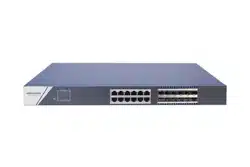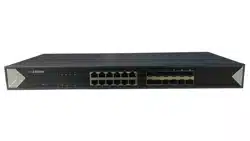

Gigabit Switch
Quick Start Guide
UD36247B

i
Preface
Applicable Models
This manual is applicable to 0500(R) series gigabit switches.
Symbol Conventions
The symbols that may be found in this document are defined as
follows.
Symbol Description
Provides additional information to emphasize
or supplement important points of the main
text.
Indicates a potentially hazardous situation,
which if not avoided, could result in equipment
damage, data loss, performance degradation,
or unexpected results.
Indicates a hazard with a high level of risk,
which if not avoided, will result in death or
serious injury.
1
1 Introduction
1.1 Product Introduction
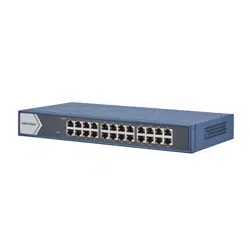
0500(R) series switches are unmanaged gigabit network switches,
providing sixteen or twenty-four gigabit Ethernet ports to upload
data via convergence switches. The devices support one-button
switching among four working modes: standard switch, port
isolation, port aggregation, and network clone. The devices are
reliable, easy to install and maintain, and equipped with rapid
switching functions. With multiple access ports, the devices are
applicable for access of small-scale LAN devices.
1.2 Packing List
Please check if the package is damaged first. If the package is intact,
unpack it and check whether the accessories provided with the
product are available by referring to the packing list. Then, you can
continue to install the device.
Table 1-1 Packing List
Accessory Quantity
Switch × 1
AC Power Cord × 1
L-Shaped Bracket × 2
Screw × 6
Quick Start Guide × 1
Regulatory Compliance and Safety Information
× 1
1.3 Appearance
Device appearances vary with different models. The actual device
prevails.
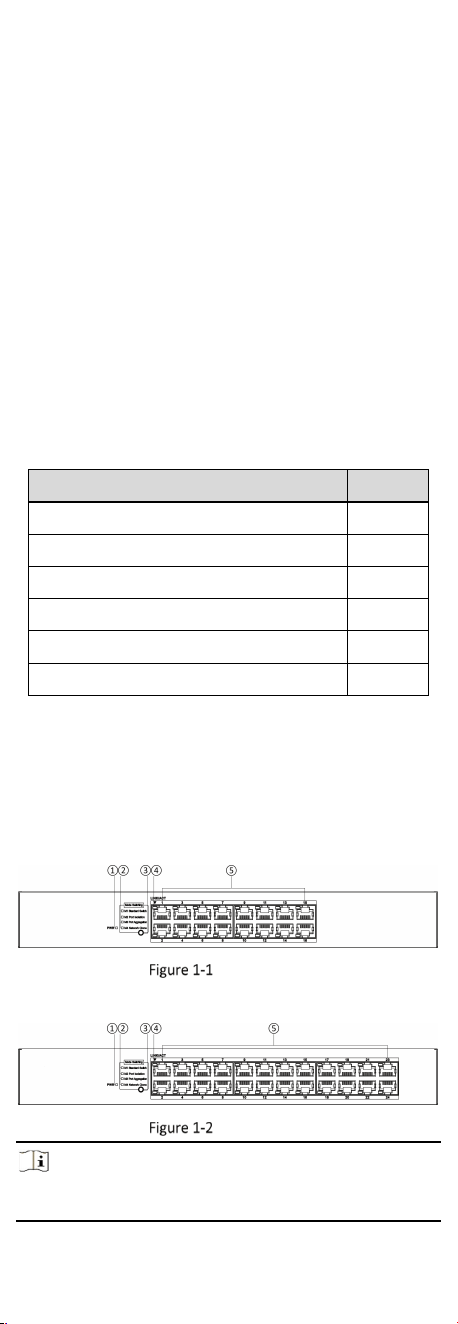
Front Panel
0516(R) series switches feature sixteen gigabit RJ45 ports.
0516(R) Series
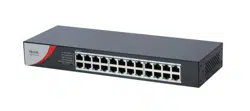
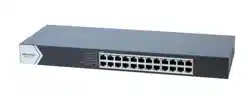
0524(R) series switches feature twenty-four gigabit RJ45 ports.
0524(R) Series
Note
The only difference between 0500 and 0500R series switches lies
in dimensions.
2
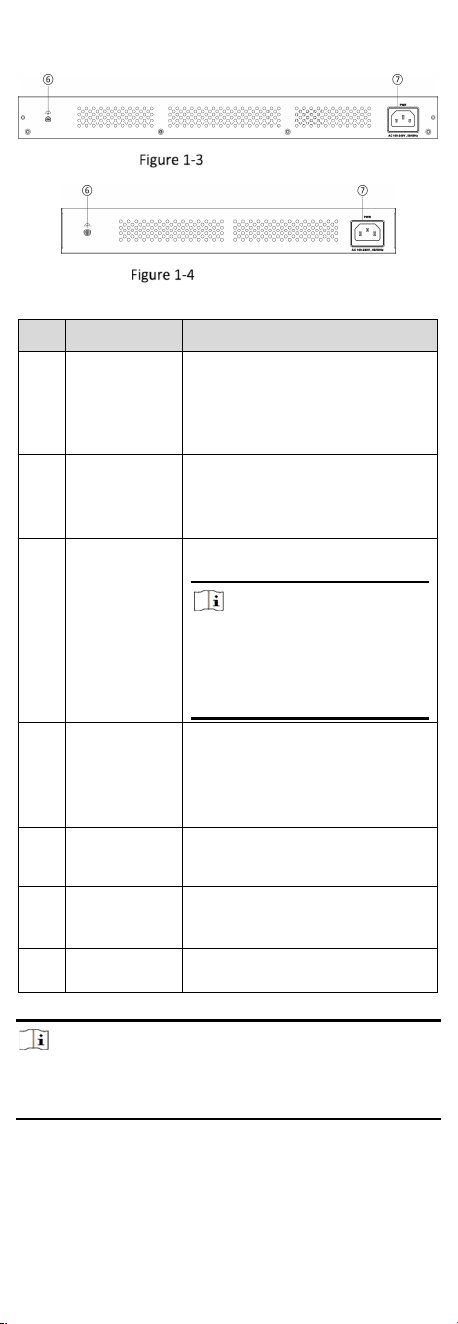
Rear Panel
0516/0524 Series
0516R/0524R Series
Table 1-2 Port/Indicator Description
No.
Port/Indicator
Description
①
PWR Indicator
● Solid on: The switch is powered
on normally.
● Unlit: No power supply is
connected or power supply is
abnormal.
②
Working
Mode
Indicator
● Solid on: The switch works in this
mode.
● Unlit: The switch does not work
in this mode.
③
Mode Button
Used for switching the switch’s
working mode.
Note
The switchover takes effect
immediately. Once the switch is
powered off, the working mode
operated before the power failure is
automatically saved.
④
LINK/ACT
Indicator
● Solid on: The port is connected.
● Flashing: The port is transmitting
data.
● Unlit: The port is disconnected or
connection is abnormal.
⑤
Gigabit RJ45
Port
Used for connection to another
device via a network cable.
⑥
Grounding
Terminal
Used for connection to a grounding
cable to protect the switch from
lightning.
⑦
Power Supply
Use the attached AC power cord to
connect the switch to a socket.
Note
The switch supports four working modes: standard switch (M1),
port isolation (M2), port aggregation (M3), and network clone (M4).
Table 1-3 describes the four working modes.

3
Table 1-3 Working Mode Description
Working Mode Description
M1 Standard
Switch
All ports can communicate with each
other, equivalent to a standard gigabit
switch.
M2 Port
Isolation
All downlink ports are isolated from
each other and can communicate only
with uplink ports. This mode is used for
broadcast storm suppression and
network performance improvement.
M3 Port
Aggregation
Uplink ports are aggregated into one
aggregation group. This mode is used for
increasing uplink bandwidth and
preventing network congestion.
M4 Network
Clone
Flow control of all ports is disabled, and
a dedicated broadcast and multicast
packet processing mechanism is set. This
mode is used for accelerating batch
network clone and reducing device
breakdowns in various complex
networking environments.
2 Installation
Please select an appropriate installation method according to the
actual needs.
Note
●
0500R series switches support desktop placement, wall
mounting, and rack mounting, while 0500 series switches
support only desktop placement and rack mounting.
●
The following figures are for illustration only. The actual device
prevails.
Before You Start
Ensure that the desktop or rack is stable and firm enough.
Keep the room well-ventilated. Leave at least 10 cm of heat
dissipation space around the device.
Keep at least 1.5 cm vertical distance between two adjacent
devices for rack mounting.
2.1 Desktop Placement
Place the device on the desk.
2.2 Wall Mounting
Steps
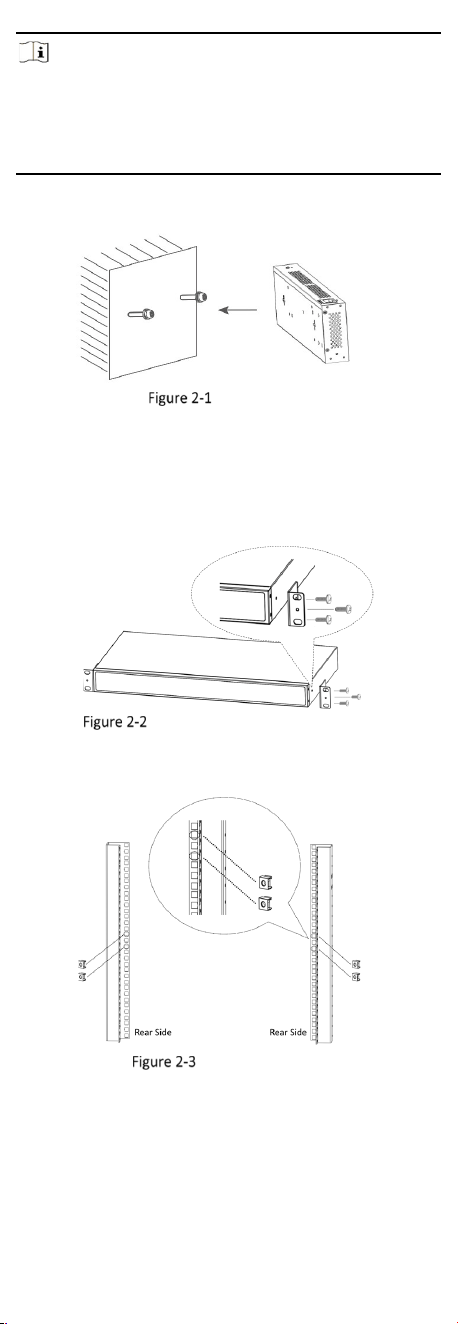
1. Check the distance between the two hanging holes on the rear
cover of the device.
2. Insert two self-prepared M4 screws into the wall.
4
Note
●
The load-bearing capacity of the wall should be three times more
than the weight of the device.
●
Ensure that the distance between the two screws equals to the
distance between the two hanging holes.
●
Set aside at least 4 mm of the screw bodies outside the wall.
3. Align the hanging holes with the screws, and hang the device on
the screws.
Wall Mounting
2.3 Rack Mounting
Steps
1. Check the grounding and stability of the rack.
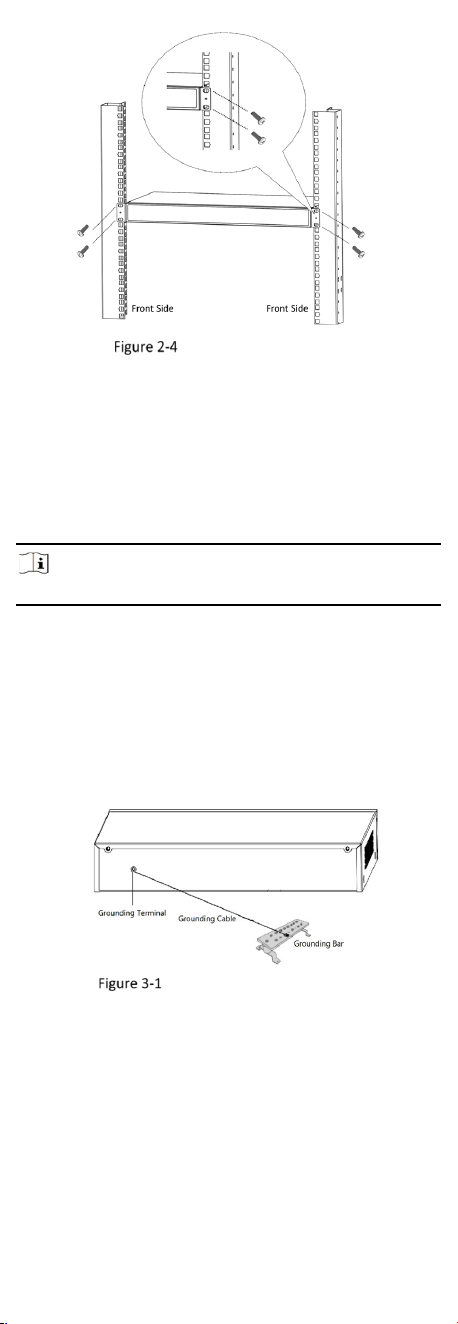
2. Use M3 screws provided in the package to fix the two L-shaped
brackets to both sides of the device.
Fix L-Shaped Brackets to the Device
3. Fix two self-prepared M5 or M6 nuts to the rear side of the rack
on both sides respectively.
Fix Nuts to the Rack
4. Place the switch against the rack so that the holes on the L-
shaped brackets are aligned with the holes where the nuts have
been fixed.
5. Fix the brackets to the front side of the rack with two self-
prepared M5 or M6 screws on both sides respectively to stably
install your device.
5
Fix the Device to the Rack
3 Wiring
3.1 Connect Grounding Cable
Grounding is used to quickly release overvoltage and overcurrent
induced by lightening on the device, and to protect personal safety.
Select an appropriate grounding method according to the
installation conditions.
Note
The following figures are for your reference only.
3.1.1 With Grounding Bar
If a grounding bar is available at the installation site, follow the
steps below.
Steps
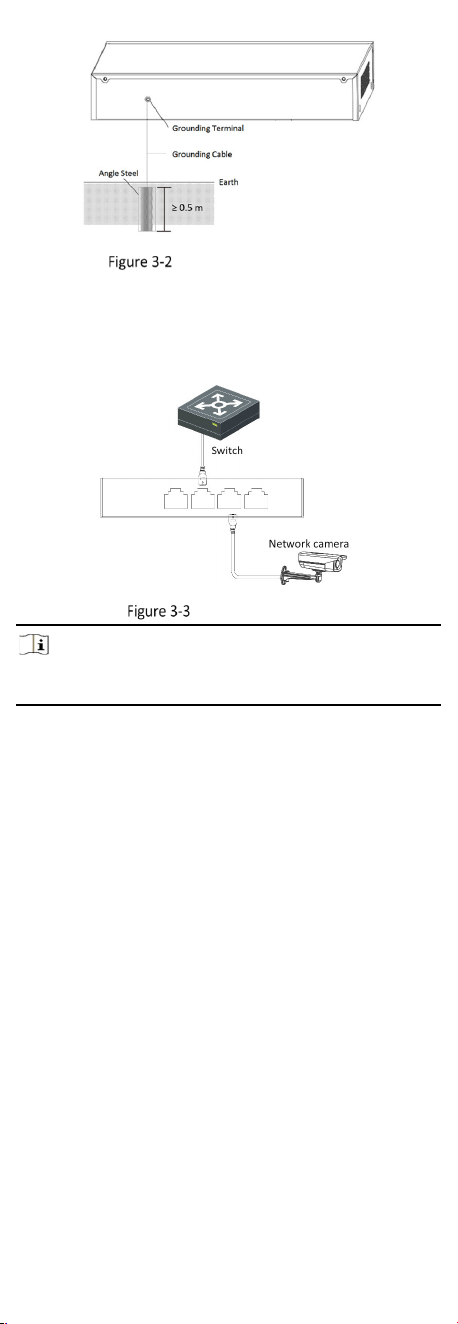
1. Connect one end of the grounding cable to the binding post on
the grounding bar.
2. Connect the other end of the grounding cable to the grounding
terminal of the device and tighten the screw.
Grounding with Grounding Bar
3.1.2 Without Grounding Bar
If there is no grounding bar but the earth is nearby and the
grounding body is allowed to be buried, follow the steps below.
Steps
1. Bury an angle steel or steel pipe (≥ 0.5 m) into the earth.
2. Weld one end of the grounding cable to the angle steel or steel
pipe and embalm the welding point via electroplating or coating.
3. Connect the other end of the grounding cable to the grounding
terminal.
6
Grounding with Angle Steel
3.2 Connect RJ45 Port
Use a network cable to connect the device to the RJ45 port of a
peer device such as network camera (IPC), network video recorder
(NVR), switch, etc.
RJ45 Port Connection
Note
When the device is connected to a network camera (IPC), a
separate power supply is required for the IPC.
4 Device Powering-On
Please use the attached AC power cord to power on the device.
Before powering on your device, make sure that:
• The operating power supply is compliant with rated input
standard.
• Port cables and grounding cables are correctly connected.
• If there is outdoor wiring, connect a lightning rod and a
lightening arrester to the cable.