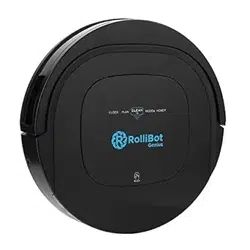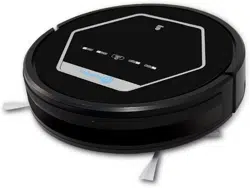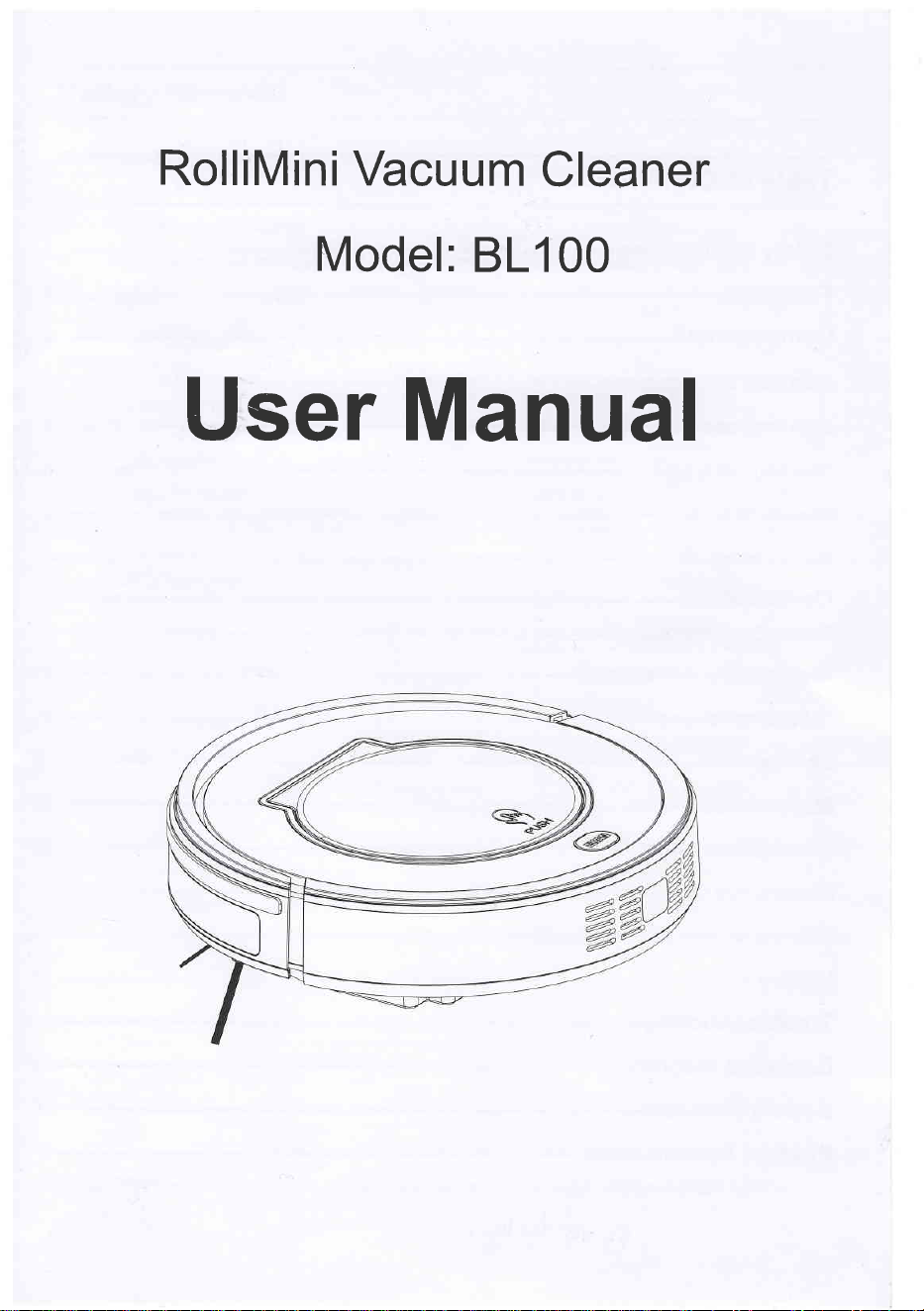
RolliMini
Vacuum
Cleaner
Model:
81100
User
Manual
Table
of Gontents
Safety
I nstru
ctions-----
Features---------
Gomponents
,---rrrr-r
Main body and accessories
Main body
anatomy
1
2
4
4
Charging
home
base
Remote controller
Display
panel----
Operation---------
Battery
Charging
Starting up/Pause/Sleep mode------
Scheduling cleaning
Cleaning
mode-----
Maintenance----
Cleaning side brushes
---------
Cleaning dust bin and
filter
Cleaning sensors and charging connection
pole-
Mopping
cloth---:
Trou bleshooti n
g---------
Exploded
diag
ram--------
Battery Removal
----------
Prod
u ct Specification
---
5
6
7
8
I
9
10
11
12
13
13
13
14
14
15
16
17
17
Safety
Instructions
Before
using this
product, please
read
the
safety instructions
and follow
all
normal
safety
precautions.
O
Read
this
user manual thoroughly
and carefully
before
using this
product.
O
Keep this
user manual in
your
sight.
O
Any
operation
not following
the instructions in
this user manual may
lead to harm to
human
or this
product.
Safety
Instructions
1.
Only use
the original
battery
and
power
adapter
(model:
2DD240060) of the
product
for charging.
Using
other un-matched
adapter
may cause electric
shock, fire or
product
damage.
2. Do not touch
the
power
mrd,
plug
or adapter with wet
hands.
3. Before starting
the
product,
make sure the
dust bin f lter is
properly
installed.
4. Do not
use this
product
in wet or moist
environment
(any
environment
with liquid), e.g. Bathroom
or
laundry.
5.
Before use,
mllect the floor
environment
(
remove
all the fragile
objects and
cords, clothing,
papers,
loose
cables,
as well
as making sure to lift
curtains and
drapes off the
floor
to
avoid any
possible
accidents.
In
case that
a loose cable is
tangled with the
product,
the
cable might move around with the
product
as it
woks and topple
down tables,
chairs, or cabinets
and might
cause injury or
property
damage.)
6.
Do
not sit
on top of this
product
or attach an
object on the
top of it. Beware of children or
pets
while
the
product
is in operation.
7
.
Only
use the
product
indoors,
do not use it outdoors.
B.
Do
not let this
product
get
close to cigarette, lighter,
match or
any flammables.
9.
Never
use the
product
to clean
up mmbustible
or highly volatile liquids
such as
gasoline.
1 0.
lf the
product
needs
cleaning,
do not clean it while
charging.
11
. Do
not over-bend
the
power
mrd or
pressure
the
power
cord
with heavy or sharp
objects.
12.
Do
not
place
this
product
where it is easy to
drop off
(tables,
chairs, etc).
13.
Tum
ofithe
power
switch
during transportation
orwhen
the
product
is not in
use
for
seveal days
14. To
avoid tripping,
inform
allthe
people
in the
house when
this
product
is in
use.
1
5.
Before
use,
check whether
adapter and
outlet are
properly
connected.
16. Empty dust
bin every
time after robot
cleaning.
17. Use this
product
in
temperature from
0"C to 40"C.
18.
Do not
use this
product
in hightemperature
environment.
1 9.
The
plug
must
be removed from
the socket-outlet
before
under
going
maintenance.
20. The
product
must
be disconnected from
the
power
outlet
when
removing the battery.
21.
The
baftery must
be removed
from the
product
before it is
scrapped.
22.
The
battery should
be disposed
of
properly
for
safety.
Warning:
This
product
can
only be
used by children
aged
from
8
years
and above
and
persons
with reduced
physical,
sensory
or mental
capabilities
or lack of
experience and knowledge
if they have
been
given
superuision
or
instruction
concerning
use
of
the
product
in a safe
way and understand
the hazards involved.
Children
shall
not
play
with the
product.
Cleaning
and maintenance
shall not be made
by children without
supervision.
Featu res
Powedul
Suction.
Intelligent
Suction Adiustment
Powerful
Suction
The Product
possesses
superb
cleaning capabilities-even
particle
dust on the floorwill be
thoroughly
removed.
Intelligent
Suction
power
Adjustment
This
product
is
able
to
automatically adjust
its
suction
power
when
different
floor environments
are
detected. Not
only it makes cleaning more
easier,
but also
energy effcient.
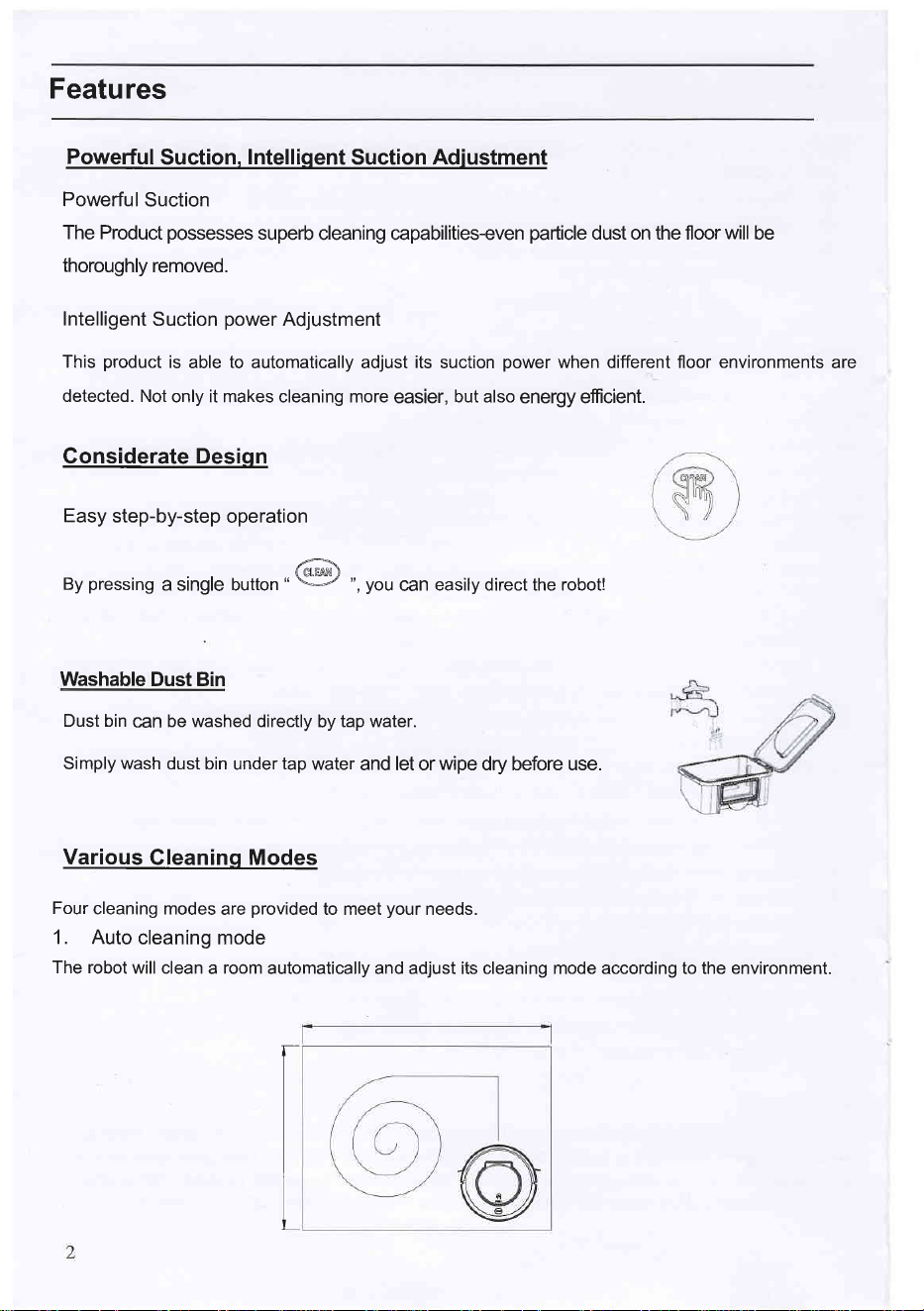
Gonsiderate Design
Easy
step-by-step
operation
Washable
Dust Bin
Dust bin
can
be washed directly
by
tap water.
Simply
wash
dust bin
under
tap
water
and let or wipe dry before use.
Various
Cleaning Modes
Four
cleaning modes
are
provided
to meet
your
needs.
1. Auto
cleaning mode
The robot
will clean
a
room
automatically and adjust its cleaning mode according to the environment.
,^
By
pressing
a single button
.
qry
",
you
can
easily direct the robot!
Featu
res
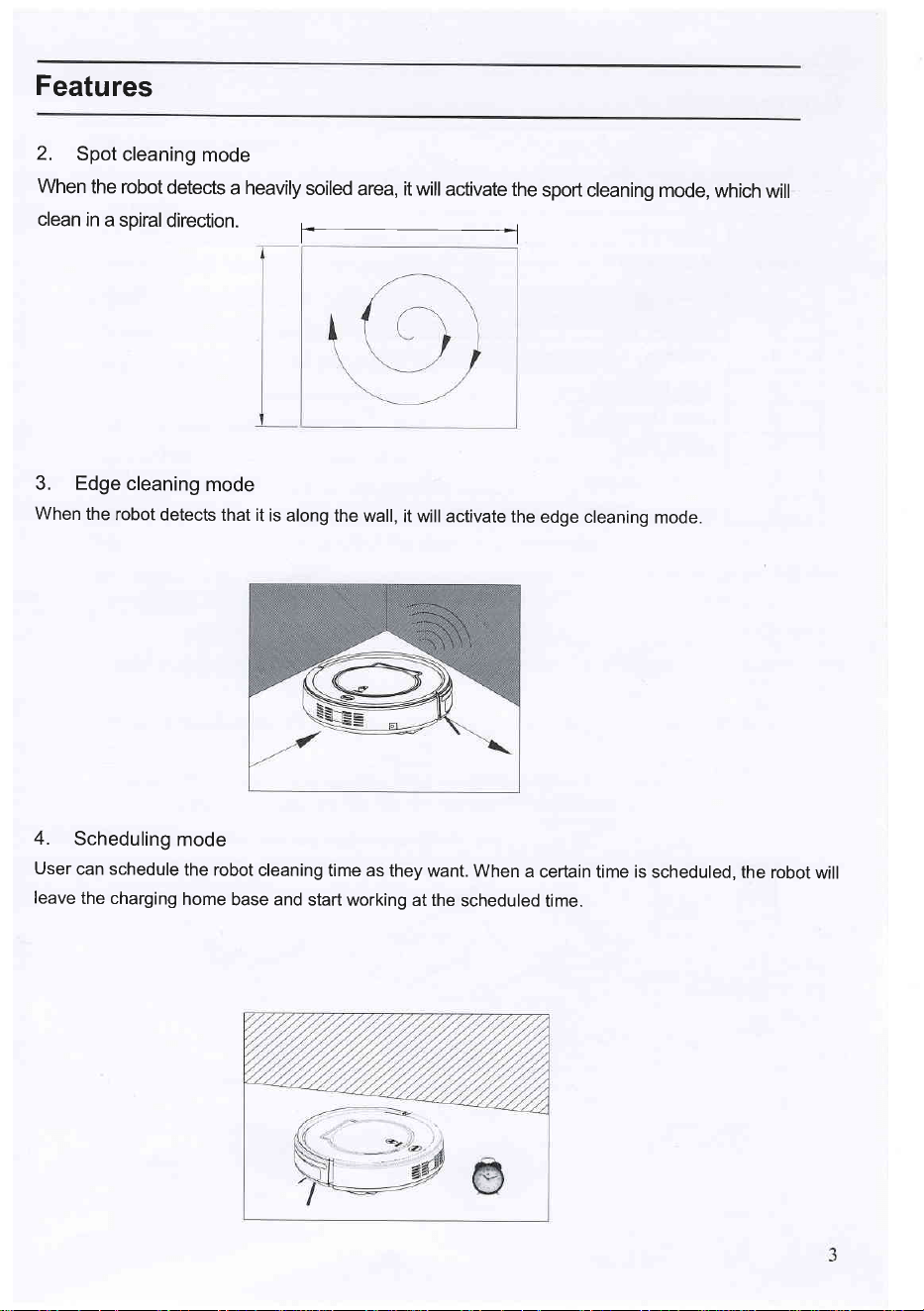
2.
Spot
cleaning
mode
When
the robot
detects
a heavily
soiled
area, it will
activate
the
sport
cleaning mode,
which
will
clean
in
a spiral
direction.
3. Edge
cleaning
mode
When
the
robot
detects
that it
is along
the wall,
it will activate
the
edge cleaning
mode.
4.
Scheduling
mode
User
can schedule
the robot
cleaning
time as
they want. When
a
certain time is
scheduled, the
robot
will
leave
the charging
home
base and
start working
at the
scheduled
time.
Gomponents
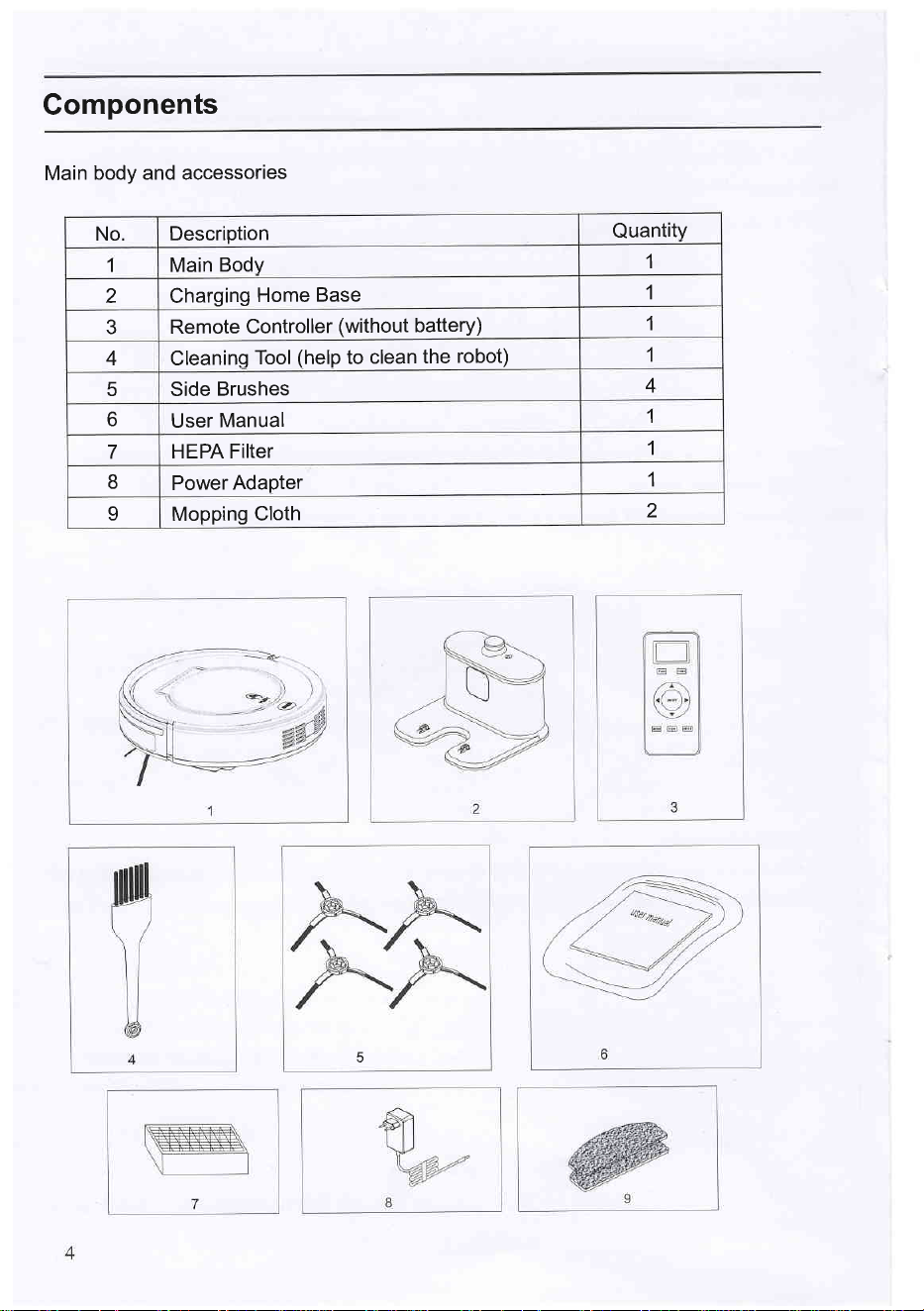
Main
body and accessories
No.
Description
Quantity
1 Main
Body
1
2 Charging
Home
Base
1
3
Remote
Controller
(without
battery)
1
4 Cleaning
Tool
(help
to
clean
the
robot)
1
5 Side
Brushes
4
6
User
Manual
1
7
HEPA Filter
1
8
Power
Adapter
1
I
Mopping
Cloth
2
5
Components
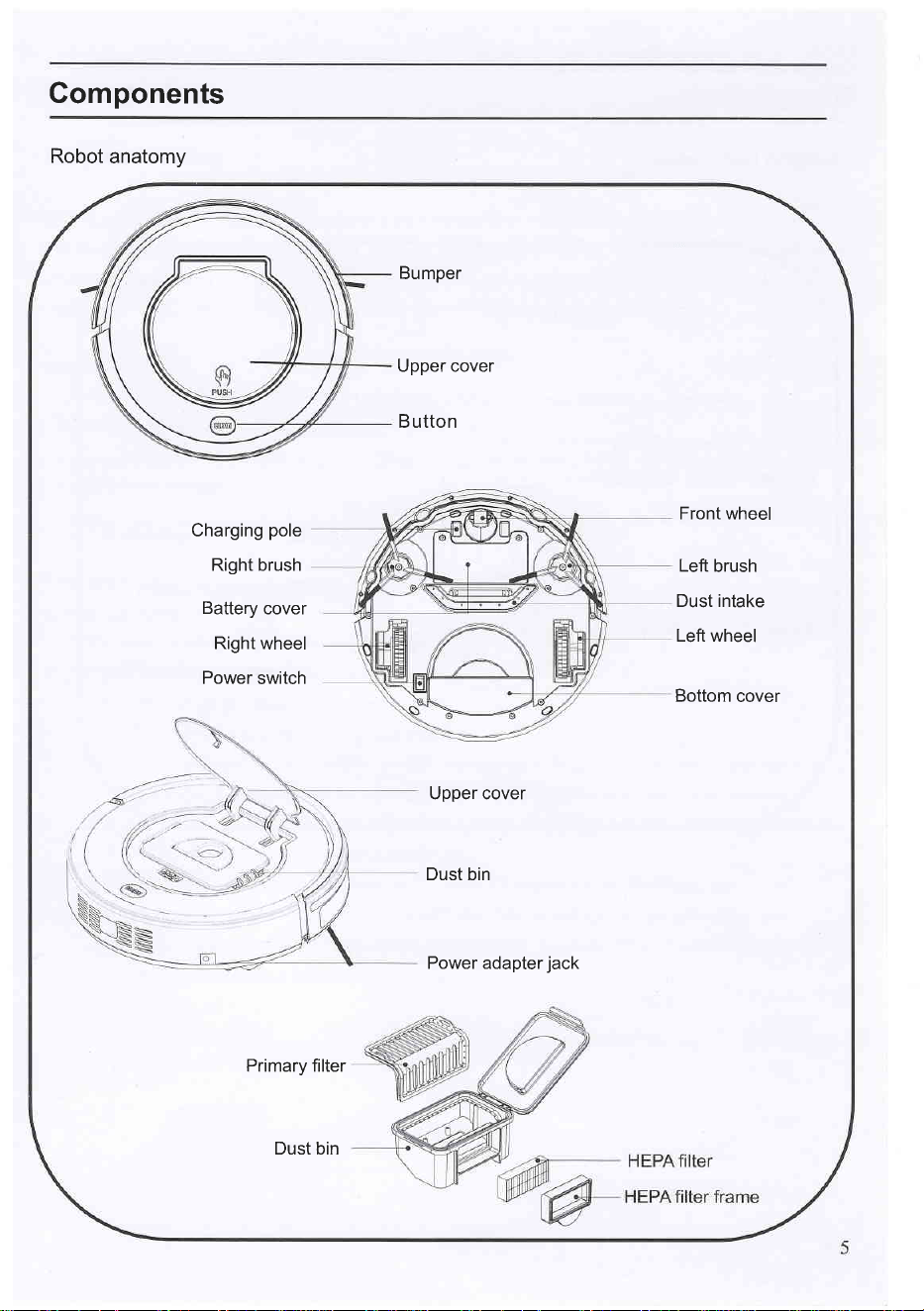
Robot
anatomy
Bumper
Upper cover
Button
Charging
pole
Right brush
Battery
cover
Right
wheel
Power
switch
Front wheel
Left
brush
Dust intake
Left wheel
Bottom
cover
Upper cover
Dust bin
Power adapter
jack
Primary filter
Dust bin
Gomponents
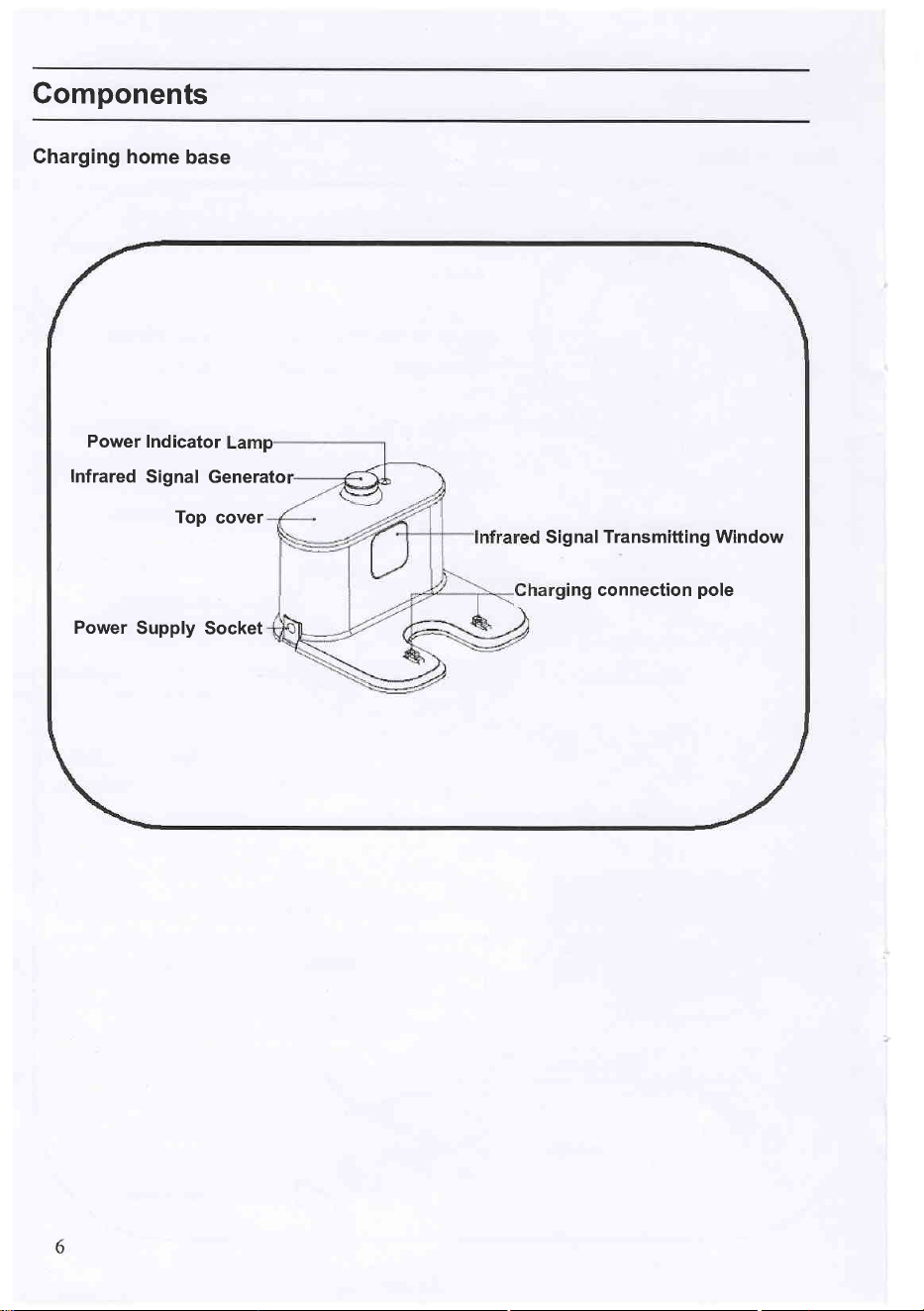
Gharging home
base
Power
Indicator
Infrared
Signal Generato
Top
cover
Sig
nal Transmitting Window
ing connection
pole
Power
Supply
Socket
Components
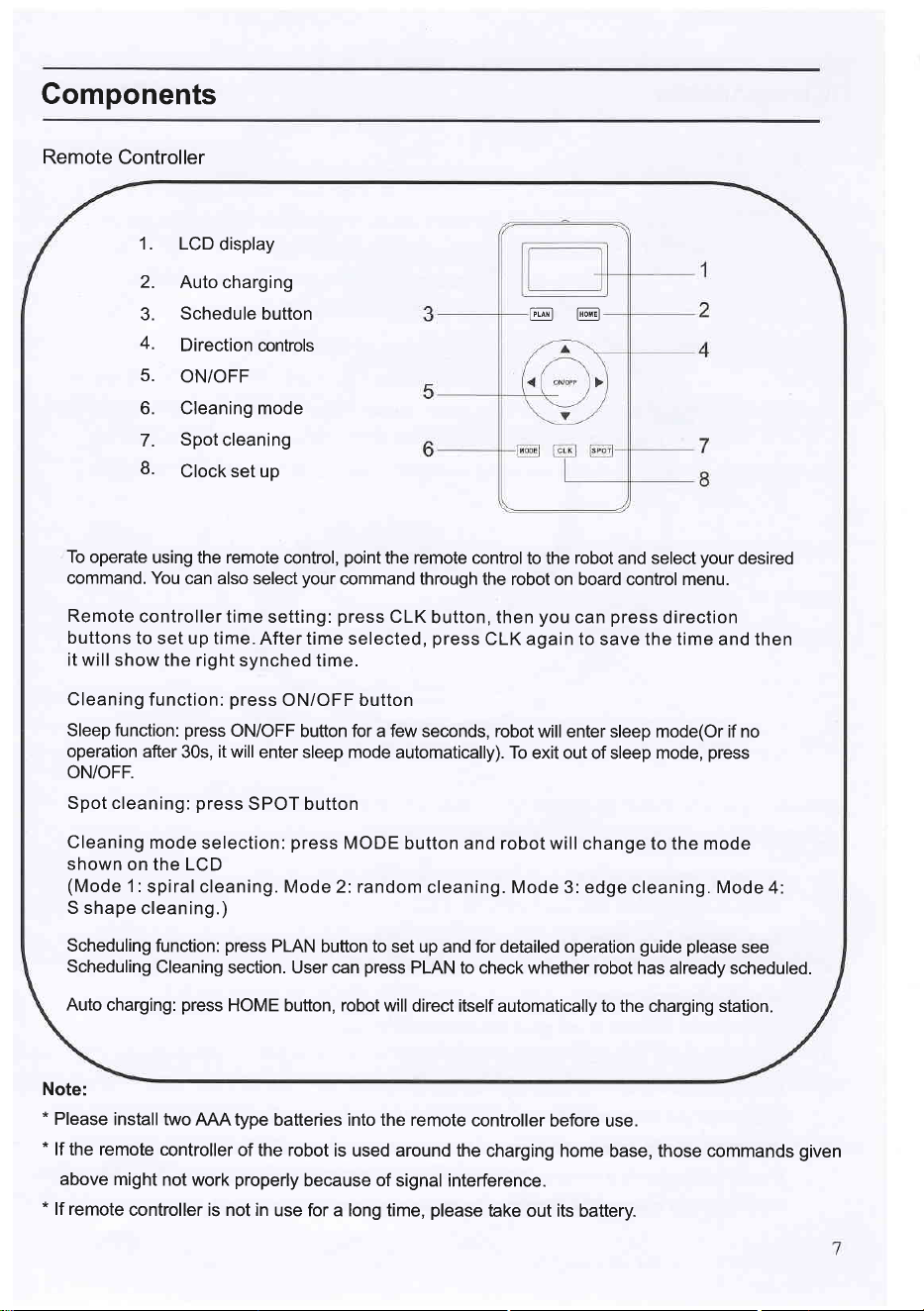
1. LCD
display
2. Auto charging
3.
Schedule
button
4.
Direction
controls
5.
ON/OFF
6. Cleaning mode
7.
Spot
cleaning
8.
Clock set up
To operate
using the remote
control,
point
the remote control
to the
robot
and select
your
desired
command. You
can also select
your
command through
the robot on board control menu.
Remote
controller
time setting:
press
CLK
button, then
you
can
press
direction
buttons
to set up time.
After time selected,
press
CLK again to
save the
time
and then
it will
show the right
synched time.
Cleaning
function:
press
ON/OFF button
Sleep function:
press
ON/OFF
button for a few seconds, robot
will enter sleep mode(Or if no
operation
after
30s,
it will
enter sleep mode
automatically). To
exit out of sleep mode,
press
ON/OFF.
Spot cleaning:
press
SPOT button
Cleaning
mode
selection:
press
MODE
button and robot will
change to the mode
shown
on the LCD
(Mode
1:
spiral cleaning.
Mode 2: random
cleaning. Mode 3: edge
cleaning.
Mode
4:
S shape
cleaning.)
Scheduling
function:
press
PLAN button to set
up and for detailed operation
guide
please
see
Scheduling
Cleaning
section. User can
press
PLAN to check whether robot
has already scheduled.
Auto
charging:
press
HOME button, robot
will direct itself
automatically to the charging station.
@@
Remote
Controller
Note:
*
Please
install two
MAtype
batteries into the remote
controller
before use.
*
lf the remote
controller
of the robot
is used around the
charging home
base,
those commands
given
above might
not work
properly
because of
signal interference.
*
lf remote
controller is not in
use for a long time,
please
take
out
its
battery.
Gomponents
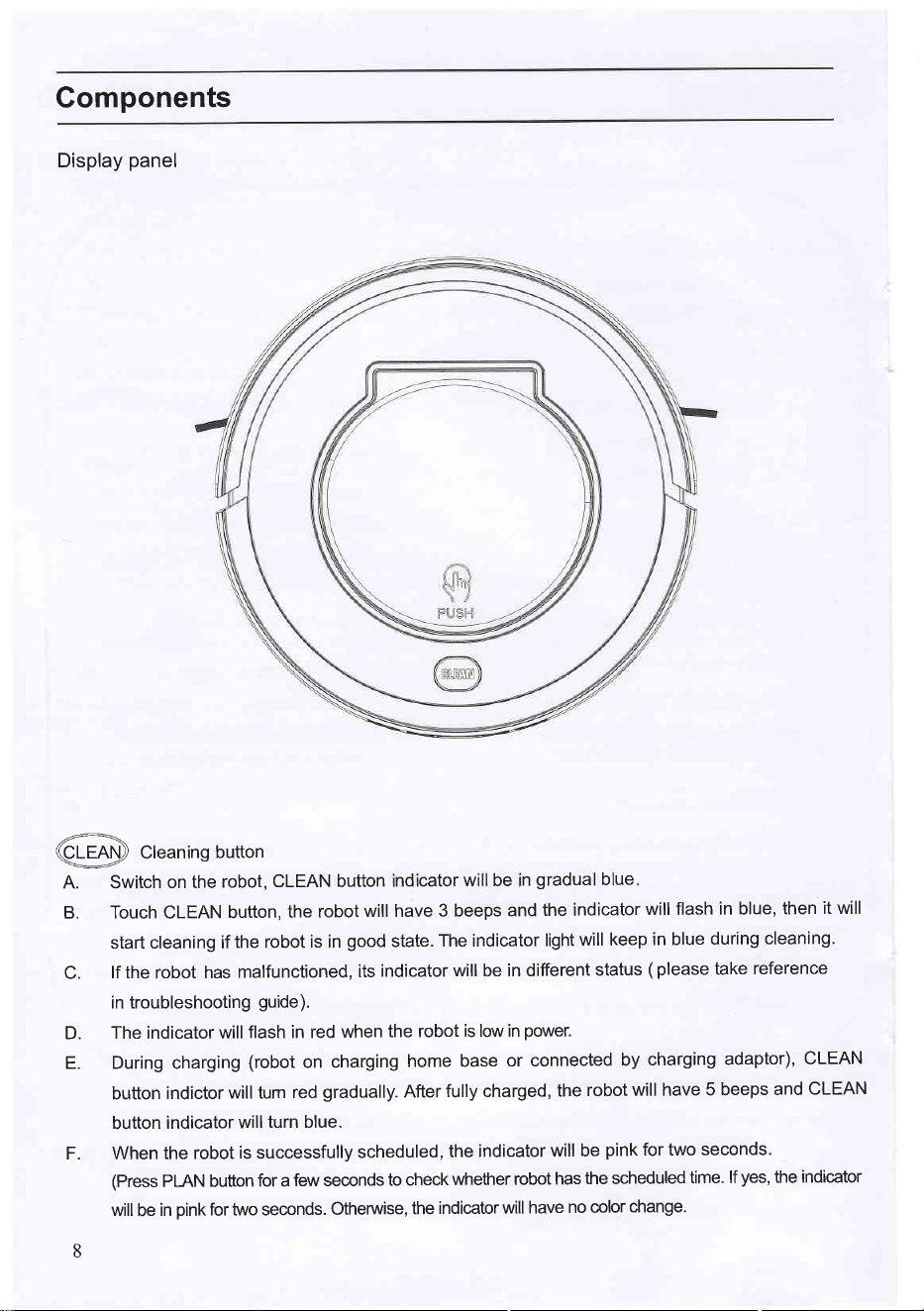
Display
panel
B. Touch CLEAN
button,
the
robot
will have
3 beeps
and
the indicator
will flash
in blue,
then
it will
start cleaning
if
the robot
is in
good
state.
The indicator
light
will keep
in blue
during
cleaning.
C.
lf the robot has
malfunctioned,
its
indicator
will be in different
status
(
please
take
reference
in troubleshooting
guide).
D.
The indicator
will
flash in red
when
the robot
is low in
power.
E. During charging
(robot
on
charging
home base
or connected
by
charging
adaptor),
CLEAN
button
indictor
will tum
red
gradually.
After
fully charged,
the
robot
will have
5 beeps
and
CLEAN
button
indicator
will
turn blue.
F.
When the robot
is
successfully
scheduled,
the indicator
will be
pink
for two
seconds.
(Press
PIAN button
for a
few seconds
to check
whether
robot
has
the scheduled
time.
lf
yes,
the
indicator
will
be
in
pink
for two seconds.
Otherwise,
the
indicator
will have
no color
change.
8
^.
qry
Clean
ng
button
A. Sw
tch on the
robot
CLEAN button
nd cator
w be
n
gradua
b
ue
Operation
Battery
Charging
1.
Place
charging home
base against the wall,
plug
in
adapter,
and
thesignal
light on
charging
home
base will flash.
Note: Put
charging
home base against the wall and remove
obstacles
about 1 meter
distance at two sides
and
2 meters
ahead.
2. Turn
on the
power
switch
at
the
bottom side of the robot,
and then
display
indicator
will be in
gradual
blue,
the
robot is in
standby.
(lf
no command
received, the robot
will turn to sleeping mode
after
30 seconds.)
Note: A. Please
always keep the
power
switch
turned
on. lf not, it is unable to make the robot
work.
B. lf
power
switch is turned off,
all
the scheduled
operation will be lost.
C.
Before
charging the robot,
please
make sure the
power
switch
is
turned on, or else the robot
can not be charged.
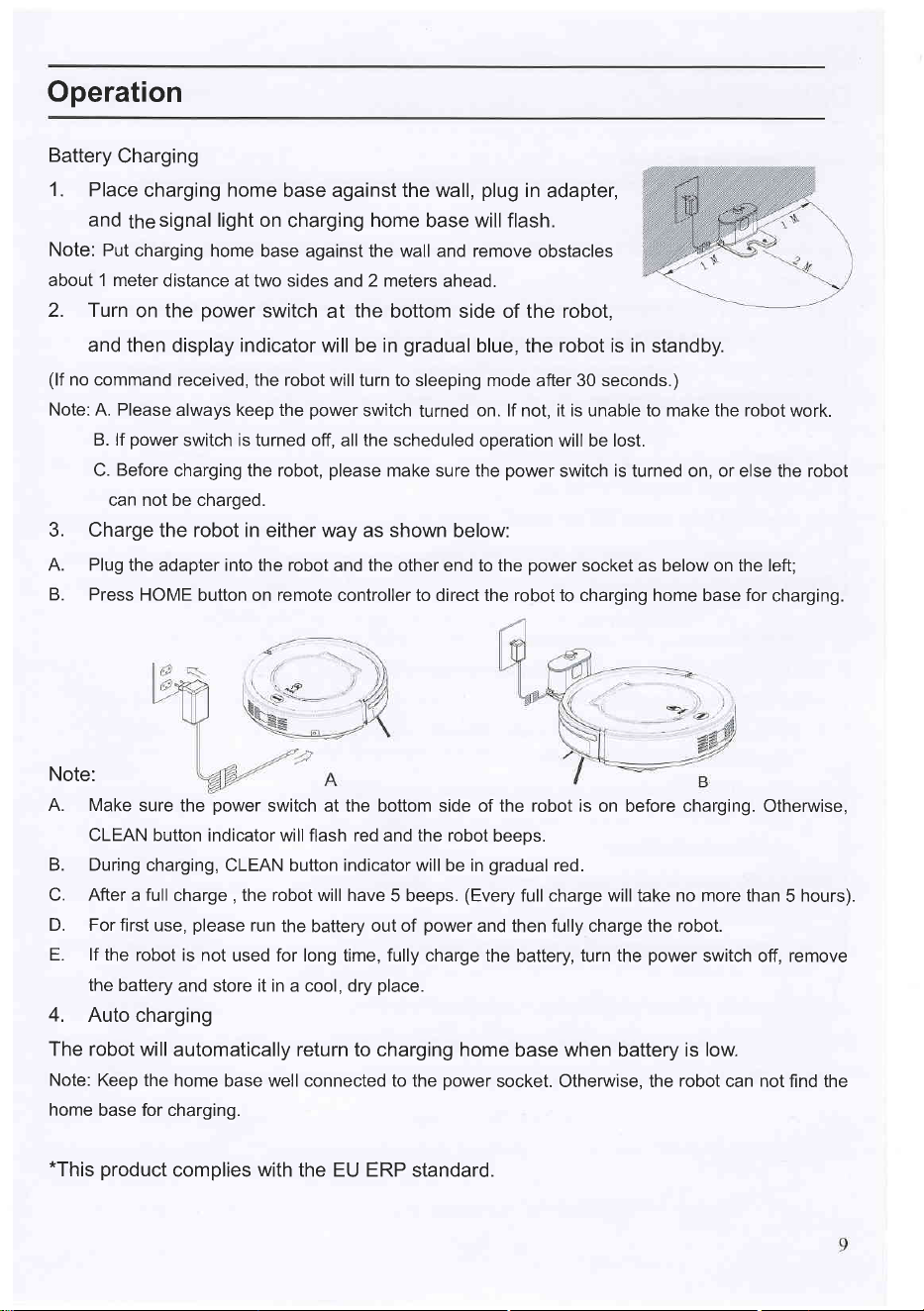
3. Charge
the robot in either way as shown
below:
A. Plug
the adapter into the robot
and
the
other end to the
power
socket as below on the left;
B. Press
HOME
button on
remote
controller to direct the robot to charging home base for
charging.
Note:
A. Make
sure
the
power
switch at the bottom side of the robot is
on before charging. Otherwise,
CLEAN button
indicator will flash red and the robot
beeps.
B. During
charging, CLEAN button indicator will
be in
gradual
red.
C. After a full
charge
,
the robot will have
5 beeps.
(Every
full charge will take no more than
5
hours).
D. For first
use,
please
run
the battery
out of
power
and then fully charge the
robot.
E. lf the
robot is not
used for long time, fully charge the
battery,
turn the
power
switch off, remove
the battery
and store it in a cool, dry
place.
4.
Auto charging
The robot will
automatically return to charging home
base when battery is
low.
Note:
Keep the
home base well connected to the
power
socket. Otherwise, the
robot
can not find the
home
base for charging.
*This
product
complies
with
the EU ERP
standard.
Operation
Start /Pause/Sleep mode
1.
Starting up
A. Power
on the switch at bottom side
of the robot, and CLEAN button
indicator will be
in
gradual
blue.
B.
Press
CLEAN
button
on main body or on remote controller to start cleaning.
The
robot will
have
3 beeps,
and
the
CLEAN
indicator will be in
gradual
blue.
Note: lf robot
is in sleep mode,
press
CLEAN button to wake the
robot from sleep
mode. Then
press
CLEAN for a second time, the
robot starts cleaning automatically.
2. Pause
To
stop
the robot
temporarily
from
cleaning:
A.
Press
CLEAN button on
main body;
B. Or
press
ON/OFF
button on remote controller.
Note: When
robot is
paused,
user can
have new operation on it.
3.
Sleep
mode
Turn robot into
sleep
mode,
and
its display indicator will be dark
(robot
in standby, not
powered
off):
A. The
robot will automatically turn
to
sleep
mode if no
command received
in
30 seconds.
B.
Press
CLEAN button on the main body for two seconds or
press
ON/OFF on
remote
controller
for two seconds, robot
will
turn to sleep
mode.
Note: lf the
robot is not in use for a
long time,
please
turn the
oower switch off.
10
Operation
Schedule
cleaning
You
can schedule
the robot to start
cleaning at
a certain time.
(Time
delay up to
23 hours.)
For
example,
it's
9:00AM now,
you
set 6:30
on the remote
controller, and then the robot
will start
cleaning
after
6 hours
and 30 minutes,
i.e. at 15:30 PM. On daily schedule
the robot
will start
cleaning at
15:30
PM everyday-unless
users turn
off the
power
switch on
its
bottom.
Note:
A. The robot
will
always work
at the scheduled time
after
scheduled time is
confirmed.
B. All
scheduled
time
will
be cancelled if
the robot is
turned off.
C.
lf
charging
by adapter directly
(charging
without
home
base),
robot will
not accept
scheduled
time set
operation.
How to
Schedule
the robot by remote
controller:
A. To
schedule
the robot
on
standby
mode or charging
on home base.
(Press
CLEAN to wake
up
the robot,
or
press
ON/OFF
to wake
up it.)
B. Press
PLAN
button
until the remote
displays flashed
figure"00:00".
C. Press
"l'
to set the flashing
numbers.
D.
Press
-.
|'
to
switch between
hour and minute.
E. After
time
confirmed,
press
ON/OFF
to save scheduled
setting-robot will have
one beep,
and
the
CLEAN
button indicator
will be in
pink
for two
seconds-robot is
successfully scheduled.
F. Press
ON/OFF
again,
scheduled setting will
be cancelled,
robot will have two
beeps and the
CLEAN
button
indicator on the
robot will be blue.
G.
Press PLAN
button for
a few seconds,
it will return
out from scheduling
setting.
H. User
can
press
PLAN button to
check whether robot
has
stored
the
desired scheduled time.
lf
yes,
robot
CLEAN button indicator
will be in
pink
for two
seconds. Otheruyise, the indicator
will
have
no color
change and robot
will beep
once.
11
Operation
Gleaning mode
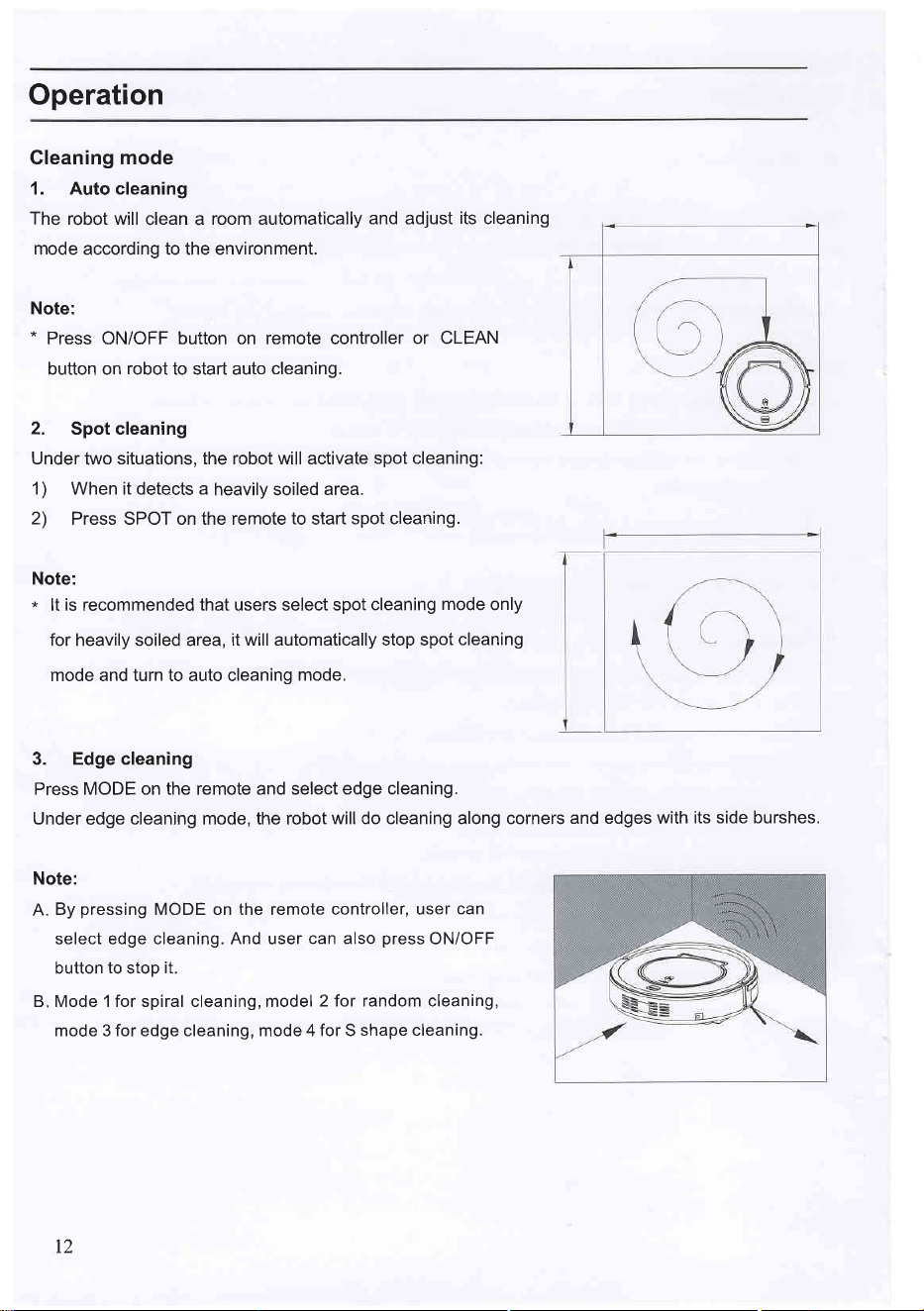
1. Auto cleaning
The robot will
clean a
room automatically
and adjust
its
cleaning
mode
according to the environment.
Note:
*
Press ON/OFF button on remote controller
or CLEAN
button on
robot
to start auto
cleaning.
2. Spot cleaning
Under
two
situations, the robot will activate
spot cleaning:
1) When it detects a
heavily soiled
area.
2)
Press SPOT on the remote
to
start
spot cleaning.
Note:
*
lt is recommended that users select spot
cleaning
mode
only
for heavily soiled area,
it will automatically stop spot
cleaning
mode and turn to auto cleaning
mode.
3. Edge cleaning
Press MODE on the remote and
Under
edge
cleaning mode, the
Note:
A.
By
pressing
MODE on the remote
controller, user
can
select edge cleaning. And user
can also
press
ON/OFF
button
to
stop
it.
B. Mode 1 for spiral cleaning, model
2 for random cleaning,
mode 3 for edge cleaning, mode 4 for S
shape cleaning.
select
edge cleaning.
robot
will do cleaning along corners
and edges with
its side burshes.
I2
Maintenance
1. Cleaning side
brushes
A.
Check
side brushes
to see
whether they are damaged
or
whethere there are
foreign objects
stuck
on the
brushes.
B.
Clean the side brushes
by tool or
cloth.
C.
Replace
the side brushes
if it's damaged.
Make sure L side brush
at
L
place
and
R side brush
at R
place
on the bottom,
then
push
to lock rnplace.
(Carefully
pull
brush to
remove)
2.
Gleaning dust
bin and
filter
Empty dust bin after each
use, the
procedures
are
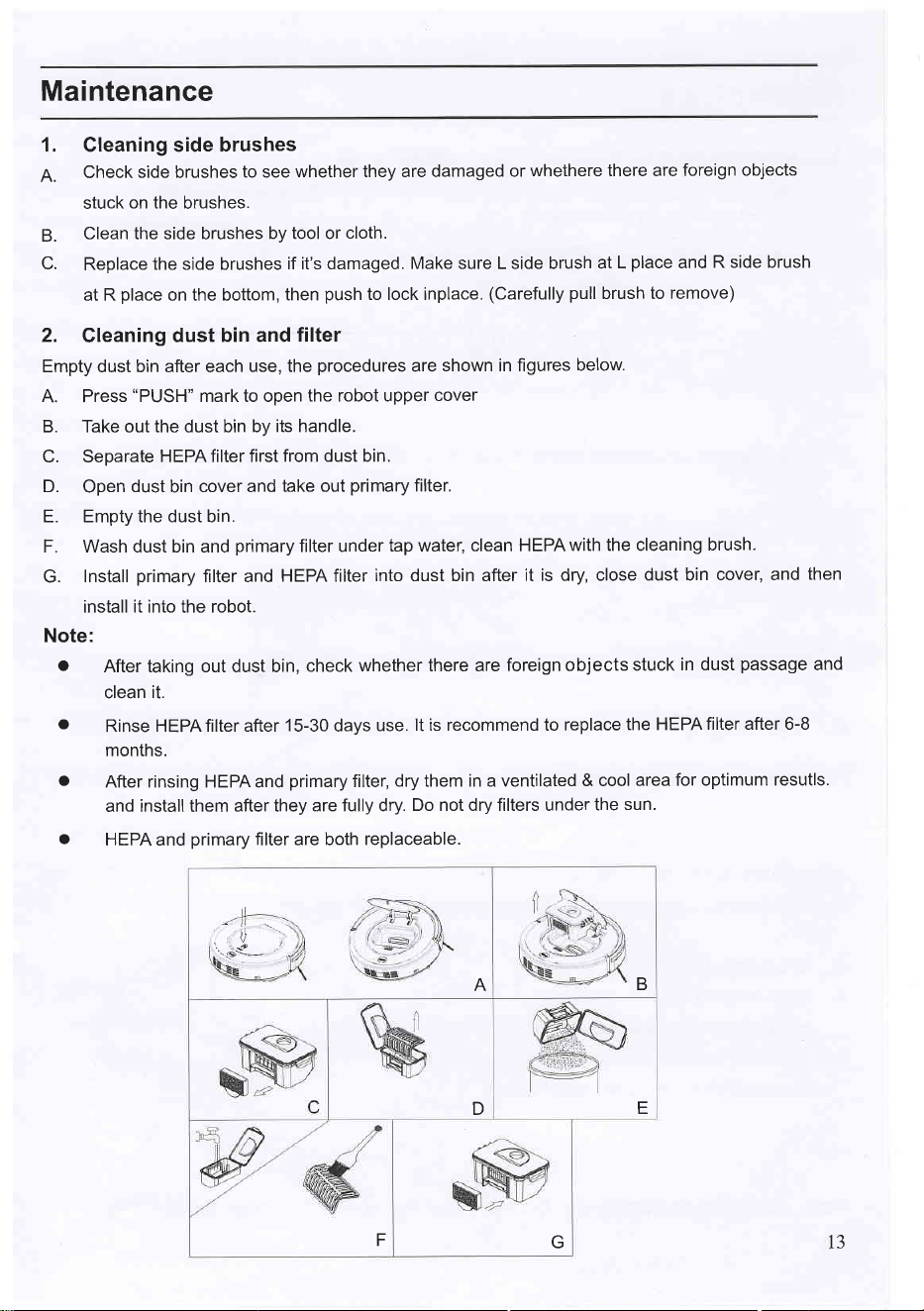
shown in figures
below.
A. Press
"PUSH"
mark to open
the robot upper
cover
B. Take out the dust bin by
its handle.
C. Separate
HEPA filter first
from dust bin.
D.
Open
dust
bin
cover and
take out
primary
filter.
E. Empty the dust bin.
F. Wash dust bin and
primary
filter under
tap water,
clean HEPA
with the cleaning
brush.
G.
Install
primary
filter and
HEPA filter
into dust bin after
it is dry, close
dust bin
cover, and
then
install it into the robot.
Note:
o
After taking out dust bin,
check
whether there are
foreign objects
stuck
in dust
passage
and
clean
it.
o
Rinse
HEPA filter after
15-30
days
use.
lt is recommend to
replace
the HEPA
filter after 6-8
months.
o
After rinsing HEPA and
primary
filter,
dry them in a ventilated
& cool
area for optimum
resutls.
and
install
them
after they
are fully dry.
Do not dry filters under
the
sun.
o
HEPA and
primary
filter are both
replaceable.
-il
.iv
..e
\c+
A
B
D
E
F
G 13
Maintenance
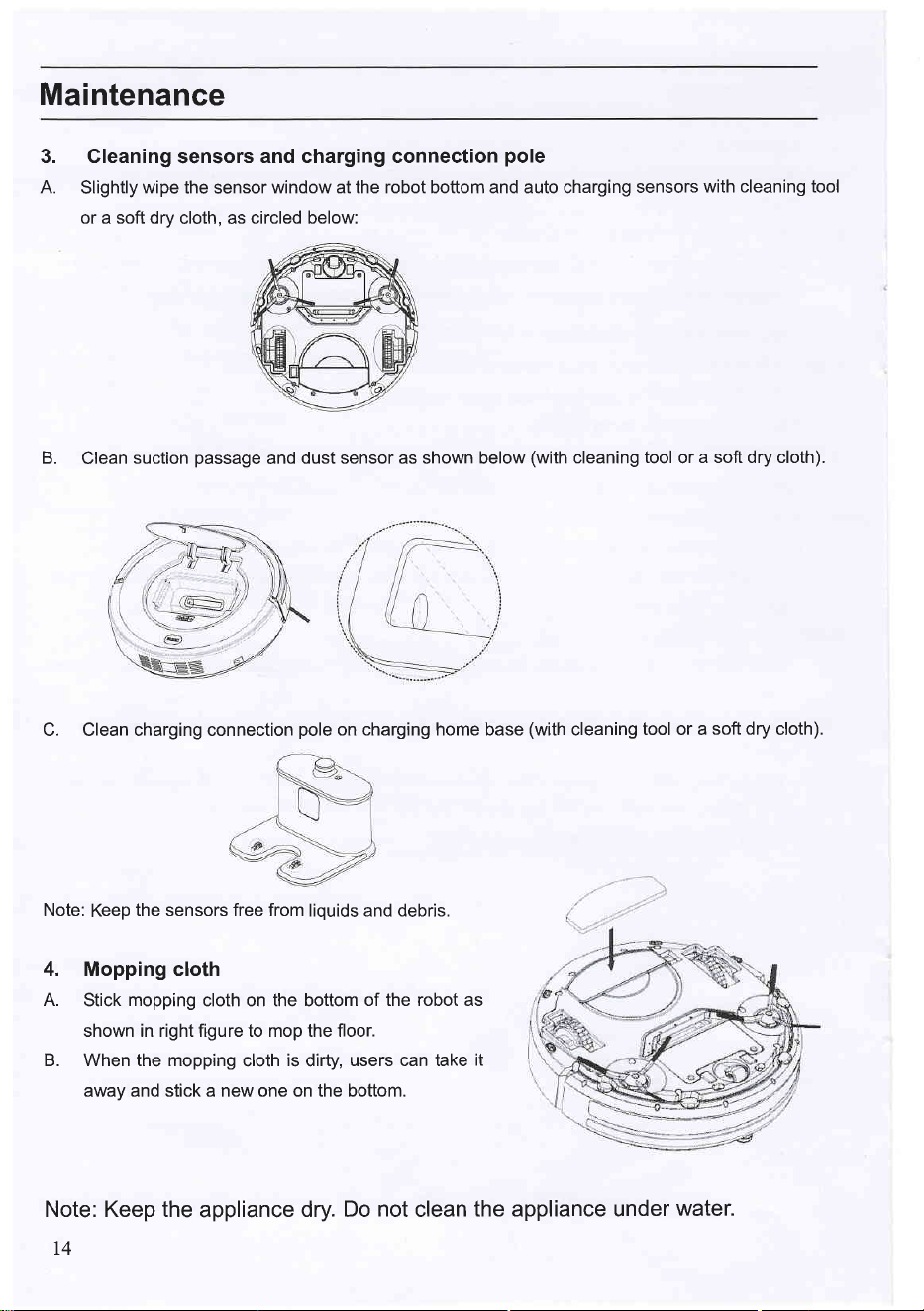
3. Cleaning
sensors
and charging connection
pole
A.
Slightly
wipe
the sensor
window at the robot bottom and auto charging
sensors
with cleaning tool
or a soft dry
cloth, as
circled below:
B.
Clean
suction
passage
and
dust sensor as shown below
(with
cleaning
tool
or
a soft dry cloth).
C. Clean charging connection
pole
on charging home base
(with
cleaning
tool or a
soft dry
cloth).
Note:
Keep
the sensors free from
liquids and debris.
4. Mopping cloth
A.
Stick
mopping
cloth on the bottom
of the robot as
shown in right figure to mop the floor.
B. When the mopping
cloth
is
dirty,
users can take
it
away and stick a new one on the bottom.
Note: Keep the
appliance
dry.
T4
Do
not
clean
the appliance under
water.
Troubleshooting
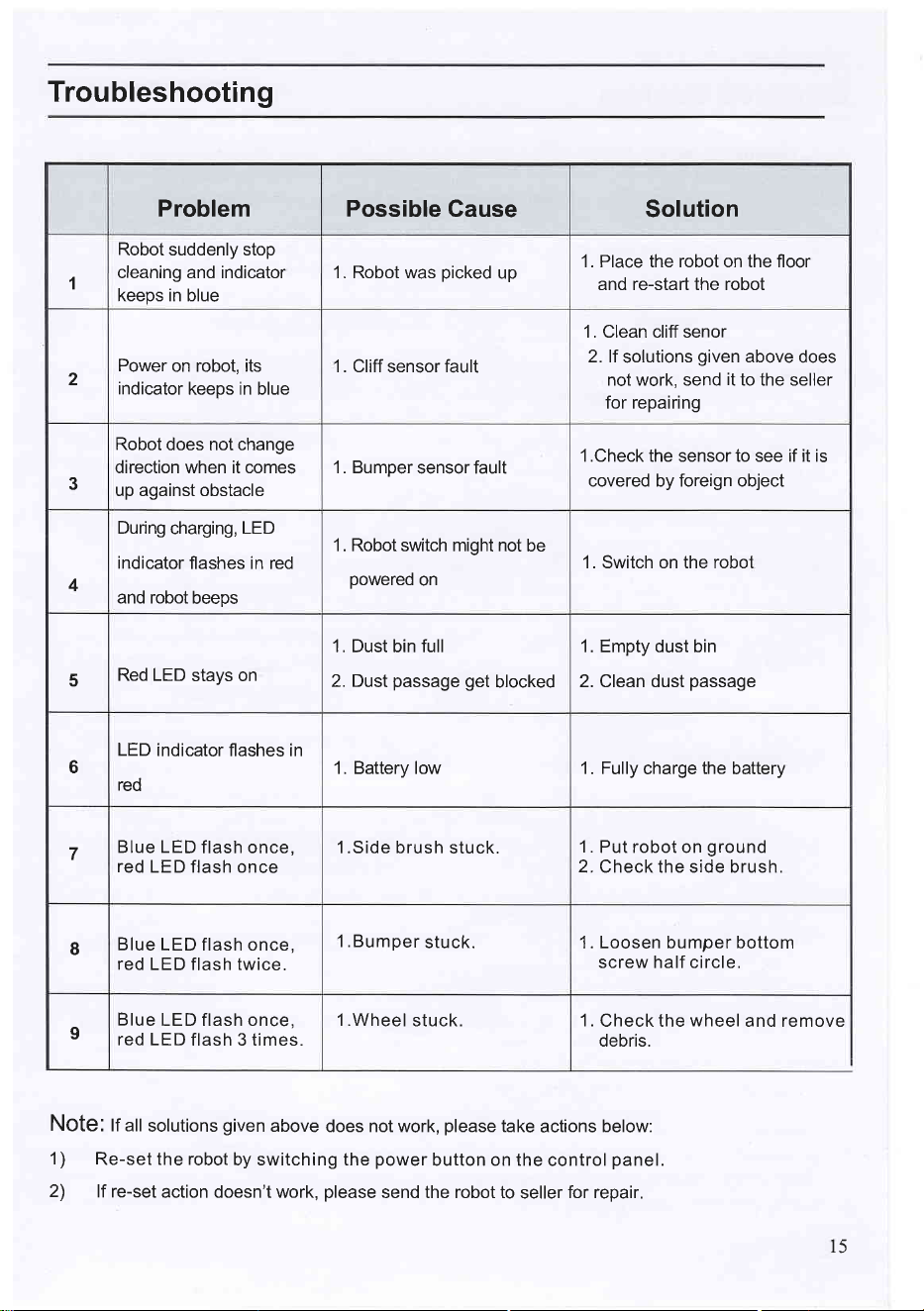
Problem Possible
Gause
Solution
,l
Robot suddenly stop
cleaning and indicator
keeps in blue
1. Robot was
picked
up
1. Place the robot on the floor
and re-start the robot
2
Power
on robot, its
indicator
keeps in blue
1 . Cliff sensor fault
1 . Clean cliff senor
2. lf
solutions
given
above
does
not work, send
it
to the seller
for repairing
3
Robot does not change
direction when it comes
up against obstacle
1 . Bumper
sensor fault
1 .Check the sensor to see if it is
covered by foreign object
4
During
charging,
LED
indicator
flashes in red
and robot
beeps
1. Robot switch might not
be
powered
on
1. Switch on the robot
5
Red LED
stays on
1. Dust bin full
2. Dust
passage
get
blocked
1. Empty dust bin
2. Clean dust
passage
6
LED
indicator flashes in
red
1. Battery low 1. Fully
charge
the
battery
7
Blue LED
flash once,
red
LED flash once
1.Side brush
stuck.
1 .
Put robot on
ground
2. Check the side brush.
I
Blue
LED flash once,
red
LED flash twice.
l.Bumper
stuck. 1. Loosen bumper bottom
screw half circle.
I
Blue
LED flash once,
red LED
flash 3 times.
l.Wheel
stuck. 1.
Check the
wheel
and remove
debris.
NOte:
lf all
solutions
given
above
does not work,
please
take
actions
below:
1)
Re-set the robot
by switching the
power
button on the
control
panel.
2)
lf re-set
action doesn't work,
please
send the robot to
seller
for repair.
15
Exploded
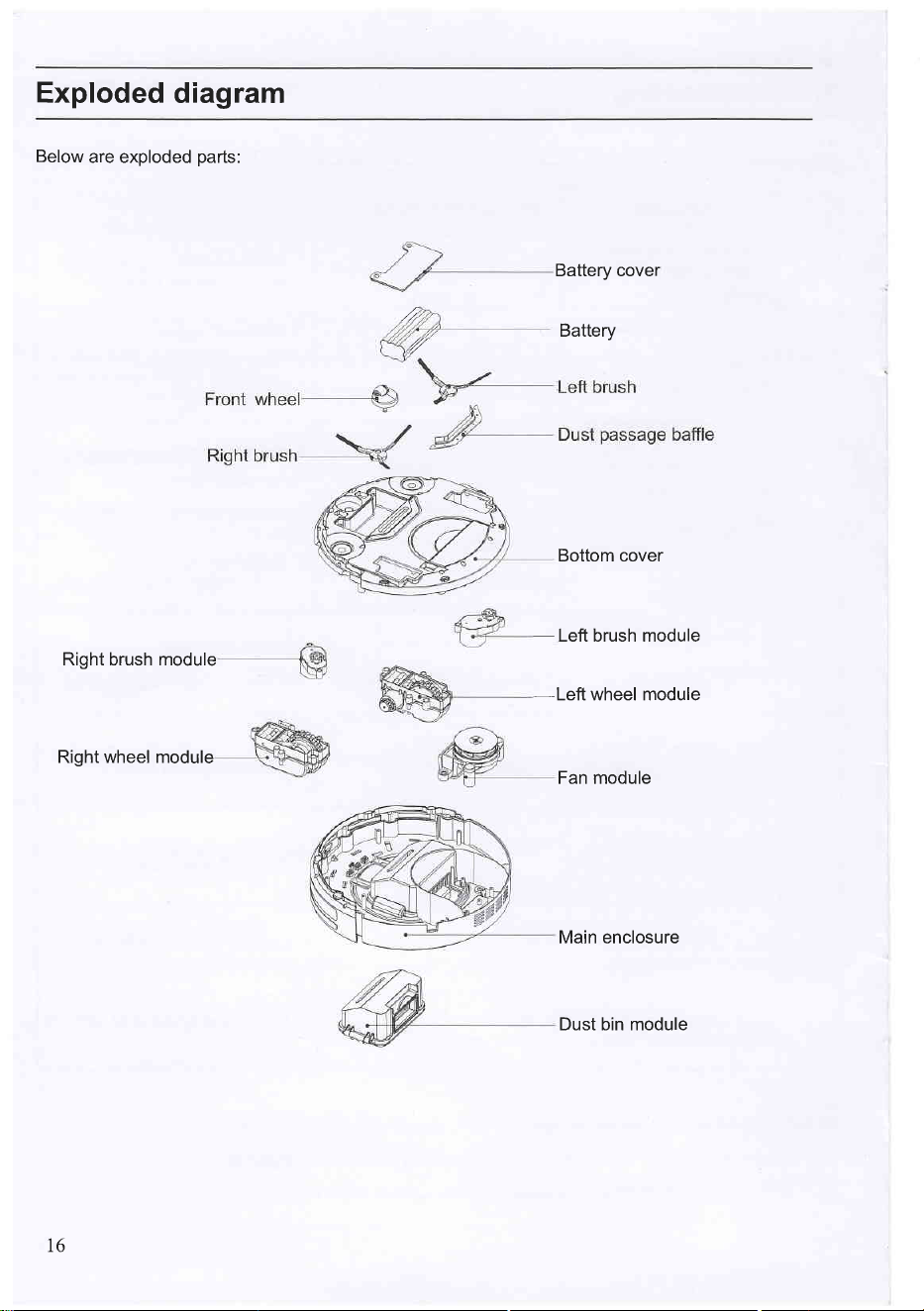
diagram
Below
are exploded
parts:
Battery cover
Battery
Bottom cover
-
Left brush module
Right brush module
-Left
wheel module
Right wheel module
Fan module
Main enclosure
Dust bin module
,/t
/
I6
Battery
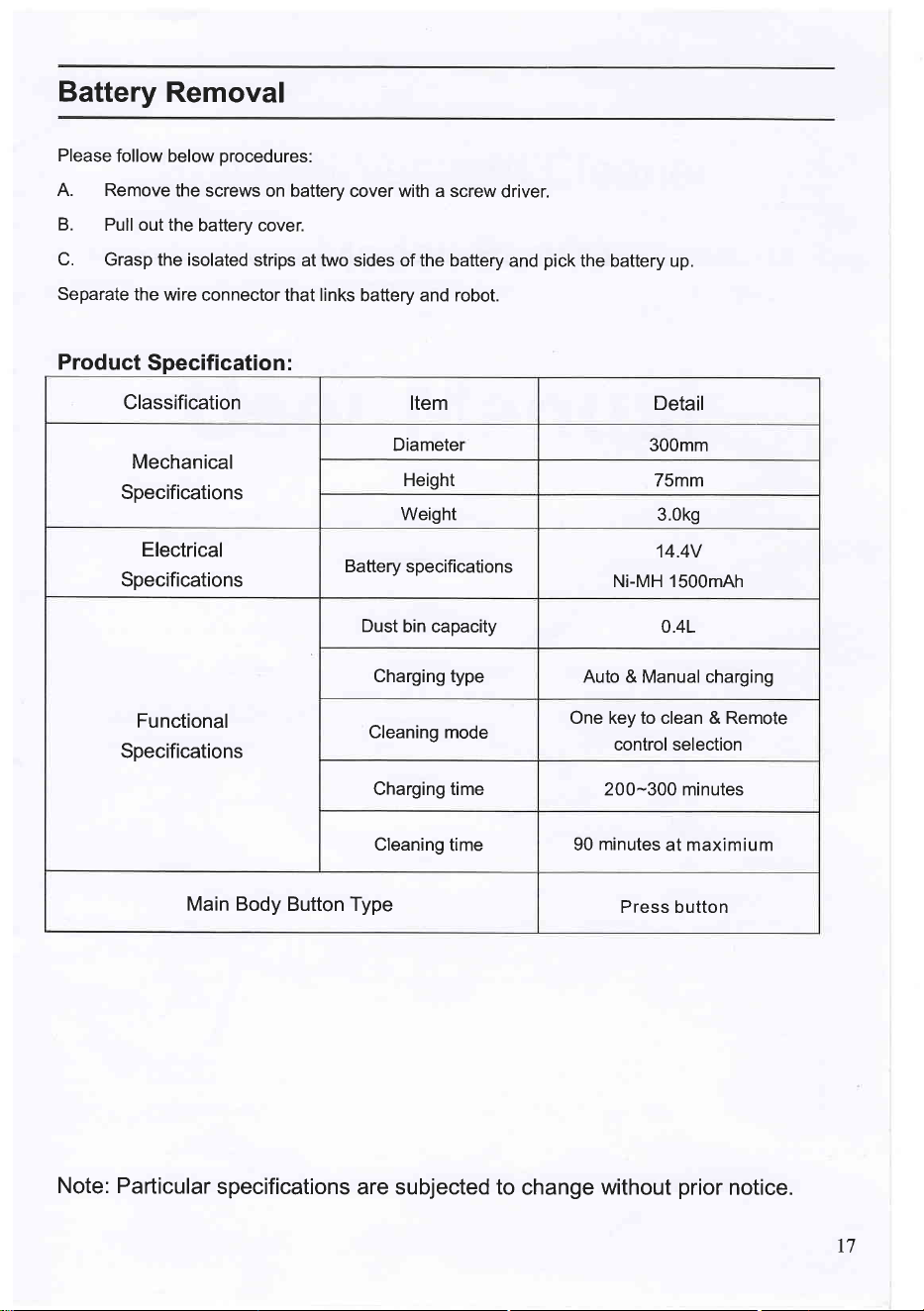
Removal
Please
follow below
procedures:
A. Remove
the screws on battery
cover with a screw
driver.
B.
Pull out the
battery cover.
C.
Grasp the isolated
strips
at two sides of the battery
and
pick
the battery up.
Separate
the wire
connector that links
battery and robot.
Product
Specification :
Classification
Item Detail
Mechanical
Specifications
Diameter
300mm
Height
75mm
Weight
3.0k9
Electrical
Specifications
Battery specifications
14.4V
N|-MH 1500mAh
Functional
Specifications
Dust
bin capacity
0.41
Charging type
Auto & Manual charging
Cleaning mode
One key to clean & Remote
control selection
Charging time
200-300 minutes
Cleaning
time
90
minutes
at maximium
Main Body
Button Type
Press button
Note: Particular
specifications
are subjected to
change
without
prior
notice.
t7