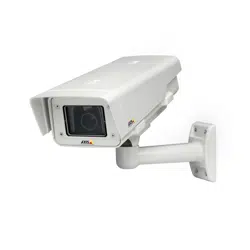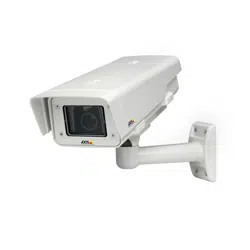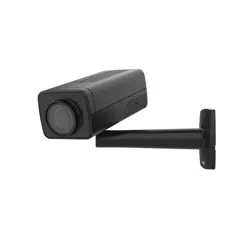


AXISQ1715BlockCamera
TableofContents
Installation................................................3
Getstarted................................................4
Findthedeviceonthenetwork....................................4
Accessthedevice...............................................4
Webpageoverview..............................................6
Additionalsettings..........................................8
Adjusttheimage................................................8
Adjustthecameraview(PTZ)......................................13
Viewandrecordvideo............................................13
Setuprulesandalerts...........................................14
Audio.........................................................20
Cleaningrecommendations...................................21
Learnmore................................................22
Capturemodes.................................................22
Privacymasks..................................................22
Overlays.......................................................22
Pan,tilt,andzoom(PTZ)..........................................22
Streamingandstorage...........................................23
Applications....................................................25
Security.......................................................
26
Troubleshooting............................................27
Resettofactorydefaultsettings...................................27
Firmwareoptions...............................................27
Checkthecurrentrmware.......................................
27
Upgradethermware............................................27
Technicalissues,cluesandsolutions................................
28
Performanceconsiderations.......................................
30
Contactsupport.................................................30
Specications..............................................31
Productoverview................................................
31
LEDindicators..................................................
31
SDcardslot....................................................
32
Buttons.......................................................
32
Connectors....................................................
32
2

AXISQ1715BlockCamera
Installation
Installation
Towatchthisvideo,gotothewebversionofthisdocument.
www.axis.com/products/online-manual/63041#t10172268
Installationvideofortheproduct.
3

AXISQ1715BlockCamera
Getstarted
Getstarted
Findthedeviceonthenetwork
TondAxisdevicesonthenetworkandassignthemIPaddressesinWindows®,useAXISIPUtilityorAXISDeviceManager.Both
applicationsarefreeandcanbedownloadedfromaxis.com/support.
FormoreinformationabouthowtondandassignIPaddresses,gotoHowtoassignanIPaddressandaccessyourdevice.
Browsersupport
Youcanusethedevicewiththefollowingbrowsers:
Chrome
TM
Firefox
®
Edge
TM
Safari
®
Windows
®
recommended
recommended
macOS
®
recommendedrecommended
Linux
®
recommendedrecommended
Otheroperatingsystems*
*SupportediniOSandiPadOS
Ifyouneedmoreinformationaboutrecommendedbrowsers,gotoAXISOSPortal.
Accessthedevice
1.OpenabrowserandentertheIPaddressorhostnameoftheAxisdevice.
IfyoudonotknowtheIPaddress,useAXISIPUtilityorAXISDeviceManagertondthedeviceonthenetwork.
2.Entertheusernameandpassword.Ifyouaccessthedeviceforthersttime,youmustsettherootpassword.SeeSeta
newpasswordfortherootaccountonpage4.
3.Theliveviewpageopensinyourbrowser.
Verifythatnoonehastamperedwiththermware
TomakesurethatthedevicehasitsoriginalAxisrmware,ortotakefullcontrolofthedeviceafterasecurityattack:
1.Resettofactorydefaultsettings.SeeResettofactorydefaultsettingsonpage27.
Afterthereset,securebootguaranteesthestateofthedevice.
2.Congureandinstallthedevice.
Setanewpasswordfortherootaccount
Important
Thedefaultadministratorusernameisroot.Ifthepasswordforrootislost,resetthedevicetofactorydefaultsettings.See
Resettofactorydefaultsettingsonpage27
4

AXISQ1715BlockCamera
Getstarted
Towatchthisvideo,gotothewebversionofthisdocument.
www.axis.com/products/online-manual/63041#t10098905
Supporttip:Passwordsecurityconrmationcheck
1.Typeapassword.Followtheinstructionsaboutsecurepasswords.SeeSecurepasswordsonpage5.
2.Retypethepasswordtoconrmthespelling.
3.ClickCreatelogin.Thepasswordhasnowbeencongured.
Securepasswords
Important
Axisdevicessendtheinitiallysetpasswordincleartextoverthenetwork.Toprotectyourdeviceaftertherstlogin,set
upasecureandencryptedHTTPSconnectionandthenchangethepassword.
Thedevicepasswordistheprimaryprotectionforyourdataandservices.Axisdevicesdonotimposeapasswordpolicyasthey
maybeusedinvarioustypesofinstallations.
Toprotectyourdatawestronglyrecommendthatyou:
•Useapasswordwithatleast8characters,preferablycreatedbyapasswordgenerator.
•Don’texposethepassword.
•Changethepasswordatarecurringinterval,atleastonceayear.
5

AXISQ1715BlockCamera
Getstarted
Webpageoverview
1
Liveviewcontrolbar
2
Liveview
3
Productname
4
Userinformation,colorthemes,andhelp
5
Videocontrolbar
6
Settingstoggle
6

AXISQ1715BlockCamera
Getstarted
7
Settingstabs
7

AXISQ1715BlockCamera
Additionalsettings
Additionalsettings
Adjusttheimage
Thissectionincludesinstructionsabouthowtocongureyourdevice.Ifyouwanttolearnmoreabouthowcertainfeatures
function,gotoLearnmoreonpage22.
Levelthecamera
Toadjusttheviewinrelationtoareferenceareaoranobject,usethelevelingguideincombinationwithamechanicaladjustment
ofthecamera.
1.GotoSettings>System>Orientationandclick
.
2.Adjustthecameramechanicallyuntilthepositionofthereferenceareaortheobjectisalignedwiththelevelingguide.
Adjustthefocus
Thisproducthasthreefocusmodes:
•Auto:Thecameraautomaticallyadjustsfocusbasedontheentireimage.
•Area:Thecameraautomaticallyadjustsfocusbasedonaselectedareaoftheimage.
•Manual:Thefocusissetmanuallyataxeddistance.
Toturnoffautofocusandadjustthefocusmanually:
1.Intheliveviewwindow,iftheZoomsliderisvisible,clickZoomandselectFocus.
2.ClickMandusetheslidertosetthefocus.
Selectsceneprole
Asceneproleisasetofpredenedimageappearancesettingsincludingcolorlevel,brightness,sharpness,contrastandlocal
contrast.Sceneprolesarepreconguredintheproductforquicksetuptoaspecicscenario,forexampleForensicwhichis
optimizedforsurveillanceconditions.Foradescriptionofeachavailablesetting,gotothehelpmenuandclickHelp.
Youcanselectasceneproleduringtheinitialsetupofthecamera.Youcanalsoselectorchangesceneprolelater.
1.GotoSettings>System>Orientation.
2.GotoSceneproleandselectaprole.
3.ClickDone.
Reduceimageprocessingtimewithlowlatencymode
Youcanoptimizetheimageprocessingtimeofyourlivestreambyturningonlowlatencymode.Thelatencyinyourlivestreamis
reducedtoaminimum.
1.GotoSettings>System.
2.GotoPlaincong>Imagesource.
3.GotoLowlatencymodeandselectOn.
4.ClickSave.
8

AXISQ1715BlockCamera
Additionalsettings
Selectexposuremode
Therearedifferentexposuremodeoptionsinthecamerathatadjustsaperture,shutterspeed,andgaintoimproveimagequalityfor
specicsurveillancescenes.GotoSettings>Image>Exposureandselectbetweenthefollowingexposuremodes:
•Formostusecases,selectAutomaticexposure.
•Forenvironmentswithcertainarticiallighting,forexampleuorescentlighting,selectFlicker-free.
Selectthesamefrequencyasthepowerlinefrequency.
•Forenvironmentswithcertainarticiallightandbrightlight,forexampleoutdoorswithuorescentlightingatnightand
sunduringdaytime,selectFlicker-reduced.
Selectthesamefrequencyasthepowerlinefrequency.
•Tolockthecurrentexposuresettings,selectHoldcurrent.
Reducenoiseinlow-lightconditions
Toreducenoiseinlow-lightconditions,youcanadjustoneormoreofthefollowingsettings:
•Adjustthetrade-offbetweennoiseandmotionblur.GotoSettings>Image>ExposureandmovetheBlur-noise
trade-offslidertowardLownoise.
•Settheexposuremodetoautomatic.
Note
Ahighmaxshuttervaluecanresultinmotionblur.
•Toslowdowntheshutterspeed,setmaxshuttertothehighestpossiblevalue.
Note
Whenyoureducethemaxgain,theimagecanbecomedarker.
•Setthemaxgaintoalowervalue.
•Opentheaperture.
Handlesceneswithstrongbacklight
Dynamicrangeisthedifferenceinlightlevelsinanimage.Insomecasesthedifferencebetweenthedarkestandthebrightest
areascanbesignicant.Theresultisoftenanimagewhereeitherthedarkorthebrightareasarevisible.Widedynamicrange
(WDR)makesbothdarkandbrightareasoftheimagevisible.
ImagewithoutWDR.
9

AXISQ1715BlockCamera
Additionalsettings
ImagewithWDR.
Note
•WDRcancauseartifactsintheimage.
•WDRmaynotbeavailableforallcapturemodes.
1.GotoSettings>Image>Widedynamicrange.
2.TurnonWDR.
3.UsetheLocalcontrastslidertoadjusttheamountofWDR.
4.UsetheTonemappingslidertoadjusttheamountofWDR.
5.Ifyoustillhaveproblems,gotoExposureandadjusttheExposurezonetocovertheareaofinterest.
FindoutmoreaboutWDRandhowtouseitataxis.com/web-articles/wdr.
StabilizeashakyimagewithElectronicImageStabilization(EIS)
ElectronicImageStabilization(EIS)canbeusedinenvironmentswheretheproductismountedinanexposedlocationandsubjectto
vibrations,forexample,windorpassingtrafc.TurnonEIStogetasmootherandsteadierimagewithoutblur.
EISalsoreducesthelesizeofthecompressedimageandlowersthebitrateofthevideostream.
Note
WhenEISisturnedontheimageiscroppedslightly,loweringthemaximumresolution.
1.GotoSettings>Image>Imagecorrection.
2.TurnonEIS.
Monitorlongandnarrowareas
Usecorridorformattobetterutilizethefulleldofviewinalongandnarrowarea,forexampleastaircase,hallway,road,ortunnel.
10

AXISQ1715BlockCamera
Additionalsettings
1.Dependingonyourdevice,turnthecameraorthe3-axislensinthecamera90°or270°.
2.Ifthedevicedoesn’thaveautomaticrotationoftheview,logintothewebpageandgotoSettings>System>Orientation.
3.Click
.
4.Rotatetheview90°or270°.
Findoutmoreataxis.com/axis-corridor-format.
Verifythepixelresolution
Toverifythatadenedpartoftheimagecontainsenoughpixelsto,forexample,recognizethefaceofaperson,youcanusethe
pixelcounter.
1.GotoSettings>System>Orientation.
2.Click
.
3.Inthecamera’sliveview,adjustthesizeandpositionoftherectanglearoundtheareaofinterest,forexamplewhere
youexpectfacestoappear.
Youcanseethenumberofpixelsforeachoftherectangle’ssides(XandY),anddecideifthevaluesareenoughfor
yourneeds.
11

AXISQ1715BlockCamera
Additionalsettings
Hidepartsoftheimagewithprivacymasks
Youcancreateoneorseveralprivacymaskstohidepartsoftheimage.
Towatchthisvideo,gotothewebversionofthisdocument.
www.axis.com/products/online-manual/63041#t10106902
Howtocreateaprivacymask
1.GotoSettings>Privacymask.
2.ClickNew.
3.Adjustthesize,color,andnameoftheprivacymaskaccordingtoyourneeds.
Towatchthisvideo,gotothewebversionofthisdocument.
www.axis.com/products/online-manual/63041#t10106902
Howtochangetheappearanceofthemask
Showanimageoverlay
Youcanaddanimageasanoverlayinthevideostream.
1.GotoSettings>Overlay.
2.ClickImagelist.
3.UploadanimageandclickDone.
4.ClickCreateoverlay.
5.SelectImageandclickCreate.
6.Selecttheimagefromthedrop-downlist.
7.Topositiontheimageoverlay,chooseCustomoroneofthepresets.
8.ClickCreate.
12

AXISQ1715BlockCamera
Additionalsettings
Adjustthecameraview(PTZ)
Tolearnmoreaboutdifferentpan,tilt,andzoomsettings,seePan,tilt,andzoom(PTZ)onpage22.
Limitthezoommovements
Iftherearepartsofthescenethatyoudon’twantthecameratobeabletozoominon,youcanlimitthemaximumzoomlevel.For
example,youwanttoprotecttheprivacyofresidentsinanapartmentbuilding,whichislocatedclosetoaparkinglotthatyou
intendtomonitor.Tolimitthemaximumzoomlevel,gotoSettings>PTZ>Limits.
Createaguardtourwithpresetpositions
Aguardtourdisplaysthevideostreamfromdifferentpresetpositionseitherinapredeterminedorrandomorder,andforcongurable
periodsoftime.
1.GotoSettings>PTZ>Guardtours.
2.Click+.
3.Toedittheguardtour’sproperties,click.
4.Typeanamefortheguardtourandspecifythepauselengthinminutesbetweeneachtour.
5.Ifyouwanttheguardtourtogotothepresetpositionsinarandomorder,turnonShufe.
6.ClickDone.
7.ClickAddtoaddthepresetpositionsthatyouwantinyourguardtour.
8.ClickDonetoexittheguardtoursettings.
9.Toscheduletheguardtour,gotoSystem>Events.
Towatchthisvideo,gotothewebversionofthisdocument.
www.axis.com/products/online-manual/63041#t10111157
Viewandrecordvideo
Thissectionincludesinstructionsabouthowtocongureyourdevice.Tolearnmoreabouthowstreamingandstorageworks,goto
Streamingandstorageonpage23.
Reducebandwidthandstorage
Important
Ifyoureducethebandwidthitcanresultinlossofdetailsinthepicture.
1.GotoliveviewandselectH.264.
2.GotoSettings>Stream.
13

AXISQ1715BlockCamera
Additionalsettings
3.Dooneormoreofthefollowing:
Note
ThezipstreamsettingsareusedforbothH.264andH.265.
-TurnondynamicGOPandsetahighGOPlengthvalue.
-Increasethecompression.
-TurnondynamicFPS.
Note
WebbrowsersdonotsupportH.265decoding.UseavideomanagementsystemorapplicationsupportingH.265decoding.
Setupnetworkstorage
Tostorerecordingsonthenetwork,youneedtosetupyournetworkstorage.
1.GotoSettings>System>Storage.
2.ClickSetupunderNetworkstorage.
3.EntertheIPaddressofthehostserver.
4.Enterthenameofthesharedlocationonthehostserver.
5.Movetheswitchifthesharerequiresalogin,andenterusernameandpassword.
6.ClickConnect.
Recordandwatchvideo
Torecordvideoyoumustrstsetupnetworkstorage,seeSetupnetworkstorageonpage14,orhaveanSDcardinstalled.
Recordvideo
1.Gototheliveview.
2.Tostartarecording,clickRecord.Clickagaintostoptherecording.
Watchvideo
1.ClickStorage>Gotorecordings.
2.Selectyourrecordinginthelistanditwillplayautomatically.
Setuprulesandalerts
Youcancreaterulestomakeyourdeviceperformanactionwhencertaineventsoccur.Aruleconsistsofconditionsandactions.
Theconditionscanbeusedtotriggertheactions.Forexample,thedevicecanstartarecordingorsendanemailwhenitdetects
motion,orshowanoverlaytextwhilethedeviceisrecording.
Formoreinformation,visitGetstartedwithrulesforevents.
Triggeranaction
1.GotoSettings>System>Eventstosetuparule.Theruledeneswhenthedevicewillperformcertainactions.Rules
canbesetupasscheduled,recurring,orforexample,triggeredbymotiondetection.
2.SelecttheConditionthatmustbemettotriggertheaction.Ifyouspecifymorethanoneconditionfortherule,allofthe
conditionsmustbemettotriggertheaction.
14

AXISQ1715BlockCamera
Additionalsettings
3.SelectwhichActionthedeviceshouldperformwhentheconditionsaremet.
Note
Ifyoumakechangestoanactiverule,youhavetorestarttheruleforthechangestotakeeffect.
Recordvideowhenthecameradetectsmotion
ThisexampleexplainshowtosetupthecameratostartrecordingtotheSDcardvesecondsbeforeitdetectsmotionandto
stoponeminuteafter.
MakesurethatAXISObjectAnalyticsisrunning:
1.GotoSettings>Apps>AXISObjectAnalytics.
2.Starttheapplicationifitisnotalreadyrunning.
3.Makesureyouhavesetuptheapplicationaccordingtoyourneeds.Ifyouneedhelp,seethe
usermanualforAXISObjectAnalytics.
Createarule:
1.GotoSettings>System>Eventsandaddarule.
2.Typeanamefortherule.
3.Inthelistofconditions,underApplication,selectObjectAnalytics.
4.Inthelistofactions,underRecordings,selectRecordvideowhiletheruleisactive.
5.Selectanexistingstreamproleorcreateanewone.
6.Settheprebuffertimeto5seconds.
7.Setthepostbuffertimeto60seconds.
8.Inthelistofstorageoptions,selectSDcard.
9.ClickSave.
Showatextoverlayinthevideostreamwhenthedevicedetectsmotion
Thisexampleexplainshowtodisplaythetext“Motiondetected”whenthedevicedetectsmotion.
Towatchthisvideo,gotothewebversionofthisdocument.
www.axis.com/products/online-manual/63041#t10103832
Howtoshowtextoverlaywhenthecameradetectsmotion
MakesurethatAXISVideoMotionDetectionisrunning:
1.GotoSettings>Apps>AXISVideoMotionDetection.
15

AXISQ1715BlockCamera
Additionalsettings
2.Starttheapplicationifitisnotalreadyrunning.
3.Makesureyouhavesetuptheapplicationaccordingtoyourneeds.
Addtheoverlaytext:
4.GotoSettings>Overlay.
5.Enter#Dinthetexteld.
6.Choosetextsizeandappearance.
Createarule:
7.GotoSystem>Events>Rulesandaddarule.
8.Typeanamefortherule.
9.Inthelistofconditions,selectAXISVideoMotionDetection.
10.Inthelistofactions,selectUseoverlaytext.
11.SelectCamera1.
12.Type“Motiondetected”.
13.Settheduration.
14.ClickSave.
Recordvideowhenthecameradetectsloudnoises
ThisexampleexplainshowtosetupthecameratostartrecordingtotheSDcardvesecondsbeforeitdetectsloudnoiseandto
stoponeminuteafter.
Note
Thefollowinginstructionsrequirethatamicrophoneisconnectedtoaudio-in.
Turnonaudio:
1.Setupthestreamproletoincludeaudio,seeAddaudiotoyourrecordingonpage20.
Turnonaudiodetection:
1.GotoSettings>System>Detectors>Audiodetection.
2.Adjustthealarmlevelaccordingtoyourneeds.
Createarule:
1.GotoSettings>System>Eventsandaddarule.
2.Typeanamefortherule.
3.Inthelistofconditions,underAudio,selectAudioDetection.
4.Inthelistofactions,underRecordings,selectRecordvideo.
5.Selectthestreamprolewhereaudiohasbeenturnedon.
6.Settheprebuffertimeto5seconds.
7.Setthepostbuffertimeto60seconds.
8.Inthelistofstorageoptions,selectSDcard.
16

AXISQ1715BlockCamera
Additionalsettings
9.ClickSave.
Zoominonaspecicareaautomaticallywithgatekeeper
Thisexampleexplainshowtousethegatekeeperfunctionalitytomakethecamerazoominautomaticallyonthelicenseplateofa
carthatpassesthroughagate.Whenthecarhaspassed,thecamerazoomsouttothehomeposition.
Createthepresetpositions:
1.GotoSettings>PTZ>Presetpositions.
2.Createthehomepositionthatincludestheentranceofthegate.
3.Createthezoomed-inpresetpositionsothatitcoverstheareaintheimagewhereyouassumethatthelicenseplate
willappear.
Createamotiondetectionprole:
1.GotoSettings>AppsandopenAXISVideoMotionDetection.
2.Createaprolethatcoverstheentranceofthegateandthensavetheprole.
Createarule:
1.GotoSettings>System>Eventsandaddarule.
2.Nametherule“Gatekeeper”.
3.Inthelistofconditions,underApplication,selectthemotiondetectionprole.
4.Inthelistofactions,underPresetpositions,selectGotopresetposition.
5.SelectaVideochannel.
6.SelectthePresetposition.
7.Tomakethecamerawaitawhilebeforeitreturnstothehomeposition,selectHometimeout,andsetatime.
8.ClickSave.
Recordvideowhenthecameradetectsimpact
Shockdetectionallowsthecameratodetecttamperingcausedbyvibrationsorshock.Vibrationsduetotheenvironmentortoan
objectcantriggeranactiondependingontheshocksensitivityrange,whichcanbesetfrom0to100.Inthisscenario,someoneis
throwingrocksatthecameraafterhoursandyouwouldliketogetavideoclipoftheevent.
Turnonshockdetection:
1.GotoSettings>System>Detectors.
2.Turnonshockdetection,andsetavaluefortheshocksensitivity.
Createarule:
1.GotoSettings>System>Eventsandaddarule.
2.Typeanamefortherule.
3.Inthelistofconditions,underDevicestatus,selectShockdetected.
4.Click+toaddasecondcondition.
5.Inthelistofconditions,underScheduledandrecurring,selectScheduledevent.
6.Inthelistofschedules,selectAfterhours.
17

AXISQ1715BlockCamera
Additionalsettings
7.Inthelistofactions,underRecordings,selectRecordvideowhiletheruleisactive.
8.SelectaCamera.
9.Settheprebuffertimeto5seconds.
10.Setthepostbuffertimeto60seconds.
11.Selectwheretosavetherecordings.
12.ClickSave.
Setuptheintrusionalarm
Beforeyoustart
•Connecttheintrusionalarmswitchtopin1(ground)andpin3(digitalI/O)ofthecamera’sI/Oconnector.
Conguretheinputport
1.GotoSettings>System>I/Oports.
2.ForPort1:
2.1SelectInputinthedrop-downmenu.
2.2SelectClosedcircuit(NC)inthedrop-downmenu
.
Createarule
1.GotoSettings>System>Eventsandaddarule.
2.Typeanamefortherule.
3.Inthelistofconditions,underI/O,selectDigitalinput.
4.Inthelistofports,selectInput1.
5.Inthelistofactions,underNotications,selectSendnoticationtoemail.
6.SelectarecipientfromthelistorgotoRecipientstocreateanewrecipient.
Tocreateanewrecipient,click
.Tocopyanexistingrecipient,click.
7.Typeasubjectandamessagefortheemail.
8.ClickSave.
Detecttamperingwithinputsignal
Thisexampleexplainshowtotriggeranalarmwhentheinputsignalhasbeencutorshort-circuited.Formoreinformationaboutthe
I/Oconnector,seepage33.
18

AXISQ1715BlockCamera
Additionalsettings
Towatchthisvideo,gotothewebversionofthisdocument.
www.axis.com/products/online-manual/63041#t10110432
Howtosendanemailnoticationwhensomeonetamperswiththeinputsignal
1.GotoSettings>System>I/OPortsandturnonSupervisedI/Oforoneoftheports.
Createarule:
1.GotoSettings>System>Eventsandaddarule.
2.Typeanamefortherule.
3.Inthelistofconditions,selectDigitalinputandthenselectaport.
4.Inthelistofactions,selectSendnoticationtoemailandthenselectarecipientfromthelist.GotoRecipients
tocreateanewrecipient.
Tocreateanewrecipient,click
.Tocopyanexistingrecipient,click.
5.Typeasubjectandamessagefortheemail.
6.ClickSave.
Sendanemailautomaticallyifsomeonespraypaintsthelens
Towatchthisvideo,gotothewebversionofthisdocument.
www.axis.com/products/online-manual/63041#t10106687
Howtosendanemailnoticationifsomeonespraypaintthelens
1.GotoSettings>System>Detectors.
2.TurnonTriggerondarkimages.Thiswilltriggeranalarmifthelensissprayed,covered,orrenderedseverelyoutoffocus.
3.SetadurationforTriggerafter.Thevalueindicatesthetimethatmustpassbeforeanemailissent.
Createarule:
1.GotoSettings>System>Events>Rulesandaddarule.
2.Typeanamefortherule.
19

AXISQ1715BlockCamera
Additionalsettings
3.Inthelistofconditions,selectTampering.
4.Inthelistofactions,selectSendnoticationtoemail.
5.SelectarecipientfromthelistorgotoRecipientstocreateanewrecipient.
Tocreateanewrecipient,click
.Tocopyanexistingrecipient,click.
6.Typeasubjectandamessagefortheemail.
7.ClickSave.
Audio
Addaudiotoyourrecording
Turnonaudio:
1.GotoSettings>AudioandturnonAllowaudio.
2.GotoInput>Typeandselectyouraudiosource.
Editthestreamprolewhichisusedfortherecording:
3.GotoSettings>StreamandclickStreamproles.
4.SelectthestreamproleandclickAudio.
5.SelectthecheckboxandselectInclude.
6.ClickSave.
7.ClickClose.
Connecttoanetworkspeaker
NetworkspeakerpairingallowsyoutouseacompatibleAxisnetworkspeakerasifitisconnecteddirectlytothecamera.Once
paired,thespeakeractsasanaudiooutdevicewhereyoucanplayaudioclipsandtransmitsoundthroughthecamera.
Important
Forthisfeaturetoworkwithavideomanagementsoftware(VMS),youmustrstpairthecamerawiththenetworkspeaker,
thenaddthecameratoyourVMS.
Paircamerawithnetworkspeaker
1.GotoSettings>System>Accessories>Networkspeakerpairing.
2.Typethenetworkspeaker’sIPaddress,usernameandpassword.
3.ClickConnect.AconrmationmessageappearsandUsespeakerpairingisturnedon.
4.GotoSettings>Audio.
5.TurnonAllowaudio.
6.MakesurethataudiomodeissettoHalfduplexorSimplex-NetworkCameraspeakeronly.Otherwise,thecamerawill
notcommunicatewiththenetworkspeaker.
20

AXISQ1715BlockCamera
Cleaningrecommendations
Cleaningrecommendations
NO NO
NO
TICE TICE
TICE
Neveruseharshdetergent,forexamplegasoline,benzene,oracetone.
1.Useacanofcompressedairtoremoveanydustorloosedirtfromthedevice.
2.Ifnecessary,cleanthelenswithasoftclothdampenedwithlukewarmwater.
Note
Avoidcleaningindirectsunlightoratelevatedtemperatures,asthismaycausestainswhenthewaterdropletsdry.
21

AXISQ1715BlockCamera
Learnmore
Learnmore
Capturemodes
CapturemodedenesthemaximumframerateavailableintheAxisproduct.Dependingonwhichcapturemodeyouselect,you
maynotbeabletouseWDR.
Whichcapturemodetochoosedependsontherequirementsofframerateandresolutionforthespecicsurveillancesetup.For
specicationsaboutavailablecapturemodes,seetheproduct’sdatasheetataxis.com.
Privacymasks
Aprivacymaskisauser-denedareathatcoversapartofthemonitoredarea.Inthevideostream,privacymasksappeareitheras
blocksofsolidcolororwithamosaicpattern.
You’llseetheprivacymaskonallsnapshots,recordedvideo,andlivestreams.
YoucanusetheVAPIX®applicationprogramminginterface(API)toturnofftheprivacymasks.
Important
Ifyouusemultipleprivacymasksitmayaffecttheproduct’sperformance.
Note
IfyouviewthevideostreamoverHDMIandrestarttheproduct,theprivacymaskswilldisappear.Toshowtheprivacy
masksagain,restartthevideostream.
Overlays
Note
ImageandtextoverlaywillnotbedisplayedonvideostreamoverHDMI.
Overlaysaresuperimposedoverthevideostream.Theyareusedtoprovideextrainformationduringrecordings,suchasatimestamp,
orduringproductinstallationandconguration.Youcanaddeithertextoranimage.
Pan,tilt,andzoom(PTZ)
Presetpositions
Apresetpositionisasavedviewthatcanbeusedtoquicklymovethecameraviewtoaspecicposition.
Apresetpositioncanconsistofthefollowingvalues:
•Zoomposition
•Focusposition(manualorautomatic)
•Irisposition(manualorautomatic)
Thepresetpositionscanbereachedatanytime:
•fromthedrop-downlistintheliveviewwindow
•asactionsintheeventsystem
•astriggersintheeventsystem
•whensettingupaguardtour
22

AXISQ1715BlockCamera
Learnmore
Guardtours
Aguardtourdisplaysthevideostreamfromdifferentpresetpositionseitherinapredeterminedorrandomorder,andforcongurable
periodsoftime.Oncestarted,aguardtourcontinuestorununtilstopped,evenwhentherearenoclients(webbrowsers)viewingthe
images.
Streamingandstorage
Videocompressionformats
Decidewhichcompressionmethodtousebasedonyourviewingrequirements,andonthepropertiesofyournetwork.The
availableoptionsare:
MotionJPEG
MotionJPEG,orMJPEG,isadigitalvideosequencethatismadeupofaseriesofindividualJPEGimages.Theseimagesarethen
displayedandupdatedataratesufcienttocreateastreamthatshowsconstantlyupdatedmotion.Fortheviewertoperceivemotion
videotheratemustbeatleast16imageframespersecond.Fullmotionvideoisperceivedat30(NTSC)or25(PAL)framespersecond.
TheMotionJPEGstreamusesconsiderableamountsofbandwidth,butprovidesexcellentimagequalityandaccesstoeveryimage
containedinthestream.
H.264orMPEG-4Part10/AVC
Note
H.264isalicensedtechnology.TheAxisproductincludesoneH.264viewingclientlicense.Toinstalladditionalunlicensed
copiesoftheclientisprohibited.Topurchaseadditionallicenses,contactyourAxisreseller.
H.264can,withoutcompromisingimagequality,reducethesizeofadigitalvideolebymorethan80%comparedtotheMotion
JPEGformatandbyasmuchas50%comparedtotheMPEG-4standard.Thismeansthatlessnetworkbandwidthandstoragespace
arerequiredforavideole.Orseenanotherway,highervideoqualitycanbeachievedforagivenbitrate.
H.265orMPEG-HPart2/HEVC
Note
H.265islicensedtechnology.TheAxisproductincludesoneH.265viewingclientlicense.Toinstalladditionalunlicensed
copiesoftheclientisprohibited.Topurchaseadditionallicenses,contactyourAxisreseller.
HowdoImage,Stream,andStreamprolesettingsrelatetoeachother?
TheImagetabcontainscamerasettingsthataffectallvideostreamsfromtheproduct.Ifyouchangesomethinginthistab,it
immediatelyaffectsallvideostreamsandrecordings.
TheStreamtabcontainssettingsforvideostreams.Yougetthesesettingsifyourequestavideostreamfromtheproductanddon’t
specifyforexampleresolution,orframerate.WhenyouchangethesettingsintheStreamtab,itdoesn’taffectongoingstreams,but
itwilltakeeffectwhenyoustartanewstream.
TheStreamprolessettingsoverridethesettingsfromtheStreamtab.Ifyourequestastreamwithaspecicstreamprole,the
streamcontainsthesettingsofthatprole.Ifyourequestastreamwithoutspecifyingastreamprole,orrequestastreamprole
thatdoesn'texistintheproduct,thestreamcontainsthesettingsfromtheStreamtab.
Bitratecontrol
Withbitratecontrol,youcanmanagethebandwidthconsumptionofyourvideostream.
Variablebitrate(VBR)
Withvariablebitrate,thebandwidthconsumptionvariesbasedonthelevelofactivityinthescene.Themoreactivityinthescene,
themorebandwidthyouneed.Youareguaranteedconstantimagequalitybutitrequiresstoragemargins.
23

AXISQ1715BlockCamera
Learnmore
Maximumbitrate(MBR)
Withmaximumbitrate,youcansetatargetbitratetohandlebitratelimitationsinyoursystem.Youmayseeadeclineinimage
qualityorframeratewhentheinstantaneousbitrateiskeptbelowthespeciedtargetbitrate.Youcanchoosetoeitherprioritize
imagequalityorframerate.Werecommendthatyoucongurethetargetbitratetoahighervaluethantheexpectedbitrate.This
givesyouamarginforadditionalcomplexitythatneedstobecaptured.
1
Targetbitrate
Averagebitrate(ABR)
Withaveragebitrate,thebitrateisautomaticallyadjustedoveralongertimescale.Thisissoyoucanmeetthespeciedtargetand
providethebestvideoqualitybasedonyouravailablestorage.Bitrateishigherinsceneswithalotofactivity,comparedtostatic
scenes.Youaremorelikelytogetbetterimagequalitywhenneededwhenusingtheaveragebitrateoption.Youcandenethetotal
storagerequiredtostorethevideostreamforaspeciedamountoftime(retentiontime)whenimagequalityisadjustedtomeetthe
speciedtargetbitrate.Specifytheaveragebitratesettingsinoneofthefollowingways:
•Tocalculatetheestimatedstorageneed,setthetargetbitrateandtheretentiontime.
•Tocalculatetheaveragebitrate,basedonavailablestorageandrequiredretentiontime,usethetargetbitratecalculator.
24

AXISQ1715BlockCamera
Learnmore
kbit/s
s
1
2
1
Targetbitrate
2
Actualaveragebitrate
Youcanalsoturnonmaximumbitrateandspecifyatargetbitratewithintheaveragebitrateoption.
kbit/s
s
1
2
1
Targetbitrate
2
Actualaveragebitrate
Applications
AXISCameraApplicationPlatform(ACAP)isanopenplatformthatenablesthirdpartiestodevelopanalyticsandotherapplications
forAxisproducts.Tondoutmoreaboutavailableapplications,downloads,trialsandlicenses,gotoaxis.com/applications.
TondtheusermanualsforAxisapplications,gotoaxis.com.
Towatchthisvideo,gotothewebversionofthisdocument.
www.axis.com/products/online-manual/63041#t10001688
Howtodownloadandinstallanapplication
25

AXISQ1715BlockCamera
Learnmore
Towatchthisvideo,gotothewebversionofthisdocument.
www.axis.com/products/online-manual/63041#t10001688
Howtoactivateanapplicationlicencecodeonadevice
AXISObjectAnalytics
AXISObjectAnalyticsisananalyticapplicationthatcomespreinstalledonthecamera.Itdetectsobjectsthatmoveinthesceneand
classiesthemas,forexample,humansorvehicles.Youcansetuptheapplicationtosendalarmsfordifferenttypesofobjects.To
ndoutmoreabouthowtheapplicationworks,seetheusermanual.
Security
TPMmodule
TheTPM(TrustedPlatformModule)isacomponentthatprovidescryptographicfeaturestoprotectinformationfromunauthorized
access.Itisalwaysactivatedandtherearenosettingsyoucanchange.
TolearnmoreaboutTPM,gotoaxis.com/press-center/media-resources/white-papers.
26

AXISQ1715BlockCamera
Troubleshooting
Troubleshooting
Resettofactorydefaultsettings
Important
Resettofactorydefaultshouldbeusedwithcaution.Aresettofactorydefaultresetsallsettings,includingtheIPaddress,to
thefactorydefaultvalues.
Toresettheproducttothefactorydefaultsettings:
1.Disconnectpowerfromtheproduct.
2.Pressandholdthecontrolbuttonwhilereconnectingpower.SeeProductoverviewonpage31.
3.Keepthecontrolbuttonpressedfor15–30secondsuntilthestatusLEDindicatorashesamber.
4.Releasethecontrolbutton.TheprocessiscompletewhenthestatusLEDindicatorturnsgreen.Theproducthasbeenreset
tothefactorydefaultsettings.IfnoDHCPserverisavailableonthenetwork,thedefaultIPaddressis192.168.0.90.
5.UsetheinstallationandmanagementsoftwaretoolstoassignanIPaddress,setthepassword,andaccessthevideostream.
Theinstallationandmanagementsoftwaretoolsareavailablefromthesupportpagesonaxis.com/support.
Itisalsopossibletoresetparameterstofactorydefaultthroughthewebinterface.GotoSettings>System>Maintenanceand
clickDefault.
Firmwareoptions
Axisoffersproductrmwaremanagementaccordingtoeithertheactivetrackorthelong-termsupport(LTS)tracks.Beingonthe
activetrackmeanscontinuouslygettingaccesstoallthelatestproductfeatures,whiletheLTStracksprovideaxedplatformwith
periodicreleasesfocusedmainlyonbugxesandsecurityupdates.
Usingrmwarefromtheactivetrackisrecommendedifyouwanttoaccessthenewestfeatures,orifyouuseAxisend-to-endsystem
offerings.TheLTStracksarerecommendedifyouusethird-partyintegrations,whicharenotcontinuouslyvalidatedagainstthelatest
activetrack.WithLTS,theproductscanmaintaincybersecuritywithoutintroducinganysignicantfunctionalchangesoraffecting
anyexistingintegrations.FormoredetailedinformationaboutAxisproductrmwarestrategy,gotoaxis.com/support/rmware.
Checkthecurrentrmware
Firmwareisthesoftwarethatdeterminesthefunctionalityofnetworkdevices.Oneofyourrstactionswhentroubleshootinga
problemshouldbetocheckthecurrentrmwareversion.Thelatestversionmaycontainacorrectionthatxesyourparticular
problem.
Tocheckthecurrentrmware:
1.Gototheproduct’swebpage.
2.Clickthehelpmenu
.
3.ClickAbout.
Upgradethermware
Important
Preconguredandcustomizedsettingsaresavedwhenthermwareisupgraded(providedthatthefeaturesareavailablein
thenewrmware)althoughthisisnotguaranteedbyAxisCommunicationsAB.
27

AXISQ1715BlockCamera
Troubleshooting
Important
Makesuretheproductremainsconnectedtothepowersourcethroughouttheupgradeprocess.
Note
Whenyouupgradetheproductwiththelatestrmwareintheactivetrack,theproductreceivesthelatestfunctionality
available.Alwaysreadtheupgradeinstructionsandreleasenotesavailablewitheachnewreleasebeforeupgradingthe
rmware.Tondthelatestrmwareandthereleasenotes,gotoaxis.com/support/rmware.
AXISDeviceManagercanbeusedformultipleupgrades.Findoutmoreataxis.com/products/axis-device-manager.
Towatchthisvideo,gotothewebversionofthisdocument.
www.axis.com/products/online-manual/63041#t10095327
Howtoupgradethermware
1.Downloadthermwareletoyourcomputer,availablefreeofchargeataxis.com/support/rmware.
2.Logintotheproductasanadministrator.
3.GotoSettings>System>Maintenance.Followtheinstructionsonthepage.Whentheupgradehasnished,the
productrestartsautomatically.
Technicalissues,cluesandsolutions
Ifyoucan’tndwhatyou’relookingforhere,trythetroubleshootingsectionataxis.com/support.
Problemsupgradingthermware
FirmwareupgradefailureIfthermwareupgradefails,thedevicereloadsthepreviousrmware.Themostcommonreason
isthatthewrongrmwarelehasbeenuploaded.Checkthatthenameofthermwarele
correspondstoyourdeviceandtryagain.
ProblemssettingtheIPaddress
Thedeviceislocatedona
differentsubnet
IftheIPaddressintendedforthedeviceandtheIPaddressofthecomputerusedtoaccessthe
devicearelocatedondifferentsubnets,youcannotsettheIPaddress.Contactyournetwork
administratortoobtainanIPaddress.
28

AXISQ1715BlockCamera
Troubleshooting
TheIPaddressisbeingused
byanotherdevice
DisconnecttheAxisdevicefromthenetwork.Runthepingcommand(inaCommand/DOSwindow,
typepingandtheIPaddressofthedevice):
•Ifyoureceive:Replyfrom<IPaddress>:bytes=32;time=10...
thismeansthattheIPaddressmayalreadybeinusebyanotherdeviceonthenetwork.
ObtainanewIPaddressfromthenetworkadministratorandreinstallthedevice.
•Ifyoureceive:Requesttimedout,thismeansthattheIPaddressisavailable
forusewiththeAxisdevice.Checkallcablingandreinstallthedevice.
PossibleIPaddressconict
withanotherdeviceonthe
samesubnet
ThestaticIPaddressintheAxisdeviceisusedbeforetheDHCPserversetsadynamicaddress.
ThismeansthatifthesamedefaultstaticIPaddressisalsousedbyanotherdevice,theremay
beproblemsaccessingthedevice.
Thedevicecannotbeaccessedfromabrowser
Cannotlogin
WhenHTTPSisenabled,ensurethatthecorrectprotocol(HTTPorHTTPS)isusedwhenattempting
tologin.Youmayneedtomanuallytypehttporhttpsinthebrowser’saddresseld.
Ifthepasswordfortheuserrootislost,thedevicemustberesettothefactorydefaultsettings.
SeeResettofactorydefaultsettingsonpage27.
TheIPaddresshasbeen
changedbyDHCP
IPaddressesobtainedfromaDHCPserveraredynamicandmaychange.IftheIPaddresshasbeen
changed,useAXISIPUtilityorAXISDeviceManagertolocatethedeviceonthenetwork.Identify
thedeviceusingitsmodelorserialnumber,orbytheDNSname(ifthenamehasbeencongured).
Ifrequired,astaticIPaddresscanbeassignedmanually.Forinstructions,gotoaxis.com/support.
Thedeviceisaccessiblelocallybutnotexternally
Toaccessthedeviceexternally,werecommendusingoneofthefollowingapplicationsforWindows
®
:
•AXISCompanion:freeofcharge,idealforsmallsystemswithbasicsurveillanceneeds.
•AXISCameraStation:30-daytrialversionfreeofcharge,idealforsmalltomid-sizesystems.
Forinstructionsanddownload,gotoaxis.com/vms.
Problemswithstreaming
MulticastH.264only
accessiblebylocalclients
Checkifyourroutersupportsmulticasting,oriftheroutersettingsbetweentheclientandthe
deviceneedtobecongured.TheTTL(TimeToLive)valuemayneedtobeincreased.
NomulticastH.264
displayedintheclient
CheckwithyournetworkadministratorthatthemulticastaddressesusedbytheAxisdevice
arevalidforyournetwork.
Checkwithyournetworkadministratortoseeifthereisarewallpreventingviewing.
PoorrenderingofH.264
images
Ensurethatyourgraphicscardisusingthelatestdriver.Thelatestdriverscanusuallybe
downloadedfromthemanufacturer’swebsite.
Colorsaturationisdifferent
inH.264andMotionJPEG
Modifythesettingsforyourgraphicsadapter.Gototheadapter’sdocumentationformore
information.
Lowerframeratethan
expected
•SeePerformanceconsiderationsonpage30.
•Reducethenumberofapplicationsrunningontheclientcomputer.
•Limitthenumberofsimultaneousviewers.
•Checkwiththenetworkadministratorthatthereisenoughbandwidthavailable.
•Lowertheimageresolution.
Can'tselectH.265encoding
inliveview
WebbrowsersdonotsupportH.265decoding.Useavideomanagementsystemorapplication
supportingH.265decoding.
29

AXISQ1715BlockCamera
Troubleshooting
Performanceconsiderations
Whensettingupyoursystem,itisimportanttoconsiderhowvarioussettingsandsituationsaffecttheperformance.Somefactors
affecttheamountofbandwidth(thebitrate)required,otherscanaffecttheframerate,andsomeaffectboth.Iftheloadonthe
CPUreachesitsmaximum,thisalsoaffectstheframerate.
Thefollowingfactorsarethemostimportanttoconsider:
•Highimageresolutionorlowercompressionlevelsresultinimagescontainingmoredatawhichinturnaffectsthe
bandwidth.
•RotatingtheimageintheGUIwillincreasetheproduct'sCPUload.
•AccessbylargenumbersofMotionJPEGorunicastH.264clientsaffectsthebandwidth.
•Simultaneousviewingofdifferentstreams(resolution,compression)bydifferentclientsaffectsbothframerateand
bandwidth.
Useidenticalstreamswhereverpossibletomaintainahighframerate.Streamprolescanbeusedtoensurethat
streamsareidentical.
•AccessingMotionJPEGandH.264videostreamssimultaneouslyaffectsbothframerateandbandwidth.
•Heavyusageofeventsettingsaffectstheproduct’sCPUloadwhichinturnaffectstheframerate.
•UsingHTTPSmayreduceframerate,inparticularifstreamingMotionJPEG.
•Heavynetworkutilizationduetopoorinfrastructureaffectsthebandwidth.
•Viewingonpoorlyperformingclientcomputerslowersperceivedperformanceandaffectsframerate.
•RunningmultipleAXISCameraApplicationPlatform(ACAP)applicationssimultaneouslymayaffecttheframerateand
thegeneralperformance.
Contactsupport
Contactsupportataxis.com/support.
30

AXISQ1715BlockCamera
Specifications
Specifications
Productoverview
1
Kensingtonlock
2
microSDcardslot
3
HDMIconnector
4
Controlbutton
5
SDIconnector
6
RS-485/422connector
7
PoEclassswitch
8
Audioin(analogue/digital)
9
Networkconnector(PoE)
10
Powerconnector(DC)
11
I/Oconnector
12
I2Cconnector(camerahousingcommunicationconnector)
13
StatusLED
LEDindicators
StatusLED
Indication
Unlit
Connectionandnormaloperation.
GreenShowssteadygreenfor10secondsfornormaloperationafterstartupcompleted.
Amber
Steadyduringstartup.Flashesduringrmwareupgradeorresettofactorydefault.
Amber/RedFlashesamber/redifnetworkconnectionisunavailableorlost.
31

AXISQ1715BlockCamera
Specifications
SDcardslot
NO NO
NO
TICE TICE
TICE
•RiskofdamagetoSDcard.Donotusesharptools,metalobjects,orexcessiveforcewheninsertingorremovingthe
SDcard.Useyourngerstoinsertandremovethecard.
•Riskofdatalossandcorruptedrecordings.DonotremovetheSDcardwhiletheproductisrunning.UnmounttheSDcard
fromtheproduct’swebpagebeforeremoval.
ThisproductsupportsmicroSD/microSDHC/microSDXCcards.
ForSDcardrecommendations,seeaxis.com.
microSD,microSDHC,andmicroSDXCLogosaretrademarksofSD-3CLLC.microSD,microSDHC,microSDXCare
trademarksorregisteredtrademarksofSD-3C,LLCintheUnitedStates,othercountriesorboth.
Buttons
Controlbutton
Thecontrolbuttonisusedfor:
•Resettingtheproducttofactorydefaultsettings.SeeResettofactorydefaultsettingsonpage27.
PoEclassswitch
UsetheswitchtoselectthePoEclassyouwantthedevicetouse.SelectPoEclass3ifyou’remountingthecamerainanoutdoor
housingthatsupportsit.
Important
WhenusingPoEclass3,HDMIandSDIareturnedoff.
Connectors
BNCconnector
TheBNCconnectorisusedforconnectingbroadcastequipmentusingSDI.Connecta75OhmcoaxialSDIcable.
CAUTION
Theconnectormaybehotduringnormaloperationinelevatedambienttemperatures.
HDMIconnector
UsetheHDMI
TM
connectortoconnectadisplayorpublicviewmonitor.
Networkconnector
RJ45EthernetconnectorwithPoweroverEthernet(PoE).
Audioconnector
•Audioin–3.5mminputforamonomicrophone,oraline-inmonosignal(leftchannelisusedfromastereosignal).
32

AXISQ1715BlockCamera
Specifications
Audioinput
1Tip2Ring
3Sleeve
I/Oconnector
UsetheI/Oconnectorwithexternaldevicesincombinationwith,forexample,motiondetection,eventtriggering,andalarm
notications.Inadditiontothe0VDCreferencepointandpower(DCoutput),theI/Oconnectorprovidestheinterfaceto:
Digitalinput-Forconnectingdevicesthatcantogglebetweenanopenandclosedcircuit,forexamplePIRsensors,door/window
contacts,andglassbreakdetectors.
Digitaloutput-ForconnectingexternaldevicessuchasrelaysandLEDs.ConnecteddevicescanbeactivatedbytheVAPIX®
ApplicationProgrammingInterface,troughaneventorfromtheproduct’swebpage.
6-pinterminalblock
FunctionPinNotes
Specications
DCground
1
0VDC
DCoutput
2
Canbeusedtopowerauxiliaryequipment.
Note:Thispincanonlybeusedaspowerout.
12VDC
Maxload=50mA
Digitalinput–Connecttopin1toactivate,orleaveoating
(unconnected)todeactivate.
0tomax30VDC Congurable
(InputorOutput)
3–6
Digitaloutput–Internallyconnectedtopin1(DCground)when
active,andoating(unconnected)wheninactive.Ifusedwithan
inductiveload,e.g.,arelay,connectadiodeinparallelwiththeload,
toprotectagainstvoltagetransients.
0tomax30VDC,opendrain,
100mA
Example
1
DCground
2
DCoutput12V,max50mA
3
I/Oconguredasinput
4
I/Oconguredasoutput
5
CongurableI/O
6
CongurableI/O
33

AXISQ1715BlockCamera
Specifications
Powerconnector
2-pinterminalblockforDCpowerinput.UseaSafetyExtraLowVoltage(SELV)compliantlimitedpowersource(LPS)witheither
aratedoutputpowerlimitedto≤100Woraratedoutputcurrentlimitedto≤5A.
RS485/RS422connector
Two2-pinterminalblocksforRS485/RS422serialinterfaceusedtocontrolauxiliaryequipmentsuchaspan-tiltdevices.
Theserialportcanbeconguredtosupport:
•Two-wireRS485halfduplex
•Four-wireRS485fullduplex
•Two-wireRS422simplex
•Four-wireRS422fullduplexpointtopointcommunication
FunctionPinNotes
RS485/RS422RX/TXA
1
RS485/RS422RX/TXB
2
(RX)ForfullduplexRS485/RS422
(RX/TX)ForhalfduplexRS485
RS485/RS422TXA
3
RS485/RS422TXB
4
(TX)ForfullduplexRS485/RS422
34

UserManualVer.M1.17
AXISQ1715BlockCamera
Date:November2021
©AxisCommunicationsAB,2021
PartNo.T10168073