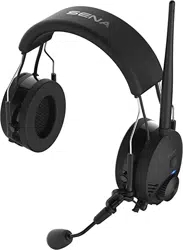

Tufftalk
© 1998-2016 Sena Technologies, Inc. All rights reserved.
Sena Technologies, Inc reserves the right to make any changes and improvements to its product without providing prior notice.
Sena™ is a trademark of Sena Technologies, Inc. or its subsidiaries in the USA and other countries. Prism™, Bluetooth Audio Pack for GoPro
®
,
Tufftalk™, 20S™, 10S™, 10C™, 10U™, 10R™, 3S™, SMH10™, SMH10R™, SMH5™, SMH5-FM™, SMH3™, SPH10™, SPH10H™, SPH10H-FM™,
SPH10S™, Expand™, Bluetooth Mic&Intercom™, Handlebar Remote™, Wristband Remote™, SM10™, SR10™, SR10i™ are trademarks of Sena
Technologies, Inc. or its subsidiaries. These trademarks may not be used without the express permission of Sena.
GoPro
®
is a registered trademark of Woodman Labs of San Mateo, California. Sena Technologies, Inc. (“Sena”) is not afliated with Woodman
Labs. The Sena Bluetooth Pack for GoPro
®
is an after-market accessory specially designed and manufactured by Sena Technologies, Inc. for the
GoPro
®
Hero3 and Hero4 allowing for Bluetooth capabilities.
The Bluetooth
®
word mark and logos are owned by the Bluetooth SIG, Inc. and any use of such marks by Sena is under license. iPhone, iPod
touch are registered trademarks of Apple Inc. Zumo™ is a trademark of Garmin Ltd. or its subsidiaries. TomTom™ is the trademark or registered
trademark owned by TomTom International B.V. Other trademarks and tradenames are those of their respective owners.
Tufftalk
English
CONTENTS
1 INTRODUCTION .......................................................................................................5
2 PACKAGE CONTENTS ............................................................................................6
2.1 Over-the-Head Earmuff Type ..................................................................................................6
2.2 Hard Hat Mount Earmuff Type ................................................................................................7
3 INSTALLING THE TUFFTALK ..................................................................................8
3.1 Over-the-Head Earmuff Type ..................................................................................................8
3.2 Hard Hat Earmuff Type ..........................................................................................................10
4 GETTING STARTED .............................................................................................. 13
4.1 Button Operation ...................................................................................................................13
4.2 Powering On and Off.............................................................................................................15
4.3 Charging................................................................................................................................15
4.4 Low Battery Warning ............................................................................................................. 15
4.5 Checking the Battery Level ................................................................................................... 15
4.6 Volume Adjustment ...............................................................................................................16
4.7 Sena Softwares .....................................................................................................................16
5 PAIRING THE TUFFTALK WITH BLUETOOTH DEVICES .................................. 17
5.1 Mobile Phone Pairing - Mobile Phone, Bluetooth Stereo Device .........................................17
5.2 Second Mobile Phone Pairing - Second Mobile Phone and SR10 ......................................18
5.3 Intercom Pairing - Other Tufftalk headsets ...........................................................................19
6 MOBILE PHONE .................................................................................................... 20
6.1 Mobile Phone Call Making and Answering...........................................................................20
6.2 Speed Dialing ........................................................................................................................ 20
7 STEREO MUSIC .................................................................................................... 21
8 INTERCOM ............................................................................................................. 22
8.1 Two-way Intercom .................................................................................................................22
8.2 Three-way Intercom ..............................................................................................................23
8.3 Four-way Intercom .................................................................................................................25
8.4 Microphone Mute ..................................................................................................................26
9 THREE-WAY CONFERENCE PHONE CALL WITH INTERCOM
PARTICIPANT ........................................................................................................ 26
10 UNIVERSAL INTERCOM ....................................................................................... 27
10.1 Universal Intercom Pairing ....................................................................................................28
10.2 Two-way Universal Intercom .................................................................................................29
10.3 Three-way Universal Intercom ..............................................................................................29
10.4 Four-way Universal Intercom ................................................................................................31
11 GROUP INTERCOM .............................................................................................. 33
12 AMBIENT MODE .................................................................................................... 33
13 TWO-WAY RADIO ................................................................................................. 34
13.1 Wired Two-way Radio ............................................................................................................34
13.2 Wireless Two-way Radio .......................................................................................................34
14 FM RADIO .............................................................................................................. 35
14.1 FM Radio On and Off ............................................................................................................35
14.2 Preset Stations.......................................................................................................................35
14.3 Seek and Save ......................................................................................................................35
14.4 Scan and Save ......................................................................................................................36
14.5 Temporary Preset ..................................................................................................................36
14.6 Region Selection ...................................................................................................................36
15 FUNCTION PRIORITY ........................................................................................... 37

Tufftalk
16 CONFIGURATION SETTING ................................................................................ 37
16.1 Assigning Speed Dial ...........................................................................................................38
16.2 Enabling/Disabling Audio Boost ...........................................................................................39
16.3 Enabling/Disabling Voice Activated Phone Answering ........................................................ 39
16.4 Enabling/Disabling Voice Activated Intercom ......................................................................40
16.5 Enabling/Disabling HD Intercom ..........................................................................................40
16.6 Enabling/Disabling Voice Prompts .......................................................................................41
16.7 Enabling/Disabling RDS AF ..................................................................................................41
16.8 Enabling/Disabling Sidetone.................................................................................................41
16.9 Enabling/Disabling Advanced Noise Control™ ...................................................................42
16.10 Delete All Bluetooth Pairing Information .............................................................................42
16.11 Universal Intercom Pairing ..................................................................................................42
16.12 Exit Voice Conguration Menu ............................................................................................43
17 FIRMWARE UPGRADE ......................................................................................... 44
18 TROUBLESHOOTING ........................................................................................... 44
18.1 Intercom Failure.....................................................................................................................44
18.2 Intercom Reconnection .........................................................................................................44
18.3 Fault Reset.............................................................................................................................45
18.4 Factory Reset ........................................................................................................................45
19 OPERATION QUICK REFERENCE ...................................................................... 46
CERTIFICATION AND SAFETY APPROVALS ........................................................... 47
• FCC Compliance Statement ......................................................................................................47
• FCC RF Exposure Statement ..................................................................................................... 48
• FCC Caution ..............................................................................................................................48
• CE Declaration of Conformity ....................................................................................................48
• Industry Canada Statement ......................................................................................................48
• Bluetooth License .....................................................................................................................49
• NRR Information.........................................................................................................................49
• WEEE (Waste Electrical and Electronic Equipment) ................................................................. 50
SAFETY INFORMATION.............................................................................................. 51
• Product Storage and Management ........................................................................................... 51
• Product Use ...............................................................................................................................51
• Battery ........................................................................................................................................ 52
PRODUCT WARRANTY AND DISCLAIMER .............................................................. 53
• Limited Warranty ........................................................................................................................ 53
• Warranty Exclusions ..................................................................................................................54
• Warranty Service ........................................................................................................................56

Tufftalk
5
English
1 INTRODUCTION
Thank you for choosing the Sena Tufftalk, Industrial Bluetooth
Communication System. Tufftalk allows you to communicate effectively
in high-noise industrial environments. The Tufftalk offers passive noise
cancellation with the level of noise entering a person’s ear attenuated
with up to the NRR of 24. Using the Ambient Mode feature, you can
efciently hear nearby voice signals without having to take off the
headset. Using the PTT feature, you can make two-way radio calls
through the headset. Using its Bluetooth features, you can call
handsfree on your Bluetooth mobile phone, listen to stereo music, or
have intercom conversations in full duplex with other members.
The Tufftalk is compliant with the Bluetooth 4.1 supporting the following
proles: Headset Prole, Hands-Free Prole (HFP), Advanced Audio
Distribution Prole (A2DP), and Audio Video Remote Control Prole
(AVRCP). Please check with the manufacturers of other device to
determine their compatibility with this headset.
Please read this User’s Guide carefully before using the headset. Also
check www.sena.com for the latest version of the User’s Guide and
additional information related to Sena Bluetooth products.
The Tufftalk features:
• Bluetooth 4.1
• Multi-way intercom up to 4 connections
• Bluetooth intercom up to 1.4 kilometers (0.85 miles) using long
antenna, 0.8 kilometers (0.5 miles) using short antenna*
• Passive noise cancellation with up to the NRR of 24
• Ambient Mode that intakes nearby voice signals
• Built-in two-way radio adapter
• Smartphone App for iPhone and Android
• Universal Intercom™
• Intuitive voice prompts
• Advanced Noise Control™
• Easy operation by versatile Jog Dial
• Water resistant for use in inclement weather
• Built-in FM radio tuner with a station scan and save function
• Firmware upgradeable
* in open terrain
Tufftalk
6
Key Specications:
• Bluetooth 4.1
• Supporting proles: Headset Prole, Hands-Free Prole (HFP),
Advanced Audio Distribution Prole (A2DP), and Audio Video
Remote Control Prole (AVRCP)
2 PACKAGE CONTENTS
2.1 Over-the-Head Earmuff Type
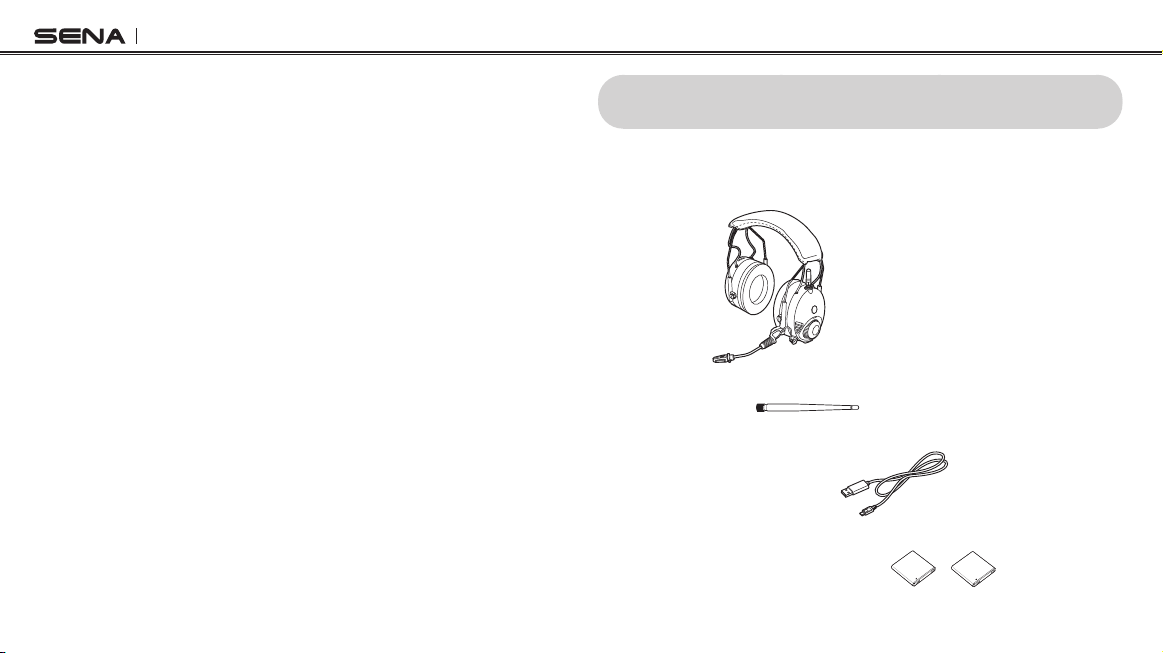
•Headset
•LongAntenna
•USBPower&DataCable
•Li-ionRechargeableBattery(2)
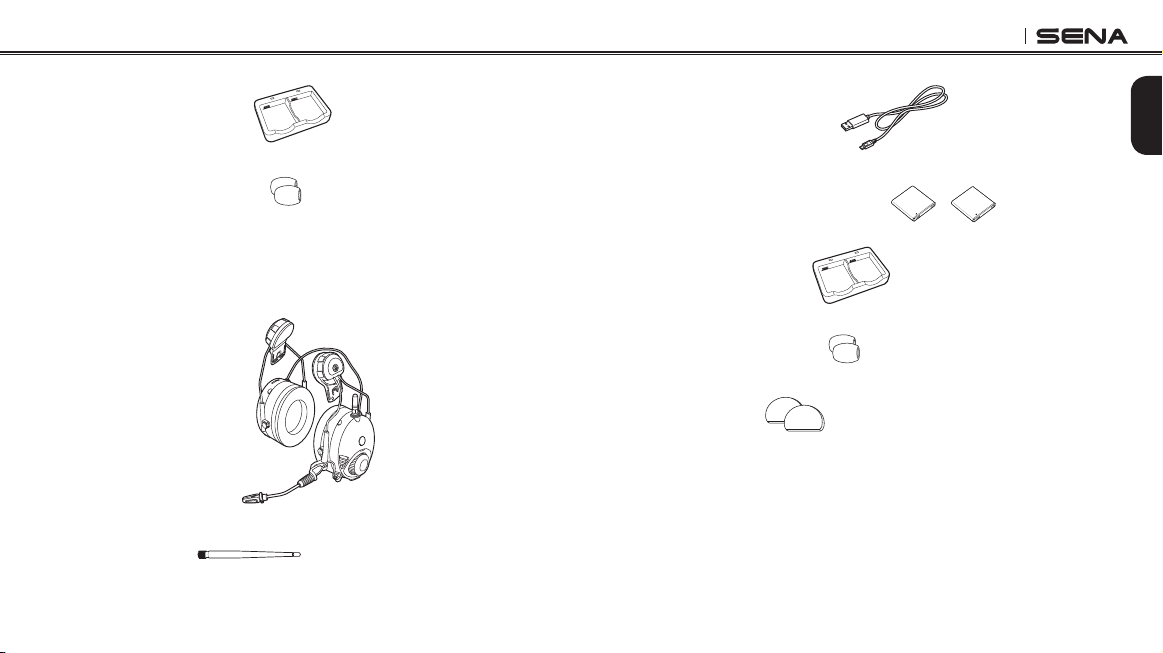
Tufftalk
7
English
•USBPower&DataCable
•Li-ionRechargeableBattery(2)
•DualBatteryCharger
•MicrophoneSponge(2)
•RubberPad(2)
•DualBatteryCharger
•MicrophoneSponge(2)
2.2 Hard Hat Mount Earmuff Type
•HeadsetMainUnits
•LongAntenna
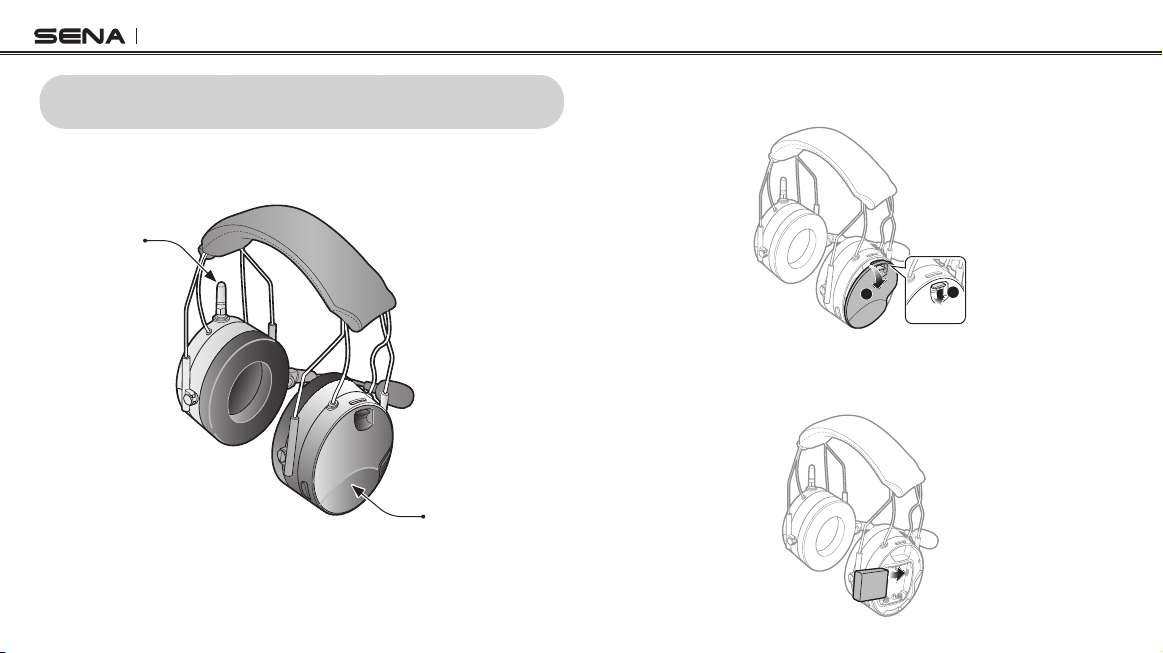
Tufftalk
8
3 INSTALLING THE TUFFTALK
3.1 Over-the-Head Earmuff Type
Right Speaker Cover
Short Antenna
Tufftalk Headset
3.1.1 Installing the Battery
1. Open the right speaker cover by lowering the slide lock.
2
1
2. Place the Li-ion rechargeable battery inside the battery
compartment. You can use three AAA batteries (sold separately)
as an alternative power source for the Tufftalk.
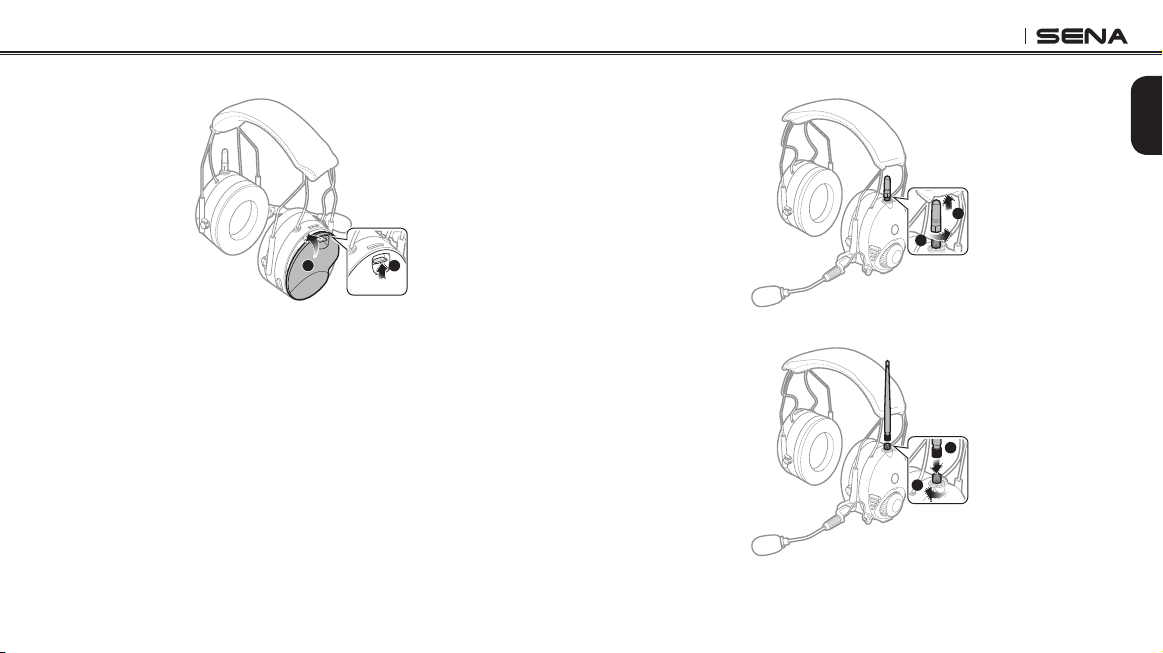
Tufftalk
9
English
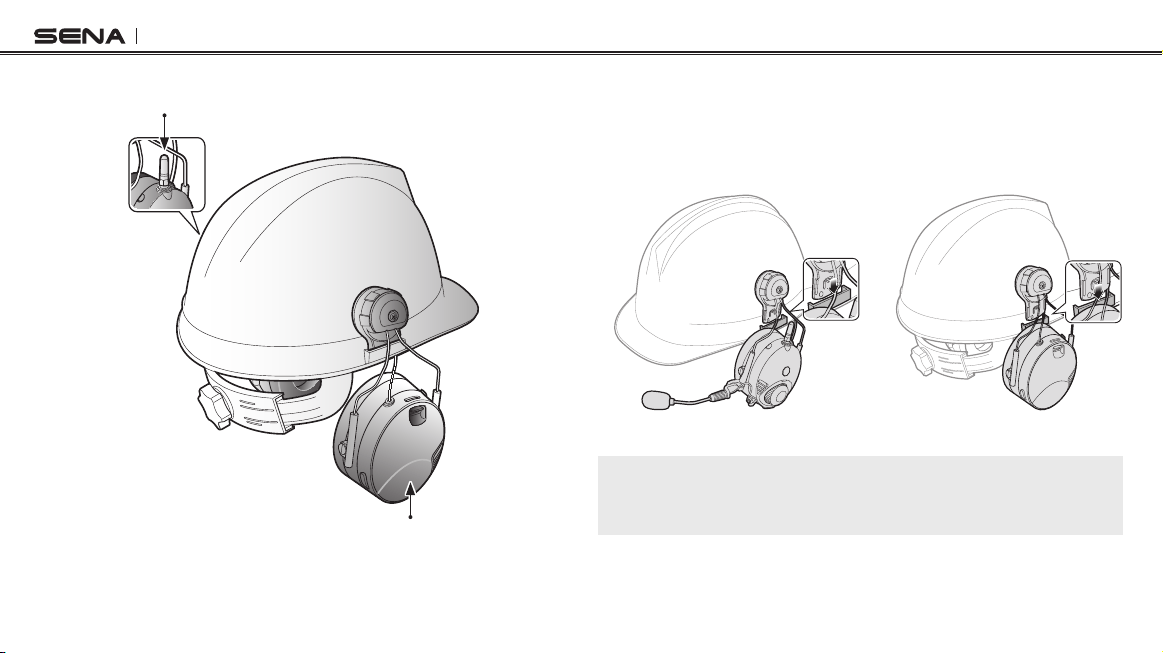
3. Close the cover and lock it into place by raising the slide lock.
1
2
3.1.2 Replacing the Antenna
A short antenna is installed on the headset by default. However, if you
wish to have an increased intercom distance, you may replace the
short antenna with the long antenna.
1. Unfasten the short antenna by rotating it counter clockwise.
1
2
2. Take the long antenna and fasten it tightly into position.
1
2
Tufftalk
10
3.2 Hard Hat Earmuff Type
Right Speaker Cover
Short Antenna
Tufftalk Headset
3.2.1 Installing the Headset
1. Attach the headsets to each side of the hard hat by sliding them
into the left and right slots of the hard hat. The headset with the
microphone and the antenna should be mounted on the left side
of the hard hat.
2. Organize the cables under the hard hat suspensions.
Note:
If the rubber pad on the inner surface of the bracket-top begins to fray,
replace it with the included pad.
Tufftalk
11
English
3.2.2 Installing the Battery
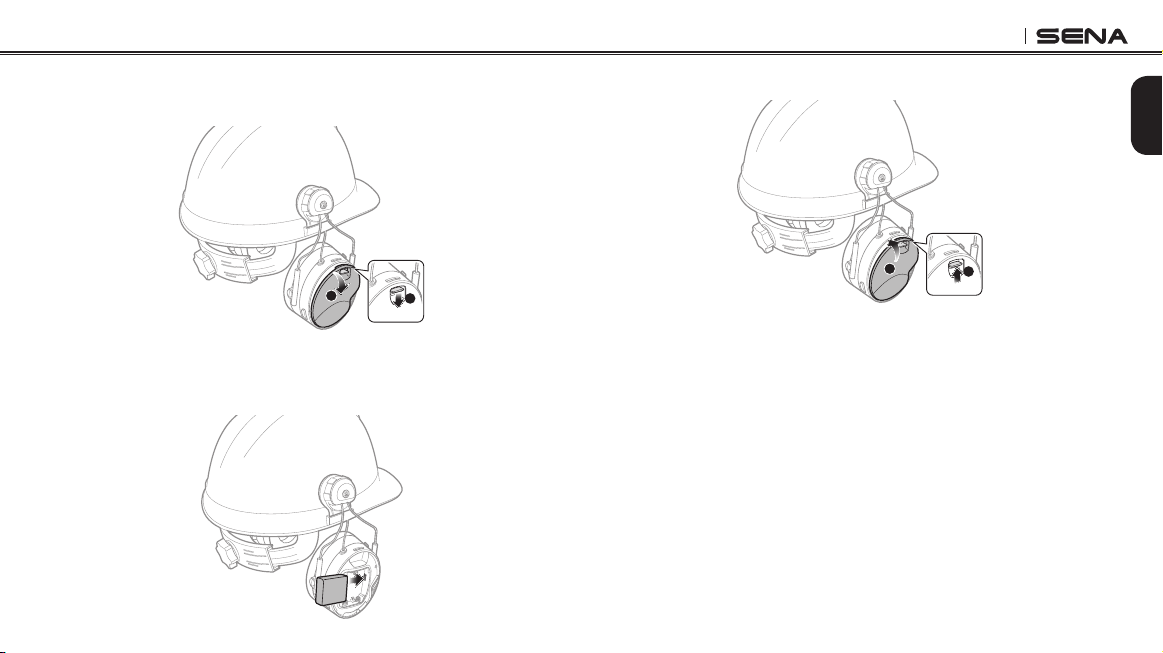
1. Open the right speaker cover by lowering the slide lock.
2
1
2. Place the Li-ion Rechargeable Batteryinside the battery slot. You
can use three AAA batteries (sold separately) as an alternative
power source for the Tufftalk.
3. Close the cover and lock it into place by raising the slide lock.
1
2
Tufftalk
12
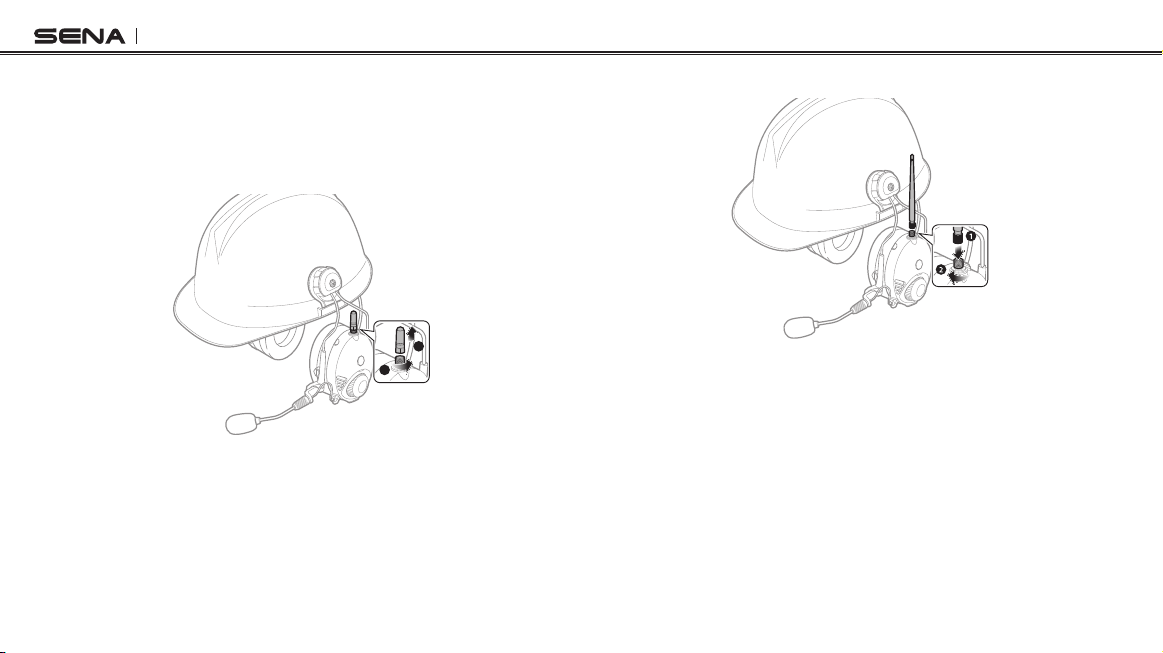
3.2.3 Replacing the Antenna
A short antenna is installed on the headset by default. However, if you
wish to have an increased intercom distance, you may replace the
short antenna with the long antenna.
1. Unfasten the short antenna by rotating it counter clockwise.
1
2
2. Take the long antenna and fasten it tightly into position.
Tufftalk
13
English
4 GETTING STARTED
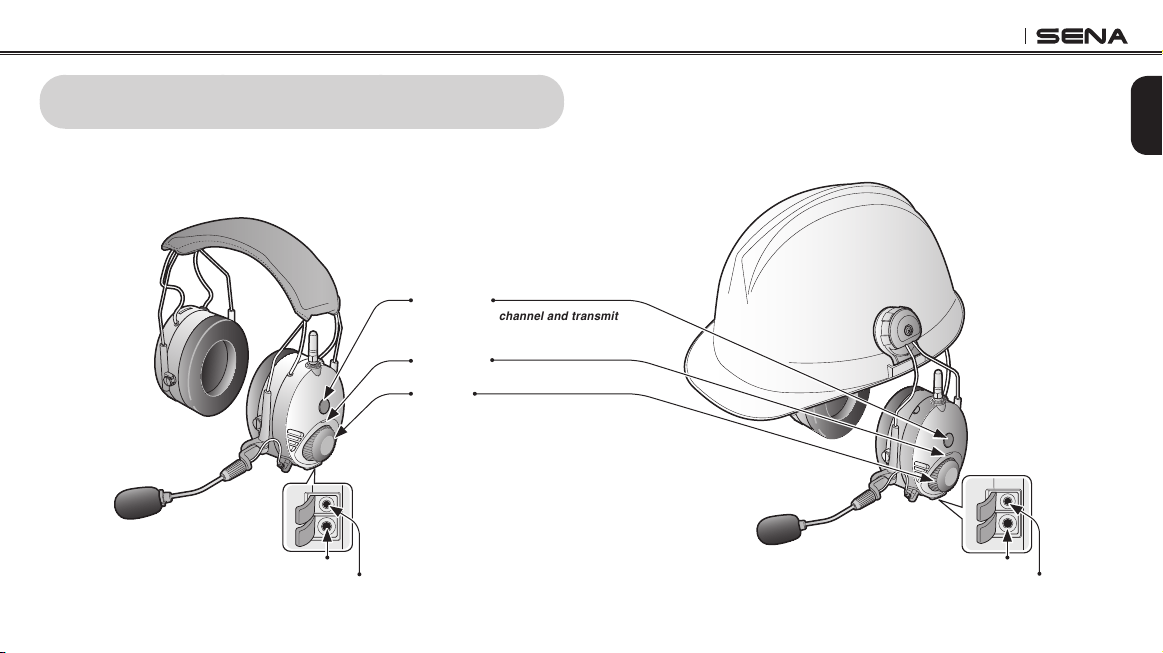
4.1 Button Operation
Jog Dial
Status LED
PTT Button
•Open audio channel and transmit
Two-way Radio Port
PTT Port
Two-way Radio Port
PTT Port
Tufftalk Headset Buttons
Tufftalk
14
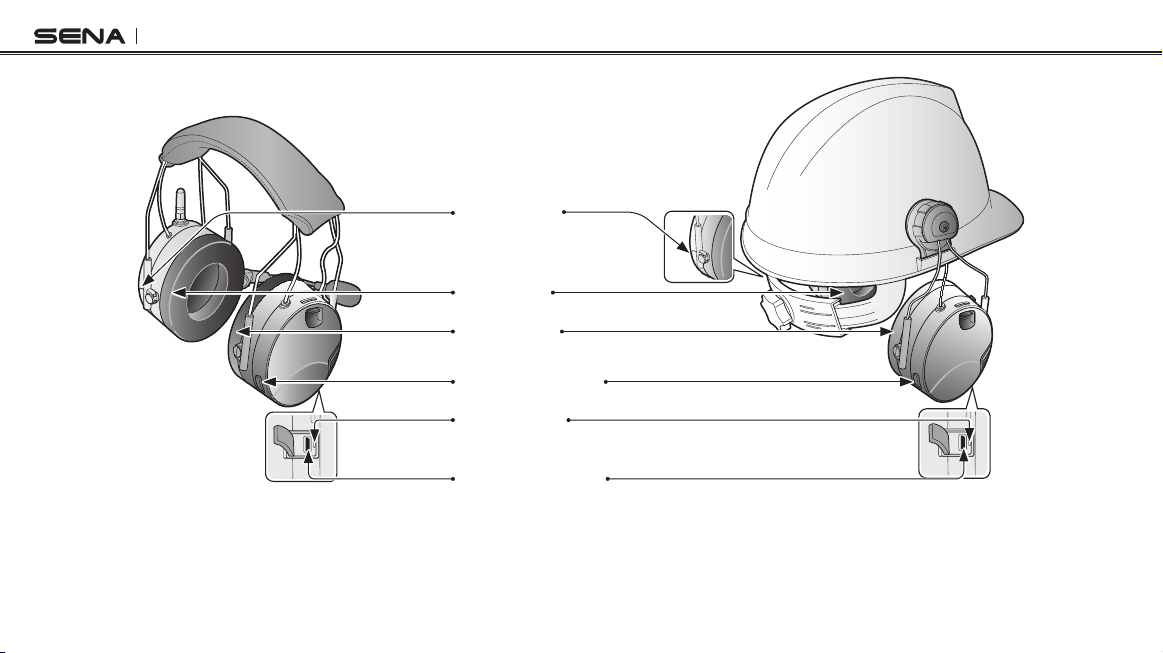
DC Power Charging &
Firmware Upgrade Port
Phone Button
Charging LED
Ambient Mode Button
Right Ear Cup
Left Ear Cup
Tufftalk Headset Buttons
Tufftalk
15
English
4.2 Powering On and Off
To power on the headset, press the Phone Button and the Jog Dial at
the same time while hearing ascending beeps and a voice prompt,
“Hello”. To power off the headset, press the Phone Button and the Jog
Dial at the same time while hearing descending beeps and a voice
prompt, “Goodbye”.
4.3 Charging
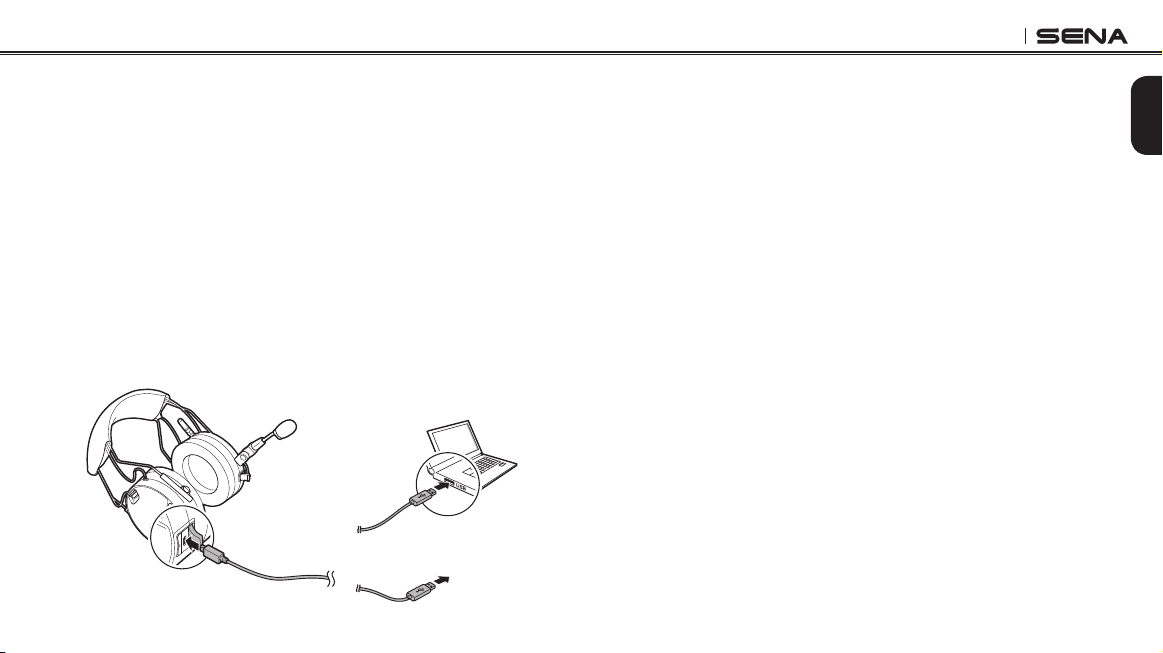
You can charge the headset by connecting the supplied USB power &
data cable into a computer’s USB port or USB wall charger. You can
use any standard micro USB cable to charge the units. The charging
LED turns red while charging and turns blue when fully charged. You
can also use the dual battery charger included in the package. It
takes about 2.5 hours to be completely charged.
or
ACAdapter
4.4 Low Battery Warning
When the battery is low, the blinking blue LED in stand-by mode turns
to red and you will hear mid-tone triple beeps and a voice prompt,
“Low battery”.
4.5 Checking the Battery Level
You can check the battery level in two different ways when the headset
is powering on.
4.5.1 LED Indicator
When the headset is powering on, the red LED ashes rapidly
indicating the battery level.
4 ashes = High, 70 ~ 100%
3 ashes = Medium, 30 ~ 70%
2 ashes = Low, 0 ~ 30%
4.5.2 Voice Prompt Indicator
When you power on the headset, keep pressing the Phone Button and
the Jog Dial simultaneously for about 5 seconds until you hear three,
high toned beeps. Then you will hear a voice prompt indicating the
battery level. However, if you release the buttons as soon as the
headset turns on, you will not hear a voice prompt for the battery level
indication.

Tufftalk
16
4.7 Sena Softwares
4.7.1 Sena Device Manager
The Sena Device Manager allows you to upgrade the rmware and
congure the device settings directly from your PC. Using this
software, you can assign speed dial presets, FM radio frequency
presets and more. It is available for both Windows and Mac. For more
information on downloading the Sena Device Manager, please visit
www.sena.com.
4.7.2 Sena Smartphone App
The Sena Smartphone App allows you to congure device settings
and read the User’s Guide and the Quick Start Guide. Pair your phone
with your Tufftalk headset (please refer to
section 5.1, “Mobile Phone
Pairing - Mobile Phone, Bluetooth Stereo Device”
). Run the Sena
Smartphone App and you can congure its settings directly from your
smartphone. You can download the Sena Smartphone App for Android
or iPhone from www.sena.com/headset-app/.
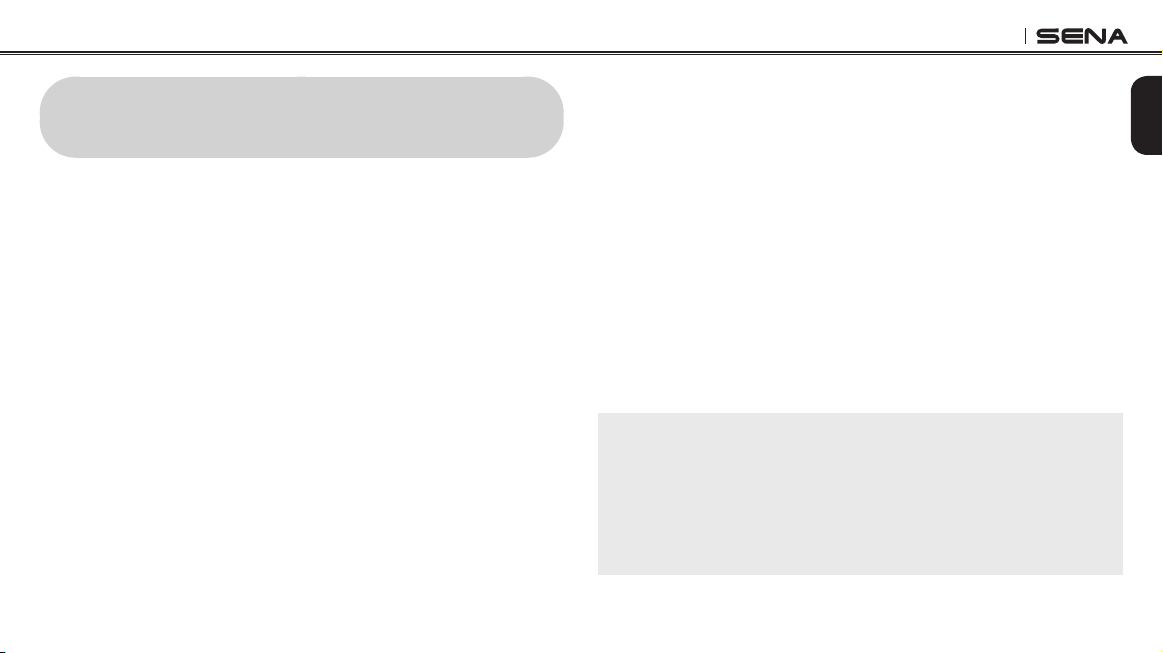
4.6 Volume Adjustment
You can easily adjust the volume by rotating the Jog Dial. You will hear
a beep when the volume reaches the maximum or minimum level. The
volume is set and maintained independently at different levels for
each audio source even when you reboot the headset. For example,
once you set the volume for mobile phone handsfree, it will not change
even if you adjust the volume for your Bluetooth MP3 music. However,
if you adjust the volume during stand-by mode, it will affect volume
levels of every audio source.
Tufftalk
17
English
5 PAIRING THE TUFFTALK WITH BLUETOOTH
DEVICES
Before using the Tufftalk Bluetooth headset with any other Bluetooth
devices for the rst time, you will need to pair them together. You can
pair the Tufftalk with Bluetooth mobile phones, Bluetooth stereo
devices such as MP3 players and with other Sena Bluetooth headsets.
The pairing operation is required only once for each Bluetooth device.
The headset remains paired with the devices and automatically
reconnects to them when they are within range. You will hear a high
toned single beep and a voice prompt whenever the headset
reconnects to the paired device: “Phone connected” to a mobile
phone, “Media connected” to a Bluetooth stereo device.
5.1 Mobile Phone Pairing - Mobile Phone, Bluetooth
Stereo Device
1. Press and hold the Phone Button for 5 seconds until you hear a
voice prompt, “Phone pairing”.
2. Search for Bluetooth devices on your mobile phone. Select the
Sena Tufftalk in the list of the devices detected on the mobile
phone.
3. Enter 0000 for the PIN. Some mobile phones may not ask for the
PIN.
4. The mobile phone conrms that pairing has been completed and
the Tufftalk is ready to use. You will hear a voice prompt, “Your
headset is paired”.
5. If the pairing process is not completed within three minutes, the
Tufftalk will return to stand-by mode.
Note:
1. If the Bluetooth connection between the headset and a mobile phone is
disconnected, tap the Phone Button to recover the Bluetooth connection
immediately.
2. If the Bluetooth connection between the headset and a media player is
disconnected, press the Jog Dial for 1 second to recover the Bluetooth
connection and play.

Tufftalk
18
5.2 Second Mobile Phone Pairing - Second Mobile
Phone and SR10
Typical Bluetooth headsets can connect with only one Bluetooth
device, but a second mobile phone pairing allows the headset to
connect with another Bluetooth device such as a second mobile
phone, an MP3 Player, or the Sena SR10, the Bluetooth adapter.
1. To pair the second mobile phone, press and hold the Jog Dial for
5 seconds until the red LED ashes rapidly and you hear a voice
prompt, “Intercom pairing”.
2. Within 2 seconds, tap the Phone Button again, then the LED
ashes blue rapidly and you will hear a voice prompt, “Second
mobile phone pairing”.
3. Search for Bluetooth devices on your mobile phone. Select the
Sena Tufftalk in the list of the devices detected on the mobile
phone.
4. Enter 0000 for the PIN. Some mobile phones may not ask for the
PIN.
5. The mobile phone conrms that the pairing has completed and
the Tufftalk is ready to use. You will hear a voice prompt, “Your
headset is paired”.
Note:
1. If you have two audio (A2DP) devices connected to your headset then
the audio from one device will interrupt the audio from the other device.
For example, if you are playing music from the primary mobile phone,
then it can be interrupted by playing music from the secondary mobile
phone and vice versa.
2. The Sena SR10 is a Bluetooth two-way radio adapter for group
communication, and uses Hands-Free Profile. The incoming audio from
the two-way radio via SR10 is heard in the background while having an
intercom conversation or a mobile phone call.
Tufftalk
19
English
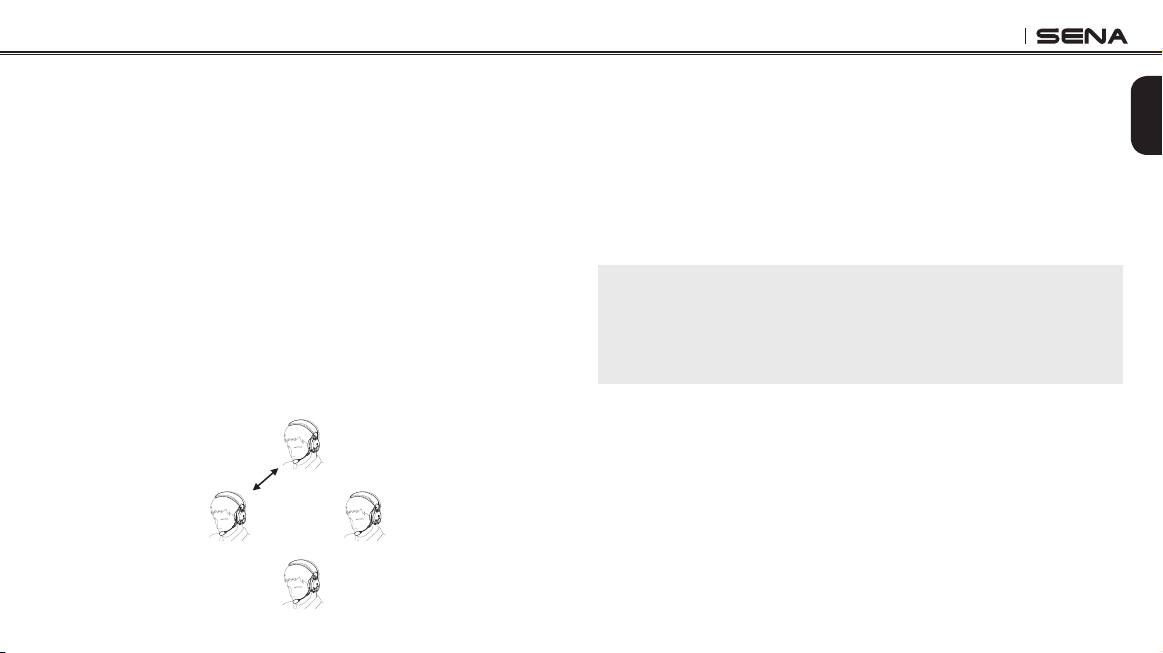
5.3 Intercom Pairing - Other Tufftalk headsets
The Tufftalk can be paired with up to three other headsets for Bluetooth
intercom conversation.
1. Turn on the two Tufftalk headsets (A and B) that you would like to
pair with each other.
2. Press and hold the Jog Dial of the headset A and B for 5 seconds
until red LEDs of the both units start to ash rapidly. You will hear
a voice prompt, “Intercom pairing”.
3. Tap the Jog Dial on any one of the two headsets A and B, and
wait until the LEDs of both headsets turn to blue and intercom
connection is automatically established. The two Tufftalk headsets
A and B are paired with each other for intercom conversation.
If the pairing process is not completed within one minute, the
Tufftalk will return to stand-by mode.
A
B
C
D
Pairing A & B
4. You can make other pairing between headsets A and C, and
between headsets A and D by following the same procedure as
above.
5. The intercom pairing queue is ‘Last-Come, First-Served ’. If a
headset has multiple paired headsets for intercom conversations,
the last paired headset is set as rst intercom friend. The
previous intercom friend becomes second intercom friend, and
third intercom friend.
Note:
For example, after the pairing procedures listed above, headset D is the
rst intercom friend of headset A. Headset C is the second intercom
friend
of headset A, and headset B is the third intercom friend of headset
A.

Tufftalk
20
6 MOBILE PHONE
6.1 Mobile Phone Call Making and Answering
1. When you have an incoming call, simply tap the Phone Button or
the Jog Dial to answer the call.
2. You can also answer the incoming call by loudly speaking any
word of your choice if Voice Activated Phone Answering (VOX
Phone) is enabled, unless you are connected to intercom.
3. To end a call, tap the Phone Button or press the Jog Dial for 2
seconds until you hear a mid-tone single beep, or wait for the
called person to end the call.
4. To reject a call, press the Jog Dial for 2 seconds until you hear a
beep while the phone is ringing.
5. There are several ways to make a phone call:
– Enter numbers on your mobile phone’s keypad and make a call.
Then the call is automatically transferred to the headset.
– Tap the Phone Button in stand-by mode to activate the voice
dialer of your mobile phone. For this, the voice dialing function
must be available on the mobile phone. Refer to
your mobile
phone manual
for further instruction.
Note:
If you have two phones connected to your headset and you have an
incoming call from the second phone during the call of the first phone, then
you may still receive the call from the second phone. In this case, the call
from the first phone is on waiting mode. If you end a call, then it will
automatically guide you to the first phone call.
6.2 Speed Dialing
You can quickly make a phone call by using the voice speed dial
menu.
1. To enter into the voice speed dial menu, double tap the Phone
Button and you will hear a mid-toned single beep and a voice
prompt, “Speed dial”.
2. Rotate the Jog Dial clockwise or counter clockwise to navigate
between the menus. You will hear voice prompts for each menu
item.
3. Tap the Phone Button or the Jog Dial to select a voice menu
among the followings:
(1) Last number redial
(4) Speed dial 3
(2) Speed dial 1
(5) Cancel
(3) Speed dial 2

Tufftalk
21
English
4. After selecting the last number redial menu, you will hear a voice
prompt, “Last number redial”. Then, to redial the last phone call
number, tap the Phone Button or the Jog Dial.
5. To call one of the speed dials, rotate the Jog Dial clockwise or
counter clockwise to navigate between the menus until you hear
a voice prompt, “Speed dial (#)”. Then, tap the Phone Button or
the Jog Dial.
6. If you want to exit the speed dial immediately, rotate the Jog Dial
until you hear voice prompt, “Cancel”, and tap the Phone Button
or the Jog Dial. If you do not press any button within 15 seconds,
the Tufftalk will exit the voice speed dial menu and go back to
stand-by mode.
Note:
1. Make sure that you connect the mobile phone and the headset to use the
speed dial function.
2. You need to assign speed dial numbers before using the speed dial
(please refer to
section
16.1, “Assigning Speed Dial”
).
7 STEREO MUSIC
The Bluetooth audio device must be paired with the Tufftalk by
following the
section 5.1, “Mobile Phone Pairing - Mobile Phone,
Bluetooth Stereo Device”
procedure. The Tufftalk supports the Audio/
Video Remote Control Prole (AVRCP), so if your Bluetooth audio
device also supports the AVRCP, you can use the Tufftalk to remotely
control music playback. Not only can you adjust the volume but you
can also use functions such as play, pause, next track and previous
track.
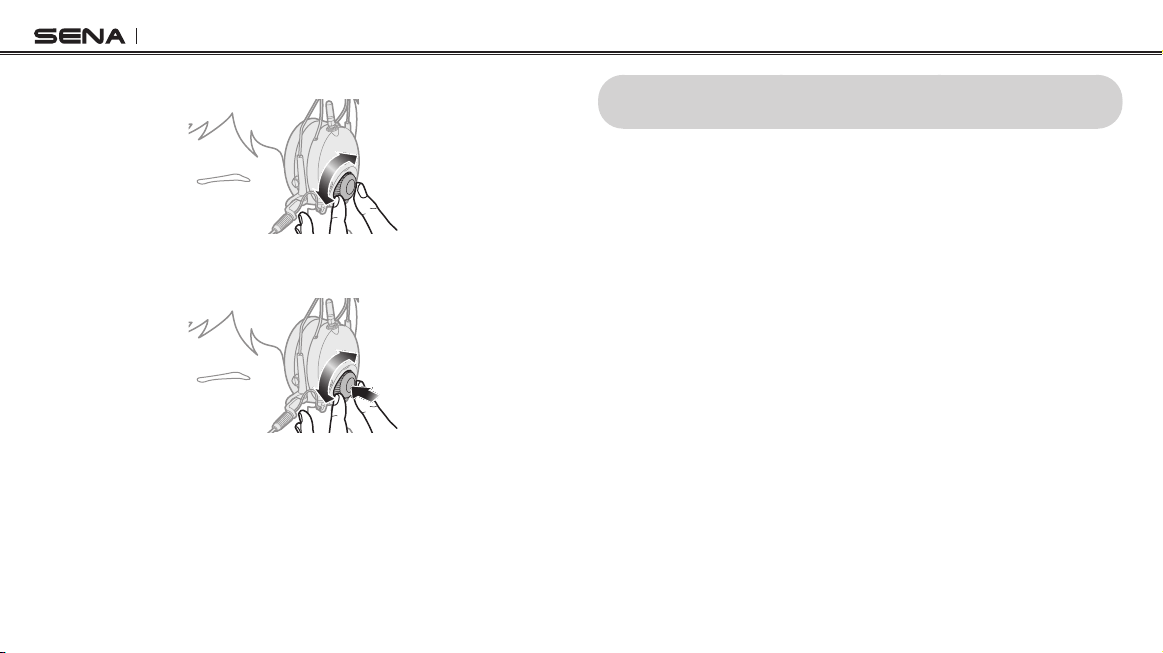
1. To play or pause music, press and hold the Jog Dial for 1 second
until you hear a double beep.
1
Tufftalk
22
2. To adjust the volume, rotate the Jog dial.
3. To track forward or track back, rotate while pressing the Jog Dial
clockwise or counter clockwise.
8 INTERCOM
Please make sure your intercom devices are paired as described in
section 5.3, “Intercom Pairing - Other Tufftalk headsets”
.
8.1 Two-way Intercom
8.1.1 Starting Two-way Intercom
You can start an intercom conversation with one of any intercom
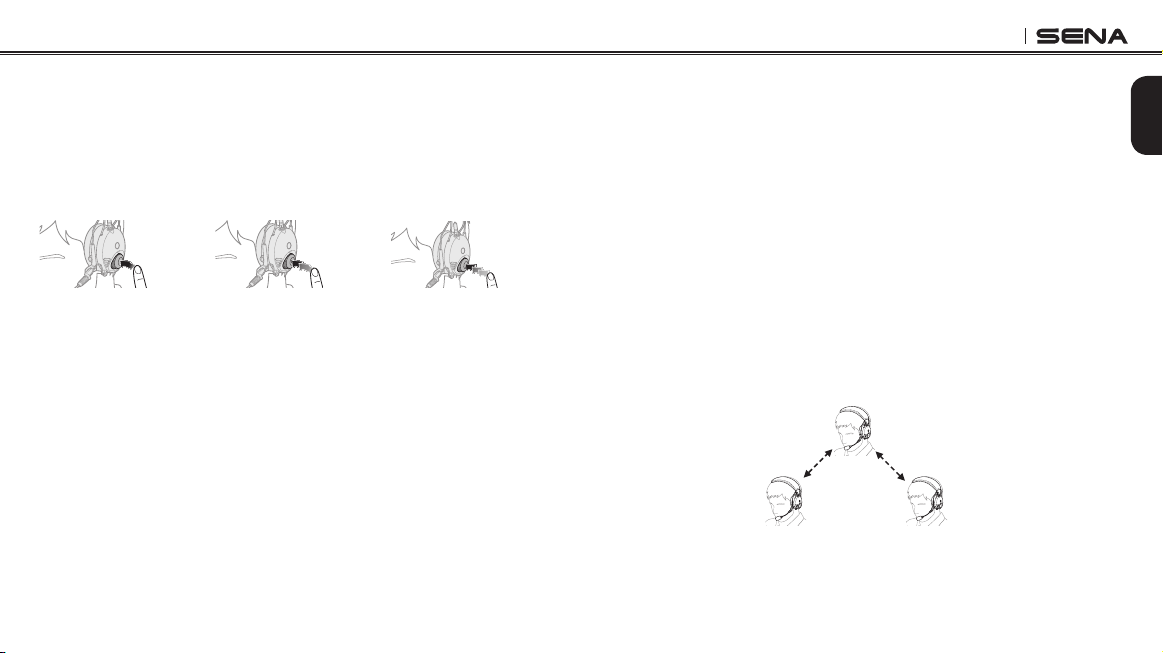
friends by tapping the Jog Dial. Tap the Jog Dial once to intercom with
the rst intercom friend, tap the Jog Dial twice to intercom with the
second intercom friend, and tap the Jog Dial three times to intercom
with the third intercom friend.
Tufftalk
23
English
8.1.2 Ending Two-way Intercom
You can end an intercom conversation by using the Jog Dial. Press
and hold the Jog Dial for 1 second to end any intercom. Or, you can
single tap to end intercom with the rst intercom friend, double tap
to end intercom with the second intercom friend, and triple tap to end
intercom with the third intercom friend.
1
st
intercom
friend
2
nd
intercom
friend
3
rd
intercom
friend
Start/End Two-way Intercom Conversation
8.2 Three-way Intercom
8.2.1 Starting Three-way Intercom
You (A) can have a three-way conference intercom with two other
Tufftalk friends (B & C) by establishing two intercom connections
simultaneously. While a three-way conference intercom is in progress,
mobile phone connection of all three participants is temporarily
disconnected. However, as soon as the conference intercom
terminates or one of the participants leaves the intercom, all mobile
phones automatically reconnect to their headsets. If you have an
incoming mobile phone call during the conference intercom, terminate
the conference intercom to automatically reconnect and receive the
phone call.
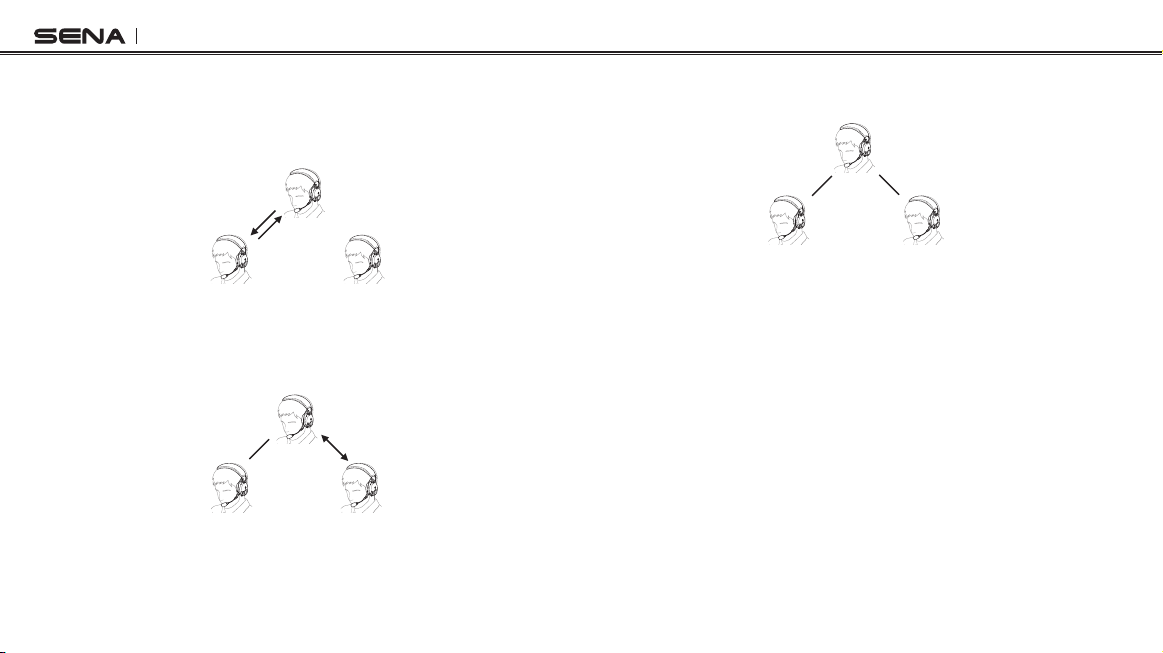
1. You (A) need to be paired with two other friends (B & C) for three-
way conference intercom.
(A)
(B)
FirstFriend SecondFriend
(C)
Pairing
Pairing
Tufftalk
24
2. Start an intercom conversation with one of the two friends in
your intercom group. For example, you (A) may start an intercom
conversation with the intercom friend (B). Or intercom friend (B)
may start an intercom call with you (A).
(A)
(B)
FirstFriend SecondFriend
(C)
3. You (A) can call the second intercom friend (C) by double tapping
the Jog Dial, or the second intercom friend (C) may join the
intercom by making an intercom call to you (A).
(A)
(B)
FirstFriend SecondFriend
(C)
4. Now you (A) and two Tufftalk intercom friends (B & C) are having
a three-way conference intercom.
(A)
(B)
FirstFriend SecondFriend
(C)
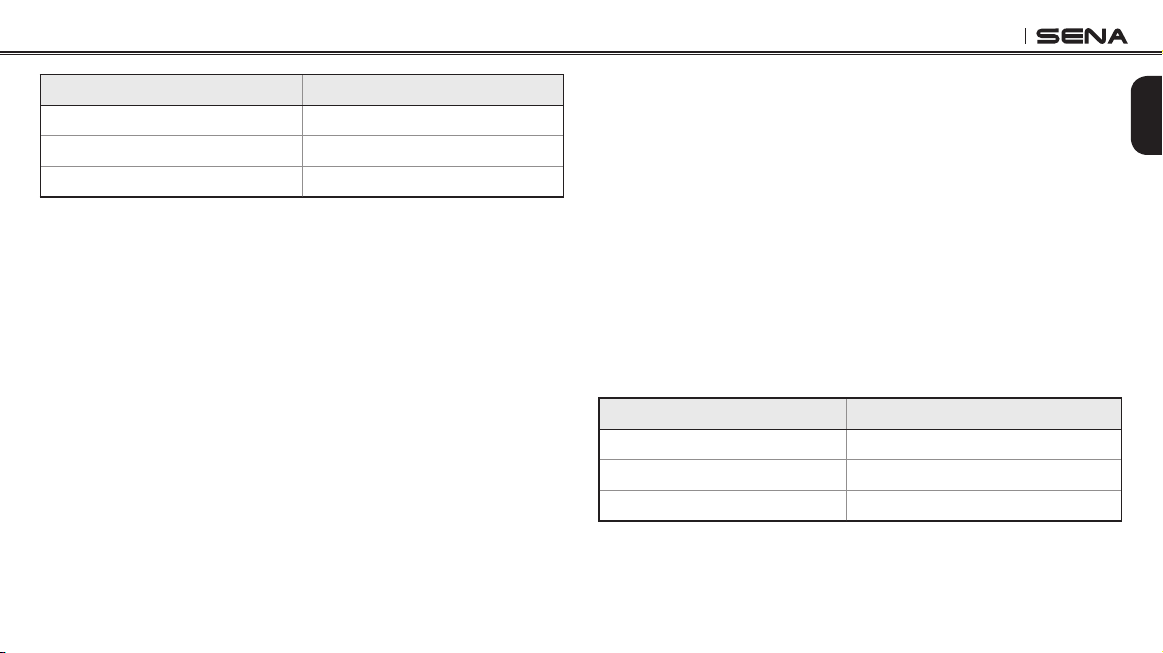
8.2.2 Ending Three-way Intercom
You can completely terminate the conference intercom or just
disconnect an intercom connection with one of your active intercom
friends.
1. Press the Jog Dial for 1 second until you hear a beep to terminate
three-way conference intercom completely. It terminates both
intercom connections with (B) and (C).
2. Tap or double tap the Jog Dial to disconnect intercom connection
with one of the two intercom friends accordingly. For example,
by single tapping the Jog Dial, you can terminate the intercom
connection with just the rst intercom friend (B). However, you still
have the intercom connection with your second intercom friend
(C).
Tufftalk
25
English
Jog Dial Operation Result
Press for 1 second Disconnect (B) & (C)
Single tap Disconnect (B)
Double tap Disconnect (C)
End Three-way Intercom
8.3 Four-way Intercom
8.3.1 Starting Four-way Intercom
You can have four-way conference intercom with three other Tufftalk
users by adding one more intercom participant to the three-way
intercom. While you are having a three-way intercom as above in
section 8.2, “Three-way Intercom”
, a new participant (D), who is an
intercom friend of your intercom friend (C), may join the conference
intercom by making an intercom call to your intercom friend (C).
Please note that in this case, the new participant (D) is an intercom
friend of (C), not of you (A).
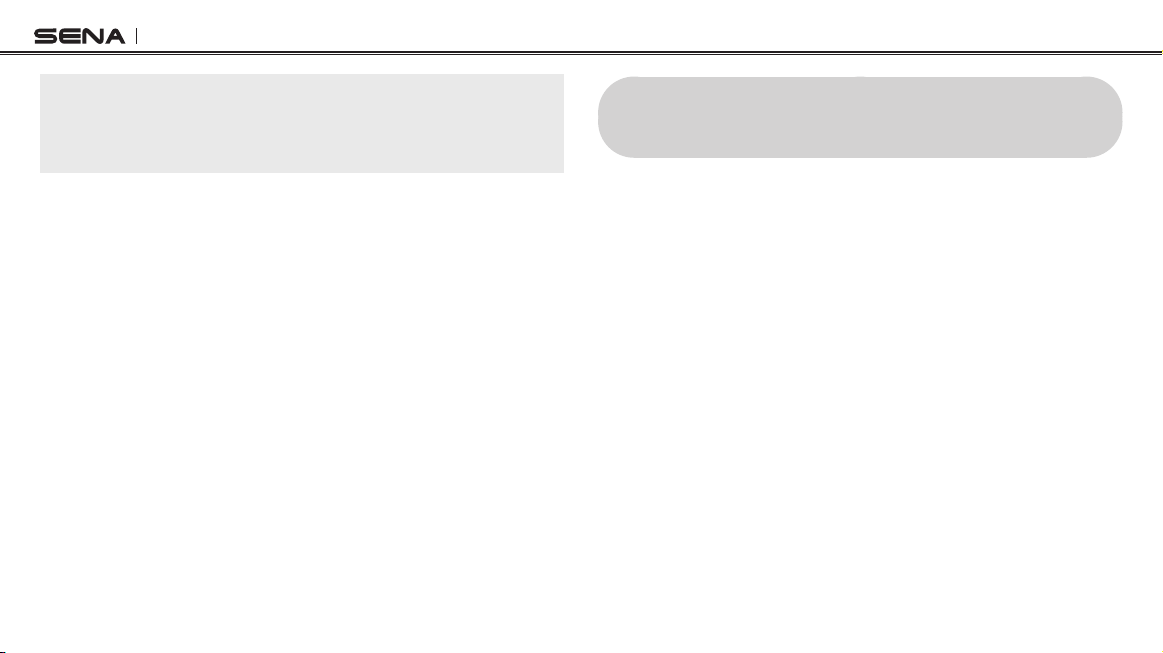
8.3.2 Ending Four-way Intercom
As same in the case of three-way intercom, you can completely get out
of the four-way conference intercom or just disconnect a single
intercom connection.
1. Press the Jog Dial for 1 second until you hear a beep to terminate
four-way conference intercom. It terminates the intercom
connections between you (A), and your intercom friends (B) and
(C).
2. Tap or double tap the Jog Dial to disconnect the intercom
connection with one of the two intercom friends accordingly.
However, when you disconnect the second friend (C) by double
tapping the Jog Dial, you will be disconnected with the third
participant (D) as well. This is because the third participant (D) is
connected with you via the second friend (C).
Jog Dial Operation Result
Press for 1 second Disconnect (B), (C) & (D)
Single tap Disconnect (B)
Double tap Disconnect (C) & (D)
End Four-way Intercom
Tufftalk
26
Note:
Multiple headsets are connected during multi-way intercom. With various
signals interfering each other, the intercom distance of multi-way intercom
is relatively shorter than that of two-way intercom.
8.4 Microphone Mute
You can mute or unmute your microphone during an intercom
conversation by double tapping the Ambient Mode Button. If you
disconnect intercom, the microphone mute effect will be turned off as
well.
9 THREE-WAY CONFERENCE PHONE CALL
WITH INTERCOM PARTICIPANT
1. When you have an incoming mobile phone call during an
intercom conversation, you will hear a ringtone. You can choose
whether to
1) answer the mobile phone call and stop the intercom
conversation, or 2) reject the phone call and stay on the intercom
conversation.
1) To answer the phone call and stop the intercom conversation,
tap the Phone Button or the Jog Dial. The VOX Phone feature
does not work if you are connected to intercom. When you hang
up the phone call, the intercom will automatically be recovered.
2) To reject the phone call and stay on the intercom conversation,
press the Jog Dial for 2 seconds until you hear a beep.
2. When you have an incoming intercom call during a mobile phone
call, you will hear 4 high toned beeps, alerting you that there is
an incoming intercom call. You will also hear a voice prompt,
“Intercom requested”. In this case, the intercom call does not
override the mobile call because intercom has lower priority than
mobile call. You have to hang up the mobile phone call to make or
receive an intercom call.
Tufftalk
27
English
3. You can have a three-way conference phone call by adding an
intercom friend to the mobile phone conversation. During a mobile
phone conversation, tap the Jog Dial to invite one of the intercom
friends to the mobile phone line. To disconnect the intercom
rst and go back to your private mobile phone call, terminate
the intercom by tapping the Jog Dial. To end the mobile phone
call rst and maintain the intercom conversation, tap the Phone
Button, or press the Jog Dial for 2 seconds, or wait for the person
on the mobile phone line to end the call.
10 UNIVERSAL INTERCOM
You can have an intercom conversation with non-Sena Bluetooth
headsets using the Universal Intercom function. Non-Sena Bluetooth
headsets can be connected to the Sena Bluetooth headset if they
support the Bluetooth Hands-Free Prole (HFP). The working distance
may differ depending on the performance of Bluetooth headset that it
is connected to. In general, it is shorter than normal intercom distance
since it uses the Bluetooth Hands-Free Prole. The Universal Intercom
affects both the phone call connection and the multipoint connection
(devices paired via Second Mobile Phone Pairing). You cannot use a
multipoint connection device while you are using the Universal
Intercom in case as below.
1. If a non-Sena headset does not support a multipoint connection,
it cannot use a phone call connection while using the Universal
Intercom.
2. As for Sena headsets, the Universal Intercom affects the multipoint
connection.

Tufftalk
28
3. If non-Sena headset (already paired as Universal Intercom with
Sena) is turned on, then the multipoint connection is automatically
deactivated. And the non-Sena headset is automatically
connected to Sena headset as a Universal Intercom. So you
cannot use multipoint connection devices, while a non-Sena
headset is turned on.
4. Even though you disconnect the non-Sena headset as a Universal
Intercom, it will not automatically restore the multipoint connection.
To restore the multipoint connection, you should turn off the
non-Sena headset rst, then try to connect to multipoint device
manually from the device screen or simply reboot the device so
that it automatically connects to the Sena headset.
10.1 Universal Intercom Pairing
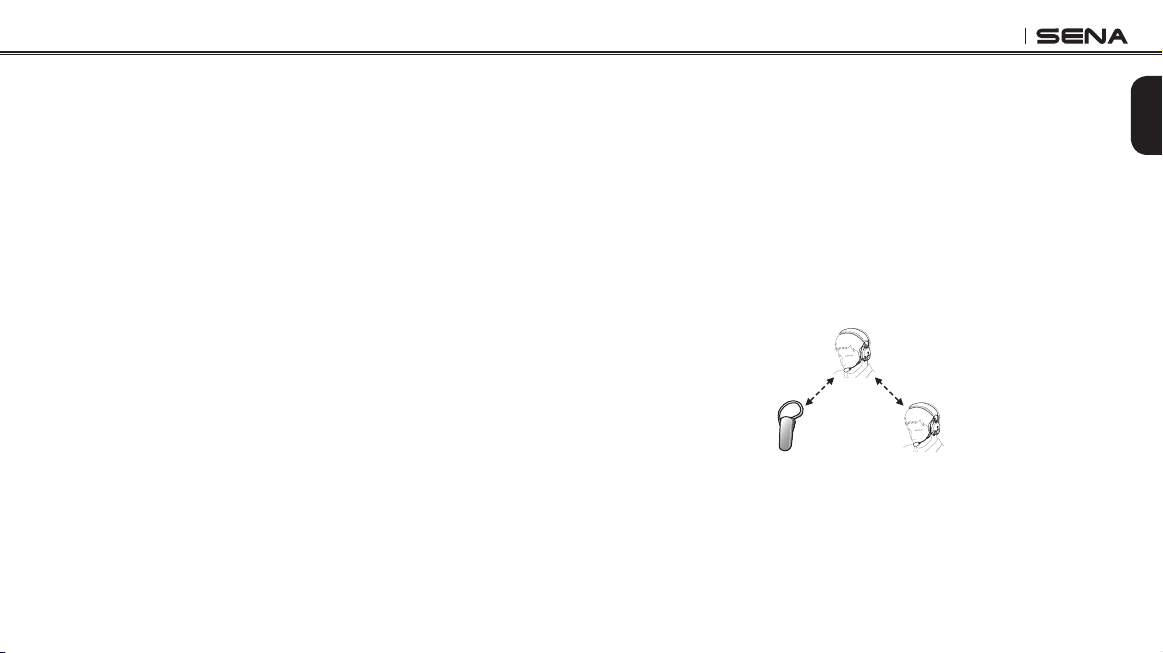
The Tufftalk can be paired with non-Sena Bluetooth headsets for
Bluetooth intercom conversation. You can pair the Tufftalk with only
one non-Sena Bluetooth headset so if you pair with a different non-
Sena Bluetooth headset, the previous pairing will be removed.
1. Turn on the Tufftalk and a non-Sena Bluetooth headset that you
want to pair with.
2. Press the Jog Dial for 10 seconds to enter the conguration menu.
Rotate the Jog Dial until you hear a voice prompt, “Universal
intercom pairing”. Tap the Phone Button to enter into Universal
Intercom Pairing mode and the blue LED will ash rapidly and you
will hear multiple beeps. Please refer to
section 16.11, “Universal
Intercom Pairing”
for more details.
3. Perform the operation required for handsfree pairing on the non-
Sena Bluetooth headset (refer to
the User’s Guide for the headsets
you want to use). The Tufftalk will automatically pair with a non-
Sena Bluetooth headset when each are in pairing mode.
Tufftalk
29
English
10.2 Two-way Universal Intercom
You can initiate the Universal Intercom connection with non-Sena
Bluetooth headsets using the same intercom connection method as
you would between other Sena headsets. You may single tap the Jog
Dial to begin an intercom conversation with the rst intercom friend,
double tap with the second intercom friend, and triple tap with the
third intercom friend.
Non-Sena Bluetooth headsets may initiate the Universal Intercom
connection, by activating the voice dialer or using the redialing
operation. You may also disconnect the existing connection by using
the operation to end a call (refer to
the User’s Guide of the headsets
for voice dialer, redialing, and ending a call).
10.3 Three-way Universal Intercom
You may make a three-way Universal Intercom connection with two
Tufftalk headsets and one non-Sena Bluetooth headset. If the intercom
connection is made, all headsets connected cannot use the mobile
phone call function since the connection between the headset and the
phone is disconnected temporarily. If you disconnect the intercom
call, the mobile phone connection is made again automatically so that
you can use a mobile phone call function.
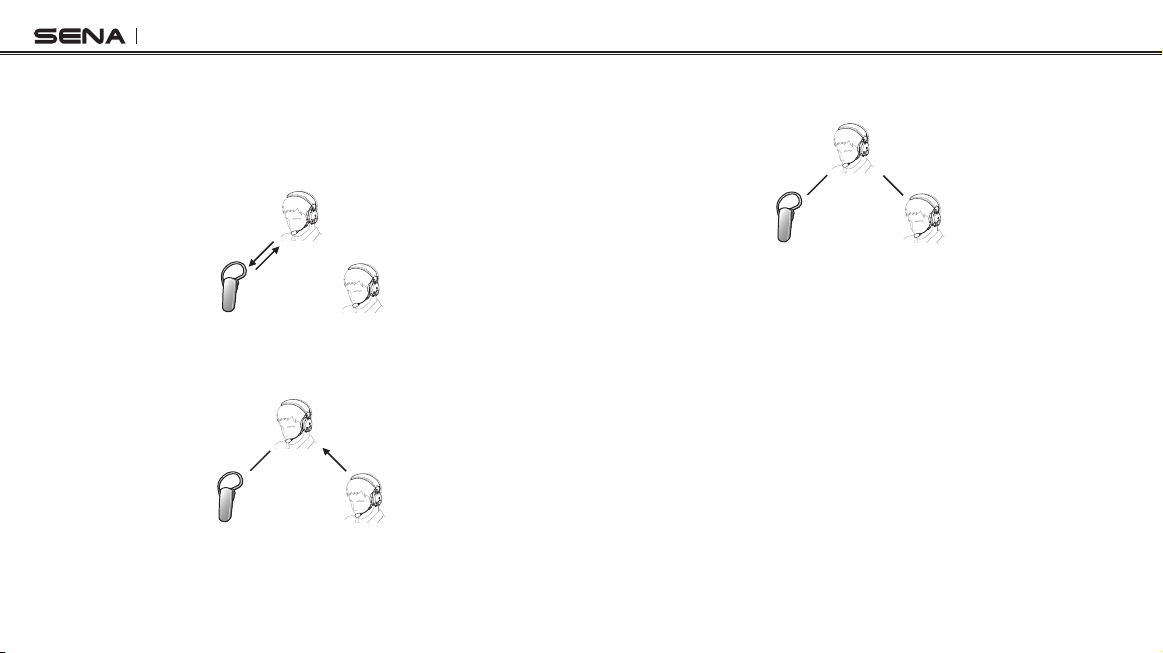
1. You (A) need to be paired with a non-Sena Bluetooth headset
(B) and another Tufftalk headset (C) for the three-way conference
intercom.
(A)
(B) (C)
Pairing
Pairing
Tufftalk
30
2. Start an intercom conversation with non-Sena Bluetooth headset
(B) in your intercom group. For example, you (A) may start an
intercom conversation with non-Sena Bluetooth headset (B). The
non-Sena Bluetooth headset (B) may also start an intercom call
with you (A).
(A)
(B) (C)
3. The other Tufftalk (C) may join the intercom by making an intercom
call to you (A).
(A)
(B) (C)
4. Now you (A), non-Sena Bluetooth headset (B), and the other
Tufftalk (C) are having a three-way conference intercom.
(A)
(B) (C)
5. You may disconnect three-way Universal Intercom using the
same way as you do in normal three-way intercom. Please refer to
section 8.2.2, “Ending Three-way Intercom”.
Tufftalk
31
English
10.4 Four-way Universal Intercom
You may make a four-way Universal Intercom connection with a couple
of different congurations,
1) three Tufftalk headsets and one non-
Sena Bluetooth headset
or
2) two Tufftalk headsets and two non-Sena
Bluetooth headsets.
You may have a couple of other Four-way Universal Intercom
congurations,
1) your headset (A), a non-Sena Bluetooth headset (B),
another Tufftalk (C), and a non-Sena Bluetooth headset (D), 2) your
headset (A), a non-Sena Bluetooth headset (B), and two other Tufftalk
headsets (C and D).
You may make the four-way Universal Intercom
call the same way as a normal four-way intercom call.
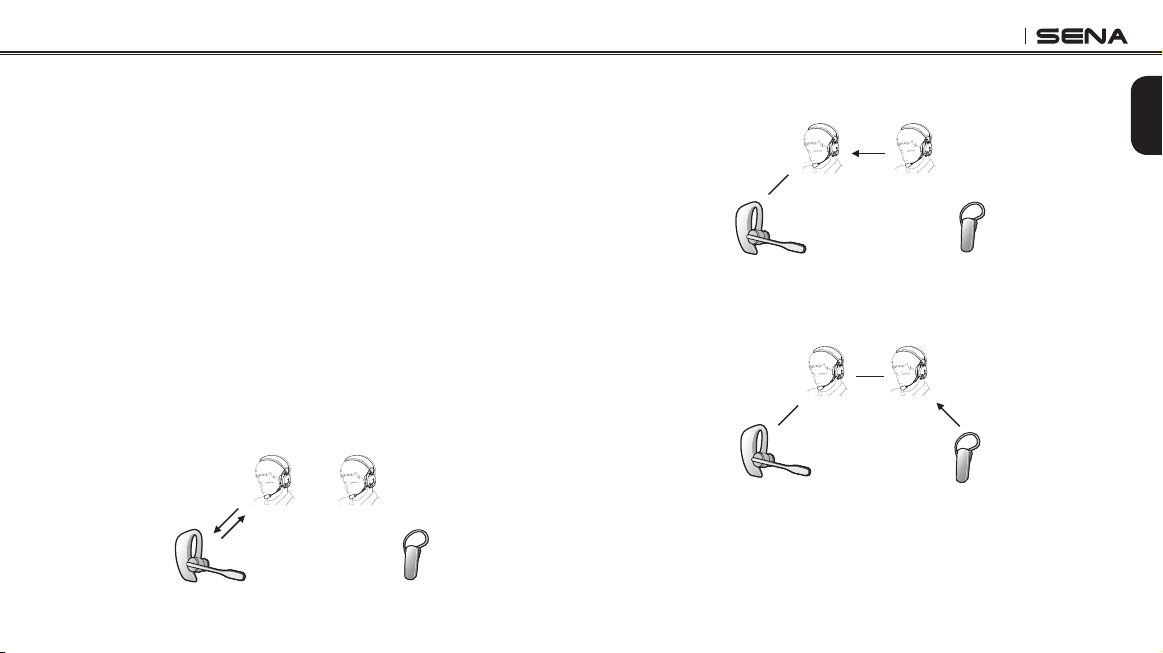
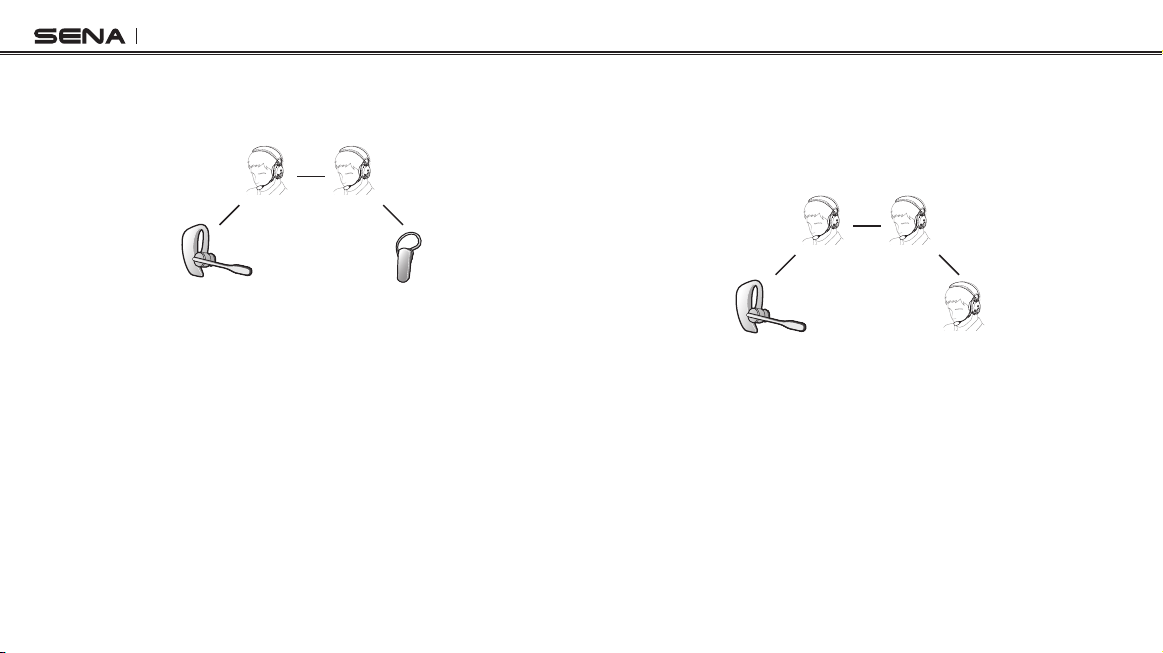
10.4.1 Four-way Universal Intercom Case 1
Two Tufftalk headsets (A and C) and two non-Sena Bluetooth headsets
(B and D)
1. You (A) may start an intercom conversation with the non-Sena
Bluetooth headset (B).
(B)
(D)
(A)
(C)
2. The other Tufftalk (C) may join the intercom by making an intercom
call to you (A).
(B)
(D)
(A)
(C)
3. The non-Sena Bluetooth headset (D) may join the conference
intercom by making an intercom call to the Tufftalk (C).
(B)
(D)
(A)
(C)
Tufftalk
32
4. Now two Tufftalk headsets (A & C) and two non-Sena Bluetooth
headsets (B & D) are connected with the four-way Universal
Intercom.
(B)
(D)
(A)
(C)
You may disconnect a four-way Universal Intercom using the same
way as you do in a normal four-way intercom. Please refer to
section
8.3.2, “Ending Four-way Intercom”.
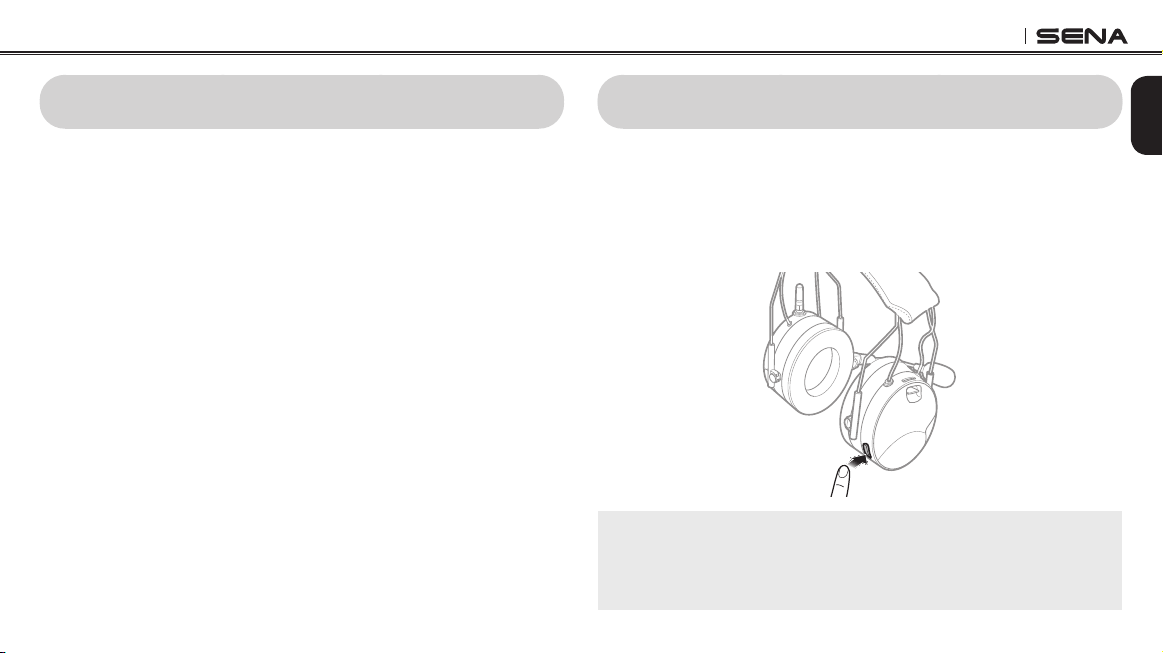
10.4.2 Four-way Universal Intercom Case 2
Three Tufftalk headsets (A, C and D) and one non-Sena Bluetooth
headset (B)
The procedure is the same as case 1 described in
section 10.4.1,
“Four-way Universal Intercom Case 1”
.
(B)
(D)
(A)
(C)
Tufftalk
33
English
12 AMBIENT MODE
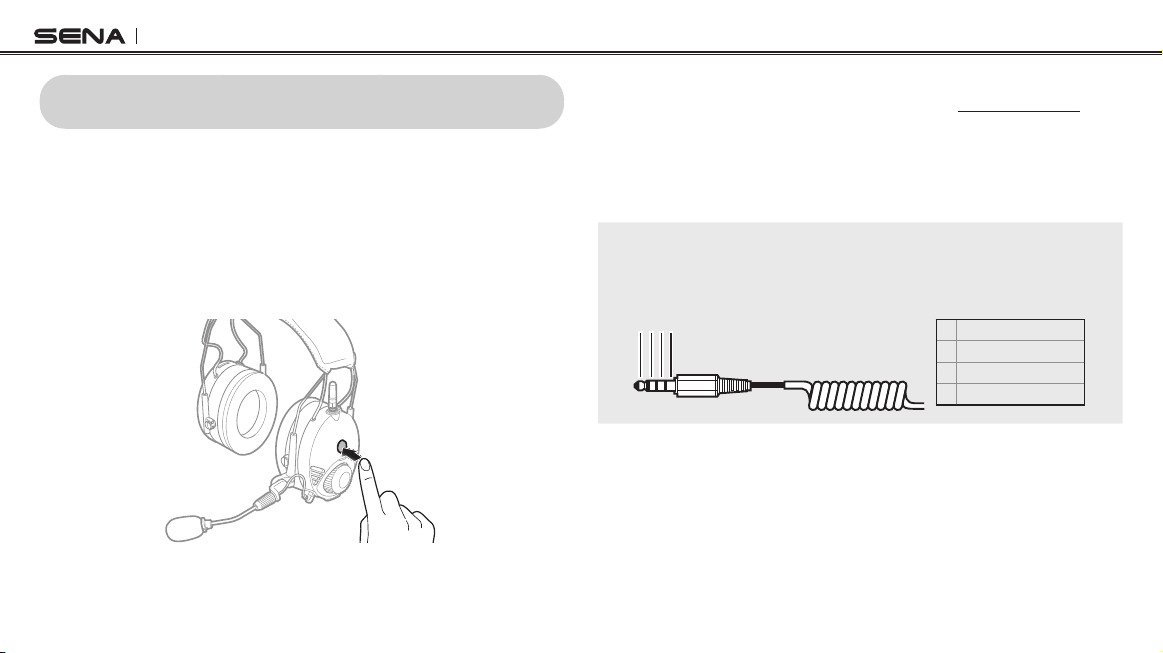
By activating the Ambient Mode, you can hear outside sounds such as
voices of other people, without having to take off the headset. To
activate the Ambient Mode, tap the Ambient Mode Button, which is
placed on the right speaker. To deactivate the Ambient Mode, tap the
Ambient Mode Button again.
Note:
The Ambient Mode has higher priority than the intercom, so you cannot
listen to music, or have an intercom conversation if the Ambient Mode is
activated. Only mobile phone calls are allowed during the Ambient Mode.
11 GROUP INTERCOM
Group Intercom allows you to instantly create a multi-way conference
intercom with three other most recently paired headsets.
1. Go through intercom pairing with up to three headsets you want to
have Group Intercom with.
2. Press the Jog Dial for 3 seconds to begin Group Intercom. The
LED will ash green and you will hear a voice prompt, “Group
intercom”.
3. To terminate Group Intercom, press the Jog Dial for 1 second
during Group Intercom. You will hear a voice prompt, “Group
intercom terminated”.
Tufftalk
34
13 TWO-WAY RADIO
13.1 Wired Two-way Radio
You can connect a two-way radio with the Tufftalk and talk with the
other person using the PTT Button. The PTT Button is for wired two-
way radio only. You cannot use wired two-way radio during intercom.
Also, you cannot listen to music when two-way radio cable is connected
to the two-way radio port.
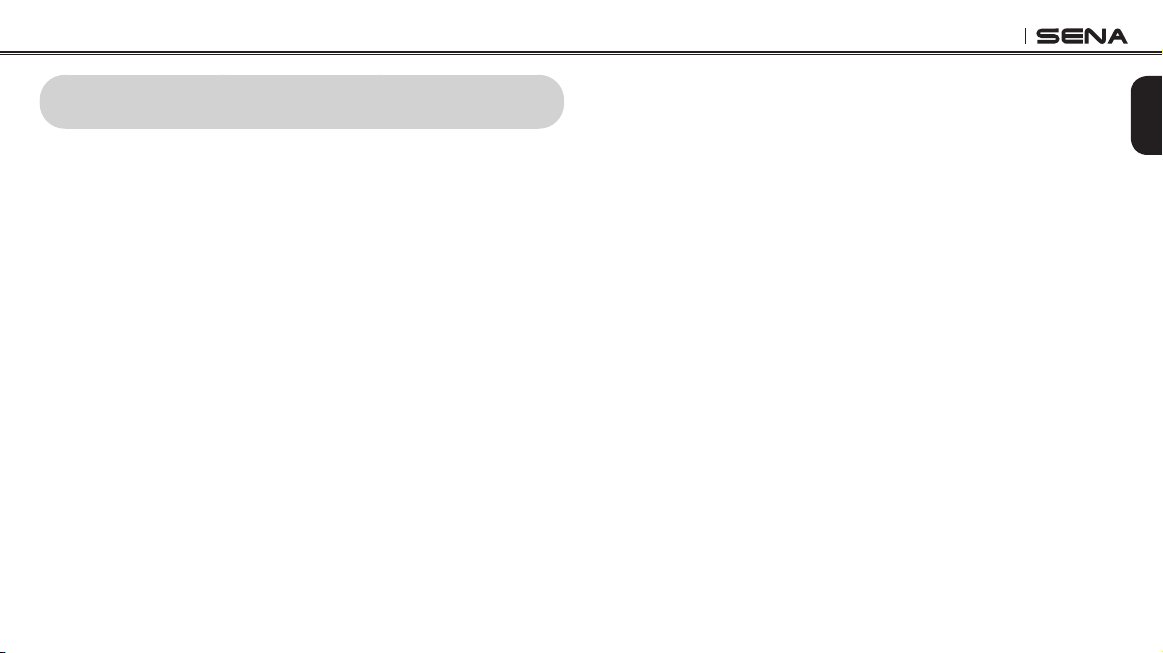
1. Connect the two-way radio with the Tufftalk using the two-way
radio cable (sold separately, available in www.sena.com) and
port.
2. Press and hold the PTT Button near the Jog Dial to open the audio
channel and talk to the other person.
3. Release the PTT Button to receive radio signals.
Note:
You can also create a cable that wires the Tufftalk and the two-way radio.
Follow the diagram below to correctly wire the cable.
1 2 3 4
1 SPEAKER_OUT
2 PTT
3 MIC_IN
4 GROUND
13.2 Wireless Two-way Radio
Sena SR10 (sold separately) is a two-way radio adapter that allows a
second two-way radio to be connected with the Tufftalk (please refer
to section
5.2, “Second Mobile Phone Pairing - Second Mobile Phone
and SR10”
). Incoming audio from the two-way radio will not interrupt
an intercom conversation but is heard in the background.
Tufftalk
35
English
14 FM RADIO
14.1 FM Radio On and Off
To turn on the FM radio, press the Phone Button for 1 second until you
hear a mid-toned double beep sound. You will then hear a voice
prompt, “FM on”. To turn off the FM radio, press the Phone Button for
1 second until you hear a voice prompt, “FM off”. When you power it
off, the Tufftalk will remember the last station frequency. When you
power it on, the last station frequency will be playing.
14.2 Preset Stations
You can listen to preset stations while listening to the FM radio. Tap the
Phone Button once to go upward to your next saved preset station.
14.3 Seek and Save
“Seek” is the function that searches for station to station frequencies.
To use the “Seek” function, please follow the procedure below:
1. Rotate while pressing the Jog Dial clockwise or counter clockwise
to search down or up the station dial.
2. If the tuner nds a station while searching frequencies, it stops
the seek function.
3. To save the current station, press and hold the Jog Dial for 1
second until you hear a voice prompt, “Preset (#)”.
4. Rotate the Jog Dial in order to select which preset number you
want for that specic station. You can save up to 10 preset stations.
(You may cancel the preset operation by waiting approximately
10 seconds. You will then hear “Save preset cancelled”. You
can also rotate the Jog Dial until you hear “Cancel”. Tap the
Jog Dial to conrm cancellation. You will then hear “Save preset
cancelled”.)
5. To save the current station, tap the Jog Dial again. You will then
hear a voice prompt, “Save preset (#)”.
6. To delete the saved station in the preset number, tap the Phone
Button. You will then hear a voice prompt, “Delete preset (#)”.
Tufftalk
36
Note:
1. You can save FM stations to presets before using FM radio. Connect the
Tufftalk to your PC and open the Sena Device Manager. It allows you to
save up to 10 FM station frequency presets on the Tufftalk settings menu.
You may do the same operation by using the Sena Smartphone App.
2. You can still answer an incoming phone call and intercom while listening
to the FM radio.
14.4 Scan and Save
“Scan” is the function that automatically searches station frequencies,
starting from the current frequency and up. To use the scan function,
please follow the procedures below:
1. Double tap the Phone Button. Then the current station frequency
moves upward to nd other station frequencies.
2. If the tuner nds a station, it stays at the station frequency for 8
seconds, then scanning to the next station frequency.
3. Scan function stops when you double tap the Phone Button again.
4. To save a station while scanning frequencies, tap the Phone
Button when at that station. You will hear a voice prompt from the
Tufftalk, “Save preset (#)”. The station will be saved as the next
preset number.
5. All stations preset during “Scan”, will overwrite previously set
stations.
14.5 Temporary Preset
With the temporary preset function, you may temporarily preset
stations automatically without changing the existing preset stations.
Tap the Phone Button three times to automatically scan for 10
temporary preset stations. The temporary preset stations will be
cleared when the system is powered off.
14.6 Region Selection
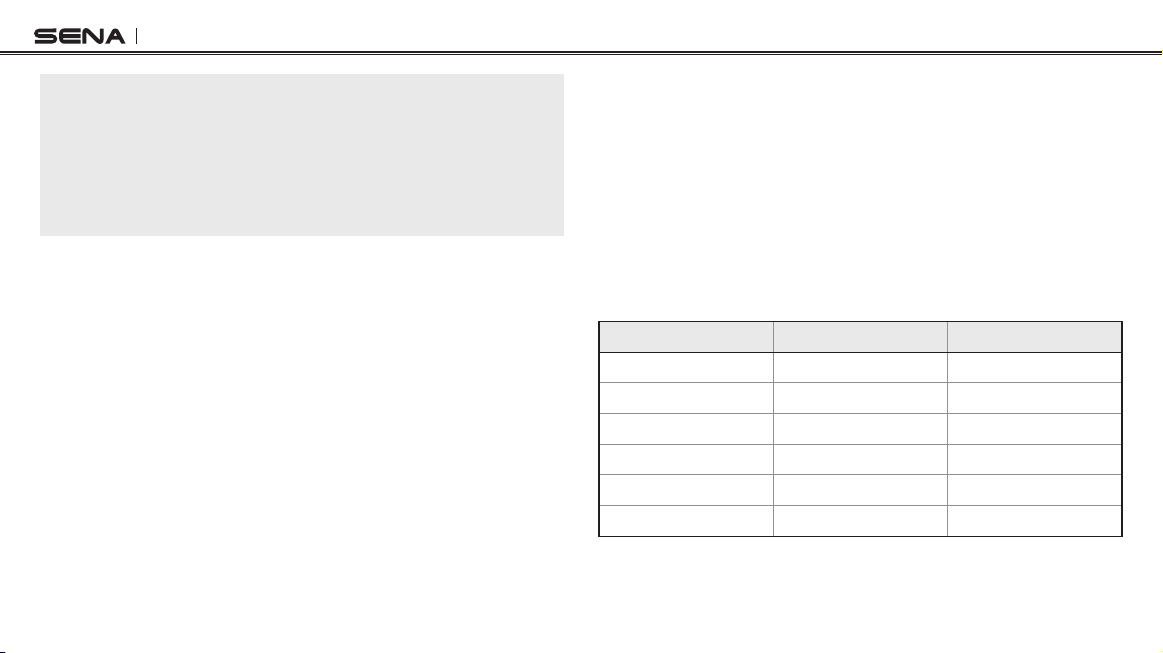
You can select the proper FM frequency region from the Sena Device
Manager. With the region setting, you may optimize the seek function
to avoid unnecessary frequency ranges (factory default: worldwide).
Region Frequency range Step
Worldwide 76.0 ~ 108.0 MHz ± 100 kHz
Americas 87.5 ~ 107.9 MHz ± 200 kHz
Asia 87.5 ~ 108.0 MHz ± 100 kHz
Australia 87.5 ~ 107.9 MHz ± 200 kHz
Europe 87.5 ~ 108.0 MHz ± 100 kHz
Japan 76.0 ~ 95.0 MHz ± 100 kHz
Tufftalk
37
English
15 FUNCTION PRIORITY
The Tufftalk operates in the following order of priority:
(highest) Ambient Mode, Mobile phone
Intercom
FM Radio
(lowest) Bluetooth stereo music
A lower priority function is always interrupted by a higher priority
function. For example, stereo music is interrupted by intercom call,
and an intercom conversation is interrupted by an incoming mobile
phone call.
16 CONFIGURATION SETTING
You can set the conguration of the Tufftalk by the voice menu
instruction described below.
1. To enter into voice conguration menu, press and hold the Jog
Dial for 10 seconds until the LED shows solid blue and you hear
high toned double beeps. You will also hear a voice prompt,
“Conguration menu”.
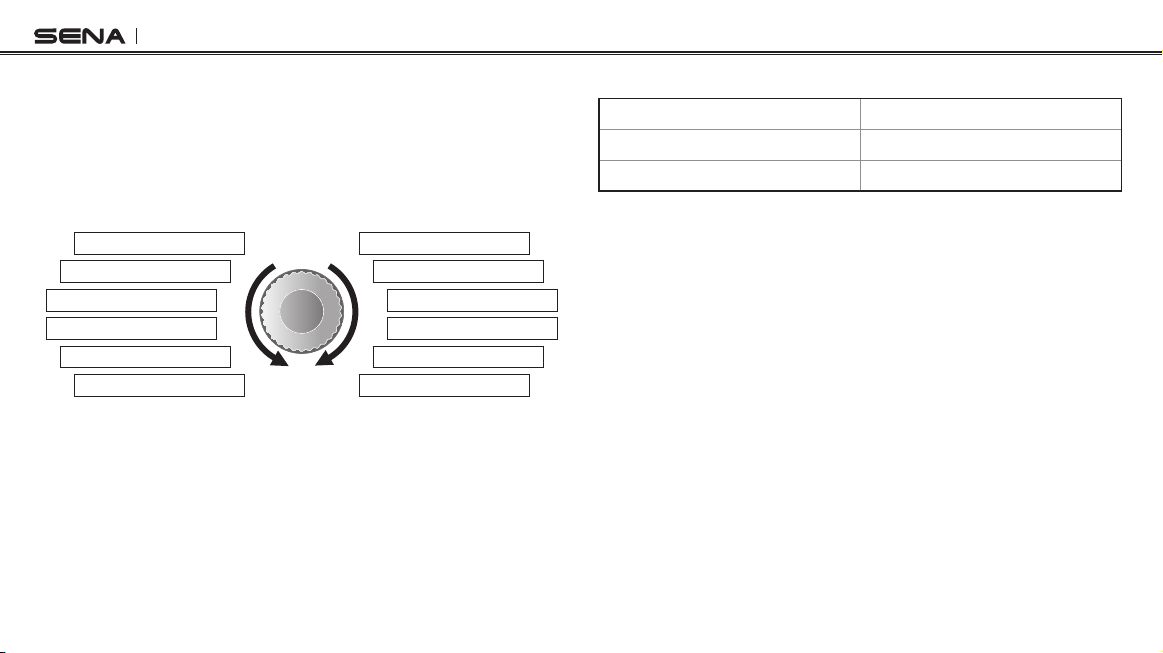
2. Rotate the Jog Dial to navigate between the menus. You will hear
voice prompts for each menu item as below.
3. You can enable the feature or execute the command by tapping
the Phone Button, or disable the feature by tapping the Jog Dial.
4. If no button is pressed within 10 seconds, the Tufftalk will exit the
conguration and go back to stand-by mode.
5. If you want to exit the conguration immediately, rotate the Jog
Dial until you hear a voice prompt, “Exit conguration”, and tap
the Phone Button.
Tufftalk
38
The voice prompt for each menu item is as below:
(1) Speed dial (7) RDS AF setting
(2) Audio boost (8) Sidetone
(3) VOX phone (9) Noise control
(4) VOX intercom (10) Delete all pairings
(5) HD intercom (11) Universal intercom pairing
(6) Voice prompt (12) Exit conguration
Deleteallpairings
Universalintercompairing
Noisecontrol
Sidetone
RDSAFsetting
Voiceprompt
Exitconfiguration
Speeddial
Audioboost
VOXphone
VOXintercom
HDintercom
16.1 Assigning Speed Dial
Voice Prompt
“Speed dial”
Factory Default N/A
Execute Tap the Phone Button
1. To assign a phone number as a speed dial, rotate the Jog Dial
until you hear a voice prompt, “Speed dial”.
2. Tap the Phone Button, and you will hear a voice prompt, “Speed
dial one” and “Phone connected”.
3. Rotate the Jog Dial to select one of three speed dial numbers and
you hear a voice prompt, “Speed dial (#)”.
4. Call a phone number you want to assign and you will hear a
voice prompt, “Save speed dial (#)”. The phone number is
automatically assigned to the selected speed dial number. Then
the phone call will hang up before being connected.
5. To exit the menu, rotate the Jog Dial until you hear a voice prompt,
“Cancel”, and tap the Phone Button to conrm. You will then hear
a voice prompt, “Cancel”. If no button is pressed within 1 minute,
the Tufftalk will exit the conguration menu and go back to stand-
by mode.
Tufftalk
39
English
Note:
1. After assigning a phone number to one of three speed dials, you can
continually assign another phone number to the rest of two speed dials.
2. You can also assign phone numbers for speed dialing by using the Sena
Device Manager software or the Sena Smartphone App. Please visit the
Sena Bluetooth website at
www.sena.com for more information.
16.2 Enabling/Disabling Audio Boost
Voice Prompt
“Audio boost”
Factory Default Disable
Enable Tap the Phone Button
Disable Tap the Jog Dial
Enabling Audio Boost increases the overall maximum volume.
Disabling Audio Boost reduces the overall maximum volume, but
delivers more balanced sound.
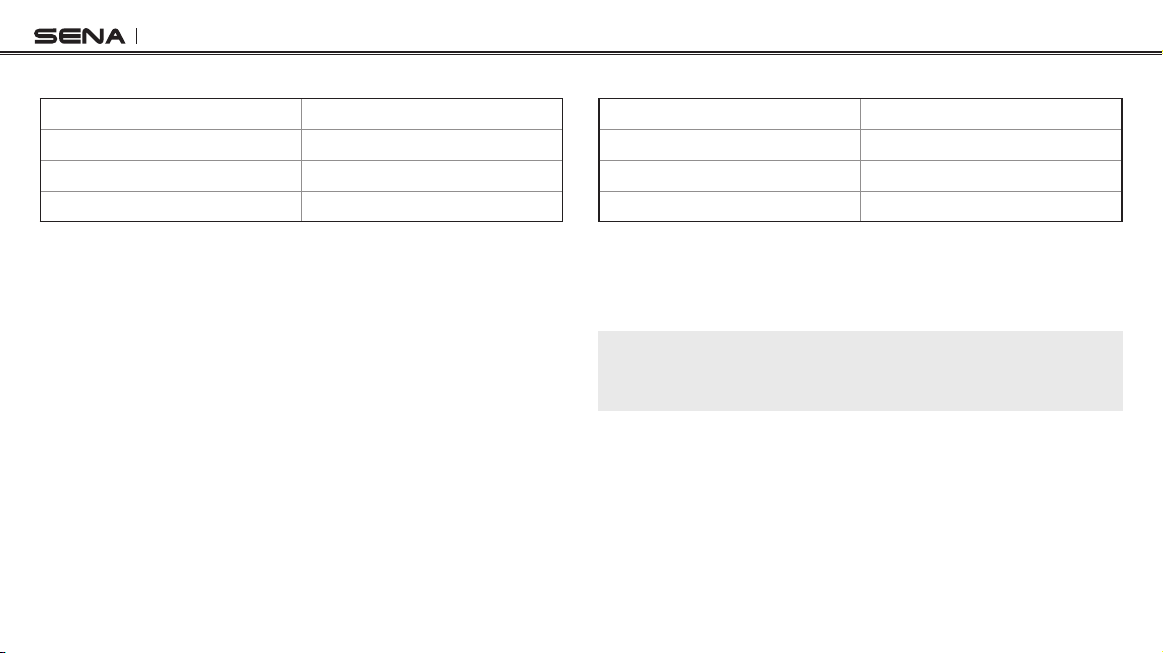
16.3 Enabling/Disabling Voice Activated Phone
Answering
Voice Prompt
“VOX phone”
Factory Default Enable
Enable Tap the Phone Button
Disable Tap the Jog Dial
If this feature is enabled, you can answer incoming calls by voice.
When you hear a ringtone for an incoming call, you can answer the
phone by saying a word such as “Hello” loudly or by blowing air into
the microphone. VOX phone is temporarily disabled if you are
connected to intercom. If this feature is disabled, you have to tap the
Phone Button to answer an incoming call.
Tufftalk
40
16.4 Enabling/Disabling Voice Activated Intercom
Voice Prompt
“VOX intercom”
Factory Default Disable
Enable Tap the Phone Button
Disable Tap the Jog Dial
If this feature is enabled, you can initiate an intercom conversation
with the last connected intercom friend by voice. When you want to
start intercom, say a word such as “Hello” loudly or blow air into the
microphone. If you start an intercom conversation by voice, the
intercom terminates automatically when you and your intercom friend
remain silent for 20 seconds. However, if you manually start an
intercom conversation by tapping the Phone Button, you have to
terminate the intercom conversation manually.
However, if you start intercom by voice and end it manually by tapping
the Jog Dial, you will not be able to start intercom by voice temporarily.
In this case, you have to tap the Jog Dial to restart the intercom. This
is to prevent repeated unintentional intercom connections by strong
wind noise. After rebooting the Tufftalk, you can start intercom by
voice again.
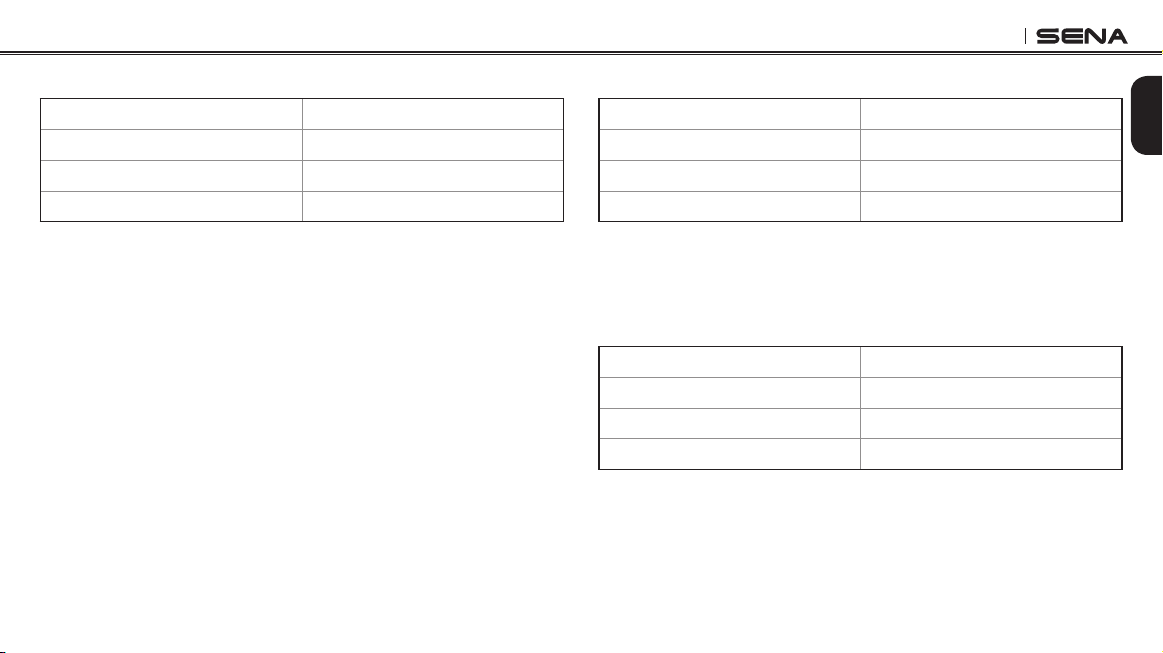
16.5 Enabling/Disabling HD Intercom
Voice Prompt
“HD intercom”
Factory Default Enable
Enable Tap the Phone Button
Disable Tap the Jog Dial
HD Intercom enhances the two-way intercom audio from normal
quality to HD quality. HD Intercom will become temporarily disabled
when you enter into a multi-way intercom. If this feature is disabled,
the two-way intercom audio will change to normal quality.
Note:
The intercom distance of HD Intercom is relatively shorter than that of
normal intercom.
Tufftalk
41
English
16.6 Enabling/Disabling Voice Prompts
Voice Prompt
“Voice prompt”
Factory Default Enable
Enable Tap the Phone Button
Disable Tap the Jog Dial
You can disable voice prompts by conguration setting, but the
following voice prompts are always on.
– Voice prompts for conguration setting menu
– Voice prompts for battery level indicator
– Voice prompts for speed dial
– Voice prompts for FM radio functions
16.7 Enabling/Disabling RDS AF
Voice Prompt
“RDS AF setting”
Factory Default Disable
Enable Tap the Phone Button
Disable Tap the Jog Dial
RDS AF allows a receiver to re-tune to the second frequency location
when the rst signal becomes too weak. With RDS AF enabled on the
receiver, a radio station with more than one frequency can be used.
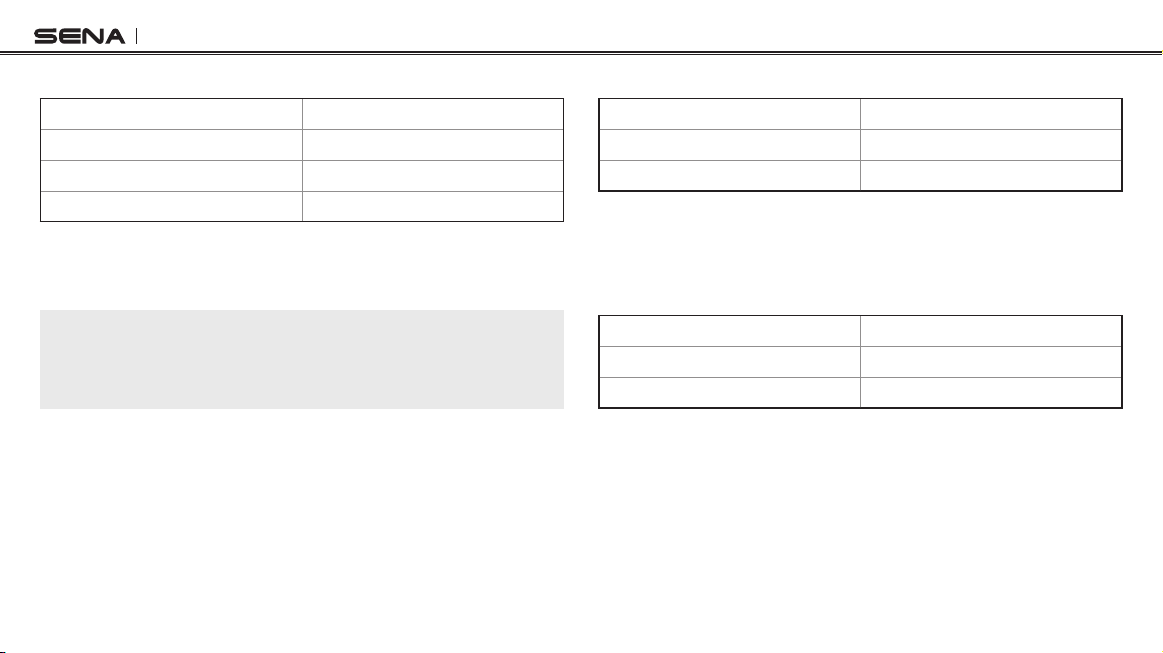
16.8 Enabling/Disabling Sidetone
Voice Prompt
“Sidetone”
Factory Default Disable
Enable Tap the Phone Button
Disable Tap the Jog Dial
Sidetone is audible feedback of your own voice. It helps you to
naturally speak at the correct level according to varying helmet noise
conditions. If this feature is enabled, you can hear what you are
speaking during an intercom conversation or a phone call.
Tufftalk
42
16.9 Enabling/Disabling Advanced Noise Control™
Voice Prompt
“Noise control”
Factory Default Enable
Enable Tap the Phone Button
Disable Tap the Jog Dial
When Advanced Noise Control is enabled, the background noise is
reduced during an intercom conversation. When it is disabled, the
background noise is mixed with your voice during intercom.
Note:
If you use your Tufftalk with the Bluetooth Audio Pack for GoPro, you can
enable or disable this feature only during Normal Audio Recording Mode.
This feature is automatically disabled while in Ultra HD (UHD) Audio Mode.
16.10 Delete All Bluetooth Pairing Information
Voice Prompt
“Delete all pairings”
Factory Default N/A
Execute Tap the Phone Button
To delete all Bluetooth pairing information of the Tufftalk, rotate the Jog
Dial until you hear a voice prompt, “Delete all pairings”, and tap the
Phone Button to conrm.
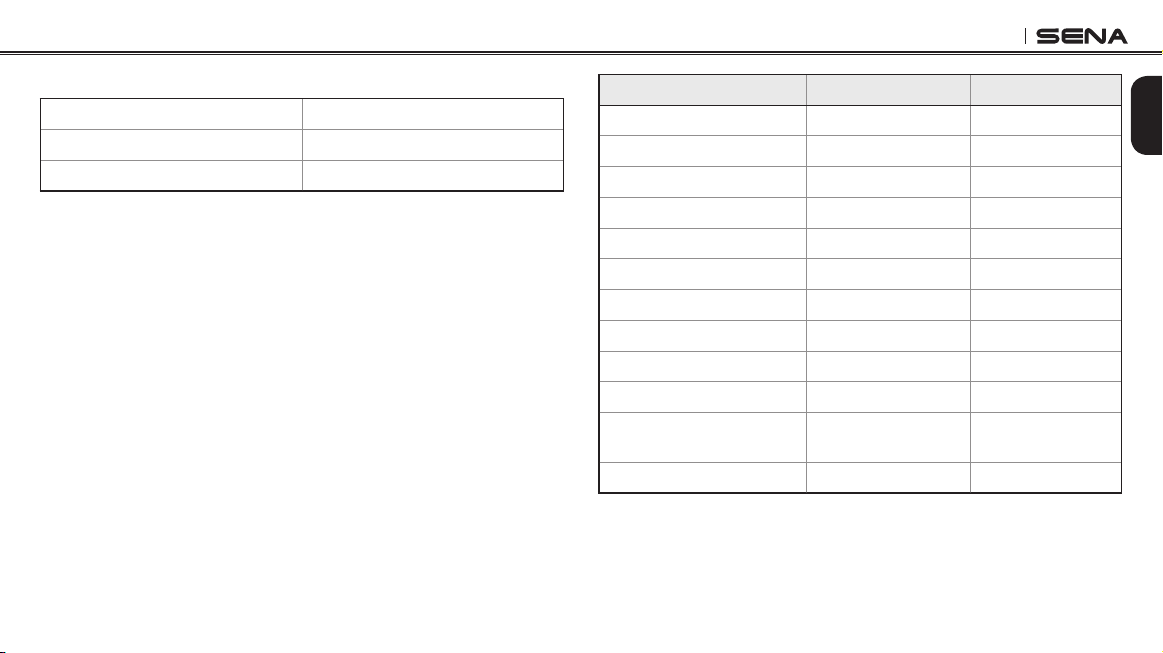
16.11 Universal Intercom Pairing
Voice Prompt
“Universal intercom pairing”
Factory Default N/A
Execute Tap the Phone Button
To enter into Universal Intercom Pairing mode, rotate the Jog Dial until
you hear a voice prompt, “Universal intercom pairing”. Then press
the Phone Button to enter into Universal Intercom Pairing mode. The
headset will automatically exit from the conguration menu.
Tufftalk
43
English
16.12 Exit Voice Conguration Menu
Voice Prompt
“Exit conguration”
Factory Default N/A
Execute Tap the Phone Button
To exit voice conguration menu and get back to stand-by mode,
rotate the Jog Dial until you hear a voice prompt, “Exit conguration”,
and tap the Phone Button to conrm.
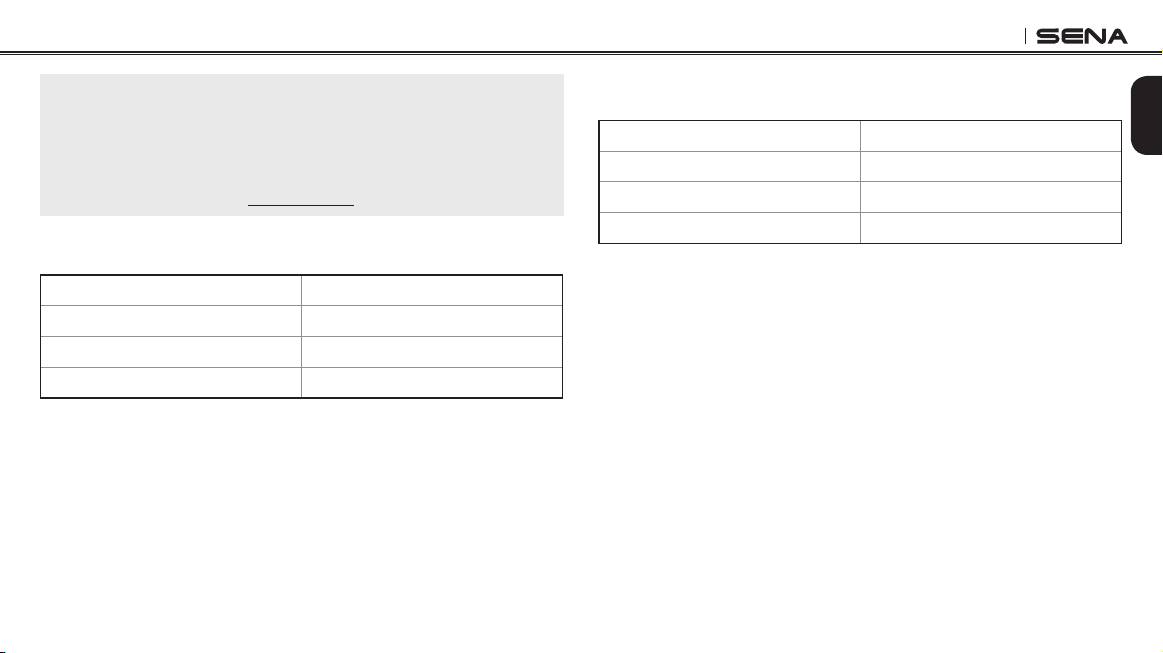
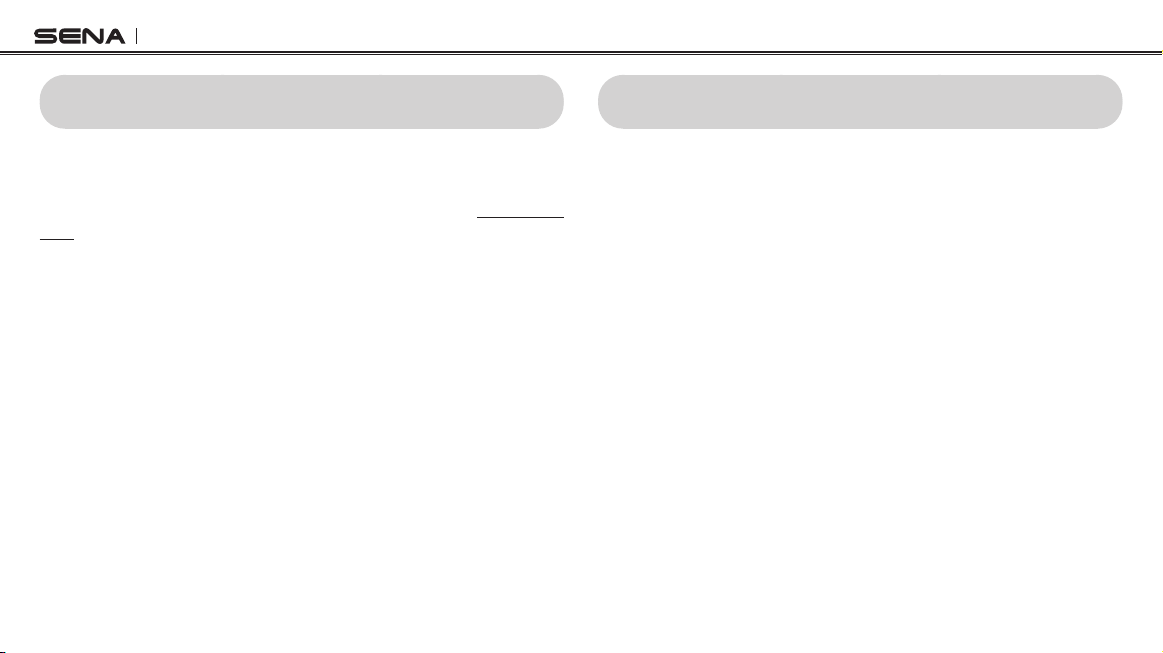
Rotate Jog Dial Tap Phone Button Tap Jog Dial
Speed Dial Execute N/A
Audio Boost Enable Disable
VOX Phone Enable Disable
VOX Intercom Enable Disable
HD Intercom Enable Disable
Voice Prompt Enable Disable
RDS AF Setting Enable Disable
Sidetone Enable Disable
Advanced Noise Control Enable Disable
Delete All Pairings Execute N/A
Universal Intercom
Pairing
Execute N/A
Exit Conguration Execute N/A
Voice Conguration Menu & Button Operations
Tufftalk
44
17 FIRMWARE UPGRADE
The Tufftalk supports rmware upgrades. You can update the rmware
using the Sena Device Manager (please refer to
section 4.7.1, “Sena
Device Manager”
). Please visit Sena Bluetooth website at www.sena.
com to check the latest software downloads.
18 TROUBLESHOOTING
18.1 Intercom Failure
When you try to start an intercom conversation with an intercom friend
who is unavailable within range or already having a conference
intercom with others or a mobile phone call, you will hear a low tone
double beep signifying an intercom busy signal. In this case, you have
to try again later.
18.2 Intercom Reconnection
If your intercom friend goes out of range while having an intercom
conversation, you may hear static noise and eventually the intercom
will be disconnected. In this case, the Tufftalk automatically tries to
reconnect the intercom every 8 seconds and you will hear high tone
double beeps until the intercom is reestablished. If you do not want to
make a reconnection, tap the Jog Dial to stop the attempt.
Tufftalk
45
English
18.3 Fault Reset
When the Tufftalk is not working properly or is in faulty status for any
reason, you may reset by pushing the pin-hole reset button located
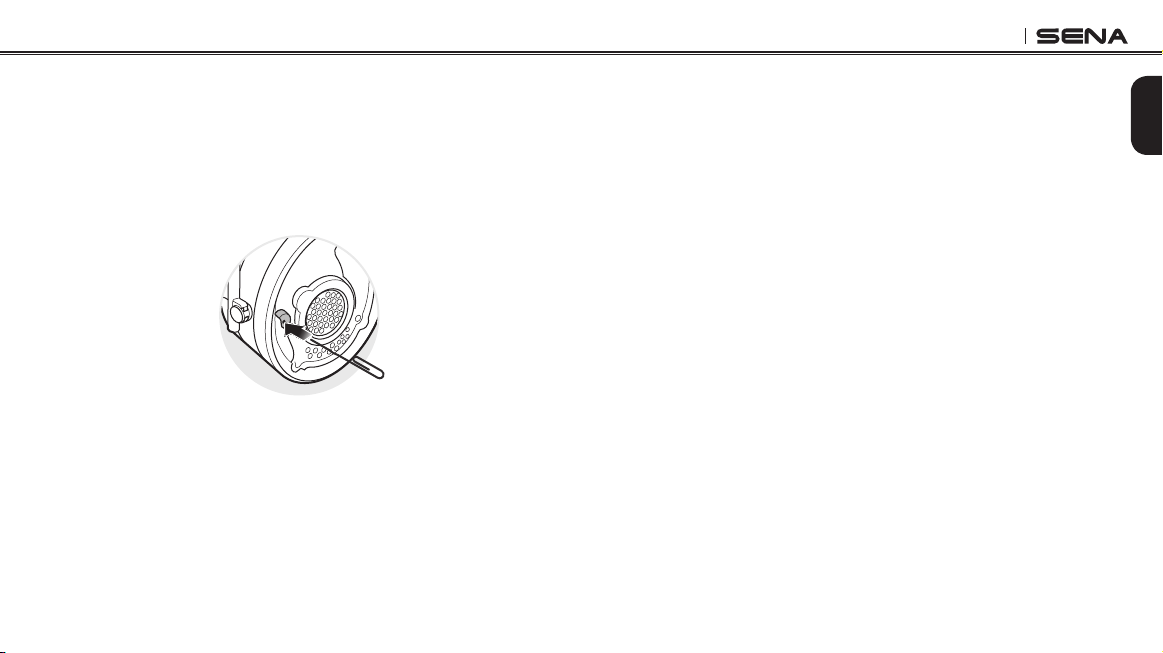
below the left ear cup. Separate the left ear cup and insert a paper clip
into the reset pin-hole and press the reset button for a second with
light pressure. The Tufftalk will be switched off. Restart the system and
try again. This will not restore the headset to factory default settings.
18.4 Factory Reset
1. To restore the Tufftalk to factory default settings, press and hold
the Phone Button for 10 seconds until the LED shows solid red
and you hear “Factory reset”.
2. Within 10 seconds, press the Jog Dial to conrm reset. The headset
will be restored to factory setting and switched off automatically.
You will hear, “Headset reset, goodbye”.
3. If you press the Phone Button or the Jog Dial for 10 seconds, the
reset attempt is cancelled and the headset returns to stand-by
mode. You will hear a voice prompt, “Cancelled”.
Tufftalk
46
19 OPERATION QUICK REFERENCE
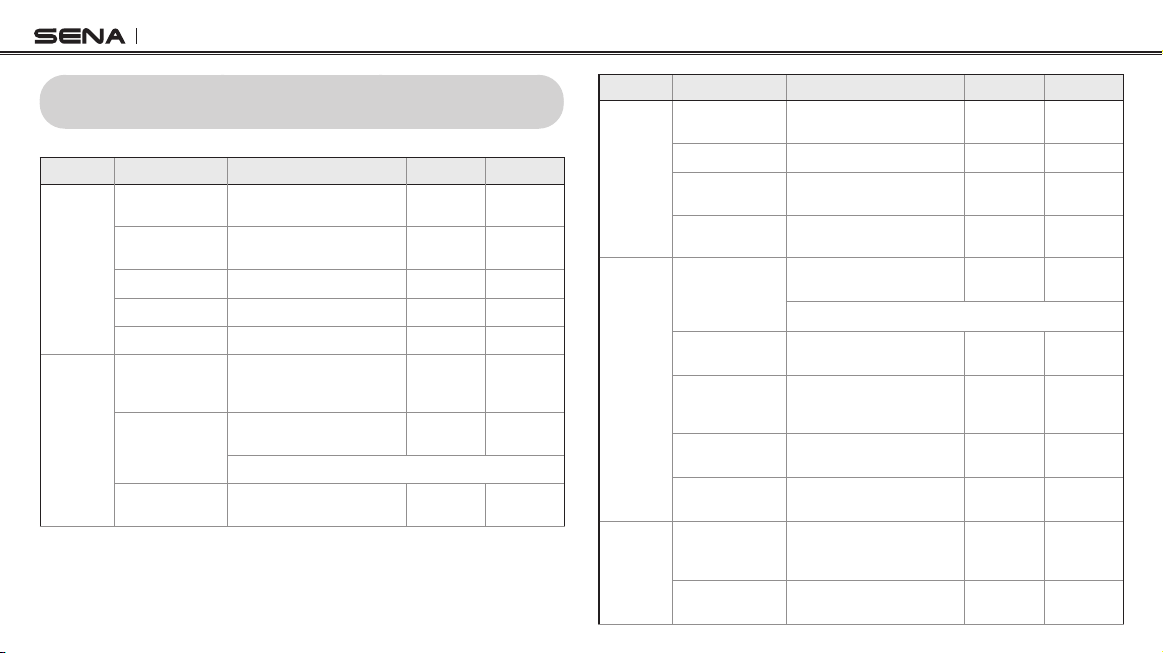
Type Function Button Command LED Beep
Basic
Function
Power on
Press the Phone Button and the
Jog Dial for 1 second
Solid blue
Ascending
beeps
Power off
Press the Phone Button and the
Jog Dial
Solid red
Descending
beeps
Volume adjustment Rotate the Jog Dial - -
Ambient Mode Tap the Ambient Mode Button - -
Two-way Radio Press and hold the PTT Button - -
Mobile
Phone
Mobile phone
pairing
Press the Phone Button for
5 seconds
Blue & red
alternatively
ashing
High tone
multiple
beeps
Second mobile
phone pairing
Press the Jog Dial for
5 seconds
Red ashing
Multiple
beeps
Tap the Phone Button within 2 seconds
Answer mobile
phone call
Tap the Phone Button or the
Jog Dial
- -
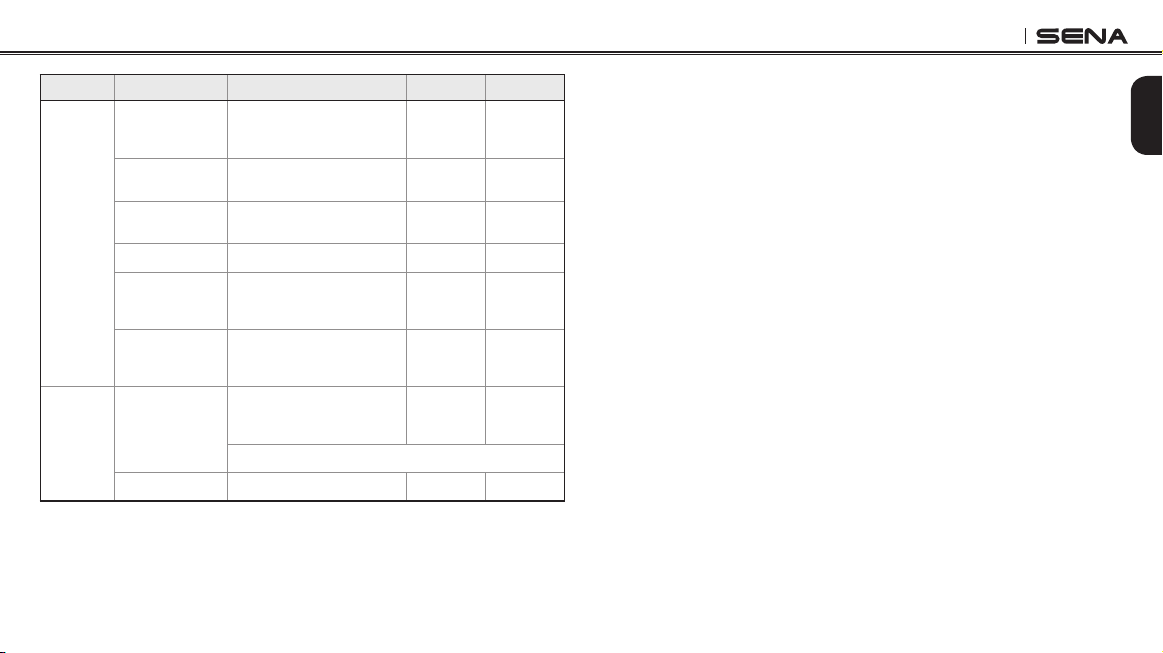
Type Function Button Command LED Beep
Mobile
Phone
End mobile phone
call
Tap the Phone Button or press
the Jog Dial for 2 seconds
- -
Voice dial Tap the Phone Button - -
Speed dial Double tap the Phone Button -
Mid-tone
single beep
Reject incoming
call
Press the Jog Dial for
2 seconds
- -
Intercom
Intercom pairing
Press the Jog Dial for
5 seconds
Red ashing
Mid-tone
single beep
Tap the Jog Dial of any one of the two headsets
Start/End each
intercom
Tap the Jog Dial - -
End all intercoms
Press the Jog Dial for
1 second
Blue
ashing
Mid-tone
double
beeps
Start Group
intercom
Press the Jog Dial for
3 seconds
Green
ashing
-
End Group
intercom
Press the Jog Dial for
1 second
- -
Music
Play/Pause
Bluetooth music
Press the Jog Dial for
1 second
-
Mid-tone
double
beep
Track forward/back
Rotate the Jog Dial while
pressing
- -
Tufftalk
47
English
Type Function Button Command LED Beep
FM Radio
FM radio on/off
Press the Phone Button for
1 second
-
Mid-tone
double
beeps
Select preset Tap the Phone Button -
Mid-tone
single beep
Seek stations
Rotate the Jog Dial while
pressing
-
High tone
triple beeps
Scan up FM band Double tap the Phone Button - -
Stop scanning Double tap the Phone Button -
High tone
double
beeps
Save preset while
scanning
Tap the Phone Button -
High tone
double
beeps
Reset
Factory reset
Press the Phone Button for
10 seconds
Solid red
High tone
double
beeps
Tap the Jog Dial within 10 seconds
Fault reset Press the Reset Button - -
CERTIFICATION AND SAFETY APPROVALS
FCC Compliance Statement
This device complies with part 15 of the FCC rules. Operation is
subject to the following two conditions:
(1) This device may not cause harmful interference, and
(2) This device must accept any interference received, including
interference that may cause undesired operation.
This equipment has been tested and found to comply with the limits for
a Class B digital device pursuant to part 15 of the FCC rules. These
limits are designed to provide reasonable protection against harmful
interference in a residential installation. This equipment generates,
uses and can radiate radio frequency energy and, if not installed and
used in accordance with the instructions, may cause harmful
interference to radio communications. However, there is no guarantee
that interference will not occur in a particular installation. If this
equipment does cause harmful interference to radio or television
reception, which can be determined by turning the equipment on and
off, the user is encouraged to try to correct the interference by one or
more of the following measures:
• Reorient or relocate the receiving antennae
• Increase the separation between the equipment and the receiver

Tufftalk
48
• Connect the equipment into an outlet on a circuit different from that
to which the receiver is connected
• Consult the dealer or an experienced radio/TV technician for help
FCC RF Exposure Statement
This equipment complies with FCC radiation exposure limits set forth
for an uncontrolled environment. End users must follow the specic
operating instructions for satisfying RF exposure compliance. The
antenna used for this transmitter must not transmit simultaneously with
any other antenna or transmitter, except in accordance with FCC multi-
transmitter product procedures.
FCC Caution
Any changes or modications to the equipment not expressly approved
by the party responsible for compliance could void user’s authority to
operate the equipment.
CE Declaration of Conformity
This product is CE marked according to the provisions of the R&TTE
Directive (1999/5/EC). Hereby, Sena declares that this product is in
compliance with the essential requirements and other relevant
provisions of Directive 1999/5/EC. For further information, please
consult www.sena.com. Please note that this product uses radio
frequency bands not harmonized within EU. Within the EU this product
is intended to be used in Austria, Belgium, Denmark, Finland, France,
Germany, Greece, Ireland, Italy, Luxembourg, The Netherlands,
Portugal, Spain, Sweden, United Kingdom and within EFTA in Iceland,
Norway and Switzerland.
Industry Canada Statement
This device complies with Industry Canada license-exempt RSS
standard(s). Operation is subject to the following two conditions:
(1) This device may not cause interference.
(2) This device must accept any interference, including interference
that may cause undesired operation of the device.
Tufftalk
49
English
Bluetooth License
The Bluetooth
®
word mark and logos are owned by the Bluetooth SIG,
Inc. and any use of such marks by Sena is under license. Other
trademarks and trade names are those of their respective owners.
The product is compliant with and adopts the Bluetooth
®
Specication
4.1 and has successfully passed all interoperability tests that are
specied in the Bluetooth
®
specication. However, interoperability
between the device and other Bluetooth
®
-enabled products is not
guaranteed.
NRR Information
The Tufftalk has been tested according to ANSI S3. 19-1974, EN 352-1
and EN 352-3.
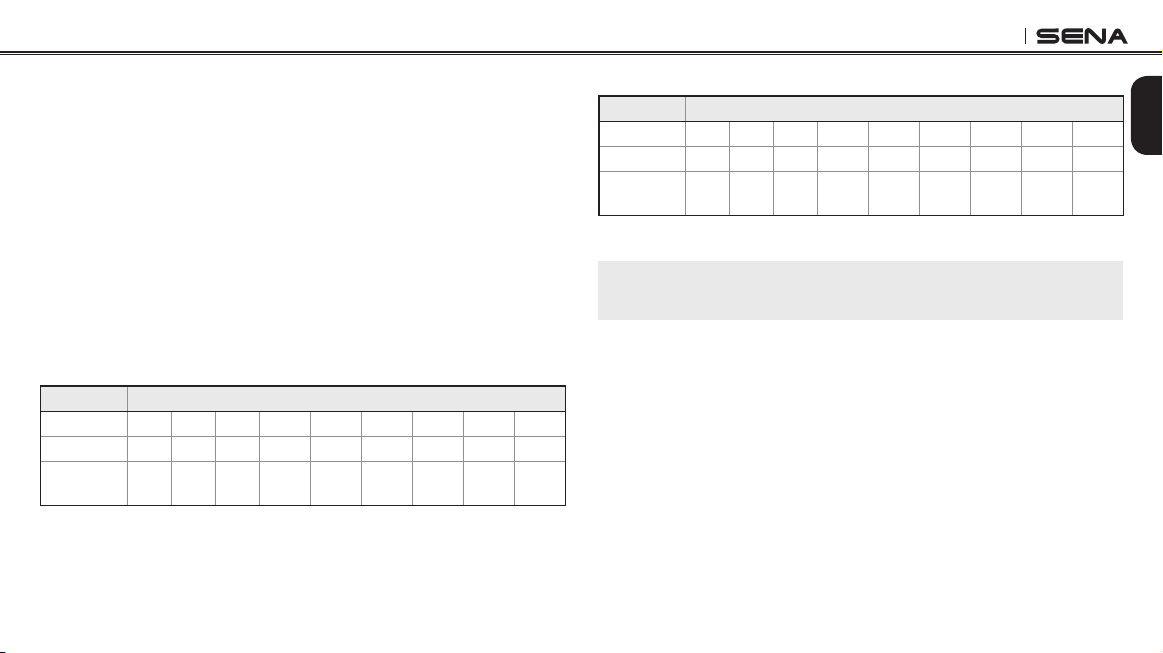
Model (Over-the-Head Earmuff Type) Attenuation Characteristics
Frequency in Hz
Subject 125 250 500 1000 2000 3150 4000 6300 8000
Mean
19.2 20.6 28.7 34.1 35.4 41.3 43.9 45.4 44.5
Standard
Deviation
4.0 2.7 2.4 3.1 3.1 3.4 3.2 3.5 2.9
Overall device NRR when property tted is 24dB.
Model (Hard Hat Mount Earmuff Type) Attenuation Characteristics
Frequency in Hz
Subject 25 250 500 1000 2000 3150 4000 6300 8000
Mean
17.4 18.9 25.5 30.1 34.7 37.9 40.2 34.9 36.3
Standard
Deviation
2.8 2.7 2.7 3.0 2.5 2.7 3.3 4.1 3.7
Overall device NRR when property tted is 22dB.
Note:
Improper fit of this device will reduce its effectiveness in attenuating noise.
Important Earmuff Fitting Instructions
1. Inspect the Tufftalk for dirt damage and foreign objects each time
before you place the headset on your head.
2. Ear muffs offer excellent protection if the earpieces are tted and
adjusted properly. Your ears should be completely enclosed by
the ear cushions.
3. Never attempt to physically modify, bend, or overstress the
headband which may compromise the NRR rating, proper t and
void the product warranty.
Tufftalk
50
4. Regularly check the ear cushions for wear and clean them
occasionally as necessary with a damp cloth or distinct ear
cushion surface with non-alcohol PPE wipes (Do not use harsh
detergents or any solvents which may damage the ear cushion
over time). Check the ear cushions for wear. If the cushions
become hard, damaged or otherwise deteriorate, they should be
replaced promptly (Contact Sena or your authorized dealer for
exact replacement parts).
Warning
Hats, balaclavas, glasses or other items worn on the head may
potentially prevent proper sealing and reduce the level of hearing
protection signicantly which can possibly cause hearing damage.
Although hearing protectors can be recommended for protection
against the harmful effects of impulsive noise, the Noise Reduction
Rating (NRR) is based on the attenuation of continuous noise and may
not be an accurate indicator of the protection attainable against
impulsive noise such as gunre.
NRR example
1. The environmental noise level as measured at the ear is 92 dBA.
2. The NRR is (value on label) decibels (dB).
3. The level of noise entering the ear is approximately equal to [92
dB(A) - NRR dB(A)].
Caution
For noise environments dominated by frequencies below 500 Hz “the
C weighted environmental noise level should be used.”
WEEE (Waste Electrical and Electronic Equipment)
The crossed-out wheel bin symbol on the product,
literature, or packaging reminds you that all electrical
and electronic products, batteries, and accumulators
must be taken to separate collection at the end of their
working life. This requirement applies to the European
Union and other locations where separate collection
systems are available. To prevent possible harm to the environment or
human health from uncontrolled waste disposal, please do not dispose
of these products as unsorted municipal waste, but hand it in at an
ofcial collection point for recycling.

Tufftalk
51
English
SAFETY INFORMATION
Please ensure that the product is properly used by observing the
warnings and cautions below to prevent any risk and/or damage to
property.
Product Storage and Management
• Keep the product free of dust. It may damage mechanical and
electronic parts of the product.
• Do not store the product in high temperatures as this may reduce the
life span of electronic devices, damage the battery, and/or melt
plastic parts of the product.
• Do not store the product in cold temperatures. Abrupt changes in
temperatures may cause condensation and damage electronic
circuits.
• Do not clean the product with cleaning solvents, toxic chemicals, or
strong detergents as this may damage the product.
• Do not paint the product. Paint may obstruct moving parts or interfere
with the normal operation of the product.
• Do not drop or otherwise shock the product. It may damage the
product or its internal electronic circuits.
• Do not disassemble, repair or modify the product as this may
damage the product and invalidate the product warranty.
• Do not store the product in humid environments, especially for long
time storage.
• Inspect your earpieces and microphone sponge frequently for wear.
If you see any defect such as holes or cracks in the earpieces, ear
cushions, or headband, the headset should be immediately repaired
or replaced.
Product Use
• Use of the product at a high volume for a long period of time may
damage your eardrums or hearing ability. Keep the volume at a
modest level to prevent damage.
• Do not cause impact to the product or touch it with sharp tools as
this may damage the product.
• Do not use the product in high-temperatures or apply heat to the
product as this may cause damage, explosion, or re.
• Keep the product dry and away from water. It may damage the
product.
• Keep product away from pets or small children. It may damage the
product.
• The headset may hold small objects in the area of the earpiece.
Before use, check that the earpiece area is free of staples, clips or
any other small metallic objects or foreign matter.

Tufftalk
52
• Do not use the product near a microwave oven or a wireless LAN
device as this may cause malfunction or interference with the
product.
• In any place where wireless communication is prohibited, such as
hospitals or airplanes, turn off the power and refrain from using the
product. In a place where wireless communication is prohibited,
electromagnetic waves may cause hazards or accidents.
• Do not use the product near hazardous explosives. When it is near
any explosion hazards, turn off the power and heed any regulations,
instructions, and signs in the area.
• When using the product, be certain to conform to laws regarding the
use of communications devices while riding.
• Do not put the product where it may hamper the rider’s vision or
manipulate it while riding. This may cause trafc accidents.
• Do not place the power cord where it creates a trip hazard or where
it could become chafed and create a re or electrical hazard.
• If the product is damaged, stop using it immediately. It may cause
damage, explosion, or re.
Battery
This product has a replaceable rechargeable battery inside. Therefore,
when using the product, make sure to adhere to the following:
• The battery performance may be reduced over time with usage.
• In recharging the battery, make sure to use an approved charger
provided by the manufacturer. Use of a non-approved charger may
cause re, explosion, leakage, and other hazards may also reduce
the life time or performance of the battery.
• Store the battery at temperatures of 15°C ~ 25°C (59°F ~ 77°F).
Higher or lower temperatures may reduce the capacity and life of the
battery, or may cause temporary non-operation. Do not use the
product in sub-zero temperature, because it may cause serious
reduction of the battery performance.
• If you apply heat to the battery or throw it into re, it may explode.
• Do not use the product with a damaged battery. It may explode and/
or cause accidents.
• Never use a damaged charger. It may explode and/or cause
accidents.
• Battery life may vary depending on conditions, environmental
factors, functions of the product in use, and devices used with it.

Tufftalk
53
English
PRODUCT WARRANTY AND DISCLAIMER
Limited Warranty
Limited Warranty
Sena Technologies, Inc. (“Sena”) guarantees the product quality
based on the technical specication stated in the product manual, and
data regarding product warranty. Here, product warranty extends to
the product only. Sena will not be liable for any loss, damage of human
life, or loss of property which may result from using the product beyond
defective parts or aws that occur due to problems in manufacture.
Warranty Period
Sena guarantees free-of-charge replacements of defective parts of
the product or aws that may have occurred due to problems in
manufacture for a period of 2 years from the date of initial purchase.
Termination
Quality warranty of the product becomes effective on the date of initial
purchase. In addition, the quality warranty of the product expires when
the warranty period expires. However, in the following cases, the
warranty will be terminated prematurely.
• In the event the product has been sold or transferred to a third party.
• In the event the manufacturer’s name, serial number, product label,
or other markings have been modied or removed.
• In the event any unauthorized person has tried to disassemble,
repair, or modify the product.
Notice and Waiver
By buying and using this product, you relinquish considerable legal
rights including any claim for compensation for damages. Therefore,
be certain to read and understand the following terms and conditions
before using the product. Use of this product will constitute consent to
this agreement, and forfeiture of rights to all claims. If you do not
consent to all the terms and conditions of this agreement, return the
product for a refund.
1. You agree that you, your descendants, legal proxies, successors,
or transferees will not raise permanent volitional request for
any suit, claim, implementation, redemption or similar action
from Sena with regard to any occasion such as difculty, pain,
suffering, inconvenience, loss, injury, or death which may occur
to you or a third party during the use of this product.
2. You must completely understand and accept all risks (including
those occurring due to any careless behavior of yours or others)
which may occur during the use of this product.
3. You are responsible for ensuring that your medical condition
permits usage of the product and that you are in sufcient
physical condition for using any device which can be used with it.
In addition, you must ensure that the product does not limit your
abilities and that you are able to use it safely.

Tufftalk
54
4. You must be an adult who can take responsibilities for using the
product.
5. You must read and understand the following warnings and alerts:
• Sena; together with employees, managers, partners,
subsidiaries, representatives, agents, supporting rms and
suppliers, sole sellers of Sena (collectively referred to as “the
company”) recommend that, before using the product and
similar devices of any brands including its derivative models,
you collect any relevant information in advance and be entirely
prepared in terms of working situation and site conditions.
• Risk factors, which may occur when you use the product, may
be due to errors of the manufacturer, its agents, or third parties
which are involved in the manufacturing.
• Risk factors, which may occur when you use the product, may
be unforeseeable. Therefore, you must take full responsibility for
any damage or loss caused by all risk factors which may occur
when using the product.
• When you use the product, use good judgment; never use it
under the inuence of alcohol.
6. You must read and completely understand all terms and conditions
of legal rights and warnings that are involved in using the product.
In addition, usage of the product constitutes acceptance of all
terms and conditions regarding waiver of rights.
Warranty Exclusions
Reasons for Limited Liabilities
If you do not return the product after purchasing it, you relinquish all
rights to liabilities, loss, claims, and claims for reimbursement of
expenses (including attorney’s fees). Therefore, Sena will not be liable
for physical injury, death, or any loss or damage of transportation
means, possessions, or assets which belong to you or third parties
that may have occurred while you use the product. Further, Sena will
not be liable for any substantial damage not related to the condition,
environment, or malfunction of the product. All risks related with the
operation of the product depend entirely on the user regardless of its
use by the initial purchaser of a third party.
Use of this product may violate local or national laws. In addition, be
aware once again that correct and safe use of the product is entirely
your responsibility.

Tufftalk
55
English
Limitation of Liability
TO THE FULL EXTENT ALLOWED BY LAW, SENA EXCLUDES FOR
ITSELF AND ITS SUPPLIERS ANY LIABILITY, WHETHER BASED IN
CONTRACT OR TORT (INCLUDING NEGLIGENCE), FOR INCIDENTAL,
CONSEQUENTIAL, INDIRECT, SPECIAL, OR PUNITIVE DAMAGES OF
ANY KIND, OR FOR LOSS OF REVENUE OR PROFITS, LOSS OF
BUSINESS, LOSS OF INFORMATION OR DATA, OR OTHER FINANCIAL
LOSS ARISING OUT OF OR IN CONNECTION WITH THE SALE,
INSTALLATION, MAINTENANCE, USE, PERFORMANCE, FAILURE, OR
INTERRUPTION OF ITS PRODUCTS, EVEN IF SENA OR ITS
AUTHORIZED RESELLER HAS BEEN ADVISED OF THE POSSIBILITY
OF SUCH DAMAGES, AND LIMITS ITS LIABILITY TO REPAIR,
REPLACEMENT, OR REFUND OF THE PURCHASE PRICE PAID, AT
SENA’S OPTION. THIS DISCLAIMER OF LIABILITY FOR DAMAGES
WILL NOT BE AFFECTED IF ANY REMEDY PROVIDED HEREIN SHALL
FAIL OF ITS ESSENTIAL PURPOSE. IN ANY CASE, THE TOTAL
COMPENSATION LIABILITIES OF SENA OR ITS SALES AGENTS
SHALL NOT EXCEED THE PRICE PAID FOR THE PRODUCT BY THE
PURCHASER.
Liabilities Disclaimer
In addition to damages which may occur due to the use of the product,
Sena will not be liable for damages of the product which occur due to
the following events.
• In the event the product is misused or used for purposes other than
its intended purposes.
• In the event the product is damaged because the user does not
follow the content of the product manual.
• In the event the product is damaged because it has been left
unattended or has undergone any other accident.
• In the event the product is damaged because the user has used any
parts or software which are not provided by the manufacturer.
• In the event the product is damaged because the user has
disassembled, repaired, or modied it in such way as is not explained
in the product manual.
• In the event the product is damaged by a third party.
• In the event the product is damaged due to Acts of God (including
re, ood, earthquake, storm, hurricane or other natural disaster).
• In the event the surface of the product is damaged by use.

Tufftalk
56
Warranty Service
To obtain product warranty service, send the defective product, at
your expense, to the manufacturer or the seller along with proof of
purchase (a receipt that shows the purchase date, a product
registration certicate of the Website, and other relevant information).
Take necessary measures to protect the product. In order to get a
refund or replacement, you must include the whole package as it was
purchased.
Free-of-charge Service
Sena will provide free-of-charge repair or replacement service for the
product when product defects occur within the scope of the product
warranty during the warranty period.