E 1

XE20/XE20SP Owner’s Manual
2
Table of Contents
Main Features .........................................................................3
Part Names .............................................................................. 4
Front panel .................................................................................. 4
Rear panel ................................................................................... 4
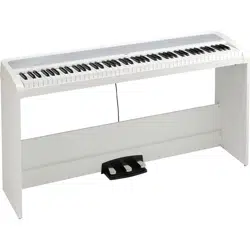
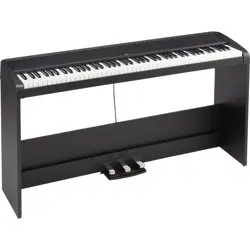
Underside .................................................................................... 4
Control panel .............................................................................. 5
Display ......................................................................................... 6
Preparing to Play .................................................................... 7
Using the AC adapter ................................................................ 7
Turning the power on/o .......................................................... 7
Adjusting the volume ................................................................ 7
Using music stand ...................................................................... 7
Using headphones ..................................................................... 7
Using a pedal .............................................................................. 8
Preparing to Play: What is Auto-Accompaniment? ..............9
What is auto-accompaniment? ................................................. 9
Basic operations ...................................................................12
About modes ............................................................................ 12
Other functions ......................................................................... 12
Selecting sounds and changing values .................................. 12
Playing the XE20 (style mode) ............................................. 13
Selecting a grand piano ........................................................... 13
Selecting sounds in the style set ............................................. 13
Muting parts and changing sounds ....................................... 13
Selecting a set list ..................................................................... 14
Changing the sounds on the le and right (split) ................ 14
Playing in time with the metronome ..................................... 15
Seing the key and octave ...................................................... 16
Adding eects and embellishments to your playing .......... 16
Auto-accompaniment (style mode) ....................................18
Playing along with auto-accompaniment ............................. 18
Making changes to the auto-accompaniment ...................... 19
Choosing a music style and playing ...................................... 20
Saving the set list (WRITE) ..................................................... 21
Recording your performance.................................................. 21
Song mode ............................................................................22
Listening to the demo songs ................................................... 22
Playing along with a song ....................................................... 22
Playing back using dierent methods ................................... 22
Editing a song ........................................................................... 23
SETTING functions ................................................................25
Basic methods of use ................................................................ 25
Main SETTING functions ........................................................ 25
List of SETTING functions ...................................................... 26
MEDIA functions ................................................................... 28
Connecting and removing USB ash drives ........................ 28
Basic method of use ................................................................. 28
List of MEDIA functions ......................................................... 29
Connecting to an external device .......................................30
Connecting an audio player.................................................... 30
Connecting powered monitor speakers ................................ 30
Connecting to a computer ....................................................... 31
Appendix ............................................................................... 32
Checking the soware version ............................................... 32
Restoring the XE20 to factory default seings ..................... 32
Calibrating an expression pedal ............................................. 32
Troubleshooting ....................................................................... 32
List of chords recognized ........................................................ 34
Specications ........................................................................ 35
MIDI Implementation Chart .................................................36

Main Features
3
Thank you for purchasing the Korg XE20/XE20SP digital
ensemble piano. To help you get the most out of your new
instrument, please read this manual carefully.
About this manual
The XE20 comes with the following manuals.
• Quick Start Guide (printed)
• Owner’s Manual (this document, PDF)
• Voice Name List (PDF)
• Stand Assembly Guide (printed, XE20SP only)
Quick Start Guide (booklet)
Read this manual rst. This guide explains the basic operations
and other features of the XE20.
Owner’s Manual (this document, PDF)
This explains how to use the detailed functions of the XE20.
Voice Name List (PDF)
This is a list of the styles, demo songs and other data used on
the XE20.
Stand Assembly Guide (printed, XE20SP only)
This explains how to assemble the stand for the XE20SP.
Download the PDF from the following Korg website.
www.korg.com
Conventions in this manual
Symbols ,
Note
,
Tip
These symbols respectively indicate a caution, a supplementary
note, or a tip.
Example screen displays
The parameter values shown in the example screens of this
manual are only for explanatory purposes, and may not
necessary match the values that appear in the screen of your
instrument.
Main Features
High-denition piano sounds
The XE20 features Korg’s unique high-denition grand piano
sounds, such as the German Piano. You can play the grand
piano amongst many other sounds with the touch of a buon.
................................................................................................. page 13
Playing with dierent sounds
The XE20 lets you play many dierent kinds
of instrument sounds in addition to piano,
violin, sax, drums and so on. ..............page 13
Playing along with a style (auto-
accompaniment)
You can select from dierent genres of
“styles,” which are like a backing band
or rhythm accompaniment. Try playing a
melody in your right hand while playing a
chord with your le hand. .................. page 18
Playing back a sound source from a USB
ash drive
The XE20 lets you play back MP3, WAV and
SMF les contained on a USB ash drive.
Select the sound you want and enjoy playing
along. ......................................................page 22
Connecting to an external device and
playing back audio
You can play audio from external devices, such as MP3 players,
smartphones and other mobile devices, computers and so on,
and hear it through the built-in speakers of the XE20.
................................................................................................. page 30
Adding eects to sounds
You can add distortion or reverb to sounds, giving the sound a
dierent character. ............................................................... page 16
Part Names
4
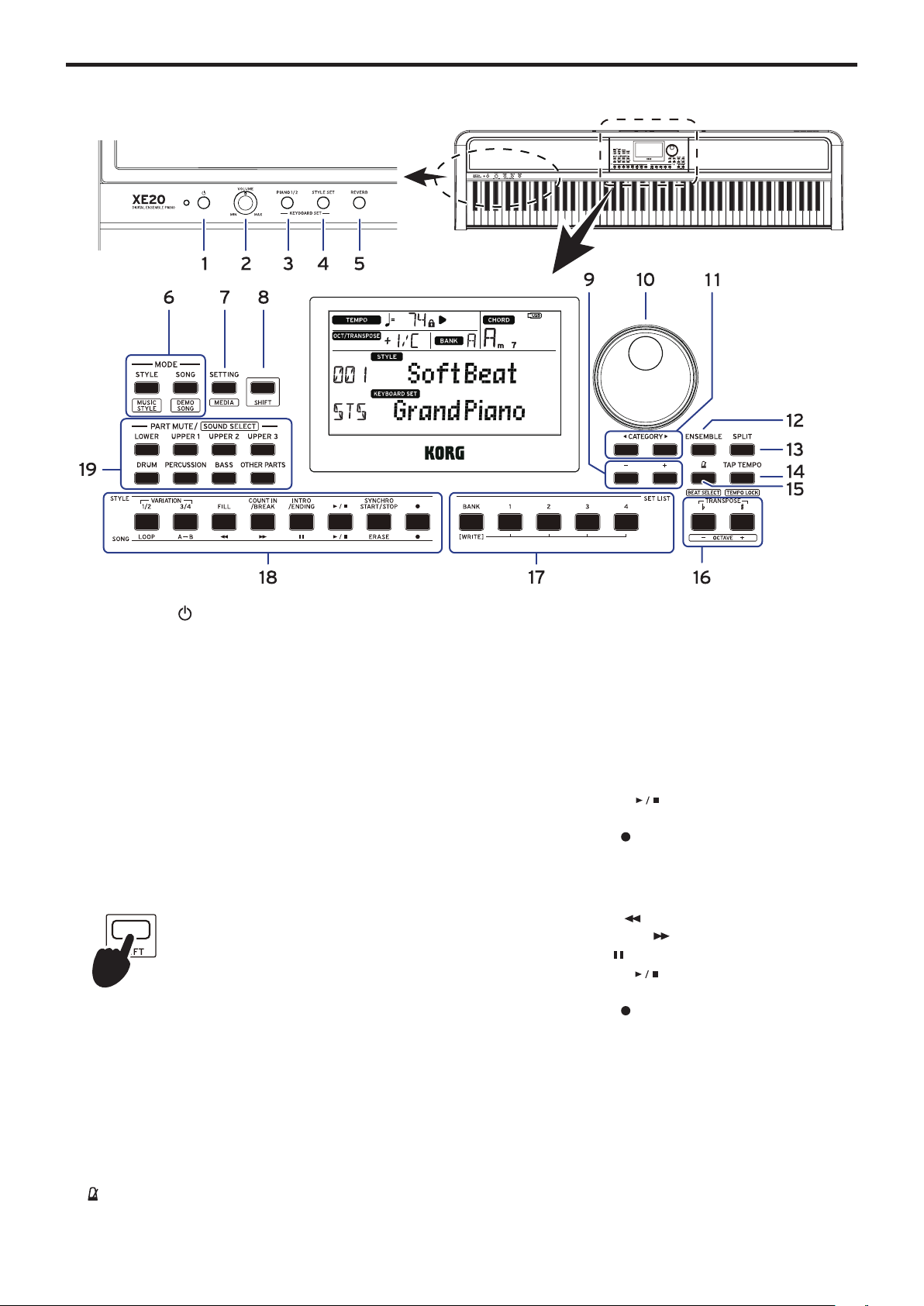
Part Names
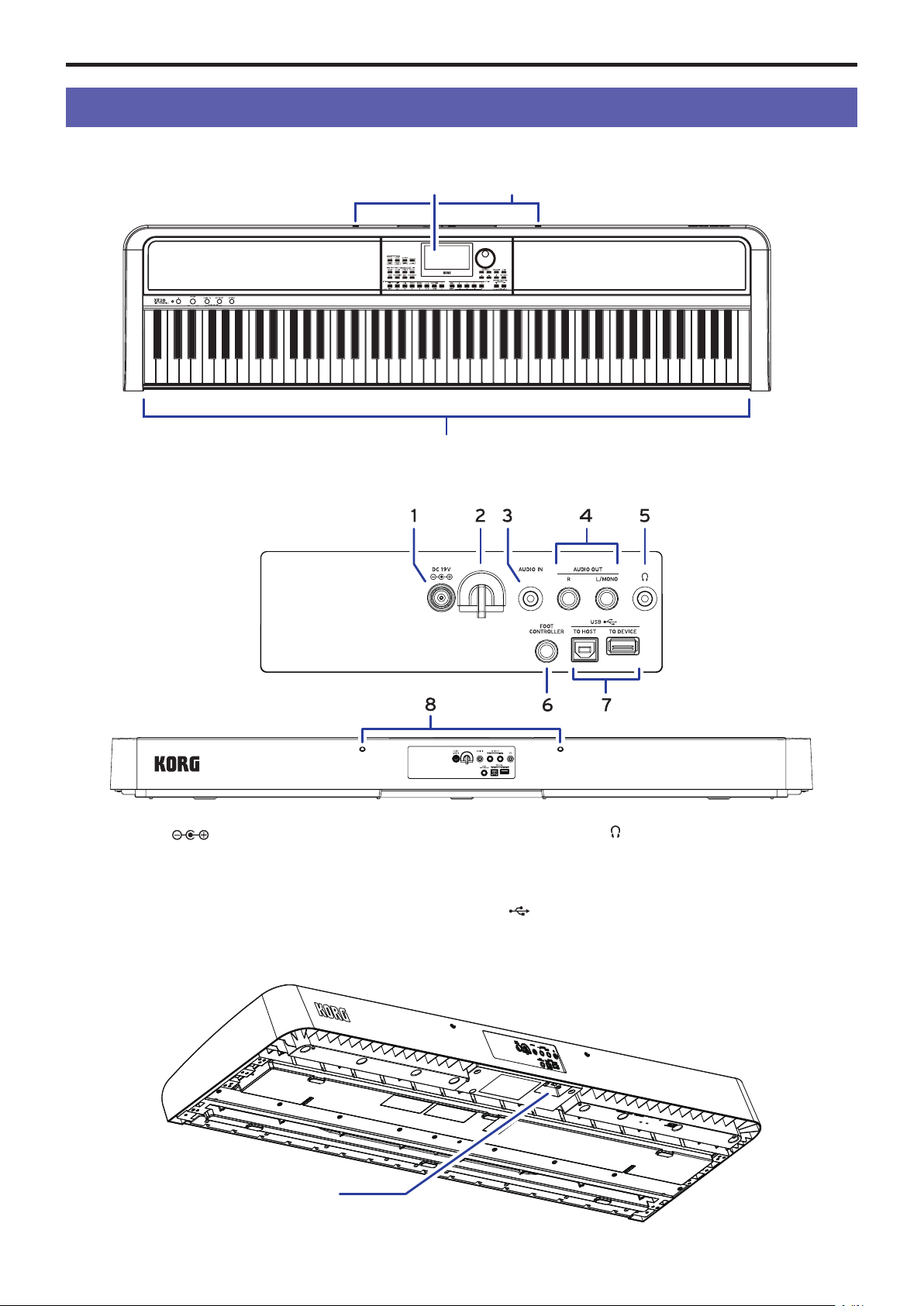
Front panel
Rear panel
1.
DC 19V jack
( )
................................................................... page 7
2.
Cable hook
....................................................................................... page 7
3.
AUDIO IN jack
........................................................................... page 30
4.
AUDIO OUT L/MONO and R jacks
............................... page 30
5.
Headphone jack
( )
..................................................................... page 7
6.
FOOT CONTROLLER jack
.................................................... page 8
7.
USB TO DEVICE port, USB TO HOST port
( ) .............................................................................................. page 28, 31
8.
Music stand holes
........................................................................ page 7
Underside
PEDAL jack (page 8)
Built-in speakers
(page 7)
Built-in speakers
(page 7)
Keyboard
Display (page 6) Music stand holes (page 7)
Part Names
5
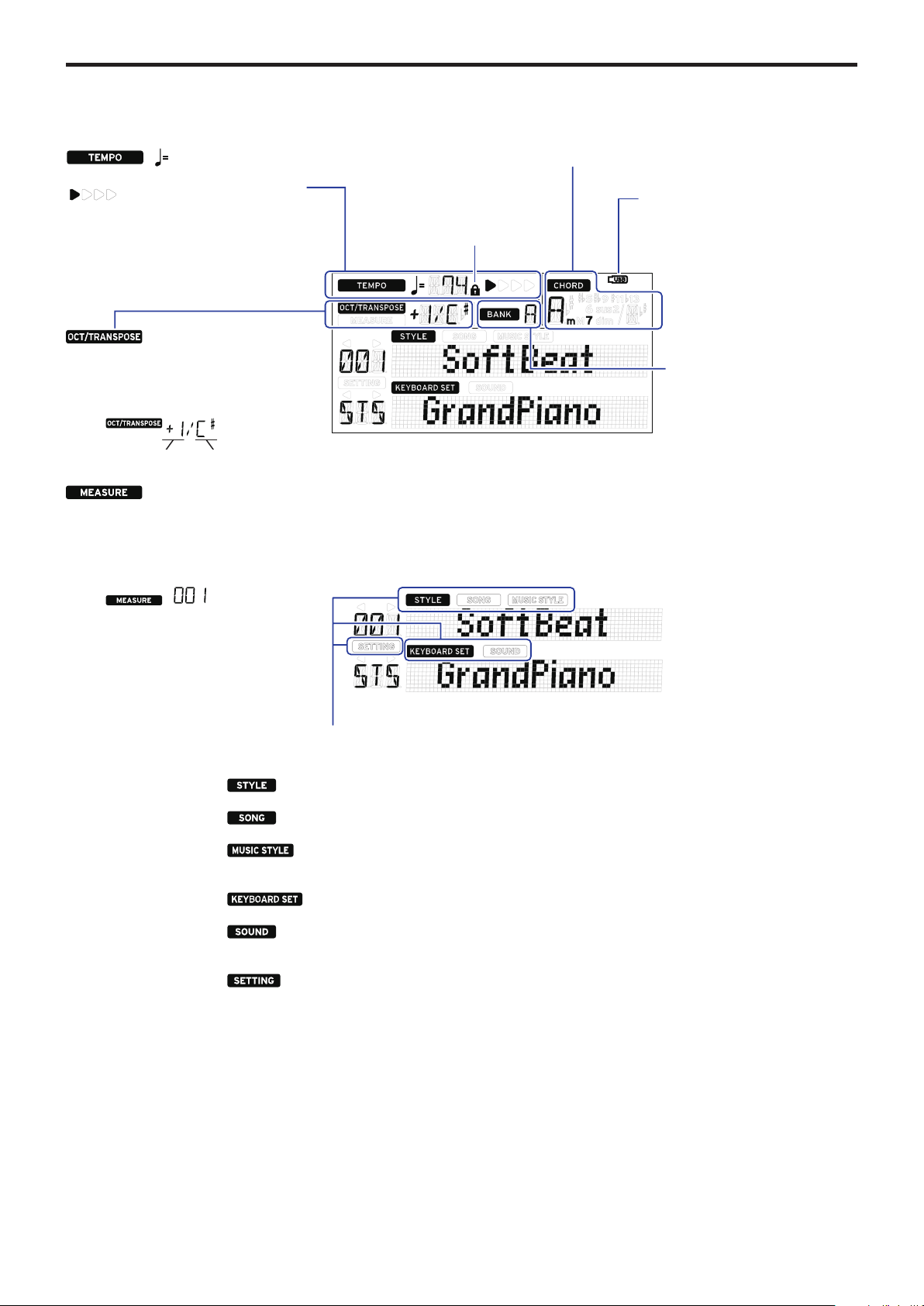
Control panel
1.
Power buon ( )
......................................................................... page 7
2.
VOLUME knob
.............................................................................. page 7
3.
PIANO1/2 buon
........................................................................ page 13
4.
STYLE SET buon
..................................................................... page 13
5.
REVERB buon
........................................................................... page 17
6.
MODE section
.............................................................................. page 12
STYLE/[MUSIC STYLE] buon
..................................... page 13, 20
SONG/[DEMO SONG] buon
............................................. page 22
7.
SETTING/[MEDIA] buon
............................................. page 25, 28
8.
[SHIFT] buon
When seing a function enclosed in white lines for a buon,
hold the [SHIFT] buon down and press that buon.
You may sometimes need to hold down
the [SHIFT] buon and then press another
buon or turn the dial.
This icon is used in these cases.
9.
+ buon, − buon
...................................................................... page 12
10.
Dial
................................................................................................... page 12
11 .
CATEGORY buons
t
,
u
..................................................... page 12
12.
ENSEMBLE buon
.................................................................... page 16
13.
SPLIT buon
................................................................................ page 14
14.
TAP TEMPO/[TEMPO LOCK] buon
.......................... page 15
15.
(metronome)/[BEAT SELECT] buon
......................... page 15
16.
TRANSPOSE
♭
,
♯
/[OCTAVE −, +] buons
........................ page 16
17.
SET LIST section
.................................................................. page 14, 21
• BANK/WRITE buon
• Buons 1–4
18.
STYLE/SONG section
STYLE section
............................................................................ page 18
• VARIATION 1/2, 3/4 buons
• FILL buon
• COUNT IN/BREAK buon
• INTRO/ENDING buon
• Start/stop buon
( )
• SYNCHRO START/STOP buon
• Record buon
( )
SONG section
............................................................................ page 22
• LOOP buon
• A
1
B buon
(A
1
B)
• Rewind buon
( )
• Fast-forward buon
( )
• Pause buon
( )
• Start/stop buon
( )
• ERASE buon
• Record buon
( )
19.
PART MUTE/[SOUND SELECT] section
................. page 14, 20
Keyboard part
............................................................................ page 13
• LOWER buon
• UPPER 1 buon
• UPPER 2 buon
• UPPER 3 buon
Accompaniment part
............................................................... page 18
• DRUM buon
• PERCUSSION buon
• BASS buon
• OTHER PARTS buon
Part Names
6
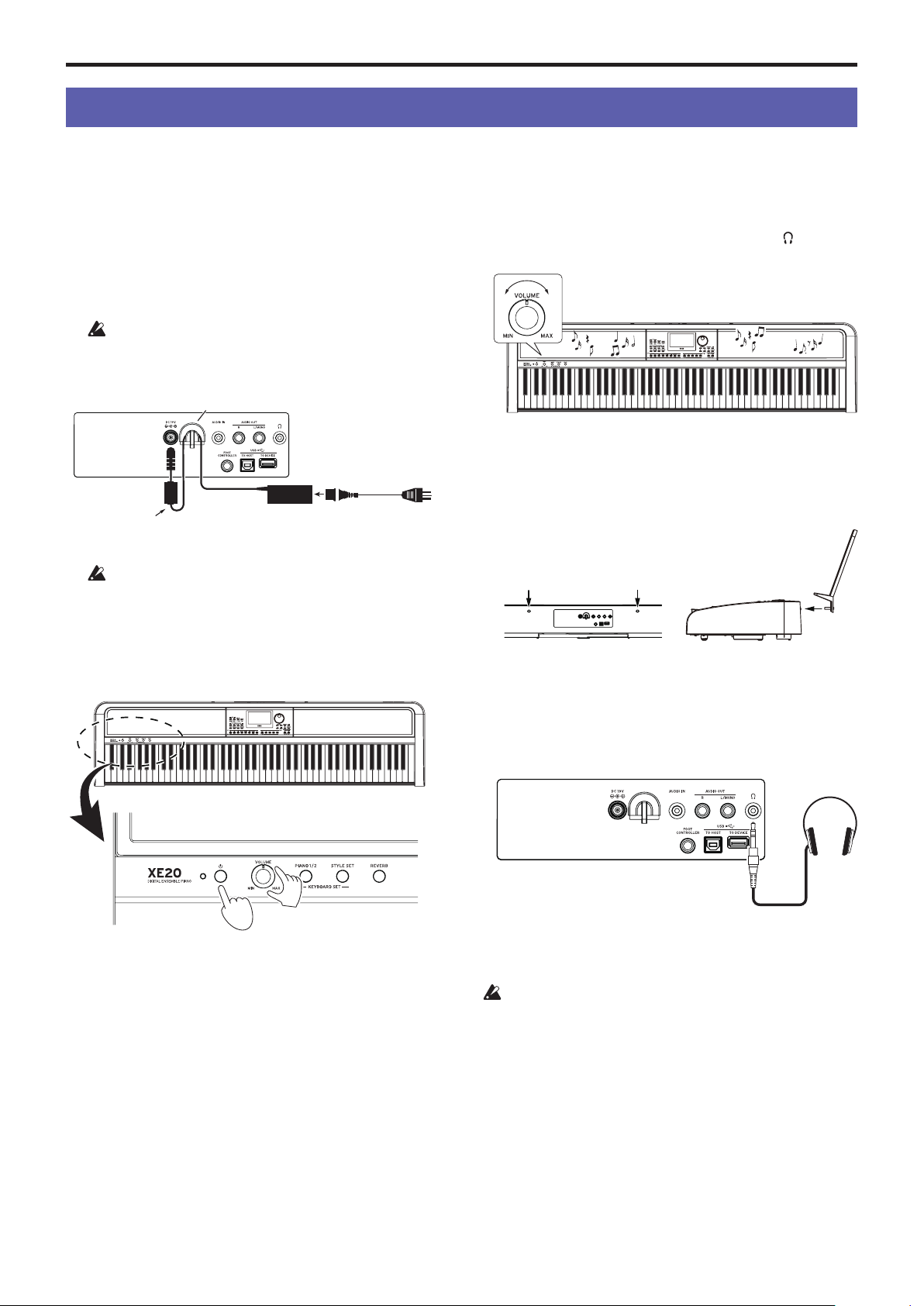
Display
Chord
Displays the name of the chord played
within the chord recognition range.
USB icon
Displays when a USB ash drive is
plugged into the USB TO DEVICE
port.
: Displays when the style or
song has stopped.
The octave and transpose seings are
displayed to the right.
オクターブ トランスポーズ
Octave Transpose
: Displays when a style or
song is being played back.
The current measure position or
remaining number of measures are
displayed to the right.
: Displays the tempo
of the style or song.
: Lights up to display the beat
of the style or song.
Tempo lock icon (page 15)
Displays when the tempo is
locked.
Bank
Displays the bank of the currently
selected set list.
These show the current mode and function. When the display is blinking, the
blinking items indicate what operations are in eect.
: Displays when using style mode. The style name and number appear
below on the display.
: Displays when using song mode. The song name and number appear
below on the display.
: Displays when a music style is selected. The music style name and
number appear below on the display.
: Displays when style mode or song mode are in use. The keyboard
set name used by the style or song appear below on the display.
: Displays when the sound for each part used in the keyboard set is
selected. The sound name and number appear below on the display.
: Displays when accessing the SETTING functions. The parameter
name, number, value and so on that are being set appear in the display.
Preparing to Play
7
Preparing to Play
The XE20SP includes a stand with pedal unit, for use only with
the XE20SP. Follow the steps below aer puing the stand
together.
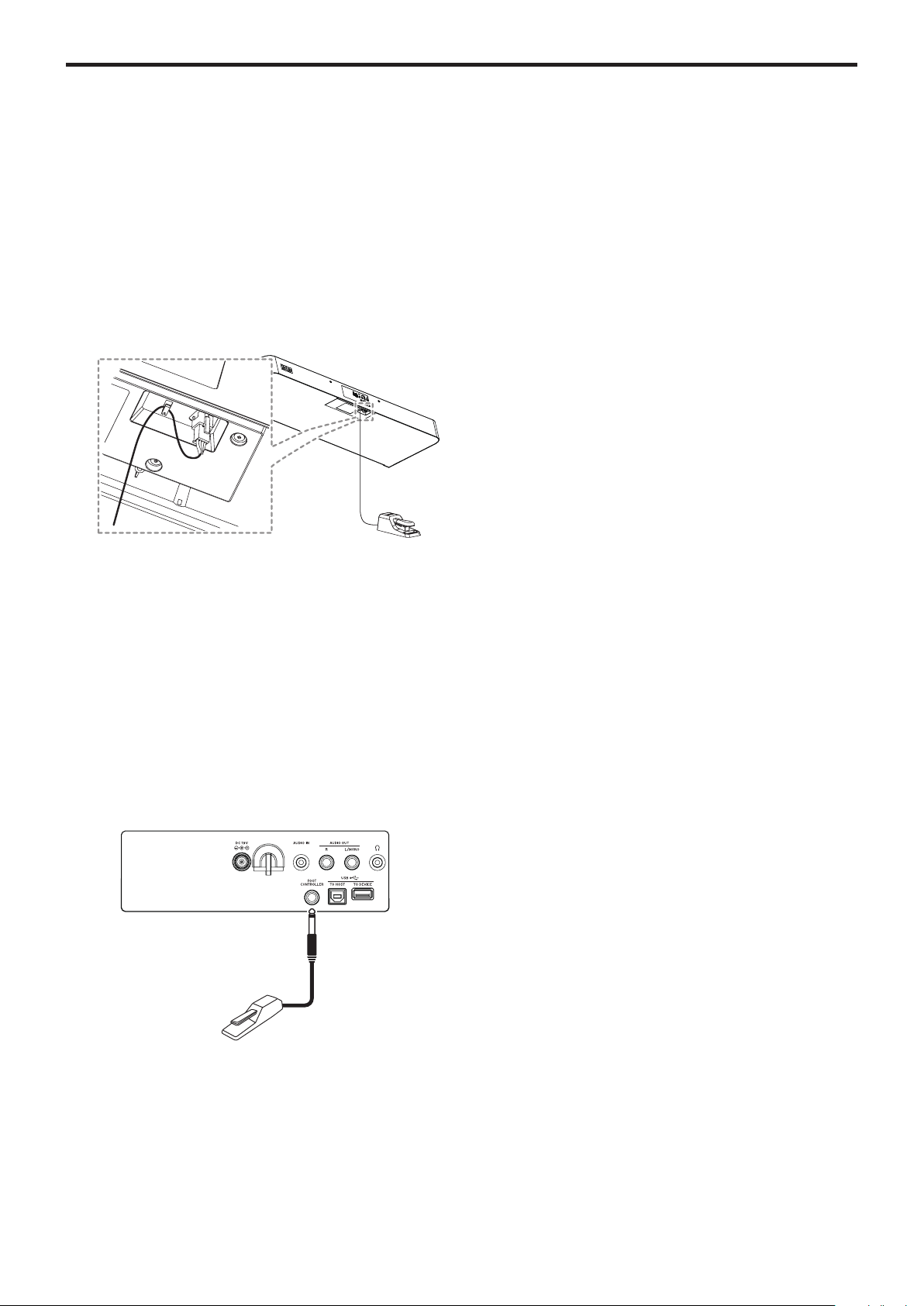
Using the AC adapter
1.
Make sure that the power on this instrument is turned o.
2.
Connect the DC plug of the included AC adapter to the
DC 19V jack located on the rear panel of the XE20.
Be sure to use only the included AC adapter. Using any
other AC adapter may cause malfunctions.
Hook the AC adapter cord onto the cord hook. Do not use
excessive force when pulling the cord o the hook.
Cord hook
When hooking the cord onto
the cord hook, be careful not
to bend this part any more
than necessary.
AC adapter Power cord for the AC adapter
to AC outlet
3.
Connect the plug of the AC adapter to an AC outlet.
Be sure to use an AC outlet of the correct voltage for
your adapter.
Turning the power on/o
1.
Turn the VOLUME knob all the way to the le, so that the
volume is down.
2.
Press the power buon to turn the instrument on.
When turning o the power, hold the power buon down
until the display shows the message “Power O”.
Note:
The XE20 will automatically turn o if it has not been
played or operated for a certain amount of time (via the auto
power-o function).
The time interval is set to 30 minutes at factory default. This
interval can be changed (see page 25 “Changing the auto
power-o function”).
Adjusting the volume
y
Turn the VOLUME knob on the front panel to adjust the
sound to the optimum level.
The VOLUME knob sets the volume of sound coming
from the built-in speakers, the headphone jack (
) and the
AUDIO OUT jacks.
Using music stand
Insert music stand into the two holes for the same on the rear
panel.
Using headphones
y
Connect the stereo mini‐plug of a pair of commercially
available headphones to the headphone jack on the rear
panel.
Note:
The built-in speakers will not make a sound if a pair of
headphones has been connected to the headphone jack (but
sound will still be outpued from the AUDIO OUT jacks).
Using headphones at high volume for an extended time
may cause hearing damage. Avoid excessively high volume
levels.
1
2
Headphones
Preparing to Play
8
Using a pedal
You can plug a pedal into the FOOT CONTROLLER jack on the
rear panel or into the pedal jack on the underside of the XE20 to
use as a damper pedal, or to control the volume.
Use the SETTING function to make the pedal seings, according
to which kind of pedal you will connect (see page 25
“Changing the pedal polarity” and page 25 “Changing the
pedal function”).
y
For the XE20: damper pedal included with the XE20, or the
PU-2 pedal unit (sold separately)
y
For the XE20SP: pedal unit included with the XE20SP,
which aaches to the stand
Connect the pedal to the PEDAL jack on the underside of
the keyboard unit.
Tip:
On German Piano and Italy Piano sounds, the pedal
unit included with the XE20SP (or the PU-2, which is sold
separately) lets you control the degree of the damper eect
(the half-pedal eect) according to how far you press the
pedal. For other sounds, this will function as a damper
switch. While the pedal is pressed, the notes you play will
sustain, even aer you take your ngers o the keyboard.
Note:
Note that the damper eect does not work on the
lower part.
Tip:
With the pedal unit included with the XE20SP (or the
PU-2, which is sold separately), sostenuto works only on the
German Piano and Italy Piano sounds.
y
XE20, XE20SP: When using the DS-1H (damper pedal, sold
separately) or PS-1/PS-3 (pedal switch, sold separately)
Plug the pedal into the FOOT CONTROLLER jack on the
rear panel.
Tip:
On German Piano and Italy Piano sounds, the DS-1H
damper pedal lets you control the degree of the damper
eect (the half-pedal eect) according to how far you press
the pedal. For other sounds, this will function as a damper
switch. While the pedal is pressed, the notes you play will
sustain, even aer you take your ngers o the keyboard.
Note:
Note that the damper eect does not work on the
lower part.
• Connect a Korg EXP-2 foot controller to control the volume
of the keyboard part (see page 13 “Selecting sounds in the
style set”).
Damper pedal,
pedal switch, etc.
Preparing to Play: What is Auto-Accompaniment?
9
Preparing to Play: What is Auto-Accompaniment?
What is auto-accompaniment?
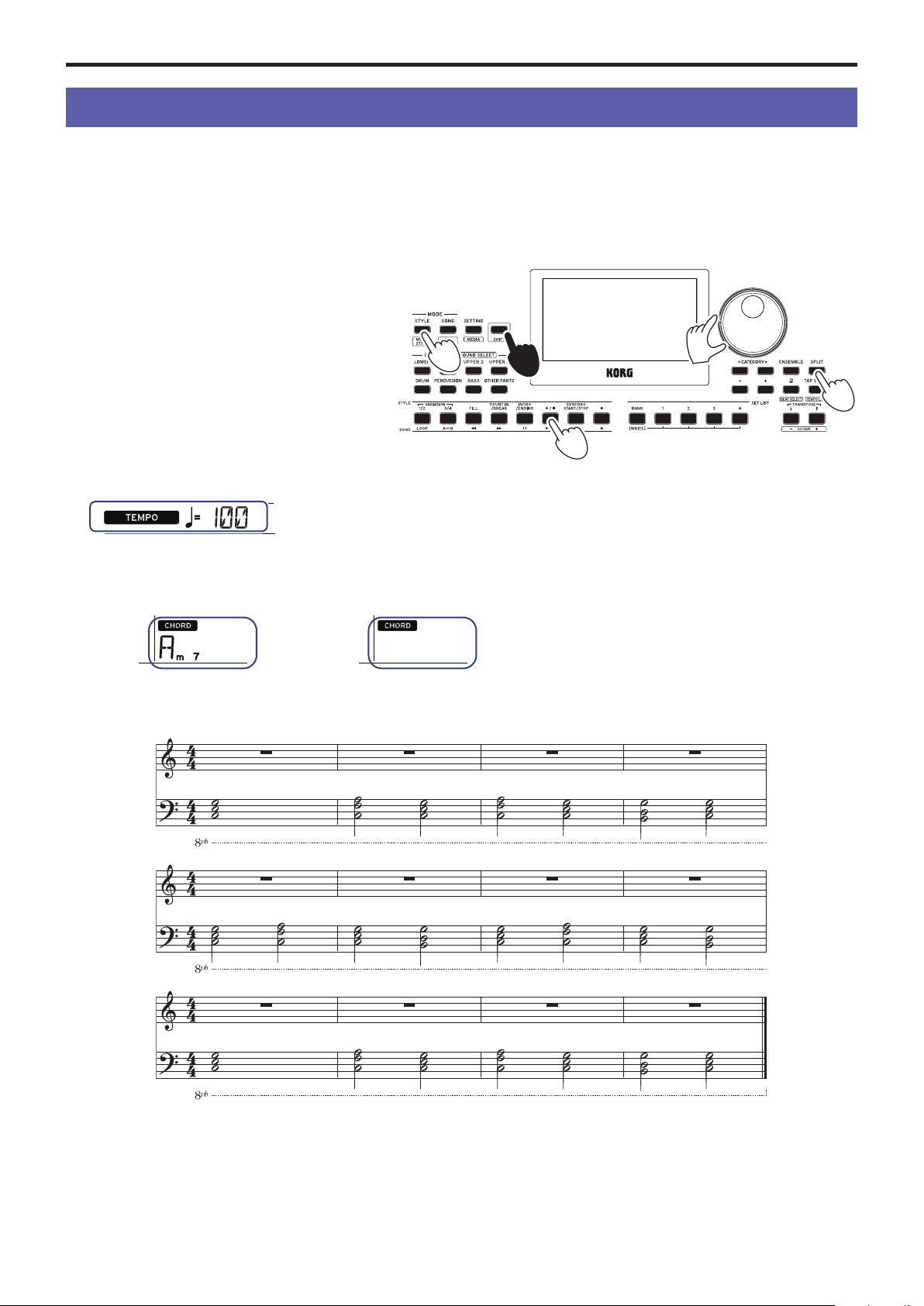
Auto-accompaniment is a function that automatically plays an accompaniment to match the chords that you play in the le hand (the
accompaniment part).
1. Playing along with auto-accompaniment
1.
Press the STYLE/[MUSIC STYLE] buon.
2.
Select a style by turning the dial.
In this example, we will select “209:Jazz Brush”.
3.
Press the buon to activate the keyboard split
when the SPLIT buon is o.
What is a keyboard split?
_
Keyboard split is a
function that lets you separate the keyboard into
two dierent ranges, one for playing chords and
another for playing a melody line.
4.
Turn the dial while holding down the [SHIFT]
buon to set the tempo to 100.
5.
Press the start/stop buon.
The rhythm will play back.
* If a chord has already been recognized, the accompaniment will match that chord when playing.
If a chord is recognized If a chord is not recognized
6.
Play the chords shown below using your le hand. The accompaniment will match the chords that you play.
7.
To stop playback, press the start/stop buon.
1
2,4
3
5,7
4
C F C F C G C
C F C G C F C G
C F C F C G C
Preparing to Play: What is Auto-Accompaniment?
10
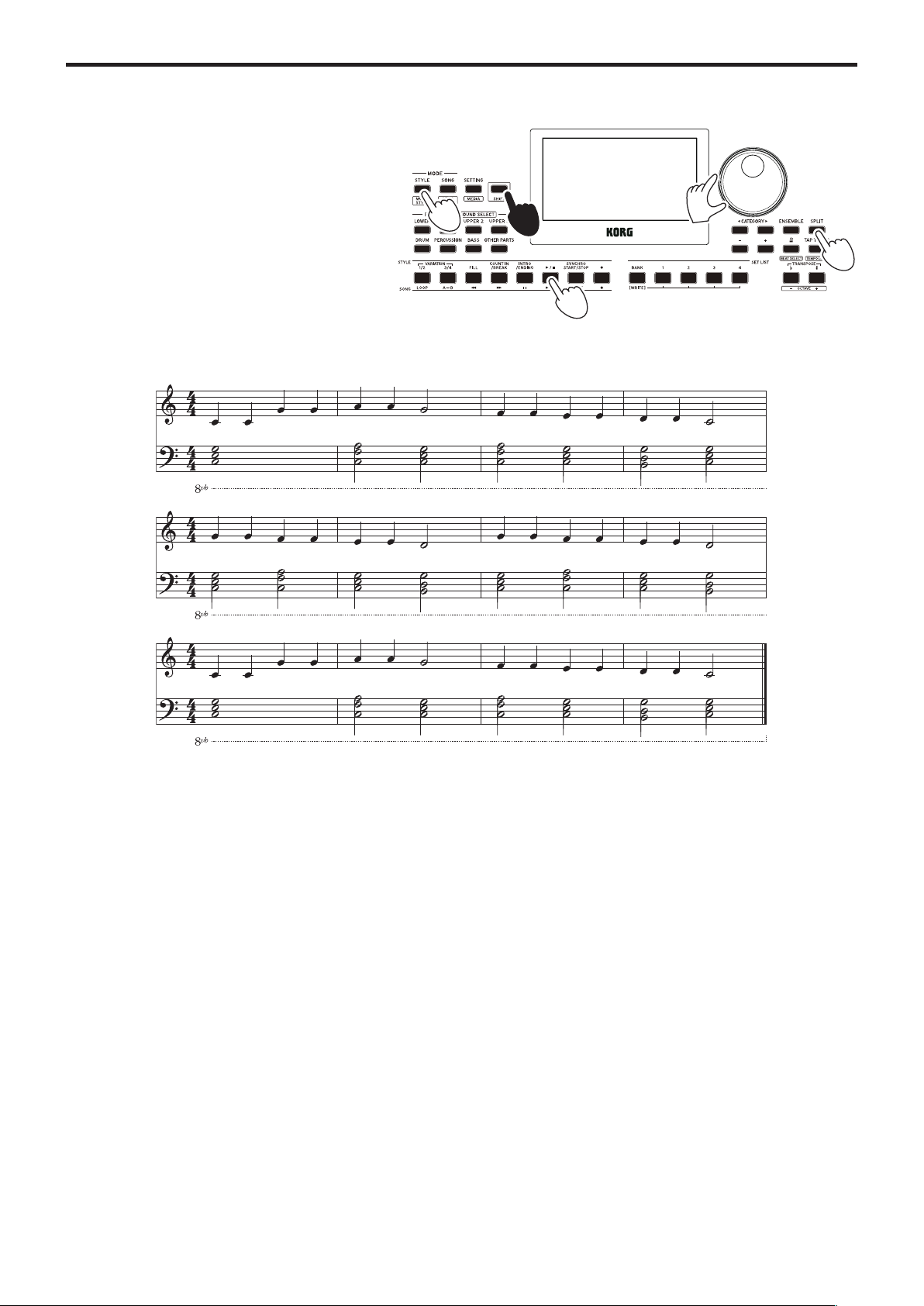
2. Adding a melody line when playing
Now, try playing a melody line along with the accompaniment.
1.
Press the STYLE/[MUSIC STYLE] buon.
2.
Select a style by turning the dial.
In this example, we will select “209:Jazz Brush”.
3.
Press the buon to activate the keyboard split
when the SPLIT buon is o.
4.
Turn the dial while holding down the [SHIFT]
buon to set the tempo to 100.
5.
Press the start/stop buon.
The rhythm will play back.
* If a chord has already been recognized, the accompaniment will match that chord when playing.
6.
Play the music shown below.
7.
To stop playback, press the start/stop buon.
1
2,4
3
5,7
4
C
F C F C G C
C F C G C F C G
C
F C F C G C
Preparing to Play: What is Auto-Accompaniment?
11
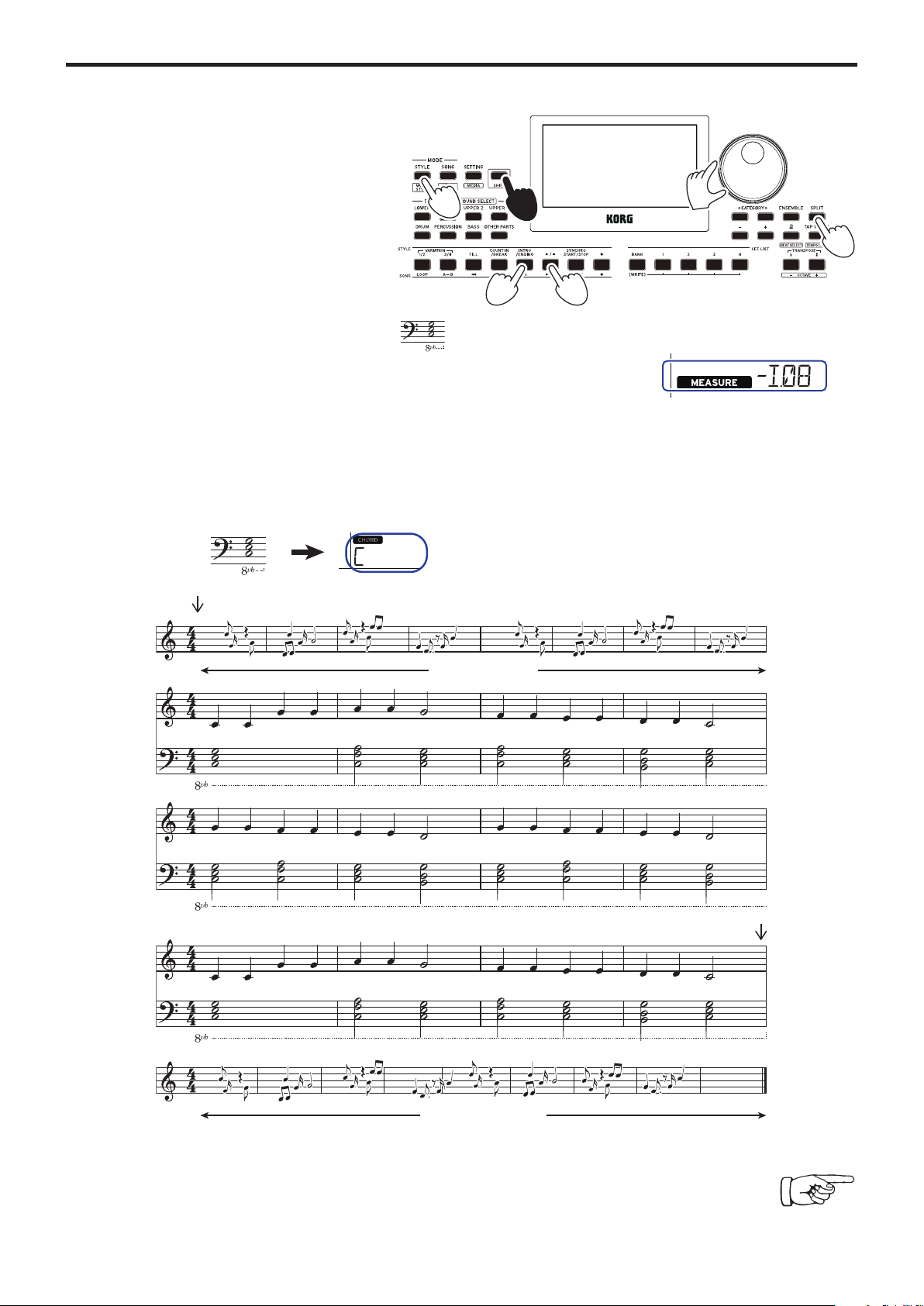
3. Adding an intro and ending to a song
Try adding an intro and ending to nish up the song.
1.
Press the STYLE/[MUSIC STYLE] buon.
2.
Select a style by turning the dial.
In this example, we will select “209:Jazz Brush”.
3.
Press the buon to activate the keyboard split
when the SPLIT buon is o.
4.
Turn the dial while holding down the [SHIFT]
buon to set the tempo to 100.
5.
Press the INTRO/ENDING buon.
6.
Play the rst chord to make the XE20 recognize it.
C
7.
Press the start/stop buon.
The intro will play back. The display shows the number of measures before the intro will end.
Wait for the time to begin playing by checking the number of measures left.
You can play chords along with the intro to change the actual chords played back.
8.
When the intro ends, you can start playing.
9.
Press the INTRO/ENDING buon when you are nished playing.
The ending will play back, and the song will automatically end.
You can use the other functions of the XE20 to further broaden your performance.
We hope you’ll enjoy these features, as we explain the details beginning on the next page.
1
2,4
3
75,9
4
C
F C F C G C
C F C G C F C G
C
F C F C G C
Ending plays back
Intro plays back
Press the play button
Press the INTRO/ENDING
button
C
Before playing: press the INTRO/ENDING button.
Play the rst chord to make the XE20 recognize it.
Basic operations
12
Basic operations
About modes
The XE20 features two dierent modes, a style mode and a song
mode.
Press the appropriate MODE section buon on the front panel
to enter one of the modes.
When turning on the XE20, the instrument will automatically
enter style mode.
Style mode
Style mode lets you select a sound in this instrument and play
it together with another sound you like on the keyboard, as
well as play along with auto-accompaniment (style). You can
also record your playing when using the auto-accompaniment
function.
Song mode
In song mode, you can play back demo songs and user songs as
well as music data les (MP3, WAV and SMF), and play along
with them. You can also edit the user songs easily.
Other functions
SETTING functions
These functions include global seings for the instrument like
keyboard touch, master tune, scale and so on. There are also
seings for pedals that you connect, as well as MIDI-related
seings.
MEDIA functions
These functions are for saving or loading set lists to/from USB
ash drives, as well as for saving user songs. This also includes
functions for formaing USB ash drives and for system
updates.
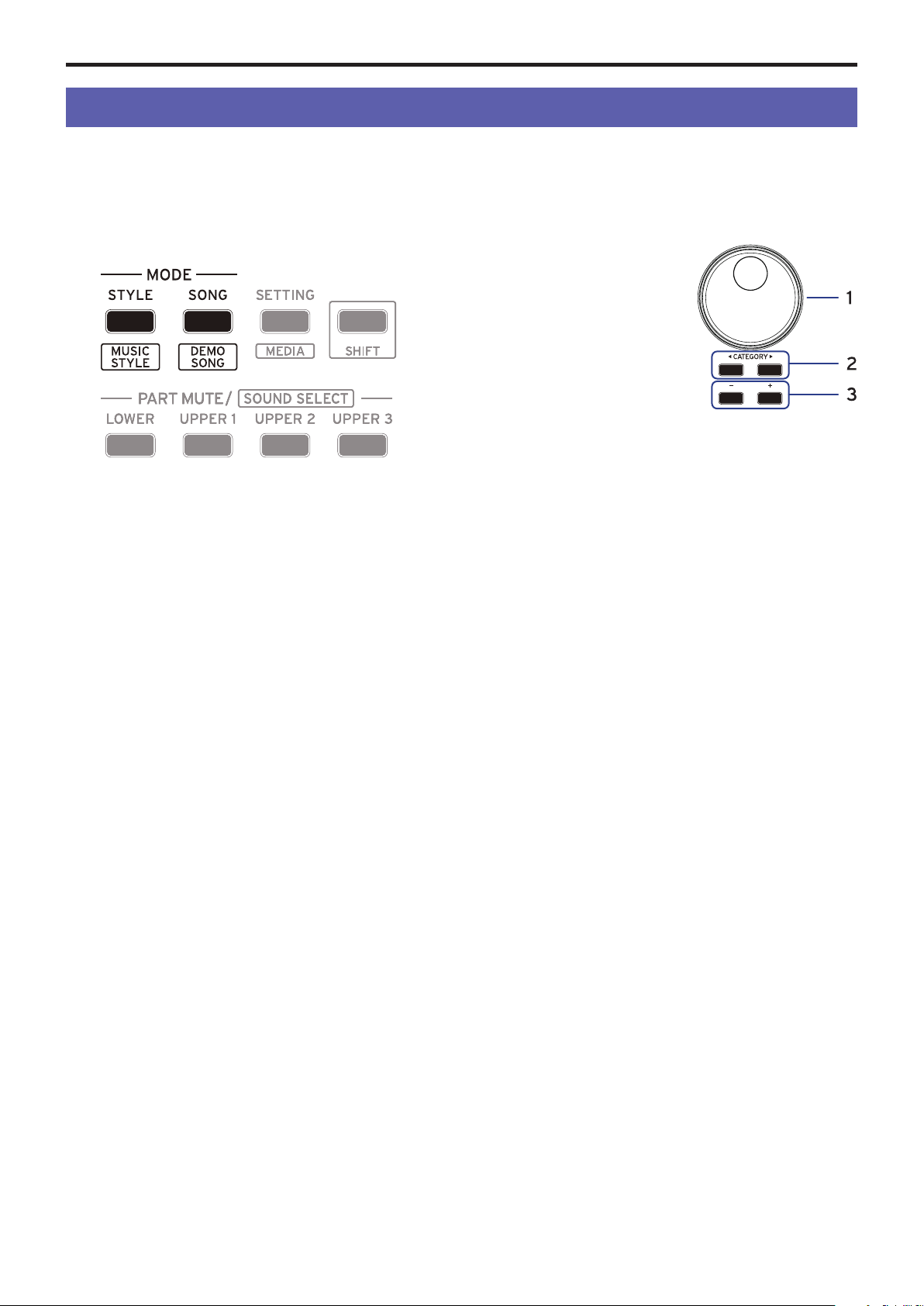
Selecting sounds and changing values
Use the dial, the + and − buons and the CATEGORY buons
t/u when selecting sounds or changing the values of the
seings.
1.
Dial
This is used to change
numbers and values.
Turn the dial clockwise to
increase the value, and turn
the dial counter‐clockwise
to decrease the value.
2.
CATEGORY buons
t
,
u
When you press the
CATEGORY buon
t
/
u
to
select a style, sound and so on in style mode or song mode,
the rst digit of the number group corresponding to the
category or genre will be selected.
When using the SETTING or MEDIA functions, press the
CATEGORY buon
t
/
u
to select a page.
3.
+ and − buons
• Press either the + or − buon once to increment or
decrement a number.
• Hold down the + or − buon to continually change the
number.
Playing the XE20 (style mode)
13
Playing the XE20 (style mode)
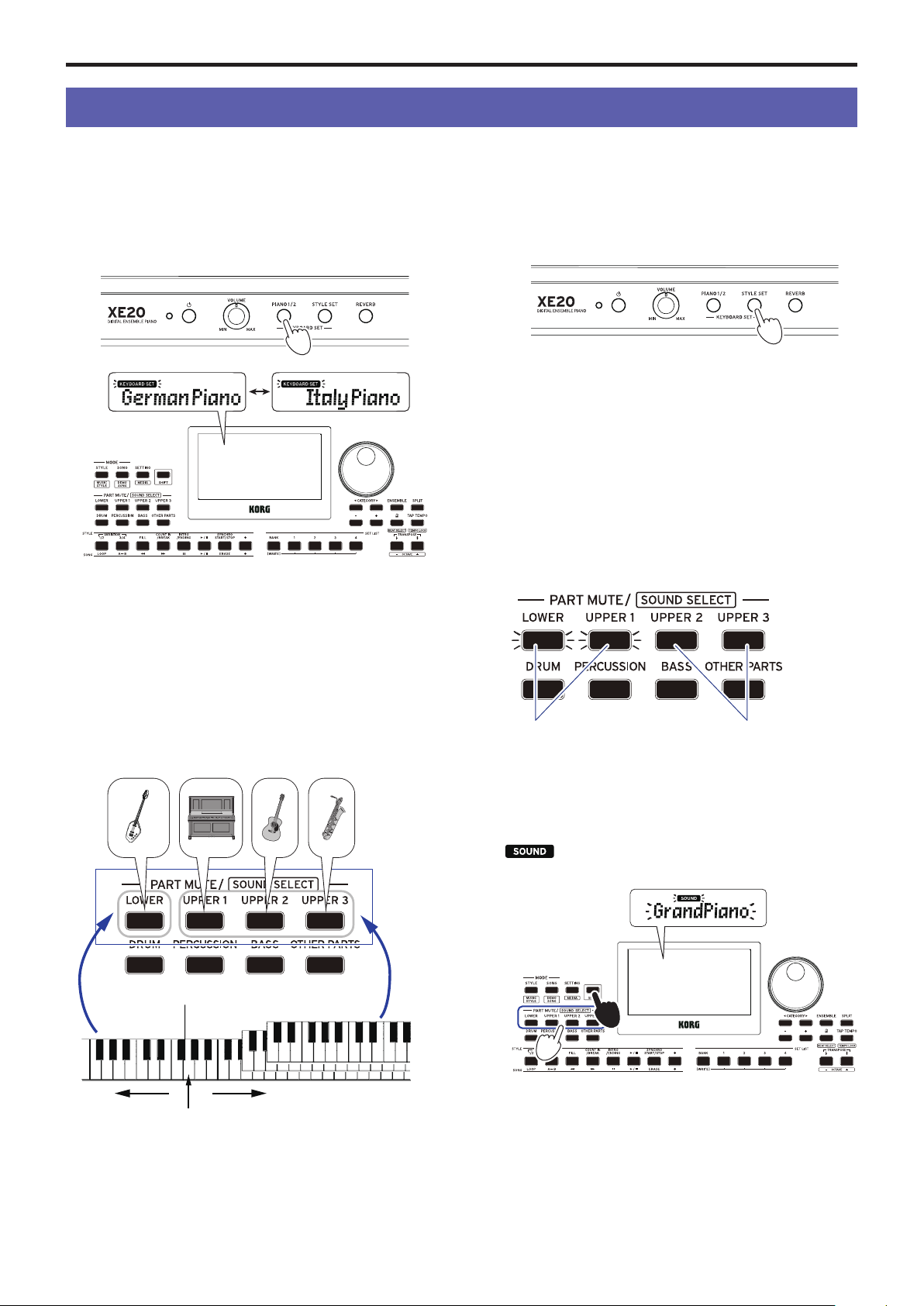
Selecting a grand piano
y
Press the PIANO1/2 buon.
This will quickly select the grand piano sound. You can
switch between pianos 1 and 2 with each press of the buon.
Piano 1: German Piano
Piano 2: Italy Piano
Selecting sounds in the style set
What is a keyboard set?
The keyboard set is a group of sounds used in keyboard
performance.
Four parts are allocated to the keyboard set (the lower part
and upper parts 1–3), which include sounds like piano, strings,
synthesizer, drums and so on. These four parts together are
called a keyboard part.
Tip:
See the “Voice Name List” (PDF) for a list of the keyboard
sets and sounds.
What is a style set?
Keyboard sets that are most suitable for each style
(accompaniment) are available. These are called “style sets.”
1.
Press the STYLE SET buon.
A keyboard set appropriate for the style will be recalled.
Muting parts and changing sounds
On the keyboard part (upper 1–3 and lower) and on the
accompaniment part (drums, percussion, bass and other parts),
you can mute (turn o) individual parts, or change the part’s
sound.
Muting parts
y
Pressing the part buons will mute the respective part(s)
(the buon will go dark). Pressing the buons again will
cancel muting (the buon will light).
Changing sounds
1.
Press the part buon for the part you want to change while
holding down the [SHIFT] buon (the part buon will
blink).
and the sound name will blink on the display.
Note:
The sounds for “other parts” cannot be changed.
2.
Use the dial or the +/− buons to select a sound.
3.
Press the [SHIFT] buon to return to the previous mode.
Upper parts 1–3
Split point
Lower part
Le
ft side Right side
Keyboard
part
MutingUnmute
1
1
Playing the XE20 (style mode)
14
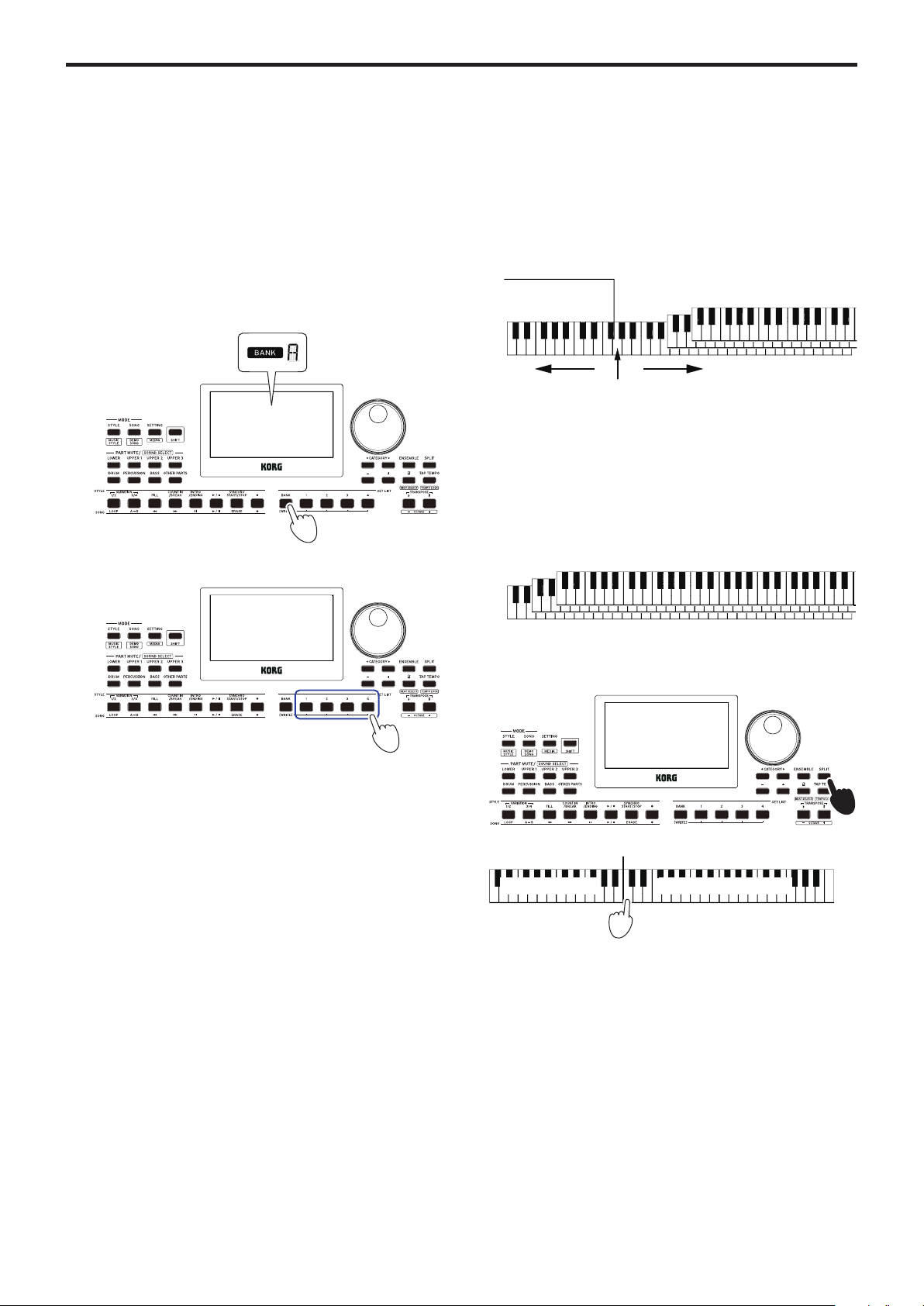
Selecting a set list
Set lists are used to save and quickly recall your favorite seings
(style, tempo, eects and so on; see page 21 “Saving the set
list (WRITE)”).
The recommended set lists are stored in locations 1–4 of banks A
and B. Bank A-1 will be selected right aer the power is turned
on. The keyboard set will be “German Piano.”
1.
Press the BANK/WRITE buon several times to select the
bank.
The bank will change in sequential order (A
"
B
"
C...J
"
A...)
with each press of the BANK/WRITE buon.
Tip:
Pressing this buon while holding down the [SHIFT]
buon will select banks in reverse order.
2.
Use buons 1–4 to select the set list.
Changing the sounds on the left and
right (split)
You can divide the keyboard into a high note range (for upper
1–3 parts) and a low note range (for lower part). This is called a
split function, and the key where the sound changes (the next
note directly below the upper part) is called the split point.
Turn the split function on when you want to play dierent
sounds with your le and right hands. You can also change the
sounds for each part (see page 13 “Changing sounds”).
y
To turn the split on: Press the SPLIT buon to turn the split
function on (the buon will light). The keyboard will be
divided into two ranges.
y
To turn the split o: Press the SPLIT buon once more
to turn the split o (the buon will go dark). The entire
keyboard range will play upper parts 1–3.
y
To change the split point: Press a key on the keyboard
while holding down the SPLIT buon.
+
アッパー1〜3パートロワー・パート
Lower part Upper parts 1–3
Upper parts 1–3Lower part
Split point
Le
ft side Right side
Upper parts 1–3
Playing the XE20 (style mode)
15
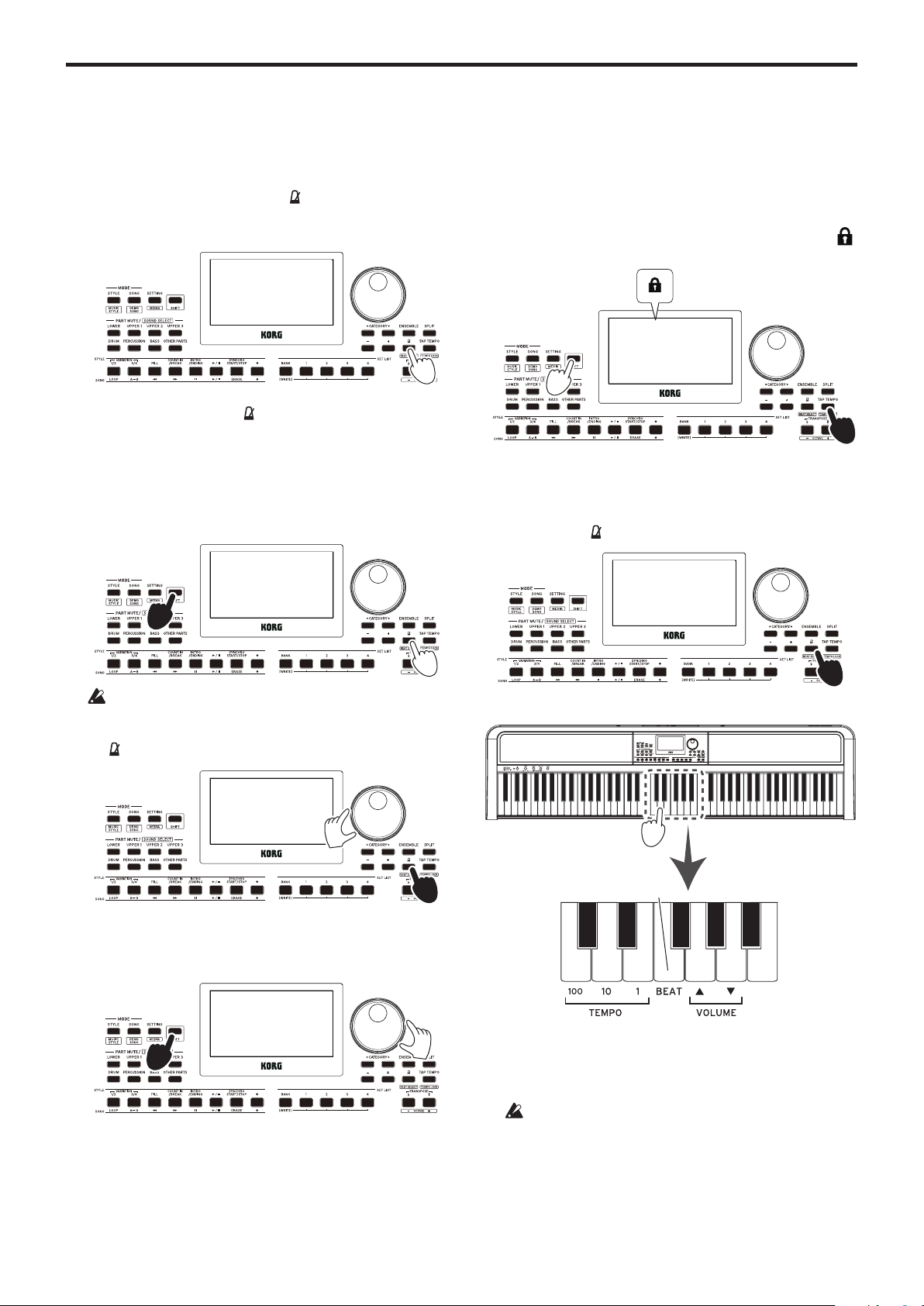
Playing in time with the metronome
You can practice along with the tempo and beat of the metronome.
Setting the metronome
Turning on the metronome: Press the (metronome)/[BEAT
SELECT] buon to turn the metronome on (the buon will
light), and press the buon again to make it stop.
y
Seing the beat: Press the
(metronome)/[BEAT SELECT]
buon a number of times while holding down the [SHIFT]
buon.
2/2...16/16
"
Click HI
"
Click LOW
"
2/2...
2/2, 2/4, 3/4, 4/4, 5/4, 7/4, 6/8, 8/8, 16/16: Beat
Click HI: Accent sound
Click LOW: No accent sound
You cannot change the time signature of the auto-
accompaniment.
y
Adjusting the volume: Turn the dial while holding down
the
(metronome)/[BEAT SELECT] buon.
Adjusting the tempo
y
Turn the dial while holding down the [SHIFT] buon.
y
Press the TAP TEMPO/[TEMPO LOCK] buon to match
the number of beats of the style at the tempo timing you
wish to set. (For instance, if you want to set a 4/4 beat, press
the buon four times; and for a 3/4 beat, press the buon
three times.)
Note:
Pressing the TAP TEMPO/[TEMPO LOCK] buon
any more times will start the accompaniment (tap start
function). You can turn the tap start function disable (see
page 26 “Tap Auto Start”).
Locking the tempo (tempo lock)
y
Press the TAP TEMPO/[TEMPO LOCK] buon while
holding down the [SHIFT] buon (the tempo lock icon
will light on the display).
Using the keyboard to set the metronome
You can also change the time signature seings as well as adjust
the tempo and volume by pressing a key on the keyboard while
holding down the
(metronome)/[BEAT SELECT] buon.
y
Specifying the beat: The Beat function provides an accent
on the rst beat of the measure. Pressing the corresponding
Beat key will advance through the Beat options in a cycle:
2/2 ¨...¨ 16/16 ¨ Click HI ¨ Click LOW ¨ 2/2 ¨...
You cannot change the time signature of the auto-
accompaniment.
y
Adjusting the Volume: Pressing the Down key reduces
the metronome volume; pressing the Up key raises it. The
volume can be increased or decreased in steps of 10. For
instance, when the volume is at 93 and you press the key
on the keyboard corresponding to “Up,” the volume will
increase to 103.
x
100
x
10
x
1
+
Beat (Time signature)
Up
Down

Playing the XE20 (style mode)
16
y
Adjusting the tempo: The Tempo ( 𝅘𝅥 ) can be set from 30 to
240 using the corresponding ×100, ×10, and ×1 keys. For
Example: To set the Tempo to ( 𝅘𝅥 ) = 85, press the ×10 key
eight times and the ×1 key ve times; to set the Tempo to ( 𝅘𝅥
) = 140, press the ×100 key once and the ×10 four times. The
value will be set when you release the
(metronome)/
[BEAT SELECT] buon. The range of seings is from 𝅘𝅥 =
30–240, with values below this being set to 𝅘𝅥 = 30, and values
above this being set to 𝅘𝅥 = 240.
Setting the key and octave
Transposing (changing the key)
You can change the key of this instrument in semitones, over a
range of ±1 octave.
The key that is currently set is shown in the display.
y
To lower the key: Press the TRANSPOSE
♭
/[OCTAVE −]
buon.
y
To raise the key: Press the TRANSPOSE
♯
/[OCTAVE +]
buon.
y
To reset the key: Press both the TRANSPOSE
♭
/[OCTAVE −]
and TRANSPOSE
♯
/[OCTAVE +] buons together.
Changing the octave
You can change the pitch of the note that actually sounds when
you play a note on the keyboard, up or down in one-octave
units. You can set the octave within a range of ±2 octaves.
Changing the octave for the entire keyboard part
y
To lower the octave: Press the TRANSPOSE
♭
/[OCTAVE −]
buon while holding the [SHIFT] buon.
y
To raise the octave: Press the TRANSPOSE
♯
/[OCTAVE +]
buon while holding down the [SHIFT] buon.
Changing the octave for each part
1.
Press the part buon for the part you want to change while
holding down the [SHIFT] buon (the part buon will
blink).
and the sound name will blink on the display.
2.
Press the TRANSPOSE
♭
/[OCTAVE −] or TRANSPOSE
♯
/
[OCTAVE +] buons while holding down the [SHIFT]
buon.
Tip:
You can change the octave for each part by pressing the
TRANSPOSE
♭
/[OCTAVE −] or TRANSPOSE
♯
/[OCTAVE +]
buons while holding down the respective PART buon.
Adding eects and embellishments to
your playing
Adding a harmony to the melody
This adds a harmony to the melody you are playing, to match
the chord. The harmony will vary depending on the style you
have selected.
1.
Press the ENSEMBLE buon.
2.
Press the SPLIT buon to activate the keyboard split
feature (the buon will light).
When you turn the split on, all keys to the le of the split
point (the lower part) will become the “chord recognition
range.”
Turn the split o to make the entire keyboard become the
chord recognition range.
Tip:
To change the split point, press a key while holding
down the SPLIT buon. See page 14 “Changing the
sounds on the le and right (split)” for details on the split
feature.
3.
Play a chord within the chord recognition range, and play
a melody with your right hand.
2
1
1,2
1
2
ロワー・パート
アッパー1〜3パート
Chord recognition range
Split point
Left side Right side
Playing the XE20 (style mode)
17
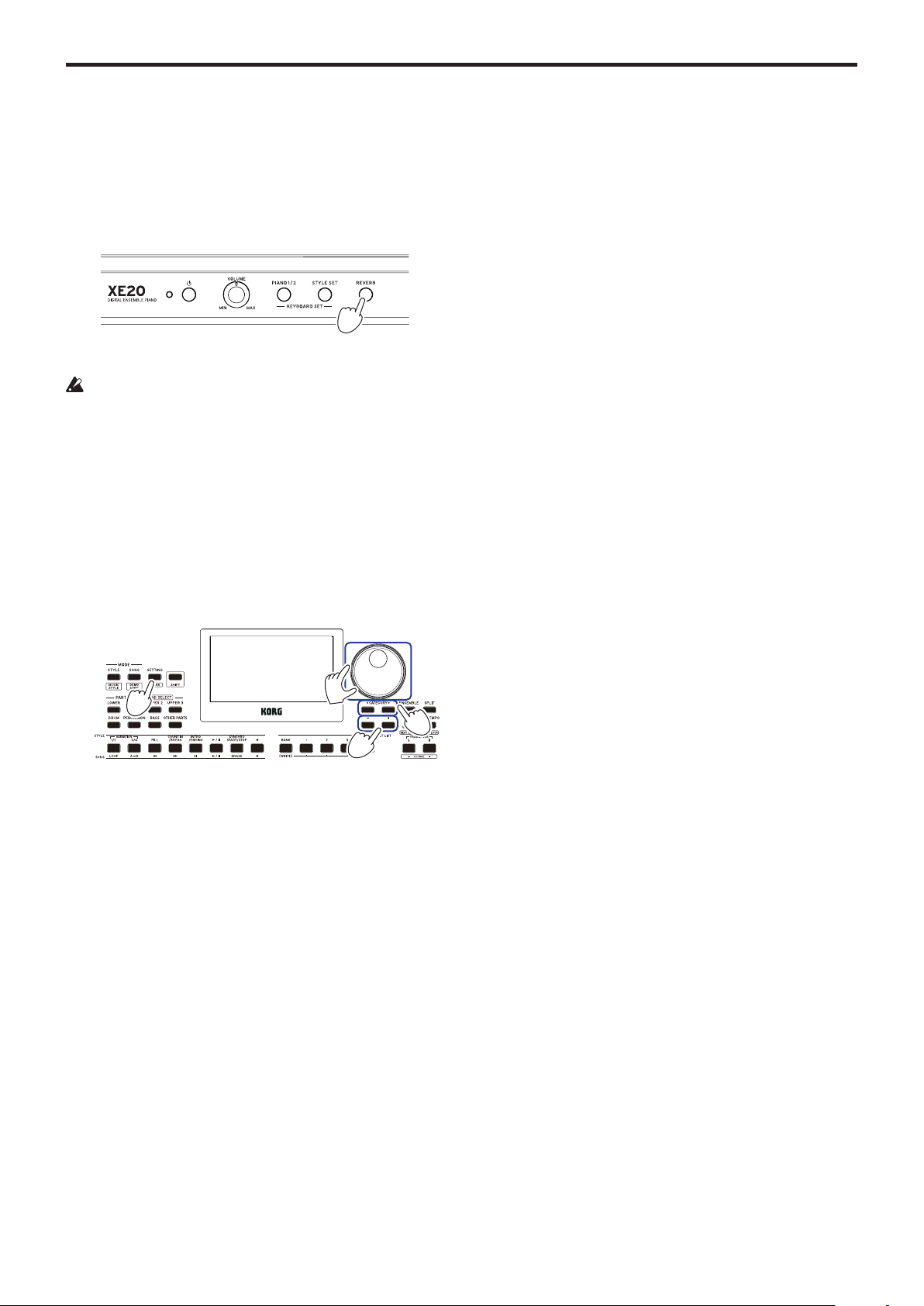
Turning the reverb on/o
This switches the reverb (an eect that make the sound linger)
on/o.
1.
Press the REVERB buon.
When you press the buon while reverb is being applied,
the reverb will shut o.
When you press the buon while reverb is not being
applied, the reverb will be turned on.
Note:
Some keyboard sets do not use a reverb eect, and
you will not be able to apply reverb for these sets.
This seing will be lost when the power is turned o.
Applying eects
Each keyboard set contains two eects (eects 1 and 2), which
change the nal output depending on the amount of sound that
is sent through the eects (the send level).
Note:
Depending on the type of eect, the change in sound
may not be too noticeable.
1.
Press the SETTING/[MEDIA] buon.
2.
Press the CATEGORY buon t/u to select from the
P14–21 eects (for eect 1 or 2) and the part to which the
eect will be applied (lower, upper 1–3), on the screen.
3.
Use the dial or the +/– buons to set the eect send level.
When the send level is at “0”, the eect will not be heard.
The greater the send level, the more you will hear the eect.
4.
Press the [SHIFT] buon to return to the previous mode.
Tip:
If you want to save your seings, save them as a set list.
Selecting an equalizer (EQ)
You can add an equalizer eect to make the sound outpued
from the built-in speakers easier to listen to, or to adjust the
tonal character of the sound to match the musical genre you are
playing.
1.
Press the SETTING/[MEDIA] buon.
2.
Press the CATEGORY buon t/u to select “P12:Speaker
EQ”.
3.
Select the equalizer using the dial or the +/− buons.
There are eight types of speaker EQ:
Standard
"
Bass Boost
"
Bass Cut
"
Treble Boost
"
Treble
Cut
"
Mid Boost
"
Mid Cut
"
Loudness
"
Standard ...
(The default seing is “Bass Boost.”)
4.
Press the [SHIFT] buon to return to the previous mode.
Tip:
If you want to save your seing, save it as a set list.
1
1
2
3
3
Auto-accompaniment (style mode)
18
Auto-accompaniment (style mode)
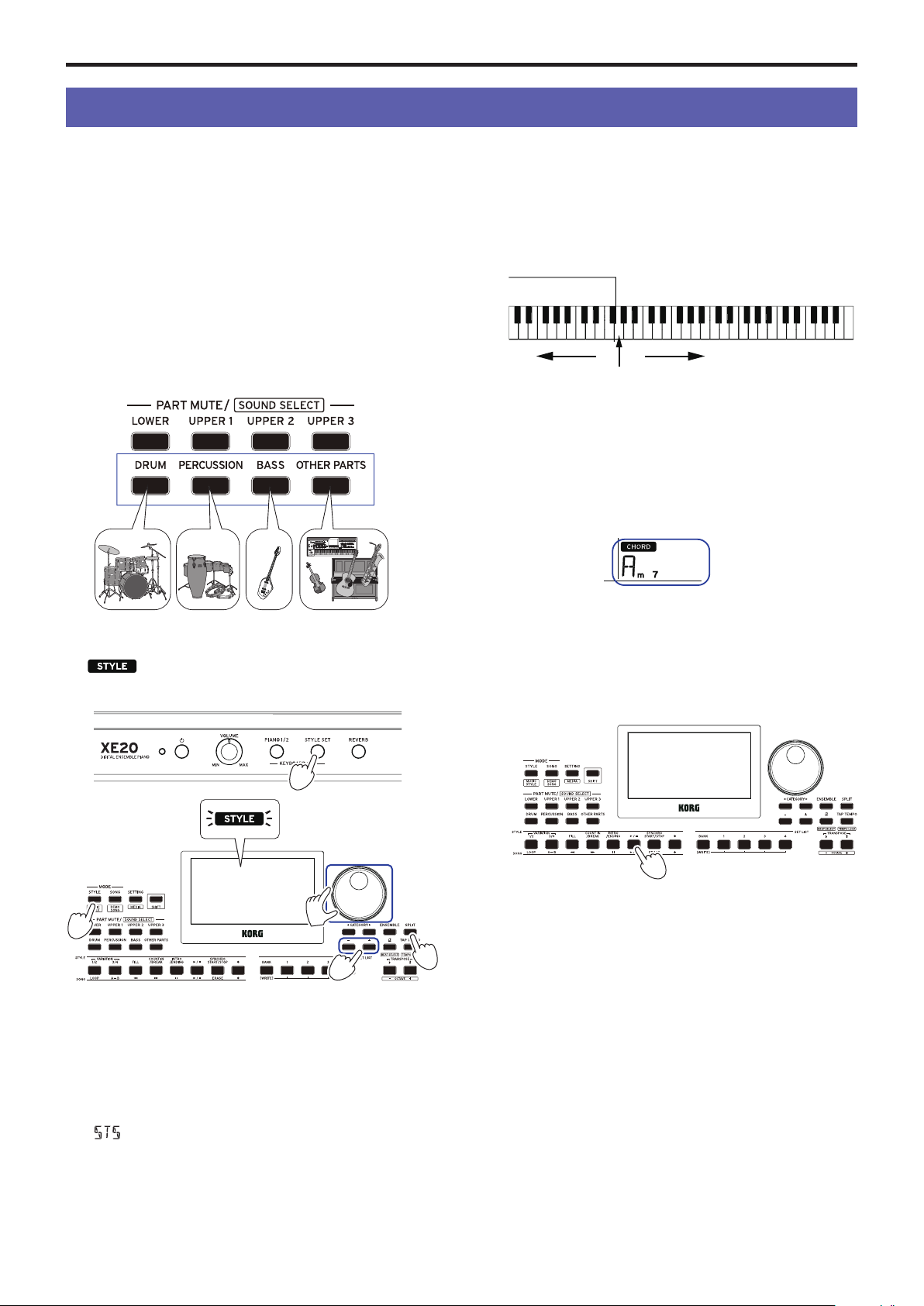
Playing along with auto-accompaniment
Auto-accompaniment is a function that automatically plays
accompaniment to match the chord that you specify. The XE20
features accompaniment paerns in various styles, such as
dance, rock, jazz, Latin and so on. These paerns are called
styles.
There are over 280 styles, divided into 17 groups.
Playing with a style you choose
The sounds used in a style (auto-accompaniment) are assigned
to four parts (drums, percussion, bass and other parts).
Together, these four parts are called an accompaniment part.
1.
Press the STYLE/[MUSIC STYLE] buon to enter style
mode.
will blink on the display, and the style name will be
shown.
2.
Select the style using the dial or the +/– buons.
Use the CATEGORY buons
t
/
u
to switch the style
between dierent musical genres.
Tip:
See the “Voice Name List” (PDF) for a list of musical
genres available for the styles.
3.
Press the STYLE SET buon.
A keyboard set that matches the style will be recalled, and
“
” (Style Set) will be displayed before the keyboard set
name.
4.
Press the SPLIT buon to activate the keyboard split
feature (the buon will light).
When you turn the split on, all keys to the le of the split
point (the lower part) will become the “chord recognition
range.”
Turn the split o to make the entire keyboard become the
chord recognition range.
Tip:
To change the split point, press a key while holding
down the SPLIT buon. See page 14 “Changing the
sounds on the le and right (split)” for details on the split
feature.
5.
Play a chord within the chord recognition range.
The chord name that you played is recognized and shown
on the display.
Tip:
You can change how this instrument recognizes the
chords you play, by changing the Chord Detect seing in the
SETTING functions (see page 26 “Chord Detect”).
6.
Press the start/stop buon.
The auto-accompaniment will begin, and the start/stop
buon will light up green.
7.
Play a melody on the right side of the split point on the
keyboard, while playing a chord in the chord recognition
range.
When you change the chord, the accompaniment will
automatically follow along.
Tip:
See “List of chords recognized” (page 34) for a list of
the chords that this instrument can recognize.
Tip:
To change or lock the tempo, see “Adjusting the
tempo” (page 15). When you lock the tempo, the tempo
will not change when you select a dierent style.
8.
To stop the auto‐accompaniment, press the start/stop
buon.
Accompaniment part
1
3
4
2
2
ロワー・パート
アッパー1〜3パート
Chord recognition range
Split point
Left side Right side
6,8
Auto-accompaniment (style mode)
19
Making changes to the auto-
accompaniment
Adding an intro or setting a variation
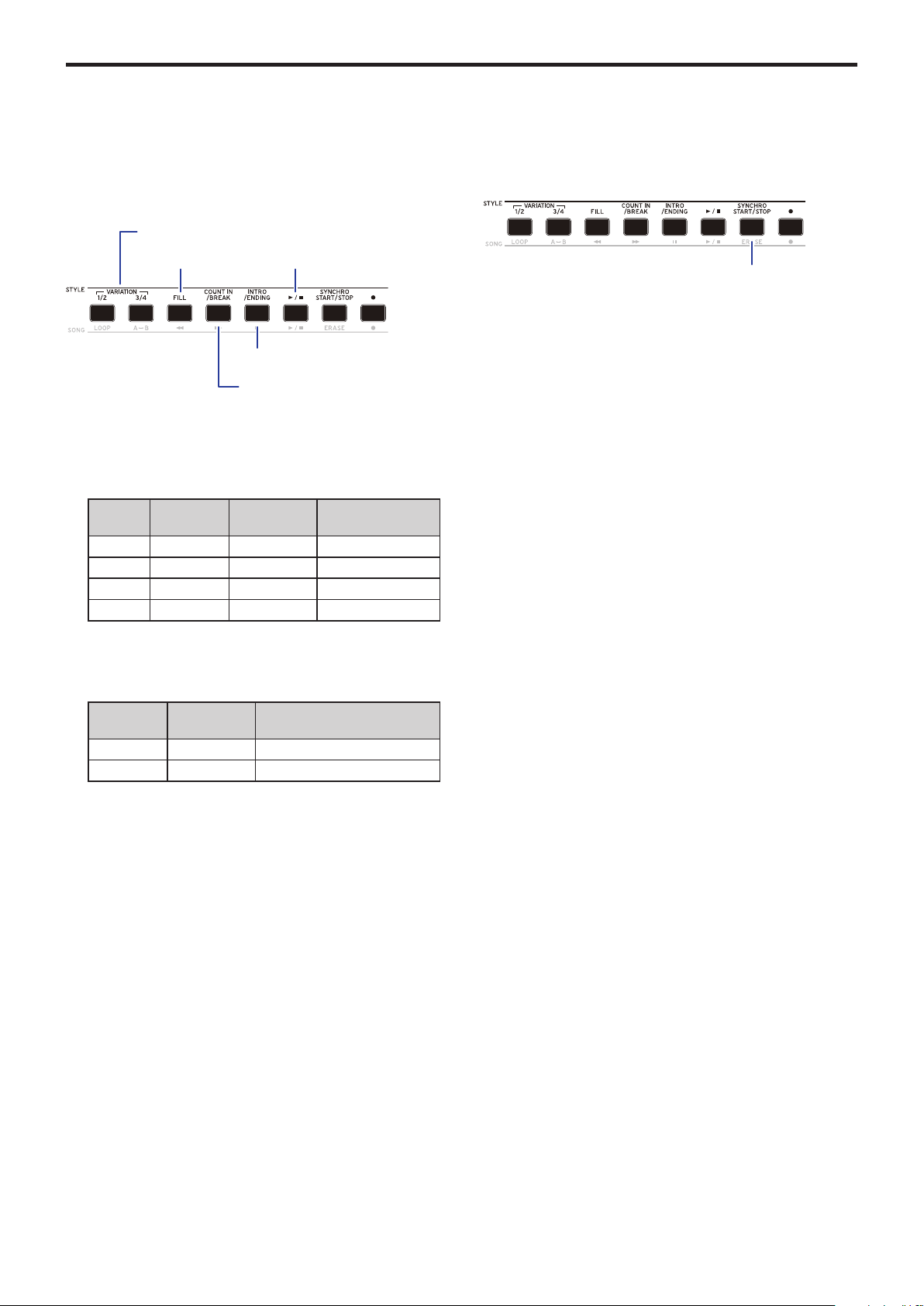
Use the buons in the STYLE section to make changes to the
auto-accompaniment, such as adding an intro, ll-ins and
breaks, and an ending.
1.
Follow steps 1–4 in “Playing with a style you choose”
(page 18).
2.
Press VARIATION buons 1/2 or 3/4 to select a variation.
Each press of the buons will switch between VARIATION
1 and 2, or VARIATION 3 and 4.
VARIATION
VARIATION
buon
Buon state Variation complexity
1 1/2 Lights green Simple
2 1/2 Lights red Slightly complex
3 3/4 Lights green Complex
4 3/4 Lights red Advanced, complex
The arrangement will become progressively more complex
as you go up from variation 1 to 4.
3.
Press the INTRO/ENDING buon to select the intro.
Each press of the buon will switch between intro 1 and 2.
INTRO/
ENDING
Buon state Intro/ending content
1 Lights green Includes chord changes
2 Lights red Chord stays the same
Tip:
When you press the INTRO/ENDING buon before
you start to play, this will select the intro; and when you
press the buon while you are playing, this will select the
ending.
4.
Play a chord within the chord recognition range.
The chord name that you played is recognized and shown
on the display.
5.
Press the start/stop buon.
The intro will begin, and then the variation accompaniment
will play back.
6.
Play the chords with your le hand and the melody with
your right hand.
7.
Press VARIATION buons 1/2 and 3/4, as well as the FILL
buon and COUNT IN/BREAK buon to change the
playback of the song while you play.
8.
To end the song, press the INTRO/ENDING buon and
select the ending.
The ending will switch between ending 1 (lights up green)
and ending 2 (lights up red) with each press of the buon.
The accompaniment will nish aer the ending.
Using the SYNCHRO START and SYNCHRO START/
STOP functions
This function allows you to start the accompaniment when you
play the keyboard (SYNCHRO START), or accompany you only
when you are playing the keyboard (SYNCHRO START/STOP).
SYNCHRO START
1.
Press the SYNCHRO START/STOP buon. The buon
will blink green.
This turns on the SYNCHRO START function.
2.
Play a chord in the chord recognition range to start the
accompaniment.
The buon will change to being continually lit in green.
3.
Press the start/stop buon to stop the accompaniment.
SYNCHRO START/STOP
1.
Press the SYNCHRO START/STOP buon several times,
to make the buon start blinking red.
This turns on the SYNCHRO START/STOP function on.
2.
When you play a chord in the chord recognition range, the
accompaniment will start; and when you take your ngers
o the keyboard the accompaniment will stop. Playing
again will restart the accompaniment.
The buon will blink green while the accompaniment is
playing.
3.
To cancel SYNCHRO START/STOP, press the SYNCHRO
START/STOP buon several times to make the buon go
dark.
VARIATION 1/2, 3/4
FILL
INTRO/ENDING
COUNT IN/BREAK
Start/Stop
SYNCHRO START/STOP
Auto-accompaniment (style mode)
20
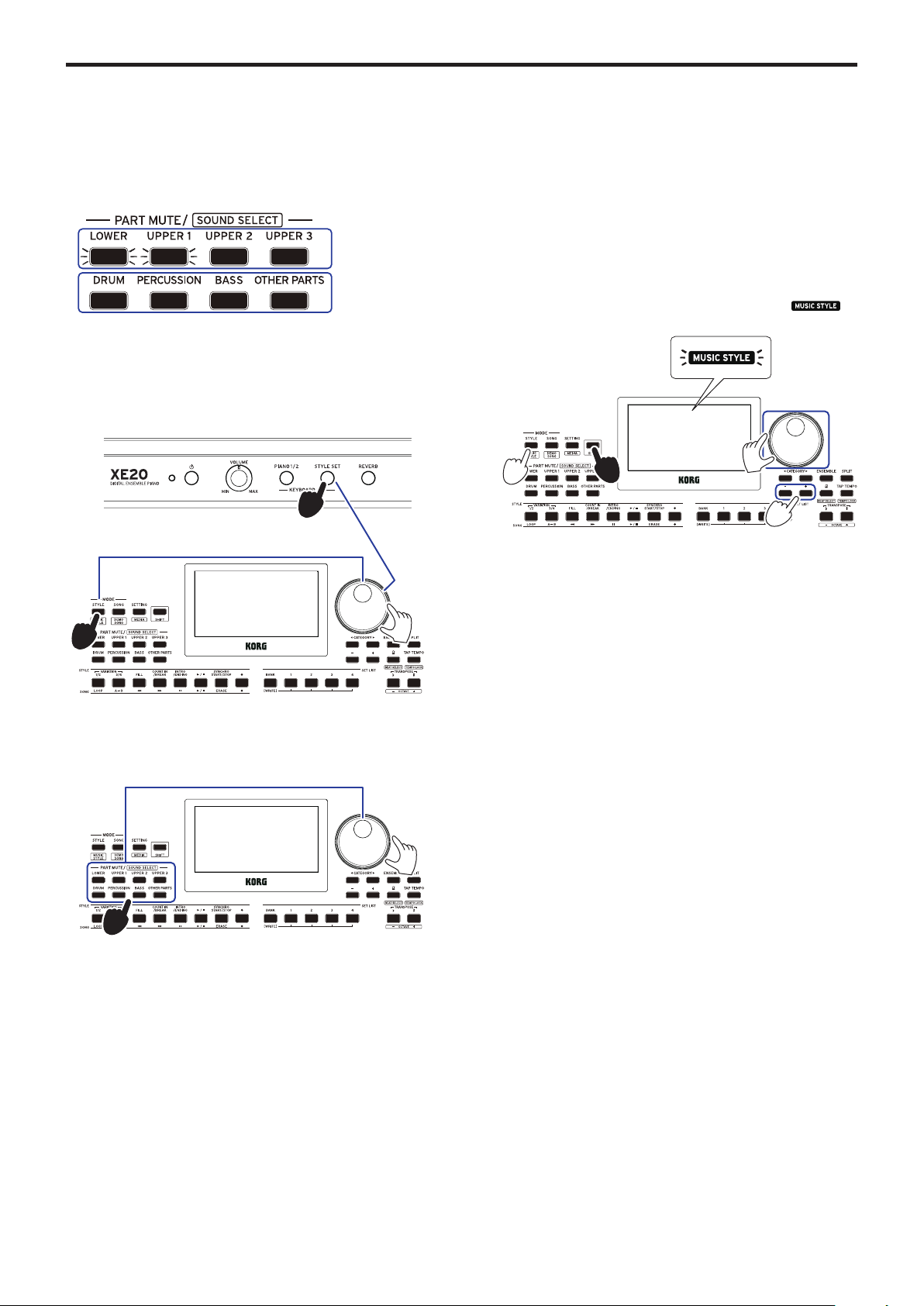
Adjusting the volume of the keyboard and
accompaniment parts
You can adjust the volume balance between the keyboard and
accompaniment parts. This is useful for making a solo that you
play on the keyboard stand out over the accompaniment, or for
simply performing with good sound balance.
y
Adjusting the overall volume of the keyboard part (upper
1–3 and lower): Turn the dial while holding down the
STYLE SET buon.
y
Adjusting the overall volume of the accompaniment part
(drums, percussion, bass and other parts): Turn the dial
while holding down the STYLE/[MUSIC STYLE] buon.
y
Adjusting the volume of individual parts:
Turn the dial
while holding down the respective buons in the PART
MUTE/[SOUND SELECT] section.
Choosing a music style and playing
Instead of choosing a style, you can select a music style and
then play or record.
A music style is based on a style, but is optimized to include
a keyboard set that easily matches the mood of existing songs,
and contains other seings like tempo.
You can use music styles when playing music from your
favorite genre.
Note:
The music styles cannot be saved to a set list.
1.
Press the STYLE/[MUSIC STYLE] buon while holding
down the [SHIFT] buon.
The instrument will enter music style mode, and
will blink on the display.
2.
Use the dial or the +/– buons to select a music style.
Tip:
See the “Voice Name List” (PDF) for a list of music
styles available.
3.
Follow steps 3 and on in “Playing with a style you choose”
(page 18), or steps 2 and on in “Adding an intro or
seing a variation” (page 19).
Tip:
You can also mute the sound or adjust the volume
of the part, as shown in “Making changes to the auto-
accompaniment” (page 19).
Keyboard part
Accompaniment part
Accompaniment part volume
Keyboard part
volume
Volume of each part
1
1
2
2
Auto-accompaniment (style mode)
21
Saving the set list (WRITE)
A set list contains saved seings such as style, tempo, keyboard
set and eect seings. Once you have customized the seings
for a style, we recommend that you save your seings as a set
list.
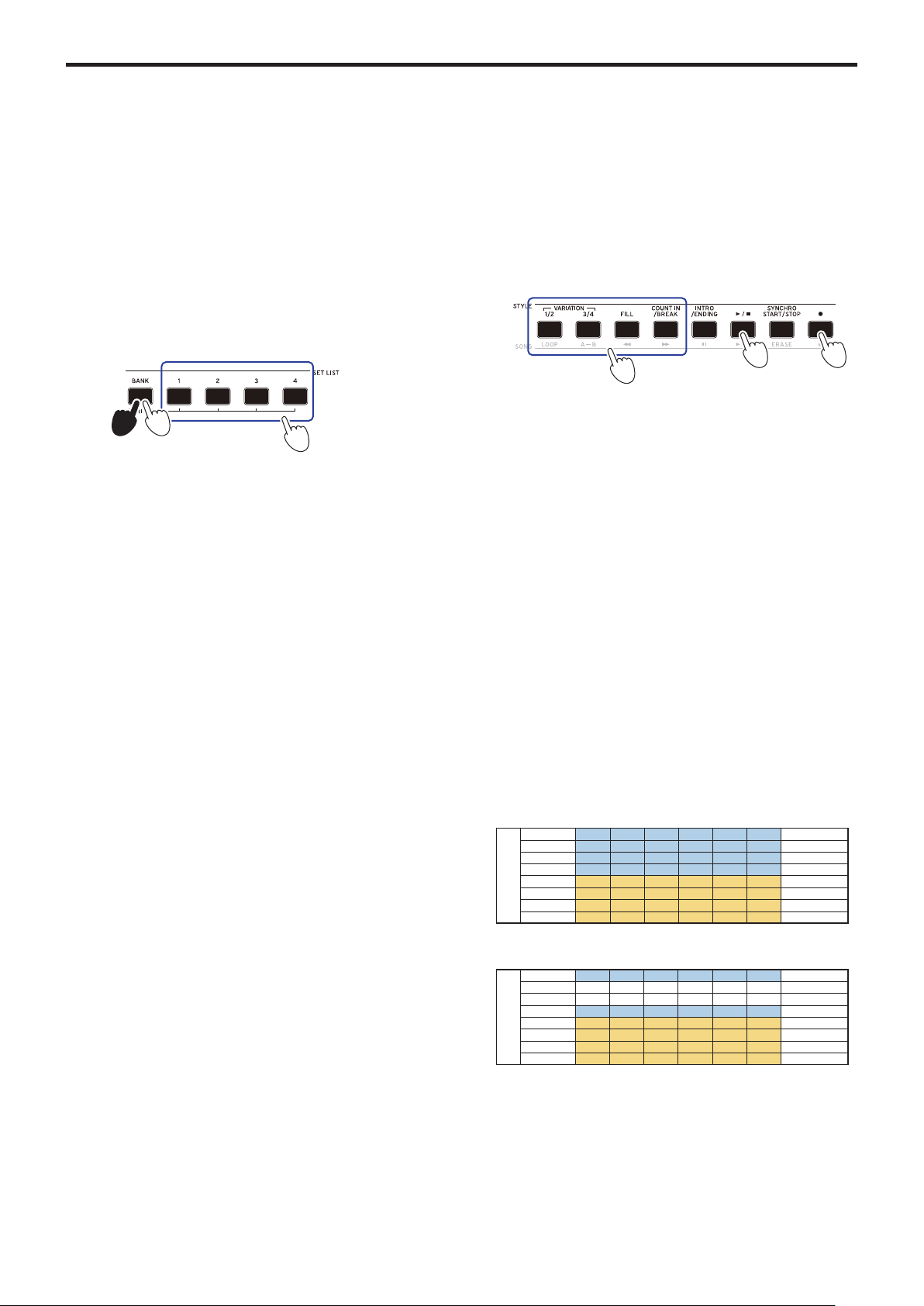
1.
In style mode, customize the style such as changing the
sound of the keyboard part, changing the octave and so
on.
2.
Press the BANK/WRITE buon to select the bank to save
to.
The bank will change in sequential order (A
"
B
"
C...J
"
A...)
with each press of the BANK/WRITE buon.
• Banks A–B: preloaded
• Banks C–J: initialized
Tip:
Press the BANK/WRITE buon while holding the
[SHIFT] buon to reverse the order.
3.
Press one of buons 1–4 while holding down the BANK/
WRITE buon.
Your seings will be saved to the set list, and the buon you
pressed will light.
Tip:
Bank A-1 will be selected right aer the power is
turned on.
The seings shown below are saved in the set list.
y
Styles
Style number, volume, variation, intro
y
Keyboard sets
Keyboard set number, volume, octave seings
y
Part
Sounds assigned to each part, volume, mute, octave seings
y
Other seings
Eect selected for eect 1 and 2, send level for eect 1 and 2,
tempo, transpose, split on/o, split point, ensemble on/o,
metronome volume, speaker EQ
Note:
Note that the section may not correctly change when you
switch set lists while playing, depending on the set list.
Recording your performance
You can record as you play along with the auto-accompaniment.
1.
Follow steps 1–5 in “Playing with a style you choose”
(page 18), or steps 1–4 in “Adding an intro or seing a
variation” (page 19).
Tip:
You can also mute the sound or adjust the volume
of the part, as shown in “Making changes to the auto-
accompaniment” (page 19).
2.
Press the record buon to put the instrument in record
standby mode (the buon will light red).
Note:
Parts that are muted will not be recorded. To record
a part, make sure that muting is canceled (see page 13
“Muting parts and changing sounds”).
3.
Press the start/stop buon to begin recording.
4.
Play the chords with your le hand and the melody with
your right hand.
5.
Press VARIATION buons 1/2 and 3/4, as well as the FILL
buon and COUNT IN/BREAK buon to change the
playback of the song while you play.
6.
To nish recording, press the start/stop buon or the
INTRO/ENDING buon.
The data that you recorded will automatically be saved as a
user song.
Tip:
The name of the user song will be “UserSong,” with a
sequential number added to the end. Up to 999 songs can be
recorded.
Tip:
See “Playing along with a song” (page 22) when you
want to listen to a user song.
Tip:
You can make simple edits to user songs (see page 23
“Editing a song”).
Tip:
You can record just the keyboard part (for example, when
playing the piano) without using auto-accompaniment.
Before pressing the record buon as shown in step 2, press
each of the buons for the accompaniment parts (DRUM,
PERCUSSION, BASS, OTHER PARTS) to mute them (the
buons will go dark), and then press the SPLIT buon to turn
the split o.
Refer to “Muting parts and changing sounds” (page 13) for
more on how to mute a part.
3
2
3
3,6
2
5
Rec Start Rec Stop
↓ ↓
Mute
Mute
Upper 1 MIDI ch 1
Upper 2 MIDI ch 2
Upper 3 MIDI ch 3
Lower MIDI ch 4
Bass MIDI ch 9
Drum MIDI ch 10
Percussion MIDI ch 11
Other Parts MIDI ch 12-16
Part
Recording
Rec Start Rec Stop
↓ ↓
Upper 1 MIDI ch 1
Upper 2 MIDI ch 2
Upper 3 MIDI ch 3
Lower MIDI ch 4
Bass MIDI ch 9
Drum MIDI ch 10
Percussion MIDI ch 11
Other Parts MIDI ch 12-16
Part
Song mode
22
Song mode
Listening to the demo songs
The XE20 has 21 built-in demo songs. This shows you how to
listen to the songs.
Tip:
See “Playing along with a song” (page 22) for how to
play along with a demo song.
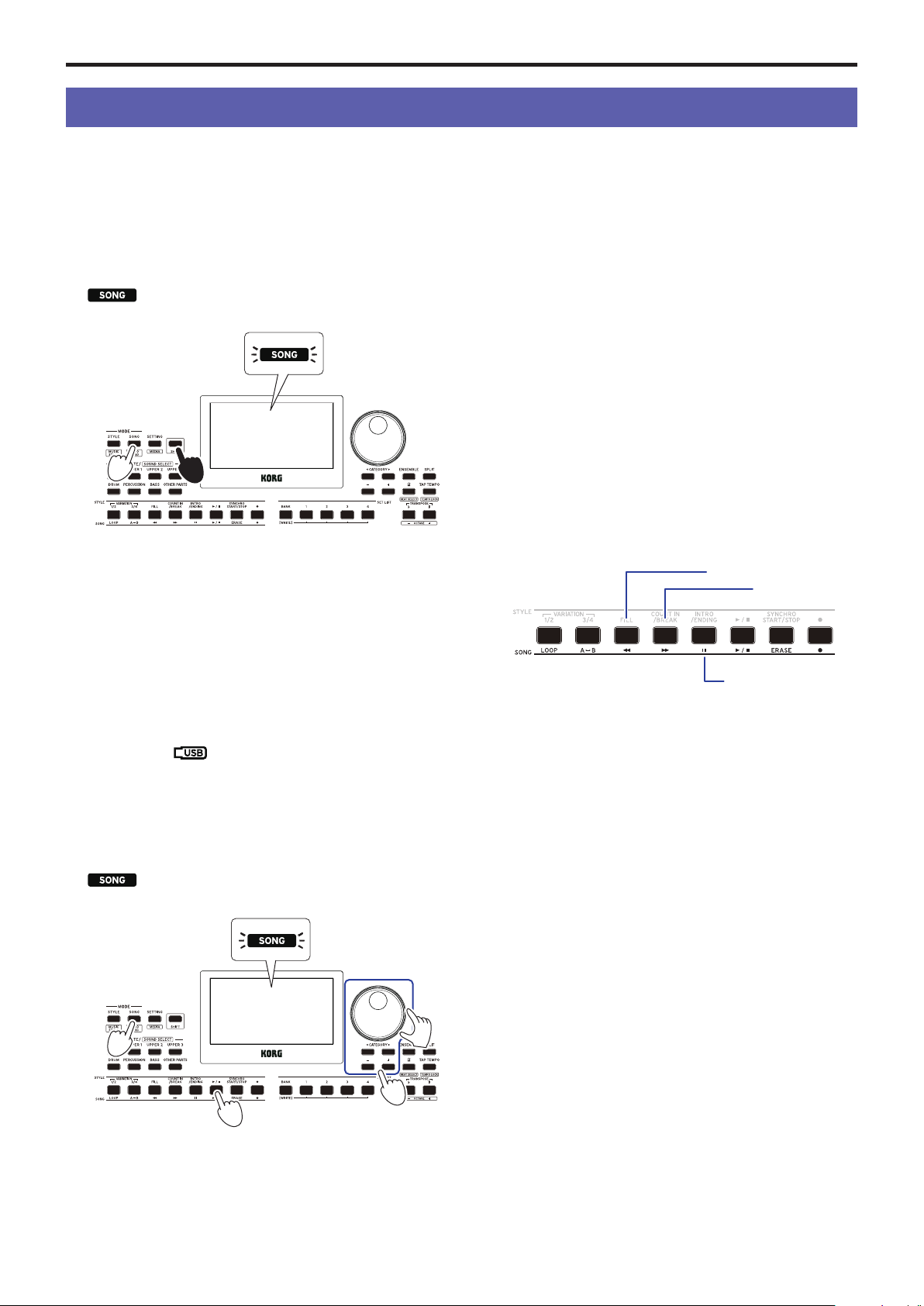
1.
Press the SONG/[DEMO SONG] buon while holding
down the [SHIFT] buon.
will blink in the display, and the demo songs will
start playing back in order from song D01.
1
1
When you want to play back a specic demo song, use the
dial or the +/– buons to select the demo song. The demo
songs will play back starting with the song you selected.
2.
Press the [SHIFT] buon to stop.
Playing along with a song
You can play the XE20 while playing back a song.
y
To play back an MP3, WAV or standard MIDI le on a
USB ash drive, connect the USB ash drive with your
data to the USB TO DEVICE port of the real panel on this
instrument.
The USB icon (
) will be shown in the top right of the
display.
Tip:
See “MEDIA functions” (page 28) for more
information on the devices and playback formats supported
by the XE20.
1.
Press the SONG/[DEMO SONG] buon to enter song
mode.
will blink on the display, and the song name will be
displayed.
1
3,5
2
2
2.
Select the song type using the CATEGORY buons t/u,
and use the dial or the +/– buons to select the song.
The song types and SONG/[DEMO SONG] buon states are
as follows:
D01–D21: Demo song (blinks green)
001–999: User song (blinks red)
M01–M99: Music data (blinks green)
Note:
User songs are recordings of songs that you have
played on the XE20 (see page 21 “Recording your
performance”).
3.
Press the start/stop buon (the buon will light up green).
4.
Play the keyboard along with the song.
Tip:
To change the tempo, see “Adjusting the tempo”
(page 15).
5.
To stop playback of a song, press the start/stop buon.
Tip:
The user songs can be edited and then saved to USB
ash drive (see page 23 “Editing a song” and page 29
“Song Convert”).
Playing back using dierent methods
Rewinding, fast-forwarding or pausing a song
y
Rewind buon: Press this once to go back one measure. (For
MP3 and WAV les, this will go back two seconds.)
Hold down the buon to continue rewinding.
y
Fast-forward buon: Press this once to move forward one
measure. (For MP3 and WAV les, this will move forward
two seconds.)
Hold down the buon to continue fast-forwarding.
y
Pause buon: Press this during playback to pause. Press the
buon again to resume playback from where you stopped.
Rewind
Fast-forward
Pause
Song mode
23
Playing back part of a song in a loop
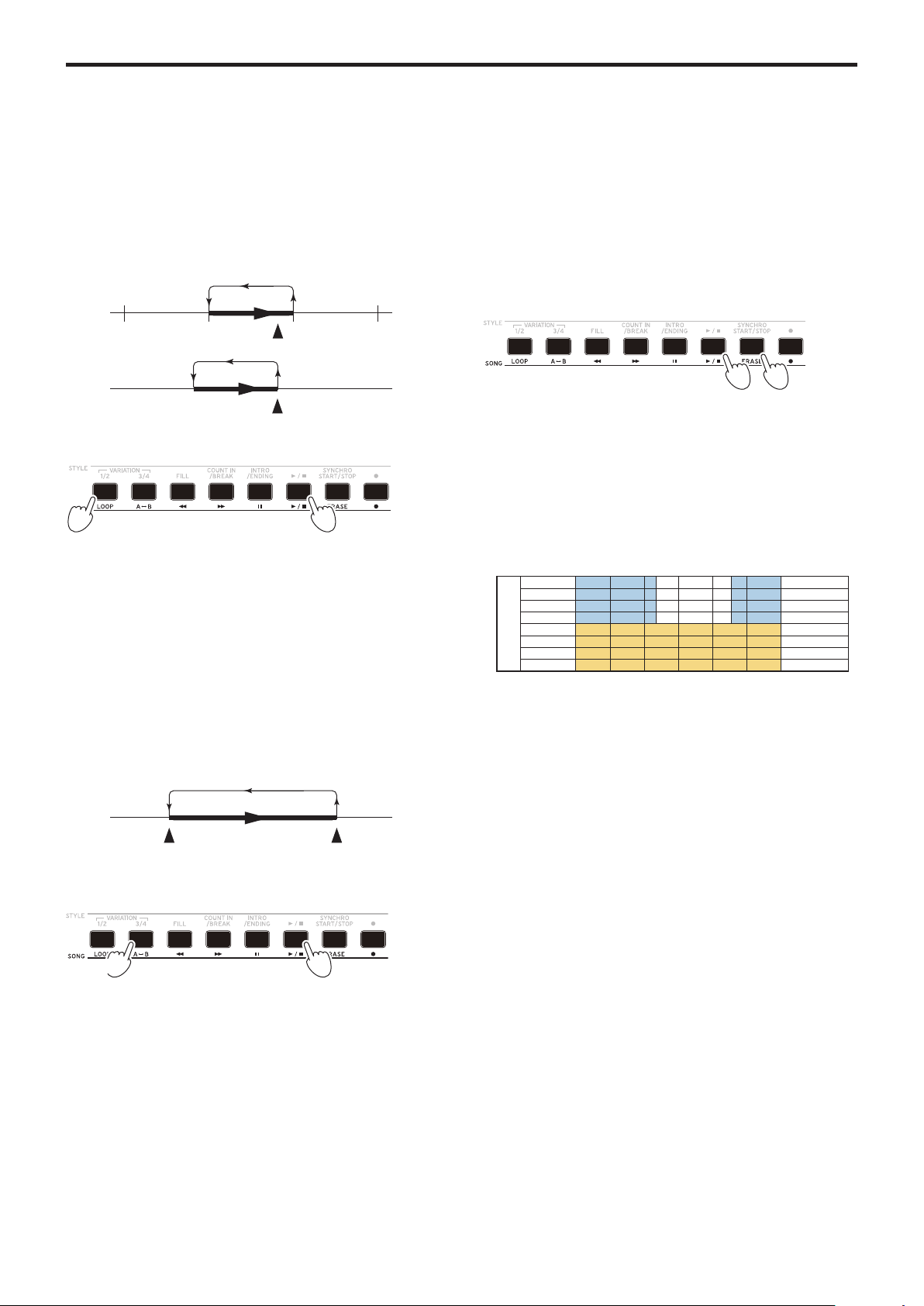
This feature lets you play back part of a song over and over (loop
playback).
Quick loop playback
Press the LOOP buon to loop the playback of the current
measure. (For MP3 and WAV les, playback will be looped
from 1 second prior to the point where the LOOP buon was
pressed.)
(MP3, WAV)
1 measure
1 sec.
1.
Press the start/stop buon to play back the song.
2,3
1
2.
Press the LOOP buon at the measure (position) where
playback will loop back (the buon will light up green).
Tip:
The loop can be extended to play back for a maximum
of 9 measures before (or 9 seconds before, in the case of MP3
and WAV les). Use the dial during loop playback to extend
the length of the loop.
3.
To cancel loop playback, press the LOOP buon again.
The instrument will return to normal playback, and the
buon will go dark.
A–B loop playback
Use the A1 B buon to specify a part of a song to play back in
an A–B loop.
1.
Press the start/stop buon to play back the song.
2,3,4
1
2.
Press the A1 B buon at the start of where you want to
begin the loop (the buon will blink green).
3.
Press the A1 B buon again at the end of where you want
to end of the loop (the buon will light up green).
This will play back the song in a loop between points A and
B.
4.
To cancel the loop playback, press the A1 B buon.
The instrument will return to normal playback, and the
buon will go dark.
Editing a song
You can edit the user songs.
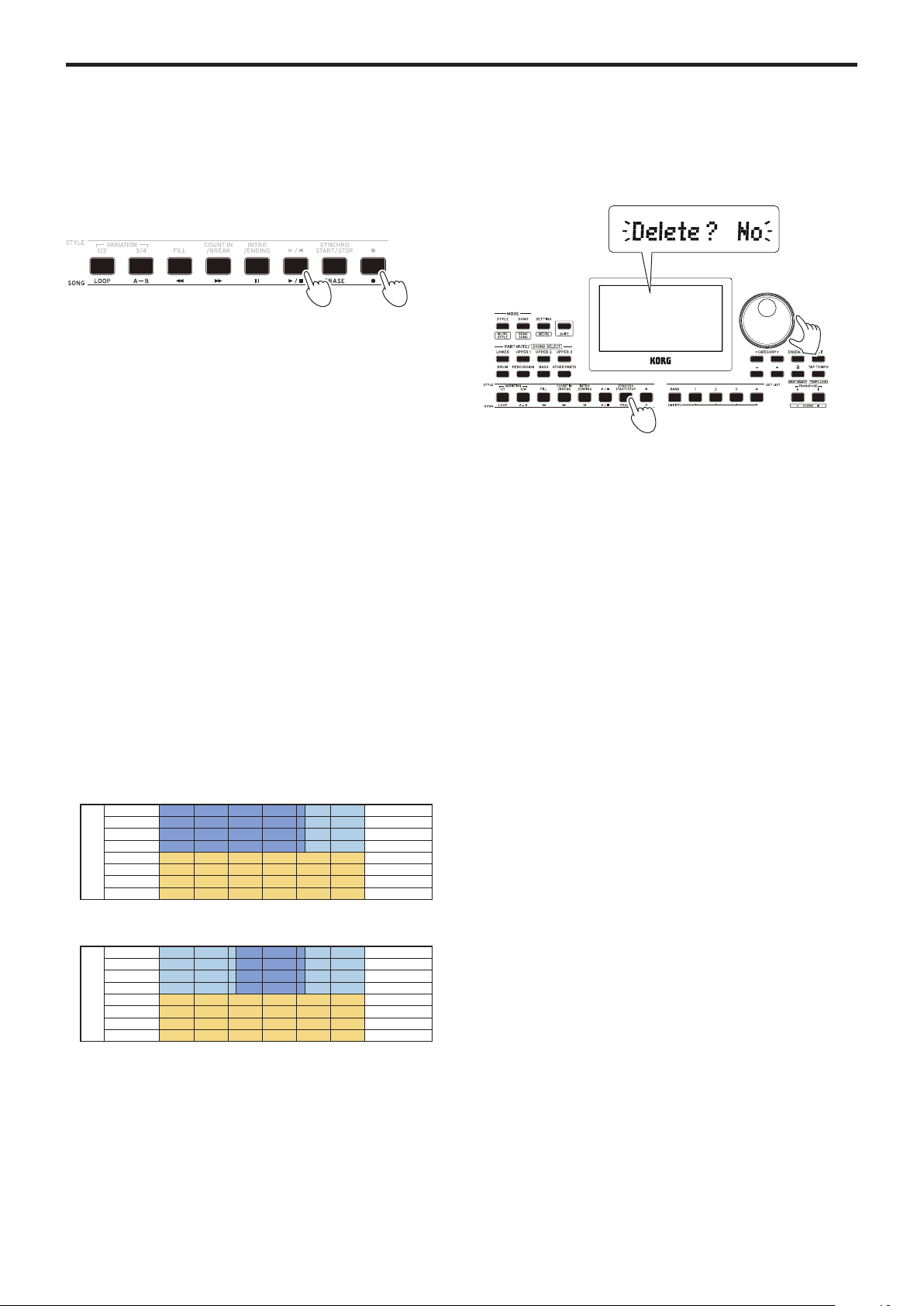
Erasing part of a recording (erase function)
Here’s how to erase part of what you played using the keyboard
part in a user song.
Note:
This will erase a specied range for the keyboard part,
whether it is muted or not.
1.
Select a user song.
2.
Press the start/stop buon to play back the song.
3,4
2
3.
Press the ERASE buon at the point where you want to
start erasing (the buon will light up red).
4.
Press the ERASE buon again at the point where you want
to stop erasing (the buon will go dark).
Tip:
To erase a dierent part, press the start/stop buon to
stop playback, and go to step 2 to erase.
Erase
Erase On Erase Off
↓ ↓
Upper 1 MIDI ch 1
Upper 2 MIDI ch 2
Upper 3 MIDI ch 3
Lower MIDI ch 4
Bass MIDI ch 9
Drum MIDI ch 10
Percussion MIDI ch 11
Other Parts MIDI ch 12-16
Part
BA
Song mode
24
Overlaying parts when recording (overdubbing
function)
You can overlay parts that you play using the keyboard part
when recording a user song. You can also record changes in the
sounds used for the keyboard and accompaniment parts.
1.
Select a user song.
2.
Press the start/stop buon to play back the song.
3.
Press the record buon.
The buon will light up red, and overdubbing will begin.
4.
Play the keyboard and make changes to the sounds.
y
To change the sounds of a part, press the PART buon
while holding down the [SHIFT] buon, and use the dial
or the +/– buons to select a sound.
When you change the sound, that information is recorded in
the part.
Note:
During overdubbing, you can mute or unmute the
keyboard part, but this will not be recorded.
Note:
To record changes to the sound, make the changes
while the part is unmuted. Changes to a sound can be made
to any part besides the other parts. The changes you make to
a sound, as well as your keyboard playing will be recorded
while the part is unmuted.
5.
Press the record buon when you are nished changing
the notes you recorded.
The buon will go dark, and overdubbing will end. The rest
of the song will then play back.
Note:
To overdub again, press the start/stop buon to stop
playback, and follow the steps from step 2 on.
y
To check the song that you have overdubbed your playing
on, press the start/stop buon and then unmute the part
you overdubbed.
Song Play Rec Stop
↓ ↓
Upper 1 MIDI ch 1
Upper 2 MIDI ch 2
Upper 3 MIDI ch 3
Lower MIDI ch 4
Bass MIDI ch 9
Drum MIDI ch 10
Percussion MIDI ch 11
Other Parts MIDI ch 12-16
Part
Overdubbing
Rec Start Rec Stop
↓ ↓
Upper 1 MIDI ch 1
Upper 2 MIDI ch 2
Upper 3 MIDI ch 3
Lower MIDI ch 4
Bass MIDI ch 9
Drum MIDI ch 10
Percussion MIDI ch 11
Other Parts MIDI ch 12-16
Part
Rec Start
↓
Overdubbing
Overdubbing
Overdubbing
Overdubbing
Overdubbing
Overdubbing
Overdubbing
Overdubbing
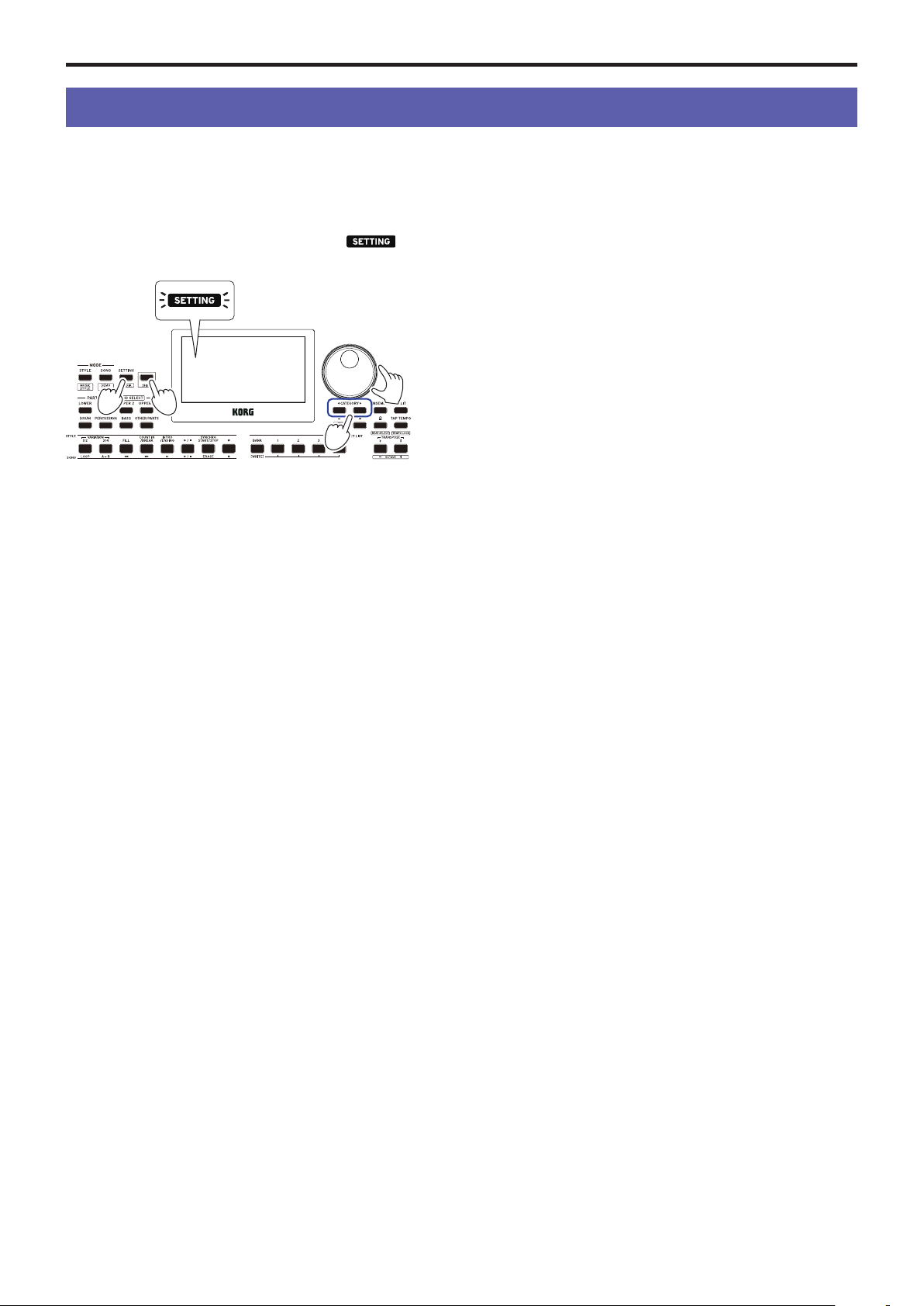
Deleting a user song
This will delete a user song that you have selected.
1.
Select a user song.
2.
Press the ERASE buon.
“Delete? No” will appear on the display.
3.
Turn the dial to select “Yes”.
4.
Press the ERASE buon.
The user song will be deleted, and the display will show
“Completed”.
3,5
2
3
2,4
SETTING functions
25
SETTING functions
Basic methods of use
The basic methods of using the SETTING functions are shown
below.
1.
Press the SETTING/[MEDIA] buon.
This will enter the SETTING functions, and
will
blink on the display.
2.
Press the CATEGORY buon t/u and select the
parameter to set.
3.
Turn the dial to select a value.
4.
Aer you are nished, press the [SHIFT] buon to return
to the previous mode.
Main SETTING functions
Changing the auto power-o function
This instrument has an auto power-o function that
automatically turns o the power when the unit has not been
played or operated for a certain length of time. The time interval
is set to 30 minutes at factory default, but this can be changed.
1.
In the SETTING functions, press the CATEGORY buon
t/u several times to select “P23:Auto PowerO”.
2.
Turn the dial to select “Disable” or a specic time aer
which the power will turn o.
3.
Press the [SHIFT] buon to return to the previous mode.
Changing the pedal polarity
If the pedal connected to the FOOT CONTROLLER jack does
not sustain the sound even when pressed, and if the sound
sustains when you take your foot o the pedal, you will need to
change the pedal polarity on this instrument.
1.
In the SETTING functions, press the CATEGORY buon
t/u several times to select “P03:Pedal Polarity”.
2.
Turn the dial to change the polarity.
− (KORG): This is the factory default seing. Use this seing
when using a DS-1H, PS-1 or PS-3 pedal.
+ (Reverse): Use this seing when the eect of the pedal
appears to be reversed.
3.
Press the [SHIFT] buon to return to the previous mode.
Changing the pedal function
Change the pedal function on this instrument to match the type
of pedal connected, whether a pedal switch, expression pedal or
volume pedal.
1.
Connect the pedal to the FOOT CONTROLLER jack.
2.
In the SETTING functions, press the CATEGORY buon
t/u several times to select “P02:Pedal Function”.
3.
Turn the dial to select the pedal function.
No Assign: Use this when you are not using a pedal.
Damper: This is the factory default seing. Select this when
using a damper pedal or a pedal switch like the Korg DS-
1H, PS-1 or PS-3.
Expression: Select this when using a expression pedal like
the Korg EXP-2.
4.
Press the [SHIFT] buon to return to the previous mode.
1
4
3
2

SETTING functions
26
List of SETTING functions
(*: Factory default seing value)
Page Parameter Seings Contents of seings
P.01 KeyResponse So Touch
Medium Touch*
Hard Touch
Fixed_001...127
You can specify how the sound changes in response to the force used when you press a
key on the keyboard.
The “So Touch” seing produces a louder sound than usual when you play soly on
the keyboard; and the “Hard Touch” seing produces a soer sound than usual, until
you play harder. The “Fixed_001” through “Fixed_127” seings produce a set volume
like with an organ, regardless of how hard or so you play the keyboard.
P.0 2 Pedal Function No Assign
Damper*
Expression
See page 25 “Changing the pedal function”.
P.0 3 Pedal Polarity -(KORG)*
+(Reverse)
See page 25 “Changing the pedal polarity”.
P.0 4 MasterTuning 427.5 ... 440.0* ...
452.9 Hz
Sets the overall tuning for the instrument (drums excepted).
P.0 5 Chord Detect Fingered1*
Fingered2
Fingered3
Fingered3/Bass
One Finger
Sets the method of chord recognition.
This seing is enabled when the split function is on. When split is o, “Fingered3” is
enabled.
Fingered1: You can play a single note or multiple notes. When you play a single note,
this is recognized as a major chord.
Fingered2: You can play a single note or multiple notes. Playing only one note will play
back in unison. The root and the 5th will be recognized as a major chord when you play
them.
Fingered3: You always need to play at least three notes for the chord to be recognized.
Fingered3/Bass: The Fingered3 seing is enabled, with the addition of bass inversions.
The lowest note of an inverted chord (the lowest note that you play of a chord) is always
considered to be the root of the chord. You can use this to make specify composite
chords like Am7/G, F/C and so on.
One Finger: Chord recognition works as follows.
- Single notes played are recognized as major chords.
- Play the root of the chord and then the white note to the le of it together for a seventh
chord (for example. if you play C3 and B2 together, you will get a C7 chord).
- Play the root of the chord and then the black note to the le of it together for a minor
chord (for example, if you play C3 and B
♭
2 together, you will get a C minor chord).
- Play the root of the chord and then the black and white notes to the le of it together
for a minor seventh chord (for example, if you play C3, B2 and B
♭
2 together, you will
get a Cm7 chord).
P.0 6 UpperScaleTyp
(Upper Scale Type)
KeyboardSet*
Equal
PureMajor
PureMinor
Arabic
Pythagorean
Werckmeister
Kirnberger
Slendro
Pelog
“P.06 UpperScaleTyp” sets the scale for the upper part.
“P.07 StyleScaleTyp” sets the scale used for the style accompaniment part and the lower
part.
KeyboardSet: This is the scale set for each style.
Equal (equal temperament tuning): This is a widely-used scale in general use, where the
dierence in pitch between each semitone is uniform.
PureMajor (just temperament major scale): This is a scale in which the major chord for
the primary overtones selected harmonizes perfectly.
PureMinor (just temperament minor scale): This is a scale in which the minor chord for
the primary overtones selected harmonizes perfectly.
Arabic: This is a scale that includes quarter tones used in Arabian music.
Pythagorean: This is the scale used in ancient Greece, and is eective for playing
melodies.
Werckmeister: This is an equal temperament tuning used in later-era baroque music.
Kirnberger: This was a scale created in the 18th century, mainly used for harpsichord
tuning.
Slendro: This is a scale used on gamelans in Indonesia, with ve notes per octave.
Pelog: This is another scale used on gamelans in Indonesia, with seven notes per octave.
When the key is set to “C”, use only white notes when playing (the black note pitches
use equal temperament tuning).
P.0 7 StyleScaleTyp
(Style ScaleType)
Equal*
PureMajor
PureMinor
Arabic
Pythagorean
Werckmeister
Kirnberger
Slendro
Pelog
P.0 8 Tap Auto Start Disable
Enable*
Pressing TAP TEMPO/[TEMPO LOCK] buon continuously will set whether
performance begins automatically or not.
P.0 9 MIDI Clock Internal*
External
Sets whether the MIDI clock of this instrument is controlled by the internal clock
(Internal) or by an external clock (External).

SETTING functions
27
Page Parameter Seings Contents of seings
P.10 Local Control O
On*
Sets whether the sound generator of this instrument will play or not (“On” to play, “O”
to not play) when the keyboard is played.
On: Notes that you play on the keyboard and MIDI data will be sent to the internal
sound generator and to the USB TO HOST port.
O: Notes that you play on the keyboard and MIDI data will be sent to the USB TO
HOST port, but the internal sound generator will not sound. Turn this seing to “O”
when this instrument is connected to a computer that is set to echo back and when
you want to use this instrument as a sound generator, in order to prevent notes from
sounding in duplicate.
P.11 Audio In Level 0 ... 100* ... 127 Sets the input level from audio devices connected to the AUDIO IN jack.
P.12 Speaker EQ Standard, Bass Boost*,
Bass Cut, Treble Boost,
Treble Cut, Mid Boost,
Mid Cut, Loudness
See page 17 “Selecting an equalizer (EQ)”.
Standard: Outputs a standard, natural sound.
Bass Boost: Boosts the low range.
Bass Cut: Cuts the low range.
Treble Boost: Boosts the high range.
Treble Cut: Cuts the high range.
Mid Boost: Boosts the mid-frequency range.
Mid Cut: Cuts the mid-frequency range.
Loudness: Increases the overall loudness of the sound.
P.13 Speaker O, On*
See page 30 “When you will not be using the built-in speakers”.
P.14 Fx1 Send Level
Lower
0...127
See page 17 “Applying eects”.
P.15 Fx1 Send Level
Upper1
0...127
P.16 Fx1 Send Level
Upper2
0...127
P.17 Fx1 Send Level
Upper3
0...127
P.18 Fx2 Send Level
Lower
0...127
P.19 Fx2 Send Level
Upper1
0...127
P. 2 0 Fx2 Send Level
Upper2
0...127
P. 2 1 Fx2 Send Level
Upper3
0...127
P. 2 2 Auto PowerO
Disable,
5, 10, 30*, 60,
120 Minutes
See page 25 “Changing the auto power-o function”.

MEDIA functions
28
MEDIA functions
Connecting and removing USB ash drives
1.
Turn o the power.
2.
Connect a USB ash drive (commercially available) to the
USB TO DEVICE port.
Make sure that the USB ash drive is facing the right
direction when you insert it. If you try to push the drive in
the wrong way too hard, the port on the instrument or the
drive itself may break, or you may lose your data.
3.
Turn the power back on.
The USB icon (
) will be shown in the top right of the
display.
Note:
If does not display, turn o the power and
reconnect the USB ash drive.
Note:
Be sure to format the USB ash drive before using it for
the rst time on this instrument.
When removing the USB ash drive, be sure to turn o the
power rst.
Basic method of use
The basic method of making seings using the MEDIA
functions is as shown below.
The MEDIA functions will not work unless you plug a USB
ash drive into this instrument.
1.
Connect a USB ash drive.
See “Connecting and removing USB ash drives”
(page 28).
2.
Press the SETTING/[MEDIA] buon while holding down
the [SHIFT] buon.
This will enter the MEDIA functions.
3.
Select the menu to set using the CATEGORY buons t/u.
4.
Press the BANK/WRITE buon.
“Cancel [<]” will be displayed.
5.
Turn the dial to select the next function, and follow the
directions shown in the display.
For instance, to select “Yes [WRITE]”, press the BANK/
WRITE buon to go to the next step. To select “Cancel [<]”,
press the CATEGORY buon
t
to stop the operation and
return to step 2.
6.
When the operation is nished, the message “Completed!”
will be displayed. Press the [SHIFT] buon to return to
the previous mode.
Formatting a USB ash drive
In order to use a USB ash drive on this instrument, you will
need to format (initialize) it rst.
1.
In the MEDIA functions, press the CATEGORY buon t/
u and select “Media Format”.
The message “Enter [WRITE]” will be displayed.
2.
Press the BANK/WRITE buon.
“Cancel [<]” will be displayed.
3.
Turn the dial to select “Yes [WRITE]”, and press the
BANK/WRITE buon.
“Are You Sure?” will be displayed.
4.
Turn the dial to select “Yes [WRITE]”, and press the
BANK/WRITE buon.
5.
When the operation is nished, the message “Completed!”
will be displayed. Press the [SHIFT] buon to return to
the previous mode.
Loading user styles
You can load and use Pa50, Pa50SD and microARRANGER user
styles on the XE20.
Copy the user styles (les with an .STY extension) and the user
programs (le with a .PCG extension) to a USB ash drive, and
then load them into the XE20.
Note:
Specications vary by product, so the sounds that play
back on the XE20 may sound dierent from the instrument on
which you created the original data.
1.
On your computer, create a folder named “XE20” on the
root directory of your USB ash drive, and then make a
“STYLE” and “PROGRAM” subfolder in that folder.
2.
Copy the user styles to the STYLE folder, and the user
programs to the PROGRAM folder.
• User styles
From USER01.STY to USER06.STY
• User programs
USER01.PCG, USER02.PCG, USERDK.PCG
Tip:
You can select specic data to load for the user styles
and user programs.
3.
Connect the USB ash drive that contains your user style
and user program data to the USB TO DEVICE port of the
XE20.
4.
Following the “Basic method of use,” select and execute
“UserStyleLoad” in the MEDIA function.
5.
When the operation is nished, the message “Completed!”
will be displayed. Press the [SHIFT] buon to return to
the previous mode.
The user styles will be loaded into the XE20 memory from
style 901. onward, and the user programs will be loaded
into memory from sound 001. onward. A dot (“.”) will be
shown aer each number.
Note:
If you load a dierent user style aer loading these
styles, the previous user styles will be erased.
MEDIA functions
29
List of MEDIA functions
Page Menu Contents of seings
P.01 SetListBackUp Saves all set lists to the USB ash
drive.
P.0 2 SetListRestore Loads all set lists from the USB ash
drive.
P.0 3 Song Convert Saves the user songs to the USB ash
drive in SMF (Standard MIDI File)
format.
Current: This saves the user song
currently selected in song mode.
ALL: This saves all user songs.
P.0 4
UserStyleLoad
Loads Pa50, Pa50SD and
microARRANGER style data from a
USB ash drive.
See page 28 “Loading user styles”.
P.0 5 Media Format Format the USB ash drive.
See page 28 “Formaing a USB
ash drive”.
P.0 6 SystemUpdate This updates the system on this
instrument.
Storage media that can be used
The XE20 supports the use of USB storage devices such as
FAT16 or FAT32-formaed ash drives or disks.
Supported capacities
FAT32: Up to 2 TB (2,000 GB)
FAT16: Up to 4 GB
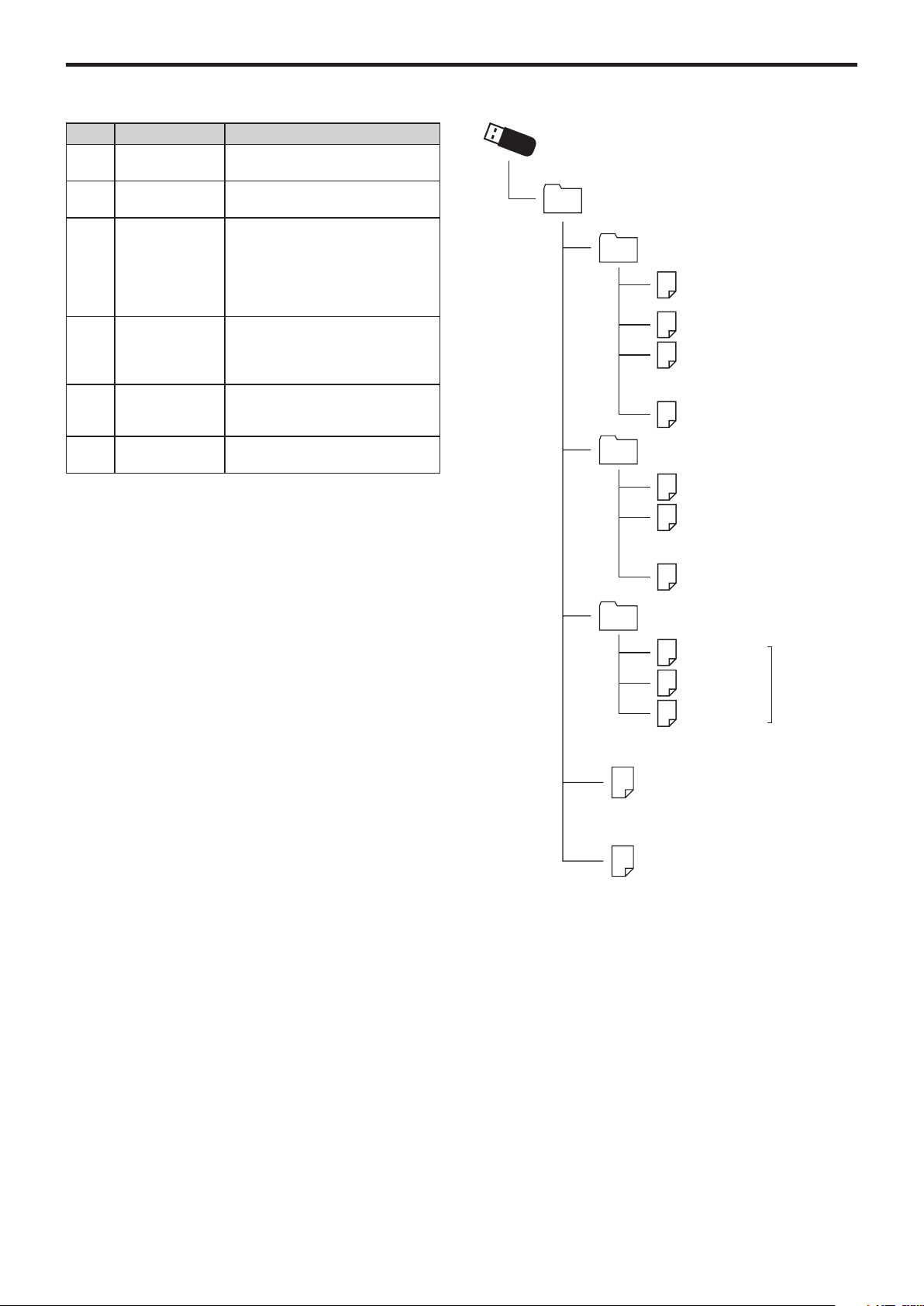
File and folder structure
When saving data to USB ash drives from this instrument, or
when formaing USB ash drive, a folder named “XE20” will
automatically be created on the media.
When using the MEDIA functions “SetListBackUp” and “Song
Convert”, the les shown below will be saved to the folder.
SetList: The “SetList” folder will be created, and a le named
“SetListData_##.json” will be saved to the folder. The “##”
characters above are a placeholder for the le number, which
can be from 01 to 40.
UserSong_###.mid: This represents a user song le on this
instrument that has been converted to a MIDI le (SMF format
0). The “###” characters above are a placeholder for the le
number.
The WAV, MP3, SMF and MID les in the “XE20” folder can be
loaded into this instrument as user songs.
When you insert a USB ash drive into the XE20, the instrument
searches for the relevant les in the “XE20” folder, and displays
these les as a list from M01 to M99 in song mode.
The supported formats for each le type are as shown below.
WAV : Supported sample rate = 44.1 kHz
MP3: Supported sample rate = 44.1 kHz, VBR compatible
SMF, MIDI: SMF formats 0, 1
SetListData_01.json (A-1)
SetListData_05.json (A-4)
SetListData_06.json (B-1)
SetListData_40.json (J-4)
XE20
SetList
.....
USER01.STY (901. −916.)
USER02.STY (917. −932.)
USER06.STY (981. −996.)
STYLE
PROGRAM
.WAV
.MP3
.SMF
.MID
.....
USER01.PCG
USER02.PCG
USERDK.PCG
..... .....
(001. −
)
Connecting to an external device
30
Connecting to an external device
Connecting an audio player
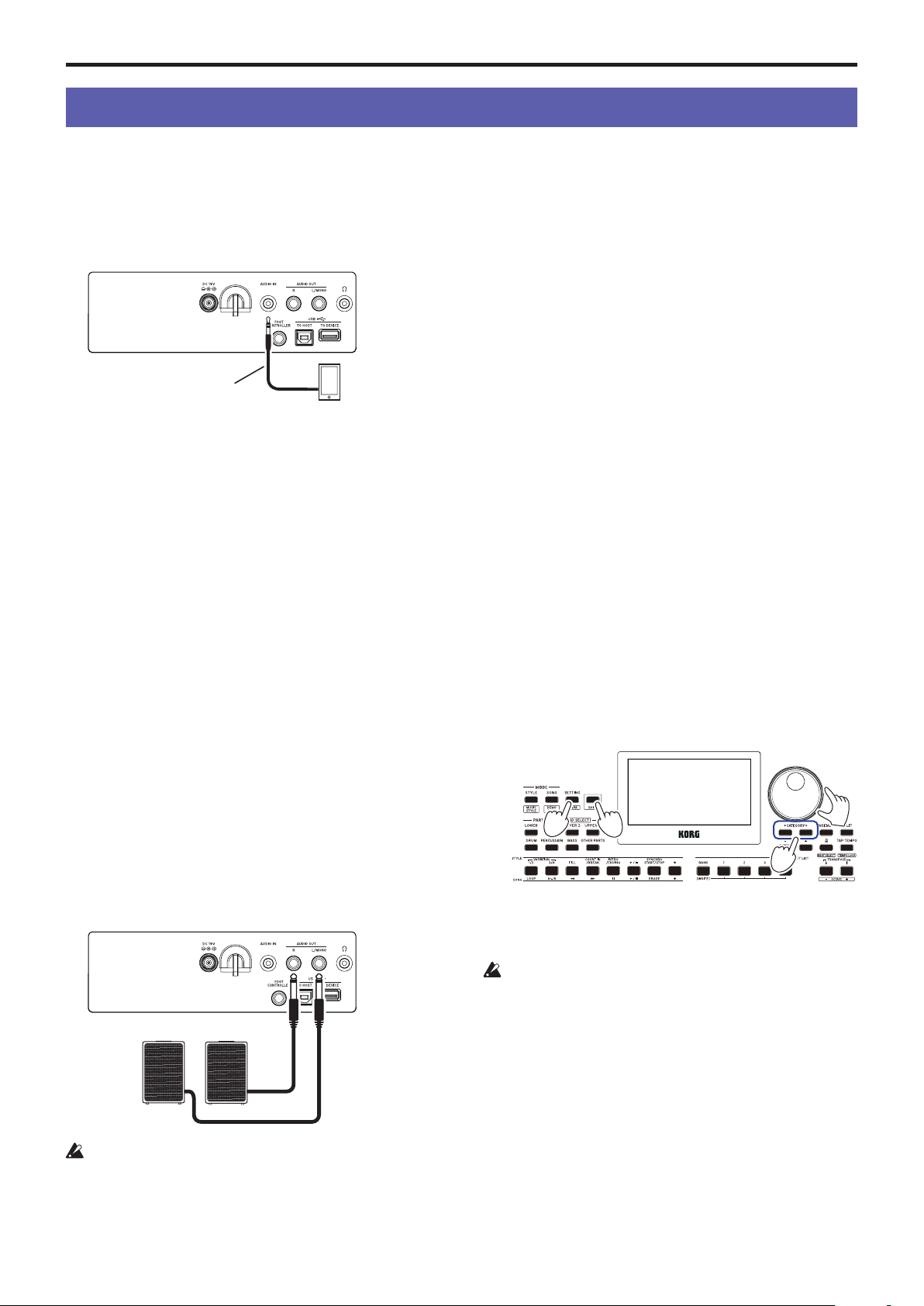
You can connect an audio device such as an audio player to the
AUDIO IN jack (stereo mini-phone jack) on the rear panel of
this instrument, and hear the sound of the audio device playing
back through the built-in speakers of the XE20. This is useful for
playing along.
1.
Turn the volume on this instrument and on your audio
device all the way down, and then turn the power o on
both units.
2.
Connect your audio device to the AUDIO IN jack on the
rear panel of this instrument using a stereo mini-cable.
3.
Turn the power of the audio device on, and then turn on
the power of the XE20.
4.
Play back sound on the audio device, slowly turning up
the volume. As you raise the volume on the XE20, you
should be able to hear the sound coming through the
speakers.
5.
To adjust the volume balance, raise the volume on your
audio device while playing the keyboard of the XE20
along with the sound.
To adjust the overall volume level, use the VOLUME knob.
Tip:
You can adjust the input level of the audio device using
the “Audio In Level” (page 27) parameter in the SETTING
functions.
6.
When turning o the power, stop playback on the audio
device, turn o the XE20, and then turn o your audio
device, in that order.
Connecting powered monitor speakers
You can connect audio equipment such as powered monitor
speakers or a home stereo to the AUDIO OUT jacks on the rear
panel of the XE20, which lets you hear what you play on this
instrument through your audio equipment.
The audio output on this instrument uses a higher signal
level than ordinary home audio equipment like CD players. For
this reason, playing at an excessive volume may damage the
external audio equipment. Use particular care when seing the
volume.
1.
Turn the volume down all the way on this instrument and
on the external audio equipment, and turn o the power
on both devices.
2.
Connect the AUDIO OUT jacks of this instrument to the
audio input jack(s) of your external audio equipment or
other device.
Tip:
When using monaural sound, connect to the L/MONO
jack.
3.
Turn on the power on the XE20, and then on the external
audio equipment.
4.
Turn up the volume of this instrument gradually and play
the keyboard. Adjust the volume balance by turning up
the volume of both this instrument and the external audio
equipment.
5.
When turning o the power, rst turn the power of the
external audio equipment o, and then turn o the power
of this instrument.
When you will not be using the built-in speakers
You may want to turn o the built-in speakers and output the
sound from the AUDIO OUT jacks only, such as when you are
playing onstage.
1.
Refer to “Connecting powered monitor speakers”
(page 30) when connecting external audio equipment.
2.
Press the SETTING/[MEDIA] buon.
3.
Press the CATEGORY buon t/u to select “P13:Speaker”.
4.
Select OFF using the dial or the +/– buons.
The built-in speakers will turn o and will not make a
sound.
Tip:
Also, if you connect a pair of headphones to the
headphone jack, the built-in speakers will shut o.
5.
Press the [SHIFT] buon to return to the previous mode.
6.
Select “ON” in step 4 when turning on the internal
speakers.
This seing will be lost when the power is turned o.
Audio player or
other device
Stereo mini-cable
Powered monitor speakers
2
5
4
3

Connecting to an external device
31
Connecting to a computer
Connect the USB TO HOST port on the back of the XE20 to your
computer with a USB cable to exchange MIDI or audio data.
Using USB-MIDI
What is MIDI?
MIDI (Musical Instrument Digital Interface) is a worldwide
standard for communicating various information between
electronic musical instruments and computers.
Connecting to a computer
Connect the USB A port of your Windows PC or Mac to the USB
TO HOST port of the XE20 with a USB cable.
For the MIDI-related seings to make aer connecting, see
“MIDI Clock” (page 26) and “Local Control” (page 27).
When the XE20 is first connected to your Windows
computer, the USB-MIDI driver pre-installed with the operating
system will be used automatically. This pre-installed USB-MIDI
driver will not allow the XE20 to access multiple programs or
applications at the same time. To remedy this situation, simply
download the KORG USB-MIDI driver at www.korg.com and
install the driver as instructed with the supporting
documentation.
Even if the XE20 will not be used with multiple applications,
we recommend installing the KORG USB-MIDI driver, which
should provide improved operating stability.
About MIDI channels
The MIDI channels that are used in style mode and song mode
when you select a user song are as follows.
Ch01: Upper 1 part
Ch02: Upper 2 part
Ch03: Upper 3 part
Ch04: Lower part
Ch09: Bass part
Ch10: Drum part
Ch11: Percussion part
Ch12–16: Other parts
Note:
Note that the MIDI channels used when playing back an
SMF will depend on the seings in that le.
Using USB-AUDIO
Connecting to a computer
1.
Turn the volume all the way down on both the XE20 and
your computer.
2.
Connect the computer to the USB TO HOST port on the
rear panel using a USB cable.
3.
Play back sound on the computer while slowly turning
up the volume. As you raise the volume on the XE20, you
should be able to hear the sound coming through the
speakers.
4.
To adjust the volume balance, raise the volume on your
computer while playing the keyboard of the XE20, along
with the sound played back from the computer.
When connecting to your computer, you may hear a loud
noise depending on the seings, so adjust the volume on your
computer.

Appendix
32
Appendix
Checking the software version
1.
Press the power buon while holding down the [SHIFT]
buon.
The soware version number of the XE20 will be displayed
following the opening screen.
2.
Turn o the power, and then turn it on again.
Restoring the XE20 to factory default
settings
This restores the seings of this instrument to the factory
defaults.
Note that this will initialize (reset) all of your song lists,
user songs and the seings you have made in the SETTING
functions. For this reason, any user songs you have recorded
or any new set lists you may have made will be overwrien
and lost. If you want to keep your user songs and set lists, save
the data to a USB ash drive using the MEDIA function (see
page 29 “SetListBackUp”, page 29 “Song Convert”).
Do not turn o the power on this instrument while it is
initializing. If the initialization fails, you may be unable to use
the instrument.
1.
Turn o the power.
2.
While holding down the [SHIFT] buon and the BANK/
WRITE buon in the SET LIST section, press the power
buon.
“FactoryPreload” will be displayed, and the start/stop
buon in the STYLE/SONG section will blink.
3.
Turn the dial to select “Yes”, and press the start/stop
buon in the STYLE/SONG section.
The initialization will begin.
Once the instrument has been restored to the factory default
seings, “Completed” will appear in the display.
4.
Turn o the power, and then turn it on again.
Calibrating an expression pedal
Calibrate the expression pedal (such as a EXP-2) that you have
connected to the FOOT CONTROLLER jack, and set the pedal’s
variable range.
1.
Connect the expression pedal while the XE20’s power is
turned o.
2.
Press the power buon while holding down buon 1 in
the SET LIST section.
“Pedal Calib.” will be displayed, and the start/stop buon in
the STYLE/SONG section will blink.
3.
Press the start/stop buon in the STYLE/SONG section.
“Measuring Min” will appear on the display.
4.
Bring the pedal all the way down (towards you), and take
your foot o.
The value will appear on the display.
5.
Press the start/stop buon.
“Measuring Max” will appear on the display.
6.
Press the expression pedal upward all the way (away from
you), and take your foot o.
The value will appear on the display.
7.
Press the start/stop buon.
“Completed” will appear on the display, which completes
the calibration.
8.
Turn o the power, and then turn it on again.
Try operating the pedal to make sure that it is working as
intended. If the pedal does not work correctly, repeat this
process from step 1.
Troubleshooting
If this instrument is not operating as expected, check the
following points.
The instrument will not turn on.
Is the AC adapter plug connected to the AC outlet?
Have you pressed the power buon?
The power will not go o.
Did you hold down the power buon for a while?
The power turns o by itself.
The auto power-o function may be enabled.
No sound is heard from the speakers of this instrument
when the keys are played.
Is the instrument’s volume turned up?
Is a pair of headphones connected to this instrument?
The speakers will not produce sound when headphones are
connected to this instrument.
The part buons might all be muted.
Is the volume down on the pedal connected to the FOOT
CONTROLLER jack?
If sound is not heard when pressing some keys, you may
have exceeded the instrument’s maximum polyphony.
The local control in the SETTING functions should be set to
“On”.
Are the speakers set to o?
Is the speaker seing in the seing functions set to “On”?
The keyboard parts might all be muted.
The sound will not stop.
The functions or polarity for the pedal might not be set
correctly.
The sound seems to be doubled.
If you are using a DAW, make sure that the local control
seing in the SETTING functions is set to “O”.
The sound coming from external audio equipment is
distorted.
The inputs of the powered monitor speakers and other
equipment might be overloaded.
Adjust the volume on this instrument using the VOLUME
knob.
The pitch is o.
Is the transpose function set correctly?
Has “MasterTuning” in the SETTING functions been set
correctly, as well as the program’s octave and tune edit
parameters?
Is the scale set correctly?
See “UpperScaleTyp” (page 26) and “StyleScaleTyp”
(page 26) for these seings in the SETTING functions.

Appendix
33
I hear unwanted noise.
When the volume for a part is raised, the digital signal
processing may overload the signal, which could cause
distortion or other noises. This is not a malfunction.
Try lowering the volume on each part buon.
You may hear distorted or noisy sounds due to input
overload with certain eects. This is not a malfunction.
In certain electrical environments, you may hear noise due
to a ground loop or other factors.
The pedal switch or expression pedal connected to the
FOOT CONTROLLER jack doesn’t work like it should.
The functions or polarity for the pedal might not be set
correctly.
See “Pedal Function” (page 26) and “Pedal Polarity”
(page 26) for these seings in the SETTING functions.
Is the variable range of the expression pedal set correctly?
Calibrate as shown on “Calibrating an expression pedal”
(page 32).
I cannot record a user song.
The maximum number of user songs is 999.
You may need to delete one (see page 24 “Deleting a user
song”.)
MIDI signals sent to/from this instrument and a
computer are not being correctly received.
Is the USB cable connected correctly to the USB TO HOST
port?
The instrument does not let me access the MEDIA
functions.
Is your USB ash drive correctly plugged in?
If the USB ash drive is correctly plugged in, you should see
in the display.
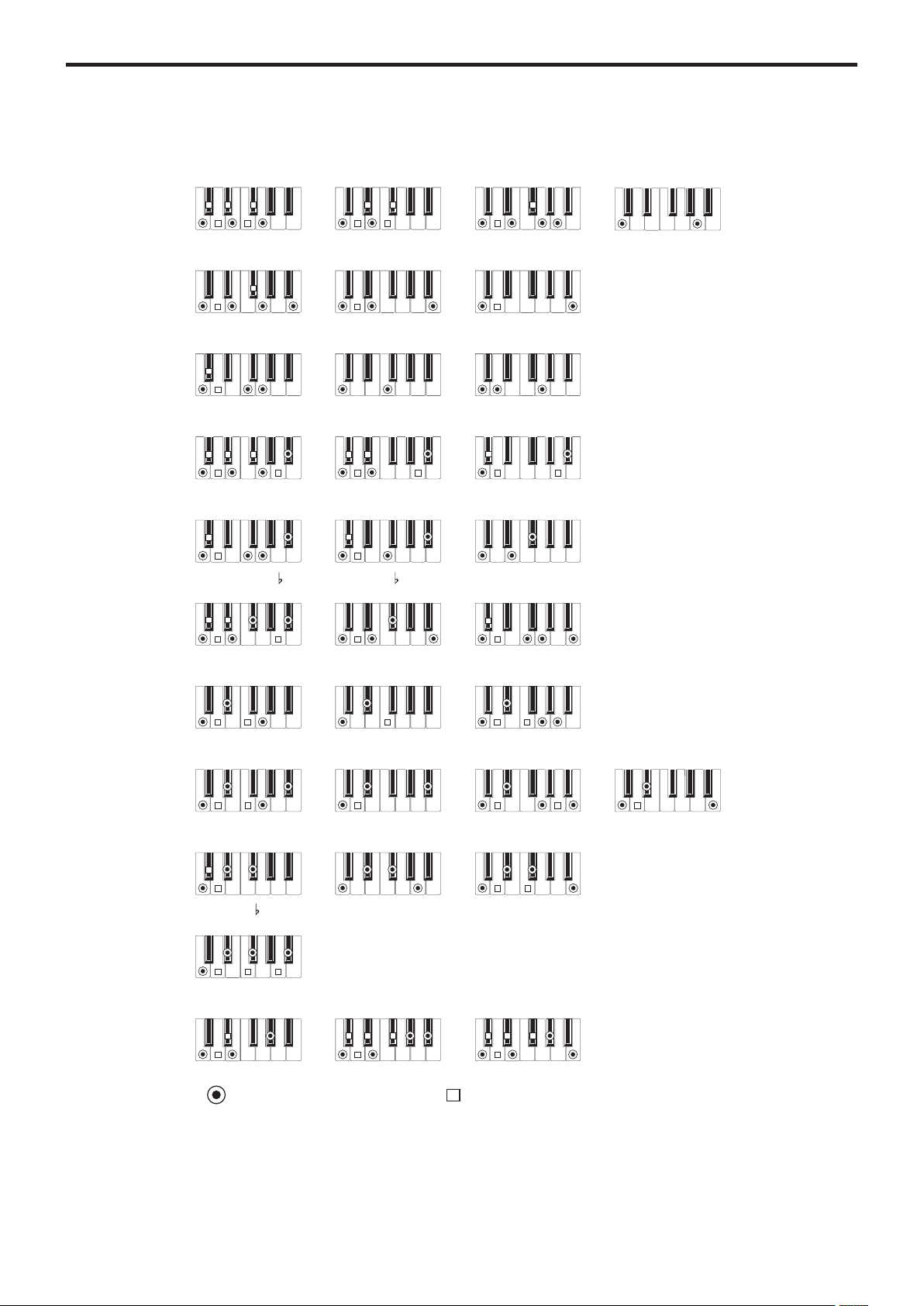
Appendix
34
List of chords recognized
These are the main chords that will be recognized when the chord recognition on this instrument is set to “Fingered2”.
= constituent notes of the chord = can be used as tension
2-note
T
T
T
T
3-note
T
T
T T
T
Major
2-note4-note
T
T
Major 6th
3-note
T
4-note
T
T
Major 7th
2-note
T
3-note
T
T
Sus
2-note 3-note
Sus 2
3-note
T T
T T
2-note
T T
T
4-note
T T
TT T
Dominant 7th
4-note
T
T
Dominant 7th Sus 4
3-note
T
T
3-note
Flat 5th
4-note
T
T
Major 7th Sus 4
T
4-note
Major 7th 5
T T
T T
4-note
Dominant 7th 5
T
4-note
T T
Minor 7th
3-note
T
4-note
T T
Minor-Major 7th
3-note
T
3-note
T
T
Diminished
4-note
Diminished 7th
4-note
T T
Diminished Major 7th
4-note
T T T
Minor 7th 5
3-note
T
T
Augmented
4-note
TT T
T
Augmented 7th
4-note
TT T
T
Augmented Major 7th
3-note
T T
Minor
2-note
T
4-note
T T
Minor 6th
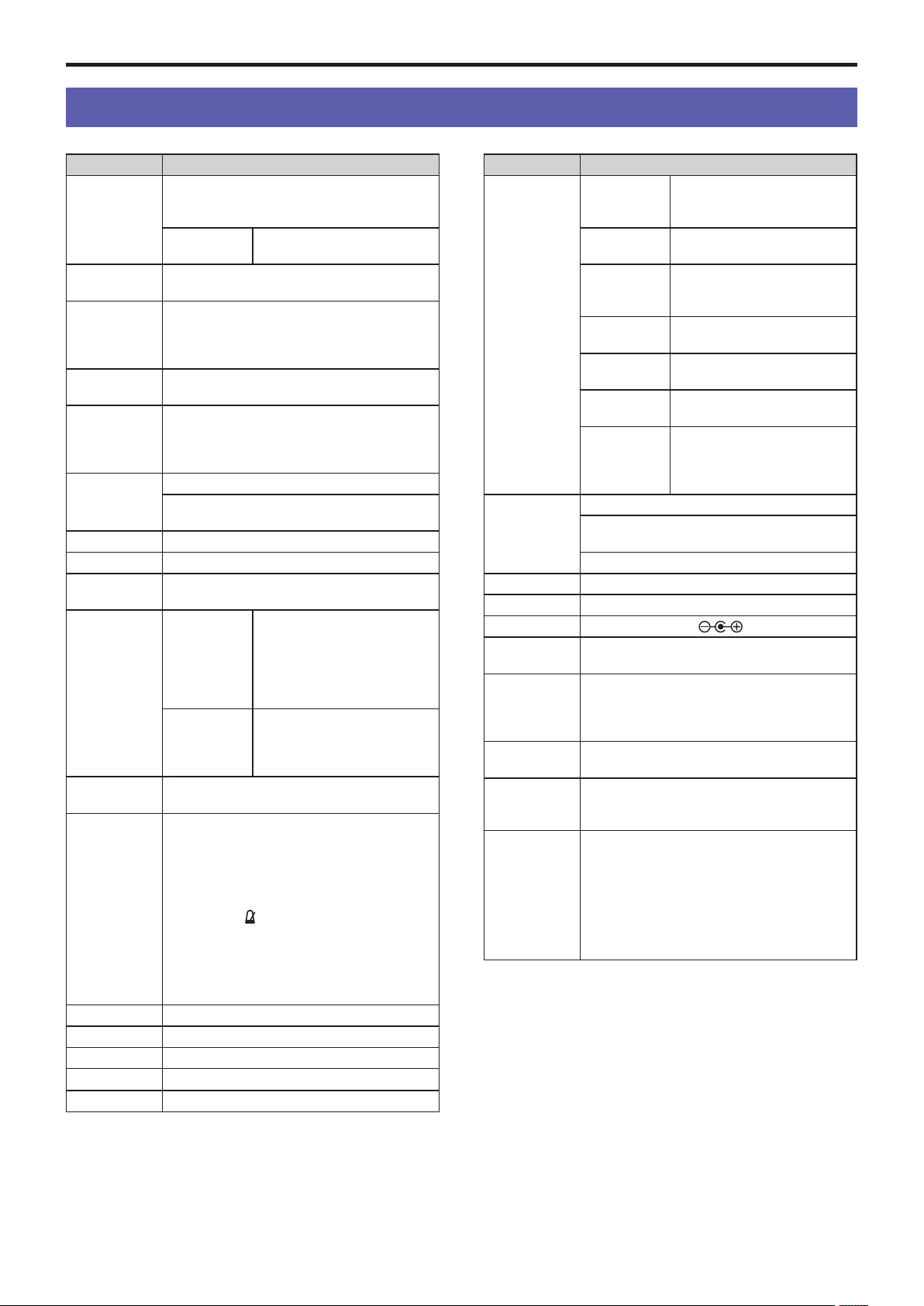
Specications
35
Specications
Function XE20/XE20SP
Keyboard NH (Natural Weighted Hammer Action)
Keyboard
88 keys (A0-C8)
Touch control So (light), medium (standard),
hard (heavier), xed
Sound
generator
Stereo PCM sound generator
Maximum
polyphony
184 voices
(Maximum of 120 voices (German Piano and
Italy Piano sounds); maximum of 64 voices (other
sounds))
Sounds Over 705 sounds, 41 drum kits (including GM-
compatible sound sets)
Eects Accompaniment part:
2 stereo digital multi-eects
Keyboard part:
2 stereo digital multi-eects
Styles More than 280 presets
2 intros, 4 variations, 2 lls, 1 break, 2 endings,
synchro start/stop, tap tempo
Music styles More than 64
Demo songs 21
Audio player MP3 (44.1 kHz)
WAV (44.1 kHz)
Sequencer Record Real-time recording (style
mode), maximum of 999 songs
(approx. 100,000 notes), 12 tracks
(4 keyboard parts + 8 auto-
accompaniment parts), original
format (can convert to SMF0)
Playback Supports song play (playing
on the keyboard during song
playback), SMF (Standard MIDI
File) format 0 or 1
Scales
(Temperament)
9 types
Controls Power buon, VOLUME knob, PIANO1/2
buon, STYLE SET buon, REVERB buon,
STYLE/[MUSIC STYLE] buon, SONG/[DEMO
SONG] buon, each buon in the PART MUTE/
[SOUND SELECT] section, SETTING/[MEDIA]
buon, [SHIFT] buon, ENSEMBLE buon,
SPLIT buon,
(metronome)/[BEAT SELECT]
buon, TAP TEMPO/[TEMPO LOCK] buon,
TRANSPOSE
♭
and
♯
/[OCTAVE −/+] buons, dial,
CATEGORY buons
t
/
u
, + buon, − buon,
each buon in the STYLE/SONG section, each
buon in the SET LIST section
Set lists 10 banks × 4
Metronome Tempo, beat, volume
Tempo 30–240
Transpose
C (
−
12) to C (0) to C (+12)
Tuning 427.5–452.9 Hz
Function XE20/XE20SP
Input/output
jacks
FOOT
CONTROLLER
jack
6.3 mm (1/4”) phone jack
AUDIO IN
jack
3.5 mm (1/8”) stereo mini-phone
jack
AUDIO
OUT
L/MONO, R
jacks
6.3 mm (1/4”) phone jack
(unbalanced)
Headphone
jack
3.5 mm (1/8”) stereo mini-phone
jack
USB TO
DEVICE port
USB Type-A: For connecting USB
ash drive and controllers
USB TO HOST
port
USB Type-B: For connecting
personal computers
PEDAL jack
For connecting damper pedal
(included with the XE20), pedal
unit (included with the XE20SP),
PU-2 pedal unit (sold separately)
Speaker system Amp: 18 W × 2
Speakers: 57 mm (2.24”) × 126 mm (4.96”)
Elliptical speakers × 2 (bass reex box-type)
Speaker EQ: 8 types
MIDI USB MIDI
Display Custom LCD with backlighting
Power supply AC adapter (DC19V,
)
Power
consumption
13 W
Dimensions
(width × depth
× height)
XE20: 1,312 × 336 × 118 mm / 51.65 × 13.23 × 4.65
inches (excluding music stand)
XE20SP: 1,312 × 336 × 751 mm / 51.65 × 13.23 ×
29.57 inches (excluding music stand)
Weight XE20: 11.4 kg / 25.13 lbs. (excluding music stand)
XE20SP: 21 kg / 46.30 lbs. (excluding music stand)
Included items Quick Start Guide, AC adapter, sheet music
stand, damper pedal (XE20 only),
stand with pedal unit (XE20SP only)
Accessories
(sold
separately)
DS-1H damper pedal (half-pedal eect operates
only with German Piano and Italy Piano sounds)
PU-2 pedal unit (damper half-pedal eect and
sostenuto operate only with German Piano and
Italy Piano sounds)
PS-1 pedal switch
PS-3 pedal switch
EXP-2 foot controller
* Specications and appearance are subject to change without
notice for improvement.
MIDI Implementation Chart
MIDI Implementation Chart
Function...
Transmitted Recognized Remarks
Default
Change
Mode
Default
Messages
Altered
Note
Number
True Voice
Velocity
Note On
Note Off
After
Touch
Key’s
Channel
Pitch Bend
Control
Change
Program
Change
True Number
System Exclusive
System
Common
Song Position
Song Select
Tune Request
System
Real Time
Clock
Commands
Aux
Meassages
Local On/Off
All Notes Off
Active Sense
System Reset
Notes
Mode 1: Omni On, Poly
Mode 3: Omni Off, Poly
Mode 2: Omni On, Mono
Mode 4: Omni Off, Mono
O: Yes
X: No
Consult your local Korg distributor for more information on MIDI implementation.
Basic
Channel
[DIGITAL ENSEMBLE PIANO]
Model: XE20/XE20SP
O 0–127
*************
O 0–127
0–127
0, 32
1, 2
64
6
7, 11
10, 91, 93
71, 72, 73
74, 75
76, 77, 78
98, 99
100, 101
120, 121
1–16
X
1
X
0–127
0–127
O 9n, V=1–127
X 8n, V=64
O 9n, V=1–127
X
0–127
*************
3
X
X
Date: 2019.11.06
Version: 1.00
X
X
*************
O
O
X
O
OO
O
O
O
O
O
O
O
O
O
O
O
O
O
O
O
O
O
O
O
O
O
O
O
O
OO
X
X
X
O
O
X
X
X
X
X
X
X
O
X
X
O (123–127)
X
X
*1
*1
*4
*1: XE20 will transmits Sequencer data.
*2: Includes setting of inquiry and master volume.
*3: When the MIDI Clock setting of the Setting function is External, the XE20 will recieve this message.
*4: Depending on the selected program, there may be cases in which it is not possible to sound the whole range.
Bank Select (MSB, LSB)
Modulation *1
Damper
Data Entry (MSB) *1
Volume, Expression
Pan pot, Effect 1/2 send *1
Harmony contents, EG time (Release, Attack) *1
Brightness, Decay time *1
Vibrato rate, Depth, Delay *1
NRPN (LSB, MSB) *1
RPN (LSB, MSB) *1
All sound off, Reset all Controllers *1
*2
*3
*1
*1


© 2020 KORG INC.
www.korg.com
Published 03/2020