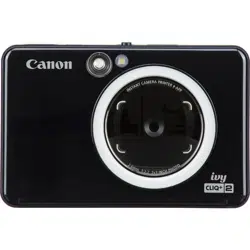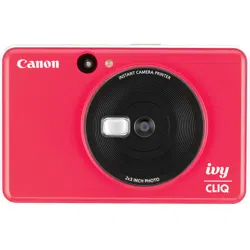
Instant Camera Printer
User Manual

2
CONTENT
SAFETY INFORMATION
Read Before Use
OVERVIEW
Supplied Items
Product Features
SETUP
Charging
Loading Paper
External Memory
OPERATION
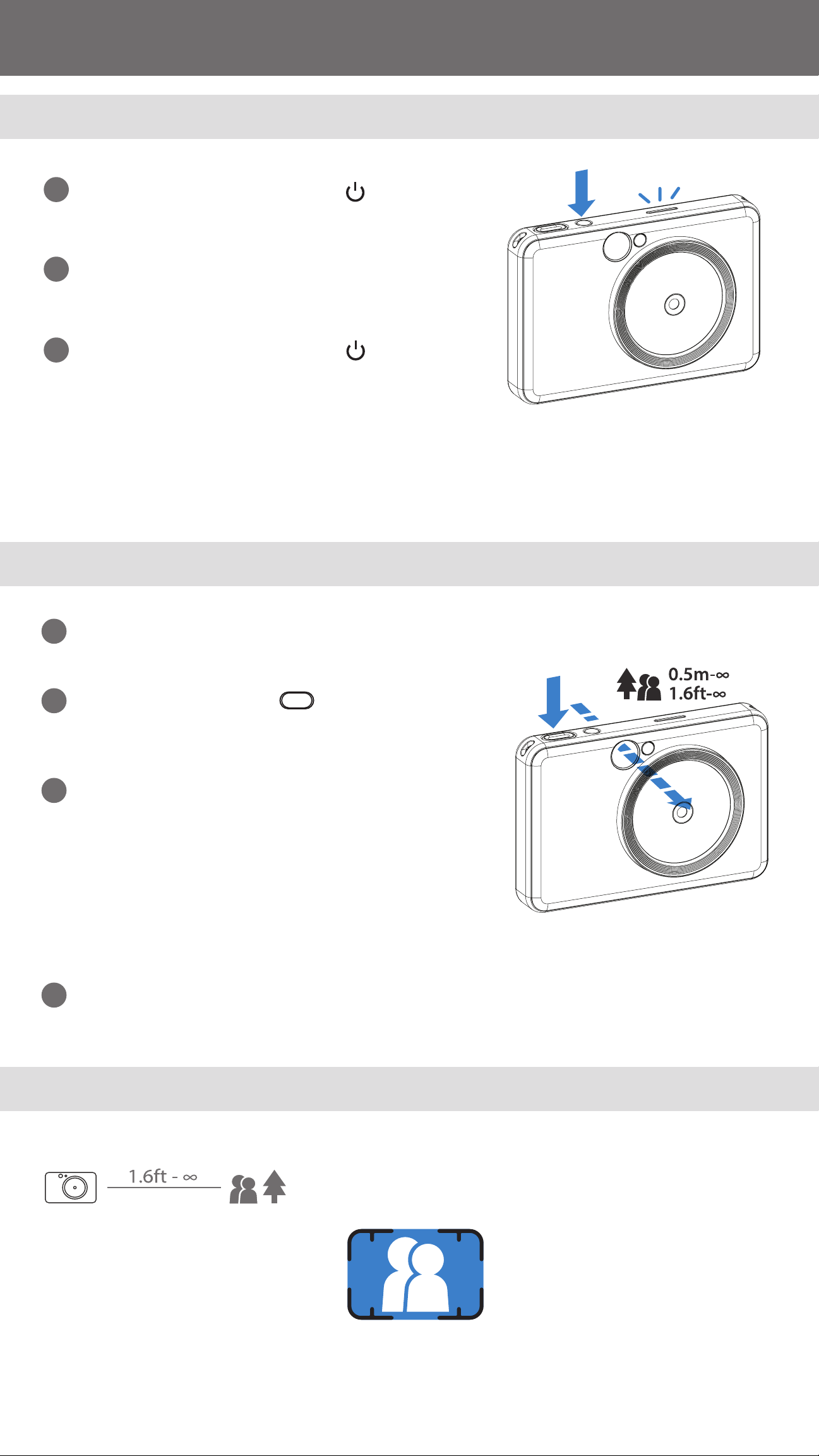
Power ON/OFF
Taking and Printing a Photo
Viewnder
Sele Mirror
Built-in Filter and Border Buttons
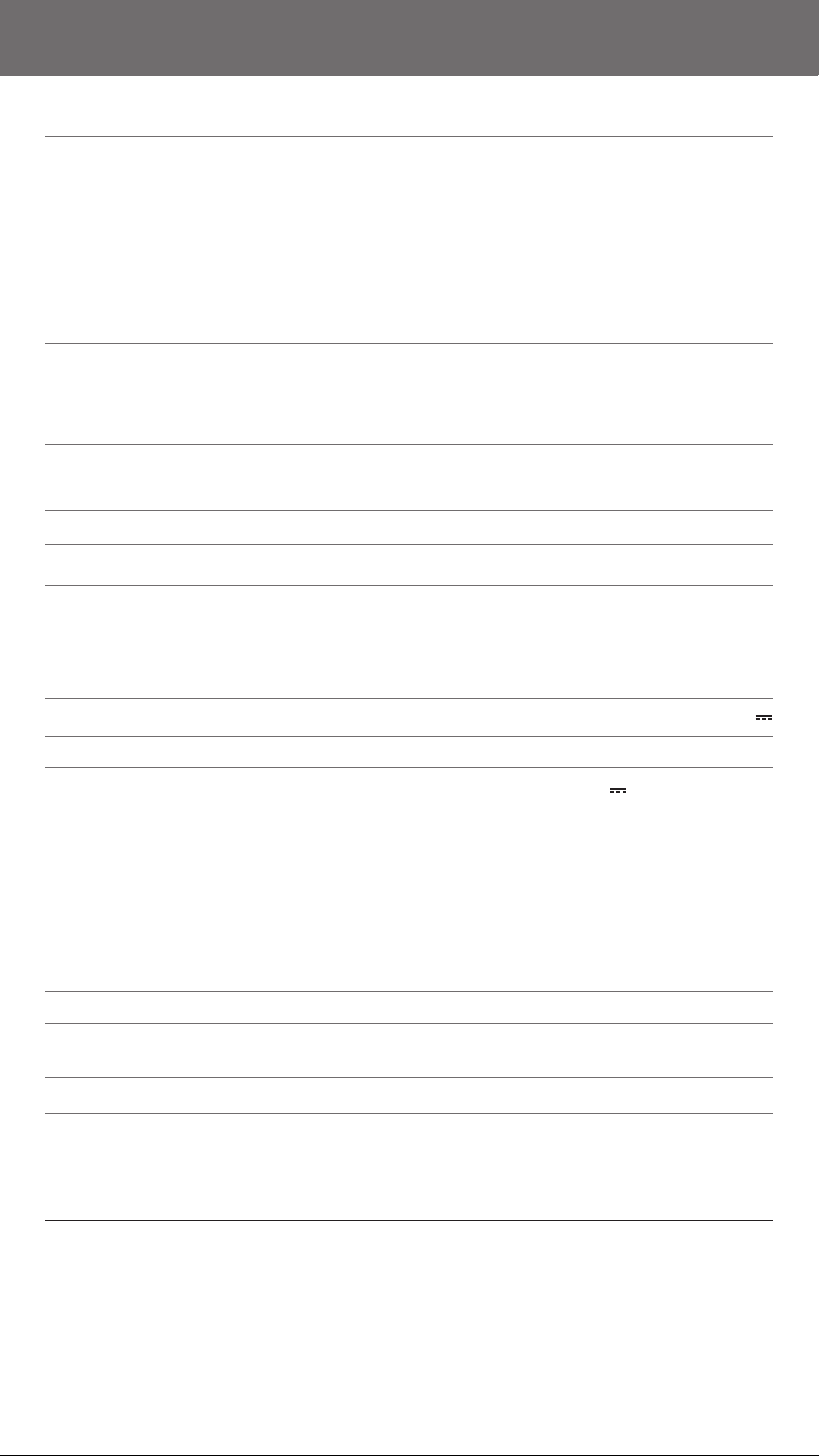
LED INDICATOR
Troubleshooting
SPECIFICATIONS
P3-4
P5
P6-9
P10-12
P14
P12-13
3
READ BEFORE USE
SAFETY INFORMATION
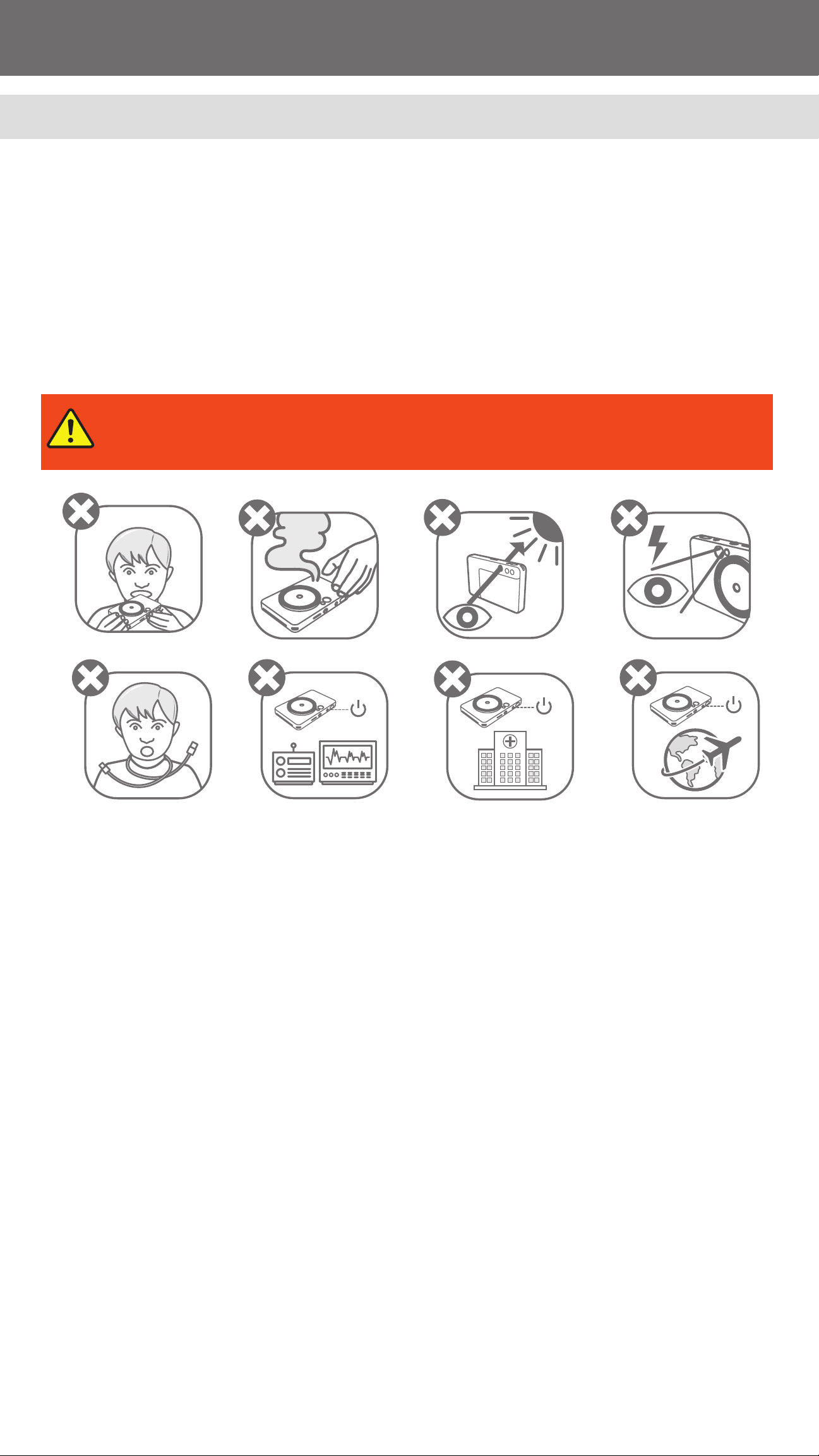
WARNING
Used to indicate a potentially hazardous situation which,
if not avoided, could result in death or serious injury.
• Keep away from children and infants. Improper use of this product may cause suffocation
or accident.
• Stop using the device immediately if it emits smoke or a strange smell, or otherwise
behaves abnormally.
• Do not look at the sun or bright lights through the viewnder or the lens. Blindness or
vision problems could result.
• Do not re the ash near the eyes. It may hurt the eyes.
• A strap wound around a child’s neck may result in asphyxiation. If your product uses a
power cord, mistakenly winding the cord around a child’s neck may result in asphyxiation.
• Turn the device off in places where camera use is prohibited. The electromagnetic waves
emitted by the camera may interfere with the operation of electronic instruments and
other devices. Exercise adequate caution when using the product in places where use of
electronic devices is restricted, such as inside airplanes and medical facilities.
Please read the following instructions and safety precautions before using the device.
For regulatory and additional safety information, refer to the Regulation and Warranty
Information sheet included in your package contents.
RMN: PP3002
Regulatory Model Identication Number is assigned for regulatory identication purpose.

4
CAUTION
Used to indicate the level of a hazard or damage which, if
product is handled erroneously, may result in injury or property
damage other than product faults.
• When operating in extreme weather, the device might not print. Let the printer
temperature adjust to the recommended operating temperature of 59º to 90ºF
(15º to 32ºC), before attempting to print again.
• When charging, please charge the device at the recommended temperature of
59º to 90ºF (15º to 32ºC).
• Use a soft dry cloth to clean the device. Do not clean with a damp cloth or volatile liquids
such as paint thinner.
• Keep the top cover closed to avoid dust and other particles from entering the inside of
the device.
• If the device is not functioning properly, please contact the dealer you purchased
this product from or Canon Service & Support at www.usa.canon.com/support
• Never expose the battery to high temperatures, direct heat, or dispose by incineration.
• Electromagnetic interference or electrostatic discharge may cause the device to
malfunction or the memory to be lost or altered. Should this occur, use a pin, or similar
item to press the [RESET] button at the bottom of the device.
5
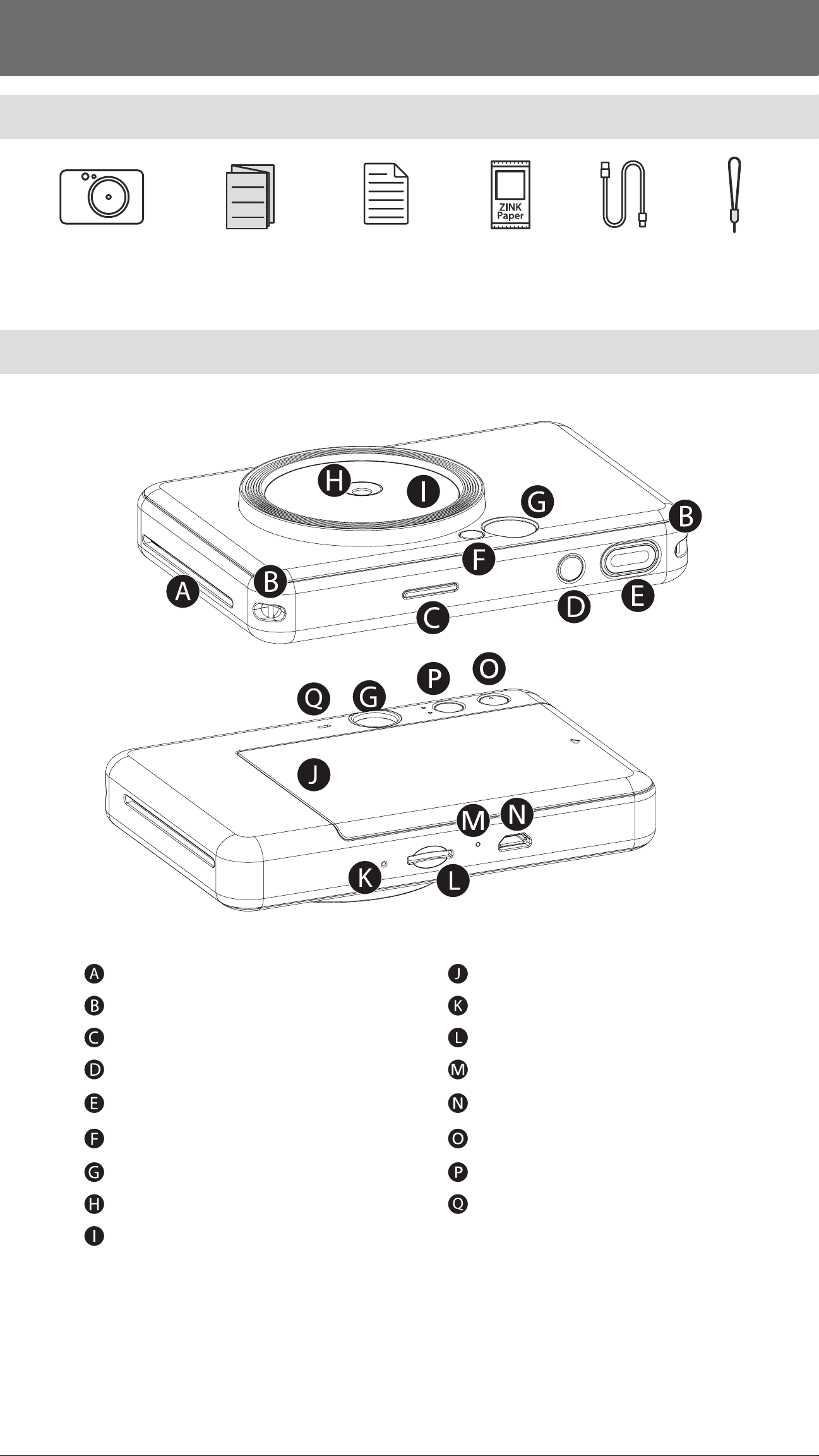
SUPPLIED ITEMS
PRODUCT FEATURES
OVERVIEW
Print Out Slot Printer Cover
Wristband Eyelet Reset Button
Status LED MicroSD Card Slot (up to 256GB)
Power Button Charging Status LED
Shutter Button Micro USB Port
Flash White Border Button
Viewnder Filter Button
Camera Lens Speaker
Sele Mirror
Instant Camera Printer Quick Start Guide
Regulation and
Warranty
Information sheet
CANON ZINK
®
Photo Paper
(10 sheet)
USB Cable Wrist Strap
6
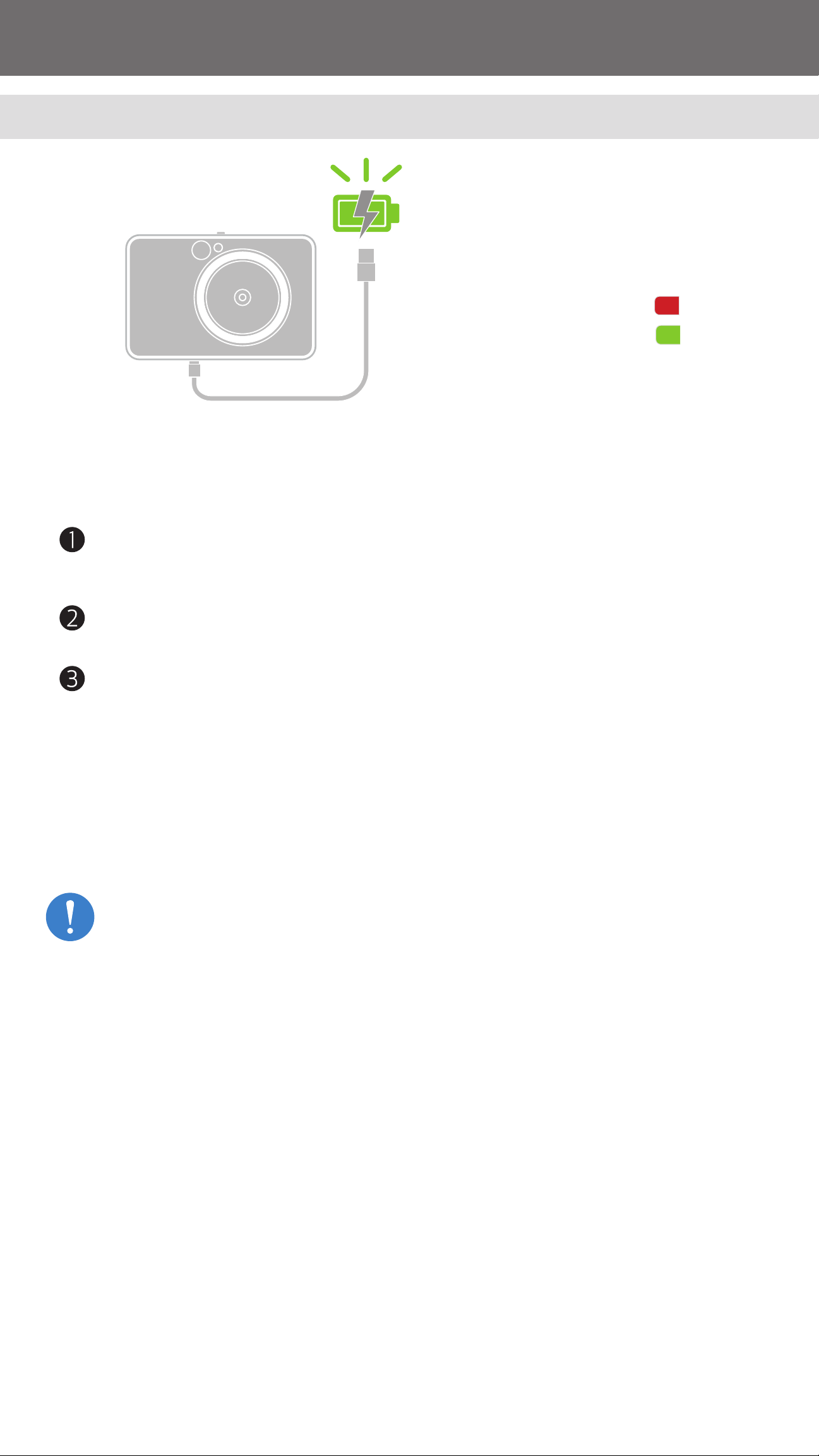
The device has a built-in battery. Please fully charge the device via the USB cable
provided before using.
Insert the smaller end of the supplied USB cable into the device and other end into a
chargeable USB adapter.
The charging LED light will turn red to indicate charging.
Once fully charged, the charging LED will turn green.
− Operating time may vary depending on the battery status, operational status
and environment conditions.
* Make sure to fully-charge your IVY CLIQ product(s) at least once every three (3) months.
If the product is not charged/used for an etended period of time, you may not be able to
charge the built-in battery and the product may no longer power on.
CHARGING
SETUP
Charging status LED
Charging: Red
Fully Charged: Green
NOTE
ABOUT USB CABLE
HANDLE THE USB CABLE WITH CARE WHILE CHARGING
• Do not place any heavy objects on top of the cable.
• Do not place the USB cable near heat.
• Do not scratch, damage, twist or pull hard on the cable.
• Do not plug or unplug the cable with wet hands.
• Avoid too high/too low temperature or humid conditions.
• Please unplug the USB cable from power source after charging.
• Please use the supplied USB cable for charging.
7
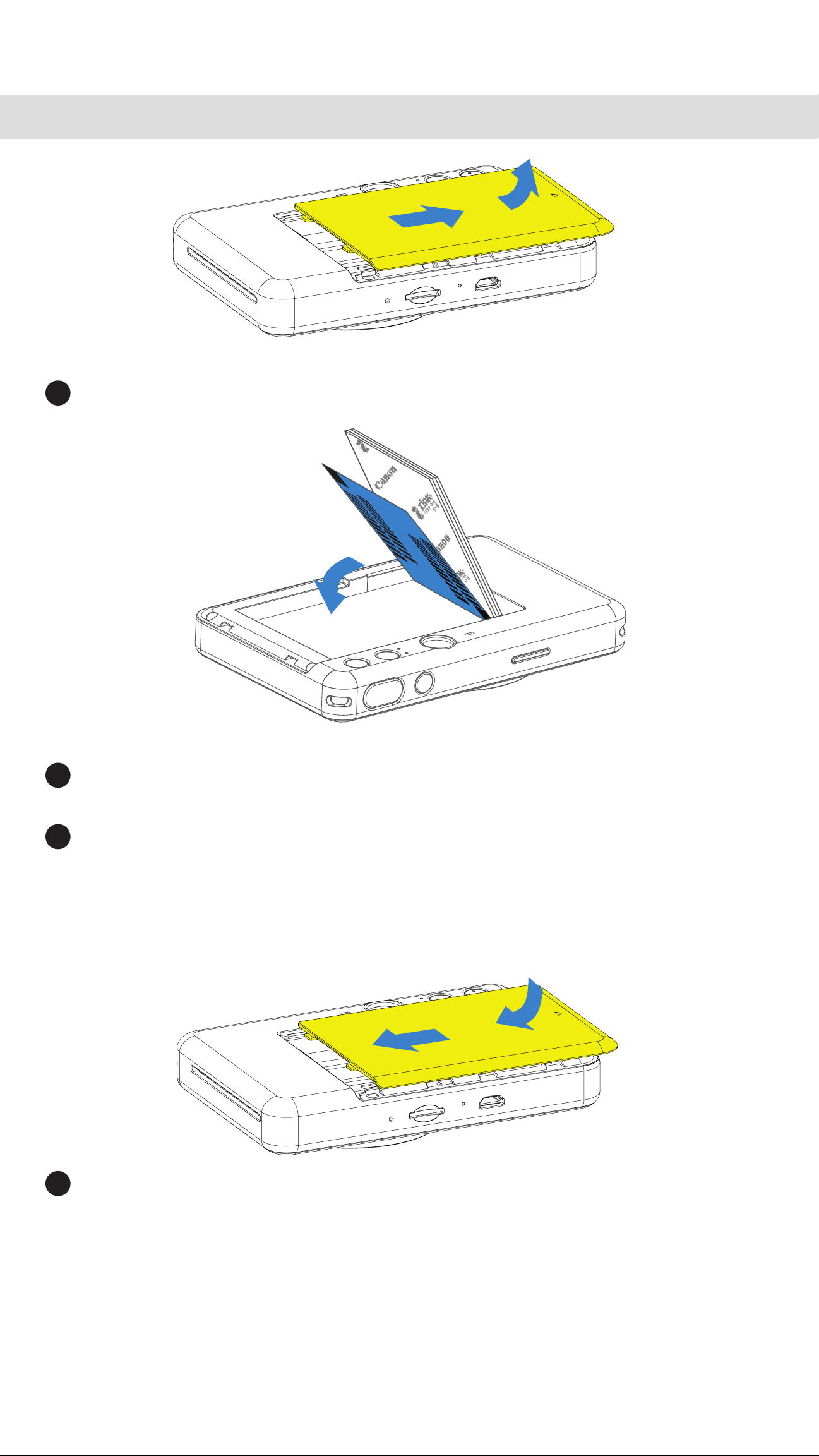
LOAD PAPER
1
Remove the cover by sliding it forward in the direction of the arrow.
2
Open a single pouch of photo paper (10 sheets + blue SMART SHEET®).
3
Place all 10 photo paper sheet and the one blue SMART SHEET® into
the photo paper compartment.
− Stack the photo paper on top of the blue SMART SHEET
®, making sure the
barcode and the photo paper logos are facing down.
4
Place the top cover back onto the device. It should click into place when closed
properly.
− The blue SMART SHEET
® will be sent through the device automatically before
the rst print.
EXTERNAL MEMORY
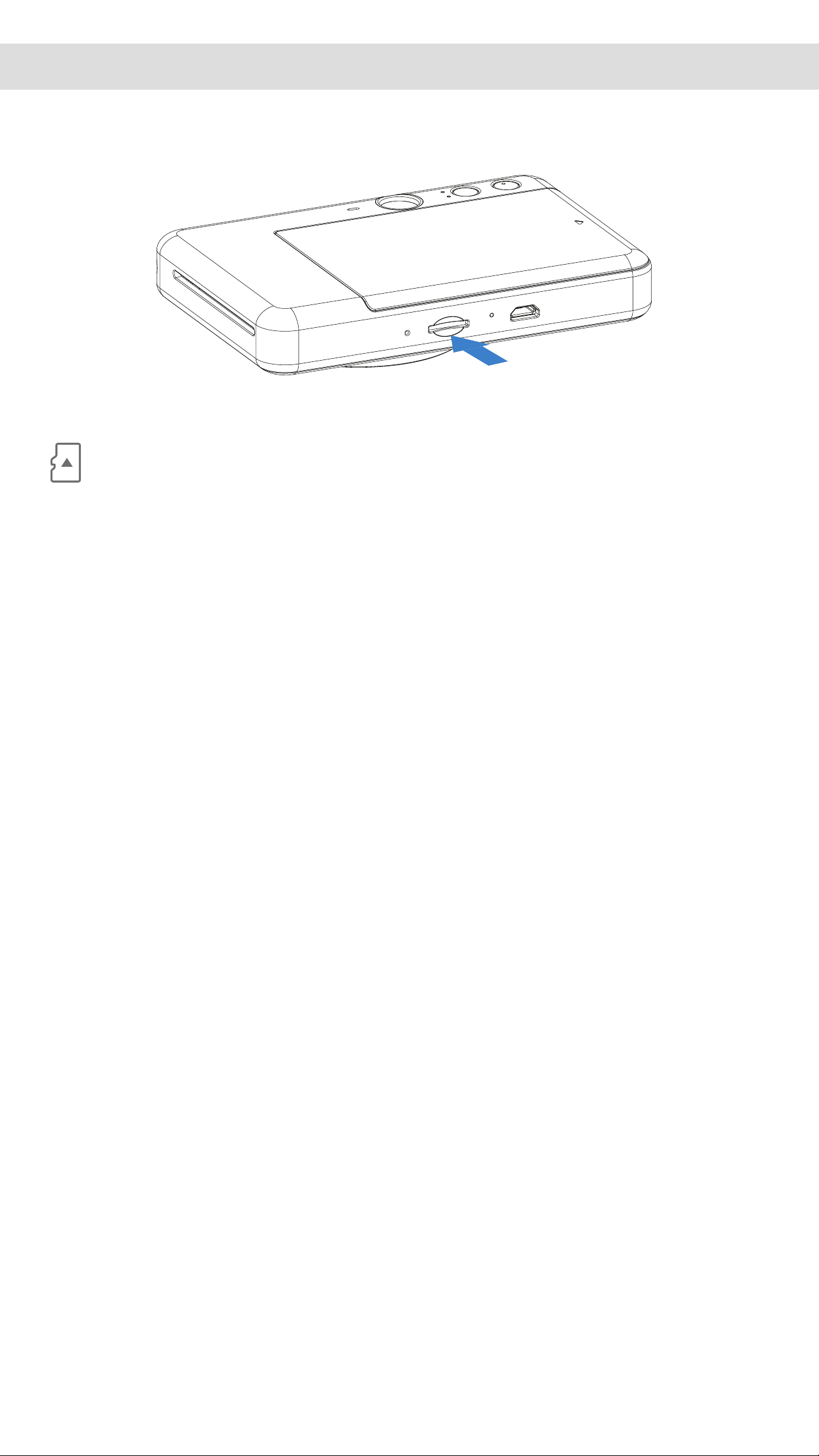
INSERT AND REMOVE THE MicroSD CARD
• Insert the MicroSD card into the slot at the bottom of the device. You will feel a
slight click when the card is fully inserted .
• Push on the top of the card to release it. Gently pull to fully remove the card from
the device.
• If there is an error reading /writing to the MicroSD card, the MicroSD Error LED
indication will be displayed. Remove the MicroSD card and restart the device.
• Connect the device to a computer with the USB cable provided. Double-click the
external drive image when it appears on the computer to view and save the photos.
An external MicroSD card (up to 256 GB) is needed for saving captured photos
and videos.
PREPARING A MEMORY CARD
Use the following memory cards (sold separately)
• MicroSD memory cards
*1
• MicroSDHC memory cards *1 *2
• MicroSDXC memory cards *1 *2
*1
Cards conforming to SD standards. However, not all memory cards have been veried
to work with the camera.
*2
UHS-I memory cards are also supported.
8

9
NOTE
MAINTAINING THE DEVICE
• Use and keep the device in the recommended environment of 59º to 90º F
(15º to 32º C) and 40-55% relative humidity.
WHEN USING PHOTO PAPER
• Only load 10 photo paper sheets and 1 blue SMART SHEET®. Do not load more
as it can result in paper jams or printing errors.
• If there is a paper jam, simply turn the printer OFF and ON to automatically clear the
paper jam. Don’t try to pull the paper out.
• While the device is printing, don’t pull or tug on the paper, this could result in a paper
jam or print error.
• Don’t open a new pouch of photo paper until you are ready to load it into your device.
• Don’t expose photo paper to direct sunlight or moisture.
• Don’t leave your photo paper in an area where the temperature or humidity is
out of the suggested conditions indicated on the pouch. It may reduce the quality
of the printed photo.
ABOUT THE BLUE SMART SHEET®
• Each pouch of photo paper contains 10 sheets of photo paper and 1 blue
SMART SHEET®.
• Load the blue SMART SHEET® and photo paper from within the same pouch for
optimal print quality. Each blue SMART SHEET® is specically tuned for the pouch of
paper it is contained in.
• The blue SMART SHEET® will be sent through the device automatically before the rst
print to clean the printer and optimize print quality for that specic paper pouch
(10 sheets).
• Keep the blue SMART SHEET® and only discard after you have printed all 10 sheets of
photo paper in the pouch. If print quality is not as expected, you can reuse the blue
SMART SHEET® if the paper is still from the same pouch. Simply slide the blue
SMART SHEET® with its barcode-side down underneath the remaining photo paper.
•
Using a blue SMART SHEET® from a different pouch may result in reduced print quality.
10
OPERATIONS
TAKING AND PRINTING A PHOTO
POWER ON/OFF
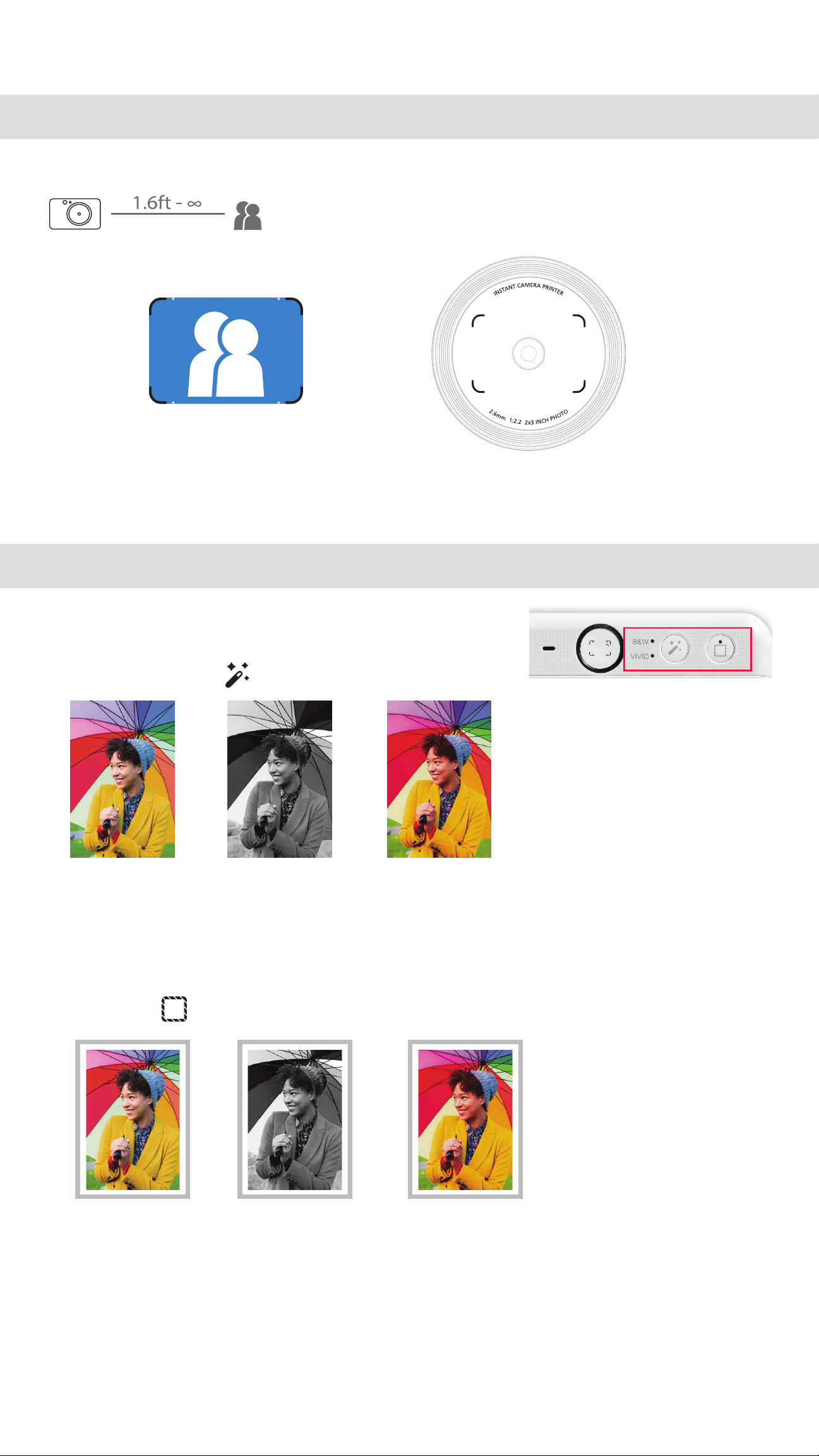
VIEWFINDER
1
Press and hold the Power button until
the LED indicator light turns on.
2
When the LED indicator turns to a steady
white , the device is ready to Use.
3
Press and hold the Power button to
turn off the device.
AUTO POWER OFF
• When the device is idle for about 5 minutes, it will automatically power off.
User can resume the device by pressing the Power button again.
1
Hold the device, conrm the desired composition
of the image.
2
Press the Shutter button to take a photo.
The camera will automatically trigger the ash if it
is necessary for the lighting conditions.
3
The photo will be printed out immediately after
taking the photo, if paper is inserted . The device
can hold up to around 10 images at a time to print,
it depends on SD card* capacity.
* Print queue will be cleared once the device is
powered off and cannot be resumed.
* If no SD card is inserted, the device can hold up to 3 images at a time to print.
4
User can take photos with the device even with no paper if SD card is inserted,
photos will be saved in SD card.
Compose an image with the frame mark in the viewnder.
2 x 3
2 X 3 Frame Mark
for normal shooting
at 3.3ft -
∞
11
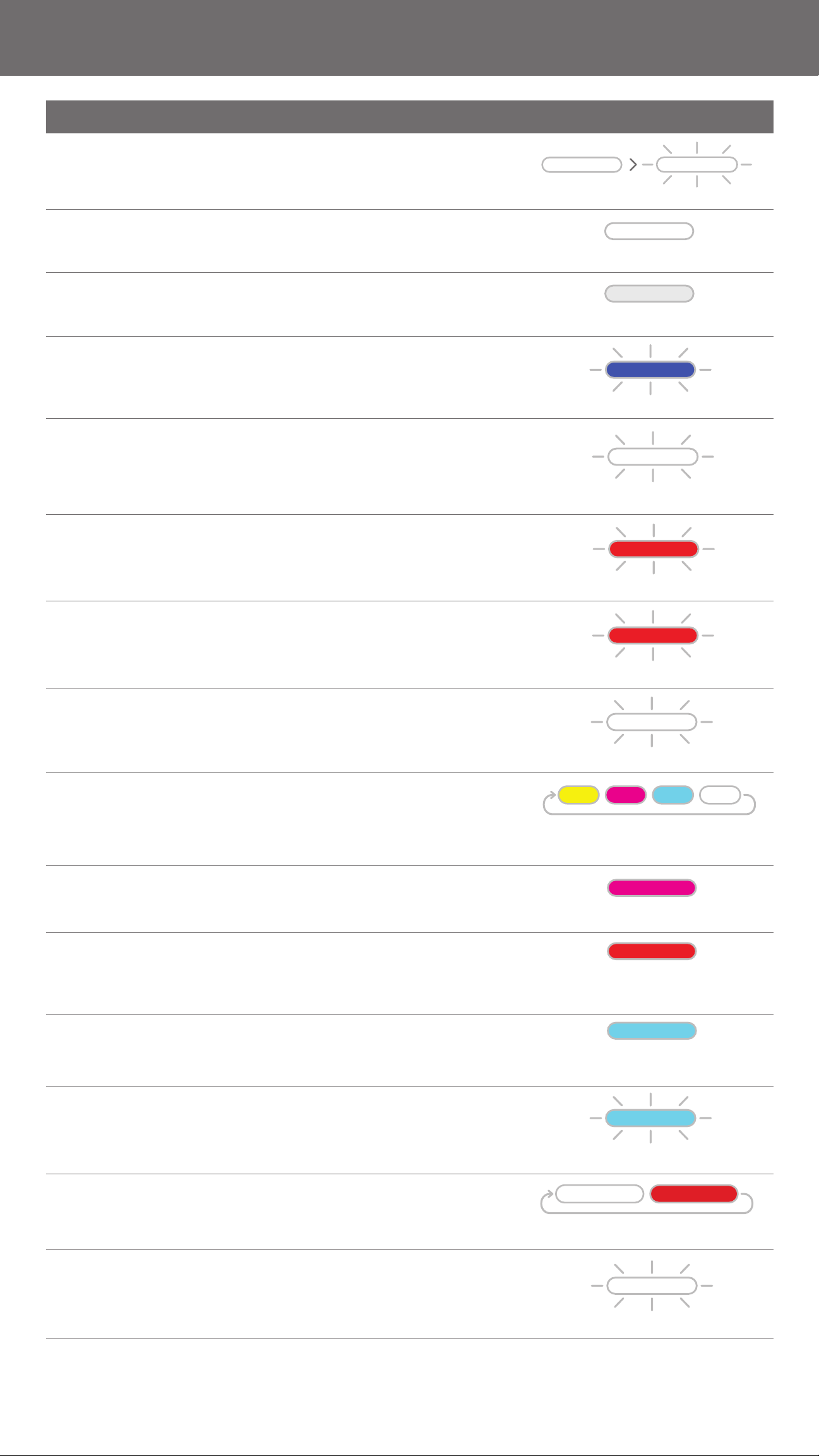
FILTER
• User can add either black and white or vivid lter to
a photo by pressing button before taking photo.
No Filter Black & White Filter Vivid Filter
without Border without Border without Border
BORDER
• User can also chose to add white border to a photo
by pressing border button before taking photo.
No Filter Black & White Filter Vivid Filter
with Border with Border with Border
• Both original photo and photo with effect added will be saved in SD card, while only the
photo with effect added will be printed out.
SELFIE MIRROR
BUILT-IN FILTER AND BORDER BUTTONS
Compose an image with the frame mark in the Sele Mirror.
2 x 3
Focusing distance
at 1.6ft
Easily add a lter or border to
your photos right on the camera.
12
LED INDICATOR
White
Off
Blue
White
Red
White
Yellow >Magenta>Cyan>White
(Looping)
Magenta
Red (Until temperature
returns to normal)
Cyan
White>Red (Looping)
White
Cyan (Until temperature
returns to normal)
Status Mode LED Status LED
Power On
Press and hold Power button
Standby
After the device is powered on
Power Off
Press and hold Power button
Blue SMART
SHEET® Error
When the device detects wrong blue
SMART SHEET
® is inserted, or other
blue SMART SHEET
® error
Processing Blue
SMART SHEET
®
When the device is loading blue
SMART SHEET
®
Paper Jam/
Cover Open
When there is a paper jam or the
printer cover is opened
No paper and
No SD card
inserted
When the device has no paper and
no SD card inserted, the device will
not allow to taking photo.
Get Ready for
Printing
Preparing for printing
Printing Photo
When the device is printing a photo
MS Mode
(Mass Storage Mode)
Device is connected to a computer
Temperature
Too High
When device temperature is too high
Temperature
Too Low
When device temperature is too low
Printer Head
Cooling
Checking the printer head
temperature and letting it cool down
before printing
Low Battery
When battery level down to 20%
Firmware
Upgrading
When the device is updating
rmware
White
White
Red

TROUBLESHOOTING
Status LED Indication Actions
MicroSD Card
Error
Magenta
• Check if the MicroSD card is inserted properly
• Check if the MicroSD card is full
• Check if the MicroSD card is corrupted
• Check if the MicroSD card is compatible
Paper Feeding
Failed
Red
• Open the paper compartment cover to check if
Canon ZINK™ photo paper is inserted
Paper Jam
Red
• Power off and on the device, the photo paper
will be fed out automatically
Printer Cover
is not closed
properly
Red
• Close the printer cover properly. Make sure
smartphone OS is compatible and up to date
Device does
not Work
N/A
• Make sure the battery level is not too low.
If it is, recharge the device
13
14
SPECIFICATIONS
All specications are subject to change without notice
Printing Technology
ZINK®
Printing Resolution 314 x 600 dpi (dots per inch)
Printing Speed
Approximately 50 secods - Motor starts and stops,
at room temperature 77 °F (25 °C)
Photo Aspect Ratio 2" x 3"
Compatible Paper
Canon ZINK
® Photo Paper : ZP-2030-20 (20 sheets)
ZP-2030-50 (50 sheets) /
2" x 3" / Peel-and-Stick Back
Paper Capacity
Up to 10 sheets of ZINK® photo paper + 1 blue SMART SHEET®
Photo Resolution 5MP
Focal Length 2.6mm
Aperture f 2.2
Focusing Range
1.6ft (50cm) -
∞
Sensitivity Auto (ISO 100 - 1200)
Flash YES (Auto)
Flash Range 1.6ft. (0.5m) - 3.2ft. (1m)
Memory Card MicroSD Card, up to 256GB
Photo Format JPEG
Power Source Built-in Rechargeable Li-Polymer Battery 700mAh, 7.4V
Charging Speed Approximately 110 minutes (Full Charge)
Power Adapter Output Current : 1A (min) Voltage : 5V
Environment Parameters
- Recommended Printing Operating, Charging, and
Storage Temperature : 59º to 90º F (15º to 32º C)
- Recommended Printing Operating, Charging, and
Storage Humidity : 40-55% RH
- Operating Temperature : 41º to 104º F (5º to 40º C)
- Operating Humidity : < 70% RH
Automatically Power-Off 5 minutes
Dimension
4.8” (W) x 3.2” (H) x 0.9” (D) /
121mm (W) x 81.5mm (H) x 24mm (D)
Weight 6.6 oz / 188 g
Compatible OS (for computer)
Windows 7 / 8 / 8.1 / 10
Mac OSX 10.10-10.15
Connection for Charging and
Data Transfer
USB 2.0 (Micro USB)

If the device is not functioning properly, please contact the dealer you purchased this product from or
Canon Service & Support at www.usa.canon.com/support
FCC REGULATIONS
This device complies with Part 15 of the FCC Rules. Operation is subject to the following two conditions: (1) this device may
not cause harmful interference, and (2) this device must accept any interference received, including interference that may
cause undesired operation.
Canon U.S.A., Inc. Canon is a registered trademark of Canon Inc. in the United States and may be a registered trademark,
or trademark, in other countries. IVY is a trademark of Canon U.S.A., Inc. in the United States. SMART SHEET, the ZINK
Technology and ZINK Trademarks are owned by ZINK Holdings LLC. Used under license.
© CANON ELECTRONIC BUSINESS MACHINES (H.K.) CO., LTD. 2020 CV-223-UEN-202001