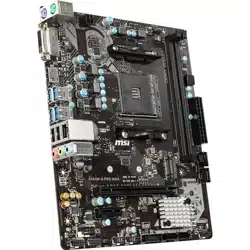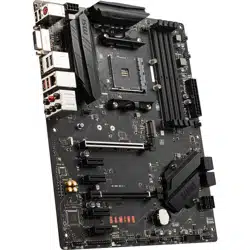

B550 GAMING GEN3
Motherboard
User Guide
Benutzerhandbuch
Manuel d’utilisation


1
Contents
Quick Start..................................................................................................................... 3
Specifications .............................................................................................................. 16
Special Features ......................................................................................................... 19
Package Contents ...................................................................................................... 20
Back Panel Connectors ............................................................................................. 21
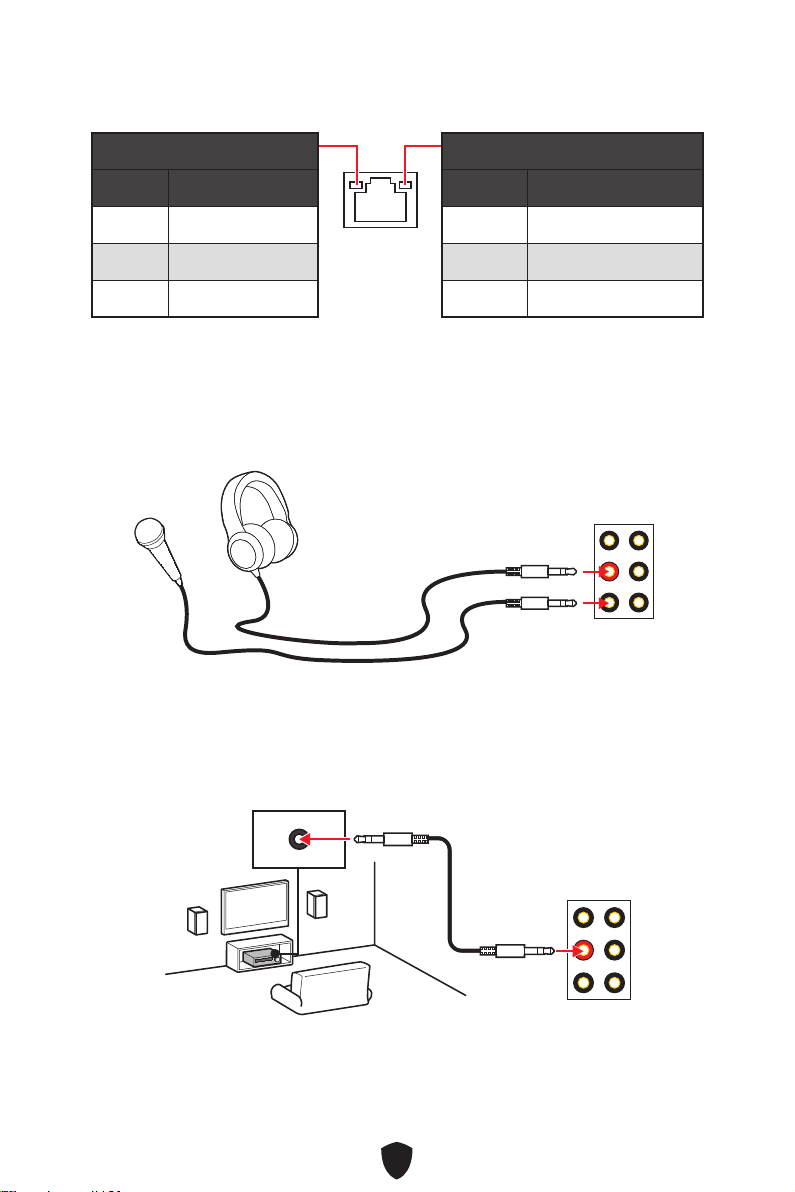
LAN Port LED Status Table .................................................................................. 22
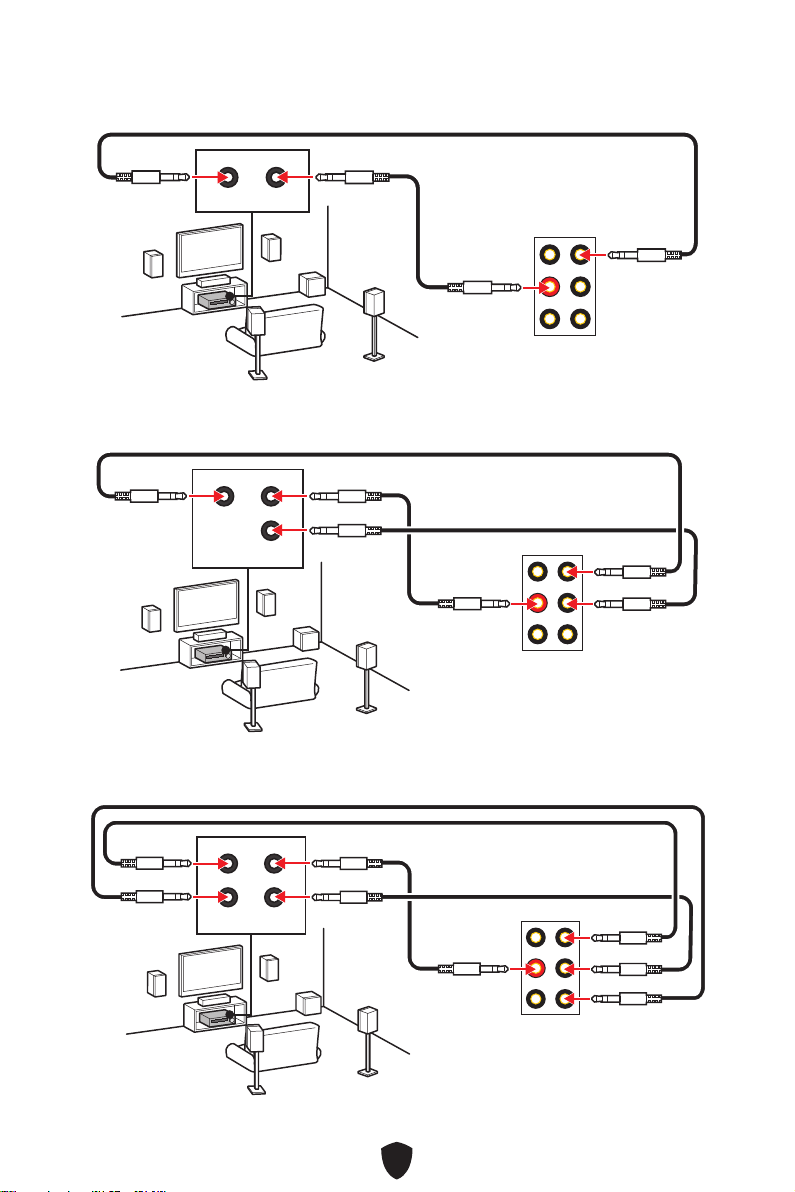
Audio Jacks Connection ....................................................................................... 22
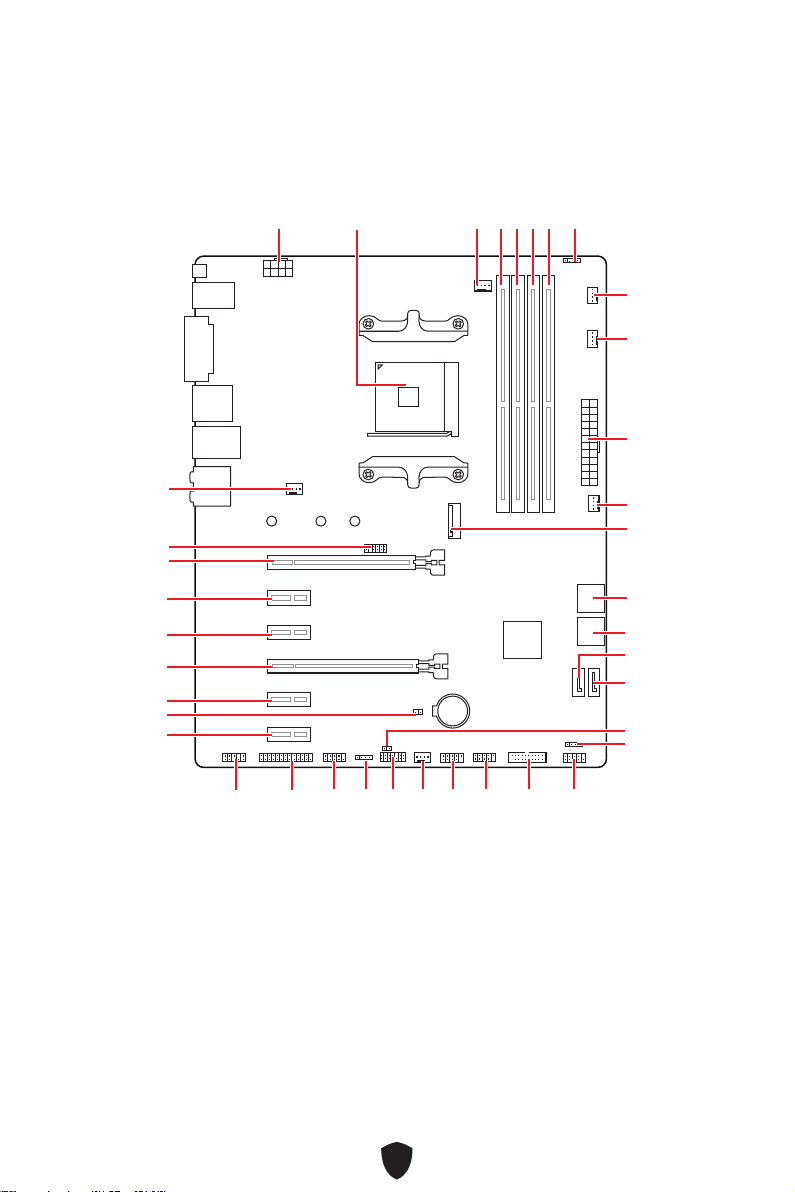
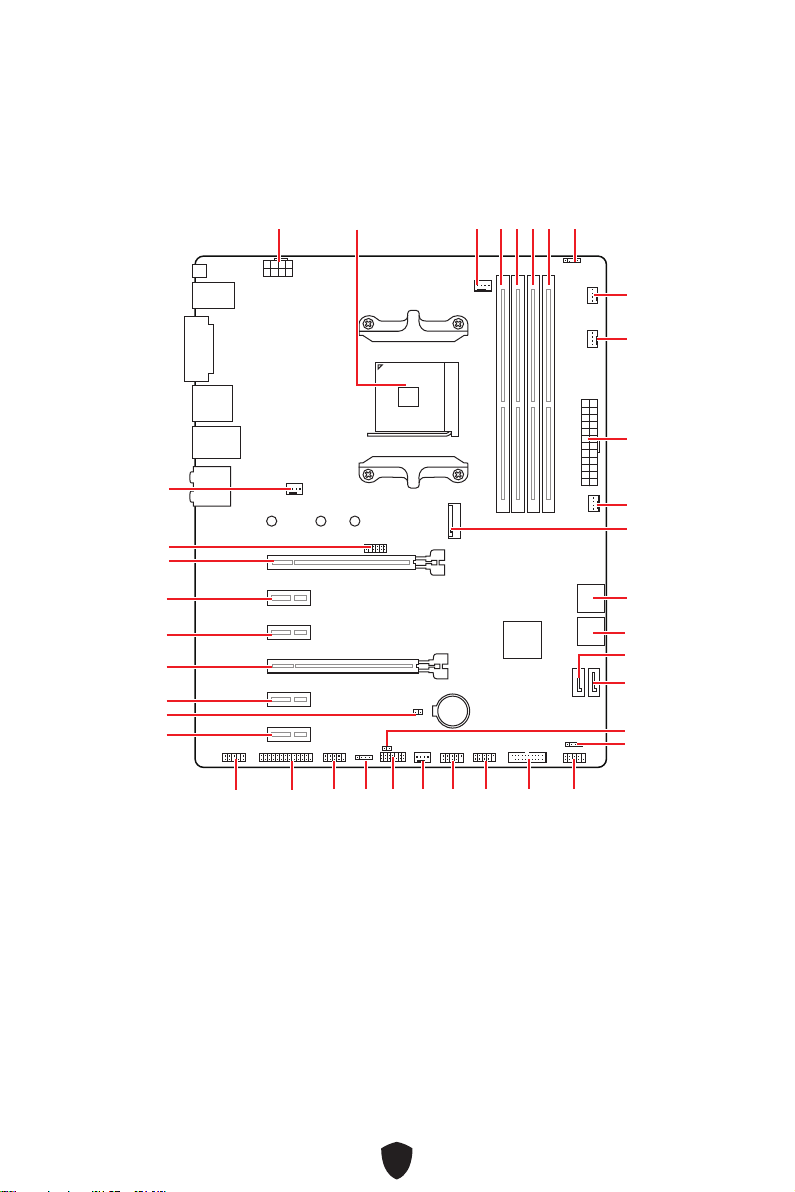
Overview of Components ........................................................................................... 24
CPU Socket ........................................................................................................... 25
DIMM Slots ............................................................................................................ 26
PCI_E1~6: PCIe Expansion Slots .......................................................................... 27
M2_1: M.2 Slot (Key M) ......................................................................................... 28
SATA1~6: SATA 6Gb/s Connectors ....................................................................... 29
JFP1, JFP2: Front Panel Connectors ................................................................... 30
JAUD1: Front Audio Connector ............................................................................ 30
CPU_PWR1, ATX_PWR1: Power Connectors ....................................................... 31
JCI1: Chassis Intrusion Connector ....................................................................... 32
JUSB3: USB 3.2 Gen 1 Connector ........................................................................ 33
JUSB1~2: USB 2.0 Connectors ............................................................................. 33
JLPC1: BIOS Debug Connector ............................................................................ 34
JTPM1: TPM Module Connector ........................................................................... 34
JLPT1: Parallel Port Connector ........................................................................... 35
JCOM1: Serial Port Connector ............................................................................. 35
CPU_FAN1, PUMP_FAN1, SYS_FAN1~4: Fan Connectors .................................. 36
JBAT1: Clear CMOS (Reset BIOS) Jumper ........................................................... 37
............................................................................................ 37
JRGB1~2: RGB LED connector ............................................................................. 38

2
Onboard LEDs ............................................................................................................. 39
EZ Debug LED ....................................................................................................... 39
Installing OS, Drivers & MSI Center .......................................................................... 40
MSI Center ............................................................................................................ 42
UEFI BIOS .................................................................................................................... 43
BIOS Setup ............................................................................................................ 44
Resetting BIOS ...................................................................................................... 45
Updating BIOS ....................................................................................................... 45
3
Quick Start
Thank you for purchasing a new motherboard from MSI®. This Quick Start section
provides demonstration diagrams about how to install your computer. Some of the
installations also provide video demonstrations. Please link to the URL to watch it
with the web browser on your phone or tablet. You may have even link to the URL by
scanning the QR code.
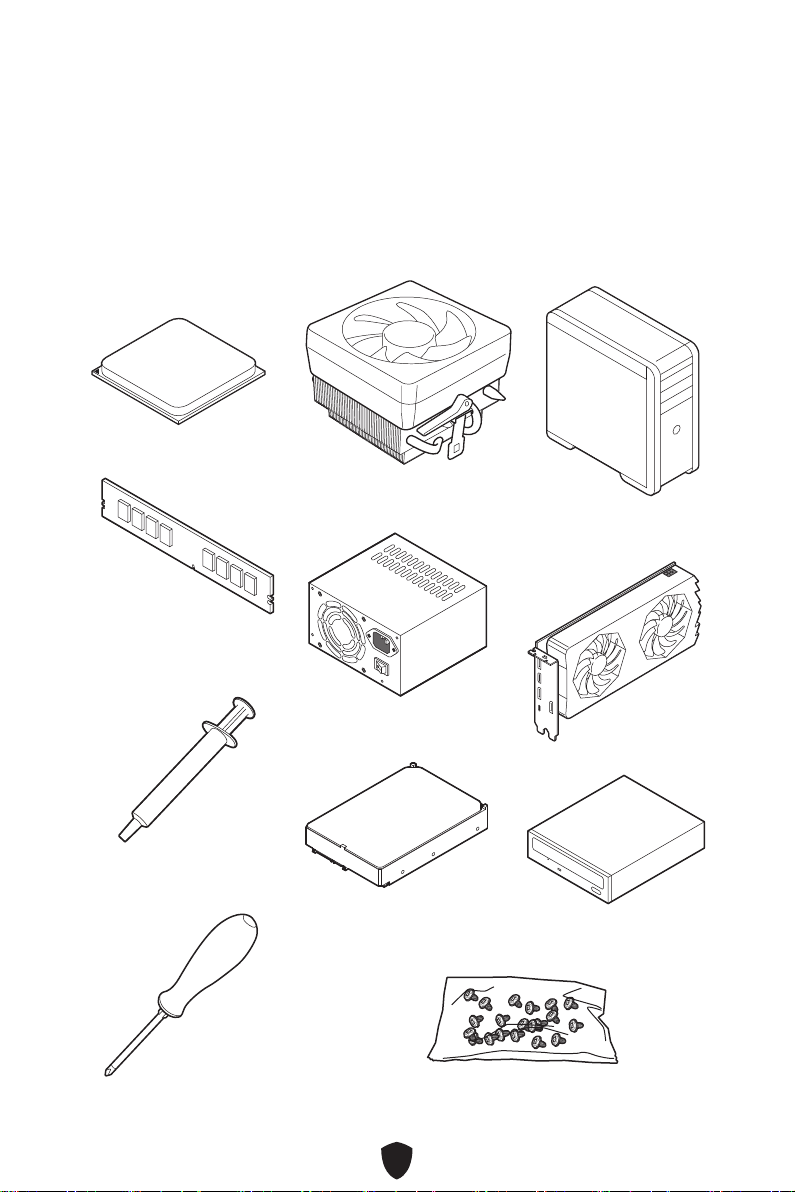
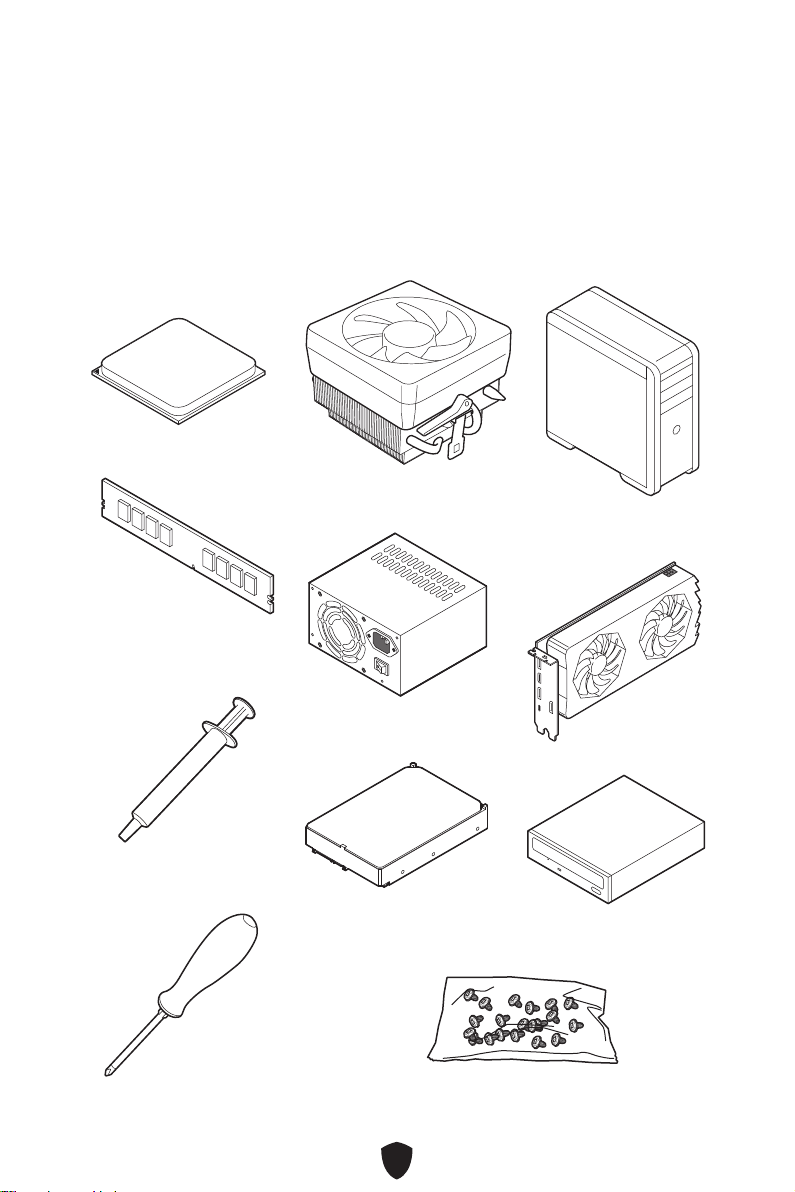
Preparing Tools and Components
AMD® AM4 CPU
CPU Fan
DDR4 Memory
Graphics Card
SATA Hard Disk Drive
SATA DVD Drive
Phillips Screwdriver
Chassis
Power Supply Unit
A Package of Screws
Thermal Paste

4
Safety Information
The components included in this package are prone to damage from electrostatic
discharge (ESD). Please adhere to the following instructions to ensure successful
computer assembly.
Ensure that all components are securely connected. Loose connections may cause
the computer to not recognize a component or fail to start.
Hold the motherboard by the edges to avoid touching sensitive components.
It is recommended to wear an electrostatic discharge (ESD) wrist strap when
handling the motherboard to prevent electrostatic damage. If an ESD wrist strap
is not available, discharge yourself of static electricity by touching another metal
object before handling the motherboard.
Store the motherboard in an electrostatic shielding container or on an anti-static
pad whenever the motherboard is not installed.
Before turning on the computer, ensure that there are no loose screws or metal
components on the motherboard or anywhere within the computer case.
Do not boot the computer before installation is completed. This could cause
permanent damage to the components as well as injury to the user.
If you need help during any installation step, please consult a certified computer
technician.
Always turn off the power supply and unplug the power cord from the power outlet
before installing or removing any computer component.
Keep this user guide for future reference.
Keep this motherboard away from humidity.
Make sure that your electrical outlet provides the same voltage as is indicated on
the PSU, before connecting the PSU to the electrical outlet.
Place the power cord such a way that people can not step on it. Do not place
anything over the power cord.
All cautions and warnings on the motherboard should be noted.
If any of the following situations arises, get the motherboard checked by service
personnel:
• Liquid has penetrated into the computer.
• The motherboard has been exposed to moisture.
• The motherboard does not work well or you can not get it work according to user
guide.
• The motherboard has been dropped and damaged.
• The motherboard has obvious sign of breakage.
Do not leave this motherboard in an environment above 60°C (140°F), it may damage
the motherboard.
5
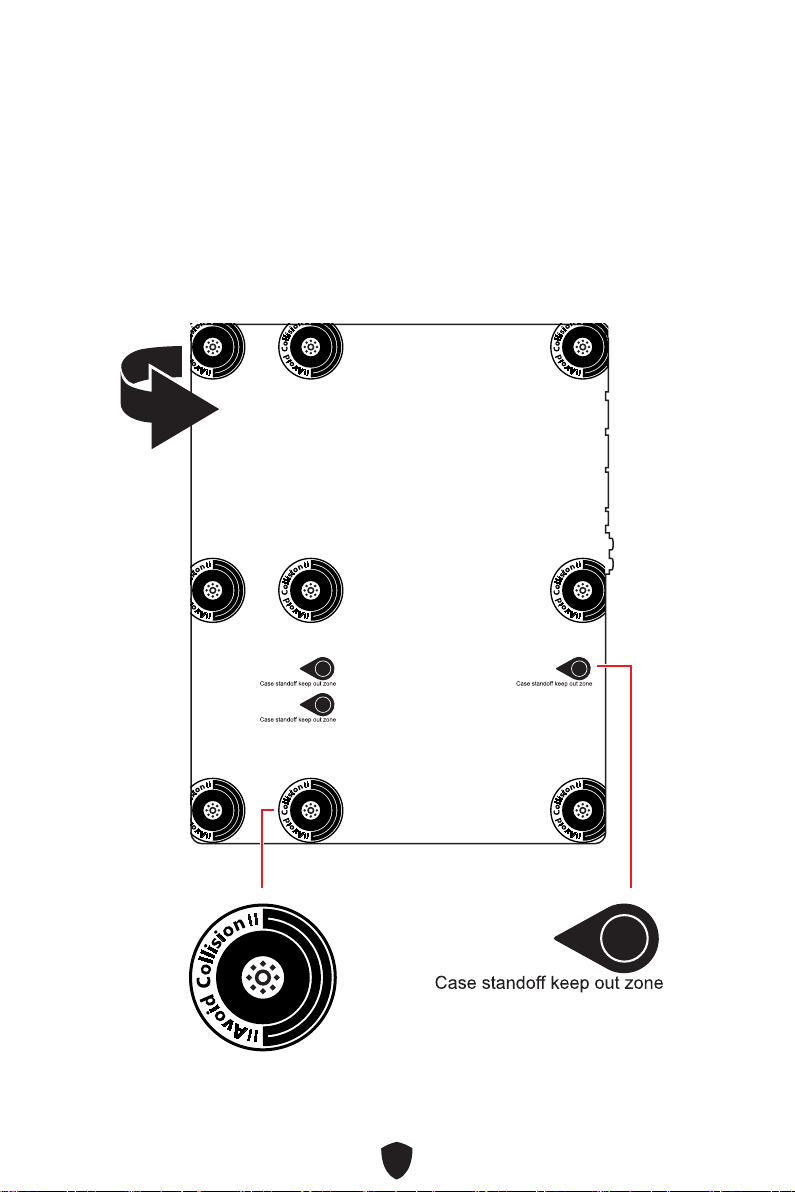
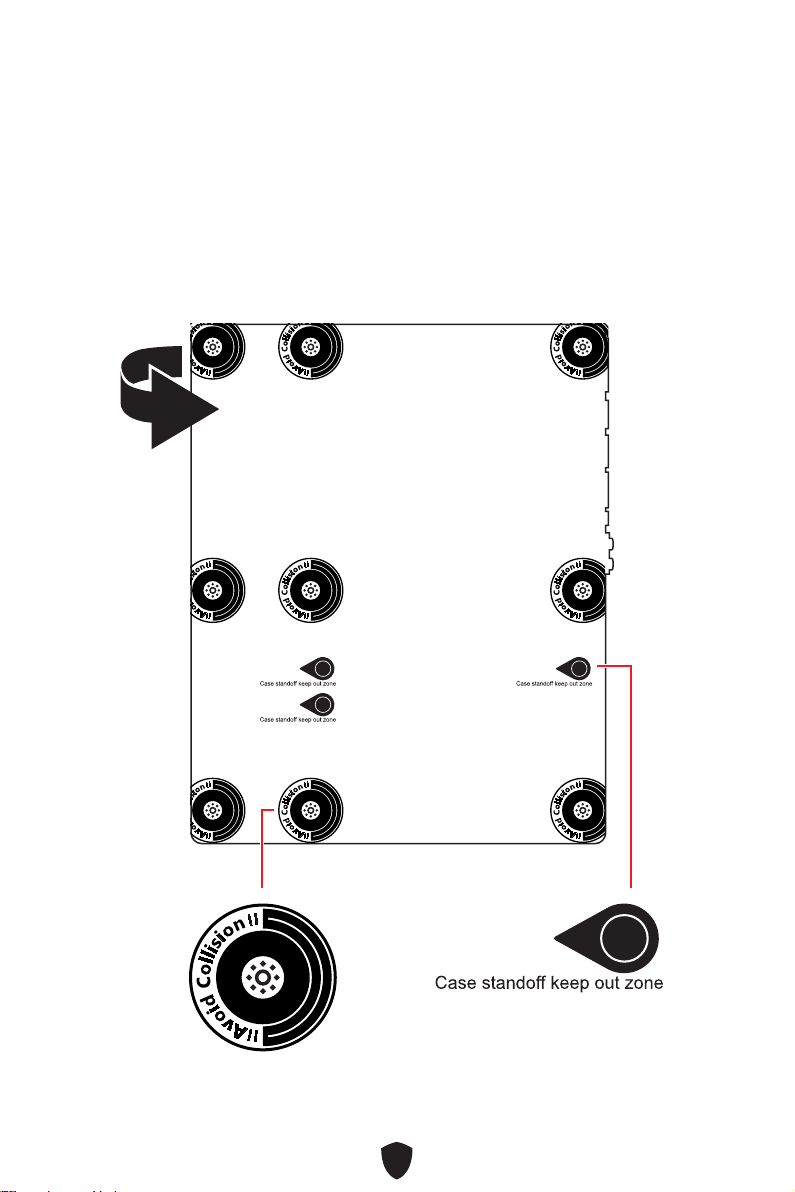
Case stand-off notification
To prevent damage to the motherboard, any unnecessary mounting stand-off between
the motherboard circuits and the computer case is prohibited. The Case standoff keep
out zone signs will be marked on the backside of motherboard (as shown below) to
serve as a warning to user.
Avoid collision notification
Protective paint is printed around each screw hole to prevent parts from being
scratched.
6
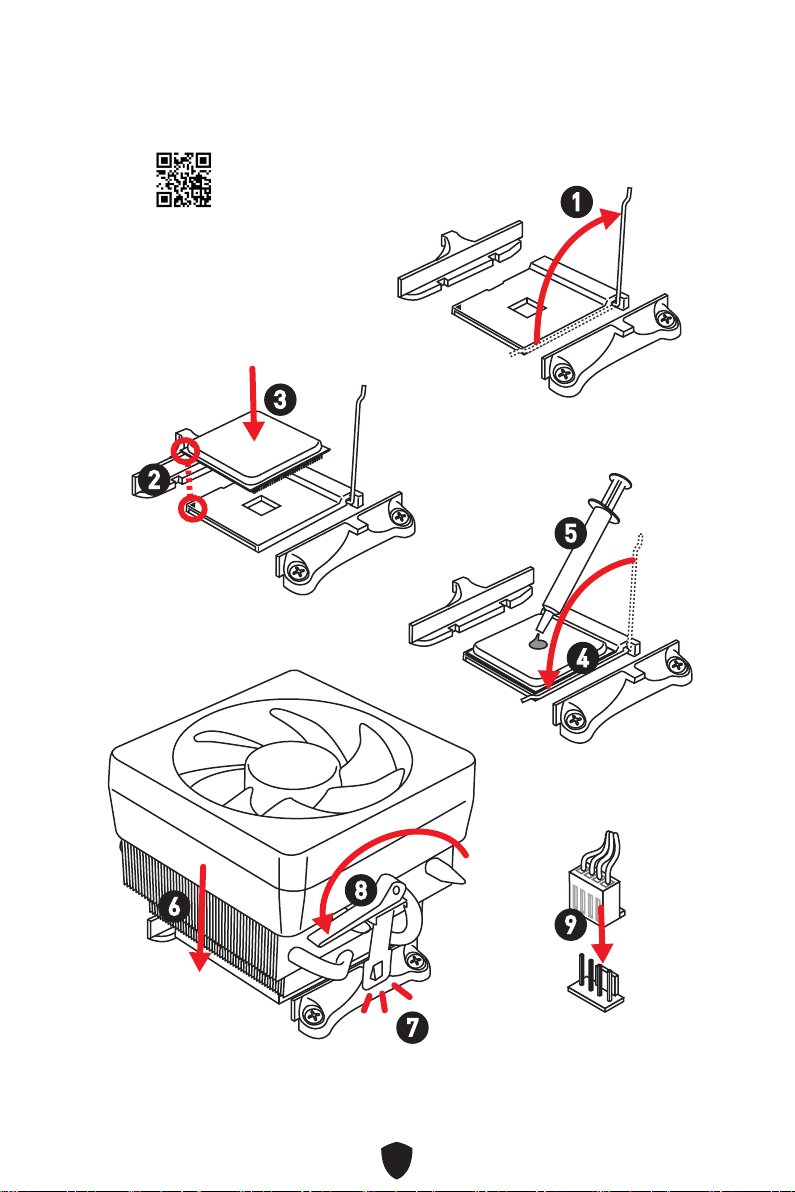
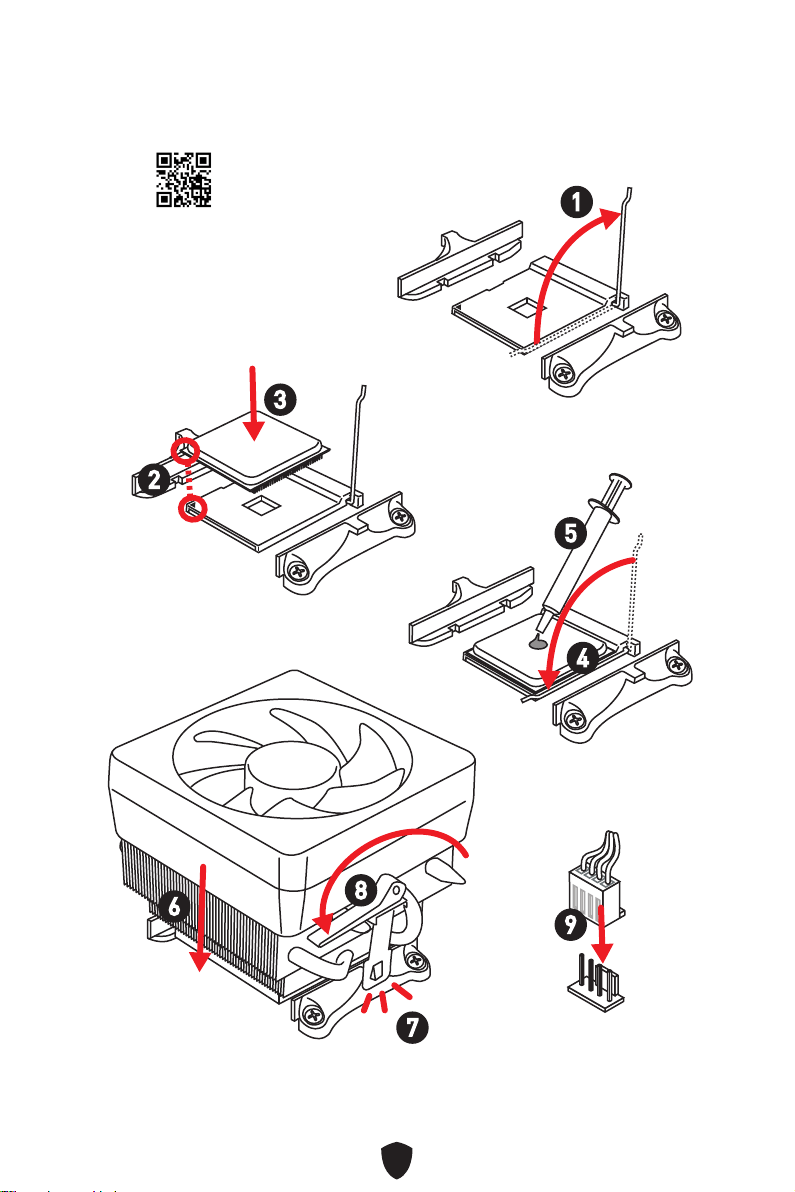
Installing a Processor
https://youtu.be/Xv89nhFk1vc
1
2
3
6
4
5
7
8
9
7
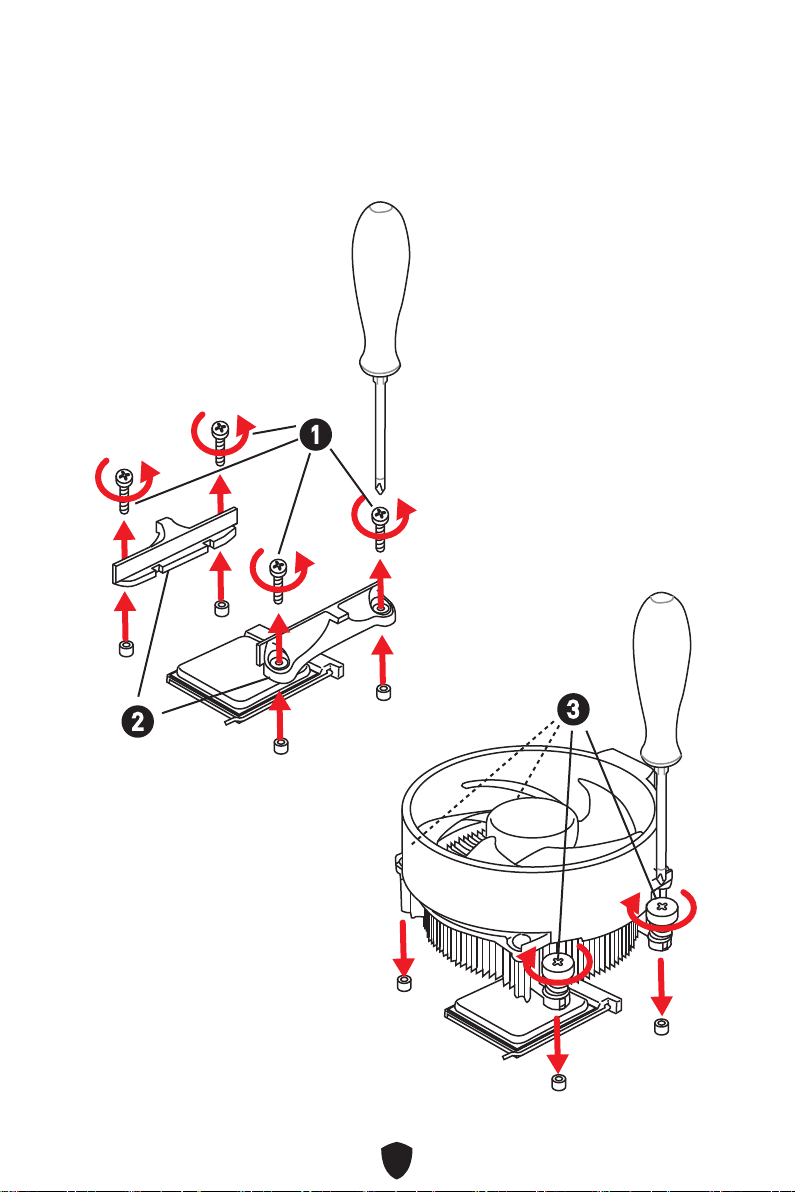
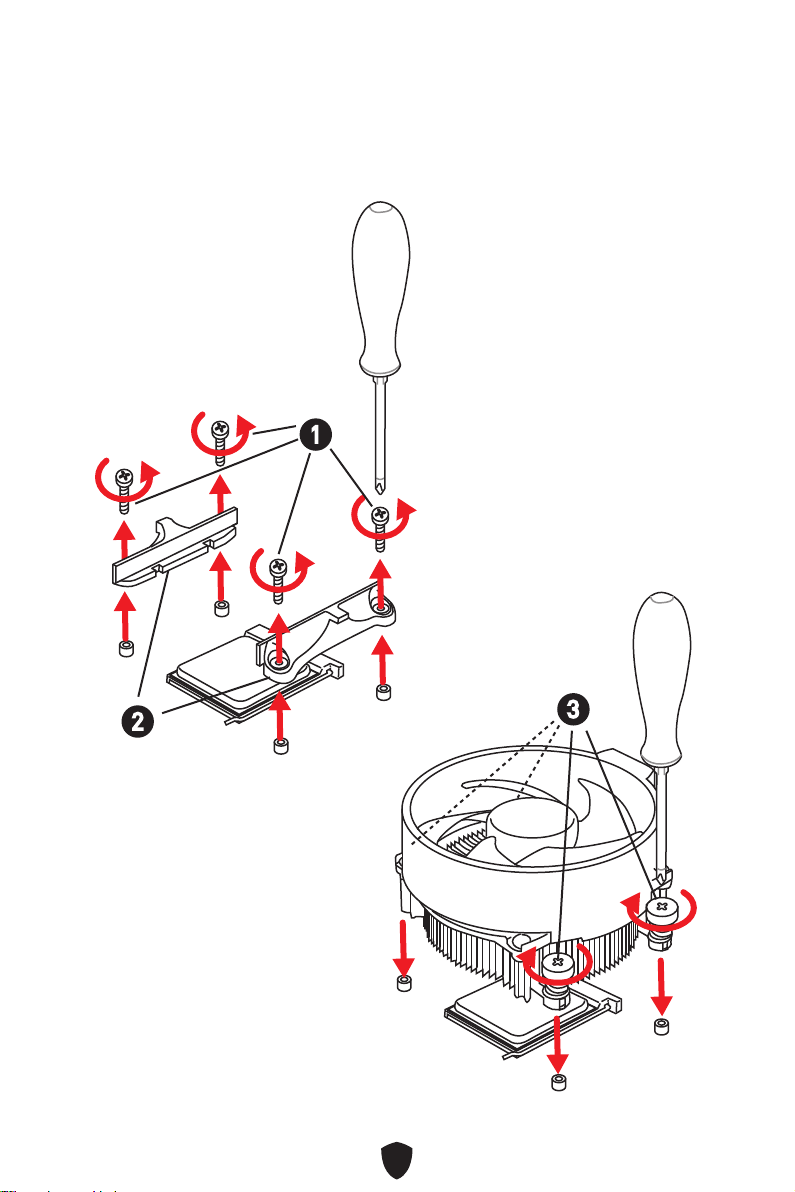
Important
If you are installing the screw-type CPU heatsink, please follow the figure below to
remove the retention module first and then install the heatsink.
1
2
3
8
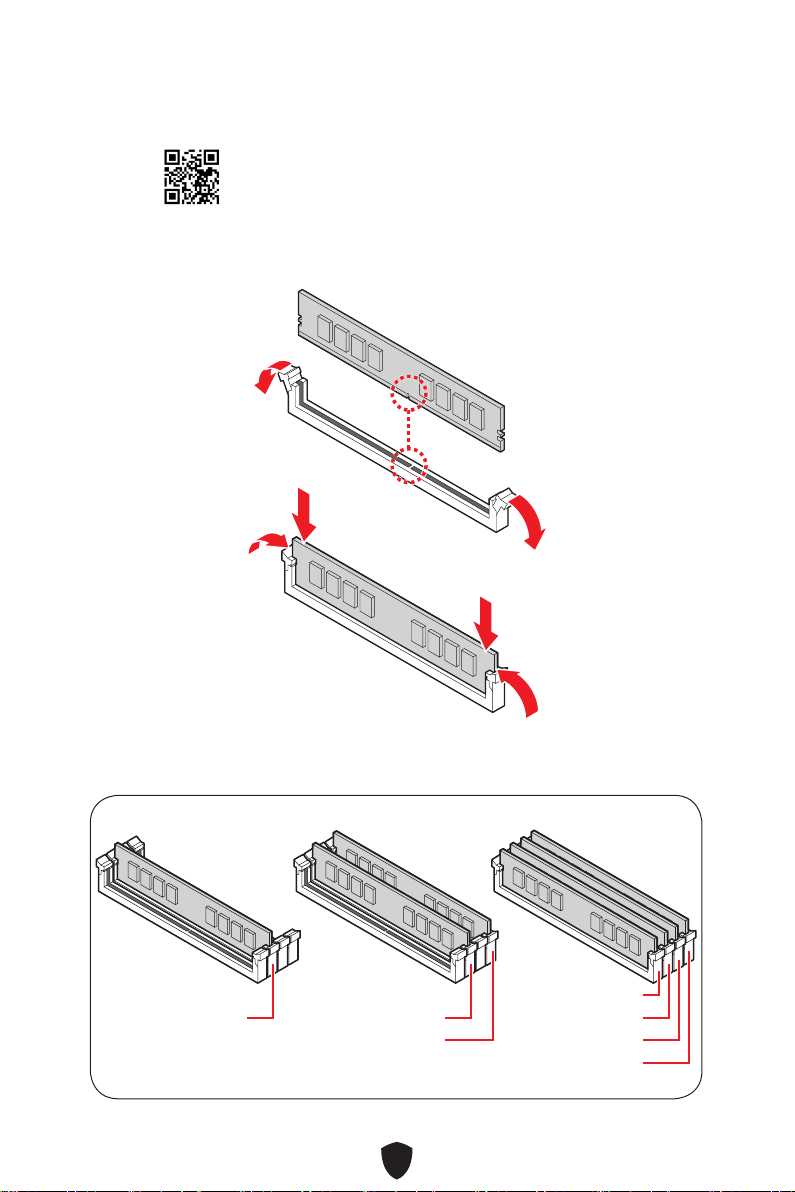
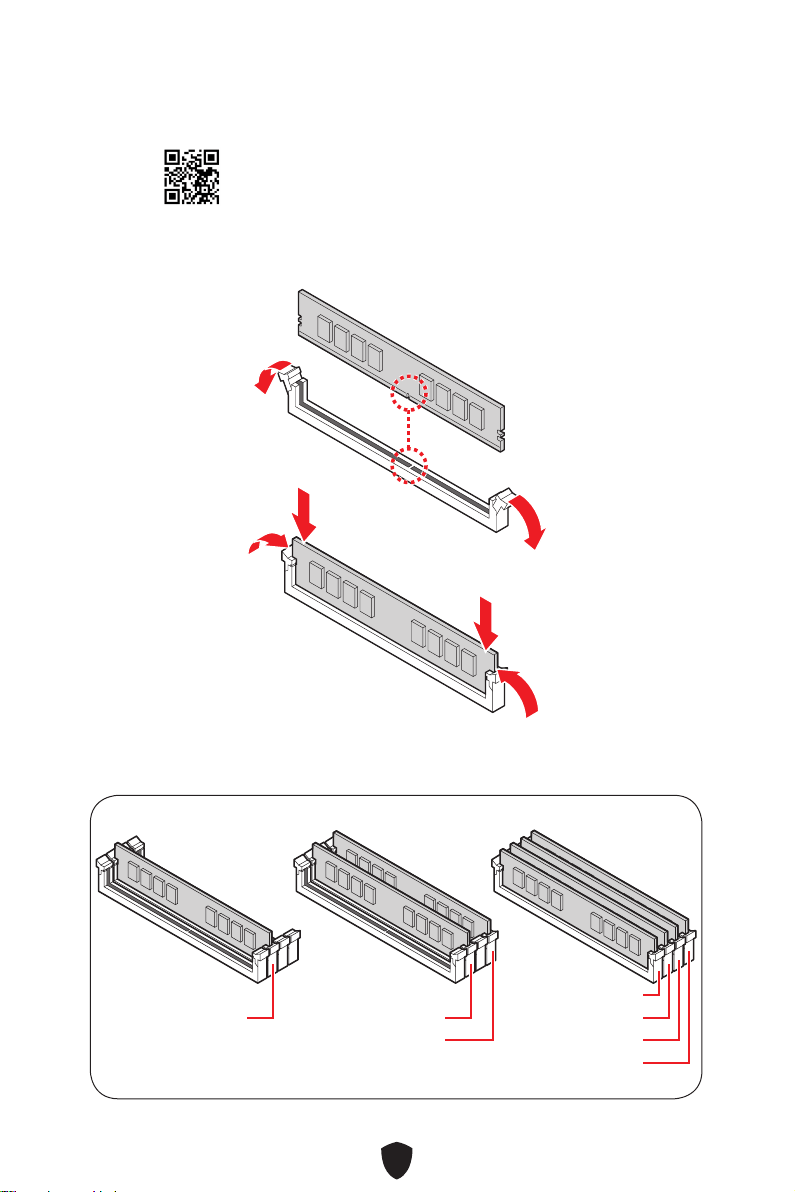
Installing DDR4 memory
DIMMA2 DIMMA2
DIMMB2
DIMMA1
DIMMA2
DIMMB1
DIMMB2
http://youtu.be/T03aDrJPyQs
9
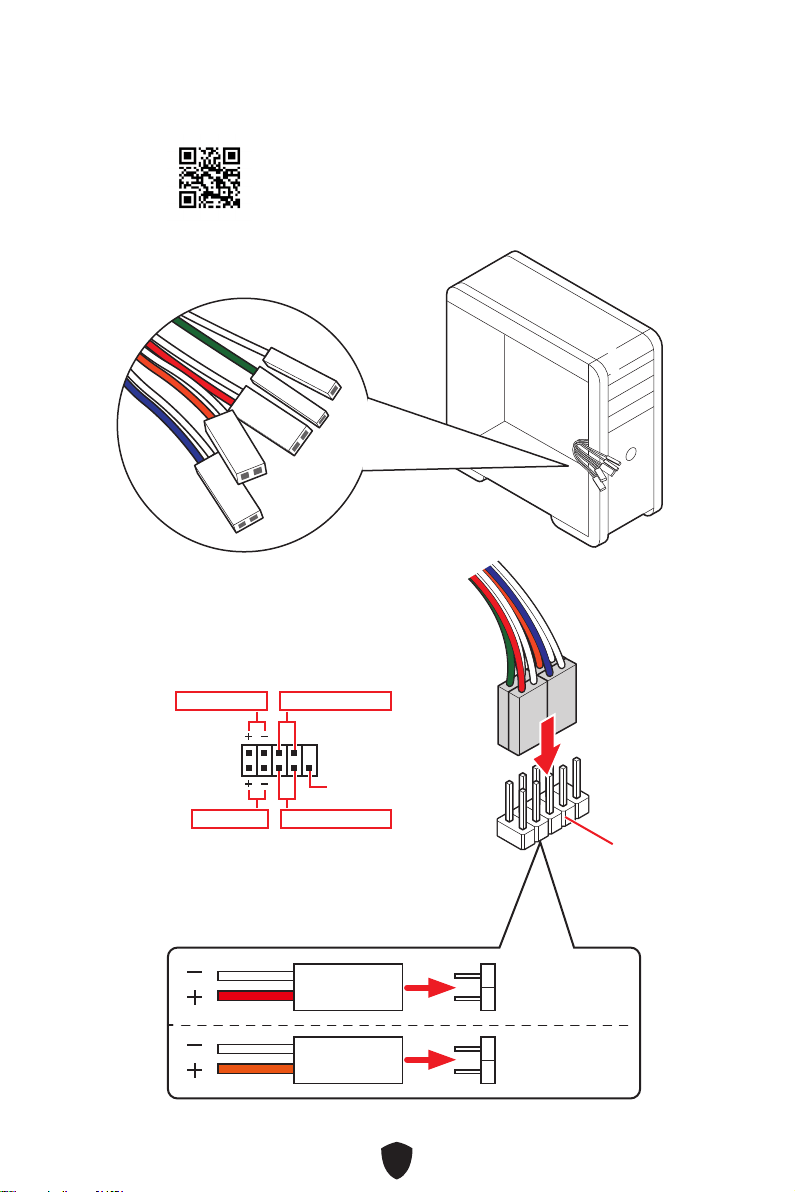
HDD LED
RESET SW
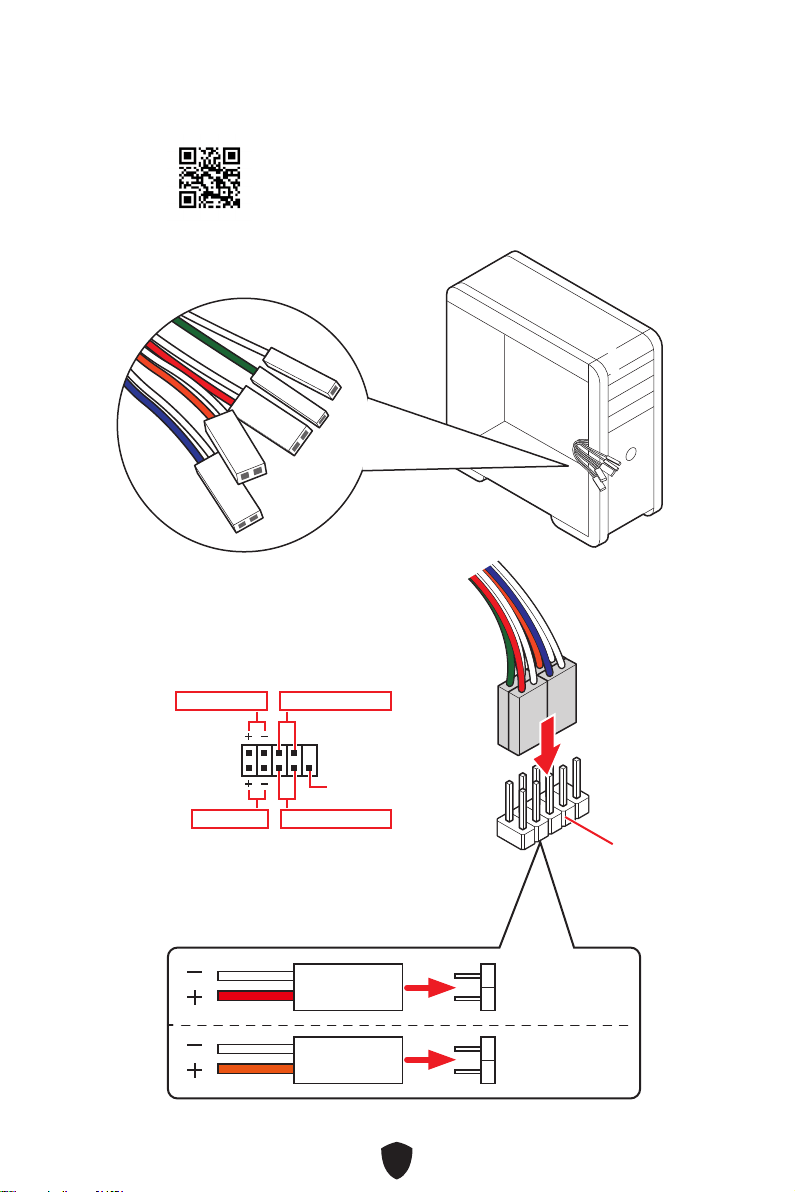
Connecting the Front Panel Header
http://youtu.be/DPELIdVNZUI
JFP1
HDD LED
HDD LED -
HDD LED +
POWER LED -
POWER LED +
POWER LED
RESET SW
POWER SW
POWER LED+
POWER LED-
HDD LED
1
2 10
9
Power LED
Reserved
Power Switch
JFP1
Reset SwitchHDD LED
10
BAT1
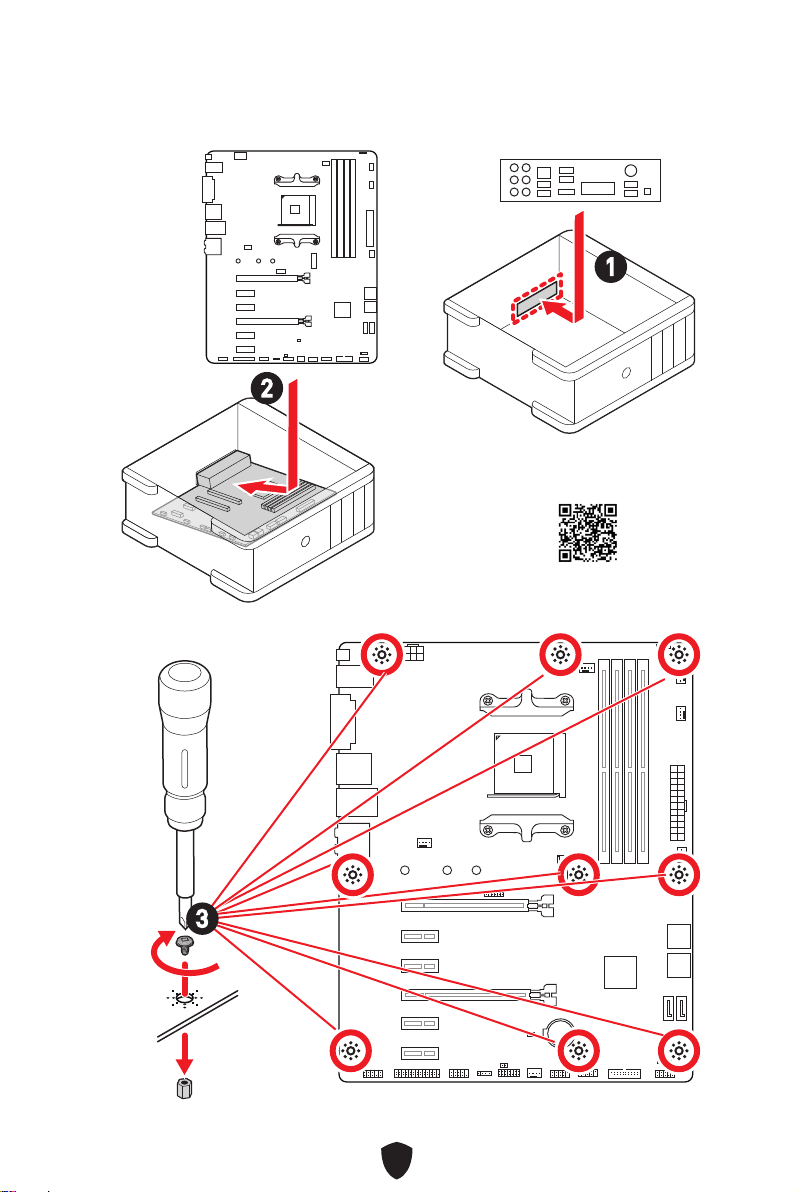
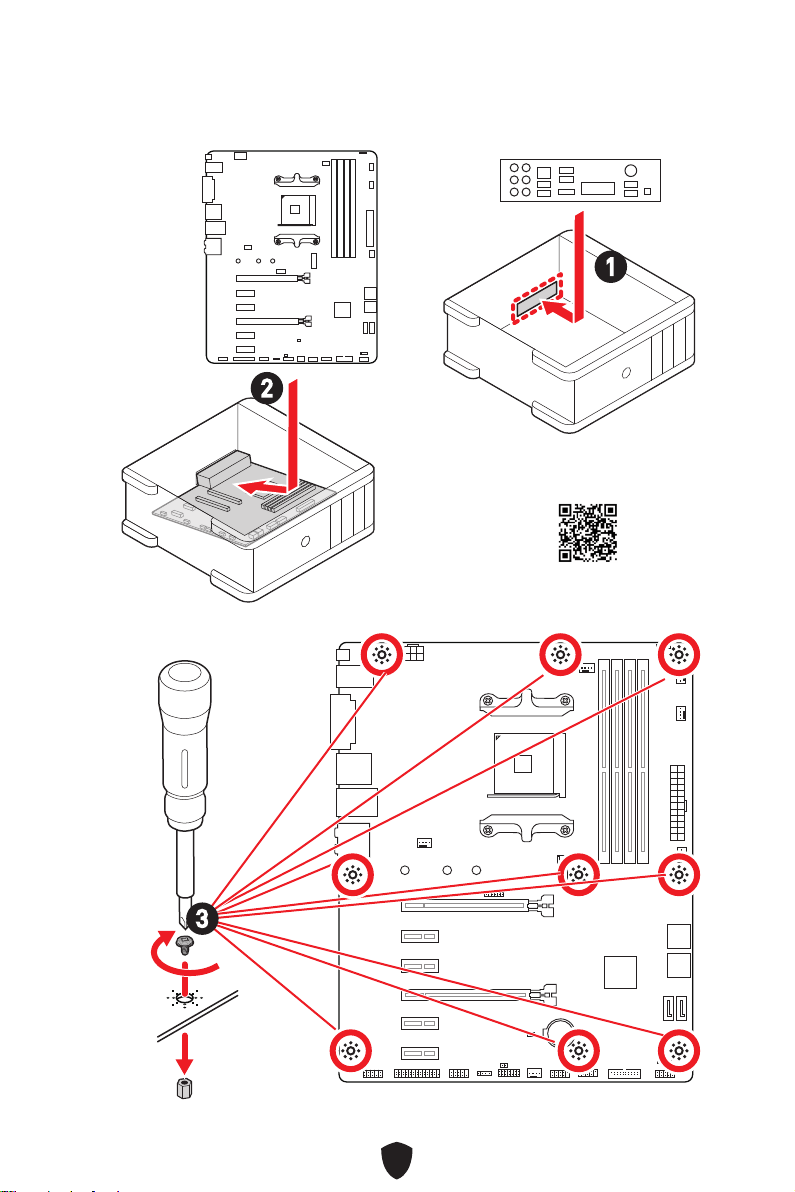
Installing the Motherboard
2
1
https://youtu.be/wWI6Qt51Wnc
Torque:
3 kgf·cm*
*3 kgf·cm
= 0.3 N·m
= 2.6 lbf·in
3
11
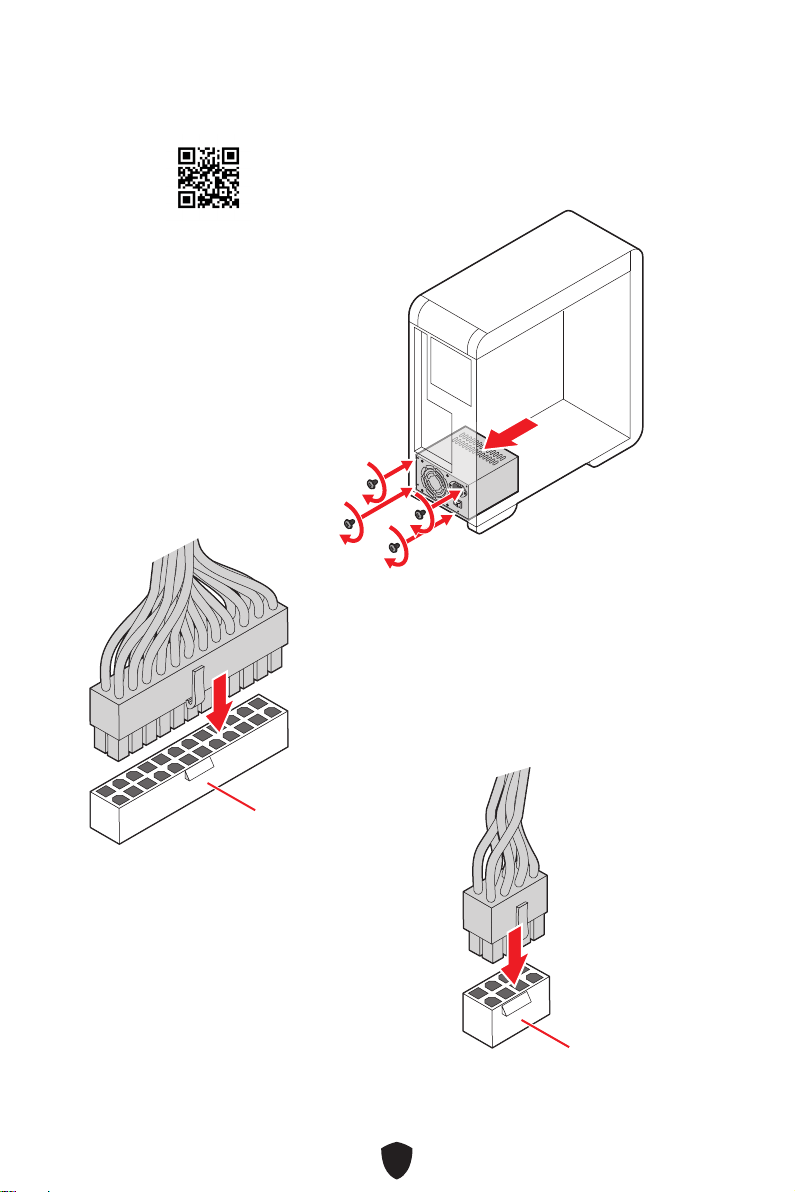
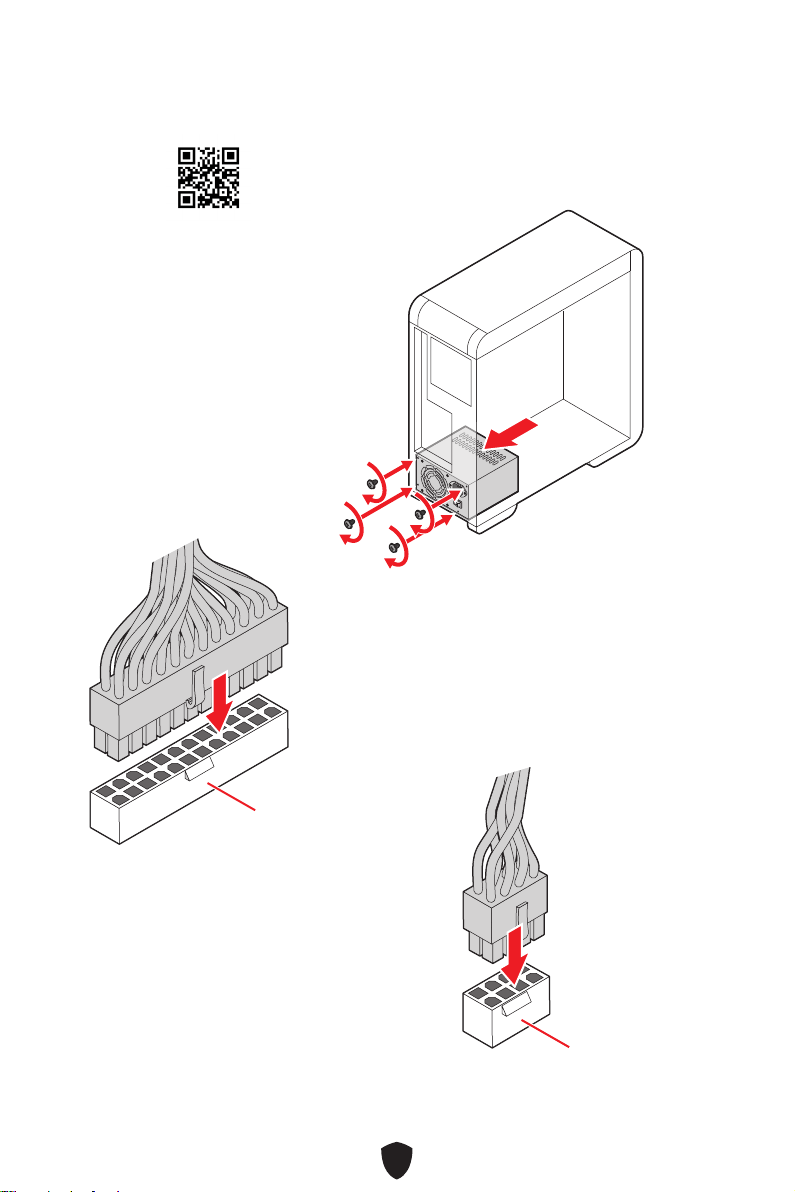
Connecting the Power Connectors
http://youtu.be/gkDYyR_83I4
ATX_PWR1
CPU_PWR1
12
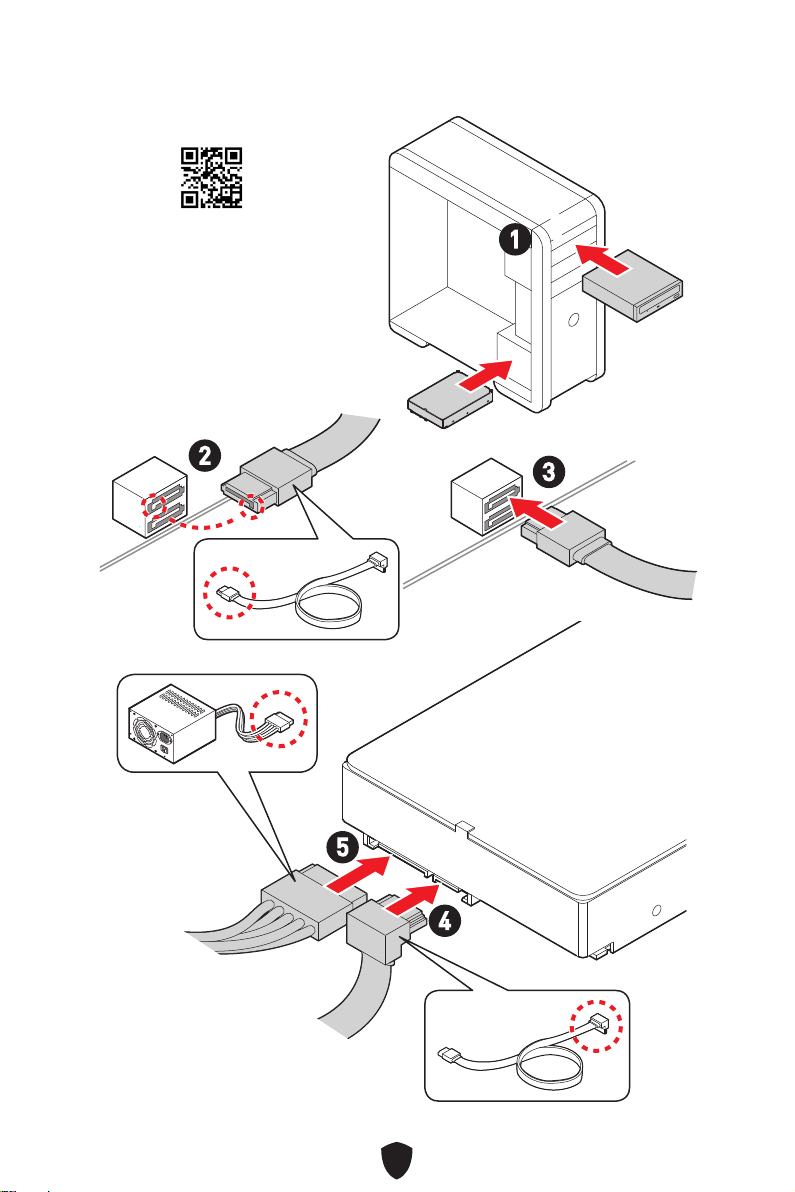
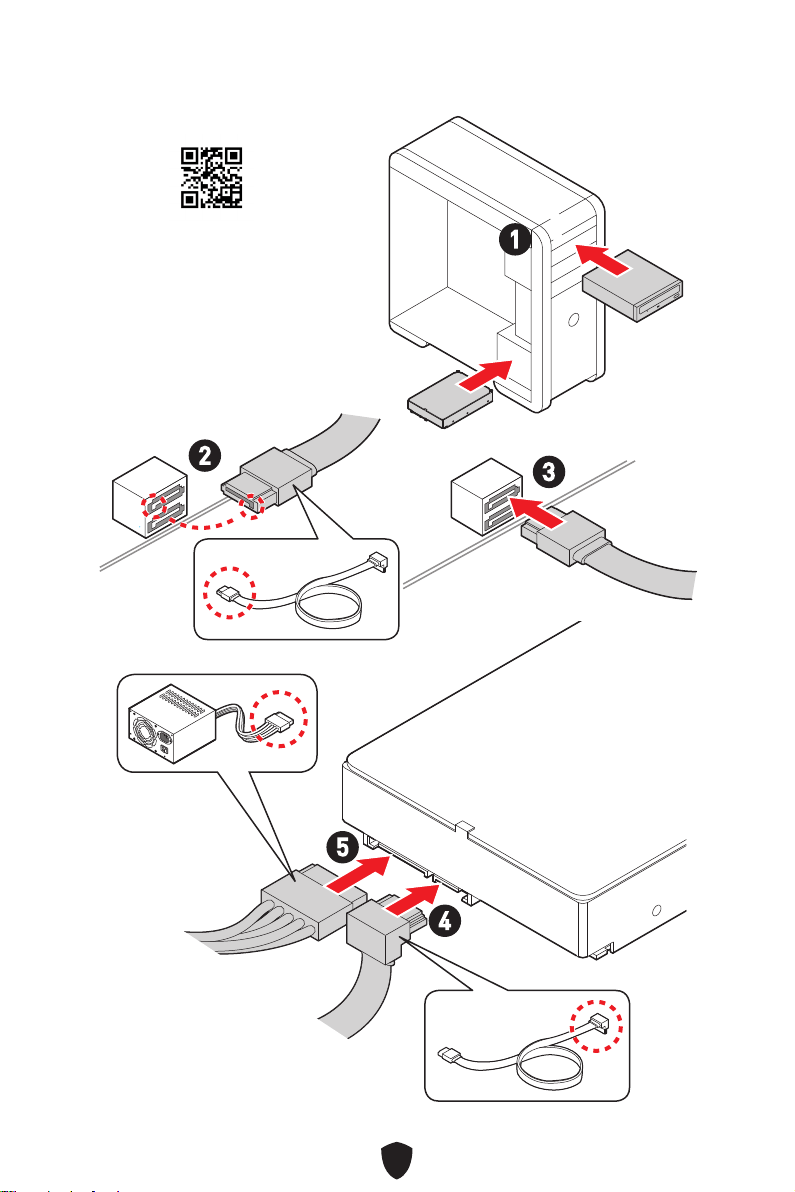
Installing SATA Drives
http://youtu.be/RZsMpqxythc
1
2
3
4
5
13
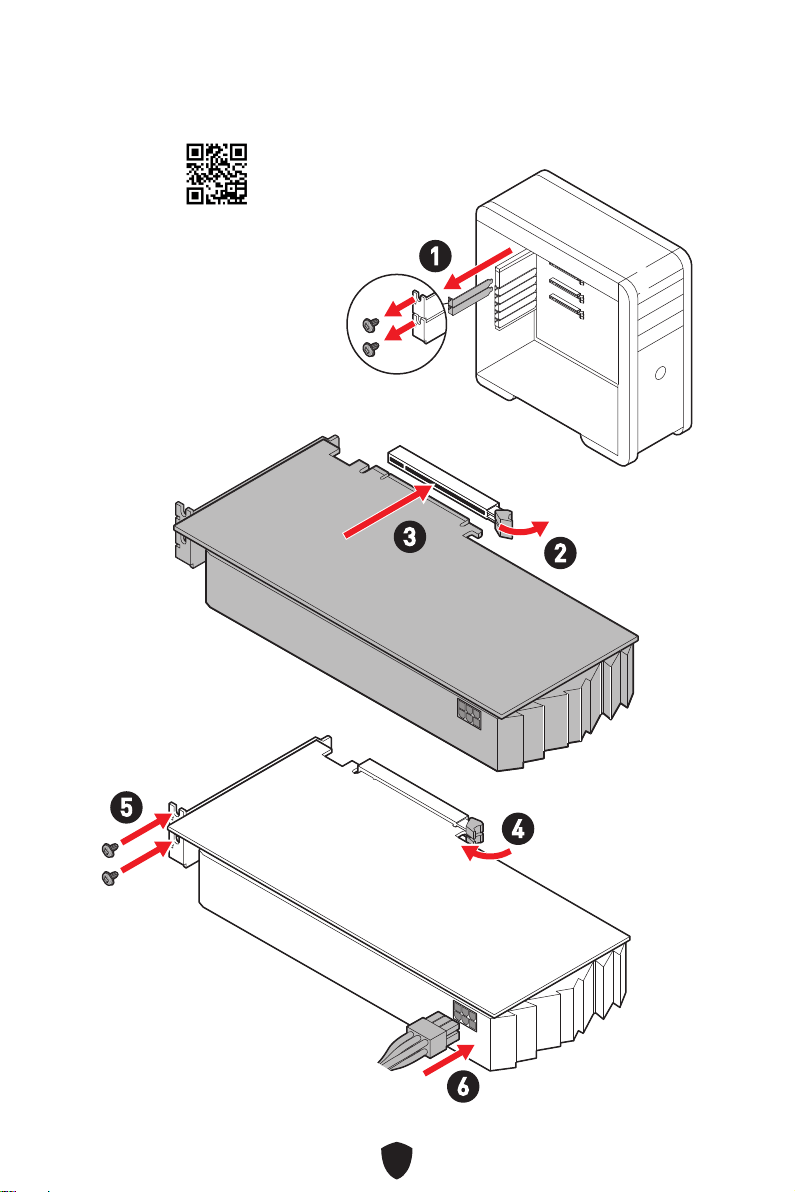
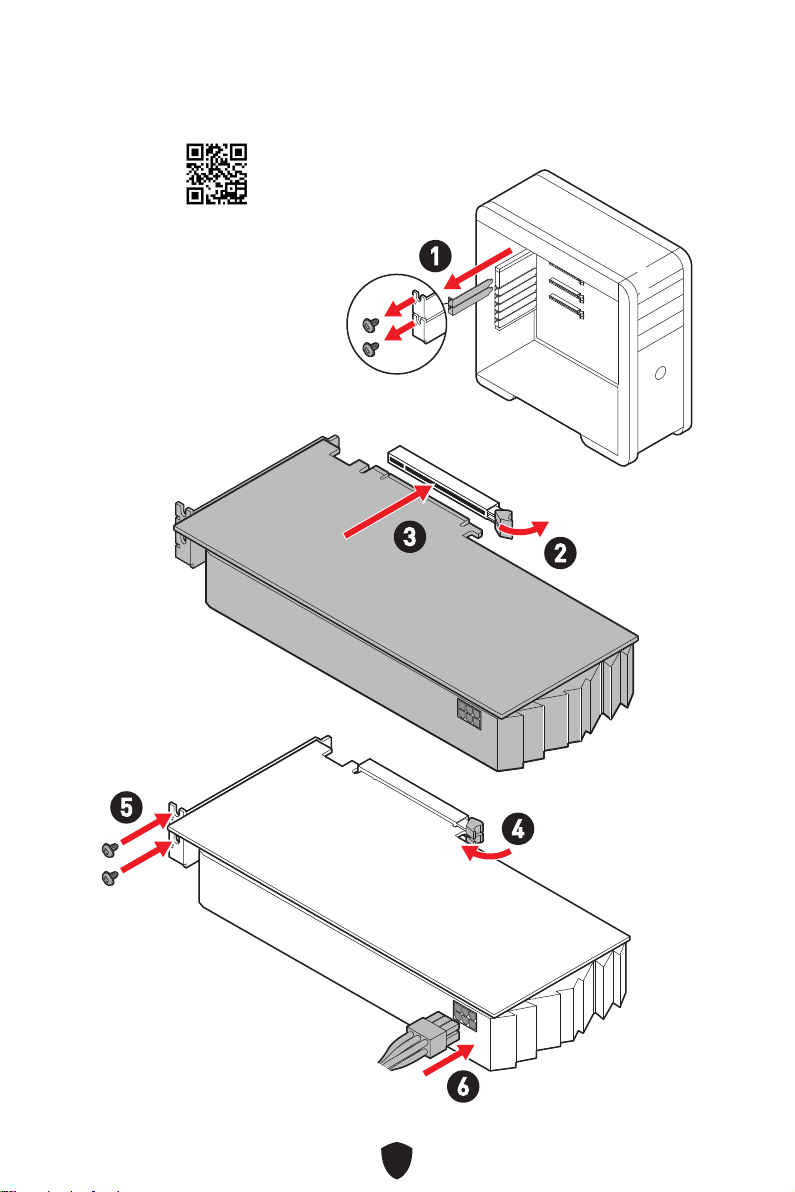
Installing a Graphics Card
http://youtu.be/mG0GZpr9w_A
1
2
3
4
5
6
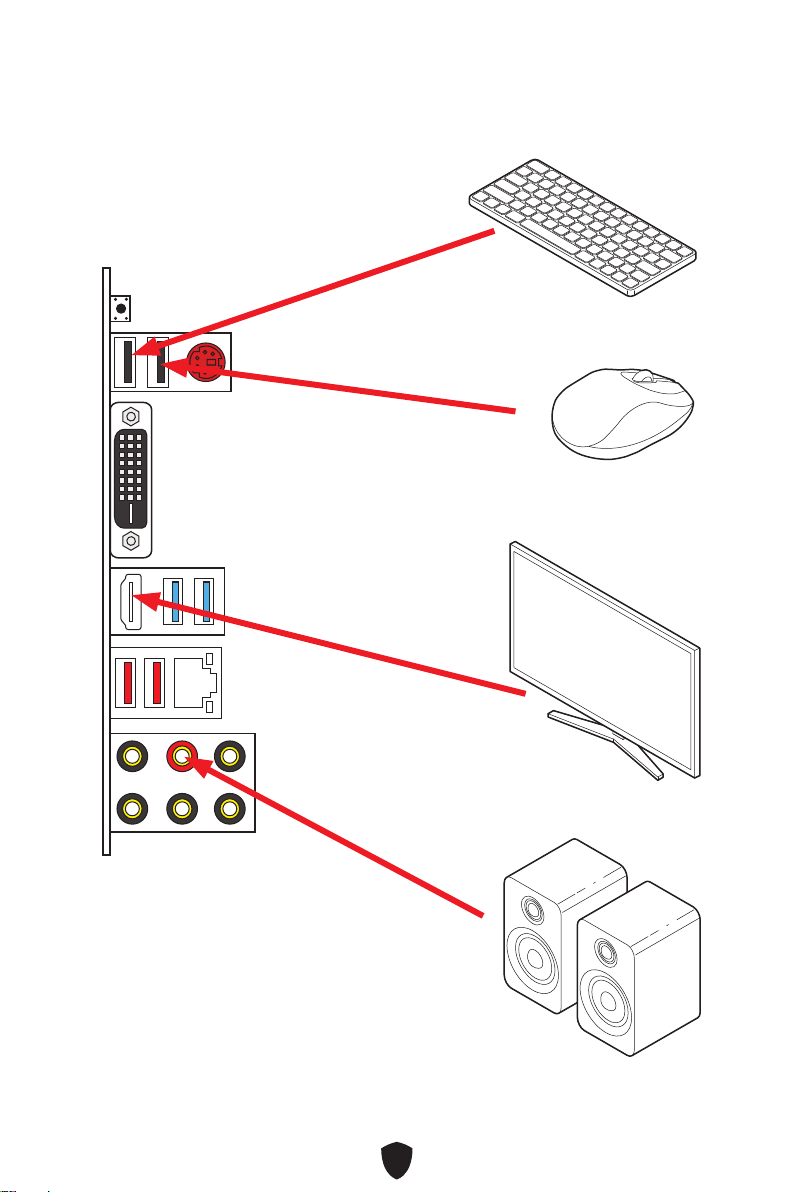
14
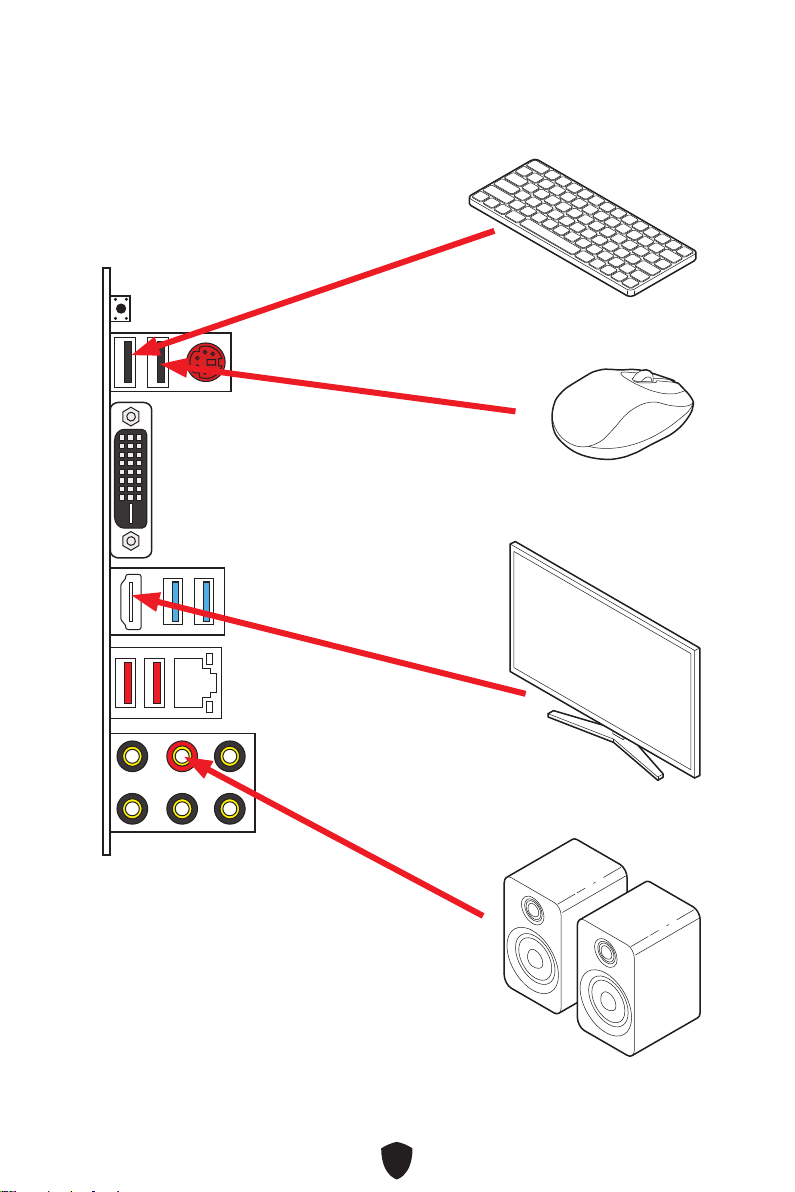
Connecting Peripheral Devices
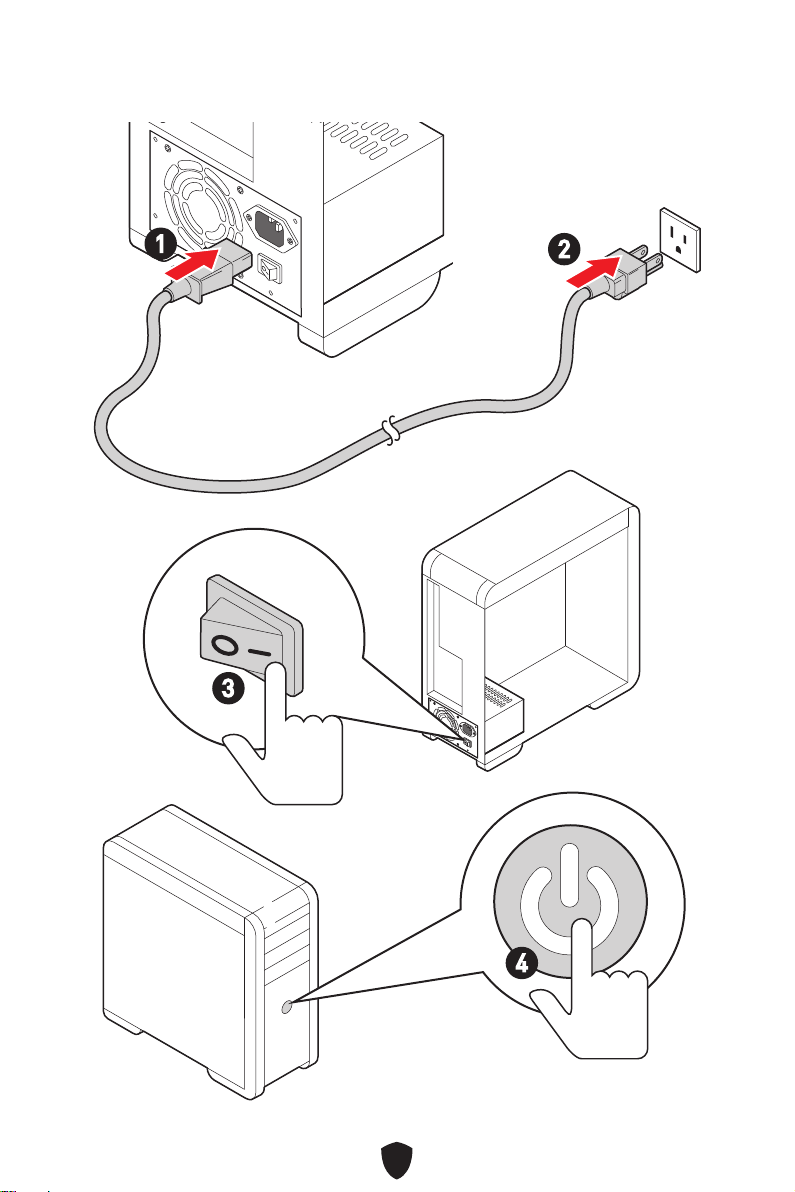
15
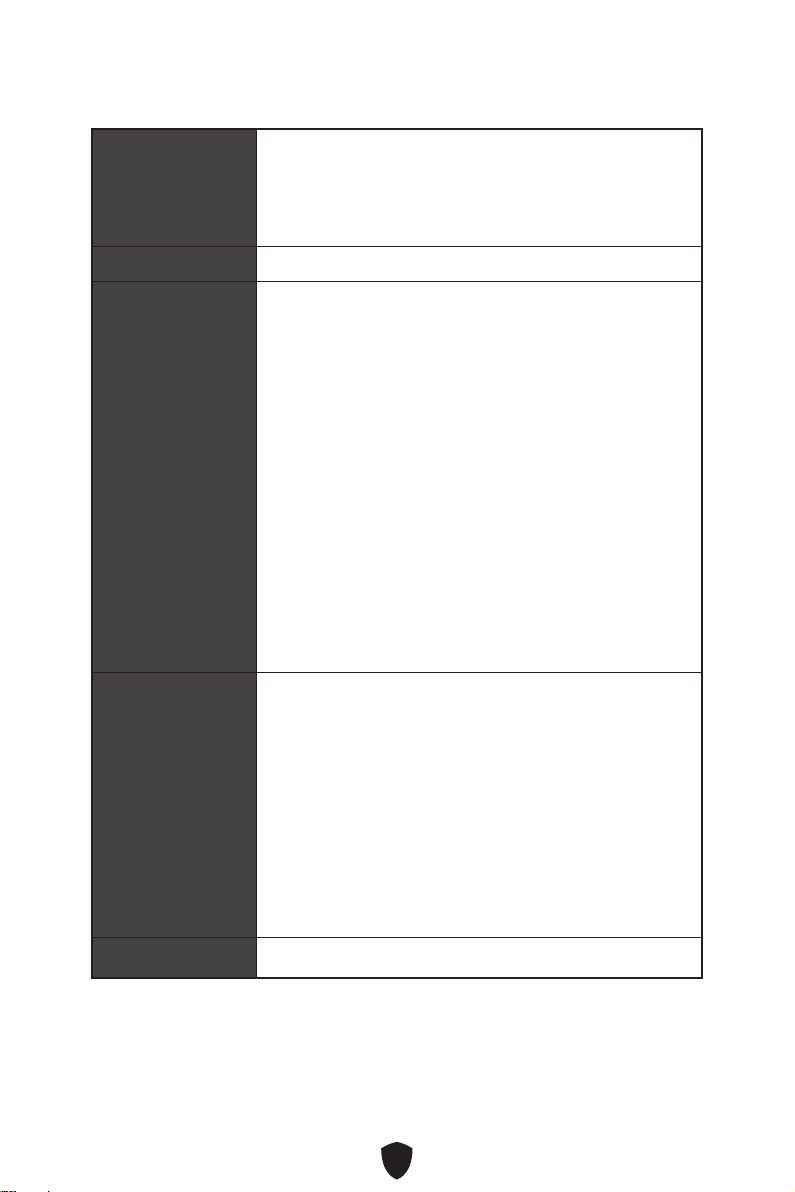
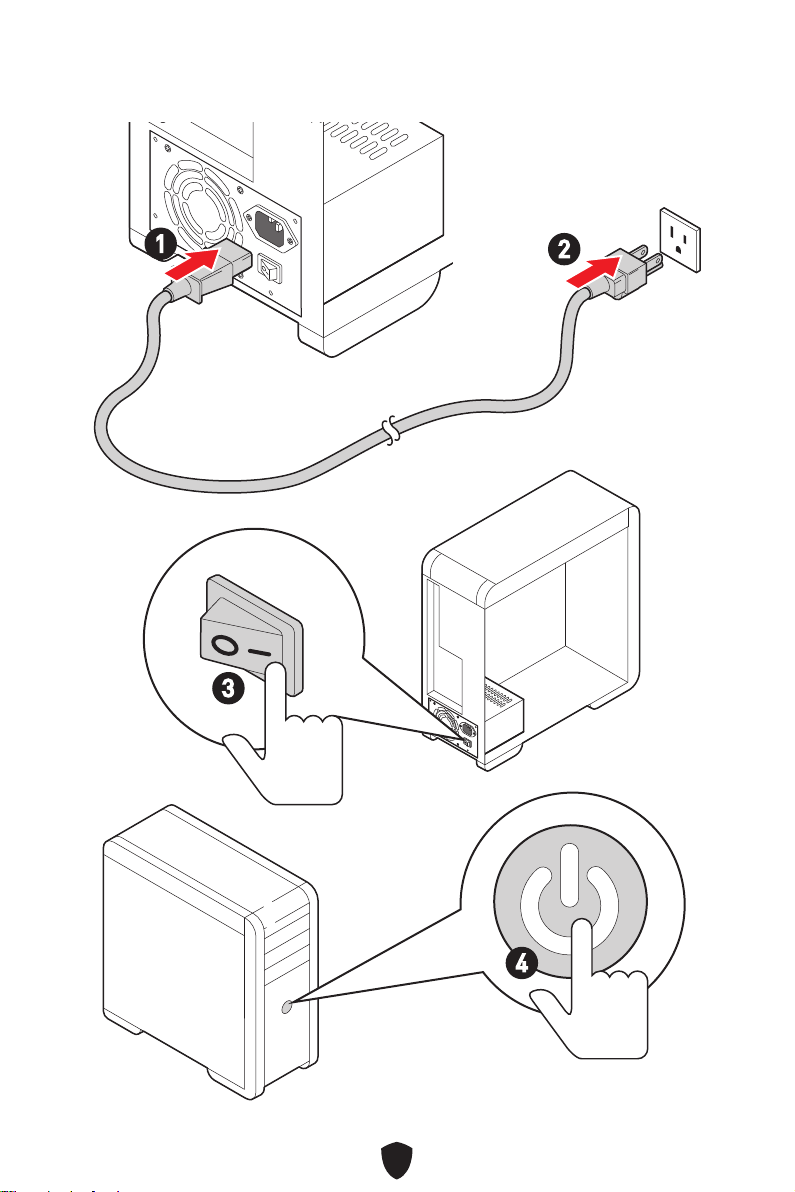
Power On
4
3
1
2
16
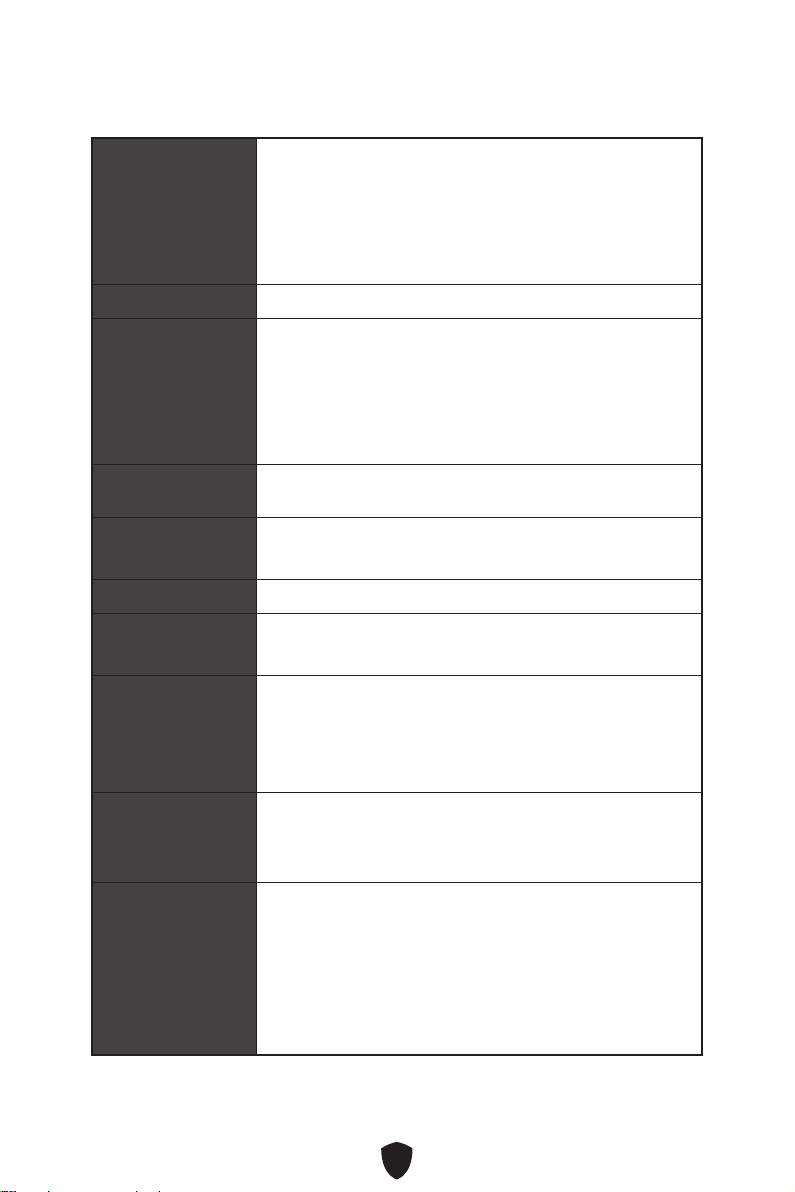
Specifications
CPU
Supports AMD Ryzen™ 5000 Series, 5000 G-Series,
4000 G-Series, and 3000 Series processors
Supports Socket AM4
* Please go to www.msi.com to get the newest support status as new processors
are released.
Chipset AMD® B550 Chipset
Memory
4x DDR4 memory slots, supporting up to 128GB*
Supports DDR4 1866/ 2133/ 2400/ 2667/ 2800/ 2933/ 3000/
3066/ 3200 MHz by JEDEC
Supports DDR4 2667/ 2800/ 2933/ 3000/ 3066/ 3200/ 3466/
3600/ 3733/ 3866/ 4000/ 4133/ 4266/ 4400+ MHz by A-XMP
OC MODE
• 1DPC 1R max speed 4400 MHz
• 1DPC 2R max speed 3733 MHz
• 2DPC 1R max speed 3866 MHz
• 2DPC 2R max speed 3466 MHz
Dual channel memory architecture
Supports non-ECC UDIMM memory
Supports ECC UDIMM memory (non-ECC mode)
Supports un-buffered memory
* Please go to www.msi.com for more information on compatible memory.
Expansion Slots
2x PCIe x16 slots
• PCI_E1 slot (From CPU)
• Supports PCIe 3.0 x16
• PCI_E4* (From B550 chipset)
• Supports PCIe 3.0 x4
4x PCIe x1 slots
• PCI_E2, E3, E5 and E6 slots (From B550 chipset)
• Supports PCIe 2.0 x1
* PCI_E4 will run 2.0 x1 speed when any one of PCI_E2, PCI_E3, and PCI_E5
slots was be installed.
Multi-GPU
Supports AMD CrossFire™ Technology
Continued on next column
17
Continued from previous column
Onboard Graphics
1x DVI-D port, support a maximum resolution of
1920x1200 @60Hz*
1x HDMI™ 2.0b port, supports a maximum resolution of
4096x2160 @30Hz, 2560x1600 @60Hz*
/
**
* Available only on processors featuring integrated graphics.
** Graphics specifications may vary depending on the CPU installed.
SATA Ports 6x SATA 6Gb/s ports (From B550 chipset)
M.2 SSD Slots
1x M.2 slot (Key M)
• M2_1 slot (From CPU)
• Supports PCIe 3.0 x4
• Supports SATA 6Gb/s
• Supports 2260/ 2280/ 22110 storage devices
RAID
Supports RAID 0, RAID 1 and RAID 10 for SATA storage
devices
Audio
Realtek® ALC897 Codec
7.1-Channel High Definition Audio
LAN 1x Realtek® RTL8111H LAN controller
Power Connectors
1x 24-pin ATX main power connector
1x 8-pin ATX 12V power connector
Internal USB
Connectors
1x USB 3.2 Gen 1 5Gbps connector (From B550 chipset)
• Supports additional 2 USB 3.2 Gen 1 5Gbps ports
2x USB 2.0 connectors (From B550 chipset)
• Supports additional 4 USB 2.0 ports
Fan Connectors
1x 4-pin CPU fan connector
1x 4-pin water-pump fan connector
4x 4-pin system fan connectors
System Connectors
1x Front panel audio connector
2x System panel connectors
1x Chassis Intrusion connector
1x TPM module connector
1x Serial port connector
1x Parallel port connector
Continued on next column
18
Continued from previous column
Jumpers 1x Clear CMOS jumper
LED Features
2x 4-pin RGB LED connectors
4x EZ Debug LED
Back Panel
Connectors
1x Flash BIOS button
1x PS/2 keyboard/ mouse port
2x USB 2.0 Type-A ports
1x DVI-D port
1x HDMI™ port
2x USB 3.2 Gen1 5Gbps Type-A ports
1x LAN (RJ45) port
2x USB 3.2 Gen2 10Gbps Type-A ports
6x audio jacks
I/O Controller NUVOTON NCT6797 Controller Chip
Hardware Monitor
CPU/ System/ Chipset temperature detection
CPU/ System/ Pump fan speed detection
CPU/ System/ Pump fan speed control
Form Factor
ATX Form Factor
12 in. x 9.6 in. (30.5 cm x 24.4 cm)
BIOS Features
1x 256 Mb flash
UEFI AMI BIOS
ACPI 6.1, SMBIOS 2.8
Multi-language
Software
MSI Center
CPU-Z MSI GAMING
Google Chrome™, Google Toolbar, Google Drive
Norton™ Internet Security Solution

19
Special Features
MSI Center
• User Scenario
• True Color
• Live Update
• Hardware Monitoring
• Super Charger
• Speed Up
• Smart Image Finder
• MSI Companion
Audio
• Audio Boost
Network
• LAN Manager
Cooling
• Extended Heatsink Design
• Smart Fan Control
LED
• Mystic Light Extension (RGB)
• Mystic Light
• EZ DEBUG LED
Performance
• DDR4 Boost
• Core Boost
• GAME Boost
Protection
• PCI-E Steel Armor
Experience
• MSI Center
• GAMING HOTKEY
• GAMING MOUSE Control
• Click BIOS 5

20
Package Contents
Please check the contents of your motherboard package. It should contain:
Board
• 1x Motherboard
Documentation
• 1x Quick installation guide
Cables
• 2x SATA 6Gb/s cables
Accessories
• 1x Case badge
• 1x I/O Shielding
• 1x M.2 screw
• Product Registration Card
Important
If any of the above items are damaged or missing, please contact your retailer.
21
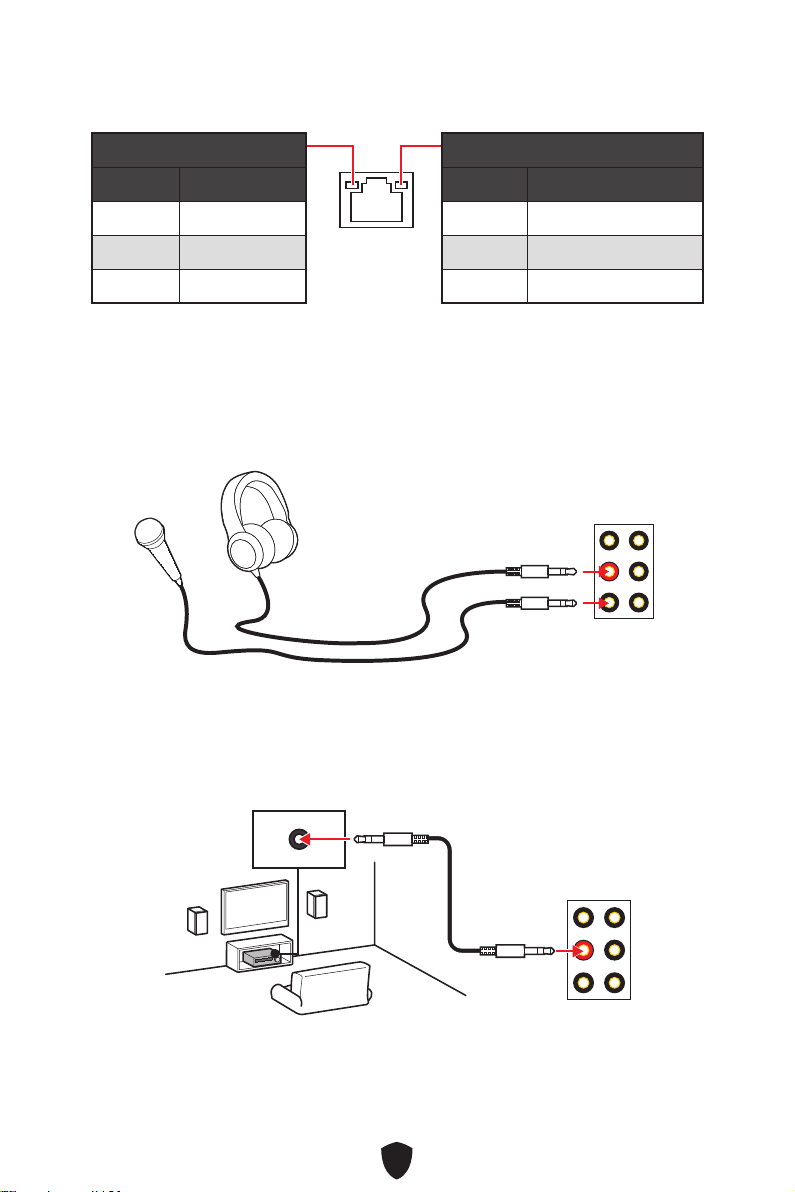
Back Panel Connectors
1
10
2 3 4 65
Item Description
1 Flash BIOS button
2 PS/2 keyboard/ mouse port
3 DVI-D port
4 USB 3.2 Gen 1 5Gbps Type-A ports (From CPU)
5 1 Gbps LAN jack
6 Audio jacks
7
USB 2.0 Type-A port (From B550 chipset)
• Flash BIOS Port
8 USB 2.0 Type-A port (From B550 chipset)
9
HDMI port
10 USB 3.2 Gen 2 (10Gbps) Type-A ports (From B550 chipset)
7 98
22
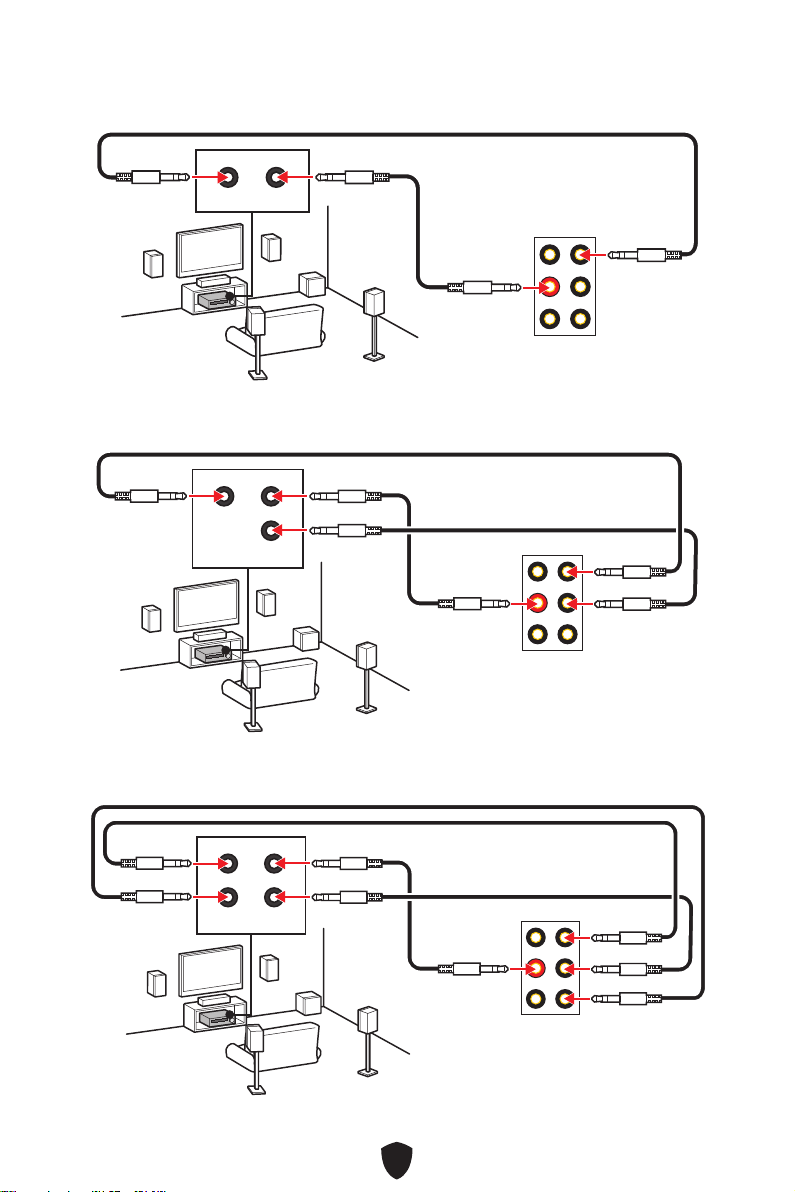
LAN Port LED Status Table
Link/ Activity LED
Status Description
Off No link
Yellow Linked
Blinking Data activity
Speed LED
Status Speed
Off 10 Mbps
Green 100 Mbps
Orange 1 Gbps
Audio Jacks Connection
Audio jacks to headphone and microphone diagram
Audio jacks to stereo speakers diagram
AUDIO INPUT
23
Audio jacks to 7.1-channel speakers diagram
Audio jacks to 4-channel speakers diagram
Audio jacks to 5.1-channel speakers diagram
AUDIO INPUT
Rear Front
AUDIO INPUT
Rear Front
Center/
Subwoofer
AUDIO INPUT
Rear Front
Center/
Subwoofer
Side
24
BAT1
M2_1
ATX_PWR1
SYS_FAN3
SYS_FAN4
PUMP_FAN1
CPU_FAN1
DIMMB2
Processor
Socket
JRGB1
CPU_PWR1
JFP1
JRGB2
SATA2
JUSB2
JUSB1
JLPC1
JUSB3
JCOM1
JLPT1
JAUD1
PCI_E1
JTPM1
SYS_FAN1
PCI_E2
PCI_E3
PCI_E4
PCI_E5
JBAT1
PCI_E6
SYS_FAN2
SATA1
JFP2
JCI1
DIMMB1
DIMMA2
DIMMA1
Overview of Components
25
Important
When changing the processor, the system configuration could be cleared and reset
BIOS to default values, due to the AM4 processor’s architecture.
Always unplug the power cord from the power outlet before installing or removing
the CPU.
When installing a CPU, always remember to install a CPU heatsink. A CPU heatsink
is necessary to prevent overheating and maintain system stability.
Confirm that the CPU heatsink has formed a tight seal with the CPU before booting
your system.
Overheating can seriously damage the CPU and motherboard. Always make sure the
cooling fans work properly to protect the CPU from overheating. Be sure to apply an
even layer of thermal paste (or thermal tape) between the CPU and the heatsink to
enhance heat dissipation.
If you purchased a separate CPU and heatsink/ cooler, Please refer to the
documentation in the heatsink/ cooler package for more details about installation.
This motherboard is designed to support overclocking. Before attempting to
overclock, please make sure that all other system components can tolerate
overclocking. Any attempt to operate beyond product specifications is not
recommended. MSI® does not guarantee the damages or risks caused by inadequate
operation beyond product specifications.
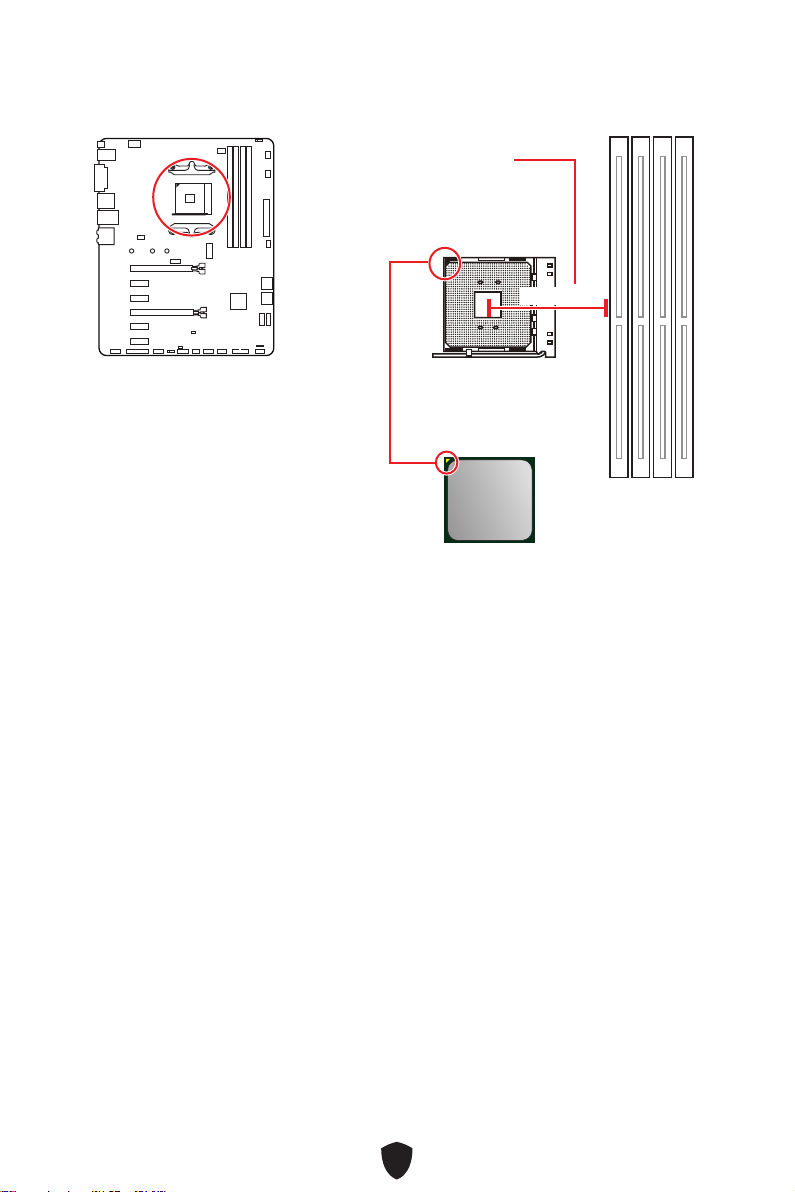
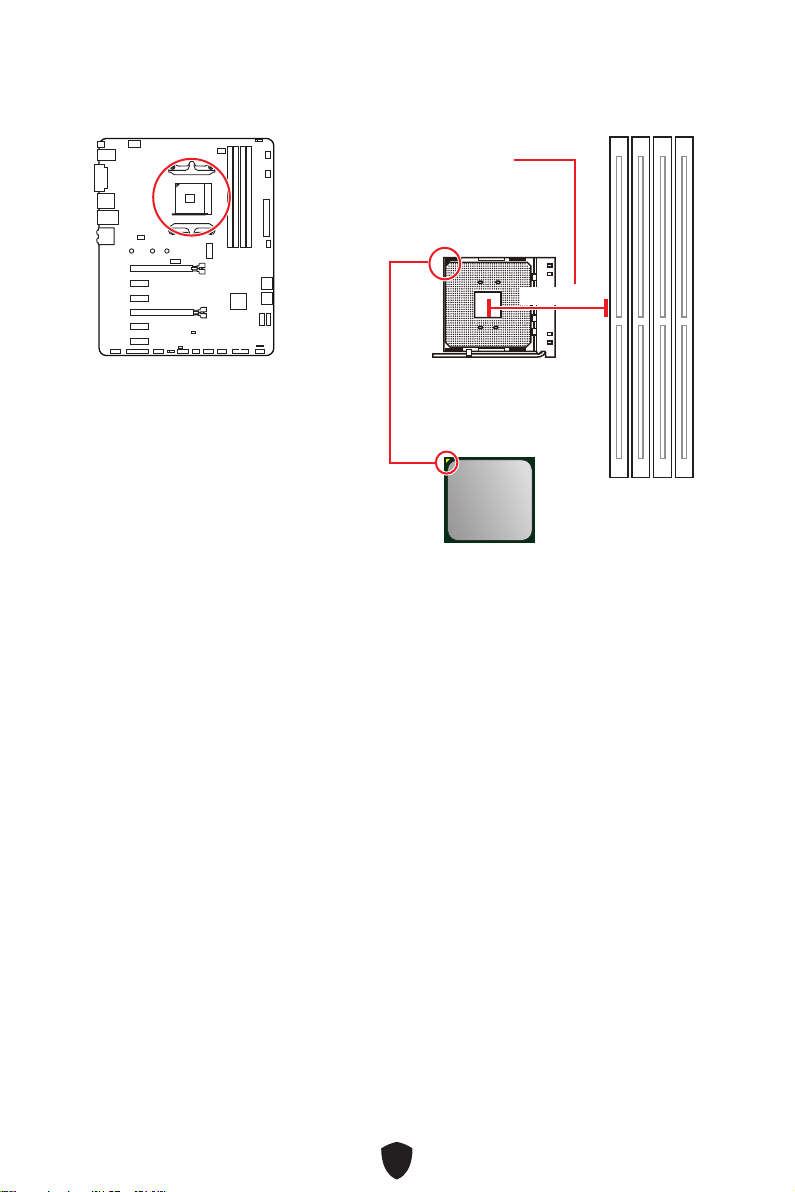
CPU Socket
Introduction to the AM4 CPU
The surface of the AM4 CPU has a yellow
triangle to assist in correctly lining up
the CPU for motherboard placement.
The yellow triangle is the Pin 1 indicator.
Distance from the center of the
CPU to the nearest DIMM slot.
53.43 mm
26
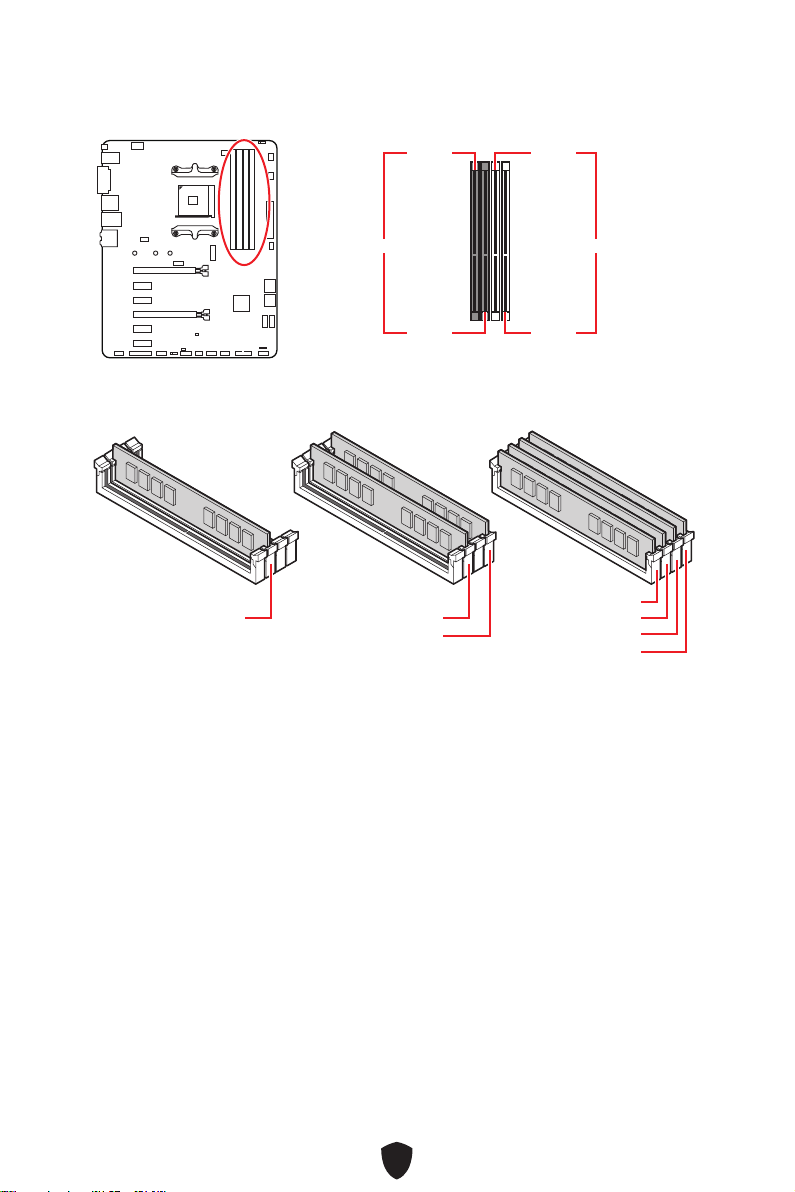
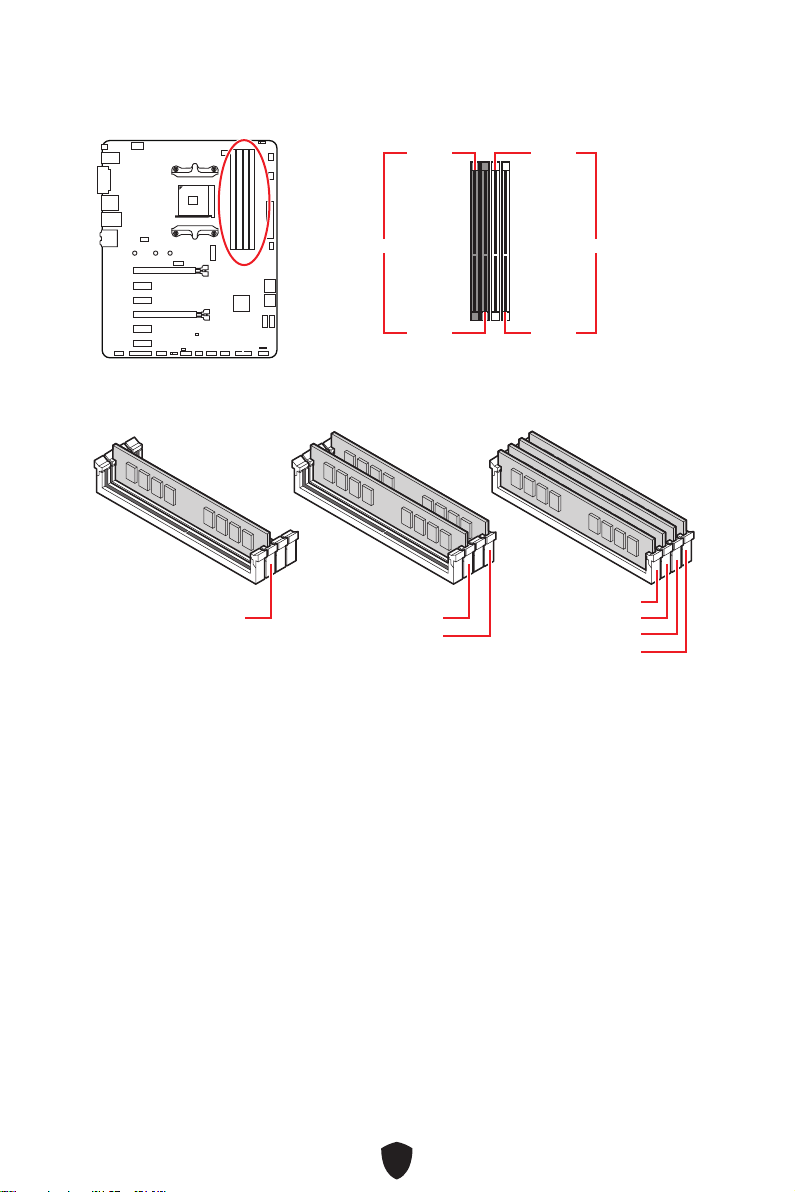
DIMM Slots
DIMMA1 DIMMB1
Channel A Channel B
DIMMA2 DIMMB2
Memory module installation recommendation
Important
Always insert memory modules in the DIMMA2 slot first.
To ensure system stability for Dual channel mode, memory modules must be of the
same type, number and density.
Some memory modules may operate at a lower frequency than the marked value
when overclocking due to the memory frequency operates dependent on its Serial
Presence Detect (SPD). Go to BIOS and find the DRAM Frequency to set the memory
frequency if you want to operate the memory at the marked or at a higher frequency.
It is recommended to use a more efficient memory cooling system for full DIMMs
installation or overclocking.
The stability and compatibility of installed memory module depend on installed CPU
and devices when overclocking.
Please refer to www.msi.com for more information on compatible memory.
DIMMA2 DIMMA2
DIMMB2
DIMMA1
DIMMA2
DIMMB1
DIMMB2
27
BAT1
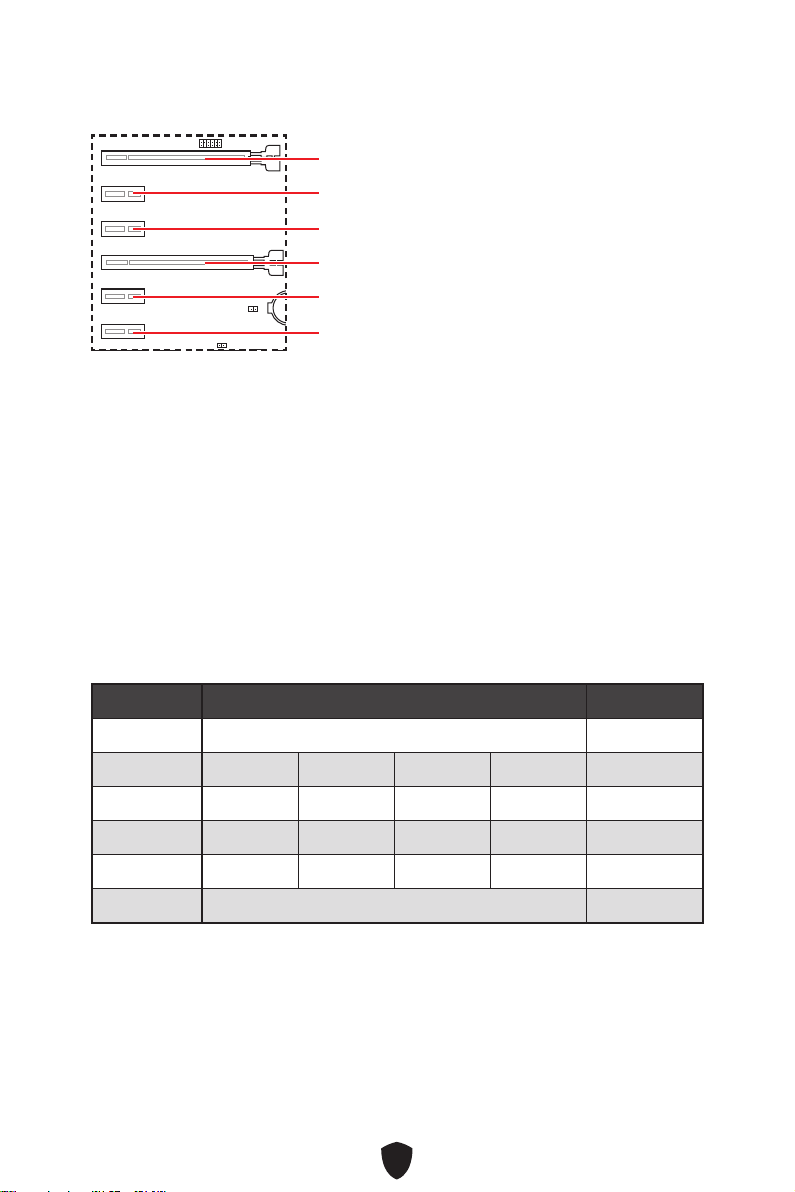
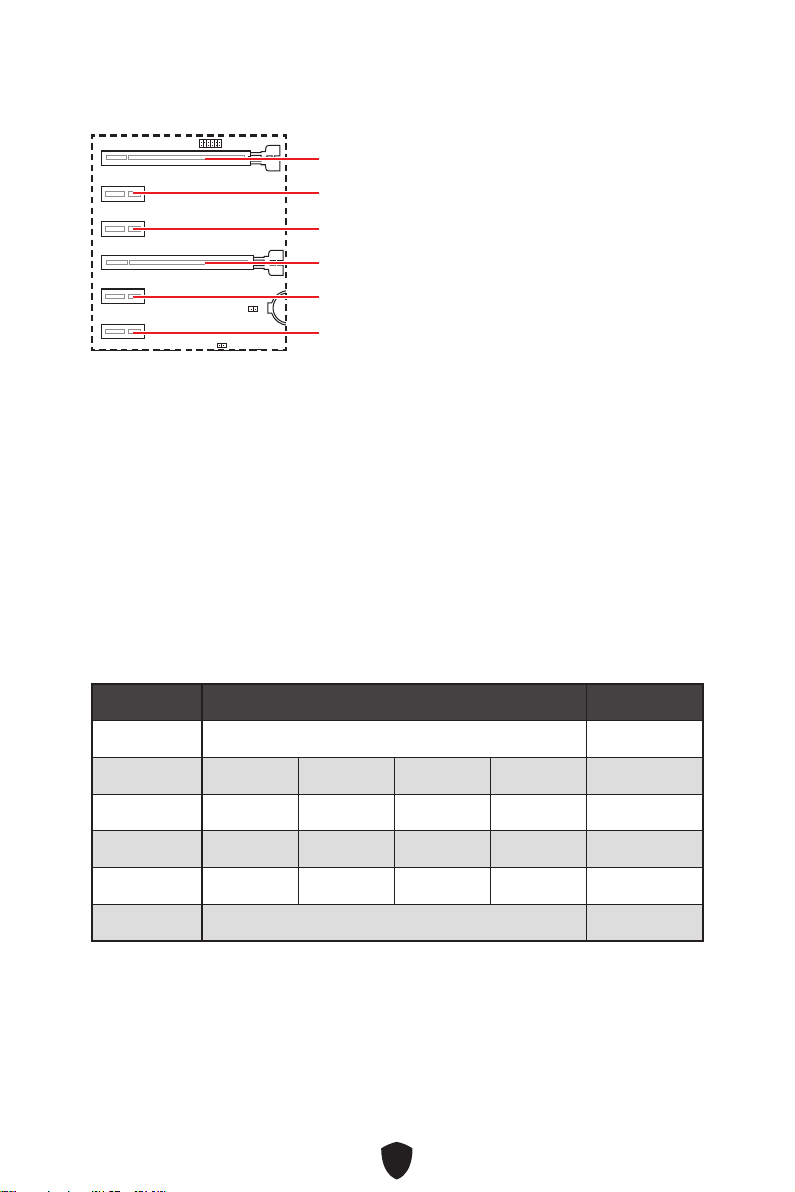
PCI_E1~6: PCIe Expansion Slots
PCI_E1: PCIe 3.0 x16 (From CPU)
PCI_E4: PCIe 3.0 x4 (From B550 chipset)
PCI_E2: PCIe 2.0 x1 (From B550 chipset)
PCI_E5: PCIe 2.0 x1 (From B550 chipset)
PCI_E3: PCIe 2.0 x1 (From B550 chipset)
PCI_E6: PCIe 2.0 x1 (From B550 chipset)
Important
If you install a large and heavy graphics card, you need to use a tool such as MSI
Graphics Card Bolster to support its weight to prevent deformation of the slot.
For a single PCIe x16 expansion card installation with optimum performance, using
the PCI_E1 slot is recommended.
When adding or removing expansion cards, always turn off the power supply and
unplug the power supply power cable from the power outlet. Read the expansion
card’s documentation to check for any necessary additional hardware or software
changes.
PCI_E4 will run 2.0 x1 speed when any one of PCI_E2, PCI_E3, and PCI_E5 slots was
be installed.
PCIe bandwidth of PCIe slots
Slot Single 2-Way
PCI_E1 (CPU) @ 3.0 x16 @ 3.0 x16
PCI_E2 (PCH) 2.0 x1 2.0 x1 Empty Empty —
PCI_E3 (PCH) 2.0 x1 Empty 2.0 x1 Empty —
PCI_E4 (PCH) 2.0 x1 2.0 x1 2.0 x1 2.0 x1 @3.0 x4
PCI_E5 (PCH) 2.0 x1 Empty Empty 2.0 x1 —
PCI_E6 (PCH) 2.0 x1 2.0x1
28
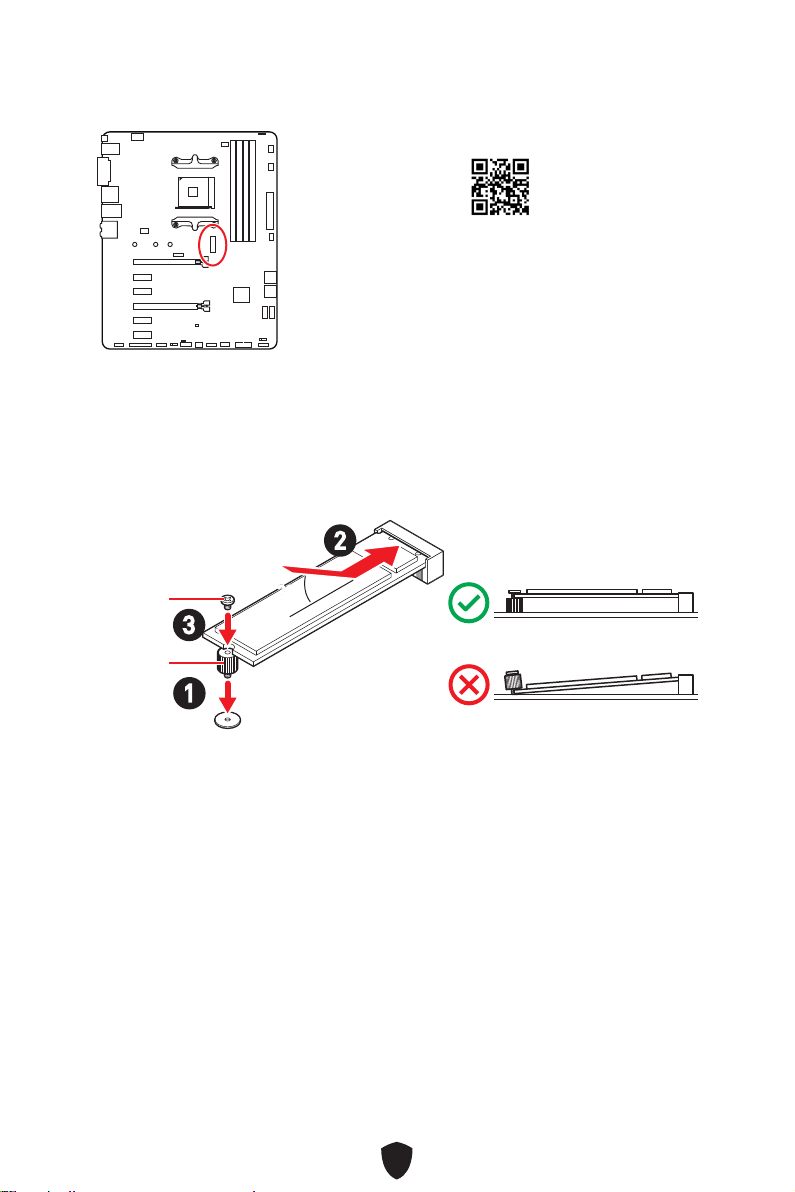
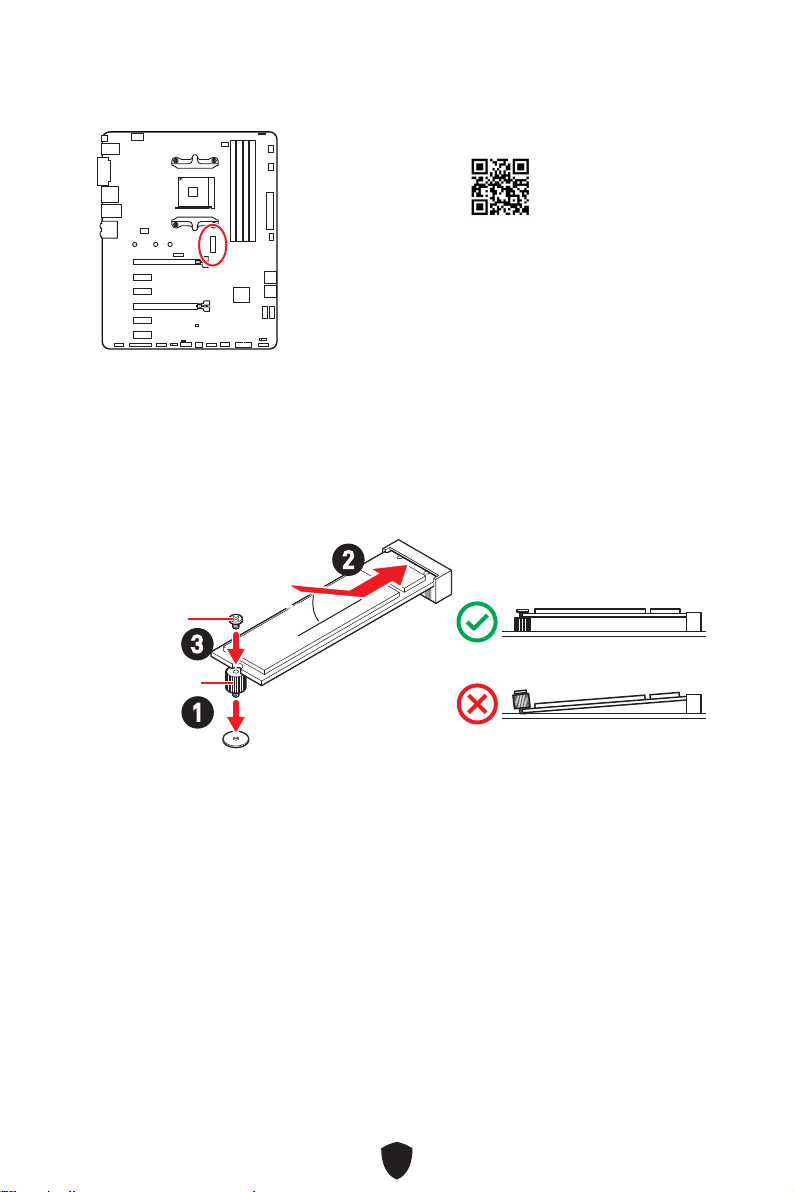
Installing M.2 module
1.
Move and fasten the M.2 standoff to the appropriate position for your M.2 SSD,
2. Insert your M.2 SSD into the M.2 slot at a 30-degree angle.
3. Secure the M.2 SSD in place with the supplied M.2 screw.
30º30º
2
3
1
Supplied
M.2 screw
M.2
standoff
M2_1: M.2 Slot (Key M)
Watch the video to learn how to Install M.2 module.
http://youtu.be/JCTFABytrYA
29
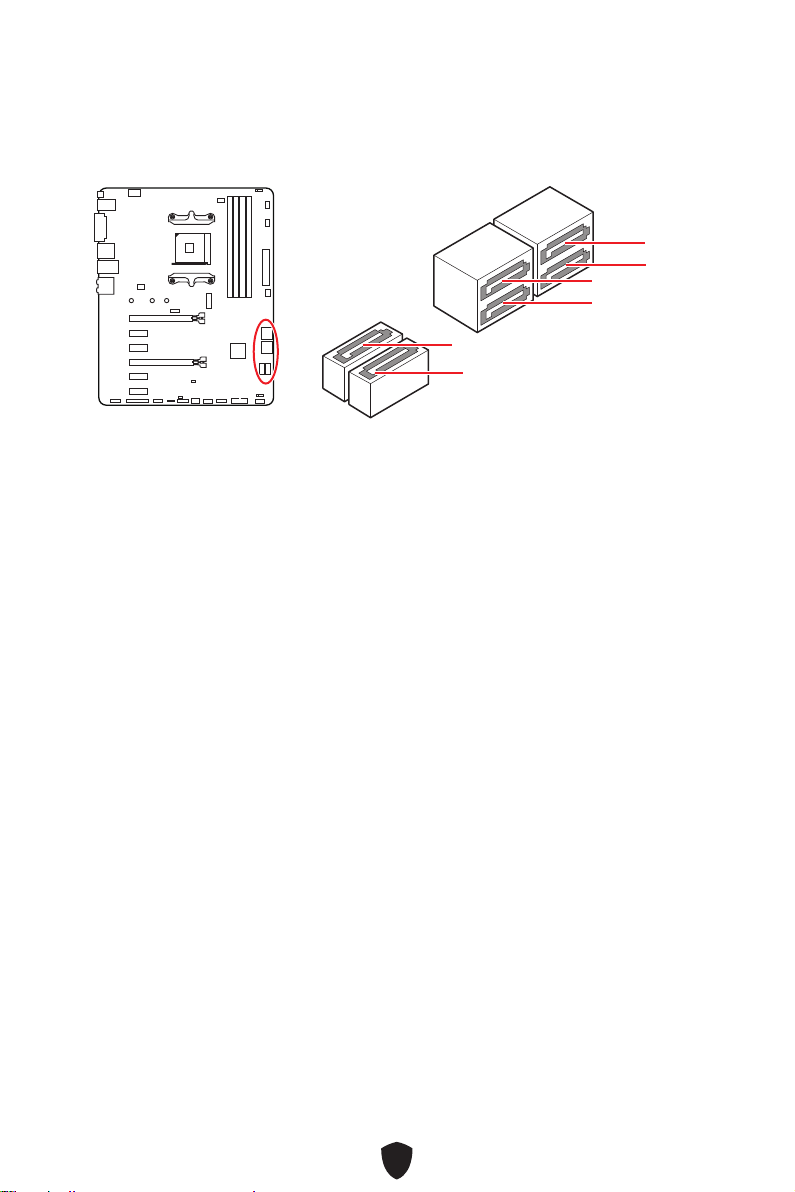
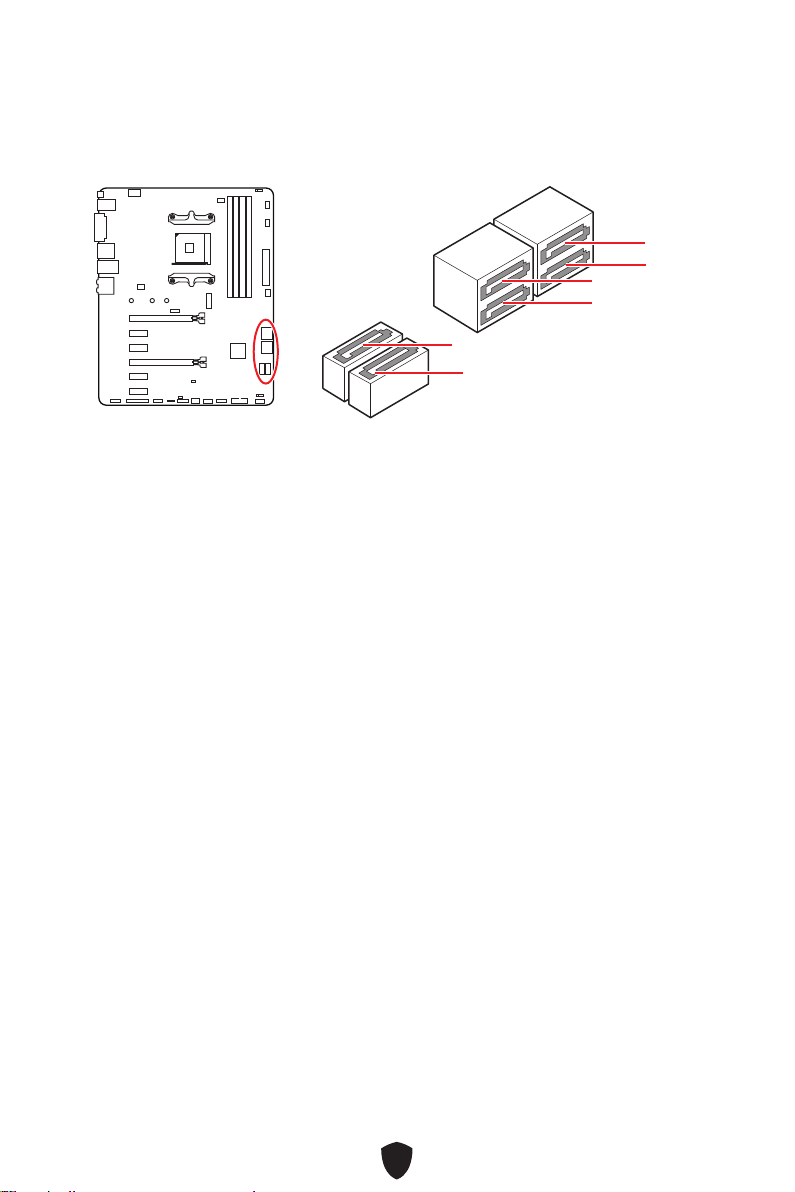
SATA1~6: SATA 6Gb/s Connectors
These connectors are SATA 6Gb/s interface ports. Each connector can connect to one
SATA device.
SATA5
SATA3
SATA1
SATA6
SATA4
SATA2
Important
Please do not fold the SATA cable at a 90-degree angle. Data loss may result during
transmission otherwise.
SATA cables have identical plugs on either sides of the cable. However, it is
recommended that the flat connector be connected to the motherboard for space
saving purposes.
30
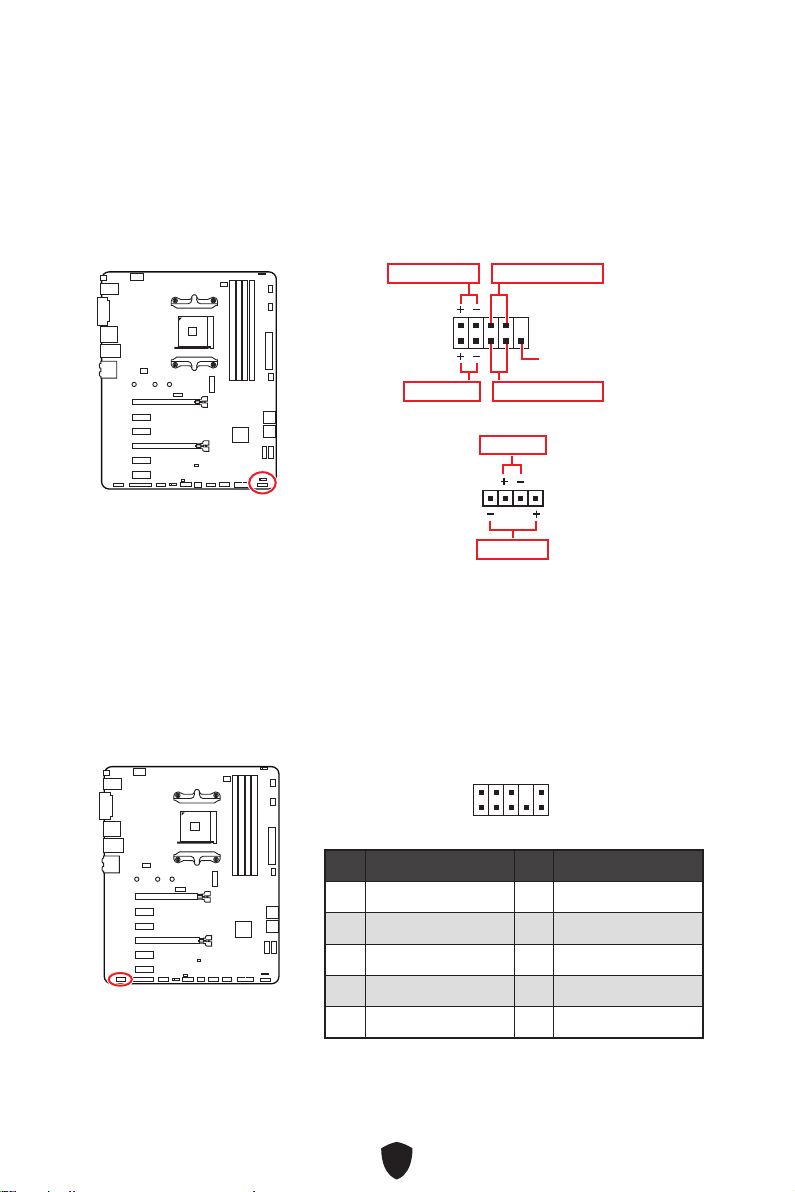
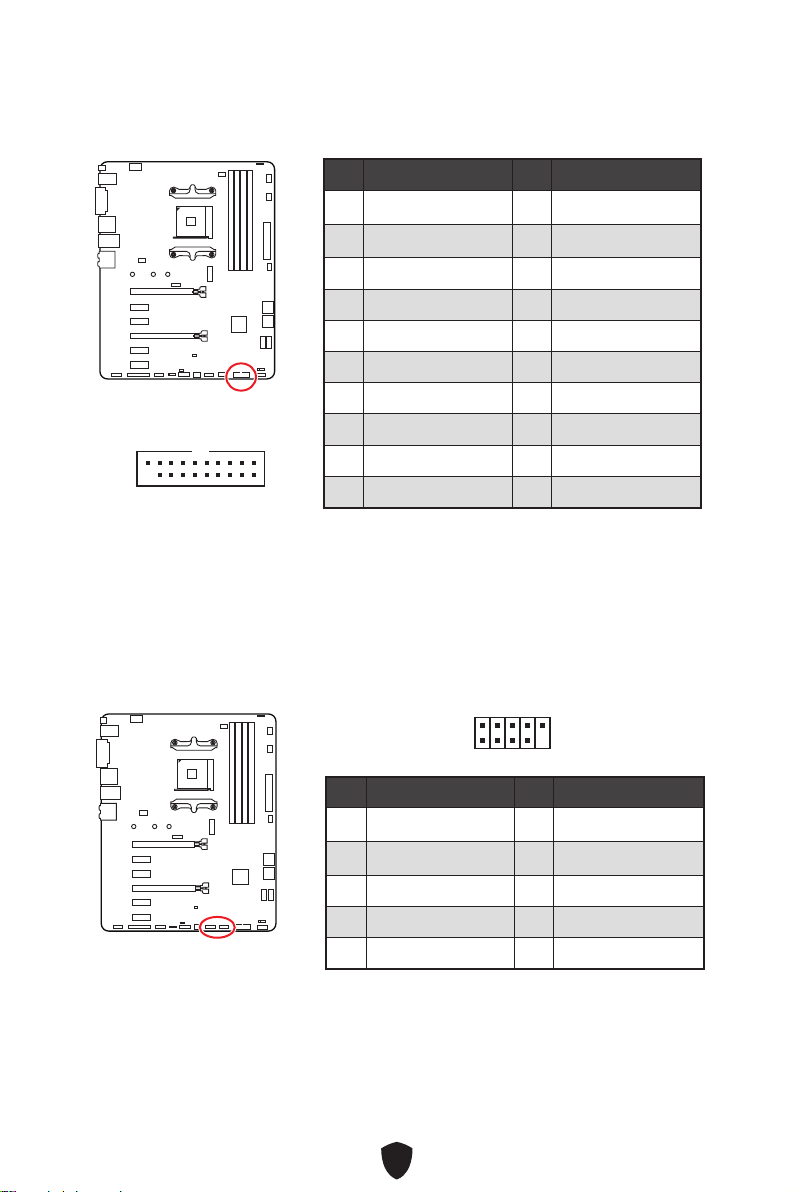
JFP1, JFP2: Front Panel Connectors
The JFP1 connector controls the power on, power reset, and the LEDs on your PC
case/ chassis. Power Switch/ Reset Switch headers allow you to connect power
button/ reset button. Power LED header connects to LED light on the PC case, and
HDD LED header indicates the activity of the hard disk. The JFP2 connector is for
Buzzer and Speaker. To connect the cables from PC case to the right pins, please
refer to the following images below.
1
2 10
9
Power LED
Reserved
Power Switch
JFP1
Reset SwitchHDD LED
1
JFP2
Buzzer
Speaker
Important
Please note that Power LED and HDD LED have positive and negative connection,
you need to link up the cable to the corresponding positive and negative port on the
motherboard. Otherwise, LEDs won’t work properly.
JAUD1: Front Audio Connector
This connector allows you to connect audio jacks on the front panel.
1
2 10
9
Pin Signal Name Pin Signal Name
1 MIC L 2 Ground
3 MIC R 4 NC
5 Head Phone R 6 MIC Detection
7 SENSE_SEND 8 No Pin
9 Head Phone L 10 Head Phone Detection
31
Important
Make sure that all the power cables are securely connected to a proper ATX power
supply to ensure stable operation of the motherboard.
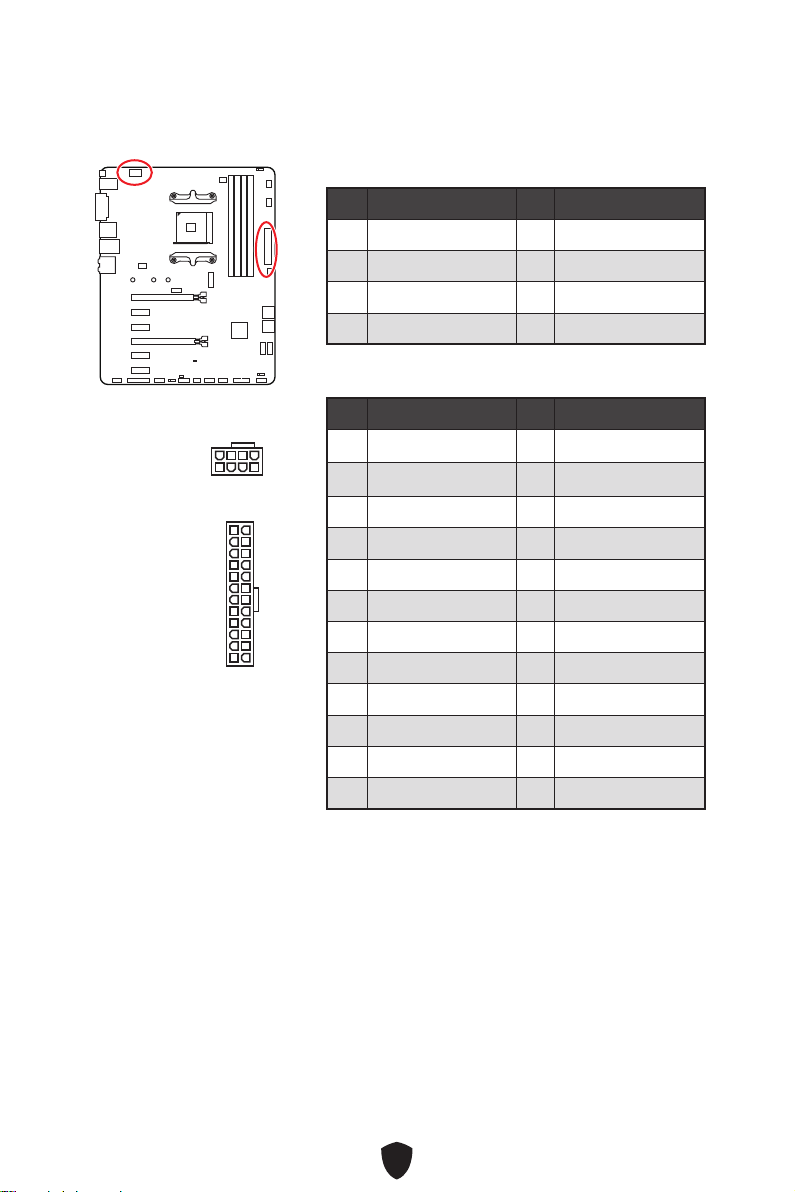
CPU_PWR1, ATX_PWR1: Power Connectors
These connectors allow you to connect an ATX power supply.
CPU_PWR1
Pin Signal Name Pin Signal Name
1 Ground 2 Ground
3 Ground 4 Ground
5 +12V 6 +12V
7 +12V 8 +12V
ATX_PWR1
Pin Signal Name Pin Signal Name
1 +3.3V 2 +3.3V
3 Ground 4
+5V
5 Ground 6 +5V
7 Ground 8 PWR OK
9 5VSB 10 +12V
11 +12V 12 +3.3V
13 +3.3V 14 -12V
15 Ground 16 PS-ON#
17 Ground 18 Ground
19 Ground 20 Res
21 +5V 22 +5V
23 +5V 24 Ground
5
4 1
8
CPU_PWR1
24
131
12
ATX_PWR1
32
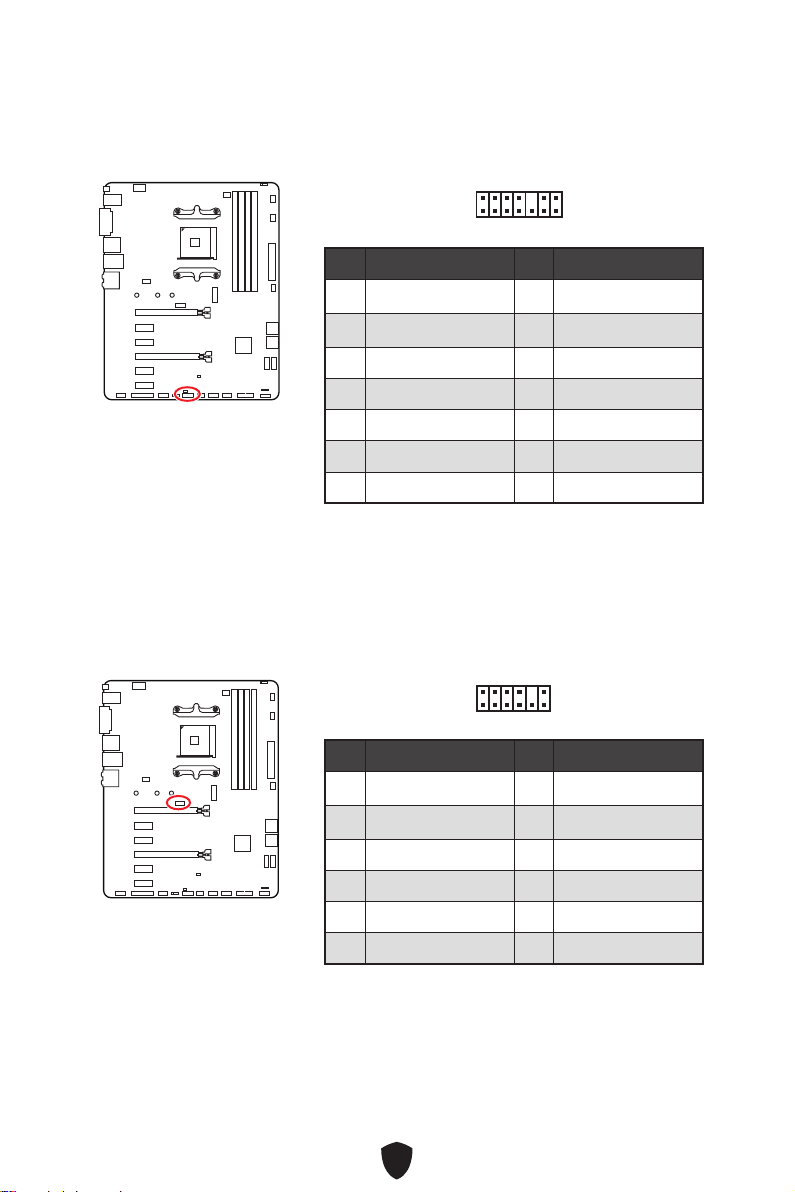
JCI1: Chassis Intrusion Connector
This connector allows you to connect the chassis intrusion switch cable.
Normal
(default)
Trigger the chassis
intrusion event
Using chassis intrusion detector
1.
Connect the JCI1 connector to the chassis intrusion switch/ sensor on the chassis.
2. Close the chassis cover.
3. Go to BIOS > SETTINGS > Security > Chassis Intrusion Configuration.
4. Set Chassis Intrusion to Enabled.
5. Press F10 to save and exit and then press the Enter key to select Yes.
6. Once the chassis cover is opened again, a warning message will be displayed on
screen when the computer is turned on.
Resetting the chassis intrusion warning
1.
Go to BIOS > SETTINGS > Security > Chassis Intrusion Configuration.
2. Set Chassis Intrusion to Reset.
3. Press F10 to save and exit and then press the Enter key to select Yes.
33
JUSB3: USB 3.2 Gen 1 Connector
This connector allows you to connect USB 3.2 Gen 1 5Gbps ports on the front panel.
Important
Note that the Power and Ground pins must be connected correctly to avoid possible
damage.
Pin Signal Name Pin Signal Name
1 Power 2 USB3_RX_DN
3 USB3_RX_DP 4 Ground
5 USB3_TX_C_DN 6 USB3_TX_C_DP
7 Ground 8 USB2.0-
9 USB2.0+ 10 Ground
11 USB2.0+ 12 USB2.0-
13 Ground 14 USB3_TX_C_DP
15 USB3_TX_C_DN 16 Ground
17 USB3_RX_DP 18 USB3_RX_DN
19 Power 20 No Pin
1 10
1120
JUSB1~2: USB 2.0 Connectors
These connectors allow you to connect USB 2.0 ports on the front panel.
Important
Note that the VCC and Ground pins must be connected correctly to avoid possible
damage.
In order to recharge your iPad, iPhone and iPod through USB ports, please install
MSI Center utility.
Pin Signal Name Pin Signal Name
1 VCC 2 VCC
3 USB0- 4 USB1-
5 USB0+ 6 USB1+
7 Ground 8 Ground
9 No Pin 10 NC
1
2 10
9
34
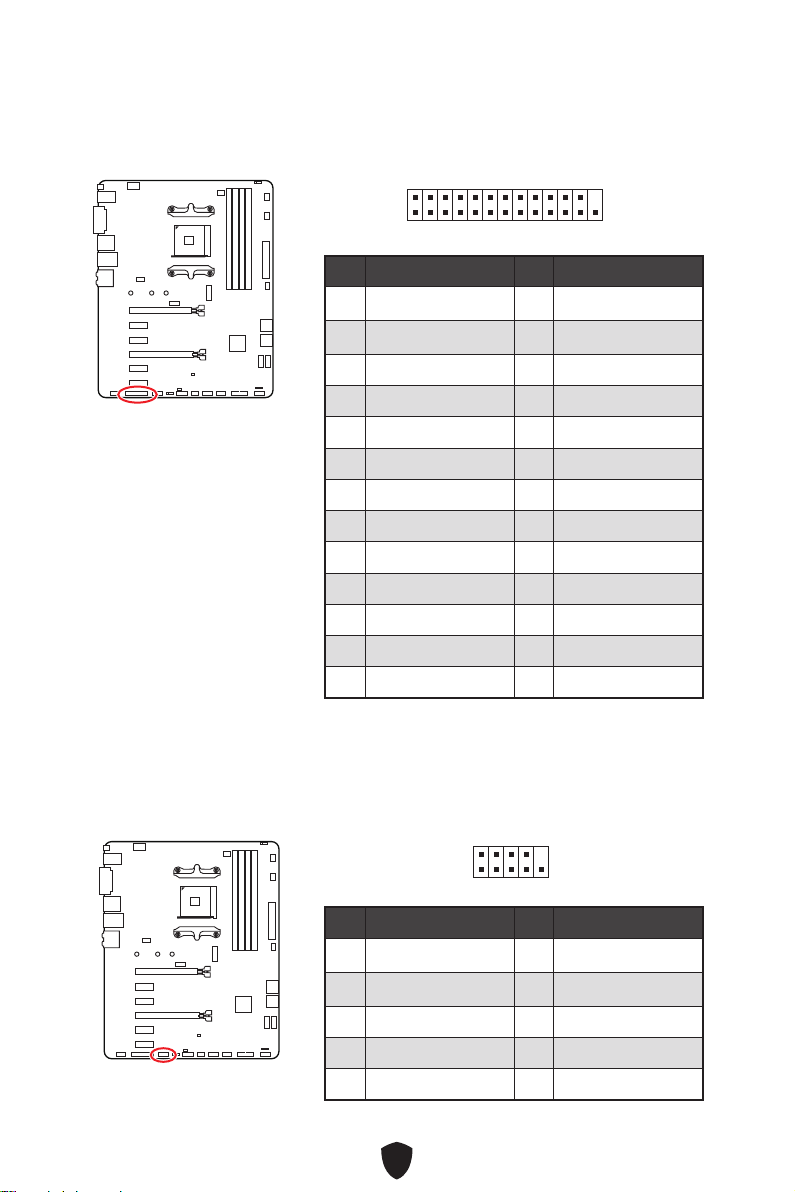
JLPC1: BIOS Debug Connector
This connector is used for board level debugging purposes by the manufacturer.
Pin Signal Name Pin Signal Name
1 LPC Clock 2 3V Standby power
3 LPC Reset 4 3.3V Power
5 LPC address & data pin0 6 Serial IRQ
7 LPC address & data pin1 8 5V Power
9 LPC address & data pin2 10 No Pin
11 LPC address & data pin3 12 Ground
13 LPC Frame 14 Ground
1
2 14
13
JTPM1: TPM Module Connector
This connector is for TPM (Trusted Platform Module). Please refer to the TPM security
platform manual for more details and usages.
Pin Signal Name Pin Signal Name
1 1.8V power 2 SPI_TPM_CS#_R
3 SPI_TPM_DATI 4 SPI_DATO
5 SPI_CS#_R 6 SPI_TPM_CLK
7 Ground 8 SPI_TPM_RST#
9 SPI_SW_SEL 10 NA
11 SPI_TPM_WP# 12 SPI_TPM_HOLD#
1
2 12
11
35
JLPT1: Parallel Port Connector
This connector allows you to connect the optional parallel port with bracket.
1
2 26
25
Pin Signal Name Pin Signal Name
1 RSTB# 2 AFD#
3 PRND0 4 ERR#
5 PRND1 6 PINIT#
7 PRND2 8 LPT_SLIN#
9 PRND3 10 Ground
11 PRND4 12 Ground
13 PRND5 14 Ground
15 PRND6 16 Ground
17 PRND7 18 Ground
19 ACK# 20 Ground
21 BUSY 22 Ground
23 PE 24 Ground
25 SLCT 26 No Pin
JCOM1: Serial Port Connector
This connector allows you to connect the optional serial port with bracket.
Pin Signal Name Pin Signal Name
1 DCD 2 SIN
3 SOUT 4 DTR
5 Ground 6 DSR
7 RTS 8 CTS
9 RI 10 No Pin
1
2 10
9
36
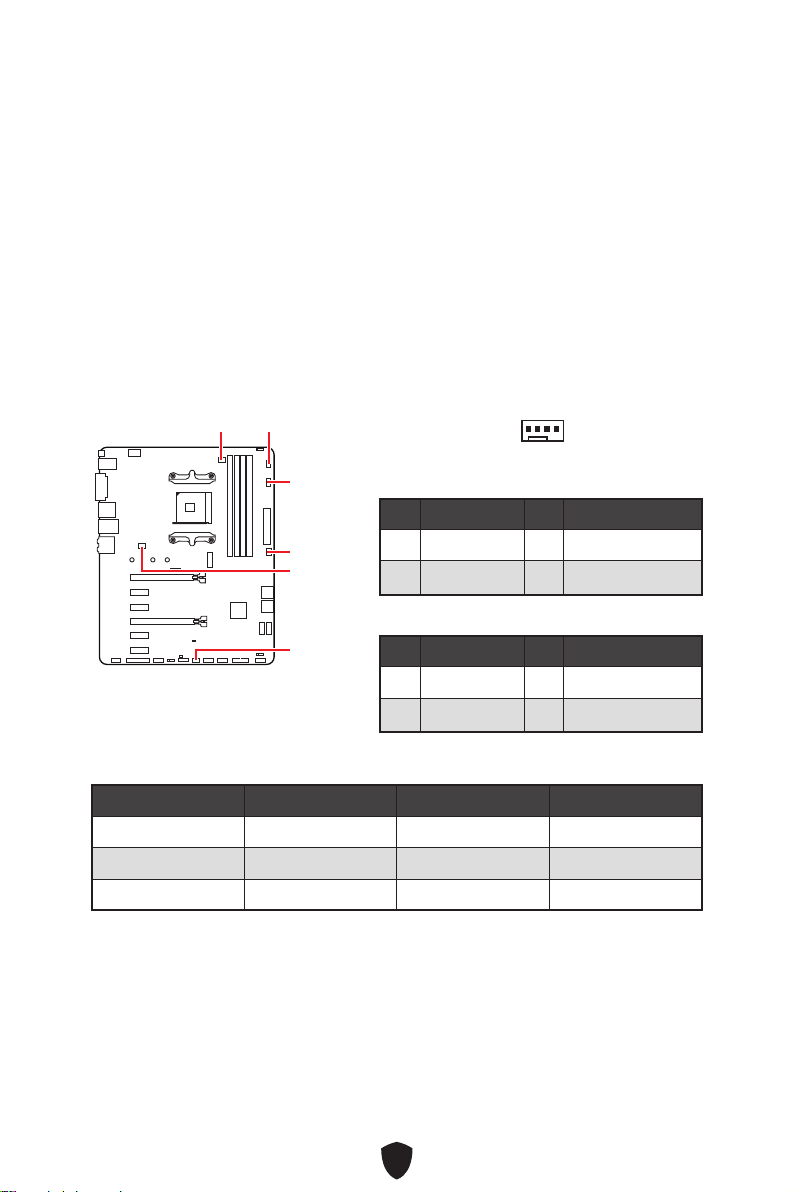
CPU_FAN1, PUMP_FAN1, SYS_FAN1~4: Fan Connectors
Fan connectors can be classified as PWM (Pulse Width Modulation) Mode or DC Mode.
PWM Mode fan connectors provide constant 12V output and adjust fan speed with
speed control signal. DC Mode fan connectors control fan speed by changing voltage.
The auto mode fan connectors can automatically detect PWM and DC mode.
You can control fans in BIOS> HARDWARE MONITOR panel. It allows you to set DC
or PWM to your fan type. Check the Smart Fan Mode, the fan speed will change
according to the CPU or system temperature. Uncheck the Smart Fan Mode, the fan
will spin at maximum speed.
Important
Make sure fans are working properly after switching the PWM/ DC mode.
CPU_FAN1
SYS_FAN2
SYS_FAN4
SYS_FAN1
PUMP_FAN1
SYS_FAN3
1
PWM Mode pin definition
Pin Signal Name Pin Signal Name
1 Ground 2 +12V
3 Sense 4 Speed Control Signal
DC Mode pin definition
Pin Signal Name Pin Signal Name
1 Ground 2 Voltage Control
3 Sense 4 NC
Fan connector specifications
Connector Default fan mode Max. current Max. power
CPU_FAN1 PWM mode 2A 24W
PUMP_FAN1 PWM mode 3A 36W
SYS_FAN1~4 DC mode 2A 24W
37
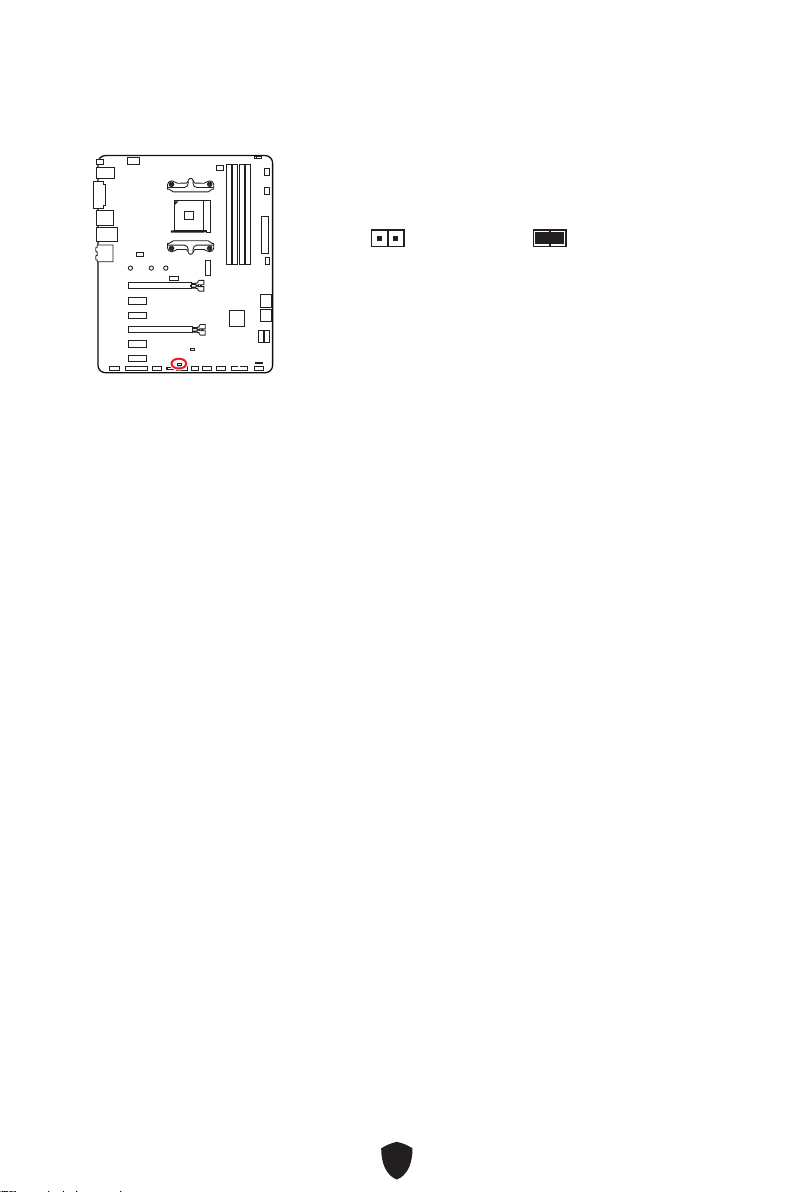
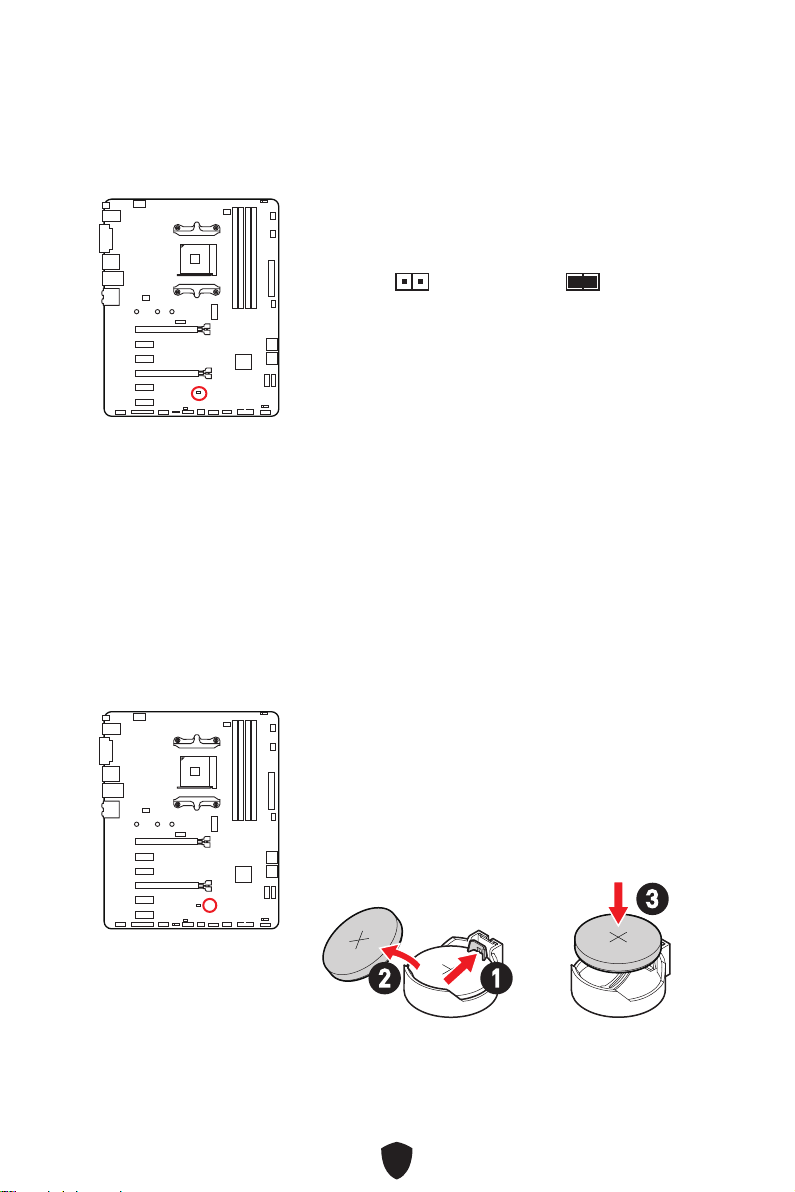
JBAT1: Clear CMOS (Reset BIOS) Jumper
There is CMOS memory onboard that is external powered from a battery located on
the motherboard to save system configuration data. If you want to clear the system
configuration, set the jumpers to clear the CMOS memory.
If the CMOS battery is out of charge, the time in the BIOS will be reset and the data of
system configuration will be lost. In this case, you need to replace the CMOS battery.
Keep Data
(default)
Clear CMOS/
Reset BIOS
Resetting BIOS to default values
1.
Power off the computer and unplug the power cord.
2. Use a jumper cap to short JBAT1 for about 5-10 seconds.
3. Remove the jumper cap from JBAT1.
4. Plug the power cord and Power on the computer.
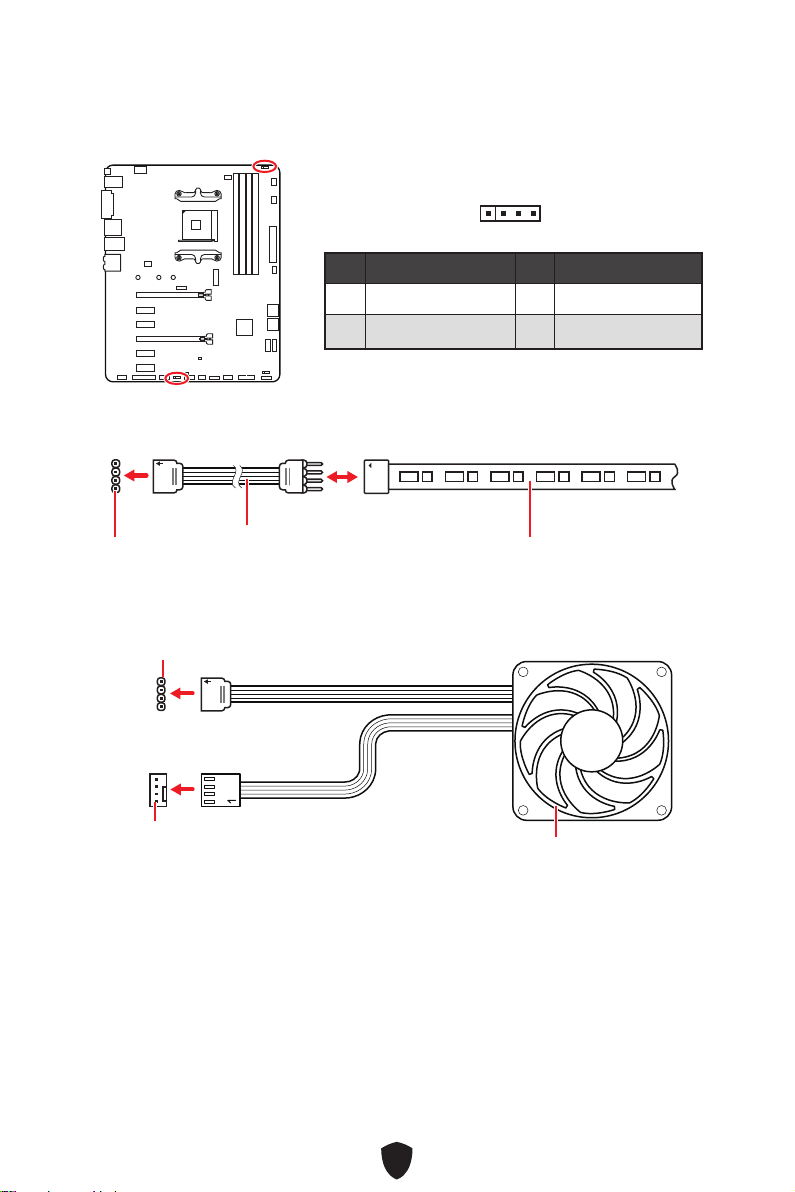
Replacing CMOS battery
1.
Push the retainer clip to free the battery.
2. Remove the battery from the socket.
3. Install the new CR2032 coin-cell battery with the +
sign facing up. Ensure that the retainer holds the
battery securely.
12
3
38
Important
The JRGB connector supports up to 2 meters continuous 5050 RGB LED strips
(12V/G/R/B) with the maximum power rating of 3A (12V).
Always turn off the power supply and unplug the power cord from the power outlet
before installing or removing the RGB LED strip.
Please use MSI’s software to control the extended LED strip.
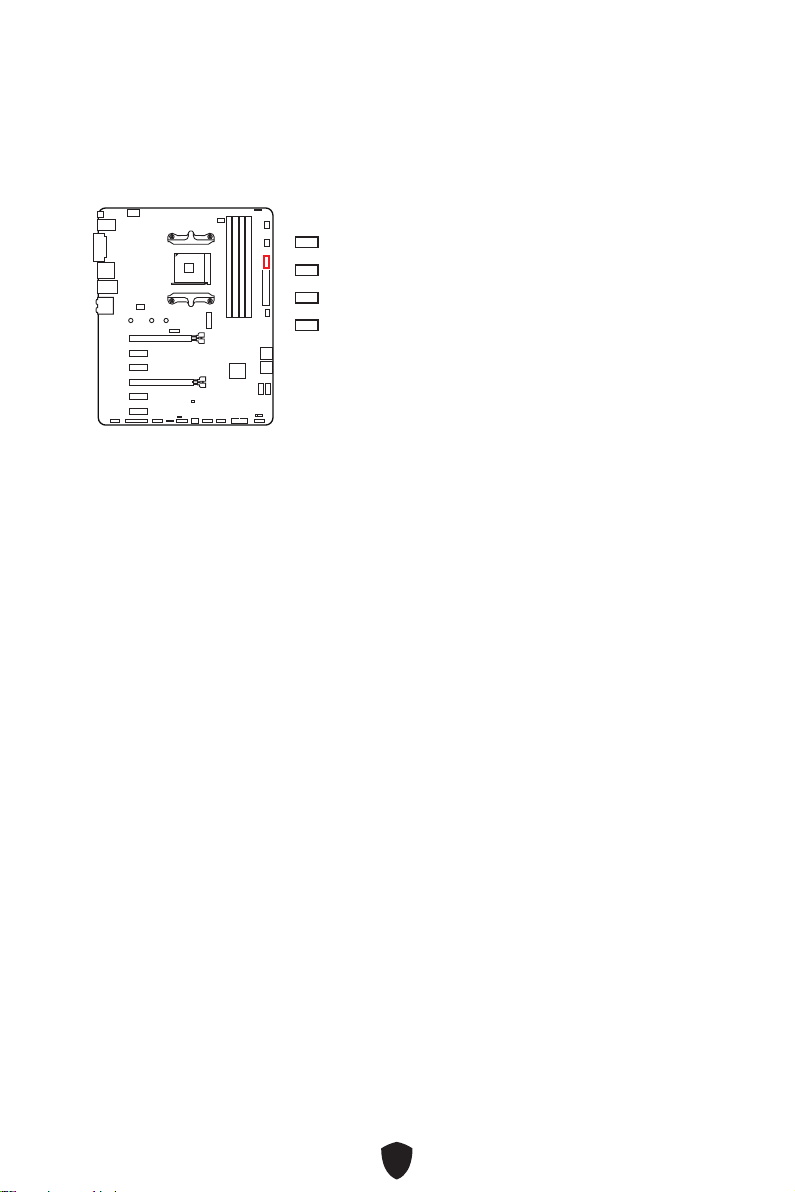
JRGB1~2: RGB LED connector
The JRGB connectors allow you to connect the 5050 RGB LED strips 12V.
1
G
R
B
JRGB connector
JRGB extension cable
5050 RGB LED strips 12V
RGB LED Strip Connection
1
1
G
R
B
JRGB connector
System fan connector
RGB LED Fan Connection
RGB LED fan
Pin Signal Name Pin Signal Name
1 +12V 2 G
3 R 4 B
1
39
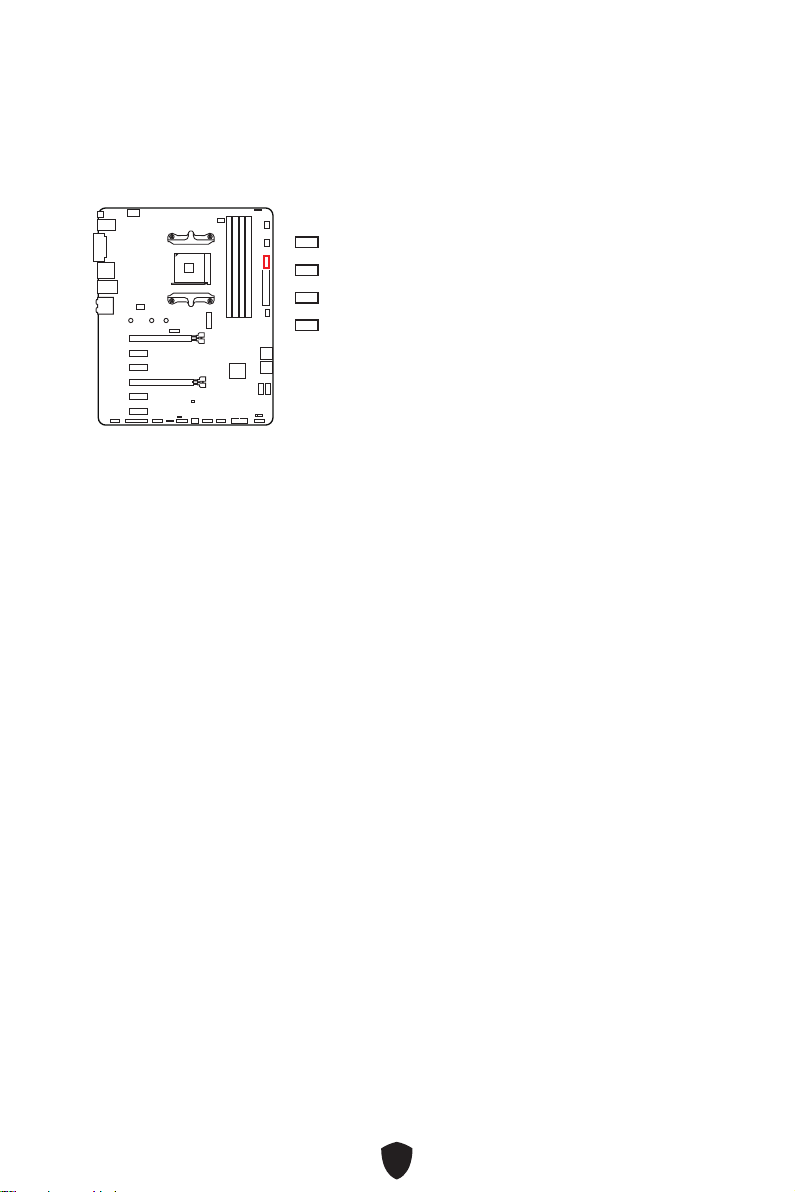
EZ Debug LED
These LEDs indicate the debug status of the motherboard.
CPU - indicates CPU is not detected or fail.
DRAM - indicates DRAM is not detected or fail.
VGA - indicates GPU is not detected or fail.
BOOT - indicates the booting device is not detected
or fail.
Onboard LEDs
40
Installing OS, Drivers & MSI Center
Please download and update the latest utilities and drivers at www.msi.com
Installing Windows 10/ Windows 11
1. Power on the computer.
2. Insert the Windows 10/ Windows 11 installation disc/USB into your computer.
3. Press the Restart button on the computer case.
4. Press F11 key during the computer POST (Power-On Self Test) to get into Boot
Menu.
5. Select the Windows 10/ Windows 11 installation disc/USB from the Boot Menu.
6. Press any key if screen shows Press any key to boot from CD or DVD... message. If
not, please skip this step.
7. Follow the instructions on the screen to install Windows 10/ Windows 11.
Installing Drivers with MSI DUI
MSI DUI (Driver Utility Installer) needs to be installed over the Internet. If you cannot
connect to Internet, please refer to the Installing Drivers with DVD/ USB Drive
section.
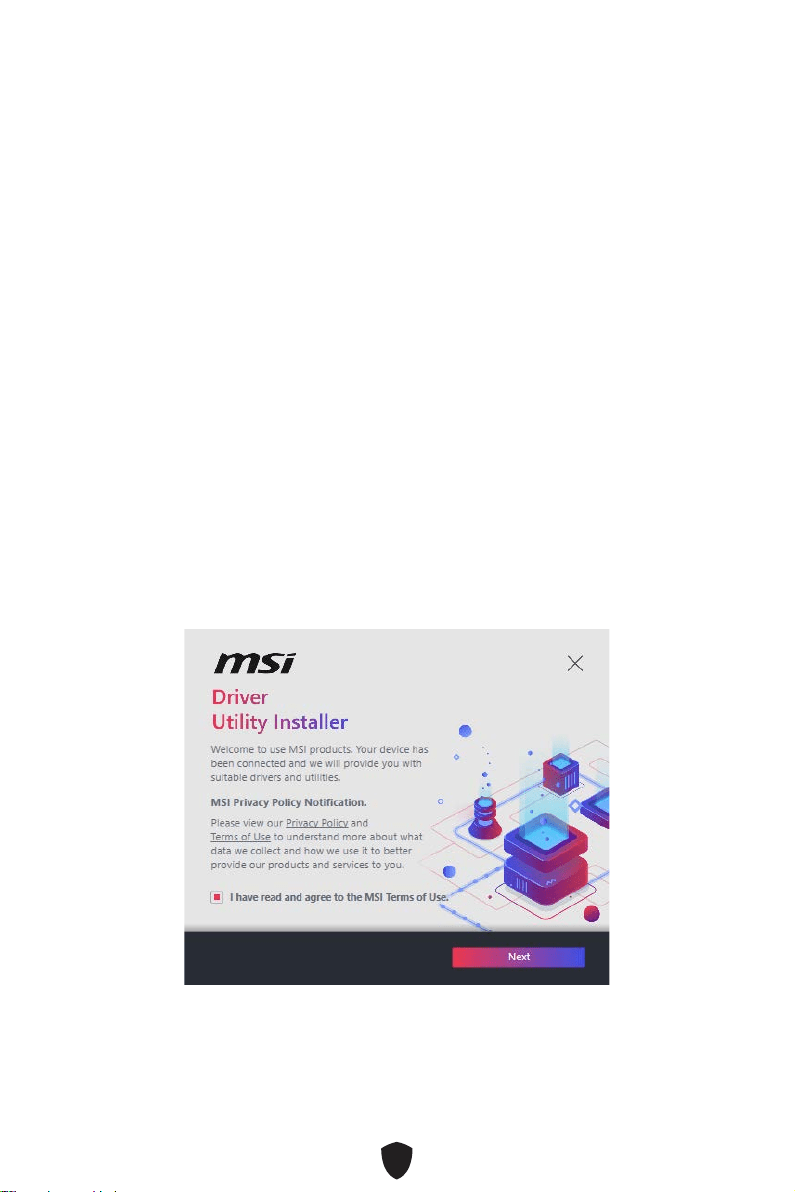
1. Start up your computer in Windows 10/ Windows 11.
2. Select Start > Settings > Windows Update , and then select Check for updates.
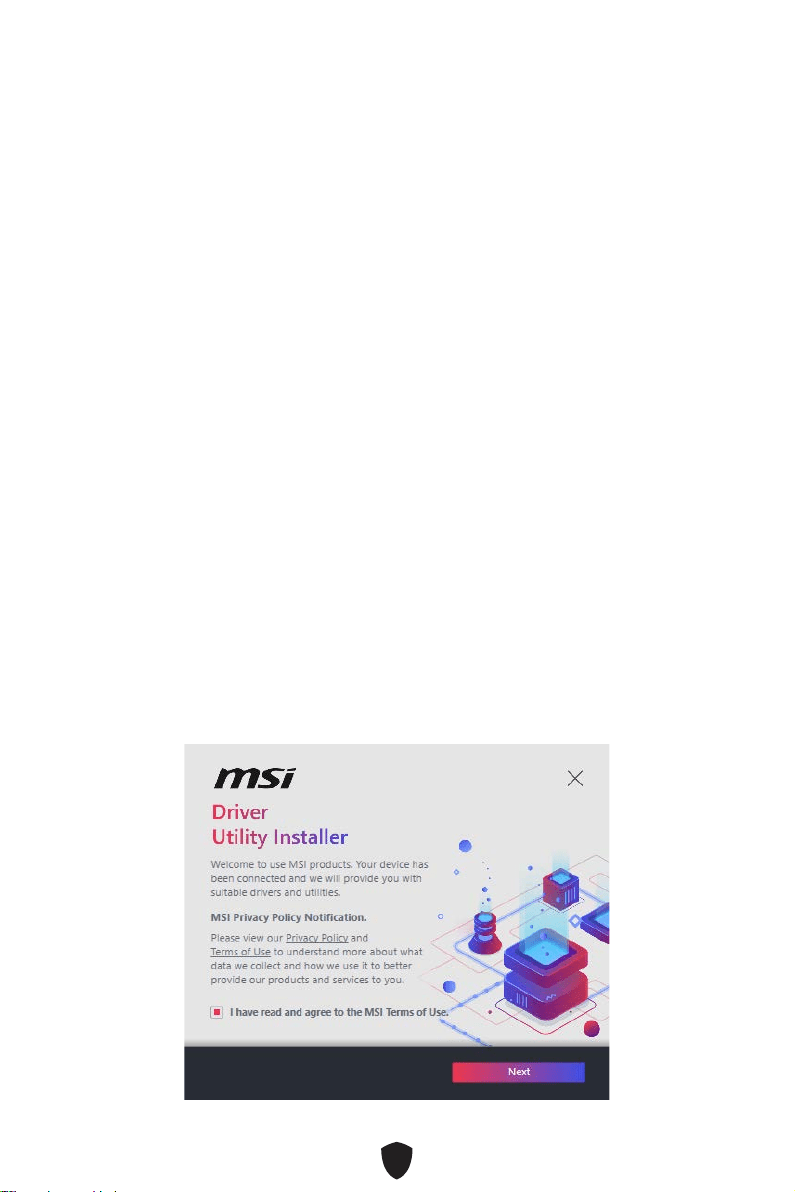
3. MSI DUI will pop up automatically.
4. Select the I have read and agree to the MSI Terms of Use check box, and then click
Next.
41
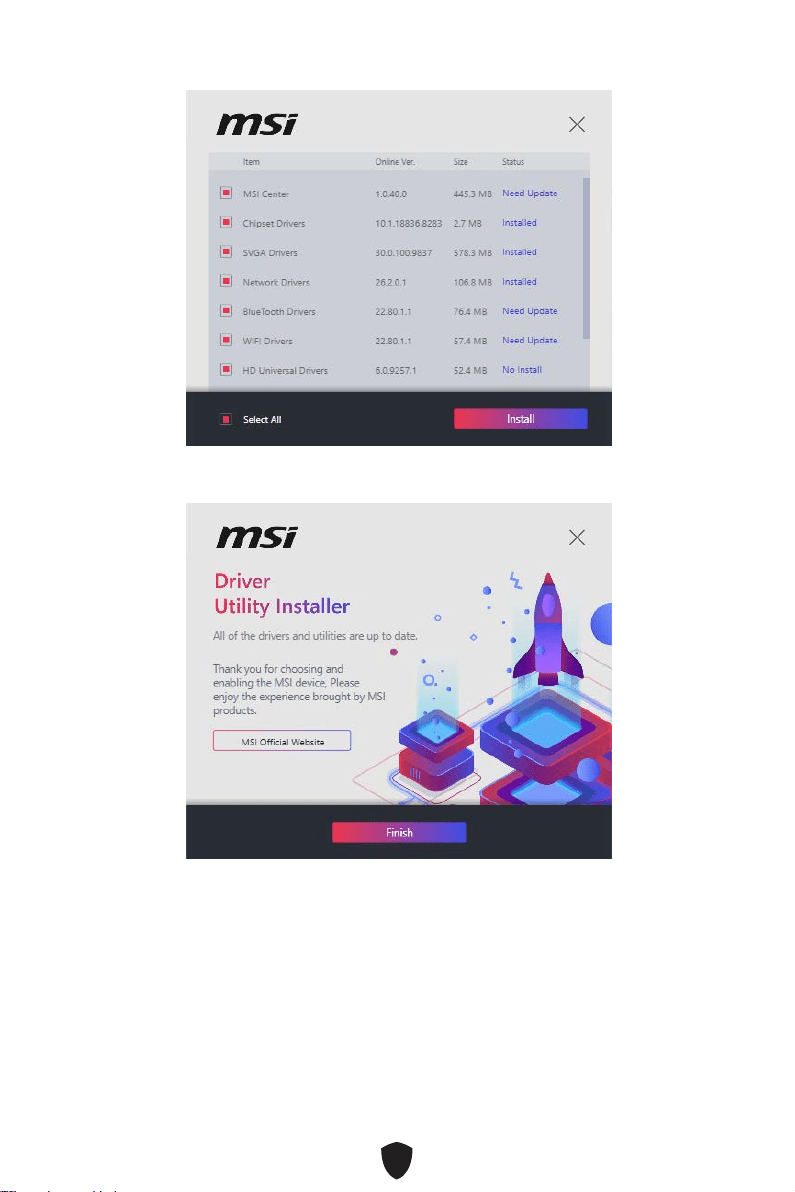
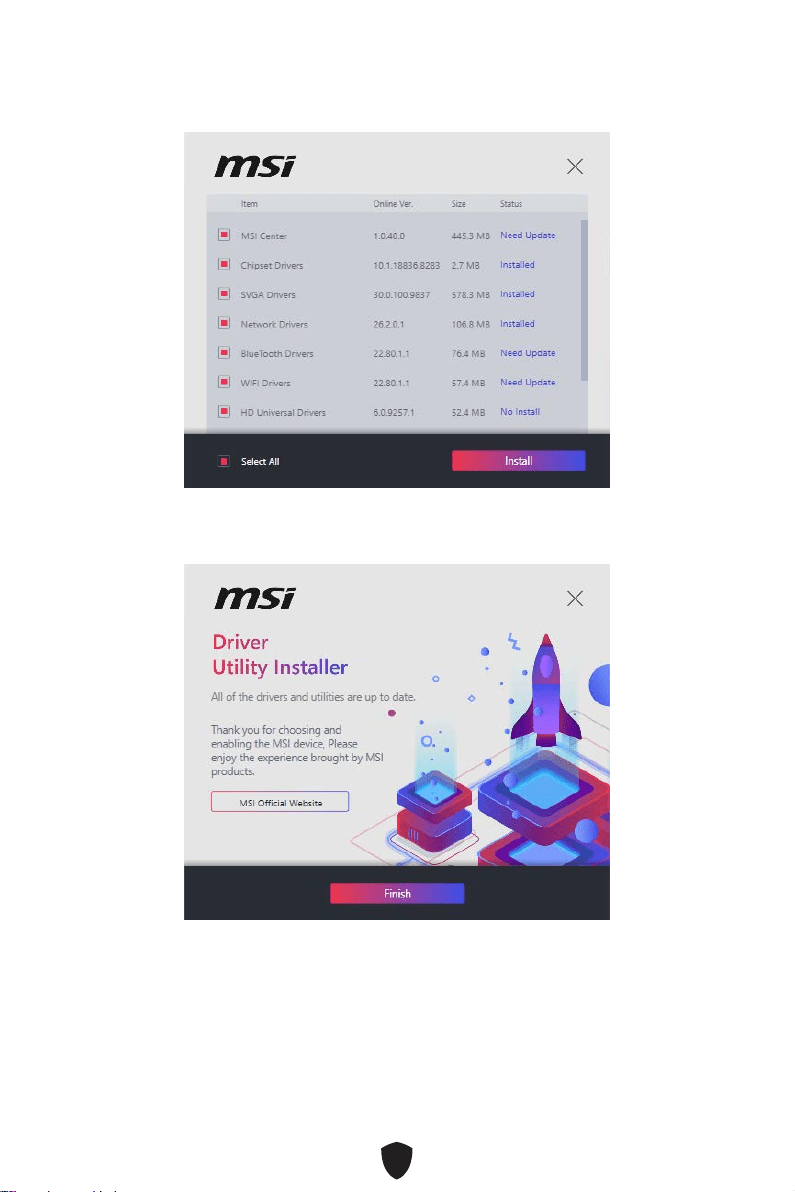
5. Check the Select All checkbox in the lower-left corner and click Install to install
MSI Center and drivers. The installation progress will be shown at the bottom.
6. Once the progress has completed, click Finish.
Important
The MSI DUI will only pop up once. If you cancel or close it during the process, please
refer to the Live Update chapter of the MSI Center manual to install the drivers. You
can also go to www.msi.com to search your motherboard and download the drivers.
42
Installing Drivers with DVD/ USB Drive
1. Start up your computer in Windows 10/ Windows 11.
2. Insert MSI® Drive disc into the optical drive or Insert MSI® USB Drive into the USB
port.
3. Click the Select to choose what happens with this disc pop-up notification, then
select Run DVDSetup.exe to open the installer. If you turn off the AutoPlay feature
from the Windows Control Panel, you can still manually execute the DVDSetup.exe
from the root path of the MSI DVD/ USB Drive.
4. The installer will find and list all necessary drivers in the Drivers/Software tab.
5. Click the Install button in the lower-right corner of the window.
6. The drivers installation will then be in progress, after it has finished it will prompt
you to restart.
7. Click OK button to finish.
8. Restart your computer.
MSI Center
MSI Center is an application that helps you easily optimize game settings and
smoothly use content creation softwares. It also allows you to control and synchronize
LED light effects on PCs and other MSI products. With MSI Center, you can customize
ideal modes, monitor system performance, and adjust fan speed.
MSI Center User Guide
If you would like to know more information about MSI Center, please refer to
http://download.msi.com/manual/mb/MSICENTER.pdf
or scan the QR code to access.
Important
Functions may vary depending on the product you have.

43
UEFI BIOS
MSI UEFI BIOS is compatible with UEFI (Unified Extensible Firmware Interface)
architecture. UEFI has many new functions and advantages that traditional BIOS
cannot achieve, and it will completely replace BIOS in the future. The MSI UEFI
BIOS uses UEFI as the default boot mode to take full advantage of the new chipset’s
capabilities.
Important
The term BIOS in this user guide refers to UEFI BIOS unless otherwise noted.
UEFI advantages
Fast booting - UEFI can directly boot the operating system and save the BIOS self-
test process. And also eliminates the time to switch to CSM mode during POST.
Supports for hard drive partitions larger than 2 TB.
Supports more than 4 primary partitions with a GUID Partition Table (GPT).
Supports unlimited number of partitions.
Supports full capabilities of new devices - new devices may not provide backward
compatibility.
Supports secure startup - UEFI can check the validity of the operating system to
ensure that no malware tampers with the startup process.
Incompatible UEFI cases
32-bit Windows operating system - this motherboard supports only Windows 10/
Windows 11 64-bit operating system.
Older graphics card - the system will detect your graphics card. If you use older
graphics cards, it may display a warning message There is no GOP (Graphics Output
protocol) support detected in this graphics card.
Important
We recommend that you replace it with a graphics card supporting GOP/UEFI or use
CPU with integrated graphics for having normal function.
How to check the BIOS mode?
1.
Power on your computer.
2. Press Delete key, when the Press DEL key to enter Setup Menu, F11 to enter Boot
Menu message appears on the screen during the boot process.
3. After entering the BIOS, you can check the BIOS Mode at the top of the screen.
BIOS Mode: UEFI

44
BIOS Setup
The default settings offer the optimal performance for system stability in normal
conditions. You should always keep the default settings to avoid possible system
damage or failure booting unless you are familiar with BIOS.
Important
BIOS items are regularly updated for better system performance. The items may
be slightly different from the latest BIOS; therefore, the description is for reference
only. You could also refer to the HELP information panel for BIOS item description.
The BIOS screens, options and settings will vary depending on your system.
Entering BIOS Setup
Press Delete key, when the Press DEL key to enter Setup Menu, F11 to enter Boot
Menu message appears on the screen during the boot process.
Function key
F1: General Help list
F2: Add/ Remove a favorite item
F3: Enter Favorites menu
F4: Enter CPU Specifications menu
F5: Enter Memory-Z menu
F6: Load optimized defaults
F7: Switch between Advanced mode and EZ mode
F8: Load Overclocking Profile
F9: Save Overclocking Profile
F10: Save Change and Reset*
F12: Take a screenshot and save it to USB flash drive (FAT/ FAT32 format only).
Ctrl+F: Enter Search page
* When you press F10, a confirmation window appears and it provides the modification
information. Select between Yes or No to confirm your choice.
BIOS User Guide
If you’d like to know more instructions on setting up the BIOS, please refer
to http://download.msi.com/manual/mb/AMDX570BIOS.pdf
or scan the QR code to access.
Important
Functions may vary depending on the product you have.
45
Resetting BIOS
You might need to restore the default BIOS setting to solve certain problems. There
are several ways to reset BIOS:
Go to BIOS and press F6 to load optimized defaults.
Short the Clear CMOS jumper on the motherboard.
Important
Be sure the computer is off before clearing CMOS data. Please refer to the Clear
CMOS jumper section for resetting BIOS.
Updating BIOS
Updating BIOS with M-FLASH
Before updating:
Please download the latest BIOS file that matches your motherboard model from MSI
website. And then save the BIOS file into the USB flash drive.
Updating BIOS:
1. Insert the USB flash drive that contains the update file into the USB port.
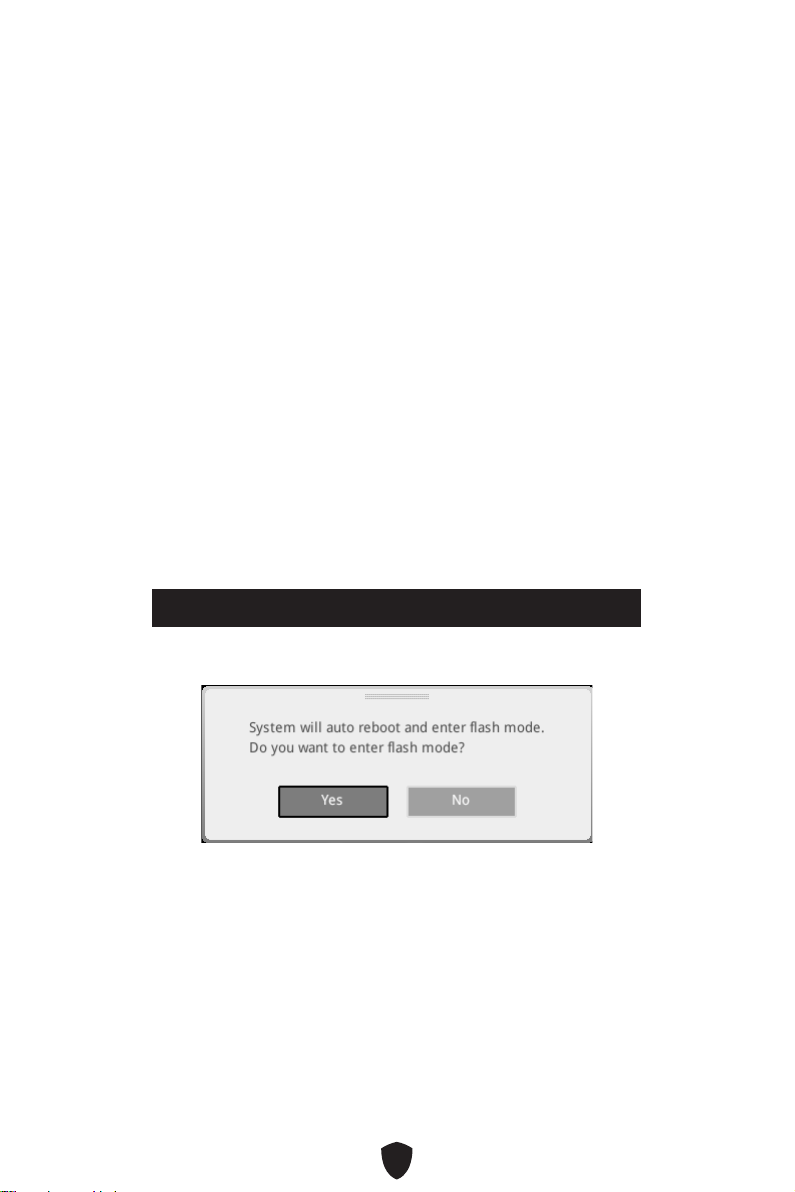
2. Please refer the following methods to enter flash mode.
•
Reboot and press Ctrl + F5 key during POST and click on Yes to reboot the system.
Press <Ctrl+F5> to activate M-Flash for BIOS update.
• Reboot and press Del key during POST to enter BIOS. Click the M-FLASH button
and click on Yes to reboot the system.
3. Select a BIOS file to perform the BIOS update process.
4. When prompted click on Yes to start recovering BIOS.
5. After the flashing process is 100% completed, the system will reboot automatically.

46
Updating the BIOS with MSI Center
Before updating:
Make sure the LAN driver is already installed and the internet connection is set
properly.
Please close all other application software before updating the BIOS.
To update BIOS:
1. Install and launch MSI Center and go to Support page.
2. Select Live Update and click on Advance button.
3. Select the BIOS file and click on Install button.
4. The installation reminder will appear, then click the Install button on it.
5. The system will automatically restart to update BIOS.
6. After the flashing process is 100% completed, the system will restart
automatically.
Updating BIOS with Flash BIOS Button
1.
Please download the latest BIOS file that matches your motherboard model from
the MSI® website.
2. Rename the BIOS file to MSI.ROM, and save it to the root of the USB storage device.
3. Connect the power supply to CPU_PWR1 and ATX_PWR1. (No need to install CPU
and memory.)
4. Plug the USB storage device that contains the MSI.ROM file into the Flash BIOS
Port on the rear I/O panel.
5. Press the Flash BIOS Button to flash BIOS, and the LED starts flashing.
6. The LED will be turned off when the process is completed.

1
Inhalt
Schnellstart .......................................................................................................3
Spezifikationen ................................................................................................16
Besondere Funktionen ....................................................................................19
Lieferumfang ...................................................................................................20
Anschlüsse auf der Rückseite .........................................................................21
LAN Port LED Zustandstabelle ............................................................................ 22
Audiobuchsen ....................................................................................................... 22
Übersicht der Komponenten ...........................................................................24
CPU Sockel ........................................................................................................... 25
DIMM Steckplätze ................................................................................................. 26
PCI_E1~6: PCIe Erweiterungssteckplätze ........................................................... 27
M2_1: M.2 Steckplatz (Key M) .............................................................................. 28
SATA1~6: SATA 6Gb/s Anschlüsse ....................................................................... 29
JFP1, JFP2: Frontpanel-Anschlüsse ................................................................... 30
JAUD1: Audioanschluss des Frontpanels ............................................................ 30
CPU_PWR1, ATX_PWR1: Stromanschlüsse ........................................................ 31
JCI1: Gehäusekontaktanschluss .......................................................................... 32
JUSB3: USB 3.2 Gen 1 Anschluss ........................................................................ 33
JUSB1~2: USB 2.0 Anschlüsse ............................................................................. 33
JLPC1: TPM Anschluss......................................................................................... 34
JTPM1: TPM Anschluss ........................................................................................ 34
JLPT1: Parallele Schnittstelle ............................................................................. 35
JCOM1: Serieller Anschluss ................................................................................. 35
CPU_FAN1, PUMP_FAN1, SYS_FAN1~4: Stromanschlüsse für Lüfter .............. 36
JBAT1: Clear CMOS Steckbrücke (Reset BIOS) ................................................... 37
........................................................................................... 37
JRGB1~2: RGB LED Anschluss ............................................................................ 38
Onboard LEDs ..................................................................................................39

2
EZ DEBUG LED ..................................................................................................... 39
Installation von OS, Treibern & MSI Center ....................................................40
MSI Center ............................................................................................................ 42
UEFI BIOS .........................................................................................................43
BIOS Setup ............................................................................................................ 44
Reset des BIOS ..................................................................................................... 45
Aktualisierung des BIOS ....................................................................................... 45
3
Schnellstart
Danke, dass Sie das MSI® Motherboard gewählt haben. Dieser Abschnitt der
Kurzanleitung bietet eine Demo zur Installation Ihres Computers. Manche
Installationen bieten auch die Videodemonstrationen. Klicken Sie auf die URL, um
diese Videoanleitung mit Ihrem Browser auf Ihrem Handy oder Table anzusehen. Oder
scannen Sie auch den QR Code mit Ihrem Handy, um die URL zu öffnen.
Werkzeug und Komponenten
AMD® AM4 CPU
CPU Lüfter
DDR4 Speicher
Grafikkarte
SATA-Festplatte
SATA DVD Laufwerk
Kreuzschlitzschraubendreher
Gehäuse
Netzteil
Ein Paket von Schrauben
Wärmeleitpaste

4
Sicherheitshinweis
Die im Paket enthaltene Komponenten sind der Beschädigung durch
elektrostatischen Entladung (ESD). Beachten Sie bitte die folgenden Hinweise, um
die erfolgreichen Computermontage sicherzustellen.
Stellen Sie sicher, dass alle Komponenten fest angeschlossen sind. Lockere
Steckverbindungen können Probleme verursachen, zum Beispiel: Der Computer
erkennt eine Komponente nicht oder startet nicht.
Halten Sie das Motherboard nur an den Rändern fest, und verhindern Sie die
Berührung der sensiblen Komponenten.
Um eine Beschädigung der Komponenten durch elektrostatische Entladung (ESD) zu
vermeiden, sollten Sie eines elektrostatischen Armbands während der Handhabung
des Motherboards tragen. Wenn kein elektrostatischen Handgelenkband
vorhanden ist, sollten Sie Ihre statische Elektrizität ableiten, indem Sie ein anderes
Metallobjekt berühren, bevor Sie das Motherboard anfassen.
Bewahren Sie das Motherboard in einer elektrostatische Abschirmung oder einem
Antistatiktuch auf, wenn das Motherboard nicht installiert ist.
Überprüfen Sie vor dem Einschalten des Computers, dass sich keine losen
Schrauben und andere Bauteile auf dem Motherboard oder im Computergehäuse
befinden
Bitte starten Sie den Computer nicht, bevor die Installation abgeschlossen ist. Dies
könnte permanente Schäden an den Komponenten sowie zu das Verletzung des
Benutzers verursachen.
Sollten Sie Hilfe bei der Installation benötigen, wenden Sie sich bitte an einen
zertifizierten Computer-Techniker.
Schalten Sie die Stromversorgung aus und ziehen Sie das das Stromkabel ab, bevor
Sie jegliche Computer-Komponente ein- und ausbauen.
Bewahren Sie die Bedienungsanleitung als künftige Referenz auf.
Halten Sie das Motherboard von Feuchtigkeit fern
Bitte stellen Sie sicher, dass Ihre Netzspannung den Hinweisen auf dem Netzteil vor
Anschluss des Netzteils an die Steckdose entspricht
Verlegen Sie das Netzkabel so, dass niemand versehentlich darauf treten kann.
Stellen Sie nichts auf dem Netzkabel ab.
Alle Achtungs- und Warnhinweise auf dem Motherboard müssen befolgt werden.
Falls einer der folgenden Umstände eintritt, lassen Sie bitte das Motherboard von
Kundendienstpersonal prüfen:
• Flüssigkeit ist in dem Computer eingedrungen.
• Das Motherboard wurde Feuchtigkeit ausgesetzt.
• Das Motherboard funktioniert nicht richtig oder Sie können es nicht wie in der
Bedienungsanleitung beschrieben bedienen.
• Das Motherboard ist heruntergefallen und beschädigt.
• Das Motherboard weist offensichtlich Zeichen eines Schadens auf.
Nutzen und lagern Sie das Gerät nicht an Stellen, an denen Temperaturen von mehr
als 60°C herrschen - das Motherboard kann in diesem Fall Schaden nehmen.
5
Hinweise zum Gehäuseabstandshalter
Um eine Beschädigung des Motherboards zu vermeiden, sind unnötige Abstandshalter
zwischen den Motherboard-Schaltkreisen und dem Computergehäuse verboten.. Die
Schilder „Case Standoff Keep Out Zone (Gehäuseabstandszone freihalten )“ auf der
Rückseite des Motherboards (wie unten gezeigt) dienen als entsprechender Hinweis
für den Anwender.
Hinweis zur Schadensvermeidung
Um jedes Schraubenloch ist eine Schutzfarbe aufgedruckt, um ein Verkratzen der
Teile zu verhindern.
6
Installation des Prozessors
https://youtu.be/Xv89nhFk1vc
1
2
3
6
4
5
7
8
9
7
Wichtig
Wenn Sie den schraubbaren CPU-Kühlkörper installieren, folgen Sie bitte der
Abbildung unten, um zuerst das Retentionsmodul zu entfernen und dann den
Kühlkörper zu installieren.
1
2
3
8
Installation des DDR4-Speichers
DIMMA2 DIMMA2
DIMMB2
DIMMA1
DIMMA2
DIMMB1
DIMMB2
http://youtu.be/T03aDrJPyQs
9
HDD LED
RESET SW
Anschließen der Frontpanel-Stiftleiste
http://youtu.be/DPELIdVNZUI
JFP1
HDD LED
HDD LED -
HDD LED +
POWER LED -
POWER LED +
POWER LED
RESET SW
POWER SW
POWER LED+
POWER LED-
HDD LED
1
2 10
9
Power LED
Reserved
Power Switch
JFP1
Reset SwitchHDD LED
10
BAT1
Installation des Motherboards
2
1
https://youtu.be/wWI6Qt51Wnc
Drehmoment
3 kgf·cm*
*3 kgf·cm
= 0.3 N·m
= 2.6 lbf·in
3
11
Stromanschlüsse anschliessen
http://youtu.be/gkDYyR_83I4
ATX_PWR1
CPU_PWR1
12
Installation der SATA-Laufwerke
http://youtu.be/RZsMpqxythc
1
2
3
4
5
13
Einbau der Grafikkarte
http://youtu.be/mG0GZpr9w_A
1
2
3
4
5
6
14
Peripheriegeräte
15
Einschalten
4
3
1
2
16
Spezifikationen
CPU
Unterstützt AMD Ryzen™ 5000 Serie, 5000 G-Serie,
4000 G-Serie, und 3000 Serie Prozessoren*
Unterstützt Sockel AM4
* Bitte besuchen Sie www.msi.com, um den neuesten Support-Status zu
erhalten, wenn neue Prozessoren veröffentlicht werden.
Chipsatz AMD® B550 Chipsatz
Speicher
4x DDR4 Speicherplätze, aufrüstbar bis 128 GB*
Unterstützt 1866/ 2133/ 2400/ 2667/ 2800/ 2933/ 3000/
3066/ 3200 MHz durch JEDEC
Unterstützt DDR4 2667/ 2800/ 2933/ 3000/ 3066/ 3200/
3466/ 3600/ 3733/ 3866/ 4000/ 4133/ 4266/ 4400+ MHz
durch A-XMP OC MODUS
• 1DPC 1R max. Übertragungsraten bis zu 4400 MHz
• 1DPC 2R max. Übertragungsraten bis zu 3733 MHz
• 2DPC 1R max. Übertragungsraten bis zu 3866 MHz
• 2DPC 2R max. Übertragungsraten bis zu 3466 MHz
Dual-Kanal-Speicherarchitektur
Unterstützt non-ECC UDIMM Speicher
Unterstützt ECC UDIMM Speicher (non-ECC Modus)
Unterstützt ungepufferte Speicher
* Weitere Informationen zu kompatiblen Speichermodulen finden Sie unter:
www.msi.com.
Erweiterung-
anschlüsse
2x PCIe x16 Steckplätze
• PCI_E1 Steckplatz (von CPU)
• Unterstützt PCIe 3.0 x16
• PCI_E4* (vom B550 Chipsatz)
• Unterstützt PCIe 3.0 x4
4x PCIe x1 Steckplätze
• PCI_E2, E3, E5 und E6 Steckplätze (vom B550 Chipsatz)
• Unterstützt PCIe 2.0 x1
* PCI_E4 überträgt 2.0 x1 Geschwindigkeit, wenn einer der Steckplätze PCI_E2,
PCI_E3 und PCI_E5 installiert wurde.
Multi-GPU
Unterstützt AMD CrossFire™ Technologie
Fortsetzung auf der nächsten Spalte
17
Fortsetzung der vorherigen Spalte
Onboard-Grafik
1x DVI-D Anschluss, Unterstützung einer maximalen
Auflösung von 1920x1200 @60Hz*
1x HDMI™ 2.0b Anschluss, Unterstützung einer
maximalen Auflösung von 4096x2160 @30Hz, 2560x1600
@60Hz*
/
**
* Es ist verfügbar für den Prozessor mit integrierter Grafik.
** Die Grafikkarten-Spezifikationen können abhängig von der installierten CPU
variieren.
SATA Anschlüsse 6x SATA 6Gb/s Anschlüsse (von B550 Chipsatz)
M.2 SSD Steckplätze
1x M.2 Steckplatz (Key M)
• M2_1 Steckplatz (von CPU)
• Unterstützt PCIe 3.0 x4
• Unterstützt bis zu SATA 6Gb/s
• Unterstützt 2260/ 2280/ 22110 Speichergeräte
RAID
Unterstützt RAID 0, RAID 1 und RAID 10 für SATA
Speichergeräte
Audio
Realtek® ALC897 Codec
7.1-Kanal-HD-Audio
LAN 1x Realtek® RTL8111H LAN Controller
Stromanschlüsse
1x 24-poliger ATX Stromanschluss
1x 8-poliger ATX 12V Stromanschluss
Interne USB
Anschlüsse
1x USB 3.2 Gen 1 5Gbit/s Anschluss (vom B550 Chipsatz)
• Unterstützt zusätzliche 2 USB 3.2 Gen 1 5Gbit/s
Anschlüsse
2x USB 2.0 Anschlüsse (vom B550 Chipsatz)
• Unterstützt zusätzliche 4 USB 2.0 Anschlüsse
Stromanschlüsse
für Lüfter
1x 4-poliger CPU-Lüfter-Stromanschluss
1x 4-poliger Anschluss für die Wasserpumpe
4x 4-polige System-Lüfter-Anschlüsse
Fortsetzung auf der nächsten Spalte
18
Fortsetzung der vorherigen Spalte
Systemanschlüsse
1x Audioanschluss des Frontpanels
2x System-Panel-Anschlüsse
1x Gehäusekontaktschalter
1x TPM Anschluss
1x Serieller Anschluss
1X Parallele Schnittstelle
Steckbrücke 1x Clear CMOS Steckbrücke
LED Funktionen
2x 4-polige RGB LED Anschlüsse
4x EZ Debug LED
Hintere Ein-/ und
Ausgänge
1x Flash BIOS Taste
1x PS/2 Tastatur/ Maus-Combo-Anschluss
2x USB 2.0 Typ-A Anschlüsse
1x DVI-D Anschluss
1x HDMI™ Anschluss
2x USB 3.2 Gen1 5Gbit/s Typ-A Anschlüsse
1 x LAN (RJ45) Anschluss
2x USB 3.2 Gen2 10Gbit/s Typ-A Anschlüsse
6x Audiobuchsen
E/A Anschluss NUVOTON NCT6797 Controller Chip
Hardware Monitor
CPU/ System/ Chipsatz Temperaturerfassung
CPU/ System/ Pump-Lüfter Geschwindigkeitserfassung
CPU/ System/ Pump-Lüfter Drehzahlregelung
Formfaktor
ATX Formfaktor
12 Zoll x 9,6 Zoll (30,5 cm x 24,4 cm)
BIOS Funktionen
1x 256 Mb Flash
UEFI AMI BIOS
ACPI 6.1, SMBIOS 2.8
Mehrsprachenunterstützung
Software
MSI Center
CPU-Z MSI GAMING
Google Chrome™, Google Toolbar, Google Drive
Norton™ Internet Security Solution

19
Besondere Funktionen
MSI Center
• Benutzer-Szenario
• True Color
• Live Update
• Hardware Monitor
• Super Charger
• Speed Up
• Smart Image Finder
• MSI Companion
Audio
• Audio Boost
Netzwerk
• LAN Manager
Kühlung
• Erweitertes Kühlkörperdesign
• Smart-Lüftersteuerung
LED
• Mystic Light Extension (RGB)
• Mystic Light
• EZ DEBUG LED
Leistung
• DDR4 Boost
• Core Boost
• Game Boost
Schutz
• PCI-E Steel Armor
Erfahrung
• MSI Center
• GAMING HOTKEY
• GAMING MAUS-Steuerung
• Click BIOS 5

20
Lieferumfang
Überprüfen Sie den Packungsinhalt des Mainboards. Die Packung sollte enthalten:
Platine
• 1x Motherboard
Dokumentation
• Schnellinstallationsanleitung
Kabel
• 2x SATA 6Gb/s Kabel
Zubehör
• 1x Gehäuse-Aufkleber
• 1x Anschlussblende
• 1x M.2 Schraube
• Produktregistrierungskarte
Wichtig
Falls einer der oben aufgeführten Artikel beschädigt ist oder fehlt, wenden Sie sich
bitte an Ihren Händler.
21
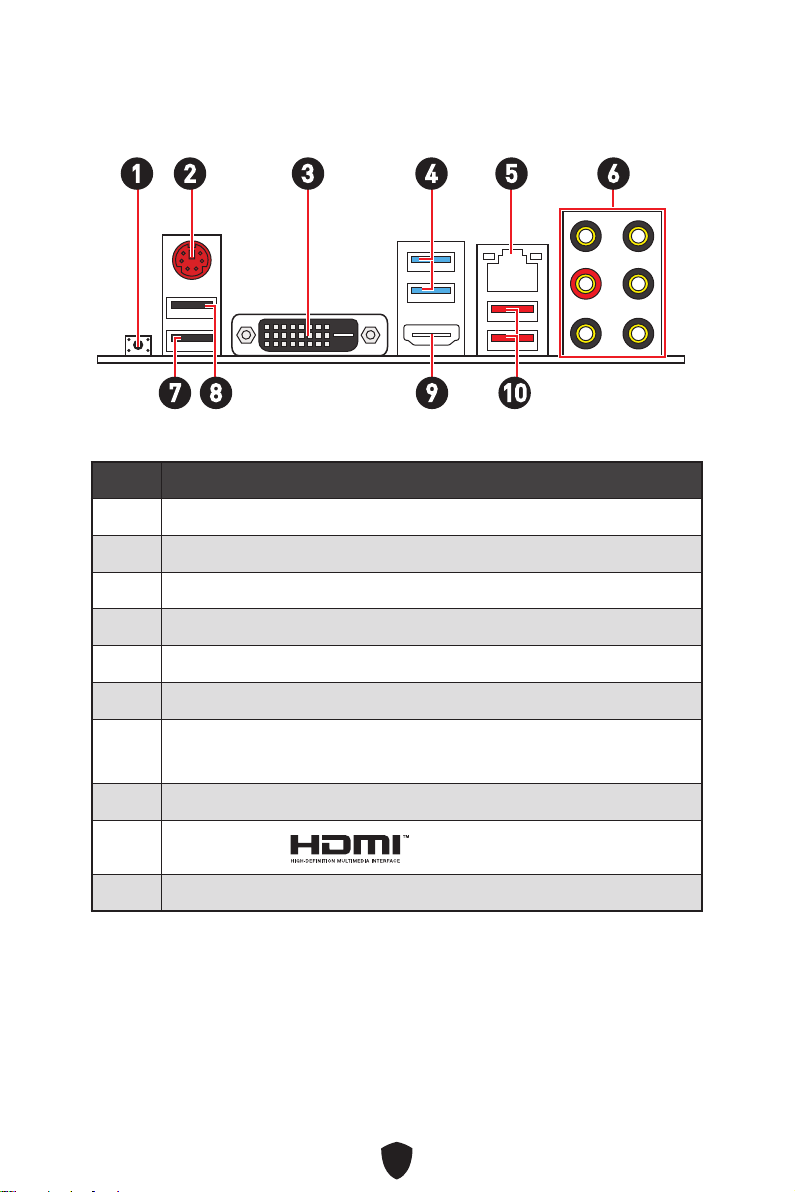
Anschlüsse auf der Rückseite
1
10
2 3 4 65
Artikel Beschreibung
1 Flash BIOS Taste
2 PS/2 Tastatur/ Maus-Combo-Anschluss
3 DVI-D Anschluss
4 USB 3.2 Gen 1 5Gbit/s Typ-A Anschlüsse (von CPU)
5 1 Gbit/s LAN-Anschluss
6 Audiobuchsen
7
USB 2.0 Typ-A Anschluss (vom B550 Chipsatz)
• Flash BIOS Anschluss
8 USB 2.0 Typ-A Anschluss (vom B550 Chipsatz)
9
HDMI Anschluss
10 USB 3.2 Gen 2 10Gbit/s Typ-A Anschlüsse (vom B550 Chipsatz)
7 98
22
LAN Port LED Zustandstabelle
Verbindung/ Aktivität LED
Zustand Bezeichnung
Aus Keine Verbindung
Gelb Verbindung
Blinkt Datenaktivität
Geschwindigkeit LED
Zustand Geschwindigkeit
Off (Aus) 10 Mbit/s
Grün 100 Mbit/s
Orange 1 Gbit/s
Audiobuchsen
Audiobuchsen für den Anschluss von einem Kopfhörer und Mikrofon
Audiobuchsen für Stereo-Lautsprecher
AUDIO INPUT
23
Audiobuchsen für 7.1 Kanal Anlage
Audiobuchsen für 4 Kanal Anlage
Audiobuchsen für 5.1 Kanal Anlage
AUDIO INPUT
Rear Front
AUDIO INPUT
Rear Front
Center/
Subwoofer
AUDIO INPUT
Rear Front
Center/
Subwoofer
Side
24
BAT1
M2_1
ATX_PWR1
SYS_FAN3
SYS_FAN4
PUMP_FAN1
CPU_FAN1
DIMMB2
Prozessor
Sockel
JRGB1
CPU_PWR1
JFP1
JRGB2
SATA2
JUSB2
JUSB1
JLPC1
JUSB3
JCOM1
JLPT1
JAUD1
PCI_E1
JTPM1
SYS_FAN1
PCI_E2
PCI_E3
PCI_E4
PCI_E5
JBAT1
PCI_E6
SYS_FAN2
SATA1
JFP2
JCI1
DIMMB1
DIMMA2
DIMMA1
Übersicht der Komponenten
25
Wichtig
Bei einem Wechsel der CPU sollte aufgrund der AM4-Prozessorarchitektur die
Systemkonfiguration gelöscht und das BIOS auf die Standardwerte zurückgesetzt
werden.
Ziehen Sie das Netzkabel ab, bevor Sie die CPU ein- und ausbauen.
Wenn Sie eine CPU einbauen, denken sie bitte daran, einen CPU-Kühler zu
installieren. Ein CPU-Kühlkörper ist notwendig, um eine Überhitzung zu vermeiden
und die Systemstabilität zu gewährleisten.
Stellen Sie sicher, dass Ihr Kühlkörper eine feste Verbindung mit der CPU
hergestellt hat, bevor Sie Ihr System starten.
Überhitzung beschädigt die CPU und das System nachhaltig. Stellen Sie stets eine
korrekte Funktionsweise des CPU Kühlers sicher, um die CPU vor Überhitzung zu
schützen. Stellen Sie sicher, dass eine gleichmäßige Schicht thermischer Paste
oder thermischen Tapes zwischen der CPU und dem Kühlkörper vorhanden ist, um
die Wärmeableitung zu erhöhen.
Verwenden Sie bitte die Installationsanweisung des Kühlkörpers/Kühlers, falls Sie
eine seperate CPU oder einen Kühlkörper/ Kühler erworben haben.
Dieses Motherboard wurde so entworfen, dass es Übertakten unterstützt. Stellen
Sie jedoch bitte sicher, dass die betroffenen Komponenten mit den abweichenden
Einstellungen während des Übertaktens zurecht kommen. Von jedem Versuch
des Betriebes außerhalb der Produktspezifikationen kann nur abgeraten werden.
MSI übernehmt keinerlei Garantie für die Schäden und Risiken, die aus einem
unzulässigem Betrieb oder einem Betrieb außerhalb der Produktspezifikation
resultieren.
CPU Sockel
Erklärung zur AM4 CPU
Die Obserseite der AM4 CPU hat
ein gelbes Dreieck um die korrekte
Ausrichtung der CPU auf dem
Motherboard zu gewährleisten. Das
gelbe Dreieck des Prozessors definiert
die Position des ersten Pins.
Abstand zwischen der Mitte der
CPU und dem nächsten DIMM-
Steckplatz.
53,43 mm
26
DIMM Steckplätze
DIMMA1 DIMMB1
Kanal A Kanal B
DIMMA2 DIMMB2
Speichermodul-Installationsempfehlung
Wichtig
Um einen sicheren Systemstart zu gewährleisten, bestücken Sie immer DIMMA2
zuerst.
Stellen Sie im Dual-Kanal-Modus bitte sicher, dass Sie Module des gleichen
Typs und identischer Speicherdichte in den DIMM Slots unterschiedlicher Kanäle
verwenden.
Einige Speichermodule können beim Übertakten auf einer niedrigeren Frequenz
arbeiten, als der festgelegte Wert - abhängig von dem SPD (Serial Presence Detect).
Stellen Sie im BIOS-Setup mit DRAM Frequency die Speicherfrequenz ein, wenn Sie
mit der festgelegten oder einer höheren Speicherfrequenz arbeiten möchten.
Es wird empfohlen, ein effizienteres Speicherkühlsystem bei einer Vollbestückung
des DIMMs oder beim Übertakten zu verwenden.
Die Stabilität und Kompatibilität beim Übertakten der installierten Speichermodule
sind abhängig von der installierten CPU und den installierten Geräten.
Weitere Informationen zu kompatiblen Speichermodulen finden Sie unter:
www.msi.com.
DIMMA2 DIMMA2
DIMMB2
DIMMA1
DIMMA2
DIMMB1
DIMMB2
27
BAT1
PCI_E1~6: PCIe Erweiterungssteckplätze
PCI_E1: PCIe 3.0 x16 (von CPU)
PCI_E4: PCIe 3.0 x4 (vom B550 Chipsatz)
PCI_E2: PCIe 2.0 x1 (vom B550 Chipsatz)
PCI_E5: PCIe 2.0 x1 (vom B550 Chipsatz)
PCI_E3: PCIe 2.0 x1 (vom B550 Chipsatz)
PCI_E6: PCIe 2.0 x1 (vom B550 Chipsatz)
Wichtig
Wenn Sie eine große und schwere Grafikkarte einbauen, benötigen Sie einen
Grafikkarten-Stabilisator (Graphics Card Bolster) der das Gewicht trägt und eine
Verformung des Steckplatzes vermeidet.
Für die Installation einer einzelnen PCIe x16 Erweiterungskarte mit optimaler
Leistung, empfehlen wir den PCI_E1 Steckplatz zu verwenden.
Achten Sie darauf, dass Sie den Strom abschalten und das Netzkabel aus der
Steckdose herausziehen, bevor Sie eine Erweiterungskarte installieren oder
entfernen. Lesen Sie bitte auch die Dokumentation der Erweiterungskarte, um
notwendige zusätzliche Hardware oder Software-Änderungen zu überprüfen.
PCI_E4 überträgt 2.0 x1 Geschwindigkeit, wenn einer der Steckplätze PCI_E2, PCI_
E3 und PCI_E5 installiert wurde.
PCIe-Bandbreite für PCIe-Steckplatz
Steckplatz Einzel 2-Wege
PCI_E1 (CPU) @ 3.0 x16 @ 3.0 x16
PCI_E2 (PCH) 2.0 x1 2.0 x1 Leer Leer —
PCI_E3 (PCH) 2.0 x1 Leer 2.0 x1 Leer —
PCI_E4 (PCH) 2.0 x1 2.0 x1 2.0 x1 2.0 x1 @3.0 x4
PCI_E5 (PCH) 2.0 x1 Leer Leer 2.0 x1 —
PCI_E6 (PCH) 2.0 x1 2.0x1
(—: Nicht verfügbar, @: Grafikkarte)
28
Installation eines M.2 Moduls
1.
Entfernen Sie den M.2-Abstandshalter und befestigen Sie ihn an der
entsprechenden Position Ihrer M.2-SSD.
2. Stecken Sie eine M.2-SSD im 30-Grad-Winkel in den M.2-Steckplatz.
3. Schrauben Sie den M.2 SSD mit 8,5H M.2-Schraube.
30º30º
2
3
1
Mitgelieferte
M.2-Schraube
M.2
Abstandshalter
M2_1: M.2 Steckplatz (Key M)
Eine anschauliche Darstellung zur Installation einer
M.2 SSD finden Sie im Video.
http://youtu.be/JCTFABytrYA
29
SATA1~6: SATA 6Gb/s Anschlüsse
Dieser Anschluss basiert auf der Hochgeschwindigkeitsschnittstelle SATA 6 Gb/s. Pro
Anschluss kann ein SATA Gerät angeschlossen werden.
SATA5
SATA3
SATA1
SATA6
SATA4
SATA2
Wichtig
Knicken Sie das SATA-Kabel nicht in einem 90° Winkel. Datenverlust könnte die
Folge sein.
SATA-Kabel haben identische Stecker an beiden Enden. Es wird empfohlen den
flachen Stecker auf dem Motherboard einstecken.
30
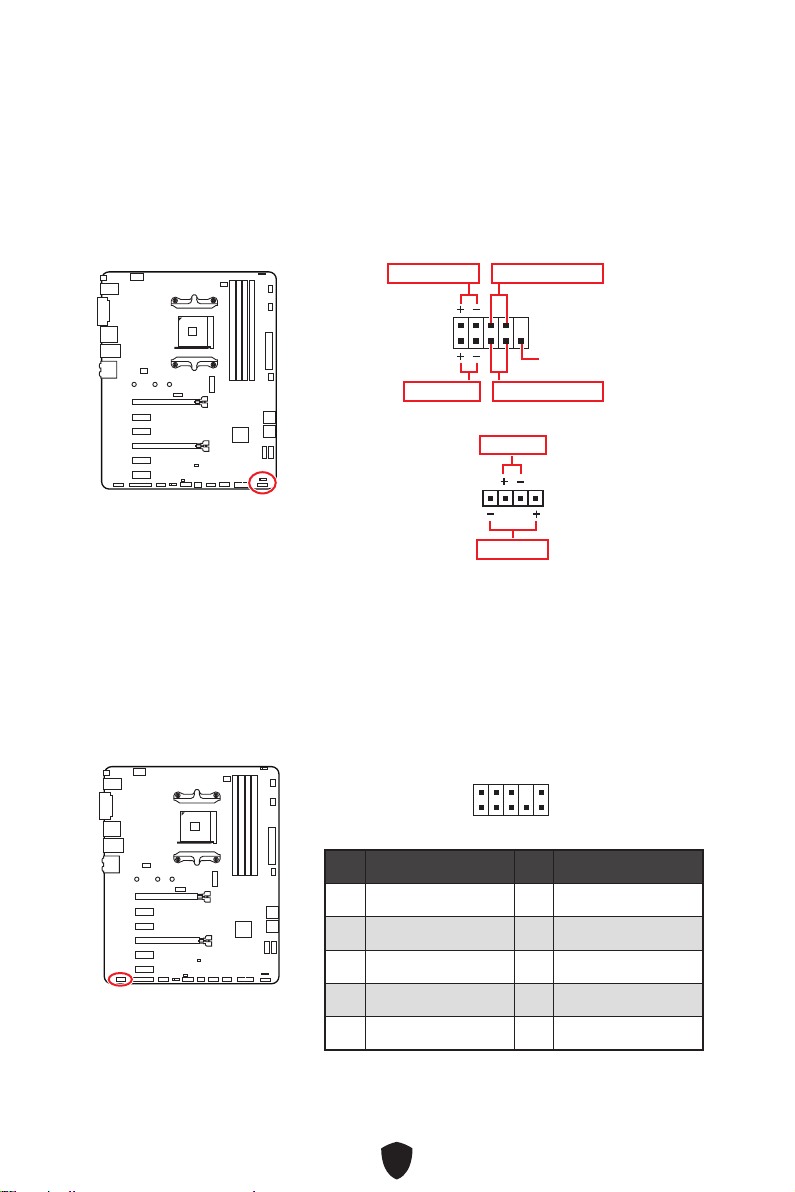
JFP1, JFP2: Frontpanel-Anschlüsse
Der JFP1-Anschluss steuert das Einschalten, Zurücksetzen und die LEDs an Ihrem
PC-Gehäuse/Gehäuse. Die Power /Reset-Stiftleisten dienen zum Anschluss der
Power-/Reset-Taste. Der Power-LED-Anschluss wird mit der LED-Leuchte am PC-
Gehäuse verbunden, und der HDD-LED-Anschluss zeigt die Aktivität der Festplatte an.
Der JFP2-Anschluss ist für den Signaltongeber und Lautsprecher vorgesehen. Um die
Kabel vom PC-Gehäuse an die richtigen Pins anzuschließen, sehen Sie sich bitte die
folgenden Bilder an.
1
2 10
9
Power LED
Reserved
Power Switch
JFP1
Reset SwitchHDD LED
1
JFP2
Buzzer
Speaker
Wichtig
Bitte beachten Sie, dass Power-LED und HDD-LED eine positive und negative
Verbindung haben, Sie müssen das Kabel mit dem entsprechenden positiven und
negativen Anschluss auf dem Motherboard verbinden. Andernfalls werden die LEDs
nicht richtig funktionieren.
JAUD1: Audioanschluss des Frontpanels
Dieser Anschluss ermöglicht den Anschluss von Audiobuchsen eines Frontpanels.
1
2 10
9
Pin Signalname Pin Signalname
1 MIC L 2 Ground
3 MIC R 4 NC
5 Head Phone R 6 MIC Detection
7 SENSE_SEND 8 No Pin
9 Head Phone L 10 Head Phone Detection
31
Wichtig
Stellen Sie sicher, dass alle Anschlüsse mit den richtigen Anschlüssen des Netzteils
verbunden sind, um einen stabilen Betrieb der Hauptplatine sicherzustellen
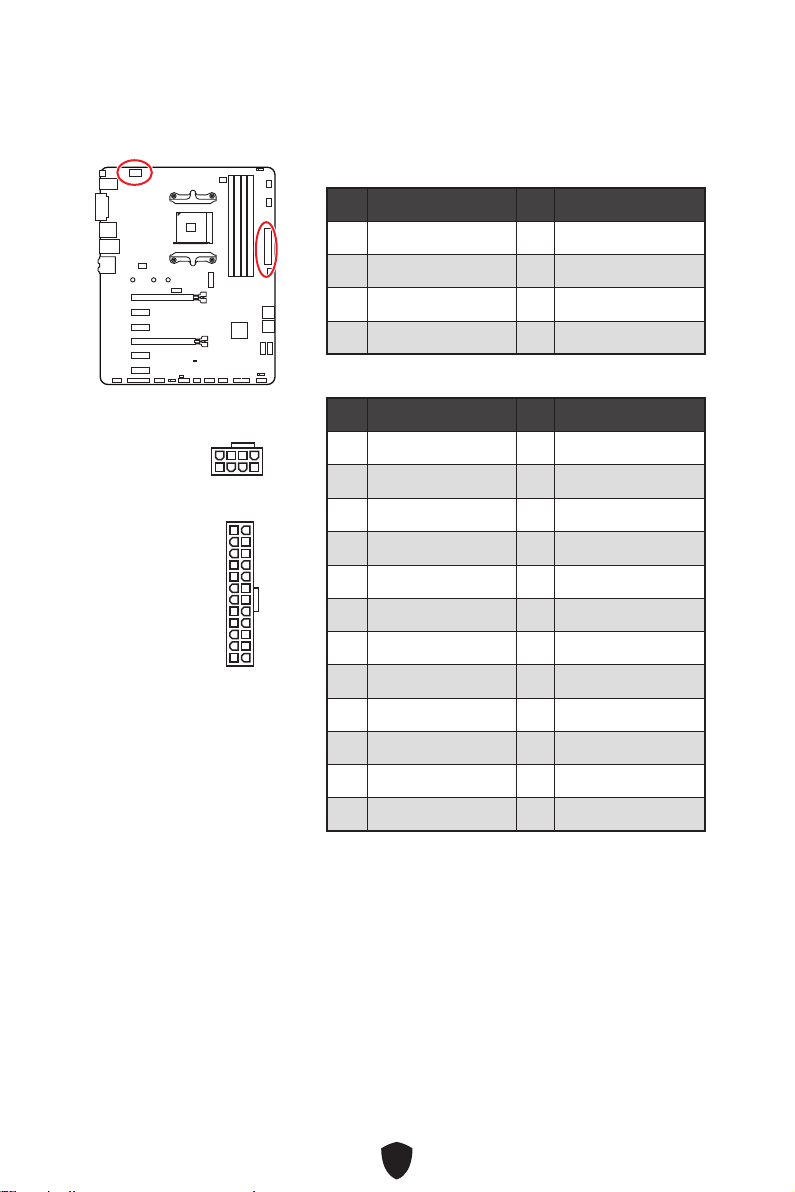
CPU_PWR1, ATX_PWR1: Stromanschlüsse
Mit diesen Anschlüssen verbinden Sie die ATX Stromstecker.
CPU_PWR1
Pin Signalname Pin Signalname
1 Ground 2 Ground
3 Ground 4 Ground
5 +12V 6 +12V
7 +12V 8 +12V
ATX_PWR1
Pin Signalname Pin Signalname
1 +3,3V 2 +3,3V
3 Ground 4
+5V
5 Ground 6 +5V
7 Ground 8 PWR OK
9 5VSB 10 +12V
11 +12V 12 +3,3V
13 +3,3V 14 -12V
15 Ground 16 PS-ON#
17 Ground 18 Ground
19 Ground 20 Res
21 +5V 22 +5V
23 +5V 24 Ground
5
4 1
8
CPU_PWR1
24
131
12
ATX_PWR1
32
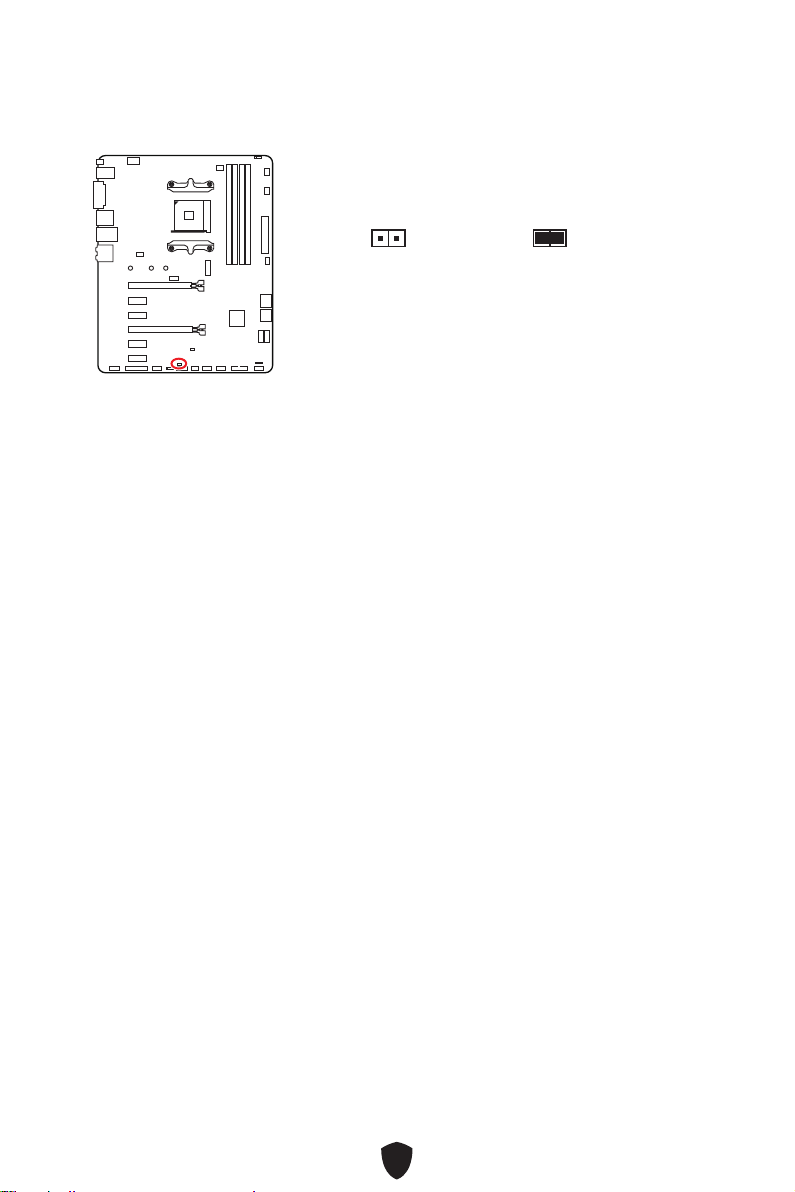
JCI1: Gehäusekontaktanschluss
Dieser Anschluss wird mit einem Kontaktschalter verbunden
Normal
(Standardwert)
Löse den
Gehäuseeingriff aus
Gehäusekontakt-Detektor verwenden
1.
Schließen Sie den JCI1 -Anschluss am Gehäusekontakt-Schalter/ Sensor am
Gehäuse an.
2. Schließen Sie die Gehäuseabdeckung.
3. Gehen Sie zu BIOS > SETTINGS > Security > Chassis Intrusion Configuration.
4. Stellen Sie Chassis Intrusion auf Enabled.
5. Drücken Sie F10 zum Speichern und Beenden und drücken Sie dann die Enter-
Taste, um Ja auszuwählen.
6. Bei eingeschaltetem Computer wird eine Warnmeldung auf dem Bildschirm
angezeigt, wenn die Gehäuseabdeckung wieder geöffnet wird.
Gehäusekontakt-Warnung zurücksetzen
1.
Gehen Sie zu BIOS > SETTINGS > Security > Chassis Intrusion Configuration.
2. Stellen Sie Chassis Intrusion auf Reset.
3. Drücken Sie F10 zum Speichern und Beenden und drücken Sie dann die Enter-
Taste, um Ja auszuwählen.
33
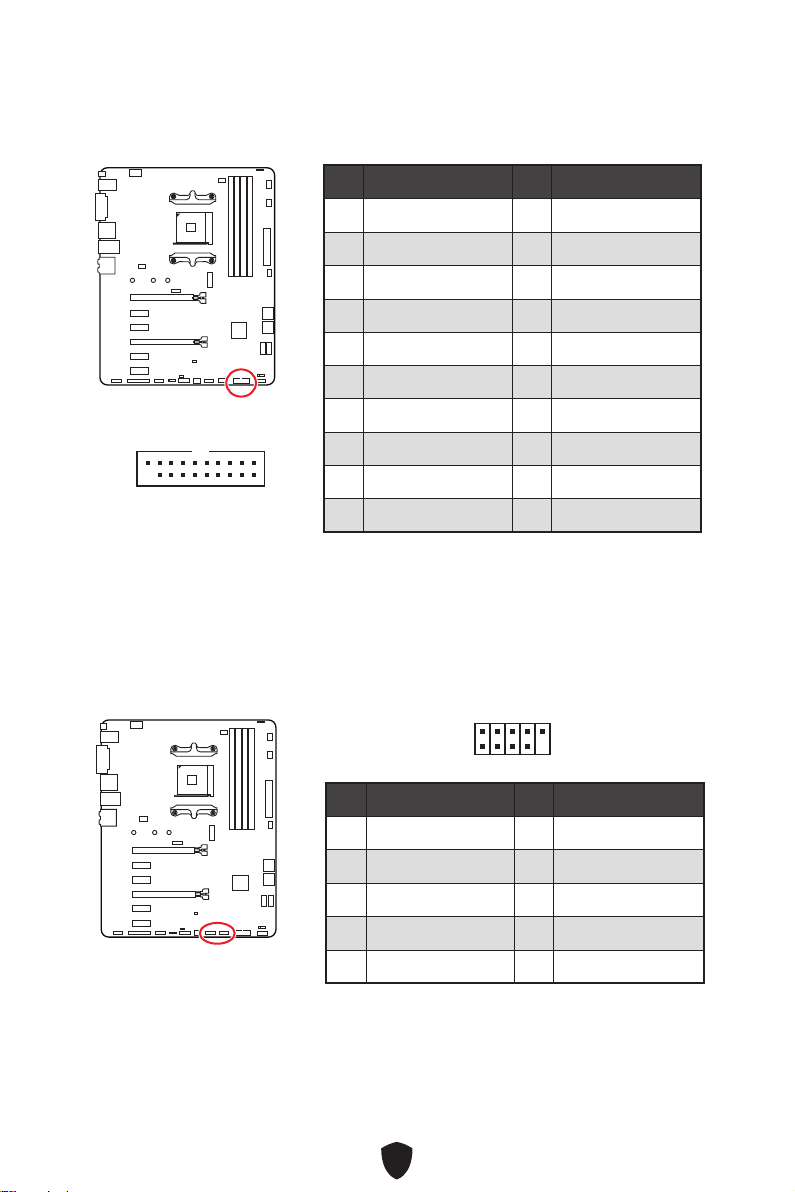
JUSB3: USB 3.2 Gen 1 Anschluss
Mit diesem Anschluss können Sie die USB 3.2 Gen 1 5Gbit/s Anschlüsse auf dem
Frontpanel verbinden.
Wichtig
Bitte beachten Sie, dass Sie die mit „Stromführende Leitung“ und „Erdleitung“
bezeichneten Pins korrekt verbinden müssen, ansonsten kann es zu Schäden
kommen.
Pin Signalname Pin Signalname
1 Power 2 USB3_RX_DN
3 USB3_RX_DP 4 Ground
5 USB3_TX_C_DN 6 USB3_TX_C_DP
7 Ground 8 USB2.0-
9 USB2.0+ 10 Ground
11 USB2.0+ 12 USB2.0-
13 Ground 14 USB3_TX_C_DP
15 USB3_TX_C_DN 16 Ground
17 USB3_RX_DP 18 USB3_RX_DN
19 Power 20 No Pin
1 10
1120
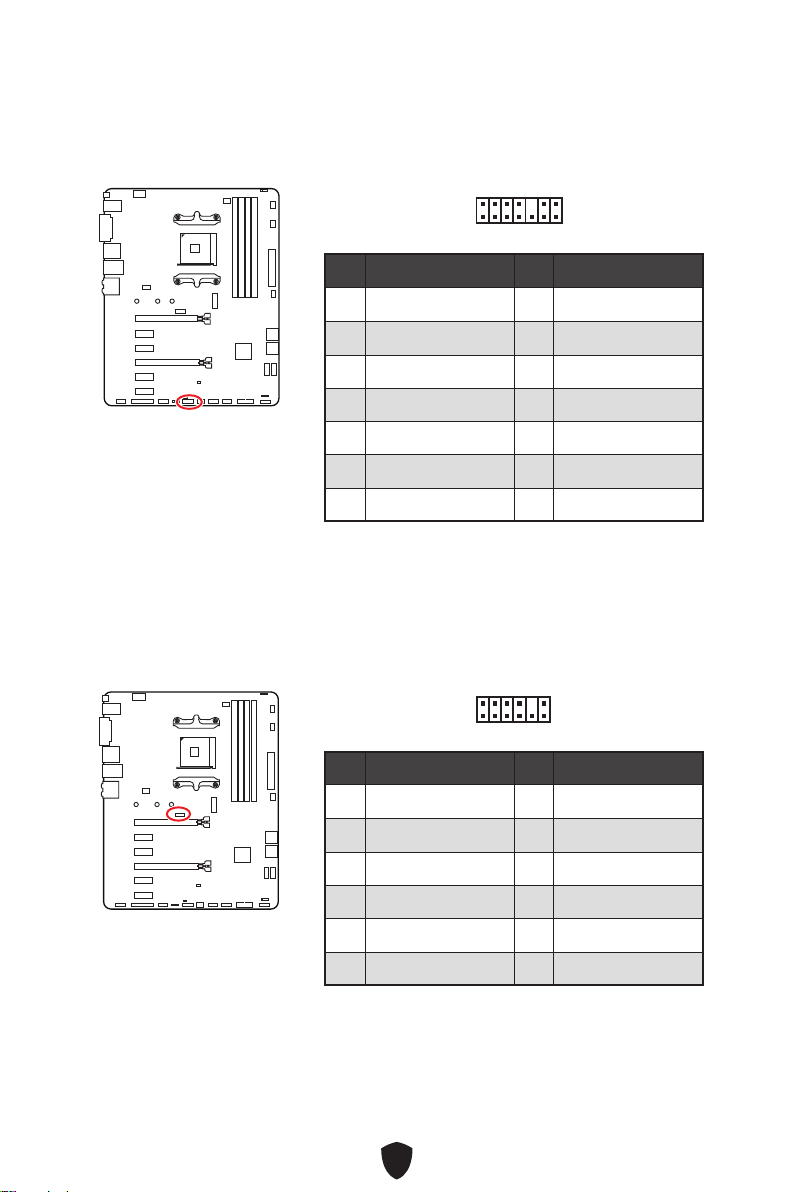
JUSB1~2: USB 2.0 Anschlüsse
Mit diesen Anschlüssen können Sie die USB 2.0 Anschlüsse auf dem Frontpanel
verbinden.
Wichtig
Bitte beachten Sie, dass Sie die mit VCC (Stromführende Leitung) und Ground
(Erdung) bezeichneten Pins korrekt verbinden müssen, ansonsten kann es zu
Schäden kommen.
Um ein iPad, iPhone und einen iPod über USB-Anschlüsse aufzuladen, installieren
Sie bitte die MSI® Center-Dienstprogramm.
Pin Signalname Pin Signalname
1 VCC 2 VCC
3 USB0- 4 USB1-
5 USB0+ 6 USB1+
7 Ground 8 Ground
9 No Pin 10 NC
1
2 10
9
34
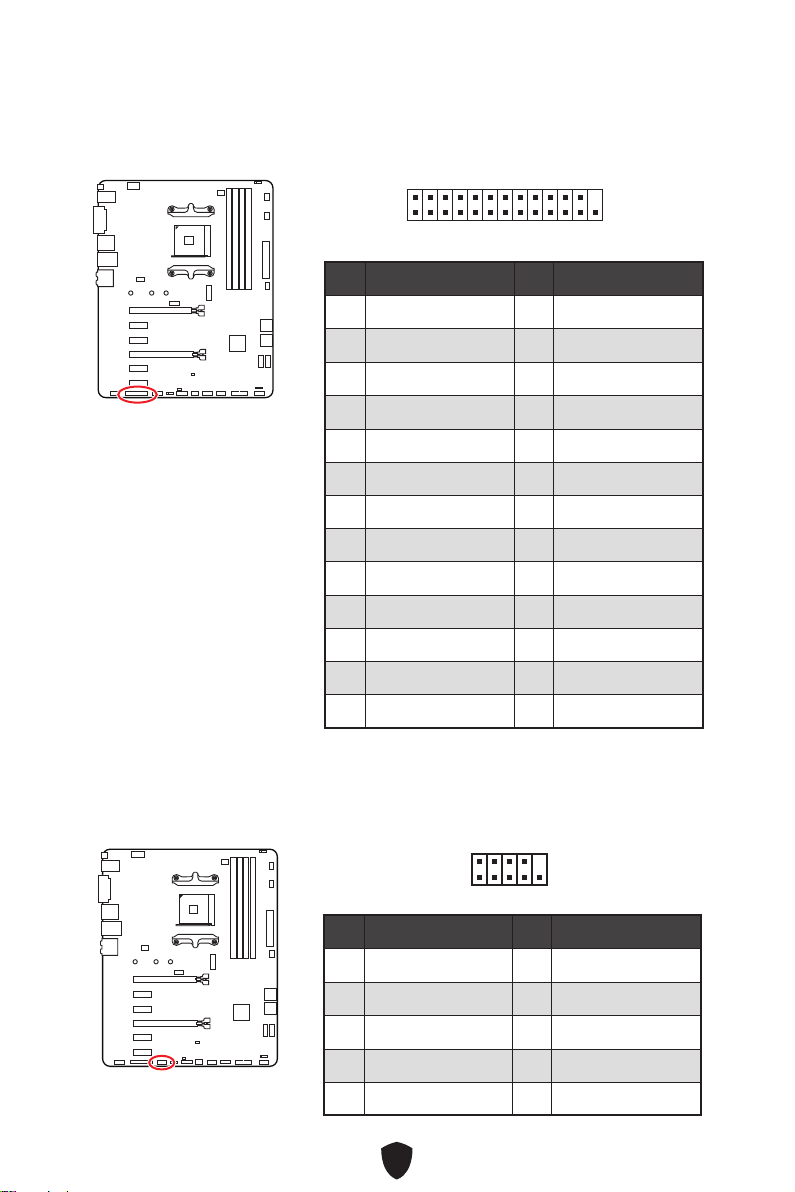
Pin Signalname Pin Signalname
1 LPC Clock 2 3V Standby power
3 LPC Reset 4 3.3V Power
5 LPC address & data pin0 6 Serial IRQ
7 LPC address & data pin1 8 5V Power
9 LPC address & data pin2 10 No Pin
11 LPC address & data pin3 12 Ground
13 LPC Frame 14 Ground
1
2 14
13
JTPM1: TPM Anschluss
Dieser Anschluss wird für das TPM Modul (Trusted Platform Module) verwendet.
Weitere Informationen über den Einsatz des optionalen TPM Modules entnehmen Sie
bitte dem TPM Plattform Handbuch.
Pin Signalname Pin Signalname
1 1.8V power 2 SPI_TPM_CS#_R
3 SPI_TPM_DATI 4 SPI_DATO
5 SPI_CS#_R 6 SPI_TPM_CLK
7 Ground 8 SPI_TPM_RST#
9 SPI_SW_SEL 10 NA
11 SPI_TPM_WP# 12 SPI_TPM_HOLD#
1
2 12
11
JLPC1: BIOS-Debug-Anschluss
Dieser Anschluss wird vom Hersteller für Debugging-Zwecke auf Boardebene
verwendet.
35
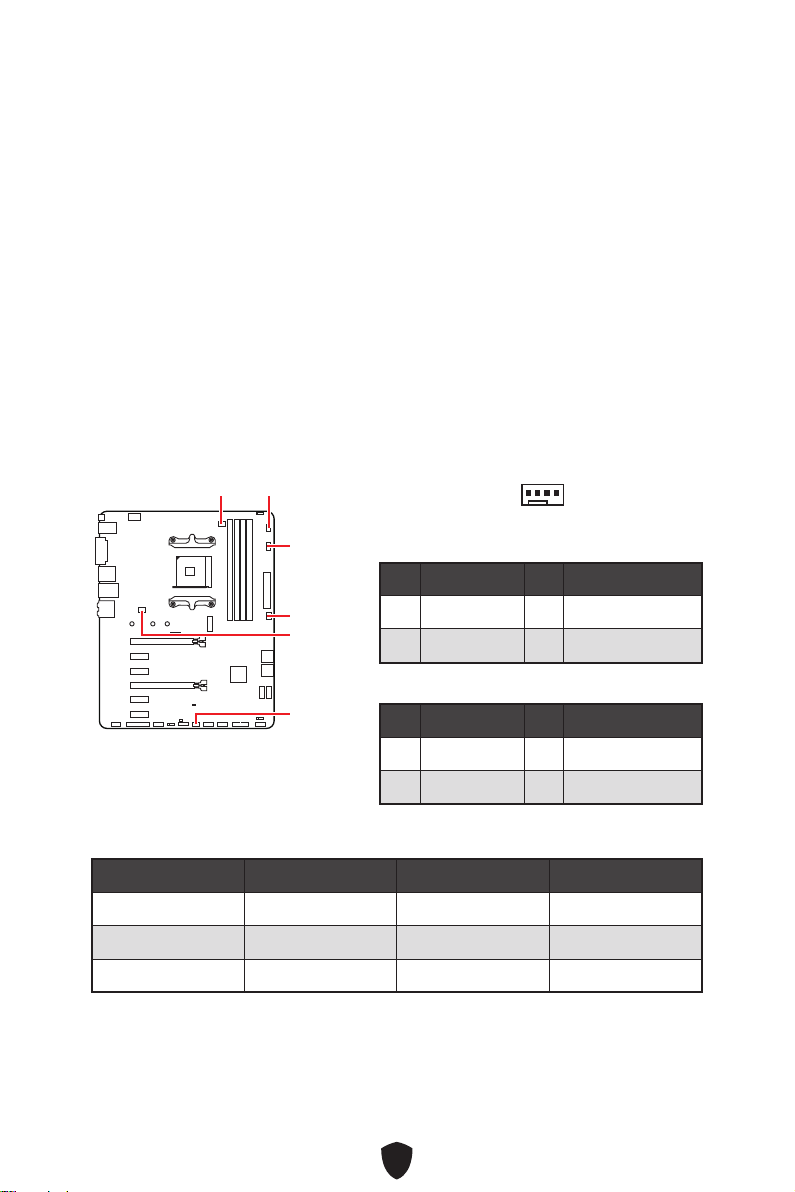
JLPT1: Parallele Schnittstelle
Mit diesem Anschluss können Sie das optionale parallele Schnittstelle mit dem
Einbausatze verbinden.
1
2 26
25
Pin Signalname Pin Signalname
1 RSTB# 2 AFD#
3 PRND0 4 ERR#
5 PRND1 6 PINIT#
7 PRND2 8 LPT_SLIN#
9 PRND3 10 Ground
11 PRND4 12 Ground
13 PRND5 14 Ground
15 PRND6 16 Ground
17 PRND7 18 Ground
19 ACK# 20 Ground
21 BUSY 22 Ground
23 PE 24 Ground
25 SLCT 26 No Pin
JCOM1: Serieller Anschluss
Mit diesem Anschluss können Sie das optionale serielle Schnittstelle mit dem
Einbausatze verbinden.
Pin Signalname Pin Signalname
1 DCD 2 SIN
3 SOUT 4 DTR
5 Ground 6 DSR
7 RTS 8 CTS
9 RI 10 No Pin
1
2 10
9
36
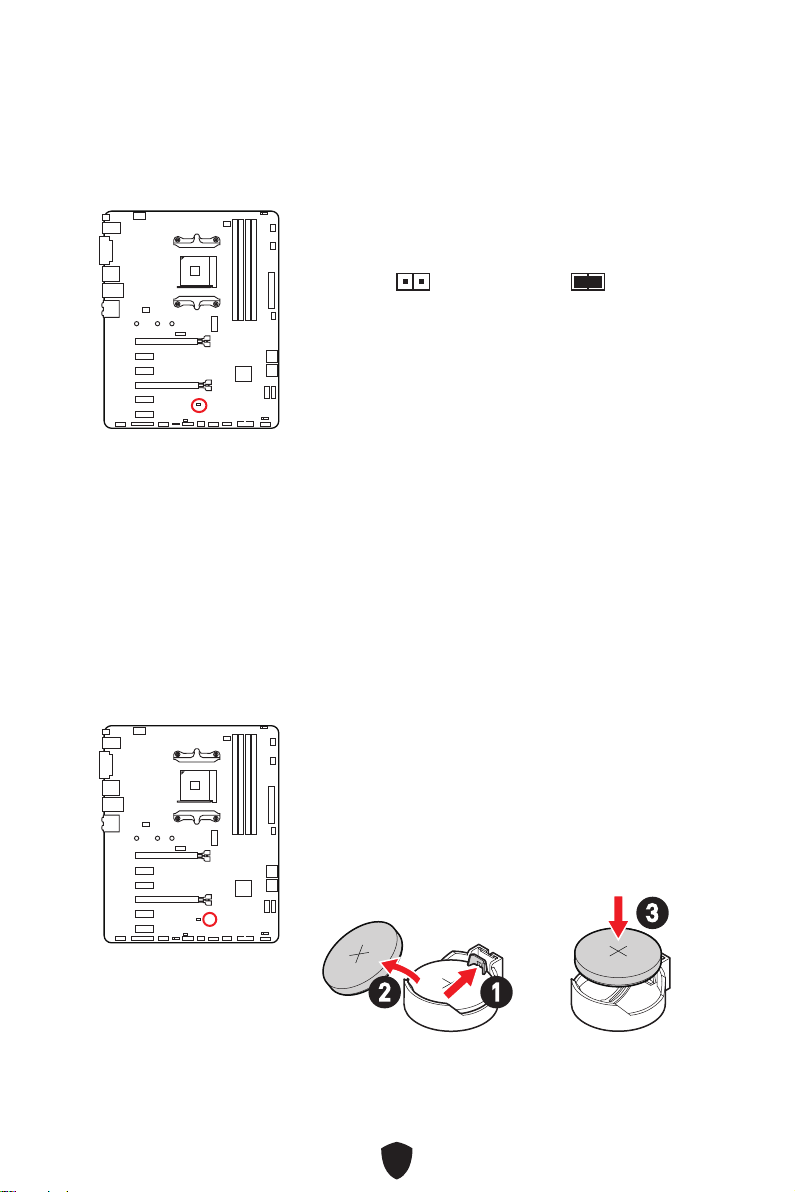
CPU_FAN1, PUMP_FAN1, SYS_FAN1~4:
Stromanschlüsse für Lüfter
Diese Anschlüsse können im PWM (Pulse Width Modulation) Modus
oder Spannungsmodus betrieben werden. Im PWM-Modus bieten die
Lüfteranschlüsse konstante 12V Ausgang und regeln die Lüftergeschwindigkeit
per Drehzahlsteuersignal. Im DC-Modus bestimmen die Lüfteranschlüsse
die Lüftergeschwindigkeit durch Ändern der Spannung. Der Auto-Modus der
Lüfteranschlüsse kann den PWM- und DC-Modus automatisch erfassen.
Sie können unter BIOS > HARDWARE MONITOR die Lüfterdrehzahl ändern. Damit
können Sie DC oder PWM auf Ihren Lüftermodus einstellen. Wählen Sie den Smart
Fan Mode, die Lüftergeschwindigkeit ändert sich entsprechend der CPU- oder
Systemtemperatur. Deaktivieren Sie den Smart Fan Mode, der Lüfter dreht sich mit
maximaler Geschwindigkeit.
Wichtig
Überprüfen Sie die ordnungsgemäße Funktion der Lüfter nach dem Umschalten des
PWM-/ DC-Modus.
CPU_FAN1
SYS_FAN2
SYS_FAN4
SYS_FAN1
PUMP_FAN1
SYS_FAN3
1
Pin-Belegung des PWM-Modus
Pin Signalname Pin Signalname
1 Ground 2 +12V
3 Sense 4 Speed Control Signal
Pin-Belegung des DC-Modus
Pin Signalname Pin Signalname
1 Ground 2 Voltage Control
3 Sense 4 NC
Spezifikationen des Lüfteranschlusses
Anschluss Standard-lüftermodus Max. Strom Max. Leistung
CPU_FAN1 PWM Modus 2A 24W
PUMP_FAN1 PWM Modus 3A 36W
SYS_FAN1~4 DC Modus 2A 24W
37
JBAT1: Clear CMOS Steckbrücke (Reset BIOS)
Der Onboard CMOS Speicher (RAM) wird durch eine externe Spannungsversorgung
durch eine Batterie auf dem Motherboard versorgt, um die Daten der
Systemkonfiguration zu speichern. Wenn Sie die Systemkonfiguration löschen wollen,
müssen Sie die Steckbrücke für kurze Zeit umsetzen.
Wenn die CMOS-Batterie leer ist, wird die Uhrzeit im BIOS zurückgesetzt und die
Daten der Systemkonfiguration gehen verloren. In diesem Fall müssen Sie die CMOS-
Batterie ersetzen.
Daten
beibehalten
(Standardwert)
CMOS-Daten
löschen/ Reset des
BIOS
Rücksetzen des BIOS auf Standardwerte
1.
Schalten Sie den Computer ab und ziehen Sie das Netzkabel ab.
2. Verwenden Sie eine Steckbrücke, um JBAT1 für 5-10 Sekunden kurzzuschließen.
3. Entfernen Sie die Steckbrücke von JBAT1.
4. Stecken Sie das Kabel Ihres Computers in die Steckdose hinein und schalten Sie
den Computer ein.
Ersetzen der Batterie
1.
Drücken Sie auf die Halteklammer, um den Akku zu
lösen.
2. Entfernen Sie die Batterie aus dem Sockel.
3. Setzen Sie die neue CR2032-Knopfzellenbatterie mit
dem +-Zeichen nach oben ein. Stellen Sie sicher,
dass die Halterung die Batterie sicher hält.
12
3
38
Wichtig
Der JRGB Anschluss unterstützt bis zu 2 Metern 5050 RGB LED-Streifen (12V/G/
R/B) mit der maximalen Leistung von 3 A (12 V)
Schalten Sie die Stromversorgung aus und ziehen Sie das Netzkabel ab, bevor Sie
die RGB-LED-Streifen ein- und ausbauen.
Bitte verwenden Sie die MSI-Software zur Steuerung des LED-Leuchtstreifens.
JRGB1~2: RGB LED Anschluss
Mit dem JRGB Anschluss können Sie den 5050 RGB-LED-Streifen (12 V) anschließen.
1
G
R
B
JRGB Anschluss
JRGB Verlängerungskabel
5050 RGB LED Streifen 12V
RGB-LED-Streifen anschließen
1
1
G
R
B
JRGB Anschluss
System-Lüfter -Anschluss
RGB-LED-Lüfteranschluss
RGB LED Lüfter
Pin Signalname Pin Signalname
1 +12V 2 G
3 R 4 B
1
39
EZ DEBUG LED
Diese LEDs zeigen den Debug-Status des Motherboards an.
CPU - CPU wird nicht erkannt oder ist fehlerhaft.
DRAM - DRAM wird nicht erkannt oder ist fehlerhaft.
VGA - GPU wird nicht erkannt oder ist fehlerhaft
BOOT - Boot-Gerät wird nicht erkannt oder ist
fehlerhaft.
Onboard LEDs
40
Installation von OS, Treibern & MSI Center
Laden Sie die neuesten Treiber und Dienstprogramme von www.msi.com herunter
und aktualisieren Sie sie.
Installation von Windows 10/ Windows 11
1. Schalten Sie den Computer ein.
2. Legen Sie die Windows 10/ Windows 11-Installations-Disk oder das USB-
Flashlaufwerk in das optisches Laufwerk.
3. Drücken Sie die Taste Restart auf dem Computergehäuse.
4. Drücken Sie die F11-Taste während des POST-Vorgangs (Power-On Self Test), um
das Bootmenu zu öffnen.
5. Wählen Sie die Windows 10/ Windows 11-Installations-Disk oder USB aus dem
Bootmenu.
6. Wenn eine entsprechende Meldung Press any key to boot from CD or DVD...
angezeigt wird, drücken Sie eine beliebige Taste. Wenn diese Nachricht nicht
angezeigt wird, überspringen Sie bitte diesen Schritt.
7. Folgen Sie den Anweisungen auf dem Bildschirm, um das Dienstprogramm
„Windows® 10/ Windows 11“ zu installieren.
Installieren von Treibern mit MSI DUI
Der MSI DUI (Driver Utility Installer) muss über das Internet installiert werden. Wenn
Sie keine Verbindung zum Internet herstellen können, lesen Sie bitte den Abschnitt
„Installieren von Treibern mit DVD/USB-Laufwerk“.
1. Starten Sie Ihren Computer mit Windows 10/ Windows 11.
2. Wählen Sie Start > Einstellungen > Windows-Update , und wählen Sie dann im
Menü „Nach Updates suchen“.
3. Der MSI DUI wird automatisch angezeigt.
41
4. Aktivieren Sie das Kontrollkästchen „Ich habe die MSI-Nutzungsbedingungen
gelesen und stimme ihnen zu“ und klicken Sie dann auf „Weiter“.
5. Aktivieren Sie das Kontrollkästchen „Alle auswählen“ in der unteren linken Ecke
und klicken Sie auf „Installieren“, um MSI Center und Treiber zu installieren. Der
Fortschritt der Installation wird am unteren Rand des Fensters angezeigt.
6. Nachdem die Installation erfolgreich ausgeführt wurde, klicken Sie auf
Fertigstellen.
Wichtig
Das MSI DUI wird nur einmal angezeigt. Wenn Sie es während des Vorgangs
abbrechen oder schließen, lesen Sie bitte das Kapitel „Live Update“ im MSI Center-
Handbuch, um die Treiber zu installieren. Sie können auch zu www.msi.com gehen,
um Ihr Motherboard zu durchsuchen und die Treiber herunterzuladen.

42
Installieren von Treibern mit DVD/USB-Laufwerk
1. Starten Sie Ihren Computer mit Windows 10/ Windows 11.
2. Legen Sie die MSI® Drive-Disk in das optische Laufwerk ein oder stecken Sie das
MSI® USB-Laufwerk in den USB-Anschluss.
3. Klicken Sie auf die Pop-up-Meldung Wählen Sie eine Aktion für
Wechseldatenträger aus , und wählen Sie DVDSetup.exe starten aus, um
den Installer zu öffnen. Wenn Sie die AutoPlay-Funktionen in der Windows-
Systemsteuerung ausschalten, können Sie das Programm DVDSetup.exe im
Hauptverzeichnis des MSI DVD/ USB-Laufwerk auch manuell ausführen.
4. Der Installer wird findet eine Liste aller benötigten Treiber auf der Treiber/
Software-Registerkarte.
5. Klicken Sie auf Install in der rechten unteren Ecke des Fensters.
6. Die Treiber-Installation läuft. Wenn die Installation abgeschlossen ist, werden Sie
dazu aufgefordet, den Computer neu zu starten.
7. Klicken Sie zum Beenden auf OK.
8. Starten Sie Ihren Computer neu.
MSI Center
MSI Center ist eine Anwendung, mit der Sie die Spieleinstellungen einfach optimieren
und die Software zur Erstellung von Inhalten einstellen können. Außerdem können Sie
LED-Lichteffekte in PCs und anderen MSI-Produkten steuern und synchronisieren.
Mit MSI Center können Sie ideale Modi einstellen, die Systemleistung überwachen und
die Lüftergeschwindigkeit anpassen.
MSI Center Benutzerhandbuch
Wenn Sie weitere Informationen zu MSI Center wünschen, besuchen Sie
bitte
http://download.msi.com/manual/mb/MSICENTER.pdf
oder scannen Sie den QR-Code.
Wichtig
Die Funktionen können je nach Produkt variieren.

43
UEFI BIOS
Das MSI UEFI-BIOS ist mit der UEFI-Architektur (Unified Extensible Firmware
Interface) kompatibel. Das UEFI-BIOS hat viele neue Funktionen und besitzt Vorteile,
die das traditionelle BIOS nicht bieten kann. Es wird zukünftige PCs und Geräte, die
der UEFI-Firmware-Architektur entsprechen, vollständig unterstützen. Das MSI
UEFI-BIOS verwendet UEFI als Standard-Startmodus, um die Funktionen des neuen
Chipsatzes voll auszunutzen.
Wichtig
Der Begriff „BIOS“ bezieht sich in diesem Benutzerhandbuch auf das UEFI-BIOS,
sofern nicht anders angegeben.
Vorteile von UEFI
Schnelles Booten - UEFI kann das Betriebssystem direkt booten und den BIOS-
Selbsttestprozess speichern. Außerdem entfällt die Zeit, um während des POST in
den CSM-Modus zu wechseln.
Unterstützt Festplattenpartitionen, die größer als 2 TB sind.
Unterstützt mehr als 4 primäre Partitionen mit einer GUID-Partitionstabelle (GPT).
Unterstützt eine unbegrenzte Anzahl an Partitionen.
Unterstützt den vollen Funktionsumfang neuer Geräte – neue Geräte bieten
möglicherweise keine Abwärtskompatibilität.
Unterstützt sicheren Start – UEFI kann die Gültigkeit des Betriebssystems
überprüfen, um sicherzustellen, dass keine Malware den Startvorgang
beeinträchtigt.
Inkompatible UEFI-Fälle
32-Bit-Windows-Betriebssystem - Dieses Motherboard unterstützt nur das 64-Bit-
Windows 10/ Windows 11-Betriebssystem.
Ältere Grafikkarten - Das System erkennt Ihre Grafikkarte. Bei Erkennung einer
nicht kompatiblen Grafikkarte wird die Warnmeldung „Auf dieser Grafikkarte
wurde keine GOP-Unterstützung (Graphics Output Protocol) erkannt“ angezeigt.
Wichtig
Wir empfehlen Ihnen, eine GOP / UEFI-kompatible Grafikkarte zu nutzen oder eine
CPU mit integrierter Grafikeinheit zu verwenden, um eine normale Funktion des
Systems zu gewährleisten.
Wie überprüfe ich den BIOS-Modus?
1.
Schalten Sie den Computer ein.
2. Während des BOOT-Vorgangs drücken Sie die Taste ENTF, wenn die Meldung
Press DEL key to enter Setup Menu, F11 to enter Boot Menu erscheint.
3. Nach dem Aufrufen des BIOS können Sie den BIOS-Modus oben auf dem
Bildschirm überprüfen.
BIOS Mode: UEFI
44
BIOS Setup
Die Standardeinstellungen bieten die optimale Leistung für die Systemstabilität unter
Normalbedingungen. Sie sollten immer die Standardeinstellungen behalten, um
mögliche Schäden des Systems oder Boot-Fehler zu vermeiden, außer Sie besitzen
ausreichende BIOS Kenntnisse.
Wichtig
BIOS Funktionen werden für eine bessere Systemleistung kontinuierlich
aktualisiert. Deswegen können die Beschreibungen leicht von der letzten Fassung
des BIOS abweichen und sollten demnach nur als Anhaltspunkte dienen. Für eine
Beschreibung der BIOS Funktionen rufen Sie die HELP Informationstafel aus.
Die BIOS-Bildschirme, -Optionen und -Einstellungen variieren je nach System.
Öffnen des BIOS Setups
Während des BOOT-Vorgangs drücken Sie die Taste ENTF, wenn die Meldung Press
DEL key to enter Setup Menu, F11 to enter Boot Menu erscheint.
Funktionstasten
F1: Allgemeine Hilfe
F2: Hinzufügen/Entfernen eines Favoritenpunkts
F3: Öffnen des Favoriten Menüs
F4: Öffnen des Menüs CPU-Spezifikationen
F5: Öffnen des Memory-Z Menüs
F6: Laden der ursprünglichen Setup-Standardwerte
F7: Wechselt zwischen dem Erweiterten-Modus und EZ-Modus
F8: OC-Profil wird vom USB-Stick geladen
F9: OC-Profil wird auf einem USB-Stick gespeichert
F10: Speichern oder Zurücksetzen der Änderungen*
F12: Macht einen Screenshot und speichert auf einen FAT/FAT32-USB-Laufwerk.
Strg+F: Öffnet die Suchseite
* Beim Drücken der F10 Taste wird das Fenster zum Speichern der Einstellungen
angezeigt. Wählen Sie Yes, um die Wahl zu bestätigen, oder No, um die derzeitige
Einstellung beizubehalten.
BIOS-Benutzerhandbuch
Wenn Sie weitere Anweisungen zur BIOS-Einrichtung wünschen, lesen Sie
bitte
http://download.msi.com/manual/mb/AMDX570BIOSde.pdf
oder scannen Sie den QR-Code.
Wichtig
Die Funktionen können je nach Produkt variieren.
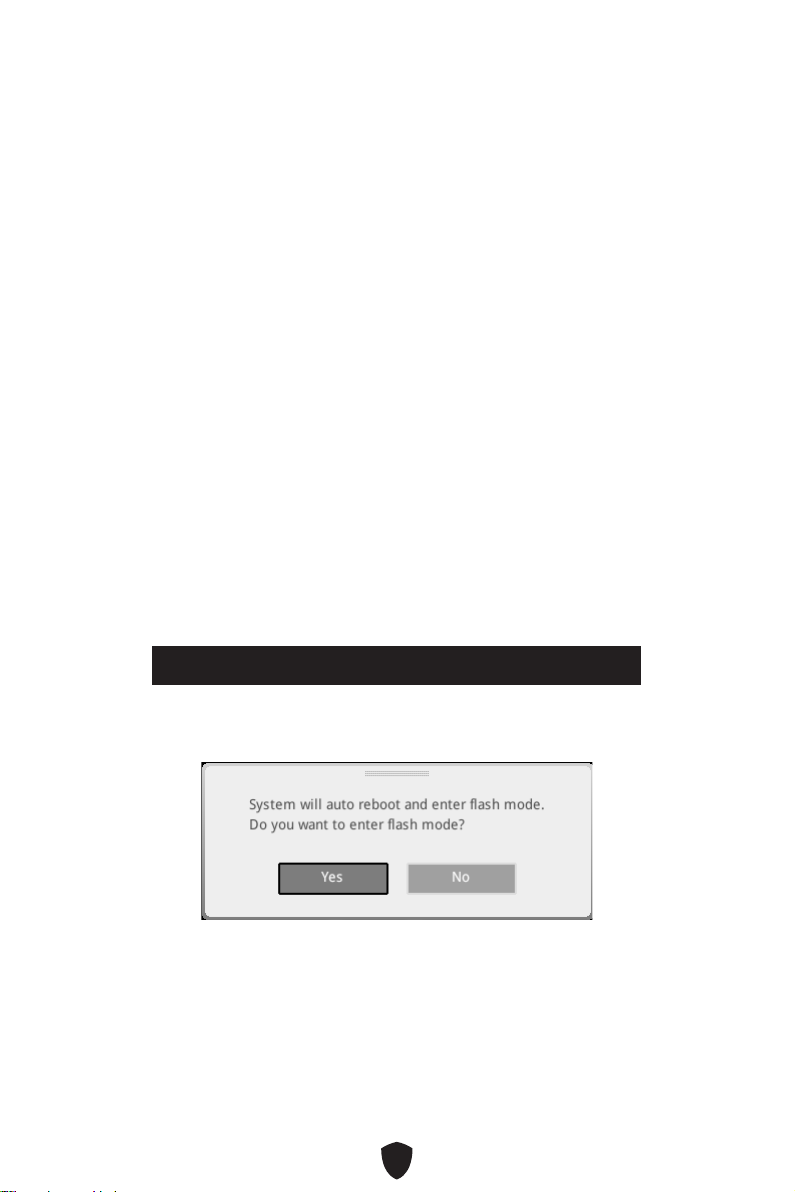
45
Reset des BIOS
Sie können die Werkseinstellung wieder herstellen, um bestimmte Probleme zu
lösen. Es gibt verschiedene Möglichkeiten, um das BIOS zurückzusetzen:
Öffnen Sie das BIOS und drücken Sie F6, um optimierten Einstellungen zu laden.
Schließen Sie die Clear CMOS Steckbrücke an das Motherboard an.
Wichtig
Stellen Sie sicher, dass Ihr Computer ausgeschaltet ist, bevor Sie die CMOS-Daten
löschen. Bitte lesen Sie für Informationen zum BIOS-Reset im Bereich „Clear CMOS
Steckbrücke“ nach.
Aktualisierung des BIOS
Aktualisierung des BIOS mit dem M-FLASH-Programm
Vorbereitung:
Laden Sie bitte die neueste BIOS Version, die dem Motherboard-Modell entspricht,
von der offiziellen MSI Website herunter. und speichern Sie die BIOS-Datei auf USB-
Flash-Laufwerk.
BIOS-Aktualisierungsschritte:
1. Schließen das USB-Flashlaufwerk mit der BIOS-Datei an den Computer.
2. Bitte folgen Sie den nachfolgenden Schritten, um in den Blitz-Modus zu schalten.
• Beim Neustart drücken Sie während des POST-Vorgangs die Taste Ctrl + F5 und
klicken Sie auf Yes (Ja), tum das System neu zu starten.
Press <Ctrl+F5> to activate M-Flash for BIOS update.
• Beim Neustart drücken Sie während des POST-Vorgangs die Taste Del (Entf)
während des POST-Vorgangs die Taste. Klicken Sie die Taste M-FLASH und
klicken Sie auf Yes (Ja), um das System neu zu starten.
3. Wählen Sie die BIOS-Datei zur Durchführung des BIOS-Aktualisierungsprozesses
aus.
4. Klicken Sie auf Ja, wenn Sie dazu aufgefordert werden, um die Wiederherstellung
des BIOS zu starten.
5. Nachdem das Flashen des BIOS vollständig ist, startet das System automatisch
neu.

46
Aktualisierung des BIOS mit MSI Center
Vorbereitung:
Stellen Sie sicher, dass zuvor die LAN-Treiber installiert wurden und eine
Internetverbindung eingerichtet ist.
Bitte schließen Sie jegliche andere Anwendungssoftware, bevor Sie das BIOS
aktualisieren.
Schritte zur Aktualisierung des BIOS:
1. Installieren und starten Sie „MSI Center“ und gehen Sie zur Support-Seite.
2. Wählen Sie Live Update aus und klicken Sie auf die Schaltfläche Advance.
3. Wählen Sie die BIOS-Datei aus und klicken Sie auf das Install-Symbol.
4. Die Installationsanweisung wird angezeigt, klicken Sie daraufhin auf die
Schaltfläche Install.
5. Das System wird automatisch neu gestartet, um das BIOS zu aktualisieren.
6. Nachdem das Flashen des BIOS vollständig ist, startet das System automatisch
neu.
Aktualisierung des BIOS mit Flash BIOS Taste
1.
Laden Sie bitte die neueste BIOS Version, die das Modell des Motherboards
entspricht, von der offiziellen MSI® Website.
2. Benennen die BIOS-Datei im MSI.ROM um und speichern Sie die Datei im Root-
Verzeichnis des USB 2.0-Speichermedien.
3. Verbinden Sie die Stromversorgung an dem CPU_PWR1 und ATX_PWR1-Stecker.
(Sie benötigen keine CPU und keinen Speicher zu installieren)
4. Stecken Sie das USB-Speichergerät, das die MSI.ROM-Datei enthält, in dem
Anschluss des Flash BIOS auf der Rückseite E/A des Panels ein.
5. Drücken Sie die Taste Flash BIOS, um das BIOS zu flashen, nun beginnt die Flash
BIOS LED zu blinken.
6. Nachdem das Flashen des BIOS vollständig ist, erlischt die Flash BIOS LED.

1
Table des matières
Table des matières ....................................................................................................... 1
Démarrage rapide ........................................................................................................ 3
Caractéristiques ......................................................................................................... 16
Fonctions spéciales .................................................................................................... 20
Contenu ....................................................................................................................... 21
Connecteurs de panneau arrière .............................................................................. 22
Tableau explicatif de l’état de la LED du port LAN .............................................. 23
Connexion des prises audio ................................................................................. 23
Vue d’ensemble des composants ............................................................................. 25
Socket CPU ........................................................................................................... 26
Slots DIMM ............................................................................................................ 27
PCI_E1~6 : Slots d’extension PCIe ....................................................................... 28
M2_1 : Slot M.2 (Touche M) .................................................................................. 29
SATA1~6 : Connecteurs SATA 6 Gb/s ................................................................... 30
JFP1, JFP2 : Connecteurs de panneau avant ...................................................... 31
JAUD1 : Connecteur audio avant .......................................................................... 31
CPU_PWR1, ATX_PWR1 : Connecteurs d’alimentation ....................................... 32
JCI1 : Connecteur intrusion châssis .................................................................... 33
JUSB3 : Connecteur USB 3.2 Gen 1 ..................................................................... 34
JUSB1~2 : Connecteurs USB 2.0 .......................................................................... 34
JLPC1 : Connecteur BIOS Debug ........................................................................ 35
JTPM1 : Connecteur de module TPM ................................................................... 35
JLPT1 : Connecteur de port parallèle .................................................................. 36
JCOM1 : Connecteur de port série ....................................................................... 36
CPU_FAN1, PUMP_FAN1, SYS_FAN1~4 : Connecteurs de ventilateur .............. 37
JBAT1 : Cavalier Clear CMOS (Réinitialiser le BIOS) ........................................... 38
BAT1 : Pile CMOS ................................................................................................. 38
JRGB1~2 : Connecteur LED RGB ......................................................................... 39
Français

2
LED embarquées ........................................................................................................ 40
EZ Debug LED ....................................................................................................... 40
Installer OS, Pilotes et MSI Center ........................................................................... 41
MSI Center ............................................................................................................ 43
UEFI BIOS .................................................................................................................... 44
Configuration du BIOS .......................................................................................... 45
Réinitialiser le BIOS.............................................................................................. 46
Mettre le BIOS à jour ............................................................................................ 46
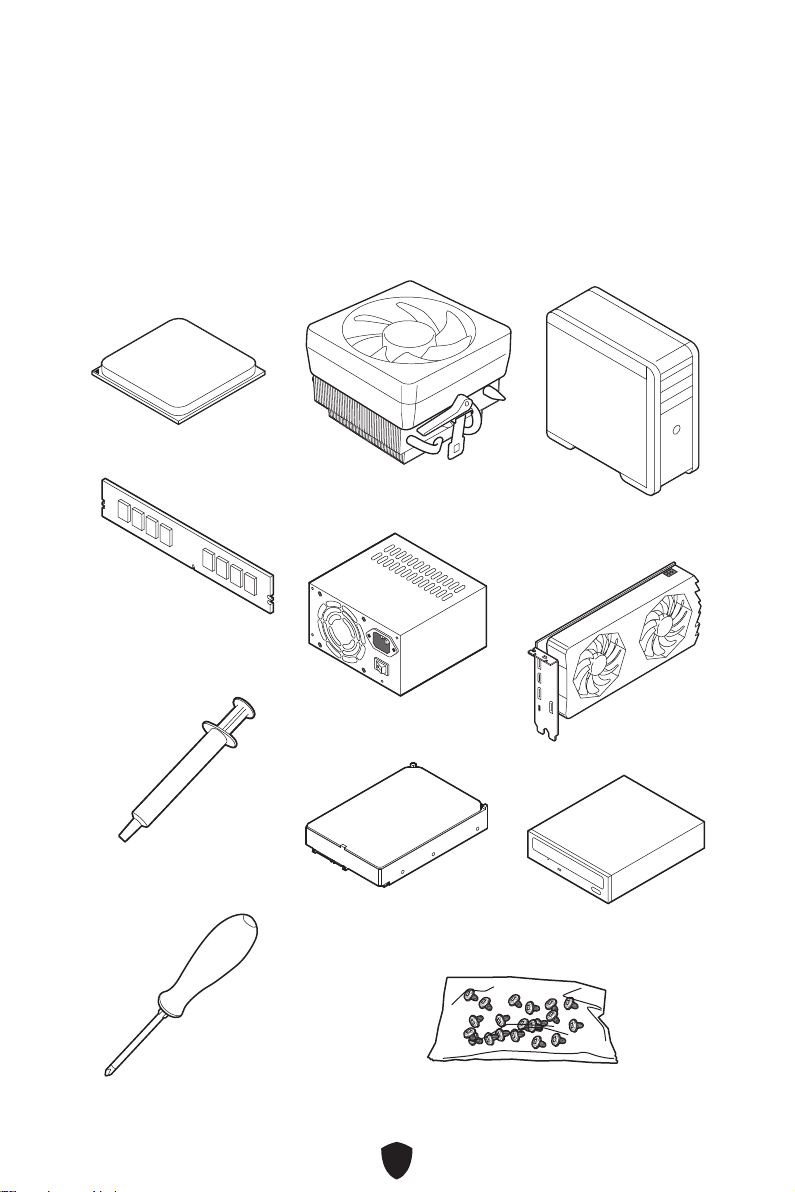
3
Démarrage rapide
Merci d’avoir acheté cette nouvelle carte mère MSI. Cette section de démarrage
rapide fournit des explications sur son installation dans votre ordinateur. Certains
processus d’installations proposent également des démonstrations vidéo. Veuillez
visiter l’URL pour regarder la vidéo sur le navigateur Web de votre téléphone ou de
votre tablette. Vous pouvez également visiter l’URL en scannant le code QR.
Outils de préparation et composants
AMD® AM4 CPU
Ventilateur de processeur
Mémoire DDR4
Carte graphique
Disque dur SATA
Lecteur DVD SATA
Tournevis cruciforme
Châssis
Bloc d’alimentation
Un paquet de vis
Pâte thermique

4
Informations de sécurité
Les composants dans l’emballage peuvent être endommagés par des décharges
électrostatiques (ESD). Pour vous assurer de correctement monter votre ordinateur,
veuillez vous référer aux instructions ci-dessous.
Assurez-vous de bien connecter tous les composants. En cas de mauvaise
connexion, il se peut que l’ordinateur ne reconnaisse pas le composant et que le
démarrage échoue.
Veuillez tenir la carte mère par les bords pour éviter de toucher les composants
sensibles.
Il est recommandé de porter un bracelet antistatique lors de la manipulation de la
carte mère pour prévenir tout dommage. Si vous n’avez pas de bracelet antistatique,
touchez un objet métallique relié à la terre avant de manipuler la carte mère afin de
vous décharger de votre charge statique. Touchez régulièrement l’objet métallique
pendant toute la manipulation.
Tant que la carte mère n’est pas installée, conservez-la dans un récipient protégé
contre les ondes électrostatiques ou sur une couche antistatique.
Avant de démarrer l’ordinateur, vérifiez si toutes les vis et les composants
métalliques sont bien fixés sur la carte mère ou ailleurs dans le boîtier de
l’ordinateur.
Ne démarrez pas l’ordinateur avant d’avoir terminé l’installation. Ceci peut
endommager les composants ou vous blesser.
Si vous avez besoin d’aide pendant l’installation, veuillez consulter un technicien
informatique certifié.
Avant d’installer les composants d’ordinateur, veuillez toujours mettre hors tension
et débrancher le cordon d’alimentation.
Gardez ce manuel pour références futures.
Protégez ce manuel contre l’humidité.
Avant de brancher le bloc d’alimentation sur la sortie électrique, veuillez vous
assurer que la tension de la sortie électrique est bien égale à celle du bloc
d’alimentation.
Placez le cordon d’alimentation de façon à éviter que l’on marche dessus. Ne posez
rien sur le cordon d’alimentation.
Veuillez prêter attention à toutes les alertes et remarques indiquées sur la carte
mère.
Dans un cas comme ci-dessous, faites appel au service autorisé pour vérifier votre
carte mère :
• Un liquide a pénétré dans l’ordinateur.
• La carte mère a été exposée à l’humidité.
• La carte mère ne fonctionne pas comme indiqué dans les instructions.
• La carte mère est tombée par terre et a été endommagée.
• La carte mère est cassée.
Ne pas mettre la carte mère dans un environnement dont la température est
supérieure à 60 °C (140 °F) sous peine de l’endommager.
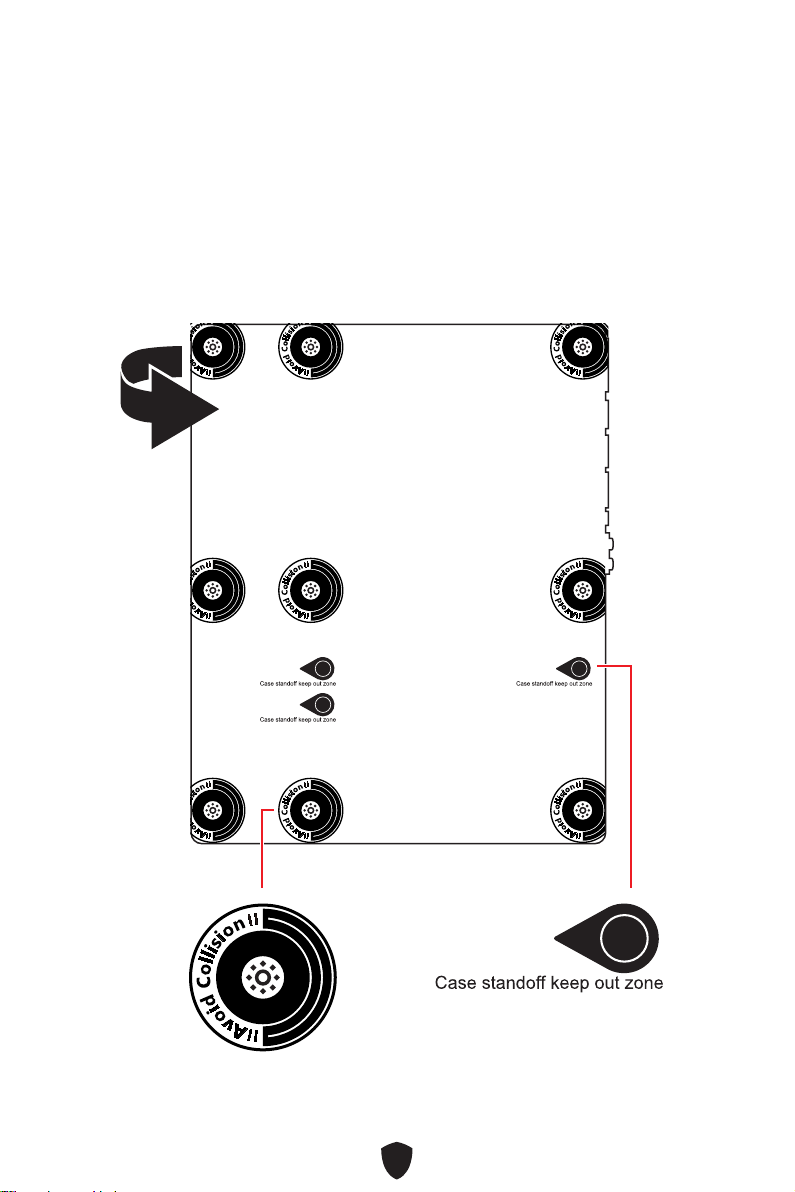
5
Avertissement pour l’installation des entretoises
Pour éviter d’endommager la carte mère, il est interdit d’installer des entretoises
inutiles entre le circuit de la carte mère et le boîtier de l’ordinateur. Les signes de
zone interdite (Keep Out Zone) sont marqués à l’arrière de la carte mère (comme
indiqué ci-dessous) pour servir d’avertissement à l’utilisateur.
Zone de protection
Une peinture protectrice est présente autour de chaque trou de vis pour éviter que les
pièces ne soient rayées.
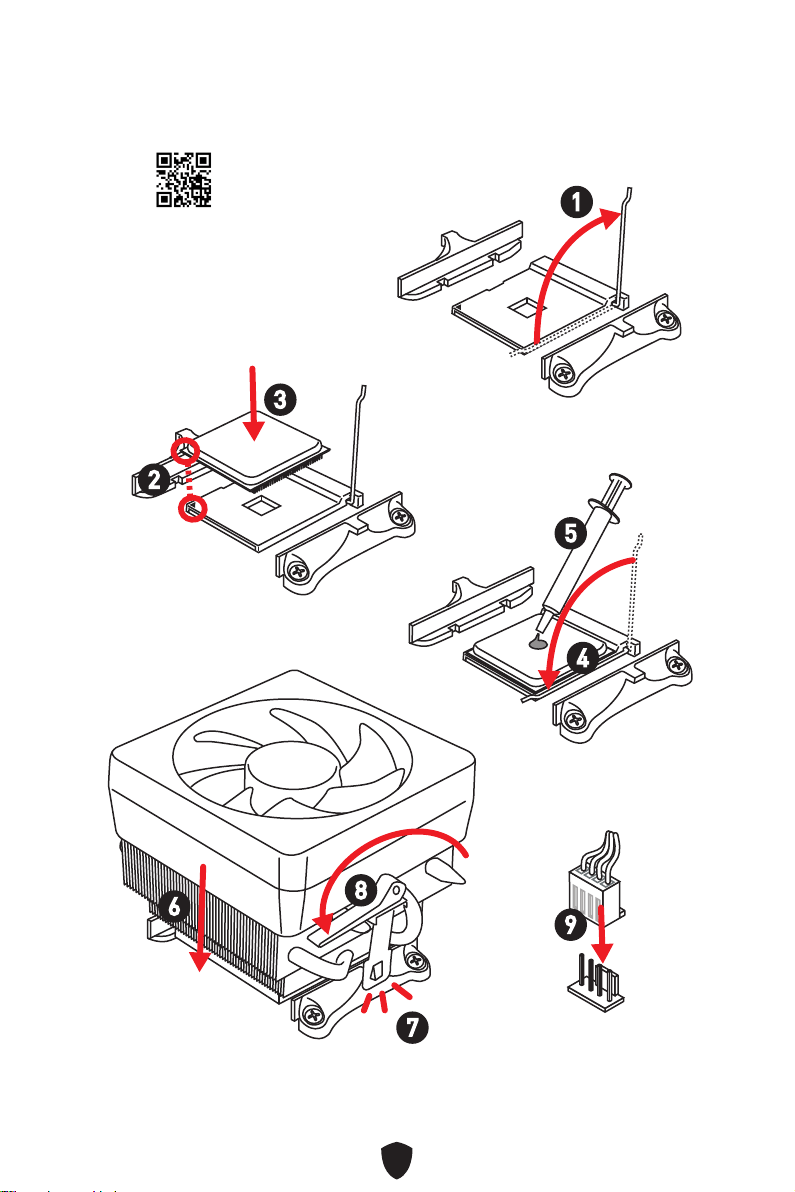
6
Installation d’un processeur
https://youtu.be/Xv89nhFk1vc
1
2
3
6
4
5
7
8
9
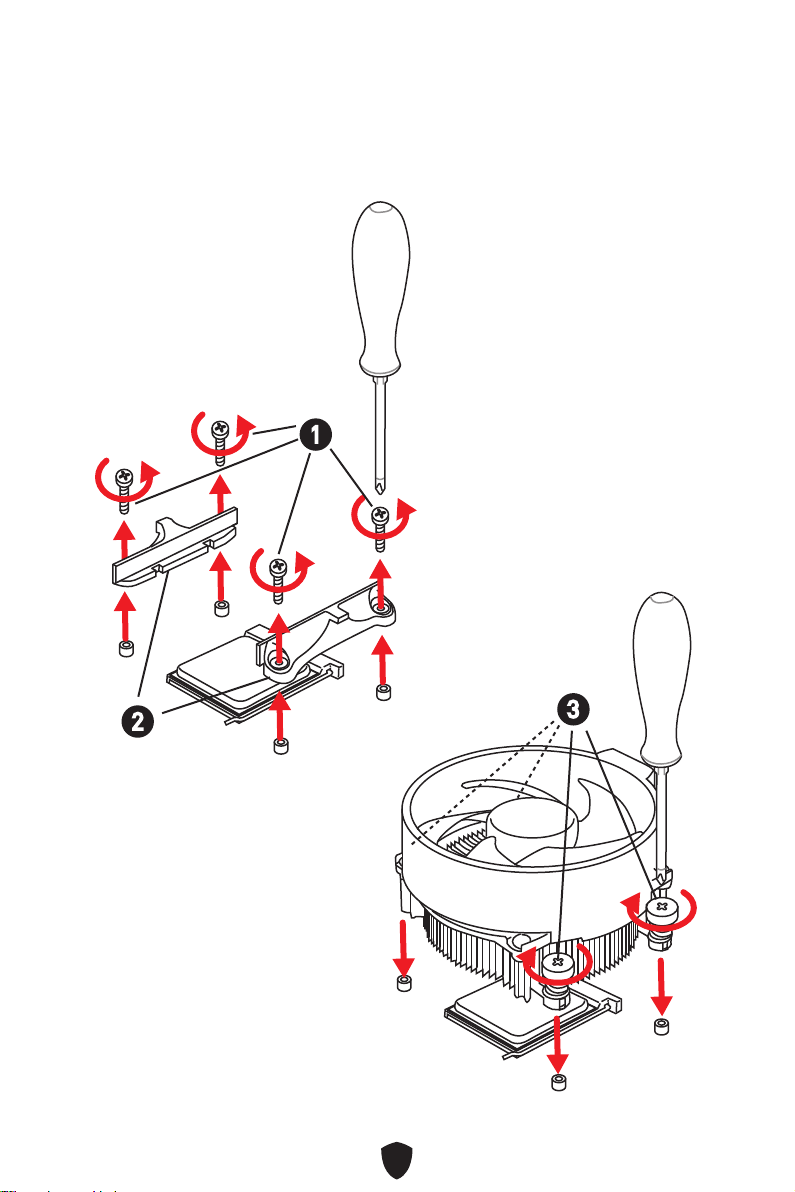
7
Important
Si vous installez un ventirad qui se fixe avec des vis, veuillez suivre la figure ci-
dessous pour d’abord retirer le module de rétention puis installer le ventirad.
1
2
3
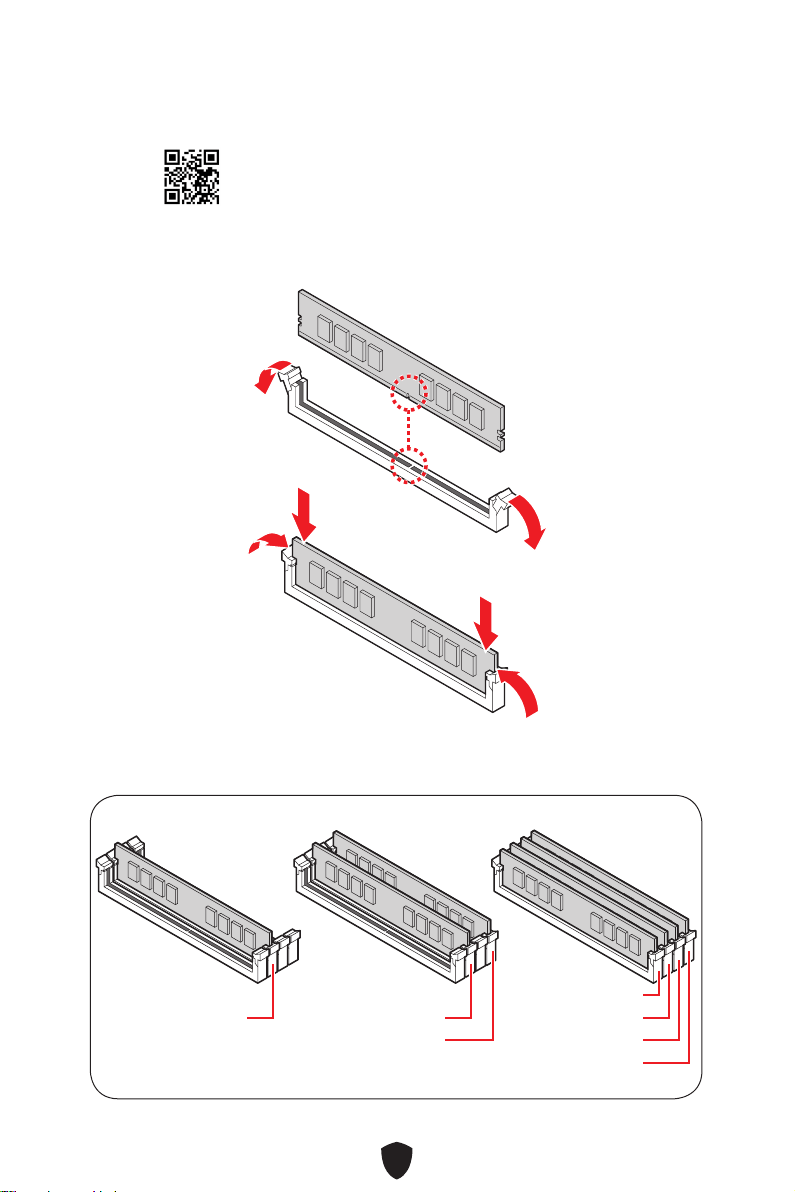
8
Installation de la mémoire DDR4
DIMMA2 DIMMA2
DIMMB2
DIMMA1
DIMMA2
DIMMB1
DIMMB2
http://youtu.be/T03aDrJPyQs
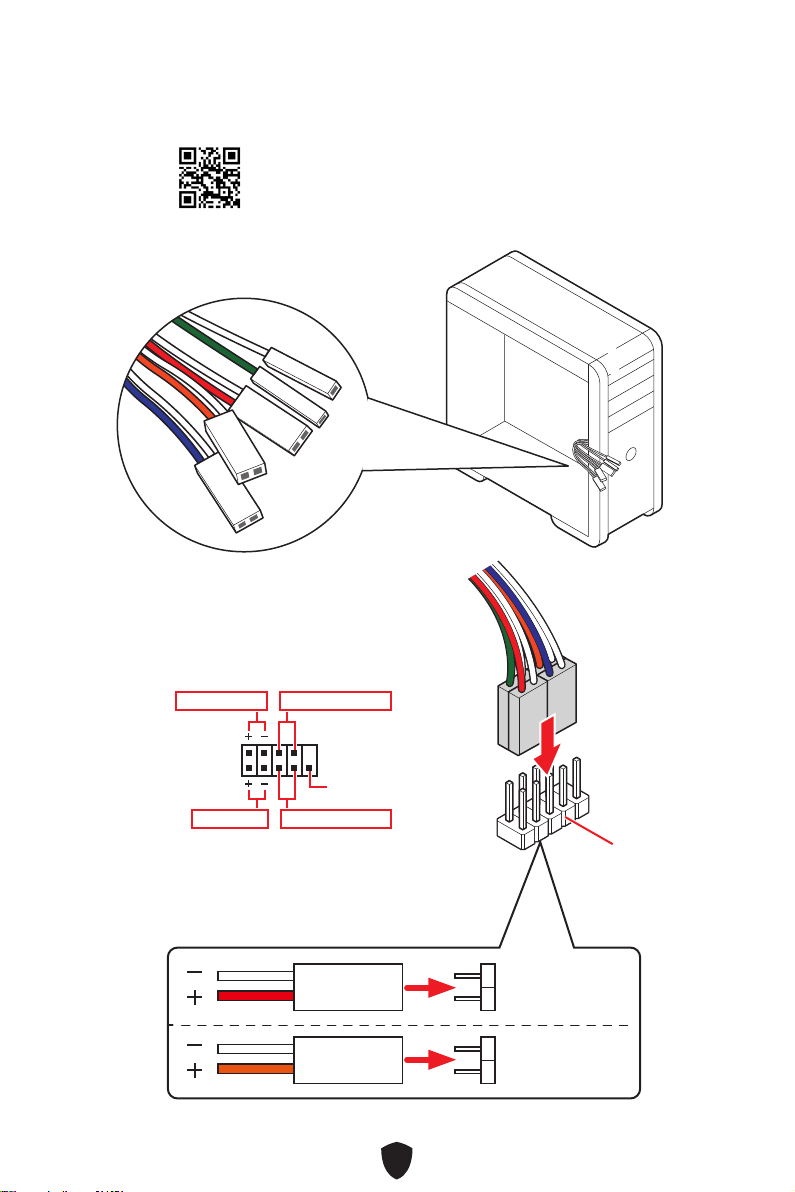
9
HDD LED
RESET SW
Connexion du panneau avant
http://youtu.be/DPELIdVNZUI
JFP1
HDD LED
HDD LED -
HDD LED +
POWER LED -
POWER LED +
POWER LED
RESET SW
POWER SW
POWER LED+
POWER LED-
HDD LED
1
2 10
9
Power LED
Reserved
Power Switch
JFP1
Reset SwitchHDD LED
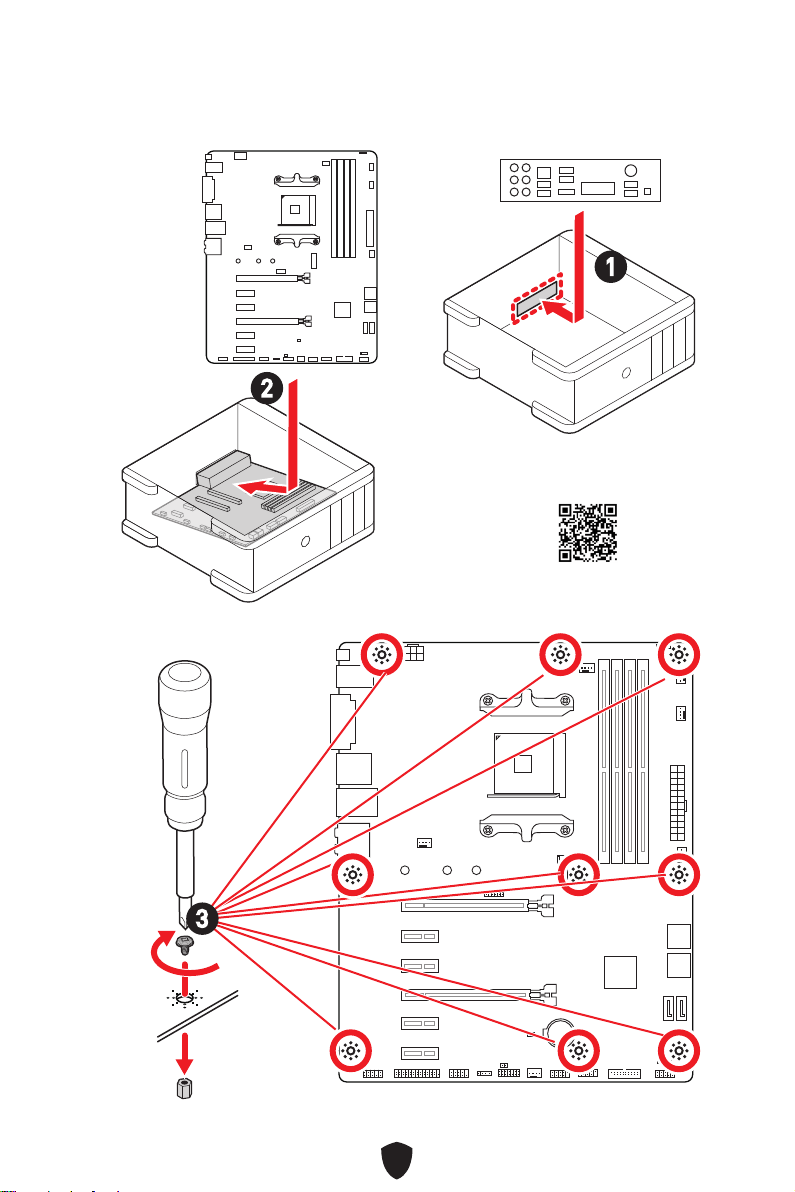
10
BAT1
Installation de la carte mère
2
1
https://youtu.be/wWI6Qt51Wnc
Torque :
3 kgf·cm*
*3 kgf·cm
= 0.3 N·m
= 2.6 lbf·in
3
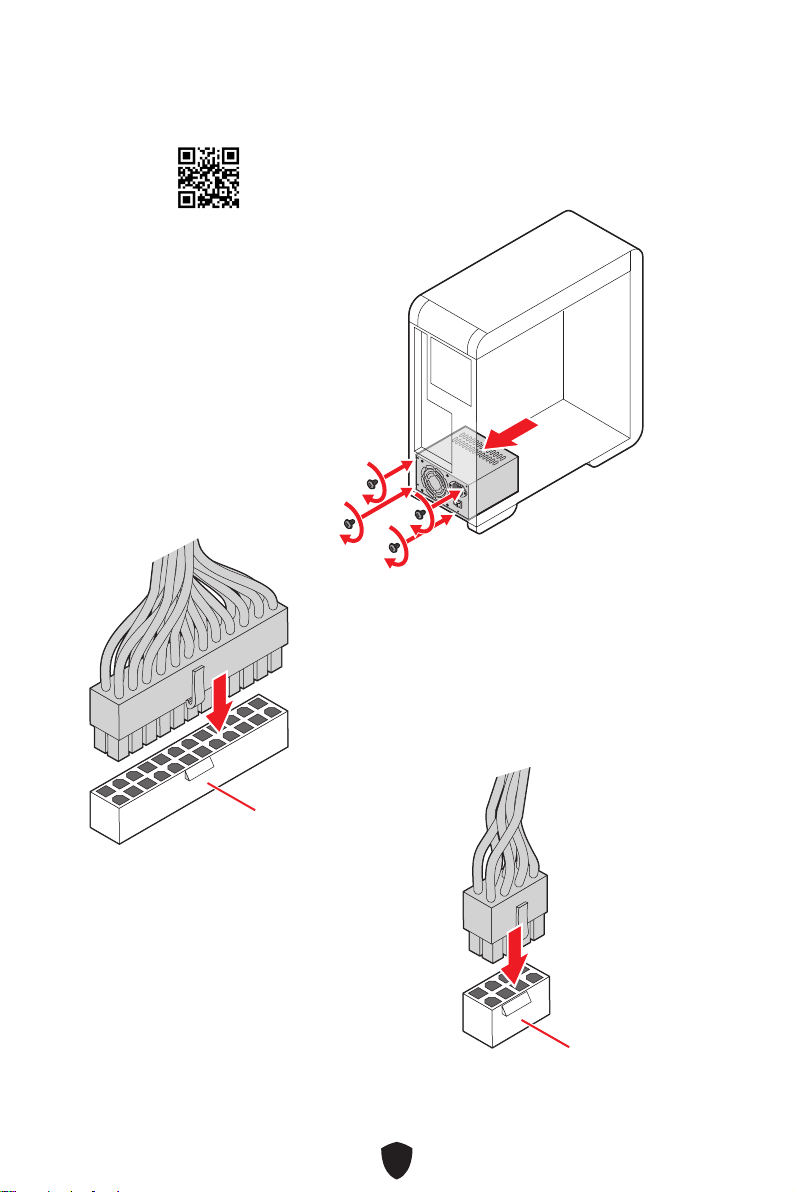
11
Connexion des connecteurs d’alimentation
http://youtu.be/gkDYyR_83I4
ATX_PWR1
CPU_PWR1
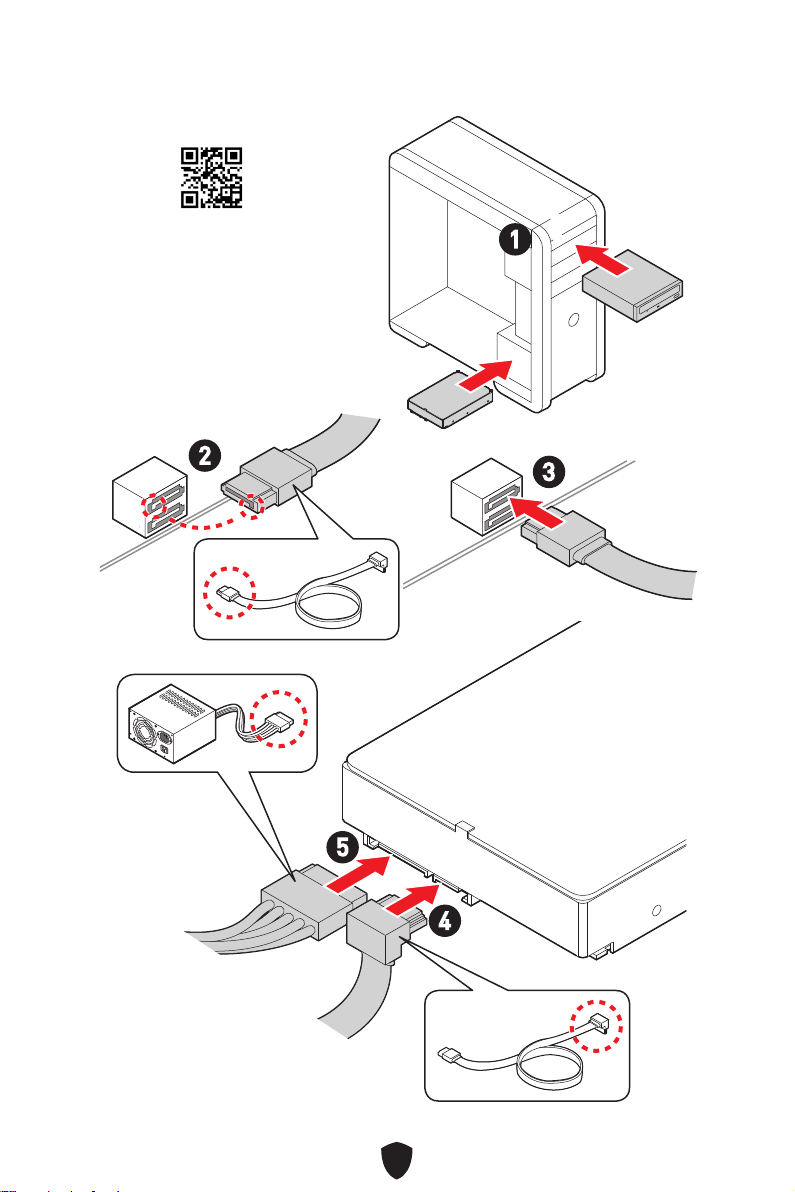
12
Installation des disques SATA
http://youtu.be/RZsMpqxythc
1
2
3
4
5
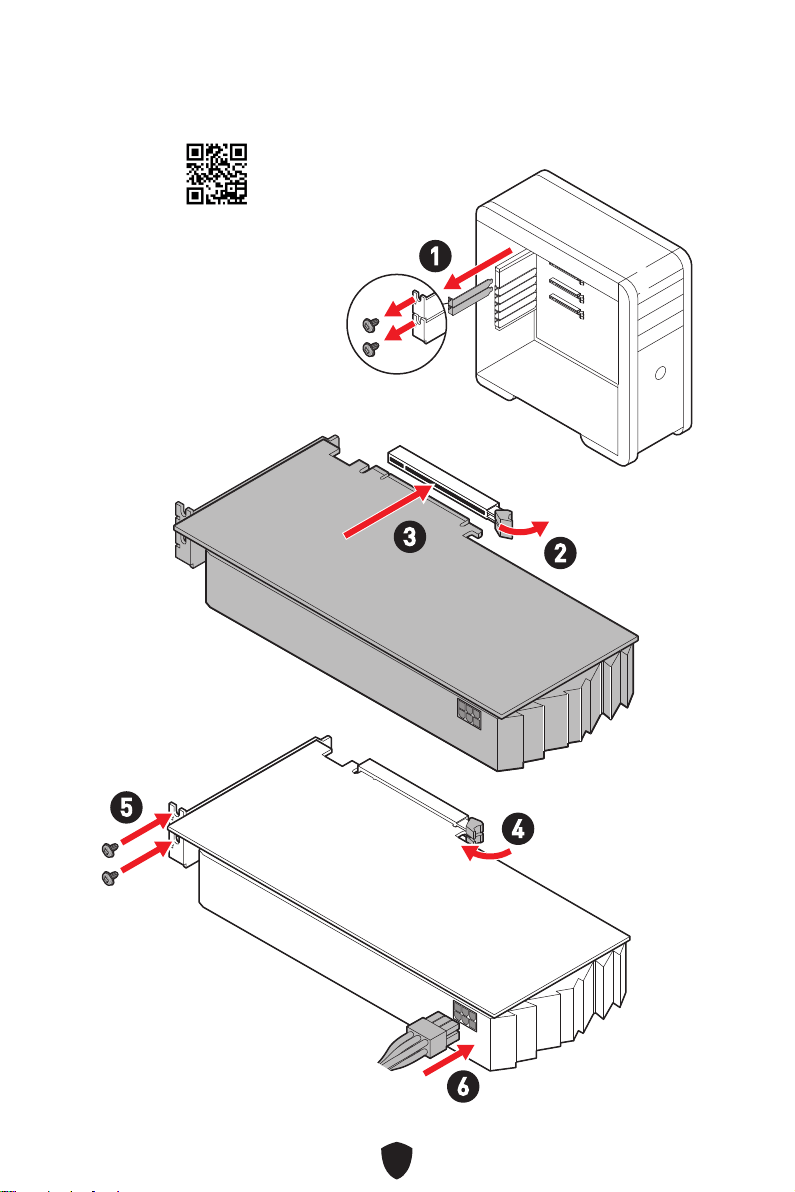
13
Installation d’une carte graphique
http://youtu.be/mG0GZpr9w_A
1
2
3
4
5
6
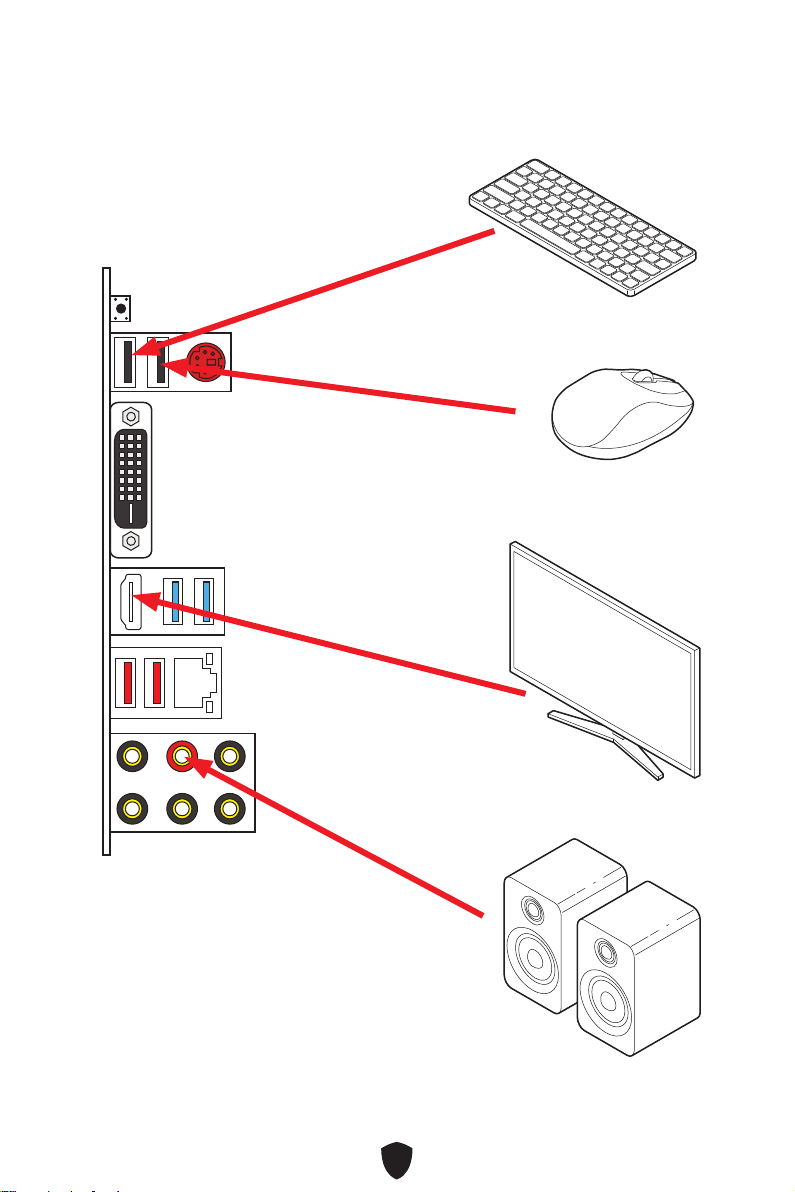
14
Connexion des périphériques
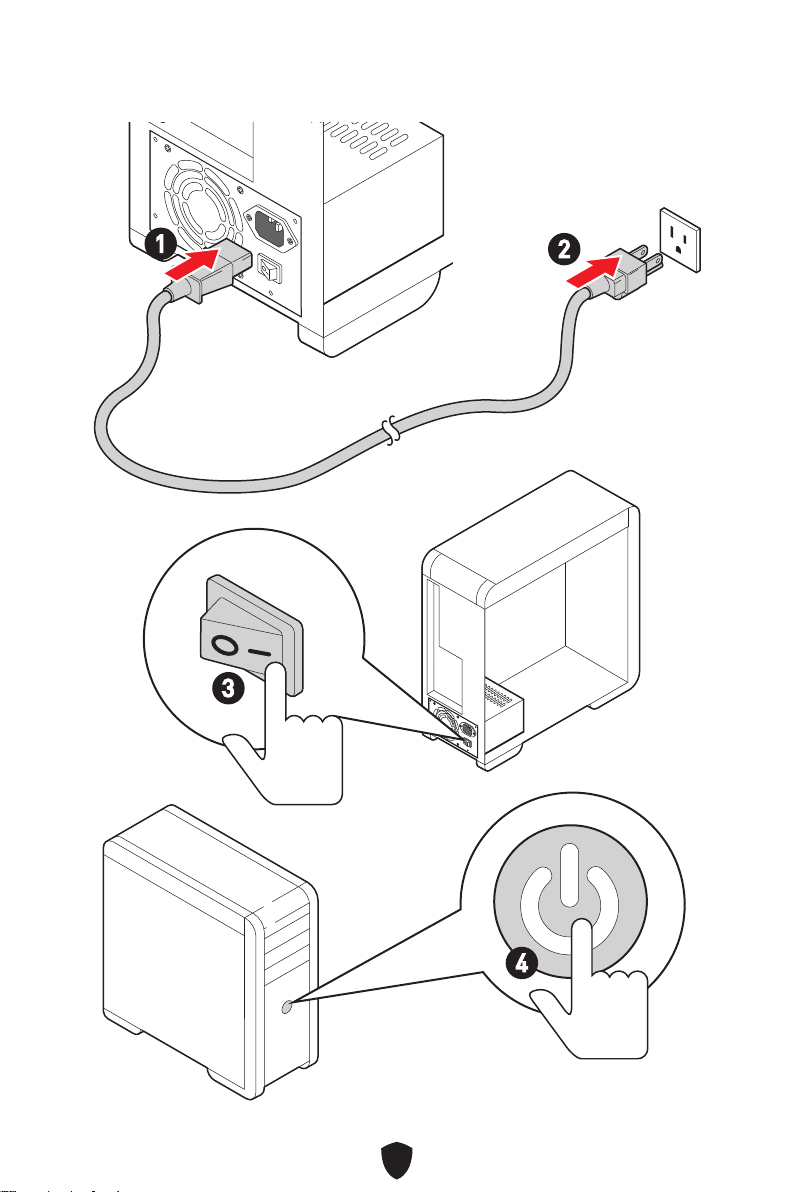
15
Allumer
4
3
1
2
16
Caractéristiques
CPU
Support des processeurs AMD Ryzen™ séries 5000,
5000 G, 4000 G et 3000
Socket AM4
* Veuillez vous rendre sur le site www.msi.com pour obtenir la dernière liste
des modèles supportés à mesure que de nouveaux processeurs sont introduits
sur le marché.
Chipset Chipset AMD® B550
Mémoire
4 x slots pour mémoire DDR4, support jusqu’à 128 Go*
Support DDR4 1866/2133/2400/2667/2800/2933/3000/3066
/3200 MHz par JEDEC
Support DDR4 2667/2800/2933/3000/3066/3200/3466/36
00/3733/3866/4000/4133/4266/4400+ MHz par A-XMP OC
MODE
• La fréquence maximale en mode 1DPC 1R monte
jusqu’à 4400 MHz
• La fréquence maximale en mode 1DPC 2R monte
jusqu’à 3733 MHz
• La fréquence maximale en mode 2DPC 1R monte
jusqu’à 3866 MHz
• La fréquence maximale en mode 2DPC 2R monte
jusqu’à 3466 MHz
Architecture mémoire dual channel
Support mémoire non-ECC UDIMM
Support mémoire ECC UDIMM (mode non-ECC)
Support mémoire un-buffered
* Veuillez vous rendre sur le site www.msi.com pour plus d’informations sur la
mémoire compatible.
Slots d’extension
2 x slots PCIe x16
• Slot PCI_E1 (depuis CPU)
• Support PCIe 3.0 x16
• PCI_E4* (depuis chipset B550)
• Support PCIe 3.0 x4
4 x slots PCIe x1
• Slots PCI_E2, E3, E5 et E6 (depuis chipset B550)
• Support PCIe 2.0 x1
* Le slot PCI_E4 fonctionne en mode 2.0x1 lorsque l’un des slots PCI_E2, PCI_E3
et PCI_E5 a été installé.
Suite du tableau sur la page suivante
17
Suite du tableau sur la page précédente
Multi-GPU
Support technologie AMD CrossFire™
Sorties vidéo
intégrées
1 x port DVI-D, supportant une résolution maximum de
1920x1200 @ 60 Hz*
1 x port HDMI™ 2.0b, supportant une résolution maximum
de 4096x2160 @ 30Hz, 2560x1600 @60 Hz*
/
**
* Disponible uniquement pour le processeur avec puce graphique intégrée.
** Les caractéristiques des cartes graphiques peuvent varier en fonction du
processeur installé.
Ports SATA 6 x ports SATA 6 Gb/s (depuis chipset B550)
Slots SSD M.2
1 x slot M.2 (Touche M)
• Slot M2_1 (depuis CPU)
• Support PCIe 3.0 x4
• Support SATA 6 Gb/s
• Support des périphériques de stockage
2260/2280/22110
RAID
Support RAID 0, RAID 1 et RAID 10 pour les périphériques
de stockage SATA
Audio
Realtek® ALC897 Codec
Audio haute définition 7.1
LAN 1 x contrôleur Realtek® RTL8111H LAN
Connecteurs
d’alimentation
1 x connecteur d’alimentation principal ATX à 24 broches
1 x connecteur d’alimentation ATX 12 V à 8 broches
Connecteurs USB
internes
1 x connecteur USB 3.2 Gen 1 5 Gb/s (depuis chipset B550)
• Support de 2 autres ports USB 3.2 Gen 1 5 Gb/s
2 x connecteurs USB 2.0 (depuis chipset B550)
• Support de 4 autres ports USB 2.0
Connecteurs de
ventilateur
1 x connecteur de ventilateur CPU à 4 broches
1 x connecteur de ventilateur à 4 broches pour la pompe
à eau
4 x connecteurs de ventilateur système à 4 broches
Suite du tableau sur la page suivante
18
Suite du tableau sur la page précédente
Connecteurs
système
1 x connecteur audio avant
2 x connecteurs de panneau système
1 x connecteur intrusion châssis
1 x connecteur de module TPM
1 x connecteur de port série
1 x connecteur de port parallèle
Cavalier 1 x cavalier Clear CMOS
Fonctions LED
2 x connecteurs LED RGB à 4 broches
4 x EZ Debug LED
Connecteurs sur le
panneau arrière
1 x bouton Flash BIOS
1 x port souris/clavier PS/2
2 x ports USB 2.0 Type-A
1 x port DVI-D
1 x port HDMI™
2 x ports USB 3.2 Gen 1 5 Gb/s Type-A
1 x port LAN (RJ45)
2 x ports USB 3.2 Gen 2 10 Gb/s Type-A
6 x prises audio
Contrôleur E/S Contrôleur NUVOTON NCT6797
Moniteur système
Détection de la température du CPU, du système et du
Chipset
Détection de la vitesse du ventilateur du CPU, du système
et de la pompe
Contrôle de la vitesse du ventilateur du CPU, du système
et de la pompe
Dimensions
Format ATX
30,5 cm x 24,4 cm (12” x 9,6”)
Suite du tableau sur la page suivante

19
Suite du tableau sur la page précédente
Fonctions BIOS
1 x flash 256 Mb
UEFI AMI BIOS
ACPI 6.1, SMBIOS 2.8
Multilingue
Logiciel
MSI Center
CPU-Z MSI GAMING
Google Chrome™, Google Toolbar, Google Drive
Norton™ Internet Security Solution

20
Fonctions spéciales
MSI Center
• User Scenario
• True Color
• Live Update
• Hardware Monitoring
• Super Charger
• Speed Up
• Smart Image Finder
• MSI Companion
Audio
• Audio Boost
Réseau
• LAN Manager
Cooling
• Extended Heatsink Design
• Smart Fan Control
LED
• Mystic Light Extension (RGB)
• Mystic Light
• EZ DEBUG LED
Performance
• DDR4 Boost
• Core Boost
• GAME Boost
Protection
• PCI-E Steel Armor
Expérience
• MSI Center
• GAMING HOTKEY
• GAMING MOUSE Control
• Click BIOS 5

21
Contenu
Vérifiez tous les articles dans le carton d’emballage de votre carte mère. L’emballage
doit contenir :
Carte mère
• 1 x carte mère
Documentation
• 1 x guide d’installation rapide
Câble
• 2 x câbles SATA 6 Gb/s
Accessoires
• 1 x insigne pour châssis
• 1 x protection panneau E/S
• 1 x vis M.2
• Carte d’enregistrement de produit
Important
Veuillez contacter votre revendeur si un des éléments ci-dessus est endommagé ou
manquant.
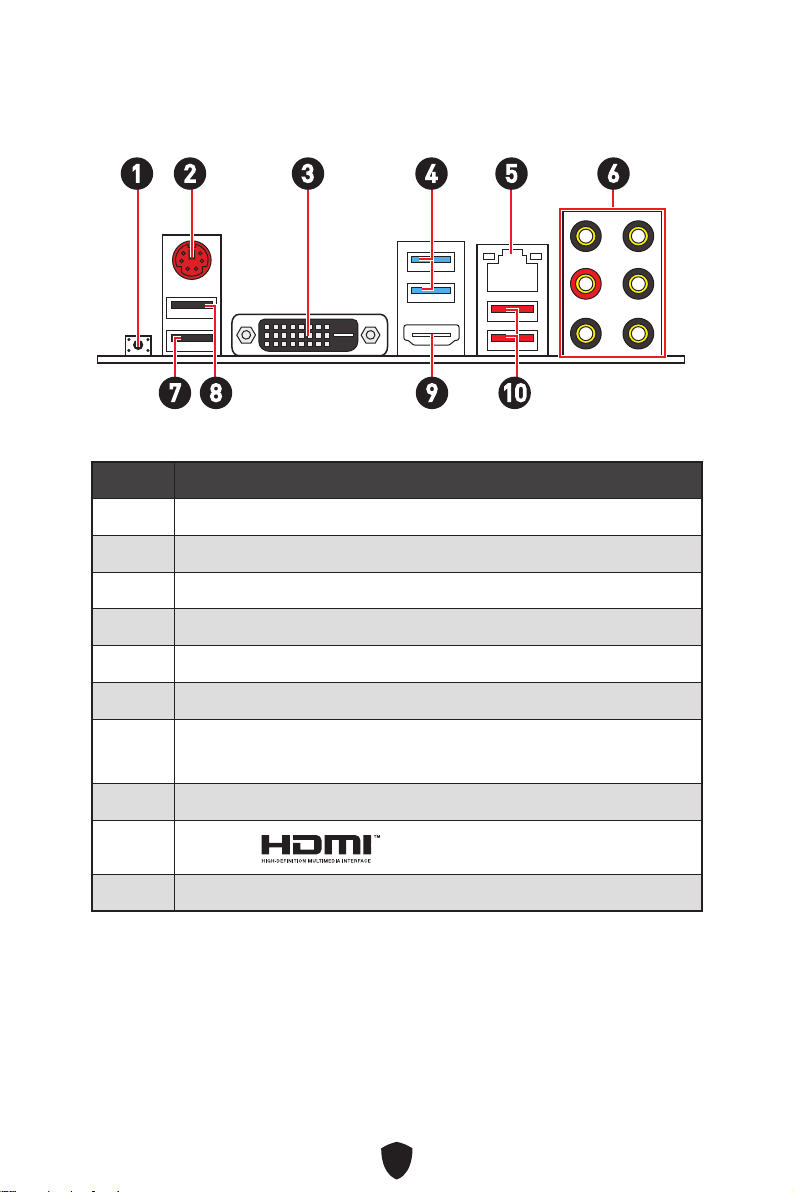
22
Connecteurs de panneau arrière
1
10
2 3 4 65
Élément Description
1 Bouton Flash BIOS
2 Port souris/clavier PS/2
3 Port DVI-D
4 Ports USB 3.2 Gen 1 5 Gb/s Type-A (depuis CPU)
5 Prise LAN 1 Gb/s
6 Prises audio
7
Port USB 2.0 Type-A (depuis chipset B550)
• Port Flash BIOS
8 Port USB 2.0 Type-A (depuis chipset B550)
9
Port HDMI
10 Ports USB 3.2 Gen 2 (10 Gb/s) Type-A (depuis chipset B550)
7 98
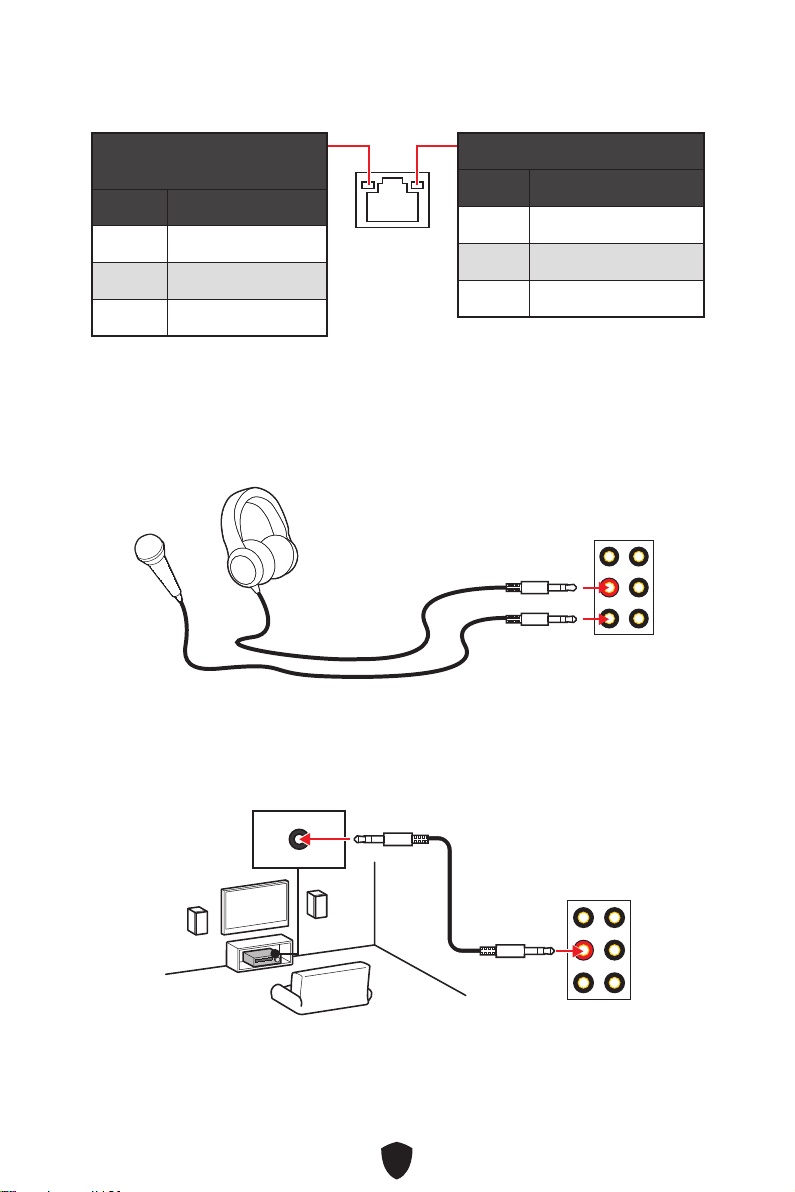
23
Tableau explicatif de l’état de la LED du port LAN
LED indiquant la connexion et
l’activité
État Description
Éteint Pas de connexion
Jaune Connexion correcte
Clignote Activité en cours
LED indiquant la vitesse
État Vitesse
Éteint 10 Mb/s
Vert 100 Mb/s
Orange 1 Gb/s
Connexion des prises audio
Illustration de l’utilisation des ports audio dédiés au casque et au
microphone
Illustration de l’utilisation du port audio dédié aux haut-parleurs
AUDIO INPUT
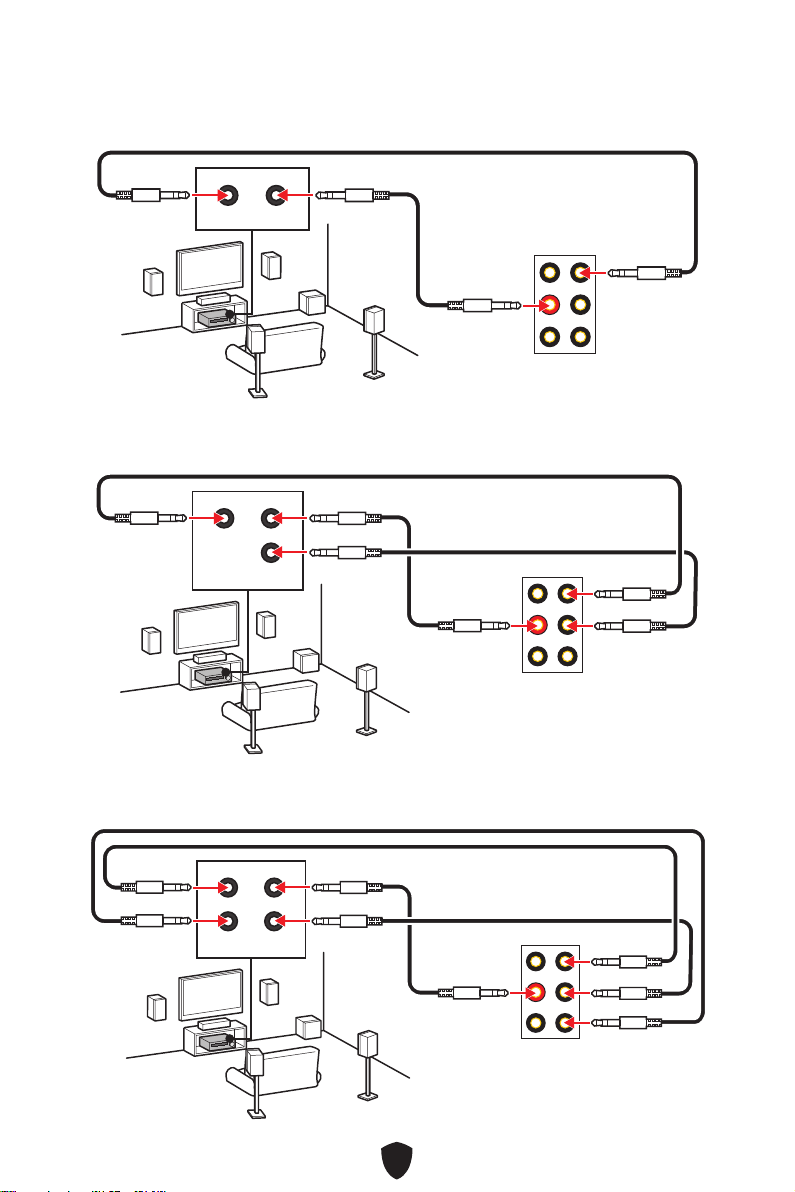
24
Illustration de l’utilisation des ports audio dédiés aux haut-
parleurs 7.1
Illustration de l’utilisation des ports audio dédiés aux haut-
parleurs à 4 canaux
Illustration de l’utilisation des ports audio dédiés aux haut-
parleurs 5.1
AUDIO INPUT
Rear Front
AUDIO INPUT
Rear Front
Center/
Subwoofer
AUDIO INPUT
Rear Front
Center/
Subwoofer
Side
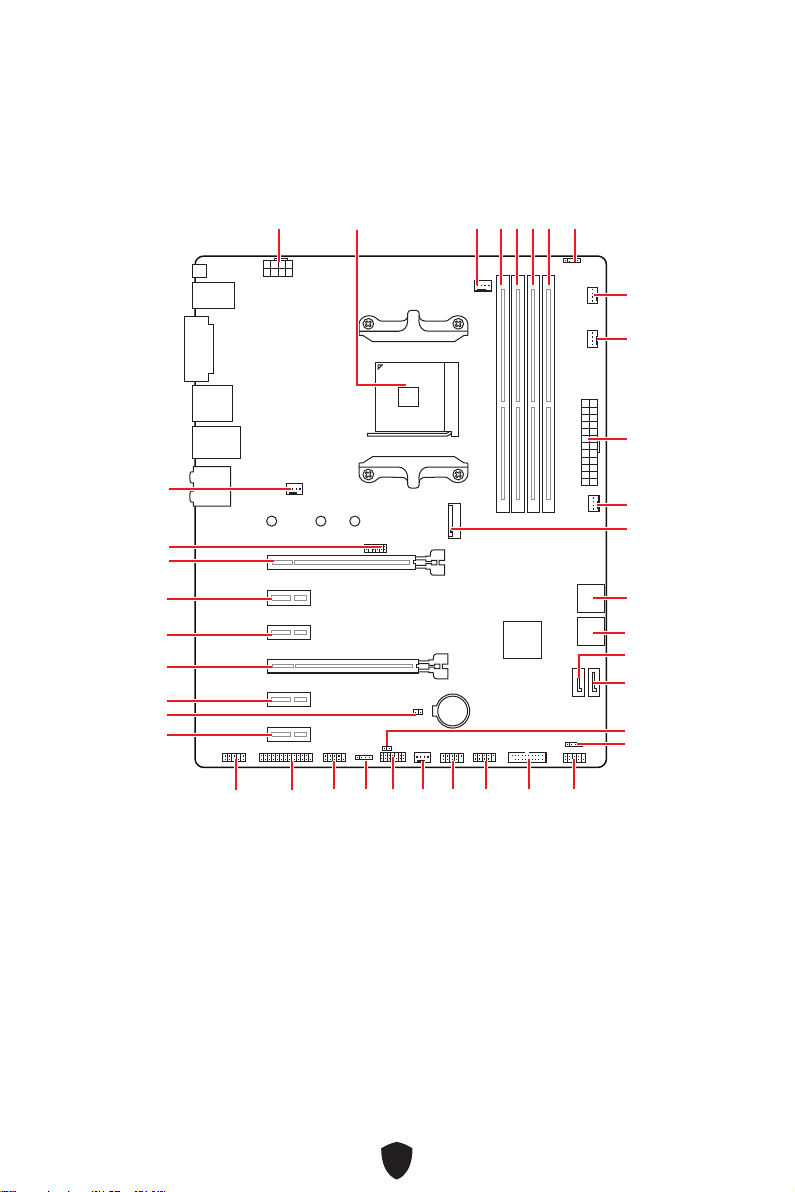
25
BAT1
M2_1
ATX_PWR1
SYS_FAN3
SYS_FAN4
PUMP_FAN1
CPU_FAN1
DIMMB2
Socket
processeur
JRGB1
CPU_PWR1
JFP1
JRGB2
SATA2
JUSB2
JUSB1
JLPC1
JUSB3
JCOM1
JLPT1
JAUD1
PCI_E1
JTPM1
SYS_FAN1
PCI_E2
PCI_E3
PCI_E4
PCI_E5
JBAT1
PCI_E6
SYS_FAN2
SATA1
JFP2
JCI1
DIMMB1
DIMMA2
DIMMA1
Vue d’ensemble des composants
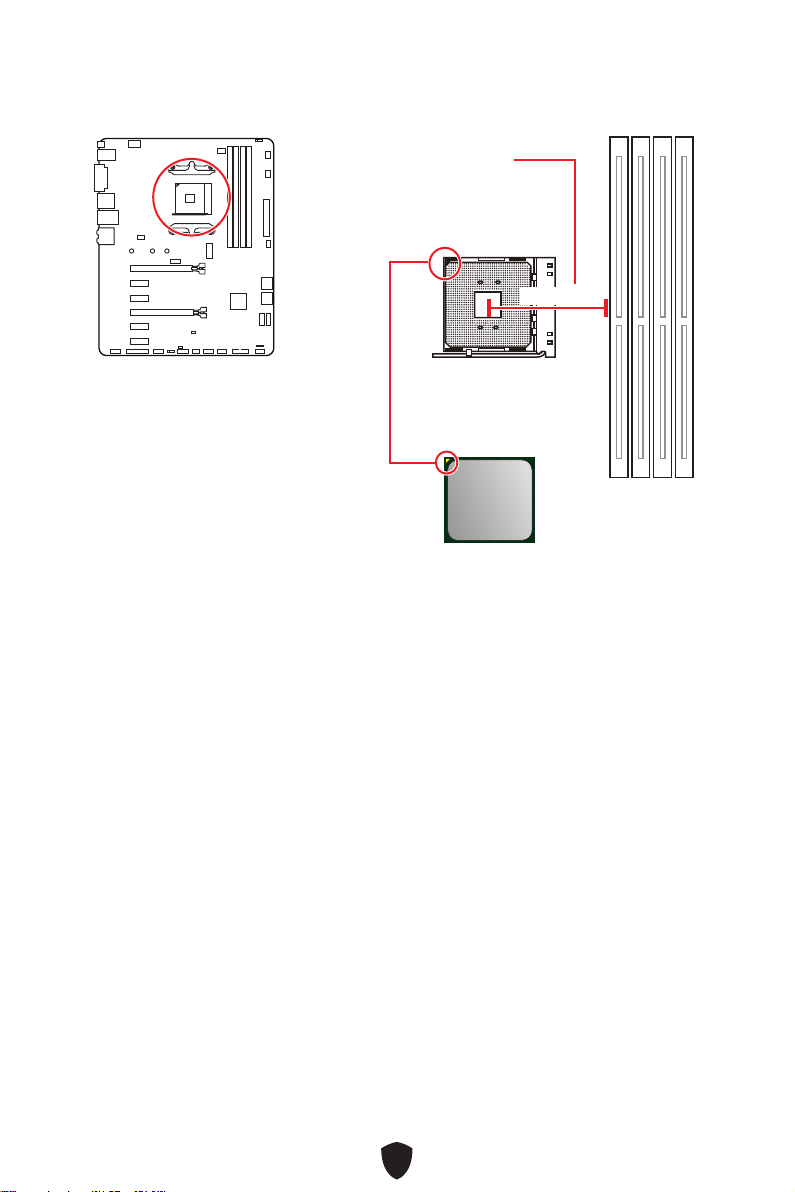
26
Important
Lorsque vous changez le processeur, il se peut que la configuration du système
soit effacée et que le BIOS soit réinitialisé à ses valeurs par défaut en raison de
l’architecture du processeur AM4.
Avant d’installer ou de retirer le processeur du socket, veillez à toujours débrancher
le câble d’alimentation de la prise électrique.
Lors de l’installation d’un processeur, n’oubliez pas d’installer un ventilateur
pour processeur. Un ventilateur de processeur est nécessaire pour protéger le
processeur contre la surchauffe et maintenir la stabilité du système.
Assurez-vous de l’étanchéité entre le ventilateur et le processeur avant de
démarrer votre système.
La surchauffe peut facilement endommager le processeur et la carte mère.
Assurez-vous toujours que le système de refroidissement fonctionne correctement
pour protéger le processeur de la surchauffe. Assurez-vous d’appliquer une couche
de pâte thermique (ou adhésif thermique) entre le processeur et le système de
refroidissement afin d’améliorer la dissipation de la chaleur.
Si vous avez achetez un processeur indépendamment du ventilateur, veuillez vous
référer à la documentation dans le paquet du ventilateur pour plus d’informations
concernant l’installation.
Cette carte mère supporte l’overclocking. Néanmoins, veuillez vous assurer que vos
composants soient capables de tolérer l’overclocking. Prenez note que l’utilisation
au-delà des caractéristiques du constructeur n’est pas recommandée. MSI® ne
garantit pas les dommages et risques causés par les utilisations non prévues dans
les spécifications du produit.
Socket CPU
Présentation du socket AM4
Sur le socket AM4, vous remarquerez
un triangle jaune servant d’indicateur
pour placer le processeur dans la bonne
position sur la carte mère. Le triangle
jaune correspond à la broche 1 du
processeur.
Distance entre le centre du CPU
et le slot DIMM le plus proche.
53,43 mm
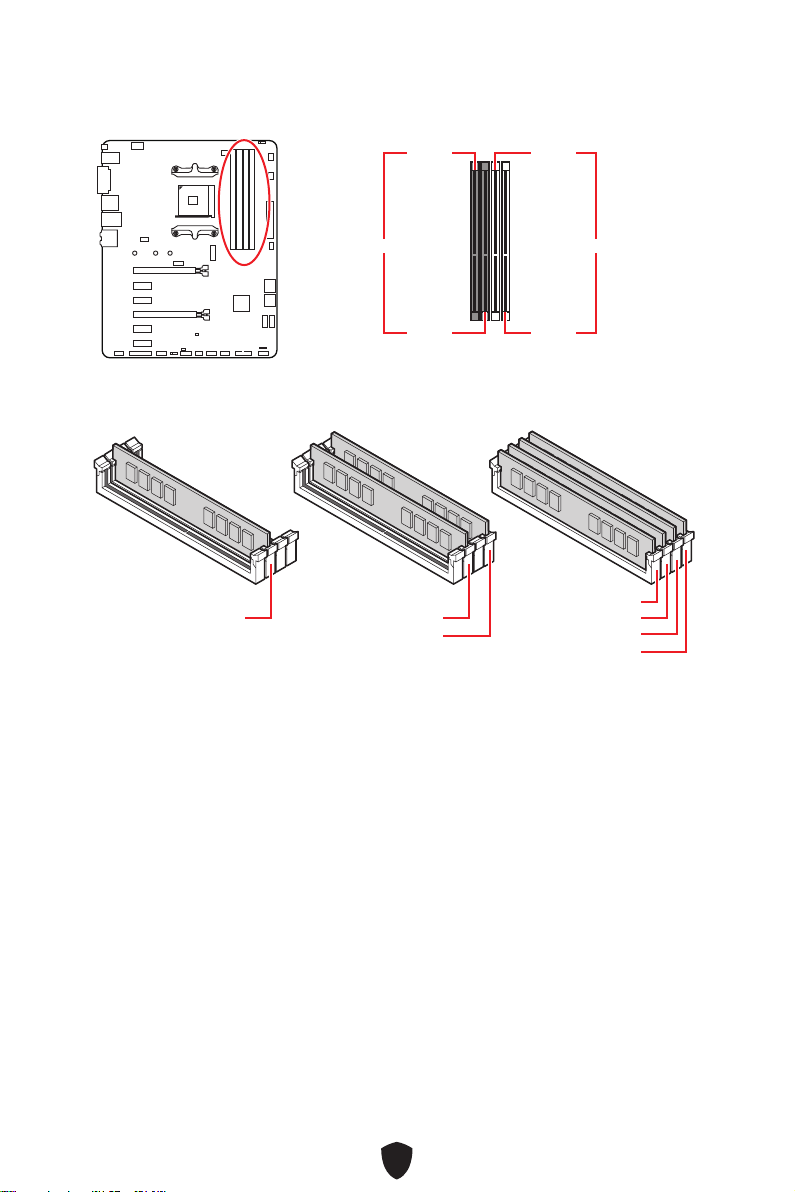
27
Slots DIMM
DIMMA1 DIMMB1
Canal A Canal B
DIMMA2 DIMMB2
Installation recommandée de module mémoire
Important
Veillez à toujours insérer un module de mémoire dans le slot DIMMA2 en premier.
Pour garantir la stabilité du système au mode de double canal, assurez-vous
d’installer les modules de mémoire du même type, du même nombre et de la même
densité.
Certaines mémoires peuvent fonctionner à une fréquence réduite par rapport à
la valeur indiquée lors de l’overclocking car la fréquence d’opération de mémoire
dépend du Serial Presence Detect (SPD). Rendez-vous sur le BIOS et choisissez la
fonction DRAM Frequency pour régler la fréquence de mémoire si vous voulez faire
fonctionner la mémoire à la fréquence indiquée ou à une fréquence plus élevée.
Il est recommandé d’utiliser un système de refroidissement qui sera capable de
refroidir toutes les barrettes mémoire et d’offrir de bonnes performances lors d’un
overclocking.
La stabilité et la compatibilité du module de mémoire lors de l’overclocking
dépendent du processeur et des périphériques installés.
Veuillez vous référer au site www.msi.com pour plus d’informations sur la mémoire
compatible.
DIMMA2 DIMMA2
DIMMB2
DIMMA1
DIMMA2
DIMMB1
DIMMB2
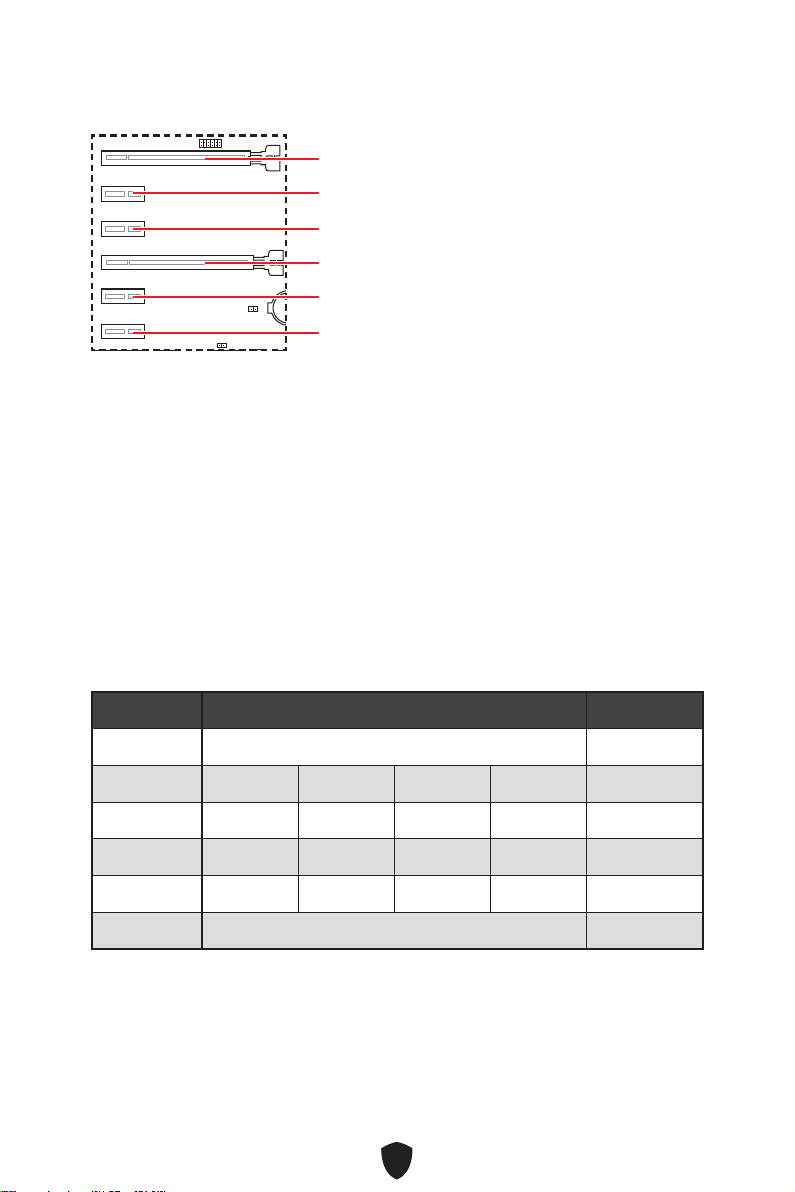
28
BAT1
PCI_E1~6 : Slots d’extension PCIe
PCI_E1 : PCIe 3.0 x16 (depuis CPU)
PCI_E4 : PCIe 3.0 x4 (depuis chipset B550)
PCI_E2 : PCIe 2.0 x1 (depuis chipset B550)
PCI_E5 : PCIe 2.0 x1 (depuis chipset B550)
PCI_E3 : PCIe 2.0 x1 (depuis chipset B550)
PCI_E6 : PCIe 2.0 x1 (depuis chipset B550)
Important
Si vous installez une carte graphique lourde, il vous faut utiliser un outil comme
la barre de support MSI pour supporter son poids et pour éviter la déformation du
slot.
Si vous choisissez d’installer une seule carte d’extension PCIe x16, nous vous
recommandons d’utiliser le slot PCI_E1 pour profiter de performances optimales.
Veillez à toujours mettre l’ordinateur hors tension et à débrancher le cordon
d’alimentation avant d’installer les cartes d’extension. Référez-vous à la
documentation des cartes pour vérifier si un composant ou un logiciel doit être
modifié.
Le slot PCI_E4 fonctionne en mode 2.0 x1 lorsque l’un des slots PCI_E2, PCI_E3 et
PCI_E5 a été installé.
Bande passante du slot PCIe
Slot Unique 2-Way
PCI_E1 (CPU) @ 3.0 x16 @ 3.0 x16
PCI_E2 (PCH) 2.0 x1 2.0 x1 Vide Vide —
PCI_E3 (PCH) 2.0 x1 Vide 2.0 x1 Vide —
PCI_E4 (PCH) 2.0 x1 2.0 x1 2.0 x1 2.0 x1 @3.0 x4
PCI_E5 (PCH) 2.0 x1 Vide Vide 2.0 x1 —
PCI_E6 (PCH) 2.0 x1 2.0x1
(— : indisponible, @ : carte graphique)
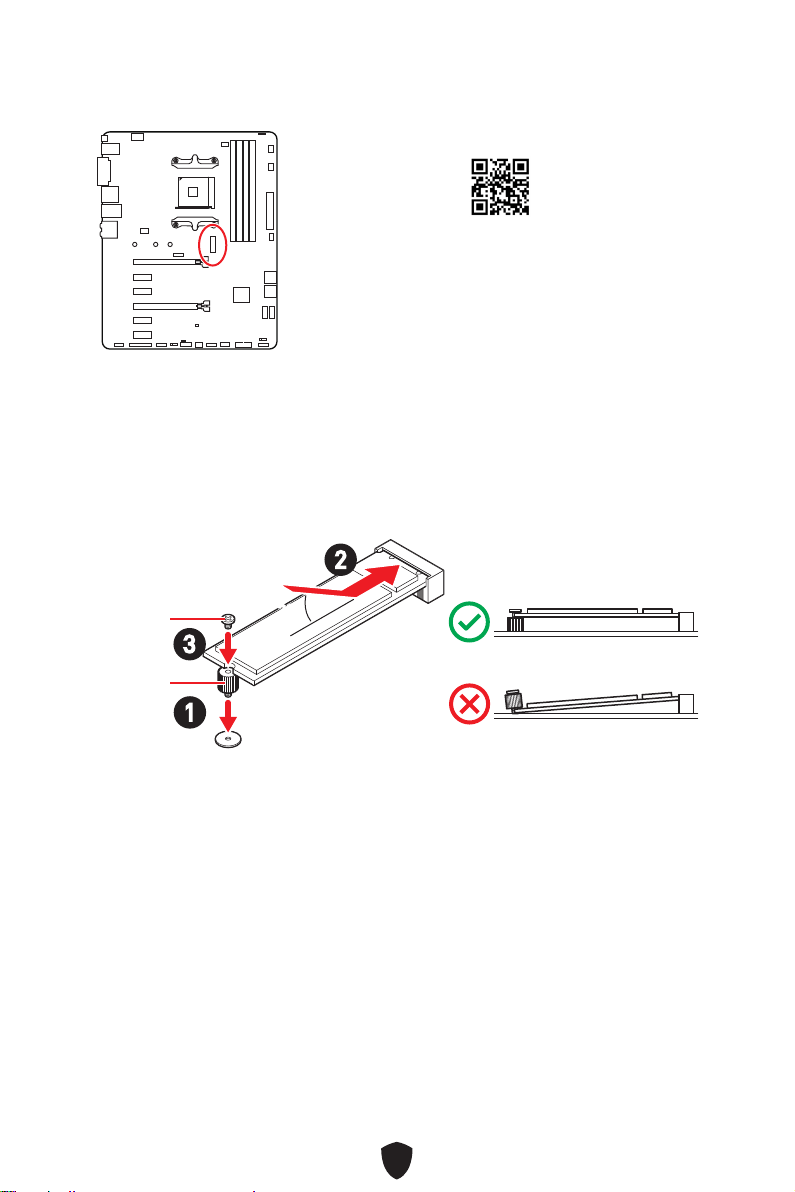
29
Installation du module M.2
1.
Déplacez et fixez l’entretoise à la position appropriée pour le support de votre SSD
M.2.
2. Insérez votre SSD M.2 dans le slot M.2 à un angle de 30 degrés.
3. Fixez le SSD M.2 avec la vis M.2 fournie.
30º30º
2
3
1
Vis M.2
Entretoise
M.2
M2_1 : Slot M.2 (Touche M)
Référez-vous à la vidéo d’installation du module M.2.
http://youtu.be/JCTFABytrYA
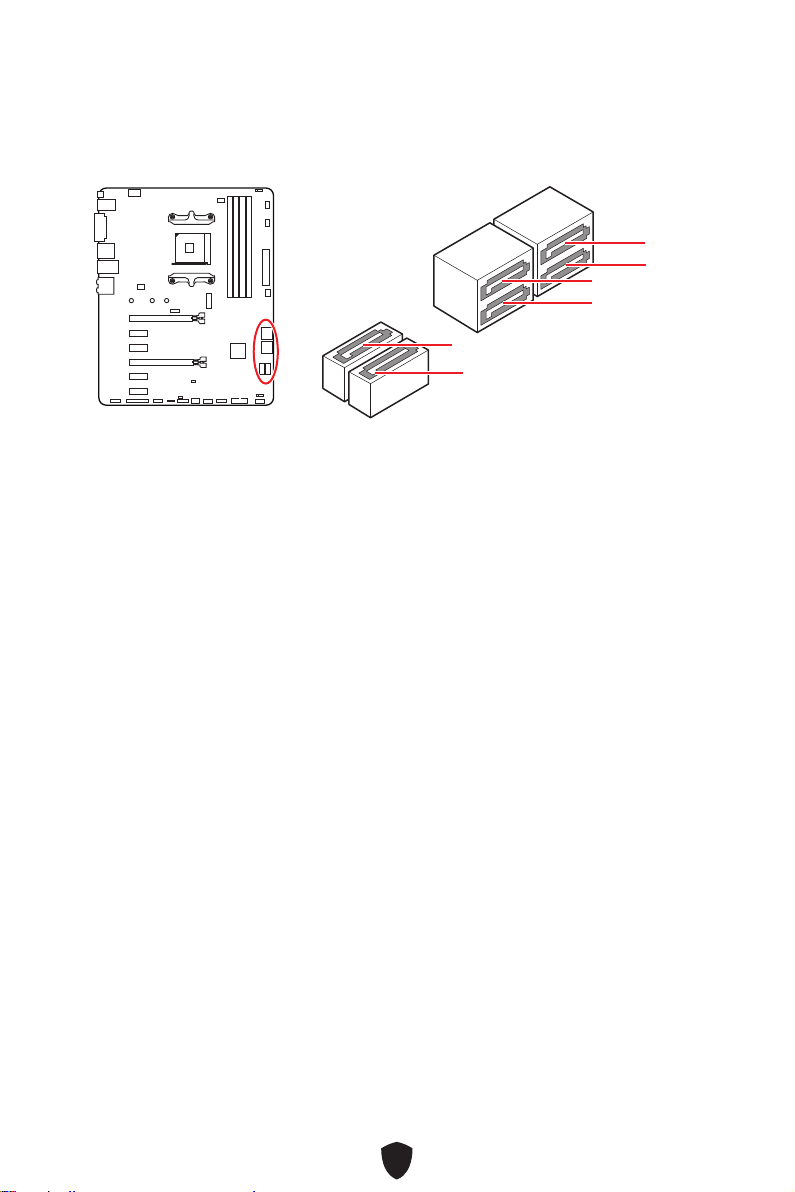
30
SATA1~6 : Connecteurs SATA 6 Gb/s
Ces connecteurs utilisent une interface SATA 6 Gb/s. Chaque connecteur peut être
relié à un appareil SATA.
SATA5
SATA3
SATA1
SATA6
SATA4
SATA2
Important
Veuillez ne pas plier les câbles SATA à 90° car cela pourrait entraîner une perte de
données pendant la transmission.
Les câbles SATA disposent de prises identiques sur chaque côté. Néanmoins, il est
recommandé de connecter la prise plate sur la carte mère pour un gain d’espace.
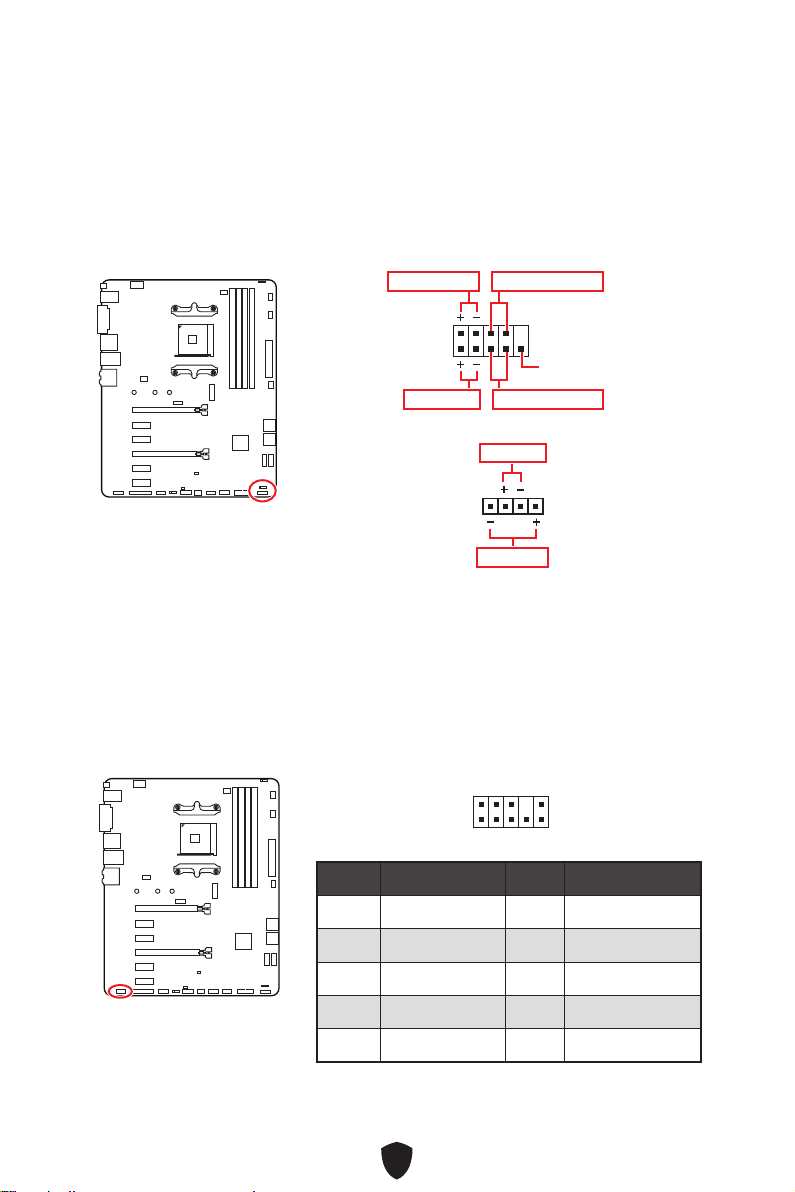
31
JFP1, JFP2 : Connecteurs de panneau avant
Le connecteur JFP1 contrôle la mise sous tension, la réinitialisation de l’alimentation
et les LED du boîtier/châssis de votre PC. Les connecteurs Power Switch et Reset
Switch vous permettent de connecter le bouton d’alimentation et le bouton de
réinitialisation. Le connecteur Power LED se connecte à l’indicateur LED du boîtier du
PC et le connecteur HDD LED indique l’activité du disque dur. Le connecteur JFP2 est
destiné au buzzer et au haut-parleur. Pour connecter les câbles du boîtier du PC aux
bonnes broches, veuillez vous référer aux images suivantes ci-dessous.
1
2 10
9
Power LED
Reserved
Power Switch
JFP1
Reset SwitchHDD LED
1
JFP2
Buzzer
Speaker
Important
Veuillez noter que les connecteurs Power LED et HDD LED disposent d’un pôle négatif
et d’un pôle positif. Vous devez donc connecter le câble aux pôles positifs et négatifs
correspondants de la carte mère. Dans le cas contraire, les LED ne fonctionneront
pas correctement.
JAUD1 : Connecteur audio avant
Ce connecteur se lie aux prises audio du panneau avant.
1
2 10
9
Broche Nom de signal Broche Nom de signal
1 MIC L 2 Ground
3 MIC R 4 NC
5 Head Phone R 6 MIC Detection
7 SENSE_SEND 8 No Pin
9 Head Phone L 10 Head Phone Detection
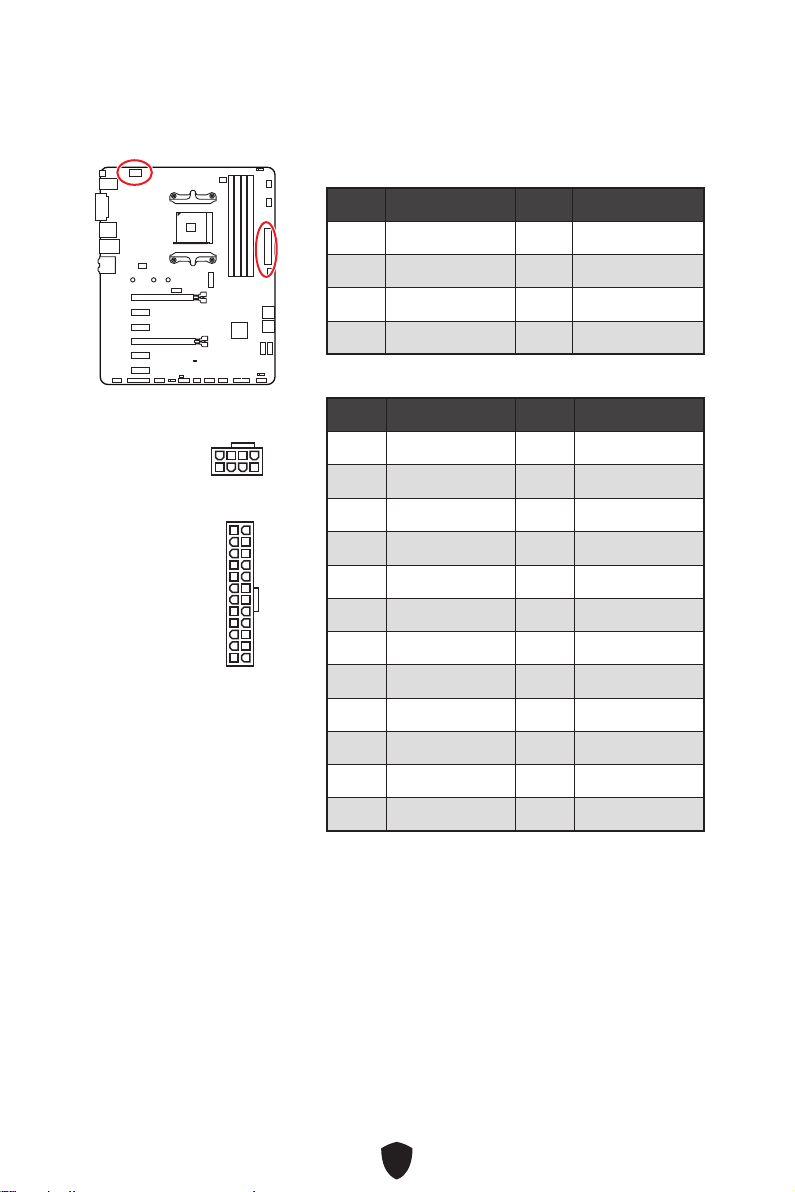
32
Important
Veuillez vous assurer que tous les câbles d’alimentation sont branchés aux
connecteurs adéquats afin de garantir une opération stable de la carte mère.
CPU_PWR1, ATX_PWR1 : Connecteurs d’alimentation
Ces connecteurs vous permettent de relier une alimentation ATX.
CPU_PWR1
Broche Nom de signal Broche Nom de signal
1 Ground 2 Ground
3 Ground 4 Ground
5 +12V 6 +12V
7 +12V 8 +12V
ATX_PWR1
Broche Nom de signal Broche Nom de signal
1 +3.3V 2 +3.3V
3 Ground 4 +5V
5 Ground 6 +5V
7 Ground 8 PWR OK
9 5VSB 10 +12V
11 +12V 12 +3.3V
13 +3.3V 14 -12V
15 Ground 16 PS-ON#
17 Ground 18 Ground
19 Ground 20 Res
21 +5V 22 +5V
23 +5V 24 Ground
5
4 1
8
CPU_PWR1
24
131
12
ATX_PWR1
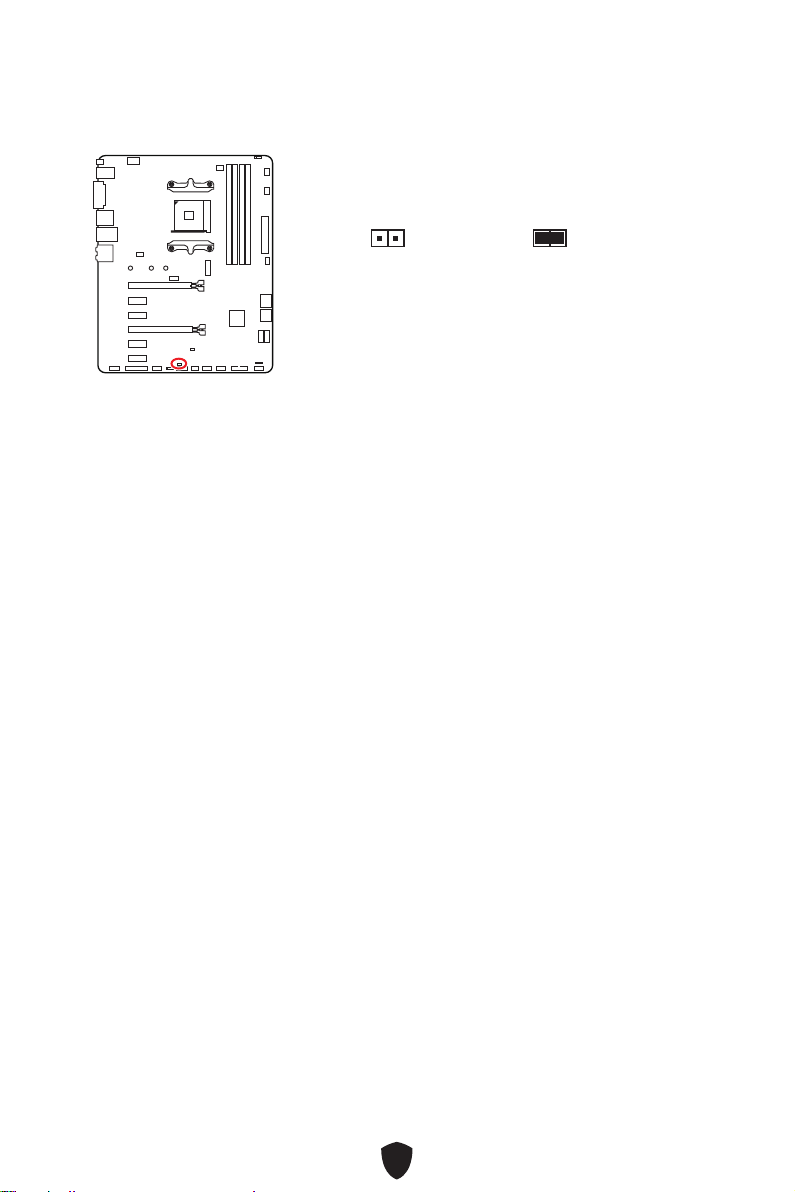
33
JCI1 : Connecteur intrusion châssis
Ce connecteur est relié à un câble d’interrupteur intrusion châssis.
Normal
(défaut)
Commencer l’activité
instrusion châssis
Utilisation du détecteur d’intrusion châssis
1.
Reliez le connecteur JCI1 à l’interrupteur ou au capteur d’intrusion châssis situé
sur le boîtier du PC.
2. Fermez le couvercle du boîtier.
3. Allez dans BIOS > SETTINGS (Réglages) > Security (Sécurité) > Chassis Intrusion
Configuration (Configuration d’intrusion châssis).
4. Réglez Chassis Intrusion (Intrusion châssis) sur Enabled (Activé).
5. Appuyez sur F10 pour sauvegarder et quitter. Ensuite appuyez sur la touche Enter
(Entrée) pour choisir Yes (Oui).
6. Désormais, si le boîtier du PC est ouvert quand l’ordinateur est allumé, vous
recevrez un message d’avertissement à l’écran.
Réinitialisation de l’avertissement d’intrusion châssis
1.
Allez dans BIOS > SETTINGS (Réglages) > Security (Sécurité) > Chassis Intrusion
Configuration (Configuration d’intrusion châssis).
2. Réglez Chassis Intrusion (Intrusion châssis) sur Reset (Réinitialiser).
3. Appuyez sur F10 pour sauvegarder et quitter. Ensuite appuyez sur la touche Enter
(Entrée) pour choisir Yes (Oui).
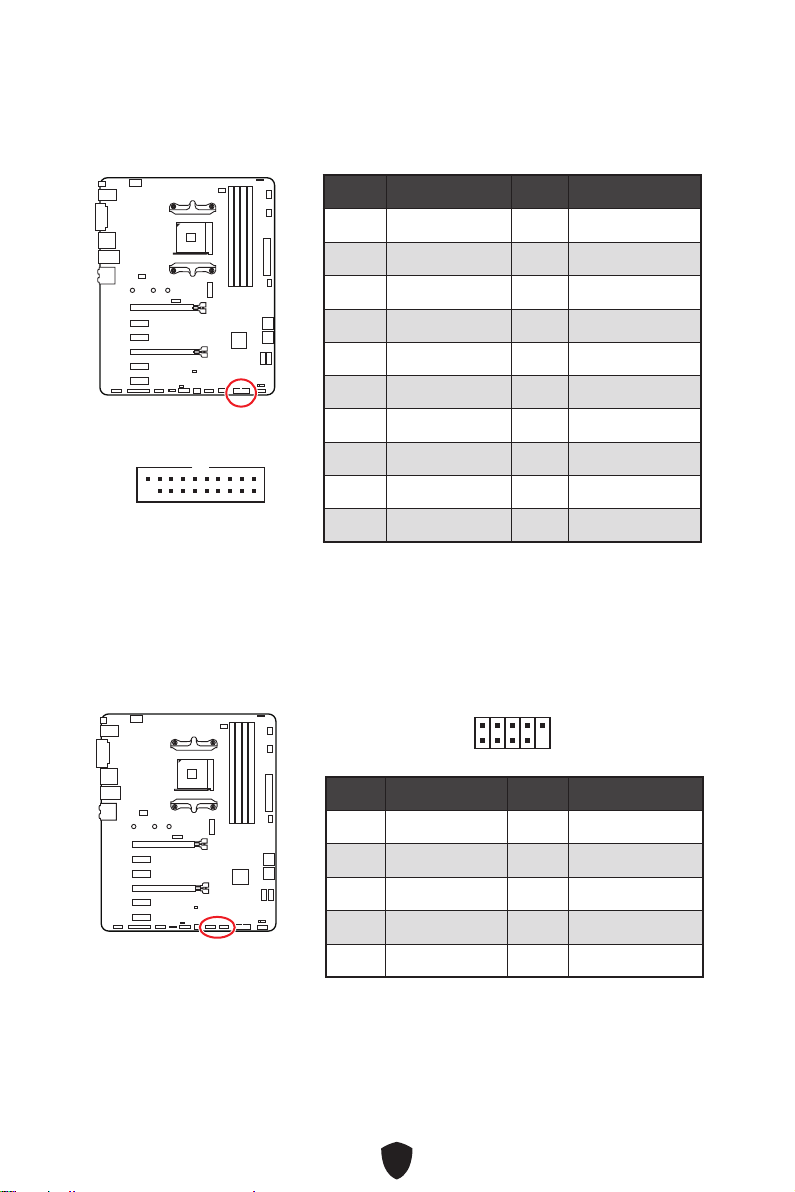
34
JUSB3 : Connecteur USB 3.2 Gen 1
Ce connecteur vous permet de relier un port USB 3.2 Gen 1 5 Gb/s sur le panneau
avant.
Important
Notez que les câbles d’alimentation et de terre doivent être branchés correctement
afin d’éviter d’endommager la carte.
Broche Nom de signal Broche Nom de signal
1 Power 2 USB3_RX_DN
3 USB3_RX_DP 4 Ground
5 USB3_TX_C_DN 6 USB3_TX_C_DP
7 Ground 8 USB2.0-
9 USB2.0+ 10 Ground
11 USB2.0+ 12 USB2.0-
13 Ground 14 USB3_TX_C_DP
15 USB3_TX_C_DN 16 Ground
17 USB3_RX_DP 18 USB3_RX_DN
19 Power 20 No Pin
1 10
1120
JUSB1~2 : Connecteurs USB 2.0
Ces connecteurs vous permettent de relier des ports USB 2.0 sur le panneau avant.
Important
Notez que les broches VCC et Terre doivent être branchées correctement afin
d’éviter tout dommage sur la carte mère.
Pour recharger votre iPad, iPhone et iPod par l’intermédiaire d’un port USB, veuillez
installer l’utilitaire MSI Center.
Broche Nom de signal Broche Nom de signal
1 VCC 2 VCC
3 USB0- 4 USB1-
5 USB0+ 6 USB1+
7 Ground 8 Ground
9 No Pin 10 NC
1
2 10
9
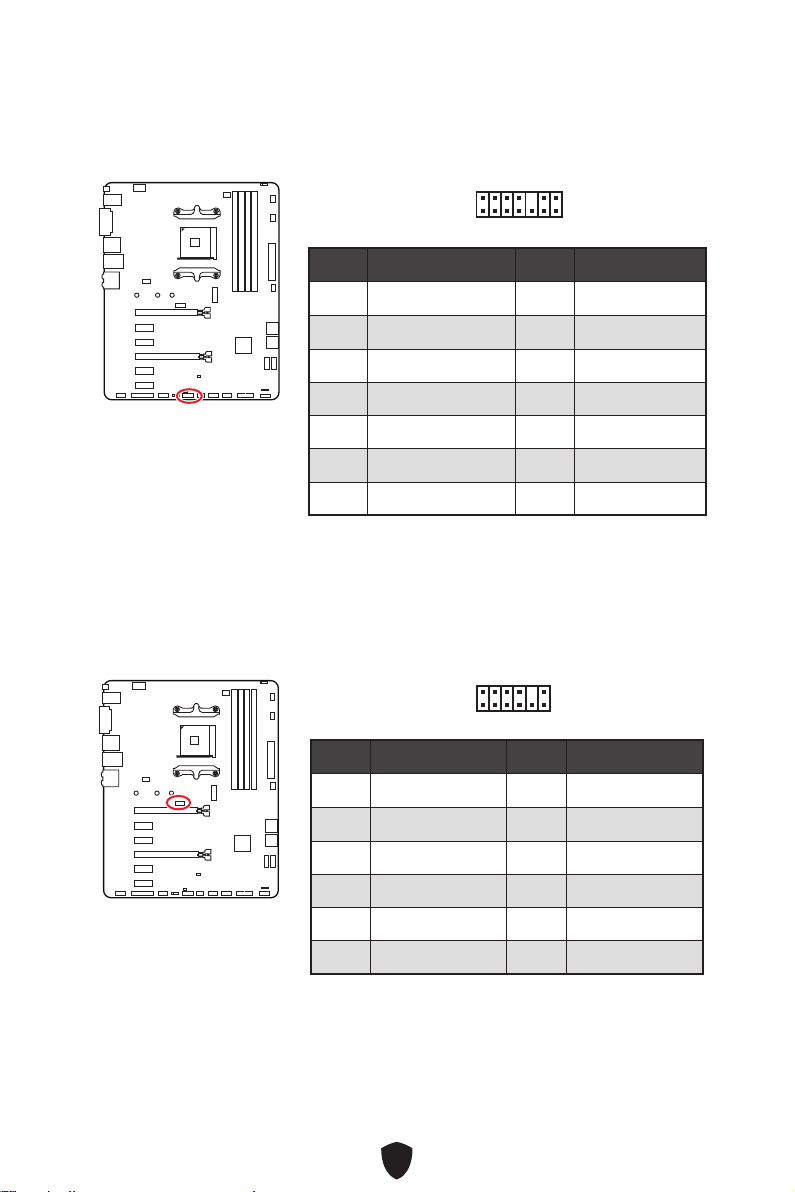
35
JLPC1 : Connecteur BIOS Debug
Ce connecteur est utilisé pour le débogage au niveau de la carte par le fabricant.
Broche Nom de signal Broche Nom de signal
1 LPC Clock 2 3V Standby power
3 LPC Reset 4 3.3V Power
5 LPC address & data pin0 6 Serial IRQ
7 LPC address & data pin1 8 5V Power
9 LPC address & data pin2 10 No Pin
11 LPC address & data pin3 12 Ground
13 LPC Frame 14 Ground
1
2 14
13
JTPM1 : Connecteur de module TPM
Ce connecteur est relié à un module TPM (Trusted Platform Module). Veuillez vous
référer au manuel du module TPM pour plus d’informations.
Broche Nom de signal Broche Nom de signal
1 1.8V power 2 SPI_TPM_CS#_R
3 SPI_TPM_DATI 4 SPI_DATO
5 SPI_CS#_R 6 SPI_TPM_CLK
7 Ground 8 SPI_TPM_RST#
9 SPI_SW_SEL 10 NA
11 SPI_TPM_WP# 12 SPI_TPM_HOLD#
1
2 12
11
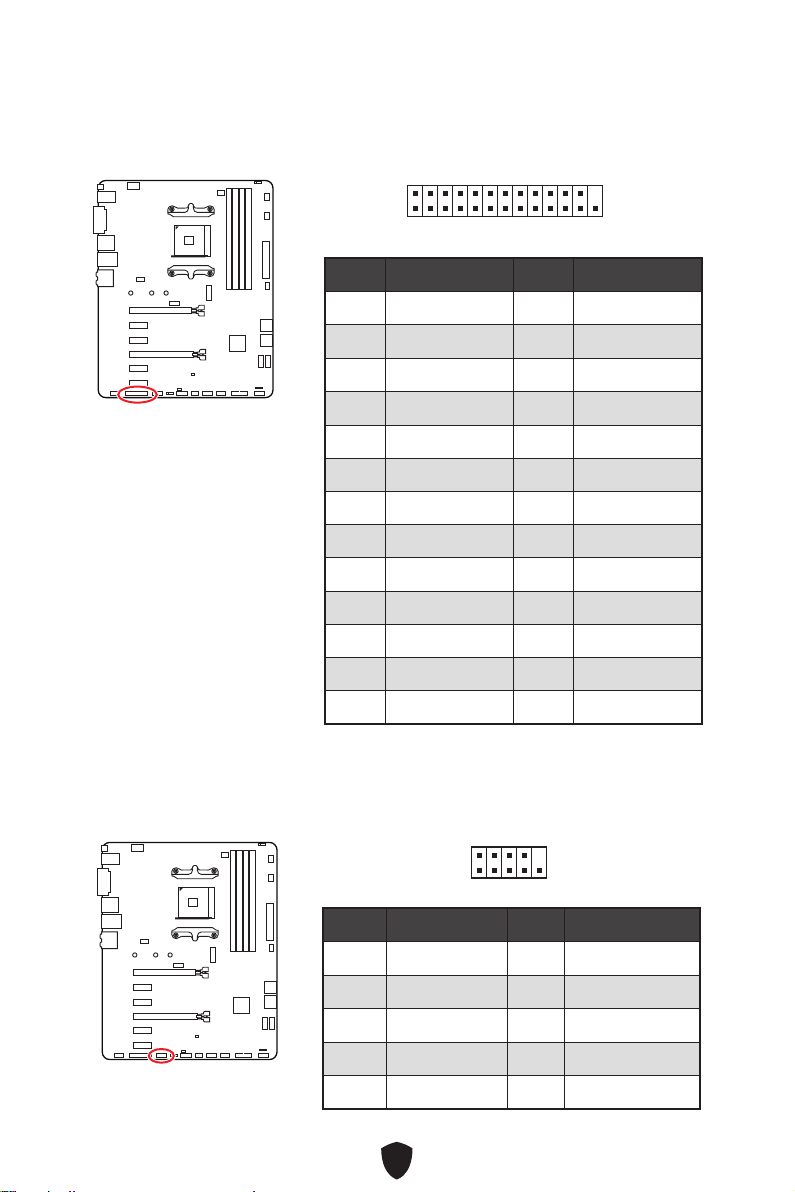
36
JLPT1 : Connecteur de port parallèle
Ce connecteur vous permet de connecter le bracket port parallèle (selon modèle).
1
2 26
25
Broche Nom de signal Broche Nom de signal
1 RSTB# 2 AFD#
3 PRND0 4 ERR#
5 PRND1 6 PINIT#
7 PRND2 8 LPT_SLIN#
9 PRND3 10 Ground
11 PRND4 12 Ground
13 PRND5 14 Ground
15 PRND6 16 Ground
17 PRND7 18 Ground
19 ACK# 20 Ground
21 BUSY 22 Ground
23 PE 24 Ground
25 SLCT 26 No Pin
JCOM1 : Connecteur de port série
Ce connecteur vous permet de connecter le bracket port série (selon modèle).
Broche Nom de signal Broche Nom de signal
1 DCD 2 SIN
3 SOUT 4 DTR
5 Ground 6 DSR
7 RTS 8 CTS
9 RI 10 No Pin
1
2 10
9
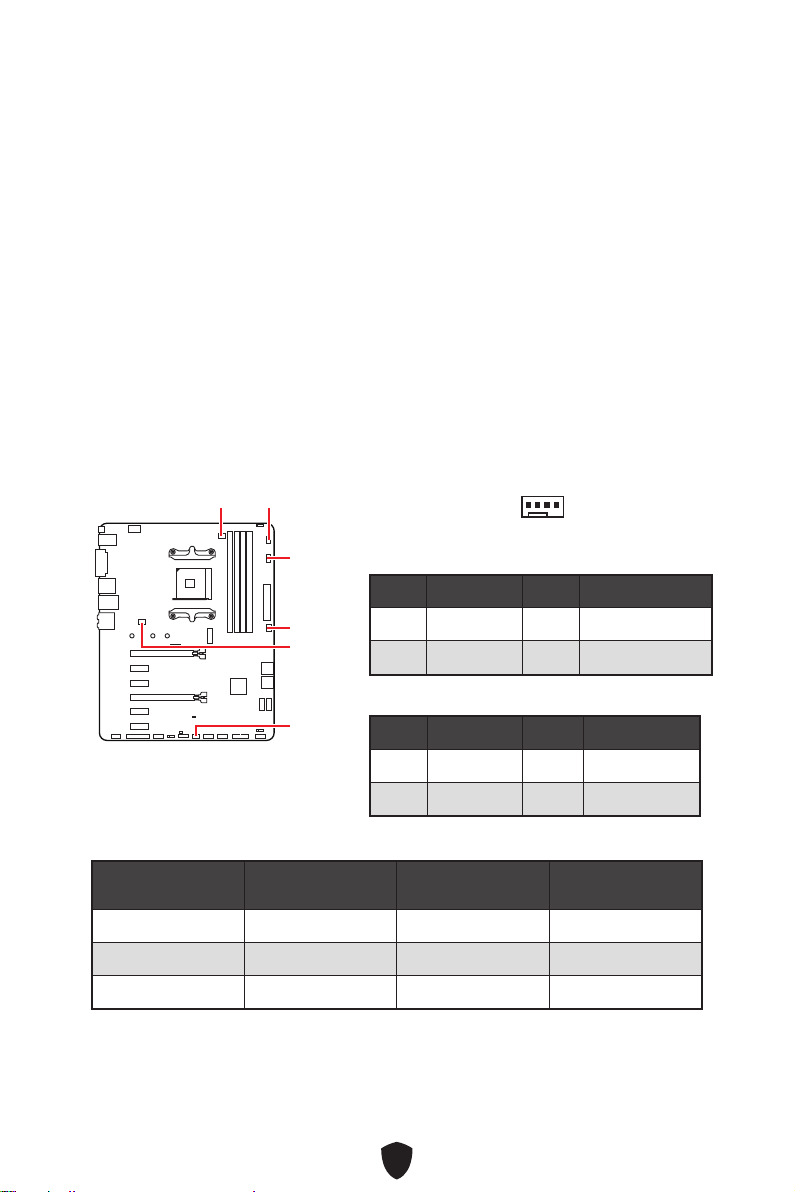
37
CPU_FAN1, PUMP_FAN1, SYS_FAN1~4 : Connecteurs
de ventilateur
Les connecteurs de ventilateur peuvent être utilisés en mode PWM (Pulse Width
Modulation) et en mode DC. En mode PWM, les connecteurs fournissent une sortie
de 12 V constante et ajustent la vitesse du ventilateur avec un signal de contrôle de
vitesse. En mode DC, les connecteurs contrôlent la vitesse du ventilateur en modifiant
la tension. Le mode automatique détectera automatiquement le type de ventilateur
utilisé.
Vous pouvez contrôler les ventilateurs dans le panneau BIOS > HARDWARE MONITOR.
Il vous permet de régler DC ou PWM selon votre type de ventilateur. Si vous cochez
le Mode ventilateur intelligent, la vitesse du ventilateur changera en fonction de la
température du processeur ou du système. Si vous décochez le Mode ventilateur
intelligent, le ventilateur tournera à la vitesse maximale.
Important
Veuillez vous assurer que les ventilateurs fonctionnent correctement après avoir
basculé entre les modes PWM et DC.
CPU_FAN1
SYS_FAN2
SYS_FAN4
SYS_FAN1
PUMP_FAN1
SYS_FAN3
1
Définition des broches en mode PWM
Broche Nom de signal Broche Nom de signal
1 Ground 2 +12V
3 Sense 4 Speed Control Signal
Définition des broches en mode DC
Broche Nom de signal Broche Nom de signal
1 Ground 2 Voltage Control
3 Sense 4 NC
Caractéristiques du connecteur de ventilateur
Connecteur
Mode ventilateur par
défaut
Courant maximum Puissance maximum
CPU_FAN1 Mode PWM 2 A 24 W
PUMP_FAN1 Mode PWM 3 A 36 W
SYS_FAN1~4 Mode DC 2 A 24 W
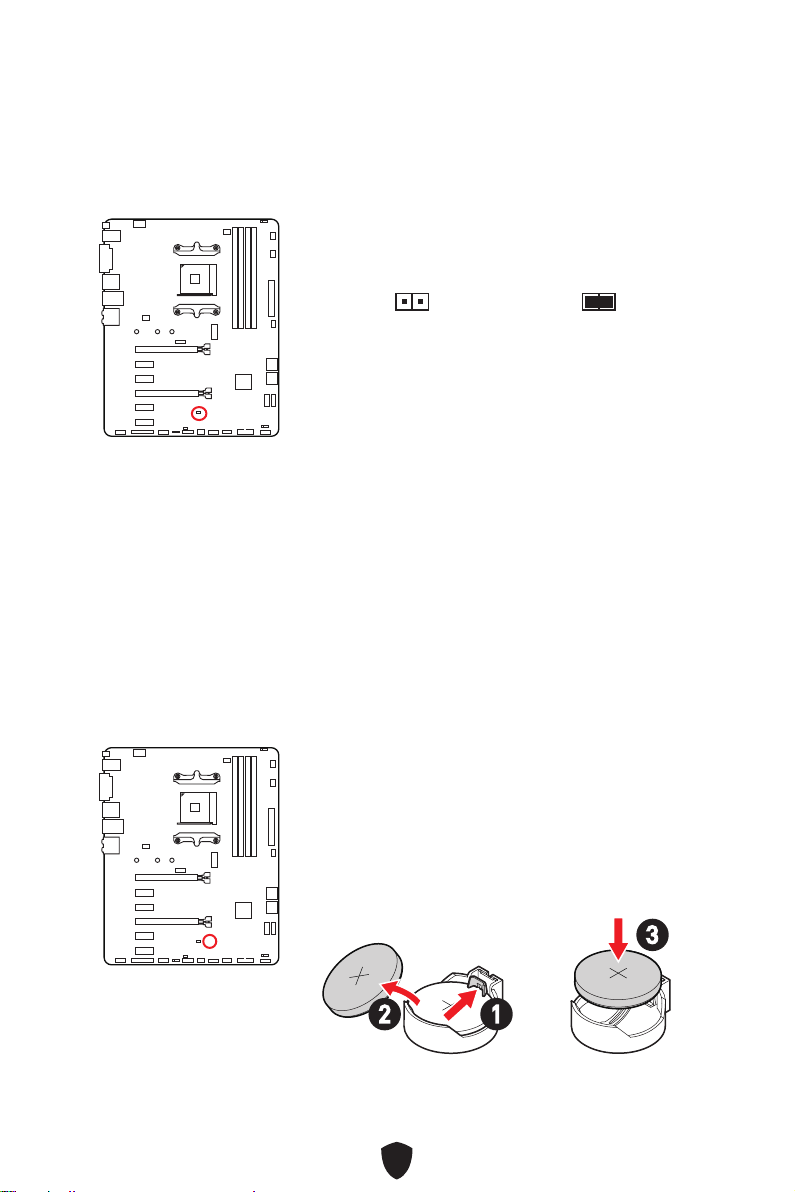
38
JBAT1 : Cavalier Clear CMOS (Réinitialiser le BIOS)
Une mémoire CMOS est intégrée et est alimentée en externe par une batterie située
sur la carte mère afin de conserver les données de configuration système. Si vous
souhaitez effacer la configuration du système, réglez le cavalier pour effacer la
mémoire CMOS.
BAT1 : Pile CMOS
Si la pile CMOS est déchargée, l’heure dans le BIOS sera réinitialisée et les données
de configuration du système seront perdues. Dans ce cas, vous devez remplacer la
pile CMOS.
Conserver
les données
(défaut)
Effacer le CMOS/
Réinitialiser le BIOS
Réinitialiser le BIOS aux valeurs par défaut
1.
Éteignez l’ordinateur et débranchez le câble d’alimentation.
2. Utilisez un couvercle de cavalier pour fermer JBAT1 pendant 5 à 10 secondes.
3. Enlevez le couvercle de cavalier du JBAT1.
4. Branchez de nouveau le câble d’alimentation à votre ordinateur et allumez-le.
Remplacement de la pile CMOS
1. Poussez le clip de retenue pour libérer la pile.
2. Retirez la pile du socket.
3. Installez la nouvelle pile bouton CR2032 avec le
signe + vers le haut. Assurez-vous que la pile est
fermement maintenue par le dispositif de retenue.
12
3
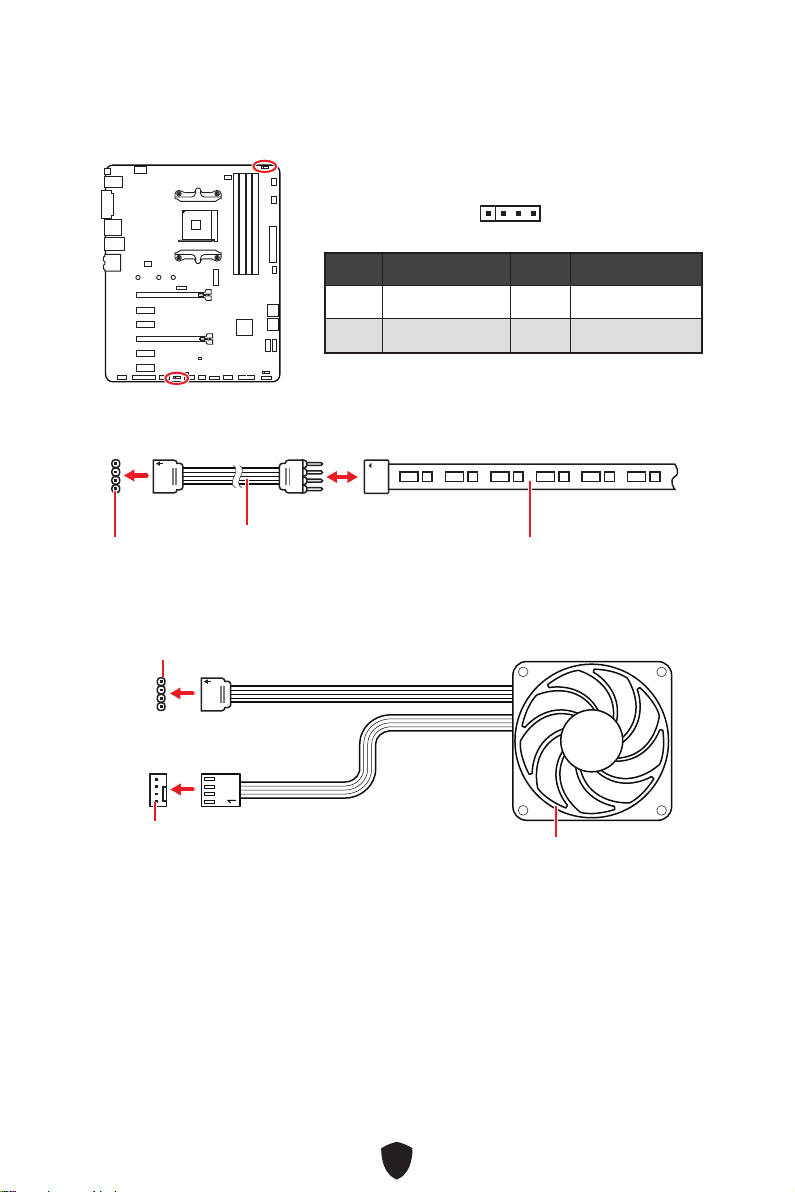
39
Important
Le connecteur JRGB supporte des rubans LED RGB (12 V/G/R/B) de type 5050 d’une
longueur de 2 mètres maximum avec une puissance nominale maximale de 3 A (12 V).
Avant d’installer ou de retirer le ruban LED RGB, veillez à toujours éteindre
l’alimentation et à débrancher le câble d’alimentation de la prise électrique.
Veuillez utiliser un logiciel MSI dédié pour contrôler le ruban d’extension LED.
JRGB1~2 : Connecteur LED RGB
Le connecteur JRGB vous permet de connecter un ruban LED RGB de type 5050 12 V.
1
G
R
B
Connecteur JRGB
Câble d’extension JRGB
Ruban LED RGB de type 5050, sortie 12 V
Connexion du ruban LED RGB
1
1
G
R
B
Connecteur JRGB
Connecteur de ventilateur système
Connexion du ventilateur LED RGB
Ventilateur LED RGB
Broche Nom de signal Broche Nom de signal
1 +12V 2 G
3 R 4 B
1
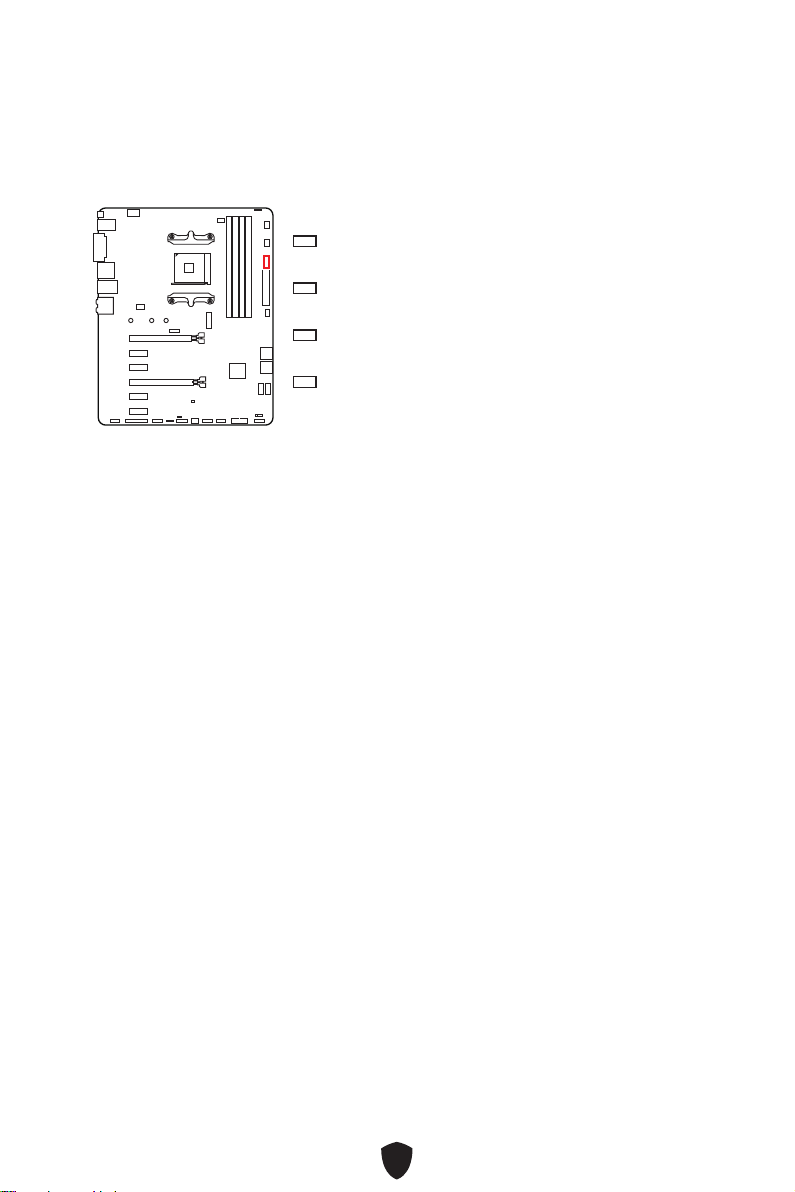
40
EZ Debug LED
Ces LEDs indiquent l’état de débogage de la carte mère.
LED embarquées
CPU - indique que le CPU n’est pas détecté ou que
son initialisation a échoué.
DRAM - indique que la mémoire DRAM n’est pas
détectée ou que son initialisation a échoué.
VGA - indique que le GPU n’est pas détecté ou que
son initialisation a échoué.
BOOT - indique que le périphérique de démarrage
n’est pas détecté ou que son initialisation a
échoué.
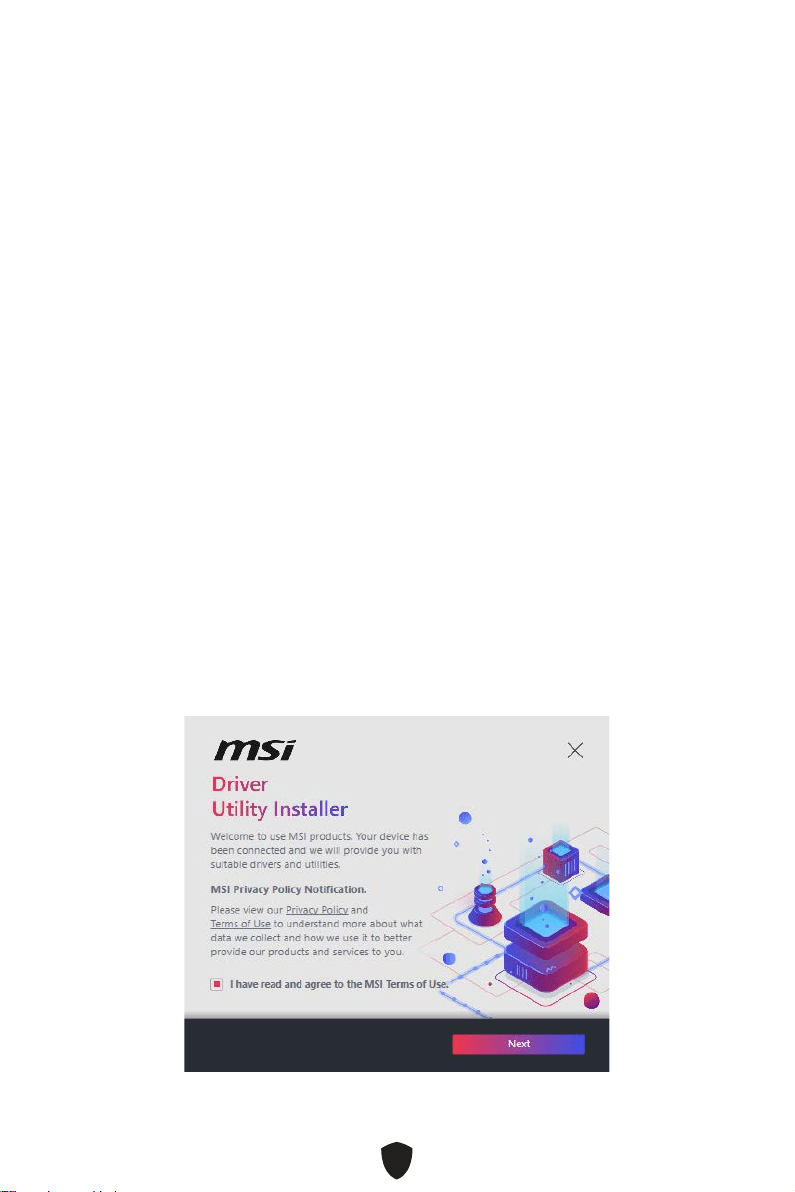
41
Installer OS, Pilotes et MSI Center
Veuillez vous référer au site www.msi.com pour télécharger et mettre à jour les
derniers utilitaires et pilotes.
Installer Windows 10/Windows 11
1. Allumez l’ordinateur.
2. Insérez le disque ou la clé USB d’installation de Windows 10/Windows 11 dans
votre ordinateur.
3. Appuyez sur le bouton Redémarrer (Restart) du boîtier de l’ordinateur.
4. Appuyez sur la touche F11 pendant le POST (Power-On Self Test) du système pour
entrer dans le menu de démarrage.
5. Choisissez le disque ou la clé USB d’installation de Windows 10/Windows 11 dans
le menu de démarrage.
6. Appuyez sur n’importe quelle touche lorsqu’apparaît le message [Appuyez sur
n’importe quelle touche pour démarrer du CD ou du DVD] (Press any key to boot
from CD or DVD). Sinon, veuillez ignorer cette étape.
7. Suivez les instructions à l’écran pour installer Windows 10/Windows 11.
Installer les pilotes avec MSI DUI
MSI DUI (Driver Utility Installer) doit être installé via Internet. Si vous ne pouvez pas
vous connecter à Internet, veuillez vous référer à la section Installer les pilotes avec
un lecteur DVD/USB.
1. Allumez l’ordinateur sous Windows 10/Windows 11.
2. Sélectionnez Démarrer (Start) > Paramètres (Settings) > Windows Update, puis
sélectionnez Rechercher les mises à jour.
3. MSI DUI apparaîtra automatiquement.
4. Cochez la case J’ai lu et j’accepte les conditions d’utilisation de MSI (I have read
and agree to the MSI Terms of Use), puis cliquez sur Suivant (Next).
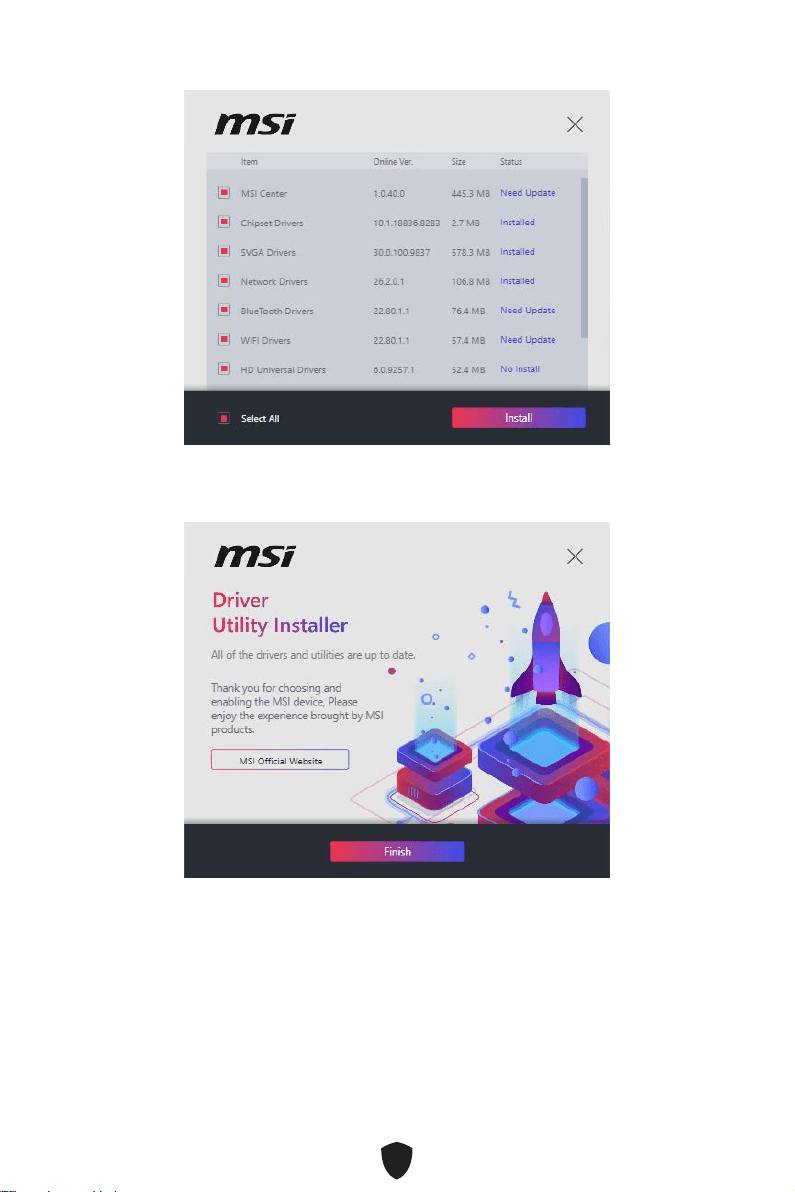
42
5. Cochez la case Sélectionner tout (Select All) dans le coin inférieur gauche
et cliquez sur Installer (Install) pour installer MSI Center et les pilotes. La
progression de l’installation sera affichée en bas.
6. Une fois la progression terminée, cliquez sur Terminer (Finish).
Important
Le MSI DUI n’apparaîtra qu’une seule fois. Si vous l’annulez ou le fermez pendant le
processus, veuillez vous référer au chapitre Live Update du manuel MSI Center pour
installer les pilotes. Vous pouvez également vous rendre sur www.msi.com pour
rechercher votre carte mère et télécharger les pilotes.

43
Installer les pilotes avec un lecteur DVD/USB
1. Allumez l’ordinateur sous Windows 10/Windows 11.
2. Insérez le disque MSI® Drive dans le lecteur optique ou insérez la clé USB MSI®
dans le port USB.
3. Cliquez sur la fenêtre popup Choisir quoi faire avec ce disque (Select to choose
what happens with this disc), puis choisissez Lancer DVDSetup.exe (Run
DVDSetup.exe) pour ouvrir l’outil d’installation. Si vous désactivez la fonction
AutoPlay dans le panneau de configuration Windows, vous pouvez quand même
exécuter manuellement DVDSetup.exe à partir du chemin d’accès depuis la racine
de la clé DVD/ USB MSI.
4. L’outil d’installation trouvera et listera tous les pilotes dont vous avez besoin dans
l’onglet Pilotes/Logiciels (Drivers/Software).
5. Cliquez sur le bouton Installer (Install) dans le coin inférieur droit de la fenêtre.
6. L’installation des pilotes commence. Une fois terminée, il vous sera demandé de
redémarrer.
7. Cliquez sur le bouton OK pour terminer.
8. Redémarrez votre ordinateur.
MSI Center
MSI Center est une application qui vous aide à optimiser facilement les paramètres
de jeu et à utiliser les logiciels de création de contenu de manière intuitive. Elle vous
permet également de contrôler et de synchroniser les effets de lumière LED sur les
PC et autres produits MSI. Avec MSI Center, vous pouvez personnaliser les modes
selon vos envies, surveiller les performances du système et régler la vitesse du
ventilateur.
Guide d’utilisation de MSI Center
Si vous souhaitez en savoir plus sur MSI Center, veuillez vous référer au
fichier http://download.msi.com/manual/mb/MSICENTER.pdf
ou scannez le code QR pour y accéder.
Important
Les fonctions peuvent varier en fonction du produit que vous possédez.

44
UEFI BIOS
Le BIOS UEFI de MSI est compatible avec l’architecture UEFI (Unified Extensible
Firmware Interface). Le BIOS UEFI présente de nombreuses nouvelles fonctionnalités
et avantages qui ne sont pas proposés par le BIOS traditionnel. Le BIOS UEFI est ainsi
voué à totalement remplacer le BIOS traditionnel à l’avenir. Le BIOS UEFI de MSI
utilise UEFI comme mode de démarrage par défaut pour profiter au maximum des
capacités du nouveau chipset.
Important
Dans ce guide d’utilisation, le terme BIOS se réfère au BIOS UEFI, sauf indication
contraire.
Avantages de l’UEFI
Démarrage rapide - L’UEFI peut démarrer directement le système d’exploitation
et enregistrer le processus d’autotest du BIOS. Il élimine également le temps à
attendre pour passer en mode CSM pendant le POST.
Prend en charge des partitions de disque dur supérieures à 2 To.
Prend en charge plus de 4 partitions principales avec une table de partition GUID
(GPT).
Prend en charge un nombre illimité de partitions.
Prend en charge toutes les capacités de nouveaux appareils - les nouveaux
appareils peuvent ne pas fournir de compatibilité descendante.
Prend en charge le démarrage sécurisé - L’UEFI peut vérifier la validité du système
d’exploitation pour s’assurer qu’aucun malware ne perturbe le processus de
démarrage.
Cas d’incompatibilité avec l’UEFI
Système d’exploitation Windows 32 bits - cette carte mère supporte uniquement le
système d’exploitation Windows 10/Windows 11 64 bits.
Carte graphique ancienne - le système détectera votre carte graphique. Si vous
utilisez des cartes graphiques plus anciennes, un message d’avertissement apparaît
si aucun support GOP (Graphics Output Protocol) n’est détecté sur cette carte
graphique.
Important
Nous vous recommandons de remplacer votre carte graphique par un modèle
compatible GOP/UEFI ou d’utiliser un processeur avec puce graphique intégrée pour
profiter d’un fonctionnement normal.
Comment vérifier le mode BIOS ?
1.
Allumez votre ordinateur.
2. Pendant le démarrage, lorsqu’apparaît le message Press DEL key to enter Setup
Menu, F11 to enter Boot Menu sur l’écran, veuillez appuyer sur la touche Suppr.
3. Après être entré dans le BIOS, vous pouvez vérifier le Mode BIOS en haut de
l’écran.
BIOS Mode: UEFI

45
Configuration du BIOS
Les réglages par défaut fournissent une performance optimale pour la stabilité du
système en conditions normales. Veillez à toujours garder les réglages par défaut
pour éviter d’endommager le système ou tout problème au démarrage, sauf si vous
êtes familier avec le BIOS.
Important
Les éléments du BIOS sont régulièrement mis à jour afin d’offrir de meilleures
performances du système. Les éléments peuvent être légèrement différents
du dernier BIOS, par conséquent, la description est donnée à titre de référence
seulement. Vous pouvez aussi vous référer à l’onglet Help (Aide) pour obtenir la
description de l’élément du BIOS.
Les écrans, les options et les paramètres du BIOS peuvent varier selon votre
système.
Entrer dans la configuration du BIOS
Pendant le démarrage, lorsqu’apparaît le message Press DEL key to enter Setup
Menu, F11 to enter Boot Menu sur l’écran, veuillez appuyer sur la touche Suppr.
Touches de fonction
F1 : Liste d’aide générale
F2 : Ajouter ou supprimer un élément favori
F3 : Entrer dans le menu Favoris
F4 : Entrer dans le menu caractéristiques du processeur
F5 : Entrer dans le menu Memory-Z
F6 : Charger les réglages par défaut
F7 : Alterner entre le mode avancé et le mode simplifié
F8 : Charger le profil d’overclocking
F9 : Sauvegarder le profil d’overclocking
F10 : Sauvegarder les modifications et réinitialiser*
F12 : Prendre une capture d’écran et la conserver dans la clé USB (au format
FAT/FAT32 uniquement)
Ctrl+F : Entrer dans la page de recherche
* Lorsque vous appuyez sur F10, une fenêtre de confirmation apparaît et fournit
l’information de modification. Choisissez entre Oui et Non pour confirmer.
Guide d’utilisation du BIOS
Si vous souhaitez en savoir plus sur la configuration du BIOS, veuillez vous
référer au fichier http://download.msi.com/manual/mb/AMDX570BIOSfr.pdf
ou scannez le code QR pour y accéder.
Important
Les fonctions peuvent varier en fonction du produit que vous possédez.
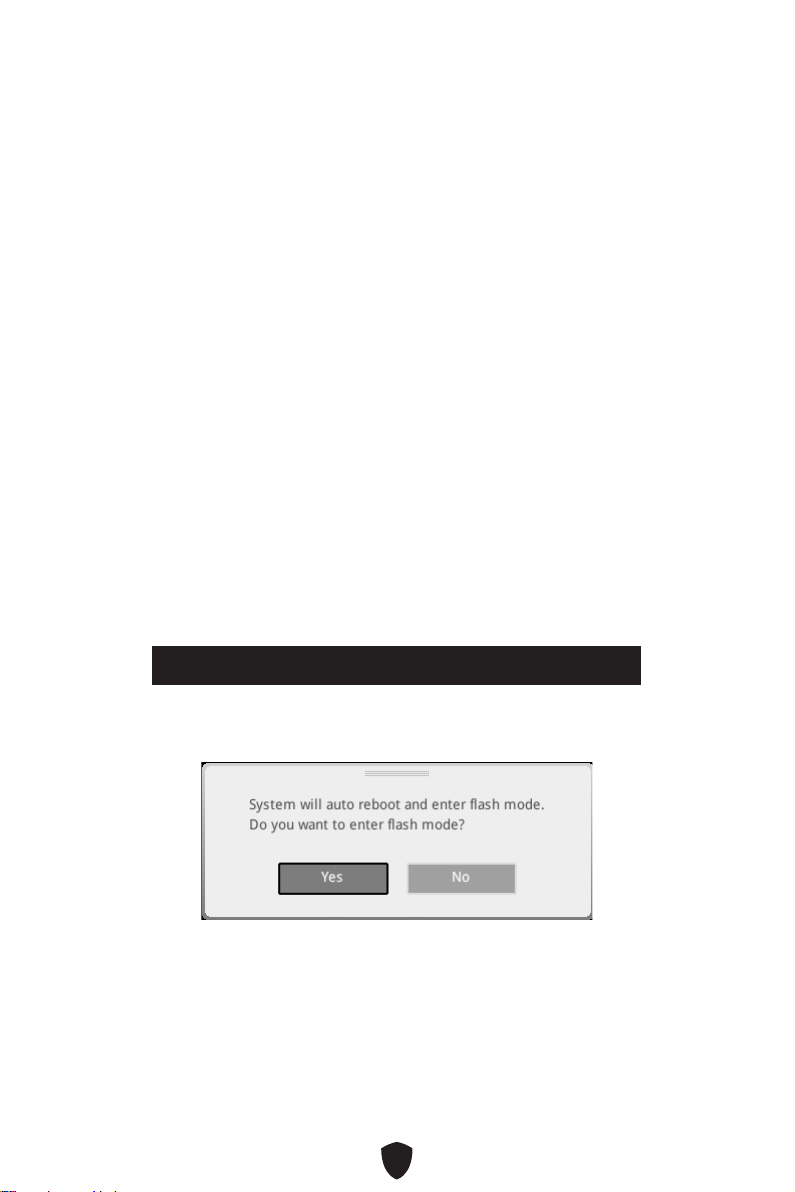
46
Réinitialiser le BIOS
Il se peut que vous ayez besoin de récupérer les réglages BIOS par défaut pour
résoudre des problèmes. Pour réinitialiser les réglages du BIOS, veuillez suivre l’une
des méthodes suivantes :
Allez dans le BIOS et appuyez sur F6 pour charger les réglages par défaut.
Court-circuitez le cavalier Clear CMOS sur la carte mère.
Important
Assurez-vous que l’ordinateur est éteint avant d’effacer les données CMOS. Veuillez
vous référer à la section cavalier Clear CMOS pour en savoir plus sur la réinitialisation
du BIOS.
Mettre le BIOS à jour
Mettre le BIOS à jour avec M-FLASH
Avant la mise à jour :
Veuillez télécharger la dernière version du BIOS compatible à votre carte mère sur le
site MSI. Ensuite, veuillez sauvegarder le profil BIOS sur la clé USB.
Mettre le BIOS à jour :
1. Insérez la clé USB contenant le fichier de mise à jour au port USB.
2. Veuillez vous référer aux méthodes suivantes pour passer en mode flash.
•
Redémarrez et appuyez sur la touche Ctrl + F5 pendant le processus de POST et
cliquez sur Oui pour redémarrer le système.
Press <Ctrl+F5> to activate M-Flash for BIOS update.
• Redémarrez et appuyez sur la touche Del pendant le processus de POST pour
entrer dans le BIOS. Cliquez sur le bouton M-FLASH et cliquez sur Oui pour
redémarrer le système.
3. Choisissez un profil BIOS pour commencer la mise à jour du BIOS.
4. Lorsque vous y êtes invité, cliquez sur Oui pour lancer la restauration du BIOS.
5. Une fois la mise à jour terminée, le système redémarrera automatiquement.

47
Mettre le BIOS à jour avec MSI Center
Avant la mise à jour :
Assurez-vous que le lecteur LAN est bien installé et que l’ordinateur est
correctement connecté à internet.
Veuillez désactiver tous les autres logiciels d’application avant de mettre à jour le
BIOS.
Mettre le BIOS à jour :
1. Installez et lancez MSI Center et accédez à la page Support.
2. Choisissez Live Update et cliquez sur le bouton Avancé.
3. Choisissez le profil BIOS et cliquez sur le bouton Installer.
4. Le rappel d’installation apparaît. Cliquez ensuite sur le bouton Installer.
5. Le système redémarrera automatiquement pour la mise à jour du BIOS.
6. Une fois la mise à jour terminée, le système redémarrera automatiquement.
Mettre le BIOS à jour avec Bouton Flash BIOS
1.
Veuillez télécharger la dernière version du BIOS compatible à votre carte mère sur
le site MSI®.
2. Renommez le profil BIOS en MSI.ROM et enregistrez-le à la racine de la clé USB.
3. Connectez l’alimentation aux connecteurs CPU_PWR1 et ATX_PWR1. (Pas besoin
d’installer le processeur et la mémoire.)
4. Branchez la clé USB contenant le fichier MSI.ROM au Port Flash BIOS situé sur le
panneau E/S arrière.
5. Appuyez sur le Bouton Flash BIOS pour flasher le BIOS. Le voyant LED
commencera alors à clignoter.
6. Une fois le processus terminé, la LED s’éteint.

1
........................................................................... 3
.................................................................................. 16
........................................................................................... 19
.................................................................................................... 20
.......................................................................................... 21
....................................................... 22
............................................................................ 22
............................................................................ 24
........................................................................................... 25
......................................................................................................... 26
................................................................... 27
................................................................................ 28
........................................................................... 29
............................................................ 30
............................................................ 30
....................................................... 31
........................................................... 32
............................................................................. 33
................................................................................ 33
.............................................................................. 34
............................................................................... 34
................................................................. 35
........................................................ 35
.................... 36
..................................... 37
....................................................................................... 37
.............................................................................. 38
......................................................................................... 39

2
...................................................................................... 39
................................................................. 40
MSI Center ............................................................................................................ 42
UEFI BIOS .................................................................................................................... 43
.................................................................................................... 44
........................................................................................................... 45
................................................................................................. 45
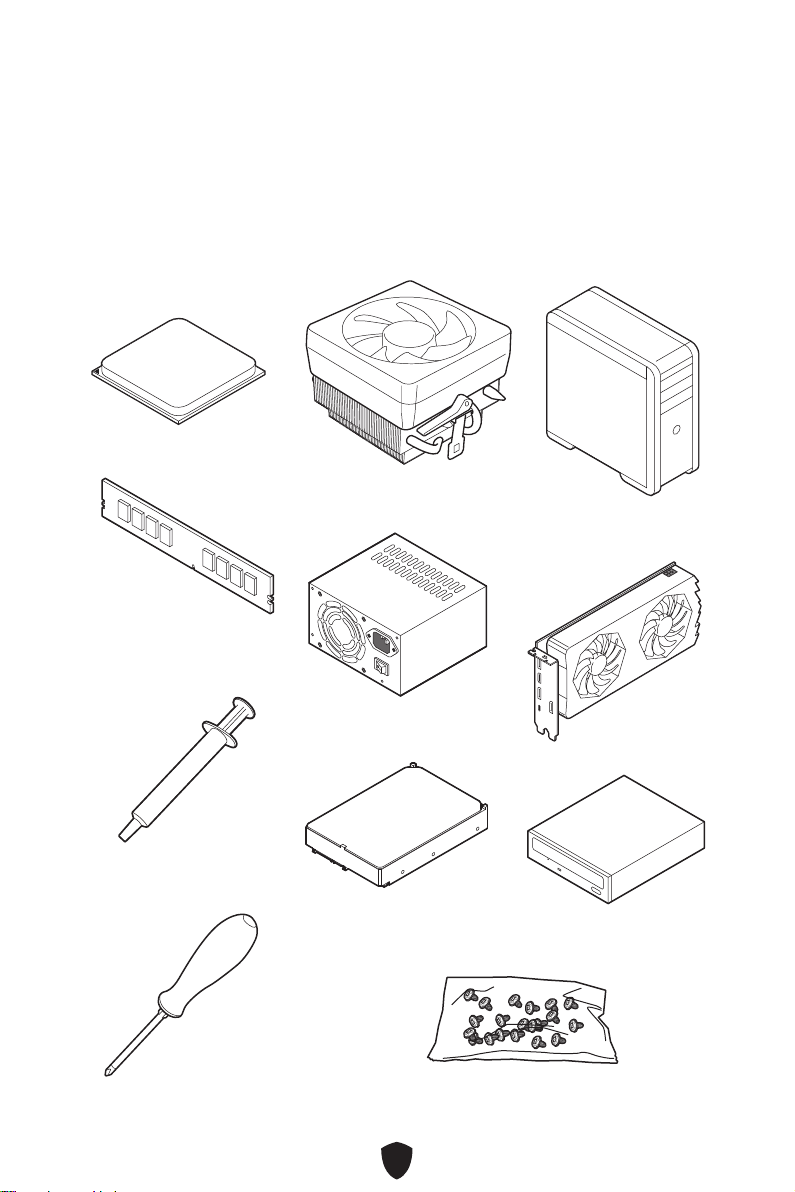
3

4
•
•
•
•
•
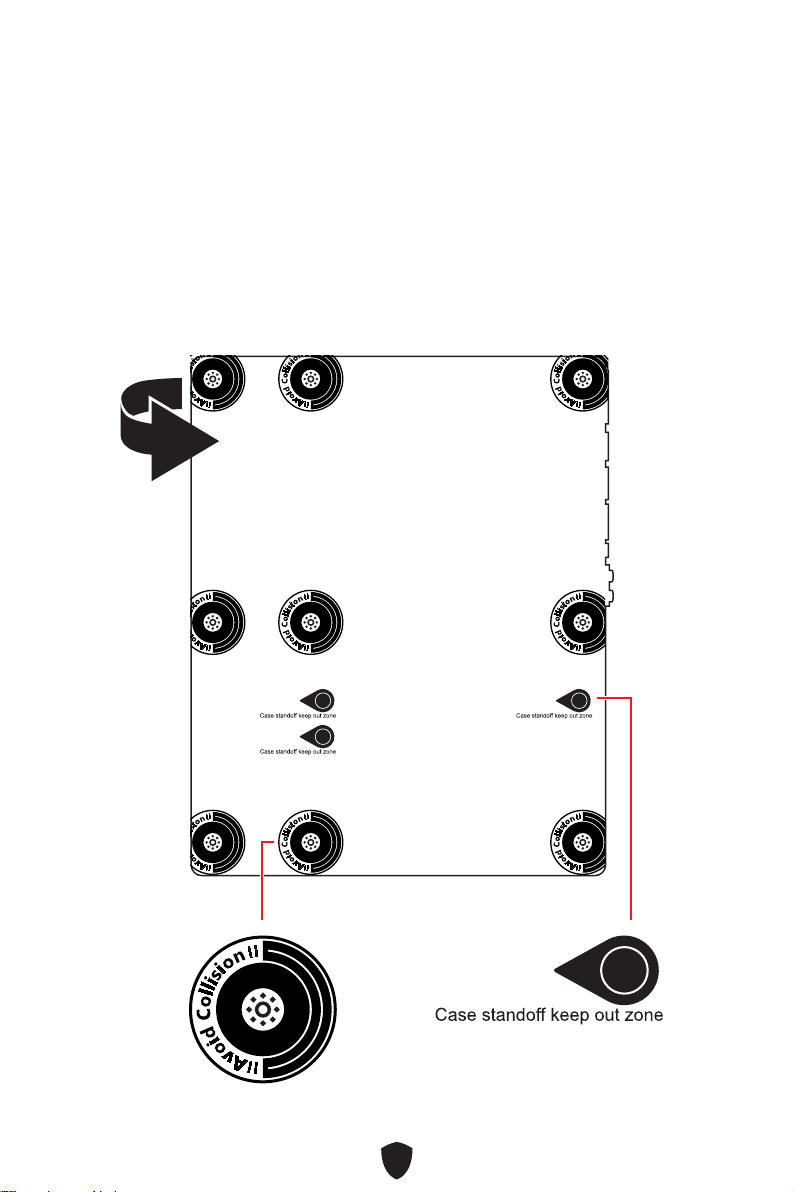
5
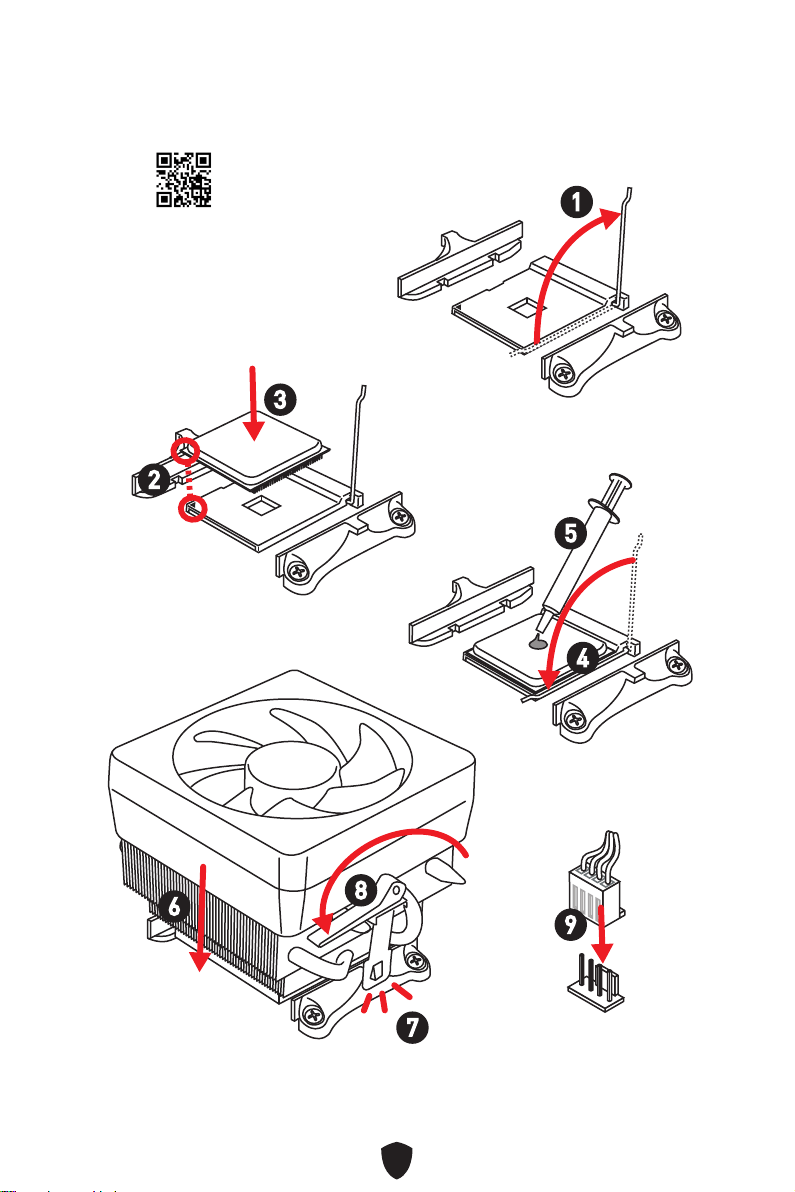
6
https://youtu.be/Xv89nhFk1vc
1
2
3
6
4
5
7
8
9
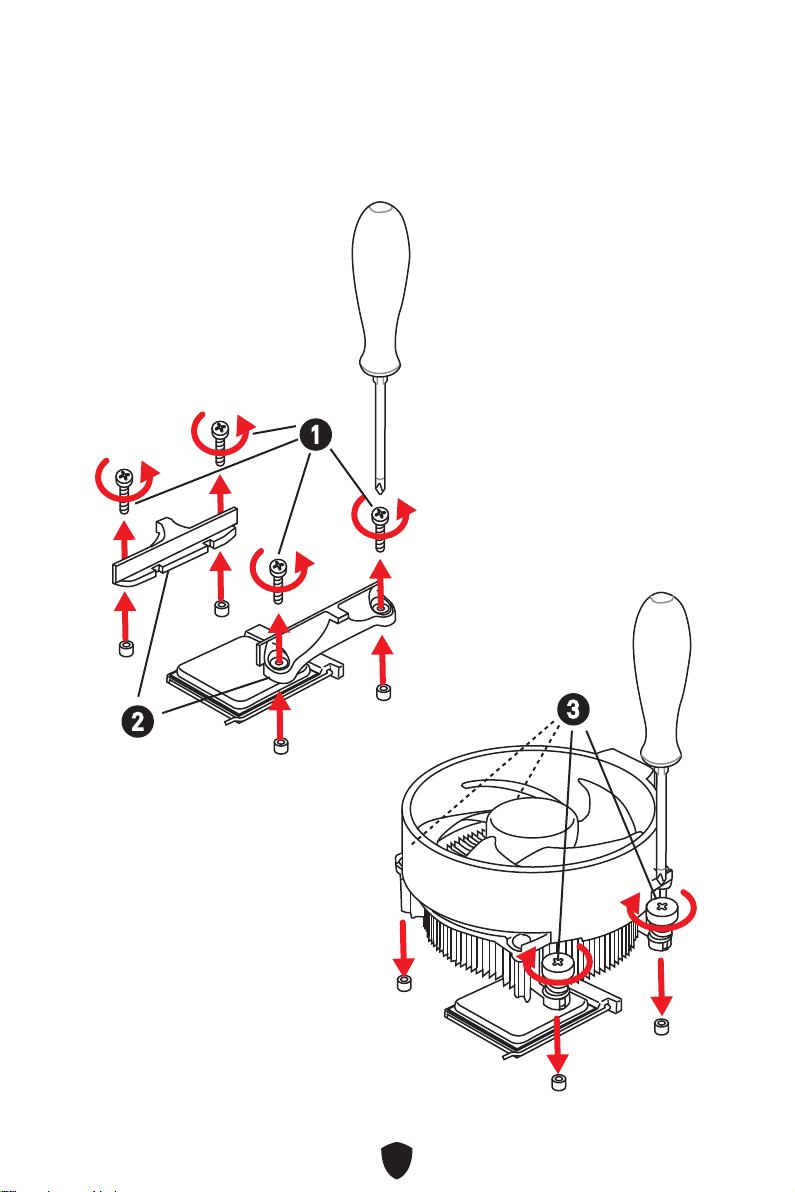
7
1
2
3
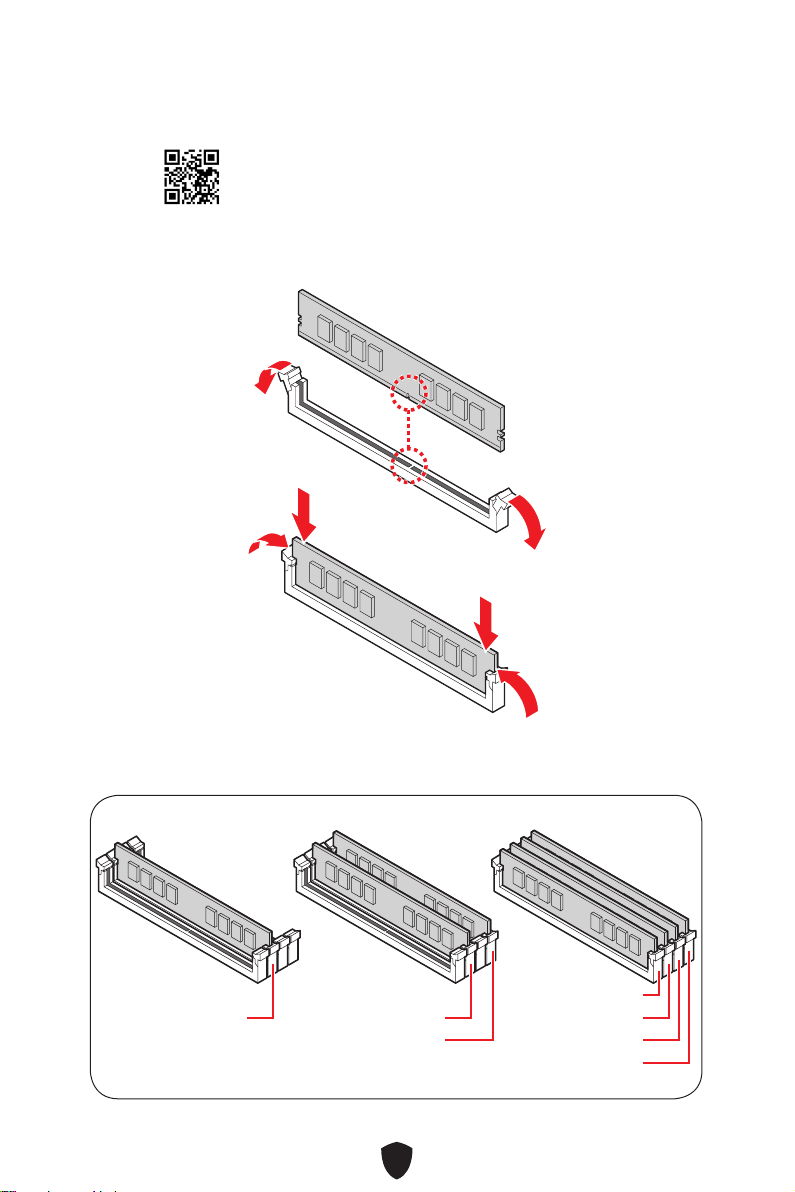
8
DIMMA2 DIMMA2
DIMMB2
DIMMA1
DIMMA2
DIMMB1
DIMMB2
http://youtu.be/T03aDrJPyQs
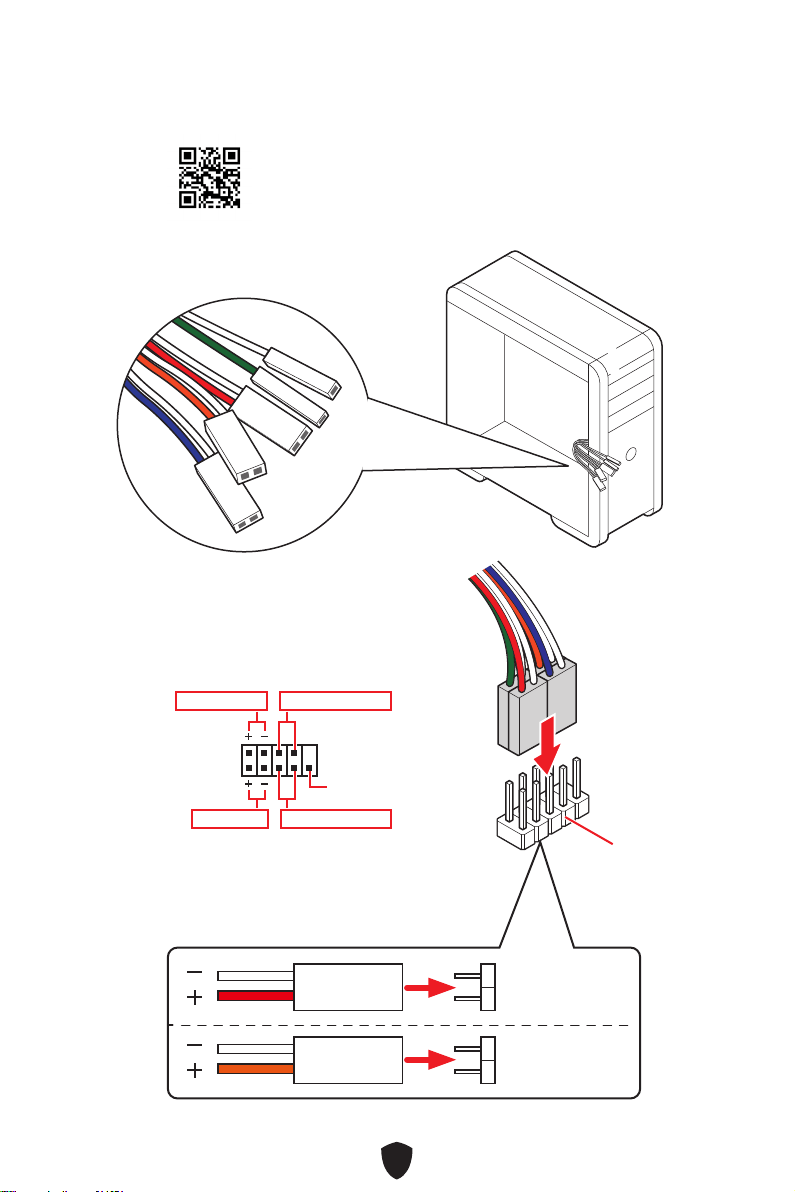
9
HDD LED
RESET SW
http://youtu.be/DPELIdVNZUI
JFP1
HDD LED
HDD LED -
HDD LED +
POWER LED -
POWER LED +
POWER LED
RESET SW
POWER SW
POWER LED+
POWER LED-
HDD LED
1
2 10
9
Power LED
Reserved
Power Switch
JFP1
Reset SwitchHDD LED
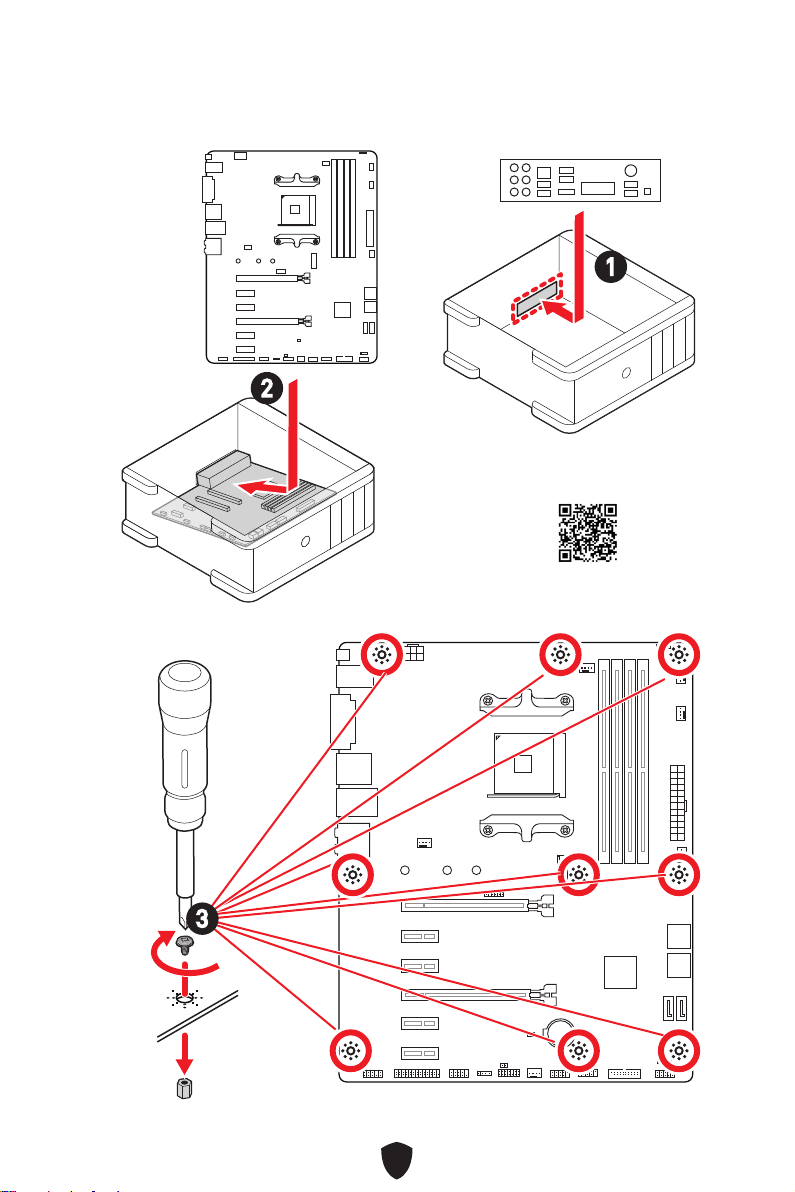
10
BAT1
2
1
https://youtu.be/wWI6Qt51Wnc
3
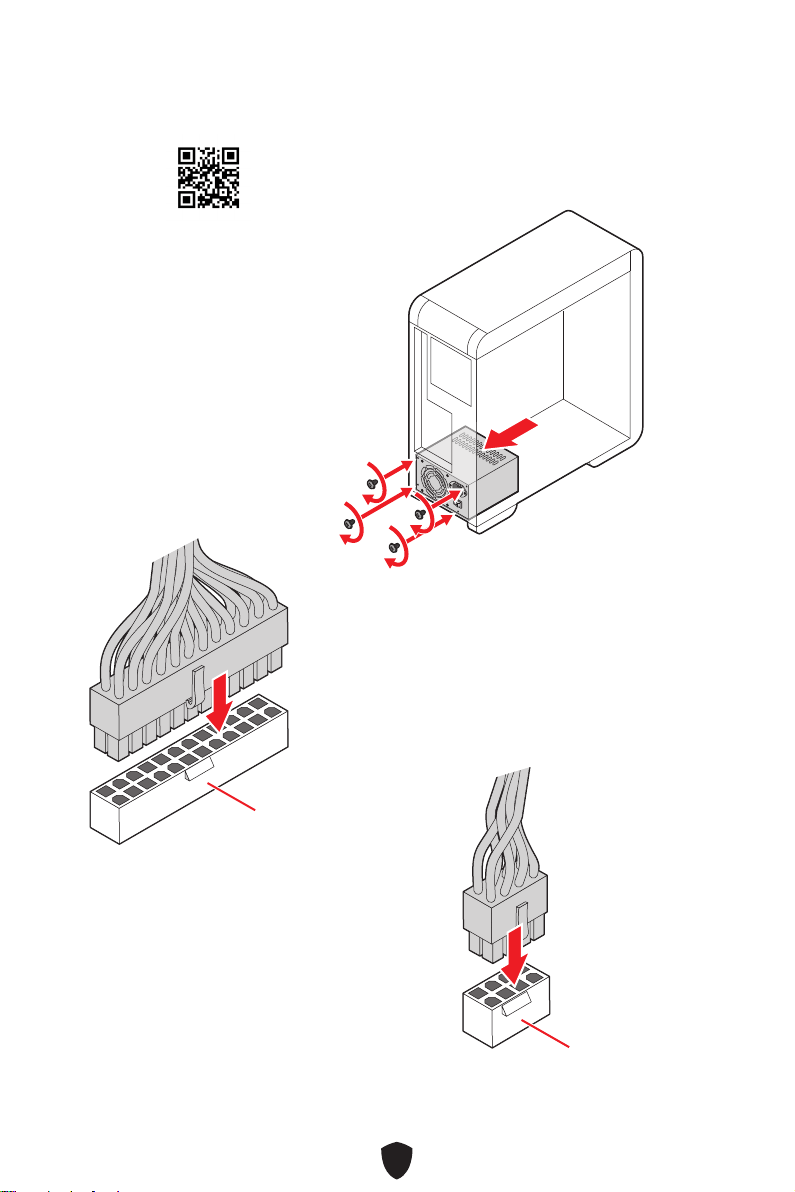
11
http://youtu.be/gkDYyR_83I4
ATX_PWR1
CPU_PWR1
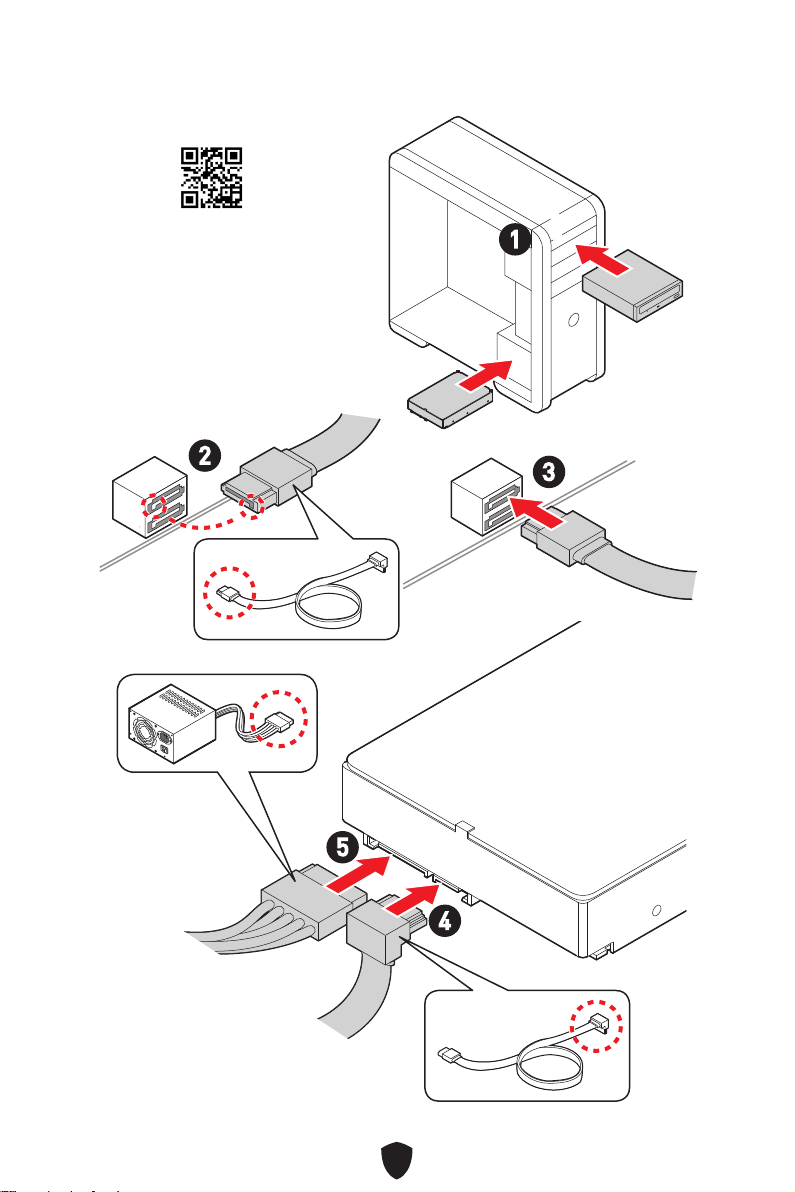
12
http://youtu.be/RZsMpqxythc
1
2
3
4
5
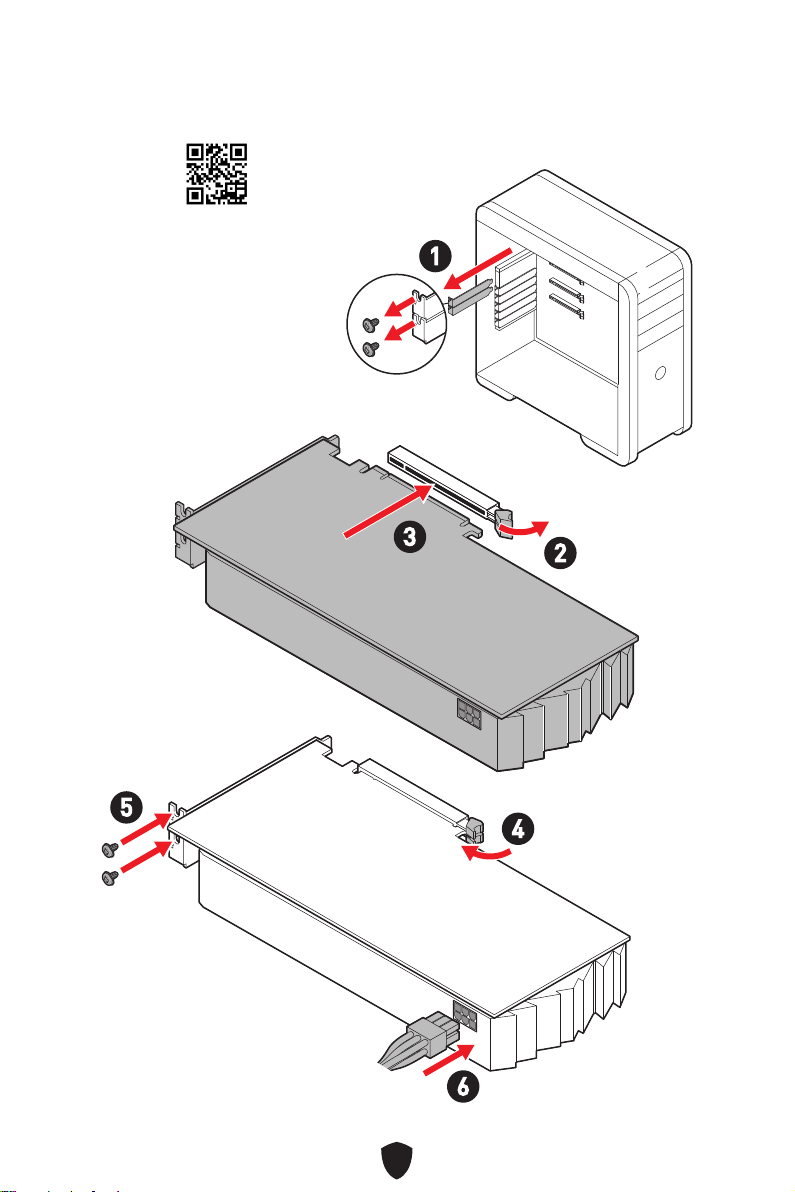
13
http://youtu.be/mG0GZpr9w_A
1
2
3
4
5
6
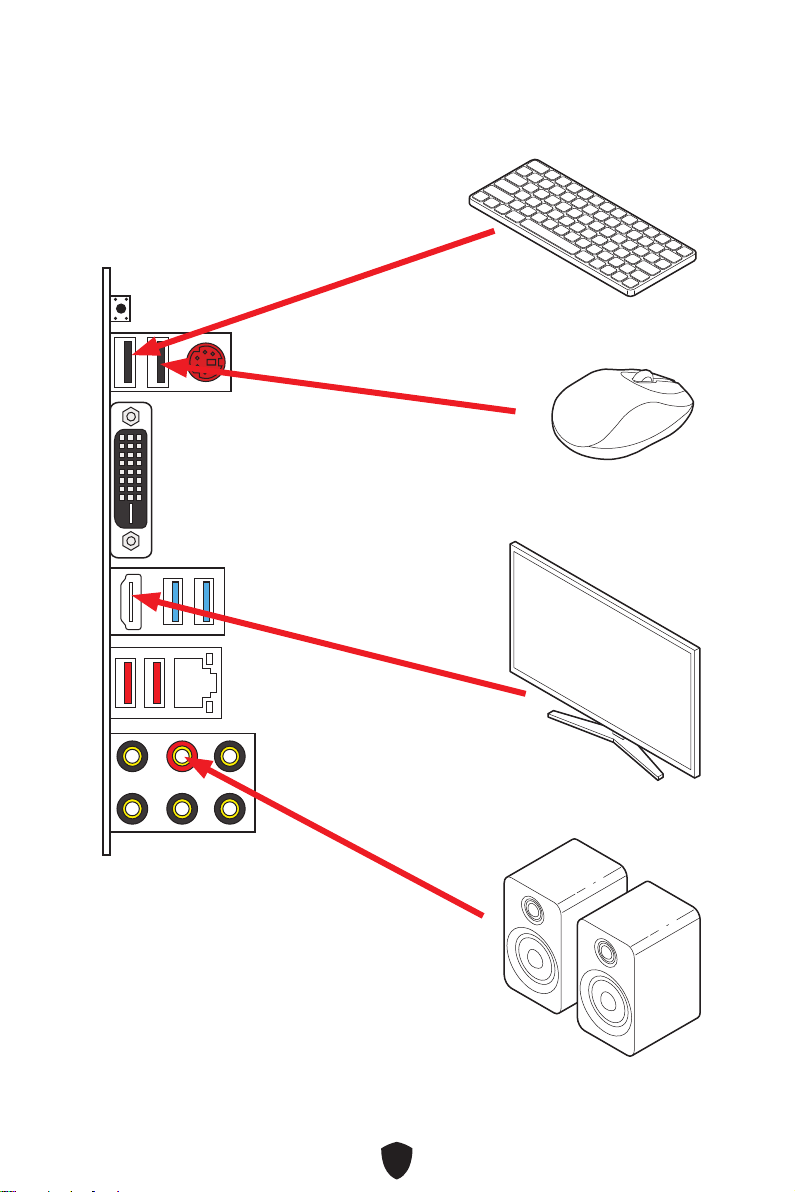
14
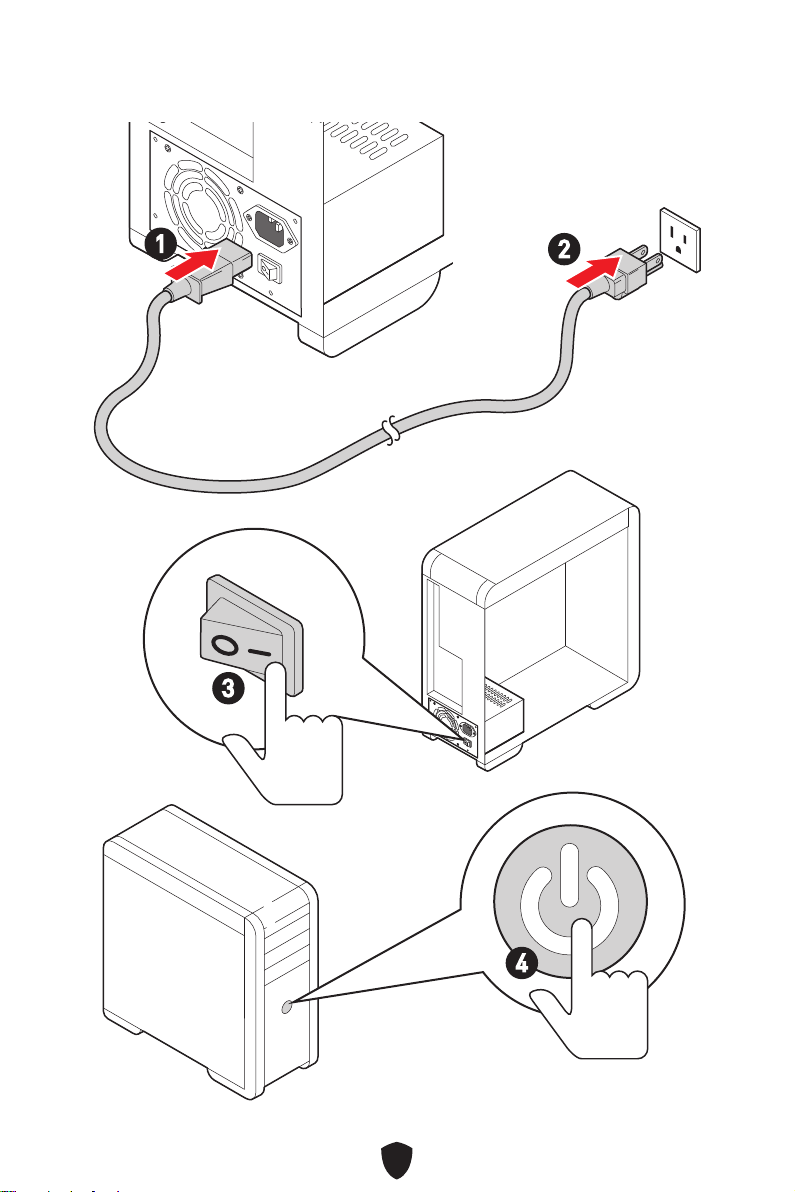
15
4
3
1
2
16
AMD® B550
•
•
•
•
•
•
•
•
•
•
GPU
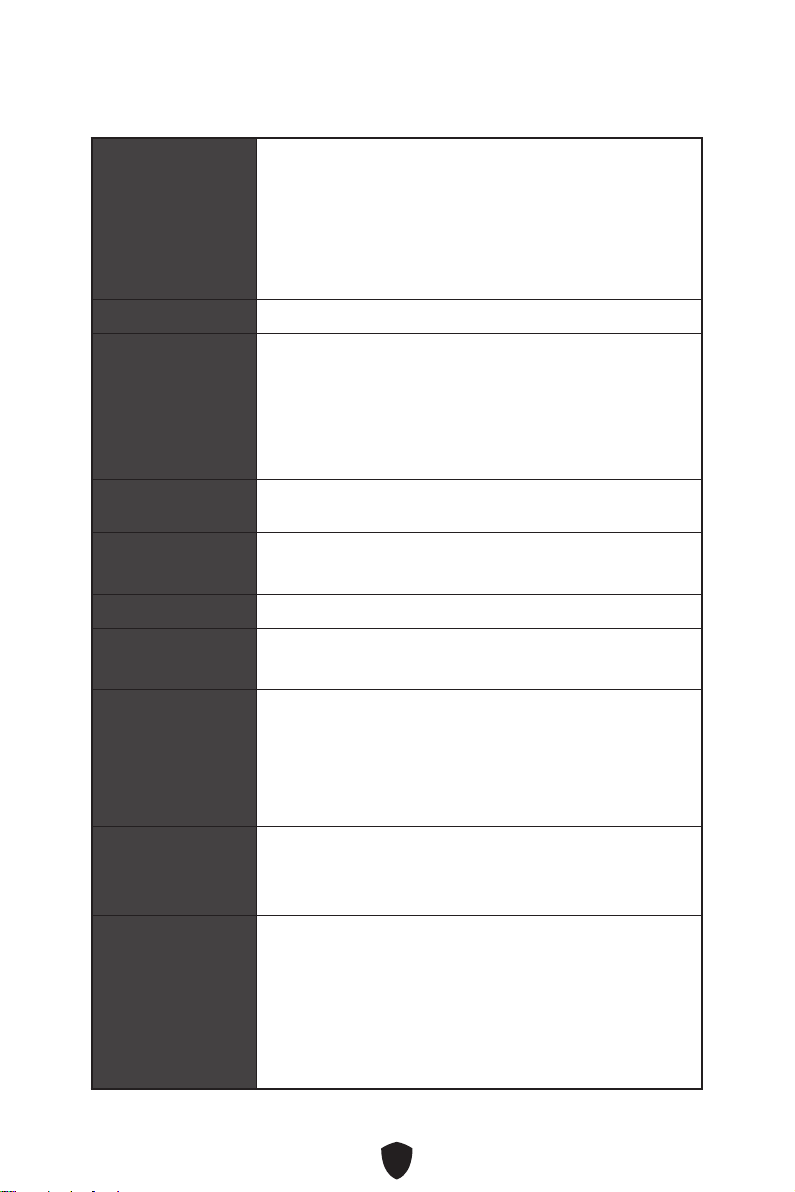
17
/
**
•
•
•
•
RAID
SATA
Realtek® ALC897 Codec
LAN
USB
•
•
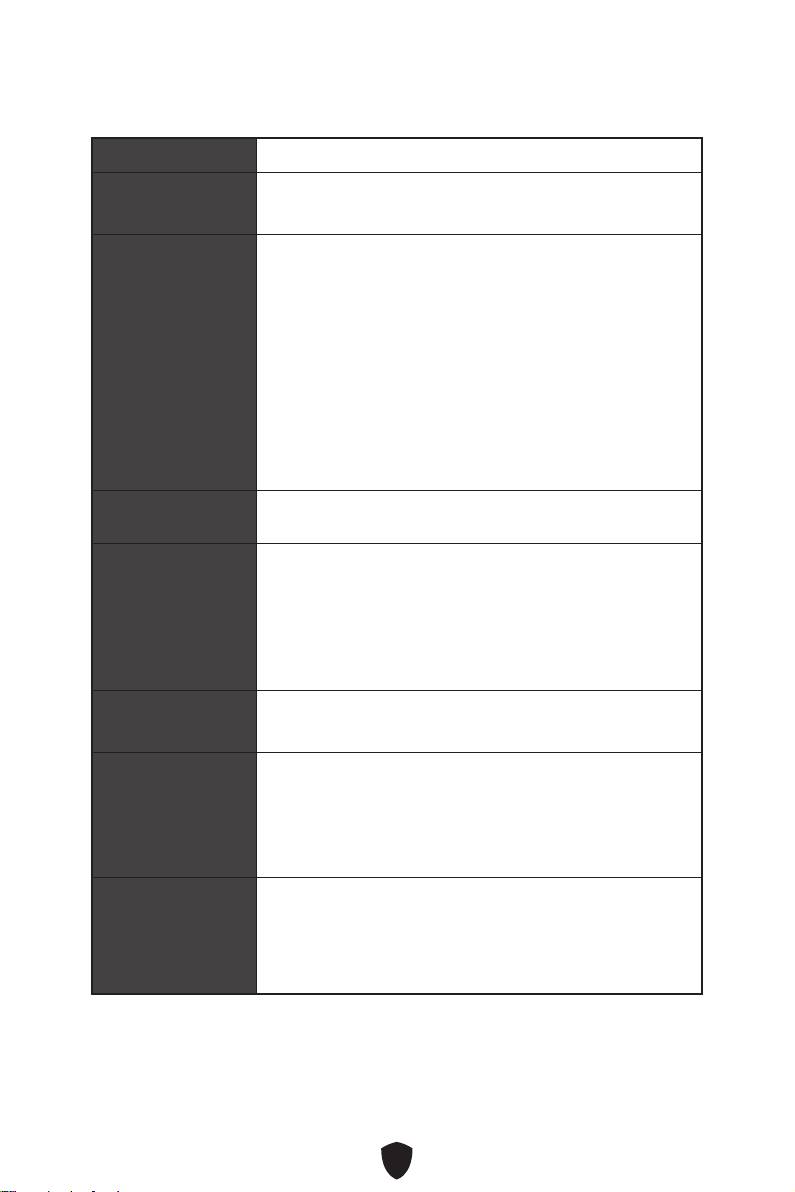
18
NUVOTON NCT6797
UEFI AMI BIOS
ACPI 6.1, SMBIOS 2.8
MSI Center
CPU-Z MSI GAMING
Google Chrome™, Google Toolbar, Google Drive
Norton™ Internet Security Solution

19
MSI Center
• User Scenario
• True Color
• Live Update
• Hardware Monitoring
• Super Charger
• Speed Up
• Smart Image Finder
• MSI Companion
• Audio Boost
• LAN Manager
• Extended Heatsink Design
• Smart Fan Control
• Mystic Light Extension (RGB)
• Mystic Light
• EZ DEBUG LED
• DDR4 Boost
• Core Boost
• GAME Boost
• PCI-E Steel Armor
• MSI Center
• GAMING HOTKEY
• GAMING MOUSE Control
• Click BIOS 5

20
•
•
•
•
•
•
•
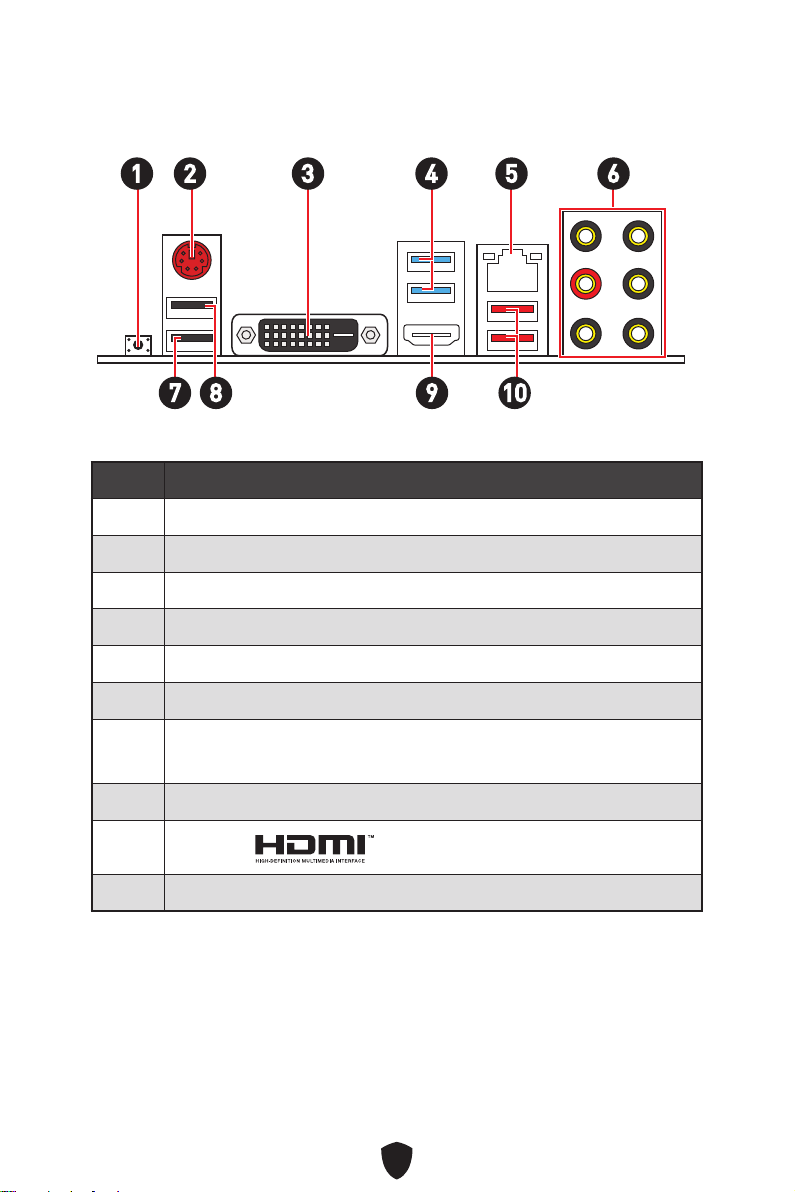
21
1
10
2 3 4 65
1
2
3
4
5
6
7
•
8
9
10
7 98

22
AUDIO INPUT
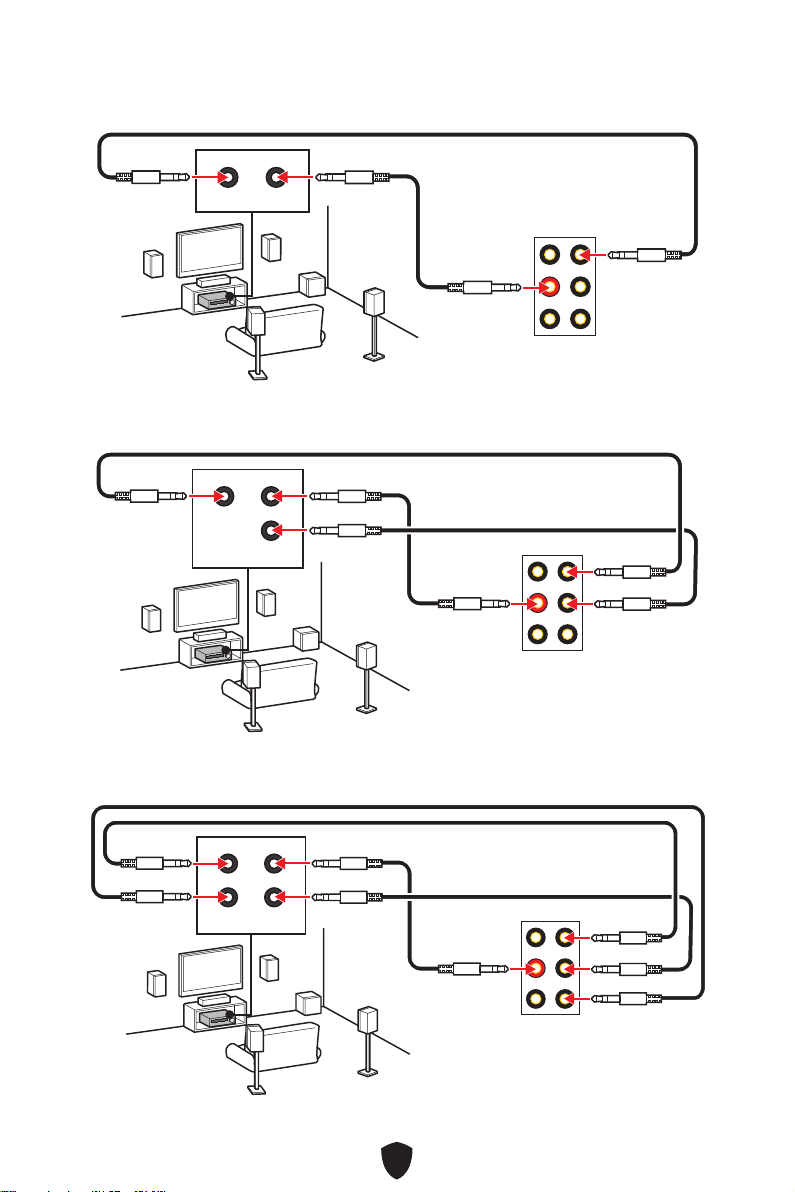
23
AUDIO INPUT
Rear Front
AUDIO INPUT
Rear Front
Center/
Subwoofer
AUDIO INPUT
Rear Front
Center/
Subwoofer
Side
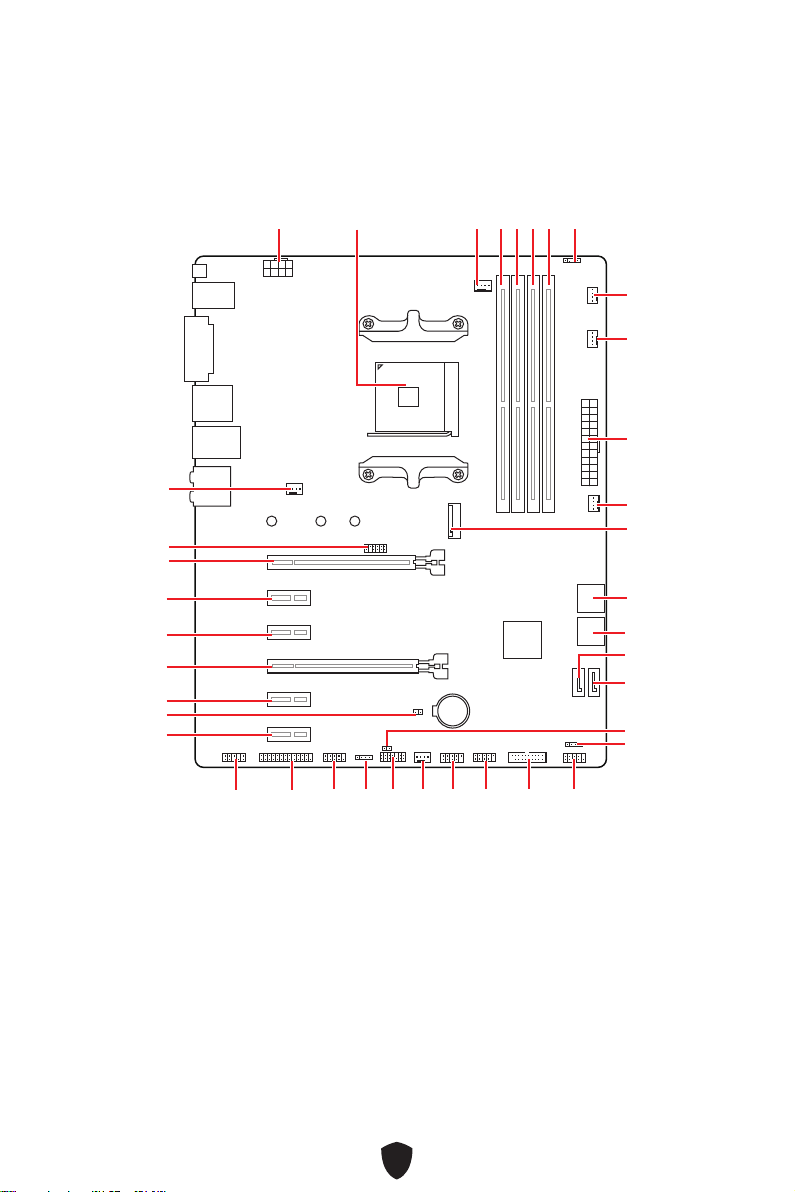
24
BAT1
M2_1
ATX_PWR1
SYS_FAN3
SYS_FAN4
PUMP_FAN1
CPU_FAN1
DIMMB2
JRGB1
CPU_PWR1
JFP1
JRGB2
SATA2
JUSB2
JUSB1
JLPC1
JUSB3
JCOM1
JLPT1
JAUD1
PCI_E1
JTPM1
SYS_FAN1
PCI_E2
PCI_E3
PCI_E4
PCI_E5
JBAT1
PCI_E6
SYS_FAN2
SATA1
JFP2
JCI1
DIMMB1
DIMMA2
DIMMA1
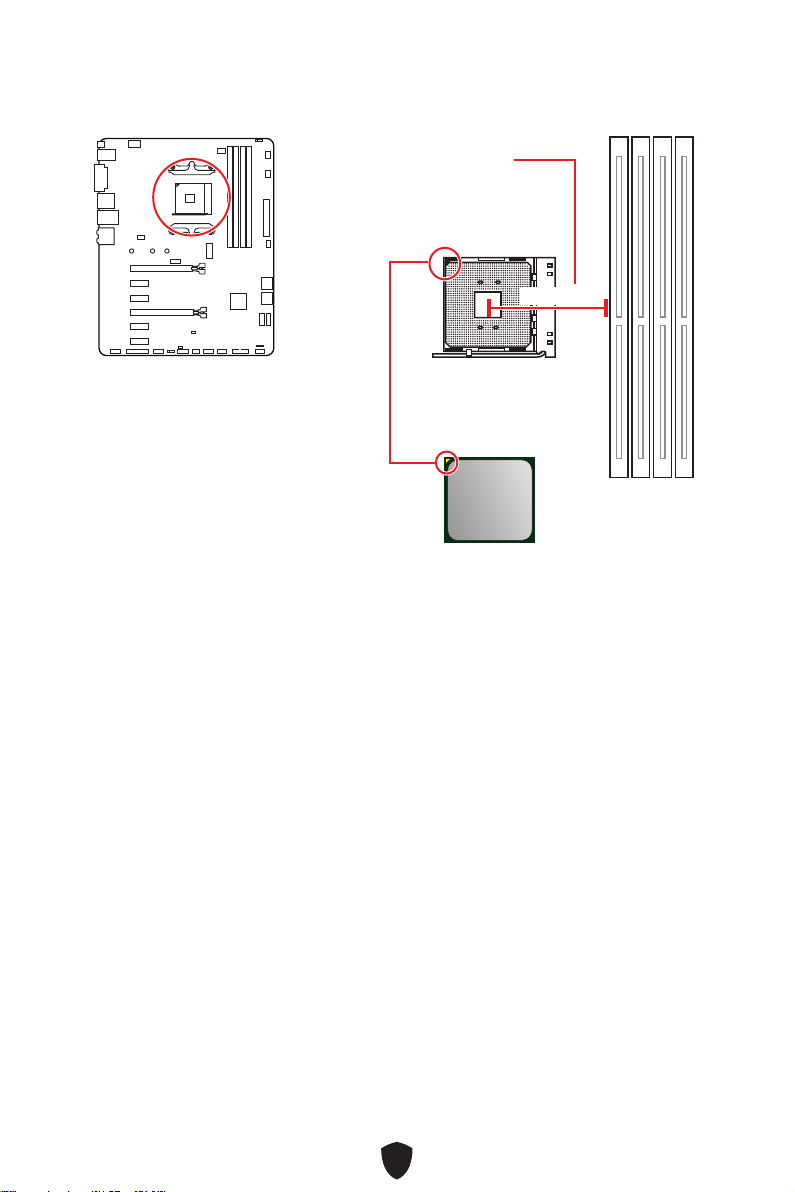
25
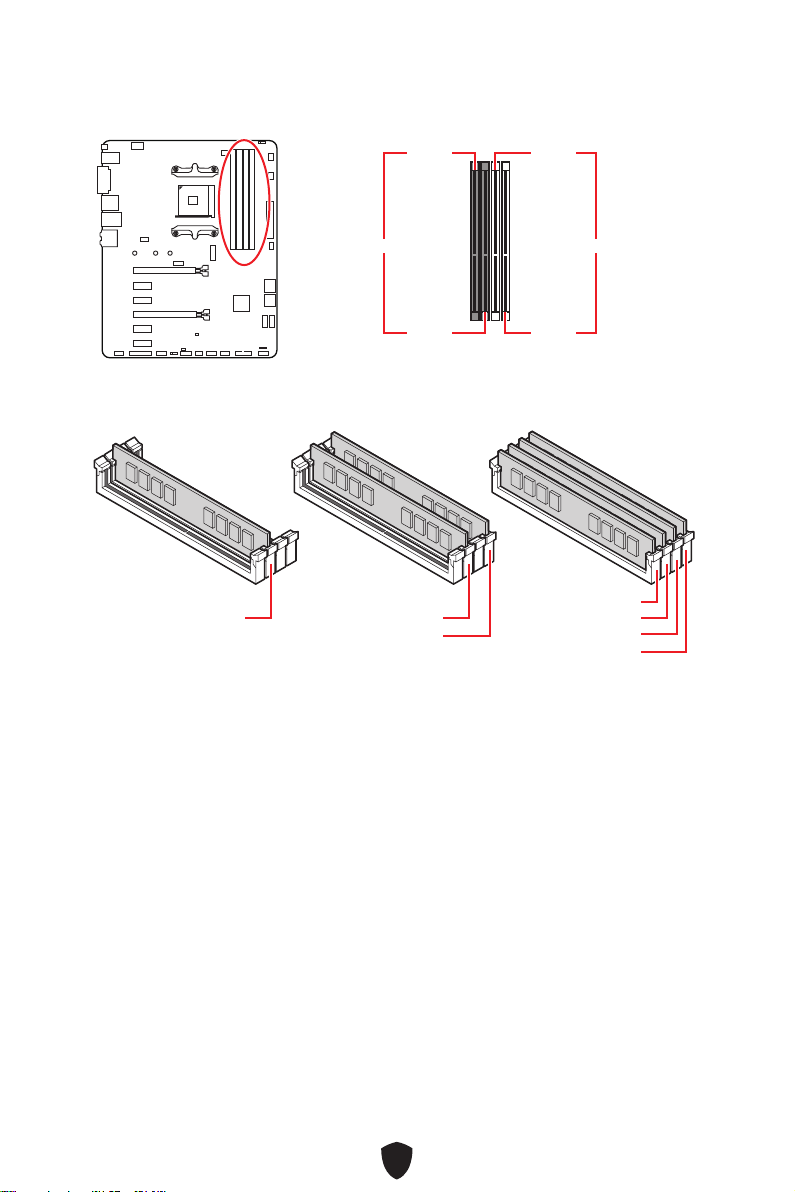
26
DIMMA1 DIMMB1
DIMMA2 DIMMB2
DIMMA2.
DRAM Frequency
DIMMA2 DIMMA2
DIMMB2
DIMMA1
DIMMA2
DIMMB1
DIMMB2
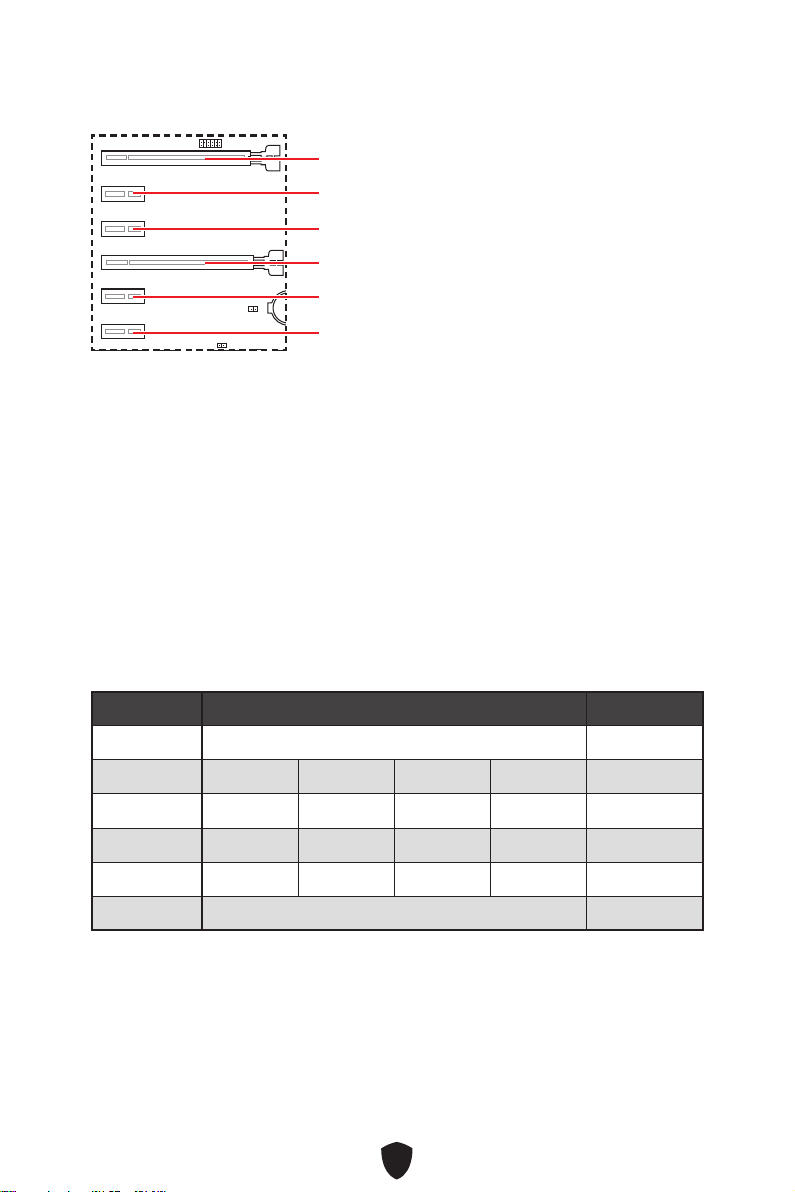
27
BAT1
PCI_E1
PCI_E4
PCI_E2
PCI_E5
PCI_E3
PCI_E6
MSI Graphics Card Bolster
PCI_E1.
2-Way
PCI_E1 (CPU) @ 3.0 x16 @ 3.0 x16
PCI_E2 (PCH) 2.0 x1 2.0 x1 Empty Empty —
PCI_E3 (PCH) 2.0 x1 Empty 2.0 x1 Empty —
PCI_E4 (PCH) 2.0 x1 2.0 x1 2.0 x1 2.0 x1 @3.0 x4
PCI_E5 (PCH) 2.0 x1 Empty Empty 2.0 x1 —
PCI_E6 (PCH) 2.0 x1 2.0x1
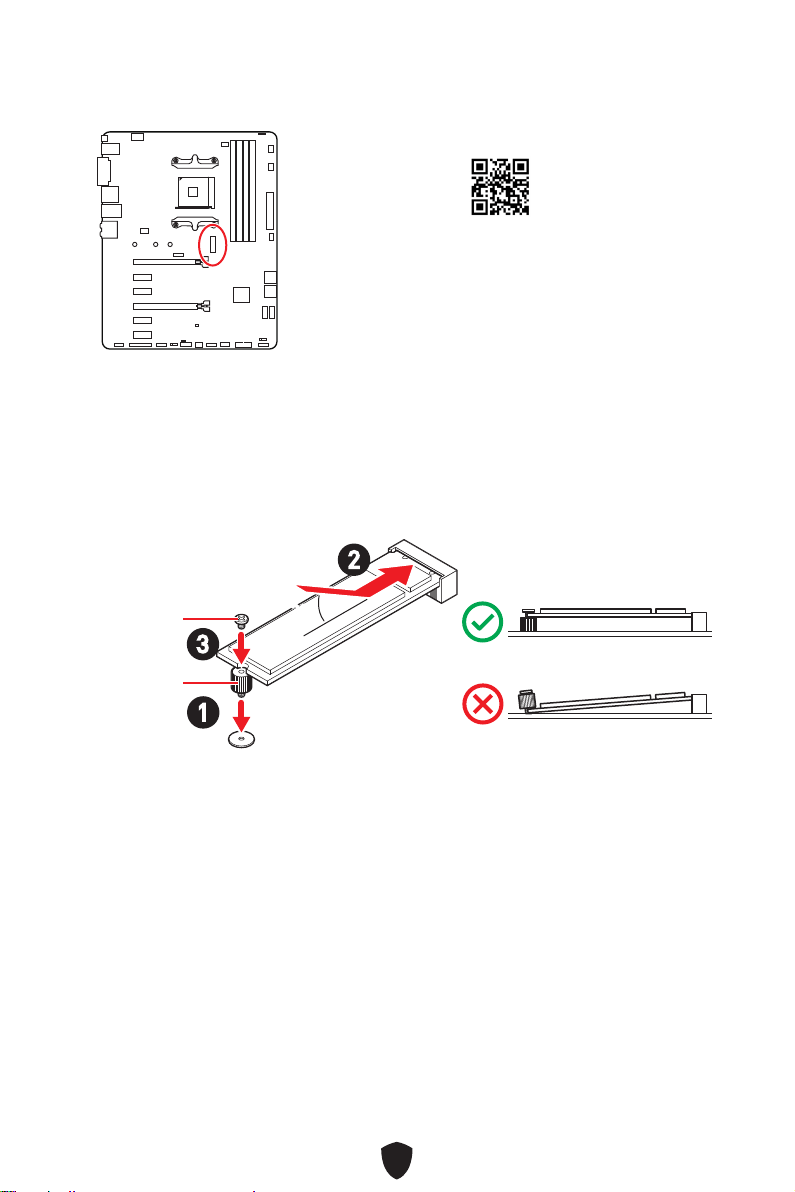
28
1.
2.
3.
30º30º
2
3
1
M.2
M.2.
http://youtu.be/JCTFABytrYA
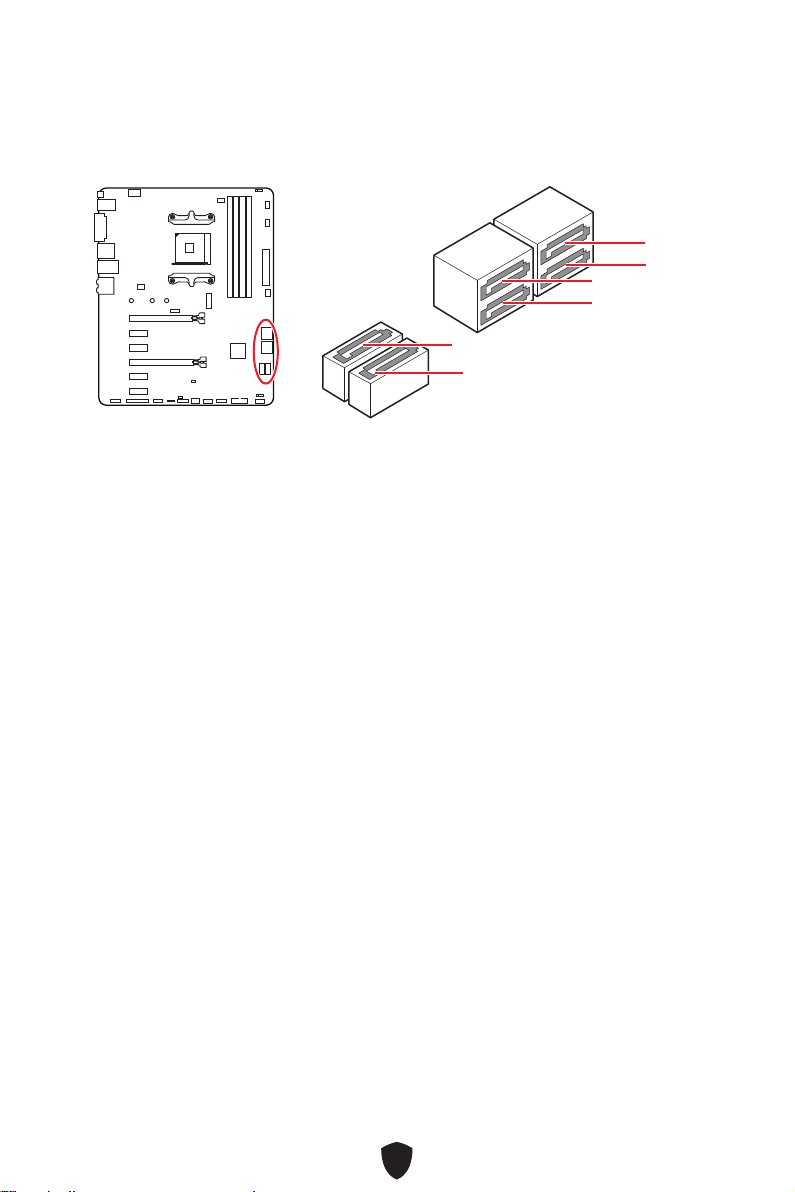
29
SATA5
SATA3
SATA1
SATA6
SATA4
SATA2
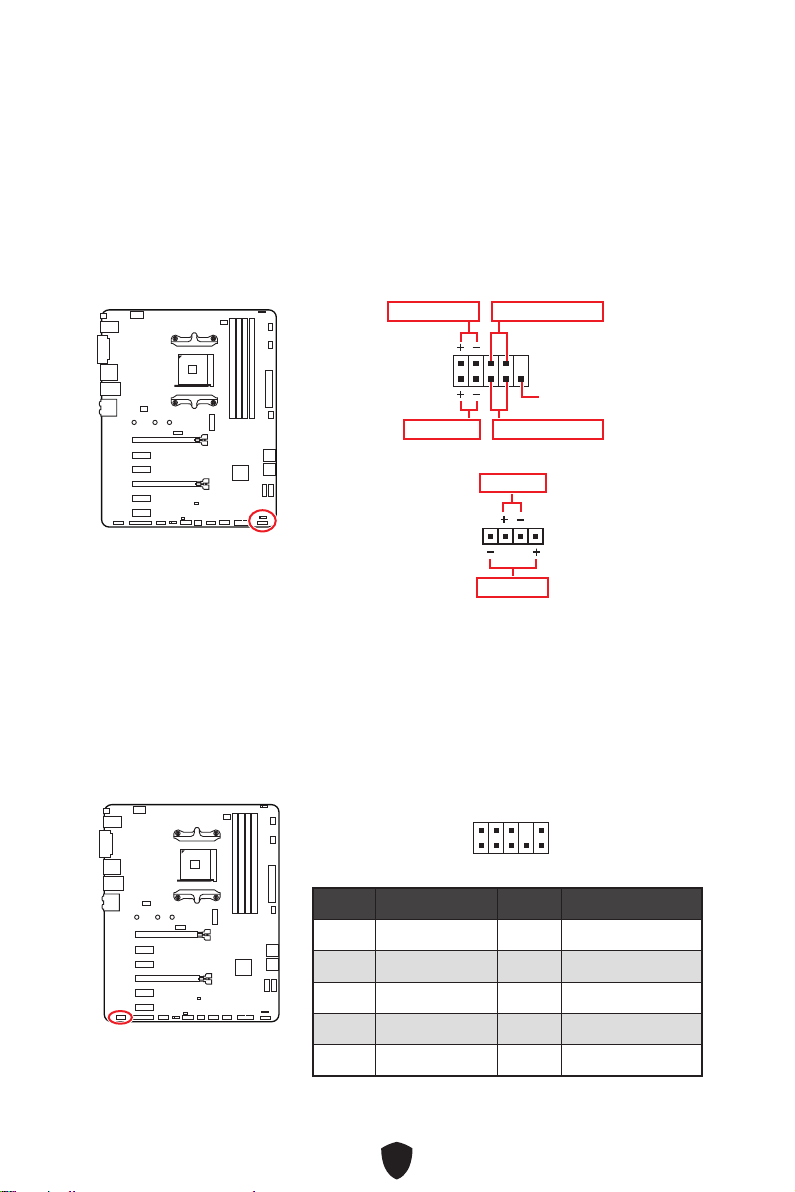
30
1
2 10
9
Power LED
Reserved
Power Switch
JFP1
Reset SwitchHDD LED
1
JFP2
Buzzer
Speaker
1
2 10
9
1 MIC L 2 Ground
3 MIC R 4 NC
5 Head Phone R 6 MIC Detection
7 SENSE_SEND 8 No Pin
9 Head Phone L 10 Head Phone Detection
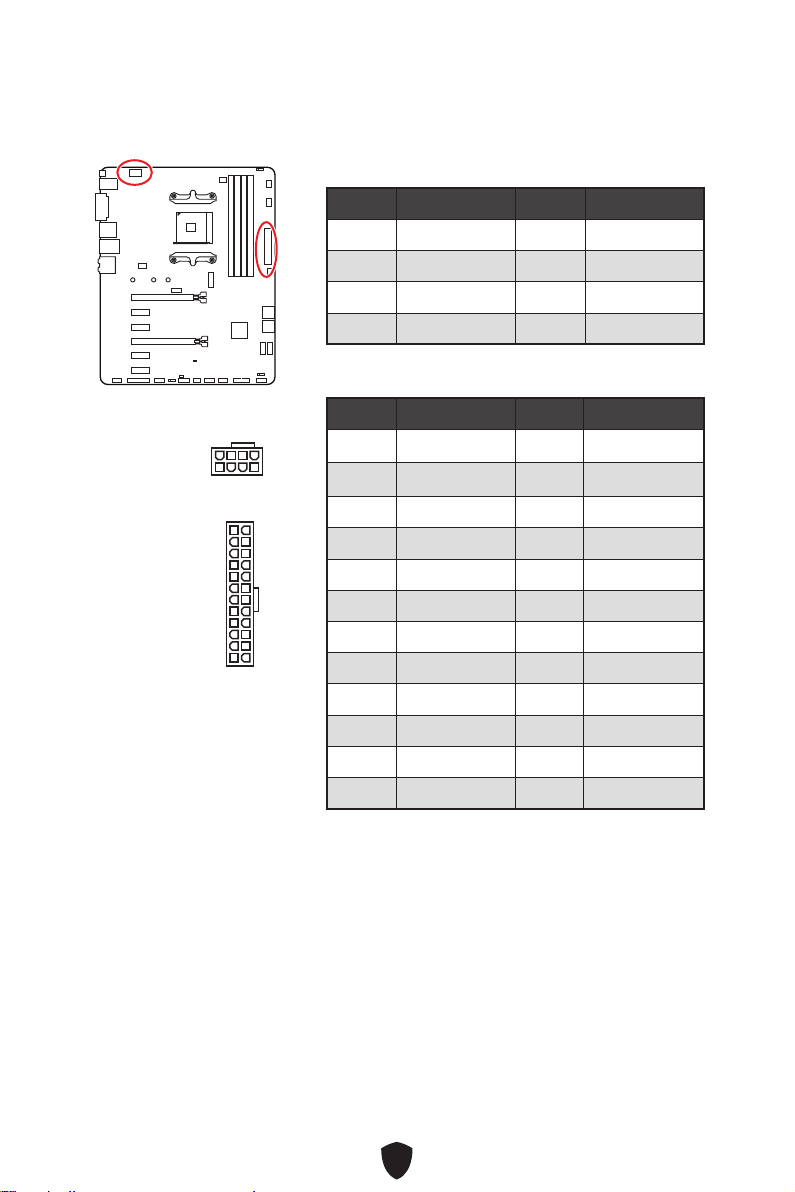
31
CPU_PWR1
1 Ground 2 Ground
3 Ground 4 Ground
5 +12V 6 +12V
7 +12V 8 +12V
ATX_PWR1
1 +3.3V 2 +3.3V
3 Ground 4
+5V
5 Ground 6 +5V
7 Ground 8 PWR OK
9 5VSB 10 +12V
11 +12V 12 +3.3V
13 +3.3V 14 -12V
15 Ground 16 PS-ON#
17 Ground 18 Ground
19 Ground 20 Res
21 +5V 22 +5V
23 +5V 24 Ground
5
4 1
8
CPU_PWR1
24
131
12
ATX_PWR1
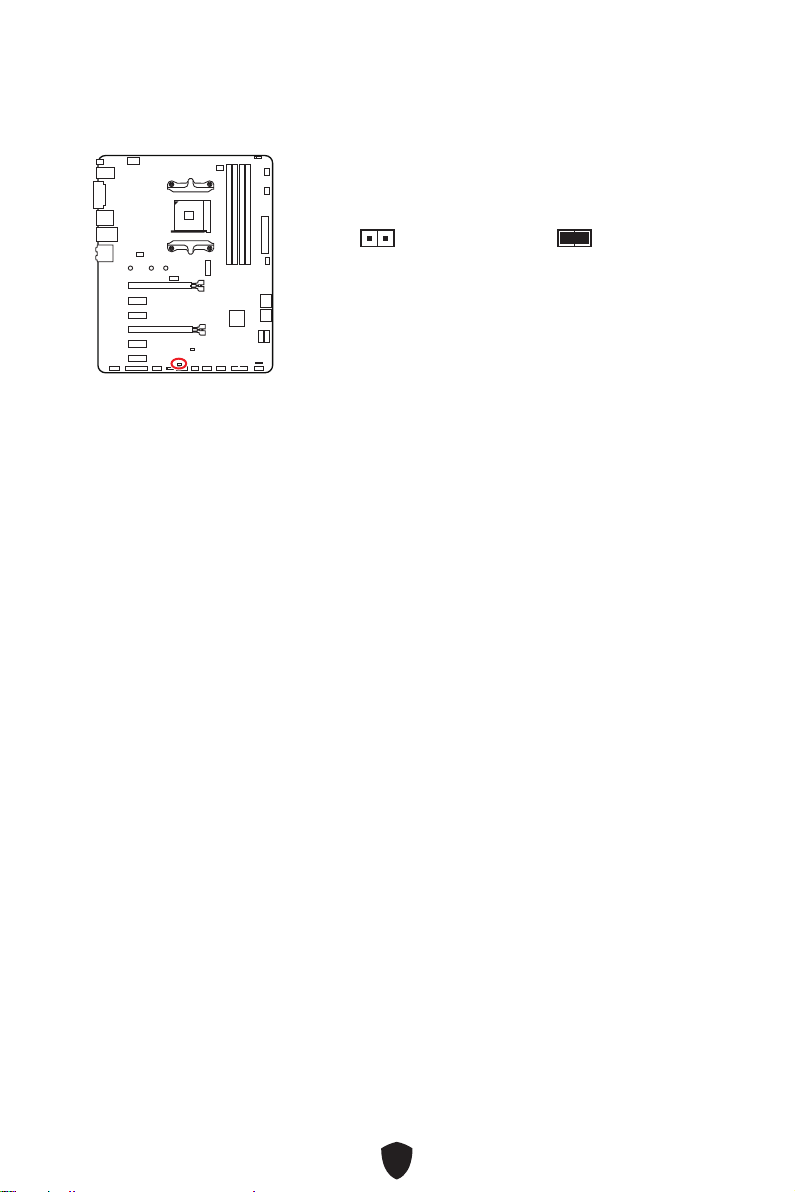
32
1.
JCI1.
2.
3. BIOS > SETTINGS > Security > Chassis Intrusion Configuration.
4. Chassis IntrusionEnabled.
5. F10
EnterYes.
6.
1.
BIOS > SETTINGS > Security > Chassis Intrusion Configuration.
2. Chassis Intrusion, Reset.
3. F10
EnterYes.
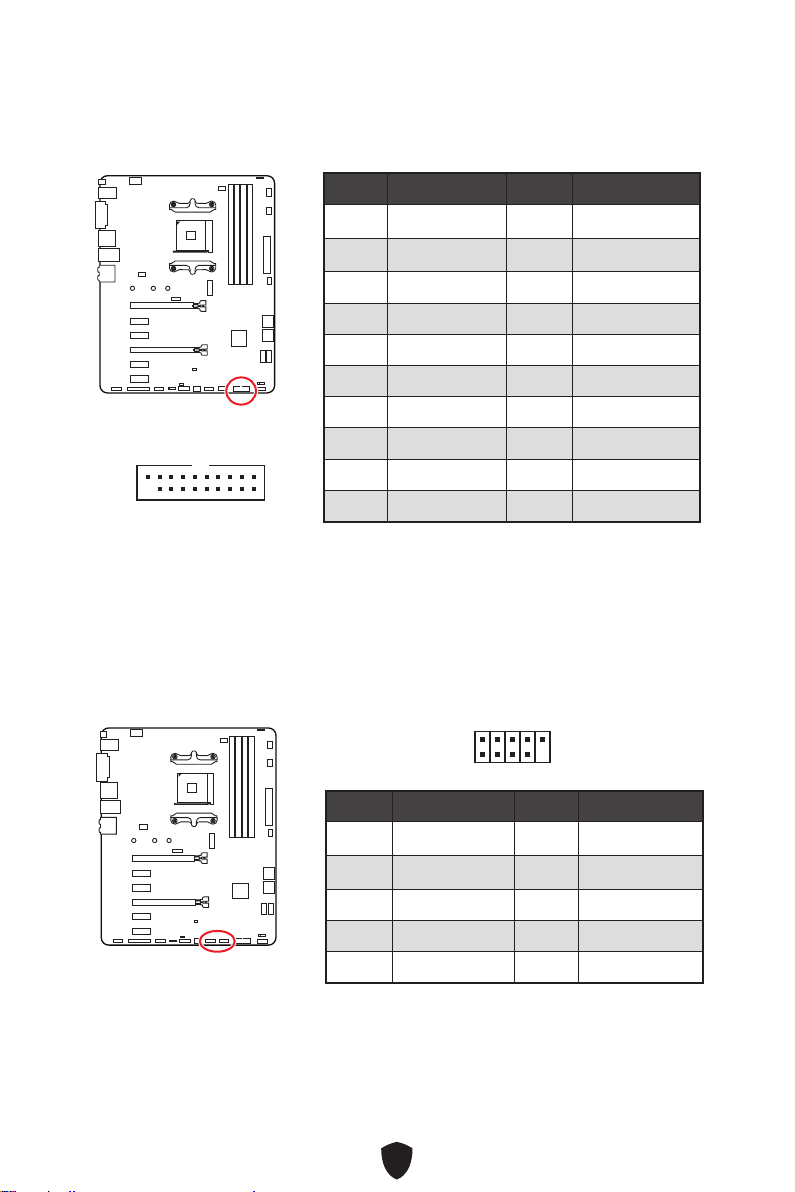
33
1 Power 2 USB3_RX_DN
3 USB3_RX_DP 4 Ground
5 USB3_TX_C_DN 6 USB3_TX_C_DP
7 Ground 8 USB2.0-
9 USB2.0+ 10 Ground
11 USB2.0+ 12 USB2.0-
13 Ground 14 USB3_TX_C_DP
15 USB3_TX_C_DN 16 Ground
17 USB3_RX_DP 18 USB3_RX_DN
19 Power 20 No Pin
1 10
1120
1 VCC 2 VCC
3 USB0- 4 USB1-
5 USB0+ 6 USB1+
7 Ground 8 Ground
9 No Pin 10 NC
1
2 10
9
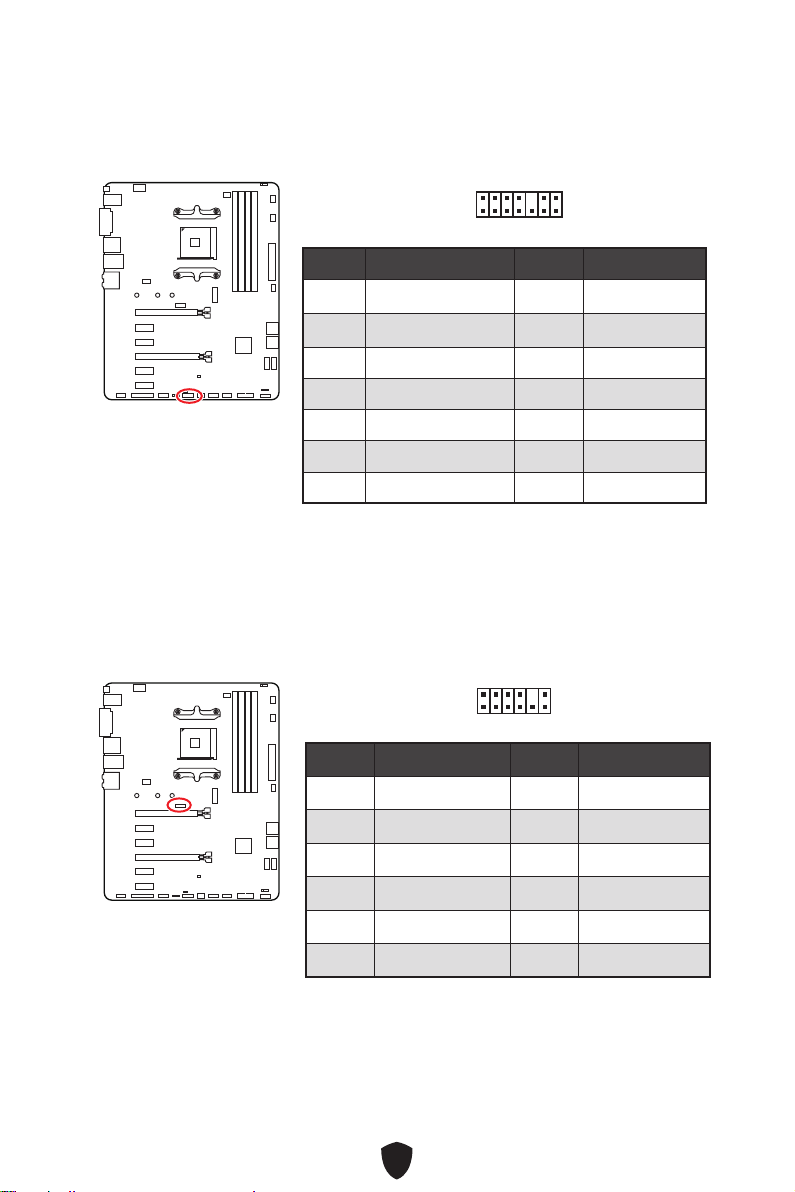
34
1 LPC Clock 2 3V Standby power
3 LPC Reset 4 3.3V Power
5 LPC address & data pin0 6 Serial IRQ
7 LPC address & data pin1 8 5V Power
9 LPC address & data pin2 10 No Pin
11 LPC address & data pin3 12 Ground
13 LPC Frame 14 Ground
1
2 14
13
1 1.8V power 2 SPI_TPM_CS#_R
3 SPI_TPM_DATI 4 SPI_DATO
5 SPI_CS#_R 6 SPI_TPM_CLK
7 Ground 8 SPI_TPM_RST#
9 SPI_SW_SEL 10 NA
11 SPI_TPM_WP# 12 SPI_TPM_HOLD#
1
2 12
11
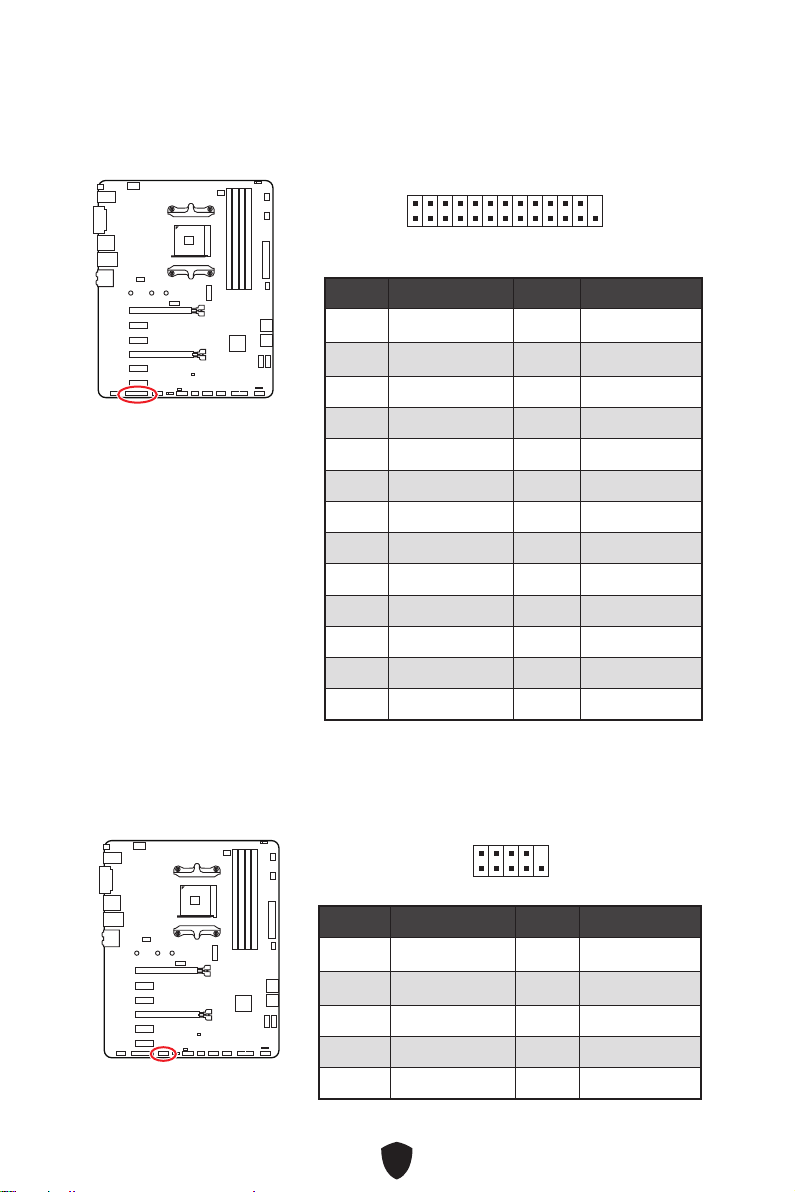
35
1
2 26
25
1 RSTB# 2 AFD#
3 PRND0 4 ERR#
5 PRND1 6 PINIT#
7 PRND2 8 LPT_SLIN#
9 PRND3 10 Ground
11 PRND4 12 Ground
13 PRND5 14 Ground
15 PRND6 16 Ground
17 PRND7 18 Ground
19 ACK# 20 Ground
21 BUSY 22 Ground
23 PE 24 Ground
25 SLCT 26 No Pin
1 DCD 2 SIN
3 SOUT 4 DTR
5 Ground 6 DSR
7 RTS 8 CTS
9 RI 10 No Pin
1
2 10
9
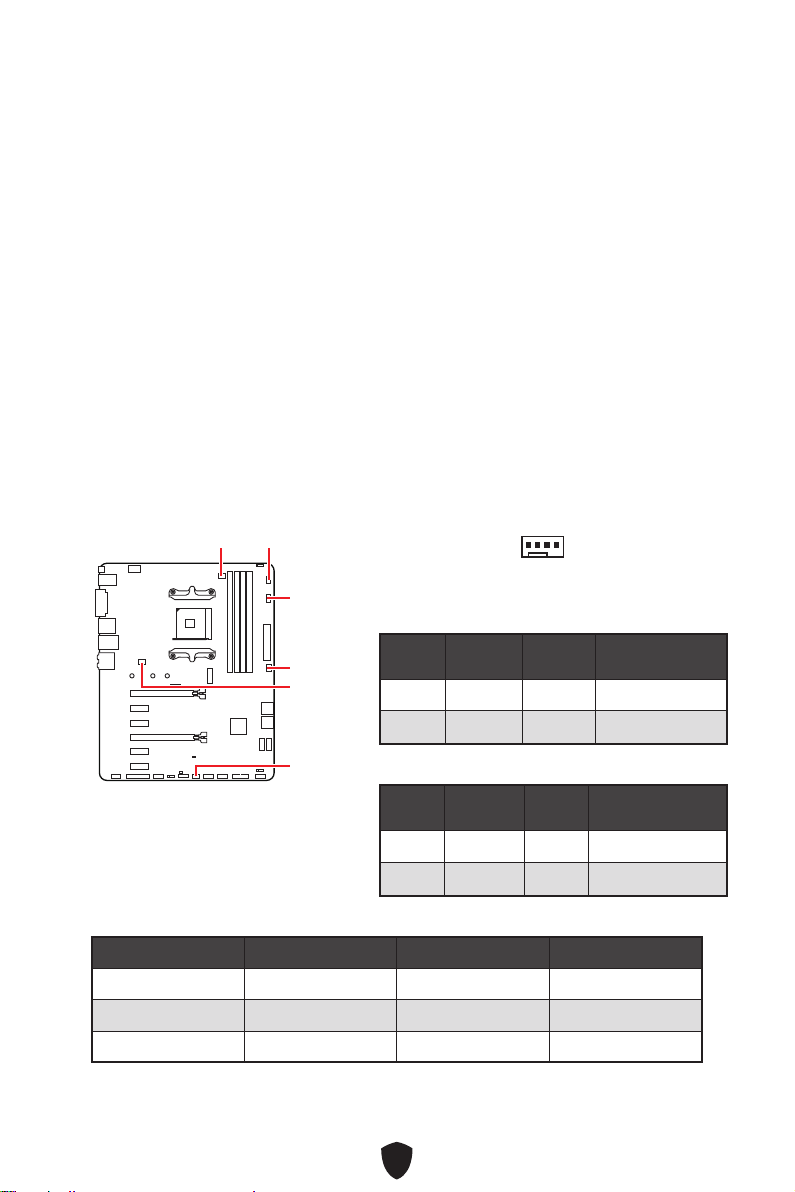
36
BIOS > HARDWARE MONITOR
Smart
Fan Mode
CPU_FAN1
SYS_FAN2
SYS_FAN4
SYS_FAN1
PUMP_FAN1
SYS_FAN3
1
PWM
1 Ground 2 +12V
3 Sense 4 Speed Control Signal
1 Ground 2 Voltage Control
3 Sense 4 NC
CPU_FAN1
PUMP_FAN1
SYS_FAN1~4
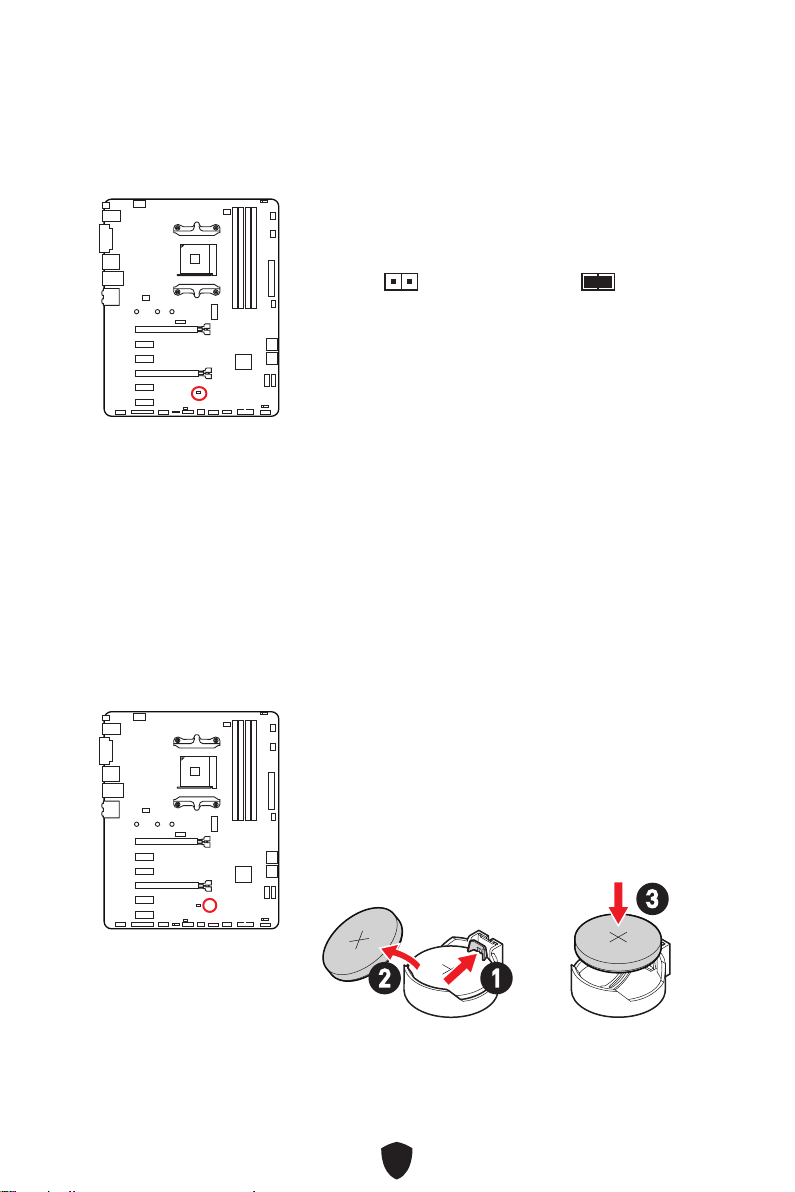
37
1.
2. JBAT1
3. JBAT1.
4.
1.
2.
3.
+
12
3
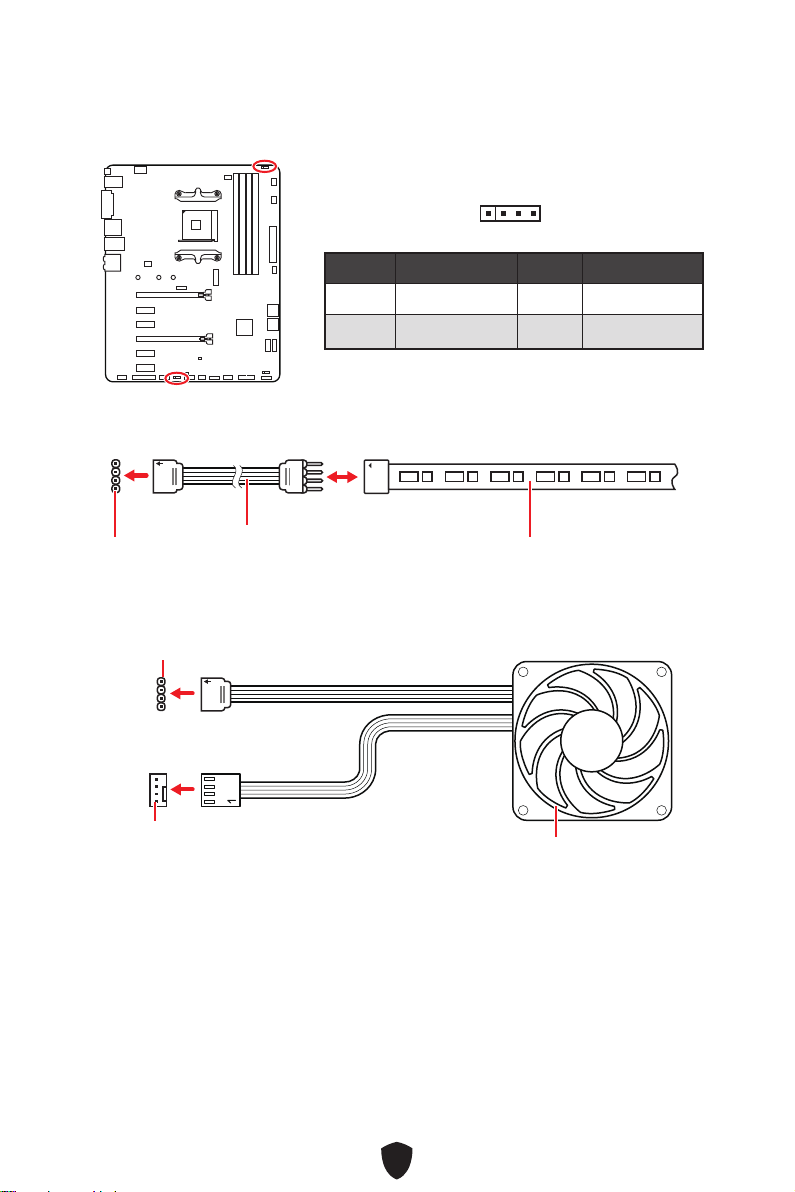
38
1
G
R
B
JRGB
1
1
G
R
B
1 +12V 2 G
3 R 4 B
1
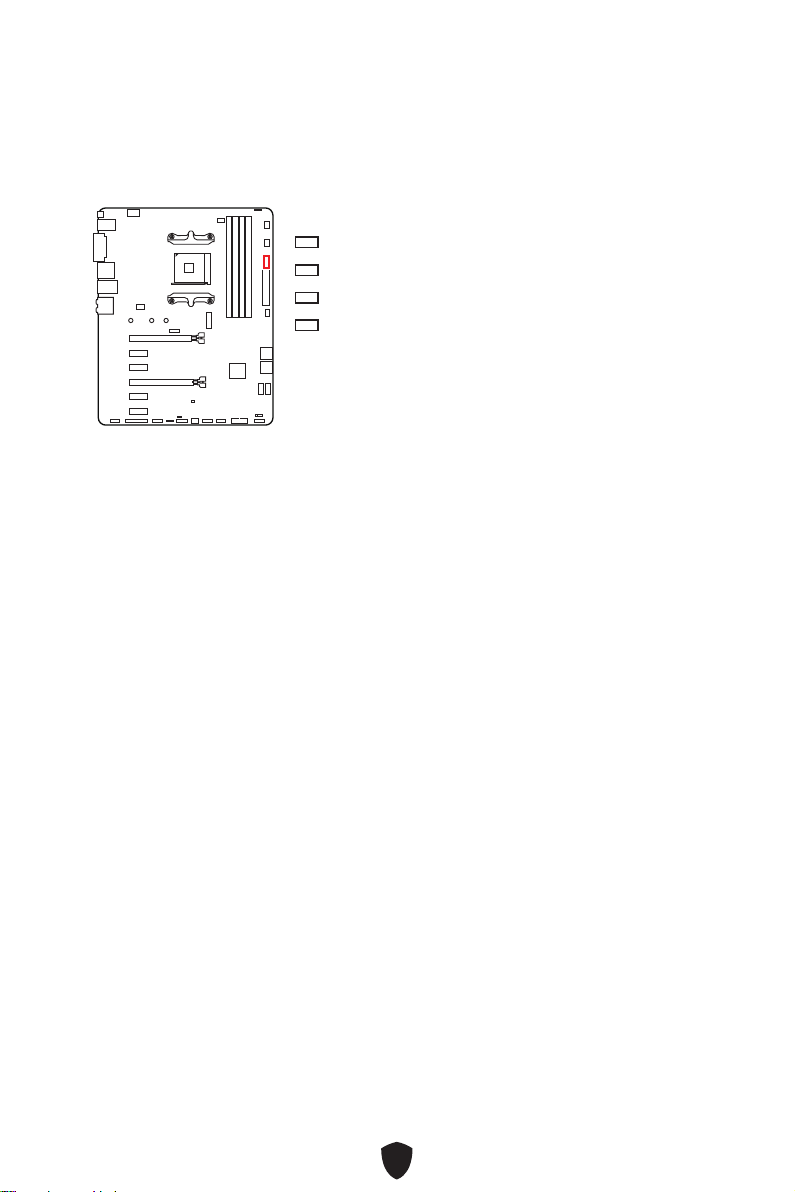
39
CPU
DRAM
VGA
BOOT
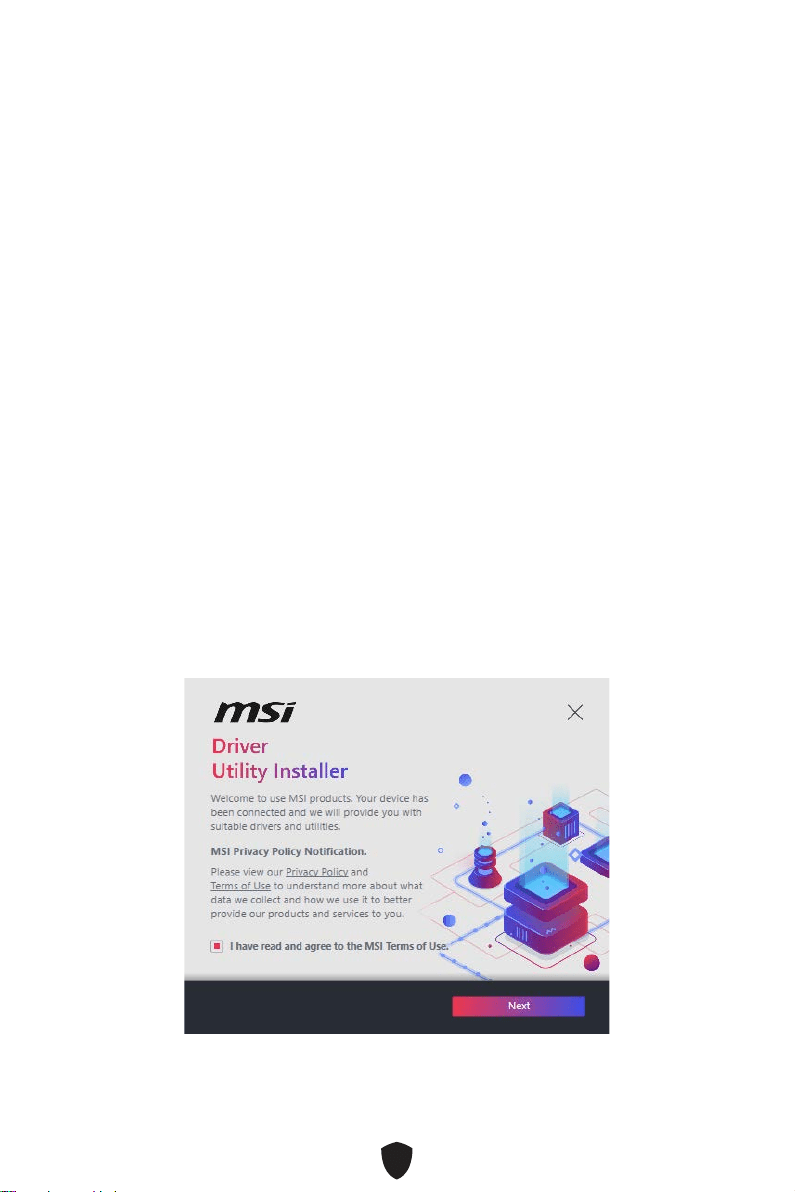
40
1.
2.
3. Restart
4. F11
5.
6. Press any key
to boot from CD or DVD...
7.
1.
2.
3.
4. «I have read and agree to the MSI Terms of Use»Next.
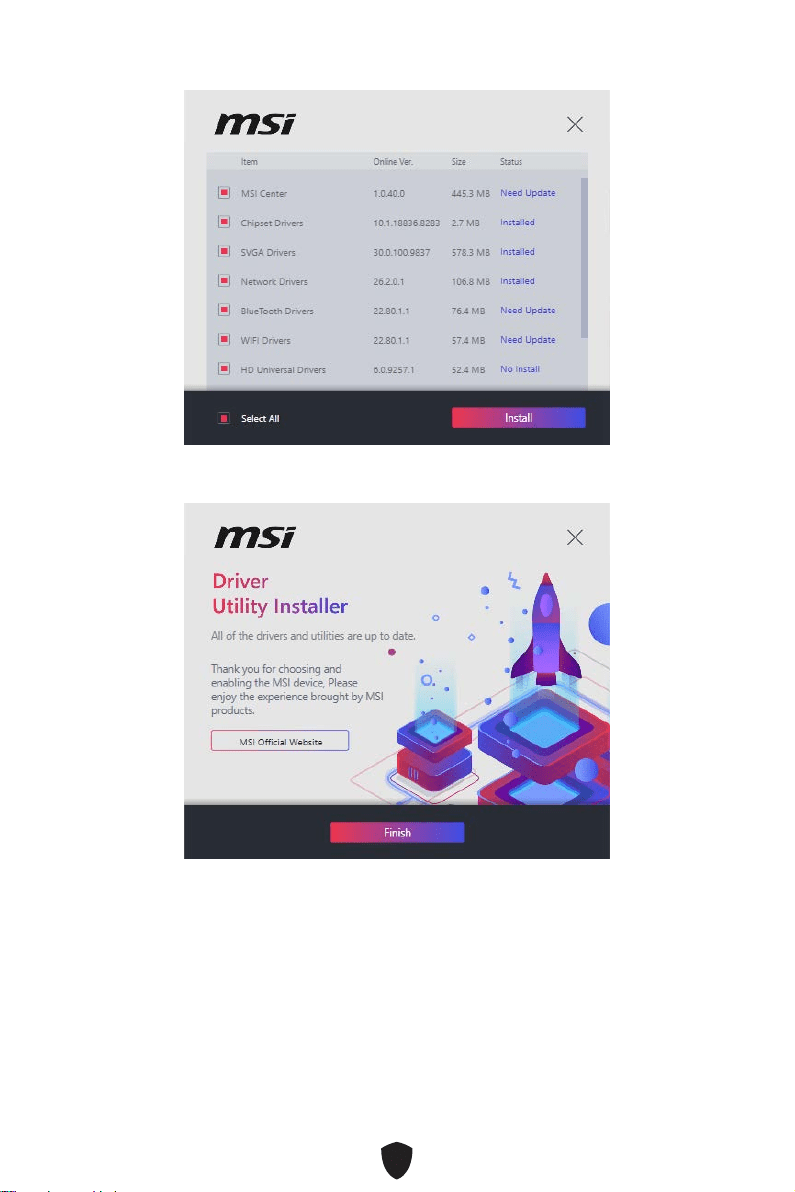
41
5. Select AllInstall
6. Finish.
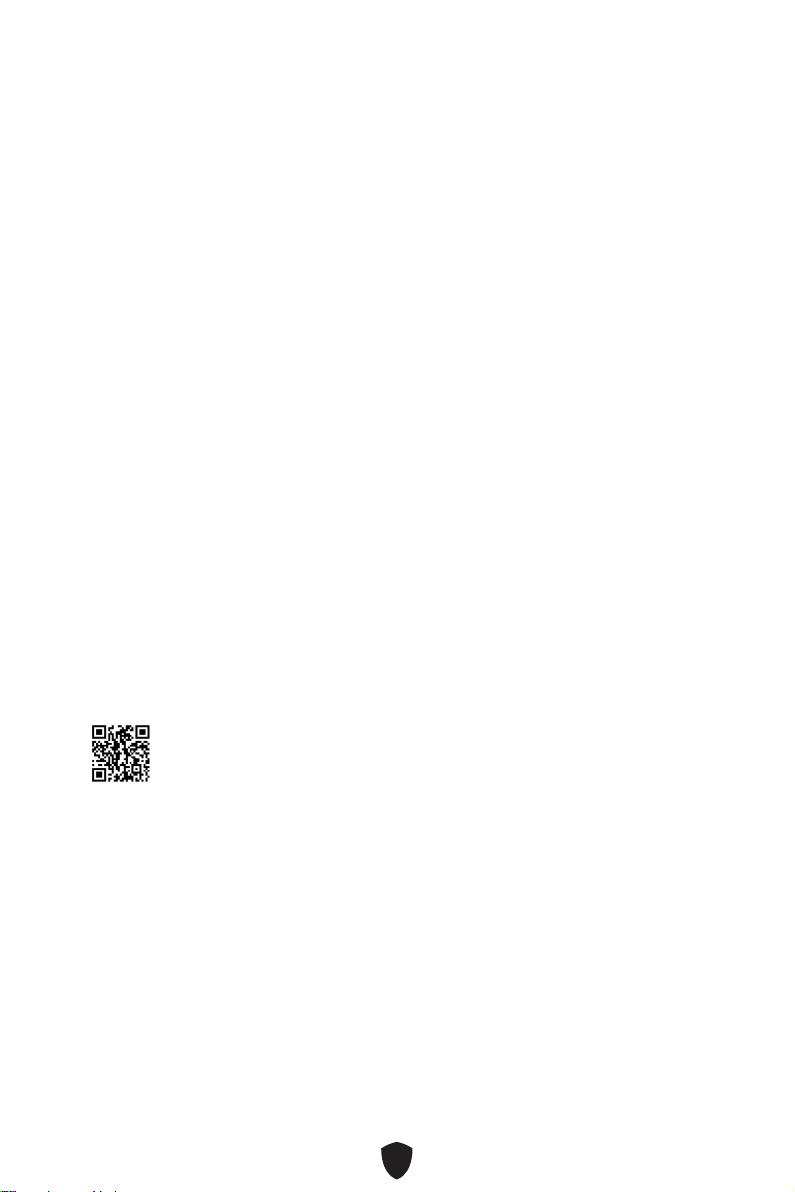
42
1.
2.
3. Select to choose what happens with this disc
Run DVDSetup.exe
DVDSetup.exe
4.
Drivers/Software.
5. Install
6.
7. OK
8.
MSI Center
http://download.msi.com/manual/mb/MSICENTER.pdf

43
UEFI BIOS
UEFI
There is no GOP
(Graphics Output protocol) support detected in this graphics card
1.
2. DeletePress DEL
key to enter Setup Menu, F11 to enter Boot Menu
3.
UEFI

44
HELP.
DeletePress DEL key to
enter Setup Menu, F11 to enter Boot Menu
F1:
F2:
F3:
F4:
F5:
F6:
F7:
F8:
F9:
F10:
F12:
Ctrl+F:
http://download.msi.com/manual/mb/AMDX570BIOSru.pdf
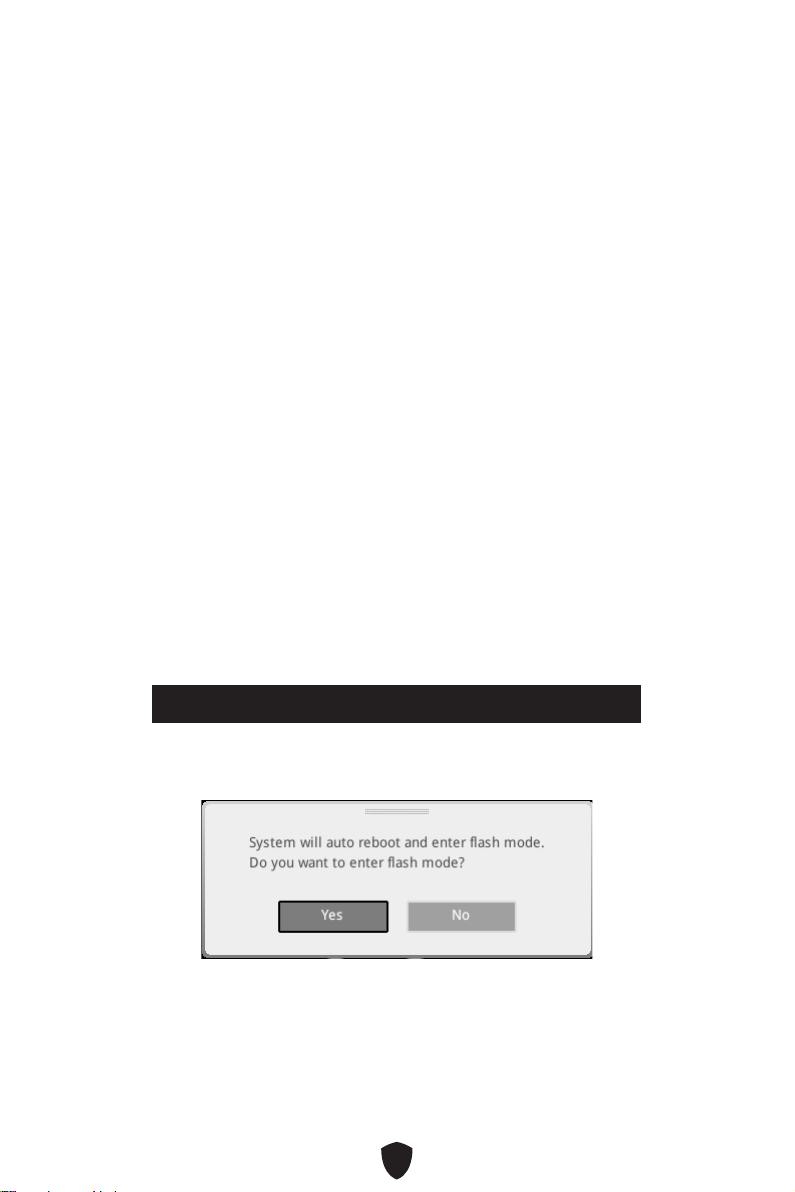
45
F6
.
1.
2.
•
Press <Ctrl+F5> to activate M-Flash for BIOS update.
•
3.
4.
BIOS.
5.

46
1. Support.
2. Live UpdateAdvance.
3. Install.
4. Install.
5.
6.
1.
2.
3. CPU_PWR1ATX_PWR1
4.
5. Flash BIOS
6.

1
............................................................................................................ 3
.............................................................................................................................. 16
........................................................................................................... 19
.......................................................................................................20
.............................................................................................. 21
........................................................................................... 22
...................................................................................... 22
................................................................................................ 24
........................................................................................................... 25
........................................................................................................ 26
................................................................................. 27
.................................................................................... 28
......................................................................... 29
................................................................. 30
................................................................... 30
............................................................. 31
..................................................................... 32
......................................................................... 33
............................................................................... 33
........................................................................... 34
........................................................................ 34
......................................................................... 35
........................................................................ 35
................................. 36
..................................................... 37
........................................................................................ 37
............................................................................. 38
............................................................................................................ 39

2
EZ Debug LED ....................................................................................................... 39
...................................................... 40
MSI Center ............................................................................................................ 42
UEFI BIOS .................................................................................................................... 43
........................................................................................................... 44
...................................................................................................... 45
........................................................................................ 45
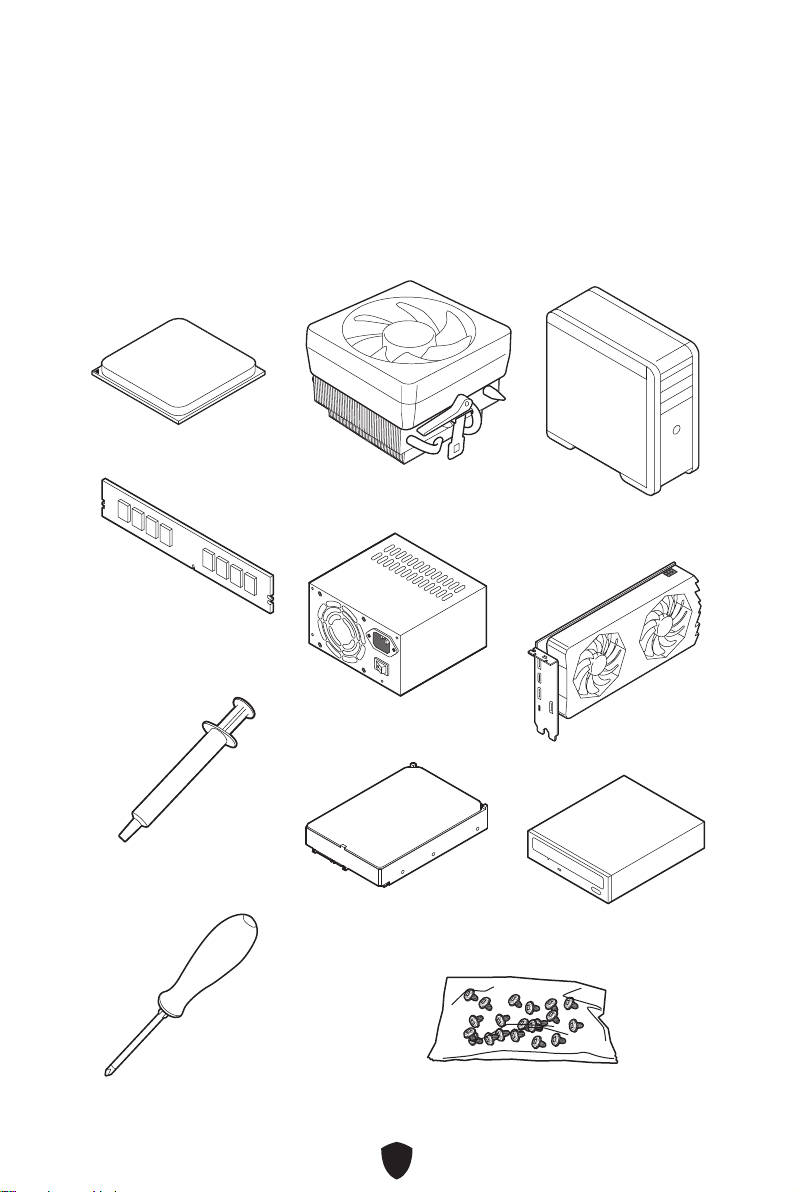
3
AMD® AM4 CPU

4
•
•
•
•
•
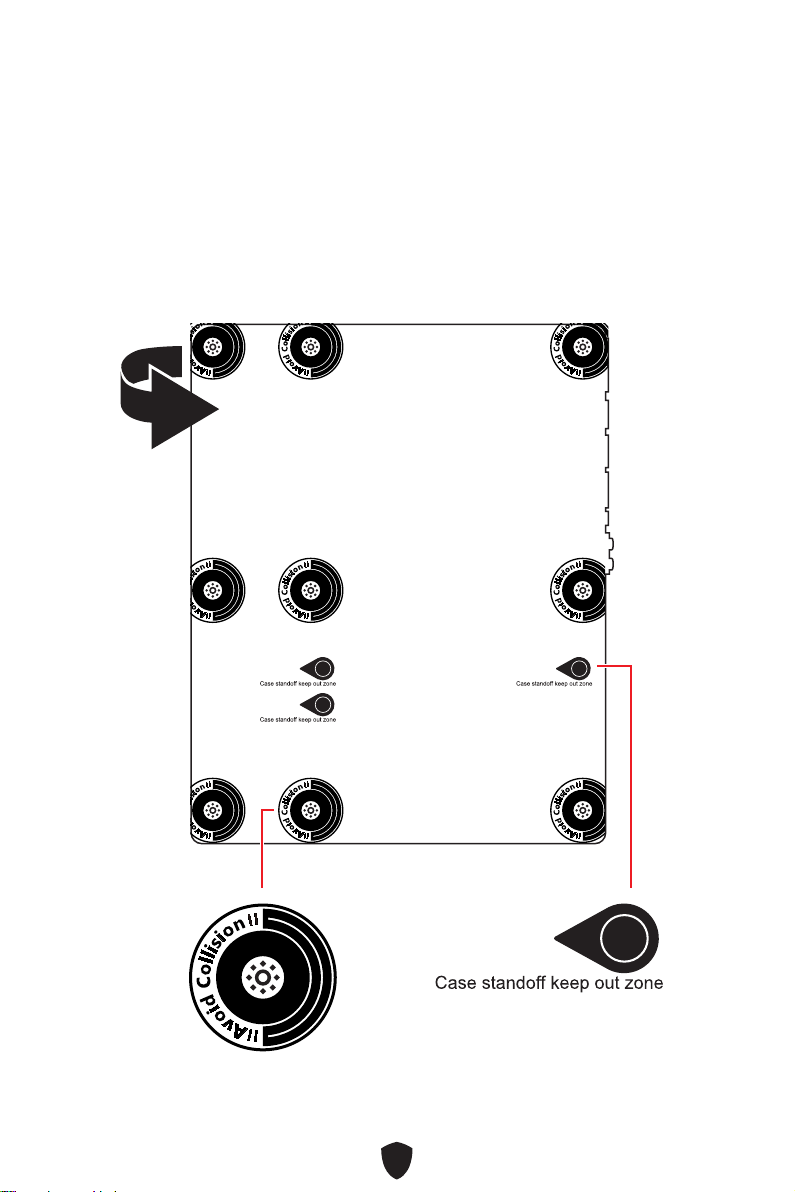
5
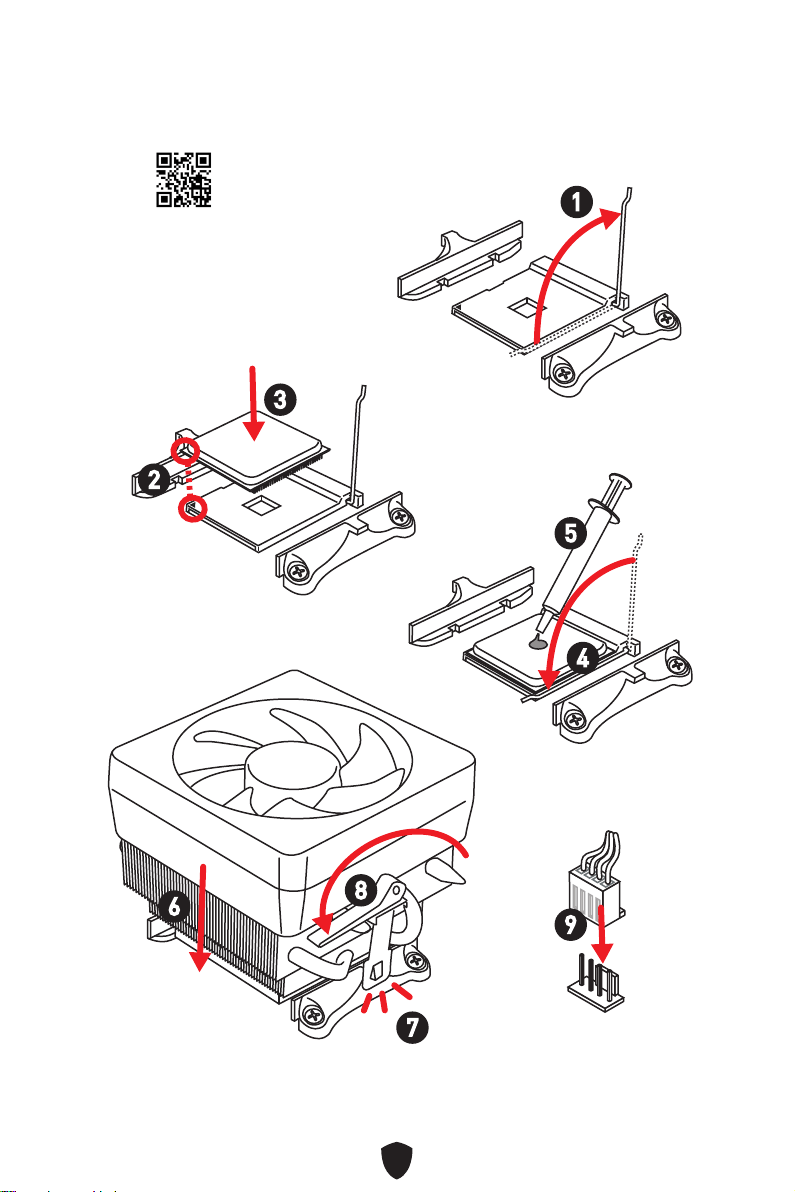
6
https://youtu.be/Xv89nhFk1vc
1
2
3
6
4
5
7
8
9
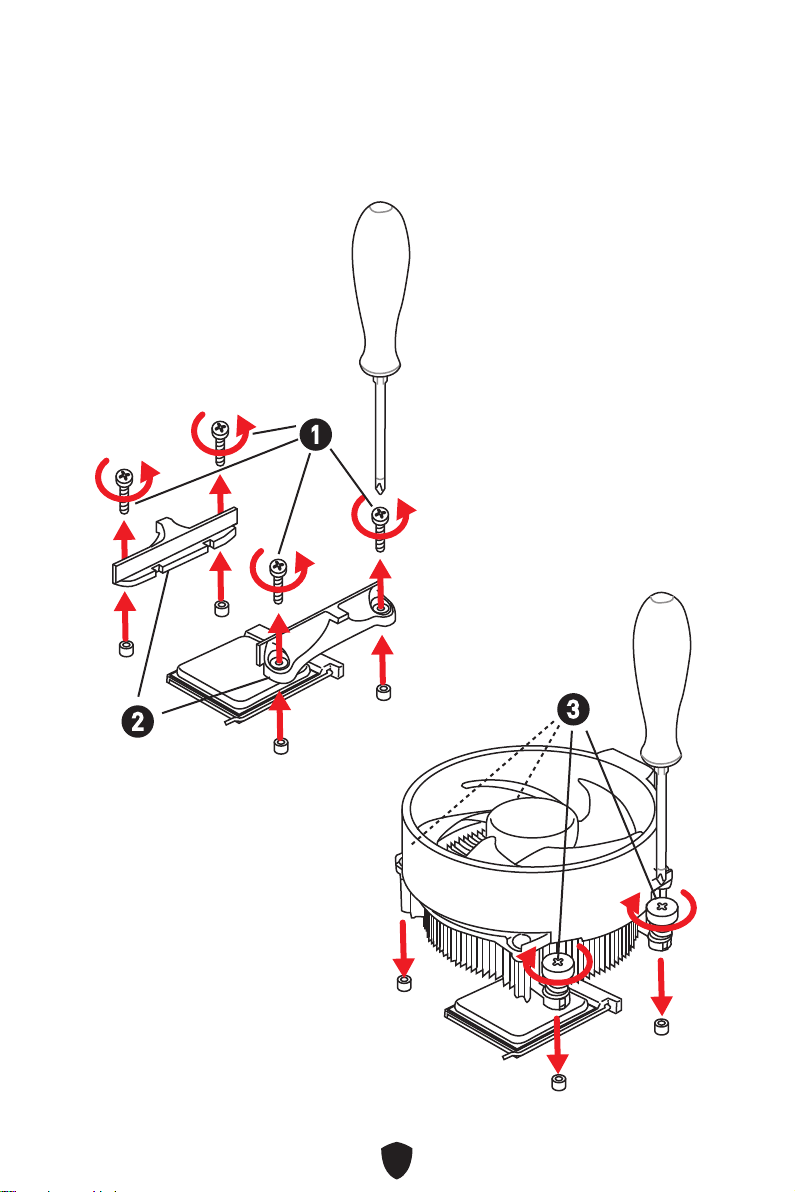
7
1
2
3
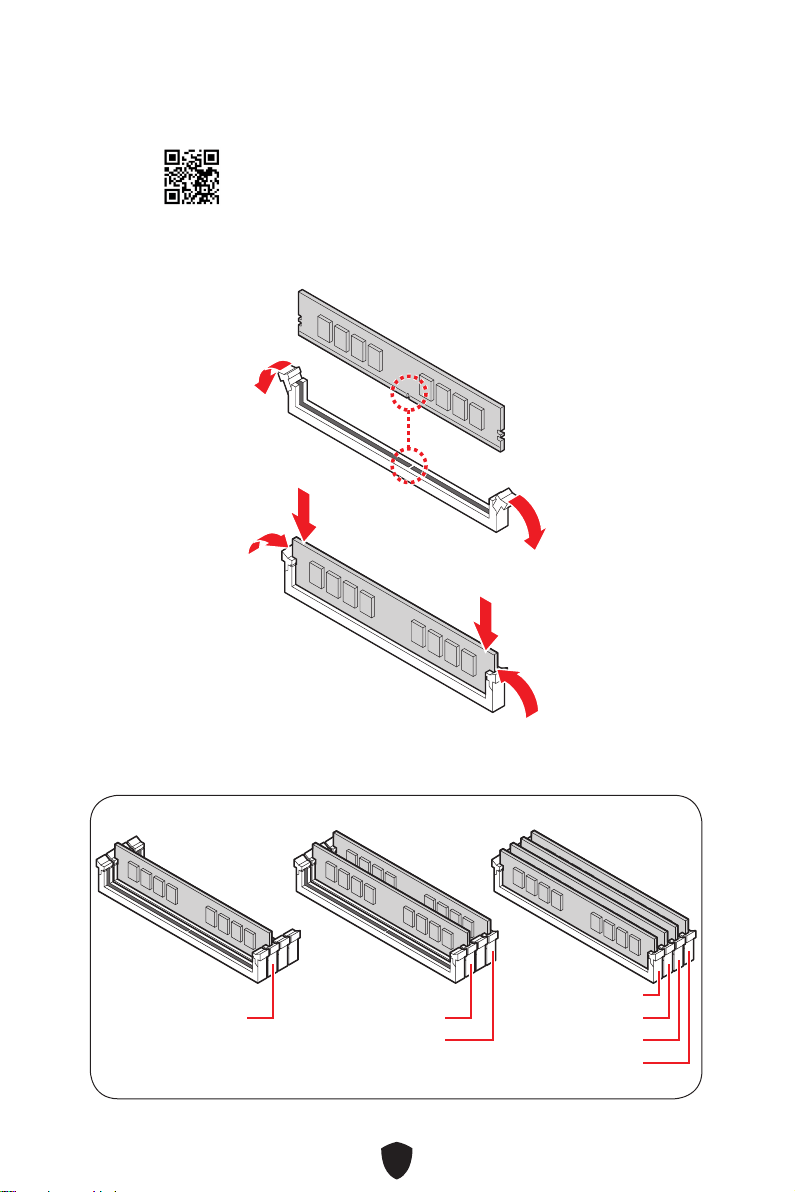
8
DIMMA2 DIMMA2
DIMMB2
DIMMA1
DIMMA2
DIMMB1
DIMMB2
http://youtu.be/T03aDrJPyQs
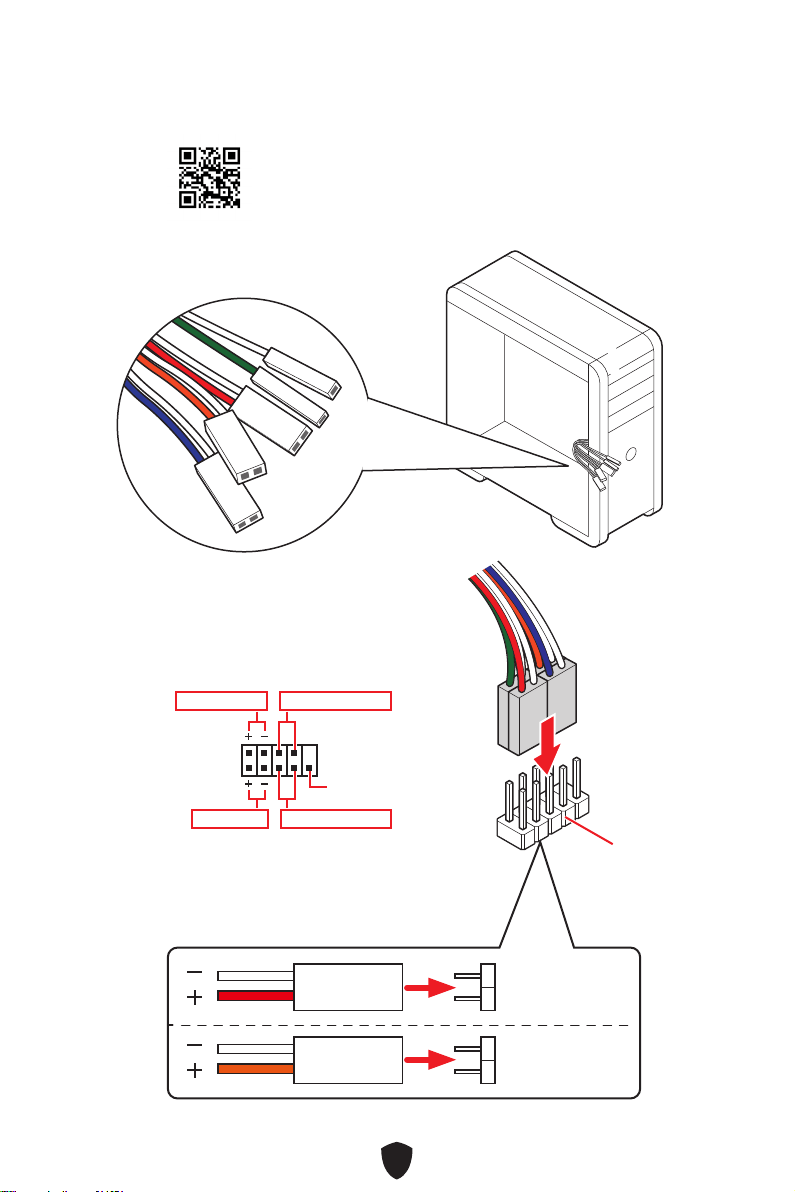
9
HDD LED
RESET SW
http://youtu.be/DPELIdVNZUI
JFP1
HDD LED
HDD LED -
HDD LED +
POWER LED -
POWER LED +
POWER LED
RESET SW
POWER SW
POWER LED+
POWER LED-
HDD LED
1
2 10
9
Power LED
Reserved
Power Switch
JFP1
Reset SwitchHDD LED
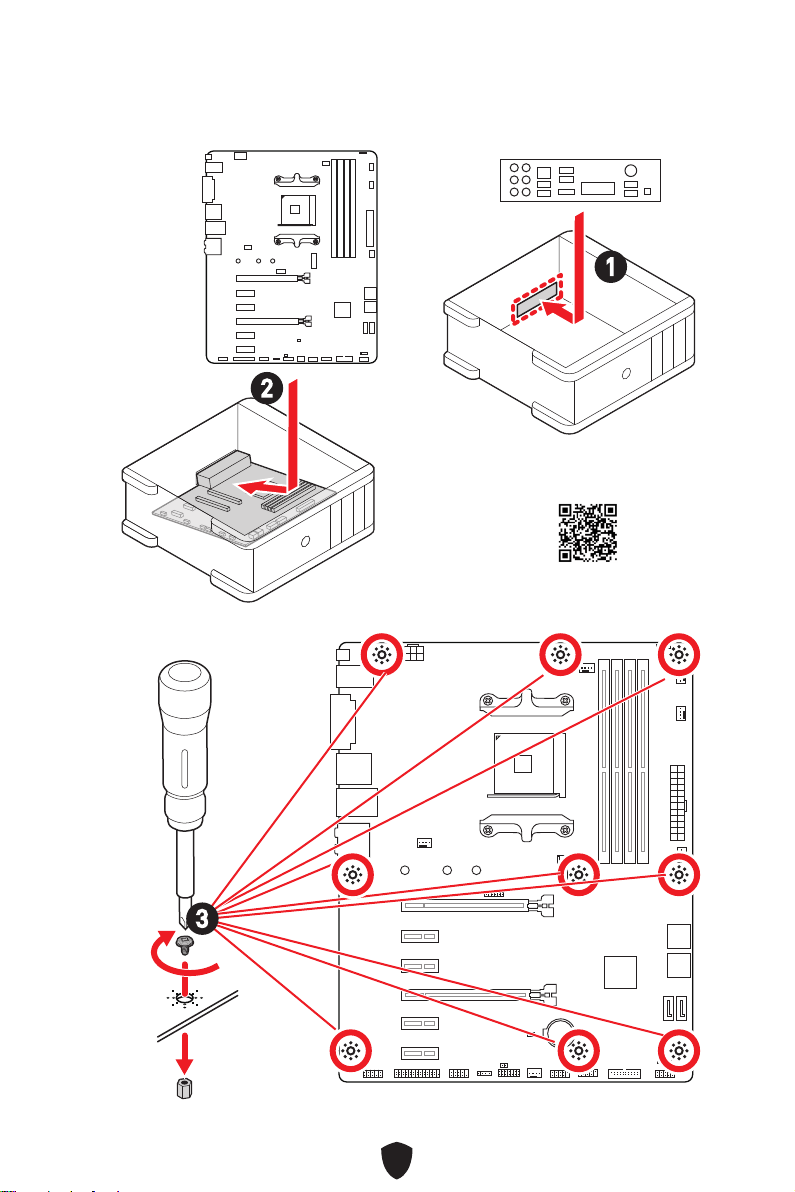
10
BAT1
2
1
https://youtu.be/wWI6Qt51Wnc
3 kgf·cm*
*3 kgf·cm
= 0.3 N·m
= 2.6 lbf·in
3
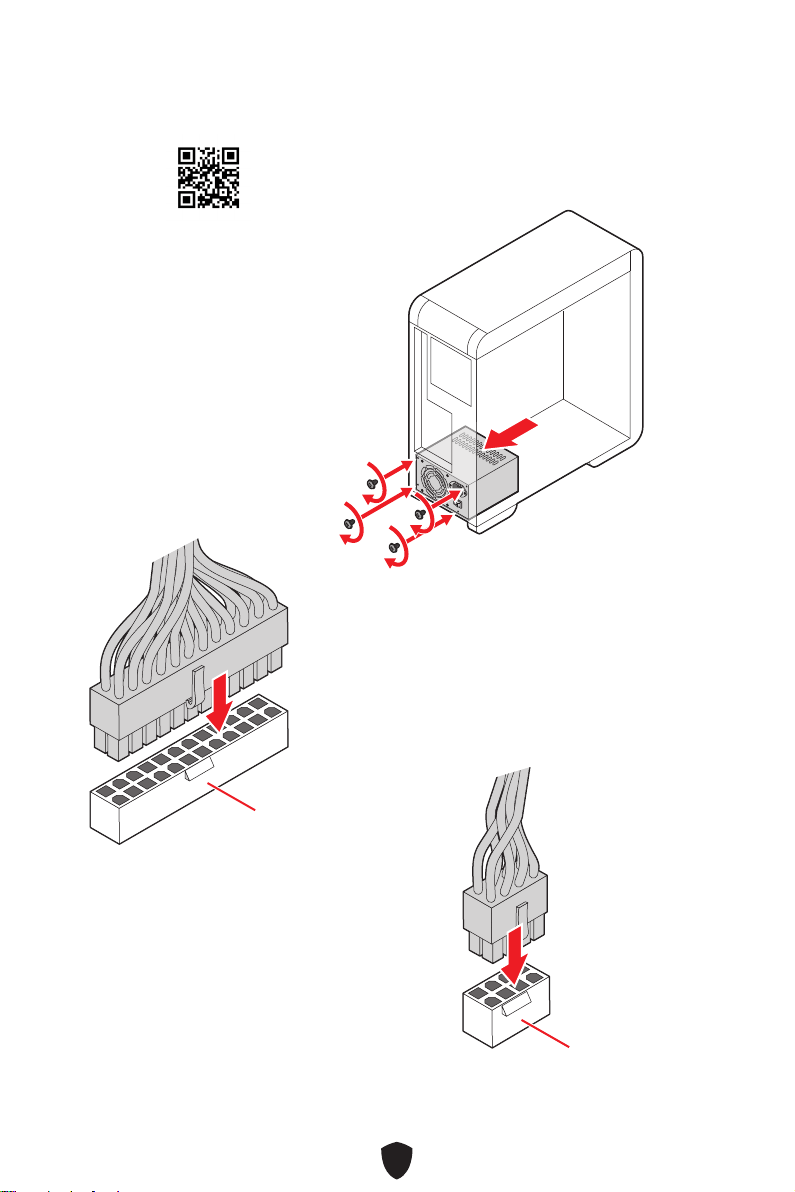
11
http://youtu.be/gkDYyR_83I4
ATX_PWR1
CPU_PWR1
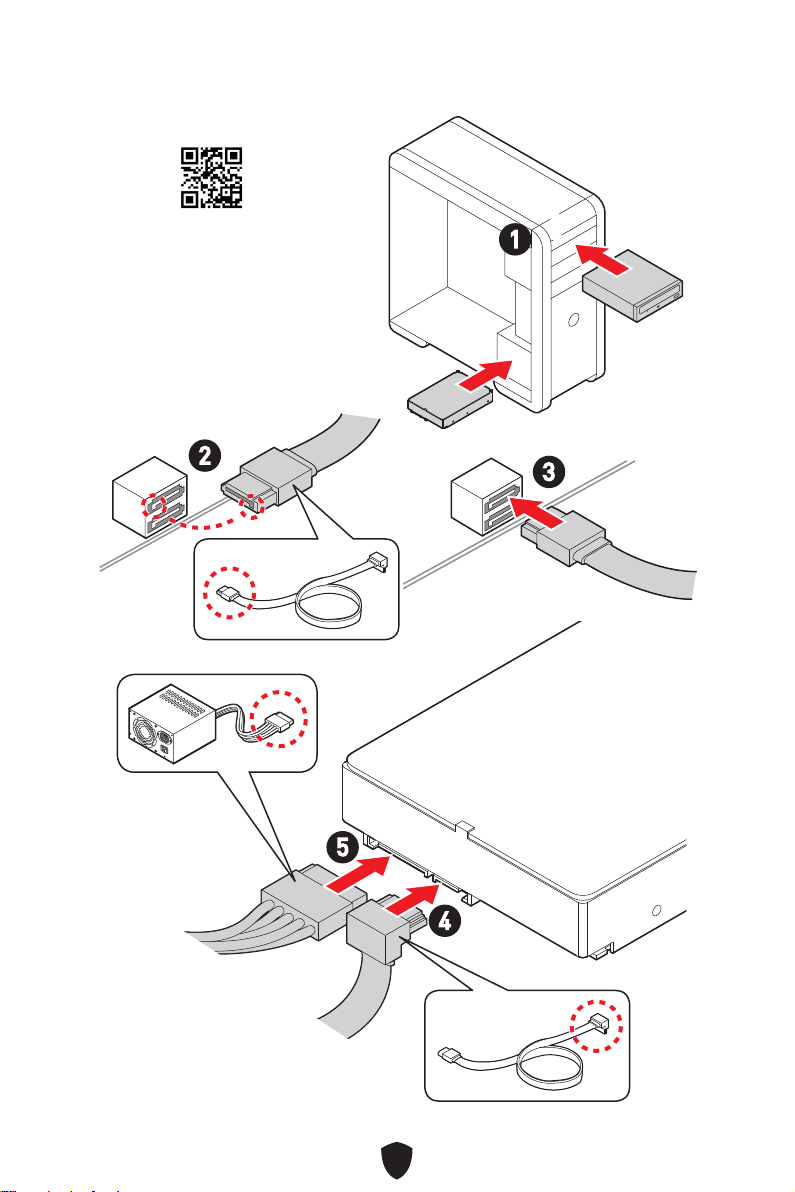
12
http://youtu.be/RZsMpqxythc
1
2
3
4
5
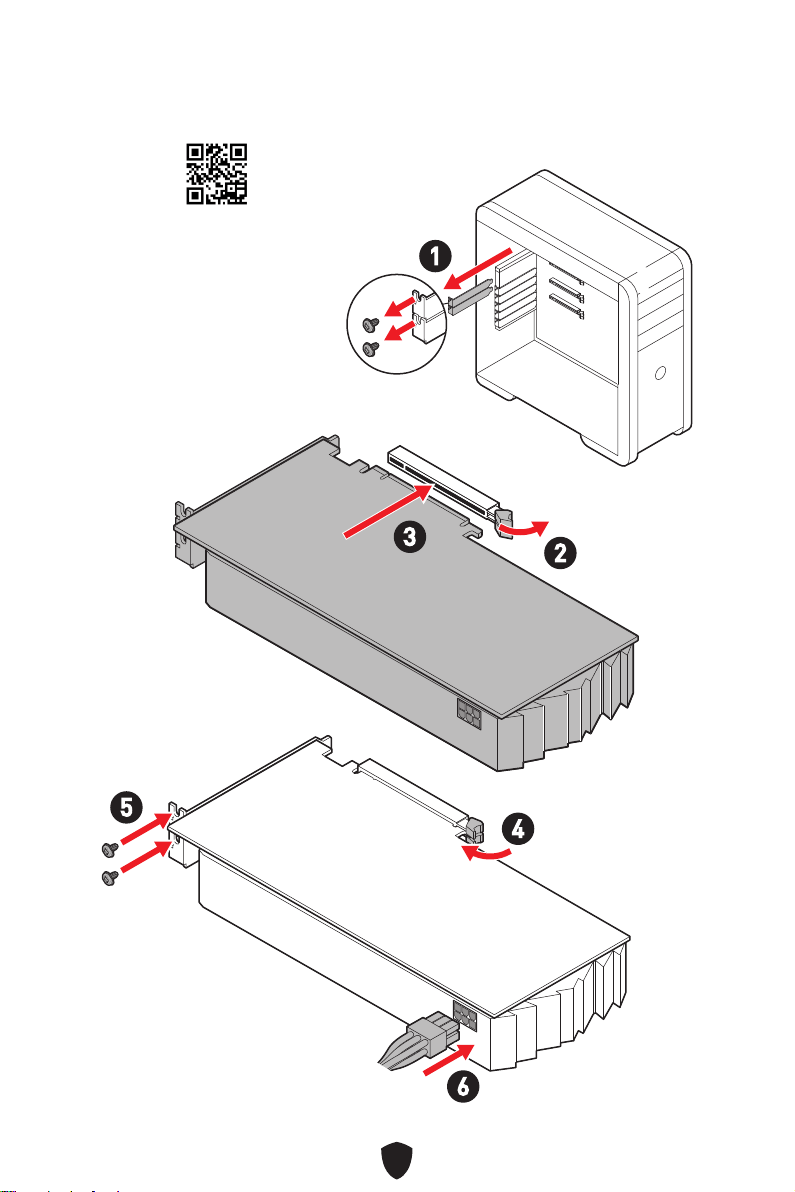
13
http://youtu.be/mG0GZpr9w_A
1
2
3
4
5
6
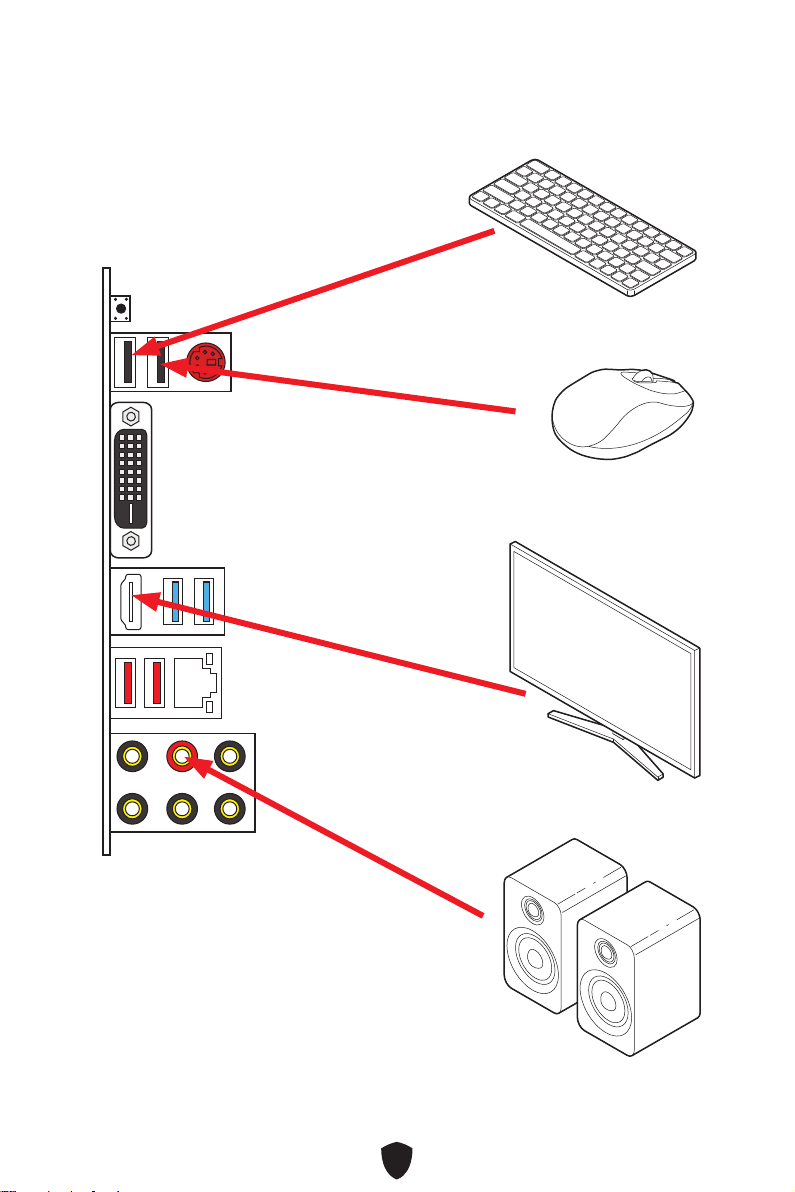
14
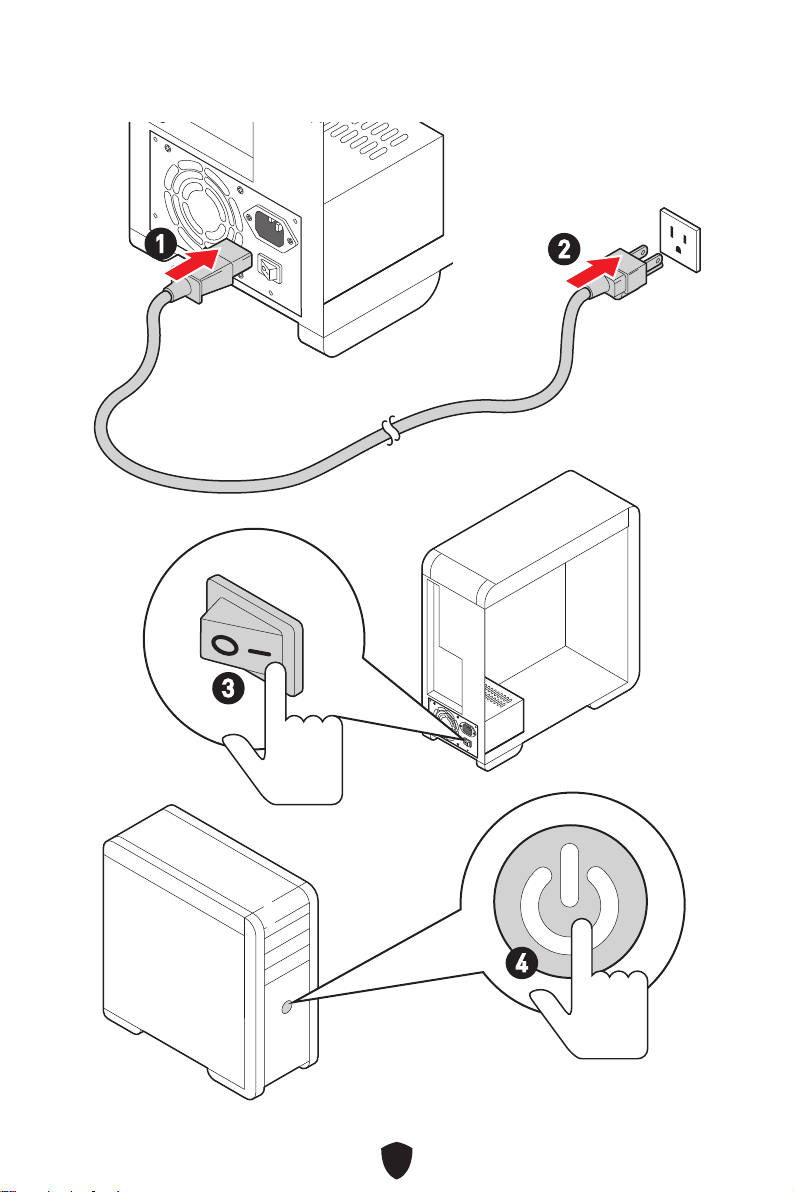
15
4
3
1
2
16
CPU
3066/ 3200/ 3466/ 3600/ 3733/ 3866/ 4000/ 4133/ 4266/
•
•
•
•
•
•
•
•
•
•
17
•
•
•
•
RAID
LAN
•
•
18
EZ Debug LED x4
12 in. x 9.6 in. (30.5 cm x 24.4 cm)
UEFI AMI BIOS
ACPI 6.1, SMBIOS 2.8
MSI Center
CPU-Z MSI GAMING
Google Chrome™, Google Toolbar, Google Drive
Norton™ Internet Security Solution

19
MSI Center
• User Scenario
• True Color
• Live Update
• Hardware Monitoring
• Super Charger
• Speed Up
• Smart Image Finder
• MSI Companion
• Audio Boost
• LAN Manager
•
•
LED
•
• Mystic Light
• EZ DEBUG LED
• DDR4 Boost
• Core Boost
• GAME Boost
• PCI-E Steel Armor
• MSI Center
• GAMING HOTKEY
• GAMING MOUSE Control
• Click BIOS 5

20
•
•
•
•
•
•
•
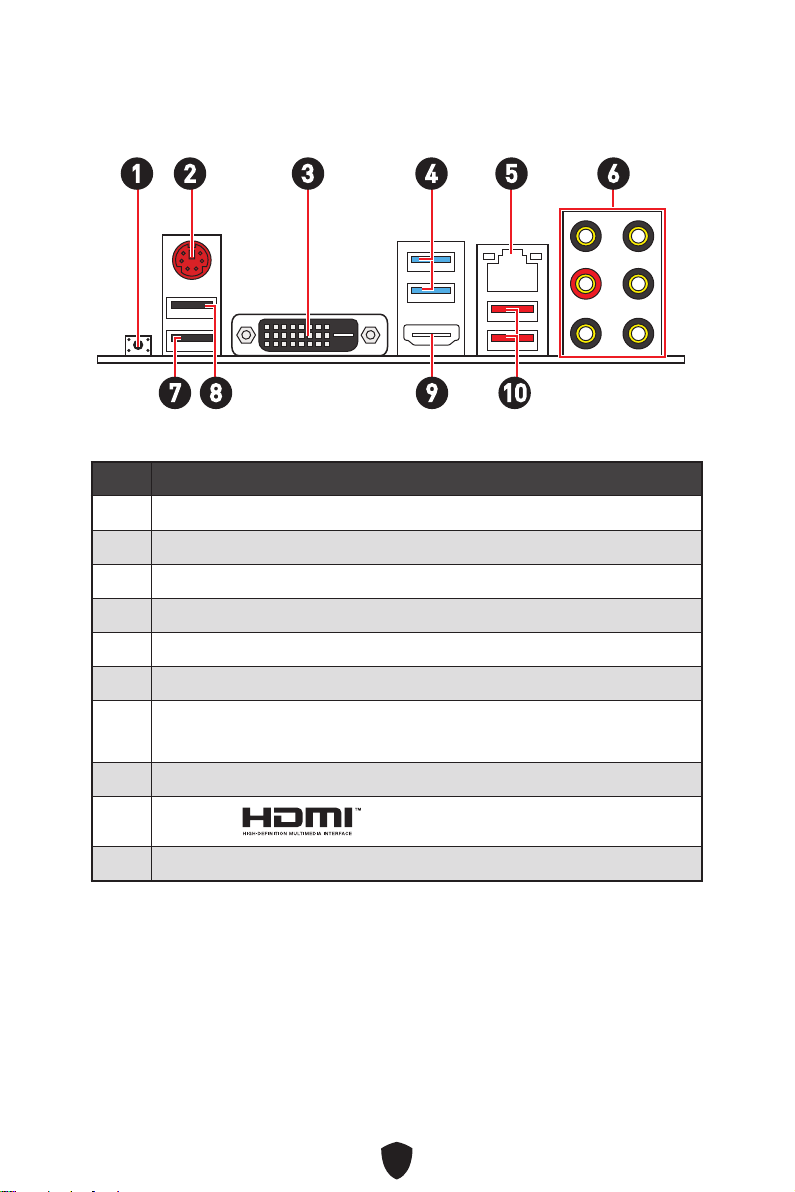
21
1
10
2 3 4 65
1
2
3
4
5
6
7
•
8
9
10
7 98
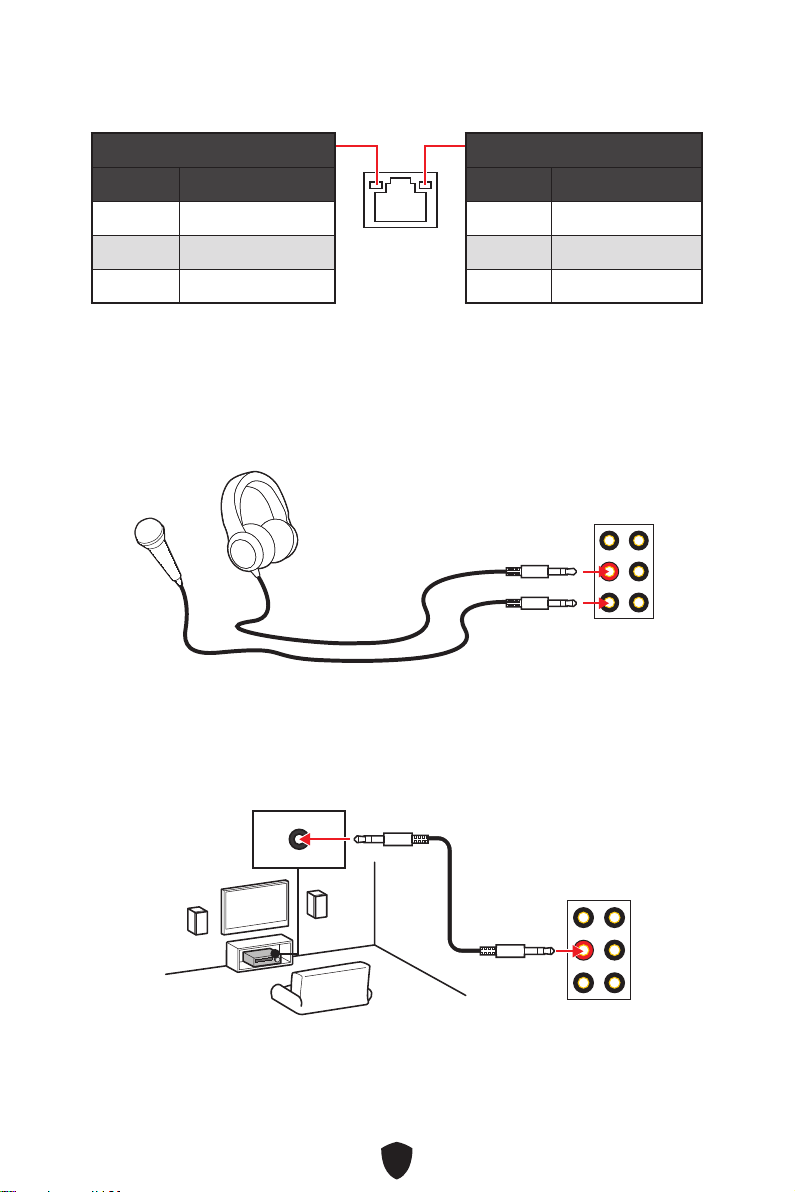
22
Off
Off 10 Mbps
100 Mbps
1 Gbps
AUDIO INPUT
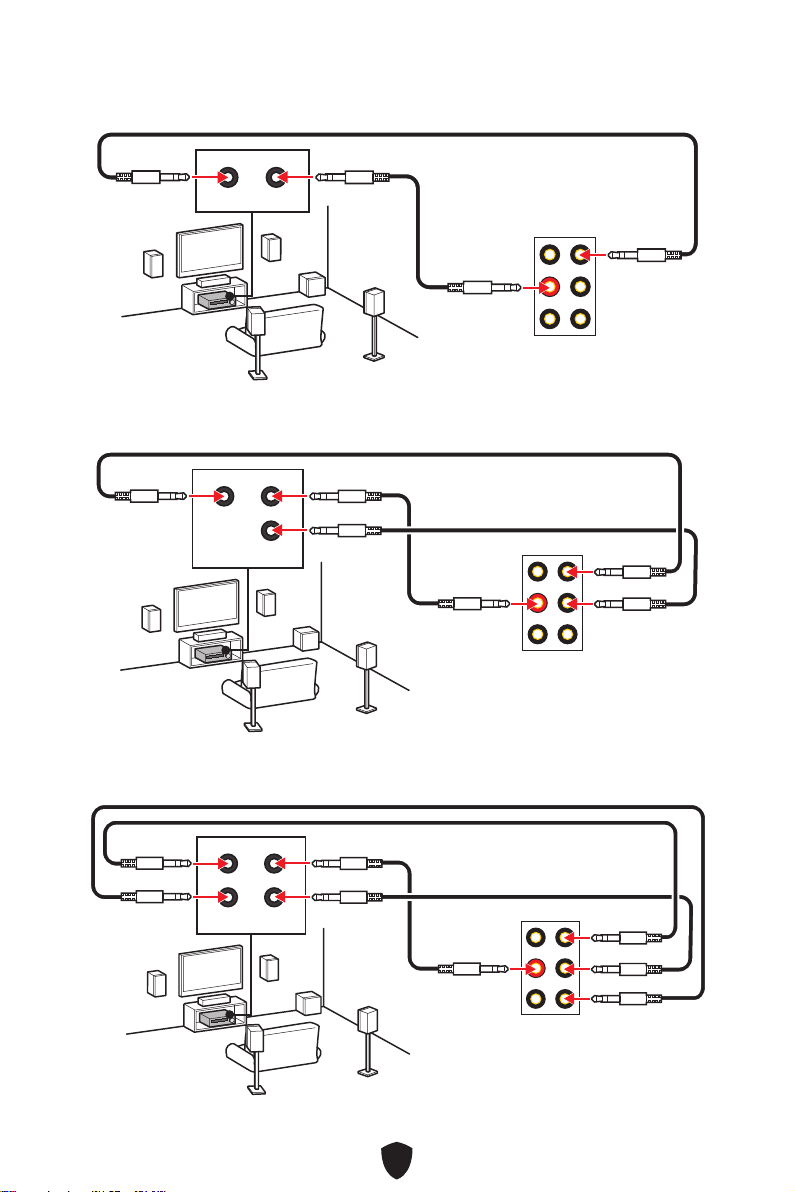
23
AUDIO INPUT
Rear Front
AUDIO INPUT
Rear Front
Center/
Subwoofer
AUDIO INPUT
Rear Front
Center/
Subwoofer
Side
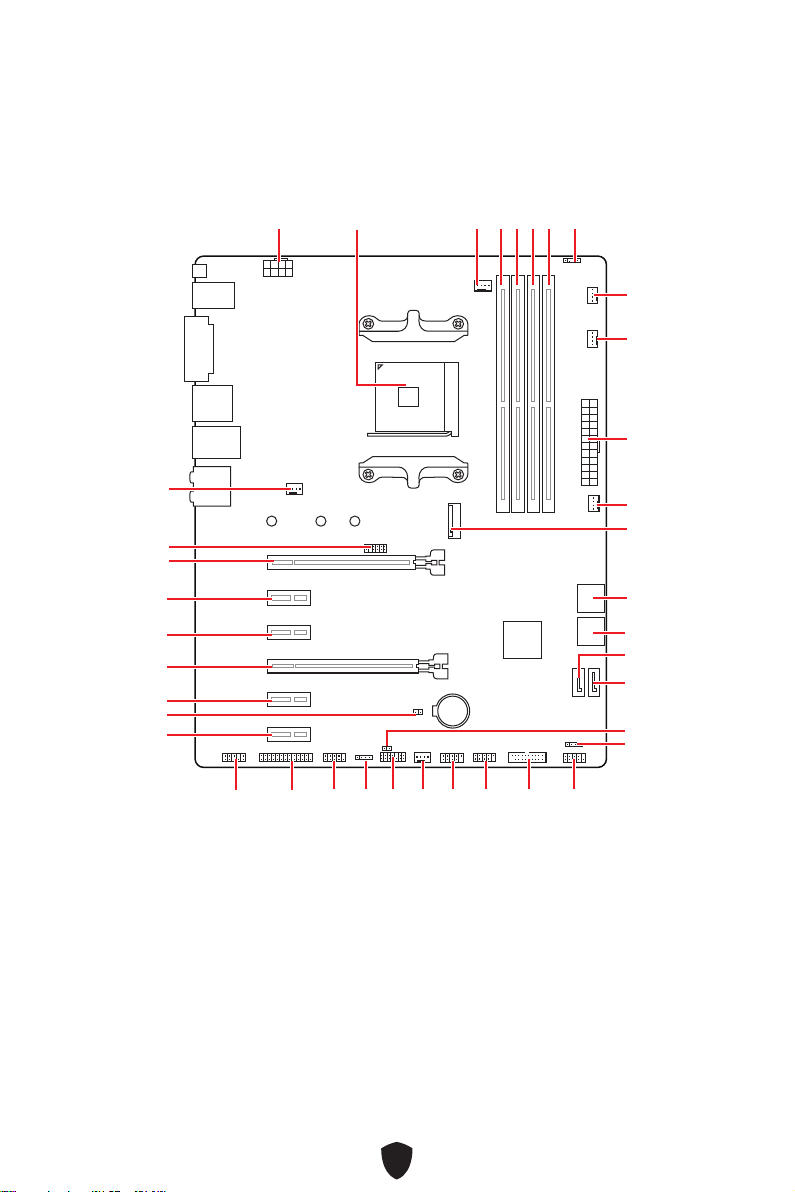
24
BAT1
M2_1
ATX_PWR1
SYS_FAN3
SYS_FAN4
PUMP_FAN1
CPU_FAN1
DIMMB2
JRGB1
CPU_PWR1
JFP1
JRGB2
SATA2
JUSB2
JUSB1
JLPC1
JUSB3
JCOM1
JLPT1
JAUD1
PCI_E1
SYS_FAN1
JTPM1
PCI_E2
PCI_E3
PCI_E4
PCI_E5
JBAT1
PCI_E6
SYS_FAN2
SATA1
JFP2
JCI1
DIMMB1
DIMMA2
DIMMA1
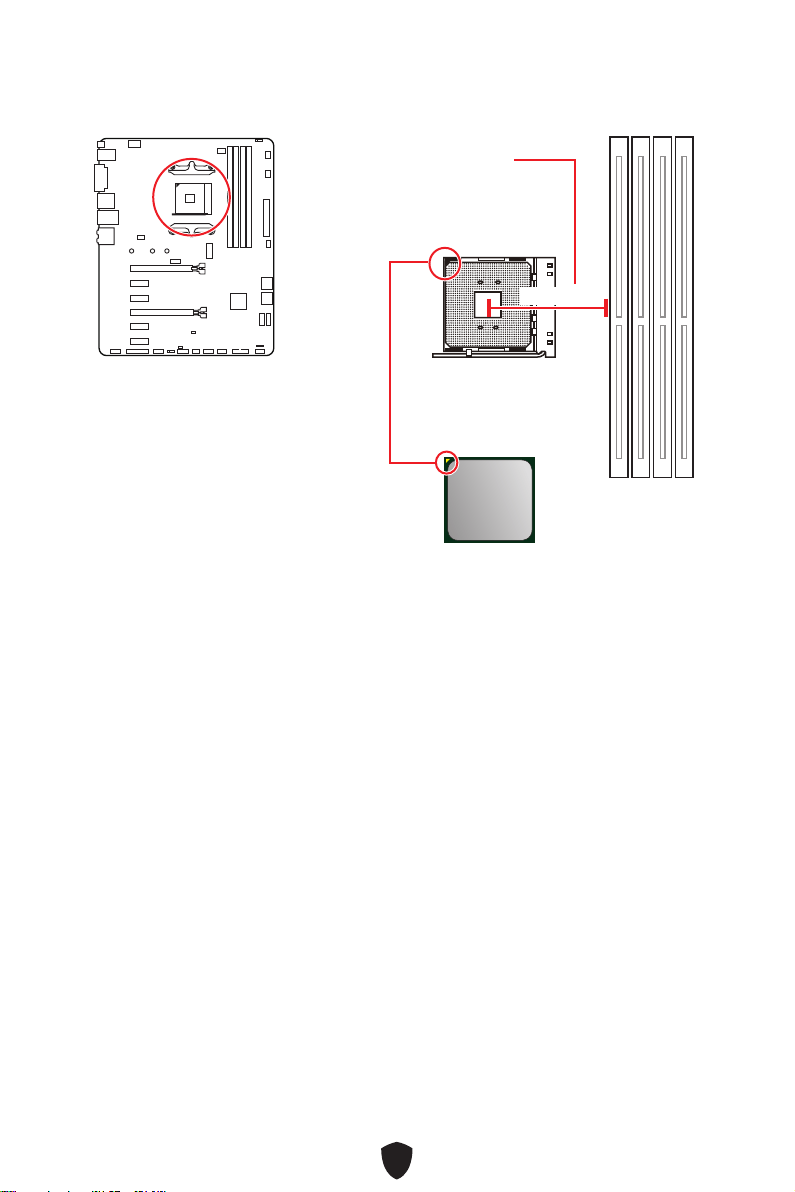
25
53.43 mm
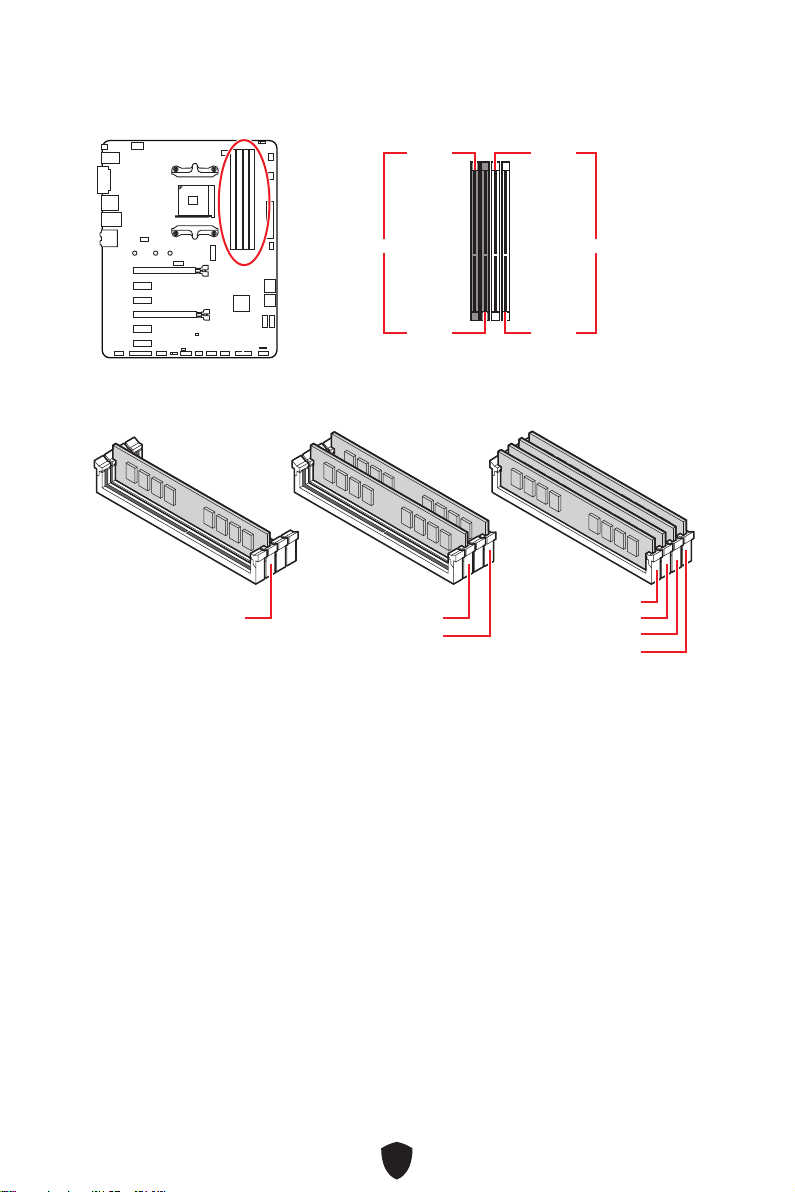
26
DIMMA1 DIMMB1
DIMMA2 DIMMB2
DIMMA2
DRAM Frequency
DIMMA2 DIMMA2
DIMMB2
DIMMA1
DIMMA2
DIMMB1
DIMMB2
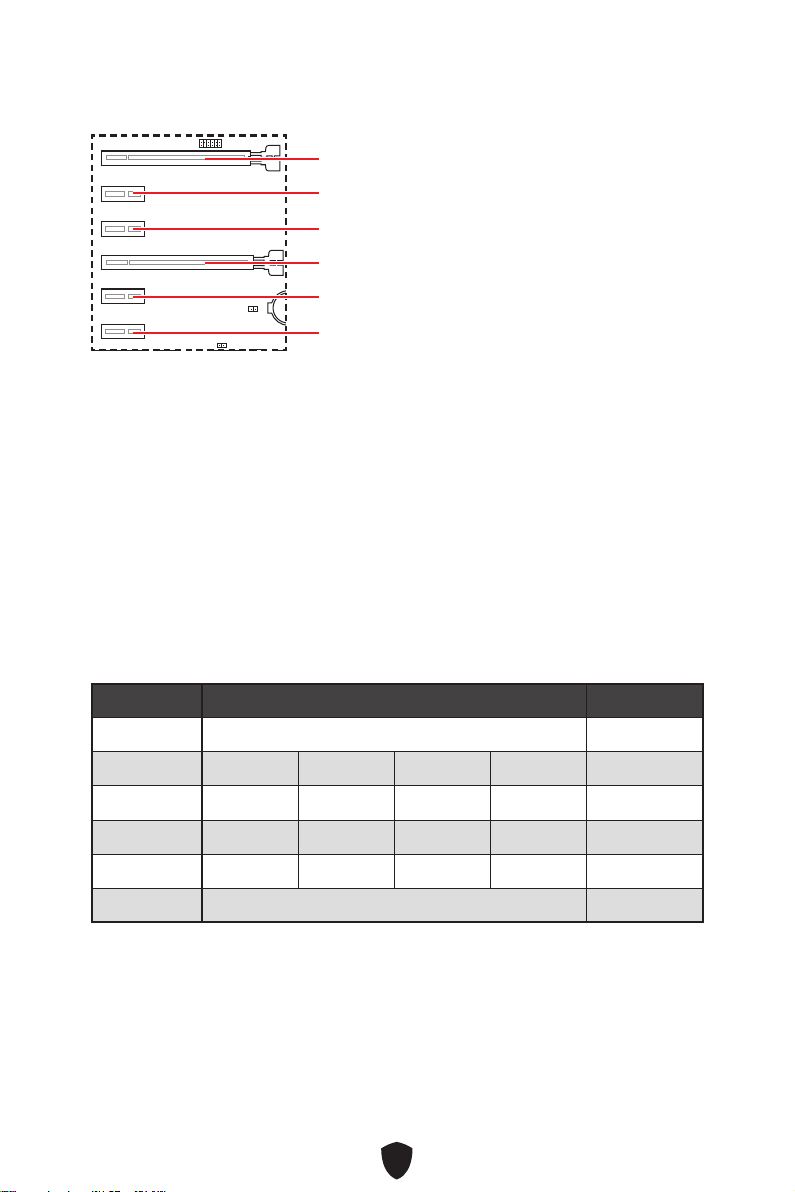
27
BAT1
PCI_E1
PCI_E4
PCI_E2
PCI_E5
PCI_E3
PCI_E6
MSI Graphics Card Bolster
PCI_E1
2-Way
PCI_E1 (CPU) @ 3.0 x16 @ 3.0 x16
PCI_E2 (PCH) 2.0 x1 2.0 x1 —
PCI_E3 (PCH) 2.0 x1 2.0 x1 —
PCI_E4 (PCH) 2.0 x1 2.0 x1 2.0 x1 2.0 x1 @3.0 x4
PCI_E5 (PCH) 2.0 x1 2.0 x1 —
PCI_E6 (PCH) 2.0 x1 2.0x1
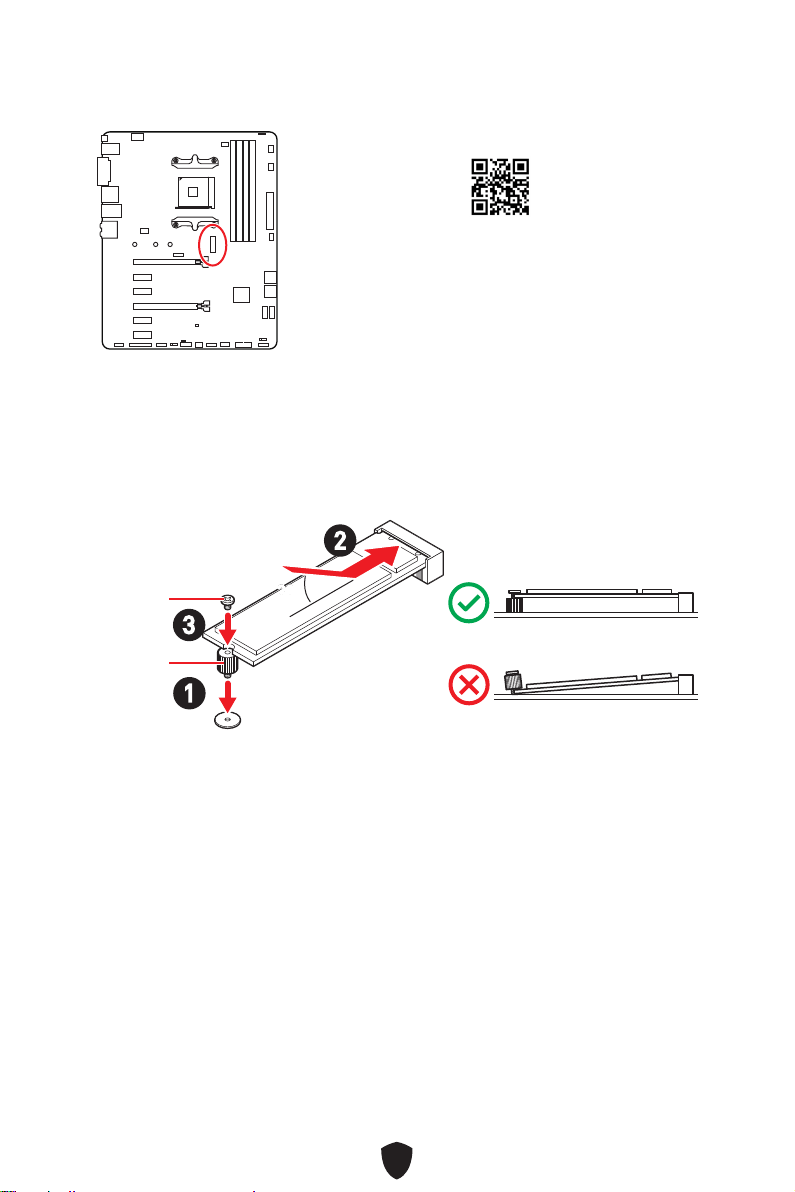
28
1.
2.
3.
30º30º
2
3
1
http://youtu.be/JCTFABytrYA
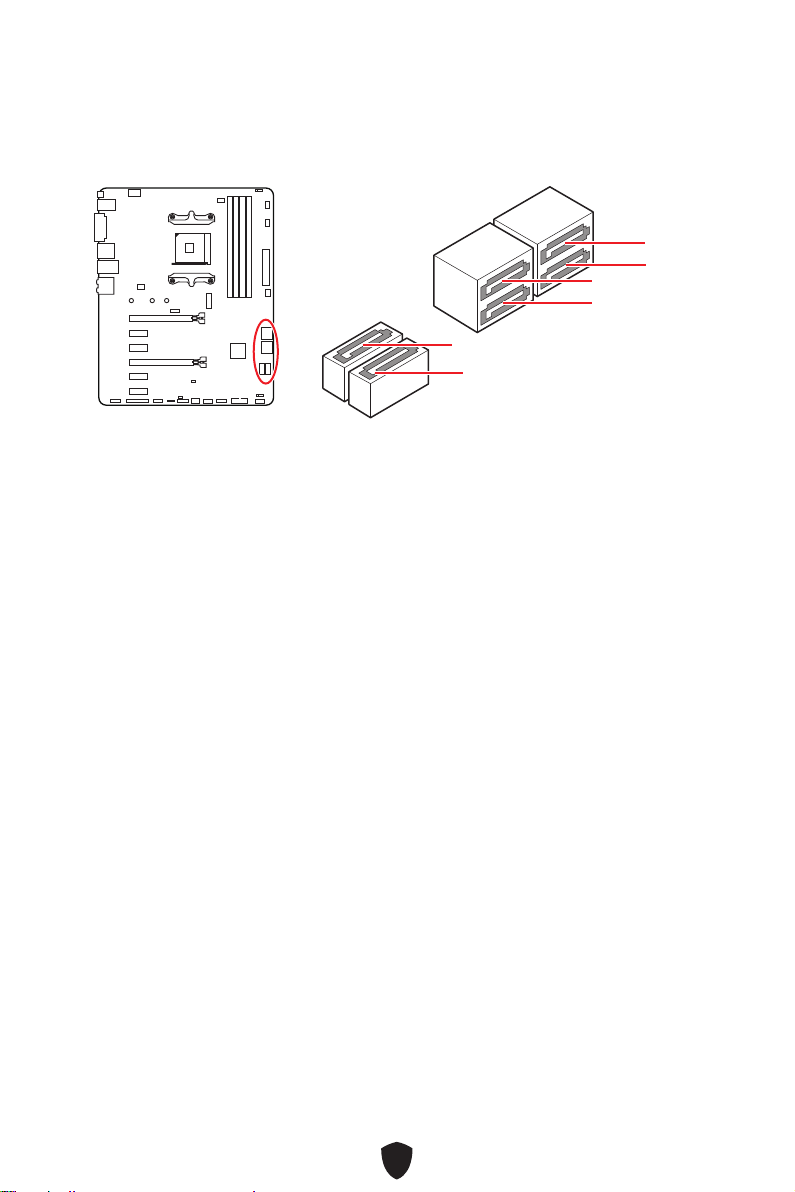
29
SATA5
SATA3
SATA1
SATA6
SATA4
SATA2
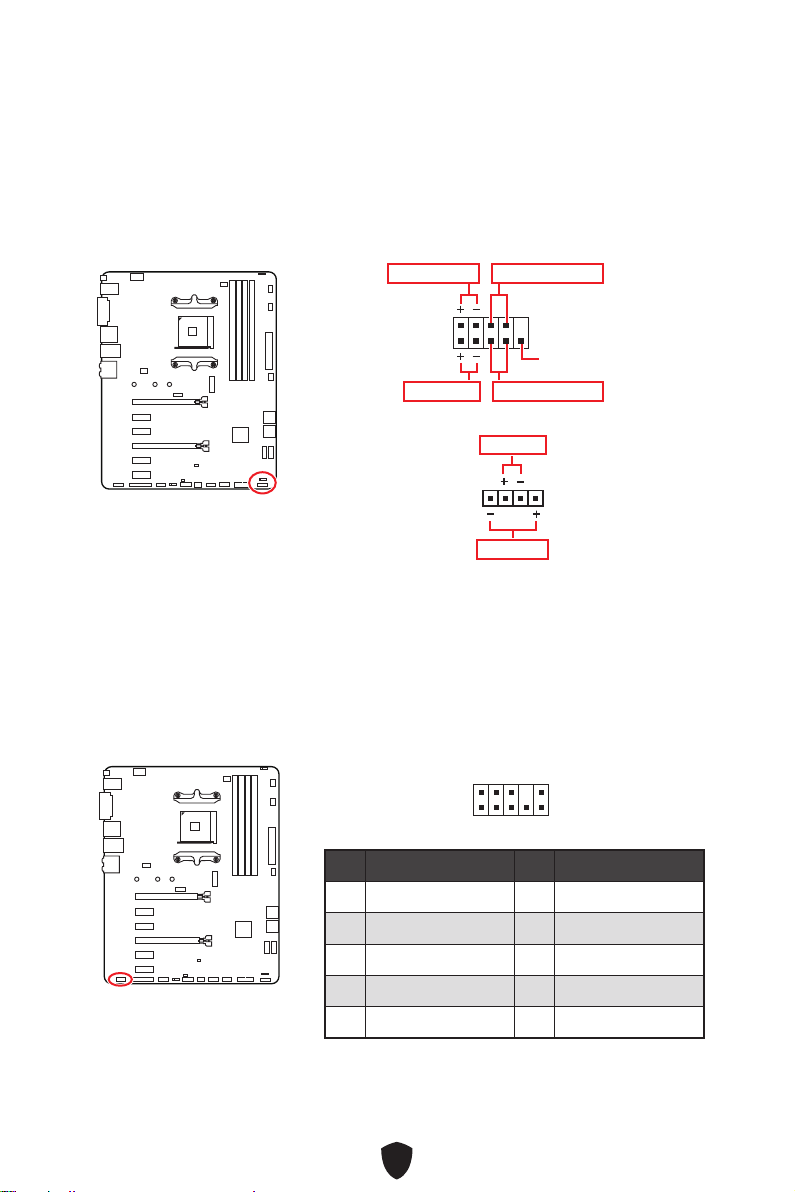
30
1
2 10
9
Power LED
Reserved
Power Switch
JFP1
Reset SwitchHDD LED
1
JFP2
Buzzer
Speaker
1
2 10
9
1 MIC L 2 Ground
3 MIC R 4 NC
5 Head Phone R 6 MIC Detection
7 SENSE_SEND 8 No Pin
9 Head Phone L 10 Head Phone Detection
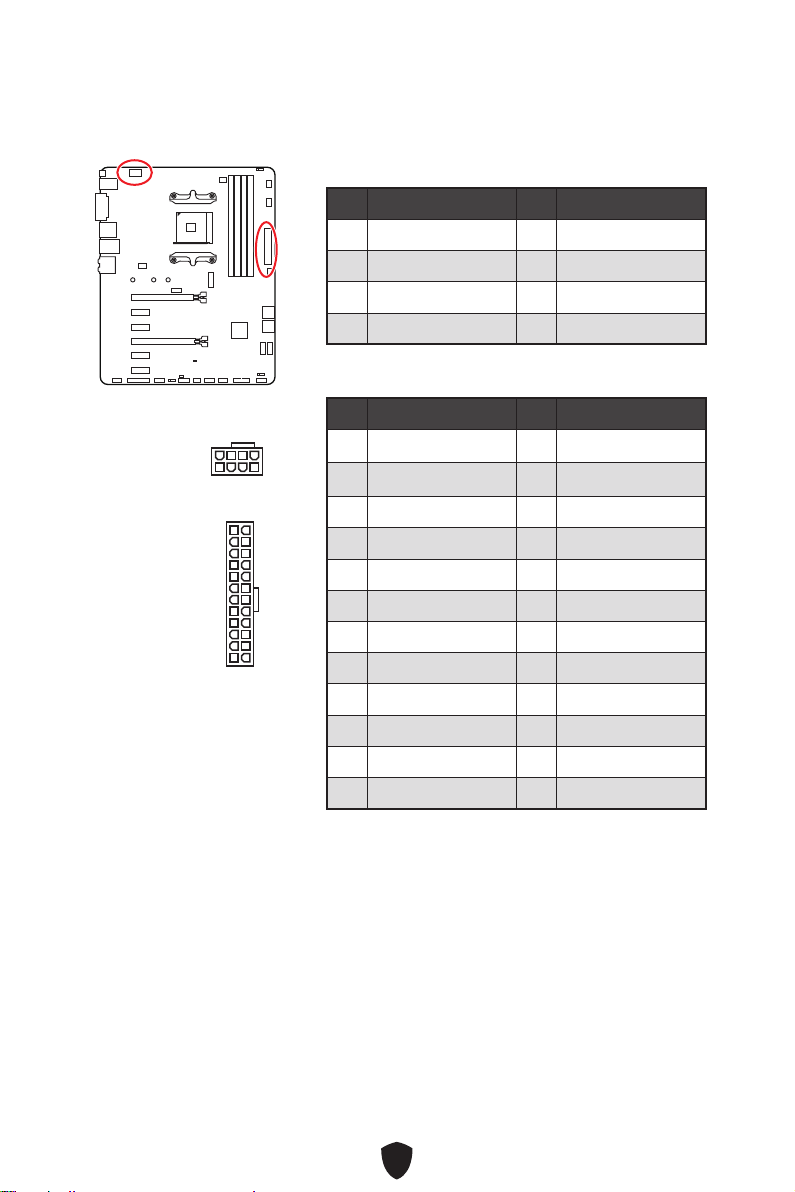
31
CPU_PWR1
1 Ground 2 Ground
3 Ground 4 Ground
5 +12V 6 +12V
7 +12V 8 +12V
ATX_PWR1
1 +3.3V 2 +3.3V
3 Ground 4 +5V
5 Ground 6 +5V
7 Ground 8 PWR OK
9 5VSB 10 +12V
11 +12V 12 +3.3V
13 +3.3V 14 -12V
15 Ground 16 PS-ON#
17 Ground 18 Ground
19 Ground 20 Res
21 +5V 22 +5V
23 +5V 24 Ground
5
4 1
8
CPU_PWR1
24
131
12
ATX_PWR1
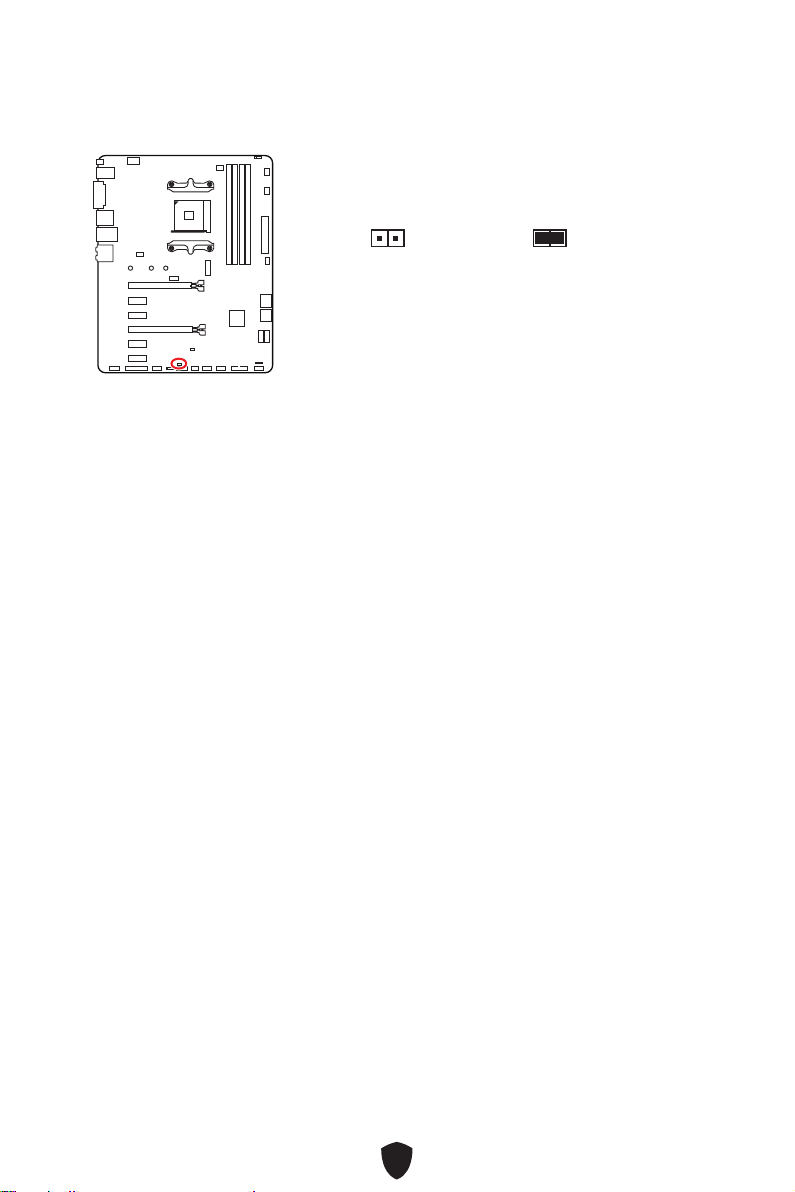
32
1.
JCI1
2.
3. BIOS > SETTINGS > Security > Chassis Intrusion Configuration
4. Chassis IntrusionEnabled
5. F10Enter
Yes
6.
1.
BIOS > SETTINGS > Security > Chassis Intrusion Configuration
2. Chassis IntrusionReset
3. F10
Yes
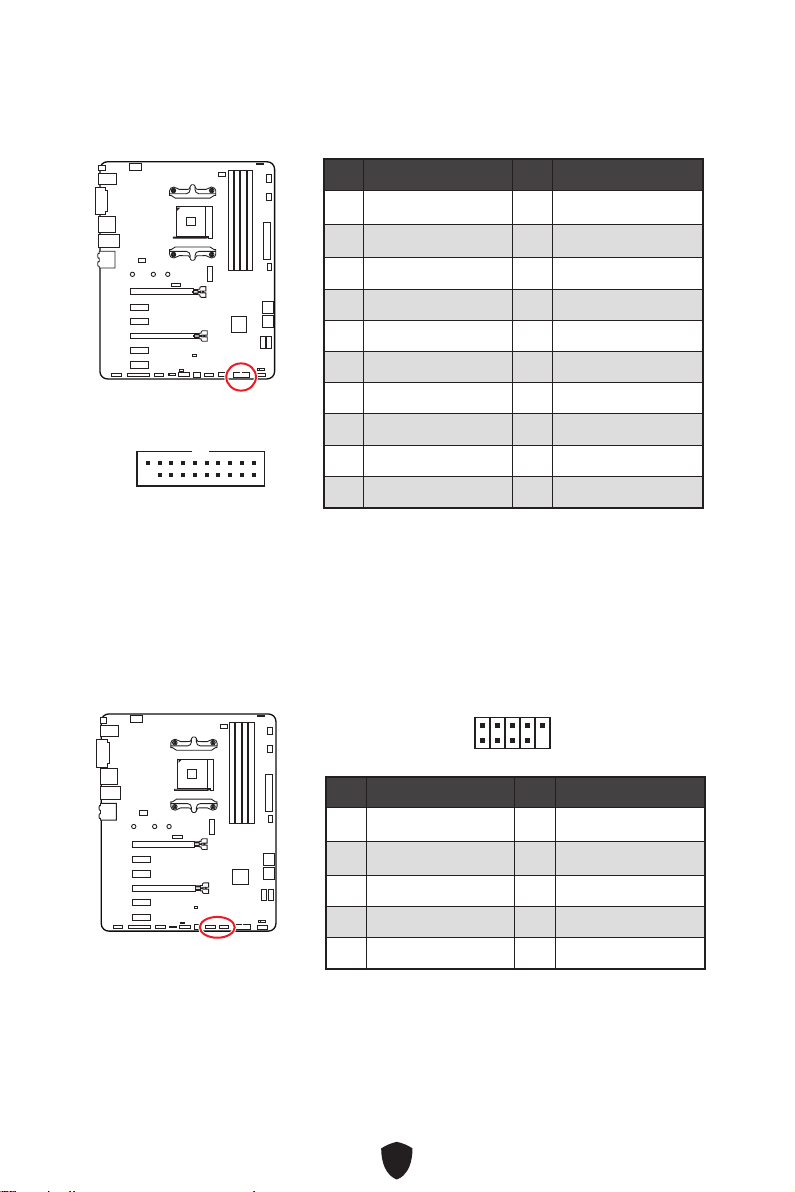
33
1 Power 2 USB3_RX_DN
3 USB3_RX_DP 4 Ground
5 USB3_TX_C_DN 6 USB3_TX_C_DP
7 Ground 8 USB2.0-
9 USB2.0+ 10 Ground
11 USB2.0+ 12 USB2.0-
13 Ground 14 USB3_TX_C_DP
15 USB3_TX_C_DN 16 Ground
17 USB3_RX_DP 18 USB3_RX_DN
19 Power 20 No Pin
1 10
1120
1 VCC 2 VCC
3 USB0- 4 USB1-
5 USB0+ 6 USB1+
7 Ground 8 Ground
9 No Pin 10 NC
1
2 10
9
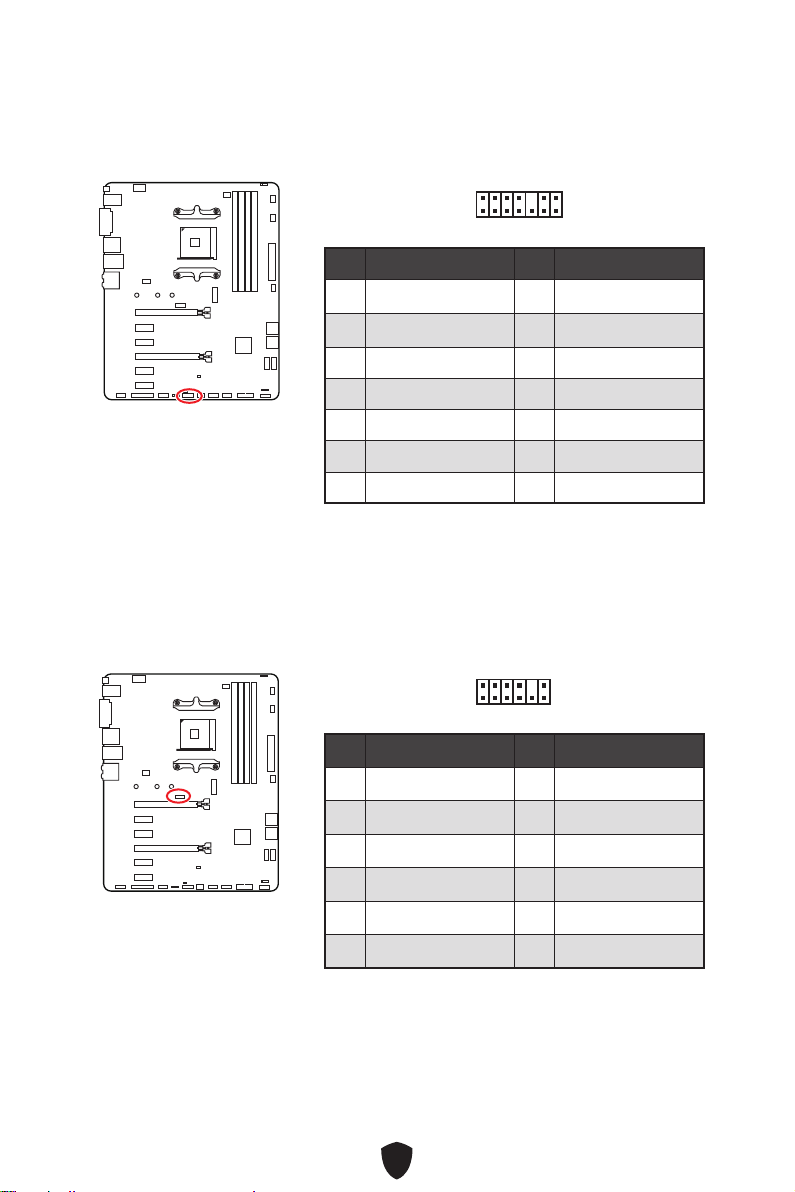
34
1 LPC Clock 2 3V Standby power
3 LPC Reset 4 3.3V Power
5 LPC address & data pin0 6 Serial IRQ
7 LPC address & data pin1 8 5V Power
9 LPC address & data pin2 10 No Pin
11 LPC address & data pin3 12 Ground
13 LPC Frame 14 Ground
1
2 14
13
1 1.8V power 2 SPI_TPM_CS#_R
3 SPI_TPM_DATI 4 SPI_DATO
5 SPI_CS#_R 6 SPI_TPM_CLK
7 Ground 8 SPI_TPM_RST#
9 SPI_SW_SEL 10 NA
11 SPI_TPM_WP# 12 SPI_TPM_HOLD#
1
2 12
11
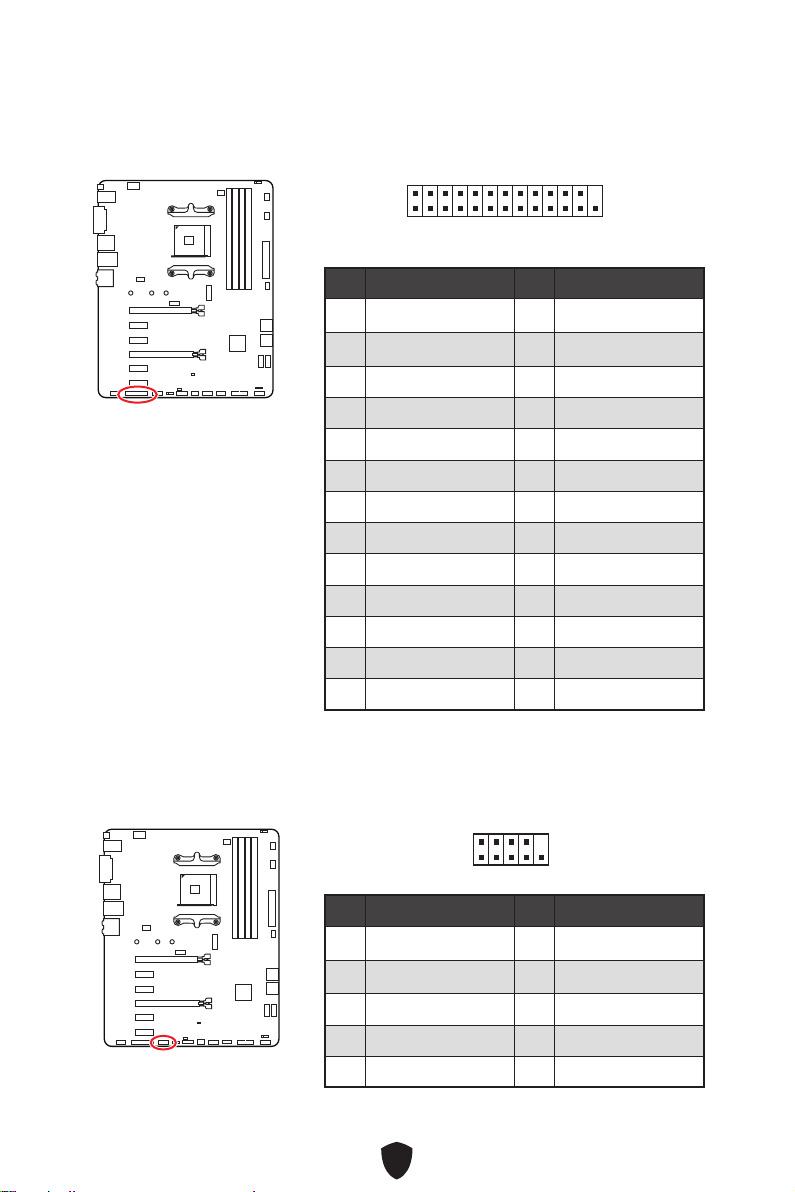
35
1
2 26
25
1 RSTB# 2 AFD#
3 PRND0 4 ERR#
5 PRND1 6 PINIT#
7 PRND2 8 LPT_SLIN#
9 PRND3 10 Ground
11 PRND4 12 Ground
13 PRND5 14 Ground
15 PRND6 16 Ground
17 PRND7 18 Ground
19 ACK# 20 Ground
21 BUSY 22 Ground
23 PE 24 Ground
25 SLCT 26 No Pin
1 DCD 2 SIN
3 SOUT 4 DTR
5 Ground 6 DSR
7 RTS 8 CTS
9 RI 10 No Pin
1
2 10
9
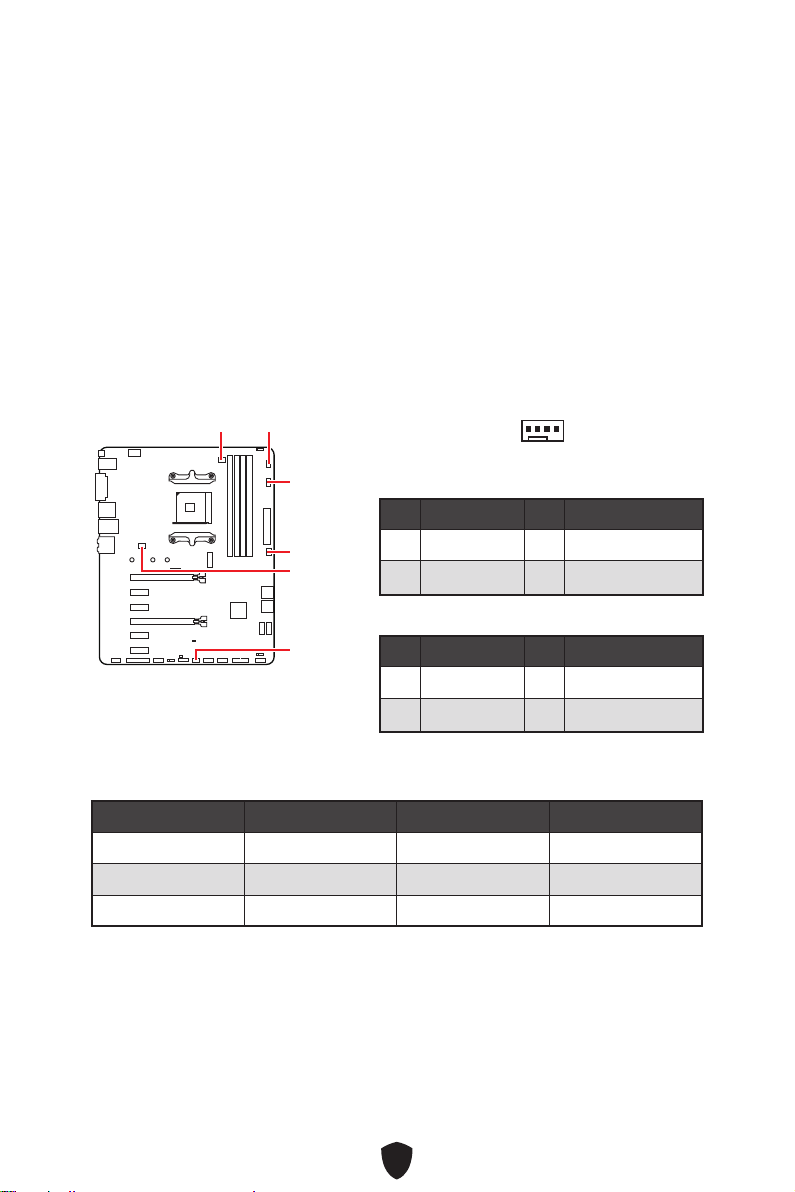
36
BIOS> HARDWARE MONITOR
CPU_FAN1
SYS_FAN2
SYS_FAN4
SYS_FAN1
PUMP_FAN1
SYS_FAN3
1
1 Ground 2 +12V
3 Sense 4 Speed Control Signal
1 Ground 2 Voltage Control
3 Sense 4 NC
CPU_FAN1 2A 24W
PUMP_FAN1 3A 36W
SYS_FAN1~4 2A 24W
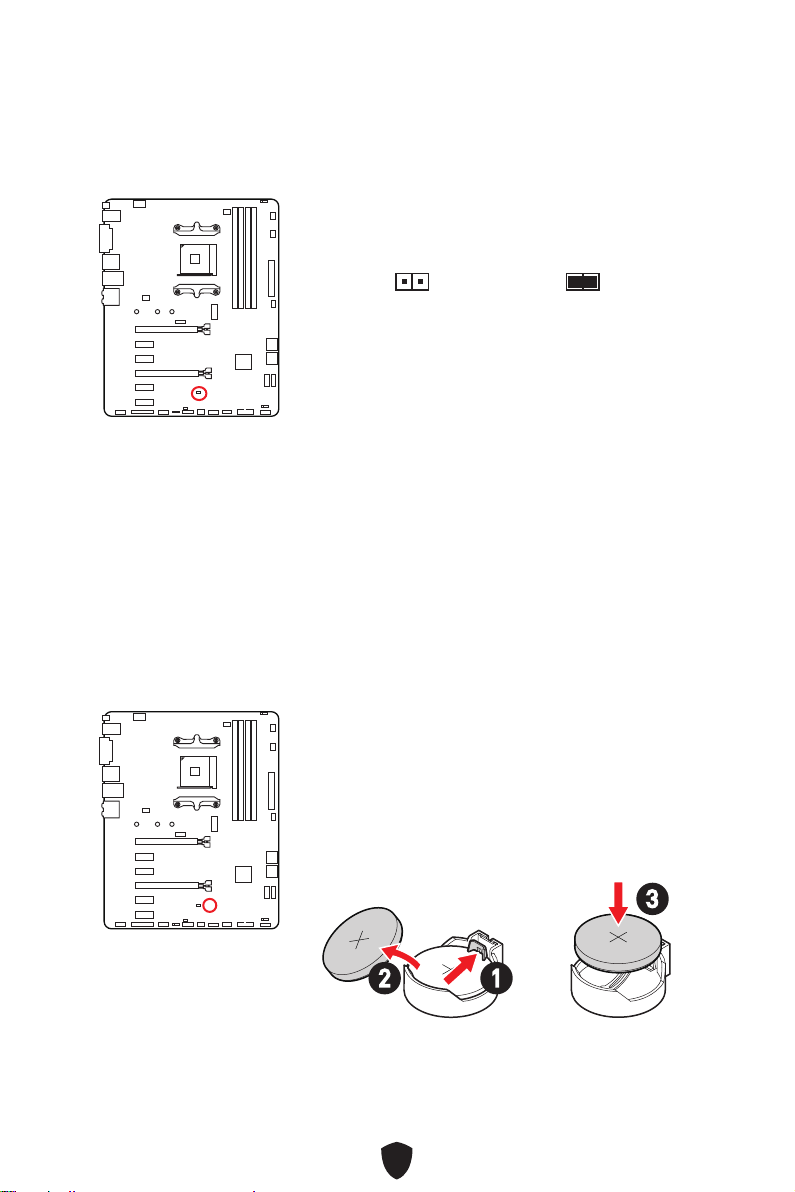
37
1.
2. JBAT1
3. JBAT1
4.
1.
2.
3. +
12
3
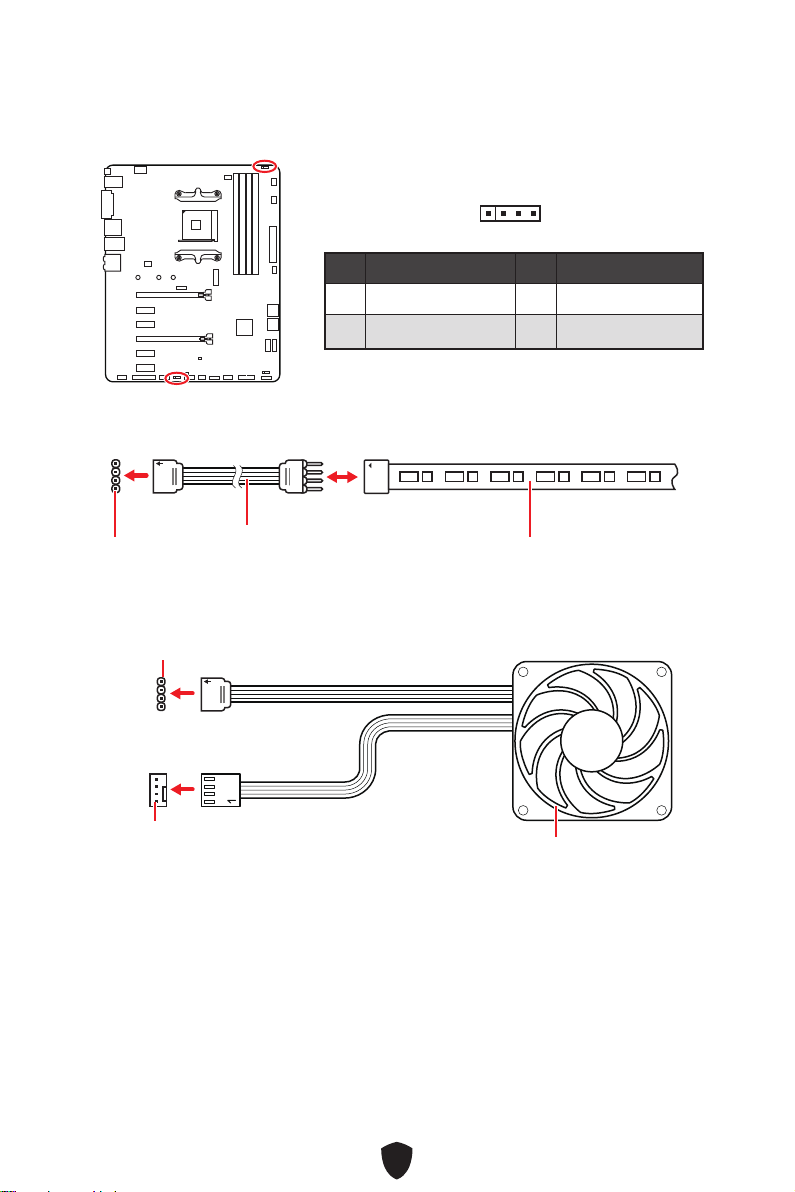
38
1
G
R
B
1
1
G
R
B
1 +12V 2 G
3 R 4 B
1
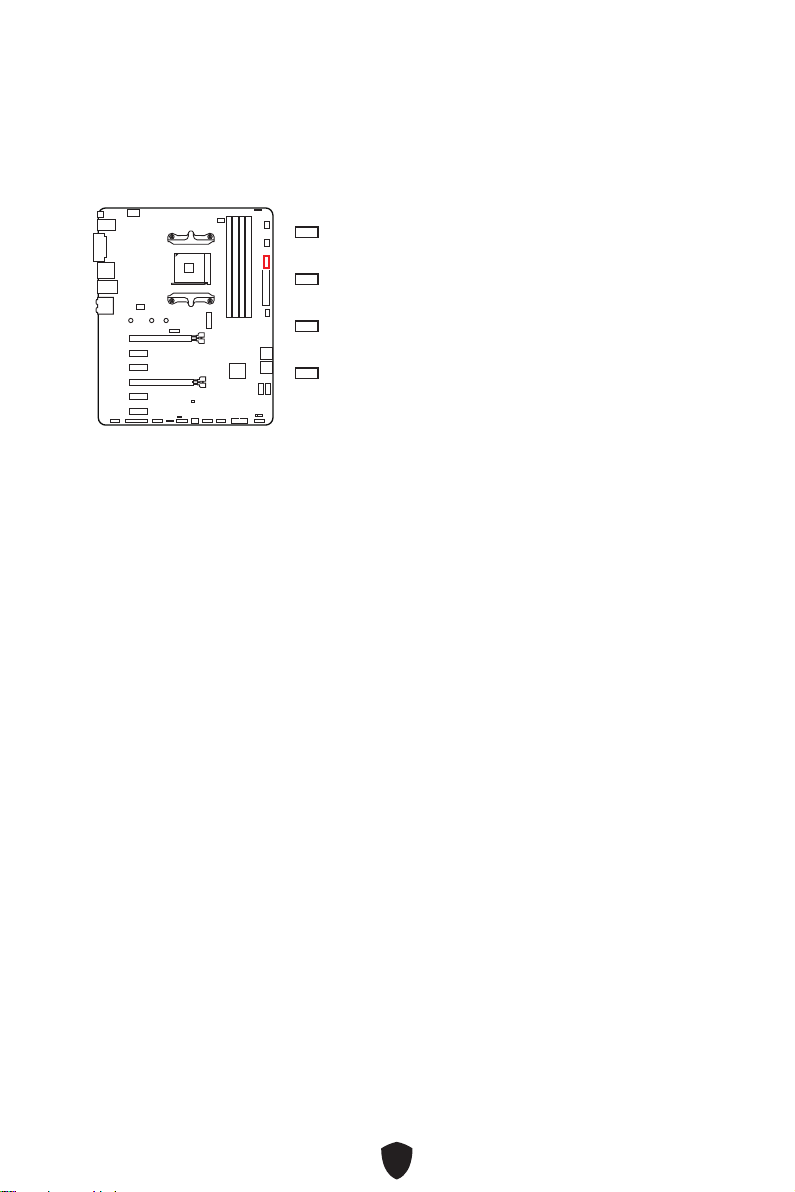
39
EZ Debug LED
CPU
DRAM
VGA
BOOT
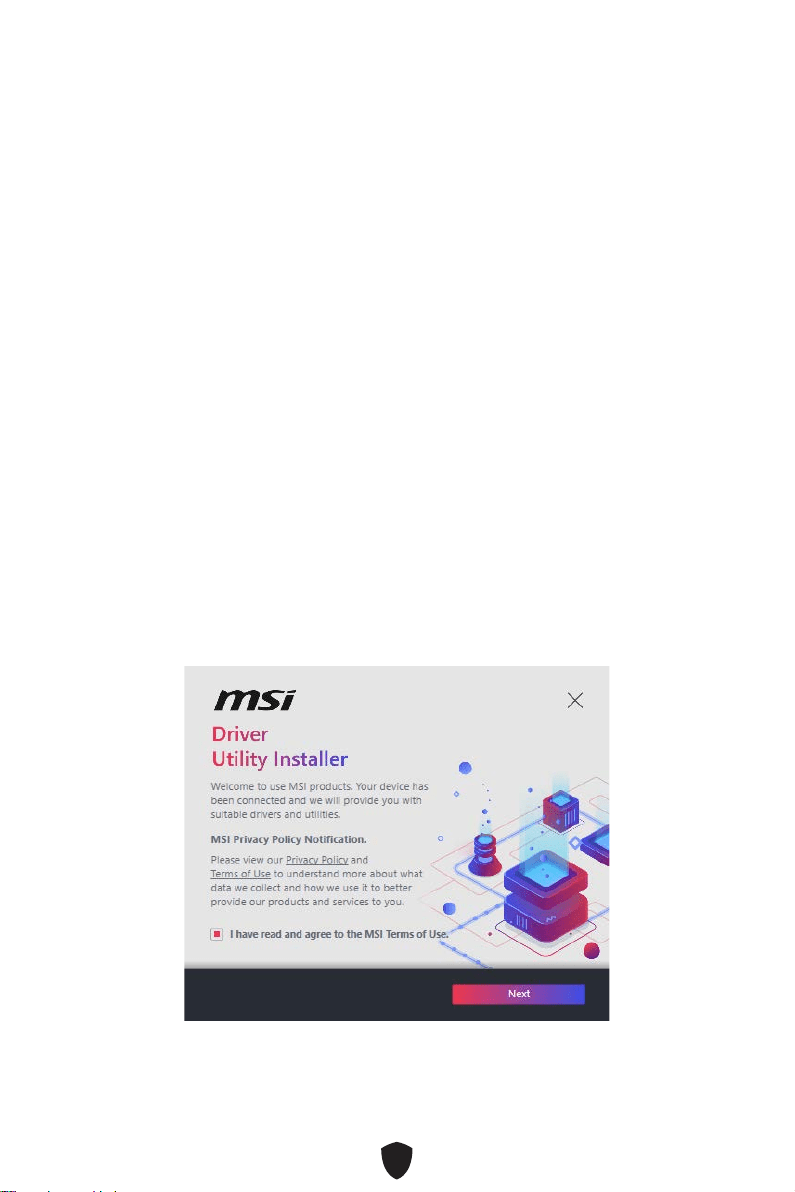
40
1.
2.
3. Restart
4. F11
5.
6. Press any key to boot from CD or DVD...
7.
1.
2.
3.
4. I have read and agree to the MSI Terms of UseNext
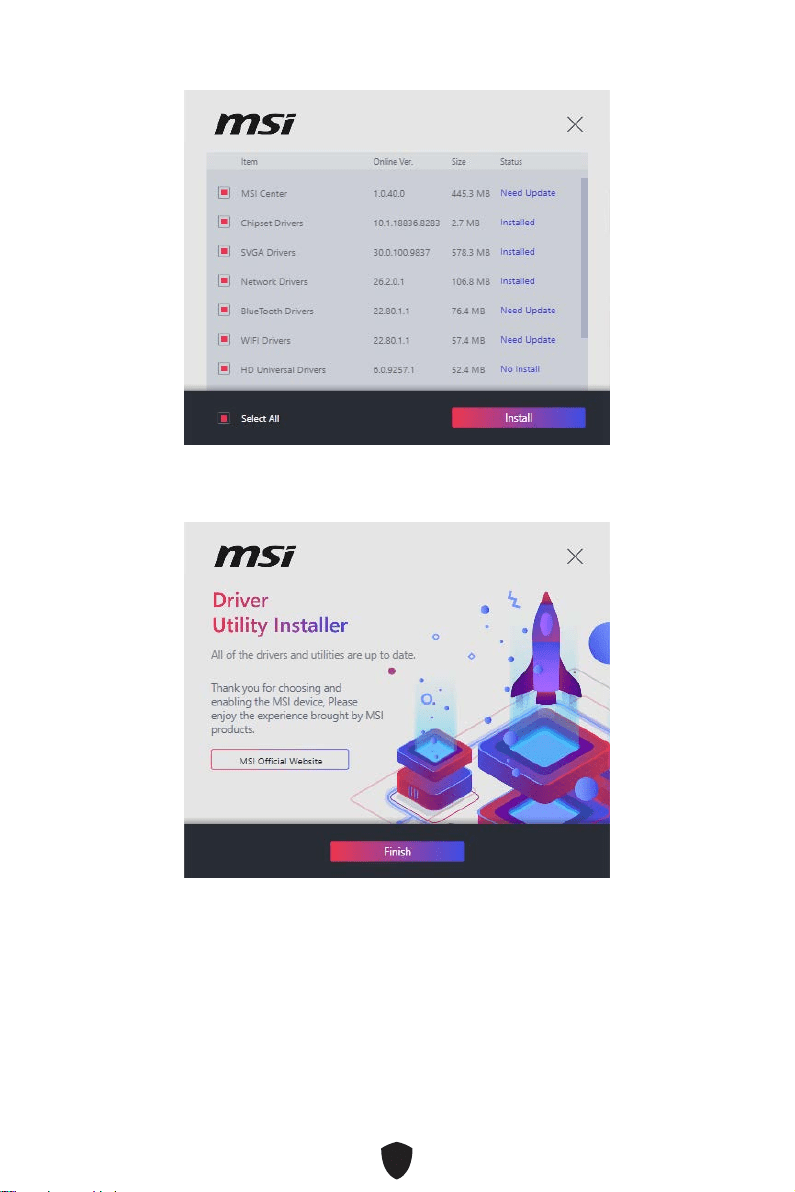
41
5. Select AllInstall
6. Finish
42
1.
2.
3. Select to choose what happens with this disc
Run DVDSetup.exe
DVDSetup.exe
4.
5. Install
6.
7. OK
8.
MSI Center
http://download.msi.com/manual/mb/MSICENTER.pdf

43
UEFI BIOS
1.
2. Press DEL key to enter Setup Menu, F11 to enter Boot Menu
Delete
3.
BIOS Mode: UEFI

44
HELP
Press DEL key to enter Setup Menu, F11 to enter Boot Menu
Delete
F1
F2
F3
F4
F5
F6
F7
F8
F9
F10
F12:
Ctrl+F:
http://download.msi.com/manual/mb/AMDX570BIOSjp.pdf
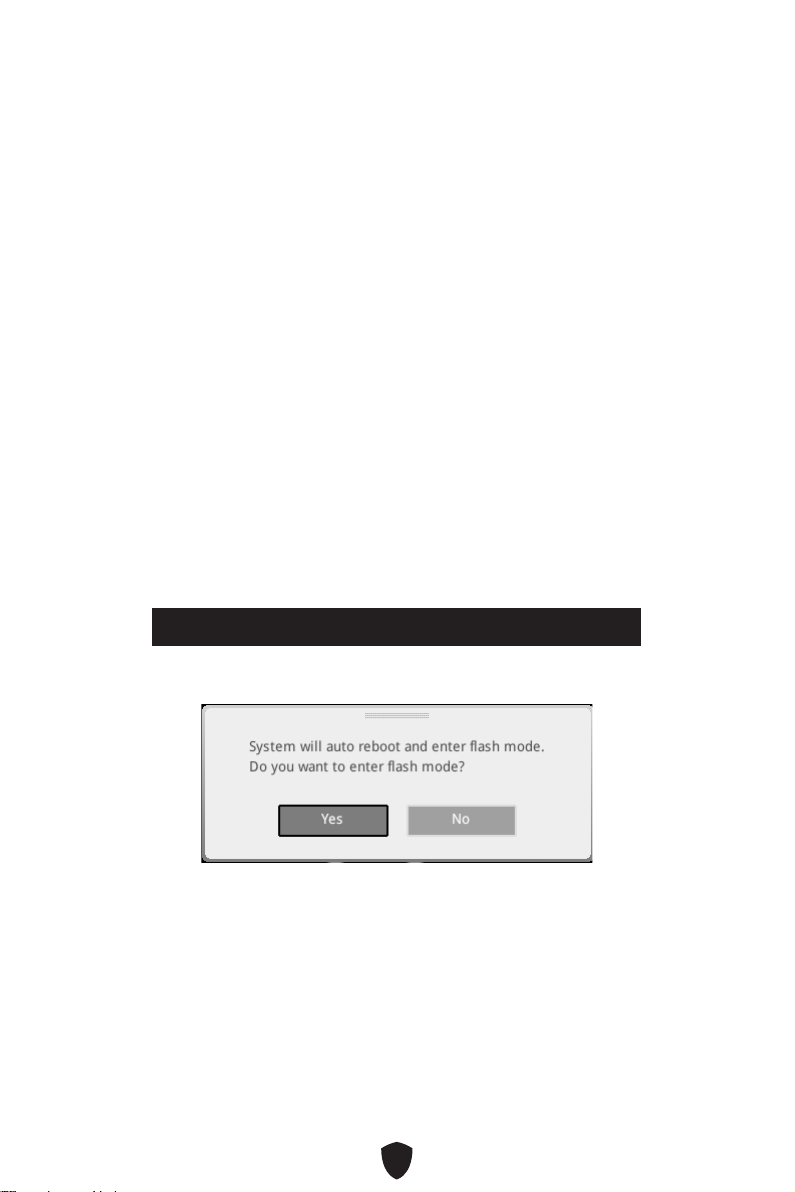
45
F6
1.
2.
•
Press <Ctrl+F5> to activate M-Flash for BIOS update.
•
3.
4.
5.

46
1. Support
2. Live UpdateAdvanced
3. Install
4.
5.
6.
1.
2.
3. CPU_PWR1ATX_PWR1
4.
5.
6.

1
..........................................................................................................3
...................................................................................................................16
...........................................................................................................19
........................................................................................................20
...............................................................................................21
........................................................................................ 22
................................................................................................. 22
........................................................................................................24
............................................................................................................... 25
............................................................................................................. 26
..................................................................................... 27
......................................................................................... 28
............................................................................... 29
................................................................................ 30
.................................................................................... 30
................................................................... 31
........................................................................................... 32
............................................................................... 33
..................................................................................... 33
................................................................................... 34
....................................................................................... 34
..................................................................................... 35
.................................................................................... 35
............................................. 36
............................................................... 37
.............................................................................................. 37
................................................................................... 38
......................................................................................................39

2
....................................................................................................... 39
....................................................................40
MSI Center ............................................................................................................ 42
UEFI BIOS .........................................................................................................43
.............................................................................................. 44
............................................................................................................... 45
........................................................................................................ 45
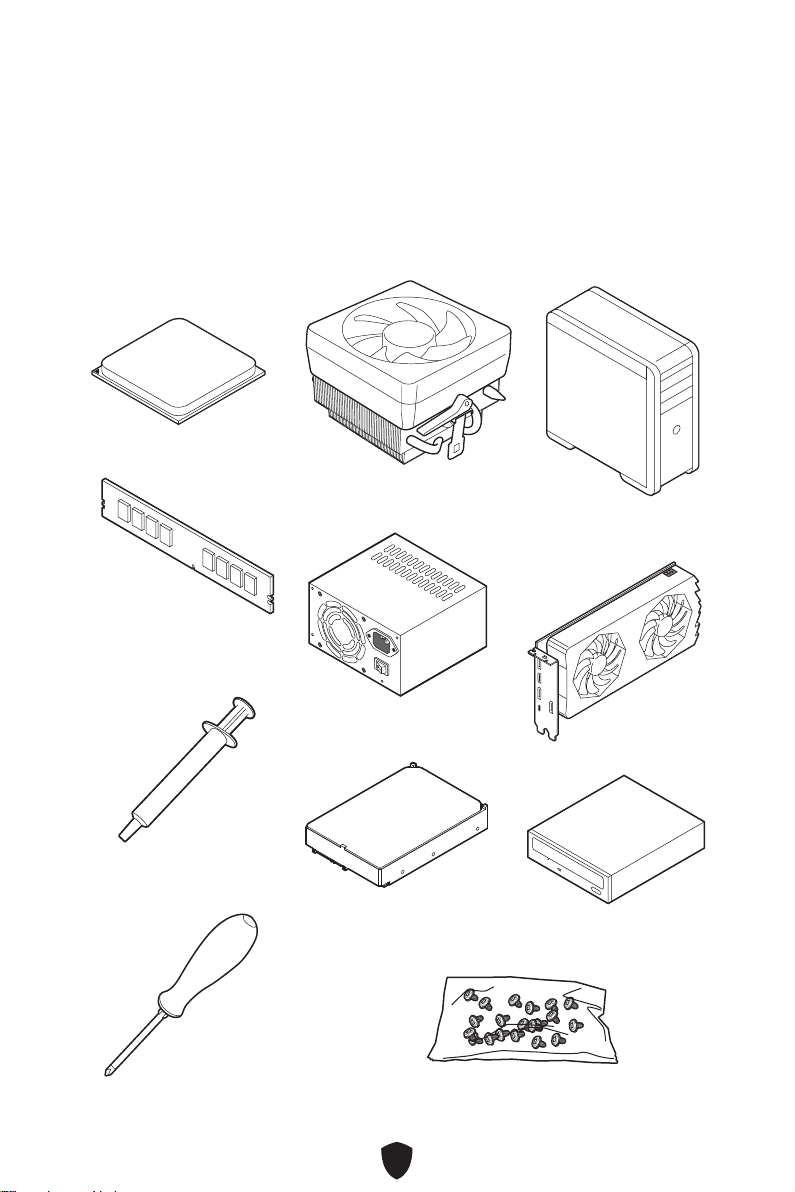
3
AMD® AM4 CPU
CPU Fan
Chassis

4
•
•
•
•
•
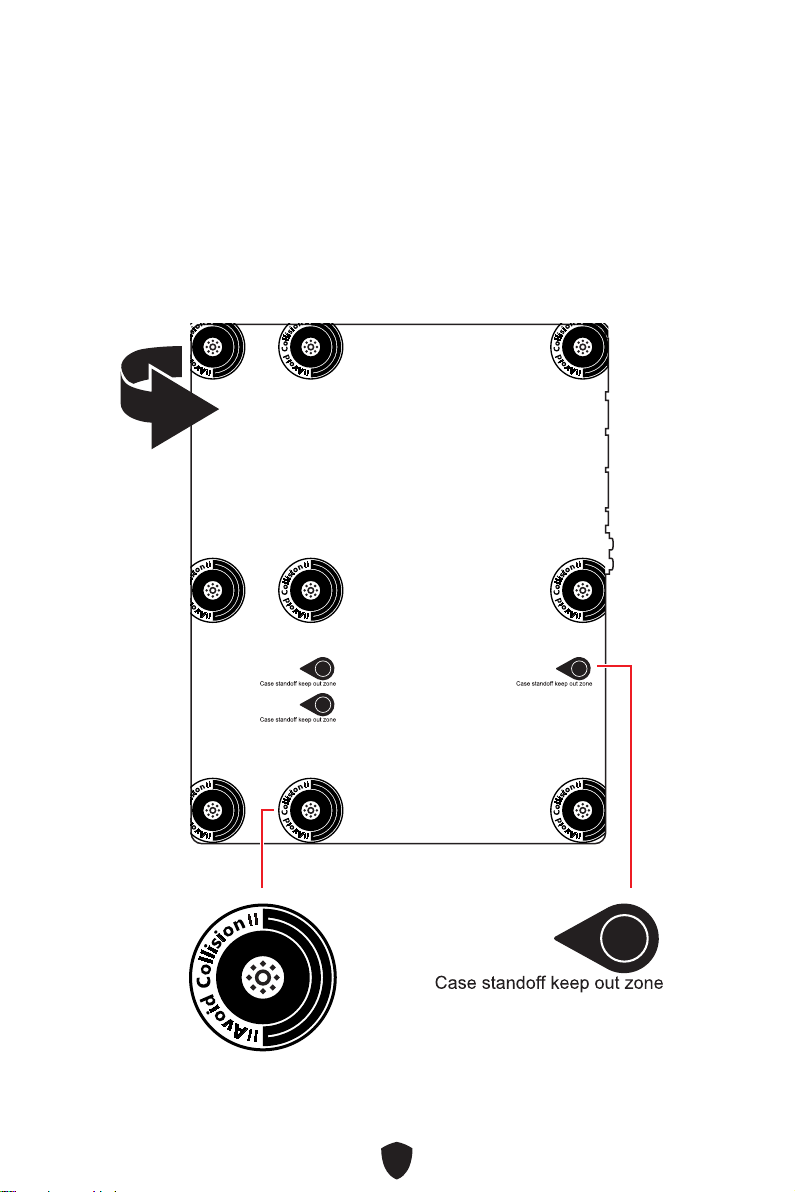
5
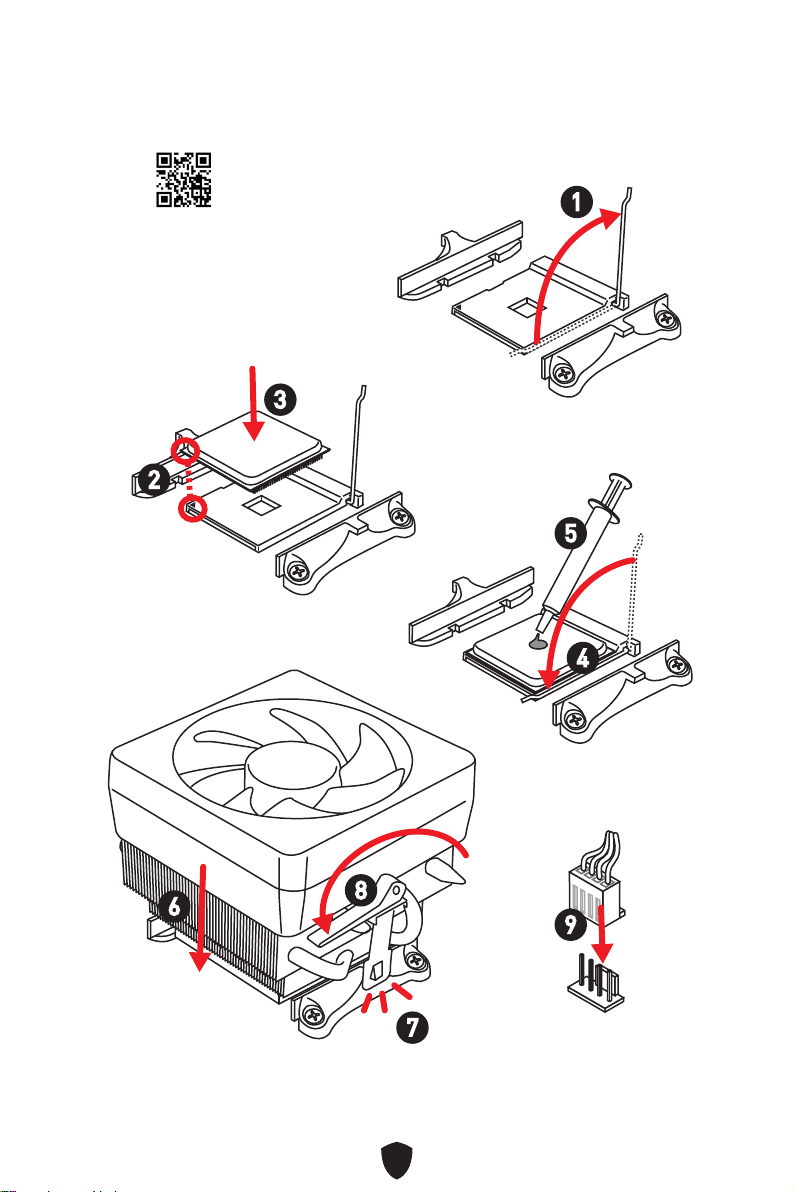
6
https://youtu.be/Xv89nhFk1vc
1
2
3
6
4
5
7
8
9
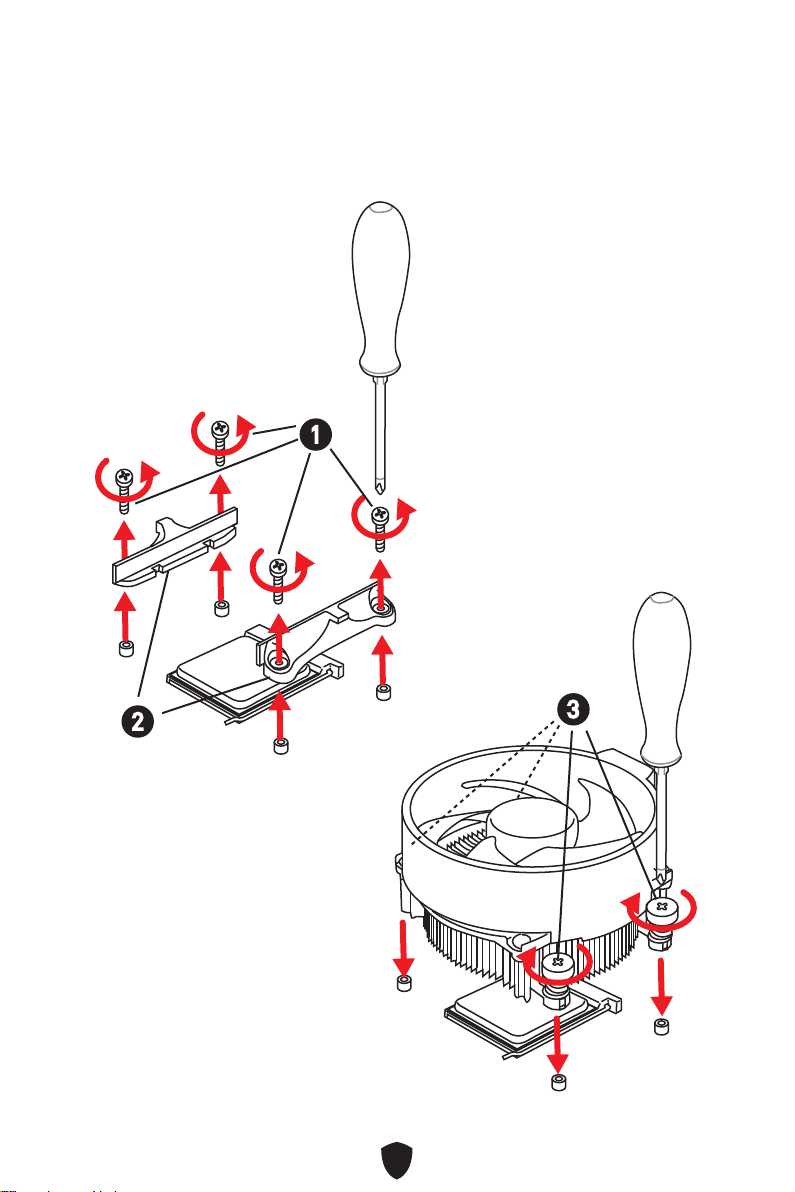
7
1
2
3
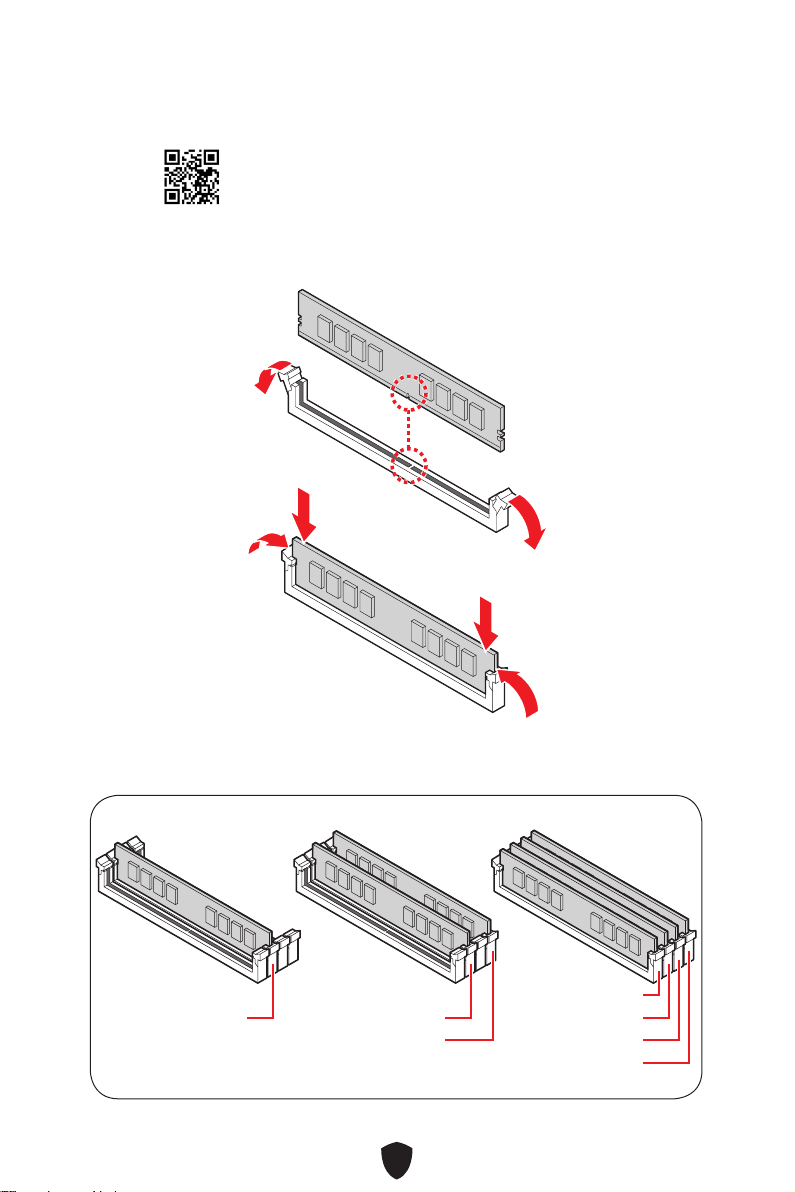
8
DIMMA2 DIMMA2
DIMMB2
DIMMA1
DIMMA2
DIMMB1
DIMMB2
http://youtu.be/T03aDrJPyQs
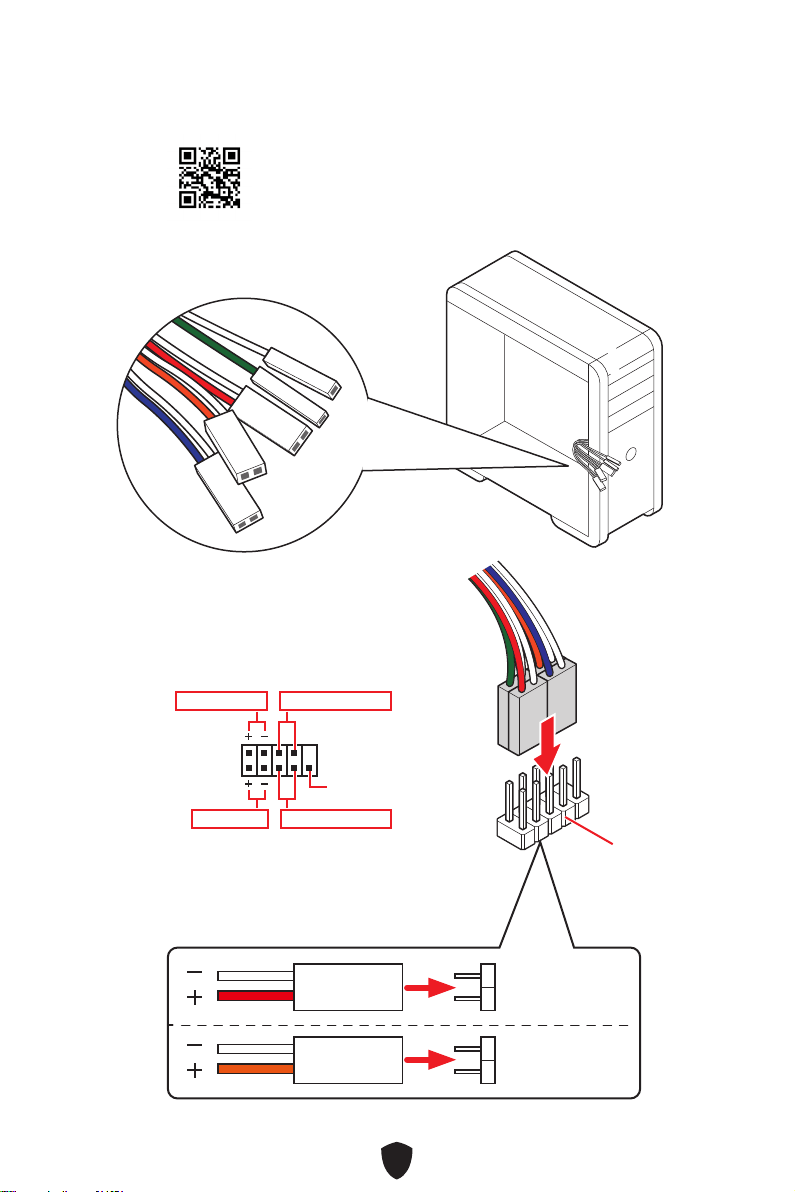
9
HDD LED
RESET SW
http://youtu.be/DPELIdVNZUI
JFP1
HDD LED
HDD LED -
HDD LED +
POWER LED -
POWER LED +
POWER LED
RESET SW
POWER SW
POWER LED+
POWER LED-
HDD LED
1
2 10
9
Reserved
JFP1
HDD LED
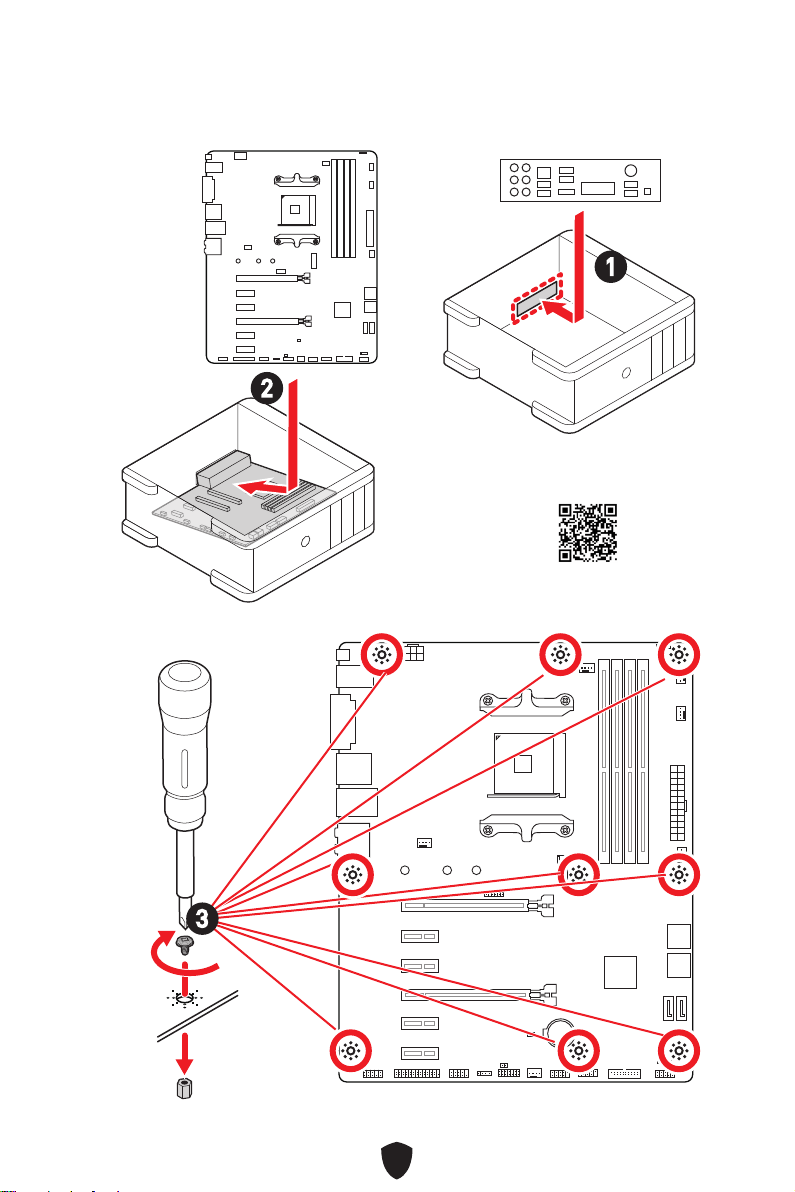
10
BAT1
2
1
https://youtu.be/wWI6Qt51Wnc
3 kgf·cm*
*3 kgf·cm
= 0.3 N·m
= 2.6 lbf·in
3
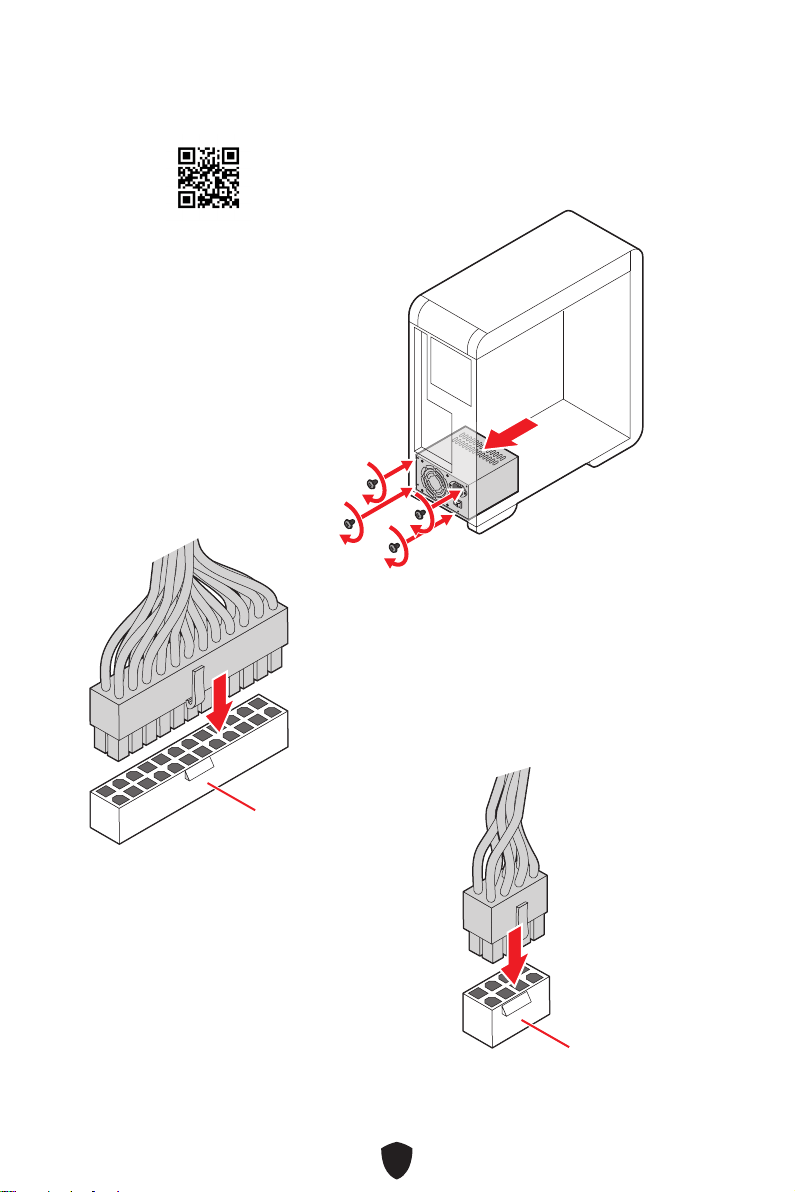
11
http://youtu.be/gkDYyR_83I4
ATX_PWR1
CPU_PWR1
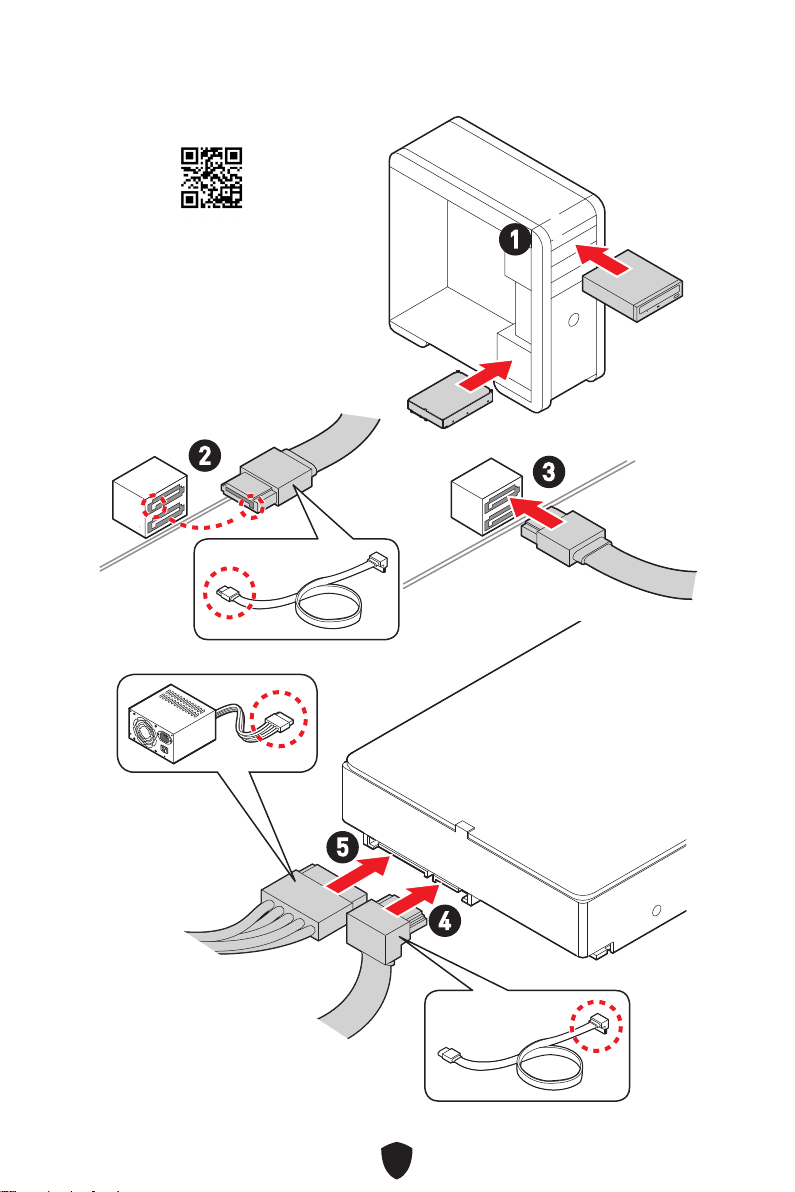
12
http://youtu.be/RZsMpqxythc
1
2
3
4
5
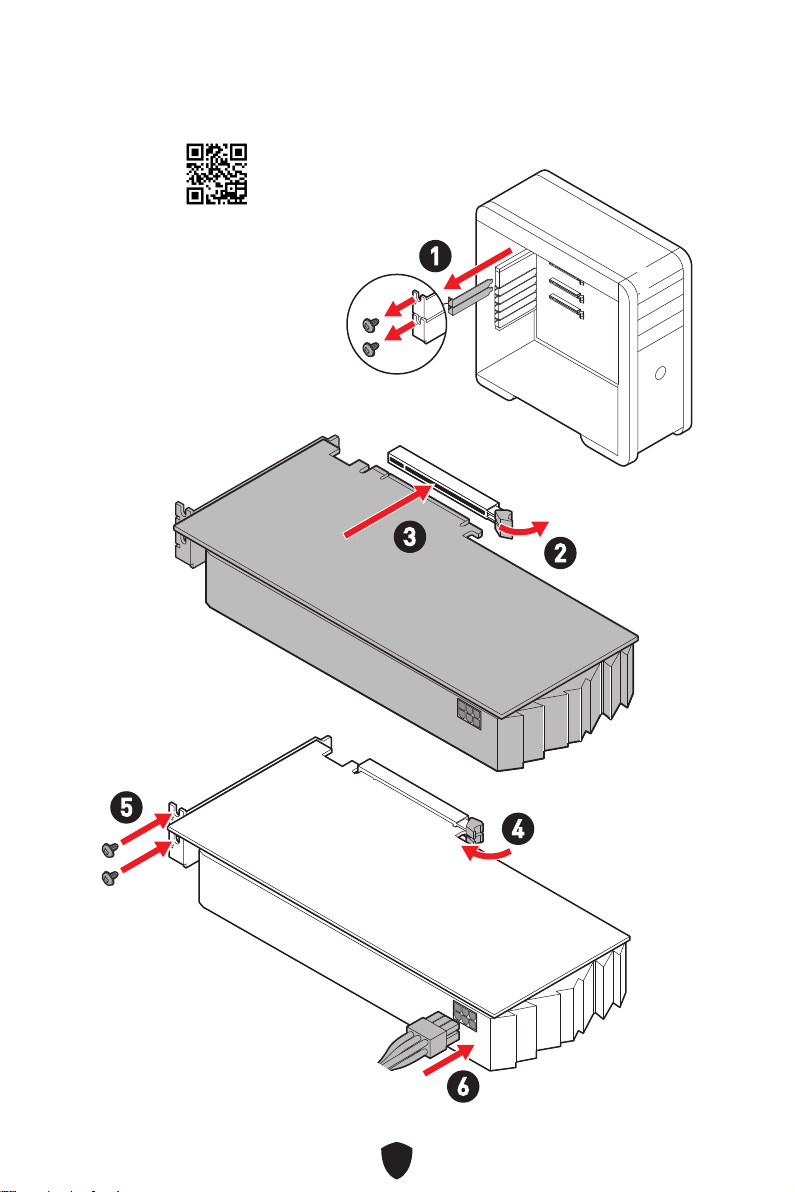
13
http://youtu.be/mG0GZpr9w_A
1
2
3
4
5
6
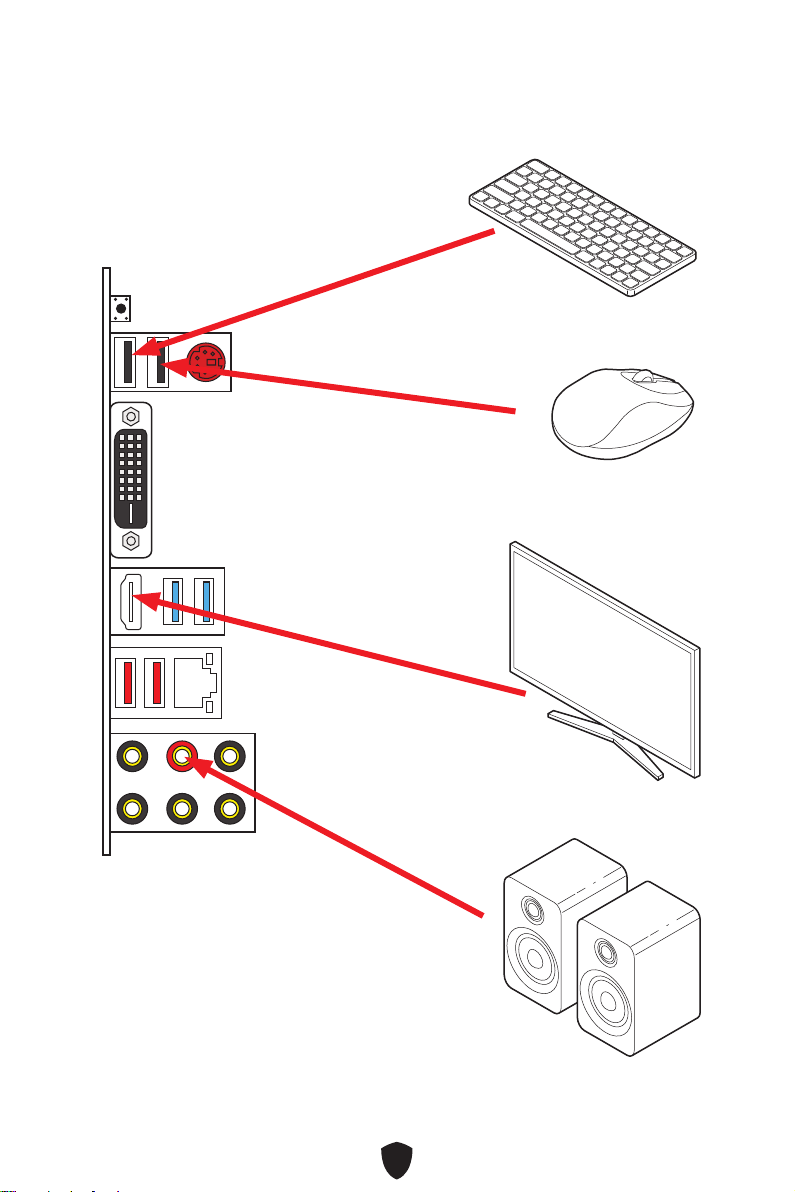
14
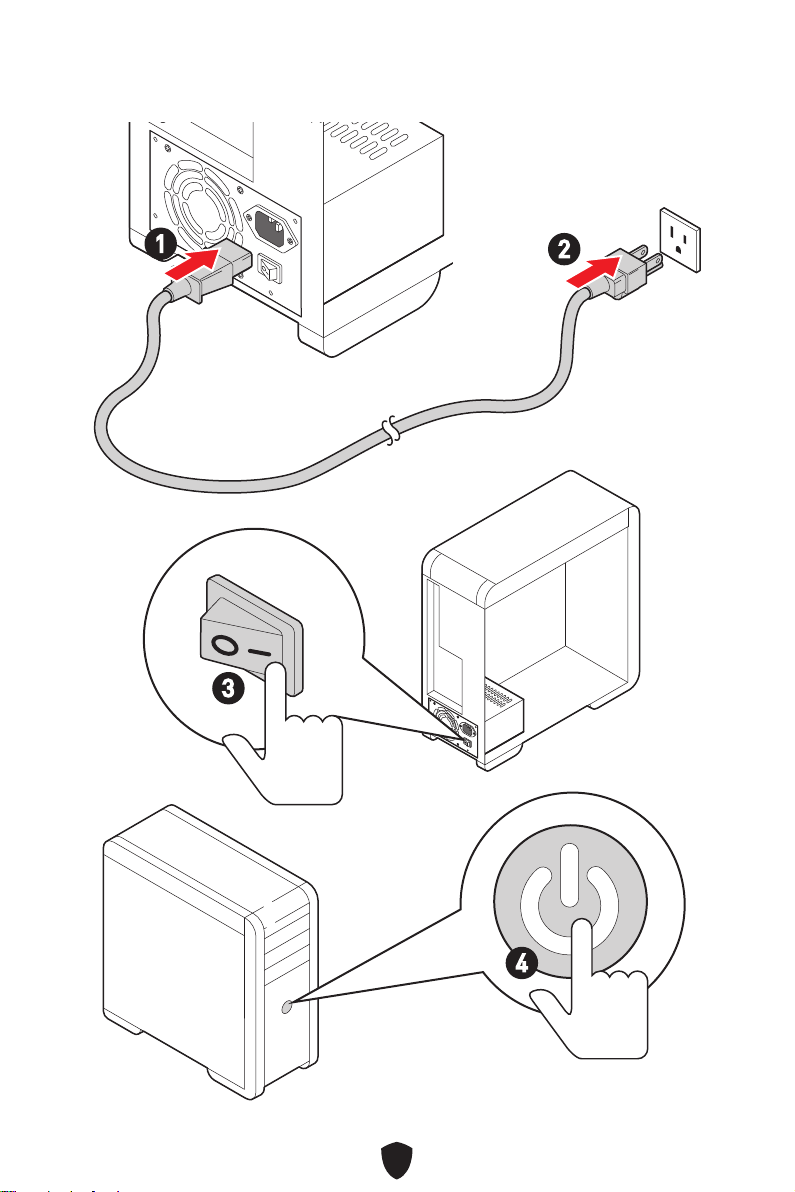
15
4
3
1
2
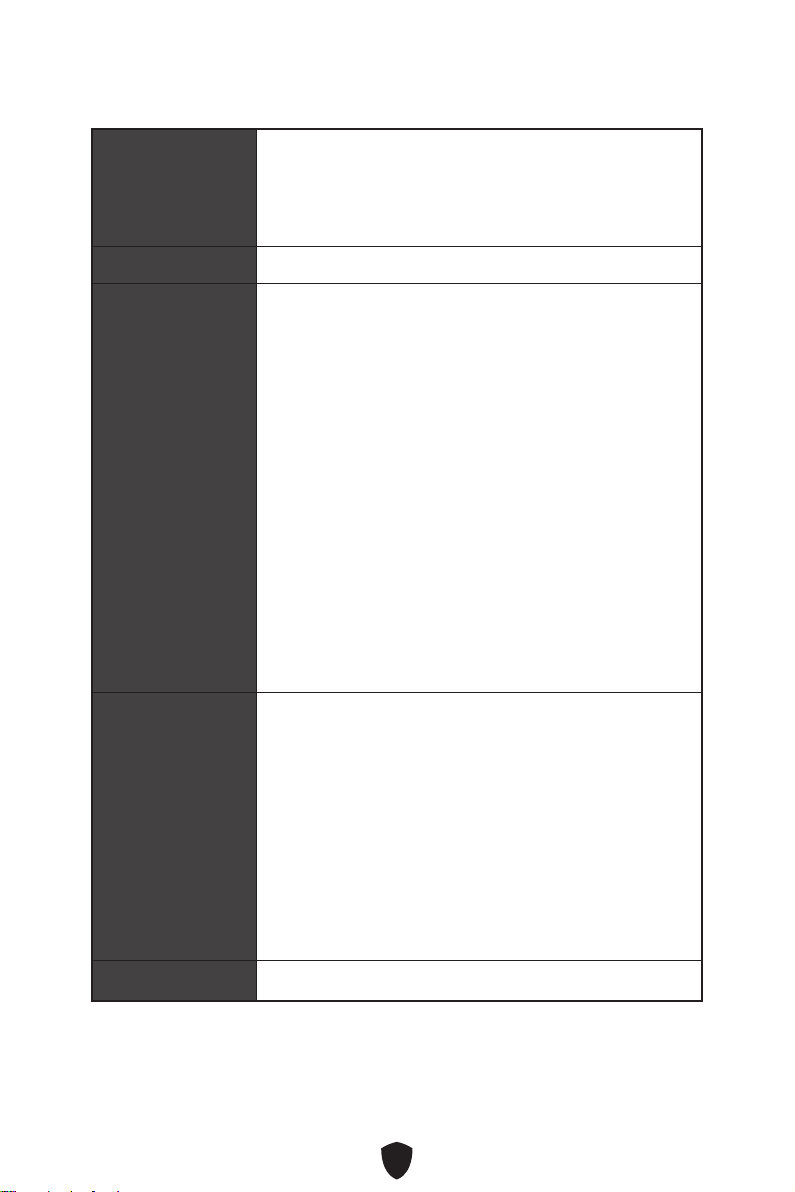
16
CPU
DDR4 1866/ 2133/ 2400/ 2667/ 2800/ 2933/ 3000/ 3066/
DDR4 2667/ 2800/ 2933/ 3000/ 3066/ 3200/ 3466/ 3600/
3733/ 3866/ 4000/ 4133/ 4266/ 4400+ MHz (by A-XMP OC
•
•
•
•
•
•
•
•
•
•
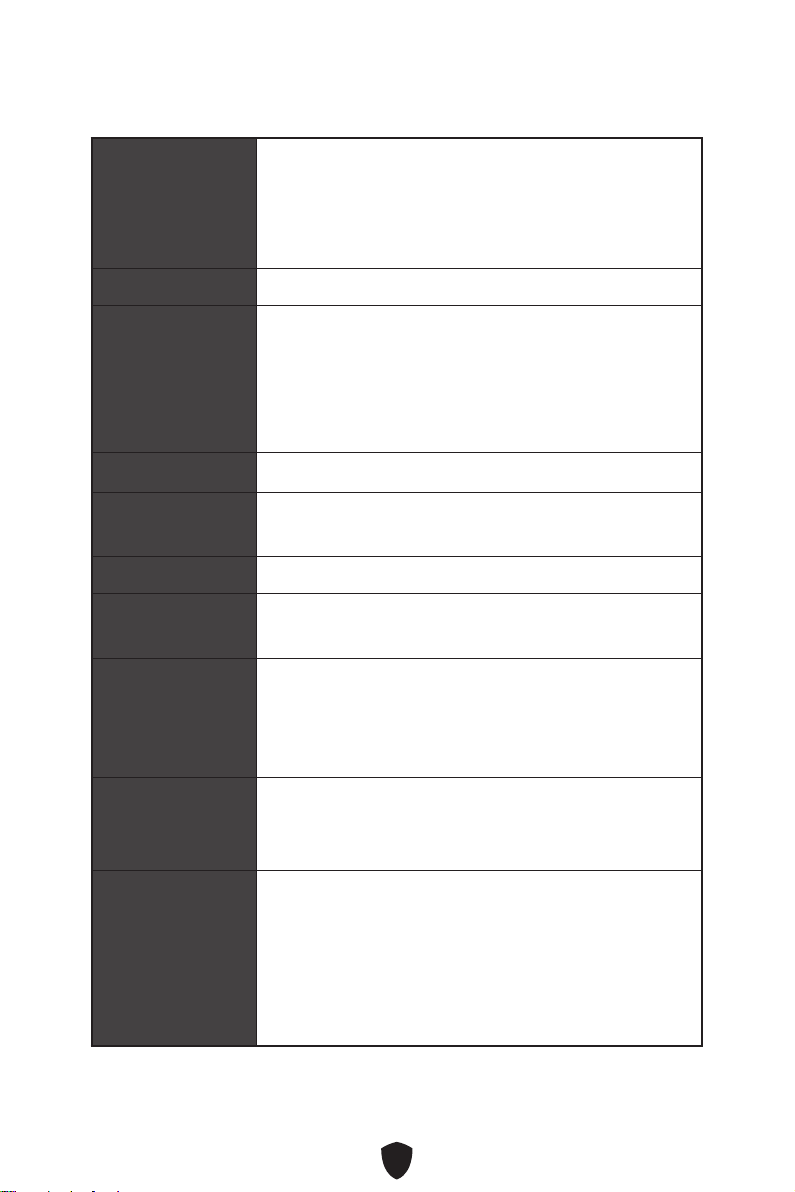
17
/
**
•
•
•
•
RAID
LAN
•
•
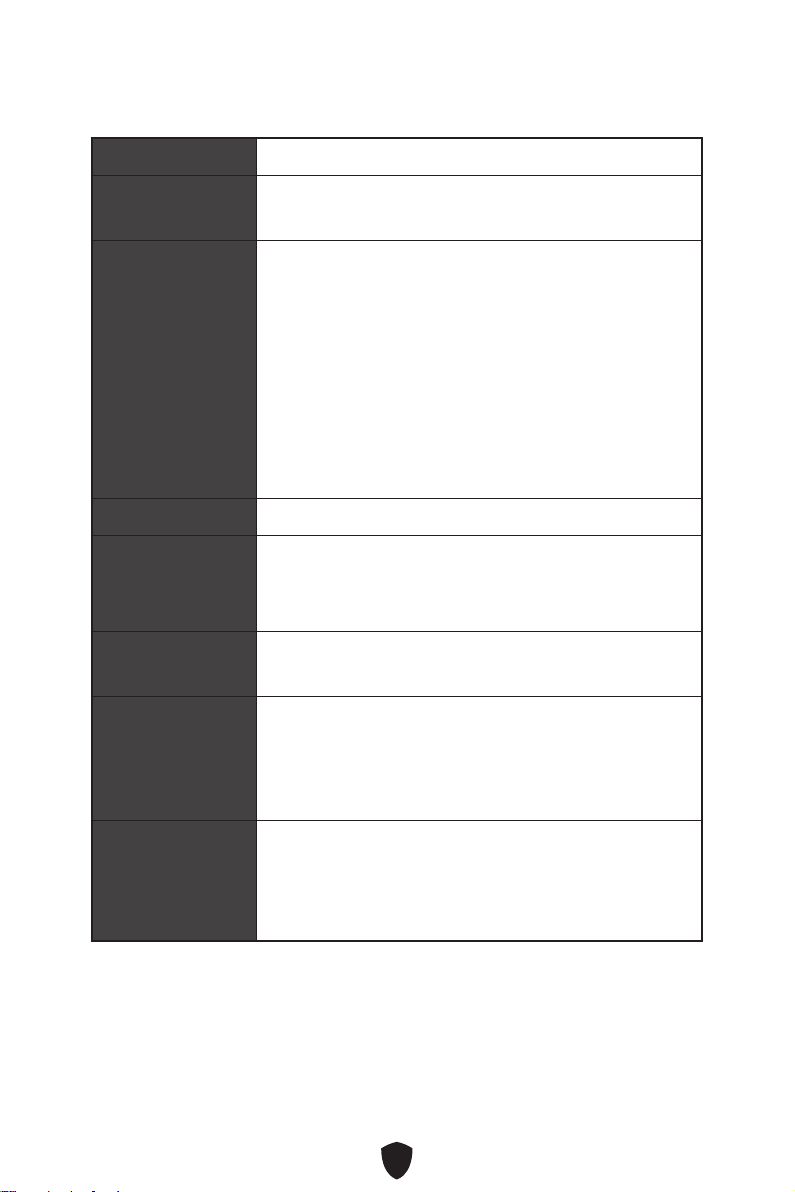
18
12 in. x 9.6 in. (30.5 cm x 24.4 cm)
1x 256 Mb flash
UEFI AMI BIOS
ACPI 6.1, SMBIOS 2.8
MSI Center

19
MSI Center
•
• True Color
•
•
•
•
•
•
•
•
•
•
LED
•
•
•
•
•
•
•
• MSI Center
•
•
•

20
•
•
•
•
•
•
•
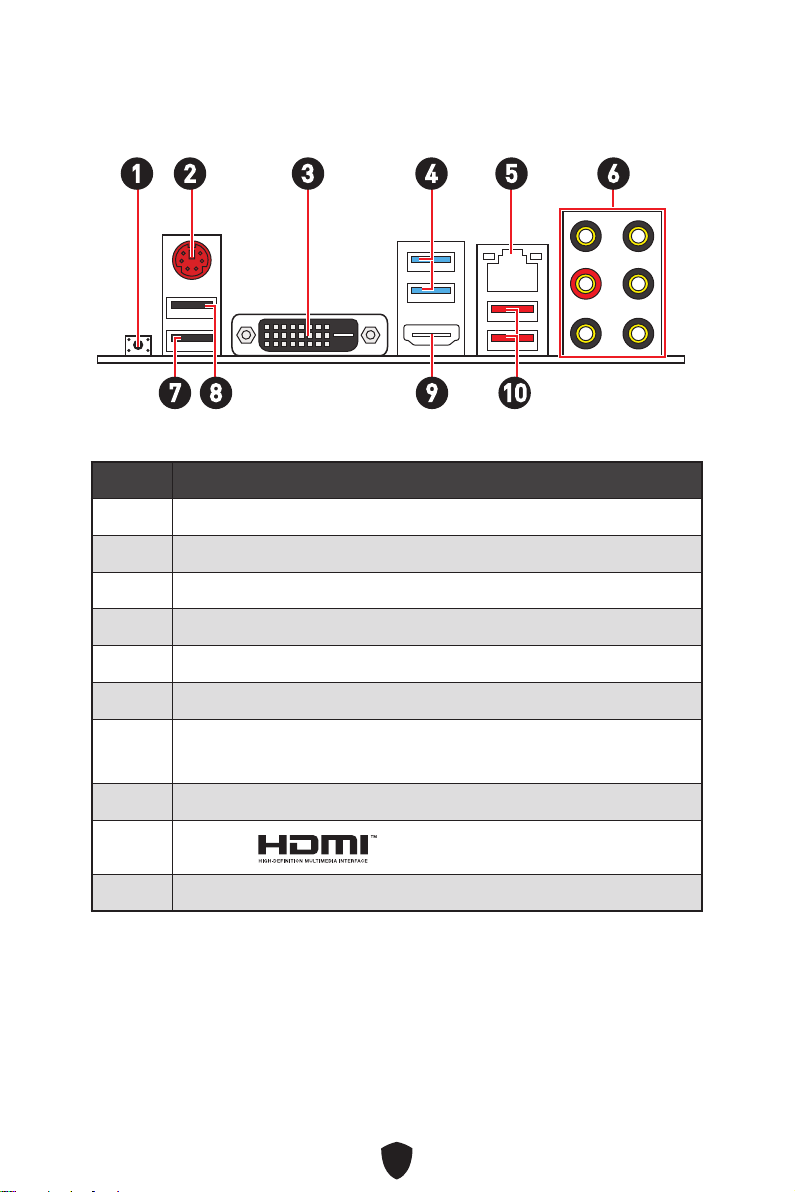
21
1
10
2 3 4 65
1
2
3
4
5
6
7
•
8
9
10
7 98
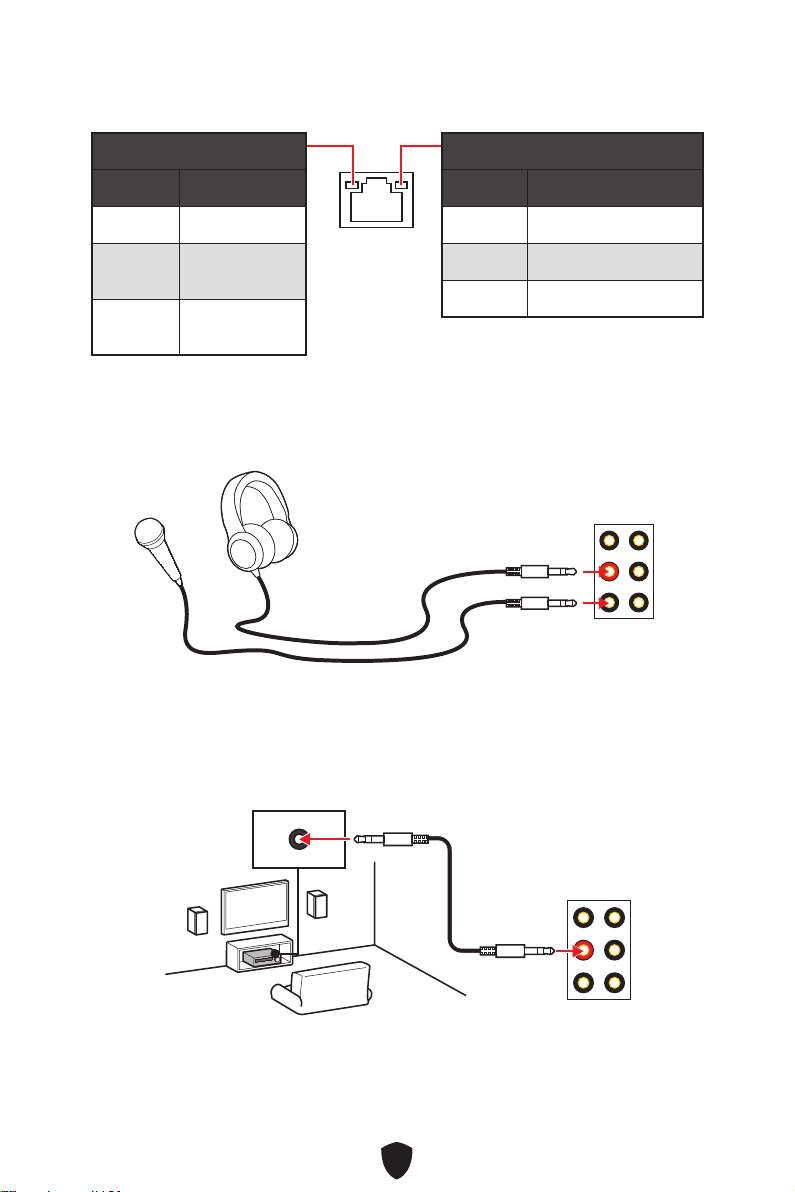
22
10 Mbps
100 Mbps
1 Gbps
AUDIO INPUT
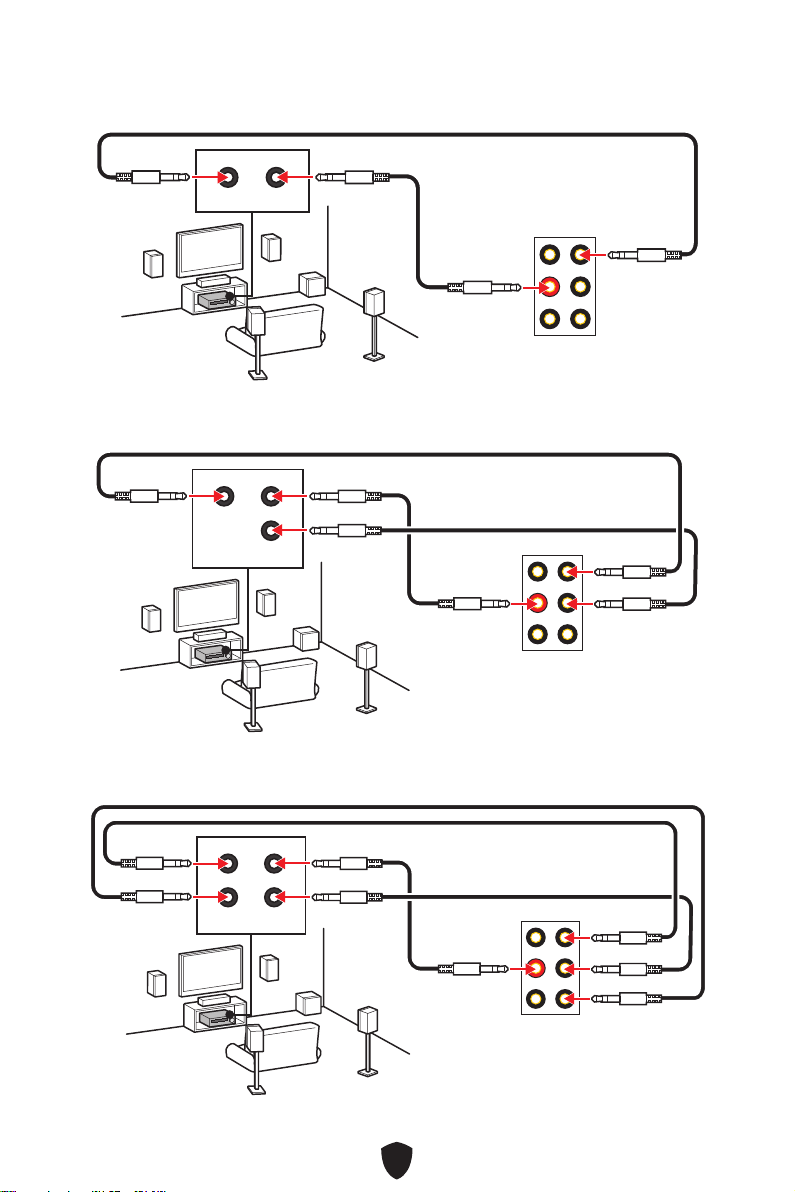
23
AUDIO INPUT
Rear Front
AUDIO INPUT
Rear Front
Center/
Subwoofer
AUDIO INPUT
Rear Front
Center/
Subwoofer
Side
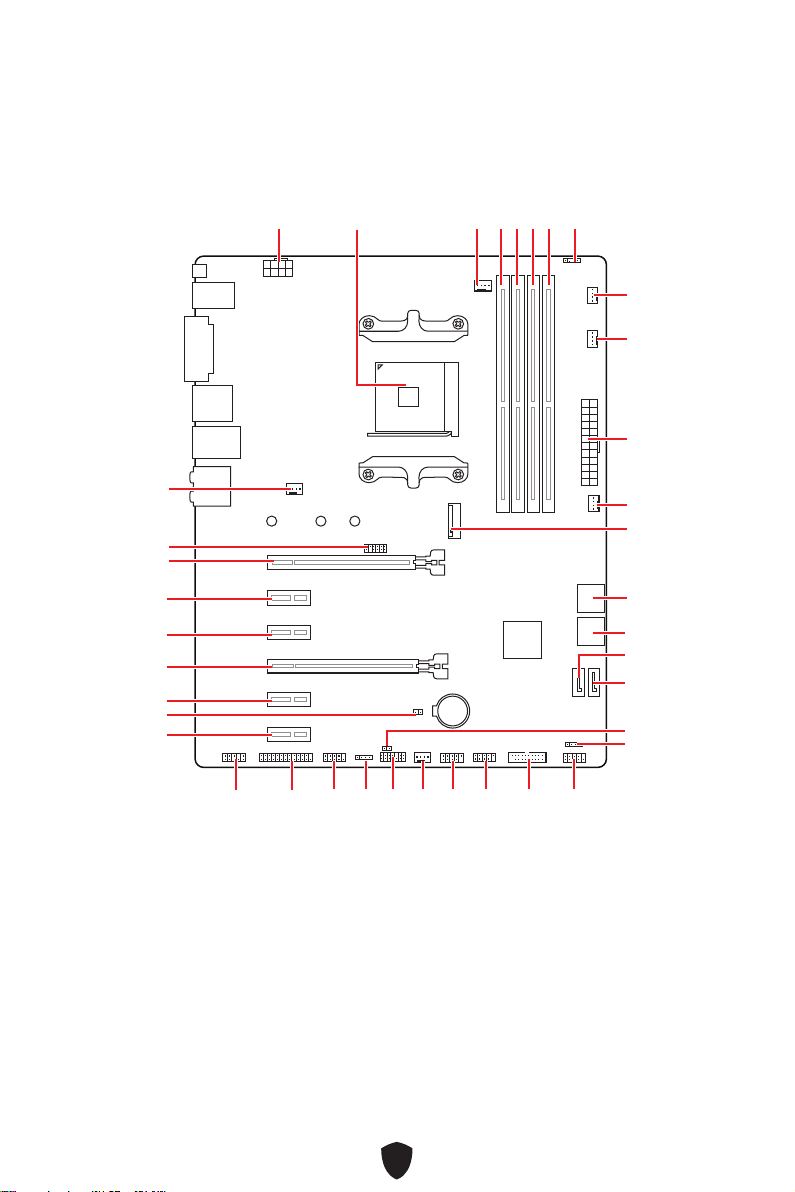
24
BAT1
M2_1
ATX_PWR1
SYS_FAN3
SYS_FAN4
PUMP_FAN1
CPU_FAN1
DIMMB2
JRGB1
CPU_PWR1
JFP1
JRGB2
SATA2
JUSB2
JUSB1
JLPC1
JUSB3
JCOM1
JLPT1
JAUD1
PCI_E1
JTPM1
SYS_FAN1
PCI_E2
PCI_E3
PCI_E4
PCI_E5
JBAT1
PCI_E6
SYS_FAN2
SATA1
JFP2
JCI1
DIMMB1
DIMMA2
DIMMA1
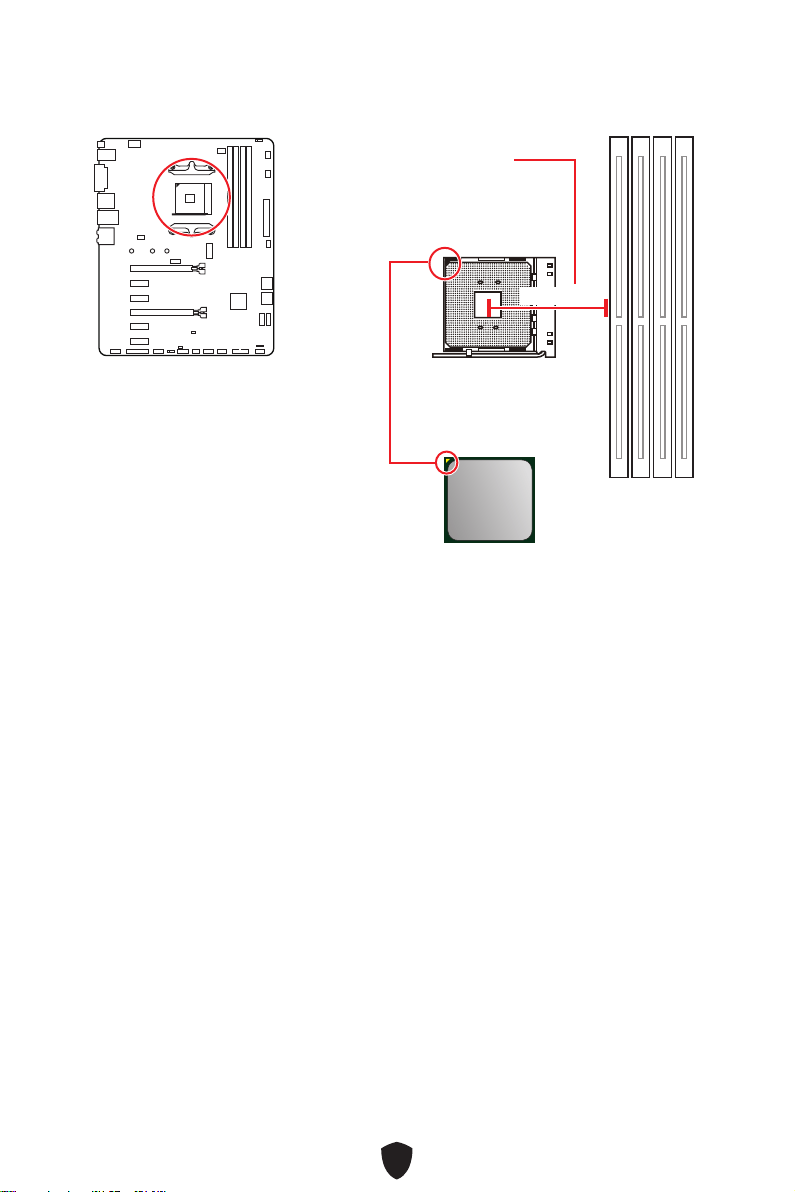
25
53.43 mm
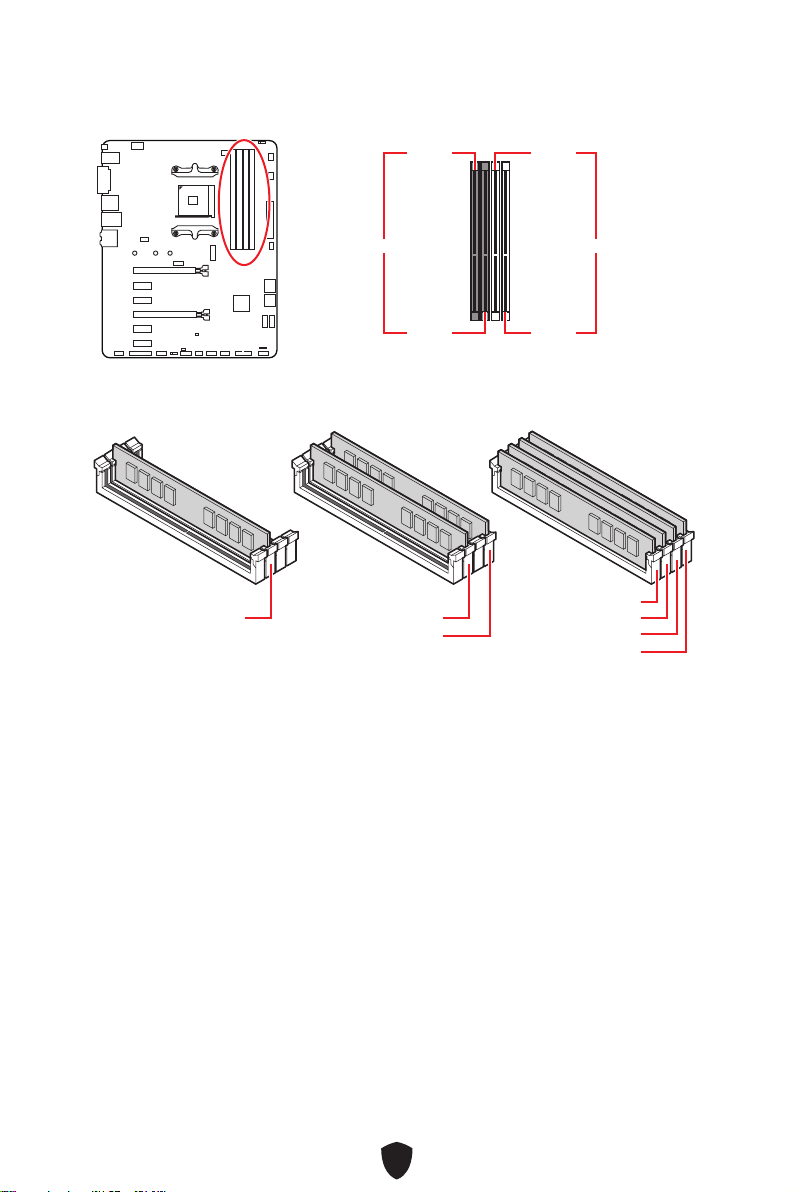
26
DIMMA1 DIMMB1
DIMMA2 DIMMB2
DIMMA2
DRAM Frequency
DIMMA2 DIMMA2
DIMMB2
DIMMA1
DIMMA2
DIMMB1
DIMMB2
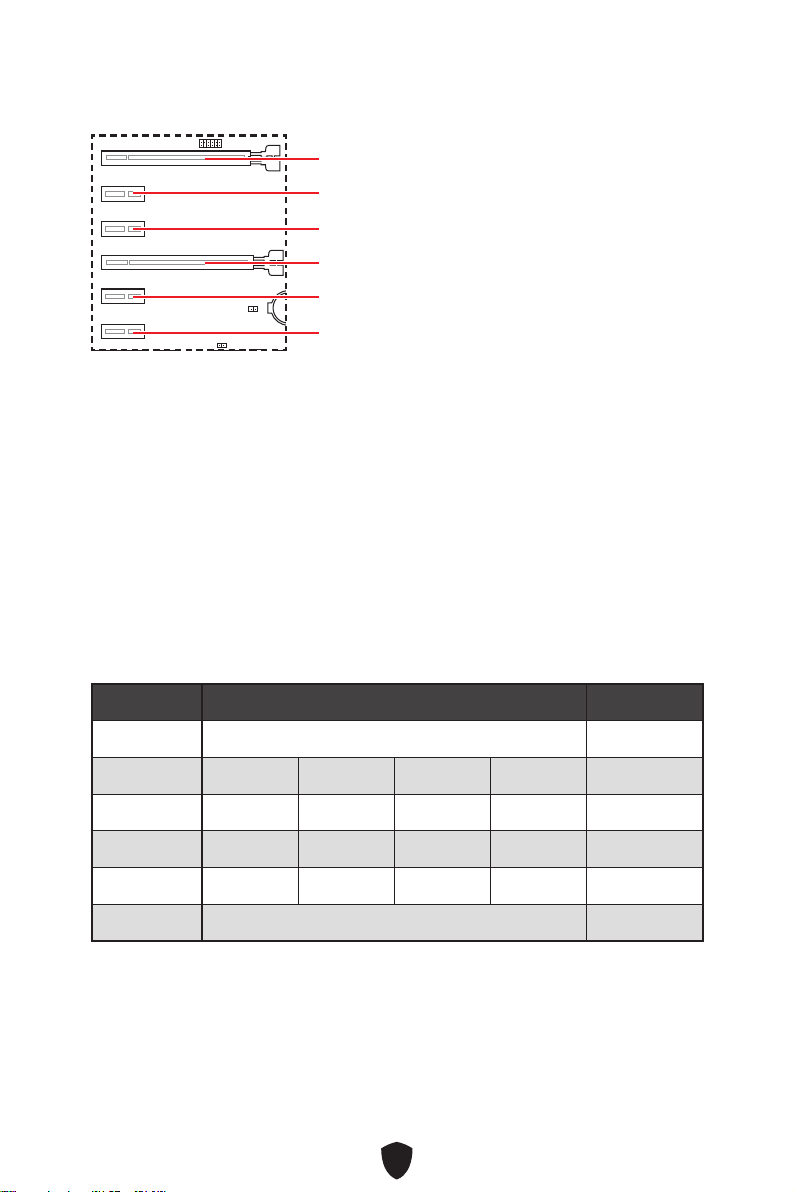
27
BAT1
PCI_E1: PCIe 3.0 x16 (CPU)
PCI_E4
PCI_E2
PCI_E5
PCI_E3
PCI_E6
PCI_E1
2-Way
PCI_E1 (CPU) @ 3.0 x16 @ 3.0 x16
PCI_E2 (PCH) 2.0 x1 2.0 x1 —
PCI_E3 (PCH) 2.0 x1 2.0 x1 —
PCI_E4 (PCH) 2.0 x1 2.0 x1 2.0 x1 2.0 x1 @3.0 x4
PCI_E5 (PCH) 2.0 x1 2.0 x1 —
PCI_E6 (PCH) 2.0 x1 2.0x1
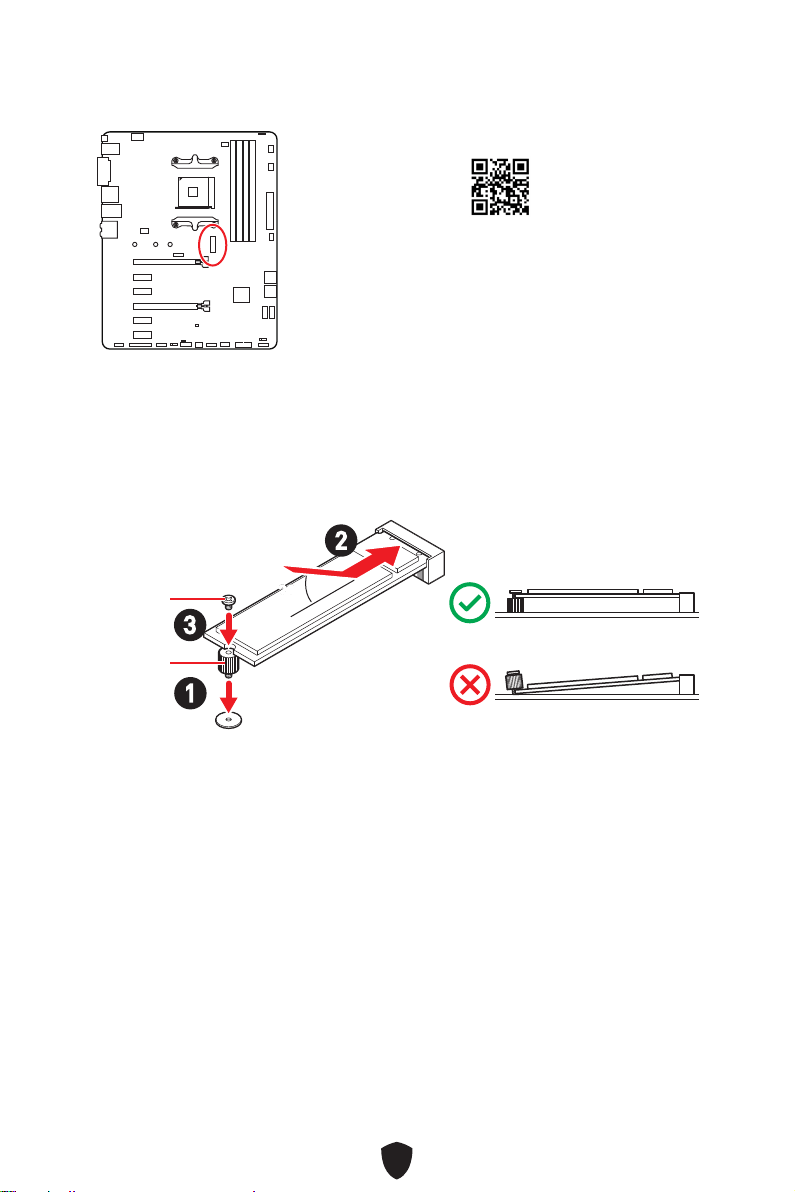
28
1.
2.
3.
30º30º
2
3
1
M.2
http://youtu.be/JCTFABytrYA
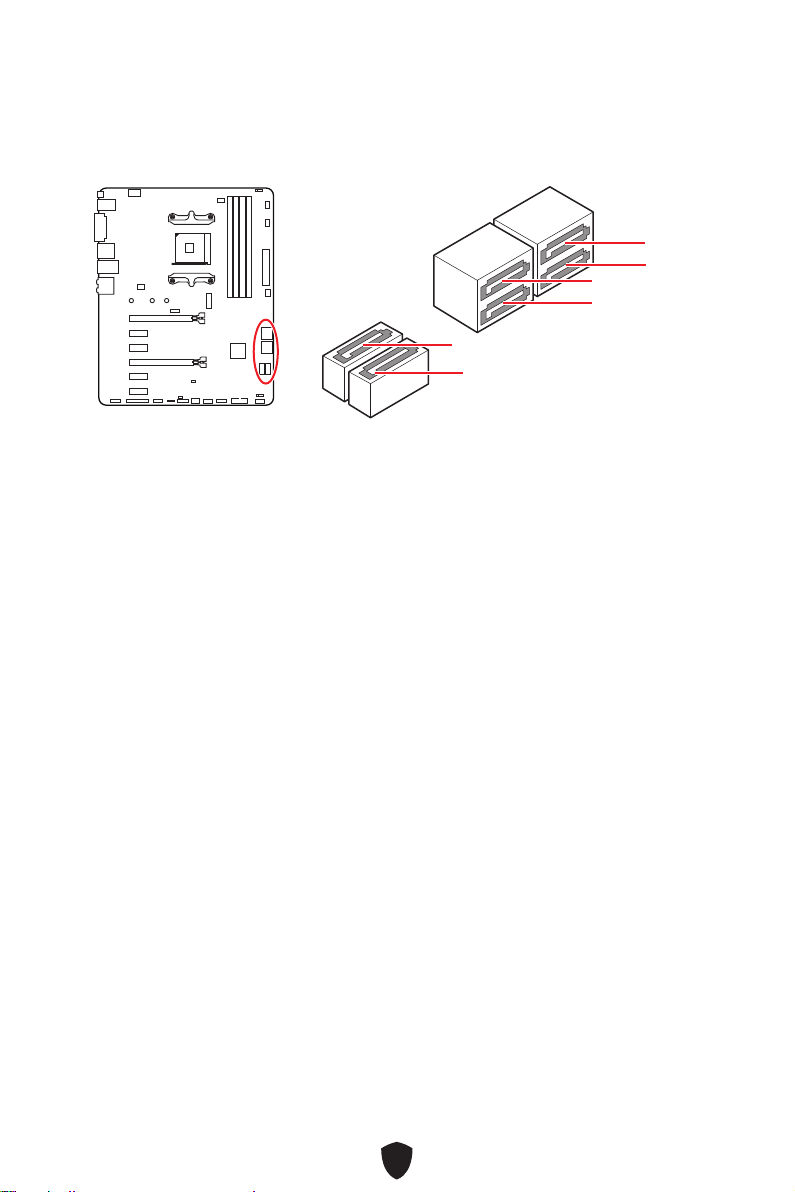
29
SATA5
SATA3
SATA1
SATA6
SATA4
SATA2
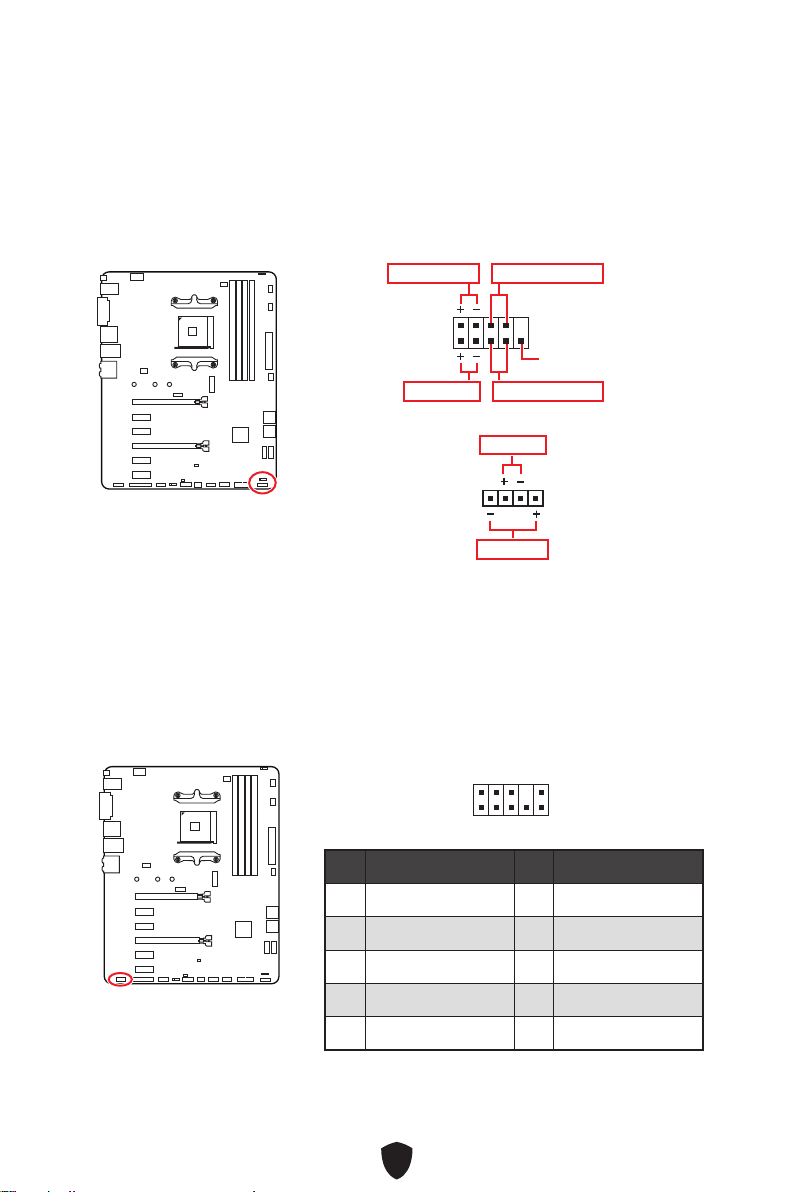
30
1
2 10
9
Reserved
JFP1
HDD LED
1
JFP2
1
2 10
9
1 MIC L 2 Ground
3 MIC R 4 NC
5 Head Phone R 6 MIC Detection
7 SENSE_SEND 8 No Pin
9 Head Phone L 10 Head Phone Detection
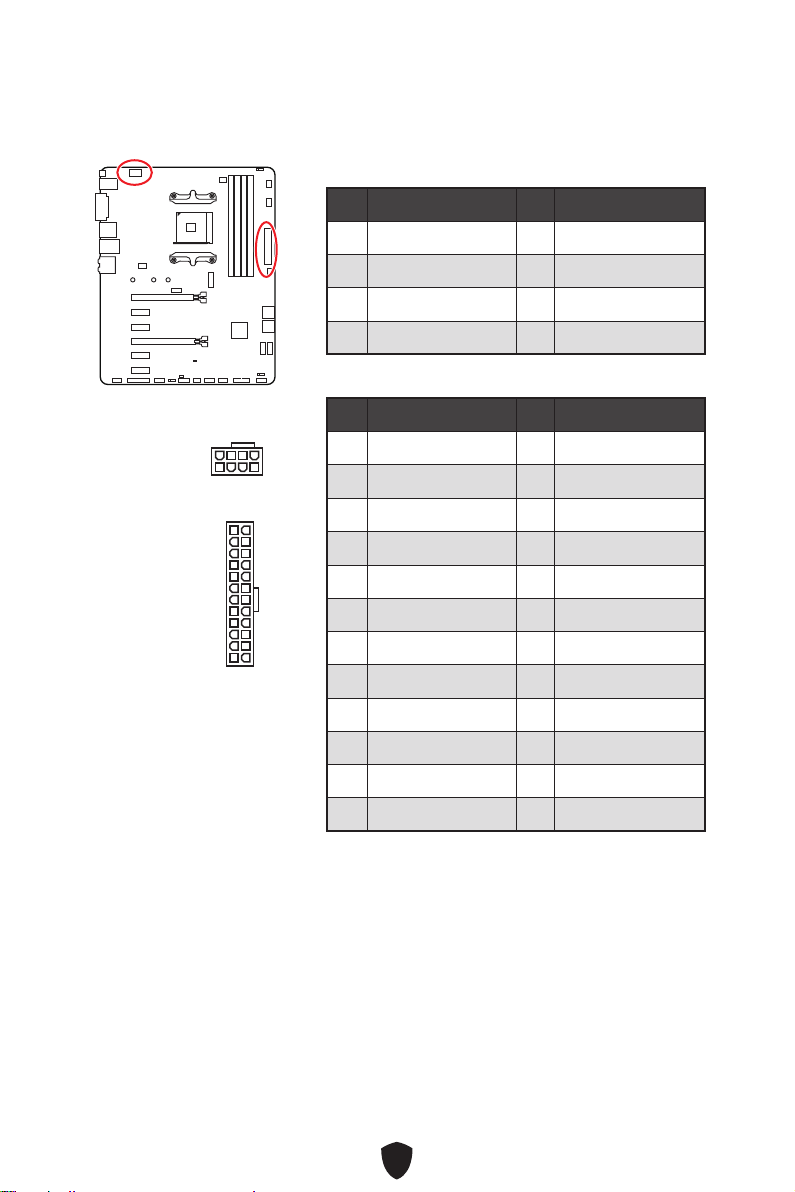
31
CPU_PWR1
1 Ground 2 Ground
3 Ground 4 Ground
5 +12V 6 +12V
7 +12V 8 +12V
ATX_PWR1
1 +3.3V 2 +3.3V
3 Ground 4
+5V
5 Ground 6 +5V
7 Ground 8 PWR OK
9 5VSB 10 +12V
11 +12V 12 +3.3V
13 +3.3V 14 -12V
15 Ground 16 PS-ON#
17 Ground 18 Ground
19 Ground 20 Res
21 +5V 22 +5V
23 +5V 24 Ground
5
4 1
8
CPU_PWR1
24
131
12
ATX_PWR1
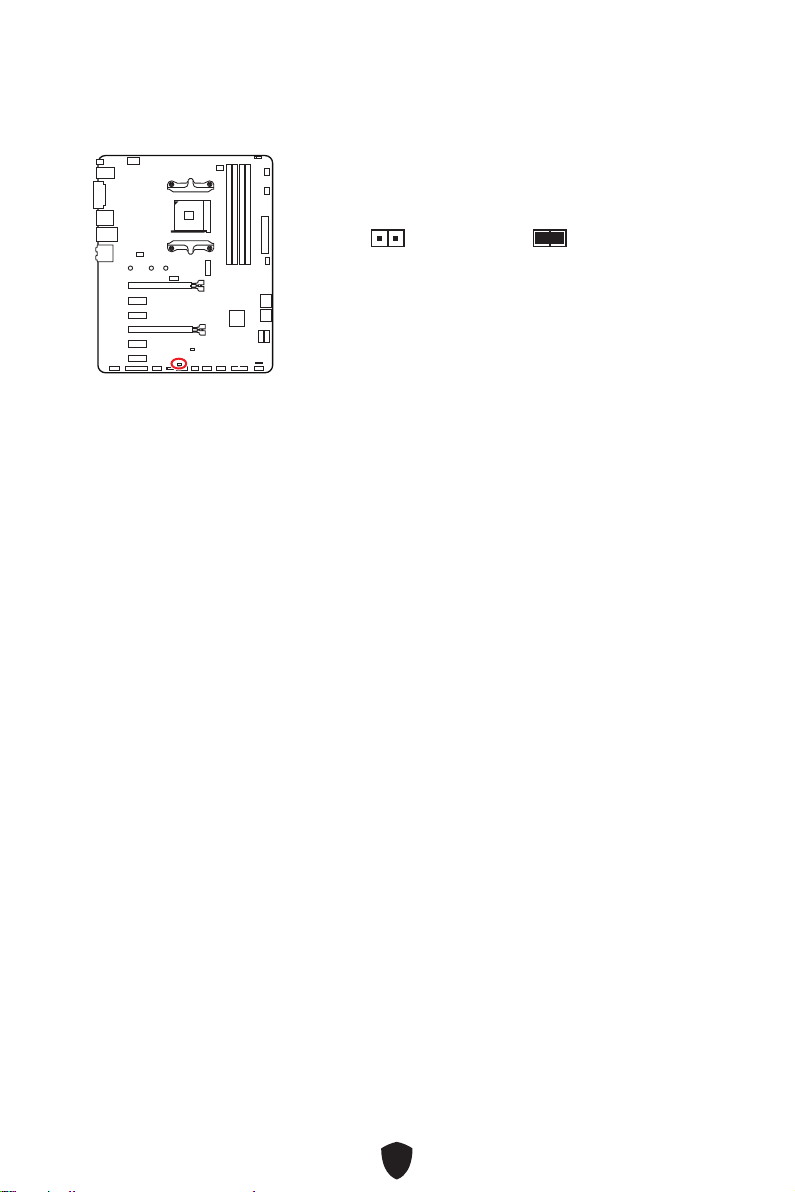
32
1.
JCI1
2.
3. BIOS > SETTINGS > Security > Chassis Intrusion Configuration
4.
5. F10EnterYes
6.
1.
BIOS > SETTINGS > Security > Chassis Intrusion Configuration
2.
3. F10EnterYes
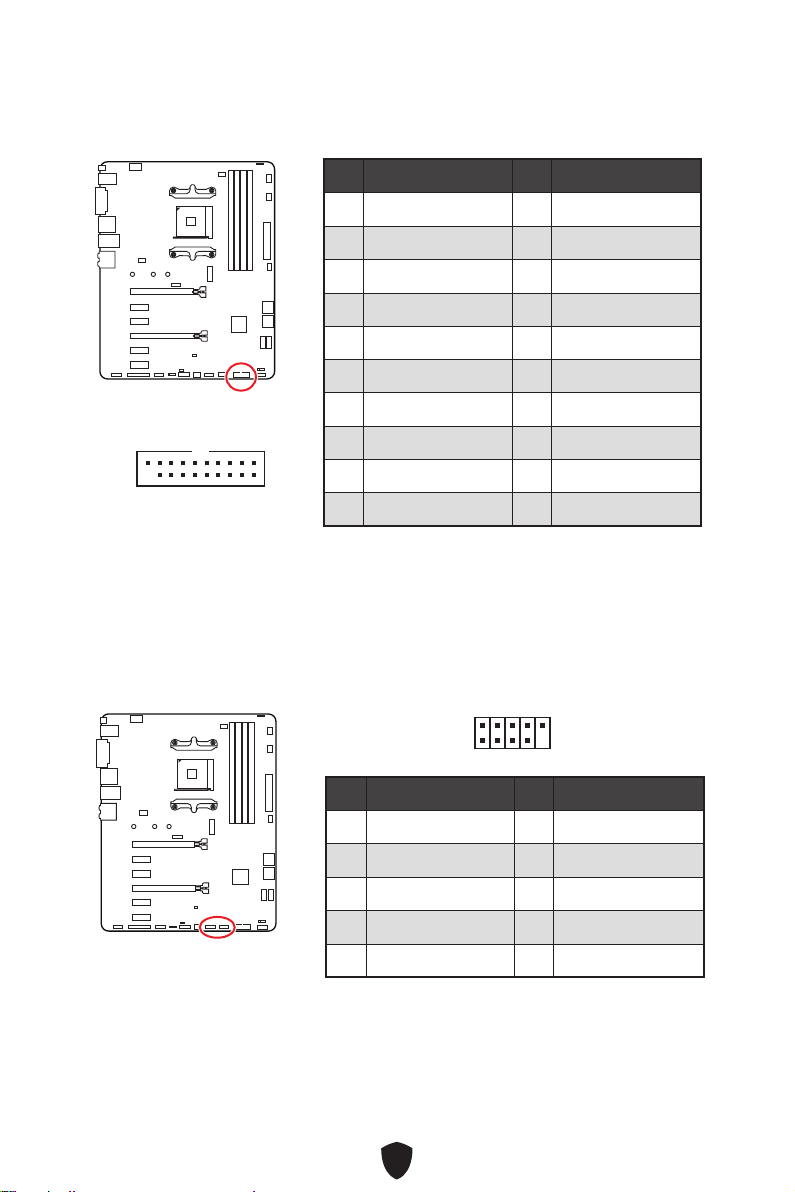
33
1 Power 2 USB3_RX_DN
3 USB3_RX_DP 4 Ground
5 USB3_TX_C_DN 6 USB3_TX_C_DP
7 Ground 8 USB2.0-
9 USB2.0+ 10 Ground
11 USB2.0+ 12 USB2.0-
13 Ground 14 USB3_TX_C_DP
15 USB3_TX_C_DN 16 Ground
17 USB3_RX_DP 18 USB3_RX_DN
19 Power 20 No Pin
1 10
1120
1 VCC 2 VCC
3 USB0- 4 USB1-
5 USB0+ 6 USB1+
7 Ground 8 Ground
9 No Pin 10 NC
1
2 10
9
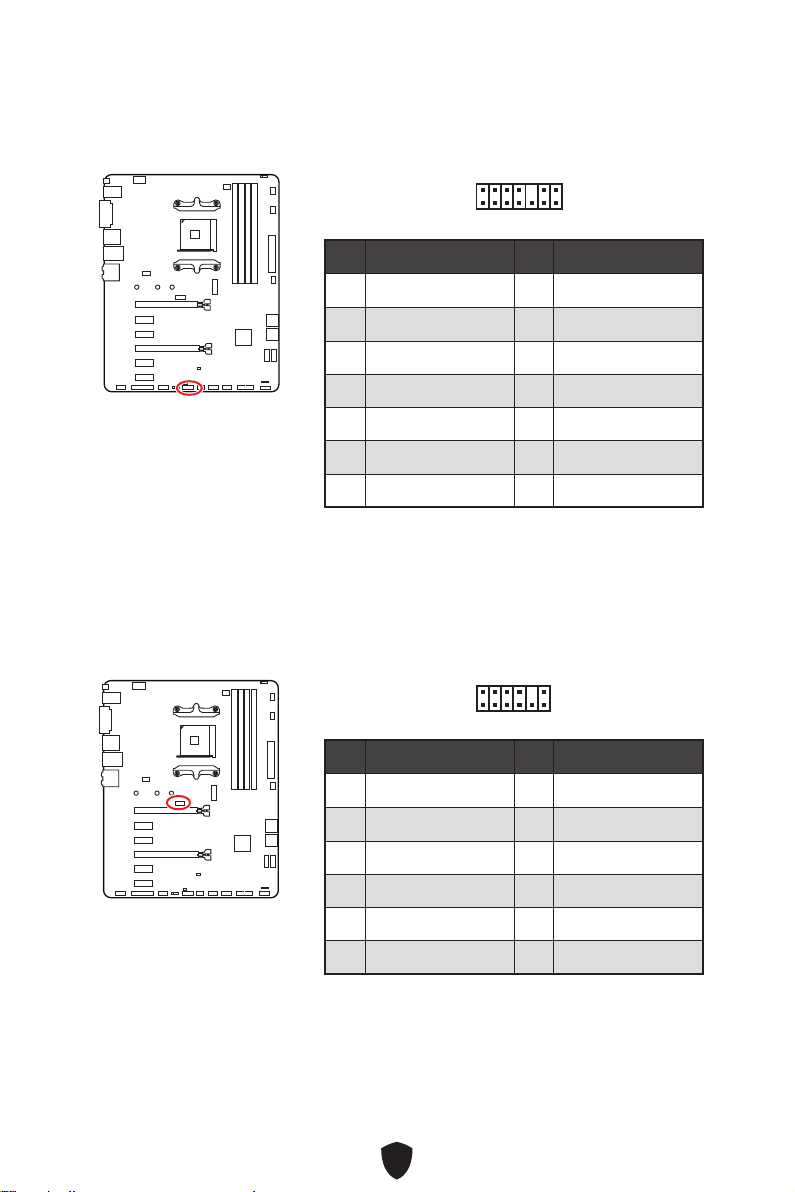
34
1 LPC Clock 2 3V Standby power
3 LPC Reset 4 3.3V Power
5 LPC address & data pin0 6 Serial IRQ
7 LPC address & data pin1 8 5V Power
9 LPC address & data pin2 10 No Pin
11 LPC address & data pin3 12 Ground
13 LPC Frame 14 Ground
1
2 14
13
1 1.8V power 2 SPI_TPM_CS#_R
3 SPI_TPM_DATI 4 SPI_DATO
5 SPI_CS#_R 6 SPI_TPM_CLK
7 Ground 8 SPI_TPM_RST#
9 SPI_SW_SEL 10 NA
11 SPI_TPM_WP# 12 SPI_TPM_HOLD#
1
2 12
11
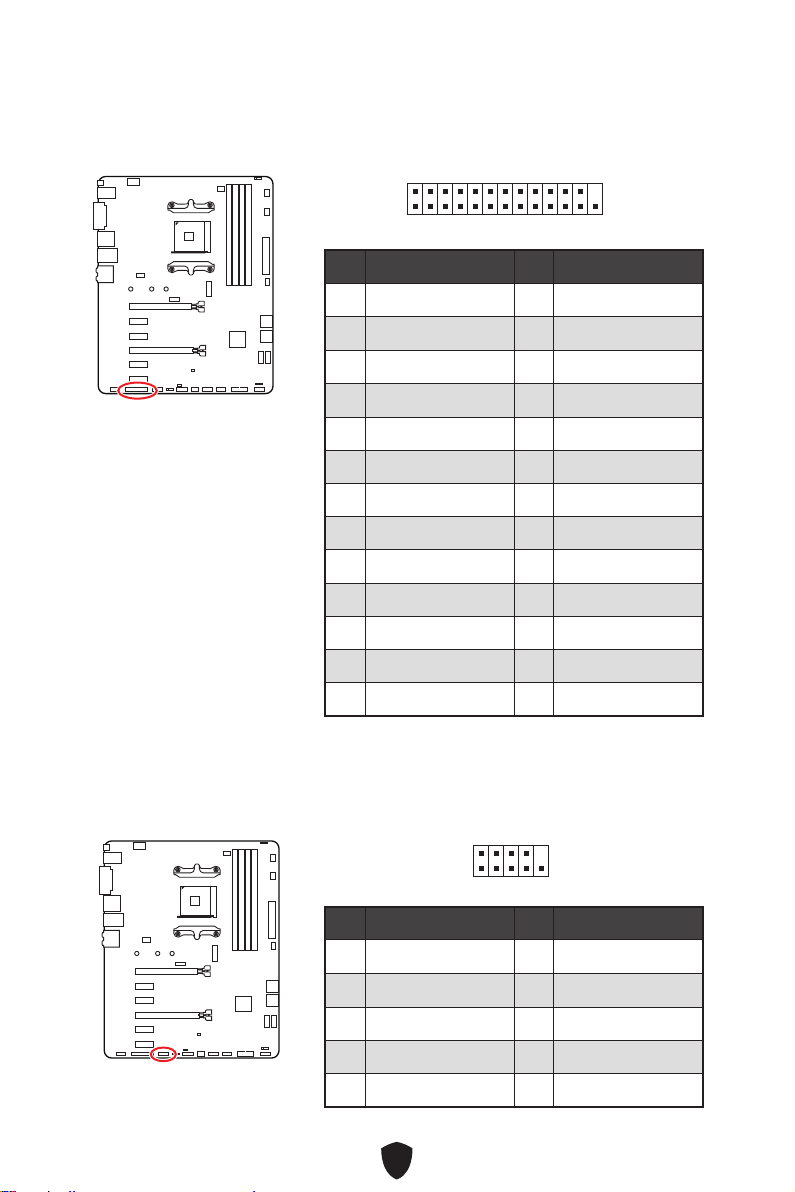
35
1
2 26
25
1 RSTB# 2 AFD#
3 PRND0 4 ERR#
5 PRND1 6 PINIT#
7 PRND2 8 LPT_SLIN#
9 PRND3 10 Ground
11 PRND4 12 Ground
13 PRND5 14 Ground
15 PRND6 16 Ground
17 PRND7 18 Ground
19 ACK# 20 Ground
21 BUSY 22 Ground
23 PE 24 Ground
25 SLCT 26 No Pin
1 DCD 2 SIN
3 SOUT 4 DTR
5 Ground 6 DSR
7 RTS 8 CTS
9 RI 10 No Pin
1
2 10
9
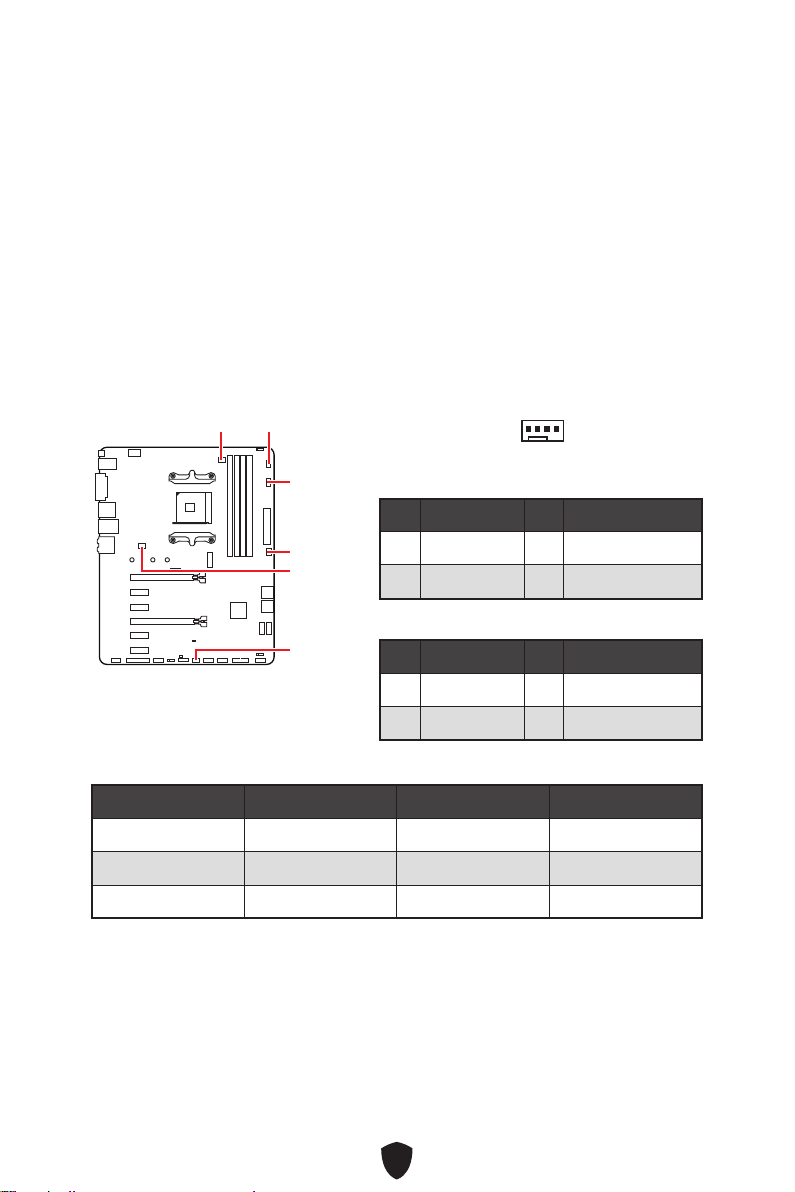
36
BIOS> HARDWARE MONITOR
CPU_FAN1
SYS_FAN2
SYS_FAN4
SYS_FAN1
PUMP_FAN1
SYS_FAN3
1
1 Ground 2 +12V
3 Sense 4 Speed Control Signal
1 Ground 2 Voltage Control
3 Sense 4 NC
CPU_FAN1 2A 24W
PUMP_FAN1 3A 36W
SYS_FAN1~4 2A 24W
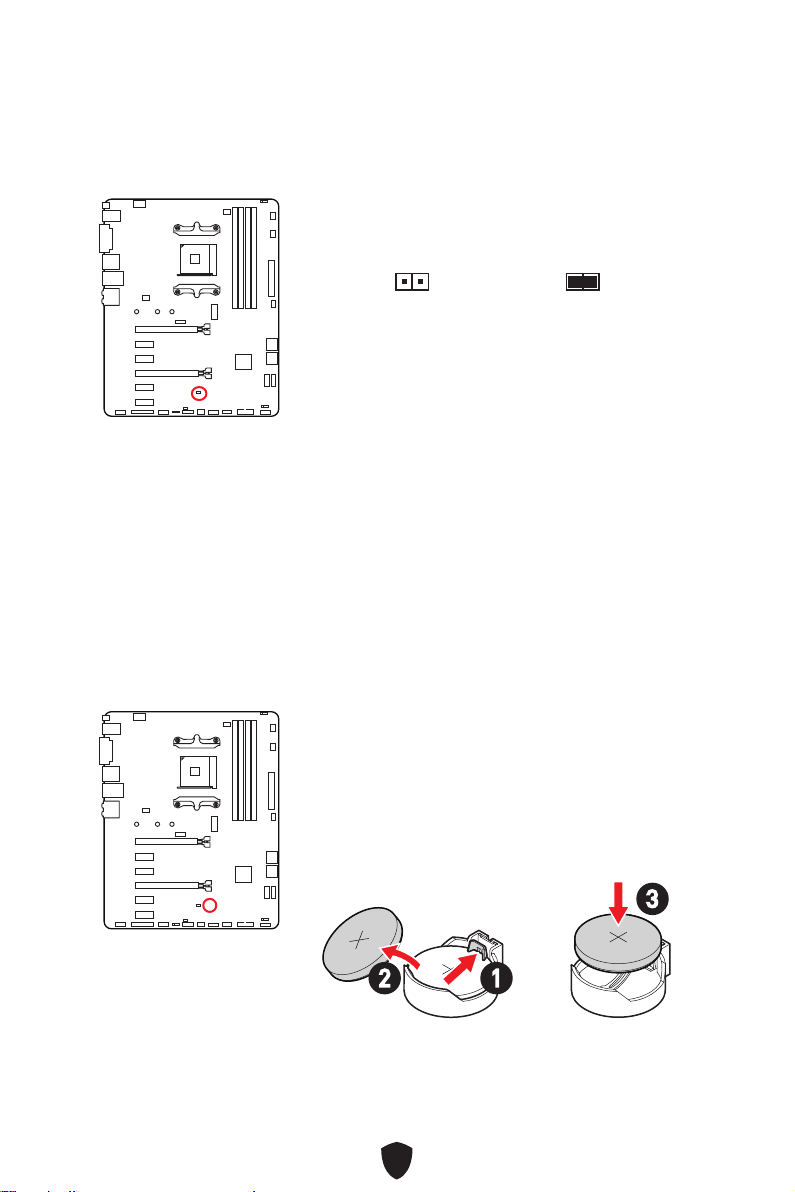
37
1.
2. JBAT1
3. JBAT1
4.
1.
2.
3.
12
3
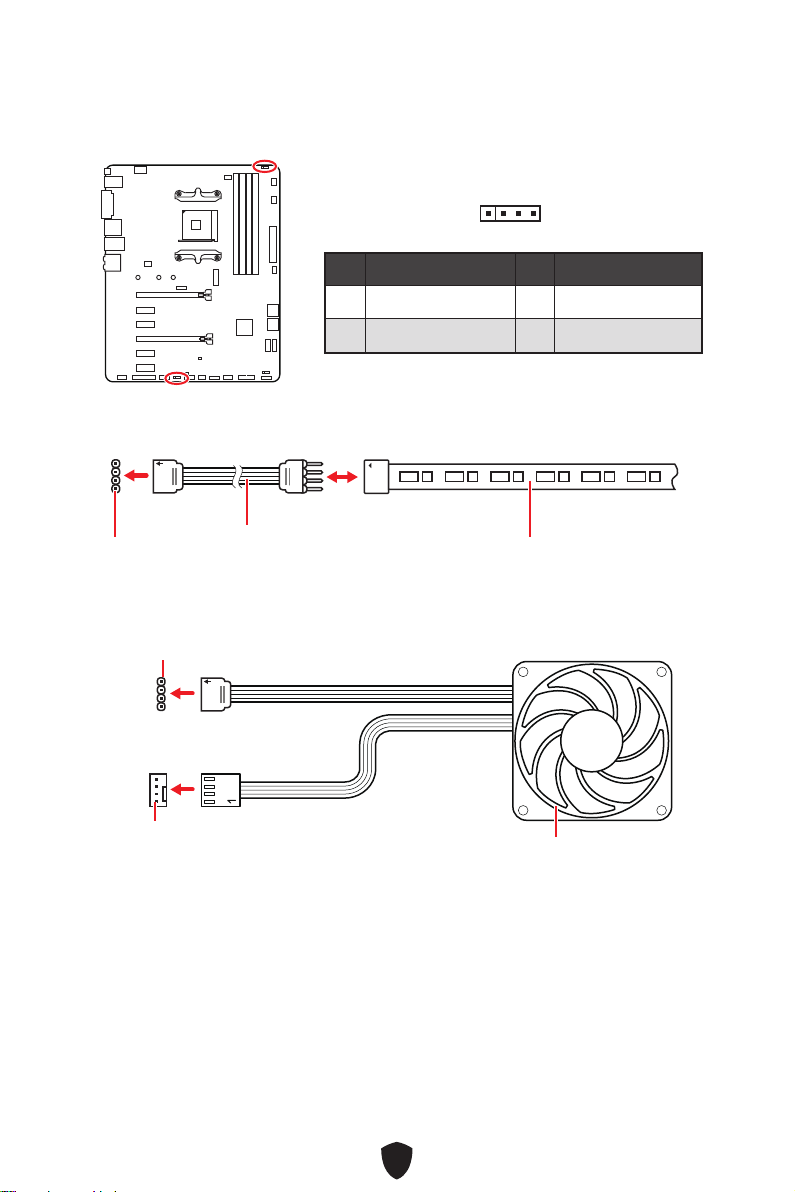
38
1
G
R
B
1
1
G
R
B
1 +12V 2 G
3 R 4 B
1
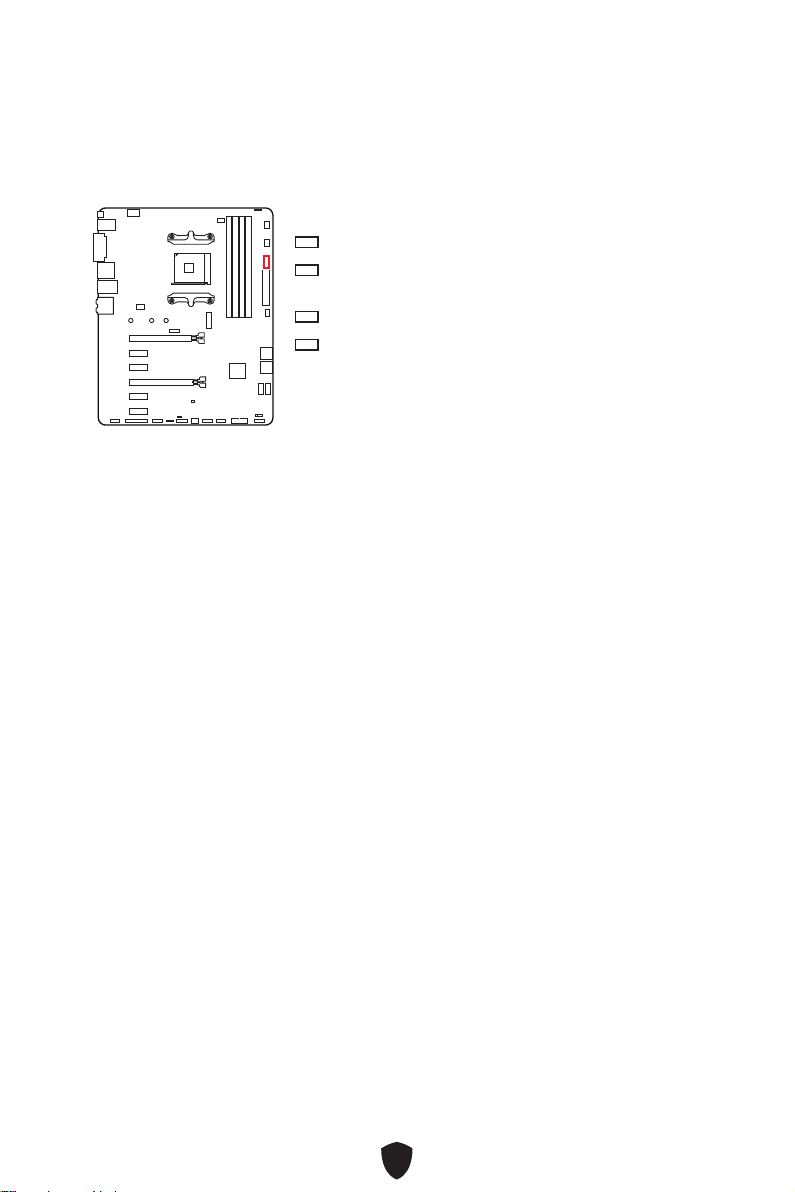
39
CPU
DRAM
VGA
BOOT
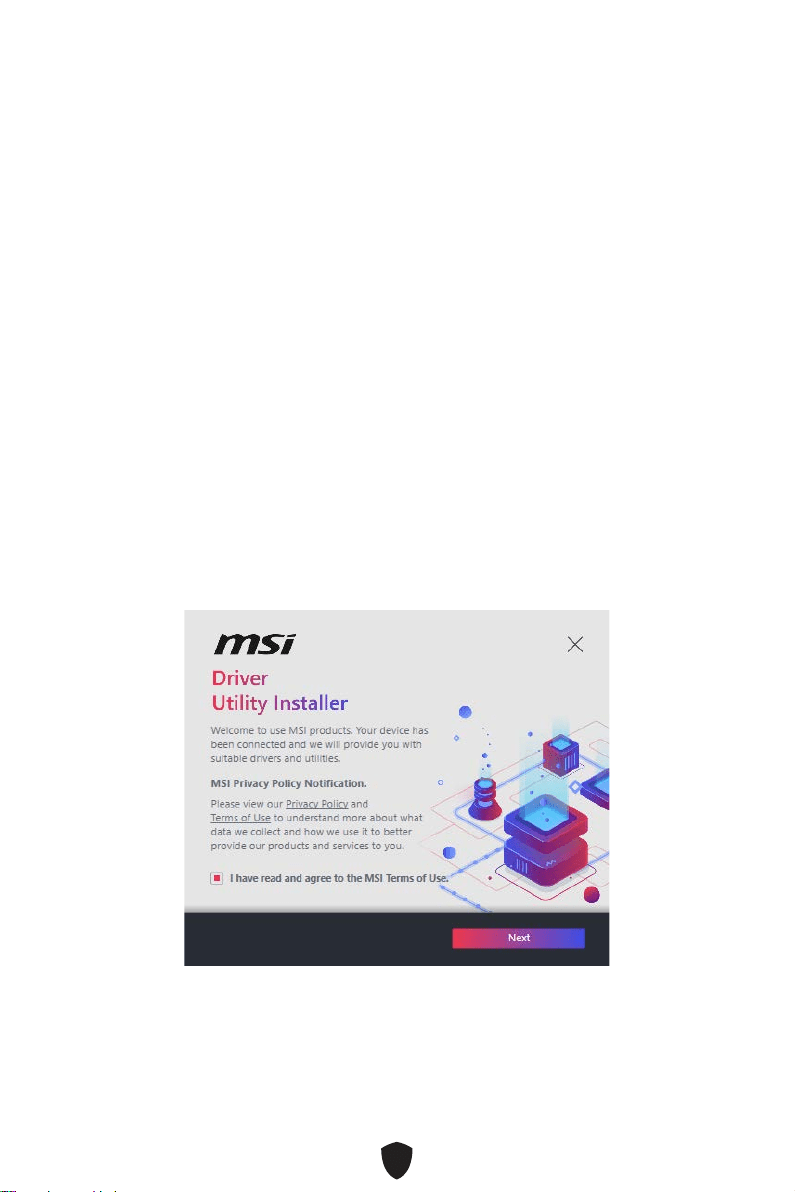
40
1.
2.
3. Restart
4. F11
5.
6. Press any key to boot from CD or DVD...
7.
1.
2.
3.
4.
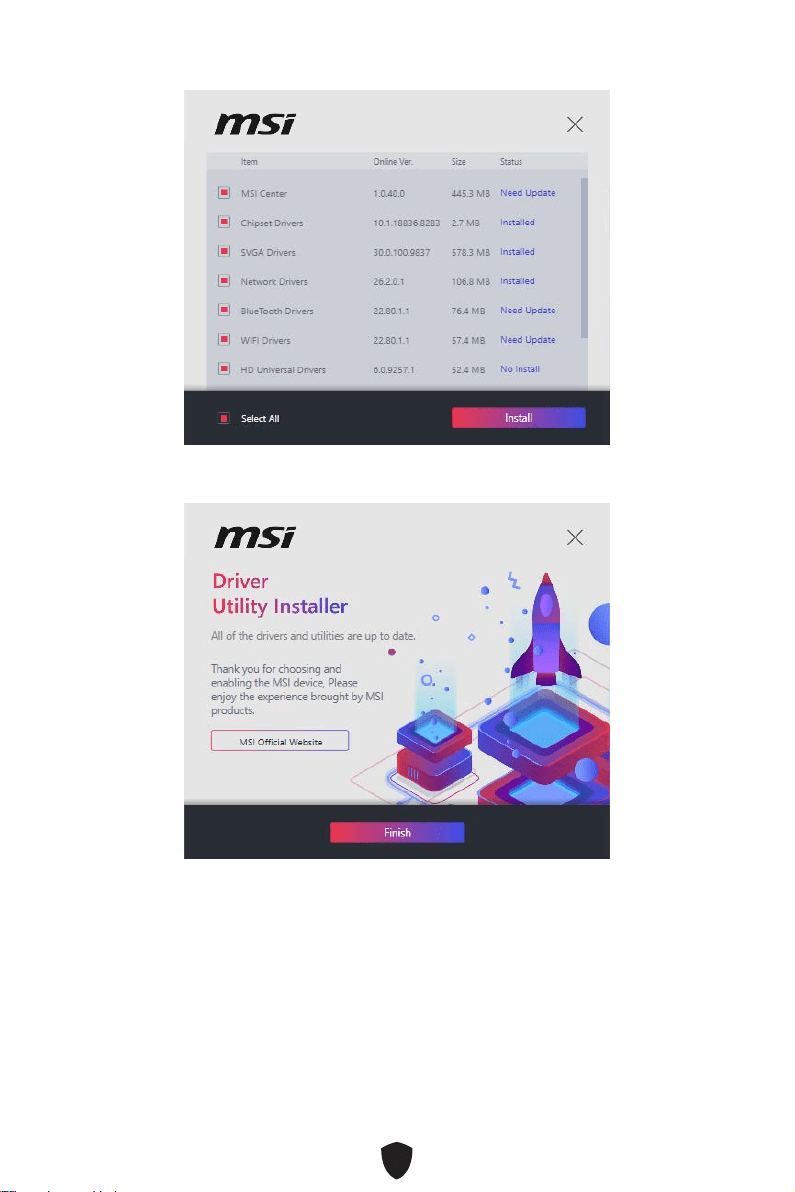
41
5.
6.
42
1.
2.
3. Select to choose what happens with this discRun DVDSetup.
exe
DVDSetup.exe
4. Drivers/Software
5. Install
6.
7. OK
8.
MSI Center
http://download.msi.com/manual/mb/MSICENTER.pdf

43
UEFI BIOS
1.
2.
Delete
3.
BIOS Mode: UEFI

44
Delete
F1:
F2:
F3:
F4:
F5:
F6:
F7:
F8:
F9:
F10:
F12:
Ctrl+F:
http://download.msi.com/manual/mb/AMDX570BIOSkr.pdf
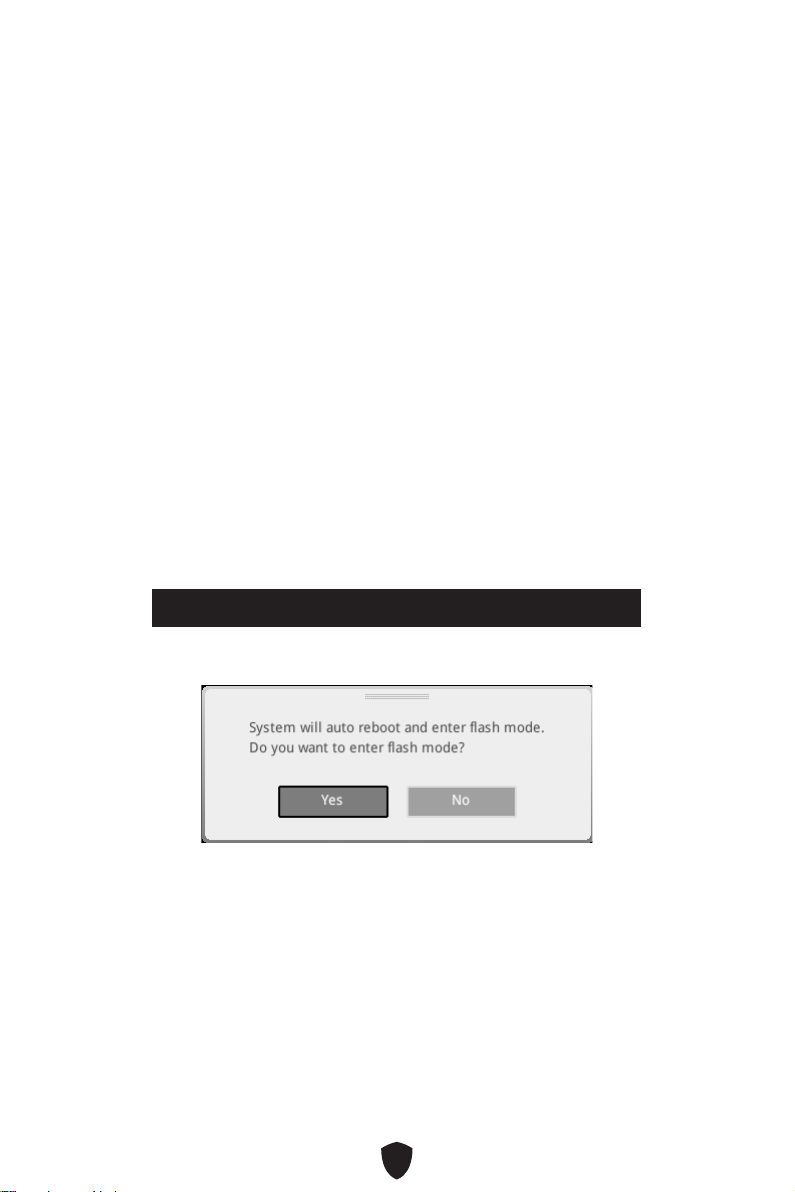
45
1.
2.
•
Ctrl + F5Yes
Press <Ctrl+F5> to activate M-Flash for BIOS update.
•
3.
4.
5.

46
1. Support
2. Live UpdateAdvance
3. Install
4.
5.
6.
1.
2.
3.
4.
5.
6.

1
........................................................................................................................ 3
.............................................................................................................................. 16
...................................................................................................................... 19
...................................................................................................................... 20
.............................................................................................................. 21
.................................................................................... 22
............................................................................................. 22
...................................................................................................................... 24
............................................................................................................... 25
............................................................................................................ 26
..................................................................................... 27
.......................................................................................... 28
.................................................................................. 29
.................................................................................... 30
........................................................................................... 30
..................................................................... 31
............................................................................................... 32
.................................................................................. 33
........................................................................................ 33
.......................................................................................... 34
.......................................................................................... 34
................................................................................................ 35
.............................................................................................. 35
...................................... 36
............................................................ 37
................................................................................................. 37
...................................................................................... 38
......................................................................................................... 39

2
................................................................................................... 39
.................................................................... 40
MSI Center ............................................................................................................ 42
UEFI BIOS .................................................................................................................... 43
.............................................................................................................. 44
.............................................................................................................. 45
.............................................................................................................. 45
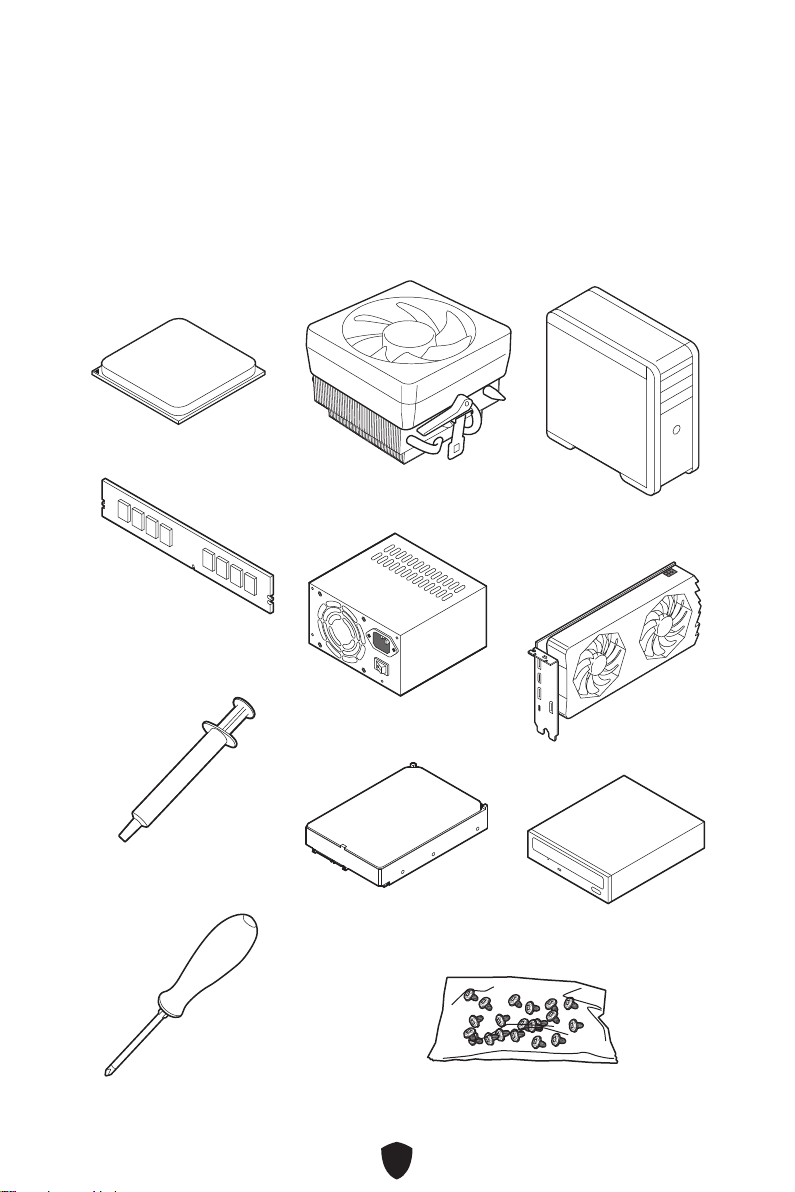
3
AMD® AM4 CPU

4
•
•
•
•
•
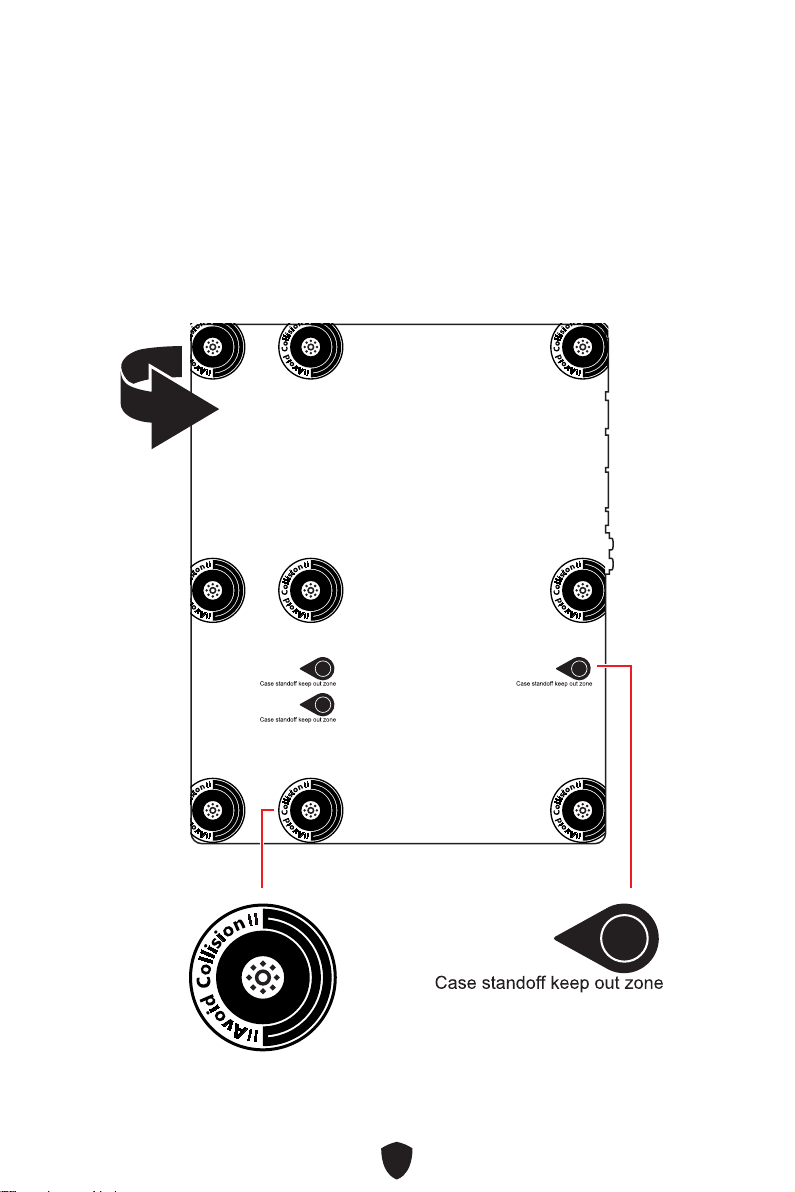
5
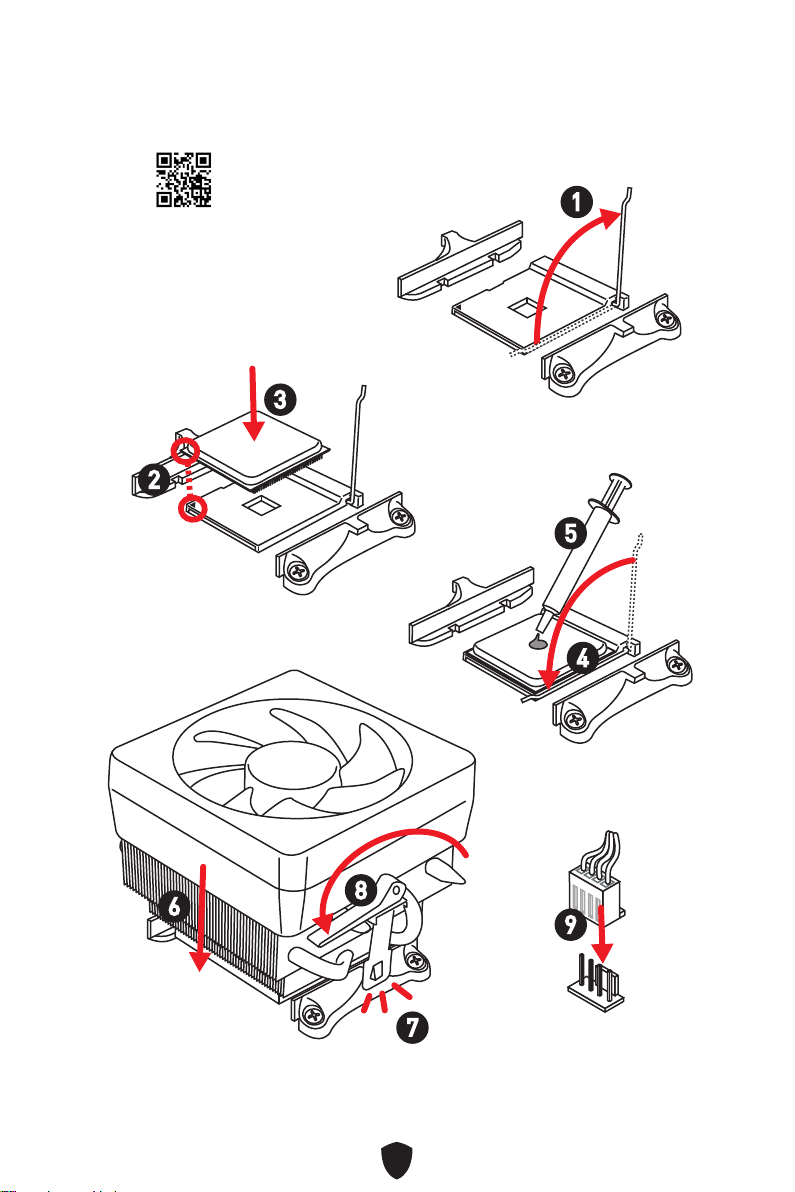
6
https://youtu.be/Xv89nhFk1vc
1
2
3
6
4
5
7
8
9
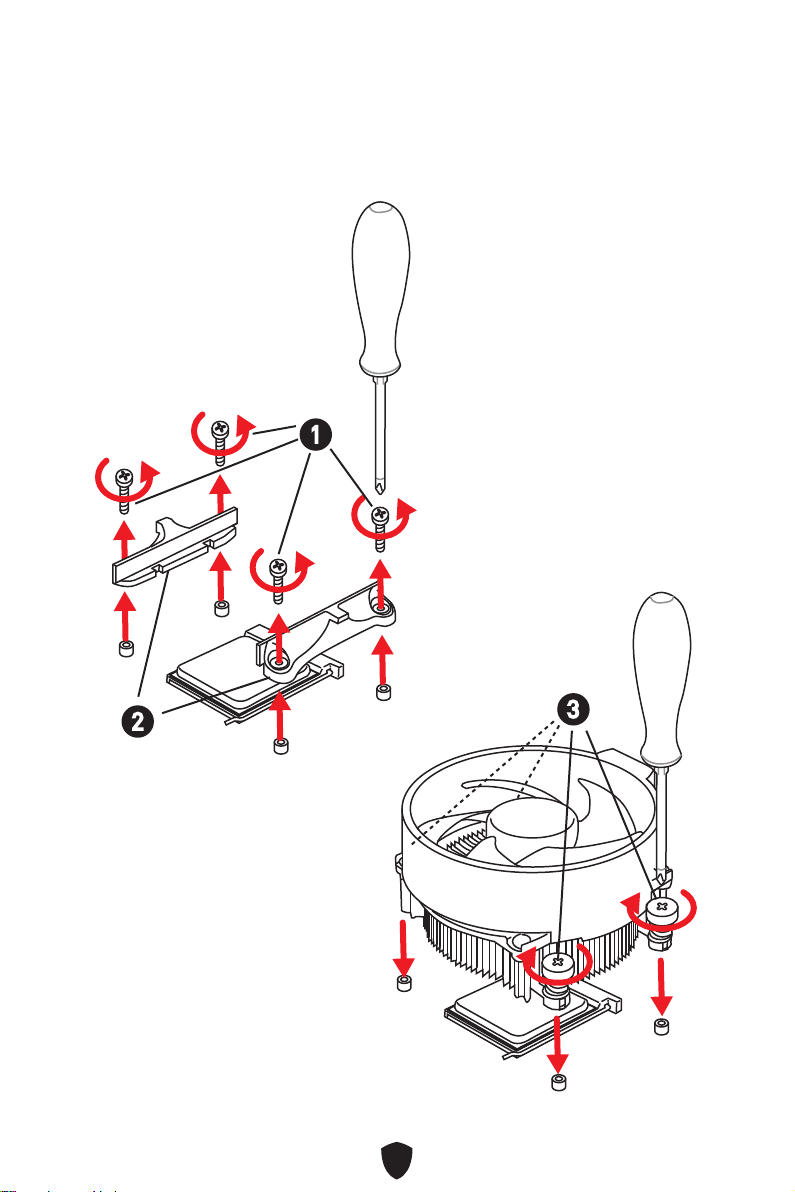
7
1
2
3
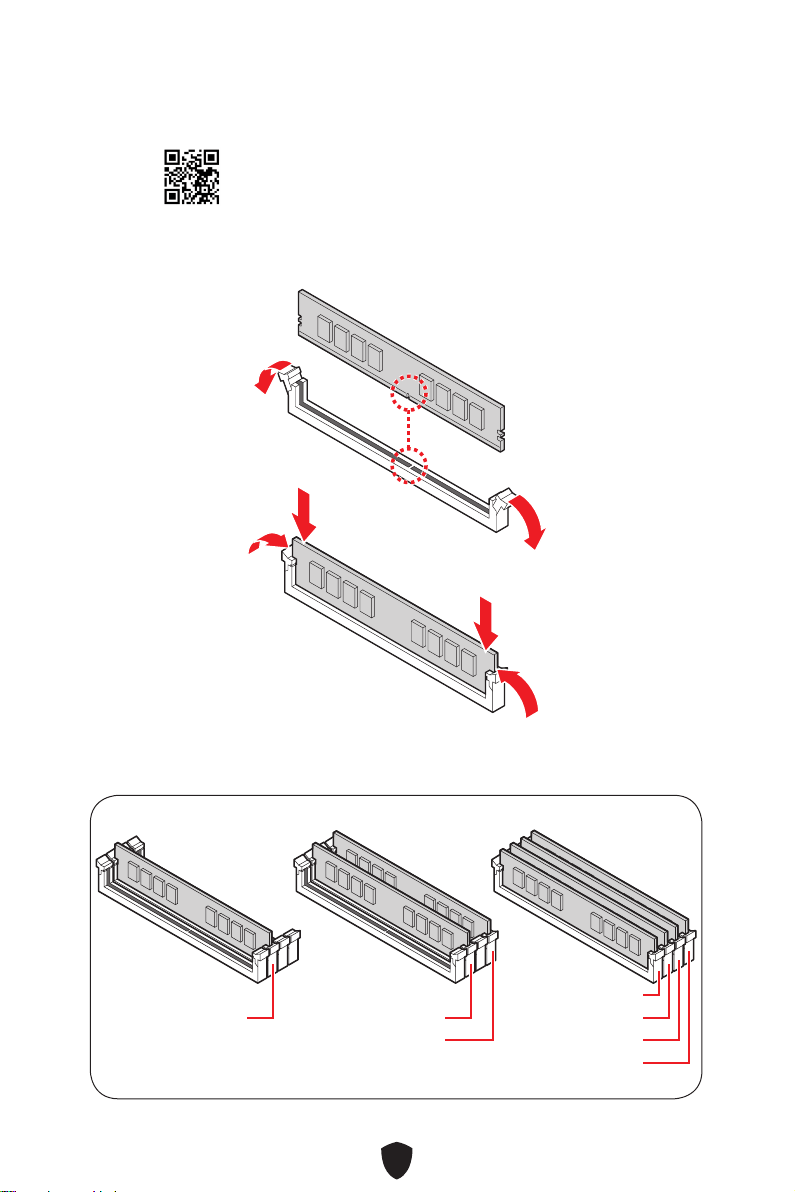
8
DIMMA2 DIMMA2
DIMMB2
DIMMA1
DIMMA2
DIMMB1
DIMMB2
http://youtu.be/T03aDrJPyQs
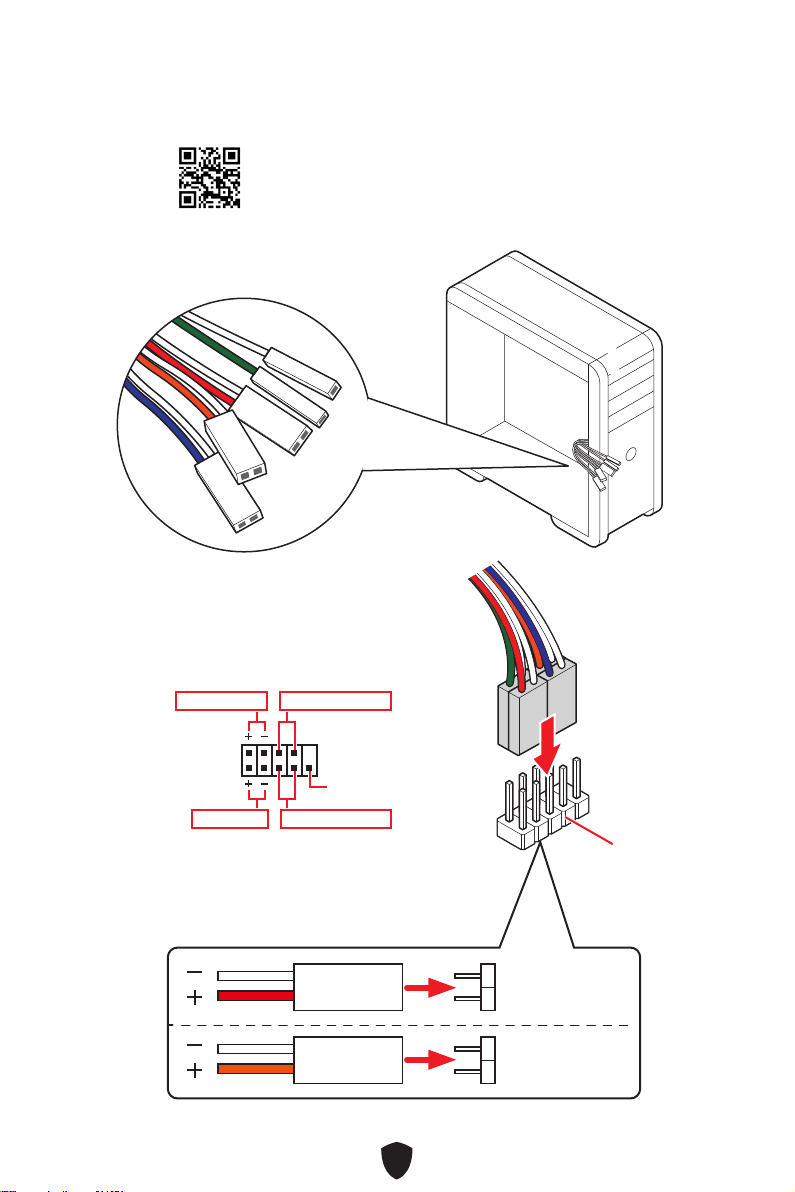
9
HDD LED
RESET SW
http://youtu.be/DPELIdVNZUI
JFP1
HDD LED
HDD LED -
HDD LED +
POWER LED -
POWER LED +
POWER LED
RESET SW
POWER SW
POWER LED+
POWER LED-
HDD LED
1
2 10
9
Power LED
Reserved
Power Switch
JFP1
Reset SwitchHDD LED
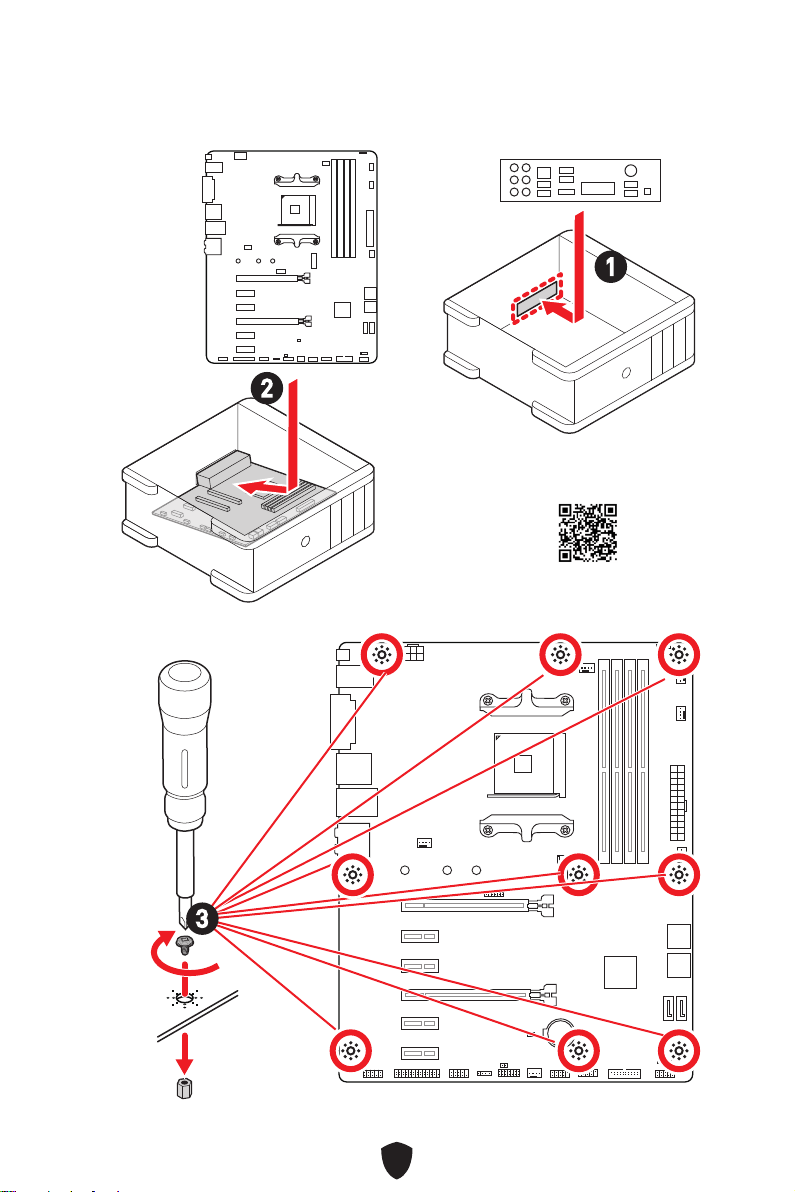
10
BAT1
2
1
https://youtu.be/wWI6Qt51Wnc
3 kgf·cm*
*3 kgf·cm
= 0.3 N·m
= 2.6 lbf·in
3
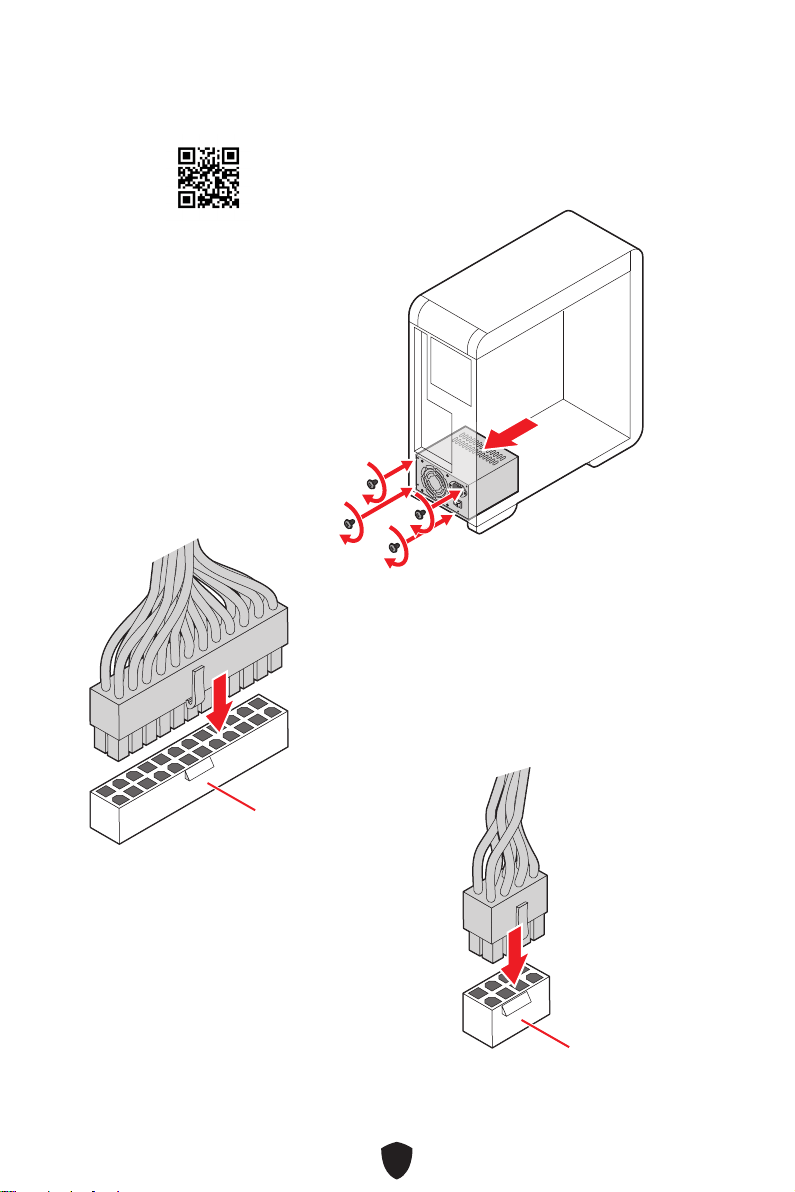
11
http://youtu.be/gkDYyR_83I4
ATX_PWR1
CPU_PWR1
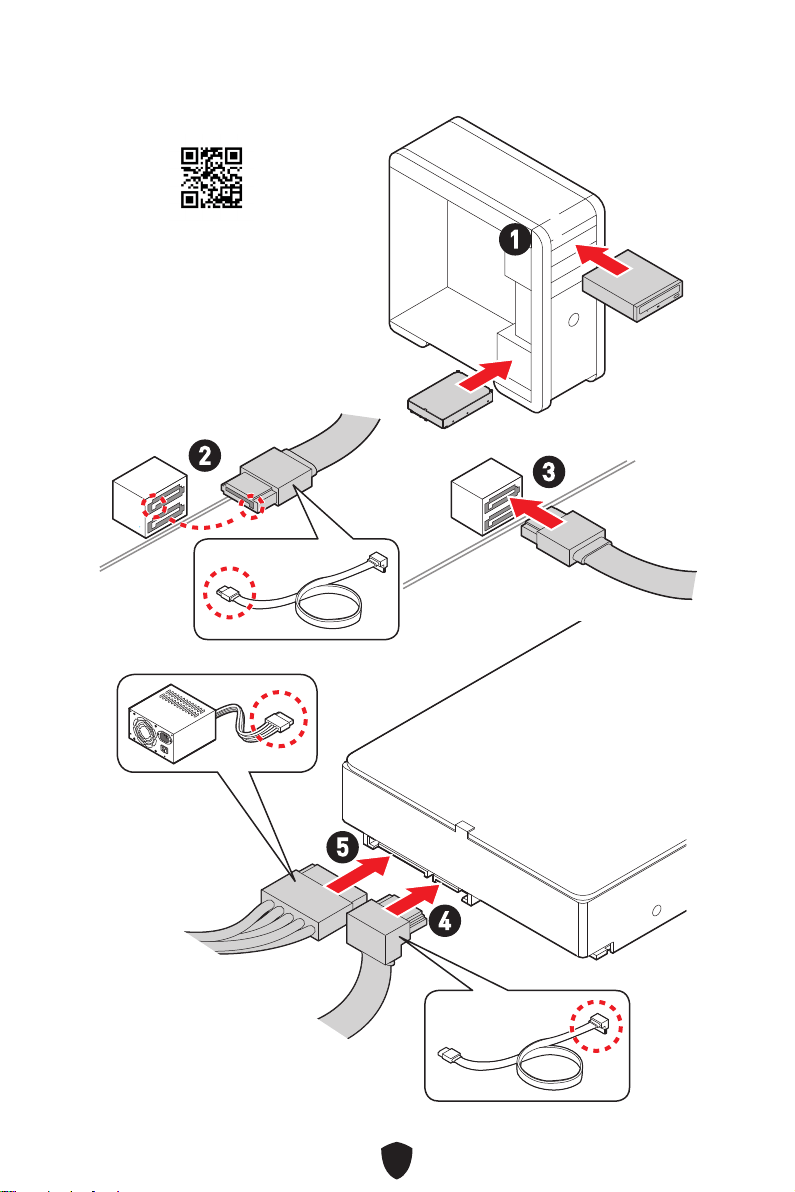
12
http://youtu.be/RZsMpqxythc
1
2
3
4
5
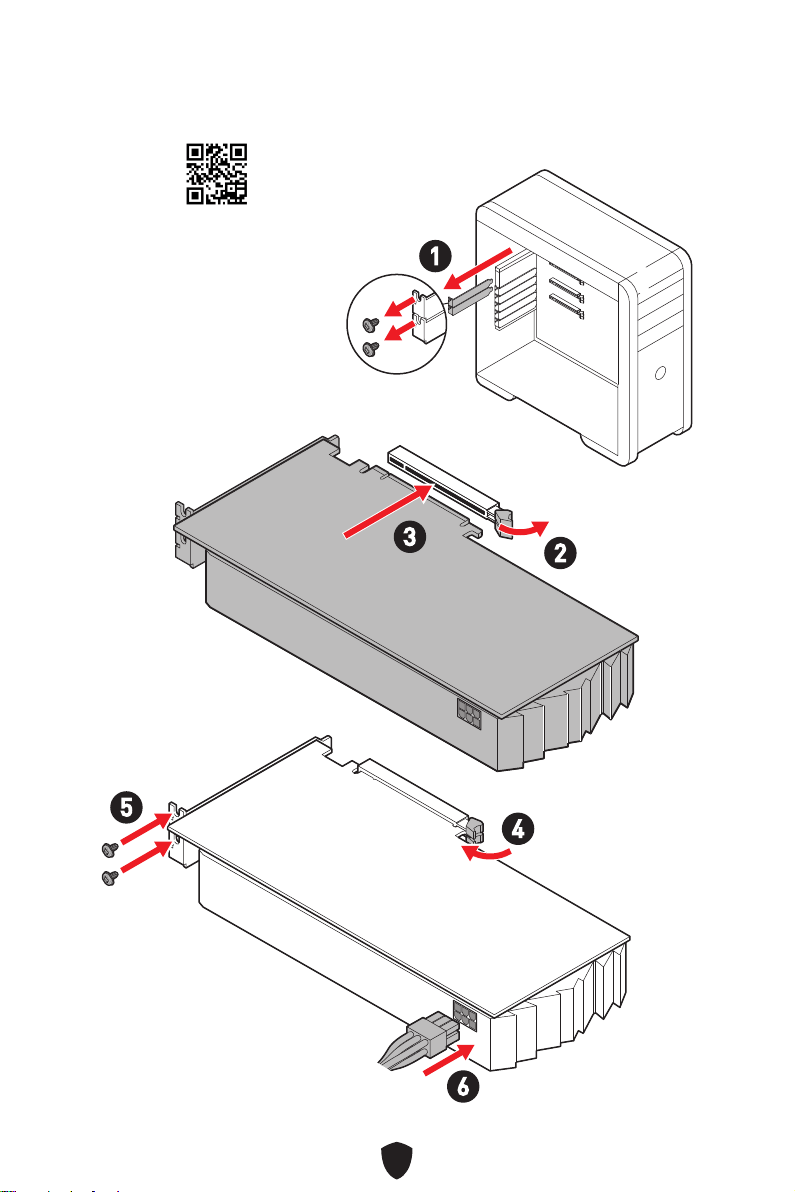
13
http://youtu.be/mG0GZpr9w_A
1
2
3
4
5
6
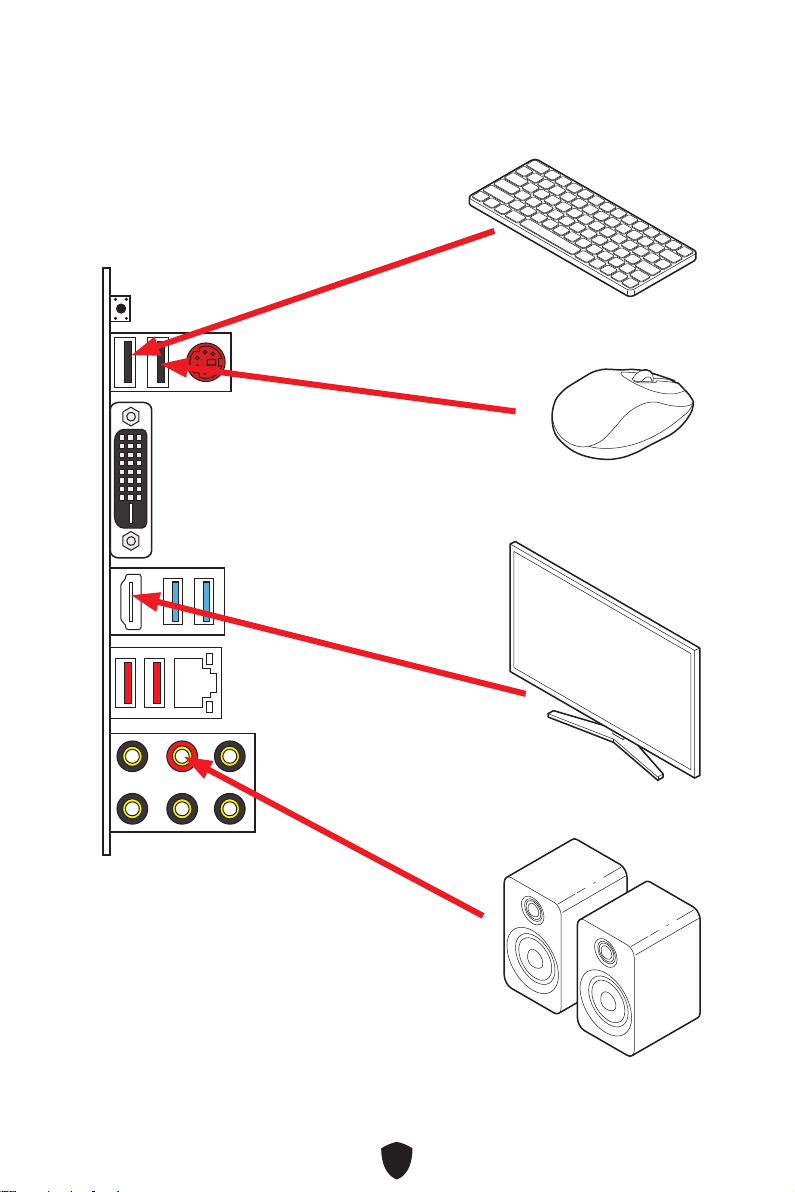
14
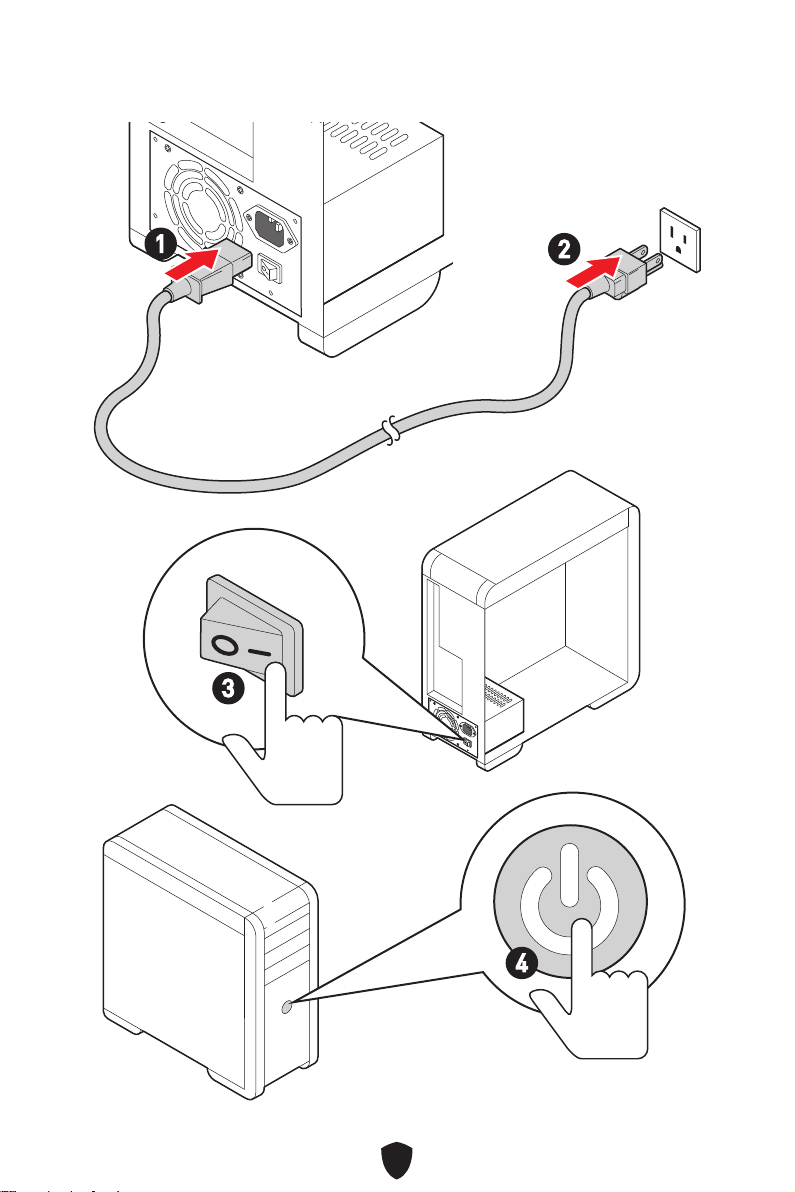
15
4
3
1
2
16
A-XMP OC MODE
•
•
•
•
•
•
•
•
•
•
17
/
**
•
•
•
•
RAID
•
•
18
ATX
UEFI AMI BIOS
MSI Center
CPU-Z MSI GAMING
Norton™ Internet Security Solution

19
MSI Center
• User Scenario
• True Color
• Live Update
•
• Super Charger
• Speed Up
• Smart Image Finder
• MSI Companion
•
•
•
•
•
• Mystic Light
•
•
•
•
•
• MSI Center
• GAMING HOTKEY
•
•

20
•
•
•
•
•
•
•
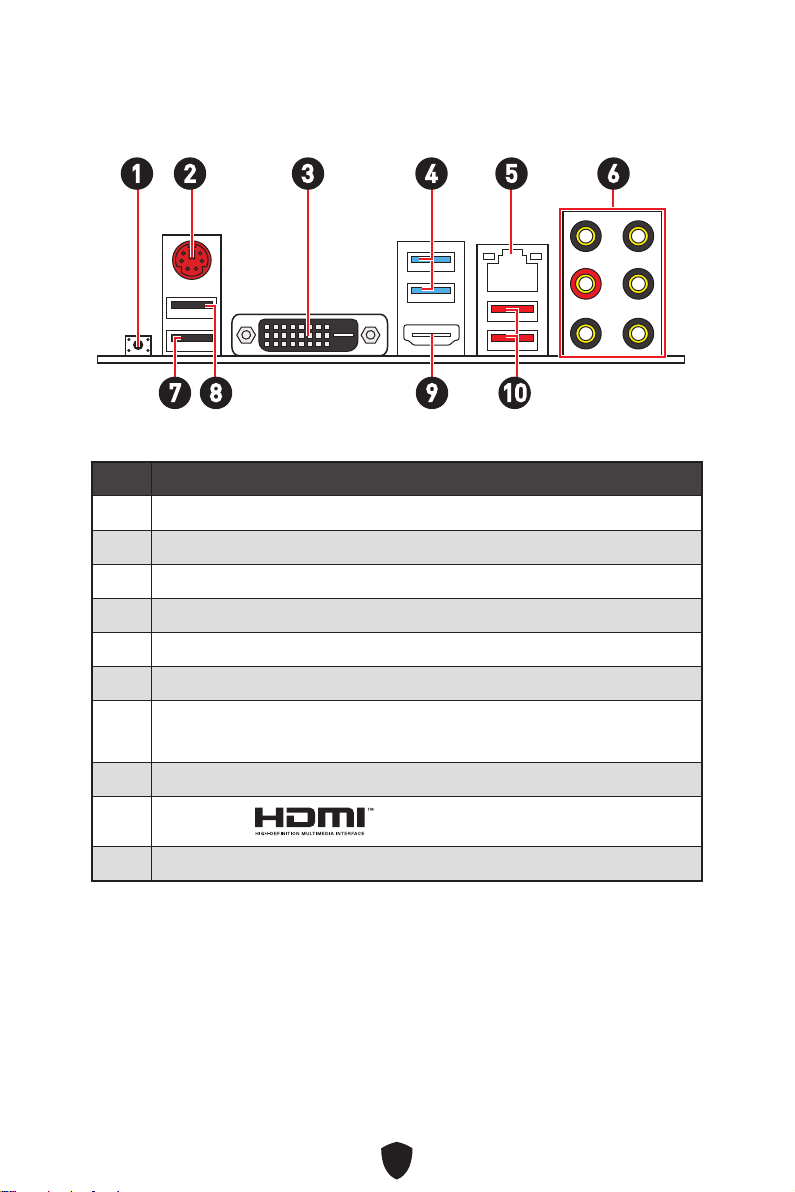
21
1
10
2 3 4 65
1
2
3
4 CPU)
5
6
7
•
8
9
10
7 98
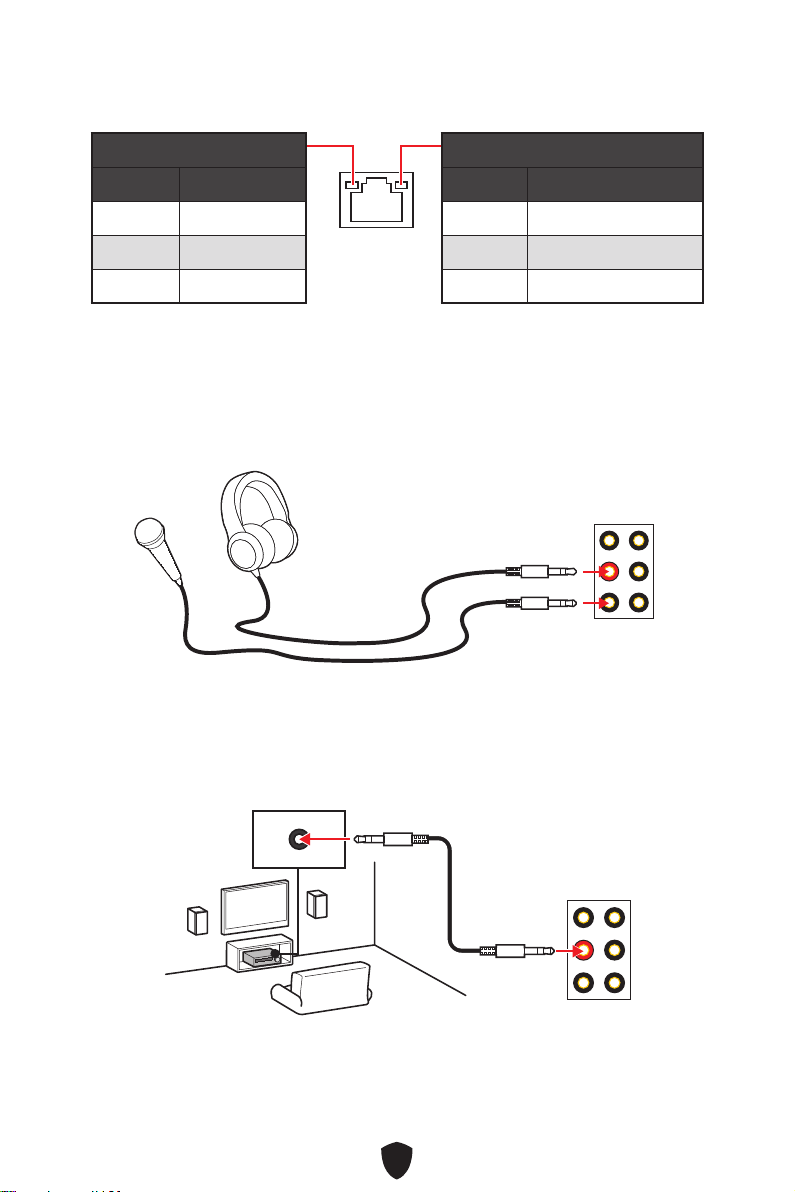
22
10 Mbps
100 Mbps
1 Gbps
AUDIO INPUT
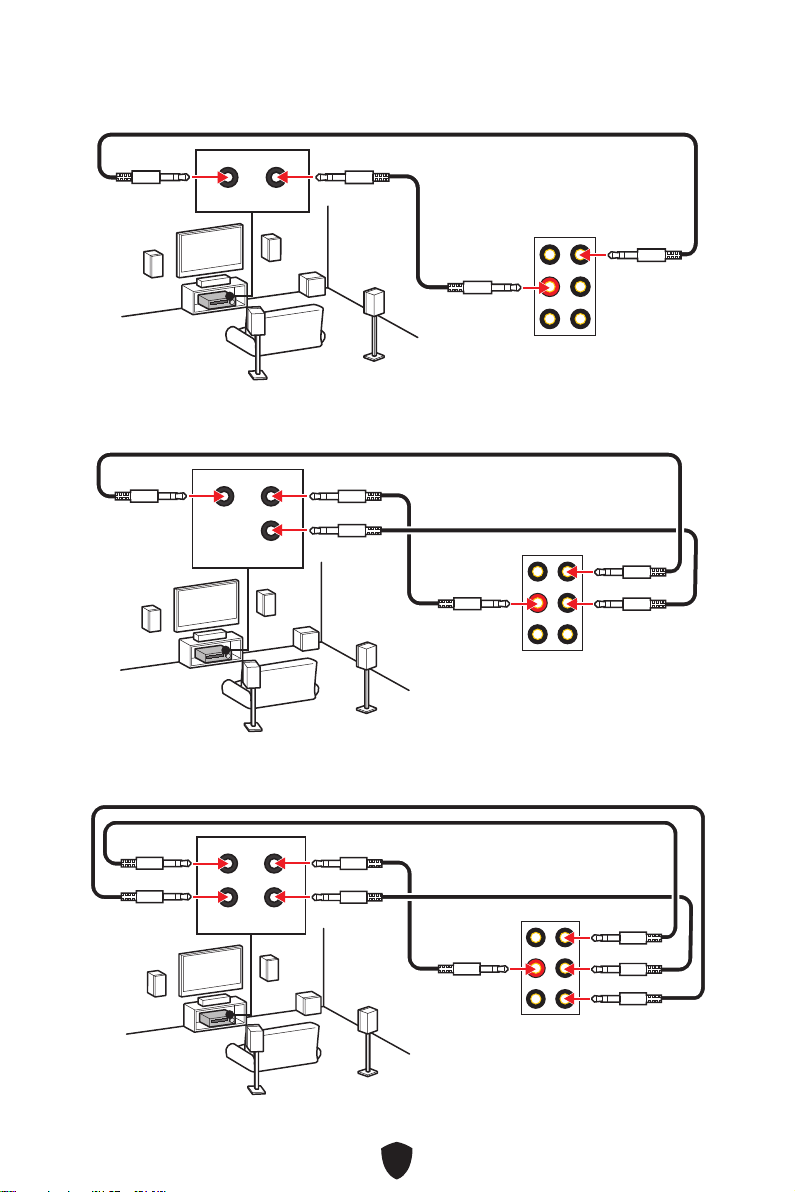
23
AUDIO INPUT
Rear Front
AUDIO INPUT
Rear Front
Center/
Subwoofer
AUDIO INPUT
Rear Front
Center/
Subwoofer
Side
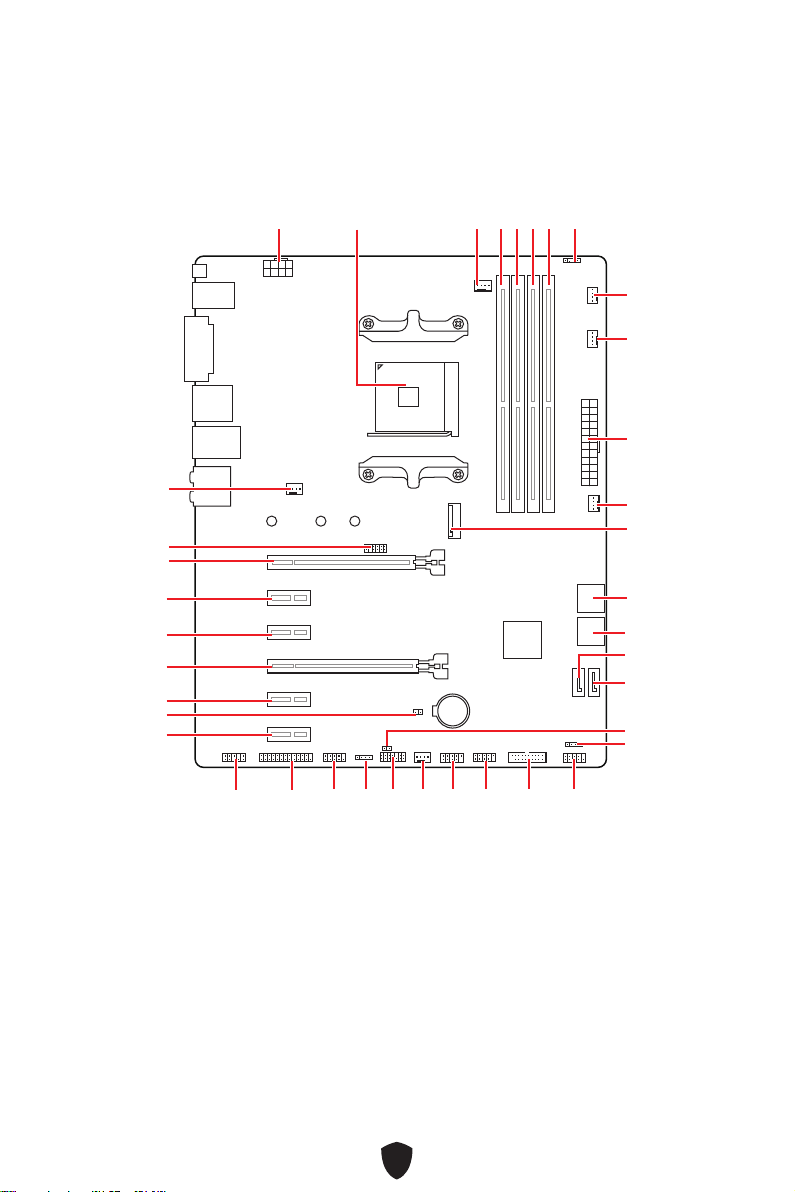
24
BAT1
M2_1
ATX_PWR1
SYS_FAN3
SYS_FAN4
PUMP_FAN1
CPU_FAN1
DIMMB2
JRGB1
CPU_PWR1
JFP1
JRGB2
SATA2
JUSB2
JUSB1
JLPC1
JUSB3
JCOM1
JLPT1
JAUD1
PCI_E1
JTPM1
SYS_FAN1
PCI_E2
PCI_E3
PCI_E4
PCI_E5
JBAT1
PCI_E6
SYS_FAN2
SATA1
JFP2
JCI1
DIMMB1
DIMMA2
DIMMA1
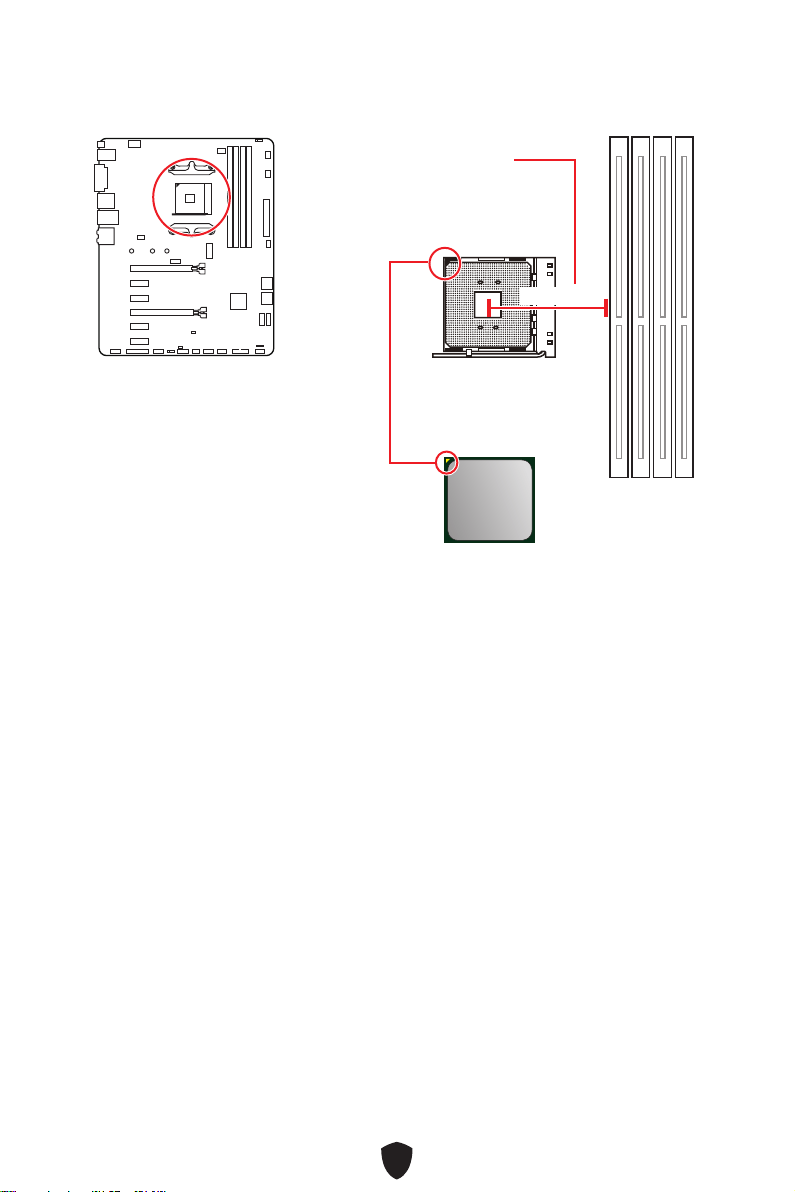
25
53.43 mm
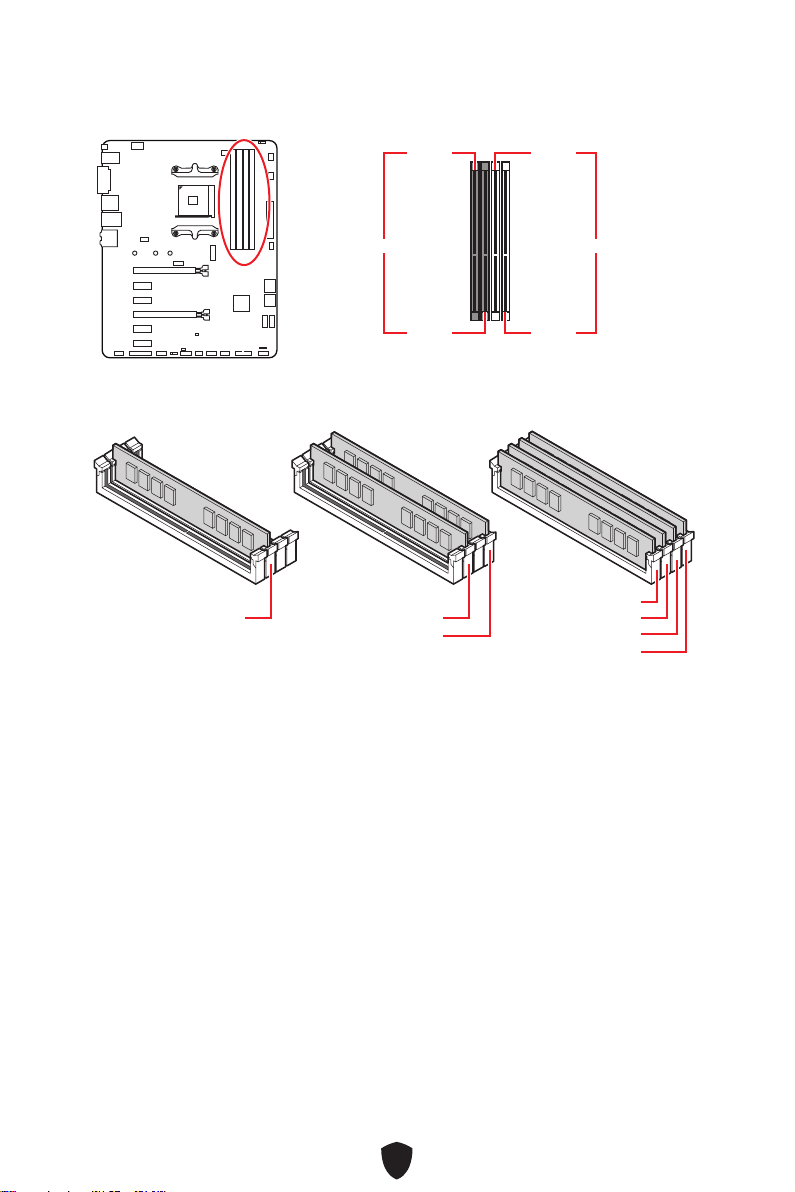
26
DIMMA1 DIMMB1
DIMMA2 DIMMB2
DIMMA2
DRAM Frequency
DIMMA2 DIMMA2
DIMMB2
DIMMA1
DIMMA2
DIMMB1
DIMMB2
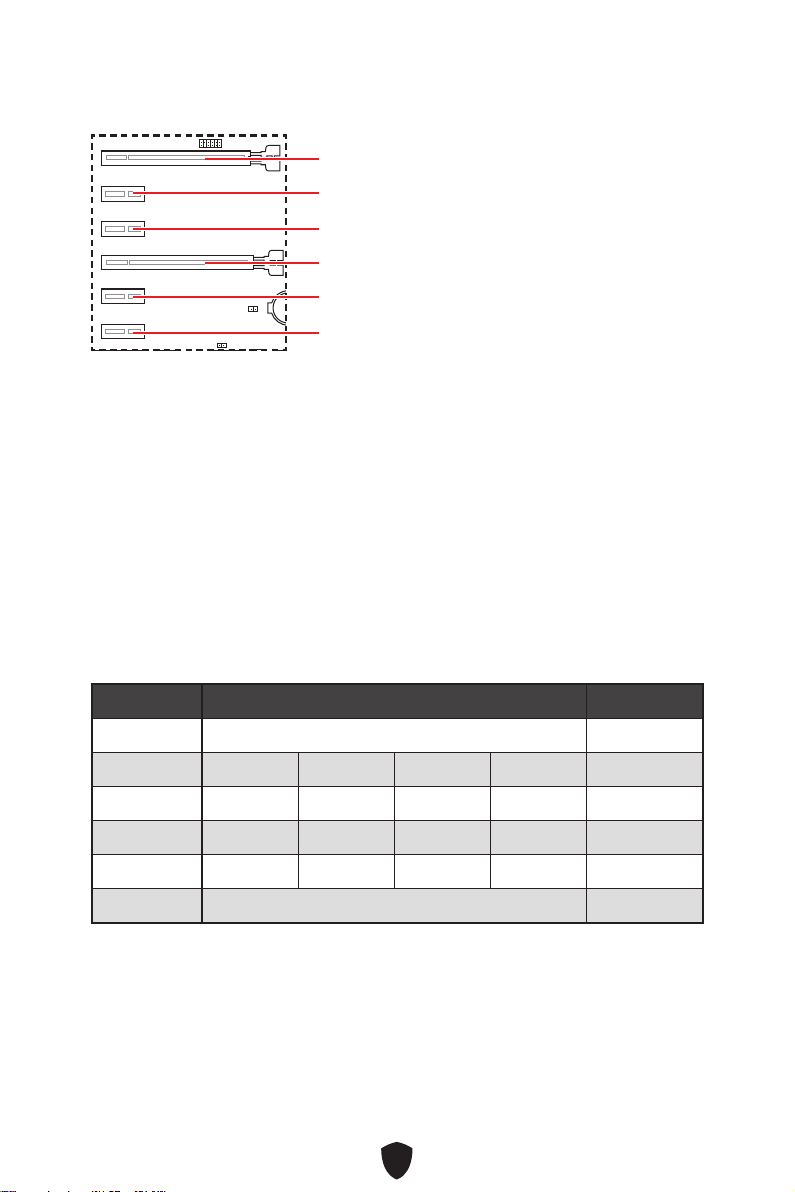
27
BAT1
PCI_E1
PCI_E4
PCI_E2
PCI_E5
PCI_E3
PCI_E6
PCI_E1
PCIe
2-Way
PCI_E1 (CPU) @ 3.0 x16 @ 3.0 x16
PCI_E2 (PCH) 2.0 x1 2.0 x1 —
PCI_E3 (PCH) 2.0 x1 2.0 x1 —
PCI_E4 (PCH) 2.0 x1 2.0 x1 2.0 x1 2.0 x1 @3.0 x4
PCI_E5 (PCH) 2.0 x1 2.0 x1 —
PCI_E6 (PCH) 2.0 x1 2.0x1
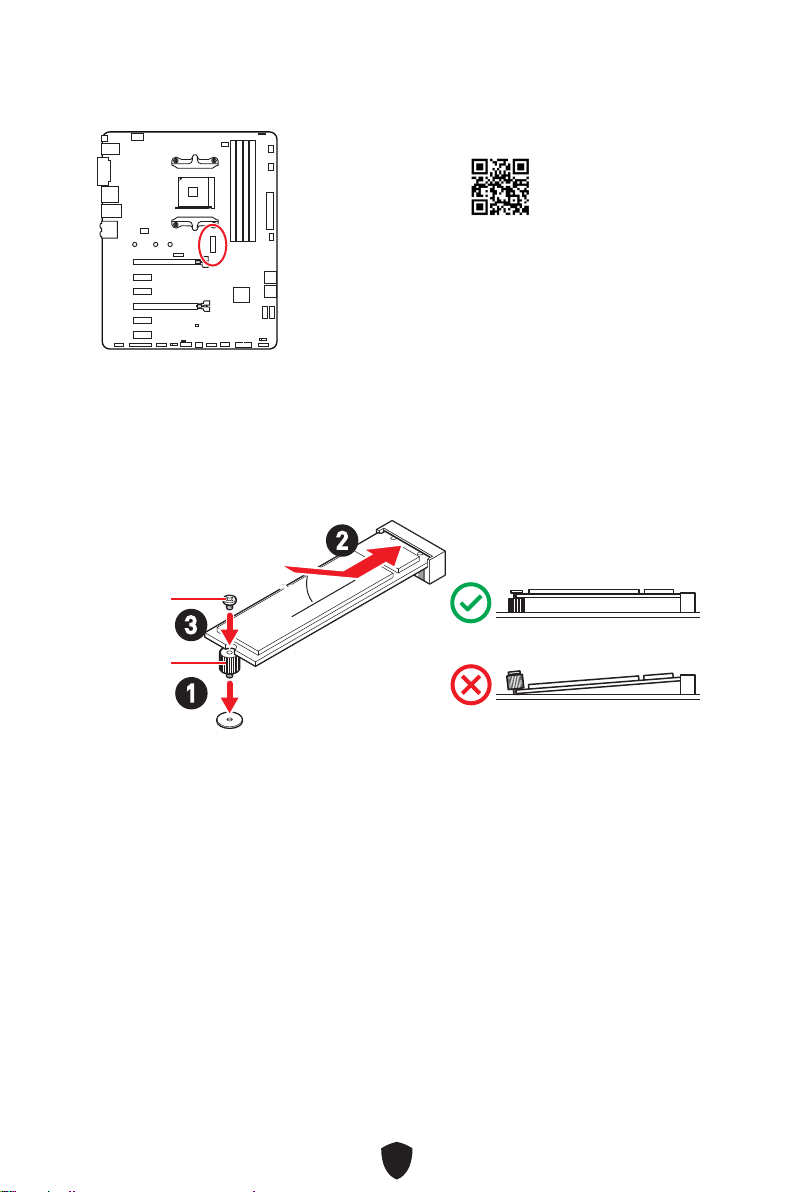
28
1.
2.
3.
30º30º
2
3
1
http://youtu.be/JCTFABytrYA
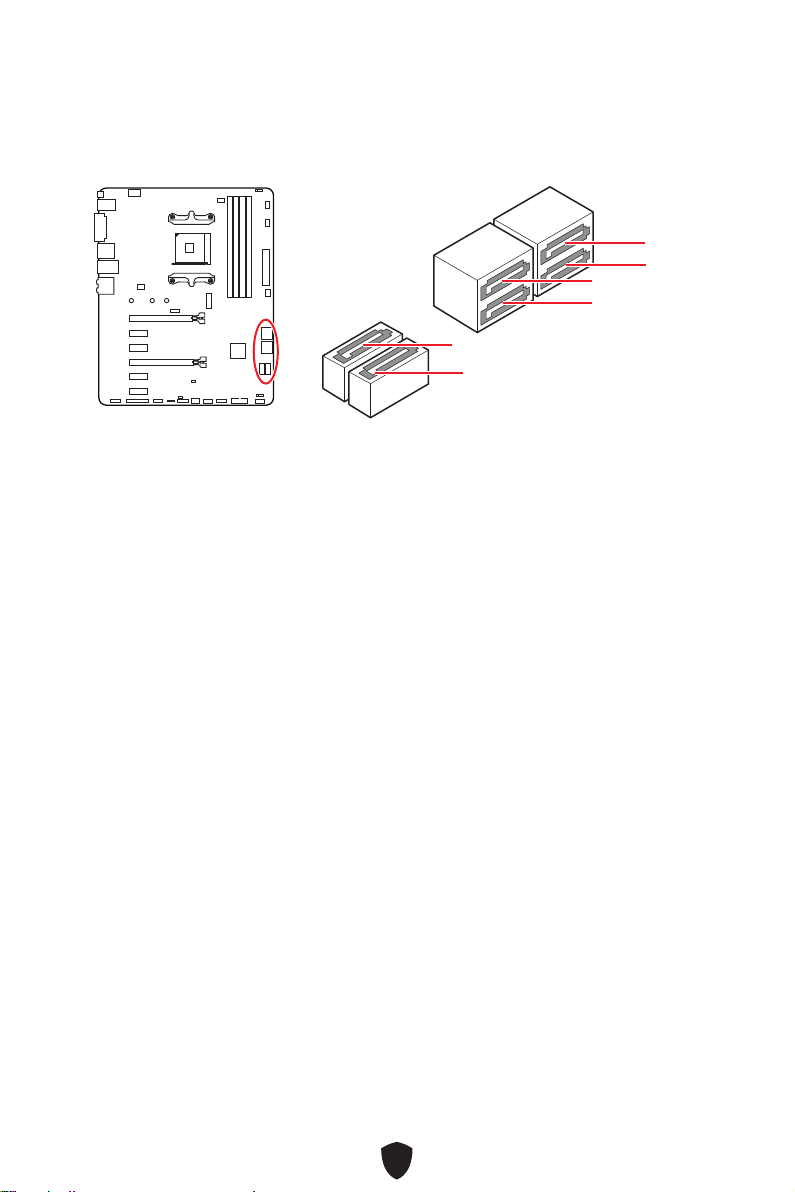
29
SATA5
SATA3
SATA1
SATA6
SATA4
SATA2
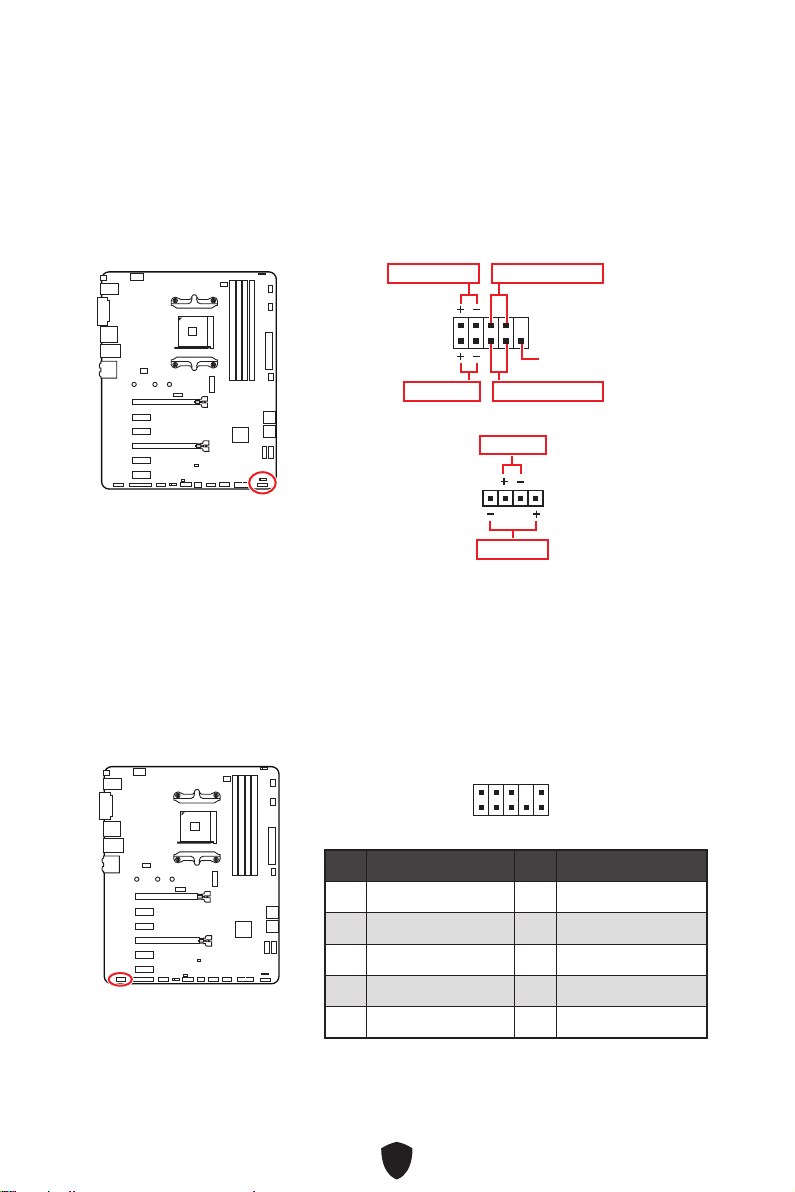
30
1
2 10
9
Power LED
Reserved
Power Switch
JFP1
Reset SwitchHDD LED
1
JFP2
Buzzer
Speaker
1
2 10
9
1 MIC L 2 Ground
3 MIC R 4 NC
5 Head Phone R 6 MIC Detection
7 SENSE_SEND 8 No Pin
9 Head Phone L 10 Head Phone Detection
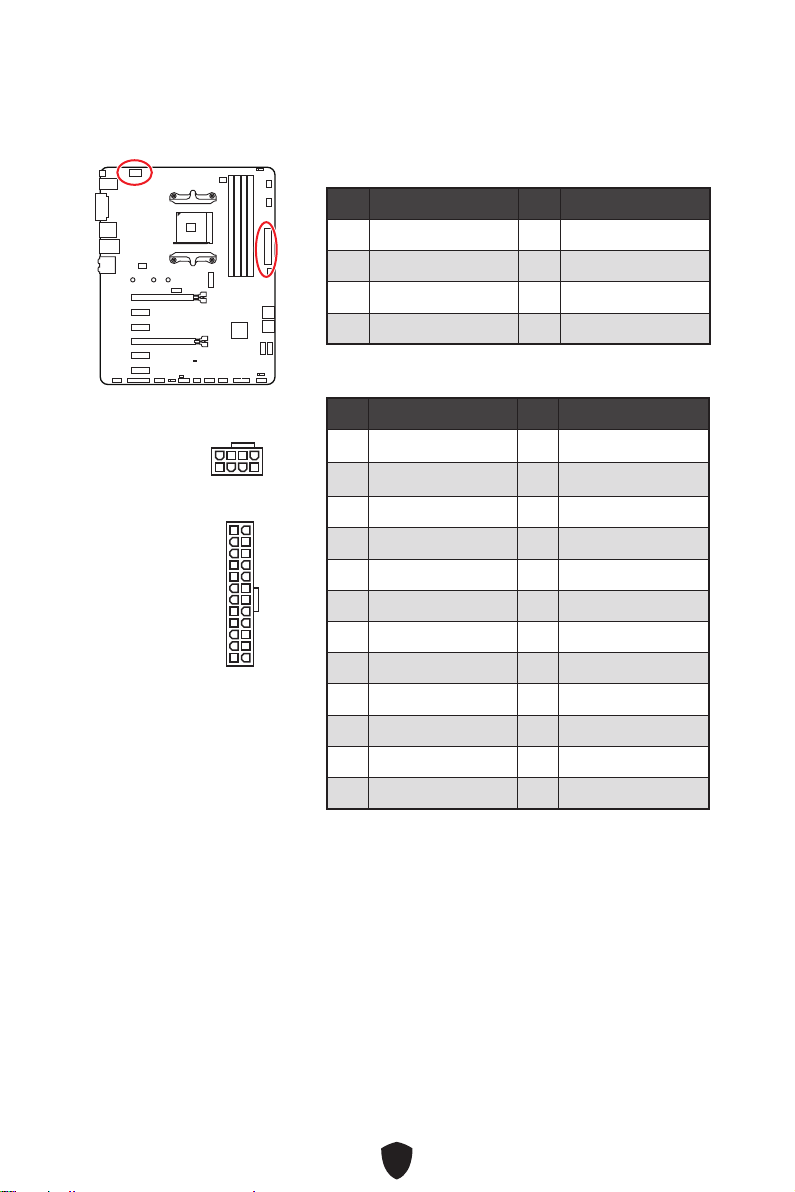
31
CPU_PWR1
1 Ground 2 Ground
3 Ground 4 Ground
5 +12V 6 +12V
7 +12V 8 +12V
ATX_PWR1
1 +3.3V 2 +3.3V
3 Ground 4
+5V
5 Ground 6 +5V
7 Ground 8 PWR OK
9 5VSB 10 +12V
11 +12V 12 +3.3V
13 +3.3V 14 -12V
15 Ground 16 PS-ON#
17 Ground 18 Ground
19 Ground 20 Res
21 +5V 22 +5V
23 +5V 24 Ground
5
4 1
8
CPU_PWR1
24
131
12
ATX_PWR1
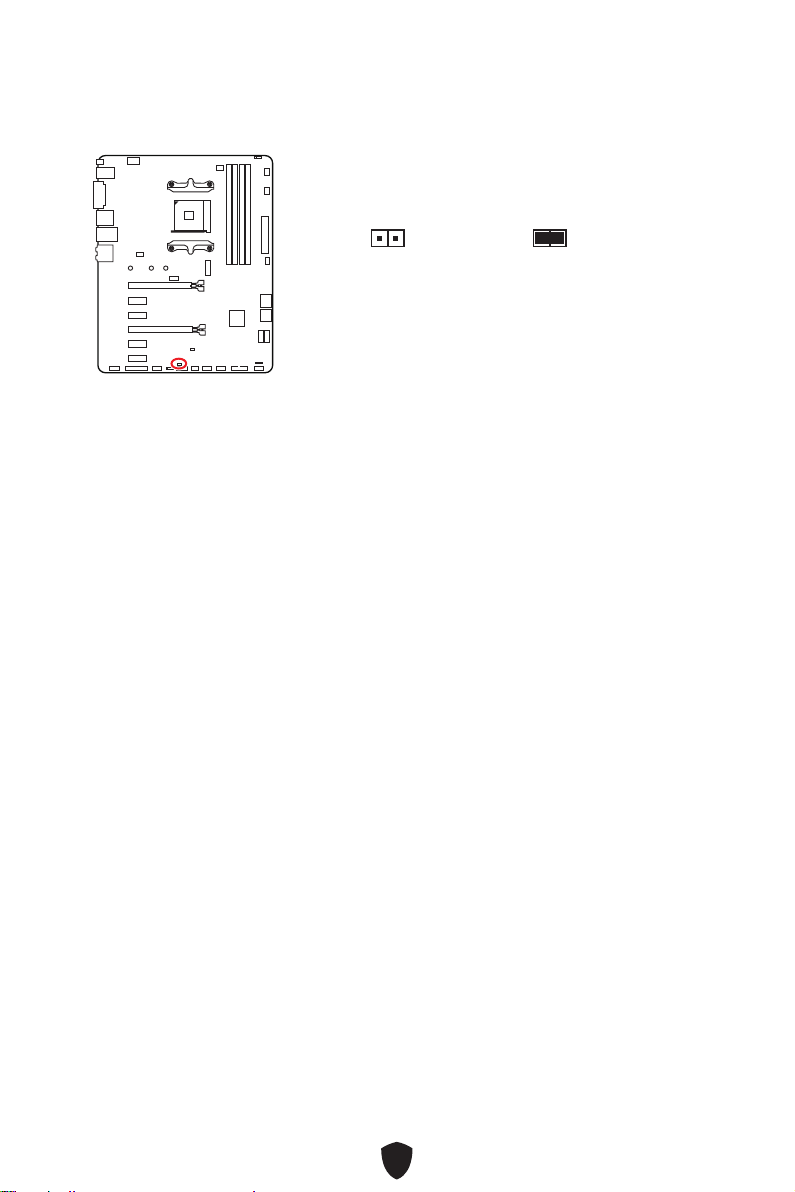
32
1.
JCI1
2.
3. BIOS > SETTINGS > Security > Chassis Intrusion Configuration
4. Chassis IntrusionEnabled
5. F10Enter
6.
1.
BIOS > SETTINGS > Security > Chassis Intrusion Configuration
2. Chassis IntrusionReset
3. F10
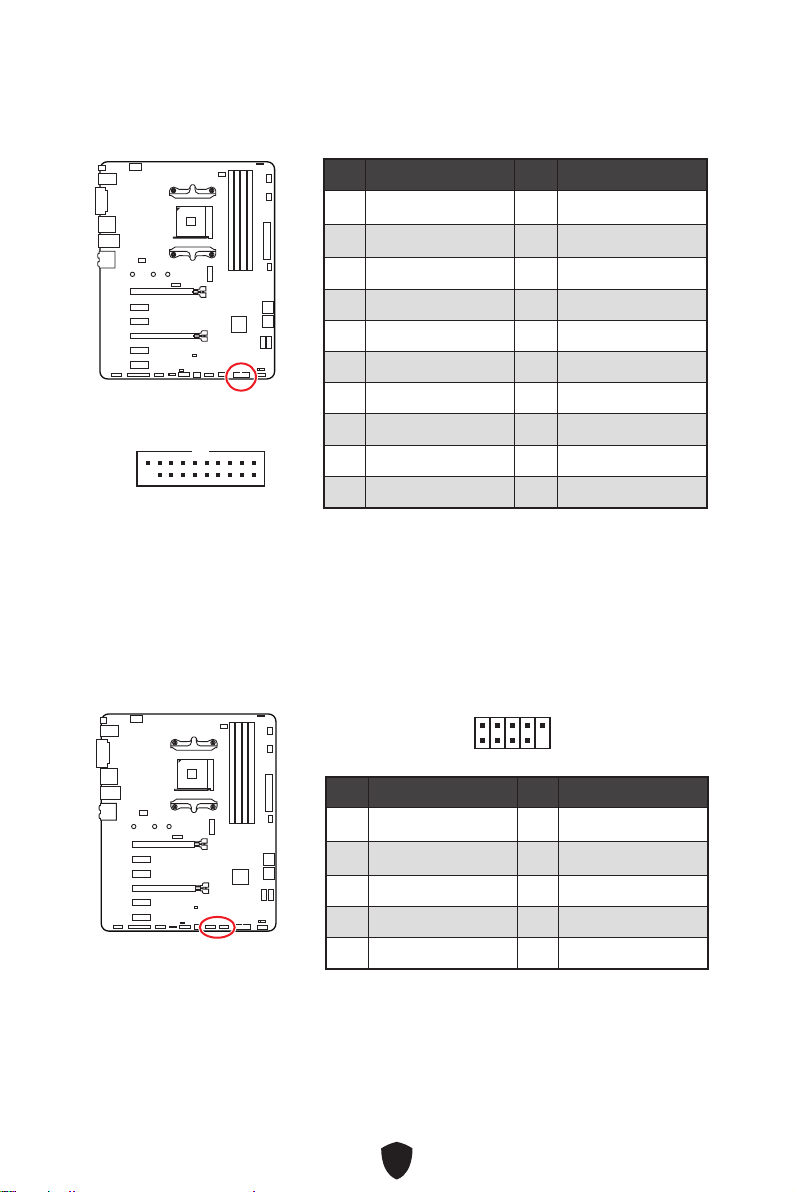
33
1 Power 2 USB3_RX_DN
3 USB3_RX_DP 4 Ground
5 USB3_TX_C_DN 6 USB3_TX_C_DP
7 Ground 8 USB2.0-
9 USB2.0+ 10 Ground
11 USB2.0+ 12 USB2.0-
13 Ground 14 USB3_TX_C_DP
15 USB3_TX_C_DN 16 Ground
17 USB3_RX_DP 18 USB3_RX_DN
19 Power 20 No Pin
1 10
1120
1 VCC 2 VCC
3 USB0- 4 USB1-
5 USB0+ 6 USB1+
7 Ground 8 Ground
9 No Pin 10 NC
1
2 10
9
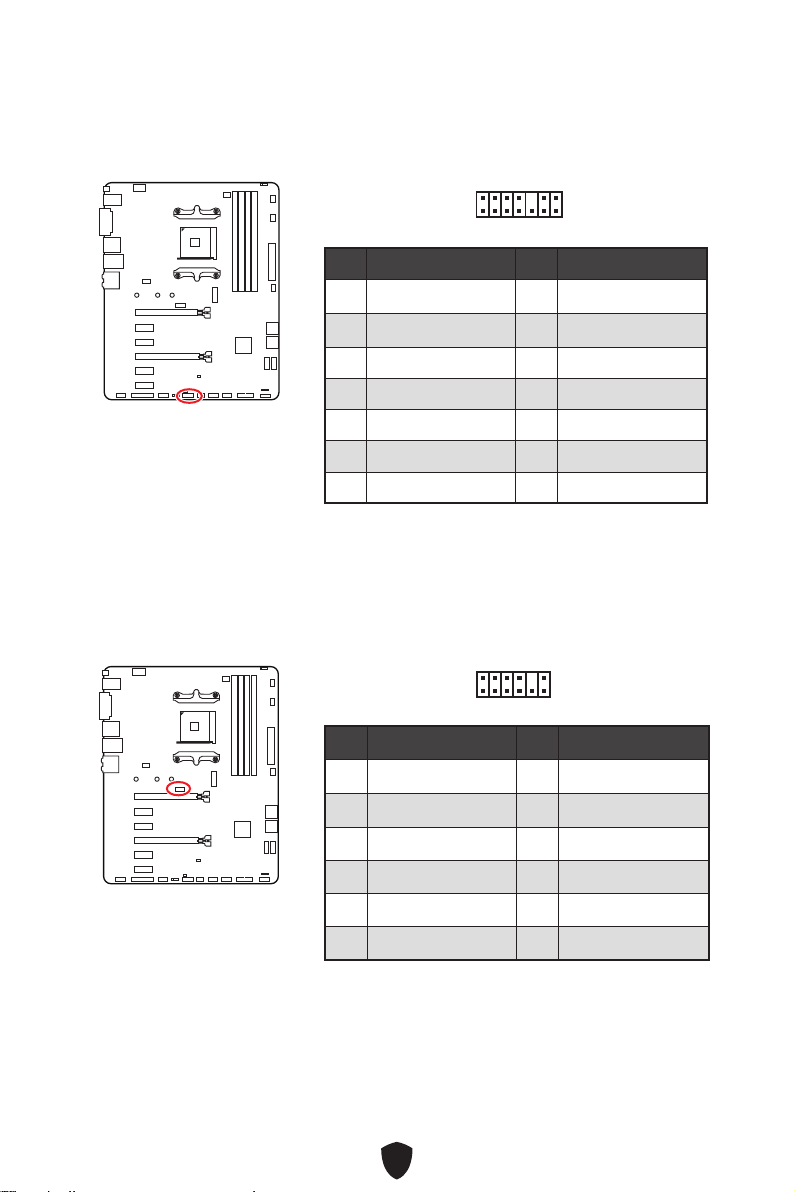
34
1 LPC Clock 2 3V Standby power
3 LPC Reset 4 3.3V Power
5 LPC address & data pin0 6 Serial IRQ
7 LPC address & data pin1 8 5V Power
9 LPC address & data pin2 10 No Pin
11 LPC address & data pin3 12 Ground
13 LPC Frame 14 Ground
1
2 14
13
1 1.8V power 2 SPI_TPM_CS#_R
3 SPI_TPM_DATI 4 SPI_DATO
5 SPI_CS#_R 6 SPI_TPM_CLK
7 Ground 8 SPI_TPM_RST#
9 SPI_SW_SEL 10 NA
11 SPI_TPM_WP# 12 SPI_TPM_HOLD#
1
2 12
11
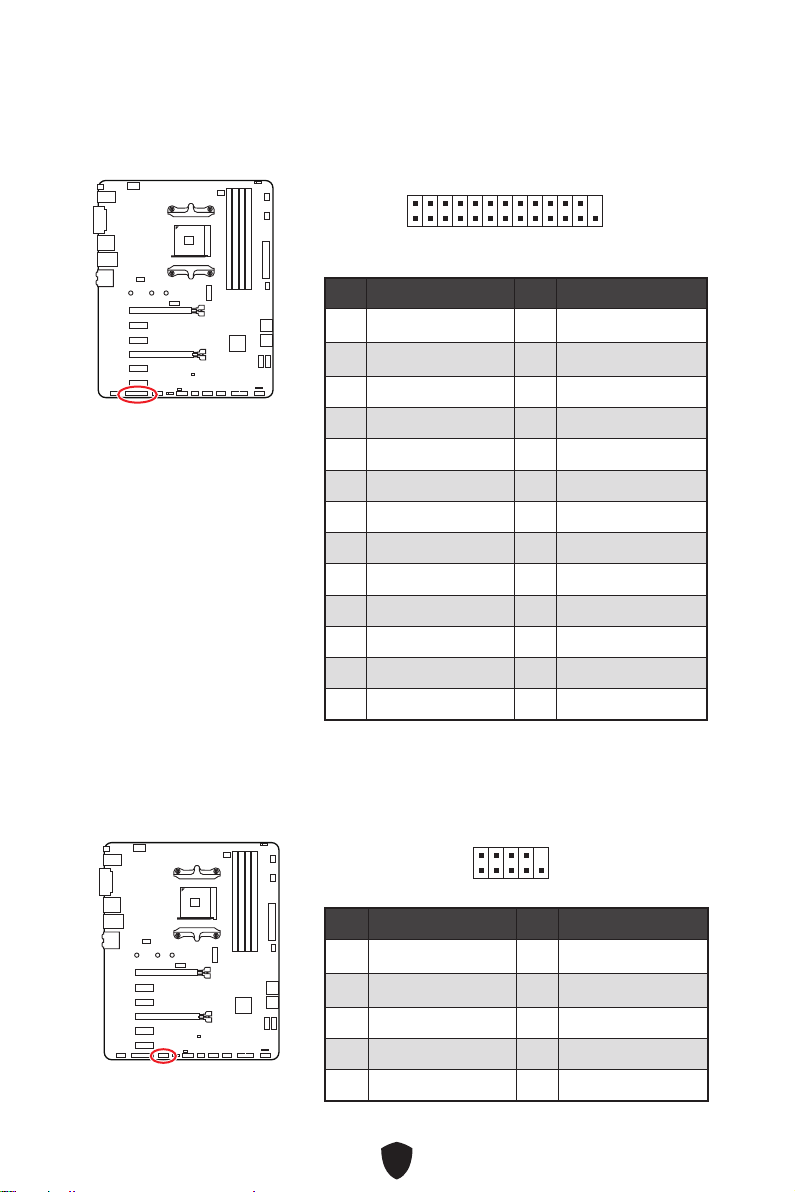
35
1
2 26
25
1 RSTB# 2 AFD#
3 PRND0 4 ERR#
5 PRND1 6 PINIT#
7 PRND2 8 LPT_SLIN#
9 PRND3 10 Ground
11 PRND4 12 Ground
13 PRND5 14 Ground
15 PRND6 16 Ground
17 PRND7 18 Ground
19 ACK# 20 Ground
21 BUSY 22 Ground
23 PE 24 Ground
25 SLCT 26 No Pin
1 DCD 2 SIN
3 SOUT 4 DTR
5 Ground 6 DSR
7 RTS 8 CTS
9 RI 10 No Pin
1
2 10
9
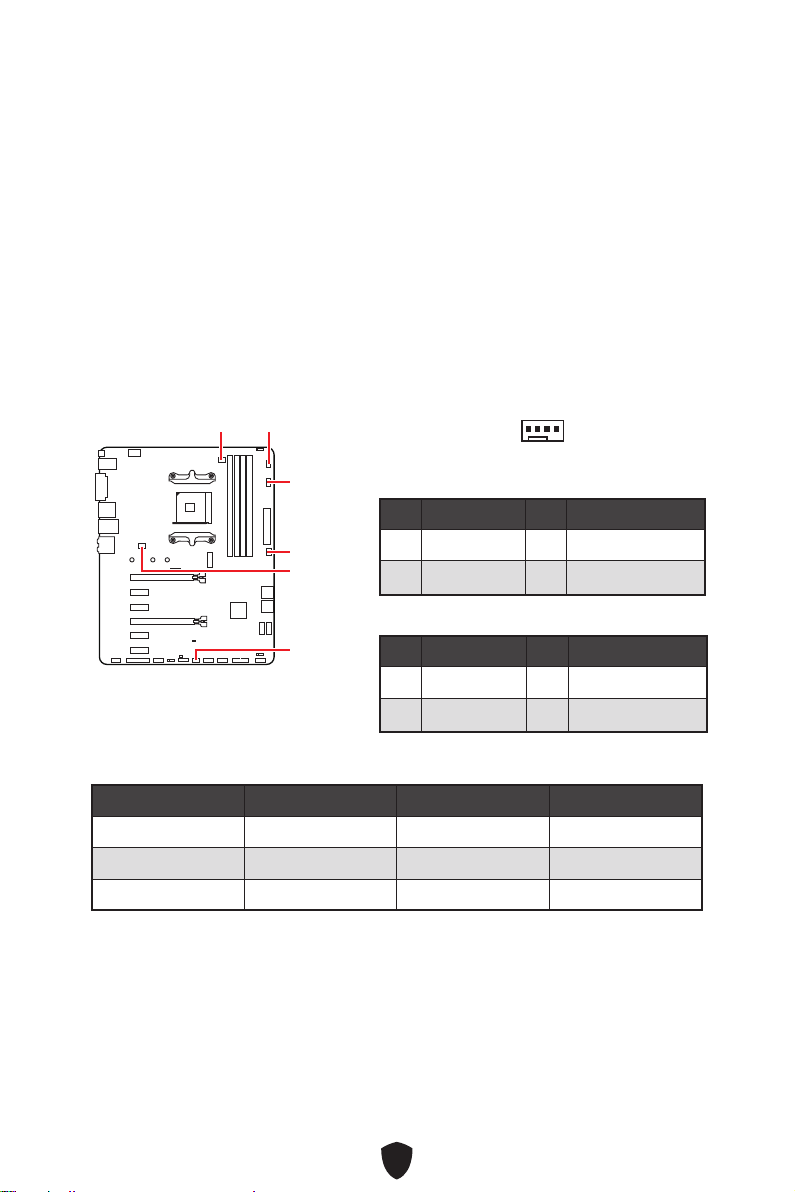
36
BIOS > HARDWARE MONITOR
CPU_FAN1
SYS_FAN2
SYS_FAN4
SYS_FAN1
PUMP_FAN1
SYS_FAN3
1
1 Ground 2 +12V
3 Sense 4 Speed Control Signal
1 Ground 2 Voltage Control
3 Sense 4 NC
CPU_FAN1 2A 24W
PUMP_FAN1 3A 36W
SYS_FAN1~4 2A 24W
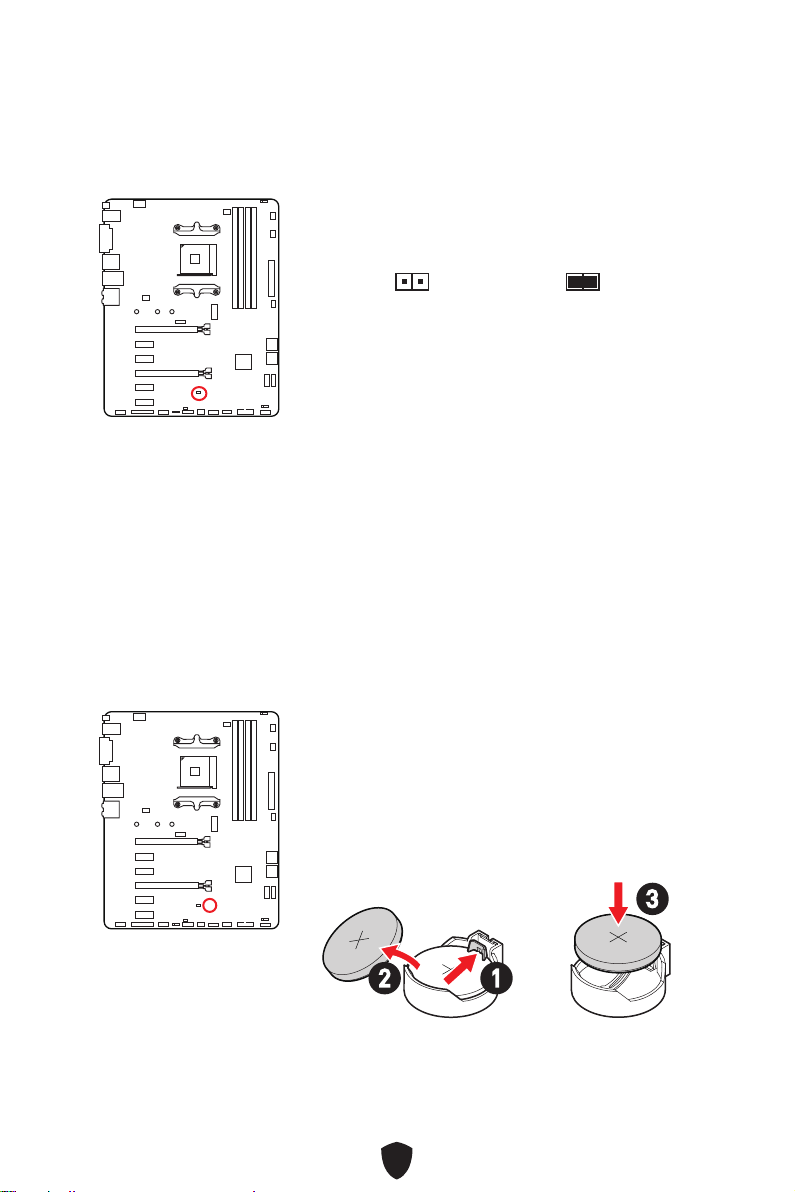
37
1.
2. JBAT1
3. JBAT1
4.
1.
2.
3. +
12
3
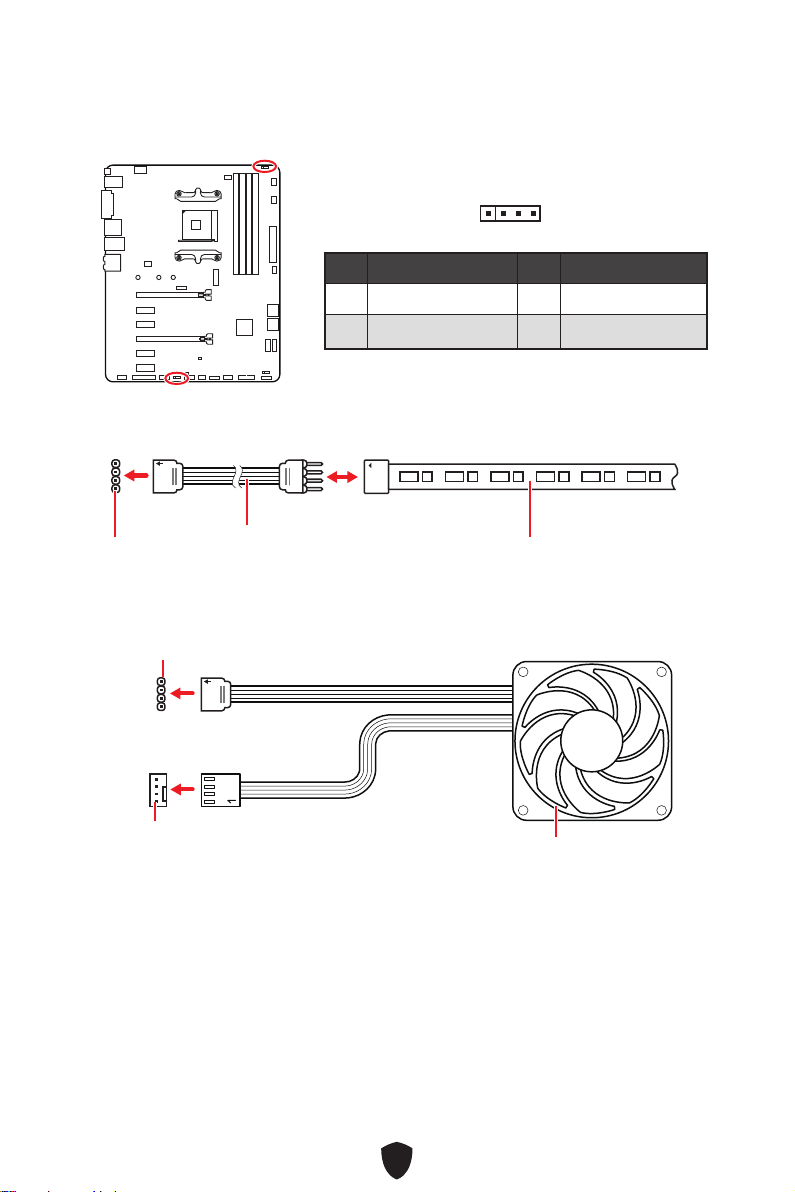
38
許
1
G
R
B
1
1
G
R
B
1 +12V 2 G
3 R 4 B
1
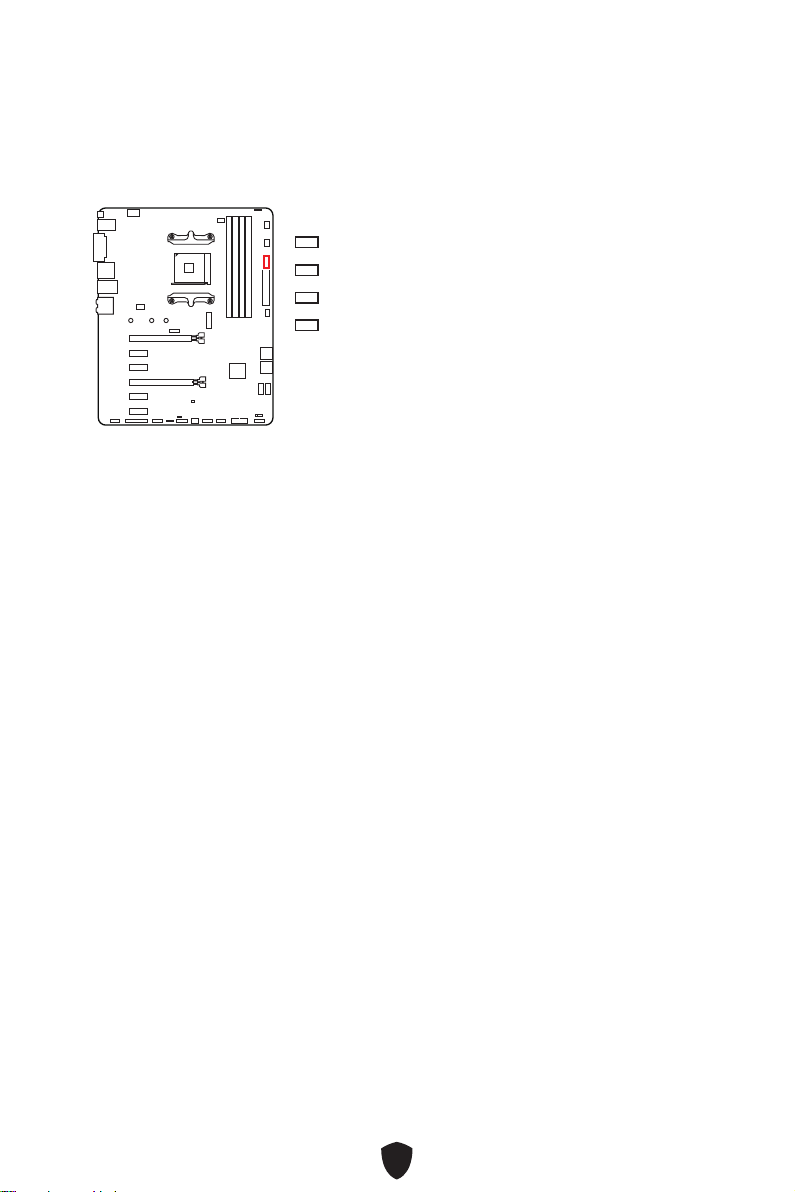
39
CPU
DRAM
VGA
BOOT
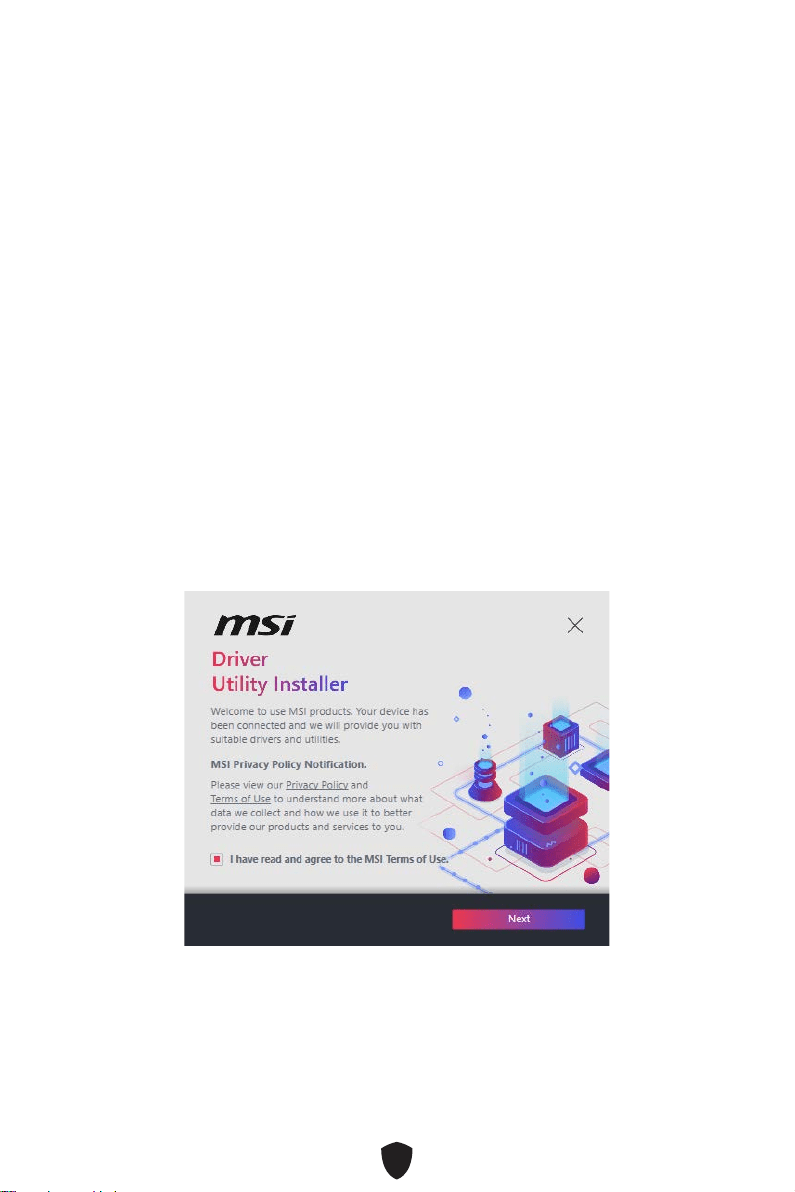
40
1.
2.
3.
4. F11
5.
6. Press any key to boot from CD or DVD...
7.
1.
2.
3.
4. I have read and agree to the MSI Terms of Use
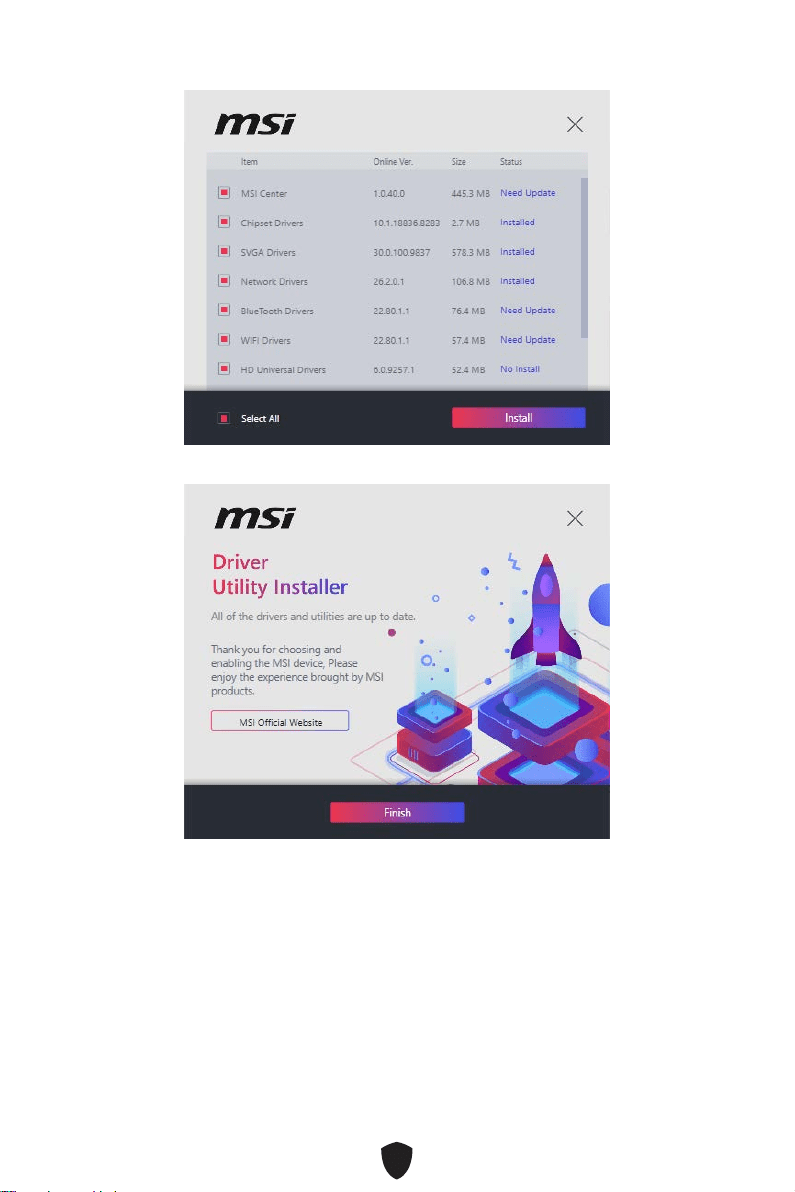
41
5. Select All Install
6. Finish
42
1.
2.
3.
DVDSetup.exe
4.
5.
6.
7.
8.
MSI Center
http://download.msi.com/manual/mb/MSICENTERCT.pdf

43
UEFI BIOS
There is no GOP (Graphics Output protocol) support detected in this graphics card.
1.
2. Delete
3.
BIOS Mode: UEFI
44
HELP
Delete
F1:
F2:
F3:
F4:
F5:
F6:
F7:
F8:
F9:
F10:
F12:
Ctrl+F:
http://download.msi.com/manual/mb/AMDX570BIOStc.pdf
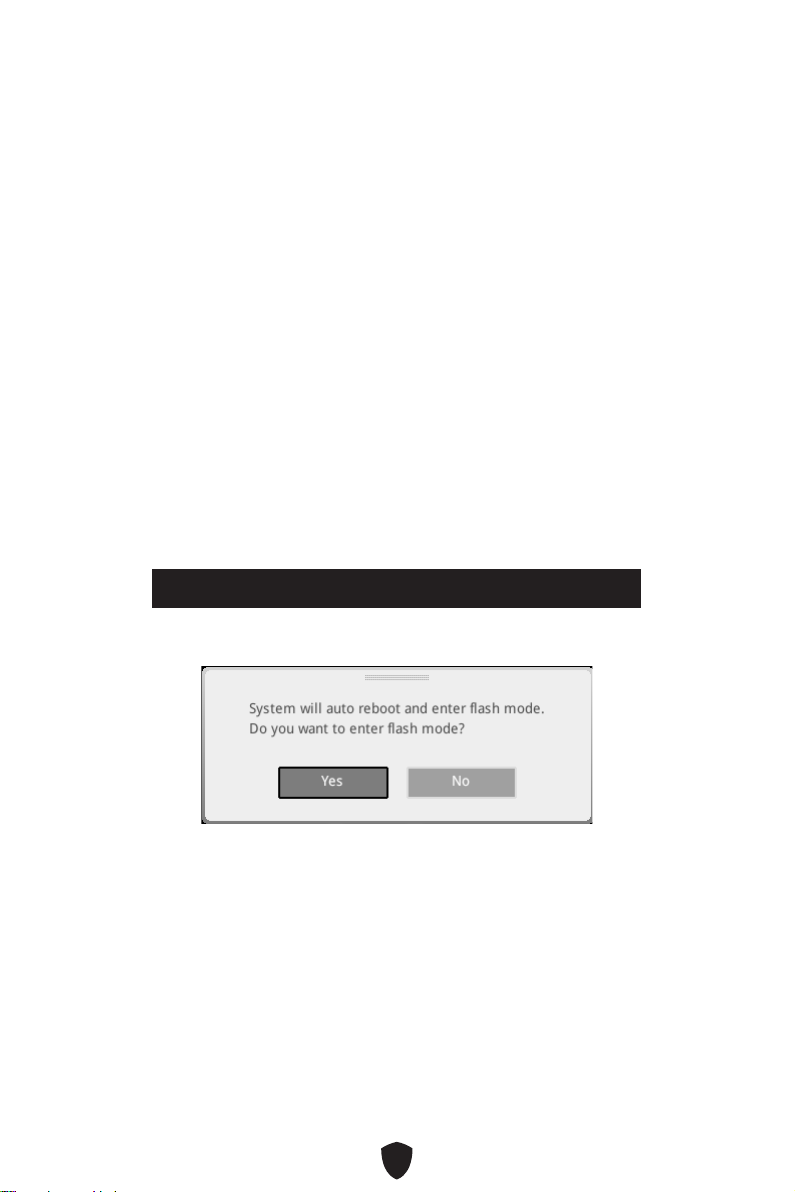
45
F6
1.
2.
•
Press <Ctrl+F5> to activate M-Flash for BIOS update.
•
3.
4.
5.

46
1. Support
2. Live UpdateAdvance
3. Install
4.
5.
6.
1.
2.
3. CPU_PWR1ATX_PWR1
4.
5.
6.

1
........................................................................................................................ 3
.............................................................................................................................. 16
...................................................................................................................... 19
.................................................................................................................. 20
.............................................................................................................. 21
........................................................................................... 22
........................................................................................................ 22
...................................................................................................................... 24
............................................................................................................... 25
............................................................................................................ 26
..................................................................................... 27
.......................................................................................... 28
.................................................................................. 29
.................................................................................... 30
........................................................................................... 30
...................................................................... 31
........................................................................................ 32
.................................................................................. 33
........................................................................................ 33
.......................................................................................... 34
.......................................................................................... 34
............................................................................................ 35
........................................................................................... 35
............................................. 36
.................................................................... 37
................................................................................................. 37
...................................................................................... 38
................................................................................................................. 39

2
................................................................................................... 39
.................................................................... 40
MSI Center ............................................................................................................ 42
UEFI BIOS .................................................................................................................... 43
.............................................................................................................. 44
.............................................................................................................. 45
.............................................................................................................. 45
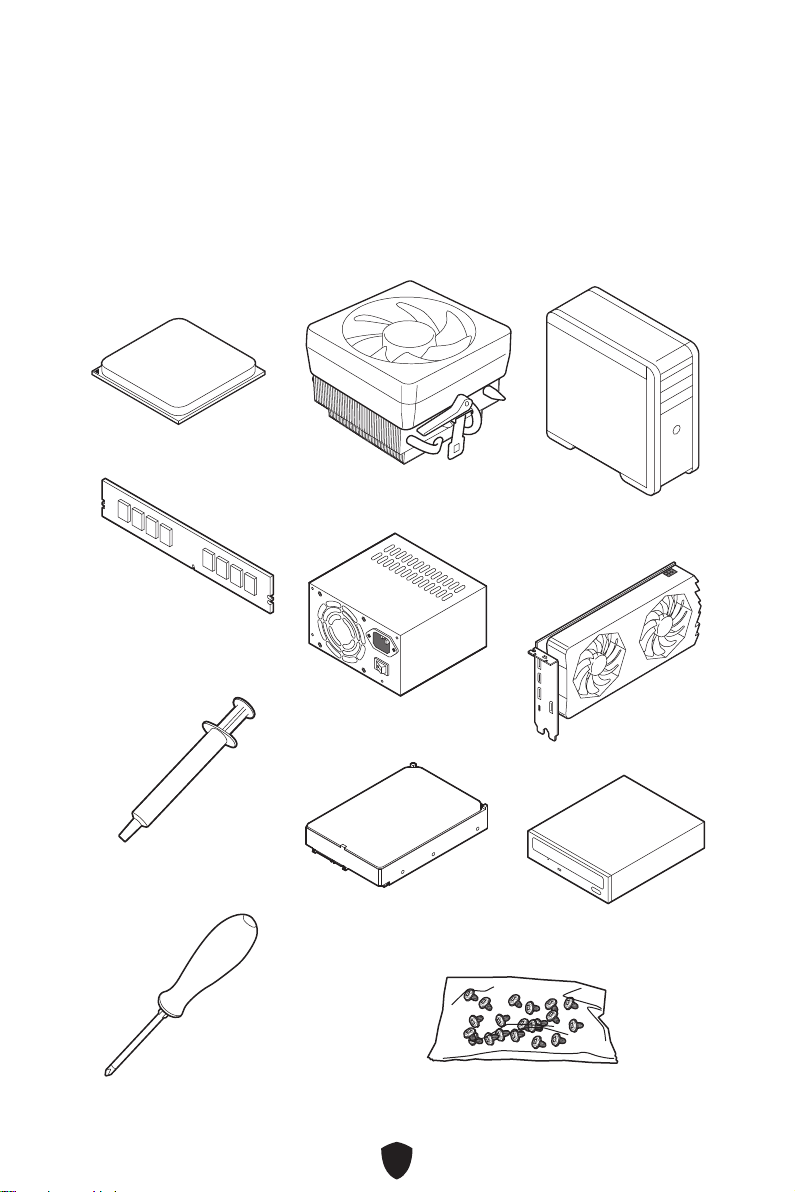
3
AMD® AM4 CPU

4
•
•
•
•
•
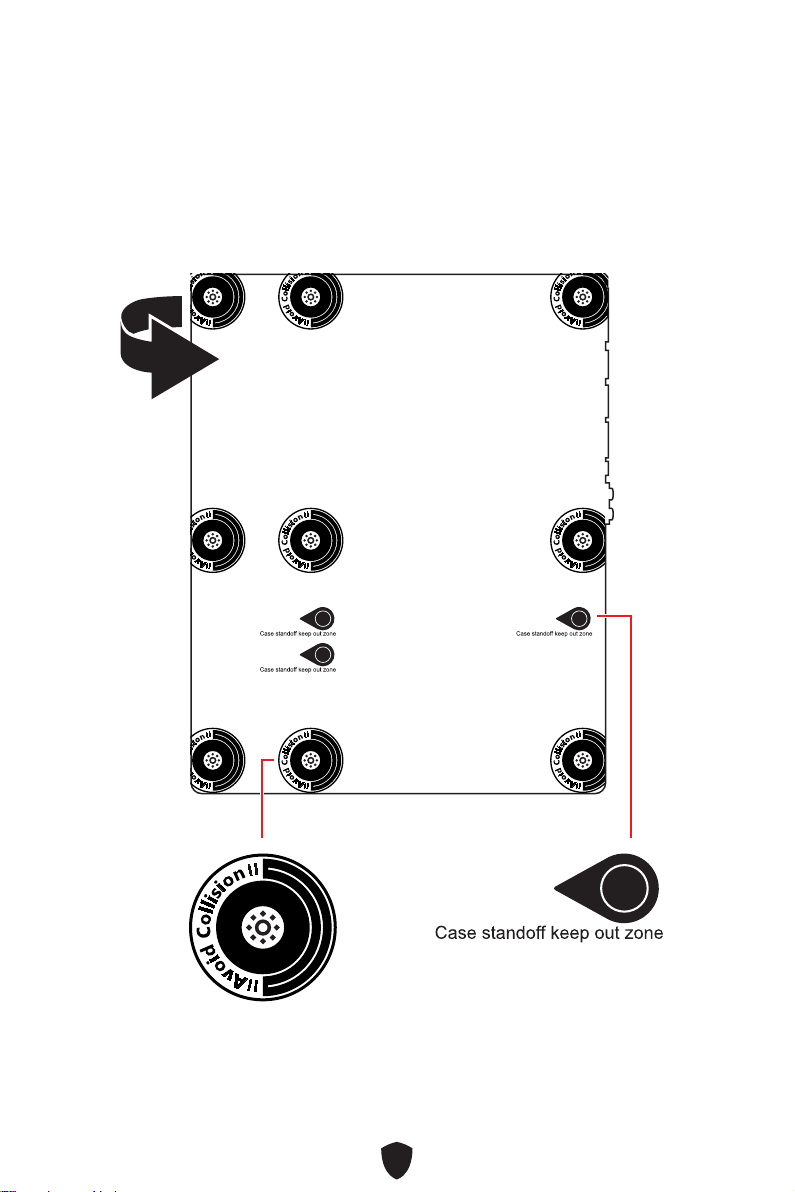
5
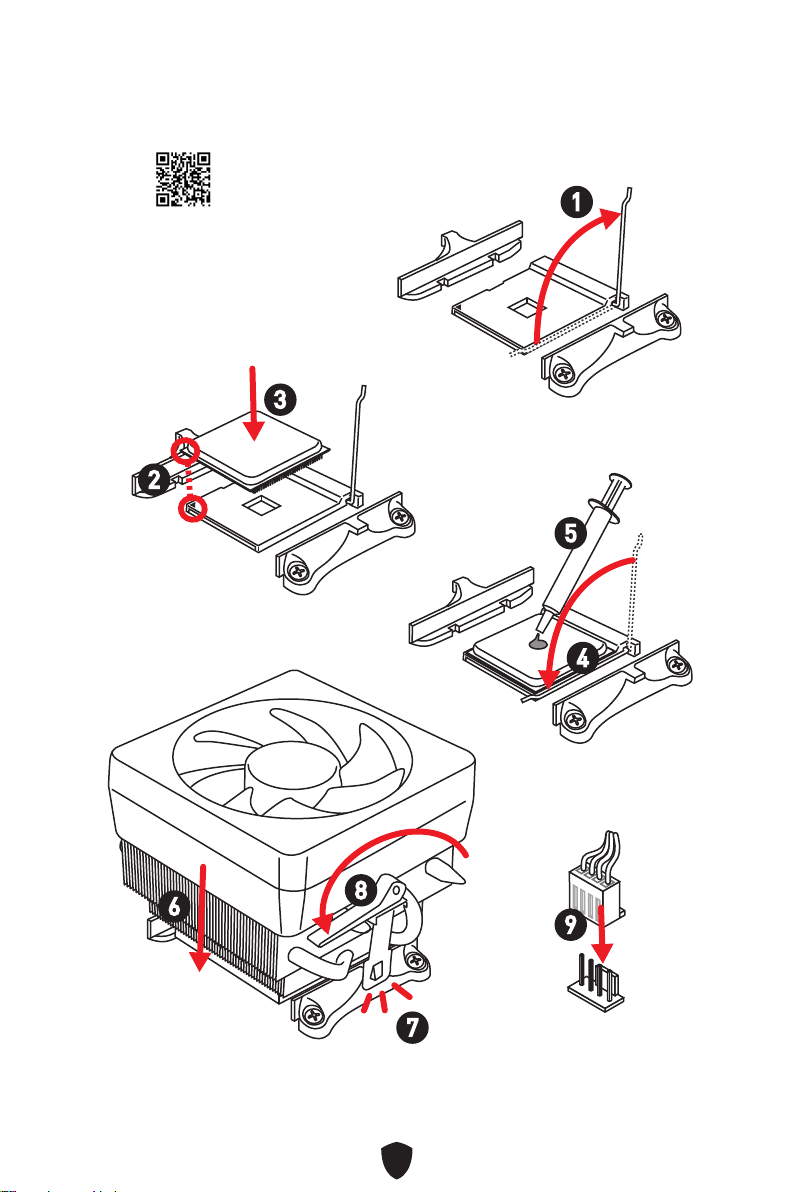
6
1
2
3
6
4
5
7
8
9
http://v.youku.com/v_show/id_
XMTg2MjMwOTE2NA==.html
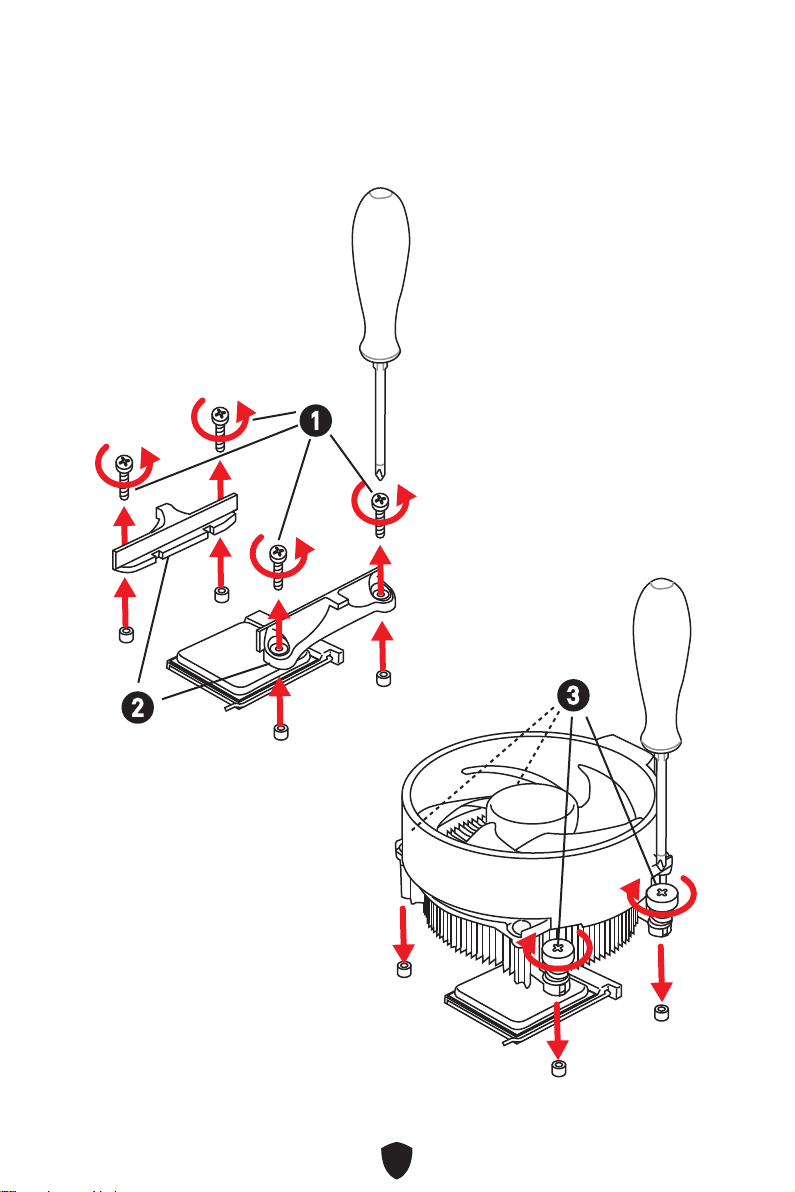
7
1
2
3
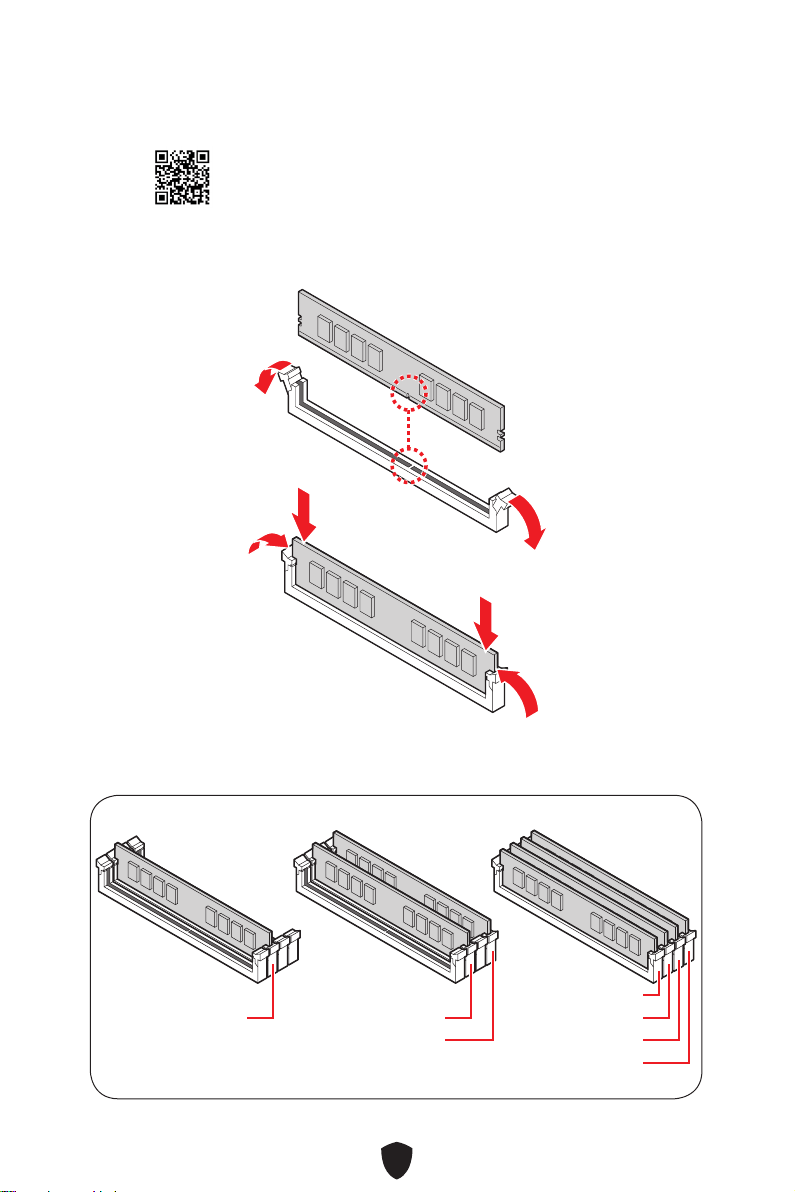
8
DIMMA2 DIMMA2
DIMMB2
DIMMA1
DIMMA2
DIMMB1
DIMMB2
http://v.youku.com/v_show/id_XNzUyMTI5ODI4.html
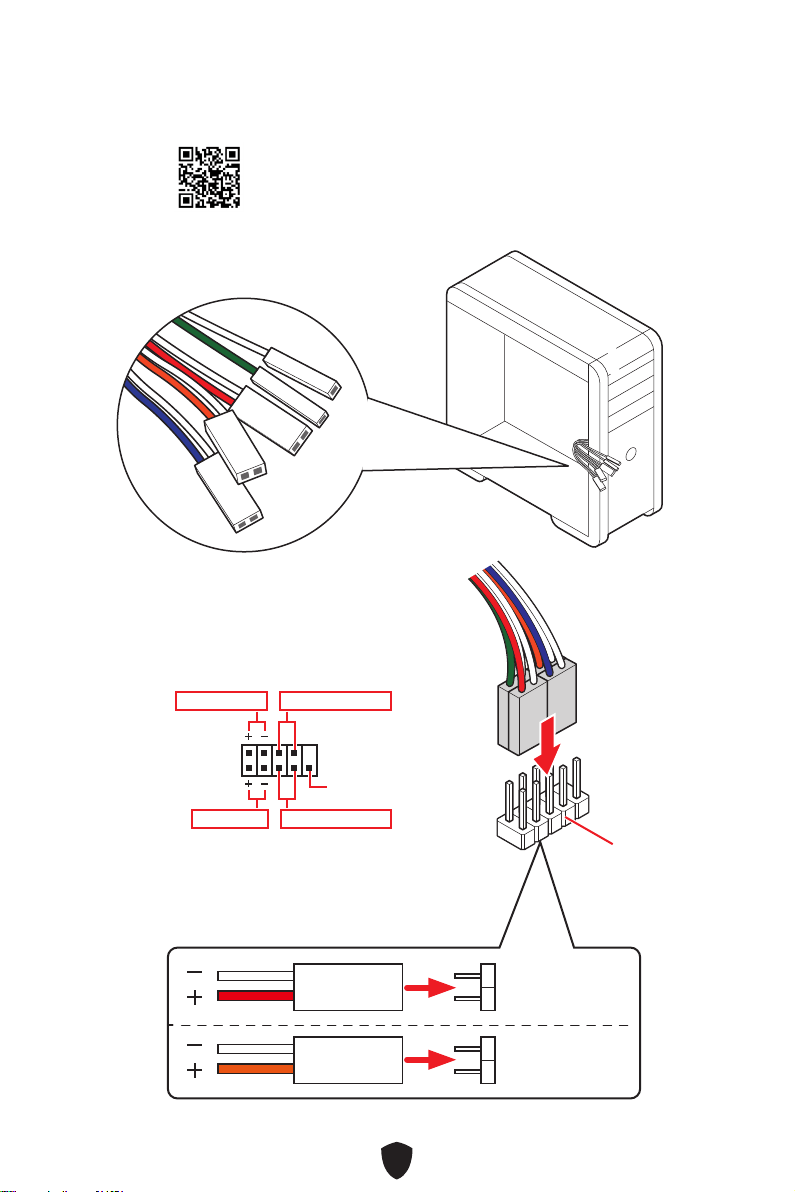
9
HDD LED
RESET SW
JFP1
HDD LED
HDD LED -
HDD LED +
POWER LED -
POWER LED +
POWER LED
RESET SW
POWER SW
POWER LED+
POWER LED-
HDD LED
1
2 10
9
Power LED
Reserved
Power Switch
JFP1
Reset SwitchHDD LED
http://v.youku.com/v_show/id_
XNjcyMTczMzM2.html
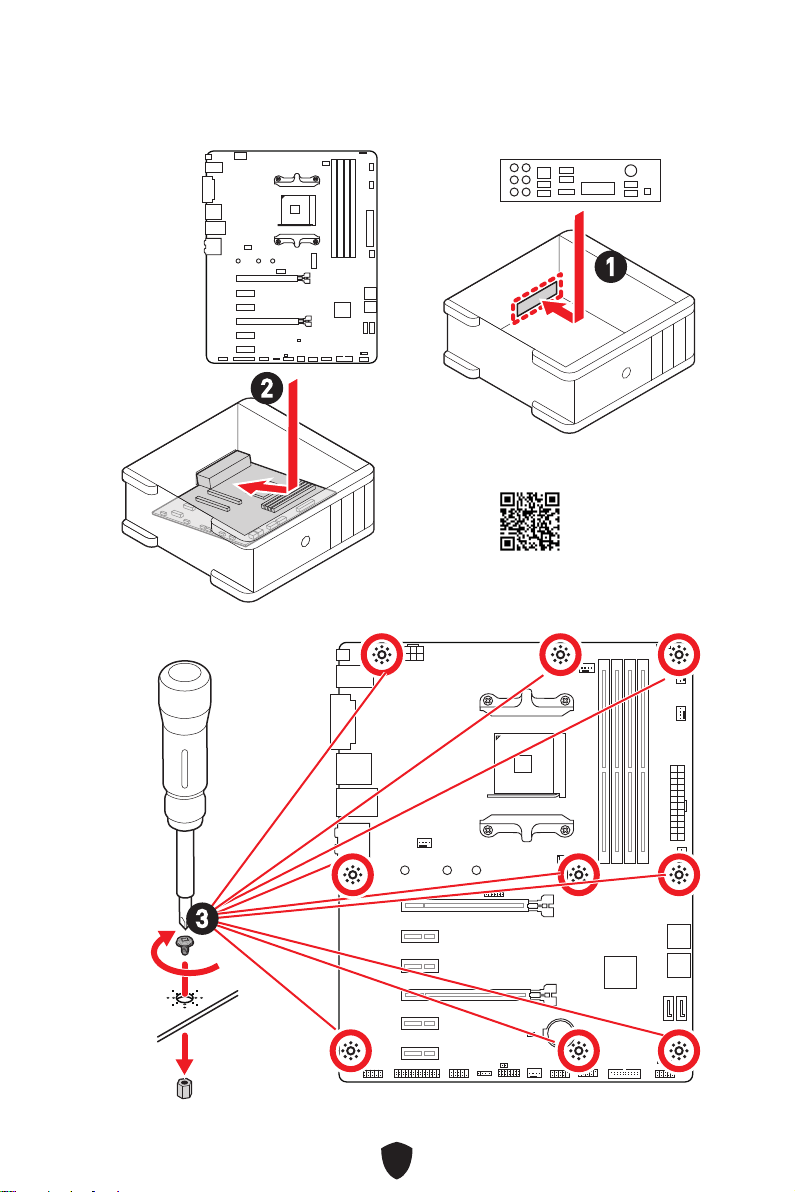
10
BAT1
2
1
3 kgf·cm*
*3 kgf·cm
= 0.3 N·m
= 2.6 lbf·in
3
https://v.youku.com/v_show/id_
XNDUwMDUyNTkwOA==.html
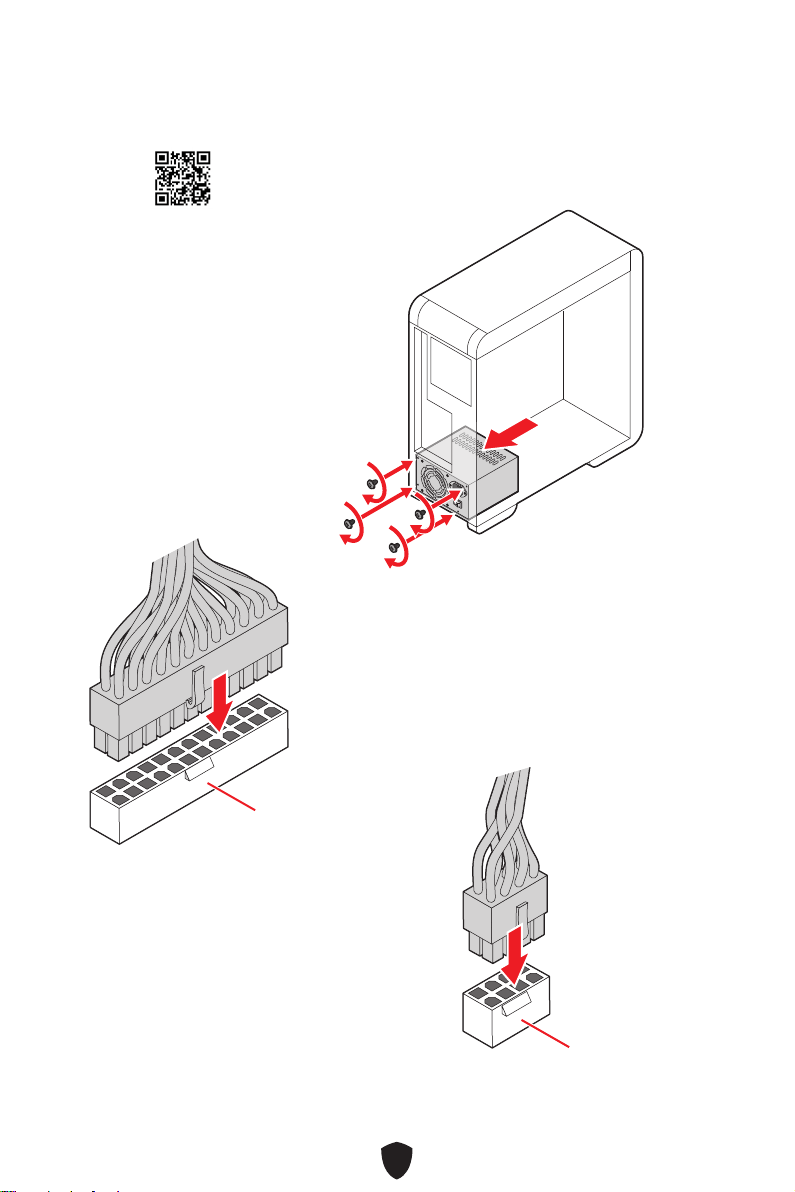
11
ATX_PWR1
CPU_PWR1
http://v.youku.com/v_show/
id_XNDkzODU0MDQw.html
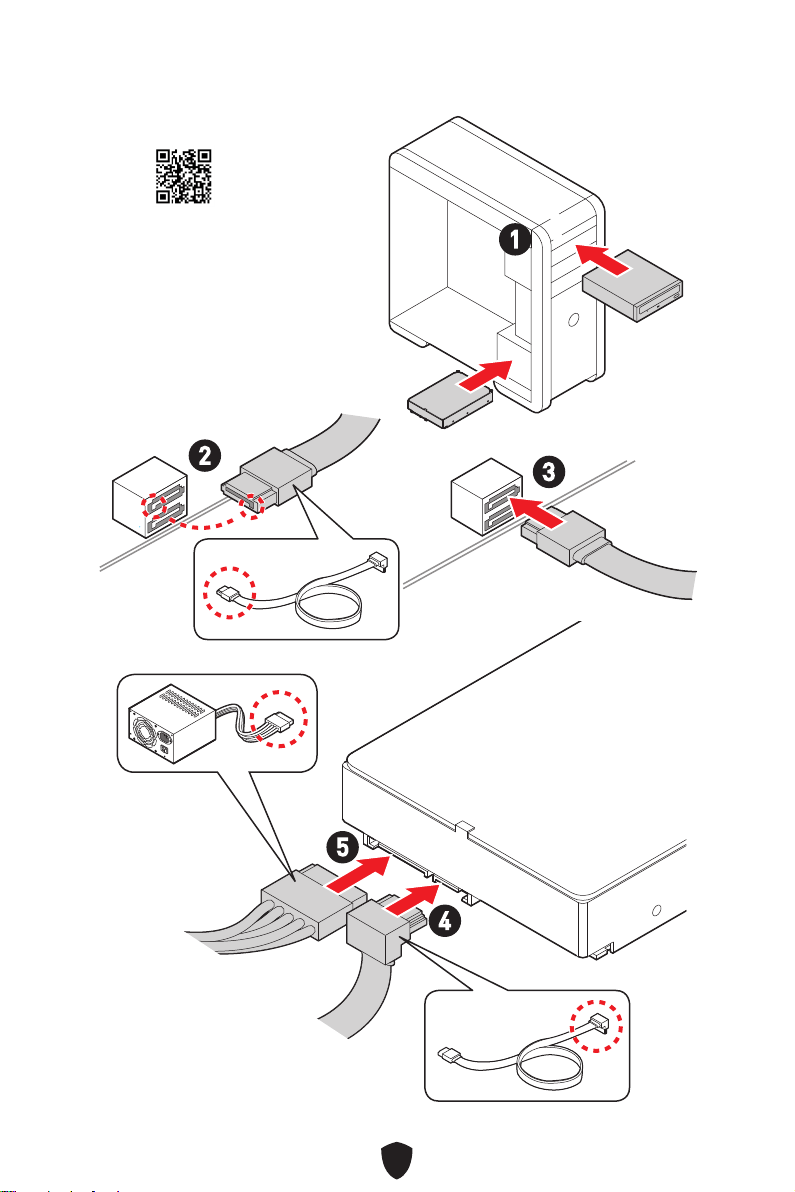
12
1
2
3
4
5
http://v.youku.com/v_show/
id_XNDkzODU5MTky.html
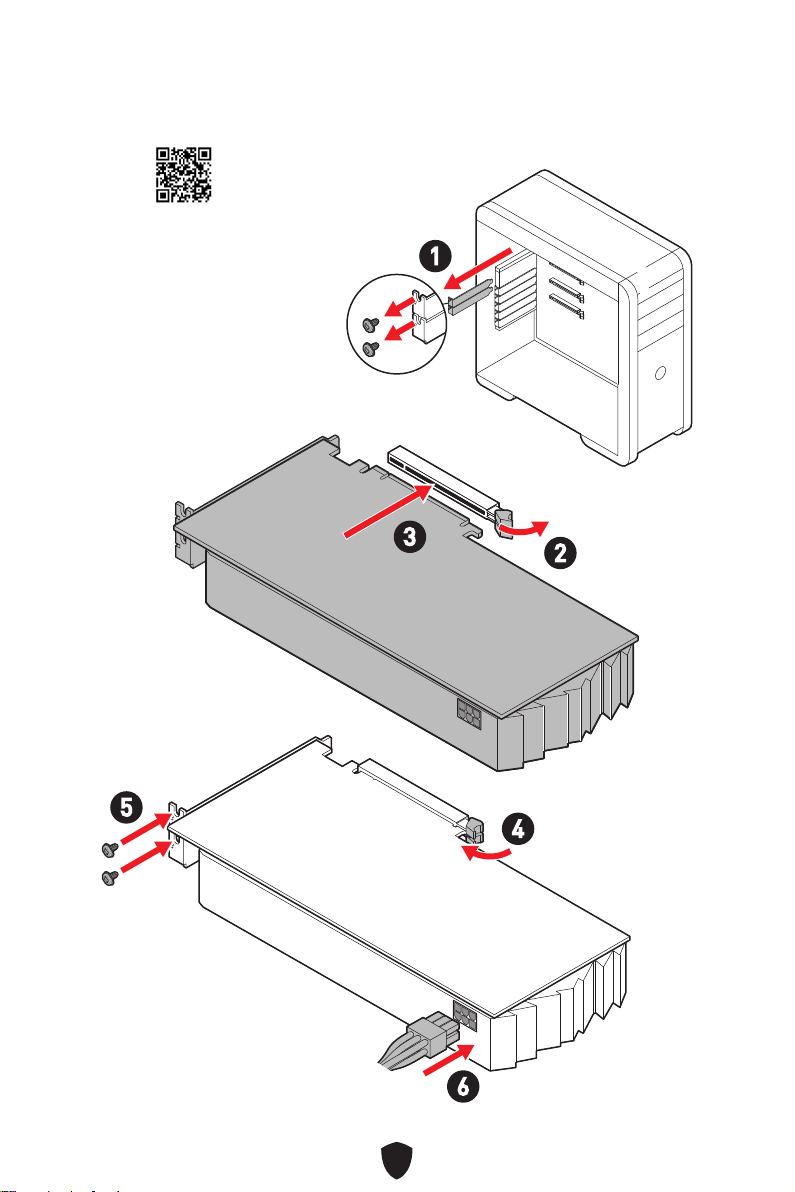
13
1
2
3
4
5
6
http://v.youku.com/v_show/id_
XNDkyOTc3MzQ4.html
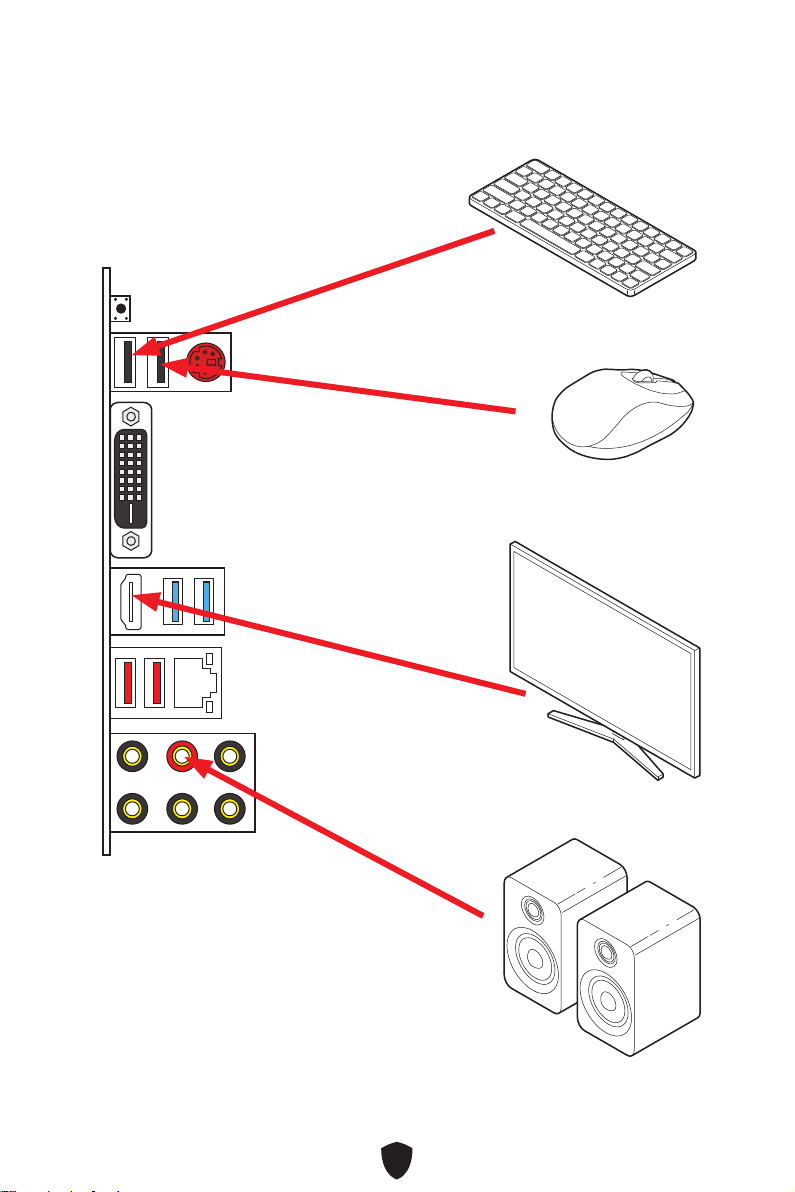
14
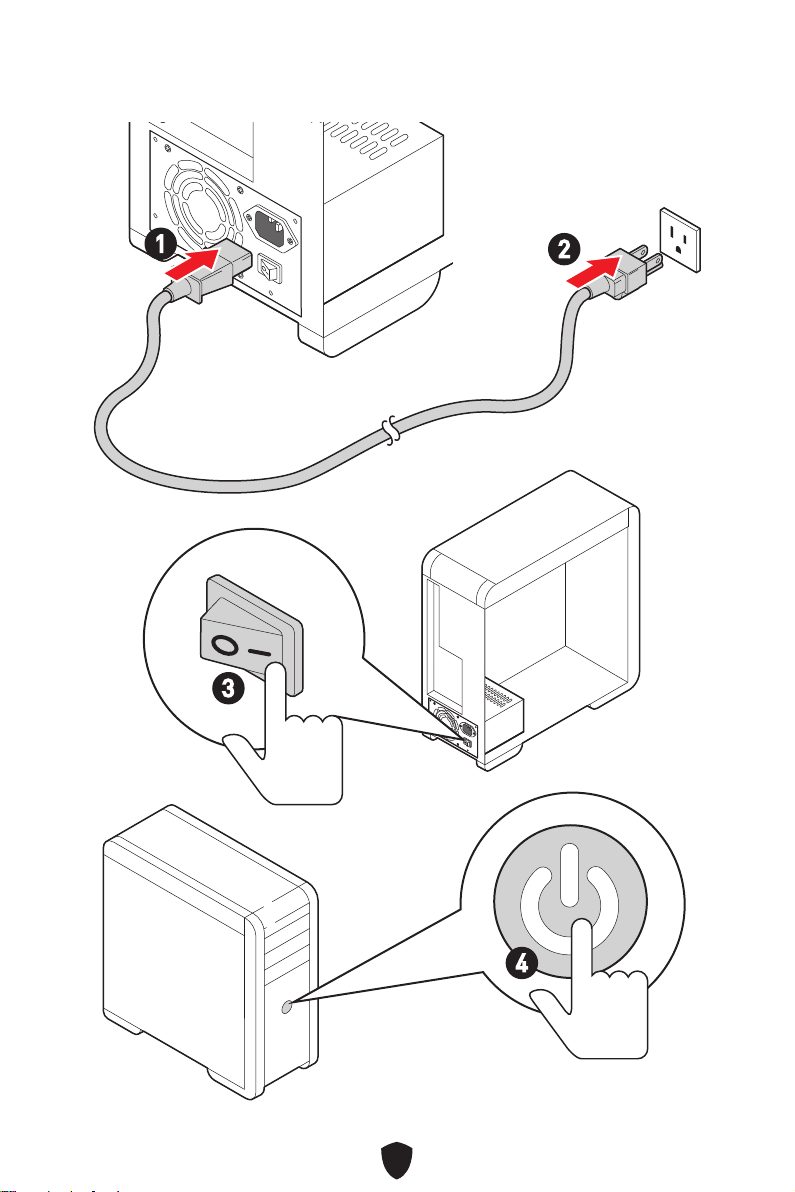
15
4
3
1
2
16
CPU
•
•
•
•
•
•
•
•
•
•
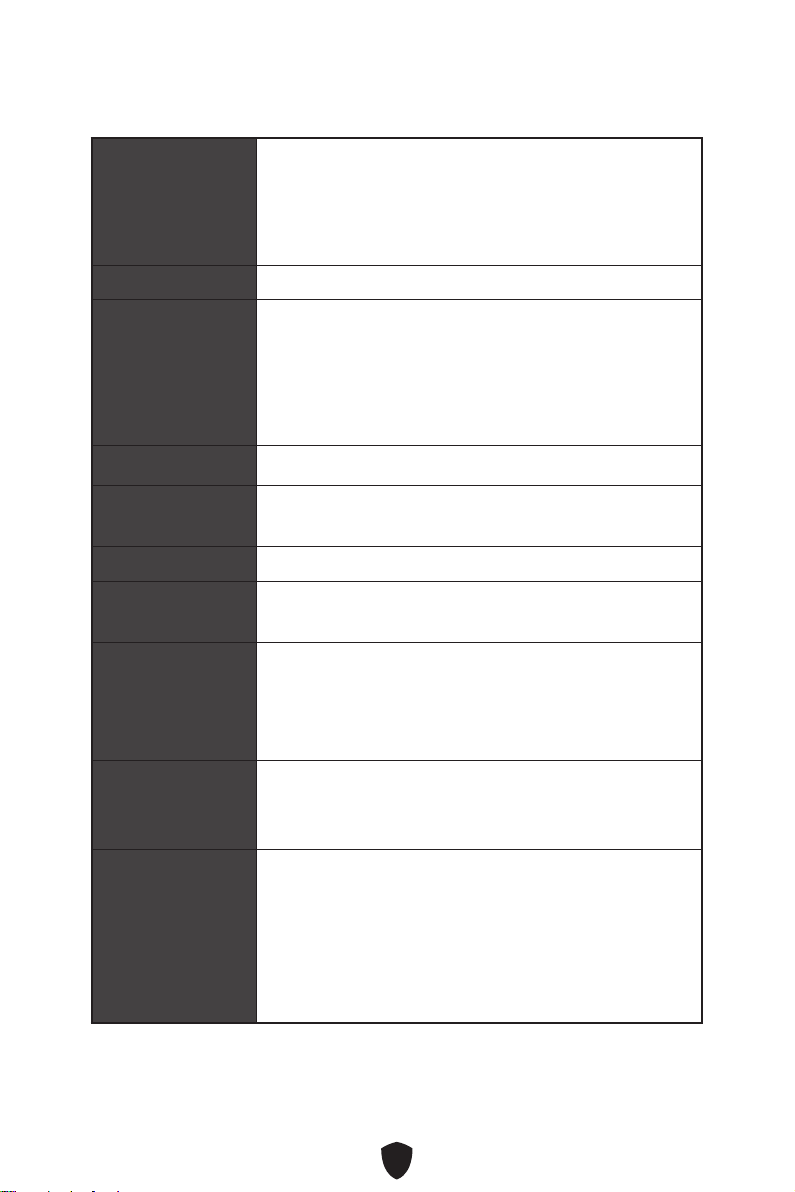
17
@30Hz, 2560x1600 @60Hz*
/
**
•
•
•
•
RAID
LAN
•
•
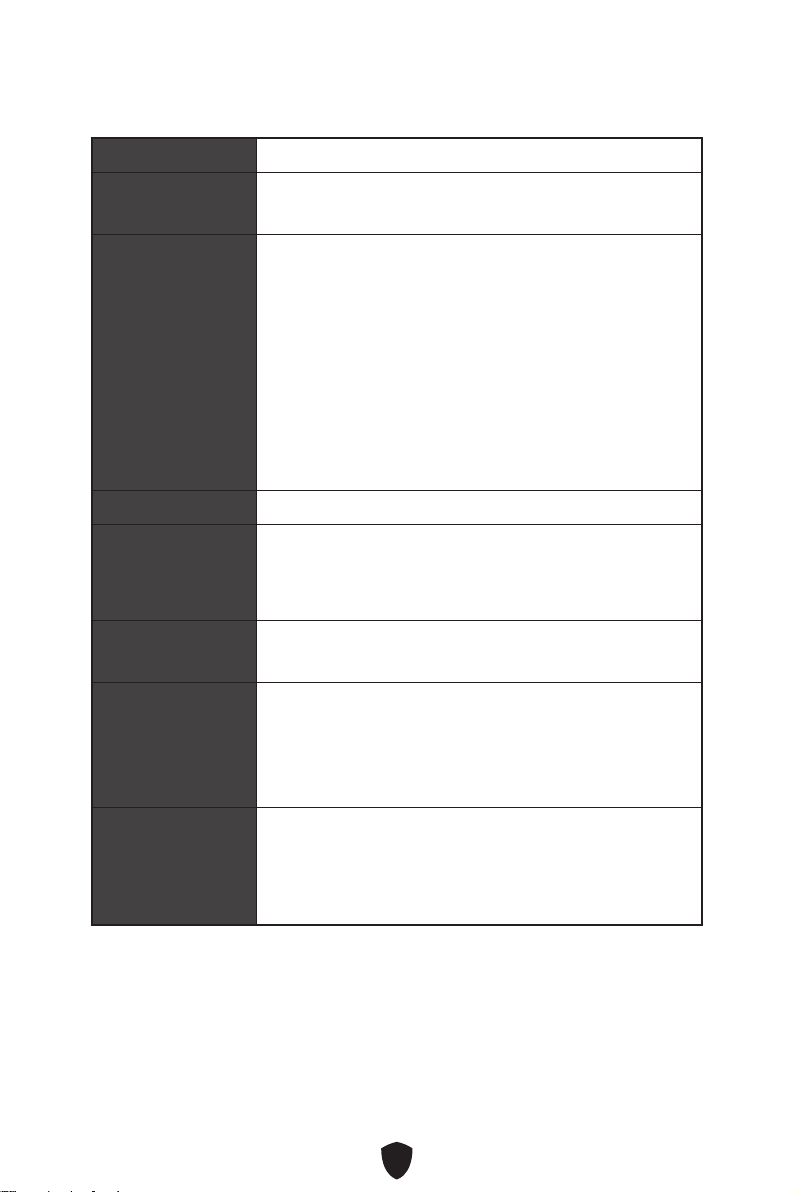
18
UEFI AMI BIOS
ACPI 6.1, SMBIOS 2.8
MSI Center

19
MSI Center
•
• True Color
• Live Update
•
•
•
•
• MSI Companion
•
•
•
•
•
•
•
•
•
•
•
• MSI Center
•
•
•

20
•
•
•
•
•
•
•
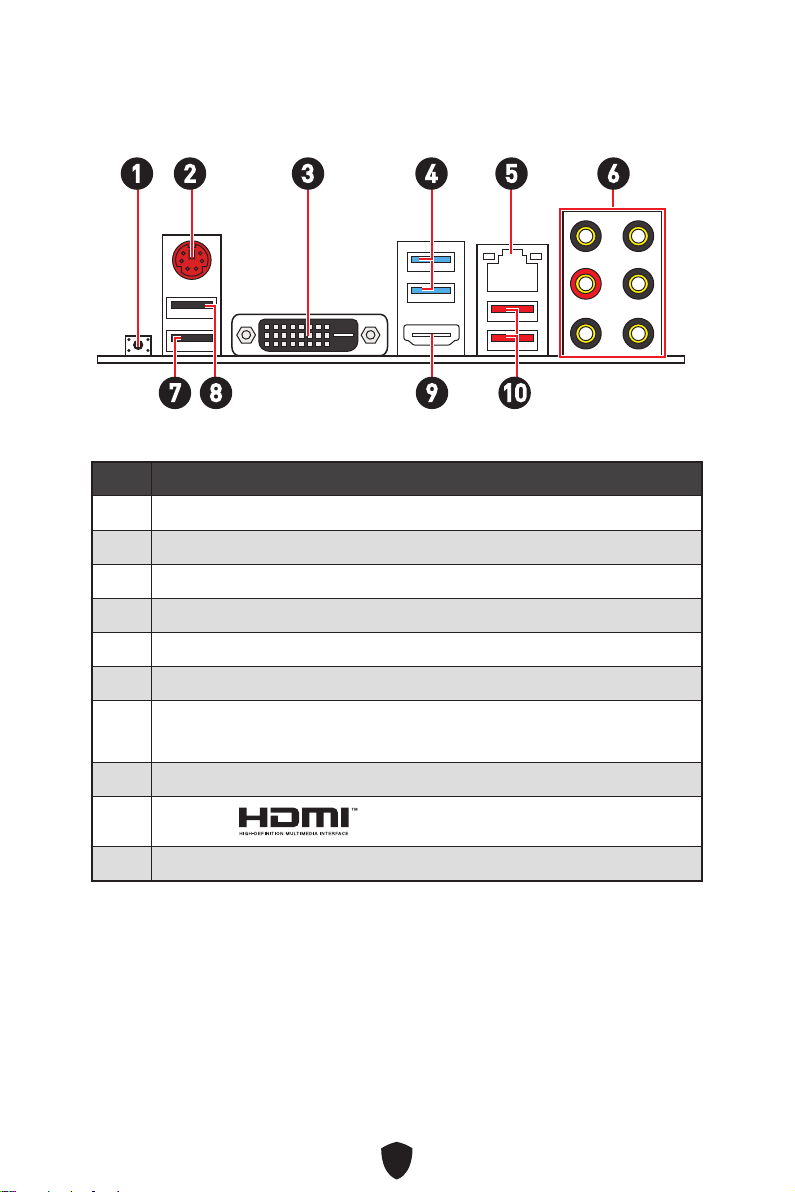
21
1
10
2 3 4 65
1
2
3
4 CPU)
5
6
7
•
8
9
10
7 98
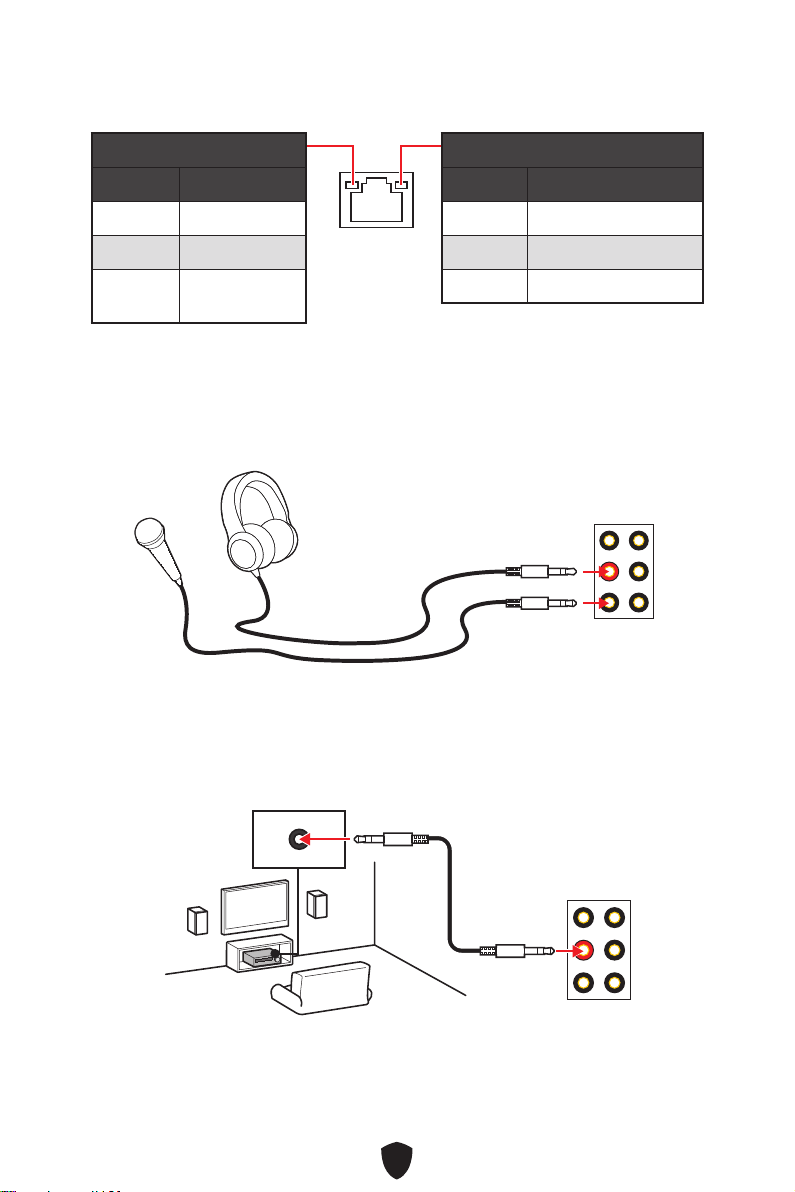
22
AUDIO INPUT
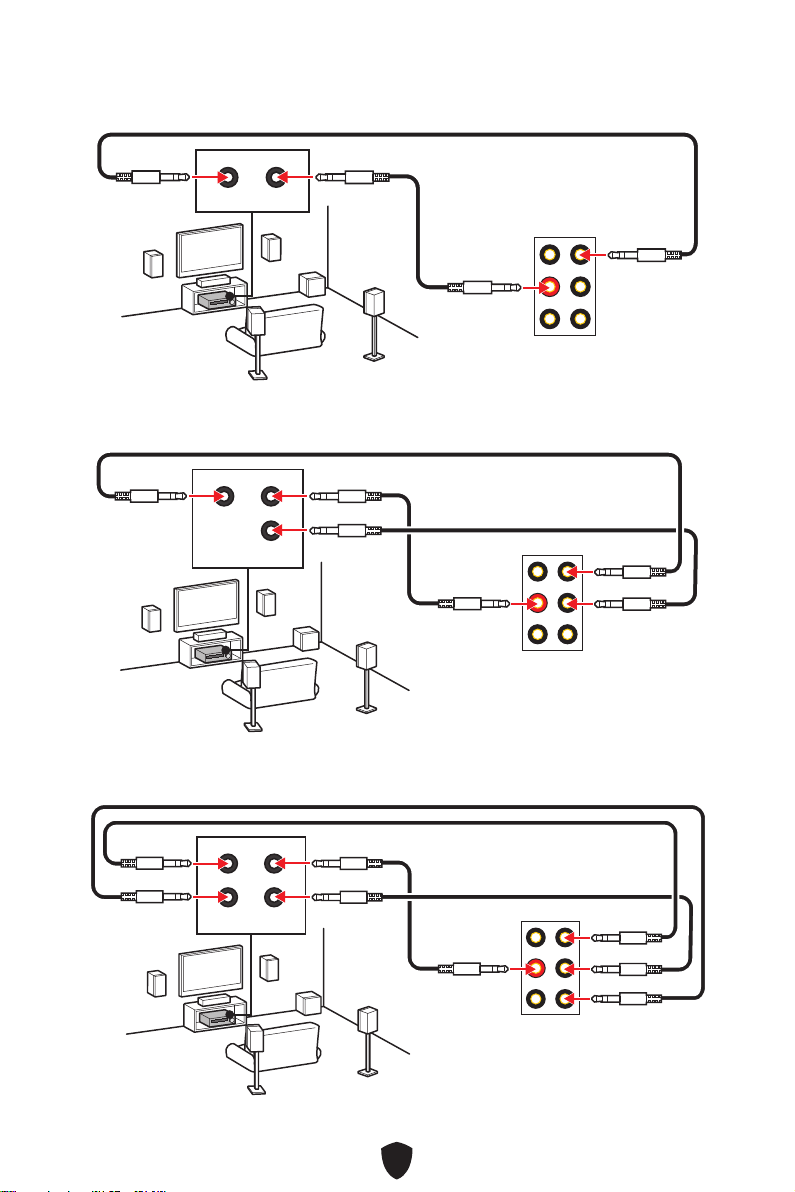
23
AUDIO INPUT
Rear Front
AUDIO INPUT
Rear Front
Center/
Subwoofer
AUDIO INPUT
Rear Front
Center/
Subwoofer
Side
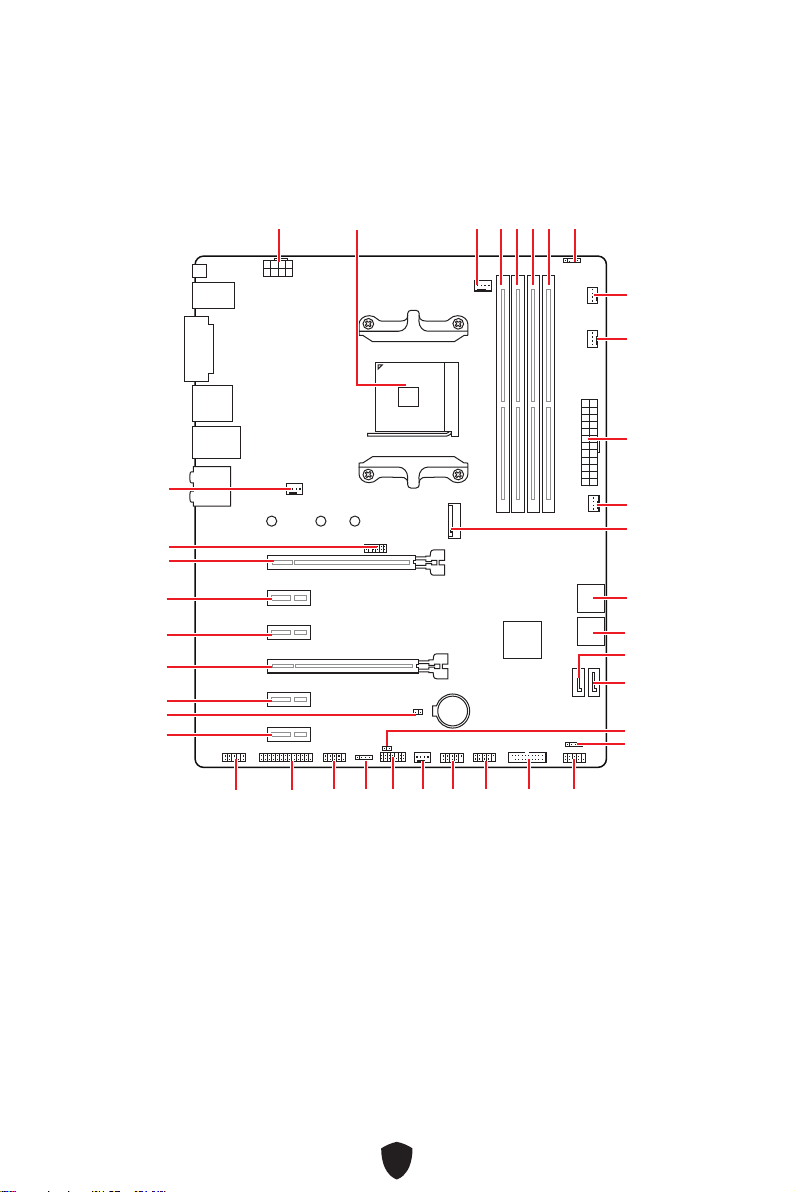
24
BAT1
M2_1
ATX_PWR1
SYS_FAN3
SYS_FAN4
PUMP_FAN1
CPU_FAN1
DIMMB2
JRGB1
CPU_PWR1
JFP1
JRGB2
SATA2
JUSB2
JUSB1
JLPC1
JUSB3
JCOM1
JLPT1
JAUD1
PCI_E1
SYS_FAN1
JTPM1
PCI_E2
PCI_E3
PCI_E4
PCI_E5
JBAT1
PCI_E6
SYS_FAN2
SATA1
JFP2
JCI1
DIMMB1
DIMMA2
DIMMA1
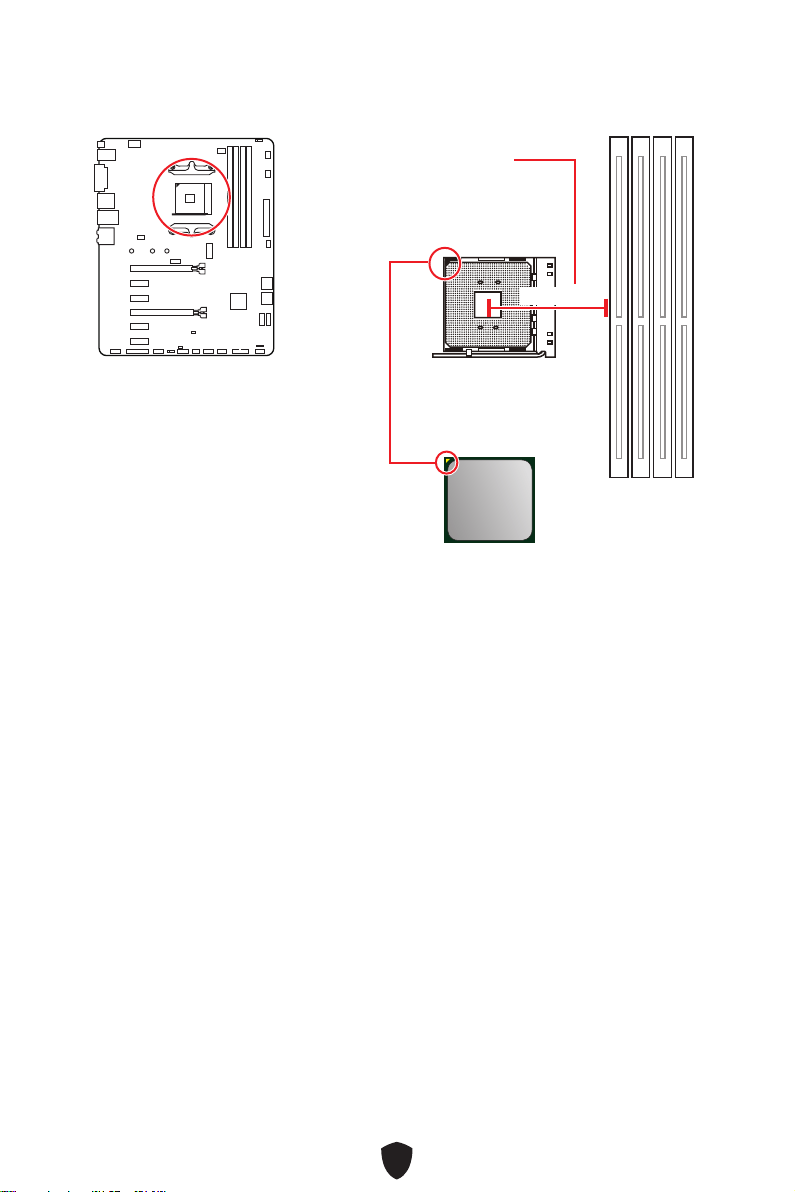
25
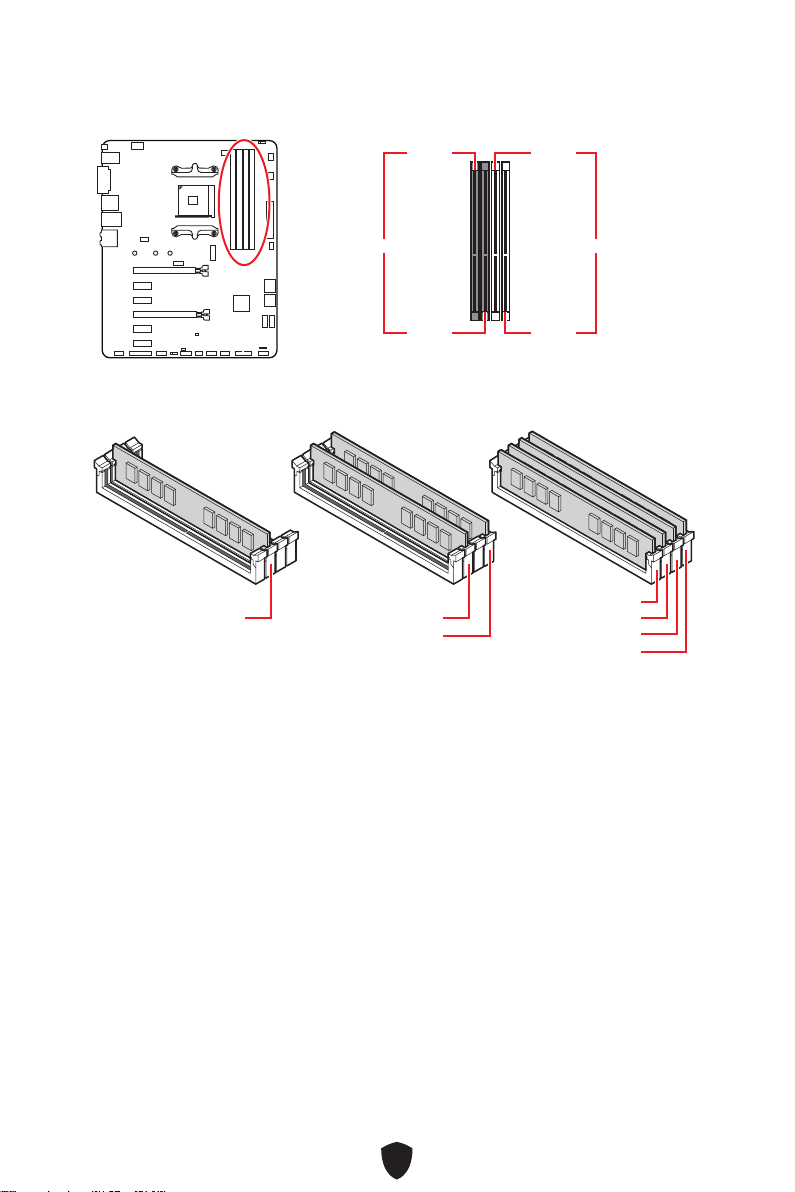
26
DIMMA1 DIMMB1
DIMMA2 DIMMB2
DIMMA2
DRAM Frequency
DIMMA2 DIMMA2
DIMMB2
DIMMA1
DIMMA2
DIMMB1
DIMMB2
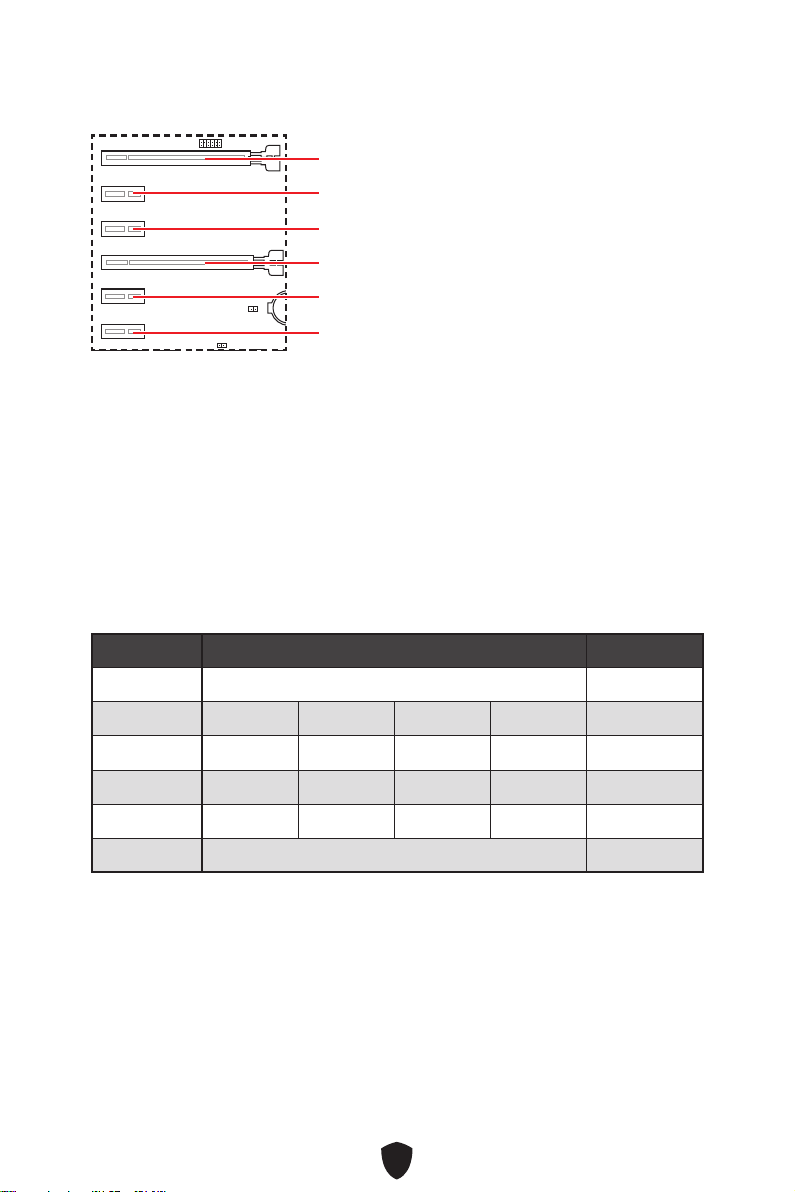
27
BAT1
PCI_E1
PCI_E4
PCI_E2
PCI_E5
PCI_E3
PCI_E6
PCI_E1
2-Way
PCI_E1 (CPU) @ 3.0 x16 @ 3.0 x16
PCI_E2 (PCH) 2.0 x1 2.0 x1 —
PCI_E3 (PCH) 2.0 x1 2.0 x1 —
PCI_E4 (PCH) 2.0 x1 2.0 x1 2.0 x1 2.0 x1 @3.0 x4
PCI_E5 (PCH) 2.0 x1 2.0 x1 —
PCI_E6 (PCH) 2.0 x1 2.0x1
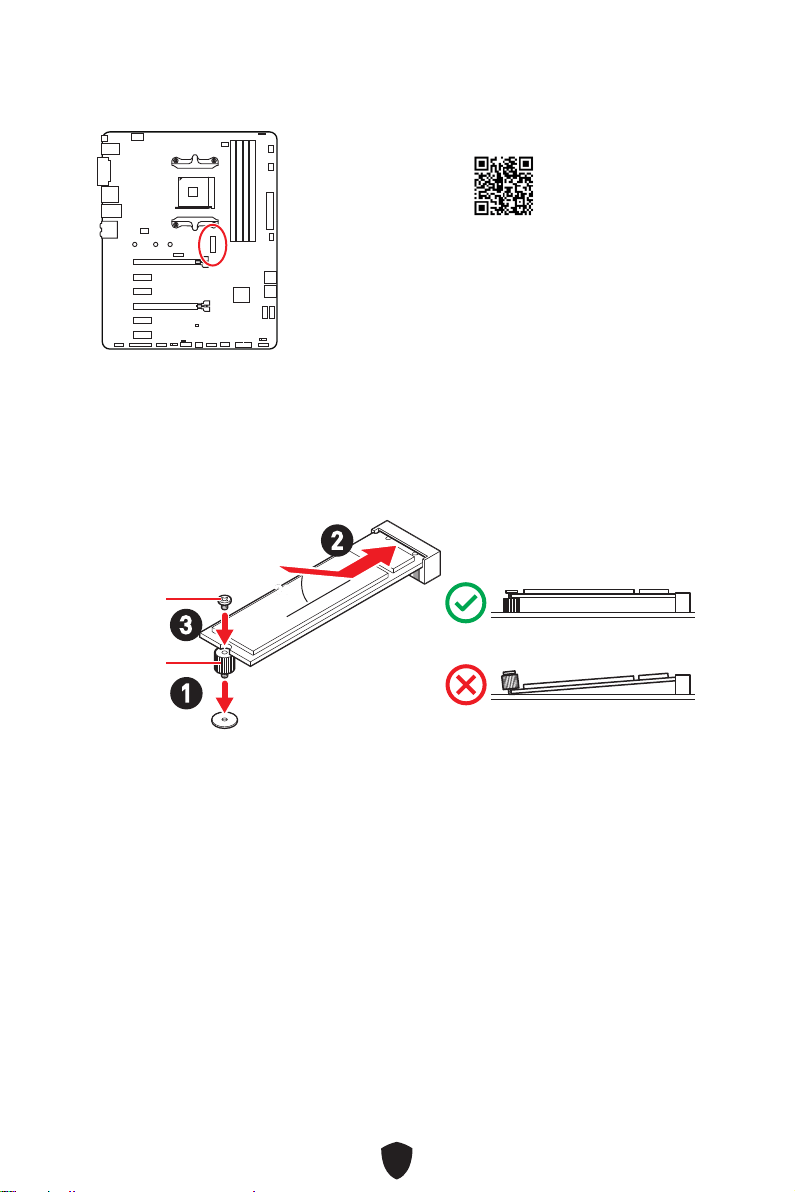
28
1.
2.
3.
30º30º
2
3
1
http://v.youku.com/v_show/id_XNzUyMTY3MjY4.
html
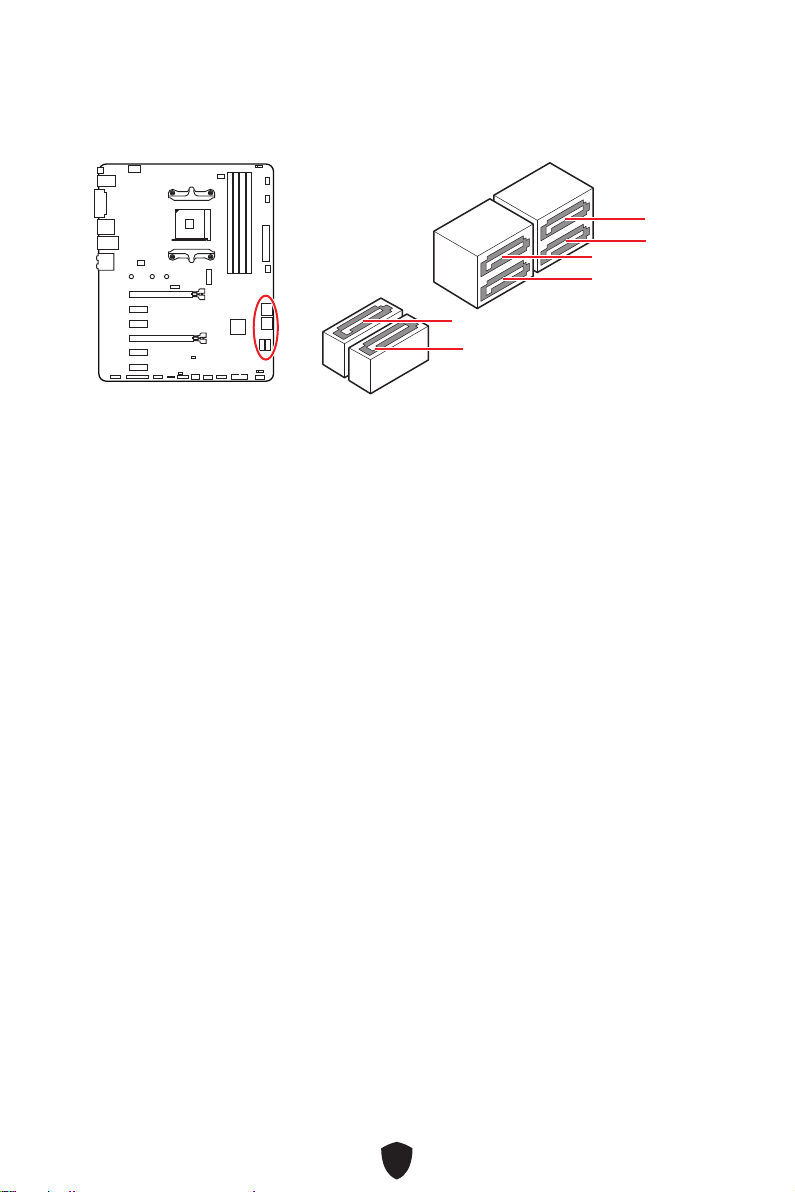
29
SATA5
SATA3
SATA1
SATA6
SATA4
SATA2
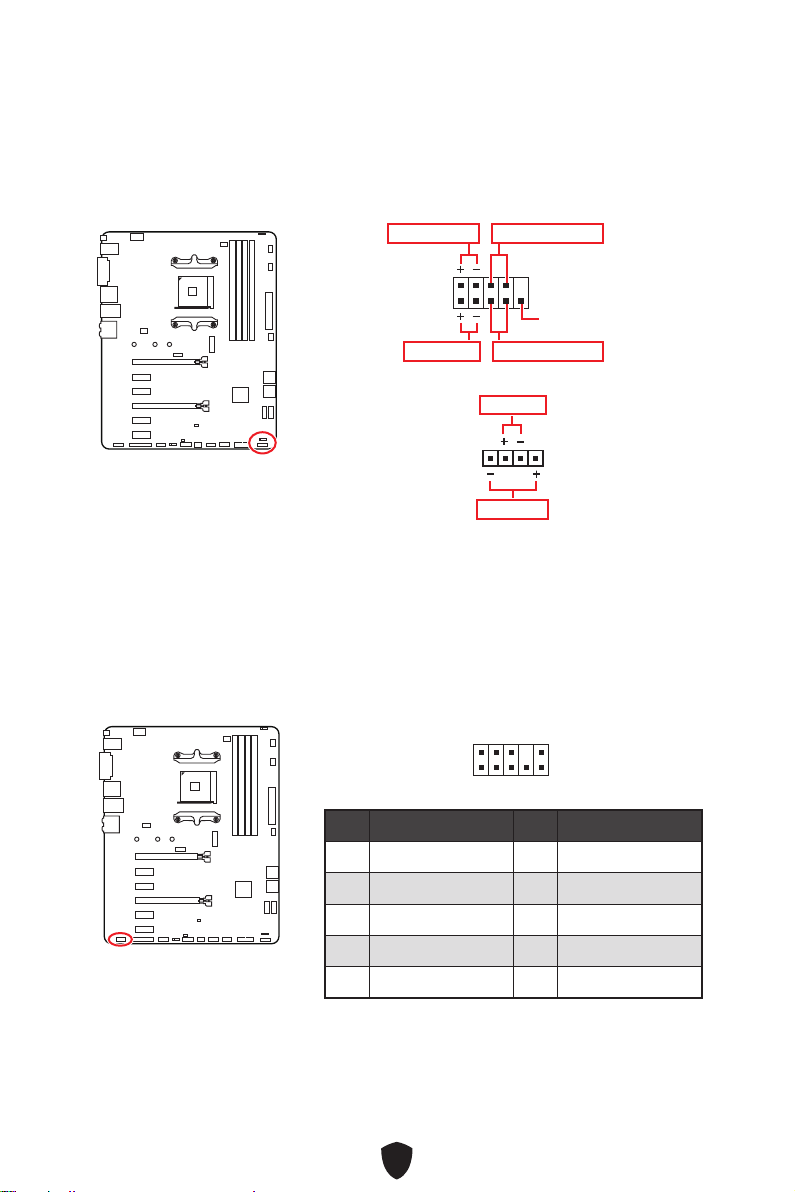
30
1
2 10
9
Power LED
Reserved
Power Switch
JFP1
Reset SwitchHDD LED
1
JFP2
Buzzer
Speaker
1
2 10
9
1 MIC L 2 Ground
3 MIC R 4 NC
5 Head Phone R 6 MIC Detection
7 SENSE_SEND 8 No Pin
9 Head Phone L 10 Head Phone Detection
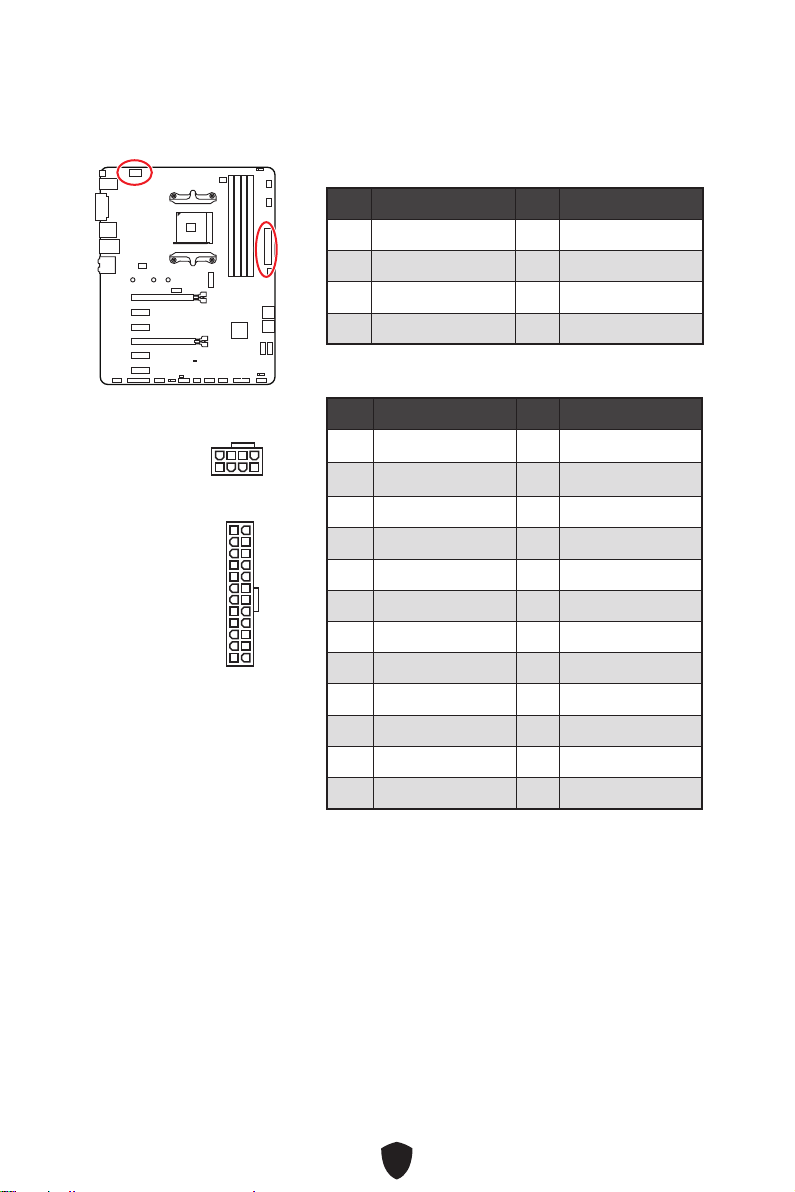
31
CPU_PWR1
1 Ground 2 Ground
3 Ground 4 Ground
5 +12V 6 +12V
7 +12V 8 +12V
ATX_PWR1
1 +3.3V 2 +3.3V
3 Ground 4 +5V
5 Ground 6 +5V
7 Ground 8 PWR OK
9 5VSB 10 +12V
11 +12V 12 +3.3V
13 +3.3V 14 -12V
15 Ground 16 PS-ON#
17 Ground 18 Ground
19 Ground 20 Res
21 +5V 22 +5V
23 +5V 24 Ground
5
4 1
8
CPU_PWR1
24
131
12
ATX_PWR1
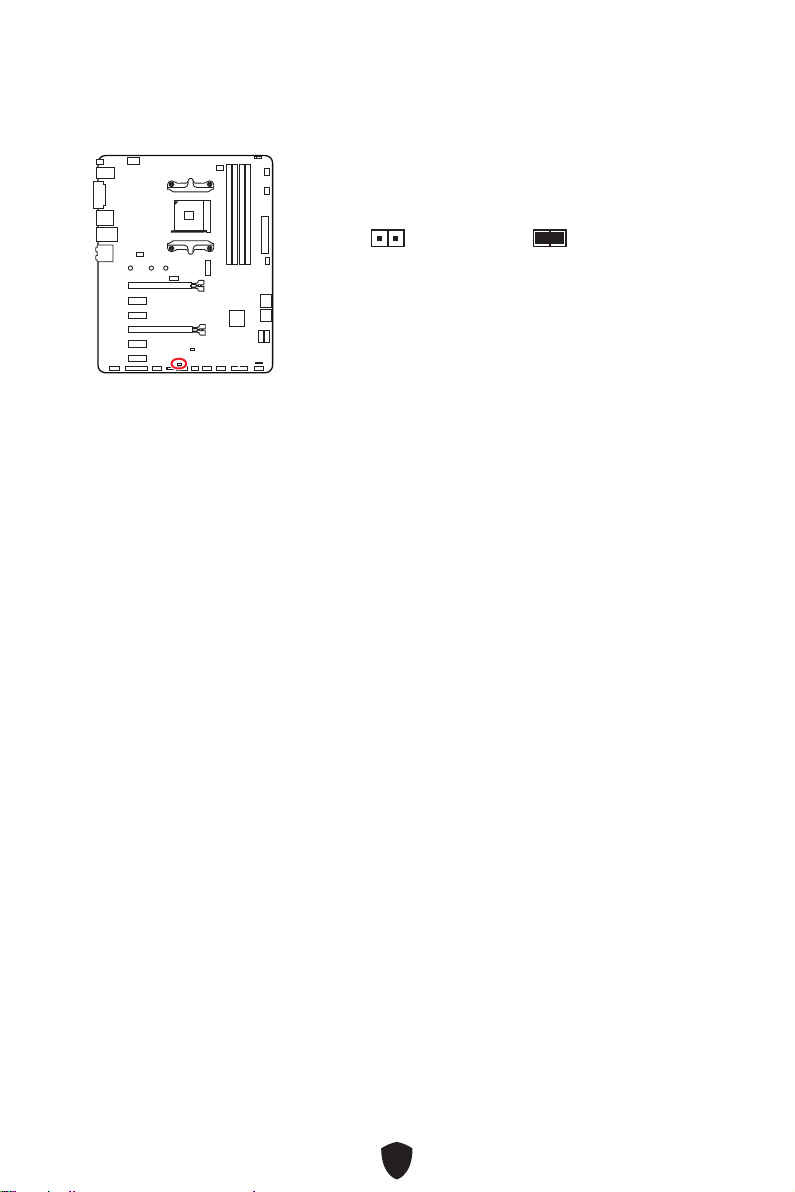
32
1.
JCI1
2.
3. BIOS > SETTINGS > Security > Chassis Intrusion Configuration
4. Chassis IntrusionEnabled
5. F10EnterYes
6.
1.
BIOS > SETTINGS > Security > Chassis Intrusion Configuration
2. Chassis IntrusionReset
3. F10EnterYes
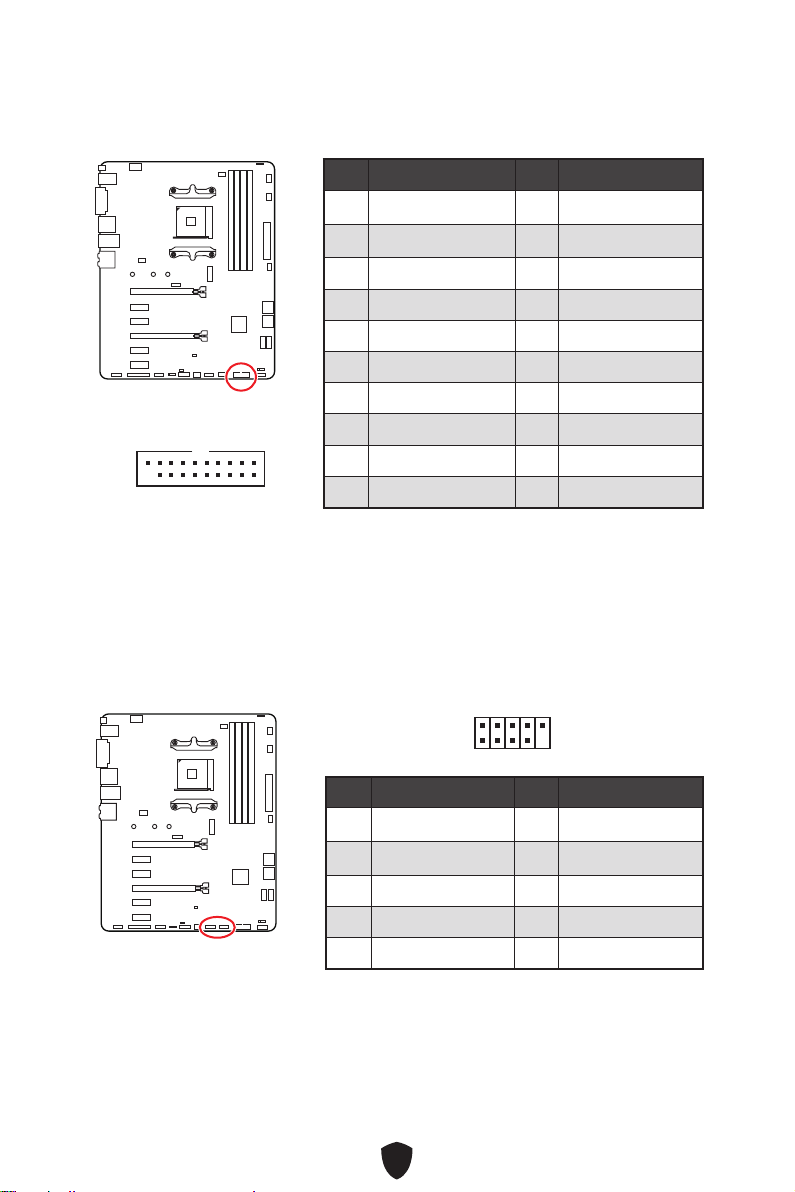
33
1 Power 2 USB3_RX_DN
3 USB3_RX_DP 4 Ground
5 USB3_TX_C_DN 6 USB3_TX_C_DP
7 Ground 8 USB2.0-
9 USB2.0+ 10 Ground
11 USB2.0+ 12 USB2.0-
13 Ground 14 USB3_TX_C_DP
15 USB3_TX_C_DN 16 Ground
17 USB3_RX_DP 18 USB3_RX_DN
19 Power 20 No Pin
1 10
1120
1 VCC 2 VCC
3 USB0- 4 USB1-
5 USB0+ 6 USB1+
7 Ground 8 Ground
9 No Pin 10 NC
1
2 10
9
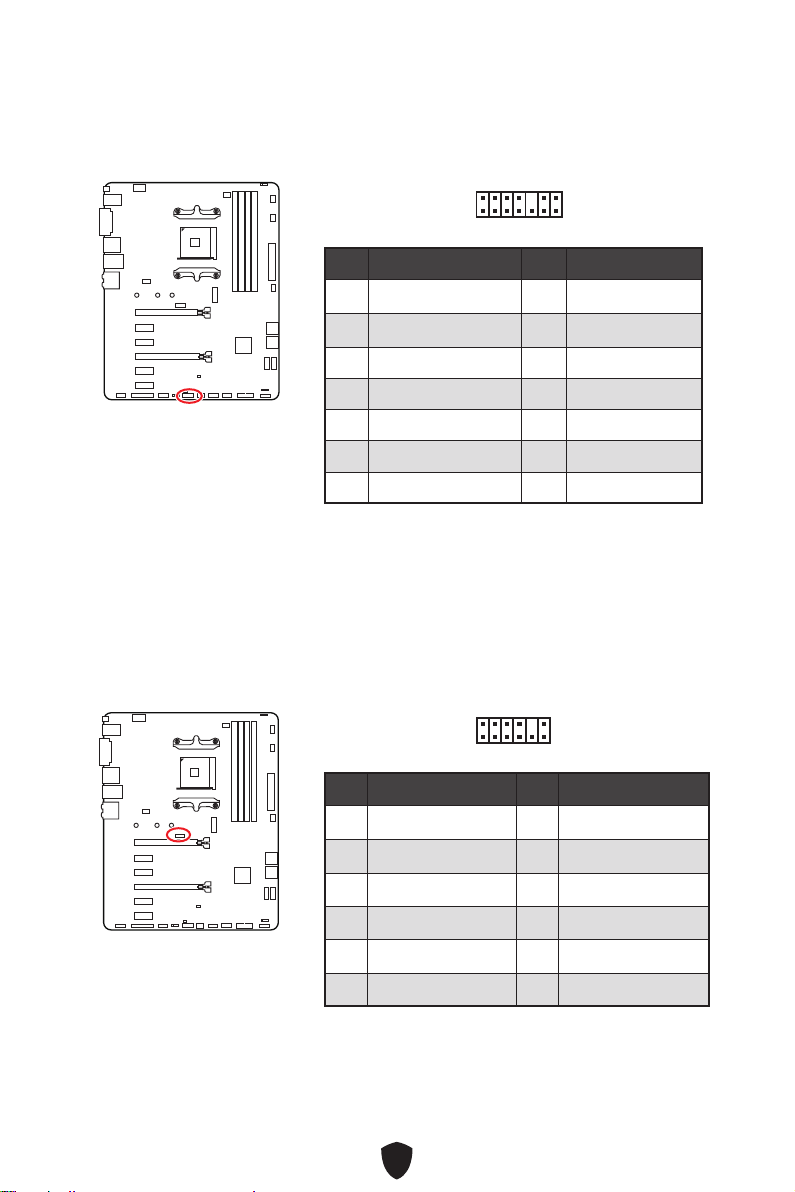
34
1 LPC Clock 2 3V Standby power
3 LPC Reset 4 3.3V Power
5 LPC address & data pin0 6 Serial IRQ
7 LPC address & data pin1 8 5V Power
9 LPC address & data pin2 10 No Pin
11 LPC address & data pin3 12 Ground
13 LPC Frame 14 Ground
1
2 14
13
1 1.8V power 2 SPI_TPM_CS#_R
3 SPI_TPM_DATI 4 SPI_DATO
5 SPI_CS#_R 6 SPI_TPM_CLK
7 Ground 8 SPI_TPM_RST#
9 SPI_SW_SEL 10 NA
11 SPI_TPM_WP# 12 SPI_TPM_HOLD#
1
2 12
11
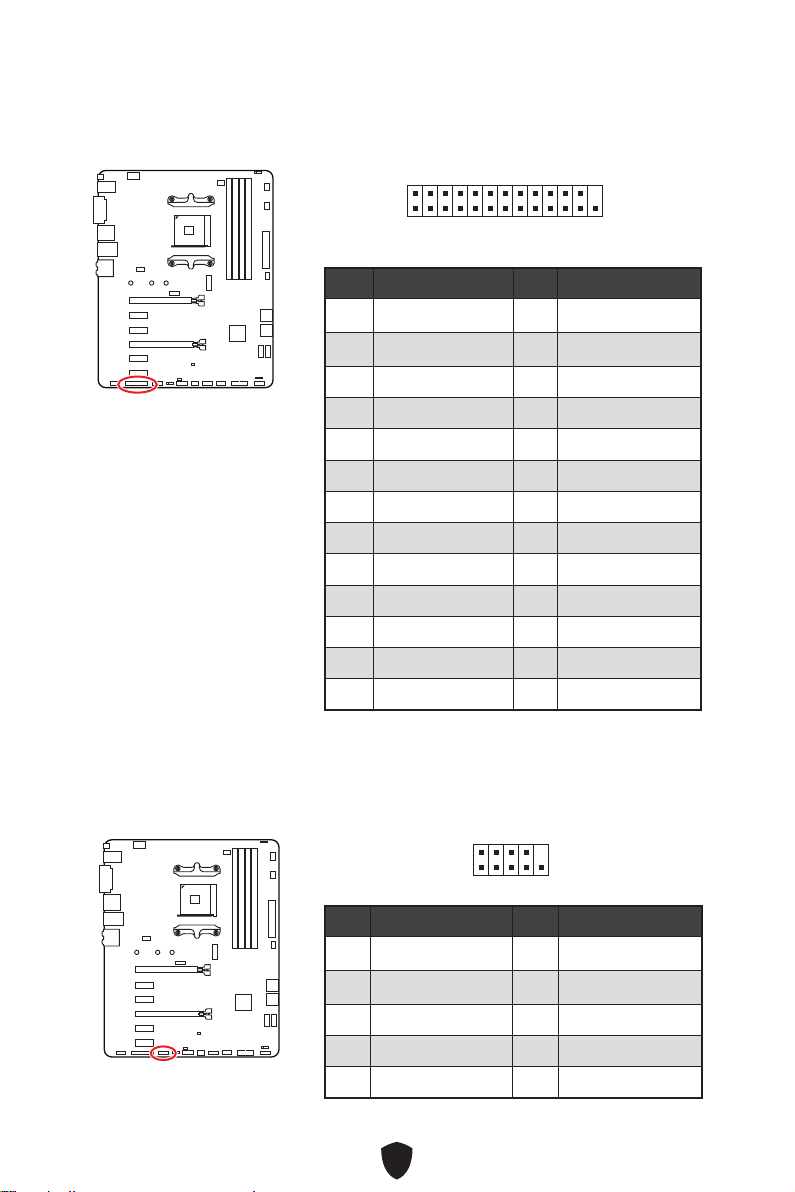
35
1
2 26
25
1 RSTB# 2 AFD#
3 PRND0 4 ERR#
5 PRND1 6 PINIT#
7 PRND2 8 LPT_SLIN#
9 PRND3 10 Ground
11 PRND4 12 Ground
13 PRND5 14 Ground
15 PRND6 16 Ground
17 PRND7 18 Ground
19 ACK# 20 Ground
21 BUSY 22 Ground
23 PE 24 Ground
25 SLCT 26 No Pin
1 DCD 2 SIN
3 SOUT 4 DTR
5 Ground 6 DSR
7 RTS 8 CTS
9 RI 10 No Pin
1
2 10
9
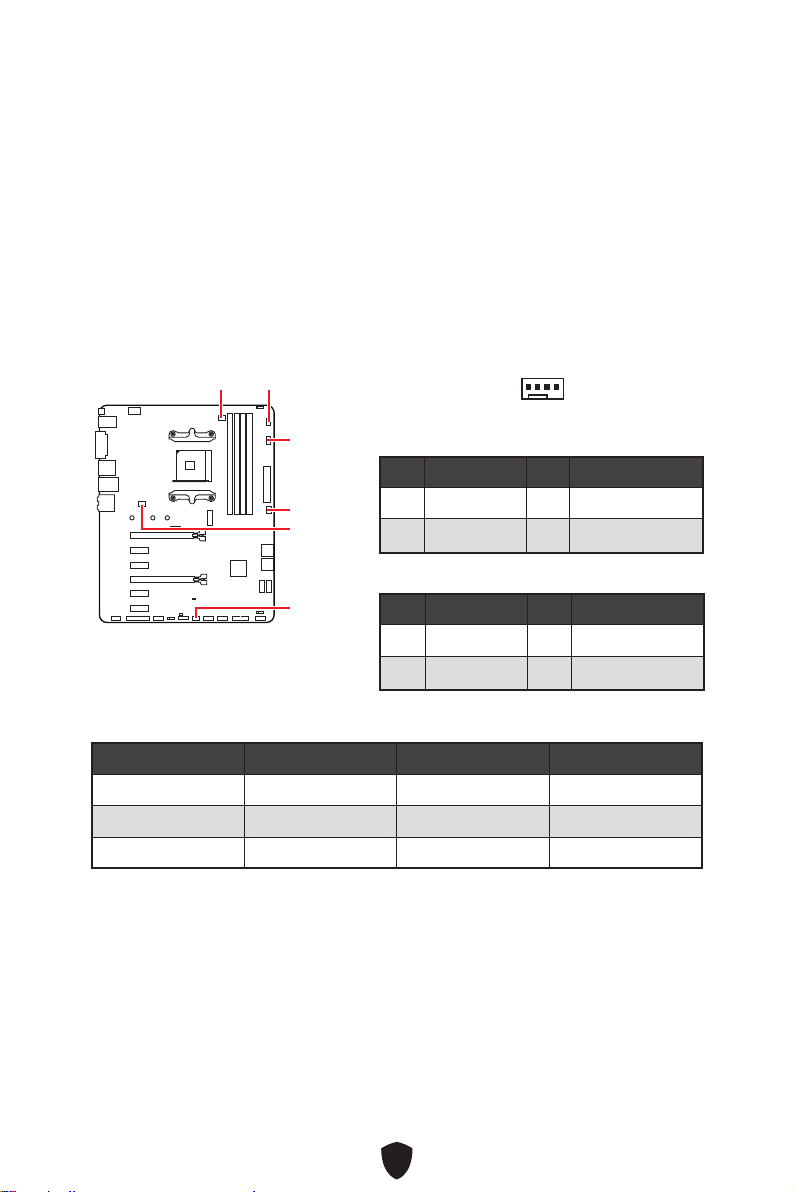
36
BIOS> HARDWARE MONITOR
Smart Fan Mode
Smart Fan Mode
CPU_FAN1
SYS_FAN2
SYS_FAN4
SYS_FAN1
PUMP_FAN1
SYS_FAN3
1
1 Ground 2 +12V
3 Sense 4 Speed Control Signal
1 Ground 2 Voltage Control
3 Sense 4 NC
CPU_FAN1 2A 24W
PUMP_FAN1 3A 36W
SYS_FAN1~4 2A 24W
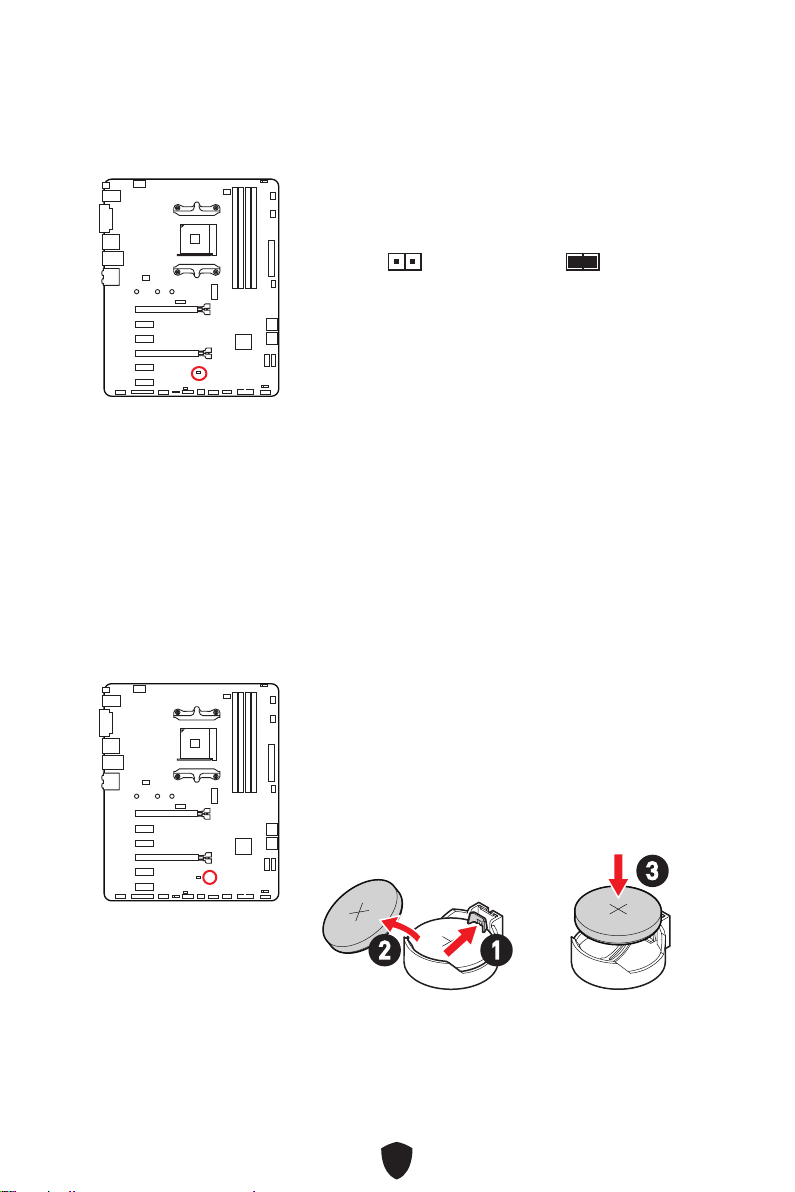
37
1.
2. JBAT1
3. JBAT1
4.
1.
2.
3. +
12
3
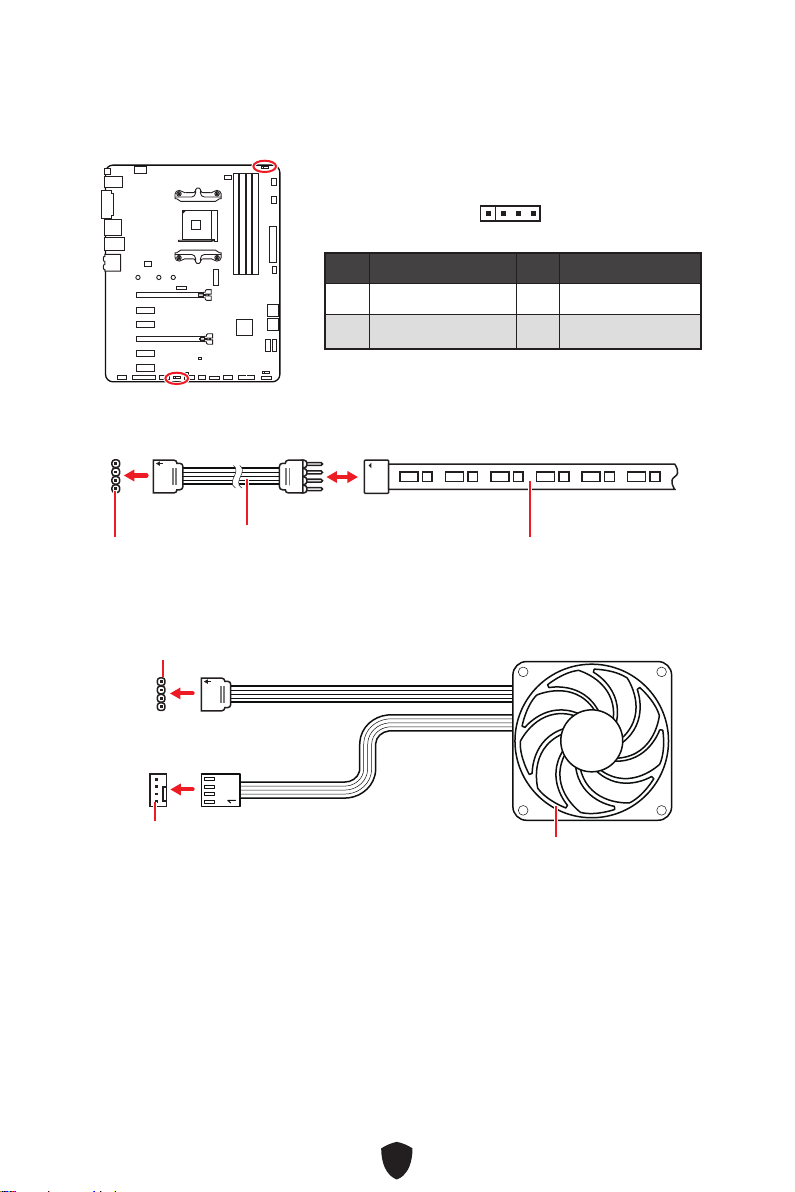
38
1
G
R
B
1
1
G
R
B
1 +12V 2 G
3 R 4 B
1
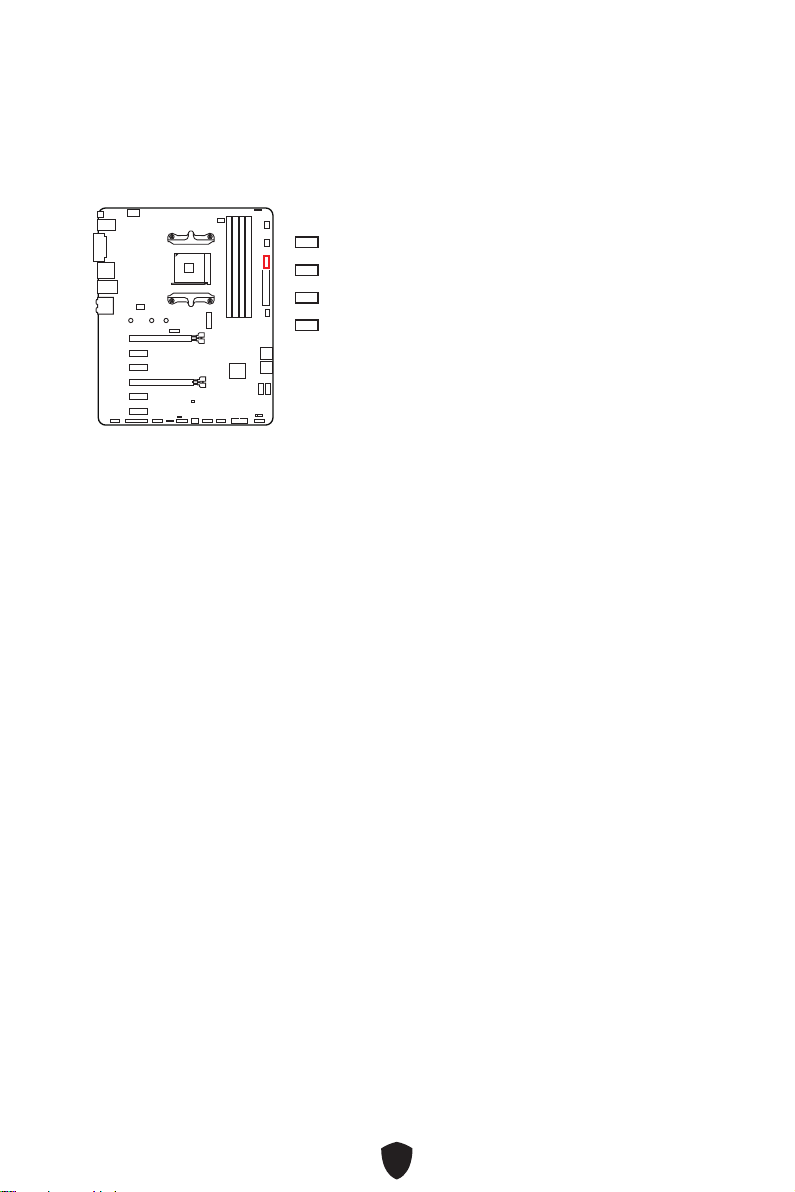
39
CPU
DRAM
VGA
BOOT
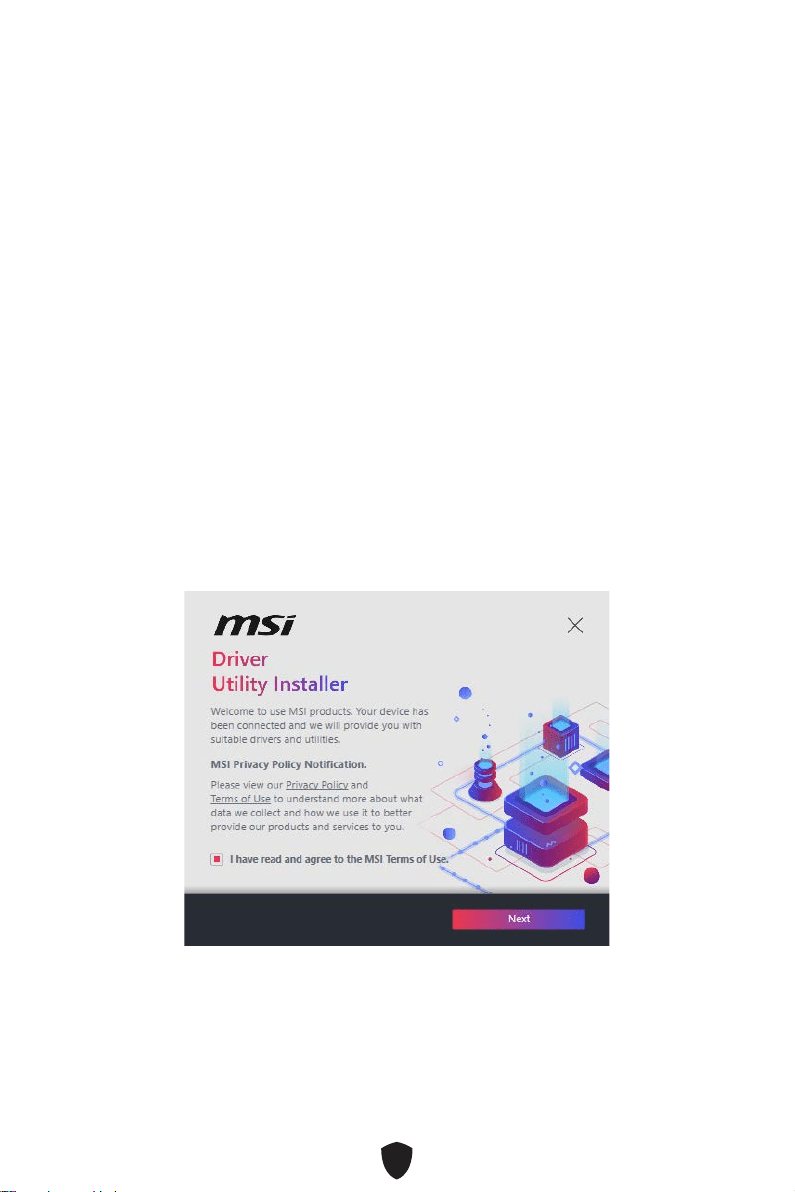
40
1.
2.
3. Restart
4. F11
5.
6. Press any key to boot from CD or DVD...
7.
Installing Drivers with DVD/ USB Drive
1.
2.
3.
4. I have read and agree to the MSI Terms of UseNext
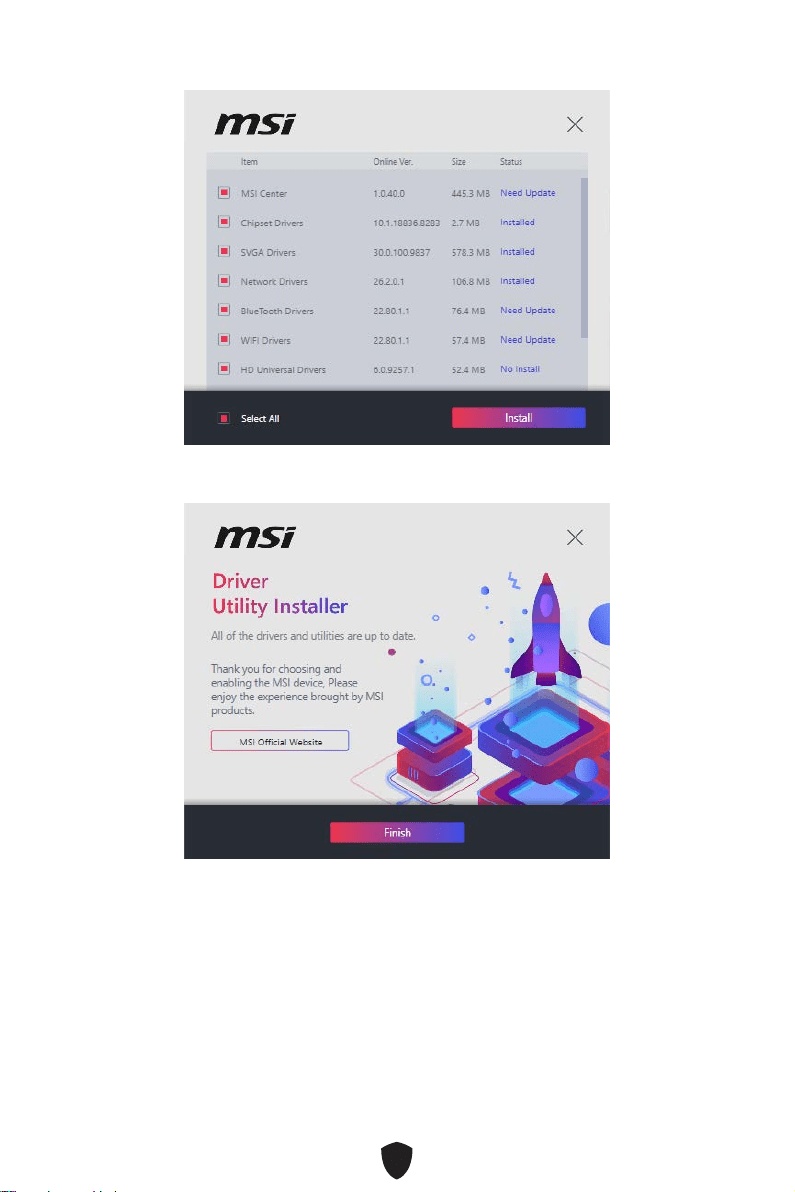
41
5. Select AllInstall
6. Finish
42
1.
2.
3. Select to choose what happens with this discRun
DVDSetup.exe
DVDSetup.exe
4. Drivers/Software
5. Install
6.
7. OK
8.
MSI Center

43
UEFI BIOS
There is no GOP (Graphics Output protocol) support detected in this graphics
card
1.
2. Press DEL key to enter Setup Menu, F11 to enter
Boot MenuDelete
3. BIOS
UEFI

44
Press DEL key to enter Setup Menu, F11 to enter Boot
MenuDelete
F1:
F2:
F3:
F4:
F5:
F6:
F7:
F8:
F9:
F10:
F12:
Ctrl+F:
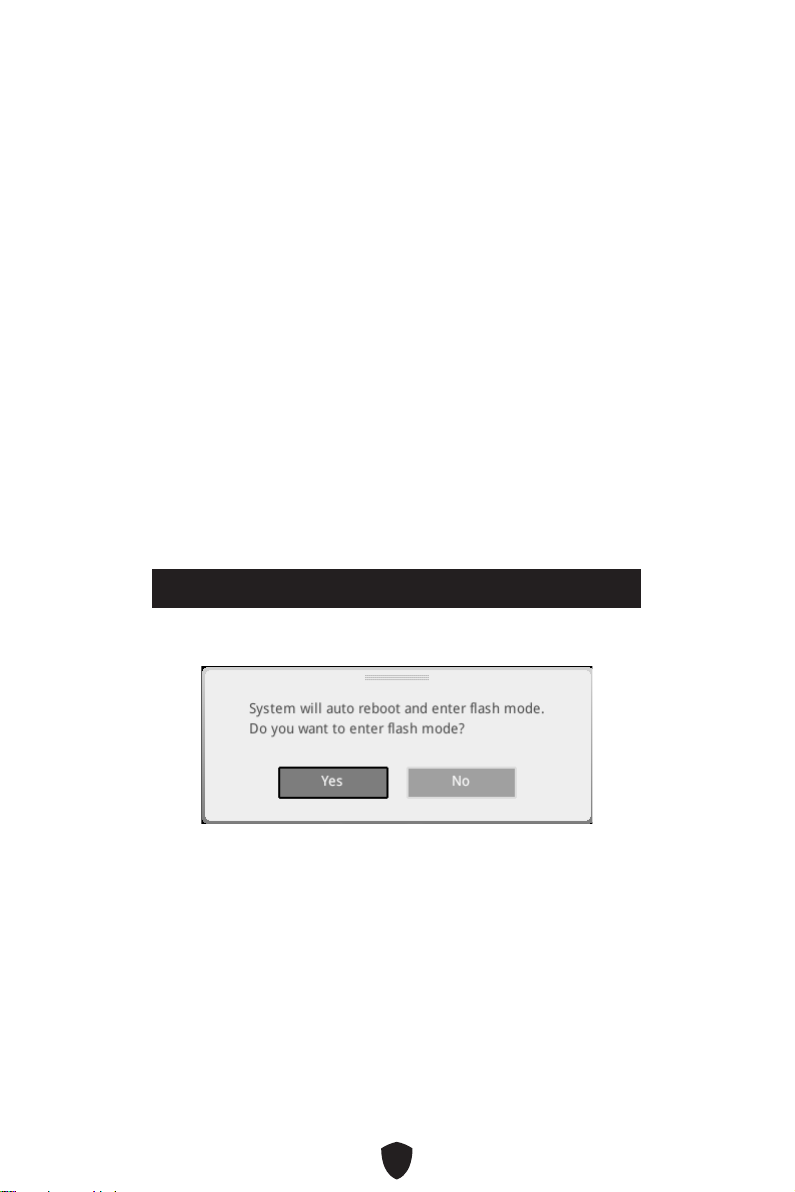
45
F6
1.
2.
•
Press <Ctrl+F5> to activate M-Flash for BIOS update.
•
3.
4.
5.

46
1. Support
2. Live UpdateAdvanced
3. Install
4.
5.
6.
1.
2.
3. CPU_PWR1 ATX_PWR1
4.
5.
6.

i
Regulatory Notices
FCC-B Radio Frequency Interference Statement
This equipment has been tested and found to comply with the limits
for a Class B digital device, pursuant to part 15 of the FCC rules. These
limits are designed to provide reasonable protection against harmful
interference in a residential installation. This equipment generates,
uses and radiates radio frequency energy, and, if not installed and
used in accordance with the instructions, may cause harmful interference to radio
communications. However, there is no guarantee that interference will not occur in a
particular installation. If this equipment does cause harmful interference to radio or
television reception, which can be determined by turning the equipment off and on, the
user is encouraged to try to correct the interference by one or more of the following
measures:
Reorient or relocate the receiving antenna.
Increase the separation between the equipment and receiver.
Connect the equipment into an outlet on a circuit different from that to which the
receiver is connected.
NOTE
The changes or modifications not expressly approved by the party responsible for
compliance could void the user’s authority to operate the equipment.
Shield interface cables and AC power cord, if any, must be used in order to comply
with the emission limits.
FCC Conditions
This device complies with part 15 of the FCC Rules. Operation is subject to the
following two conditions:
This device may not cause harmful interference.
This device must accept any interference received, including interference that may
cause undesired operation.
MSI Computer Corp.
901 Canada Court, City of Industry, CA 91748, USA
(626)913-0828
www.msi.com
ii
CE Conformity
Products bearing the CE marking comply with one or more of the
following EU Directives as may be applicable:
RED 2014/53/EU
Low Voltage Directive 2014/35/EU
EMC Directive 2014/30/EU
RoHS Directive 2011/65/EU
ErP Directive 2009/125/EC
Compliance with these directives is assessed using applicable European Harmonized
Standards.
The point of contact for regulatory matters is MSI, MSI-NL Eindhoven 5706 5692 ER
Son.
Compliance Statement of Innovation, Science and
Economic Development Canada (ISED)
CAN ICES-003(B)/NMB-003(B)
VCCI-B
R-R-MSI-50-7B86
iii
Battery Information
European Union:
Batteries, battery packs, and accumulators should not be disposed of as
unsorted household waste. Please use the public collection system to
return, recycle, or treat them in compliance with the local regulations.
Taiwan:
For better environmental protection, waste batteries should be collected
separately for recycling or special disposal.
California, USA:
The button cell battery may contain perchlorate material and requires
special handling when recycled or disposed of in California.
For further information please visit:
http://www.dtsc.ca.gov/hazardouswaste/perchlorate/
CAUTION: There is a risk of explosion, if battery is incorrectly replaced. Replace only
with the same or equivalent type recommended by the manufacturer.
Chemical Substances Information
In compliance with chemical substances regulations, such as the EU REACH
Regulation (Regulation EC No. 1907/2006 of the European Parliament and the
Council), MSI provides the information of chemical substances in products at:
https://csr.msi.com/global/index
Environmental Policy
The product has been designed to enable proper reuse of parts and
recycling and should not be thrown away at its end of life.
Users should contact the local authorized point of collection for recycling
and disposing of their end-of-life products.
Visit the MSI website and locate a nearby distributor for further recycling
information.
Users may also reach us at [email protected] for information regarding proper
Disposal, Take-back, Recycling, and Disassembly of MSI products.
WEEE (Waste Electrical and Electronic Equipment)
Statement
ENGLISH
To protect the global environment and as an environmentalist, MSI must
remind you that...
Under the European Union (“EU”) Directive on Waste Electrical and
Electronic Equipment, Directive 2002/96/EC, which takes effect on August
13, 2005, products of “electrical and electronic equipment” cannot be

iv
discarded as municipal wastes anymore, and manufacturers of covered electronic
equipment will be obligated to take back such products at the end of their useful life.
MSI will comply with the product take back requirements at the end of life of MSI-
branded products that are sold into the EU. You can return these products to local
collection points.
DEUTSCH
Hinweis von MSI zur Erhaltung und Schutz unserer Umwelt
Gemäß der Richtlinie 2002/96/EG über Elektro- und Elektronik-Altgeräte dürfen
Elektro- und Elektronik-Altgeräte nicht mehr als kommunale Abfälle entsorgt
werden. MSI hat europaweit verschiedene Sammel- und Recyclingunternehmen
beauftragt, die in die Europäische Union in Verkehr gebrachten Produkte, am Ende
seines Lebenszyklus zurückzunehmen. Bitte entsorgen Sie dieses Produkt zum
gegebenen Zeitpunkt ausschliesslich an einer lokalen Altgerätesammelstelle in Ihrer
Nähe.
FRANÇAIS
En tant qu’écologiste et afin de protéger l’environnement, MSI tient à rappeler ceci...
Au sujet de la directive européenne (EU) relative aux déchets des équipement
électriques et électroniques, directive 2002/96/EC, prenant effet le 13 août 2005,
que les produits électriques et électroniques ne peuvent être déposés dans les
décharges ou tout simplement mis à la poubelle. Les fabricants de ces équipements
seront obligés de récupérer certains produits en fin de vie. MSI prendra en compte
cette exigence relative au retour des produits en fin de vie au sein de la communauté
européenne. Par conséquent vous pouvez retourner localement ces matériels dans
les points de collecte.
ESPAÑOL
MSI como empresa comprometida con la protección del medio ambiente, recomienda:
Bajo la directiva 2002/96/EC de la Unión Europea en materia de desechos y/o
equipos electrónicos, con fecha de rigor desde el 13 de agosto de 2005, los productos
clasificados como “eléctricos y equipos electrónicos” no pueden ser depositados en
los contenedores habituales de su municipio, los fabricantes de equipos electrónicos,
están obligados a hacerse cargo de dichos productos al termino de su período de vida.
MSI estará comprometido con los términos de recogida de sus productos vendidos en

v
la Unión Europea al final de su periodo de vida. Usted debe depositar estos productos
en el punto limpio establecido por el ayuntamiento de su localidad o entregar a una
empresa autorizada para la recogida de estos residuos.
NEDERLANDS
Om het milieu te beschermen, wil MSI u eraan herinneren dat….
De richtlijn van de Europese Unie (EU) met betrekking tot Vervuiling van Electrische
en Electronische producten (2002/96/EC), die op 13 Augustus 2005 in zal gaan kunnen
niet meer beschouwd worden als vervuiling. Fabrikanten van dit soort producten
worden verplicht om producten retour te nemen aan het eind van hun levenscyclus.
MSI zal overeenkomstig de richtlijn handelen voor de producten die de merknaam MSI
dragen en verkocht zijn in de EU. Deze goederen kunnen geretourneerd worden op
lokale inzamelingspunten.
SRPSKI
sredini, MSI mora da vas podesti da…
Direktiva 2002/96/EC, koja stupa na snagu od 13. Avgusta 2005, proizvodi koji spadaju
kojima je istekao vek trajanja, koji imaju MSI oznaku i koji su prodati u EU. Ove
POLSKI
produktów elektrycznych i elektronicznych (Dyrektywa 2002/96/EC), która wchodzi w
wyznaczonych punktach zbiorczych.
TÜRKÇE
2002/96/EC platné od 13. srpna 2005 je zakázáno likvidovat “elektrické a elektronické

vi
MAGYAR
az MSI emlékezteti Önt, hogy ...
elektronikus berendezések hulladékairól szóló 2002/96/EK irányelve szerint az
hulladékként, és az ilyen elektronikus berendezések gyártói kötelessé válnak az
ilyen termékek visszavételére azok hasznos élettartama végén. Az MSI betartja
a termékvisszavétellel kapcsolatos követelményeket az MSI márkanév alatt az
EU-n belül értékesített termékek esetében, azok élettartamának végén. Az ilyen
ITALIANO
Per proteggere l’ambiente, MSI, da sempre amica della natura, ti ricorda che….
In base alla Direttiva dell’Unione Europea (EU) sullo Smaltimento dei Materiali
Elettrici ed Elettronici, Direttiva 2002/96/EC in vigore dal 13 Agosto 2005, prodotti
appartenenti alla categoria dei Materiali Elettrici ed Elettronici non possono più
essere eliminati come rifiuti municipali: i produttori di detti materiali saranno obbligati
a ritirare ogni prodotto alla fine del suo ciclo di vita. MSI si adeguerà a tale Direttiva
ritirando tutti i prodotti marchiati MSI che sono stati venduti all’interno dell’Unione
Europea alla fine del loro ciclo di vita. È possibile portare i prodotti nel più vicino punto
di raccolta
https://csr.msi.com/tw/Japan-JIS-C-0950-Material-Declarations
India RoHS
This product complies with the “India E-waste (Management and Handling) Rule 2011”
and prohibits use of lead, mercury, hexavalent chromium, polybrominated biphenyls
or polybrominated diphenyl ethers in concentrations exceeding 0.1 weight % and 0.01
weight % for cadmium, except for the exemptions set in Schedule 2 of the Rule.
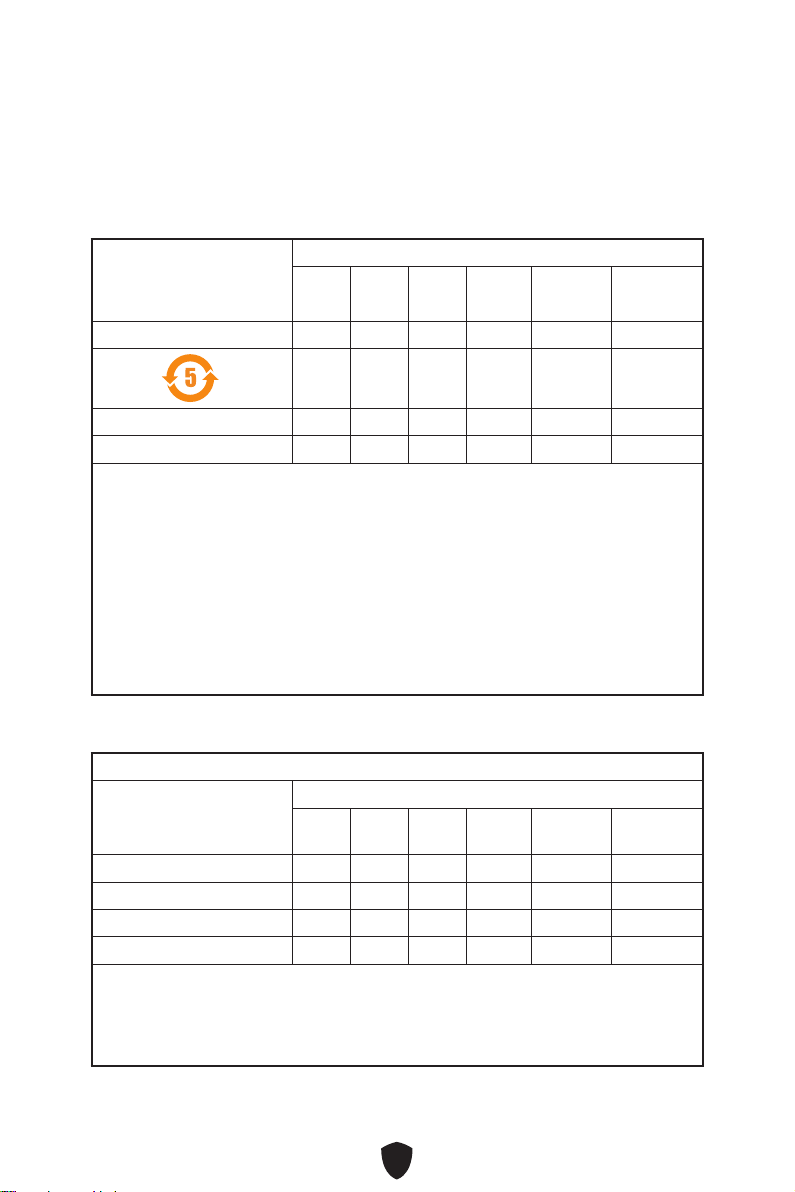
vii
(Pb)
(Hg)
(Cd)
(Cr(VI))
(PBB)
(PBDE)
(Pb)
(Hg)
(Cd)
(Cr+6)
(PBB)
(PBDE)

viii
Copyright and Trademarks Notice
Copyright © Micro-Star Int’l Co., Ltd. All rights reserved. The MSI
logo used is a registered trademark of Micro-Star Int’l Co., Ltd. All
other marks and names mentioned may be trademarks of their respective owners. No
warranty as to accuracy or completeness is expressed or implied. MSI reserves the
right to make changes to this document without prior notice.
Technical Support
If a problem arises with your system and no solution can be obtained from the user
guide, please contact your place of purchase or local distributor. Alternatively, please
try the following help resources for further guidance.
Visit the MSI website for technical guide, BIOS updates, driver updates, and other
information: http://www.msi.com
Register your product at: http://register.msi.com
Revision History
Version 5.0, 2022/04, First release.