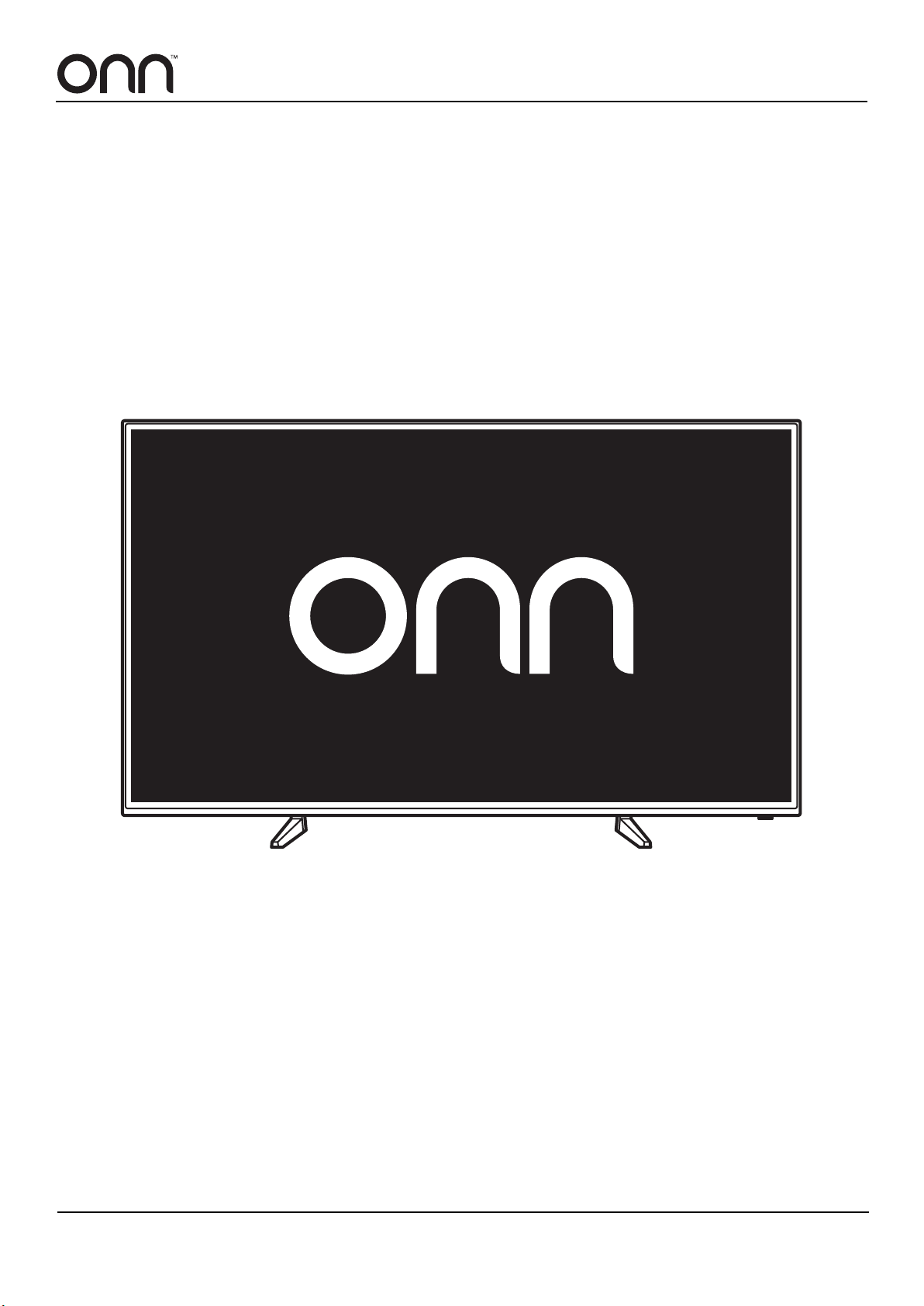
Please read all the instructions carefully before using this TV, and keep the manual for future reference.
USER MANUAL
DIGITAL LED TV
Product may vary. Please refer to the actual product.


Contents
Digital LED TV........................................................................................................................................................1
IMPORTANT SAFETY INSTRUCTIONS .................................................................................................. 4
ADDITIONAL SAFETY INFORMATION ................................................................................................... 5
GETTING TO KNOW YOUR TV ............................................................................................................... 6
WHAT IS INCLUDED? ............................................................................................................................................6
FRONT VIEW- 55” ..................................................................................................................................................7
BACK VIEW ............................................................................................................................................................7
FRONT VIEW- 65” ..................................................................................................................................................8
BACK VIEW ............................................................................................................................................................8
REMOTE CONTROL ..............................................................................................................................................9
WALL MOUNTING .................................................................................................................................... 11
INSTALLING THE STAND ........................................................................................................................ 11
INSTALLING REMOTE BATTERIES ........................................................................................................ 11
CONNECTING DEVICES .......................................................................................................................... 12
CABLE/SATELLITE BOX .......................................................................................................................................12
ANTENNA ...............................................................................................................................................................14
DVD/BLU-RAY PLAYER .........................................................................................................................................14
GAME CONSOLE ...................................................................................................................................................16
LAPTOP/COMPUTER ............................................................................................................................................17
FLASH DRIVE ........................................................................................................................................................17
SPEAKERS ............................................................................................................................................................18
STREAMING DEVICES ..........................................................................................................................................19
FIRST USE ............................................................................................................................................... 20
PLUGGING IN THE TV ...........................................................................................................................................20
SETUP WIZARD .....................................................................................................................................................20
OPERATING THE TV ................................................................................................................................ 21
TURNING ON/OFF .................................................................................................................................................21
SELECTING AN INPUT SOURCE .........................................................................................................................21
SELECTING CHANNELS .......................................................................................................................................21
ADJUSTING THE VOLUME ...................................................................................................................................21
VIEWING USB MULTIMEDIA .................................................................................................................................21
CUSTOMIZING TV SETTINGS ................................................................................................................. 22
NAVIGATING THE SETTINGS MENU ...................................................................................................................22
VIDEO .....................................................................................................................................................................23
AUDIO .....................................................................................................................................................................24
TIME ........................................................................................................................................................................24
SETUP ....................................................................................................................................................................25
LOCK ......................................................................................................................................................................26
CHANNEL ...............................................................................................................................................................27
SEARCHING FOR CHANNELS .............................................................................................................. 28
SETTING PARENTAL CONTROLS .......................................................................................................... 28
CHOOSING VIEWER RATINGS .............................................................................................................................28
CHANGING THE PASSWORD ...............................................................................................................................29
BLOCKING CONTENT ...........................................................................................................................................29
MAINTAINING YOUR TV .......................................................................................................................... 30
SPECIFICATIONS ..................................................................................................................................... 30
TROUBLESHOOTING .............................................................................................................................. 31
LEGAL NOTICES ..................................................................................................................................... 33
CONTENTS

4
IMPORTANT SAFETY INSTRUCTIONS
• Read these instructions – All the safety and operating
instructions should be read before this product is operated.
• Keep these instructions – The safety and operating
instructions should be retained for future reference.
• Heed all warnings – All warnings on the appliance and in
the operating instructions should be adhered to.
• Follow all instructions – All operating and use instructions
should be followed.
• Do not use this apparatus near water – The appliance
should not be used near water or moisture – for example, in
a wet basement or near a swimming pool, and the like.
• Clean only with a dry cloth.
• Do not block any ventilation openings. Install in accordance
with the manufacturer’s instructions.
• Do not install near any heat sources such as radiators,
heat registers, stoves, or other apparatus (including
ampliers) that produce heat.
• Do not defeat the safety purpose of the polarized or
grounding-type plug. A polarized plug has two blades with
one wider than the other. A grounding-type plug has two
blades and a third grounding prong. The wide blade or the
third prong are provided for your safety. If the provided
plug does not t into your outlet, consult an electrician for
replacement of the obsolete outlet.
• Protect the power cord from being walked on or pinched
particularly at plugs, convenience receptacles, and the
point where they exit from the apparatus.
• Only use attachments/accessories specied by the
manufacture.
• Use only with the cart, stand, tripod, bracket, or table
specied by the manufacturer, or sold with the apparatus.
When a cart is used, use caution when moving the cart/
apparatus combination to avoid injury from tip-over.
• Unplug this apparatus during lightning storms or when
unused for long periods of time.
• Refer all servicing to qualied service personnel. Servicing
is required when the apparatus has been damaged in any
way, such as the power-supply cord or plug is damaged,
liquid has been spilled or objects have fallen into the
apparatus, the apparatus has been exposed to rain or
moisture, does not operate normally, or has been dropped.
• Keep the unit in a well-ventilated environment.
WARNING: To reduce the risk of re or electric shock, do not
expose this apparatus to rain or moisture. The apparatus should
not be exposed to dripping or splashing. Objects lled with
liquids, such as vases should not be placed on the apparatus.
WARNING: The batteries shall not be exposed to excessive
heat such as sunshine, re, or the like.
WARNING: The main plug is used as a disconnect device. The
disconnect device shall remain readily operable.
WARNING: To reduce the risk of electric shock, do not remove
the cover (or back) as there are no user-serviceable parts
inside. Refer servicing to qualied personnel.
RISQUE DE CHOC ELECTRIQUE NE
PAS OUVRIR
This lightning ash with arrowhead symbol within an
equilateral triangle is intended to alert the user to the
presence of non-insulated “dangerous voltage” within
the product’s enclosure that may be of sucient magnitude to
constitute a risk of electric shock.
The exclamation point within an equilateral triangle is
intended to alert the user to the presence of important
operating and maintenance instructions in the literature
accompanying the appliance.
This equipment is a Class II or double insulated
electrical appliance. It has been designed in such a
way that it does not require a safety connection to
electrical earth.

DIGITAL LED TV - USER MANUAL
5
ADDITIONAL SAFETY INFORMATION
To ensure reliable and safe operation of your new TV, read this user manual carefully, including safety information
below.
Electrical Safety
• The TV set should only be connected to a main power
supply with a voltage that matches the label at the rear of
the product.
• To prevent overload, do not share the same power supply
socket with too many other electronic components.
• Do not place any connecting wires where they may be
stepped on or tripped over.
• Do not place heavy items on them, which may damage the
leads.
• Hold the main plug, not the wires, when removing from a
socket.
• During a thunderstorm, or when not using the television for
extended period of time, turn o the power switch on the
back of the television.
• Do not allow water or moisture to enter the TV or power
adapter. Do NOT use in wet, moist areas, such as
bathrooms, steamy kitchens
, or near swimming pools.
• Pull the plug out immediately, and seek professional help
if the main plug or cable is damaged, liquid is split onto the
set, if accidentally exposed to water or moisture, if anything
accidentally penetrates the ventilation slots, or if the set
does not work normally.
• Do not remove the safety covers. There are no user
serviceable parts inside. Trying to service the unit yourself
is dangerous and may invalidate the product’s warranty.
• To avoid battery leakage, remove exhausted batteries from
the remote control, or when not using for long period.
• Do not break open or throw exhausted batteries on a re.
• Do not mix old and new batteries.
• Do not mix Alkaline, Standard (Carbon-Zinc) or
Rechargeable (Nickel Cadmium) or (Nickel Metal Hydride)
batteries.
Physical Safety
• Do not block ventilation slots in the back cover. You may
place the TV in a cabinet, but ensure at least 2” (5 cm)
clearance all around.
• Do not tap or shake the TV screen, or you may damage the
internal circuits. Take good care of the remote control.
• To clean the TV use a soft dry cloth. Do not use solvents or
petroleum-based uids.
• Do not install near any heat sources such as radiators, heat
registers, stoves or other apparatus (including ampliers)
that produce heat.
• Do not defeat the safety purpose of the polarized or
grounding-type plug. A polarized plug has two blades with
one wider than the other. A grounding type plug has two
blades and a third grounding prong, the wide blade, or
the third prong is provided for your safety. If the provided
plug does not t into your outlet, consult an electrician for
replacement of the obsolete outlet.
• Protect the power cord from being walked on or pinched
particularly at plugs.
• Unplug the apparatus during lightning storms or when
unused for long periods.
• Refer all servicing to a qualied service personnel.
Servicing is required when the apparatus has been
damaged in any way, such as power-supply cord or plug
is damaged, liquid has been spilled, or objects have fallen
into the apparatus, has been exposed to rain or moisture,
does not operate normally, or has been dropped.
• Always connect your television to a power outlet with
protective ground connection.
WARNING: Never place a television in an unstable location.
A television may fall, causing serious personal injury or death.
Many injuries, particularly to children, can be avoided by taking
simple precautions such as:
• Using cabinets or stands recommended by the
manufacturer of the television.
• Only using furniture that can safely support the television.
• Making sure that the television is not overhanging the edge
of the supporting furniture.
• Not placing the television on tall furniture (for example,
cupboards or bookcases) without anchoring both the
furniture and the television to a suitable support.
• Not placing the television on cloth or other materials that
may be located between the television and supporting
furniture.
• Educating children about the dangers of climbing on
furniture to reach the television or its controls.
If your existing television is being retained and relocated, the
same considerations as above should be applied.

6
GETTING TO KNOW YOUR TV
WHAT IS INCLUDED?
Product may vary. Please refer to the actual product.
Screws for TV
Stands (4)
TV Stands
TV
55”
65”
Screws for TV
Stands (6)
TV Stands
TV
QUICK START GUIDE
DIGITAL LED TV
Product may vary. Please refer to the actual product.
Please read all instructions carefully before using this TV. Keep the User Manual for future reference.
WHAT IS INCLUDED?
Screws for TV
Stands (4)
TV Stands
TV
55”
65”
Screws for TV
Stands (6)
TV Stands
TV
Power Cord
(some models have separate
power cords)
Remote Control
with Batteries
User Manual
Quick Start
Guide
TVHDMI
AV
MEDIA
LAST CH
CH
CH LI ST
FAV
SOUND
PICTURE
FREEZE
OK
GUIDE SLE EP
ASPECT
CCD
User Manual Quick Start Guide
Power Cord
(some models have
separate power cords)
Remote Control with
Batteries

DIGITAL LED TV - USER MANUAL
7
GETTING TO KNOW YOUR TV (CONT.)
FRONT VIEW- 55”
Product may vary. Please refer to the actual product.
BACK VIEW
2
VIDEO / Y
DIGITAL
AUDIO OUT
(OPTICAL)
AUDIO IN
P
b
P
r
1
ARC
LINE OUT
43
USBDTV / TV
USB
DTV/TV
HDMI 4
HDMI 3
HDMI 2
HDMI 1 (ARC)
Audio output
Component/AV
Digital audio out
FEATURE DESCRIPTION
LED Indicates when the TV is
turned on or in standby
mode.
IR SENSOR Receives signals from
your remote.
POWER Switch the TV between
On and Standby mode.
SOURCE Select a dierent input
source.
MENU Display the on-screen
menu.
CH+ / CH- Select a channel.
VOL+ / VOL- Adjust the volume.

8
FRONT VIEW- 65”
Product may vary. Please refer to the actual product.
BACK VIEW
2
VIDEO / Y
AC~
AUDIO IN
P
b
P
r
1
ARC
LINE OUT
USB
DTV / TV
3 4
FEATURE DESCRIPTION
LED Indicates when the TV is
turned on or in standby
mode.
IR SENSOR Receives signals from
your remote.
POWER Switch the TV between
On and Standby mode.
SOURCE Select a dierent input
source.
MENU Display the on-screen
menu.
CH+ / CH- Select a channel.
VOL+ / VOL- Adjust the volume.
USB
DTV/TV
HDMI 4
HDMI 3
HDMI 2
HDMI 1 (ARC)
Audio output
Component/AV
Digital audio out
AC Power

DIGITAL LED TV - USER MANUAL
9
GETTING TO KNOW YOUR TV (CONT.)
REMOTE CONTROL
• If there is light around the TV, the remote control may fail or work abnormally.
• Remove the batteries from the remote control when not in use for a long period of time.
• To prevent battery leakage, which may result in bodily injury or damage to the remote:
1. Install all batteries correctly, and as marked on the remote control.
2. Do not mix old and new batteries and do not mix alkaline, standard (carbon-zinc) or rechargeable (NiCad,
NiMg, etc.) batteries.
TVHDMI
AV
MEDIA
LAST CH
CH
CH LIST
FAV
SOUND
PICTURE
FREEZE
OK
GUIDE SLEEP
ASPECT
CCD
# FEATURE DESCRIPTION
1
Power
Switch the TV between on and
standby mode.
2 Source Switch to an input source directly.
3 Number pad
(0-9)
Select a program.
4 Sub-channel Enter a program sub-channel,
such as 2.1.
5 FAV Display the favorite channel list.
6 Volume Adjust Adjust the volume.
7 MUTE Mute and restore your TV sound.
8 PICTURE Change the picture mode to
Dynamic, Movie, Custom, or
Standard.
9 INFO Display the present screen
information such as the current
channel and input source.
10 MENU Display the on-screen menu.
11
Directional
arrows/
OK
Navigate the menus and adjust
the system settings.
Conrm the selection in the menu
12 BACK Return to the previous menu.
13 GUIDE Display the program guide.
14 Playback Control media playback.
15 ASPECT Change the aspect ratio: Normal,
Wide, Zoom, Cinema, or Full
100% (only for HDMI source).
16 SAP/MTS Switch between audio channels:
Stereo, Mono, or SAP.

10
GETTING TO KNOW YOUR TV (CONT.)
REMOTE CONTROL (CONT.)
# FEATURE DESCRIPTION
17 INPUT Select an input source: TV, AV,
Component, HDMI or USB.
18 LAST CH Return to the previous channel.
19 Channel
Selection
Select a channel.
20 CH LIST Display the program list.
21 SOUND Change the sound mode to
Standard, Custom, Movie, Sports,
or Music.
22 FREEZE Freeze the picture.
23 EXIT Exit the on-screen menu.
24 SLEEP Set the TV sleep timer: o, 5min,
10min, 15min, 30min, 60min,
90min, 120min, 180min, or
240min.
25 CCD Set the CC On, CC O, or CC On
Mute.
26 TTS Set the Voice Guidance On or
Voice Guidance O.
TVHDMI
AV
MEDIA
LAST CH
CH
CH LIST
FAV
SOUND
PICTURE
FREEZE
OK
GUIDE SLEEP
ASPECT
CCD

DIGITAL LED TV - USER MANUAL
11
WALL MOUNTING
Reference the instructions that came with your wall mounting hardware.
Your new TV is heavy. Consult with a professional installer to wall mount your new TV.
INSTALLING THE STAND
Do not install the stands if you want to mount your TV to the wall. See the instructions that came with your wall mounting
hardware.
You will need: Phillips screwdriver (not included)
1. Remove any plastic wrapping from the TV and stands, and place the TV screen-down on a clean, at surface to
prevent scratches or damage to the screen.
2. Attach each stand into place with the provided screws and a Phillips screwdriver.
55” 65”
3. Place the TV on a stable, level surface.
INSTALLING REMOTE BATTERIES
1. Remove the cover from the remote control’s battery compartment.
2. Insert two AAA batteries, making sure to match the + and – terminals to the symbols in the compartment.
3. Replace the battery cover.
Remove the batteries from the remote control when not in use for a long period time.
Onn recommends responsible battery handling when your batteries have reached the end of their useful life. Please
properly dispose of your batteries in a manner consistent with your community’s laws and waste management
requirements. You can visit
http://www.call2recycle.org/ to nd your local regulations, as well as drop-o locations.

12
CONNECTING DEVICES
CABLE/SATELLITE BOX
You can use HDMI, composite (AV), component, or coaxial to connect your cable/satellite box to your TV.
HDMI
2
VIDEO / Y
DIGI
T
A
L
A
U
D
I
O O
UT
(OPTICAL)
AUDI O IN
P
b
P
r
1
ARC
LINE OUT
1. Connect an HDMI cable (not included) to the HDMI OUT port on your cable/satellite box.
2. Connect the other end of the cable to the HDMI 1, HDMI 2, HDMI 3, or HDMI 4 port on the back of your TV.
3. Connect a coaxial cable (not included) from your cable/satellite box to a coaxial wall jack.
4. If you’re connecting a cable box, follow instructions from your cable service provider to search for channels.
• To use the cable/satellite box, press the INPUT button repeatedly to select the port you connected it to (HDMI 1,
HDMI 2, HDMI3, or HDMI 4).
COMPONENT
2
VIDEO / Y
DIGI
T
A
L
A
U
D
I
O O
UT
(OPTICAL)
AUDI O IN
P
b
P
r
1
ARC
LINE OUT
BLUE
GREEN
RED
RED
WHITE
GREEN
BLUE
RED
RED
WHITE
1. Connect a component cable’s (not included) red, blue, and green connectors to your cable/satellite box.
2. Connect the other end of the component cable to the VIDEO/Y, Pb, and Pr jacks on the back of your TV, matching
the cable’s colored connectors to the jacks.
3. Connect an audio cable’s (not included) white and red connectors to the audio out jacks on your cable/satellite
box.
4. Connect the other end of the audio cable to the AUDIO IN jacks on the back of your TV.
5. Connect a coaxial cable (not included) from your cable/satellite box to a coaxial wall jack.
6. If you’re connecting a cable box, follow instructions from your cable service provider to search for channels.
• Some component cables have the white and red audio connectors built in. If they are not, you will need a
separate RCA audio cable.
• Make sure that you match the connectors’ colors with the jacks you are connecting them to.
• To use the cable/satellite box, press the INPUT button repeatedly to select Component/AV.
PRODUCT MAY VARY.
HDMI cable
Coaxial cable
Coaxial wall jack
Cable/Satellite box
Coaxial cable
Coaxial wall jack
Cable/Satellite box
Component
cable
PRODUCT MAY VARY.

DIGITAL LED TV - USER MANUAL
13
CONNECTING DEVICES (CONT.)
CABLE/SATELLITE BOX (CONT.)
COMPOSITE (AV)
2
VIDEO / Y
DIGI
T
A
L
A
U
D
I
O O
UT
(OPTICAL)
AUDI O IN
P
b
P
r
1
ARC
LINE OUT
YELLOW
RED
WHITE
1. Connect an AV (composite) cable (not included) to the AV jacks on your cable/satellite box.
2. Connect the other end of the cable to the AUDIO IN and VIDEO/Y jacks on the back of your TV. The cable
connectors’ colors should match the TV jacks’ colors.
3. Connect a coaxial cable (not included) from your cable/satellite box to a coaxial wall jack.
4. If you’re connecting a cable box, follow instructions from your cable service provider to search for channels.
• Make sure that you match the connectors’ colors with the jacks you are connecting them to.
• To use the cable/satellite box, press the INPUT button on your remote control repeatedly to select Component/
AV.
COAXIAL
4
DTV / TV
1. Connect a coaxial cable (not included) to your cable/satellite box.
2. Connect the other end of the cable to the DTV/TV jack on your TV.
3. Connect the other end of the coaxial cable to a coaxial wall jack.
4. See “SEARCHING FOR CHANNELS” on page 28 to run a channel scan.
• To use the cable/satellite box, press the INPUT button repeatedly to select TV.
• If you are connecting your TV to a coaxial wall jack, go to your TV channel settings and switch to Cable.
AV cable
Coaxial cable
Coaxial wall jack
Cable/Satellite box
PRODUCT MAY VARY.
PRODUCT MAY VARY.
Coaxial
wall jack
Coaxial
cable

14
CONNECTING DEVICES (CONT.)
ANTENNA
4
DTV / TV
1. Connect a coaxial cable (not included) to your antenna.
2. Connect the other end of the cable to the DTV/TV jack on your TV.
3. See “SEARCHING FOR CHANNELS” on page 28 to run a channel scan.
• To use the antenna, press the INPUT button repeatedly to select TV.
• If you are switching between an antenna and cable/satellite box, go to your TV’s Channel settings and switch to
Air (antenna) or Cable (cable/satellite box).
DVD/BLU-RAY PLAYER
You can use HDMI, composite (AV), component, or coaxial to connect your DVD/Blu-ray player to your TV.
HDMI
2
VIDEO / Y
DIGI
T
A
L
A
U
D
I
O O
UT
(OPTICAL)
AUDI O IN
P
b
P
r
1
ARC
LINE OUT
1. Connect an HDMI cable (not included) to the HDMI OUT port on your DVD or Blu-ray player.
2. Connect the other end of the cable to the HDMI 1, HDMI 2, HDMI 3, or HDMI 4 port on the back of your TV.
To use the DVD/Blu-ray player, press the INPUT button repeatedly to select the port you connected it to (HDMI 1, HDMI
2, HDMI 3, or HDMI 4).
PRODUCT MAY VARY.
Coaxial cable
Antenna
PRODUCT MAY VARY.
DVD or
Blu-ray player
HDMI cable

DIGITAL LED TV - USER MANUAL
15
CONNECTING DEVICES (CONT.)
DVD/BLU-RAY PLAYER (CONT.)
COMPONENT
2
VIDEO / Y
DIGI
T
A
L
A
U
D
I
O O
UT
(OPTICAL)
AUDI O IN
P
b
P
r
1
ARC
LINE OUT
BLUE
GREEN
RED
RED
WHITE
GREEN
BLUE
RED
RED
WHITE
1. Connect a component cable’s (not included) red, blue, and green connectors to your DVD or Blu-ray player.
2. Connect the other end of the component cable to the VIDEO/Y, Pb, and Pr jacks on the back of your TV, matching
the cable’s colored connectors to the jacks.
3. Connect an audio cable’s (not included) white and red connectors to the audio out jacks on your DVD or Blu-ray
player.
4. Connect the other end of the audio cable to the AUDIO IN jacks on the back of your TV.
• Some component cables have the white and red audio connectors built in. If they are not, you will need a
separate RCA audio cable.
• Make sure that you match the connectors’ colors with the jacks you are connecting them to.
• To use the DVD/Blu-ray player, press the INPUT button repeatedly to select Component/AV.
COMPOSITE (AV)
2
VIDEO / Y
DIGI
T
A
L
A
U
D
I
O O
UT
(OPTICAL)
AUDI O IN
P
b
P
r
1
ARC
LINE OUT
YELLOW
RED
WHITE
1. Connect an AV (composite) cable (not included) to the AV jacks on your DVD or Blu-ray player.
2. Connect the other end of the cable to the AUDIO IN and VIDEO/Y jacks on the back of your TV. The cable
connectors’ colors should match the TV jacks’ colors.
To use the DVD/Blu-ray player, press the INPUT button repeatedly to select Component/AV.
DVD or
Blu-ray player
Component cable
PRODUCT MAY VARY.
PRODUCT MAY VARY.
DVD or
Blu-ray player
AV cable

16
CONNECTING DEVICES (CONT.)
GAME CONSOLE
You can use HDMI or composite (AV) to connect your game console to your TV.
HDMI
43
1. Connect an HDMI cable (not included) to the HDMI OUT port on your game console.
2. Connect the other end of the cable to the HDMI 1, HDMI 2, HDMI 3, or HDMI 4 port on the back of your TV.
To use the game console, press the INPUT button repeatedly to select the port you connected it to (HDMI 1, HDMI 2,
HDMI 3, or HDMI 4).
COMPOSITE/AV
2
VIDEO / Y
DIGI
T
A
L
A
U
D
I
O O
UT
(OPTICAL)
AUDI O IN
P
b
P
r
1
ARC
LINE OUT
YELLOW
RED
WHITE
1. Connect an AV (composite) cable (not included) to the AV jacks on your game console.
Your may need a console-specic cable for AV connections. See your game console’s instructions for more information.
2. Connect the other end of the cable to the AUDIO IN and VIDEO/Y jacks on the back of your TV. The cable
connectors’ colors should match the TV jacks’ colors.
To use the game console, press the INPUT button repeatedly to select Component/AV.
Game
console
HDMI cable
PRODUCT MAY VARY.
PRODUCT MAY VARY.
Console-specic
AV cable
Game
console

DIGITAL LED TV - USER MANUAL
17
CONNECTING DEVICES (CONT.)
LAPTOP/COMPUTER
You can use HDMI to connect your laptop/computer to your TV.
HDMI
43
1. Connect an HDMI cable (not included) to the HDMI OUT port on your laptop/computer.
2. Connect the other end of the cable to the HDMI 1, HDMI 2, HDMI 3, or HDMI 4 port on the back of your TV.
• To use the computer, press the INPUT button repeatedly to select the port you connected it to (HDMI 1, HDMI
2, HDMI 3, or HDMI 4).
• You may need to adjust the display properties on your laptop/computer.
FLASH DRIVE
USBDTV / TV
• Connect your USB Type-A ash drive to your TV’s USB port.
To use the ash drive, press the MEDIA button on your remote, or press the INUT button repeatedly to select the USB
input source. See “VIEWING USB MULTIMEDIA” on page 21 for more information.
PRODUCT MAY VARY.
HDMI cable
Laptop/
Computer
Flash drive
PRODUCT MAY VARY.

18
CONNECTING DEVICES (CONT.)
SPEAKERS
You can use a digital optical cable, 3.5 mm audio cable, or 3.5 mm-to-RCA cable to connect your speakers to your TV.
DIGITAL OPTICAL CABLE
2
VIDEO / Y
DIGI
T
A
L
A
U
D
I
O O
UT
(OPTICAL)
AUDI O IN
P
b
P
r
1
ARC
LINE OUT
1. Connect a digital optical audio cable (not included) to your audio device.
2. Connect the other end of the cable to the Digital Audio Out (OPTICAL) jack on the back of your TV.
3. When your TV is connected to power, open the Audio menu and make sure that the Digital Audio Output option is
set to PCM:
• Press the MENU button to display the main menu.
• Press the buttons to select the Audio menu, then press the button or OK to make changes in the
category.
• Press the buttons to select the Digital Audio Output setting, then press the buttons to change it to
PCM.
• Press the EXIT button to save your changes and close the menu.
PRODUCT MAY VARY.
Digital optical audio cable
Home theater system
or soundbar

DIGITAL LED TV - USER MANUAL
19
CONNECTING DEVICES (CONT.)
SPEAKERS (CONT.)
3.5 MM AUDIO CABLE
2
P
b
P
r
1
ARC
LINE OUT
• Connect a 3.5 mm audio cable from the LINE OUT jack on the back of your TV to your home theater system or
soundbar.
3.5 MM TO RCA CABLE
2
P
b
P
r
1
ARC
LINE OUT
1. To listen to audio through your home theater system or soundbar, connect the 3.5 mm connector from the LINE
OUT jack on the back of your TV.
2. Connect the RCA end of the cable to the audio in jacks on your home theater system or soundbar. The
connectors’ colors should match the TV jacks’ colors.
STREAMING DEVICES
43
• Connect your streaming device to the HDMI 1, HDMI 2, HDMI 3, or HDMI 4 port on the back of your TV.
Some streaming devices need to connect to power. See the instructions that came with your streaming device for more
information.
Home theater system
or soundbar
3.5 mm audio cable
PRODUCT MAY VARY.
Home theater system
or soundbar
3.5 mm-to-RCA cable
PRODUCT MAY VARY.
Streaming device
PRODUCT MAY VARY.

20
FIRST USE
PLUGGING IN THE TV
1. Make sure that all of your peripheral devices are connected to your TV.
2. Connect the power cord to a power outlet. The TV enters standby mode and its indicator lights red.
55” 65”
3. Press (power) on the TV or remote control to turn on the TV. The red indicator turns o.
The (power) button on the TV or remote control can only switch the TV into standby mode. To completely turn o the TV,
disconnect the power cord from the power socket.
SETUP WIZARD
• Press the buttons to select or change a setting:
• TV Location: Set the TV location to Store for retail display use or set to Home for home use.
• Menu Language: Select the language you want to be displayed in the menu. The default language is English.
• Time Zone: Select a time zone.
• Daylight Saving: Select to turn daylight saving time on or o.
• Time format: Select the displayed time format.
• Air/Cable: Select whether you want to connect your TV to an antenna (Air) or a coaxial wall jack (Cable).
• Cable System: Select a cable system.
IRC and HRC are methods for reducing interference in older cable lines. If you’re in a rural area with older lines, you may
get better performance by selecting IRC or HRC. Modern cables do not need signal improvements, so most people will
have the best results with STD or Auto.
PRODUCT MAY VARY.
PRODUCT MAY VARY.

DIGITAL LED TV - USER MANUAL
21
OPERATING THE TV
TURNING ON/OFF
Press (power) on the TV or remote control to turn your TV on or o. The LED lights red while in standby mode (o)
and o when turned on.
The (power) button on the TV or remote control can only switch the TV into standby mode. To completely turn o the TV,
disconnect the power cord from the power outlet.
SELECTING AN INPUT SOURCE
1. Press the INPUT button on your TV or remote to display the INPUT SOURCE list.
2. Press the buttons to select your input source, then press the OK button to conrm.
Input List
TV
AV
Component
HDMI1(ARC)
HDMI2
HDMI3
HDMI4
USB
SELECTING CHANNELS
When watching cable TV or TV with an antenna:
• Press the CH /CH buttons on the TV or remote repeatedly to select a channel.
• Press the 0-9 buttons on the remote control to select a channel directly.
ADJUSTING THE VOLUME
• Press the VOL+/- buttons on the TV or on the remote to adjust the volume.
• Press the MUTE button to turn the sound o. To resume the sound, press the VOL+ button or MUTE again.
VIEWING USB MULTIMEDIA
The TV supports JPEG les.
1. Connect a ash drive to the USB port on the back of your TV.
2. Press the MEDIA button on your remote, or press the INPUT button repeatedly to select the USB input source.
3. Select PHOTO, use the buttons to browse, and then press OK to select a photo or folder.
4. To view photos:
• Play/Pause: Press to start or pause the photo playback.
• Stop: Press to stop photo playback.
• Skip back: Press to view the previous photo.
• Skip forward: Press to view the next photo.
• REPEAT: Press to select a dierent repeat mode.

22
CUSTOMIZING TV SETTINGS
Learn how to navigate your TV’s menu and review the available options in the Picture, Audio, Time, Setup, Lock, and
Channel menus.
NAVIGATING THE SETTINGS MENU
1. Press the MENU button to open the menu.
2. Press the buttons to select a menu category, then press the button or OK to make changes in the category.
3. Press the buttons to select a setting, then press the button to change the setting.
4. When you are nished, press the EXIT button to save your changes and close the menu.
See “VIDEO” on page 23
See “AUDIO” on page 24
See “TIME” on page 24
See “SETUP” on page 25
See “LOCK” on page 26
See “CHANNEL” on page 27

DIGITAL LED TV - USER MANUAL
23
CUSTOMIZING TV SETTINGS (CONT.)
VIDEO
Options include:
• Picture Mode: Cycle through the picture modes: Dynamic, Movie, Custom, or Standard.
You can press the PICTURE button on your remote to quickly change the picture mode.
• Brightness: Increase or decrease the amount of white in the picture.
• Contrast: Adjust the dierence between light and dark levels in the pictures.
• Color: Control the color intensity.
• Tint: Adjust the balance between red and green levels.
• Sharpness: Adjust the level of crispness in the edges between light and dark areas of the picture.
• Color Temperature: Cycle through color temperatures: Standard, Warm, or Cool.
• Advanced Setting:
• Aspect: Select a screen mode: Normal, Wide, Zoom, Cinema or Full 100% (only for HDMI source).
• Noise Reduction: Reduce the noise level of the connected device: O, Low, Middle, or High.
• Dynamic Contrast: Set the level to enhance the picture details.
• HDMI Mode: Switch the HDMI source to set Auto, Video, or Graphic.
The Aspect options may dier depending on the selected input source.

24
CUSTOMIZING TV SETTINGS (CONT.)
AUDIO
Options include:
• Sound Mode: Select an audio-enhancement technique: Standard, Custom, Movie, Sports, or Music.
You can press the SOUND button on your remote to quickly select the sound mode.
• Treble: Control the relative intensity of higher-pitched sounds.
• Bass: Control the relative intensity of lower-pitched sounds.
• Balance: Adjust the audio output between the left and the right speakers.
• MTS: Select the analog audio output mode: Mono, Stereo, and SAP.
• Audio Languages: Select the audio language: English, French, or Spanish.
• Digital Output: Select the digital audio output mode: RAW or PCM.
• Surround Sound: Provide an enhanced listening experience.
• Perfect Volume: Volume levels are automatically controlled to keep at the same level when switch channels.
TIME
Options include:
• Sleep Timer: Select a period of time after which the TV automatically switches to standby mode: o, 5min, 10min,
15min, 30min, 60min, 90min, 120min, 180min, or 240min.
You can press the SLEEP button on your remote to quickly set the sleep timer.
• Time Zone: Select a time zone: Pacic, Alaska, Hawaii, Atlantic, Eastern, Central, or Mountain.
• Daylight Savings: Select to turn daylight saving time on or o.
• Time Format: Select the displayed time format.
• Auto Clock: Set the Auto Clock on or o.
• Clock: Set the clock manually when Auto Clock is set to o.

DIGITAL LED TV - USER MANUAL
25
CUSTOMIZING TV SETTINGS (CONT.)
SETUP
Options include:
• Menu Language: Select a menu language: English or Español. The default on-screen menu language is English.
• OSD Timeout: Select the OSD displayed time.
• Closed Cation: Turn closed captioning on or o, select analog or digital modes, or personalize the captioning
style.
• CC Mode: Select CC On, CC O, or CC on Mute.
• Analog CC: Select the analog mode: CC1, CC2, CC3, CC4, Text1, Text2, Text3, or Text4.
• Digital CC: Select digital mode: Service 1, Service 2, Service 3, Service 4, Service 5, or Service 6.
• Option: Personalize the captioning style, such as the size and color of the digital caption.
• Over Scan: Select over scan to o to improve HDMI video quality.
• Input Label: Edit the input source name
• Other Setting:
• Audio Only: Turn o the TV screen and listen to the audio only.
• Demo Mode: Select demo mode for retail promotion use with higher contrast, brightness, and color settings.
• HDMI 4K: Turn o the HDMI 4K when the connected device is not support 4K signal to avoid the distorted
picture.
• Reset: Restore the TV to factory default settings (except the lock settings).
• HDMI CEC: Turn HDMI CEC on or o and HDMI ARC on or o.
• HDMI CEC lets you control multiple HDMI devices (for example, your TV and Blu-ray player) with one remote.
Your included remote does not support this feature.
• HDMI ARC lets audio signals travel both into and out of a device with a single ARC HDMI connection.
• Voice Guidance:
• Voice Guidance: Select to turn voice guidance on or o. When the voice guidance is on, you can adjust the
Volume, Speed, and Pitch.
• Video Description: Turn the video description on or o.

26
CUSTOMIZING TV SETTINGS (CONT.)
LOCK
The Lock menu lets you block undesirable programming by dening which program ratings you consider acceptable
to the younger or more sensitive viewer. It can be turned on or o with a four-number password. See “SEARCHING
FOR CHANNELS” on page 28 for more information.
1. Press the MENU button on the TV or remote.
2. Press the to select the Lock menu, then press the button or OK.
3. Use your remote’s number pad to input the four-digit password to enter the LOCK menu. The default password is
0000.
4. Press the buttons to select a setting, then press the button to change it.
• Change Password: Change the parental control password. See “CHANGING THE PASSWORD” on page
29 for instructions.
Do not forget your password. It is the only way you can access the Parental Control menu and change rating
selections, or turn Parental Control o.
• Key Lock: Select to lock the keypad from the back or bottom of the TV.
• Parental Control: Select to turn the parental control on or o. The following options (Input Block, US
Rating, and Canada Rating) will only be accessible when you turn the parental control on. See “BLOCKING
CONTENT” on page 29 for instructions.
• Input Block: Select to lock specic input source.
• US Rating: View and select MPAA ratings for US programs. See “CHOOSING VIEWER RATINGS” on page
28 for more information.
» TV: Select to lock or unlock TV ratings.
» MPAA: Select the highest MPAA rating that can be viewed: O, G, PG, PG-13, R, NC-17, or X.
• Canada Rating: View and select MPAA ratings for Canadian programs. See “CHOOSING VIEWER RATINGS”
on page 28 for more information.
» Canada: Select the highest MPAA rating that can be viewed for English-speaking Canada: O, C, C8+, G,
PG, 14+, or 18+.
» French Canada: Select the highest MPAA rating that can be viewed for Quebec Canada: O, G, 8ans+,
13ans+, 16ans+, or 18ans+.

DIGITAL LED TV - USER MANUAL
27
CUSTOMIZING TV SETTINGS (CONT.)
LOCK (CONT.)
• Region 5: Set the Rating Region Table.
• Reset Region 5: Select to reset the Region 5 setting.
CHANNEL
Options include:
• Air/Cable: Select whether you want to watch TV with an antenna (Air) or through a cable box (Cable).
• Auto Channel Scan: Search and store available channels automatically.
• If you choose Cable as the input signal (Air/Cable option), select your cable system rst, then select Start to
Scan to look for available channels.
• If you choose Air as the input signal (Air/Cable option), select Start to Scan to look for available channels.
• Favorite: Set the channel as a favorite channel.
• Channel List: Display the channel list.
• View/Skip: Show/Hide the selected channel.
• Channel Number: Display the current channel number or switch to the next or previous channel.
• Channel Label: Display the current channel label or change the current channel label.

28
SEARCHING FOR CHANNELS
1. Press the MENU button to open the menu.
2. Press the buttons to select the CHANNEL category, then press OK.
3. Press the buttons to select Air/Cable, then press the buttons to select whether you want to watch TV
with an antenna (Air) or through a cable (Cable).
If you choose Cable as the input signal, select your cable system (AUTO, STD, IRC, or HRC).
4. Press the buttons to select Auto Channel Scan to search and store available channels automatically.
5. When you are nished, press the EXIT button to save your changes and close the menu.
SETTING PARENTAL CONTROLS
Learn about parental control ratings, change your password, and block content. For a complete list of lock options,
see “LOCK” on page 26.
CHOOSING VIEWER RATINGS
For complete coverage, set blocks for both general audiences and children. Viewer ratings can be specied for both
TV and movies. The ratings are based on the ages of children.
Use the following tables to determine which ratings you consider acceptable to the viewer. For example, if you choose
TV-PG, more restrictive ratings will be automatically blocked, and the viewer will not be able to see: TV-PG, TV-14, or
TV-MA rated programming.
MOTION PICTURE ASSOCIATION OF AMERICA (MPAA) RATING SYSTEM
GRADE DESCRIPTION
G General Audiences Content not oensive to most viewers.
PG Parental Guidance Suggested Parents may not want their children to view the program.
PG-13 Parents Strongly Cautioned Program is inappropriate for pre-teens, with a greater degree
of oensive material suggested than a PG rated program.
R Restricted Not for children under 17. Program contains an element of
sex and/or violence.
NC-17 No children under age 17 Not for children under 17 under any circumstances. Program
contains strong sexual content.
X Hard Core Films Same as NC-17 rating.
No Rating MPAA Not Rated.
TV PARENTAL GUIDELINE RATING SYSTEM
GRADE DESCRIPTION
TV-Y All children Content not oensive to most viewers.
TV-Y7 Directed to older children Considered suitable for children over seven. Program may
contain fantasy violence scenes.
TV-G General audience Considered suitable for all audiences. Children may watch
unattended.
TV-PG Parental guidance suggested Suggested unsuitable for younger children. Program may
contain suggestive language, bad language, sex, and
violence scenes.
TV-14 Parents strongly cautioned Unsuitable for children under 14. Program may contain
strong language, bad language, sex, and violence scenes.
TV-MA Mature audiences only Adults only. Program may contain strong language, bad
language, sex, and violence scenes.

DIGITAL LED TV - USER MANUAL
29
SETTING PARENTAL CONTROLS (CONT.)
Canadian Rating:
• Canadian English is used throughout all English-speaking Canada (C, C8+,G, PG,14+, 18+).
• Canadian French is used in Quebec (G, 8ans+, 13ans+, 1ans+, 18ans+).
CHANGING THE PASSWORD
1. Press the MENU button on the TV or remote.
2. Press to select the Lock menu, then press the button or OK.
3. Use your remote’s number pad to input the four-digit password to enter the Lock menu. The default password is
0000.
4. Press the buttons to select Change Password, then press the button to change it.
5. Use the number pad on your remote to input your new four-digit password, then re-enter the new password for
conrmation. Your new password is automatically saved.
Do not forget your password. It is the only way you can access the Parental Control menu and change rating selections, or
turn Parental Control o. Unplugging the TV will not reset the password.
BLOCKING CONTENT
You can block program content based on viewer ratings or individual parameters such as strong dialog, bad language,
sex scenes, violence scenes, or fantasy.
1. Press the MENU button on the TV or remote.
2. Press to select the Lock menu, then press the button or OK.
3. Use your remote’s number pad to input the four-digit password to enter the Lock menu.
The default password is 0000.
4. Press the buttons to select US Rating or Canada Rating.
5. Select TV. A grid of options is displayed.
6. Move the cursor to a cell in the grid and press OK to lock or unlock that item.
Locking something like TV-PG Violence (V) will also lock violence for the higher ratings levels. Or, if you unlock violence at
the highest level, it will automatically unlock violence for all of the ratings below it.

30
MAINTAINING YOUR TV
Do not use your TV in areas that are too hot or too cold because the cabinet may warp or the screen may malfunction.
Do not place your TV in direct sunlight or near a heat source. Your TV works best in temperatures that are comfortable
to you.
• Leave at least 2 inches (5 cm) around the TV for sucient ventilation.
• Do not block the ventilation openings with items, such as newspapers, tablecloths, curtains, etc.
• Do not place open ame sources, such as lighted candles, on the TV.
• Dispose of batteries following local laws.
CLEANING YOUR TV
WARNING: Turn the power o and unplug the power cord before you begin any cleaning.
• To remove dirt or dust from the cabinet or screen, wipe with a soft, dry, lint-free cloth. Do not to use a wet cloth.
SPECIFICATIONS
Model number ONA55UB19E06 ONA65UB19E07
Screen size 55” 65”
Resolution 3840x2160 3840x2160
VESA wall mount standard 400mm x 200mm 400mm x 200mm
Inputs Cable/Antenna x1
HDMI x4
Component Video
Composite Video
Audio in
Cable/Antenna x1
HDMI x4
Component Video
Composite Video
Audio in
Outputs Line out x1
Digital audio out x1
Line out x1
Digital audio out x1
Storage temperature -10°C ~ 60 °C -10°C ~ 60°C
Working temperature 5°C ~ 35°C 5°C ~ 35°C
Dimensions 49.1(W) x 30.9(H) x 10.0(D) inches 57.3(W) x 35.0(H) x 9.9(D) inches
Weight 32.4 lbs 55.7 lbs
Warranty 1 year 1 year

DIGITAL LED TV - USER MANUAL
31
TROUBLESHOOTING
PROBLEM SOLUTION
Dead. No LED lit. Make sure that the power cord is connected to a working wall outlet.
Blue screen only. Press the INPUT button to select the correct source.
Noisy, snowy, ghosting picture (TV). • If using an indoor antenna, try adjusting the antenna position.
• Check antenna connections.
No sound. • Make sure that the TV isn’t muted.
• Turn up the volume.
• Unplug any headphones connected to the TV.
• Make sure that your audio cables are connected correctly.
• Make sure that any connected speakers are turned on and that
the volume is turned up.
• Make sure that surround sound is selected in the Audio menu
options.
• Make sure that the correct input source is selected.
No sound and picture. • Make sure that the power cord is connected to a working wall
outlet.
• Press POWER on the TV.
• Check the picture contrast and the brightness settings.
Red LED indicator lights. TV is in standby mode. Press the Power button or on the remote
control.
Normal picture but no sound. • Check that the TV isn’t muted.
• Turn up the volume.
• Unplug any headphones connected to the TV.
• Check the connections on your connected devices.
• Try another channel. The problem may be with the broadcast.
• Make sure that your audio cables are connected correctly.
The remote control does not work. • Make sure there are no objects between the TV and remote
control causing obstruction.
• Make sure that the batteries are installed with the correct polarity
(-/+).
• Install new batteries.
Power suddenly turns o. • The sleep timer may have been set.
• Check the power cord to make sure that it is fully connected to
the power outlet.
• There may be no broadcast on the station you are tuned to. Try
changing the channel.
Picture appears slowly after turning on. This is normal. The image is muted during the startup process.
Contact a service provider if the picture has not appeared after ve
minutes.
Poor color or picture. • Adjust the color in the menu options.
• Try another channel. The problem may be with the broadcast.
• Make sure that all video cables are connected correctly.
Horizontal/Vertical bars or picture is shaking. Check for local interference, such as an electrical appliance or
power tool.

32
PROBLEM SOLUTION
Poor reception on some channels. • The station may be experiencing problems. Tune to another
station.
• Station signal is weak. Reorient the antenna for better reception.
• Check for sources of possible interference.
No output from one of the speakers. Adjust the balance in the menu options.
The picture is fuzzy or blacks out while
watching TV.
• Make sure that a cable is not disconnected or loose.
• Make sure that the correct input source is selected.
The computer image is in the incorrect
position.
• Adjust the screen resolution using your computer’s settings.
Screen color is unstable or is a single color. Make sure that your video cables are correctly connected.

DIGITAL LED TV - USER MANUAL
33
LEGAL NOTICES
FCC Notes
• Warning: Changes or modications to this unit not expressly approved by the party responsible for compliances could void the
user’s authority to operate the equipment.
• NOTE: This equipment has been tested and found to comply with the limits for a Class B digital device, pursuant to Part 15
of the FCC Rules. These limits are designed to provide reasonable protection against harmful interference in a residential
installation. This equipment generates, uses, and can radiate radio frequency energy and, if not installed and used in
accordance with the instructions, may cause harmful interference to radio communications. However, there is no guarantee
that interference will not occur in a particular installation. If this equipment does cause harmful interference to radio or
television reception, which can be determined by turning the equipment o and on, the user is encouraged to try to correct the
interference by one or more of the following measures:
• Reorient or relocate the receiving antenna.
• Increase the separation between the equipment and receiver.
• Connect the equipment into an outlet on a circuit dierent from that to which the receiver is connected.
• Consult the dealer or an experienced radio/TV technician for help.
The terms HDMI and HDMI High-Denition Multimedia Interface, and the HDMI Logo are trademarks or registered trademarks of
HDMI Licensing Administrator, Inc in the United States and other countries.
Manufactured under license from Dolby Laboratories. Dolby, Dolby Audio, and the double-D symbol are trademarks of Dolby
Laboratories.
This product contains electrical or electronic materials. The presence of these materials may, if not disposed of properly, have
potential adverse eects on the environment and human health. Presence of this label on the product means it should not be
disposed of as unsorted waste and must be collected separately. As a consumer, you are responsible for ensuring that this product
is disposed of properly.


©Walmart Inc.
ONN is a trademark of
Walmart Inc.
All Rights Reserved.
Distributed by
Walmart Inc.,
Bentonville, AR

