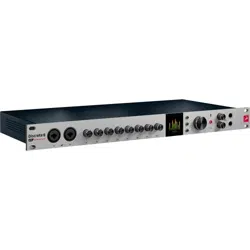
Antelope Audio
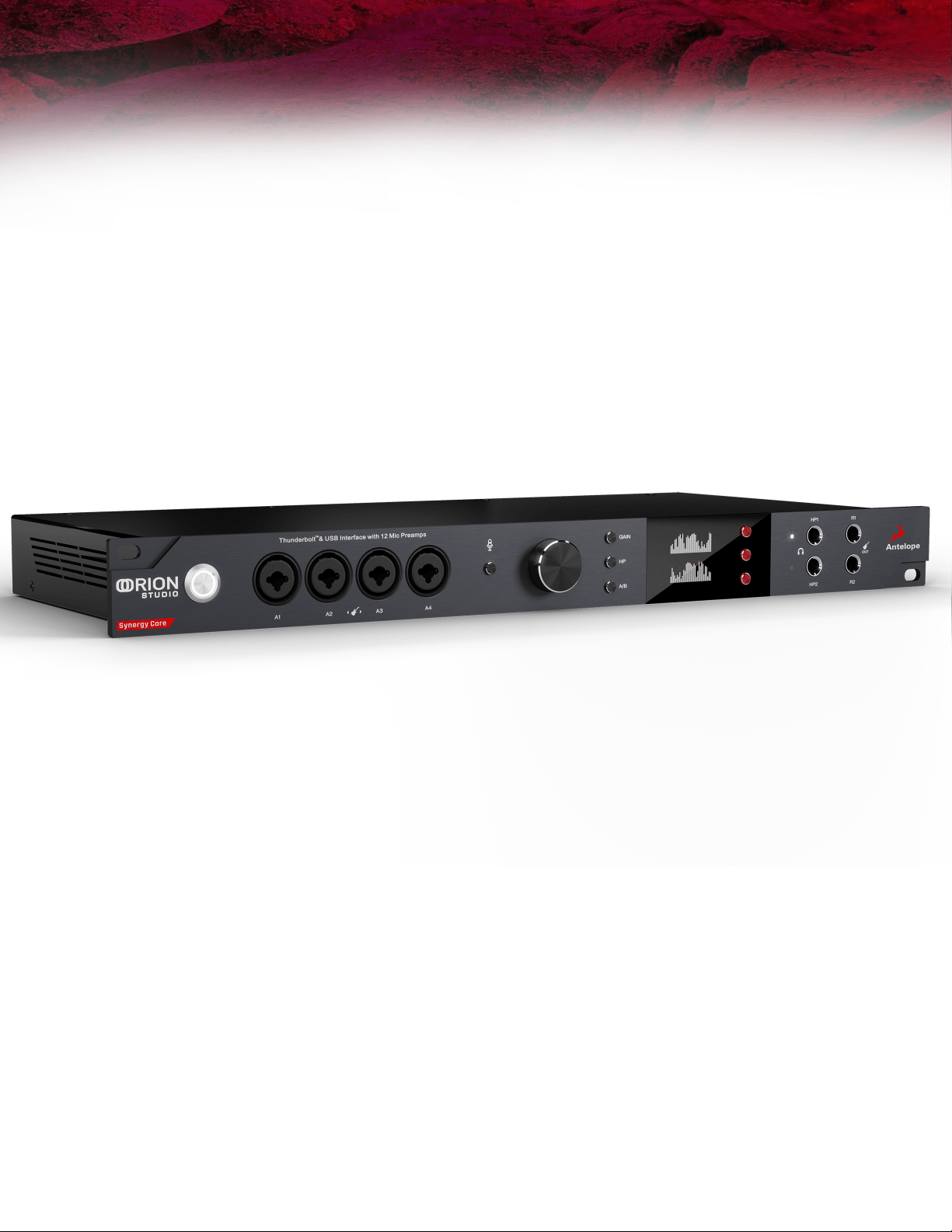
Orion Studio Synergy Core
USER MANUAL

Orion Studio Synergy Core User Manual 1
Contents
Before you begin ................................................................................................................. 2
System Requirements .................................................................................................... 4
Product activation ............................................................................................................... 5
Configuring for Windows 10 .......................................................................................... 8
Configuring for macOS Mojave 10.14 (or later) ........................................................ 10
Thunderbolt™ 3 functionality .......................................................................................... 10
Daisy chaining ................................................................................................................ 10
Device charging ............................................................................................................. 11
Backwards compatibility .............................................................................................. 11
Antelope Launcher ............................................................................................................ 12
‘Devices’ tab.................................................................................................................... 12
'Plug-ins’ tab .................................................................................................................. 15
'System’ tab .................................................................................................................... 16
Front panel explained ....................................................................................................... 19
System menu ................................................................................................................. 20
Control menu.................................................................................................................. 22
Presets menu ................................................................................................................. 23
Rear panel explained ......................................................................................................... 24
Integrating external analog equipment ..................................................................... 25
Control panel ...................................................................................................................... 27
Quick start ...................................................................................................................... 27
Main view ......................................................................................................................... 31
Settings ........................................................................................................................... 37
Routing tab ..................................................................................................................... 39
Mixer tab .......................................................................................................................... 44
Effects tab ...................................................................................................................... 46
Meters tab ....................................................................................................................... 49
Edge & Verge mic emulations ..................................................................................... 53
AFX2DAW ....................................................................................................................... 60
Advanced user tips............................................................................................................ 63
Customer support information ....................................................................................... 65
Orion Studio Synergy Core User Manual 2
Limited warranty policy .................................................................................................... 68
Safety notes ....................................................................................................................... 73
Technical specifications ................................................................................................... 75
Before you begin
Congratulations on your purchase! We’d like to turn your attention to the following:
As with all Antelope Audio interfaces, the software Control Panel is the “mediator”
between the Orion Studio Synergy Core and your preferred DAW. To take complete
advantage of the unit’s capabilities, you are meant to handle tasks like gain adjustments,
signal routing, effects processing, initial mixing and metering from the Control Panel. The
resulting audio is routed into your DAW for recording in formats of your choice, such as
multi-track, stem, and two-channel stereo.
Depending on your experience, you might find this approach different from what you are
used to. Perhaps the most familiar workflow for the modern recordist involves treating
the audio interface like a box which brings audio in and out of your computer, with the rest
of the session taking place in your DAW. It is possible to use the Orion Studio Synergy
Core in this manner, relying on the front panel display and controls for monitoring, gain
control and setup while using the DAW for recording, mixing and mastering.
However, the only way to use Synergy Core effects as inserts (plug-ins) in your DAW is
by purchasing the Antelope Audio AFX2DAW plug-in. Think of it as a hardware-to-
software “bridge” that turns our hardware-processed, low-latency effects into typical

Orion Studio Synergy Core User Manual 3
software plug-ins applied to your audio tracks. At the time of writing, AFX2DAW is only
available for Mac users over Thunderbolt™. AFX2DAW for Windows is currently in
development.
Click here to learn more.
After the initial setup, it is also possible to use Orion Studio Synergy Core without a
computer connection. In this case, the unit functions as a digital mixer operated from the
front panel controls. The last known signal routing configuration from the software
Control Panel is applied.
Regardless of your preference, we encourage you to familiarize yourself with the software
Control Panel, particularly the ‘Routing’ and ‘Effects’ tabs, before you begin working. This
way, you can overcome potential stumbling blocks for users new to Antelope Audio
products. For example, almost any issue concerning recording and playing back audio (on
the interface’s side) can be resolved with the correct signal routing.
Should you ever find yourself struggling, do not hesitate to contact
Customer
Support team over phone, live chat and our ticket system. You can also visit Antelope
Audio on YouTube and explore our video tutorials or join the Antelope Audio
Users Facebook group and ask for advice. The Knowledge Base is also a good source of
information.
Best wishes,
Team Antelope

Orion Studio Synergy Core User Manual 4
System Requirements
Mac:
• Apple Mac 2012 or newer with Thunderbolt™ & USB 2.0/3.0/3.1 port
• Minimum: Mac OS X 10.12 Sierra. Recommended: Mac OS X 11.02 Big Sur
• Available storage space (Minimum 4 GB)
• Memory (RAM): 4 GB minimum (8 GB or more recommended)
Windows:
• PC computer with USB 2.0/3.0/3.1 port
• Windows 10 (64-bit) with latest Microsoft Updates
• Available storage space (Minimum 4 GB)
• Memory (RAM): 4 GB minimum (8 GB or more recommended)
• CPU: Intel Core i3™ or AMD FX (Higher recommended)
Additional Information:
• Stable Internet connection is required to download and update your
Antelope Audio Software
Orion Studio Synergy Core User Manual 5
Product activation
Please note that the mandatory device activation procedure requires an active Internet
connection on your computer. Activating an Antelope Audio device offline is not possible.
Once the unit is connected to an AC power source and your computer is switched on:
1. Connect a USB 2.0 Type-B or Thunderbolt™ 3 cable to the corresponding ports on the
Orion Studio Synergy Core and your computer.
Notes:
● The unit will automatically detect the connection type upon the initial startup, but
not on subsequent starts. Manually set the connection type from ‘Comms.
Interface’ in the System Menu every time you switch between Thunderbolt™ and
USB connections.
● USB 2 connection supports up to 24 I/O audio channels. Thunderbolt™ connection
supports up to 32 I/O audio channels.
2. Open your internet browser and navigate to https://antelopeaudio.com/login/
3. Login to the Antelope Audio user area with your e-mail and password. If you don't have
an account, visit https://antelopeaudio.com/sign-up/ to create one.
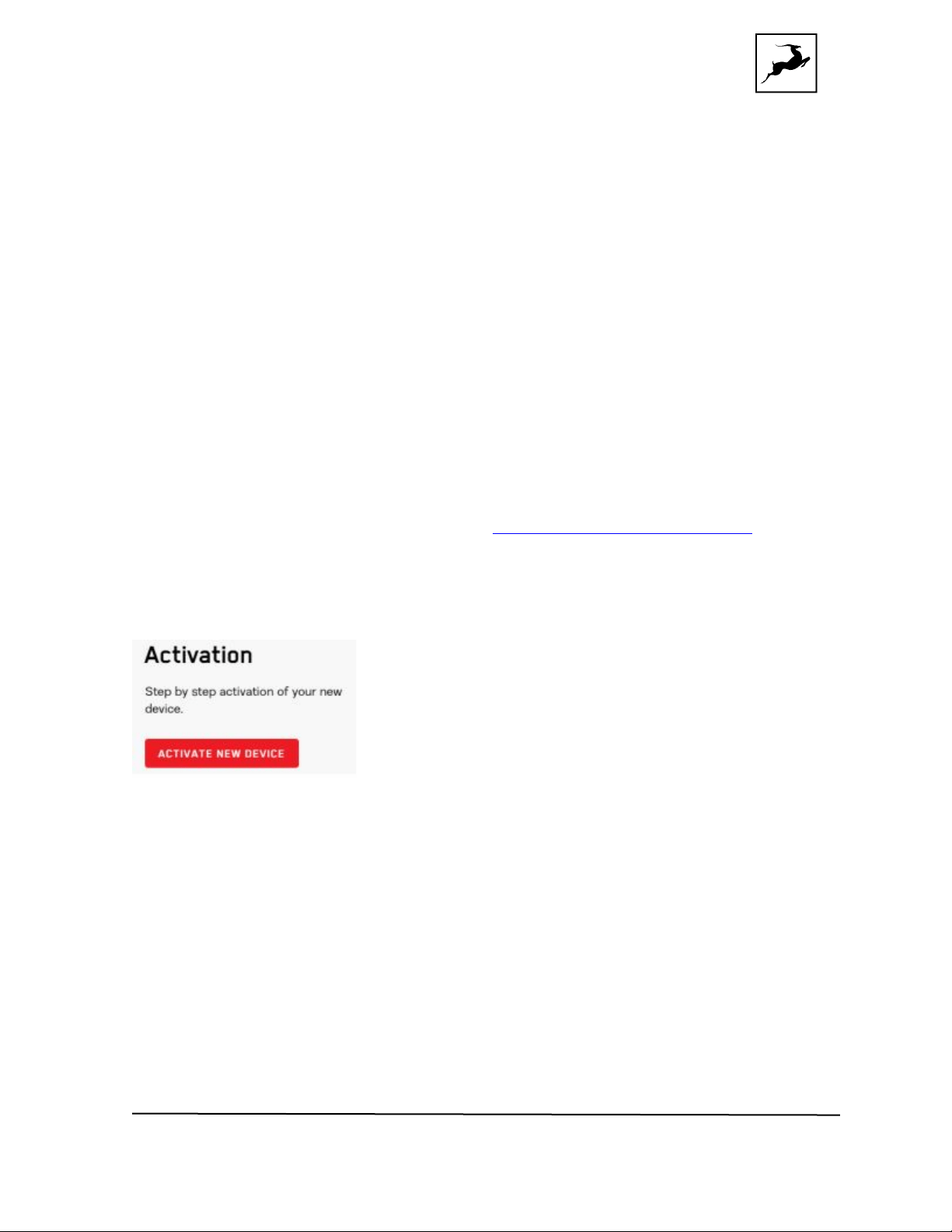
4. Click on the 'Activate New Device' button.
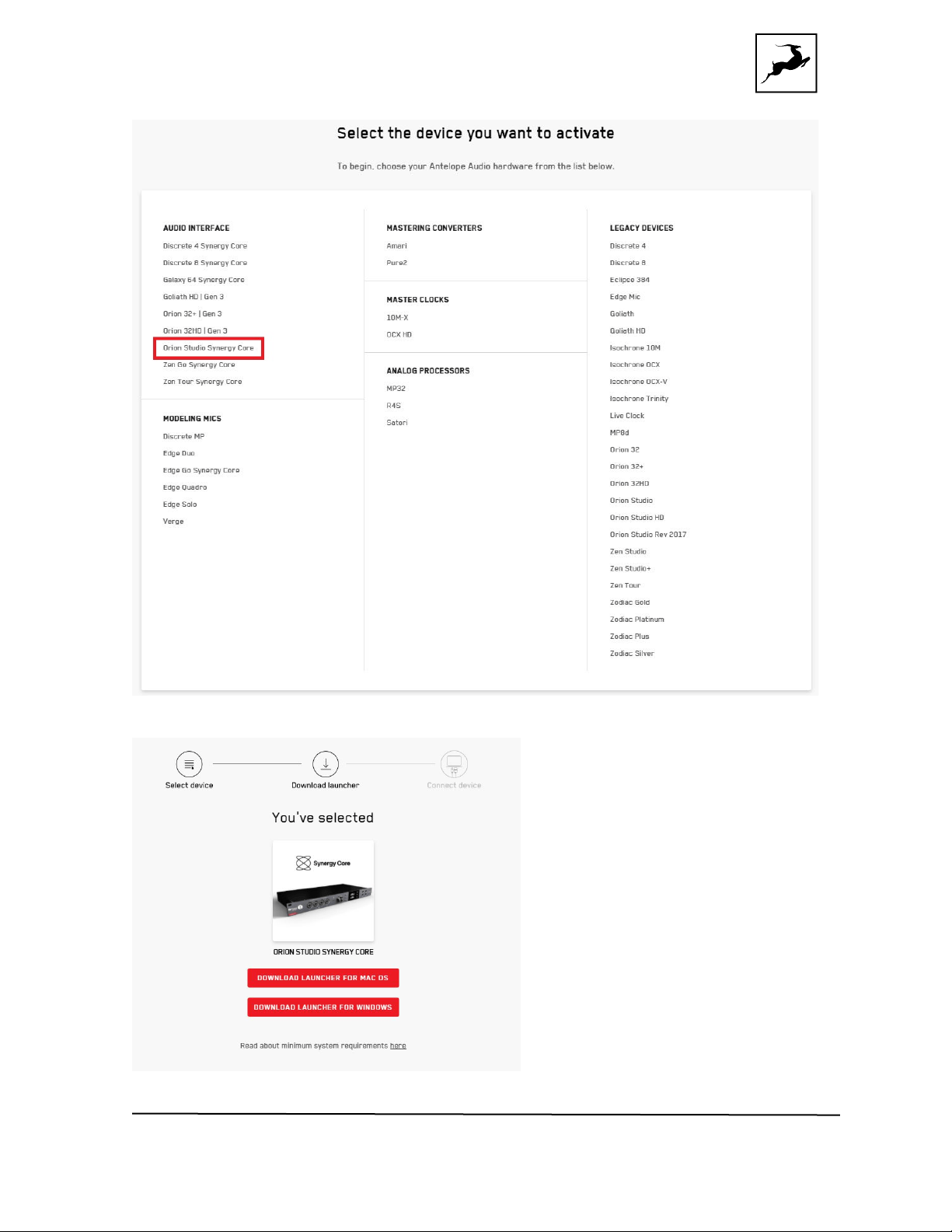
5. Click on ' Orion Studio Synergy Core' from the device list.
Orion Studio Synergy Core User Manual 6
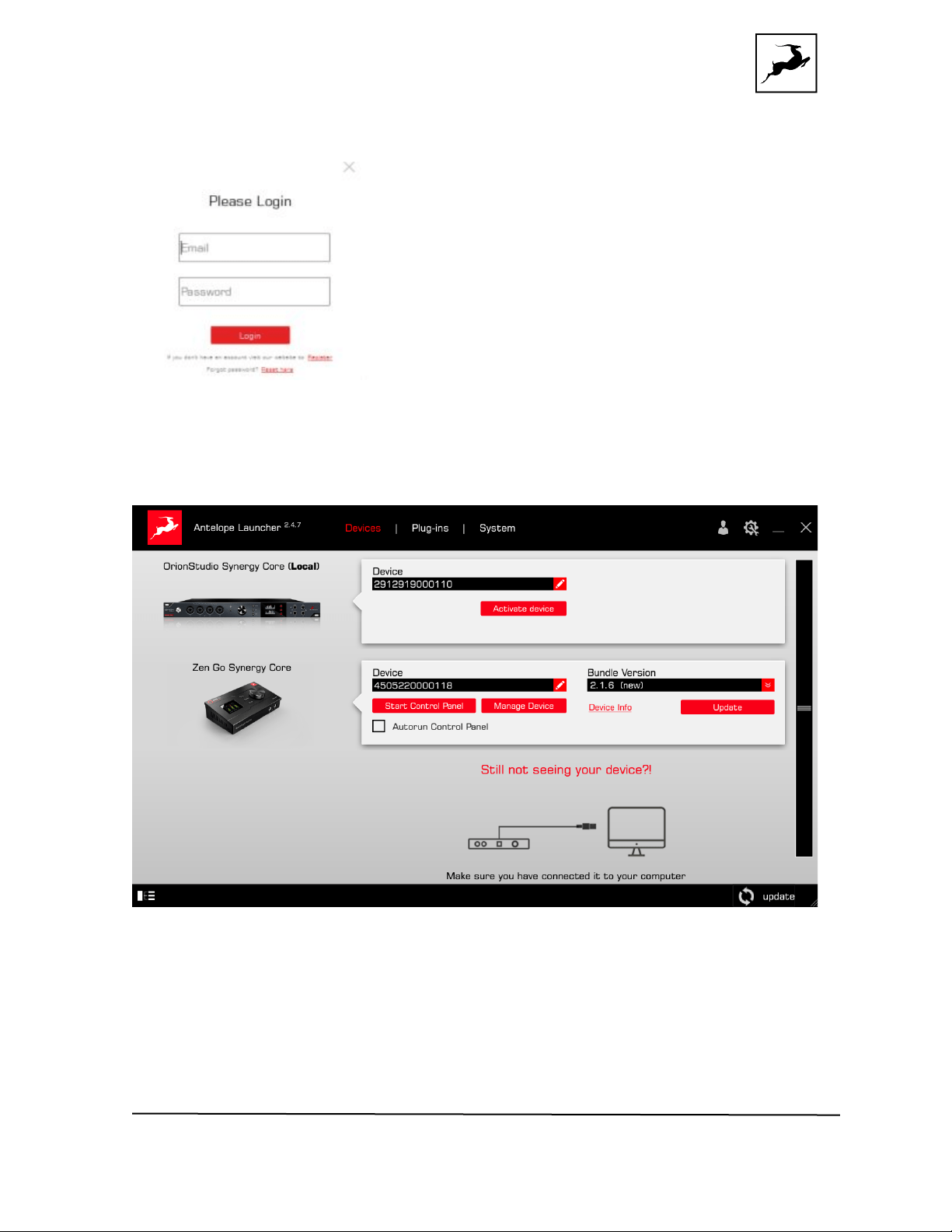
6. Download and install the Antelope Launcher application for Windows or macOS.
Orion Studio Synergy Core User Manual 7
7. Open the Antelope Launcher application and click on the 'Login' button. Enter the e-
mail and password you used to login into the Antelope Audio user area and click 'Login'.
8. Click on 'Activate device'.
Note: If the Orion Studio Synergy Core does not appear in the 'Devices' tab, click on 'Not
seeing your device?' and follow the on-screen instructions.
9. In the Antelope Management Wizard window, choose 'Activate device or assign
features' and click 'Continue'.
10. In the subsequent window, place a checkmark next to 'Register device' and click
'Continue'.
Orion Studio Synergy Core User Manual 8
11. Upon successful activation, the final window will read 'Congratulations! You have
successfully activated your device.' Click 'Done' and the activation is finished.
Please proceed with the 'Setting up' chapter below to configure the Orion Studio Synergy
Core for use with your Windows or macOS computer.
Note: The Orion Studio Synergy Core will be listed in the 'My Hardware' page of the
Antelope Audio user area with its serial number and activation date.
SETTING UP
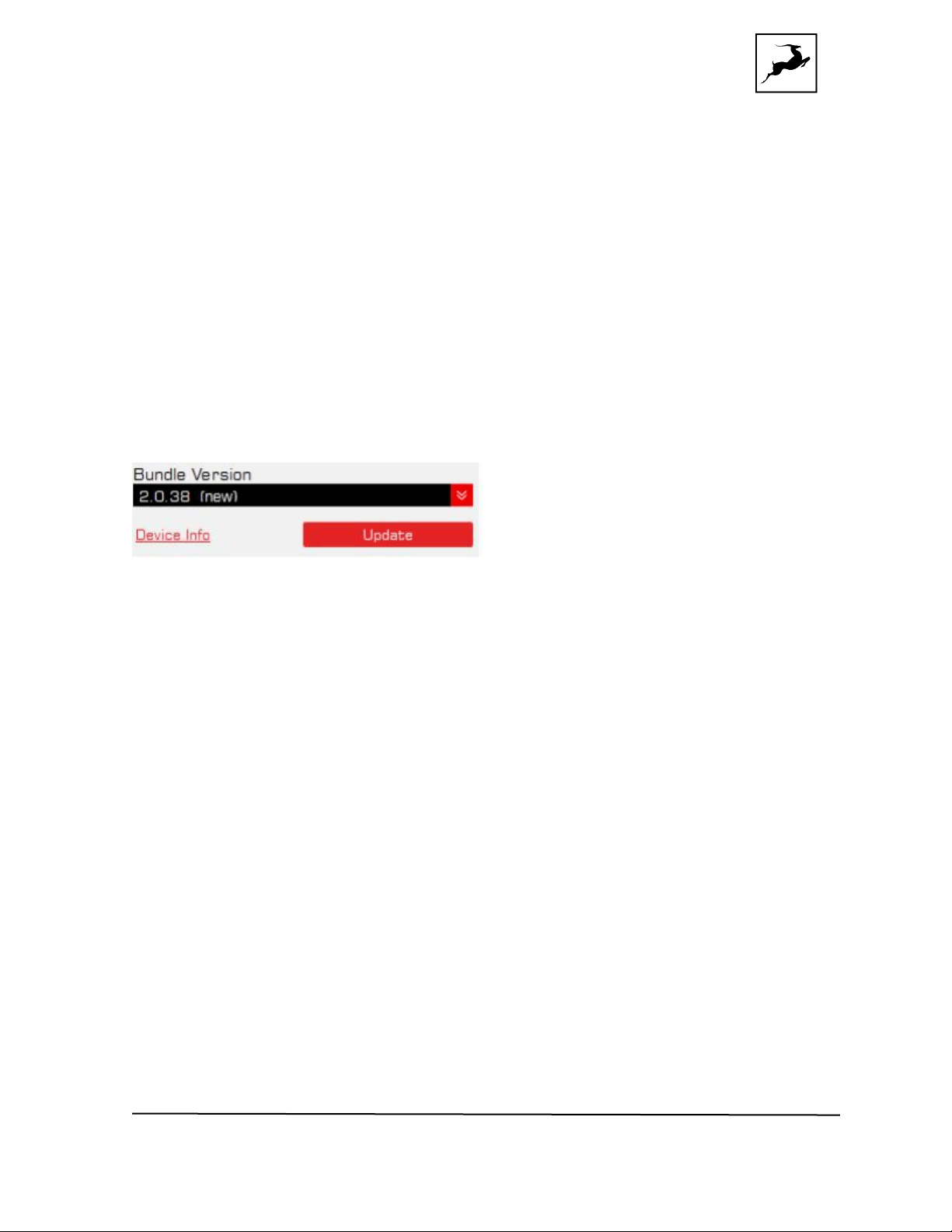
After online activation is complete, please update the Orion Studio Synergy Core to the
latest software and firmware versions available. To do this, simply open Antelope Launcher
and click the 'Update' button below the 'Bundle Version' drop-down menu.
After the update is complete, you can proceed with the instructions for your operating
system.
Need any help? Visit the Antelope Audio Customer Support page, choose your device and
find the required information
Configuring for Windows 10
Windows 10 needs a few tweaks to get everything up and running:
1. Enter the ‘Sounds’ options window from the Control Panel or right-click the speaker
icon in the system tray and choose ‘Open Sound settings’.
2. Make sure the Orion Studio Synergy Core is chosen under 'Output' and 'Input'.
Next, click 'Device Properties' under 'Output'. Then, click 'Additional Device Properties'.
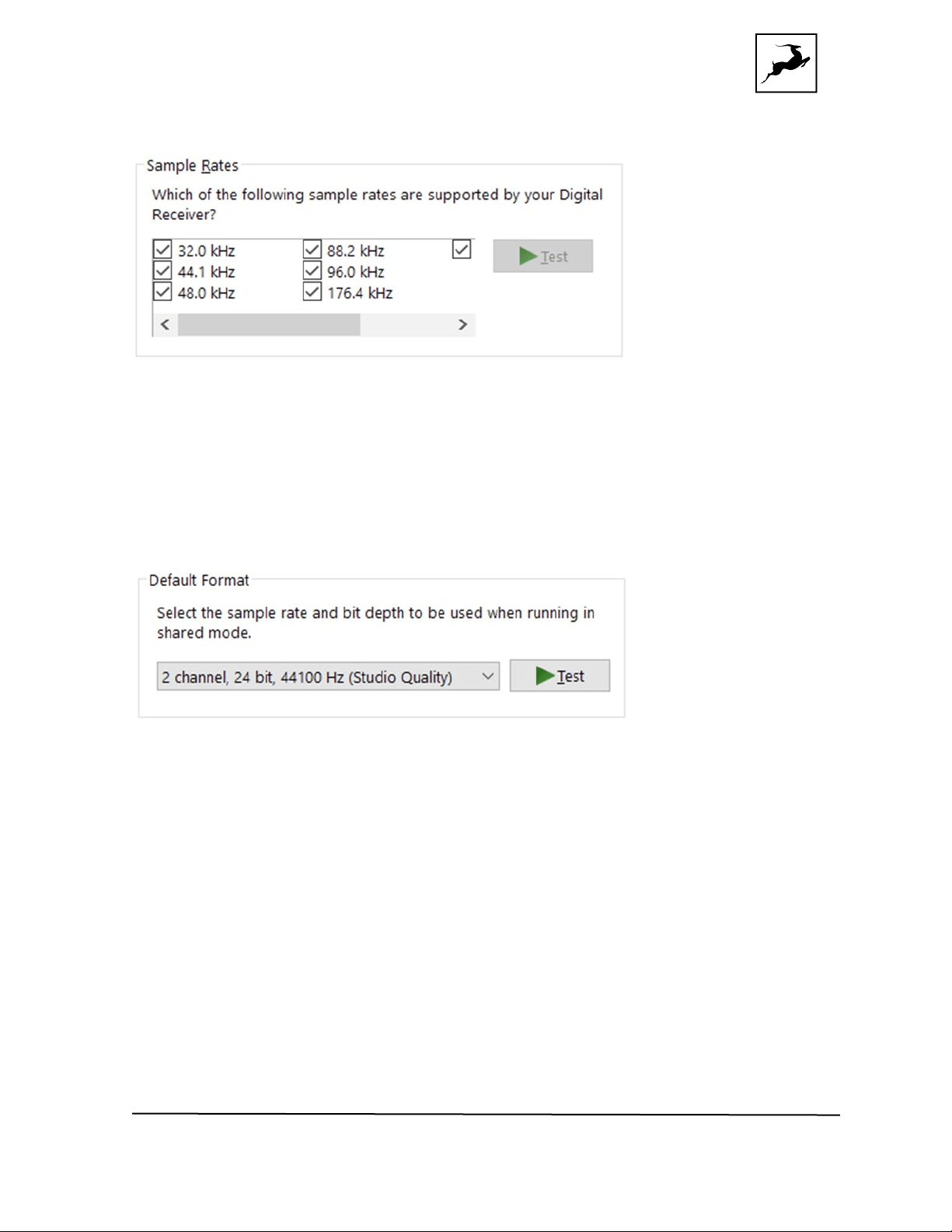
3. Enter the ‘Supported Formats’ tab and place checkmarks next to all the available
sample rates.
Orion Studio Synergy Core User Manual 9
4. Enter the ‘Enhancements’ tab and disable all enhancements.
5. Enter the ‘Advanced’ tab and choose any of the available “2 channel, 24-bit” modes
from the drop-down menu. Click ‘OK’ to close the window.
6. Back in Sound settings, click 'Device Properties' under 'Input'. Then, click 'Additional
Device Properties'. Enter the 'Enhancements' tab and disable all enhancements. Click 'OK'
to close the window.
Tips
● If you are experiencing interruptions or failure when using your DAW and trying to
playback audio from your OS at the same time, make sure that the device sample
rate matches the one of your DAW session.
● You can disable the device and enable it again from the ‘Playback’ tab to refresh
the driver. This will be similar to disconnecting and re-connecting your device, which
makes Windows reset the playback configuration of the applications you are using.

Orion Studio Synergy Core User Manual 10
● In some cases, disabling the ‘Exclusive mode’ functionality from the ‘Advanced’ tab
in ‘Playback’ Properties might help when running multiple playback applications at
the same time.
● Disabling the 32kHz sample rate isn’t mandatory, but it might help in general.
Further reading
●
Antelope Audio Knowledge Base - Windows 10 Optimization
Configuring for macOS Mojave 10.14 (or later)
The new security settings introduced in macOS Mojave 10.14 and later releases may result
in no input signal reaching your DAW, despite having everything set up correctly. These
steps apply when you are using the Orion Studio Synergy Core in a DAW for the first time:
1. Launch your DAW and choose Orion Studio Synergy Core as the input device. The
following dialog box will appear (if using Ableton Live 10 Suite, for example):
2. Click 'OK' and your DAW should function normally.
However, if the events above did not occur for some reason, or you are using multiple
DAWs, you must do a manual tweak for each in 'Security & Privacy' settings:
1. Click the 'Apple' symbol and choose 'System Preferences'. Head to the 'Security &
Privacy' settings menu.
2. Click the 'Privacy' tab. In the column on the left, choose ‘Microphone’. Make sure there's
a checkmark next to any DAW you want to use.
Thunderbolt™ 3 functionality
The Orion Studio Synergy Core’s Thunderbolt™ 3 compatibility enables the following
functionality:
Daisy chaining
Thunderbolt™ 3 can “daisy chain” devices”. Daisy chaining means that one device can plug
into the end of a chain of devices, one after the other. A basic example would be
connecting the Orion Studio Synergy Core to an external hard drive with two

Orion Studio Synergy Core User Manual 11
Thunderbolt™ 3 ports. One port is occupied by the Orion Studio while the other connects
to a computer or another Thunderbolt™ 3 device in the chain.
The following rules are in place:
1. The Thunderbolt™ 3 specification places a limit of up to 6 devices per chain. However,
the 6-device limit does not apply to the following Apple computers:
● 2018 MacBook Pro or later
● 2018 Mac mini
● 2017 iMac Pro
These machines have dual Thunderbolt™ 3 busses and support up to 12 devices per chain.
2. Each device must be powered on for subsequent devices to operate.
3. If a USB or DisplayPort device is plugged directly into the USB-C connector
downstream from any device, the Thunderbolt™ daisy chain is terminated at that point.
4. As Thunderbolt™ bandwidth is shared between daisy chained devices, the available
bandwidth for each device inevitably decreases. Therefore, Antelope Audio cannot
guarantee optimal performance in each and every daisy chain configuration possible.
Device charging
While the Orion Studio Synergy Core cannot be bus-powered, it is able to power any Type-
C device from the Thunderbolt™ 3 port. For example, you can power a laptop (e.g. 2016
MacBook Pro or later).
Backwards compatibility
Thunderbolt™ 3 is backwards-compatible with legacy Thunderbolt™ 2 and Thunderbolt™
1 connections through the use of a third-party TB 3 to Legacy TB adapter and
corresponding cables. Given all the technical variables involved, we cannot provide singular
instructions for legacy compatibility in this manual. Please get in touch with
Customer
Support if you need help setting up.
Orion Studio Synergy Core User Manual 12
Antelope Launcher
The Antelope Launcher is a streamlined hub for managing and troubleshooting your
Antelope Audio products. The application is organized into the following tabs:
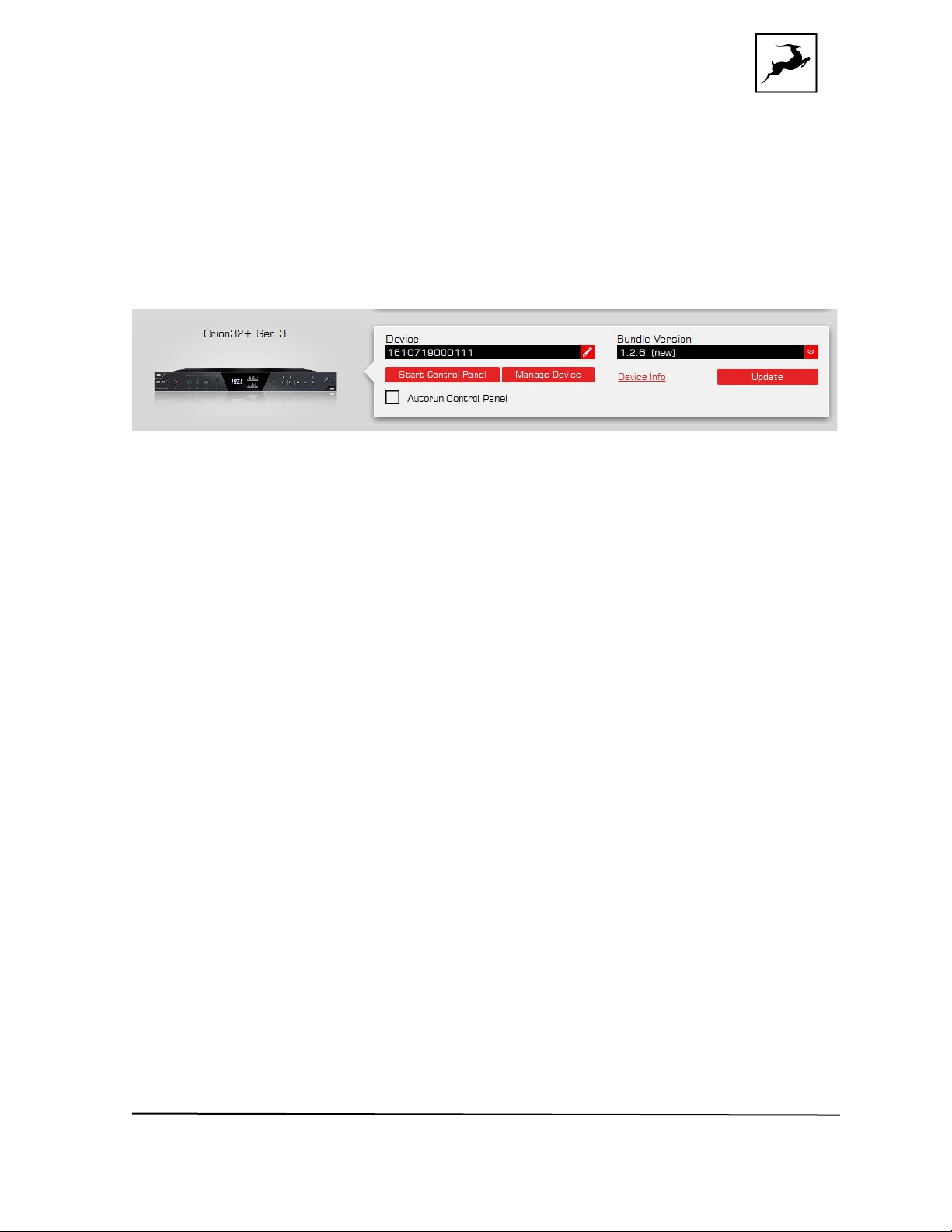
‘Devices’ tab
All Antelope Audio devices currently connected to your computer are listed in this
section. In this example, we have connected the Orion 32+ | Gen 3. However, the
application functionality is identical for each Antelope device.
The following functionality is available in the 'Devices' tab:
Device Name
Click the black box to enter a name for your device. The device serial number is used by
default. Erasing the name and clicking outside the box reverts to the serial number.
Bundle Version
By default, this drop-down menu shows the most recent software bundle available for
your device. Clicking it shows the currently installed software bundle version and lets you
roll-back to an older build.
To update or change the installed software version, choose your desired Bundle Version,
click the check mark next to the drop-down menu, and click the ‘Update’ button.
Manage
Click to launch the Antelope Registration Wizard. Use it to register or de-register devices
and features (such as AFX2DAW, Synergy Core FX, HDX Activation and so on).

Orion Studio Synergy Core User Manual 13
Device Info
Click to display the following information (useful for troubleshooting):
● Serial number
● Hardware version
● Firmware version
● Control Panel version
● USB/Thunderbolt ™ driver version
● Software Bundle version
Click the information window to close it.
Start Control Panel
Click to start the device’s Control Panel application. You can also click the device’s picture.
Place a check mark next to ‘Autorun’ to have the Control Panel for a specific device launch
automatically when you start Antelope Launcher.
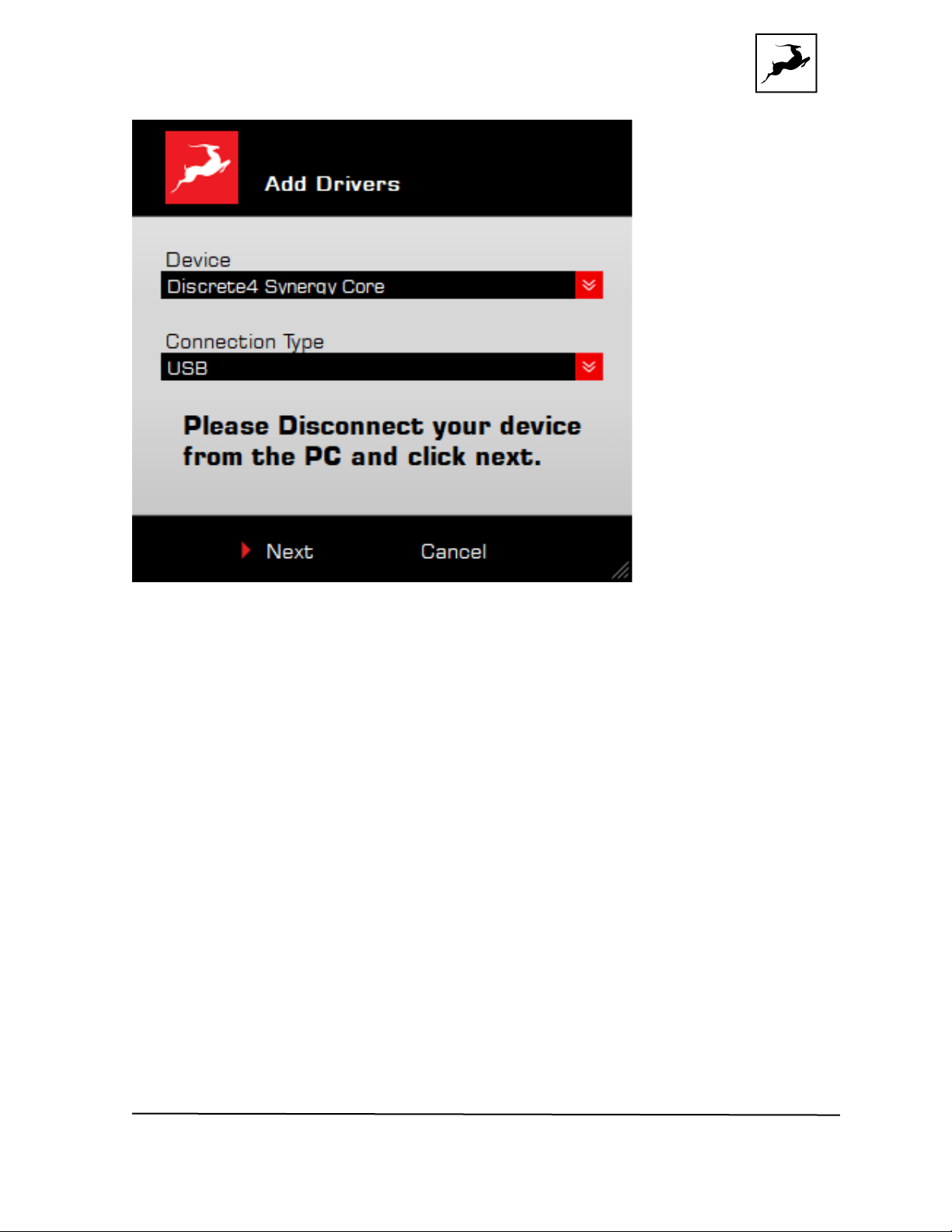
Can't see your device?
If a device is missing from the list, the most common reason is driver conflict. The
Antelope Launcher makes it easy to re-install drivers and troubleshoot. Click "Can't see
your device?" to launch the 'Add Drivers' wizard.
Orion Studio Synergy Core User Manual 15
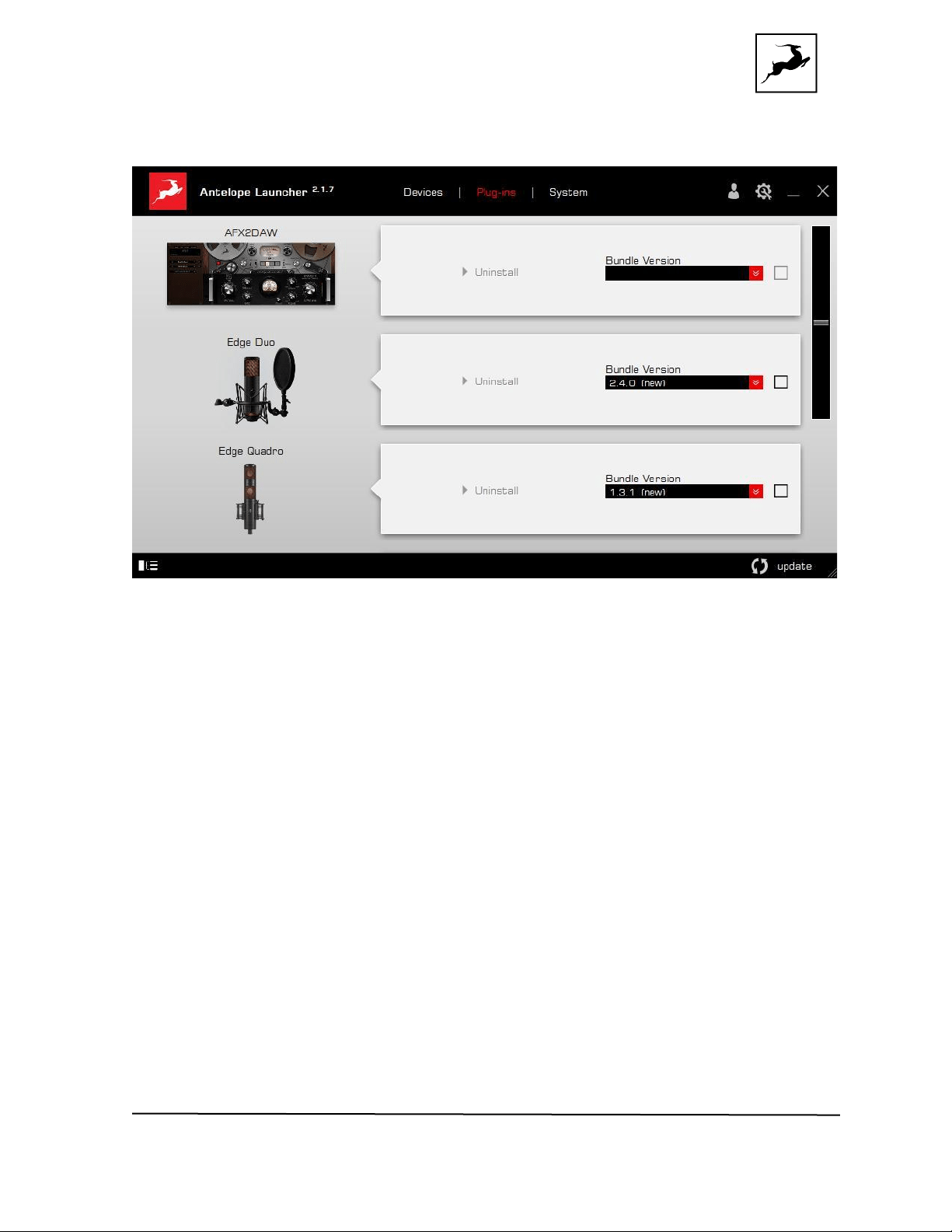
'Plug-ins’ tab
This section lets you install, update, and uninstall Antelope Audio software such as native
mic emulations and AFX2DAW.
By default, the Bundle Version drop-down menus show the most recent software bundle
available for each product. Clicking the menu shows the currently installed software
bundle version and lets you roll-back to an older build.
To update or change the installed software version, choose your desired Bundle Version,
click the check mark next to the drop-down menu, then click the ‘Update’ button.
Orion Studio Synergy Core User Manual 16
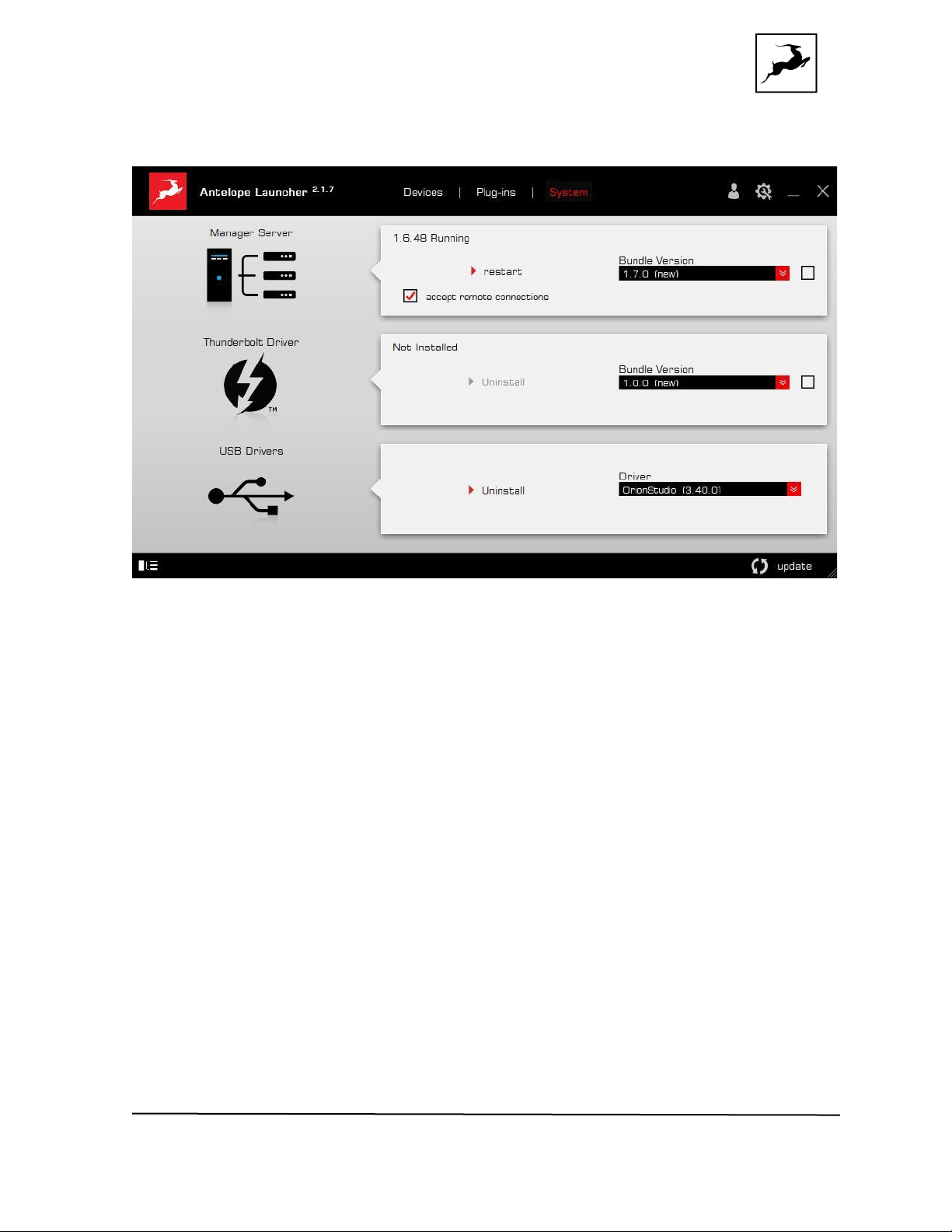
'System’ tab
Here, you can do the following:
● Update or roll-back the Manager Server, USB and Thunderbolt™ Driver versions.
Choose your desired Bundle Version from the drop-down menu, click the check
mark, then click the ‘Update’ button.
● Restart the Manager Server and enable/disable remote connections from other
computers on your network.
● Install the Antelope Audio Thunderbolt™ driver. Choose a Bundle Version from the
drop-down menu, click the check mark, then click the ‘Update’ button.
● Uninstall the Antelope Audio Thunderbolt™ and/or USB driver(s) present on your
system.
Login button
Orion Studio Synergy Core User Manual 17
Click and enter your Antelope Audio username and password, then click ‘Login’. If you
don't have an Antelope Audio account, click ‘Register’ and follow the on-screen
instructions.
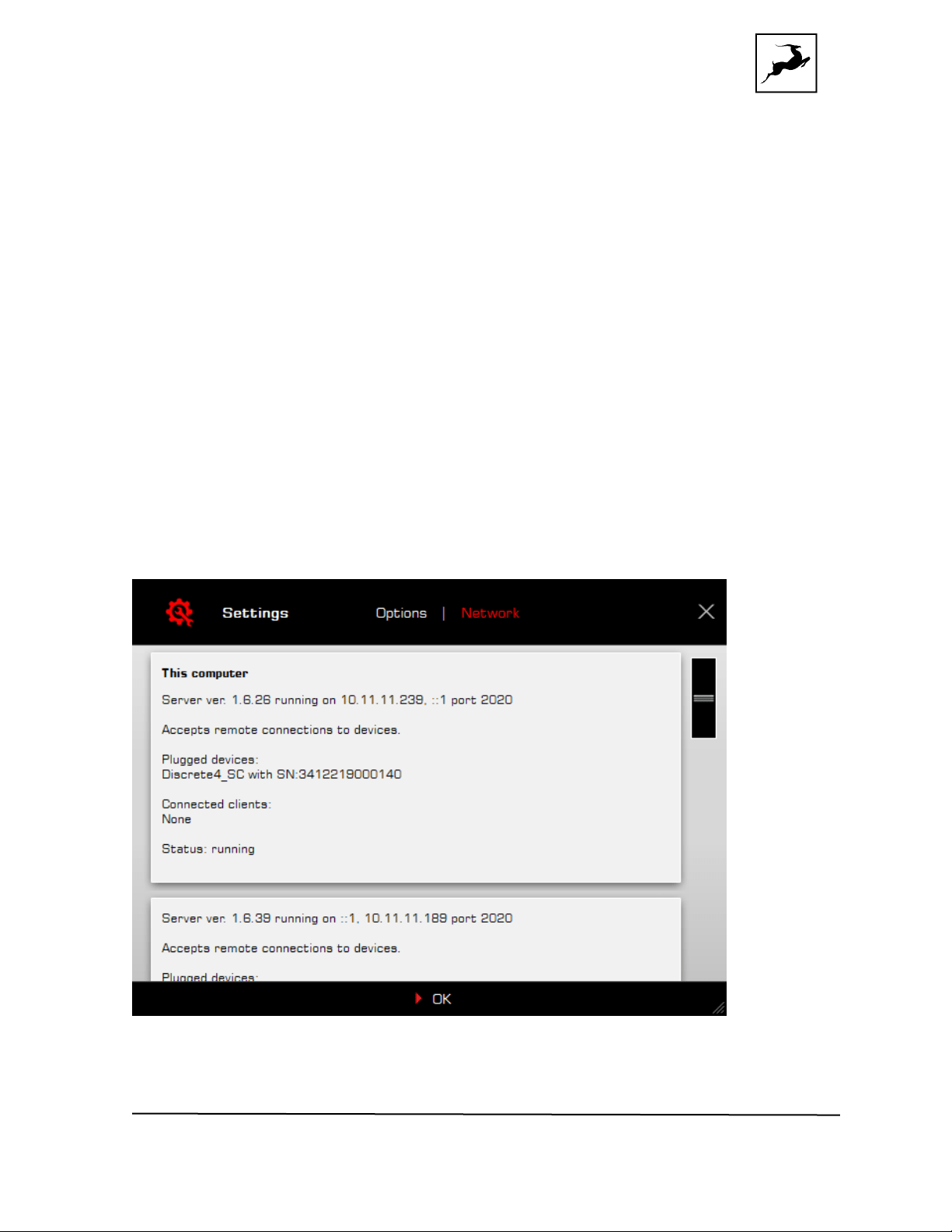
Settings button
Click to open the Settings window.
Here, you can do the following:
Orion Studio Synergy Core User Manual 18
● Click ‘View Logs’ to view, save, and send activity logs to Antelope Audio Customer
Support.
● Click 'Advanced' to enable or disable automatic updates for each of the following:
- Device firmware
- USB Driver
- Control Panel
- Effects
- Thunderbolt™ driver
Make your selection(s) in the drop-down menu(s) and click 'OK'.
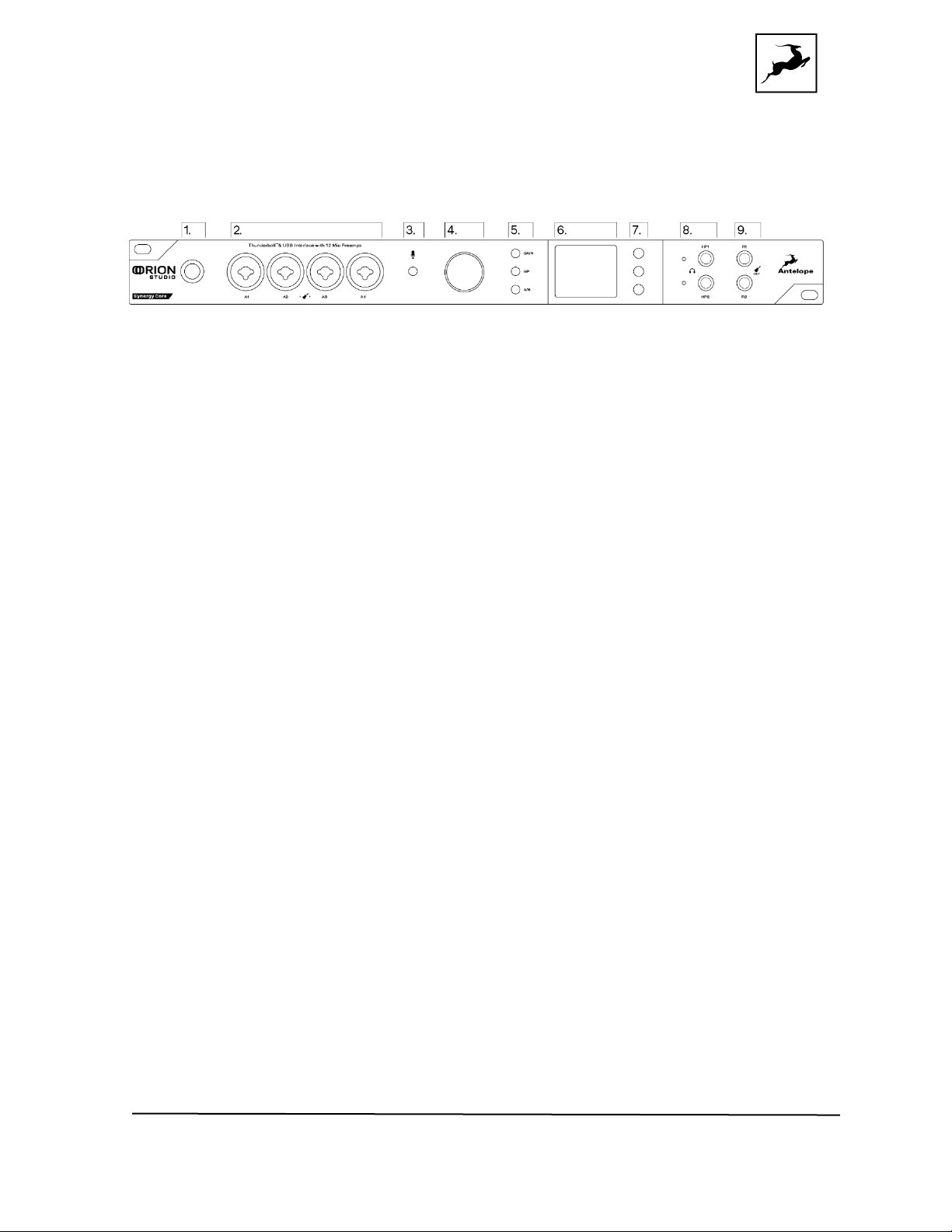
● Click ‘Network’ to view network status and logs.
Orion Studio Synergy Core User Manual 19
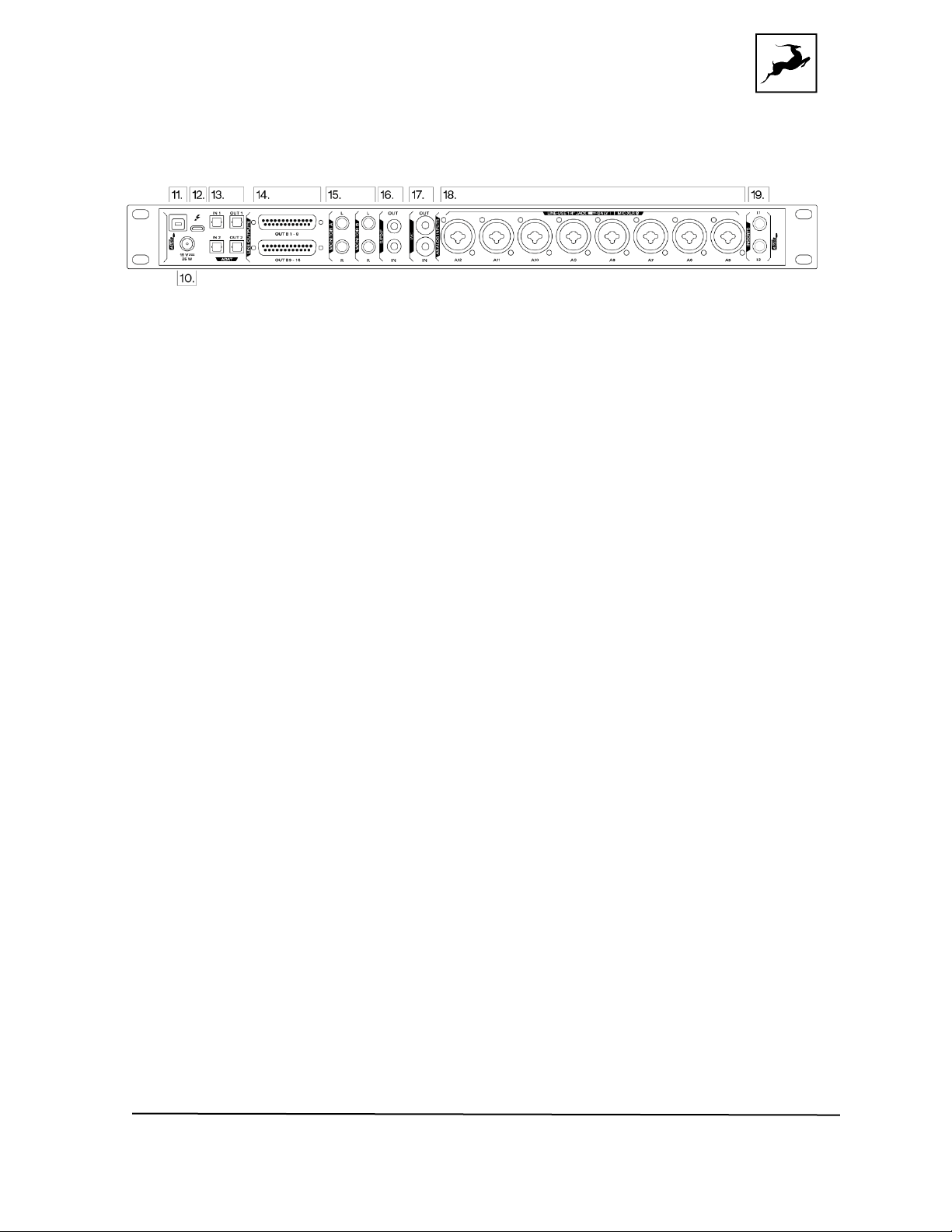
Front panel explained
1. ON/STANDBY BUTTON
Toggles between 'Standby' and 'On' states. Press to power on. Press again to enter
Standby.
Note: Orion Studio Synergy Core will remain in Standby mode as long as it’s connected to
an AC outlet. Unplug the power adapter to completely shut down the unit.
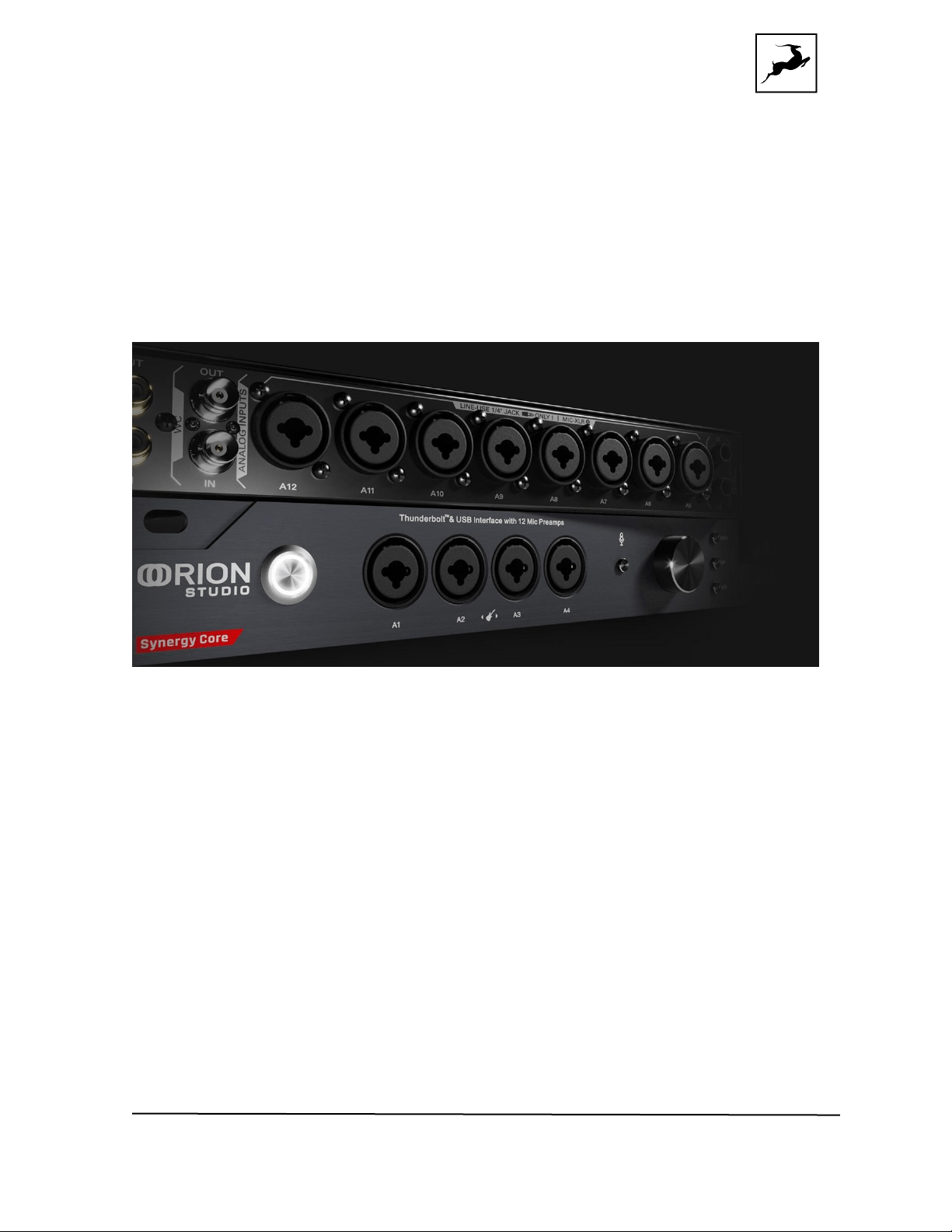
2. FOUR PREAMP/COMBO INPUTS
4 Class-A ultra-linear discrete mic preamps with phantom power on combo XLR inputs.
Switchable between Mic/Line/Hi-Z/Direct from the software Control Panel.
Important! Line-level sources should be recorded over 1/4-inch TS/TRS cables, period.
It’s technically possible to record line-level sources over an XLR connection, but this has
zero benefit and is likely to cause problems. By connecting a line source over XLR, you are
sending line-level signal to a mic preamp expecting a much weaker, microphone-level
signal, thus amplifying an already ‘hot’ signal and degrading the audio. You cannot override
this by choosing ‘Line’ in the software Control Panel.
3. TALKBACK BUTTON
Press to activate the built-in Talkback microphone. Talkback can be routed to the
headphone and/or monitor outputs from the ‘Routing’ tab in the software Control Panel,
or from the Function buttons on the front panel. The latter are explained in this chapter.
4. ROTARY CONTROL
The rotary control is a large-stepped attenuator for gain adjustments and menu
navigation. It has the following modes of operation: turn, press, press-and-hold. By
default, it operates like this:
● Turn clockwise or counter-clockwise to adjust monitor output volume (in dB).

Orion Studio Synergy Core User Manual 20
● Press to quickly mute or un-mute the outputs.
5. GAIN, HP & A/B BUTTONS
● Press the Gain button to adjust gain for all 12 Preamp/Combo inputs. Turn the
rotary control to select the input and press to confirm. Turn to adjust gain (in dB).
Press again to confirm. Press the Gain button to exit.
● Press the HP button to cycle through Headphone outputs 1 & 2 and adjust their
volume with the rotary control. Press again to exit.
● Press the A/B button to cycle through monitor outputs A & B and adjust their
volume from the rotary control.
Note: It is possible to hear output from monitor outputs A & B simultaneously
(concurrent monitoring). The relevant functionality is inside the software Control
Panel.
6. DISPLAY
The display shows various information, such as peak metering, menu options, and
firmware update progress.
Note: There might be a protective film over the display which dims the illumination. Feel
free to remove it.
7. FUNCTION BUTTONS
The three function buttons offer different functionality.
The Top button does the following:
● Press - and keep pressing (without holding) - to view current gain values and
assignments (Mic/Line/Hi-Z/Direct) for Preamp/Combo inputs 1 to 4, 5 to 8, 9
to 12. The penultimate press shows the current clock source and device sample
rate. The final press returns to peak metering and restarts the ‘cycle’.
● Press-and-hold to enter the System Menu.
System menu
Pressing and holding the Top function button enters the System Menu with the following
sub-menus. Turn the rotary control to navigate. Press the rotary control to enter. Press
and hold the rotary control to confirm. Press any of the function buttons to exit.

Orion Studio Synergy Core User Manual 21
Comm. Interface
Allows you to choose between Thunderbolt™ and USB connectivity. Make sure your choice
matches your computer connection.
Device Info
Displays the device’s serial number, hardware revision and firmware version. Useful for
troubleshooting with Customer Support.
Scr Save Time
Choose how long it takes for the screensaver to appear.
Scr Save Style
Choose the screensaver style.
Note: Overlooking the screensaver options may result in screen burn-in if the unit
operates for longer durations. We recommend setting up ‘Scr Save Time’ to the shortest
time period you are comfortable with, and ‘Scr Save Style’ to ‘Black’. This effectively
makes the display turn itself off after a short period of inactivity, which helps prevent
burn-in. Press any button or press/turn the rotary control to exit the screensaver.
Talk Back HP1
Route the Talkback mic input to Headphone output 1. May be On by default. Press the
rotary control to turn off.
Talk Back HP2
Route the Talkback mic input to Headphone output 2. May be On by default. Press the
rotary control to turn off.
Talk Back MON
Route the Talkback mic input to the Monitor Outputs. May be On by default. Press the
rotary control to turn off.
Factory Reset
Perform a factory reset of the unit.
Note: All presets, mixer and FX settings will be lost after factory reset.
Back to the front panel…
The Middle button does the following:
● Press to display current clock source and device sample rate.
● Press-and-hold to enter the Control Menu.

Orion Studio Synergy Core User Manual 22
Control menu
Holding the Middle Function button enters the Control Menu with the following sub-
menus. Turn the rotary control to navigate. Press the rotary control to enter. Press and
hold the rotary control to confirm. Press any of the function buttons to exit.
Clock Source
Set the clock source. The following options are available:
● ‘OVEN’ - Oven-controlled crystal oscillator (internal)
● ‘WC’ - Word Clock input (external)
● ‘S/PDIF’ - digital audio input (external)
● ADAT (2x, 4x) input (external)
● USB. In ‘USB’ mode the unit still uses its internal clock.
Sample Rate
Set the sample rate between 32.0kHz – 192kHz.
Note: Please make sure the device sample rate matches the sample rate in your DAW and
operating system settings.
SR Conversion
Choose if the S/PDIF input will be sample rate-converted to match the sample rate of the
Orion Studio Synergy Core. For example, if you want the interface to run at 192 kHz and
your S/PDIF input is in 44.1 kHz, it will be converted to match the device sample rate.
Peak Meter
Choose the audio source for peak metering. To avoid information repeating, the choices
here are explained in the 'Routing tab – Terminology' section of this manual (page 36).
Monitor Trim
Set the signal trim levels for the monitor outputs (in dBu).
Line Out Trim
Set the signal trim levels for the line outputs (in dBu).
Brightness
Adjust the display brightness.
Back to the front panel…
The Bottom button enters the Presets menu.

Orion Studio Synergy Core User Manual 23
Presets menu
Here, you can load up to five presets with session parameters and device settings. Presets
are stored from the software Control Panel.
● Press the Bottom button to enter the Presets Menu.
● Turn the rotary knob to choose Preset 1 – 5.
● Press the rotary control to load the chosen preset.
Back to the front panel…
8. HEADPHONE OUTPUTS 1 & 2
Two independent stereo headphone outputs on 1/4-inch TRS jacks. The white lights
indicate which output is currently operational.
9. REAMP OUTPUTS 1 & 2
Direct outputs on 1/4-inch mono jacks. For use with guitar amplifiers and other equipment
suitable for re-amping DI tracks. Read the 'Re-amping' chapter to learn more.
Note: You can use the REAMP outputs as Sends for external equipment, such as hardware
processors and effects, though this is ‘off label’ and results may vary. Audio is output at
instrument-level, which is significantly quieter than line-level and typically requires a
preamp for amplification. We recommend using the insert points on the rear panel for
Send/Return configurations instead.
Orion Studio Synergy Core User Manual 24
Rear panel explained
10. DC POWER CONNECTION
For use with the Antelope DC power supply unit only!
11. USB HIGH-SPEED
USB 2.0 Type-B port. Supports up to 24 I/O audio channels.
12. THUNDERBOLT™ 3 PORT
Thunderbolt™ 3 Type-C port. Supports up to 32 I/O audio channels.
13. ADAT I/O
2 inputs and 2 outputs carrying up to 16 I/O audio channels over Toslink fiber optic cables.
Note that
ADAT runs on S/MUX. Standard ADAT audio limits apply:
● Up to 16 I/O channels of 24-bit, 48kHz audio.
● Up to 8 I/O channels of 24-bit, 96kHz audio (over S/MUX).
● Up to 4 I/O channels of 24-bit, 192kHz audio (over S/MUX).
● All ADAT audio is transmitted in 24-bit resolution.
Note: Devices do not need to be powered off for connecting or disconnecting ADAT.
However, you should mute the receiving equipment because a large signal spike will
occur upon connecting.
14. D-SUB 25-PIN LINE OUTPUTS
Two DB-25 breakout cable connectors carrying 8 audio channels each (16 channels in
total). Compatible with TASCAM Standard Pin Layout.
15. MONITOR OUTPUTS (MONITOR A AND MONITOR B)
Two pairs of assignable unbalanced stereo outputs (L/R) on four 1/4-inch mono TRS
jacks.
Note: All analog outputs are impedance-balanced. The monitor outputs, however, are
signal-balanced.

Orion Studio Synergy Core User Manual 25
16. S/PDIF I/O
75ohm S/PDIF connectors for use with compatible equipment over coaxial RCA cables.
17. WORD CLOCK OUTPUT (TOP)
BNC connector to output Word Clock reference signal using a standard BNC cable.
WORD CLOCK INPUT (BOTTOM)
BNC connector to accept Word Clock reference signal from another device using a
standard BNC cable.
18. EIGHT PREAMP/COMBO INPUTS
8 Class-A mic discrete ultra-linear preamps with phantom power on combo XLR
connectors. Switchable between Mic/Line/Direct from the software Control Panel.
Important! Line-level sources should be recorded over TS/TRS cables, period. It’s
technically possible to record line-level sources over an XLR connection, but this has zero
benefit and is likely to cause problems. By connecting a line source over XLR, you are
sending line-level signal to a mic preamp expecting a much weaker, microphone-level
signal, thus amplifying an already ‘hot’ signal and degrading the audio. You cannot override
this by choosing ‘Line’ in the software Control Panel.
Notes:
● Hi-Z instrument inputs are available on the 4 front panel inputs only.
● Inputs 5 to 12 have built-in mic emulations. They are accessed from the
software Control Panel. Read the 'Edge & Verge mic emulations' chapter to
learn more.
19. AD INSERTS
Two ¼” TRS inserts (I1 & I2) for integrating external analog equipment such as dynamics
processors and EQs.
Integrating external analog equipment
Each insert is both an analog input and an output, enabling Send/Return functionality from
a single jack. The inserts are non-routable, hence they aren’t visible in the Routing Matrix.
Insert I1 input is hard-wired to preamp/combo input 1 and Insert I2 input is hard-wired to
preamp/combo input 2. Both preamp/combo inputs are found on the front panel, labeled
A1 and A2.
Workflow

Orion Studio Synergy Core User Manual 26
Incoming analog audio from preamp/combo inputs A1 and A2 is automatically routed and
processed through your external equipment before it’s fed back into the interface to hit
the A/D converters. This is accomplished via stereo Y-cables (L/R 1/4-inch TS connectors
on one end, stereo 1/4-inch TRS connector on the other end). The L/R 1/4-inch TS
connectors hook to your equipment’s input and output connections, the stereo 1/4-inch
TRS connector connects to the AD Insert.
Note: An active audio source must be connected to A1 and/or A2 for the AD Inserts to
function.
Orion Studio Synergy Core User Manual 27
Control panel
Introduction
Welcome to the Orion Studio Synergy Core Control Panel application! Upgraded with a
new stylish design, the Control Panel is more than just an alternative to the front panel
controls. It provides intuitive and comprehensive access to each aspect of the interface's
functionality. This includes settings, inputs, signal routing, audio mixing, effects stacking,
monitoring, metering, and presets.
Although it is possible to substitute the Control Panel for the front panel controls and your
DAW's functionality to a degree, we encourage you to get comfortable with the software
and make the most of your investment. For example, you may find that getting an initial
mix happening in the ‘Mixer’ tab and routing it to your DAW for detailed post-production
is immensely satisfying. Moreover, you will never be stuck figuring out the names of inputs
and outputs in your DAW with everything clearly labeled and color-coded in the Routing
Matrix.
Feel free to get going immediately with the ‘Quick Start’ section as your guide, or skip it
for now and read the entire Control Panel chapter before you touch any virtual knobs and
faders.
Quick start
Let’s begin with some quick examples of essential tasks being accomplished in the Control
Panel.

Orion Studio Synergy Core User Manual 28
Note: These examples do not convey the "correct" or "only" way of accomplishing the
following tasks. They merely illustrate some fundamental logic and offer solutions to the
initial stumbling blocks most often encountered by novice users.
Monitor incoming audio via headphones
Say you want to monitor incoming audio from preamp/combo input 1 via headphones
hooked to HP Output 1. Open the Control Panel and enter the ‘Routing tab’. Drag the
colored number block labeled ‘PREAMP’ 1 onto the pair of blocks labeled ‘HP1’.
Adjust preamp and headphone gain from the Control Panel or the interface's front panel
controls.
Apply Synergy Core FX to incoming audio
Say you want to run audio from preamp/combo input 1 through a custom FX chain while
monitoring the result through your studio monitors hooked to the Monitor A outputs.
Open the Control Panel and enter the ‘Routing’ tab. Drag the colored block numbered 1
from the row labeled ‘PREAMP’ onto the colored block numbered 1 in the row labeled ‘AFX
IN’.
Next, drag the colored block numbered 1 from the row labeled ‘AFX OUT’ onto the pair of
blocks labeled 'MONITOR A'.
Now, click the ‘Effects’ tab. Add your choice FX by clicking the ‘ADD NEW EFFECT’ drop-
down menu. Listen to your FX-processed audio and play around with the FX parameters.
Play guitar through the virtual amps and cabinets, listening from studio
monitors
Connect your studio monitors to the Monitor A L/R outputs on the interface’s back panel.
Next, connect your instrument to preamp/combo input 1 on the front panel. Note that the
four front panel preamp/combo inputs can handle Hi-Z (high-impedance) signals from
instruments with magnetic pickups, such as the electric guitar and bass, whereas the eight
preamp/combo inputs on the back panel cannot. This is important.
Next, open the Control Panel and have a look at the top section. You will notice 12 large
knobs labeled ‘CHANNEL 1 – 12’ in the ‘PREAMPS’ tab. Click the drop-down menu for

Orion Studio Synergy Core User Manual 29
CHANNEL 1 and choose ‘Hi-Z’. Adjust gain by playing guitar while clicking and dragging
the knob. Yes, it’s possible with just one pair of hands. Yes, it’s awkward.
Note: Be careful not to run the input into the red with too much gain. Ideally, your
strongest picking or strumming should cause the meter to run into the yellow.
Now that we’ve gone through all that hard work called ‘gain calibration’, let’s sort out signal
routing. Enter the ‘Routing’ tab. Drag the colored block numbered 1 from the row labeled
‘PREAMP’ onto the colored block numbered 1 in the row labeled ‘AFX IN’.
Next, drag the colored block numbered 1 from the row labeled ‘AFX OUT’ onto the pair of
blocks labeled 'MONITOR A'.
Finally, head to have the ‘Effects’ tab. Click the ‘ADD NEW EFFECT’ drop-down menu and
come up with some amp and cabinet combinations. Adjust the FX parameters, listen to
the different amp and cabinet models, and fun!
Sing with microphone emulations and monitor live with headphones
Connect your headphones to HP1 on the front panel. Connect your Antelope Audio Edge
or Verge modeling microphone to any of the preamp/combo inputs between 5 to 12 on
the rear panel. Note that the Edge Solo and Verge each occupy a single input, whereas
the Edge Duo takes two and the Edge Quadro takes four.
Open the Orion Studio Synergy Core Control Panel and enter the ‘Routing’ tab. Drag the
colored blocks labeled ‘EMU MIC’, with numbers corresponding to the input(s) which your
mic is connected to, onto the colored number blocks labeled ‘HP1’.
Enter the ‘PREAMPS’ tab. Make sure ‘Mic’ is chosen from the drop-down menu(s) for the
input(s) occupied by your microphone and activate 48V phantom power for each input.
Use the Control Panel software or front panel controls to adjust microphone preamp gain
and headphone output volume. Then, enter the ‘PREAMPS’ tab again and click the ‘Mic’
symbol(s) on the first (or only) input occupied by your microphone. It looks like this:
This opens the ‘Mic Emulations’ window. Click and turn the dial to select the emulations
available for your microphone. Note that choosing Edge Duo or Edge Quadro will
automatically ‘link’ the inputs occupied by these microphones. You should be hearing your
voice in your headphones in real-time, with mic emulations applied.
Route audio to your DAW for recording

Orion Studio Synergy Core User Manual 30
Any audio source listed in the Control Panel ‘Routing’ tab can reach your DAW by dragging
its colored number block(s) onto any of the 32 (on Thunderbolt™ connection) COMP REC
or (on USB connection) 24 blocks labeled ‘COMP REC’ . The ‘COMP REC’ blocks should
appear in your DAW as Inputs 1 – 32 (Thunderbolt™) or Inputs 1 – 24 (USB).
This way, you can record ‘dry’ and FX-processed audio on different tracks simultaneously,
output up to four separate mixes in multi-track or 2-channel stereo formats, and monitor
everything from the Control Panel application with the lowest possible latency.
Mouse & keyboard shortcuts
The following features are accessible via mouse & keyboard shortcuts in the Control Panel:
● Return to default value (all knobs and faders):
double-click the knob or fader.
● Change text labels and manually enter gain values:
double-click the text label / gain value.
● Adjust parameter values in smaller increments (all knobs and faders):
Hold Ctrl (Windows) / Command (macOS) and drag.
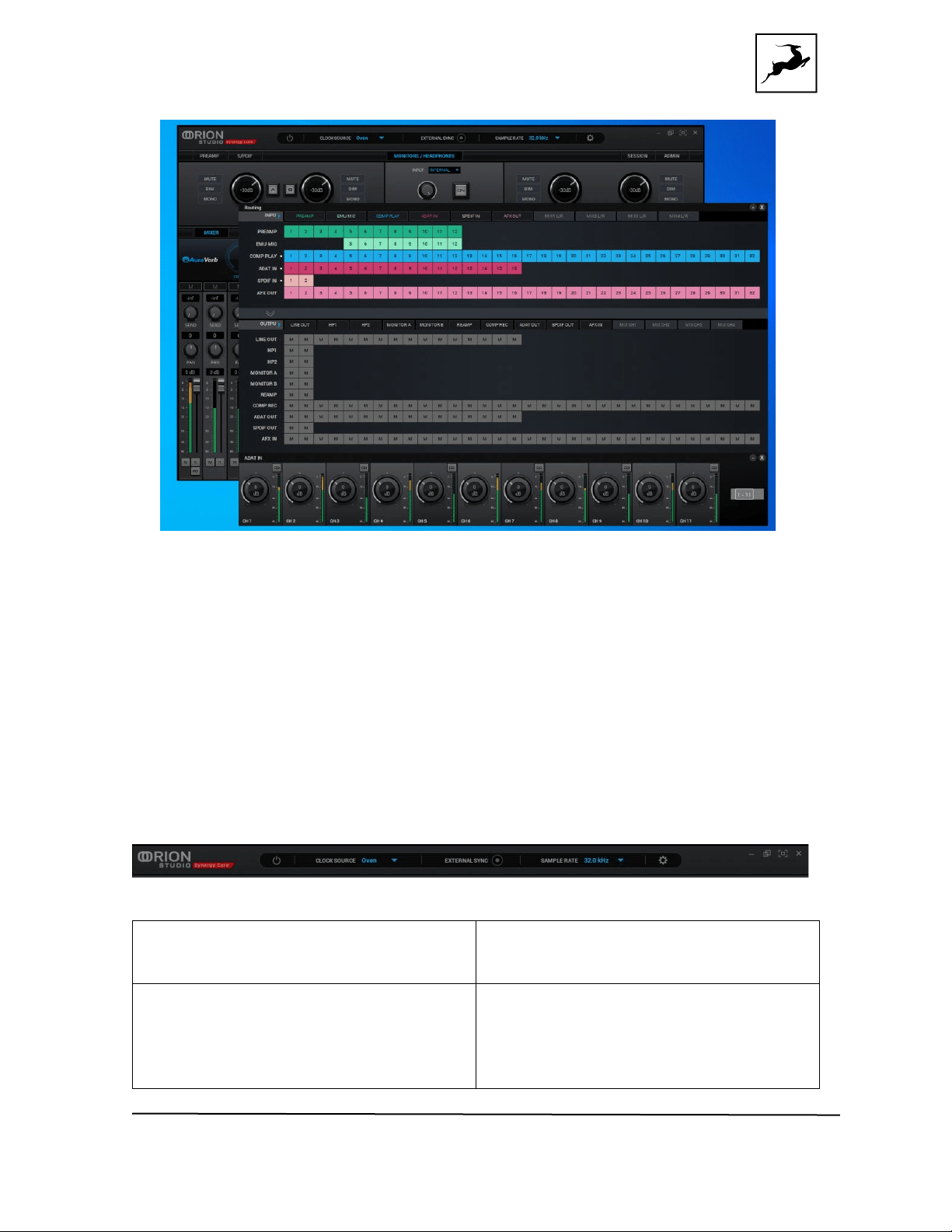
● Detach, move and resize Control Panel tabs:
Right-click (Windows) / Command-click (macOS) to detach tab. Drag with your
mouse to move it. Here is an example with detached and moved tabs:
Orion Studio Synergy Core User Manual 31
● Click any peak meter to clear it.
● Click and drag the corners of the Control Panel application window to freely resize
the interface. Note that black bands will be automatically added to the window to
preserve the screen ratio. This is by design and it's not a bug.
Main view
The Main View is always visible, except in Mixer 1 where it’s replaced by AuraVerb.
It features the following areas of functionality:
Function Strip
Power Button
Click to switch the Orion Studio Synergy
Core between
On/Standby mode
Clock Source
Drop-down menu with the following
options:
● ‘Oven’ - Oven-controlled crystal
oscillator (internal)
● ‘W.C.’ - Word Clock input (external)
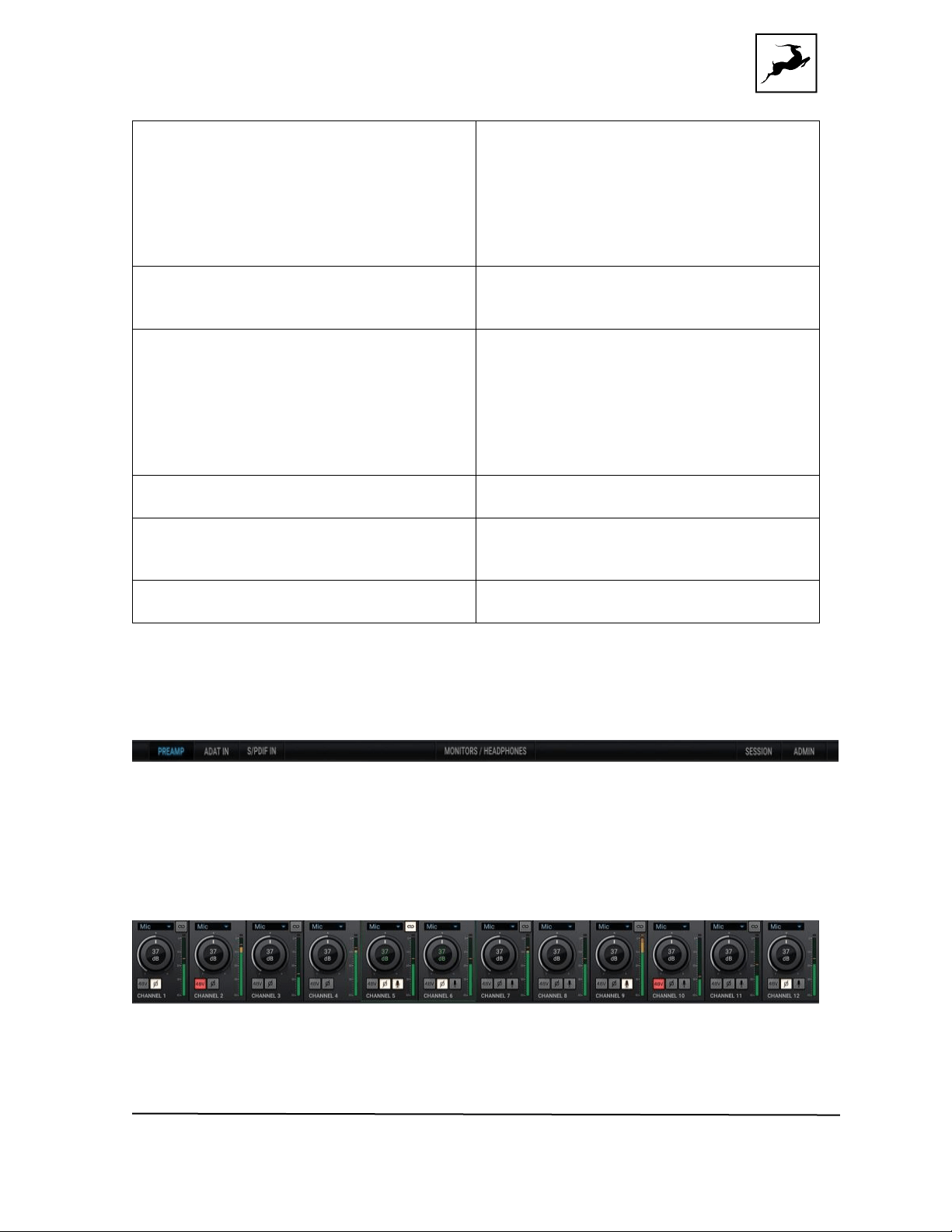
Orion Studio Synergy Core User Manual 32
● ADAT (2x, 4x) - ADAT input(s)
(external)
● S/PDIF - S/PDIF digital audio input
(external)
● ‘USB’. In ‘USB’ mode the unit still uses
its internal
clock.
External Sync Indicator
Lights up when the interface is locked to
an external clock
source.
Sample Rate
Drop-down menu for choosing a device
sample rate
between 32.0kHz – 192kHz. Please make
sure the device
sample rate matches the sample rate in
your DAW and
operating system settings.
Settings Button
.Click 'Settings' to open the Settings
Window
Minimize/Expand/Full Screen
Buttons
Click to minimize, expand or enter full
screen mode for
your Control Panel application.
Close Button
Click to close the Control Panel
application.
Main View Tabs
Choose between PREAMP, ADAT IN, and S/PDIF IN input controls; Monitors &
Headphones output controls; Session saving tab; Admin window . Explanations below:
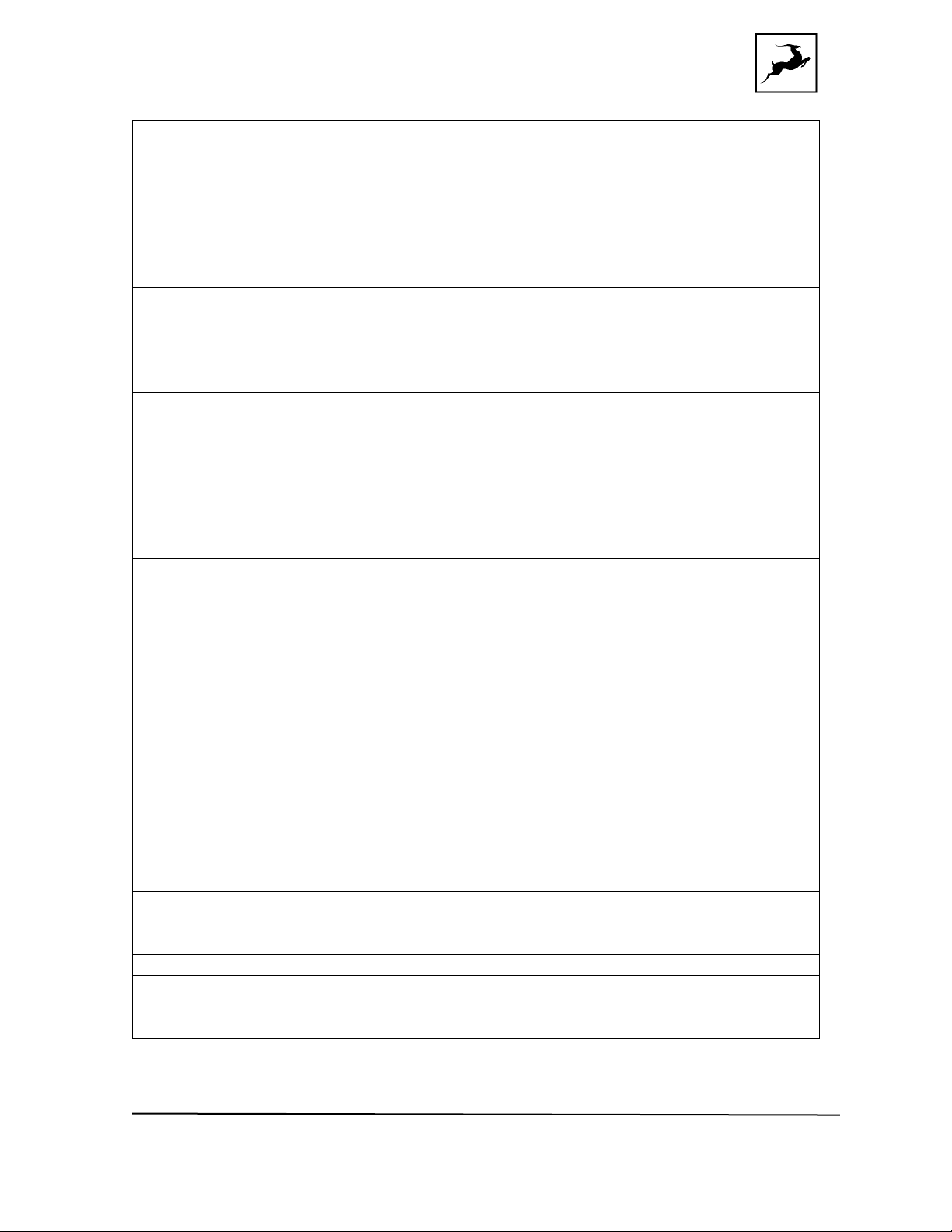
PREAMP Tab
This tab contains controls for the 12 preamp/combo inputs (pictured above).
Orion Studio Synergy Core User Manual 33
Input type
Drop-down menu to choose the type of
incoming
input:
● Mic (microphone)
● Line (line level sources)
● Hi-Z (high-impedance musical
instruments)
● Direct (direct input)
Link button
Links adjacent channels in pairs. Any
change
made to one channel applies the same
exact
change to its adjacent channel.
Gain Knob
Click and drag the knob or double-click
its text
label (inner center) to adjust input gain.
The
available gain ranges are as follows:
● Mic: 0dB – 75dB
● Line: -6dB – 20dB
● Hi-Z: 0dB – 40dB
Input Signal Meter
Visualizes the input signal strength.
Running into
the red ‘clips’ the input because of excess
input
gain. Reduce gain and try again.
Note: Some recordists enjoy the sound of
overdriven mic preamps and mixer inputs
for vocal
and instrument recording. It’s safe to give
it a try,
but don’t push too hard.
Mic Emulations
Click the mic symbol to open the ‘Mic
Emulations’
window. It’s available on inputs 5 – 12 in
‘Mic’
mode.
48V button
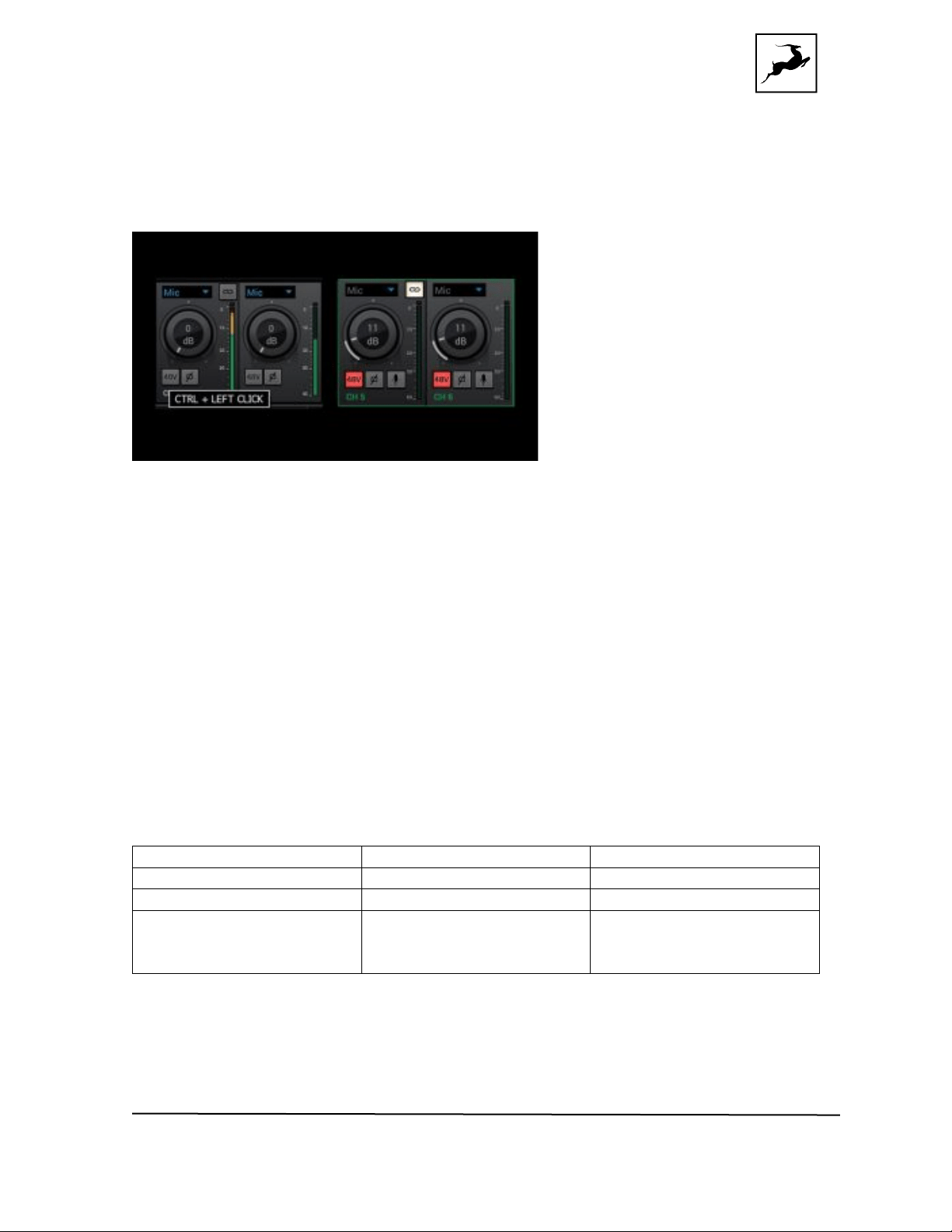
Enable/disable 48V phantom power for
condenser
microphones by pressing Ctrl + Left Click
Phase button
Flips signal polarity.
Text Label
Below the gain knob. Click to change the
channel
name.
Orion Studio Synergy Core User Manual 34
The 48v phantom power button is protected with a tooltip. Press Ctrl + Left Click to
enable phantom power on the selected mic preamp.
Notes :
● The Hi-Z option is available only on Channels 1 – 4 representing the four front
panel preamp/combo inputs labeled A1 – A4.
● The Direct option hard-bypasses the preamp circuitry and takes incoming signal
straight to the A/D conversion stage. It is to be used on line-level and
instrument-level sources only.
● An advantage to Direct recording is that hard-bypassing the preamp circuitry raises
dynamic range and lowers total harmonic distortion (THD) as follows:
Measurement
Regular recording
Direct recording
Dynamic Range
121dB
124dB
THD (+N)
-106dB
-112dB
These values reflect the
mic preamps.
These values reflect the
A/D converters.
Orion Studio Synergy Core User Manual 35
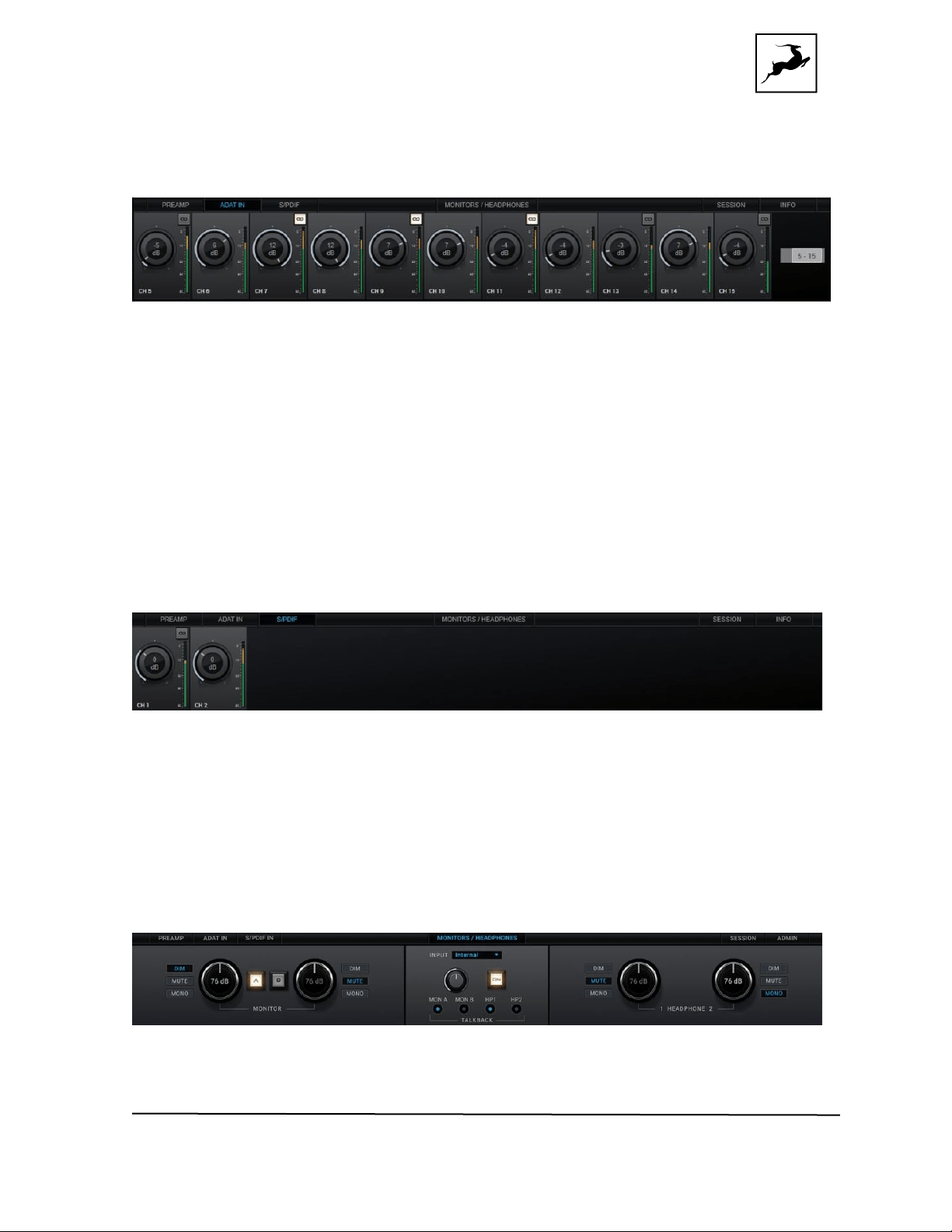
ADAT IN Tab
This tab contains controls for 16 ADAT digital audio inputs with editable text labels, gain
adjustment knobs, Link buttons and signal strength meters. The available input gain range
for all channels is -6dB – 12dB. A switch to the right lets you access ADAT Inputs 13 - 16.
Note that ADAT runs on S/MUX.
S/PDIF IN Tab
This tab contains controls for 2 S/PDIF digital audio inputs with editable text labels, gain
adjustment knobs, Link buttons and signal meters. The available input gain range for all
channels is -6dB – 12dB.
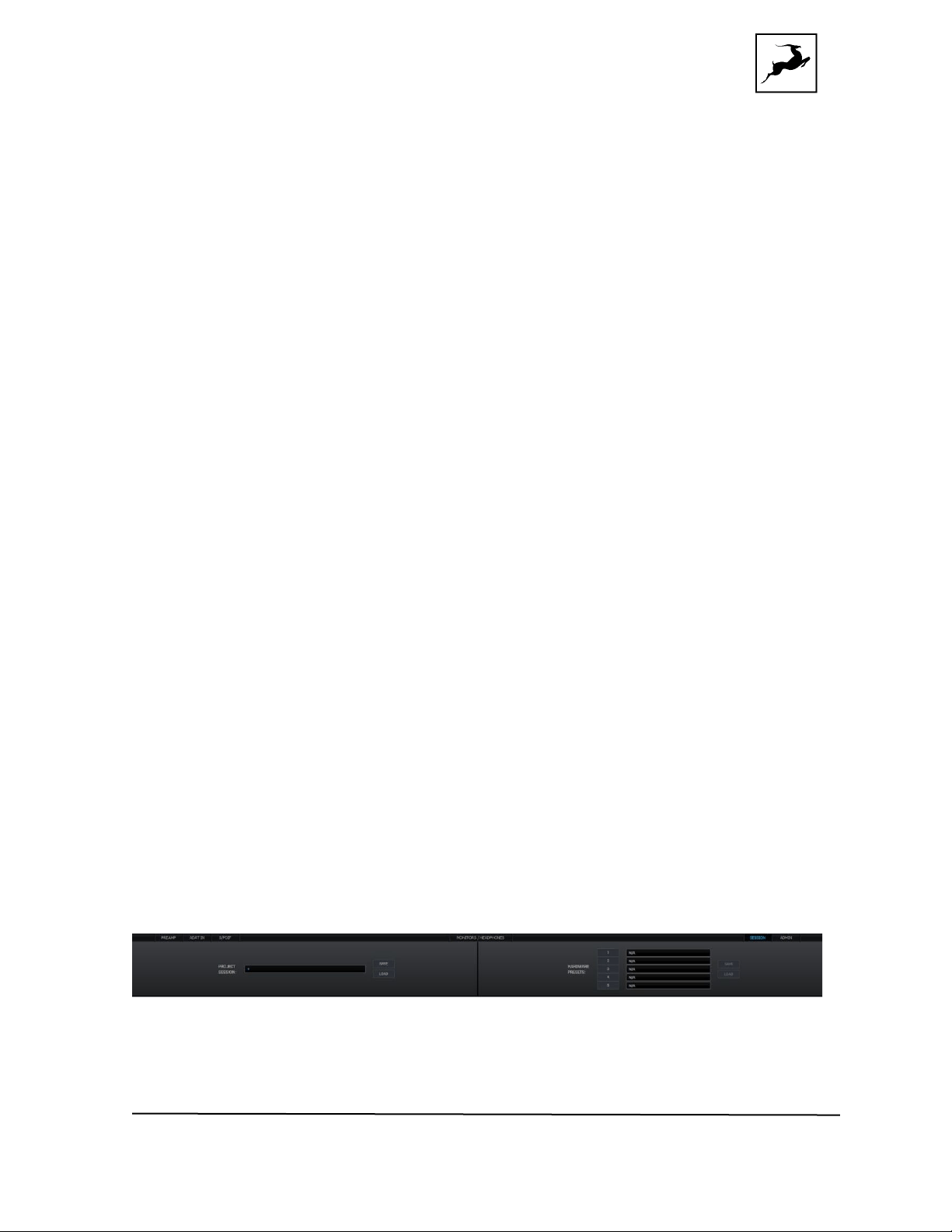
Monitors/Headphones Tab
Orion Studio Synergy Core User Manual 36
This tab has a dedicated monitoring control section for the monitor outputs, and controls
for the headphone outputs, and the integrated Talkback microphone.
Monitor Section
● Click the Dim, Mute, and Mono buttons to downmix, mute, or dim monitor outputs A
and B.
● Click and drag the gain knobs to adjust output gain for monitor outputs A and B.
● Click the 'A' and 'B' buttons to activate or deactivate monitor outputs A and B. Note
that concurrent monitoring from both outputs is possible when both are active.
Talkback Section
● Click the 'Input' drop-down menu to change Talkback input from the internal
microphone to an external microphone connected to Preamp 1 - 12.
● Click and drag the gain knob to adjust Talkback volume.
● Click the 'On' button to activate or deactivate Talkback.
● Click the 'MON A', 'MON B', 'HP1', 'HP2' buttons to route Talkback signal to
any of these outputs.
Headphone Section
Click the Dim, Mute, Mono and buttons to downmix, mute, or dim headphone outputs 1
and 2.
Click and drag the gain knobs to adjust output gain for headphone outputs 1 and 2.
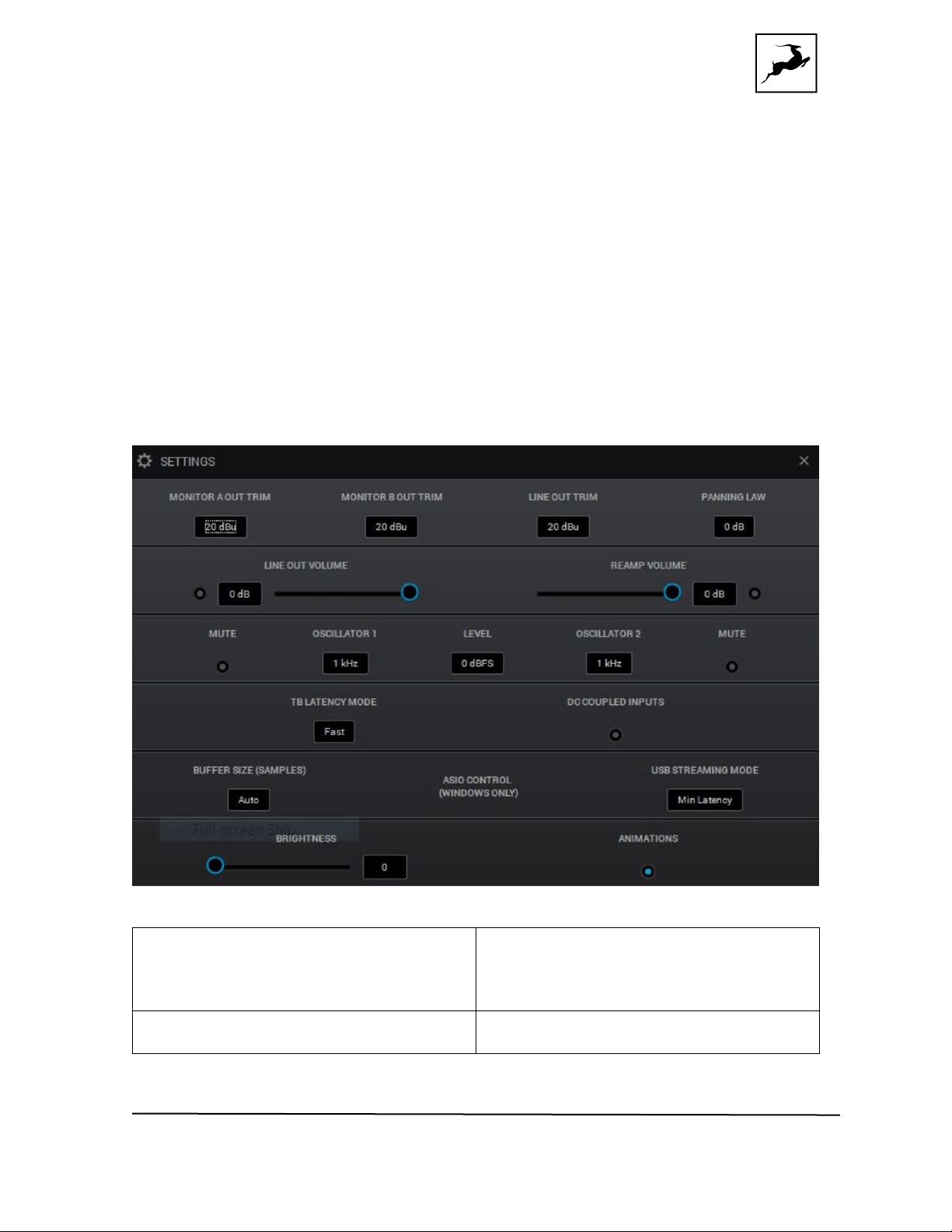
Session Tab
Project session
The Project Session lets you save and load projects. Click the drop-down menu to choose
Orion Studio Synergy Core User Manual 37
a project. Click the ‘Save’ button to save a project. Click the ‘Load’ button to load a project.
Project sessions are complete "snapshots" of entire Control Panel configurations. When
saving a session, you can choose the exact components you want stored and export
Session files for storage and sharing from the Save As button. When loading a session,
you can browse your computer for session files and choose which components to load.
Hardware presets
Use the Save and Load buttons to save or load a preset into the chosen slot.
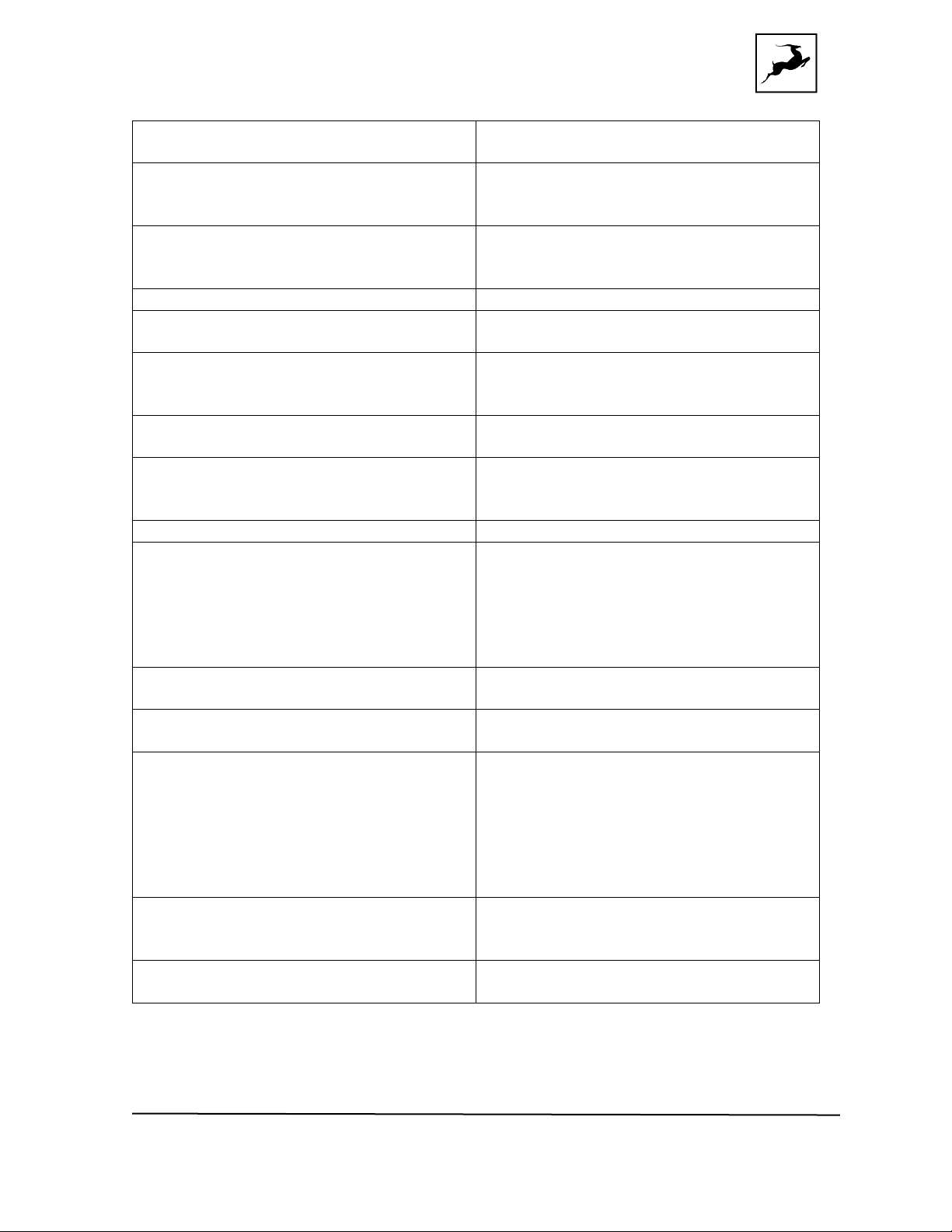
Settings
Click 'Settings' to open the Settings Window with the following options:
MONITOR A OUT TRIM
Choose the signal trim amount (in dBu)
for
Monitor A Outputs from the drop-down
menu.
MONITOR B OUT TRIM
Choose the signal trim amount (in dBu)
for
Orion Studio Synergy Core User Manual 38
Monitor B Outputs from the drop-down
menu.
LINE OUT TRIM
Choose the signal trim amount (in dBu)
for all
line outputs from the drop-down menu.
PANNING LAW
Specify Panning Law compensation
between
0dB (none) to -4.5dB.
LINE OUT VOLUME
Adjust line outputs volume (in dB).
REAMP VOLUME
Adjust REAMP outputs 1 & 2 volume (in
dB).
OSCILLATOR 1
Choose a frequency for the Oscillator 1
test
signal from the drop-down menu.
LEVEL
Choose the output level (in dBFS) for the
oscillator 1 & 2 test signals.
OSCILLATOR 2
Choose a frequency for the Oscillator 2
test
signal from the drop-down menu.
MUTE
Mute Oscillator 1/2 output.
TB LATENCY MODE
Choose the Thunderbolt Latency mode
from
the drop-down menu. Experiment with
the
different modes if you experience audio
glitches, CPU overload, etc.
DC COUPLED INPUTS
Click to switch the analog inputs from
AC-coupled to DC-coupled.
BUFFER SIZE (WINDOWS)
Choose the ASIO buffer size from the
drop-down menu.
USB STREAMING MODE
Choose the USB streaming mode from
the
drop-down menu. Experiment with the
different
modes if you experience audio glitches,
CPU
overload, etc.
BRIGHTNESS
Adjust the front panel display brightness
with
the fader.
ANIMATIONS
Click to enable or disable Control Panel
animations.
Info Tab
Orion Studio Synergy Core User Manual 39
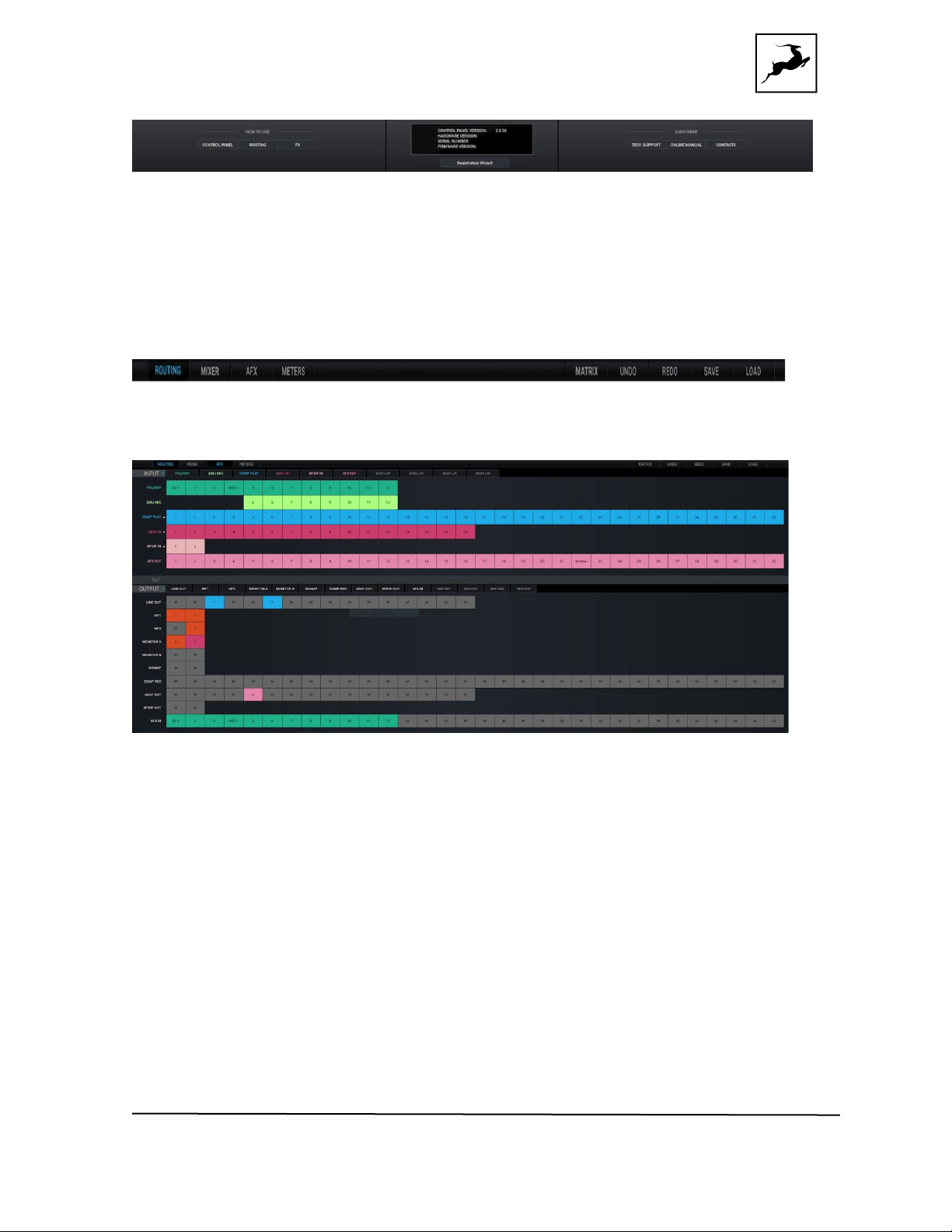
This tab contains helpful links and information useful when troubleshooting. Contact Tech
Support, read the online manual or get access to Antelope Audio’s contacts. It also lets
you launch the Antelope Registration Wizard to register/unregister Antelope Audio
devices from your account and assign/un-assign purchased effects and functionality
between them. The Control Panel, Routing and FX buttons will take you to a webpage,
explaining more about each feature.
Control Tabs
Access the Routing, Mixer, AFX, and Metering control tabs with the control tab:
Routing tab
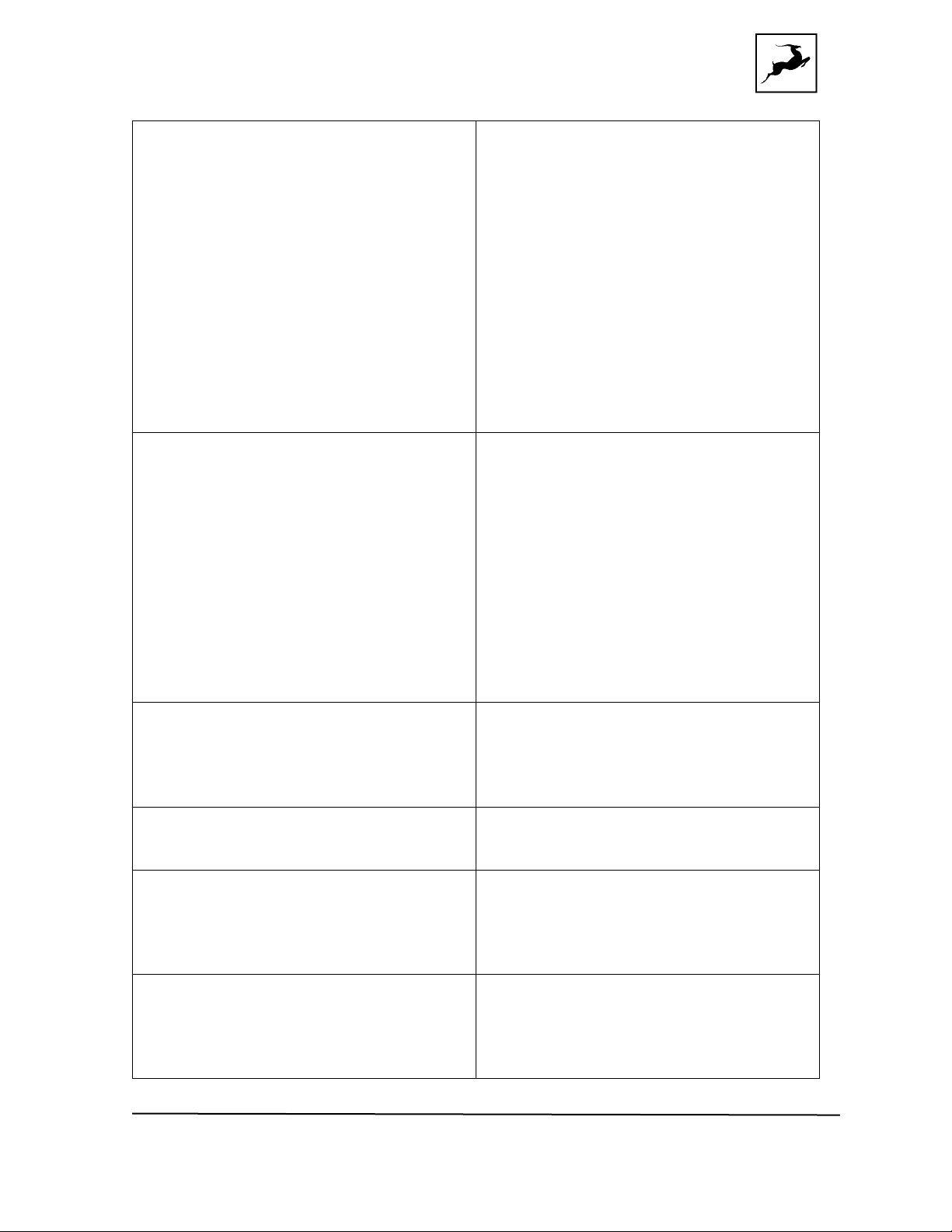
This tab contains the Routing Matrix (pictured above) for analog and digital audio routing.
The Routing Matrix is row-based. Each row has its own unique color and represents a
specific audio in or out with its maximum number of channels.
The Routing Matrix is split in two main sections: Input (Source) and Output (Destination).
Route audio between them by dragging and dropping the colored number blocks. The
following functionalities are also available:
● Click on a number block to highlight the destinations it’s currently routed to.
● Double-click a number block to change its text label.
● Click the colored names of rows (which appear in the horizontal Input and Output
bars) to show and hide any inputs and outputs of your choice.
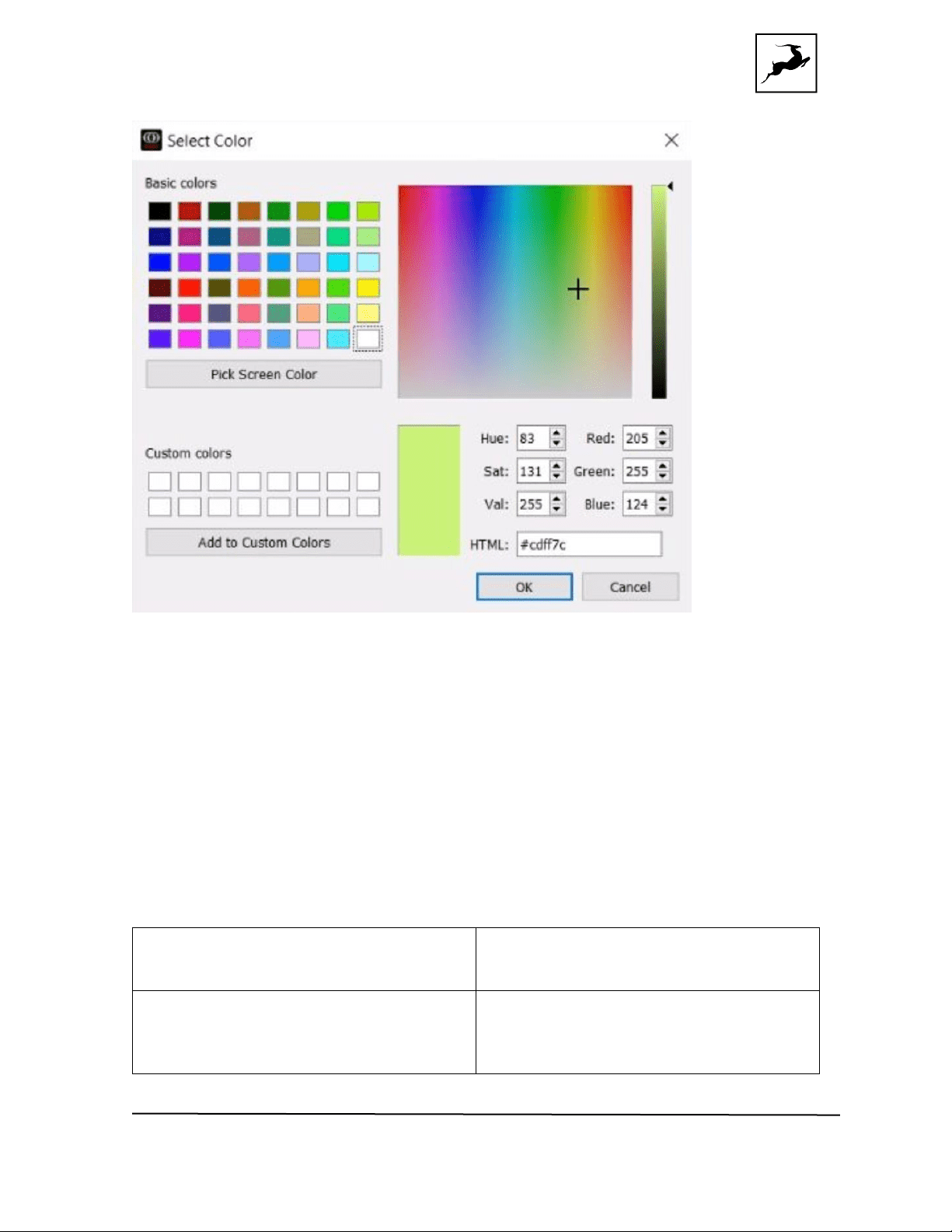
● Create custom-defined color patterns by double clicking the name of the row that
you will be using, and the Select Color window will open.
Orion Studio Synergy Core User Manual 40
● Show/hide channels from the input & output sections by pressing the small arrow
pointing right.
● Use Ctrl/Command + Click and Shift + Click operating system shortcuts to select
multiple blocks.
● An alternative grid-based view is available (‘MATRIX’). Please read the guide.
● Undo/Redo buttons are available.
● Save/Load buttons let you save and load routing setups (as opposed to entire
Sessions).
● Right-click (Windows) or Command + Click (Mac) on the 'Routing' tab button and
drag to have the Routing Matrix in a separate window.
Routing Matrix - Terminology
Input (Source) Section:
PREAMP
This row represents each of the 12
preamp/combo
inputs.
EMU MIC
This row represents mic preamp inputs 5
- 12
with mic emulations applied to incoming
microphone audio. This offers some
Orion Studio Synergy Core User Manual 41
interesting
possibilities, such as:
● Simultaneous monitoring and recording
of
dry microphone audio from the ‘PREAMP’
row and mic emulation audio from the
‘EMU MIC’ row on separate audio tracks
in your DAW – with and without Synergy
Core FX added on top.
● Setting up multiple monitoring mixes,
e.g.
‘dry’ mix for the recording engineer and
‘mic emulation’ mix for the performing
artist, with different FX chains on all mix
channels.
COMP PLAY
This row represents DAW 'Outputs 1 - 32'
(Thunderbolt™) or DAW 'Outputs 1 - 24'
(USB).
This is where you receive audio from your
DAW.
Create a new track in your DAW and
assign the
output with matching number - e.g. DAW
'Output
1' = 'COMP PLAY' 1.
This row also represents all computer
audio,
such as media playback, YouTube, etc.
ADAT IN
This row represents up to 16 ADAT
optical audio
inputs, found on 2 ports of 8 channels
each. Note
thatADAT runs on S/MUX.
S/PDIF IN
This row represents 2 channels of
incoming stereo
S/PDIF audio over coaxial RCA cable.
AFX OUT
The AFX OUT row (‘AFX’ short for
'Antelope FX')
represents up to 32 mono audio channels
with
Synergy Core FX applied.
Low Latency Mixer Outputs
The ‘MIX1 L/R’ to ‘MIX4 L/R’ rows
represent the
four 2-channel stereo outputs from the
four
software mixers in the ‘Mixer’ tab.
Orion Studio Synergy Core User Manual 42
Output (Destination) Section:
LINE OUT
This row represents 16 line outputs over
two D-Sub
25-pin connectors (TASCAM Standard
Pin Layout).
Each D-Sub connector provides 8 mono
audio
channels.
HP1
This row represents Headphone output 1
as two
mono (L/R) channels.
HP2
This row represents Headphone output 2
as two
mono (L/R) channels.
MONITOR A
This row represents Monitor A output as
two mono
(L/R) channels.
MONITOR B
This row represents Monitor B output as
two mono
(L/R) channels.
Note: These mastering-grade outputs
boast the
highest dynamic range in the system.
REAMP
This row represents the two mono
REAMP outputs,
used for sending DI audio tracks for re-
amping
through guitar amplifiers and other
suitable
equipment.
COMP REC
This row represents DAW Inputs 1 – 32
(Thunderbolt™) or DAW Inputs 1 – 24
(USB). This
is where you send audio to your DAW for
recording. To record from a ‘COMP REC’
output,
route audio to it from the ‘Routing’ tab.
Create a
new track in your DAW and assign the
input with
the matching number - e.g. 'COMP REC' 1
= DAW
'Input 1'.
Orion Studio Synergy Core User Manual 43
ADAT OUT
This row lets you route up to 16 mono
audio
channels to the ADAT outputs (2 ports of
8 mono
audio channels each). Note thatADAT
runs on
S/MUX.
S/PDIF OUT
This row lets you route 2 audio channels
to
S/PDIF-compliant equipment over coaxial
RCA
cable.
AFX IN
The AFX IN row (‘AFX’ short for 'Antelope
FX') lets
you route audio into the Synergy Core FX.
You can
route up to 32 mono channels and stack
up to 8 effects on each, independent of
sample rate.
Synergy Core FX are found in the ‘Effects’
tab.
Note: You must route at least one signal
here
before any effects are being applied.
MIX CH1 - CH4
The ‘Mixer’ tab is home to four low-
latency Direct
Monitoring mixers with 32 inputs each.
This row
lets you route audio to them.
If you ever find yourself struggling with the Routing Matrix for some reason, do not
hesitate to contact our
Customer Support team over phone, live chat and our ticket
system. You can also visit
Antelope Audio on YouTube and explore our video tutorials,
or join the
Antelope Audio Users Facebook group and ask for advice.
Orion Studio Synergy Core User Manual 44
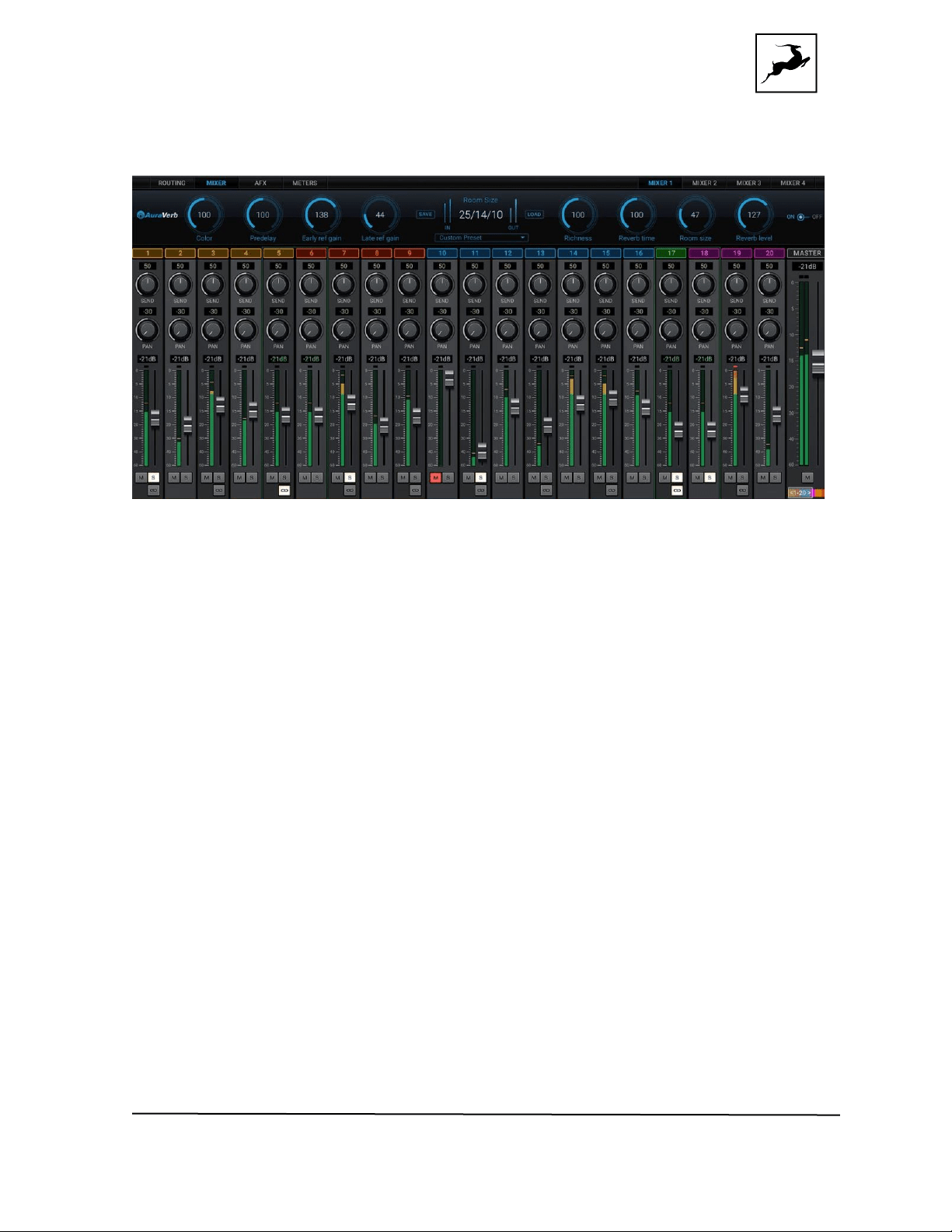
Mixer tab
The Mixer tab is home to four 32-channel software mixers. Each channel is equipped with
Pan, Volume, Solo, and Link controls (on odd-numbered channels), as well as metering.
The Master channel has Volume and Mute controls.
Note the colored sliders above and below the Master fader. Drag it left and right to scroll
horizontally between mixer channels 1 – 32.
Limitations
● There is no grouping/bus/sub-mixing functionality, but the four full-fledged mixers
give plenty of space to set up sub-mixes (e.g. drum bus, artist headphones)
alongside your main mix.
● Due to technical reasons, we cannot offer volume automation inside the mixers at
this time. Synergy Core FX automation is possible in your DAW with AFX2DAW.
● MIDI control is not supported.
Mixer 1 has AuraVerb available as a Send effect for monitoring purposes. Turn the Send
knob on an audio channel to hear the reverb. The mixers are otherwise identical.

Orion Studio Synergy Core User Manual 45
AuraVerb
AuraVerb provides richness and color using a special new approach and a unique
algorithm. The reverb features eight different controls, including a ‘Color’ parameter to
create everything between darkened textures to bright, sizzling presence. In addition,
there are 24 presets done by award-winning audio engineer & producer Brian Vibberts.
The following parameters are available in AuraVerb:
Color
The Color control lets you adjust the overall tone of the reverb. On “0” the space created
is darker, like a lushly carpeted area. At “100” the reverb is at its brightest, which can add
some ‘sizzle’ to a lead vocal, for example.
PreDelay
Common for most reverbs, the predelay allows you to create a bit of space between the
source and the onset of reverb. This happens by controlling the amount of delay
time that precedes the initial sound from the reverb. This parameter is used to place the
reverberated signal later in time with respect to the unprocessed signal.
Natural settings for this are based on the size of the environment and range from 0 to 32
milliseconds. Fine adjustment of this parameter with respect to the tempo of the song or
dramatic timing of the piece can help set the feel of the reverb within the mix.
Early Reflection Gain
This is the linear gain value for all early reflections. These reflections are perceptually
grouped with the direct sound when set at lower levels, and can nicely thicken a track
when increased.
Late Reflection Delay
Among other things, AuraVerb calculates reflected energy from the side walls and ceiling
of the virtual space. Late Reflection Delay controls the delay of these bursts of reflections,
either creating echoes or supporting the spatial impression of the simulated acoustic
space.
Richness
Richness controls the complexity of the reverb envelopment and dampening nuances. At
“0” there is less dampening and a brighter decay. This sound is light or airy, but by
increasing the Richness, you can add a sense of spaciousness to the sound and smoothly
increase reverb time for lower frequencies.
Reverb Time & Room Size
Orion Studio Synergy Core User Manual 46
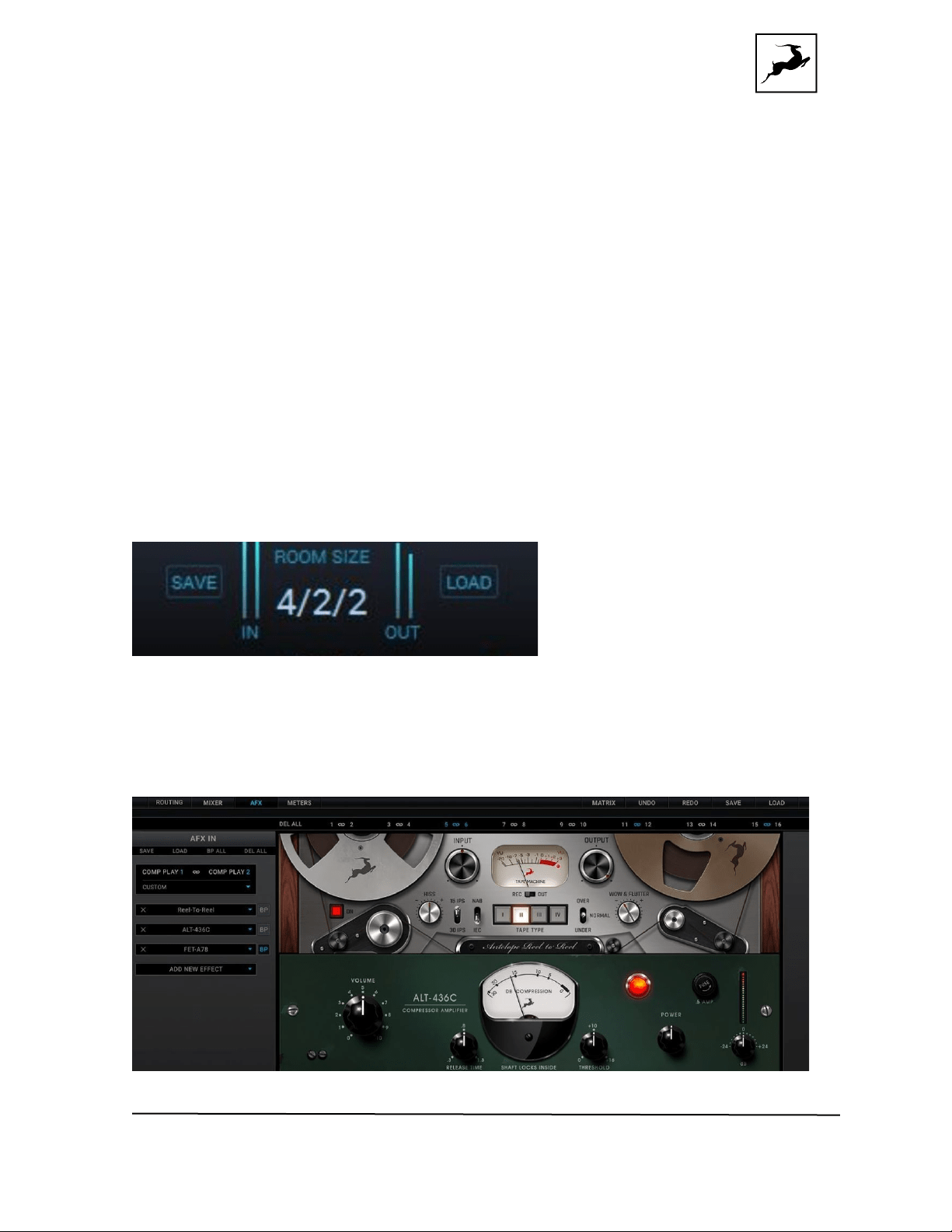
Reverb Time controls the length of decay, while Room Size increases the virtual space
dimensions. The perceived decay time will also be affected by Richness and Color on
sources with a lot of high frequency content.
Generally, as the size of the space increases, the Reverb Time will also increase.
Setting Reverb Time to 50% gives a natural sounding tail for all room sizes. Interesting
big spaces or subtle ambience reverbs can be created by setting Reverb Time unusually
high or low with respect to the Room Size parameter.
Output Level
This is the output level control of the reverb. Since inputs for AuraVerb are assigned to
Send knobs on Mixer 1’s channels, we recommend balancing the channel volume
levels from the Send controls and using Output Level to adjust the amount of reverb in
the Master bus.
REVERB FX ON/OFF Switch
Use it to enable and disable AuraVerb.
Preset Manager
Preset Manager lets you save and load presets. Click the drop-down menu to choose a
preset. Click the ‘Save’ button to save a preset. Click the ‘Load’ button to load a preset.
Effects tab
The first thing that stands out in the Effects tab is the new and improved layout of the
Orion Studio Synergy Core User Manual 47
channel strip. Apply up to 8 Synergy Core effects per mono audio channel for a total of
32 channel strips and up to 256 FX instances, independent of sample rate.
Note: AuraVerb is only available as a Send effect in Mixer 1.
FX Basics
● Route audio to the ‘AFX IN’ row inputs in the ‘Routing’ tab.
● Click the audio input (or linked pair) you want to work on:
● ‘Link’ buttons are available for each pair of inputs. Linking two inputs means the
exact same FX processing is applied to both. Names of inputs and linked inputs
are shown immediately above the Presets drop-down menu on the left.
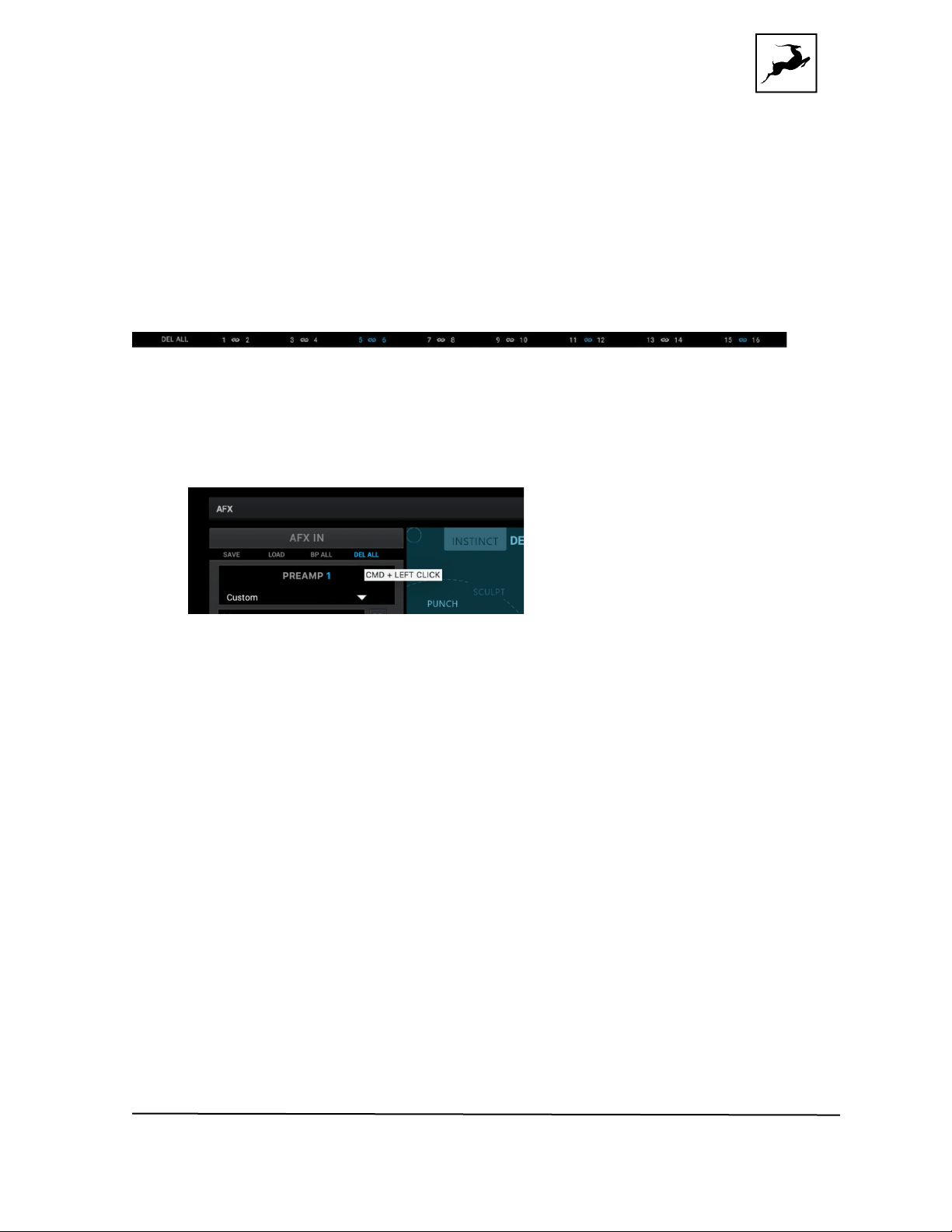
● The ‘DEL ALL’ button clears all FX racks for all audio channels. This function is
protected with a tooltip: macOS (CMD + Left Click) & Windows (Ctrl + Left Click
● Click the ‘ADD NEW EFFECT’ drop-down menu to choose and add effects. Their
instances will appear in the FX Rack to the right. The list on the left lets you drag
to re-order.
● Use the ‘SAVE’ and ‘LOAD’ buttons to store FX chains.
● Use the ‘BP ALL’ and ‘DEL ALL’ buttons to bypass or delete all FX on the current
channel.
● Individual ‘BP’ (bypass) buttons are available next to each effect on the left side.
● Hold Ctrl (Windows) or Command (Mac) and drag to adjust FX parameters in
smaller increments.
Notes:
● Manuals for the equalizers and compressors are available here.
● The Antelope Audio AFX2DAW plug-in makes it possible to use Synergy Core
FX inside your DAW. Please visit the AFX2DAW product page for more
information.
FX List
Orion Studio Synergy Core User Manual 48
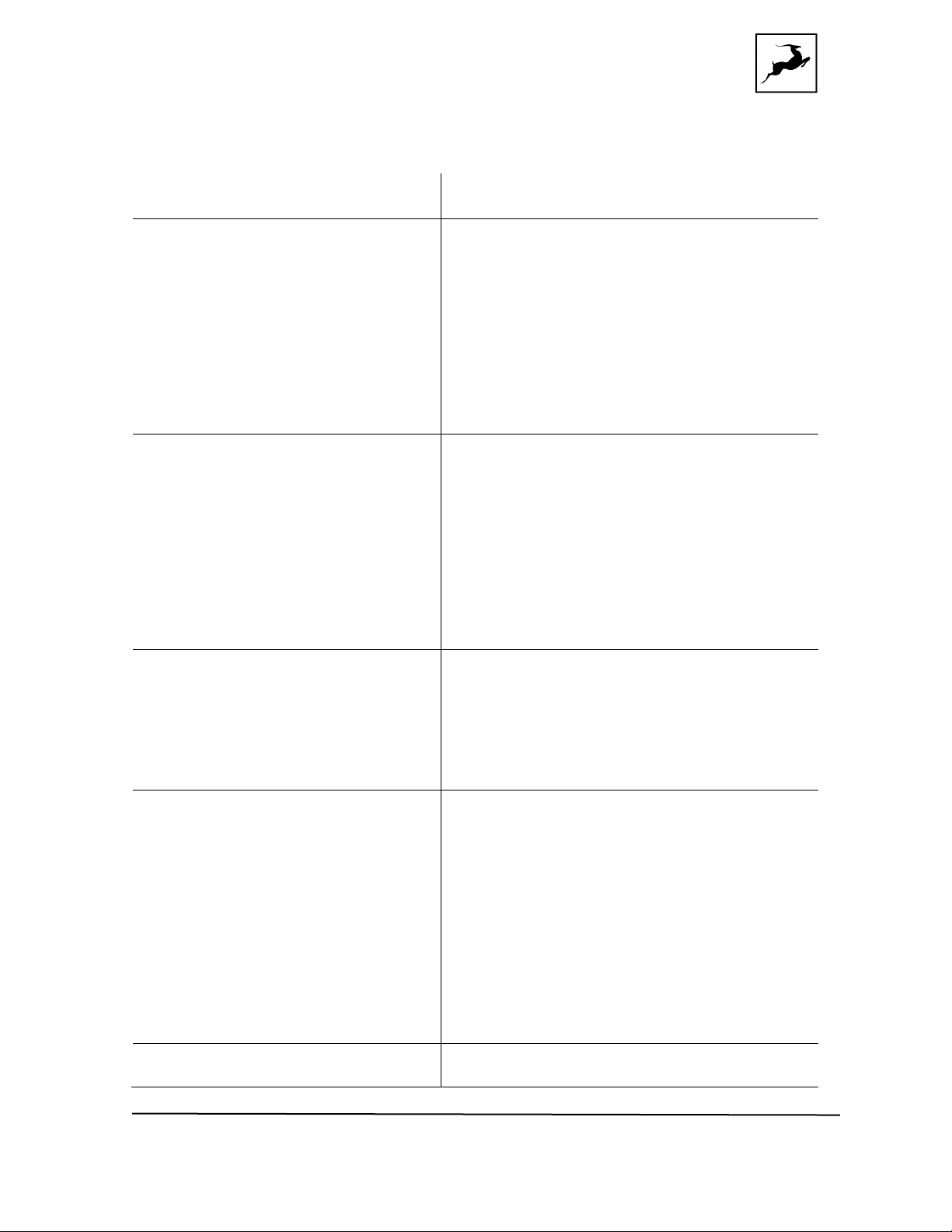
Orion Studio Synergy Core ships with a library of 51 Synergy Core effects. The following
products are included:
MIC PREAMPS
1. Gyraf Gyratec IX
2. BA-31
GUITAR AMPS
3. Plexi 59 (UK)
4. Bass SuperTube VR
5. Darkface 65 (US)
6. Top30 (UK) Bright
7. Tweed Deluxe (US)
8. Overange 120 (UK)
9. BurnSphere (DE) Lead
10. Marcus II (US) Lead
11. Modern (US) CH3
12. Rock 75 (UK)
13. Rock 22.10 (UK)
GUITAR CABINETS
14. Darkface 65 2x12
15. Top30 2x12
16. Modern 4x12
17. Green 2x12
18. Vintage 4x12
19. Green 4x12
20. Caliper 50 1x10
21. Bluelux 1x12
22. Clst 1x12
23. England 4x12
24. Bass Tube 1x15
VINTAGE COMPRESSORS &
LIMITERS
25. VCA160 (Compressor / Limiter)
26. Stay-Levin (Tube Compressor)
27. FET-A76 (FET Compressor)
28. X903 (Compressor / Limiter)
29. ALT-436C (Tube Compressor)
30. FET-A78 (FET Compressor / Limiter)
31. SMT-100A (Tube Compressor)
VINTAGE EQs
32. VEQ-1A (Tube Equalizer)
33. VMEQ-5 (Tube Mid-Range Equalizer)
34. BAE-1023 (3-band Vintage EQ)
35. NEU-PEV (Passive Vintage EQ)
36. NEU-W492 (5-band Vintage EQ)
37. NEU-W495 (3-band Vintage Mastering EQ)
38. VEQ-4K BROWN (Legendary Vintage EQ)
39. VEQ-4K ORANGE (Legendary Vintage EQ)
40. VEQ-4K PINK (Legendary Vintage EQ)
41. VEQ-STU 089 (Vintage EQ)
42. VEQ-STU 169 (Vintage EQ)
43. VEQ-STU 900 (Vintage EQ)
44. VEQ-HLF (Passive High/Low Filter)
REVERB
45. AuraVerb
Orion Studio Synergy Core User Manual 49
UTILITY EFFECTS
46. PowerFFC (Compressor)
47. Power EX (Expander)
48. Power Gate (Gate)
49. Master De-Esser (De-Esser)
50. Clear Q (Parametric EQ)
51. A-Tuner (Guitar Tuner)
More information about each effect can be found
here. Additional FX can be purchased
from the Antelope Audio website.
Meters tab
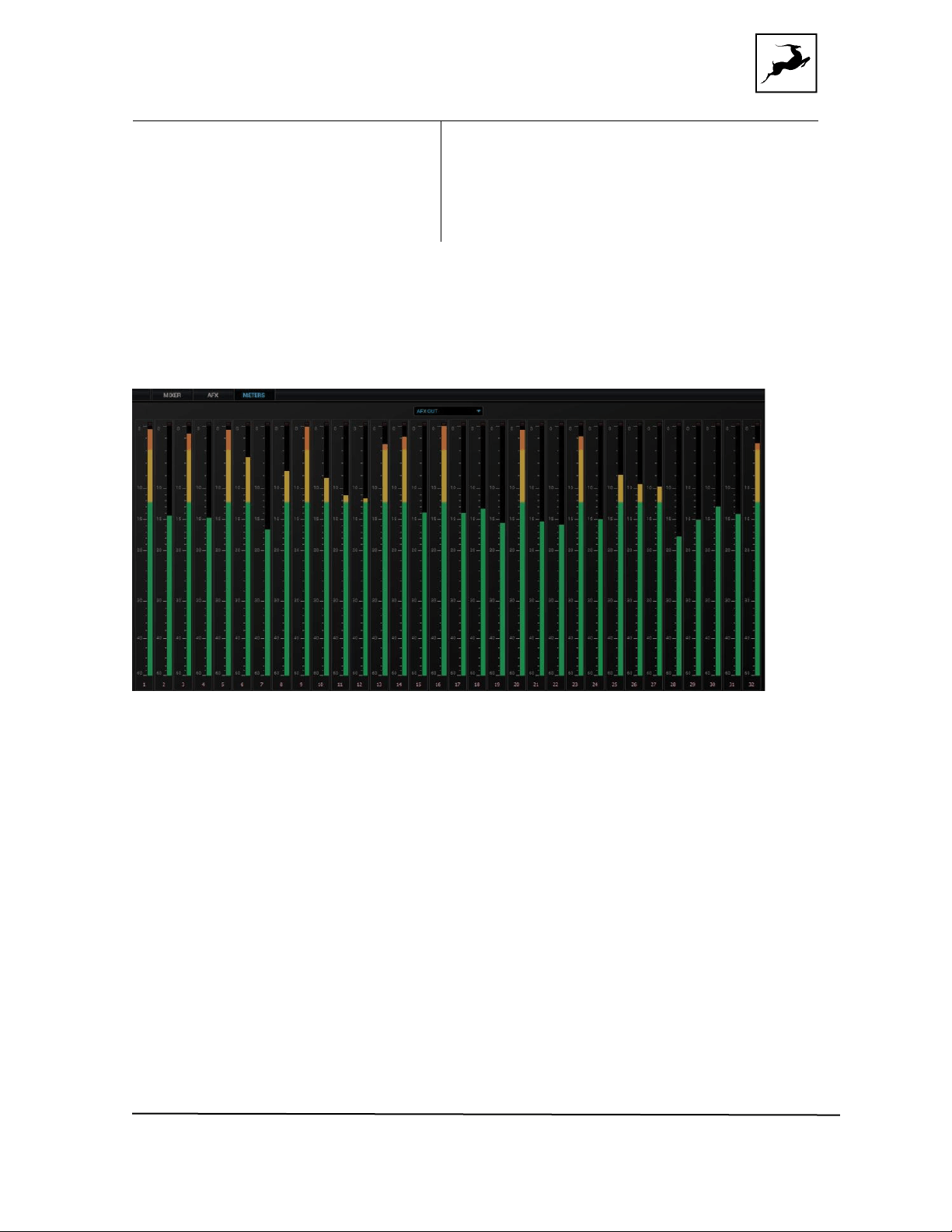
The Meters tab provides up to 32 individual volume meters for each row from the
‘Routing’ tab, selectable from the drop-down menu. Note that you can right-click
(Command + Click on a Mac) to detach the Meters tab and have it in a separate window.
Guitar Amps & Cabs
Among everything else it does, the Orion Studio Synergy Core rocks! A suite of 11 guitar
amps and matching cabinets lets you monitor and record the roar of your electric guitar
in real-time. There’s a bass rig in there too, so plug-in and get slappin’! If you don’t play
guitar, but like the sound of cooked-up tubes and speaker cabinets pushing air, route any
audio into these bad boys and check what happens!
Guitar amps and cabs are used like almost any other Synergy Core effect. Here are the
basics:

Orion Studio Synergy Core User Manual 50
1. Connect your electric guitar or bass to one of the four preamp/combo inputs on the
device’s front panel using a standard 1/4-inch TS instrument cable.
2. Open the Control Panel application and head to the ‘PREAMPS’ tab. Click the drop-
down menu for the relevant input and choose ‘Hi-Z’. Adjust input gain as you play the
instrument, careful not to run the meter into the red.
3. Enter the ‘Routing’ tab and drag the colored number block corresponding to your
‘PREAMP’ input onto a block from the row labeled ‘AFX IN’.
4. Drag the ‘AFX OUT’ block that corresponds to your ‘AFX IN’ block (same number) onto
the output(s) you want to monitor and record from.
5. Enter the ‘Effects’ tab. Click the input which corresponds to the ‘AFX IN’ block. Click
the ‘ADD NEW EFFECT’ button to choose an amp first, then click again and choose a
cabinet. Here’s a textbook California-style heavy metal rig, for example:
While the guitar amps don’t really need an explanation, the cabinet module is worth
examining:
● Change the cabinet model anytime from the ‘Cabinet’ drop-down menu.
● Change your cabinet’s mics from the ‘Mic A’ and ‘Mic B’ drop-down menus. Click
the adjacent ‘Phase’ button if your choice of microphones results in phasing issues.
● Click and drag the virtual microphones to adjust their vertical and horizontal
positioning.
● Click and turn the ‘Mic A’ and ‘Mic B’ knobs to dial-in the amount of signal you want
from each microphone.
● Click and turn the ‘Rear Mic’ knob to mix-in signal from an additional mic behind
the cabinet.
● Click and turn the ‘45-degree Mic’ knob to mix-in signal from an additional mic
positioned at a 45-degree angle from a speaker cone.
● Click the ‘ReSPiRe’ button to hear some cab sim mojo courtesy of our friends
from
Overloud. In their own words, the ReSPiRe technology lets you switch
between the ‘real’ response of the cabinet and a processed version optimized to
fit into a mix and avoid frequency overlap with the other instruments.
● Click the ‘HPF’ button to engage a preset high-pass filter (tames excessive low
end).

Orion Studio Synergy Core User Manual 51
● Click the ‘LPF’ button to engage a preset low-pass filter (tames harsh or shrill-
sounding highs).
● Click the ‘BP’ button to bypass the cab sim.
6. If you want to take the guitar sound into your DAW for recording and additional
processing, enter the 'Routing' tab and drag the corresponding ‘AFX OUT’ block onto a
block labeled ‘COMP REC’. Setup the rest of your routing so you are recording from the
‘COMP REC’ output (e.g. 'COMP REC' 1 = DAW 'Input 1') and monitoring from the DAW
instead of the Control Panel to prevent ‘duplex’ monitoring.
Note: You can disable the Synergy Core cab sim and use custom guitar cabinet IRs in your
DAW with your preferred IR Loader.
Re-amping
Re-amping is the practice of running entire guitar performances, recorded in the form of
completely ‘uncolored’ signal from the instrument’s pickups, through all kinds of guitar
amplification and recording equipment. This way, guitar performances can be tightly
edited prior to amplifying, and professionally recorded in conditions that are impractical
or out of the player’s reach.
Prior to pro audio manufacturers turning their attention onto the phenomenon, re-amping
was usually accomplished using standard line outputs with Direct Injection (DI) boxes
attenuating the signal from line-level to instrument-level accepted by guitar amplifiers.
However, not all DI boxes are built equal, and subpar design would inevitably result in
unflattering coloration and signal degradation. And then there were the adventurers who
ran their line outs straight into the amplifier, attenuating the signal from the DAW’s volume
faders hoping no one gets hurt...
Luckily, we live in a more civilized age. A typical workflow for re-amping with the Orion
Studio Synergy Core would be:
1. Connect the REAMP outputs to your guitar equipment’s inputs using standard 1/4-inch
instrument cables.
2. Place your guitar DIs onto tracks in your DAW and assign them to Outputs 1 – 32
(Thunderbolt™) or Outputs 1 – 24 (USB). These outputs send audio to the 'COMP PLAY'
channels in the Control Panel’s Routing Matrix.
3. Head to the ‘Routing’ tab and route up to two ‘COMP PLAY’ channels into the ‘REAMP’
outputs.

Orion Studio Synergy Core User Manual 52
4. Next, route the inputs you will be recording from into the ‘COMP REC’ channels. Set up
DAW tracks to record audio from them - e.g. 'COMP REC' 1 = DAW 'Input 1'.
5. Hit ‘Play’ and you should be hearing your performance through your guitar rig. Shape
your tone and start recording when you are ready.
Notes:
● Level faders for the REAMP outputs are available in the Control Panel application’s
‘Settings Window’ (the ‘Gear’ symbol). Attenuate the signal if you are overdriving
the amplifier’s front end.
● It's possible to use the REAMP outputs as Sends for external equipment, but we
cannot recommend this unless said equipment has preamps to amplify the very
quiet instrument-level signal. You are better off using the insert patch points on
the Orion Studio Synergy Core’s rear panel for Send/Return configurations.
Software re-amping
You can re-amp DI guitar tracks through the Synergy Core amps & cabs as well:
1. Open your DAW. Place your DI on a track and assign it to one of Outputs 1 – 32
(Thunderbolt™) or Outputs 1 – 24 (USB). Remember: DAW Outputs = 'COMP PLAY' inputs.
2. Open the Control Panel. Enter the ‘Routing’ tab and drag the ‘COMP PLAY’ block onto
an ‘AFX IN’ block.
3. Enter the 'Effects' tab and click the channel you want to work on.
4. Stack your amps, cabs and FX by clicking the 'ADD NEW EFFECT' button.
5. Hit ‘Play’ in your DAW’s transport controls to hear the sound as you shape your tone.
6. If you want to record the result, route the corresponding ‘AFX OUT’ block onto an
available ‘COMP REC’ output and record from it in your DAW.

Orion Studio Synergy Core User Manual 53
Edge & Verge mic emulations
Edge & Verge mic emulations are available on preamp/combo inputs 5 – 12. They are
intended for use with the Antelope Audio Edge & Verge modeling microphones only. We
cannot guarantee optimal (or even usable) results with other microphones.
Before attempting to use mic emulations, make sure of the following:
1. The mic emulations for your modeling microphone are installed from the ‘Software’ tab
in the Antelope Launcher. Install them if they are not.
2. The installed mic emulation bundles are assigned to your Orion Studio Synergy Core.
Mic emulations are accessed by clicking the tiny ‘Mic’ symbol, seen on inputs 5 – 12 in the
‘PREAMPS’ tab when they are set to ‘Mic’ from the drop-down menu:
Gain Calibration
It’s a good idea to connect your mic(s) now and calibrate preamp gain before you proceed.
To do this, switch the input(s) occupied by your mic(s) to ‘Mic’ from the drop-down menu
and activate 48V phantom power. Click and turn the Gain knobs or double-click the text
fields and enter values from the keyboard.
Gain adjustment for the Edge Solo and Verge is straightforward, but the Edge Duo and
Edge Quadro are multi-membrane microphones. There may be differences in the input
signal strength from each membrane, which may have to be compensated for with
individual gain adjustments.
Note that engaging mic emulations for Edge Duo and Edge Quadro automatically ‘links’
their input channels, thus individual gain adjustments per input are not possible while using
their mic emulations.
Using Mic Emulations
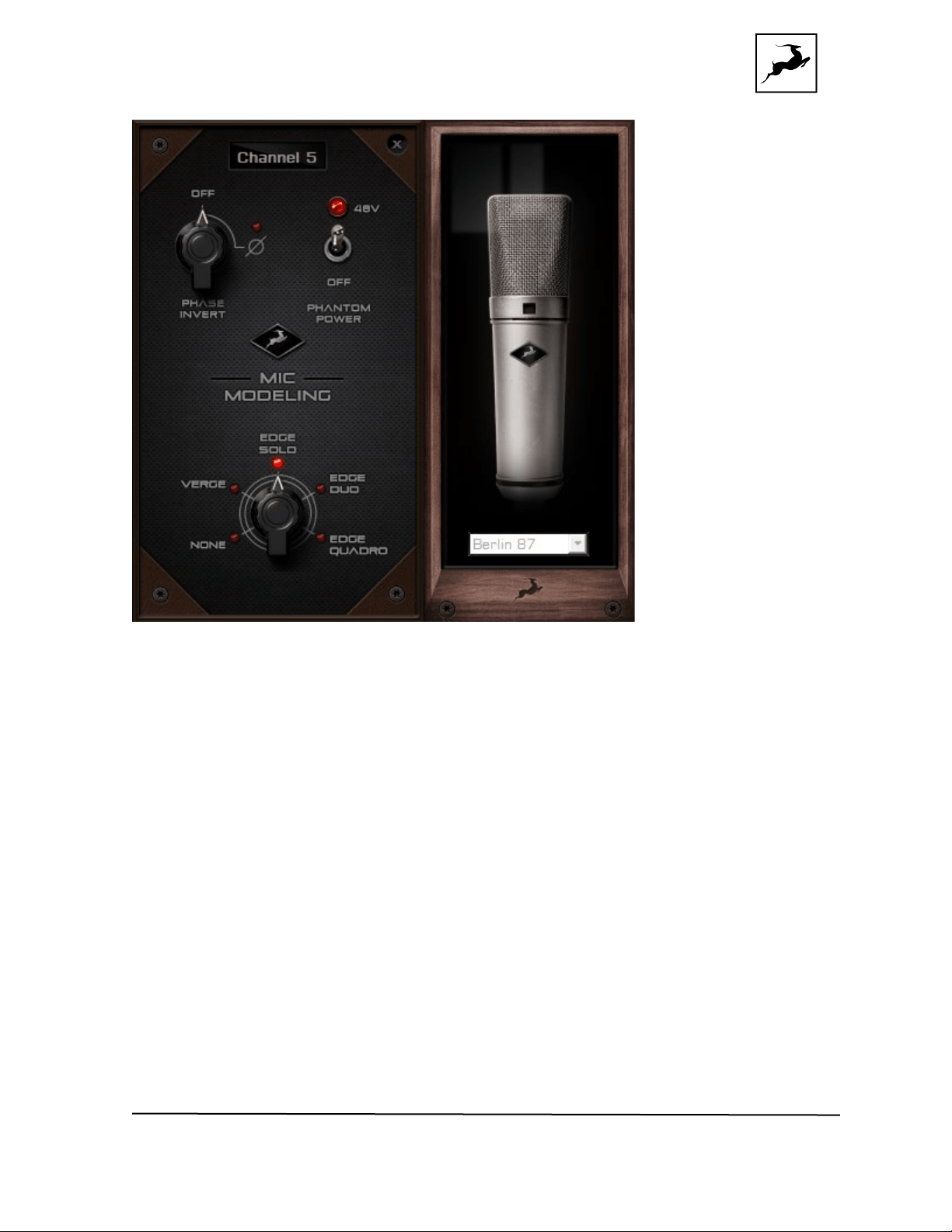
In the ‘Mic Emulations’ window, click and rotate the dial to access the emulations available
for your modeling microphone:
Following is a guide to using the mic emulations for each Antelope Audio modeling
microphone.
Edge Solo
Orion Studio Synergy Core User Manual 54
Edge Solo Mic Emulations Window
The following functionality is available:
● Choose mic emulations from the drop-down menu on the right.
● Click and turn the ‘Phase Invert’ dial to flip the microphone’s polarity.
● Click and drag the ‘48’V switch to activate or turn off phantom power.
Recording and Monitoring Edge Solo
Edge Solo is a single-membrane condenser microphone. This means the microphone will
occupy one physical mic preamp input, one block in the Routing Matrix ‘PREAMP’ row, and
one block in the ‘MIC EMU’ row.
Edge Solo mic emulations work on a single input audio channel. Recording and monitoring
both ‘dry’ and ‘mic emulation’ audio means dealing with two mono tracks.
● Route the ‘PREAMP’ input for Edge Solo to your desired outputs to monitor ‘dry’
audio. Route to a ‘COMP REC’ block to record from the corresponding input in your
DAW.
Orion Studio Synergy Core User Manual 55
● Route the ‘EMU MIC’ output for Edge Solo (same number as the ‘PREAMP’ input)
to your desired outputs to monitor ‘mic emulation’ audio. Route to a ‘COMP REC’
block to record from the corresponding input in your DAW.
● Route ‘PREAMP’ and ‘EMU MIC’ blocks to your desired outputs and ‘COMP REC’
channels to monitor and record both ‘dry’ and ‘mic emulation’ audio.
For more information about Edge Solo, visit its product page.
Edge Duo
Note to owners of the legacy ‘Edge’ modeling microphone: 'Edge' and 'Edge Duo' have
nearly identical hardware, so feel free to use the ‘Edge Duo’ emulations with your legacy
‘Edge’ mic.
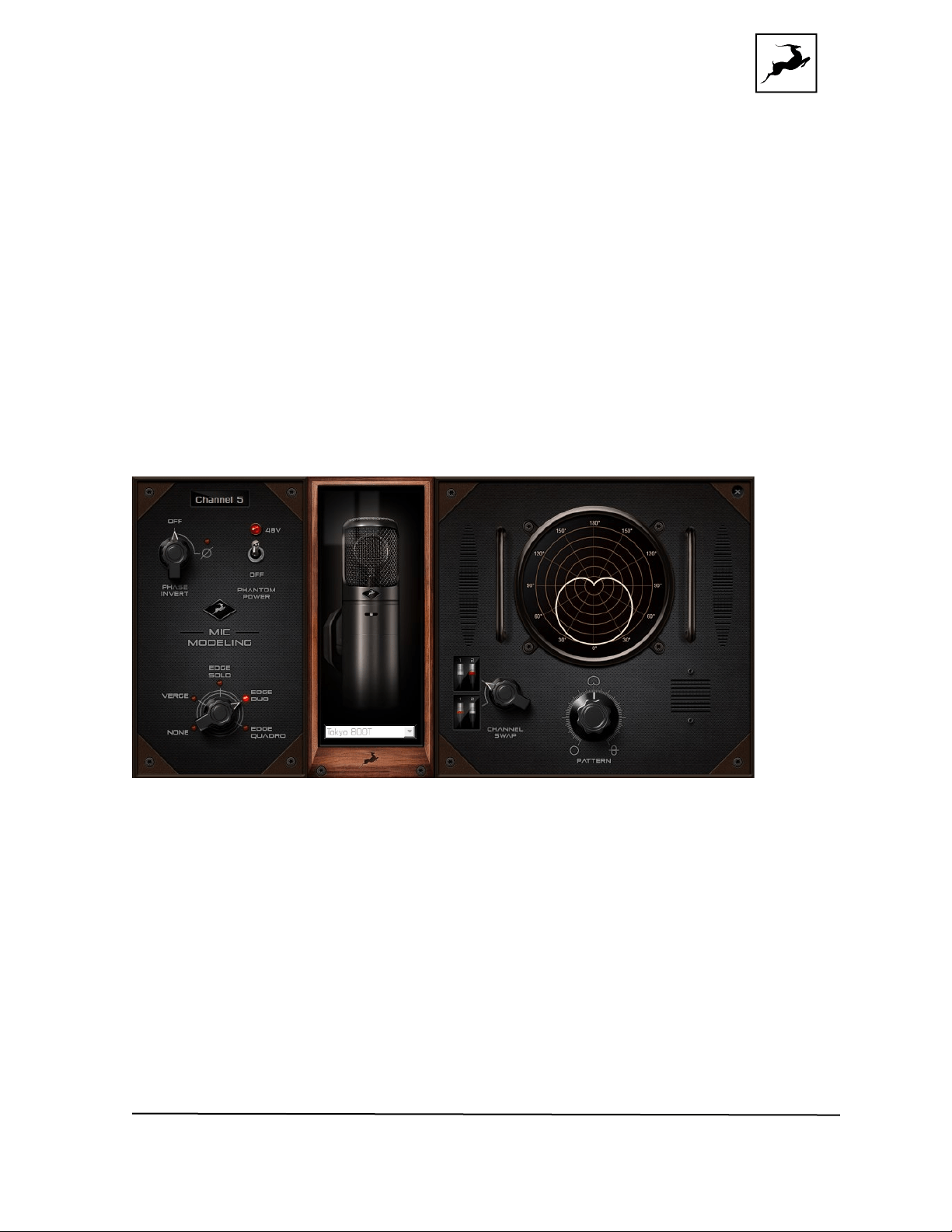
Edge Duo Mic Emulations Window
The following functionality is available:
● Choose mic emulations from the drop-down menu in the middle.
● Click and turn the ‘Phase Invert’ dial to flip the microphone’s polarity.
● Click and drag the ‘48V' switch to activate or turn off phantom power.
● Click and turn the ‘Channel Swap’ dial to swap the Edge Duo inputs.
● Click and turn the ‘Pattern’ knob to adjust the polar pattern. Note that some mic
models have fixed or limited polar pattern adjustment.
Recording and Monitoring Edge Duo

Orion Studio Synergy Core User Manual 56
Edge Duo is a dual-membrane condenser microphone – it has one capsule with dual
membranes and connects with an Y-XLR cable (included), one XLR connector for each
membrane. The Left (white) connector is the front membrane, the Right (red) is for the
rear membrane.
The microphone occupies two physical mic preamp inputs, two blocks in the Routing
Matrix ‘PREAMP’ row, and two blocks in the ‘EMU MIC’ row.
Note: You can use Edge Duo as a single-membrane condenser mic by disconnecting one
of the XLR connectors. In this case, the mic emulations will be visible but they won’t
function correctly, you cannot swap inputs and you cannot adjust polar pattern.
Recording and monitoring Edge Duo as a single-membrane condenser mic
Route the ‘PREAMP’ input for Edge Duo to your desired outputs to monitor ‘dry’ audio.
Route to a ‘COMP REC’ block to record from the corresponding input in your DAW.
Recording and monitoring Edge Duo as a dual-membrane condenser mic
In this case, you will record and monitor two concurrent mono inputs, one coming from
each membrane. They will sound slightly different in tone and volume, due to the physical
distance between the membranes and the performer. You may have to compensate with
individual gain adjustments for each membrane.
Route the ‘PREAMP’ inputs occupied by Edge Duo to your desired outputs to monitor ‘dry’
audio. Route them to ‘COMP REC’ blocks to record from the corresponding inputs in your
DAW.
Recording and monitoring Edge Duo as a modeling microphone
Make sure that ‘Edge Duo’ mic emulations are enabled. Route the ‘MIC EMU’ inputs
corresponding to the ‘PREAMP’ inputs occupied by Edge Duo to your desired outputs for
monitoring and the ‘COMP REC’ blocks for DAW recording.
Recording and monitoring ‘dry’ and ‘mic emulation’ audio simultaneously
With the Edge Duo, monitoring and recording ‘dry’ and ‘mic emulation’ audio
simultaneously means handling four concurrent mono signals – two ‘dry’ tracks and two
‘mic emulation’ tracks. ‘Dry’ audio comes from the ‘PREAMP’ inputs, and ‘Mic Emulation’
audio comes from the ‘MIC EMU’ outputs. Route them anywhere you want in the Routing
Matrix.
For more information about Edge Duo, visit its product page
.

Orion Studio Synergy Core User Manual 57
Edge Quadro
Connecting Edge Quadro
Edge Quadro is a quad-membrane condenser microphone – it has two heads, each with
dual membranes. The Top head rotates 360-degrees, enabling stereo recording
techniques such as M/S, X/Y, Blumlein, and even 3D sound. Therefore, the microphone is
bundled with a pair of Y-XLR cables. Their Left (White) connectors are for the front
membranes, and their Right (red) connectors are for the rear membranes.
However, each cable is designated for either the Top or Bottom head, and labeled
accordingly – T (Top) or B (Bottom). The inputs on the microphone are labeled too, letting
you know where each cable needs to be connected.
There’s a bevy of options for connecting Edge Quadro to your Orion Studio Synergy Core:
As a single-membrane (rotatable) condenser mic. Connect just one XLR from the Top
(rotatable) or Bottom head using the corresponding cable. The possible configurations
are:
1. Top Head – Front Membrane.
2. Top Head – Rear Membrane.
3. Bottom Head – Front Membrane.
4. Bottom Head – Rear Membrane.
As a dual-membrane (rotatable) condenser mic. Connect two XLRs from either (or both)
the Top and Bottom heads with the corresponding cables. The possible configurations
are:
1. Top Head – Front and Rear Membranes.
2. Bottom Head – Front and Rear Membranes.
3. Top Head – Front Membrane. Bottom Head – Front Membrane.
4. Top Head – Front Membrane. Bottom Head – Rear Membrane.
5. Top Head – Rear Membrane. Bottom Head – Front Membrane.
6. Top Head – Rear Membrane. Bottom Head – Rear Membrane.
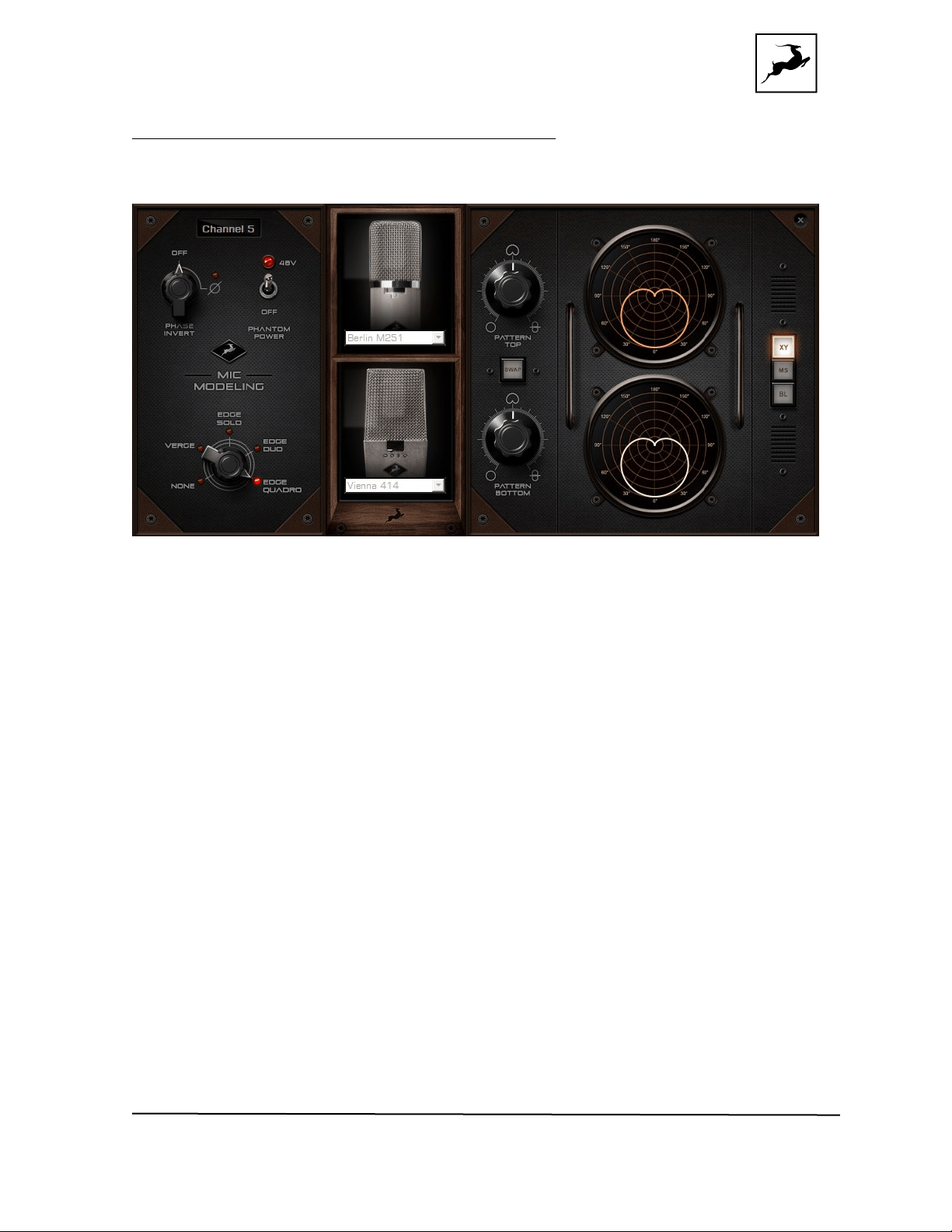
Orion Studio Synergy Core User Manual 58
As a quad-membrane rotatable condenser microphone. Connect all XLRs from both heads
with the corresponding cables. This is the only option for using the Edge Quadro mic
emulations.
Edge Quadro Mic Emulations Window
Edge Quadro and Edge Duo mic emulations are identical, except for the ability to apply
two different mic emulations in unison - one for each head – complete with two different
polar patterns that are also swappable. All in all, the functionality is the same, but with two
mic emulation selectors and two polar pattern changers.
Monitoring and recording Edge Quadro
Taking full advantage of the Edge Quadro’s 360-degree recording and dual-emulation
capabilities means the microphone will occupy four physical mic preamp inputs, four
blocks in the Routing Matrix ‘PREAMP’ row, and four blocks in the ‘MIC EMU’ row.
Monitoring and recording ‘dry’ and ‘mic emulation’ audio simultaneously with the Edge
Quadro means handling eight concurrent mono tracks – two ‘dry’ tracks from its Top head,
two ‘dry’ tracks from its Bottom head, two ‘mic emulation 1’ tracks and two ‘mic emulation
2’ tracks.
With so many signals available, the routing and processing possibilities are extensive. Put
the manual down and explore your skills and creativity.
For more information about Edge Quadro, visit its product page.
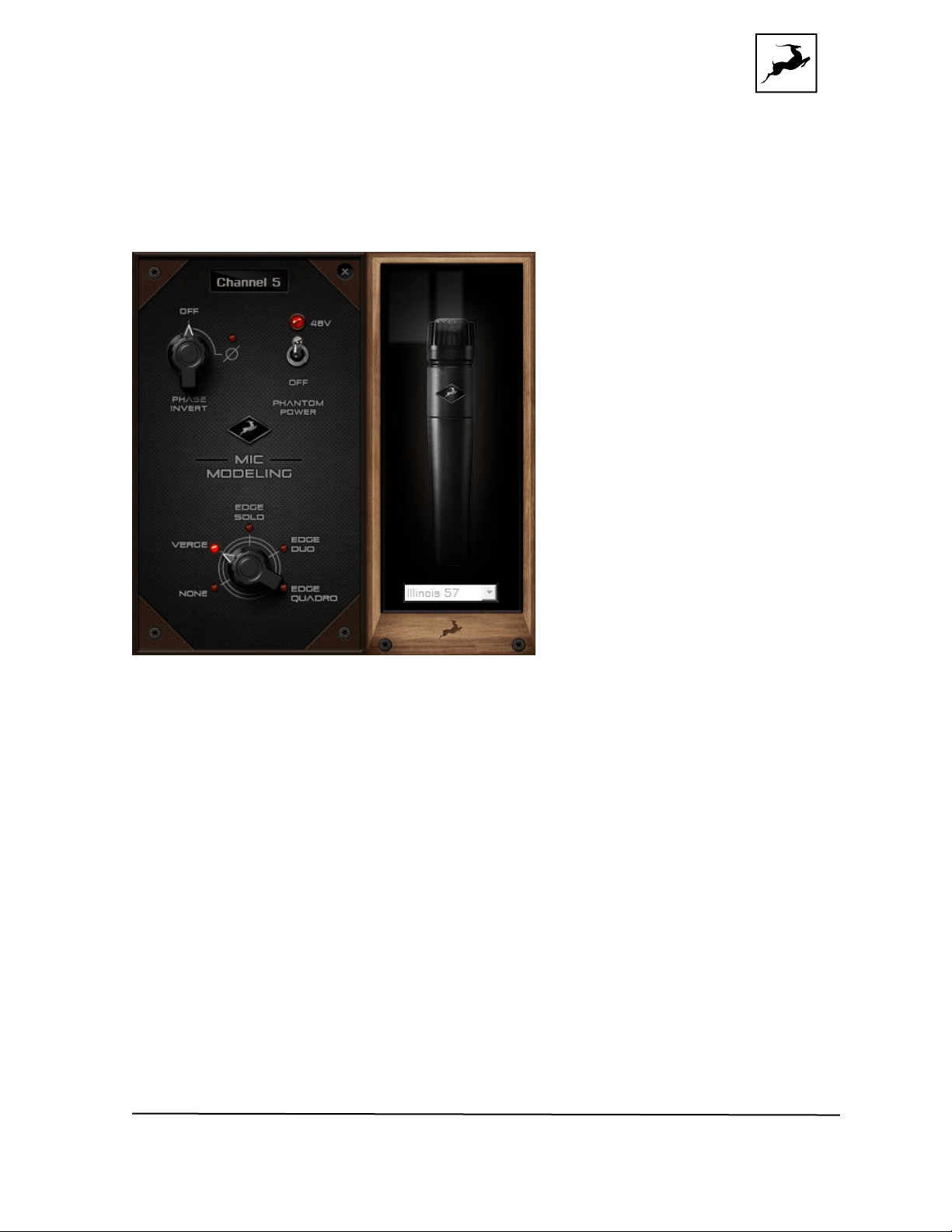
Orion Studio Synergy Core User Manual 59
Verge
Verge is a small-diaphragm condenser microphone that’s as simple to use as the Edge
Solo. Its dimensions and ability to handle high sound pressure levels make it a better fit
for positioning in tight spaces and recording very loud sources, such as drum kits.
Verge Mic Emulations Window
The following functionality is available:
● Choose mic emulations from the drop-down menu on the right.
● Click and turn the ‘Phase Invert’ dial to flip the microphone’s polarity.
● Click and drag the ‘48’V switch to activate or turn off phantom power.
Recording and Monitoring Verge
Verge is a single-membrane, small-diaphragm condenser microphone. This means the
microphone will occupy one physical mic preamp input, one block in the Routing Matrix
‘PREAMP’ row and one block in the ‘MIC EMU’ row.
Verge mic emulations work on a single input audio channel. Recording and monitoring both
‘dry’ and ‘mic emulation’ audio means dealing with two mono tracks simultaneously.
● Route the ‘PREAMP’ input for Verge to your desired outputs to monitor ‘dry’ audio.
Route to a ‘COMP REC’ block to record from the corresponding input in your DAW.
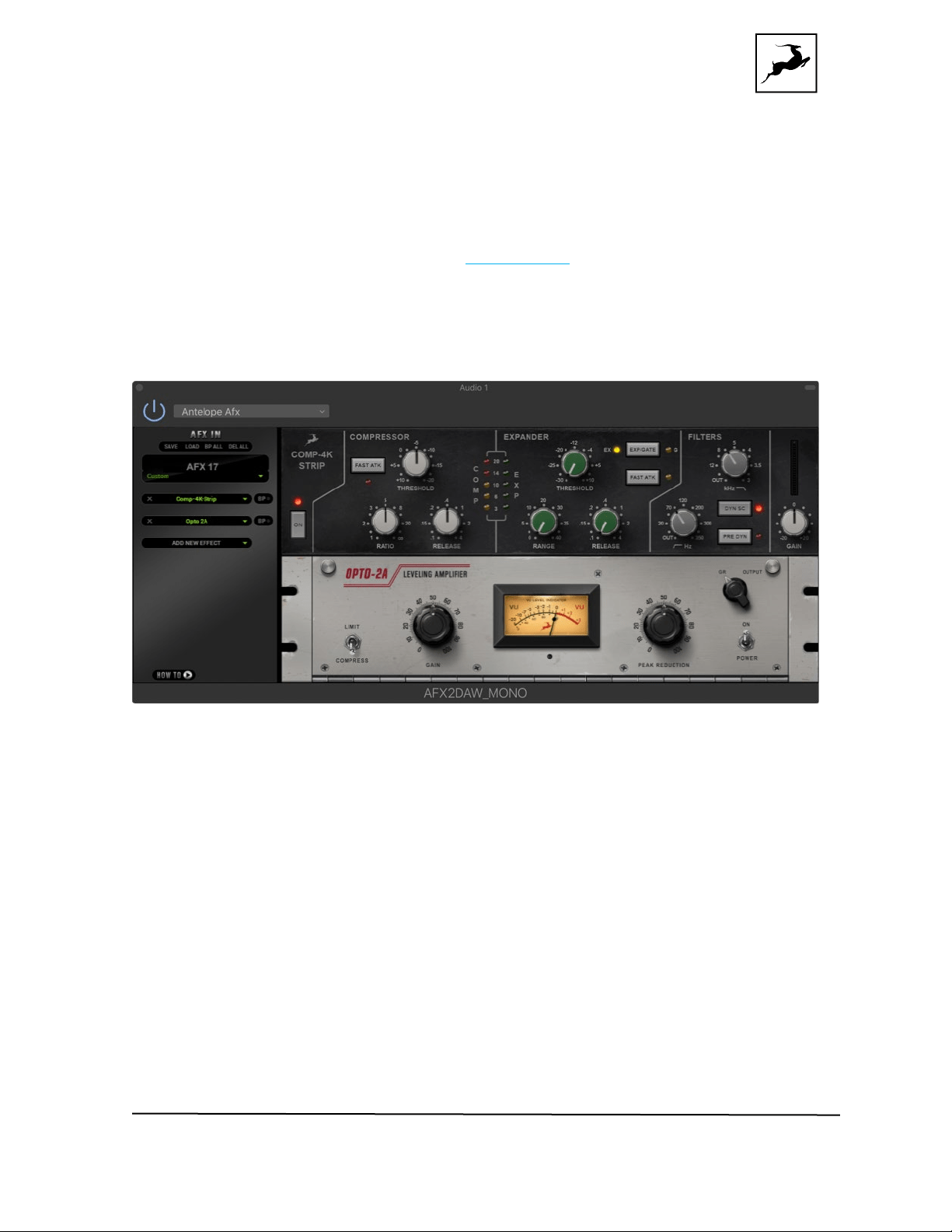
Orion Studio Synergy Core User Manual 60
● Route the ‘EMU MIC’ output for Verge (same number as the ‘PREAMP’ input) to
your desired outputs to monitor ‘mic emulation’ audio. Route to a ‘COMP REC’ row
to record from the corresponding input in your DAW.
● Route ‘PREAMP’ and ‘EMU MIC’ blocks to your desired outputs and ‘COMP REC’
inputs to monitor and record both ‘dry’ and ‘mic emulation’ audio.
For more information about Verge, visit its product page.
AFX2DAW
Available as a separate purchase, AFX2DAW is a bridge plug-in for using Synergy Core FX
as inserts in your DAW. All Synergy Core FX processing and I/O audio streaming activity
is handled by the DSP and FPGA processors in your interface. AFX2DAW provides a more
immediate workflow with the added bonus of Synergy Core FX automation in your DAW,
which isn’t available otherwise.
At the time of writing, AFX2DAW is supported only on Mac computers via Thunderbolt™.
A Windows version is under development.
Click here to learn more and purchase AFX2DAW.
Setting up AFX2DAW
After purchasing AFX2DAW, you will receive a Claim Code at the e-mail address you used
to register your Antelope Audio user account.

Orion Studio Synergy Core User Manual 61
Note: If the e-mail doesn't seem to arrive in your inbox, please check your 'Spam' and
'Junk' folders.
1. Log-in to antelopeaudio.com and head to the 'Claim Features' page to enter your Claim
Code.
2. Open Antelope Launcher and click the 'Plug-ins' button. Download and install the latest
version of 'AFX2DAW'.
3. Click the 'Devices' button and launch the Orion Studio Synergy Core Control Panel.
4. Click the '?' button, then click 'ADMINISTRATION'. Log-in with your Antelope Audio
account information and click 'Continue'.
5. Choose 'Register device or assign features' and follow the on-screen instructions to
assign AFX2DAW to your Orion Studio Synergy Core.
6. Launch your DAW and load an instance of AFX2DAW on a mono or stereo track. The
plug-in behaves almost exactly like the Control Panel ‘Effects’ tab. However, you no longer
have to choose the channel you are working on as AFX2DAW binds to the track it’s loaded
on.
The following functionality is available:
● Click the ‘ADD NEW EFFECT’ drop-down menu to choose and add effects. Their
instances will appear in the FX Rack to the right. The list on the left lets you click
and drag to re-order.
● Use the ‘SAVE’ and ‘LOAD’ buttons to store FX chains.
● Use the ‘BP ALL’ and ‘DEL ALL’ buttons to bypass or clear all FX currently in the
rack.
● Use the drop-down menu below these buttons to load presets.
● Individual ‘BP’ (bypass) buttons are available next to each effect on the left side.
● Command-click and drag on an FX parameter to adjust it in smaller increments.
7. You will notice that a new instance of the Orion Studio Synergy Core Control Panel has
been loaded in the background. The ‘Routing’ tab now features an ‘AFX2DAW’ button
immediately above the ‘MATRIX’ button.
Click and drag the FPS refresh rate knob to set the frame rate for the peak meter
animations of FX loaded in AFX2DAW. Increasing the frame rate results in smoother
animation, but comes at the cost of CPU power. Click ‘Apply’ to store the setting or
‘Cancel’ to go back.

Orion Studio Synergy Core User Manual 62
Note: Closing all open AFX2DAW windows in your DAW session eliminates the use of CPU
power to animate peak meter movement, as such is no longer being rendered on or off-
screen.

Orion Studio Synergy Core User Manual 63
Advanced user tips
Use the Orion Studio Synergy Core as a Master clock
We recommend taking advantage of the Orion Studio Synergy Core’s highly stable and
musical clocking, provided by an oven-controlled crystal oscillator and proprietary 64-bit
algorithms (Acoustically Focused Clocking & Jitter Management) to generate timing
reference for other digital audio devices in your setup.
This is done in a Master - Slave arrangement where the Master device "clocks" the Slave
device with its timing reference signal. To set up the Orion Studio Synergy Core as a
Master clock, connect Word Clock Out to the Slave device's Word Clock In using a
standard BNC cable. Orion Studio does not require any specific setup, but the receiving
device might require modifying its settings to act as a Slave.
Further reading:
• For a primer on digital clocking and jitter, read this article. More in-depth
information can be found
here.
• This interview with Antelope Audio founder and CEO, Igor Levin, is also very
illuminating.
Send and receive CV (Control Voltage) commands to Eurorack
modular synths
At the time of release, Orion Studio Synergy Core is the sole professional audio interface
featuring complete DC-coupled analog I/O. This makes it capable of sending and receiving
CV (Control Voltage) commands to analog synthesizers.
CV is especially prominent inside the realm of ‘modular’ synths, more specifically those
comprised of modules made in the exceedingly popular Eurorack format. The individual
modules (e.g. VCO, VCA, VCF, LFO, ADSR) within such a system communicate primarily
through Direct Current (DC) patch points as opposed to Alternating Current (AC), with
control voltage carried over patch cables. That’s because AC-coupling filters out ultra-
low frequencies, including the types of sustained voltage used in modular synthesis.
Eurorack owners are fond of integrating their modular systems with Ableton Live. The free
CV Tools extension makes it possible to send and receive CV commands as if they were
regular audio streams inside the DAW, which is a
particularly straightforward workflow.
The Orion Studio Synergy Core’s wealth of analog I/O, all DC-coupled, provides ample
room to control modular synths.
Through the ‘Routing’ tab in the Control Panel application,

Orion Studio Synergy Core User Manual 64
Ableton Live can access a total of 12 inputs and 40 outputs for a total of 52 CV-ready
channels:
● The 12 preamp/combo inputs. Make sure ‘DC COUPLED INPUTS’ is active in the
Control Panel’s Settings Window, use the Line or Direct settings and start at unity
gain (0dB) for each channel.
● The 2 ReAmp outputs.
● The Monitor A L/R and Monitor B L/R outputs.
● The 16 line outputs on DB-25 breakout cables.
● The Headphone 1 and Headphone 2 outputs.
How to get started
1. Bring the audio output from your Eurorack modular down to line-level using a dedicated
output module.
2. Connect your modules to the Orion Studio Synergy Core.
3. Enter the Control Panel ‘Routing’ tab. Route the I/O channels you occupied into the
COMP REC row.
4. Launch Ableton Live and set up your project accordingly.
Safety precautions
1. Make sure to prevent excessive output volume.
2. Never send CV to your speakers.
3. Bring any Trigger and Gate modules’ output down to line-level (about 1v max) before
connecting them to Orion Studio Synergy Core.
For help with setting up Ableton Live, visit the Ableton Knowledge Base.

Orion Studio Synergy Core User Manual 65
Customer support information
Antelope Audio Customer Support can be reached by the following means:
Online
Visit support.antelopeaudio.com
Phone
We are there for you around the clock, 21 hours/day, Monday to Friday.
North America +1-916-238-1643 01:00 a.m. – 10:00 p.m. (EST)
International +44 19 2593 3423 06:00 a.m. – 03:00 a.m. (GMT)
Pour le Support francophone: +44 20 3389 8108 09:00 a.m. - 17:30 p.m. (GMT+1)
Live Chat
Live Chat is available during the following hours Monday to Friday
International 06:00 a.m. – 06:00 p.m. (GMT)
Note: If you’re trying to reach us outside working hours, we advise you to file a
ticket in our customer support system or leave a voice message.
Additional Resources
• The Antelope Audio YouTube channel is home to various tutorial videos and
endorser content which you may find helpful and inspiring.
• The Antelope Audio Users Facebook group lets you interact with fellow users and
some of our employees. Note, however, that it is not meant to be a support group.
Please contact our customer support team for such inquiries.
• The Knowledge Base in our Customer Support section is an often-overlooked
source of troubleshooting information, answers to commonly asked questions and
Antelope know-how.
My Antelope Audio is not working
What should I do?

Orion Studio Synergy Core User Manual 66
If you can't find a solution on your own, please get in touch with us so we check if you are
having a hardware-related issue. If this is the case, we'll guide you through the repair
process. If the product should be returned, a RMA number will be issued so we can begin
the procedure.
What's an RMA number?
Issuing a RMA (Return Merchandise Authorization) number is required for any factory
service or repair procedure. Please, don't attempt to send us your device without receiving
a RMA number first, as the device will be returned and not serviced.
How do I get an RMA number?
The Antelope Audio Customer Support team is in charge of issuing RMA numbers. Visit
support.antelopeaudio.com and get in touch.
After your RMA has been issued, you will receive an email with instructions on how to
proceed.
RMA shipping information
Alongside the product you are returning please, include a letter containing your full name,
shipping address, RMA number issued by our technical support team and a note with a
short information about the technical issue.
Please use the original box if possible, because a worn out one will surely not protect your
product sufficiently on its way to the Antelope Audio HQ. Additional cushioning materials
in multiple layers between the unit and the box walls to prevent from shock, vibration and
various tears and scratches.
Please remove any labels or old shipment markings it may have and ensure you add your
shipping address inside the box in case the original shipment label becomes illegible during
transportation.
The shipping costs are covered by the owner of the product. Antelope Audio will not cover
any local customs charges.
We recommend using a courier service of your choice (e.g. DHL, UPS, FedEx). The
package should be insured for its real value, marked as fragile and a
tracking number
should be provided. We do not recommend using standard mail delivery services.
Please, don't forget to add the RMA number, issued by the Antelope Audio technical
support, on all shipping paperwork.
Antelope Audio cannot be held responsible for undelivered packages – lost or damaged
on the way to the Antelope Audio HQ. For damage claims, please contact your shipping
service provider of choice.

Orion Studio Synergy Core User Manual 67
Antelope Audio cannot cover any repair costs for product damages due to poor
packaging.

Orion Studio Synergy Core User Manual 68
Limited warranty policy
This is a non-transferable voluntary Limited Product Warranty provided to end-customers
who have purchased Antelope Audio-branded hardware product (hereinafter referred to
as “Product”) from an authorized Antelope Audio re-seller.
For customers covered by consumer protection laws or regulations in their country of
purchase or, if different, their country of residence, the benefits conferred by Antelope
Audio's Limited Warranty are in addition to, and not instead of, rights and remedies
convened by such consumer protection laws and regulations and it does not exclude, limit
or suspend buyer’s rights arising from consumer law. Consumers have
the right to choose whether to claim service under the Antelope Audio Limited Warranty
or under their consumer law rights.
All claims made under the Antelope Audio Limited Warranty will be governed by the terms
set out in this warranty document.
Warranty Coverage
Antelope Audio warrants that the Product will be free from defects in material and
workmanship for the period of 1 (one) year commencing on the date of purchase of
Product by end-customer from authorized Antelope Audio’s re-seller.
Except where explicitly prohibited by applicable local law, this warranty is limited to the
original purchaser and is non-transferable. This warranty provides you with specific legal
rights, and you may have additional rights that vary under local laws.
In general, this warranty means your Antelope Audio hardware product will operate in
accordance with published technical specifications, as specified by its data-sheet, and in
the operating environment for which it was intended for the length of the warranty period.
This version of the warranty applies to products purchased on or after January1,2018. For
prior versions of the Antelope Audio limited warranty, please contact customer service.
Limited Factory Refurbished (B-stock) Warranty
Antelope Audio warrants products sold as “B-stock, Factory Refurbished or Open Box” to
be free from defects in materials (unless otherwise stated in product description) and
workmanship. Only products purchased from an authorized dealer or directly from
Antelope Audio are covered by this Warranty.
The Limited Factory Refurbished (B-stock) Warranty is valid for the period of 6 (six)
months, commencing on the date of purchase of Product, if local regulations do not
require otherwise.

Orion Studio Synergy Core User Manual 69
All warranty terms contained hereunder apply also to the B-stock Warranty, unless
otherwise specified.
Remedies
Antelope Audio’s entire liability and your exclusive remedy for any Antelope Audio Product
that is not operating in accordance with its published technical specifications is at
Antelope Audio’s discretion:
1) to repair the Product at Antelope Audio’s expense using new or equivalent-to new
refurbished parts in good working condition; or
2) to replace the Product at Antelope Audio’s expense with a product with equivalent
functionality formed from new and/or equivalent-to new refurbished parts in good
working condition, or
3) to refund the price paid. Should Antelope Audio decide to refund the price paid, it may
deduct from the paid Product’s price any damages caused to the Product; where, within
fourteen (14) days of the expiration of the warranty period,(i) Antelope Audio has received
written notice of any nonconformity;(ii) after Antelope Audio’s written authorization,
customer has returned the nonconforming product to the designated place; and
(iii)Antelope Audio has determined that the Product is nonconforming and that such non
conformity is not the result of any of the exclusions designated below.
These warranty obligations are conditioned upon the hardware being returned to the
original place of purchase, or another place as directed by Antelope Audio, with the original
sales receipt attached. You will be required to pay shipping and handling charges for
returning the product. You may be required to pay any other applicable tariffs, duties,
taxes, or other fees with regard to returning the products.
Any repaired or replacement Product will be warranted for the remainder of the original
warranty period.
Obsolete or Discontinued Products
An obsolete or discontinued product will be repaired or replaced with the same product if
available. If Antelope Audio is unable to replace your obsolete or discontinued product with
the same product, Antelope Audio will replace the obsolete or discontinued product, in its
sole discretion, with a product having similar function and capacity.
Exclusions
This warranty does not cover problems or damage resulting from, but not limited to, any
of the following: (i)Wear and tear associated with normal use; (ii)Any modification,
abuse, accident, disassembly, misapplication, misuse, negligence, acts of God, accident;
(iii)Unauthorized repair or attempted repair by anyone other than Antelope Audio or

Orion Studio Synergy Core User Manual 70
someone authorized by Antelope Audio to do warranty work; any unauthorized repairs will
void this warranty(iv)Any improper operation, maintenance or installation, including any
use not in accordance with any supplied product instructions; (v)Connection to any
improper voltage supply; (vi)Use of consumables or spare parts not supplied by Antelope
Audio, except where such restriction is prohibited by applicable local law; (vii)Any other
cause which does not relate to a Product defect in materials or workmanship.
The warranty does not apply to any Products which have been subject to misuse, neglect,
accident or modification or which have been soldered or altered such that they are not
capable of being tested under normal test conditions.
This warranty does not cover (i) any counterfeit products, i.e. Products that Antelope
Audio, at its sole discretion, determines were not manufactured by Antelope Audio or any
of its authorized manufacturing partners; (ii) Products purchased from a person or entity
which is not an authorized dealer or re-seller of Antelope Audio; (iii)Product sold “as is” or
“with all faults”, to the extend permitted by local law.
This warranty is not valid in case any manufacturer label(s), serial numbers, date stamp(s)
or warranty sticker(s) has been altered or removed from the Product.
Limitation of Liability
ANTELOPE AUDIO SHALL NOT BE LIABLE FOR ANY SPECIAL, INCIDENTAL, INDIRECT,
OR CONSEQUENTIAL DAMAGES WHATSOEVER, INCLUDING BUT NOT LIMITED TO
LOSS OF PROFITS, REVENUE, OR DATA (WHETHER DIRECT OR INDIRECT) OR
COMMERCIAL LOSS FOR BREACH OF ANY EXPRESS OR IMPLIED WARRANTY ON YOUR
PRODUCT EVEN IF Antelope Audio HAS BEEN ADVISED PREVIOUSLY OF THE
POSSIBILITY OF SUCH DAMAGES. Some local laws do not allow the exclusion or limitation
of special, indirect, incidental or consequential damages, so this limitation or exclusion
may not apply in your jurisdiction.
ANTELOPE AUDIO WILL NOT ASSUME OR AUTHORIZE ANY OTHER PERSON TO
ASSUME FOR IT ANY OTHER LIABILITY IN CONNECTION WITH ITS PRODUCTS.
Data Recovery
In the event of data loss using Antelope Audio storage devices, Antelope Audio is not
responsible for backing up or recovering any data that you may have lost.
No Other Warranties
No Antelope Audio employee, dealer, re-seller, or other agent is authorized to make any
modification, extension, or addition to this warranty.
How to Make a Warranty Claim
Valid warranty claims should be processed through your point of purchase. Please also
verify the return policy directly with the retailer where you purchased your product. Any

Orion Studio Synergy Core User Manual 71
warranty claims that cannot reprocessed through your original point of purchase should
be addressed directly to Antelope Audio. Our customer service contact information can
be found on the web or in the documentation included with your Product.
Returning Your Product
In the event that you need to return your Antelope Audio products for repair or
replacement, Antelope Audio will provide you with a Return Merchandise Authorization
Number (RMA#) as well as return instructions. Do not return your product without prior
approval from Antelope Audio. Any product returned without a valid unique RMA# will be
refused and returned to the sender at the sender’s expense. To avoid problems at the
time of receipt, clearly write your RMA# on the outside of the package and include a copy
of your RMA confirmation-mail within the package.
In certain situations, for in-warranty units, we may (entirely at our opinion) offer you a
temporary replacement unit, provided that we have such on stock in your state. To
request a temporary replacement unit, a valid credit card must be provided to secure the
new replacement unit for shipping prior to Antelope Audio receiving the defective one.
Request a Return Material Authorization Number (RMA#)
Please follow these steps to obtain an RMA number:
(I) For end user customers, submit a claim online at: support.antelopeaudio.com. For
business to business (B2B) / Direct customers of Antelope Audio please email us at
(ii) A valid proof of purchase is required for RMA processing (i.e. receipt, invoice, etc).
Antelope Audio will provide you with the RMA number within 2 working days as of the
claim submission date.
RMA Return Addresses
We have multiple RMA receiving locations worldwide. Your RMA confirmation will specify
the specific return address you must use when sending your RMA package. Any packages
received at an unauthorized location may be refused and returned to the sender at the
sender’s expense.
Products Lost or Damaged During Transit
The original packaging material should be used to pack the product for return; if the
original packaging is not available, you should use such materials that provide the same or
greater protection to the product. All packages that arrive with any external damage or
appear inadequately packed will be refused and returned to the sender at the sender’s
expense. We are not responsible for damage incurred during shipping to our RMA receiving
locations or for lost or stolen products.

Orion Studio Synergy Core User Manual 72
Company information
Antelope Audio is the trade name, under which the company Elektrosfera ltd., registered
under the legislation of the Republic of Bulgaria with UIN: 131052590, is doing business
and is worldwide known. Elsewhere in this document where the trade name
Antelope
Audio is used shall refer to Elektrosfera ltd., with address of management: Tsarigradsko
Shose Blvd., 7th km, Building of BIC IZOT, floor 6, Mladost region, Sofia, Bulgaria.
If any term hereunder is held to be illegal or unenforceable, it shall be severed from this
warranty and the legality or enforce ability of the remaining terms shall not be affected.

Orion Studio Synergy Core User Manual 73
Safety notes
To reduce the risk of electrical shocks, fire, and related hazards:
● Do not remove screws, cover, or cabinet. There are no user serviceable parts inside.
Refer servicing to qualified service personnel.
● Do not expose this device to rain, moisture or spillover of liquid of any kind.
● Should any form of liquid or a foreign object enter the device, do not use it. Switch
off the device and then unplug it from the power source. Do not operate the device
again until the foreign object is removed or the liquid has completely dried and its
residues fully cleaned up. If in doubt, please consult the manufacturer.
● Do not handle the power cables with wet hands!
● Make sure the device is switched off when plugging/unplugging it to/from the
power source.
● Avoid placing things on the cabinet or using the device in a narrow and poorly
ventilated place which could affect its operation or the operation of other closely
located components.
● If anything goes wrong, turn off the device first and then unplug the power. Do not
attempt to repair the device yourself. Consult authorized service personnel or your
dealer instead.
● Do not install near any heat sources such as radiators, stoves, or other apparatus
(including amplifiers) that produce heat.
● Do not use harsh chemicals to clean your unit. Clean only with specialized cleaners
for electronics equipment.
● Connect all your devices before powering your unit.
● This unit is connected via its power cord to the mains safety earth.
● Never operate the unit without this earth connection.
● DC power supply cable should be routed so that it is not likely to be walked on or
squeezed by items placed upon or against it.
● To completely turn off the device, unplug the power cable first from the outlet and
then from the rear panel of the unit.
● Both occasional and continued exposure to high sound pressure levels can cause
permanent ear damage via headphones and monitors.

Orion Studio Synergy Core User Manual 74
● Your unit should always be un-racked when traveling or in a flight case.
● The device is designed to operate in a temperate environment, with a correct
Operating Temperature of 0-50° C, 32-122° F.
Orion Studio Synergy Core User Manual 75
Technical specifications
Analog Inputs
8 x Mic / Line Inputs / Direct In
4 x Mic / Line / Hi-Z Inputs / Direct In
2 x AD inserts
Analog Outputs
2 x Monitor Out on TRS 1/4 Jacks
2 x ReAmp Out on TRS 1/4 Jacks
2 x Line Out (16 channels) on DB-25, +20
dBu max, impedance balanced
2 x stereo Headphone Outputs
Note
: All analog I/O is DC-
coupled and
suitable for CV (control voltage)
applications.
Mic Preamp
EIN: -128 dBu
Dynamic Range: -121 dB
THD: -106 dB
Max input: +18 dBu
Max Gain: 75 dB
D/A Monitor Converter
Dynamic Range: 130 dB
THD + N: -
115 dB
A/D Converter
Dynamic Range: 124 dB
THD + N: -112 dB
D/A Converters
Dynamic Range: 128dB
THD + N: - 115dB
Digital Inputs
2 x ADAT (up to 16CH)
1 x S/PDI
Digital Outputs
2 x ADAT (up to 16CH)
1 x S/PDI
USB 2.0 I/O
USB 2.0 Type B connector
Thunderbolt
Thunderbolt™ 3 Type C connector
Word Clock Input
1 x Input @ 75 Ohms 3Vpp on BNC 32 –
192kHz
Word Clock Outputs
1 x Outputs @ 75 Ohms 3Vpp on BNC 32 –
192kHz
Orion Studio Synergy Core User Manual 76
Clocking System
4th Generation Acoustically Focused
Clocking
64-bit DDS
Oven-controlled crystal oscillator
Clock Stability
<+/-0.02 ppm, oven controlled at 64.5ºC/
148.1ºF
Clock Aging
< 1 ppm per year
Clock Calibration
< +/-0.001 ppm
Sample Rates (kHz)
32, 44.1, 48, 88.2, 96, 176.4, 192