
MANUAL
02
INFORMATION FOR YOUR SAFETY!
THE FCC REGULATION WARNING (for USA)
This equipment has been tested and found to comply with
the limits for a Class B digital device, pursuant to Part 15 of
the FCC Rules.
These limits are designed to provide reasonable protection
against harmful interference in a residential installation. This
equipment generates, uses, and can radiate radio frequency
energy and, if not installed and used in accordance with the
instructions, may cause harmful interference to radio
communications. However, there is no guarantee that
interference will not occur in a particular installation.
If this equipment does cause harmful interference to radio or
television reception, which can be determined by turning the
equipment off and on, the user is encouraged to try to
correct the interference by one or more of the following
measures:
Reorient or relocate the receiving antenna.
Increase the separation between the equipment and
receiver.
Connect the equipment into an outlet on a circuit different
from that to which the receiver is connected.
Consult the dealer or an experienced radio/TV technician
for help.
Unauthorized changes or modification to this system can
void the user's authority to operate this equipment.
PRECAUTIONS
PLEASE READ CAREFULLY BEFORE PROCEEDING
Please keep this manual in a safe place for future reference.
Power Supply
Please connect the designated DC adaptor to an AC outlet
of the correct voltage.
Do not connect it to an AC outlet of voltage other than that
for which your instrument is intended.
Unplug the DC power adaptor when not using the instru-
ment, or during electrical storms.
Connections
Before connecting the instrument to other devices, turn off
the power to all units. This will help prevent malfunction and
/ or damage to other devices.
Location
Do not expose the instrument to the following conditions to
avoid deformation, discoloration, or more serious damage:
Direct sunlight
Extreme temperature or humidity
Excessive dusty or dirty location
Strong vibrations or shocks
Close to magnetic fields
Interference with other electrical devices
Radios and televisions placed nearby may experience
reception interference. Operate this unit at a suitable
distance from radios and televisions.
Cleaning
Clean only with a soft, dry cloth.
Do not use paint thinners, solvents, cleaning fluids, or
chemical-impregnated wiping cloths.
Handling
Do not apply excessive force to the switches or controls.
Do not let paper, metallic, or other objects into the instru-
ment. If this happens, remove the electric plug from the
outlet. Then have the instrument inspected by qualified
service personnel.
Disconnect all cables before moving the instrument.
CAUTION
The normal function of the product may be disturbed
by Strong Electro Magnetic Interference. If so, simply
reset the product to resume normal operation by
following the owner's manual. In case the function
could not resume, please use the product in other
location.

03
Contents
Panel & Display Description
Front Panel............................................................................4
Rear Panel............................................................................5
LCD.......................................................................................5
Setup
Power Supply........................................................................6
Setting a Music Stand...........................................................6
Using Sustain Pedal..............................................................6
Connections
Connecting a pair of Headphones.........................................7
Connecting an Audio Equipment...........................................7
Connecting an MP3/CD Player.............................................7
Connecting a Computer........................................................7
Connecting a Microphone.....................................................7
Power Switch and Master Volume.....................................8
Playing Demo Songs..........................................................8
Playing Voices.....................................................................9
Playing Styles......................................................................9
Playing Songs...................................................................10
Record................................................................................10
Playing Voices
Selecting a Voice.................................................................11
Playing two voices simultaneously-DUAL...........................11
Playing Different Voices with Both hands-LOWER.............11
Touch..................................................................................12
Sustain................................................................................12
Pitch Bend...........................................................................12
Transpose...........................................................................12
Octave.................................................................................13
Piano mode.........................................................................13
Metronome..........................................................................13
Auto Accompaniment
Play Auto Accompaniment(rhythm track only).....................14
Play Auto Accompaniment(all tracks)..................................14
Accompaniment Sections....................................................15
Playing Different Accompaniment Sections.........................15
Fade....................................................................................15
Accompaniment Volume Control.........................................16
Chord Fingering..................................................................16
Tempo.................................................................................17
One Touch Setting...............................................................17
Harmony
Play with harmony effect.....................................................18
Performance Assistant
What's the performance assistant?.....................................18
Enter the Performance Assistant.........................................18
Guitar Mode........................................................................19
Playing in Guitar Mode........................................................19
Piano Mode.........................................................................20
Playing in Piano Mode........................................................20
Exit the Performance Assistant...........................................20
DSP.....................................................................................21
Mixer...................................................................................21
Pedal Function..................................................................22
Function Menu
Tune....................................................................................23
KeySplit...............................................................................23
Beat Type............................................................................24
Metronome Volume.............................................................24
Pedal Type..........................................................................24
EQ Type..............................................................................24
Reverb Type........................................................................24
Reverb Level.......................................................................25
Chorus Type........................................................................25
Chorus Level.......................................................................25
Harmony Type.....................................................................25
MIDI IN................................................................................26
MIDI OUT............................................................................26
Auto Power Off....................................................................26
Performance Beat...............................................................27
Vocal Effects........................................................................27
Vocal Effect Level................................................................27
Restore Factory Setting....................................................27
Register Memory
Registering the Panel Setting..............................................28
Recalling the Registered Panel Settings.............................28
Selecting a Registration Bank.............................................28
Song Album.......................................................................28
Record
Start Recording...................................................................29
Stop Recording...................................................................30
Playback Recording............................................................30
Delete User Song................................................................30
Song
Listen to the songs..............................................................31
Song Control.......................................................................31
Smart Learning System
Smart Learning....................................................................32
Chord Dictionary
DICT 1 (Chord Learning Mode)...........................................36
DICT 2 (Chord Testing Mode)..............................................36
MIDI
What's MIDI?.......................................................................37
Upload/Download Data from the Computer........................37
Troubleshooting................................................................38
Specifications....................................................................39
Appendices
Voice List.............................................................................40
Style List..............................................................................46
Song List.............................................................................49
Demo List............................................................................51
Album List............................................................................52
MIDI Implementation Chart.................................................55
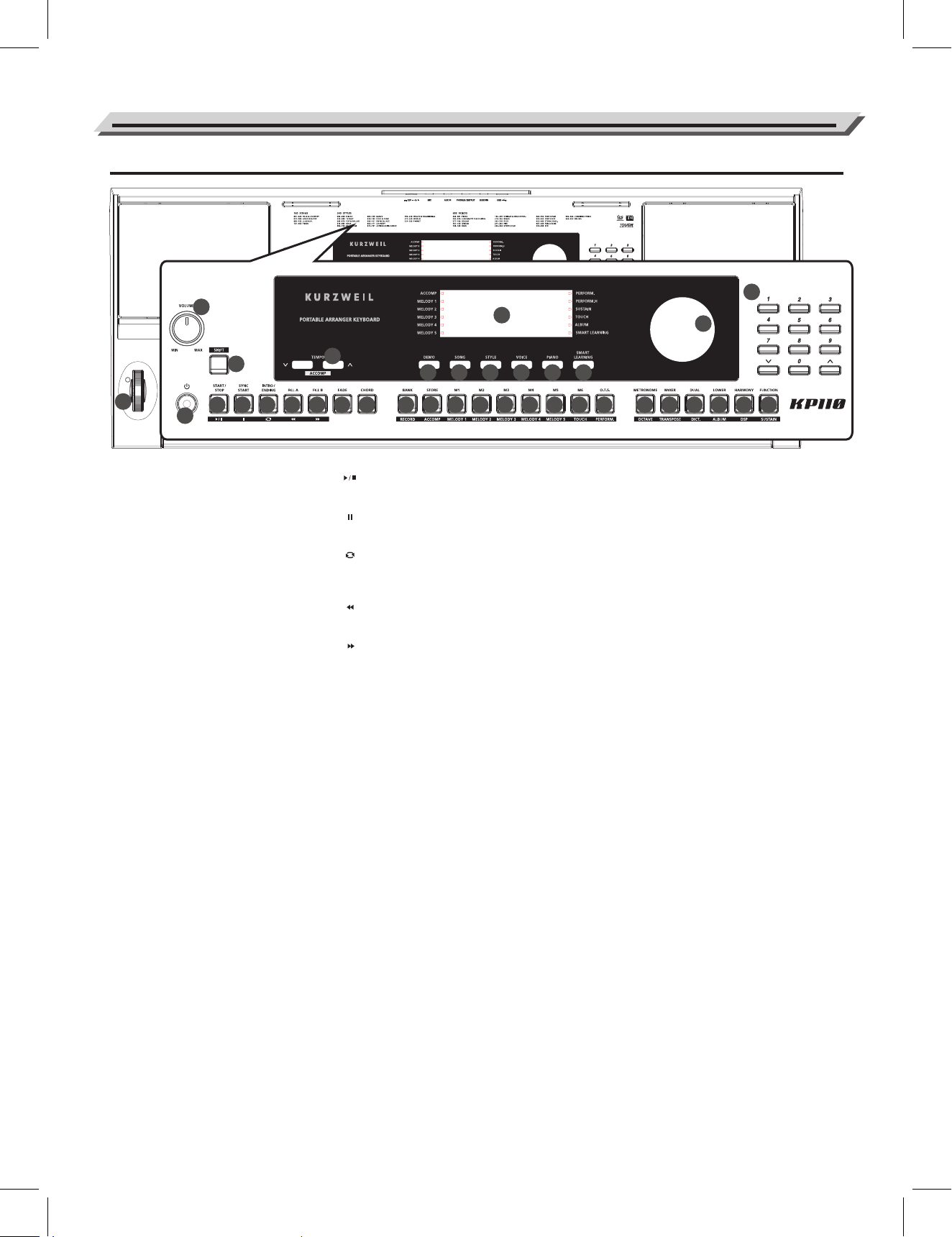
Panel & Display Description
Front Panel
1. [VOLUME] Knob
Adjust the master volume.
2. [LCD]
Display all parameters and values
related to the current operation.
3. POWER SWITCH
Turn the Power on or off.
4. [SHIFT] button
Holding down it to access
secondary functions of other
buttons.
6. [DEMO] button
Switch to Demo Mode.
7. [SONG] button
Switch to Song Mode
8. [STYLE] button
Switch to Style Mode.
9. [VOICE] button
Switch to Voice Mode.
10. [PIANO] button
Turn the Piano Mode on or off.
11. [SMART LEARNING] button
Turn the Smart Learning
function on or off.
17. [FADE] button
Turn the Fade In/Out function
on or off.
18. [CHORD] button
Enter the Chord Mode.
28. DATA DIAL
Adjust the parameter value.
29. [-]/[+] and NUMERIC buttons
Set parameters value or select
the number.
36. PITCH BEND
Roll the wheel upward or down-
ward to raise or lower the pitch.
In Song Mode
12. [ ] button
Start or Stop playing the song.
13. [ ] button
Pause or continue playing the song.
14. [ ] button
Set the beginning and the end for a
loop section of a selected song.
15. [ ] button
Rewind the song.
16. [ ] button
Fast forward the song.
In Style Mode
12. [START/STOP] button
Start or stop playing the style.
13. [SYNC START] button
Turn the Sync Start function on or off.
14. [INTRO/ENDING] button
Play the Intro or Ending pattern.
15. [FILL A] button
Play the fill-in pattern A.
16. [FILL B] button
Play the fill-in pattern B.
When the [SHIFT] button is released
5. [TEMPO -]/[TEMPO +] button
Adjust the current tempo value.
19. [BANK] button
Switch between memory banks.
20. [STORE] button
Register the current panel settings.
21~26. [M1]~[M6] buttons
Recall the registered panel settings.
In O.T.S. mode, only M1~M4 are available.
27. [O.T.S.] button
Turn the One Touch Setting function
on or off.
30. [METRONOME] button
Turn the metronome on or off.
31. [MIXER] button
Enter the Mixer menu.
32. [DUAL] button
Turn the dual function on or off.
33. [LOWER] button
Turn the lower function on or off.
34. [HARMONY] button
Turn the Harmony effect on or off.
35. [FUNCTION] button
Enter the function menu.
When the [SHIFT] button is pressed
5. [ACCOMP -]/[ACCOMP +] button
Adjust the accompaniment volume value.
19. [RECORD] button
Enter the Record Mode.
20. [ACCOMP] button
Select the accompaniment track to record.
21~25. [MELODY 1]~[MELODY 5] button
Select the melody 1~5 track to record.
26. [TOUCH] button
Set an appropriate touch sensitivity level.
27. [PERFORM.] button
Turn the Performance Assistant function
on or off.
30. [OCTAVE] button
Enter the Octave menu.
31. [TRANSPOSE] button
Enter the Transpose menu.
32. [DICT.] button
Turn the chord dictionary function on or off.
33. [ALBUM] button
Turn the Album function on or off.
34. [DSP] button
Turn the DSP function on or off.
35. [SUSTAIN] button
Turn the sustain function on or off.
04
1
11
2
20
12 13
14
15 16
17
18
19
5
6
7
8
9
10
4
3
21
22 24
27
26
28
30 31 32 33 34 35
36
23
25
29
Panel & Display Description
Rear Panel
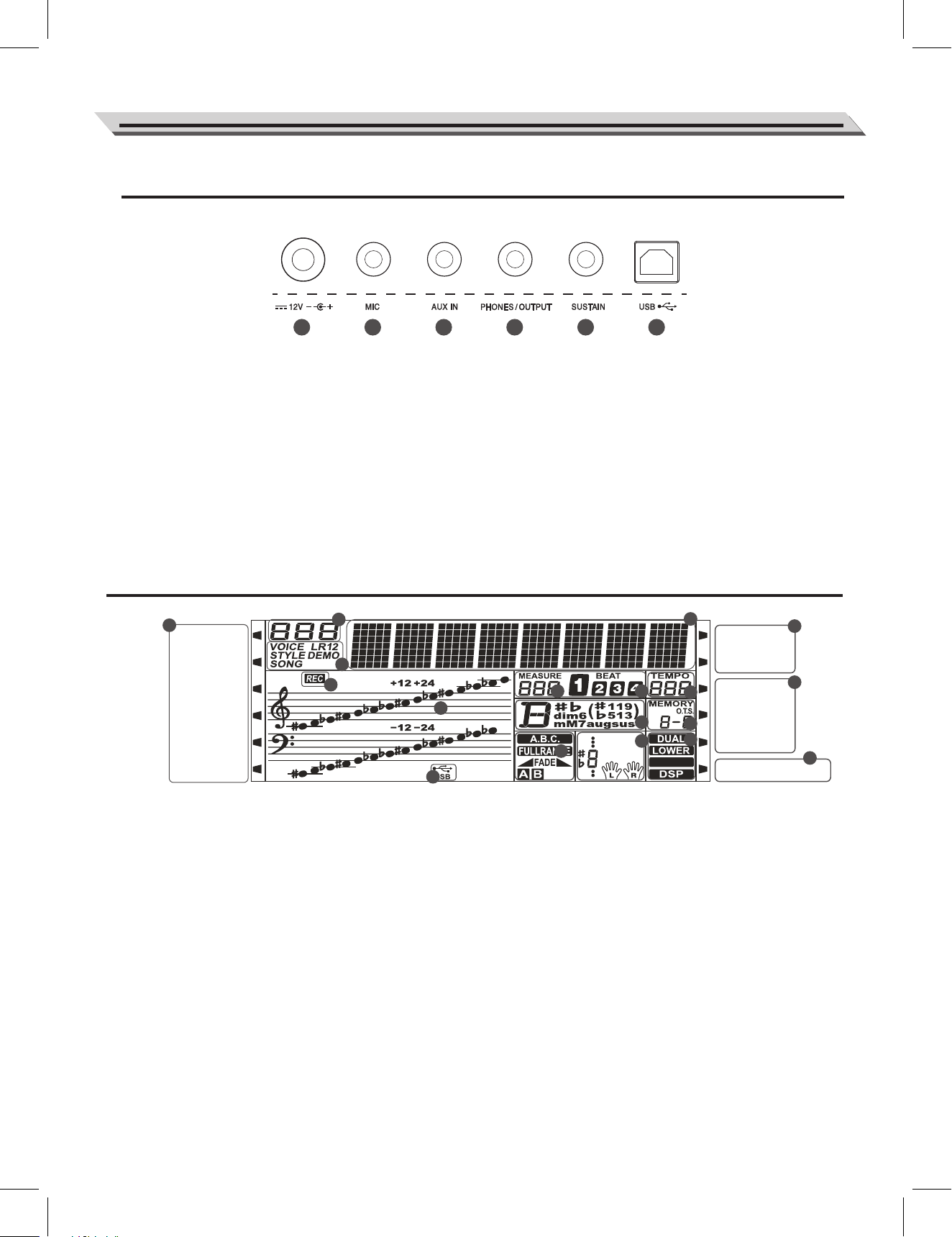
41. SUSTAIN Jack
Connect a sustain pedal.
42. USB Terminal
Connect to a PC.
39. AUX IN Jack
Connect an external audio source,
such as MP3 or CD player.
40. PHONES/OUTPUT Jack
Connect a pair of headphones or an
audio equipment.
1. ACCOMP/MELODY 1-5
2. SERIES NUMBER
3. VOICE/STYLE/DEMO/SONG
4. CHARACTER
5. RECORD
6. TREBLE CLEF/BASS CLEF
7. USB CABLE
8. MEASURE
9. BEAT
10. TEMPO
11. CHORD
12. MEMORY NUMBER/ONE TOUCH SETTING
13. A.B.C/FULL RANGE/FADE/
ACCOMPANIMENT SECTION
14. NOTE INDICATION/LESSON
15. DUAL/LOWER/HARMONY/DSP
16. PERFORMANCE ASSISTANT/
PERFORMANCE ASSISTANT HIGH
17. SUSTAIN/TOUCH/ALBUM
18. SMART LEARNING
37. DC 12V Jack
Connect the DC 12V power adapter.
38. MIC Jack
Connect a microphone.
05
LCD
HARMONY
1
2
5
6
4
8 9
10
12
14
16
11
3
7
37 38
39 40 41 42
ACCOMP
MELODY 1
MELODY 2
MELODY 3
MELODY 4
MELODY 5
PERFORM.
PERFORM. H
SUSTAIN
TOUCH
ALBUM
SMART LEARNING
15
17
18
13
Setup
This section contains information about setting up your instrument
and preparing to play. Please go through this section carefully before
turning the power on.
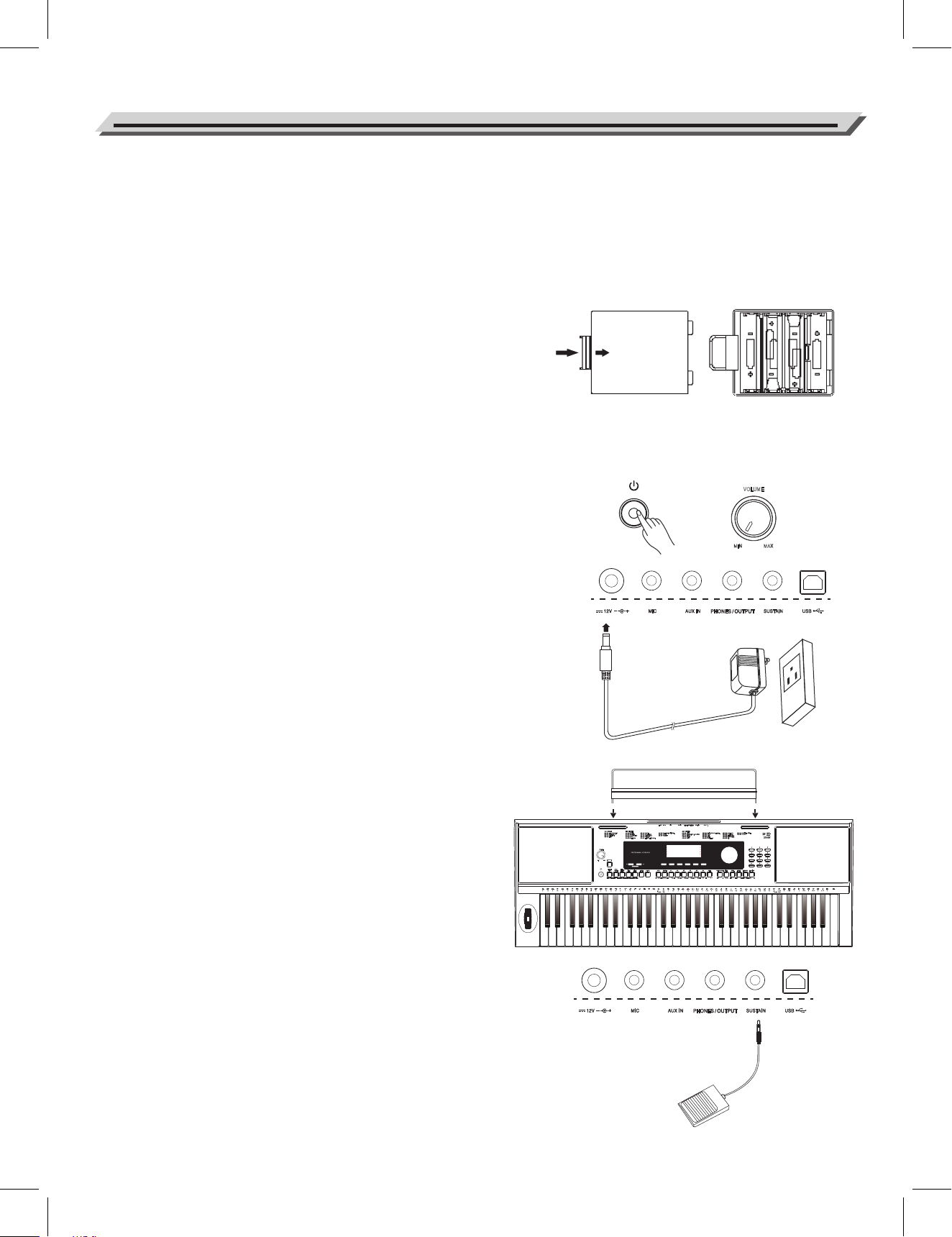
Power Supply
You can power the instrument either by batteries or by power adaptor.
Follow the instructions described below.
Using Batteries
The instrument needs 6 pieces of AA (NO.5) or equivalent alkaline
batteries for power supply.
1. Open the battery compartment cover located on the bottom of the
instrument.
2. Insert the batteries; carefully follow the polarity markings on the
cabinet.
3. Replace the compartment cover, making sure that it locks firmly in
place.
Note:
1. Do not mix used and new batteries.
2. Always use same types of batteries.
3. Always remove the batteries from the instrument when it is not
being used for an extended period of time.
Using Power Adapter
1. Set the POWER switch to OFF, and then turn down the volume
before connecting to power supply.
2. Connect the adaptor to the DC jack of the instrument.
3. Plug the adaptor into an AC outlet. This will automatically cut off
the battery power supply.
Note:
1. In standby mode, the instrument will automatically shutdown in 30
minutes if it is not used. (Please refer to “Auto Power Off” for
details).
2. For your safety, please unplug the instrument when it is not in use
or during a thunderstorm.
Setting a Music Stand
A music stand is supplied with the keyboard. You can easily attach it
to the instrument by inserting it into the slots at the front of the panel.
Using Sustain Pedal
Plug an optional pedal into this jack and use it to switch sustain on
and off. When you step on the pedal, all notes you play on the
instrument will have a longer sustain.
06
Open
SMART LEARNING
ALBUM
PERFORM.H
PERFORM.ACCOMP
MELODY 1
MELODY 2
MELODY 3
MELODY 4
MELODY 5
SONG VOICESTYLEDEMO PIANO
SMART
LEARNING
ACCOMP
TEMPO
SMART LEARNING
ALBUM
PERFORM.H
PERFORM.ACCOMP
MELODY 1
MELODY 2
MELODY 3
MELODY 4
MELODY 5
SONG VOICESTYLEDEMO PIANO
SMART
LEARNING
ACCOMP
TEMPO
SUSTAIN
TOUCH
VOLUME
MIN MAX
Connecting a pair of Headphones
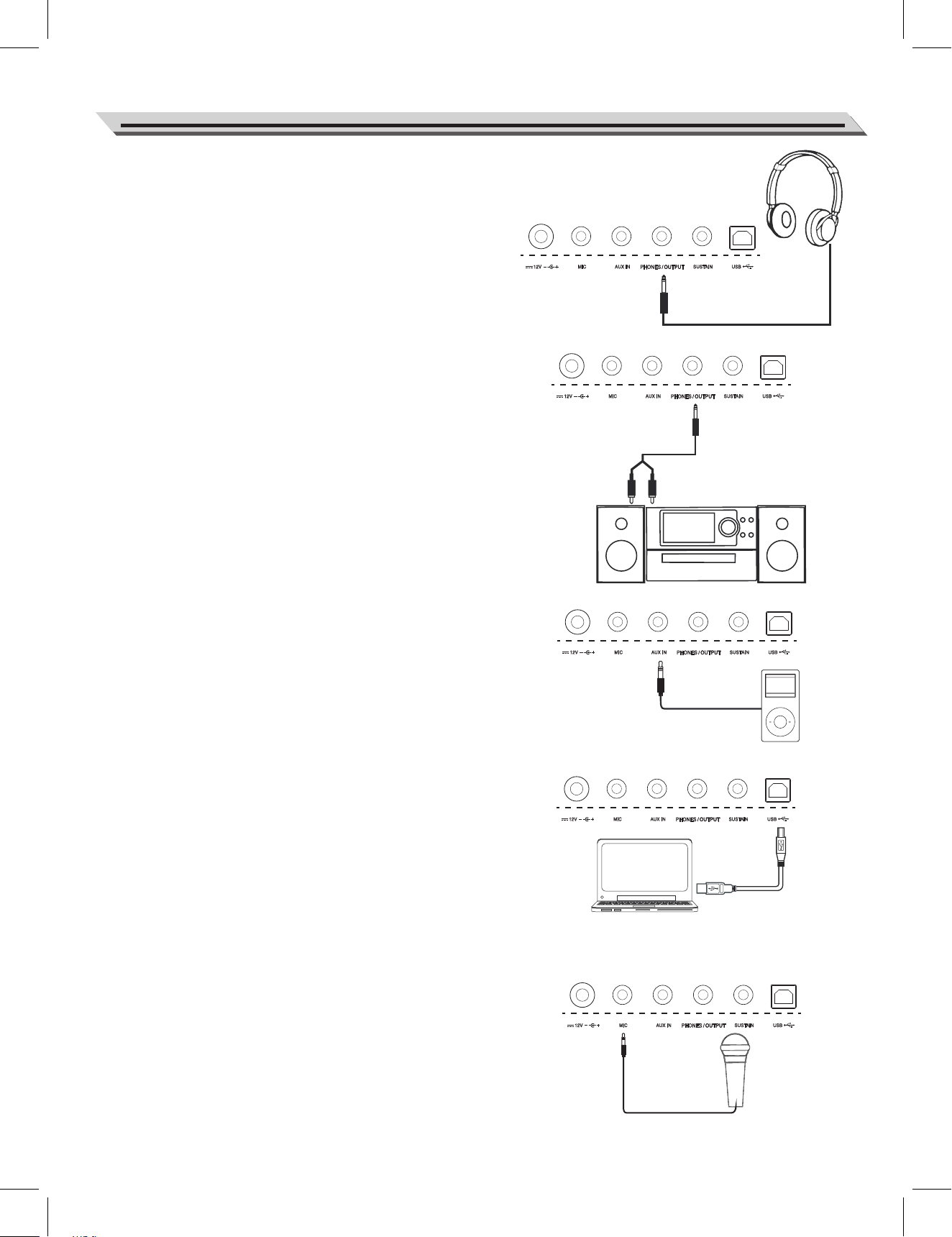
1. A standard pair of stereo headphones can be connected to the
PHONES/OUTPUT jack for private practice or late-night playing.
2. The internal stereo speaker system is automatically shut off
when a pair of head phones is plugged into this jack.
Note:
To avoid the risk of hearing loss, do not listen with headphones at
high volume level for a long period of time.
Connecting an Audio Equipment
The rear-panel PHONES/OUTPUT jack delivers the output of the
instrument to an external audio equipment such as a keyboard
amplifier, a stereo sound system, a mixing console, or a tape
recorder.
Use an audio cable to connect the PHONES/OUTPUT jack of the
instrument to the AUX IN jack of the external audio equipment.
Note:
To avoid damaging the speakers, please set the volume level to
minimum before connecting the power and other devices.
Connecting an MP3/CD Player
The rear-panel AUX IN jack receives audio signals from an external
audio source such as an MP3 or a CD player.
Use an audio cable to connect the AUX IN jack of the instrument to
the AUX OUT jack of the MP3/CD player. The input signal is mixed
with the instrument signal, allowing you to play along.
Connecting a Computer
Use a standard USB cable to connect the USB jack of the instru-
ment to the USB port of a computer. You can save the piano
performance to the computer or use the speaker system to play
back MIDI songs on the computer.
Note:
1. Do not set the USB device to be input and output simultaneously
when setting the software on computer. Otherwise, the sound will
be overlapped when playing the keyboard.
2. We recommend you to use a USB2.0 interface when connecting
the instrument to a computer.
Connecting a Microphone
By connecting a microphone, you can enjoy singing along with your
keyboard performance or with Song playback (KARAOKE).
1. Before turning the power on, set the master volume to minimum.
2. Connect a microphone to the MIC jack.
3. Turn the power on. Adjust the master volume while singing into
the microphone.
Note:
1. You can set the vocal effects in the Function Menu.
2. The [VOLUME] knob cannot adjust the volume level of the
microphone and the AUX IN, you need to adjust it on the external
equipment.
Connections
07
VOLUME
MIN MAX
Power Switch
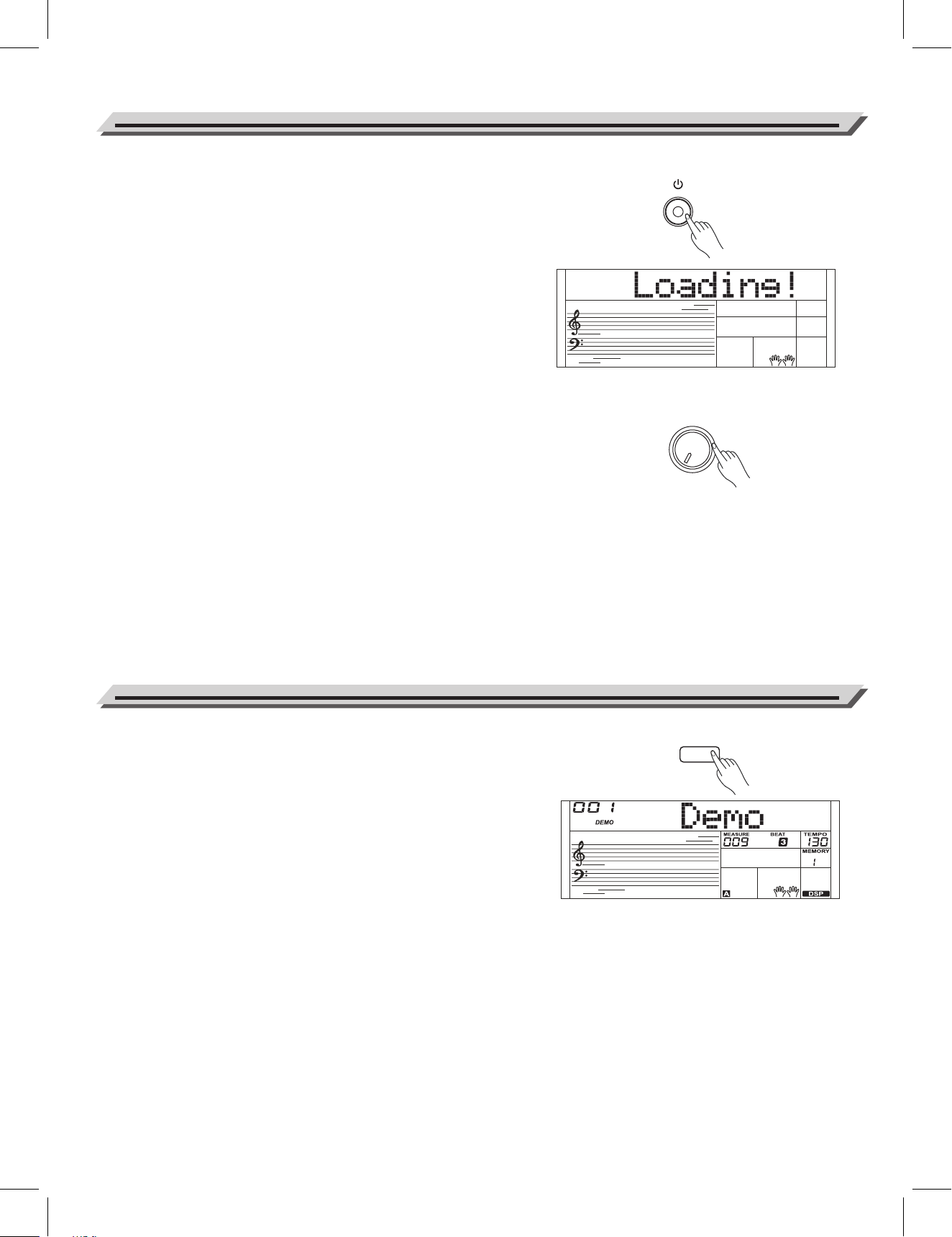
Before you switch your instrument on, please turn down the volume
of instrument and the connected audio equipment first.
1. Make sure the instrument is properly connected to power supply.
2. Press POWER SWITCH, the LCD screen is lit, and displays
“Loading!” , it indicates the instrument is powered on.
Note:
If the LCD display does not light up after you turned on the
keyboard, please check the power supply.
Master Volume
Rotate the [VOLUME] knob clockwise, the master volume will
increase and vice verse. It can be adjusted as required.
Note:
If the keyboard keeps silent, check if the volume is set to minimum
or if headphones are plugged into the PHONES/OUTPUT jack.
Power Switch and Master Volume
08
This instrument features several wonderful demos. (Please refer to
Demo List.)
1. Press the [DEMO] button, the LCD will display the current demo
number and name, meanwhile, all the demo songs will loop playing.
2. Use the data dial or the [+/Yes]/ [-/No] button to select a demo song.
3. Press the [START/STOP] button to stop playing and exit the demo
mode.
Or you can press the [DEMO] button to quit demo playing.
Playing Demo Songs
DEMO
The keyboard has a variety of remarkably realistic built-in voices.
Please refer to Voice List.
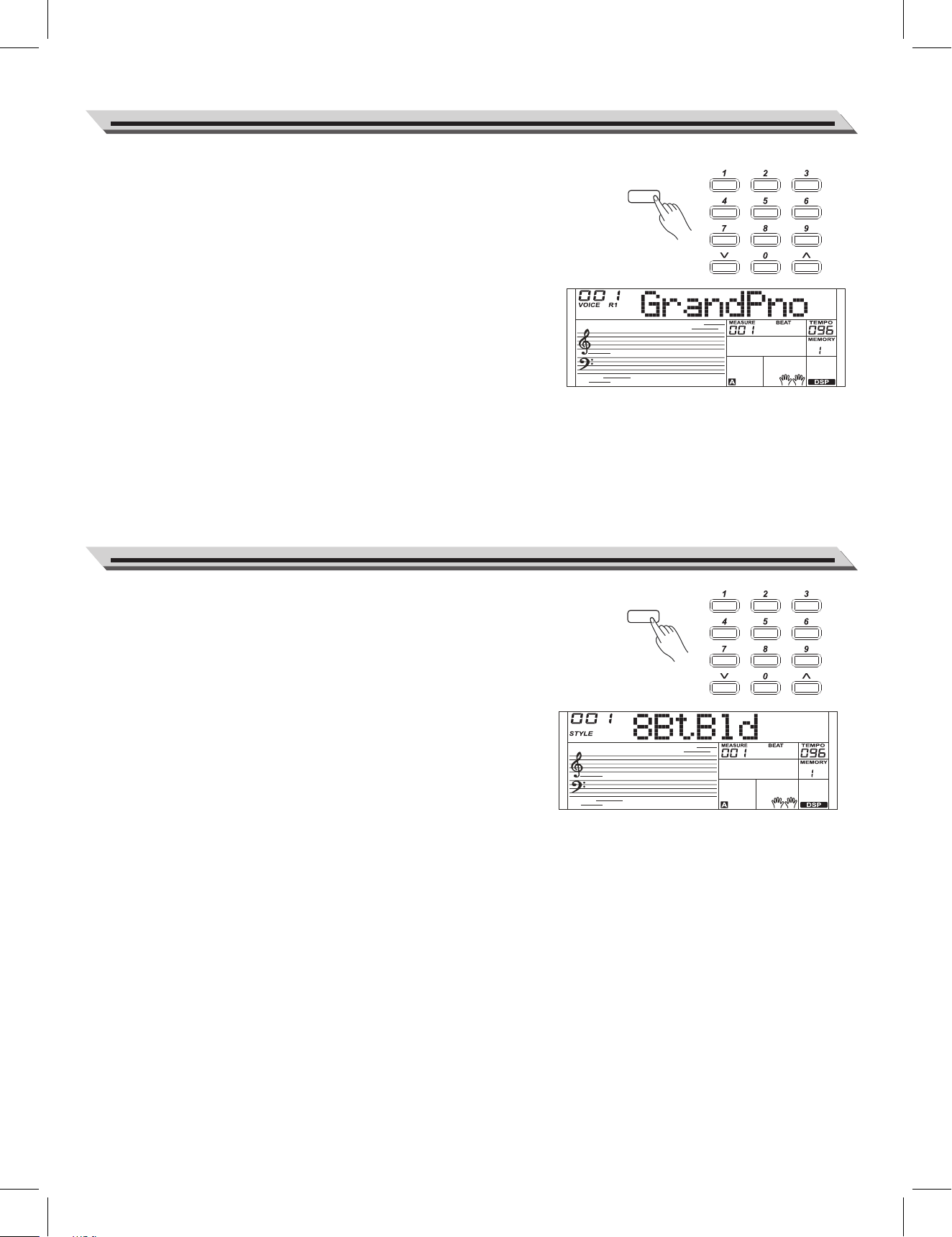
1. Press the [VOICE] button.
Enter the Voice Mode. The LCD displays the current default voice
name and number.
2. Select a Voice.
Use the data dial or the [+/Yes]/ [-/No] button to select the voice you
want to play. You can also use the numeric buttons to select a voice.
3. Play the Voice.
Play the keyboard and enjoy the beautiful voice.
Playing Voices
09
The instrument features a variety of styles. Try selecting different styles
(Please refer to the Style List) and playing with the auto accompaniment.
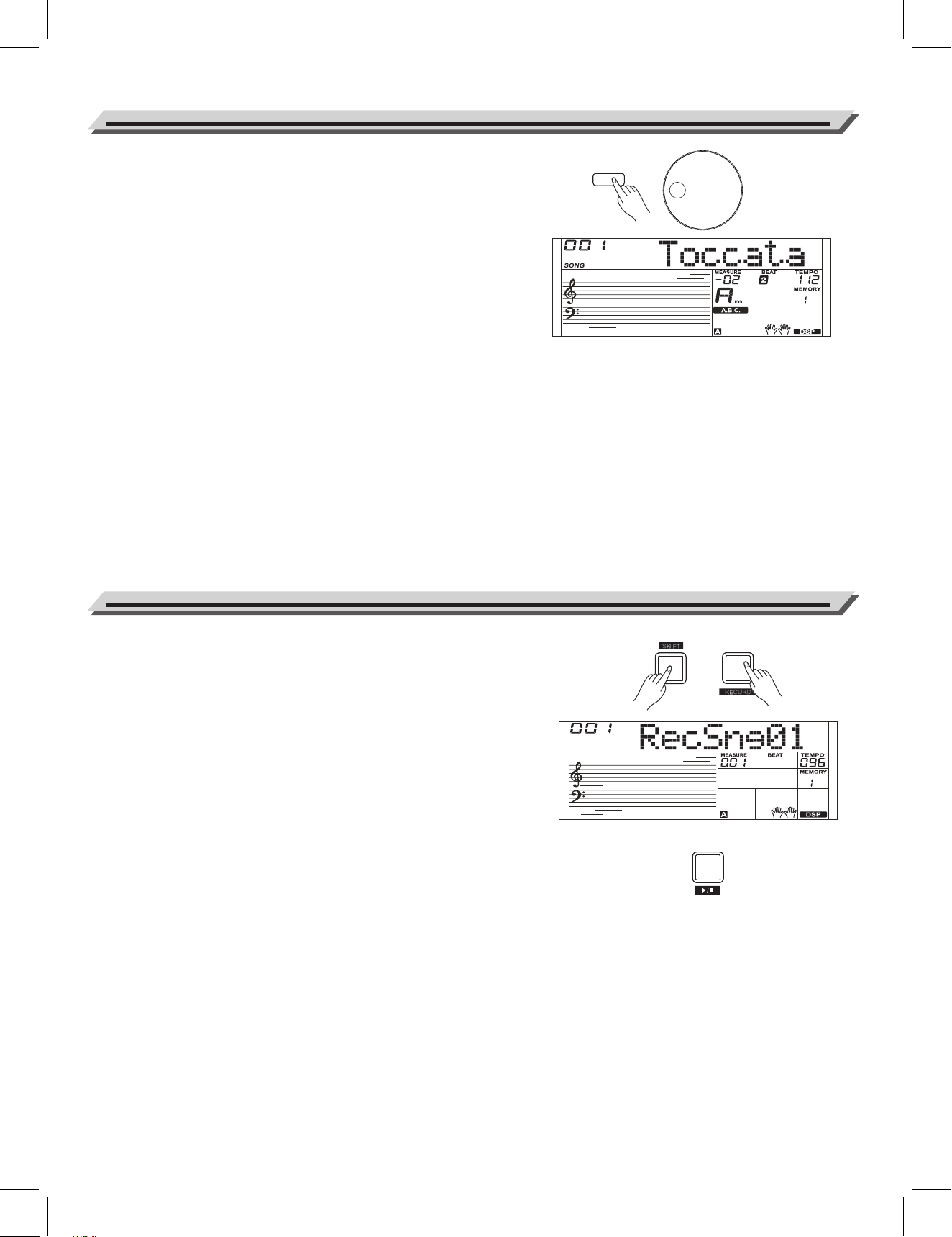
1. Press the [STYLE] button.
Enter the Style Mode. The LCD displays the current default style
name and number.
2. Select a Style.
Use the data dial or the [+/Yes]/ [-/No] button to select the style you
want to play. You can also use the numeric buttons to select a style.
3. Play the Style.
Press the [START/STOP] button to start a rhythm playing.
Playing Styles
VOICE
STYLE
SHIFT
BANK
R
ECORD
This instrument has featured a variety of preset songs, and each song
can be practiced in Smart Learning mode.
1. Press the [SONG] button.
Enter the song mode. It will play all songs circularly.
2. Select a song.
Use the data dial or the [+/YES]/ [-/NO] button to select the song
you want to play.
3. Press the [START/STOP] button.
It will stop the song playback. Press it again, it will play current song
repeatedly.
4. When song playback is stopped, press the [STYLE] or [VOICE]
button, to exit the song mode.
Playing Songs
10
You can record your performance and save it to a user song.
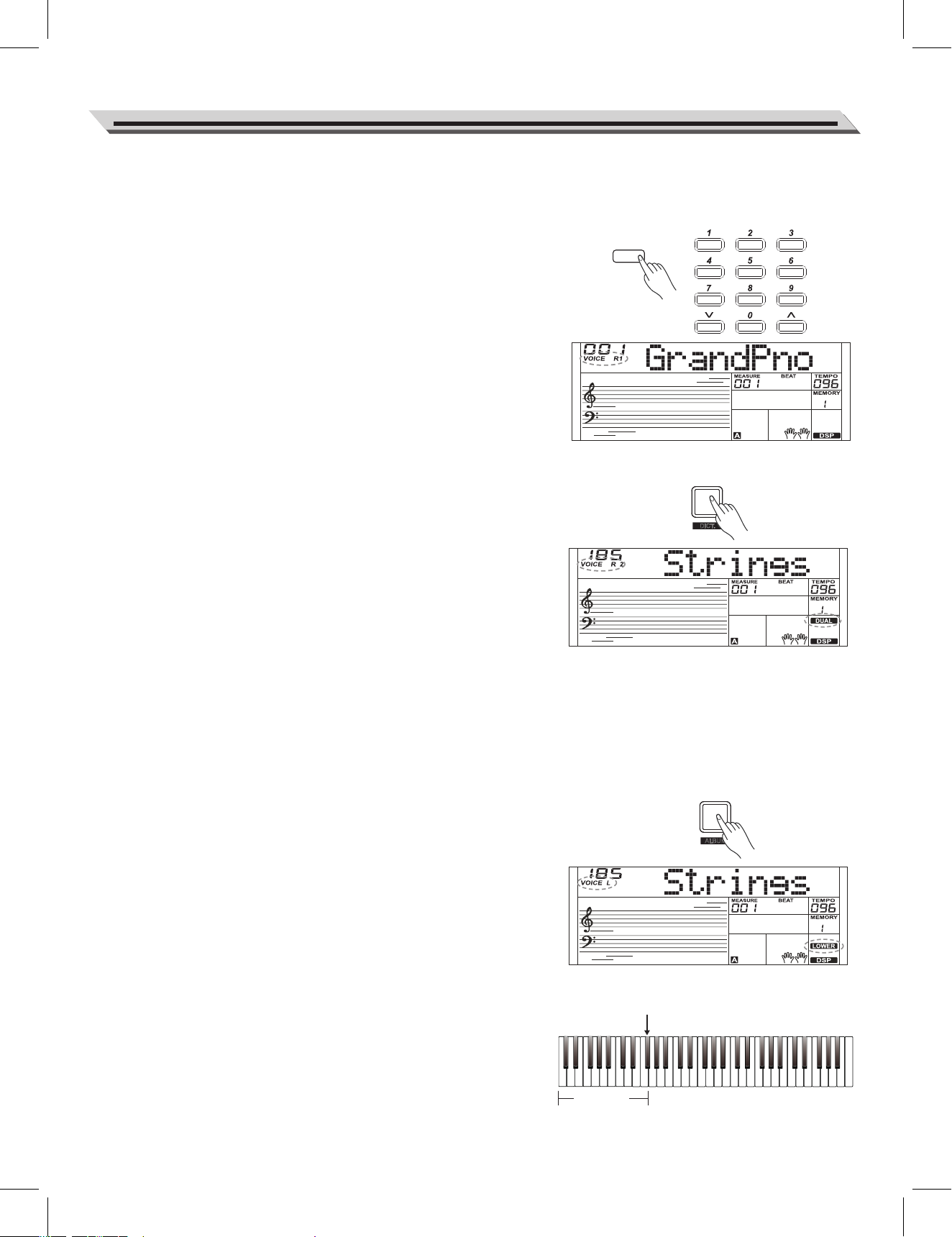
1. Holding down [SHIFT] button, and then press the [RECORD] button
to enter the user song menu. You can use the data dial or the
[+/YES]/[-/NO] button to select a user song to which your recording
will be saved.
2. Holding down [SHIFT] button, and then press the [RECORD] button.
Enter the record standby mode, and you can select voice, style or
other parameters to prepare for recording.
3. Press the [START/STOP] button or play the keyboard to start
recording.
4. When recording is in process, holding down [SHIFT] button and
then press the [RECORD] button, it will stop recording and enter the
Song mode, and the current recorded song will play automatically in
circle.
Note:
To play back a user song in song mode, press the [SONG] button then
use the data dial, [+/YES] or [-/NO] button to select a user songs. If
there is no data in the selected user song, it will display “NoFile!” and
stop playing.
Record
SONG
START/
STOP
LOWER
A
LBUM
DUAL
D
ICT.
The instrument features a variety of exceptionally realistic voices.
Please refer to the Voice List.
Playing a Voice
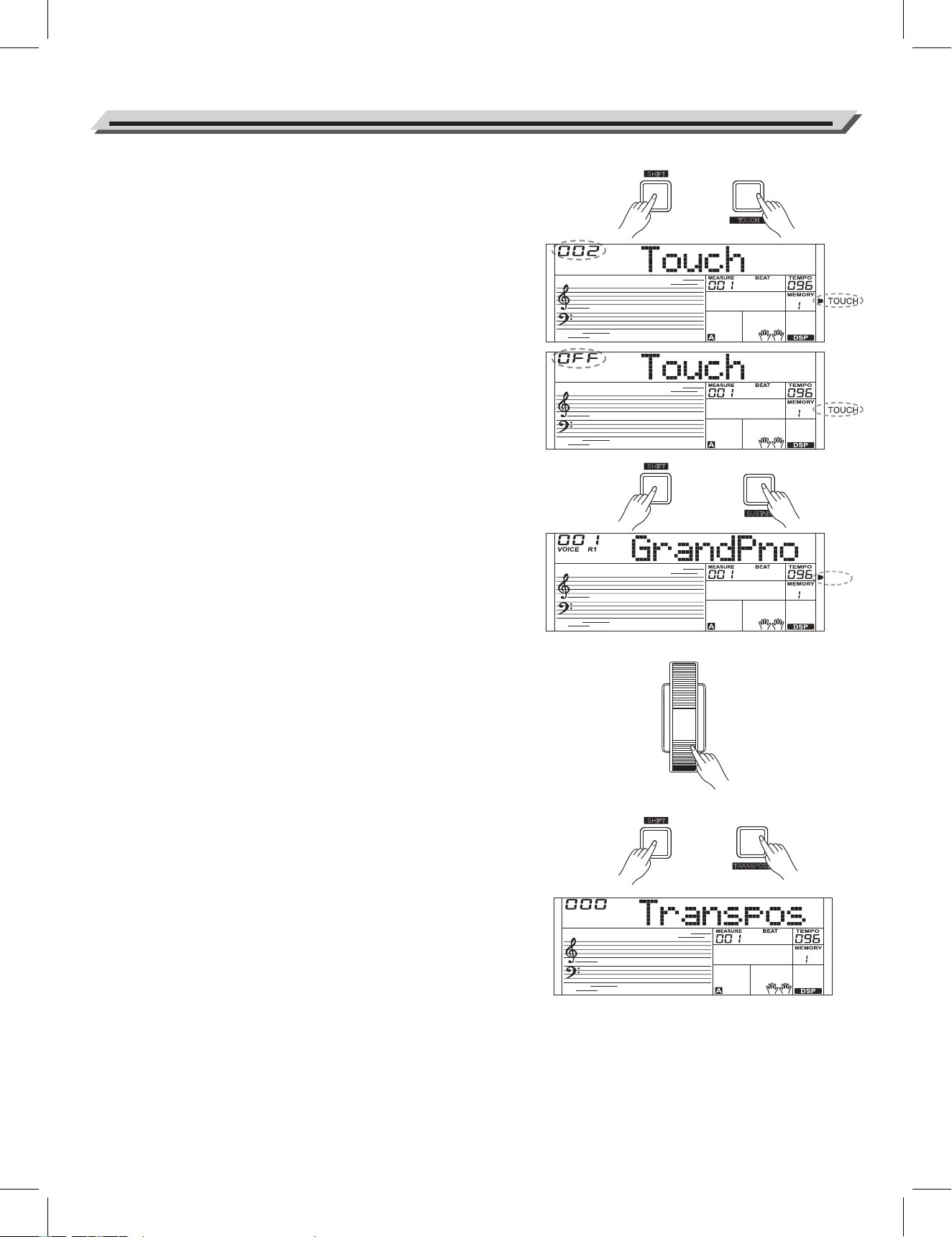
1. Press the [VOICE] button. Enter the VOICE mode. LCD shows “VOICE
R1” and the current voice name and voice number.
2. Select a voice.
Use the data dial, the [+/YES]/ [-/NO] button to select the voice you
want to play. You can also use the numeric buttons to select a voice.
3. Play the voice.
Play the keyboard and enjoy the beautiful voice.
Note:
When the DUAL and LOWER function is on, you can press [VOICE]
button repeatedly to choose the voice source. The corresponding LCD
indicator will highlight between R1, R2, and L.
Playing two voices simultaneously-DUAL
The dual function allows two different voices to be layered together,
creating a much richer sound. Turn the function on, you can select a
second voice for the dual voice “VOICE R2”.
1. In idle mode, press the [DUAL] button to turn dual function on. The LCD
displays the current voice name and number, and the indicator “VOICE
R 2” and “DUAL”.
2. You can use the data dial or [+/YES]/ [-/NO] button to select the dual
voice you want to play. You can also use the numeric buttons to select
a voice.
3. Play the keyboard, and then you will hear two different voices layered
together, just like two different instruments playing at the same time.
4. Press the [DUAL] button again to turn the dual function off.
Note:
When the keyboard is split, only the right hand area will have the dual
voice.
Playing Different Voices with Both hands-
LOWER
The lower function splits the keyboard into right and left areas, each with
a different voice. The left section voice is lower voice. You can set the
split point to any key as you like.
1. In idle mode, press the [LOWER] button to turn the lower function on.
The LCD displays the left hand voice name and number, and the
indicator “VOICE L” and “LOWER”.
2. You can use the data dial or the [+/YES]/[-/NO] button to select the
lower voice you want to play. You can also use the numeric buttons to
select a voice.
3. Play the keyboard with both hands, and you will hear two different
voices.
4. Press the [LOWER] button again to turn lower function off.
Split Point
The Point on the keyboard that separates voice L and voice R1/R2 is
called the “split point”. The default split point is at F#3 (19) , however you
can assign it to any other key. Refer to the Function Menu.
Playing Voices
11
Split Point:F#3
Lower Voice
VOICE
MIXER
T
RANSPOSE
SUSTAIN
SSUUSSTTAAIINN
M6
T
OUCH
Touch
The touch response feature allows you to dynamically and expressive-
ly control the level of the voice with your playing strength just as on an
acoustic instrument. The piano has 3 touch types to choose.
1. Holding down [SHIFT] button and then press [TOUCH] button to
enter the touch menu. LCD displays the current touch level.
The default number is 2.
2. Select a touch level.
When the LCD displays touch setting, using [+/YES]/ [-/NO] or data
dial or holding down [SHIFT] button, and then pressing [TOUCH]
button can change touch level. Pressing [+/YES] and [-/NO] buttons
simultaneously will set touch value to default setting: 2(normal).
3. Turn the touch function off.
If the value is set to OFF, there will be no touch response to
keyboard.
Sustain
1. Holding down [SHIFT] button and then press the [SUSTAIN] button
to start sustain function.
All notes will sustain even after releasing the keys.
2. To stop the sustain function, holding down [SHIFT] button and then
press the [TOUCH] button again
Note:
To have a better sustain effect, we recommend you using a sustain
pedal. (Refer to pedal function for more details.)
Pitch Bend
With the pitch bend wheel, you can easily imitate the guitar, violin,
saxophone or the pitch bend effect of other instruments, and make
your performance more vivid. Simply roll the pitch bend wheel to bend
notes up or down while playing the keyboard.
Transpose
Transpose function allows the overall pitch of the instrument to be
transposed up or down by one octave in semitone steps.
1. Holding down [SHIFT] button, and then press [TRANSPOSE]
button to enter transpose menu. LCD displays the current
transpose: xxx Transpos.
2. Use [+/YES]/ [-/NO] or data dial to adjust the transpose value over
the range: ±12 semitones.
3. Press [+/YES] and [-/NO] simultaneously to set the transpose
value to its default setting: 000 Transpos.
Note:
1. For example, set the transpose to -05 or 007, and then you can play
the G scale using C scale keys.
2. Transpose setting applies to the accompaniment and keyboard
voice.
Playing Voices
12
SHIFT
SHIFT
SHIFT
FUNCTION
METRONOME
O
CTAVE
Octave
The octave function will raise or lower the pitch of the keyboard voice by
an octave.
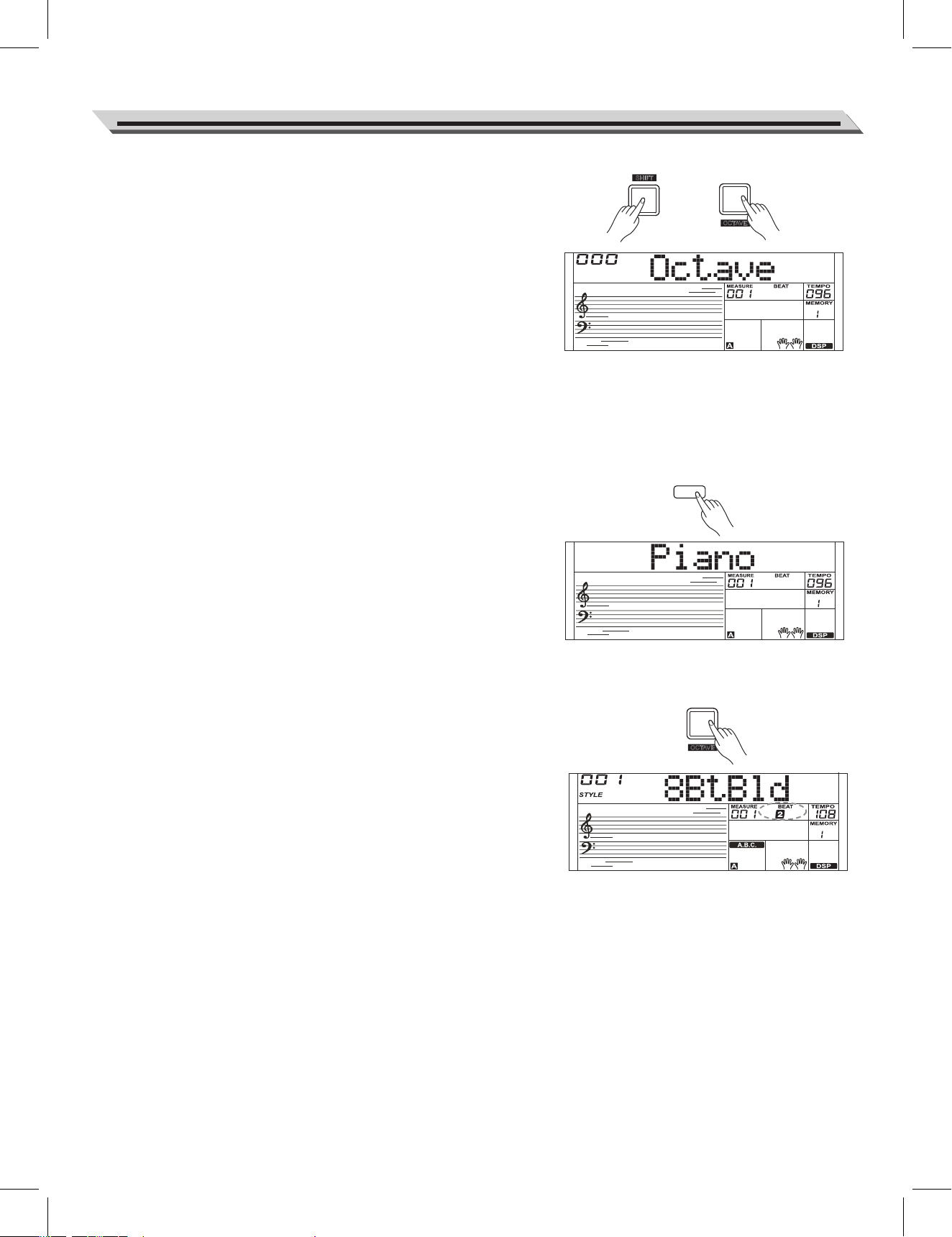
1. Holding down [SHIFT] button and then press the [OCTAVE] button to
select octave function menu. The LCD displays “xxx Octave”.
2. Use [+/YES]/ [-/NO] button or data dial to change octave value,
adjustable range is: -1~ +1.
3. Press the [+/YES] and [-/NO] buttons simultaneously to restore
default setting: 000.
Note:
1. After adjusting the octave, notes in the highest and lowest keyboard
range may not sound normally.
2. You can set the octave value respectively for voice R1/R2/L.
Piano mode
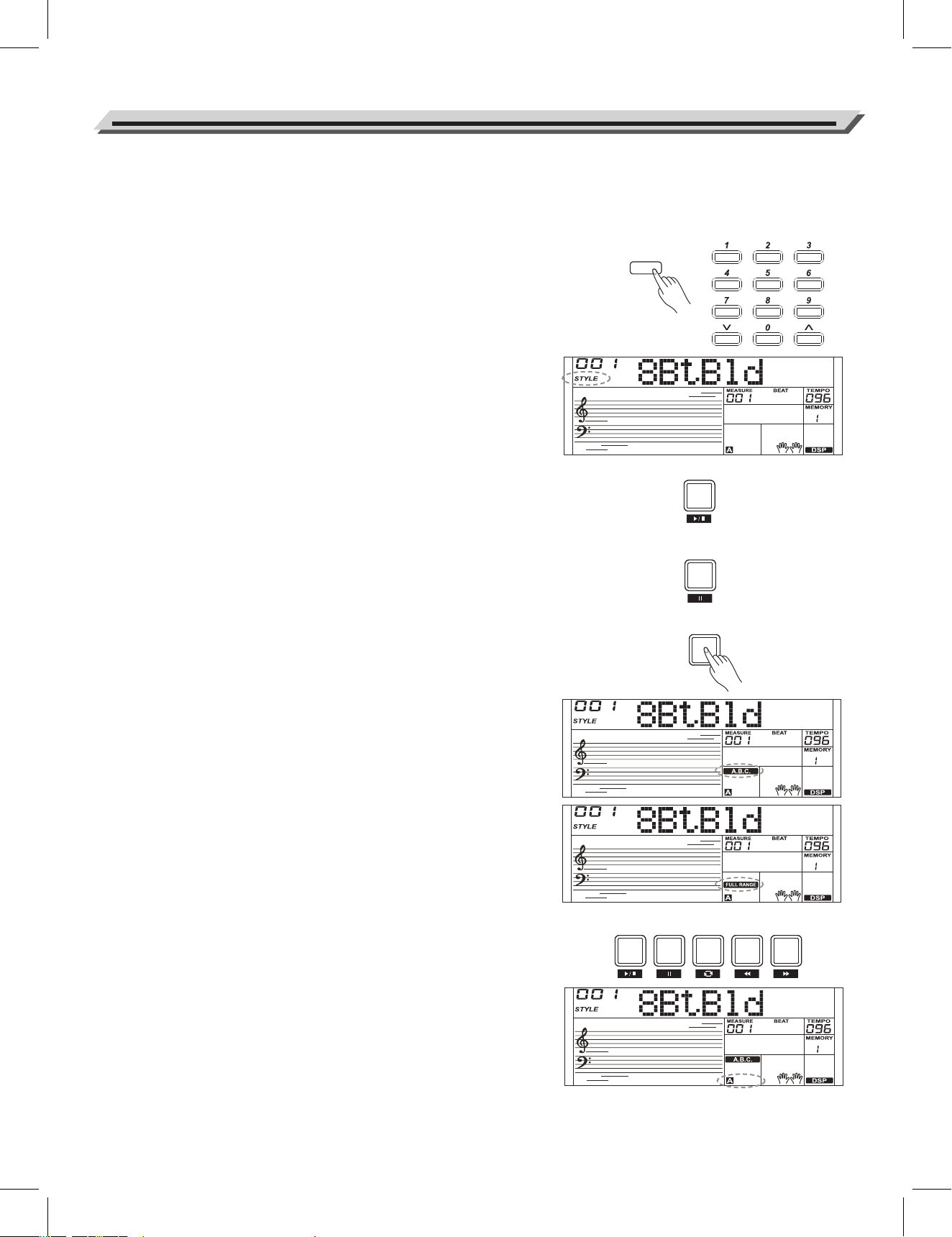
This function is to set the voice of the whole keyboard to piano instantly.
1. Press [PIANO] button to enter or exit piano mode.
2. In piano mode, the accompaniment control is the same as in the
other modes, however, the accompaniment only plays the rhythm
part.
Note:
In piano mode, the A.B.C. is automatically turned off.
Metronome
The metronome provides a steady beat to help you practise at a preset
tempo.
1. Press [METRONOME] button to start the metronome.
2. To stop the metronome, press the [METRONOME] button again.
(You can set its time signature in the function menu.)
Note:
1. If you turn on the metronome during style playback, the metronome
sound will start from the next beat and its time signature will match
the current style.
2. In recording mode, you can turn on the metronome, but the metronome
sound will not be recorded.
Playing Voices
13
SHIFT
METRONOME
O
CTAVE
PIANO
CHORD
The auto accompaniment feature puts a full backing band at your
fingertips. To use it, all you have to do is to play the chords with your
left hand in the selected accompaniment style, and then the
accompaniment will automatically play along, instantly following the
chords you play. With auto accompaniment, even a solo performer
can enjoy playing with the backing of an entire band or orchestra. The
instrument features a variety of styles, try selecting different styles
(refer to Style List) and enjoy the auto accompaniment feature.
Play Auto Accompaniment
(rhythm track only)
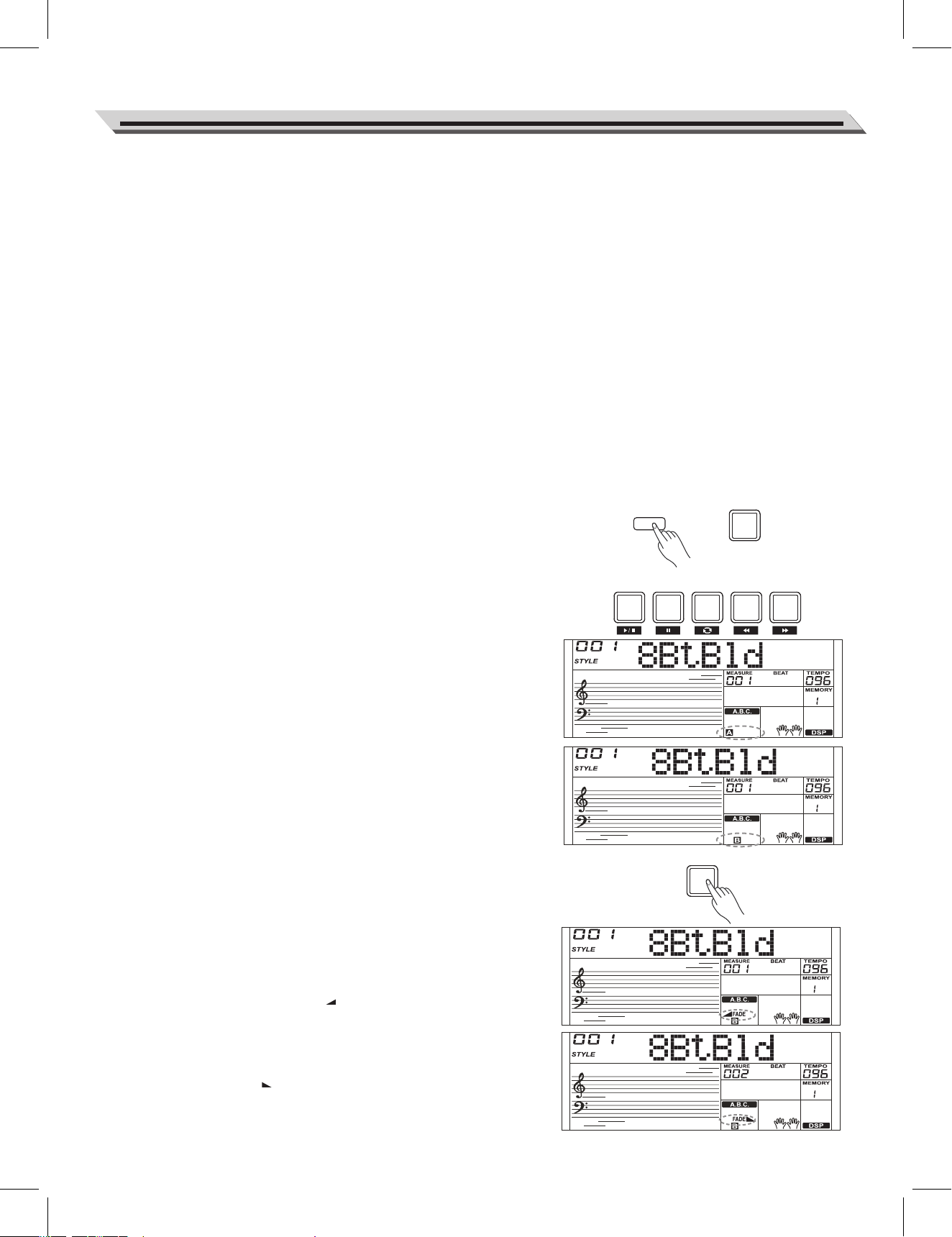
1. Press [STYLE] button.
Enter the style mode. The “STYLE” icon on LCD will light up. The
LCD displays the name and number of the current style.
2. Select a style.
Use the data dial or the [+/YES]/ [-/NO] button to select a style you
want to play. Or you can use the numeric buttons to select a style.
3. Start playing a style.
Press the [START/STOP] button to start the rhythm tracks of the
auto accompaniment. Also you can press [SYNC START] and then
play any key to start the rhythm tracks of the auto accompaniment.
4. If you are ready to stop playing style, press the [START/STOP]
again.
Play Auto Accompaniment(all tracks)
1. Turn the auto accompaniment on.
In style mode, you can press the [CHORD] button to enter the “auto
bass chord” (A.B.C.) mode. The keyboard is split into two sections.
Left hand section is chord section. The “A.B.C.” icon will light up.
Now pressing any key in chord section (Sync Start status) you will
hear the fantastic accompaniment.
Press [CHORD] button again to enter “full range” mode.
The “FULL RANGE” icon will light up. You can play chords over the
entire keyboard in multi-fingering.
2. Start the auto accompaniment.
You can press [SYNC START] button and then play a chord in
chord section to start auto accompaniment of all tracks.
When you change a chord, the accompaniment automatically
changes.
You can also press [START/STOP] button to start auto
accompaniment of rhythm track, then play a chord in chord section.
It will start auto accompaniment of all tracks.
Note:
The instrument can save several user styles. To use your styles, you
need to convert the styles with our application software and then save
them to instrument.
Auto Accompaniment
14
STYLE
START/
STOP
SYNC
START
FILL A FILL B
INTRO/
ENDING
SYNC
START
START/
STOP
IN / OUT
FADE
Accompaniment Sections
There are various types of Auto Accompaniment sections that allow you
to vary the arrangement of the accompaniment to match the song you are
playing. They are: Intro, Main (A, B), Fill (A, B), and Ending. By switching
among them during your performance you can easily produce the
dynamic elements of a professional sounding arrangement in your
performance.
1. The intro is an opening section of the song.
When the intro pattern finished, the system will automatically shift to
the main section.
2. MAIN Section
The main is an important section of the song. And it plays an
accompaniment pattern and repeat infinitely until another section's
button is pressed.
3. FILL IN Section
Auto fill in function automatically adds a fill to your performance.
When the fill-in is finished,accompaniment shifts to the Main section
(A,B).
4.ENDING Section
Ending is used for the ending of the song. When the ending is finished,
accompaniment automatically stops. The length of the ending differs
depending on the selected style.
Note:
1. If you keep pressing the [FILL A]/[FILL B] button during style playback,
the fill-in pattern will repeat playing until the button is released.
Playback will then shift to the related MAIN section.
2. When style stops, press the [FILL A]/[FILL B] button to select a MAIN
section. “A or B” will highlight on LCD.
Playing Different Accompaniment Sections
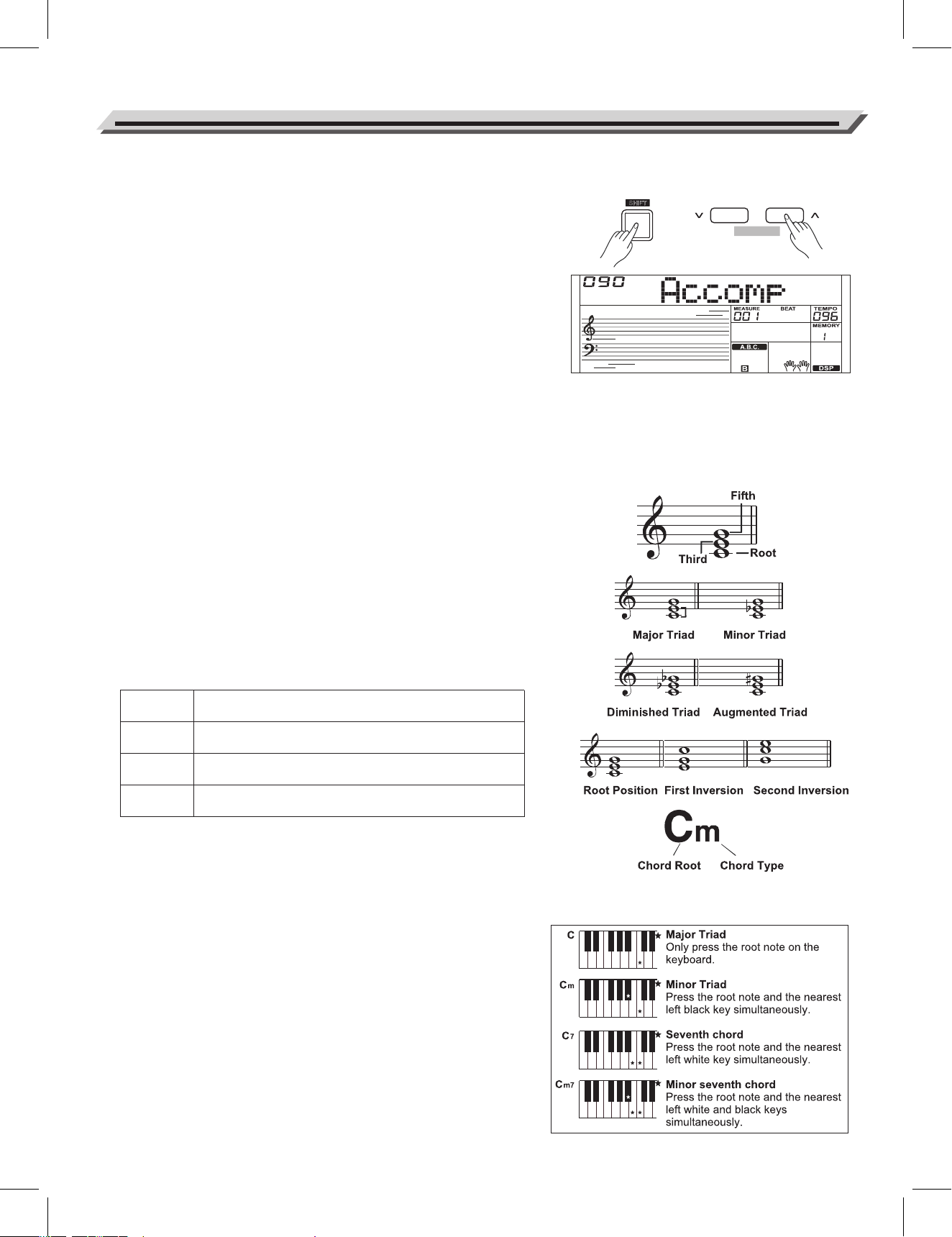
1. Press the [STYLE] button. Then use the numeric buttons, data dial or
[+/YES]/ [-/NO] button to select a style.
2. Press [CHORD] button to enter A.B.C. (auto bass chord) mode.
3. Press [SYNC START] button.
4. Press the [FILL A] button, select the Main A section.
5. Press the [INTRO/ENDING] button. Now the “A” starts flashing on
LCD, and the style is ready to play.
6. It will start the accompaniment as soon as you start playing in Chord
section. When the playback of the intro is finished, it automatically
leads into Main A section.
7. Press the [FILL B] button. A fill-in plays, automatically followed by
the Main B section.
8. Press the [INTRO/ENDING] button again, and it will enter the Ending
Section. When the ending is finished, the auto accompaniment
automatically stops.
Fade
1. Fade In
Starting the style with fade in produces a smooth beginning, the
volume increases from low to high. Press the [FADE] button when
Style playback is stopped. The “ FADE” icon will be lighting up, and
then flashing with style playing.
2. Fade Out
Stopping the style with fade out produces a smooth ending, the volume
will decrease from high to low. Press the [FADE] button during Style
playback. The “FADE ” icon will be lighting up, and then flashing until
style stops.
3. Fade In/ Out Time
The default time is 10 seconds.
Auto Accompaniment
15
CHORD
FILL A FILL B
INTRO/
ENDING
SYNC
START
START/
STOP
STYLE
Accompaniment Volume
The function will adjust the accompaniment volume, so as to keep an
appropriate balance between the accompaniment volume and the voice
volume.
1. Holding down [SHIFT] button, and then use the [ACCOMP +]/
[ACCOMP -] button to set accompaniment volume, adjustable range:
0~127, the LCD displays current accompaniment volume level.
2. Holding down [SHIFT] button and then press the [ACCOMP +]/
[ACCOMP -] for a while to quickly adjust the volume value.
3. When LCD displays the volume level, Holding down [SHIFT], then
press both the [ACCOMP +]/ [ACCOMP -] button simultaneously to
turn the accompaniment volume off. The LCD displays “OFF
Accomp”. Holding down [SHIFT] button and then press the
[ACCOMP +]/ [ACCOMP -] buttons again to turn the accompaniment
volume on.
Auto Accompaniment
16
Chord Fingering
How the chords are played or indicated with your left hand (in the auto
accompaniment section of the keyboard) is referred to as "fingering".
There are 2 types of fingerings as described below.
Chord Basics
A chord, in music, is any harmonic set of three or more notes that is
heard as if sounding simultaneously. The most frequently encountered
chords are triads. A triad is a set of three notes that can be stacked in
thirds. When stacked in thirds, the triad's members, from lowest
pitched tone to highest, are called: the Root, the Third, and the Fifth.
Triad Type
There are following basic triad types:
Chord Inversion
We define this chord its root is not in the bass (i.e., is not the lowest
note) as an inversion chord. When the root is in the bass, we call the
chord: root-position chord. If we put the Third and Fifth in the root
position, then it forms “Inversion”, we call this chord “Inversion Chord”.
See the following major triad and its inverted chord.
Chord Name
The chord name contains two parts content: Chord root and Chord type.
Single Finger
Single finger type not only can detect single finger but also can detect
multi finger. And the single finger makes it easily to play chords through
only one, two or three keys. Including major, minor, seventh, and minor
seventh chord. Refer to relevant picture on the right for details.
Major Triad
Minor Triad
Augmented
Triad
Diminished
Triad
A root with a major third added above and a perfect fifth
will consist as a “Major Triad”.
A root with a minor third added above and a perfect fifth
will consist as a “Minor Triad”.
A root with a major third added above and an
augmented fifth will consist as an “Augmented Triad”.
A root with a minor third added above and a diminished
fifth will consist as a “Diminished Triad”.
SHIFT
ACCOMP
TEMPO
O.T.S.
P
ERFORM.
Auto Accompaniment
17
Multi-finger
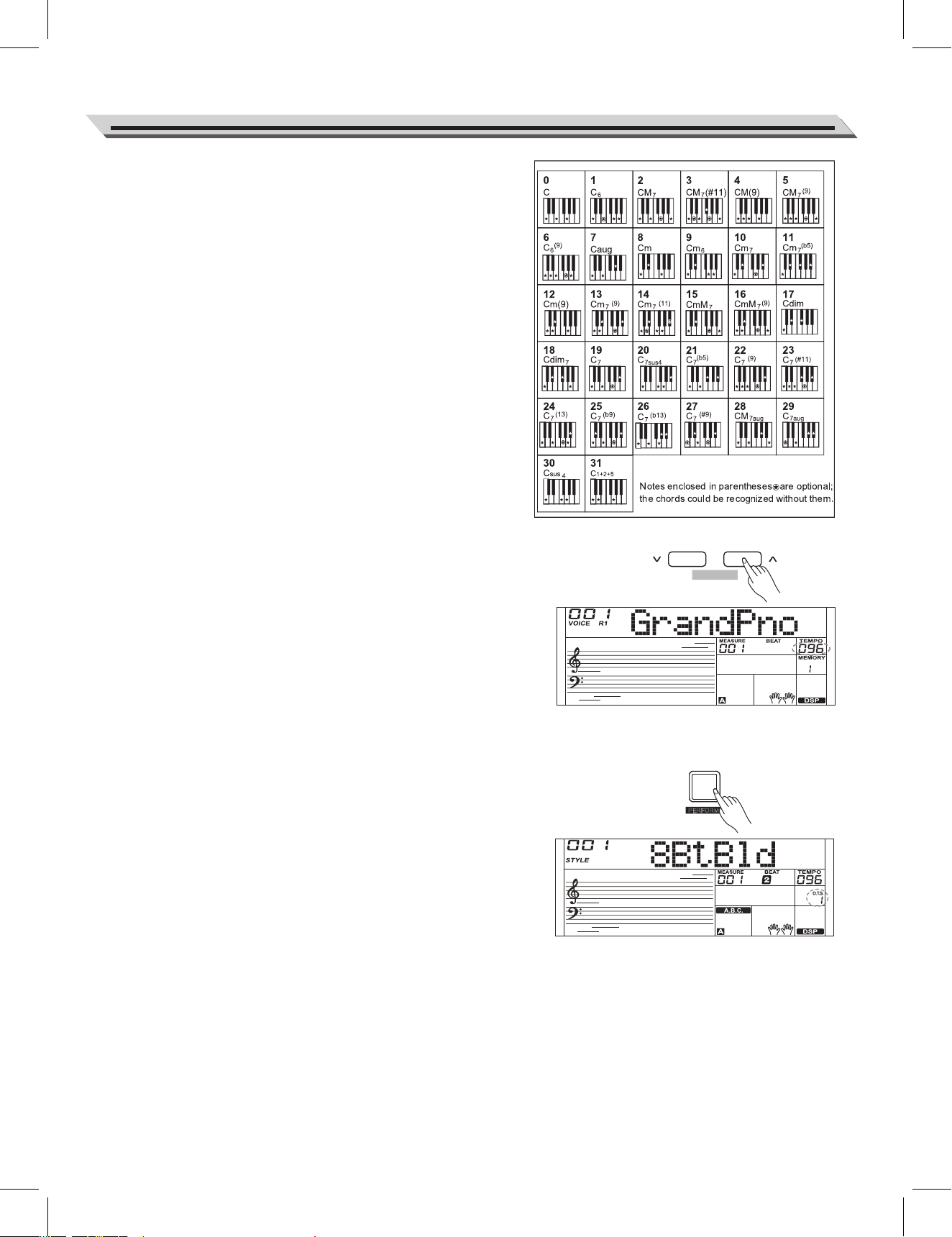
Multi-finger allows you to play chords in normal fingering. Try playing
the 32 chord types in C scale as listed on the right.
Note:
In full range mode, the entire keyboard will only recognize chords
played in normal fingering.
Tempo
Each style of the instrument has been set with a default or standard
tempo; however, this can be changed by using the [TEMPO +]/
[TEMPO -] button.
1. Use the [TEMPO +]/ [TEMPO -] button to change the tempo. While
the tempo value is flashing, use the data dial to quickly change the
tempo.
2. Press the [TEMPO+] and [TEMPO-] buttons simultaneously to
restore the default tempo setting.
Note:
When style stops, changing the style will automatically reset the tempo.
However, changing the style during style playback will not result in
tempo change.
One Touch Setting
Sometimes it is not easy to get an appropriate voice to play a song, but
One Touch Setting Function can make it easy to get a perfect choice.
When One Touch Setting is switched on, you can instantly recall all
auto accompaniment related settings including voices selection and
digital effects simply with a single touch of a button.
1. Press the [O.T.S.] button to turns on the One Touch Setting for
current style. The LCD displays “O.T.S. ”.
2. Press one of the One Touch Setting buttons [M1]-[M4].Various panel
settings (such as voice, effect, etc.) that match the selected style
can be instantly recalled.
One Touch Setting parameter list:
Part ON/OFF (VOICER1, R2, L)
Voice Change (VOICER1, R2, L)
Voice Volume (VOICER1, R2, L)
Voice Reverb Level (VOICER1, R2, L)
Voice Chorus Level (VOICER1, R2, L)
Note:
1. The O.T.S. is automatically turned off when you enter the song mode.
2. In O.T.S. mode, the memory is not selectable.
ACCOMP
TEMPO
HARMONY
D
S
P
The harmony function will automatically add harmony notes to the
notes played in the right-hand section, which gives you a rich and
harmonic expression.
Harmony Switch
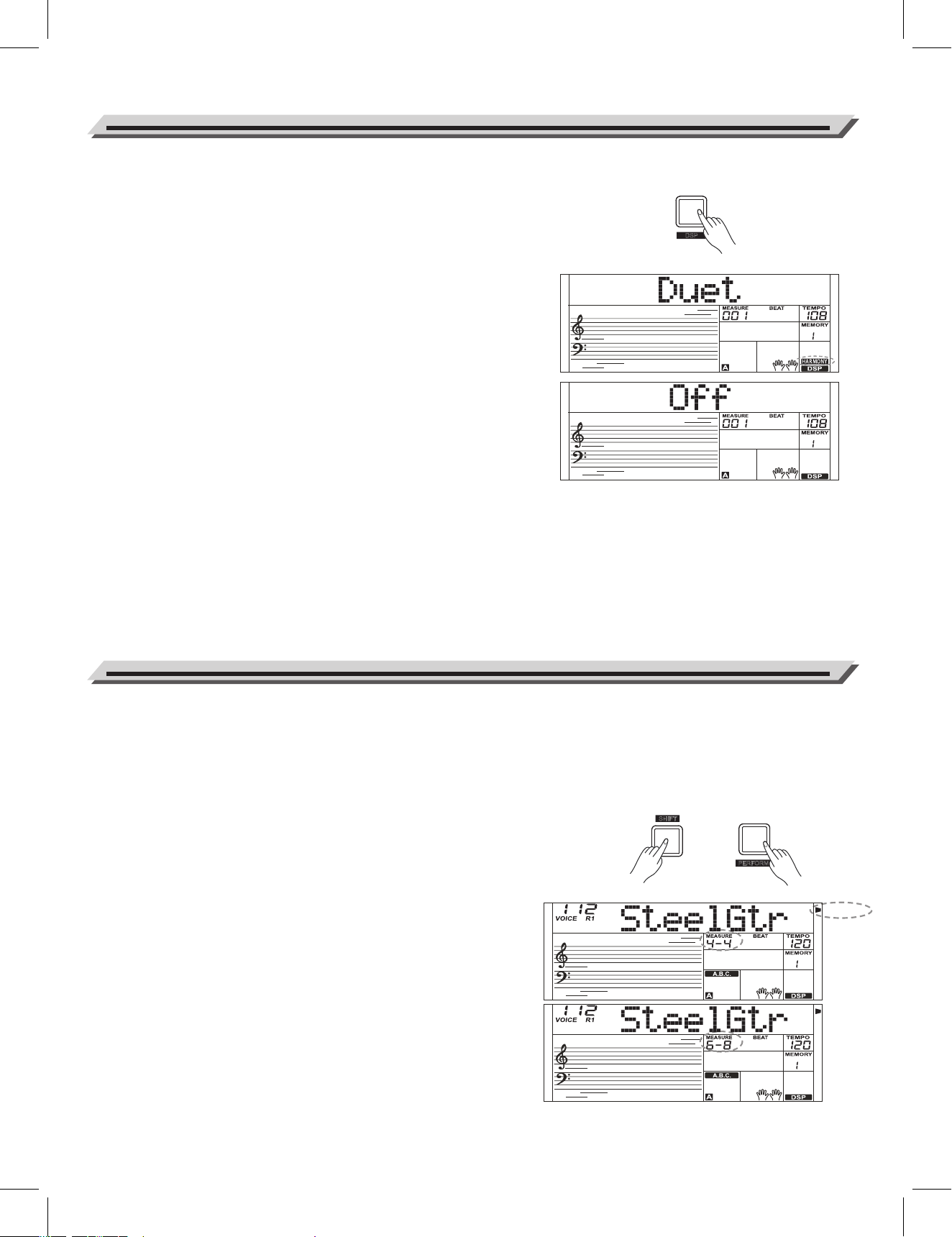
1. Press [HARMONY] button. The LCD displays “OFF”, which
indicates the harmony effects is turned off..
2. When the LCD displays “OFF”, repeat the previous operation. The
LCD displays “Duet”, which indicates the harmony effect is on, and
the type is Duet.
3. To choose a different harmony type, please refer to the harmony
setting in function menu.
Play with harmony effect
Turn on the A.B.C. function, then play a chord in the left hand area. As
soon as you play in the right hand area, it will add harmony effect to
the notes.
Note:
The harmony types of 1+5, Octave 1~2, Echo 1~4, Tremolo 1~4 and
Trill 1~4 will always be available, but the rest are not selectable until
the A.B.C is turned on.
There are 2 voices you can select to perform in performance assistant
mode: Guitar and Piano.
What's the performance assistant?
Performance assistant is an easy-to-use function. With this function you
will find playing to be more interesting. Even if you are not a keyboard
player, the performance assistant will help you to play your familiar
instrument voice on the keyboard with ease. Performance assistant
provides many wonderful phrases. Just use several keys and you will
perform your own wonderful music.
Enter the Performance Assistant
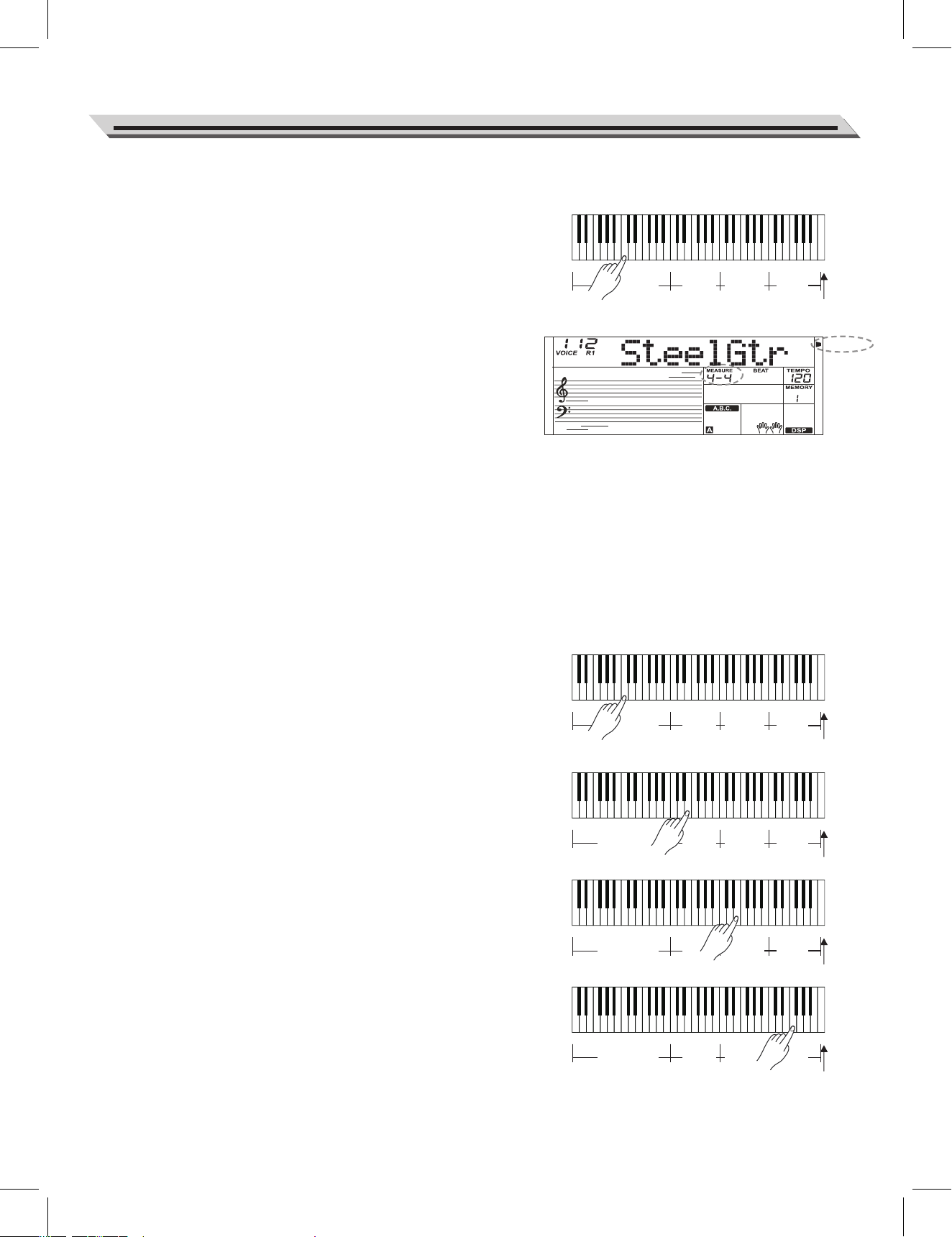
1. Holding down [SHIFT] button, and then press [PERFORM] button to
enter the performance assistant mode. The default setting is Guitar
Mode and the LCD will display Guitar's voice name.
2. You can use the Data Dial, [+/YES] or [-/NO] button to shift between
the guitar voice and the piano voice.
3. The default time signature is the 4/4 and you can change it in function
menu. Please refer to Performance Beat setting in function menu.
4. Performance assistant supports the following time signature: 2/4, 3/4,
4/4, and 6/8 beat.
5. Use the [TEMPO+] or [TEMPO-] to change the tempo.
Harmony
18
Performance Assistant
SHIFT
O.T.S.
P
ERFORM.
PPEERRFFOORRMM..
PPEERRFFOORRMM..
Chord part
Guitar Mode
Guitar key map
The Guitar Mode makes you perform a guitar voice with keyboard just
like you're playing a real guitar. In this mode you can use some
perform skills like strum (5), broken chord (5), echoism (5) and also 2
endings.
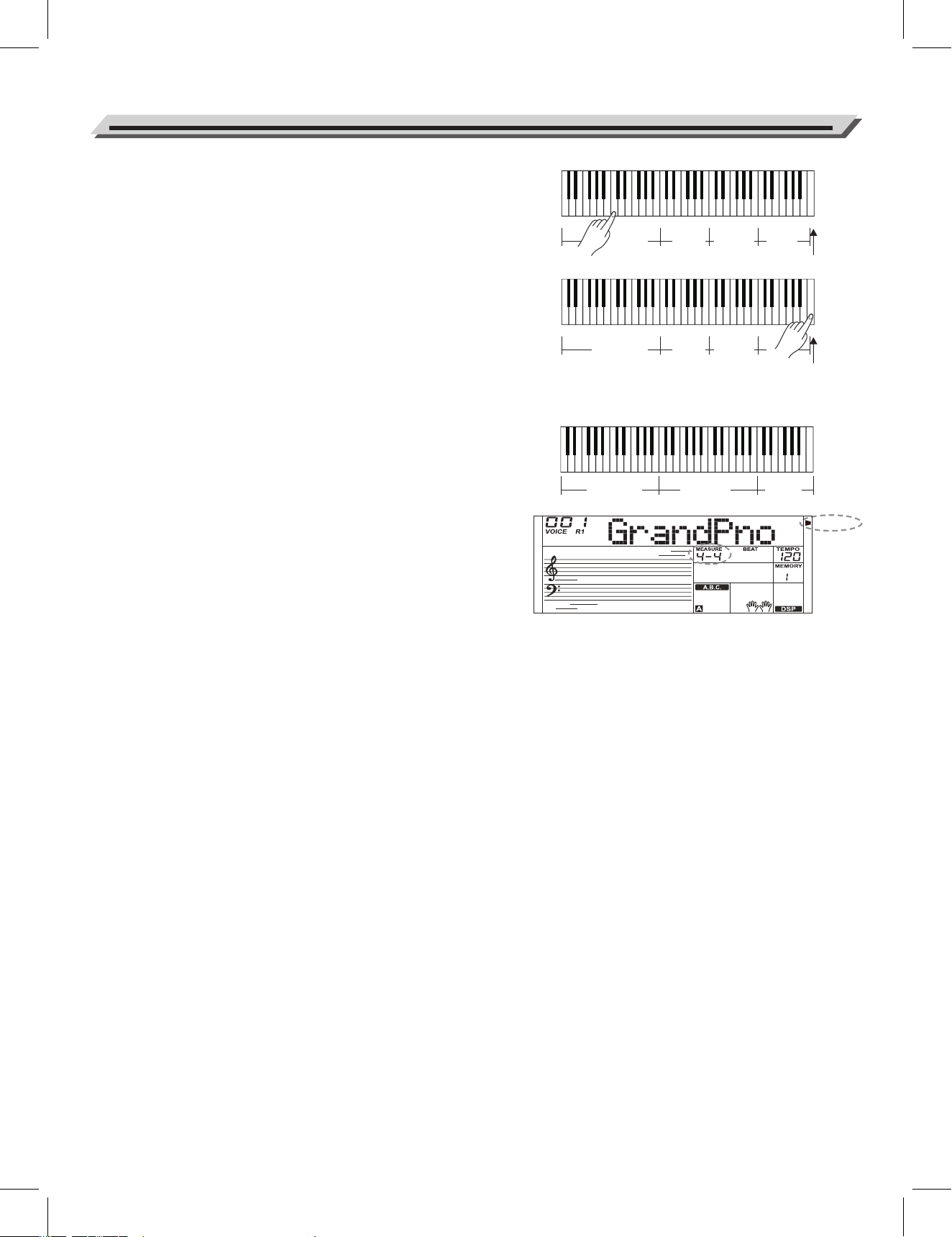
Chord part
C2 to B3 is the chord part area. Play a chord in this area.
Sub Area 1
C4 to B4 (only white keys) is the sub area 1. Up to 5 types of broken
chord are provided in this area.
Sub Area 2
The 6 keys: C5 to A5 (only white keys) simulate the 6 strings of a real
guitar. Play a free solo in this area.
Rhythm Area
C6 to G6 (only white keys) is the rhythm area. Wonderful styles and
strums are provided in this area. Use A6 to B6 to play an ending.
Position Change
Press C7, the guitar voice will be shifted to a high position.
Repeatedly press the C7 key to change the guitar voice between a
high and a low position.
Note:
The keys above C7 will not respond in this mode.
Playing in Guitar Mode
Play a chord in the chord part.
A chord type will be displayed on the LCD and the guitar root note will
sound.
Play a broken chord in the sub area 1.
When the chord type is on display, press a white key in the sub area 1,
a wonderful broken chord phrase will start. Press other white keys to
play different phrases. Play a different chord with your left hand to
enjoy the subtle change in the phrases.
Play a free solo in the sub area 2.
When the chord type is on display, press a white key in the sub area 2
you can play guitar free solo, like you're playing a real one.
Play different chords with your left hand to bring more dynamics to your
performance. The last white key B5 is invalid.
Play a strum rhythm in the rhythm area.
When the chord type is on display, press a white key in the rhythm
area you can play the magic strum rhythm. Change the chord with
your left hand, and play your strums.
End the guitar performing.
Press the A6 or B6 to end your guitar performs. When the ending is
finished, the phrase stops automatically.
19
Performance Assistant
PPEERRFFOORRMM..
Guitar key map
Sub
Area 1
Sub
Area 2
Rhythm
Area
Position Change
Chord part
Sub
Area 1
Sub
Area 2
Rhythm
Area
Position Change
Chord part
Sub
Area 1
Sub
Area 2
Rhythm
Area
Position Change
Chord part
Sub
Area 1
Sub
Area 2
Rhythm
Area
Position Change
Chord part
Sub
Area 1
Sub
Area 2
Rhythm
Area
Position Change
Play the echoism.
Play the black keys on Sub area 1, Sub area 2 and Rhythm area to play
different echoism patterns. There are 5 kinds of echoism to arrange on
the C#, D#, F#, G#, A# circularly.
Change the position
Press the C7, the PERFORM.H icon will be lightened on the LCD. It
means that the guitar position has been changed to the High position.
Play the white keys in sub area 1, Sub area 2 and Rhythm area, and
enjoy the vivid guitar performance.
Piano Mode
Piano Key Map
The piano mode allows you to play the piano voice just like playing the
acoustic one. In this mode you can use such piano phrases as piano
rhythm (5), broken chord (5) and also 3 endings.
The piano key map is similar to the guitar key map. Press A6 to C7
(white keys) will start an ending. All the black keys above C4 are
invalid.
Playing in Piano Mode
1. Select Piano Mode.
In performance assistant mode, use data dial, [+/YES] or [-/NO]
button to select Piano Mode.
2. Play a chord in chord part. Play different phrases in Sub area and
Rhythm area.
3. Press the A6, B6 or C7 to end your piano performance. When the
ending is finished, the phrase stops automatically.
Exit the Performance Assistant
When the phrase stops, press the [VOICE], [STYLE], [SONG], [DEMO],
[SHIFT] + [PERFORM] to exit the Performance Assistant mode.
20
Performance Assistant
Piano Key Map
PPEERRFFOORRMM..
Chord part
Sub
Area 1
Sub
Area 2
Rhythm
Area
Position Change
Chord part
Sub
Area 1
Sub
Area 2
Rhythm
Area
Chord part
Sub Area
Rhythm
Area
Position Change
MIXER
T
RANSPOSE
HARMONY
D
S
P
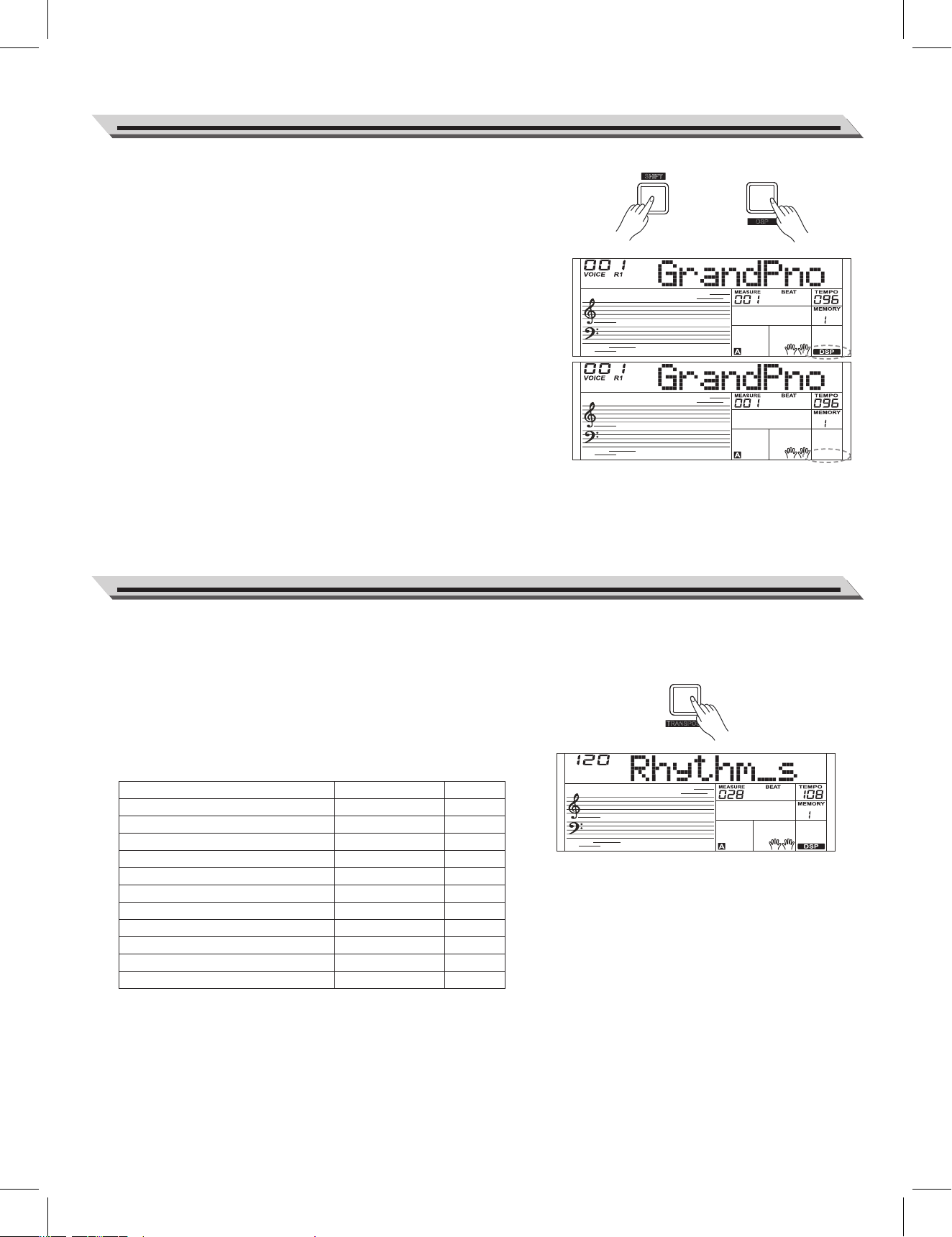
The DSP simulates sounds in real environment. With the DSP effect,
you can add ambiance and depth to your performance in a variety of
ways. The DSP effect is set to ON and the icon on the LCD is lighten
when keyboard is power on.
Holding down [SHIFT] button and then press the [DSP] button to turn
the DSP effect on or off. Refer to Function Menu for the effect types
and the adjustable levels.
Note:
It may cause a break or a noise if you switch on/off the DSP when style
and song is playing. This is normal and need not panic.
The Mixer allows you to adjust separately the volume of different
tracks.
1. Press the [MIXER] button to enter the mixer function menu, the
LCD
displays the current mixer track.
2. Repeatedly press the [MIXER] button to select the track you want.
Then use [+/YES]/ [-/NO] button or data dial to change parameters.
Note:
It will exit the mixer menu if there is no operation in 5 seconds.
DSP
Mixer
21
Content
Adjust the Percussion track volume.
Adjust the Rhythm track volume.
Adjust the Bass track volume.
Adjust the Chord 1 track volume.
Adjust the Chord 2 track volume.
Adjust the Chord 3 track volume.
Adjust the Phrase 1 track volume.
Adjust the Phrase 2 track volume.
Adjust the Upper 1 track volume.
Adjust the Upper 2 track volume.
Adjust the Lower track volume.
LCD Display
XXX Rhythm_s
XXX Rhythm_m
XXX Bass
XXX Chord1
XXX Chord2
XXX Chord3
XXX Phrase1
XXX Phrase2
XXX Upper 1
XXX Upper 2
XXX Lower
Range
0 - 127
0 - 127
0 - 127
0 - 127
0 - 127
0 - 127
0 - 127
0 - 127
0 - 127
0 - 127
0 - 127
SHIFT
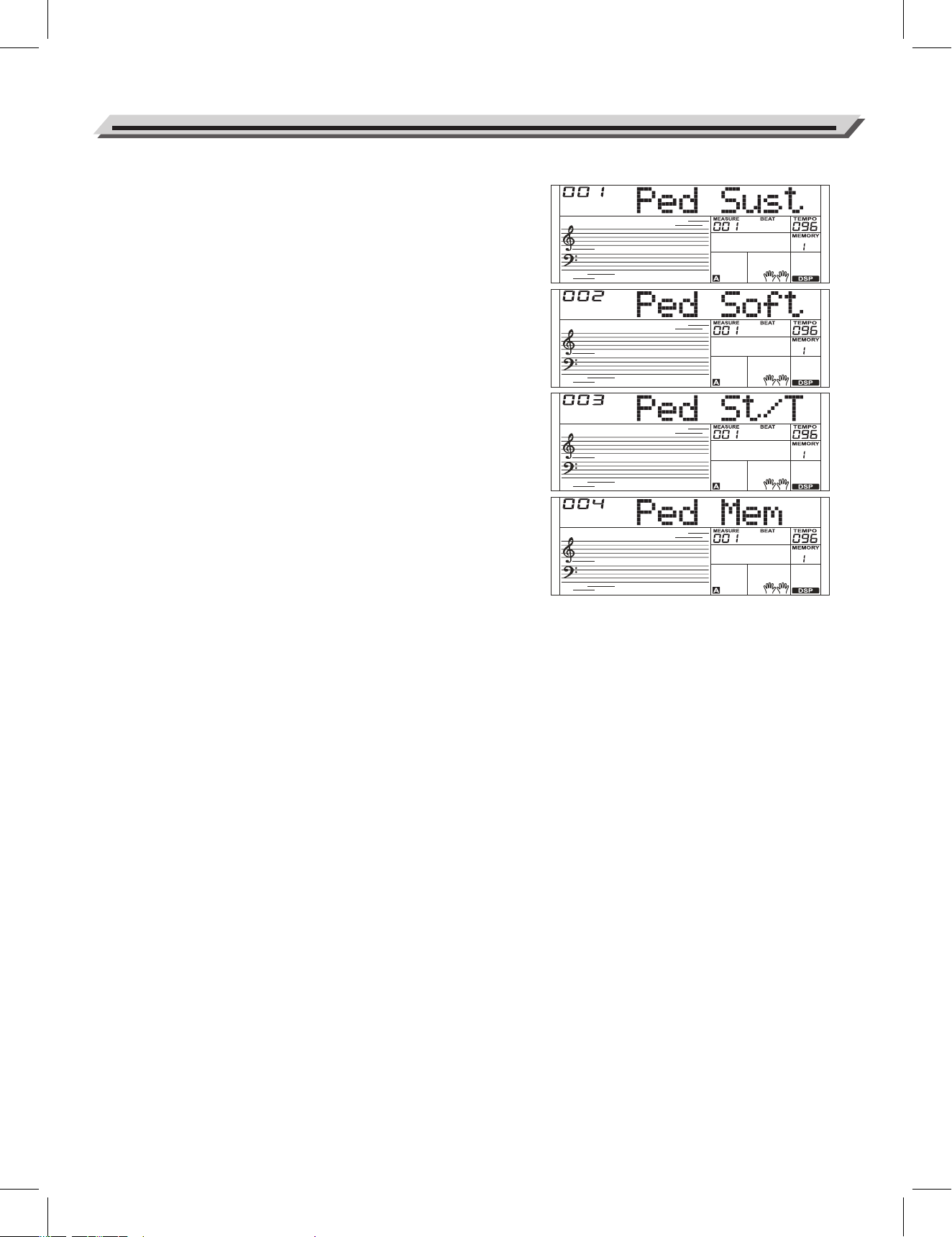
You can assign other pedal functions to the sustain pedal. Please
refer to the Function Menu.
1. Sustain Pedal
This pedal function performs the same function as the damper
pedal on an acoustic piano, letting you sustain the sound of
voices
even after releasing the keys.
Step and press on the pedal to turn the sustain effect on.
Release the pedal to turn the sustain effect off.
2. Soft Pedal
When the soft pedal is selected, press the pedal to make them
(the
notes you play) sound softer.
3. Style Start/Stop Pedal
When the style start/stop pedal is selected, press the pedal to
start/stop accompaniment.
4. Memory Pedal
When the memory pedal is selected, pressing this pedal at the
first
time will call up register memory: M1, and then you can call up
register memory M2, M3…by pressing this pedal step by step.
22
Pedal Function
SUSTAIN
Press the [FUNCTION] button to enter function menu. The LCD
displays the current function menu option. Use [+/YES]/ [-/NO] button
or data dial to set parameter of the current menu.
The option and parameters are as follows:
Note:
It will exit the function menu if there is no operation in 5 seconds.
Tune
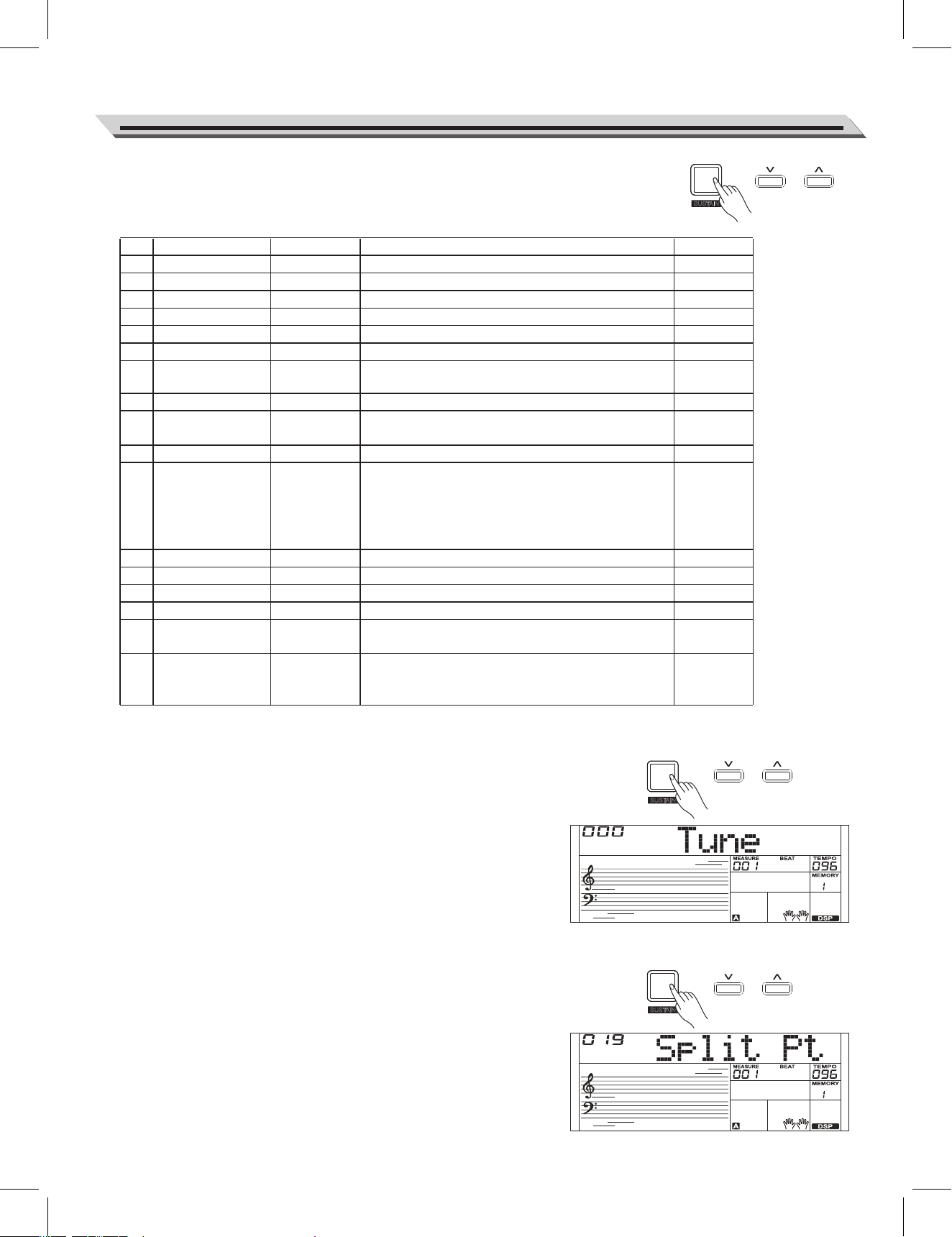
This function sets the pitch of entire keyboard by in a 2-cent increment.
1. Repeatedly press the [FUNCTION] button to select the tune menu.
The LCD displays “xxx Tune”.
Use [+/YES]/ [-/NO] button or data dial to change tune value. Its
range is from -50 to 50 cents.
2. Press [+/YES] and [-/NO] buttons simultaneously will set the tune
value to its default setting: 000.
The setting applies to both accompaniment and the voice.
Key Split
The Point on the keyboard that separates voice L and voice R1/R2 is
called the "split point". Left hand section controls the auto bass chord
accompaniment when the A.B.C. function is on, or it plays the lower
voices when the A.B.C. function is off.
1. Repeatedly press the [FUNCTION] button to select split point menu.
The LCD displays “xxx KeySplit”. Use [+/YES]/[-/NO] button or data
dial to change Split Point. The range of Split Point is: 1~61.
2. Press [+/YES] and [-/NO] buttons simultaneously will set the split
point value to its default setting: F#3 (19).
Function Menu
23
Content
Tune
Key Split
Beat Type
Metronome Volume
Pedal Type
EQ Type
Reverb Type
Reverb Level
Chorus Type
Chorus Level
Harmony Types
MIDI Receive
MIDI Transmit
Auto Power Off
Performance Beat
Vocal Effect
Vocal Effect
Level
NO.
1
2
3
4
5
6
7
8
9
10
11
12
13
14
15
16
17
Tune
KeySplit
Beat
MetroVol
Ped XXX
EQ XXX
Rev XXX
Rev Lev
Chr XXX
Chr Lev
Duet
Midi In
Midi Out
PowerOff
Perfm Bt
V-VclOff
vOff-Lev
LCD display
xxx
xxx
xxx
xxx
xxx
xxx
xxx
xxx
xxx
xxx
xxx
xxx
xxx
xxx
xxx
xxx
Range
-50 ~ +50
1~61
0, 2 ~ 9
0~127
Sustain, Soft, St/Stop, Memory
Pop, Rock, Class, Jazz, Dance, Reset
Room1, Room2, Room3, Hall1, Hall2, Hall3,
Church1, Church2, Delay, PanDelay
0 ~ 127
Chorus1, Chorus2, GM Chorus1, GM Chorus2,
Flanger1,Flanger2, Rotary1, Rotary2
0 ~ 127
Duet, StandardTrio, Full Chord, Rock Duet, Country
Duet, Country Trio, Block, 4 Close 1, 4 Close 2, 4
Open, 1+5, Octave1, Octave2, Strum, Echo1,
Echo2, Echo3, Echo4, Tremolo1, Tremolo2,
Tremolo3, Tremolo4,Trill1, Trill2, Trill3, Trill4
1 ~ 16, ALL
1 ~ 16
OFF, 30, 60
4-4, 3-4, 2-4, 6-8
V-VclOff, V-Delay, V-Tremlo, V-PShift, V-LoFi
V-OvrDri, V-Reverb, V-CmPres
vOff-Lev: 0, vDel-Lev: 0~31, vTre-Lev: 0~7
vPit-Lev: -24~18, vLfi-Lev: 0~31, vOve-Lev: 0~7
vRev-Lev: 0~31, vCom-Lev: 0~1
Default
000
019
004
80
Sustain
Reset
RevHall1
80
GM Chr2
0
Duet
ALL
001
030
4-4
V-VclOff
0,0,0,
0,0,0,
0,0
FUNCTION
SUSTAIN
FUNCTION
SUSTAIN
FUNCTION
Beat Type
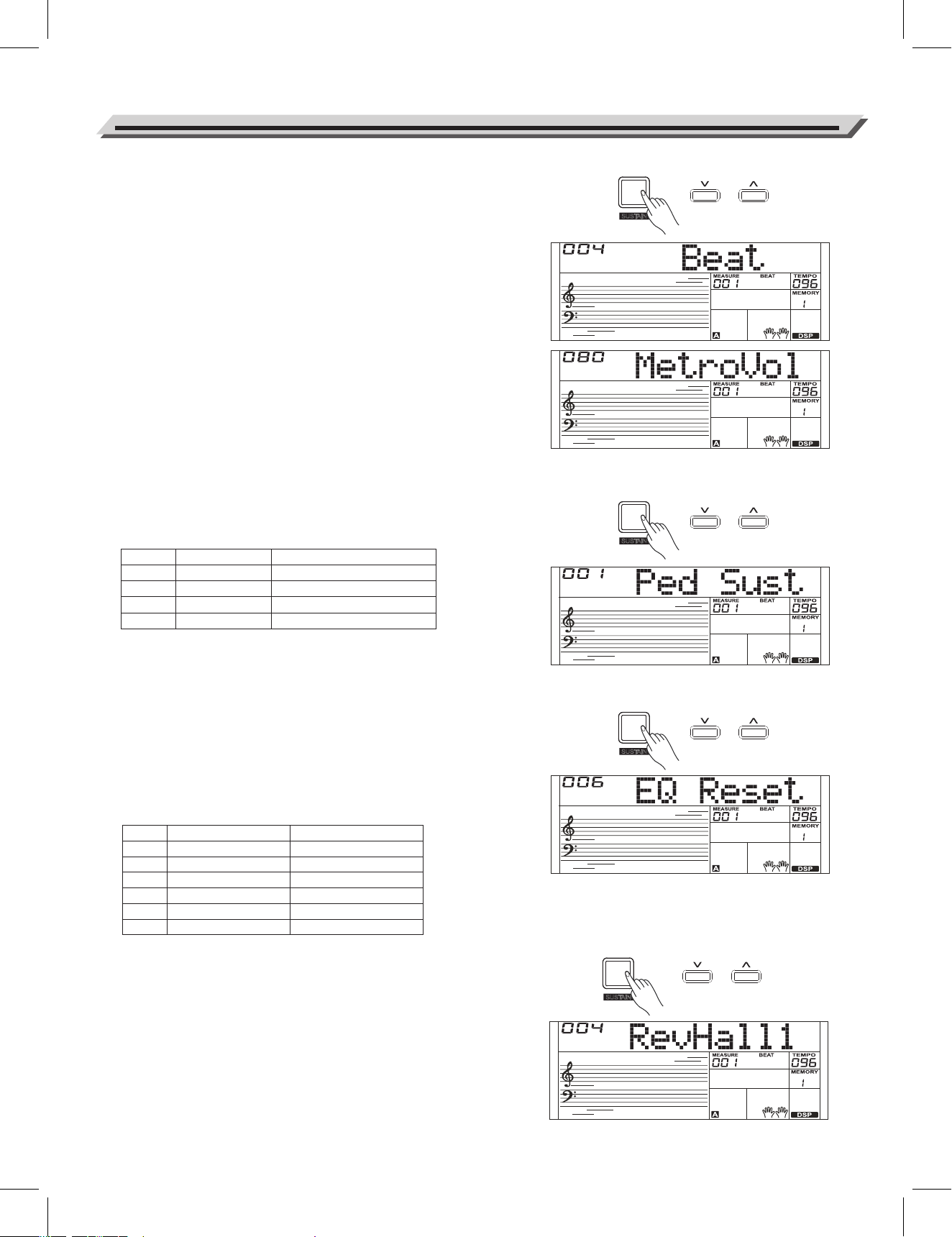
1. Repeatedly press the [FUNCTION] button to select beat type menu.
The LCD displays “xxx BeatType”. Use [+/YES]/ [-/NO] button or data
dial to change beat type. The range of beat type: 0, 2~9.
2. Press [+/YES] and [-/NO] buttons simultaneously will set the beat type
value to its default setting: 004.
Metronome Volume
1. Repeatedly press the [FUNCTION] button to select metronome
volume menu. The LCD displays “xxx MetroVol”. Use [+/YES]/[-/NO]
button or data dial to adjust metronome volume value.
The range of metronome value is: 0 ~ 127.
2. Press [+/YES] and [-/NO] buttons simultaneously will set the
metronome volume value to its default setting: 080.
Pedal Type
1. Repeatedly press the [FUNCTION] button to select pedal type menu.
The LCD displays “00x Pedal Sust”. Use [+/YES]/ [-/NO] button or data
dial to change pedal type.
2. Press [+/YES] and [-/NO] buttons simultaneously will set the pedal
type to its default setting: 001 PedalSustain.
The pedal types are as follows:
EQ Type
The EQ controls the gain setting of different frequency band. Different
gain setting will produce different sound effect. You can select one of
the 6 preset EQ settings in the EQ display.
1. Repeatedly press the [FUNCTION] button to select the EQ type
menu. The LCD displays “006 EQ Reset”. Use [+/YES]/ [-/NO] button
or data dial to change EQ type.
2. Press [+/YES] and [-/NO] buttons simultaneously will set the EQ type
to its default setting: 006 EQ .
Reverb Type
1. Repeatedly press the [FUNCTION] button to select reverb type
menu. The LCD displays “004 RevHall1”.Use [+/YES]/ [-/NO] button
or data dial to change reverb type.
2. Press [+/YES] and [-/NO] buttons simultaneously will set the reverb
type to its default setting: 004 RevHall1.
Function Menu
24
No.
1
2
3
4
LCD
Ped Sust
Ped Soft
Ped St/T
Ped Mem
Pedal Function
Sustain Pedal
Soft Pedal
Start/Stop Pedal
Memory Switch Pedal
No.
1
2
3
4
5
6
LCD
EQ Pop
EQ Rock
EQ Class
EQ Jazz
EQ Dance
EQ Reset
EQ Type
Pop
Rock
Classical
Jazz
Dance
Reset
SUSTAIN
FUNCTION
SUSTAIN
FUNCTION
SUSTAIN
FUNCTION
SUSTAIN
FUNCTION
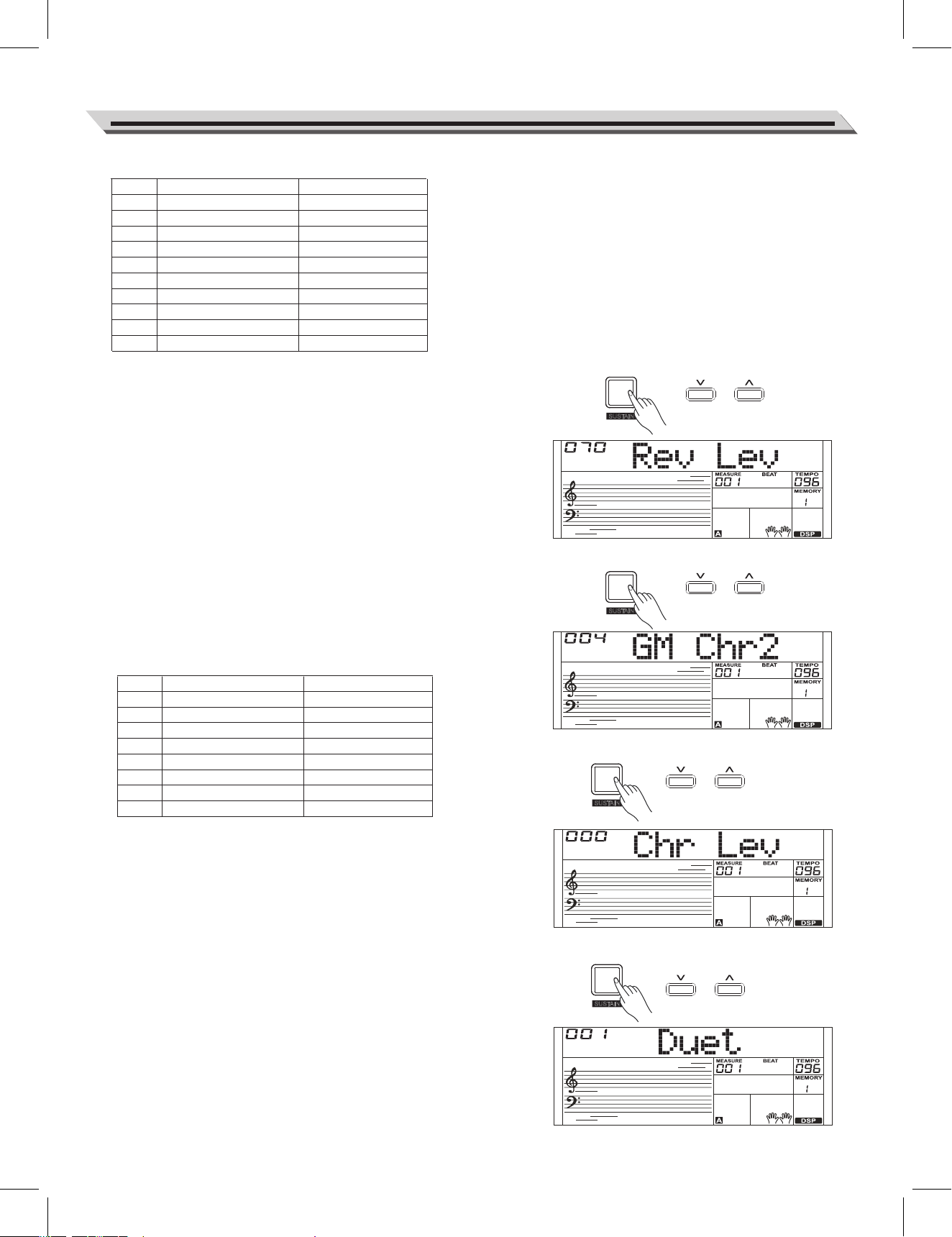
Chorus Level
1. Repeatedly press the [FUNCTION] button to select chorus level
menu. The LCD displays “xxx Chr Lev”. Use the [+/YES]/ [-/NO]
button or data dial to change chorus level, adjustable range: 0-127.
2. Press the [+/YES] and [-/NO] buttons simultaneously to restore its
default setting: 000
Harmony Type
1. Repeatedly press the [FUNCTION] button to select harmony type
menu. The LCD displays “001 Duet”.Use [+/YES]/ [-/NO] button or
data dial to change harmony type.
2. Press the [+/YES] and [-/NO] buttons simultaneously to restore its
default setting: 001 Duet.
Reverb Level
1. Repeatedly press the [FUNCTION] button to select reverb level.
The LCD displays “xxx Rev Lev”.Use the [+/YES]/ [-/NO] button or
data dial to change reverb level, adjustable range is: 0-127
2. Press the [+/YES] and [-/NO] buttons simultaneously to restore its
default setting: 070
Chorus Type
1. Repeatedly press the [FUNCTION] button to select chorus type
menu. The LCD displays “004 GM Chr2”. Use [+/YES]/ [-/NO] button
or data dial to change chorus type.
2. Press the [+/YES] and [-/NO] buttons simultaneously to restore its
default setting: 004 GM Chr2.
The chorus types are as follows:
Function Menu
25
No.
1
2
3
4
5
6
7
8
LCD
Chorus1
Chorus2
GM Chr1
GM Chr2
Flanger1
Flanger2
Rotary1
Rotary2
Chorus Type
Chorus 1
Chorus 2
GM Chorus 1
GM Chorus 2
Flanger 1
Flanger 2
Rotary 1
Rotary 2
SUSTAIN
FUNCTION
SUSTAIN
FUNCTION
SUSTAIN
FUNCTION
SUSTAIN
FUNCTION
No.
1
2
3
4
5
6
7
8
9
10
LCD
RevRoom1
RevRoom2
RevRoom3
RevHall1
RevHall2
RevHall3
Rev Chr1
Rev Chr2
Rev Del
Rev PanD
Reverb Type
Room 1
Room 2
Room 3
Hall 1
Hall 2
Hall 3
Church 1
Church 2
Delay
Pan Delay
The reverb types are as follows:
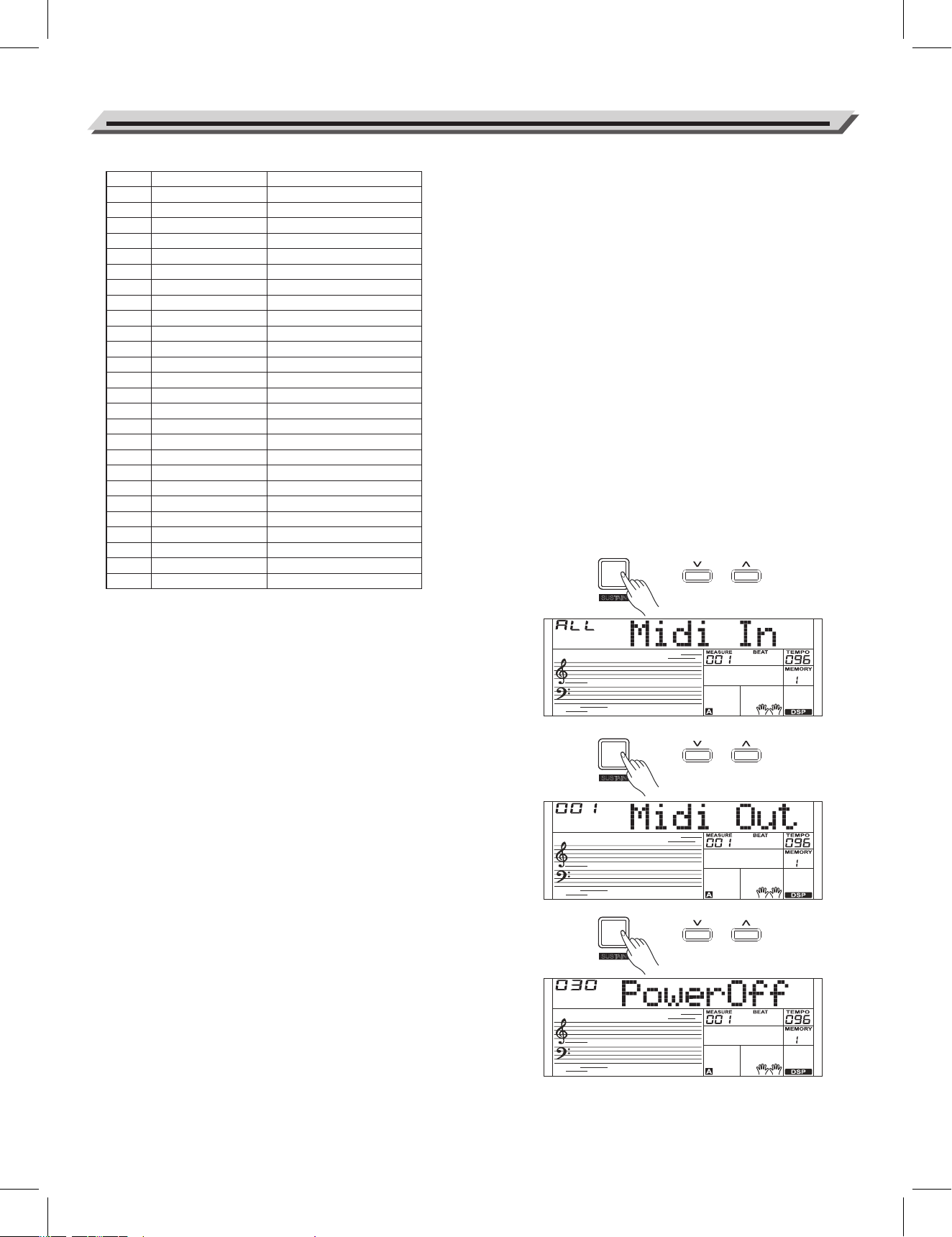
MIDI IN
1. Repeatedly press the [FUNCTION] button to select MIDI in menu.
The LCD displays “xxx Midi In”. Use [+/YES]/ [-/NO] button or data
dial to change MIDI in channel: 1~16, ALL.
2. Press [+/YES] and [-/NO] buttons simultaneously to restore MIDI in
channel to its default setting: ALL.
MIDI OUT
1. Repeatedly press the [FUNCTION] button to select MIDI out menu.
The LCD displays “xxx Midi Out”. Use [+/YES]/ [-/NO] button or data
dial to change MIDI out channel: 1~16.
2. Press [+/YES] and [-/NO] buttons simultaneously to restore MIDI out
channel to its default setting: 001.
Auto Power Off
This function sets the time period after which the instrument will shut
down if it is not used.
1. Repeatedly press the [FUNCTION] button to select auto power off
menu. The LCD displays “xxx Power Off”. Use [+/YES]/ [-/NO] button
or data dial to change auto power off time: 30 minutes, 60 minutes or
OFF.
2. Press [+/YES] and [-/NO] buttons simultaneously will set the default
setting is: 030 (30 minutes).
Function Menu
26
No.
1
2
3
4
5
6
7
8
9
10
11
12
13
14
15
16
17
18
19
20
21
22
23
24
25
26
LCD
Duet
StdTrio
FulChord
RockDuet
CtryDuet
CtryTrio
Block
4Close1
4Close2
4Open
1+5
Octave1
Octave2
Strum
Echo1
Echo2
Echo3
Echo4
Tremolo1
Tremolo2
Tremolo3
Tremolo4
Trill1
Trill2
Trill3
Trill4
Harmony Type
Duet
StandardTrio
Full Chord
Rock Duet
Country Duet
Country Trio
Block
4 Close 1
4 Close 2
4 Open
1+5
Octave 1
Octave 2
Arpeggio
Echo1
Echo2
Echo3
Echo4
Tremolo1
Tremolo2
Tremolo3
Tremolo4
Trill1
Trill2
Trill3
Trill4
SUSTAIN
FUNCTION
SUSTAIN
FUNCTION
SUSTAIN
FUNCTION
The harmony types are as follows:
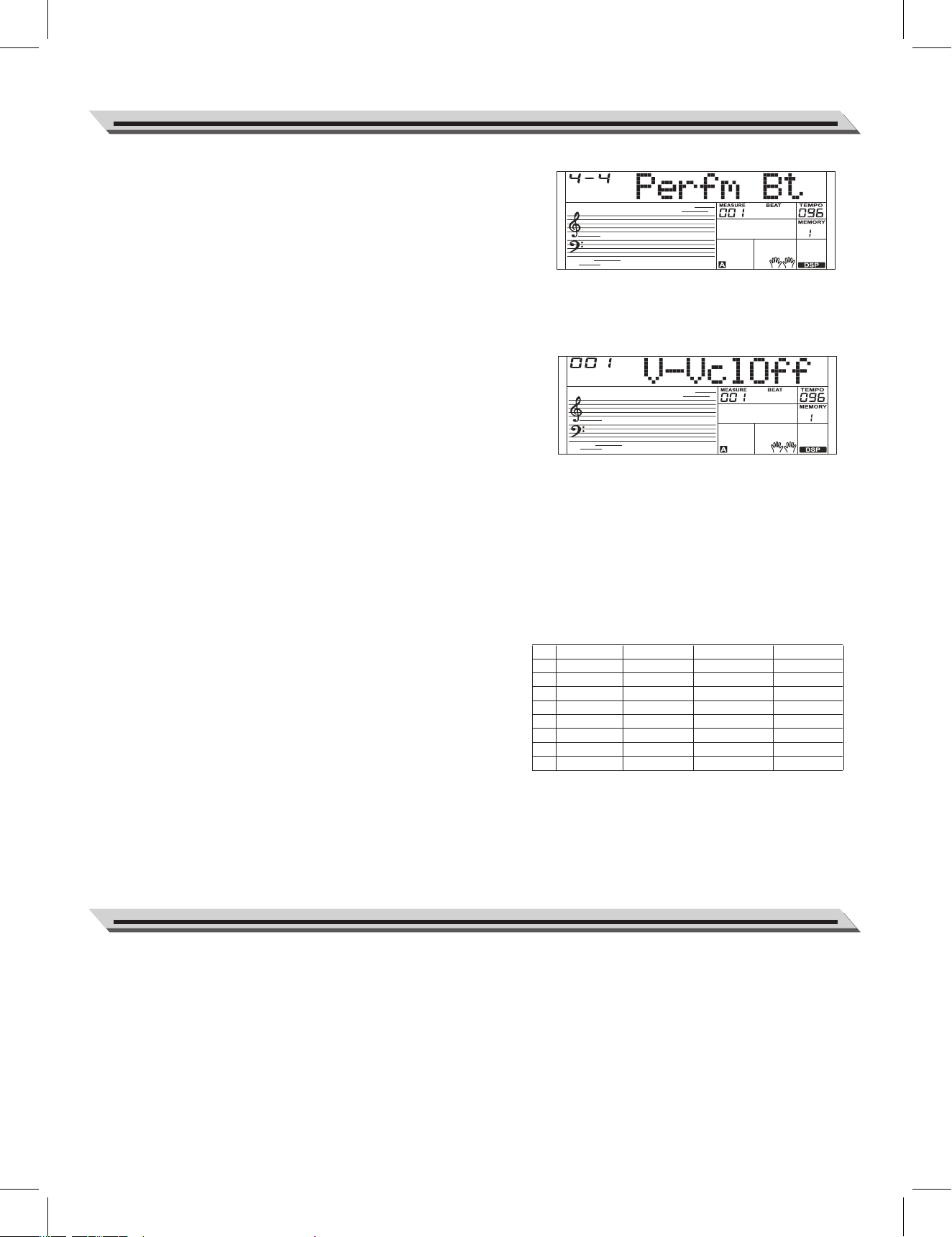
Performance Beat
This function is used to set the performance assistant beat type.
1. Repeatedly press [FUNCTION] button to select Perform Beat menu.
The LCD displays “xxx Perfm Bt”. Use [+/YES]/ [-/NO] or data dial to
change performance beat: 4-4, 3-4, 2-4, 6-8.
2. Press [+/YES] and [-/NO] buttons simultaneously will set
performance beat channel to its default setting: 4-4.
Vocal Effects
The vocal effect feature will give you a professional vocal experience
when singing with a microphone. The instrument has preset 7 vocal
effects: Delay, Tremolo, Pitch Shift, Low Fidelity, Overdrive, Reverb and
Compressor.
1. Turn the vocal effects on/off
Repeatedly press the [FUNCTION] button to select the vocal effect
menu. The LCD displays “001 V-VclOff”, indicating all vocal effects
are turned off.
2. Select a vocal effect
In the vocal effect menu, press the [+/YES]/ [-/NO] button to select a
vocal effect, such as “002 V-Delay”, which indicates the selected
vocal effect is Delay.
Note:
The selected vocal effect is not activated yet, you need to adjust its
level in the Vocal Effect Level menu.
Vocal Effect Level
You can adjust the effect level for each vocal effect in the vocal effect
level menu.
1. Repeatedly press the [FUNCTION] button to select the vocal effect
level menu. The LCD displays the current effect level, such as “015
vDel-Lev”, which indicates the current delay level is 15.
2. Press the [+/YES]/ [-/NO] button to adjust the effect level. “000”
means the current effect is turned off.
Pressing and holding [+/YES] and [-/NO] button together and then turn
the power on, the instrument will be restored to factory setting.
It will delete all the user data: user styles, user songs and registered
memory. The LCD will display “Loading!”. After the restore completed,
the instrument will start normally.
Function Menu
27
Restore Factory Setting
No.
1
2
3
4
5
6
7
8
Vocal Effect
Effect Off
Delay
Tremolo
Pitch Shift
Low Fidelity
Overdrive
Reverb
Compressor
Effect Name
V-VclOff
V-Delay
V-Tremlo
V-PShift
V-LoFi
V-OvrDri
V-Reverb
V-CmPres
Default Level
000 vOff-Lev
000 vDel-Lev
000 vTre-Lev
000 vPit-Lev
000 vLfi-Lev
000 vOve-Lev
000 vRev-Lev
000 vCom-Lev
Level Range
0
0~31
0~7
-24~18
0~31
0~7
0~31
0~1
Vocal effects and the default levels are as follows:
LOWER
A
LBUM
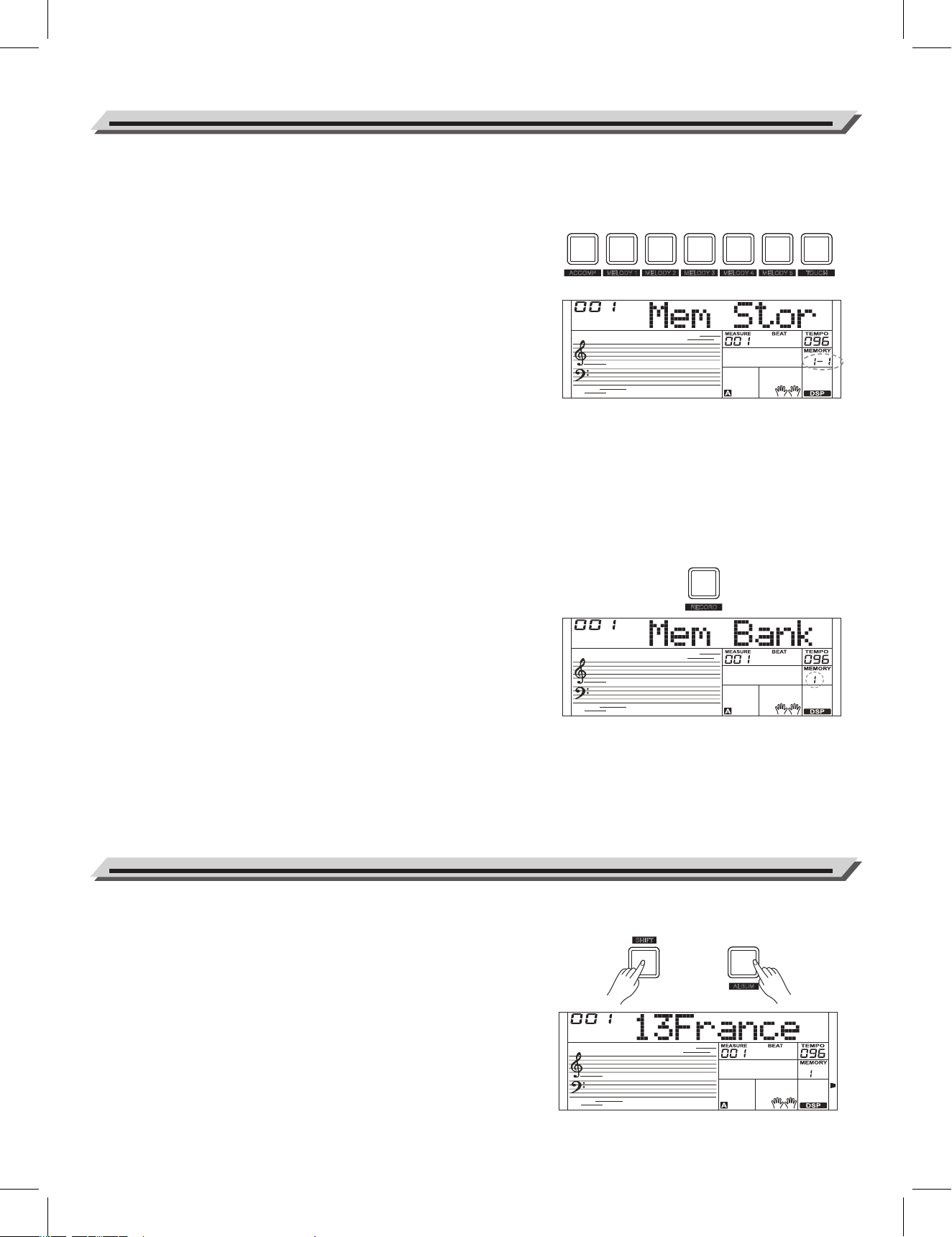
The Registration Memory feature can make your performance more easy
and efficient. It allows you to save virtually all panel settings to a Registra-
tion Memory setting, and you can instantly recall custom panel settings by
pressing a single button.
Registering the Panel Setting
1. There are 8 memory banks, and each bank has 6 memories (M1-M6).
2. Holding down the [STORE] button , then press one of the registration
memory buttons: [M1] - [M6]. Notice that the new settings will replace
the previous memory data.
Note:
Press [STORE] and [M1] button then power on, the registration memory
will be reset to default.
Recalling the Registered Panel Settings
Press one of the registration memory buttons: [M1] - [M6]. For example,
press [M2], the panel settings stored in the memory 2 of bank 1 are
recalled.
Note:
Registration data cannot be recalled when the One Touch Setting function
is on.
Selecting a Registration Bank
1. Press the [BANK] button. The LCD will display the bank number.
2. There are 8 banks in all and each bank has 6 memories (M1-M6).
Repeatedly press the [BANK] button to select a bank.
3. You can save following parameters into M1-M6 registered memory:
Voice Parameter: including voice, dual, lower, DSP, mixer.
Accompaniment Parameter: including style, tempo, and accompani-
ment no/off.
Function Parameter: including velocity, part parameters in function
menu.
The album function allows you to practise a song with a preset style, tempo
and voice. The instrument features a variety of song albums. Please refer to
the Album List.
1. Holding down [SHIFT] button and then press the [ALBUM] button to turn
the album function on or off.
2. When the album function is on, LCD displays the name of album song and
the album indicator lights up. Now use the data dial, [+/YES] or [-/NO]
button to select an album song. The instrument will recall the accompani-
ment parameters to fit that song.
3. Press the [VOICE] or [STYLE] button to exit the album function.
Register Memory
28
Song Album
SHIFT
STORE
M1 M2 M4
M5 M6
M3
M
ELODY 2 MELODY 3 MELODY 4 MELODY 5 TOUCHACCOMP MELODY 1
BANK
R
ECORD
ALBUM
BANK
R
ECORD
With the easy-to-use song recording features, you can record your own
keyboard performances as a user song. Each user songs can be
recorded with 6 tracks (1 ACCOMP track, 5 MELODY tracks) each.
Start Recording
Before you start recording, you need to select a user song to which the
recording song will be saved.
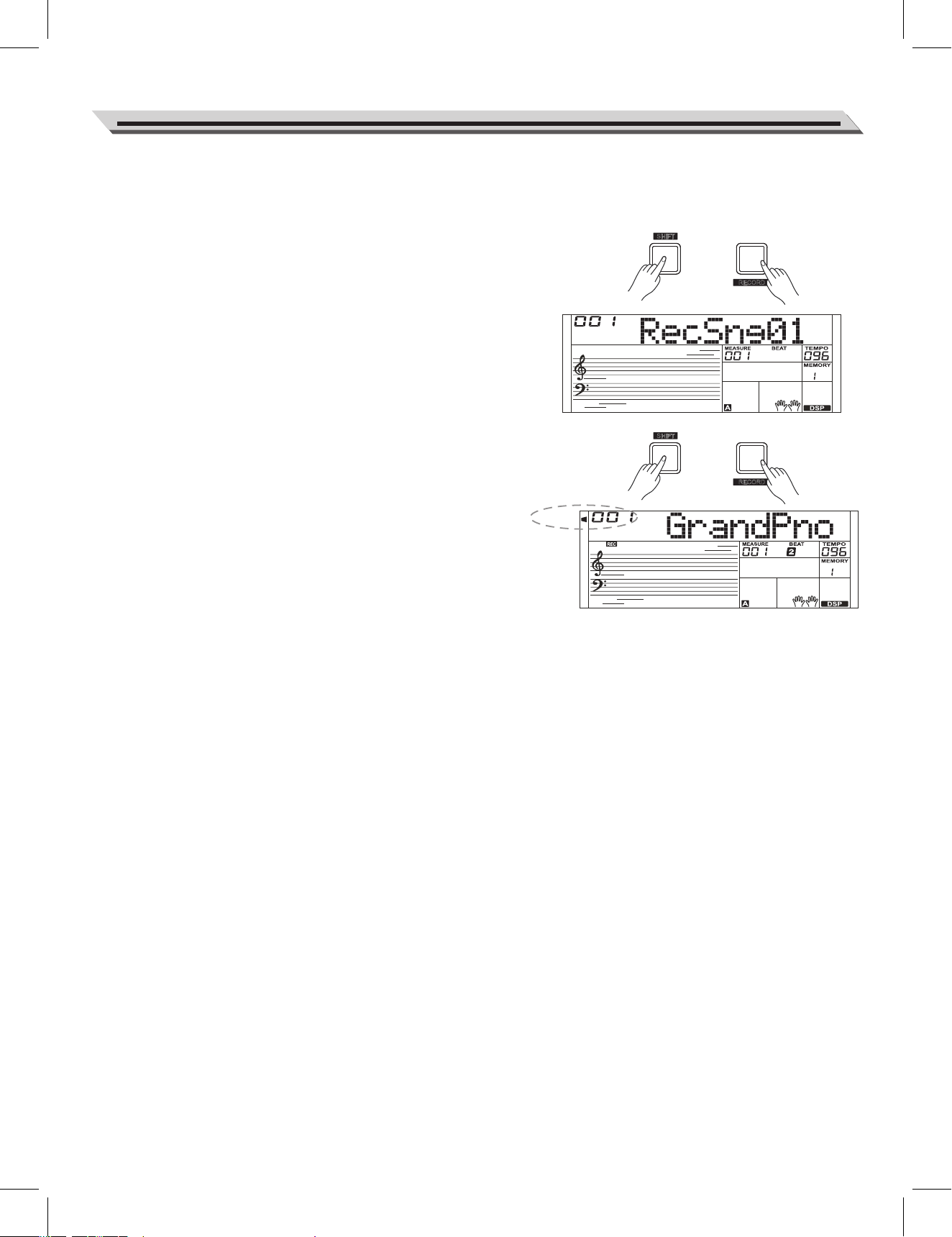
1. Holding down [SHIFT] button and then press the [RECORD] button to
enter user song selection mode. The LCD displays “RecSng01” and
sequence number.
Use the data dial, [+/YES] or [-/NO] button select the user song you
want.
2. Holding down [SHIFT] button and then press the [RECORD] button
again to enter recording standby mode. “REC” appears on LCD and
the beats start flashing. The instrument will automatically select an
empty track to record your performance.
The select track indicator will flash on the left of LCD.
3. In the recording standby mode, you can adjust parameters such as
the voice, style and tempo. When recording a new song, it will
automatically select “Melody 1” as the recorded track.
Holding down [SHIFT] button and then press “ACCOMP” (or
“MELODY1” to “MELODY 5”) to select a desired track.
The ACCOMP track and one of MELODY track can be recorded at
the same time, but it cannot record two MOLODY track
simultaneously.
4. Press [START/STOP] button or play the keyboard to start recording.
If you have selected the ACCOMP track, and have turned on the
A.B.C. function, recording will start as soon as you play a chord in the
left hand area.
Select a Track
Track indicators on LCD usually show one of three states: Blinking, Light
on, Light off.
Blinking: It means the track is chosen for recording. If the track has
recorded data, the original data will be replaced.
Light on: the track has data and will play back the data during recording.
Light off: the track either has no data or is under recording and cannot
play back.
In recording standby mode, you can press the track buttons repeatedly
to shift between different states.
Note:
1. Record style with accompaniment track, and record melody with
melody track.
2. In recording standby mode, it will automatically select the empty track
next to the occupied track. For example, if “Melody 1” is occupied,
then “Melody 2” will be selected as the record track. When all 6 tracks
have been recorded, select the “melody 1” track to save recordings.
Record
29
SHIFT
BANK
R
ECORD
SHIFT
ACCOMP
STORE
A
CCOMP
BANK
R
ECORD
Stop Recording
1. When recording is in process, holding down [SHIFT] button and
then press the [RECORD] button to stop recording.
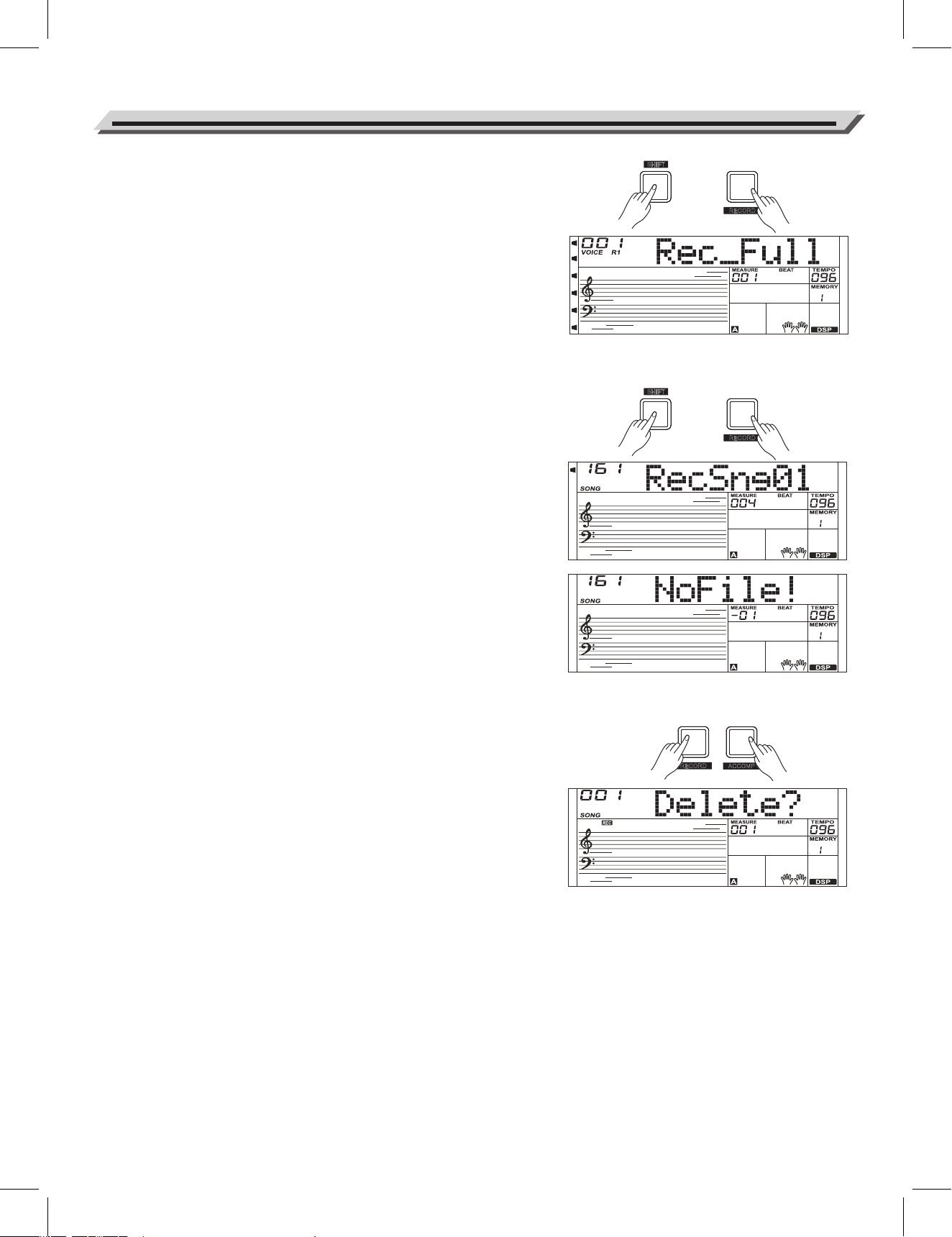
2. When recording is in process, if the memory is full, the recording
will stop and save automatically, and the LCD displays “Rec_Full”.
3. If you are recording a style, recording will stop when the ending
section is finished.
Playback Recording
1. When recording is in process, holding down [SHIFT] button and then
press the [RECORD] button, it will stop recording and enter the song
mode, the LCD displays default name “RecSng” and number of user
song, the current recorded song will play automatically in circle.
2. Press the [SONG] button to enter the song mode and it will play all
songs circularly. Use the data dial, [+/YES] or [-/NO] button to select
a user songs.
If there is no data in the selected user song, it will display “NoFile!”
and stop playing.
3. When playback stops, you can select a user song, and then press
the [START/STOP] button to play the selected song in a loop.
Note:
1. The saved user songs will not be lost after power off.
2. When the user song stops, press and hold a track button until its
indicator lights off, the selected track will be muted in song playback.
Delete User Song
1. Press and hold [RECORD] and [STORE] button together and turn
power on simultaneously, all user songs will be erased.
2. In the recording standby mode, holding down [SHIFT] button and
then press the [RECORD] button for two seconds, the LCD will
display “Delete?” Now you can press [ACCOMP] (or [MELODY 1] to
[MELODY 5]) button to select the track you want to delete.
The track selected will light up. If all tracks light up, the whole user
song will be erased after confirmation.
3. Press [+/YES] to confirm and the recorded data in this track will be
erased. Press [-/NO] to quit this step, and go back to the recording
standby mode.
Record
30
BANK
R
ECORD
SHIFT
BANK
R
ECORD
SHIFT
ACCOMP
ACCOMP
MELODY1
MELODY2
MELODY3
MELODY4
MELODY5
The instrument has a variety of songs, and each song can be practised in
the smart learning mode.
Listen to the songs
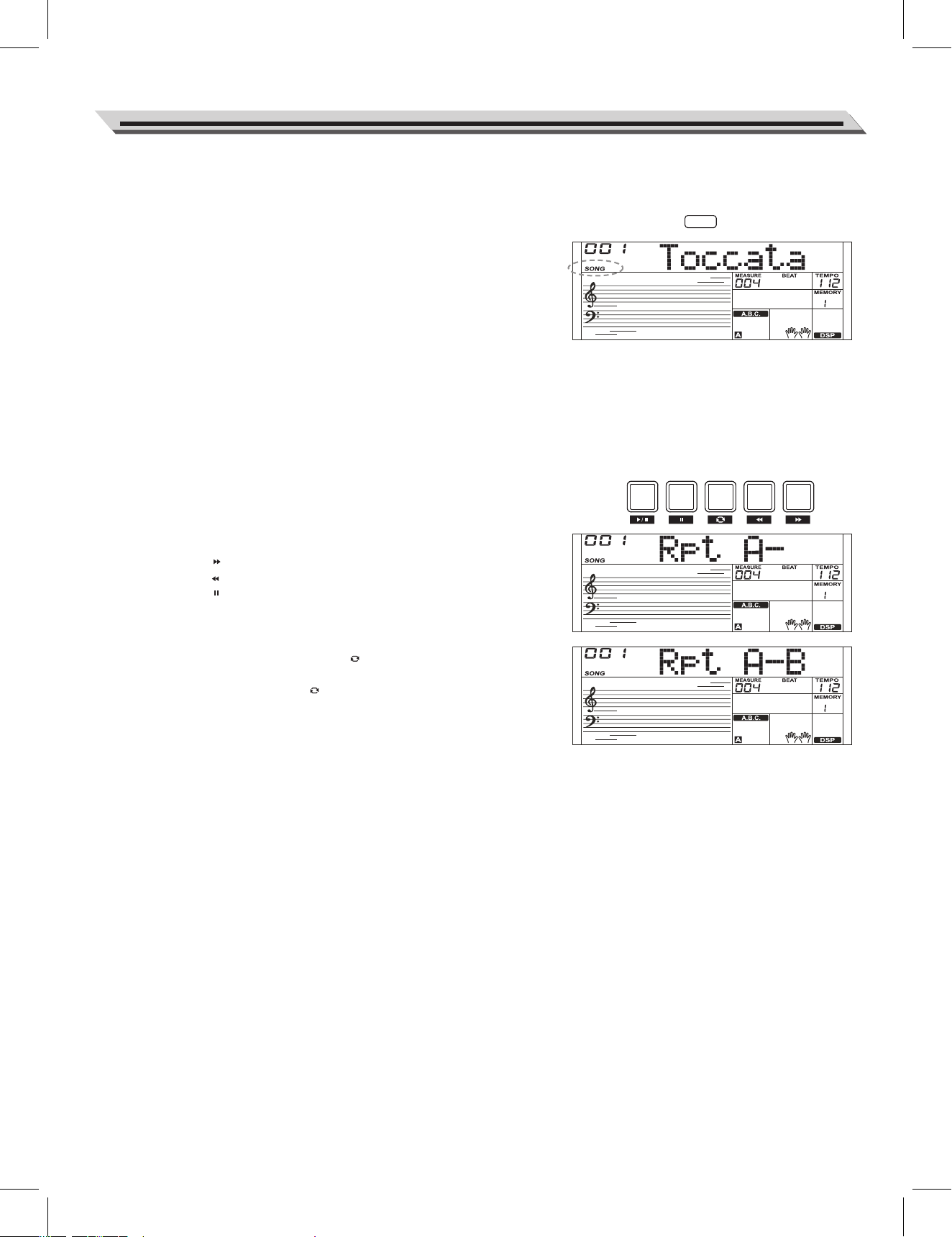
1. Press the [SONG] button to enter the song mode. The LCD shows
“SONG” and it will play all songs circularly.
2. Use the data dial, [+/YES] or [-/NO] button to select a song.
3. During song playback, press the [START/STOP] button to stop the
song, press it again to play the current song repeatedly.
4. When the song is stopped, press the [STYLE], [RECORD], [VOICE],
[DUAL] or [LOWER] button to exit the song mode.
Song Control
1. Introductory Beat
Before song start playing, it has the introductory beat; the measure
starts from negative value. It begins to play the melody when the
measure goes to 1.
2. REW, FF and PAUSE
When the song is playing:
Press the [ ] button to fast forward the song.
Press the [ ] button to rewind the song (base on the measure).
Press the [ ] button to pause the playing song, press it again to
continue playing.
3. Song Repeat
When playing the song, press the [ ] to set the beginning for a loop
section of the current song, then press it again to set the loop end.
When in loop status, press [ ] again to quit the loop playing status.
31
Song
SONG
FILL A FILL B
INTRO/
ENDING
SYNC
START
START/
STOP
This built-in smart learning mode provides a variety of ways to help you
learn a new song faster and better. It smartly tailors the lessons for you,
tracks your progress and grows with you through the practice.
Smart Learning
How to start the smart learning mode?
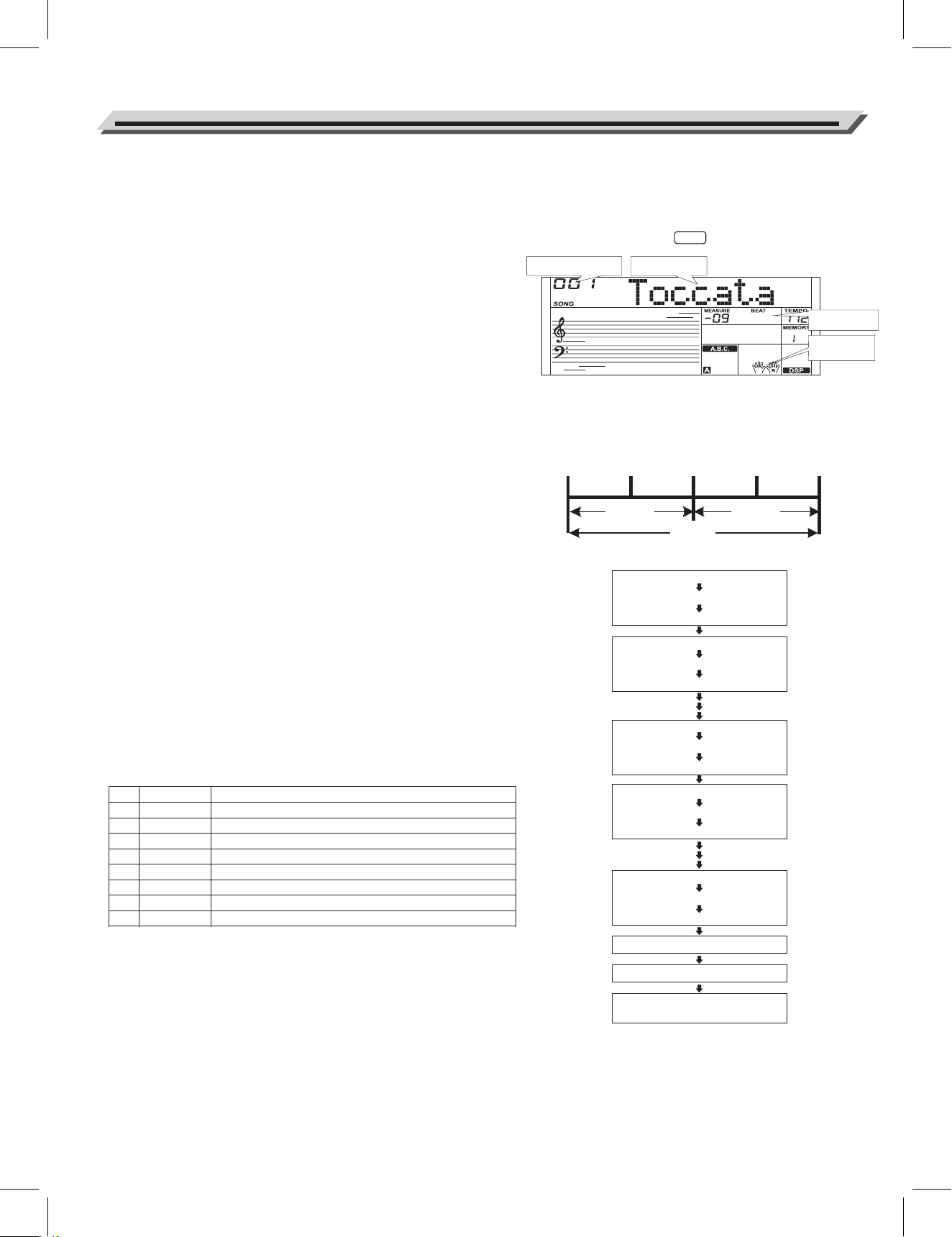
Press the [SMART LEARNING] button to enter the Smart Learning
mode. LCD will first display the current song name and number, then
display the lesson name before the lesson starts.
Note:
1. Use the data dial, [+/YES] or [-/NO] button to conveniently select a
song.
2. In the process of learning, the LCD displays the highest score of
previous challenge learning.
What is period and phrase?
The fastest way to learning a new song is to divide the song into several
parts, and individually practice each part. While you have a good
command of each part, it may become very easy to learn the complete
song.
A musical phrase is a unit of musical meter that has a complete musical
sense of its own. Just like a complete sentence in an article.
In music, a period is a group of phrases consisting usually of at least
one phrase, a common combination is two or four phrases, but three,
five or more phrases still exist.
Refer to the relationship of song, period and phrase on the right picture.
How to practicing with smart learning?
In order to help you learn songs faster and easier, the instrument
presets 8 lessons for each song, which includes: step learning of pitch,
timing, left hand, right hand, period, phrase and so on, try learning a
new song in an enjoyable way. The contents of each lesson is shown in
the following list:
32
Smart Learning System
NO.
1
2
3
4
5
6
7
8
LCD
LESSON 1
LESSON 2
LESSON 3
LESSON 4
LESSON 5
LESSON 6
LESSON 7
LESSON 8
Content of Lesson
Learn right hand pitch of period/phrase.
Learn right hand pitch and timing of period/phrase.
Learn left hand pitch of period/phrase.
Learn left hand pitch and timing of period/phrase.
Learn both hands pitch of period/phrase.
Learn both hands pitch and timing of period/phrase.
Learn both hands pitch and timing of complete song.
High score challenge.
Phrase1-1Phrase1-2Phrase2-1Phrase2-2
Period1
Phrase1-1 Lesson1
Phrase1-2 Lesson1
Period1 Lesson1
Song Lesson7
Song Lesson8
Song Lesson8
(Challenge the highest)
Period1
Song
Phrase1-1 Lesson2
Phrase1-2 Lesson2
Period1 Lesson2
Phrase1-1 Lesson6
Phrase1-2 Lesson6
Period1 Lesson6
Phrase2-1 Lesson1
Phrase2-2 Lesson1
Period2 Lesson1
Phrase2-1 Lesson6
Phrase2-2 Lesson6
Period2 Lesson6
SMART
LEARNING
SMART
LEARNING
Song Number/Score Learning Info
Period/Phrase
Left / Right
Hand Info
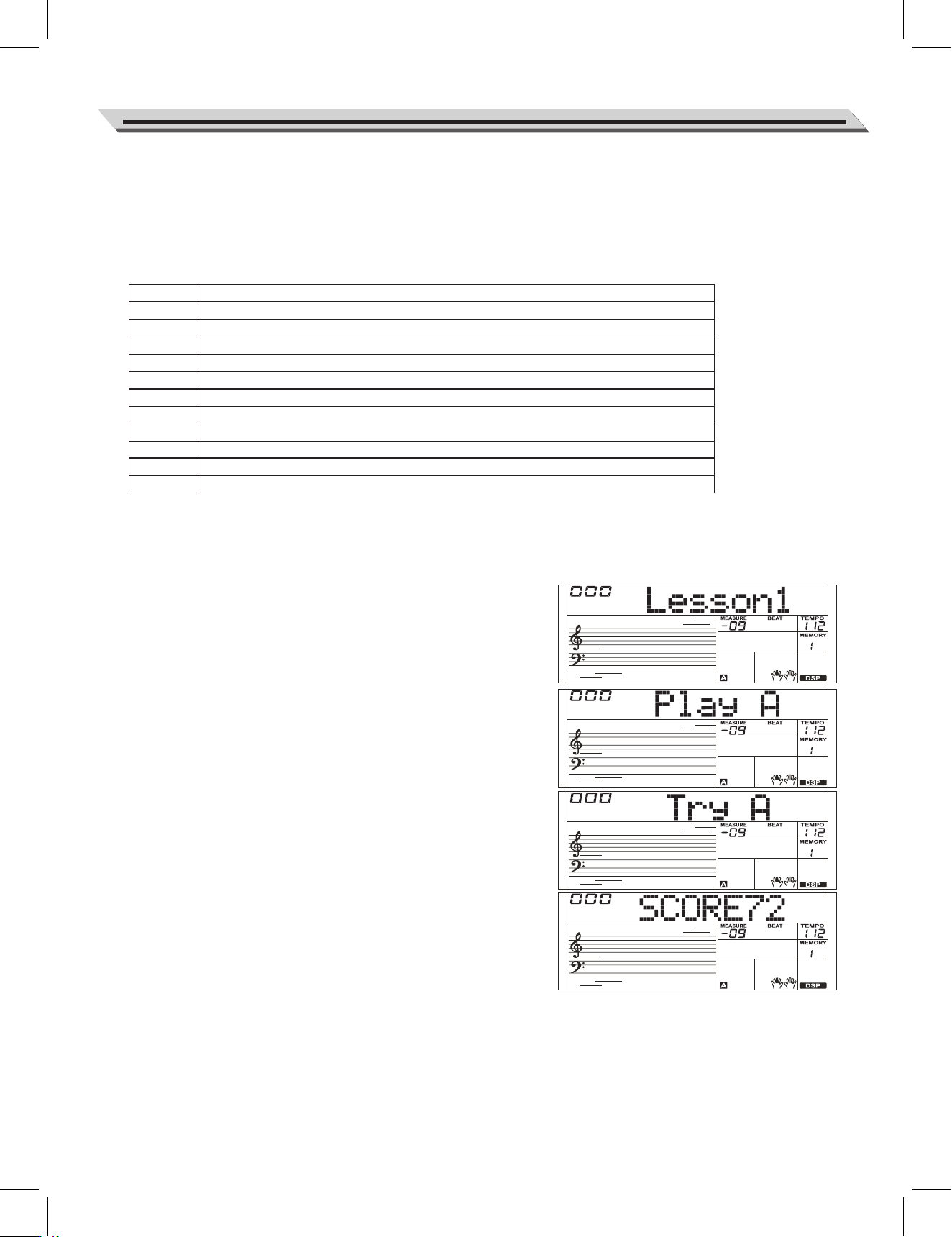
Normally, you will start from lesson 1 to lesson 6 before going to learn
the whole song at lesson 7. During the lessons, the instrument will
smartly pick out those phrases that you are not so familiar in the
practice, and tailor the practice to fit your progress. In lesson 8 (High
score challenge), you can challenge the highest score, and the score
will be permanently recorded.
Prompt Message
Lesson 1/3/5 (Pitch)
With lesson 1/3/5, you can learn how to currently play melody pitch and
accompaniment chords of songs. These three lessons are played in a
same method. We are going to introduce the lesson 1 as an example.
1. Press [SMART LEARNING] button, start the smart learning. Use
data dial or [+/YES]/ [-/NO] button to select a song you want to learn.
2. The LCD currently displays name and number of song and, then,
display the name of lesson “Lesson 1”. When the LCD displays “Play
A”, it will preview the phrase you are going to learn. Please listen
carefully and watch the notes on the staff.
3. When the LCD displays “Try A”, it prompts you to play the notes to
be shown on the staff.
Note:
When you press the correct note, the song will continue playing,
otherwise, it will stop and wait.
4. After you have finished this phrase the LCD will display your current
learning score “SCOREXX”. If you have got a score of 80 or more
points, congratulations, you have passed this lesson, and you can
enter the next phrase learning. The LCD displays “Go Ahead”. If you
have got a score less than 80 points, the LCD displays “Try Again”, it
means you have to repeat this phrase again.
Note:
If your score is less than 80 points for 3 times, the system will replay the
current phrase again to help you be familiar with it. Repeat the practice
until you can play the phrase with ease.
Smart Learning System
33
LCD
Lesson 1
Play A
Try A
Go Ahead
Try Again
Play A-H
Try A-H
Complete
Test
Score85
Retry ?
Description
Prepare for the next lesson.
preview the phrase which you are going to learn
Prompt the phrase which you are learning.
You have passed the current period/ phrase, please prepare for the next period / phrase.
You haven’t passed the current period/ phrase, please try again.
preview the period you are going to learning
Prompt the period you are learning.
You are going to lesson 7 (Complete song learning).
You are going to lesson 8 (High score challenge).
Your score.
Prompt if you want to play again when you finish this challenge learning.
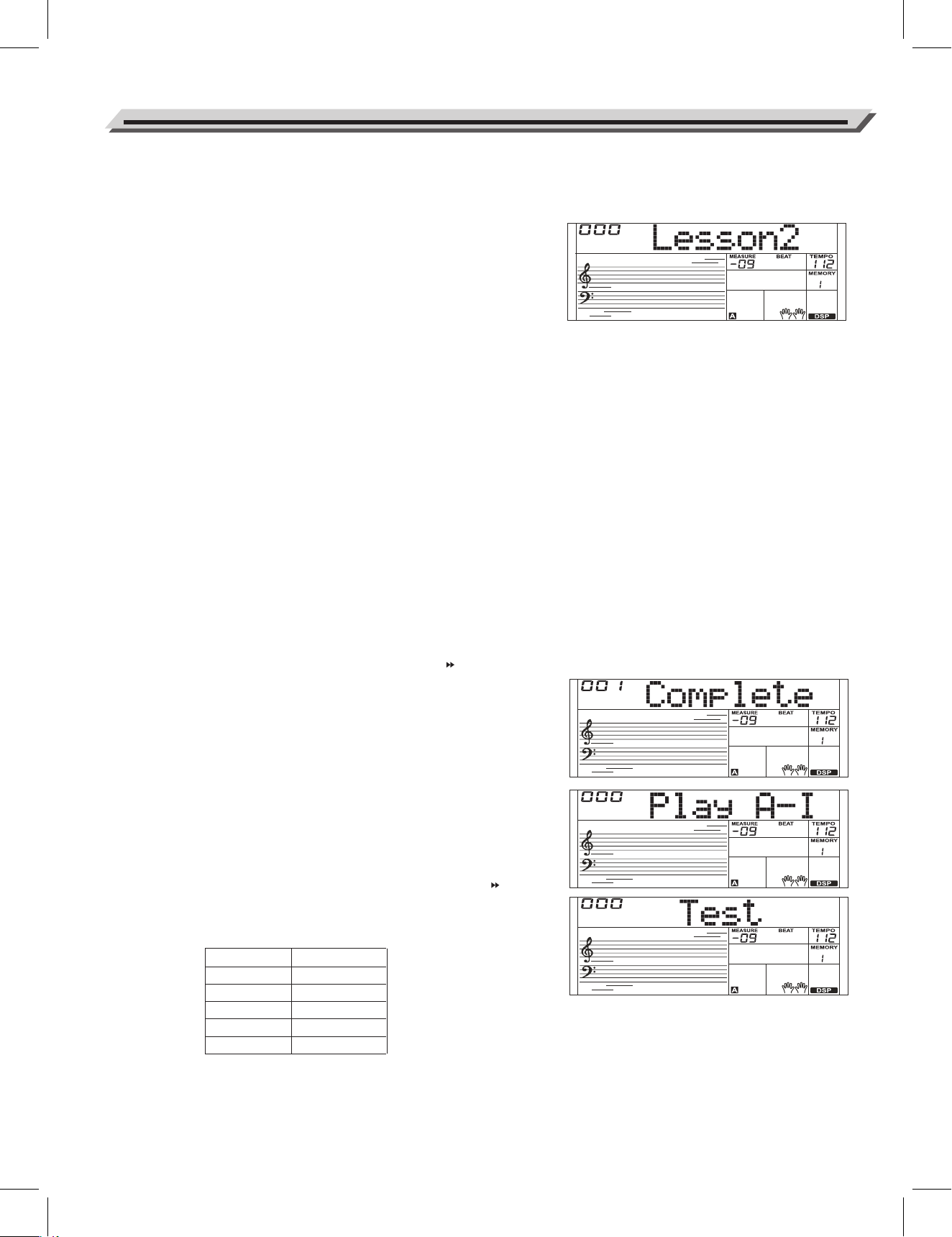
Lesson 2/4/6 (Pitch and Timing)
In lesson 2/4/6, you will further learn both the pitch and timing of a song.
That is to say, play songs with correct timing, pitch or chord.
These three lessons are played in a same method. We are going to
introduce lesson 2 as an example.
1. The system automatically enters the lesson 2 after you have passed
the lesson 1; The LCD displays “Lesson 2”.
2. In lesson 2 mode, the system will preview the period /phrase you
are to play, and then start the lesson 2 learning. The LCD displays
“Try A”.
3. The LCD currently displays your learning score: “SCOREXX”. If
your score is or more than 80 points, you can prepare for the next
lesson, the LCD will display “GoAhead”, otherwise, the LCD will
display “Try Again”, repeat practicing current phrase.
4. If your score is less than 80 points for 3 times, it will automatically
reduce the tempo by 10%. (For example, if the original tempo is
100, then it will go down to 90); you can practice with the new
tempo.
If your score reach 80 points, the tempo will automatically recover
10%, repeatedly practice period/phrase until you can play songs
smoothly at the original tempo.
Note:
The tempo will be reduced by 50% at most. You can press [TEMPO +]
and [TEMPO -] buttons simultaneously to reset to the default tempo.
Lesson 7 (Complete Song Learning)
1. Normally, you can start lesson 7 after finished lesson 1~6. Of
course, you can directly enter lesson 7 by pressing [ ] button.
The LCD displays “Complete” means you are preparing to learn
lesson 7.
2. In lesson 7 mode, the instrument will completely play back a song
for once, and then start pitch and timing practice. During the lesson,
it will smartly pick out those phrases that you are not so familiar in
the practice, and tailor the practice to fit your progress.
Repeatedly practice until you can play the song smoothly.
Lesson 8 (High Score Challenge)
When the above lessons are finished, it will automatically enter the
lesson 8 learning, the high score learning. The LCD displays “Test” and
your score from the last challenge.
Surely, if you want to directly challenge a song, you can press [ ]
button, and switch to lesson 8 quickly. After you finish this lesson, the
LCD will display your score and corresponding prompt sound. As the
list below:
Smart Learning System
34
Score
<60
60~69
70~79
80~89
90~100
Prompt Sound
Try Again
Ok
Good
Very Good
Excellent

If your score is higher than the instrument record, then congratulations!
This indicates that you have challenged successfully and your score will
be permanently recorded.
Select a Lesson
Besides the standard learning procedure, you can also press the
[ ] or [ ] button to freely select a lesson.
You can select a lesson from lesson 1 to lesson 8; the LCD will display
relevant information of lesson.
Pause the Lesson
Press the [ ] button to pause. Press the [ ] button again and the
lesson will resume from the current position.
Note:
The [ ] button cannot be used to pause lesson learning in lesson
1/3/5.
Stop/Start the Lesson
You can press the [start/stop] button to stop or start to learn. During the
learning process, press the [start/stop] button, it will stop and go back
the beginning of the current lesson.
Keeping Records of the Learning Progress
It smartly tracks your progress and save it, so the next time you enter
the function, you can pick up from where you leave.
Note:
It will not save your progress or records unless you exit the function as
instructed. That is to say, any sudden power off will result in lost of
records.
Practice with the Metronome
At the beginning of a lesson, the metronome provides a click sound,
giving you an accurate tempo guide when you practice, or letting you
easily start the lesson learning.
Note:
Since the piano songs do not have any accompaniment in lesson 6/7/8,
the system will automatically start metronome to help your lesson
learning.
Smart Learning System
35
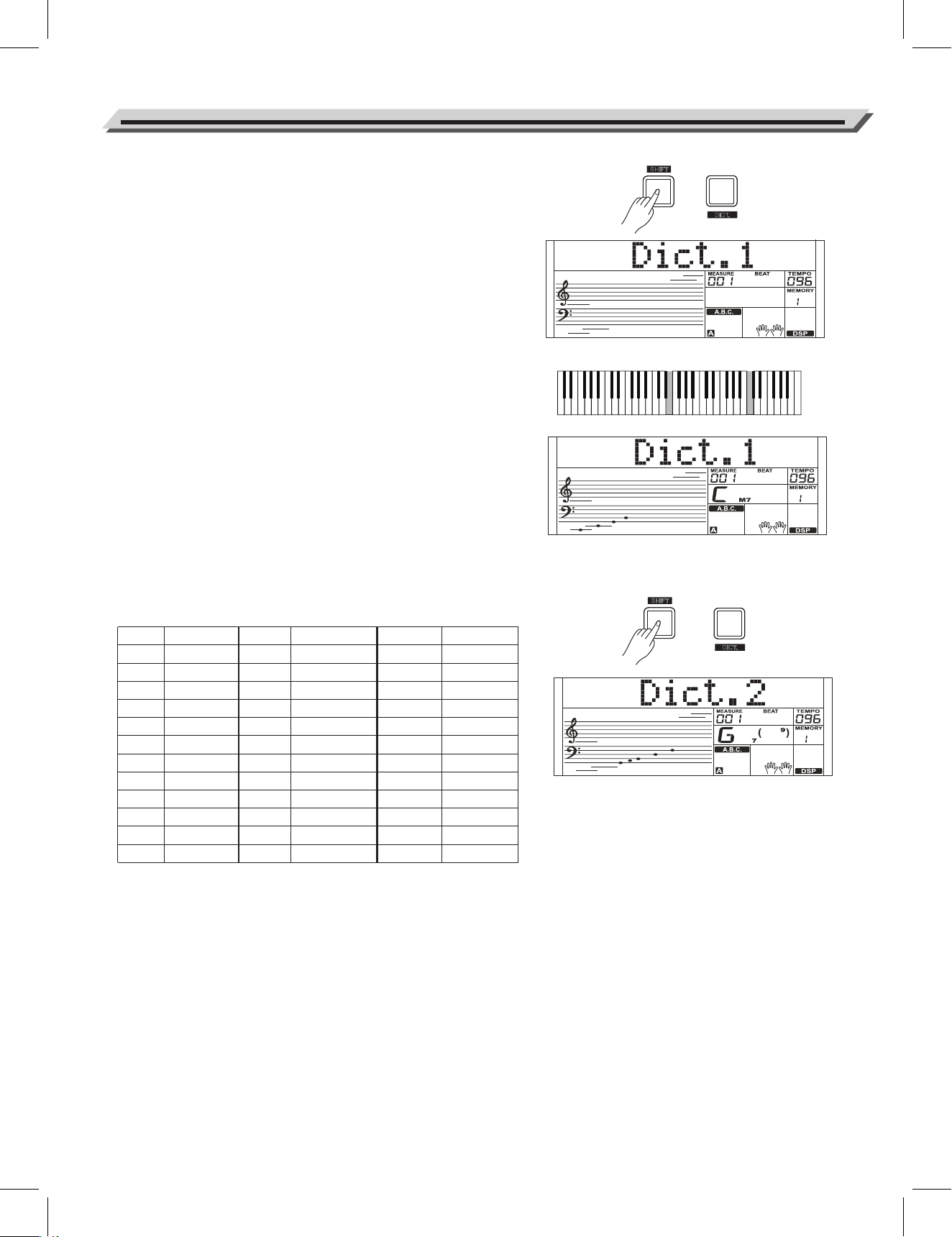
If you know the name of a chord but don't know how to play it, you
can use the Chord Dictionary function.
DICT 1 (Chord Learning Mode)
Holding down [SHIFT] button, and then press the [DICT.] button to
enter the DICT 1 mode, the LCD displays “Dict.1” and the A.B.C.
automatically turned on. In DICT 1 mode, the keys C4~B5 are used to
assign the Chord Type, the keys C6~B6 are used to assign the Chord
Root. When the Chord Type and Chord Root are confirmed, the LCD
will display the Chord and its keyboard position. For example, if you
want to play a CM7 Chord, press the C6 key to specify C as the chord
root. The root note you set will be shown on the LCD but the note
doesn't sound. Refer to the picture on the right for assigning the Chord
Root.
Press the E4 key to specify M7 as chord type. When the Chord Type
and Chord Root are confirmed, the LCD will display the chord and its
keyboard position. A prompt sound will be heard when you play it
correctly in the chord area.
DICT 2 (Chord Testing Mode)
Holding down [SHIFT] button, and then press the [DICT.] button to
enter the DICT 2 mode. In DICT 2 mode, you can have a chord test.
LCD will display a chord name in random order. If the chord fails to be
played in 3 seconds, its notes will appear on LCD. Once the chord is
played correctly, a new chord name will appear after a few seconds.
In DICT 2 mode, Holding down [SHIFT] button, and then press the
[DICT.] button again to turn off chord dictionary.
24 Chords will be displayed in the dictionary mode as follows:
Chord Dictionary
36
Note
C6
C#6
D6
Eb6
E6
F6
F#6
G6
Ab6
A6
Bb6
B6
Chord Root
C
C#/Db
D
Eb/D#
E
F
F#/Gb
G
Ab/G#
A
Bb/A#
B
Note
C4
C#4
D4
Eb4
E4
F4
F#4
G4
Ab4
A4
Bb4
B4
Chord Root
M
M(9)
6
mM7
M7
M
M(9)
M6
M7(9)
M7
M7b5
7
Note
C5
C#5
D5
Eb5
E5
F5
F#5
G5
Ab5
A5
Bb5
B5
Chord Root
7(b9)
7(9)
7(#9)
7(b13)
7(13)
7(#11)
dim7
dim
7aug
aug
7sus4
sus4
SHIFT
SHIFT
M7
chord type
C
root
DUAL
D
ICT.
DUAL
D
ICT.
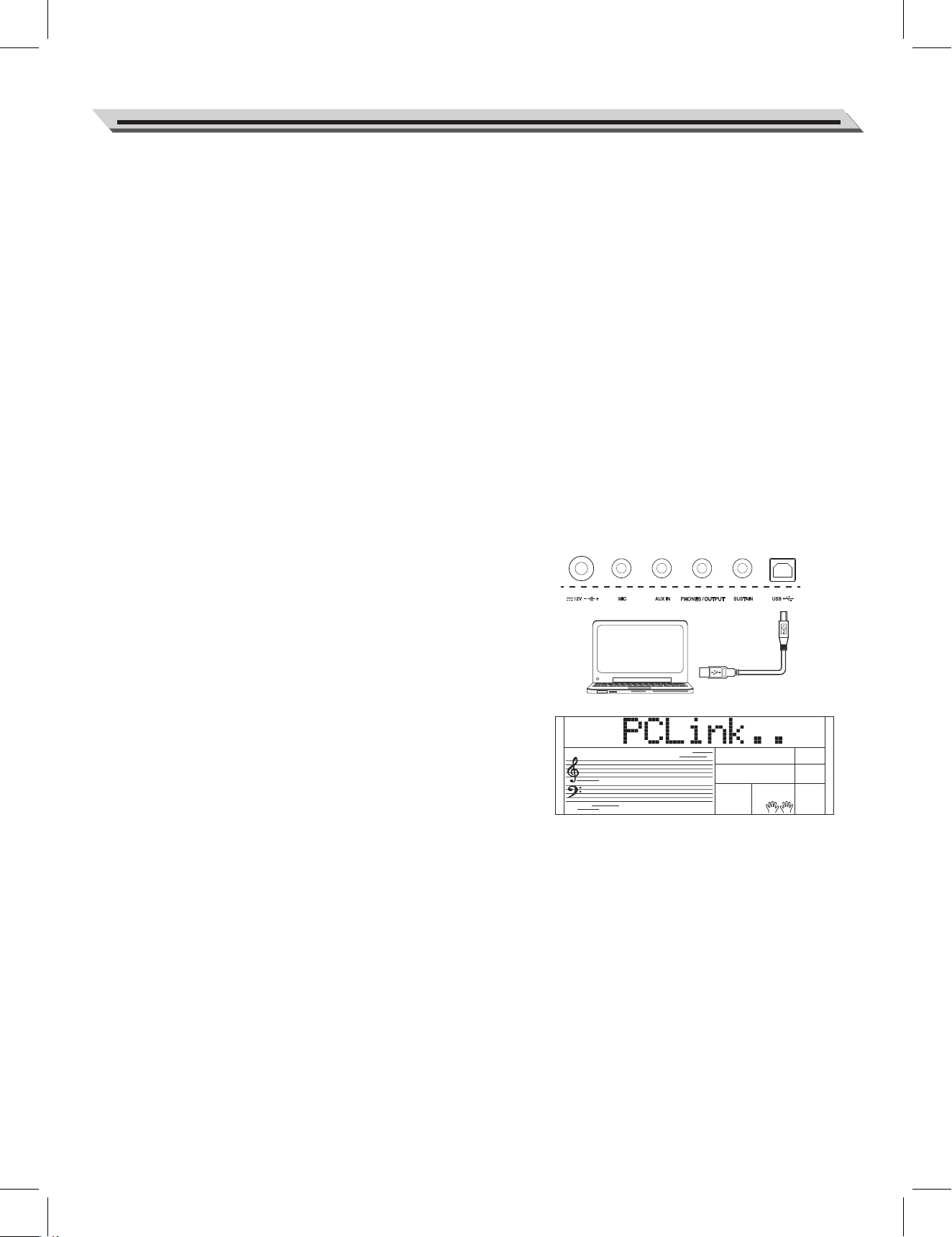
With the MIDI functions you can expand your musical possibilities.
This section will let you know what MIDI is, and what it can do, as well
as how you can use MIDI on your instrument.
What's MIDI?
1. MIDI (short for Musical Instrument Digital Interface) allows a wide
variety of electronic musical instruments, computers and other
related devices to connect and communicate with one another.
MIDI carries event messages that specify notation, pitch and
velocity, control signals for parameters such as volume, vibrato,
audio panning, and program change information to change the voice
selections.
2. The instrument can output the real-time playback information via
MIDI messages and control external MIDI devices. The instrument
can also accept incoming MIDI messages and generate sound
accordingly.
Note:
This instrument has a USB(DEVICE) terminal, which can be connected
to a PC as an MIDI input or MIDI output. This can not be connected with
another instrument, unless the instrument has a USB host terminal.
Upload/Download Data from the Computer
1. Connect a standard USB cable between the rear-panel USB jack
on the instrument and the USB jack on your computer.
2. Power on the instrument first, and then open the PCSUITE software
on your computer. If the LCD displays “PCLink..” it indicates the
piano connects the PC successfully.
3. You can download MIDI files to the keyboard as user songs or
upload the user songs to PC.
4. You can upload user styles to the computer as a backup or
download them to the keyboard. You can upload memory files to the
computer as a backup or download them to the keyboard.
5. Please refer to software operation instructions for detail operating
methods.
37
MIDI
Troubleshooting
38
Problem
The speakers produce a pop sound
whenever the power is turned ON or OFF.
No sound when the keyboard is played.
When using a mobile phone, noise is
produced.
The auto accompaniment does not play
back even Sync is in standby condition
and a key is pressed.
Certain notes sound at wrong pitch.
The Harmony function does not operate.
Possible Cause and Solution
This is normal and is no cause for alarm.
Make sure the master volume is set to an appropriate level. Check if headphones
are plugged into the PHONES/OUTPUT jack. The R1/R2/L voice volume (Mixer)
settings could be set too low. Make sure the voice volumes are set at appropriate
levels.
Using a mobile phone in close proximity to the instrument may produce
interference. To prevent this, turn off the mobile phone or use it further away
from the instrument.
You may be trying to start accompaniment by playing a key in the righthand
range of the keyboard. To start the accompaniment with Sync Start, make
sure to play a key in the left-hand range of the keyboard.
Make sure that the tuning value is set to 0. Press and hold the [+/YES] and
[-/NO] buttons at the same time, then turning the power on will set
INSTRUMENT to default.
Please make sure the Harmony function is on. And Harmony cannot be turned
on when a drum kit is selected for thevoice R1.
Notice:
If you notice any abnormality cannot handle, please connect the provider or specified repair station, and have the
instrument inspected by qualified service personnel.

LCD Display
Multi-functional LCD
Keys
61 Keys with Touch Response
Polyphony
128
Voices
653
Songs
160 Preset Songs and 10 User Songs
Styles
240 Preset Songs and 10 User Styles
Demos
8
Album
310
Tempo
30 – 280
Panel Memory
48
DSP
With DSP function, your performance will have a broader
and fuller expression.
Chord Mode
Both single-finger mode and multi-finger mode.
Chord Dictionary
It is convenient for chord learning.
Accompaniment/Song Control
Start/Stop, Sync Start (Pause), Intro/Ending
(Repeat A/B), Fill A (REW), Fill B (FF),
Chord Mode, Fade.
Record
Record, Start/ Stop, Accomp Track, Melody Track 1~5
Control button
Power Switch, Volume knob, Pitch Bend, SHIFT,
TEMPO -/+ (ACCOMP -/+), START/STOP, SYNC
START (PAUSE), INTRO/ENDING (REPEAT),
FILL A (REW), FILL B (FF), FADE, CHORD, DEMO,
SONG, STYLE, VOICE, PIANO, SMART LEARNING,
BANK (RECORD), STORE (ACCOMP), M1~M5
(MELODY 1~MELODY 5), M6 (TOUCH), O.T.S.
(PERFORM.), METRONOME (OCTAVE), MIXER
(TRANSPOSE), DUAL (DICT.), LOWER (ALBUM),
HARMONY (DSP), FUNCTION (SUSTAIN), -/NO,
+/YES, NUMERIC BUTTONS.
Connectors
PHONES/OUTPUT, SUSTAIN, AUX IN, MIC, USB,
DC IN.
Power Supply
DC IN 12V/1000mA
Speaker
4 ohm 10Wx2
Dimensions
956(L) X 360(W) X 133(H)
Weight
5.3KG
* All specifications and appearances are subject to
change without notice.
39
Specifications
40
Voice List
Organ
Guitar
Chromatic Percussion
Piano
NO.
1
2
3
4
5
6
7
8
9
10
11
12
13
14
15
16
17
18
19
20
21
22
23
24
25
26
27
28
29
30
31
32
33
34
35
36
37
38
39
40
41
42
43
44
45
46
47
48
49
50
51
52
53
English Name
Acoustic Grand Piano
Acoustic Grand Piano 2
Acoustic Grand Piano (wide)
Acoustic Grand Piano (dark)
Bright Acoustic Piano
Bright Acoustic Piano 2
Bright Acoustic Piano (wide)
Electric Grand Piano
Electric Grand Piano 2
Electric Grand Piano (wide)
Electric Grand Piano (dark)
Honky Tonk Piano
Honky Tonk Piano 2
Honky Tonk Piano (wide)
Honky Tonk Piano (dark)
Harpsichord
Harpsichord 2
Harpsichord (octave mix)
Harpsichord (wide)
Harpsichord (with key off)
Octave Grand Piano
Octave Grand Piano 2
Piano & Strings
Piano & Pad
Piano & Choir
Piano & EP
Piano & Vibraphone
Detuned Electric Piano
Detuned Electric Piano 2
Electric Piano
Electric Piano 2
Electric Piano 3
Electric Piano 4
Electric Piano 1 (velocity mix)
Electric Piano 2 (velocity mix)
60's Electric Piano
EP Legend
Phase EP
Clavi
Clavi 2
Phase Clavi
Wah Clavi
Pulse Clavi
Dream EP
Tremolo EP
Funk EP
Warm EP
Choir EP
Wah EP
Modern EP
EP Pad
Celesta
Celesta 2
LCD Name
GrandPno
GrandPn2
GrandPnW
GrandPnD
BritePno
BritePn2
BritePnW
E.Grand
E.Grand2
E.GrandW
E.GrandD
HnkyTonk
HnyTonk2
HnyTonkW
HnyTonkD
Harpsi
Harpsi2
HarpsiO
HarpsiW
HarpsiOf
OctPno
OctPno2
Pno&Str
Pno&Pad
Pno&Cho
Pno&EP
Pno&Vib
DetunEP
DetunEP2
E.Piano
E.Piano2
E.Piano3
E.Piano4
E.PnoV1
E.PnoV2
60'sEP
EPLegend
PhaseEP
Clavi
Clavi2
PhaseClv
WahClv
PluseClv
DreamEP
TremoEP
FunkEP
WarmEP
ChoriEP
WahEP
ModernEP
EPPad
Celesta
Celesta2
54
55
56
57
58
59
60
61
62
63
64
65
66
67
68
69
70
71
72
73
74
75
76
77
78
79
80
81
82
83
84
85
86
87
88
89
90
91
92
93
94
95
96
97
98
99
100
101
102
103
104
105
106
107
Celesta 3
Glockenspiel
Glockenspiel 2
Glockenspiel 3
Music Box
Music Box 2
Music Box 3
Vibraphone
Vibraphone 2
Vibraphone (wide)
Marimba
Marimba 2
Marimba (wide)
Xylophone
Xylophone 2
Xylophone 3
Tubular Bells
Tubular Bells 2
Church Bell
Carillon
Dulcimer
Dulcimer 2
Santur
Italian 60's Organ
Drawbar Organ
Drawbar Organ 2
Detuned Drawbar Organ
Drawbar Organ 3
Detuned Percussive Organ
Percussive Organ
Percussive Organ 2
70's Percussive Organ
Percussive Organ 3
Rock Organ
Rock Organ 2
Rock Organ 3
Church Organ
Church Organ 2
Church Organ 3
Church Organ (octave mix)
Detuned Church Organ
Reed Organ
Reed Organ 2
Rotary Organ
Puff Organ
Accordion
Accordion 2
Accordion 3
Harmonica
Harmonica 2
Harmonica 3
Tango Accordion
Tango Accordion 2
Acoustic Guitar (nylon)
Celesta3
Glocken
Glocken2
Glocken3
MusicBox
MuscBox2
MuscBox3
Vibra
Vibra2
VibraW
Marimba
Marimba2
MarimbaW
Xylophon
Xylopho2
Xylopho3
TubulBel
TubulBe2
ChurBell
Carillon
Dulcimer
Dulcime2
Santur
60'sOrgn
DrawOrgn
DrawOrg2
DeDraOrg
DrawOrg3
DePerOrg
PercOrgn
PercOrg2
70'sPcOr
PercOrg3
RockOrgn
RockOrg2
RockOrg3
ChurOrgn
ChurOrg2
ChurOrg3
ChurOrgO
DeChuOrg
ReedOrgn
ReedOrg2
RotyOrgn
PuffOrgn
Acordion
Acordin2
Acordin3
Harmnica
Harmnic2
Harmnic3
TangoAcd
TangAcd2
NylonGtr
41
Voice List
108
109
110
111
112
113
114
115
116
117
118
119
120
121
122
123
124
125
126
127
128
129
130
131
132
133
134
135
136
137
138
139
140
141
142
143
144
145
146
147
148
149
150
151
152
153
154
155
156
157
158
159
160
161
Acoustic Guitar (nylon ) 2
Acoustic Guitar (nylon) 3
Acoustic Guitar (nylon + key off)
Ukulele
Acoustic Guitar (steel)
Acoustic Guitar (steel) 2
12-Strings Guitar
Mandolin
Mandolin 2
Steel Guitar with Body Sound
Electric Guitar (jazz)
Electric Guitar (jazz) 2
Electric Guitar (pedal steel)
Electric Guitar (clean)
Electric Guitar (clean) 2
Electric Guitar (detuned clean)
Mid Tone Guitar
Electric Guitar (muted)
Electric Guitar (muted) 2
Electric Guitar (funky cutting)
Electric Guitar (muted velo-sw)
Jazz Man
Overdriven Guitar
Overdriven Guitar 2
Guitar Pinch
Distortion Guitar
Distortion Guitar 2
Distortion Guitar (with feedback)
Guitar Feedback
Distorted Rhythm Guitar
Guitar Harmonics
Guitar Harmonics 2
Velocity Nylon Guitar
Acoustic Bass
Acoustic Bass 2
Wah Bass
Electric Bass (finger)
Finger Slap Bass
Electric Bass (pick)
Electric Bass (pick) 2
Fretless Bass
Fretless Bass 2
Slap Bass
Slap Bass 2
Slap Bass 3
Slap Bass 4
Synth Bass
Synth Bass 2
Synth Bass 3
Synth Bass 4
Warm Synth Bass
Rsonance SynBass
Clavi Bass
Hammer
NylonGt2
NylonGt3
NylGtrOf
Ukulele
SteelGtr
SteelGt2
12StrGtr
Mandolin
Mandoli2
SteelBdy
JazzGtr
JazzGtr2
PedalGtr
CleanGtr
CleanGt2
DetClnGt
MidTonGt
MutedGtr
MutedGt2
FunkGt
MutVelGt
JazzMan
Ovrdrive
Ovrdriv2
GtPinch
DistGtr
DistGtr2
FeedbkGt
GtrFedbk
DistRyth
GtrHarmo
GtHarmo2
NylnGtVe
AcoBass
AcoBass2
WahBass
FngrBass
FngrSlap
PickBass
PickBas2
Fretless
Fretles2
SlapBass
SlapBas2
SlapBas3
SlapBas4
SynBass
SynBass2
SynBass3
SynBass4
WarmBass
ResoBass
ClavBass
Hammer
162
163
164
165
166
167
168
169
170
171
172
173
174
175
176
177
178
179
180
181
182
183
184
185
186
187
188
189
190
191
192
193
194
195
196
197
198
199
200
201
202
203
204
205
206
207
208
209
210
211
212
213
214
Attack Bass
Synth Bass (rubber)
Synth Bass (rubber) 2
Attack Pulse
Violin
Violin 2
Violin (slow attack)
Viola
Viola 2
Cello
Cello 2
Contrabass
Contrabass 2
Tremolo Strings
Tremolo Strings 2
Tremolo Strings 3
Pizzicato Strings
Pizzicato Strings 2
Orchestral Harp
Orchestral Harp 2
Yang Chin
Timpani
Timpani 2
String Ensembles
String Ensembles 2
String Ensembles 3
String Ensembles 4
Strings & Brass
60's Strings
Synth Strings
Synth Strings 2
Synth Strings 3
Synth Strings 4
Synth Strings 5
Choir Aahs
Choir Aahs 2
Choir Aahs 3
Voice Oohs
Voice Oohs 2
Humming
Anlong Voice
Synth Voice
Synth Voice 2
Orchestra Hit
Orchestra Hit 2
Bass Hit Plus
6th Hit
Euro Hit
Trumpet
Trumpet 2
Dark Trumpet
Trombone
Trombone 2
AtackBas
RubbBass
RubbBas2
AtackPls
Violin
Violin2
SlViolin
Viola
Viola2
Cello
Cello2
Contrabs
Contrbs2
TremStr
TremStr2
TremStr3
PizzStr
PizzStr2
Harp
Harp2
YangChin
Timpani
Timpani2
Strings
Strings2
Strings3
Strings4
Str&Bras
60'sStr
SynStrs
SynStrs2
SynStrs3
SynStrs4
SynStrs5
ChoirAah
ChorAah2
ChorAah3
VoiceOoh
VoicOoh2
Humming
AnlVoice
SynVoice
SynVoic2
OrchHit
OrchHit2
BassHit
6thHit
EuroHit
Trumpet
Trumpet2
DarkTrp
Trombone
Trmbone2
Strings & Orchestral
Brass
Bass
42
Voice List
Reed
Pipe
Synth Lead
215
216
217
218
219
220
221
222
223
224
225
226
227
228
229
230
231
232
233
234
235
236
237
238
239
240
241
242
243
244
245
246
247
248
249
250
251
252
253
254
255
256
257
258
259
260
261
262
263
264
265
266
267
268
Trombone 3
Bright Trombone
Tuba
Tuba 2
Muted Trumpet
Muted Trumpet 2
Muted Trumpet 3
French Horn
French Horn 2
French Horn 3
Brass Section
Brass Section 2
Brass Section 3
Synth Brass
Synth Brass 2
Synth Brass 3
Synth Brass 4
Synth Brass 5
Synth Brass 6
Synth Brass 7
Synth Brass 8
Analog Synth Brass
Analog Synth Brass 2
Analog Synth Brass 3
Jump Brass
Jump Brass 2
Funny
Funny 2
Soprano Sax
Soprano Sax 2
Soprano Sax 3
Alto Sax
Alto Sax 2
Alto Sax 3
Tenor Sax
Tenor Sax 2
Tenor Sax 3
Baritone Sax
Baritone Sax 2
Baritone Sax 3
Oboe
Oboe 2
Oboe 3
2 Oboes
English Horn
English Horn 2
English Horn 3
2 English Horns
Bassoon
Bassoon 2
Bassoon 3
2 Bassoons
Clarinet
Clarinet 2
Trmbone3
BritBone
Tuba
Tuba2
MuteTrp
MuteTrp2
MuteTrp3
FrHorn
FrHorn2
FrHorn3
Brass
Brass2
Brass3
SynBrass
SynBras2
SynBras3
SynBras4
SynBras5
SynBras6
SynBras7
SynBras8
AnaBrass
AnaBras2
AnaBras3
JumpBras
JumpBrs2
Funny
Funny2
SprnoSax
SprnSax2
SprnSax3
AltoSax
AltoSax2
AltoSax3
TenorSax
TenoSax2
TenoSax3
BariSax
BariSax2
BariSax3
Oboe
Oboe2
Oboe3
2Oboes
EngHorn
EngHorn2
EngHorn3
2EngHons
Bassoon
Bassoon2
Bassoon3
2Basoons
Clarinet
Clarine2
269
270
271
272
273
274
275
276
277
278
279
280
281
282
283
284
285
286
287
288
289
290
291
292
293
294
295
296
297
298
299
300
301
302
303
304
305
306
307
308
309
310
311
312
313
314
315
316
317
318
319
320
321
322
Clarinet 3
2 Clarinets
Piccolo
Piccolo 2
Piccolo 3
2 Piccolos
Sweet Flute
Flute
Flute 2
Flute 3
2 Flutes
Recorder
Recorder 2
2 Recorders
Pan Flute
Pan Flute 2
Sweet Pan Flute
Blown Bottle
Blown Bottle 2
Shakuhachi
Shakuhachi 2
Whistle
Whistle 2
Ocarina
Ocarina 2
Lead 1 (square)
Lead 1a (square) 2
Lead 1 (square) 3
Lead 1b (sine)
Lead 2 (sawtooth)
Lead 2a (sawtooth) 2
Lead 2 (sawtooth) 3
Lead 2b (saw + pulse)
Lead 2c (double sawtooth)
Lead 2d (sequenced analog)
Lead 2d (sequenced analog) 2
Wavy Sawtooth
Bauble Lead
Super Analog
Lead 3 (calliope)
Lead 3 (calliope) 2
Lead 4 (chiff)
Lead 4 (chiff) 2
Lead 4 (chiff) 3
Lead 4 (chiff) 4
Lead 5 (charang)
Lead 5 (charang) 2
Lead 5 (charang) 3
Lead 5 (charang) 4
Lead 5a (wire lead)
Lead 5a (wire lead) 2
Lead 6 (voice)
Lead 6 (voice) 2
Lead 7 (fifths)
Clarine3
2Clarins
Piccolo
Piccolo2
Piccolo3
2Picolos
SweeFlut
Flute
Flute2
Flute3
2Flutes
Recorder
Recorde2
2Records
PanFlute
PanFlut2
SwPanFlu
Bottle
Bottle2
Shakhchi
Shakhch2
Whistle
Whistle2
Ocarina
Ocarina2
SquareLd
SquarLd2
SquarLd3
SineLead
SawLead
SawLead2
SawLead3
SawPlsLd
DubSawLd
SquAnaLd
SqAnaLd2
WavySaw
BaubleLd
SuperAna
CaliopLd
CalipLd2
ChiffLd
ChiffLd2
ChiffLd3
ChiffLd4
CharanLd
CharaLd2
CharaLd3
CharaLd4
WireLead
WireLd2
VoiceLd
VoiceLd2
FifthsLd
43
Voice List
Synth Pad
Ethnic Misc.
Synth SFX
323
324
325
326
327
328
329
330
331
332
333
334
335
336
337
338
339
340
341
342
343
344
345
346
347
348
349
350
351
352
353
354
355
356
357
358
359
360
361
362
363
364
365
366
367
368
369
370
371
372
373
374
375
376
Lead 7 (fifths) 2
Lead 8 (bass + lead)
Lead 8 (bass + lead) 2
Lead 8 (bass + lead) 3
Lead 8a (soft wrl)
Massiness
Square
Slow Square Lead
Sine Solo
Square Lead 4
Thick Square
2Oscillators Lead
Wavy Sawtooth 2
Analog Lead
Big Lead
Fat Lead
PWM 4th
Delayed Lead
Delayed Lead 2
Fifth Lead
Corrie
Quint
Pad 1 (new age)
Pad 1 (new age) 2
Pad 1 (new age) 3
Pad 1 (new age) 4
Pad 2 (warm)
Pad 2 (warm) 2
Pad 2 (warm)3
Pad 2a (sine pad)
Pad 3 (polysynth)
Pad 3 (polysynth) 2
Pad 3 (polysynth) 3
Pad 3 (polysynth) 4
Pad 4 (choir)
Pad 4 (choir) 2
Pad 4a (itopia)
Pad 5 (bowed)
Pad 5 (bowed) 2
Pad 5 (bowed) 3
Pad 5 (bowed) 4
Pad 6 (metallic)
Pad 6 (metallic) 2
Pad 6 (metallic) 3
Pad 7 (halo)
Pad 7 (halo) 2
Pad 7 (halo) 3
Pad 7 (halo) 4
Pad 8 (sweep)
Pad 8 (sweep) 2
Pad 8 (sweep) 3
Pan Pad
Pan Pad 2
Dipolar Pad
FifthLd2
BassLead
BasLead2
BasLead3
SftWrlLd
Massin
Square
SlwSquLd
SineSolo
SquarLd4
ThickSqu
2OscLd
WavySaw2
AnaLead
BigLead
FatLead
Rezz4th
DelyLead
DlyLead2
FifLead
Corrie
Quint
NewAge
NewAge2
NewAge3
NewAge4
WarmPad
WarmPad2
WarmPad3
SinePad
PolySyn
PolySyn2
PolySyn3
PolySyn4
ChoirPad
ChoirPd2
ItopiaPd
BowedPad
BowedPd2
BowedPd3
BowedPd4
MetalPad
MetalPd2
MetalPd3
HaloPad
HaloPad2
HaloPad3
HaloPad4
SweepPad
SweepPd2
SweepPd3
PanPad
PanPad2
DipolPad
377
378
379
380
381
382
383
384
385
386
387
388
389
390
391
392
393
394
395
396
397
398
399
400
401
402
403
404
405
406
407
408
409
410
411
412
413
414
415
416
417
418
419
420
421
422
423
424
425
426
427
428
429
430
PWM Pad
Warmly Pad
Horn Pad
Click Pad
Analog Pad
80's Poly Pad
PWM 4th Soft
Synth Calliope Soft
Soft Vox
5th SawWave
5th Lead Soft
Slow Square
New Year Pad
Space Voice
Rising
Congregate
FX 1 (rain)
FX 1 (rain) 2
FX 2 (soundtrack)
FX 2 (soundtrack) 2
Prelude
FX 3 (crystal)
FX 3 (crystal) 2
FX 3 (crystal) 3
FX 3a (synth mallet)
FX 4 (atmosphere)
FX 4 (atmosphere) 2
Warm Air
FX 5 (brightness)
FX 5 (brightness) 2
Smog
FX 6 (goblins)
FX 6 (goblins) 2
FX 6 (goblins) 3
Choir Bell
Choir Bell 2
FX 7 (echoes)
FX 7 (echoes) 2
FX 7 (echoes) 3
FX 7b (echo pan)
FX 7a (echo bell)
FX 7a (echo bell) 2
FX 7a (echo bell) 3
FX 8 (sci-fi)
FX 8 (sci-fi) 2
FX 8 (sci-fi) 3
Sitar
Sitar 2
Sitar 3
Banjo
Banjo 2
Banjo 3
Shamisen
Shamisen 2
PWMPad
WarmlyPd
HornPad
ClickPad
AnalogPd
80'sPoly
PWM4thSf
SynCalSf
SoftVox
5thSaw
5thLdSf
SlSquare
NewYear
SpcVoice
Rising
Congrega
FXRain
FXRain2
Soundtrk
Sondtrk2
Prelude
Crystal
Crystal2
Crystal3
SynMalet
Atmosphr
Atmosph2
WarmAir
Bright
Bright2
Smog
Goblins
Goblins2
Goblins3
ChorBell
ChorBel2
Echoes
Echoes2
Echoes3
EchoPan
EchoBell
EchoBel2
EchoBel3
Sci-Fi
Sci-Fi2
Sci-Fi3
Sitar
Sitar2
Sitar3
Banjo
Banjo2
Banjo3
Shamisen
Shamise2
44
Voice List
Percussive
SFX
431
432
433
434
435
436
437
438
439
440
441
442
443
444
445
446
447
448
449
450
451
452
453
454
455
456
457
458
459
460
461
462
463
464
465
466
467
468
469
470
471
472
473
474
475
476
477
478
479
480
481
482
483
484
485
Shamisen 3
Koto
Koto 2
Taisho Koto
Kalimba
Kalimba 2
Kalimba 3
Bag Pipe
Bag Pipe 2
Bag Pipe 3
Fiddle
Fiddle 2
Fiddle 3
Shanai
Shanai 2
Shanai 3
Tinkle Bell
Tinkle Bell 2
Tinkle Bell 3
Agogo
Agogo 2
Agogo 3
Steel Drums
Steel Drums 2
Steel Drums 3
Woodblock
Woodblock 2
Woodblock 3
Castanets
Castanets 2
Taiko Drum
Taiko Drum 2
Taiko Drum 3
Concert Bass Drum
Concert Bass Drum 2
Acoustic Bass Drum
Room Kick
Power Kick
Electric Bass Drum
Analog Bass Drum
Jazz Kick
Side Stick
Analog Rim Shot
Acoustic Snare
Room Snare
Power Snare
Electric Snare
Analog Snare
Jazz Snare
Brush Tap
Concert SD
Hand Clap
Tom
Room Tom
Power Tom
Shamise3
Koto
Koto2
TaishoKt
Kalimba
Kalimba2
Kalimba3
BagPipe
BagPipe2
BagPipe3
Fiddle
Fiddle2
Fiddle3
Shanai
Shanai2
Shanai3
TnklBell
TnklBel2
TnklBel3
Agogo
Agogo2
Agogo3
SteelDrm
StelDrm2
StelDrm3
WoodBlok
WodBlok2
WodBlok3
Castanet
Castant2
TaikoDrm
TaikDrm2
TaikDrm3
ConBasDm
ConBsDm2
BassDrum
RoomKick
PowrKick
ElBsDrum
AnBsDrum
JazzKick
SidStick
AnRiShot
A.Snare
RomSnare
PowSnare
E.Snare
AnaSnare
JazSnare
BrushTap
ConcetSD
HandClap
Tom
RoomTom
PowerTom
486
487
488
489
490
491
492
493
494
495
496
497
498
499
500
501
502
503
504
505
506
507
508
509
510
511
512
513
514
515
516
517
518
519
520
521
522
523
524
525
526
527
528
529
530
531
532
533
534
535
536
537
538
539
540
Electric Tom
Analog Tom
Brush Tom
Closed Hi-hat
Analog Closed Hi-hat
Pedal Hi-hat
Open Hi-hat
Crash Cymbal
Analog Cymbal
Ride Cymbal
China Cymbal
Ride Bell
Tambourine
Splash Cymbal
Cowbell
Analog Cowbell
High Bongo
Low Bongo
Mute Hi Conga
Open Hi Conga
Low Conga
Analog Hi Conga
Analog Mid Conga
Analog Low Conga
High Timbale
Low Timbale
Cabasa
Maracas
Analog Maracas
Short Guiro
Long Guiro
Claves
Mute Cuica
Open Cuica
Mute Triangle
Open Triangle
Shaker
Mute Surdo
Open Surdo
Melodic Tom
Melodic Tom 2
Melodic Tom 3
Synth Drum
Synth Drum 2
Rhythm Box Tom
Electric Drum
Electric Drum 2
Reverse Cymbal
Reverse Cymbal 2
Guitar Fret Noise
Guitar Fret Noise 2
Guitar Cutting Noise
Guitar Cutting Noise 2
Acoustic Bass String Slap
Acoustic Bass String Slap 2
ElecTom
AnaTom
BrushTom
ClosedHH
AnCloHH
PedalHH
OpenHH
CrashCym
AnaCym
RideCym
ChinaCym
RideBell
Tambouri
SplashCy
Cowbell
AnaCowbl
HiBongo
LoBongo
MuHiCnga
OpHiCnga
LowConga
AnHiCnga
AnMiCnga
AnLoCnga
HiTimbal
LoTimbal
Cabasa
Maracas
AnMaraca
ShGuiro
LoGuiro
Claves
MuCuica
OpCuica
MuTrgle
OpTrgle
Shaker
MuSurdo
OpSurdo
MeloTom
MeloTom2
MeloTom3
SynDrum
SynDrum2
RhythBox
ElecDrum
EleDrum2
RevCymbl
RevCymb2
FretNoiz
FreNoiz2
GtCtNoiz
GtCtNoz2
BsStSlap
BsStSlp2

45
Voice List
Combined Voice
Drums
541
542
543
544
545
546
547
548
549
550
551
552
553
554
555
556
557
558
559
560
561
562
563
564
565
566
567
568
569
570
571
572
573
574
575
576
577
578
579
580
581
582
583
584
585
586
587
588
589
590
591
592
593
594
595
Breath Noise
Breath Noise 2
Flute Key Click
Flute Key Click 2
Seashore
Seashore 2
Rain
Thunder
Wind
Stream
Bubble
Bird Tweet
Bird Tweet 2
Dog
Horse Gallop
Telephone Ring
Telephone Ring 2
Door Creaking
Door
Scratch
Wind Chime
Helicopter
Car Engine
Car Stop
Car Pass
Car Crash
Siren
Train
Jetplane
Starship
Burst Noise
Applause
Laughing
Screaming
Punch
Heart Beat
Footsteps
Gunshot
Machine Gun
Lasergun
Explosion
Stereo Piano & Strings Pad
Stereo Piano & Choir
Stereo Piano & Synth Strings
Stereo Piano & Warm Pad
Stereo Piano & Soft EP
FM Electric Piano
Digital Piano
E.Piano & Strings
E.Piano & Acoustic Guitar
E.Piano & Vibraphone
E.Piano 2 & Pad
E.Piano 2 & Strings
Harpsichord & Stereo Strings
Music Box & Stereo Strings
BrthNoiz
BrthNoz2
FlKeyClk
FlKeyCk2
Seashore
Seashor2
Rain
Thunder
Wind
Stream
Bubble
Tweet
Tweet2
Dog
HouseGlp
Telphone
Telphon2
DoorCrek
Door
Scratch
WindChim
Helicptr
CarEngin
CarStop
CarPass
CarCrash
Siren
Train
Jetplane
Starship
BurtNois
Applause
Laughing
Scream
Punch
HeartBet
Footstep
Gunshot
MachnGun
Lasergun
Explosio
Pn&StrPd
Pn&Choir
Pn&SyStr
Pn&WrmPd
Pn&SfEP
FMEP
DigitlPn
EP&Str
EP&Gtr
EP&Vibra
EP2&Pad
EP2&Str
Hrps&Str
MBox&Str
596
597
598
599
600
601
602
603
604
605
606
607
608
609
610
611
612
613
614
615
616
617
618
619
620
621
622
623
624
625
626
627
628
629
630
631
632
633
634
635
636
637
638
639
640
641
642
643
644
645
646
647
648
649
650
651
652
653
Vibraphone & Stereo Strings
Vibraphone Octave
Vibraphone & Marimba & Kalimba
Marimba & Kalimba
Marimba Delay
Xylophone Octave
Organ & Stereo Strings
Stereo Organ & Piano
Rock Organ & Strings
Church Organ & Choir
Church Organ & Strings
Acoustic Guitar & Flute
Acoustic Guitar & Clavi
24 String Guitar
Steel Guitar & Warm Pad
Stereo Strings & Horn
Orchestra
Full Strings
Full Strings 2
Symphonic
Stereo Choir & Strings
Stereo Choir & Steel Guitar
3 Trumpet Loose
Trombone & Stereo Strings
3 Trombones Loose
3 Muted Trumpets Loose
Club Brass
Brass & Woodwinds
Woodwinds & Strings
Section Woods Small
Pan Flute & Strings Pad
Koto & Shamisen
Flute & Clarinet
Flute & Oboe
Flute & Bassoon
Flute & Oboe & Clarinet
Flute & Clarinet & Bassoon
Flute & Oboe & Bassoon
Flute Octave
Flute & Oboe Octave
Flute & Clarinet Octave
Oboe & Bassoon
Oboe & Clarinet
Oboe & Clarinet & Bassoon
Oboe Octave
Oboe & Clarinet Octave
Oboe & Bassoon Octave
Clarinet & Bassoon
Clarinet & Oboe Octave
Standard Set
Room Set
Power Set
Electronic Set
Analog Set
Jazz Set
Brush Set
Orchestra Set
SFX Set
Vib&Str
VibraOct
Vib&M&K
Mar&Kal
MarDelay
XylopOct
Orgn&Str
Orgn&Pno
RkOr&Str
ChOr&Cho
ChOr&Str
Gtr&Flut
Gtr&Clav
24StrGtr
StGt&Pad
Str&Horn
Orchestr
FullStr
FullStr2
Symphon
Cho&Str
Cho&Gtr
3Trumpet
Tomb&Str
3Trmbone
3MuTrump
ClubBras
Brs&Wood
Wood&Str
WoodSmal
PnFl&Str
Kto&Sham
Flu&Clar
Flu&Oboe
Flu&Bn
Fl&Ob&Cl
Fl&Cl&Bn
Fl&Ob&Bn
FluteOct
Fl&ObOct
Fl&ClOct
Oboe&Bn
Ob&Cl
Ob&Cl&Bn
OboeOct
Ob&ClOct
Ob&BnOct
Cl&Bn
Cl&ObOct
StandSet
RoomSet
PowerSet
ElectSet
AnalgSet
JazzSet
BrushSet
OrcheSet
SFXSet
46
Style List
ROCK
BALLROOM
DANCE
16BEAT
POP&BALLAD
8BEAT
NO.
1
2
3
4
5
6
7
8
9
10
11
12
13
14
15
16
17
18
19
20
21
22
23
24
25
26
27
28
29
30
31
32
33
34
35
36
37
38
39
40
41
42
43
44
45
46
47
48
49
50
51
52
English Name
8Beat Ballad
8Beat Piano
8Beat 1
Guitar Pop 1
8Beat Hip Hop
8Beat Blues Rock
8Beat Pop
Pop Funk 1
Rhythm&Beat 1
8Beat Disco 1
8Beat Rock
Guitar Pop 2
8Beat 2
Sweet Beat
8Beat Dance
8Beat Disco 2
Pop Funk 2
8Beat 3
60's 8Beat
Rhythm&Beat 2
16Beat 1
16Beat Funk 1
16Beat Ballad 1
16Beat R&B
Pop 16Beat 1
16Beat Funk 2
16Beat Dance
Pop 16Beat 2
16Beat 2
Pop 16Beat 3
Pop 16Beat 4
Modern 16Beat
16Beat Hot
16Beat Modern
16Beat Funk 3
16Beat 3
Cool Beat
16Beat Ballad 2
16Beat 4
Pop Shuffle
Pop Rock 1
Pop Dance 1
Pop Fusion
Analog Night 1
6/8 Pop
Brit. Pop 1
Brit. Pop 2
Pop Hit
Fusion Shuffle
Analog Night 2
Guitar Pop 3
Pop Beat
LCD Name
8BtBld
8BtPiano
8Beat1
GtPop1
8BtHiHop
8BtBluRk
8BtPop
PopFunk1
Rhy&Bt1
8BtDisc1
8BtRock
GtPop2
8Beat2
SweetBt
8BtDance
8BtDisc2
PopFunk2
8Beat3
60's8Bt
Rhy&Bt2
16Beat1
16BtFuk1
16BtBld1
16BtR&B
Pop16Bt1
16BtFuk2
16BtDanc
Pop16Bt2
16Beat2
Pop16Bt3
Pop16Bt4
Modr16Bt
16BtHot
16BtModr
16BtFuk3
16Beat3
CoolBeat
16BtBld2
16Beat4
PopShfl
PopRock1
PopDanc1
PopFusn
AnalgNt1
6/8Pop
BritPop1
BritPop2
PopHit
FusShufl
AnalgNt2
GtPop3
PopBeat
53
54
55
56
57
58
59
60
61
62
63
64
65
66
67
68
69
70
71
72
73
74
75
76
77
78
79
80
81
82
83
84
85
86
87
88
89
90
91
92
93
94
95
96
97
98
99
100
101
102
103
104
105
Soft Beat
60's Pop
Sting Latin
R&B Ballad 1
Guitar Ballad
Ballad Rock
Piano Pop
Soft Ballad
Natural Ballad
Love Ballad
Easy Ballad
Miami Folk
Slow Ballad
Folk Ballad
Pop Ballad 1
Pop Ballad 2
EP Ballad
New R&B Ballad
Rock
New Wave
Ska
Pop Rock 2
Slow Rock
70's Rock&Roll
Folk Rock
Soft Rock
Old Rock
Easy Rock
New Shuffle
Rock Hip Hop
Rock&Roll 1
Rock Shuffle
Rock&Roll 2
Tango 1
Spain Matador
Twist 1
Twist 2
Big Band Fox
Tango 2
Slow Fox
Slow Waltz 1
Swing Fox
Salsa 1
Cha Cha 1
Cha Cha 2
Beguine 1
Beguine 2
Rumba 1
Samba 1
Samba 2
Jive
Fox Trot
Techno 1
SoftBeat
60'sPop
StigLatn
R&BBld1
GtBallad
BaldRock
PianoPop
SoftBald
NatulBld
LoveBald
EasyBald
MiamiBld
SlowBald
FolkBald
PopBald1
PopBald2
EPBallad
NewRBBld
Rock
NewWave
Ska
PopRock2
SlowRock
70'sRock
FolkRock
SoftRock
OldRock
EasyRock
NewShufl
RkHipHop
R'N'R1
RockShfl
R'N'R2
Tango1
Matador
Twist1
Twist2
BandFox
Tango2
SlowFox
SlowWlz1
SwingFox
Salsa1
ChaCha1
ChaCha2
Beguine1
Beguine2
Rumba1
Samba1
Samba2
Jive
FoxTrot
Techno1
47
Style List
SOUL & FUNK
SWING & JAZZ
WORLD
WALTZ & TRADITIONAL
COUNTRY
LATIN & LATIN DANCE
106
107
108
109
110
111
112
113
114
115
116
117
118
119
120
121
122
123
124
125
126
127
128
129
130
131
132
133
134
135
136
137
138
139
140
141
142
143
144
145
146
147
148
149
150
151
152
153
154
155
156
157
158
159
Hip Hop 1
House 1
House 2
Pop Dance 2
Down Beat
Techno 2
Progressive
Rap 1
Rap 2
Disco
Soft Disco
Disco Party
70's Disco
70's Disco Funk
Club Dance
Euro Dance
Hip Hop 2
Garage
Funk 1
Classic Funk
Jay R&B
Gospel Swing
Gospel
Funk 2
Electric Funk
Groove Funk
Rubber Funk
Cool Funky
Jazz Funk
Groove
Soul
Hip Hop Soul
Hip Hop Beat
R&B
Soul Beat
R&B Ballad 2
British Soul Pop
Latin Jazz 1
Big Band 1
Dixieland 1
Guitar Swing 1
Broadway Big Band
Swing
Latin Jazz 2
Fusion
Acid Jazz
Cool Jazz Ballad
Swing Shuffle
Big Band Medium
Dixieland 2
Acoustic Jazz
Guitar Swing 2
Ragtime
Modern Jazz Ballad
HipHop1
House1
House2
PopDanc2
DownBeat
Techno2
Progress
Rap1
Rap2
Disco
SoftDisc
DscParty
70'sDisc
70'sFunk
ClubDanc
EuroDanc
HipHop2
Garage
Funk1
ClasFunk
JayR&B
GopSwing
Gospel
Funk2
ElecFunk
GrooveFk
RubberFk
ColFunky
JazzFunk
Groove
Soul
HipHopSl
HipHopBt
R&B
SoulBeat
R&BBld2
BritSoul
LatinJz1
BigBand1
Dixland1
GtSwing1
BwayBand
Swing
LatinJz2
Fusion
AcidJazz
CoolJzBd
SwingSfl
BandMid
Dixland2
AcoustJz
GtSwing2
Ragtime
MdJzBald
160
161
162
163
164
165
166
167
168
169
170
171
172
173
174
175
176
177
178
179
180
181
182
183
184
185
186
187
188
189
190
191
192
193
194
195
196
197
198
199
200
201
202
203
204
205
206
207
208
209
210
211
Swing Ballad
Orchestra Swing
Country Pop 1
Bluegrass 1
8Beat Country
Modern Country
Country Pop 2
Bluegrass 2
2/4 Country
Country Quick Steps
Country Folk
Country Shuffle
Samba 3
Bossa Nova
Latin
New Reggae
Reggae Dance
Paso Doble
Lite Bossa
Latin Rock
Beguine 3
Slow Bolero
Disco Samba
Mambo
Meneito
Rumba 2
Rumba 3
Tikitikita
Lambada
Pop Cha Cha 1
Pop Cha Cha 2
Salsa 2
Waltz
Old Waltz
English Waltz
German Waltz
Italian Mazurka
Mexico Waltz
Vienna Waltz
Slow Waltz 2
Jazz Waltz
Polka
6/8 March
German Polka
Party Polka
Army March
March
US March
Musette
French Musette
Mazurka
Enka Ballad
SwingBal
OrhSwing
CntyPop1
Blugras1
8BtCnty
ModrCnty
CntyPop2
Blugras2
2/4Cntry
QuickStp
CntyFolk
CnyShufl
Samba3
BosaNova
Latin
NewRegga
DanRegga
Pasodobl
LteBossa
LatinRck
Beguine3
SlBolero
DscSamba
Mambo
Meneito
Rumba2
Rumba3
Tikitkta
Lambada
PChaCha1
PChaCha2
Salsa2
Waltz
OldWaltz
EngWaltz
GemWaltz
ItaMazuk
MexWaltz
VinaWltz
SlwWltz2
JazzWltz
Polka
6/8March
GemPolka
PtyPolka
ArmMarch
March
USMarch
Musette
FMusette
Mazurka
EnkaBald
48
Style List
PIANIST
212
213
214
215
216
217
218
219
220
221
222
223
224
225
226
227
228
229
230
231
232
233
234
235
236
237
238
239
240
Laendler
Hawaiian
Sirtake
Dangdut
6/8 Flipper
New Age
Tarantella
Scottish
Norteno
Pianist 1
Pianist 2
Pianist 3
Jazz 1
Jazz 2
Jazz Pub
Piano Rock
Pop Bossa
March 1
March 2
Piano Beat
Piano Bar
Blues
Pop Waltz
Slow Waltz
Ballad 1
Ballad 2
6/8 Ballad
Pop 1
Pop 2
Laendler
Hawaiian
Sirtake
Dangdut
6/8Flipp
NewAge
Tarantel
Scottish
Norteno
Pianist1
Pianist2
Pianist3
Jazz1
Jazz2
JazzPub
PianoRk
PopBossa
March1
March2
PianoBt
PianoBar
Blues
PopWaltz
SlowWltz
Ballad1
Ballad2
6/8Bald
Pop1
Pop2
49
Song List
FOLK & COUNTRY
GOLDEN & POP
CLASSICAL
No.
1
2
3
4
5
6
7
8
9
10
11
12
13
14
15
16
17
18
19
20
21
22
23
24
25
26
27
28
29
30
31
32
33
34
35
36
37
38
39
40
41
42
43
44
45
46
47
48
49
50
51
52
English Name
Toccata
Carry Me Back To Old Virginny
El Condor Pasa
Five Hundred Miles
Green Grass Of Home
Greensleeves
Home Sweet Home
La Mer
Long Long Ago
Massachusetts
Moon River
My Darling Clementine
Never On Sunday
Oh! Carol
Oh! Susanna
Turkey in the straw
The Girl From Ipanema
Tombe La Neige
You Are My Sunshine
My old kentucky home
Home on the range
Her bright smile haunts me still
The blue-bells of scotland
Old black joe
Old dog tray
Moulin rouge
A Whiter Shade Of Pale
Again
Mambo No. 5
Are You Lonesome Tonight?
Around The World
Auld Lang Syne
Ave Maria
Beyond The Reef
Blue Tango
Brazil
Bridal March
Can'T Help Fallin' In Love
Chanson Du Toreador
Danny Boy
Do Re Mi
Ebb Tide
Fly Me To The Moon
Happy Birthday To You
Hey Jude
How Deep Is Your Love
If
In The Mood
Jingle Bells
Joy To The World
La Paloma
La Playa
LCD Name
Toccata
Virginny
ElCondor
500Miles
GreenGrs
Sleeves
SwetHome
LaMer
LongAgo
Maschuse
MoonRivr
Clemtine
NeverSun
Oh!Carol
Susanna
TukyStaw
Ipanema
LaNeige
Sunshine
Kentucky
HomeRnge
HerSmile
BlueBell
BlackJoe
DogTray
MoulinRg
WhtShade
Again
MamboNo5
Lonesome
AroWorld
LangSyne
AveMaria
BeyndRef
BluTango
Brazil
Bridal
InLove
Toreador
DannyBoy
DoReMi
EbbTide
FlyMoon
Birthday
HeyJude
DeepLove
If
InMood
JingBell
JoyWorld
LaPaloma
LaPlaya
53
54
55
56
57
58
59
60
61
62
63
64
65
66
67
68
69
70
71
72
73
74
75
76
77
78
79
80
81
82
83
84
85
86
87
88
89
90
91
92
93
94
95
96
97
98
99
100
101
102
103
104
105
La Reine De Saba
Lara'S Theme From "Doctor Zhivago"
Always In My Heart
Mambo No. 8
Misty
My Way
Annie Laurie
One Way Ticket To The Blues
Only You
Petite Fleur
Red River Valley
Rhythm Of The Rain
Rock Around The Clock
Sail Along Silv'ry Moon
Sealed With A Kiss
Siboney
Silent Night
Speak Softly Love
Summertime
Superstar
Sweet And Gentle
Tennessee Waltz
The End Of The World
The Sound Of Silence
The Way We Were
Top Of The World
Una Lacrima Sul Viso
Unchained Melody
Love Story
Words
Yesterday
Yesterday Once More
13 Jours En France
A Lover'S Concerto
Air For The G-String
An Der Shonen Blauen Donau
Auf Flugeln Des Gesanges
Beautiful Dreamer
Dance Des Mirlitons
Etude Op. 10 No. 3
Gavotte
Hungarian Dances No. 5
Whispering hope
From The New World
Serenata Rimpiant
Sleepy Lagoon
The Skaters Waltze
O Sole Mio
Waves Of The Danube
Jeanie with the light brown hair
Santa Lucia
Solveig's Song
Piano Sonatan No. 8 In C Minor
(Pathetique)
Saba
Zhivago
MyHeart
MamboNo8
Misty
MyWay
AnnieLa
OWTickts
OnlyYou
Fleur
RedRiver
RhymRain
Rock
SilyMoon
Sealed
Siboney
SltNight
SoftLove
Summer
Superstr
SwetGtle
Tennesse
EndWorld
Silence
TheWay
TopWorld
Lacrima
Melody
LoveStry
Words
Yestday
OnceMore
13France
Concerto
G-String
Donau
Gesanges
Dreamer
Mirliton
Etude3
Gavotte
Hungaian
Whisper
NewWorld
Serenata
Lagoon
Skaters
OSoleMio
Danube
Jeanie
SantaLuc
Solveig
Patheque
50
Song List
PIANO
106
107
108
109
110
111
112
113
114
115
116
117
118
119
120
121
122
123
124
125
126
127
128
129
130
131
132
133
134
135
136
137
138
139
140
141
142
143
144
145
146
147
148
149
150
151
152
153
154
155
156
157
158
159
160
Brahms Waltz
Aida
Carmen-Prelude
L'Arlesienne
Uungarische Tanz
Mazurka
Pizzicato Polka
Menuett
Rigoletto
Serenade
Song Without Words
Swan
The Dying Swan
Swan Lake Valse
The Happy Farmer
The Sleeping Beauty
La Traviata
Wiegenlied
Mov. 2 Adagio Non Troppo Piano Sonata No. 9 In D
Piano Sonata No. 11 In A
Prelude In C
Chinese Dance
Emperor Waltz
March Militaire
Symphony No. 40
Hanon Piano Fingering 1
Hanon Piano Fingering 2
Hanon Piano Fingering 3
Hanon Piano Fingering 4
Hanon Piano Fingering 5
Basic Tutorial Beyer Piano 12
Basic Tutorial Beyer Piano 13
Basic Tutorial Beyer Piano 14
Basic Tutorial Beyer Piano 15
Basic Tutorial Beyer Piano 18
Cuckoo
Basic Tutorial Beyer Piano 21
Basic Tutorial Beyer Piano 29
Butterfly
Basic Tutorial Beyer Piano 45
Christmas Eve
Basic Tutorial Beyer Piano 50
Basic Tutorial Beyer Piano 52
Basic Tutorial Beyer Piano 55
Basic Tutorial Beyer Piano 59
Beyer Eight Degrees Jump Etude
Basic Tutorial Beyer Piano The Scale Of C Major
Basic Tutorial Beyer Piano 65
Basic Tutorial Beyer Piano 66
Old Folks At Home (Piano)
Basic Tutorial Beyer Piano The Scale Of G Major
Basic Tutorial Beyer Piano 70
Basic Tutorial Beyer Piano 72
Basic Tutorial Beyer Piano 73
Basic Tutorial Beyer Piano 74
BrmsWltz
Aida
Carmen
L'Arlesi
Uungaris
Mazurka
Polka
Menuett
Rigoleto
Serenade
SongNoWd
Swan
DyingSwn
SwnWalse
HpFarmer
SleepBty
LaTravia
Wiegenli
Sonata9
Sonata11
Prelude
ChDance
Emperor
Militair
Symphony
Hanon1
Hanon2
Hanon3
Hanon4
Hanon5
Beyer12
Beyer13
Beyer14
Beyer15
Beyer18
Cuckoo
Beyer21
Beyer29
Buterfly
Beyer45
XmasEve
Beyer50
Beyer52
Beyer55
Beyer59
BeyrJump
BeyerC
Beyer65
Beter66
OldFolk2
BeyerG
Beyer70
Beyer72
Beyer73
Beyer74
51
Demo List
No.
1
2
3
4
5
6
7
8
English Name
Demo
Bossa Nova
Fusion
Jazz
Funk
Ballad
Modern R&B
Electric
LCD Name
Demo
BosaNova
Fusion
Jazz
Funk
Ballad
ModrnR&B
Electric
52
Album List
No.
1
2
3
4
5
6
7
8
9
10
11
12
13
14
15
16
17
18
19
20
21
22
23
24
25
26
27
28
29
30
31
32
33
34
35
36
37
38
39
40
41
42
43
44
45
46
47
48
49
50
51
52
53
54
55
English Name
13 Jours en france
A lover's concerto
A time for us
A whiter shade of pale
Adios
After you've gone
Again
Agua de beber
Air for the G-string
All alone am I
All his children
All shook up
Aloha oe
Always in my heart
Amapola
Amazing grace
Amor
An der shonen blauen donau
Anastasia
Angel
Angustia
Annie laurie
Are you lonesome tonight?
Arirang
Around the world
Auf flugeln des gesanges
Auld lang syne
Ave maria
Bad moon rising
Battle hymne of the republic
Beautiful dreamer
Besame mucho
Beyond the reef
Bibbidi bobbidi boo
Bittersweet samba
Blue christmas
Blue tango
Blueberry hill
Born free
Brazil
Breaking up is hard to do
Bridal march
Bridge over troubled water
Bus stop
Buttons and bows
Cachito
Canadian sunset
Can't help fallin' in love
Carry me back to old virginny
Chanson D'amour
Chanson du toreador
Charade
Chattanoogie shoe shine boy
Clelito lindo
Close to you
LCD Name
13France
Concerto
Timeus
WhtShade
Adios
U'veGone
Again
AguaBebr
G-String
AloneAmI
Children
ShookUp
AlohaOe
MyHeart
Amapola
AmzGrace
Amor
Donau
Anastasi
Angel
Angustia
AnnieLa
Lonesome
Arirang
AroWorld
Gesanges
LangSyne
AveMaria
BadMoon
BatlHyme
Dreamer
Besame
BeyndRef
Bibbidi
Bitsweet
BlueXmas
BluTango
Bluberry
BornFree
Brazil
BreakUp
Bridal
Bridge
BusStop
BottnBow
Cachito
CaSunset
InLove
Virginny
Chanson
Toreador
Charade
ShoeBoy
CleLindo
CloseYou
56
57
58
59
60
61
62
63
64
65
66
67
68
69
70
71
72
73
74
75
76
77
78
79
80
81
82
83
84
85
86
87
88
89
90
91
92
93
94
95
96
97
98
99
100
101
102
103
104
105
106
107
108
109
110
111
Constantly
Cryin' in the chapel
Dance des mirlitons
Danny boy
Dark eyes
Diana
Die lorelei
Do re mi
Dominique
Dream
Dream tango
Ebb tide
Edelweiss
El bimbo
El condor pasa
Eso es el amor
Esperanza
Etude op.10 no.3
Fascination
Feelings
Five hundred miles
Five minutes more
Fly me to the moon
For ever we konw
For the good times
Frohlicher landmann
Fruhlingsstimmen
Gavotte
Green fields
Green grass of home
Greensleeves
Gwine to run all night
Gypsy moon
Happy birthday to you
Harbour light
Harlem nocturne
Hasta manana
Heidenroslein
Her bright smile haunts me still
Hernando's hideaway
Hey jude
Historia de un amor
Home on the range
Home sweet home
Hound dog
How deep is your love
Hungarian dances no.5
Hurry sundown
Hymne a l'amour
I don't hurt any more
I kiss your little hand madame
I love you much too much
I need you now
I really don't want to know
I went to your wedding
If
Constant
CryChapl
Mirliton
DannyBoy
DarkEyes
Diana
Lorelei
DoReMi
Dominiqu
Dream
DremTngo
EbbTide
Edelweis
ElBimbo
ElCondor
EsAmor
Esperanz
Etude3
Fascina
Feelings
500Miles
FiveMore
FlyMoon
WeKnow
GoodTime
Landmann
Fruhling
Gavotte
Fields
GreenGrs
Sleeves
Gwine
GypsMoom
Birthday
Harbour
Harlem
HasMana
Heidenro
HerSmile
Hideaway
HeyJude
Historia
HomeRnge
SwetHome
HoundDog
DeepLove
Hungaian
Sundown
L'amour
HurtMore
kissyour
LoveYou
INeedYou
DontKnow
UrWeding
If
53
Album List
112
113
114
115
116
117
118
119
120
121
122
123
124
125
126
127
128
129
130
131
132
133
134
135
136
137
138
139
140
141
142
143
144
145
146
147
148
149
150
151
152
153
154
155
156
157
158
159
160
161
162
163
164
165
166
167
If I can dream
If I give my heart to you
In the mood
It's almost tomorrow
It's been a long long time
Jambalaya
Jazz'n' samba
Jeanie with the light brown hair
Jingle bells
Johnny B. Goode
Joy to the world
Jungle drums
Kaiser walzer
Keep searchin'
Killing me softly with his song
Kiss
Kiss of fire
La chanson D'orphee
La contessa scalza
La cucaracha
La donne mobile
La mer
La novia
La paloma
La playa
La ragazza di bube
La reine de saba
L'amour est blue
Lara's theme from "Doctor zhivago"
Last waltz
Les feuilles mortes
Let's get together
Little brown jug
Long long ago
Love is a many-splendored thing
Love me with all your heart
Love story
Lullaby of birdland
Mama inez
Mambo No. 5
Mambo No. 8
March militaire
Maria elena
Maria my own
Massachusetts
Menuet
Miami beach rumba
Misty
Mockin'bird hill
Moliendo Coffee
Moody river
Moon river
Moonlight serenade
More
Moscow nights
Moulin rouge
IfDream
HeartYou
InMood
Tomorrow
LongTime
Jambalay
JazSamba
Jeanie
JingBell
B.Goode
JoyWorld
JungleDm
Kaiser
Searchin
HisSong
Kiss
KissFire
D'Orphee
Scalza
Cucarach
DoneMble
LaMer
LaNovia
LaPaloma
LaPlaya
Bube
Saba
L'amour
Zhivago
LastWltz
Feuilles
Together
BrownJug
LongAgo
SplndLov
AllHeart
LovStory
Birdland
MamaInez
MamboNo5
MamboNo8
Militair
MriaElna
Maria
Maschuse
Menuet
MamiRmba
Misty
BirdHill
Coffee
ModyRivr
MoonRivr
Moonligt
More
Moscow
MoulinRg
168
169
170
171
172
173
174
175
176
177
178
179
180
181
182
183
184
185
186
187
188
189
190
191
192
193
194
195
196
197
198
199
200
201
202
203
204
205
206
207
208
209
210
211
212
213
214
215
216
217
218
219
220
221
222
223
Mr.lonely
My bonnie
My darling clementine
My old kentucky home
My shawl
My way
Nature boy
Never on sunday
New world
Night fall
Nobody knows the trouble I've seen
Noche de tokyo
Nocturne
O sole mio
Oh bury me not on the lone prairie
Oh! Carol
Oh! Susanna
Oh! what a beautiful morning
Old black joe
Old dog tray
Old folks at home
On a little bamboo bridge
On a tropic night
On london bridge
On the beach at bali-bali
One way ticket to the blues
Only you
Over the rainbow
Over the waves
Par un beau matin d'ete
Patricia
Penelope
Perfidia
Petite fleur
Piacer d'amor
Pizzicato polka
Pretend
Proud mary
Quien sera
Quizas Quizas Quizas
Raindrops keep fallin' on my head
Ramona
Red river valley
Rhythm of the rain
Rock around the clock
Romance de l'amour
Royal garden blues
Sail along silv'ry moon
Sailing
San Francisco
Sans toi mamie
Santa claus is comin' to town
Santa lucia
Scarborough fair
Sealed with a kiss
Sentimental journey
MrLonely
MyBonnie
Clemtine
Kentucky
MyShawl
MyWay
NaturBoy
NeverSun
NewWorld
NigtFall
Nobody
Tokyo
Nocturne
OSoleMio
Prairie
Oh!Carol
Susanna
OMorning
BlackJoe
DogTray
OldFolks
BambooBg
TrpicNgt
OnBridge
BaliBali
OWTickts
OnlyYou
Rainbow
OverWave
BeauMatn
Patricia
Penelope
Perfidia
Fleur
Piacer
PizzPoka
Pretend
ProdMary
QuieSera
Quizas
Raindrop
Ramona
RedRiver
RhymRain
Rock
Romance
RoyalBlu
SilyMoon
Sailing
Francico
ToiMami
SantClau
SantaLuc
Scarboro
Sealed
Journey
54
Album List
224
225
226
227
228
229
230
231
232
233
234
235
236
237
238
239
240
241
242
243
244
245
246
247
248
249
250
251
252
253
254
255
256
257
258
259
260
261
262
263
264
265
266
267
268
269
270
271
272
273
274
275
276
277
278
279
Serenade
Serenata rimpiant
Siboney
Silent night
Singin' in the rain
Sleepy Lagoon
Sloop John B
Smoke gets in your eyes
So nice
Solamente una ves
Somebody bad stole de wedding bell
Songs of spring
Speak softly love
ST. Louis blues
Stranger in paradise
Strangers in the night
Summer holiday
Summertime
Summertime in venice
Sunrise sunset
Superstar
Sweet and gentle
Taboo
Take me home country roads
Tales of hoffman
Tammy
Tango notturno
Tennessee waltz
The blue-bells of scotland
The breeze and I
The dying swan
The end of the world
The exodus song
The eyes of love
The girl from ipanema
The great pretender
The house of the rising sun
The impossible dream
The loco-motion
The longest day
The peanut vendor
The river of no return
The shadow of your smile
The skaters waltz
The sound of silence
The wabash cannon ball
The way we were
This land is your land
Those were the days
Three coins in the fountain
Tico-tico
Tie a yellow ribbon'round the ole oak tree
To love again
Toccata
Tom dooley
Tombe la neige
Serenade
Serenata
Siboney
SltNight
SingRain
Lagoon
JohnB
SmokeEye
SoNice
Salament
StoleBel
SngSprig
SoftLove
ST.Louis
Paradise
Stranger
Holiday
Summer
Venice
Sunrise
Superstr
SwetGtle
Taboo
CntyRoad
Hoffman
Tammy
TangoNot
Tennesse
BlueBell
Breeze&I
DyingSwn
EndWorld
Exodus
EyesLove
Ipanema
Pretend
RiseSun
ImDream
TheLoco
Longest
Vendor
NoReturn
UrSmile
Skaters
Silence
CannBall
TheWay
YourLand
TheDays
Fountain
TicoTico
YeRibbon
LovAgain
Toccata
TomDoley
LaNeige
280
281
282
283
284
285
286
287
288
289
290
291
292
293
294
295
296
297
298
299
300
301
302
303
304
305
306
307
308
309
310
Top of the world
Toy symphony
Traumerei
Triumphal march
Tu ne sais pas aimer
Turkey in the straw
Un buco nella sabbia
Una lacrima sul viso
Unchained melody
Valse des fleurs
Vaya con dios
Venus
Washington square
Waves of the danube
Wedding march
When you and I were young maggie
Where the boys are
Whispering hope
Wiegenlied
Wiegenlied 2
Without you
Wonderland by night
Words
Y.M.C.A.
Yellow rose of texas
Yesterday
Yesterday once more
You always hurt the one you love
You are my sunshine
You mean everything to me
Your love is mine
TopWorld
ToySymph
Traumere
Trimphal
TuAimer
TukyStaw
Sabbia
Lacrima
Melody
Fleurs
VayaDios
Venus
Washnton
Danube
Wedding
YoungMag
WhereBoy
Whisper
Wieglied
Wieglid2
WithoutU
WonNight
Words
Y.M.C.A.
YellRose
Yestday
OnceMore
HurtLove
Sunshine
MeanToMe
LoveMine
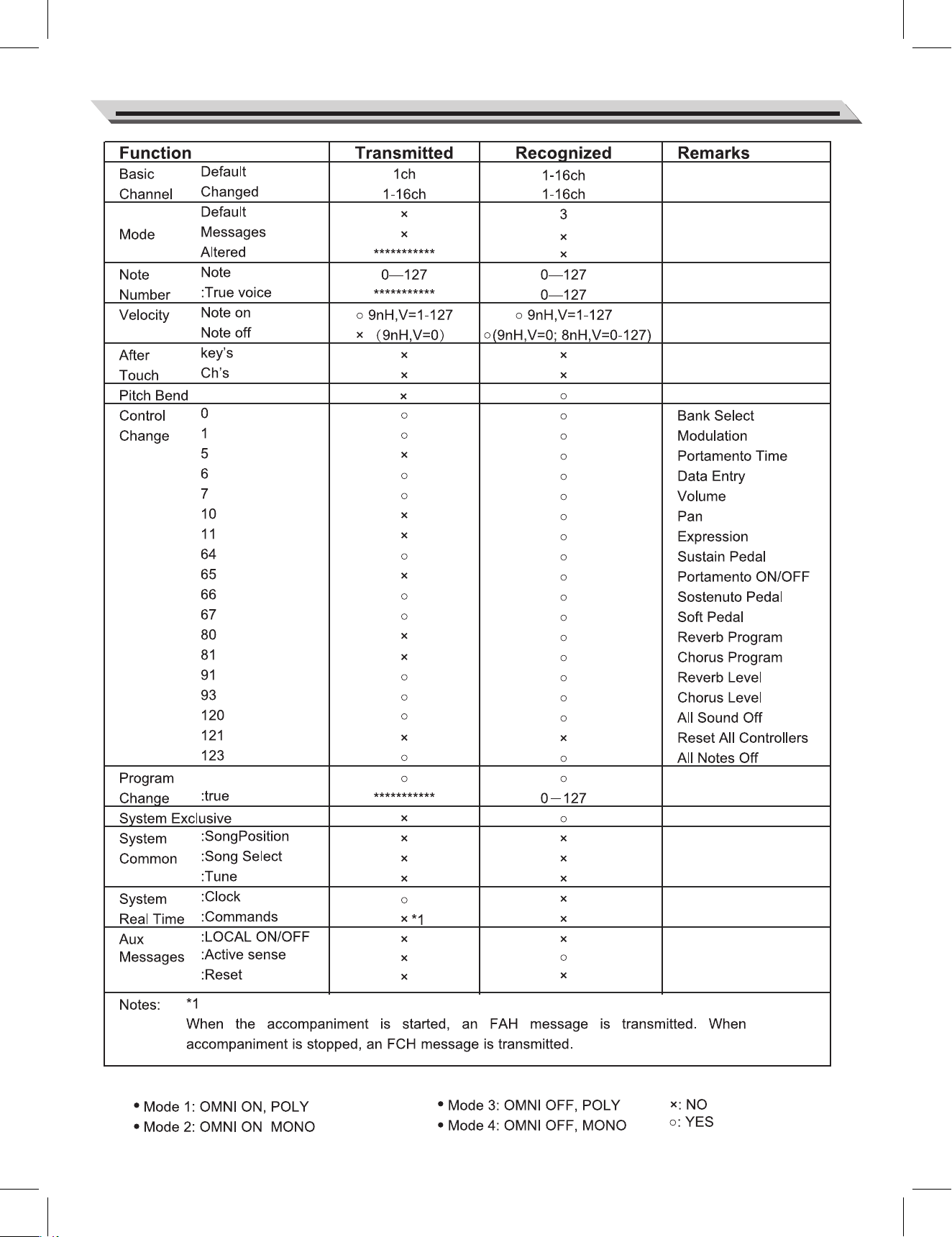
55
MIDI Implementation Chart

196, Bongsu-daero, Seo-gu,
Incheon, Korea