

GUIDELINES LAID DOWN BY FCC RULES FOR USE OF THE UNIT IN THE U.S.A. (not
applicable to other areas).
NOTICE
This equipment has been tested and found to comply with the limits for a Class B digital
device, pursuant to Part 15 of the FCC Rules. These limits are designed to provide reasonable
protection against harmful interference in a residential installation. This equipment generates,
uses and can radiate radio frequency energy and, if not installed and used in accordance with
the instructions, may cause harmful interference to radio communications. However, there is
no guarantee that interference will not occur in a particular installation. If this equipment does
cause harmful interference to radio or television reception, which can be determined by turning
the equipment off and on, the user is encouraged to try to correct the interference by one or
more of the following measures:
• Reorient or relocate the receiving antenna.
• Increase the separation between the equipment and receiver.
• Connect the equipment into an outlet on a circuit different from that to which the receiver is
connected.
• Consult the dealer or an experienced radio/TV technician for help.
FCC WARNING
Changes or modifications not expressly approved by the party responsible for compliance
could void the user’s authority to operate the equipment.
Proper connectors must be used for connection to host computer and/or peripherals in order to
meet FCC emission limits.
Connector SB-62 ClassPad to ClassPad
USB connector for the ClassPad ClassPad to Windows
®
compatible PC
Fugue ©1999 – 2002 Kyoto Software Research, Inc. All rights reserved.
Company and product names used in this manual may be registered trademarks or trademarks
of their respective owners.
Declaration of Conformity
Model Number: ClassPad 330
Trade Name: CASIO COMPUTER CO., LTD.
Responsible party: CASIO AMERICA, INC.
Address: 570 MT. PLEASANT AVENUE, DOVER, NEW JERSEY 07801
Telephone number: 973-361-5400
This device complies with Part 15 of the FCC Rules. Operation is subject to the
following two conditions: (1) This device may not cause harmful interference, and
(2) this device must accept any interference received, including interference that
may cause undesired operation.

20110401
Contents
Chapter 1 Getting Ready
1-1 Unpacking ............................................................................................. 1-1-1
1-2 Attaching and Removing the Front Cover ......................................... 1-2-1
1-3 Using the Stylus ................................................................................... 1-3-1
1-4 Replacing Batteries and Setting Up the ClassPad ............................ 1-4-1
1-5 User Registration ................................................................................. 1-5-1
1-6 Handling Precautions .......................................................................... 1-6-1
1-7 Adjusting Display Contrast ................................................................. 1-7-1
1-8 Configuring Power Properties ............................................................ 1-8-1
Power Saving Mode ...........................................................................................1-8-1
Auto Power Off ..................................................................................................1-8-1
Configuring Power Properties .............................................................................1-8-2
1-9 Optimizing “Flash ROM” ...................................................................... 1-9-1
1-10 Specifying the Ending Screen Image ............................................... 1-10-1
1-11 Adjusting Touch Panel Alignment ................................................... 1-11-1
Chapter 2 Performing Data Communication
2-1 Data Communication Overview .......................................................... 2-1-1
Connectable Devices and Transferable Data .....................................................2-1-1
Using the ClassPad Communication Application ...............................................2-1-3
2-2 Connecting the ClassPad to Another Device .................................... 2-2-1
Connecting to Another ClassPad Unit ................................................................2-2-1
Connecting to an EA-200 Data Analyzer ............................................................2-2-2
Connecting to a Computer (USB) .......................................................................2-2-3
2-3 Configuring Communication Parameters ........................................... 2-3-1
Wakeup ..............................................................................................................2-3-2
2-4 Transferring Data to Another ClassPad Unit ..................................... 2-4-1
Selecting Data for Transfer .................................................................................2-4-3
Sending a Screenshot of the Current Display Contents .....................................2-4-5
Communication Standby ....................................................................................2-4-6
Interrupting an Ongoing Data Communication Operation ..................................2-4-6
Appendix
1 Resetting and Initializing the ClassPad ..............................................
α
-1-1
2 Deleting an Application ........................................................................
α
-2-1
3 Power Supply .........................................................................................
α
-3-1
4 Number of Digits and Precision ...........................................................
α
-4-1
5 Specifications ........................................................................................
α
-5-1
1
Contents

20110401
Getting Ready
This section contains important information you need to know before
using the ClassPad for the first time.
1-1 Unpacking
1-2 Attaching and Removing the Front Cover
1-3 Using the Stylus
1-4 Replacing Batteries and Setting Up the ClassPad
1-5 User Registration
1-6 Handling Precautions
1-7 Adjusting Display Contrast
1-8 Configuring Power Properties
1-9 Optimizing “Flash ROM”
1-10 Specifying the Ending Screen Image
1-11 Adjusting Touch Panel Alignment
Chapter
1
20110401
1-1 Unpacking
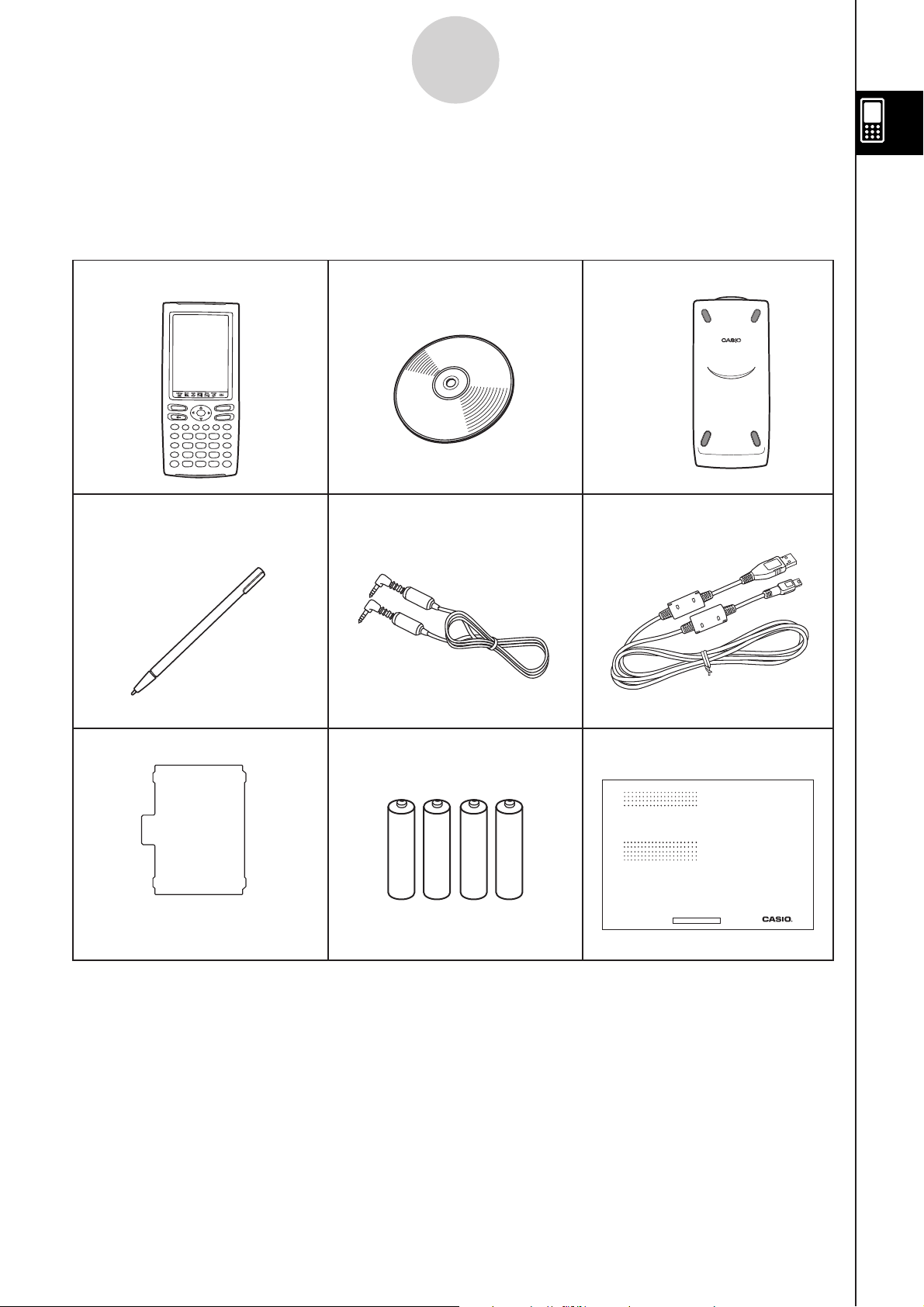
When unpacking your ClassPad, check to make sure that all of the items shown here are
included. If anything is missing, contact your original retailer immediately.
Quick Start Guide
ClassPad
Stylus (Inserted in ClassPad.)
CD-ROM
3-pin Cable (SB-62)
Front Cover
(Attached to
ClassPad.)
USB Cable
.
7
4
1
0
2
3
5
6
8
9
=
(
)
,
(–)
xz
^
y
쎹
÷
−
+
EXE
EXP
Keyboard
ON/OFF
Clear
Touch Screen Protector Four AAA-size Batteries LR03
(AM4)
(The protector is already installed
on the touch screen when you
purchase the ClassPad.)
ClassPad website URL
http://edu.casio.com/products/classpad/
EEE Yönetmeli¤ine Uygundur
Quick Start Guide
ClassPad 330
CASIO Education website URL
http://edu.casio.com
E
ClassPad register URL
http://edu.casio.com/dl/
Quick Start Guide
ClassPad
Stylus (Inserted in ClassPad.)
CD-ROM
3-pin Cable (SB-62)
Front Cover
(Attached to
ClassPad.)
USB Cable
.
7
4
1
0
2
3
5
6
8
9
=
(
)
,
(–)
xz
^
y
쎹
÷
−
+
EXE
EXP
Keyboard
ON/OFF
Clear
Touch Screen Protector Four AAA-size Batteries LR03
(AM4)
(The protector is already installed
on the touch screen when you
purchase the ClassPad.)
ClassPad website URL
http://edu.casio.com/products/classpad/
EEE Yönetmeli¤ine Uygundur
Quick Start Guide
ClassPad 330
CASIO Education website URL
http://edu.casio.com
E
ClassPad register URL
http://edu.casio.com/dl/
1-1-1
Unpacking
20110401
1-2
Attaching and Removing the Front Cover
u
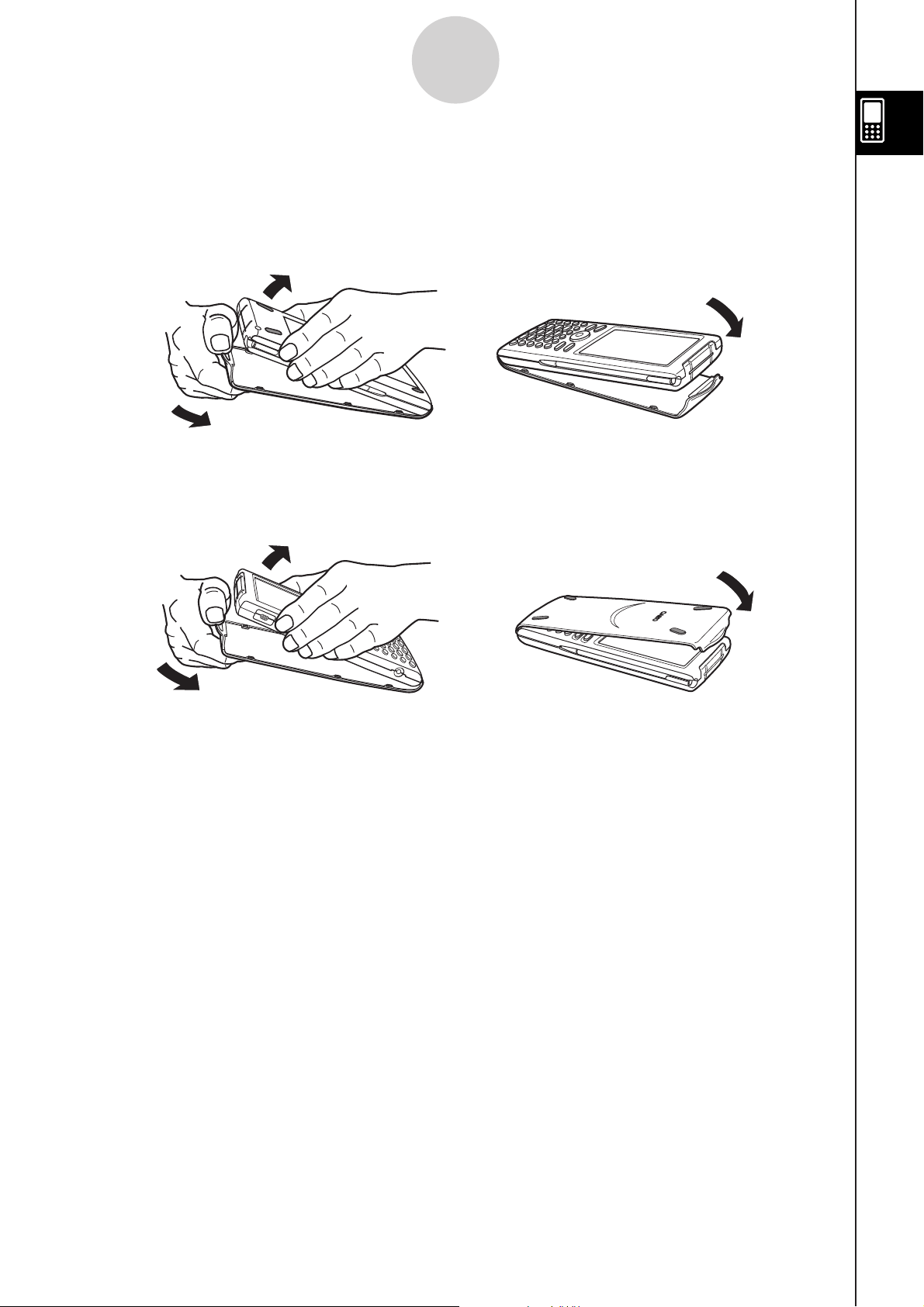
To remove the front cover
Before using the ClassPad, remove the front cover and attach it to the back.
u
To attach the front cover
When you are not using the ClassPad, attach the front cover to the front.
Important!
• Always attach the front cover to the ClassPad whenever you are not using it. Otherwise,
accidental operation of the touch screen or the o key can cause the power to turn on and
run down the batteries.
1-2-1
Attaching and Removing the Front Cover
20110401
1-3 Using the Stylus
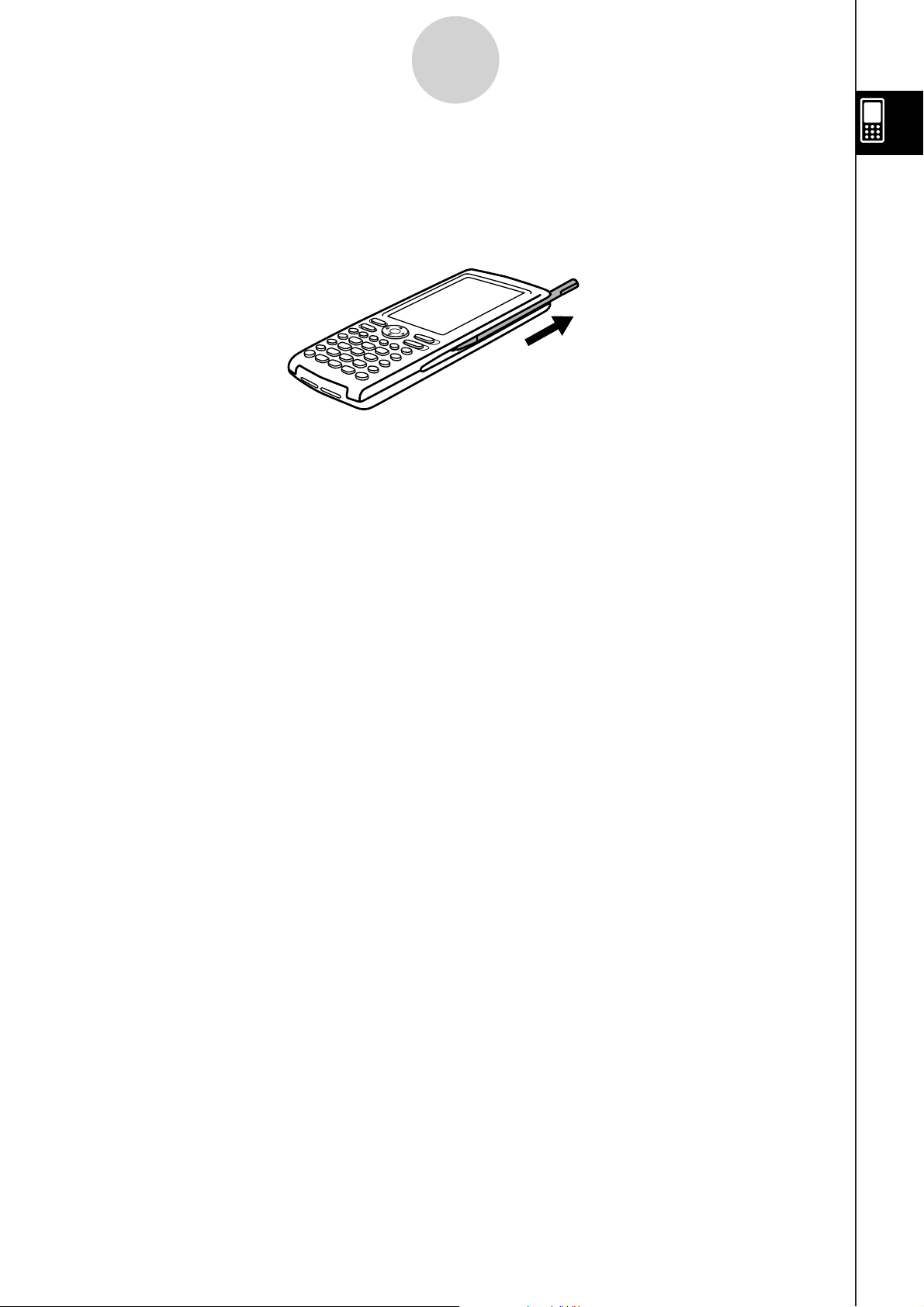
Slide the stylus from the slot provided for it on the ClassPad, and then use it to perform touch
panel operations.
Important!
• Be careful so that you do not misplace or lose the stylus. When you are not using it, always
keep the stylus in the slot provided for it on the ClassPad.
• Be careful so that you do not damage the tip of the stylus. A damaged tip can scratch or
otherwise damage the ClassPad touch panel.
• Use only the supplied stylus or a similar instrument to perform touch panel operations. Never
use a pen, pencil, or other writing instrument.
1-3-1
Using the Stylus
20110401
1-4 Replacing Batteries and Setting Up the
ClassPad
Precautions:
Incorrectly using batteries can cause them to burst or leak, possibly damaging the interior of the
ClassPad. Note the following precautions:
• Be sure that the positive (+) and negative (–) poles of each battery are facing in the proper
directions.
• Never mix batteries of different types.
• Never mix old batteries and new ones.
• Never leave dead batteries in the battery
compartment.
• Remove the batteries if you do not plan to use
the ClassPad for long periods.
• Never try to recharge the batteries supplied with
the ClassPad.
• Do not expose batteries to direct heat, let them become shorted, or try to take them apart.
(Should a battery leak, clean out the battery compartment of the ClassPad immediately, taking
care to avoid letting the battery fluid come into direct contact with your skin.)
Keep batteries out of the reach of small children. If swallowed, consult with a physician
immediately.
u
ClassPad Operation
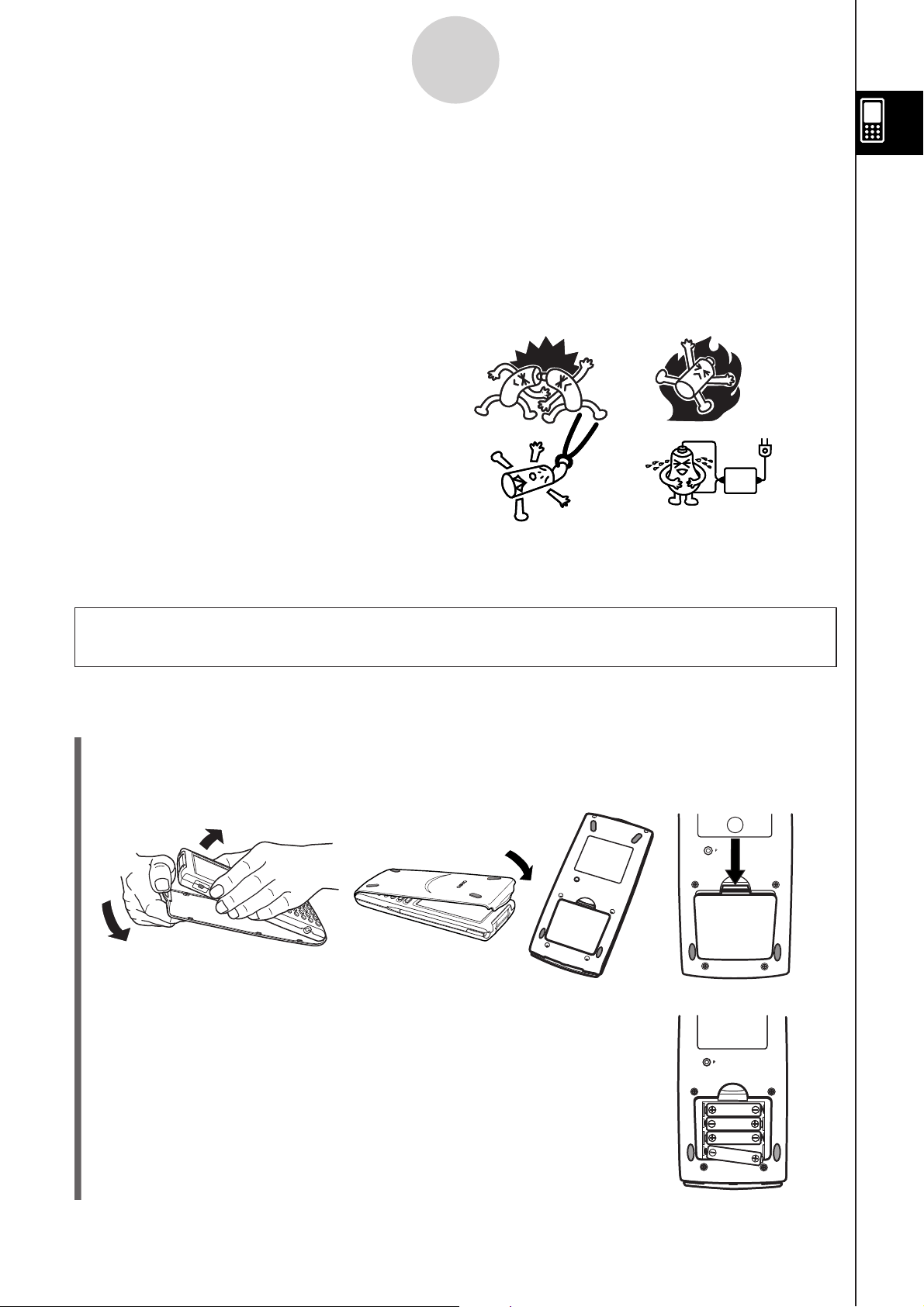
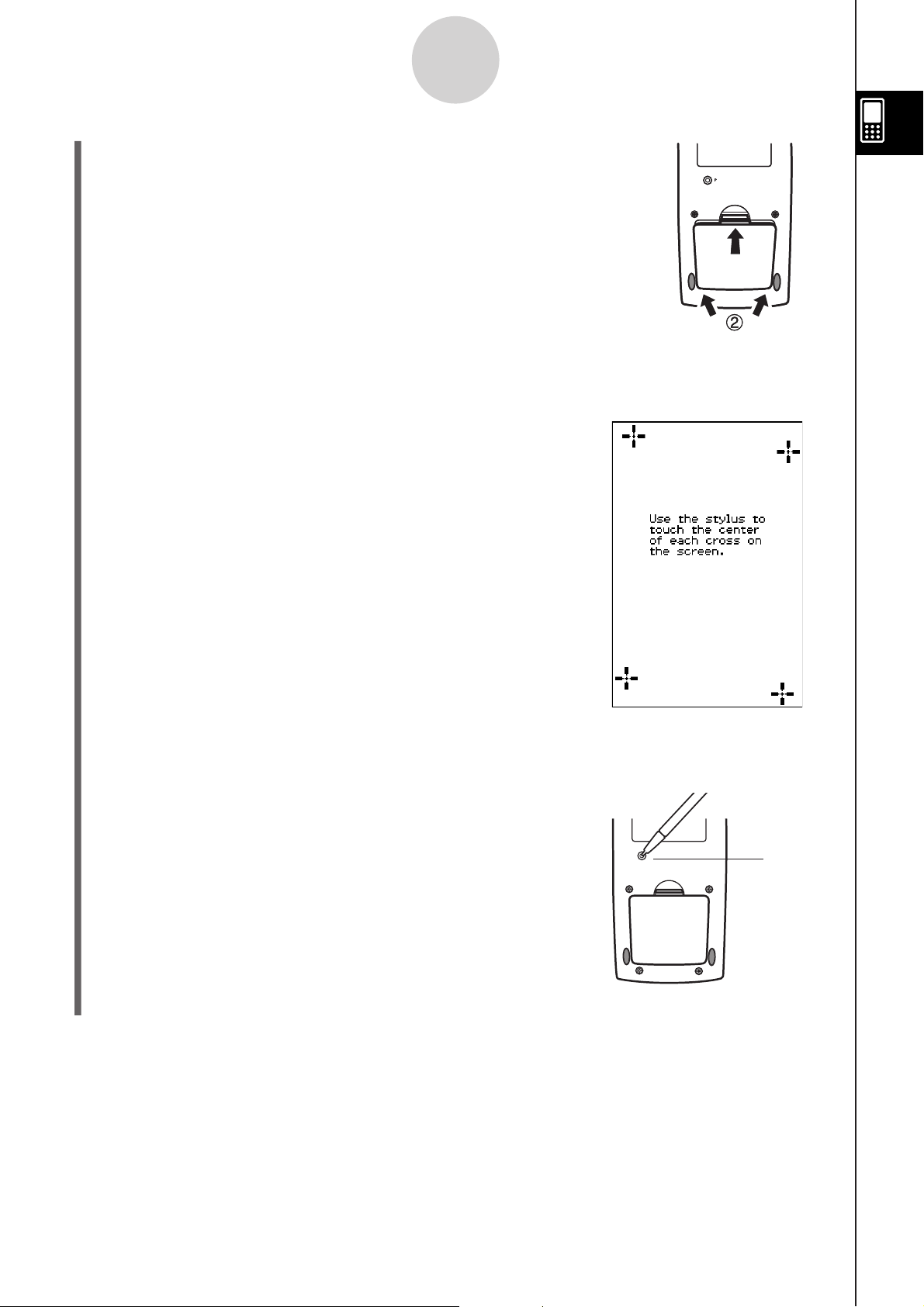
(1) Making sure that you do not accidentally press the o key, attach the front cover to the
ClassPad and then turn the ClassPad over. Remove the battery cover from the ClassPad by
pulling with your finger at the point marked 1.
P
1
(2) Load the four batteries that come with ClassPad.
• Make sure that the positive (+) and negative (–) ends of
the batteries are facing correctly.
1-4-1
Replacing Batteries and Setting Up the ClassPad
20110401
(3) Replace the battery cover, making sure that its tabs enter
the holes marked 2 and turn the ClassPad front side up.
(4) Remove the front cover from the ClassPad.
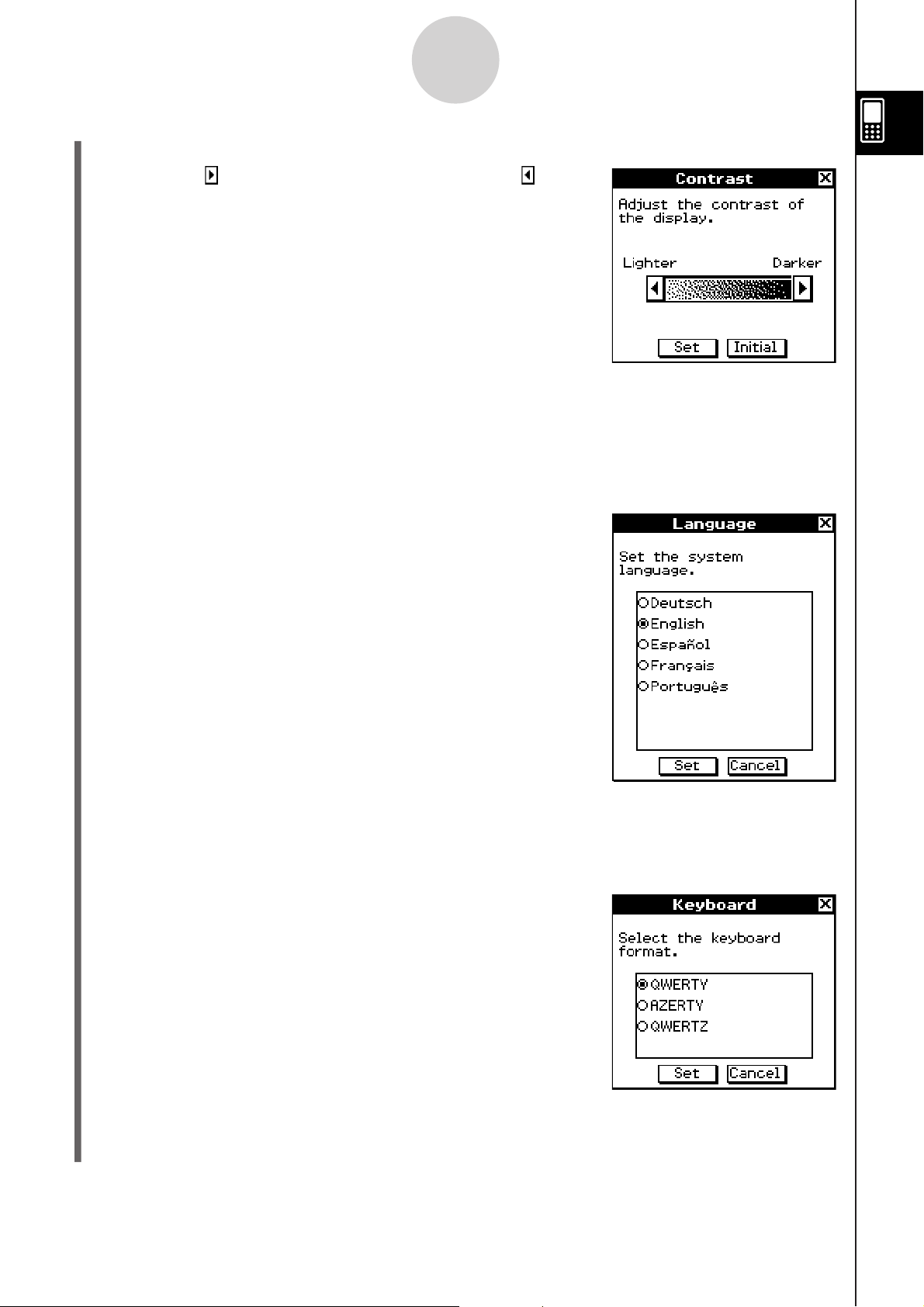
(5) Align the touch panel.
a. Your ClassPad should turn on automatically and display
the Touch Panel Alignment screen.
b. Tap the center of each of the four cross marks as they
appear on the display.
• If the Touch Panel Alignment screen does not appear,
use the stylus to press the P button on the back of the
ClassPad.
Important!
• It may take a little time for your ClassPad to start up after
you press the P button.
P
P button
1-4-2
Replacing Batteries and Setting Up the ClassPad
20110401
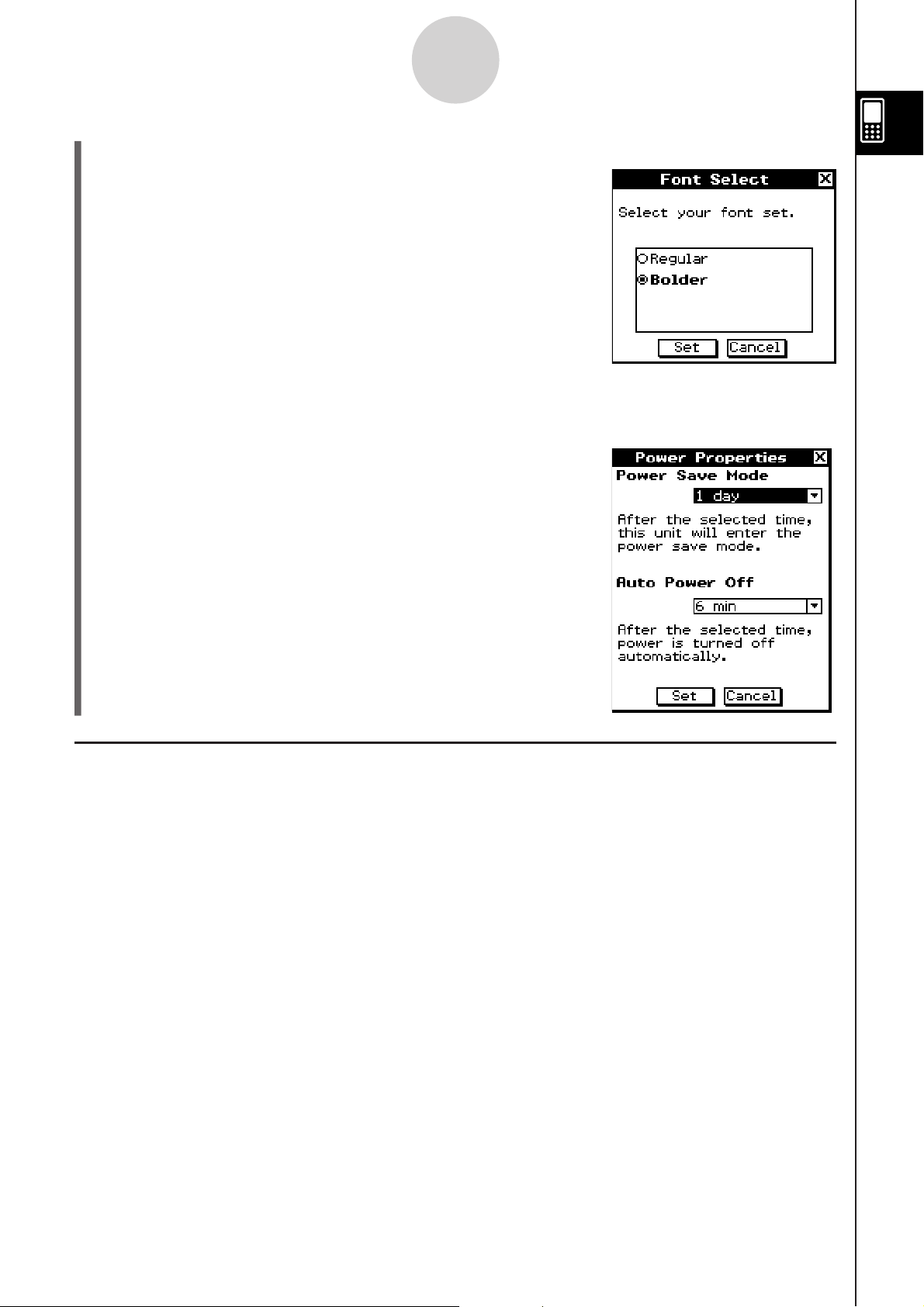
(6) Adjust the display contrast.
a. Tap the
button to make contrast darker, or the
button to make it lighter.
b. After the contrast setting is the way you want, tap [Set].
• Tapping [Initial] on the Contrast dialog box returns contrast to its initial factory default
setting.
(7) Specify the display language.
a. On the list that appears, tap the language you want to use.
• You can select German, English, Spanish, French, or
Portuguese.
b. When the language you want is selected, tap [Set].
• Tapping [Cancel] selects English and advances to the next dialog box.
(8) Specify the soft keyboard key arrangement.
a. On the list that appears, tap the key arrangement you
want to use.
b. When the key arrangement you want is selected, tap [Set].
• Tapping [Cancel] selects QWERTY arrangement and advances to the next dialog box.
1-4-3
Replacing Batteries and Setting Up the ClassPad
20110401
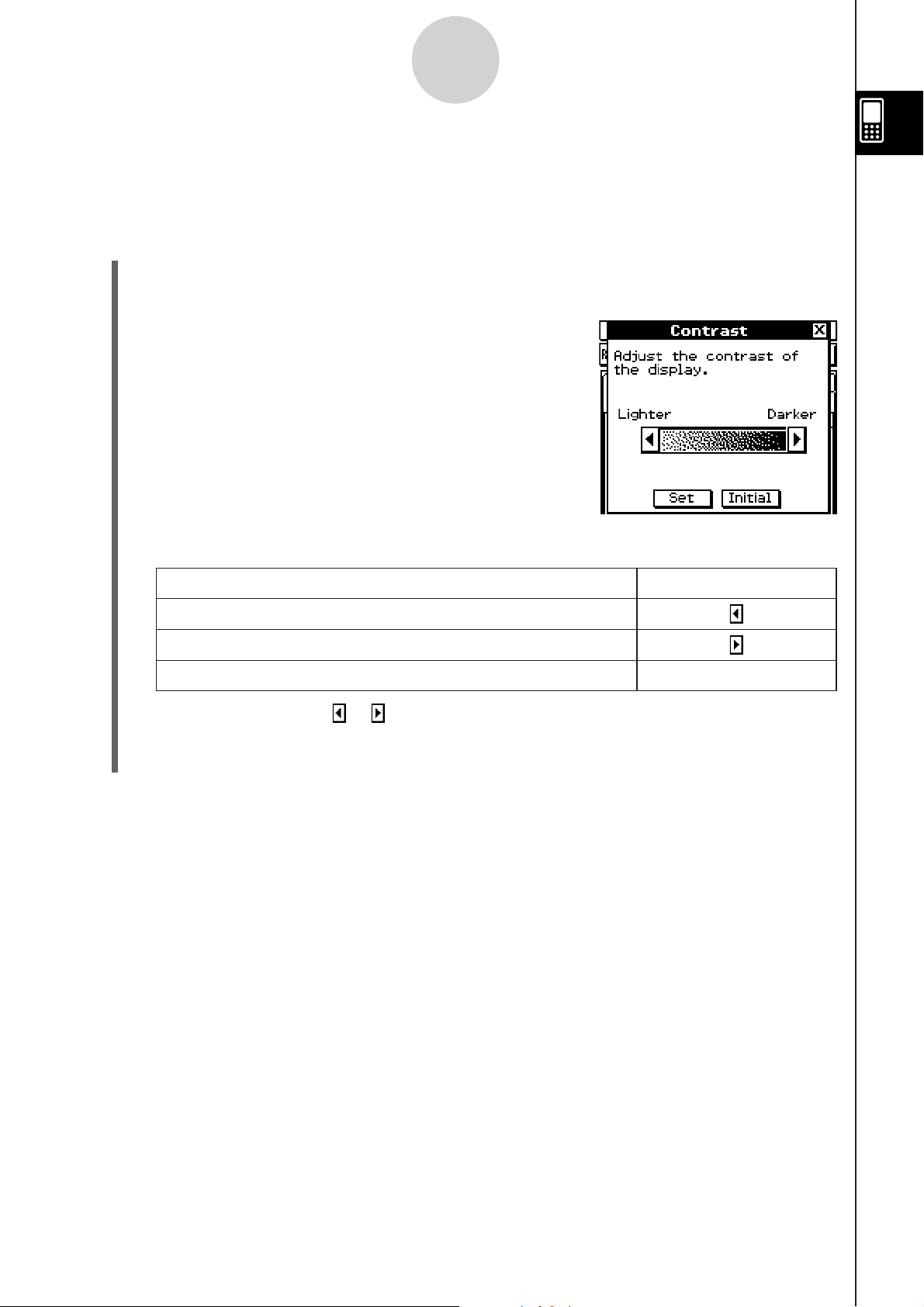
(9) Specify the font set.
a. On the list that appears, tap the font set you want to
use.
• You can select Regular or Bolder.
b. When the font set you want is selected, tap [Set].
• Tapping [Cancel] selects Bolder and advances to the next dialog box.
(10) Configure power properties.
a. Configure the Power Save Mode and Auto Power Off
settings.
• See “Power Saving Mode” and “Auto Power Off” for
details about these settings.
b. When the configurations are the way you want, tap
[Set].
• Tapping [Cancel] selects “1 day” for [Power Save Mode]
and “6 min” for [Auto Power Off], and finalizes the setup
operation.
k
About the Auto Power Off Function
The Auto Power Off (APO) feature helps conserve battery power by turning off the ClassPad
automatically whenever you do not perform any operation for specified amount of time. You can
specify 1, 3, 6, or 60 minutes for the Auto Power Off trigger time. The initial default APO setting is
6 minutes.
Tip
• From within the System application, open the System menu and tap [Power Properties]. This will
display the Power Properties dialog box.
1-4-4
Replacing Batteries and Setting Up the ClassPad


20110401
1-6 Handling Precautions
• Your ClassPad is made of precision components. Never try to take it apart.
• Avoid dropping your ClassPad and subjecting it to strong impact.
• Do not store the ClassPad or leave it in areas exposed to high temperatures or humidity, or
large amounts of dust. When exposed to low temperatures, the ClassPad may require more
time to display results and may even fail to operate. Correct operation will resume once the
ClassPad is brought back to normal temperature.
• Replace the batteries once every one year regardless of how much the ClassPad is used during
that period. Never leave dead batteries in the battery compartment. They can leak and damage
the ClassPad.
• Do not use an oxyride battery or any other type of nickel-based primary battery with this
product. Incompatibility between such batteries and product specifications can result in shorter
battery life and product malfunction.
• Keep batteries out of the reach of small children. If swallowed, consult a physician immediately.
• Avoid using volatile liquids such as thinners or benzine to clean the ClassPad. Wipe it with a
soft, dry cloth, or with a cloth that has been moistened with a solution of water and a neutral
detergent and wrung out.
• Always be gentle when wiping dust off the display to avoid scratching it.
• In no event will the manufacturer and its suppliers be liable to you or any other person for any
damages, expenses, lost profits, lost savings or any other damages caused by loss of data
and/or formulas arising out of malfunction, repairs, or battery replacement. It is up to you to
prepare physical records of data to protect against such data loss.
• Never dispose of batteries, the liquid crystal panel, or other components by burning them.
• When the “Batteries are extremely low!” message appears on the display, replace the batteries
as soon as possible.
• Be sure to turn off the ClassPad before replacing the batteries.
• If the ClassPad is exposed to a strong electrostatic charge, its memory contents may be
damaged or the keys may stop working. In such a case, perform the reset operation to clear the
memory and restore normal key operation.
• If the ClassPad stops operating correctly for some reason, use the stylus to press the P button
on the back of the ClassPad. Note, however, that this clears all the data in ClassPad memory.
• Note that strong vibration or impact during program execution can cause execution to stop or
can damage the ClassPad’s memory contents.
• Using the ClassPad near a television or radio can cause interference with TV or radio reception.
• Before assuming malfunction of the ClassPad, be sure to carefully reread this user’s guide to
ensure that the problem is not due to insufficient battery power, programming, or operational
errors.
• Make sure nothing gets between the front cover and the touch screen. Besides creating the
risk of scratching the touch screen, an object coming into contact with the screen can cause the
power to turn on and run down the batteries.
• Always attach the front cover to the ClassPad whenever you are not using it. Otherwise,
accidental operation of the touch screen or the o key can cause the power to turn on and
run down the batteries.
1-6-1
Handling Precautions

20110401
1-6-2
Handling Precautions
Be sure to keep physical records of all important data!
Low battery power or incorrect replacement of the batteries that power the ClassPad can cause
the data stored in memory to be corrupted or even lost entirely. Stored data can also be affected
by strong electrostatic charge or strong impact. It is up to you to keep back up copies of data to
protect against its loss.
Backing Up Data
Your ClassPad comes bundled with a special USB cable and FA-CP1 software, which you can
use to backup data to a computer.
• The FA-CP1 software is on the CD-ROM.
In no event shall CASIO Computer Co., Ltd. be liable to anyone for special, collateral, incidental,
or consequential damages in connection with or arising out of the purchase or use of these
materials. Moreover, CASIO Computer Co., Ltd. shall not be liable for any claim of any kind
whatsoever against the use of these materials by any other party.
• Be sure to keep all user documentation handy for future reference.
• The contents of this user’s guide are subject to change without notice.
• No part of this user’s guide may be reproduced in any form without the express written
consent of the manufacturer.
• The options described in Chapter 2 of this user’s guide may not be available in certain
geographic areas. For full details on availability in your area, contact your nearest CASIO
dealer or distributor.
20110401
(3) Adjust display contrast.
To do this: Tap this button:
Make the display lighter
Make the display darker
Return contrast to its initial factory default setting Initial
• Tapping and holding
or continually performs the applicable operation until you
release the button.
(4) To close the Contrast dialog box, tap [Set].
1-7 Adjusting Display Contrast
Use the following procedure to display the Contrast dialog box and adjust display contrast.
u
ClassPad Operation
(1) On the application menu, tap
Y
.
• This starts up the System application.
(2) Tap
Z
to display the Contrast dialog box.
1-7-1
Adjusting Display Contrast
20110401
1-8 Configuring Power Properties
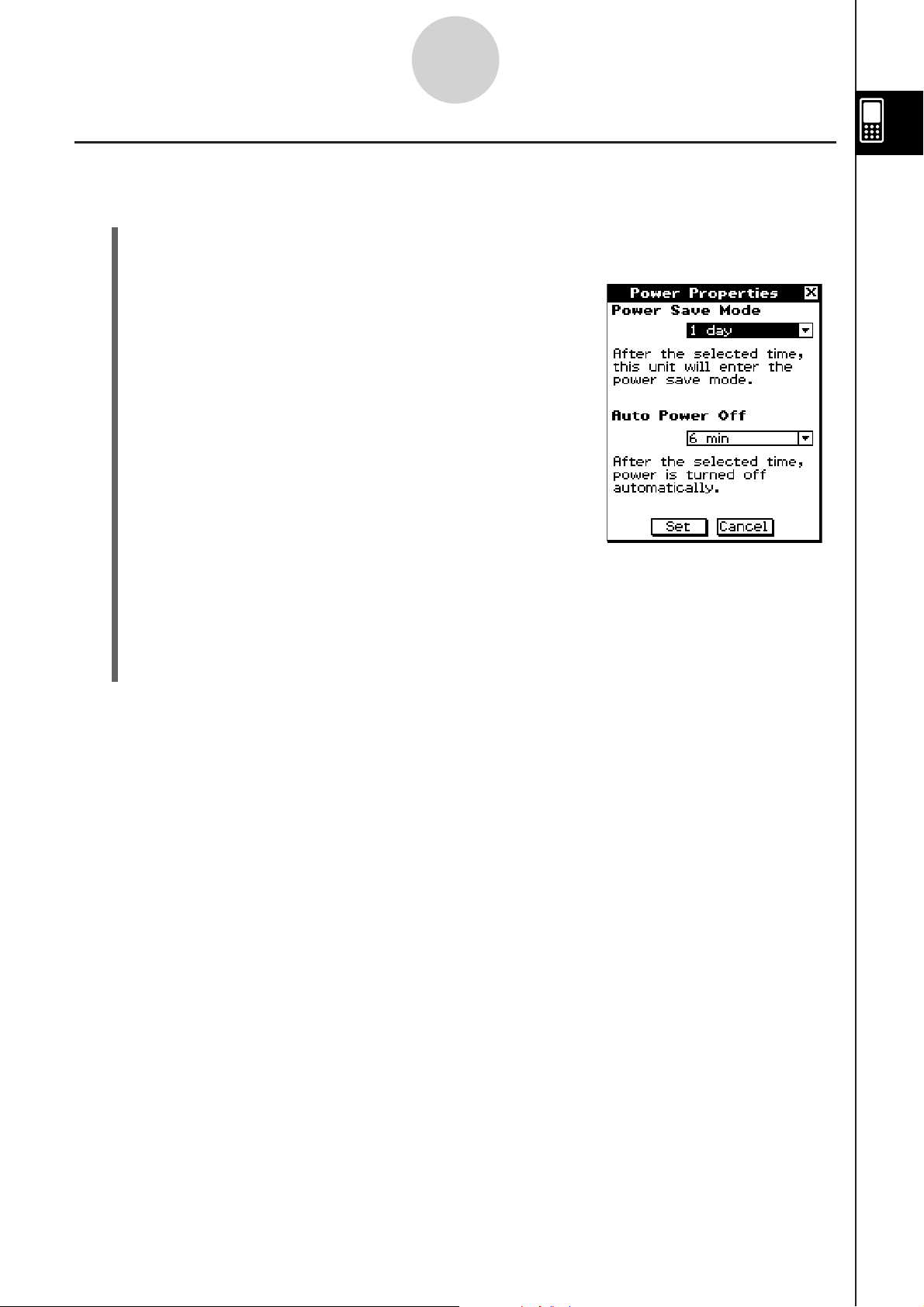
Use the Power Properties dialog box to configure the power saving mode and auto power off
(APO) settings.
Power Saving Mode
Your ClassPad has a “resume” feature that remembers its status when you turn it off, and
restores the same status the next time you turn the ClassPad back on. Resume feature
operation requires power to operate, which means that some power continues to be
consumed even while the ClassPad is turned off. The power saving mode lets you limit how
long the resume feature continues to operate (and consume power) after you turn off the
ClassPad unit. You can specify 1 hour, 6 hours, or 1 day. After the time limit you specify is
reached, the resume feature is deactivated.
The following table describes the power saving mode options that are available.
To do this:
Select this power saving
mode option:
Turn off the power saving mode (unlimited resume time) Off
Limit resume operation to 1 hour after power down 1 hour
Limit resume operation to 6 hours after power down 6 hours
Limit resume operation to 1 day after power down 1 day
• The initial default for the above setting is [1 day].
Auto Power Off
The Auto Power Off (APO) feature helps conserve battery power by turning off the ClassPad
unit automatically whenever you do not perform any operation for specified amount of time.
You can specify 1, 3, 6, or 60 minutes for the Auto Power Off trigger time. The initial default
APO setting is 6 minutes.
1-8-1
Configuring Power Properties
20110401
Configuring Power Properties
u
ClassPad Operation
(1) On the application menu, tap
Y
.
• This starts up the System application.
(2) Tap
X
to display the Power Properties dialog box.
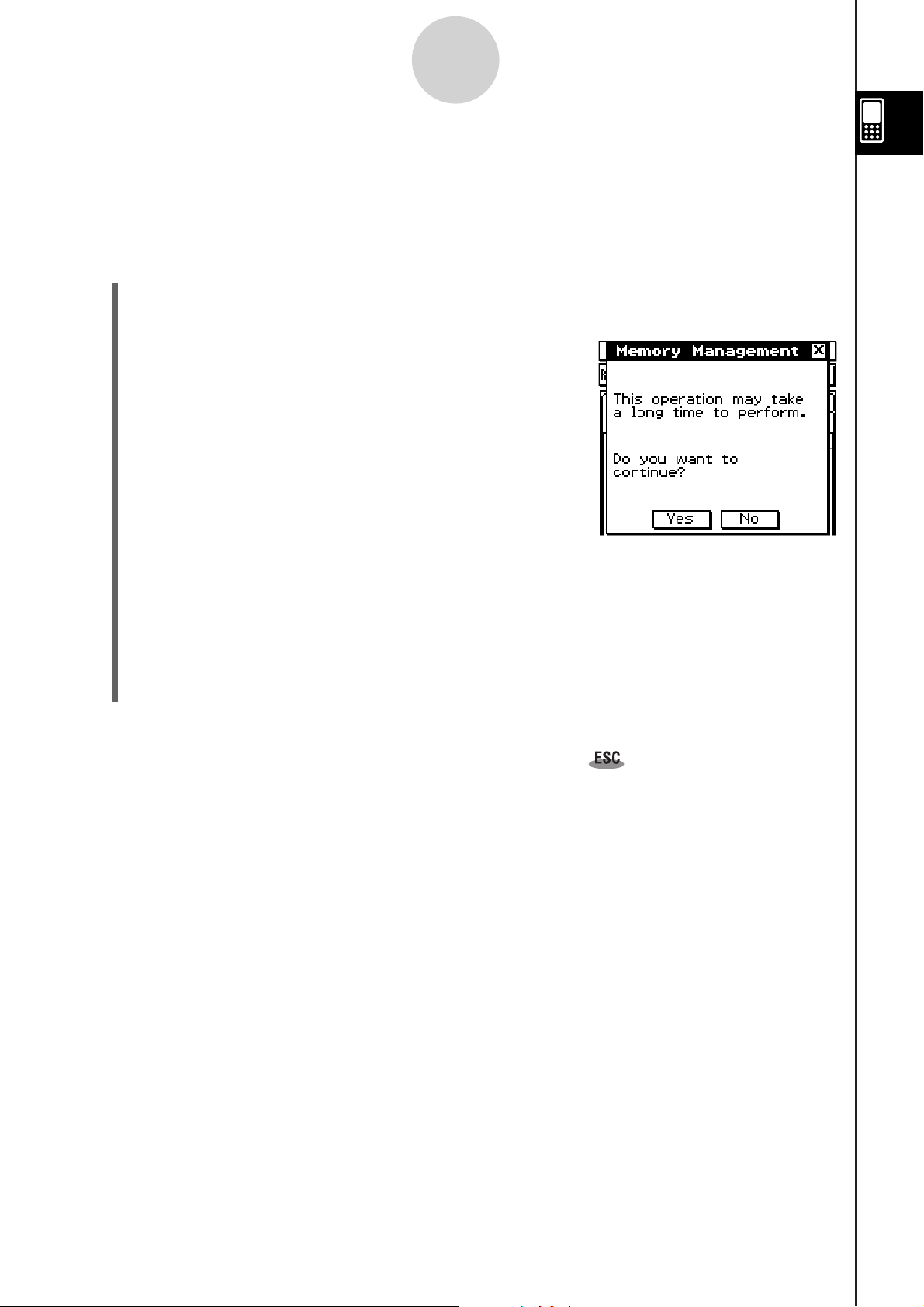
(3) Configure the Power Save Mode and Auto Power Off settings.
• See “Power Saving Mode” and “Auto Power Off” for details about these settings.
(4) After all the settings are the way you want, tap [Set] to apply them and close the Power
Properties dialog box, or tap [Cancel] to close without changing any settings.
• Tapping [Set] or [Cancel] returns you to [Memory Usage].
1-8-2
Configuring Power Properties
20110401
1-9 Optimizing “Flash ROM”
Use the following procedure to perform a “garbage collection” operation that optimizes Flash
ROM. Optimizing Flash ROM increases the amount of memory available for storage.
u
ClassPad Operation
(1) On the application menu, tap
Y
.
• This starts up the System application.
(2) Tap
<
.
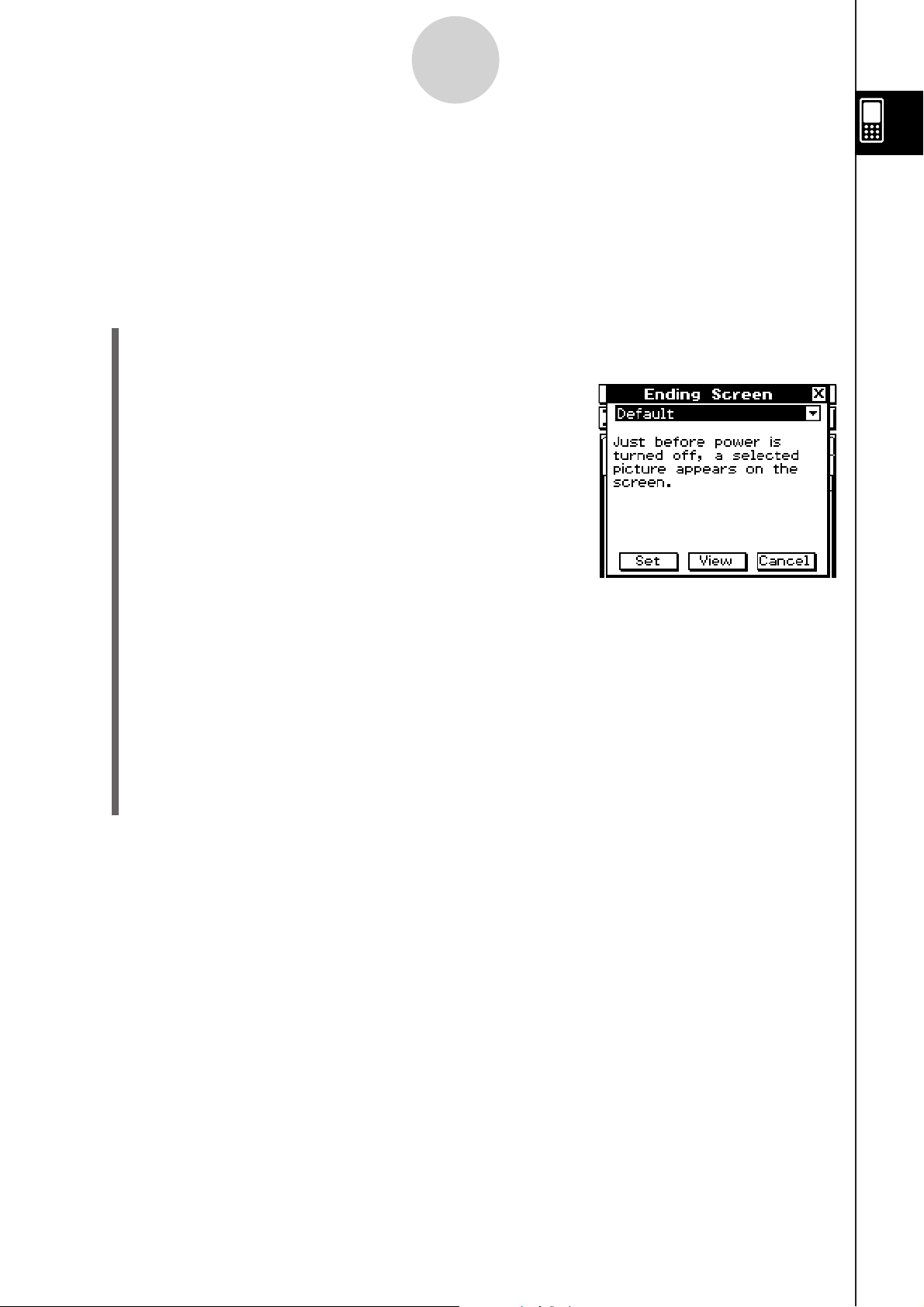
• This displays a confirmation asking if you really want
to optimize Flash ROM.
(3) Tap [Yes] to optimize Flash ROM, or [No] to cancel.
• After you tap [Yes], the message “Now Optimizing...” remains displayed while
optimization is in progress. The message “Complete!” appears when optimization is
complete.
(4) Tap [OK] to close the “Complete!” message dialog box.
• This returns you to [Memory Usage].
Tip
• You can interrupt the “garbage collection” operation by tapping on the icon panel. Tap [OK]
on the dialog box that appears to return to [Memory Usage].
Important!
• Never press the P button on the back of the ClassPad while a “garbage collection”
operation is in progress. Doing so can damage memory, resulting in loss of all memory
contents and malfunction of your ClassPad. If this happens, you will need to request repair
from your CASIO Maintenance Service Provider. Note that repair of your ClassPad will not
recover any lost memory contents.
1-9-1
Optimizing “Flash ROM”
20110401
1-10 Specifying the Ending Screen Image
Whenever you press the
o
key to turn off the ClassPad unit, it copies any data currently
in RAM to Flash ROM, and then turns off power. The ending screen is what appears on the
display while the RAM data save operation is being performed, until power is actually turned
off. You can specify the image data you want to appear as the ending screen.
u
ClassPad Operation
(1) On the application menu, tap
Y
.
• This starts up the System application.
(2) Tap
N
to display the Ending Screen dialog box.
• To see this icon, you must first tap the right arrow
button on the toolbar to scroll.
(3) Tap the down arrow button. On the list that appears, tap the ending screen image you
want to use.
• To see the list, open the drop down list near the top of the dialog box. The list shows
the images in the file you created with the Presentation application.
• Tapping the [View] button displays a preview of the currently selected screen image.
Tap [OK] to close the preview image and others (see Tip below).
(4) After the image you want is selected, tap [Set] to apply it and close the Ending Screen
dialog box, or tap [Cancel] to close the dialog box without changing the setting.
• Tapping [Set] or [Cancel] returns you to [Memory Usage].
Tip
• A bitmap you create and save with the Picture application can be used as an ending screen
image. The allowable bitmap size for an ending screen image is 160 × 240 pixels.
• A bitmap of a Graph window can also be created in the Graph & Table and 3D Graph
applications. Draw a graph and then select
[
Store Picture
]
from the
a
menu.
1-10-1
Specifying the Ending Screen Image
20110401
1-11 Adjusting Touch Panel Alignment
You should adjust touch panel alignment whenever you find that the wrong operation or no
operation is performed when you tap the ClassPad screen.
u
ClassPad Operation
(1) On the application menu, tap
Y
.
• This starts up the System application.
(2) Tap
M
to display the touch panel alignment screen.
• To see this icon, you must first tap the right arrow
button on the toolbar to scroll.
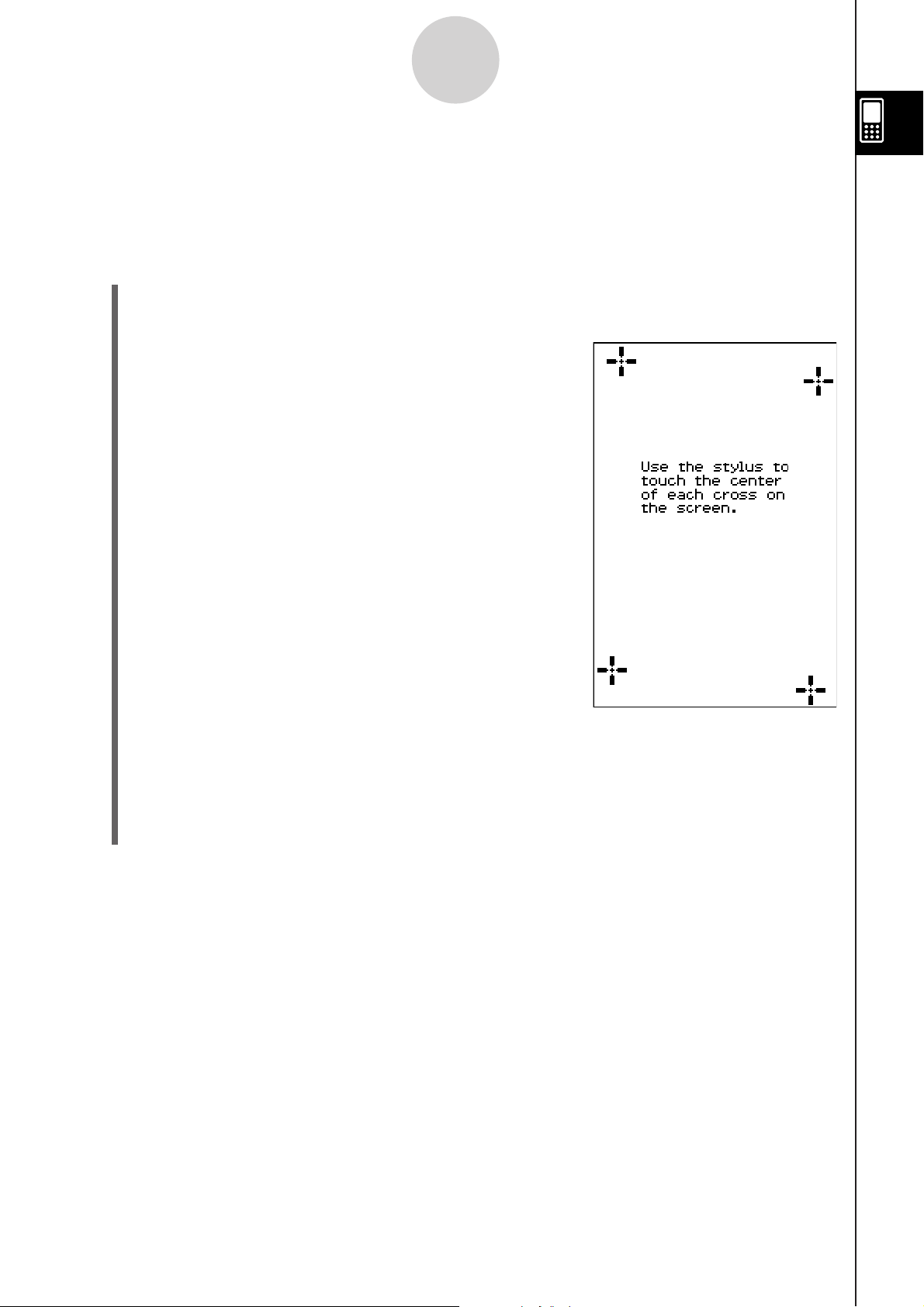
(3) Use the stylus to tap the center of each of the four crosses as they appear on the
screen.
• Tapping the center of the fourth cross completes touch panel alignment and returns
you to [Memory Usage].
• When aligning your ClassPad try to tap the exact center of each cross.
1-11-1
Adjusting Touch Panel Alignment

20110401
Performing Data
Communication
You can use the SB-62 data communication cable to connect
your ClassPad to another ClassPad unit or to a CASIO Data
Analyzer, and transfer data between them.
To transfer data between a ClassPad and a personal computer,
you need to use the special USB cable that comes with
ClassPad.
This chapter explains how to perform data communication
operations and exchange data.
2-1 Data Communication Overview
2-2 Connecting the ClassPad to Another Device
2-3 Configuring Communication Parameters
2-4 Transferring Data to Another ClassPad Unit
Chapter
2

20110401
2-1 Data Communication Overview
This section provides an overview of the types of connections that are possible, and the data
that can be transferred over each connection. It also tells you how to use the
Communication application to transfer data.
2-1-1
Data Communication Overview
Important!
• Never press the P button on the back of the ClassPad while a data communication
operation is in progress. Doing so can damage memory, resulting in loss of all memory
contents and malfunction of your ClassPad. If this happens, you will need to request repair
from your CASIO Maintenance Service Provider. Note that repair of your ClassPad will not
recover any lost memory contents.
Connectable Devices and Transferable Data
The following three types of connections are possible.
• Two ClassPad units
• A ClassPad and a computer
• A ClassPad and a CASIO EA-200 Data Analyzer
The following provides details about each of these connections, and describes the type of
data that can be transferred over each.
k
Connecting Two ClassPad Units
You can transfer variable data, eActivity data, and display image data between two ClassPad
units.
• For information about variables, see “1-7 Variables and Folders” in the separate Software
User’s Guide.
• For information about eActivity data, see “Chapter 10 – Using the eActivity Application” in
the separate Software User’s Guide.
• For information about display image data, see “Sending a Screenshot of the Current
Display Contents” on page 2-4-5.
u
Connection
Use the special SB-62 3-pin data communication cable to connect two ClassPad units. For
details, see “Connecting to Another ClassPad Unit” on page 2-2-1.
u
How to Transfer Data
You can use either of the two following methods to transfer data between two ClassPad
units.
• Use the Communication application. See “2-4 Transferring Data to Another ClassPad
Unit” for details.
• Use the “SendVar38k” and “GetVar38k” program commands. See “Chapter 12 – Using
the Program Application” in the separate Software User’s Guide for details.

20110401
2-1-2
Data Communication Overview
k
Connecting a ClassPad to a Computer
You can perform the following operations when connected to a computer.
• Transfer variable data and eActivity data between the ClassPad and a computer
• Install add-in applications, language data, and operating system upgrades onto your
ClassPad from the computer
• Transfer ClassPad display image data to the computer
• For information about variables, see “1-7 Variables and Folders” in the separate Software
User’s Guide.
• For information about eActivity data, see “Chapter 10 – Using the eActivity Application” in
the separate Software User’s Guide.
• For information about display image data, see “Sending a Screenshot of the Current
Display Contents” on page 2-4-5.
• See the FA-CP1 User’s Guide for details about add-in application installation and
uninstallation, language data installation, and upgrading your operating system.
• Your ClassPad may operate abnormally after you update its operating system from your
computer using FA-CP1 if the operating system you install is not compatible with your
ClassPad hardware version. If you accidentally install an operation system version that is
not compatible with your ClassPad hardware version, visit the following Website information
about what you need to do to get your ClassPad working normally again.
http://edu.casio.com/products/classpad/
u
Connection
Use the special USB cable to connect the ClassPad’s 4-pin mini USB port to your computer’s
USB port. For details, see “Connecting to a Computer (USB)” on page 2-2-3.
u
How to Transfer Data
On the ClassPad, use the Communication application. On your computer, use FA-CP1. For
details, see the FA-CP1 User’s Guide.
k
Connecting a ClassPad to a CASIO EA-200 Data Analyzer
You can perform the following operations when connected to a Data Analyzer.
• Transfer Data Analyzer setup information and sampled data to the ClassPad
• Transfer variable data, eActivity data, and Data Analyzer setting information from the
ClassPad to the Data Analyzer
• For information about variables, see “1-7 Variables and Folders” in the separate Software
User’s Guide.
• For information about eActivity data, see “Chapter 10 – Using the eActivity Application” in
the separate Software User’s Guide.
• For information about Data Analyzer setup information and sample data, see the user
documentation that comes with the Data Analyzer.
u
Connection
Use the special SB-62 3-pin data communication cable to connect two units. For details, see
“Connecting to an EA-200 Data Analyzer” on page 2-2-2.
20110401
2-1-3
Data Communication Overview
u
How to Transfer Data
Use the “Send38k” and “Receive38k” program commands to transfer data. For details, see
“Chapter 12 – Using the Program Application” in the separate Software User’s Guide, and
the user documentation that comes with the Data Analyzer.
Using the ClassPad Communication Application
To perform a data transfer operation, tap
B
on the application menu to start up the
Communication application.
k
Communication Application Menus and Buttons
The following explains the operations you can perform using the menus and buttons of the
Communication application.
• For details about configuring communication parameters, see “2-3 Configuring
Communication Parameters”.
To do this:
Select data to send
Enter receive standby
Enter standby for add-in application or
language data install
Enter standby for operating system
upgrading
Enter standby to receive a display image
from another ClassPad unit
Configure communication parameters
Display hardware version information
Tap this
button:
E
R
–
–
–
–
j
Or select this menu item:
Link - Transmit
Link - Receive
Link - Install - Add-In
Link - Install - OS Update
Link - Screen Receive
Setup - Open Setup Menu
Setup - Version(Hardware)
20110401
2-2-1
Connecting the ClassPad to Another Device
2-2 Connecting the ClassPad to Another Device
This section provides detailed explanations about how to connect the ClassPad to another
ClassPad unit, to a computer, and to a CASIO Data Analyzer.
Connecting to Another ClassPad Unit
Use the procedure below to connect two ClassPad units.
k
Required Hardware
ClassPad: 2 units
Special SB-62 Cable: 1
u
ClassPad Operation
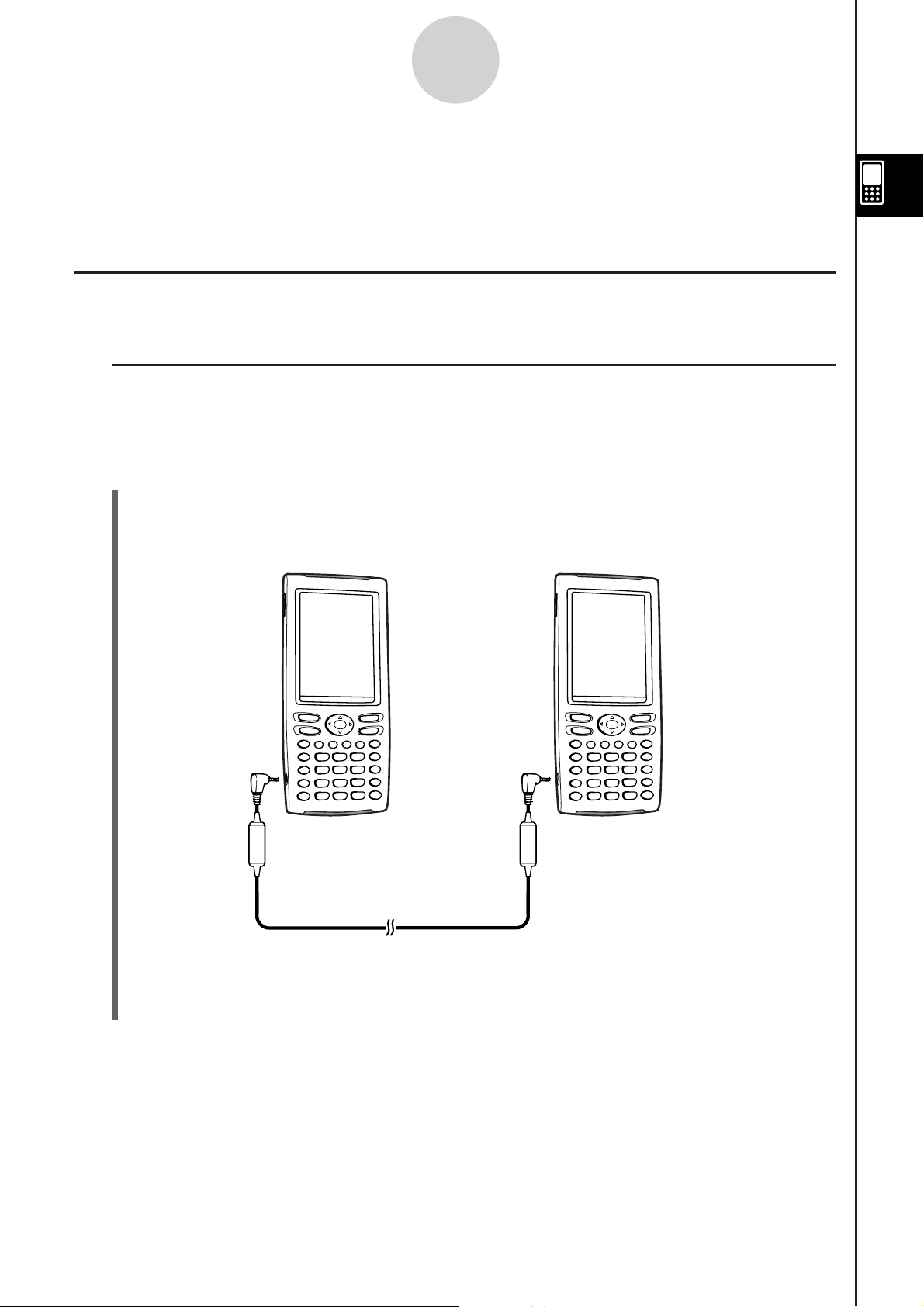
(1) Turn both units off.
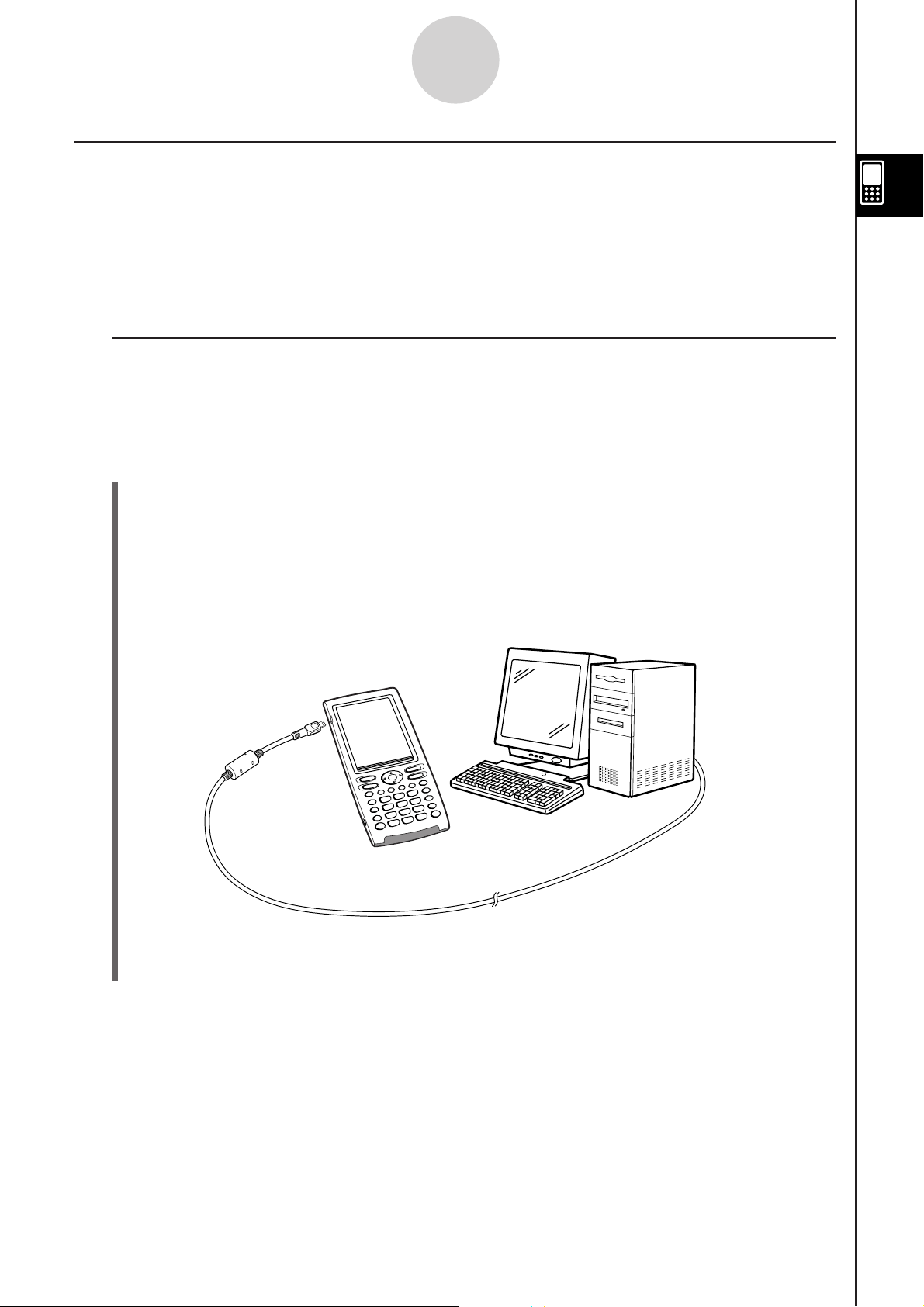
(2) Connect the data communication cable as shown in the illustration below.
• Insert both of the plugs securely, as far as they will go.
Cable
• For information about what you should do to transfer data, see “2-4 Transferring
Data to Another ClassPad Unit”.
20110401
2-2-2
Connecting the ClassPad to Another Device
Connecting to an EA-200 Data Analyzer
You can use the CASIO Data Analyzer to sample and collect data on various everyday
natural phenomena. You can also connect the Data Analyzer to your ClassPad, and control
Data Analyzer operation from your ClassPad. You can transfer setup information from the
ClassPad to the Data Analyzer, trigger sampling from the ClassPad, and graph sample
results on your ClassPad.
k
Required Hardware
ClassPad: 1 unit
EA-200 Data Analyzer: 1
Special SB-62 Cable: 1
u
ClassPad Operation
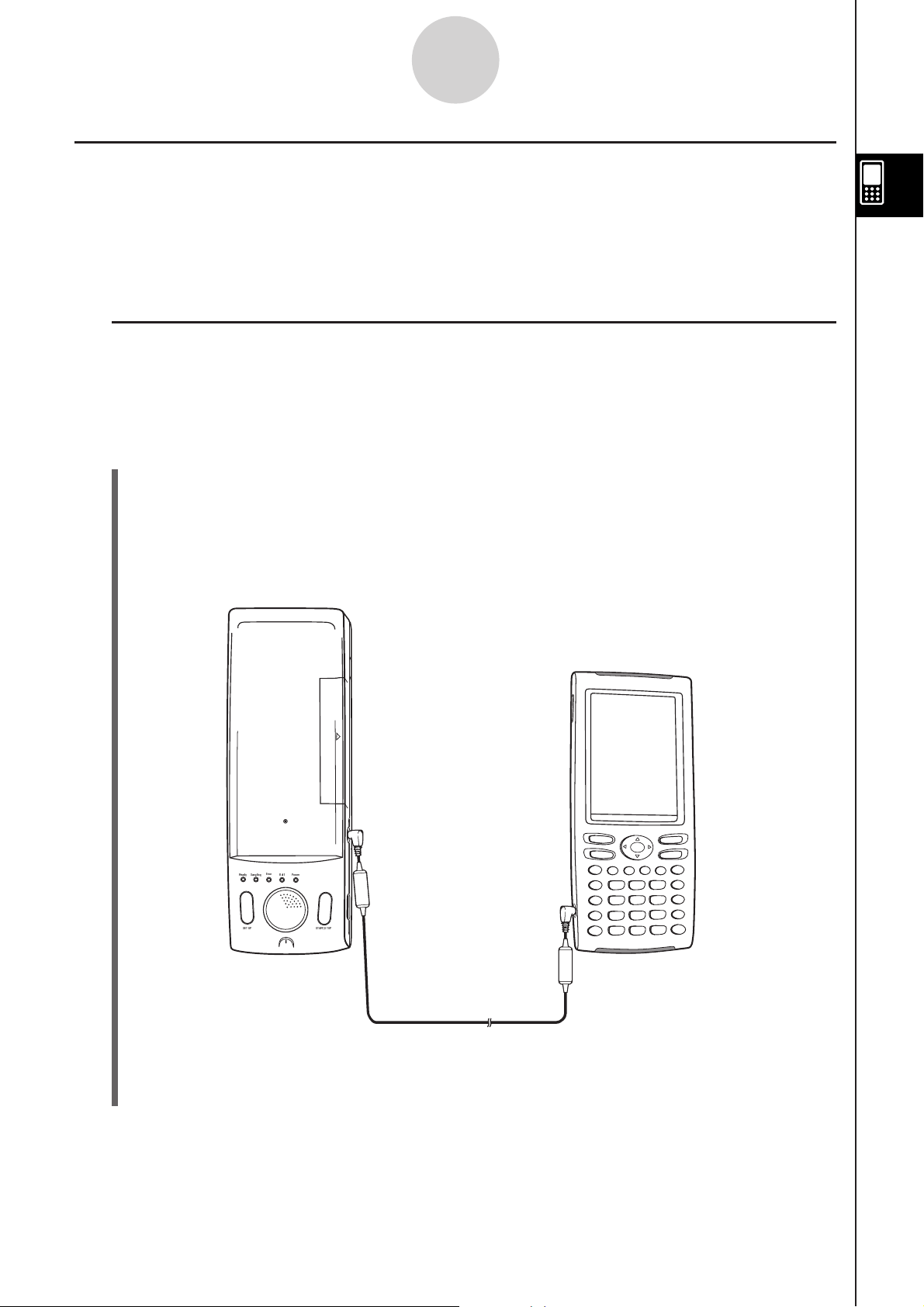
(1) Turn off the ClassPad and Data Analyzer.
(2) Remove the connector cover from the 3-pin communication port of the Data Analyzer,
and connect one end of the data communication cable to the port.
(3) Connect the other end of the data communication cable to the 3-pin communication
port of the ClassPad.
• For information about what you should do to transfer data, see the user
documentation that comes with the Data Analyzer.
Cable
20110401
2-2-3
Connecting the ClassPad to Another Device
Connecting to a Computer (USB)
By running FA-CP1 software that comes with ClassPad on your computer, you can transfer
ClassPad data to your computer.
See the FA-CP1 User’s Guide for information about how to use it.
• For information about FA-CP1 minimum computer system requirements, see the FA-CP1
User’s Guide.
k
Required Hardware
ClassPad: 1 unit
Computer (with FA-CP1 installed): 1
Special USB Cable: 1
u
ClassPad Operation
(1) Turn off the ClassPad and computer.
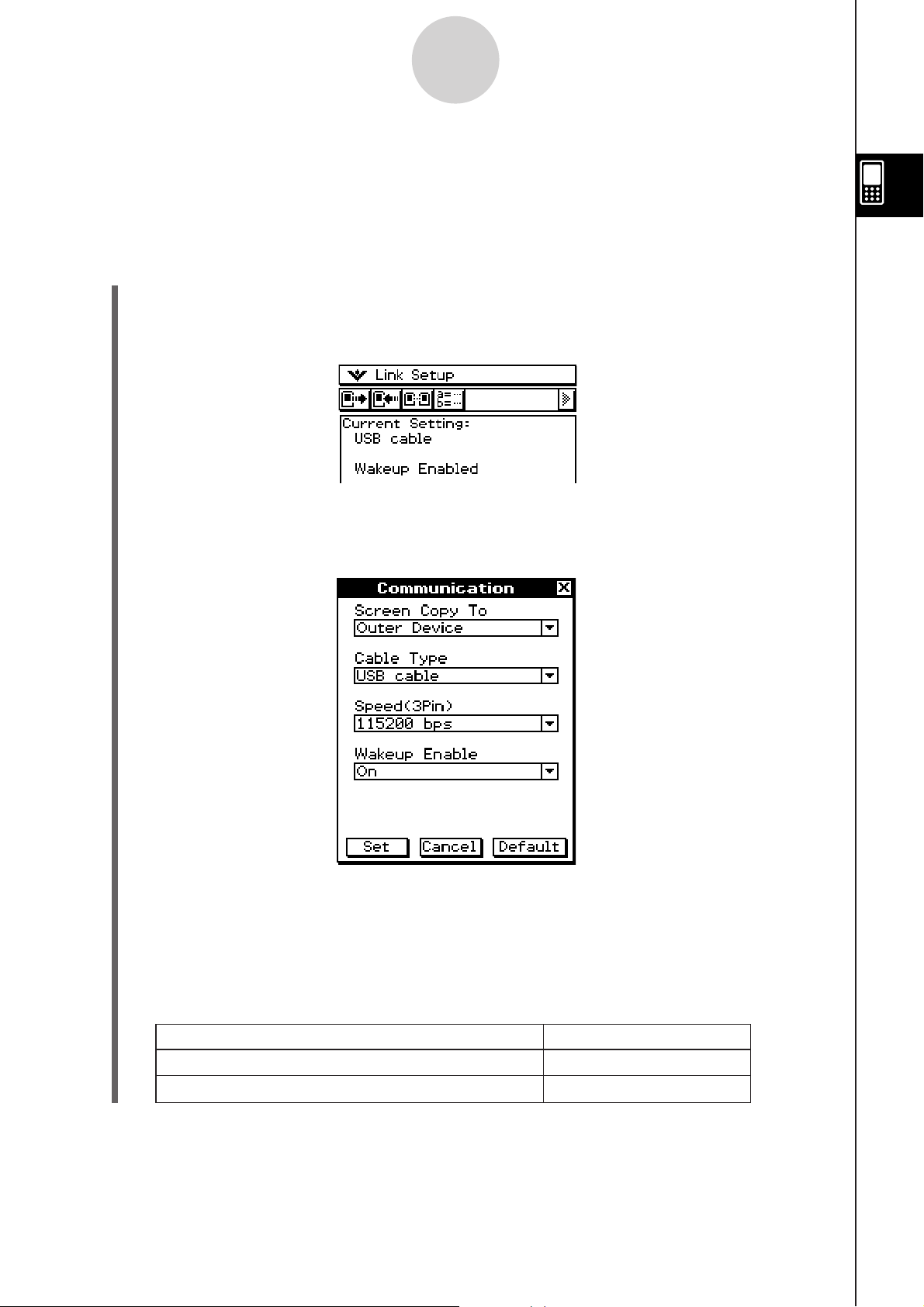
(2) Connect one end of the special cable that comes with the ClassPad to the USB port of
your computer.
• See the FA-CP1 User’s Guide for details about how to connect the cable to your
computer.
(3) Connect the other end of the special cable as shown below.
• For information about what you should do to actually transfer data, see the FA-CP1
User’s Guide.
20110401
2-3-1
Configuring Communication Parameters
2-3 Configuring Communication Parameters
Before trying to transfer data with the ClassPad, you should perform the procedures
described in this section to configure its data communication parameters.
u
ClassPad Operation
(1) On the application menu, tap
B
.
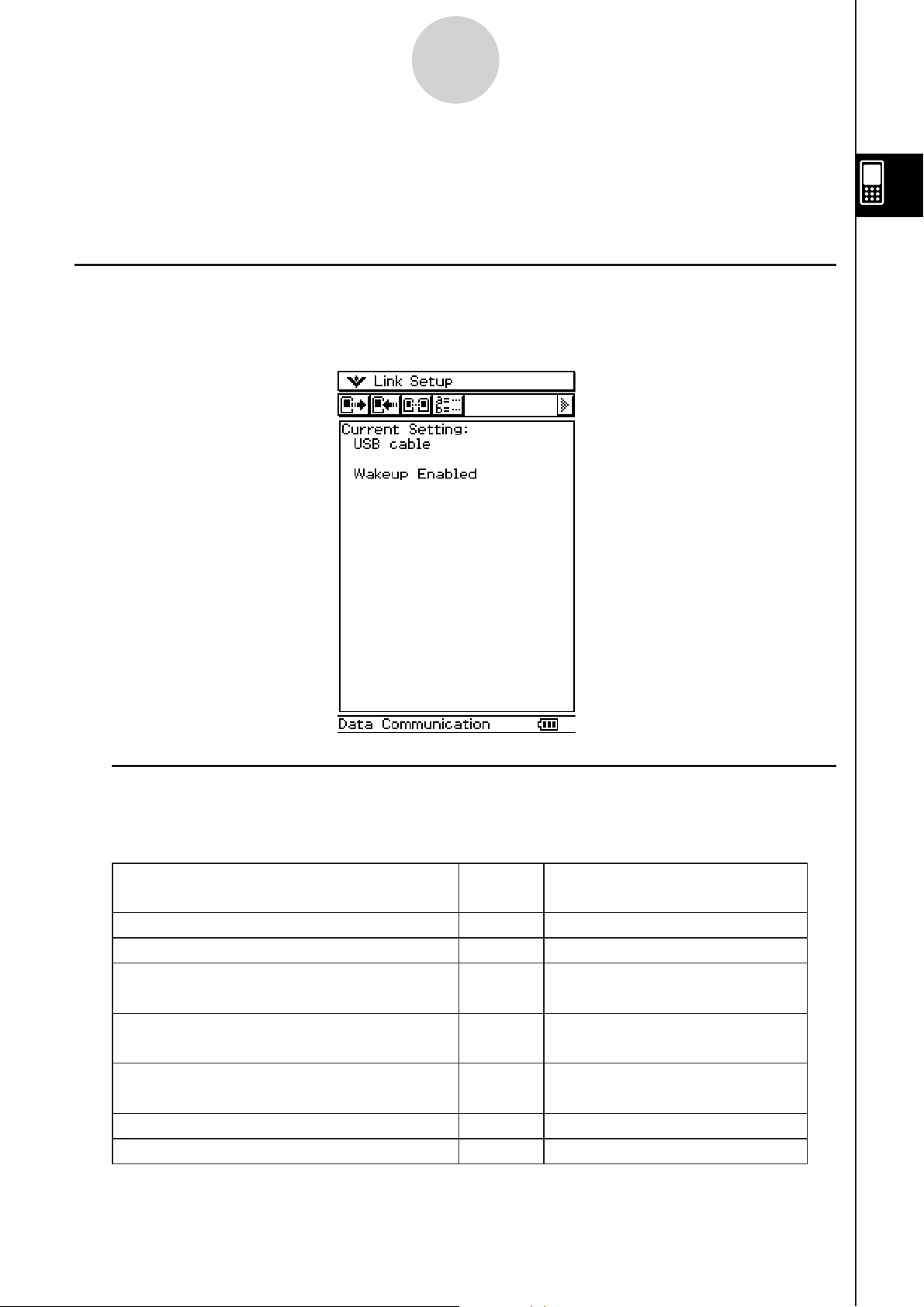
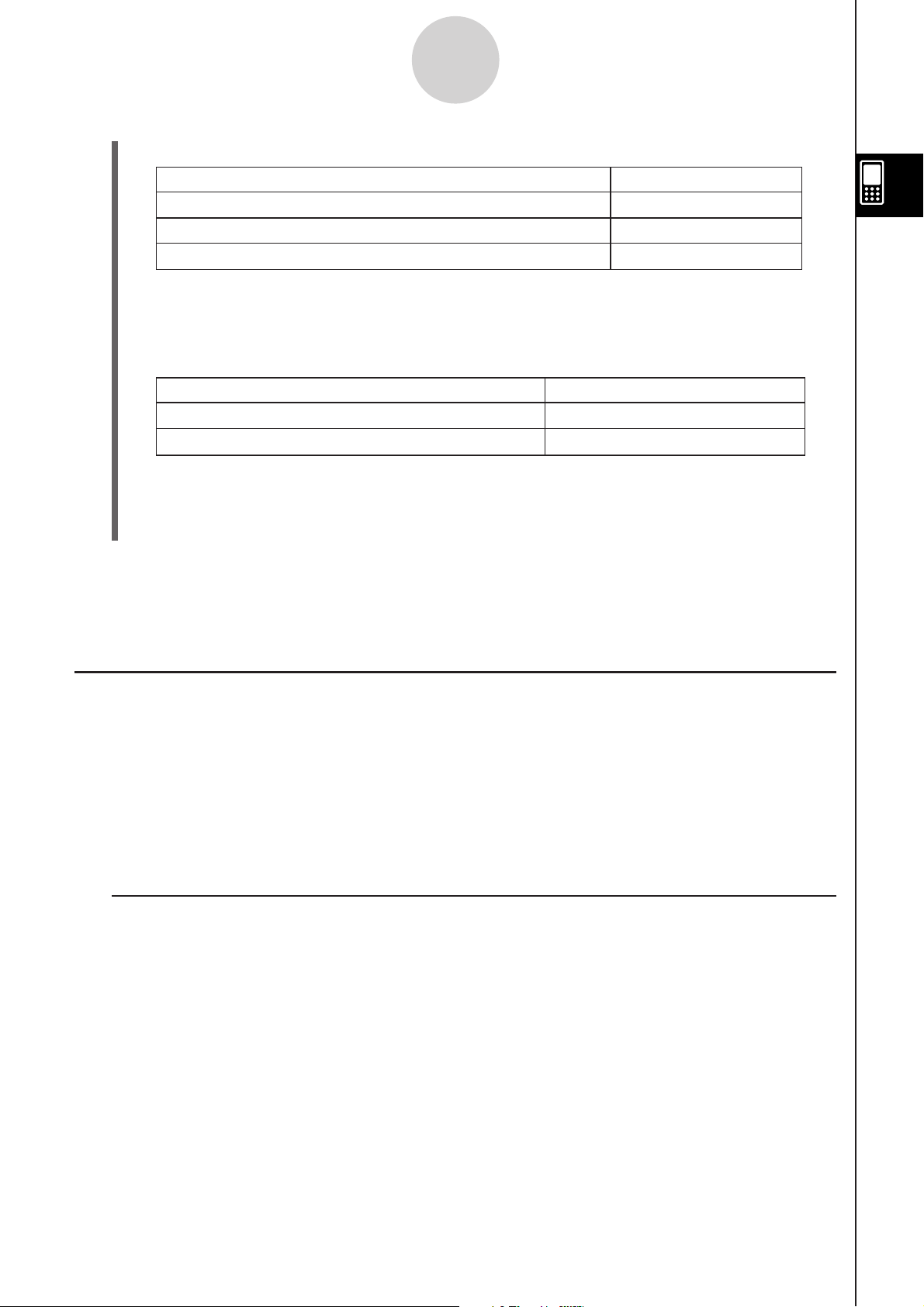
• This starts the Communication application and displays a window that shows its
current communication parameter settings.
(2) Tap [Setup] and then [Open Setup Menu].
• This displays a dialog box for changing communication parameters, like the one
shown below.
(3) Configure the communication parameter settings as described below.
• Items marked with an asterisk (
*
) are initial defaults.
u
Screen Copy To
Specify “Outer Device”.
u
Cable Type
When connecting to this type of device:
Another ClassPad unit or a Data Analyzer
A computer’s USB port
Select this setting:
3pin cable
USB cable*
20110401
2-3-2
Configuring Communication Parameters
The above setting specifies the data rate when connected to another ClassPad, or a
Data Analyzer. Note that you must set the data rate (baud rate) for both the ClassPad
and the connected device so they are identical.
u
Wakeup Enable
To do this:
Turn on the wakeup function (see below)
Turn off the wakeup function
Select this setting:
On*
Off
(4) When all the settings are the way you want, tap [Set] to save them.
• The Communication application window appears at this time, with the new
parameters you just configured. Check to make sure the settings are the way you want.
Tip
• For more information about the communication parameter, see “Communication Dialog Box” on
page 1-9-15 in the separate Software User’s Guide.
Wakeup
Wakeup is a function that automatically puts the ClassPad into data communication standby
whenever the ClassPad detects data coming in from a connected external device, or
when a USB cable is attached to the ClassPad. You can turn wakeup on or off with the
[Wakeup Enable] setting on the Communication dialog box described on page 1-9-15 in the
separate Software User’s Guide.
What happens when wakeup is turned on depends on the type of device connected to the
ClassPad.
k
When connected to another ClassPad unit
When the sending device performs a data send operation, the receiver device’s wakeup
function activates and data receive is performed automatically. The receiver device operates
normally as long as no data is being received.
In this configuration, wakeup does not operate on the receiver device when any one of the
following three conditions exists.
• When any setting other than “3pin cable” is selected for [Cable Type] on the
Communication dialog box.
• When any ongoing calculation or graphing operation is being performed. Wakeup
activates when the ongoing operation is complete.
• When the ClassPad is completely powered down. For details, see “1-2 Turning Power
On and Off ” in the separate Software User’s Guide.
u
Speed (3Pin)
To specify this data rate for 3-pin communication:
9600 bps
38400 bps
115200 bps
Select this setting:
9600 bps
38400 bps
115200 bps*

20110401
2-3-3
Configuring Communication Parameters
k
When connected to a computer’s USB port
Wakeup activates as soon as you connect the cable to the ClassPad, and the ClassPad
automatically performs the following steps.
(1) If the ClassPad is off when the cable is connected, it turns on.
(2) The currently running application is exited, and the Communication application starts up.
• If the Communication application is already running at this time, it restarts.
(3) The ClassPad enters communication standby.
• For information about what you should do to actually transfer data, see the FA-CP1
User’s Guide.
In this configuration, wakeup does not operate when any one of the following conditions
exists.
• When any setting other than “USB cable” is selected for [Cable Type] on the
Communication dialog box.
• When any ongoing calculation or graphing operation is being performed. Wakeup activates
when the ongoing operation is complete.
• When the ClassPad is completely powered down. For details, see “1-2 Turning Power On
and Off ” in the separate Software User’s Guide.
Note that wakeup does not activate in the case of add-in application or language data
installation, or upgrading of the operating system.
Important!
• Connecting a USB cable to the ClassPad activates wakeup, exits the currently running
application, and puts the ClassPad into communication standby. If you want to send a
screenshot of the current display (page 2-4-5) or perform some other operation in which
you want the currently running application to remain running, use the [Setup] - [Open Setup
Menu] command to turn off wakeup (Wakeup Enable: Off).
• Wakeup may not work properly when both an SB-62 cable and a USB cable are connected
to the ClassPad.
• For about five seconds after the display image disappears from the ClassPad screen when
you turn off power, do not connect a cable to or disconnect a cable from the ClassPad. If
you do, it can cause the wakeup function to operate abnormally.
20110401
2-4-1
Transferring Data to Another ClassPad Unit
2-4 Transferring Data to Another ClassPad Unit
This section details the steps you should perform in order to transfer data from one ClassPad
unit to another.
u
ClassPad Operation
(1) Use the procedure under “Connecting to Another ClassPad Unit” on page 2-2-1 to
connect the two units.
(2) Use the procedure under “2-3 Configuring Communication Parameters” to configure the
parameters of the two units as shown below.
Cable Type: 3pin cable
Speed (3Pin): 115200 bps
Wakeup Enable: On
• If the speed settings of the two ClassPad units are different from each other, the
slower setting is used.
The remaining steps of this procedure are marked Sender to indicate steps and
information that apply to the sending device, or Receiver to indicate receiving device
steps and information.
Sender
(3) In the Communication application, tap [Link], and then [Transmit], or tap
E
.
• This displays the Select Data dialog box.
Sender
(4) Select the data you want to send.
• For more information, see “Selecting Data for Transfer” on page 2-4-3.
Sender
(5) Tap [OK].

20110401
Sender
(6) In response to the confirmation message that appears, tap [OK] to send the data or
[Cancel] to cancel the send operation.
• Sender
Tapping [OK] sends the data you selected in step (4).
• Receiver
If the receiving device has wakeup enabled, it automatically starts receiving the data.
Sender
(7) The message “Complete!” appears to let you know when the send operation is finished.
Tap [OK].
• This returns to the Select Data dialog box.
Sender
(8) On the Select Data dialog box, tap [Cancel].
• This returns to the Communication application window.
Receiver
(9) The message “Complete!” appears to let you know when the receive operation is
finished. Tap [OK].
2-4-2
Transferring Data to Another ClassPad Unit
Important!
• When wakeup is turned off on the receiving device, you need to perform the following
operation on the receiving device before performing step (3):
Start up the Communication application, tap [Link] and then [Receive], or tap
R
.
This puts the receiving unit into receive standby, which is indicated by the Standby dialog
box on the display.
Tip
• When you send a variable or data item, it is normally stored in the current folder of the receiving
device. A variable or data item sent from the library folder of the sending device, however, is
stored in the “library” folder of the receiving device.
• When you send a folder (by selecting the check box next to a folder name), the variables and
data items inside each folder are sent and stored in folders with the same name on the receiving
device.
• If a data item with the same name as the data item being received already exists on the receiving
device, the communication operation is paused and a dialog box asking whether the existing item
should be replaced appears on the display of the receiving device. Tap [Yes] to replace, or [No]
to cancel receipt of the data item. To terminate data communication, tap [Cancel]. If you want to
replace all data items without being asked, tap [Yes to all].
• If the receiving device runs out of memory, a message dialog box appears to warn you. When
this happens, terminate the data communication operation by tapping [OK] on the dialog box of
the receiving device, delete data you no longer need from the memory of the receiving device,
and then try again.
20110401
2-4-3
Transferring Data to Another ClassPad Unit
Selecting Data for Transfer
Perform the following steps on the sending device to select the data you want to send in step
(3) of the procedure on page 2-4-1.
u
ClassPad Operation
(1) In the Communication application, tap [Link] and then [Transmit], or tap
E
to display
the Select Data dialog box.
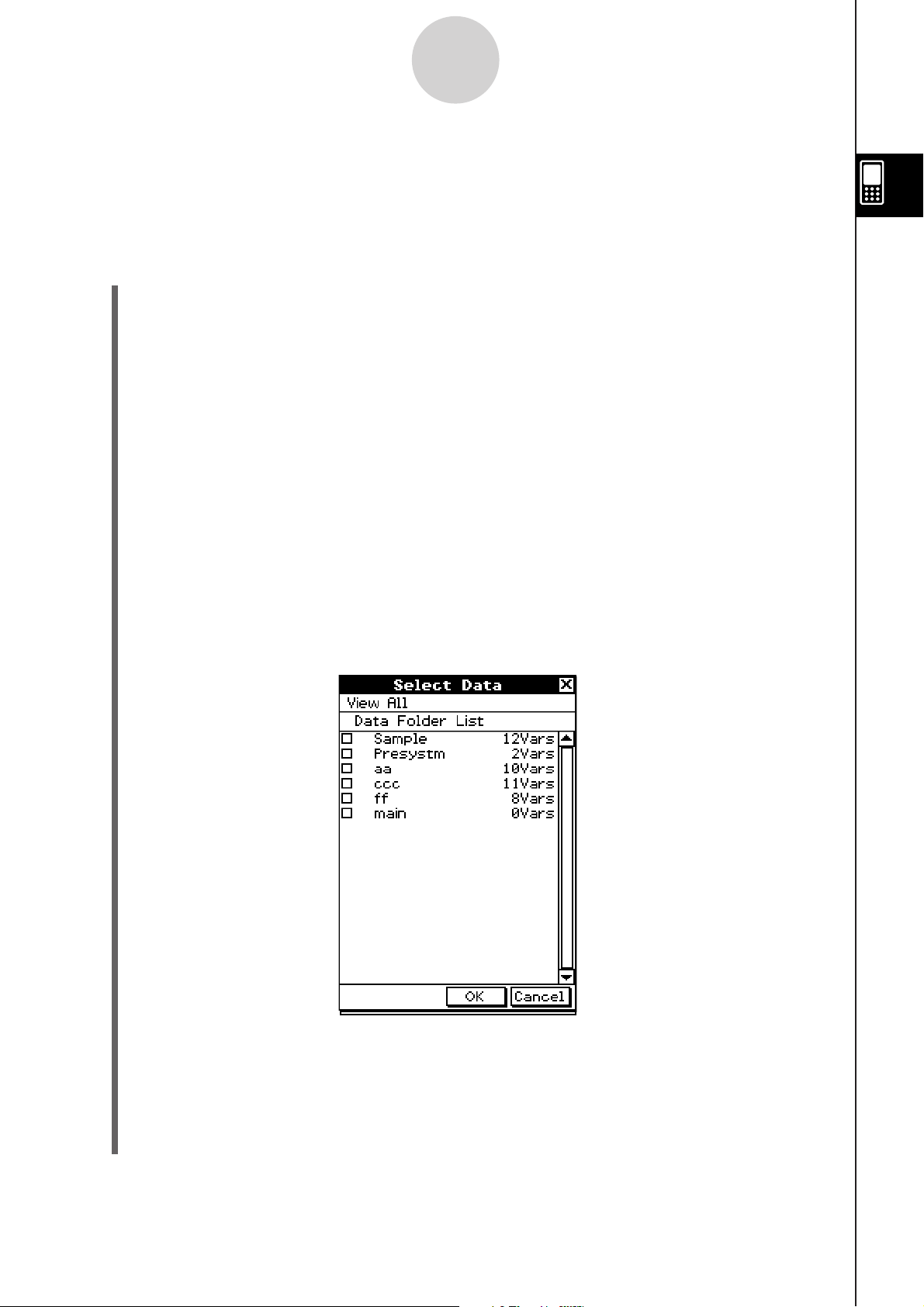
• A list that shows user folders and the “main” folder appears first.
(3) Select the data you want to send.
• On the Select Data dialog box, select the check box next to the data you want to
send.
• You can also tap the [All] menu and select one of the following commands to select or
deselect data.
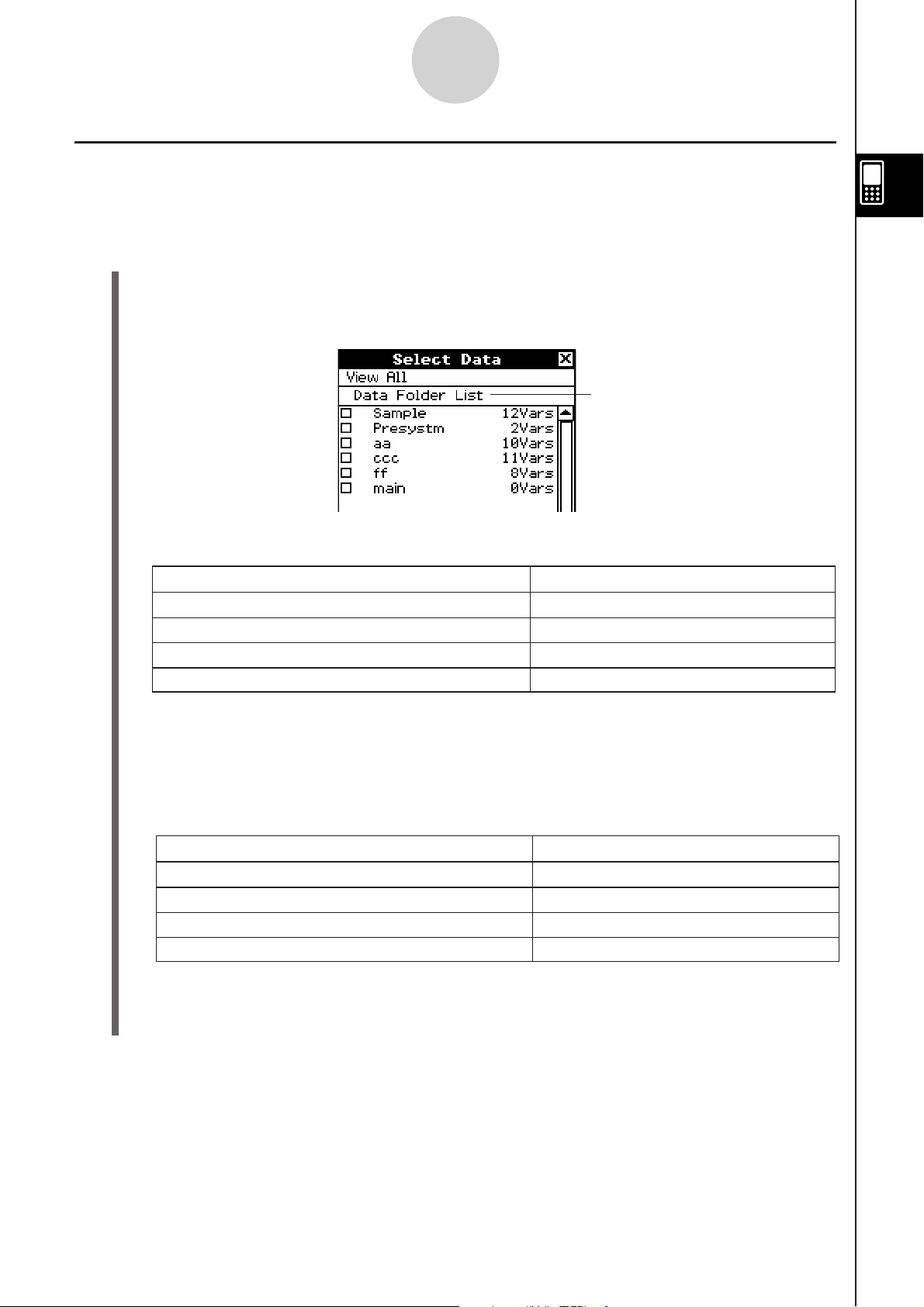
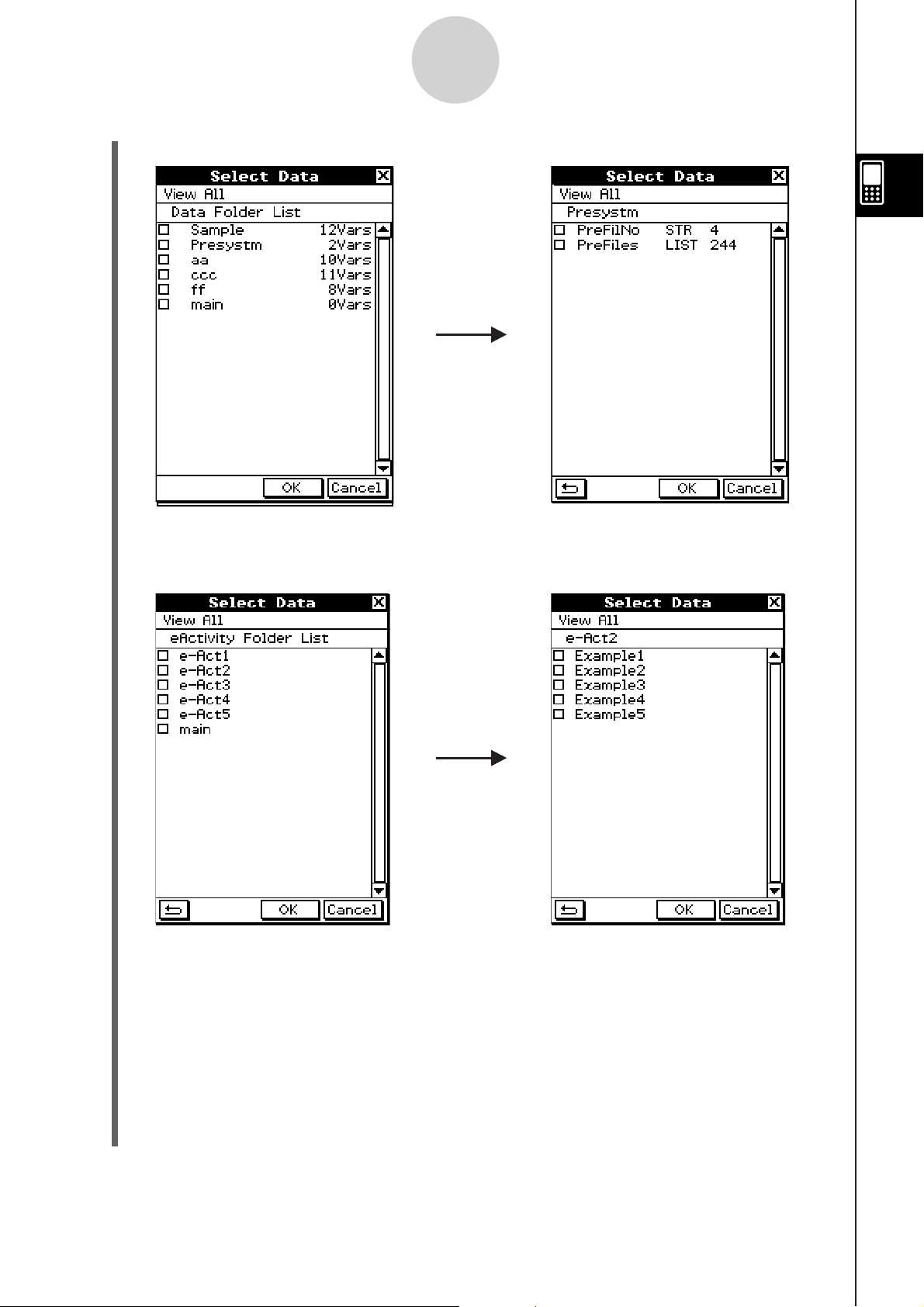
• Opening a folder in [Data Folder List] or [eActivity Folder List] displays the variables
and data contained inside it, which can be individually selected for transfer. To select
a variable or data contained in a particular folder, tap its folder name to open it.
(2) Tap the [View] menu and then select the data type from the list that appears.
To list this on the Select Data dialog box:
User folders and the “main” folder
Library variables
System variable groups
eActivity folders
Select this [View] menu command:
Data Folder List
Library
Application Status
eActivity Folder List
To do this:
Select all currently displayed items
Deselect all currently displayed items
Select all items in all lists
Deselect all items in all lists
Select this [All] menu command:
Select List
Deselect List
Select All Lists
Deselect All Lists
Title of currently displayed list
(folder name when a folder is open)
20110401
2-4-4
Transferring Data to Another ClassPad Unit
• To return to the folder list from a list of folder contents, tap
I
in the lower left corner
of the window.
• You can transfer all of the variables or data in a folder by selecting the check box next
to the folder name on the data folder list or eActivity folder list.
(4) Tap [OK] to send the data or [Cancel] to cancel the send operation.
• After tapping [OK], continue from step (5) of the procedure on page 2-4-1.
Data Folder List
Tap “Presystm” to
highlight it, and then
tap it again.
This lists the variables contained in
the “Presystm” folder.
eActivity Folder List
Tap “e-Act2”.
This lists the data contained
in the “e-Act2” folder.

20110401
2-4-5
Transferring Data to Another ClassPad Unit
Sending a Screenshot of the Current Display Contents
Use the following procedure to send the current display contents of your ClassPad to another
ClassPad unit.
Important!
Screenshot transfer is disabled when either of the following conditions exists.
• While a calculation or graphing operation is in progress
• If a data communication operation is already in progress
u
ClassPad Operation
(1) Use the procedure under “Connecting to Another ClassPad Unit” on page 2-2-1 to
connect the two units.
(2) Use the procedure under “2-3 Configuring Communication Parameters” to configure
the parameters of the two units as shown below.
Cable Type: 3pin cable
Speed (3Pin): 115200 bps
Wakeup Enable: On
Screen Copy To: Outer Device (Sending device only)
The remaining steps of this procedure are marked Sender to indicate steps and
information that apply to the sending device, or Receiver to indicate receiving device
steps and information.
Sender
(3) Display the screen you want to send.
(4) Tap
h
.
• Sender
This sends the currently displayed screen.
• Receiver
If the receiving device has wakeup enabled, it automatically starts receiving the data.
The received screen appears on the display after the receive operation is complete.
Sender
(5) If you want to send another screenshot, repeat steps (3) and (4).
Receiver
(6) To cancel a receive standby state, press the
c
key.
Important!
• When wakeup is turned off on the receiving device, you need to perform the following
operation on the receiving device before performing step (4):
Start up the Communication application, tap [Link], and then [Screen Receive], or tap
j
.
This puts the receiving unit into receive standby, which is indicated by the Standby dialog
box on the display.
Tip
• Note that received screenshots can be displayed, but not saved.

20110401
2-4-6
Transferring Data to Another ClassPad Unit
Communication Standby
The ClassPad enters “communication standby” when you perform a send or receive
operation. While in communication standby, the ClassPad waits for the other unit to send
data, or for it to get ready to receive data.
The following describes how communication standby affects certain ClassPad operations.
• Auto Power Off (Getting Ready — 1-8 Configuring Power Properties) becomes disabled.
• ClassPad power cannot be turned off.
• If data communication does not start within three minutes after the ClassPad enters data
communication standby, the message “Timeout” appears. When this happens, tap [Retry]
to try again or [Cancel] to cancel the data communication operation.
Interrupting an Ongoing Data Communication Operation
Pressing the
c
key on either the sending device or receiving device during a data
communication operation terminates it.


20110401
1 Resetting and Initializing the ClassPad
The memory of your ClassPad is divided into three parts: main memory, a storage area for
storing data, and a RAM area for executing various calculations and operations. Reset and
initialize restore normal ClassPad operation after some problem occurs.
RAM Reset
Perform RAM reset when the ClassPad freezes up or otherwise fails to perform as expected
for some reason. A RAM reset does not affect data stored in main memory or the storage
area, but it clears any data stored in the RAM area.
Memory Reset
Memory reset deletes all variable data in main memory or all eActivity data in the storage
area, or both.
Memory Initialize
Initializing memory deletes all data and returns ClassPad memory to its initial factory default
state. When initializing memory, you will be able to specify whether or not you also want to
delete add-in applications.
This section explains how to perform the RAM reset operations only. The memory reset and
memory initialize operations are performed using the System application. For details, see “16-3
Using the Reset Dialog Box” and “16-4 Initializing Your ClassPad” in the separate Software
User’s Guide.
α
-1-1
Resetting and Initializing the ClassPad
20110401
P
k
Performing the RAM Reset Operation
You should perform the RAM reset operation whenever your ClassPad freezes up or when
it begins to operate abnormally for some reason. The RAM reset operation should restore
normal ClassPad operation.
Important!
• The RAM reset operation deletes all data that is temporarily stored in ClassPad RAM.
Performing the RAM reset operation while a calculation is in progress will cause any data
stored in RAM by the calculation to be lost.
• Perform the RAM reset operation only when your ClassPad ceases to operate normally for
some reason.
u
ClassPad Operation
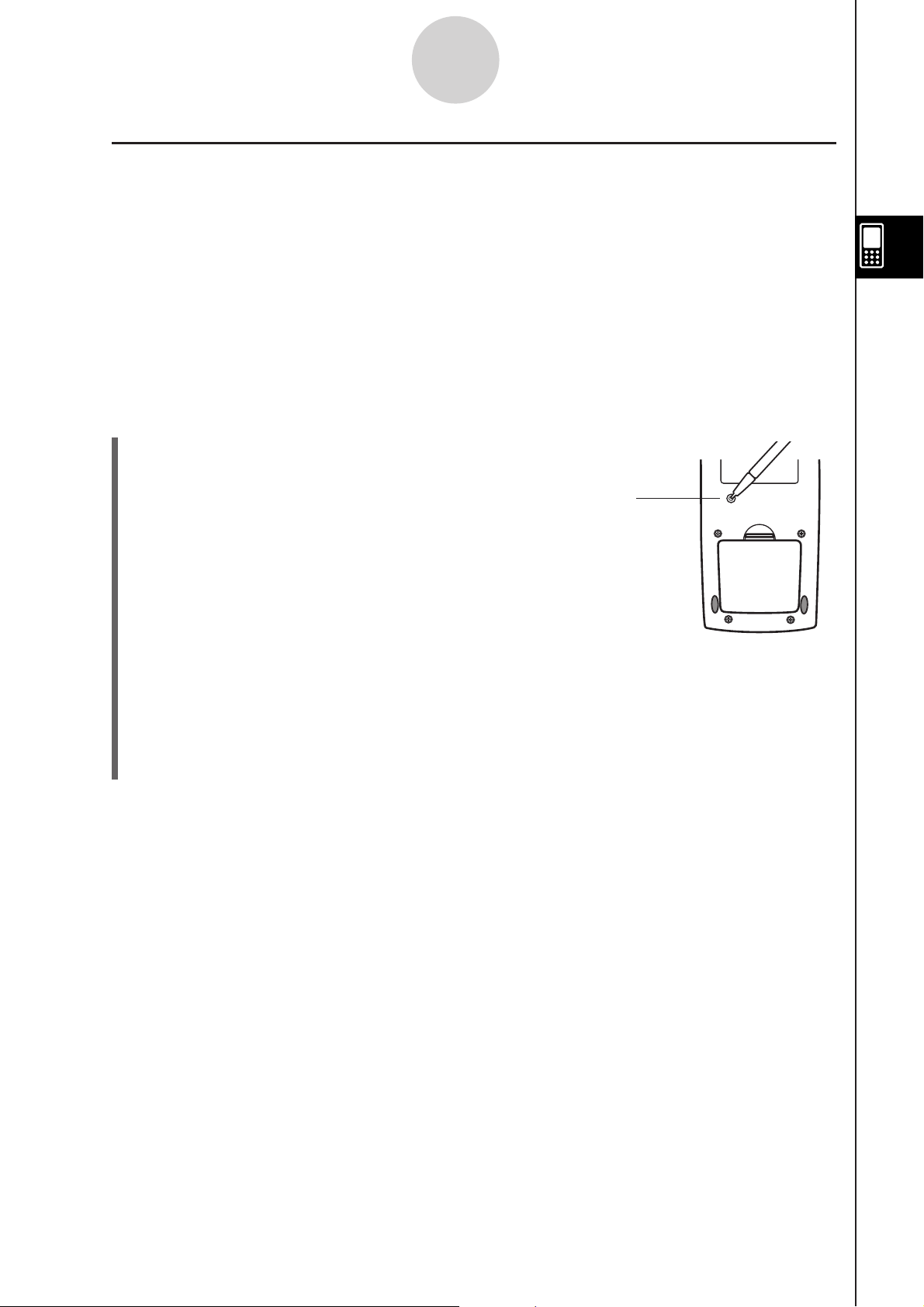
(1) Use the stylus to press the P button on the back of the ClassPad.
• Following the RAM reset operation,
the ClassPad restarts automatically.
(2) After the ClassPad restarts, perform the ClassPad setup operation that you perform
each time you replace ClassPad batteries (touch panel alignment, display contrast
adjustment, display message language selection, keyboard settings). See Chapter 16
in the separate Software User’s Guide for more information about the ClassPad setup
operation.
• The application menu appears after you finish the setup operation.
α
-1-2
Resetting and Initializing the ClassPad
P button

20110401
2 Deleting an Application
You can delete an add-in application by deleting it from the application menu or by using
the
[Add-In App.] Memory Usage sheet of
the System application as described in Chapter 16 in the
separate Software User’s Guide.
The following procedure shows how to delete an add-in application from the application
menu only. For information about using the System application’s [Add-In App.] tab, see
Chapter 16 in the separate Software User’s Guide.
u
To use the application menu to delete an add-in application
(1) Tap
m
to display the application menu.
(2) Tap the down arrow button in the menu bar, and then select [Additional] from the list
that appears.
• This displays a list of all the applications you have installed on your ClassPad.
(3) Tap
s
, and then tap [Delete Application] on the menu that appears.
• This causes all of the icons to be surrounded by a broken line, indicating that your
ClassPad is ready to delete applications.
• To exit the delete operation at this time, tap
on the icon panel.
(4) Tap the icon of the application you want to delete.
(5) In response to the dialog box that appears, tap [OK] to delete the application, or [Cancel]
to cancel without deleting anything.
Tip
• Note that you can delete only add-in applications. You cannot delete any of the ClassPad’s
built-in applications.
• If you prefer to view remaining memory capacity as you delete add-in applications, use the
[Add-In App.] Memory Usage sheet of the System application as described in Chapter 16 in the
separate Software User’s Guide.
α
-2-1
Deleting an Application
20110401
3 Power Supply
Your ClassPad is powered by four AAA-size batteries LR03 (AM4).
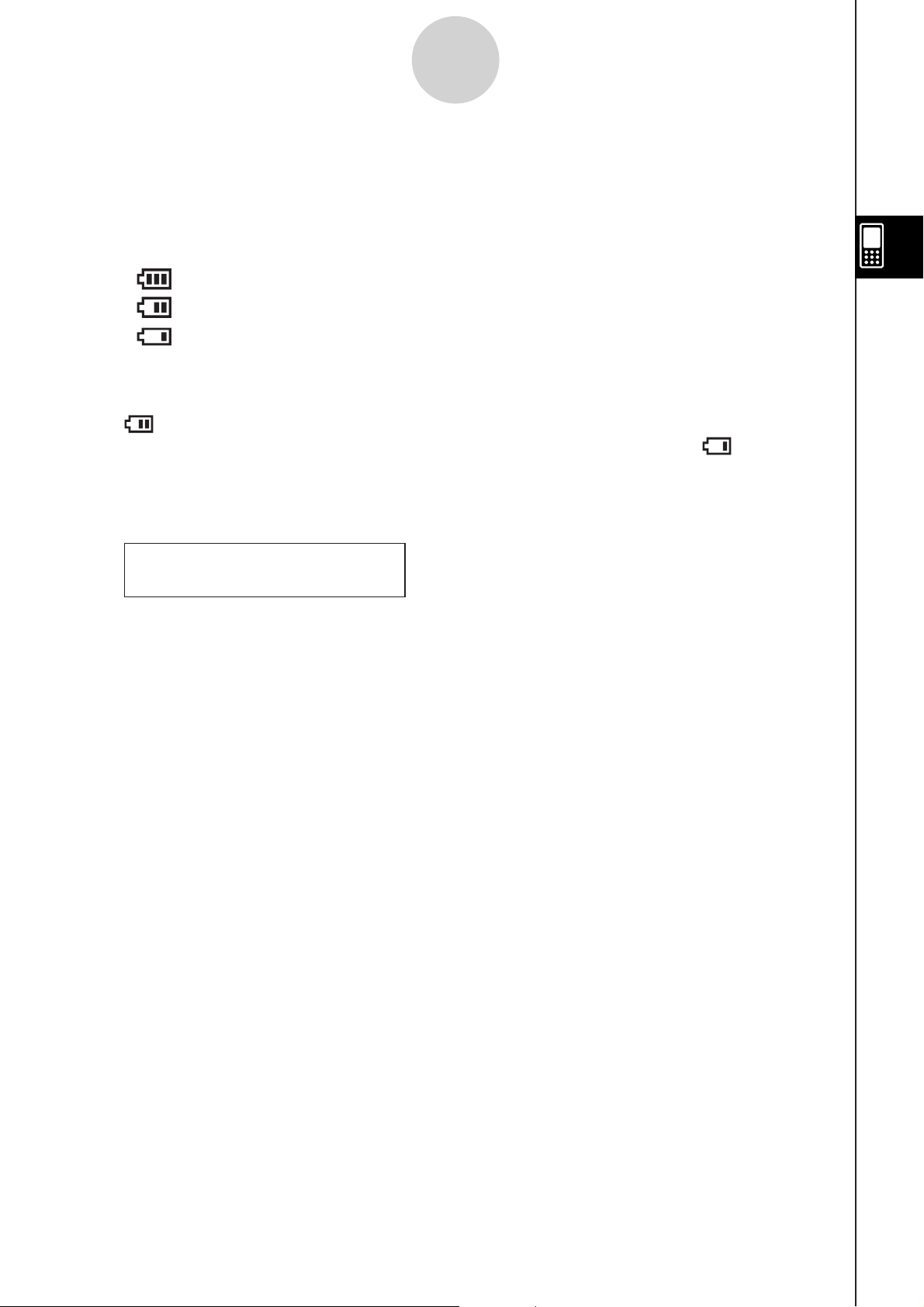
The battery level indicator is displayed in the status bar.
........................ full
........................ medium
........................ low
Important!
• Be sure to replace batteries as soon as possible whenever the battery level indicator shows
(medium).
• Replace batteries immediately whenever the battery level indicator shows (low). At this
level, you will not be able to perform data communication or perform other functions.
• The following message indicates that batteries are about to go dead. Replace batteries
immediately whenever this message appears.
If you try to continue using the calculator, it will automatically turn off. You will not be able to
turn power back on until you replace batteries.
Be sure to replace batteries at least once every one year, no matter how much you use the
ClassPad during that time.
The batteries that come with this ClassPad discharge slightly during shipment and storage.
Because of this, they may require replacement sooner than the normal expected battery life.
Backing Up Data
Your ClassPad comes bundled with a special USB cable and FA-CP1 software, which you
can use to backup data to a computer.
• The FA-CP1 software is on the CD-ROM.
Important!
• When battery power is very low, your ClassPad may not turn back on when you press its
o
key. If this happens, immediately replace its batteries.
α
-3-1
Power Supply
Batteries are extremely low!
Replace batteries immediately!

20110401
α
-4-1
Number of Digits and Precision
4 Number of Digits and Precision
k
Number of Digits
Standard Mode
The following applies when the check box next to the “Decimal Calculation” item on the Basic
Format dialog box is not selected.
• Up to 611 digits are stored in memory for integer values.
• Decimal values up to 15 digits are converted to fraction format and saved in memory. When
a mathematical expression cannot be converted to fraction format, the result is displayed in
decimal format.
• Values stored in memory are displayed as-is, regardless of how [Number Format] settings
(Normal 1, Normal 2, Fix 0 – 9, Sci 0 – 9) are configured (except when a decimal value is
displayed).
Decimal Mode
The following applies when the check box next to the “Decimal Calculation” item on the Basic
Format dialog box is selected.
• Values stored in Ans memory and values assigned to variables have the same number of
digits as defined for Standard mode values.
• Values are displayed in accordance with how [Number Format] settings (Normal 1, Normal 2,
Fix 0 – 9, Sci 0 – 9) are configured.
• Displayed values are rounded to the appropriate number of decimal places.
• Some applications store values using a mantissa up to 15 digits long and a 3-digit
exponent.
k
Precision
• Internal calculations are performed using 15 digits.
• The error for a single mathematical expression (Decimal mode calculation error) is
±
1 at the
10th digit. In the case of exponential display, calculation error is
±
1 at the least significant
digit. Note that performing consecutive calculations causes error to be cumulative. Error
is also cumulative for internal consecutive calculations performed for: ^(
x
y
),
x
,
x
!,
n
P
r
,
n
C
r
, etc.
• Error is cumulative and tends to be larger in the vicinity of a function’s singular point(s) and
inflection point(s), and the vicinity of zero. With sinh(
x
) and tanh(
x
), for example, the
inflection point occurs when
x
= 0. In this vicinity, error is cumulative and precision is poor.

20110401
5 Specifications
Calculation range:
±
1
×
10
–999
to
±
9.999999999
×
10
999
and 0. Internal operations use 15-digit mantissa.
Exponential display range: Normal 1: 10
–2
> |
x
|, |
x
|
>
10
10
Normal 2: 10
–9
> |
x
|, |
x
|
>
10
10
Program capacity: 515000 bytes (max.)
Power supply:
Four AAA-size batteries LR03 (AM4)
Power consumption: 0.5 W
Approximate battery life:
230 hours (continuous display of application menu)
140 hours continuous operation (5 minutes calculation, 55 minutes display)
Auto power off:
Power is automatically turned off if no operation is performed for a specified period
(user-settable as 1 minute, 3 minutes, 6 minutes, or 60 minutes). The initial default setting is
6 minutes.
Power saving mode:
Resume function can be configured to stay enabled, or to disable automatically 1 hour,
6 hours, or 1 day after power is turned off.
Ambient temperature range: 0°C to 40°C
Dimensions: 21 mm (H)
×
84 mm (W)
×
189.5 mm (D)
13
/
16
" (H)
×
3
5
/
16
" (W)
×
7
7
/
16
" (D)
Weight: Approx. 280 g (including batteries)
α
-5-1
Specifications

20110401
α
-5-2
Specifications
Data Communication
Port: 3-pin data communication port
4-pin mini USB port
• For information about FA-CP1 minimum computer system requirements, see the
FA-CP1 User’s Guide.
Method: Start-stop (asynchronous), full-duplex
Transmission speed (BPS): 115200/38400/9600 bits/second (normal)
38400 bits/second (Send38k/Receive38k)
Parity: None
Bit length: 8 bits
Stop bit:
Send38k: 2 bits
Receive38k: 1 bit
Flow control: X ON
This mark applies in EU countries only.
Manufacturer:
CASIO COMPUTER CO., LTD.
6-2, Hon-machi 1-chome
Shibuya-ku, Tokyo 151-8543, Japan
Responsible within the European Union:
CASIO EUROPE GmbH
Casio-Platz 1
22848 Norderstedt, Germany
Canadian Regulatory Information
Information concernant la Réglementation Canadienne
This Class B digital apparatus complies with Canadian ICES-003.
Cet appareil numérique de la classe B est conforme à la norme NMB-003 du Canada.

CASIO COMPUTER CO., LTD.
6-2, Hon-machi 1-chome
Shibuya-ku, Tokyo 151-8543, Japan
One or more of the following patents may be used in the product.
U.S.Pats. 5,539,867
SA1104-A

