

Contents
Safety information.........................................................................................7
Conventions...........................................................................................................................................................7
Product statements..............................................................................................................................................7
Learn about the printer...............................................................................10
Finding information about the printer...........................................................................................................10
Finding the printer serial number....................................................................................................................11
Printer configurations........................................................................................................................................12
Using the control panel.....................................................................................................................................14
Understanding the status of the indicator light..........................................................................................15
Selecting paper...................................................................................................................................................15
Set up, install, and configure.................................................................... 35
Selecting a location for the printer............................................................................................................... 35
Attaching cables................................................................................................................................................ 36
Setting up and using the home screen applications................................................................................37
Setting up and using the accessibility features.........................................................................................42
Setting up the printer to fax............................................................................................................................45
Configuring the e‑mail SMTP settings......................................................................................................... 53
Loading paper and specialty media.............................................................................................................. 61
Installing and updating software, drivers, and firmware......................................................................... 78
Installing hardware options............................................................................................................................ 82
Networking........................................................................................................................................................ 187
Secure the printer......................................................................................191
Locating the security slot................................................................................................................................191
Erasing printer memory...................................................................................................................................191
Erasing printer storage drive........................................................................................................................ 192
Restoring factory default settings................................................................................................................192
Statement of Volatility.....................................................................................................................................192
Print.............................................................................................................194
Printing from a computer............................................................................................................................... 194
Printing from a mobile device.......................................................................................................................194
Printing a booklet.............................................................................................................................................195
Contents 2

Printing from a flash drive..............................................................................................................................196
Supported flash drives and file types.........................................................................................................197
Configuring confidential jobs........................................................................................................................197
Printing confidential and other held jobs.................................................................................................. 198
Printing a font sample list.............................................................................................................................. 198
Printing a directory list....................................................................................................................................199
Placing separator sheets between copies................................................................................................199
Stapling printed sheets.................................................................................................................................. 199
Punching holes in printed sheets................................................................................................................199
Folding printed sheets.................................................................................................................................. 200
Using oset stacking in printed sheets.................................................................................................... 200
Canceling a print job.......................................................................................................................................201
Adjusting toner darkness.............................................................................................................................. 201
Copy........................................................................................................... 202
Using the automatic document feeder and scanner glass..................................................................202
Making copies................................................................................................................................................. 202
Copying photos...............................................................................................................................................202
Copying on letterhead...................................................................................................................................203
Copying on both sides of the paper..........................................................................................................203
Reducing or enlarging copies..................................................................................................................... 203
Collating copies...............................................................................................................................................203
Placing separator sheets between copies...............................................................................................203
Copying multiple pages onto a single sheet...........................................................................................204
Copying cards..................................................................................................................................................204
Stapling copies................................................................................................................................................204
Punching holes in copies..............................................................................................................................204
Creating a booklet from copied documents........................................................................................... 205
Folding copies.................................................................................................................................................205
Using oset stacking in copies...................................................................................................................205
Creating a copy shortcut.............................................................................................................................. 205
E-mail......................................................................................................... 206
Using the automatic document feeder and scanner glass..................................................................206
Sending an e-mail...........................................................................................................................................206
Creating an e-mail shortcut..........................................................................................................................206
Contents 3

Fax.............................................................................................................. 207
Using the automatic document feeder and scanner glass..................................................................207
Sending a fax................................................................................................................................................... 207
Scheduling a fax..............................................................................................................................................208
Creating a fax destination shortcut............................................................................................................208
Changing the fax resolution.........................................................................................................................208
Adjusting the fax darkness...........................................................................................................................209
Printing a fax log............................................................................................................................................. 209
Blocking junk faxes........................................................................................................................................ 209
Holding faxes...................................................................................................................................................209
Forwarding a fax............................................................................................................................................. 209
Scan............................................................................................................. 211
Using the automatic document feeder and scanner glass....................................................................211
Scanning to a computer..................................................................................................................................211
Scanning to an FTP server............................................................................................................................ 212
Creating an FTP shortcut...............................................................................................................................213
Scanning to a network folder........................................................................................................................213
Creating a network folder shortcut............................................................................................................. 213
Scanning to a flash drive................................................................................................................................214
Use printer menus.................................................................................... 215
Menu map..........................................................................................................................................................215
Device.................................................................................................................................................................216
Print......................................................................................................................................................................231
Paper..................................................................................................................................................................240
Copy................................................................................................................................................................... 243
Fax.......................................................................................................................................................................247
E-mail................................................................................................................................................................. 262
FTP......................................................................................................................................................................269
USB Drive..........................................................................................................................................................272
Network/Ports.................................................................................................................................................. 278
Cloud Services..................................................................................................................................................291
Security..............................................................................................................................................................292
Reports.............................................................................................................................................................. 299
Help..................................................................................................................................................................... 301
Contents 4

Troubleshooting............................................................................................................................................... 301
Printing the Menu Settings Page................................................................................................................. 301
Maintain the printer................................................................................. 302
Checking the status of parts and supplies...............................................................................................302
Configuring supply notifications................................................................................................................. 302
Setting up e‑mail alerts................................................................................................................................. 302
Viewing reports............................................................................................................................................... 303
Ordering parts and supplies........................................................................................................................ 303
Replacing parts and supplies.......................................................................................................................304
Cleaning printer parts....................................................................................................................................396
Saving energy and paper............................................................................................................................. 420
Moving the printer to another location.......................................................................................................421
Shipping the printer.........................................................................................................................................421
Troubleshoot a problem.......................................................................... 422
Print quality problems....................................................................................................................................422
Printer error codes..........................................................................................................................................423
Printing problems.............................................................................................................................................431
The printer is not responding......................................................................................................................456
Unable to read flash drive............................................................................................................................ 457
Enabling the USB port................................................................................................................................... 457
Clearing jams................................................................................................................................................... 458
Network connection problems....................................................................................................................492
Hardware options problems........................................................................................................................ 494
Issues with supplies....................................................................................................................................... 495
Paper feed problems..................................................................................................................................... 496
E-mailing problems.........................................................................................................................................499
Faxing problems............................................................................................................................................. 500
Scanning problems........................................................................................................................................ 505
Color quality problems................................................................................................................................... 512
Contacting customer support.......................................................................................................................514
Recycle and dispose................................................................................. 515
Recycling Lexmark products.........................................................................................................................515
Recycling Lexmark packaging......................................................................................................................515
Contents 5

Safety information
Conventions
Note: A note identifies information that could help you.
Warning: A warning identifies something that could damage the product hardware or software.
CAUTION: A caution indicates a potentially hazardous situation that could injure you.
Dierent types of caution statements include:
CAUTION—POTENTIAL INJURY: Indicates a risk of injury.
CAUTION—SHOCK HAZARD: Indicates a risk of electrical shock.
CAUTION—HOT SURFACE: Indicates a risk of burn if touched.
CAUTION—TIPPING HAZARD: Indicates a crush hazard.
CAUTION—PINCH HAZARD: Indicates a risk of being caught between moving parts.
Product statements
CAUTION—POTENTIAL INJURY: To avoid the risk of fire or electrical shock, connect the power cord to
an appropriately rated and properly grounded electrical outlet that is near the product and easily
accessible.
CAUTION—POTENTIAL INJURY: To avoid the risk of fire or electrical shock, use only the power cord
provided with this product or the manufacturer's authorized replacement.
CAUTION—POTENTIAL INJURY: Do not use this product with extension cords, multioutlet power strips,
multioutlet extenders, or UPS devices. The power capacity of these types of accessories can be easily
overloaded by a laser printer and may result in a risk of fire, property damage, or poor printer
performance.
CAUTION—POTENTIAL INJURY: Only a Lexmark Inline Surge Protector that is properly connected
between the printer and the power cord provided with the printer may be used with this product. The
use of non-Lexmark surge protection devices may result in a risk of fire, property damage, or poor
printer performance.
CAUTION—POTENTIAL INJURY: To reduce the risk of fire, use only a 26 AWG or larger
telecommunications (RJ-11) cord when connecting this product to the public switched telephone
network. For users in Australia, the cord must be approved by the Australian Communications and Media
Authority.
CAUTION—SHOCK HAZARD: To avoid the risk of electrical shock, do not place or use this product near
water or wet locations.
CAUTION—SHOCK HAZARD: To avoid the risk of electrical shock, do not set up this product or make
any electrical or cabling connections, such as the power cord, fax feature, or telephone, during a
lightning storm.
Safety information 7

CAUTION—POTENTIAL INJURY: Do not cut, twist, bind, crush, or place heavy objects on the power
cord. Do not subject the power cord to abrasion or stress. Do not pinch the power cord between objects
such as furniture and walls. If any of these things happen, a risk of fire or electrical shock results. Inspect
the power cord regularly for signs of such problems. Remove the power cord from the electrical outlet
before inspecting it.
CAUTION—SHOCK HAZARD: To avoid the risk of electrical shock, make sure that all external
connections (such as Ethernet and telephone system connections) are properly installed in their marked
plug-in ports.
CAUTION—SHOCK HAZARD: To avoid the risk of electrical shock, if you are accessing the controller
board or installing optional hardware or memory devices sometime after setting up the printer, then turn
the printer o, and unplug the power cord from the electrical outlet before continuing. If you have any
other devices attached to the printer, then turn them o as well, and unplug any cables going into the
printer.
CAUTION—SHOCK HAZARD: To avoid the risk of electrical shock, do not use the fax feature during a
lightning storm.
CAUTION—SHOCK HAZARD: To avoid the risk of electrical shock when cleaning the exterior of the
printer, unplug the power cord from the electrical outlet and disconnect all cables from the printer before
proceeding.
CAUTION—POTENTIAL INJURY: If the printer weight is greater than 20 kg (44 lb), then it may require
two or more people to lift it safely.
CAUTION—POTENTIAL INJURY: When moving the printer, follow these guidelines to avoid personal
injury or printer damage:
• Make sure that all doors and trays are closed.
• Turn o the printer, and then unplug the power cord from the electrical outlet.
• Disconnect all cords and cables from the printer.
• If the printer has separate floor-standing optional trays or output options attached to it, then disconnect
them before moving the printer.
• If the printer has a caster base, then carefully roll it to the new location. Use caution when passing over
thresholds and breaks in
flooring.
• If the printer does not have a caster base but is configured with optional trays or output options, then remove
the output options and lift the printer
o
the trays. Do not try to lift the printer and any options at the same
time.
• Always use the handholds on the printer to lift it.
• Any cart used to move the printer must have a surface able to support the full footprint of the printer.
• Any cart used to move the hardware options must have a surface able to support the dimensions of the
options.
• Keep the printer in an upright position.
• Avoid severe jarring movements.
• Make sure that your fingers are not under the printer when you set it down.
• Make sure that there is adequate clearance around the printer.
CAUTION—TIPPING HAZARD: Installing one or more options on your printer or MFP may require a
caster base, furniture, or other feature to prevent instability causing possible injury. For more information
on supported configurations, see
www.lexmark.com/multifunctionprinters.
Safety information 8

CAUTION—TIPPING HAZARD: To reduce the risk of equipment instability, load each tray separately.
Keep all other trays closed until needed.
CAUTION—HOT SURFACE: The inside of the printer might be hot. To reduce the risk of injury from a hot
component, allow the surface to cool before touching it.
CAUTION—PINCH HAZARD: To avoid the risk of a pinch injury, use caution in areas marked with this
label. Pinch injuries may occur around moving parts, such as gears, doors, trays, and covers.
CAUTION—POTENTIAL INJURY: The lithium battery in this product is not intended to be replaced.
There is a danger of explosion if a lithium battery is incorrectly replaced. Do not recharge, disassemble,
or incinerate a lithium battery. Discard used lithium batteries according to the manufacturer's instructions
and local regulations.
This product is designed, tested, and approved to meet strict global safety standards with the use of specific
manufacturer's components. The safety features of some parts may not always be obvious. The manufacturer
is not responsible for the use of other replacement parts.
Refer service or repairs, other than those described in the user documentation, to a service representative.
SAVE THESE INSTRUCTIONS.
Safety information 9
Learn about the printer
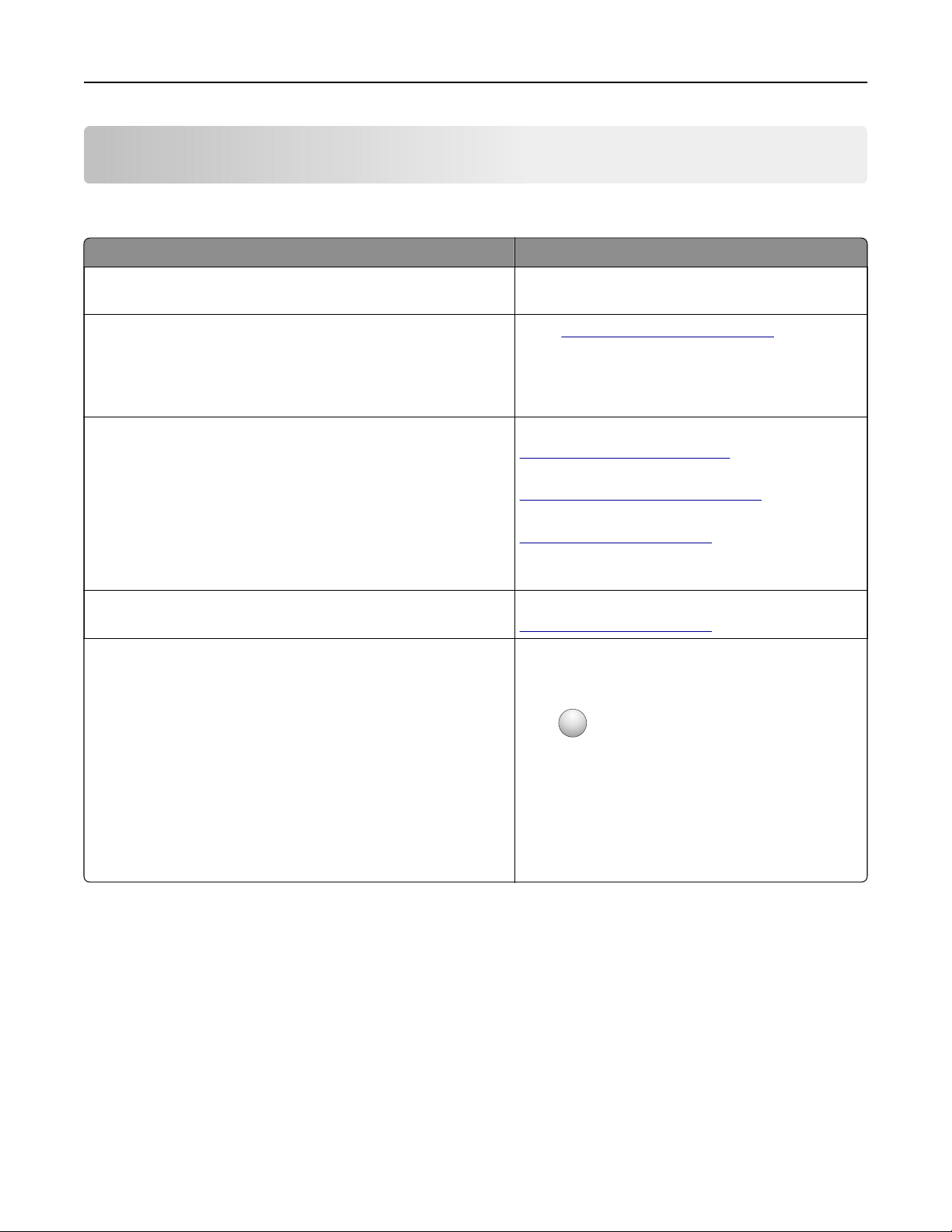
Finding information about the printer
What are you looking for? Find it here
Initial setup instructions See the setup documentation that came with the
printer.
• Printer software
• Print or fax driver
• Printer firmware
• Utility
Go to
www.lexmark.com/downloads, search for
your printer model, and then in the Type menu,
select the driver,
firmware,
or utility that you need.
• Selecting and storing paper and specialty media
• Loading paper
• Configuring printer settings
• Viewing and printing documents and photos
• Configuring the printer on a network
• Caring for and maintaining the printer
• Troubleshooting and solving problems
Information Center—Go to
https://infoserve.lexmark.com.
How‑to videos—Go to
https://infoserve.lexmark.com/idv/.
Touch Screen Guide—Go to
http://support.lexmark.com.
Setting up and configuring the accessibility features of your
printer
Lexmark Accessibility Guide—Go to
http://support.lexmark.com.
Help information for using the printer software. Help for Microsoft Windows or Macintosh operating
systems—Open a printer software program or
application, and then click Help.
Click
?
to view context‑sensitive information.
Notes:
• Help is automatically installed with the printer
software.
• Depending on the operating system, the
printer software is either in the printer
program folder or on the desktop.
Learn about the printer 10
What are you looking for? Find it here
• Documentation
• Live chat support
• E‑mail support
• Voice support
Go to
http://support.lexmark.com.
Note: Select your country or region, and then
select your product to view the appropriate
support site.
Support contact information for your country or
region can be found on the website or on the
printed warranty that came with the printer.
Have the following information ready when you
contact customer support:
• Place and date of purchase
• Machine type and serial number
For more information, see
“Finding the printer
serial number” on page 11.
• Safety information
• Regulatory information
• Warranty information
• Environmental information
Warranty information varies by country or region:
• In the U.S.—See the Statement of Limited
Warranty included with the printer, or go to
http://support.lexmark.com.
• In other countries and regions—See the
printed warranty that came with the printer.
Product Information Guide—See the
documentation that came with the printer or go to
http://support.lexmark.com.
Information on Lexmark digital passport Go to
https://csr.lexmark.com/digital-
passport.php.
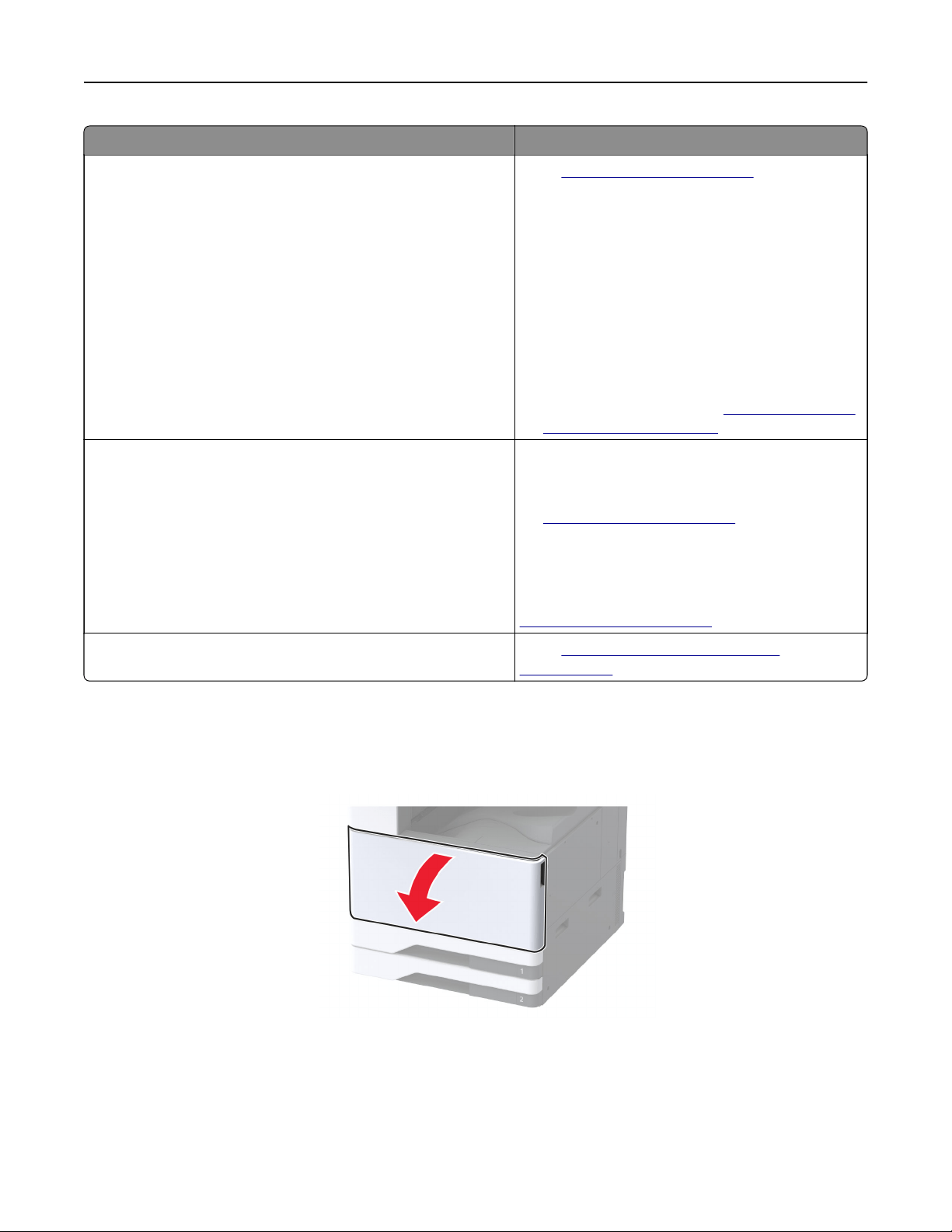
Finding the printer serial number
1 Open the front door.
Learn about the printer 11
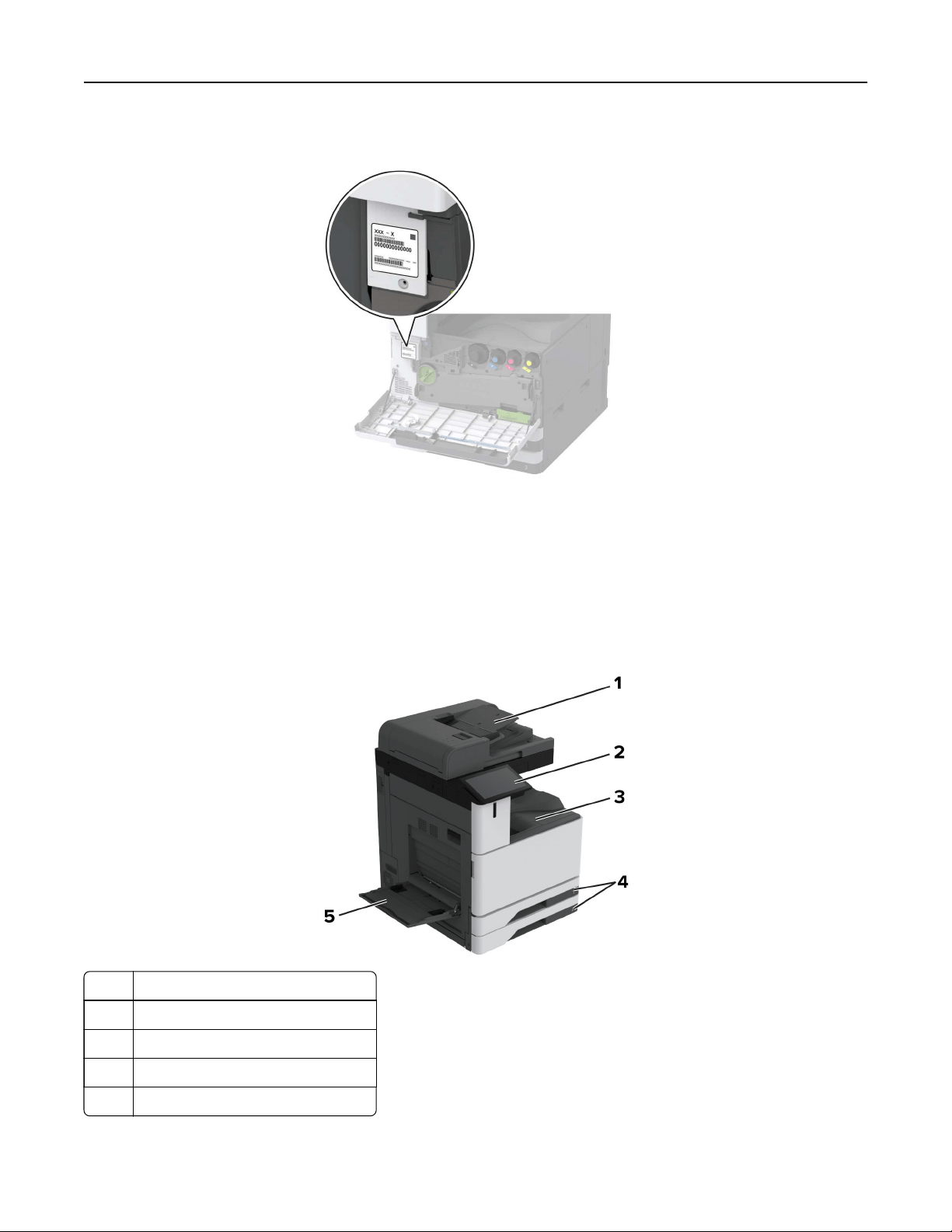
2 Locate the serial number at the left side of the printer.
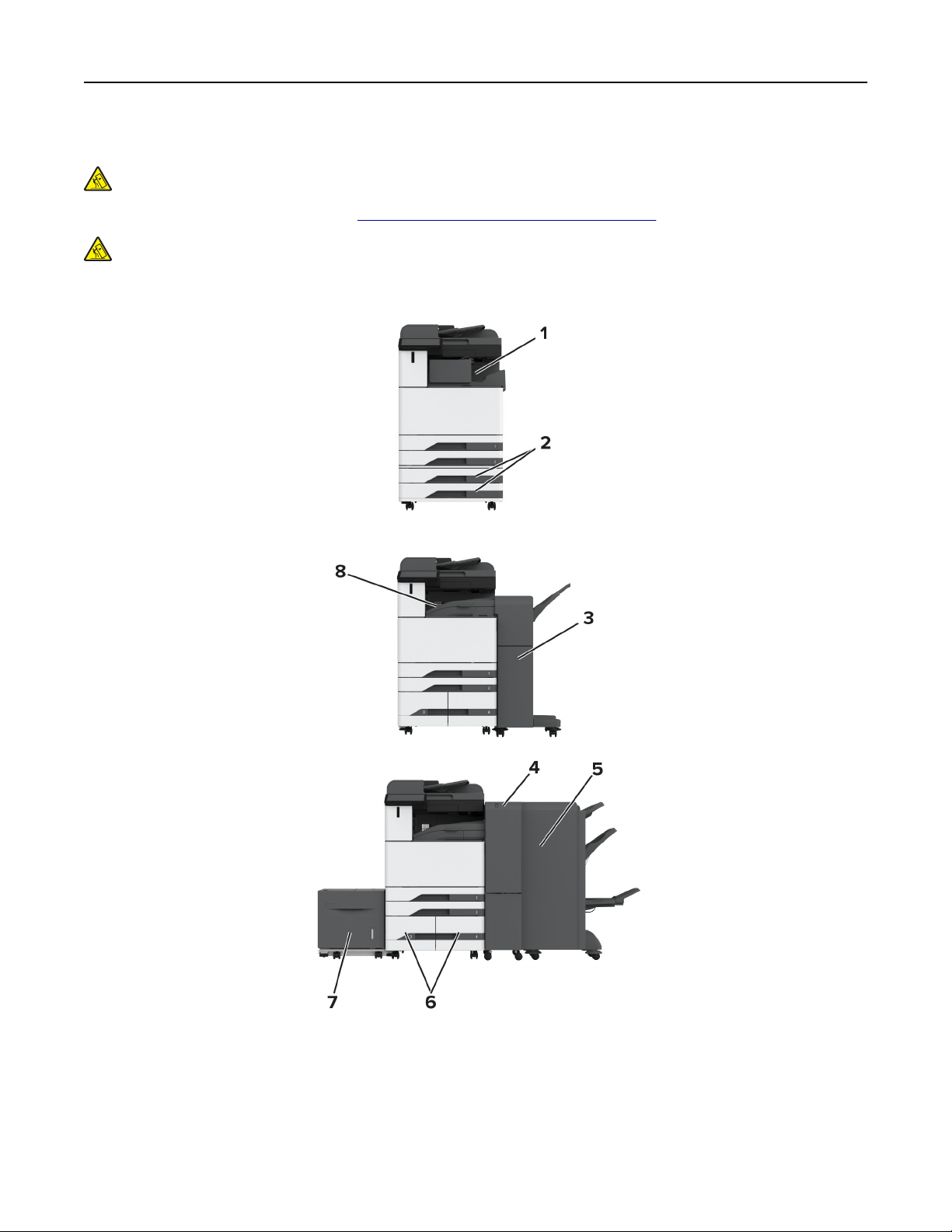
Printer configurations
Note: Make sure to configure the printer on a flat, sturdy, and stable surface.
Basic model
1 Automatic document feeder (ADF)
2 Control panel
3 Standard bin
4 Standard 2 x 520-sheet tray
5 Multipurpose feeder
Learn about the printer 12
Configured model
CAUTION—TIPPING HAZARD: Installing one or more options on your printer or MFP may require a
caster base, furniture, or other feature to prevent instability causing possible injury. For more information
on supported configurations, see
www.lexmark.com/multifunctionprinters.
CAUTION—TIPPING HAZARD: To reduce the risk of equipment instability, load each tray separately.
Keep all other trays closed until needed.
Learn about the printer 13
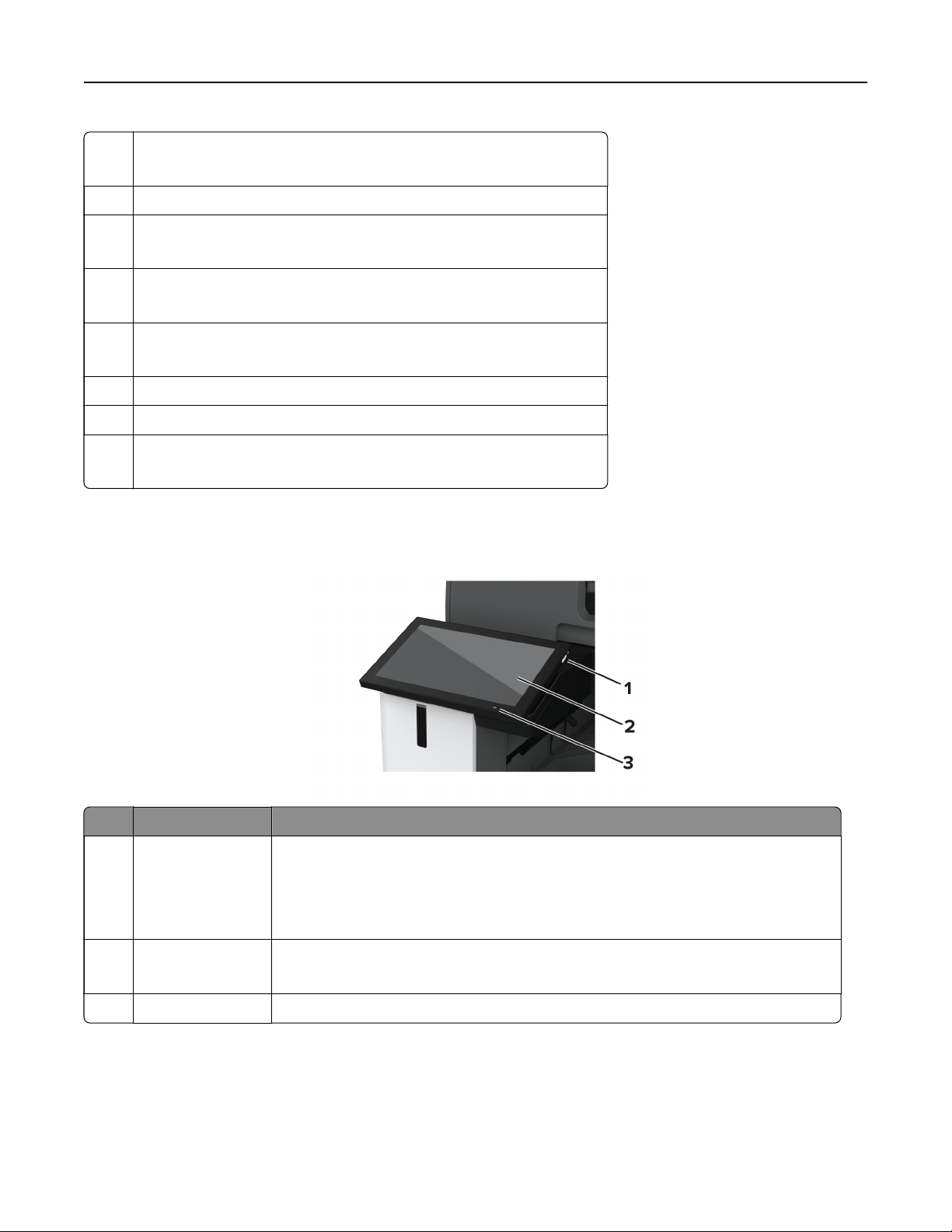
1 Staple finisher
Note: Not supported if another
finisher
is installed.
2 Optional 2 x 520-sheet tray
3 Staple, hole punch finisher
Note: Supported only if an optional tray or spacer is installed.
4 Trifold/Z‑fold finisher
Note: Supported only if an optional tray or spacer is installed.
5 Booklet finisher
Note: Supported only if an optional tray or spacer is installed.
6 Optional 2000-sheet tandem tray
7 Optional 2000-sheet tray
8 Paper transport
Note: Comes with the booklet
finisher
or staple, hole punch
finisher.
Using the control panel
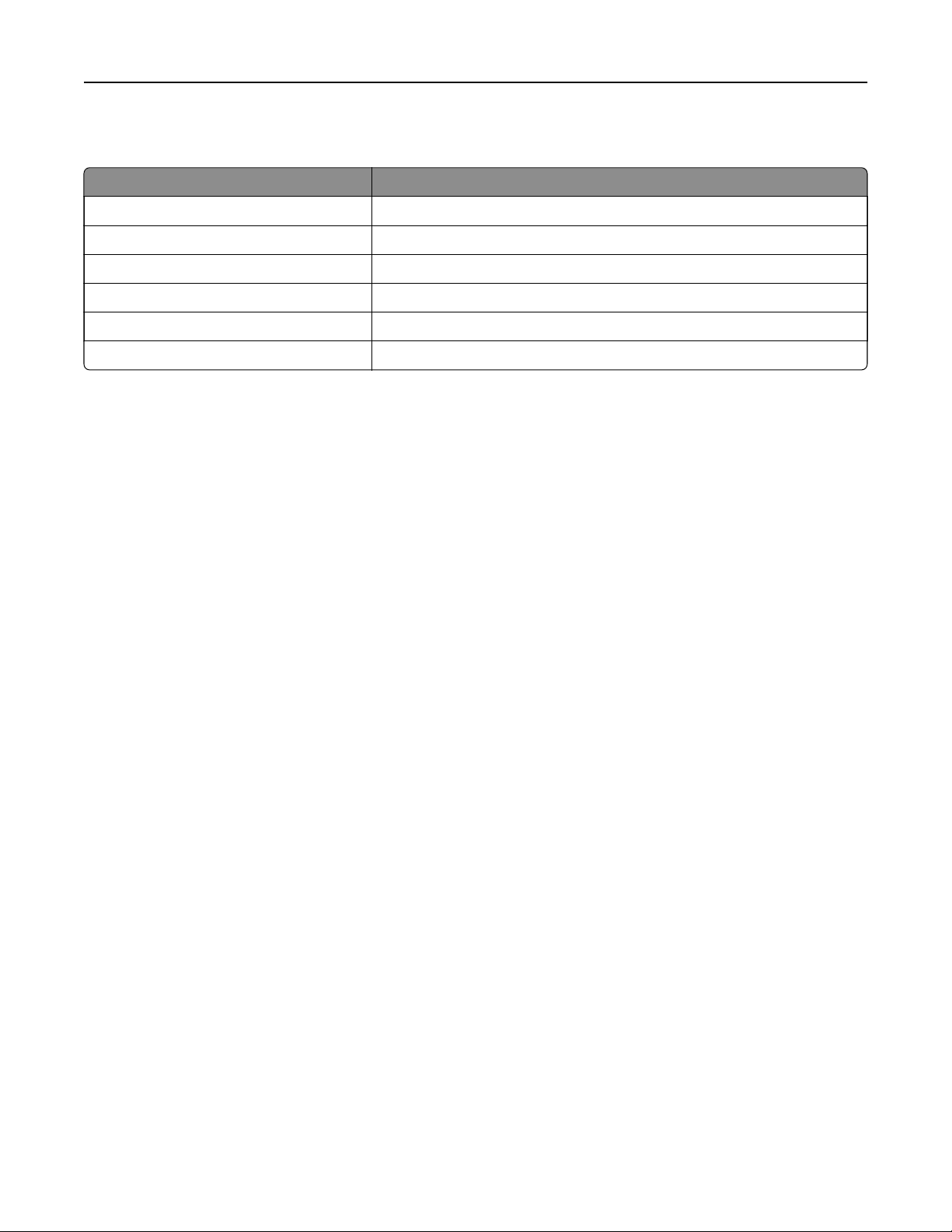
Control panel part Function
1 Power button
• Turn on or turn o the printer.
Note: To t u r n
o
the printer, press and hold the power button for
five
seconds.
• Set the printer to Sleep mode.
• Wake the printer from Sleep or Hibernate mode.
2 Display
• View the printer messages and supply status.
• Set up and operate the printer.
3 Indicator light Check the status of the printer.
Learn about the printer 14
Understanding the status of the indicator light
Indicator light Printer status
O The printer is o.
Solid blue The printer is ready.
Blinking blue The printer is printing or processing data.
Blinking red The printer requires user intervention.
Solid amber The printer is in Sleep mode.
Blinking amber The printer is in Deep Sleep or Hibernate mode.
Selecting paper
Paper guidelines
Use the appropriate paper to prevent jams and help ensure trouble‑free printing.
• Always use new, undamaged paper.
• Before loading paper, know the recommended printable side of the paper. This information is usually
indicated on the paper package.
• Do not use paper that has been cut or trimmed by hand.
• Do not mix paper sizes, types, or weights in the same tray; mixing results in jams.
• Do not use coated papers unless they are specifically designed for electrophotographic printing.
For more information, see the Paper and Specialty Media Guide.
Paper characteristics
The following paper characteristics aect print quality and reliability. Consider these factors before printing on
them.
Weight
Trays can feed paper of varying weights. Paper lighter than 60 g/m
2
(16 lb) may not be sti enough to feed
properly, and may cause jams. For more information, see the “Supported paper weights” topic.
Curl
Curl is the tendency for paper to curl at its edges. Excessive curl can cause paper feeding problems. Curl can
occur after the paper passes through the printer, where it is exposed to high temperatures. Storing paper
unwrapped in hot, humid, cold, or dry conditions can contribute to paper curling before printing and can cause
feeding problems.
Smoothness
Paper smoothness directly aects print quality. If paper is too rough, toner cannot fuse to it properly. If paper
is too smooth, it can cause paper feeding or print quality issues. We recommend the use of paper with 50
Sheeld
points.
Learn about the printer 15

Moisture content
The amount of moisture in paper
aects
both print quality and the printer ability to feed the paper correctly.
Leave paper in its original wrapper until you use it. Exposure of paper to moisture changes can degrade its
performance.
Before printing, store paper in its original wrapper for 24 to 48 hours. The environment in which the paper is
stored must be the same as the printer . Extend the time several days if the storage or transportation
environment is very
dierent
from the printer environment. Thick paper may also require a longer conditioning
period.
Grain direction
Grain refers to the alignment of the paper fibers in a sheet of paper. Grain is either grain long which runs the
length of the paper, or grain short which runs the width of the paper. For recommended grain direction, see the
“Supported paper weights” topic.
Fiber content
Most high‑quality xerographic paper is made from 100 percent chemically treated pulped wood. This content
provides the paper with a high degree of stability, resulting in fewer paper feeding problems and better print
quality. Paper containing fibers such as cotton can negatively aect paper handling.
Unacceptable paper
The following paper types are not recommended for use with the printer:
• Chemically treated papers that are used to make copies without carbon paper. They are also known as
carbonless papers, carbonless copy paper (CCP), or no carbon required (NCR) paper.
• Preprinted papers with chemicals that may contaminate the printer.
• Preprinted papers that can be aected by the temperature in the printer fuser.
• Preprinted papers that require a registration (the precise print location on the page) greater than ±2.3 mm
(±0.09 in.). For example, optical character recognition (OCR) forms.
Sometimes, registration can be adjusted with a software app to print successfully on these forms.
• Coated papers (erasable bond), synthetic papers, or thermal papers.
• Rough‑edged, rough or heavily textured surface papers, or curled papers.
• Recycled papers that fail EN12281:2002 (European).
• Paper weighing less than 60 g/m
2
(16 lb).
• Multiple‑part forms or documents.
Storing paper
Use these paper storage guidelines to help avoid jams and uneven print quality:
• Store paper in its original wrapper in the same environment as the printer for 24 to 48 hours before printing.
• Extend the time several days if the storage or transportation environment is very dierent from the printer
environment. Thick paper may also require a longer conditioning period.
• For best results, store paper where the temperature is 21°C (70°F) and the relative humidity is 40 percent.
• Most label manufacturers recommend printing in a temperature range of 18–24°C (65–75°F) with relative
humidity between 40 and 60 percent.
Learn about the printer 16
• Store paper in cartons, on a pallet or shelf, rather than on the floor.
• Store individual packages on a flat surface.
• Do not store anything on top of individual paper packages.
• Take paper out of the carton or wrapper only when you are ready to load it in the printer. The carton and
wrapper help keep the paper clean, dry, and flat.
Selecting preprinted forms and letterhead
• Use grain long paper.
• Use only forms and letterhead printed using an oset lithographic or engraved printing process.
• Avoid paper with rough or heavily textured surfaces.
• Use inks that are not aected by the resin in toner. Inks that are oxidation‑set or oil‑based generally meet
these requirements; latex inks might not.
• Print samples on preprinted forms and letterheads considered for use before buying large quantities. This
action determines whether the ink in the preprinted form or letterhead aects print quality.
• When in doubt, contact your paper supplier.
• When printing on letterhead, load the paper in the proper orientation for your printer. For more information,
see the Paper and Specialty Media Guide.
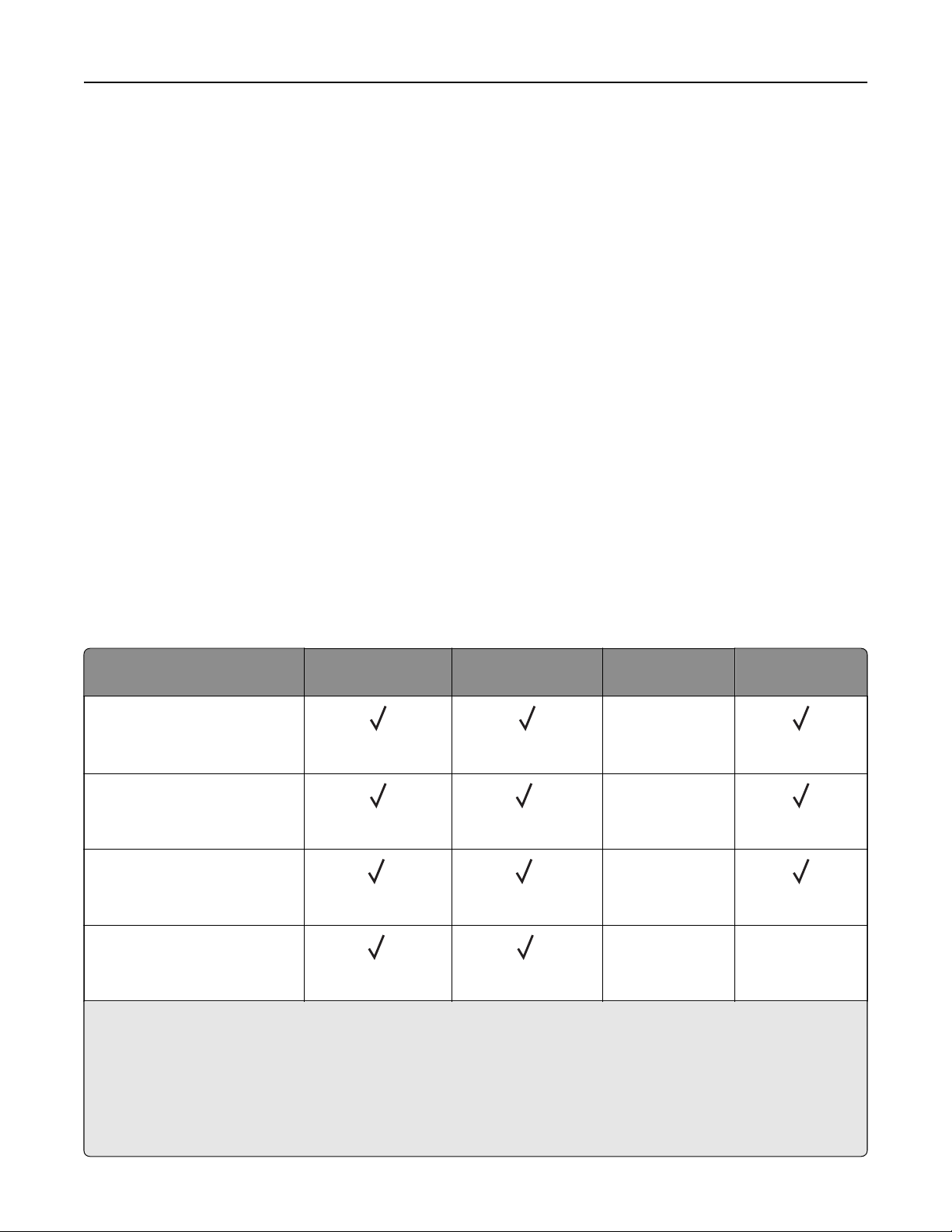
Supported paper sizes
Paper sizes supported by the standard tray, MPF, envelope tray, and two
‑sided printing
Paper size Standard 2 x
520
‑sheet tray
Multipurpose
feeder
Envelope tray Two
‑sided
printing
A3
1
297 x 420 mm
(11.69 x 16.54 in.)
X
A4
210 x 297 mm
(8.27 x 11.7 in.)
2
X
A5
148 x 210 mm
(5.83 x 8.27 in.)
1 2
X
A6
105 x 148 mm
(4.13 x 5.83 in.)
1 1
XX
1
Loads only in short‑edge orientation.
2
Loads only in long‑edge orientation.
3
Supports paper sizes ranging from 99.99 x 147.99 mm (3.93 x 5.83 in.) to 296.93 x 431.8 mm (11.69 x 17 in.).
4
Supports paper sizes ranging from 88.9 x 98.38 mm (3.5 x 3.87 in.) to 320.04 x 1320.8 mm (12.6 x 52 in.).
5
Supports paper sizes ranging from 128 x 139.7 mm (5 x 5.5 in.) to 320.04 x 482.6 mm (12.6 x 19 in.).
6
Supported only in tray 2.
Learn about the printer 17
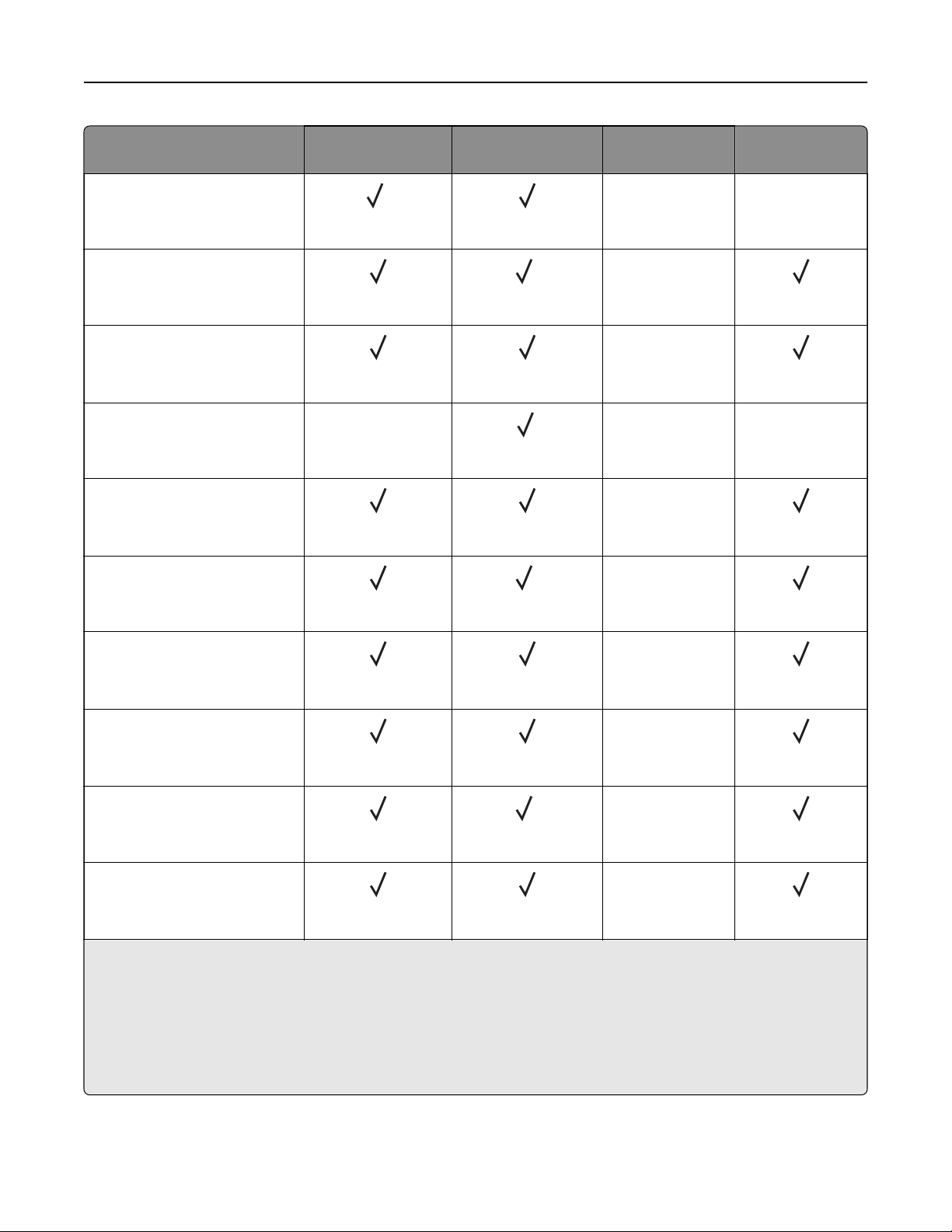
Paper size Standard 2 x
520
‑sheet tray
Multipurpose
feeder
Envelope tray Two
‑sided
printing
Arch B
304.8 x 457.2 mm
(12 x 18 in.)
6
XX
Executive
184.2 x 266.7 mm
(7.25 x 10.5 in.)
2
X
Folio
1
215.9 x 330.2 mm
(8.5 x 13 in.)
X
Hagaki
100 x 148 mm
(3.94 x 5.83 in.)
X
1
XX
JIS B4
1
257 x 364 mm
(10.12 x 14.33 in.)
X
JIS B5
182 x 257 mm
(7.17 x 10.1 in.)
2
X
Ledger
1
279.4 x 4431.8 mm
(11 x 17 in.)
X
Legal
1
215.9 x 355.6 mm
(8.5 x 14 in.)
X
Letter
215.9 x 279.4 mm
(8.5 x 11 in.)
2
X
Oficio (Mexico)
1
215.9 x 340.4 mm
(8.5 x 13.4 in.)
X
1
Loads only in short‑edge orientation.
2
Loads only in long‑edge orientation.
3
Supports paper sizes ranging from 99.99 x 147.99 mm (3.93 x 5.83 in.) to 296.93 x 431.8 mm (11.69 x 17 in.).
4
Supports paper sizes ranging from 88.9 x 98.38 mm (3.5 x 3.87 in.) to 320.04 x 1320.8 mm (12.6 x 52 in.).
5
Supports paper sizes ranging from 128 x 139.7 mm (5 x 5.5 in.) to 320.04 x 482.6 mm (12.6 x 19 in.).
6
Supported only in tray 2.
Learn about the printer 18
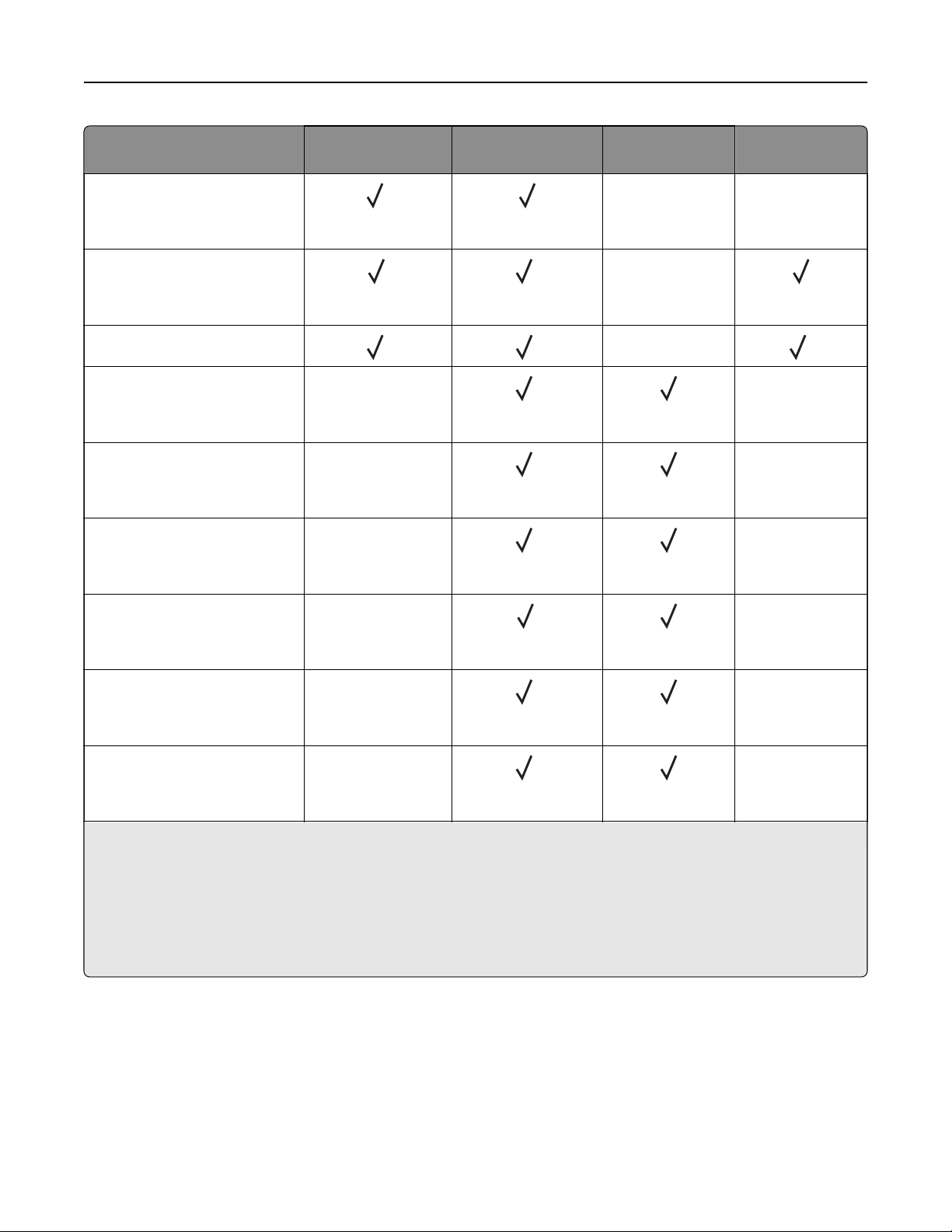
Paper size Standard 2 x
520
‑sheet tray
Multipurpose
feeder
Envelope tray Two
‑sided
printing
SRA3
320.04 x 449.58 mm
(12.6 x 17.7 in.)
6
XX
Statement
139.7 x 215.9 mm
(5.5 x 8.5 in.)
1 2
X
Universal
3 4
X
5
7 3/4 Envelope
98.4 x 190.5 mm
(3.875 x 7.5 in.)
X
2
X
9 Envelope
98.4 x 225.4 mm
(3.875 x 8.9 in.)
X
2
X
10 Envelope
104.8 x 241.3 mm
(4.12 x 9.5 in.)
X
2
X
B5 Envelope
176 x 250 mm
(6.93 x 9.84 in.)
X
1
X
C5 Envelope
162 x 229 mm
(6.38 x 9.01 in.)
X
2
X
DL Envelope
110 x 220 mm
(4.33 x 8.66 in.)
X
2
X
1
Loads only in short‑edge orientation.
2
Loads only in long‑edge orientation.
3
Supports paper sizes ranging from 99.99 x 147.99 mm (3.93 x 5.83 in.) to 296.93 x 431.8 mm (11.69 x 17 in.).
4
Supports paper sizes ranging from 88.9 x 98.38 mm (3.5 x 3.87 in.) to 320.04 x 1320.8 mm (12.6 x 52 in.).
5
Supports paper sizes ranging from 128 x 139.7 mm (5 x 5.5 in.) to 320.04 x 482.6 mm (12.6 x 19 in.).
6
Supported only in tray 2.
Learn about the printer 19
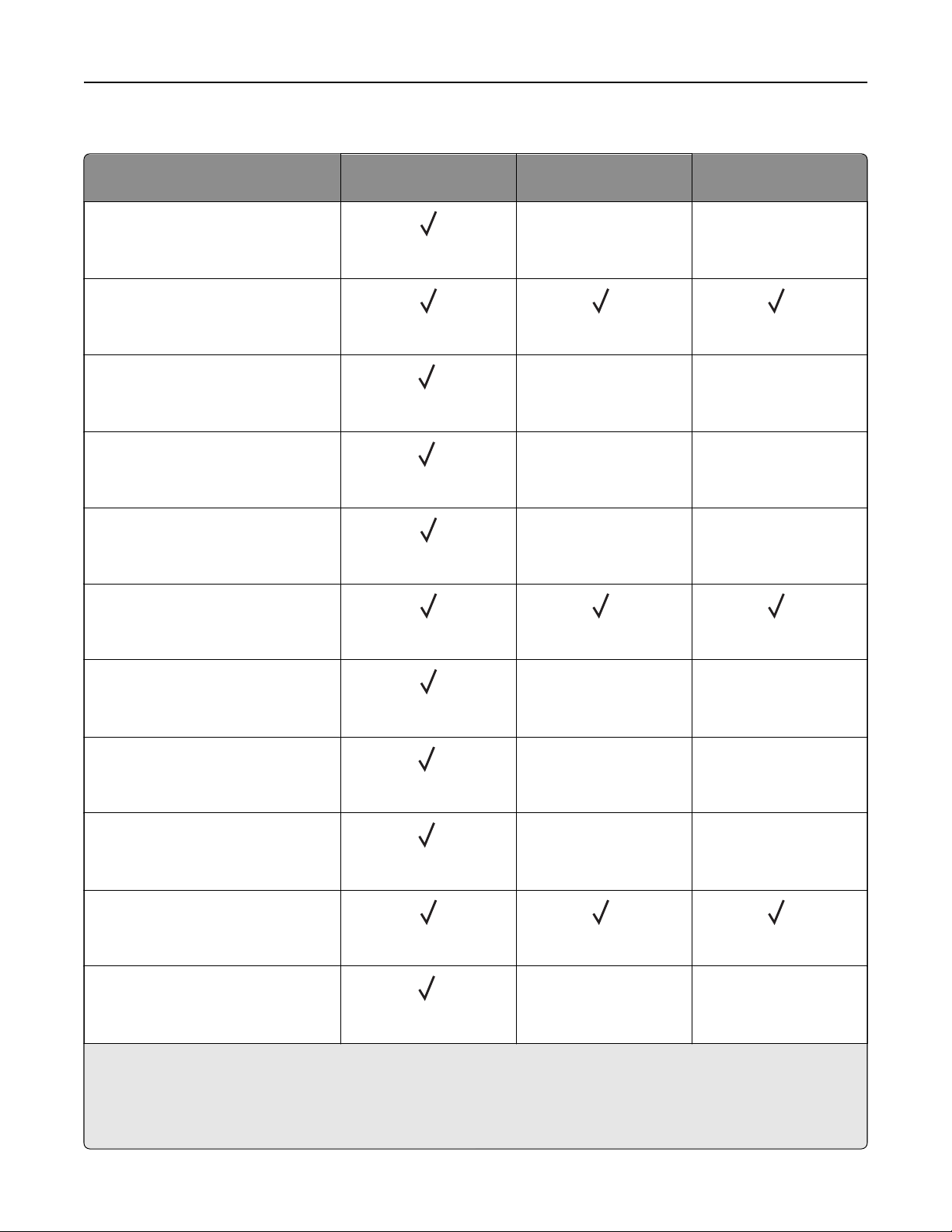
Paper sizes supported by the optional trays
Paper size Optional 2 x 520-sheet
tray
Optional 2000-sheet
tandem tray
Optional 2000-sheet
tray
A3
1
297 x 420 mm
(11.69 x 16.54 in.)
XX
A4
210 x 297 mm
(8.27 x 11.7 in.)
2 2
A5
1
148 x 210 mm
(5.83 x 8.27 in.)
1
XX
A6
105 x 148 mm
(4.13 x 5.83 in.)
1
XX
Arch B
304.8 x 457.2 mm
(12 x 18 in.)
XX
Executive
184.2 x 266.7 mm
(7.25 x 10.5 in.)
2 2
Folio
1
215.9 x 330.2 mm
(8.5 x 13 in.)
XX
Hagaki
100 x 148 mm
(3.94 x 5.83 in.)
1
XX
JIS B4
1
257 x 364 mm
(10.12 x 14.33 in.)
1
XX
JIS B5
182 x 257 mm
(7.17 x 10.1 in.)
2 2
Ledger
1
279.4 x 4431.8 mm
(11 x 17 in.)
1
XX
1
Loads only in short‑edge orientation.
2
Loads only in long‑edge orientation.
3
Supports paper sizes ranging from 99.99 x 147.99 mm (3.93 x 5.83 in.) to 296.93 x 431.8 mm (11.69 x 17 in.).
4
Supports paper sizes ranging from 99.99 x 147.99 mm (3.93 x 5.83 in.) to 320.04 x 457.2 mm (12.6 x 18 in.).
Learn about the printer 20
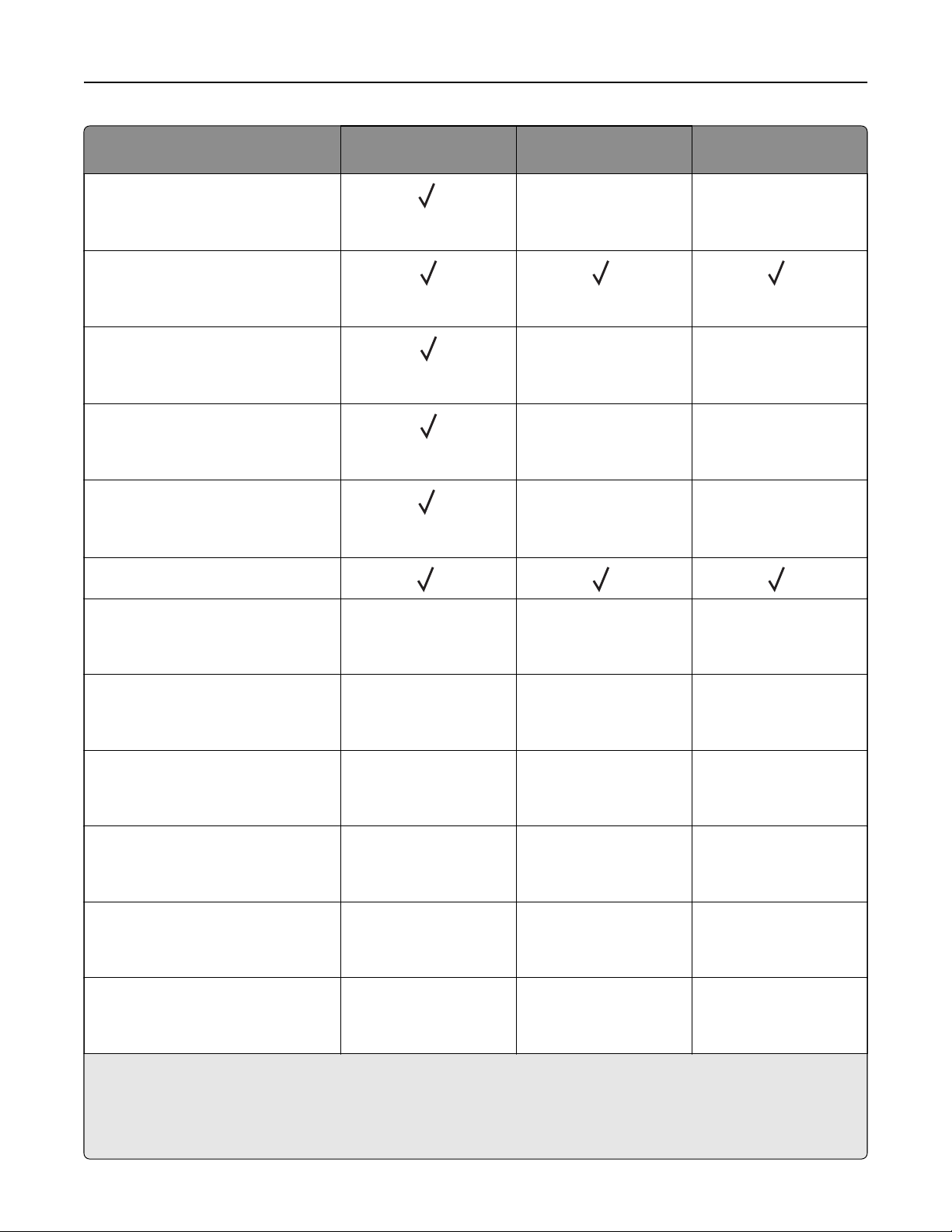
Paper size Optional 2 x 520-sheet
tray
Optional 2000-sheet
tandem tray
Optional 2000-sheet
tray
Legal
1
215.9 x 355.6 mm
(8.5 x 14 in.)
1
XX
Letter
215.9 x 279.4 mm
(8.5 x 11 in.)
2 2
Oficio (Mexico)
1
215.9 x 340.4 mm
(8.5 x 13.4 in.)
XX
SRA3
320.04 x 449.58 mm
(12.6 x 17.7 in.)
XX
Statement
1
139.7 x 215.9 mm
(5.5 x 8.5 in.)
1
XX
Universal
3 4 4
7 3/4 Envelope
98.4 x 190.5 mm
(3.875 x 7.5 in.)
XXX
9 Envelope
98.4 x 225.4 mm
(3.875 x 8.9 in.)
XXX
10 Envelope
104.8 x 241.3 mm
(4.12 x 9.5 in.)
XXX
B5 Envelope
176 x 250 mm
(6.93 x 9.84 in.)
XXX
C5 Envelope
162 x 229 mm
(6.38 x 9.01 in.)
XXX
DL Envelope
110 x 220 mm
(4.33 x 8.66 in.)
XXX
1
Loads only in short‑edge orientation.
2
Loads only in long‑edge orientation.
3
Supports paper sizes ranging from 99.99 x 147.99 mm (3.93 x 5.83 in.) to 296.93 x 431.8 mm (11.69 x 17 in.).
4
Supports paper sizes ranging from 99.99 x 147.99 mm (3.93 x 5.83 in.) to 320.04 x 457.2 mm (12.6 x 18 in.).
Learn about the printer 21
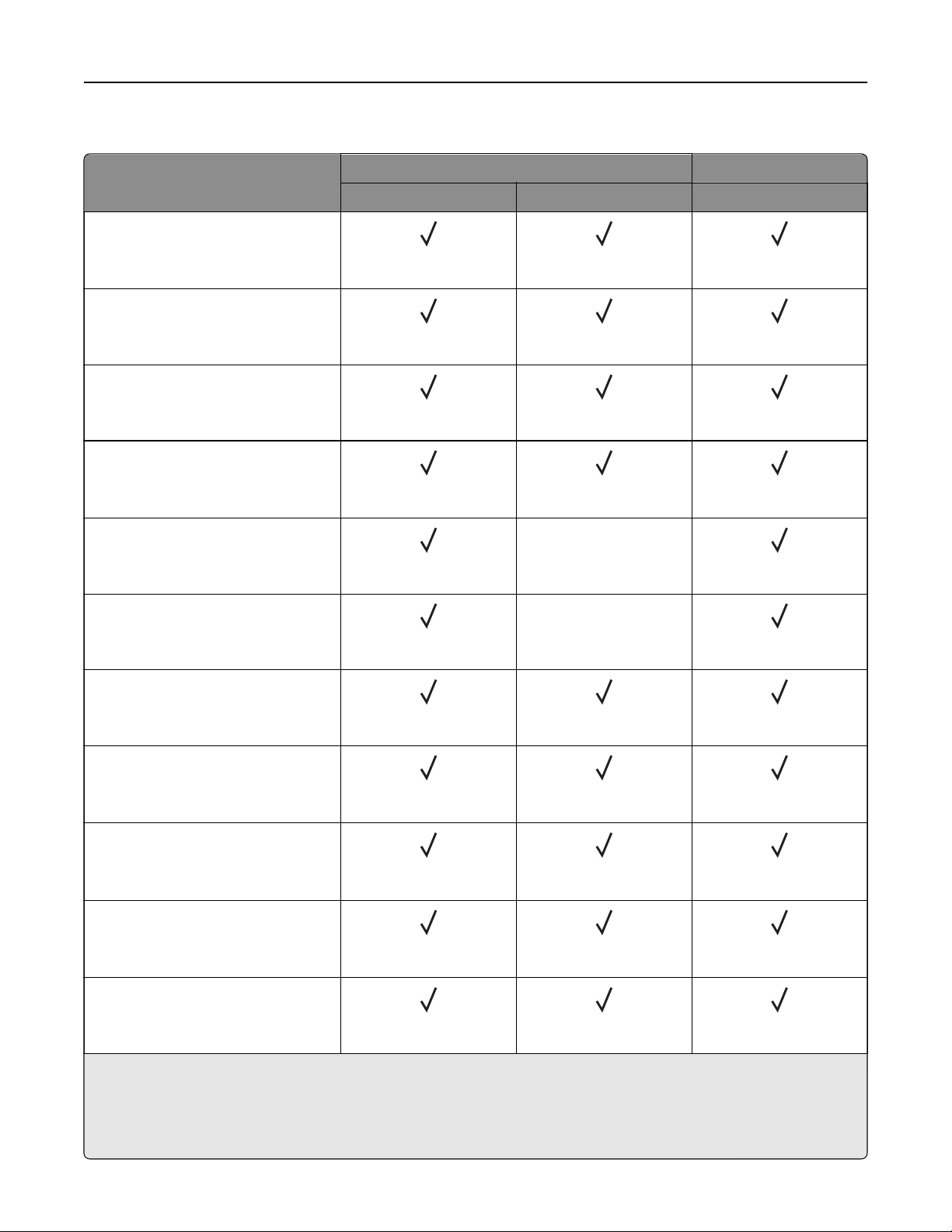
Paper sizes supported by the output bins
Paper size Standard bin Dual catch bin
Stack Oset Stack
A3
1
297 x 420 mm
(11.69 x 16.54 in.)
A4
210 x 297 mm
(8.27 x 11.7 in.)
A5
148 x 210 mm
(5.83 x 8.27 in.)
A6
1
105 x 148 mm
(4.13 x 5.83 in.)
Arch B
304.8 x 457.2 mm
(12 x 18 in.)
X
Banner
Max width: 215.9 mm (8.5 in.)
Max length: 1320.8 mm (52 in.)
X
Executive
184.2 x 266.7 mm
(7.25 x 10.5 in.)
Folio
1
215.9 x 330.2 mm
(8.5 x 13 in.)
Hagaki
1
100 x 148 mm
(3.94 x 5.83 in.)
JIS B4
1
257 x 364 mm
(10.12 x 14.33 in.)
JIS B5
182 x 257 mm
(7.17 x 10.1 in.)
1
Loads only in short‑edge orientation.
2
Loads only in long‑edge orientation.
3
Supports paper sizes ranging from 88.9 x 98.38 mm (3.5 x 3.87 in.) to 320.04 x 1320.8 mm (12.6 x 52 in.).
4
Supports paper sizes ranging from 88.9 x 98.38 mm (3.5 x 3.87 in.) to 296.93 x 431.8 mm (11.69 x 17 in.).
Learn about the printer 22
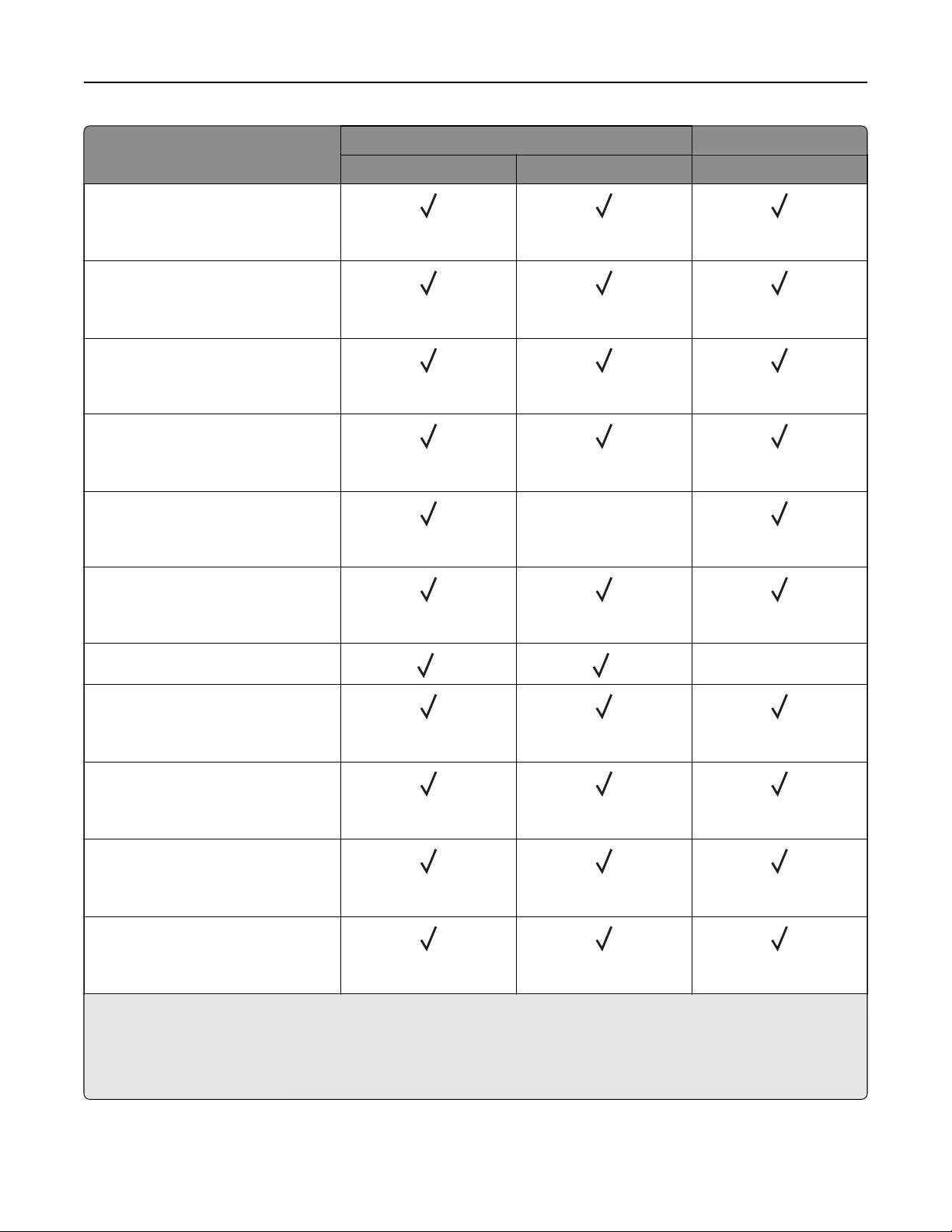
Paper size Standard bin Dual catch bin
Stack Oset Stack
Ledger
1
279.4 x 4431.8 mm
(11 x 17 in.)
Legal
1
215.9 x 355.6 mm
(8.5 x 14 in.)
Letter
215.9 x 279.4 mm
(8.5 x 11 in.)
Oficio (Mexico)
1
215.9 x 340.4 mm
(8.5 x 13.4 in.)
SRA3
320.04 x 449.58 mm
(12.6 x 17.7 in.)
X
Statement
139.7 x 215.9 mm
(5.5 x 8.5 in.)
Universal
3 4
X
7 3/4 Envelope
2
98.4 x 190.5 mm
(3.875 x 7.5 in.)
9 Envelope
2
98.4 x 225.4 mm
(3.875 x 8.9 in.)
10 Envelope
2
104.8 x 241.3 mm
(4.12 x 9.5 in.)
B5 Envelope
2
176 x 250 mm
(6.93 x 9.84 in.)
1
Loads only in short‑edge orientation.
2
Loads only in long‑edge orientation.
3
Supports paper sizes ranging from 88.9 x 98.38 mm (3.5 x 3.87 in.) to 320.04 x 1320.8 mm (12.6 x 52 in.).
4
Supports paper sizes ranging from 88.9 x 98.38 mm (3.5 x 3.87 in.) to 296.93 x 431.8 mm (11.69 x 17 in.).
Learn about the printer 23
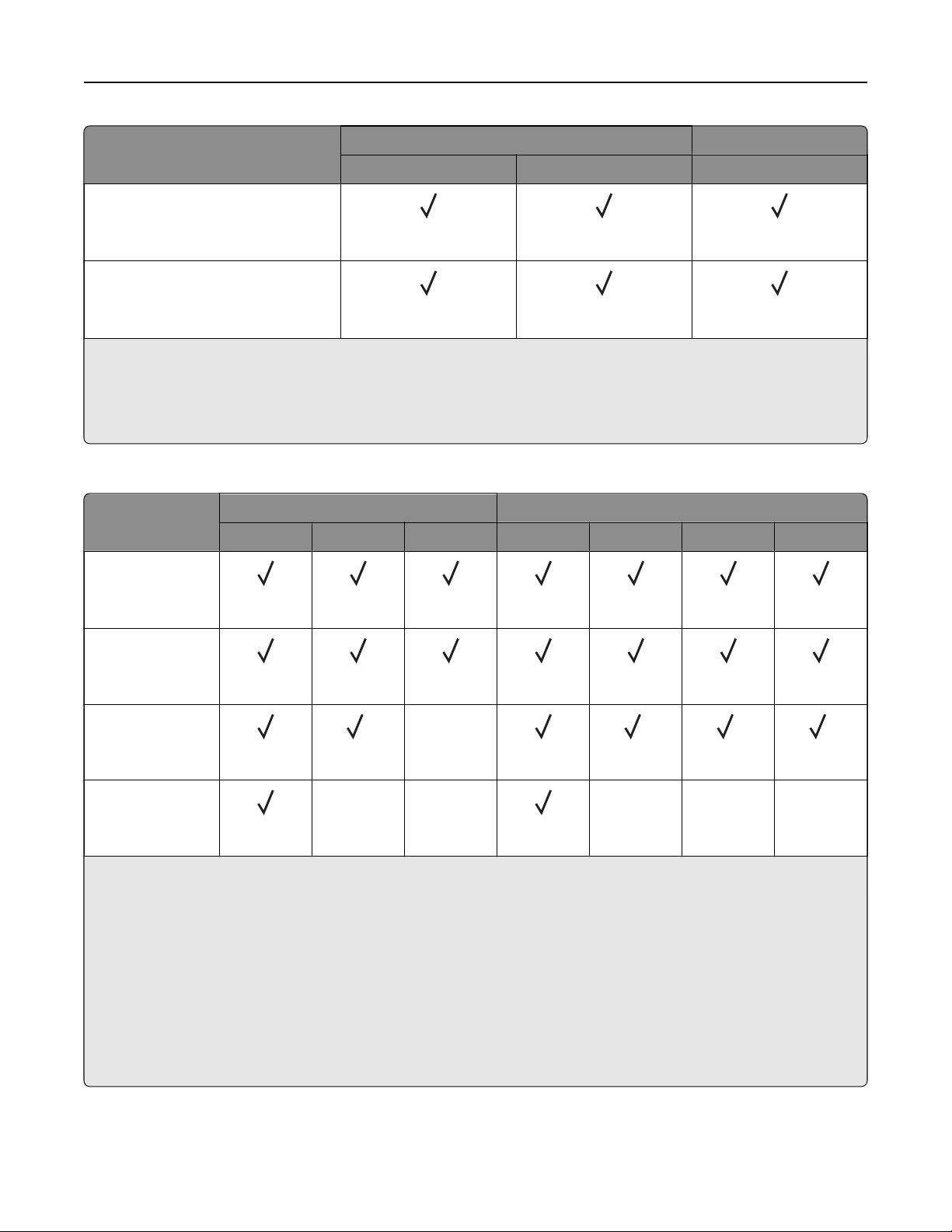
Paper size Standard bin Dual catch bin
Stack Oset Stack
C5 Envelope
2
162 x 229 mm
(6.38 x 9.01 in.)
DL Envelope
2
110 x 220 mm
(4.33 x 8.66 in.)
1
Loads only in short‑edge orientation.
2
Loads only in long‑edge orientation.
3
Supports paper sizes ranging from 88.9 x 98.38 mm (3.5 x 3.87 in.) to 320.04 x 1320.8 mm (12.6 x 52 in.).
4
Supports paper sizes ranging from 88.9 x 98.38 mm (3.5 x 3.87 in.) to 296.93 x 431.8 mm (11.69 x 17 in.).
Paper sizes supported by the staple finisher and the staple, hole punch finisher
Paper size Staple finisher Staple, hole punch finisher
Stack Oset Staple Stack Oset Staple Hole punch
A3
1
297 x 420 mm
(11.69 x 16.54 in.)
A4
210 x 297 mm
(8.27 x 11.7 in.)
A5
148 x 210 mm
(5.83 x 8.27 in.)
2
X
2 2 6
A6
105 x 148 mm
(4.13 x 5.83 in.)
XX XXX
1
Loads only in short‑edge orientation.
2
Loads only in long‑edge orientation.
3
Supports paper sizes ranging from 88.9 x 98.38 mm (3.5 x 3.87 in.) to 296.93 x 431.8 mm (11.69 x 17 in.).
4
Supports paper sizes ranging from 190 x 139.7 mm (7.48 x 5.5 in.) to 296.93 x 431.8 mm (11.69 x 17 in.).
5
Supports paper sizes ranging from 202.9 x 182.03 mm (7.99 x 7.17 in.) to 296.93 x 431.8 mm (11.69 x 17 in.).
6
Supports only up to two‑hole punching.
7
Supports only up to two‑hole punching when loaded in short‑edge orientation.
8
Supports paper sizes ranging from 88.9 x 98.38 mm (3.5 x 3.87 in.) to 320.04 x 1320.8 mm (12.6 x 52 in.).
9
Supports paper sizes ranging from 209.97 x 148 mm (8.27 x 5.83 in.) to 296.93 x 431.8 mm (11.69 x 17 in.).
Learn about the printer 24
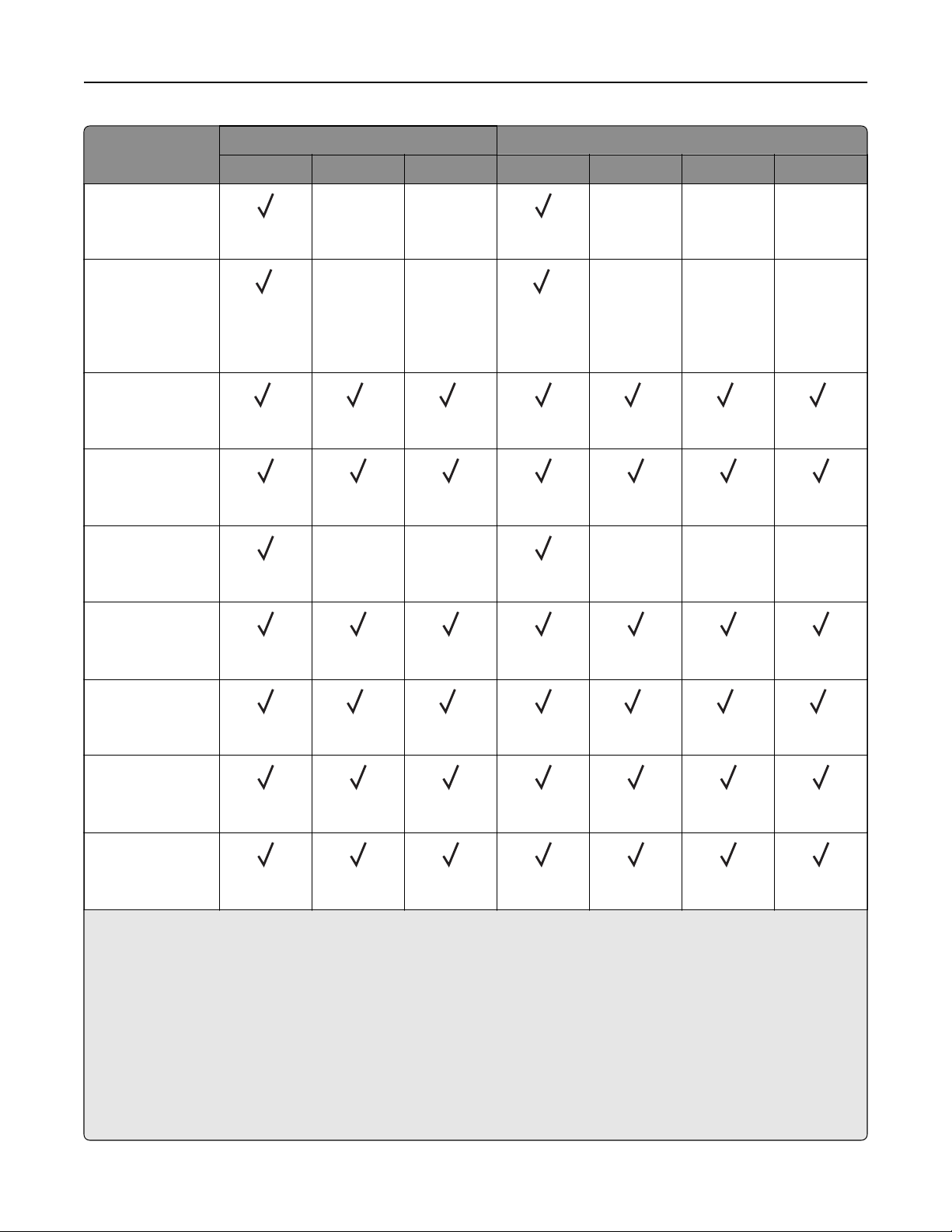
Paper size Staple finisher Staple, hole punch finisher
Stack Oset Staple Stack Oset Staple Hole punch
Arch B
304.8 x 457.2 mm
(12 x 18 in.)
XX XXX
Banner
Max width: 215.9
mm (8.5 in.)
Max length: 1320.8
mm (52 in.)
1
XX
1
XXX
Executive
184.2 x 266.7 mm
(7.25 x 10.5 in.)
2 2 2 2 2 2
Folio
1
215.9 x 330.2 mm
(8.5 x 13 in.)
Hagaki
100 x 148 mm
(3.94 x 5.83 in.)
XX XXX
JIS B4
1
257 x 364 mm
(10.12 x 14.33 in.)
JIS B5
182 x 257 mm
(7.17 x 10.1 in.)
2 2 2 2 7
Ledger
1
279.4 x 4431.8 mm
(11 x 17 in.)
Legal
1
215.9 x 355.6 mm
(8.5 x 14 in.)
1
Loads only in short‑edge orientation.
2
Loads only in long‑edge orientation.
3
Supports paper sizes ranging from 88.9 x 98.38 mm (3.5 x 3.87 in.) to 296.93 x 431.8 mm (11.69 x 17 in.).
4
Supports paper sizes ranging from 190 x 139.7 mm (7.48 x 5.5 in.) to 296.93 x 431.8 mm (11.69 x 17 in.).
5
Supports paper sizes ranging from 202.9 x 182.03 mm (7.99 x 7.17 in.) to 296.93 x 431.8 mm (11.69 x 17 in.).
6
Supports only up to two‑hole punching.
7
Supports only up to two‑hole punching when loaded in short‑edge orientation.
8
Supports paper sizes ranging from 88.9 x 98.38 mm (3.5 x 3.87 in.) to 320.04 x 1320.8 mm (12.6 x 52 in.).
9
Supports paper sizes ranging from 209.97 x 148 mm (8.27 x 5.83 in.) to 296.93 x 431.8 mm (11.69 x 17 in.).
Learn about the printer 25
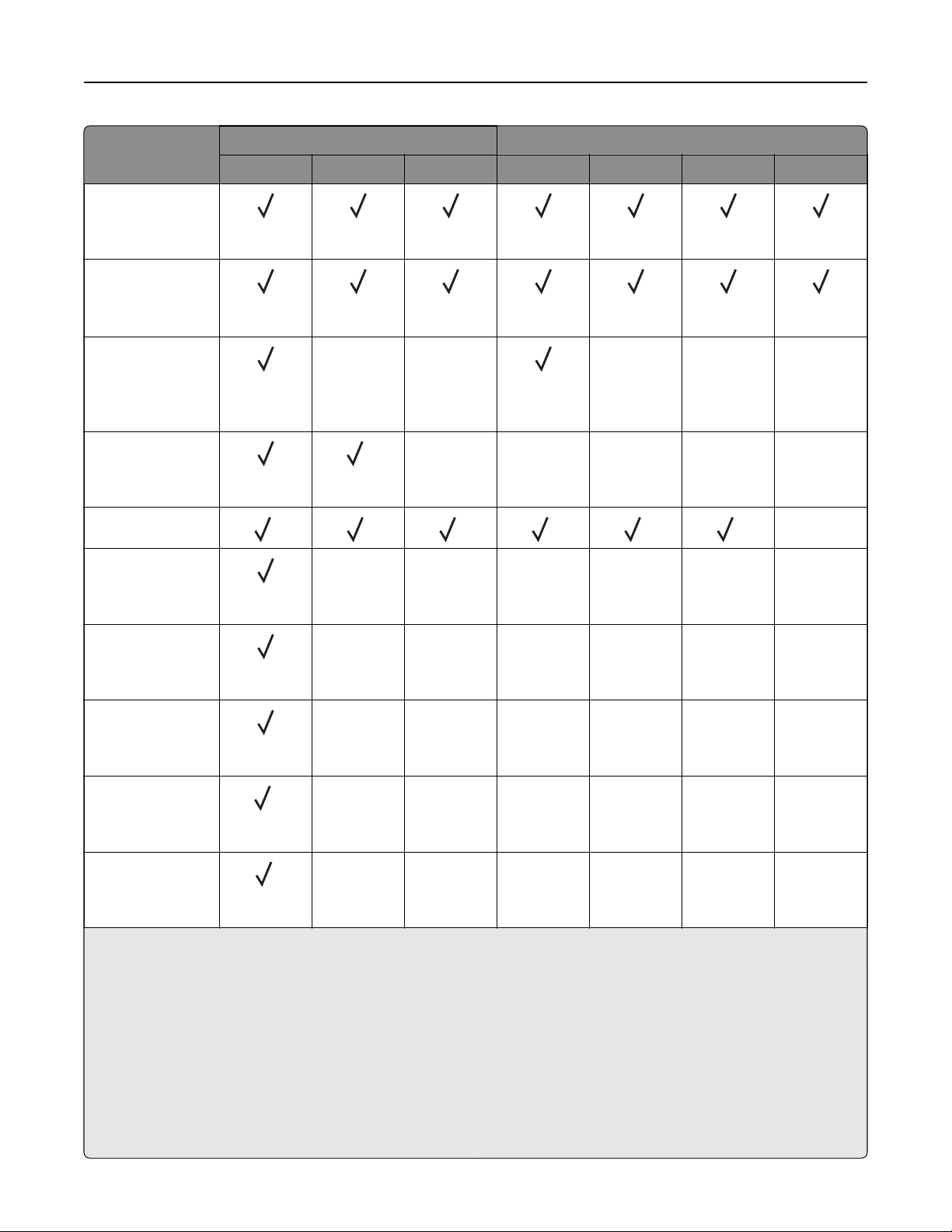
Paper size Staple finisher Staple, hole punch finisher
Stack Oset Staple Stack Oset Staple Hole punch
Letter
215.9 x 279.4 mm
(8.5 x 11 in.)
Oficio (Mexico)
1
215.9 x 340.4 mm
(8.5 x 13.4 in.)
SRA3
320.04 x 449.58
mm
(12.6 x 17.7 in.)
XX XXX
Statement
139.7 x 215.9 mm
(5.5 x 8.5 in.)
2
XXXXX
Universal
3 4 5 8 9 9
X
7 3/4 Envelope
98.4 x 190.5 mm
(3.875 x 7.5 in.)
XXXXXX
9 Envelope
98.4 x 225.4 mm
(3.875 x 8.9 in.)
XXXXXX
10 Envelope
104.8 x 241.3 mm
(4.12 x 9.5 in.)
XXXXXX
B5 Envelope
176 x 250 mm
(6.93 x 9.84 in.)
2
XXXXXX
C5 Envelope
162 x 229 mm
(6.38 x 9.01 in.)
1
XXXXXX
1
Loads only in short‑edge orientation.
2
Loads only in long‑edge orientation.
3
Supports paper sizes ranging from 88.9 x 98.38 mm (3.5 x 3.87 in.) to 296.93 x 431.8 mm (11.69 x 17 in.).
4
Supports paper sizes ranging from 190 x 139.7 mm (7.48 x 5.5 in.) to 296.93 x 431.8 mm (11.69 x 17 in.).
5
Supports paper sizes ranging from 202.9 x 182.03 mm (7.99 x 7.17 in.) to 296.93 x 431.8 mm (11.69 x 17 in.).
6
Supports only up to two‑hole punching.
7
Supports only up to two‑hole punching when loaded in short‑edge orientation.
8
Supports paper sizes ranging from 88.9 x 98.38 mm (3.5 x 3.87 in.) to 320.04 x 1320.8 mm (12.6 x 52 in.).
9
Supports paper sizes ranging from 209.97 x 148 mm (8.27 x 5.83 in.) to 296.93 x 431.8 mm (11.69 x 17 in.).
Learn about the printer 26
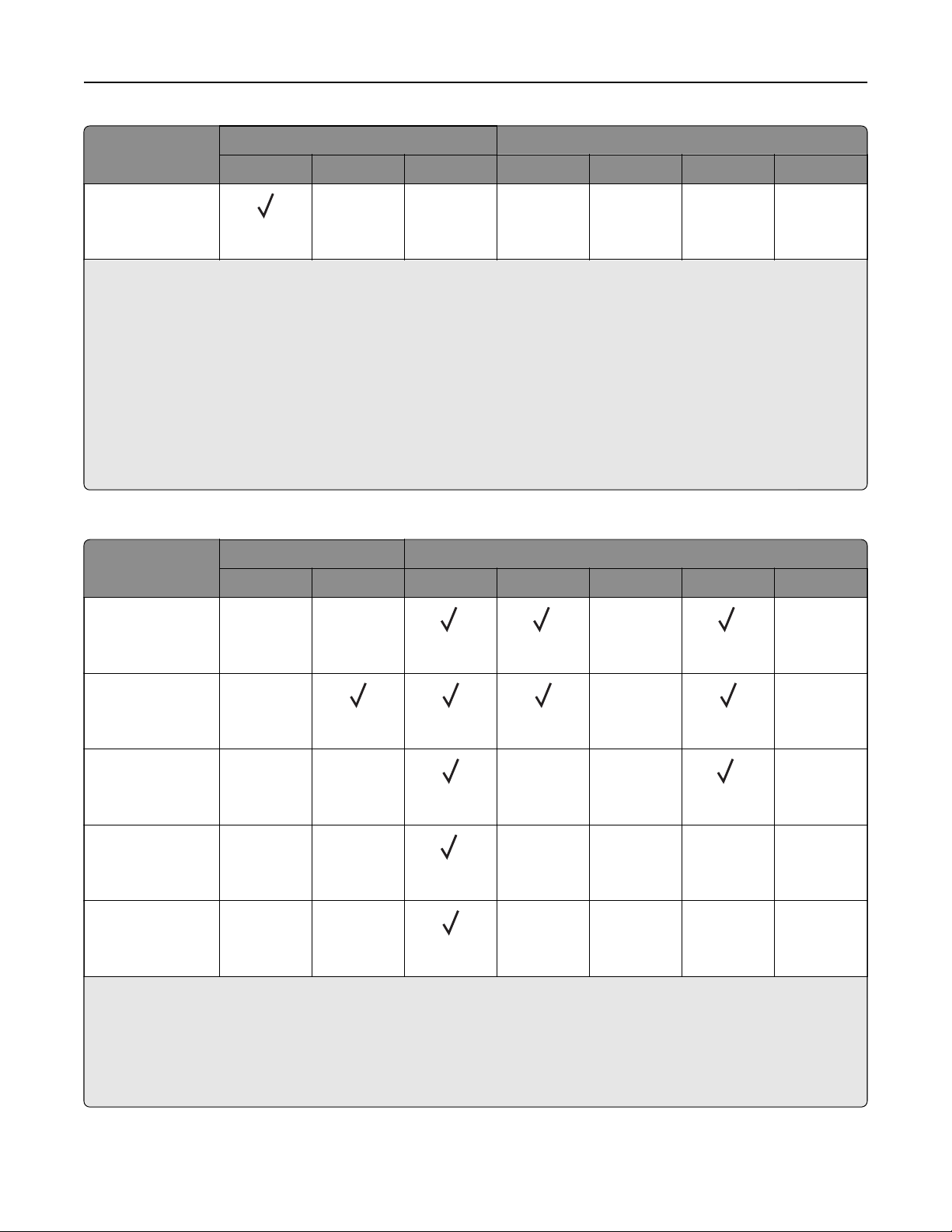
Paper size Staple finisher Staple, hole punch finisher
Stack Oset Staple Stack Oset Staple Hole punch
DL Envelope
110 x 220 mm
(4.33 x 8.66 in.)
XXXXXX
1
Loads only in short‑edge orientation.
2
Loads only in long‑edge orientation.
3
Supports paper sizes ranging from 88.9 x 98.38 mm (3.5 x 3.87 in.) to 296.93 x 431.8 mm (11.69 x 17 in.).
4
Supports paper sizes ranging from 190 x 139.7 mm (7.48 x 5.5 in.) to 296.93 x 431.8 mm (11.69 x 17 in.).
5
Supports paper sizes ranging from 202.9 x 182.03 mm (7.99 x 7.17 in.) to 296.93 x 431.8 mm (11.69 x 17 in.).
6
Supports only up to two‑hole punching.
7
Supports only up to two‑hole punching when loaded in short‑edge orientation.
8
Supports paper sizes ranging from 88.9 x 98.38 mm (3.5 x 3.87 in.) to 320.04 x 1320.8 mm (12.6 x 52 in.).
9
Supports paper sizes ranging from 209.97 x 148 mm (8.27 x 5.83 in.) to 296.93 x 431.8 mm (11.69 x 17 in.).
Paper sizes supported by the trifold/Z‑fold finisher and the booklet finisher
Paper size Trifold/Z‑fold finisher Booklet finisher
Trifold Z
‑fold Stack Oset Staple Hole punch Fold
A3
297 x 420 mm
(11.69 x 16.54 in.)
XX
1 1
X
1
X
A4
210 x 297 mm
(8.27 x 11.7 in.)
X
X X
A5
148 x 210 mm
(5.83 x 8.27 in.)
XX
XX
3
X
A6
105 x 148 mm
(4.13 x 5.83 in.)
XX
1
XXXX
Arch B
304.8 x 457.2 mm
(12 x 18 in.)
XX
XXXX
1
Loads only in short‑edge orientation.
2
Loads only in long‑edge orientation.
3
Supports only up to two‑hole punching when loaded in long‑edge orientation.
4
Supports paper sizes ranging from 202.9 x 181.86 mm (7.99 x 7.16 in.) to 320.04 x 482.94 mm (12.6 x 19.01 in.).
5
Supports paper sizes ranging from 202.9 x 181.86 mm (7.99 x 7.16 in.) to 296.93 x 431.8 mm (17 x 11.69 in.)
Learn about the printer 27
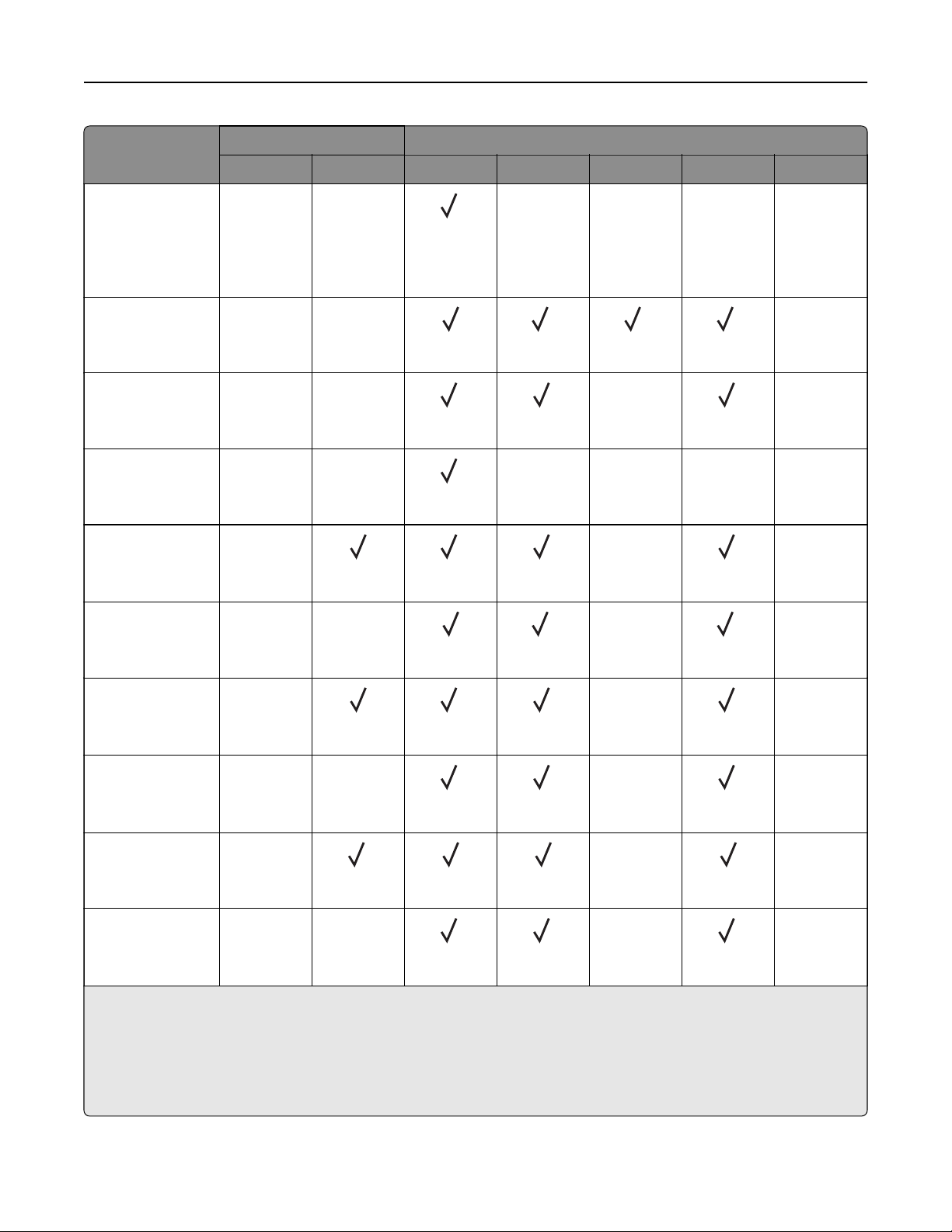
Paper size Trifold/Z‑fold finisher Booklet finisher
Trifold Z
‑fold Stack Oset Staple Hole punch Fold
Banner
Max width: 215.9
mm (8.5 in.)
Max length: 1320.8
mm (52 in.)
XX
1
XXXX
Executive
184.2 x 266.7 mm
(7.25 x 10.5 in.)
XX
2 2 2
X
Folio
215.9 x 330.2 mm
(8.5 x 13 in.)
XX
1 1
X
1
X
Hagaki
100 x 148 mm
(3.94 x 5.83 in.)
XX
1
XXXX
JIS B4
1
257 x 364 mm
(10.12 x 14.33 in.)
X
1 1
X
1
X
JIS B5
182 x 257 mm
(7.17 x 10.1 in.)
XX
2
X
2
X
Ledger
1
279.4 x 4431.8 mm
(11 x 17 in.)
X
1 1
X
1
X
Legal
1
215.9 x 355.6 mm
(8.5 x 14 in.)
XX
1 1
X
1
X
Letter
215.9 x 279.4 mm
(8.5 x 11 in.)
X
1
X X
Oficio (Mexico)
1
215.9 x 340.4 mm
(8.5 x 13.4 in.)
XX
1 1
X
1
X
1
Loads only in short‑edge orientation.
2
Loads only in long‑edge orientation.
3
Supports only up to two‑hole punching when loaded in long‑edge orientation.
4
Supports paper sizes ranging from 202.9 x 181.86 mm (7.99 x 7.16 in.) to 320.04 x 482.94 mm (12.6 x 19.01 in.).
5
Supports paper sizes ranging from 202.9 x 181.86 mm (7.99 x 7.16 in.) to 296.93 x 431.8 mm (17 x 11.69 in.)
Learn about the printer 28
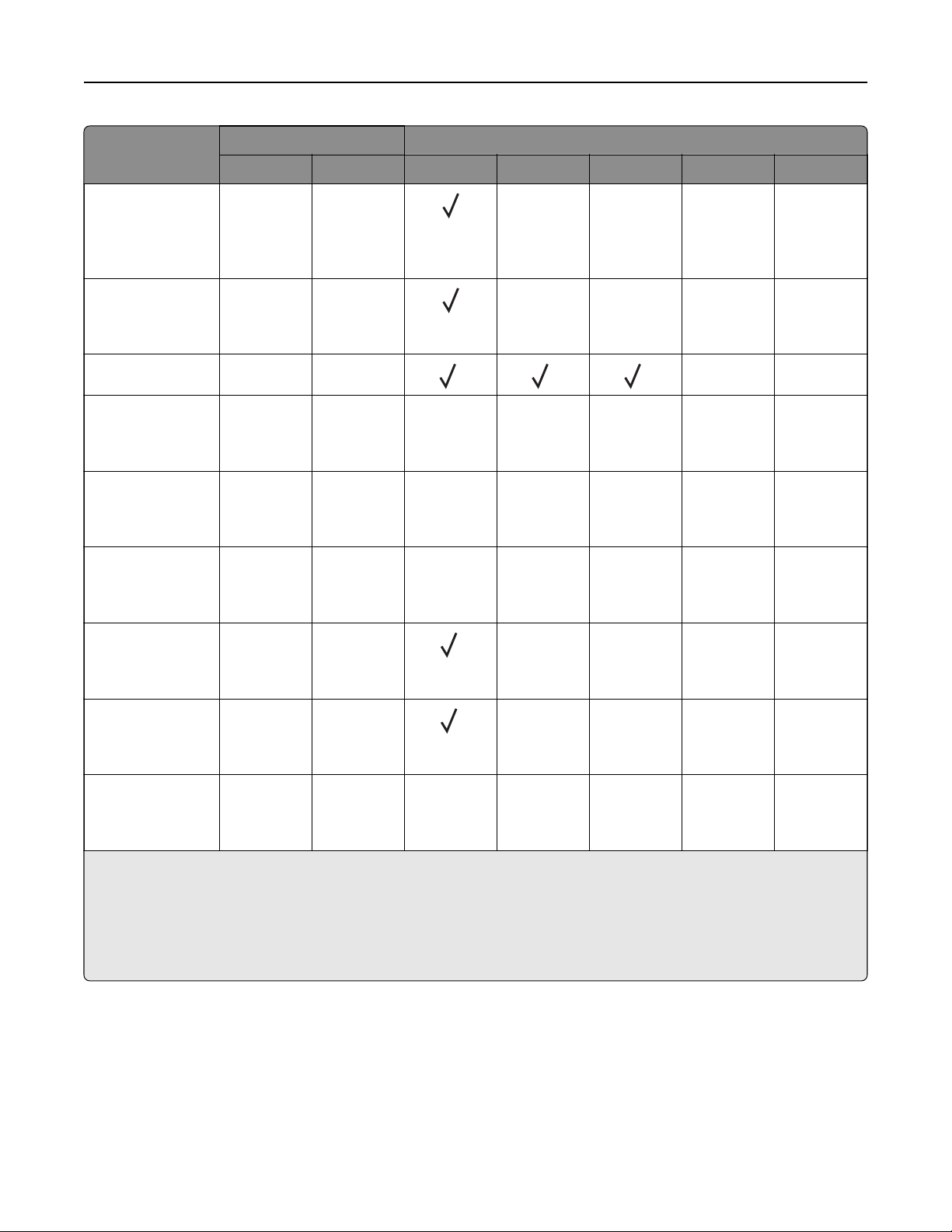
Paper size Trifold/Z‑fold finisher Booklet finisher
Trifold Z
‑fold Stack Oset Staple Hole punch Fold
SRA3
320.04 x 449.58
mm
(12.6 x 17.7 in.)
XX
XXXX
Statement
139.7 x 215.9 mm
(5.5 x 8.5 in.)
XX
XXXX
Universal X X
4 5 5
XX
7 3/4 Envelope
98.4 x 190.5 mm
(3.875 x 7.5 in.)
XXXXXXX
9 Envelope
98.4 x 225.4 mm
(3.875 x 8.9 in.)
XXXXXXX
10 Envelope
104.8 x 241.3 mm
(4.12 x 9.5 in.)
XXXXXXX
B5 Envelope
176 x 250 mm
(6.93 x 9.84 in.)
XX
1
XXXX
C5 Envelope
162 x 229 mm
(6.38 x 9.01 in.)
XX
1
XXXX
DL Envelope
110 x 220 mm
(4.33 x 8.66 in.)
XXXXXXX
1
Loads only in short‑edge orientation.
2
Loads only in long‑edge orientation.
3
Supports only up to two‑hole punching when loaded in long‑edge orientation.
4
Supports paper sizes ranging from 202.9 x 181.86 mm (7.99 x 7.16 in.) to 320.04 x 482.94 mm (12.6 x 19.01 in.).
5
Supports paper sizes ranging from 202.9 x 181.86 mm (7.99 x 7.16 in.) to 296.93 x 431.8 mm (17 x 11.69 in.)
Learn about the printer 29
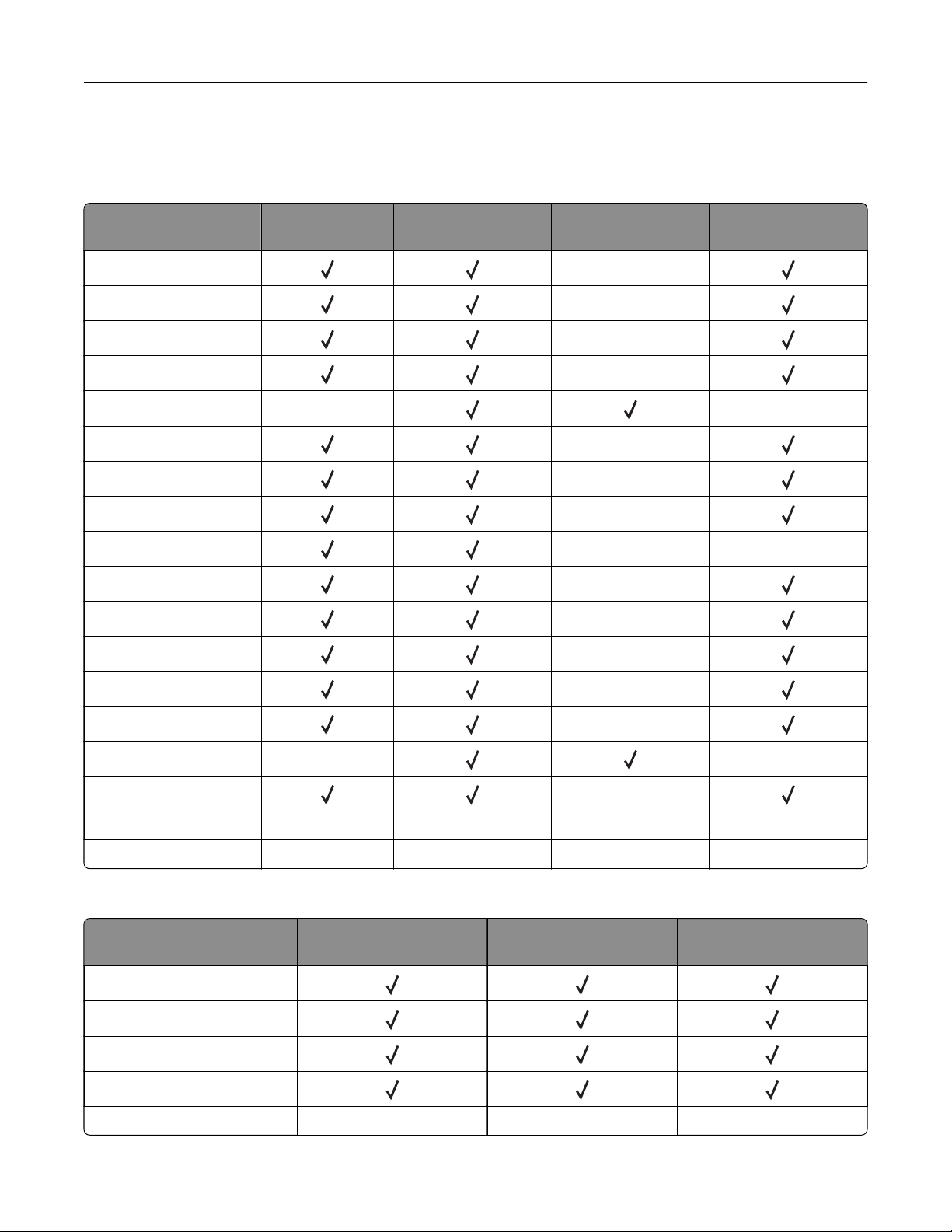
Supported paper types
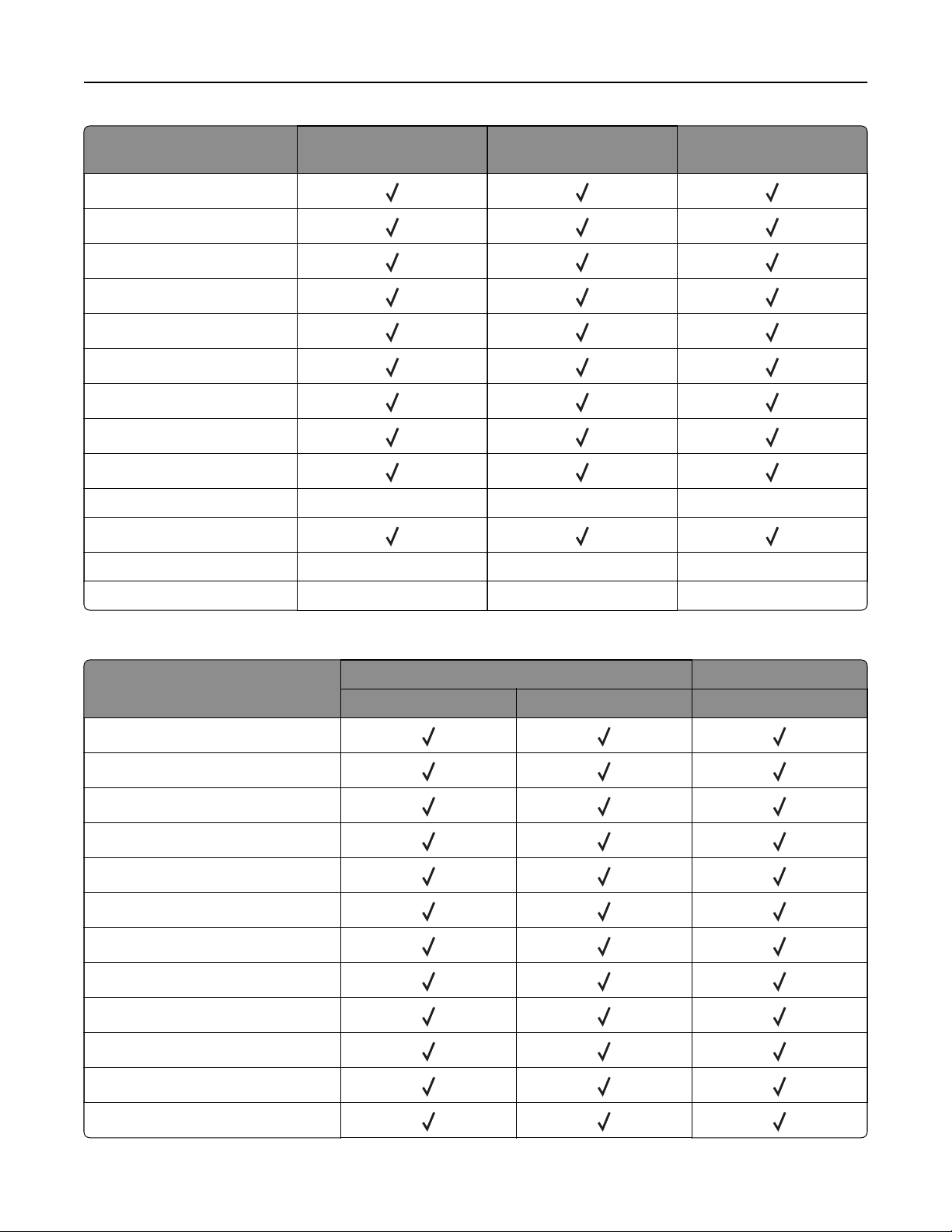
Paper types supported by the standard tray, MPF, envelope tray, and two
‑sided printing
Paper type Standard 2 x
520
‑sheet tray
Multipurpose feeder Envelope tray Two
‑sided printing
Bond
X
Card Stock X
Colored Paper X
Custom Type X
Envelope X X
Glossy
X
Heavy Glossy X
Heavy Paper X
Labels XX
Letterhead
X
Light Paper X
Plain Paper X
Preprinted X
Recycled X
Rough Envelope X X
Rough Cotton
X
Transparencies X X X X
Vinyl Labels X X X X
Paper types supported by the optional trays
Paper type Optional 2 x 520-sheet
tray
Optional 2000-sheet
tandem tray
Optional 2000-sheet tray
Bond
Card Stock
Colored Paper
Custom Type
Envelope X X X
Learn about the printer 30
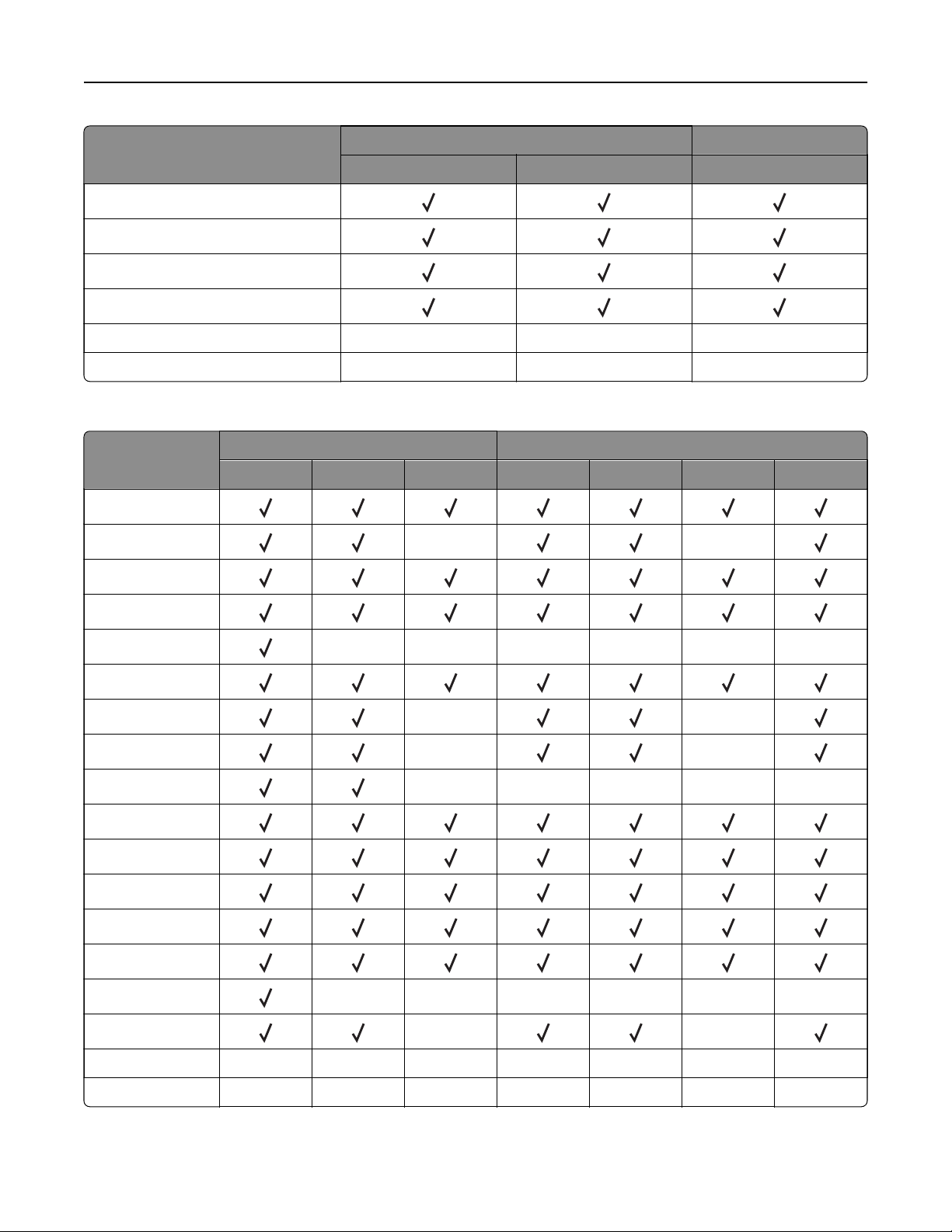
Paper type Optional 2 x 520-sheet
tray
Optional 2000-sheet
tandem tray
Optional 2000-sheet tray
Glossy
Heavy Glossy
Heavy Paper
Labels
Letterhead
Light Paper
Plain Paper
Preprinted
Recycled
Rough Envelope XXX
Rough Cotton
Transparencies X X X
Vinyl Labels XXX
Paper types supported by the output bins
Paper type Standard bin Dual catch bin
Stack Oset Stack
Bond
Card Stock
Colored Paper
Custom Type
Envelope
Glossy
Heavy Glossy
Heavy Paper
Labels
Letterhead
Light Paper
Plain Paper
Learn about the printer 31
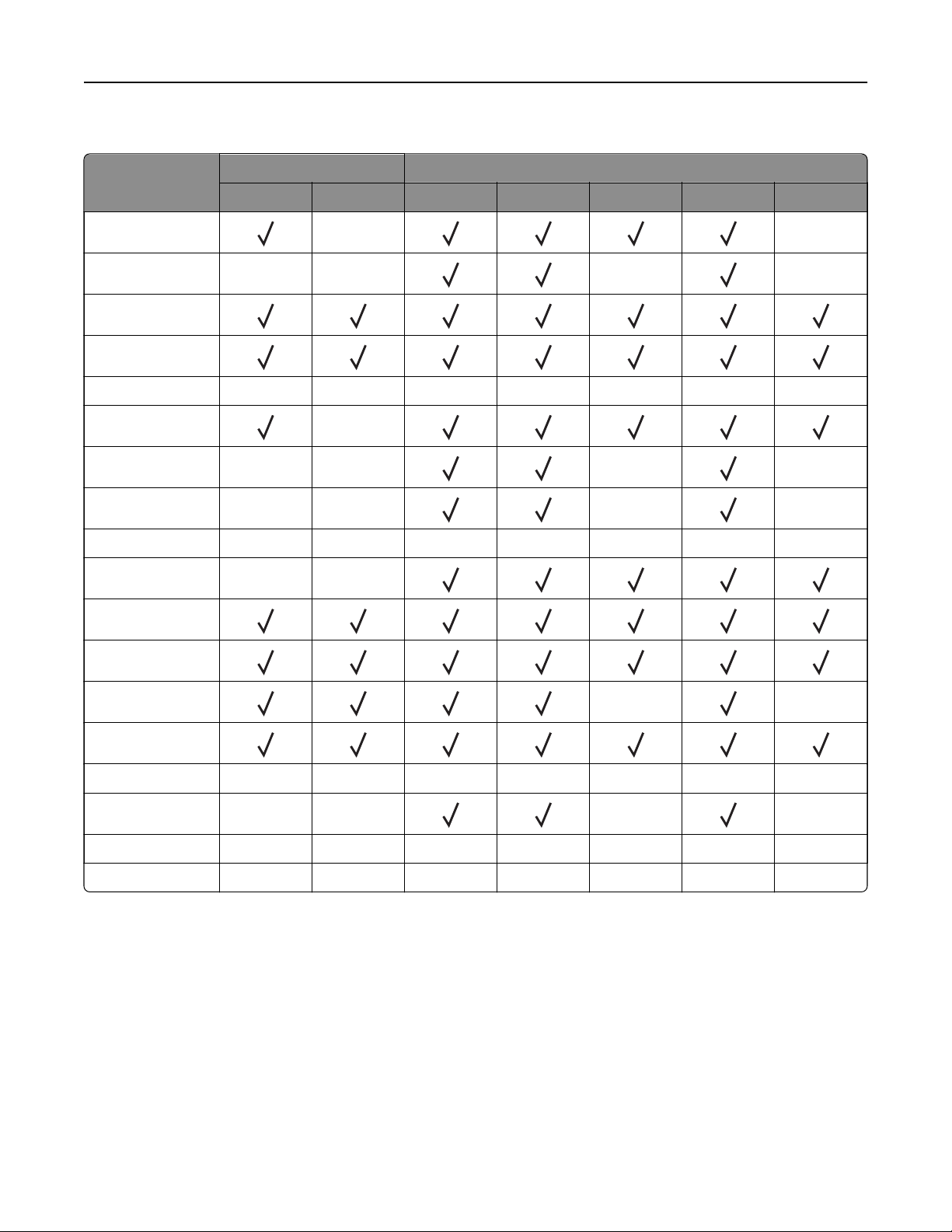
Paper type Standard bin Dual catch bin
Stack Oset Stack
Preprinted
Recycled
Rough Envelope
Rough Cotton
Transparencies X X X
Vinyl Labels X X X
Paper types supported by the staple finisher and the staple, hole punch finisher
Paper type Staple finisher Staple, hole punch finisher
Stack Oset Staple Stack Oset Staple Hole punch
Bond
Card Stock X X
Colored Paper
Custom Type
Envelope XXXXXX
Glossy
Heavy Glossy X X
Heavy Paper X X
Labels XXXXX
Letterhead
Light Paper
Plain Paper
Preprinted
Recycled
Rough Envelope XXXXXX
Rough Cotton
X X
TransparenciesXXXXXXX
Vinyl Labels XXXXXXX
Learn about the printer 32
Paper types supported by the trifold/Z‑fold finisher and the booklet finisher
Paper type Trifold/Z‑fold finisher Booklet finisher
Trifold Z
‑fold Stack Oset Staple Hole punch Fold
Bond X X
Card Stock X X
X X
Colored Paper
Custom Type
Envelope XXXXXXX
Glossy
X
Heavy Glossy X X X X
Heavy Paper X X
X X
Labels XXXXXXX
Letterhead X X
Light Paper
Plain Paper
Preprinted X X
Recycled
Rough EnvelopeXXXXXXX
Rough Cotton X X
X X
TransparenciesXXXXXXX
Vinyl Labels XXXXXXX
Notes:
• Labels, envelopes, and card stock always print at reduced speed.
• Card stock is supported in two‑sided printing only up to 163 g/m
2
(90‑lb bond). Anything heavier is
supported only in one‑sided printing.
• Vinyl labels are supported for occasional use only and must be tested for acceptability. Some vinyl labels
may feed more reliably from the multipurpose feeder.
Learn about the printer 33

Supported paper weights
Standard or optional 2 x
520-sheet tray, and optional
2000-sheet tandem tray
Multipurpose feeder Envelope tray Optional 2000-sheet
tray
60–256 g/m
2
(12–68‑lb bond)
60–216 g/m
2
(12–57‑lb bond)
75–90 g/m
2
(20–24‑lb bond)
60–216 g/m
2
(12–57‑lb bond)
Notes:
• For 60–176 g/m
2
(16–47‑lb bond) paper, grain long fibers are recommended.
• Paper less than 75 g/m
2
(20‑lb bond) must be printed with Paper Type set to Light Paper. Failure to do so
may cause excessive curl which can lead to feeding errors, especially in more humid environments.
• Two‑sided printing supports paper weight from 60–162 g/m
2
(16–43‑lb bond) paper.
• 100% cotton content maximum weight is 90 g/m
2
(24‑lb bond).
Learn about the printer 34
Set up, install, and
configure
Selecting a location for the printer
• Leave enough room to open trays, covers, and doors and to install hardware options.
• Set up the printer near an electrical outlet.
CAUTION—POTENTIAL INJURY: To avoid the risk of
fire
or electrical shock, connect the power cord
to an appropriately rated and properly grounded electrical outlet that is near the product and easily
accessible.
CAUTION—SHOCK HAZARD: To avoid the risk of electrical shock, do not place or use this product
near water or wet locations.
• Make sure that airflow in the room meets the latest revision of the ASHRAE 62 standard or the CEN Technical
Committee 156 standard.
• Provide a
flat,
sturdy, and stable surface.
• Keep the printer:
– Clean, dry, and free of dust.
– Away from stray staples and paper clips.
– Away from the direct airflow of air conditioners, heaters, or ventilators.
– Free from direct sunlight and humidity extremes.
• Observe the recommended temperatures and avoid fluctuations:
Ambient temperature 10 to 32.2°C (50 to 90°F)
Storage temperature 15.6 to 32.2°C (60 to 90°F)
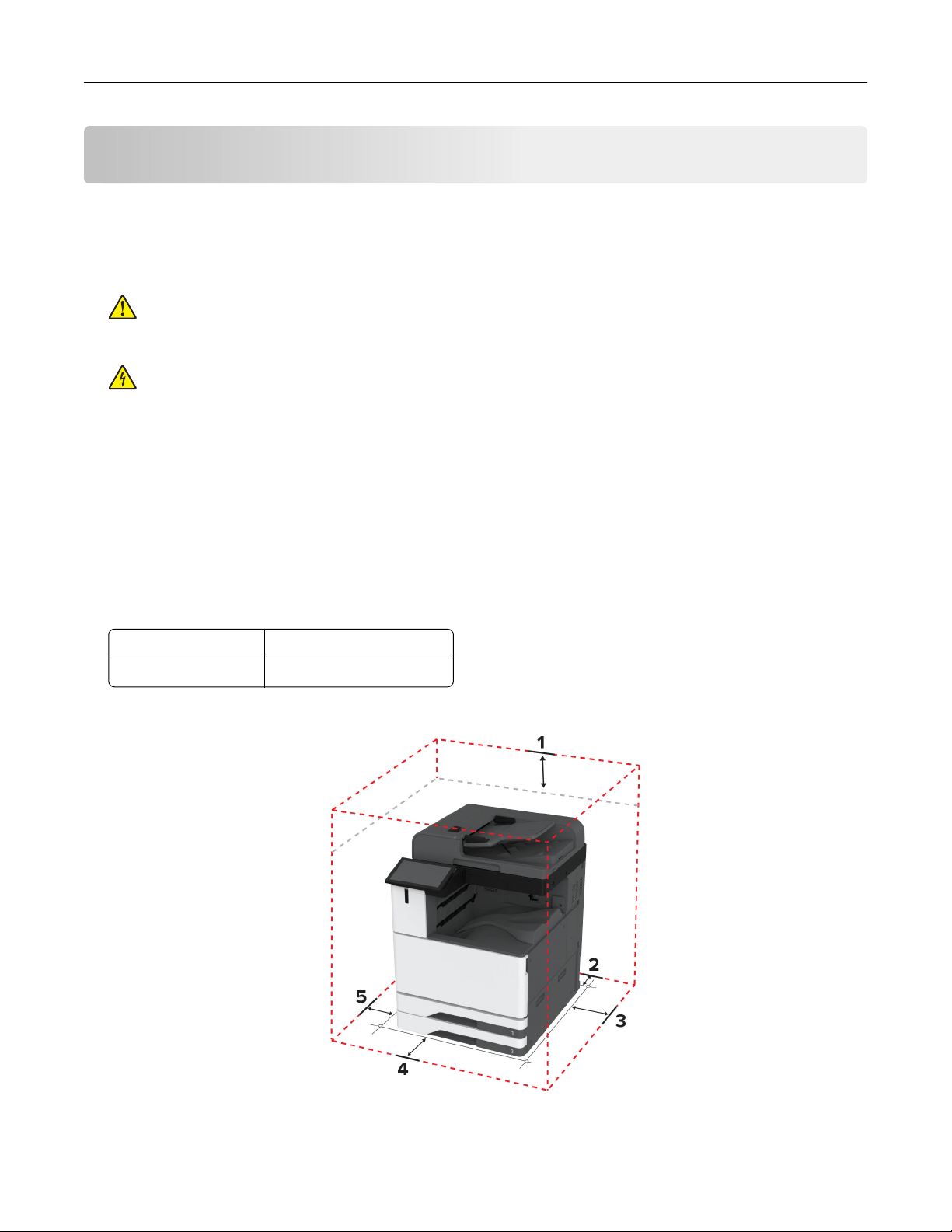
• Allow the following recommended amount of space around the printer for proper ventilation:
Set up, install, and configure 35

1 Top 330 mm (13 in.)
2 Rear 203 mm (8 in.)
3 Right side 152 mm (6 in.)
4 Front 381 mm (15 in.)
5 Left side 457 mm (18 in.)
Attaching cables
CAUTION—SHOCK HAZARD: To avoid the risk of electrical shock, do not set up this product or make
any electrical or cabling connections, such as the power cord, fax feature, or telephone, during a
lightning storm.
CAUTION—POTENTIAL INJURY: To avoid the risk of fire or electrical shock, connect the power cord to
an appropriately rated and properly grounded electrical outlet that is near the product and easily
accessible.
CAUTION—POTENTIAL INJURY: To avoid the risk of
fire
or electrical shock, use only the power cord
provided with this product or the manufacturer's authorized replacement.
CAUTION—POTENTIAL INJURY: To reduce the risk of fire, use only a 26 AWG or larger
telecommunications (RJ-11) cord when connecting this product to the public switched telephone
network. For users in Australia, the cord must be approved by the Australian Communications and Media
Authority.
Warning—Potential Damage: To avoid loss of data or printer malfunction, do not touch the USB cable, any
wireless network adapter, or the printer in the areas shown while actively printing.
Set up, install, and configure 36
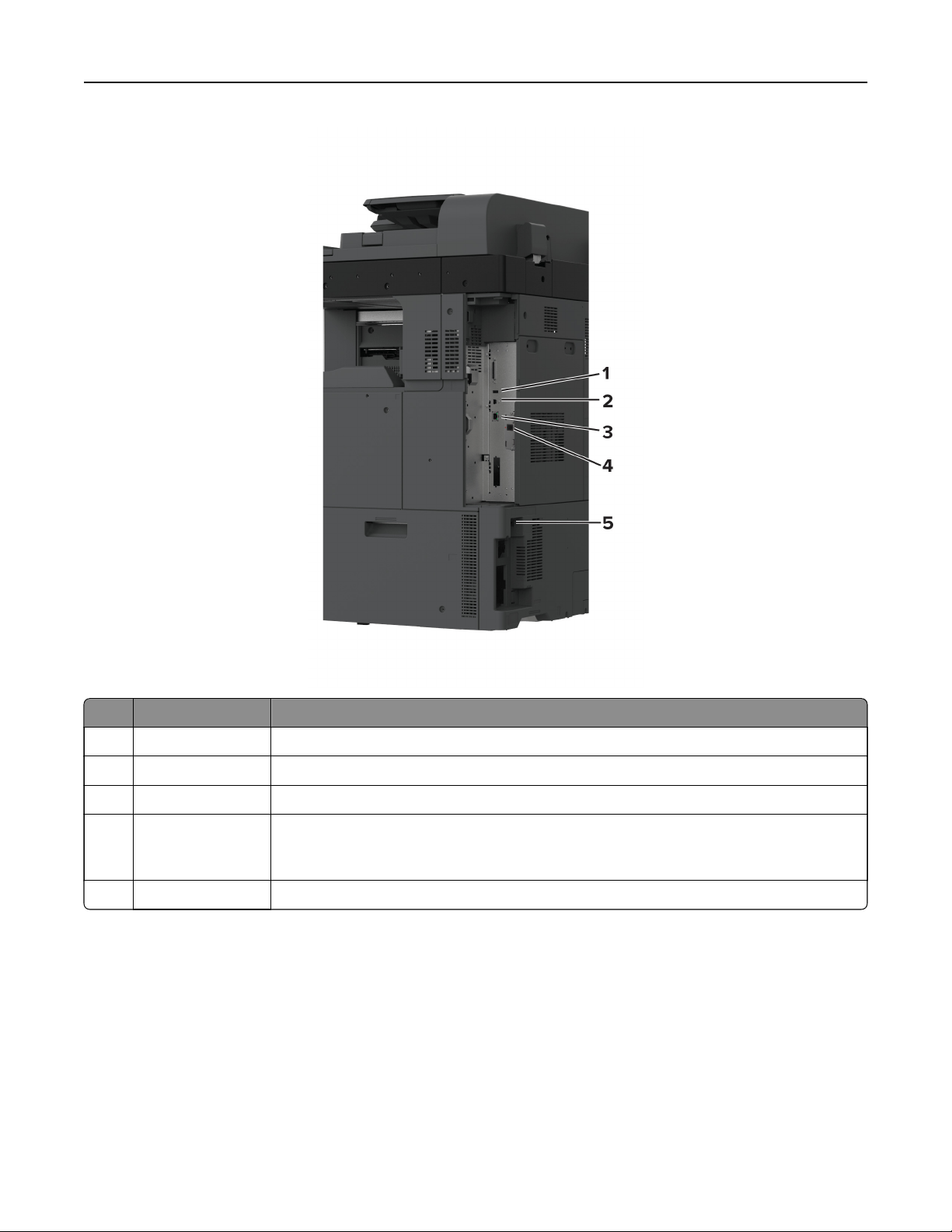
Printer port Function
1 USB port Attach a keyboard or any compatible option.
2 USB printer port Connect the printer to a computer.
3 Ethernet port Connect the printer to a network.
4 LINE port Connect the printer to an active telephone line through a standard wall jack (RJ‑11), DSL
filter, or VoIP adapter, or any other adapter that allows you to access the telephone line
to send and receive faxes.
5 Power cord socket Connect the printer to a properly grounded electrical outlet.
Setting up and using the home screen applications
Using the home screen
Note: Your home screen may vary depending on your home screen customization settings, administrative
setup, and active embedded solutions.
Set up, install, and configure 37
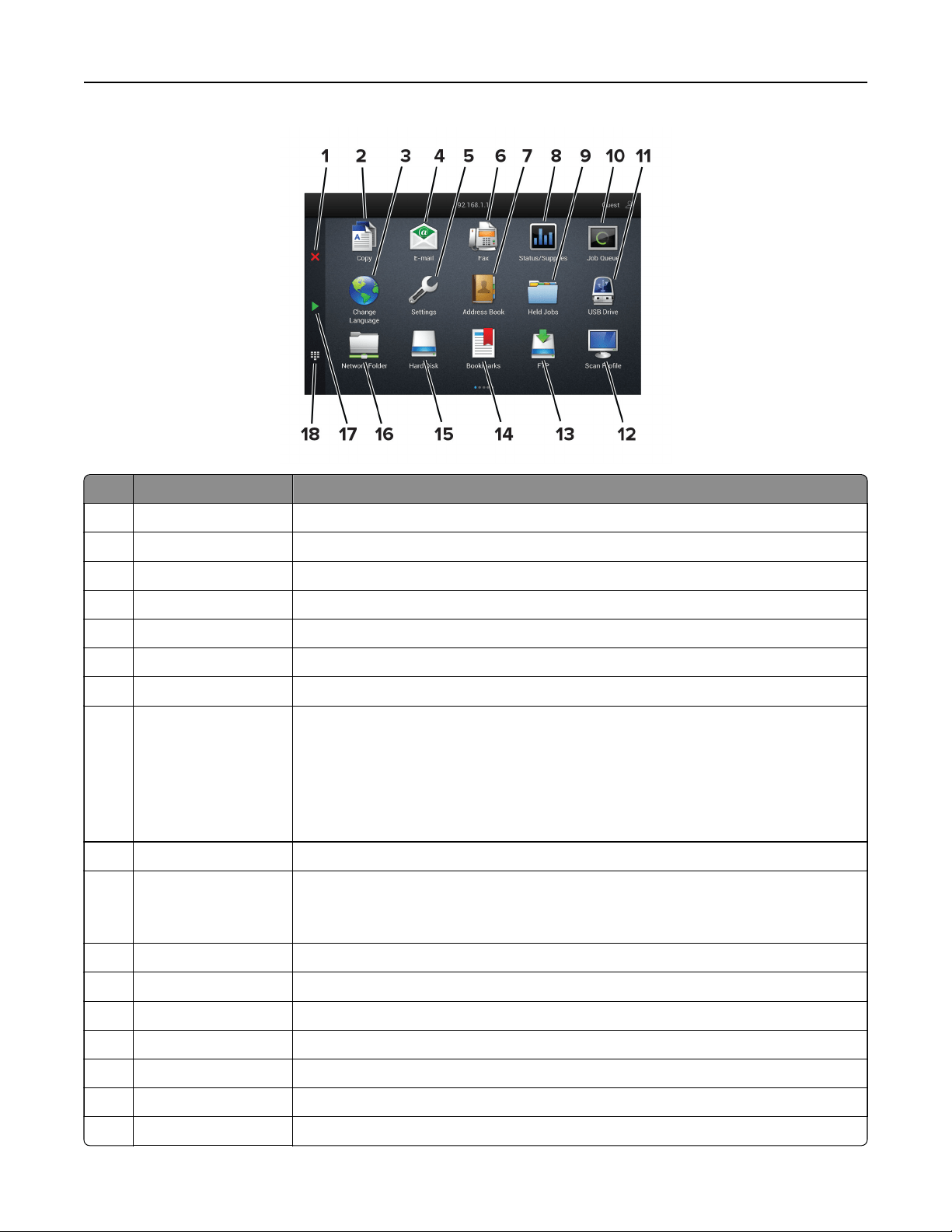
#Icon Function
1 Stop or Cancel button Stop the current job.
2 Copy Make copies.
3 Change Language Change the language on the printer display.
4 E‑mail Send e‑mails.
5 Settings Access the printer menus.
6 Fax Send fax.
7 Address Book Access, create, and organize contacts.
8 Status/Supplies
• Show a printer warning or error message whenever the printer requires
intervention to continue processing.
• View more information on the printer warning or message, and on how to clear
it.
Note: You can also access this setting by touching the top section of the home
screen.
9 Held Jobs Show all the current held print jobs
10 Job Queue Show all the current print jobs.
Note: You can also access this setting by touching the top section of the home
screen.
11 USB Drive View, select, or print photos and documents from a flash drive.
12 Scan Profiles Scan and save documents directly to the computer.
13 FTP Scan and save documents directly to an FTP server.
14 Bookmarks Organize all bookmarks.
15 Hard Disk View, select, and manage documents from a hard drive or an intelligent storage drive.
16 Network Folder Scan to a network folder or network location.
17 Start button Start a job, depending on which mode is selected.
Set up, install, and configure 38
#Icon Function
18 On‑screen keypad Enter numbers or symbols in an input field.
Customizing the home screen
1 Open a web browser, and then type the printer IP address in the address
field.
Notes:
• View the printer IP address on the printer home screen. The IP address appears as four sets of
numbers separated by periods, such as 123.123.123.123.
• If you are using a proxy server, then temporarily disable it to load the web page correctly.
2 Click Settings > Device > Home Screen Customization.
3 Do one or more of the following:
• To add an icon to the home screen, click
, select the app name, and then click Add.
• To remove a home screen icon, select the app name, and then click Remove.
• To customize an app name, select the app name, click Edit, and then assign a name.
• To restore the name of an app, select the app name, click Edit, and then select Restore app label.
• To add a space between apps, click
, select BLANK SPACE, and then click Add.
• To arrange the apps, drag the app names in the order that you want.
• To restore the default home screen, click Restore home screen.
4 Apply the changes.
Supported applications
Application Printer models
Scan Center CX942, CX943, CX944, XC9445, XC9455, XC9465
Shortcut Center CX942, CX943, CX944, XC9445, XC9455, XC9465
Card Copy CX942, CX943, CX944, XC9445, XC9455, XC9465
Display Customization CX942, CX943, CX944, XC9445, XC9455, XC9465
Customer Support XC9445, XC9455, XC9465
Device Quotas XC9445, XC9455, XC9465
Setting up Scan Center
1 From the home screen, touch Scan Center.
2 Select and create a destination, and then configure the settings.
Notes:
• When creating a network destination, make sure to validate and adjust the settings until no errors
occur.
Set up, install, and configure 39

• Only destinations created from the Embedded Web Server are saved. For more information, see the
documentation that came with the solution.
3 Apply the changes.
Creating a shortcut
1 From the home screen, touch Shortcut Center.
Note: The icon and name may have been changed. For more information, contact your administrator.
2 Select a printer function, and then touch Create Shortcut.
Note: The Secure E‑mail function is not supported.
3 Configure the settings, and then touch Save.
4 Type a unique shortcut name.
Note: To avoid clipped names on the home screen, type only up to 25 characters.
5 Tou ch OK.
The application automatically generates a unique shortcut number.
Note: To launch the shortcut, touch
, touch #, and then enter the shortcut number.
Setting up Card Copy
1 Open a web browser, and then type the printer IP address in the address
field.
Notes:
• View the printer IP address on the printer home screen. The IP address appears as four sets of
numbers separated by periods, such as 123.123.123.123.
• If you are using a proxy server, then temporarily disable it to load the web page correctly.
2 Click Apps > Card Copy > Configure.
Notes:
• Make sure that Display Icon is enabled.
• Make sure that E‑mail Settings and Network Share Settings are configured.
• When scanning a card, make sure that the scan resolution does not exceed 200 dpi for color and
400 dpi for black and white.
• When scanning multiple cards, make sure that the scan resolution does not exceed 150 dpi for color
and 300 dpi for black and white.
3 Apply the changes.
Note: You need a printer hard disk or an intelligent storage drive to scan multiple cards.
Set up, install, and configure 40

Using Display Customization
Before using the application, make sure to do the following:
• From the Embedded Web Server, click Apps > Display Customization > Configure.
• Enable and configure the screen saver, slideshow, and wallpaper settings.
Managing screen saver and slide show images
1 From the Screen Saver and Slideshow Images section, add, edit, or delete an image.
Notes:
• You can add up to 10 images.
• When enabled, the status icons appear on the screen saver only when there are errors, warnings, or
cloud‑based notifications.
2 Apply the changes.
Changing the wallpaper image
1 From the home screen, touch Change Wallpaper.
2 Select an image to use.
3 Apply the changes.
Running a slide show from a
flash
drive
1 Insert a
flash
drive into the USB port.
2 From the home screen, touch Slideshow.
Images appear in alphabetical order.
Note: You c a n re mo v e t he
flash
drive after the slide show starts, but the images are not stored in the
printer. If the slide show stops, then insert the
flash
drive again to view the images.
Using Customer Support
Notes:
• This application is supported only in some printer models. For more information, see
“Supported
applications” on page 39.
• For information on how to configure the application settings, see the Customer Support Administrator’s
Guide.
1 From the home screen, touch Customer Support.
2 Print or e‑mail the information.
Setting up Device Quotas
Notes:
• This application is supported only in some printer models. For more information, see
“Supported
applications” on page 39.
Set up, install, and configure 41

• For information on how to configure the application settings, see the Device Quotas Administrator’s
Guide.
1 Open a web browser, and then type the printer IP address in the address
field.
Notes:
• View the printer IP address on the printer home screen. The IP address appears as four sets of
numbers separated by periods, such as 123.123.123.123.
• If you are using a proxy server, then temporarily disable it to load the web page correctly.
2 Click Apps > Device Quotas >
Configure
.
3 In the User Accounts section, add or edit a user, and then set the user quota.
4 Apply the changes.
Setting up and using the accessibility features
Activating Voice Guidance
From the home screen
1 In one motion and using one
finger,
slowly swipe left then up on the display until you hear a voice message.
2 Using two fingers, touch OK.
Note: If the gesture does not work, then apply more pressure.
From the keyboard
1 Press and hold the 5 key until you hear a voice message.
2 Press Tab to navigate the focus cursor to the OK button, and then press Enter.
Notes:
• When Voice Guidance is activated, always use two fingers to select any item on the display.
• Voice Guidance has limited language support.
Deactivating Voice Guidance
1 In one motion and using one
finger,
slowly swipe left then up on the display until you hear a voice message.
2 Using two fingers, do either of the following:
• Tou ch Voice Guidance, then touch OK.
• Tou ch Cancel.
Note: If the gesture does not work, then apply more pressure.
You can also deactivate Voice Guidance by doing either of the following:
• Using two fingers, double tap the home screen.
• Press the power button to put the printer in Sleep or Hibernate mode.
Set up, install, and configure 42
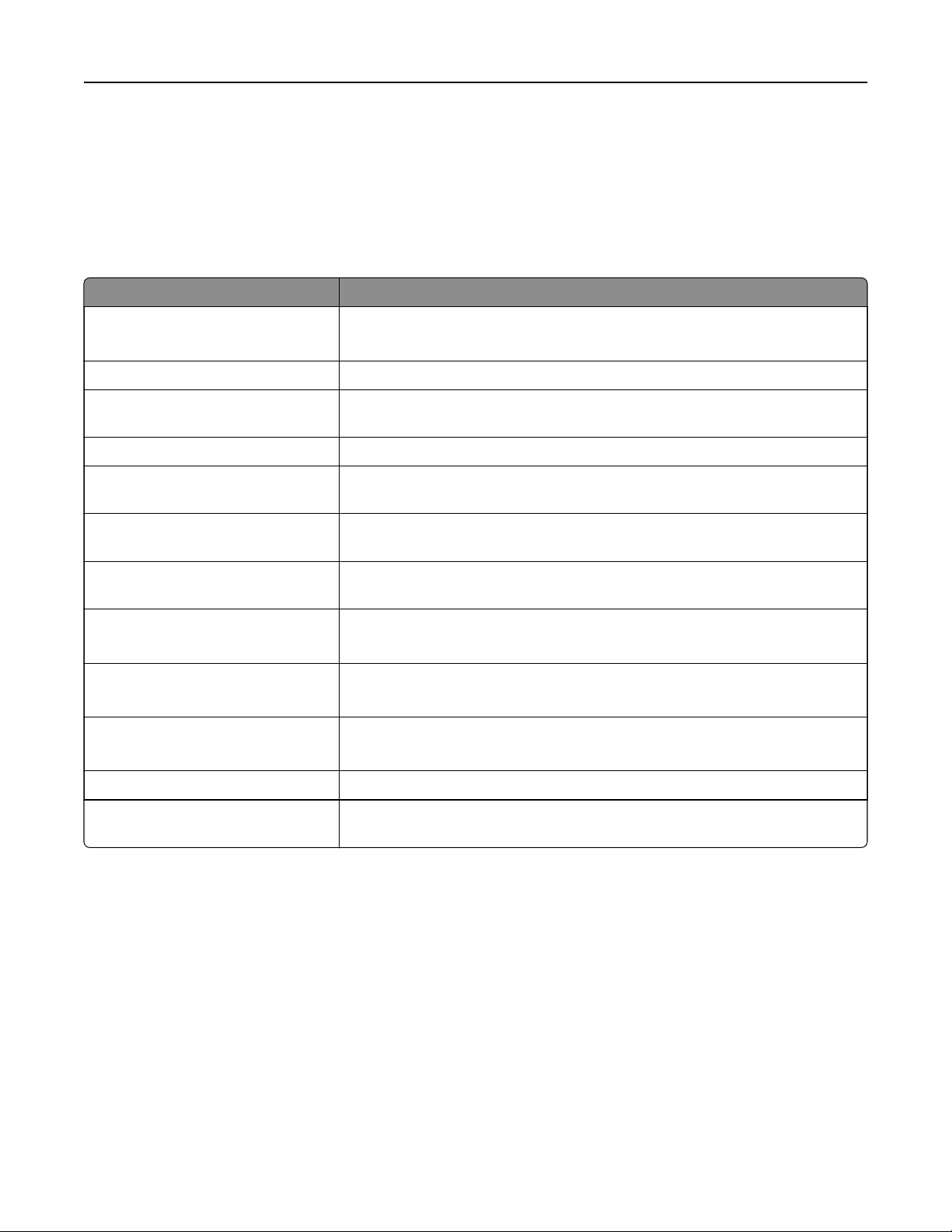
Navigating the screen using gestures
Notes:
• Most of the gestures are applicable only when Voice Guidance is activated.
• Enable Magnification to use the zoom and pan gestures.
• Use a physical keyboard to type characters and adjust certain settings.
Gesture Function
Swipe left then up using one finger Launch Accessibility mode. Use the same gesture to exit Accessibility mode.
Note: This gesture is also applicable when the printer is in normal mode.
Double‑tap using one finger Select an option or item on the screen.
Double‑tap the home icon using two
fingers
Deactivate the Accessibility mode.
Triple‑tap using one finger Zoom in or zoom out text and images.
Swipe right or swipe down using one
finger
Move to the next item on the screen.
Swipe left or swipe up using one
finger
Move to the previous item on the screen.
Swipe up then down using one
finger
Move to the first item on the screen.
Pan Access parts of the zoomed image that are beyond the limit of the screen.
Note: Use two fingers to drag a zoomed image.
Swipe up then right using one finger Increase the volume.
Note: This gesture is also applicable when the printer is in normal mode.
Swipe down then right using one
finger
Decrease the volume.
Note: This gesture is also applicable when the printer is in normal mode.
Swipe up then left using one finger Exit an application and return to the home screen.
Swipe down then left using one
finger
Go back to the previous setting.
Using the on‑screen keyboard
When the on‑screen keyboard appears, do one or more of the following:
• Touch a key to announce and type the character in the field.
• Drag a finger across dierent characters to announce and type the character in the field.
• Touch a text box using two fingers to announce the characters in the field.
• Tou ch Backspace to delete characters.
Set up, install, and configure 43

Enabling Magnification mode
1 In one motion and using one
finger,
slowly swipe left then up on the display until you hear a voice message.
Note: For printer models without built-in speakers, use headphones to hear the message.
2 Using two fingers, do the following:
a Tou ch Magnification mode.
b To uc h OK.
Note: If the gesture does not work, then apply more pressure.
For more information on navigating a
magnified
screen, see
“Navigating the screen using gestures” on page
43.
Adjusting the Voice Guidance speech rate
1 From the home screen, touch Settings > Device > Accessibility > Speech Rate.
2 Select the speech rate.
Adjusting the default headphone volume
1 From the home screen, touch Settings > Device > Accessibility.
2 Adjust the headphone volume.
Note: The volume resets to the default value after the user exits Accessibility mode or when the printer
wakes from Sleep or Hibernate mode.
Adjusting the default internal speaker volume
1 From the home screen, touch .
2 Adjust the volume.
Notes:
• If Quiet Mode is enabled, then audible alerts are turned
o.
This setting also slows the printer
performance.
• The volume resets to the default value after the user exits Accessibility mode or when the printer wakes
from Sleep or Hibernate mode.
Enabling spoken passwords or personal
identification
numbers
1 From the home screen, touch Settings > Device > Accessibility > Speak Passwords/PINs.
2 Enable the setting.
Set up, install, and configure 44
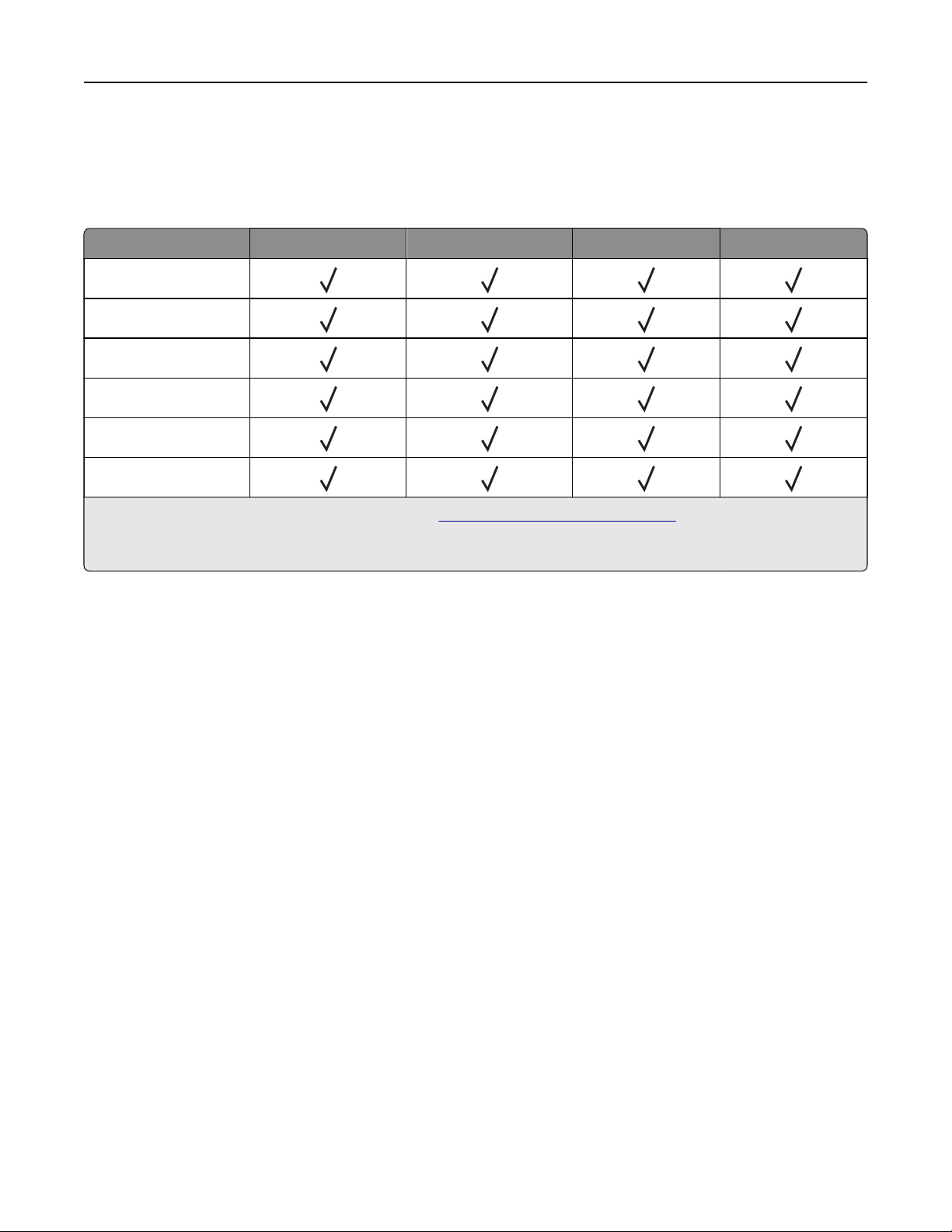
Setting up the printer to fax
Supported fax
Printer model Analog fax
etherFAX
1
Fax server
Fax over IP (FoIP)
2
CX942
CX943
CX944
XC9445
XC9455
XC9465
1
Needs a subscription. For more information, go to
https://www.etherfax.net/lexmark or contact the place where
you purchased the printer.
2
Needs an installed license bundle. For more information, contact the place where you purchased the printer.
Setting up the fax function using analog fax
Notes:
• Some connection methods are applicable only in some countries or regions.
• If the fax function is enabled and not fully set up, then the indicator light may blink red.
• If you do not have a TCP/IP environment, then use the control panel to set up fax.
Warning—Potential Damage: To avoid loss of data or printer malfunction, do not touch cables or the printer
in the area shown while actively sending or receiving a fax.
Set up, install, and configure 45
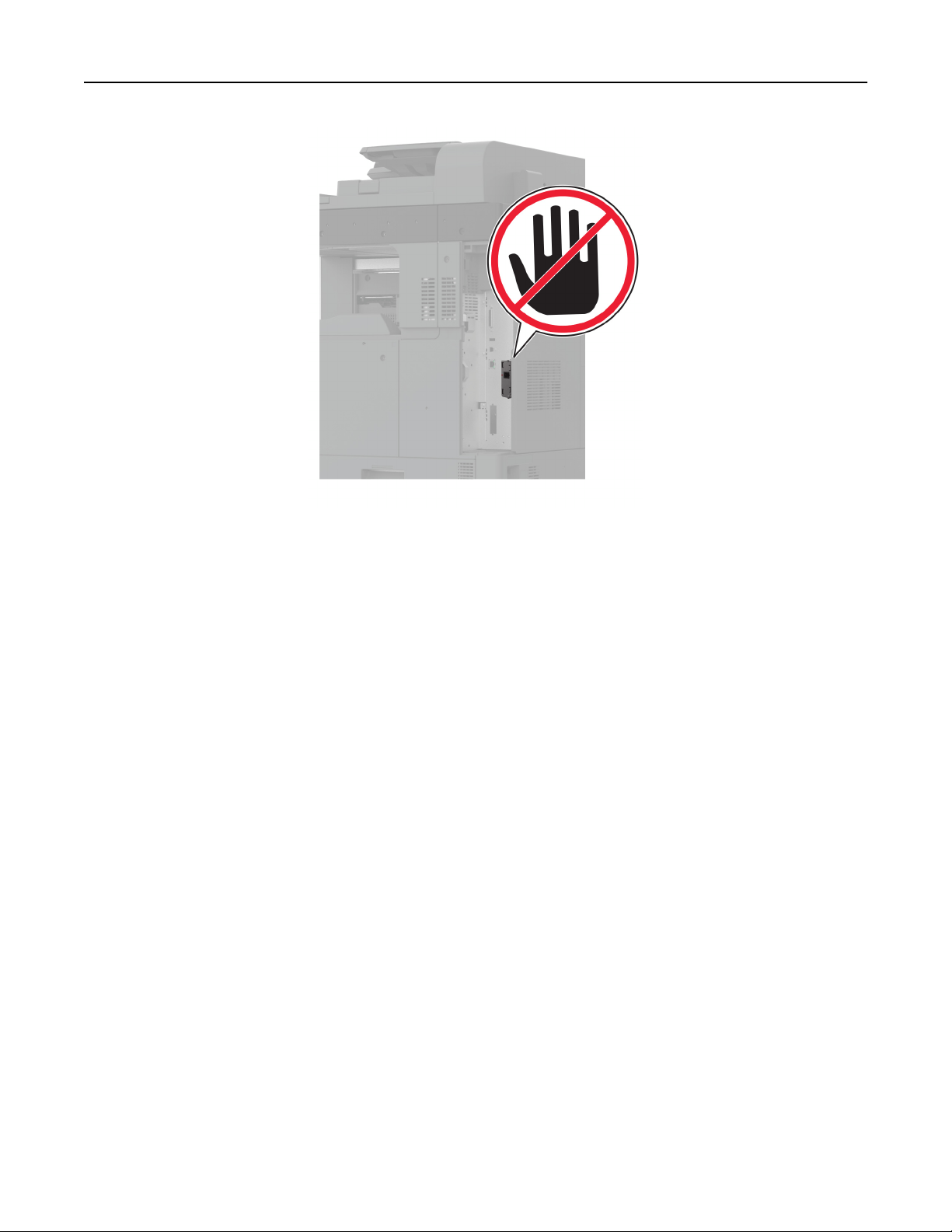
Using the Settings menu in the printer
1 From the home screen, touch Settings > Fax > Fax Setup > General Fax Settings.
2
Configure
the settings.
Using the Embedded Web Server
1 Open a web browser, and then type the printer IP address in the address field.
Notes:
• View the printer IP address on the home screen. The IP address appears as four sets of numbers
separated by periods, such as 123.123.123.123.
• If you are using a proxy server, then temporarily disable it to load the web page correctly.
2 Click Settings > Fax > Fax Setup > General Fax Settings.
3 Configure the settings.
4 Apply the changes.
Set up, install, and configure 46

Setting up the fax function using etherFAX
Notes:
• The printer firmware must be updated to the latest version. For more information, see the “Updating
firmware” section.
• An appropriate license bundle must be installed in your printer. For more information, contact etherFAX.
• Make sure that you have registered your printer to the etherFAX portal. For more information, go to
https://www.etherfax.net/lexmark.
• The printer serial number is required on registration. To locate the serial number, see
“Finding the printer
serial number” on page 11.
1 Open a web browser, and then type the printer IP address in the address field.
Notes:
• View the printer IP address on the home screen. The IP address appears as four sets of numbers
separated by periods, such as 123.123.123.123.
• If you are using a proxy server, then temporarily disable it to load the web page correctly.
2 Click Settings > Fax > Fax Setup > General Fax Settings.
Note: Fax Setup appears only if Fax Mode is set to Fax.
3 In the Fax Name field, type a unique name.
4 In the Fax Number
field,
enter the fax number that etherFAX provided.
5 From the Fax Transport menu, select etherFAX.
Notes:
• This menu shows up only when more than one fax transport is available.
• If the printer only has etherFAX installed, then it is automatically configured.
6 Apply the changes.
Setting up the fax function using fax server
Notes:
• This feature lets you send fax messages to a fax service provider that supports e‑mail receiving.
• This feature supports outgoing fax messages only. To support fax receive, make sure that you have a
device‑based fax, such as analog fax, etherFAX, or Fax over IP (FoIP), configured in your printer.
1 Open a web browser, and then type the printer IP address in the address field.
Notes:
• View the printer IP address on the home screen. The IP address appears as four sets of numbers
separated by periods, such as 123.123.123.123.
• If you are using a proxy server, then temporarily disable it to load the web page correctly.
2 Click Settings > Fax.
3 From the Fax Mode menu, select Fax Server, and then click Save.
Set up, install, and configure 47

4 Click Fax Server Setup.
5 In the To Format field, type [#]@myfax.com, where [#] is the fax number and myfax.com is the fax
provider domain.
Notes:
• If necessary, configure the Reply Address, Subject, or Message fields.
• To let the printer receive fax messages, enable the device‑based fax receive setting. Make sure that
you have a device‑based fax
configured.
6 Click Save.
7 Click Fax Server E
‑mail Settings, and then do either of the following:
• Enable Use E
‑mail SMTP Server.
Note: If the E‑mail SMTP settings are not configured, then see
“Configuring the e‑mail SMTP settings”
on page 53.
• Configure the SMTP settings. For more information, contact your e‑mail service provider.
8 Apply the changes.
Setting up fax using a standard telephone line
Note: These instructions apply only to printers that support analog fax. For more information, see “Supported
fax” on page 45.
CAUTION—SHOCK HAZARD: To avoid the risk of electrical shock, do not set up this product or make
any electrical or cabling connections, such as the power cord, fax feature, or telephone, during a
lightning storm.
CAUTION—SHOCK HAZARD: To avoid the risk of electrical shock, do not use the fax feature during a
lightning storm.
CAUTION—POTENTIAL INJURY: To reduce the risk of fire, use only a 26 AWG or larger
telecommunications (RJ-11) cord when connecting this product to the public switched telephone
network. For users in Australia, the cord must be approved by the Australian Communications and Media
Authority.
Set up, install, and configure 48
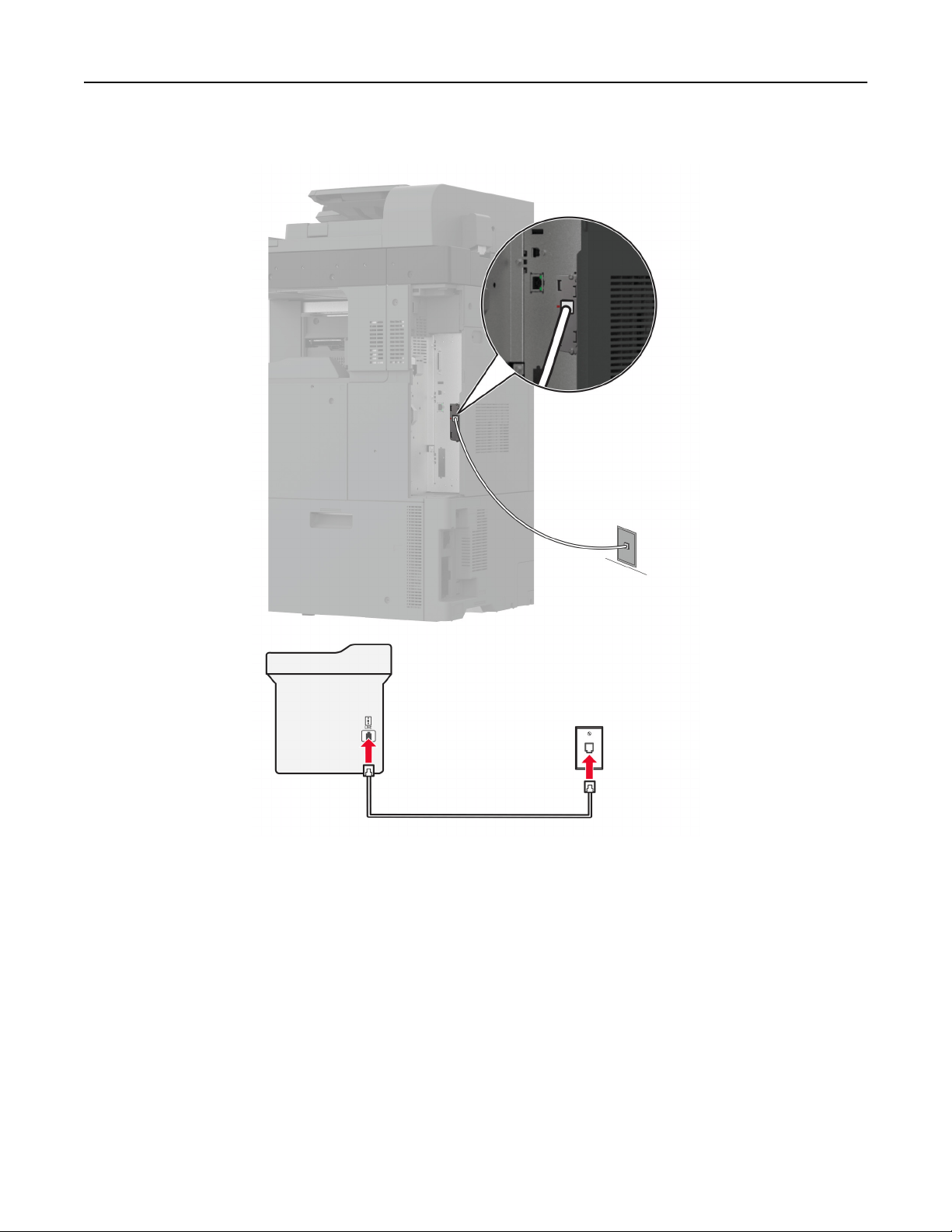
Setup 1: Printer is connected to a dedicated fax line
1 Connect one end of the telephone cable to the line port of the printer.
2 Connect the other end of the cable to an active analog wall jack.
Notes:
• You can set the printer to receive faxes automatically (set Auto Answer to On) or manually (set Auto
Answer to
O
).
• If you want to receive faxes automatically, then set the printer to pick up on a specified number of rings.
Setup 2: Printer is sharing the line with an answering machine
Note: If you subscribe to a distinctive ring service, then make sure that you set the correct ring pattern for
the printer. Otherwise, the printer does not receive faxes even if you have set it to receive faxes
automatically.
Set up, install, and configure 49
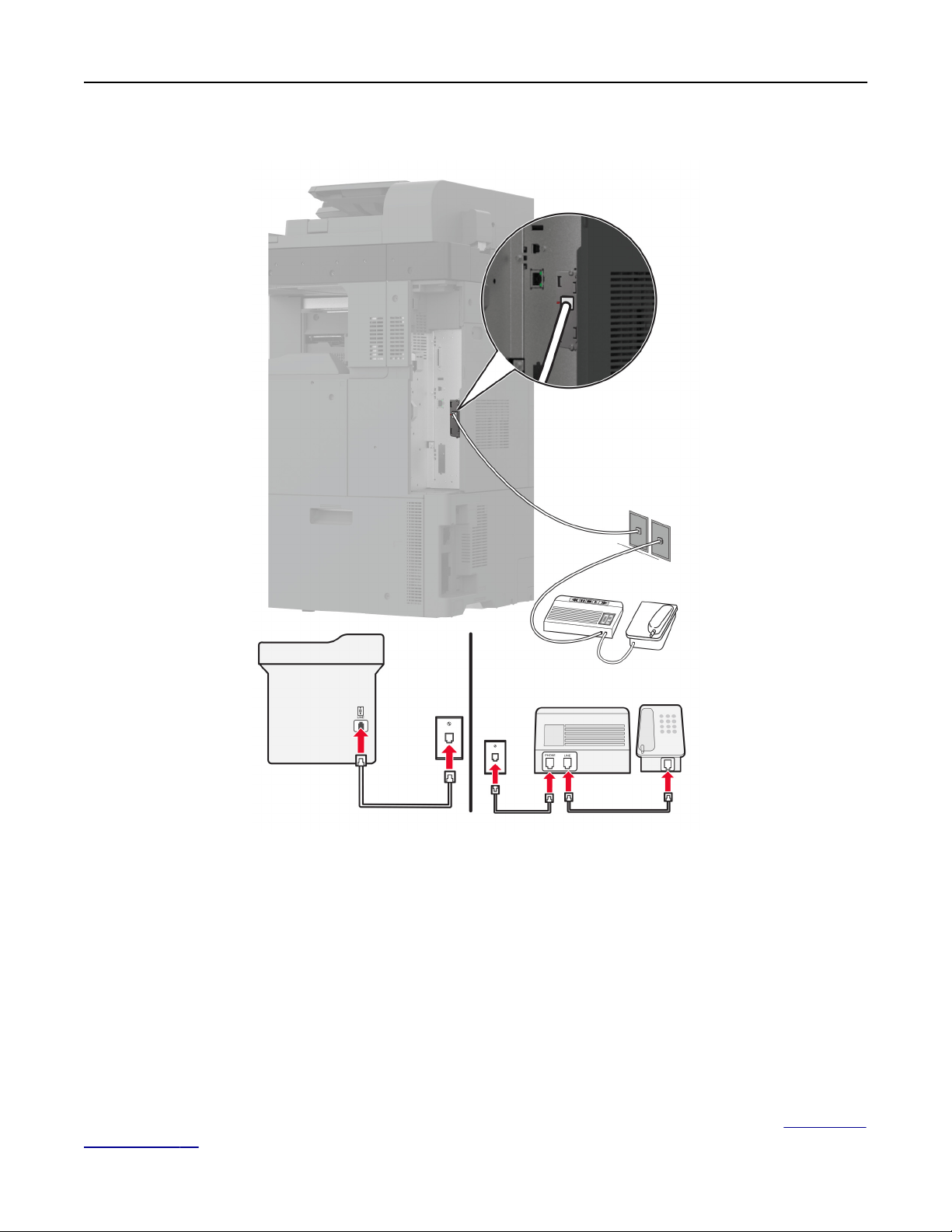
Connected to dierent wall jacks
1 Connect one end of the telephone cable to the line port of the printer.
2 Connect the other end of the cable to an active analog wall jack.
Notes:
• If you have only one telephone number on your line, then set the printer to receive faxes automatically.
• Set the printer to pick up calls two rings after the answering machine. For example, if the answering
machine picks up calls after four rings, then set the printer Rings to Answer setting to 6.
Setting up fax in countries or regions with
dierent
telephone wall jacks
and plugs
Note: These instructions apply only to printers that support analog fax. For more information, see
“Supported
fax” on page 45.
Set up, install, and configure 50
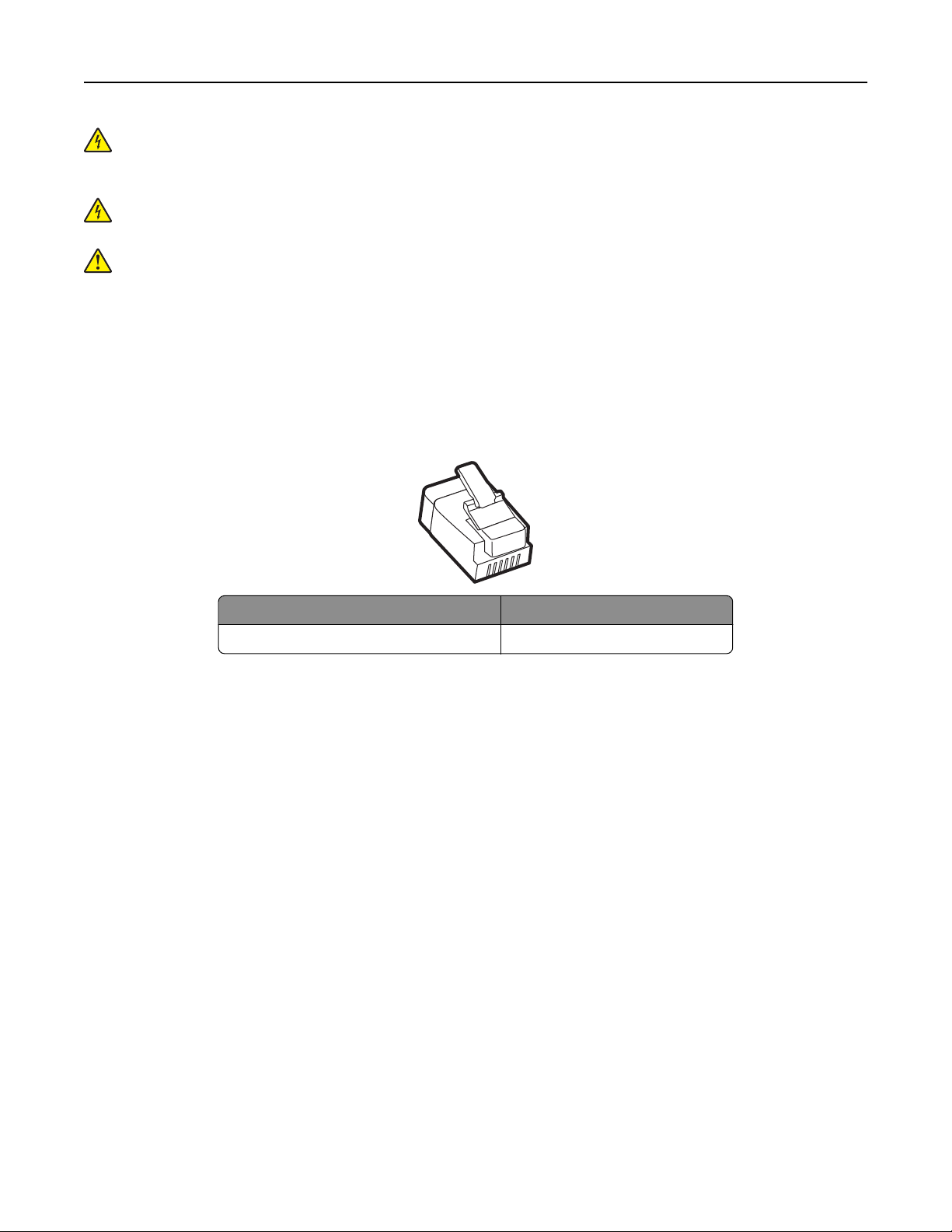
CAUTION—SHOCK HAZARD: To avoid the risk of electrical shock, do not set up this product or make
any electrical or cabling connections, such as the power cord, fax feature, or telephone, during a
lightning storm.
CAUTION—SHOCK HAZARD: To avoid the risk of electrical shock, do not use the fax feature during a
lightning storm.
CAUTION—POTENTIAL INJURY: To reduce the risk of
fire,
use only a 26 AWG or larger
telecommunications (RJ-11) cord when connecting this product to the public switched telephone
network. For users in Australia, the cord must be approved by the Australian Communications and Media
Authority.
The standard wall jack adopted by most countries or regions is RJ‑11. If the wall jack or equipment in your facility
is not compatible with this type of connection, then use a telephone adapter. An adapter for your country or
region may not come with your printer, and you may need to purchase it separately.
There may be an adapter plug installed in the telephone port of the printer. Do not remove the adapter plug
from the telephone port of the printer if you are connecting to a serial or cascaded telephone system.
Part name Part number
Lexmark adapter plug 40X8519
Set up, install, and configure 51
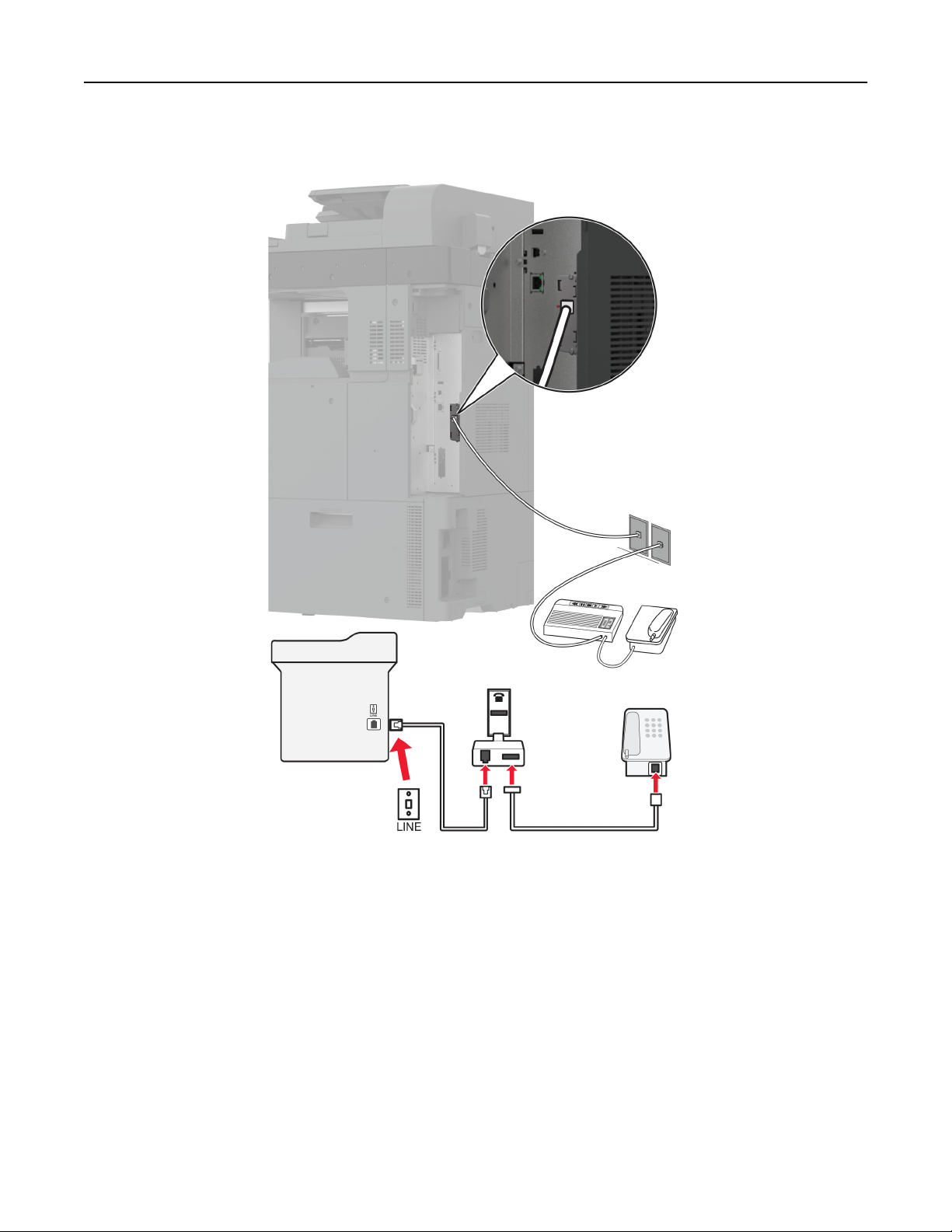
Connecting the printer to a non‑RJ‑11 wall jack
1 Connect one end of the telephone cable to the line port of the printer.
2 Connect the other end of the cable to the RJ‑11 adapter, and then connect the adapter to the wall jack.
3 If you want to connect another device with a non‑RJ‑11 connector to the same wall jack, then connect it
directly to the telephone adapter.
Connecting to a distinctive ring service
A distinctive ring service lets you have multiple telephone numbers on one telephone line. Each telephone
number is assigned a dierent ring pattern.
1 From the home screen, touch Settings > Fax > Fax Setup > Fax Receive Settings > Admin Controls >
Answer On.
2 Select a ring pattern.
Set up, install, and configure 52

Setting the fax date and time
1 From the home screen, touch Settings > Device > Preferences > Date and Time >
Configure
.
2 Configure the settings.
Configuring daylight saving time
1 From the home screen, touch Settings > Device > Preferences > Date and Time >
Configure
.
2 In the Time Zone menu, touch (UTC+user) Custom.
3 In the
Configure
menu, touch UTC
Oset
.
4 Configure the settings.
Configuring
the fax speaker settings
1 From the home screen, touch Settings > Fax > Fax Setup > Speaker Settings.
2 Do the following:
• Set the Speaker Mode to Always On.
• Set the Speaker Volume to High.
• Activate the Ringer Volume.
Configuring the e
‑mail SMTP settings
Configure the Simple Mail Transfer Protocol (SMTP) settings to send a scanned document through e-mail. The
settings vary with each e‑mail service provider.
Before you begin, make sure that the printer is connected to a network and that the network is connected to
the Internet.
Using the Embedded Web Server
1 Open a web browser, and then type the printer IP address in the address field.
Notes:
• View the printer IP address on the printer home screen. The IP address appears as four sets of
numbers separated by periods, such as 123.123.123.123.
• If you are using a proxy server, then temporarily disable it to load the web page correctly.
2 Click Settings > E
‑mail.
3 From the E‑mail Setup section, configure the settings.
Notes:
• For more information, see the list of
e‑mail service providers.
• For e‑mail service providers that are not on the list, contact your provider and ask for the settings.
4 Click Save.
Set up, install, and configure 53

Using the Settings menu in the printer
1 From the home screen, touch Settings > E‑mail > E‑mail Setup.
2 Configure the settings.
Notes:
• For more information, see the list of
e‑mail service providers.
• For e‑mail service providers that are not on the list, contact your provider and ask for the settings.
E
‑mail service providers
•
AOL Mail
• Comcast Mail
• Gmail
• iCloud Mail
• Mail.com
• NetEase Mail (mail.126.com)
• NetEase Mail (mail.163.com)
• NetEase Mail (mail.yeah.net)
• Outlook Live or Microsoft 365
• QQ Mail
• Sina Mail
• Sohu Mail
• Yah o o ! Ma il
• Zoho Mail
Notes:
• If you encounter errors using the settings provided, then contact your e‑mail service provider.
• For e‑mail service providers that are not on the list, contact your provider.
AOL Mail
Setting Value
Primary SMTP Gateway smtp.aol.com
Primary SMTP Gateway Port 587
Use SSL/TLS Required
Require Trusted Certificate Disabled
Reply Address You r e ‑mail address
SMTP Server Authentication Login / Plain
Device‑Initiated E‑mail Use Device SMTP Credentials
Device UserID Yo ur e ‑mail address
Set up, install, and configure 54
Setting Value
Device Password App password
Note: To create an app password, go to the
AOL Account Security page, log
in to your account, and then click Generate app password.
Comcast Mail
Setting Value
Primary SMTP Gateway smtp.comcast.net
Primary SMTP Gateway Port 587
Use SSL/TLS Required
Require Trusted Certificate Disabled
Reply Address You r e ‑mail address
SMTP Server Authentication Login / Plain
Device
‑Initiated E‑mail Use Device SMTP Credentials
Device UserID Yo ur e ‑mail address
Device Password Account password
Note: Make sure that the Third Party Access Security setting is enabled on your account. For more
information, go to the
Comcast Xfinity Connect help page.
Gmail
TM
Note: Make sure that two‑step verification is enabled on your Google account. To enable two‑step
verification, go to the
Google Account Security page, log in to your account, and then from the “Signing in to
Google” section, click 2
‑Step Verification.
Setting Value
Primary SMTP Gateway smtp.gmail.com
Primary SMTP Gateway Port 587
Use SSL/TLS Required
Require Trusted Certificate Disabled
Reply Address You r e ‑mail address
SMTP Server Authentication Login / Plain
Device
‑Initiated E‑mail Use Device SMTP Credentials
Device UserID Yo ur e ‑mail address
Device Password App password
Notes:
• To create an app password, go to the
Google Account Security page, log
in to your account, and then from the “Signing in to Google” section, click
App passwords.
• “App passwords” shows only if two‑step verification is enabled.
Set up, install, and configure 55
iCloud Mail
Note: Make sure that two‑step verification is enabled on your account.
Setting Value
Primary SMTP Gateway smtp.mail.me.com
Primary SMTP Gateway Port 587
Use SSL/TLS Required
Require Trusted Certificate Disabled
Reply Address You r e ‑mail address
SMTP Server Authentication Login / Plain
Device‑Initiated E‑mail Use Device SMTP Credentials
Device UserID Yo ur e ‑mail address
Device Password App password
Note: To create an app password, go to the
iCloud Account Management
page, log in to your account, and then from the Security section, click
Generate Password.
Mail.com
Setting Value
Primary SMTP Gateway smtp.mail.com
Primary SMTP Gateway Port 587
Use SSL/TLS Required
Require Trusted Certificate Disabled
Reply Address You r e ‑mail address
SMTP Server Authentication Login / Plain
Device
‑Initiated E‑mail Use Device SMTP Credentials
Device UserID Yo ur e ‑mail address
Device Password Account password
NetEase Mail (mail.126.com)
Note: Make sure that the SMTP service is enabled on your account. To enable the service, from the NetEase
Mail home page, click Settings > POP3/SMTP/IMAP, and then enable either IMAP/SMTP service or
POP3/SMTP service.
Setting Value
Primary SMTP Gateway smtp.126.com
Primary SMTP Gateway Port 465
Use SSL/TLS Required
Require Trusted Certificate Disabled
Set up, install, and configure 56
Setting Value
Reply Address You r e ‑mail address
SMTP Server Authentication Login / Plain
Device
‑Initiated E‑mail Use Device SMTP Credentials
Device UserID Yo ur e ‑mail address
Device Password Authorization password
Note: The authorization password is provided when IMAP/SMTP service or
POP3/SMTP service is enabled.
NetEase Mail (mail.163.com)
Note: Make sure that the SMTP service is enabled on your account. To enable the service, from the NetEase
Mail home page, click Settings > POP3/SMTP/IMAP, and then enable either IMAP/SMTP service or
POP3/SMTP service.
Setting Value
Primary SMTP Gateway smtp.163.com
Primary SMTP Gateway Port 465
Use SSL/TLS Required
Require Trusted Certificate Disabled
Reply Address You r e ‑mail address
SMTP Server Authentication Login / Plain
Device
‑Initiated E‑mail Use Device SMTP Credentials
Device UserID Yo ur e ‑mail address
Device Password Authorization password
Note: The authorization password is provided when IMAP/SMTP service or
POP3/SMTP service is enabled.
NetEase Mail (mail.yeah.net)
Note: Make sure that the SMTP service is enabled on your account. To enable the service, from the NetEase
Mail home page, click Settings > POP3/SMTP/IMAP, and then enable either IMAP/SMTP service or
POP3/SMTP service.
Setting Value
Primary SMTP Gateway smtp.yeah.net
Primary SMTP Gateway Port 465
Use SSL/TLS Required
Require Trusted Certificate Disabled
Reply Address You r e ‑mail address
SMTP Server Authentication Login / Plain
Set up, install, and configure 57
Setting Value
Device‑Initiated E‑mail Use Device SMTP Credentials
Device UserID Yo ur e ‑mail address
Device Password Authorization password
Note: The authorization password is provided when IMAP/SMTP service or
POP3/SMTP service is enabled.
Outlook Live or Microsoft 365
These settings apply to outlook.com and hotmail.com e‑mail domains, and Microsoft 365 accounts.
Setting Value
Primary SMTP Gateway smtp.oce365.com
Primary SMTP Gateway Port 587
Use SSL/TLS Required
Require Trusted Certificate Disabled
Reply Address You r e ‑mail address
SMTP Server Authentication Login / Plain
Device
‑Initiated E‑mail Use Device SMTP Credentials
Device UserID Yo ur e ‑mail address
Device Password Account password or app password
Notes:
• For accounts with two‑step verification disabled, use your account
password.
• For outlook.com or hotmail.com accounts with two‑step
verification
enabled, use an app password. To create an app password, go to the
Outlook Live Account Management page, and then log in to your
account.
Note: For additional setup options for business using Microsoft 365, go to the Microsoft 365 help page.
QQ Mail
Note: Make sure that the SMTP service is enabled on your account. To enable the service, from the QQ Mail
home page, click Settings > Account. From the POP3/IMAP/SMTP/Exchange/CardDAV/CalDAV Service
section, enable either POP3/SMTP service or IMAP/SMTP service.
Setting Value
Primary SMTP Gateway smtp.qq.com
Primary SMTP Gateway Port 587
Use SSL/TLS Required
Require Trusted Certificate Disabled
Reply Address You r e ‑mail address
Set up, install, and configure 58
Setting Value
SMTP Server Authentication Login / Plain
Device‑Initiated E‑mail Use Device SMTP Credentials
Device UserID Yo ur e ‑mail address
Device Password Authorization code
Note: To generate an authorization code, from the QQ Mail home page, click
Settings > Account, and then from the
POP3/IMAP/SMTP/Exchange/CardDAV/CalDAV Service section, click
Generate authorization code.
Sina Mail
Note: Make sure that the POP3/SMTP service is enabled on your account. To enable the service, from the
Sina Mail home page, click Settings > More settings > User
‑end POP/IMAP/SMTP, and then enable
POP3/SMTP service.
Setting Value
Primary SMTP Gateway smtp.sina.com
Primary SMTP Gateway Port 587
Use SSL/TLS Required
Require Trusted Certificate Disabled
Reply Address You r e ‑mail address
SMTP Server Authentication Login / Plain
Device
‑Initiated E‑mail Use Device SMTP Credentials
Device UserID Yo ur e ‑mail address
Device Password Authorization code
Note: To create an authorization code, from the e‑mail home page, click
Settings > More settings > User
‑end POP/IMAP/SMTP, and then enable
Authorization code status.
Sohu Mail
Note: Make sure that the SMTP service is enabled on your account. To enable the service, from the Sohu
Mail home page, click Options > Settings > POP3/SMTP/IMAP, and then enable either IMAP/SMTP service
or POP3/SMTP service.
Setting Value
Primary SMTP Gateway smtp.sohu.com
Primary SMTP Gateway Port 465
Use SSL/TLS Required
Require Trusted Certificate Disabled
Reply Address You r e ‑mail address
SMTP Server Authentication Login / Plain
Set up, install, and configure 59
Setting Value
Device‑Initiated E‑mail Use Device SMTP Credentials
Device UserID Yo ur e ‑mail address
Device Password Independent password
Note: The independent password is provided when IMAP/SMTP service or
POP3/SMTP service is enabled.
Yah o o! Mai l
Setting Value
Primary SMTP Gateway smtp.mail.yahoo.com
Primary SMTP Gateway Port 587
Use SSL/TLS Required
Require Trusted Certificate Disabled
Reply Address You r e ‑mail address
SMTP Server Authentication Login / Plain
Device
‑Initiated E‑mail Use Device SMTP Credentials
Device UserID Yo ur e ‑mail address
Device Password App password
Note: To create an app password, go to the
Yahoo Account Security page,
log in to your account, and then click Generate app password.
Zoho Mail
Setting Value
Primary SMTP Gateway smtp.zoho.com
Primary SMTP Gateway Port 587
Use SSL/TLS Required
Require Trusted Certificate Disabled
Reply Address You r e ‑mail address
SMTP Server Authentication Login / Plain
Device‑Initiated E‑mail Use Device SMTP Credentials
Device UserID Yo ur e ‑mail address
Set up, install, and configure 60
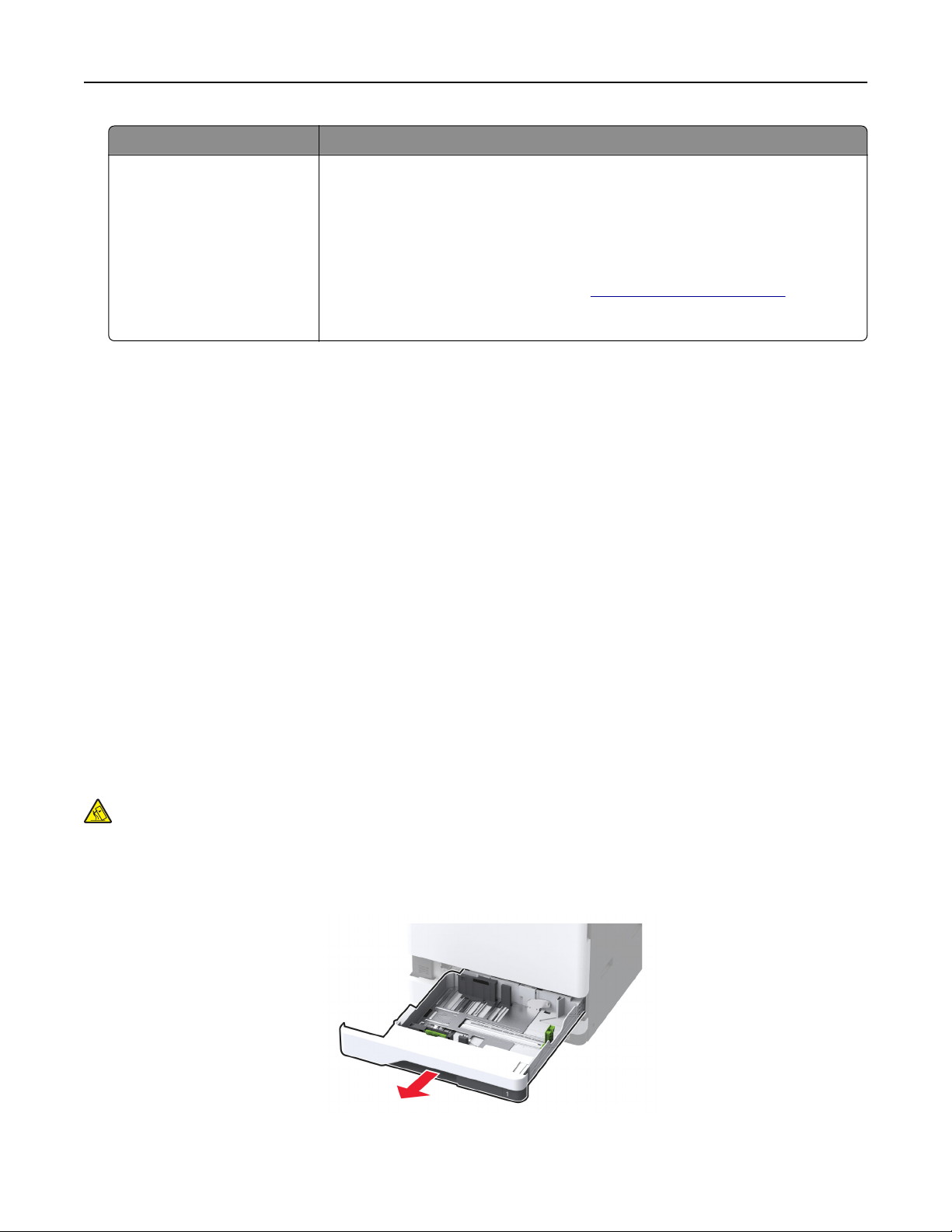
Setting Value
Device Password Account password or app password
Notes:
• For accounts with two‑step verification disabled, use your account
password.
• For accounts with two‑step verification enabled, use an app password. To
create an app password, go to the
Zoho Mail Account Security page, log
in to your account, and then from the Application‑Specific Passwords
section, click Generate New Password.
Loading paper and specialty media
Setting the size and type of the specialty media
The trays automatically detect the size of plain paper. For specialty media like labels, card stock, or envelopes,
do the following:
1 From the home screen, touch Settings > Paper > Tray
Configuration
> Paper Size/Type > select a paper
source.
2 Set the size and type of the specialty media.
Configuring Universal paper settings
1 From the home screen, touch Settings > Paper > Media
Configuration
> Universal Setup.
2 Configure the settings.
Loading the 520-sheet tray
CAUTION—TIPPING HAZARD: To reduce the risk of equipment instability, load each tray separately.
Keep all other trays closed until needed.
1 Pull out the tray.
Note: To avoid jams, do not pull out trays while the printer is busy.
2 Adjust the guides to match the size of the paper that you are loading.
Set up, install, and configure 61
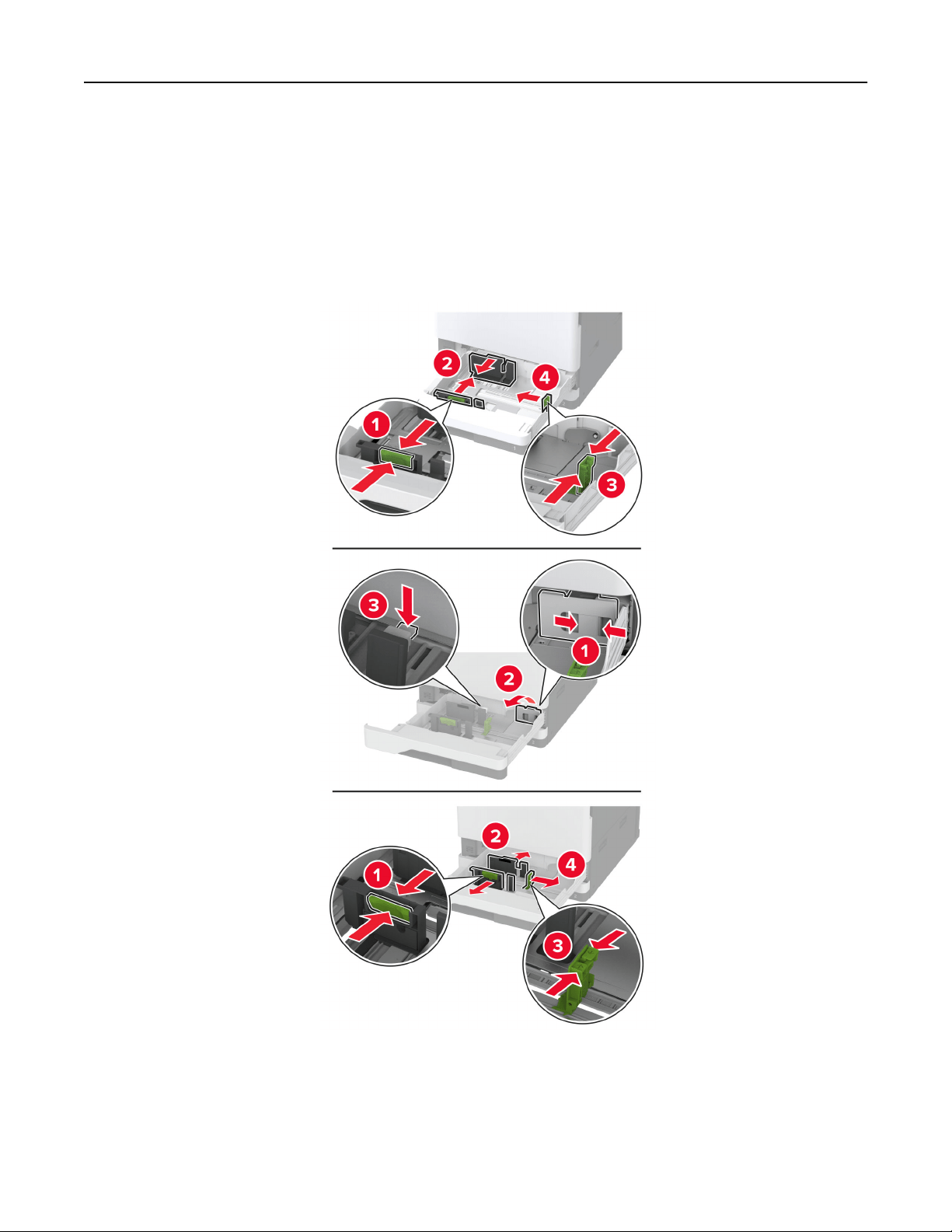
Notes:
• Use the indicators on the bottom of the tray to position the guides.
• When loading A3‑, 11‑inch‑, or B4‑size paper, make sure to adjust the rear paper guide.
• In tray 2 and optional 520-sheet trays, when loading A3-size paper, adjust the rear paper guide and
side guides. Stoppers behind the side guide lock the paper size to A3. When loading 12.6‑inch-size
paper, adjust the rear paper guide and side guides, and then press down the stoppers to unlock
them.
Set up, install, and configure 62
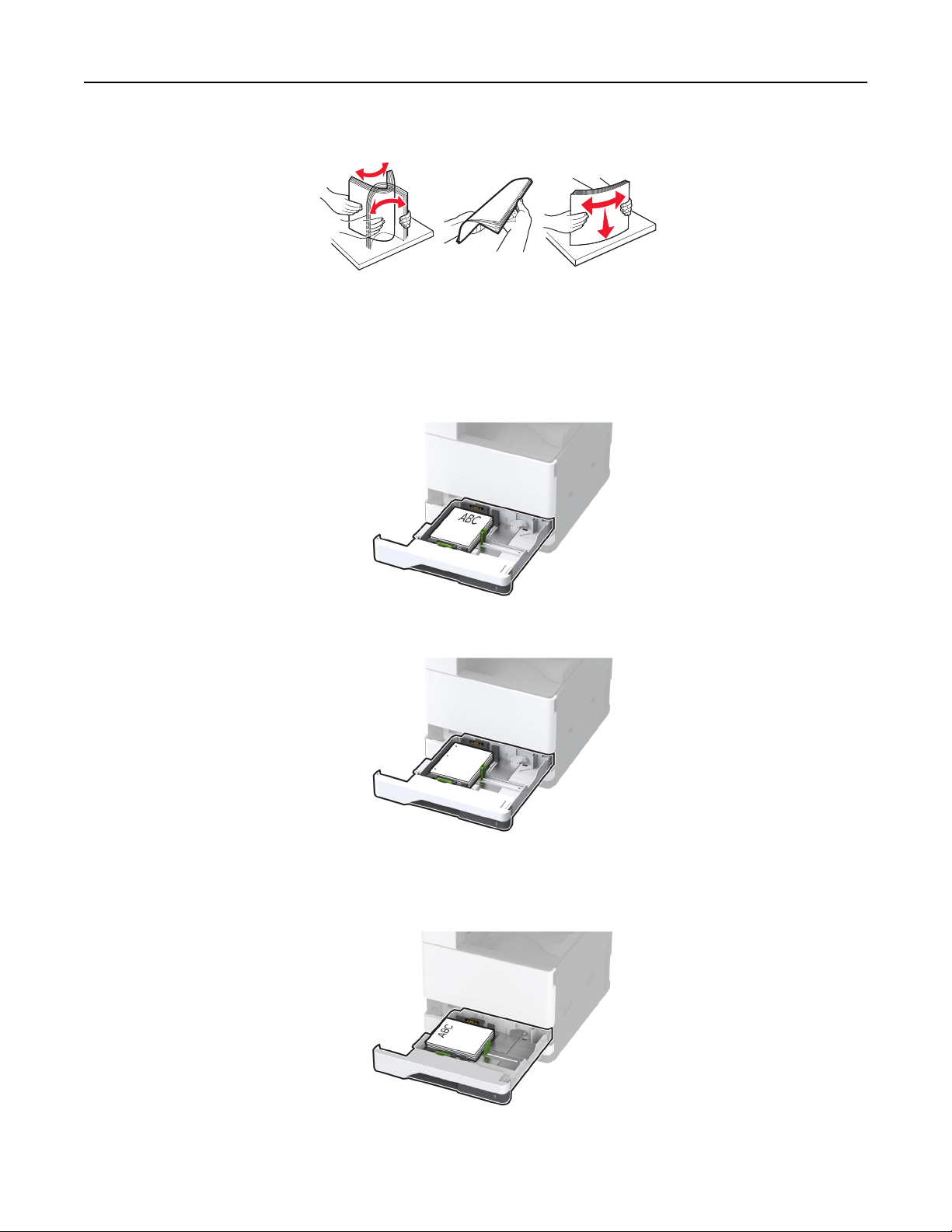
3 Flex, fan, and align the paper edges before loading.
4 Load the paper stack with the printable side faceup.
When loading letterhead or prepunched paper, do either of the following:
For one‑sided, long‑edge printing
• Load letterhead faceup with the header toward the back of the tray.
• Load prepunched paper faceup with the holes against the left side of the tray.
For one‑sided, short‑edge printing
• Load letterhead faceup with the header toward the left side of the tray.
Set up, install, and configure 63
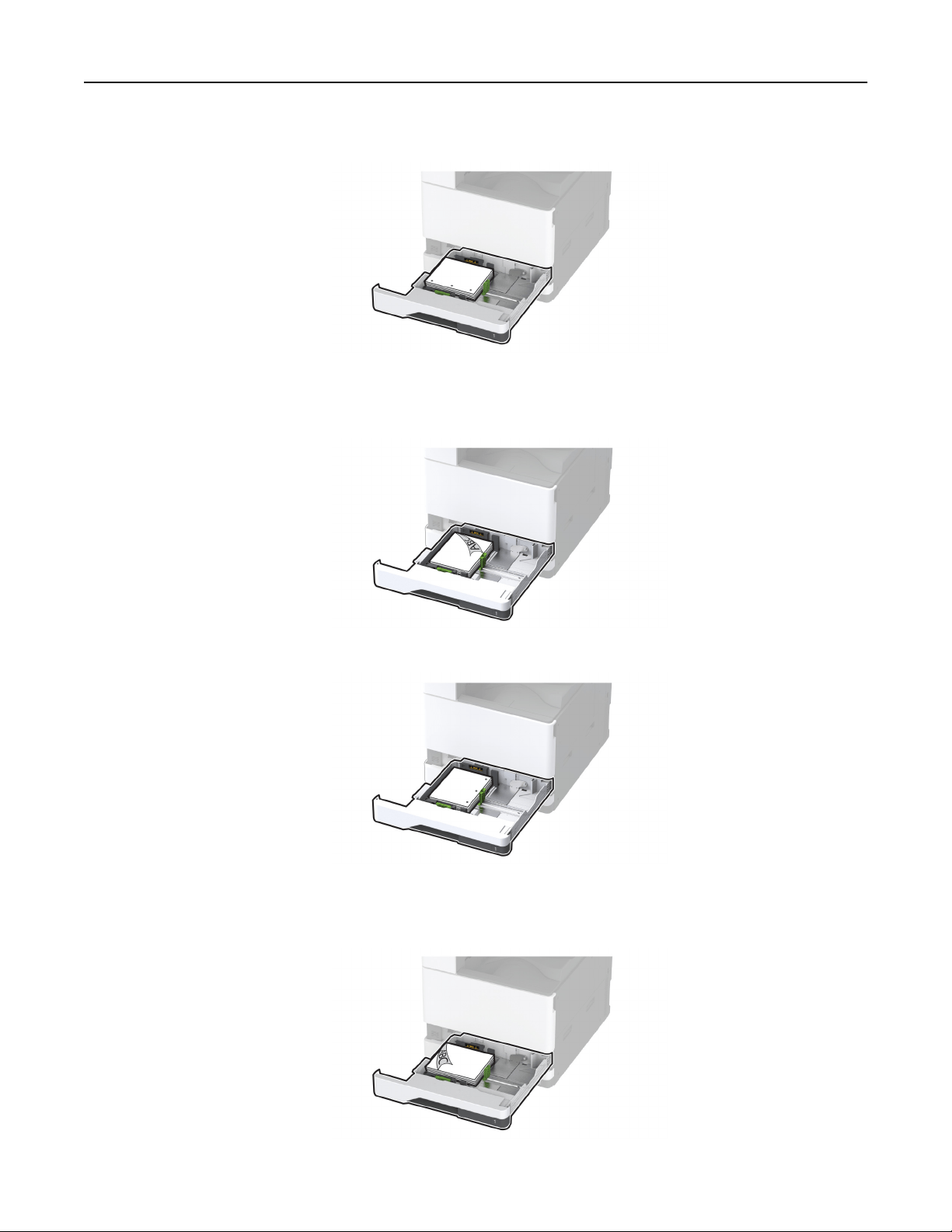
• Load prepunched paper faceup with the holes against the front of the tray.
For two‑sided, long‑edge printing
• Load letterhead facedown with the header toward the back of the tray.
• Load prepunched paper facedown with the holes against the right side of the tray.
For two‑sided, short‑edge printing
• Load letterhead facedown with the header toward the left side of the tray.
Set up, install, and configure 64
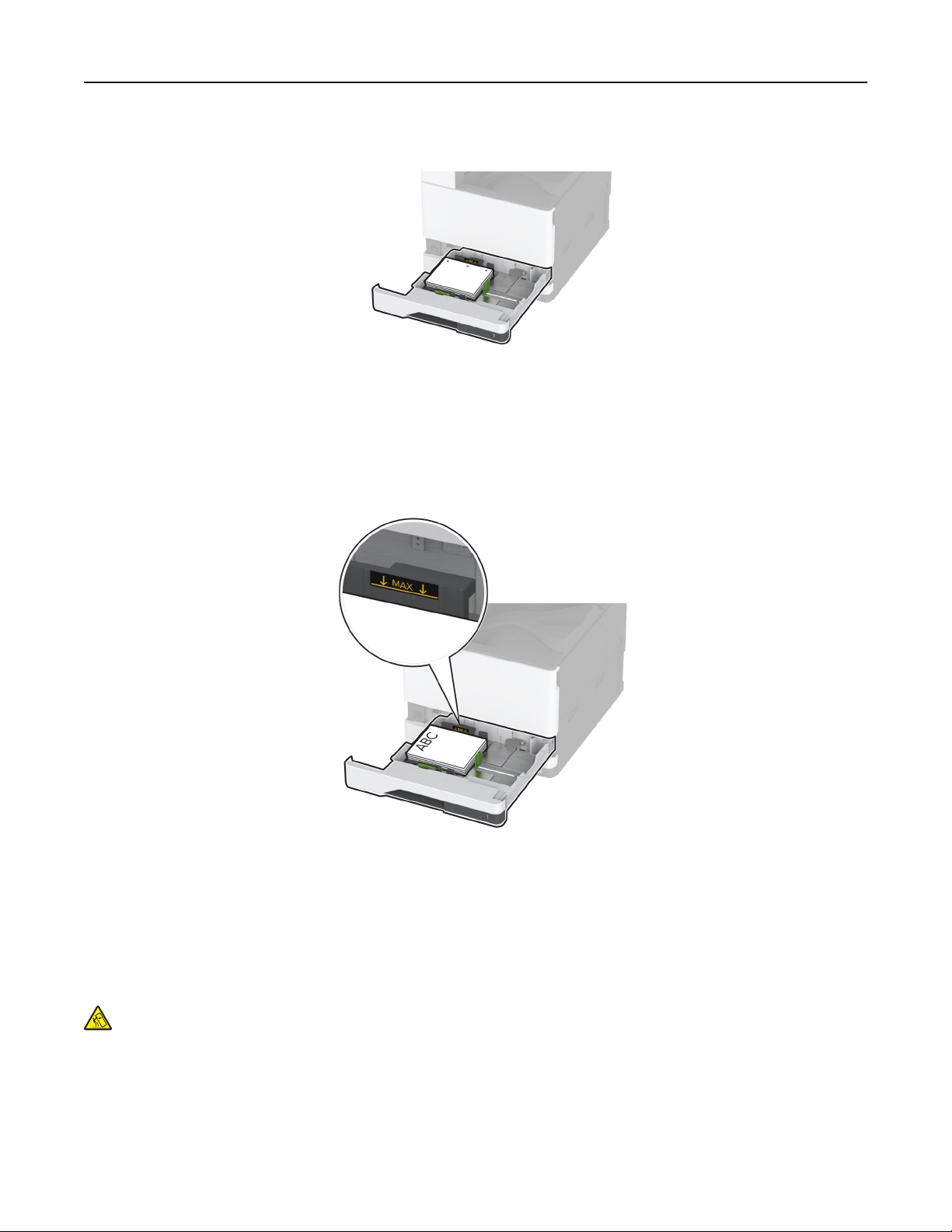
• Load prepunched paper facedown with the holes against the back of the tray.
Notes:
• Do not slide paper into the tray.
• Make sure that the side guides fit snugly against the paper.
• Make sure that the stack height is below the maximum paper fill indicator. Overfilling may cause
paper jams.
5 Insert the tray.
If necessary, set the paper size and type to match the paper loaded in the tray.
Note: When a
finisher
is installed, the images are rotated to 180° when printed.
Loading the 2000-sheet tandem tray
CAUTION—TIPPING HAZARD: To reduce the risk of equipment instability, load each tray separately.
Keep all other trays closed until needed.
1 Pull out the tray.
Note: To avoid jams, do not pull out trays while the printer is busy.
Set up, install, and configure 65
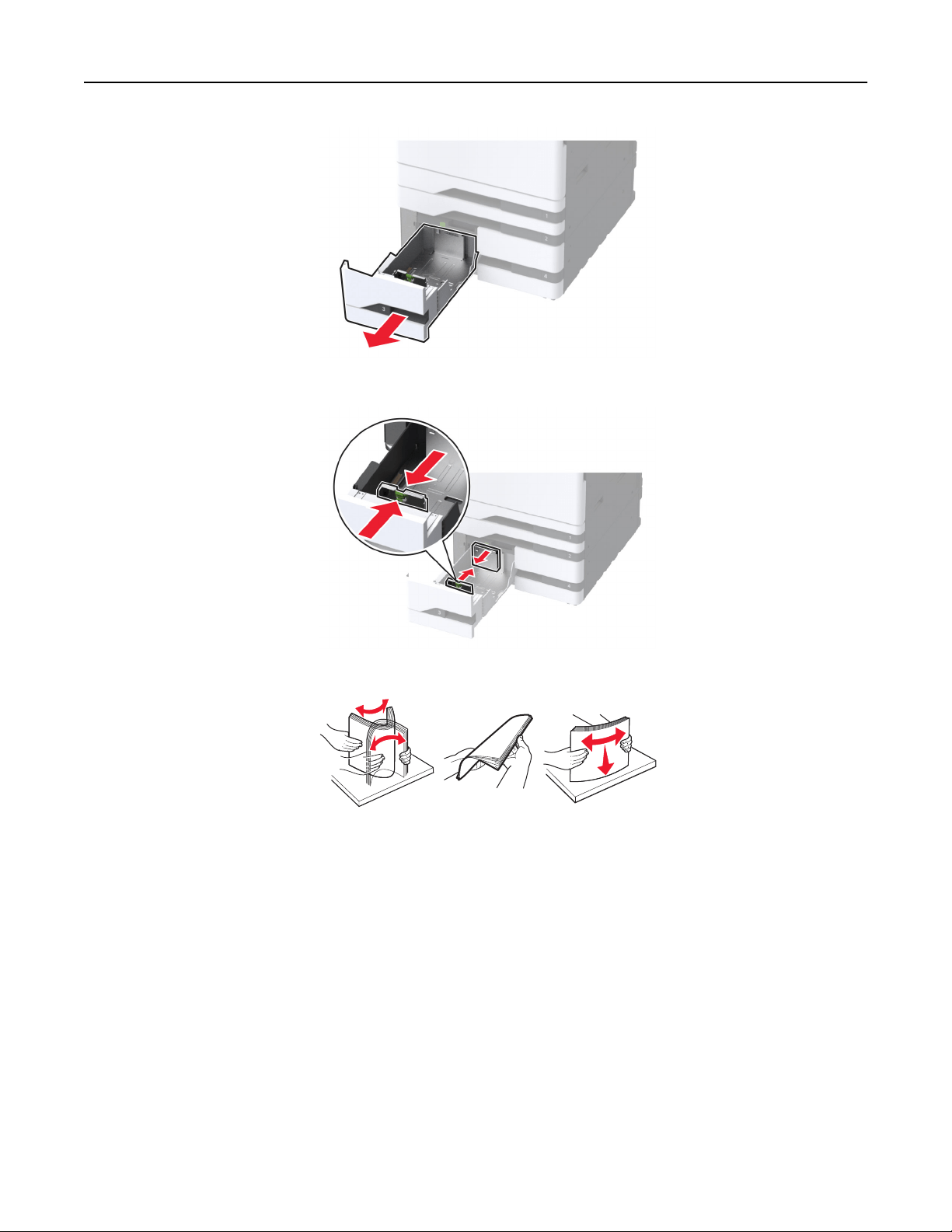
2 Adjust the guides to match the size of the paper that you are loading.
3 Flex, fan, and align the paper edges before loading.
4 Load the paper stack with the printable side faceup.
When loading letterhead or prepunched paper, do either of the following:
Set up, install, and configure 66
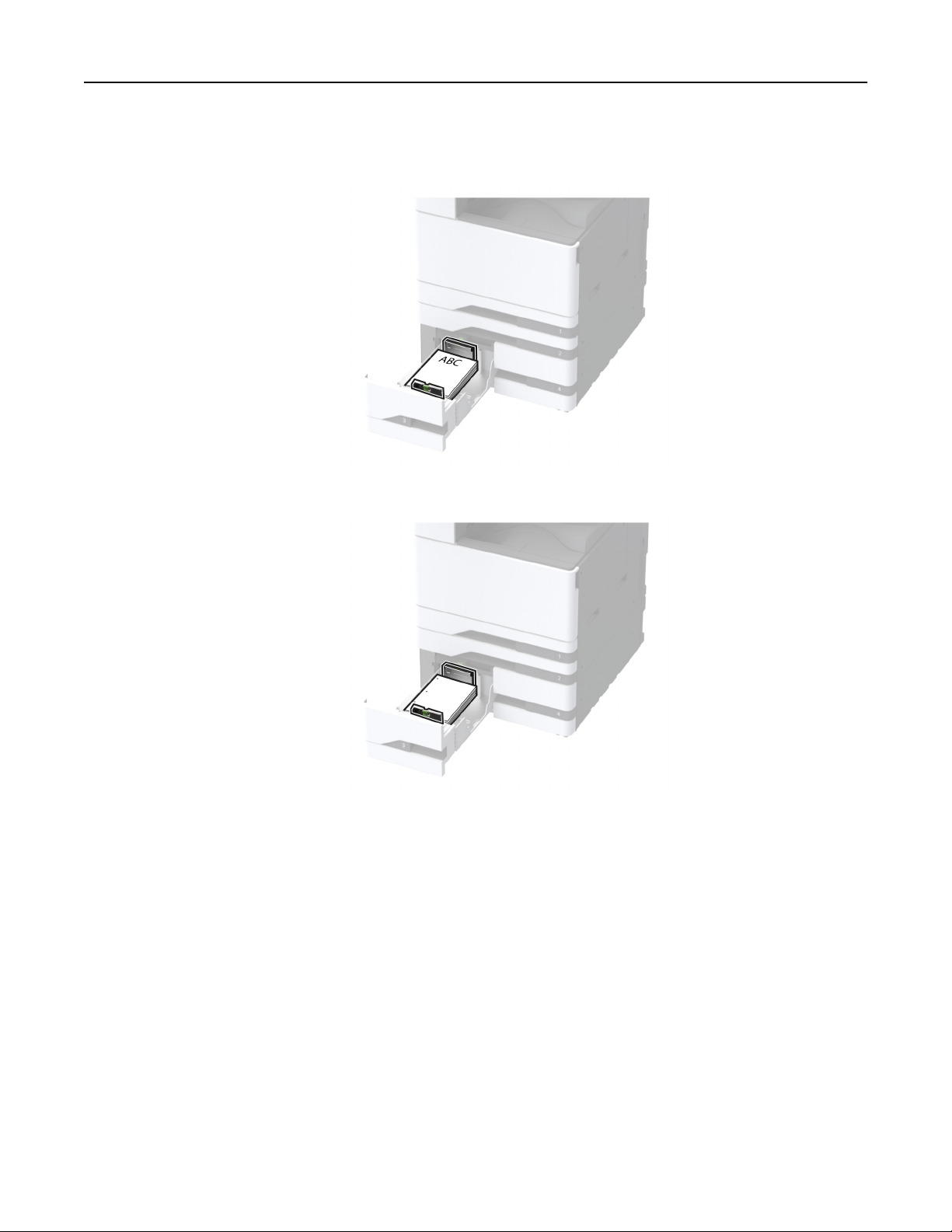
For one‑sided printing
• Load letterhead faceup with the header toward the back of the tray.
• Load prepunched paper faceup with the holes against the left side of the tray.
Set up, install, and configure 67
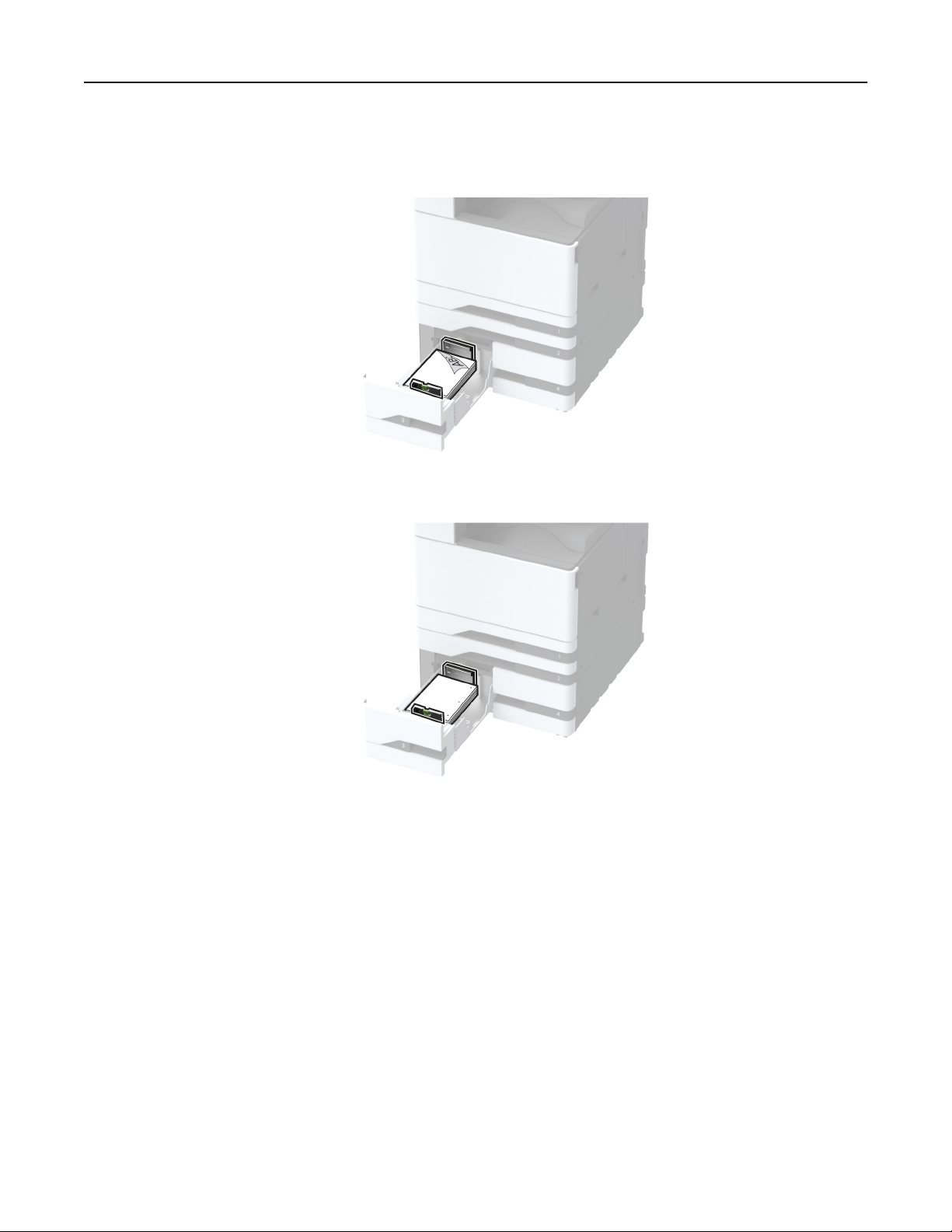
For two‑sided printing
• Load letterhead facedown with the header toward the back of the tray.
• Load prepunched paper facedown with the holes against the right side of the tray.
Notes:
• Do not slide paper into the tray.
• Make sure that the stack height is below the maximum paper fill indicator. Overfilling may cause
paper jams.
Set up, install, and configure 68
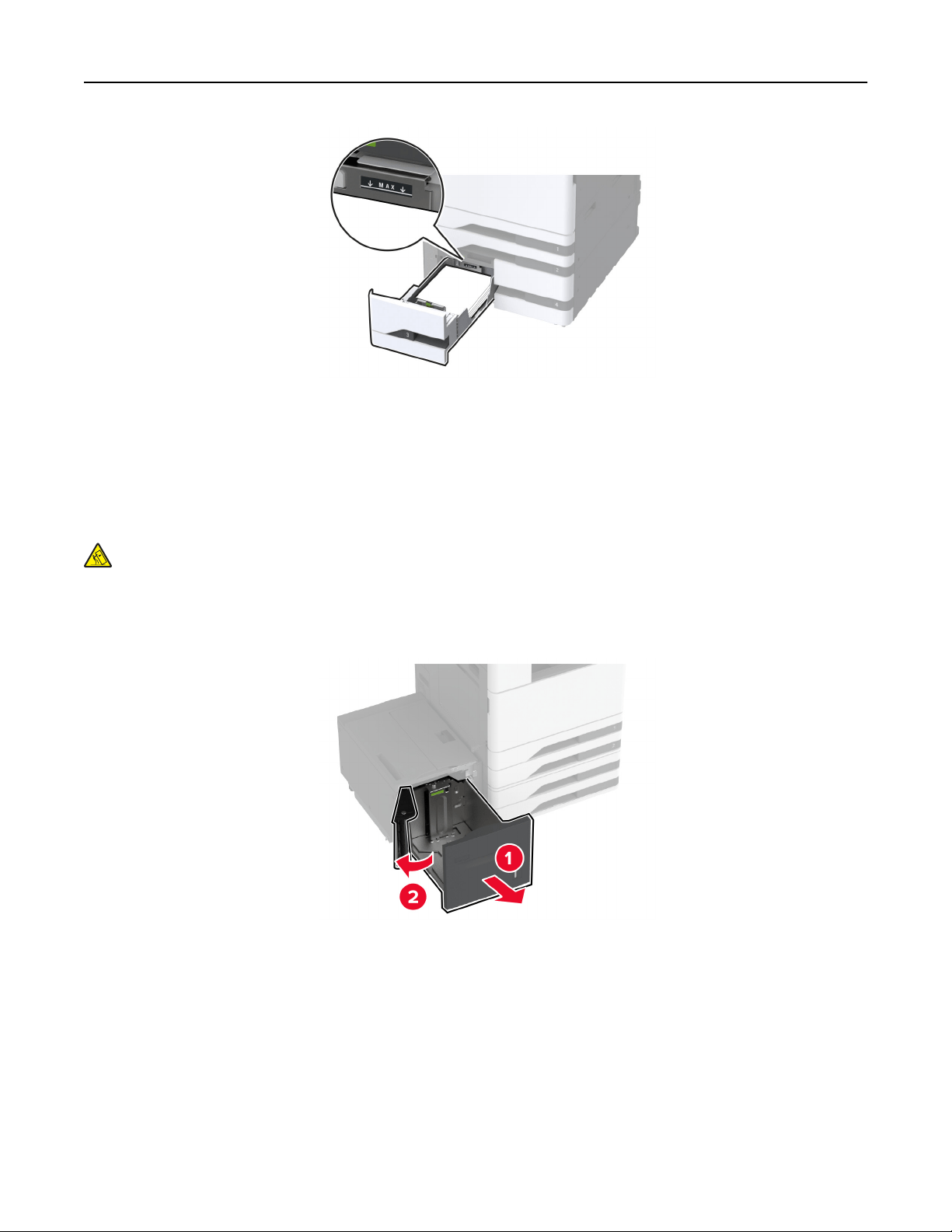
5 Insert the tray.
If necessary, set the paper size and type to match the paper loaded in the tray.
Note: When a finisher is installed, the images are rotated to 180° when printed.
Loading the 2000-sheet tray
CAUTION—TIPPING HAZARD: To reduce the risk of equipment instability, load each tray separately.
Keep all other trays closed until needed.
1 Pull out the tray, and then open the tray side door.
Note: To avoid jams, do not pull out trays while the printer is busy.
Set up, install, and configure 69
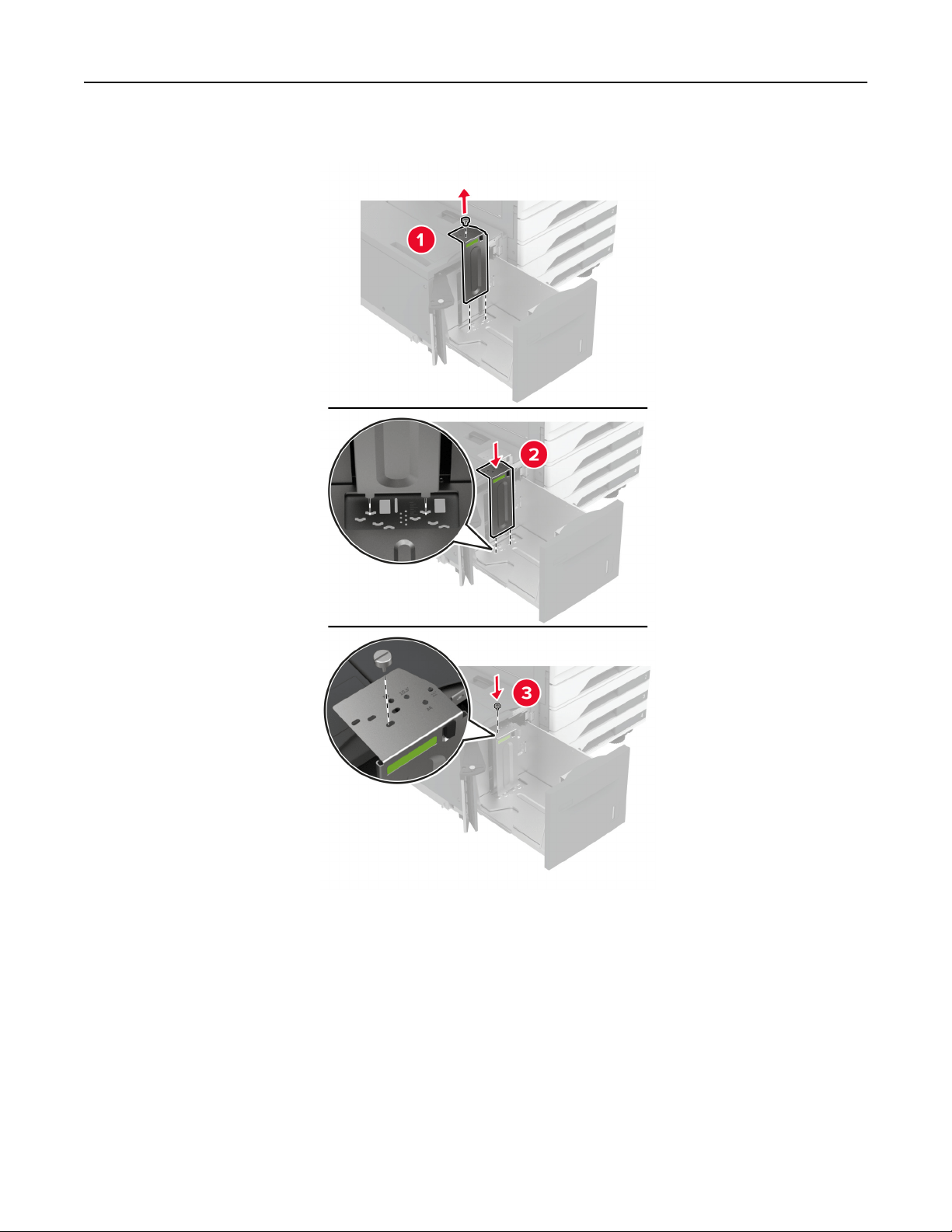
2 Adjust the guide at the back of the tray. Do the same at the front of the tray.
Set up, install, and configure 70
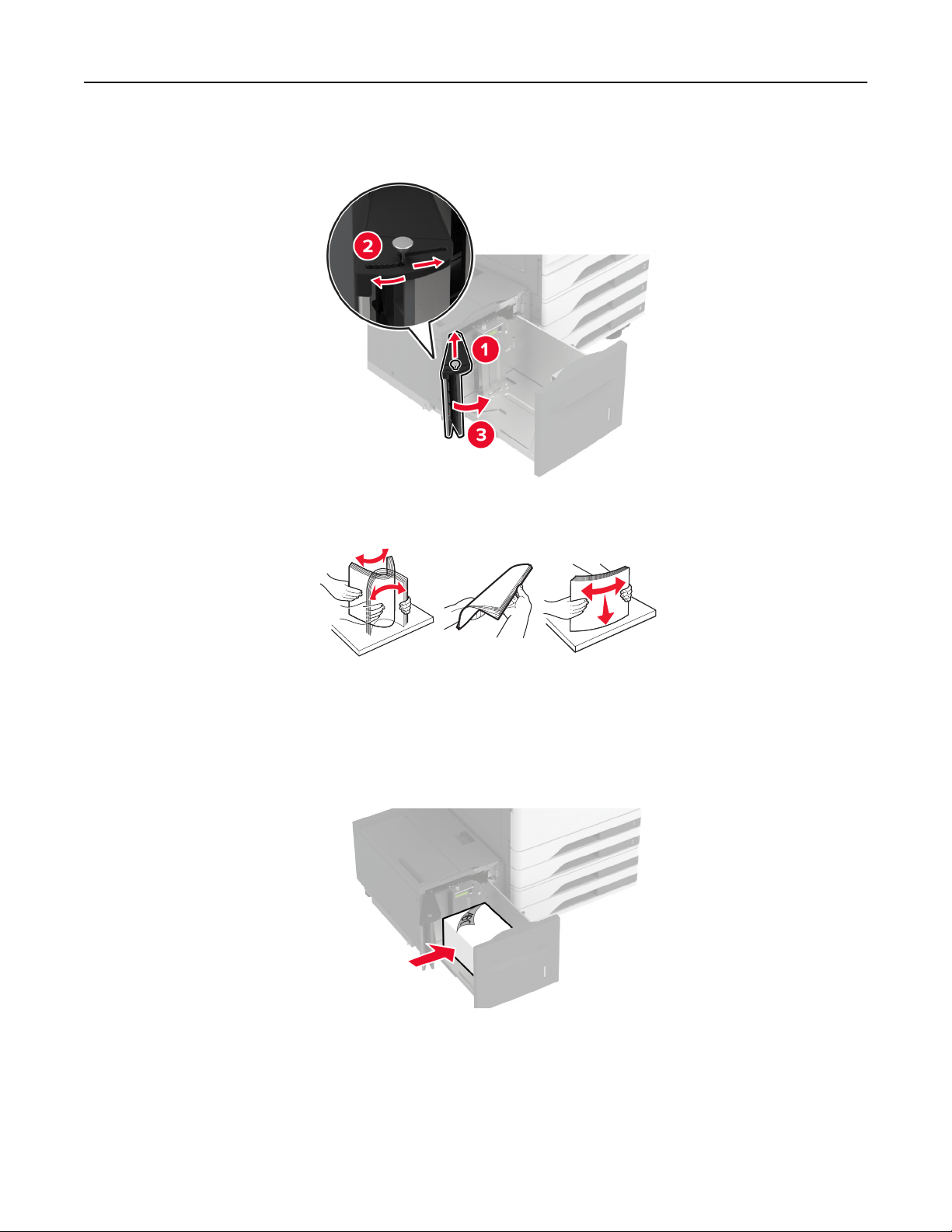
3 Adjust the lever on the tray side door.
4 Flex, fan, and align the paper edges before loading.
5 Load the paper stack with the printable side faceup.
When loading letterhead or prepunched paper, do either of the following:
For one
‑sided printing
• Load letterhead facedown with the header toward the back of the tray.
Set up, install, and configure 71
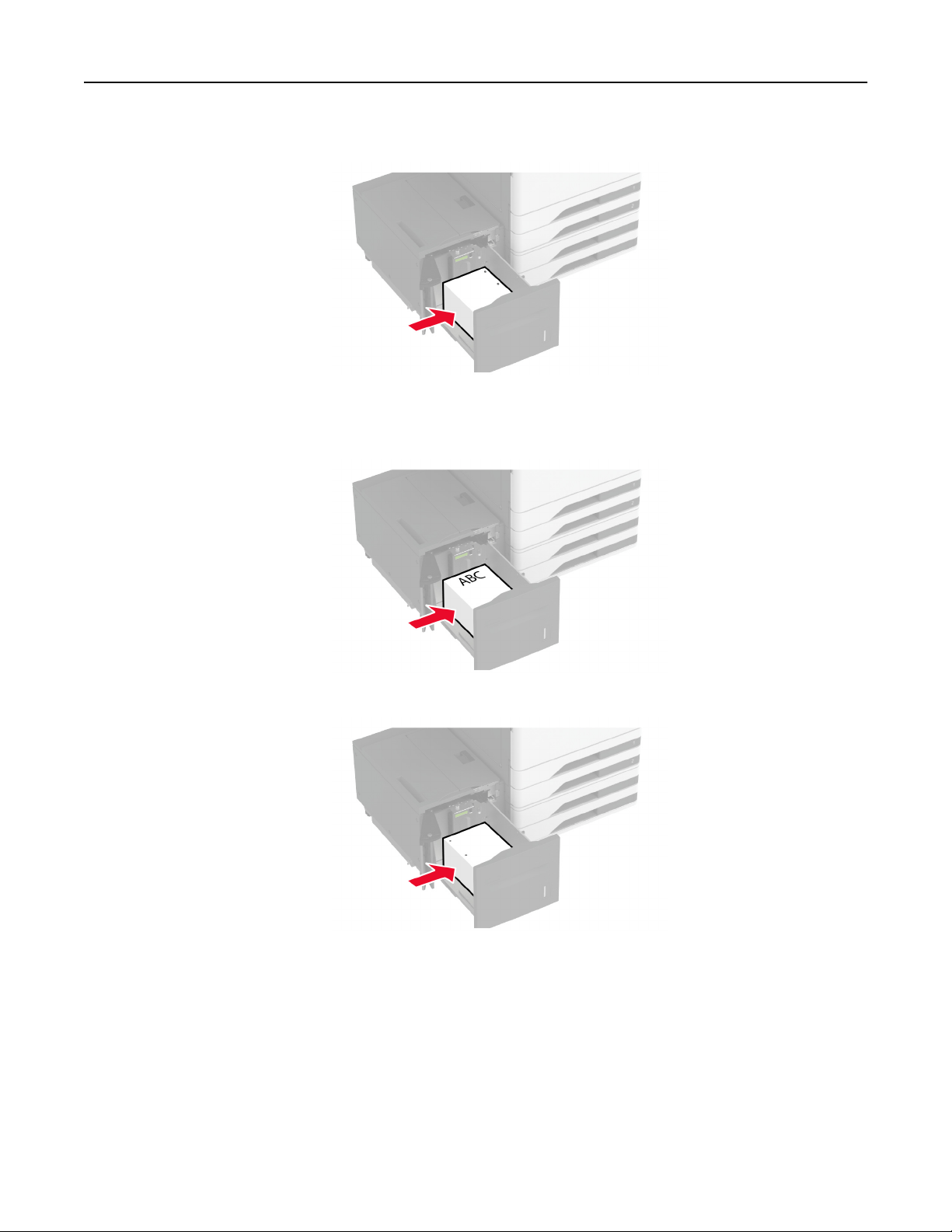
• Load prepunched paper facedown with the holes against the left side of the tray.
For two‑sided printing
• Load letterhead faceup with the header toward the back of the tray.
• Load prepunched paper faceup with the holes against the left side of the tray.
Note: Make sure that the stack height is below the maximum paper
fill
indicator.
Overfilling
may cause
paper jams.
Set up, install, and configure 72
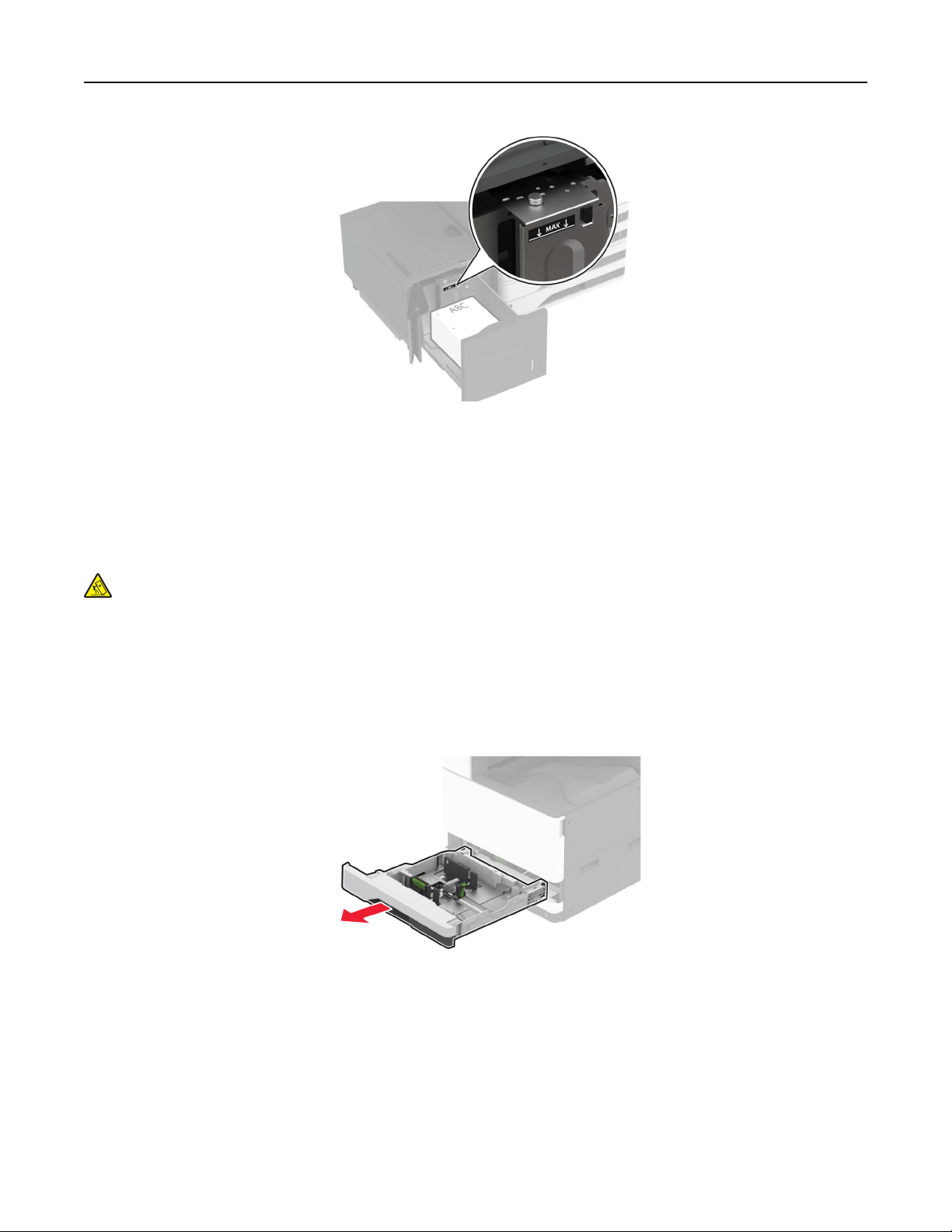
6 Close the tray side door, and then insert the tray.
If necessary, set the paper size and type to match the paper loaded in the tray.
Note: When a finisher is installed, the images are rotated to 180° when printed.
Loading the envelope tray
CAUTION—TIPPING HAZARD: To reduce the risk of equipment instability, load each tray separately.
Keep all other trays closed until needed.
1 Pull out the envelope tray.
Note: To avoid jams, do not pull out trays while the printer is busy.
Set up, install, and configure 73
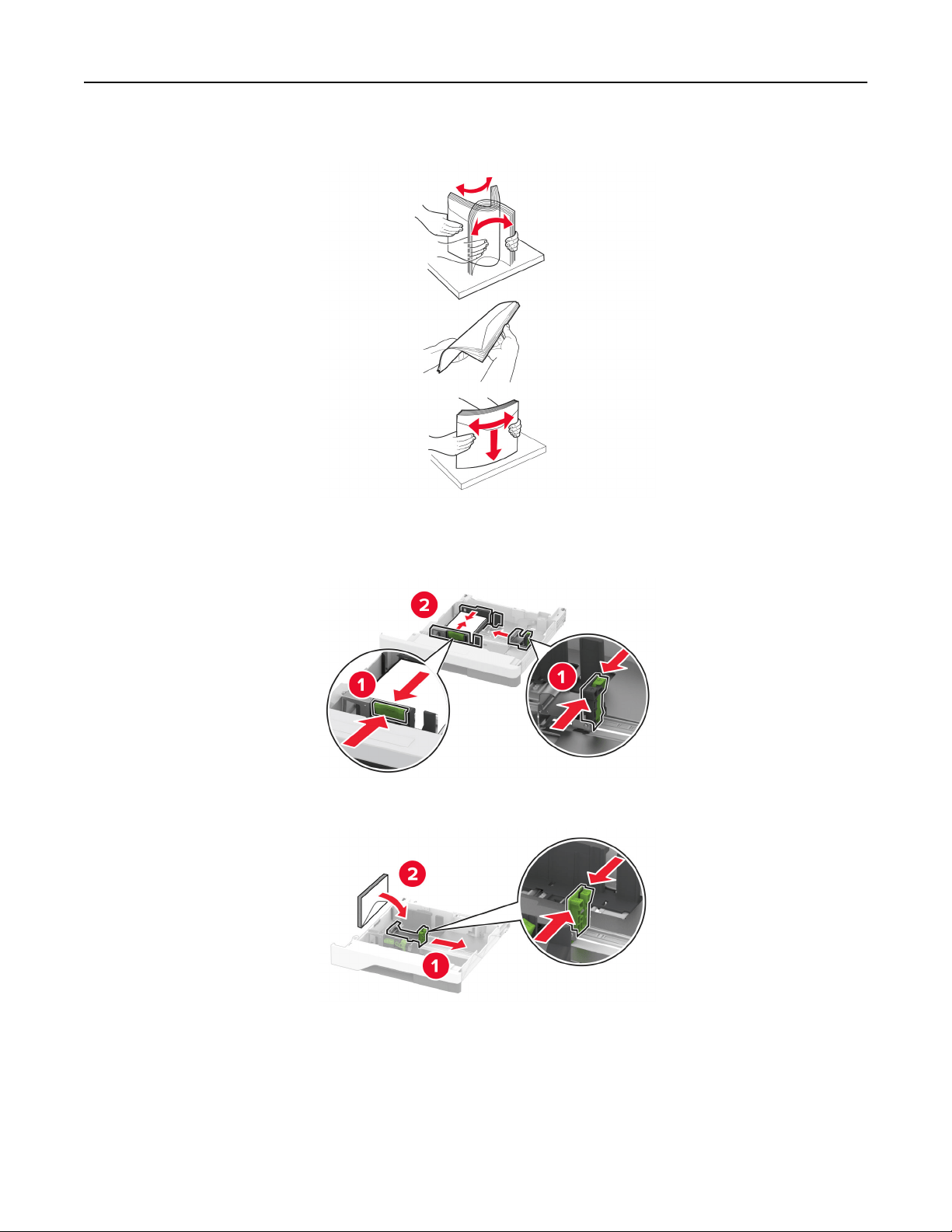
2 Flex, fan, and align the envelope edges before loading.
3 Adjust the guides to match the size of the envelope that you are loading.
Note: Use the indicators on the bottom of the tray to position the guides.
4 Load the envelopes with the flap side down and against the left side of the tray.
Notes:
• Make sure that the side guides fit snugly against the envelopes.
• Make sure that the stack height is below the maximum fill indicator. Overfilling may cause jams.
Set up, install, and configure 74
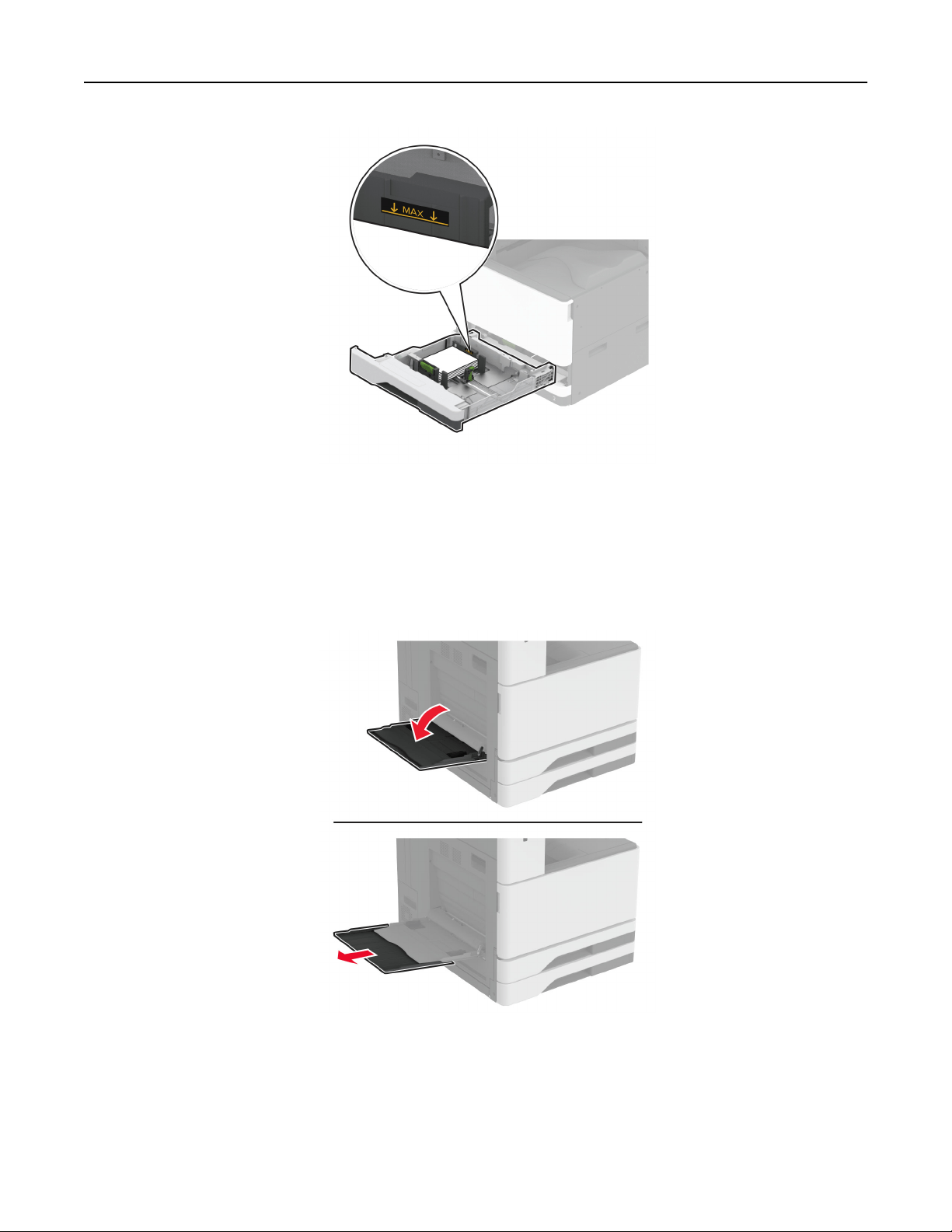
5 Insert the tray.
If necessary, set the paper size and paper type to match the envelope loaded in the tray.
Loading the multipurpose feeder
1 Open the multipurpose feeder.
Set up, install, and configure 75
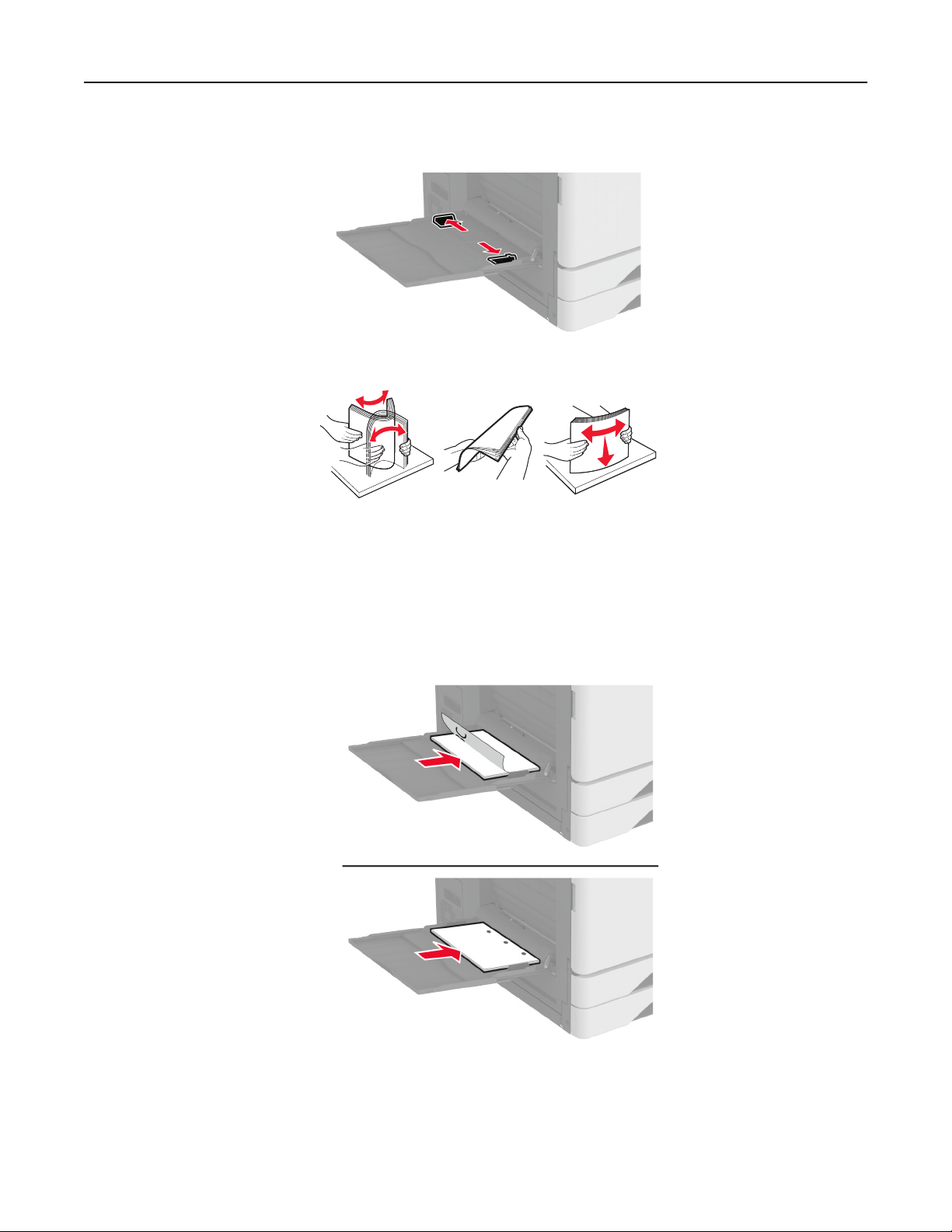
2 Adjust the side guides to match the size of the paper that you are loading.
3 Flex, fan, and align the paper edges before loading.
4 Load the paper.
Note: Make sure that the side guides
fit
snugly against the paper.
For long-edge feed:
• For one-sided printing, load letterhead facedown with the header toward the rear of the printer. Load
prepunched paper facedown with the holes to the right side of the paper.
Set up, install, and configure 76
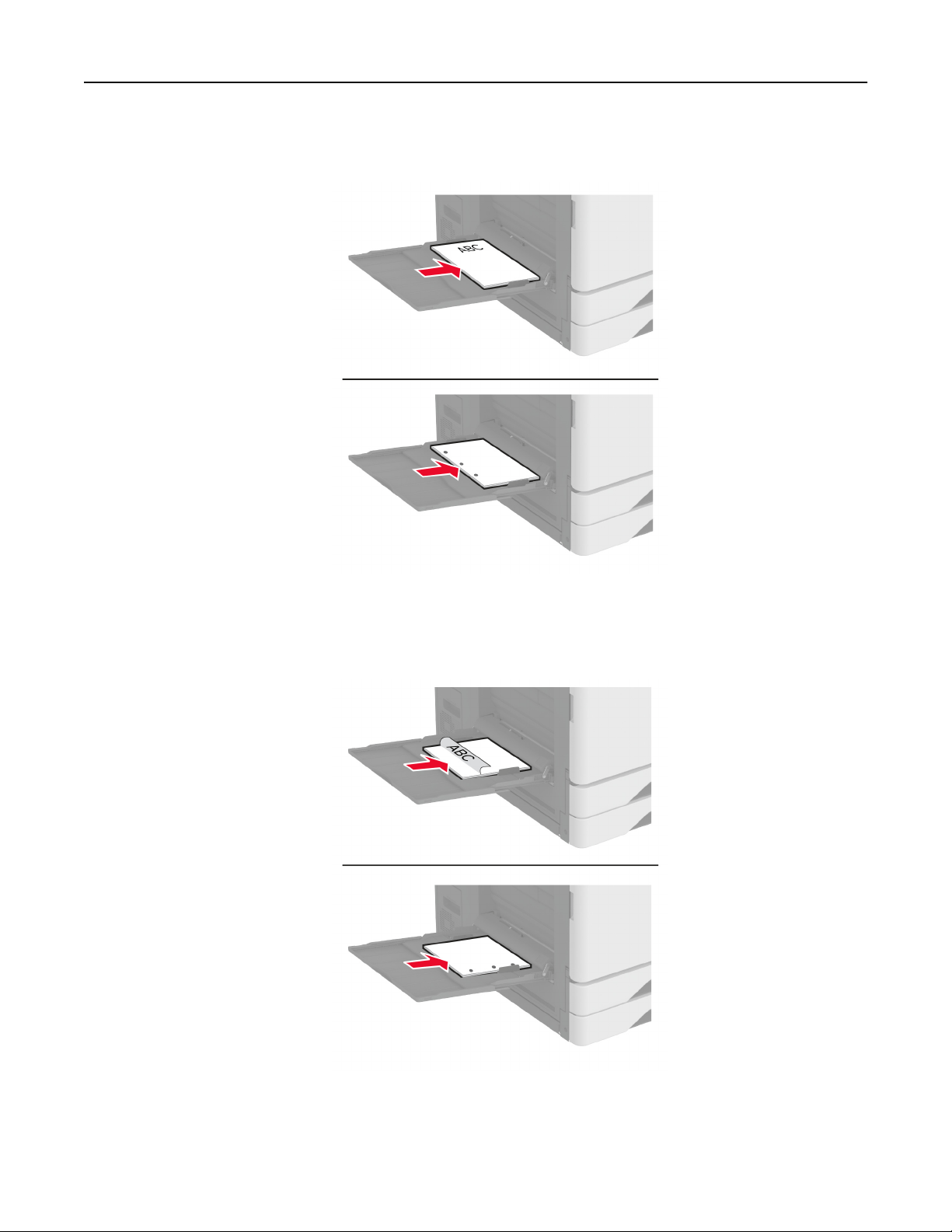
• For two-sided printing, load letterhead faceup with the header toward the rear of the printer. Load
prepunched paper faceup with the holes to the left side of the paper.
For short-edge feed:
• For one-sided printing, load letterhead facedown with the header to the left side of the paper. Load
prepunched paper facedown with the holes toward the front of the printer.
Set up, install, and configure 77
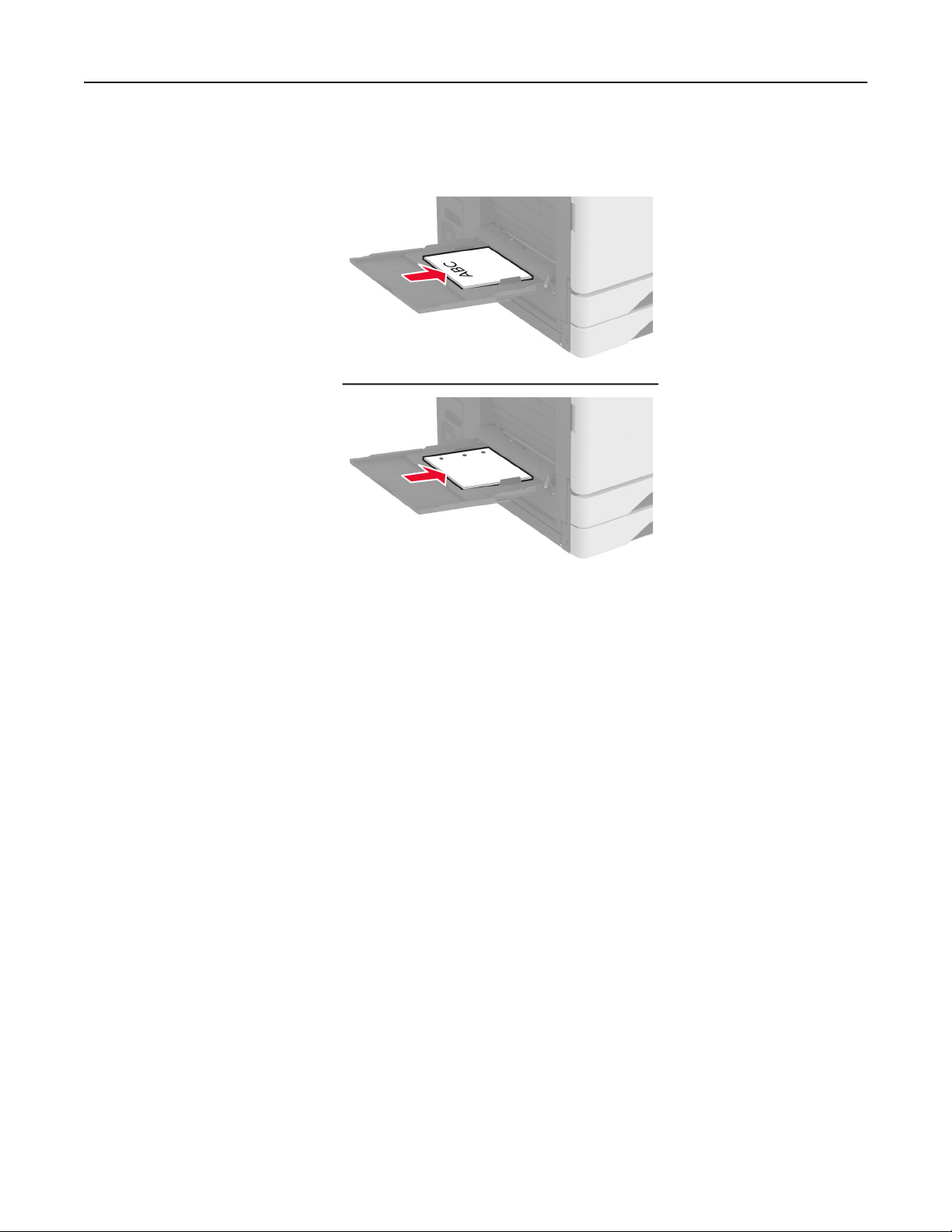
• For two-sided printing, load letterhead faceup with the header to the left side of the paper. Load
prepunched paper faceup with the holes toward the back of the printer.
Note: When a finisher is installed, the printer rotates the images to 180°.
Linking trays
1 From the home screen, touch Settings > Paper > Tray Configuration > select a paper source.
2 Set the same paper size and paper type for the trays that you are linking.
3 From the home screen, touch Settings > Device > Maintenance > Configuration Menu > Tray Configuration
> Tray Linking.
4 Tou ch Automatic.
To unlink trays, make sure that no trays have the same paper size and paper type settings.
Warning—Potential Damage: The temperature of the fuser varies according to the specified paper type. To
avoid printing issues, match the paper type setting in the printer with the paper loaded in the tray.
Installing and updating software, drivers, and firmware
Installing the printer software
Notes:
• The print driver is included in the software installer package.
Set up, install, and configure 78

• For Macintosh computers with macOS version 10.7 or later, you do not need to install the driver to print
on an
AirPrint-certified
printer. If you want custom printing features, then download the print driver.
1 Obtain a copy of the software installer package.
• From the software CD that came with your printer.
• Go to
www.lexmark.com/downloads.
2 Run the installer, and then follow the instructions on the computer screen.
Installing the fax driver
1 Go to www.lexmark.com/downloads, search for your printer model, and then download the appropriate
installer package.
2 From your computer, click Printer Properties, and then navigate to the Configuration tab.
3 Select Fax, and then click Apply.
Adding printers to a computer
Before you begin, do one of the following:
• Connect the printer and the computer to the same network. For more information on connecting the printer
to a network, see
“Connecting the printer to a Wi‑Fi network” on page 187.
• Connect the computer to the printer. For more information, see
“Connecting a computer to the printer” on
page 189.
• Connect the printer to the computer using a USB cable. For more information, see
“Attaching cables” on
page 36.
Note: The USB cable is sold separately.
For Windows users
1 From a computer, install the print driver.
Note: For more information, see
“Installing the printer software” on page 78.
2 Open Printers & scanners, and then click Add a printer or scanner.
3 Depending on your printer connection, do one of the following:
• Select a printer from the list, and then click Add device.
• Click Show Wi
‑Fi Direct printers, select a printer, and then click Add device.
• Click The printer that I want isn’t listed, and then from the Add Printer window, do the following:
a Select Add a printer using a TCP/IP address or hostname, and then click Next.
b In the “Hostname or IP address”
field,
type the printer IP address, and then click Next.
Notes:
– View the printer IP address on the printer home screen. The IP address appears as four sets of
numbers separated by periods, such as 123.123.123.123.
– If you are using a proxy server, then temporarily disable it to load the web page correctly.
c Select a print driver, and then click Next.
d Select Use the print driver that is currently installed (recommended), and then click Next.
Set up, install, and configure 79

e Type a printer name, and then click Next.
f Select a printer sharing option, and then click Next.
g Click Finish.
For Macintosh users
1 From a computer, open Printers & Scanners.
2 Click
, and then select a printer.
3 From the Use menu, select a print driver.
Notes:
• To use the Macintosh print driver, select either AirPrint or Secure AirPrint.
• If you want custom printing features, then select the Lexmark print driver. To install the driver, see
“Installing the printer software” on page 78.
4 Add the printer.
Exporting or importing a configuration file
You can export the configuration settings of your printer into a text file, and then import the file to apply the
settings to other printers.
1 Open a web browser, and then type the printer IP address in the address field.
Notes:
• View the printer IP address on the printer home screen. The IP address appears as four sets of
numbers separated by periods, such as 123.123.123.123.
• If you are using a proxy server, then temporarily disable it to load the web page correctly.
2 From the Embedded Web Server, click Export Configuration or Import Configuration.
3 Follow the instructions on the screen.
4 If the printer supports applications, then do the following:
a Click Apps > select the application >
Configure
.
b Click Export or Import.
Adding available options in the print driver
For Windows users
1 Open the printers folder.
2 Select the printer you want to update, and then do either of the following:
• For Windows 7 or later, select Printer properties.
• For earlier versions, select Properties.
3 Navigate to the Configuration tab, and then select Update Now
‑ Ask Printer.
4 Apply the changes.
Set up, install, and configure 80
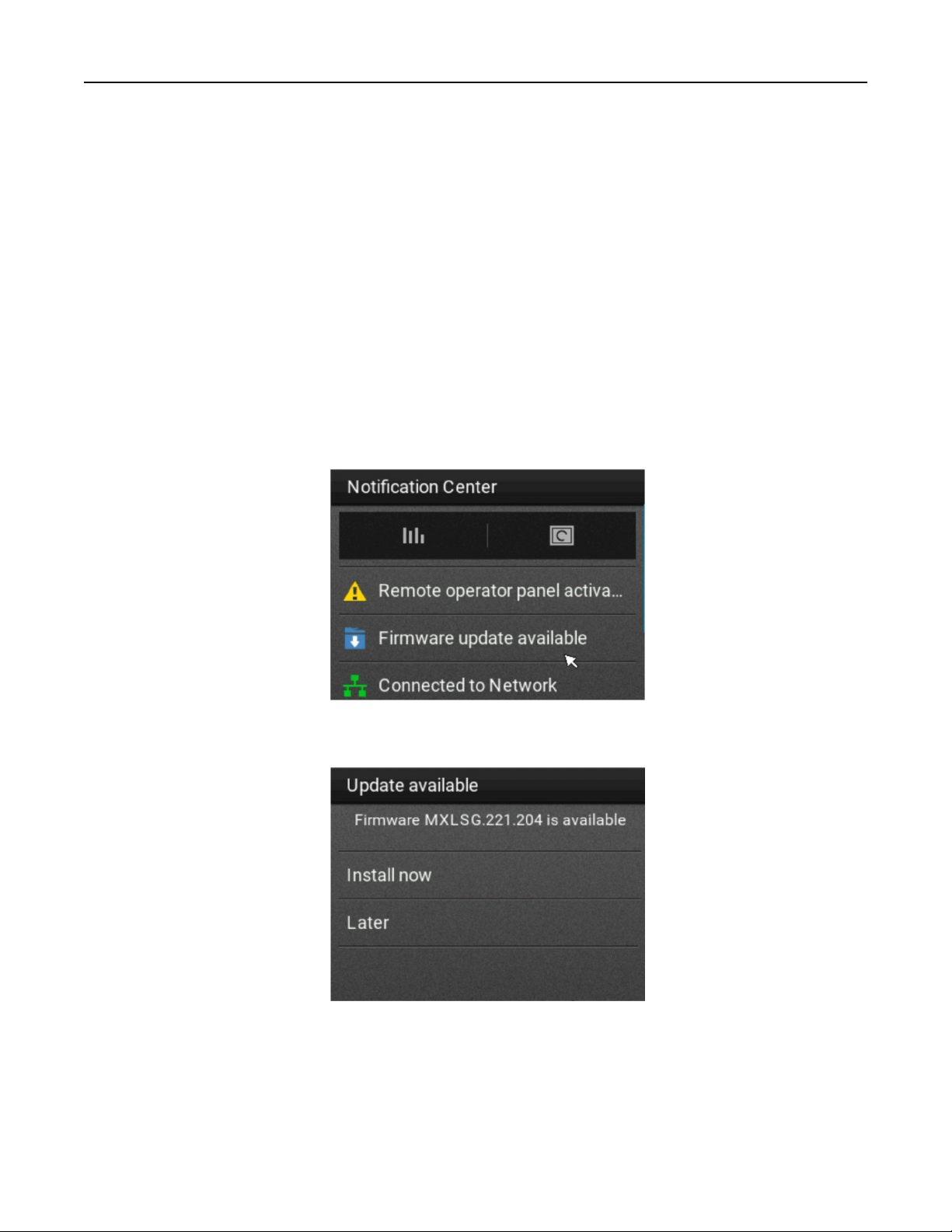
For Macintosh users
1 From System Preferences in the Apple menu, navigate to your printer, and then select Options & Supplies.
2 Navigate to the list of hardware options, and then add any installed options.
3 Apply the changes.
Updating firmware
Updating the firmware using the control panel
Using the notification center
This method is applicable only in some printer models.
1 From the control panel, navigate to the notification center, and then select Firmware update available.
2 Select Install now.
The printer reboots automatically after the update.
Using the Settings menu
1 From the control panel, navigate to Settings > Device > Update Firmware.
2 Depending on your printer model, select Check for updates or Check for updates now.
Set up, install, and configure 81

3 If a new update is available, then select Install now.
The printer reboots automatically after the update.
Updating the firmware using the Embedded Web Server
Before you begin, make sure that:
• You have downloaded the latest printer firmware from https://support.lexmark.com and saved it to your
flash drive or computer.
Note: To deploy the printer
firmware,
extract the
.fls
firmware
file
from the ZIP package.
• You are not using a special code on your printer to avoid losing this functionality.
Warning—Potential Damage: Make sure that all printers receiving firmware updates are turned on during
the entire firmware update process. Turning o a printer during a firmware update can severely damage it.
If the printer is connected to the network when checking for updates, then downloading the firmware is not
required.
1 Open a web browser, and then type the printer IP address in the address field.
Notes:
• View the printer IP address on the printer home screen. The IP address appears as four sets of
numbers separated by periods, such as 123.123.123.123.
• If you are using a proxy server, then temporarily disable it to load the web page correctly.
2 Click Device.
3 Scroll down, and then click Update Firmware.
4 Depending on your printer model, click Check for updates or Check for updates now.
If a new update is available, then click I agree, start update.
The printer reboots automatically after the update.
Installing hardware options
Installing the envelope tray
1 Remove tray 1.
Note: Do not throw away the standard tray.
Set up, install, and configure 82
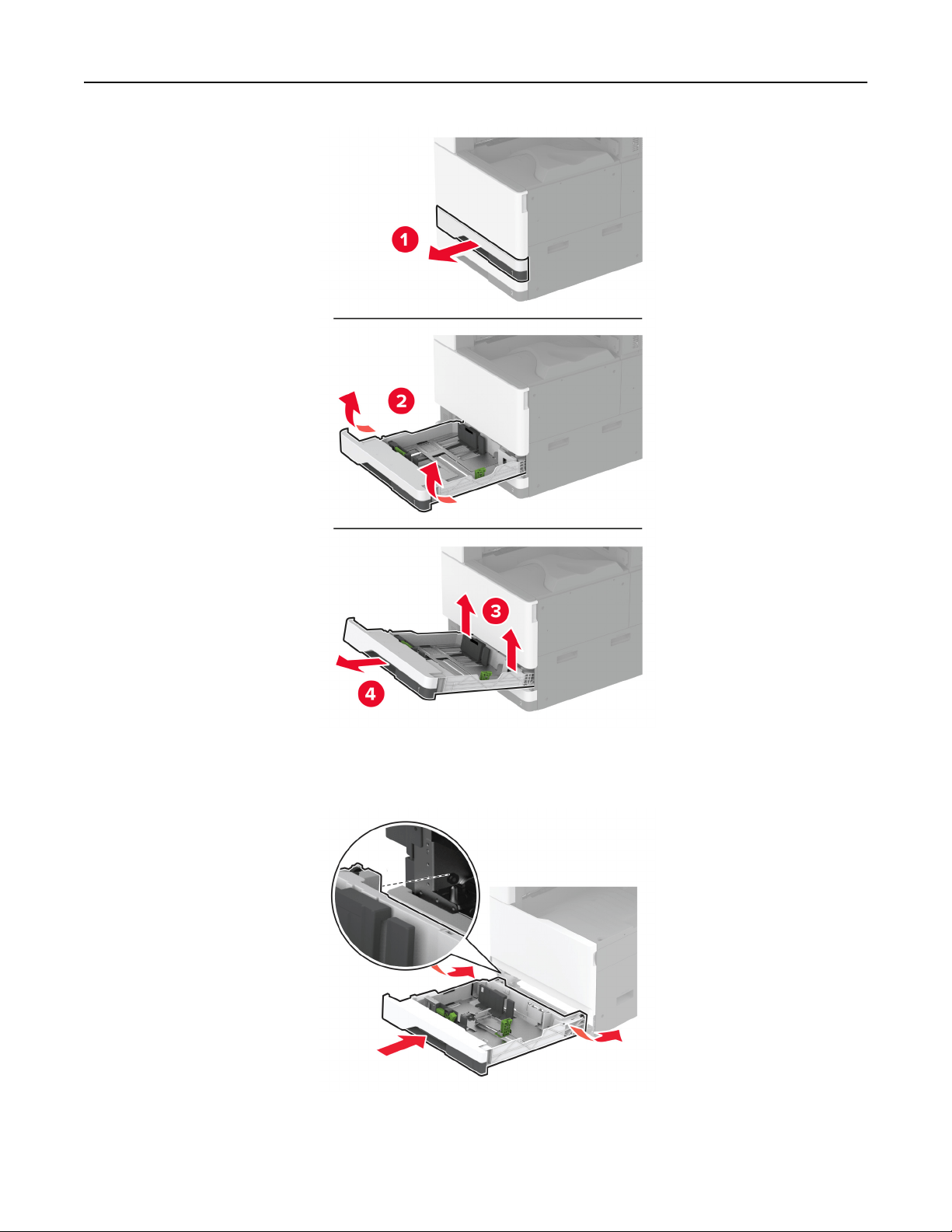
2 Unpack the envelope tray, and then remove all the packing material.
3 Insert the envelope tray.
To make the envelope tray available for print jobs, from the home screen, touch Settings > Device >
Maintenance >
Configuration
Menu > Tray
Configuration
> Envelope Tray Setup > On.
Set up, install, and configure 83
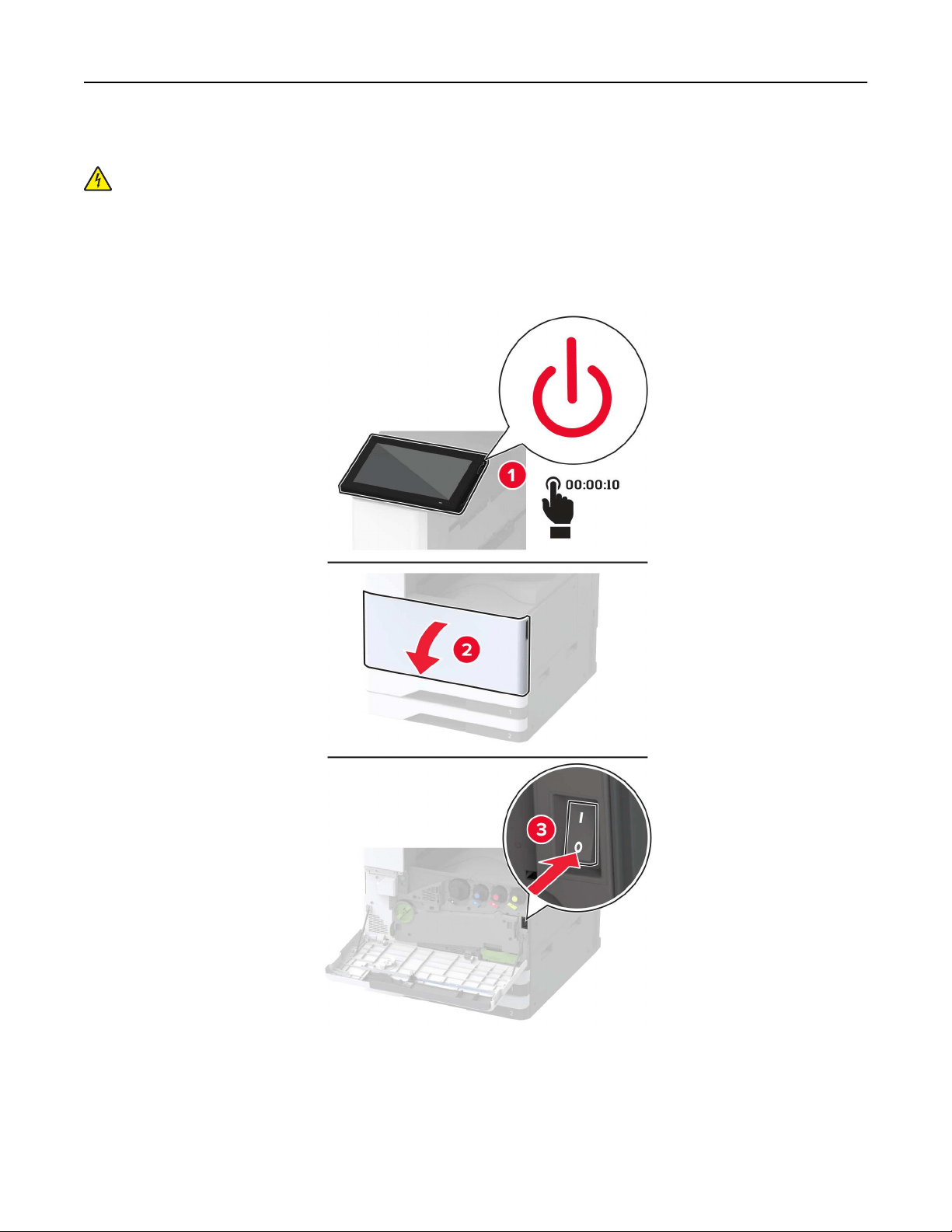
Installing the optional spacer
CAUTION—SHOCK HAZARD: To avoid the risk of electrical shock, if you are accessing the controller
board or installing optional hardware or memory devices sometime after setting up the printer, then turn
the printer o, and unplug the power cord from the electrical outlet before continuing. If you have any
other devices attached to the printer, then turn them o as well, and unplug any cables going into the
printer.
1 Turn o the printer.
Set up, install, and configure 84
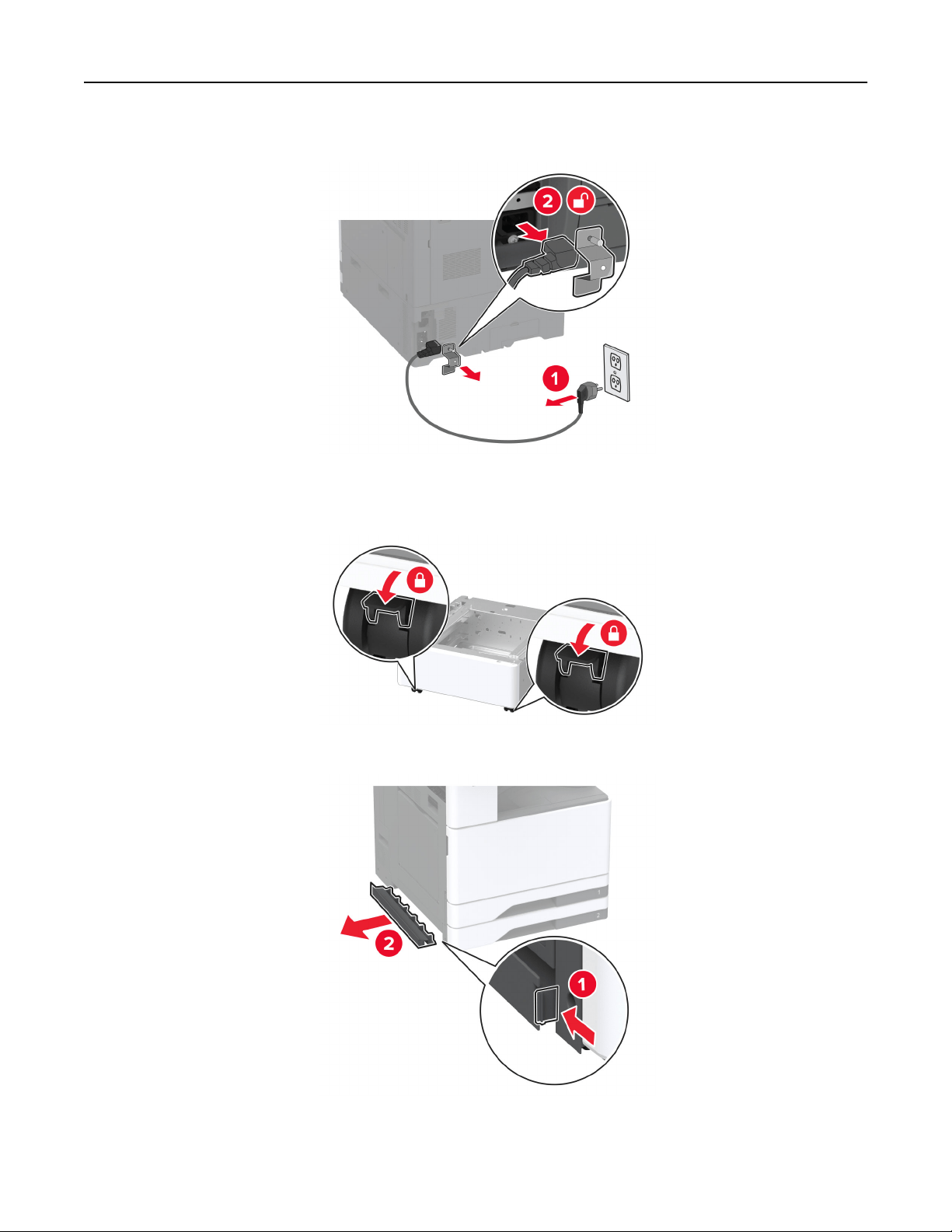
2 Unplug the power cord from the electrical outlet, and then from the printer.
3 Unpack the optional spacer, and then remove all the packing material.
4 Lock the casters to keep the spacer from moving.
5 Remove the option installation cover under the left side of the printer.
Set up, install, and configure 85
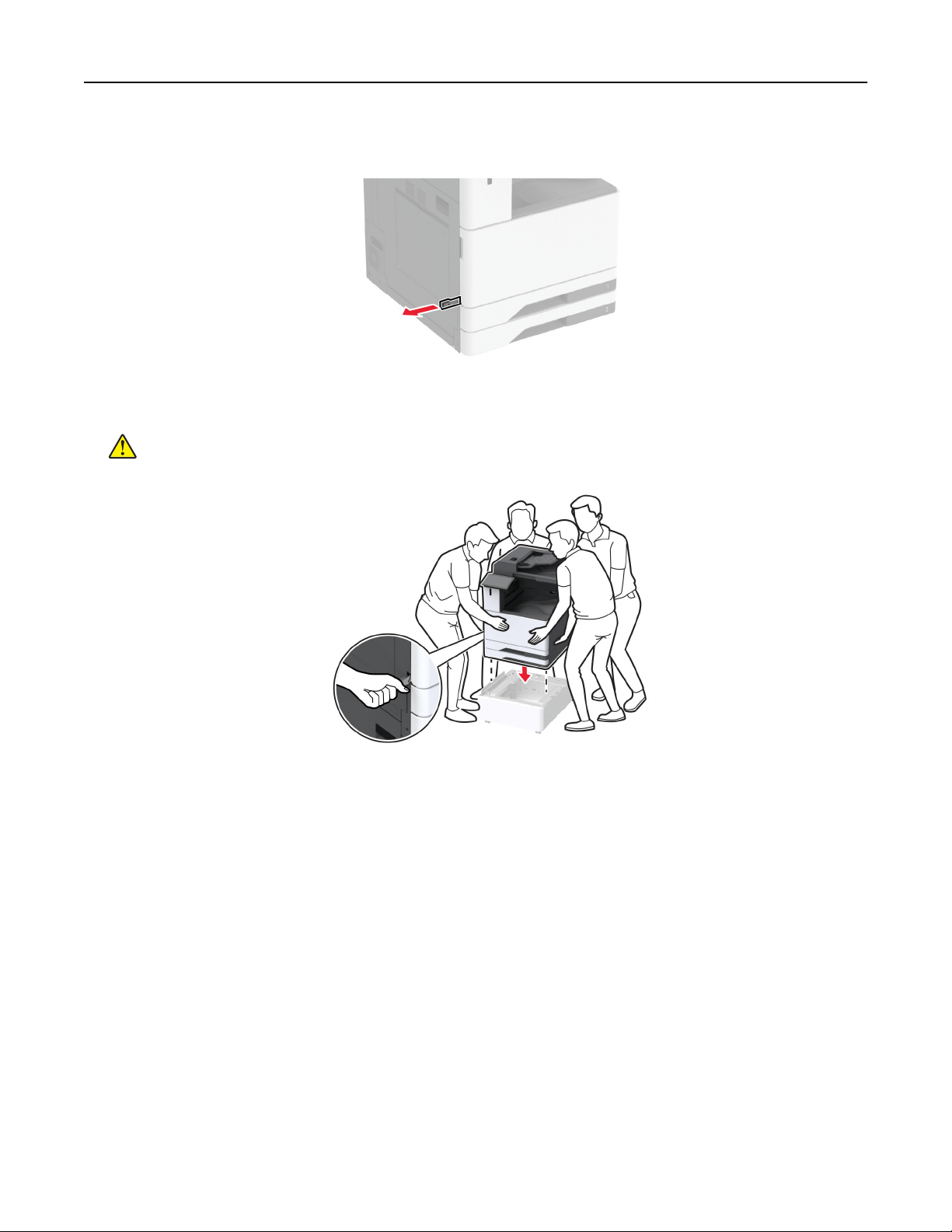
6 Pull out the lifting handle on the left side of the printer.
7 Align the printer with the spacer, and then lower the printer into place.
CAUTION—POTENTIAL INJURY: If the printer weight is greater than 20 kg (44 lb), then it may
require two or more people to lift it safely.
Set up, install, and configure 86
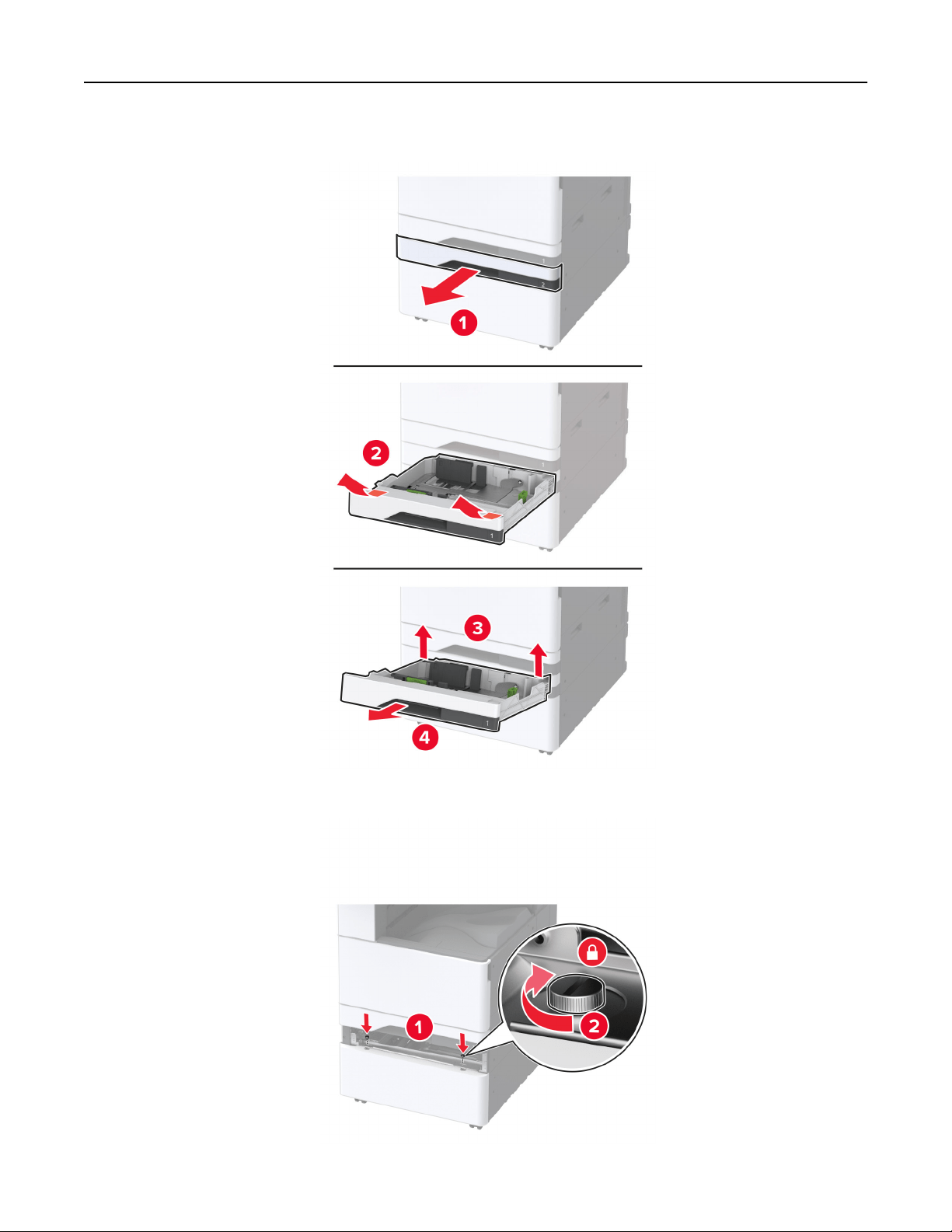
8 Remove tray 2.
9 Secure the spacer to the printer with screws.
Set up, install, and configure 87
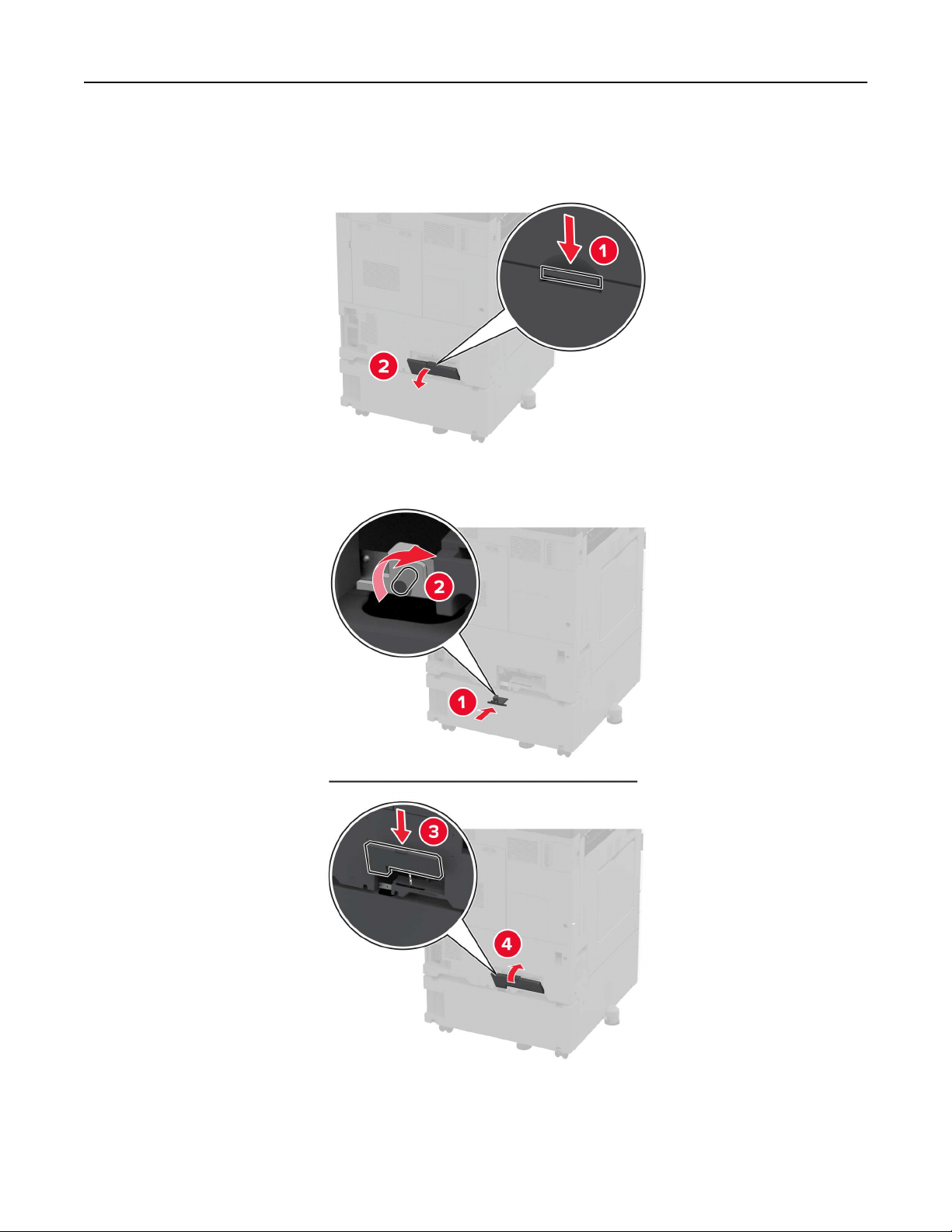
10 Insert tray 2.
11 Remove the connector cover from the rear of the printer.
12 Secure the locking bracket to the printer, and then attach the cover.
Set up, install, and configure 88
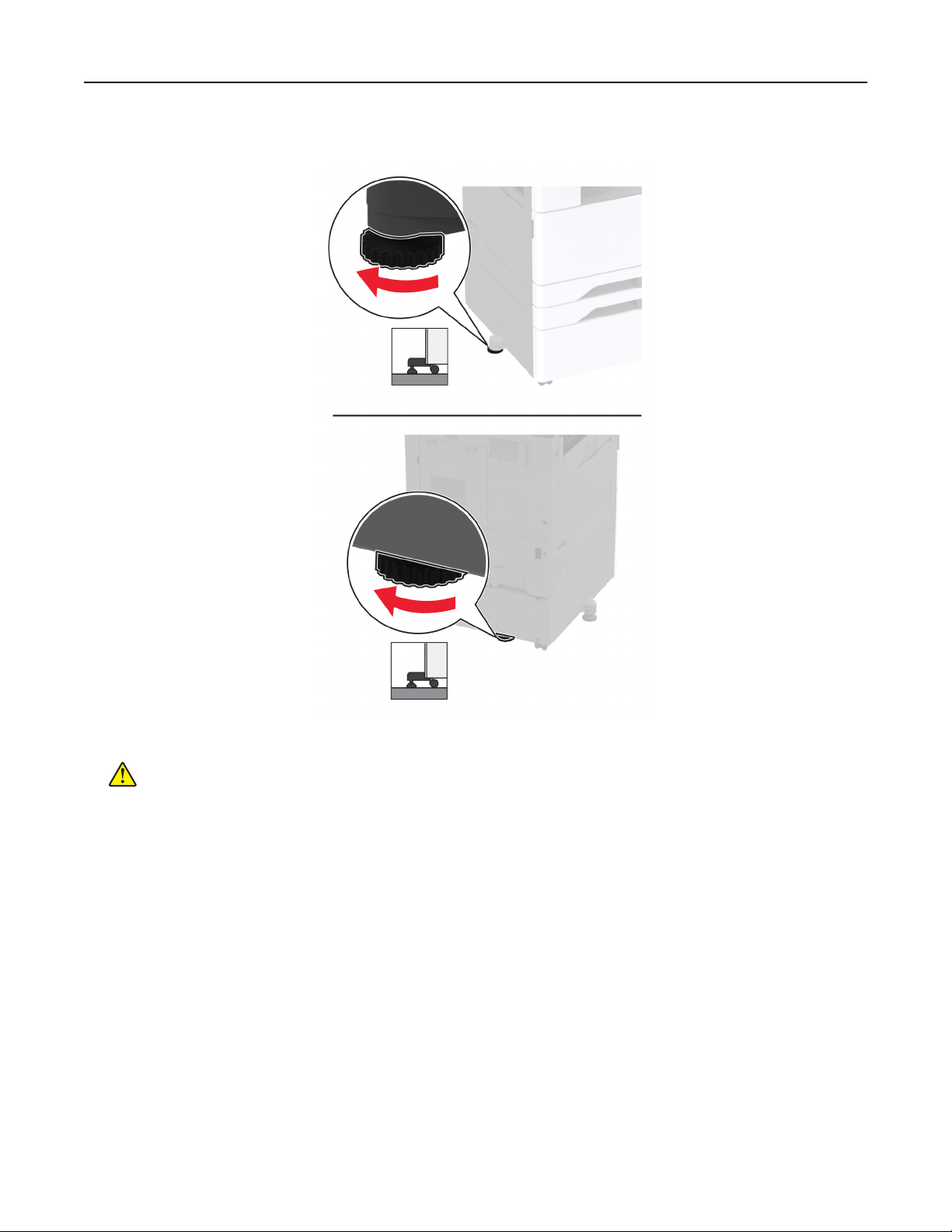
13 Adjust the levelers to make sure that all sides of the printer have the same height.
14 Connect the power cord to the printer, and then to the electrical outlet.
CAUTION—POTENTIAL INJURY: To avoid the risk of fire or electrical shock, connect the power cord
to an appropriately rated and properly grounded electrical outlet that is near the product and easily
accessible.
15 Turn on the printer.
Set up, install, and configure 89

Installing the optional 2 x 520-sheet tray
CAUTION—SHOCK HAZARD: To avoid the risk of electrical shock, if you are accessing the controller
board or installing optional hardware or memory devices sometime after setting up the printer, then turn
the printer o, and unplug the power cord from the electrical outlet before continuing. If you have any
other devices attached to the printer, then turn them o as well, and unplug any cables going into the
printer.
1 Turn o the printer.
Set up, install, and configure 90
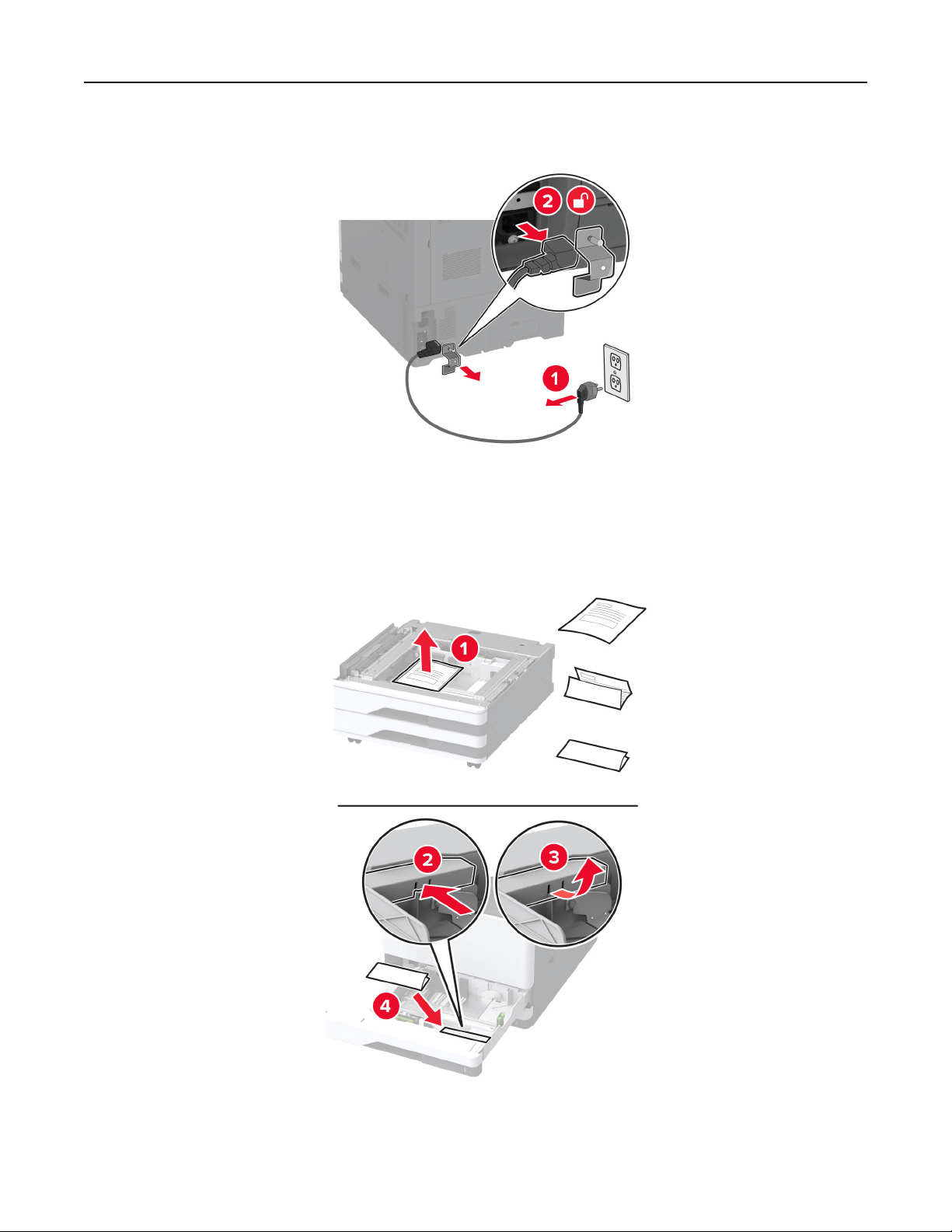
2 Unplug the power cord from the electrical outlet, and then from the printer.
3 Unpack the optional tray, and then remove all the packing material.
4 Store the sheet that came with the optional tray into the compartment in tray 1.
Note: The sheet has critical information that the service technician needs when repairing or replacing the
optional tray.
Set up, install, and configure 91
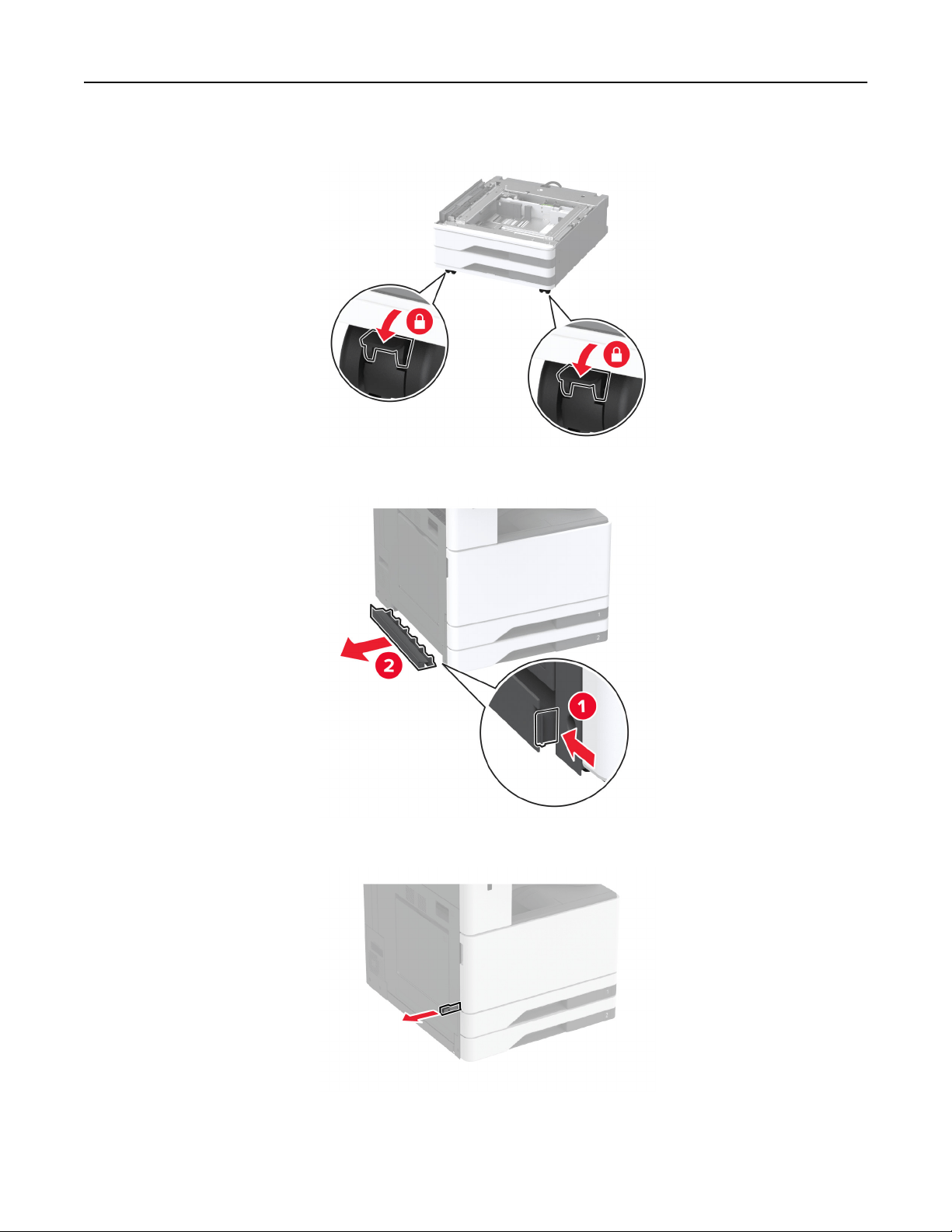
5 Lock the casters to keep the optional tray from moving.
6 Remove the option installation cover under the left side of the printer.
7 Pull out the lifting handle on the left side of the printer.
8 Align the printer with the optional tray, and then lower the printer into place.
Set up, install, and configure 92
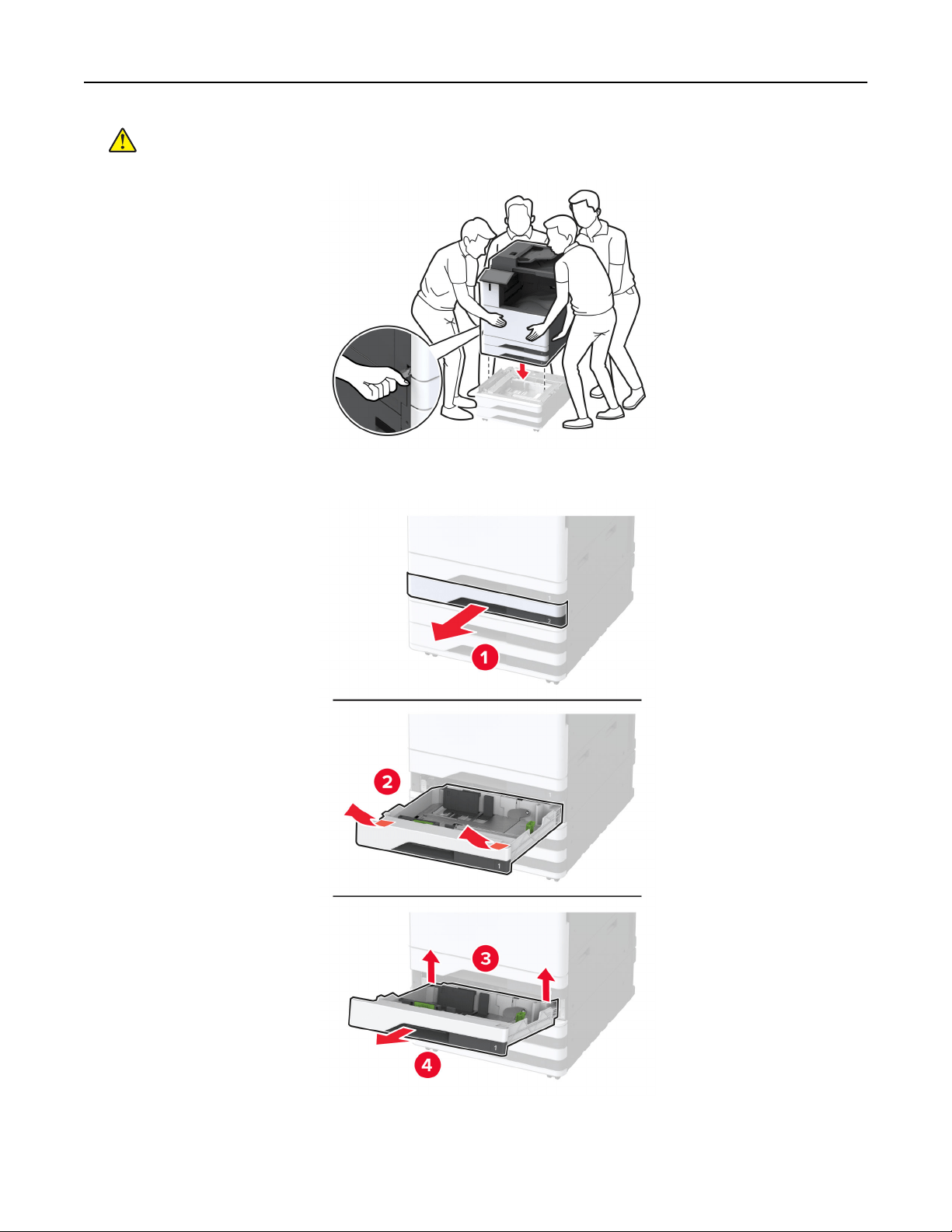
CAUTION—POTENTIAL INJURY: If the printer weight is greater than 20 kg (44 lb), then it may
require two or more people to lift it safely.
9 Remove tray 2.
Set up, install, and configure 93
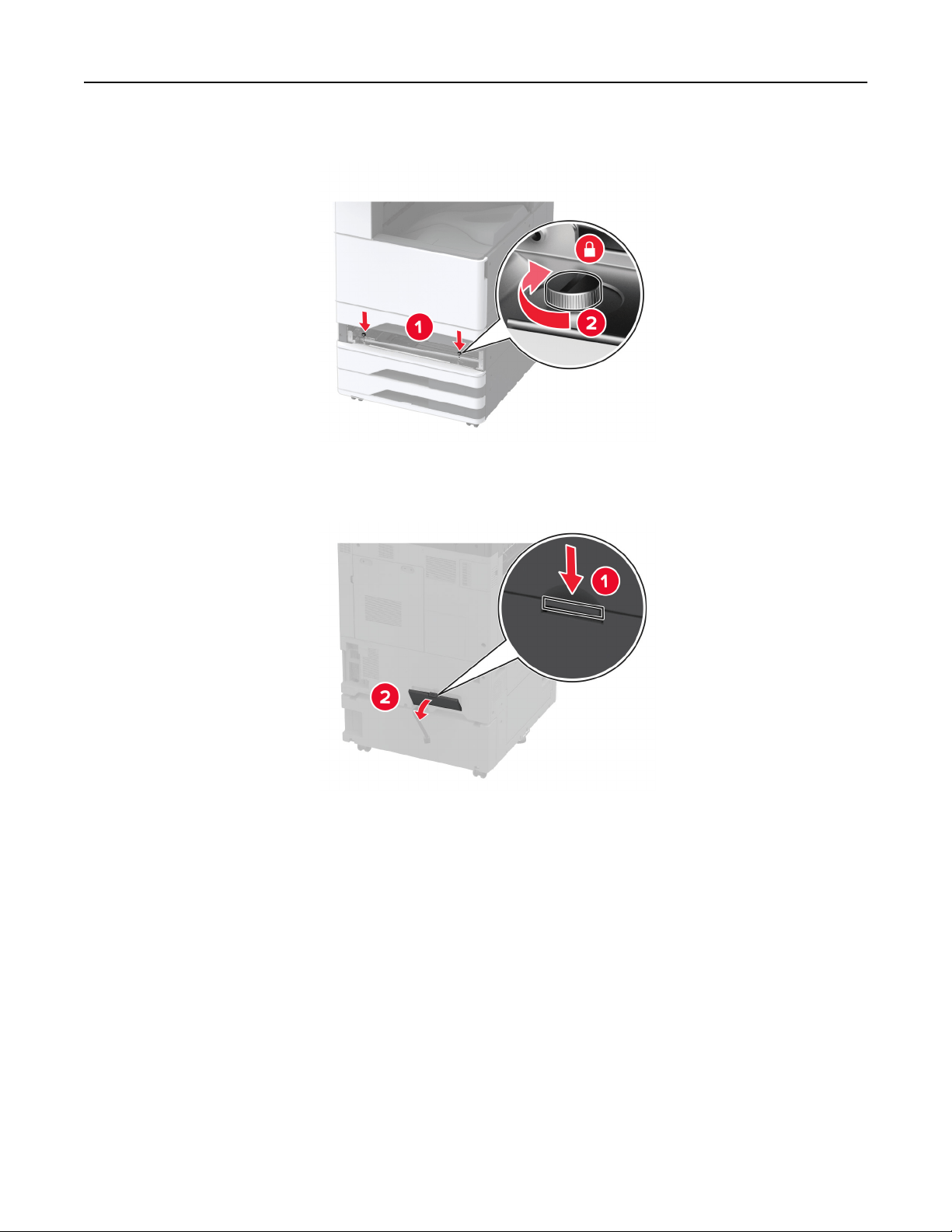
10 Secure the optional tray to the printer with screws.
11 Insert tray 2.
12 Remove the connector cover from the rear of the printer.
Set up, install, and configure 94
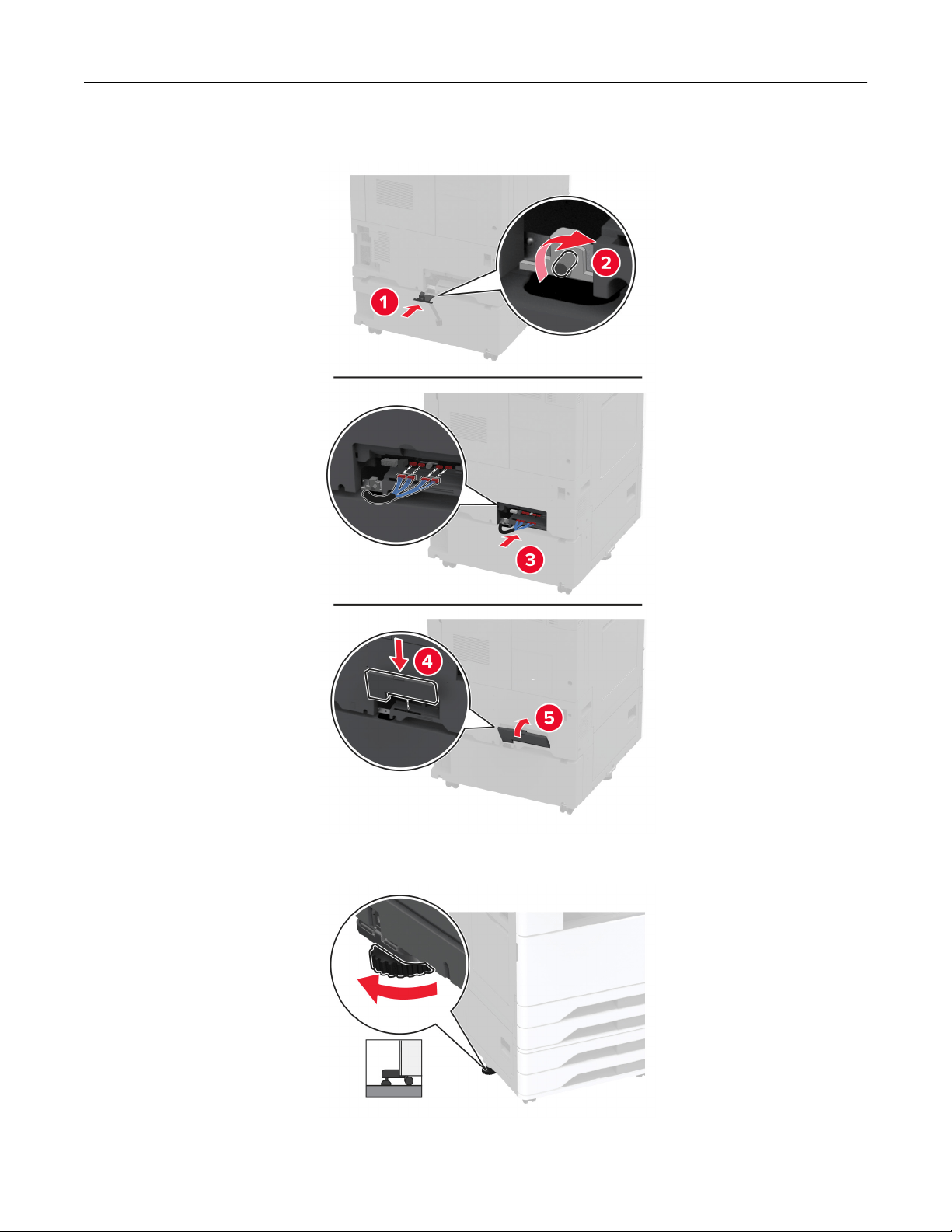
13 Connect the tray connector to the printer, and then attach the cover.
14 Adjust the levelers to make sure that all sides of the printers have the same height.
Set up, install, and configure 95

15 Connect the power cord to the printer, and then to the electrical outlet.
CAUTION—POTENTIAL INJURY: To avoid the risk of
fire
or electrical shock, connect the power cord
to an appropriately rated and properly grounded electrical outlet that is near the product and easily
accessible.
16 Turn on the printer.
Add the tray in the print driver to make it available for print jobs. For more information, see
“Adding available
options in the print driver” on page 80.
Set up, install, and configure 96
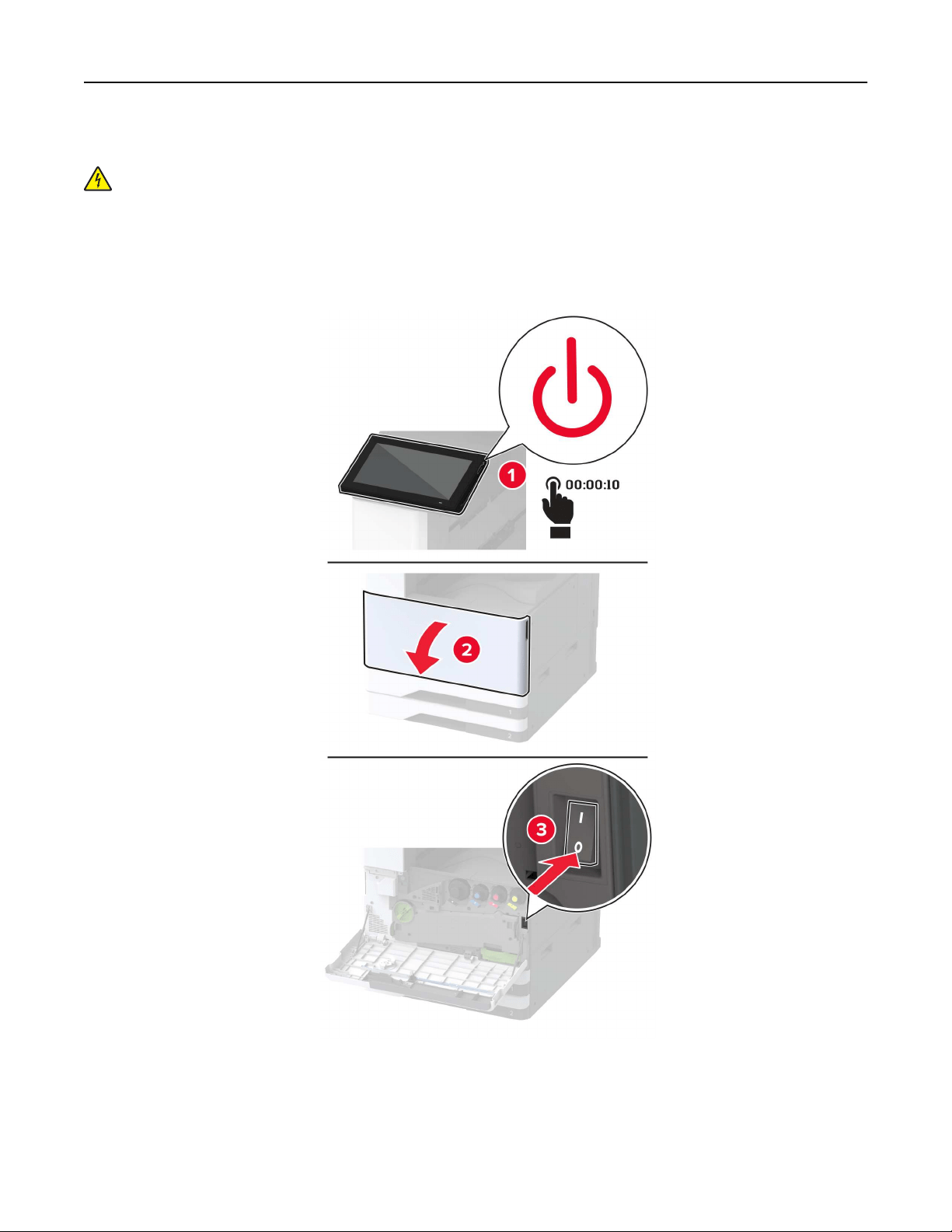
Installing the optional 2000-sheet tandem tray
CAUTION—SHOCK HAZARD: To avoid the risk of electrical shock, if you are accessing the controller
board or installing optional hardware or memory devices sometime after setting up the printer, then turn
the printer o, and unplug the power cord from the electrical outlet before continuing. If you have any
other devices attached to the printer, then turn them o as well, and unplug any cables going into the
printer.
1 Turn o the printer.
Set up, install, and configure 97
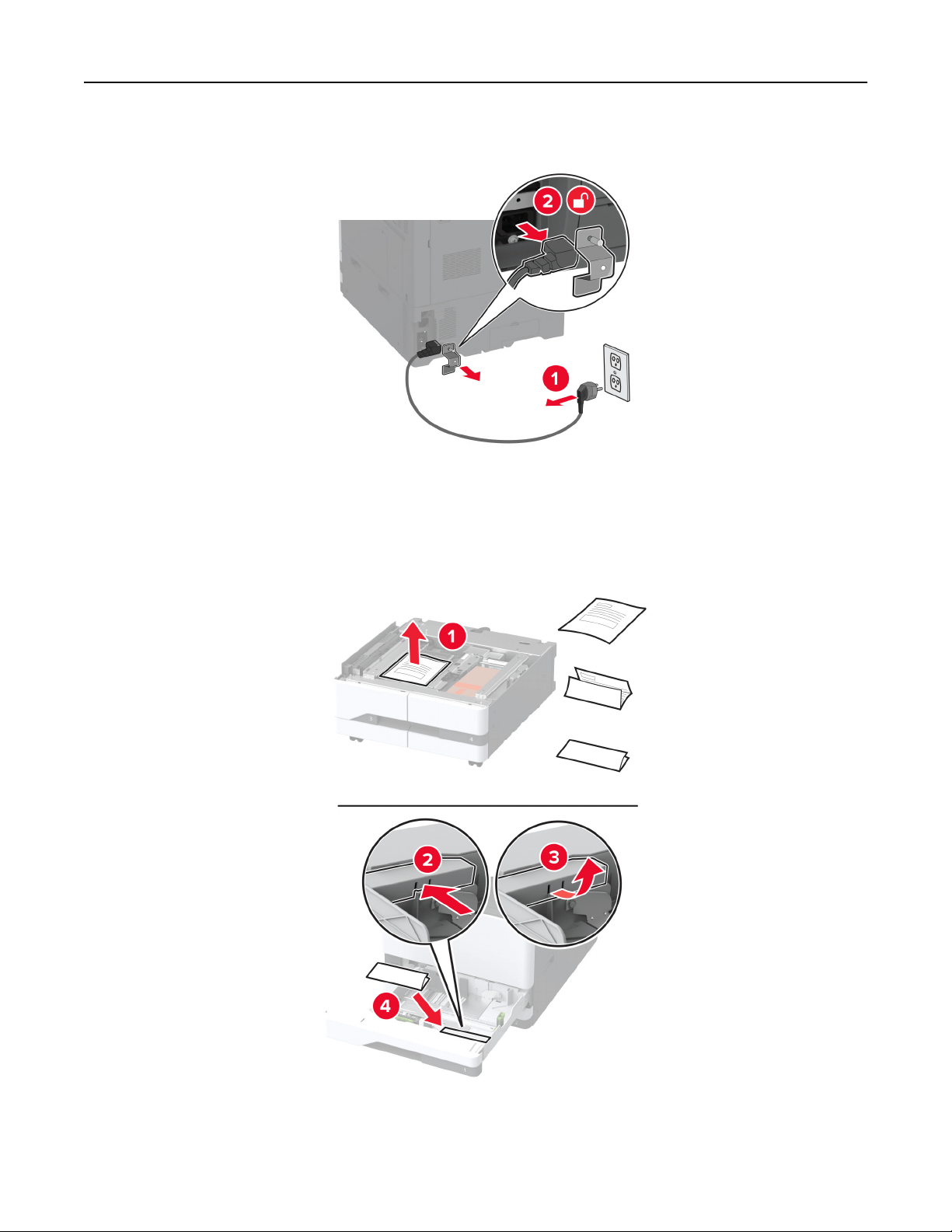
2 Unplug the power cord from the electrical outlet, and then from the printer.
3 Unpack the optional tray, and then remove all the packing material.
4 Store the sheet that came with the optional tray into the compartment in tray 1.
Note: The sheet has critical information that the service technician needs when repairing or replacing the
optional tray.
Set up, install, and configure 98
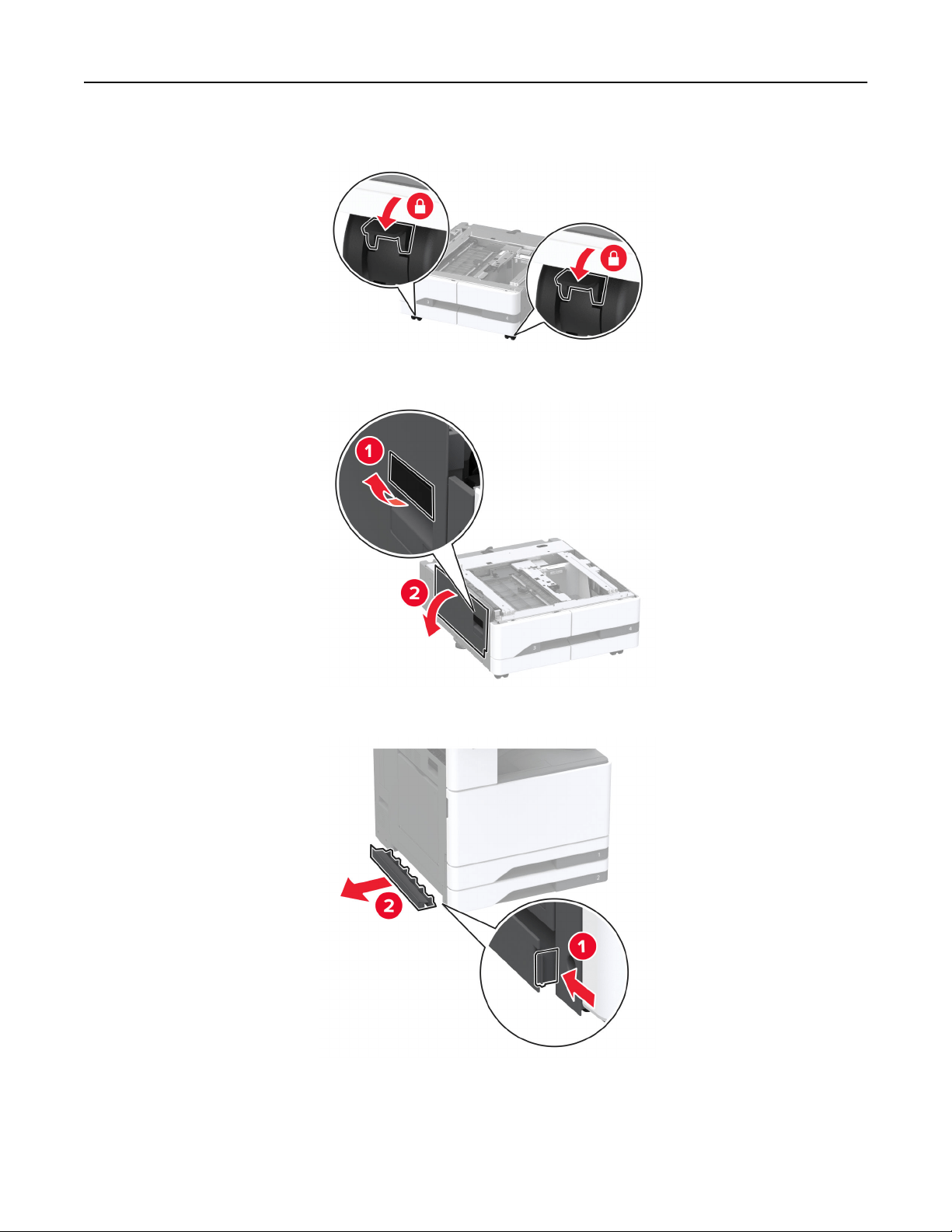
5 Lock the casters to keep the optional tray from moving.
6 Open door B.
7 Remove the option installation cover under the left side of the printer.
Set up, install, and configure 99
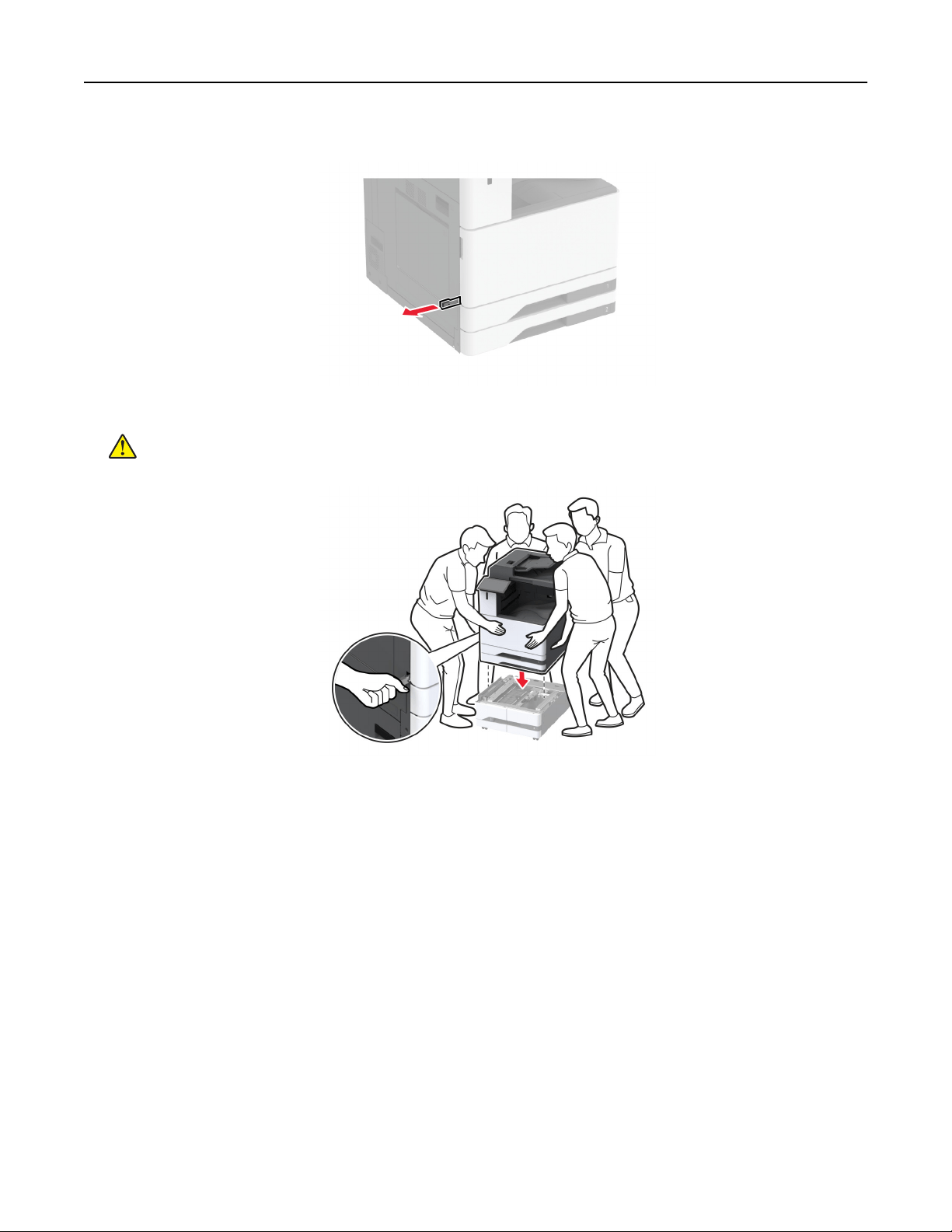
8 Pull out the lifting handle on the left side of the printer.
9 Align the printer with the optional tray, and then lower the printer into place.
CAUTION—POTENTIAL INJURY: If the printer weight is greater than 20 kg (44 lb), then it may
require two or more people to lift it safely.
10 Close door B.
Set up, install, and configure 100
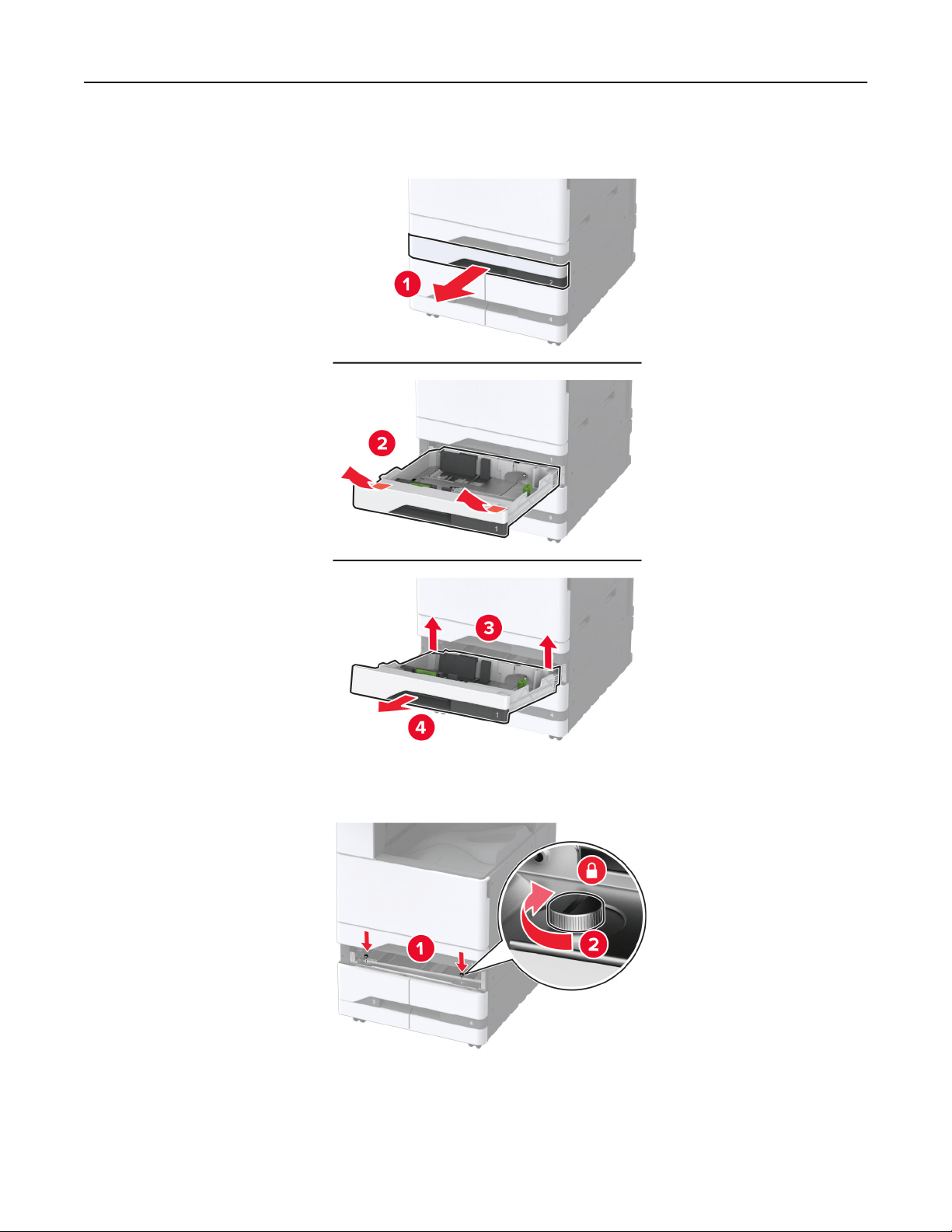
11 Remove tray 2.
12 Secure the optional tray to the printer with screws.
13 Insert tray 2.
Set up, install, and configure 101
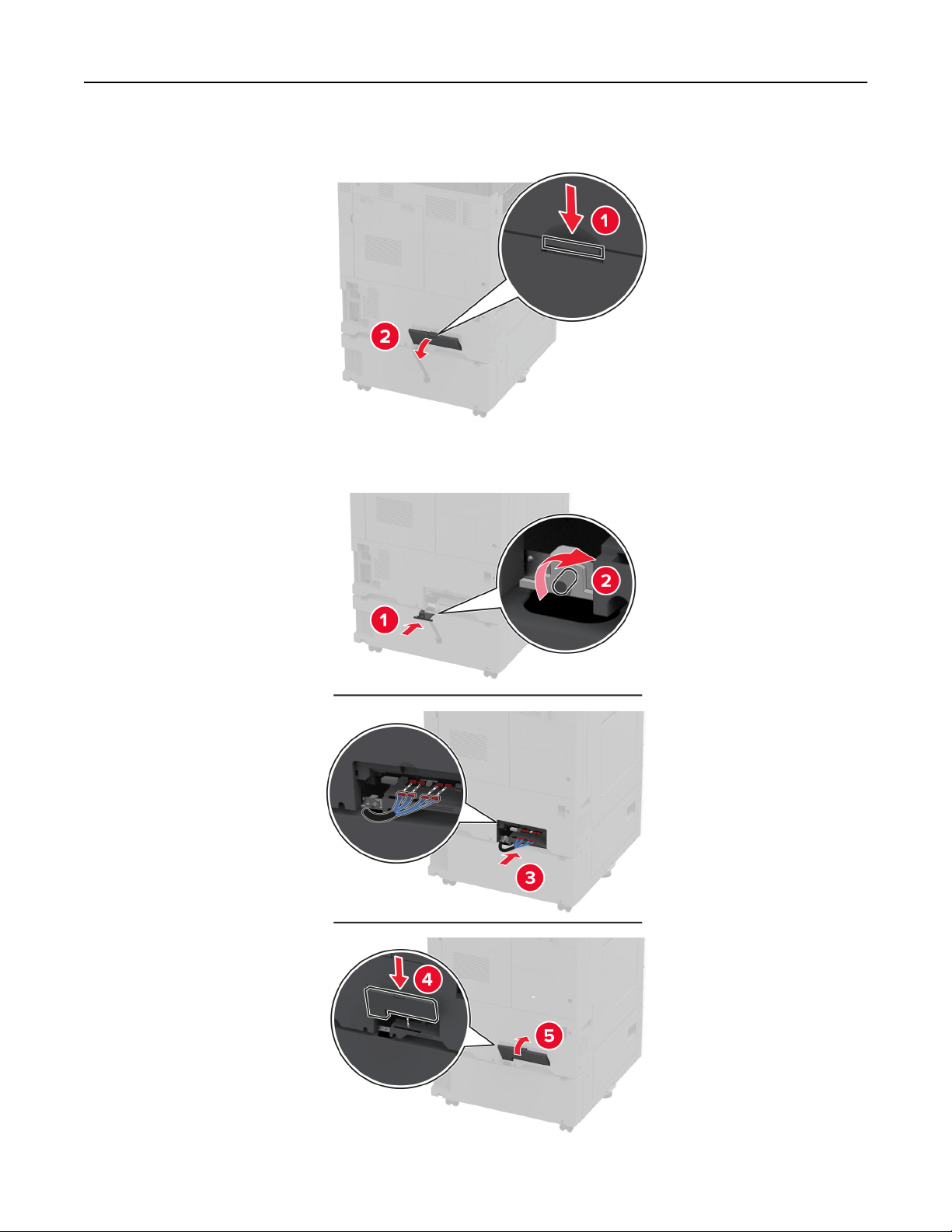
14 Remove the connector cover from the rear of the printer.
15 Connect the tray connector to the printer, and then attach the cover.
Set up, install, and configure 102
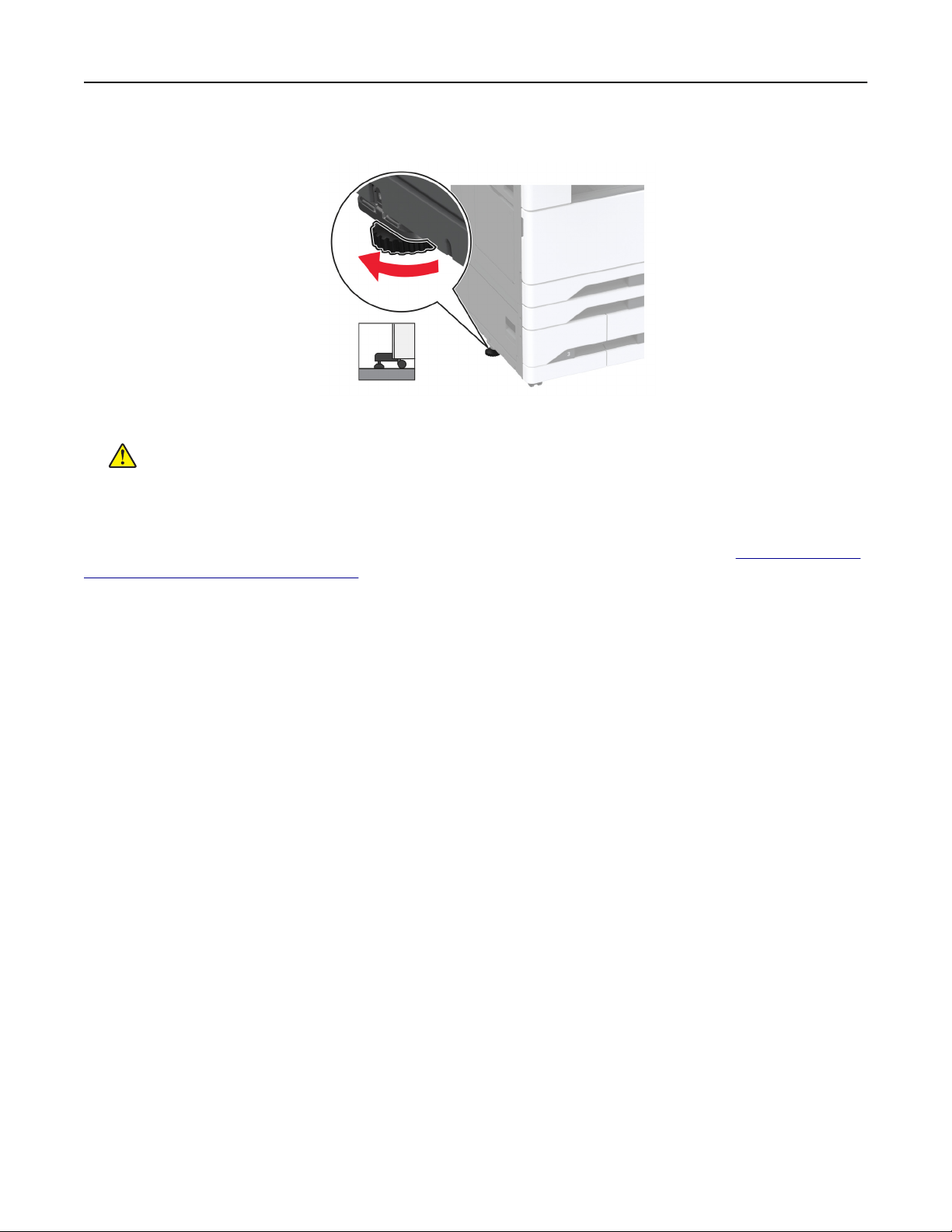
16 Adjust the levelers to make sure that all sides of the printers have the same height.
17 Connect the power cord to the printer, and then to the electrical outlet.
CAUTION—POTENTIAL INJURY: To avoid the risk of fire or electrical shock, connect the power cord
to an appropriately rated and properly grounded electrical outlet that is near the product and easily
accessible.
18 Turn on the printer.
Add the tray in the print driver to make it available for print jobs. For more information, see
“Adding available
options in the print driver” on page 80.
Set up, install, and configure 103
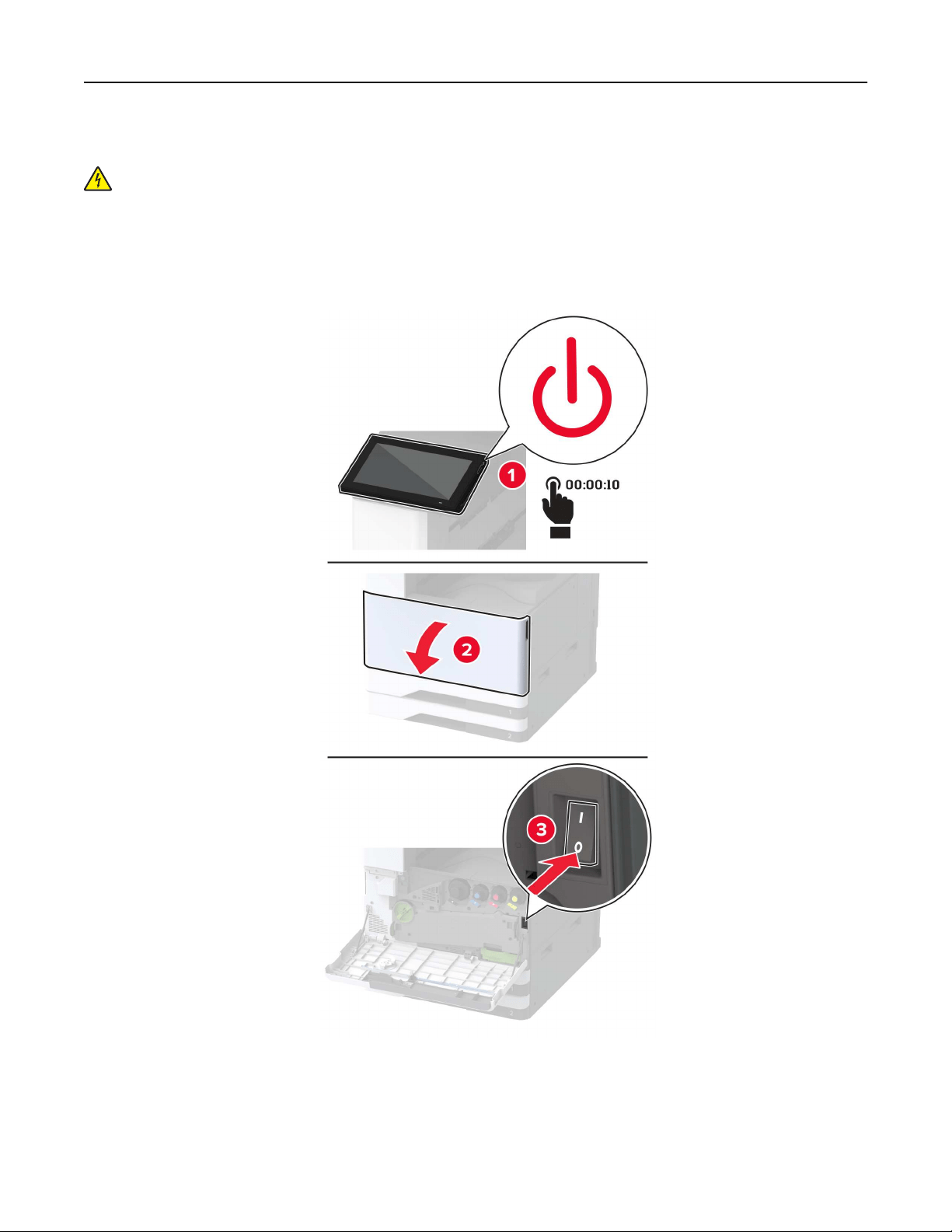
Installing the optional 2000‑sheet tray
CAUTION—SHOCK HAZARD: To avoid the risk of electrical shock, if you are accessing the controller
board or installing optional hardware or memory devices sometime after setting up the printer, then turn
the printer o, and unplug the power cord from the electrical outlet before continuing. If you have any
other devices attached to the printer, then turn them o as well, and unplug any cables going into the
printer.
1 Turn o the printer.
Set up, install, and configure 104
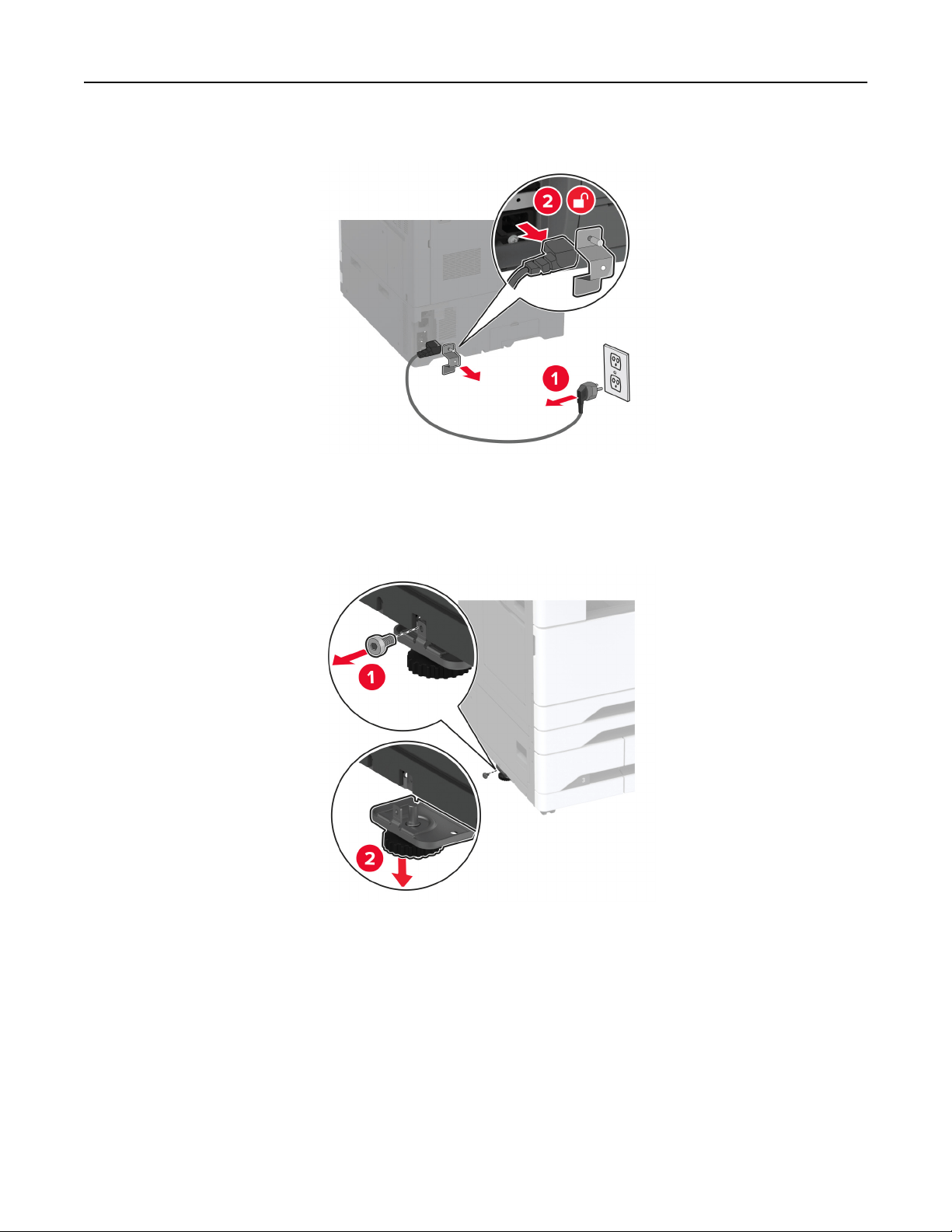
2 Unplug the power cord from the electrical outlet, and then from the printer.
3 Unpack the optional tray, and then remove all the packing material.
4 Remove the leveling screw from the left side of the printer.
Note: Do not throw away the screw.
5 Attach the docking bracket to the printer.
Note: Use the docking bracket that came with the optional tray.
Set up, install, and configure 105
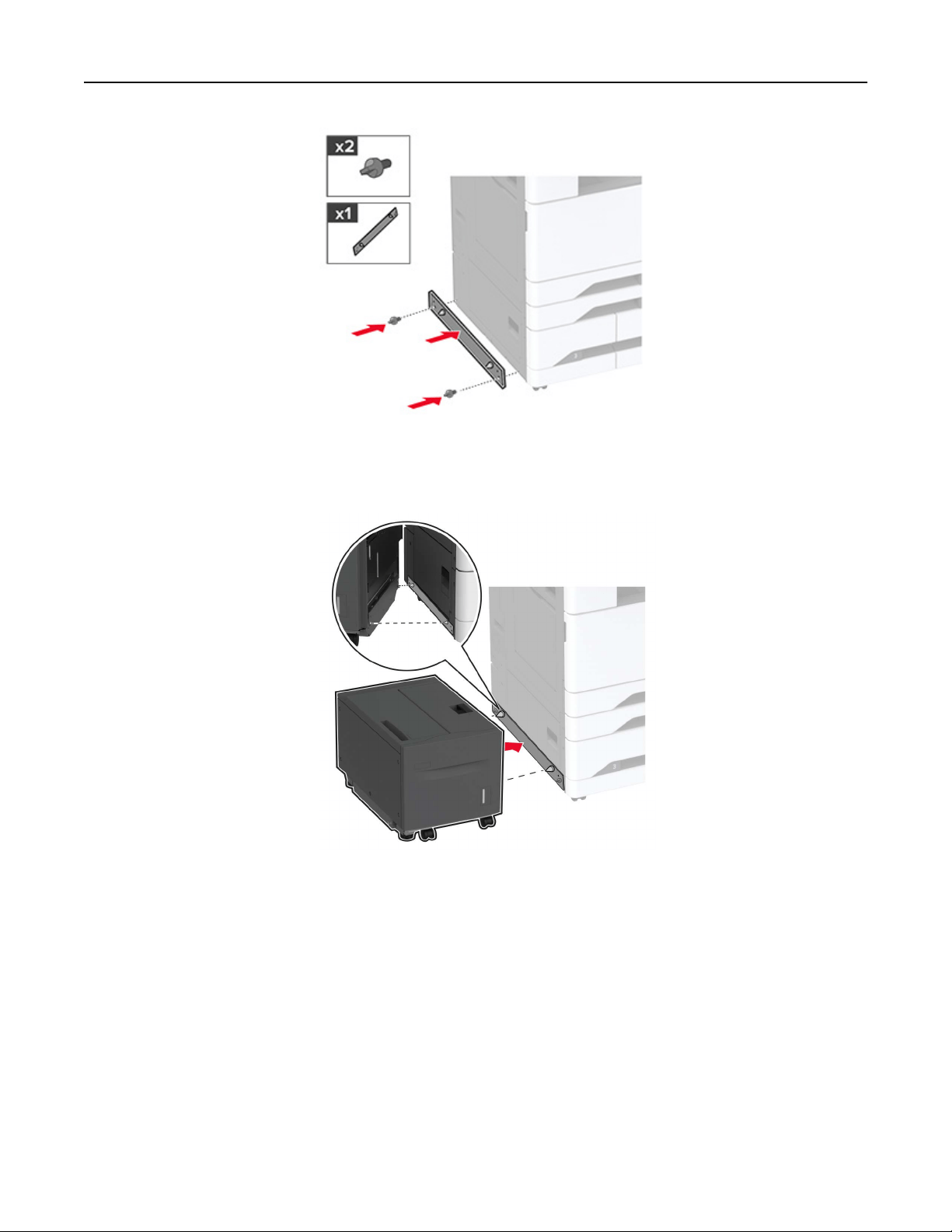
6 Install the optional tray.
Set up, install, and configure 106
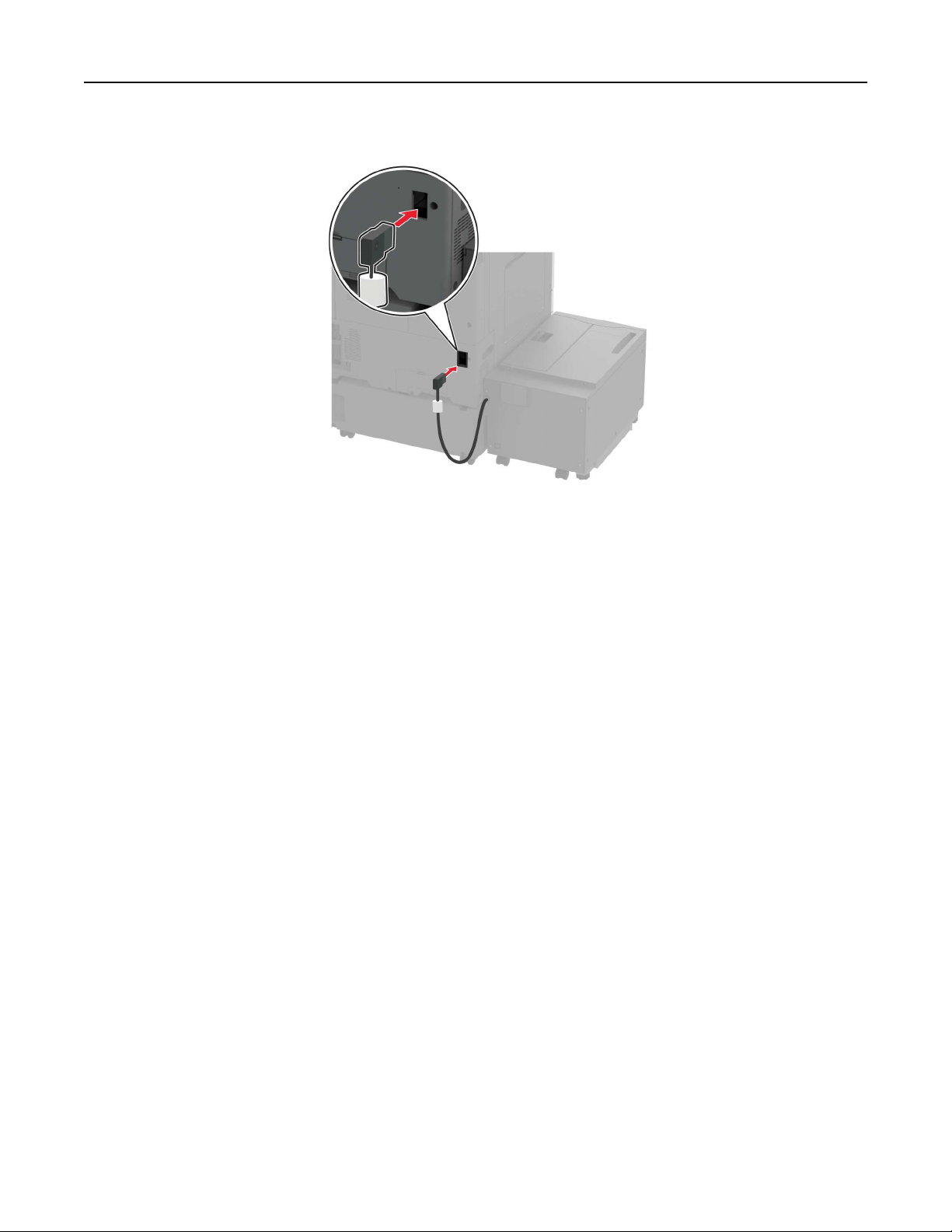
7 Connect the tray connector to the printer.
Set up, install, and configure 107
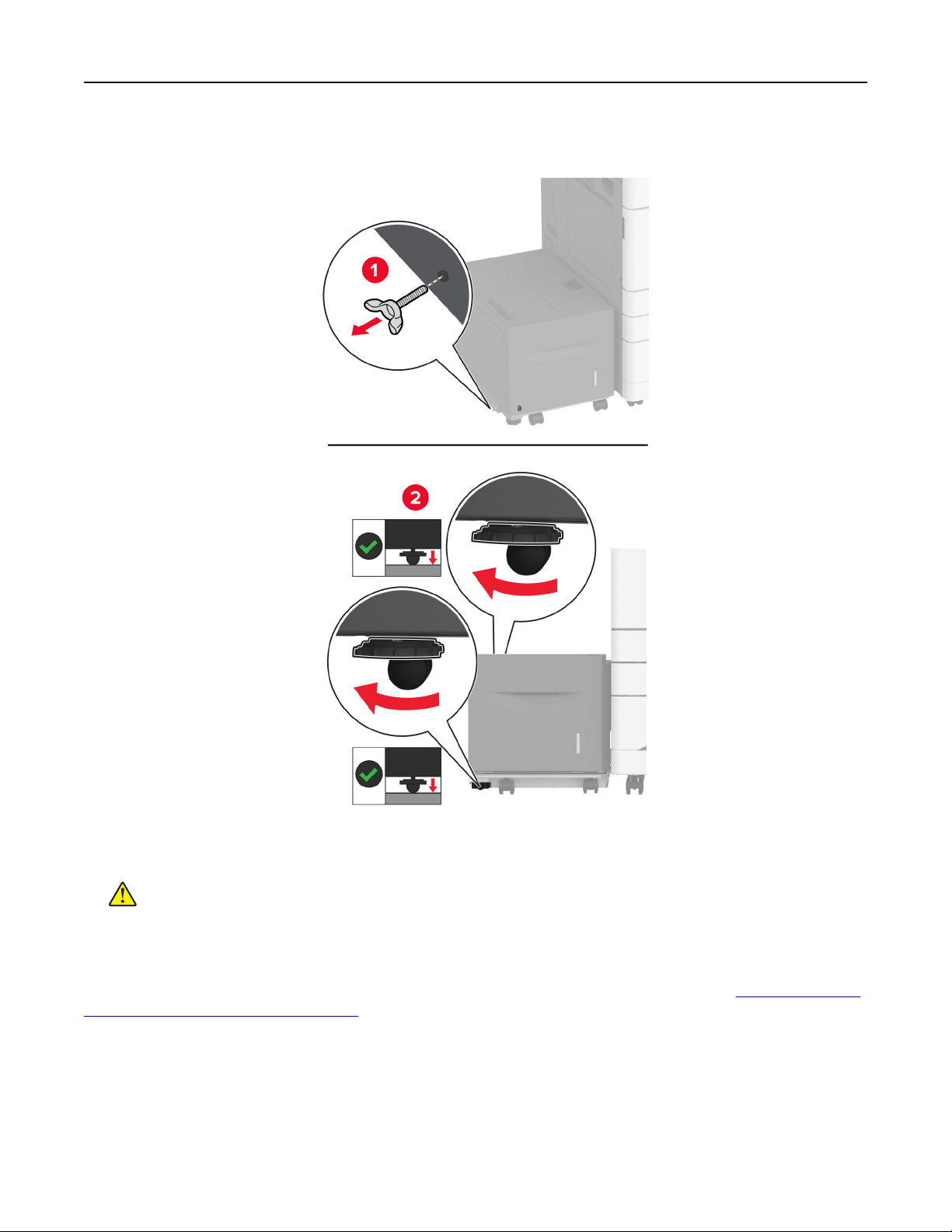
8 Adjust the leveling screws to make sure that the tray has the same height with the printer.
9 Connect the power cord to the printer, and then to the electrical outlet.
CAUTION—POTENTIAL INJURY: To avoid the risk of fire or electrical shock, connect the power cord
to an appropriately rated and properly grounded electrical outlet that is near the product and easily
accessible.
10 Turn on the printer.
Add the tray in the print driver to make it available for print jobs. For more information, see
“Adding available
options in the print driver” on page 80.
Set up, install, and configure 108
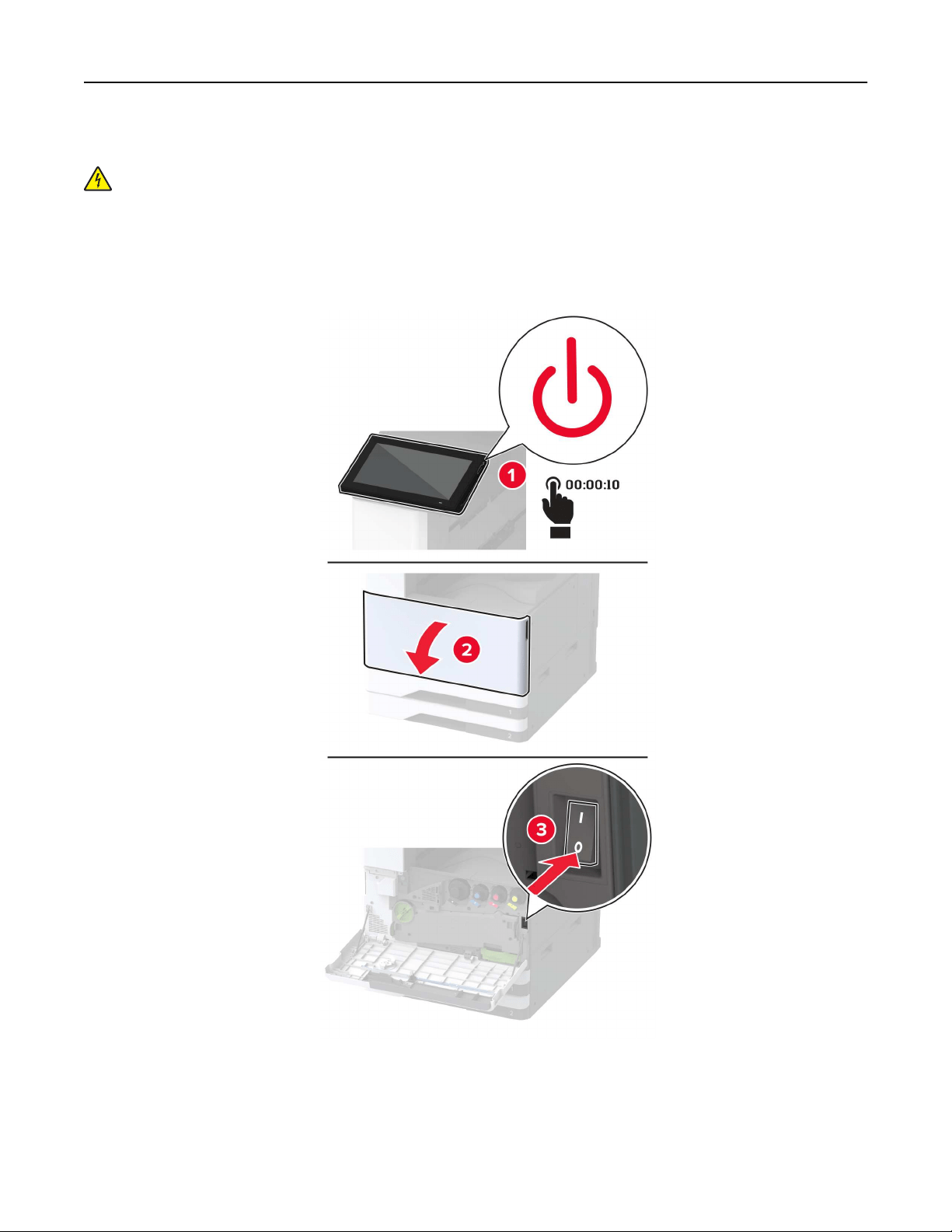
Installing the cabinet
CAUTION—SHOCK HAZARD: To avoid the risk of electrical shock, if you are accessing the controller
board or installing optional hardware or memory devices sometime after setting up the printer, then turn
the printer o, and unplug the power cord from the electrical outlet before continuing. If you have any
other devices attached to the printer, then turn them o as well, and unplug any cables going into the
printer.
1 Turn o the printer.
Set up, install, and configure 109
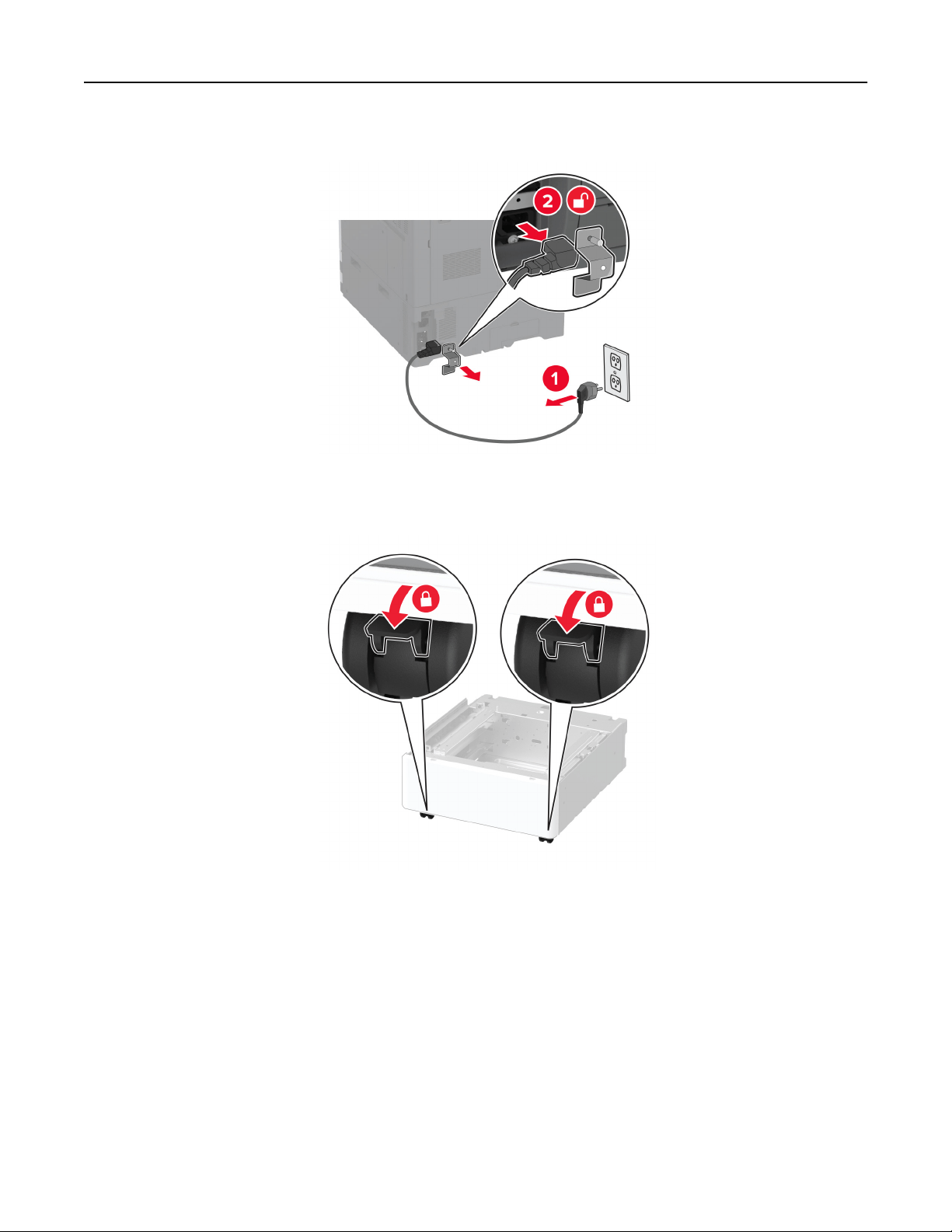
2 Unplug the power cord from the electrical outlet, and then from the printer.
3 Unpack the cabinet.
4 Lock the casters to keep the cabinet from moving.
Set up, install, and configure 110
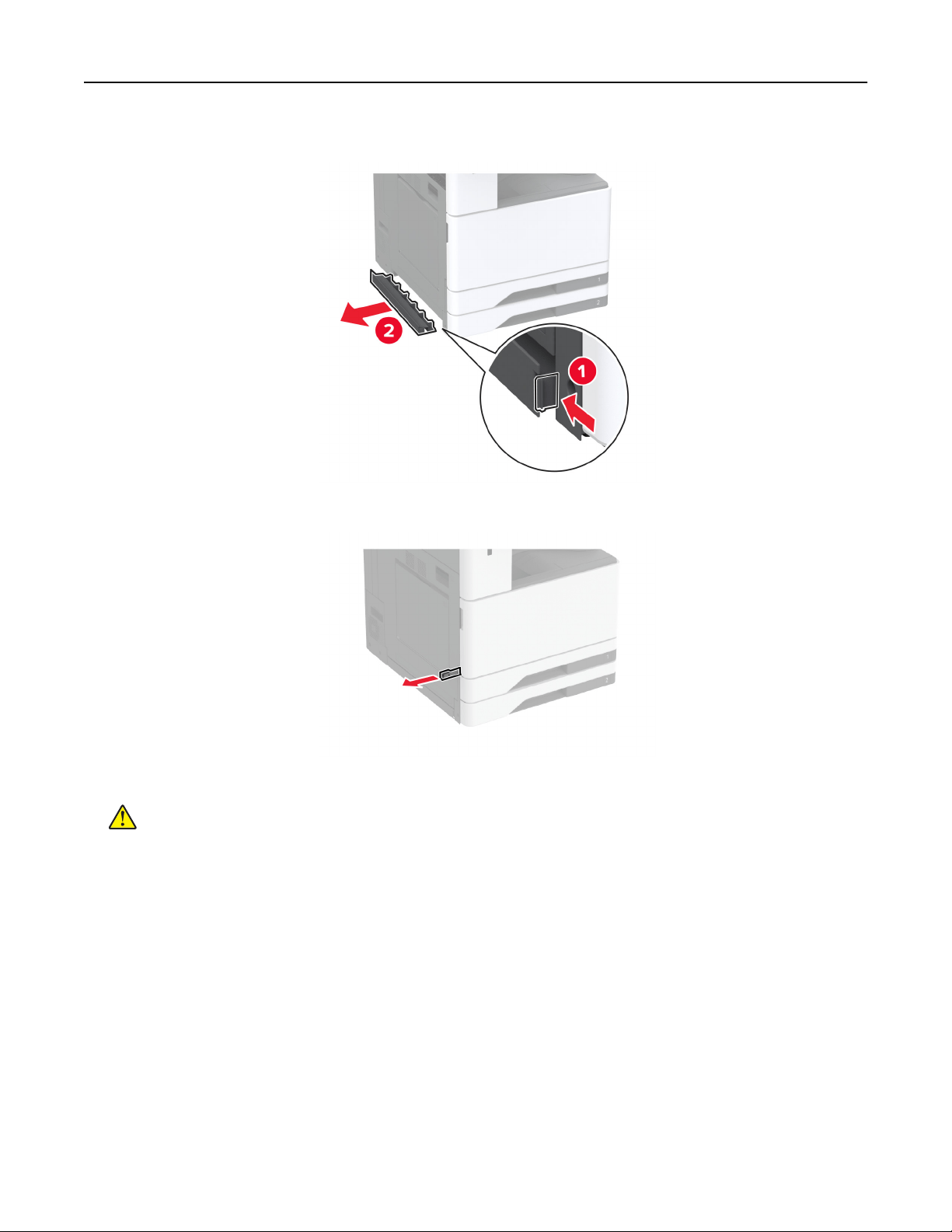
5 Remove the option installation cover under the left side of the printer.
6 Pull out the lifting handle on the left side of the printer.
7 Align the printer with the cabinet, and then lower the printer into place.
CAUTION—POTENTIAL INJURY: If the printer weight is greater than 20 kg (44 lb), then it may
require two or more people to lift it safely.
Set up, install, and configure 111
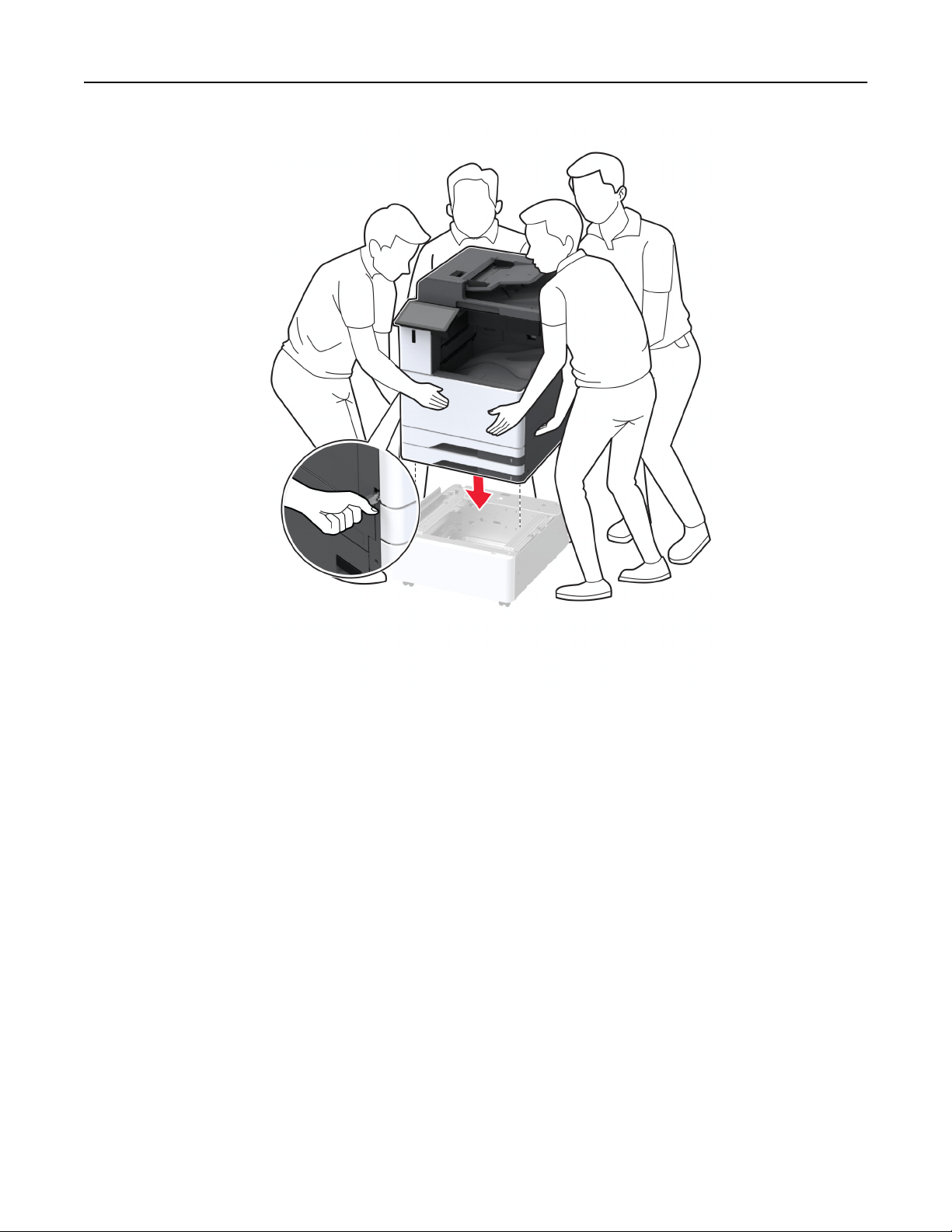
Set up, install, and configure 112
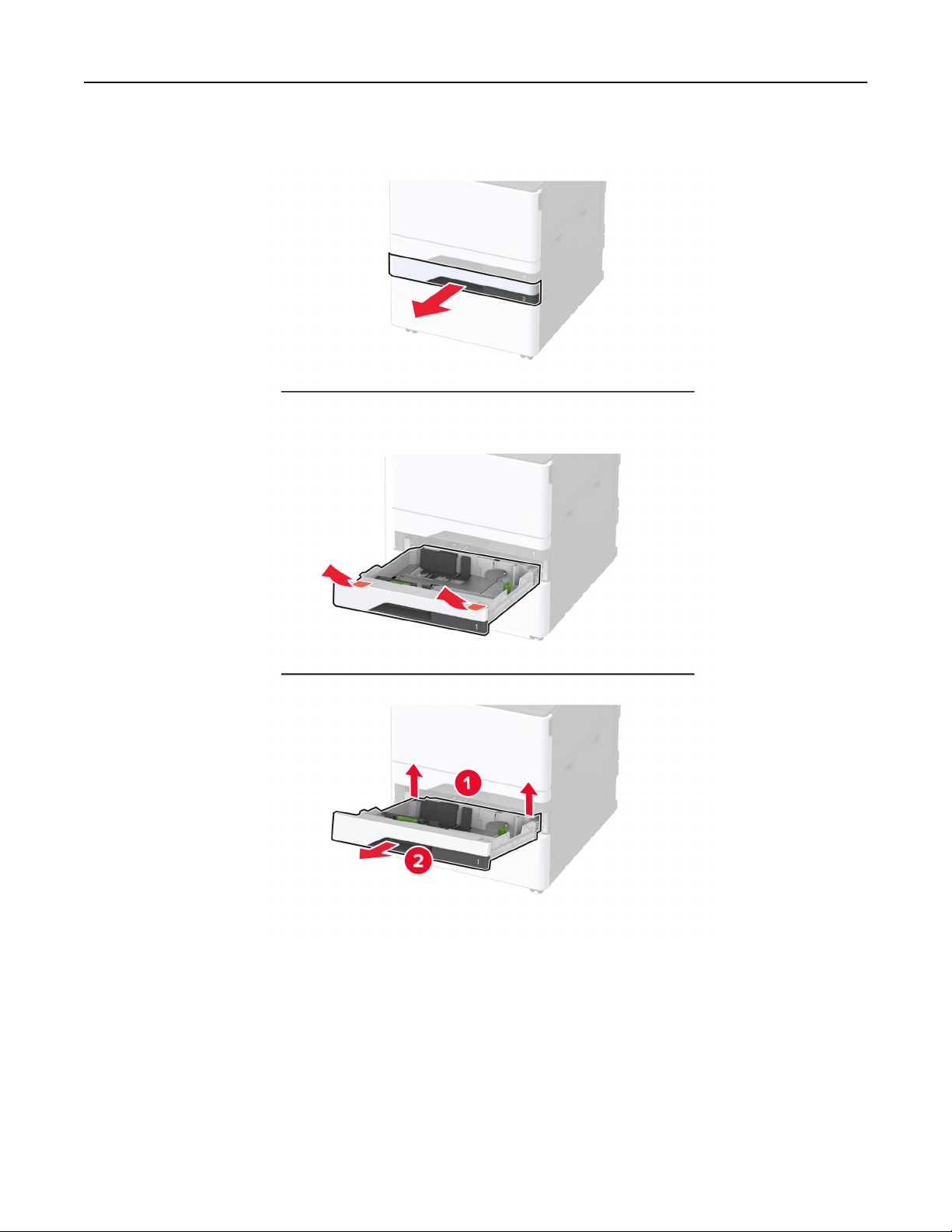
8 Remove tray 2.
Set up, install, and configure 113
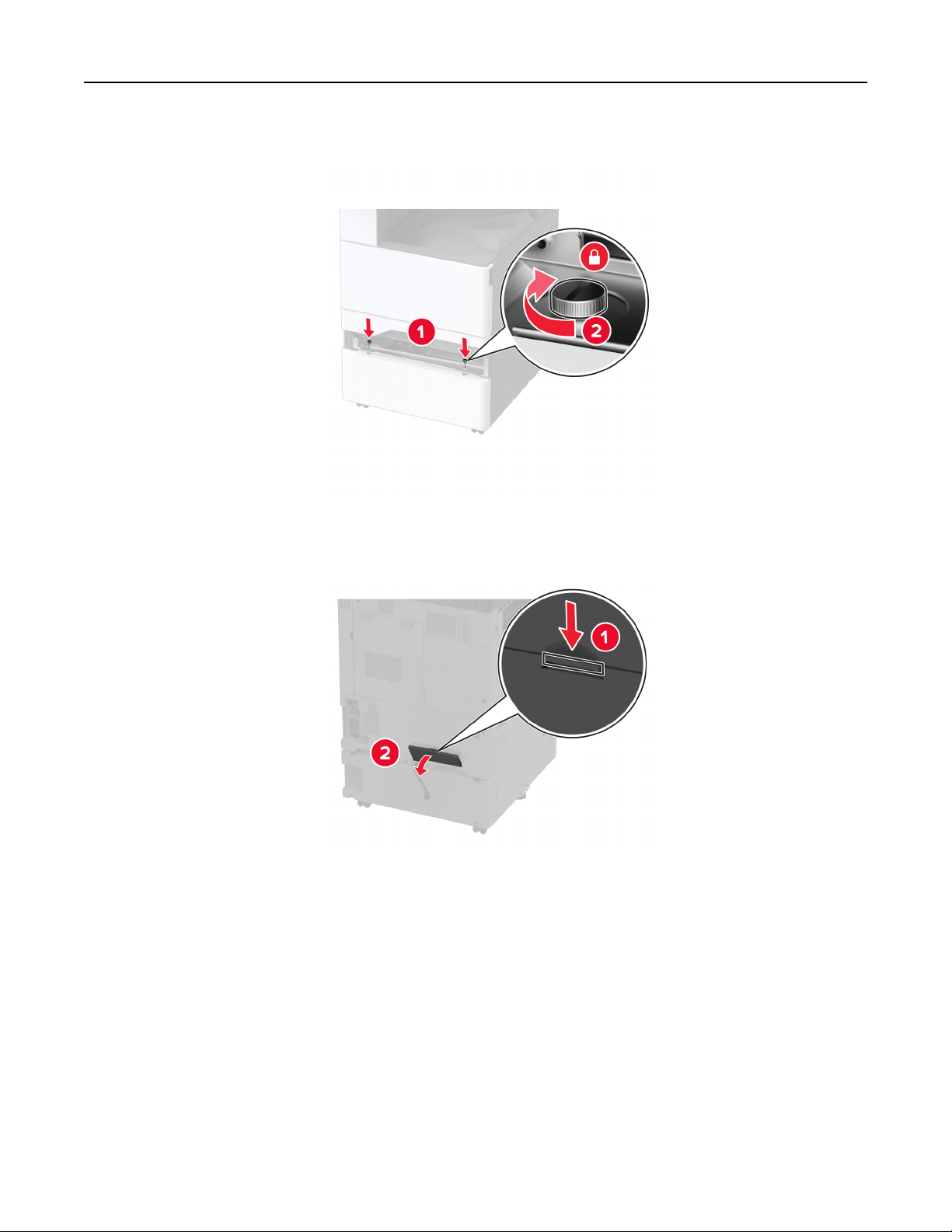
9 Secure the optional cabinet to the printer with screws.
10 Insert tray 2.
11 Remove the connector cover from the rear of the printer.
Set up, install, and configure 114
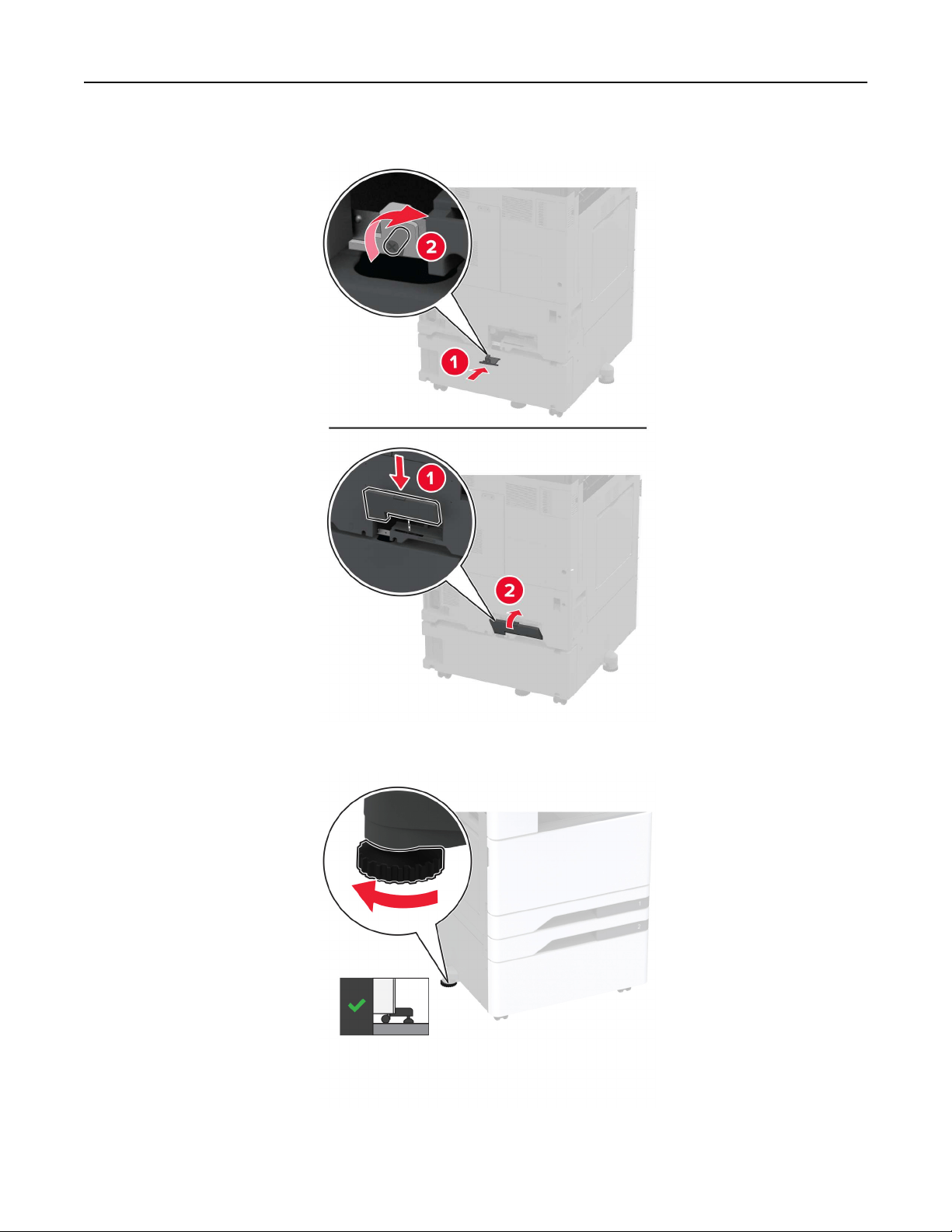
12 Secure the cabinet to the printer, and then attach the connector cover.
13 Adjust the levelers to make sure that all sides of the printers have the same height.
Set up, install, and configure 115
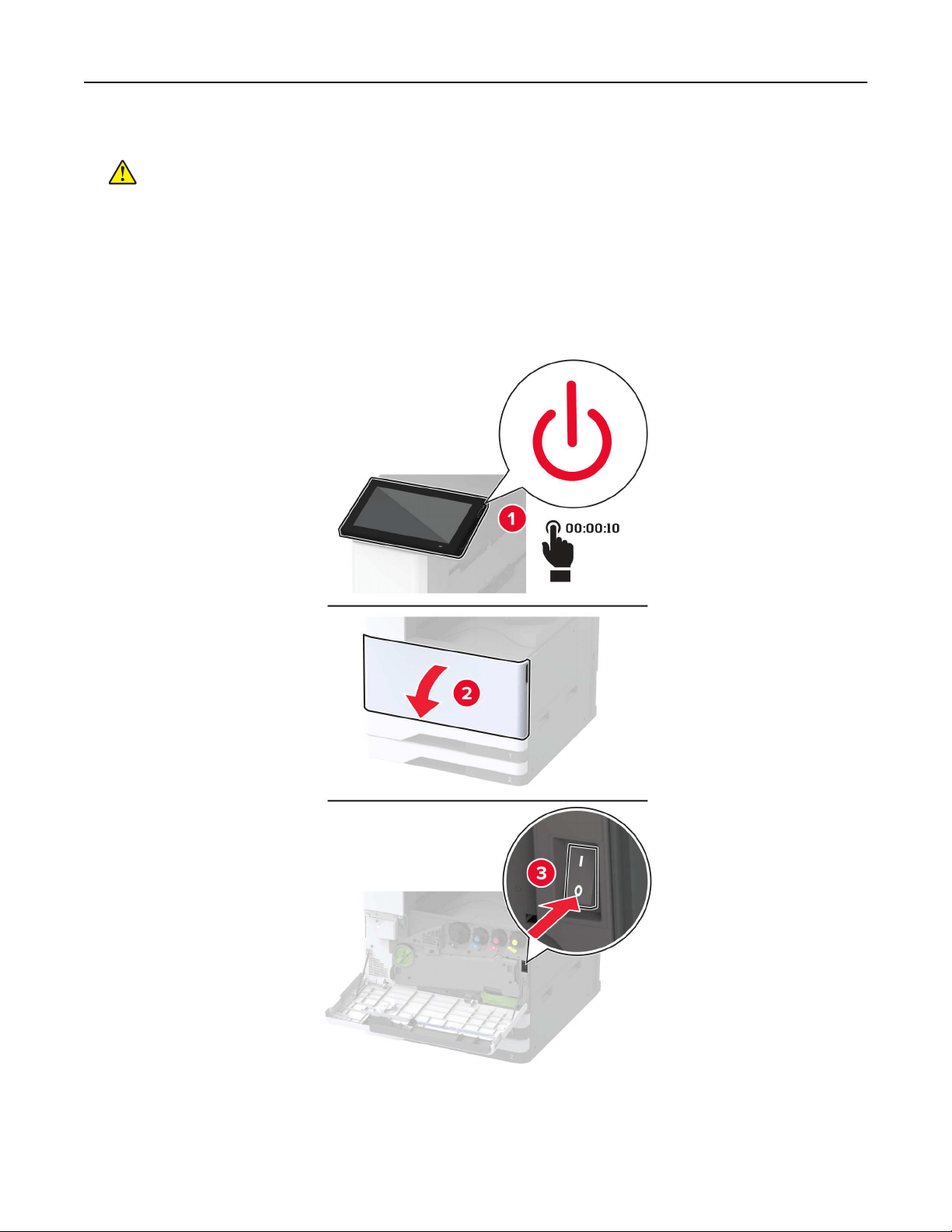
14 Connect the power cord to the printer, and then to the electrical outlet.
CAUTION—POTENTIAL INJURY: To avoid the risk of
fire
or electrical shock, connect the power cord
to an appropriately rated and properly grounded electrical outlet that is near the product and easily
accessible.
15 Turn on the printer.
Installing the banner tray
1 Turn o the printer.
Set up, install, and configure 116
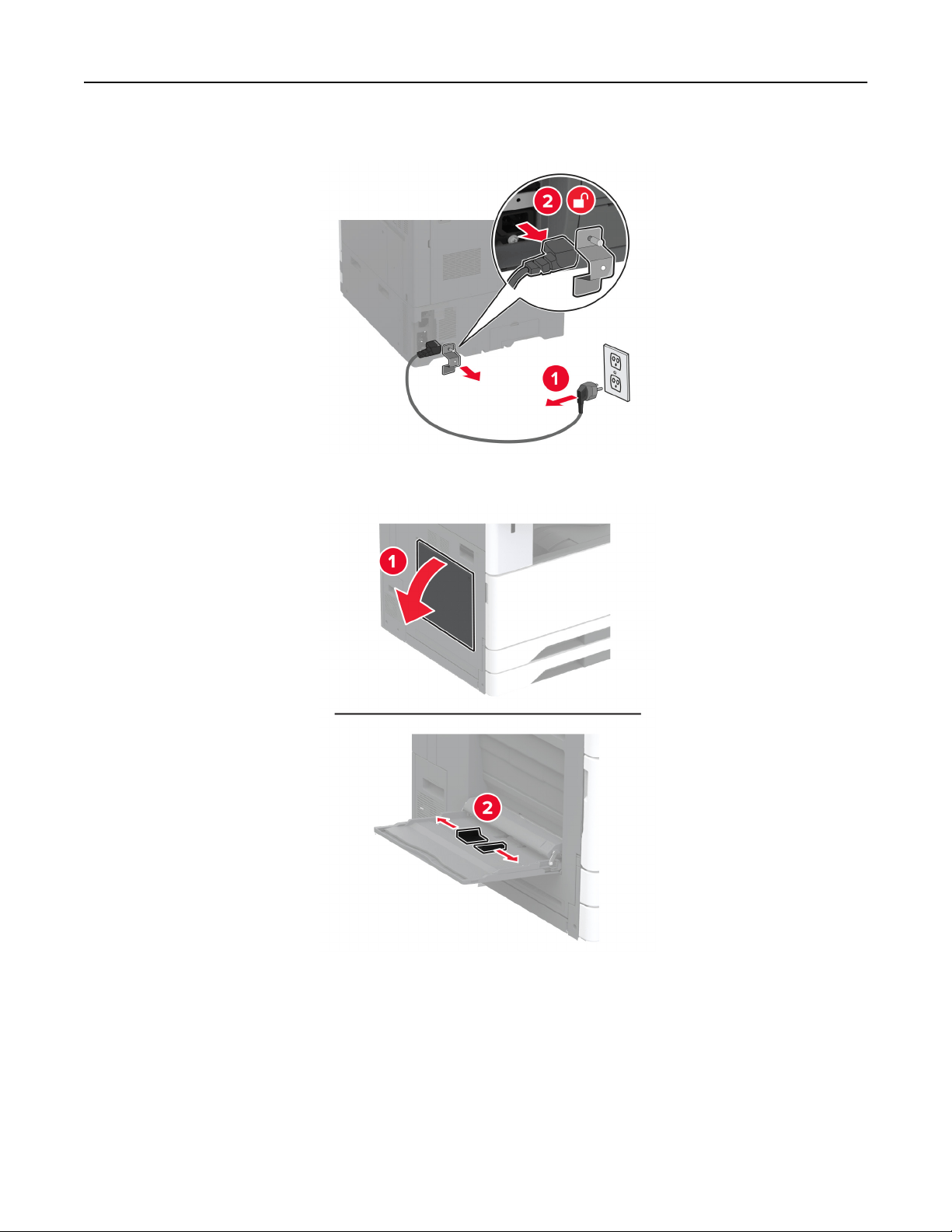
2 Unplug the power cord from the electrical outlet, and then from the printer.
3 Open the multipurpose feeder, and then extend the side guides.
4 Unpack the banner tray, and then remove all the packing material.
Set up, install, and configure 117
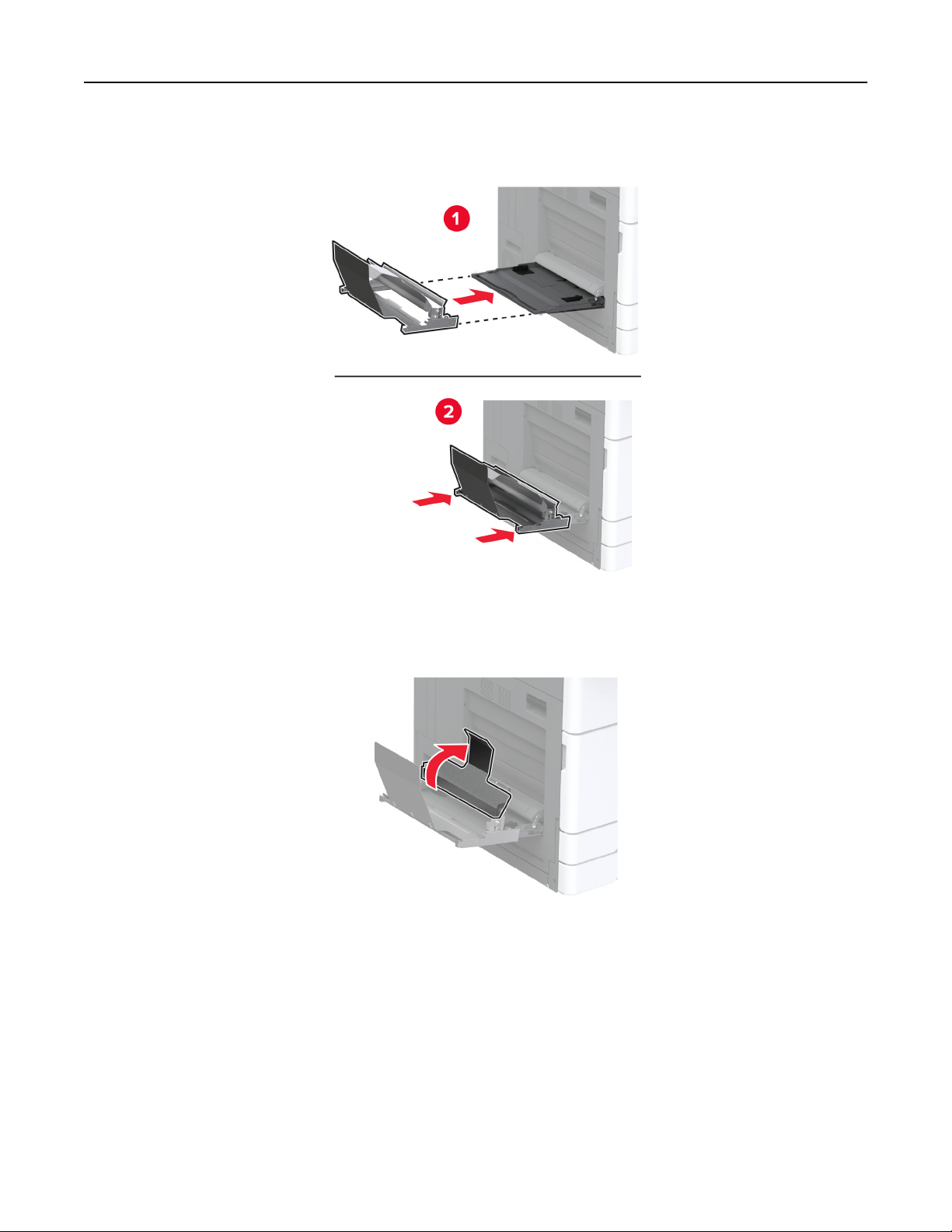
5 Attach the banner tray to the multipurpose feeder.
6 Push the banner roll catch toward the printer.
Set up, install, and configure 118
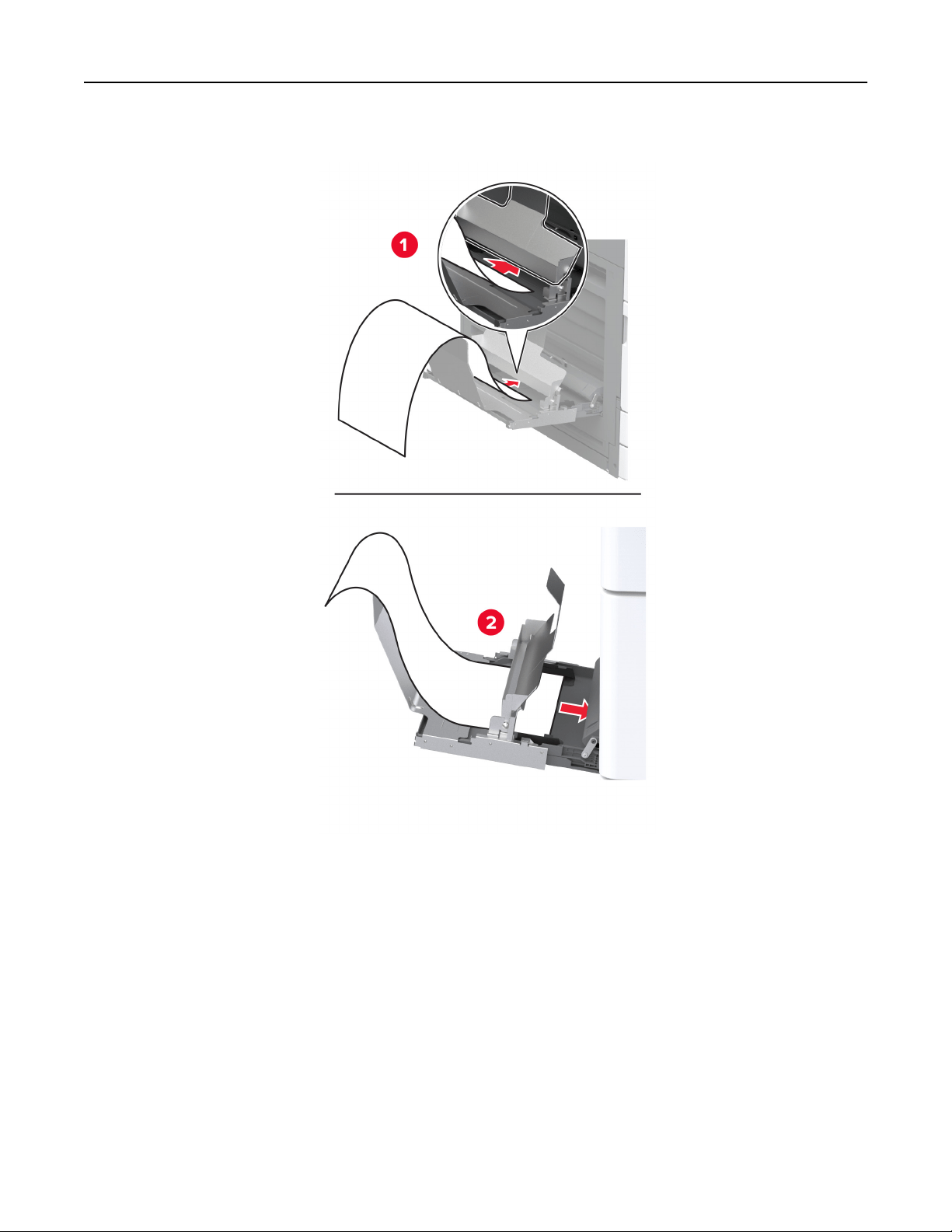
7 Load banner paper into the tray, with the leading edge going under the banner roll catch.
Set up, install, and configure 119
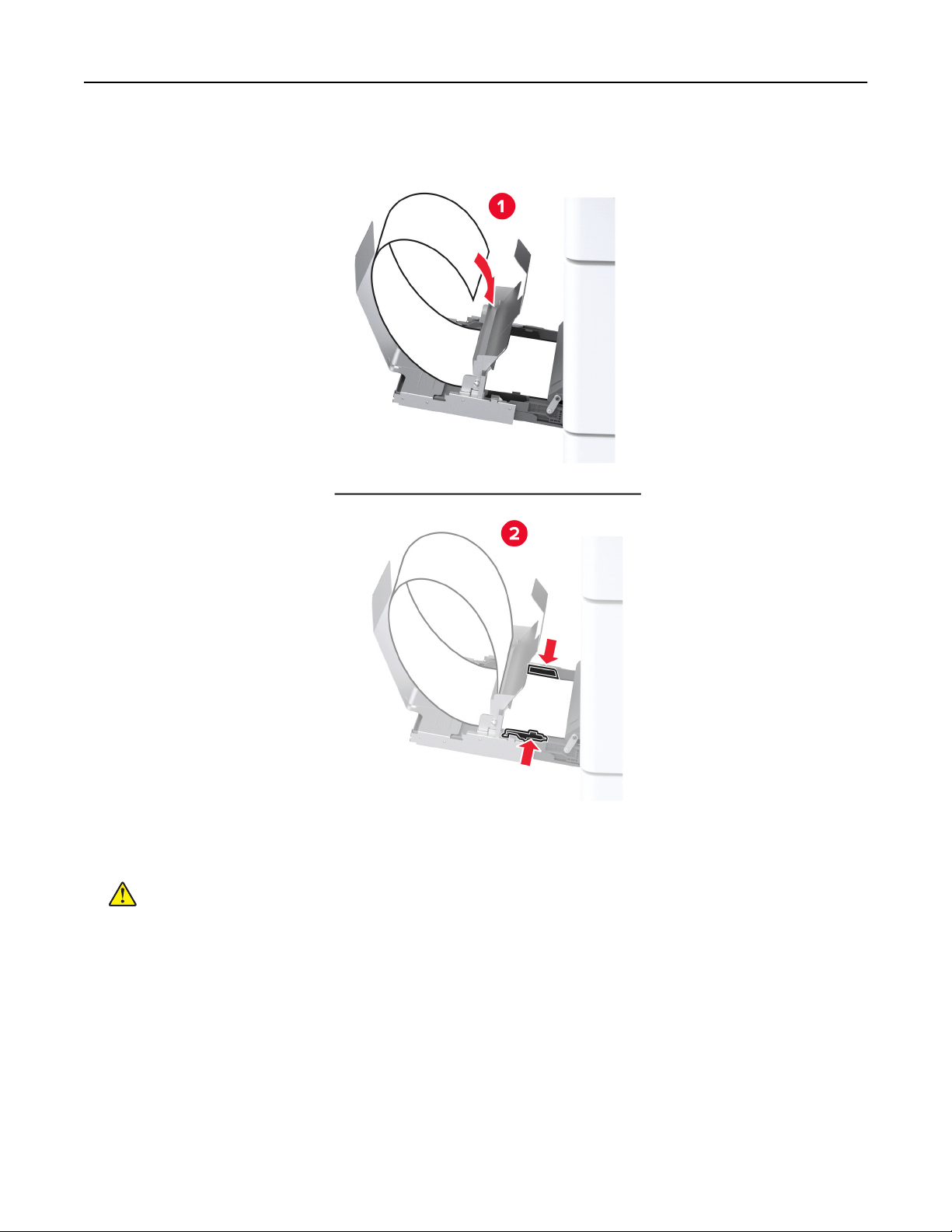
8 Place the trailing edge of the banner paper on the banner roll catch, and then adjust the side guides.
9 Connect the power cord to the printer, and then to the electrical outlet.
CAUTION—POTENTIAL INJURY: To avoid the risk of fire or electrical shock, connect the power cord
to an appropriately rated and properly grounded electrical outlet that is near the product and easily
accessible.
10 Turn on the printer.
Set up, install, and configure 120
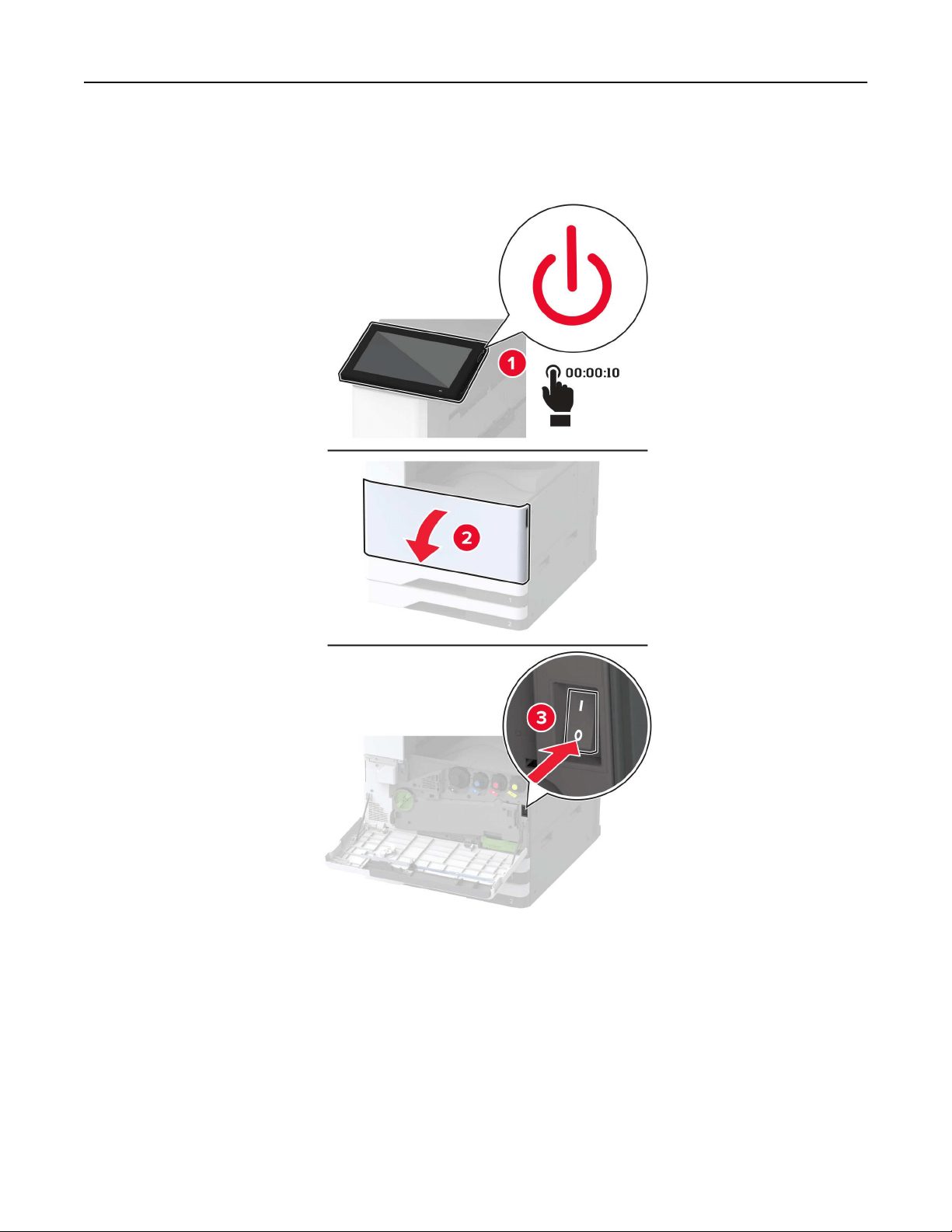
Installing the working shelf
1 Turn
o
the printer.
Set up, install, and configure 121
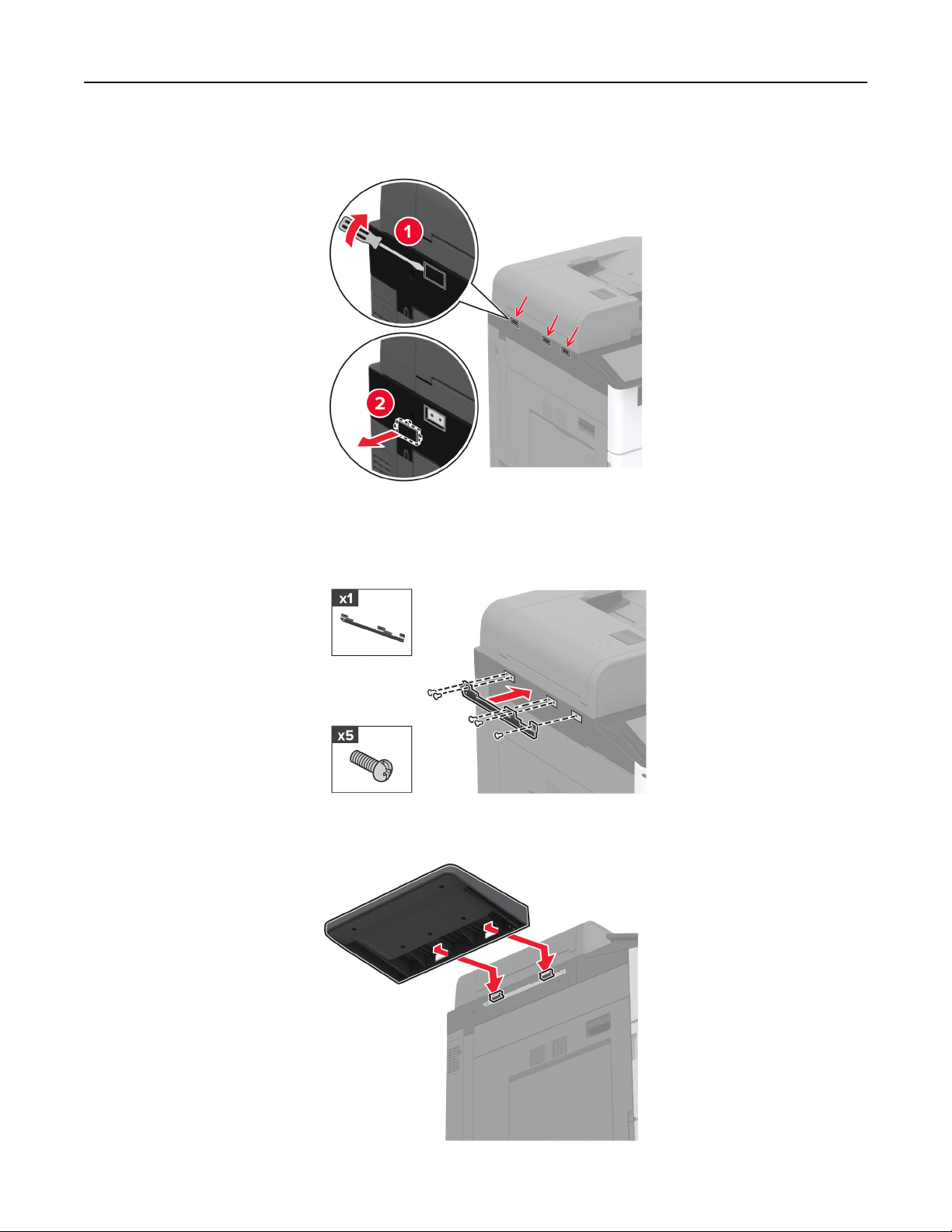
2 Using a flat‑head screwdriver, remove the cover plates.
3 Unpack the working shelf.
4 Attach the mounting bracket to the printer.
5 Attach the working shelf to the mounting bracket.
Set up, install, and configure 122
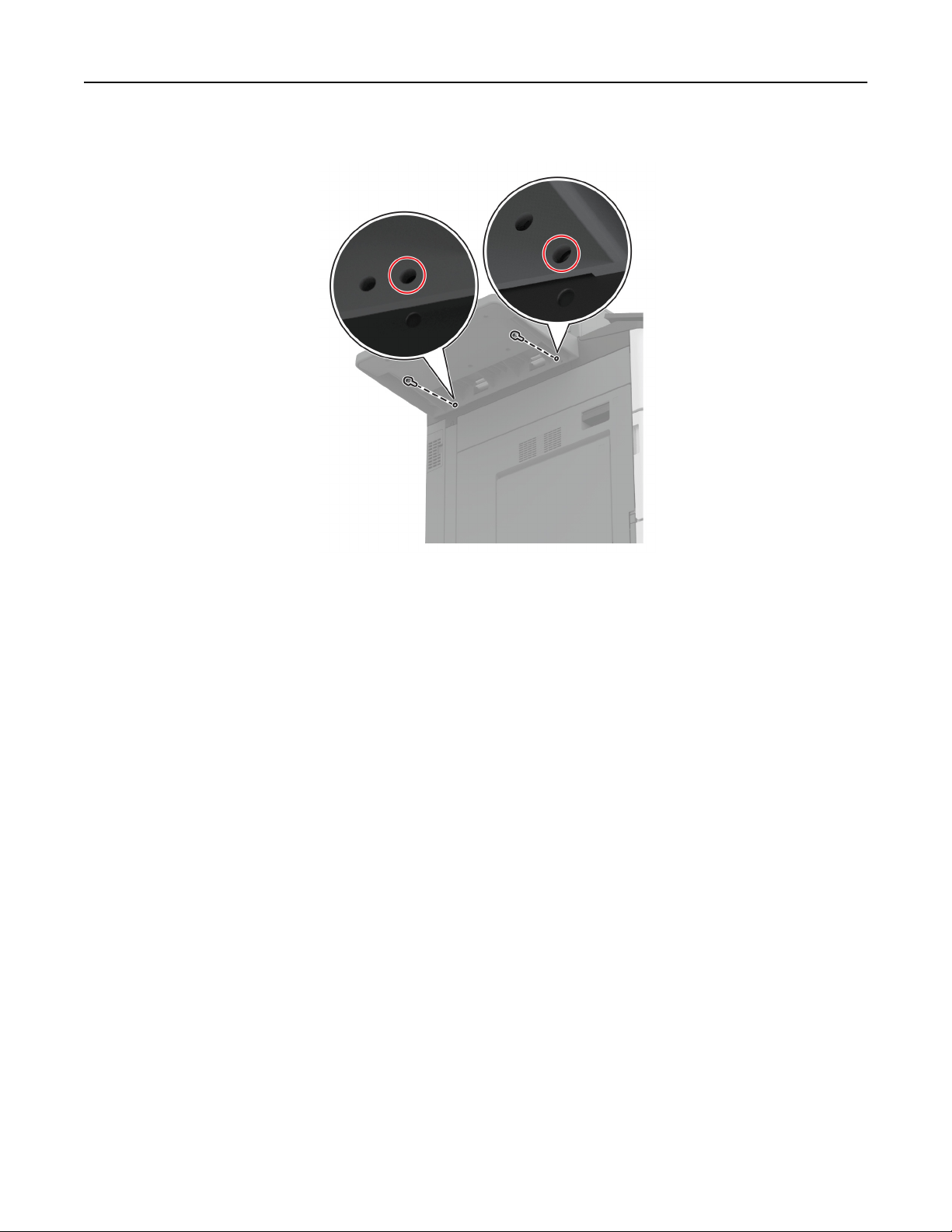
6 Secure the shelf to the printer.
7 Turn on the printer.
Set up, install, and configure 123
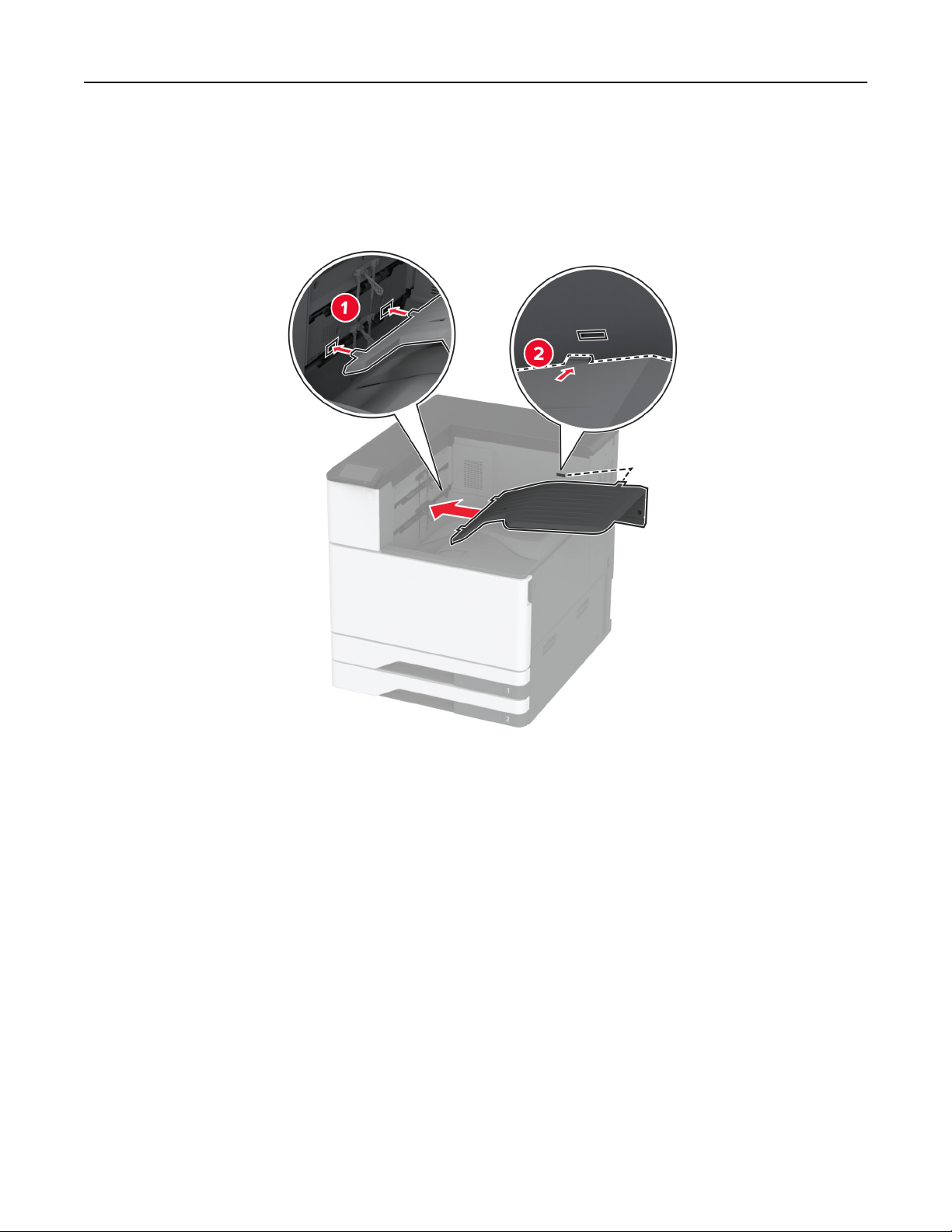
Installing the dual catch bin
1 Unpack the dual catch bin.
2 Attach the dual catch bin to the printer.
To make the bin available for print jobs, from the home screen, touch Settings > Device > Maintenance >
Configuration Menu > Finisher Configuration > Exit Tray 2 Setting > On.
Set up, install, and configure 124
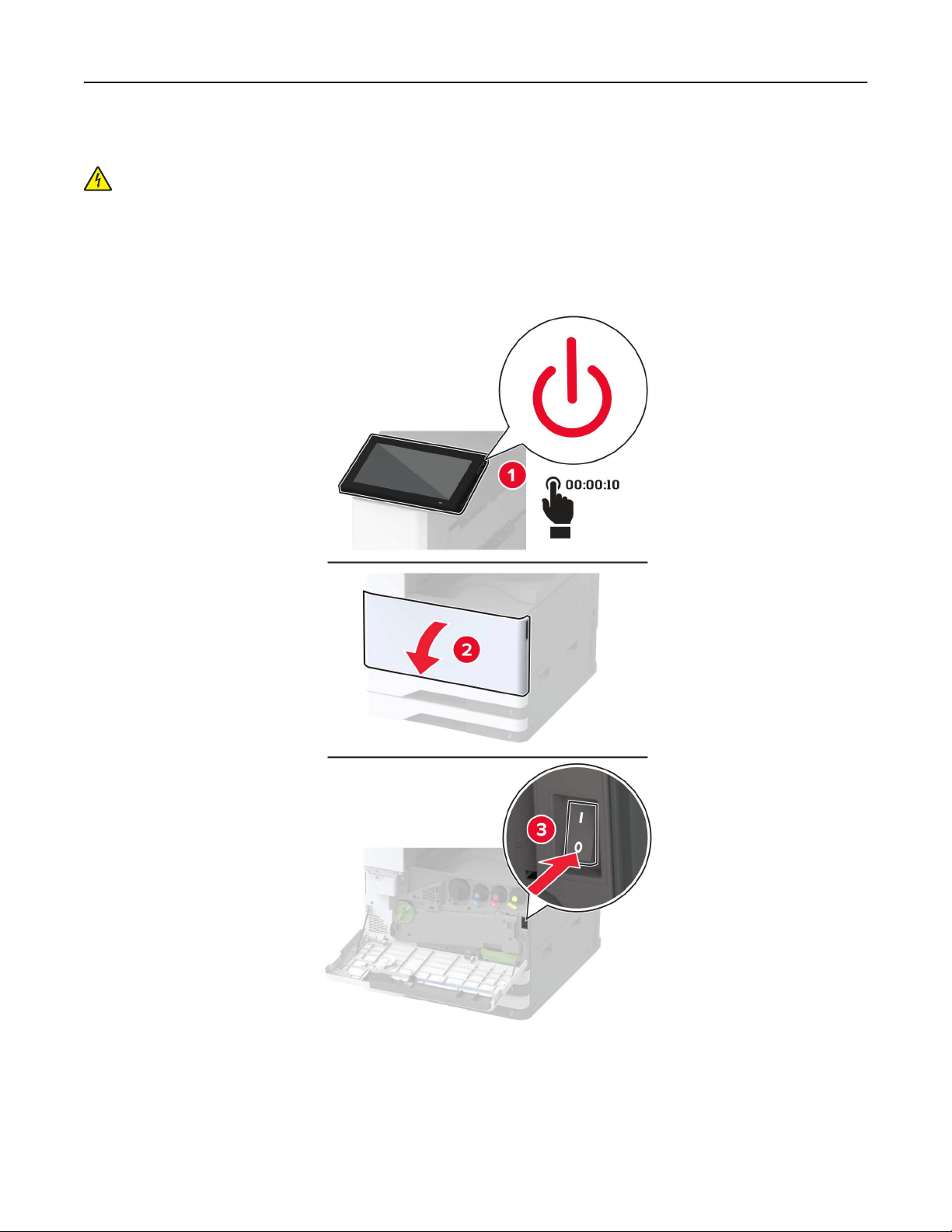
Installing the staple finisher
CAUTION—SHOCK HAZARD: To avoid the risk of electrical shock, if you are accessing the controller
board or installing optional hardware or memory devices sometime after setting up the printer, then turn
the printer o, and unplug the power cord from the electrical outlet before continuing. If you have any
other devices attached to the printer, then turn them o as well, and unplug any cables going into the
printer.
1 Turn o the printer.
Set up, install, and configure 125

2 Unplug the power cord from the electrical outlet, and then from the printer.
3 Remove the standard bin.
Note: Do not throw away the bin.
Set up, install, and configure 126
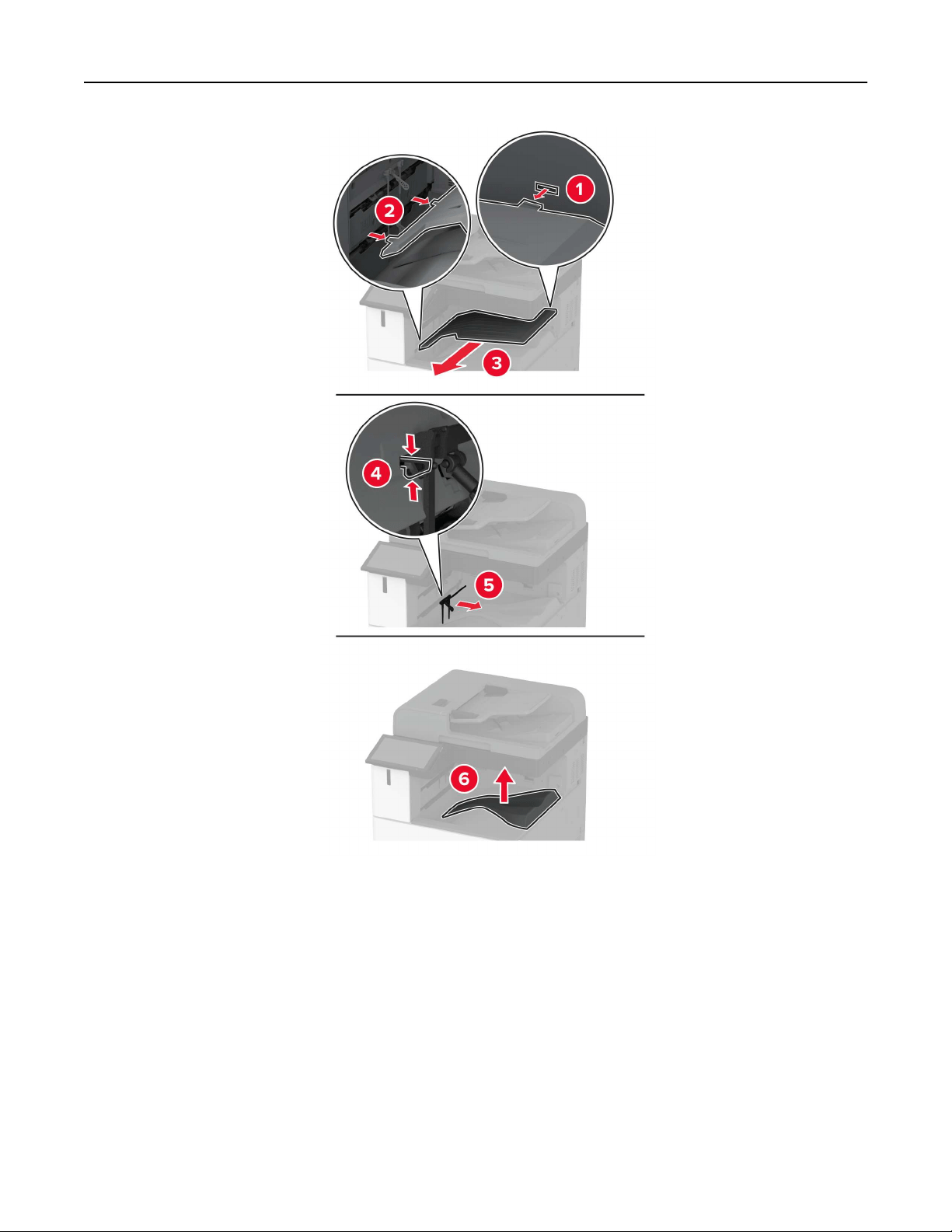
4 Open the front door, and then remove the blue knob.
Note: Do not throw away the knob.
Set up, install, and configure 127
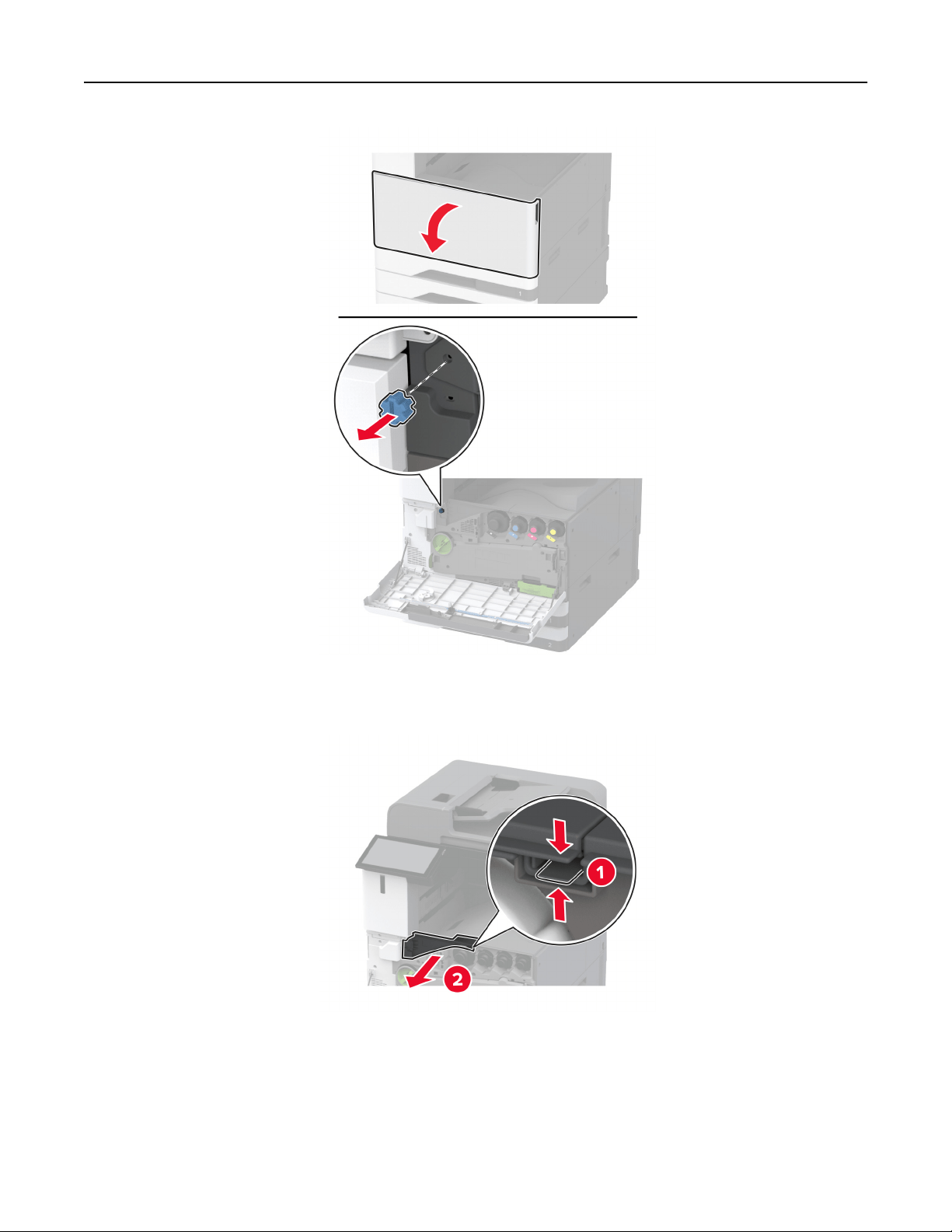
5 Remove the standard bin side cover.
Note: Do not throw away the cover.
6 Unpack the staple finisher, and then remove all the packing material.
Set up, install, and configure 128
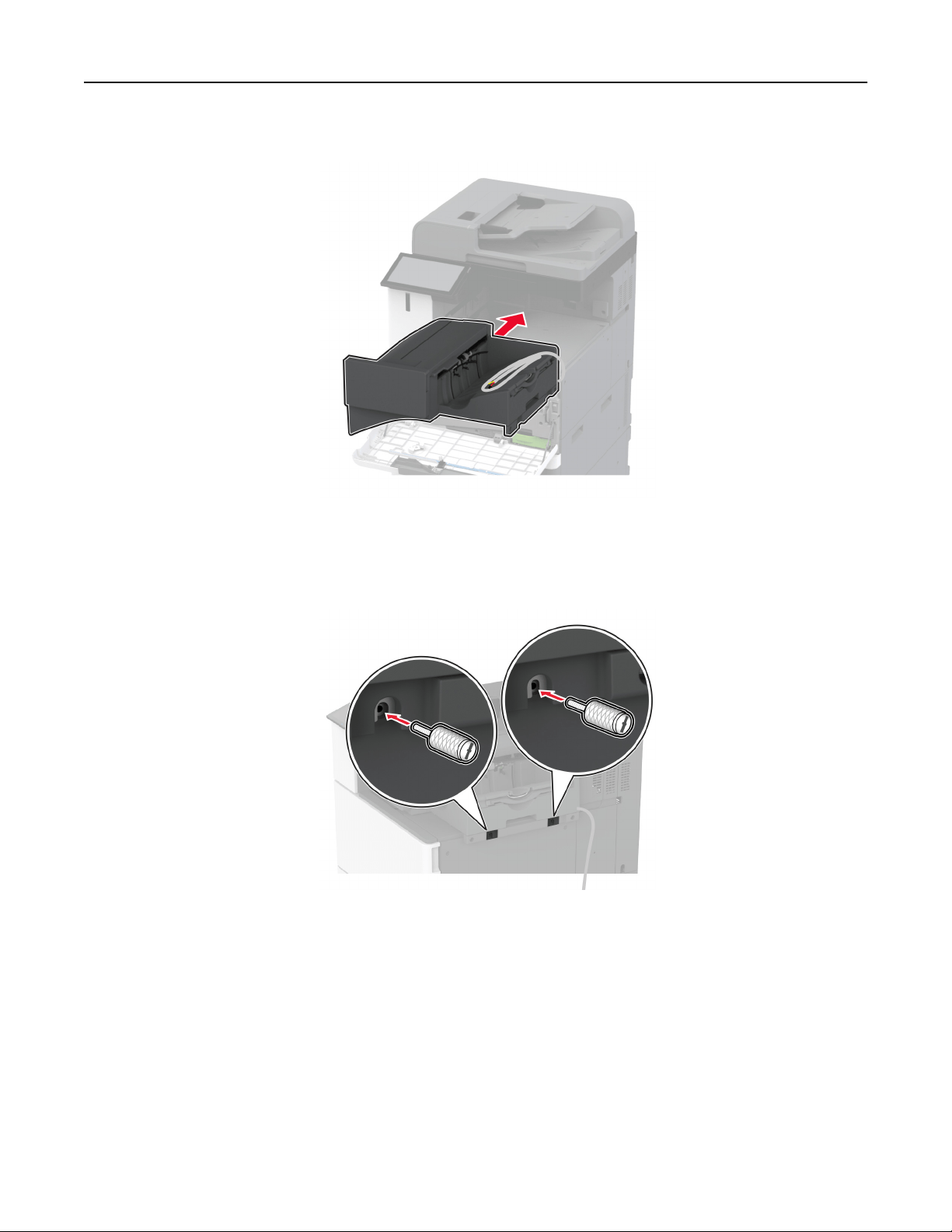
7 Insert the finisher.
8 Close the front door.
9 Secure the finisher to the printer.
Note: Use the screws that came with the
finisher.
10 Secure the finisher cable to the printer.
Note: Use the clamps that came with the finisher.
Set up, install, and configure 129
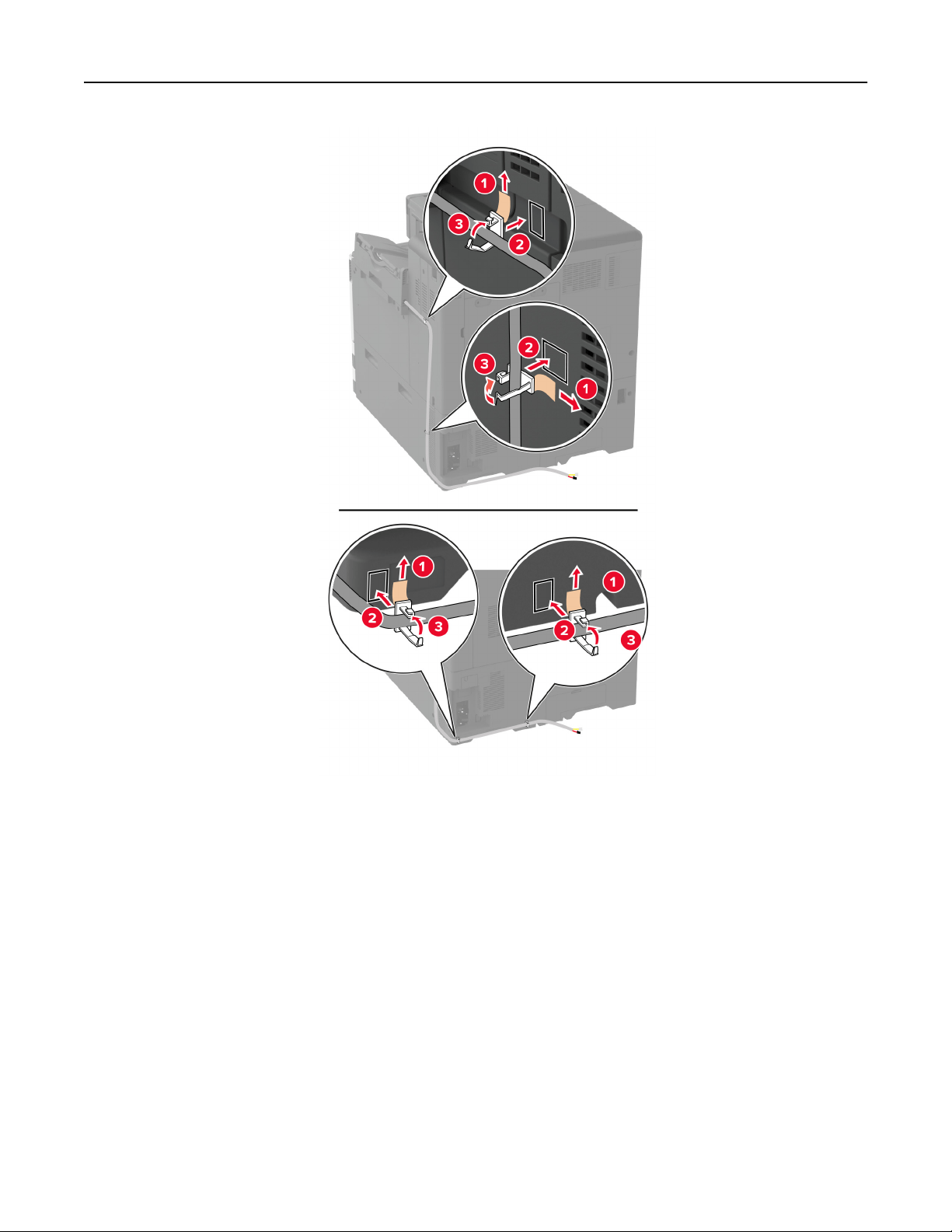
Set up, install, and configure 130
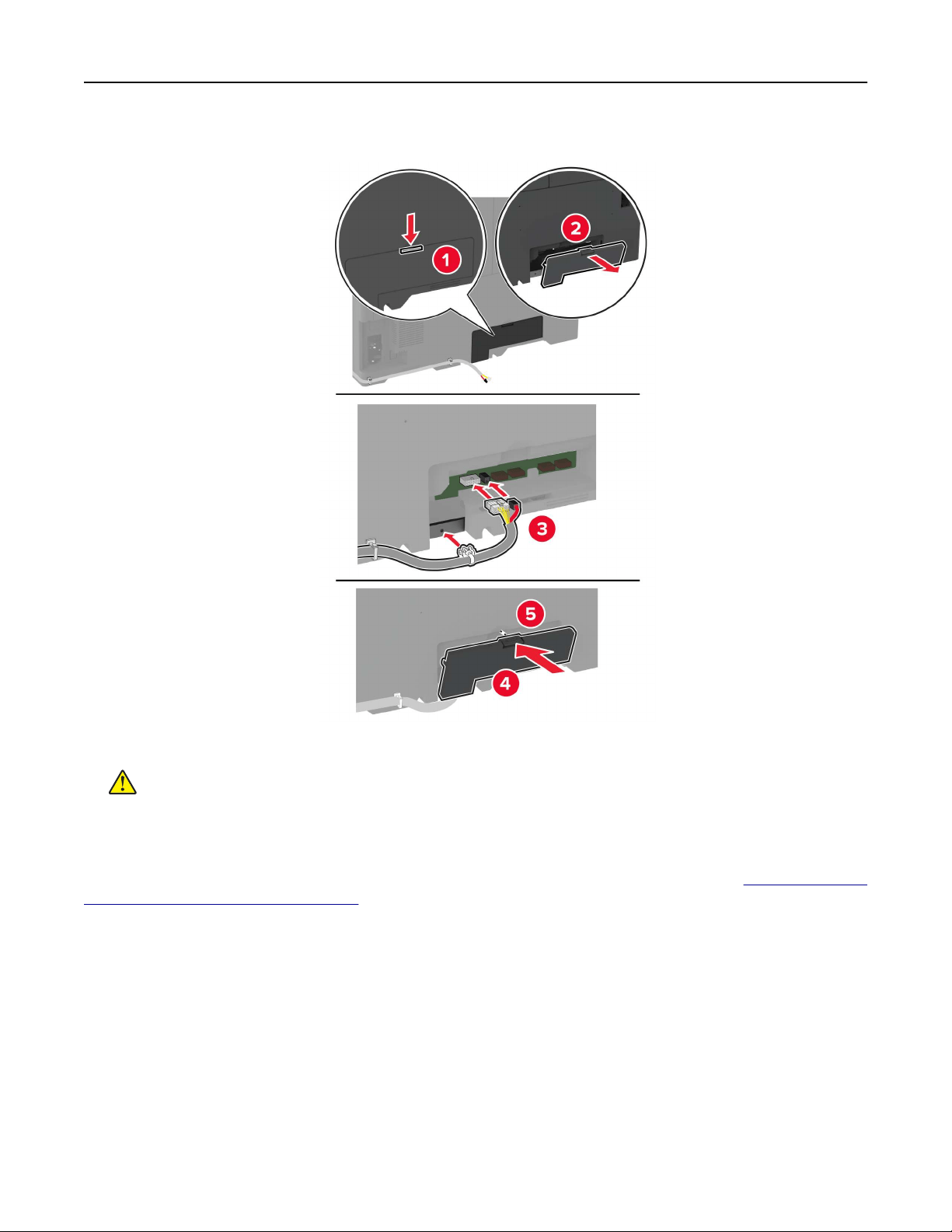
11 Connect the finisher cable to the printer.
12 Connect the power cord to the printer, and then to the electrical outlet.
CAUTION—POTENTIAL INJURY: To avoid the risk of fire or electrical shock, connect the power cord
to an appropriately rated and properly grounded electrical outlet that is near the product and easily
accessible.
13 Turn on the printer.
Add the
finisher
in the print driver to make it available for print jobs. For more information, see
“Adding available
options in the print driver” on page 80.
Set up, install, and configure 131
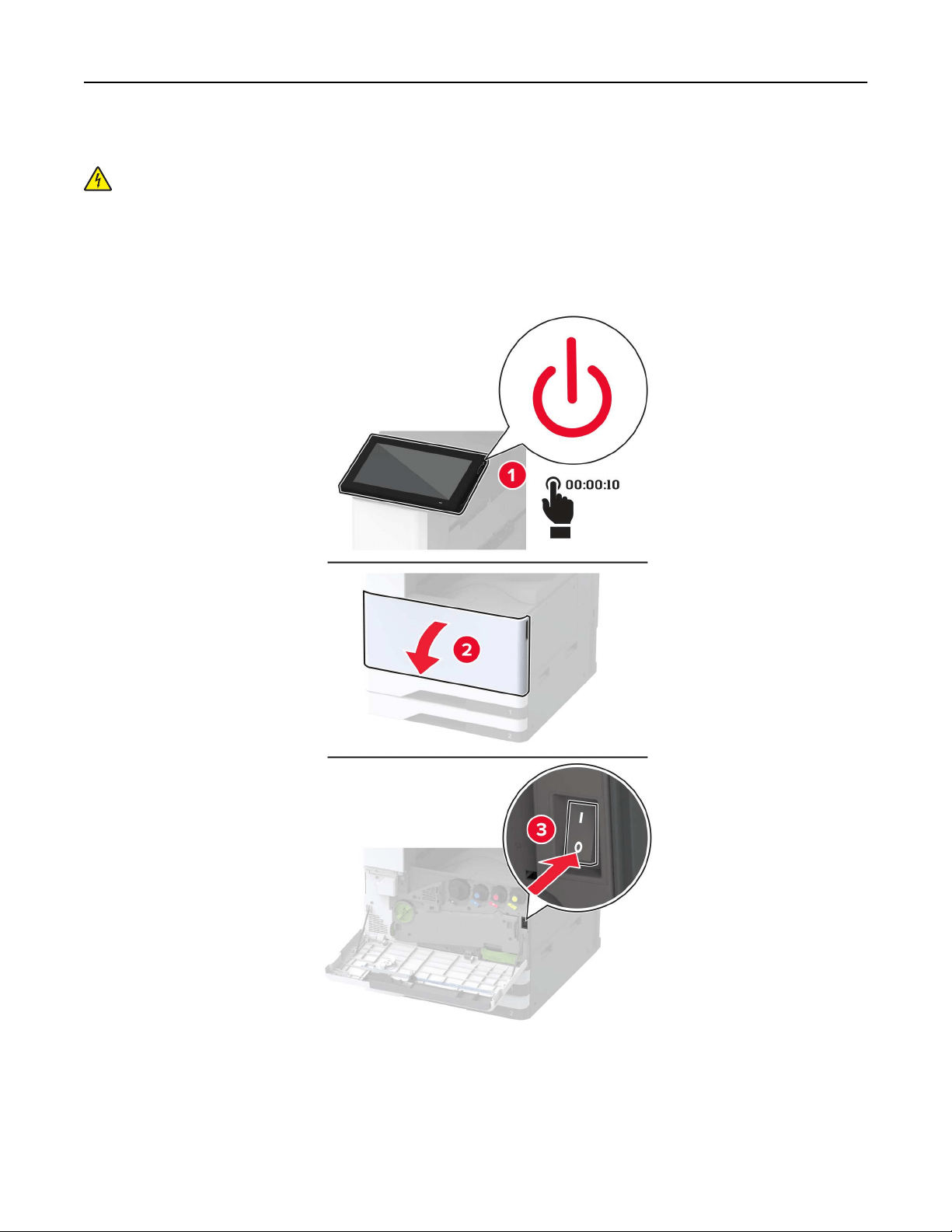
Installing the staple, hole punch finisher
CAUTION—SHOCK HAZARD: To avoid the risk of electrical shock, if you are accessing the controller
board or installing optional hardware or memory devices sometime after setting up the printer, then turn
the printer o, and unplug the power cord from the electrical outlet before continuing. If you have any
other devices attached to the printer, then turn them o as well, and unplug any cables going into the
printer.
1 Turn o the printer.
Set up, install, and configure 132
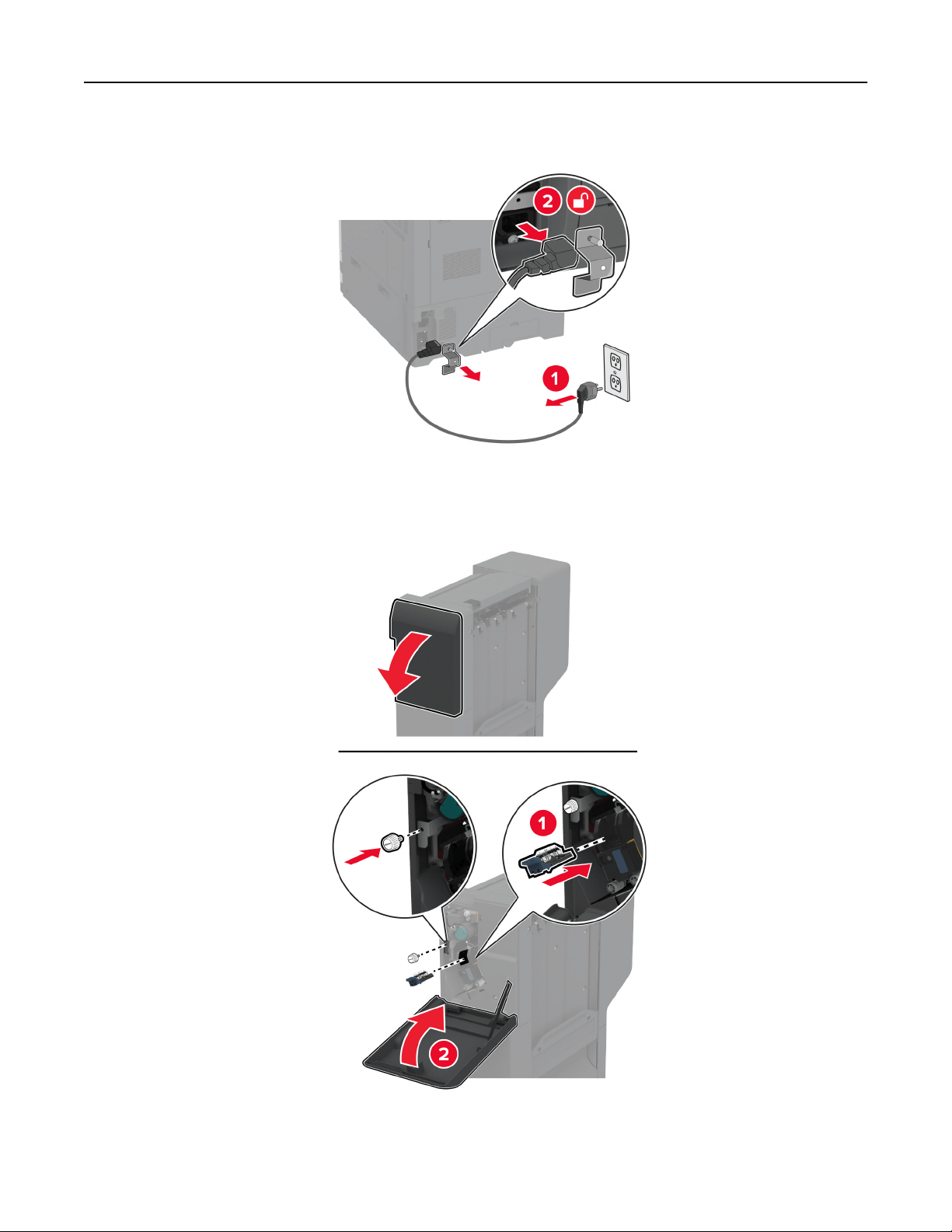
2 Unplug the power cord from the electrical outlet, and then from the printer.
3 Unpack the staple, hole punch finisher, and then remove all the packing material.
4 Insert the staple cartridge holder into the finisher.
Set up, install, and configure 133
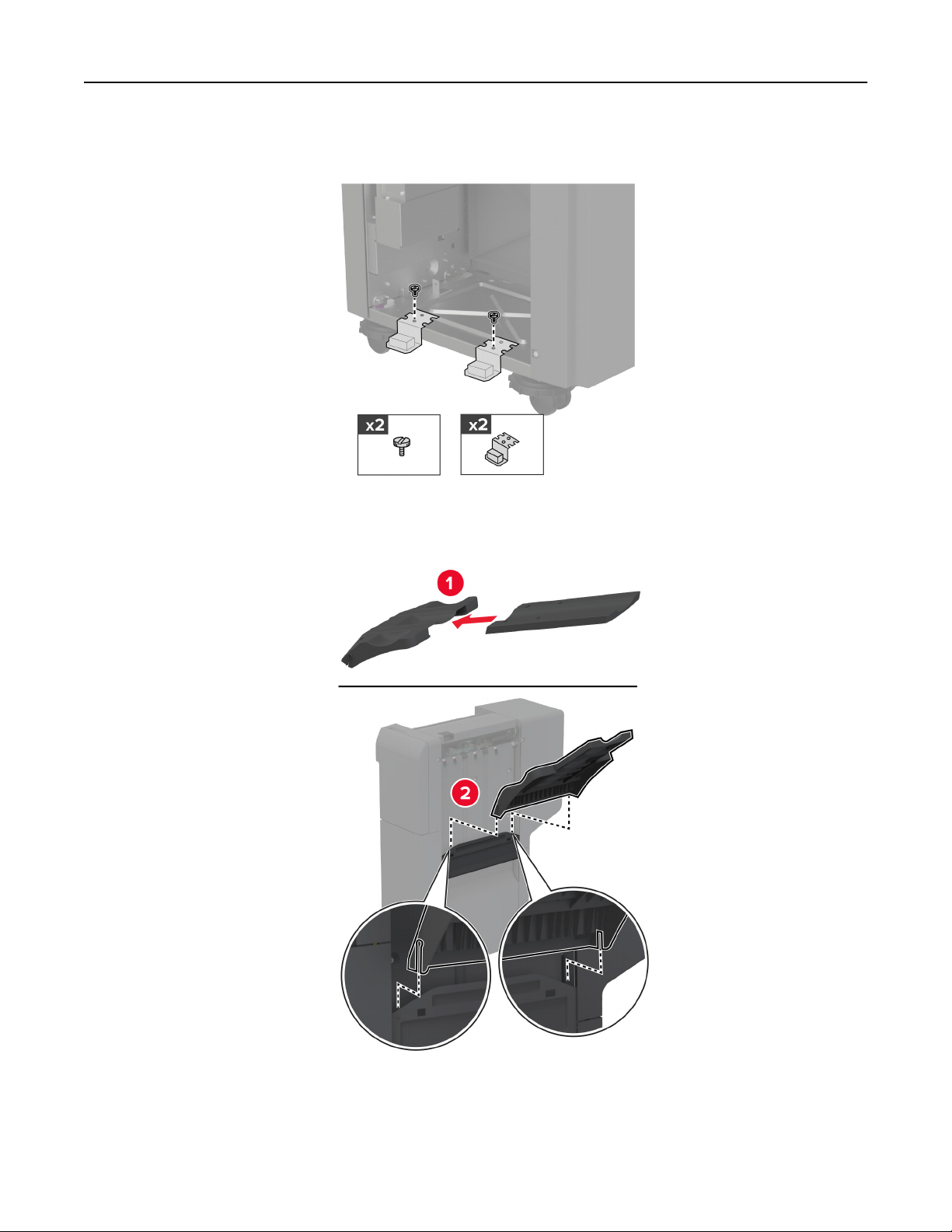
5 Attach the brackets to the finisher.
6 Insert the bin into the finisher.
7 Remove the standard bin.
Note: Do not throw away the standard bin.
Set up, install, and configure 134
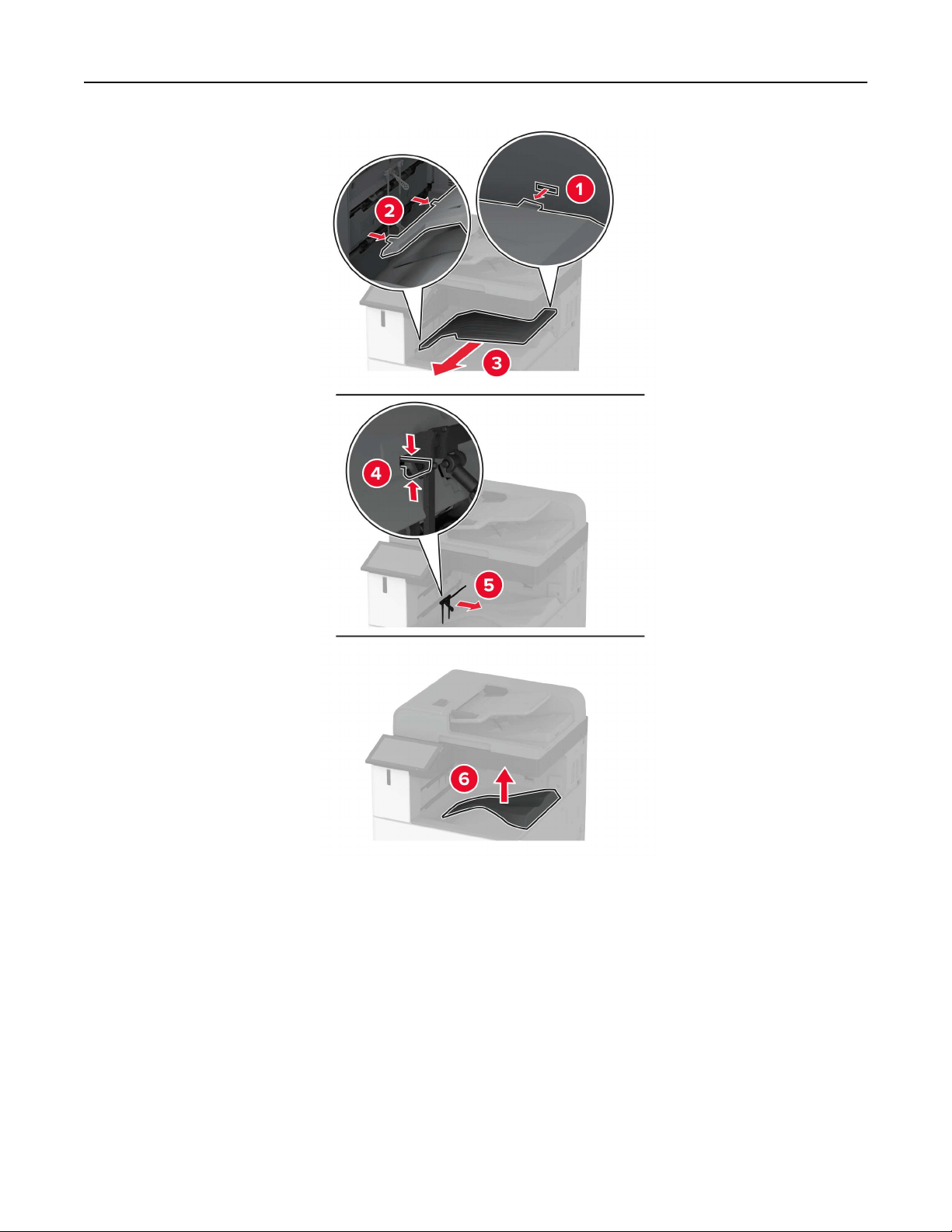
8 Open the front door, and then remove the blue knob.
Note: Do not throw away the blue knob.
Set up, install, and configure 135
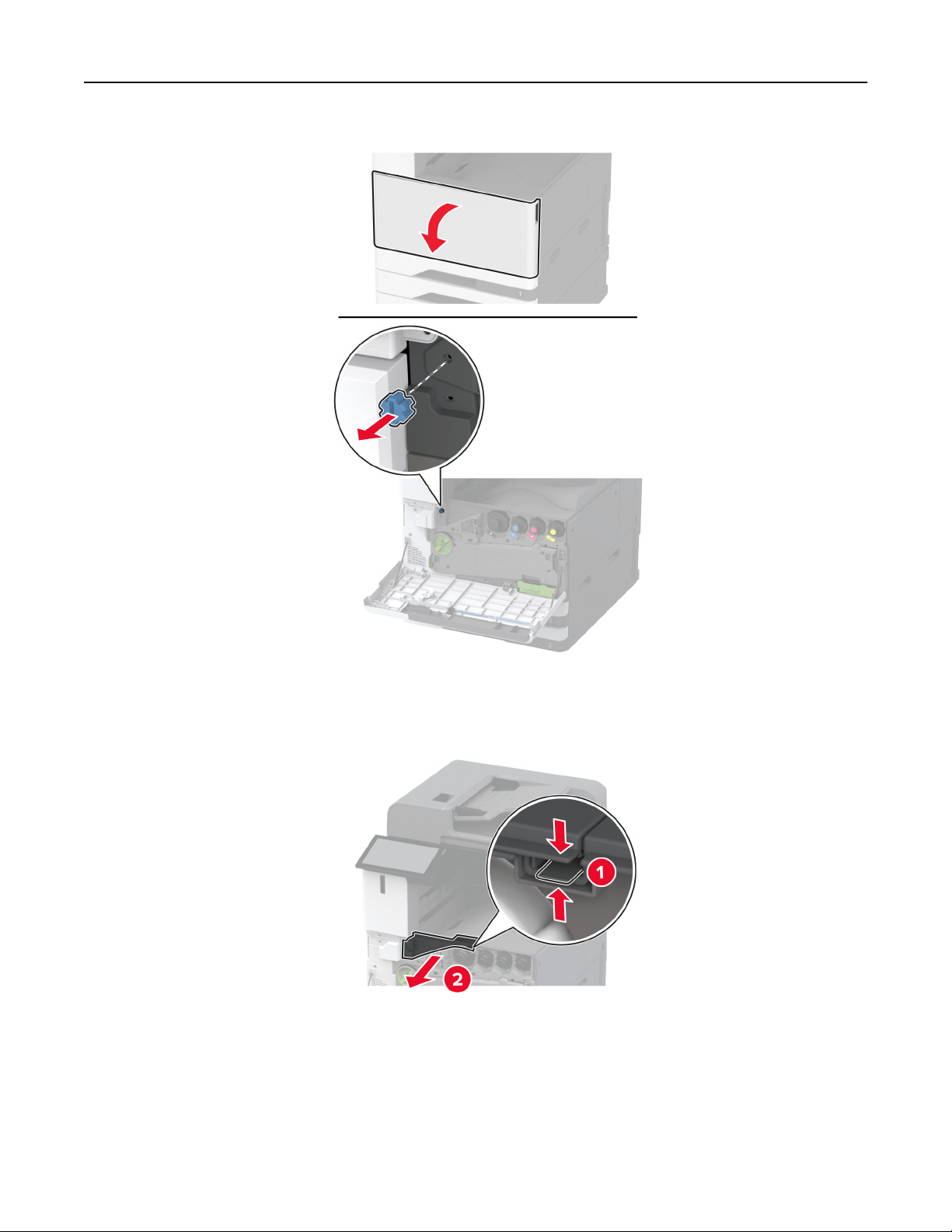
9 Remove the standard bin side cover.
Note: Do not throw away the standard bin side cover.
10 Close the front door.
11 Insert the paper transport, and then use the screws to secure it.
Note: Use the screws that came with the finisher.
Set up, install, and configure 136
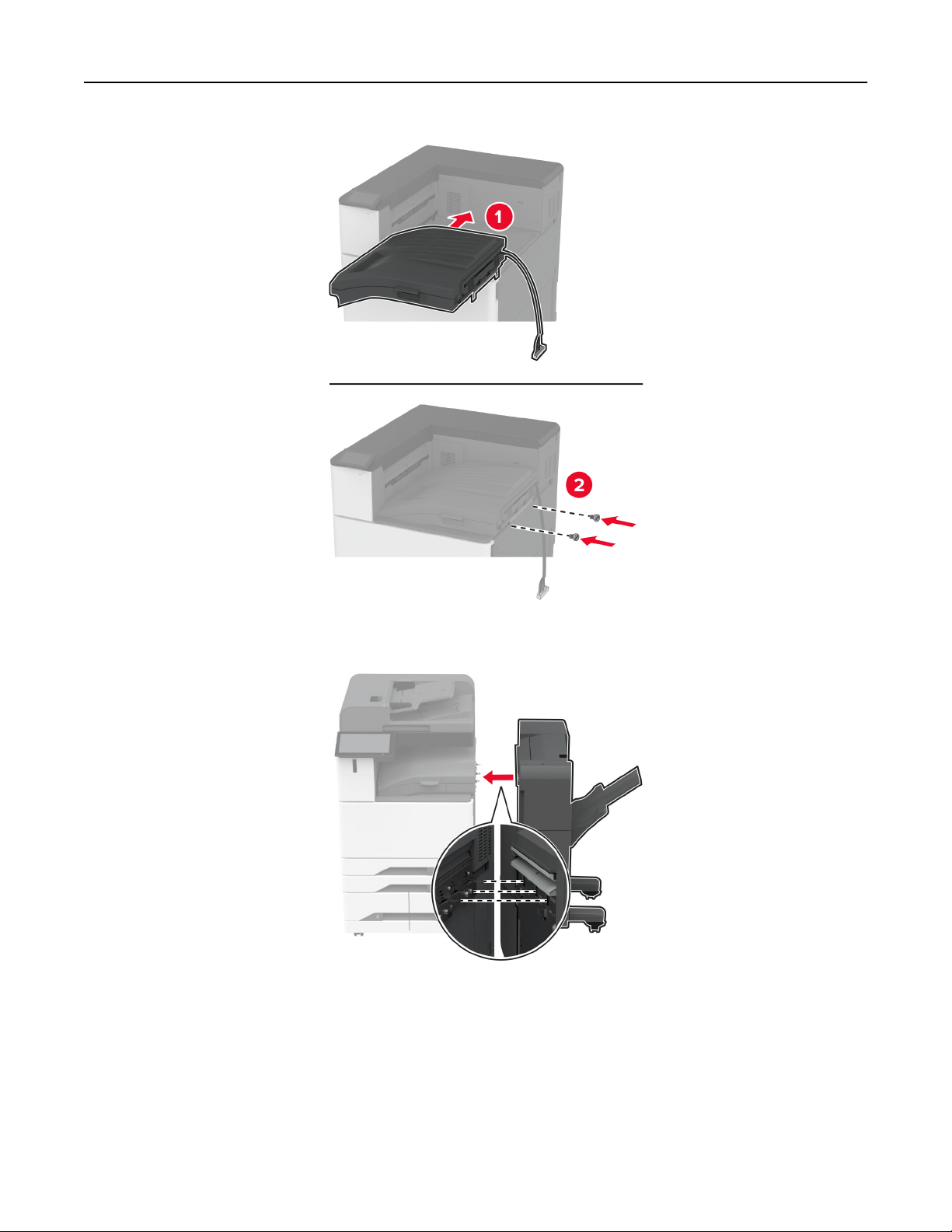
12 Attach the
finisher
to the printer.
Set up, install, and configure 137
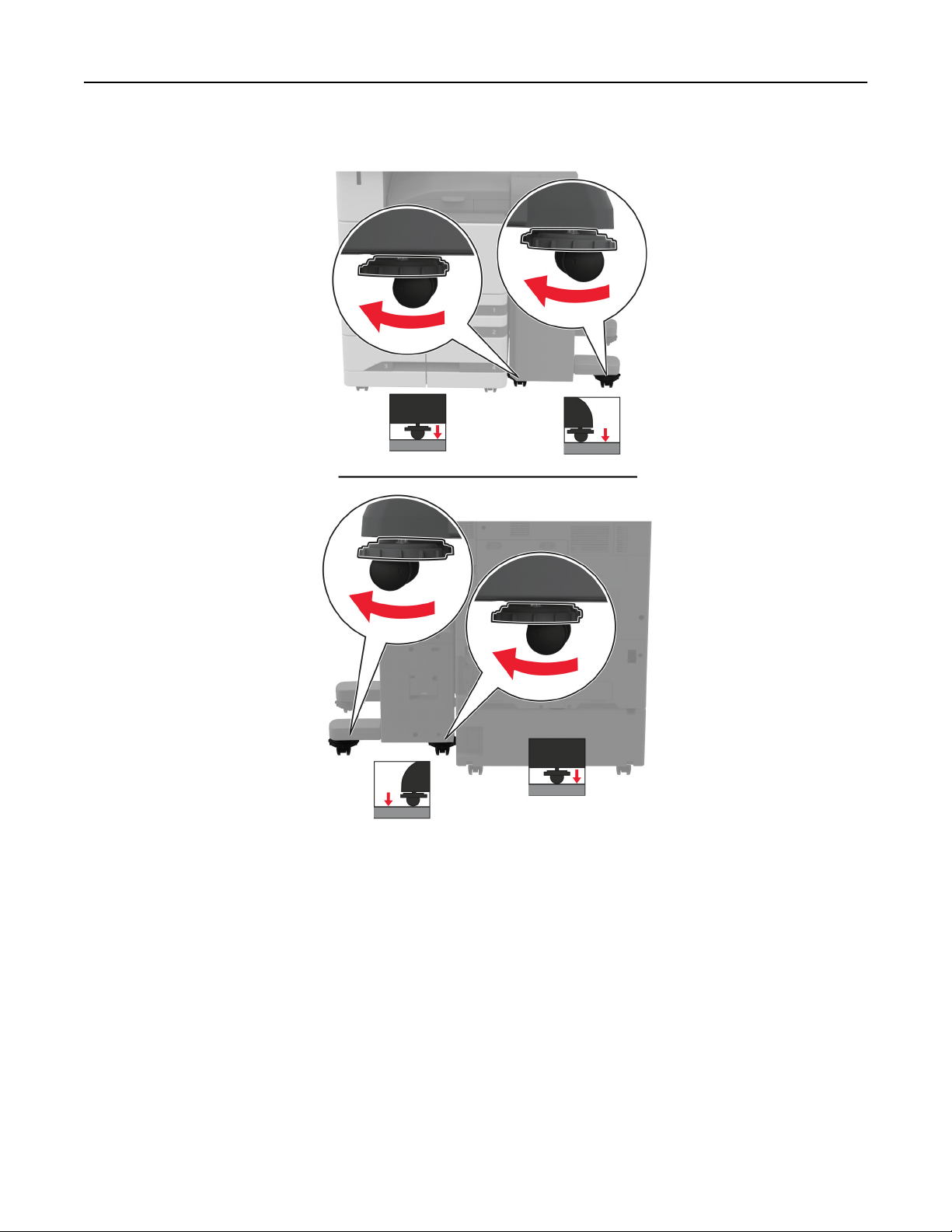
13 Adjust the leveling screws to make sure that all sides of the finisher have the same height as the printer.
Set up, install, and configure 138
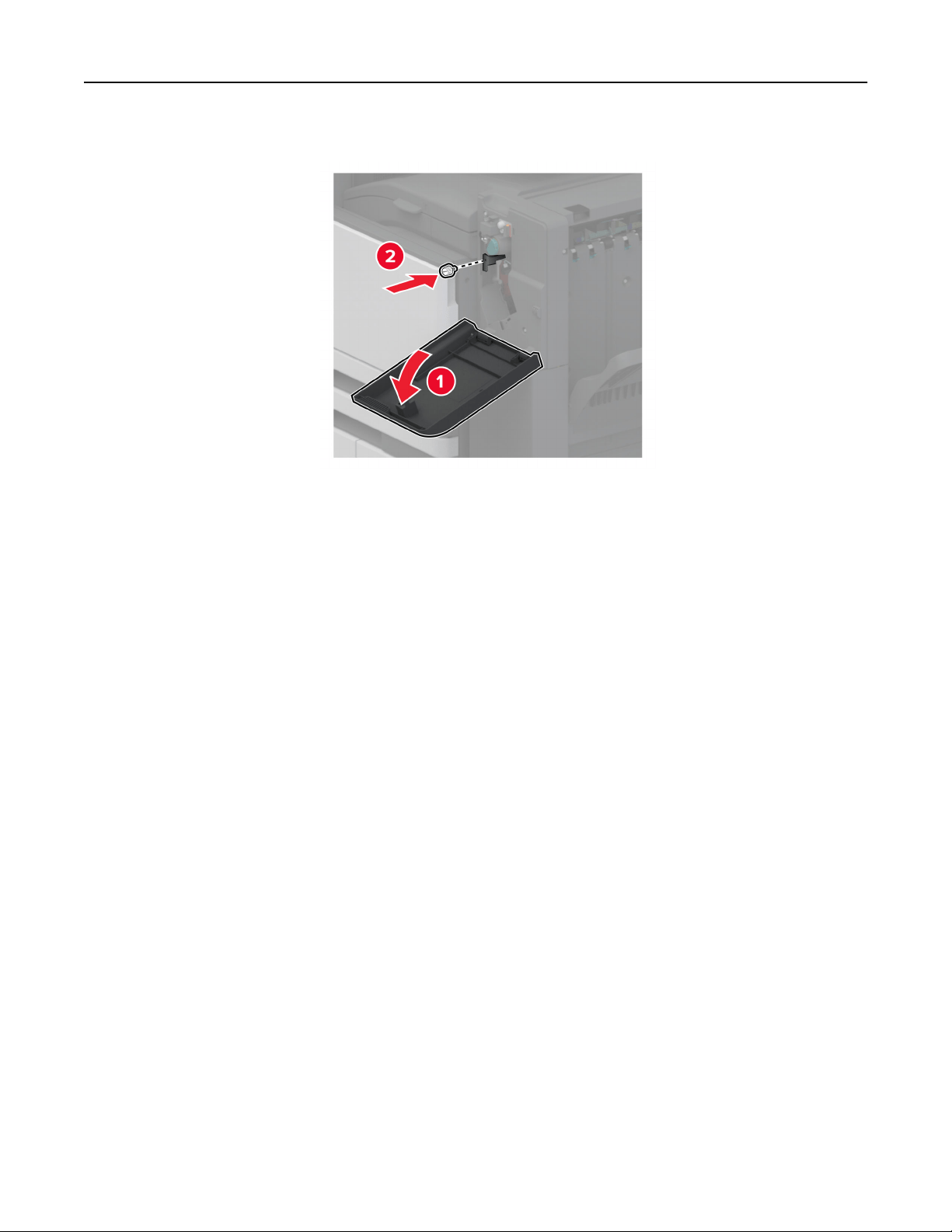
14 Open the finisher door, and then install the screw to the left part of the finisher.
15 Close the finisher door.
Set up, install, and configure 139
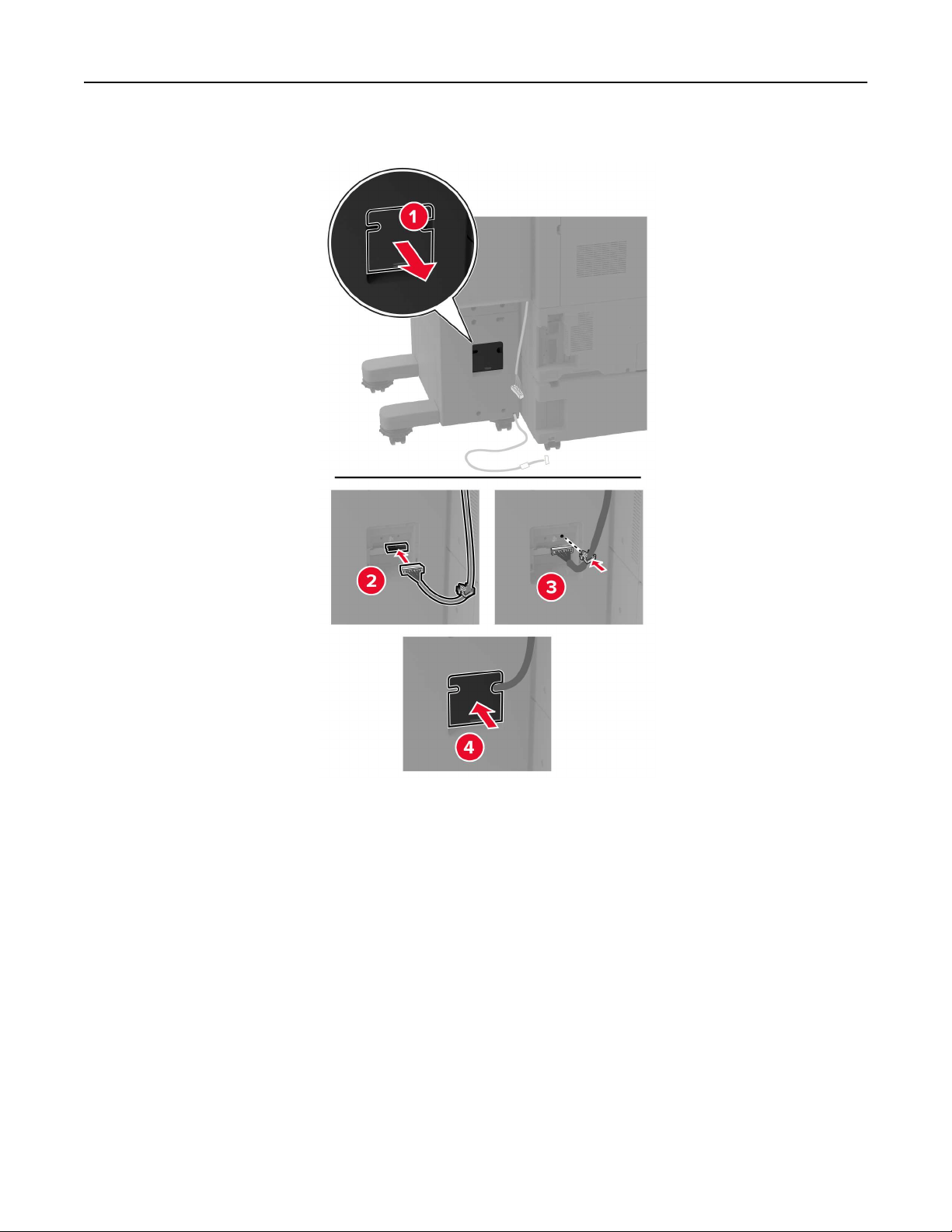
16 Connect the paper transport cable to the rear of the finisher.
Set up, install, and configure 140
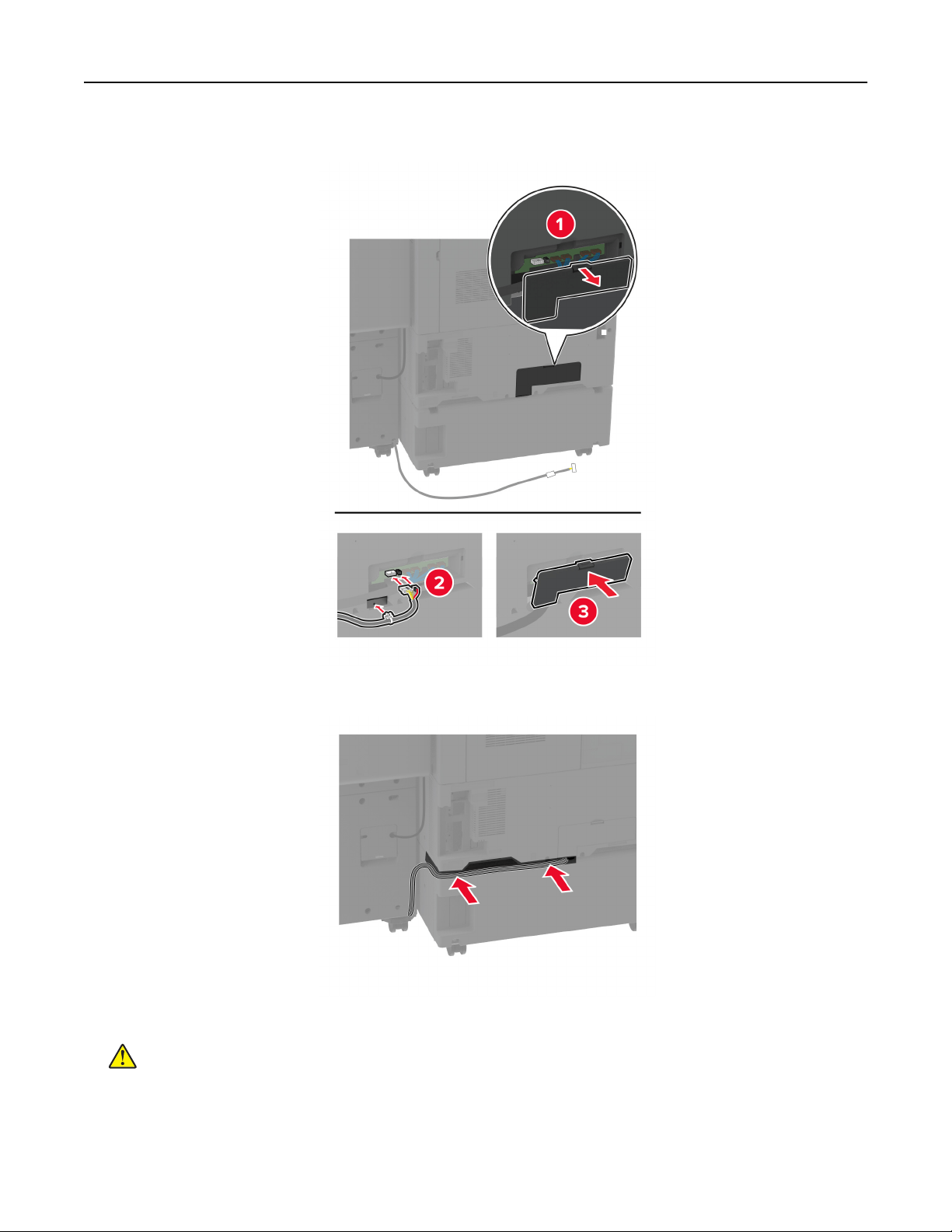
17 Connect the finisher cable to the rear of the printer.
18 Secure the cable along the rear of the printer.
19 Connect the power cord to the printer, and then to the electrical outlet.
CAUTION—POTENTIAL INJURY: To avoid the risk of fire or electrical shock, connect the power cord
to an appropriately rated and properly grounded electrical outlet that is near the product and easily
accessible.
20 Turn on the printer.
Set up, install, and configure 141
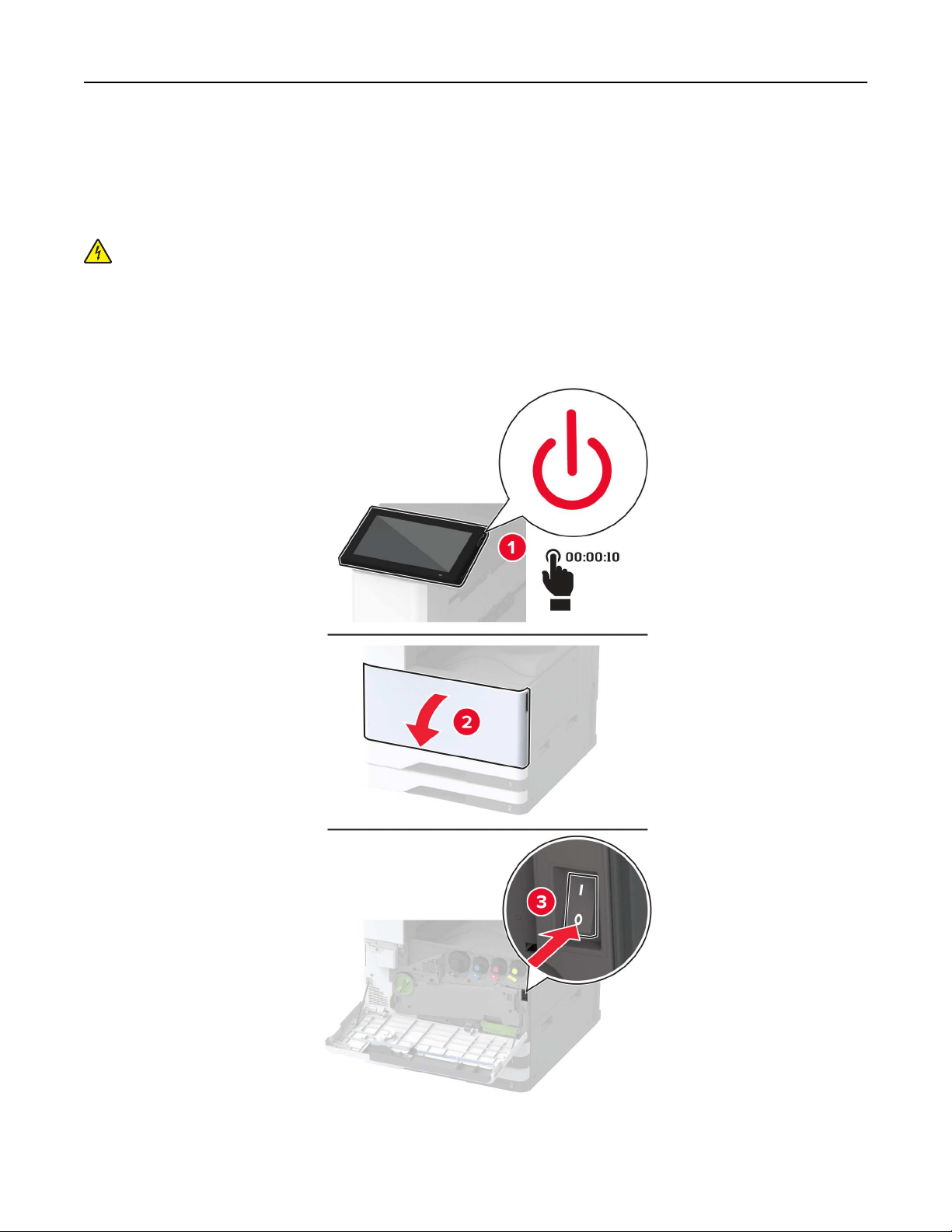
To make the finisher available for print jobs, from the home screen, touch Settings > Device > Maintenance >
Configuration Menu > Finisher Configuration > Hole Punch Configuration > select a configuration.
Installing the booklet
finisher
CAUTION—SHOCK HAZARD: To avoid the risk of electrical shock, if you are accessing the controller
board or installing optional hardware or memory devices sometime after setting up the printer, then turn
the printer o, and unplug the power cord from the electrical outlet before continuing. If you have any
other devices attached to the printer, then turn them o as well, and unplug any cables going into the
printer.
1 Turn o the printer.
Set up, install, and configure 142
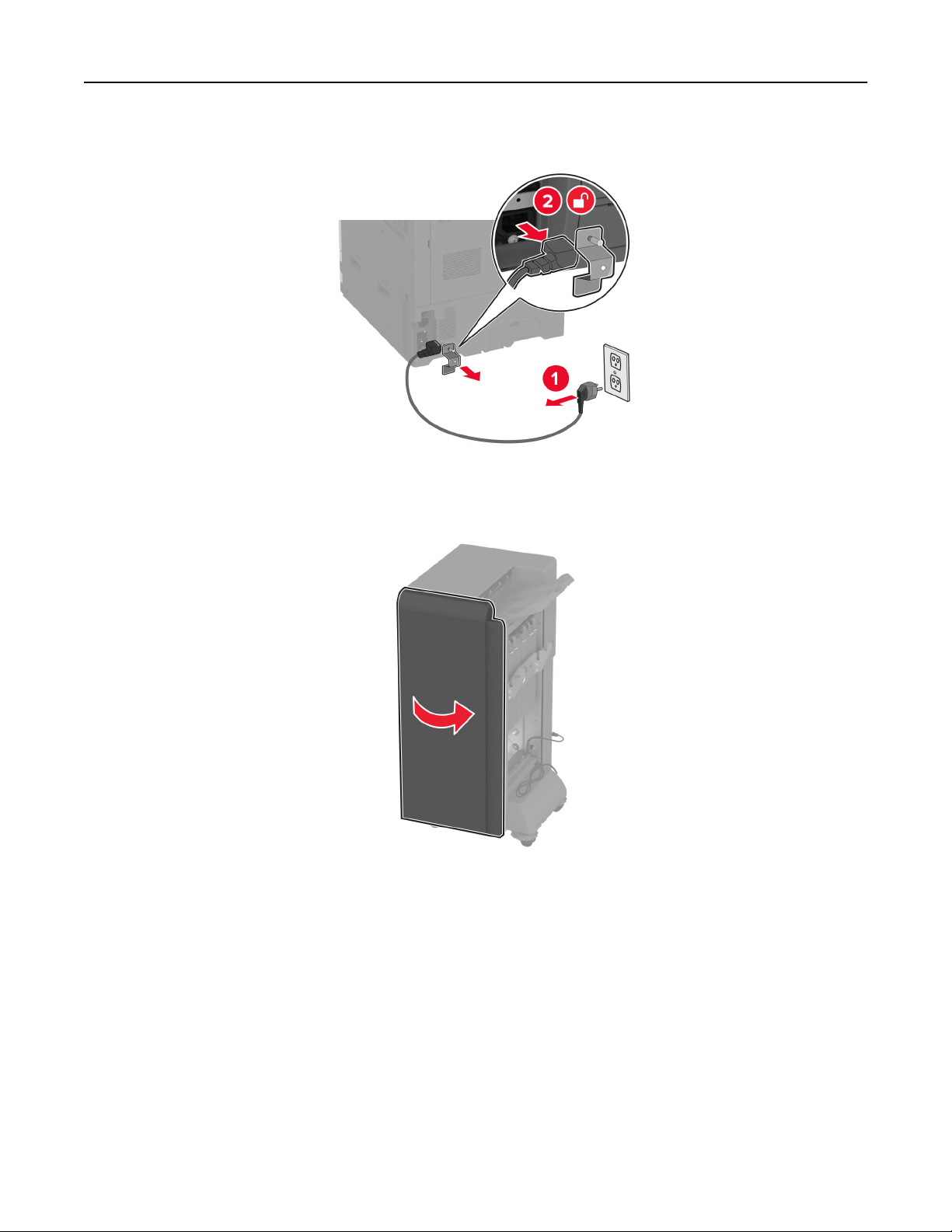
2 Unplug the power cord from the electrical outlet, and then from the printer.
3 Unpack the booklet finisher, and then remove all the packing material.
4 Open the booklet finisher door.
Set up, install, and configure 143
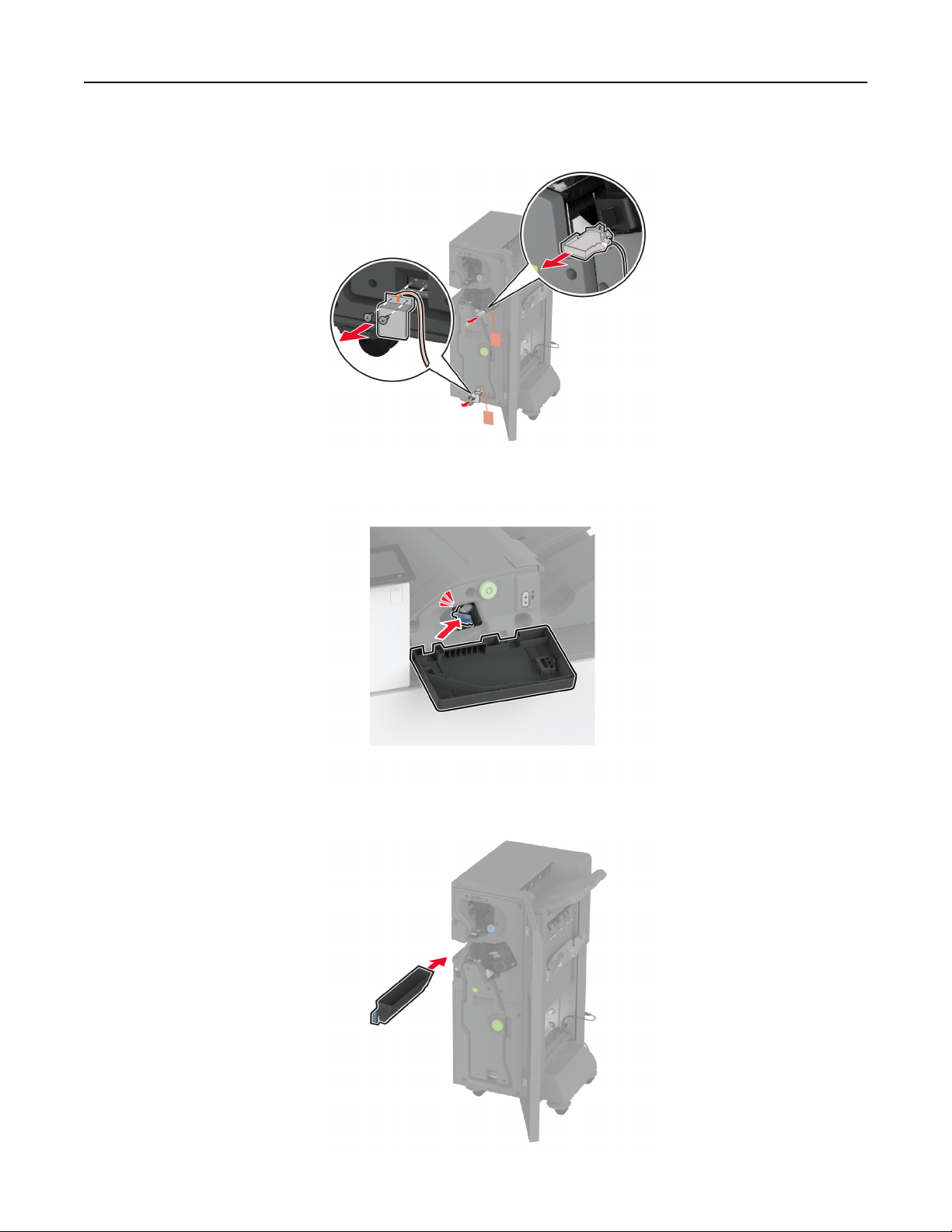
5 Remove the packing material inside the booklet finisher.
6 Insert the staple cartridge holder.
7 Insert the hole punch box.
Set up, install, and configure 144
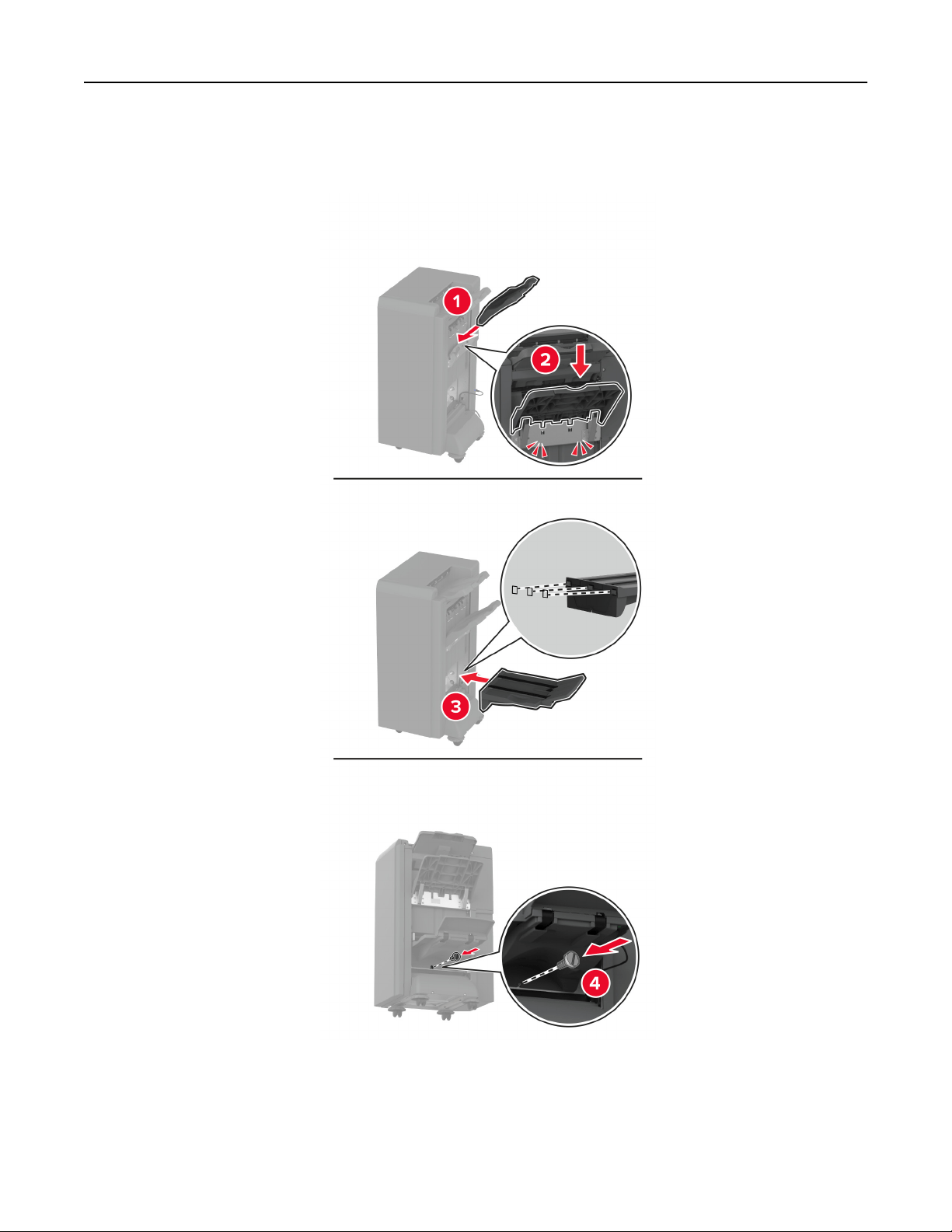
8 Close the booklet finisher door.
9 Insert the bins.
Set up, install, and configure 145
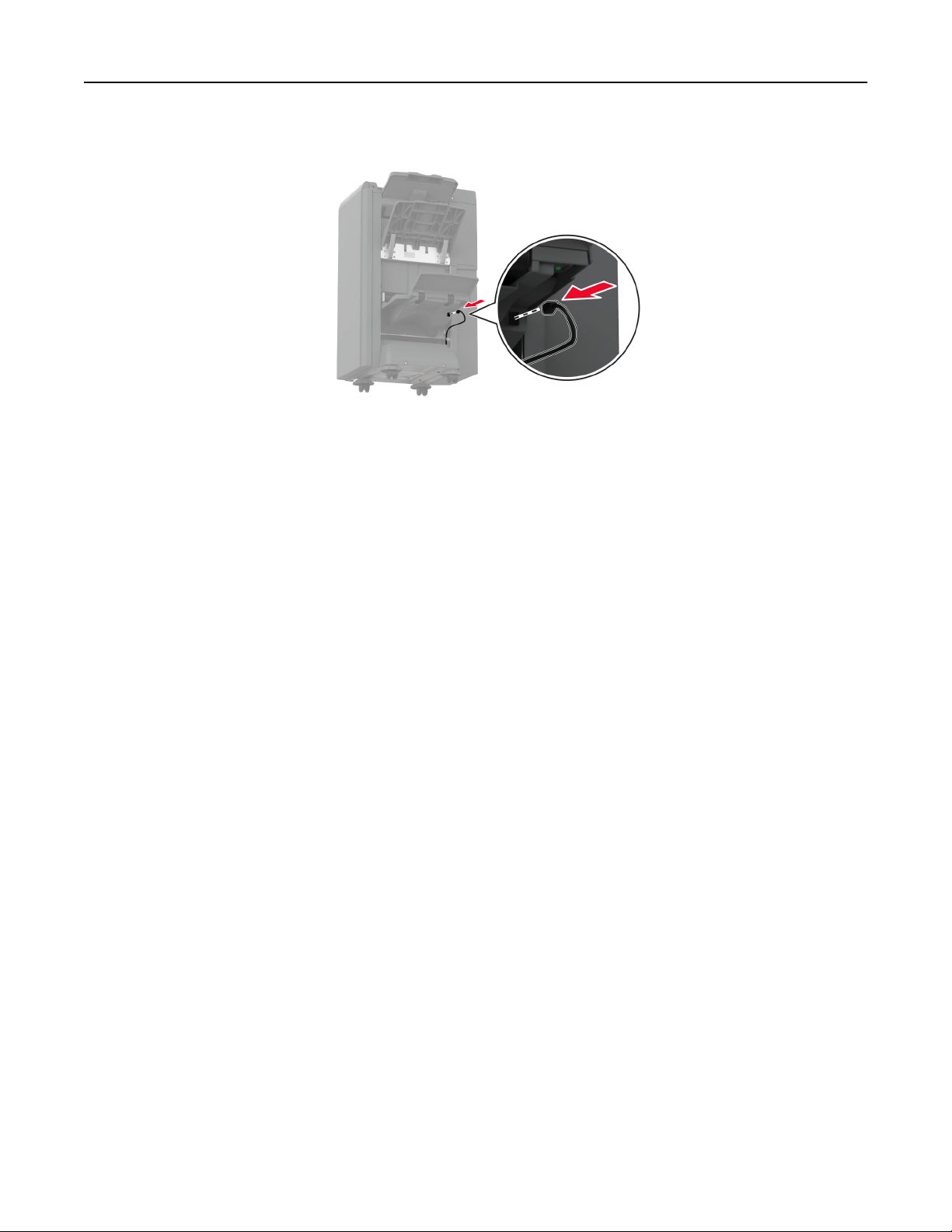
10 Insert the booklet finisher cable.
Set up, install, and configure 146
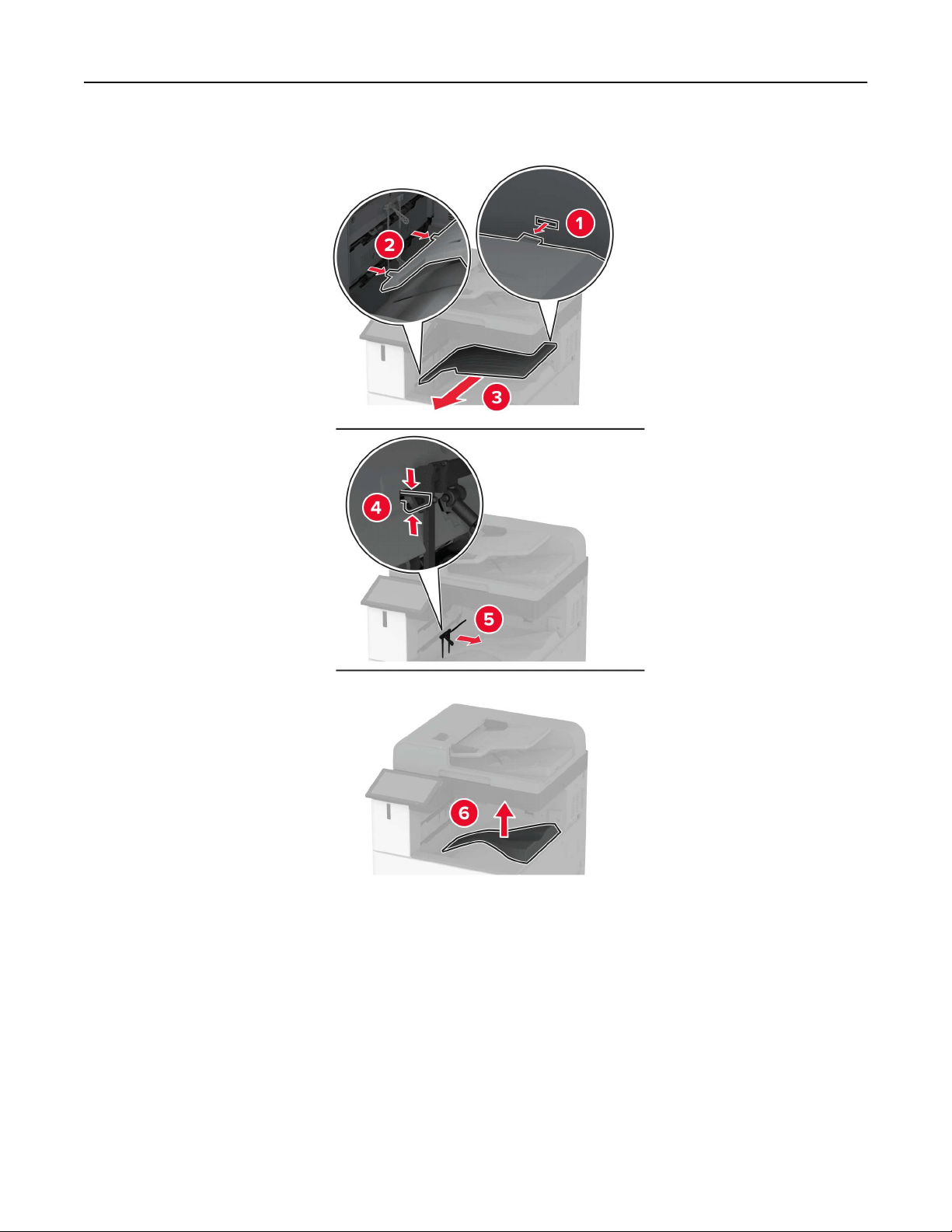
11 Remove the standard bin.
Note: Do not throw away the standard bin.
12 Open the front door, and then remove the blue knob.
Note: Do not throw away the knob.
Set up, install, and configure 147
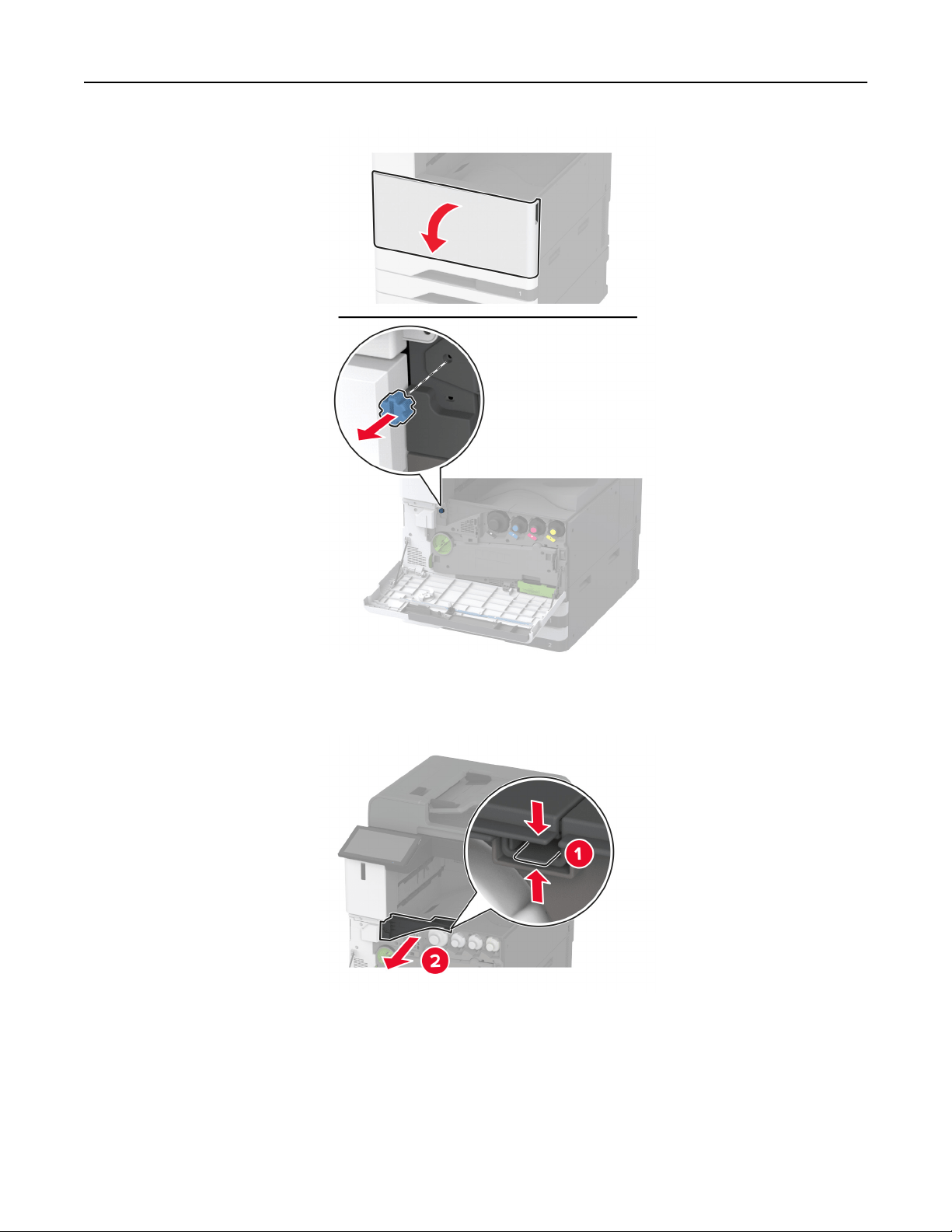
13 Remove the standard bin side cover.
Note: Do not throw away the bin side cover.
14 Close the front door.
Set up, install, and configure 148
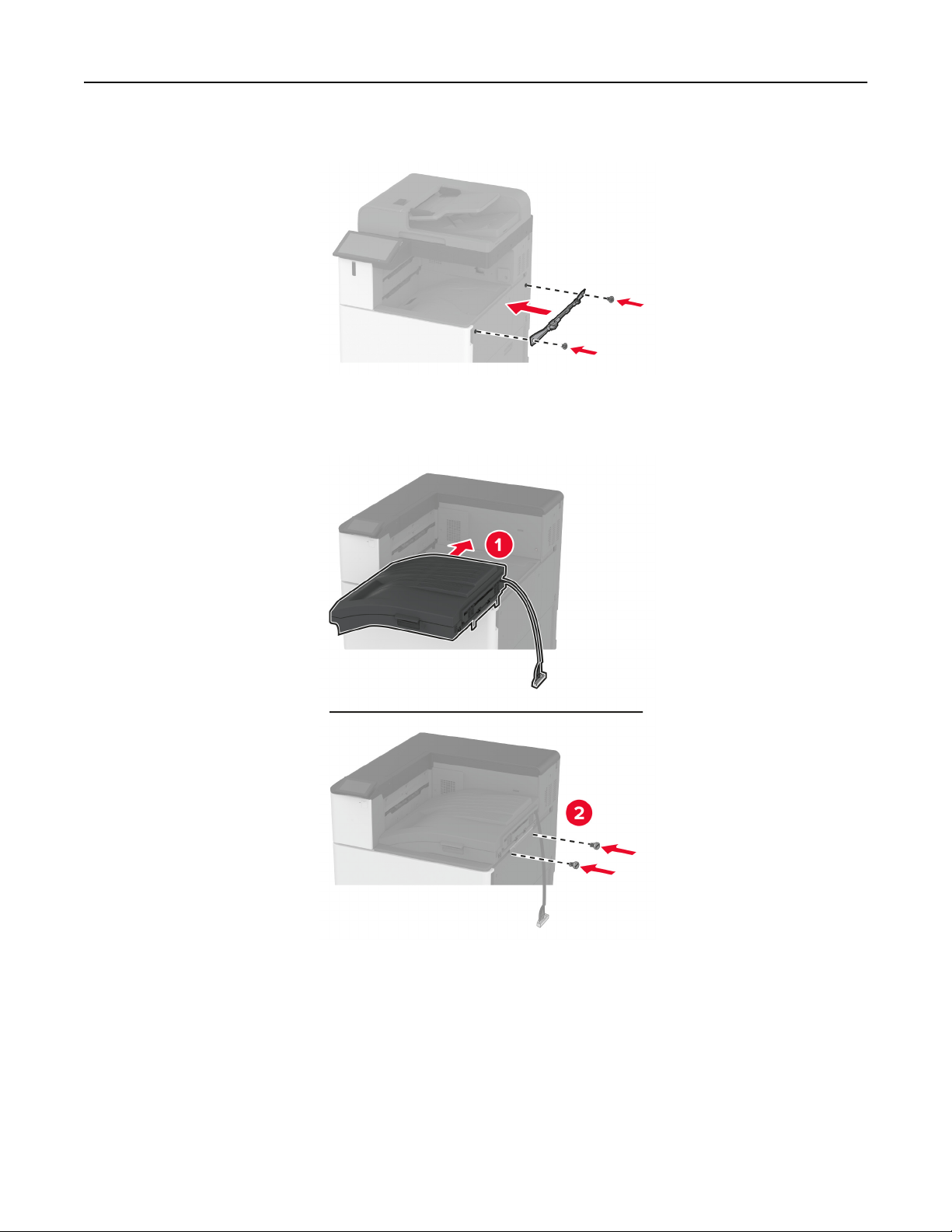
15 Attach the installation bracket for the finisher.
16 Insert the paper transport, and then use the screws to secure it.
Note: Use the screws that came with the finisher.
Set up, install, and configure 149
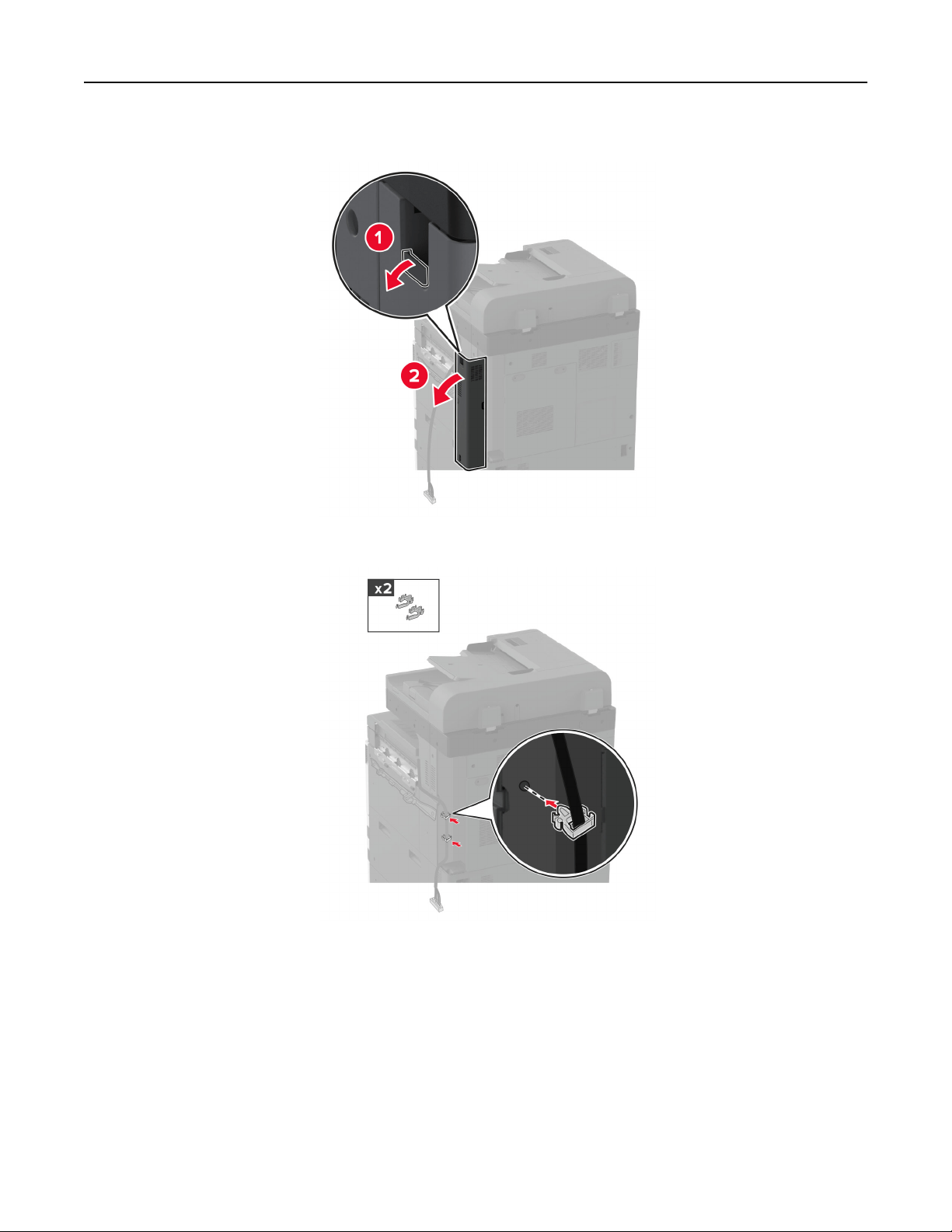
17 Remove the rear ports cover.
18 Secure the cable.
Set up, install, and configure 150
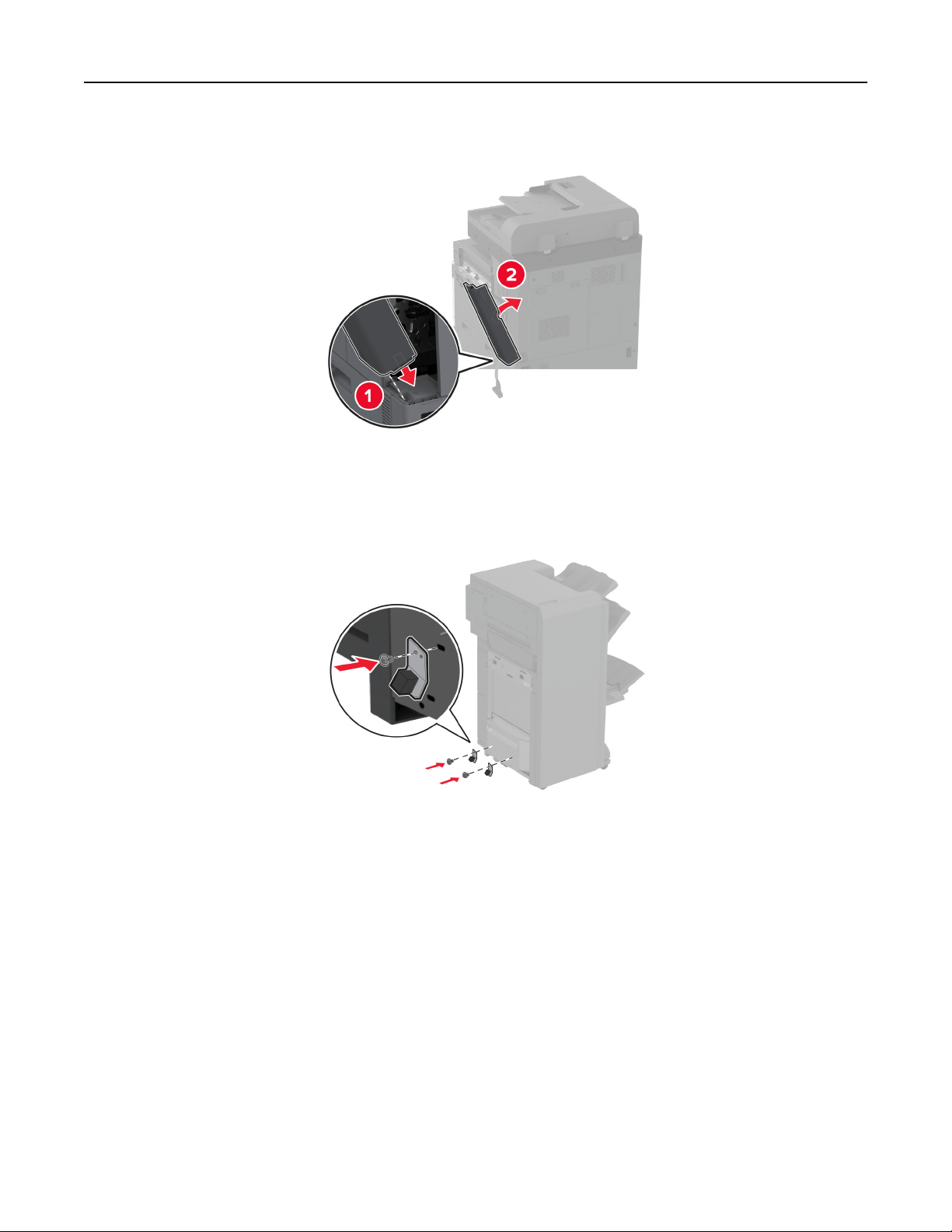
19 Attach the rear ports cover.
20 Attach the brackets at the bottom of the finisher.
21 Open the booklet finisher door.
Set up, install, and configure 151
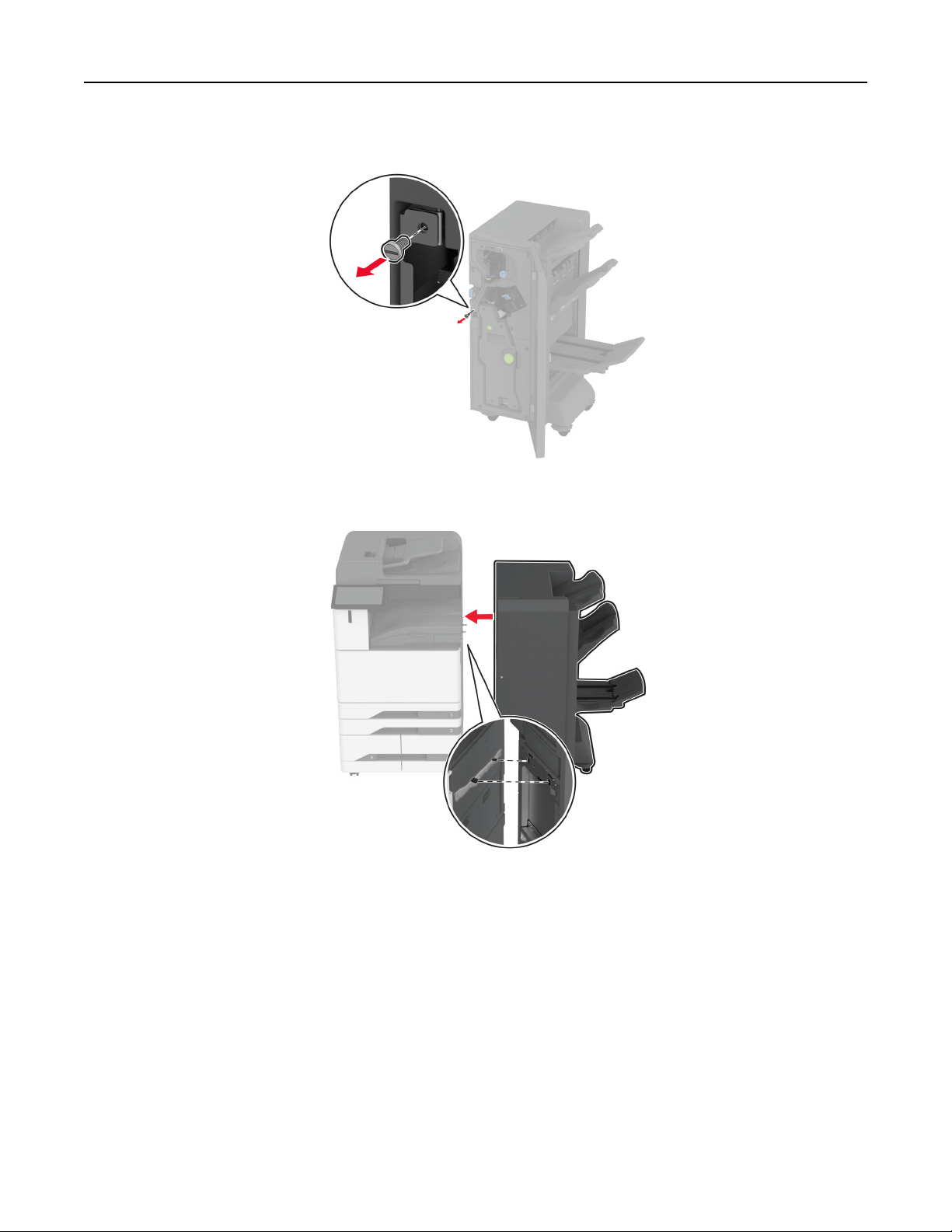
22 Using a flat‑head screwdriver, remove the screw, and then close the finisher door.
23 Attach the
finisher
to the printer.
Set up, install, and configure 152
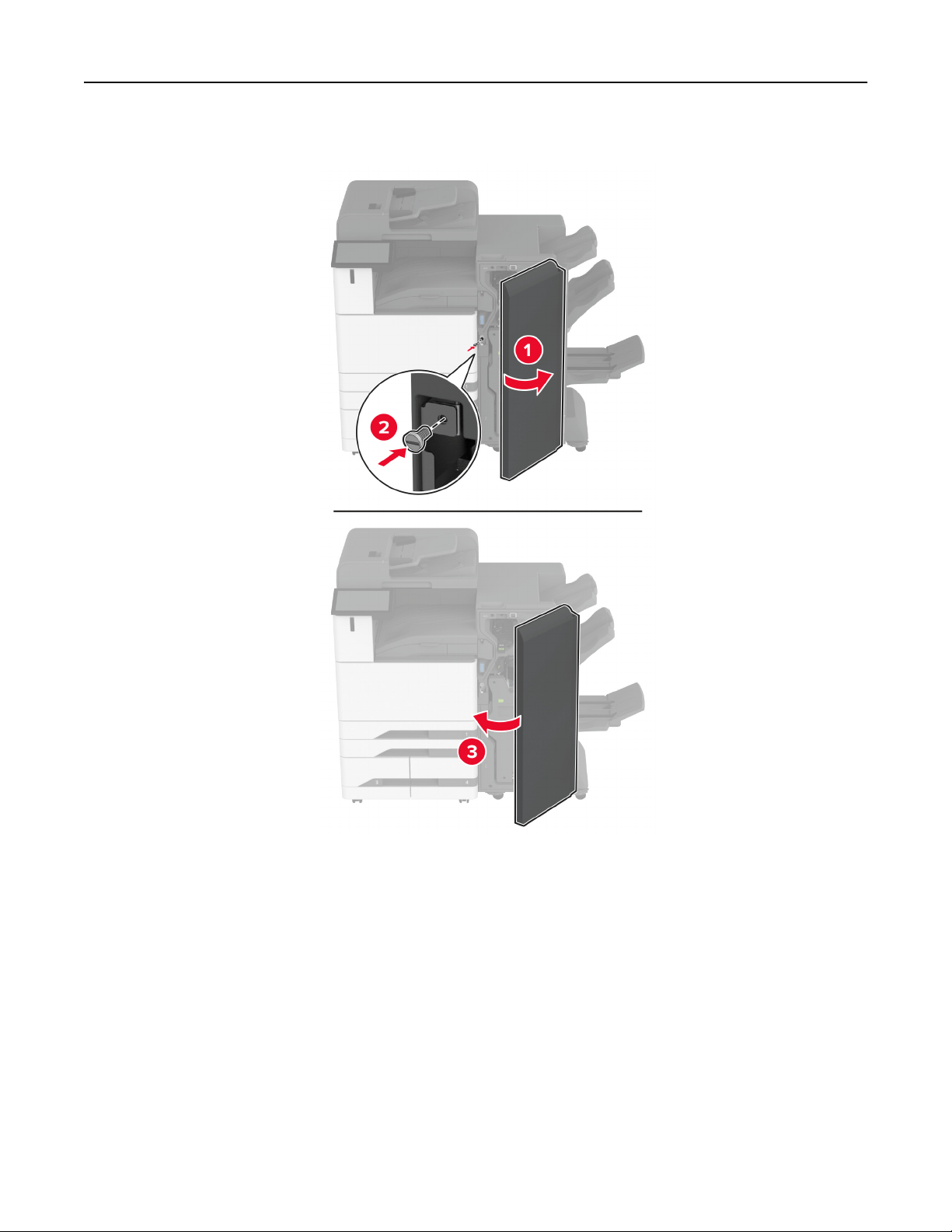
24 Open the finisher door, use the screw to secure the finisher to the printer, and then close the door.
Set up, install, and configure 153
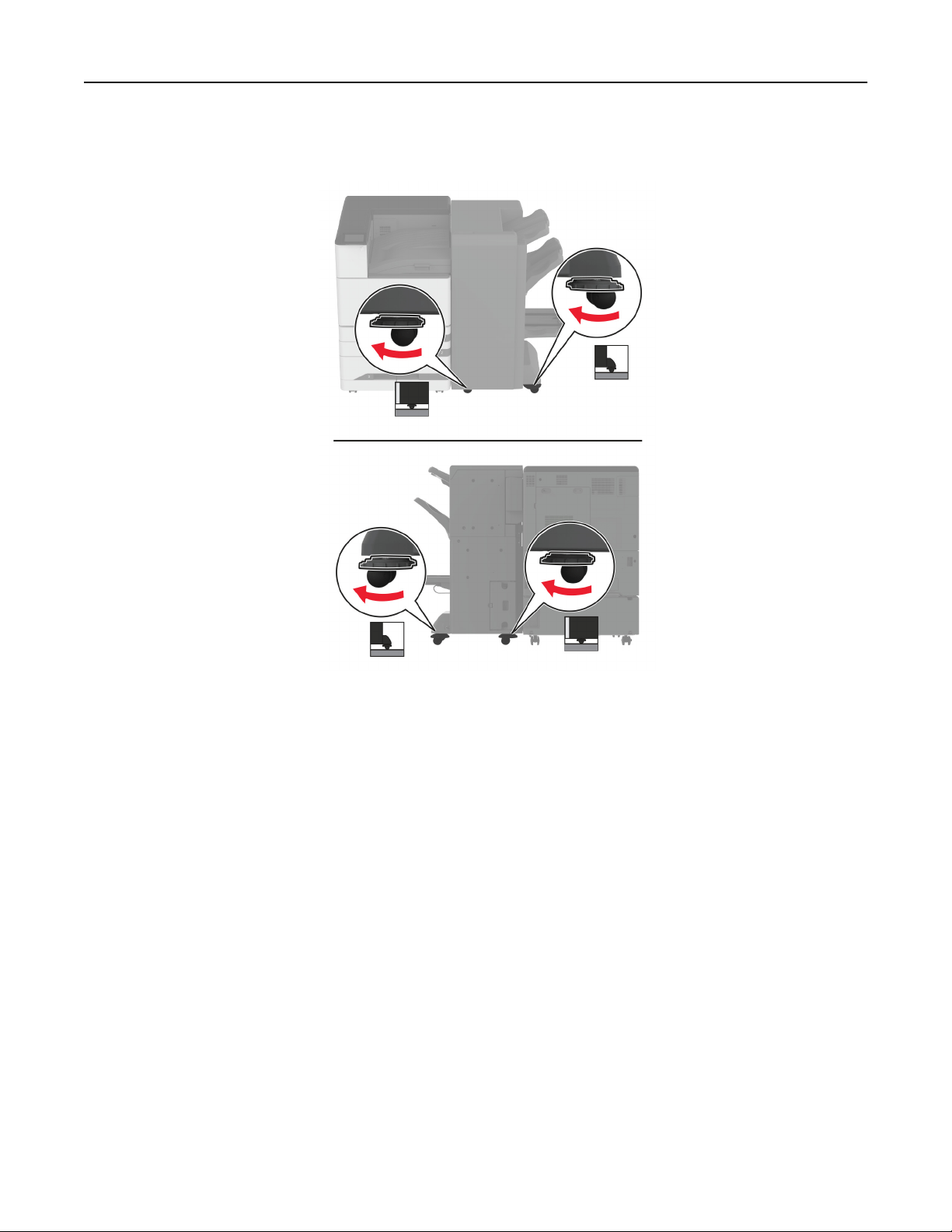
25 Rotate the side wheels of the finisher clockwise to make sure that all sides of the finisher have the same
height.
Set up, install, and configure 154
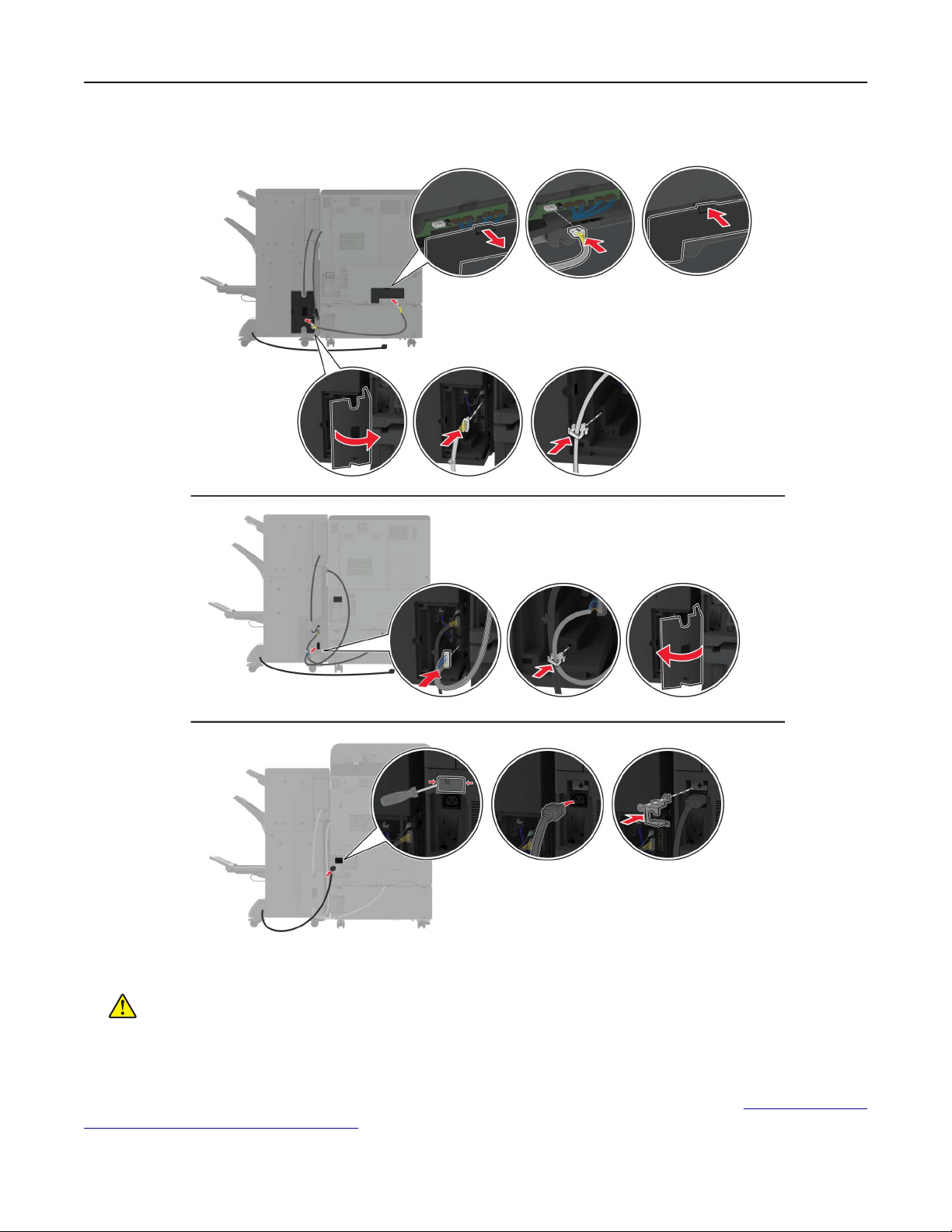
26 Connect the cables to the printer ports and finisher ports.
27 Connect the power cord to the printer, and then to the electrical outlet.
CAUTION—POTENTIAL INJURY: To avoid the risk of fire or electrical shock, connect the power cord
to an appropriately rated and properly grounded electrical outlet that is near the product and easily
accessible.
28 Turn on the printer.
Add the
finisher
in the print driver to make it available for print jobs. For more information, see
“Adding available
options in the print driver” on page 80.
Set up, install, and configure 155
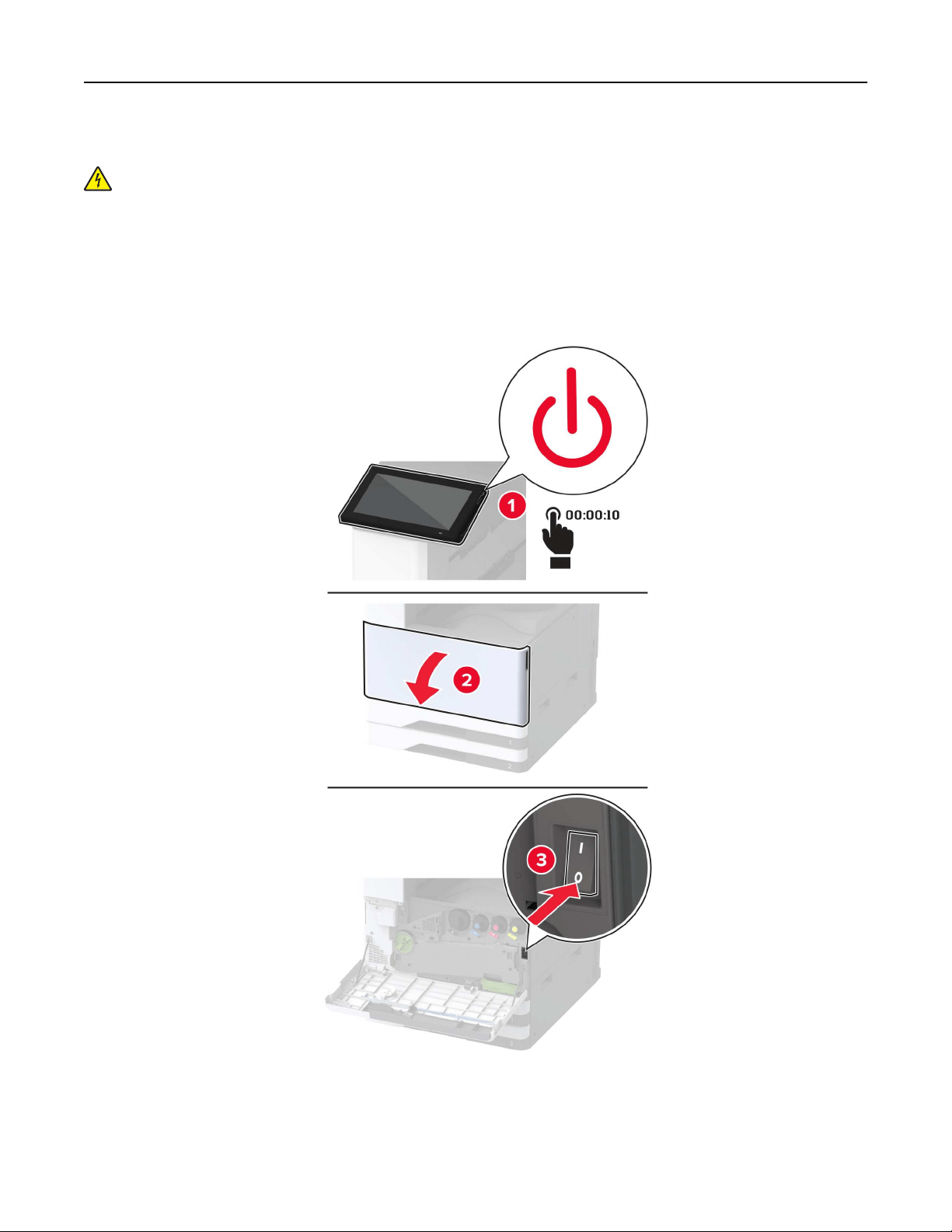
Installing the trifold/Z‑fold finisher
CAUTION—SHOCK HAZARD: To avoid the risk of electrical shock, if you are accessing the controller
board or installing optional hardware or memory devices sometime after setting up the printer, then turn
the printer o, and unplug the power cord from the electrical outlet before continuing. If you have any
other devices attached to the printer, then turn them o as well, and unplug any cables going into the
printer.
Note: To install the trifold/Z-fold finisher, you must first install a booklet finisher.
1 Turn o the printer.
Set up, install, and configure 156

2 Unplug the power cord from the electrical outlet, and then from the printer.
Set up, install, and configure 157
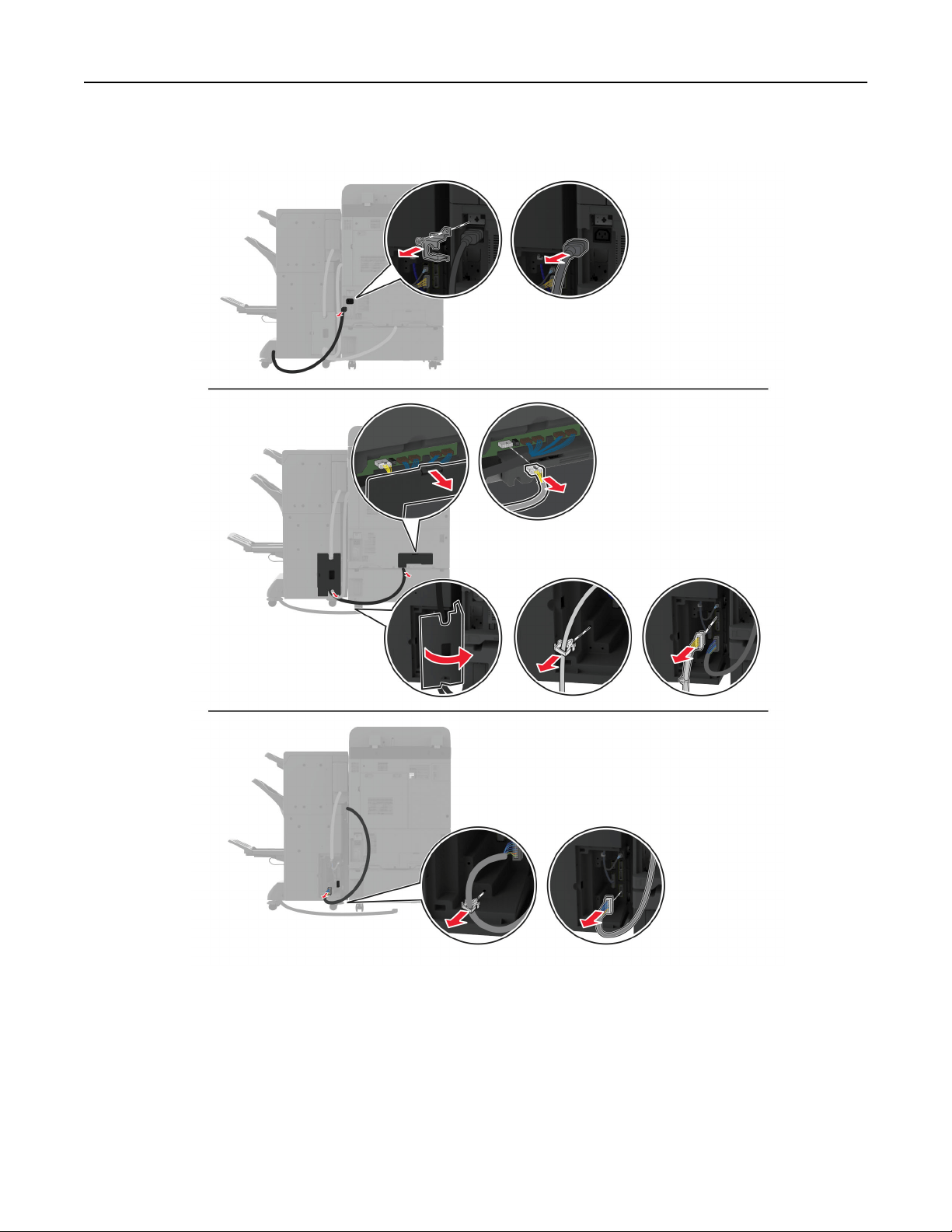
3 Unplug the booklet finisher cables from the printer.
Set up, install, and configure 158
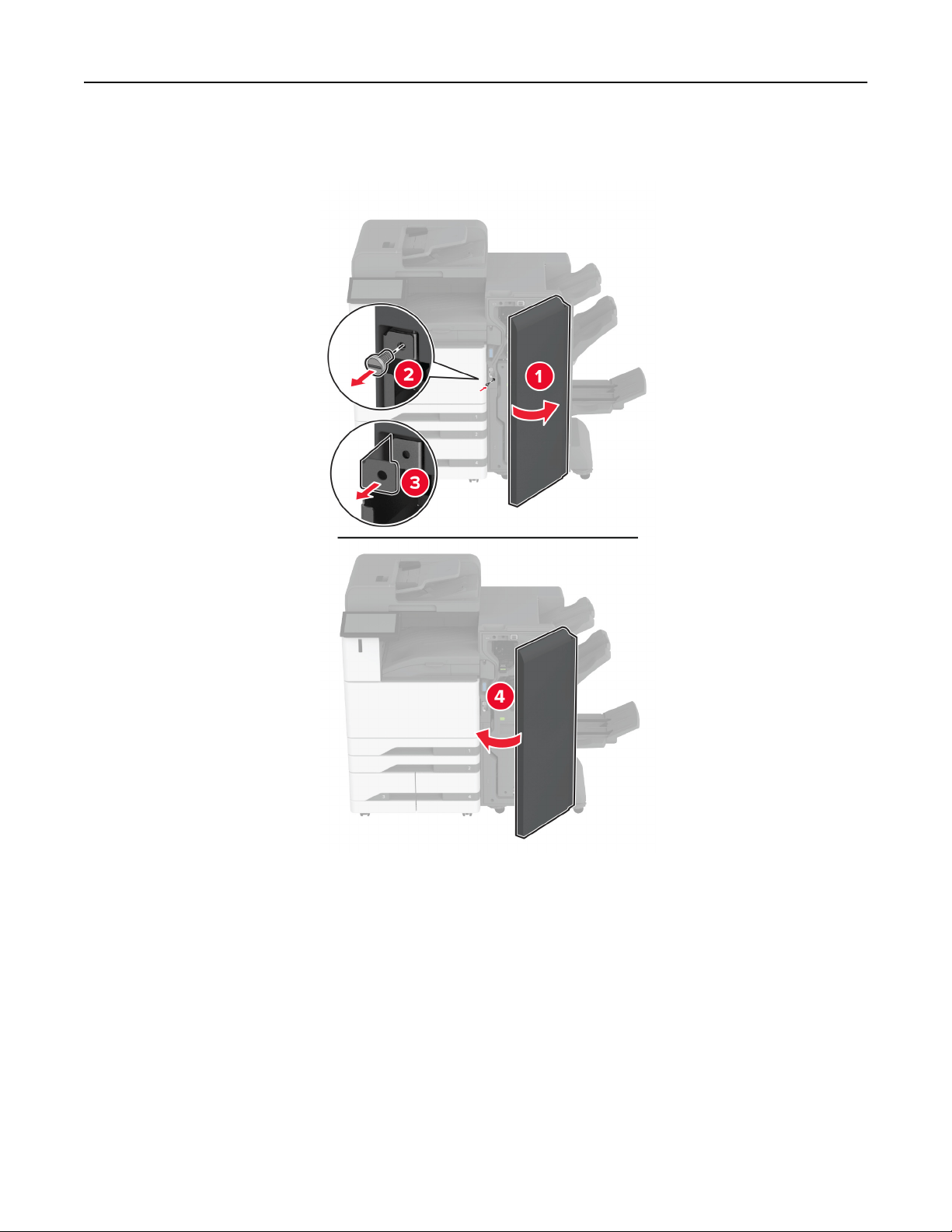
4 Open the booklet finisher door, use a flat‑head screwdriver to remove the screw and metal bracket, and
then close the door.
Set up, install, and configure 159
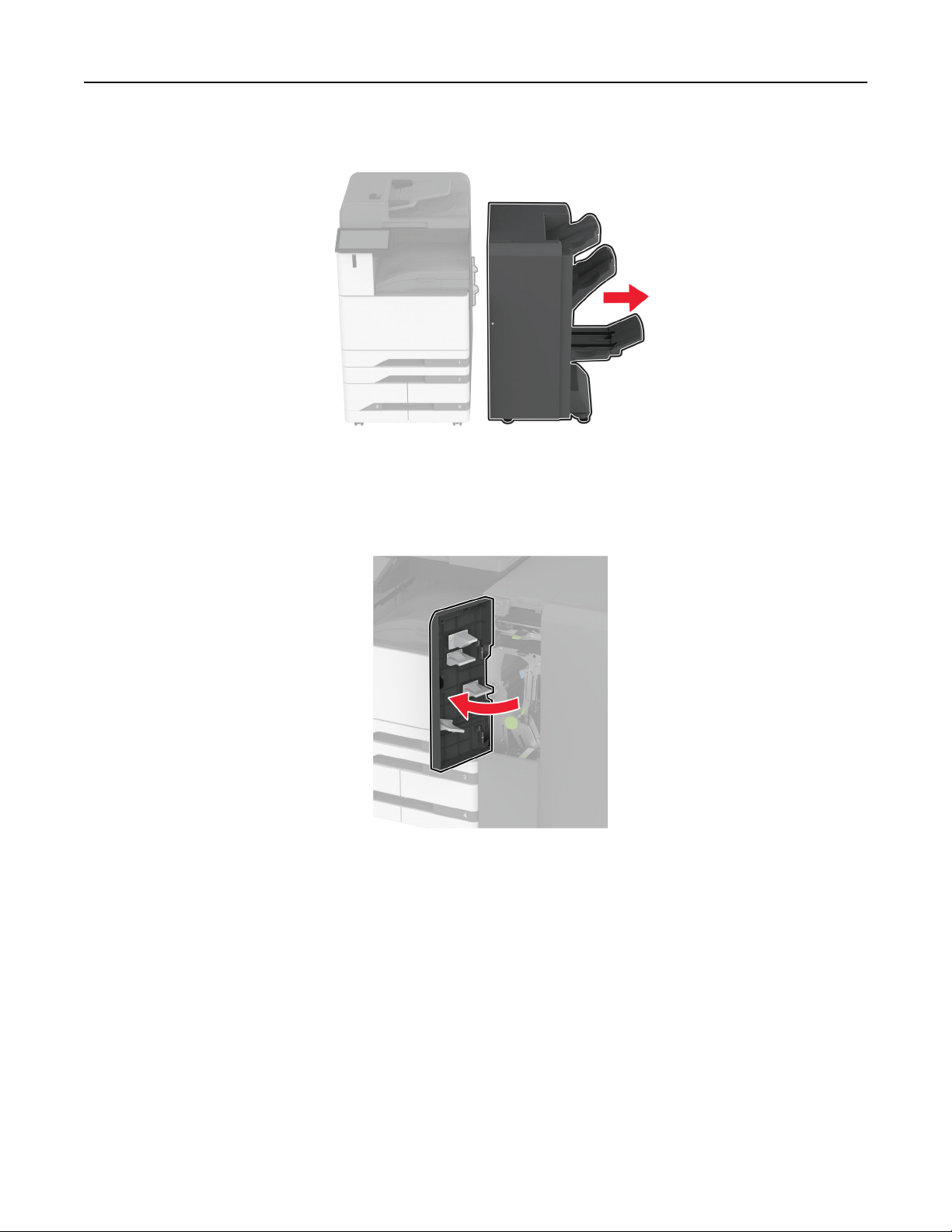
5 Remove the booklet finisher.
6 Unpack the trifold/Z‑fold finisher, and then remove all the packing material.
7 Open the finisher door.
Set up, install, and configure 160
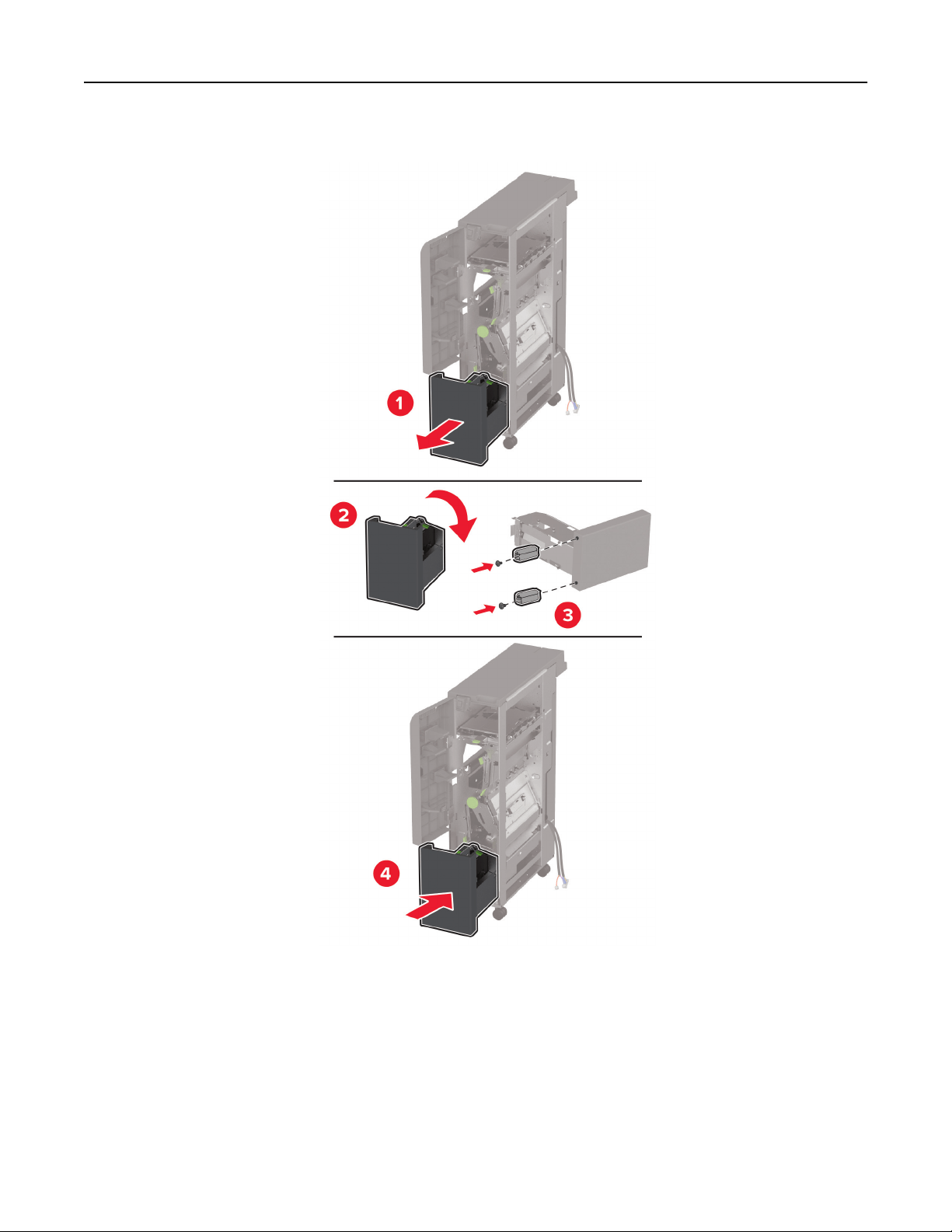
8 Remove the trifold bin, attach the screws to the bin, and then insert the bin.
Set up, install, and configure 161
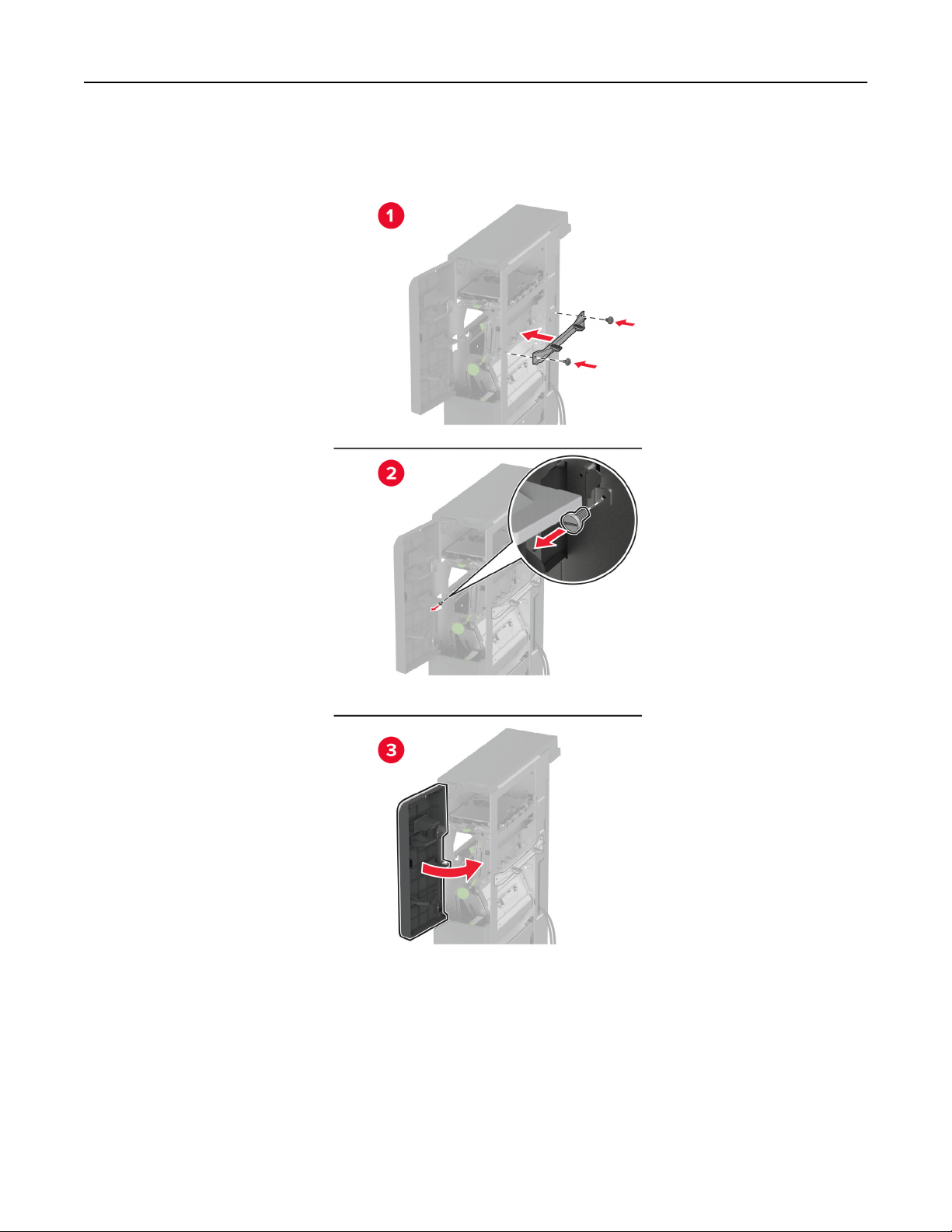
9 Using a flat‑head screwdriver, attach the installation bracket for the trifold/Z‑fold finisher, remove the screw,
and then close the finisher door.
Set up, install, and configure 162
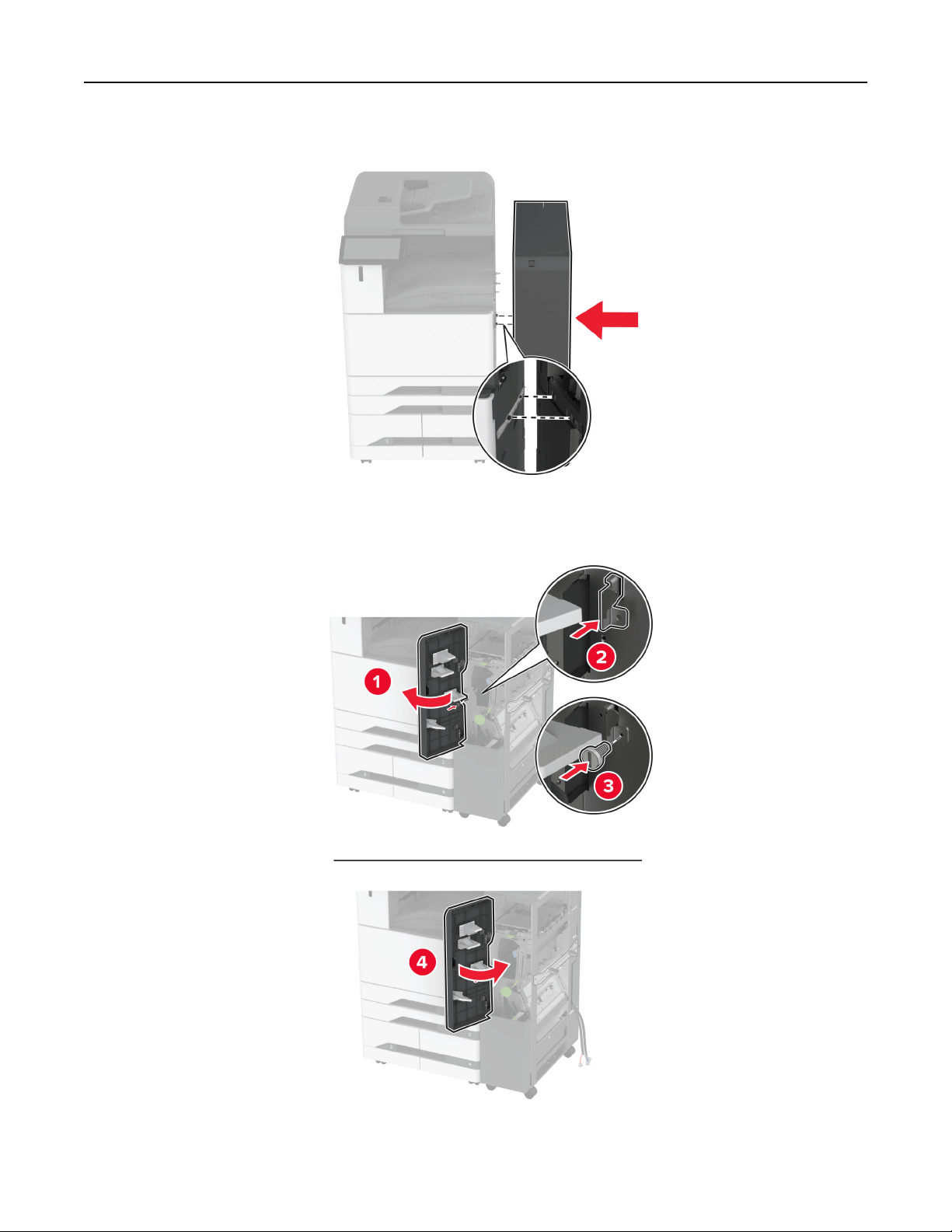
10 Attach the trifold/Z‑fold finisher to the printer.
11 Open the
trifold/Z-fold finisher
door, use the screw to secure the
finisher
to the printer, and then close the
finisher door.
Set up, install, and configure 163
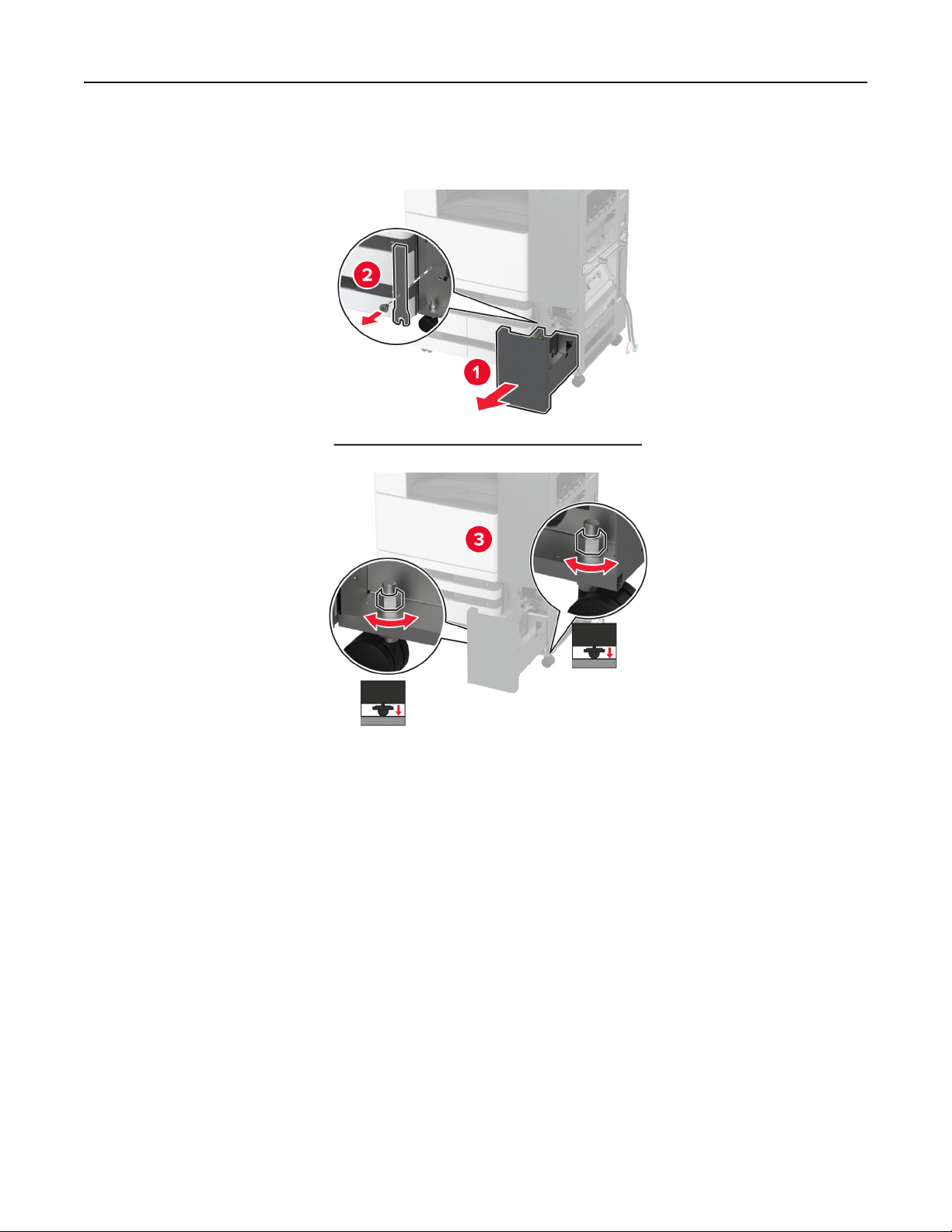
12 Remove the wrench, and then adjust the leveling screws to make sure that the front of the finisher has the
same height as the printer.
Set up, install, and configure 164
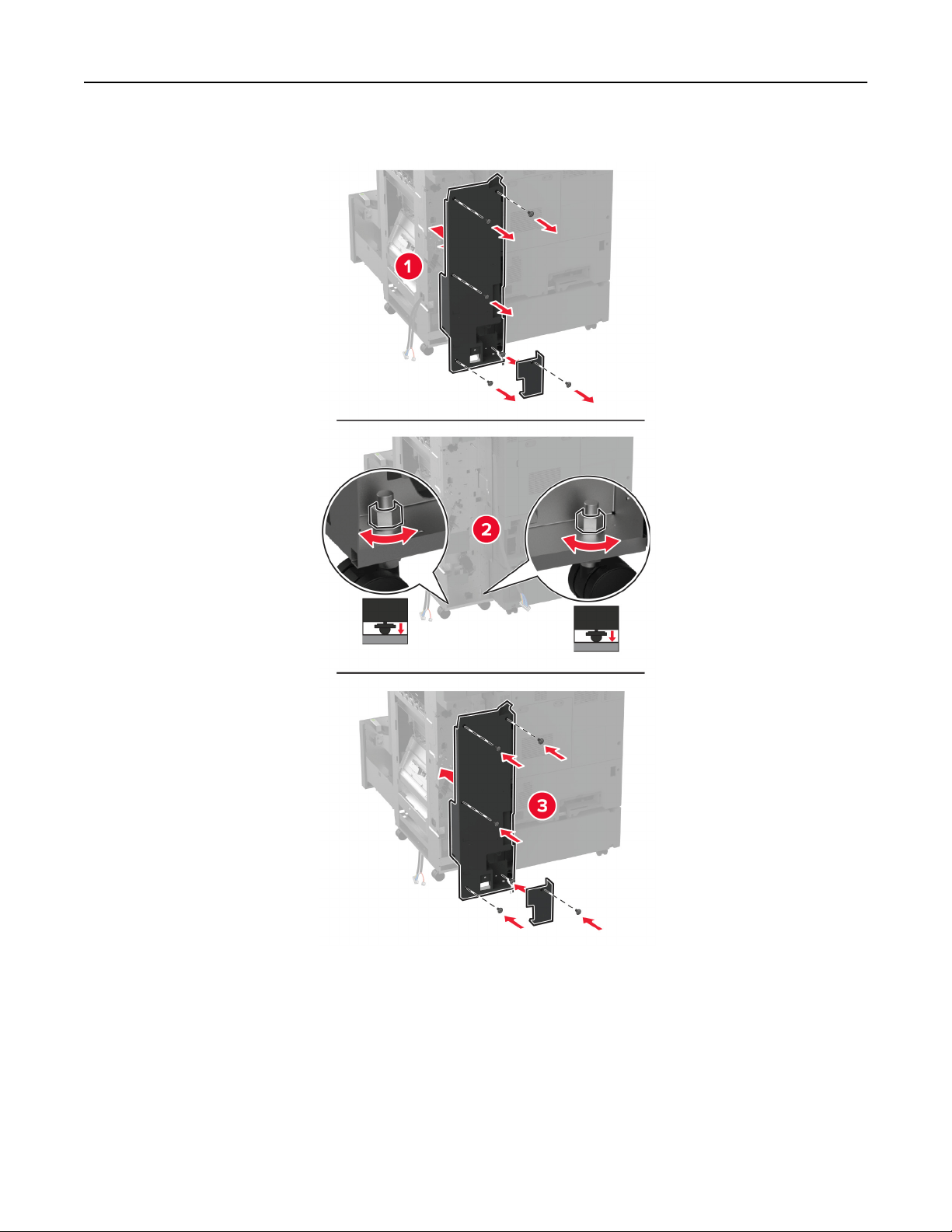
13 Adjust the leveling screws to make sure that the rear of the finisher has the same height as the printer.
Set up, install, and configure 165
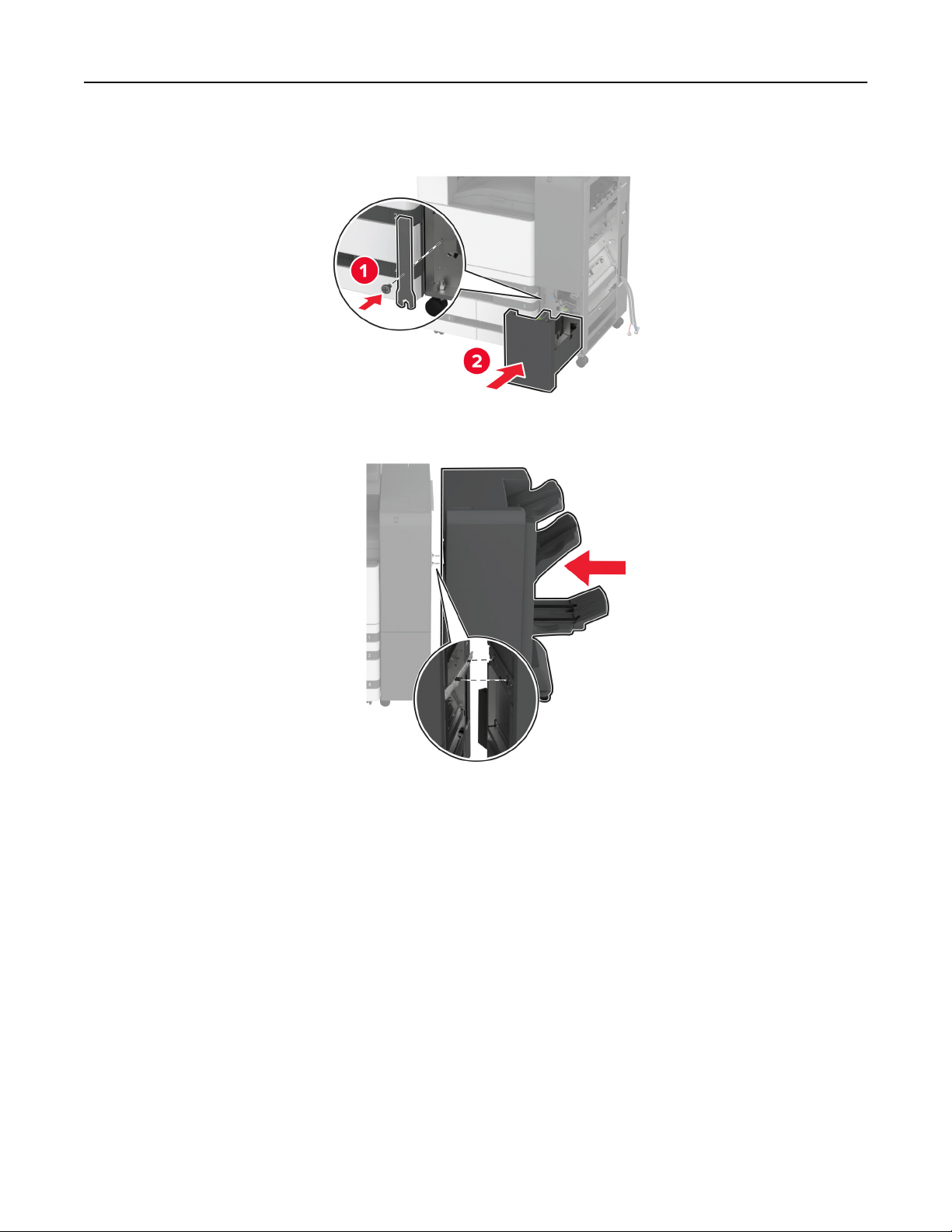
14 Attach the wrench to the trifold/Z-fold finisher.
15 Attach the booklet finisher to the trifold/Z-fold finisher.
Set up, install, and configure 166
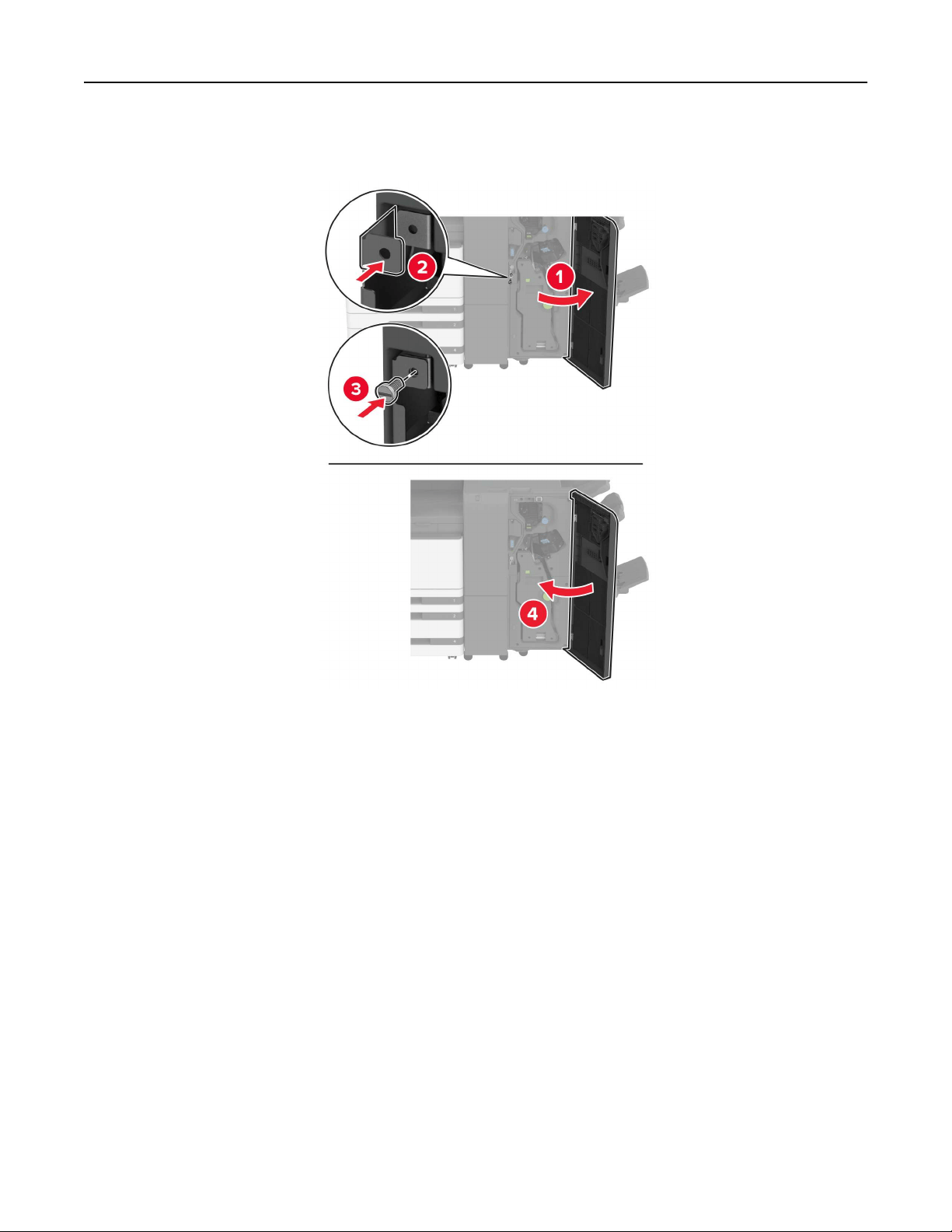
16 Open the booklet finisher door, use the screw to secure the booklet finisher to the trifold/Z-fold finisher, and
then close the booklet finisher door.
Set up, install, and configure 167

17 Adjust the leveling screws to make sure that all sides of the finisher have the same height.
Set up, install, and configure 168
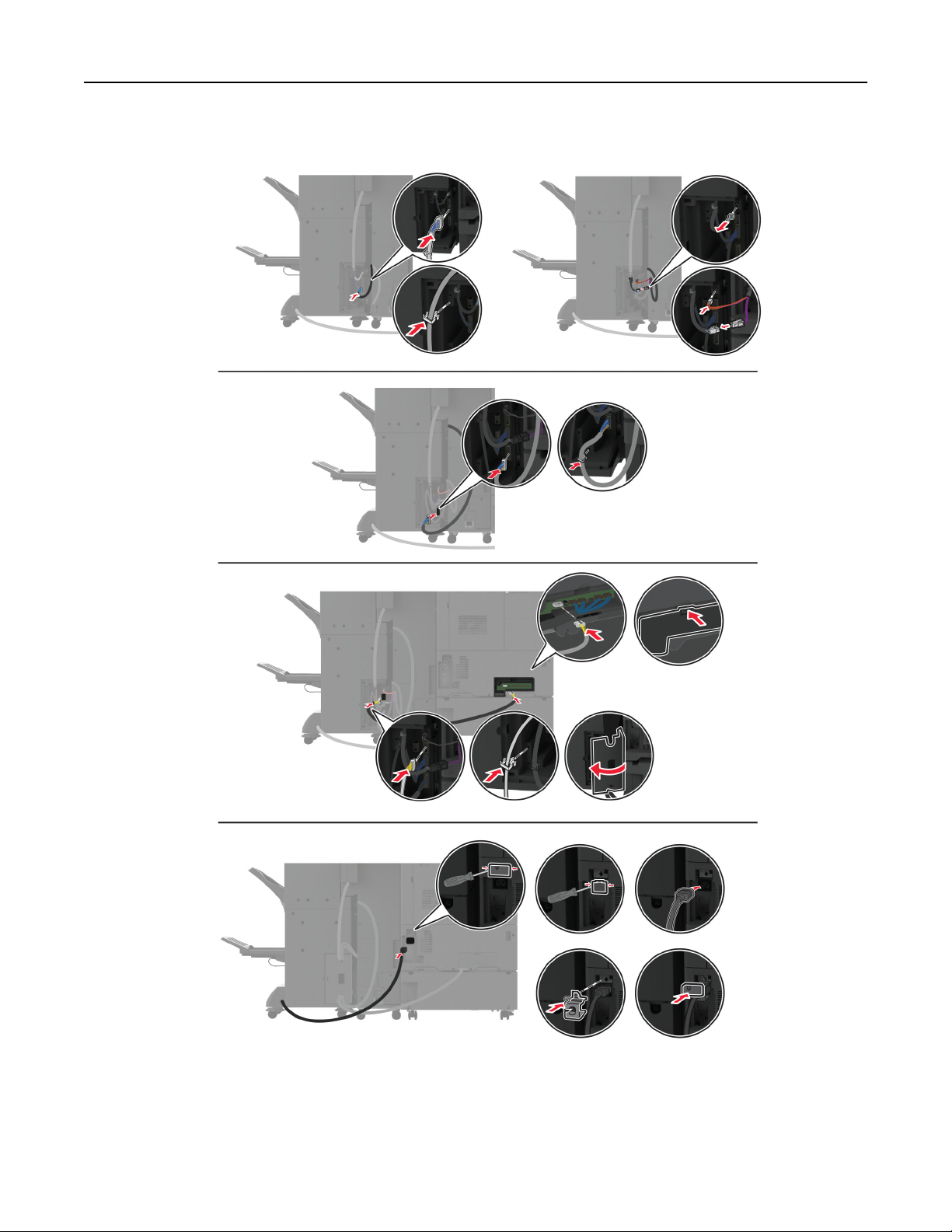
18 Connect the cables to the printer ports and finisher ports.
19 Connect the printer and finisher power cords to the printer and the finisher, and then to the electrical outlet.
Set up, install, and configure 169
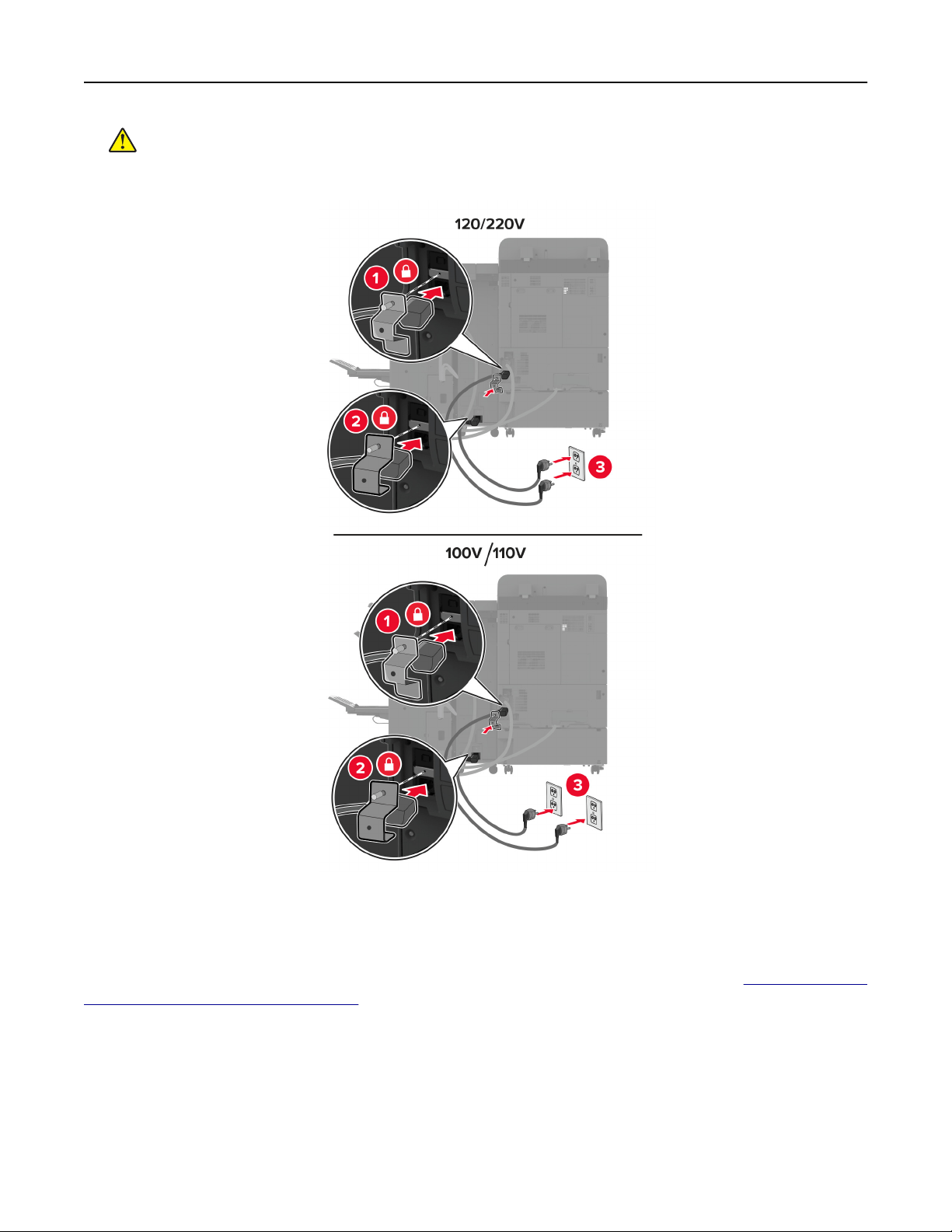
CAUTION—POTENTIAL INJURY: To avoid the risk of fire or electrical shock, connect the power cord
to an appropriately rated and properly grounded electrical outlet that is near the product and easily
accessible.
Note: If the outlet is 120 or 220 volts, then you may connect both power cords to the same outlet. If the
outlet is 100 or 110 volts, then you must connect the power cords to separate outlets.
20 Turn on the printer.
Add the finisher in the print driver to make it available for print jobs. For more information, see
“Adding available
options in the print driver” on page 80.
Set up, install, and configure 170
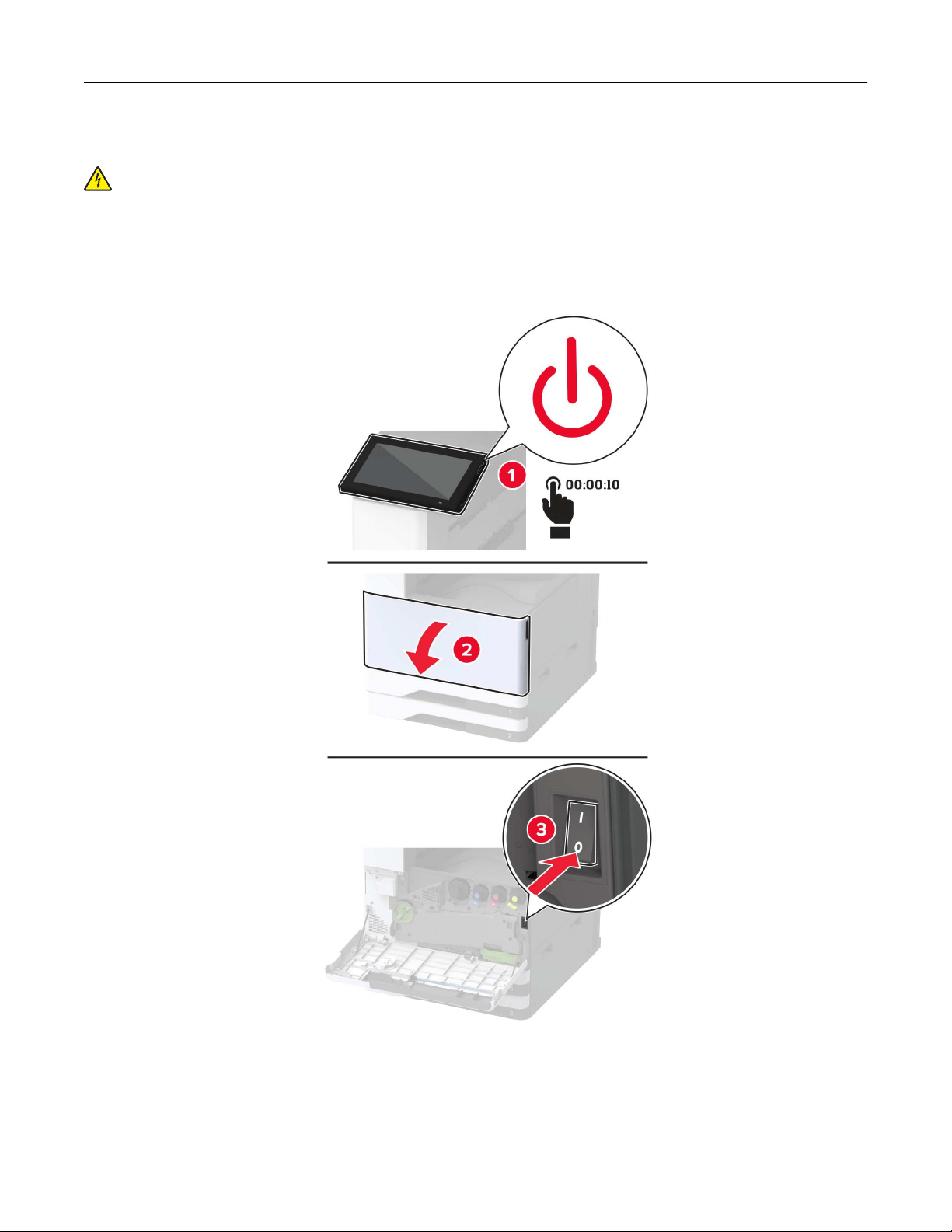
Installing a printer hard disk
CAUTION—SHOCK HAZARD: To avoid the risk of electrical shock, if you are accessing the controller
board or installing optional hardware or memory devices sometime after setting up the printer, then turn
the printer o, and unplug the power cord from the electrical outlet before continuing. If you have any
other devices attached to the printer, then turn them o as well, and unplug any cables going into the
printer.
1 Turn o the printer.
Set up, install, and configure 171
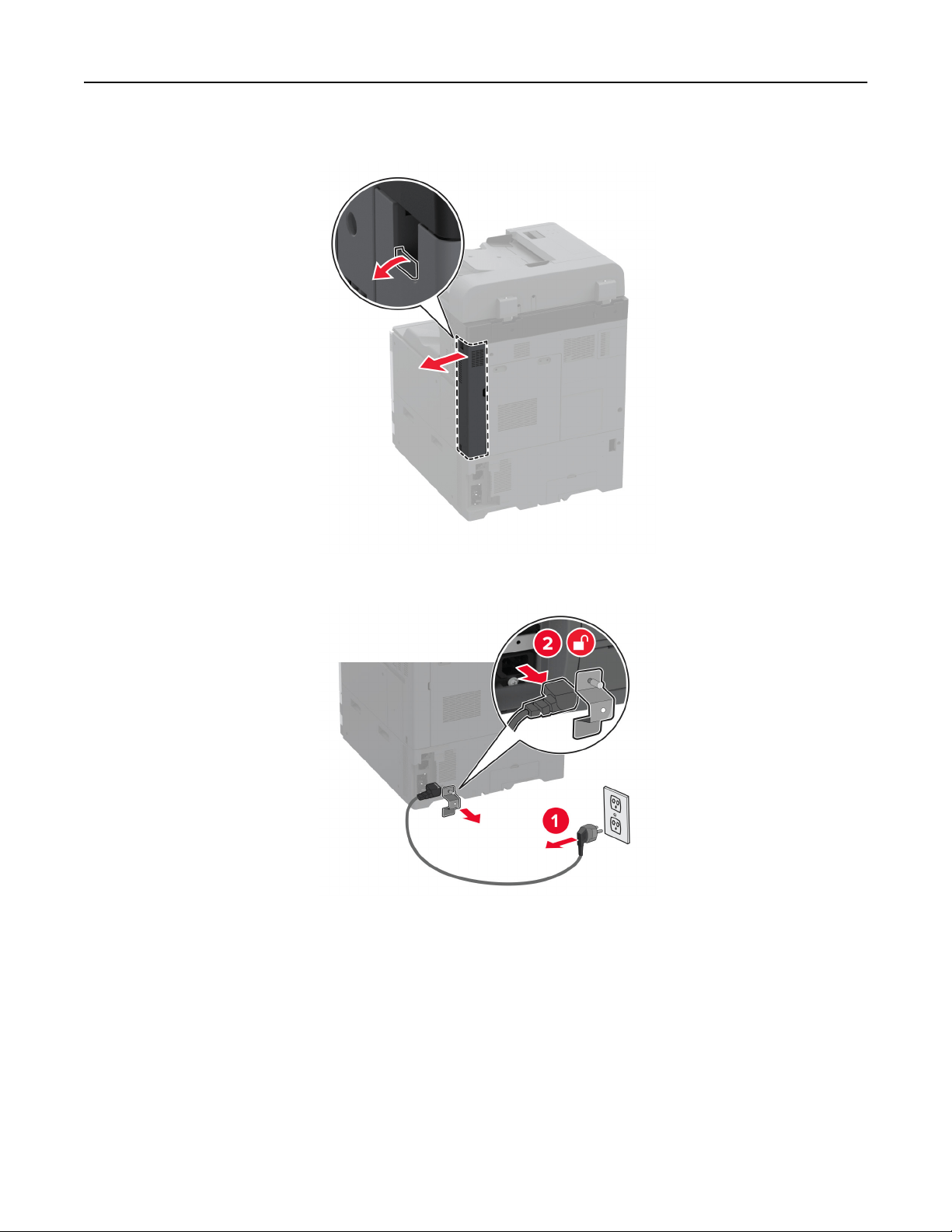
2 Remove the rear ports cover.
3 Unplug the power cord from the electrical outlet, and then from the printer.
4 Using a flat‑head screwdriver, remove the controller board access cover.
Warning—Potential Damage: Controller board electronic components are easily damaged by static
electricity. Touch a metal surface on the printer before touching any controller board electronic
components or connectors.
Set up, install, and configure 172
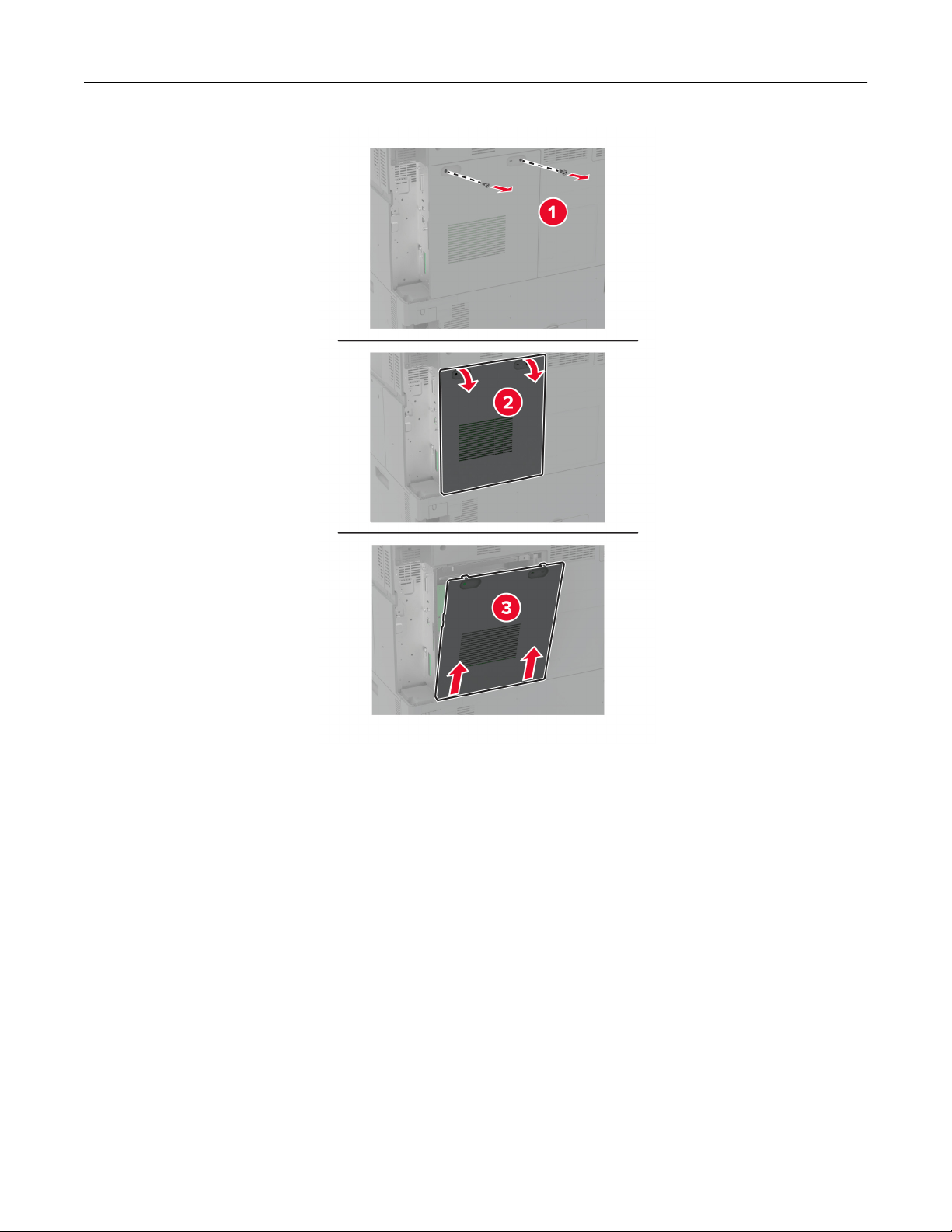
5 Unpack the hard disk.
Warning—Potential Damage: Do not touch or press the center of the hard disk.
Set up, install, and configure 173
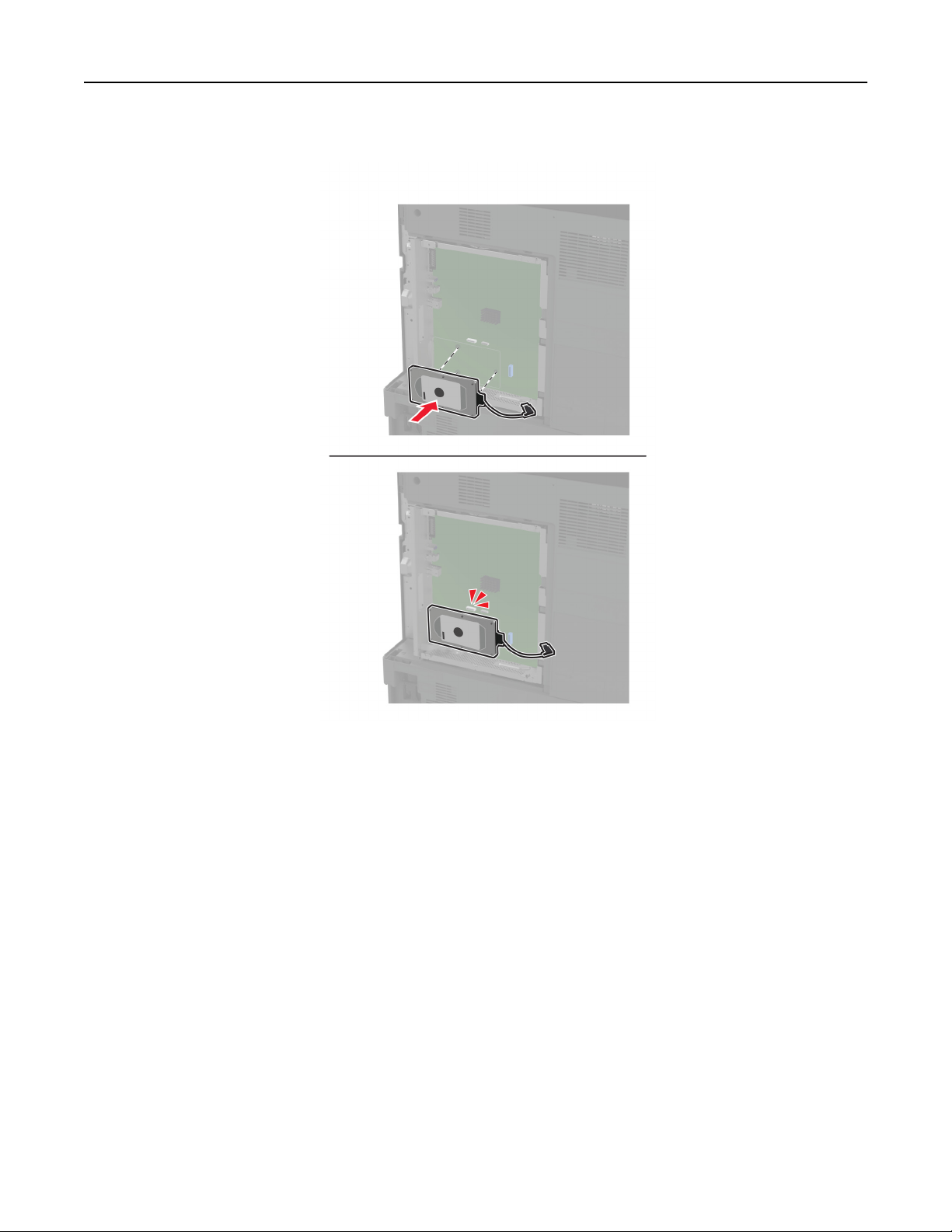
6 Attach the hard disk to the controller board.
Set up, install, and configure 174
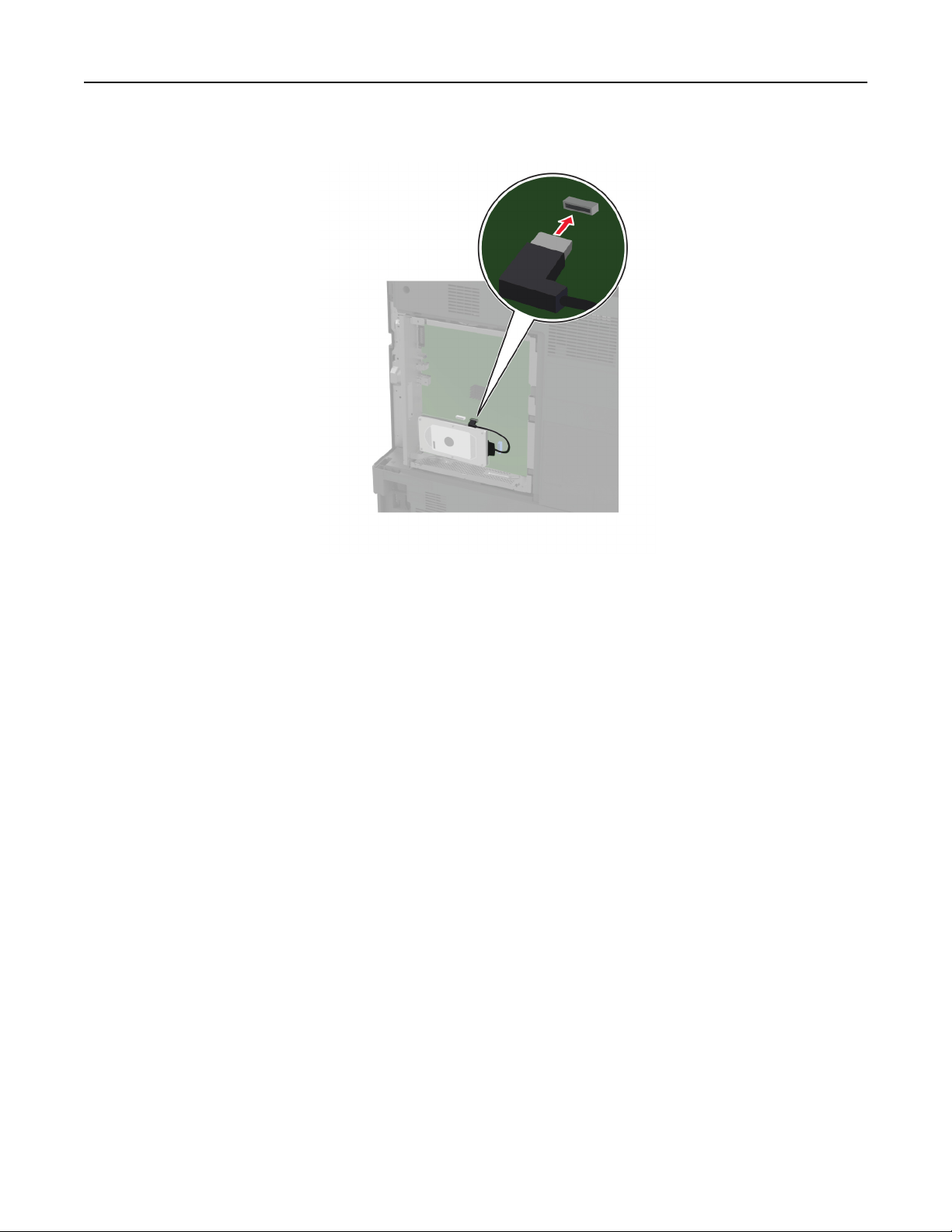
7 Attach the hard disk connector cable to the controller board.
Set up, install, and configure 175
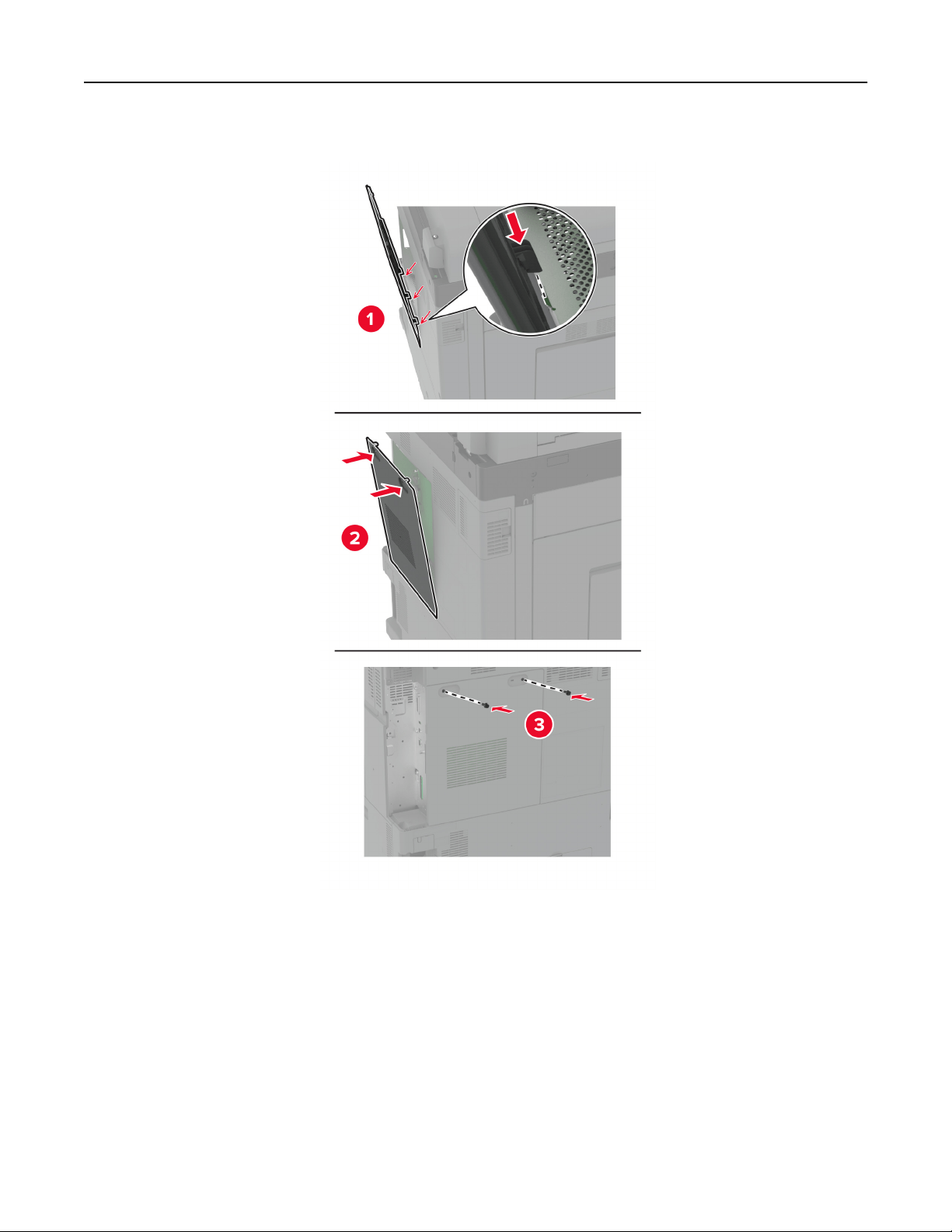
8 Attach the controller board access cover.
Set up, install, and configure 176
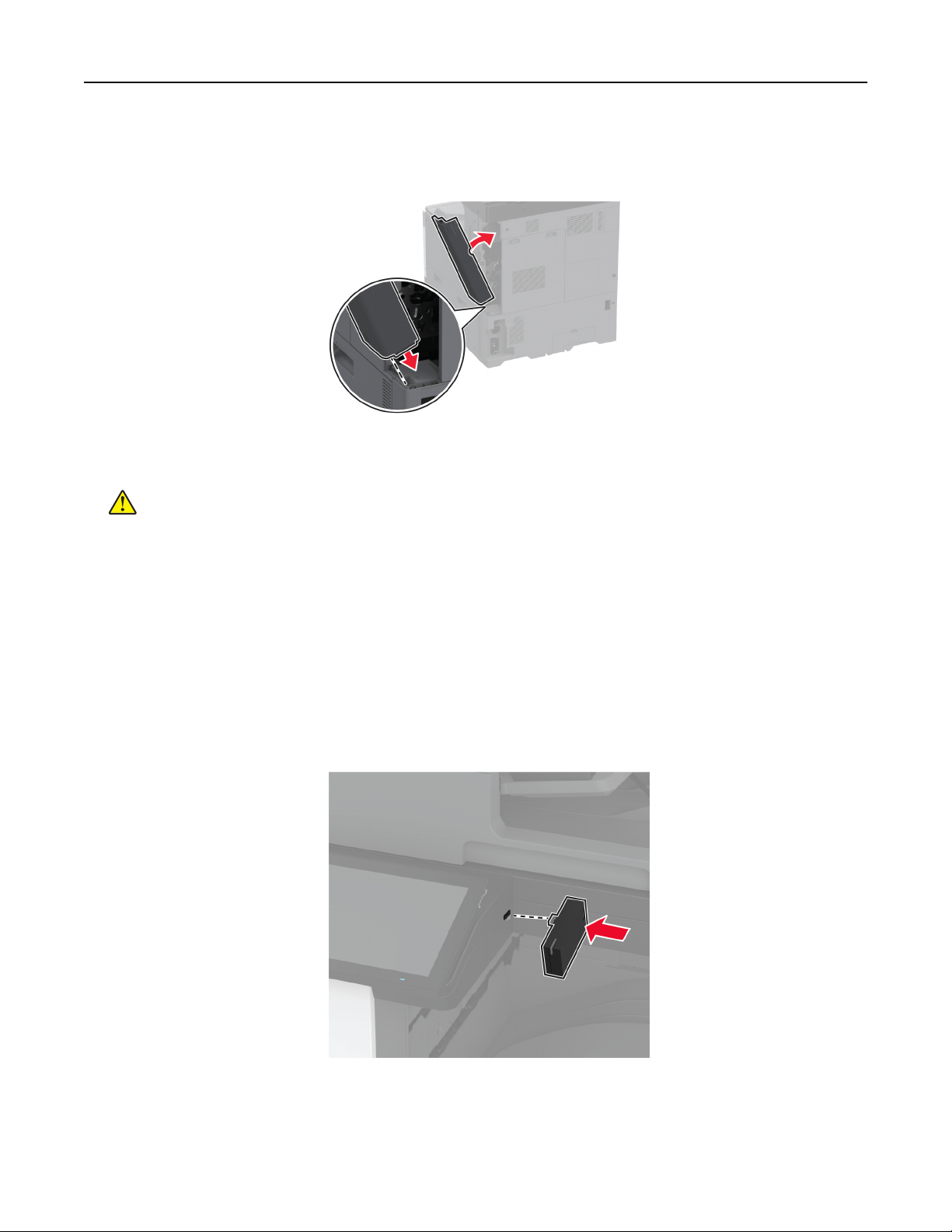
9 Attach the rear ports cover.
10 Connect the power cord to the electrical outlet, and then turn on the printer.
CAUTION—POTENTIAL INJURY: To avoid the risk of fire or electrical shock, connect the power cord
to an appropriately rated and properly grounded electrical outlet that is near the product and easily
accessible.
Installing a wireless print server
Installing MarkNet N8372 Wireless Print Server
1 Turn o the printer.
2 Apply isopropyl alcohol to a damp, soft, lint-free cloth, and then wipe the surface around the USB port.
3 Install the wireless module.
Notes:
• Apply firm pressure to make sure that the tape sticks to the surface of the printer.
• Make sure that the printer surface is dry and free of condensed moisture.
Set up, install, and configure 177
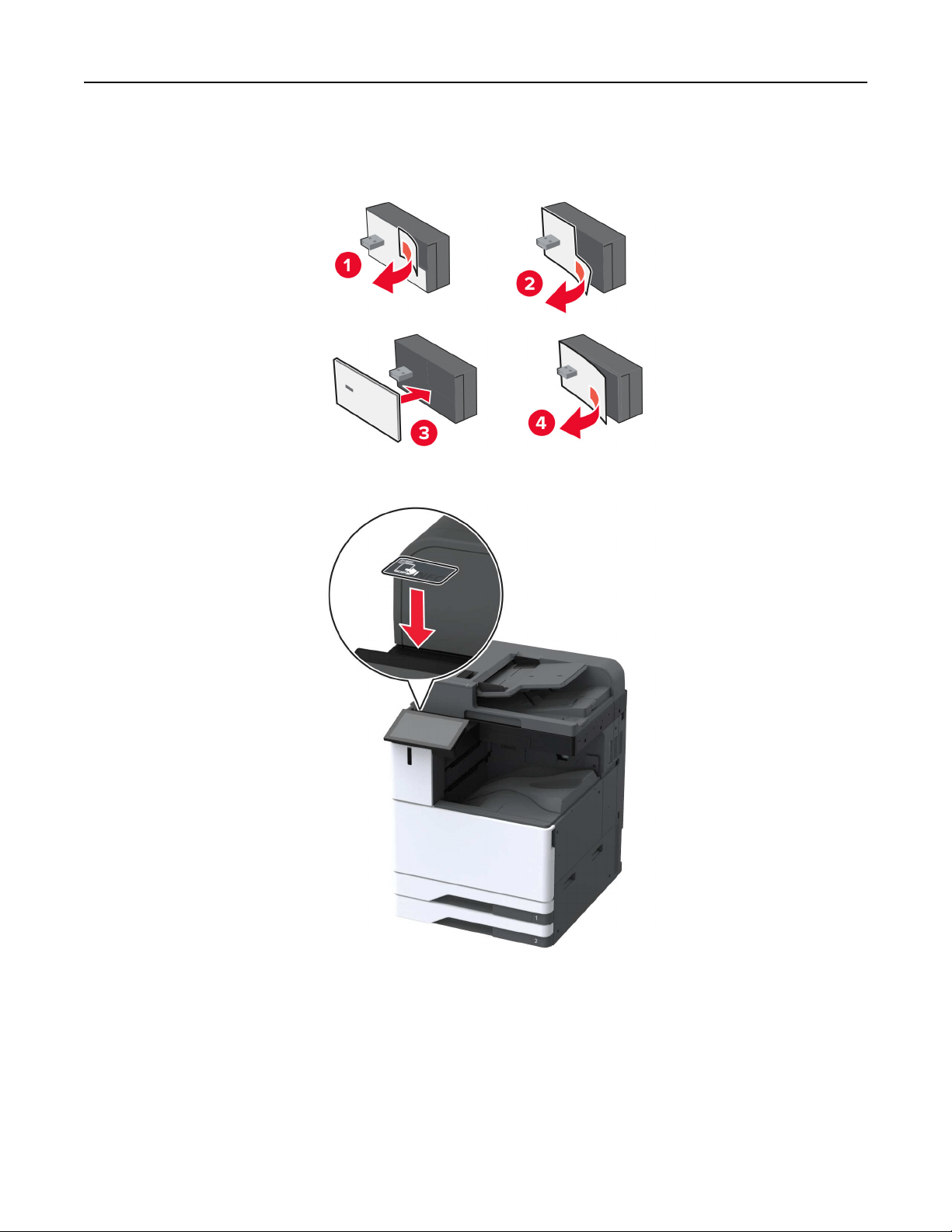
• The module is best bonded to the printer after 72 hours.
4 Check for a gap between the module and the printer, then attach the spacer module if necessary.
5 Attach the NFC card.
6 Turn on the printer.
Set up, install, and configure 178
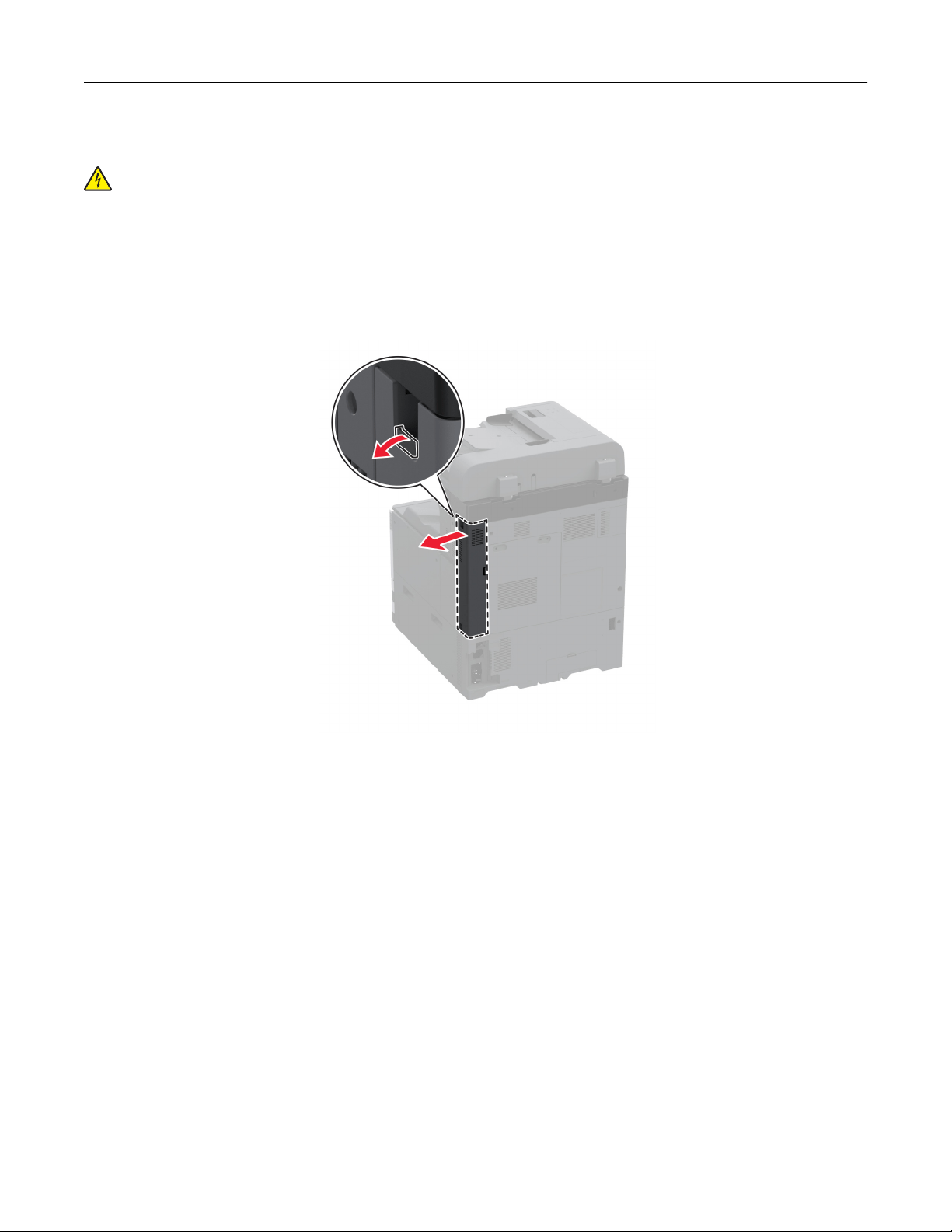
Installing an internal solutions port
CAUTION—SHOCK HAZARD: To avoid the risk of electrical shock, if you are accessing the controller
board or installing optional hardware or memory devices sometime after setting up the printer, then turn
the printer o, and unplug the power cord from the electrical outlet before continuing. If you have any
other devices attached to the printer, then turn them o as well, and unplug any cables going into the
printer.
1 Turn o the printer, and then unplug the power cord from the electrical outlet.
2 Remove the rear ports cover.
3 Using a flat-head screwdriver, remove the controller board access cover.
Warning—Potential Damage: Controller board electronic components are easily damaged by static
electricity. Touch a metal surface on the printer before touching any controller board electronic
components or connectors.
Set up, install, and configure 179
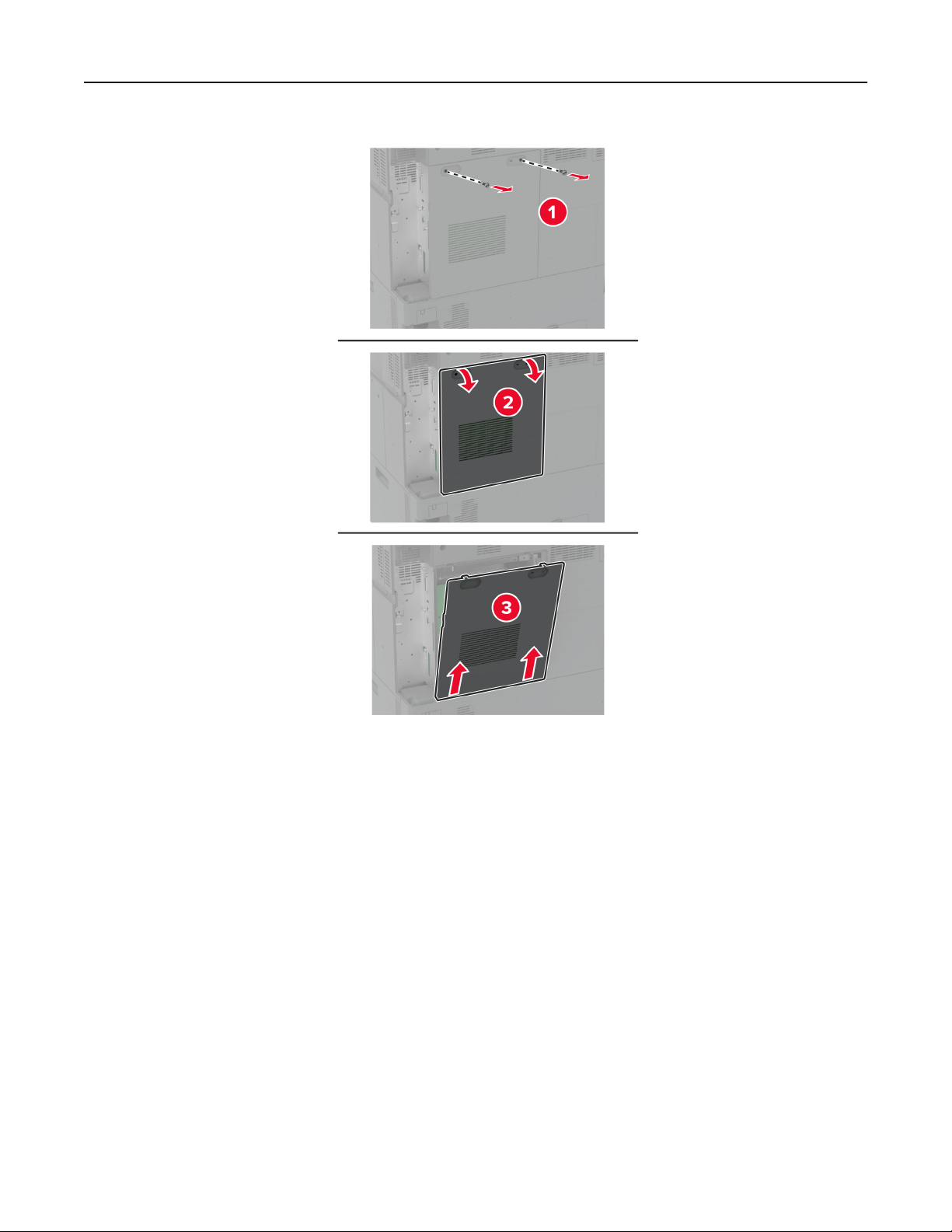
Set up, install, and configure 180
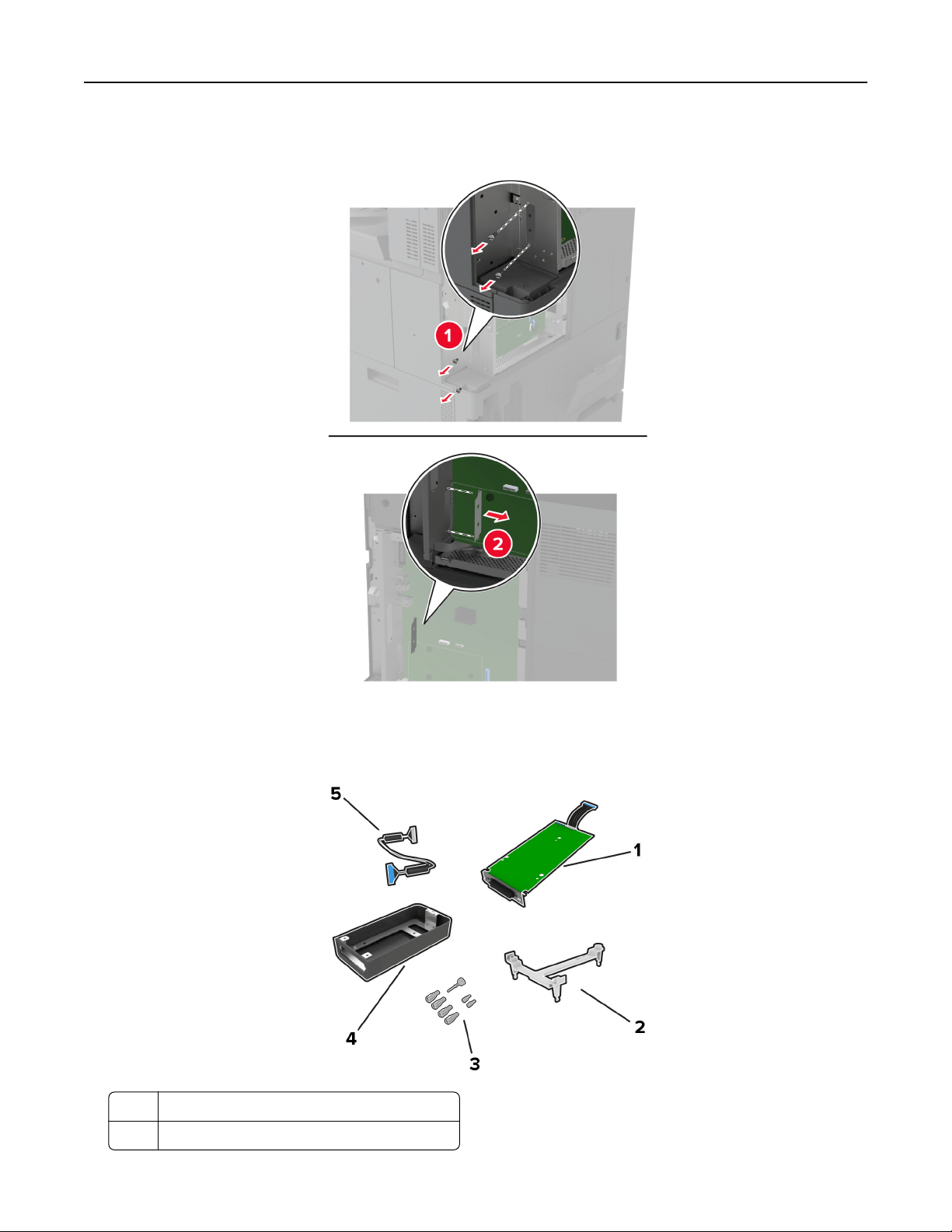
4 Remove the internal solutions port (ISP) cover.
5 Unpack the ISP kit.
1 ISP
2 Mounting bracket
Set up, install, and configure 181
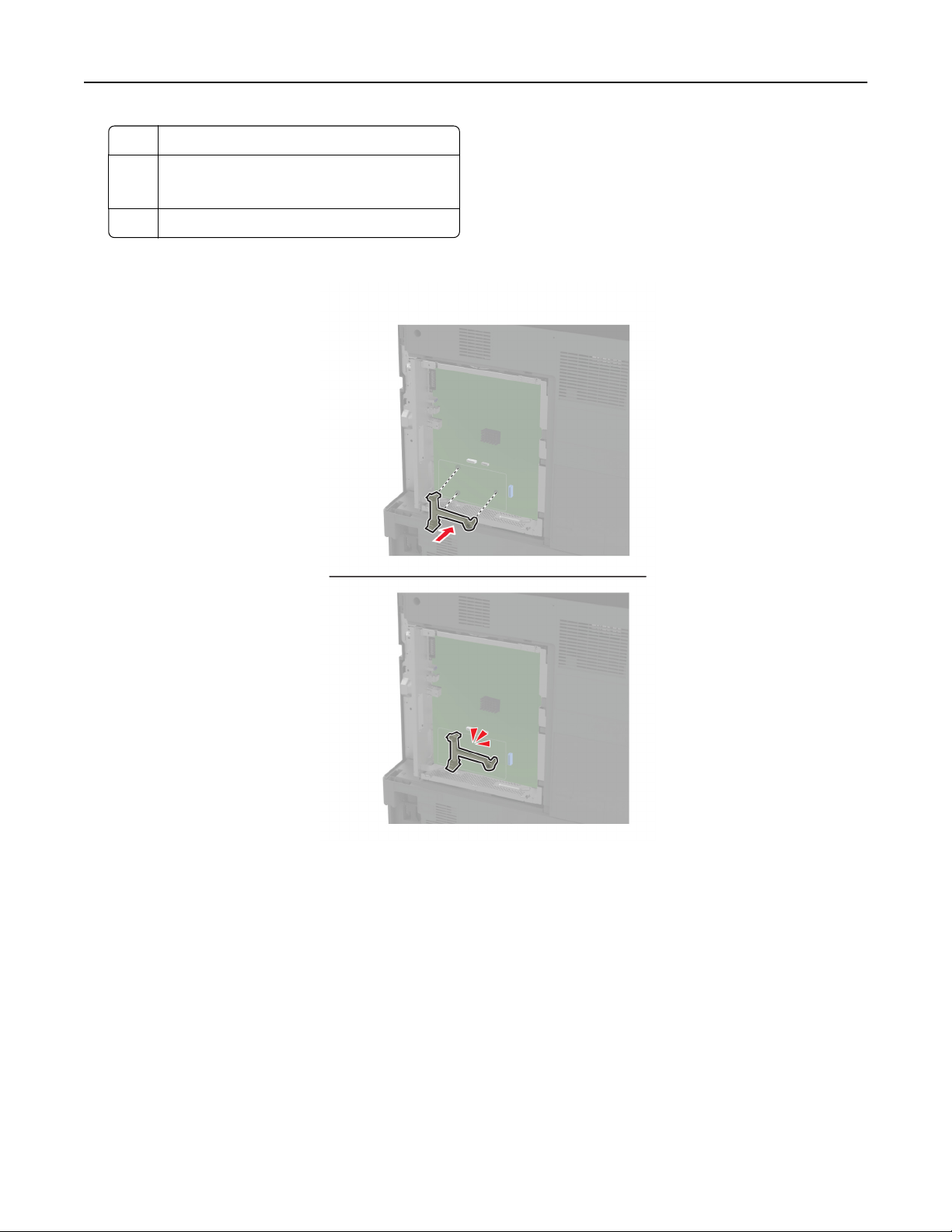
3 Thumbscrews
4 Housing
Note: Not applicable for this printer model.
5 ISP extended cable
6 Attach the mounting bracket to the controller board.
Set up, install, and configure 182
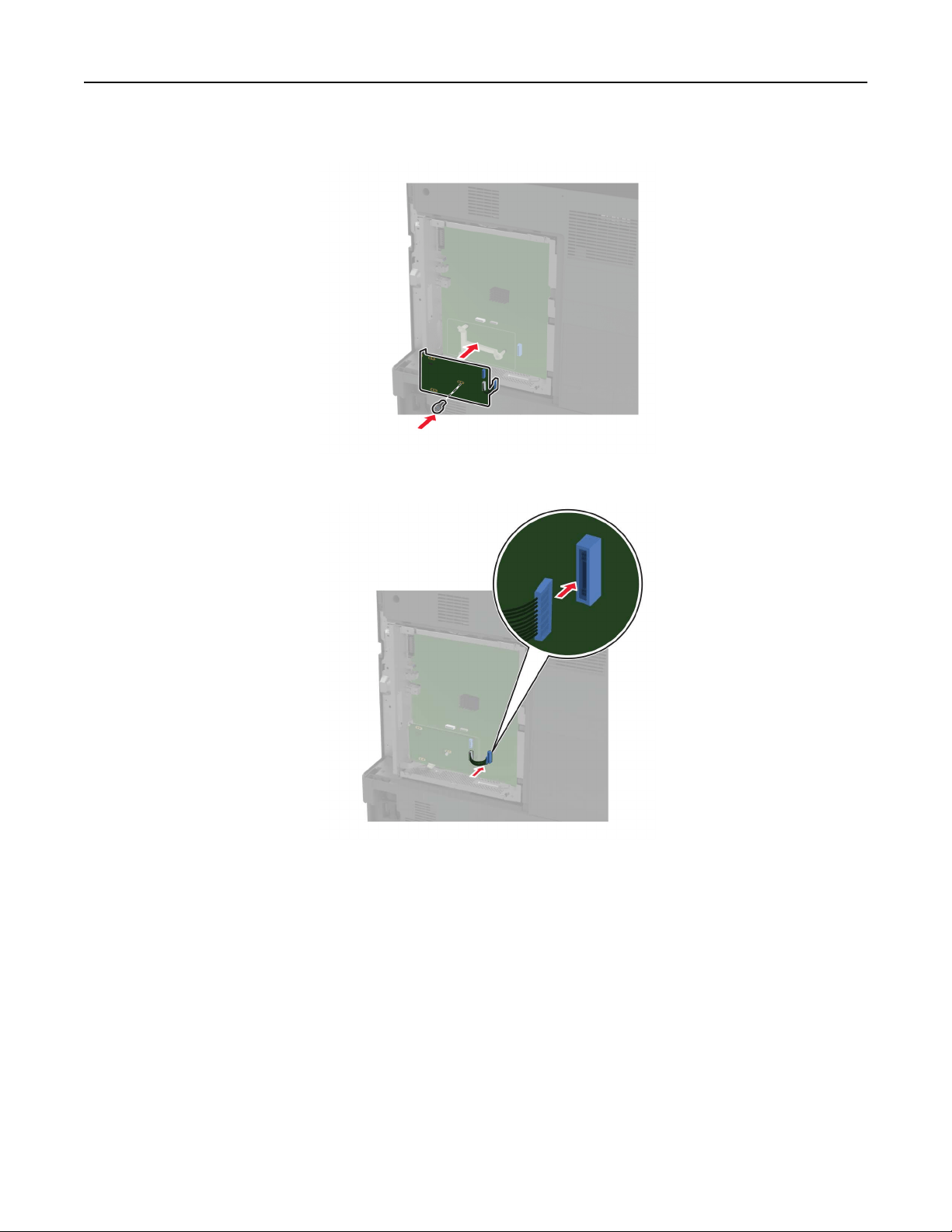
7 Attach the ISP to the mounting bracket.
8 Connect the ISP extended cable to the ISP connector on the controller board.
Set up, install, and configure 183
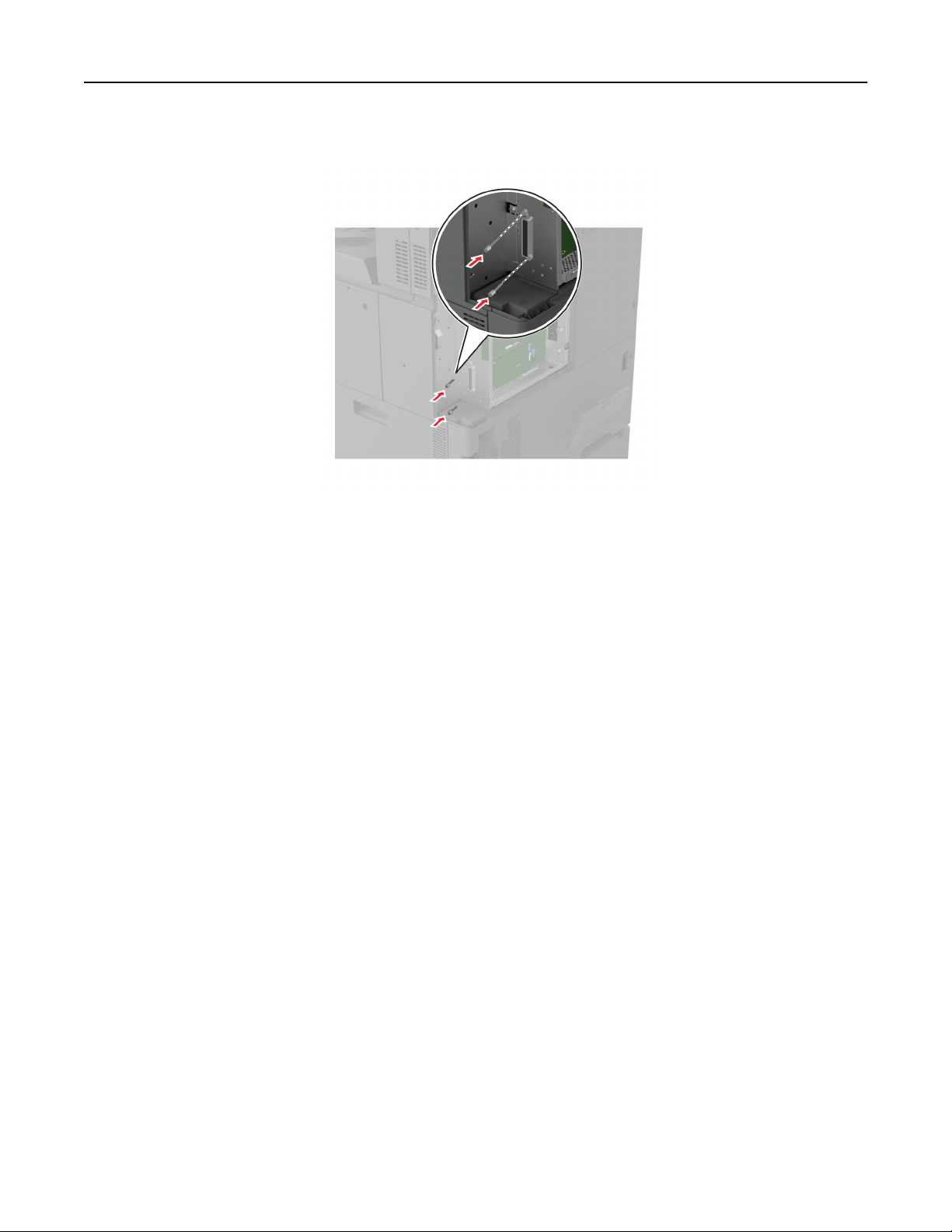
9 Secure the ISP to the printer.
Set up, install, and configure 184
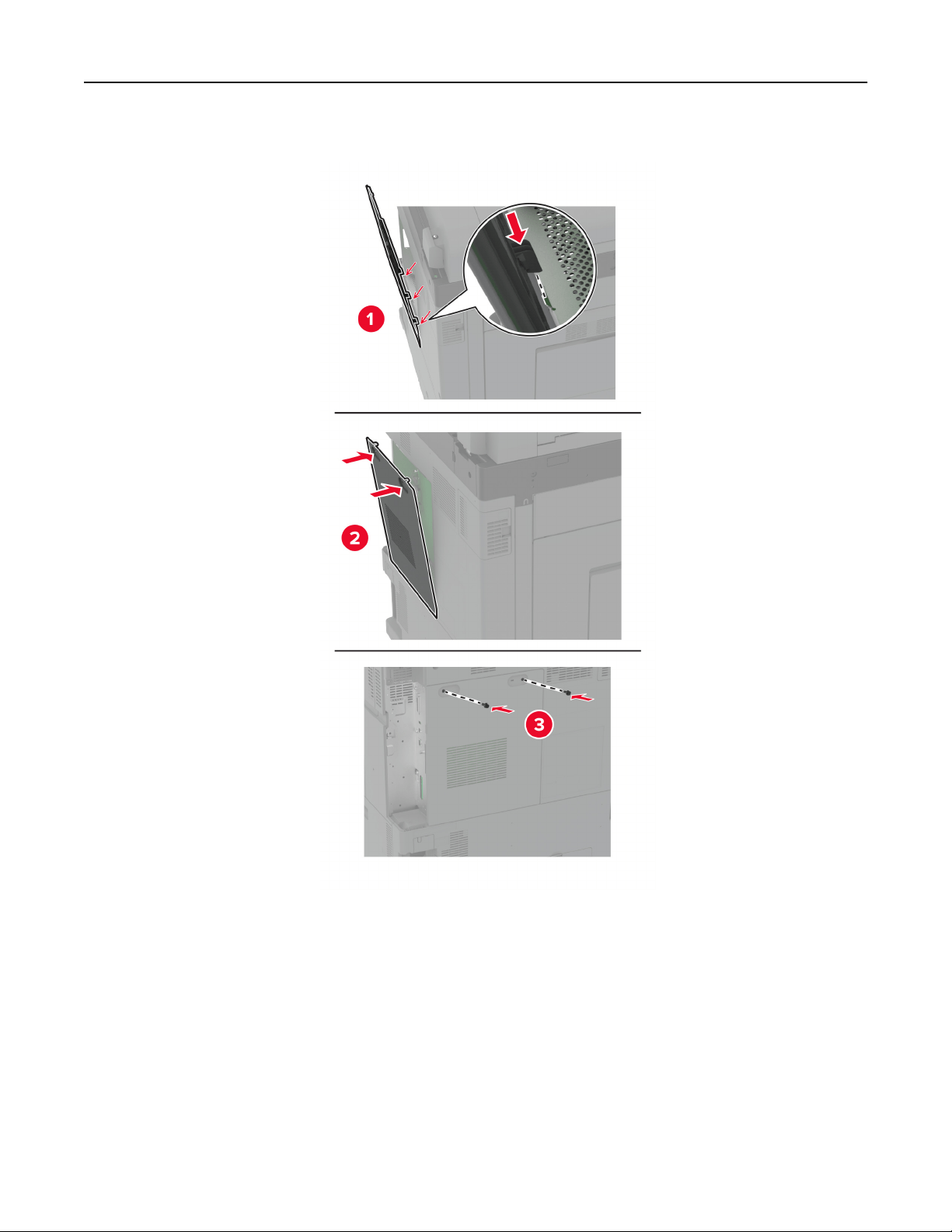
10 Attach the controller board access cover.
Set up, install, and configure 185
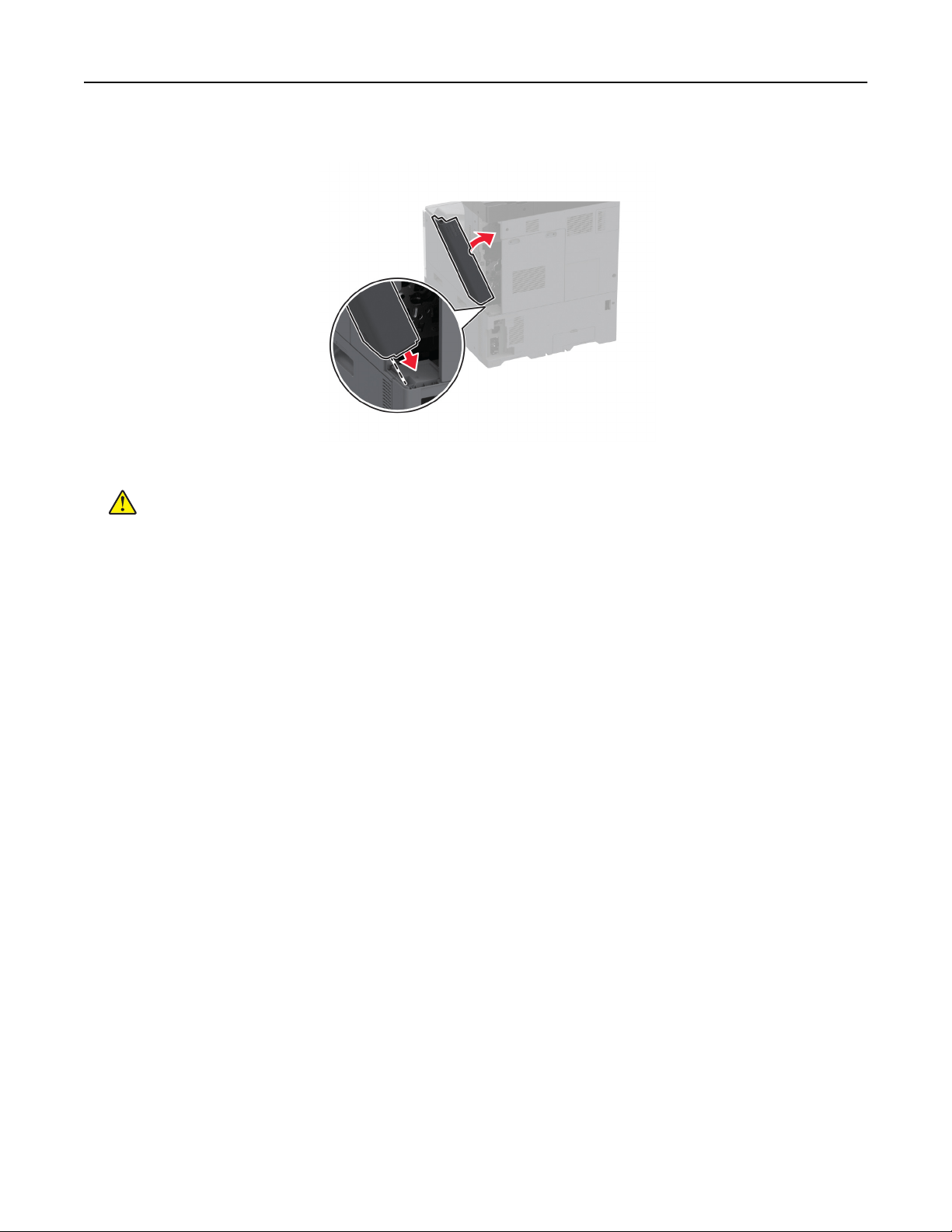
11 Attach the rear ports cover.
12 Connect the power cord to the electrical outlet, and then turn on the printer.
CAUTION—POTENTIAL INJURY: To avoid the risk of fire or electrical shock, connect the power cord
to an appropriately rated and properly grounded electrical outlet that is near the product and easily
accessible.
Changing the printer port settings after installing an internal solutions port
Notes:
• If the printer has a static IP address, then do not change the configuration.
• If the computers are configured to use the network name instead of an IP address, then do not change
the configuration.
• If you are adding a wireless internal solutions port (ISP) to a printer previously configured for an Ethernet
connection, then disconnect the printer from the Ethernet network.
For Windows users
1 Open the printers folder.
2 From the shortcut menu of the printer with the new ISP, open the printer properties.
3 Configure the port from the list.
4 Update the IP address.
5 Apply the changes.
For Macintosh users
1 From System Preferences in the Apple menu, navigate to the list of printers, and then select + > IP.
2 Type the IP address in the address field.
3 Apply the changes.
Set up, install, and configure 186

Networking
This product does not come with wireless networking technology. To enable wireless networking, purchase
and install the following option:
MarkNet™ N8372 Wireless Print Server
The following instructions apply only if the option has been installed. For more information on installing the
option, see the “Installing a wireless print server” section.
Connecting the printer to a Wi
‑Fi network
Make sure that Active Adapter is set to Auto. From the home screen, touch Settings > Network/Ports > Network
Overview > Active Adapter.
Using the control panel
1 From the home screen, touch Settings > Network/Ports > Wireless > Setup On Printer Panel > Choose
Network.
2 Select a Wi‑Fi network, and then type the network password.
Note: For Wi‑Fi‑network‑ready printer models, a prompt for Wi‑Fi network setup appears during initial
setup.
Using Lexmark Mobile Assistant
1 Depending on your mobile device, download the Lexmark Mobile Assistant application from either the
Google Play
TM
store or App Store online store.
2 From the printer home screen, touch Settings > Network/Ports > Wireless > Setup Using Mobile App >
Printer ID.
3 From your mobile device, launch the application, and then accept the Terms of Use.
Note: If necessary, grant permissions.
4 Tap Connect to Printer > Go to Wi
‑Fi Settings.
5 Connect your mobile device to the printer wireless network.
6 Return to the application, and then tap Setup Wi-Fi Connection
7 Select a Wi-Fi network, and then type the network password.
8 Tap Done.
Connecting the printer to a wireless network using Wi
‑Fi Protected Setup
(WPS)
Before you begin, make sure that:
• The access point (wireless router) is WPS‑certified or WPS‑compatible. For more information, see the
documentation that came with your access point.
• A wireless network adapter is installed in your printer. For more information, see the instructions that came
with the adapter.
Set up, install, and configure 187

• Active Adapter is set to Auto. From the home screen, touch Settings > Network/Ports > Network Overview
> Active Adapter.
Using the Push Button method
1 From the home screen, touch Settings > Network/Ports > Wireless > Wi
‑Fi Protected Setup > Start Push
Button Method.
2 Follow the instructions on the display.
Using the personal
identification
number (PIN) method
1 From the home screen, touch Settings > Network/Ports > Wireless > Wi‑Fi Protected Setup > Start PIN
Method.
2 Copy the eight‑digit WPS PIN.
3 Open a web browser, and then type the IP address of your access point in the address field.
Notes:
• To know the IP address, see the documentation that came with your access point.
• If you are using a proxy server, then temporarily disable it to load the web page correctly.
4 Access the WPS settings. For more information, see the documentation that came with your access point.
5 Enter the eight‑digit PIN, and then save the changes.
Configuring Wi‑Fi Direct
Wi-Fi Direct
®
is a Wi-Fi-based peer-to-peer technology that allows wireless devices to connect directly to a Wi-
Fi Direct‑enabled printer without using an access point (wireless router).
1 From the home screen, touch Settings > Network/Ports > Wi-Fi Direct.
2 Configure the settings.
• Enable Wi
‑Fi Direct—Enables the printer to broadcast its own Wi‑Fi Direct network.
• Wi
‑Fi Direct Name—Assigns a name for the Wi‑Fi Direct network.
• Wi
‑Fi Direct Password—Assigns the password for negotiating the wireless security when using the
peer‑to-peer connection.
• Show Password on Setup Page—Shows the password on the Network Setup Page.
• Auto-Accept Push Button Requests—Lets the printer accept connection requests automatically.
Note: Accepting push‑button requests automatically is not secured.
Notes:
• By default, the Wi-Fi Direct network password is not visible on the printer display. To show the password,
enable the password peek icon. From the home screen, touch Settings > Security > Miscellaneous >
Enable Password/PIN Reveal.
• To know the password of the Wi-Fi Direct network without showing it on the printer display, from the
home screen touch Settings > Reports > Network > Network Setup Page.
Set up, install, and configure 188

Connecting a mobile device to the printer
Before connecting your mobile device, make sure that Wi‑Fi Direct has been configured. For more information,
see
“Configuring Wi‑Fi Direct” on page 188.
Connecting using Wi
‑Fi Direct
Note: These instructions apply only to Android mobile devices.
1 From the mobile device, go to the settings menu.
2 Enable Wi
‑Fi, and then tap Wi‑Fi Direct.
3 Select the printer Wi-Fi Direct name.
4
Confirm
the connection on the printer control panel.
Connecting using Wi
‑Fi
1 From the mobile device, go to the settings menu.
2 Tap Wi
‑Fi, and then select the printer Wi-Fi Direct name.
Note: The string DIRECT-xy (where x and y are two random characters) is added before the Wi-Fi Direct
name.
3 Enter the Wi-Fi Direct password.
Connecting a computer to the printer
Before connecting your computer, make sure that Wi‑Fi Direct has been configured. For more information, see
“Configuring Wi‑Fi Direct” on page 188.
For Windows users
1 Open Printers & scanners, and then click Add a printer or scanner.
2 Click Show Wi-Fi Direct printers, and then select the printer Wi‑Fi Direct name.
3 From the printer display, take note of the eight-digit PIN of the printer.
4 Enter the PIN on the computer.
Note: If the print driver is not already installed, then Windows downloads the appropriate driver.
For Macintosh users
1 Click the wireless icon, and then select the printer Wi‑Fi Direct name.
Note: The string DIRECT-xy (where x and y are two random characters) is added before the Wi-Fi Direct
name.
2 Type the Wi‑Fi Direct password.
Note: Switch your computer back to its previous network after disconnecting from the Wi-Fi Direct network.
Set up, install, and configure 189

Deactivating the Wi‑Fi network
1 From the home screen, touch Settings > Network/Ports > Network Overview > Active Adapter > Standard
Network.
2 Follow the instructions on the display.
Checking the printer connectivity
1 From the home screen, touch Settings > Reports > Network > Network Setup Page.
2 Check the first section of the network setup page, and confirm that the status is connected.
If the status is not connected, then the LAN drop may be inactive, or the network cable may be
malfunctioning. Contact your administrator for assistance.
Setting up serial printing (Windows only)
1 Set the parameters in the printer.
a From the control panel, navigate to the menu for the port settings.
b Locate the menu for the serial port settings, and then adjust the settings, if necessary.
c Apply the changes.
2 From your computer, open the printers folder, and then select your printer.
3 Open the printer properties, and then select the COM port from the list.
4 Set the COM port parameters in Device Manager.
Notes:
• Serial printing reduces printing speed.
• Make sure that the serial cable is connected to the serial port on your printer.
Set up, install, and configure 190
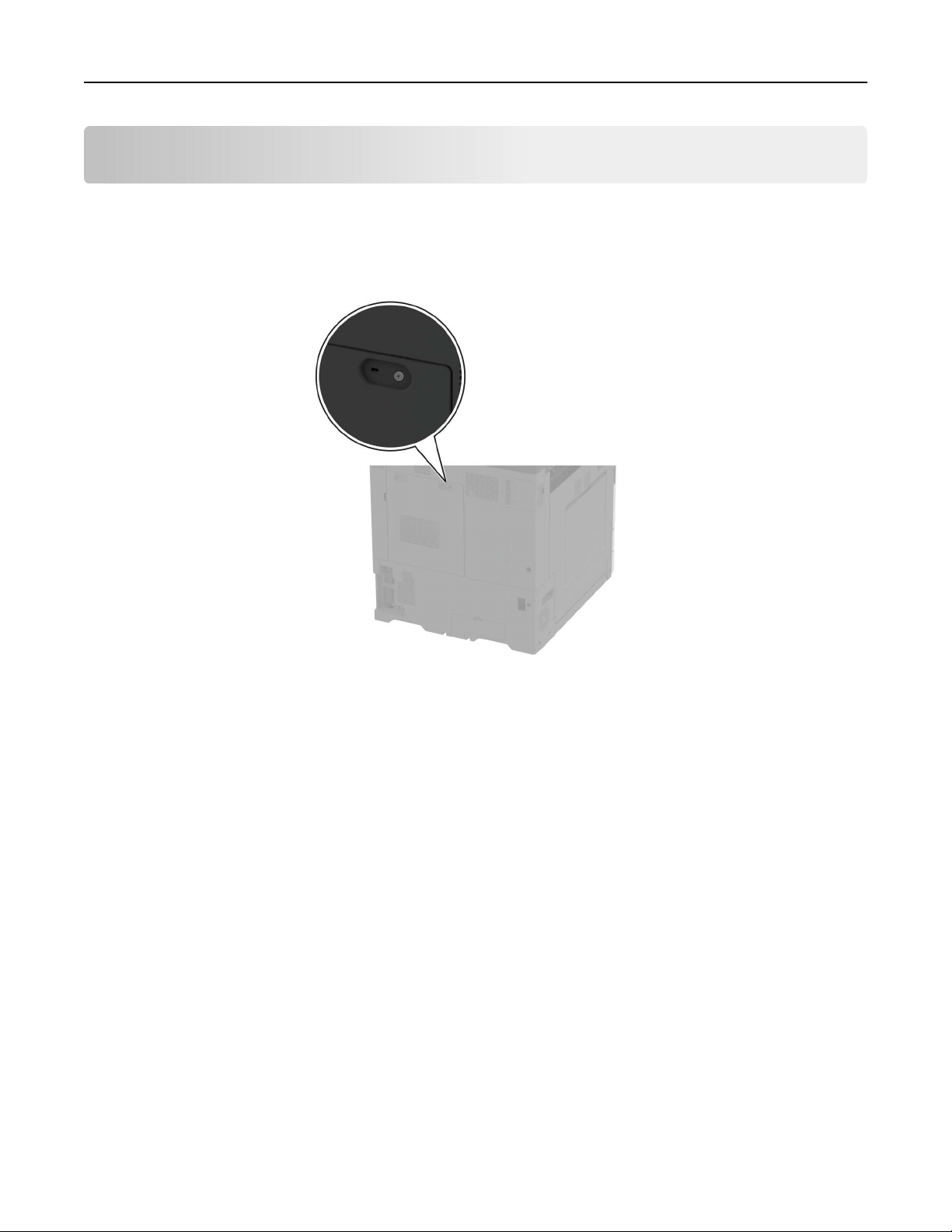
Secure the printer
Locating the security slot
The printer is equipped with a security lock feature. Attach a security lock compatible with most laptop
computers in the location shown to secure the printer in place.
Erasing printer memory
To erase volatile memory or buered data in your printer, turn o the printer.
To erase nonvolatile memory, device and network settings, security settings, and embedded solutions, do the
following:
1 From the home screen, touch Settings > Device > Maintenance > Out of Service Erase.
2 Touc h the Sanitize all information on nonvolatile memory check box, and then touch ERASE.
3 Tou ch Start initial setup wizard or Leave printer
oine
, and then touch Next.
4 Start the operation.
Note: This process also destroys the encryption key that is used to protect user data. Destroying the
encryption key makes the data irrecoverable.
Secure the printer 191

Erasing printer storage drive
1 From the home screen, touch Settings > Device > Maintenance > Out of Service Erase.
2 Depending on the storage drive that is installed on your printer, do either of the following:
• For hard disk, touch the Sanitize all information on hard disk check box, touch ERASE, and then select
a method to erase data.
Note: The process to sanitize the hard disk can take from several minutes to more than an hour,
making the printer unavailable for other tasks.
• For intelligent storage drive (ISD), touch Erase Intelligent Storage Drive, and then touch ERASE to erase
all user data.
3 Start the operation.
Restoring factory default settings
1 From the home screen, touch Settings > Device > Restore Factory Defaults.
2 To uc h Restore Settings > select the settings that you want to restore > RESTORE.
3 Start the operation.
Statement of Volatility
Type of memory Description
Volatile memory The printer uses standard random access memory (RAM)
to buer temporarily user data during simple print and
copy jobs.
Nonvolatile memory The printer may use two forms of non-volatile memory:
EEPROM and NAND (flash memory). Both types store the
operating system, printer settings, and network
information. They also store scanner and bookmark
settings and embedded solutions.
Hard disk storage drive Some printers may have a hard disk drive installed. The
printer hard disk is designed for printer-specific
functionality. The hard disk lets the printer retain
buered
user data from complex print jobs, form data, and font
data.
Intelligent storage drive (ISD) Some printers may have an ISD installed. ISD uses non-
volatile flash memory to store user data from complex
print jobs, form data, and font data.
Erase the content of any installed printer memory in the following circumstances:
• The printer is decommissioned.
• The printer hard disk or ISD is replaced.
• The printer is moved to a dierent department or location.
• The printer is serviced by someone from outside your organization.
Secure the printer 192

• The printer is removed from your premises for service.
• The printer is sold to another organization.
Note: To dispose a storage drive, follow the policies and procedures of your organization.
Secure the printer 193

Print
Printing from a computer
Note: For labels, card stock, and envelopes, set the paper size and type in the printer before printing the
document.
1 From the document that you are trying to print, open the Print dialog.
2 If necessary, adjust the settings.
3 Print the document.
Printing from a mobile device
Printing from a mobile device using Lexmark Mobile Print
Lexmark
TM
Mobile Print allows you to send documents and images directly to a supported Lexmark printer.
1 Open the document, and then send or share the document to Lexmark Mobile Print.
Note: Some third‑party applications may not support the send or share feature. For more information, see
the documentation that came with the application.
2 Select a printer.
3 Print the document.
Printing from a mobile device using Mopria Print Service
Mopria
®
Print Service is a mobile printing solution for mobile devices running on Android
TM
version 5.0 or later.
It allows you to print directly to any Mopria‑certified printer.
Note: Make sure that you download the Mopria Print Service application from the Google Play store and
enable it in the mobile device.
1 From your Android mobile device, launch a compatible application or select a document from your
file
manager.
2 Tap
> Print.
3 Select a printer, and then adjust the settings, if necessary.
4 Tap
.
Printing from a mobile device using AirPrint
The AirPrint software feature is a mobile printing solution that allows you to print directly from Apple devices
to an AirPrint‑certified printer.
Print 194

Notes:
• Make sure that the Apple device and the printer are connected to the same network. If the network has
multiple wireless hubs, then make sure that both devices are connected to the same subnet.
• This application is supported only in some Apple devices.
1 From your mobile device, select a document from your
file
manager or launch a compatible application.
2 Tap
> Print.
3 Select a printer, and then adjust the settings, if necessary.
4 Print the document.
Printing from a mobile device using Wi
‑Fi Direct®
Wi‑Fi Direct
®
is a printing service that lets you print to any Wi‑Fi Direct‑ready printer.
Note: Make sure that the mobile device is connected to the printer wireless network. For more information,
see
“Connecting a mobile device to the printer” on page 189.
1 From your mobile device, launch a compatible application or select a document from your
file
manager.
2 Depending on your mobile device, do one of the following:
• Tap
> Print.
• Tap > Print.
• Tap
> Print.
3 Select a printer, and then adjust the settings, if necessary.
4 Print the document.
Printing a booklet
Note: Booklet printing is supported on any paper size that is supported by two-sided printing.
For Windows users
1 With a document open, click File > Print.
2 Select a printer, and then click Properties, Preferences, Options, or Setup.
3 Click Layout, and then in the Page Layouts section, select Booklet.
Note: If necessary,
configure
the booklet settings.
4 Click OK or Print.
For Macintosh users
1 With a document open, choose File > Print.
2 Select a printer, and then in the Presets menu, choose Advanced Layout > Booklet.
3 Click Print.
Print 195
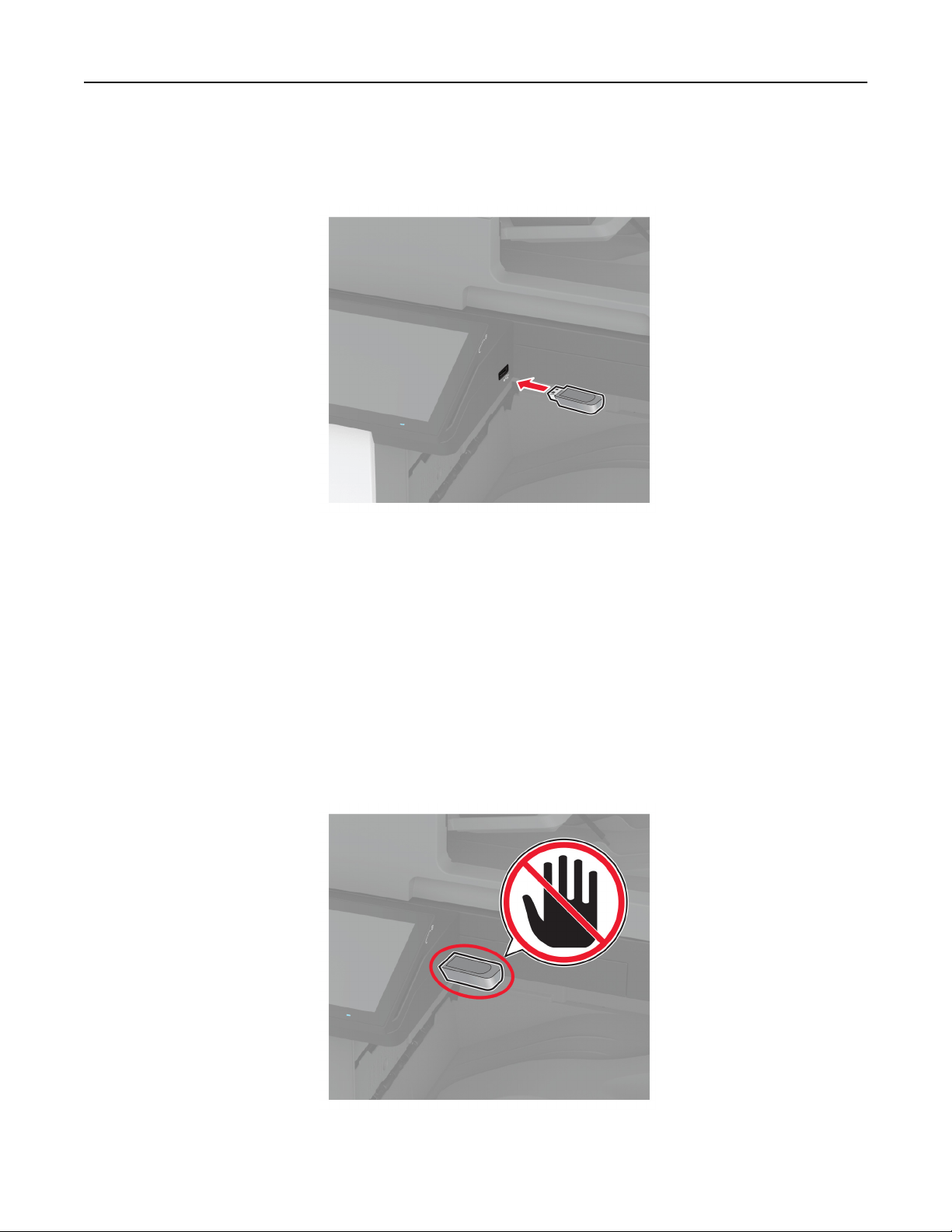
Printing from a flash drive
1 Insert the flash drive.
Notes:
• If you insert the flash drive when an error message appears, then the printer ignores the flash drive.
• If you insert the
flash
drive while the printer is processing other print jobs, then Busy appears on the
display.
2 From the display, touch the document that you want to print.
If necessary, configure the print settings.
3 Print the document.
To print another document, touch USB Drive.
Warning—Potential Damage: To avoid loss of data or printer malfunction, do not touch the
flash
drive or
the printer in the area shown while actively printing, reading, or writing from the memory device.
Print 196
Supported flash drives and file types
Flash drives
• Lexar JumpDrive S70 (16GB and 32GB)
• SanDisk Cruzer Micro (16GB and 32GB)
• PNY Attaché (16GB and 32GB)
Notes:
– The printer supports high‑speed
flash
drives with full‑speed standard.
– Flash drives must support the File Allocation Table (FAT) system.
File types
Documents Images
• PDF (version 1.7 or earlier)
• Microsoft
file
formats (DOC, DOCX, XLS, XLSX, PPT, PPTX)
• JPEG or JPG
• TIFF or TIF
• GIF
• BMP
• PNG
• PCX
• DCX
Configuring confidential jobs
1 From the home screen, touch Settings > Security > Confidential Print Setup.
2 Configure the settings.
Setting Description
Max Invalid PIN Set the limit for entering an invalid PIN.
Note: When the limit is reached, the print jobs for that user name are deleted.
Confidential Job
Expiration
Set an individual expiration time for each held job before it is automatically deleted from
the printer memory, hard disk, or intelligent storage drive.
Note: A held job is either Confidential, Repeat, Reserve, or Verify.
Repeat Job Expiration Set the expiration time for print jobs that you want to repeat.
Verify Job Expiration Set the expiration time for printing a copy of a job for you to check its quality before
printing the remaining copies.
Reserve Job Expiration Set the expiration time for jobs that you want to store in the printer for printing later.
Require All Jobs to be
Held
Set the printer to hold all print jobs.
Keep duplicate
documents
Set the printer to keep all documents with the same file name.
Print 197

Printing confidential and other held jobs
For Windows users
1 With a document open, click File > Print.
2 Select a printer, and then click Properties, Preferences, Options, or Setup.
3 Click Print and Hold.
4 Select Use Print and Hold, and then assign a user name.
5 Select the print job type
(Confidential,
Repeat, Reserve, or Verify).
If you select Confidential, then secure the print job with a personal identification number (PIN).
6 Click OK or Print.
7 From the printer home screen, release the print job.
• For confidential print jobs, touch Held jobs > select your user name > Confidential > enter the PIN >
select the print job > configure the settings > Print.
• For other print jobs, touch Held jobs > select your user name > select the print job > configure the settings
> Print.
For Macintosh users
Using AirPrint
1 With a document open, choose File > Print.
2 Select a printer, and then from the drop-down menu following the Orientation menu, choose PIN Printing.
3 Enable Print with PIN, and then enter a four‑digit PIN.
4 Click Print.
5 From the printer home screen, release the print job. Touch Held jobs > select your computer name >
Confidential > enter the PIN > select the print job > Print.
Using the print driver
1 With a document open, choose File > Print.
2 Select a printer, and then from the drop-down menu following the Orientation menu, choose Print and Hold.
3 Choose
Confidential
Print, and then enter a four‑digit PIN.
4 Click Print.
5 From the printer home screen, release the print job. Touch Held jobs > select your computer name >
Confidential > select the print job > enter the PIN > Print.
Printing a font sample list
1 From the home screen, touch Settings > Reports > Print > Print Fonts.
2 To uc h PCL Fonts or PS Fonts.
Print 198

Printing a directory list
From the home screen, touch Settings > Reports > Print > Print Directory.
Placing separator sheets between copies
1 From the home screen, touch Settings > Print > Layout > Separator Sheets > Between Copies.
2 Print the document.
Stapling printed sheets
For Windows users
1 With a document open, click File > Print.
2 Select a printer, and then click Properties, Preferences, Options, or Setup.
3 Click Paper/Finisher.
If necessary, configure the Paper settings.
4 In the Finishing menu, select the staple setting.
5 Click OK or Print.
For Macintosh users
1 With a document open, choose File > Print.
2 Select a printer, and then from the drop-down menu following the Orientation menu, choose Finishing.
3 Click Staple, and then select a setting.
4 Click Print.
Punching holes in printed sheets
Note: Before you begin, make sure that the hole punch setting is configured. From the home screen, touch
Settings > Device > Maintenance >
Configuration
Menu > Finisher
Configuration
>Hole Punch
Configuration > select a configuration.
For Windows users
1 With a document open, click File > Print.
2 Select a printer, and then click Properties, Preferences, Options, or Setup.
3 Click Paper/Finisher.
If necessary, configure the Paper settings.
4 In the Finishing menu, select the hole punch setting.
5 Click OK or Print.
Print 199

For Macintosh users
1 With a document open, choose File > Print.
2 Select a printer, and then from the drop-down menu following the Orientation menu, choose Finishing.
3 Click Punch, and then select a setting.
4 Click Print.
Folding printed sheets
For Windows users
1 With a document open, click File > Print.
2 Select a printer, and then click Properties, Preferences, Options, or Setup.
3 Click Paper/Finisher.
If necessary,
configure
the Paper settings.
4 In the Finishing menu, select the fold setting.
5 Click OK or Print.
For Macintosh users
1 With a document open, choose File > Print.
2 Select a printer, and then from the drop-down menu following the Orientation menu, choose Finishing.
3 Click Fold, and then select a setting.
4 Click Print.
Using oset stacking in printed sheets
For Windows users
1 With a document open, click File > Print.
2 Select a printer, and then click Properties, Preferences, Options, or Setup.
3 Click Paper/Finisher.
If necessary, configure the Paper settings.
4 In the Finishing menu, select the Oset setting.
5 Click OK or Print.
For Macintosh users
1 With a document open, choose File > Print.
2 Select a printer, and then from the drop-down menu following the Orientation menu, choose Finishing.
Print 200

3 Click Oset, and then select a setting.
4 Click Print.
Canceling a print job
1 From the home screen, touch
.
2 Select the job to cancel.
Note: You can also cancel a job by touching Job Queue.
Adjusting toner darkness
1 From the home screen, touch Settings > Print > Quality.
2 In the Toner Darkness menu, adjust the settings.
Print 201
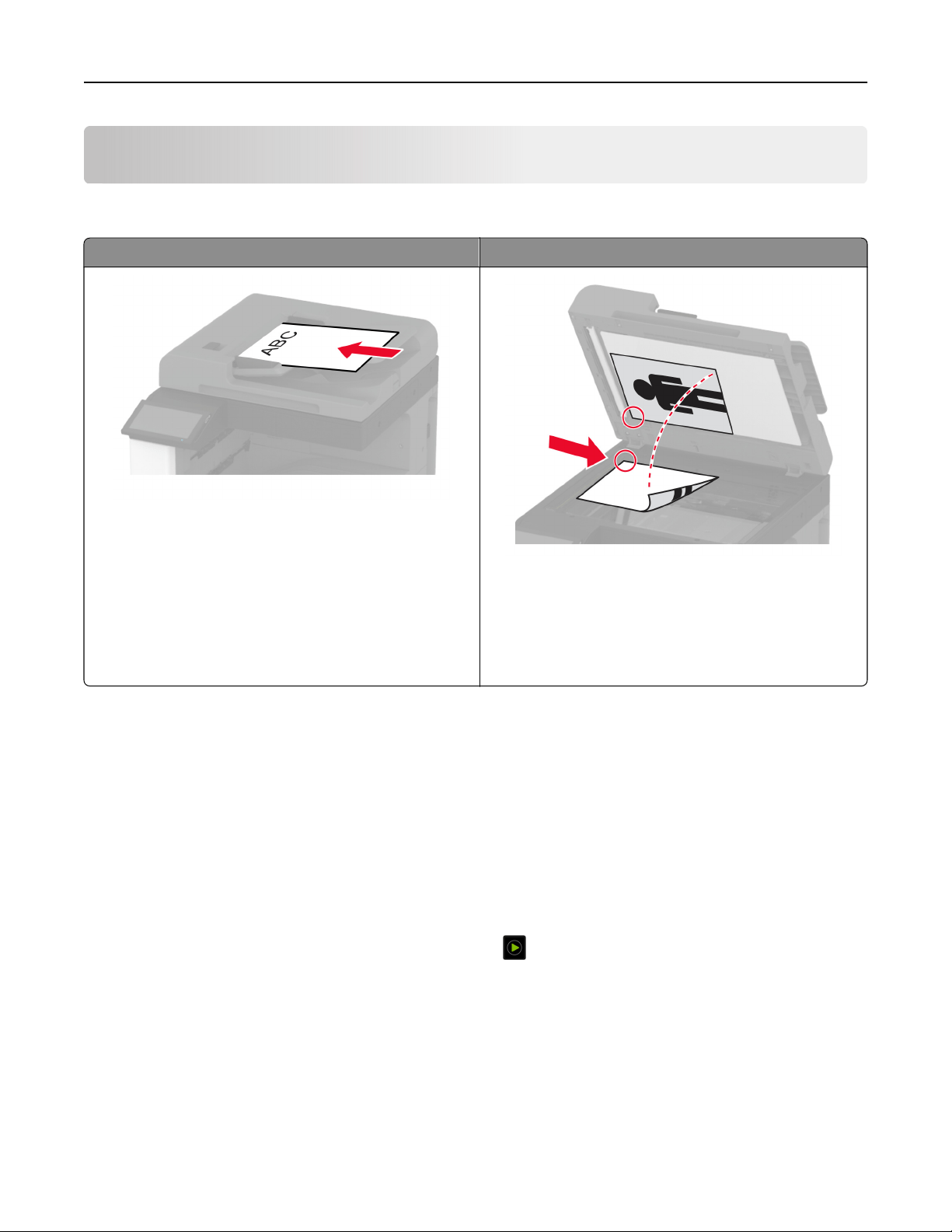
Copy
Using the automatic document feeder and scanner glass
Automatic document feeder (ADF) Scanner glass
• Use the ADF for multiple‑page or two-sided
documents.
• Load an original document faceup. For multiple‑page
documents, make sure to align the leading edge
before loading.
• Make sure to adjust the ADF guides to match the width
of the paper that you are loading.
• Use the scanner glass for single‑page documents,
book pages, small items (such as postcards or
photos), transparencies, photo paper, or thin media
(such as magazine clippings).
• Place the document facedown in the corner with the
arrow.
Making copies
1 Load an original document into the ADF tray or on the scanner glass.
Note: To avoid a cropped image, make sure that the original document and output have the same paper
size.
2 From the home screen, touch Copy, and then specify the number of copies.
If necessary, adjust the copy settings.
3 Copy the document.
Note: To make a quick copy, from the home screen, touch
.
Copying photos
1 Place a photo on the scanner glass.
2 From the home screen, touch Copy > Content > Content Type > Photo.
3 Tou ch Content Source, and then select the setting that best matches the original photo.
4 Copy the photo.
Copy 202

Copying on letterhead
1 Load an original document into the ADF tray or on the scanner glass.
2 From the home screen, touch Copy > Copy From > select the size of the original document.
3 Tou ch Copy To, and then select the paper source that contains the letterhead.
If you loaded the letterhead into the multipurpose feeder, then touch Copy To > Multipurpose Feeder >
select a paper size > Letterhead.
4 Copy the document.
Copying on both sides of the paper
1 Load an original document into the ADF tray or on the scanner glass.
2 From the home screen, touch Copy > Sides.
3 Tou ch 1 sided to 2 sided or 2 sided to 2 sided.
4 Copy the document.
Reducing or enlarging copies
1 Load an original document into the ADF tray or on the scanner glass.
2 From the home screen, touch Copy > Scale > select a scale value.
Note: Changing the size of the original document or output after setting Scale restores the scale value to
Auto.
3 Copy the document.
Collating copies
1 Load an original document into the ADF tray or on the scanner glass.
2 From the home screen, touch Copy > Collate > On [1,2,1,2,1,2].
3 Copy the document.
Placing separator sheets between copies
1 Load an original document into the ADF tray or on the scanner glass.
2 From the home screen, touch Copy > Separator Sheets.
3 Adjust the settings.
4 Send the copy job.
Copy 203

Copying multiple pages onto a single sheet
1 Load an original document into the ADF tray or on the scanner glass.
2 From the home screen, touch Copy > Pages per Side.
3 Adjust the settings.
4 Copy the document.
Copying cards
1 Load a card on the scanner glass.
2 From the home screen, touch Copy > Copy From.
3 Tou ch ID Card.
4 Copy the card.
Stapling copies
1 Load an original document into the ADF tray or on the scanner glass.
Note: To avoid a cropped image, make sure that the original document and output have the same paper
size.
2 From the home screen, touch Copy, and then specify the number of copies.
If necessary, adjust the copy settings.
3 Tou ch Finishing > Staple, and then select the staple setting.
4 Copy the document.
Punching holes in copies
1 Load an original document into the ADF tray or on the scanner glass.
Note: To avoid a cropped image, make sure that the original document and output have the same paper
size.
2 From the home screen, touch Copy, and then specify the number of copies.
If necessary, adjust the copy settings.
3 Tou ch Finishing > Punch, and then select the hole punch setting.
4 Copy the document.
Copy 204

Creating a booklet from copied documents
1 Load an original document into the ADF tray or on the scanner glass.
Note: To avoid a cropped image, make sure that the original document and output have the same paper
size.
2 From the home screen, touch Copy, and then specify the number of copies.
If necessary, adjust the copy settings.
3 Tou ch Create Booklet, enable the setting, and then select a mode.
4 Copy the document.
Folding copies
1 Load an original document into the ADF tray or on the scanner glass.
Note: To avoid a cropped image, make sure that the original document and output have the same paper
size.
2 From the home screen, touch Copy, and then specify the number of copies.
If necessary, adjust the copy settings.
3 Tou ch Finishing, touch Fold, and then select a fold setting.
4 Copy the document.
Using oset stacking in copies
1 Load an original document into the ADF tray or on the scanner glass.
Note: To avoid a cropped image, make sure that the original document and output have the same paper
size.
2 From the home screen, touch Copy, and then specify the number of copies.
If necessary, adjust the copy settings.
3 Tou ch
Oset
Pages, and then select a setting.
4 Copy the document.
Creating a copy shortcut
1 From the home screen, touch Copy.
2 Configure the settings, and then touch
.
3 Create a shortcut.
Copy 205
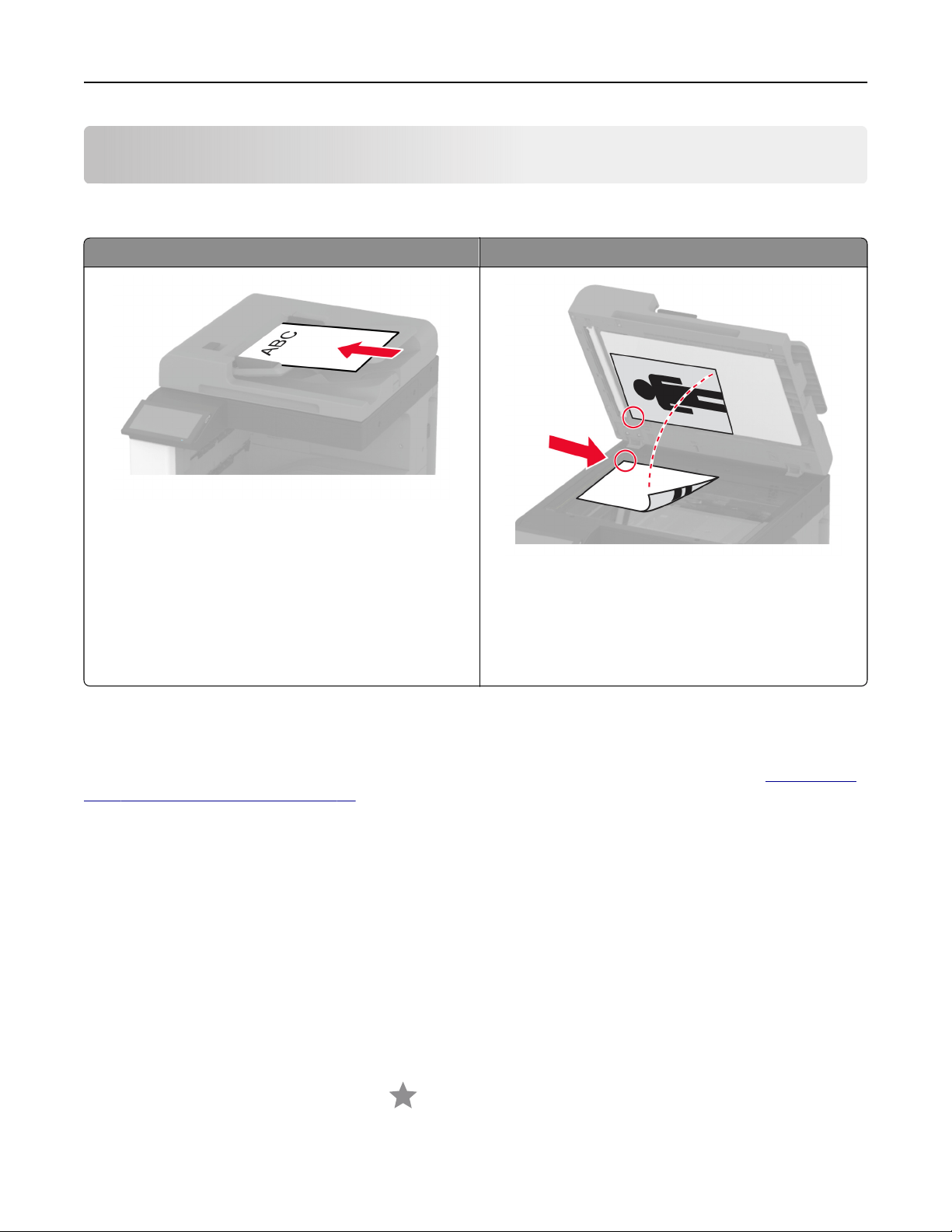
E-mail
Using the automatic document feeder and scanner glass
Automatic document feeder (ADF) Scanner glass
• Use the ADF for multiple‑page or two-sided
documents.
• Load an original document faceup. For multiple‑page
documents, make sure to align the leading edge
before loading.
• Make sure to adjust the ADF guides to match the width
of the paper that you are loading.
• Use the scanner glass for single‑page documents,
book pages, small items (such as postcards or
photos), transparencies, photo paper, or thin media
(such as magazine clippings).
• Place the document facedown in the corner with the
arrow.
Sending an e-mail
Before you begin, make sure that the SMTP settings are configured. For more information, see
“Configuring
the e‑mail SMTP settings” on page 53.
Using the control panel
1 Load an original document into the ADF tray or on the scanner glass.
2 From the home screen, touch E-mail, and then enter the needed information.
3 If necessary, configure the output file type settings.
4 Send the e-mail.
Creating an e-mail shortcut
1 From the home screen, touch E‑mail.
2
Configure
the settings, and then touch
.
3 Create a shortcut.
E-mail 206
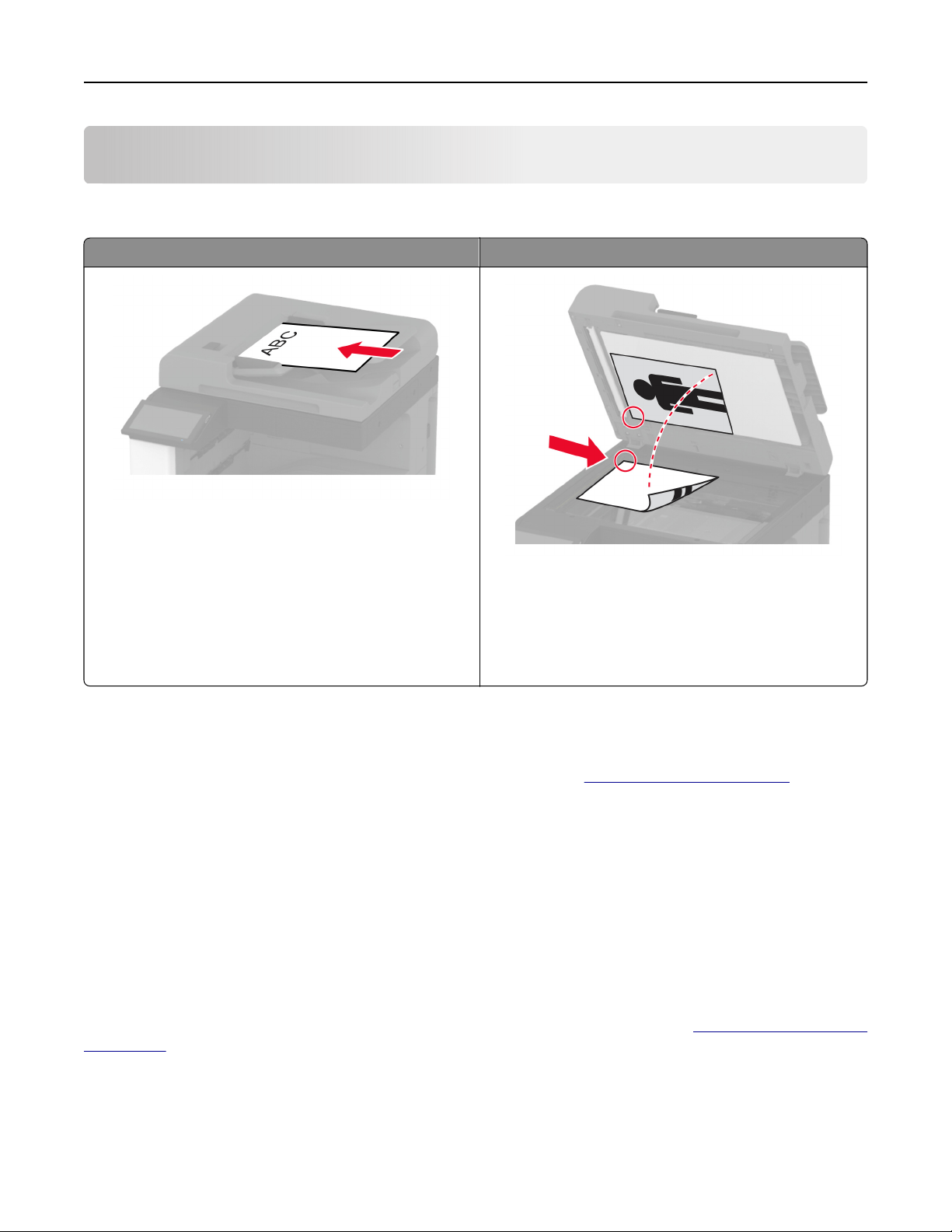
Fax
Using the automatic document feeder and scanner glass
Automatic document feeder (ADF) Scanner glass
• Use the ADF for multiple‑page or two-sided
documents.
• Load an original document faceup. For multiple‑page
documents, make sure to align the leading edge
before loading.
• Make sure to adjust the ADF guides to match the width
of the paper that you are loading.
• Use the scanner glass for single‑page documents,
book pages, small items (such as postcards or
photos), transparencies, photo paper, or thin media
(such as magazine clippings).
• Place the document facedown in the corner with the
arrow.
Sending a fax
Note: Make sure that fax is
configured.
For more information, see the
Setting up the printer to fax section.
Using the control panel
1 Load an original document into the ADF tray or on the scanner glass.
2 From the home screen, touch Fax, and then enter the needed information.
If necessary, adjust the settings.
3 Send the fax.
Using the computer
Before you begin, make sure that the fax driver is installed. For more information, see “Installing the fax driver”
on page 79.
For Windows users
1 From the document that you are trying to fax, open the Print dialog.
2 Select the printer, and then click Properties, Preferences, Options, or Setup.
Fax 207

3 Click Fax > Enable fax > Always display settings prior to faxing, and then enter the recipient number.
If necessary, configure other fax settings.
4 Send the fax.
For Macintosh users
1 With a document open, choose File > Print.
2 Select the printer that has
‑ Fax added after its name.
3 In the To
field,
enter the recipient number.
If necessary, configure other fax settings.
4 Send the fax.
Scheduling a fax
Note: Make sure that fax is configured. For more information, see the
Setting up the printer to fax section.
1 Load an original document into the ADF tray or on the scanner glass.
2 From the home screen, touch Fax > To > enter the fax number > Done.
3 Tou ch Send Time, configure the date and time, and then touch OK.
4 Send the fax.
Creating a fax destination shortcut
Note: Make sure that fax is
configured.
For more information, see
“Setting up the printer to fax” on page 45.
1 From the home screen, touch Fax > To.
2 Enter the recipient number, and then touch Done.
3 Tou ch
.
4 Create a shortcut.
Changing the fax resolution
Note: Make sure that fax is configured. For more information, see the
Setting up the printer to fax section.
1 Load an original document into the ADF tray or on the scanner glass.
2 From the home screen, touch Fax, and then enter the needed information.
3 Tou ch Resolution, and then select a setting.
4 Send the fax.
Fax 208

Adjusting the fax darkness
Note: Make sure that fax is
configured.
For more information, see the
Setting up the printer to fax section.
1 Load an original document into the ADF tray or on the scanner glass.
2 From the home screen, touch Fax, and then enter the needed information.
3 Tou ch Darkness, and then adjust the setting.
4 Send the fax.
Printing a fax log
Note: Make sure that analog fax or etherFAX is configured. For more information, see the Setting up the
printer to fax section.
1 From the home screen, touch Settings > Reports > Fax.
2 To uc h Fax Job Log or Fax Call Log.
Blocking junk faxes
Note: Make sure that analog fax or etherFAX is configured. For more information, see the
Setting up the
printer to fax section.
1 From the home screen, touch Settings > Fax > Fax Setup > Fax Receive Settings > Admin Controls.
2 Set Block No Name Fax to On.
Holding faxes
Note: Make sure that analog fax or etherFAX is
configured.
For more information, see the
Setting up the
printer to fax section.
1 From the home screen, touch Settings > Fax > Fax Setup > Fax Receive Settings > Holding Faxes.
2 Select a mode.
Forwarding a fax
Note: Make sure that analog fax or etherFAX is
configured.
For more information, see the Setting up the
printer to fax section.
1 Create a destination shortcut.
a Open a web browser, and then type the printer IP address in the address field.
Notes:
• View the printer IP address on the home screen. The IP address appears as four sets of numbers
separated by periods, such as 123.123.123.123.
Fax 209

• If you are using a proxy server, then temporarily disable it to load the web page correctly.
b Click Shortcuts > Add Shortcut.
c Select a shortcut type, and then configure the settings.
Note: Take note of the shortcut number.
d Apply the changes.
2 Click Settings > Fax > Fax Setup > Fax Receive Settings > Admin Controls.
3 In the Fax Forwarding menu, select Forward or Print and Forward.
4 In the Forward to menu, select the destination type and then type the shortcut number.
5 Apply the changes.
Fax 210
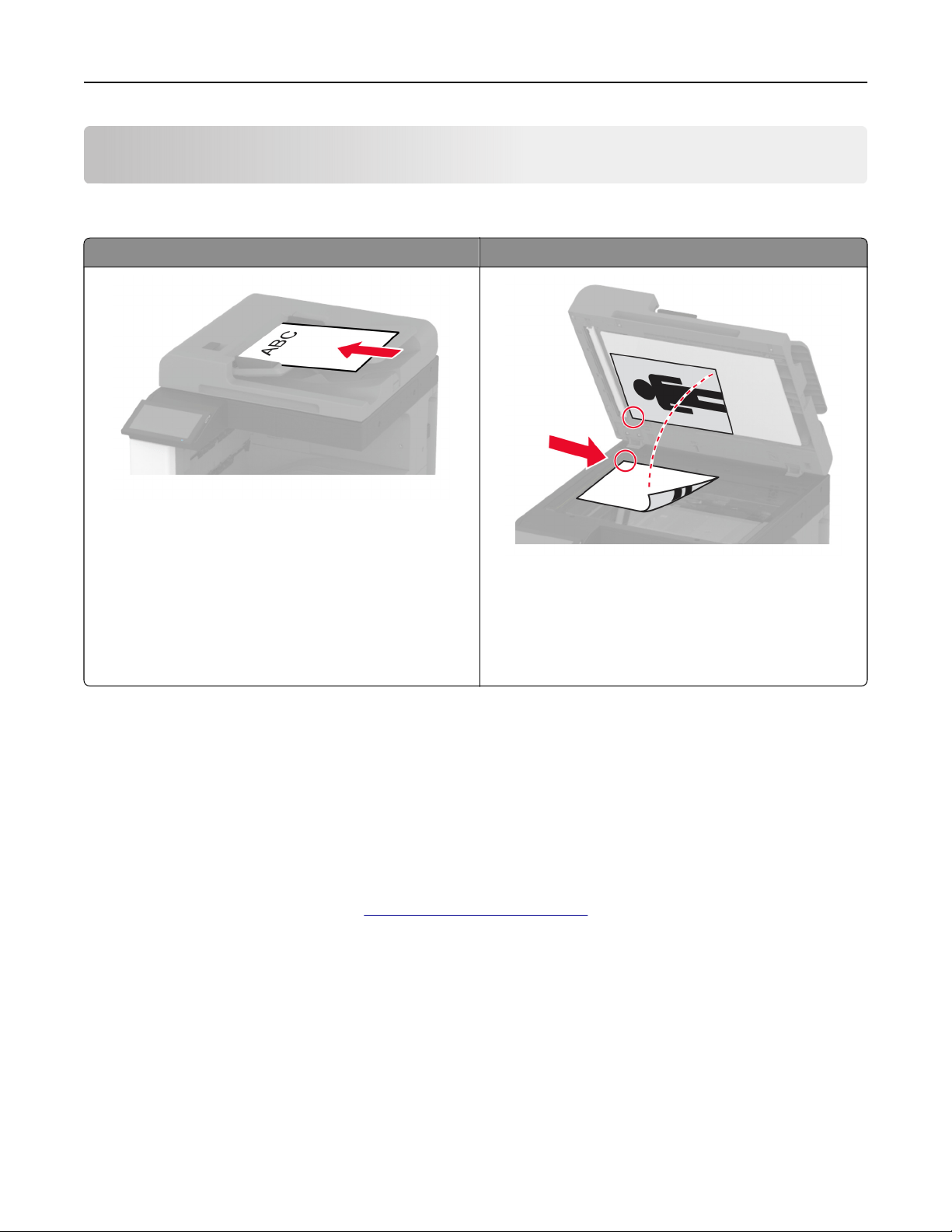
Scan
Using the automatic document feeder and scanner glass
Automatic document feeder (ADF) Scanner glass
• Use the ADF for multiple‑page or two-sided
documents.
• Load an original document faceup. For multiple‑page
documents, make sure to align the leading edge
before loading.
• Make sure to adjust the ADF guides to match the width
of the paper that you are loading.
• Use the scanner glass for single‑page documents,
book pages, small items (such as postcards or
photos), transparencies, photo paper, or thin media
(such as magazine clippings).
• Place the document facedown in the corner with the
arrow.
Scanning to a computer
Before you begin, make sure that the computer and the printer are connected to the same network.
For Windows users
Using Lexmark ScanBack Utility
1 From the computer, run Lexmark ScanBack Utility, and then click Next.
Note: To download the utility, go to
www.lexmark.com/downloads.
2 Click Setup, and then add the printer IP address.
Note: View the printer IP address on the printer home screen. The IP address appears as four sets of
numbers separated by periods, such as 123.123.123.123.
3 Click Close > Next.
4 Select the size of the original document, and then click Next.
5 Select a file format and scan resolution, and then click Next.
6 Type a unique scan profile name, and then click Next.
Scan 211

7 Browse to the location you want to save the scanned document, create a file name, and then click Next.
Note: To re us e the sca n
profile,
enable Create Shortcut, and then create a unique shortcut name.
8 Click Finish.
9 Load an original document into the automatic document feeder or on the scanner glass.
10 From the printer home screen, touch Scan Profiles > Scan to Computer, and then select a scan profile.
Note: Make sure that Scan Profiles is added to the home screen. For more information, see
“Customizing
the home screen” on page 39.
Using Windows Fax and Scan
Note: Make sure that the printer is added to the computer. For more information, see
“Adding printers to a
computer” on page 79.
1 Load an original document into the automatic document feeder or on the scanner glass.
2 From the computer, open Windows Fax and Scan.
3 From the Source menu, select a scanner source.
4 If necessary, change the scan settings.
5 Scan the document.
For Macintosh users
Note: Make sure that the printer is added to the computer. For more information, see
“Adding printers to a
computer” on page 79.
1 Load an original document into the automatic document feeder or on the scanner glass.
2 From the computer, do either of the following:
• Open Image Capture.
• Open Printers & Scanners, and then select a printer. Click Scan > Open Scanner.
3 From the Scanner window, do one or more of the following:
• Select where you want to save the scanned document.
• Select the size of the original document.
• To scan from the ADF, select Document Feeder from the Scan Menu or enable Use Document Feeder.
• If necessary,
configure
the scan settings.
4 Click Scan.
Scanning to an FTP server
1 Load the original document into the ADF tray or on the scanner glass.
2 From the home screen, touch FTP, and then enter the needed information.
3 If necessary, configure other FTP settings.
4 Send the FTP job.
Scan 212

Creating an FTP shortcut
1 From the home screen, touch FTP.
2 Enter the FTP server address, and then touch
.
3 Create a shortcut.
Scanning to a network folder
1 Load the document into the ADF tray or on the scanner glass.
2 From the home screen, touch Scan Center.
Note: The icon and name may have been changed. For more information, contact your administrator.
3 Do either of the following:
• Select a destination.
Note: For SFTP, set the port number to 22.
• Use a shortcut by touching , and then selecting the shortcut from the list.
4 Scan the document.
Creating a network folder shortcut
1 Open a web browser, and then type the printer IP address in the address field.
Notes:
• View the printer IP address on the printer home screen. The IP address appears as four sets of
numbers separated by periods, such as 123.123.123.123.
• If you are using a proxy server, then temporarily disable it to load the web page correctly.
2 Click Shortcuts > Add Shortcut.
3 From the Shortcut Type menu, select Network Folder, and then configure the settings.
4 Apply the changes.
Scan 213
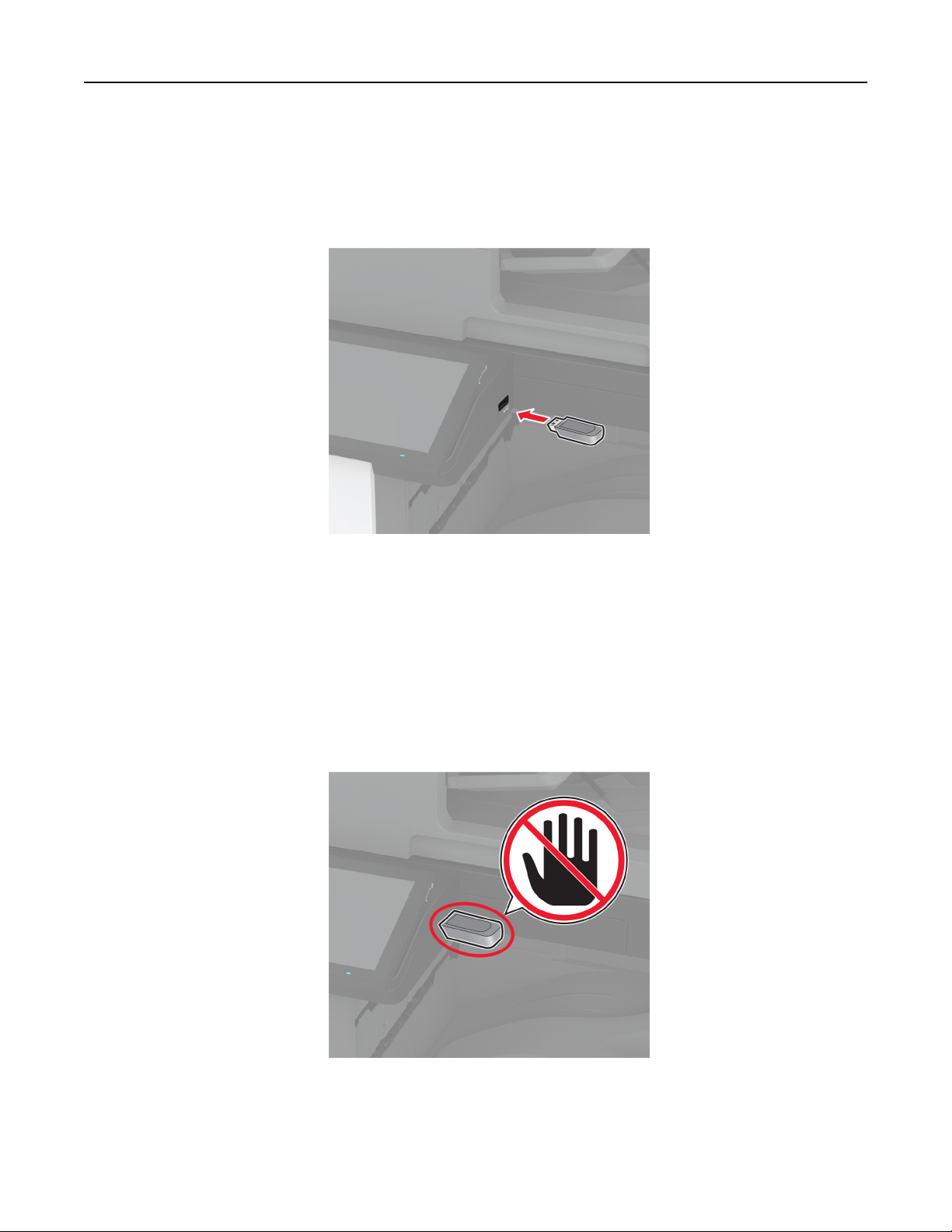
Scanning to a flash drive
1 Load an original document into the ADF tray or on the scanner glass.
2 Insert the flash drive.
3 Tou ch Scan to USB and adjust the settings if necessary.
Notes:
• To save the scanned document to a folder, touch Scan to, select a folder, and then touch Scan Here.
• If the USB Drive screen does not appear, then touch USB Drive on the control panel.
4 Scan the document.
Warning—Potential Damage: To avoid loss of data or printer malfunction, do not touch the
flash
drive or
the printer in the area shown while actively printing, reading, or writing from the memory device.
Scan 214
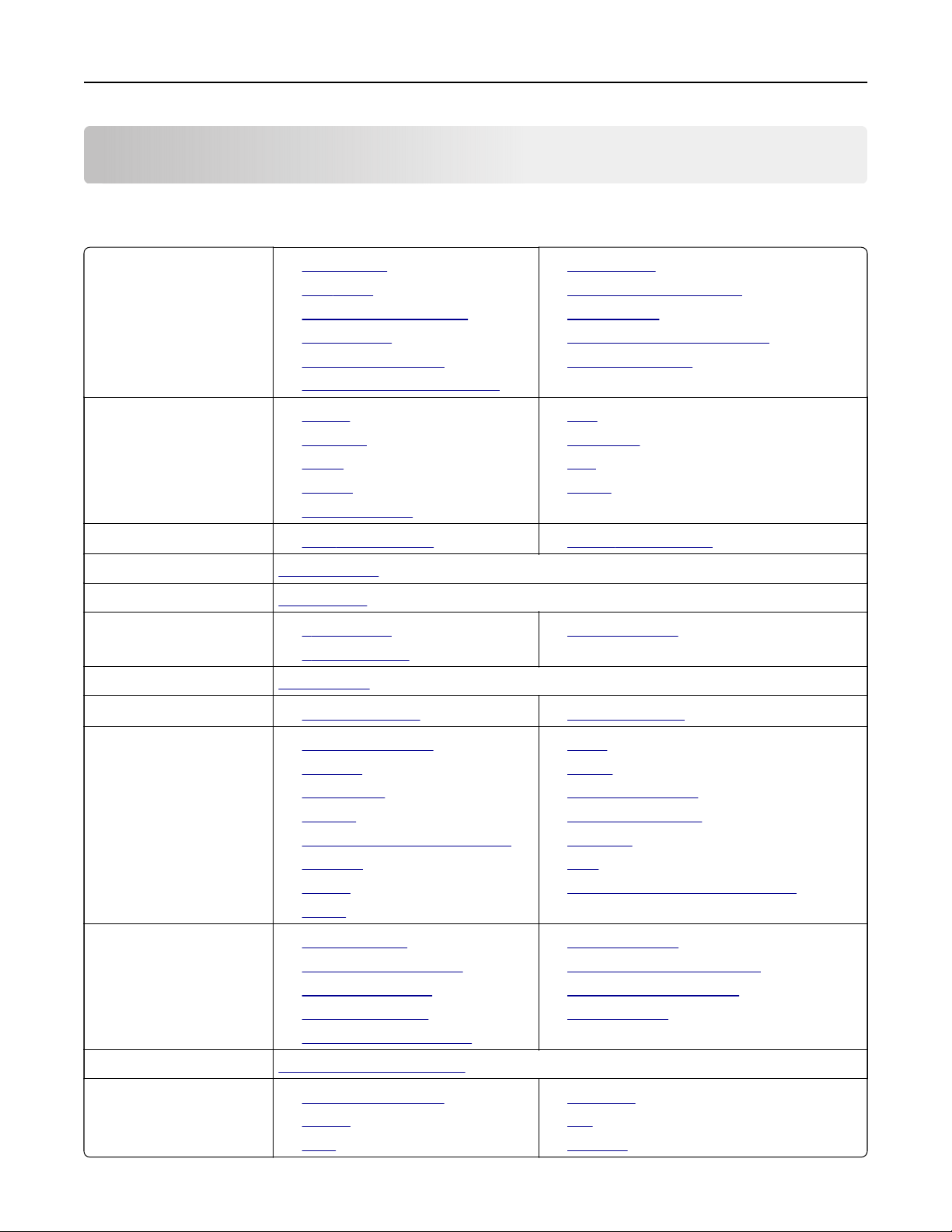
Use printer menus
Menu map
Device
• Preferences
• Eco‑Mode
• Remote Operator Panel
• Notifications
• Power Management
• Anonymous Data Collection
• Accessibility
• Restore Factory Defaults
• Maintenance
• Home Screen Customization
• About this Printer
Print
•
Layout
• Finishing
• Setup
• Quality
• Job Accounting
• PDF
• PostScript
• PCL
• Image
Paper
•
Tray Configuration • Media Configuration
Copy Copy Defaults
Fax Fax Defaults
E‑mail
• E‑mail Setup
• E‑mail Defaults
• Web Link Setup
FTP FTP Defaults
USB Drive
• Flash Drive Scan • Flash Drive Print
Network/Ports
• Network Overview
• Wireless
• Wi‑Fi Direct
• AirPrint
• Mobile Services Management
• Ethernet
• TCP/IP
• SNMP
• IPSec
• 802.1x
• LPD Configuration
• HTTP/FTP Settings
• ThinPrint
• USB
• Restrict external network access
Security
• Login Methods
• Schedule USB Devices
• Security Audit Log
• Login Restrictions
• Confidential Print Setup
• Disk Encryption
• Erase Temporary Data Files
• Solutions LDAP Settings
• Miscellaneous
Cloud Services Cloud Services Enrollment
Reports
• Menu Settings Page
• Device
• Print
• Shortcuts
• Fax
• Network
Use printer menus 215
Troubleshooting Print Quality Test Pages Cleaning the Scanner
Device
Preferences
Menu item Description
Display Language
[List of languages]
Set the language of the text that appears on the display.
Country/Region
[List of countries or regions]
Identify the country or region where the printer is configured
to operate.
Run initial setup
O*
On
Run the setup wizard.
Keyboard
Keyboard Type
[List of languages]
Select a language as a keyboard type.
Note: All the Keyboard Type values may not appear or may
require special hardware to appear.
Displayed information
Display Text 1 (IP Address*)
Display Text 2 (Date/Time*)
Custom Text 1
Custom Text 2
Specify the information to appear on the home screen.
Date and Time
Configure
Current Date and Time
Manually Set Date and Time
Date Format (MM‑DD‑YYYY*)
Time Format (12 hour A.M./P.M.*)
Time Zone (UTC‑5:00*)
Network Time Protocol
Enable NTP (On*)
NTP Server
Enable Authentication (None*)
Configure the printer date and time and network time protocol.
Paper Sizes
U.S.*
Metric
Specify the unit of measurement for paper sizes.
Note: The country or region selected in the initial setup
wizard determines the initial paper size setting.
Screen Brightness
20–100% (100*)
Adjust the brightness of the display.
Flash Drive Access
Disabled
Enabled*
Enable access to the flash drive.
Note: An asterisk (*) next to a value indicates the factory default setting.
Use printer menus 216
Menu item Description
Allow Background Removal
O
On*
Specify whether background removal is allowed.
Allow Custom Job scans
O
On*
Specify whether the Custom Job Scanning setting appears for
copy, scan, and fax.
Note: This menu item appears only when a hard disk or an
intelligent storage drive is installed.
One Page Flatbed Scanning
O*
On
Set the printer to scan any type of job involving the scanner
glass as a single page.
Note: The printer returns to the home screen after
performing a single flatbed scan instead of displaying
prompts.
Device Sounds
Mute All Sounds (O*)
Button Feedback (On*)
Volume (5*)
ADF Loaded Beep (On*)
Alarm Control (Single*)
Cartridge Alarm (Single*)
Speaker Mode (On until Connected*)
Ringer Volume (On*)
Configure the sound settings of the printer.
Screen Timeout
5–300 seconds (60*)
Set the idle time in seconds before the display shows the home
screen, or before the printer logs out a user account
automatically.
Note: An asterisk (*) next to a value indicates the factory default setting.
Eco-Mode
Menu item Description
Print
Sides
1‑Sided*
2‑Sided
Specify whether to print on one side or both sides of the paper.
Note: An asterisk (*) next to a value indicates the factory default setting.
Use printer menus 217
Menu item Description
Print
Pages per Side
O*
2 pages per side
3 pages per side
4 pages per side
6 pages per side
9 pages per side
12 pages per side
16 pages per side
Print multiple page images on one side of a sheet of paper.
Print
Toner Darkness
1–5 (4*)
Determine the lightness or darkness of text images.
Print
Color Saver
O*
On
Reduce the amount of toner used to print graphics and images.
Copy
Sides
1 sided to 1 sided*
1 sided to 2 sided
2 sided to 1 sided
2 sided to 2 sided
Specify the scanning behavior based on the original
document.
Copy
Pages per Side
O*
2 Portrait pages
4 Portrait pages
2 Landscape pages
4 Landscape pages
Specify the scanning behavior based on the original
document.
Copy
Darkness
1–9 (5*)
Determine the darkness of the scanned text images.
Note: An asterisk (*) next to a value indicates the factory default setting.
Remote Operator Panel
Menu item Description
External VNC Connection
Don’t Allow*
Allow
Connect an external Virtual Network Computing (VNC) client
to the remote control panel.
Note: An asterisk (*) next to a value indicates the factory default setting.
Use printer menus 218
Menu item Description
Authentication Type
None*
Standard Authentication
Set the authentication type when accessing the VNC client
server.
VNC Password Specify the password to connect to the VNC client server.
Note: This menu item appears only if Authentication Type is
set to Standard Authentication.
Note: An asterisk (*) next to a value indicates the factory default setting.
Notifications
Menu item Description
Error Lighting
O
On*
Set the indicator light to come on when a printer error occurs.
ADF Loaded Beep
O
On*
Enable a sound when loading paper into the ADF.
Alarm Control
O
Single*
Continuous
Set the number of times that the alarm sounds when the printer
requires user intervention.
Supplies
Show Supply Estimates
Show estimates*
Do not show estimates
Show the estimated status of the supplies.
Supplies
Cartridge Alarm
O
Single*
Continuous
Set the number of times that the alarm sounds when the
cartridge is low.
Supplies
Custom Supply Notifications
Configure notification settings when the printer requires user
intervention.
Note: This menu item appears only in the Embedded Web
Server.
E
‑mail Alerts Setup
E‑mail Setup
Primary SMTP Gateway
Type the IP address or host name of the primary SMTP server
for sending e-mail.
E
‑mail Alerts Setup
E‑mail Setup
Primary SMTP Gateway Port (25*)
Enter the port number of the primary SMTP server.
Note: An asterisk (*) next to a value indicates the factory default setting.
Use printer menus 219
Menu item Description
E‑mail Alerts Setup
E‑mail Setup
Secondary SMTP Gateway
Type the server IP address or host name of your secondary or
backup SMTP server.
E
‑mail Alerts Setup
E‑mail Setup
Secondary SMTP Gateway Port (25*)
Enter the server port number of your secondary or backup
SMTP server.
E
‑mail Alerts Setup
E‑mail Setup
SMTP Timeout (30*)
Specify how long before the printer times out if the SMTP
server does not respond.
E
‑mail Alerts Setup
E‑mail Setup
Reply Address
Specify a reply address in the e‑mail.
E
‑mail Alerts Setup
E‑mail Setup
Always use SMTP default Reply Address
(O*)
Use the SMTP default Reply Address.
E
‑mail Alerts Setup
E‑mail Setup
Use SSL/TLS (Disabled*)
Send an e‑mail using an encrypted link.
E
‑mail Alerts Setup
E‑mail Setup
Require Trusted Certificate (On*)
Require a trusted certificate when accessing the SMTP server.
E
‑mail Alerts Setup
E‑mail Setup
SMTP Server Authentication (No
authentication required*)
Set the authentication type for the SMTP server.
E‑mail Alerts Setup
E‑mail Setup
Device‑Initiated E‑mail (None*)
Set whether credentials are required for device‑initiated
e‑mails.
E
‑mail Alerts Setup
E
‑mail Setup
User‑Initiated E‑mail (None*)
Set whether credentials are required for user‑initiated e‑mails.
E
‑mail Alerts Setup
E‑mail Setup
Use Active Directory Device Credentials
(O*)
Enable user credentials and group designations to connect to
the SMTP server.
E
‑mail Alerts Setup
E‑mail Setup
Device Userid
Specify the user ID to connect to the SMTP server.
Note: An asterisk (*) next to a value indicates the factory default setting.
Use printer menus 220
Menu item Description
E‑mail Alerts Setup
E‑mail Setup
Device Password
Specify the password to connect to the SMTP server.
E
‑mail Alerts Setup
E‑mail Setup
Kerberos 5 REALM
Specify the realm for the Kerberos 5 authentication protocol.
E
‑mail Alerts Setup
E‑mail Setup
NTLM Domain
Specify the domain name for the NTLM security protocol.
E
‑mail Alerts Setup
E‑mail Setup
Disable “SMTP server not set up” error
(O*)
Disable an SMTP setup error message to appear on the
display.
Error Prevention
ADF Multifeed Sensor
O
On*
Detect when the ADF picks more than one sheet of media at
once.
Error Prevention
Jam Assist
O
On*
Set the printer to check for jammed paper automatically.
Error Prevention
Auto Continue
O
On*
Auto Continue Time (5*)
Let the printer continue processing or printing a job
automatically after clearing certain attendance conditions.
Error Prevention
Auto Reboot
Auto Reboot
Reboot when idle
Reboot always*
Reboot never
Set the printer to restart when an error occurs.
Error Prevention
Auto Reboot
Max Auto Reboots (2*)
Set the number of automatic reboots that the printer can
perform.
Error Prevention
Auto Reboot
Auto Reboot Window (720*)
Set the number of seconds before the printer performs an
automatic reboot.
Error Prevention
Auto Reboot
Auto Reboot Counter
Show a read‑only information of the reboot counter.
Note: An asterisk (*) next to a value indicates the factory default setting.
Use printer menus 221
Menu item Description
Error Prevention
Auto Reboot
Reset Auto Reboot Counter
Cancel
Continue
Reset Auto Reboot Counter.
Error Prevention
Display Short Paper Error
On
Auto‑clear*
Set the printer to show a message when a short paper error
occurs.
Note: Short paper refers to the size of the paper loaded.
Error Prevention
Page Protect
O*
On
Set the printer to process the entire page into the memory
before printing it.
Jam Content Recovery
Jam Recovery
O
On
Auto*
Set the printer to reprint jammed pages.
Jam Content Recovery
Scanner Jam Recovery
Job level
Page level*
Specify how to restart a scan job after resolving a paper jam.
Note: An asterisk (*) next to a value indicates the factory default setting.
Power Management
Menu item Description
Sleep Mode Profile
Print from Sleep Mode
Stay awake after printing
Enter Sleep Mode after printing*
Set the printer to stay awake or enter Sleep mode after
printing.
Sleep Mode Profile
Touch to Wake from Deep Sleep
O*
On`
Wake the printer from Deep Sleep mode by touching the
printer display.
Timeouts
Sleep Mode
1–114 minutes (15*)
Set the idle time before the printer begins operating in Sleep
mode.
Note: An asterisk (*) next to a value indicates the factory default setting.
Use printer menus 222
Menu item Description
Timeouts
Hibernate Timeout
Disabled
1 hour
2 hours
3 hours
6 hours
1 day
2 days
3 days*
1 week
2 weeks
1 month
Set the time before the printer turns o.
Timeouts
Hibernate Timeout on Connection
Hibernate
Do Not Hibernate*
Set Hibernate Timeout to turn o the printer while an active
Ethernet connection exists.
Schedule Power Modes
Schedules
Add New Schedule
Schedule the printer when to enter Sleep or Hibernate mode.
Note: An asterisk (*) next to a value indicates the factory default setting.
Anonymous Data Collection
Menu item Description
Anonymous Data Collection
Device Usage and Performance
Information
None*
Send printer usage and performance information to Lexmark.
Note: Anonymous Data Send Time appears only when you set
Anonymous Data Collection to Device Usage and Performance
Information.
Anonymous Data Send Time
Start Time
Stop Time
Note: An asterisk (*) next to a value indicates the factory default setting.
Accessibility
Menu item Description
Duplicate Key Strike Interval
0–5 (0*)
Set the interval in seconds during which the printer ignores duplicate key
presses on an attached keyboard.
Note: An asterisk (*) next to a value indicates the factory default setting.
Use printer menus 223
Menu item Description
Key Repeat Initial Delay
0.25–5 (1*)
Set the initial length of delay in seconds before a repeating key starts
repeating.
Note: This menu item appears only when a keyboard is attached to the
printer.
Key Repeat Rate
0.5–30 (30*)
Set the number of presses per second for a repeating key.
Note: This menu item appears only when a keyboard is attached to the
printer.
Prolong Screen Timeout
O*
On
Let the user remain in the same location and reset the Screen Timeout
timer when it expires instead of returning to the home screen.
Headphone Volume
1–10 (5*)
Adjust the headphone volume.
Note: This menu item appears only when a headphone is attached to
the printer.
Enable Voice Guidance When
Headphone Is Attached
O*
On
Enable Voice Guidance when a headphone is attached to the printer.
Speak Passwords/PINs
O*
On
Set the printer to read out loud passwords or personal identification
numbers.
Note: This menu item appears only when a headphone or a speaker is
attached to the printer.
Speech Rate
Very Slow
Slow
Normal*
Fast
Faster
Very Fast
Rapid
Very Rapid
Fastest
Set the Voice Guidance speech rate.
Note: This menu item appears only when a headphone or a speaker is
attached to the printer.
Note: An asterisk (*) next to a value indicates the factory default setting.
Restore Factory Defaults
Menu item Description
Restore Settings
Restore all settings
Restore printer settings
Restore network settings
Restore fax settings
Restore app settings
Restore the printer factory default settings.
Use printer menus 224
Maintenance
Configuration Menu
Menu item Description
USB Configuration
USB PnP
1*
2
Change the USB driver mode of the printer to improve its
compatibility with a personal computer.
USB Configuration
USB Scan to Local
On*
O
Set whether the USB device driver enumerates as a USB
Simple device (single interface) or as a USB Composite device
(multiple interfaces).
USB Configuration
USB Speed
Full
Auto*
Set the USB port to run at full speed and disable its high‑speed
capabilities.
Tray Configuration
Size Sensing
Tray [x] Sensing
O
On*
Set the tray to sense automatically the paper size loaded into
it.
Tray Configuration
Tray Linking
Automatic*
O
Set the printer to link the trays that have the same paper type
and paper size settings.
Tray Configuration
Show Tray Insert Message
O
Only for unknown sizes*
Always
Display a message that lets the user change the paper size and
paper type settings after inserting the tray.
Tray Configuration
A5 Loading
Short Edge
Long Edge*
Determine the default loading orientation for the A5 size paper
in all paper sources.
Tray Configuration
Paper Prompts
Auto*
Multipurpose Feeder
Manual Paper
Set the paper source that the user fills when a prompt to load
paper appears.
Note: For Multipurpose Feeder to appear, in the Paper menu,
set Configure MP to Cassette.
Note: An asterisk (*) next to a value indicates the factory default setting.
Use printer menus 225

Menu item Description
Tray Configuration
Envelope Prompts
Auto*
Multipurpose Feeder
Manual Envelope
Set the paper source that the user fills when a prompt to load
envelope appears.
Note: For Multipurpose Feeder to appear, in the Paper menu,
set Configure MP to Cassette.
Tray Configuration
Action for Prompts
Prompt user*
Continue
Use current
Set the printer to resolve paper- or envelope-related change
prompts.
Reports
Menu Settings Page
Event Log
Event Log Summary
HealthCheck Statistics
Print reports about printer menu settings, status, and event
logs.
Supply Usage And Counters
Clear Supply Usage History
Reset the supply usage history, such as number of pages and
days remaining, to the factory shipped level.
Supply Usage And Counters
ITM Reset
Reset Black Cartridge Counter
Reset Cyan Cartridge Counter
Reset Magenta Cartridge Counter
Reset Yellow Cartridge Counter
Reset Maintenance Counter
Reset the counter after installing a new supply item or
maintenance kit.
Supply Usage And Counters
Tiered Coverage Ranges
Adjust the amount of color coverage for each printing range.
Printer Emulations
PPDS Emulation
O*
On
Set the printer to recognize and use the PPDS data stream.
Printer Emulations
PS Emulation
O
On*
Set the printer to recognize and use the PS data stream.
Printer Emulations
Enable Formsmerge
O*
On
Activate formsmerge to store the forms into the hard disk or
intelligent storage drive (ISD).
Note: The printer must have a hard disk or an ISD installed.
Note: An asterisk (*) next to a value indicates the factory default setting.
Use printer menus 226

Menu item Description
Printer Emulations
Enable Prescribe
O*
On
Activate Prescribe.
Note: The Prescribe license must be installed.
Printer Emulations
Emulator Security
Page Timeout
0–60 (60*)
Set the page timeout during emulation.
Printer Emulations
Emulator Security
Reset Emulator After Job
O*
On
Reset the emulator after a print job.
Printer Emulations
Emulator Security
Disable Printer Message Access
O
On*
Disable access to printer message during emulation.
Fax Configuration
Fax Low Power Support
Disable Sleep
Permit Sleep
Auto*
Set fax to enter Sleep mode whenever the printer determines
that it must.
Fax Configuration
Fax Storage Location
NAND
Disk*
Set the storage location for all faxes.
Note: This menu item appears only when a hard disk or an
ISD is installed.
Print Configuration
Black Only Mode
O*
On
Print non‑copy jobs in grayscale.
Print Configuration
Color Trapping
O
1
2*
3
4
5
Enhance the printed output to compensate for misregistration
in the printer.
Note: An asterisk (*) next to a value indicates the factory default setting.
Use printer menus 227
Menu item Description
Print Configuration
Font Sharpening
0–150 (24*)
Set a text point-size value below which the high‑frequency
screens are used when printing font data.
For example, if the value is 24, then all fonts sized 24 points or
less use the high‑frequency screens.
Device Operations
Quiet Mode
O*
On
Set the printer to operate in Quiet Mode.
Note: Enabling this setting slows down the overall
performance of the printer.
Device Operations
Panel Menus
O
On*
Enable access to the printer menus from the control panel.
Device Operations
Safe Mode
O*
On
Set the printer to operate in a special mode, in which it attempts
to continue oering as much functionality as possible, despite
known issues.
For example, when set to On, and the duplex motor is
nonfunctional, the printer performs one‑sided printing of the
documents even if the job is two‑sided printing.
Device Operations
Minimum Copy Memory
80 MB*
100 MB
Set the minimum memory allocation for storing copy jobs.
Device Operations
Clear Custom Status
Erase user‑defined strings for the Default or Alternate custom
messages.
Device Operations
Clear all remotely‑installed messages
Erase messages that were remotely installed.
Device Operations
Automatically Display Error Screens
O
On*
Show existing error messages on the display after the printer
remains inactive on the home screen for a length of time.
Device Operations
Honor orientation on fast path copy
O*
On
Enable the printer to use the orientation setting under the Copy
menu when sending quick copy jobs.
Toner patch sensor setup
Calibration frequency preference
Disabled
Fewest color adjustments
Fewer color adjustments
Normal*
Better color accuracy
Best color accuracy
Set the printer to put down the correct amount of toner to
maintain color consistency.
Note: An asterisk (*) next to a value indicates the factory default setting.
Use printer menus 228
Menu item Description
Toner patch sensor setup
Full calibration
Run the full color calibration.
Toner patch sensor setup
Print TPS information page
Print a diagnostic page that contains information on toner patch
sensor calibration.
App Configuration
LES Applications
O
On*
Enable Lexmark Embedded Solutions (LES) applications.
Scanner Configuration
Scanner Manual Registration
Print Quick Test
Print a Quick Test target page.
Note: Make sure that the margin spacing on the target page
is uniform all the way around the target. If it is not, then the
printer margins must be reset.
Scanner Configuration
Scanner Manual Registration
Front ADF Registration
Rear ADF Registration
Flatbed Registration
Manually register the flatbed and ADF after replacing the ADF,
scanner glass, or controller board.
Scanner Configuration
Reset Maintenance Counter
Reset the counter after replacing the ADF maintenance kit.
Scanner Configuration
Edge Erase
Flatbed Edge Erase (3*)
ADF Edge Erase (3*)
Set the size, in millimeters, of the no‑print area around an ADF
or flatbed scan job.
Scanner Configuration
ADF Deskew
ADF Electronic Deskew (On*)
Reduce skewing of documents that are scanned from the ADF.
Scanner Configuration
Disable Scanner
No*
Ye s
ADF Only
Disable the scanner when it is not working properly.
Scanner Configuration
Ti Byte Order
CPU Endianness*
Little Endian
Big Endian
Set the byte order of a TIFF‑formatted scan output.
Scanner Configuration
Exact Ti Rows Per Strip
On*
O
Set the RowsPerStrip tag value of a TIFF‑formatted scan output.
Note: An asterisk (*) next to a value indicates the factory default setting.
Use printer menus 229

Out of Service Erase
Menu item Description
Out of Service Erase
Memory Last Sanitized
Hard Disk Last Sanitized
ISD last erased
Show a read‑only information on when the printer
memory or storage drive was last erased.
Note: Hard Disk Last Sanitized appears only when a
hard disk is installed.
Out of Service Erase
Sanitize all information on nonvolatile memory
Erase all printer and network settings
Erase all apps and app settings
Erase all shortcuts and shortcut settings
Sanitize all information on hard disk
Erase downloads (Erase all macros, fonts, PFOs, etc.)
Erase
buered
jobs
Erase Held jobs
Erase Intelligent Storage Drive
Clear all information on nonvolatile memory and on
the storage drive.
Note: Sanitize all information on hard disk appears
only when a hard disk is installed.
Home Screen Customization
Note: This menu appears only in the Embedded Web Server.
Menu Description
Copy
E-mail
Fax
Held Faxes
Release Held Faxes
Status/Supplies
Job Queue
Settings
Change Language
Address Book
Bookmarks
Held Jobs
USB Drive
FTP
Scan Profiles
Lock Device
Scan Center
Card Copy
Shortcut Center
Specify which icons to show on the home screen.
Use printer menus 230
About this Printer
Menu item Description
Asset Tag Specify the identity of the printer. The maximum length is 32 characters.
Printer’s Location Specify the printer location. The maximum length is 63 characters.
Contact Specify the contact information for the printer. The maximum length is 63
characters.
Firmware Version Show the firmware version installed on the printer.
Engine Show the engine number of the printer.
Serial Number Show the serial number of the printer.
Export Configuration File to
USB
Export the configuration file to a flash drive.
Export Compressed Logs to
USB
Export the compressed log files to a flash drive.
Send Logs Send printer log information to Lexmark.
Print
Layout
Menu item Description
Sides
1‑Sided*
2‑Sided
Specify whether to print on one side or both sides of the paper.
Flip Style
Long Edge*
Short Edge
Determine which side of the paper is bound when performing two‑sided printing.
Blank Pages
Print
Do Not Print*
Print blank pages that are included in a print job.
Collate
O (1,1,1,2,2,2)
On (1,2,1,2,1,2)*
Keep the pages of a print job stacked in sequence, particularly when printing multiple
copies of the job.
Separator Sheets
None*
Between Copies
Between Jobs
Between Pages
Insert blank separator sheets when printing.
Note: An asterisk (*) next to a value indicates the factory default setting.
Use printer menus 231

Menu item Description
Separator Sheet Source
Tray [x] (1*)
Multipurpose Feeder
Specify the paper source for the separator sheet.
Pages per Side
O*
2 pages per side
3 pages per side
4 pages per side
6 pages per side
9 pages per side
12 pages per side
16 pages per side
Print multiple page images on one side of a sheet of paper.
Pages per Side Ordering
Horizontal*
Reverse Horizontal
Vertical
Reverse Vertical
Specify the positioning of multiple page images when using the Pages per Side menu.
Pages per Side Orientation
Auto*
Landscape
Portrait
Specify the orientation of multiple page images when using the Pages per Side menu.
Pages per Side Border
None*
Solid
Print a border around each page image when using the Pages per Side menu.
Copies
1–9999 (1*)
Specify the number of copies for each print job.
Print Area
Normal*
Fit to page
Whole Page
Set the printable area on a sheet of paper.
Note: An asterisk (*) next to a value indicates the factory default setting.
Use printer menus 232
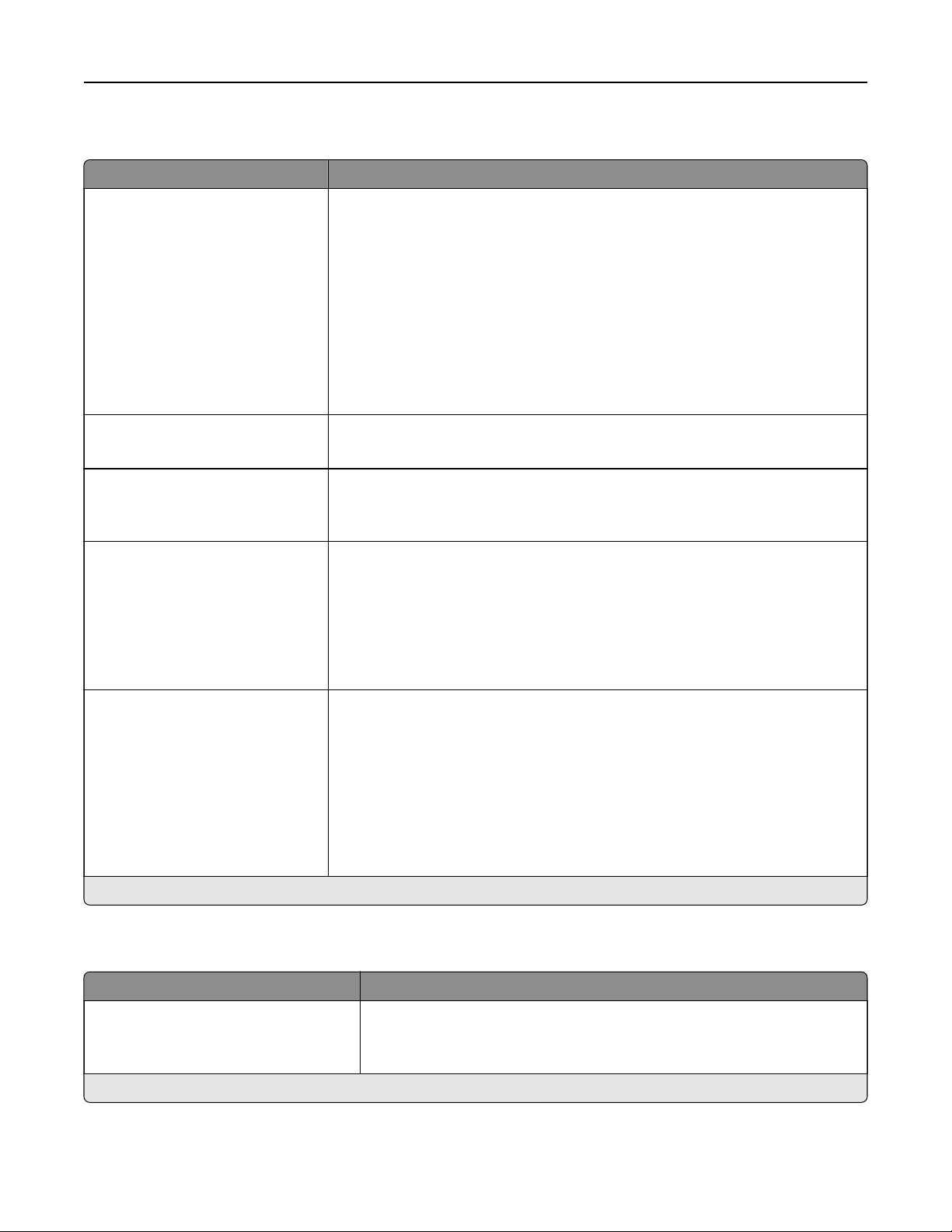
Finishing
Menu item Description
Staple Job
O*
1 staple, top left corner
2 staples, left
1 staple, top right corner
2 staples, top
1 staple, bottom left corner
2 staples, bottom
1 staple, bottom right corner
2 staples, right
Specify the staple position for all print jobs.
Note: This menu item appears only when a staple finisher is installed.
Staple Test
Start
Determine whether the staple finisher is functioning properly.
Note: This menu item appears only when a staple
finisher
is installed.
Hole Punch
O*
On
Punch holes along the edge of the printed output.
Note: This menu item appears only when a staple, hole punch
finisher
is
installed.
Hole Punch Mode
2 holes
3 holes
4 holes
Set the hole punch mode for the printed output.
Notes:
• 3 holes is the U.S. factory default setting. 4 holes is the international
factory default setting.
• This menu item appears only when a staple, hole punch finisher is
installed.
Oset Pages
None*
Between Copies
Between Jobs
Oset the output of each print job or each copy of a print job.
Notes:
• Between Copies osets each copy of a print job if Collate is set to On
[1,2,1,2,1,2]. If Collate is set to O [1,1,1,2,2,2], then each set of printed
pages is
oset,
such as all pages designated as 1 and all pages
designated as 2.
• Between Jobs sets the same
oset
position for the entire print job
regardless of the number of copies printed.
Note: An asterisk (*) next to a value indicates the factory default setting.
Setup
Menu item Description
Printer Language
PCL Emulation
PS Emulation*
Set the printer language.
Note: Setting a printer language default does not prevent a software
program from sending print jobs that use another printer language.
Note: An asterisk (*) next to a value indicates the factory default setting.
Use printer menus 233
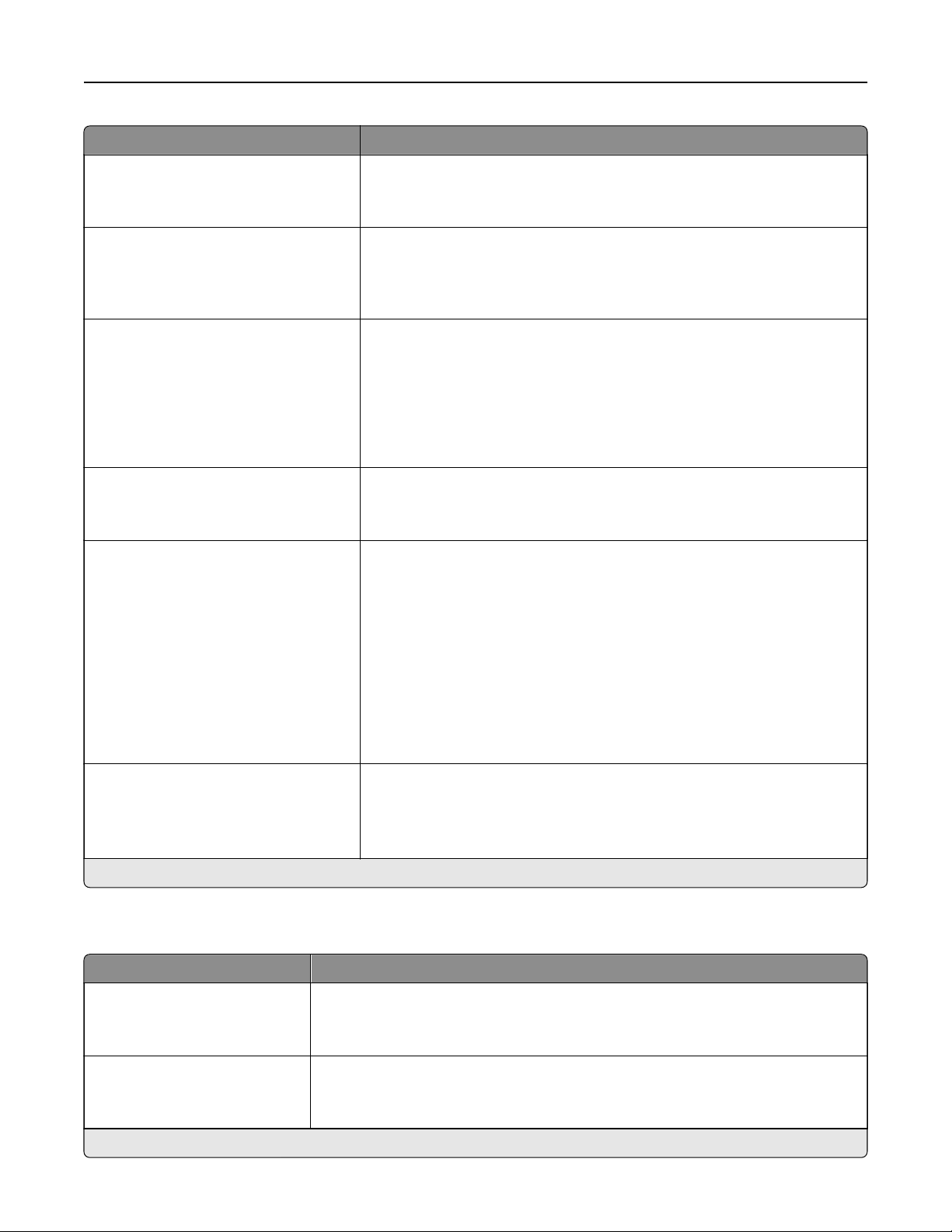
Menu item Description
Job Waiting
O*
On
Preserve print jobs requiring supplies so that jobs not requiring the missing
supplies can print.
Note: This menu item appears only when a hard disk is installed.
Job Hold Timeout
0–255 (30*)
Set the time in seconds that the printer waits for user intervention before
it holds jobs that require unavailable resources and continues to print other
jobs in the print queue.
Note: This menu item appears only when a hard disk is installed.
Printer Usage
Max Speed
Max Yield*
Determine how the developer units operate during printing.
Notes:
• When set to Max Yield, the developer units slow down or stop while
printing groups of black-only pages.
• When set to Max Speed, the developer units always run while
printing, whether color or black pages are being printed.
Download Target
RAM*
Disk
Specify where to save all permanent resources that have been
downloaded to the printer.
Note: This menu item appears only when a hard disk is installed.
Resource Save
O*
On
Determine what the printer does with downloaded resources when it
receives a job that requires more than the available memory.
Notes:
• When set to O, the printer retains downloaded resources only until
memory is needed. Resources associated with the inactive printer
language are deleted.
• When set to On, the printer preserves all the permanent
downloaded resources across all language switches. When
necessary, the printer shows memory full messages instead of
deleting permanent resources.
Print All Order
Alphabetical*
Newest First
Oldest First
Specify the order when you choose to print all held and confidential jobs.
Note: An asterisk (*) next to a value indicates the factory default setting.
Quality
Menu item Description
Print Mode
Black and White
Color*
Set how the printer generates color content.
Print Resolution
2400 Image Q*
1200 dpi
Set the resolution for the printed output.
Note: An asterisk (*) next to a value indicates the factory default setting.
Use printer menus 234
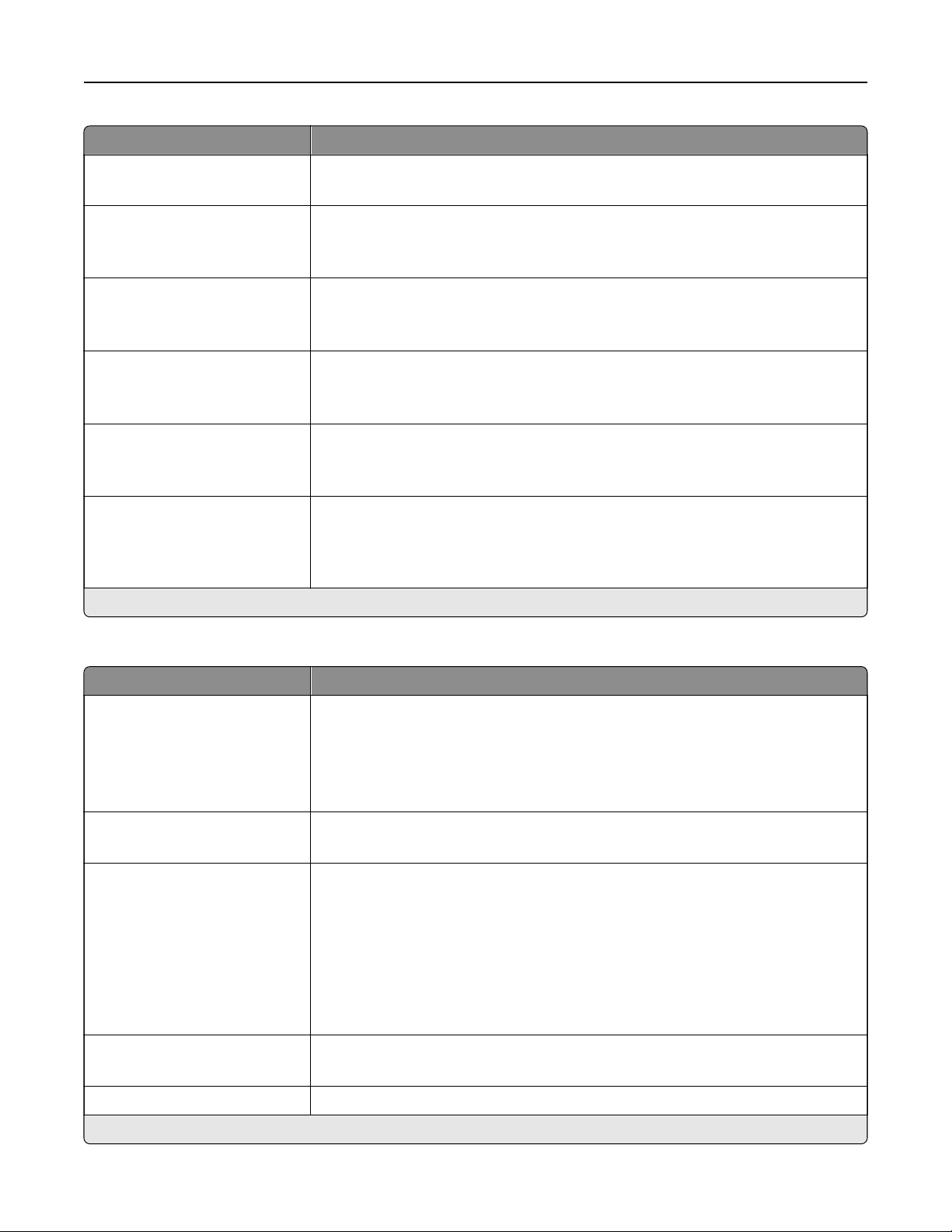
Menu item Description
Toner Darkness
1 to 5 (4*)
Determine the lightness or darkness of text images.
Halftone
Normal*
Detail
Enhance the printed output to have smoother lines with sharper edges.
Color Saver
O*
On
Reduce the amount of toner used to print graphics and images.
Note: When set to On, this setting overrides the value of the Toner Darkness
setting.
RGB Brightness
‑6 to 6 (0*)
Adjust the brightness of every RGB and gray object on the page.
Note: This setting does not
aect
files
where CMYK color
specifications
are
used.
RGB Contrast
‑6 to 6 (0*)
Adjust the contrast of every RGB and gray object on a page.
Note: This setting does not aect files where CMYK color specifications are
used.
RGB Saturation
0 to 5 (0*)
Preserve the black and white values while adjusting the color values of every
object on the page.
Note: This setting does not aect files where CMYK color specifications are
used.
Note: An asterisk (*) next to a value indicates the factory default setting.
Advanced Imaging
Menu item Description
Color Balance
Cyan (0*)
Magenta (0*)
Ye l l o w ( 0* )
Black (0*)
Adjust the amount of toner that is used for each color.
Color Balance
Reset Defaults
Reset all color settings to their default values.
Color Correction
O
Auto*
Manual
Modify the color settings used to print documents.
Notes:
• O sets the printer to receive the color correction from the software.
• Auto sets the printer to apply dierent color profiles to each object on the
printed page.
• Manual allows the customization of the RGB or CMYK color conversions
applied to each object on the printed page.
Color Samples
Print Color Samples
Print sample pages for each of the RGB and CMYK color conversion tables used
in the printer.
Color Adjust Calibrate the printer to adjust color variations in the printed output.
Note: An asterisk (*) next to a value indicates the factory default setting.
Use printer menus 235
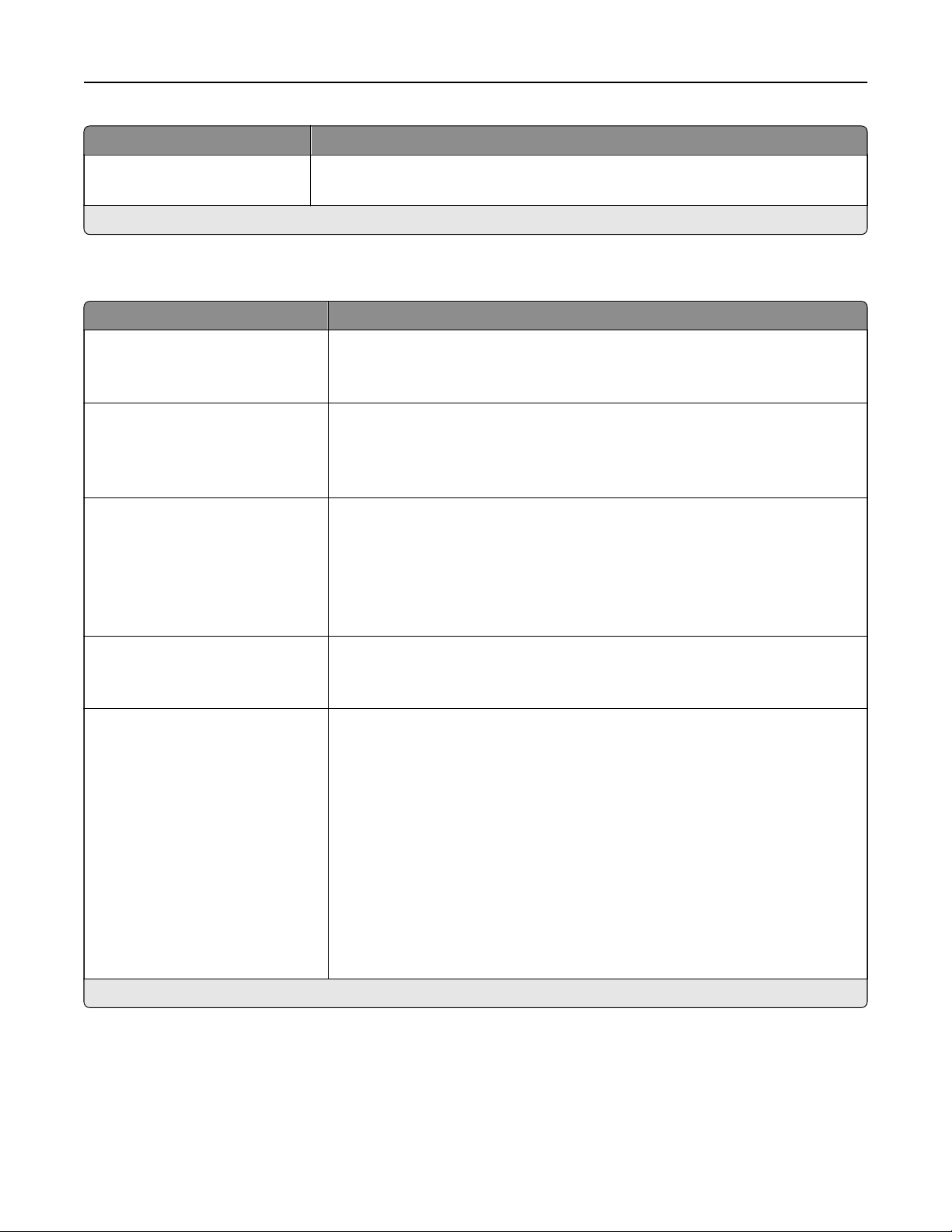
Menu item Description
Spot Color Replacement
Set Custom CMYK
Assign specific CMYK values to twenty named spot colors.
Note: An asterisk (*) next to a value indicates the factory default setting.
Job Accounting
Menu item Description
Job Accounting
O*
On
Set the printer to create a log of the print jobs that it receives.
Note: This menu item appears only when a hard disk or an intelligent storage
drive (ISD) is installed.
Accounting Log Frequency
Daily
Weekly
Monthly*
Specify how often the printer creates a log file.
Log Action at End of Frequency
None*
E‑mail Current Log
E‑mail & Delete Current Log
Post Current Log
Post & Delete Current Log
Specify how the printer responds when the frequency threshold expires.
Note: The value
defined
in Accounting Log Frequency determines when this
action is triggered.
Log Near Full Level
O
On (5)*
Specify the maximum size of the log file before the printer executes the Log
Action at Near Full.
Note: This menu item appears only when a hard disk or an ISD is installed.
Log Action at Near Full
None*
E‑mail Current Log
E‑mail & Delete Current Log
E‑mail & Delete Oldest Log
Post Current Log
Post & Delete Current Log
Post & Delete Oldest Log
Delete Current Log
Delete Oldest Log
Delete All But Current
Delete All Logs
Specify how the printer responds when the hard disk or ISD is nearly full.
Note: The value defined in Log Near Full Level determines when this action
is triggered.
Note: An asterisk (*) next to a value indicates the factory default setting.
Use printer menus 236
Menu item Description
Log Action at Full
None*
E‑mail & Delete Current Log
E‑mail & Delete Oldest Log
Post & Delete Current Log
Post & Delete Oldest Log
Delete Current Log
Delete Oldest Log
Delete All But Current
Delete All Logs
Specify how the printer responds when hard disk or ISD usage reaches the
maximum limit (100MB).
URL to Post Log Specify where the printer posts job accounting logs.
E
‑mail Address to Send Logs Specify the e‑mail address to which the printer sends job accounting logs.
Log File Prefix Specify the prefix for the log files.
Note: The current host name
defined
in the TCP/IP menu is used as the
default log
file
prefix.
Note: An asterisk (*) next to a value indicates the factory default setting.
PDF
Menu item Description
Scale To Fit
O*
On
Scale the page content to fit the selected paper size.
Annotations
Print
Do Not Print*
Specify whether to print annotations in the PDF.
Print PDF Error
O
On*
Enable the printing of PDF error.
Note: An asterisk (*) next to a value indicates the factory default setting.
PostScript
Menu item Description
Print PS Error
O*
On
Print a page that describes the PostScript® error.
Note: When an error occurs, processing of the job stops, the printer
prints an error message, and the rest of the print job is flushed.
Minimum Line Width
1–30 (2*)
Set the minimum stroke width.
Note: Jobs printed in 1200 dpi use the value directly.
Note: An asterisk (*) next to a value indicates the factory default setting.
Use printer menus 237
Menu item Description
Lock PS Startup Mode
O
On*
Disable the SysStart file.
Note: Enabling the SysStart
file
exposes your printer or network to a
security risk.
Image Smoothing
O*
On
Enhance the contrast and sharpness of low‑resolution images.
Note: This setting has no eect on images with a resolution of 300 dpi or
higher.
Font Priority
Resident*
Flash/Disk
Establish the font search order.
Notes:
• Resident sets the printer to search its memory for the requested font
before searching the hard disk or intelligent storage drive (ISD).
• Flash/Disk sets the printer to search the hard disk or ISD for the
requested font before searching the printer memory.
• This menu item appears only when a hard disk or an ISD is installed.
Wait Timeout
O
On* (40 seconds)
Enable the printer to wait for more data before canceling a print job.
Note: An asterisk (*) next to a value indicates the factory default setting.
PCL
Menu item Description
Font Source
Resident*
Disk
Download
Flash
All
Select the source which contains the default font selection.
Notes:
• Disk and Flash appear only when a non‑defective, non‑protected
hard disk or flash memory that contains fonts is installed.
• Download appears only if downloaded fonts exist in the printer
memory.
Font Name
[List of available fonts] (Courier*)
Select a font from the specified font source.
Symbol Set
[List of available symbol set] (10U
PC‑8*)
Specify the symbol set for each font name.
Note: A symbol set is a set of alphabetic and numeric characters,
punctuation, and special symbols. Symbol sets support the dierent
languages or specific programs such as math symbols for scientific text.
Pitch
0.08–100.00 (10.00*)
Specify the pitch for fixed or monospaced fonts.
Note: Pitch refers to the number of fixed‑space characters in a horizontal
inch of type.
Note: An asterisk (*) next to a value indicates the factory default setting.
Use printer menus 238
Menu item Description
Orientation
Portrait*
Landscape
Reverse Portrait
Reverse Landscape
Specify the orientation of text and graphics on the page.
Lines per Page
1–255
Specify the number of lines of text for each page printed through the PCL®
data stream.
Notes:
• This menu item activates vertical escapement that causes the
selected number of requested lines to print between the default
margins of the page.
• 60 is the U.S. factory default setting. 64 is the international factory
default setting.
PCL5 Minimum Line Width
1–30 (2*)
Set the initial minimum stroke width.
PCLXL Minimum Line Width
1–30 (2*)
A4 Width
198 mm*
203 mm
Set the width of the logical page on A4‑size paper.
Note: Logical page is the space on the physical page where data is
printed.
Auto CR after LF
On
O*
Set the printer to perform a carriage return after a line feed control
command.
Note: Carriage return is a mechanism that commands the printer to move
the position of the cursor to the first position on the same line.
Auto LF after CR
On
O*
Set the printer to perform a line feed after a carriage return control
command.
Tray Renumber
Assign MP Feeder
Assign Tray [x]
Assign Manual Paper
Assign Manual Envelope
Configure the printer to work with a dierent print driver or custom
application that uses a dierent set of source assignments to request a
given paper source.
Tray Renumber
View Factory Defaults
Show the factory default value assigned for each paper source.
Tray Renumber
Restore Defaults
Restore the tray renumber values to their factory defaults.
Print Timeout
O
On* (90 seconds)
Set the printer to end a print job after it has been idle for the specified
amount of time.
Note: An asterisk (*) next to a value indicates the factory default setting.
Use printer menus 239
Image
Menu item Description
Auto Fit
On
O*
Select the best available paper size and orientation setting for an image.
Note: When set to On, this menu item overrides the scaling and orientation
settings for the image.
Invert
O*
On
Invert bitonal monochrome images.
Note: This menu item does not apply to GIF or JPEG image formats.
Scaling
Anchor Top Left
Best Fit*
Anchor Center
Fit Height/Width
Fit Height
Fit Width
Adjust the image to fit the printable area.
Note: When Auto Fit is set to On, Scaling is automatically set to Best Fit.
Orientation
Portrait*
Landscape
Reverse Portrait
Reverse Landscape
Specify the orientation of text and graphics on the page.
Note: An asterisk (*) next to a value indicates the factory default setting.
Paper
Tray Configuration
Menu item Description
Default Source
Tray [x] (1*)
Multipurpose Feeder
Manual Paper
Manual Envelope
Set the paper source for all print jobs.
Paper Size/Type
Tray [x]
Multi‑Purpose Feeder
Manual Paper
Manual Envelope
Specify the paper size or paper type loaded in each paper source.
Note: An asterisk (*) next to a value indicates the factory default setting.
Use printer menus 240
Menu item Description
Substitute Size
O
Statement/A5
Letter/A4
11 x 17/A3
All Listed*
Set the printer to substitute a specified paper size if the requested size is not
loaded in any paper source.
Notes:
• O prompts the user to load the required paper size.
• All Listed allows all available substitutions.
Configure MP
Cassette*
Manual
First
Determine the behavior of the multipurpose feeder.
Notes:
• Cassette configures the multipurpose feeder as the automatic paper
source.
• Manual sets the multipurpose feeder only for manual-feed print jobs.
• First configures the multipurpose feeder as the primary paper source.
Note: An asterisk (*) next to a value indicates the factory default setting.
Media Configuration
Universal Setup
Menu item Description
Units of Measure
Inches
Millimeters
Specify the unit of measurement for the universal paper.
Note: Inches is the U.S. factory default setting. Millimeters is the
international factory default setting.
Portrait Width
3.5–52 inches (8.5*)
89–1321 mm (216*)
Set the portrait width of the universal paper.
Portrait Height
3.5–52 inches (14*)
89–1321 mm (356*)
Set the portrait height of the universal paper.
Feed Direction
Short Edge*
Long Edge
Set the printer to pick paper from the short edge or long edge
direction.
Note: Long Edge appears only when the longest edge is shorter
than the maximum width supported.
Note: An asterisk (*) next to a value indicates the factory default setting.
Use printer menus 241

Custom Scan Sizes
Menu item Description
Custom Scan Size [x]
Scan Size Name
Width
1–8.5 inches (8.5*)
25.4–215.9 mm (215.9*)
Height
1–25 inches (11*)
25.4–635 mm (279.4*)
Orientation
Portrait*
Landscape
2 scans per side
O*
On
Assign a scan size name and configure the scan settings.
Media Types
Menu item Description
Plain
Card Stock
Recycled
Glossy
Labels
Bond
Envelope
Rough Envelope
Letterhead
Preprinted
Colored Paper
Light
Heavy
Rough/Cotton
Custom Type [X]
Specify the texture, weight, and orientation of the paper.
Use printer menus 242

Copy
Copy Defaults
Menu item Description
Content Type
Te xt
Te xt /P h ot o*
Photo
Graphics
Improve the output result based on the content of the original document.
Content Source
Black and White Laser
Color Laser*
Inkjet
Photo/Film
Magazine
Newspaper
Press
Other
Improve the output result based on the source of the original document.
Sides
1 sided to 1 sided*
1 sided to 2 sided
2 sided to 1 sided
2 sided to 2 sided
Specify the scanning behavior based on the original document.
Separator Sheets
None*
Between Copies
Between Jobs
Between Pages
Specify whether to insert blank separator sheets when printing.
Separator Sheet Source
Tray [x] (1*)
Multipurpose Feeder
Specify the paper source for the separator sheet.
Color
O
On*
Auto
Set the printer to generate color output from a scan job.
Pages per Side
O*
2 Portrait pages
4 Portrait pages
2 Landscape pages
4 Landscape pages
Specify the number of page images to print on one side of a sheet of paper.
Note: An asterisk (*) next to a value indicates the factory default setting.
Use printer menus 243

Menu item Description
Print Page Borders
O*
On
Place a border around each image when printing multiple pages on a single
page.
Collate
O
[1,1,1,2,2,2]
On [1,2,1,2,1,2]*
Print multiple copies in sequence.
Oset Pages
None*
Between Copies
Between Jobs
Oset the output of each print job or each copy of a print job.
Notes:
• Between Copies osets each copy of a print job if Collate is set to On
[1,2,1,2,1,2]. If Collate is set to O [1,1,1,2,2,2], then each set of printed pages
is
oset,
such as all page 1s and all page 2s.
• Between Jobs sets the same oset position for the entire print job
regardless of the number of copies printed.
• This menu item appears only when a staple, hole punch finisher is
installed.
Staple
O*
1 staple, top left corner
2 staples, left
1 staple, top right corner
2 staples, top
1 staple, bottom left corner
2 staples, bottom
1 staple, bottom right corner
2 staples, right
4 staples
Specify the staple position for all print jobs.
Note: This menu item appears only when a
finisher
is installed.
Punch
O*
2 holes
3 holes
4 holes
Punch holes on the printed output.
Note: This menu item appears only when a staple, hole punch finisher is
installed.
“Copy from” Size
[List of paper sizes]
Set the paper size of the original document.
Note: Letter is the U.S. factory default setting. A4 is the international factory
default setting.
“Copy to” Source
Tray [x] (1*)
Multipurpose Feeder
Auto Size Match
Specify the paper source for the copy job.
Temp eratu re
‑4 to 4 (0*)
Specify whether to generate a cooler or warmer output.
Note: An asterisk (*) next to a value indicates the factory default setting.
Use printer menus 244
Menu item Description
Darkness
1 to 9 (5*)
Adjust the darkness of the scanned image.
Number of Copies
1–9999 (1*)
Specify the number of copies.
Header/Footer
Left Header
Middle Header
Right Header
Left Footer
Middle Footer
Right Footer
Specify the header or footer information on the scanned image.
Overlay
Confidential
Copy
Draft
Urgent
Custom
O*
Specify the overlay text to print on each copy.
Custom overlay Type the text for the Custom choice in Overlay menu.
Note: An asterisk (*) next to a value indicates the factory default setting.
Advanced Imaging
Menu item Description
Color Balance
Cyan to Red
-4 to 4 (0*)
Magenta to Green
-4 to 4 (0*)
Ye l l o w t o B lu e
-4 to 4 (0*)
Adjust the color intensity for cyan, magenta, and yellow.
Color Dropout
Color Dropout (None*)
Default Red Threshold (128*)
Default Green Threshold (128*)
Default Blue Threshold (128*)
Specify which color to drop during scanning, and adjust the dropout setting for
that color.
Auto Color Detect
Color Sensitivity
1–9 (5*)
Area Sensitivity
1–9 (5*)
Configure the auto color detection setting.
Note: An asterisk (*) next to a value indicates the factory default setting.
Use printer menus 245
Menu item Description
Contrast
Best for content*
0–5
Specify the contrast for the scanned image.
Background Removal
Background Detection
Content‑based*
Fixed
Level
‑4 to 4 (0*)
Remove the background color or image noise from the original document.
Notes:
• Content-based removes the background color from the original
document .
• Fixed removes image noise from a photo.
Auto Center
O*
On
Align the content at the center of the page.
Mirror Image
O*
On
Create a mirror image of the original document.
Negative Image
O*
On
Create a negative image of the original document.
Shadow Detail
‑4 to 4 (0*)
Adjust the shadow detail in the original document.
Scan Edge to Edge
O*
On
Scan the original document from edge to edge.
Sharpness
1–5 (3*)
Adjust the sharpness of the scanned image.
Note: An asterisk (*) next to a value indicates the factory default setting.
Admin Controls
Menu item Description
Allow Color Copies
O
On*
Print copies in color.
Allow Priority Copies
O
On*
Interrupt a print job to make copies.
Custom Job Scanning
O*
On
Set the printer to scan the first set of original documents using the specified
settings, and then scan the next set with the same or dierent settings.
Note: This menu item appears only when a hard disk is installed.
Note: An asterisk (*) next to a value indicates the factory default setting.
Use printer menus 246
Menu item Description
Allow Save as Shortcut
O
On*
Save copy settings as a shortcut.
Sample Copy
O*
On
Print a sample copy to check the quality before printing the remaining copies.
Note: This menu item appears only when a hard disk is installed.
Note: An asterisk (*) next to a value indicates the factory default setting.
Fax
Fax Defaults
Fax Mode
Menu item Description
Fax Mode
Fax*
Fax Server
Disabled
Select a fax mode.
Note: An asterisk (*) next to a value indicates the factory default setting.
Fax Setup
General Fax settings
Menu item Description
Fax Name Specify your fax ID.
Fax Number Specify your fax number.
Fax ID
Fax Name
Fax Number*
Set the fax ID to use during fax negotiation.
Enable Manual Fax
O*
On
Turn on the manual fax function in the printer.
Notes:
• This menu item requires a line splitter and a telephone handset.
• Use a regular telephone line to answer an incoming fax job and to dial a
fax number.
• To go directly to the manual fax function, touch # and 0 on the keypad.
Note: An asterisk (*) next to a value indicates the factory default setting.
Use printer menus 247
Menu item Description
Memory Use
All receive
Mostly receive
Equal*
Mostly send
All send
Set the amount of internal printer memory allocated for faxing.
Note: This menu item prevents memory
buer
conditions and failed faxes.
Cancel Faxes
Allow*
Don't Allow
Cancel outgoing or incoming faxes.
Fax Number Masking
O*
From Left
From Right
Specify the format for masking an outgoing fax number.
Digits to Mask
0–58 (0*)
Specify the number of digits to mask in an outgoing fax number.
Enable Line Connected
Detection
O
On*
Determine whether a telephone line is connected to the printer.
Note: Events are detected immediately.
Enable Line In Wrong Jack
Detection
O
On*
Determine whether a telephone line is connected to the correct port on the
printer.
Note: Events are detected immediately.
Enable Extension in Use
Support
O
On*
Determine whether a telephone line is used by another device, such as another
phone on the same line.
Note: Events are detected immediately.
Optimize Fax Compatibility Configure the printer fax functionality for optimal compatibility with other fax
machines.
Fax Transport
T.38
Analog
G.711
etherFAX
Set the fax transport method.
Note: This menu item appears only if an etherFAX or Fax over IP (FoIP) license
bundle is installed in the printer.
Note: An asterisk (*) next to a value indicates the factory default setting.
HTTPS Fax Settings
Note: This menu appears only if Fax Transport is set to etherFAX.
Menu item Description
HTTPS service URL Specify the etherFAX service URL.
Note: An asterisk (*) next to a value indicates the factory default setting.
Use printer menus 248
Menu item Description
HTTPS Proxy Specify a proxy server URL.
HTTPS Proxy User Specify the user name and password for the proxy server.
HTTPS Proxy Password
Fax Send Encryption
Disabled
Enabled*
Required
Enable encryption for outgoing fax messages.
Fax Receive Encryption
Disabled
Enabled*
Required
Enable encryption for incoming fax messages.
HTTPS Fax Status Show the etherFAX communication status.
Note: An asterisk (*) next to a value indicates the factory default setting.
Fax Send Settings
Menu item Description
Resolution
Standard*
Fine
Super Fine
Ultra Fine
Set the resolution of the scanned image.
Note: A higher resolution increases fax transmission time and requires more
memory.
Original Size
[List of paper sizes] (Mixed
Sizes*)
Specify the size of the original document.
Orientation
Portrait*
Landscape
Specify the orientation of the original document.
Sides
O*
Short Edge
Long Edge
Specify the orientation of the original document when scanning on both sides
of the document.
Content Type
Te xt *
Te xt /P h ot o
Photo
Graphics
Improve the output result based on the content of the original document.
Note: An asterisk (*) next to a value indicates the factory default setting.
Use printer menus 249
Menu item Description
Content Source
Black and White Laser
Color Laser*
Inkjet
Photo/Film
Magazine
Newspaper
Press
Other
Improve the output result based on the source of the original document.
Darkness
1–9 (5*)
Adjust the darkness of the scanned image.
Behind a PABX
On
O*
Set the printer to dial a fax number without waiting to recognize the dial tone.
Note: Private Automated Branch Exchange (PABX) is a telephone network that
allows a single access number to oer multiple lines to outside callers.
Dial Mode
To ne *
Pulse
Specify the dial mode for incoming or outgoing faxes.
Note: An asterisk (*) next to a value indicates the factory default setting.
Advanced Imaging
Menu item Description
Color Balance
Cyan ‑ Red
-4 to 4 (0*)
Magenta ‑ Green
-4 to 4 (0*)
Ye l l o w ‑ Blue
-4 to 4 (0*)
Adjust the color intensity during scanning.
Color Dropout
Color Dropout (None*)
Default Red Threshold (128*)
Default Green Threshold
(128*)
Default Blue Threshold (128*)
Specify which color to drop during scanning, and adjust the dropout setting for
that color.
Note: An asterisk (*) next to a value indicates the factory default setting.
Use printer menus 250
Menu item Description
Contrast
Best for Content*
0
1
2
3
4
5
Set the contrast of the output.
Background Removal
Level
‑4 to 4 (0*)
Adjust the amount of background visible on a scanned image.
Mirror Image
O*
On
Create a mirror image of the original document.
Negative Image
O*
On
Create a negative image of the original document.
Shadow Detail
‑4 to 4 (0*)
Adjust the amount of shadow detail visible on a scanned image.
Scan Edge to Edge
On
O*
Allow edge‑to‑edge scanning of the original document.
Sharpness
1–5 (3*)
Adjust the sharpness of the scanned image.
Temp eratu re
‑4 to 4 (0*)
Specify whether to generate a cooler or warmer output.
Note: An asterisk (*) next to a value indicates the factory default setting.
Admin Controls
Menu item Description
Automatic Redial
0–9 (5*)
Specify the number of attempts that the printer redials before it cancels sending
the fax to a specified destination.
Redial Frequency
1–200 minutes (3*)
Increase the time between redial attempts to increase the chance of sending
fax successfully.
Enable ECM
On*
O
Activate Error Correction Mode (ECM) for fax jobs.
Note: ECM detects and corrects errors in the fax transmission process caused
by telephone line noise and poor signal strength.
Note: An asterisk (*) next to a value indicates the factory default setting.
Use printer menus 251
Menu item Description
Enable Fax Scans
On*
O
Create faxes using the printer scanner.
Driver to Fax
On*
O
Allow the print driver to send fax.
Allow Save as Shortcut
On*
O
Save fax numbers as shortcuts on the printer.
Max Speed
33600*
14400
9600
4800
2400
Set the maximum speed for sending fax.
Custom Job Scanning
O*
On
Turn on scanning of custom jobs by default.
Note: This menu item appears only when a hard disk or an intelligent storage
drive (ISD) is installed.
Scan Preview
O*
On
Show a preview of the scan on the display.
Note: This menu item appears only when a hard disk or an ISD is installed.
Adjust ADF Skew
O
On*
Correct slight skew in the scanned image.
Enable Color Fax Scans
O
by Default*
On by Default
Never Use
Always Use
Enable color scans for fax.
Auto Convert Color Faxes to
Mono Faxes
On*
O
Convert all outgoing color faxes to black and white.
Confirm Fax Number
O*
On
Ask the user to confirm the fax number.
Dial Prefix Set a dialing prefix.
Dialing Prefix Rules Establish a dialing prefix rule.
Note: An asterisk (*) next to a value indicates the factory default setting.
Use printer menus 252
Fax Receive Settings
Menu item Description
Fax Job Waiting
None*
To ne r
Toner and Supplies
Remove fax jobs that request specific unavailable resources from the print
queue.
Rings to Answer
1–25 (3*)
Set the number of rings required before the printer answers the incoming
calls.
Auto Reduction
On*
O
Scale incoming fax to fit on the page.
Paper Source
Tray [X]
Auto*
Set the paper source for printing incoming fax.
Sides
On
O*
Print on both sides of the paper.
Separator Sheets
None*
Before Job
After Job
Specify whether to insert blank separator sheets when printing.
Separator Sheet Source
Tray [X] (1*)
Specify the paper source for the separator sheet.
Output Bin
Standard Bin
Specify the output bin for received faxes.
Fax Footer
On
O*
Print the transmission information at the bottom of each page from a received
fax.
Fax Footer Time Stamp
Receive*
Print
Print the time stamp at the bottom of each page from a received fax.
Holding Faxes
Held Fax Mode
O*
Always On
Manual
Scheduled
Hold received faxes from printing until they are released.
Holding Faxes
Fax Holding Schedule
Assign a schedule for holding faxes.
Note: This menu item appears only if Held Fax Mode is set to Scheduled.
Note: An asterisk (*) next to a value indicates the factory default setting.
Use printer menus 253

Admin Controls
Menu item Description
Enable Fax Receive
On*
O
Set the printer to receive fax.
Enable Color Fax Receive
On*
O
Set the printer to receive fax in color.
Enable Caller ID
On
O*
Show the caller ID information of the incoming call on the printer display.
Block No Name Fax
On
O*
Block incoming faxes without fax IDs.
Banned Fax List
Add Banned Fax
Specify the phone numbers that you want to block.
Answer On
All Rings*
Single Ring Only
Double Ring Only
Triple Ring Only
Single or Double Rings Only
Single or Triple Rings Only
Double or Triple Rings Only
Set a distinctive ring pattern for incoming fax.
Auto Answer
On*
O
Set the printer to receive fax automatically.
Manual Answer Code
0–9 (9*)
Manually enter a code on the telephone number pad to begin receiving fax.
Notes:
• This menu item appears only when the printer shares a line with a
telephone.
• This menu item appears only when you set the printer to receive fax
manually.
Fax Forwarding
Print*
Print and Forward
Forward
Specify whether to forward received fax.
Forward To
Destination 1
Destination 2
Specify where to forward received fax.
Note: This menu item appears only when Fax Forwarding is set to Print and
Forward or Forward.
Note: An asterisk (*) next to a value indicates the factory default setting.
Use printer menus 254
Menu item Description
Max Speed
33600*
14400
9600
4800
2400
Set the maximum speed for transmitting fax.
Note: An asterisk (*) next to a value indicates the factory default setting.
Fax Cover Page
Menu item Description
Fax Cover Page
O by Default*
On by Default
Never Use
Always Use
Configure the settings for the fax cover page.
Include To field
O*
On
Include From field
O*
On
From
Include Message Field
O*
On
Message:
Include Logo
O*
On
Include Footer [x]
O*
On
Footer [x]
Note: An asterisk (*) next to a value indicates the factory default setting.
Use printer menus 255
Fax Log Settings
Menu item Description
Transmission Log Frequency
Always*
Never
Only for Error
Specify how often the printer creates a transmission log.
Transmission Log Action
Print
O
On*
E‑mail
O*
On
Print or e‑mail a log for successful fax transmission or transmission error.
Receive Error Log
Print Never*
Print on Error
Print a log for fax‑receive failures.
Auto Print Logs
On*
O
Print all fax activity.
Log Paper Source
Tray [x] (1*)
Specify the paper source for printing logs.
Logs Display
Remote Fax Name*
Dialed Number
Identify the sender by remote fax name or fax number.
Enable Job Log
On*
O
View a summary of all fax jobs.
Enable Call Log
On*
O
View a summary of the fax call history.
Log Output Bin
Standard Bin*
Bin [x]
Specify the output bin for printed logs.
Note: An asterisk (*) next to a value indicates the factory default setting.
Speaker Settings
Menu item Description
Speaker Mode
Always
O*
Always On
On until Connected
Set the fax speaker mode.
Note: An asterisk (*) next to a value indicates the factory default setting.
Use printer menus 256
Menu item Description
Speaker Volume
Low*
High
Adjust the fax speaker volume.
Ringer Volume
O*
On
Enable the ringer volume.
Note: An asterisk (*) next to a value indicates the factory default setting.
VoIP Settings
Menu item Description
VoIP Protocol
SIP*
H.323
Set the Voice over Internet Protocol (VoIP) protocol.
STUN Server Specify the STUN server to traverse a firewall.
Force Fax Mode
O
On*
Switch VoIP gateway from analog to T.38 at the beginning of a fax call.
Force Fax Mode Delay
0–15 (7*)
Set the time delay in seconds when sending another invite of Force Fax Mode.
Note: An asterisk (*) next to a value indicates the factory default setting.
SIP Settings
Menu item Description
Proxy Specify the IP address of the system that converts the phone number to an IP
address where the fax is sent.
Registrar Specify a name or IP address of the system that handles the registration of
Session Initiation Protocol (SIP) clients.
User Specify the name of the user for SIP.
Password Specify the password that is used in registering with the SIP Registrar.
Auth ID The user name that is used when registering.
Note: If the Auth ID setting is not set, the setting uses the user name of the
User field instead.
Transport For Registration
UDP*
TCP
Set the SIP transport type for registration.
Transport For Incoming Calls
UDP*
TCP
UDP And TCP
Set the SIP transport type for incoming calls.
Note: An asterisk (*) next to a value indicates the factory default setting.
Use printer menus 257
Menu item Description
Transport For Outgoing Calls
UDP*
TCP
Set the SIP transport type for outgoing calls.
Outbound Proxy Specify an outbound proxy to forward all SIP communication.
Contact Specify a contact name for SIP.
Realm Specify a realm name for SIP.
Note: If the Realm setting is not set, the setting uses the name of the Contact
instead.
SIP Registration Status Show the status of the SIP Registration.
Note: An asterisk (*) next to a value indicates the factory default setting.
H.323 Settings
Menu item Description
Gateway Specify the H.323 gateway IP address.
Gatekeeper Specify the H.323 gatekeeper.
User Specify the user name used with the H.323 gateway.
Password Specify the password for the H.323 gateway.
Enable Fast Start
O*
On
Enable Fast Start.
Disable H.245 Tunneling
O*
On
Disable H.323 Tunneling.
Disable Gatekeeper Discovery
O
On*
Disable H.323 Gatekeeper Discovery.
Note: An asterisk (*) next to a value indicates the factory default setting.
T.38 Settings
Menu item Description
Indicator Redundancy
0–5 (3*)
Set the number of times that a fax indicator is repeated in the T.38
communication.
Low Speed Redundancy
0–5 (3*)
Set the number of times that low speed data is repeated in the T.38
communication.
High Speed Redundancy
0–5 (1*)
Set the number of times that high-speed data is repeated in the T.38
communication.
Note: An asterisk (*) next to a value indicates the factory default setting.
Use printer menus 258
Fax Server Setup
General Fax Settings
Menu item Description
To Form at Specify a fax recipient.
Note: If you want to use the fax number, then type the number sign (#) before
a number.
Reply Address Specify a reply address for sending fax.
Subject Specify the fax subject and message.
Message
Enable analog receive
O*
On
Set the printer to receive analog faxes.
Note: An asterisk (*) next to a value indicates the factory default setting.
Fax Server E‑mail Settings
Menu item Description
Use E‑mail SMTP Server
On
O*
Use the Simple Mail Transfer Protocol (SMTP) settings for e‑mail in receiving
and sending faxes.
Note: When set to On, all other settings of the Fax Server E‑mail Settings
menu are not shown.
Primary SMTP Gateway Type the IP address or host name of the primary SMTP server.
Primary SMTP Gateway Port
1–65535 (25*)
Enter the port number of the primary SMTP server.
Secondary SMTP Gateway Type the server IP address or host name of your secondary or backup SMTP
server.
Secondary SMTP Gateway Port
1–65535 (25*)
Enter the server port number of your secondary or backup SMTP server.
SMTP Timeout
5–30 (30*)
Set the time before the printer times out if the SMTP server does not respond.
Reply Address Specify a reply address for sending fax.
Use SSL/TLS
Disabled*
Negotiate
Required
Specify whether to send fax using an encrypted link.
Require Trusted Certificate
O
On*
Specify a trusted certificate when accessing the SMTP server.
Note: An asterisk (*) next to a value indicates the factory default setting.
Use printer menus 259
Menu item Description
SMTP Server Authentication
No authentication required*
Login / Plain
NTLM
CRAM‑MD5
Digest‑MD5
Kerberos 5
Set the authentication type for the SMTP server.
Device
‑Initiated E‑mail
None*
Use Device SMTP Credentials
Specify whether credentials are required for device‑initiated e‑mail.
User
‑Initiated E‑mail
None*
Use Device SMTP Credentials
Use Session User ID and
Password
Use Session E‑mail address
and Password
Prompt user
Specify whether credentials are required for user‑initiated e‑mail.
Use Active Directory Device
Credentials
O*
On
Enable user credentials and group destinations to connect to the SMTP server.
Device Userid Specify the user ID and password to connect to the SMTP server.
Device Password
Kerberos 5 REALM Specify the realm for the Kerberos 5 authentication protocol.
NTLM Domain Specify the domain name for the NTLM security protocol.
Disable "SMTP server not set
up" error
O*
On
Hide the “SMTP server not set up” error message.
Note: An asterisk (*) next to a value indicates the factory default setting.
Use printer menus 260

Fax Server Scan Settings
Menu item Description
Image Format
TIFF (.tif)
PDF (.pdf)*
XPS (.xps)
TXT (.txt)
RTF (.rtf)
DOCX (.docx)
XLSX (.xlsx)
CSV (.csv)
Specify the file format for the scanned image.
Content Type
Te xt *
Te xt /P h ot o
Photo
Graphics
Improve the output result based on the content of the original document.
Content Source
Black and White Laser
Color Laser*
Inkjet
Photo/Film
Magazine
Newspaper
Press
Other
Improve the output result based on the source of the original document.
Fax Resolution
Standard*
Fine
Super Fine
Ultra Fine
Set the fax resolution.
Sides
O*
Short Edge
Long Edge
Specify the orientation of the original document when scanning on both sides
of the document.
Darkness
1–9 (5*)
Set the darkness of the output.
Orientation
Portrait*
Landscape
Specify the orientation of text and graphics on the page.
Note: An asterisk (*) next to a value indicates the factory default setting.
Use printer menus 261
Menu item Description
Original Size
[List of paper sizes]
Set the paper size of the original document.
Notes:
• Mixed Sizes is the U.S. factory default setting. A4 is the international
factory default setting.
• This setting may vary depending on your printer model.
Use Multi
‑Page TIFF
O
On*
Choose between single‑ and multiple‑page TIFF files.
Note: An asterisk (*) next to a value indicates the factory default setting.
E-mail
E
‑mail Setup
Menu item Description
Primary SMTP Gateway Type the IP address or host name of the primary SMTP server for
sending e-mail.
Primary SMTP Gateway Port
1–65535 (25*)
Enter the port number of the primary SMTP server.
Secondary SMTP Gateway Type the server IP address or host name of your secondary or
backup SMTP server.
Secondary SMTP Gateway Port
1–65535 (25*)
Enter the server port number of your secondary or backup SMTP
server.
SMTP Timeout
5–30 seconds (30*)
Set the time before the printer times out if the SMTP server does
not respond.
Reply Address Specify a reply address in the e‑mail.
Always use SMTP default Reply Address
On
O*
Always use the default reply address in the SMTP server.
Use SSL/TLS
Disabled*
Negotiate
Required
Specify whether to send e‑mail using an encrypted link.
Require Trusted Certificate
O
On*
Require a trusted certificate when accessing the SMTP server.
Note: An asterisk (*) next to a value indicates the factory default setting.
Use printer menus 262
Menu item Description
SMTP Server Authentication
No authentication required*
Login / Plain
NTLM
CRAM‑MD5
Digest‑MD5
Kerberos 5
Set the authentication type for the SMTP server.
Device
‑Initiated E‑mail
None*
Use Device SMTP Credentials
Specify whether credentials are required for device‑initiated e‑mail.
User
‑Initiated E‑mail
None*
Use Device SMTP Credentials
Use Session User ID and Password
Use Session E‑mail address and Password
Prompt user
Specify whether credentials are required for user‑initiated e‑mail.
Use Active Directory Device Credentials
O*
On
Specify whether credentials are required for user‑initiated e‑mail.
Device Userid Specify the user ID and password to connect to the SMTP server.
Device Password
Kerberos 5 REALM Specify the realm for the Kerberos 5 authentication protocol.
NTLM Domain Specify the domain name for the NTLM security protocol.
Disable “SMTP server not set up” error
O*
On
Hide the “SMTP server not set up” error message.
Note: An asterisk (*) next to a value indicates the factory default setting.
E‑mail Defaults
Menu item Description
Subject: Specify the e‑mail subject and message.
Message:
File Name Specify the filename for the scanned document.
Note: An asterisk (*) next to a value indicates the factory default setting.
Use printer menus 263

Menu item Description
Format
JPEG (.jpg)
PDF (.pdf)*
TIFF (.tif)
XPS (.xps)
TXT (.txt)
RTF (.rtf)
DOCX (.docx)
CSV (.csv)
Specify the file format of the scanned document.
Note: The menu items may vary depending on your printer model.
Global OCR Settings
Recognized Languages
Auto Rotate
Despeckle
Auto Contrast Enhance
Configure the settings for optical character recognition (OCR).
Note: This menu item appears only if you have purchased and installed an OCR
solution.
PDF Settings
PDF Version (1.5*)
Archival Version (A‑1a*)
Highly Compressed (O*)
Secure (O*)
Archival (PDF/A)
(O*)
Configure the PDF settings of the scanned document.
Notes:
• Archival Version and Archival (PDF/A) are supported only when PDF Version is
set to 1.4.
• Highly Compressed appears only when a hard disk is installed.
Content Type
Te xt
Te xt /P h ot o*
Photo
Graphics
Improve the output result based on the content type of the original document.
Content Source
Black and White Laser*
Color Laser
Inkjet
Photo/Film
Magazine
Newspaper
Press
Other
Improve the output result based on the content source of the original document.
Color
Black and White
Gray
Color*
Auto
Set the printer to capture file content in color or in mono.
Note: An asterisk (*) next to a value indicates the factory default setting.
Use printer menus 264
Menu item Description
Resolution
75 dpi
150 dpi*
200 dpi
300 dpi
400 dpi
600 dpi
Set the resolution of the scanned image.
Darkness
1–9 (5*)
Adjust the darkness of the scanned image.
Orientation
Portrait*
Landscape
Specify the orientation of the original document.
Original Size
Mixed Sizes*
Set the paper size of the original document.
Sides
O*
Short Edge
Long Edge
Specify the orientation of the original document when scanning on both sides of the
document.
Note: An asterisk (*) next to a value indicates the factory default setting.
Advanced Imaging
Menu item Description
Color Balance
Cyan (0*)
Magenta (0*)
Ye l l o w ( 0* )
Adjust the color intensity for cyan, magenta, and yellow.
Color Dropout
Color Dropout
None*
Red
Green
Blue
Default Red Threshold
0–255 (128*)
Default Green Threshold
0–255 (128*)
Default Blue Threshold
0–255 (128*)
Specify which color to drop during scanning, and adjust the dropout
setting for that color.
Note: An asterisk (*) next to a value indicates the factory default setting.
Use printer menus 265
Menu item Description
Auto Color Detect
Color Sensitivity
1–9 (5*)
Area Sensitivity
1–9 (5*)
E‑mail Bit Depth
1 bit*
8 bit
Minimum Scan Resolution
75 dpi
150 dpi
200 dpi
300 dpi*
Configure the auto color detection setting.
JPEG Quality
Best for content*
5–95
Set the JPEG quality of the scanned image.
Contrast
Best for content*
0–5
Specify the contrast for the scanned image.
Background Removal
Background Detection
Content‑based*
Fixed
Level ‑4 to 4 (0*)
Remove the background color or image noise from the original
document.
Notes:
• Content-based removes the background color from the original
document.
• Fixed removes image noise from a photo.
Mirror Image
O*
On
Create a mirror image of the original document.
Negative Image
O*
On
Create a negative image of the original document.
Shadow Detail
‑4 to 4 (0*)
Adjust the shadow detail in the scanned image.
Scan Edge to Edge
O*
On
Scan the original document from edge to edge.
Sharpness
1–5 (3*)
Adjust the sharpness in the scanned image.
Temp eratu re
‑4 to 4 (0*)
Generate a bluer or redder output of the original document.
Note: An asterisk (*) next to a value indicates the factory default setting.
Use printer menus 266
Menu item Description
Blank Pages
Blank Page Removal (Do Not Remove*)
Blank Page Sensitivity (5*)
Set the sensitivity of scans in relation to blank pages in the original
document.
Note: An asterisk (*) next to a value indicates the factory default setting.
Admin Controls
Menu item Description
Max E‑mail Size
0–65535 (0*)
Set the allowable file size for each e‑mail.
Size Error Message Specify an error message that the printer sends when an e‑mail exceeds
its allowable file size.
Note: You can type up to 1024 characters.
Limit Destinations Limit sending of e‑mail only to the specified list of domain name.
Note: Use a comma to separate each domain.
Send Me a Copy
Never appears*
On by Default
O by Default
Always On
Send a copy of the e‑mail to yourself.
Allow self e
‑mails only
O*
On
Set the printer to send e‑mails to yourself only.
Use cc:/bcc:
O*
On
Enable carbon copy and blind carbon copy in e‑mail.
Use Multi
‑Page TIFF
O
On*
Enable scanning of multiple TIFF images in one TIFF file.
TIFF Compression
JPEG
LZW*
Specify the compression type for TIFF files.
Text Def au lt
5–95 (75*)
Set the text quality in the content being scanned.
Text /Phot o Defa ul t
5–95 (75*)
Set the text and photo quality in the content being scanned.
Photo Default
5–95 (50*)
Set the photo quality of the content being scanned.
Note: An asterisk (*) next to a value indicates the factory default setting.
Use printer menus 267
Menu item Description
Adjust ADF Skew
O*
On
Set the printer to adjust the skewed images from documents that are
scanned from the ADF.
Transmission Log
Print log*
Do Not Print Log
Print Only For Error
Print a transmission log for e‑mail scans.
Log Paper Source
Tray [x] (1*)
Multipurpose Feeder
Specify the paper source for printing e‑mail logs.
Custom Job Scanning
O*
On
Set the printer to scan the first set of original documents using the
specified settings, and then next set with the same or dierent settings.
Note: This menu item appears only when a hard disk is installed.
Scan Preview
O
On*
Show a scan preview of the original document.
Note: This menu item appears only when a hard disk is installed.
Allow Save as Shortcut
O
On*
Save an e‑mail address as a shortcut.
E
‑mail Images Sent As
Attachment*
Web Link
Specify how to send the images that are included in the e‑mail.
Reset E-mail Information After Sending
O
On*
Reset the To, Subject, Message, and Filename fields to their default
values after sending an e‑mail.
Note: An asterisk (*) next to a value indicates the factory default setting.
Web Link Setup
Menu item Description
Server Specify the credentials of the server that is hosting the images that are included
in the e-mail.
Login
Password
Path
File Name
Web Link
Use printer menus 268

FTP
FTP Defaults
Menu item Description
Format
JPEG (.jpg)
PDF (.pdf)*
TIFF (.tif)
XPS (.xps)
Specify the file format for the scanned image.
Global OCR Settings
Recognized Languages
Auto Rotate*
Despeckle
Auto Contrast Enhance
Configure the settings for optical character recognition (OCR).
Note: This menu appears only if you have purchased and installed an OCR
solution.
PDF Settings
PDF Version (1.5*)
Archival Version (A‑1a*)
Highly Compressed (O*)
Secure
(O*)
Archival (PDF/A) (O*)
Configure the PDF settings for the scanned image.
Note: Highly Compressed appears only when a hard disk is installed.
Content Type
Te xt
Te xt /P h ot o*
Graphics
Photo
Improve the output result based on the content type of the original document.
Content Source
Black and White Laser
Color Laser*
Inkjet
Photo/Film
Magazine
Newspaper
Press
Other
Improve the output result based on the content source of the original document.
Color
Black and White
Gray
Color*
Auto
Set the printer to capture file content in color or in mono.
Note: An asterisk (*) next to a value indicates the factory default setting.
Use printer menus 269
Menu item Description
Resolution
75 dpi
150 dpi*
200 dpi
300 dpi
400 dpi
600 dpi
Set the resolution of the scanned image.
Darkness
1–9 (5*)
Adjust the darkness of the scanned image.
Orientation
Portrait*
Landscape
Specify the orientation of the original document.
Original Size
Mixed Sizes*
Set the paper size of the original document.
Sides
O*
Long Edge
Short Edge
Specify the orientation when scanning on both sides of the document.
File Name Specify the file name of the scanned image.
Note: An asterisk (*) next to a value indicates the factory default setting.
Advanced Imaging
Menu item Description
Color Balance
Cyan (0*)
Magenta (0*)
Ye l l o w ( 0* )
Adjust the color intensity for cyan, magenta, and yellow.
Color Dropout
Color Dropout (None*)
Default Red Threshold (128*)
Default Green Threshold (128*)
Default Blue Threshold (128*)
Specify which color to drop during scanning, and adjust the dropout
setting for that color.
Auto Color Detect
Color Sensitivity (5*)
Area Sensitivity (5*)
FTP Bit Depth (1 bit*)
Minimum Scan Resolution (300 dpi*)
Configure the auto color detection setting.
JPEG Quality
Best for content*
5–95
Set the JPEG quality of the scanned image.
Note: An asterisk (*) next to a value indicates the factory default setting.
Use printer menus 270
Menu item Description
Contrast
Best for content*
0
1
2
3
4
5
Specify the contrast for the scanned image.
Background Removal
Background Detection (Content‑based*)
Level (0*)
Remove the background color or image noise from the original
document.
Notes:
• Content-based removes the background color from the original
document .
• Fixed removes image noise from a photo.
Mirror Image
O*
On
Create a mirror image of the original document.
Negative Image
O*
On
Create a negative image of the original document.
Shadow Detail
‑4 to 4 (0*)
Adjust the shadow detail in the scanned image.
Scan Edge to Edge
O*
On
Allow edge‑to‑edge scanning of the original document.
Sharpness
1–5 (3*)
Adjust the sharpness in the scanned image.
Temp eratu re
‑4 to 4 (0*)
Generate a bluer or redder output of the original document.
Blank Pages
Blank Page Removal (Remove*)
Blank Page Sensitivity (5*)
Set the sensitivity of scans in relation to blank pages in the original
document.
Note: An asterisk (*) next to a value indicates the factory default setting.
Admin Controls
Menu item Description
Text Def au lt
5–95 (75*)
Set the quality of text on the scanned image.
Note: An asterisk (*) next to a value indicates the factory default setting.
Use printer menus 271
Menu item Description
Text /Phot o Defa ul t
5–95 (75*)
Set the quality of text and photo on the scanned image.
Photo Default
5–95 (50*)
Set the quality of photo on the scanned image.
Use Multi
‑Page TIFF
On*
O
Enable scanning of multiple TIFF images in one TIFF file.
TIFF Compression
LZW*
JPEG
Specify the compression type for TIFF files.
Transmission Log
Print Log*
Do Not Print Log
Print Only For Error
Print a transmission log for FTP scans.
Log Paper Source
Tray [x] (1*)
Multipurpose Feeder
Specify the paper source for printing FTP logs.
Custom Job Scanning
O*
On
Set the printer to scan the first set of original documents using the specified
settings, and then scan the next set with the same or dierent settings.
Note: This menu item appears only when a hard disk is installed.
Scan Preview
O
On*
Show a preview of the original document.
Note: This menu item appears only when a hard disk is installed.
Allow Save as Shortcut
O
On*
Save an FTP address as a shortcut.
Note: An asterisk (*) next to a value indicates the factory default setting.
USB Drive
Flash Drive Scan
Menu item Description
Format
JPEG (.jpg)
PDF (.pdf)*
TIFF (.tif)
XPS (.xps)
Specify the file format for the scanned image.
Note: An asterisk (*) next to a value indicates the factory default setting.
Use printer menus 272

Menu item Description
Global OCR Settings
Recognized Languages
Auto Rotate
Despeckle
Auto Contrast Enhance
Configure the settings for optical character recognition (OCR).
Note: This menu appears only if you have purchased and installed an OCR
solution.
PDF Settings
PDF Version (1.5*)
Archival Version (A‑1a*)
Highly Compressed (O*)
Secure
(O*)
Archival (PDF/A) (O*)
Configure the PDF settings of the scanned image.
Notes:
• Archival Version and Archival (PDF/A) are supported only when PDF Version is
set to 1.4.
• Highly Compressed appears only when a hard disk is installed.
Content Type
Te xt
Te xt /P h ot o*
Graphics
Photo
Improve the output result based on the content type of the original document.
Content Source
Black and White Laser
Color Laser*
Inkjet
Photo/Film
Magazine
Newspaper
Press
Other
Improve the output result based on the content source of the original document.
Color
Black and White
Gray
Color*
Auto
Set the printer to capture file content in color or in mono.
Resolution
75 dpi
150 dpi*
200 dpi
300 dpi
400 dpi
600 dpi
Set the resolution of the scanned image.
Darkness
1–9 (5*)
Adjust the darkness of the scanned image.
Orientation
Portrait*
Landscape
Specify the orientation of the original document.
Note: An asterisk (*) next to a value indicates the factory default setting.
Use printer menus 273
Menu item Description
Original Size
Mixed Sizes*
Set the paper size of the original document.
Sides
O*
Long edge
Short edge
Specify the orientation of the original document when scanning on both sides of the
document.
File Name Specify the file name of the scanned image.
Note: An asterisk (*) next to a value indicates the factory default setting.
Advanced Imaging
Menu item Description
Color Balance
Cyan (0*)
Magenta (0*)
Ye l l o w ( 0* )
Adjust the color intensity for cyan, magenta, and yellow.
Color Dropout
Color Dropout (None*)
Default Red Threshold (128*)
Default Green Threshold (128*)
Default Blue Threshold (128*)
Specify which color to drop during scanning, and adjust the dropout
setting for that color.
Auto Color Detect
Color Sensitivity (5*)
Area Sensitivity (5*)
Scan Bit Depth (1 bit*)
Minimum Scan Resolution (300 dpi*)
Configure the auto color detection setting.
JPEG Quality
Best for content*
5–95
Set the JPEG quality of the scanned image.
Contrast
Best for content*
0–5
Specify the contrast for the scanned image.
Background Removal
Background Detection
• Content‑based*
• Fixed
Level (0*)
Remove the background color or image noise from the original document.
Notes:
• Content-based removes the background color from the original
document.
• Fixed removes image noise from a photo.
Mirror Image
O*
On
Create a mirror image of the original document.
Note: An asterisk (*) next to a value indicates the factory default setting.
Use printer menus 274
Menu item Description
Negative Image
O*
On
Create a negative image of the original document.
Shadow Detail
‑4 to 4 (0*)
Adjust the shadow detail in the scanned image.
Scan Edge to Edge
O*
On
Scan the original document from edge to edge.
Sharpness
1–5 (3*)
Adjust the sharpness in the scanned image.
Temp eratu re
‑4 to 4 (0*)
Generate a bluer or redder output of the original document.
Blank Pages
Blank Page Removal (Remove*)
Blank Page Sensitivity (5*)
Set the sensitivity of scans in relation to blank pages in the original
document.
Note: An asterisk (*) next to a value indicates the factory default setting.
Admin Controls
Menu item Description
Text Def au lt
5–95 (75*)
Set the quality of text on the scanned image.
Text /Phot o Defa ul t
5–95 (75*)
Set the quality of text and photo on the scanned image.
Photo Default
5–95 (50*)
Set the quality of a photo on the scanned image.
Use Multi‑Page TIFF
O
On*
Enable scanning of multiple TIFF images in one TIFF file.
TIFF Compression
LZW*
JPEG
Specify the compression type for TIFF files.
Custom Job Scanning
O*
On
Set the printer to scan the first set of original documents using the specified
settings, and then scan the next set with the same or dierent settings.
Note: This menu item appears only when a hard disk is installed.
Scan Preview
O
On*
Show a scan preview of the original document.
Note: This menu item appears only when a hard disk is installed.
Note: An asterisk (*) next to a value indicates the factory default setting.
Use printer menus 275
Menu item Description
Adjust ADF Skew
O
On*
Set the printer to adjust the skewed images from documents that are scanned
from the ADF.
Note: An asterisk (*) next to a value indicates the factory default setting.
Flash Drive Print
Menu item Description
Number of Copies
1–9999 (1*)
Set the number of copies.
Paper Source
Tray [x] (1*)
Multipurpose Feeder
Manual Paper
Manual Envelope
Set the paper source for the print job.
Collate
(1,1,1) (2,2,2)
(1,2,3) (1,2,3)*
Keep the pages of a print job stacked in sequence, particularly when printing
multiple copies of the job.
Sides
1‑Sided*
2‑Sided
Specify whether to print on one side or both sides of the paper.
Staple
O*
1 staple, top left corner
2 staples, left
1 staple, top right corner
2 staples, top
1 staple, bottom left corner
2 staples, bottom
1 staple, bottom right corner
2 staples, right
4 staples
Specify the staple position for all print jobs.
Note: This menu item appears only when a staple finisher is installed.
Hole Punch
O*
2 holes
3 holes
4 holes
Set the punch mode for all print jobs.
Note: This menu item appears only when a staple, hole punch
finisher
is
installed.
Note: An asterisk (*) next to a value indicates the factory default setting.
Use printer menus 276

Menu item Description
Oset Pages
None*
Between Copies
Between Jobs
Oset the output of each print job or each copy of a print job.
Notes:
• Between Copies osets each copy of a print job if Collate is set to On
[1,2,1,2,1,2]. If Collate is set to O [1,1,1,2,2,2], then each set of printed pages is
oset, such as all pages designated as 1 and all pages designated as 2.
• Between Jobs sets the same oset position for the entire print job
regardless of the number of copies printed.
Flip Style
Long Edge*
Short Edge
Determine which side of the paper is bound when performing two‑sided printing.
Pages per Side
O*
2 pages per side
3 pages per side
4 pages per side
6 pages per side
9 pages per side
12 pages per side
16 pages per side
Print multiple page images on one side of a sheet of paper.
Pages per Side Ordering
Horizontal*
Reverse Horizontal
Reverse Vertical
Vertical
Specify the positioning of multiple page images when using Pages per Side menu.
Pages per Side Orientation
Auto*
Landscape
Portrait
Specify the orientation of multiple page images when using Pages per Side menu.
Pages per Side Border
None*
Solid
Print a border around each page image when using Pages per Side menu.
Separator Sheets
O*
Between Copies
Between Jobs
Between Pages
Insert blank separator sheets when printing.
Separator Sheet Source
Tray [x] (1*)
Multipurpose Feeder
Specify the paper source for the separator sheet.
Note: An asterisk (*) next to a value indicates the factory default setting.
Use printer menus 277
Menu item Description
Blank Pages
Do Not Print*
Print
Print blank pages in a print job.
Note: An asterisk (*) next to a value indicates the factory default setting.
Network/Ports
Network Overview
Menu item Description
Active Adapter
Auto*
Standard Network
Wireless
Specify the type of the network connection.
Note: Wireless is available only in printers connected to a wireless network.
Network Status Show the connectivity status of the printer network.
Display Network Status on
Printer
O
On*
Show the network status on the display.
Speed, Duplex Show the speed of the currently active network card.
IPv4 Show the IPv4 address.
All IPv6 Addresses Show all IPv6 addresses.
Reset Print Server Reset all active network connections to the printer.
Note: This setting removes all network configuration settings.
Network Job Timeout
O
On* (90 seconds)
Set the time before the printer cancels a network print job.
Banner Page
O*
On
Print a banner page.
Scan to PC Port Range Specify a valid port range for printers that are behind a port blocking firewall.
Enable Network Connections
O
On*
Enable the printer to connect to a network.
Enable LLDP
O*
On
Enable Link Layer Discovery Protocol (LLDP) in the printer.
Note: An asterisk (*) next to a value indicates the factory default setting.
Use printer menus 278

Wireless
Note: This menu is available only in printers connected to a Wi‑Fi network or printers that have a wireless
network adapter.
Menu item Description
Setup Using Mobile App Configure the Wi‑Fi connection using Lexmark Mobile Assistant.
Setup On Printer Panel
Choose Network
Add Wi‑Fi Network
Network Name
Network Mode
Infrastructure
Wireless Security Mode
Disabled*
WEP
WPA2/WPA - Personal
WPA2 - Personal
802.1x - RADIUS
Configure the Wi‑Fi connection using the control panel.
Note: 802.1x - RADIUS can be configured only from the Embedded
Web Server.
Wi
‑Fi Protected Setup
WPS Auto Detect
O
On*
Start Push Button Method
Start PIN Method
Establish a Wi‑Fi network and enable network security.
Notes:
• WPS Auto Detect appears only when the Wireless Security
Mode is set to WEP.
• Start Push-Button Method connects the printer to a Wi‑Fi
network when buttons on both the printer and the access point
(wireless router) are pressed within a given time.
• Start PIN Method connects the printer to a Wi‑Fi network when
a PIN on the printer is entered into the wireless settings of the
access point.
Network Mode
BSS Type
Infrastructure*
Specify the network mode.
Compatibility
802.11b/g/n (2.4GHz)*
802.11a/b/g/n/ac (2.4GHz/5GHz)
802.11a/n/ac (5GHz)
Specify the standard for the Wi‑Fi network.
Note: 802.11a/b/g/n/ac (2.4GHz/5GHz) and 802.11a/n/ac (5GHz) only
appear when a Wi‑Fi option is installed.
Wireless Security Mode
Disabled*
WEP
WPA2/WPA-Personal
WPA2-Personal
802.1x - RADIUS
Set the security mode for connecting the printer to Wi‑Fi devices.
Note: 802.1x - RADIUS can be
configured
only from the Embedded
Web Server.
Use printer menus 279

Menu item Description
WEP Authentication Mode
Auto*
Open
Shared
Set the type of Wireless Encryption Protocol (WEP) for the printer.
Note: This menu item appears only when the Wireless Security
Mode is set to WEP.
Set WEP Key Specify a WEP password for secure Wi‑Fi connection.
WPA2/WPA Personal
AES
Enable Wi‑Fi security through Wi-Fi Protected Access (WPA).
Note: This menu item appears only when the Wireless Security
Mode is set to WPA2/WPA-Personal.
Set Pre
‑Shared Key Set the password for secure Wi‑Fi connection.
WPA2-Personal
AES
Enable Wi‑Fi security through WPA2.
Note: This menu item appears only when the Wireless Security
Mode is set to WPA2-Personal.
802.1x Encryption Mode
WPA+
WPA2*
Enable Wi‑Fi security through 802.1x standard.
Notes:
• This menu item appears only when the Wireless Security Mode
is set to 802.1x - RADIUS.
• 802.1x - RADIUS can be
configured
only from the Embedded
Web Server.
IPv4
Enable DHCP
On*
O
Set Static IP Address
IP Address
Netmask
Gateway
Enable and configure IPv4 settings in the printer.
IPv6
Enable IPv6
On*
O
Enable DHCPv6
On
O*
Stateless Address Autoconfiguration
On*
O
DNS Server Address
Manually Assigned IPv6 Address
Manually Assigned IPv6 Router
Address Prefix
All IPv6 Addresses
All IPv6 Router Addresses
Enable and configure IPv6 settings in the printer.
Use printer menus 280
Menu item Description
Network Address
UAA
LAA
View the network addresses.
PCL SmartSwitch
O
On*
Set the printer to switch automatically to PCL emulation when a print
job requires it, regardless of the default printer language.
Note: If PCL SmartSwitch is
o,
then the printer does not examine
incoming data and uses the default printer language specified in
the Setup menu.
PS SmartSwitch
O
On*
Set the printer to switch automatically to PS emulation when a print
job requires it, regardless of the default printer language.
Note: If PS SmartSwitch is o, then the printer does not examine
incoming data and uses the default printer language specified in
the Setup menu.
Job Buering
On
O*
Temporarily store print jobs in the printer hard disk before printing.
Note: This menu item appears only when a hard disk is installed.
Mac Binary PS
Auto*
On
O
Set the printer to process Macintosh binary PostScript print jobs.
Notes:
• On processes raw binary PostScript print jobs.
• O filters print jobs using the standard protocol.
Wi‑Fi Direct
Menu item Description
Enable Wi‑Fi Direct
On
O*
Set the printer to connect directly to Wi-Fi devices.
Wi
‑Fi Direct Name Specify the name of the Wi‑Fi Direct network.
Wi
‑Fi Direct Password Set the password to authenticate and validate users on a Wi‑Fi connection.
Show Password on Setup Page
O
On*
Show the Wi‑Fi Direct Password on the Network Setup Page.
Preferred Channel Number
1–11
Auto*
Set the preferred channel of the Wi‑Fi network.
Group Owner IP Address Specify the IP address of the group owner.
Auto
‑Accept Push Button
Requests
O*
On
Accept requests to connect to the network automatically.
Note: Accepting clients automatically is not secured.
Note: An asterisk (*) next to a value indicates the factory default setting.
Use printer menus 281
AirPrint
Note: This menu appears only in the Embedded Web Server.
Menu item Description
All AirPrint Functions Show the AirPrint status of the printer.
Enable AirPrint
On*
O
Enable the AirPrint function.
Note: This menu item appears only if Internet Printing Protocol (IPP) or mDNS
is disabled.
Bonjour Name Identify printer designation and location.
Organization Name
Organizational Unit
Printer Location
Printer's Latitude
Printer's Longitude
Printer's Altitude
More Options
Note: An asterisk (*) next to a value indicates the factory default setting.
Mobile Services Management
Note: This menu appears only in the Embedded Web Server.
Menu item Description
Enable IPP Print
On*
O
Allow printing from mobile devices using Internet Printing Protocol (IPP).
Enable IPP Fax
On*
O
Allow sending faxes using Internet Printing Protocol (IPP).
Enable IPP Over USB
On*
O
Allow print or scan jobs using USB connection.
Enable Scan
On*
O
Allow scanning using eSCL protocol.
Enable Mopria Discovery
On*
O
Allow the printer to be detected by Mopria‑enabled devices.
Note: An asterisk (*) next to a value indicates the factory default setting.
Use printer menus 282

Ethernet
Menu item Description
Network Speed Show the speed of the active network adapter.
IPv4
Enable DHCP (On*)
Set Static IP Address
Configure the IPv4 settings.
IPv6
Enable IPv6 (On*)
Enable DHCPv6
(O*)
Stateless Address Autoconfiguration (On*)
DNS Server Address
Manually Assigned IPv6 Address
Manually Assigned IPv6 Router
Address
Prefix
(64*)
All IPv6 Addresses
All IPv6 Router Addresses
Configure the IPv6 settings.
Network Address
UAA
LAA
Specify the network address.
PCL SmartSwitch
O
On*
Set the printer to switch automatically to PCL emulation when a print
job requires it, regardless of the default printer language.
Note: When this setting is disabled, the printer does not examine
incoming data and uses the default printer language specified in
the Setup menu.
PS SmartSwitch
O
On*
Set the printer to switch automatically to PostScript emulation when
a print job requires it, regardless of the default printer language.
Note: When this setting is disabled, the printer does not examine
incoming data and uses the default printer language specified in
the Setup menu.
Job Buering
O*
On
Temporarily store jobs on the hard disk before printing.
Note: This menu item appears only when a hard disk is installed.
Mac Binary PS
Auto*
On
O
Set the printer to process Macintosh binary PostScript print jobs.
Notes:
• Auto processes print jobs from computers using either
Windows or Macintosh operating systems.
•
O
filters
PostScript print jobs using the standard protocol.
Energy Ecient Ethernet
On
O
Auto*
Reduce power consumption when the printer does not receive data
from the Ethernet network.
Note: An asterisk (*) next to a value indicates the factory default setting.
Use printer menus 283
TCP/IP
Note: This menu appears only in network printers or printers attached to print servers.
Menu item Description
Set Hostname Set the current TCP/IP host name.
Domain Name Set the domain name.
Allow DHCP/BOOTP to update
NTP server
On*
O
Allow the DHCP and BOOTP clients to update the NTP settings of the printer.
Zero Configuration Name Specify a service name for the zero configuration network.
Enable Auto IP
O
On*
Assign an IP address automatically.
DNS Server Address Specify the current Domain Name System (DNS) server address.
Backup DNS Server Address Specify the backup DNS server addresses.
Backup DNS Server Address 2
Backup DNS Server Address 3
Domain Search Order Specify a list of domain names to locate the printer and its resources that reside
in dierent domains on the network.
Enable DDNS
O*
On
Update the Dynamic DNS settings.
DDNS TTL Specify the current DDNS settings.
Default TTL
DDNS Refresh Time
Enable mDNS
O
On*
Update the multicast DNS settings.
WINS Server Address Specify a server address for Windows Internet Name Service (WINS).
Enable BOOTP
O*
On
Allow the BOOTP to assign a printer IP address.
Restricted Server List Specify the IP addresses that are allowed to communicate with the printer over
TCP/IP.
Notes:
• Use a comma to separate each IP address.
• You can add up to 50 IP addresses.
Note: An asterisk (*) next to a value indicates the factory default setting.
Use printer menus 284
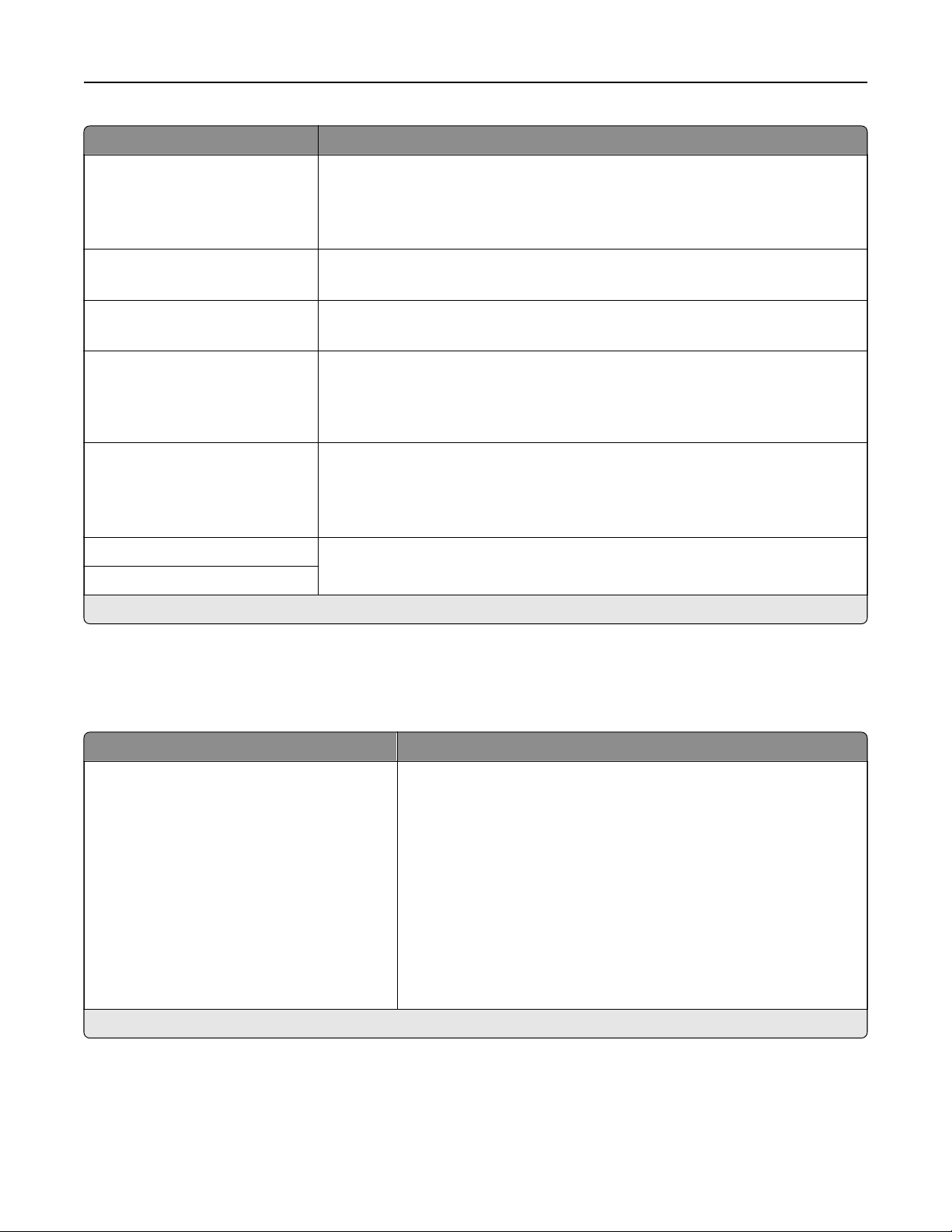
Menu item Description
Restricted Server List Options
Block All Ports*
Block Printing Only
Block Printing and HTTP Only
Specify the access option for IP addresses that are not in the list.
MTU
256–1500 Ethernet (1500*)
Specify a maximum transmission unit (MTU) parameter for the TCP connections.
Raw Print Port
1–65535 (9100*)
Specify a raw port number for printers connected on a network.
Outbound Trac Maximum
Speed
O*
On
Set the maximum transfer rate of the printer.
Note: When enabled, the option for this setting is 100–1000000
Kilobits/second.
TLS Support
Enable TLSv1.0 (O)
Enable TLSv1.1 (O*)
Enable TLSv1.2 (On*)
Enable the Transport Layer Security protocol.
SSL Cipher List Specify the cipher algorithms to use for the SSL or the TLS connections.
TLSv1.3 SSL Cipher List
Note: An asterisk (*) next to a value indicates the factory default setting.
SNMP
Note: This menu appears only in network printers or printers that are attached to print servers.
Menu item Description
SNMP Versions 1 and 2c
Enabled
O
On*
Allow SNMP Set
O
On*
Enable PPM MIB
O
On*
SNMP Community
Configure Simple Network Management Protocol (SNMP) versions 1
and 2c to install print drivers and applications.
Note: An asterisk (*) next to a value indicates the factory default setting.
Use printer menus 285
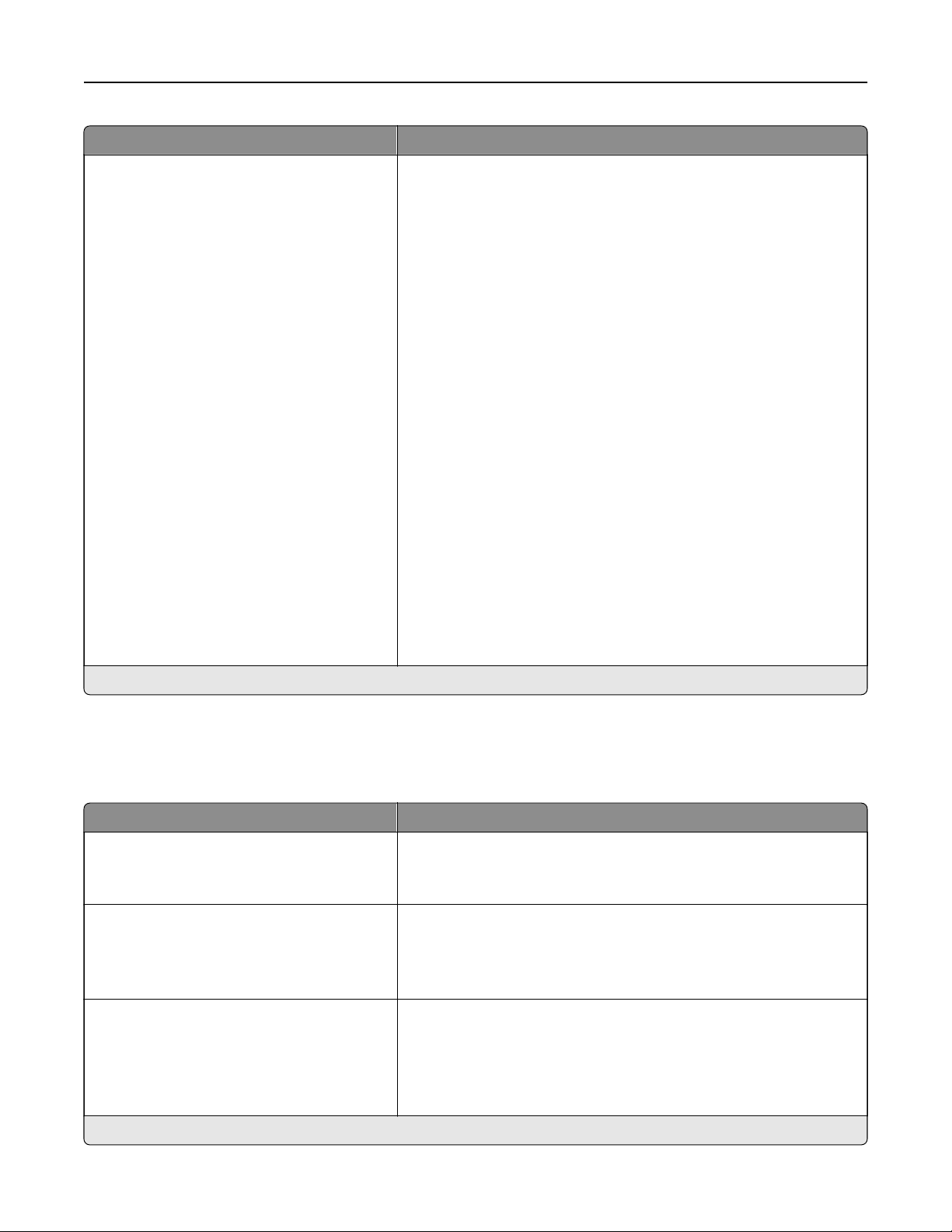
Menu item Description
SNMP Version 3
Enabled
O
On*
Context Name
Set Read/Write Credentials
User Name
Authentication Password
Privacy Password
Set Read‑only Credentials
User Name
Authentication Password
Privacy Password
Authentication Hash
MD5
SHA1*
Minimum Authentication Level
No Authentication, No Privacy
Authentication, No Privacy
Authentication, Privacy*
Privacy Algorithm
DES
AES‑128*
Configure SNMP version 3 to install and update the printer security.
Note: An asterisk (*) next to a value indicates the factory default setting.
IPSec
Note: This menu appears only in network printers or printers that are attached to print servers.
Menu item Description
Enable IPSec
O*
On
Enable Internet Protocol Security (IPSec).
Base Configuration
Default*
Compatibility
Secure
Set the IPSec base configuration.
Note: This menu item appears only when Enable IPSec is set to
On.
DH (Die
‑Hellman) Group Proposal
modp2048 (14)*
modp3072 (15)
modp4096 (16)
modp6144 (17)
Set the IPSec base configuration.
Note: This menu item appears only when Base
Configuration
is set
to Compatibility.
Note: An asterisk (*) next to a value indicates the factory default setting.
Use printer menus 286
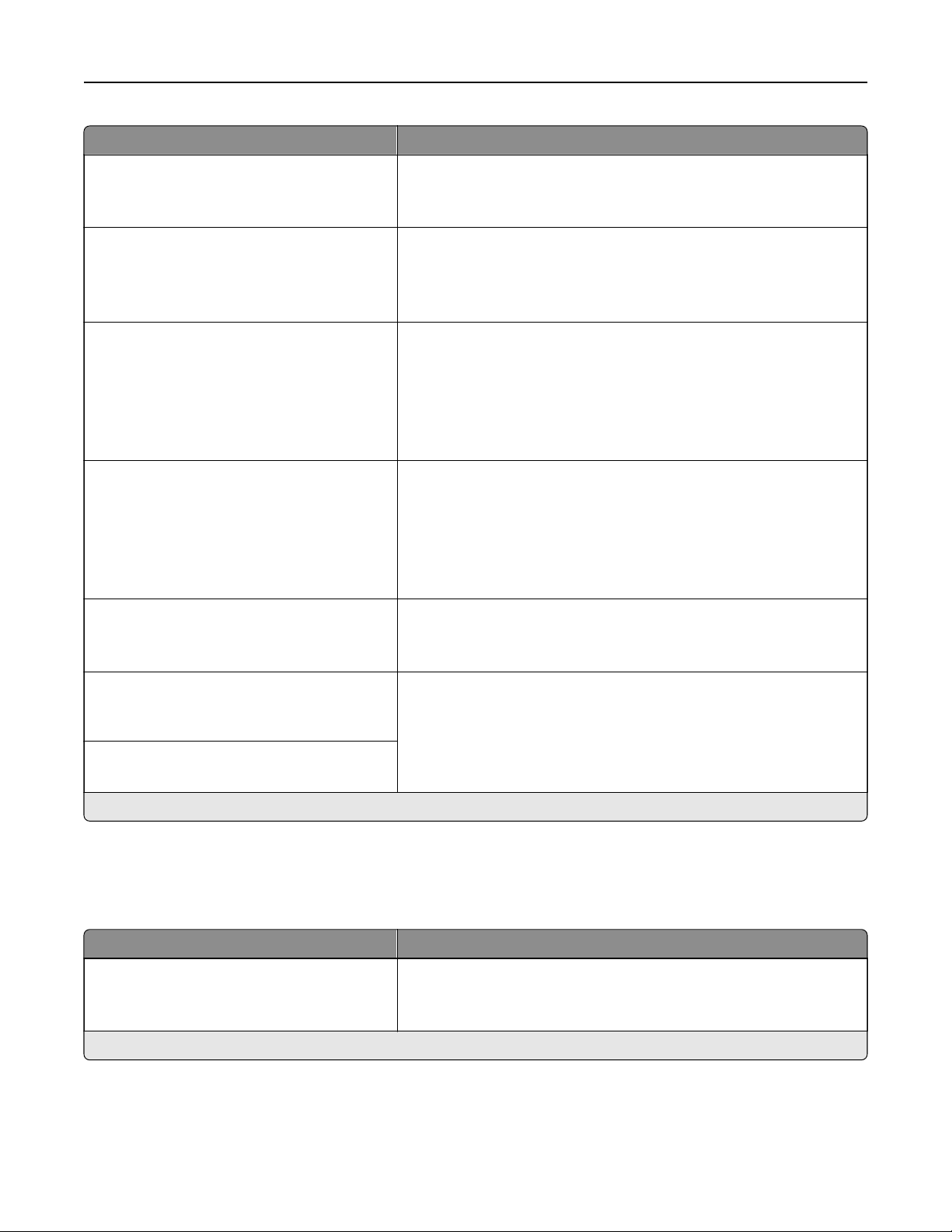
Menu item Description
Proposed Encryption Method
3DES
AES*
Set the encryption method.
Note: This menu item appears only when Base
Configuration
is set
to Compatibility.
Proposed Authentication Method
SHA1
SHA256*
SHA512
Set the authentication method.
Note: This menu item appears only when Base Configuration is set
to Compatibility.
IKE SA Lifetime (Hours)
1
2
4
8
24*
Specify the IKE SA expiry period.
Note: This menu item appears only when Base Configuration is set
to Secure.
IPSec SA Lifetime (Hours)
1
2
4
8*
24
Specify the IPSec SA expiry period.
Note: This menu item appears only when Base
Configuration
is set
to Secure.
IPSec Device Certificate Specify an IPSec certificate.
Note: This menu item appears only when Enable IPSec is set to
On.
Pre
‑Shared Key Authenticated
Connections
Host [x]
Configure the authenticated connections of the printer.
Note: These menu items appear only when Enable IPSec is set to
On.
Certificate Authenticated Connections
Host [x] Address[/subnet]
Note: An asterisk (*) next to a value indicates the factory default setting.
802.1x
Note: This menu appears only in network printers or printers that are attached to print servers.
Menu item Description
Active
O*
On
Let the printer join networks that require authentication before
allowing access.
Note: An asterisk (*) next to a value indicates the factory default setting.
Use printer menus 287
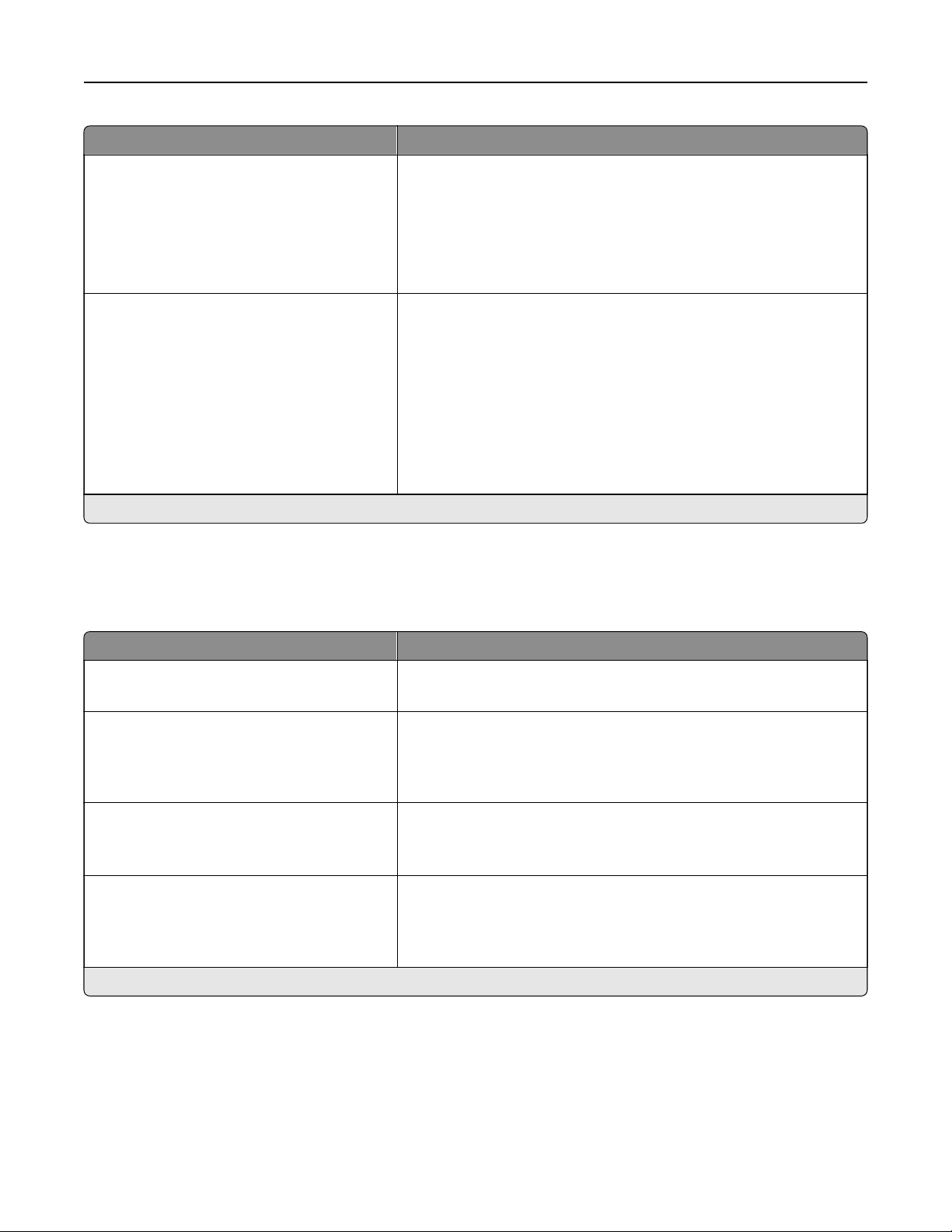
Menu item Description
802.1x Authentication
Device Login Name
Device Login Password
Validate Serve Certificate (On*)
Enable Event Logging (O*)
802.1x Device
Certificate
Configure the settings for authenticating the 802.1x connection.
Allowable Authentication Mechanisms
EAP ‑ MD5 (On*)
EAP - MSCHAPv2 (On*)
LEAP (On*)
PEAP (On*)
EAP - TLS (On*)
EAP - TTLS (On*)
TTLS Authentication Method
(MSCHAPv2*)
Configure the allowed authentication mechanisms for the 802.1x
connection.
Note: An asterisk (*) next to a value indicates the factory default setting.
LPD Configuration
Note: This menu appears only in network printers or printers that are attached to print servers.
Menu item Description
LPD Timeout
0–65535 seconds (90*)
Set the time‑out value to stop the Line Printer Daemon (LPD) server
from waiting indefinitely for hung or invalid print jobs.
LPD Banner Page
O*
On
Print a banner page for all LPD print jobs.
Note: A banner page is the first page of a print job used as a
separator of print jobs and to identify the originator of the print job
request.
LPD Trailer Page
O*
On
Print a trailer page for all LPD print jobs.
Note: A trailer page is the last page of a print job.
LPD Carriage Return Conversion
O*
On
Enable carriage return conversion.
Note: Carriage return is a mechanism that commands the printer to
move the position of the cursor to the first position on the same
line.
Note: An asterisk (*) next to a value indicates the factory default setting.
Use printer menus 288
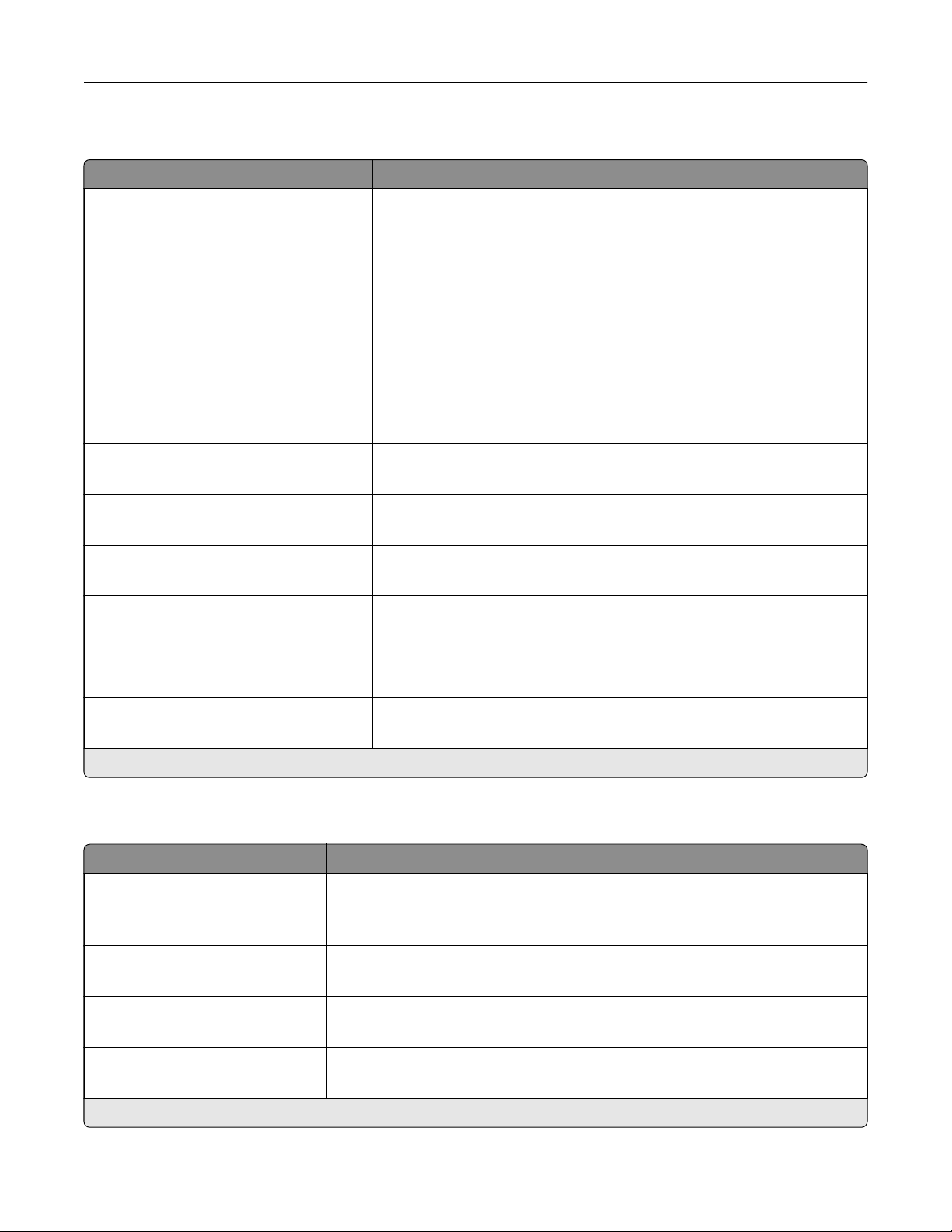
HTTP/FTP Settings
Menu item Description
Proxy
HTPP Proxy IP Address
HTTP Default IP Port
FTP Proxy IP Address
FTP Default IP Port
Authentication
User Name
Password
Local Domains
Configure the HTTP and FTP server settings.
Other Settings
Enable HTTP Server (On*)
Access the Embedded Web Server to monitor and manage the printer.
Other Settings
Enable HTPPS (On*)
Enable Hypertext Transfer Protocol Secure (HTTPS) to encrypt data
transferring to and from the print server.
Other Settings
Force HTTPS Connections (O*)
Force the printer to use HTTPS connections.
Other Settings
Enable FTP/TFTP (On*)
Send files using FTP/TFTP.
Other Settings
HTTPS Device
Certificate
(default*)
View the HTTP device certificate used on the printer.
Other Settings
Timeout for HTTP/FTP Requests (30*)
Specify the amount of time before the server connection stops.
Other Settings
Retries for HTTP/FTP Requests (3*)
Set the number of retries to connect to the HTTP/FTP server.
Note: An asterisk (*) next to a value indicates the factory default setting.
ThinPrint
Menu item Description
Enable ThinPrint
O*
On
Print using ThinPrint.
Port Number
4000–4999 (4000*)
Set the port number for the ThinPrint server.
Bandwidth (bits/sec)
100–1000000 (0*)
Set the speed to transmit data in a ThinPrint environment.
Packet Size (kbytes)
0–64000 (0*)
Set the packet size for data transmission.
Note: An asterisk (*) next to a value indicates the factory default setting.
Use printer menus 289
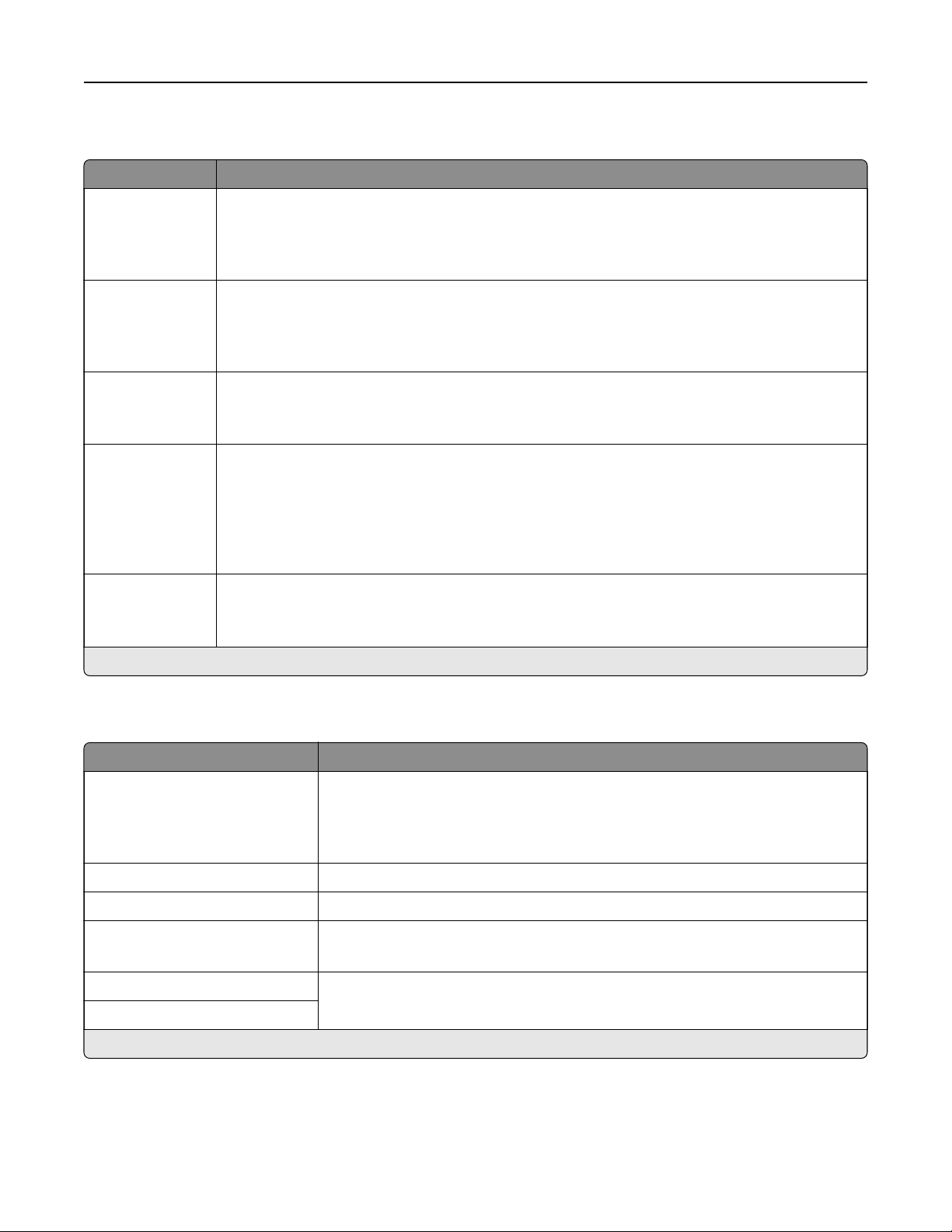
USB
Menu item Description
PCL SmartSwitch
O
On*
Set the printer to switch to PCL emulation when a print job received through a USB port requires
it, regardless of the default printer language.
Note: When this setting is disabled, the printer does not examine incoming data and uses the
default printer language specified in the Setup menu.
PS SmartSwitch
O
On*
Set the printer to switch to PostScript emulation when a print job received through a USB port
requires it, regardless of the default printer language.
Note: When this setting is disabled, the printer does not examine incoming data and uses the
default printer language specified in the Setup menu.
Job Buering
O*
On
Temporarily store jobs on the hard disk before printing.
Note: This menu item appears only when a hard disk is installed.
Mac Binary PS
Auto*
On
O
Set the printer to process Macintosh binary PostScript print jobs.
Notes:
• Auto processes print jobs from computers using either Windows or Macintosh operating
systems.
•
O
filters
PostScript print jobs using the standard protocol.
Enable USB Port
O
On*
Enable the front USB drive port.
Note: An asterisk (*) next to a value indicates the factory default setting.
Restrict external network access
Menu item Description
Restrict external network
access
O*
On
Restrict access to network sites.
External network address Specify the network addresses with restricted access.
E
‑mail address for notification Specify an e‑mail address to send a notification of logged events.
Ping frequency
1–300 (10*)
Specify the network query interval in seconds.
Subject Specify the subject and message of the notification e‑mail.
Message
Note: An asterisk (*) next to a value indicates the factory default setting.
Use printer menus 290
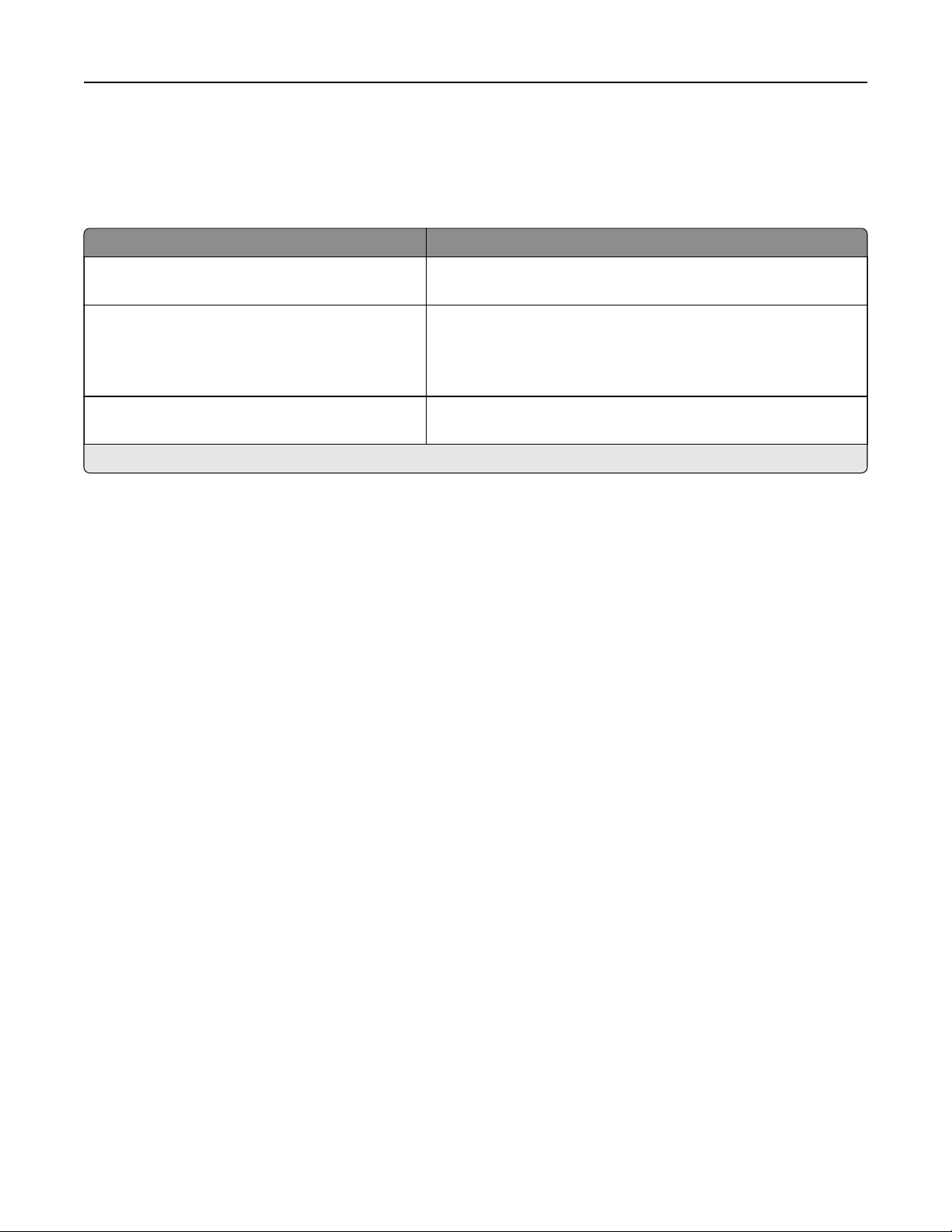
Cloud Services
Cloud Services Enrollment
Menu item Description
View More Information View additional information on the usage of Lexmark Cloud
Services.
Enable communication with Lexmark Cloud
Services
O*
On
Enable the printer to communicate with Lexmark Cloud Services.
View Current Status View the connection status between the printer and Lexmark
Cloud Services.
Note: An asterisk (*) next to a value indicates the factory default setting.
Use printer menus 291

Security
Login Methods
Manage Permissions
Menu item Description
Function Access
Access Address Book in Apps
Modify Address Book
Manage Shortcuts
Create Profiles
Manage Bookmarks
Flash Drive Print
Flash Drive Color Printing
Flash Drive Scan
Copy Function
Copy Color Printing
Color Dropout
E‑mail Function
Fax Function
FTP Function
Release Held Faxes
Held Jobs Access
Use Profiles
Cancel Jobs at the Device
Change Language
Internet Printing Protocol (IPP)
Initiate Scans Remotely
B/W Print
Color Print
Network Folder ‑ Scan
Hard Disk ‑ Print
Hard Disk ‑ Color Print
Hard Disk ‑ Scan
Control access to the printer functions.
Note: Some menu items appear only when a hard disk or an intelligent
storage drive is installed.
Administrative Menus
Security Menu
Network/Ports Menu
Paper Menu
Reports Menu
Function
Configuration
Menus
Supplies Menu
Option Card Menu
SE Menu
Device Menu
Control access to the printer menu settings.
Use printer menus 292
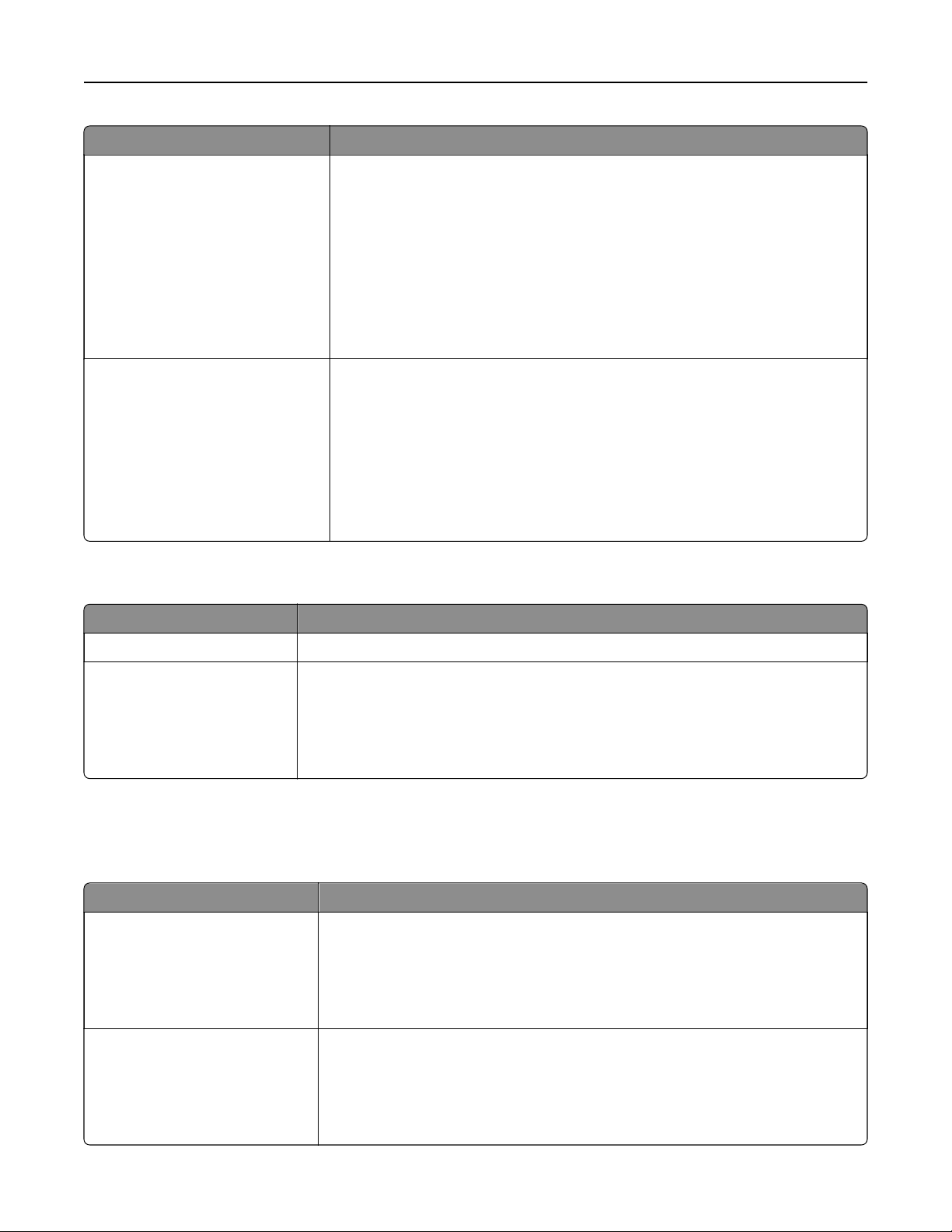
Menu item Description
Device Management
Remote Management
Firmware Updates
Apps Configuration
Operator Panel Lock
Embedded Web Server Access
Import / Export All Settings
Out of Service Erase
Cloud Services Enrollment
Control access to the printer management options.
Apps
New Apps
Slideshow
Change Wallpaper
Screen Saver
Card Copy
Scan Center
Scan Center Custom [x]
Control access to printer applications.
Local Accounts
Menu item Description
Manage Groups/Permissions Show a list of all saved groups in the printer.
Add User
User Name/Password
User Name
Password
PIN
Create local accounts and specify their access to the printer functions,
administrative menus, printer management options, and applications.
Default Login Methods
Note: This menu appears only when you
configure
the settings in the Local Accounts menu.
Menu item Description
Control Panel
User Name/Password
User Name
Password
PIN
Specify the default login method to access the control panel.
Browser
User Name/Password
User Name
Password
PIN
Specify the default login method to access the browser.
Use printer menus 293
Schedule USB Devices
Menu item Description
Schedules
Add New Schedule
Schedule access to the front USB port.
Security Audit Log
Menu item Description
Enable Audit
O*
On
Record the events in the secure audit log and remote syslog.
Enable Remote Syslog
O*
On
Send audit logs to a remote server.
Remote Syslog Server Specify the remote syslog server.
Remote Syslog Port
1–65535 (514*)
Specify the remote syslog port.
Remote Syslog Method
Normal UDP*
Stunnel
Specify a syslog method to transmit logged events to a remote server.
Note: An asterisk (*) next to a value indicates the factory default setting.
Use printer menus 294

Menu item Description
Remote Syslog Facility
0 ‑ Kernel Messages
1 ‑ User‑Level Messages
2 ‑ Mail System
3 ‑ System Daemons
4 ‑ Security/Authorization
Messages*
5 ‑ Messages Generated
Internally by Syslogs
6 ‑ Line Printer Subsystem
7 ‑ Network News Subsystem
8 ‑ UUCP Subsystem
9 ‑ Clock Daemon
10 ‑ Security/Authorization
Messages
11 ‑ FTP Daemon
12 ‑ NTP Subsystem
13 ‑ Log Audit
14 ‑ Log Alert
15 ‑ Clock Daemon
16 ‑ Local Use 0 (local0)
17‑ Local Use 1 (local1)
18 ‑ Local Use 2 (local2)
19 ‑ Local Use 3 (local3)
20 ‑ Local Use 4 (local4)
21 ‑ Local Use 5 (local5)
22 ‑ Local Use 6 (local6)
23 ‑ Local Use 7 (local7)
Specify a facility code that the printer uses when sending log events to a remote
server.
Severity of Events to Log
0 ‑ Emergency
1 ‑ Alert
2 ‑ Critical
3 ‑ Error
4 ‑ Warning*
5 ‑ Notice
6 ‑ Informational
7 ‑ Debug
Specify the priority level cuto for logging messages and events.
Remote Syslog Non
‑Logged
Events
O*
On
Send all events, regardless of severity level, to the remote server.
Admin’s E
‑mail Address Send e‑mail notification of logged events to the administrator.
Note: An asterisk (*) next to a value indicates the factory default setting.
Use printer menus 295
Menu item Description
E‑mail Log Cleared Alert
O*
On
Send e‑mail notification to the administrator when a log entry is deleted.
E
‑mail Log Wrapped Alert
O*
On
Send e‑mail notification to the administrator when the log becomes full and
begins to overwrite the oldest entries.
Log Full Behavior
Wrap Over Oldest Entries*
E‑mail Log Then Delete All
Entries
Resolve log storage issues when the log fills its allotted memory.
E
‑mail % Full Alert
O*
On
Send e‑mail notification to the administrator when the log fills its allotted
memory.
% Full Alert Level
1–99 (90*)
E
‑mail Log Exported Alert
O*
On
Send e‑mail notification to the administrator when a log is exported.
E
‑mail Log Settings Changed
Alert
O*
On
Send e‑mail notification to the administrator when Enable Audit is set.
Log Line Endings
LF (\n)*
CR (\r)
CRLF (\r\n)
Specify how the log file terminates the end of each line.
Digitally Sign Exports
O*
On
Add a digital signature to each exported log file.
Clear Log Delete all audit logs.
Export Log
Syslog (RFC 5424)
Syslog (RFC 3164)
CSV
Export a security log to a flash drive.
Note: An asterisk (*) next to a value indicates the factory default setting.
Use printer menus 296
Login Restrictions
Menu item Description
Login failures
1–10 (3*)
Specify the number of failed login attempts before the user gets locked out.
Failure time frame
1–60 minutes (5*)
Specify the time frame between failed login attempts before the user gets locked out.
Lockout time
1–60 minutes (5*)
Specify the lockout duration.
Web Login Timeout
1–120 minutes (10*)
Specify the delay for a remote login before the user is logged o automatically.
Note: An asterisk (*) next to a value indicates the factory default setting.
Confidential Print Setup
Menu item Description
Max Invalid PIN
2–10
Set the limit for entering an invalid PIN.
Note: When the limit is reached, the print jobs for that user name are deleted.
Confidential Job Expiration
O*
1 Hour
4 Hours
24 Hours
1 Week
Set an individual expiration time for each held job before it is automatically deleted
from the printer memory or hard disk.
Note: A held job is either
Confidential,
Repeat, Reserve, or Verify.
Repeat Job Expiration
O*
1 Hour
4 Hours
24 Hours
1 Week
Set the expiration time for a print job that you want to repeat.
Verify Job Expiration
O*
1 Hour
4 Hours
24 Hours
1 Week
Set the expiration time for printing a copy of a job for you to check its quality before
printing the remaining copies.
Reserve Job Expiration
O*
1 Hour
4 Hours
24 Hours
1 Week
Set the expiration time for jobs that you want to store in the printer for printing later.
Note: An asterisk (*) next to a value indicates the factory default setting.
Use printer menus 297
Menu item Description
Require All Jobs to be Held
O*
On
Set the printer to hold all print jobs.
Keep duplicate documents
O*
On
Set the printer to keep all documents with the same file name.
Note: An asterisk (*) next to a value indicates the factory default setting.
Disk Encryption
Note: This menu appears only when a hard disk or an intelligent storage drive is installed.
Menu item Description
Hard Disk Show the encryption status of the hard disk.
Intelligent Storage Drive Show the encryption status of the intelligent storage drive (ISD).
Note: The ISD is automatically disabled when a hard disk is installed.
Erase Temporary Data Files
Menu item Description
Stored in onboard memory
O*
On
Delete all files stored on the printer memory.
Stored on hard disk
1 Pass Erase*
3 Pass Erase
7 Pass Erase
Delete all files stored on the printer hard disk.
Note: This menu item appears only when a printer hard disk is installed.
Note: An asterisk (*) next to a value indicates the factory default setting.
Solutions LDAP Settings
Menu item Description
Follow LDAP Referrals
O*
On
Search the dierent servers in the domain for the logged-in user account.
LDAP Certificate Verification
Ye s
No*
Enable verification of LDAP certificates.
Use printer menus 298
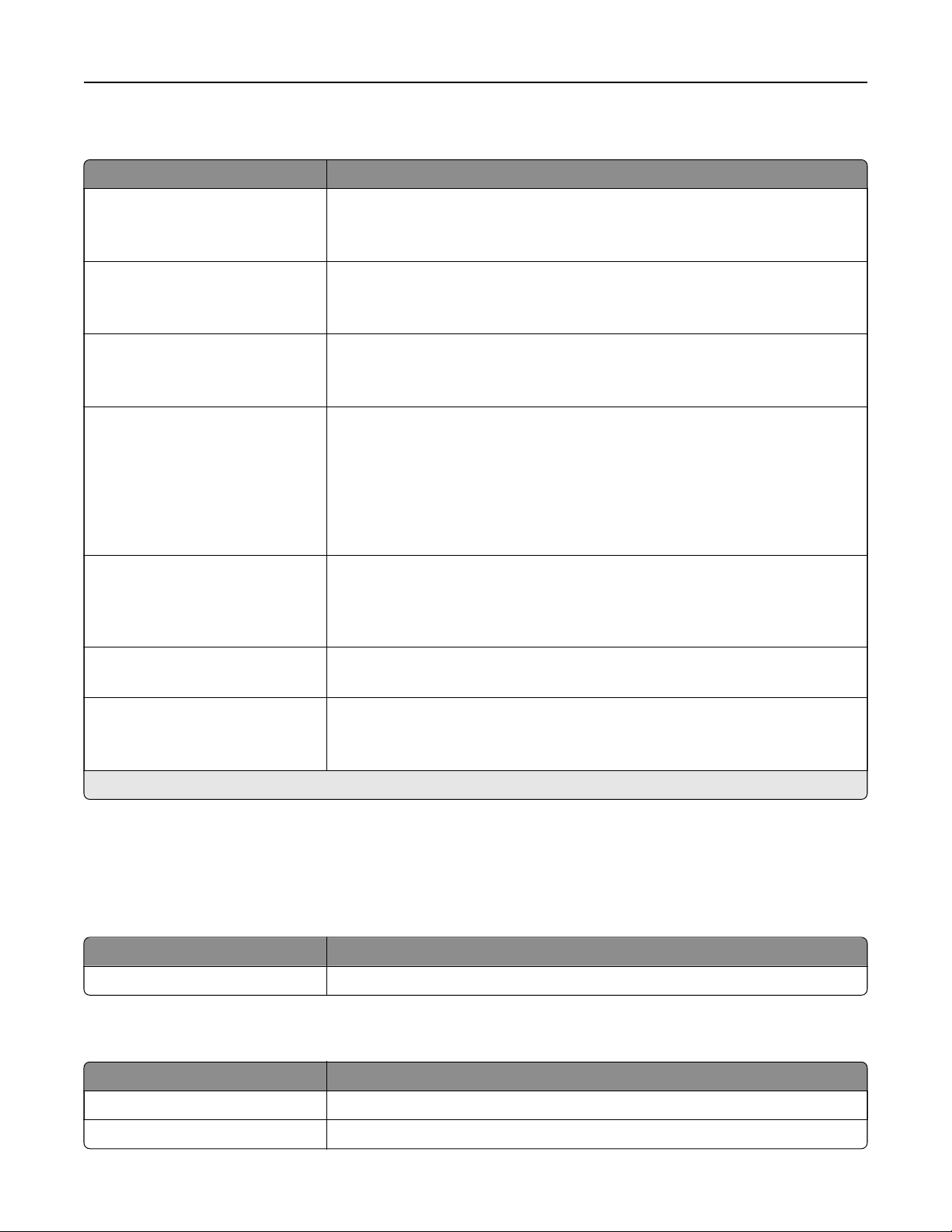
Miscellaneous
Menu item Description
Protected Features
Show*
Hide
Show all the features that Function Access Control (FAC) protects regardless
of the security permission that the user has.
Note: Hide displays only FAC‑protected features that the user has access.
Print Permission
O*
On
Let the user log in before printing.
Default Print Permission Login
User Name/Password*
User Name
Set the default login for Print Permission.
Security Reset Jumper
Enable “Guest” access*
No Eect
Specify user access to the printer.
Notes:
• Enable “Guest” access provides anyone access to all aspects of the
printer.
• No
Eect
may make access to the printer impossible when the required
security information is unavailable.
Use Intelligent Storage Drive for
User Data
O
On*
Enable intelligent storage drive to store user data.
Note: This menu item is disabled when a hard disk is installed.
Minimum Password Length
0–32 (0*)
Specify the password length.
Enable Password/PIN Reveal
O*
On
Show the password or personal identification number.
Note: An asterisk (*) next to a value indicates the factory default setting.
Reports
Menu Settings Page
Menu item Description
Menu Settings Page Print a report that contains the printer menus.
Device
Menu item Description
Device Information Print a report that contains information about the printer.
Device Statistics Print a report about printer usage and supply status.
Use printer menus 299
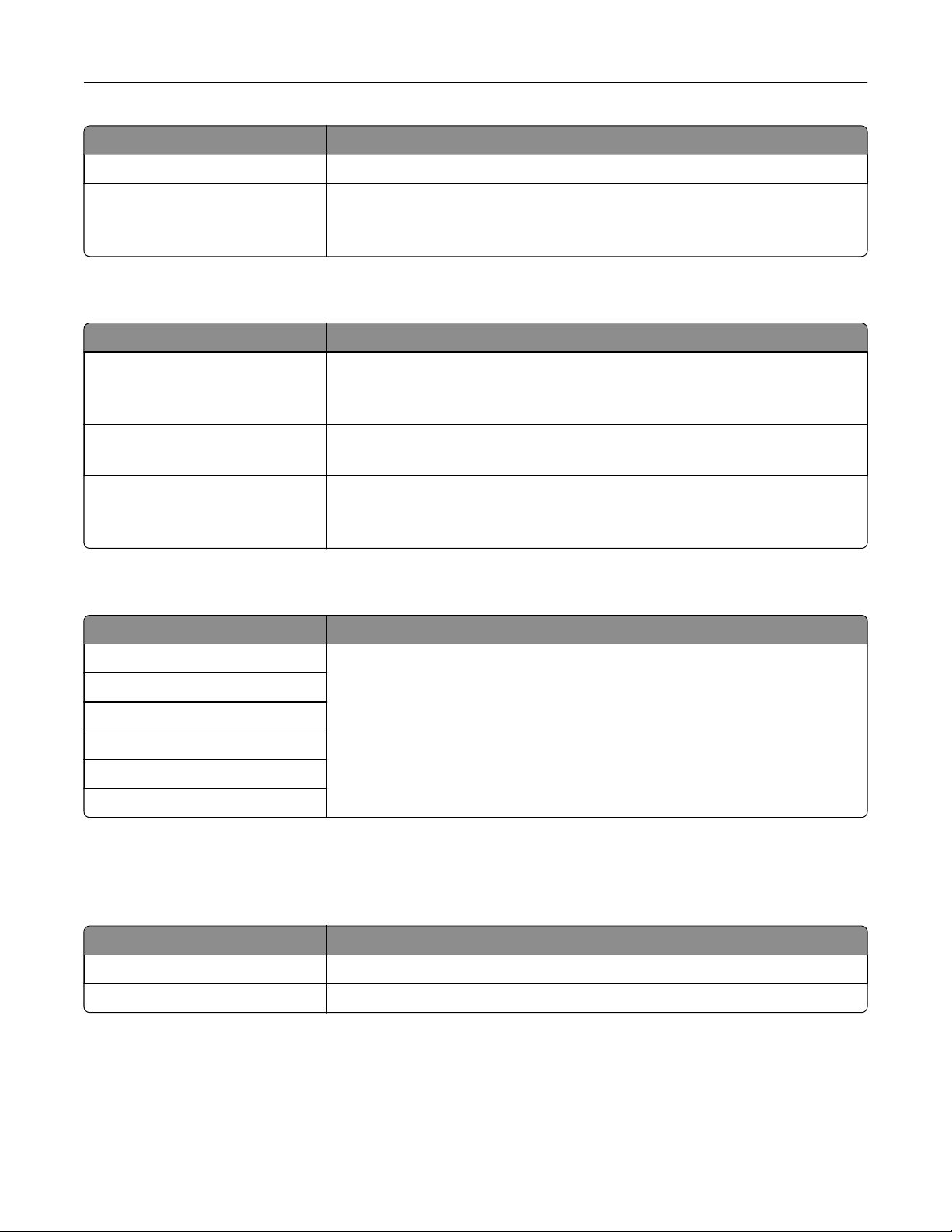
Menu item Description
Profiles List Print a list of profiles that are stored in the printer.
Asset Report Print a diagnostic tool for print problems.
Note: To avoid clipping the content, print the report on letter‑ or A4‑size
paper.
Print
Menu item Description
Print Fonts
PCL Fonts
PS Fonts
Print samples and information about the fonts that are available in each printer
language.
Print Demo
Demo Page
Print a page that shows the printer capabilities and supported solutions.
Print Directory Print the resources that are stored in the flash drive or printer hard disk.
Note: This menu item appears only when a flash drive or printer hard disk is
installed.
Shortcuts
Menu item Description
All Shortcuts Print a report that lists the shortcuts that are stored in the printer.
Note: Fax Shortcuts appears only when fax is installed.
Fax Shortcuts
Copy Shortcuts
E
‑mail Shortcuts
FTP Shortcuts
Network Folder Shortcuts
Fax
Note: This menu appears only if Fax is
configured,
and Enable Job Log is set to On.
Menu item Description
Fax Job Log Print a report about the last 200 completed fax jobs.
Fax Call Log Print a report about the last 100 attempted, received, and blocked calls.
Use printer menus 300
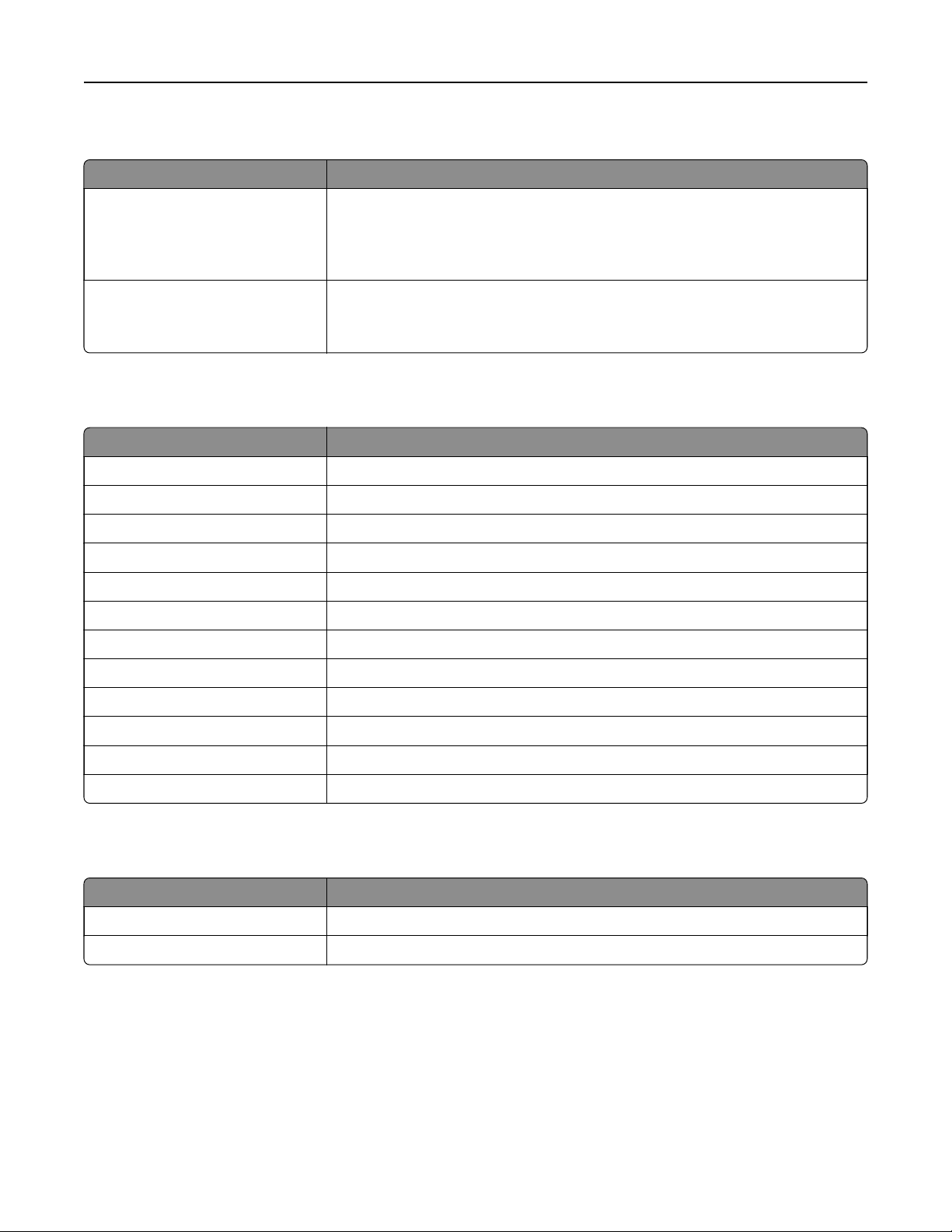
Network
Menu item Description
Network Setup Page Print a page that shows the configured network and wireless settings on the
printer.
Note: This menu item appears only in network printers or printers connected
to print servers.
Wi
‑Fi Direct Connected Clients Print a page that shows the list of devices that are connected to the printer using
Wi‑Fi Direct.
Note: This menu item appears only when Enable Wi‑Fi Direct is set to On.
Help
Menu item Description
Print All Guides Prints all the guides
Color Quality Guide Provides information about solving color quality issues
Connection Guide Provides information about connecting the printer locally (USB) or to a network
Copy Guide Provides information about making a copy and configuring the settings
E‑mail Guide Provides information about sending an e‑mail and configuring the settings
Fax Guide Provides information about sending a fax and configuring the settings
Information Guide Provides information about the printer
Media Guide Provides information about loading paper and specialty media
Moving Guide Provides information about moving, locating, or shipping the printer
Print Quality Guide Provides information about solving print quality issues
Scan Guide Provides information about scanning a document and configuring the settings
Supplies Guide Provides information about ordering supplies
Troubleshooting
Menu item Description
Print Quality Test Pages Print sample pages to identify and correct print quality defects.
Cleaning the Scanner Print instructions on how to clean the scanner.
Printing the Menu Settings Page
From the home screen, touch Settings > Reports > Menu Settings Page.
Use printer menus 301

Maintain the printer
Warning—Potential Damage: Failure to maintain optimum printer performance, or to replace parts and
supplies, may cause damage to your printer.
Checking the status of parts and supplies
1 From the home screen, touch Status/Supplies.
2 Select the parts or supplies that you want to check.
Note: You can also access this setting by touching the top section of the home screen.
Configuring supply notifications
1 Open a web browser, and then type the printer IP address in the address field.
Notes:
• View the printer IP address on the printer home screen. The IP address appears as four sets of
numbers separated by periods, such as 123.123.123.123.
• If you are using a proxy server, then temporarily disable it to load the web page correctly.
2 Click Settings > Device > Notifications.
3 From the Supplies menu, click Custom Supply Notifications.
4 Select a notification for each supply item.
5 Apply the changes.
Setting up e
‑mail alerts
Configure the printer to send e‑mail alerts when supplies are low, when paper must be changed or added, or
when there is a paper jam.
1 Open a web browser, and then type the printer IP address in the address field.
Notes:
• View the printer IP address on the printer home screen. The IP address appears as four sets of
numbers separated by periods, such as 123.123.123.123.
• If you are using a proxy server, then temporarily disable it to load the web page correctly.
2 Click Settings > Device > Notifications > E
‑mail Alert Setup, and then configure the settings.
Note: For more information on SMTP settings, contact your e‑mail provider.
3 Apply the changes.
4 Click Setup E-mail Lists and Alerts, and then configure the settings.
5 Apply the changes.
Maintain the printer 302

Viewing reports
1 From the home screen, touch Settings > Reports.
2 Select the report that you want to view.
Ordering parts and supplies
To order supplies in the U.S., contact Lexmark at 1-800-539-6275 for information about Lexmark authorized
supplies dealers in your area. In other countries or regions, go to
www.lexmark.com or contact the place where
you purchased the printer.
Note: All life estimates for printer supplies assume printing on letter‑ or A4‑size plain paper.
Warning—Potential Damage: Failure to maintain optimum printer performance, or to replace parts and
supplies, may cause damage to your printer.
Using genuine Lexmark parts and supplies
Your Lexmark printer is designed to function best with genuine Lexmark parts and supplies. Use of third-party
supplies or parts may aect the performance, reliability, or life of the printer and its imaging components. It can
also
aect
warranty coverage. Damage caused by the use of third-party parts and supplies is not covered by
the warranty. All life indicators are designed to function with Lexmark parts and supplies, and may deliver
unpredictable results if third-party parts and supplies are used. Imaging component usage beyond the intended
life may damage your Lexmark printer or its associated components.
Warning—Potential Damage: Supplies and parts without Return Program agreement terms may be reset and
remanufactured. However, the manufacturer’s warranty does not cover any damage caused by non-genuine
supplies or parts. Resetting counters on the supply or part without proper remanufacturing can cause
damage to your printer. After resetting the supply or part counter, your printer may display an error indicating
the presence of the reset item.
Ordering a toner cartridge
Notes:
• The estimated cartridge yield is based on the ISO/IEC 19798 standard.
• Extremely low print coverage for extended periods of time may negatively aect actual yield.
Lexmark CX942, CX943, CX944 toner cartridges
Item Worldwide
Cyan 83D0HC0
Magenta 83D0HM0
Yellow 83D0HY0
Black 83D0HK0
Maintain the printer 303
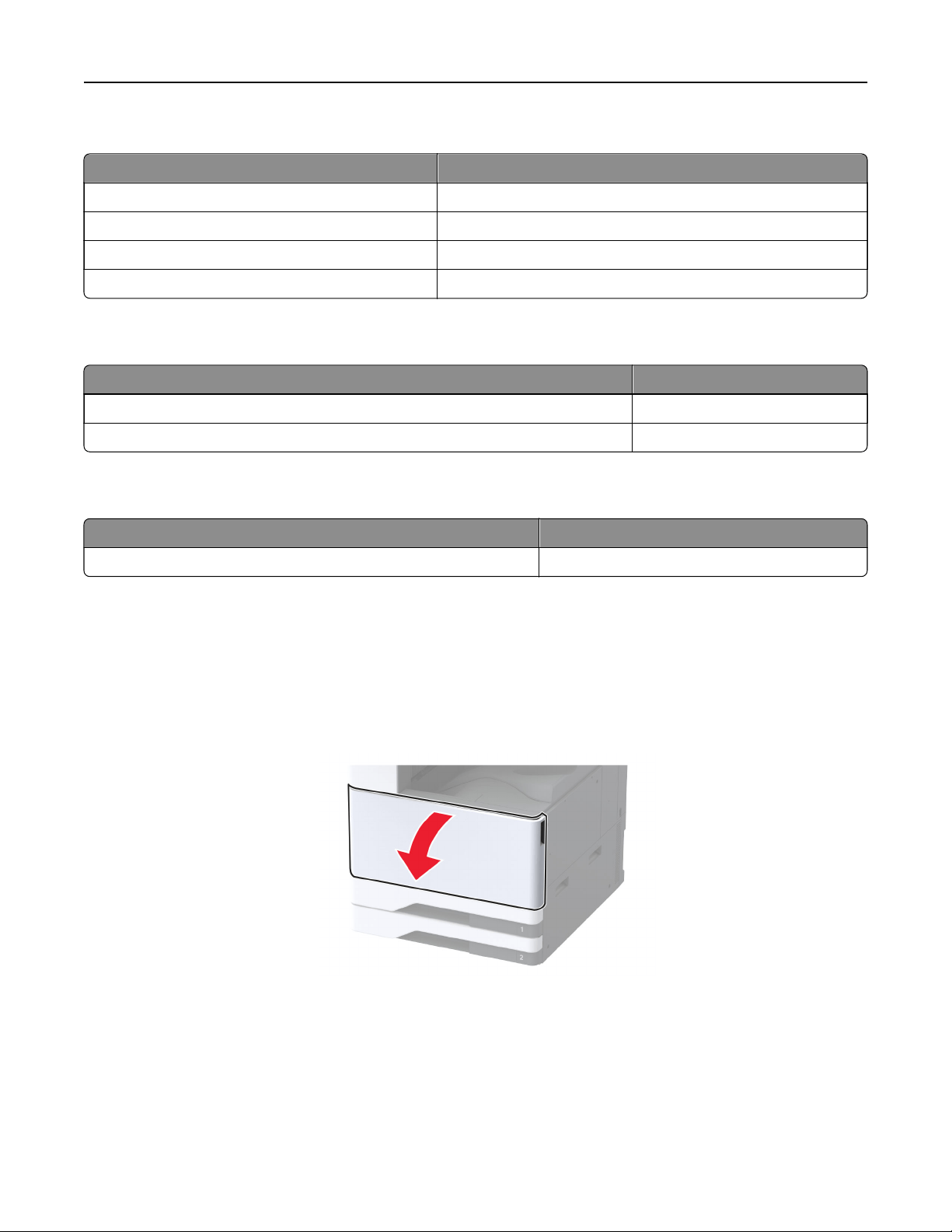
Lexmark XC9445, XC9455, XC9465 toner cartridges
Item Worldwide
Cyan 24B7523
Magenta 24B7524
Yellow 24B7525
Black 24B7526
Ordering a photoconductor unit
Item Worldwide
Photoconductor unit 73D0P00
Photoconductor unit 3-Pack 73D0Q00
Ordering the waste toner bottle
Item Part number
Waste toner bottle 73D0W00
Replacing parts and supplies
Replacing a toner cartridge
1 Open the front door.
Maintain the printer 304
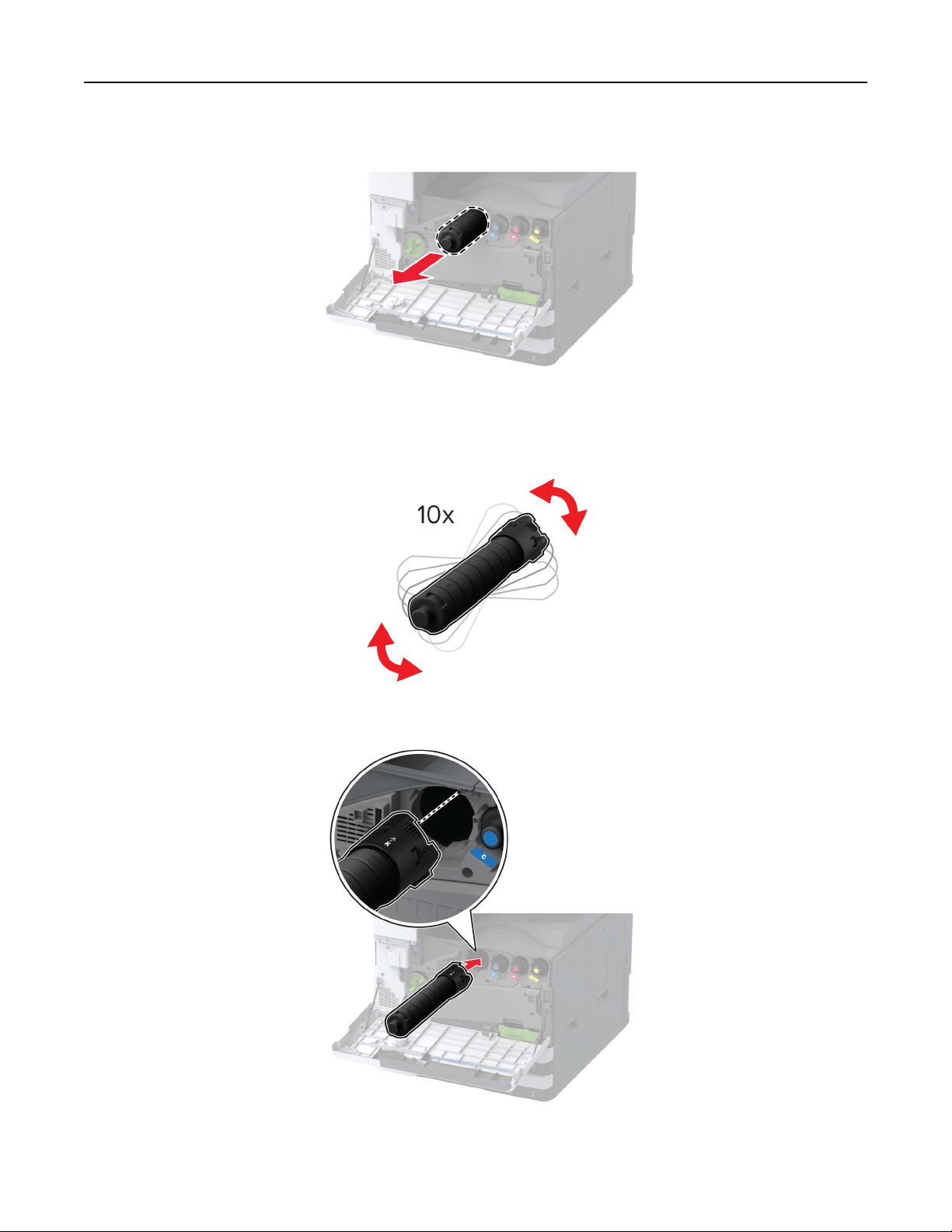
2 Remove the used toner cartridge.
3 Unpack the new toner cartridge.
4 Shake the toner cartridge to redistribute the toner.
5 Insert the new toner cartridge.
Maintain the printer 305
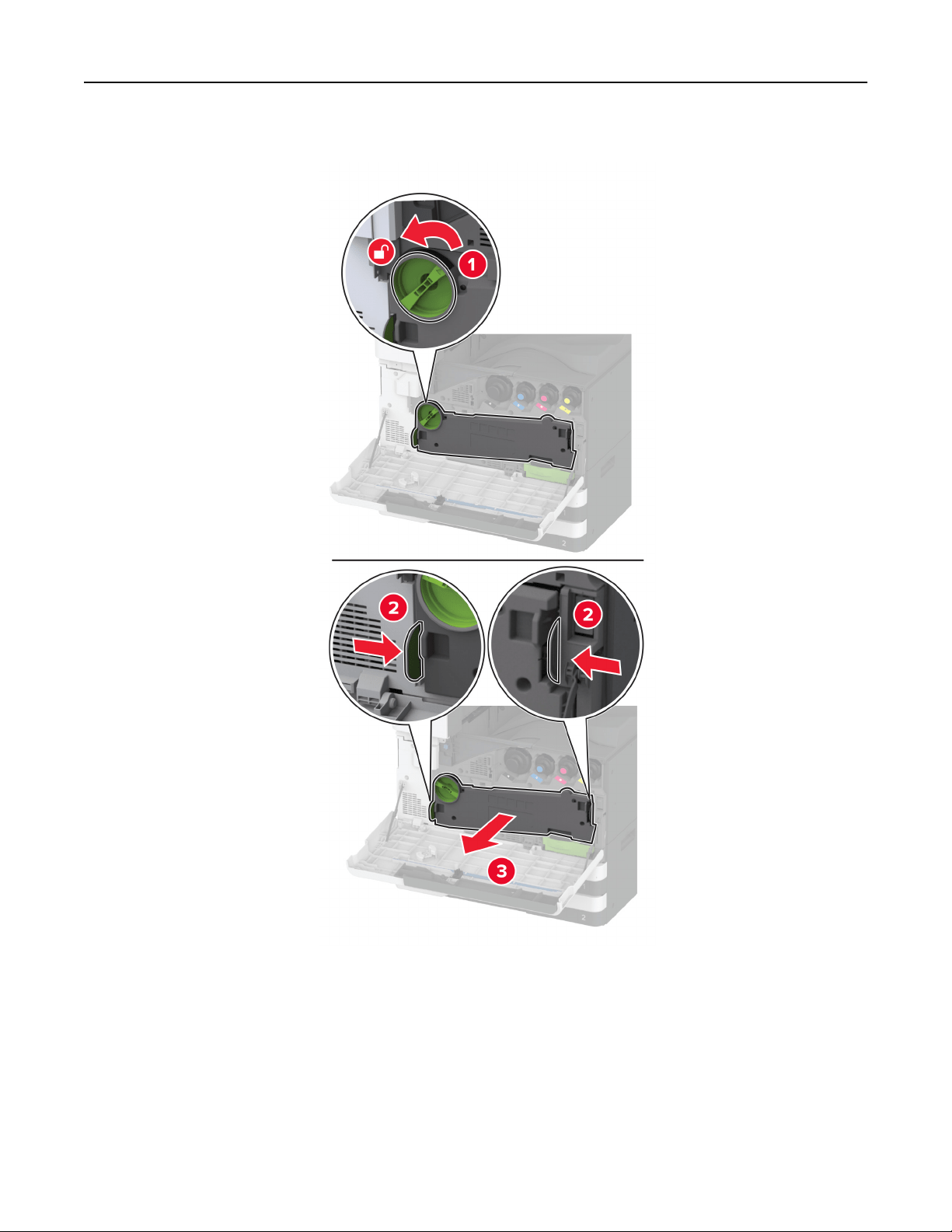
6 Remove the waste toner transfer unit.
Note: To avoid spilling the toner, place the unit in an upright position.
Maintain the printer 306
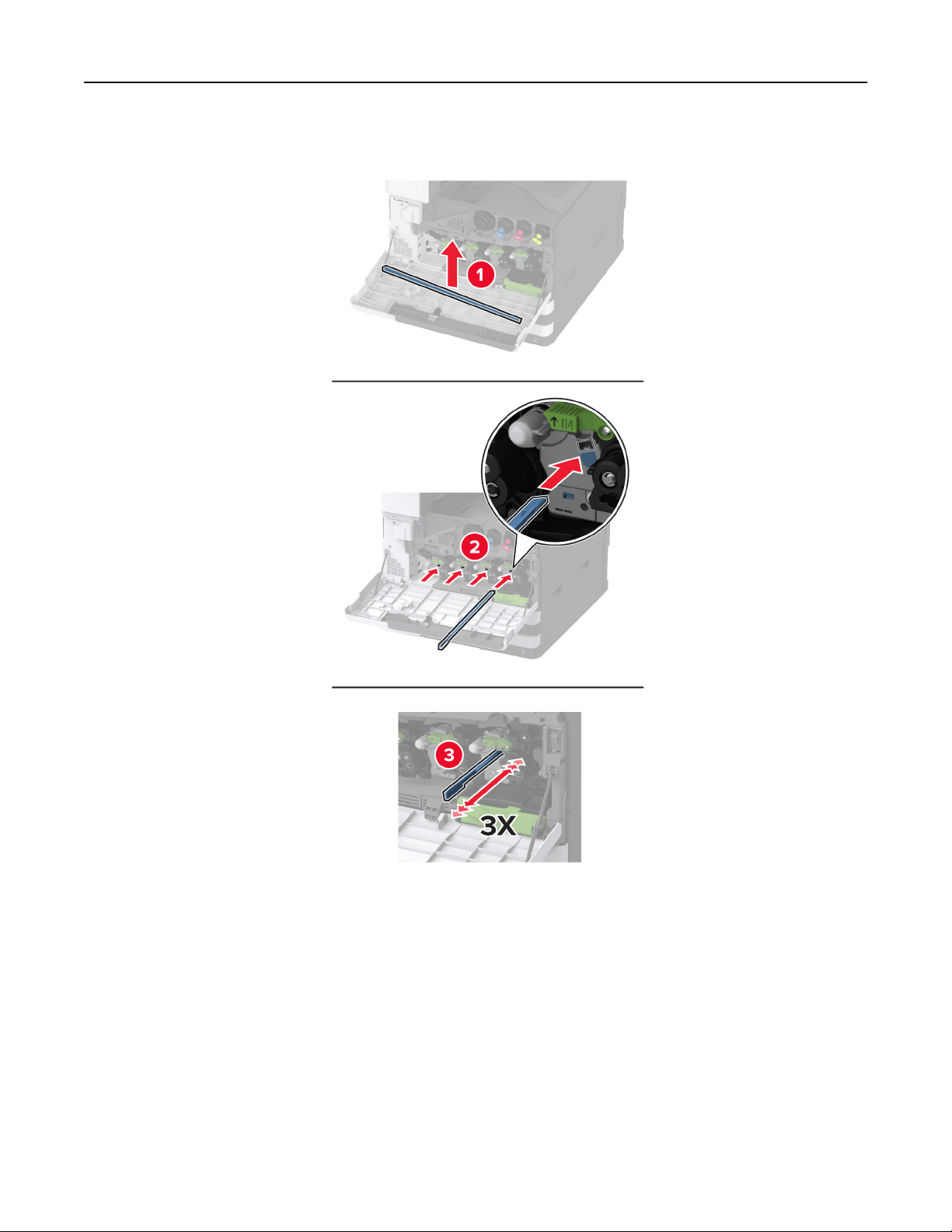
7 Remove the printhead wiper, and then clean the printhead lenses.
8 Put the printhead wiper back into place.
Maintain the printer 307
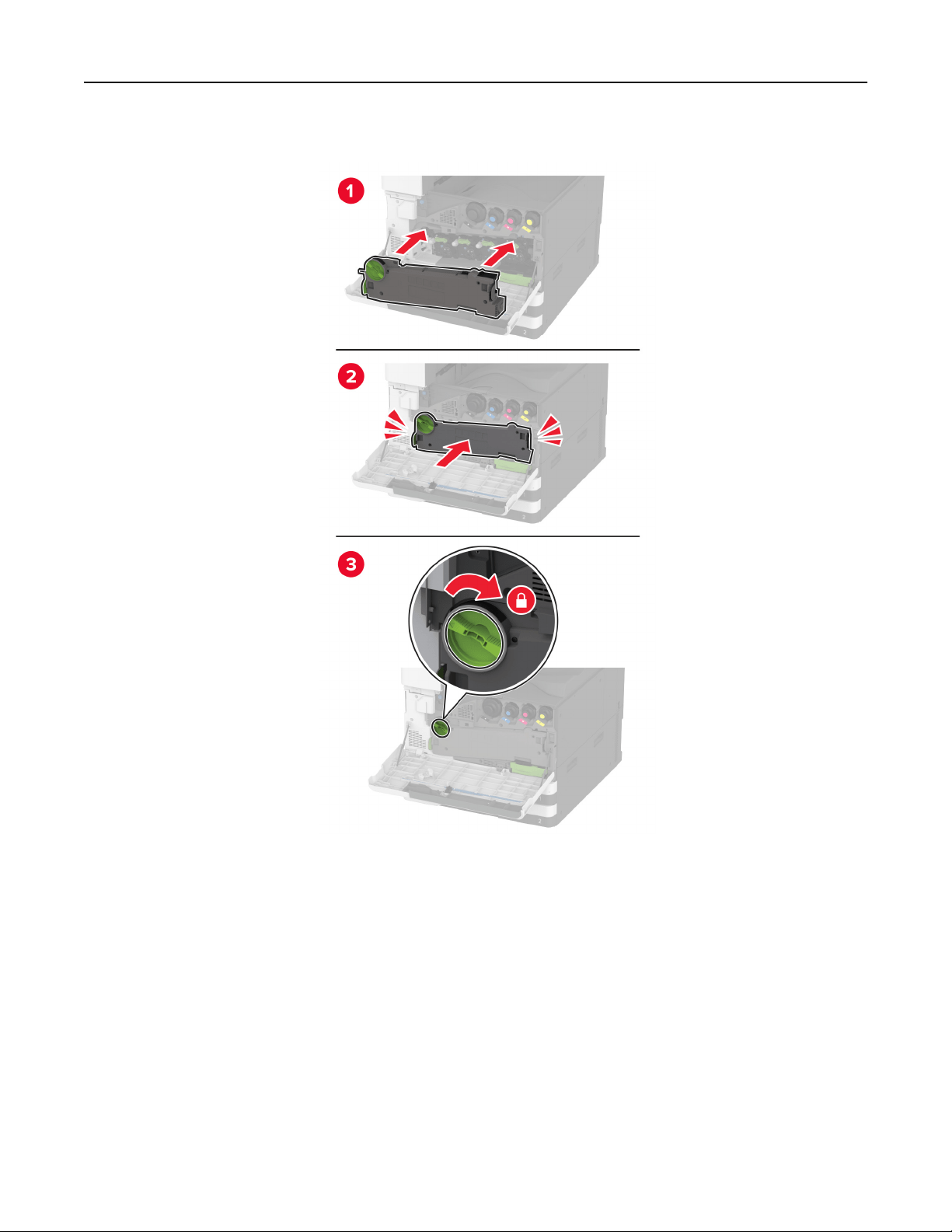
9 Insert the waste toner transfer unit until it clicks into place, and then lock it.
10 Close the door.
Maintain the printer 308
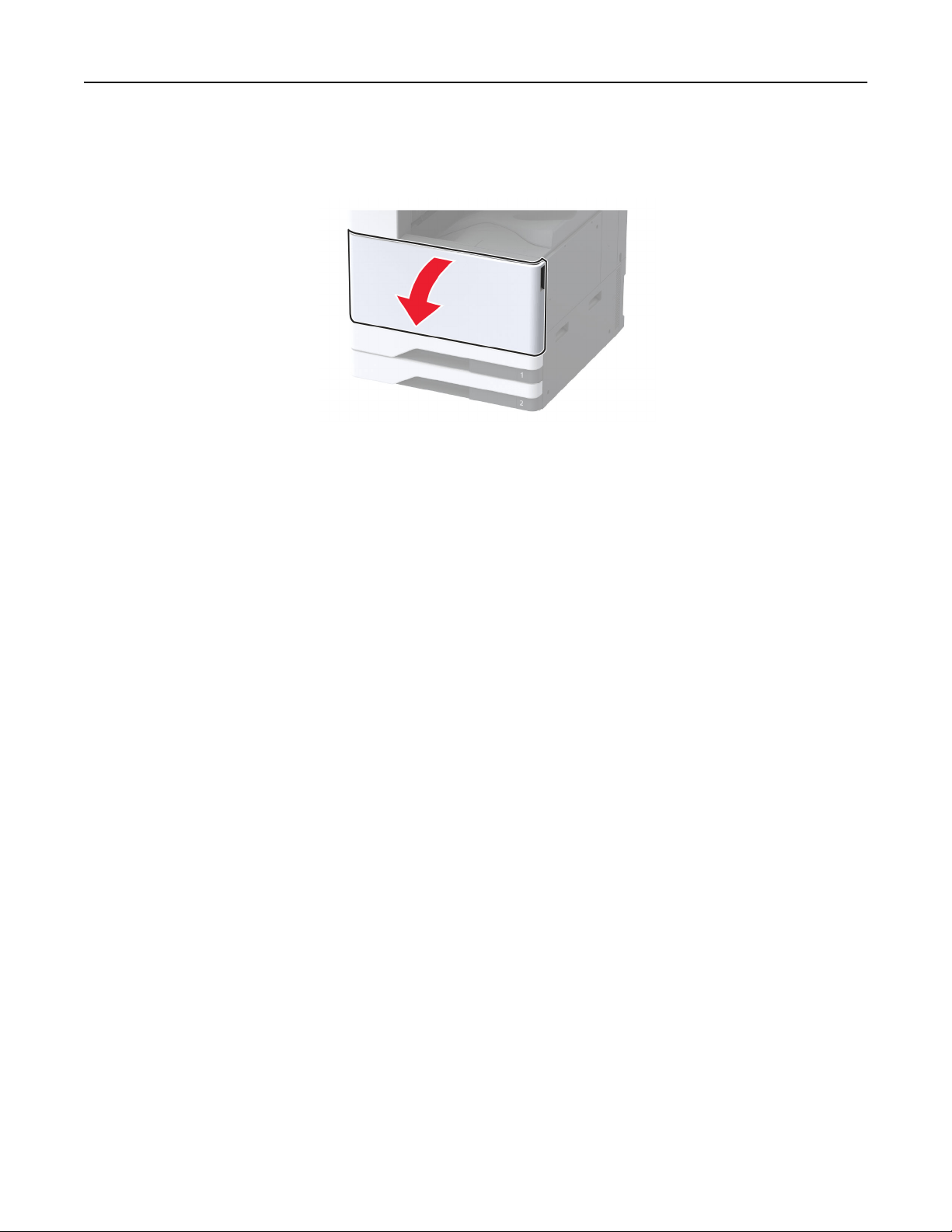
Replacing a photoconductor unit
1 Open the front door.
Maintain the printer 309
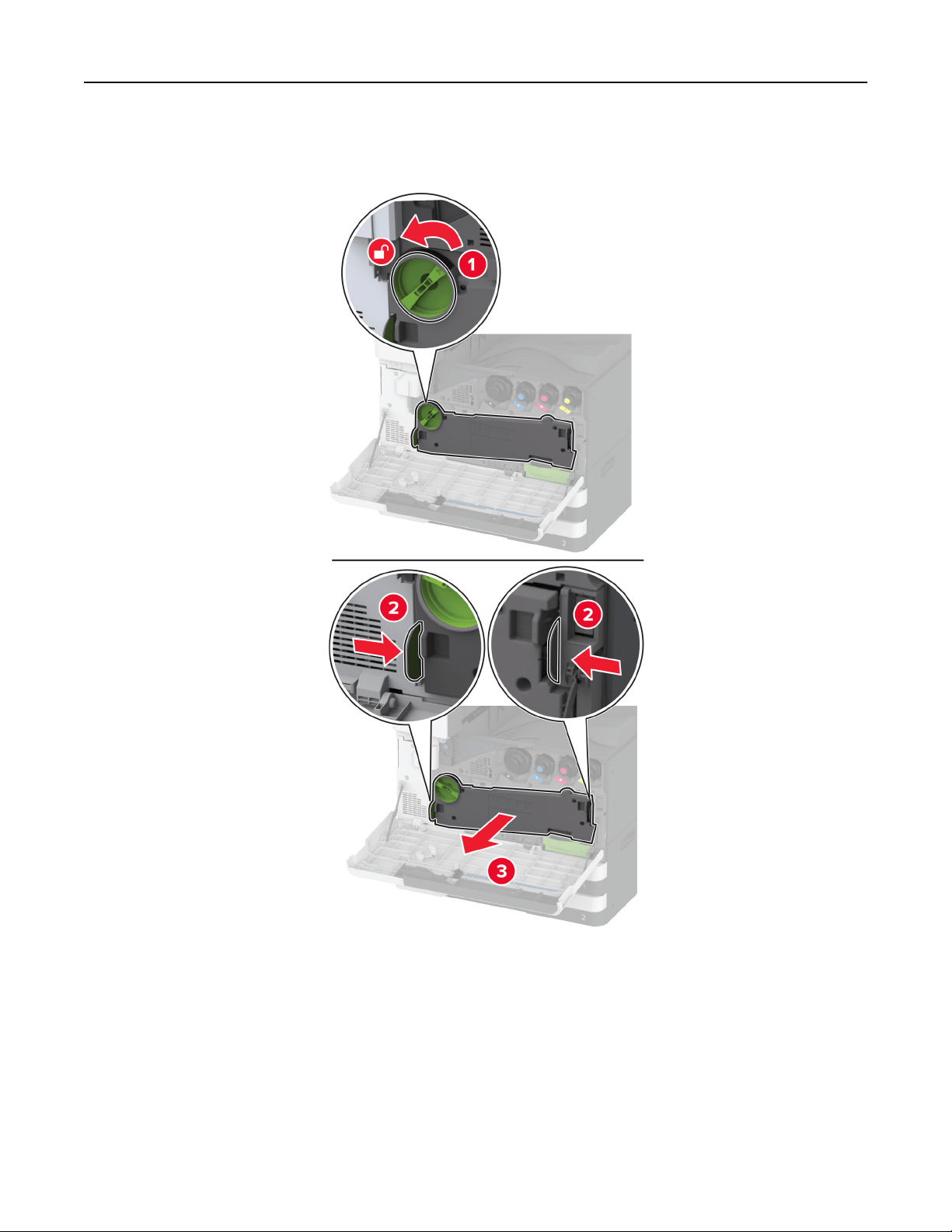
2 Remove the waste toner transfer unit.
Note: To avoid spilling the toner, place the unit in an upright position.
Maintain the printer 310
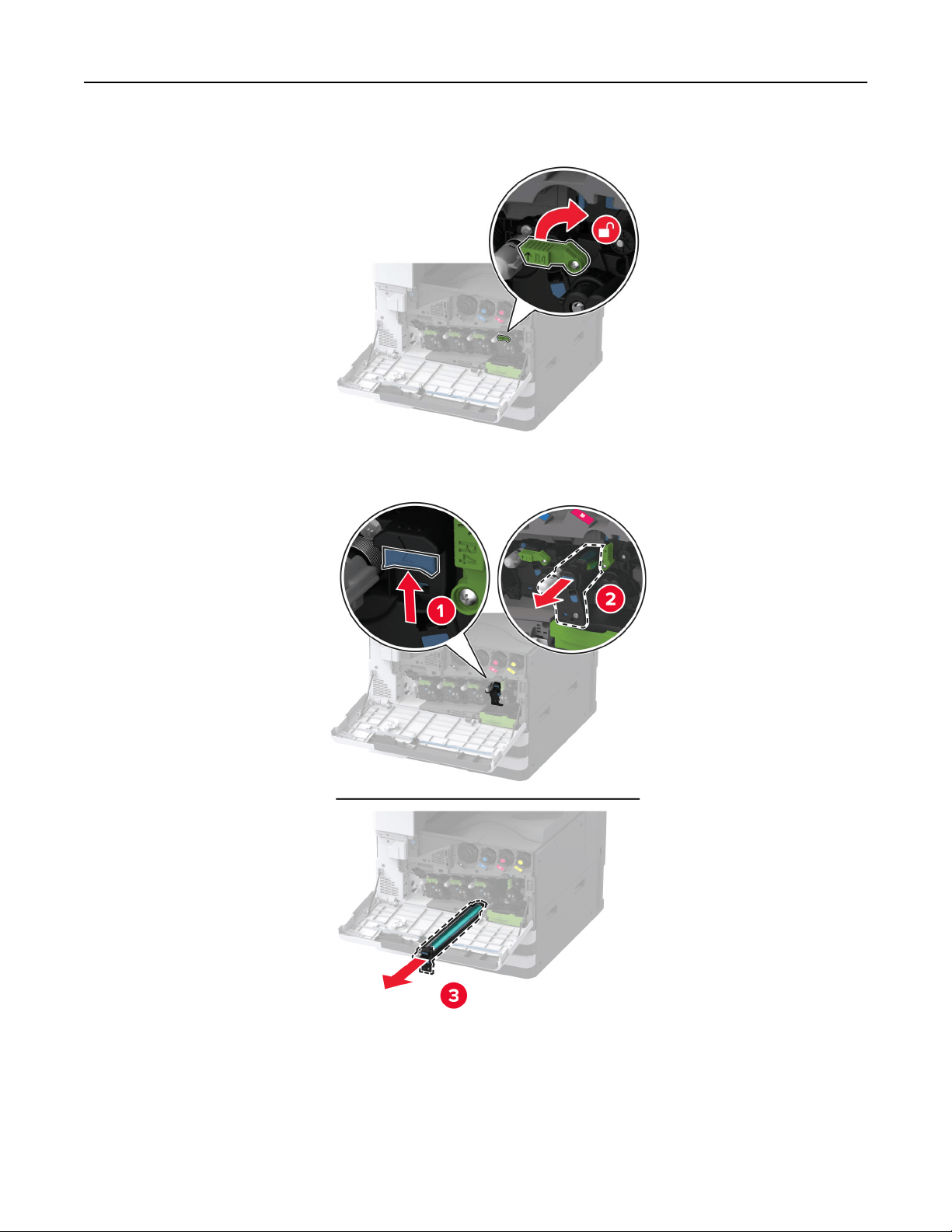
3 Unlock the used photoconductor unit.
4 Remove the used photoconductor unit.
Maintain the printer 311
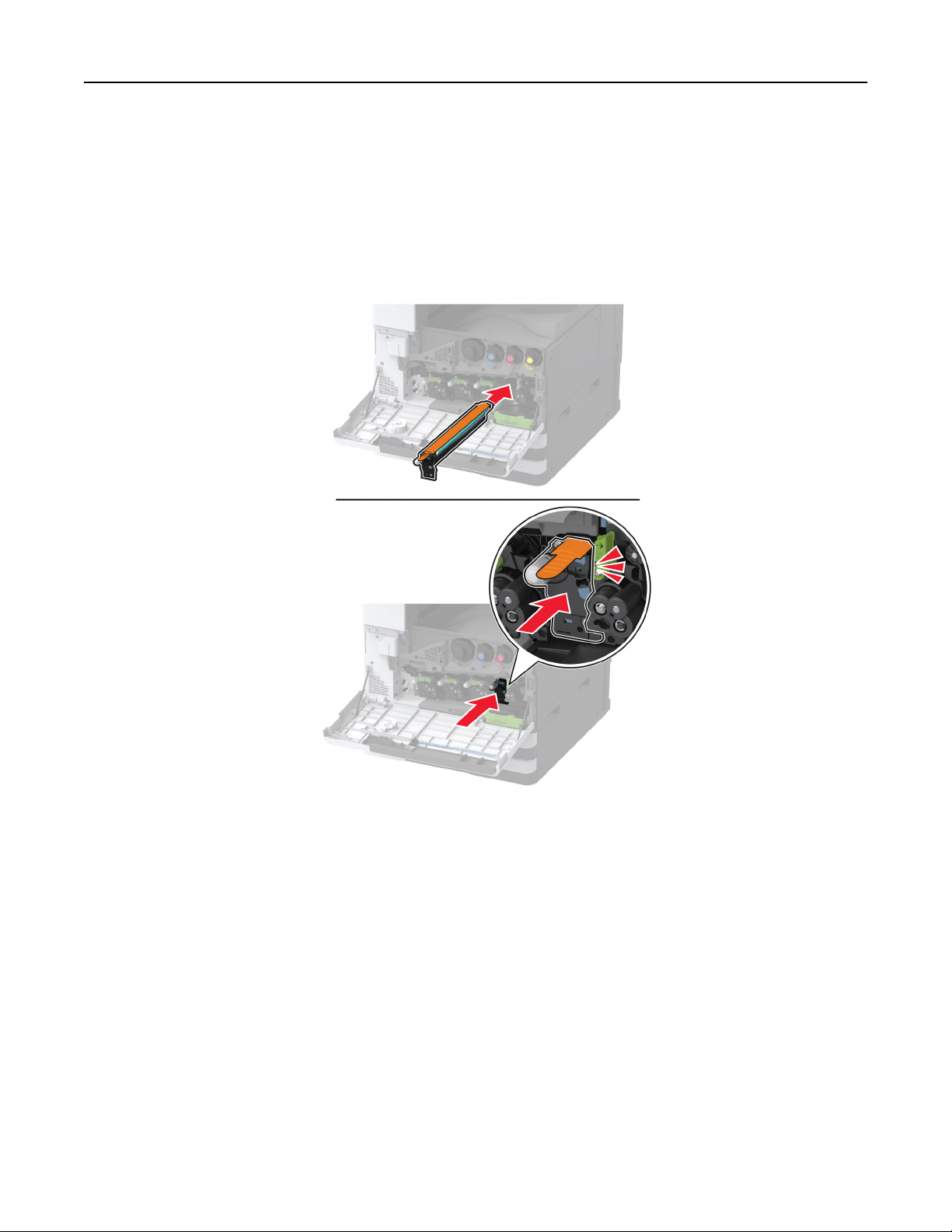
5 Unpack the new photoconductor unit.
Warning—Potential Damage: Do not expose the photoconductor unit to direct light for more than one
minute. Extended exposure to light may cause print quality problems.
Warning—Potential Damage: Do not touch the photoconductor drum. Doing so may aect the quality of
future print jobs.
6 Insert the new photoconductor unit until it clicks into place.
Maintain the printer 312
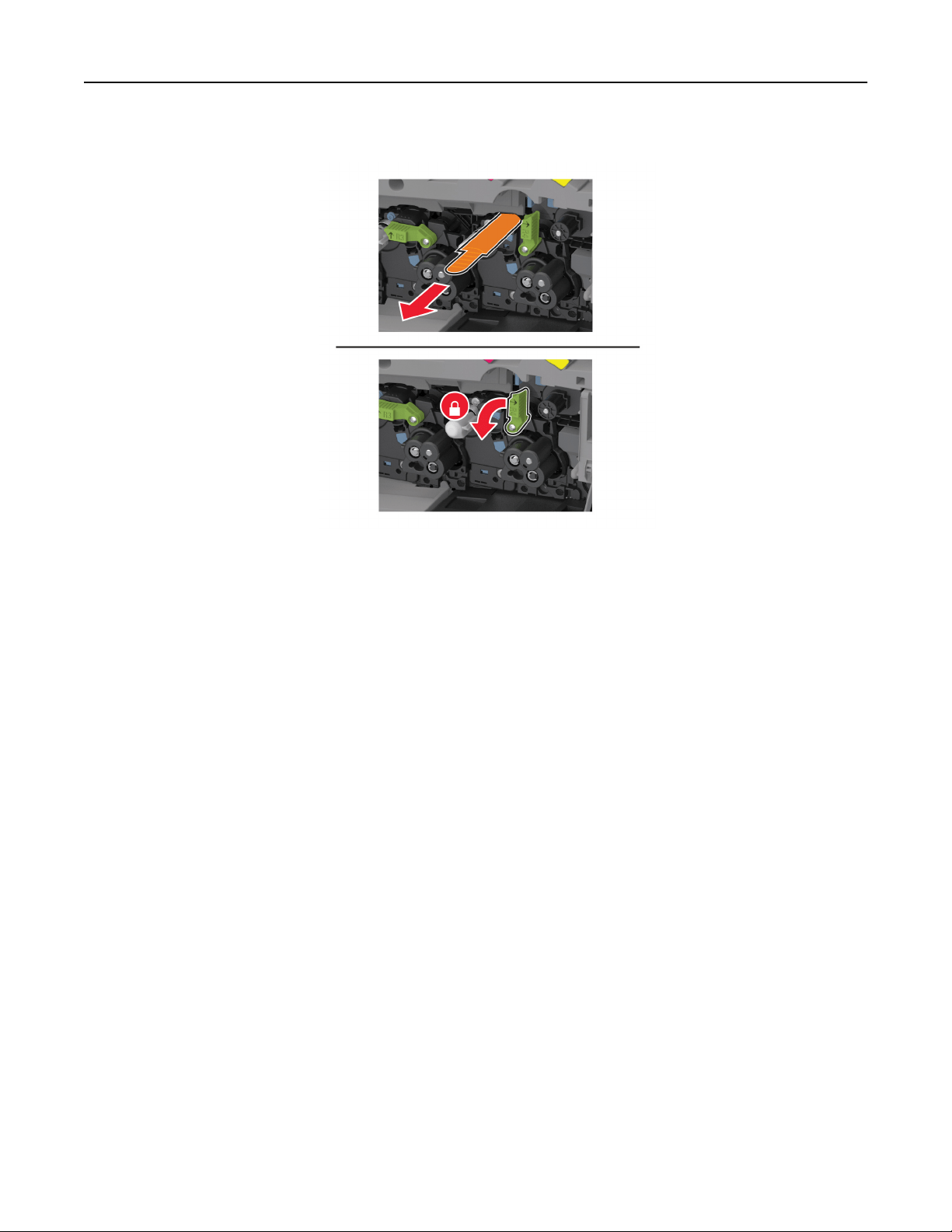
7 Remove the packing material, and then lock the new photoconductor unit.
Maintain the printer 313
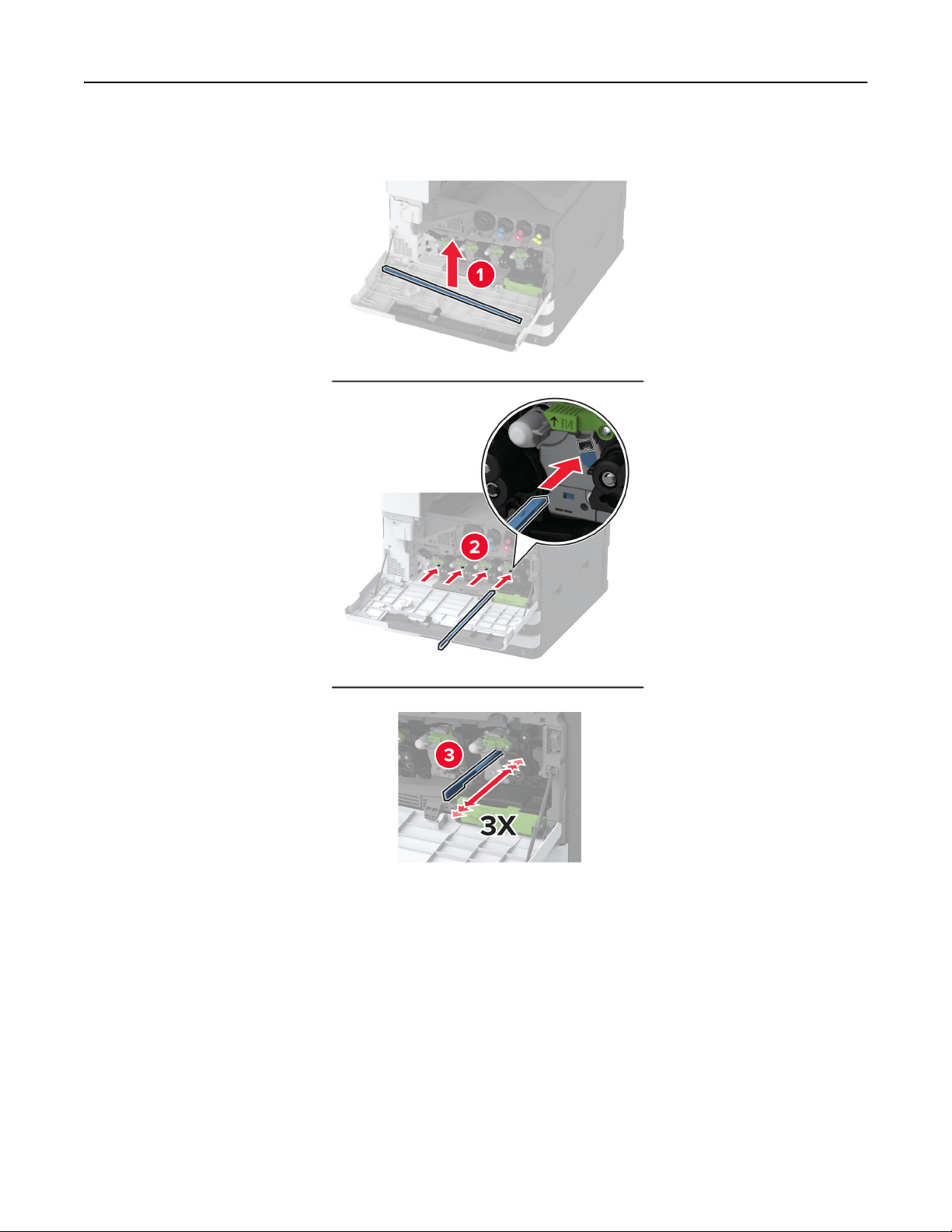
8 Remove the printhead wiper, and then clean the printhead lenses.
9 Put the printhead wiper back into place.
Maintain the printer 314
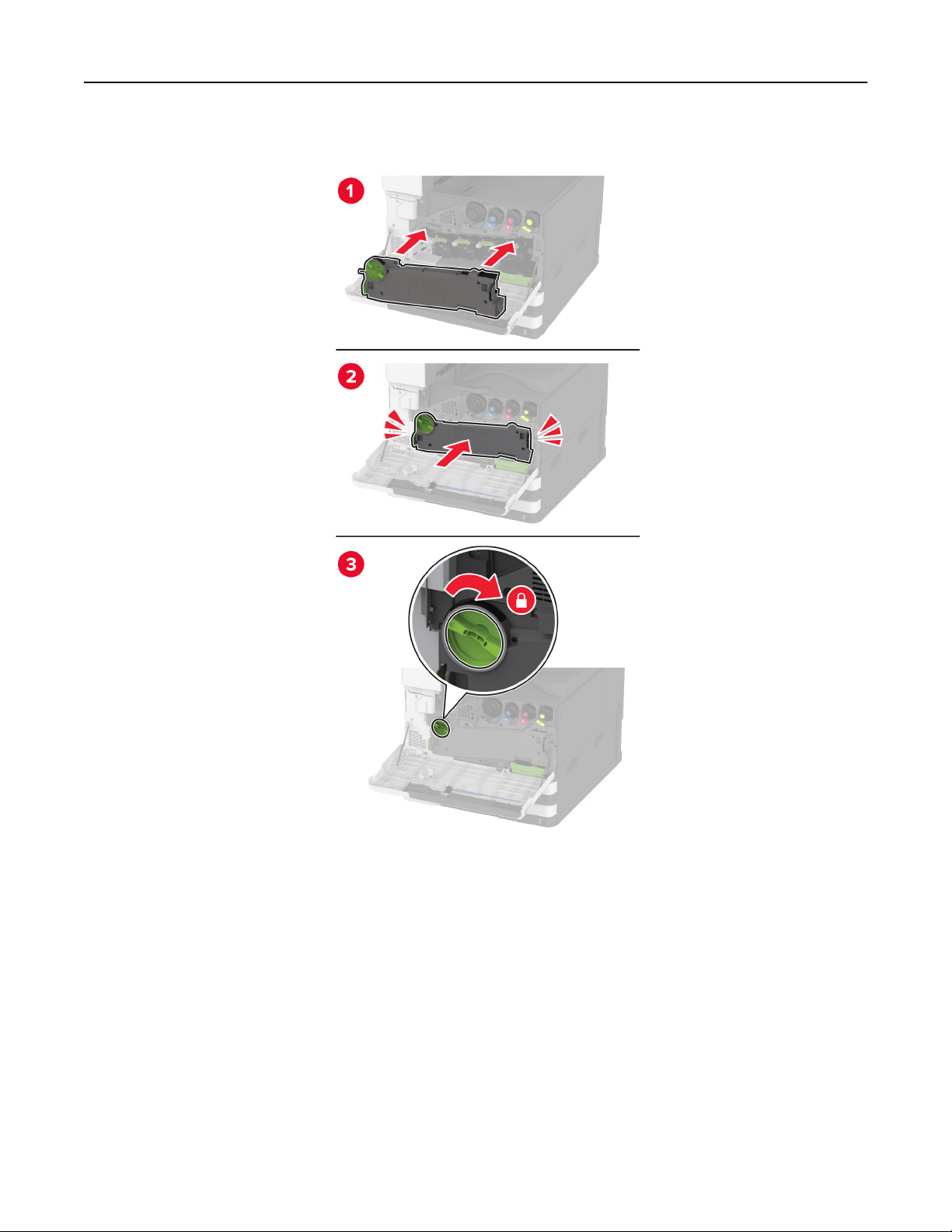
10 Insert the waste toner transfer unit until it clicks into place, and then lock it.
11 Close the door.
Maintain the printer 315
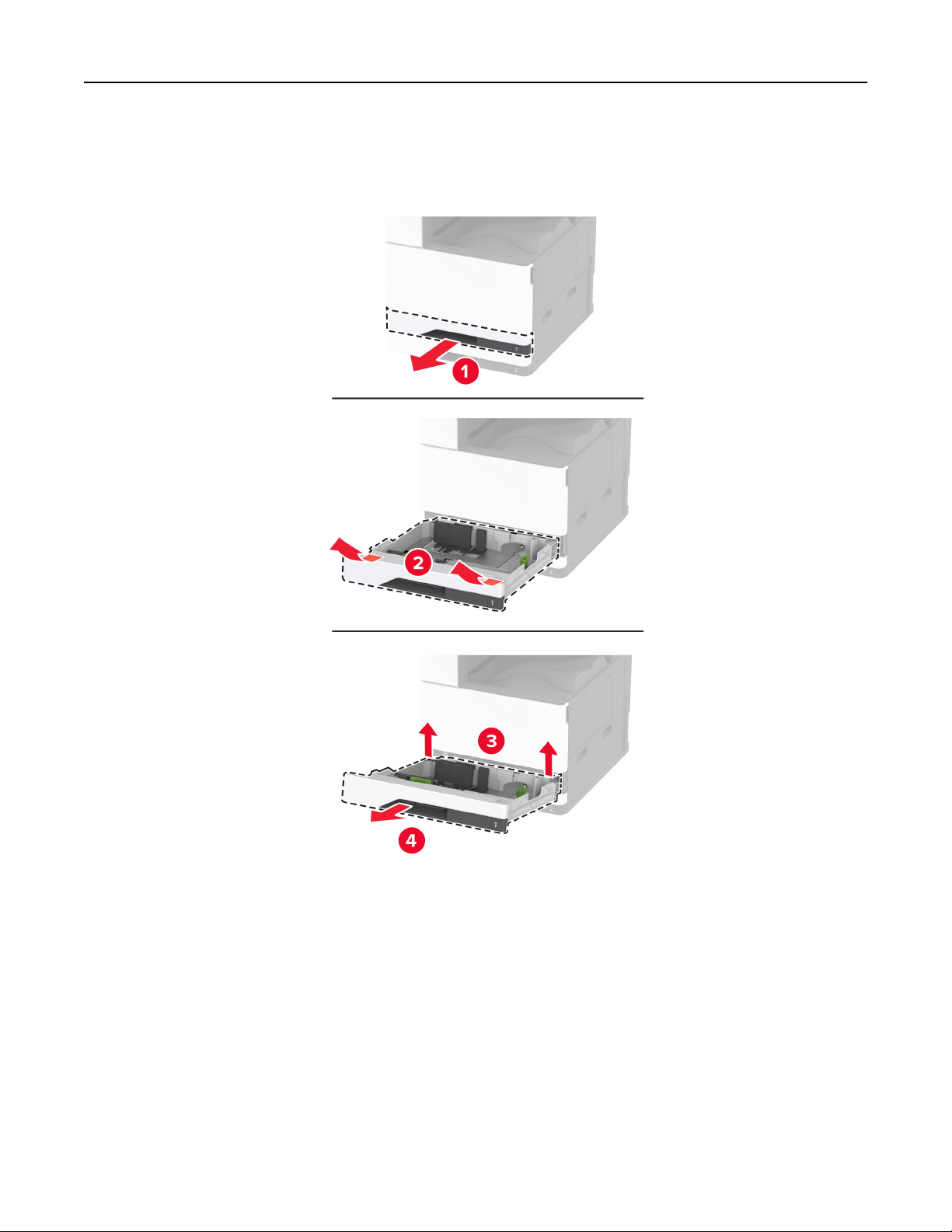
Replacing the 520‑sheet tray insert
1 Remove the used tray insert.
2 Unpack the new tray insert, and then remove all the packing material.
Maintain the printer 316
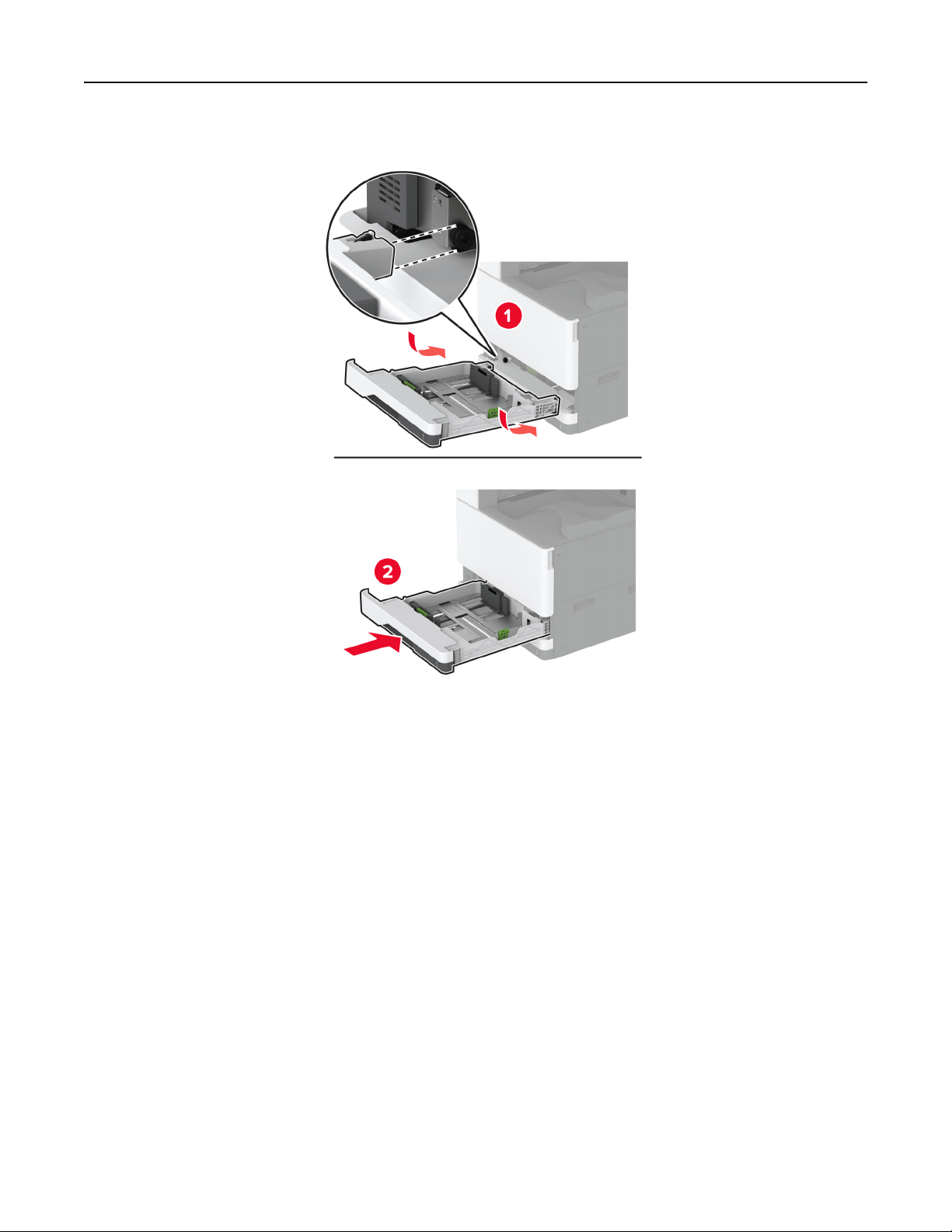
3 Insert the new tray insert.
Maintain the printer 317
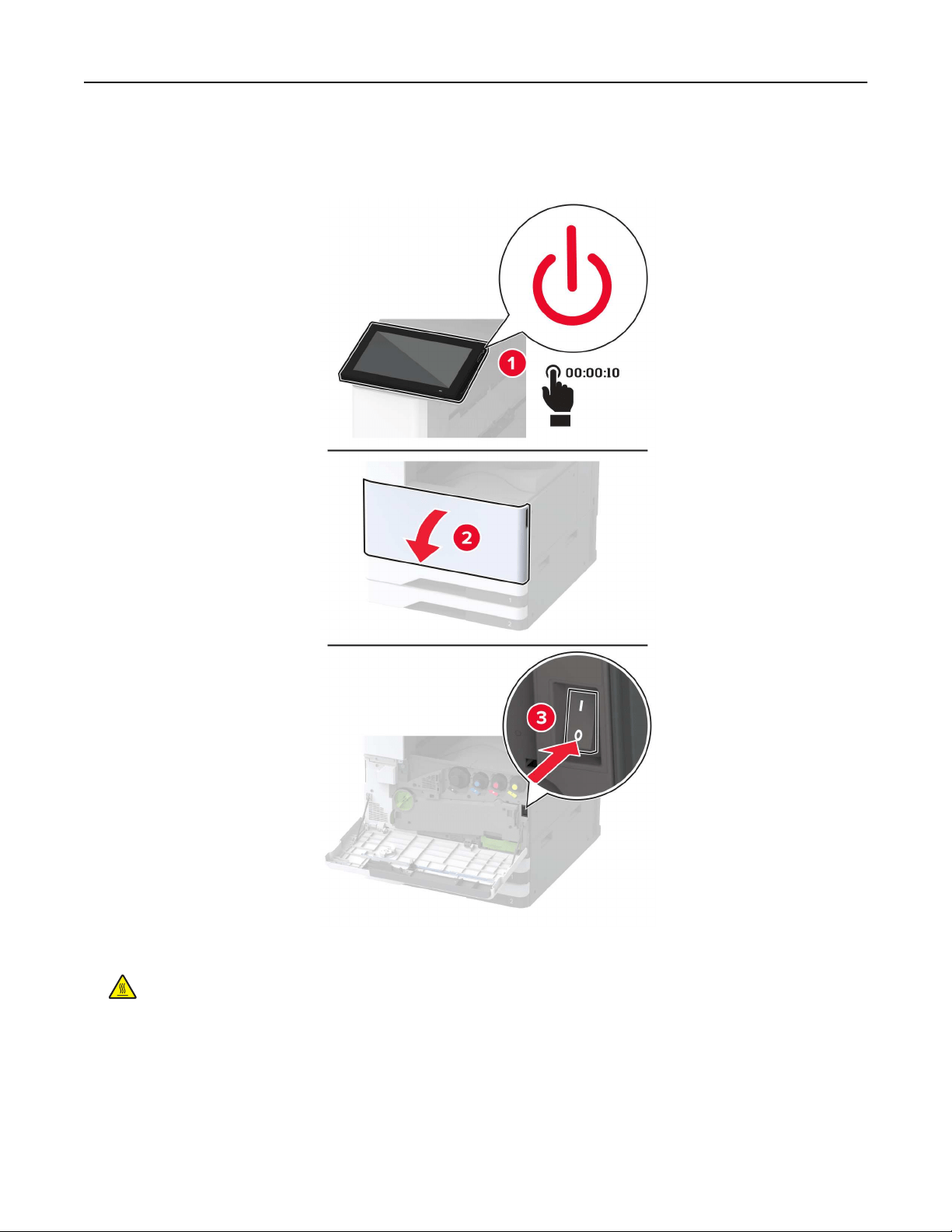
Replacing the fuser
1 Turn
o
the printer.
2 Open door A.
CAUTION—HOT SURFACE: The inside of the printer might be hot. To reduce the risk of injury from a
hot component, allow the surface to cool before touching it.
Maintain the printer 318
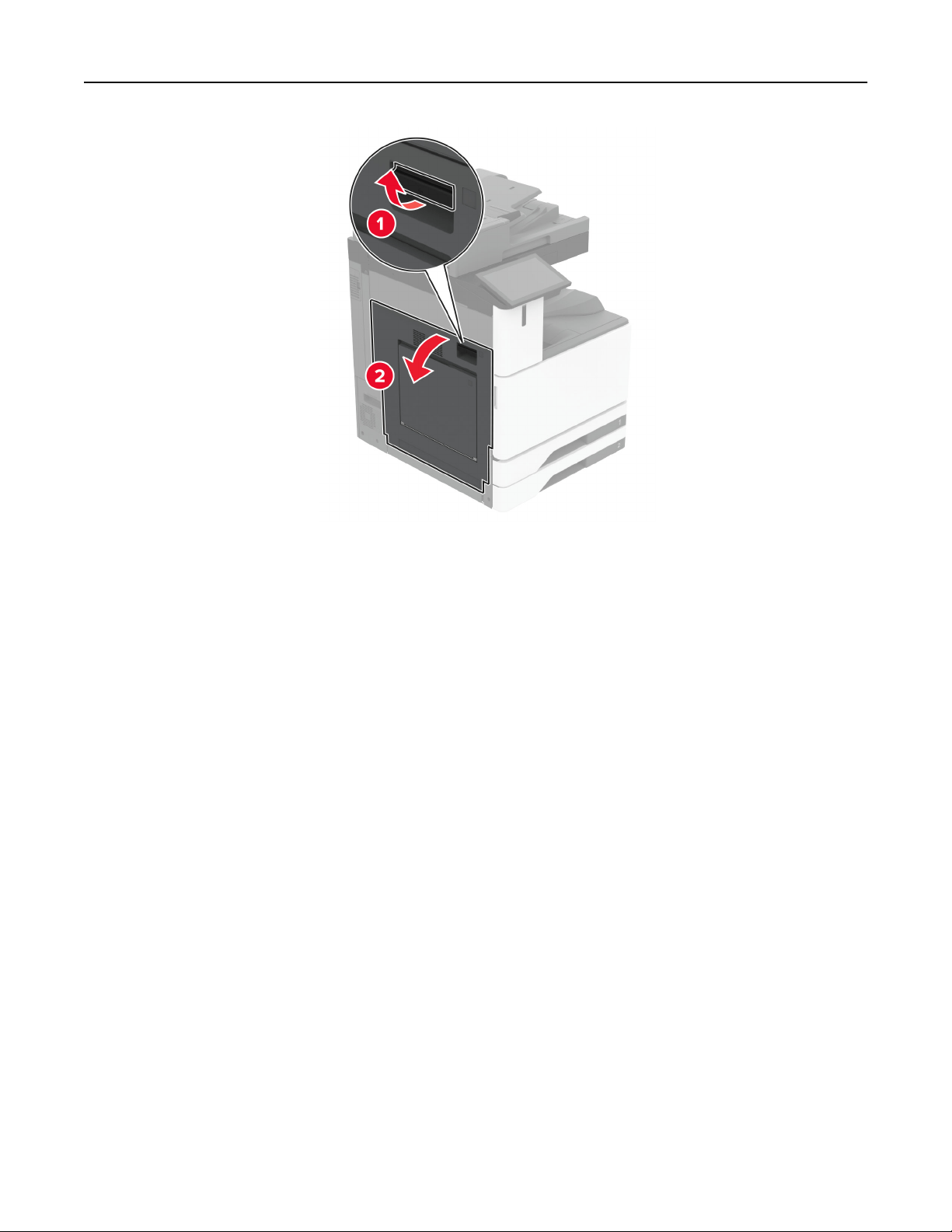
Maintain the printer 319
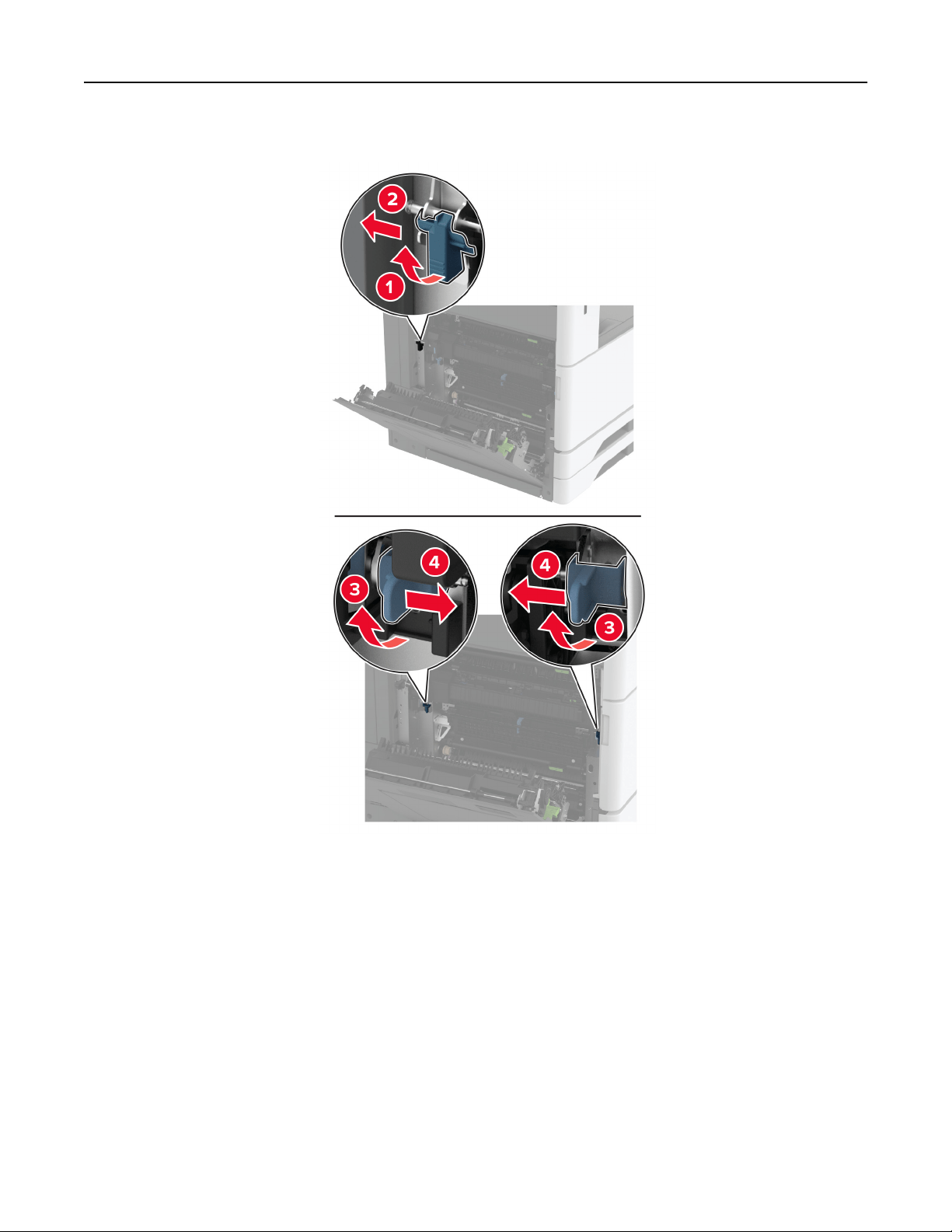
3 Unlock the fuser.
Maintain the printer 320
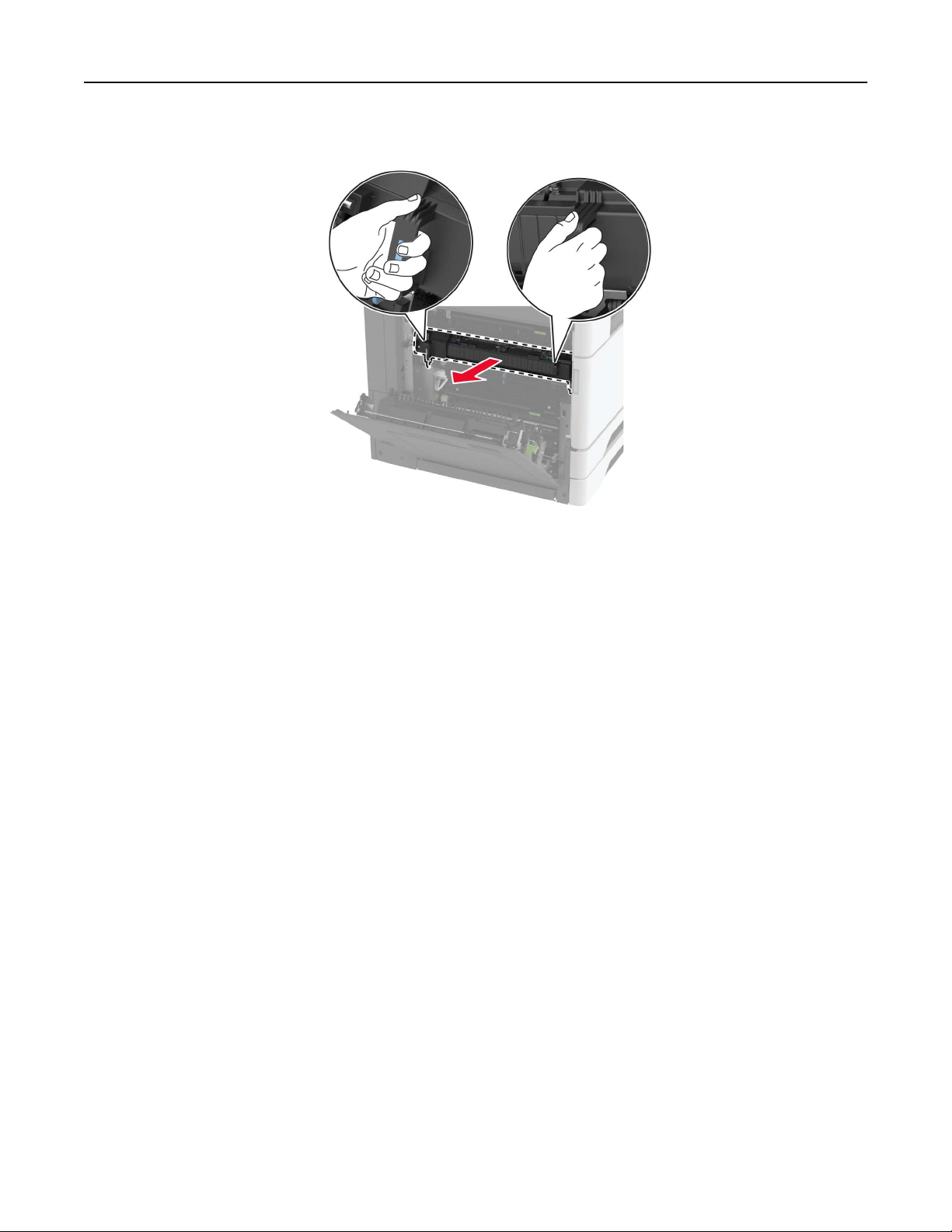
4 Remove the used fuser.
5 Unpack the new fuser.
Maintain the printer 321
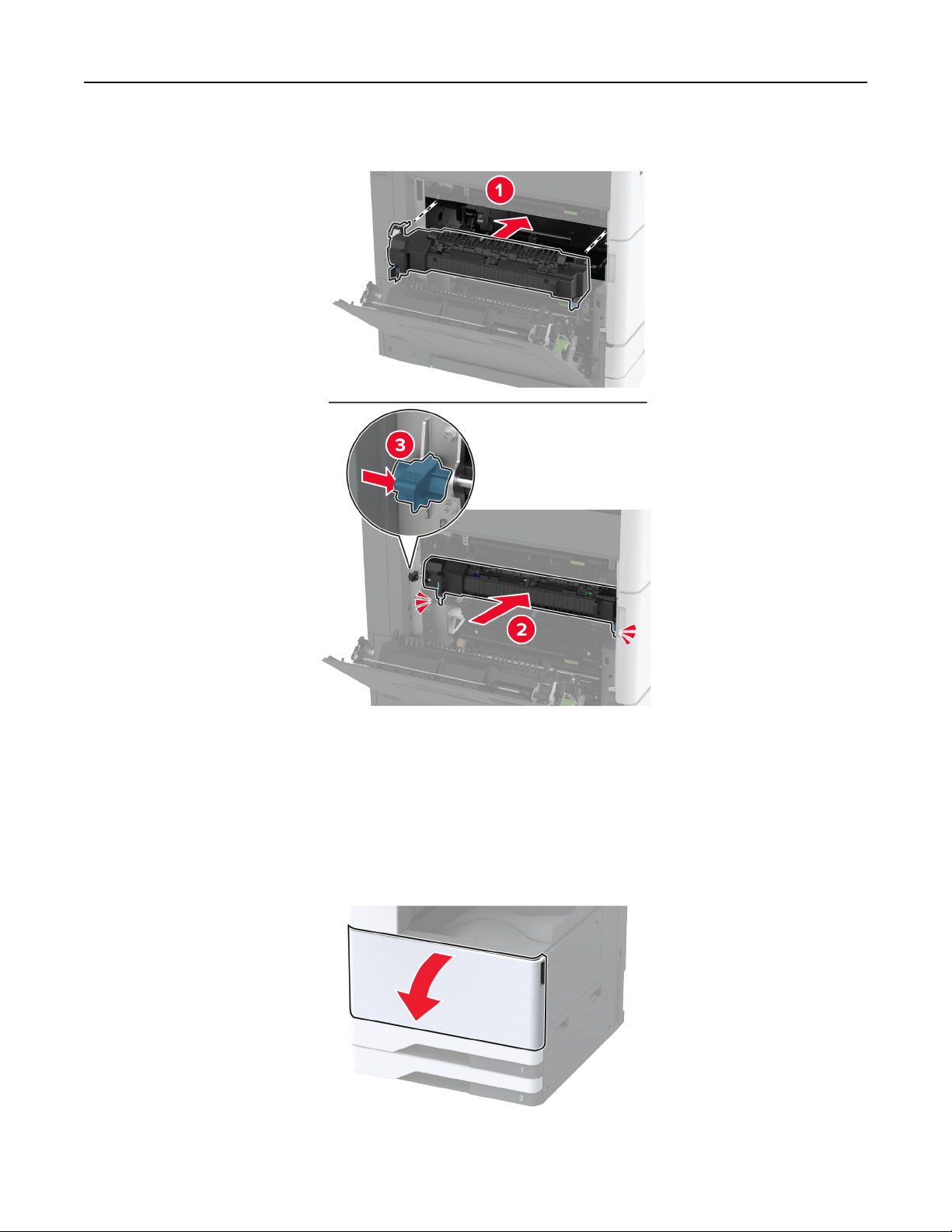
6 Insert the new fuser until it clicks into place, and then lock it.
7 Close door A.
8 Turn on the printer.
Replacing the printhead wiper
1 Open the front door.
Maintain the printer 322
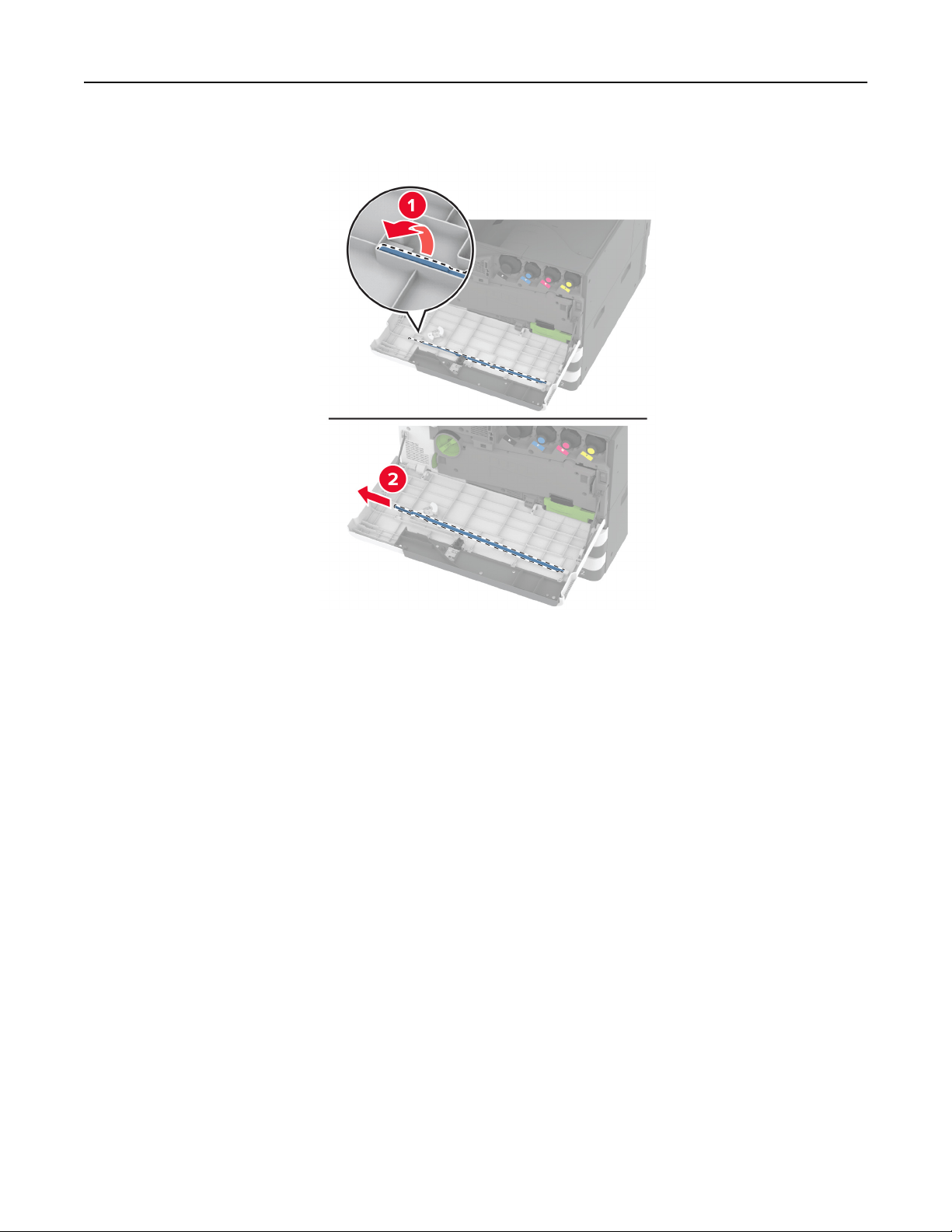
2 Remove the used printhead wiper.
3 Unpack the new printhead wiper.
Maintain the printer 323
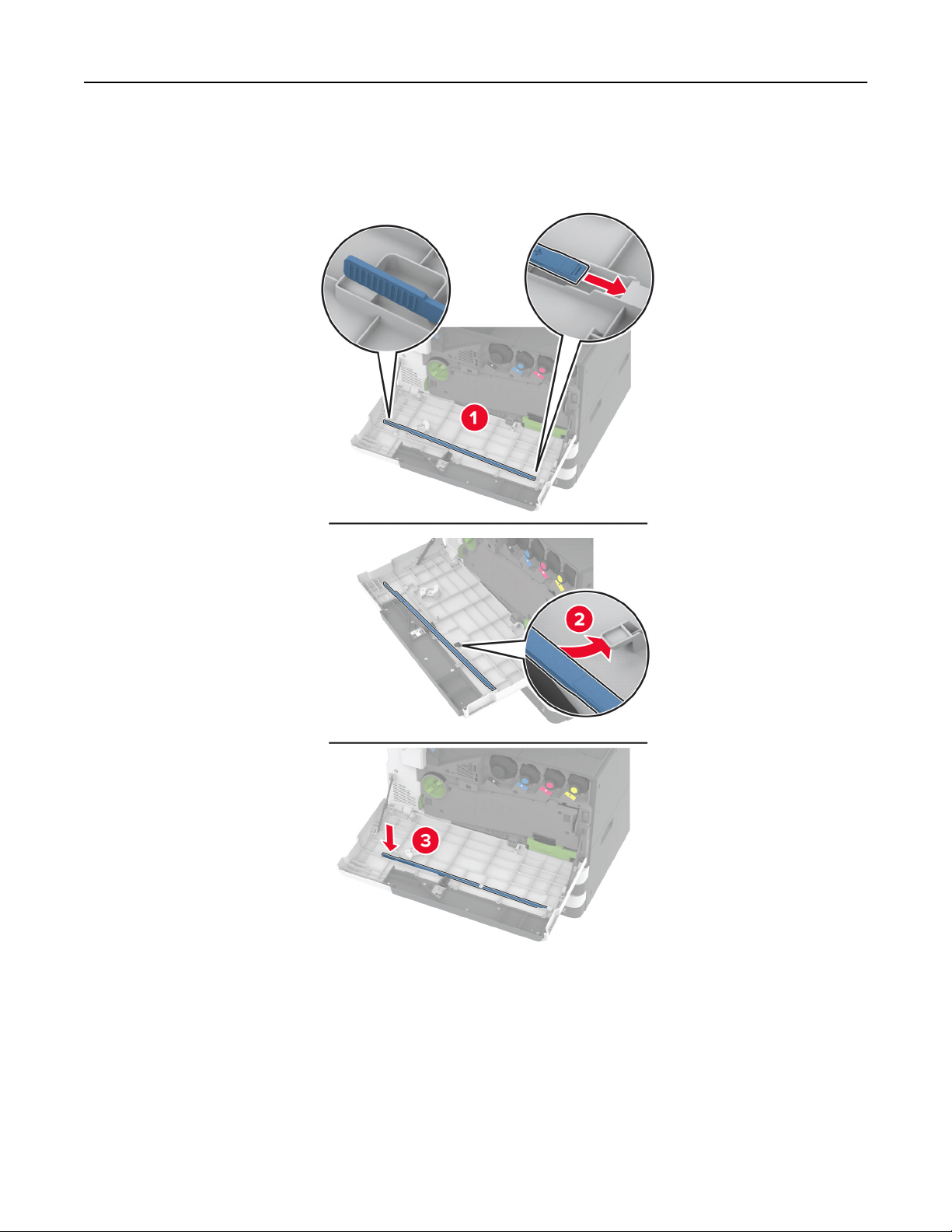
4 Insert the new printhead wiper.
5 Close the front door.
Maintain the printer 324
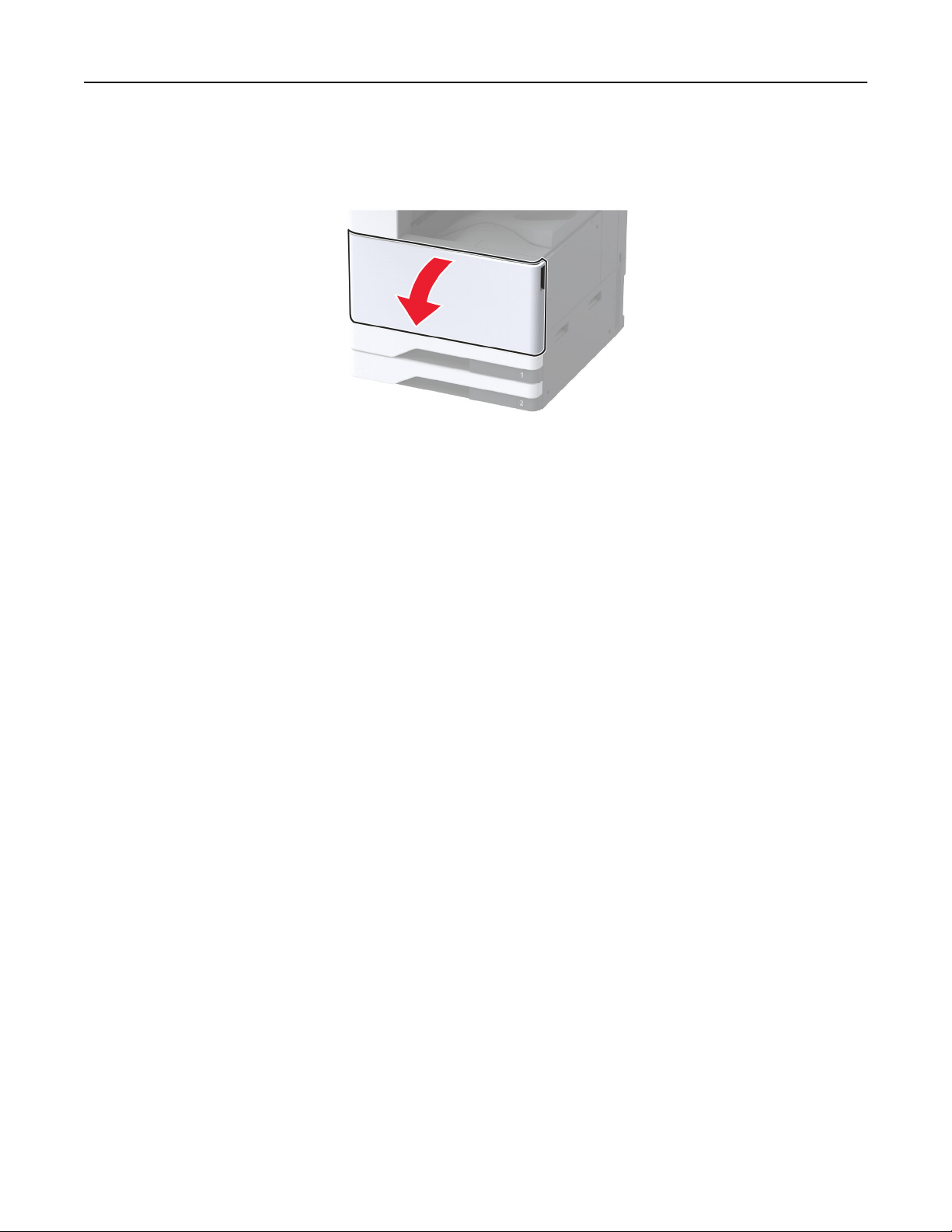
Replacing the transfer module cleaner
1 Open the front door.
Maintain the printer 325
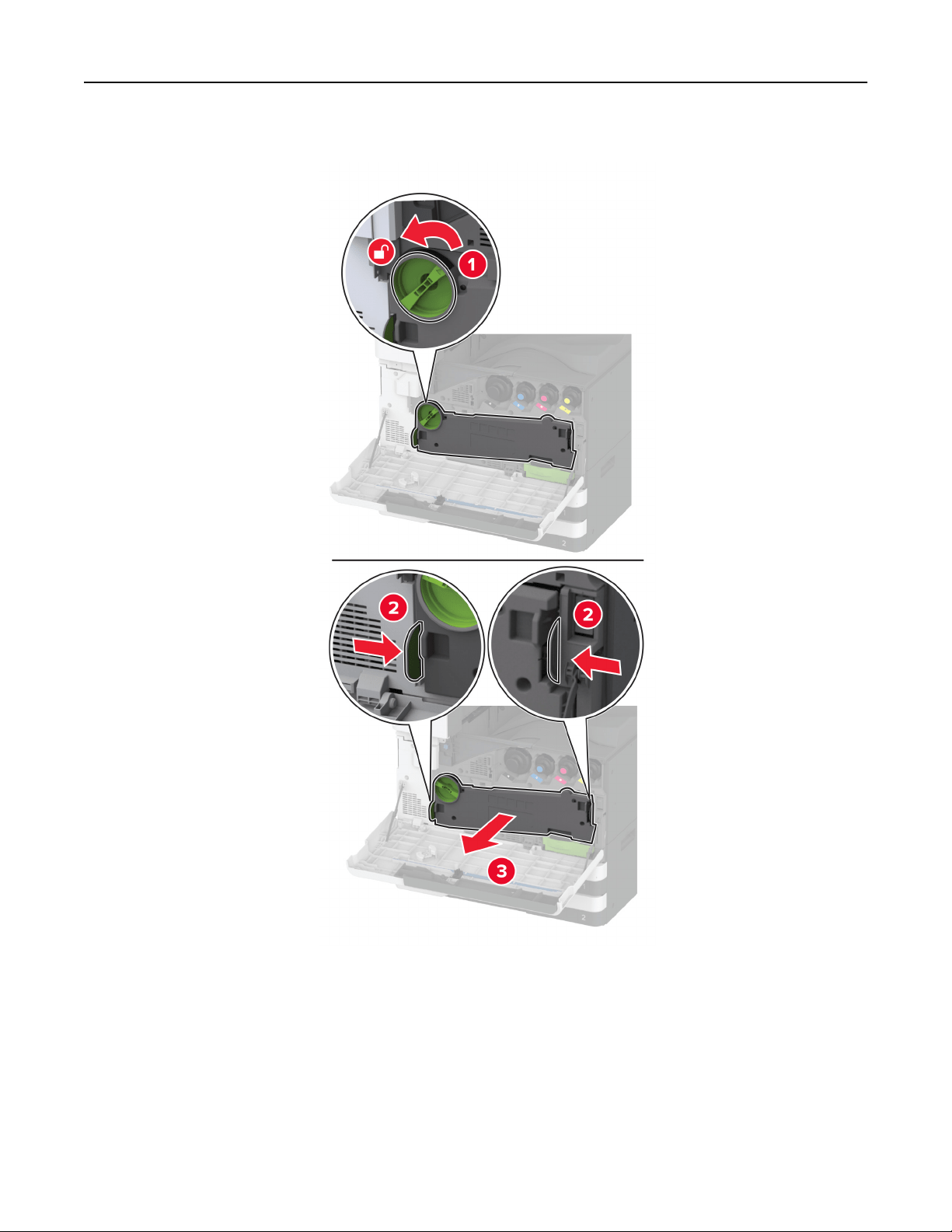
2 Remove the waste toner transfer unit.
Note: To avoid spilling the toner, place the unit in an upright position.
Maintain the printer 326
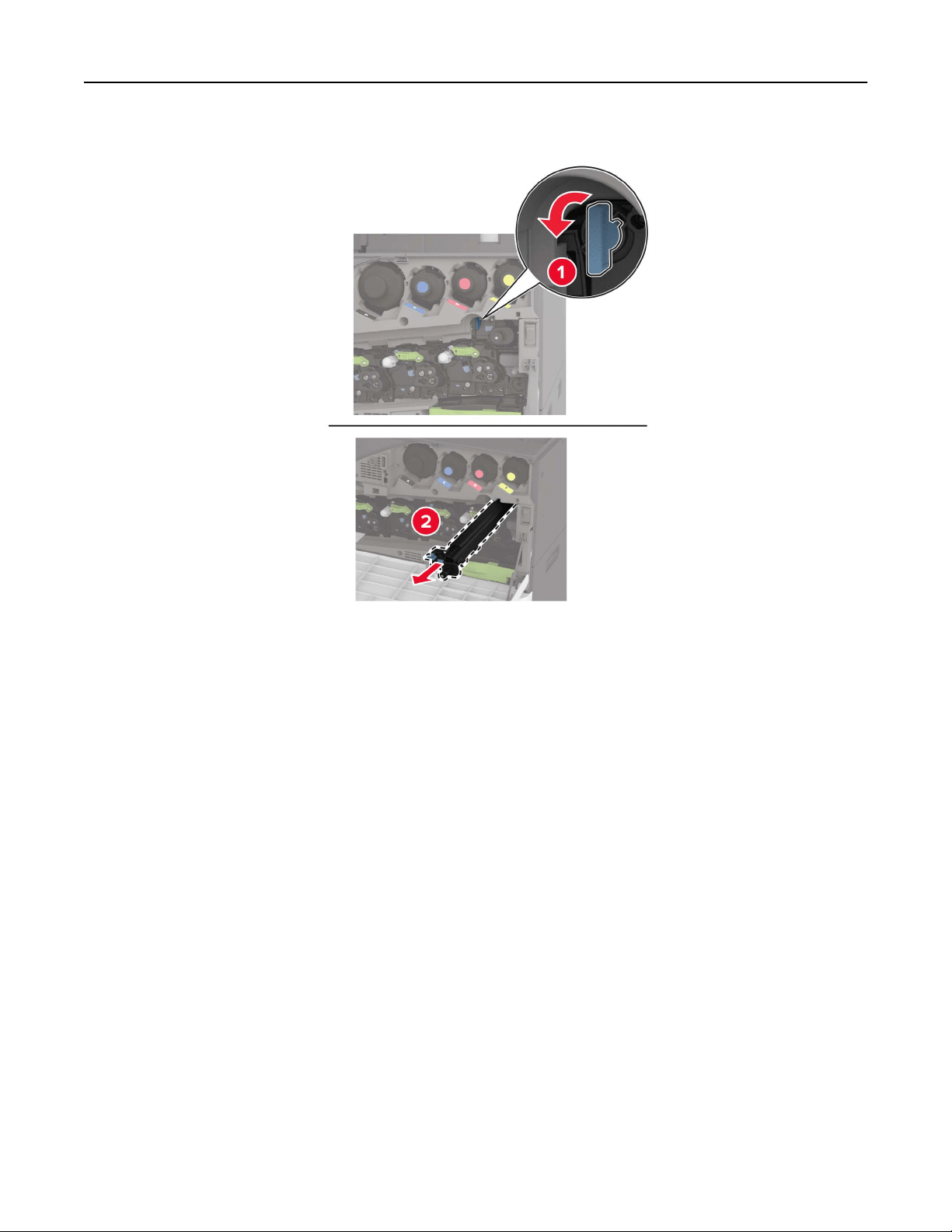
3 Remove the used transfer module cleaner.
4 Unpack the new transfer module cleaner.
Maintain the printer 327
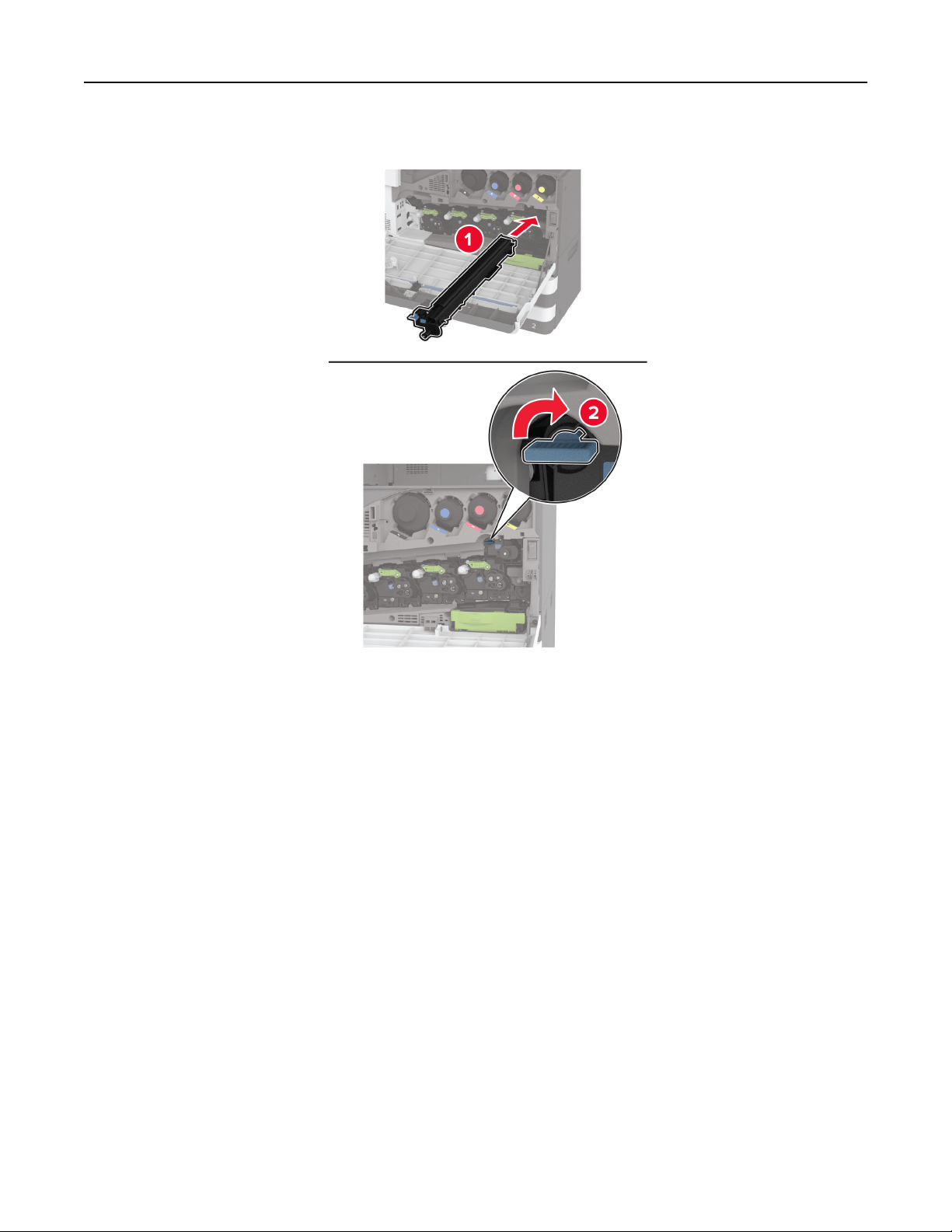
5 Insert the new transfer module cleaner.
Maintain the printer 328
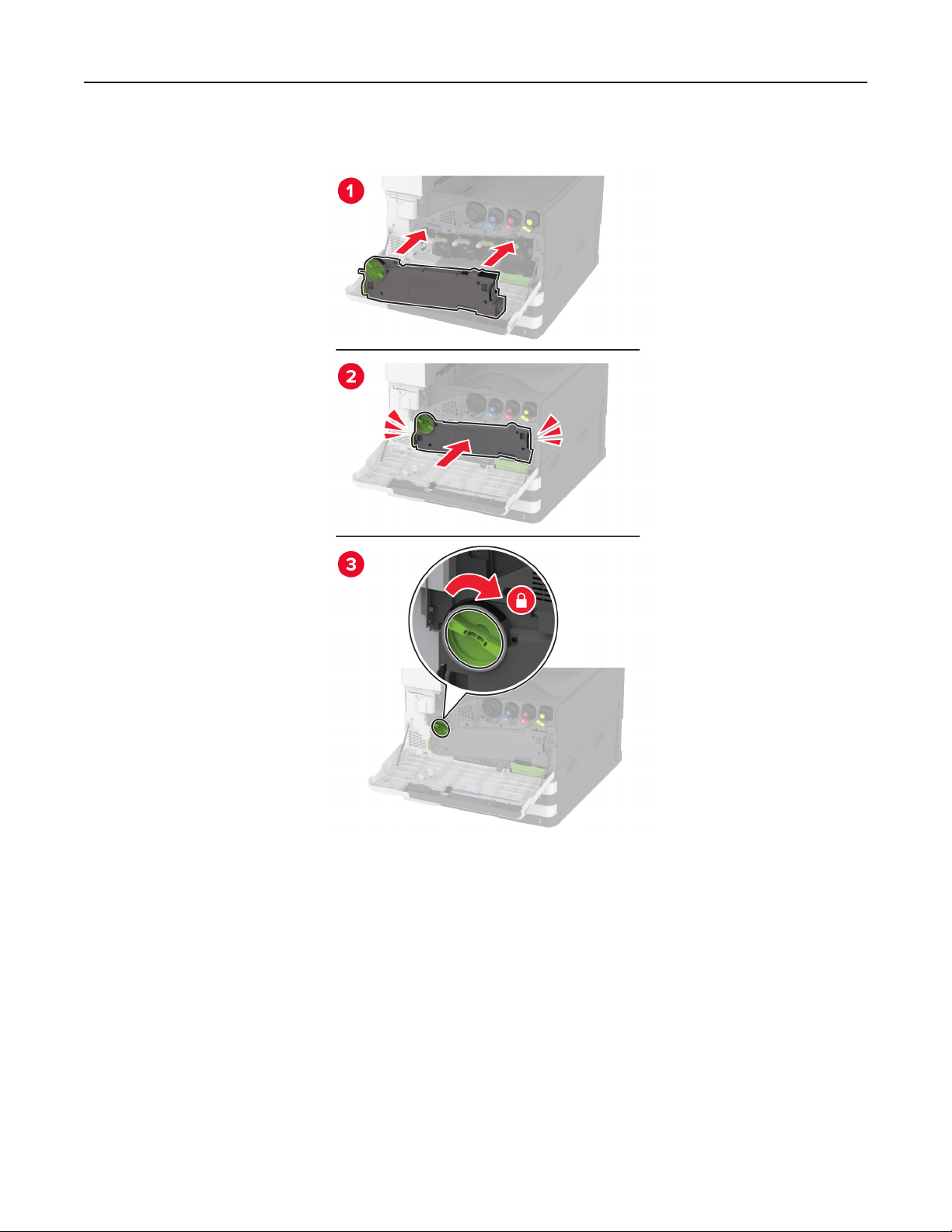
6 Insert the waste toner transfer unit until it clicks into place, and then lock it.
7 Close the front door.
Maintain the printer 329
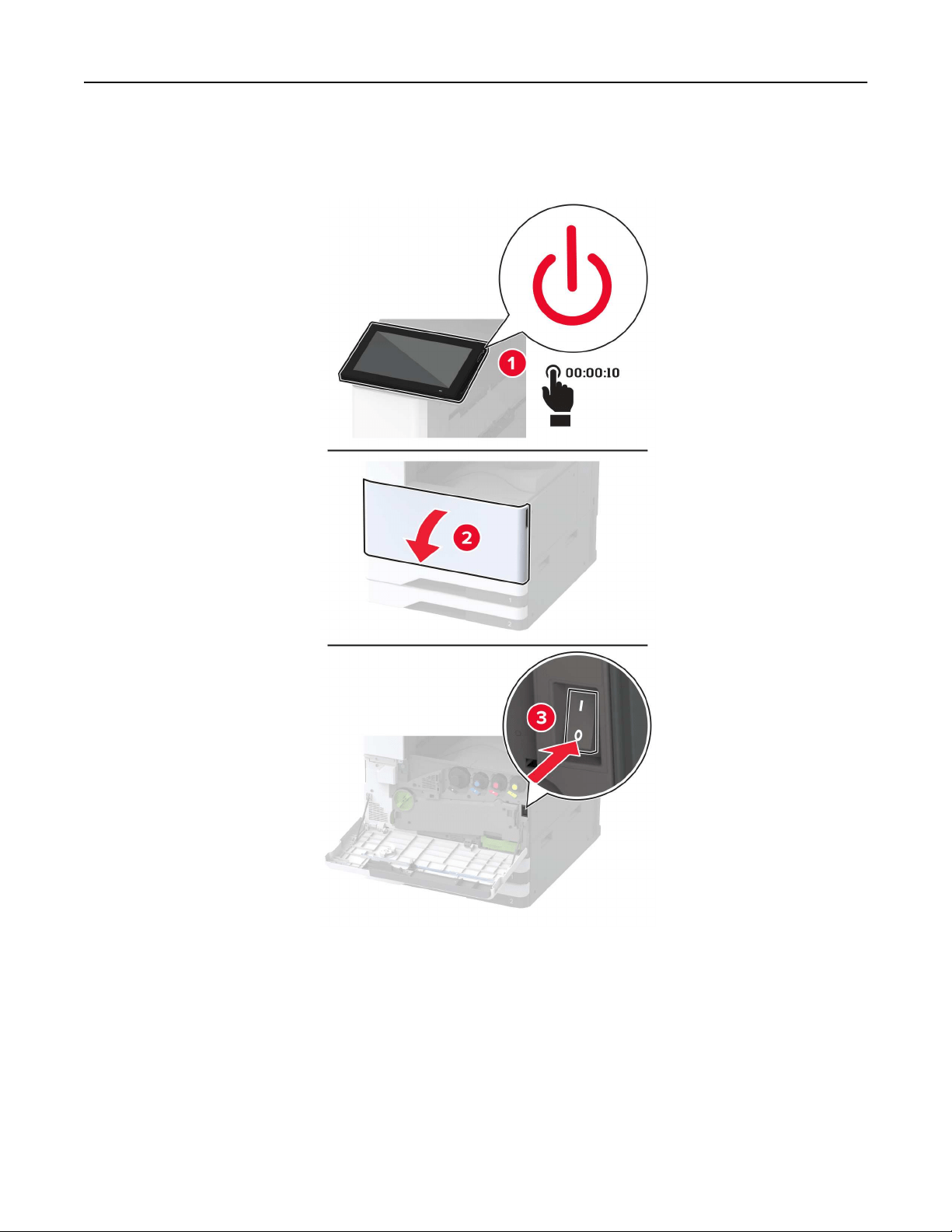
Replacing the tray roller kit
1 Turn
o
the printer.
Maintain the printer 330
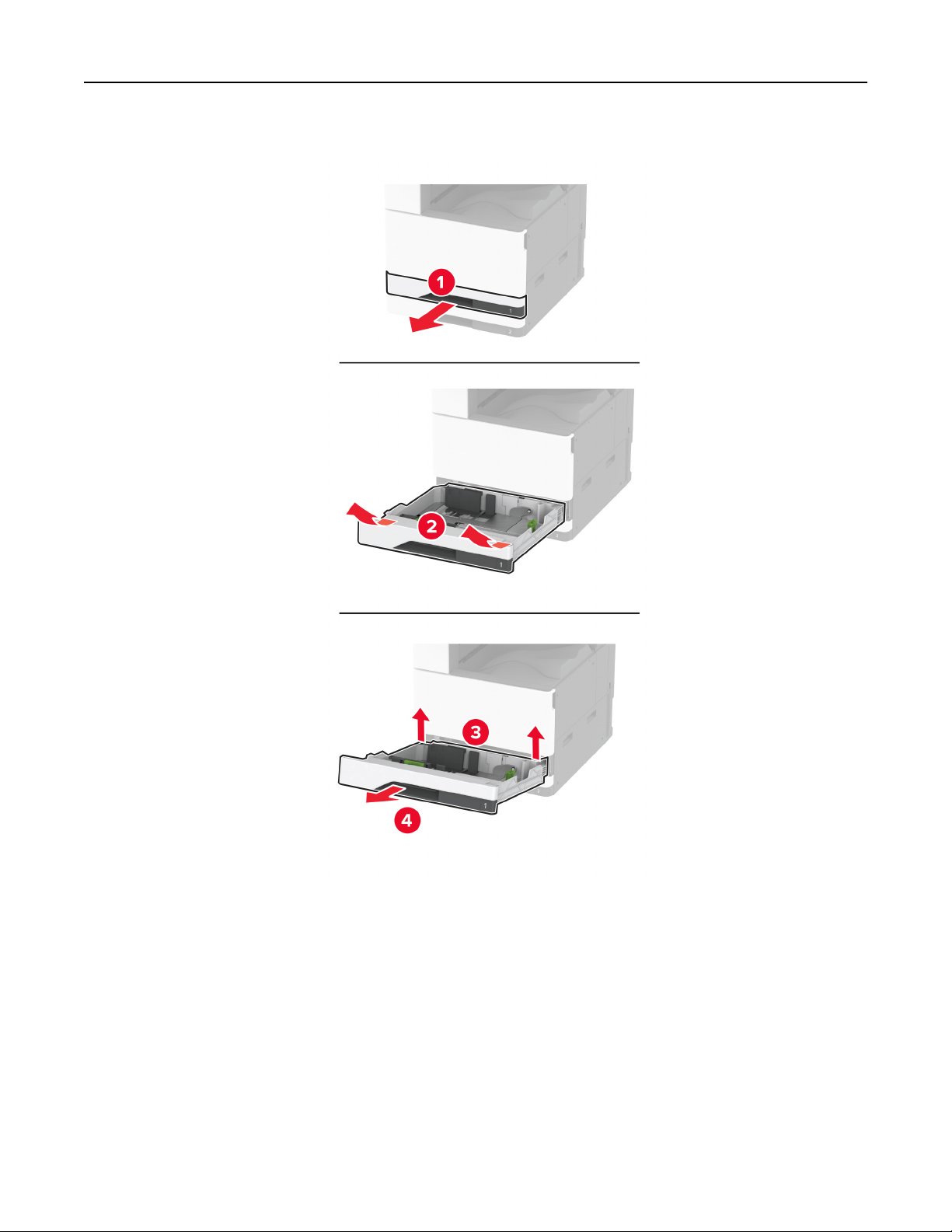
2 Remove the standard tray.
3 Remove the used tray roller kit.
Warning—Potential Damage: To prevent damage from electrostatic discharge, touch any exposed metal
frame of the printer before accessing or touching interior areas of the printer.
Maintain the printer 331
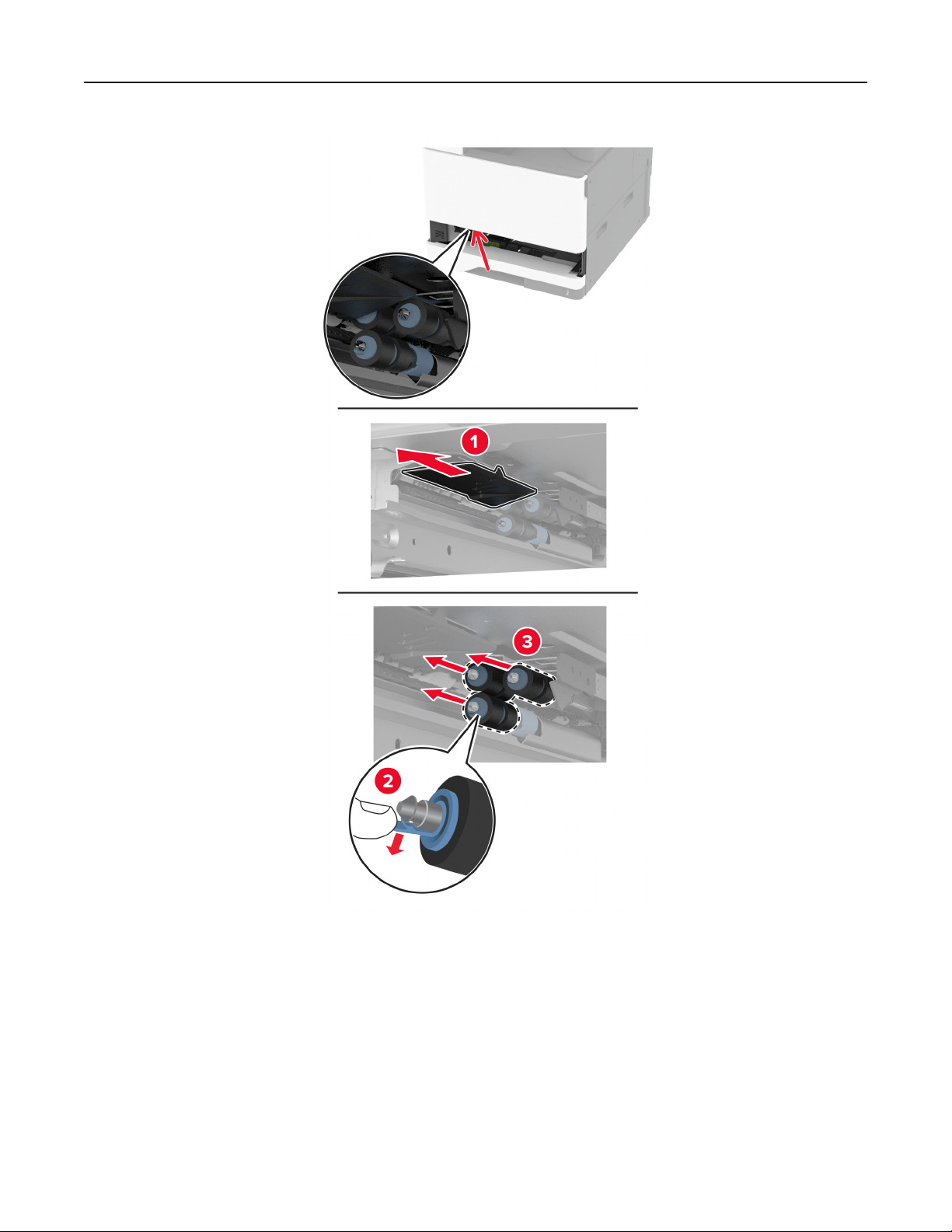
4 Unpack the new tray roller kit.
Maintain the printer 332
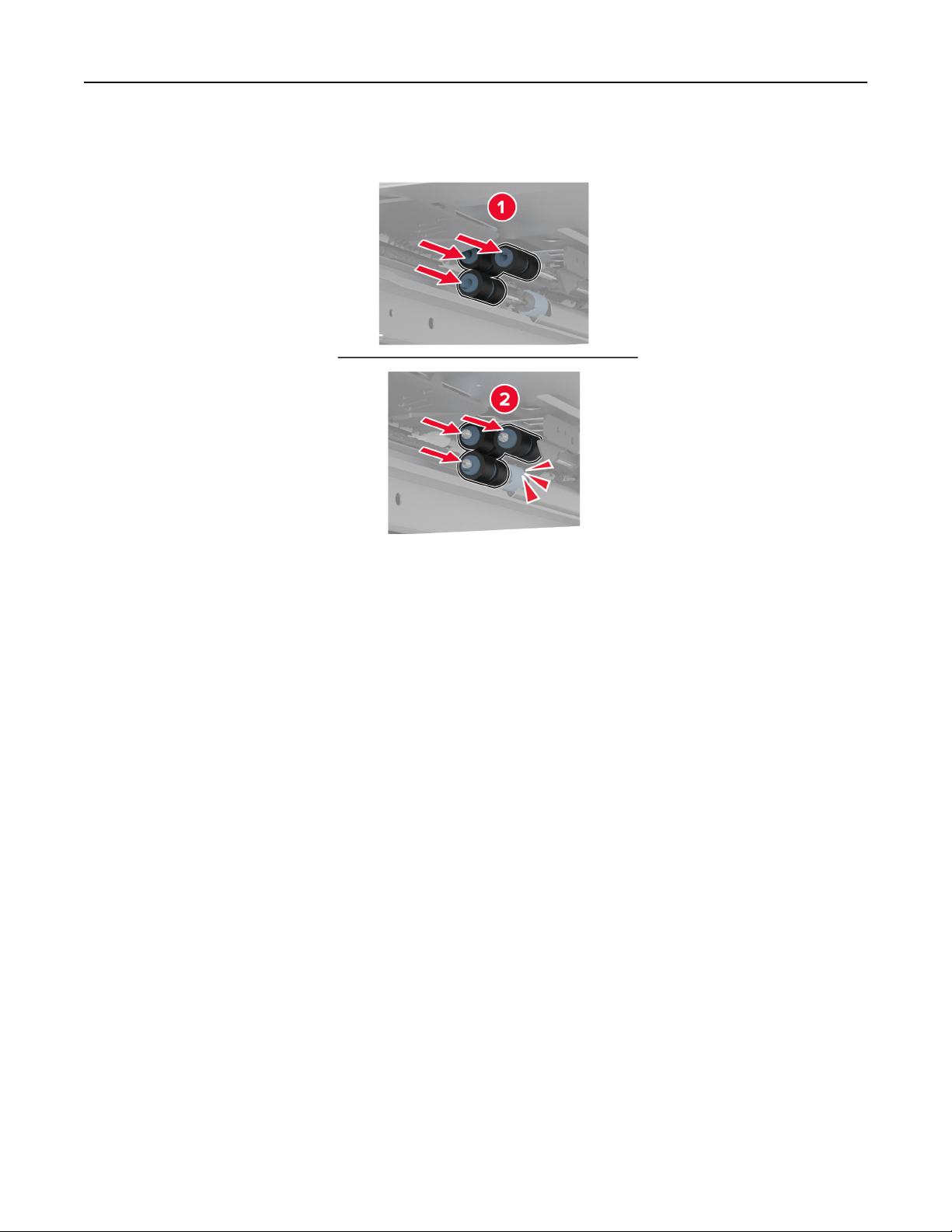
5 Insert the new tray roller kit until it clicks into place.
6 Insert the tray.
7 Turn on the printer.
Maintain the printer 333
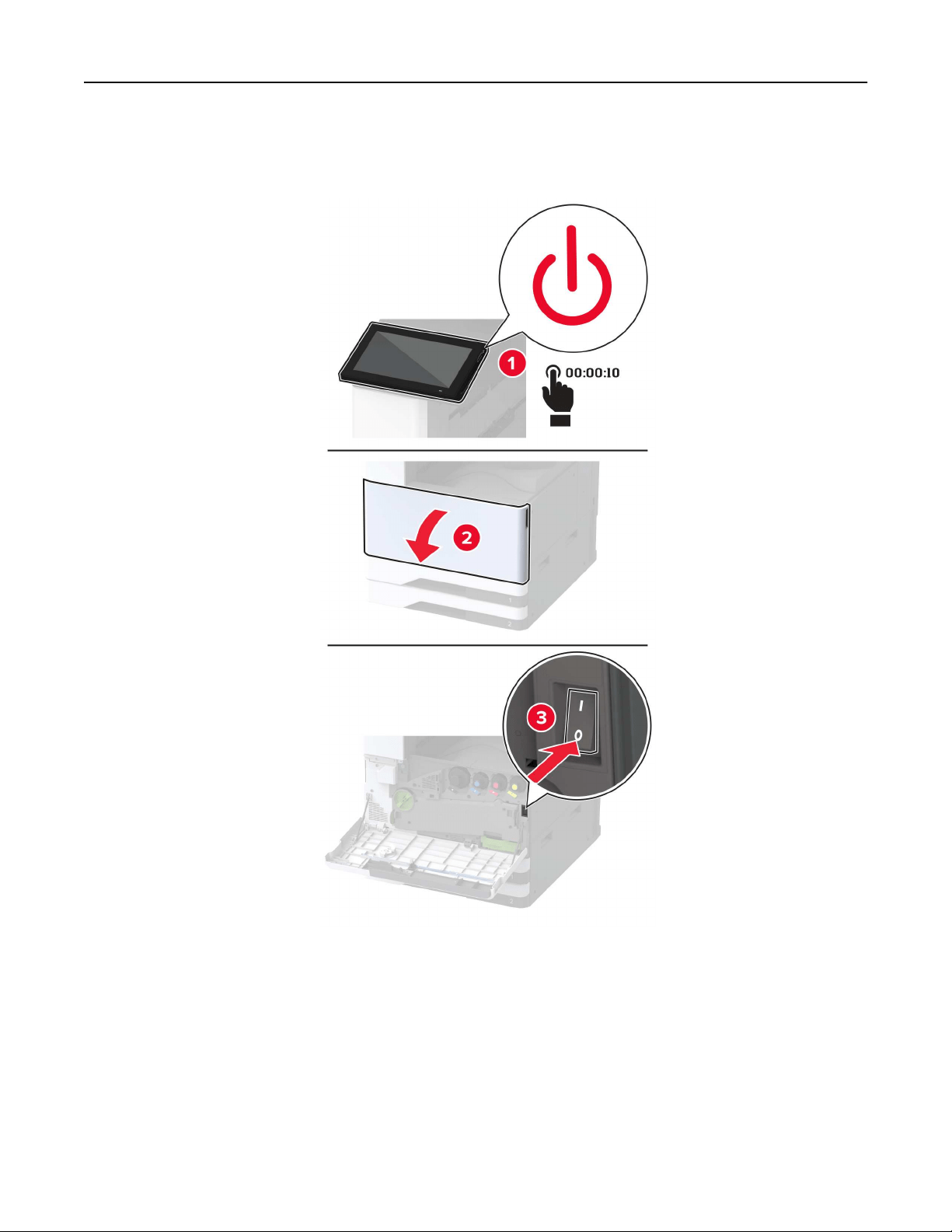
Replacing the ADF roller kit
1 Turn
o
the printer.
Maintain the printer 334
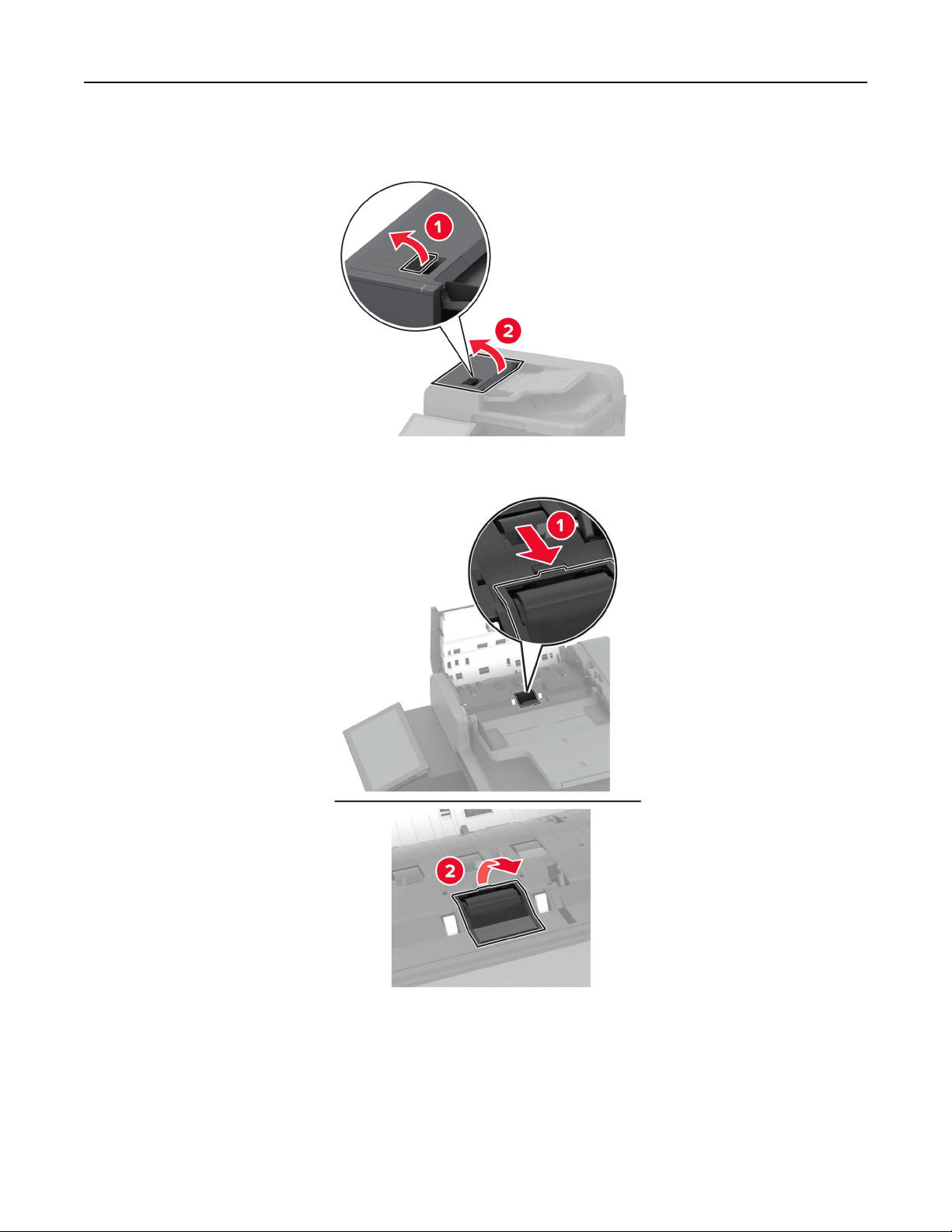
2 Open the ADF top cover.
3 Remove the separator roller cover.
Maintain the printer 335
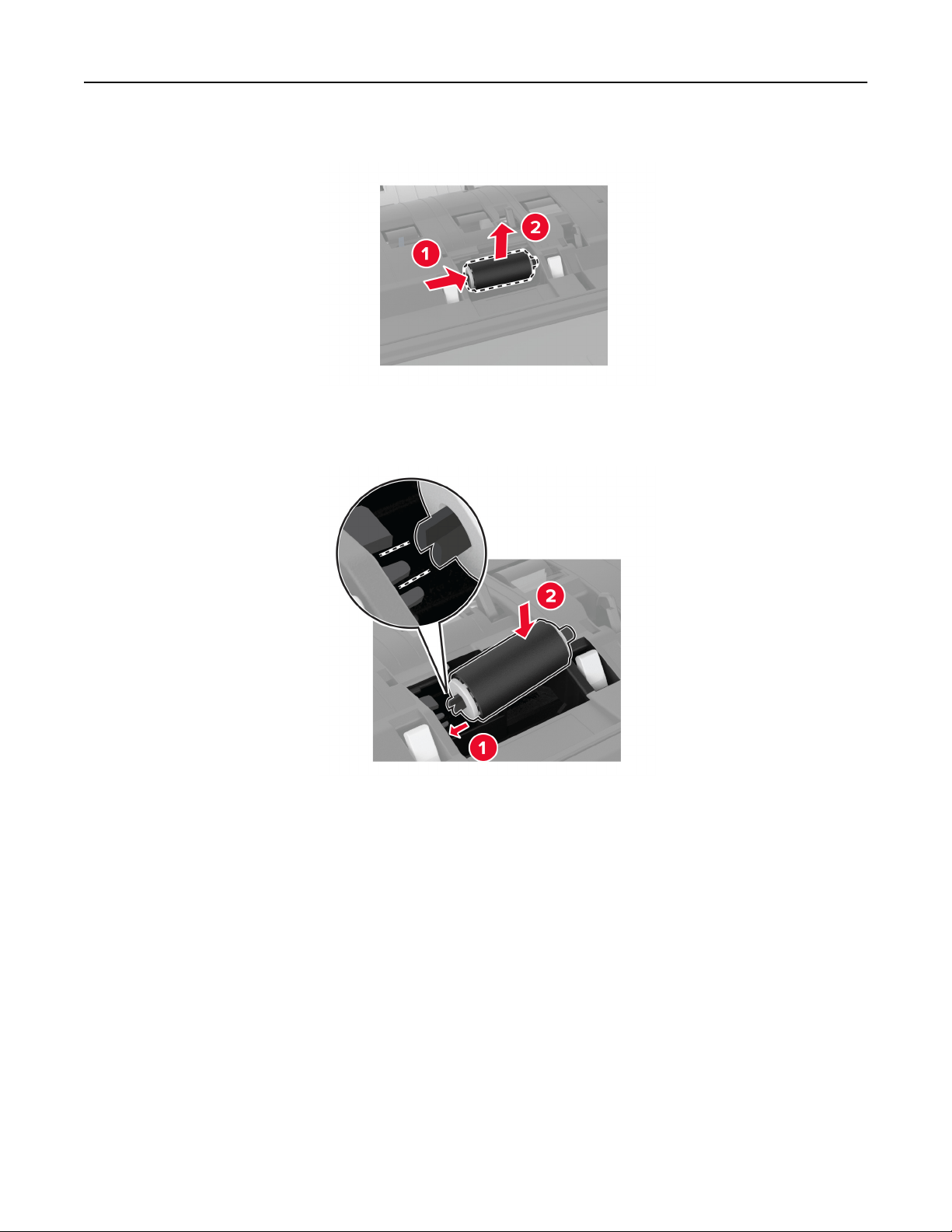
4 Remove the used separator roller.
5 Unpack the new separator roller.
6 Insert the new separator roller.
7 Insert the separator roller cover until it clicks into place.
Maintain the printer 336
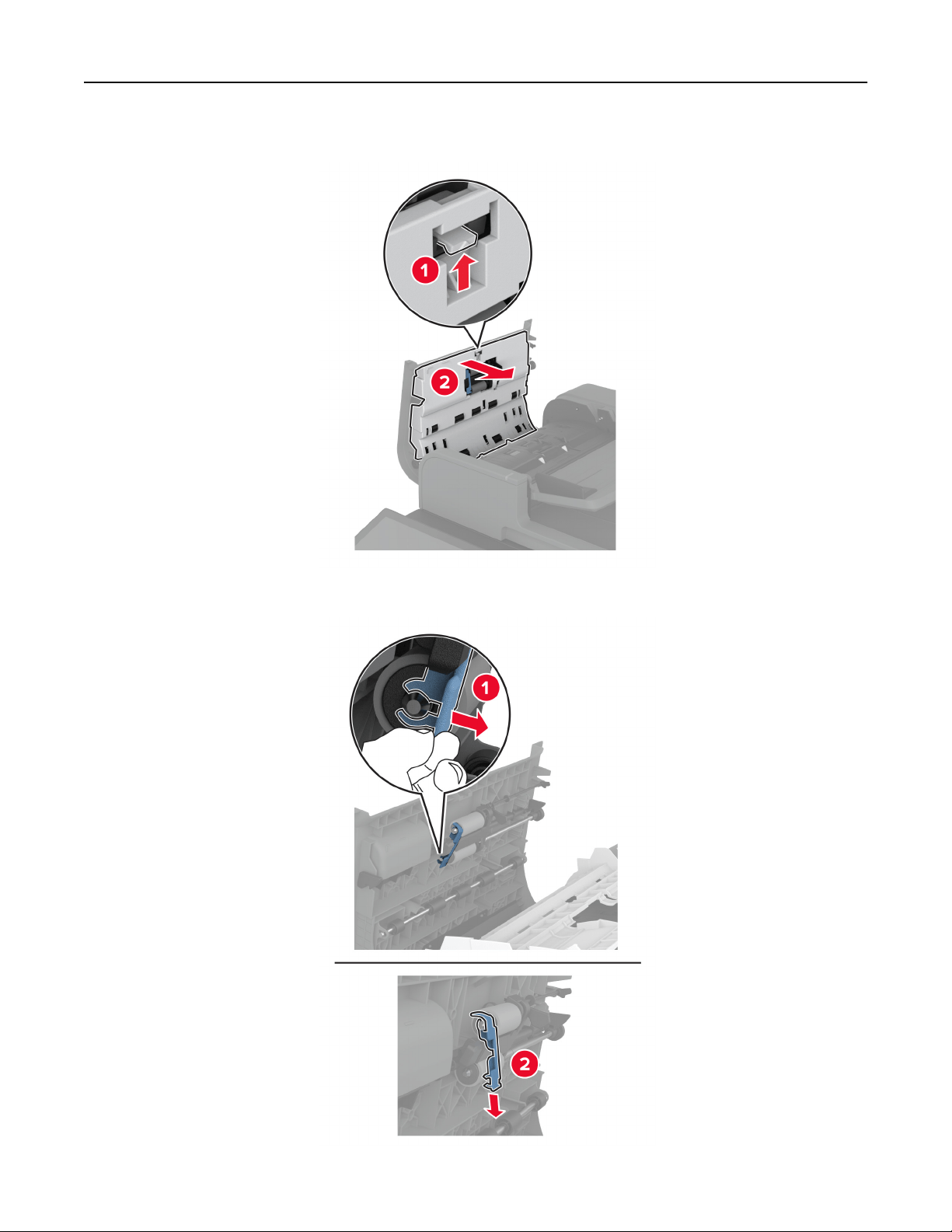
8 Open the ADF inner cover.
9 Remove the roller clip.
Maintain the printer 337
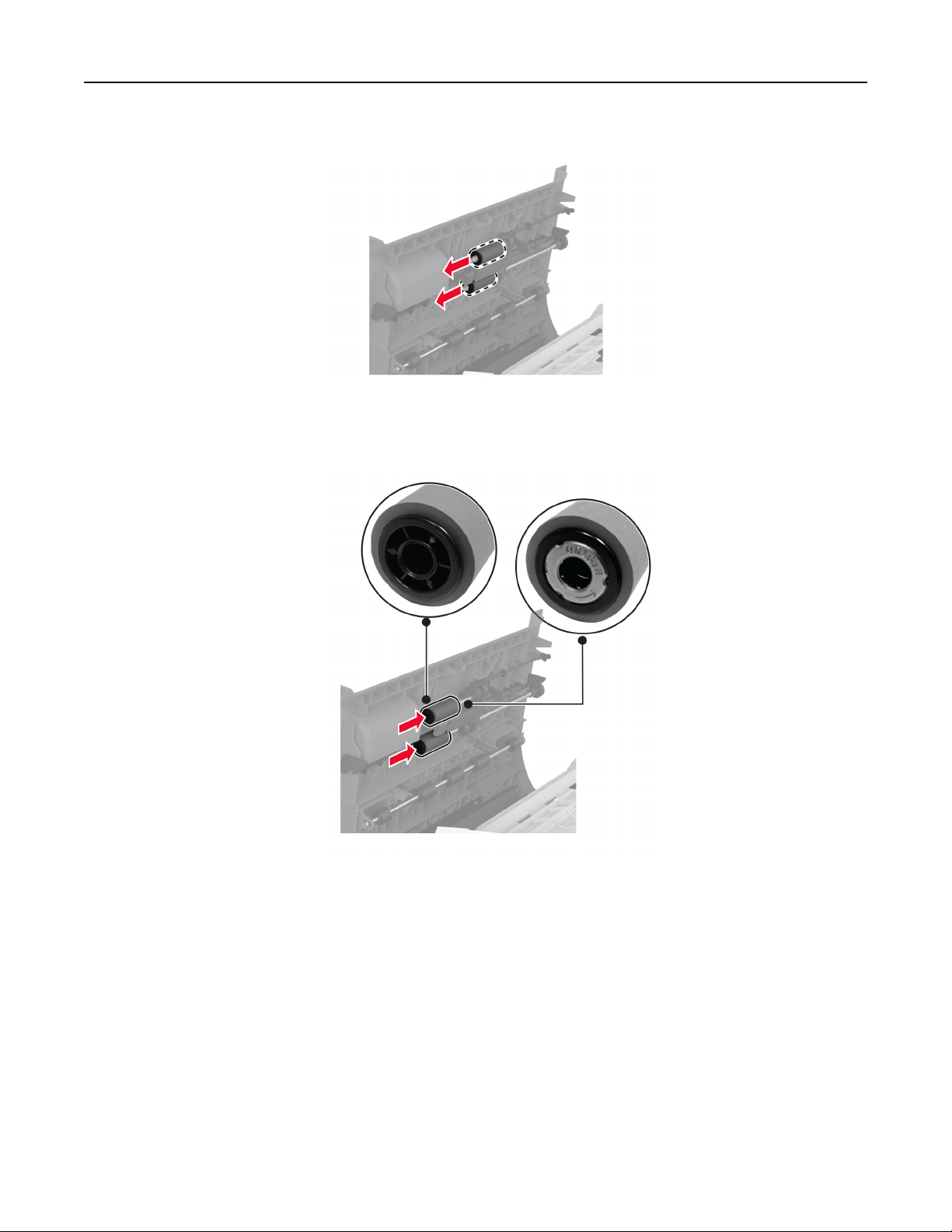
10 Remove the used feed rollers.
11 Unpack the new feed rollers.
12 Insert the new feed rollers.
Maintain the printer 338
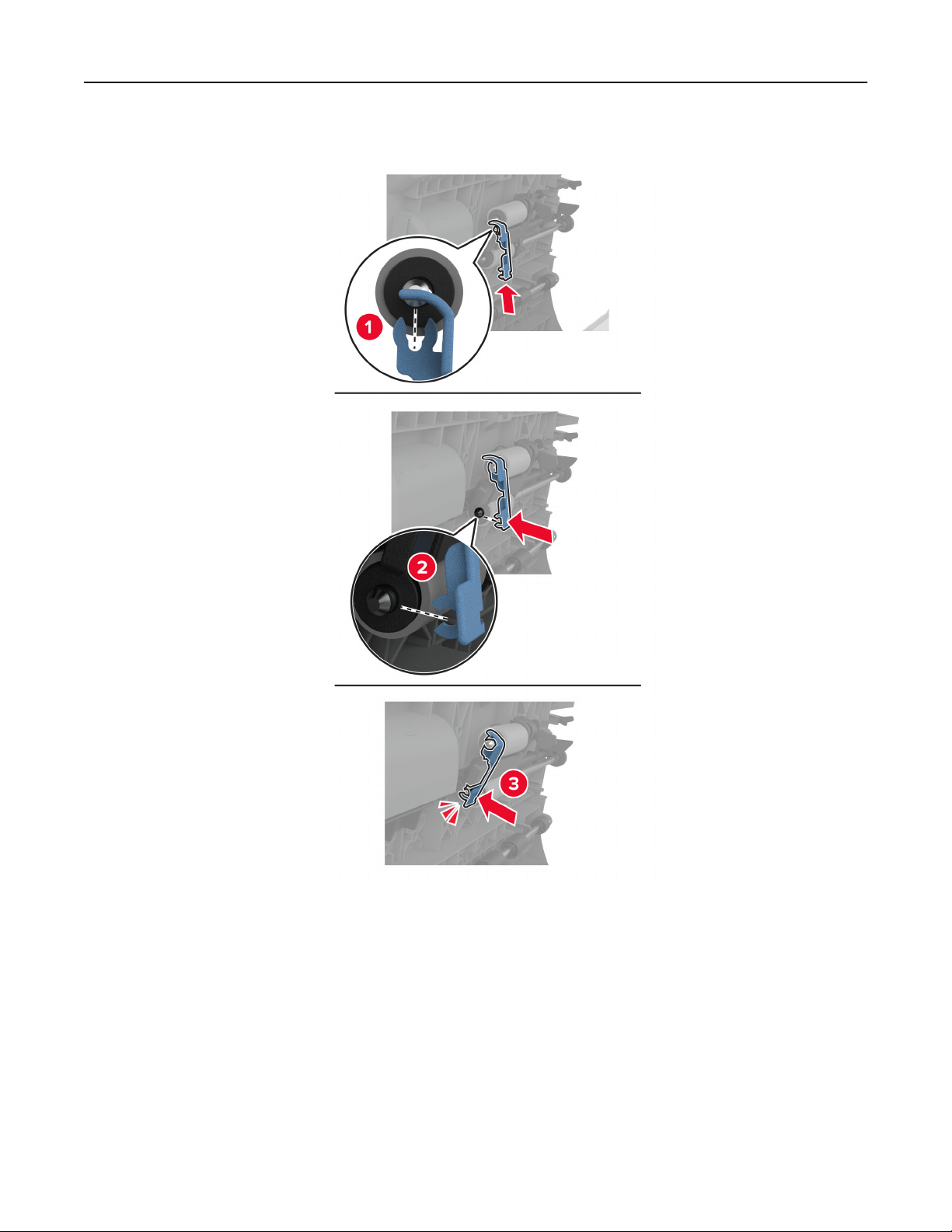
13 Attach the roller clip until it clicks into place.
Maintain the printer 339
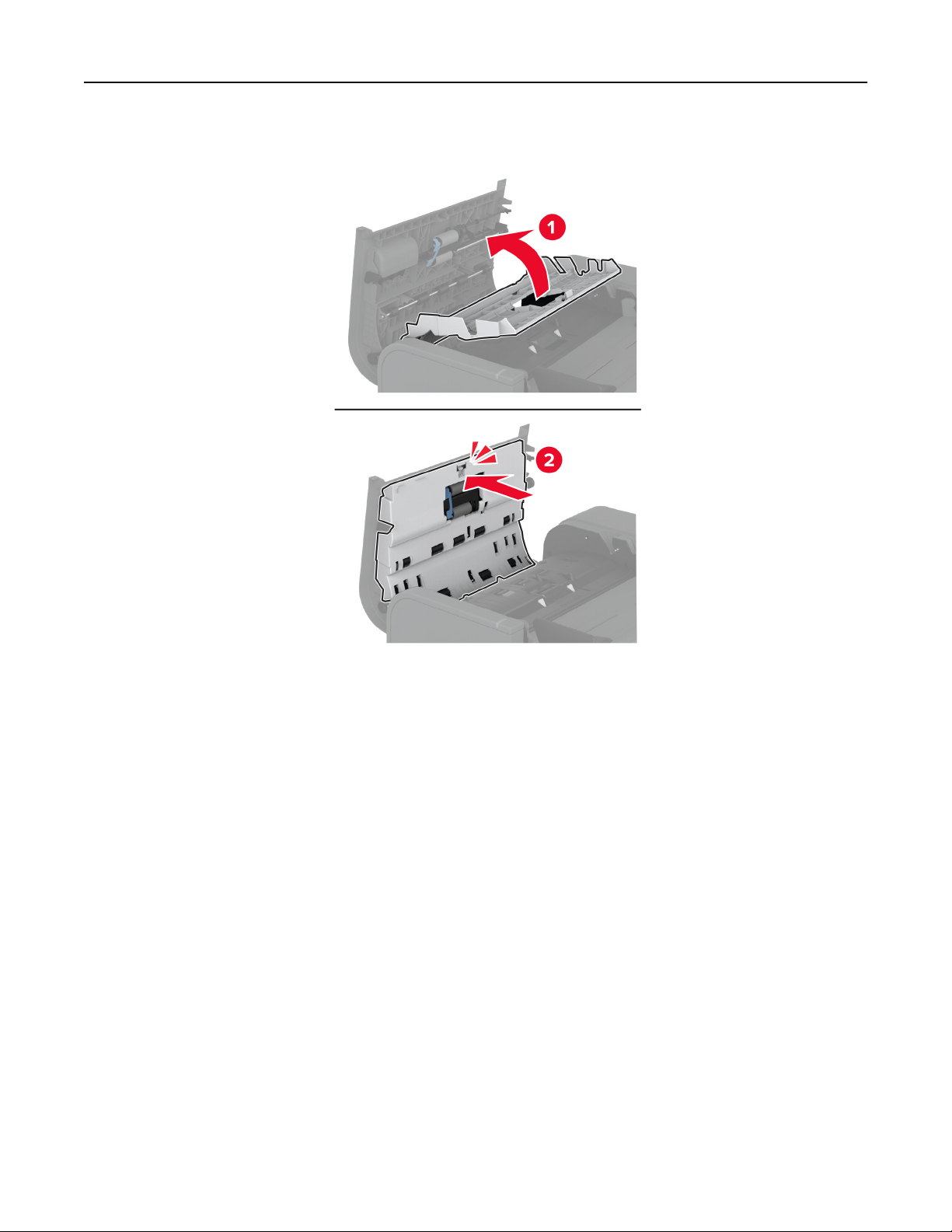
14 Close the ADF inner cover until it clicks into place.
15 Close the ADF top cover.
16 Turn on the printer.
Maintain the printer 340
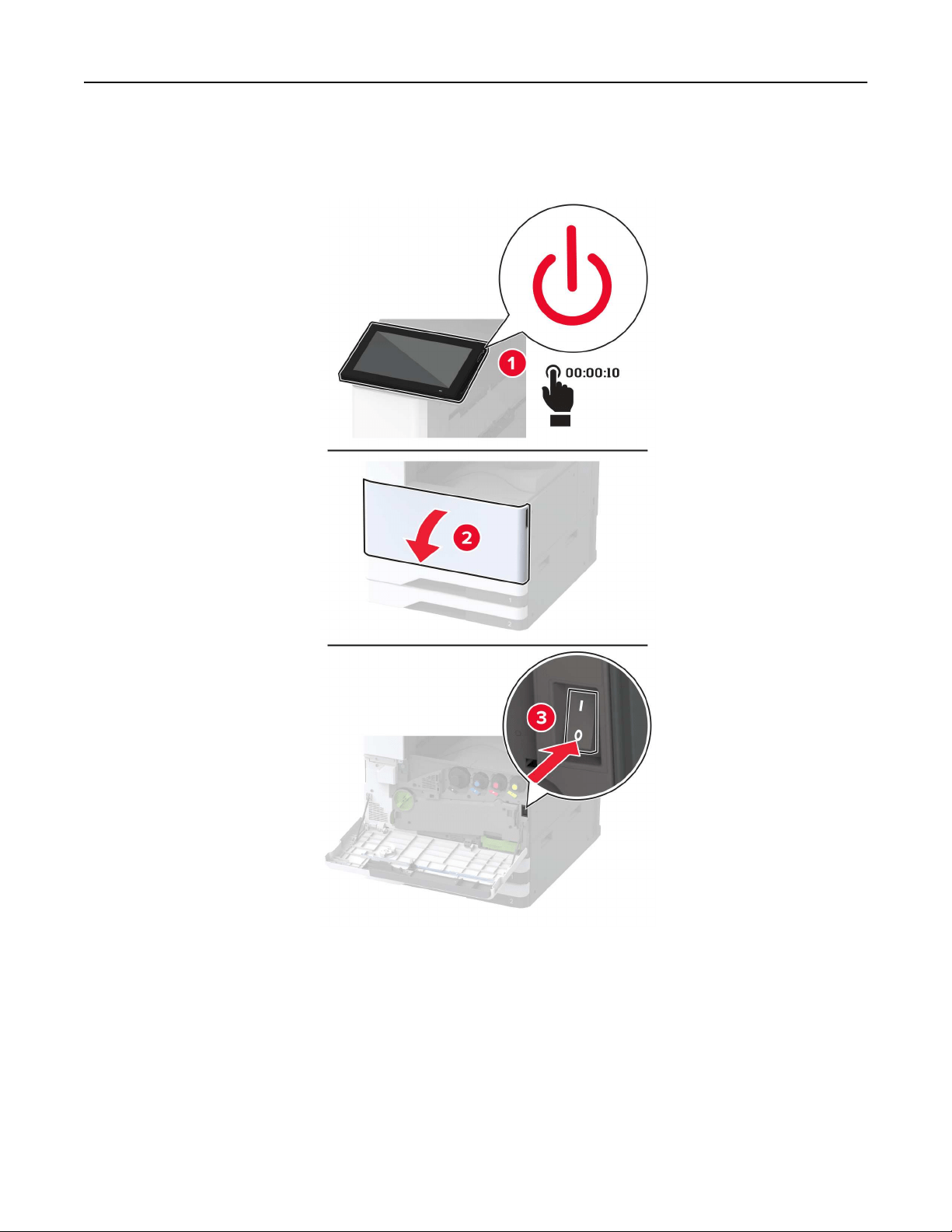
Replacing the 2000‑sheet tray roller kit
1 Turn
o
the printer.
Maintain the printer 341
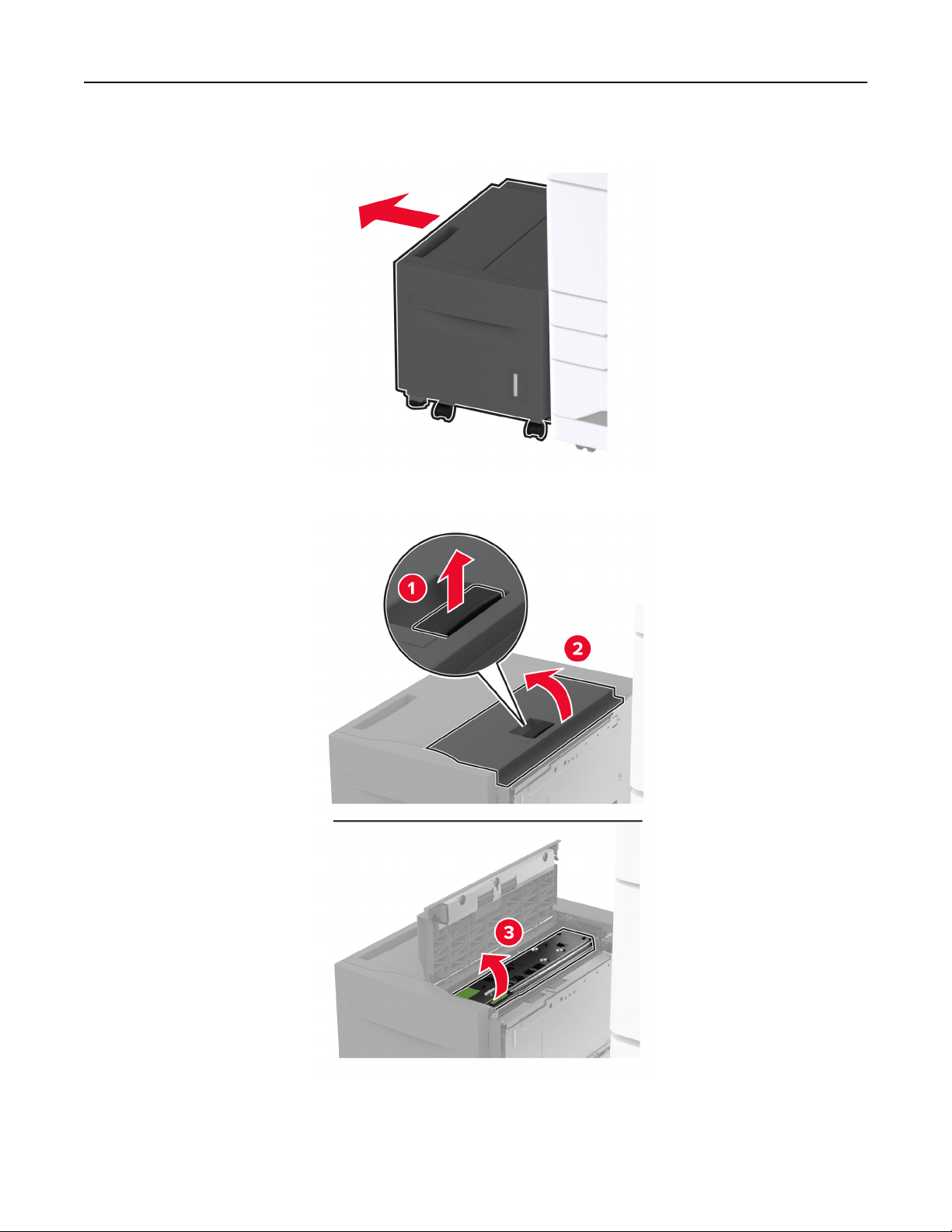
2 Slide the tray to the left.
3 Open door J, and then open the roller kit cover.
Maintain the printer 342
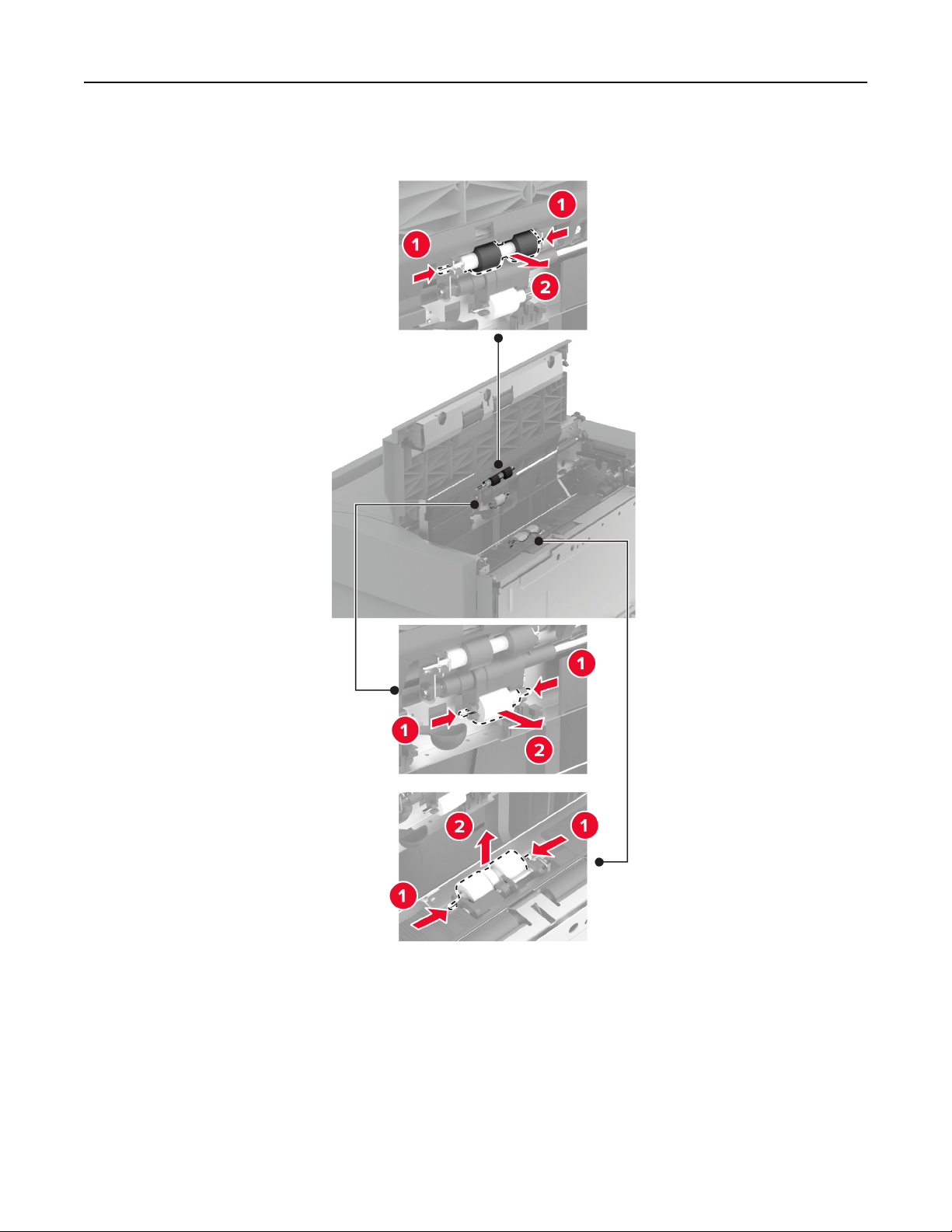
4 Locate and remove the used roller kit.
5 Unpack the new roller kit.
Maintain the printer 343
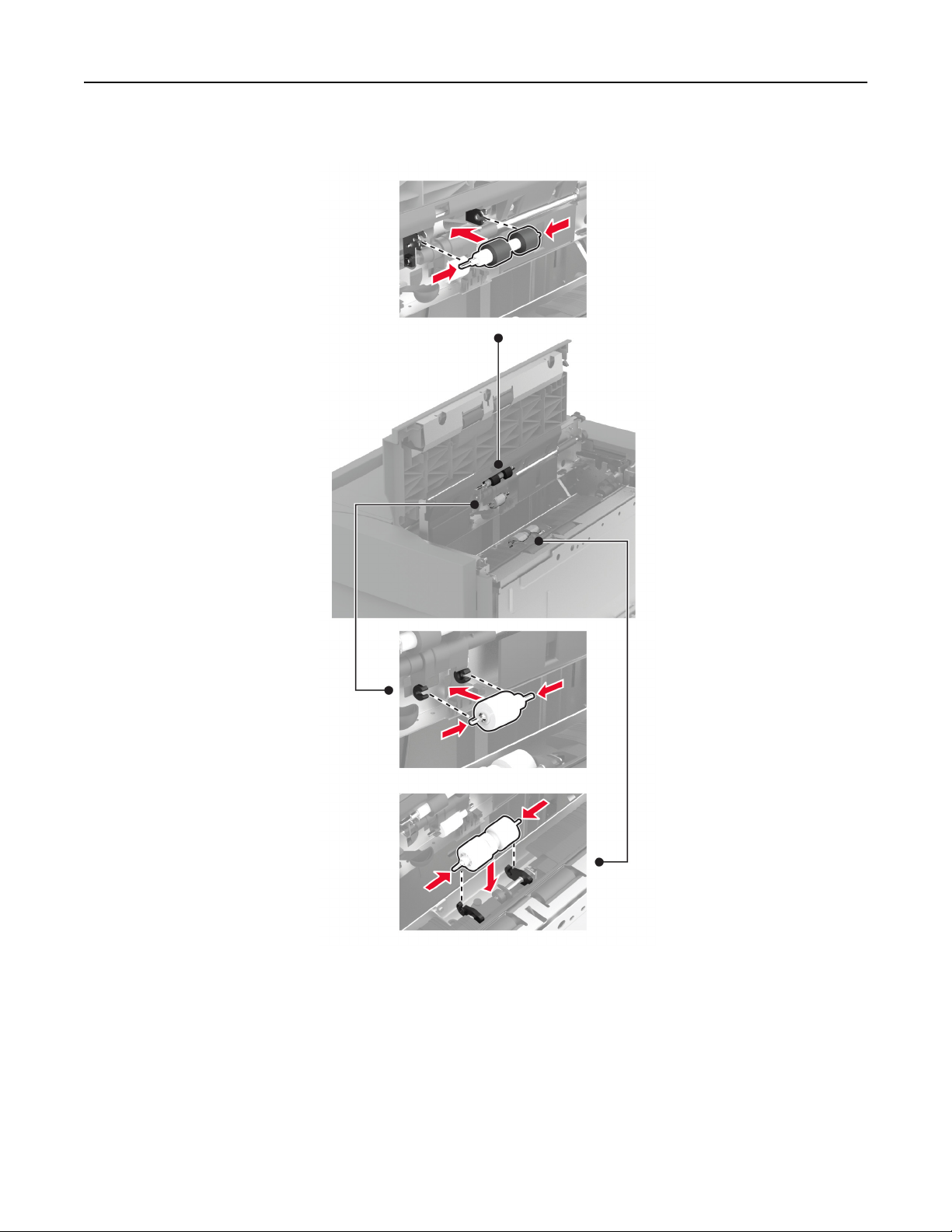
6 Insert the new roller kit.
7 Close the roller kit cover, and then close door J.
8 Slide the tray back into place.
9 Turn on the printer.
Maintain the printer 344
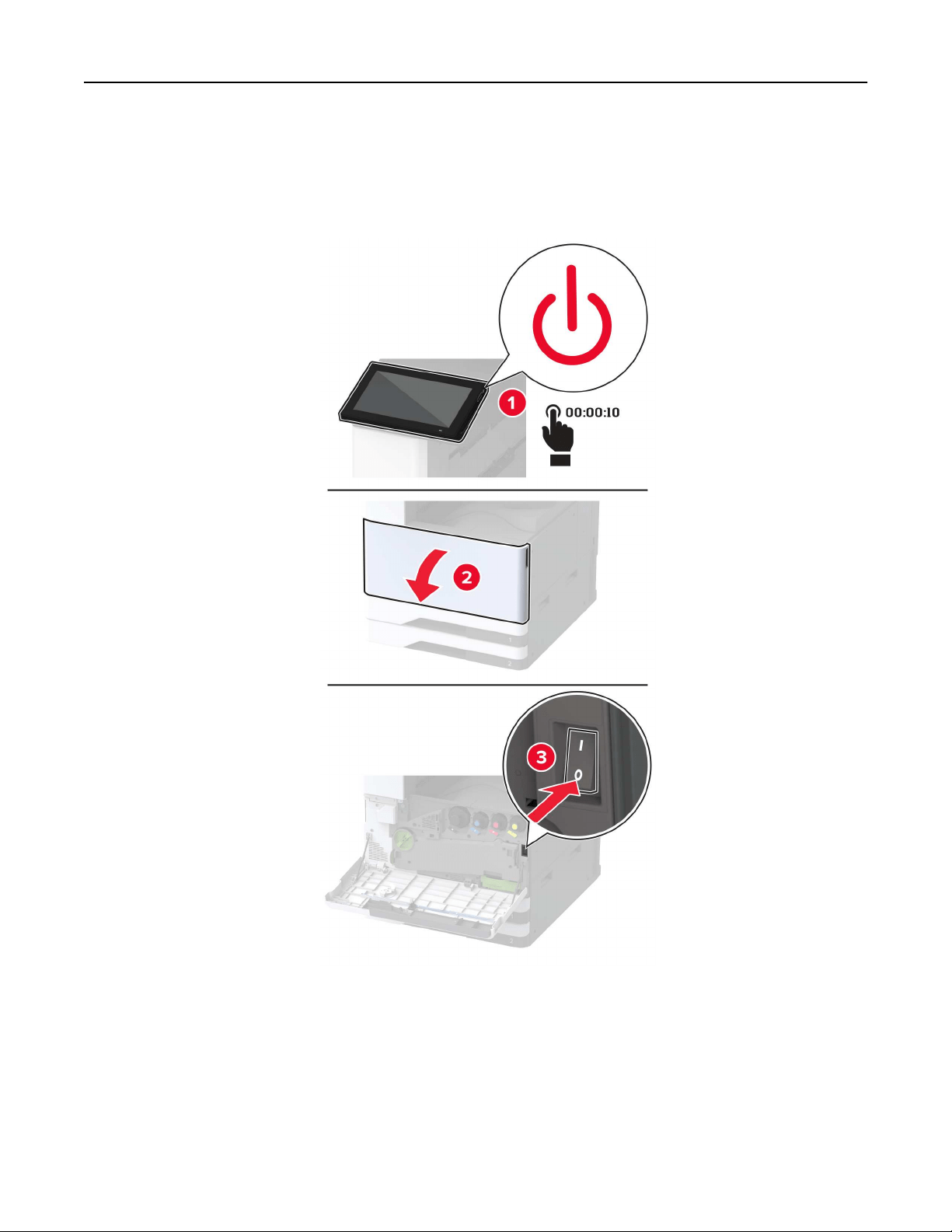
Replacing the 2000‑sheet tandem tray roller kit
In handle C
1 Turn
o
the printer.
Maintain the printer 345
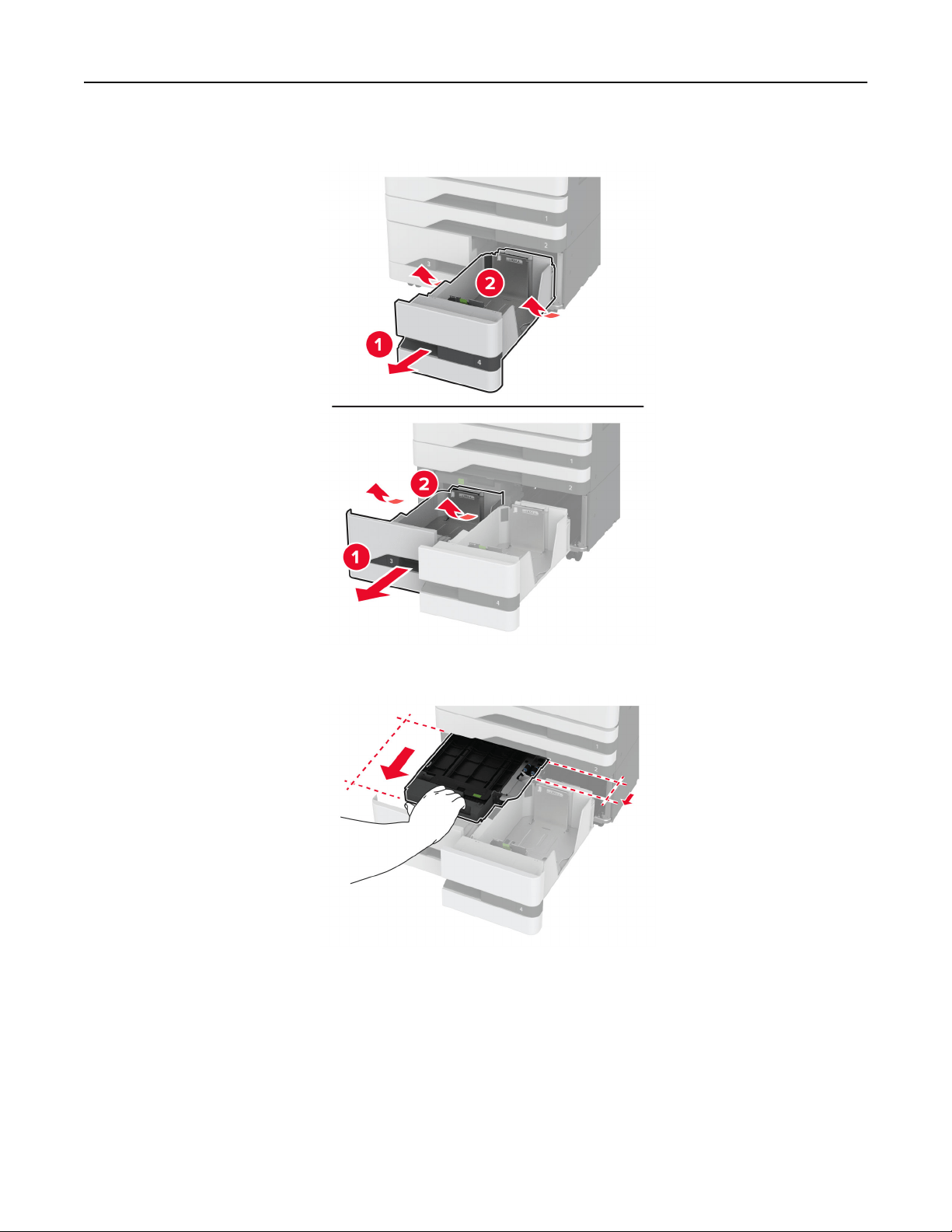
2 Pull out tray 4, and then pull out tray 3.
3 Pull out handle C, and then open the inner cover.
Maintain the printer 346
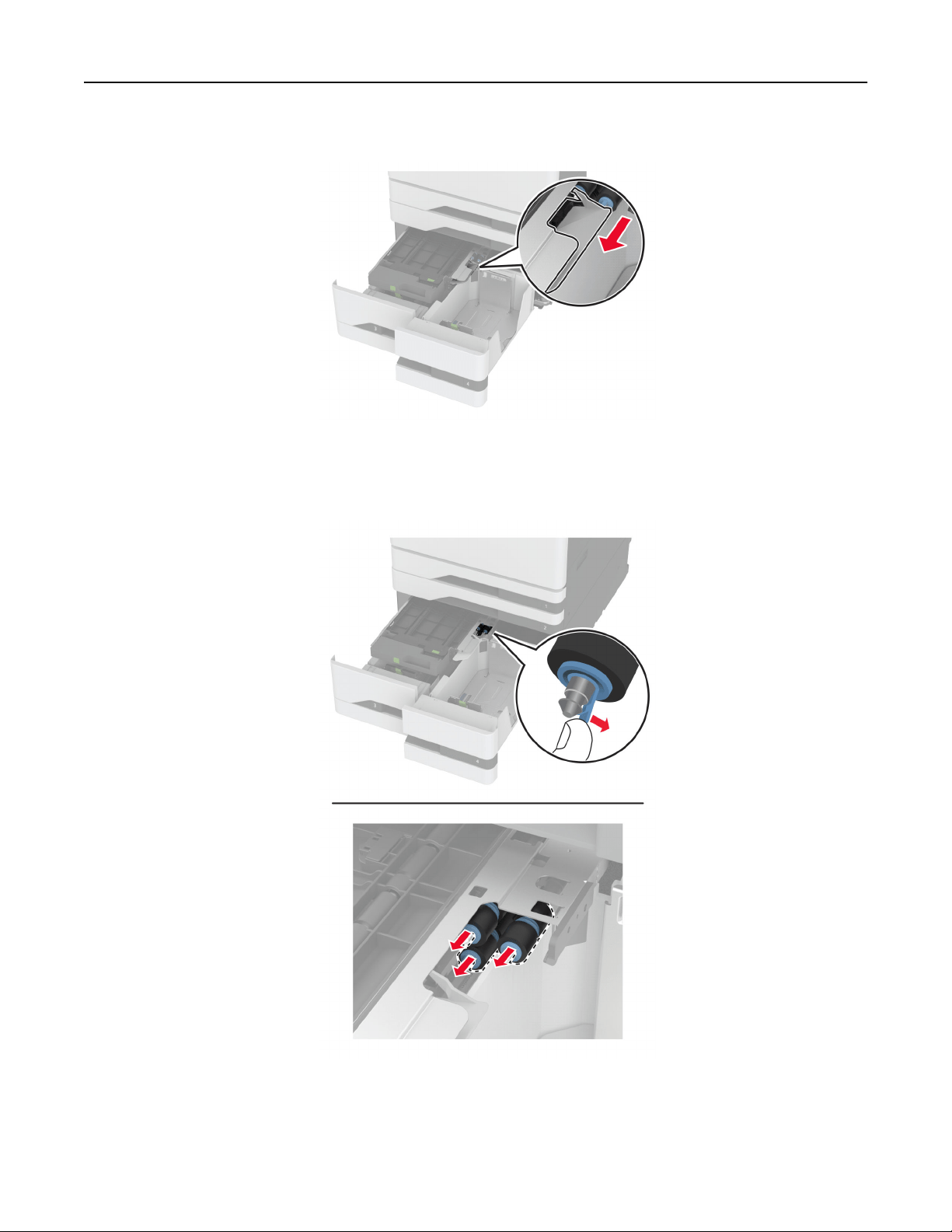
4 Open the roller kit cover.
5 Remove the used tray roller kit.
Warning—Potential Damage: To prevent damage from electrostatic discharge, touch any exposed metal
frame of the printer before accessing or touching interior areas of the printer.
6 Unpack the new tray roller kit.
Maintain the printer 347
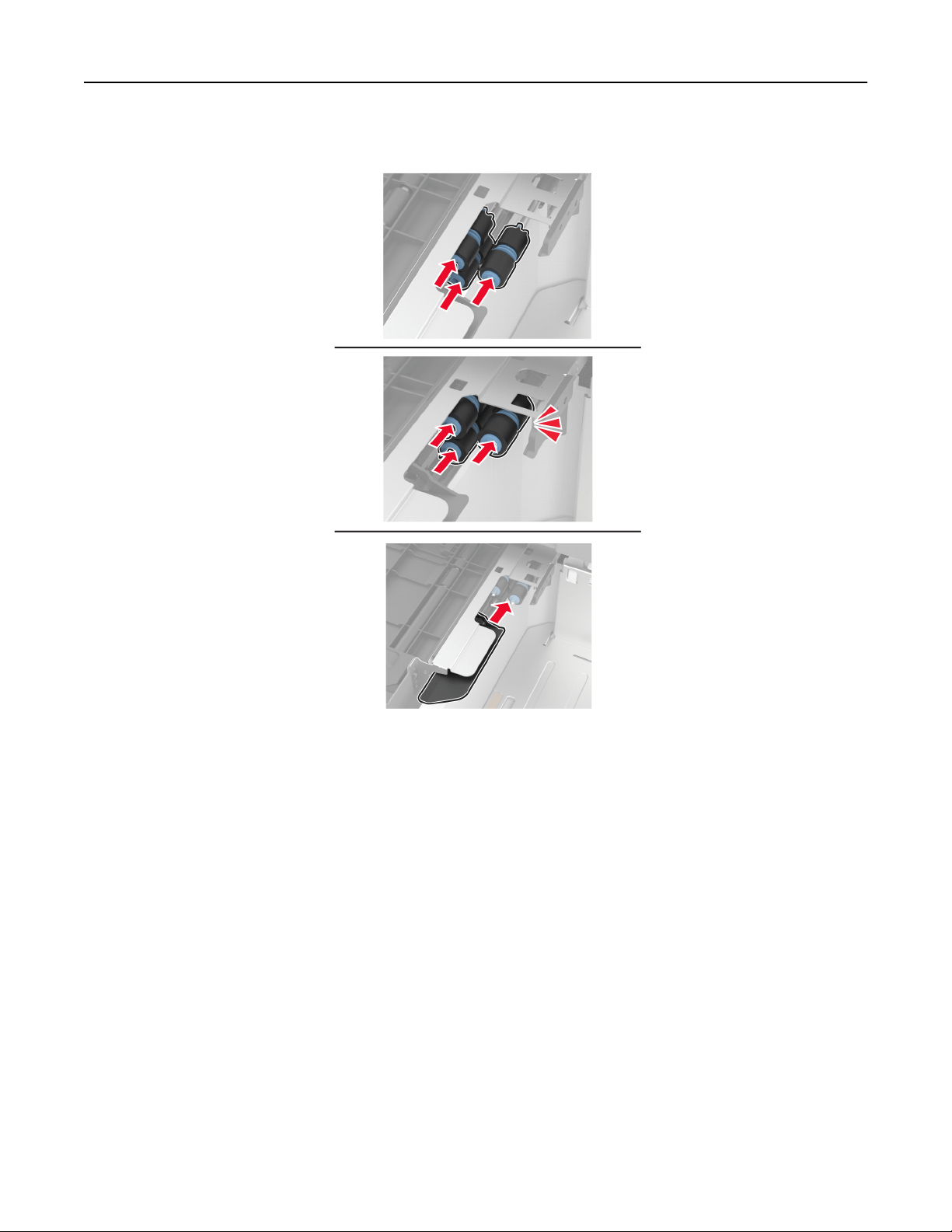
7 Insert the new tray roller kit until it clicks into place.
8 Close the roller kit cover.
9 Close the inner cover, and then insert handle C.
10 Insert trays 3 and 4.
11 Turn on the printer.
Maintain the printer 348
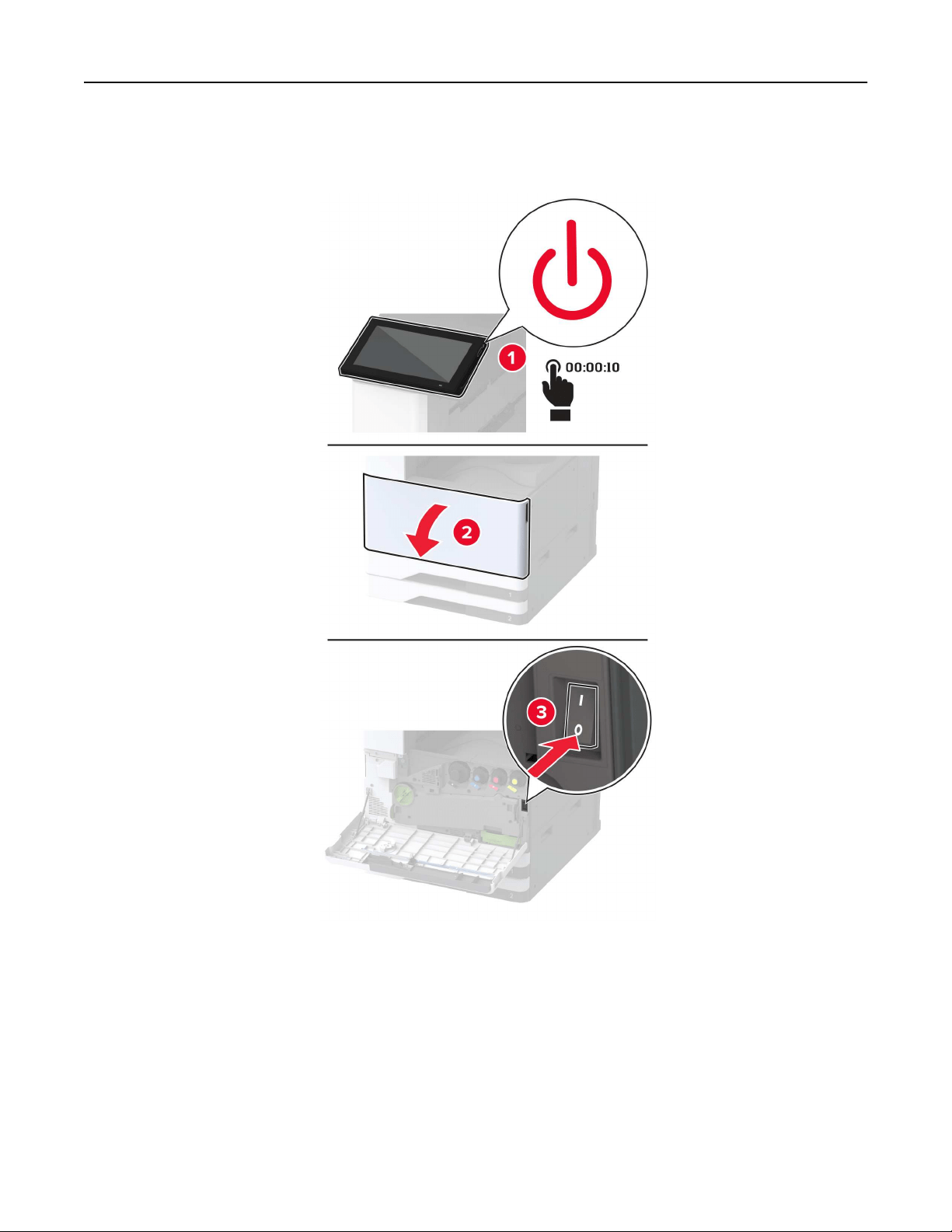
In tray 3
1 Turn o the printer.
Maintain the printer 349
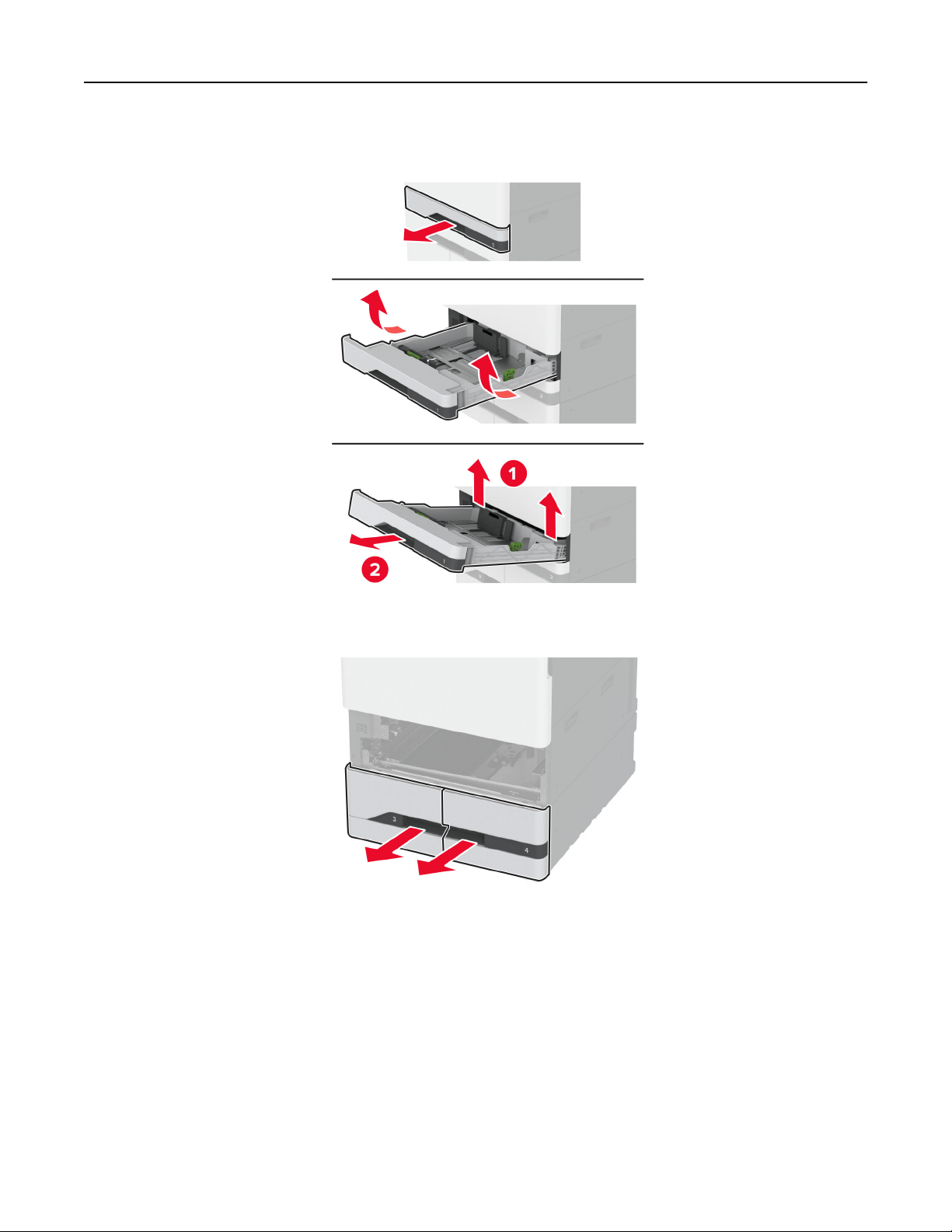
2 Remove tray 1, and then remove tray 2.
3 Pull out trays 3 and 4.
Maintain the printer 350
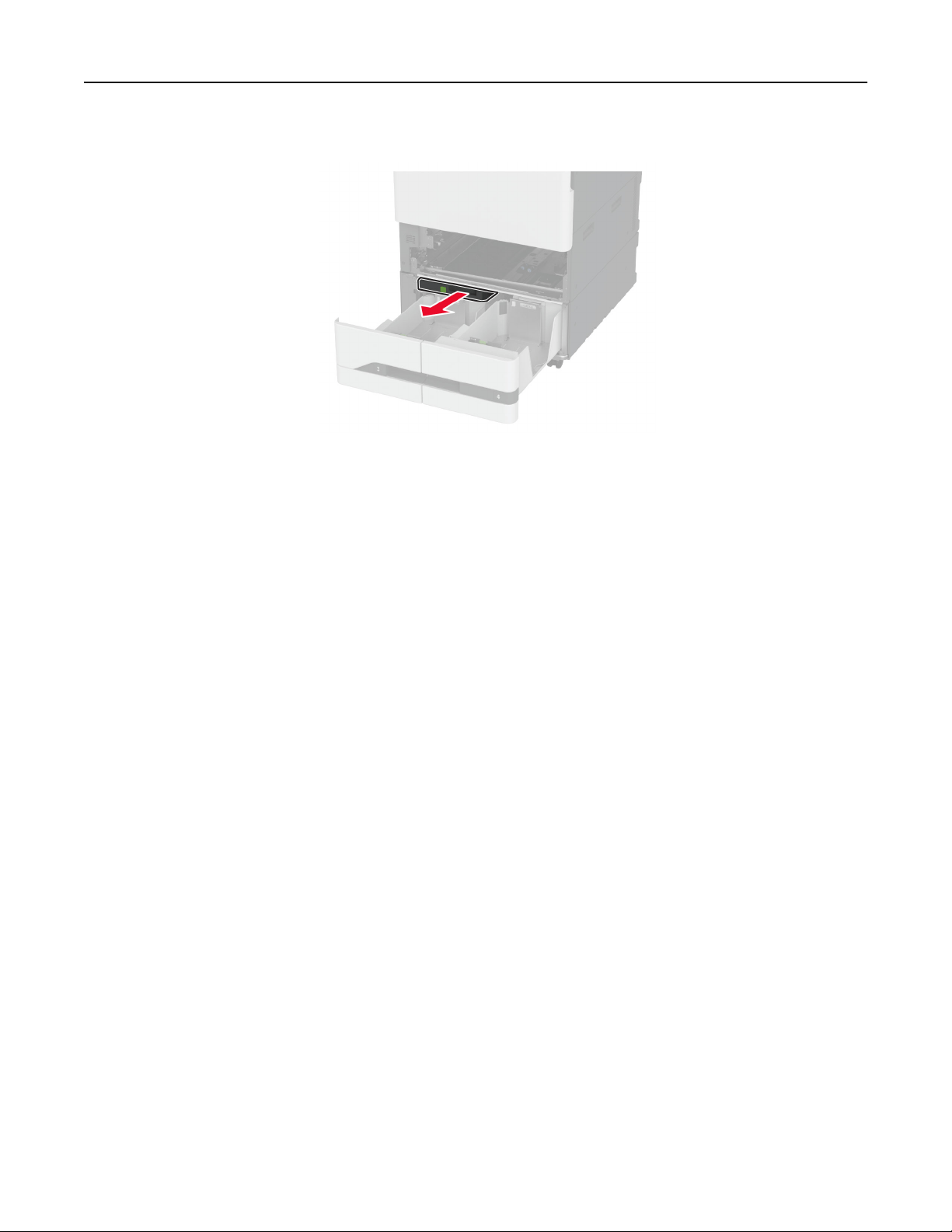
4 Pull out handle C.
5 Remove the used tray roller kit.
Warning—Potential Damage: To prevent damage from electrostatic discharge, touch any exposed metal
frame of the printer before accessing or touching interior areas of the printer.
Maintain the printer 351
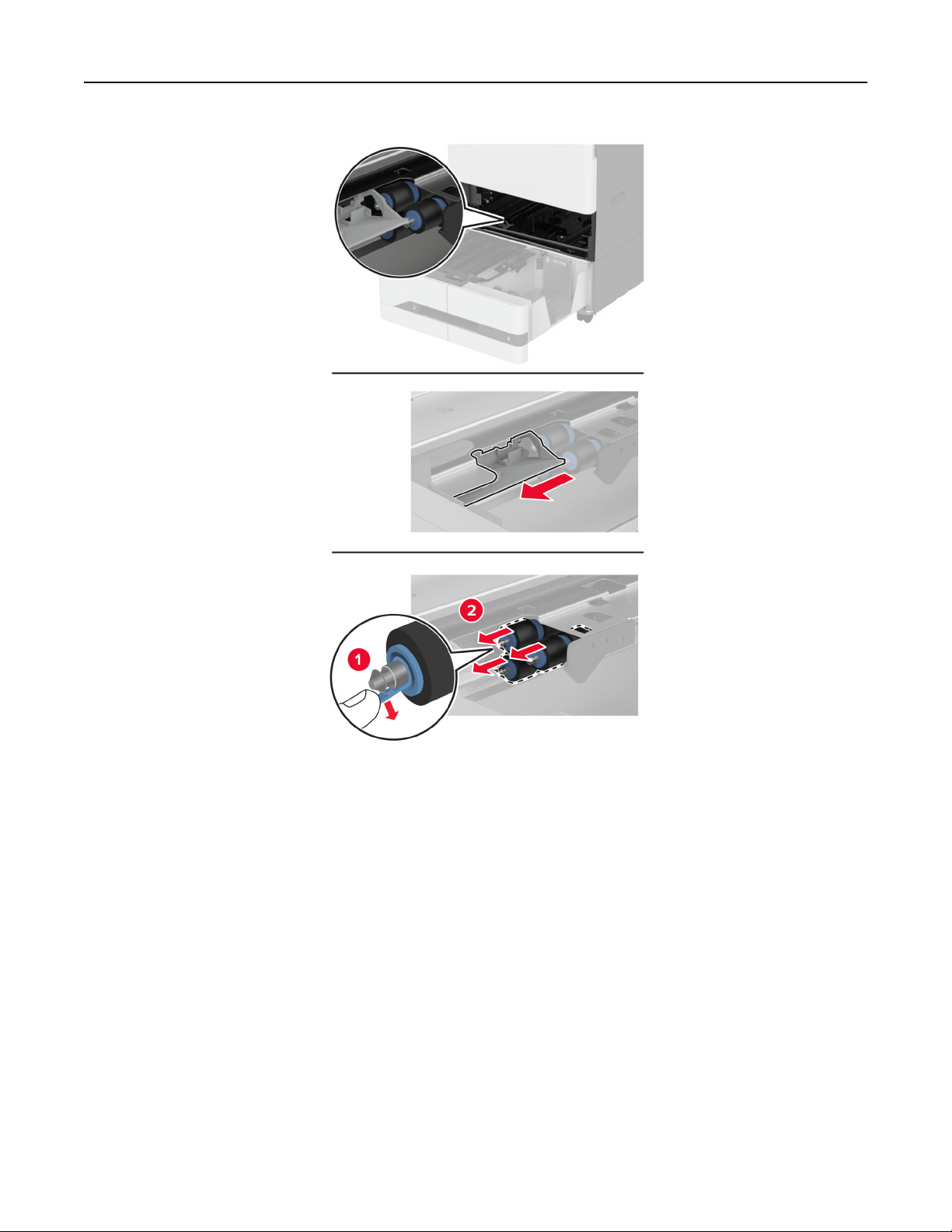
Maintain the printer 352
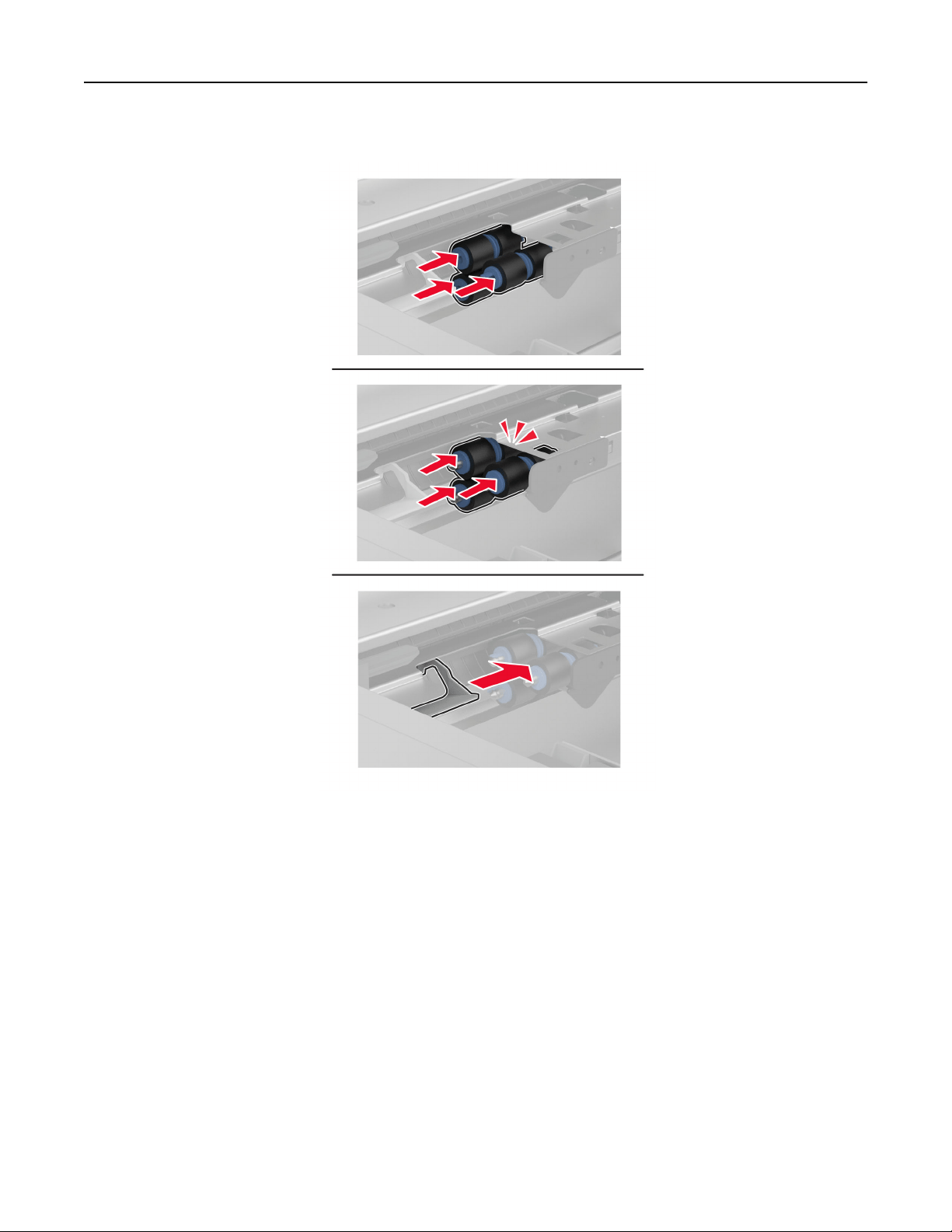
6 Insert the new tray roller kit until it clicks into place.
7 Insert handle C.
8 Insert trays 3 and 4.
9 Insert trays 1 and 2.
10 Turn on the printer.
Maintain the printer 353
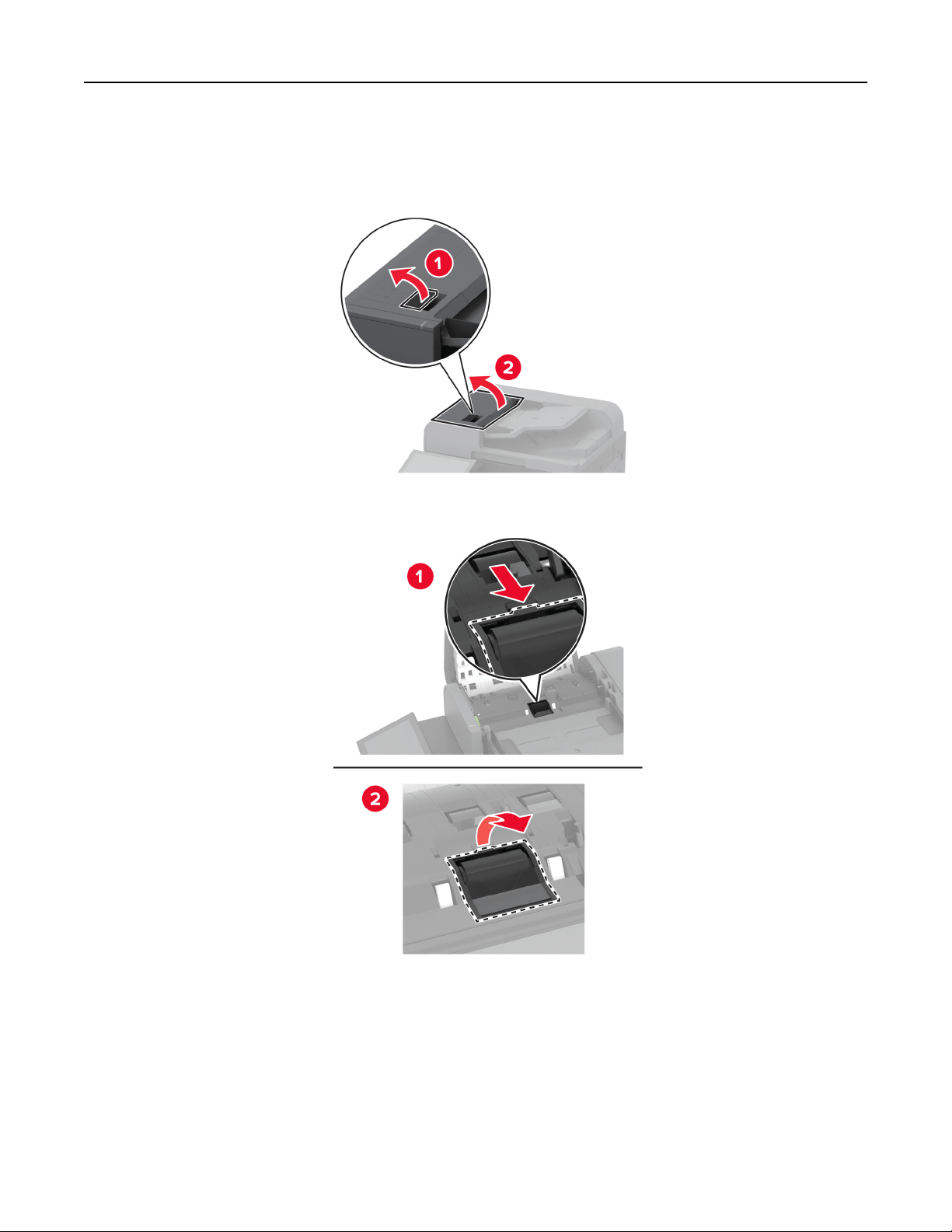
Replacing the ADF separator roller cover
1 Open the ADF top cover.
2 Remove the used separator roller cover.
3 Unpack the new separator roller cover.
Maintain the printer 354
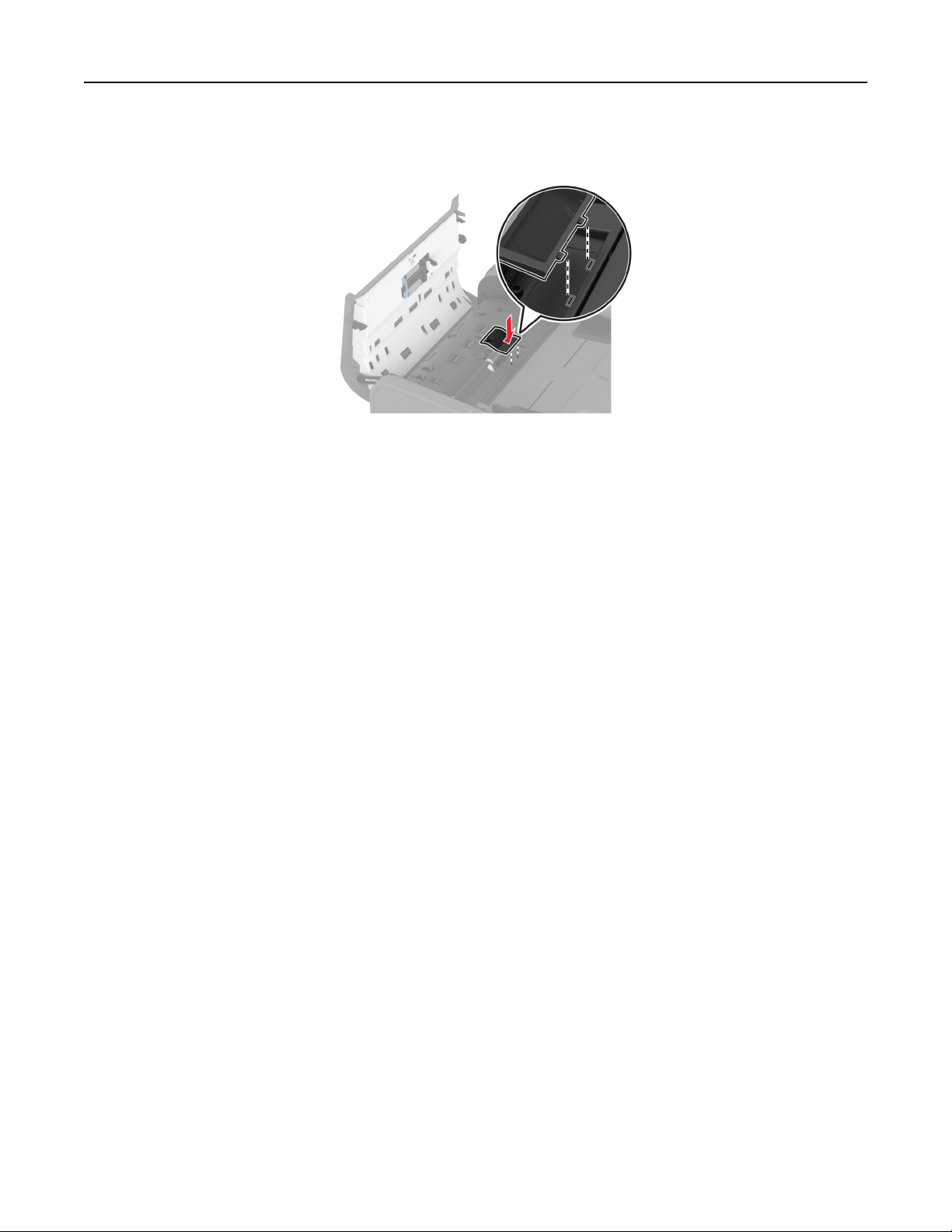
4 Insert the new separator roller cover until it clicks into place.
5 Close the ADF top cover.
Maintain the printer 355
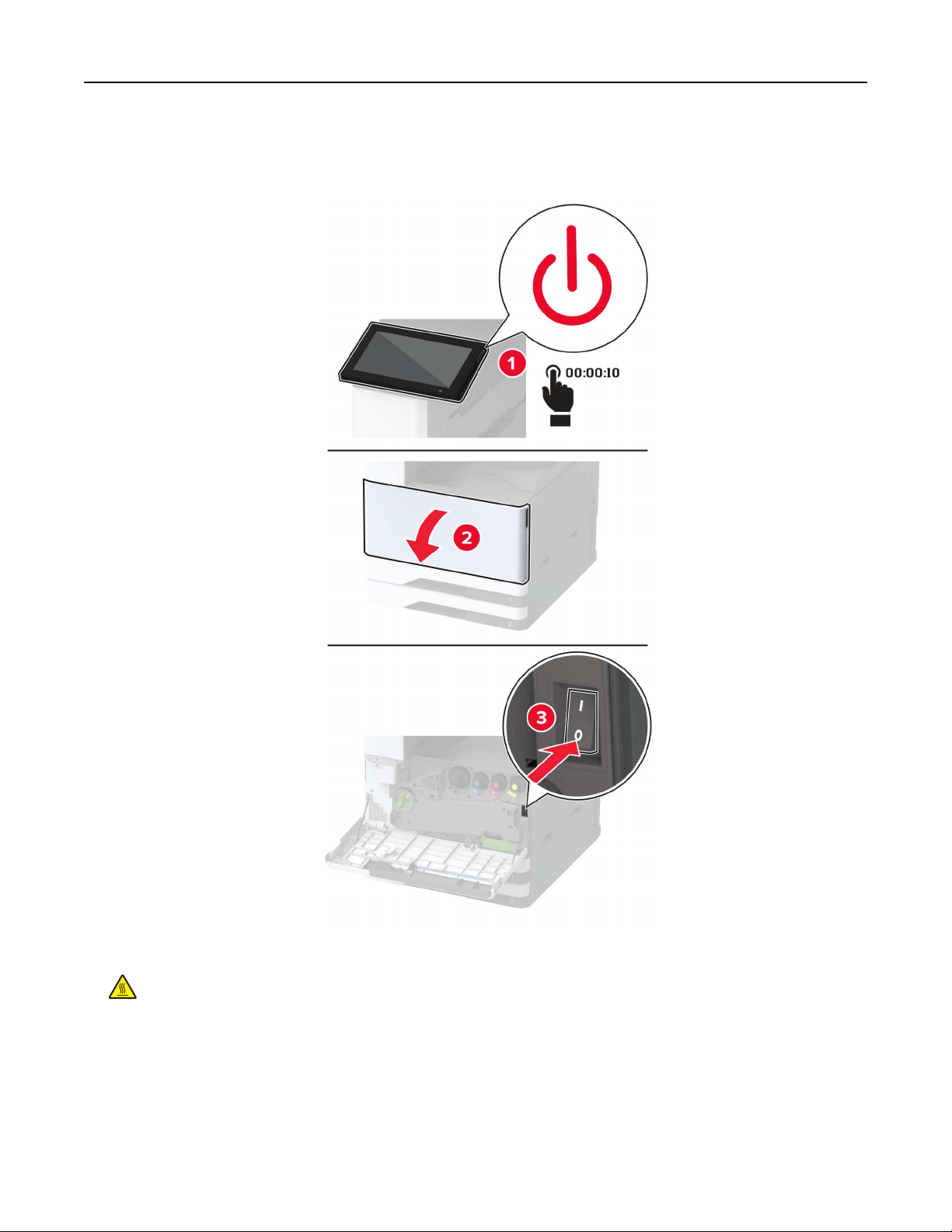
Replacing the second transfer roller
1 Turn
o
the printer.
2 Open door A.
CAUTION—HOT SURFACE: The inside of the printer might be hot. To reduce the risk of injury from a
hot component, allow the surface to cool before touching it.
Maintain the printer 356
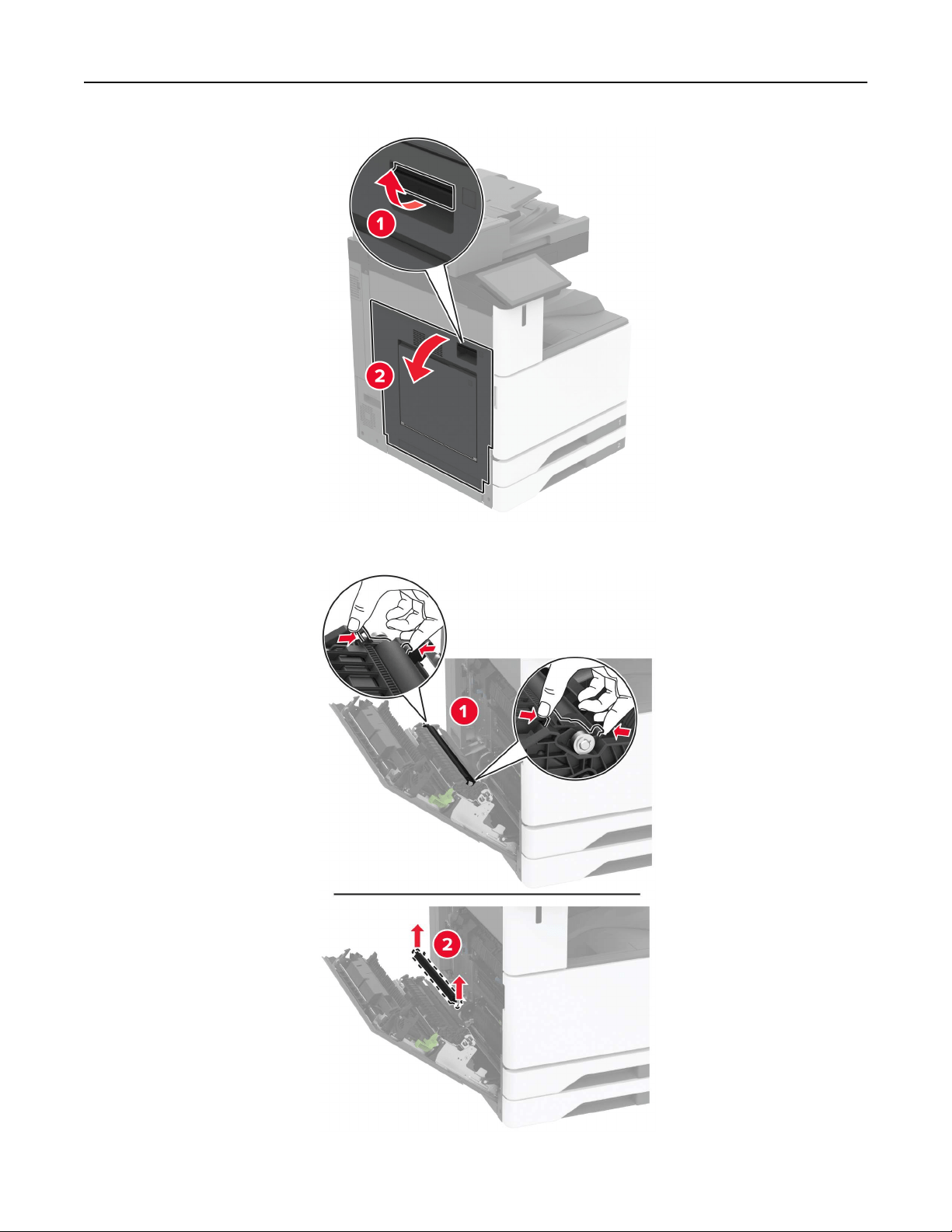
3 Remove the used second transfer roller.
Maintain the printer 357
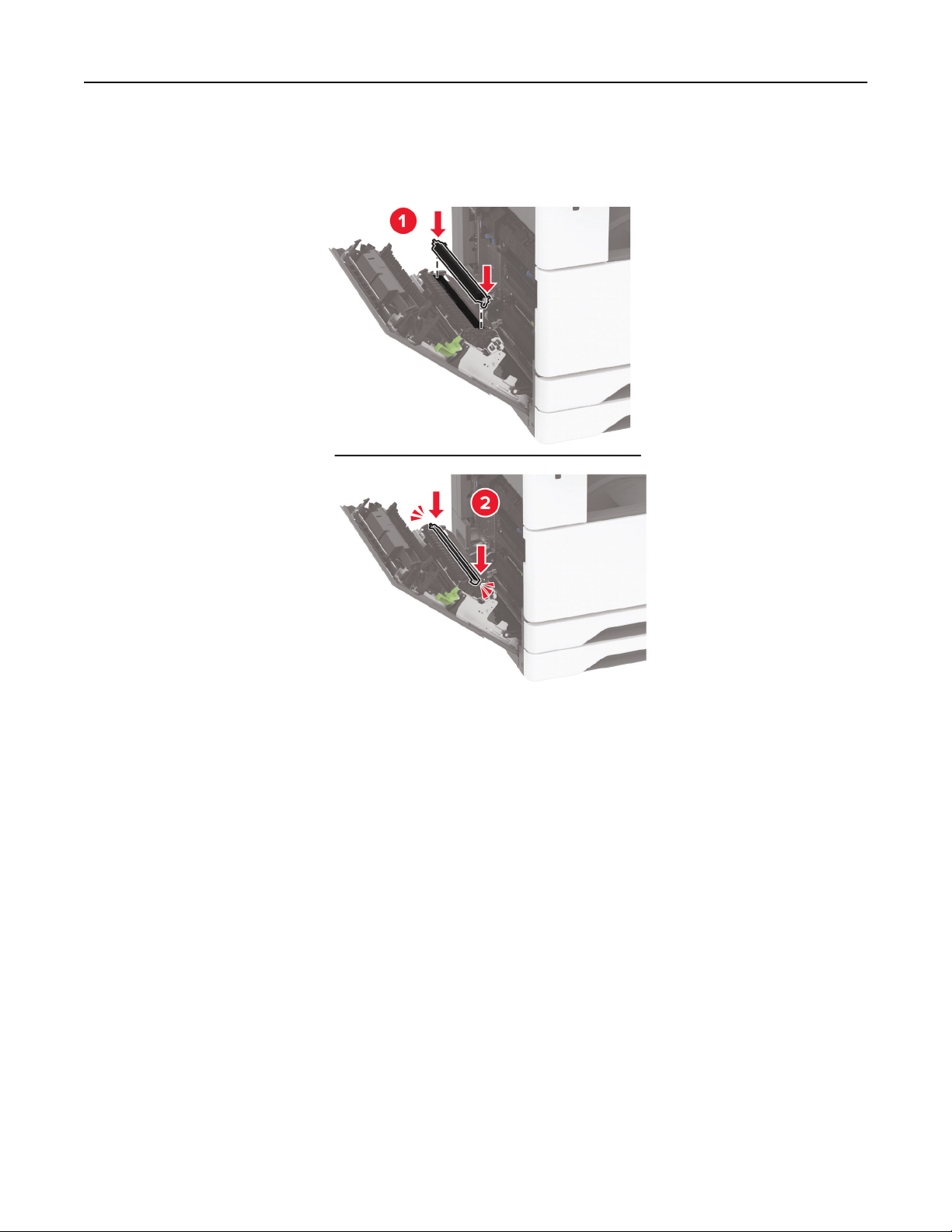
4 Unpack the new second transfer roller.
5 Insert the new second transfer roller.
6 Close the door.
7 Turn on the printer.
Maintain the printer 358
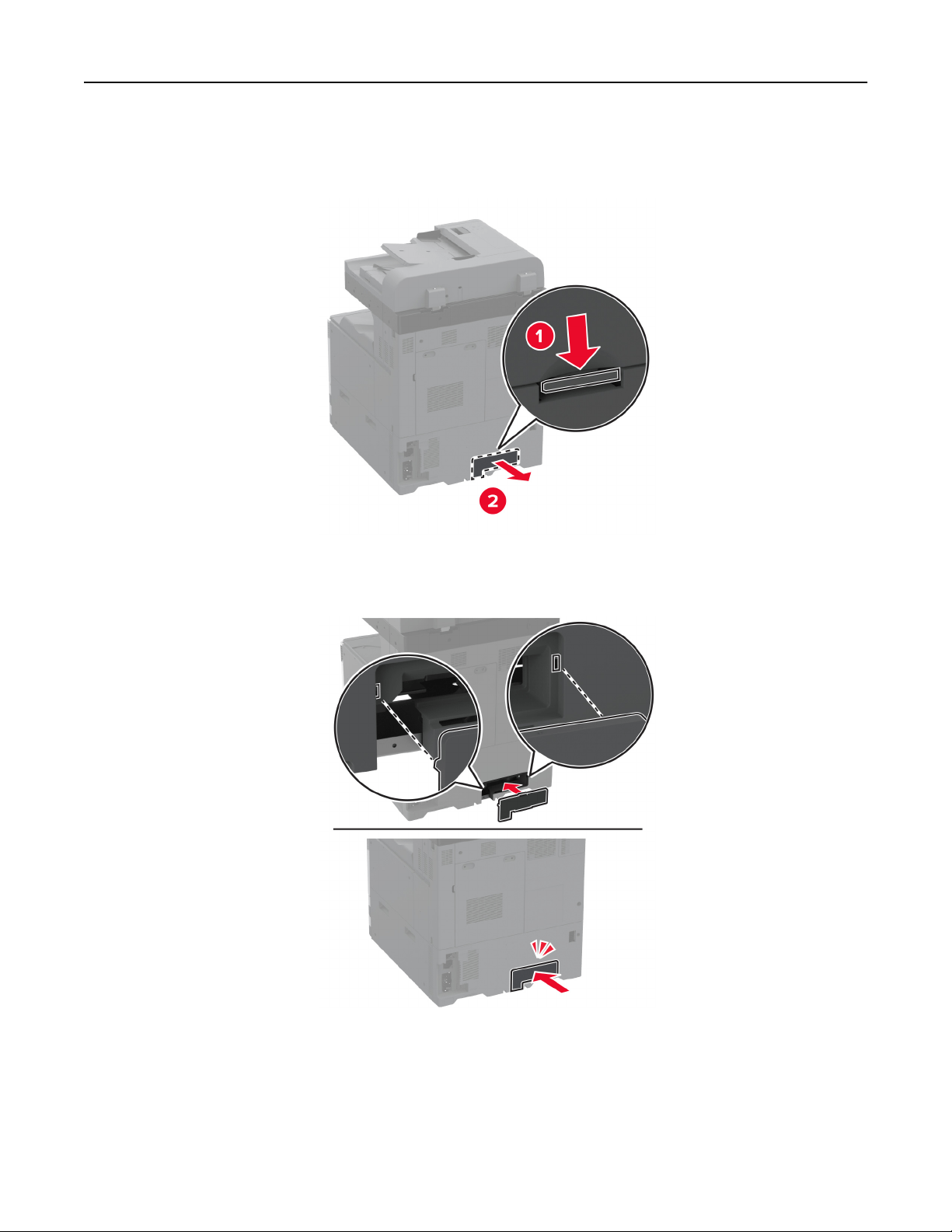
Replacing the lower rear connector cover
1 Remove the used lower rear connector cover.
2 Unpack the new lower rear connector cover.
3 Insert the new lower rear connector cover until it clicks into place.
Maintain the printer 359
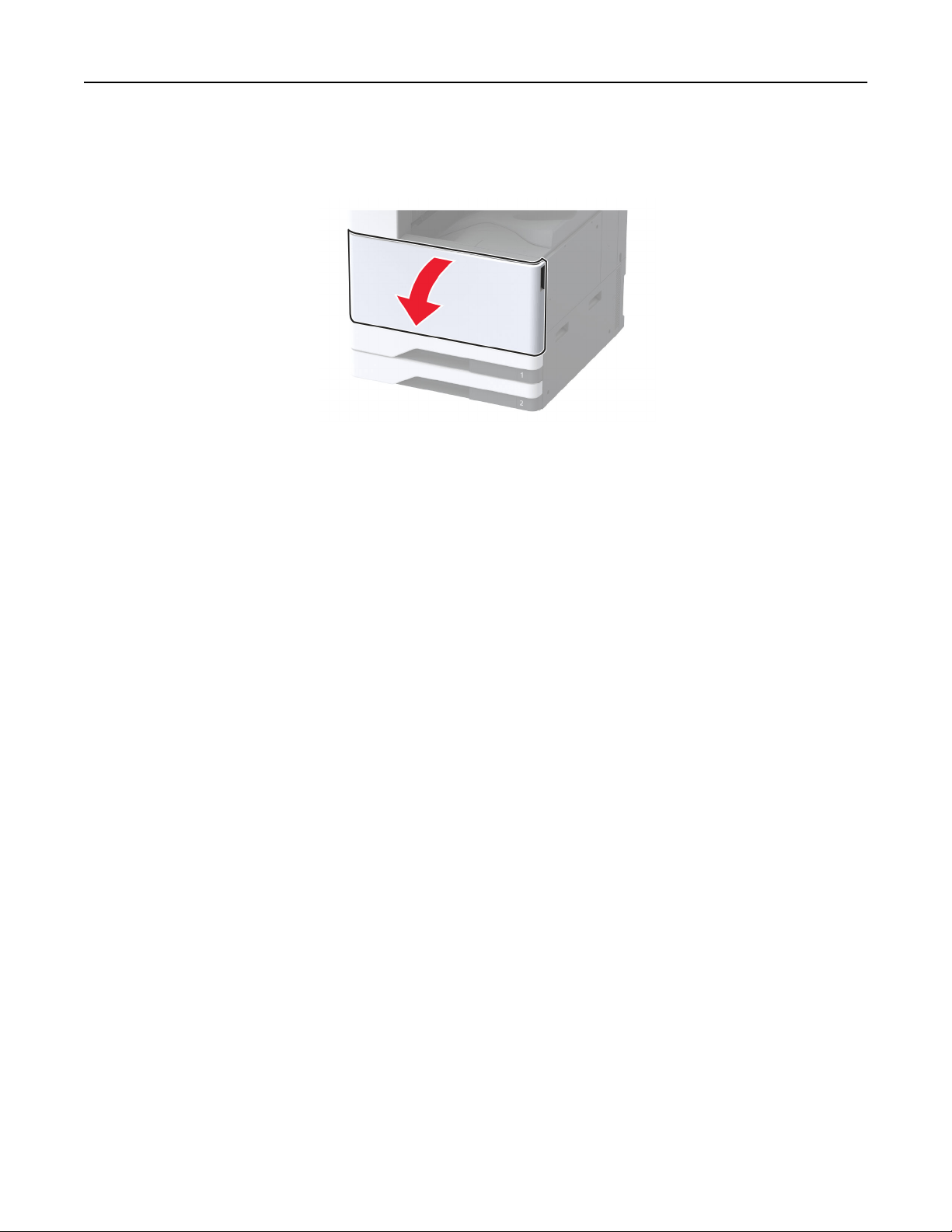
Replacing the waste toner bottle
1 Open the front door.
Maintain the printer 360
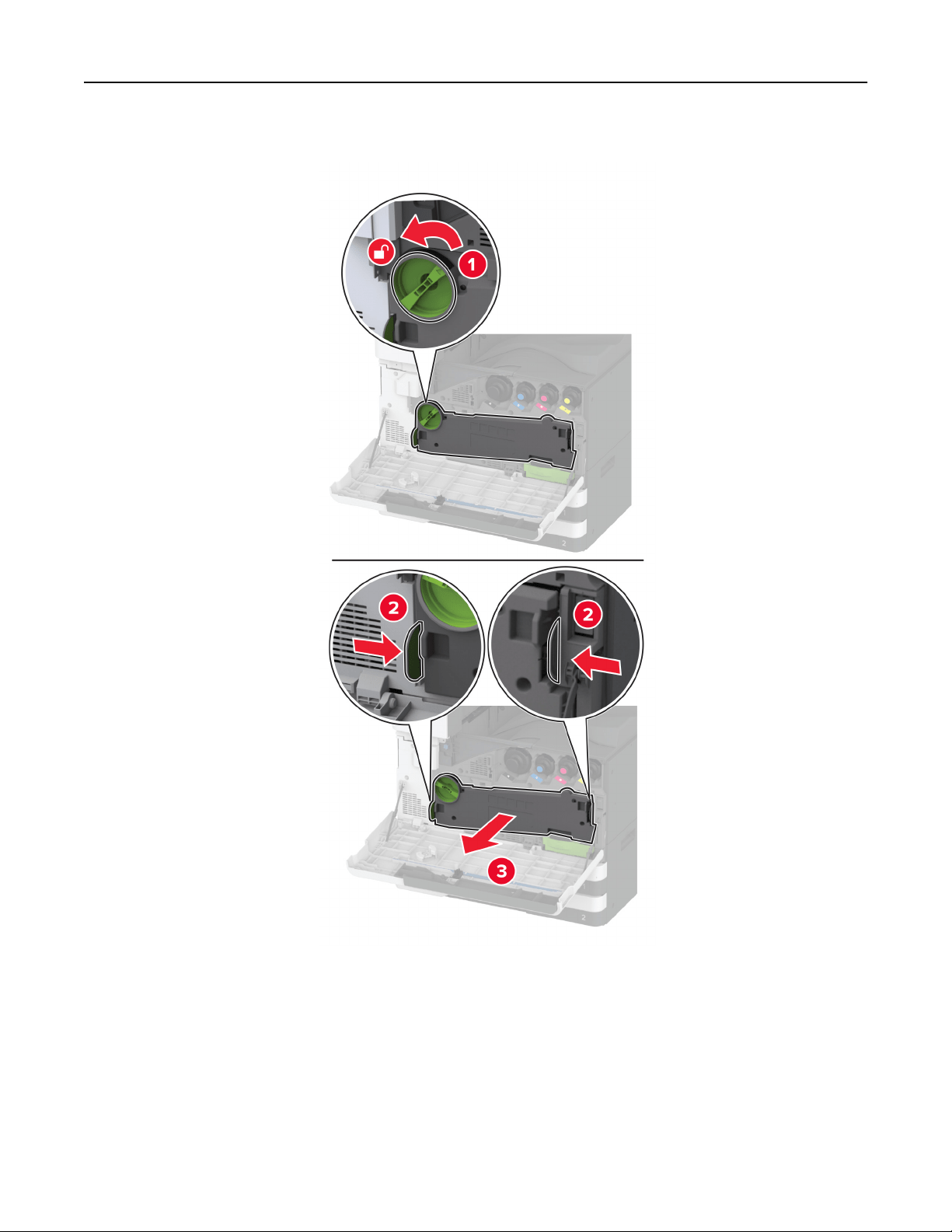
2 Remove the waste toner transfer unit.
Note: To avoid spilling the toner, place the unit in an upright position.
Maintain the printer 361
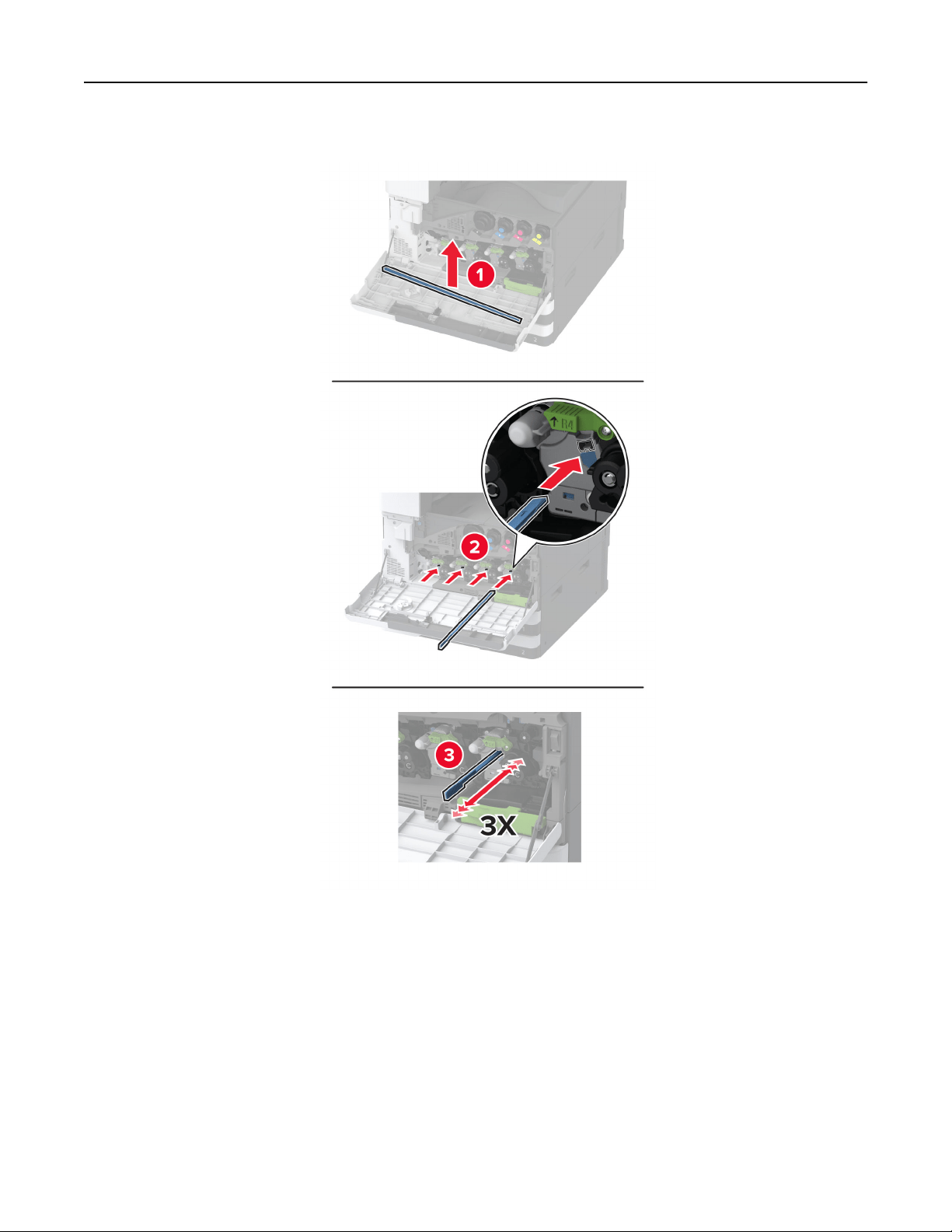
3 Remove the printhead wiper, and then clean the printhead lenses.
4 Put the printhead wiper back into place.
Maintain the printer 362
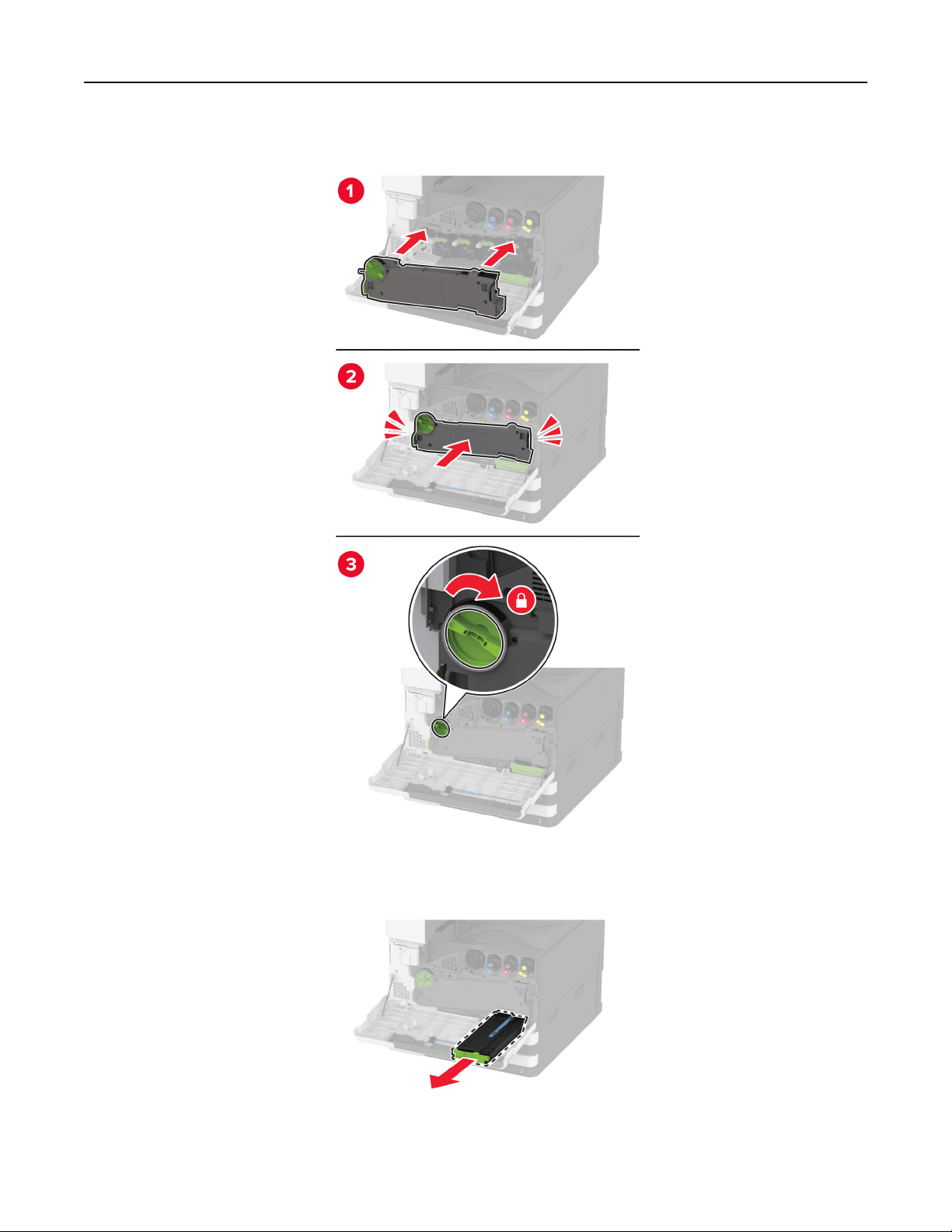
5 Insert the waste toner transfer unit until it clicks into place, and then lock it.
6 Remove the used waste toner bottle.
7 Unpack the new waste toner bottle.
Maintain the printer 363
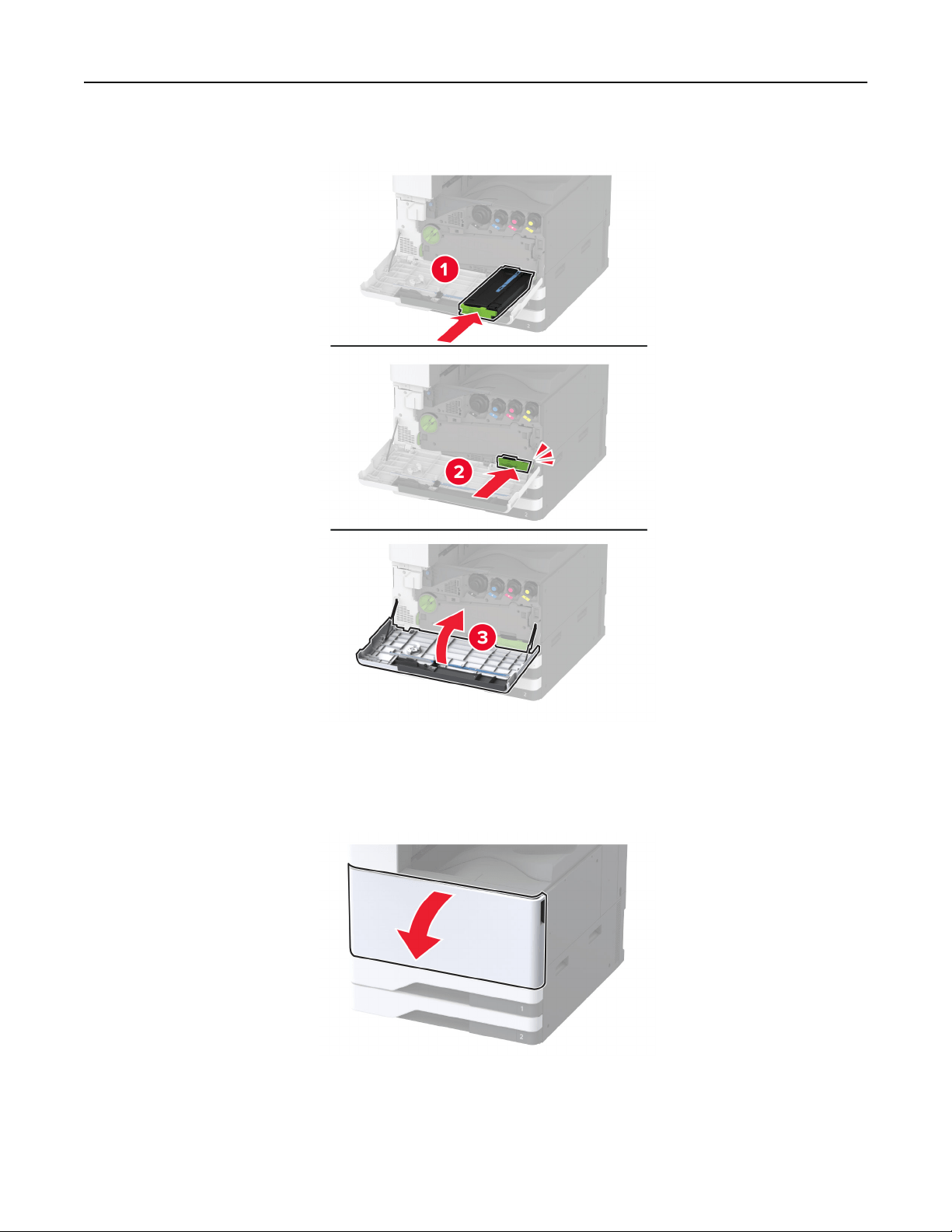
8 Insert the new waste toner bottle until it clicks into place, and then close the door.
Replacing the waste toner transfer unit
1 Open the front door.
Maintain the printer 364
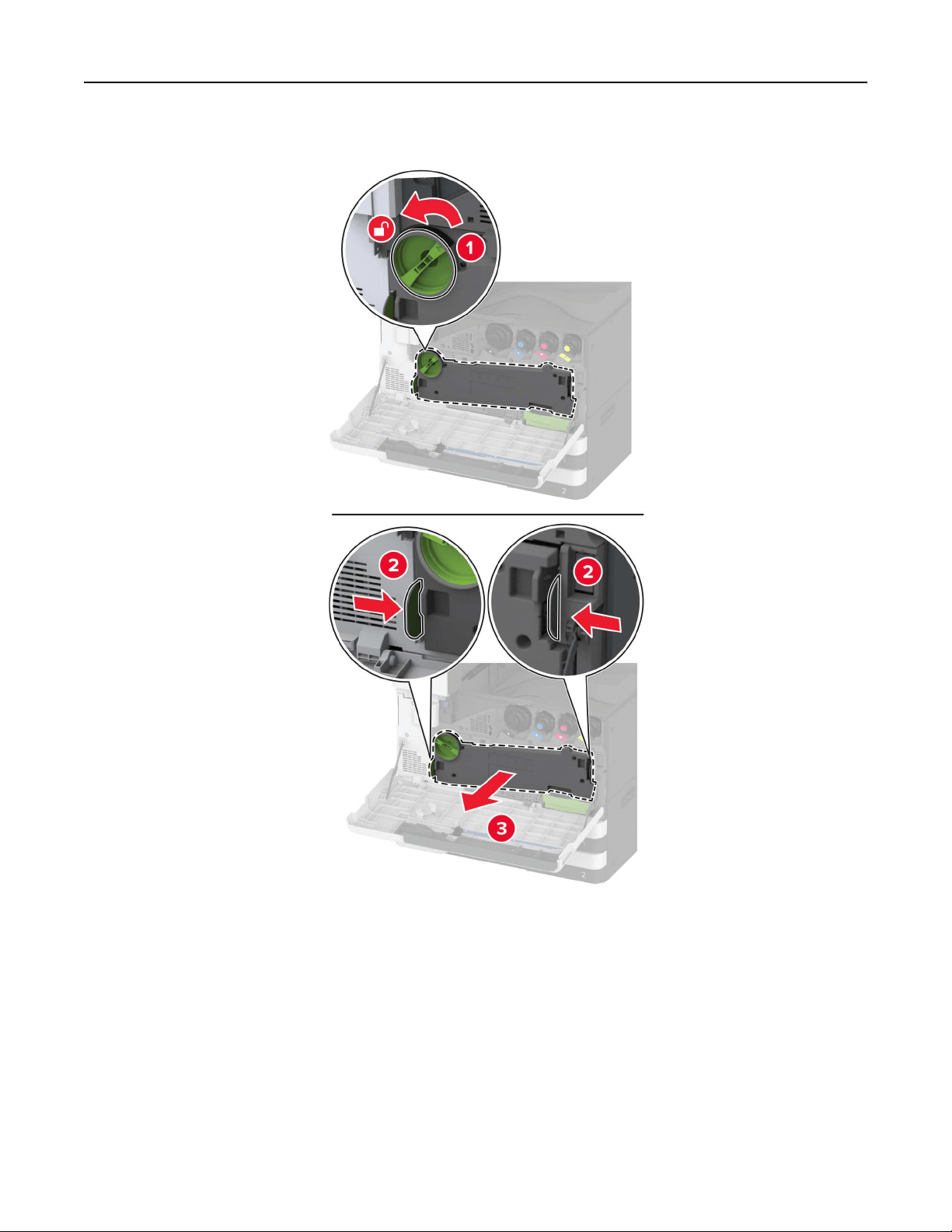
2 Remove the used waste toner transfer unit.
Note: To avoid spilling the toner, place the unit in an upright position.
3 Unpack the new waste toner transfer unit.
Maintain the printer 365
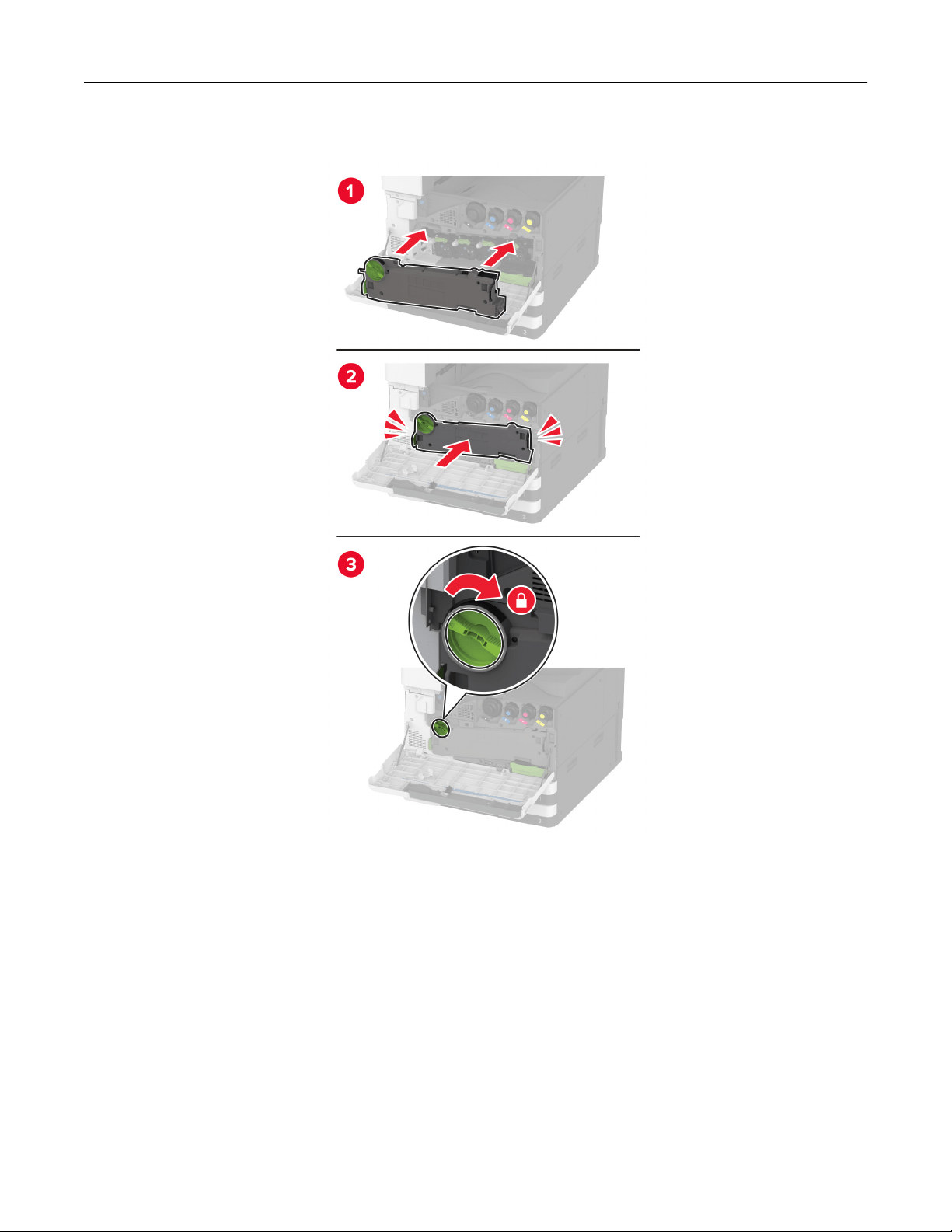
4 Insert the new waste toner transfer unit until it clicks into place, and then lock it.
5 Close the front door.
Maintain the printer 366
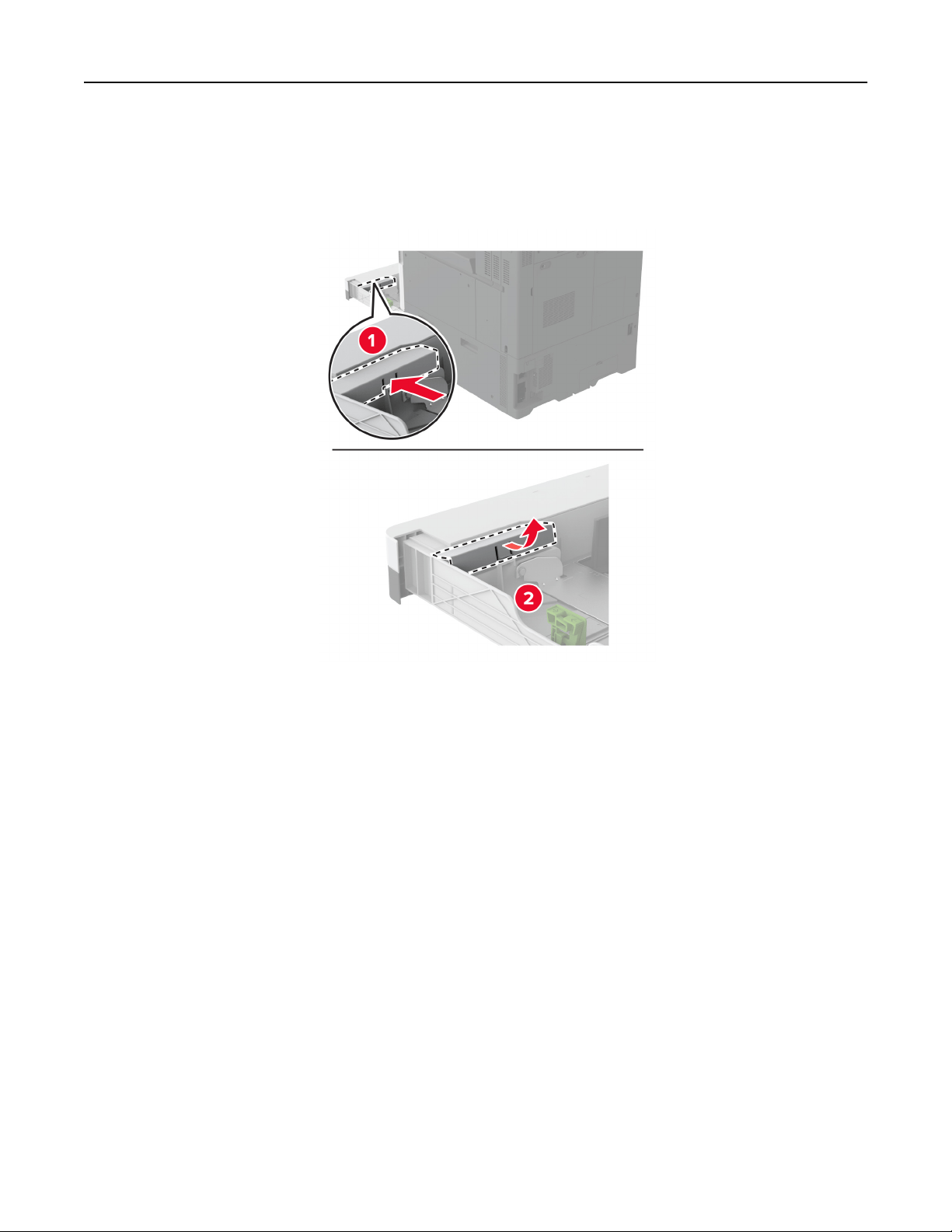
Replacing the small cover in the tray insert
1 Pull out the tray.
2 Remove the used small cover.
3 Unpack the new small cover.
Maintain the printer 367
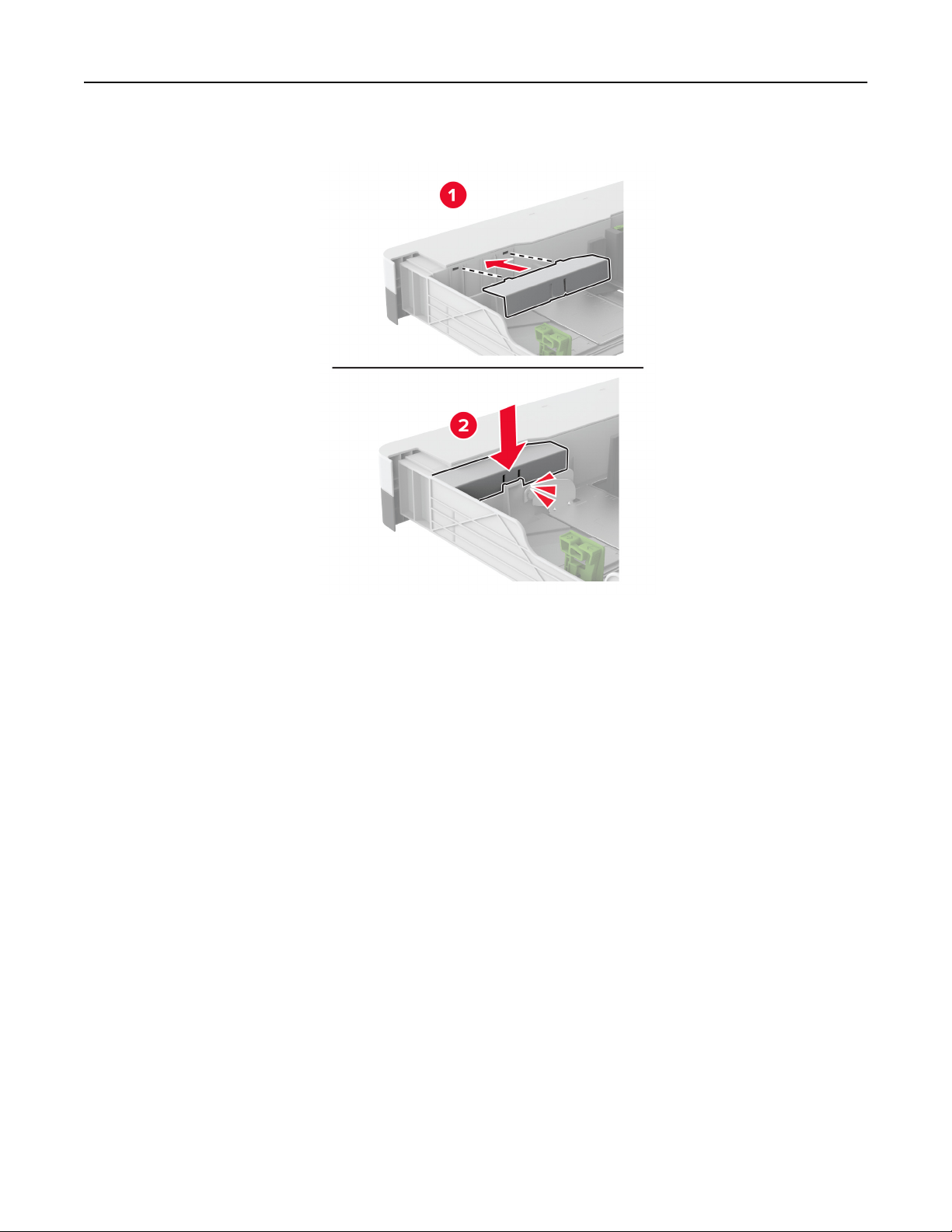
4 Insert the new small cover.
5 Insert the tray.
Maintain the printer 368
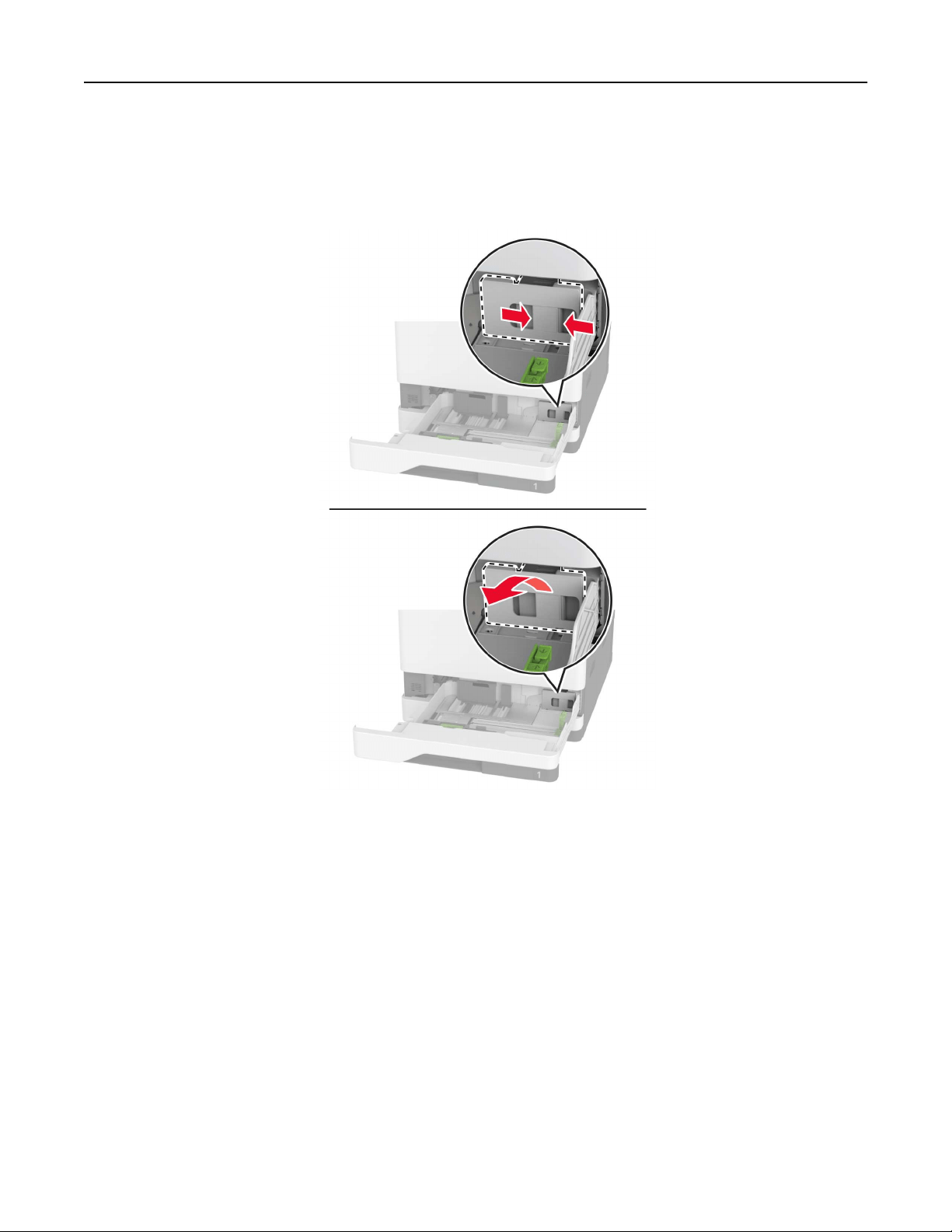
Replacing the B4 paper guide in the tray insert
1 Pull out the tray.
2 Remove the used B4 paper guide.
3 Unpack the new B4 paper guide.
Maintain the printer 369
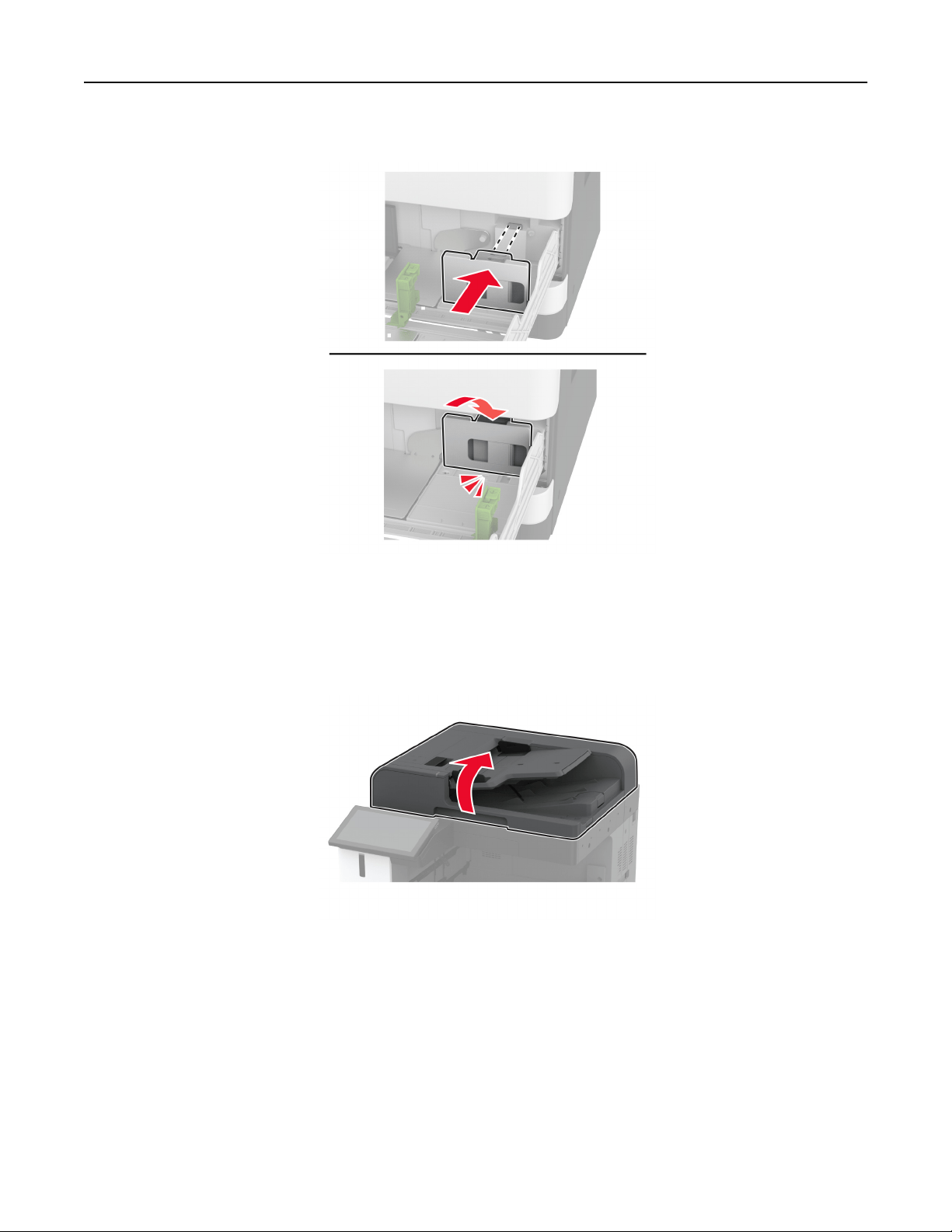
4 Insert the new B4 paper guide.
5 Insert the tray.
Replacing the scanner glass pad
1 Open the scanner cover.
Maintain the printer 370
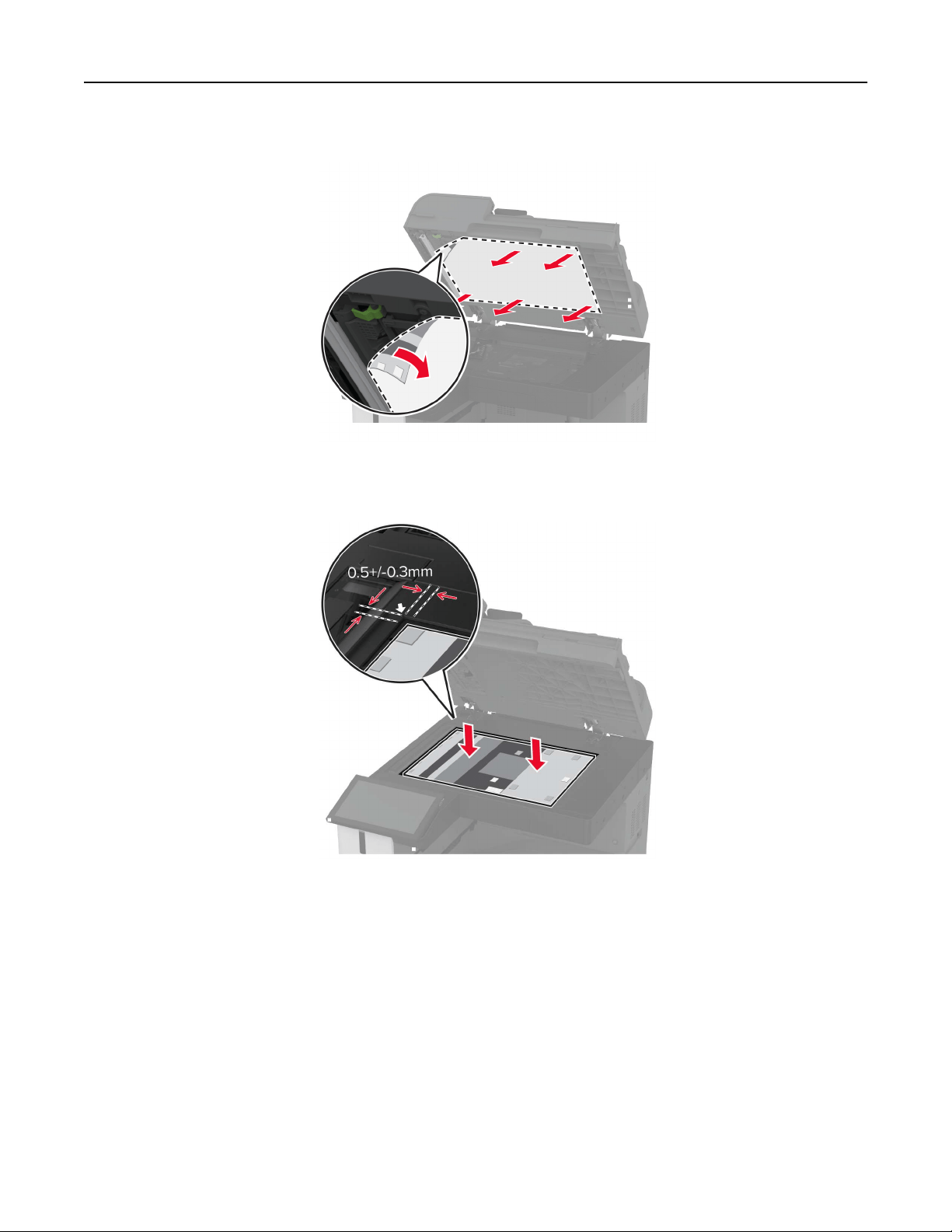
2 Remove the used scanner glass pad.
3 Unpack the new scanner glass pad.
4 Align the new scanner glass pad to the scanner glass.
Maintain the printer 371
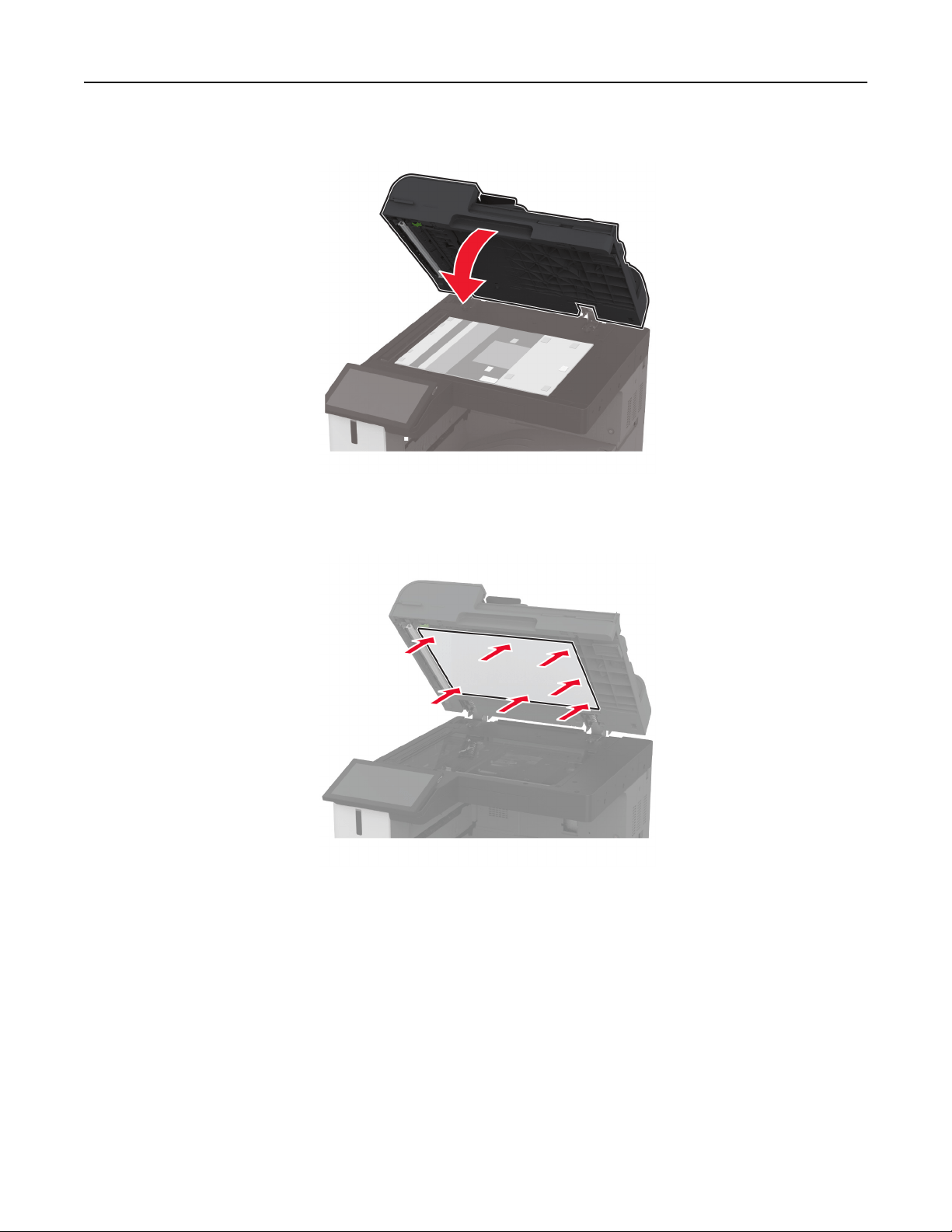
5 Close the scanner cover to attach the new scanner glass pad.
6 Open the scanner cover.
7 Apply pressure to the scanner glass pad to secure it.
8 Close the scanner cover.
Maintain the printer 372
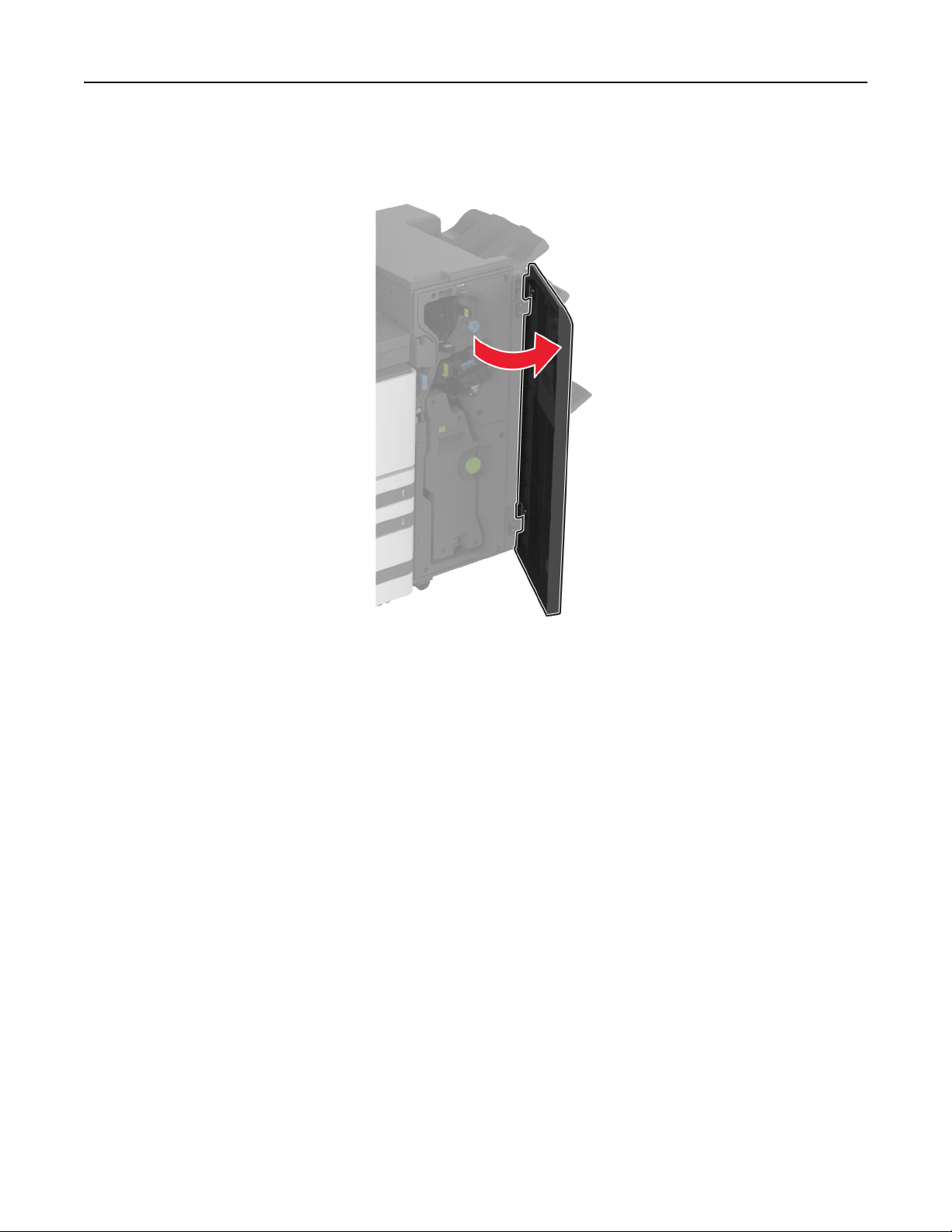
Replacing the hole punch box in the booklet finisher
1 Open the booklet
finisher
door.
Maintain the printer 373
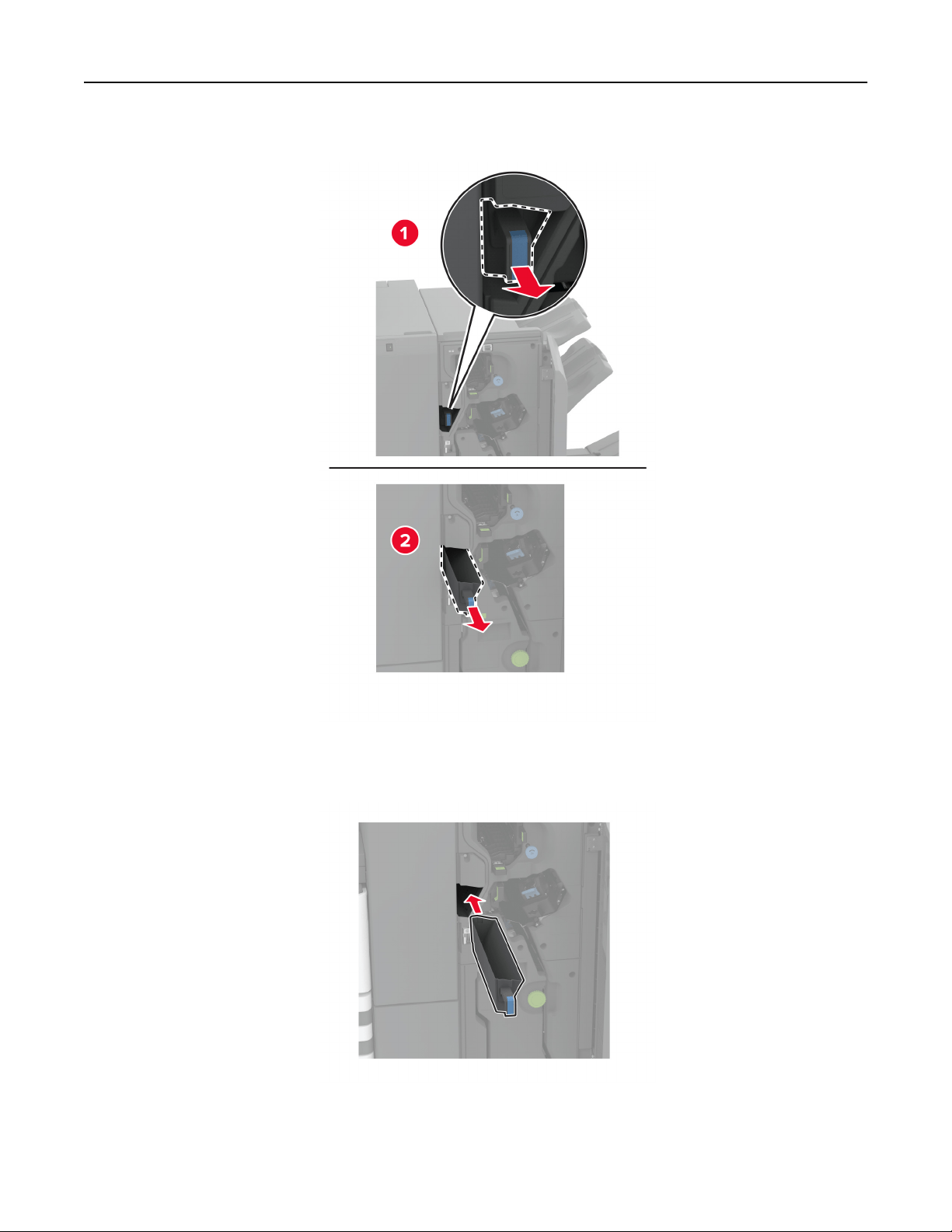
2 Remove the used hole punch box.
3 Unpack the new hole punch box.
4 Insert the new hole punch box.
5 Close the booklet
finisher
door.
Maintain the printer 374
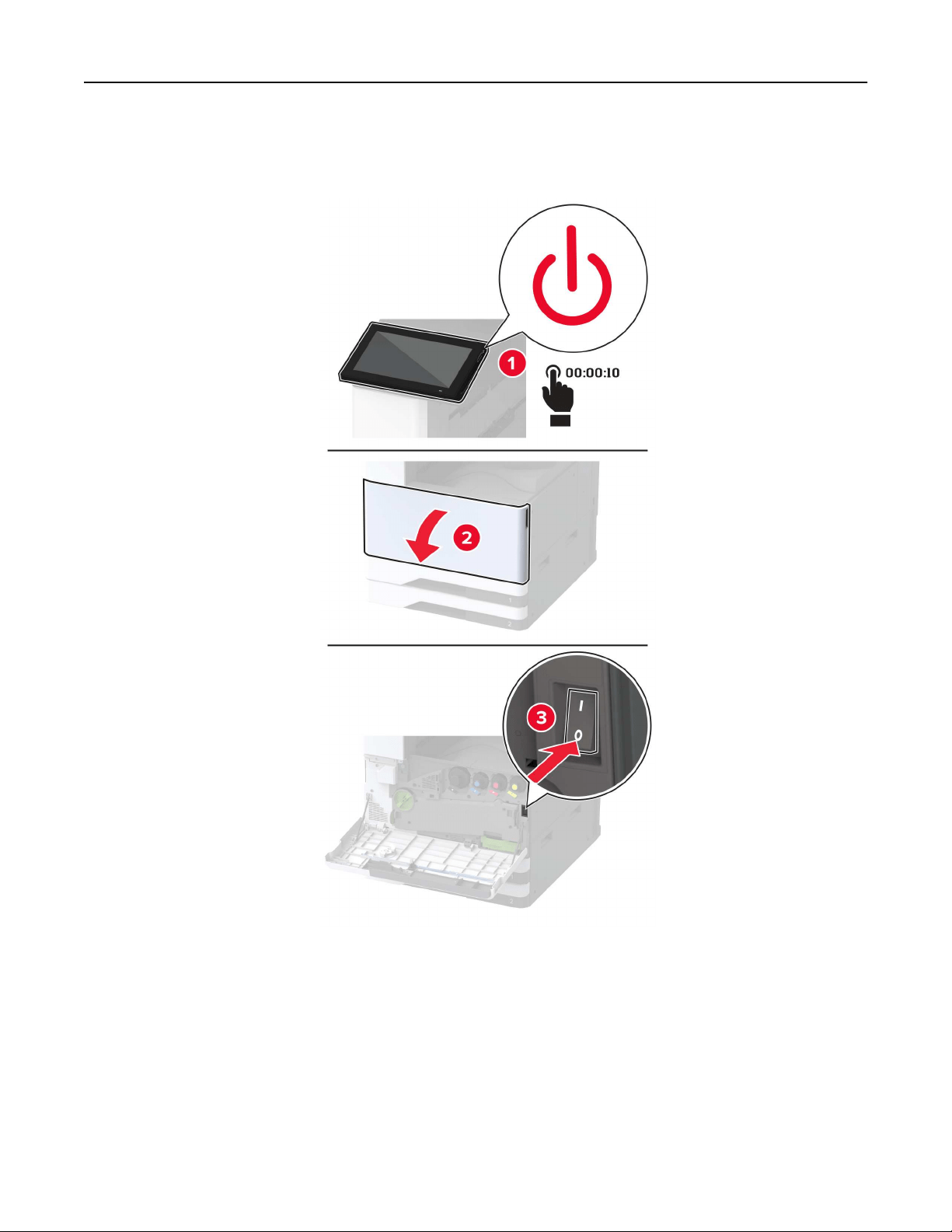
Replacing the trifold/Z‑fold finisher bin
1 Turn
o
the printer.
Maintain the printer 375
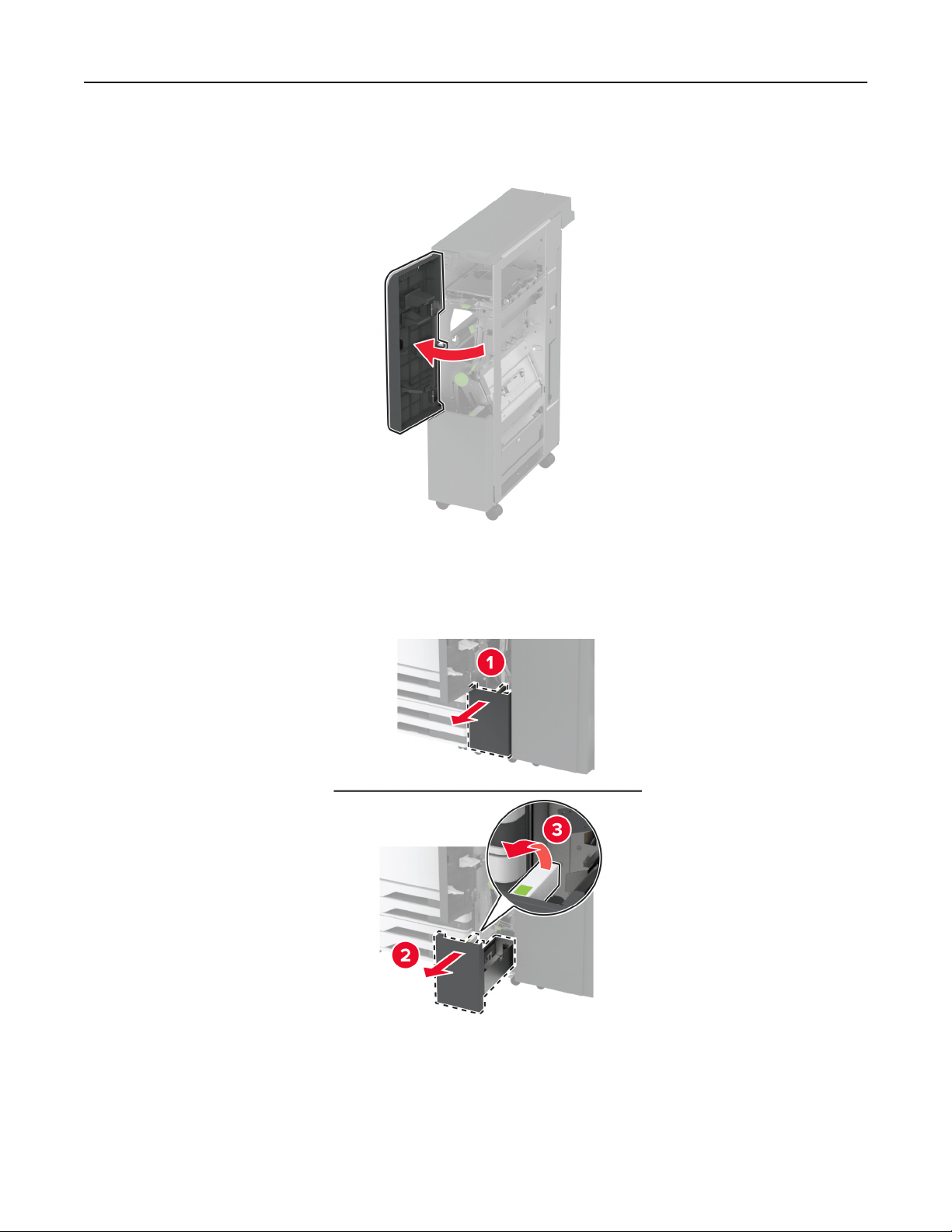
2 Open the trifold/Z-fold finisher door.
3 Remove the used finisher bin.
4 Unpack the new finisher bin.
Maintain the printer 376
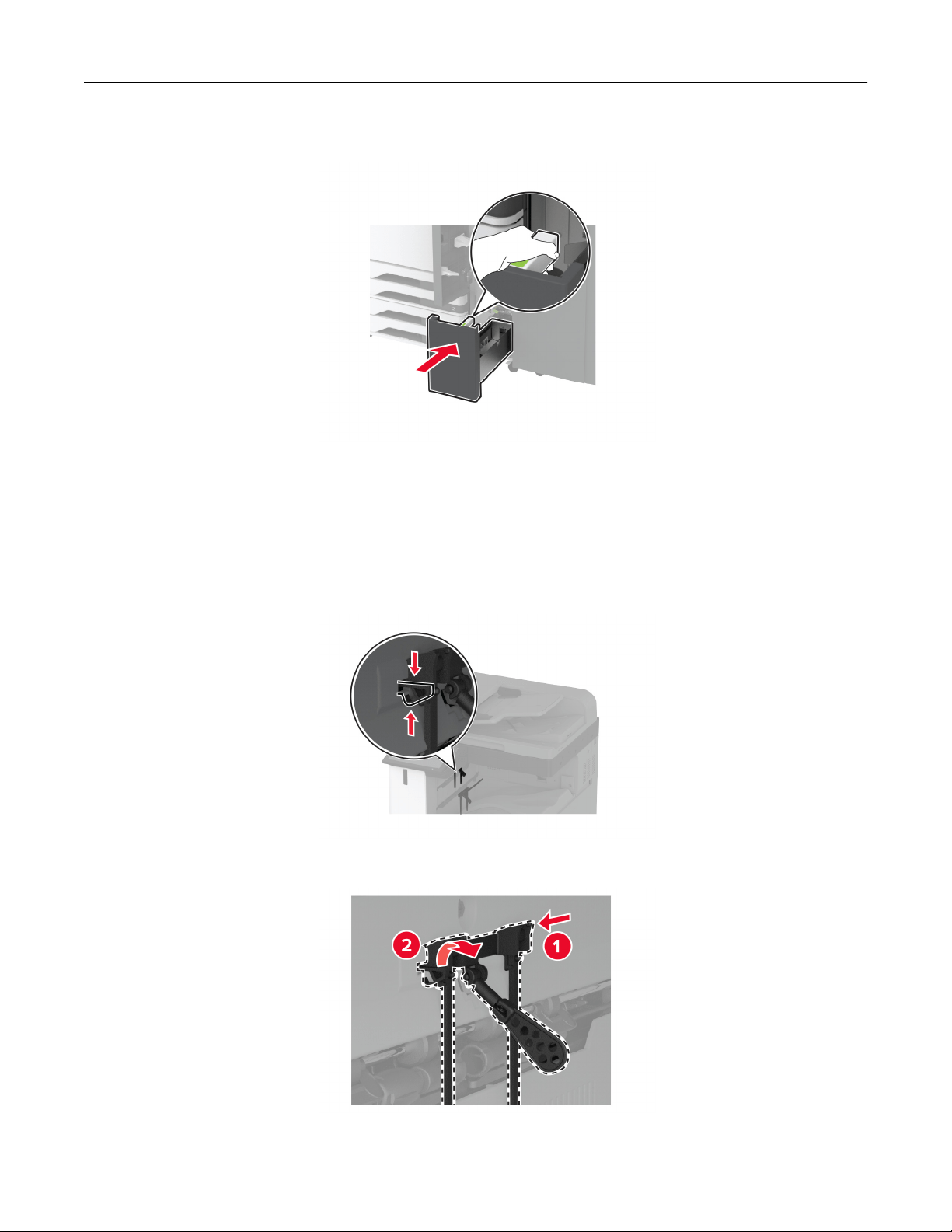
5 Insert the new finisher bin.
6 Close the finisher door.
7 Turn on the printer.
Replacing the paper bail
1 Pinch the left side of the paper bail to unlock it.
2 Remove the used paper bail.
3 Unpack the new paper bail.
Maintain the printer 377
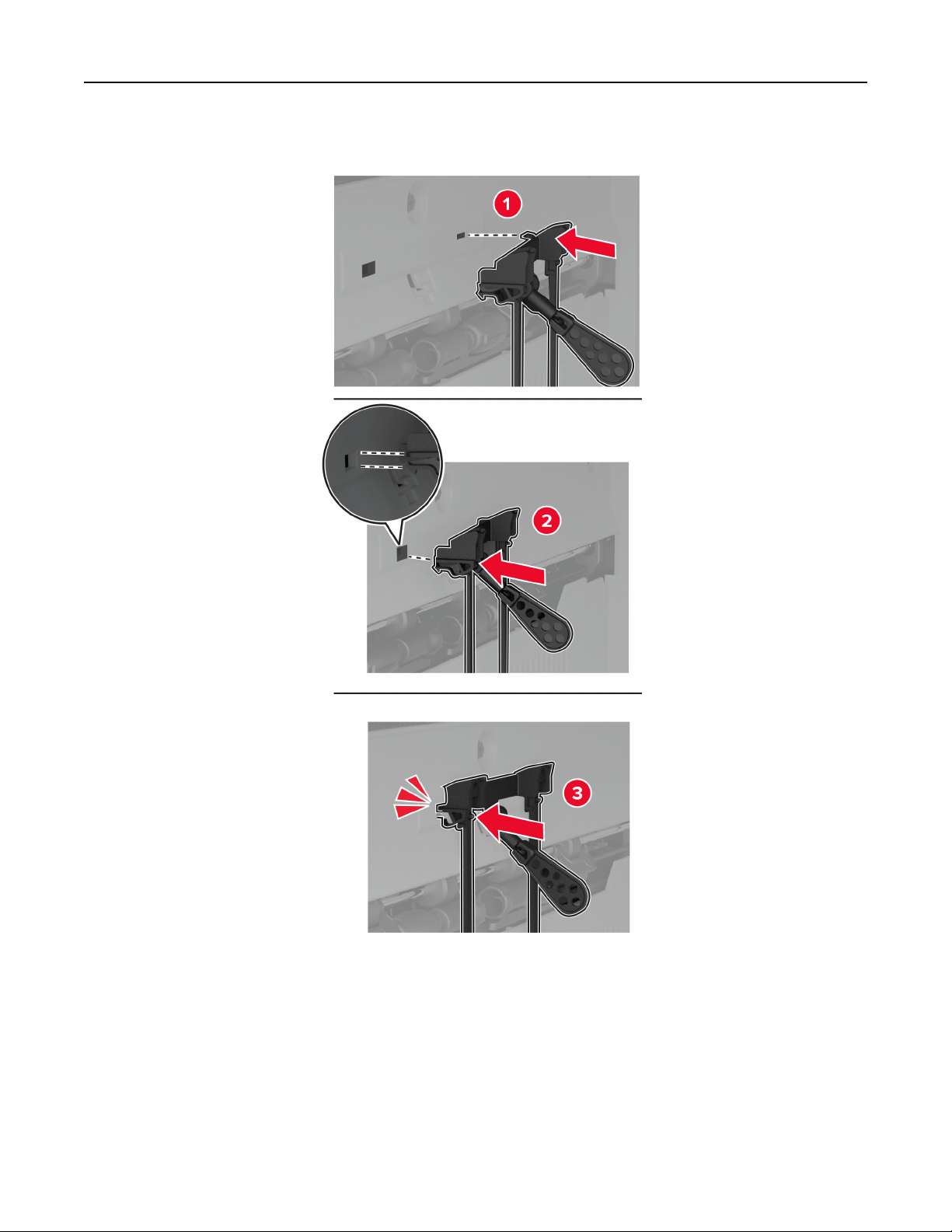
4 Insert the new paper bail until it clicks into place.
Maintain the printer 378
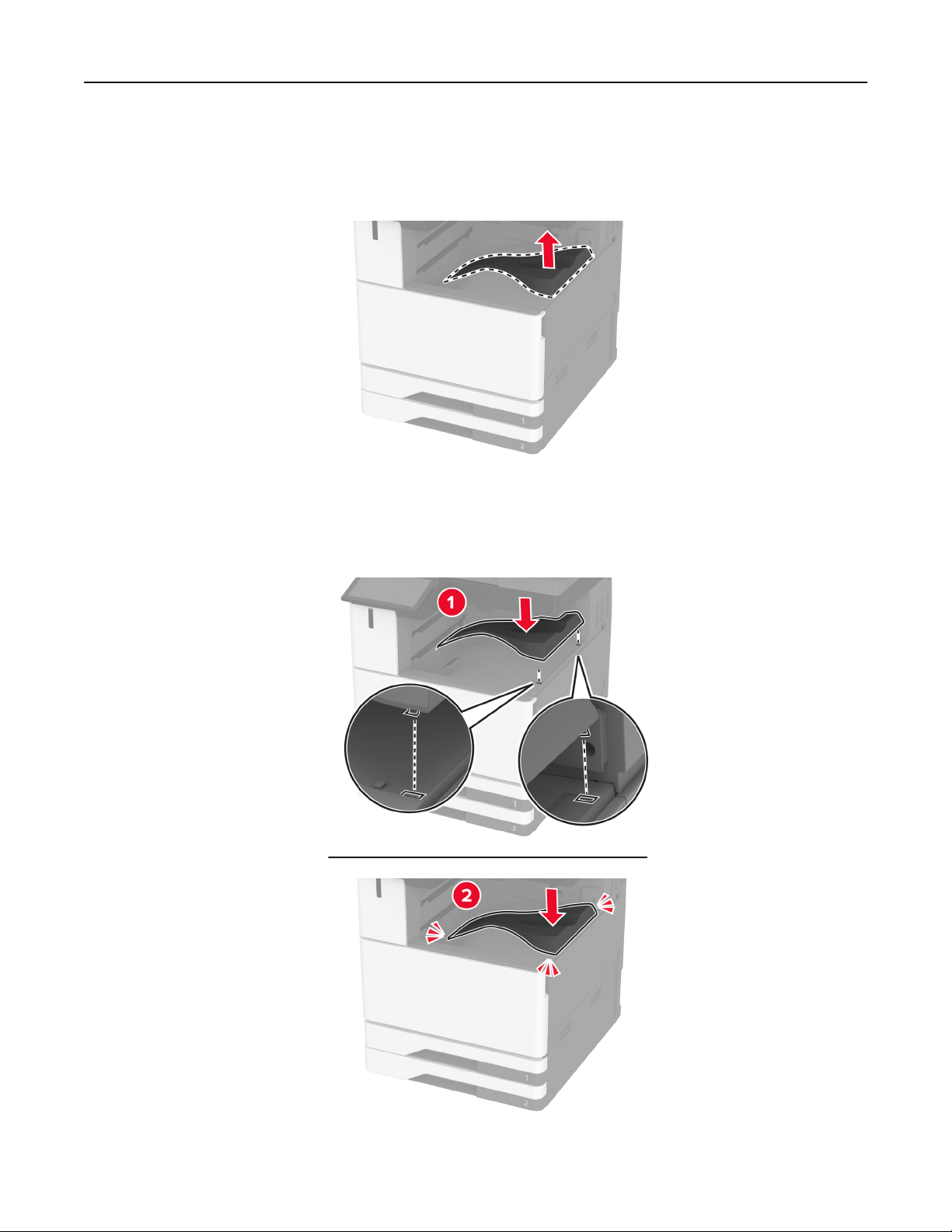
Replacing the dual catch bin
1 Remove the used dual catch bin.
2 Unpack the new dual catch bin.
3 Attach the new dual catch bin until it clicks into place.
Maintain the printer 379
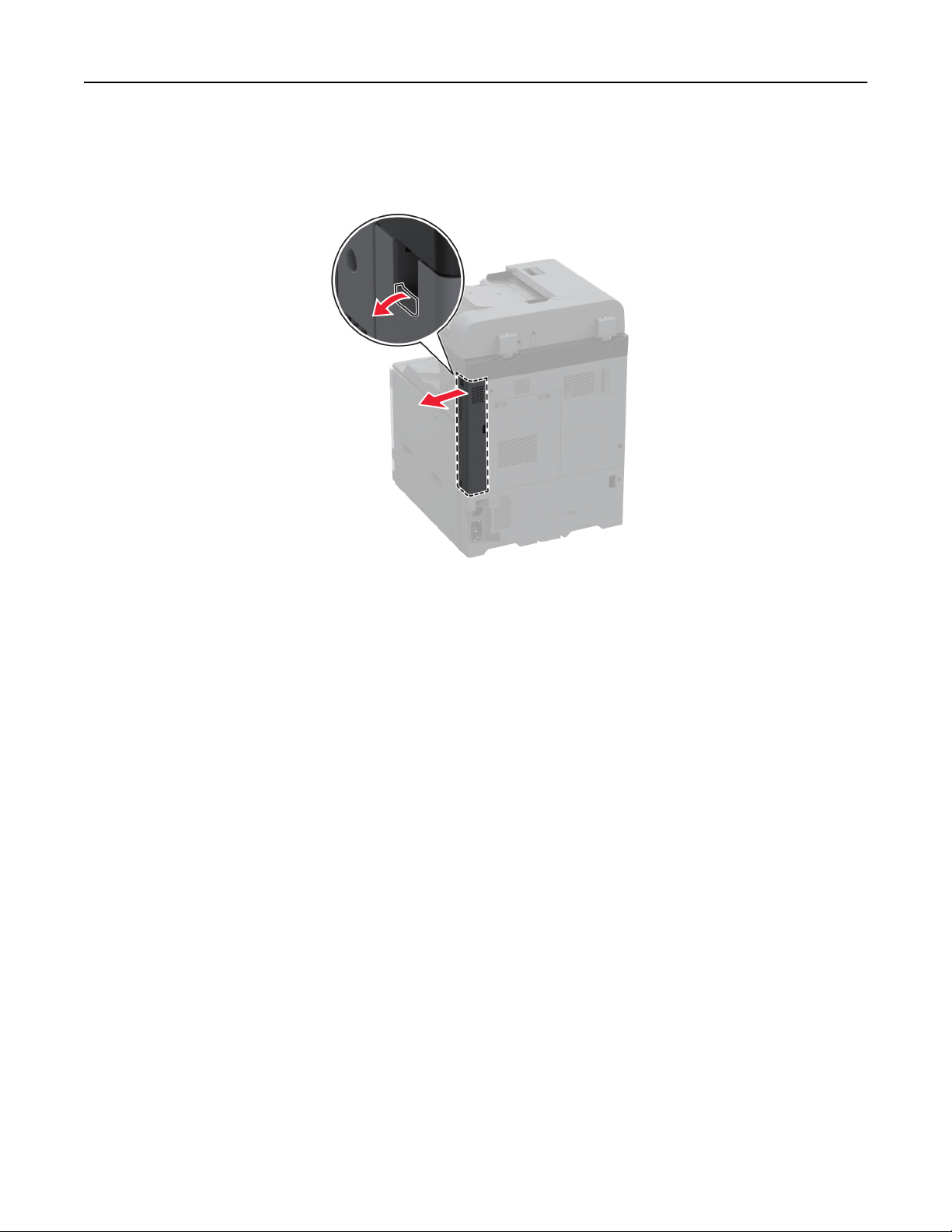
Replacing the controller board access cover
1 Remove the rear ports cover.
Maintain the printer 380
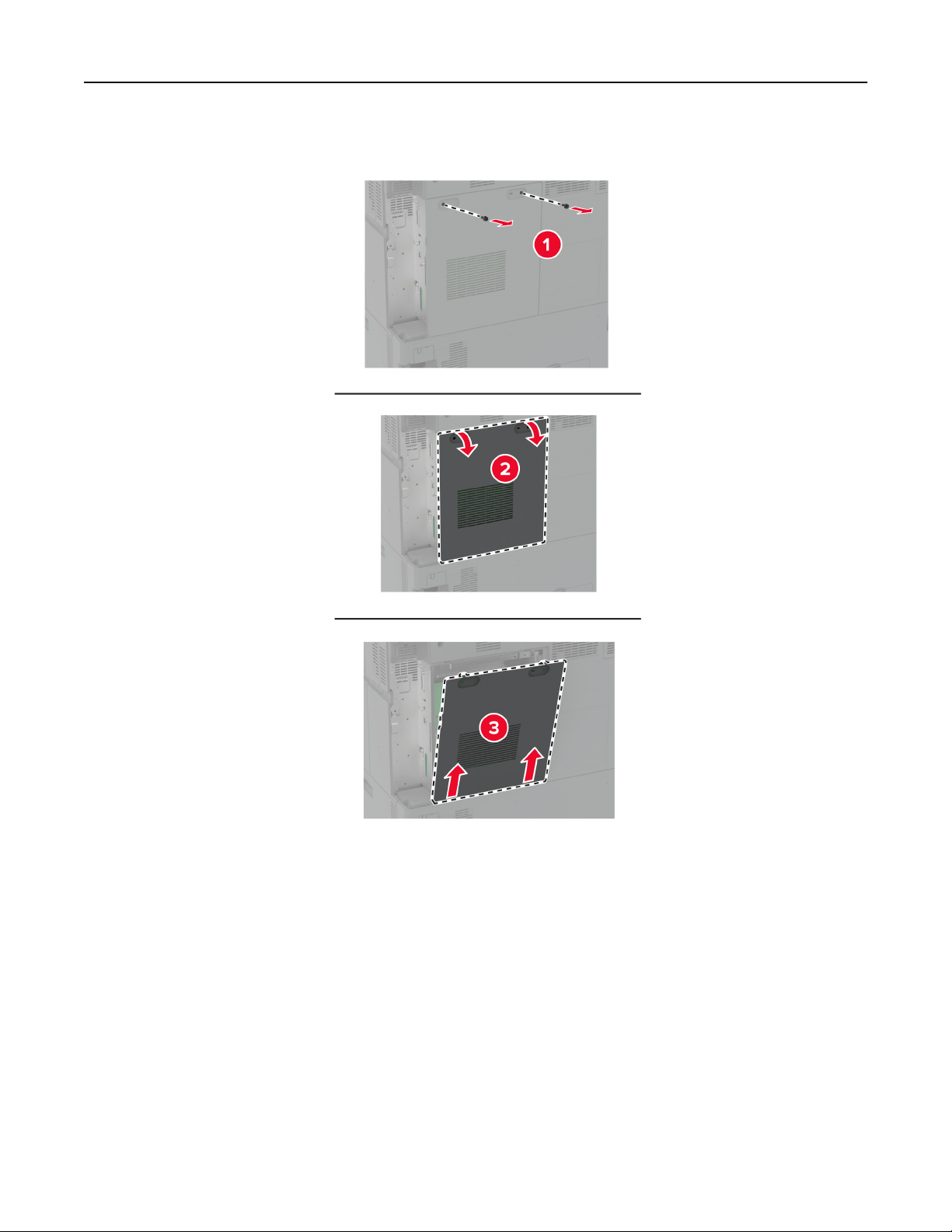
2 Using a flat‑head screwdriver, remove the used controller board access cover.
3 Unpack the new controller board access cover.
Maintain the printer 381
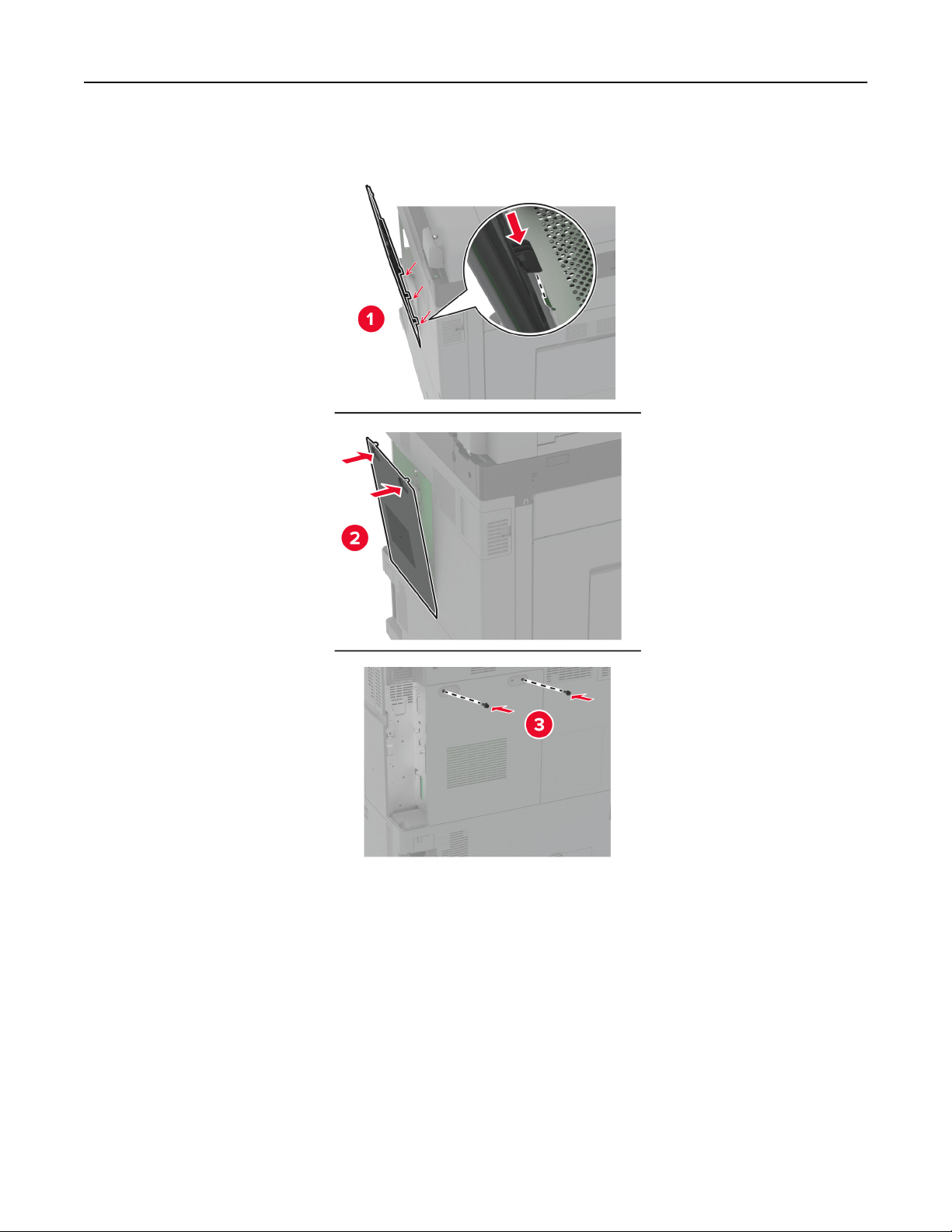
4 Attach the new controller board access cover.
Maintain the printer 382
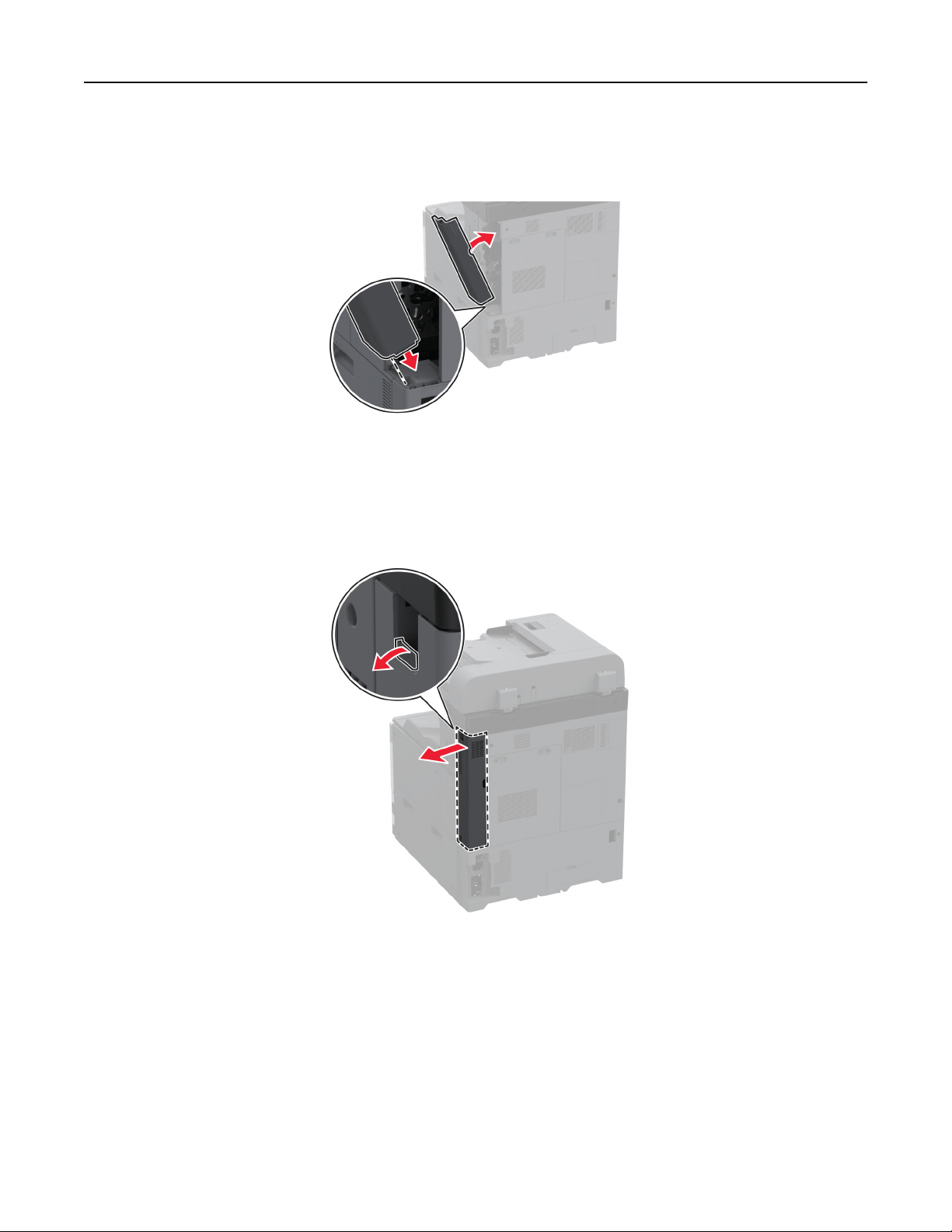
5 Attach the rear ports cover.
Replacing the rear ports cover
1 Remove the used rear ports cover.
2 Unpack the new rear ports cover.
Maintain the printer 383
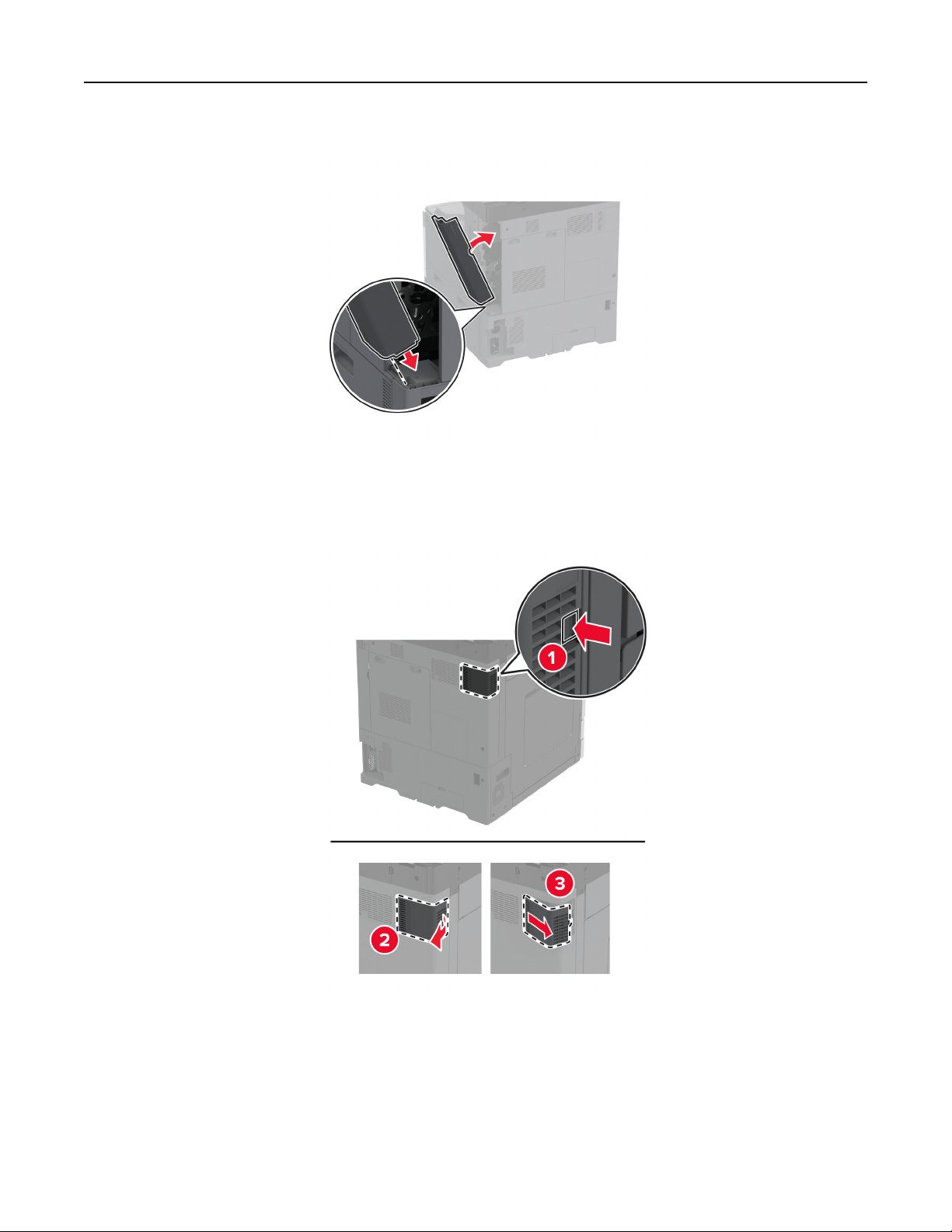
3 Attach the new rear ports cover.
Replacing the R9 rear cover
1 Remove the used R9 rear cover.
2 Unpack the new R9 rear cover.
Maintain the printer 384
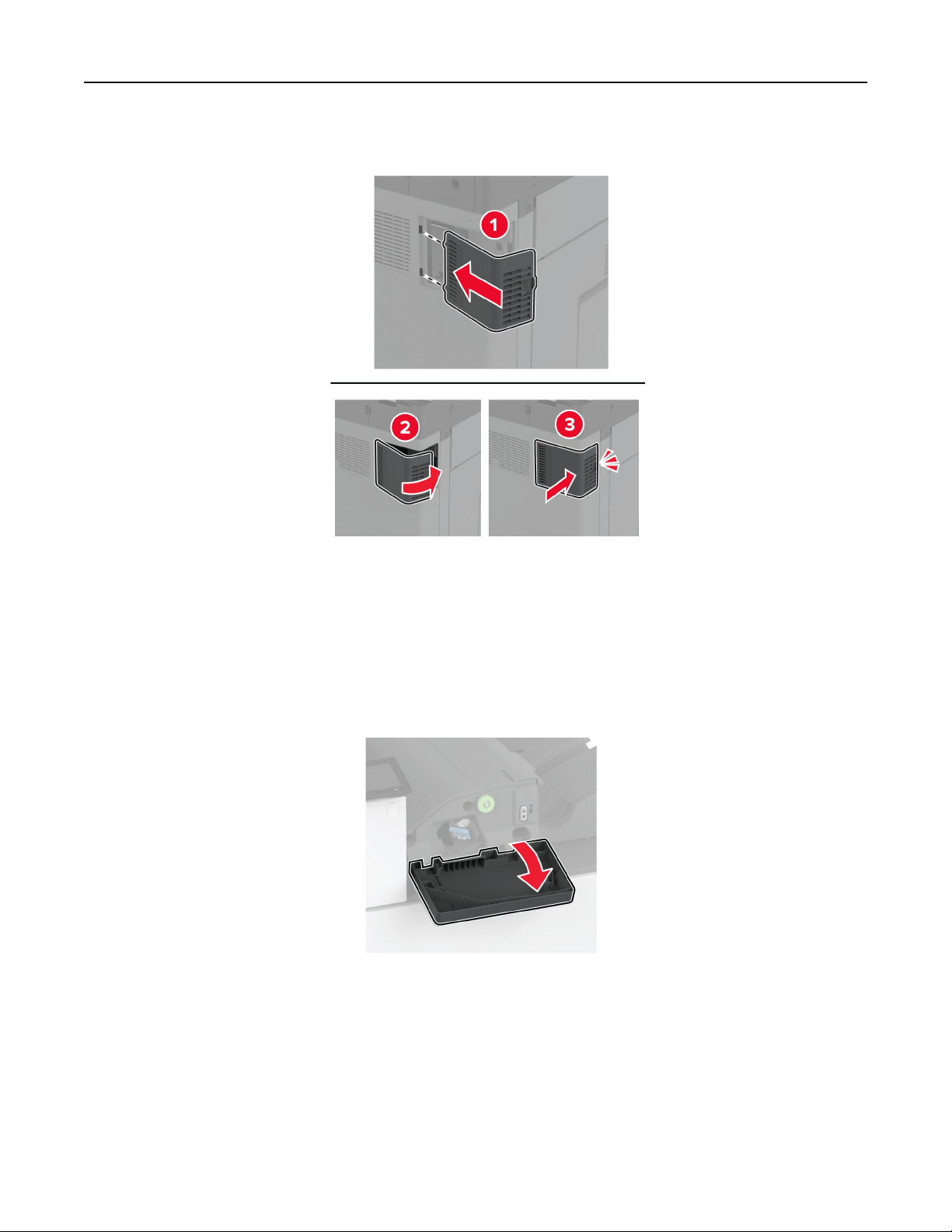
3 Attach the new R9 rear cover until it clicks into place.
Replacing the staple cartridge unit
Replacing the staple cartridge in the staple finisher
1 Open the finisher door.
Maintain the printer 385
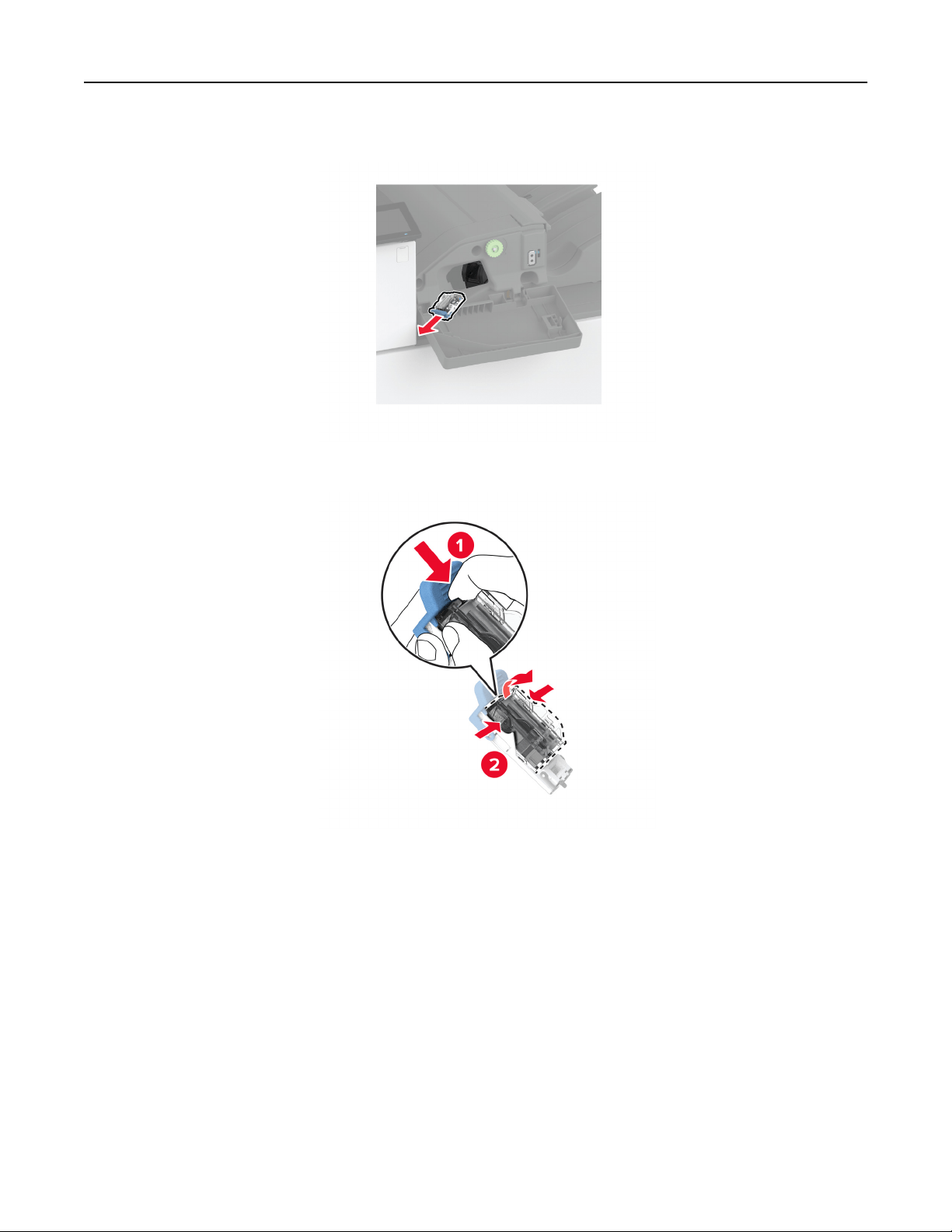
2 Remove the staple cartridge holder.
3 Remove the empty staple cartridge.
4 Unpack the new staple cartridge.
Maintain the printer 386
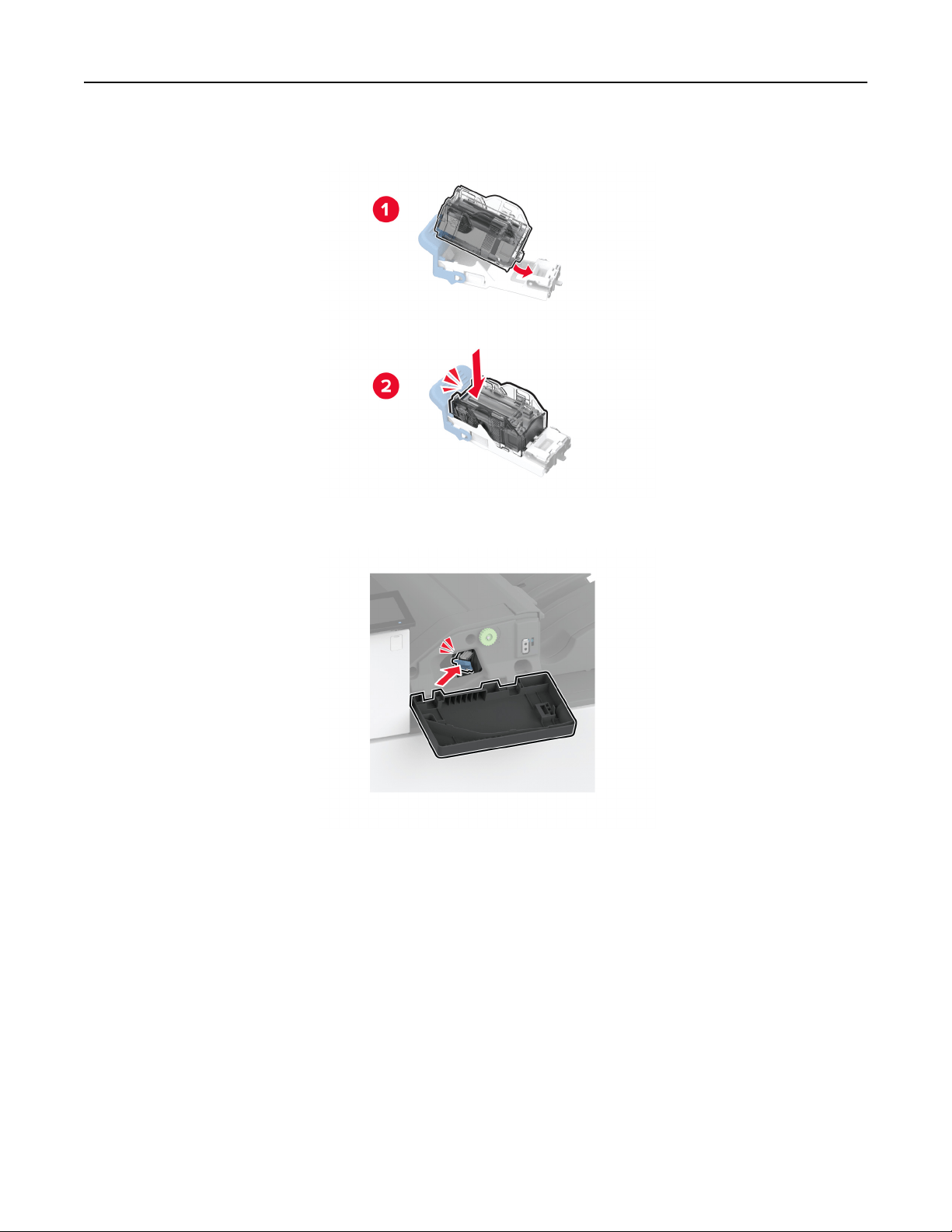
5 Insert the new staple cartridge into the holder until it clicks into place..
6 Insert the staple cartridge holder until it clicks into place.
7 Close the door.
Maintain the printer 387
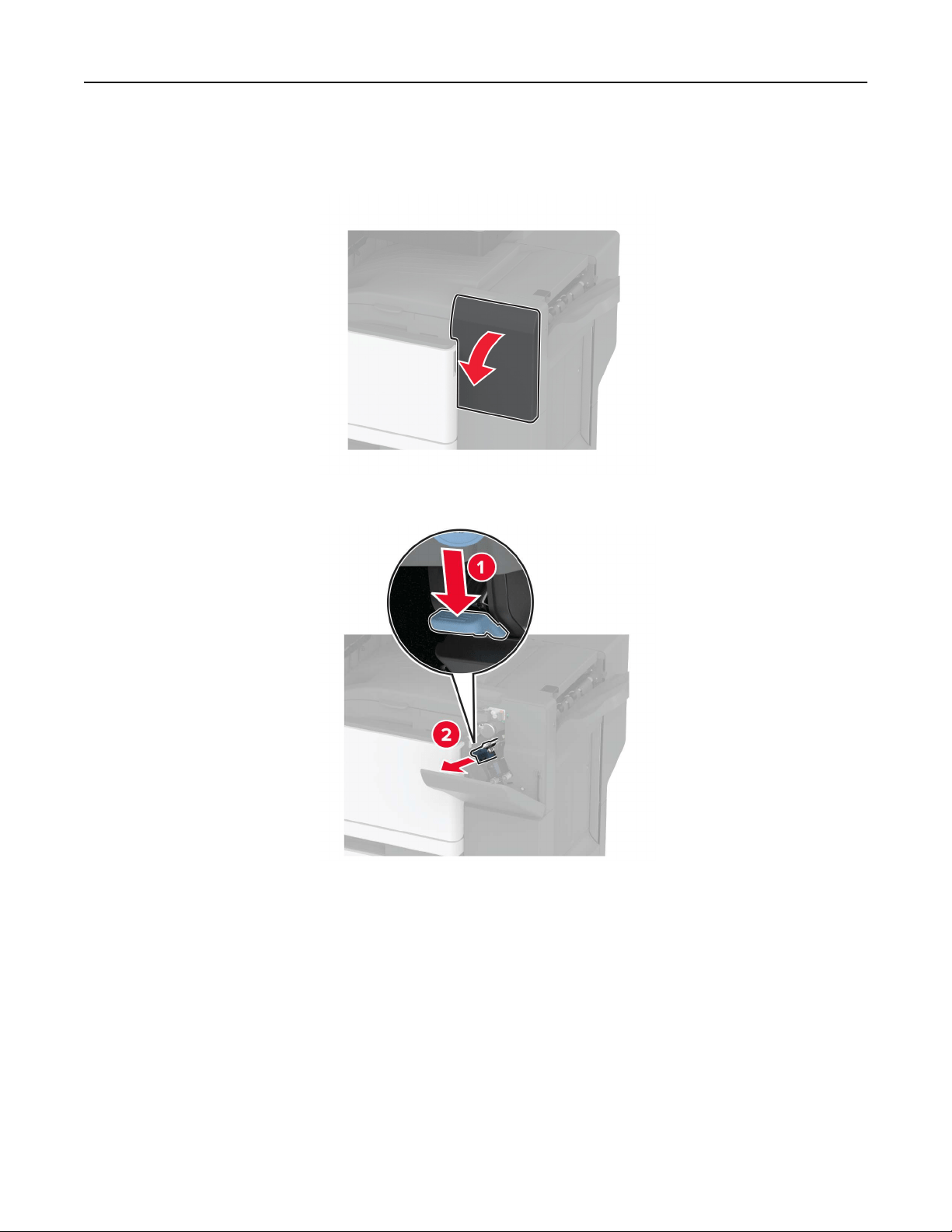
Replacing the staple cartridge in the staple, hole punch finisher
1 Open the finisher door.
2 Remove the staple cartridge holder.
Maintain the printer 388
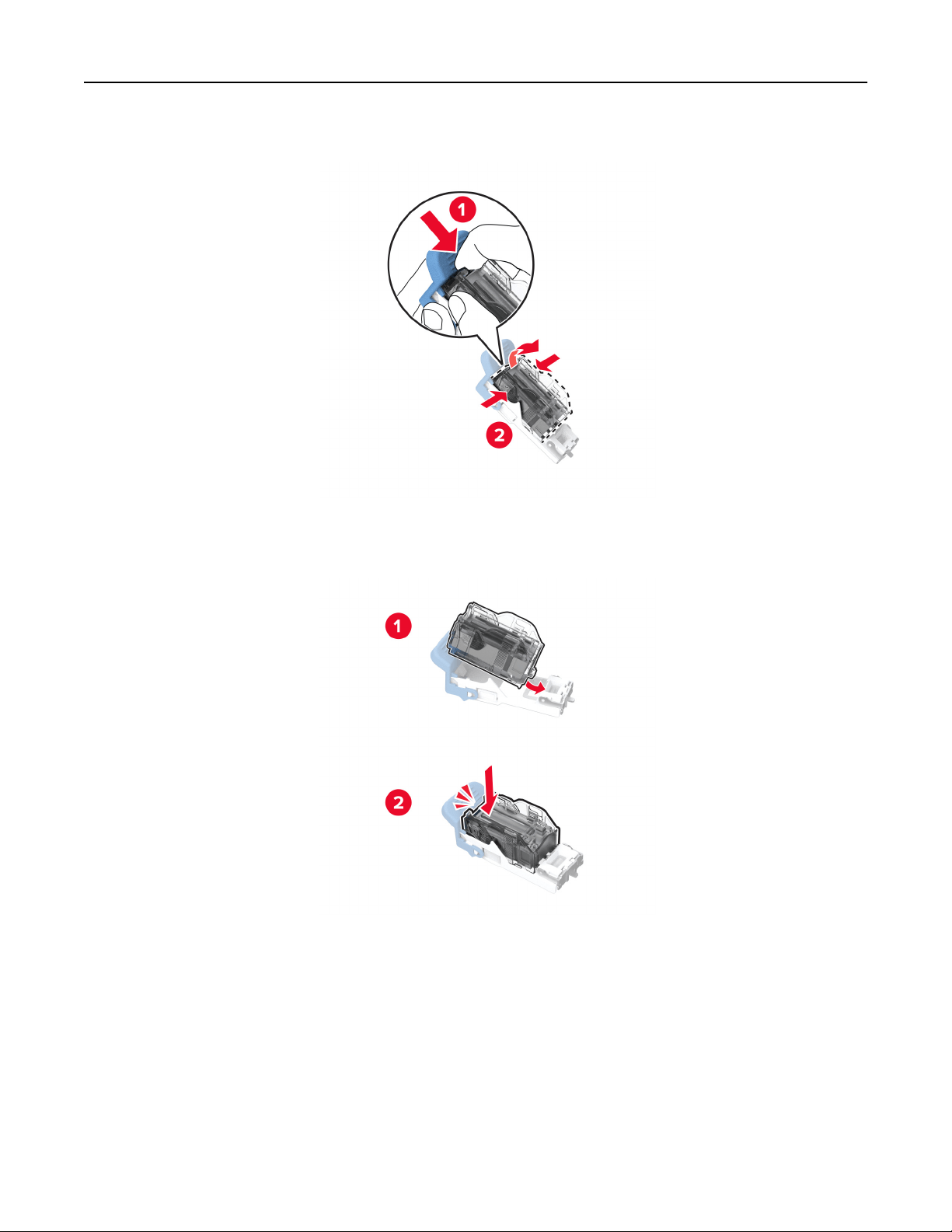
3 Remove the empty staple cartridge.
4 Unpack the new staple cartridge.
5 Insert the new staple cartridge until it clicks into place.
Maintain the printer 389
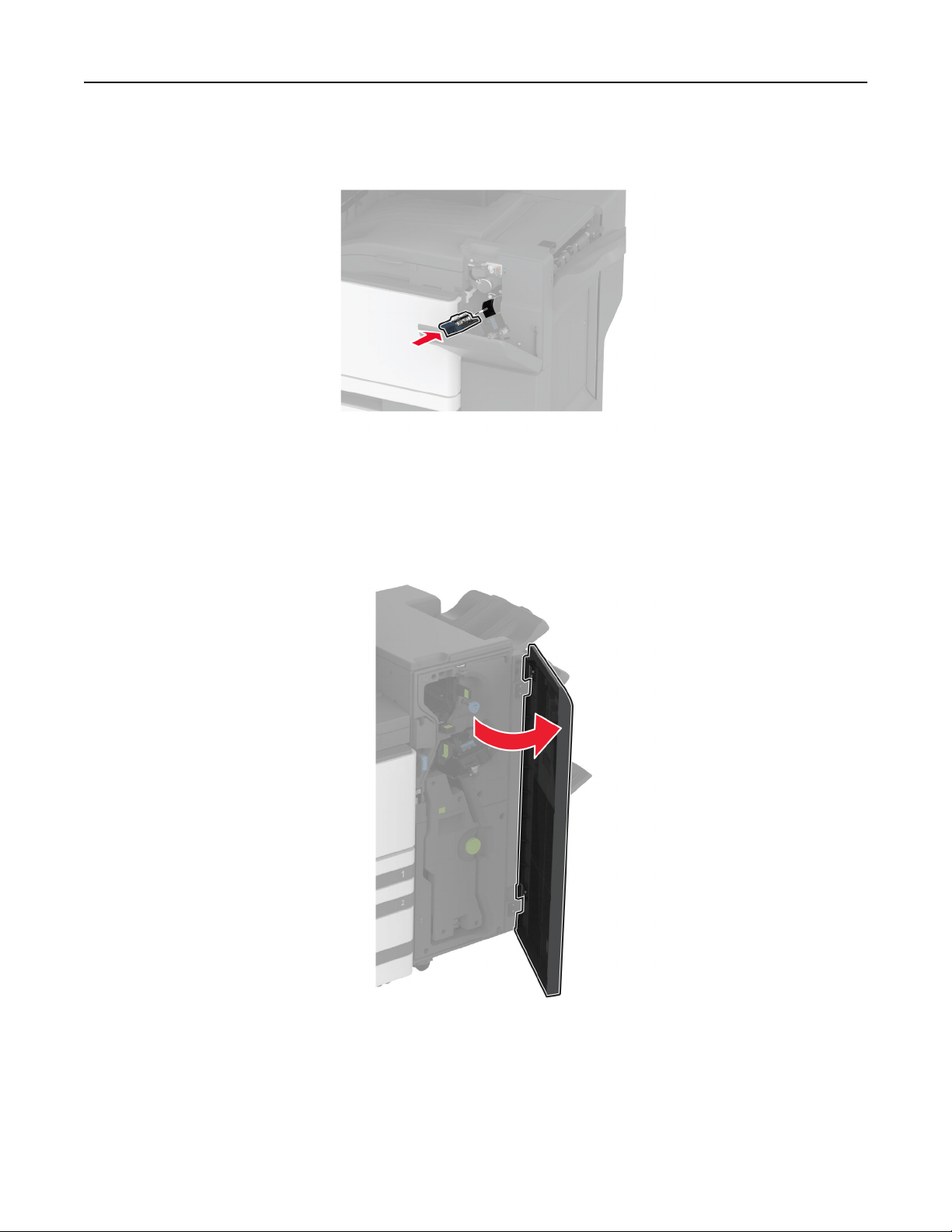
6 Insert the staple cartridge holder.
7 Close the door.
Replacing the standard staple cartridge holder
1 Open the finisher door.
Maintain the printer 390
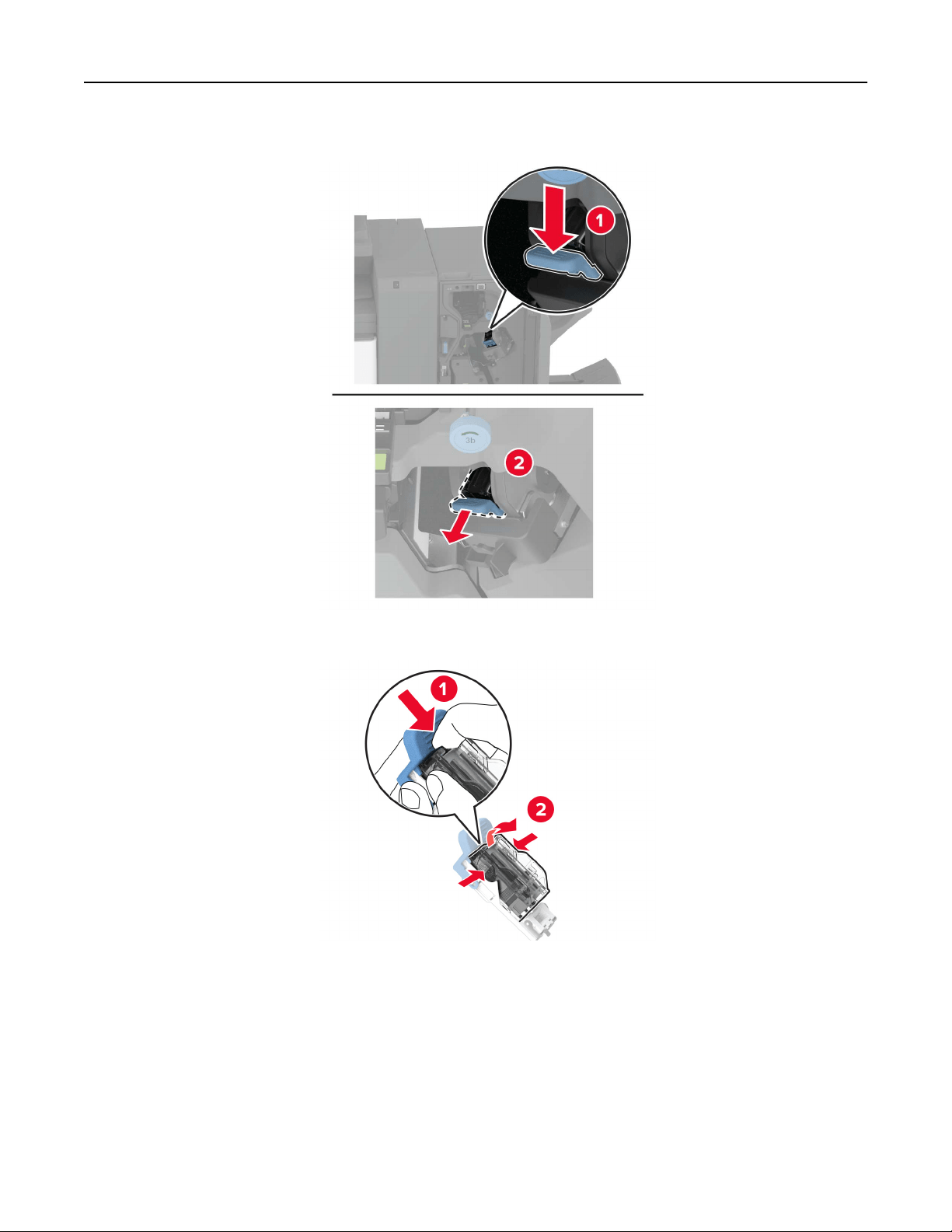
2 Remove the used staple cartridge holder.
3 Remove the staple cartridge.
4 Unpack the new staple cartridge holder.
Maintain the printer 391
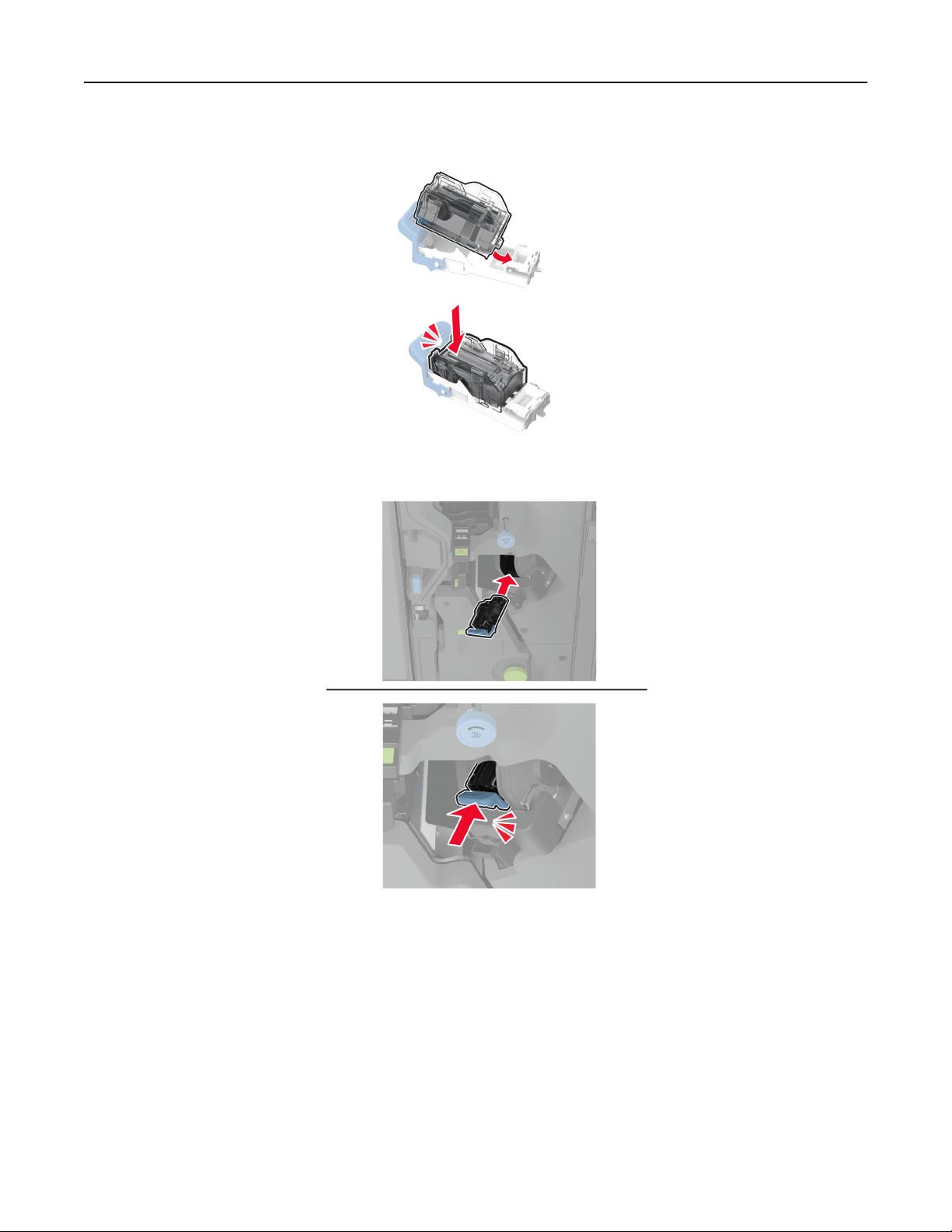
5 Insert the staple cartridge into the new staple cartridge holder until it clicks into place.
6 Insert the new staple cartridge holder until it clicks into place.
7 Close the
finisher
door.
Maintain the printer 392
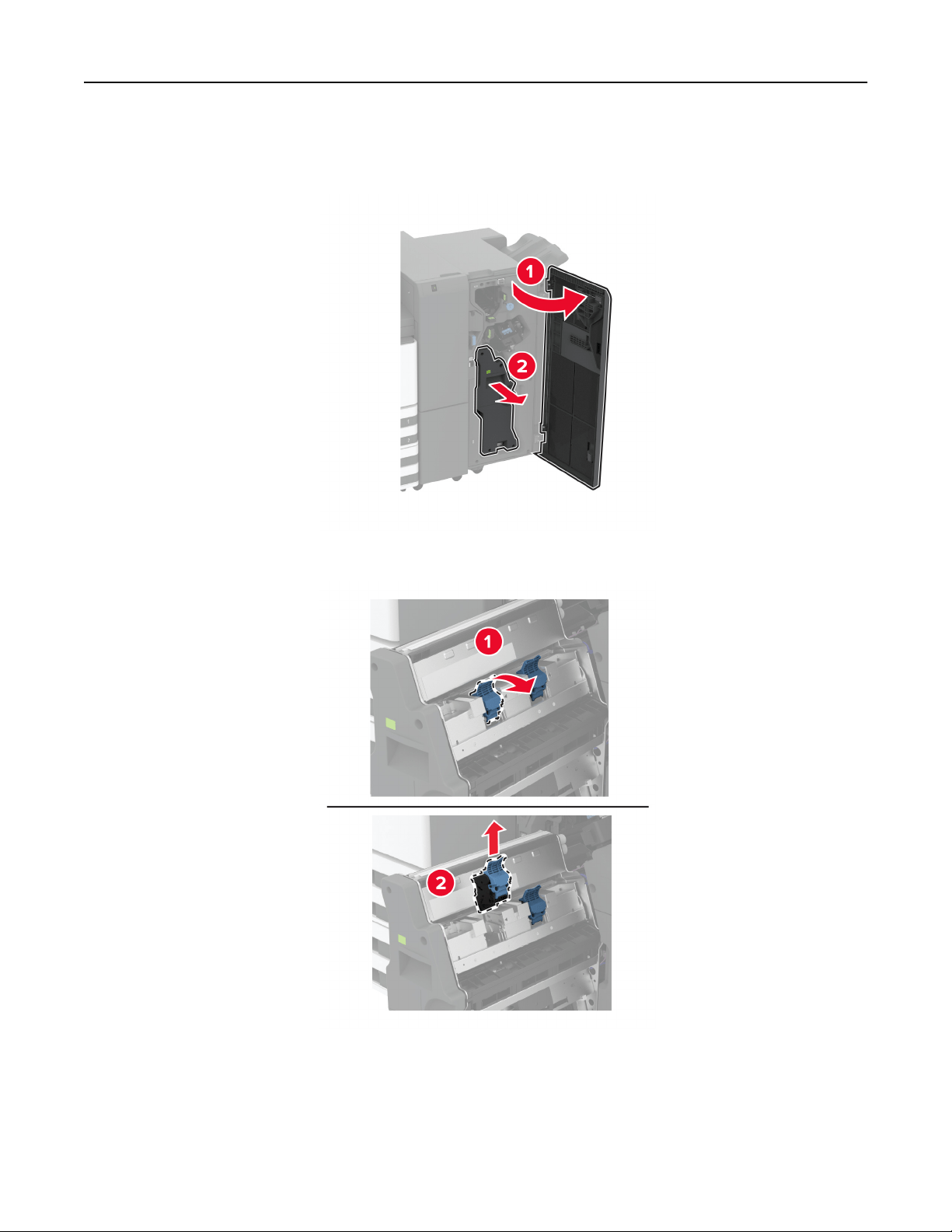
Replacing the staple cartridge holder in the booklet finisher
1 Open the finisher door, and then pull out the booklet maker.
2 Remove the used staple cartridge holder.
Maintain the printer 393
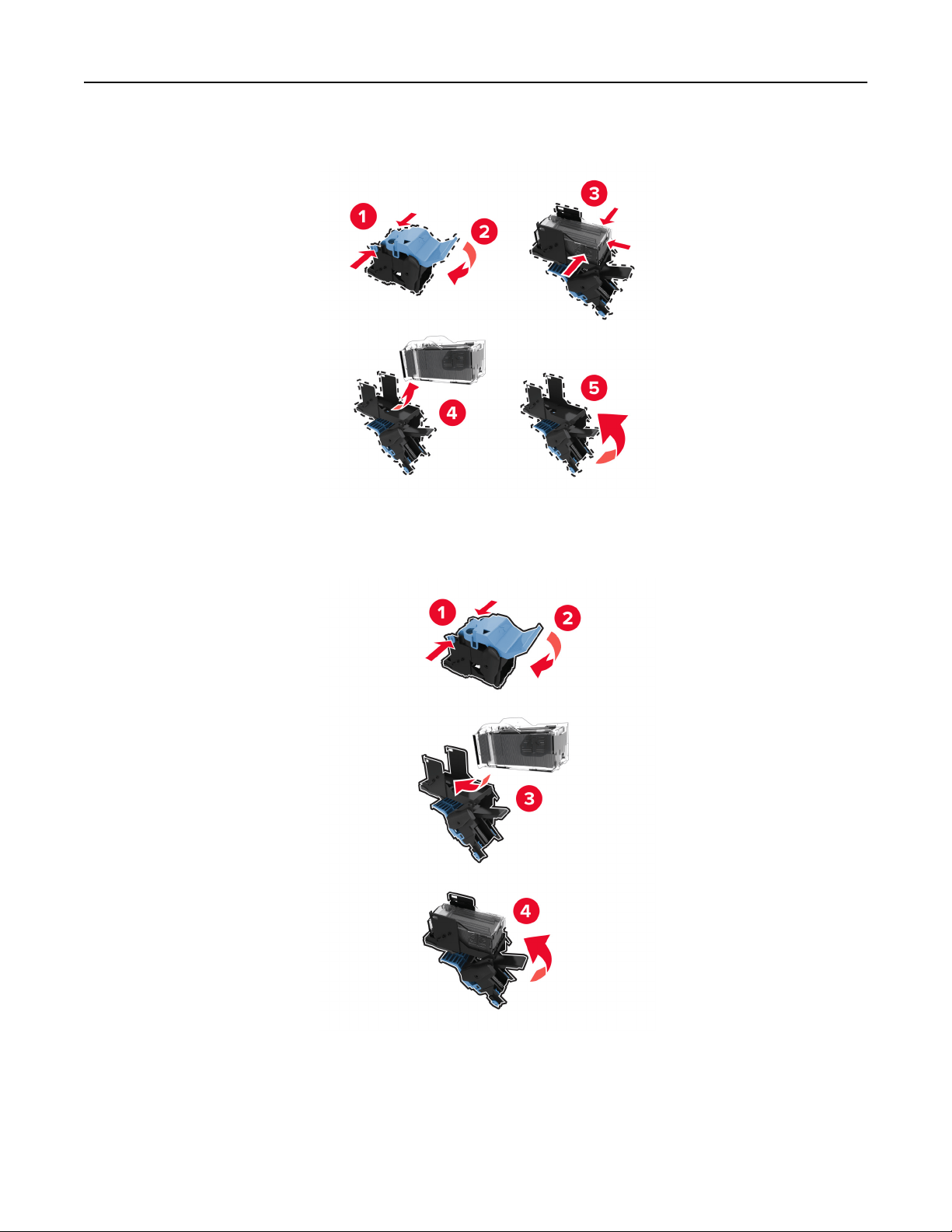
3 Remove the staple cartridge.
4 Unpack the new staple cartridge holder.
5 Insert the staple cartridge into the new staple cartridge holder.
Maintain the printer 394
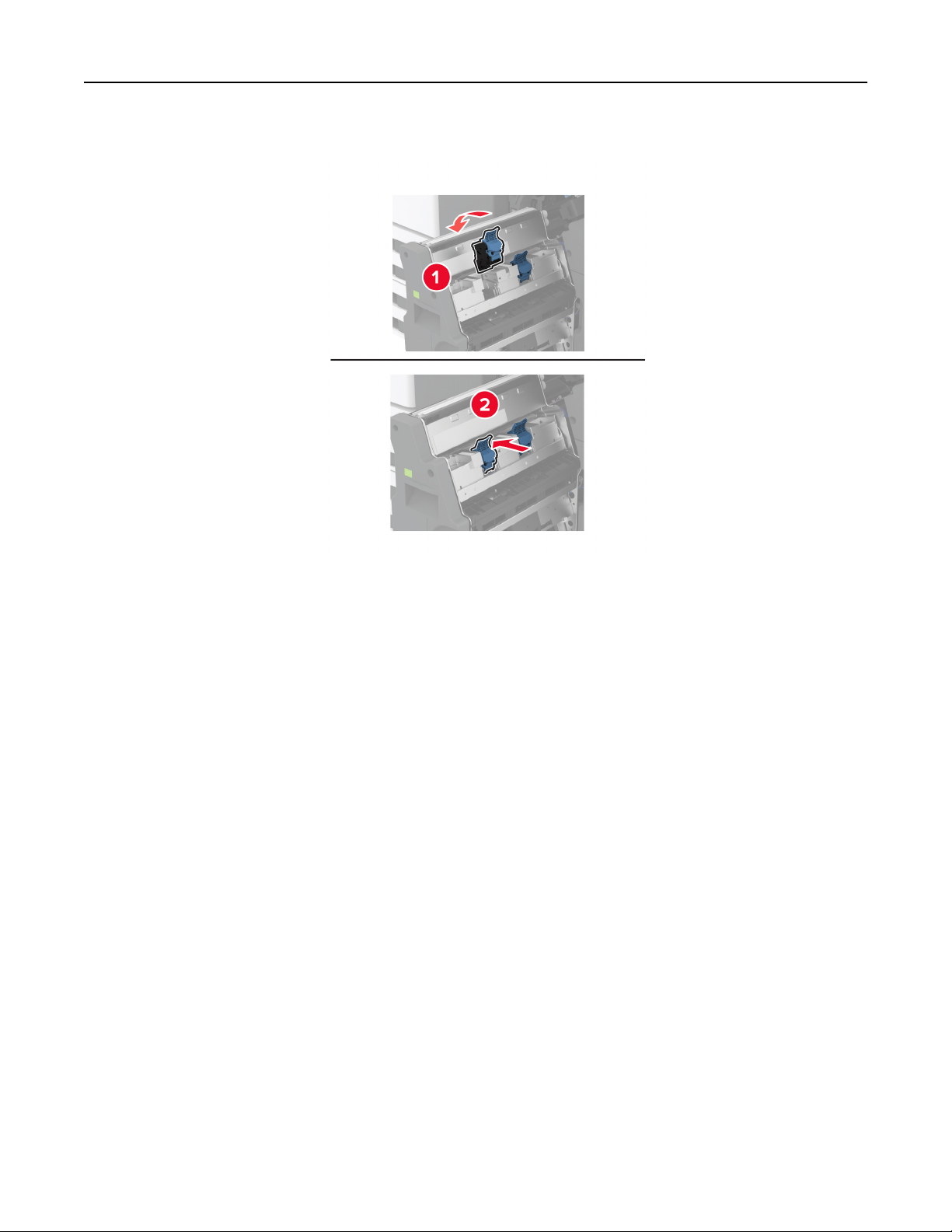
6 Insert the new staple cartridge holder.
7 Insert the booklet maker, and then close the finisher door.
Resetting the supply usage counters
1 From the home screen, touch Settings > Device > Maintenance > Configuration Menu > Supply Usage
And Counters.
2 Select the counter that you want to reset.
Warning—Potential Damage: Supplies and parts without Return Program agreement terms may be reset and
remanufactured. However, the manufacturer’s warranty does not cover any damage caused by non-genuine
supplies or parts. Resetting counters on the supply or part without proper remanufacturing can cause
damage to your printer. After resetting the supply or part counter, your printer may display an error indicating
the presence of the reset item.
Maintain the printer 395

Cleaning printer parts
Cleaning the printer
CAUTION—SHOCK HAZARD: To avoid the risk of electrical shock when cleaning the exterior of the
printer, unplug the power cord from the electrical outlet and disconnect all cables from the printer before
proceeding.
Notes:
• Perform this task after every few months.
• Damage to the printer caused by improper handling is not covered by the printer warranty.
1 Turn o the printer, and then unplug the power cord from the electrical outlet.
2 Remove paper from the standard bin and multipurpose feeder.
3 Remove any dust, lint, and pieces of paper around the printer using a soft brush or vacuum.
4 Wipe the outside of the printer with a damp, soft, lint‑free cloth.
Notes:
• Do not use household cleaners or detergents, as they may damage the finish of the printer.
• Make sure that all areas of the printer are dry after cleaning.
5 Connect the power cord to the electrical outlet, and then turn on the printer.
CAUTION—POTENTIAL INJURY: To avoid the risk of fire or electrical shock, connect the power cord
to an appropriately rated and properly grounded electrical outlet that is near the product and easily
accessible.
Cleaning the touch screen
CAUTION—SHOCK HAZARD: To avoid the risk of electric shock when cleaning the exterior of the
printer, unplug the power cord from the electrical outlet and disconnect all cables from the printer before
proceeding.
1 Turn o the printer, and then unplug the power cord from the electrical outlet.
2 Using a damp, soft, lint‑free cloth, wipe the touch screen.
Notes:
• Do not use household cleaners or detergents, as they may damage the touch screen.
• Make sure that the touch screen is dry after cleaning.
3 Connect the power cord to the electrical outlet, and then turn on the printer.
CAUTION—POTENTIAL INJURY: To avoid the risk of
fire
or electrical shock, connect the power cord
to an appropriately rated and properly grounded electrical outlet that is near the product and easily
accessible.
Maintain the printer 396
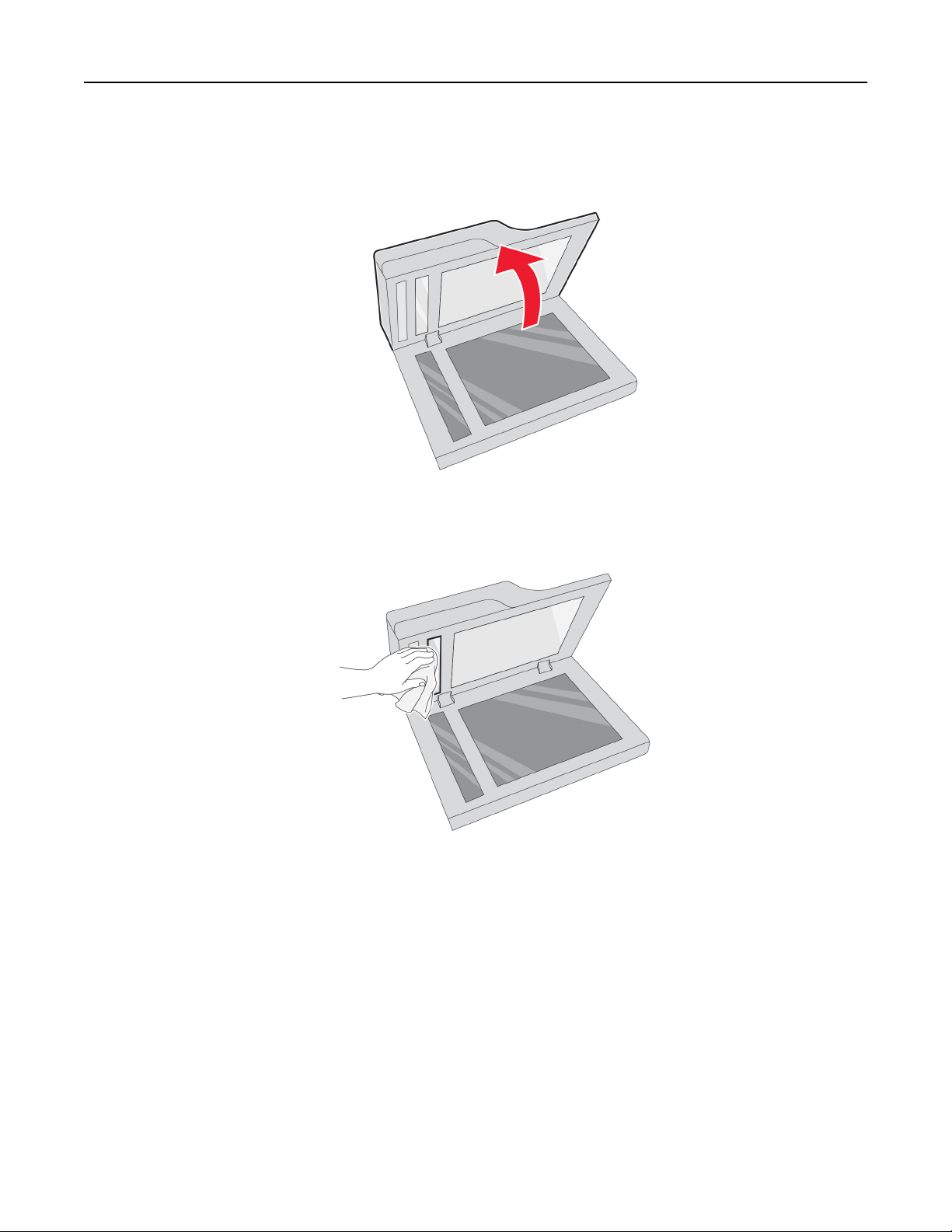
Cleaning the scanner
1 Open the scanner cover.
2 Using a damp, soft, lint-free cloth, wipe the following areas:
• ADF glass pad
Maintain the printer 397
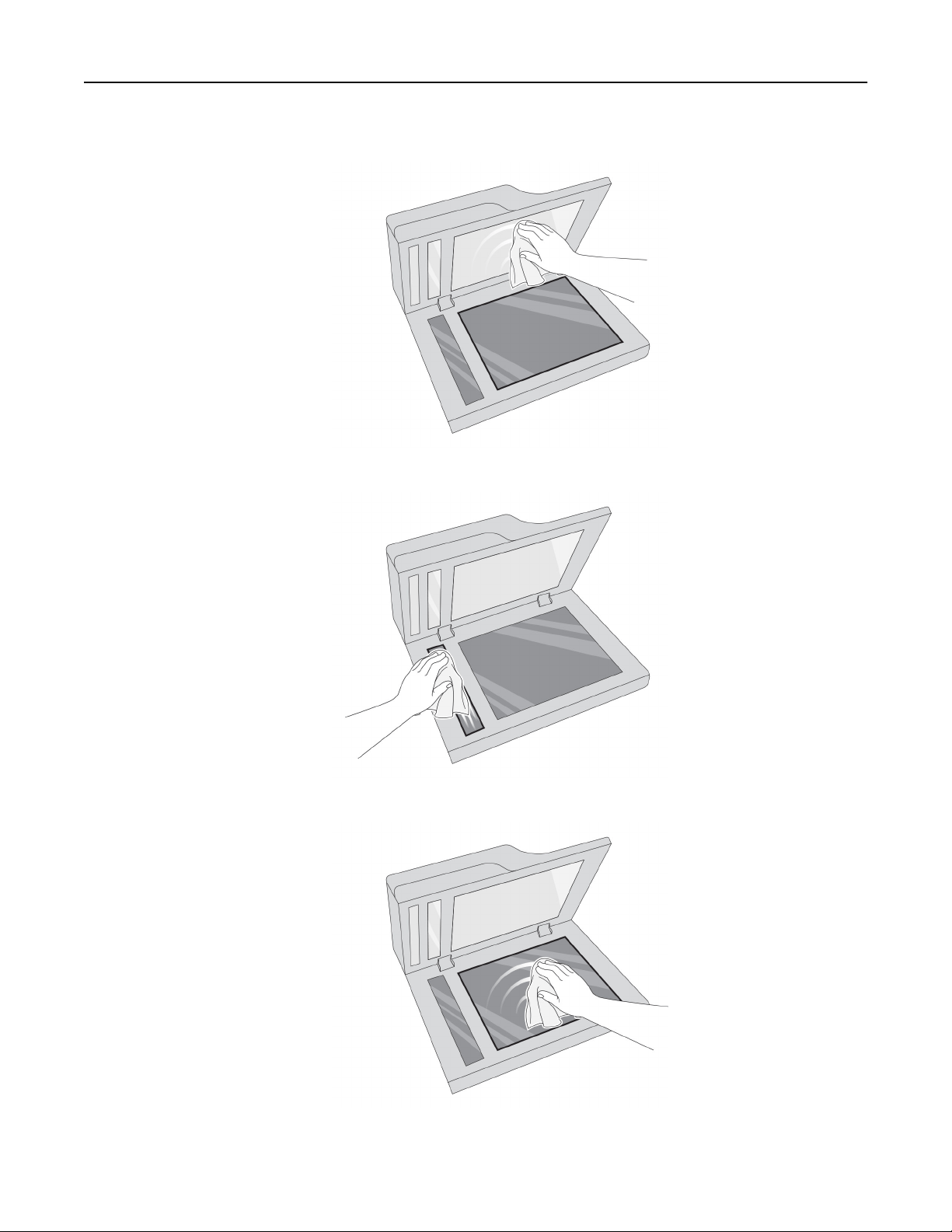
• Scanner glass pad
• ADF glass
• Scanner glass
3 Close the scanner cover.
Maintain the printer 398
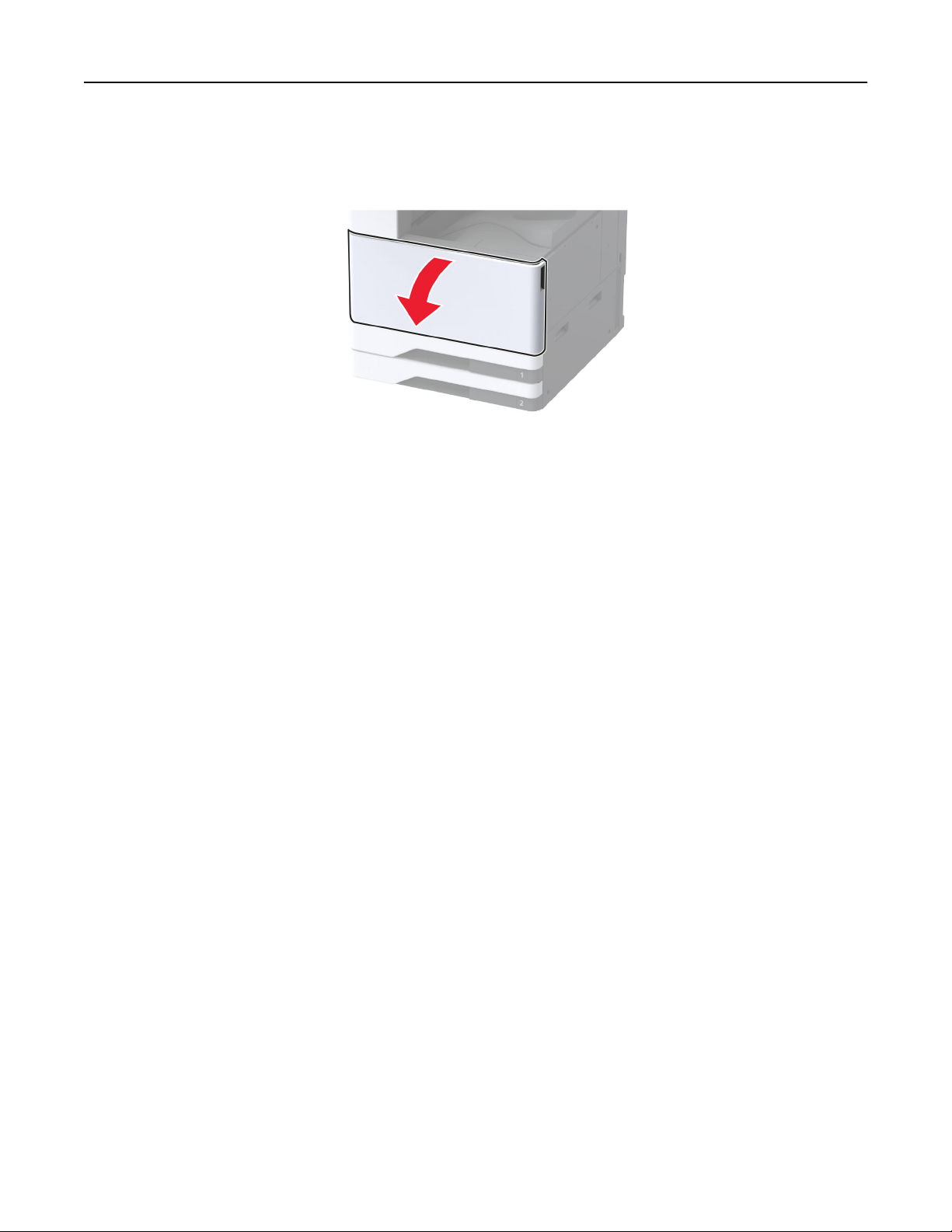
Cleaning the printhead lenses
1 Open the front door.
Maintain the printer 399
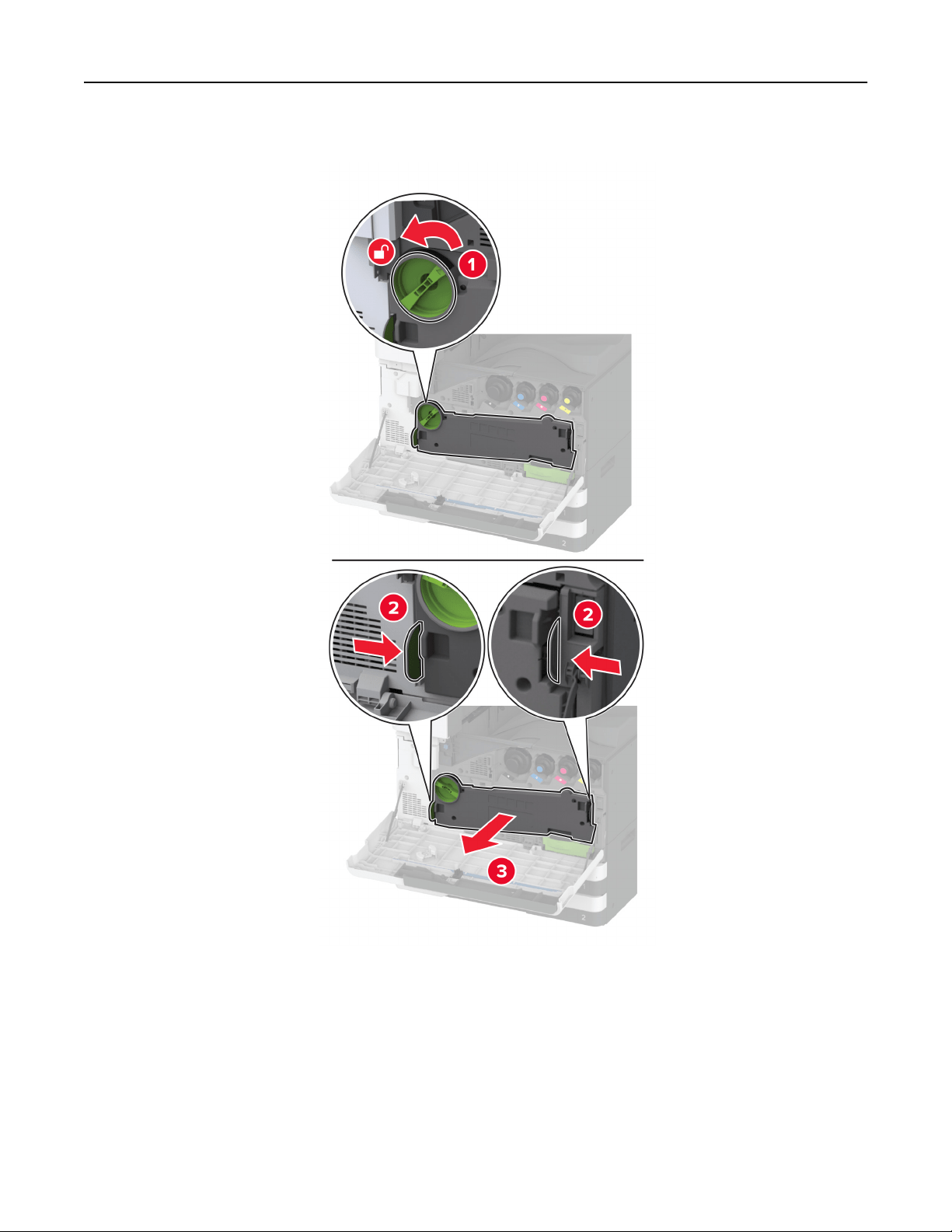
2 Remove the waste toner transfer unit.
Note: To avoid spilling the toner, place the unit in an upright position.
Maintain the printer 400
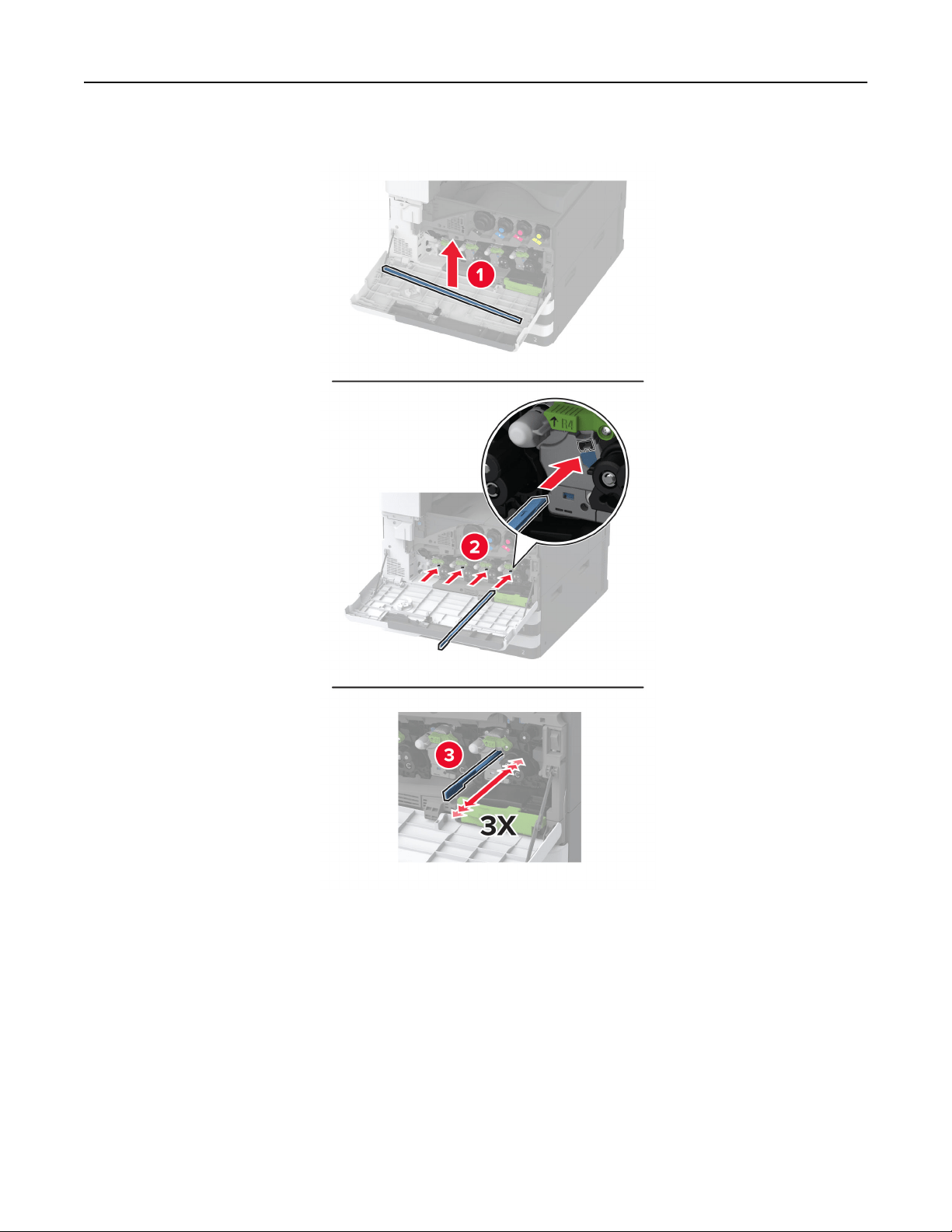
3 Remove the printhead wiper, and then clean the printhead lenses.
4 Put the printhead wiper back into place.
Maintain the printer 401
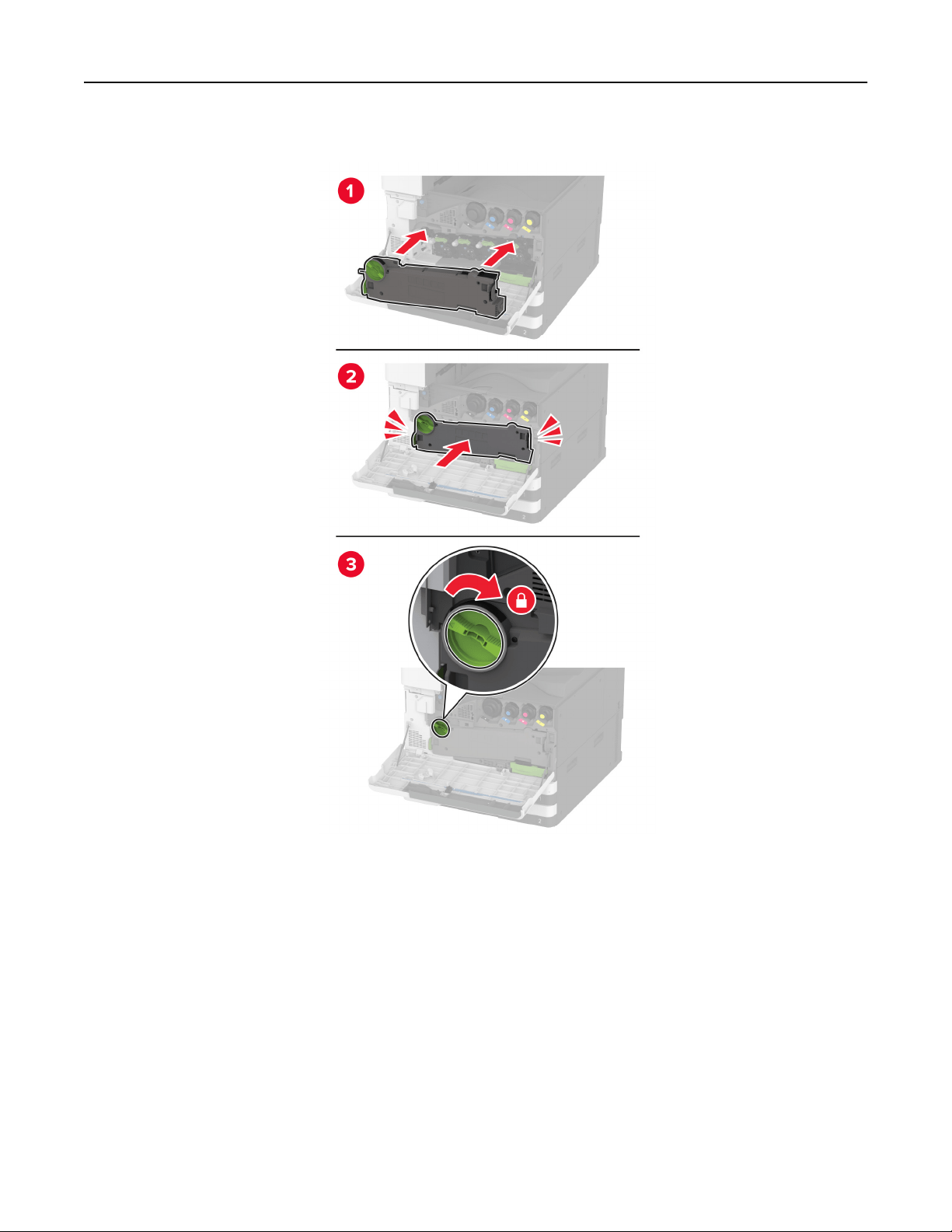
5 Insert the waste toner transfer unit until it clicks into place, and then lock it.
6 Close the door.
Maintain the printer 402
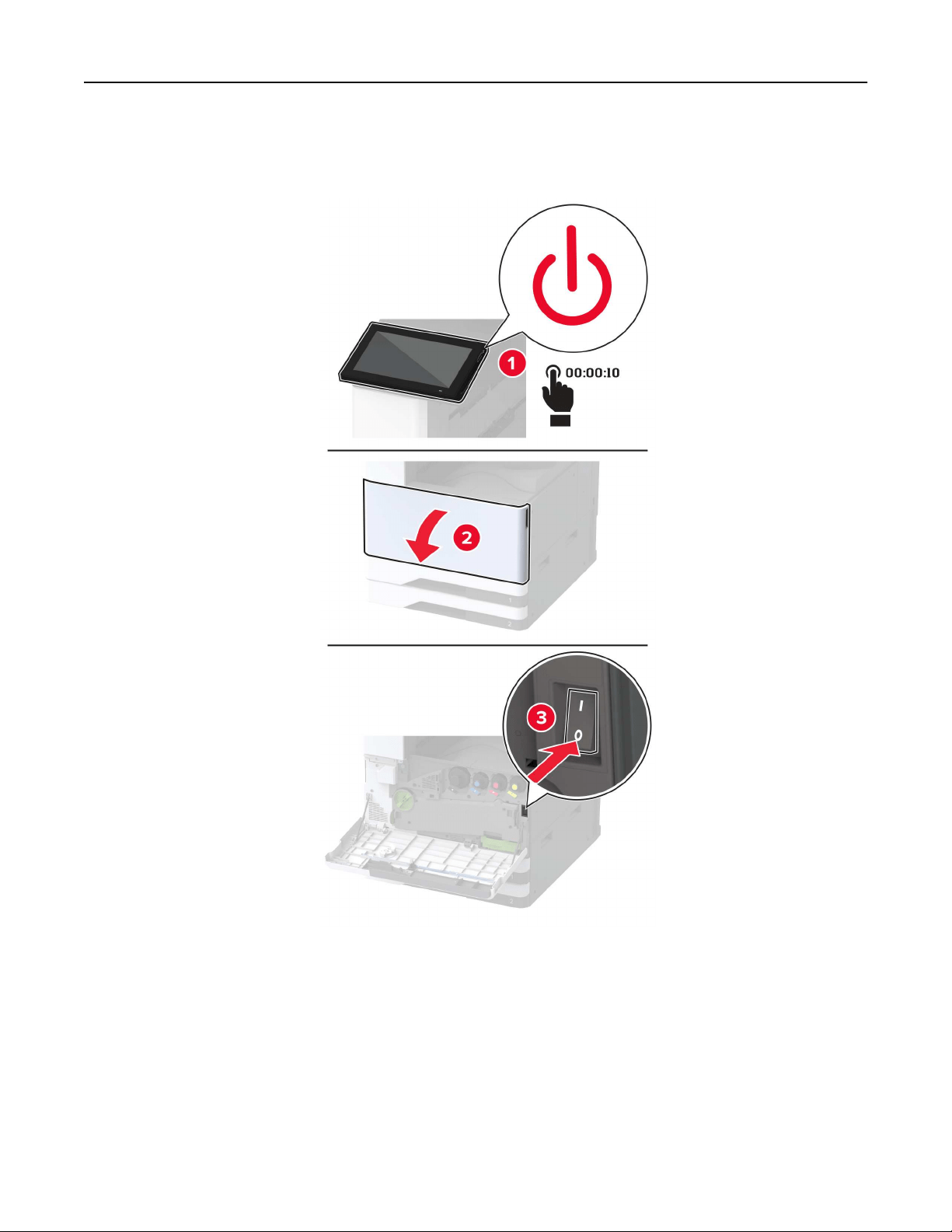
Cleaning the tray roller kit
1 Turn
o
the printer.
Maintain the printer 403
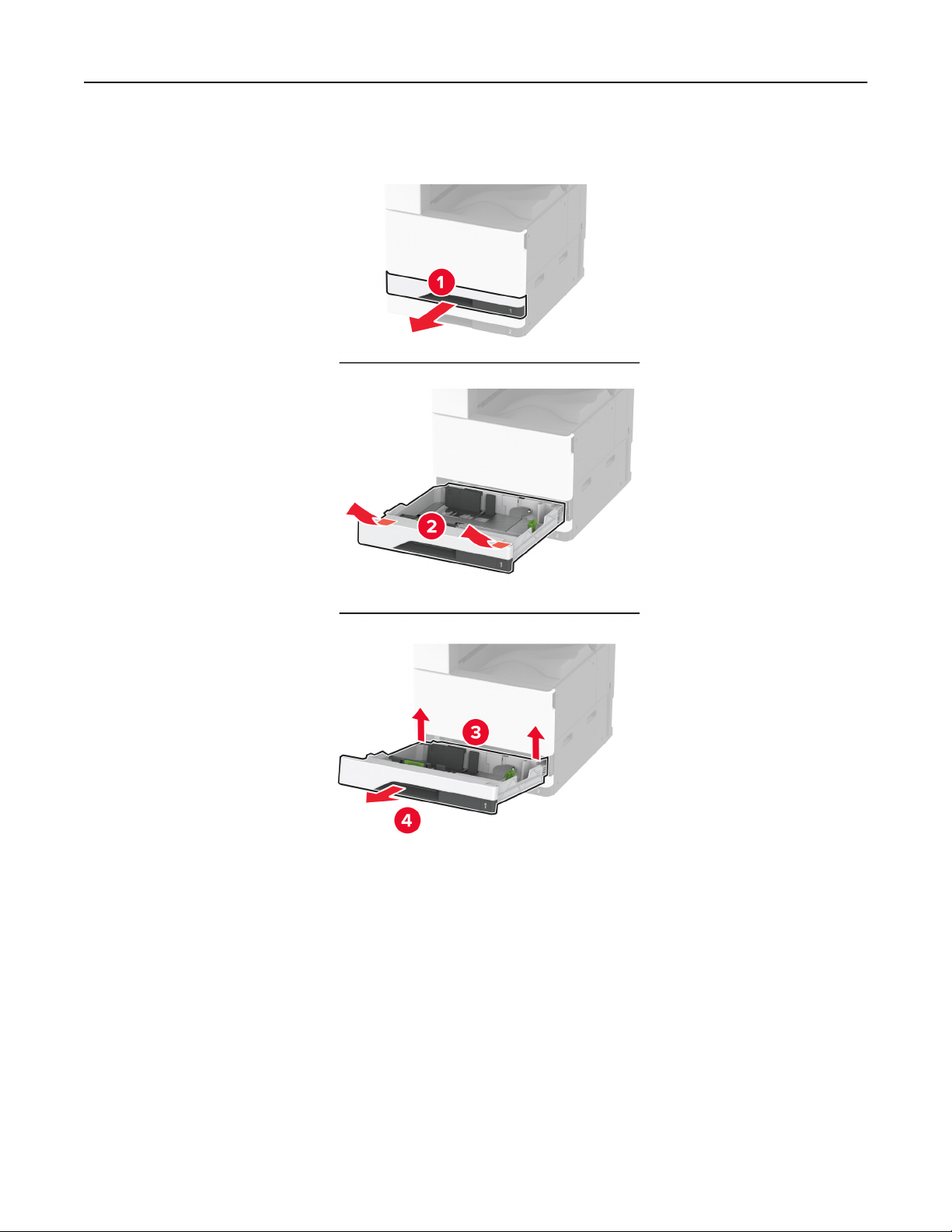
2 Remove the standard tray.
3 Remove the tray roller kit.
Warning—Potential Damage: To prevent damage from electrostatic discharge, touch any exposed metal
frame of the printer before accessing or touching interior areas of the printer.
Maintain the printer 404
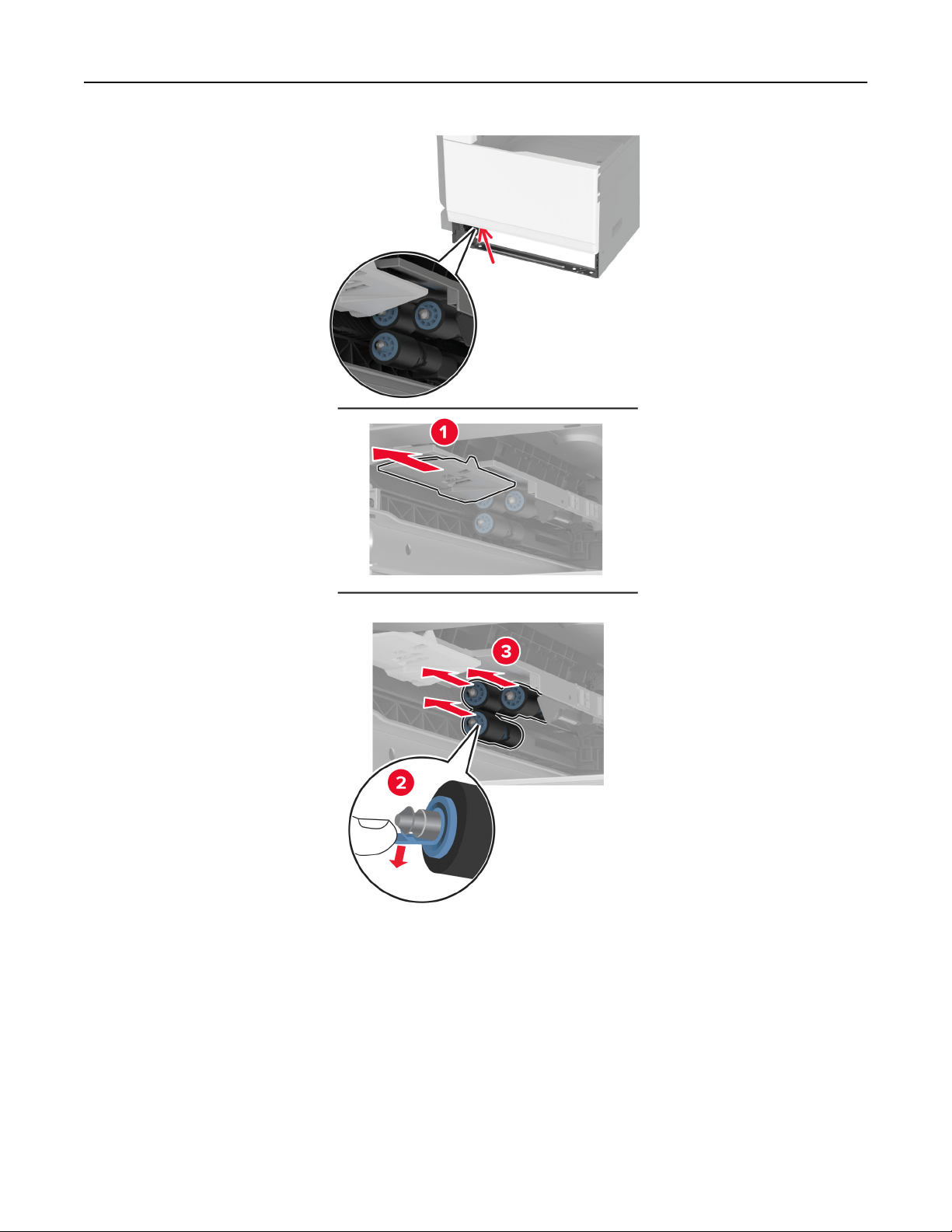
4 Apply water to a soft, lint-free cloth, and then wipe the feed rollers.
Maintain the printer 405
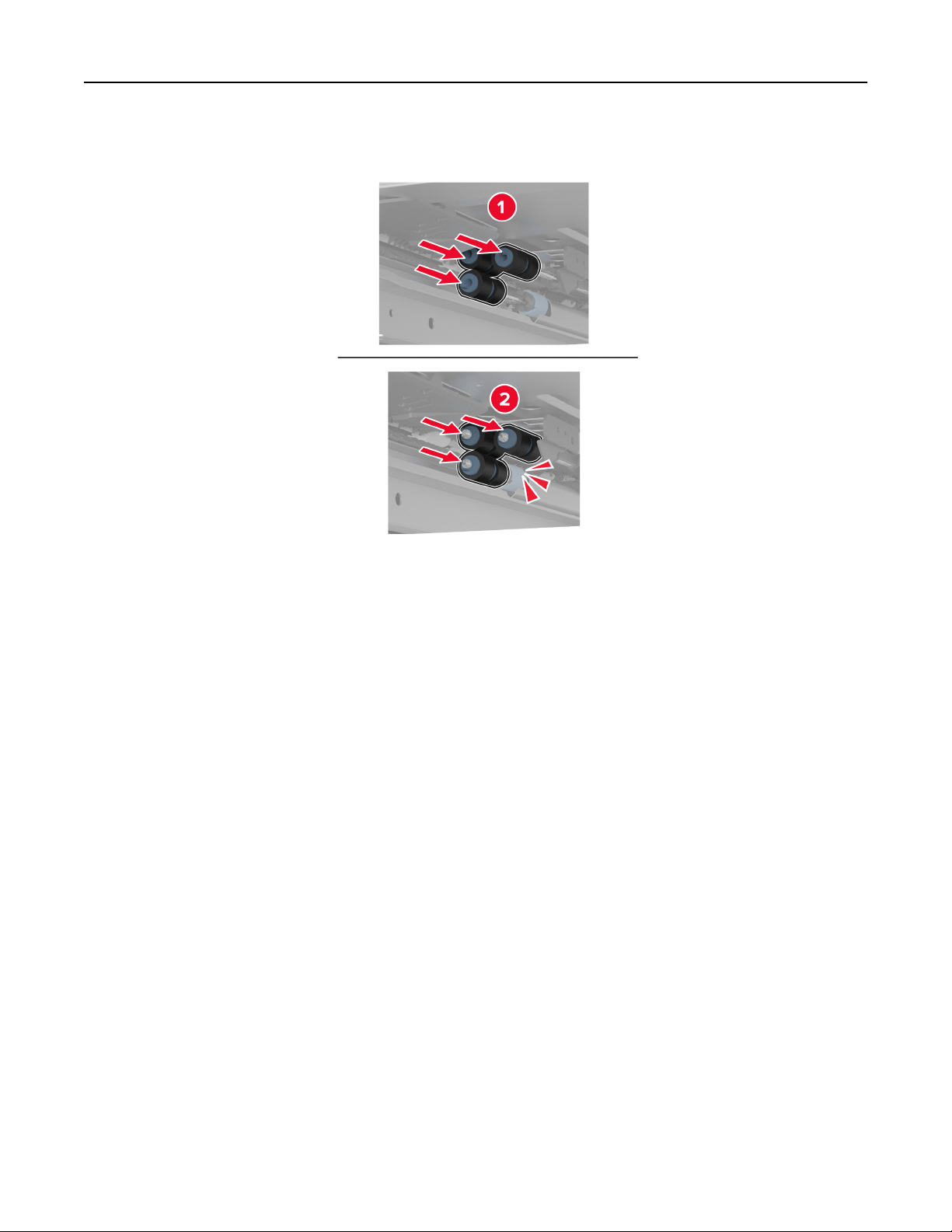
5 Insert the roller kit until it clicks into place.
6 Insert the tray.
7 Turn on the printer.
Maintain the printer 406
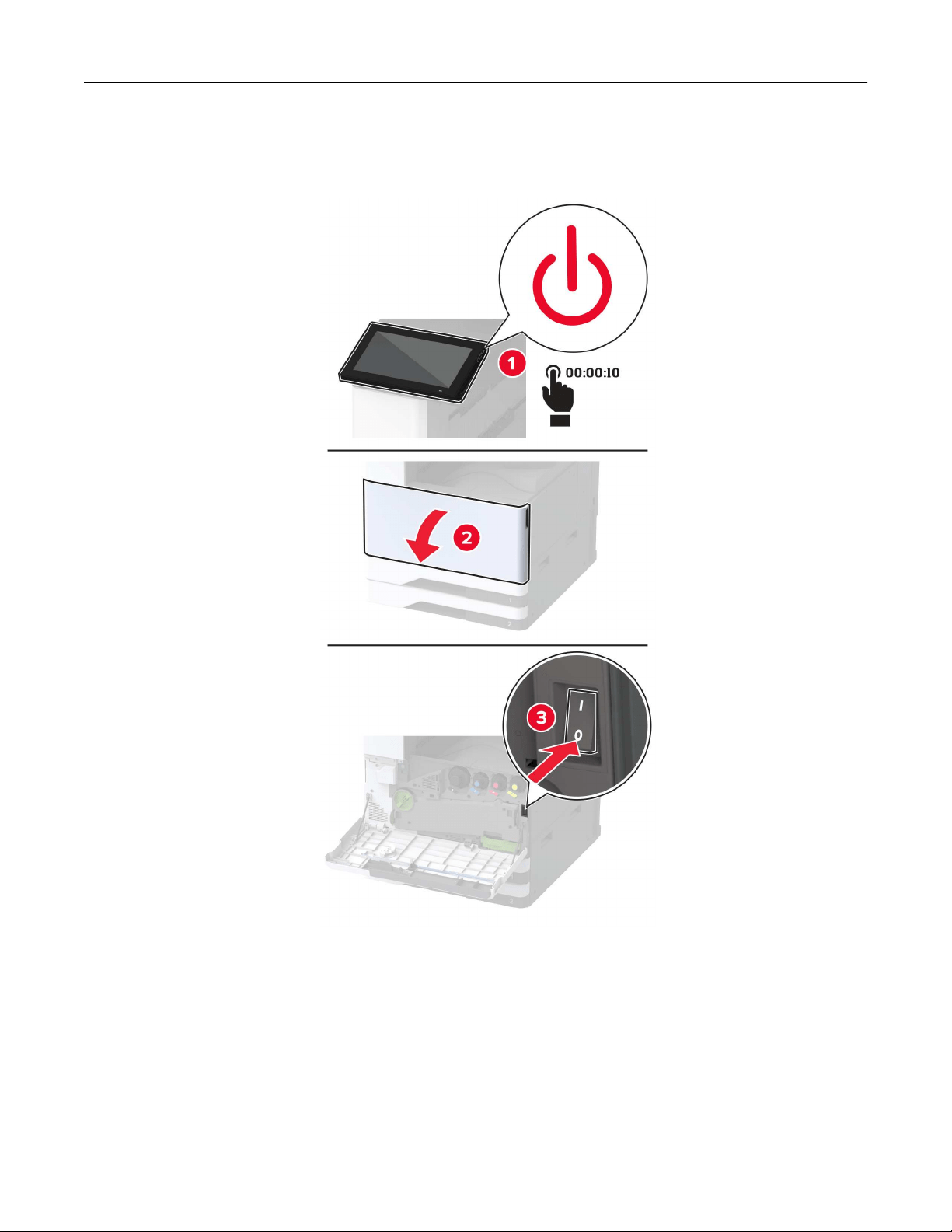
Cleaning the 2000‑sheet tray roller kit
1 Turn
o
the printer.
Maintain the printer 407
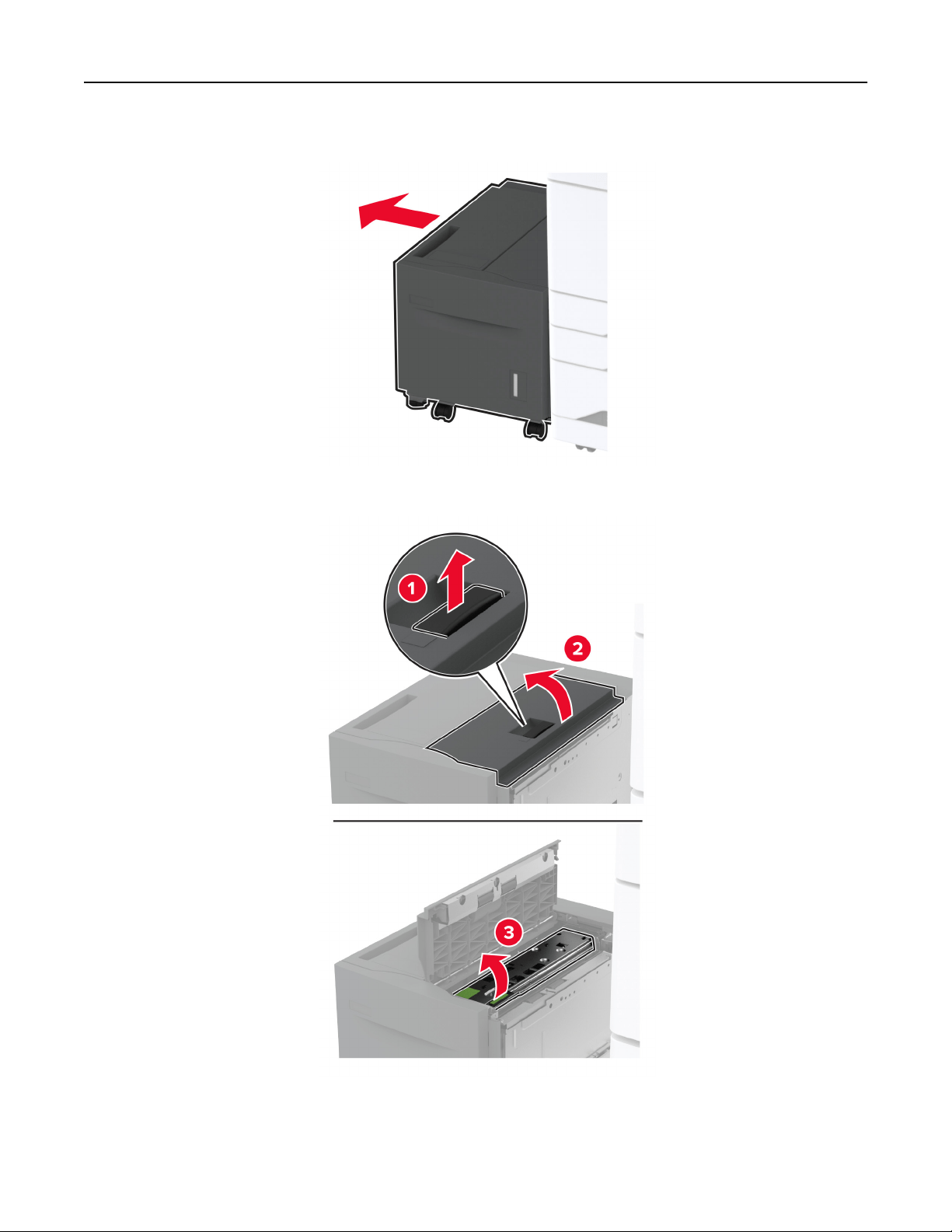
2 Slide the tray to the left.
3 Open door J, and then open the roller kit cover.
Maintain the printer 408
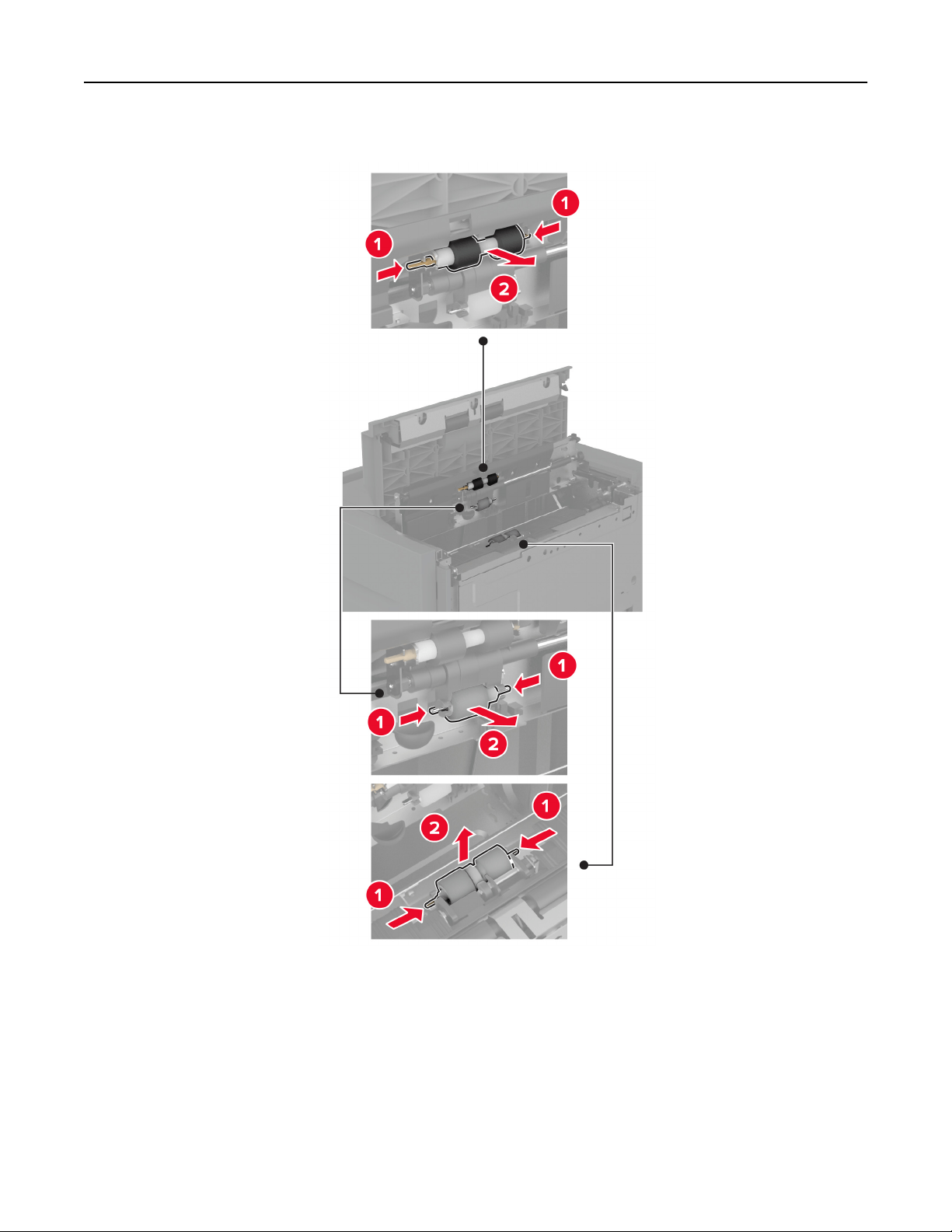
4 Locate, and then remove the tray roller kit.
5 Apply water to a soft, lint-free cloth, and then wipe the roller kit.
Maintain the printer 409
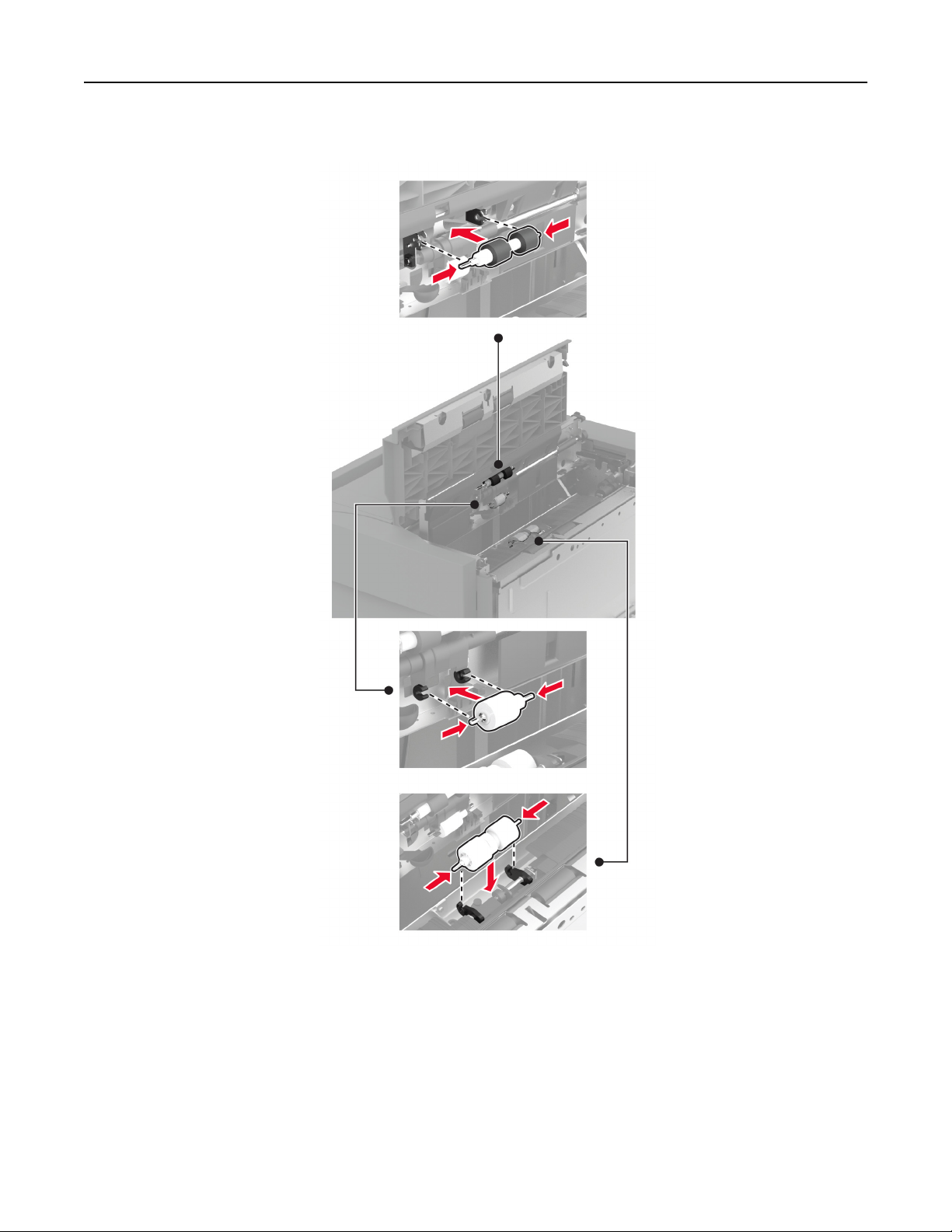
6 Insert the roller kit.
7 Close the roller kit cover, and then close door J.
8 Slide the tray back into place.
9 Turn on the printer.
Maintain the printer 410
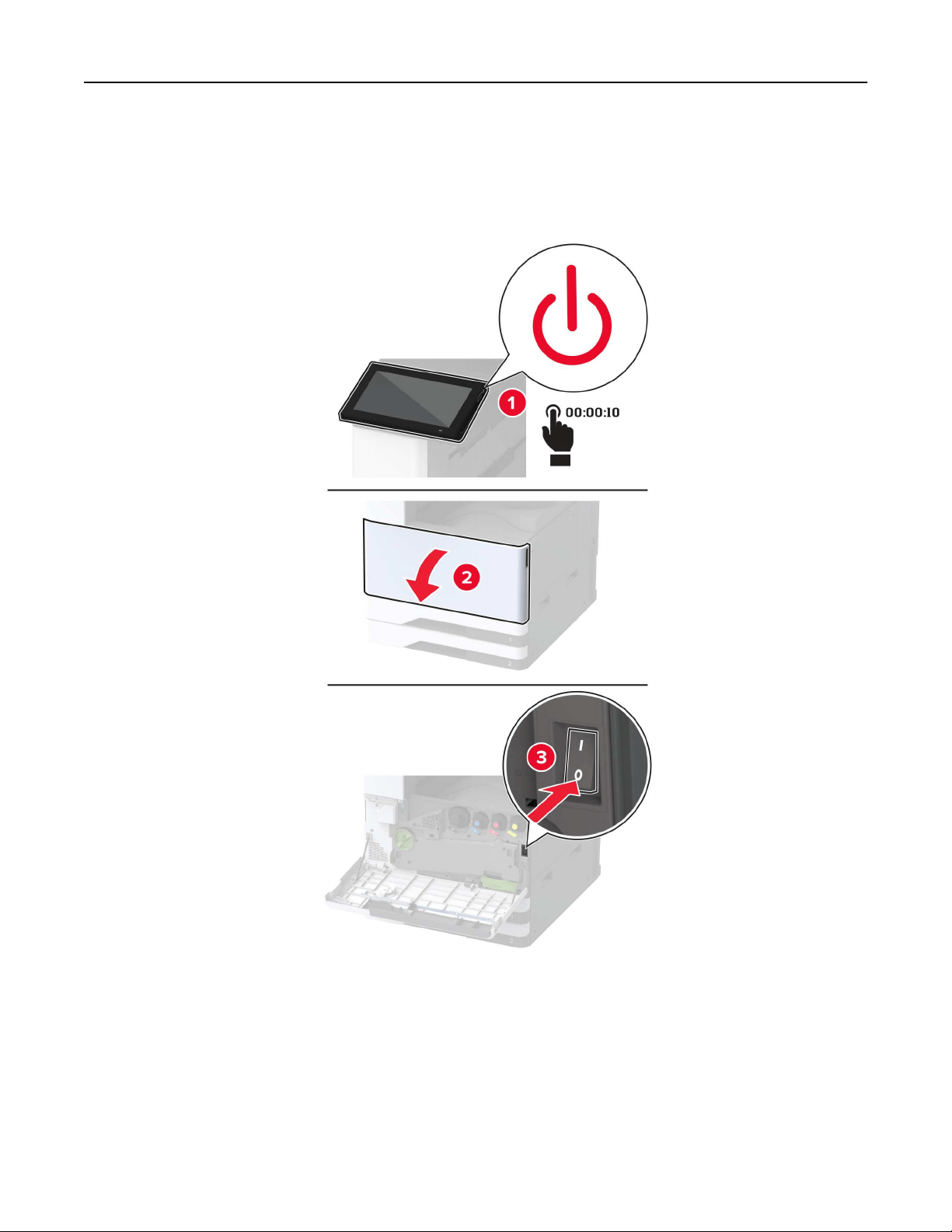
Cleaning the 2000‑sheet tandem tray roller kit
In handle C
1 Turn
o
the printer.
Maintain the printer 411
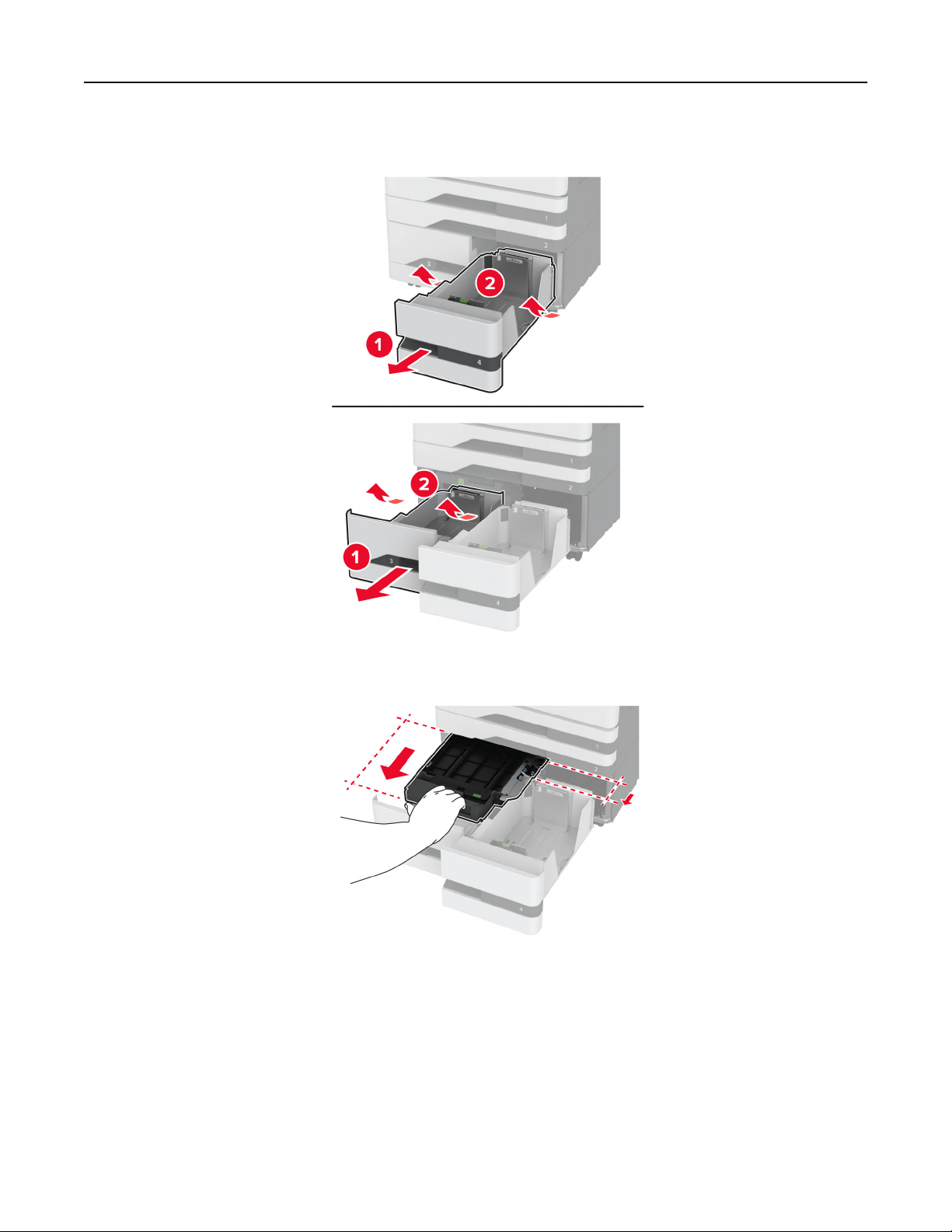
2 Pull out tray 4, and then pull out tray 3.
3 Pull out handle C, and then open the inner cover.
Maintain the printer 412
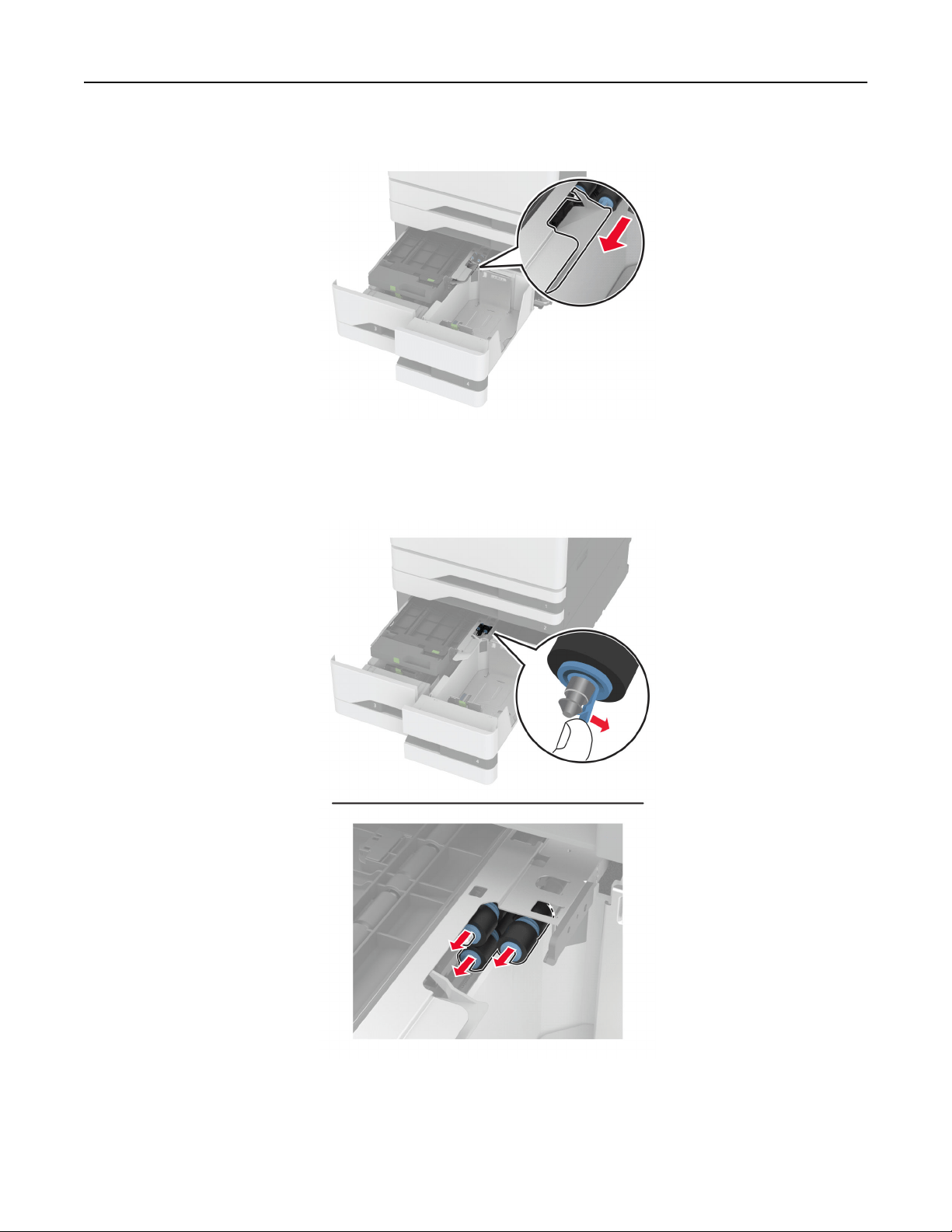
4 Open the roller kit cover.
5 Remove the tray roller kit.
Warning—Potential Damage: To prevent damage from electrostatic discharge, touch any exposed metal
frame of the printer before accessing or touching interior areas of the printer.
6 Apply water to a soft, lint-free cloth, and then wipe the pick rollers.
7 Insert the roller kit until it clicks into place.
8 Close the roller kit cover.
Maintain the printer 413
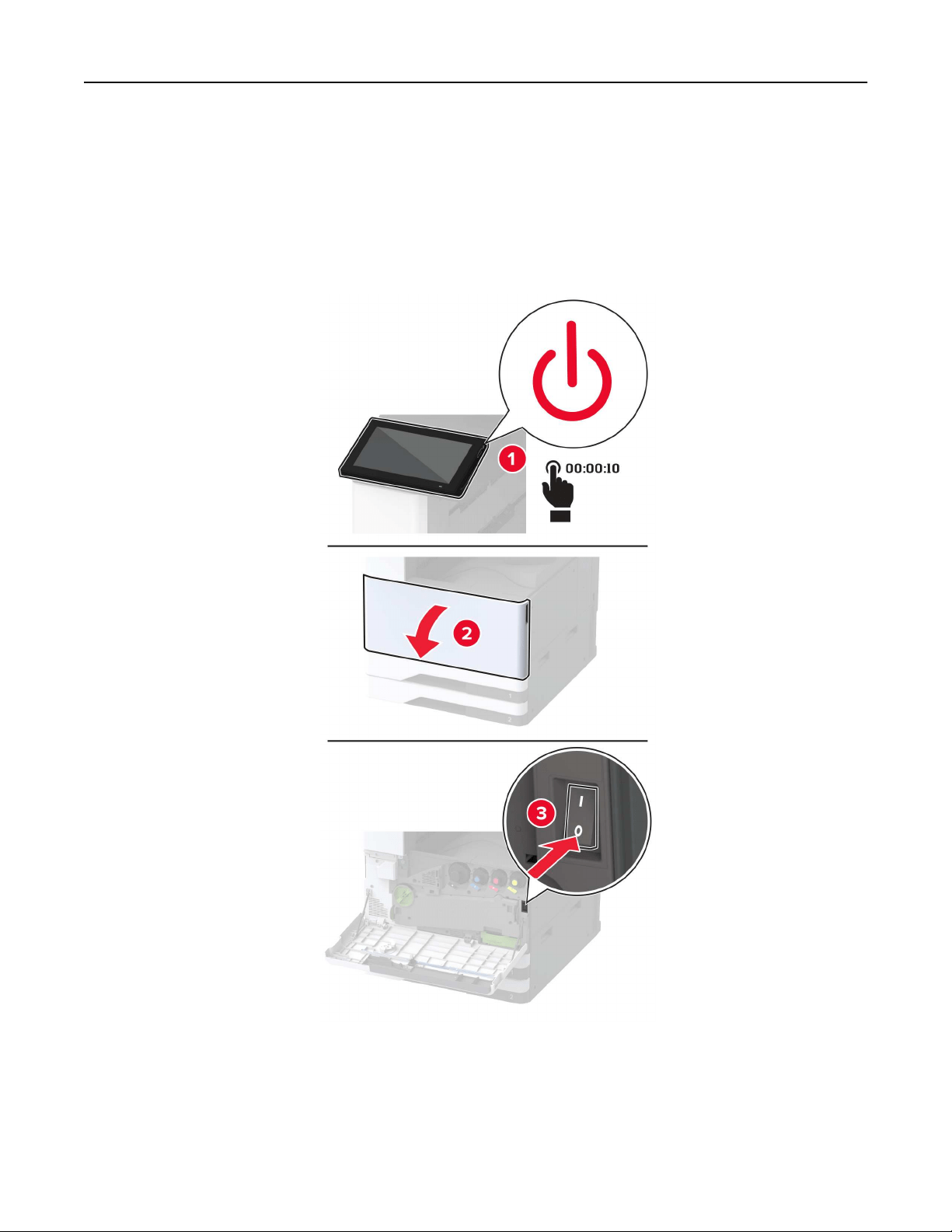
9 Close the inner cover, and then insert handle C.
10 Insert trays 3 and 4.
11 Turn on the printer.
In tray 3
1 Turn
o
the printer.
Maintain the printer 414
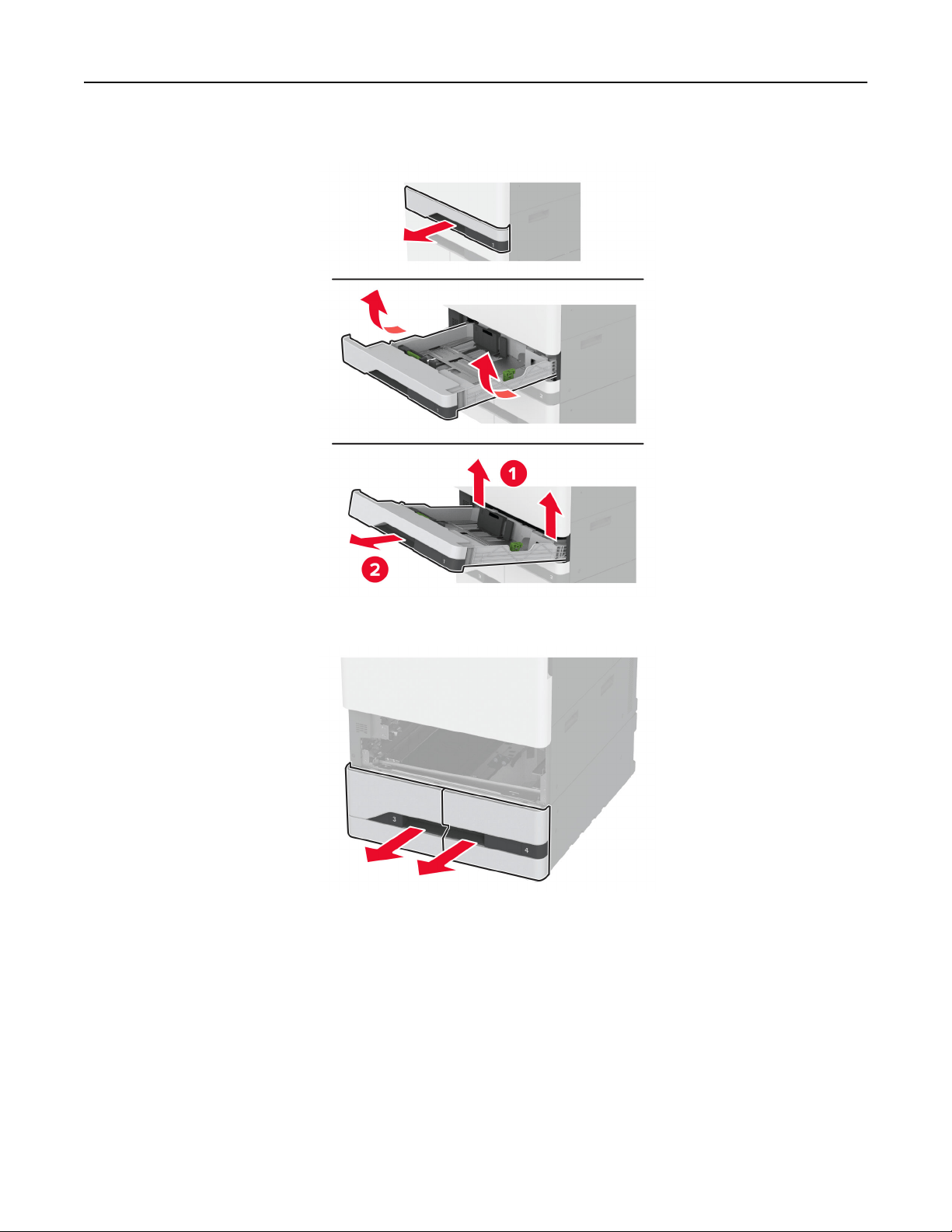
2 Remove tray 1, and then remove tray 2.
3 Pull out trays 3 and 4.
Maintain the printer 415
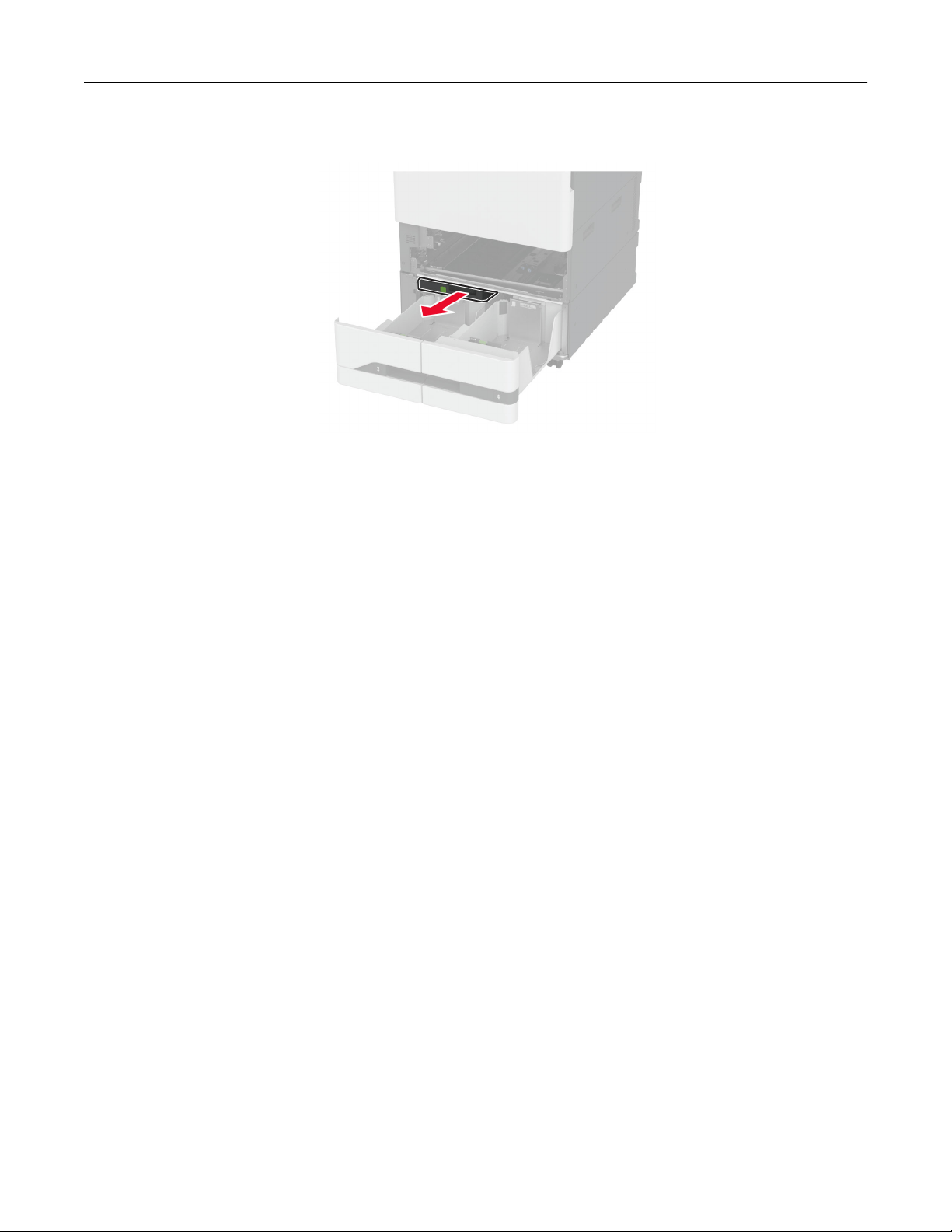
4 Pull out handle C.
5 Remove the tray roller kit.
Warning—Potential Damage: To prevent damage from electrostatic discharge, touch any exposed metal
frame of the printer before accessing or touching interior areas of the printer.
Maintain the printer 416
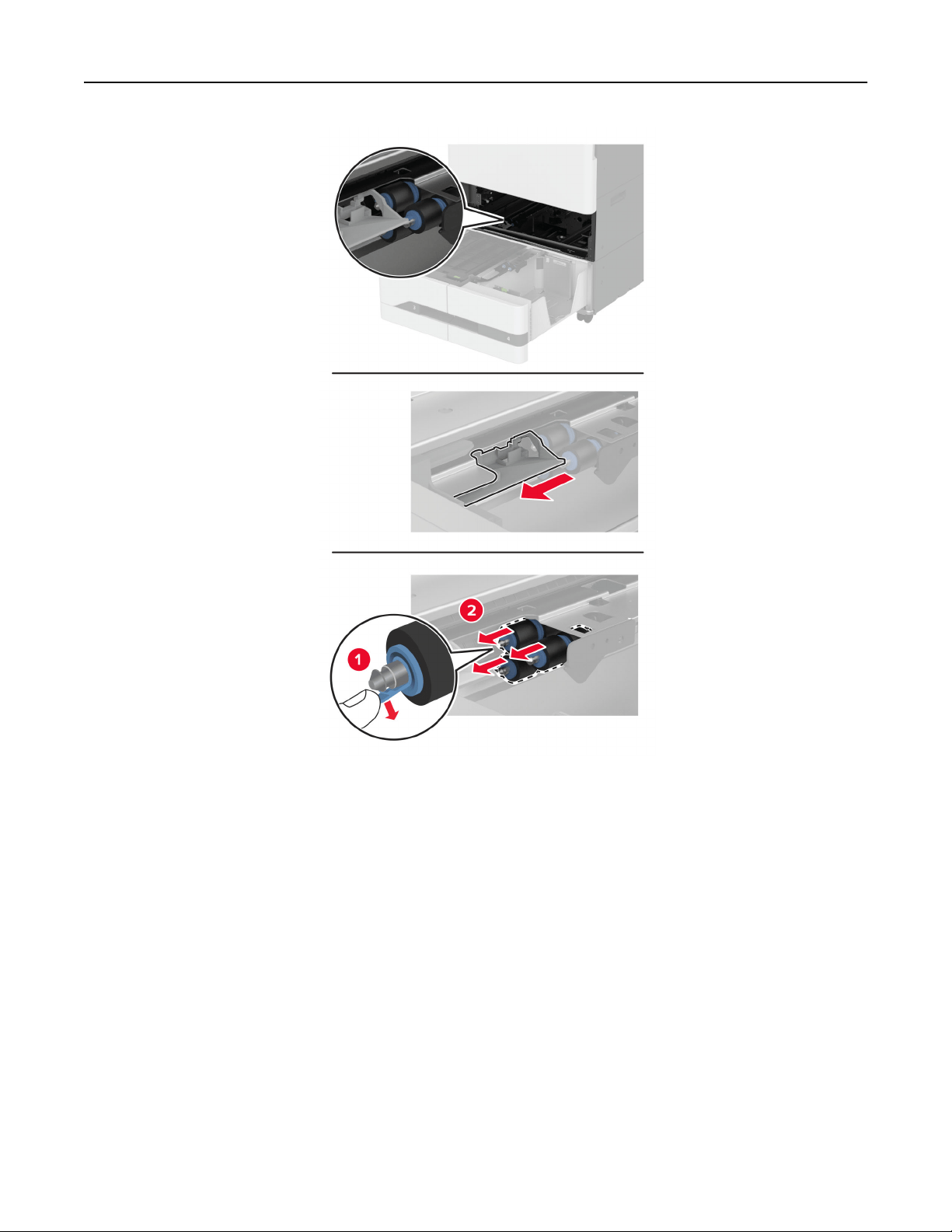
6 Apply water to a soft, lint-free cloth, and then wipe the pick rollers.
7 Insert the roller kit until it clicks into place.
8 Insert handle C.
9 Insert trays 3 and 4.
10 Insert trays 1 and 2.
11 Turn on the printer.
Maintain the printer 417
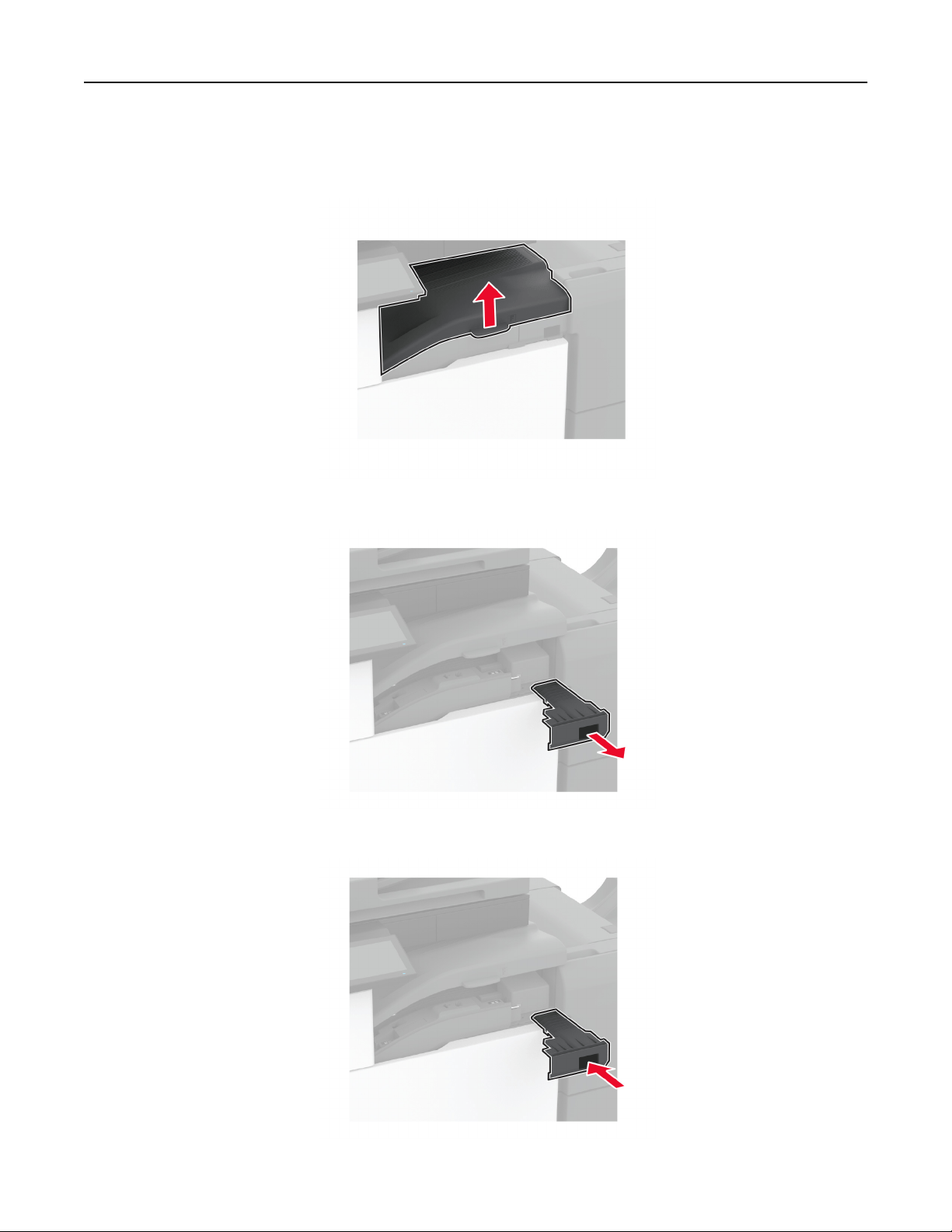
Emptying the hole punch box
1 Lift paper transport cover F.
2 Remove, and then empty the hole punch box.
3 Insert the hole punch box.
Maintain the printer 418
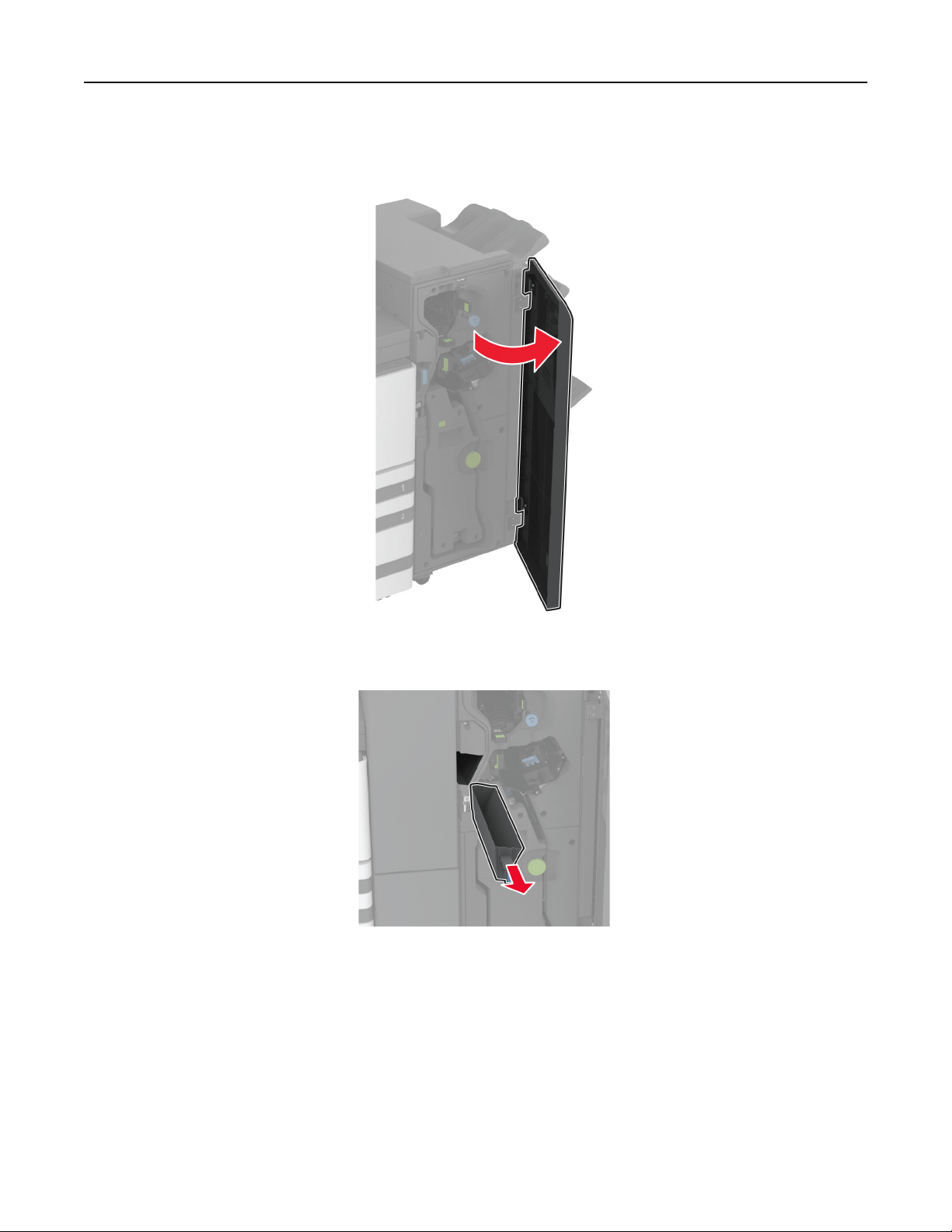
4 Close paper transport cover F.
5 Open the booklet finisher door.
6 Remove, and then empty the hole punch box.
Maintain the printer 419
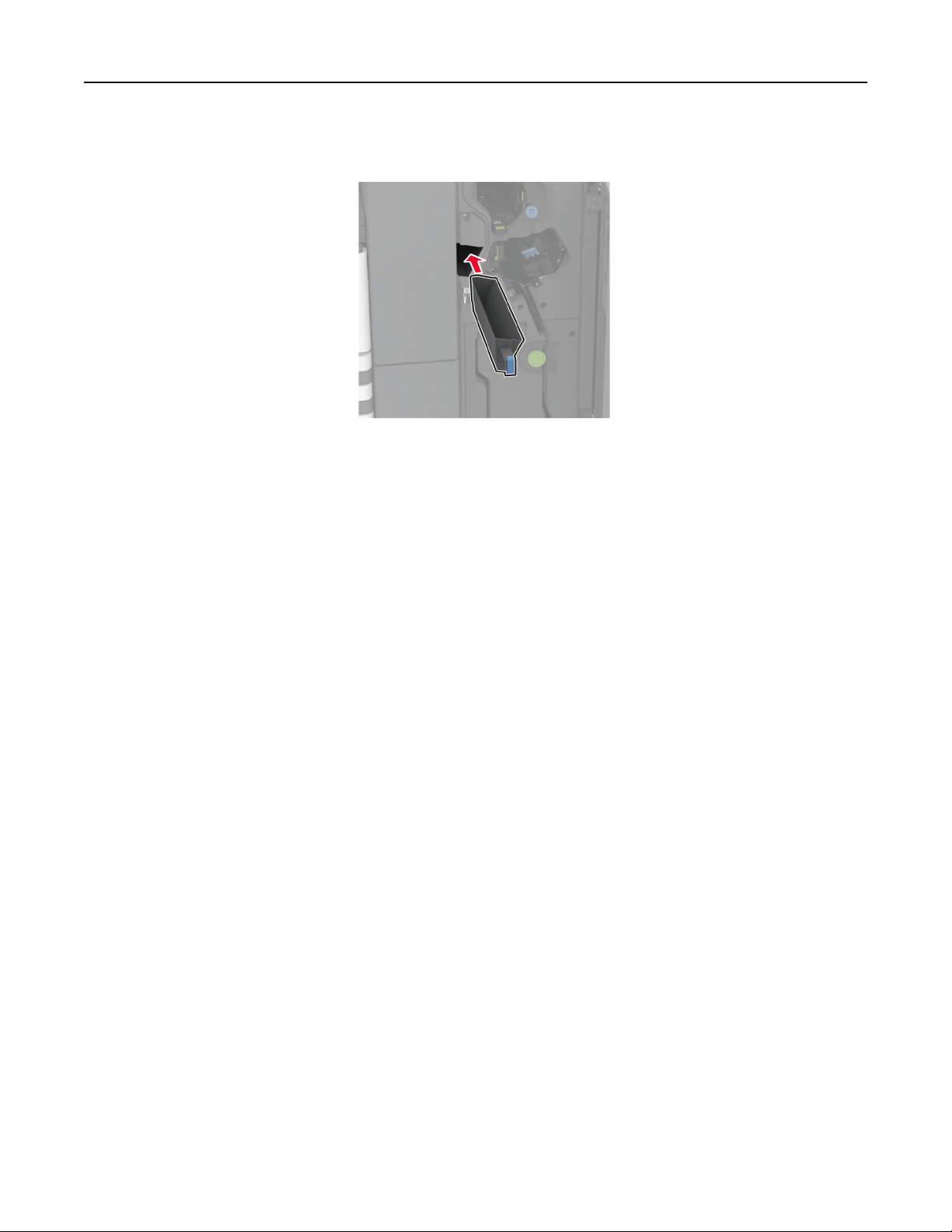
7 Insert the hole punch box.
8 Close the finisher door.
Saving energy and paper
Configuring
the power save mode settings
Sleep mode
1 From the home screen, touch Settings > Device > Power Management > Timeouts > Sleep Mode.
2 Specify the amount of time that the printer stays idle before it enters Sleep Mode.
Hibernate mode
1 From the home screen, touch Settings > Device > Power Management > Timeouts > Hibernate Timeout.
2 Select the amount of time that the printer stays idle before it enters Hibernate mode.
Notes:
• For Hibernate Timeout to work, set Hibernate Timeout on Connection to Hibernate.
• The Embedded Web Server is disabled when the printer is in Hibernate mode.
Adjusting the brightness of the display
1 From the home screen, touch Settings > Device > Preferences.
2 In the Screen Brightness menu, adjust the setting.
Maintain the printer 420

Conserving supplies
• Print on both sides of the paper.
Note: Two-sided printing is the default setting in the print driver.
• Print multiple pages on a single sheet of paper.
• Use the preview feature to see how the document looks like before printing it.
• Print one copy of the document to check its content and format for accuracy.
Moving the printer to another location
CAUTION—POTENTIAL INJURY: If the printer weight is greater than 20 kg (44 lb), then it may require
two or more people to lift it safely.
CAUTION—POTENTIAL INJURY: To avoid the risk of fire or electrical shock, use only the power cord
provided with this product or the manufacturer's authorized replacement.
CAUTION—POTENTIAL INJURY: When moving the printer, follow these guidelines to avoid personal
injury or printer damage:
• Make sure that all doors and trays are closed.
• Turn o the printer, and then unplug the power cord from the electrical outlet.
• Disconnect all cords and cables from the printer.
• If the printer has separate floor-standing optional trays or output options attached to it, then disconnect
them before moving the printer.
• If the printer has a caster base, then carefully roll it to the new location. Use caution when passing over
thresholds and breaks in flooring.
• If the printer does not have a caster base but is configured with optional trays or output options, then remove
the output options and lift the printer o the trays. Do not try to lift the printer and any options at the same
time.
• Always use the handholds on the printer to lift it.
• Any cart used to move the printer must have a surface able to support the full footprint of the printer.
• Any cart used to move the hardware options must have a surface able to support the dimensions of the
options.
• Keep the printer in an upright position.
• Avoid severe jarring movements.
• Make sure that your fingers are not under the printer when you set it down.
• Make sure that there is adequate clearance around the printer.
Note: Damage to the printer caused by improper moving is not covered by the printer warranty.
Shipping the printer
For shipping instructions, go to
http://support.lexmark.com or contact customer support.
Maintain the printer 421
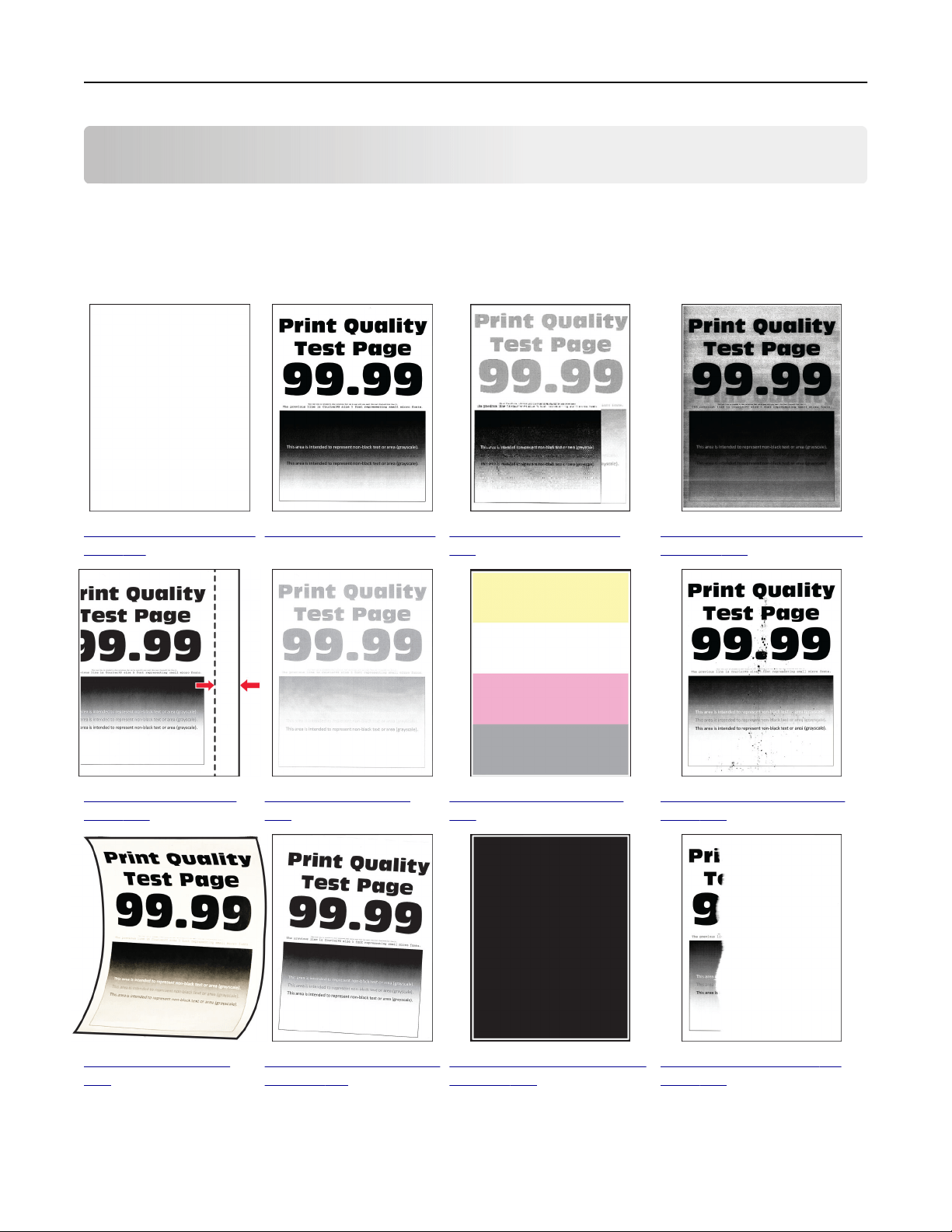
Troubleshoot a problem
Print quality problems
Find the image that resembles the print quality problem you are having, and then click the link below it to read
problem-solving steps.
“Blank or white pages” on
page 431
“Dark print” on page 432 “Ghost images” on page
433
“Gray or colored background”
on page 434
“Incorrect margins” on
page 435
“Light print” on page
436
“Missing colors” on page
438
“Mottled print and dots” on
page 439
“Paper curl” on page
440
“Print crooked or skewed”
on page 441
“Solid color or black images”
on page 442
“Text or images cut
o”
on
page 442
Troubleshoot a problem 422
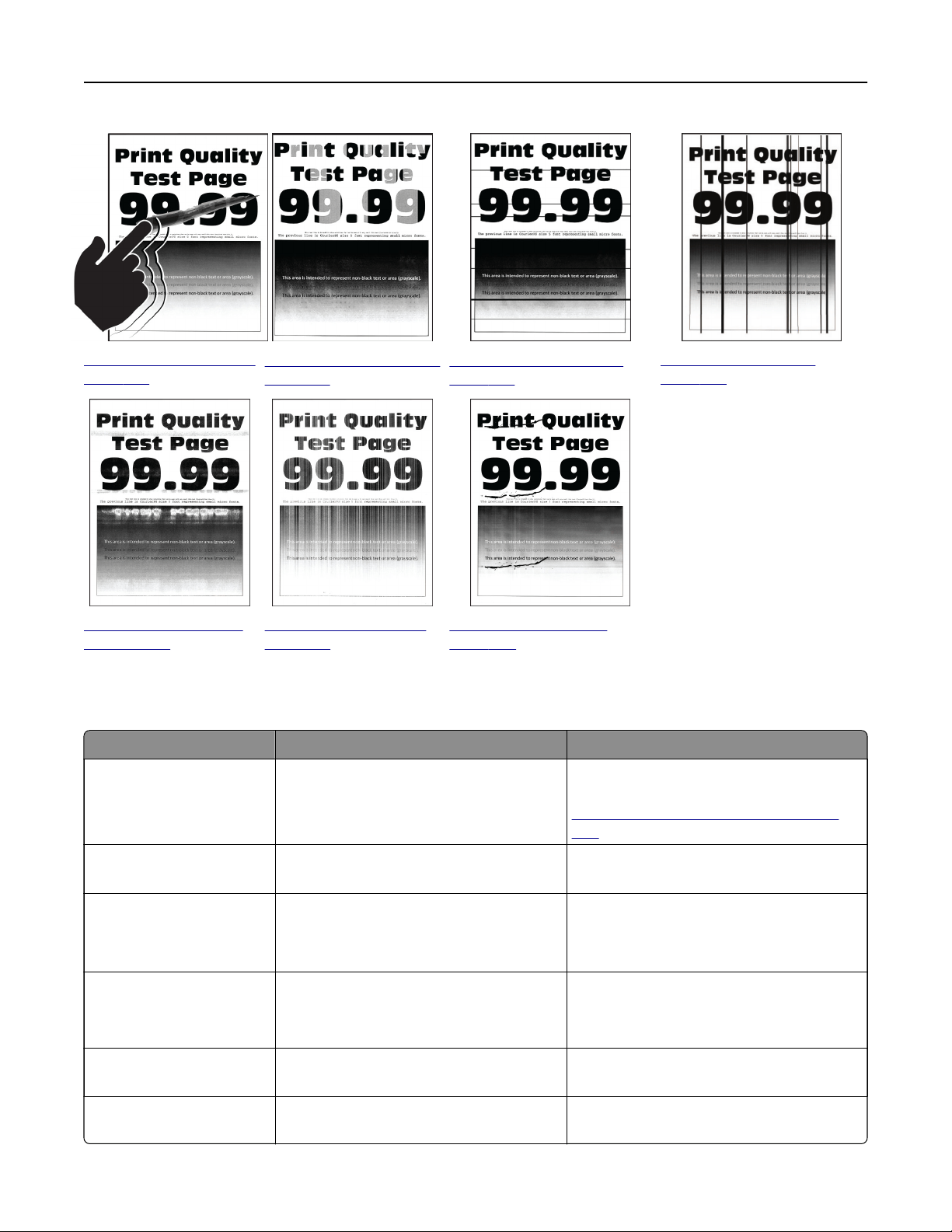
“Toner easily rubs o” on
page 443
“Uneven print density” on
page 444
“Horizontal dark lines” on
page 444
“Vertical dark lines” on
page 446
“Horizontal white lines”
on page 447
“Vertical white lines” on
page 448
“Repeating defects” on
page 450
Printer error codes
Error codes Error message Solution
2.01 Supply needed. To uch Cancel Job and order the needed
supply. For more information, see
“Ordering parts and supplies” on page
303.
3.01 The standard output bin is
full.
Remove paper from the bin, and then touch
Continue.
3.21, 3.22, 3.23, 3.24 Remove paper behind tray [x].
1 Remove the indicated tray.
2 Remove any jammed paper in the area.
3 Insert the tray.
7.13, 7.23, 7.33,7.43, 7.53 Insert tray [x]. Try either of the following:
• Insert the indicated tray.
• Cancel the current print job.
8.01 Close the front door. Keep the front door closed unless
performing maintenance.
8.02, 8.03, 8.04, 8.05 Close door [x]. Keep the indicated door closed unless
performing maintenance.
Troubleshoot a problem 423

Error codes Error message Solution
8.06 Attach tray 5. Slide the tray to the left, and then slide it
back into place.
8.07 Close paper transport cover F. Keep the paper transport cover F closed
unless performing maintenance.
8.08 Close the staple finisher
front door.
Keep the finisher front door closed unless
performing maintenance.
8.09 Close staple, hole punch
finisher top cover.
Keep the finisher top cover closed unless
performing maintenance.
9.00 Printer had to restart. Last
job may be incomplete.
Tou ch Continue to clear the message and
continue printing.
11.11, 11.21, 11.31, 11.41, 11.51 Load [source] with [type]
[size].
Load the indicated tray with paper. For
more information, see
“Loading paper and
specialty media” on page 61.
11.12, 11.22, 11.32, 11.42,
11.52
Load [source] with [type]
[size] [orientation].
11.81, 11.91 Load multipurpose feeder with
[type] [size].
Load the multipurpose feeder with paper.
For more information, see
“Loading the
multipurpose feeder” on page 75.
11.82, 11.92 Load multipurpose feeder with
[type] [size] [orientation].
12.11, 12.21, 12.31, 12.41,
12.51
Change [source] to [type]
[size].
Pull out the indicated tray, remove paper,
and then load the correct paper type and
size. For more information, see
“Loading
paper and specialty media” on page 61.
12.12, 12.22, 12.32, 12.42,
12.52
Change [source] to [type]
[size] [orientation].
12.91 Change multipurpose feeder to
[type] [size].
Remove paper, and then load the correct
paper type and size. For more information,
see
“Loading the multipurpose feeder” on
page 75.
12.92 Change multipurpose feeder to
[type] [size] [orientation].
31.00 Insert hole punch box.
1 Open the paper transport cover F.
2 Remove the hole punch box.
3 Insert the hole punch box.
31.35 Reinstall missing or
unresponsive waste toner
bottle.
1 Open the front door.
2 Remove the waste toner bottle.
Note: To avoid spilling the toner, place
the bottle in an upright position.
3 Insert the waste toner bottle.
4 Close the front door.
31.40, 31.41, 31.42, 31.43 Reinstall missing or
unresponsive [color]
cartridge.
1 Open the front door.
2 Remove the cartridge.
3 Insert the cartridge.
4 Close the front door.
Troubleshoot a problem 424

Error codes Error message Solution
31.60, 31.61, 31.62, 31.63 Reinstall missing or
unresponsive [color]
photoconductor.
1 Open the front door.
2 Unlock, and then remove the waste
toner transfer unit.
Note: To avoid spilling the toner, place
the unit in an upright position.
3 Unlock, and then remove the
photoconductor unit.
4 Insert the photoconductor unit, and
then lock it in place.
5 Insert the waste toner transfer unit, and
then lock it in place.
6 Close the front door.
32.40, 31.41, 31.42, 31.43 Replace unsupported [color]
cartridge.
See
“Replacing a toner cartridge” on
page 304.
32.60, 32.61, 32.62, 32.63 Replace unsupported [color]
photoconductor.
See
“Replacing a photoconductor unit” on
page 309.
34.00 Paper too short. Set the paper size setting to match the
paper loaded in the tray. From the home
screen, touch Settings > Paper > Tray >
Configuration > Paper Size/Type.
34.10, 34.20, 34.30, 34.40,
34.50
Check [source], adjust guides
and orientation.
Pull out the indicated tray, and then make
sure that the paper is loaded correctly. For
more information, see
“Loading paper and
specialty media” on page 61.
34.90 Check multipurpose feeder,
adjust guides and orientation.
Make sure that the paper is loaded
correctly. For more information, see
“Loading the multipurpose feeder” on
page 75.
37.10 Insufficient memory to collate
job.
Try either of the following:
• Tou ch Continue to print the part of the
job that is stored and to begin collating
the rest of the print job.
• Cancel the current print job.
37.30 Insufficient memory, some held
jobs were deleted.
Tou ch Continue to clear the message and
continue printing.
38.10 Memory full. Try one or more of the following:
• Tou ch Continue to clear the message
and continue printing.
• Cancel the current print job.
• Install more printer memory.
• Reduce the number of pages in the print
job.
Troubleshoot a problem 425

Error codes Error message Solution
39.10 Complex page, some data may
not have printed.
Try one or more of the following:
• Tou ch Continue to clear the message
and continue printing.
• Cancel the current print job.
• Install more printer memory.
• Reduce the complexity and size of the
print job before sending it to print again.
• Reduce the number of pages in the print
job.
• Reduce the number and size of any
downloaded fonts.
• Delete any unnecessary fonts or
macros from the print job.
• Reduce the number of graphics in the
print job.
51 Defective flash detected. Try one or more of the following:
• Replace the flash memory.
• From the home screen, touch Continue
to clear the message and continue
printing.
• Cancel the current print job.
52 Not enough free space in flash
memory for resources.
Try one or more of the following:
• Tou ch Continue to clear the message
and continue printing.
• Delete fonts, macros, and other data
stored in the flash memory.
• Install a hard disk. For more information,
see
“Installing a printer hard disk” on
page 171.
Note: Downloaded fonts and macros
that are not previously stored in the
flash
memory are deleted.
55.1 Error reading USB drive.
Remove USB
Remove the flash drive to continue.
55.2 Error reading USB hub. Remove
hub.
Remove the USB hub to continue.
55.3 Unplug and change mode.
61 Remove defective disk. Replace the defective storage drive.
Troubleshoot a problem 426

Error codes Error message Solution
62 Disk full. Try one or more of the following:
• Tou ch Continue to clear the message
and continue printing.
• Delete fonts, macros, and other data
stored in the hard disk.
• Install a hard disk. For more information,
see “Installing a printer hard disk” on
page 171.
63 Format the disk. Formatting now wipes all information from
the storage drive.
To format the disk, do the following:
1 Tou ch Settings > Device >
Maintenance > Out of Service Erase.
2 Tou ch Sanitize all information on hard
disk, and then touch ERASE.
71.01 Fax Station Name not set up.
Contact system administrator.
See
“Setting up the fax function using
analog fax” on page 45.
71.02 Fax Station Number not set up.
Contact system administrator.
71.03 No analog phone line connected
to modem, fax is disabled.
Check the connection and the line for a
signal. For more information, see
“Setting
up the fax function using analog fax” on
page 45.
71.06 Unable to connect to HTTPS Fax
Server.
Connection to HTTPS Fax Server is
disconnected. Check the Internet
connection of the printer.
71.07 Printer is not registered to
HTTPS Fax Server.
Make sure that the printer is added to the
device list in the HTTPS Fax Server portal.
Contact the system administrator.
71.11 Fax partition. The fax partition is not working. Contact the
system administrator.
71.12 Memory full, cannot print
faxes.
Tou ch Print All to print as many of the faxes
as have been saved.
71.13 Memory full. Cannot send
faxes.
Try either of the following:
• Continue and try sending the fax again.
• Scan the original document one page at
a time, dial the fax number, and then fax
the document.
71.40 Printer's time is incorrect. Configure the printer time. From the home
screen, touch Settings > Device >
Preferences > Date and Time >
Configure.
Troubleshoot a problem 427
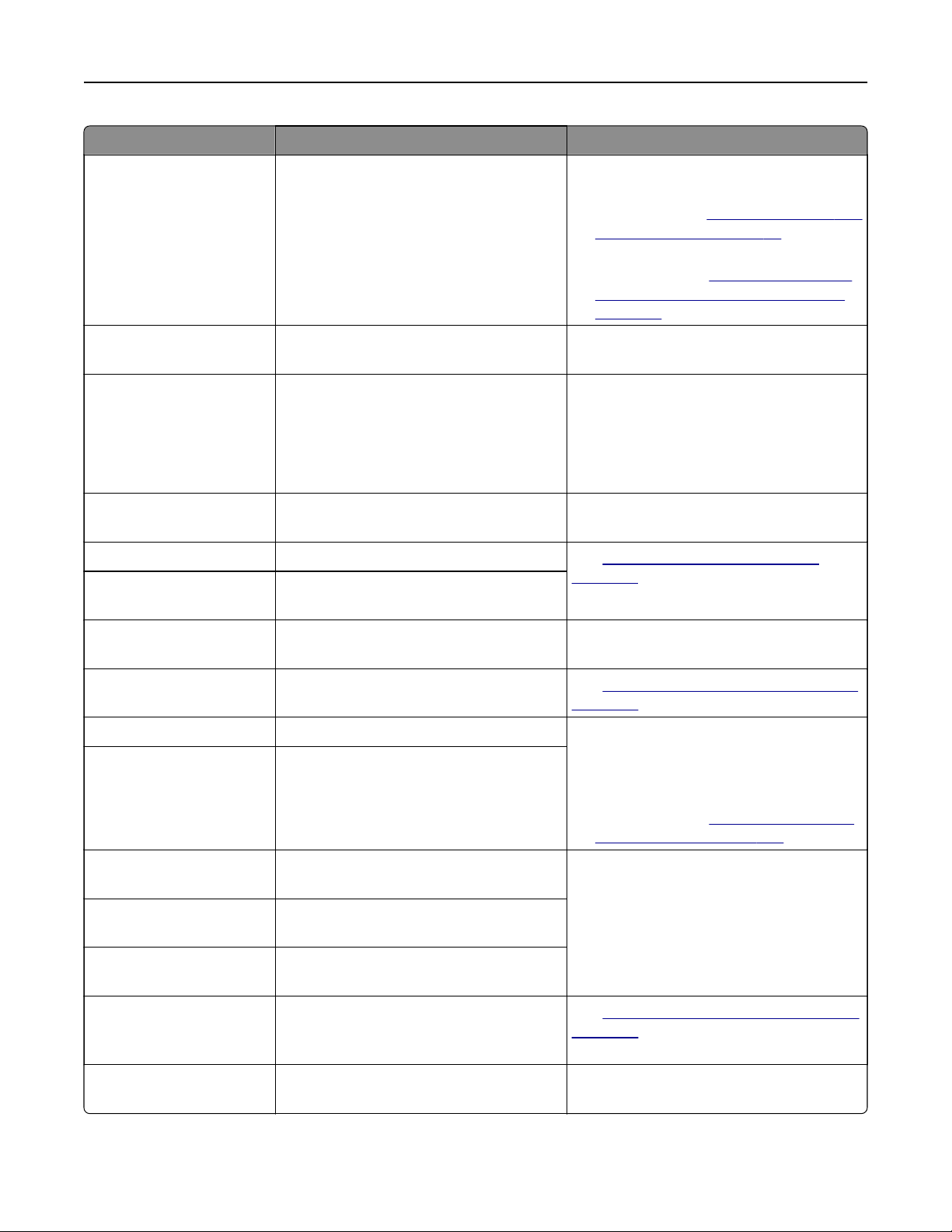
Error codes Error message Solution
72.01 E-mail SMTP server not set up.
Contact system administrator.
Try either of the following:
• Set up your e‑mail function. For more
information, see
“Configuring
the e‑mail
SMTP settings” on page 53.
• Disable the error message. For more
information, see
“Disabling the 'SMTP
server not set up' error message” on
page 499.
72.02 Web Link server not set up.
Contact system administrator.
Contact your system administrator.
72.04 Fax server To Format not set
up. Contact system
administrator.
Try either of the following:
• Tou ch Settings > Fax > Fax Server
Setup > General Fax Settings.
Configure the To Format setting.
• Contact your system administrator.
80.21 Maintenance Kit near end of
life
Tou ch Continue to clear the message.
80.31 Replace maintenance kit. See
“Replacing the tray roller kit” on
page 330.
81.31 Replace roller kit,
recommended life exceeded.
82.22 Waste toner bottle nearly
full.
Tou ch Continue to clear the message.
82.42 Replace waste toner bottle. See
“Replacing the waste toner bottle” on
page 360.
83.20 Staples low or missing. Try either of the following:
• Remove, and then insert the staple
cartridge.
• Replace the staple cartridge. For more
information, see
“Replacing the staple
cartridge unit” on page 385.
83.30 Staples empty or misfed.
84.01 [Color] photoconductor unit
nearly low.
Tou ch Continue to clear the message.
84.11 [Color] photoconductor unit
low.
84.21 [Color] photoconductor unit
very low.
84.31 Replace [color] photoconductor
unit, recommended life
exceeded.
See
“Replacing a photoconductor unit” on
page 309.
86.23 Scanner maintenance required
soon.
Tou ch Continue to clear the message.
Troubleshoot a problem 428
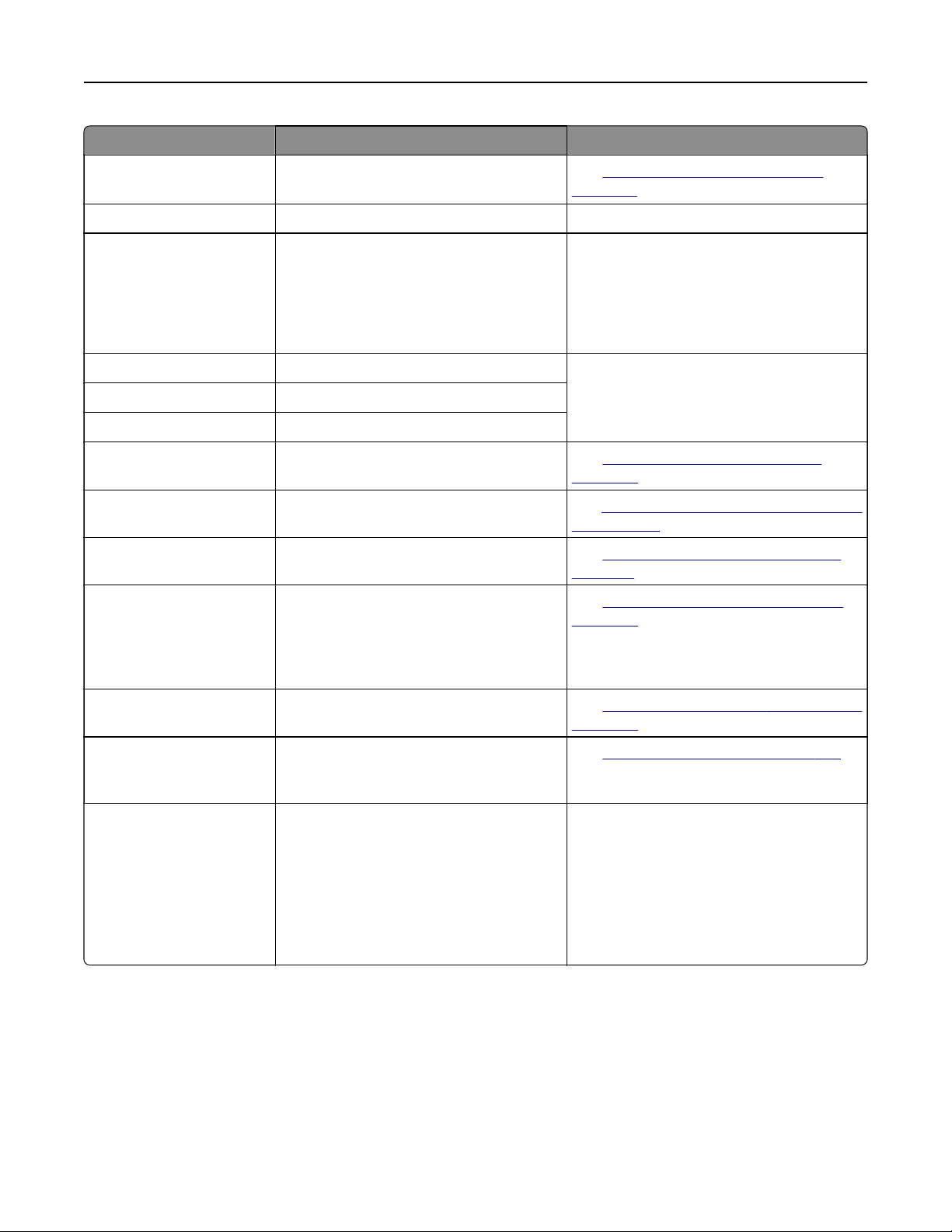
Error codes Error message Solution
86.33 Replace ADF kit, recommended
life exceeded.
See “Replacing the ADF roller kit” on
page 334.
87.20 Hole punch box nearly full. Tou ch Continue to clear the message.
87.30 Empty the hole punch box.
1 Open the paper transport cover F.
2 Remove the hole punch box, and then
empty it.
3 Insert the hole punch box.
4 Close the cover.
88.00[x] [Color] cartridge nearly low. To uch Continue to clear the message.
88.10[x] [Color] cartridge low.
88.20[x] [Color] cartridge very low.
88.30[x], 88.40[x] Replace [color] cartridge. See
“Replacing a toner cartridge” on
page 304.
200.03, 240.06 Paper jam [jam header]. See
“Paper jam in the multipurpose feeder”
on page 466.
200.16[x], 241.16a Paper jam [jam header]. See “Paper jam in the standard tray” on
page 461.
200.26[x], 200.36[x],
200.46[x], 200.56a,
202.95[x], 242.26, 242.33,
242.43, 243.33, 243.36,
243,43, 244,43, 244,46
Paper jam [jam header]. See
“Paper jam in the optional trays” on
page 462.
200.56a, 245.53[x],
245,56
Paper jam [jam header]. See
“Paper jam in the 2000‑sheet tray” on
page 466.
200.95, 201.96, 202.93,
202.94, 221.93, 232.93,
240.25, 240.35, 240.55
Paper jam [jam header]. See
“Paper jam in door A” on page 467.
280.06 Please reload originals in ADF
and restart job.
Try one of the following:
• Remove, and then load paper back in
the ADF.
• Scan from the scanner glass.
• Finish job without scanning the
remaining the pages.
• Cancel the job.
Troubleshoot a problem 429

Error codes Error message Solution
280.11, 280.13, 280.15,
280.91, 280.93, 280.95,
281.11, 281.15, 281.16,
281.91, 281.95, 281.96,
282.11, 282.13, 282.15,
282.91, 282.93, 282.95,
283.11, 283.13, 283.15,
283.91, 283.93, 283.95,
284.11, 284.13, 284.15,
284.91, 284.93, 284.95,
288.10, 288.90, 295.01,
680.10
Scanner jam. See
“Paper jam in the automatic document
feeder” on page 471.
280.13Q, 280.15Q,
295.01Q, 680.20Q
Replace jammed originals. Try one of the following:
• Remove, and then load paper back in
the ADF.
• Scan from the scanner glass.
• Finish job without scanning the
remaining the pages.
• Cancel the job.
280.13K, 280.15K,
680.20K, 680.40K,
295.01K,
Reload originals and restart. Try one of the following:
• Remove, and then load paper back in
the ADF.
• Scan from the scanner glass.
• Cancel the job.
400.13, 400.13b, 420.13b,
420.15b, 420.54c,
450.23b, 450.91b, 451.33b,
454.23b, 454.25b,
457.25b
Paper jam [jam header]. See
“Paper jam in the staple, hole punch
finisher” on page 474.
420.11a, 420.13a, 420.15a,
420.15b, 420.54a,
420.54b, 425.13a
Paper jam [jam header]. See
“Paper jam in the staple finisher” on
page 472.
420.15b, 450.33, 450.91a,
451.33a, 451.33b, 451.35,
454.33, 454.35, 454.36,
454.37, 457.35a, 457.35b,
490.33, 491.33, 491.35,
550.23, 551.23, 552.23,
553.23, 553.25, 555.23,
556.23
Paper jam [jam header]. See
“Paper jam in the trifold/Z‑fold finisher”
on page 477.
457.35b Paper jam [jam header]. Try either of the following:
• If you installed the staple finisher, see
“Paper jam in the staple finisher” on
page 472.
• If you installed the staple, hole punch
finisher, see
“Paper jam in the staple,
hole punch finisher” on page 474.
Troubleshoot a problem 430

Printing problems
Print quality is poor
Blank or white pages
Note: Before solving the problem, print the Print Quality Test Pages. From the home screen, touch Settings >
Troubleshooting > Print Quality Test Pages.
Action Yes No
Step 1
a Check if the printer is using a genuine and supported Lexmark
toner cartridge.
Note: If the cartridge is not supported, then install a
supported one.
b Print the document.
Is the printer printing blank or white pages?
Go to step 2. The problem is
solved.
Step 2
a Remove the photoconductor units.
Warning—Potential Damage: Do not expose the
photoconductor units to direct light. Extended exposure to
light may cause print quality problems.
Warning—Potential Damage: Do not touch the
photoconductor drums. Doing so may
aect
the quality of
future print jobs.
b Insert the photoconductor units.
c Print the document.
Is the printer printing blank or white pages?
Contact
customer
support.
The problem is
solved.
Troubleshoot a problem 431
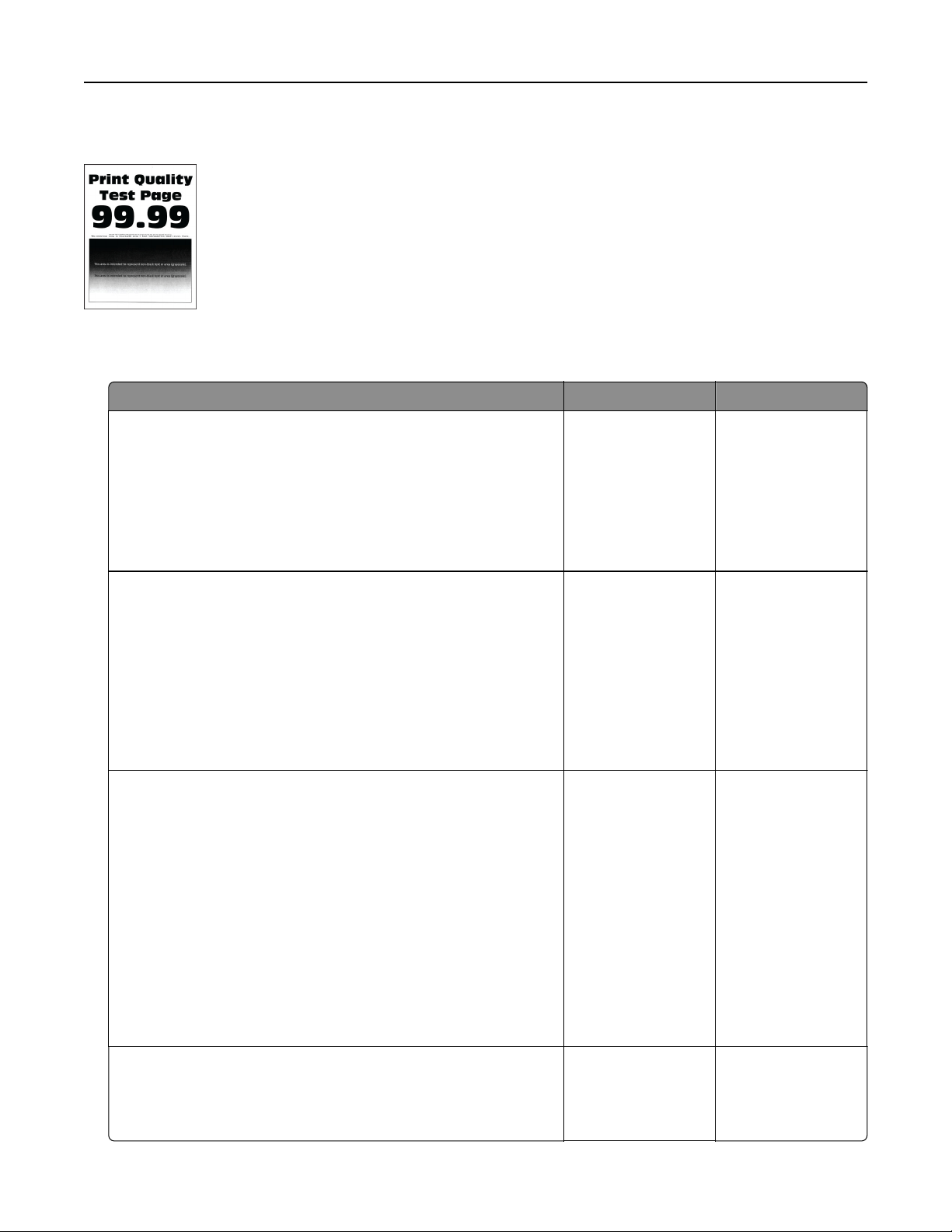
Dark print
Note: Before solving the problem, print the quality sample pages to determine the missing color. From the
home screen, touch Settings > Troubleshooting > Print Quality Test Pages.
Action Yes No
Step 1
a Perform Color Adjust.
From the home screen, touch Settings > Print > Quality >
Advanced Imaging > Color Adjust.
b Print the document.
Is the print too dark?
Go to step 2. The problem is
solved.
Step 2
a Depending on your operating system, reduce the toner
darkness from the Printing Preferences or Print dialog.
Note: You can also change the settings on the printer control
panel. From the home screen, touch Settings > Print >
Quality > Toner D arkness.
b Print the document.
Is the print too dark?
Go to step 3. The problem is
solved.
Step 3
a Depending on your operating system, specify the paper type
from the Printing Preferences or Print dialog.
Notes:
• Make sure that the settings match the paper loaded in
the tray.
• You can also change the settings on the printer control
panel. From the home screen, touch Settings > Paper >
Tray Configuration > Paper Size/Type.
b Print the document.
Is the print too dark?
Go to step 4. Go to step 6.
Step 4
Make sure that the paper has no texture or rough finishes.
Are you printing on textured or rough paper?
Go to step 5. Go to step 6.
Troubleshoot a problem 432
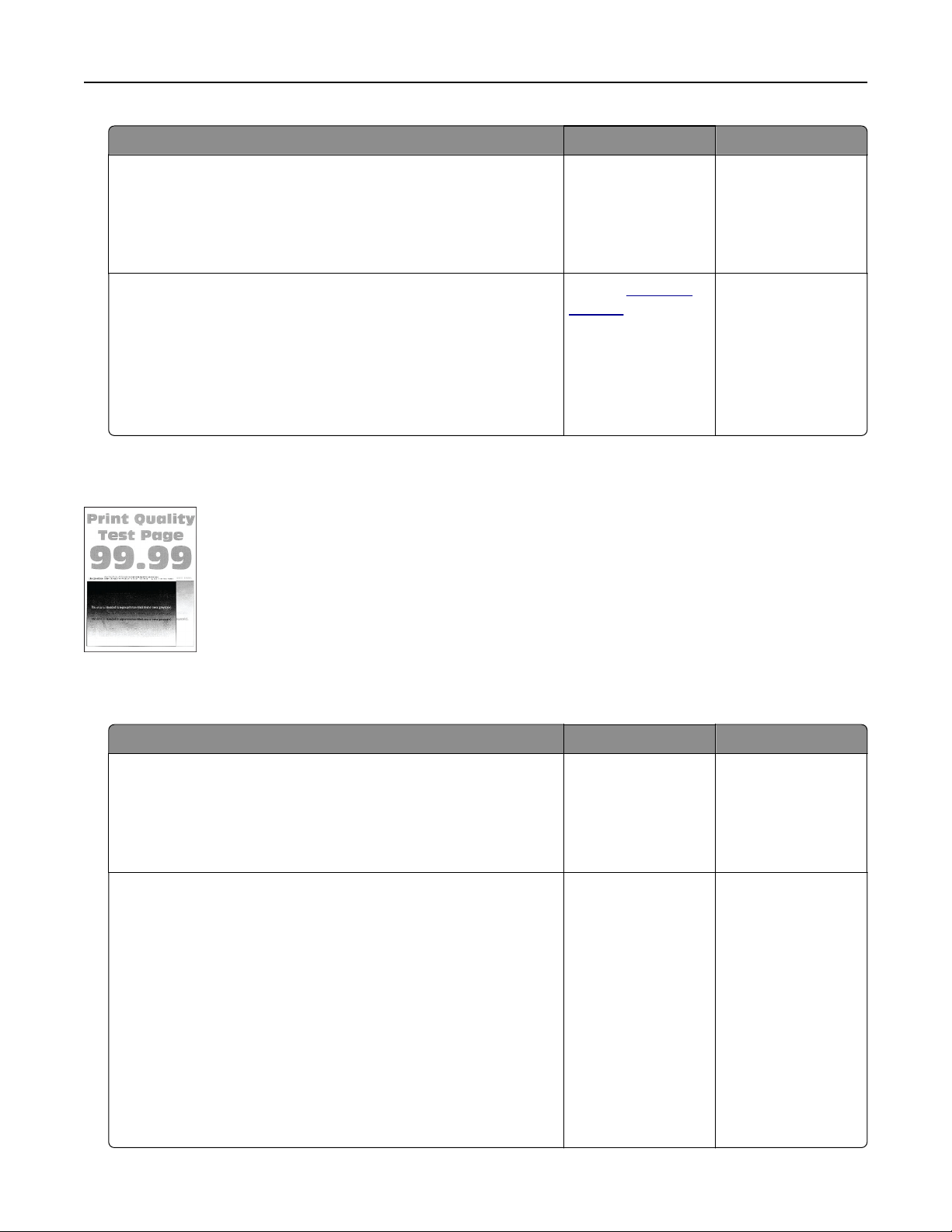
Action Yes No
Step 5
a Replace textured or rough paper with plain paper.
b Print the document.
Is the print too dark?
Go to step 6. The problem is
solved.
Step 6
a Load paper from a fresh package.
Note: Paper absorbs moisture due to high humidity. Store
paper in its original wrapper until you are ready to use it.
b Print the document.
Is the print too dark?
Contact
customer
support.
The problem is
solved.
Ghost images
Note: Before solving the problem, print the Print Quality Test Pages. From the home screen, touch Settings >
Troubleshooting > Print Quality Test Pages.
Action Yes No
Step 1
a Load the tray with the correct paper type and weight.
b Print the document.
Do ghost images appear on prints?
Go to step 2. The problem is
solved.
Step 2
a Depending on your operating system, specify the paper type
from the Printing Preferences or Print dialog.
Notes:
• Make sure that the setting matches the paper loaded in
the tray.
• You can also change the setting on the printer control
panel. From the home screen, touch Settings > Paper >
Tray
Configuration
> Paper Size/Type.
b Print the document.
Do ghost images appear on prints?
Go to step 3. The problem is
solved.
Troubleshoot a problem 433
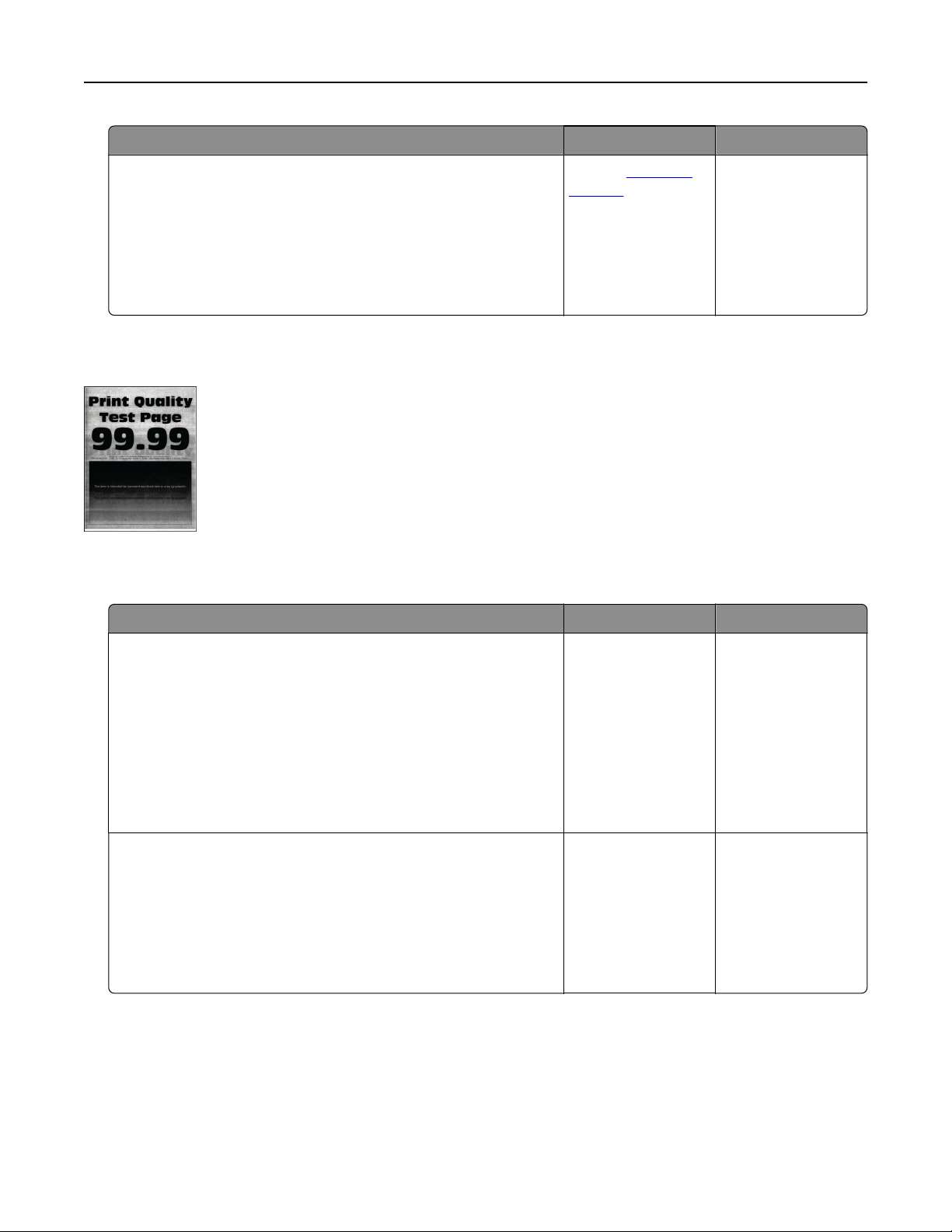
Action Yes No
Step 3
a Perform Color Adjust.
From the home screen, touch Settings > Print > Quality >
Advanced Imaging > Color Adjust.
b Print the document.
Do ghost images appear on prints?
Contact
customer
support.
The problem is
solved.
Gray or colored background
Note: Before solving the problem, print the Print Quality Test Pages. From the home screen, touch Settings >
Troubleshooting > Print Quality Test Pages.
Action Yes No
Step 1
a Depending on your operating system, increase toner darkness
from the Printing Preferences or Print dialog.
Note: You can also change the setting on the printer control
panel. From the home screen, touch Settings > Print >
Quality > Toner D arkness.
b Print the document.
Does gray or colored background appear on prints?
Go to step 2. The problem is
solved.
Step 2
a Perform Color Adjust.
From the home screen, touch Settings > Print > Quality >
Advanced Imaging > Color Adjust.
b Print the document.
Does gray or colored background appear on prints?
Go to step 3. The problem is
solved.
Troubleshoot a problem 434
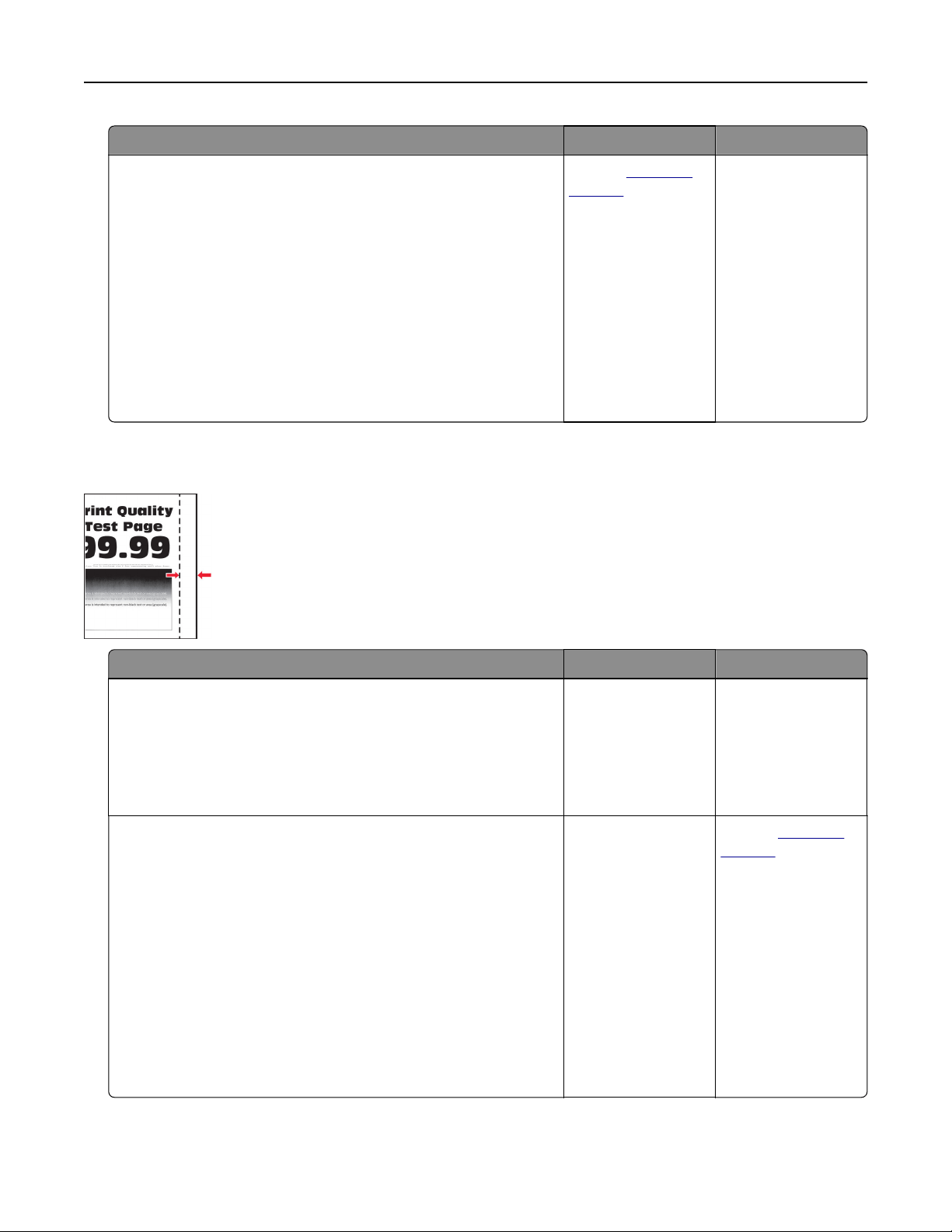
Action Yes No
Step 3
a Remove the photoconductor units.
Warning—Potential Damage: Do not expose the
photoconductor units to direct light. Extended exposure to
light may cause print quality problems.
Warning—Potential Damage: Do not touch the
photoconductor drums. Doing so may aect the quality of
future print jobs.
b Insert the photoconductor units.
c Print the document.
Does gray or colored background appear on prints?
Contact
customer
support.
The problem is
solved.
Incorrect margins
Action Yes No
Step 1
a Adjust the paper guides in the tray to the correct position for
the paper loaded.
b Print the document.
Are the margins correct?
The problem is
solved.
Go to step 2.
Step 2
a Depending on your operating system, specify the paper size
from the Printing Preferences or Print dialog.
Notes:
• Make sure that the setting matches the paper loaded.
• You can also change the setting on the printer control
panel. From the home screen, touch Settings > Paper >
Tray Configuration > Paper Size/Type.
Note:
b Print the document.
Are the margins correct?
The problem is
solved.
Contact
customer
support.
Troubleshoot a problem 435
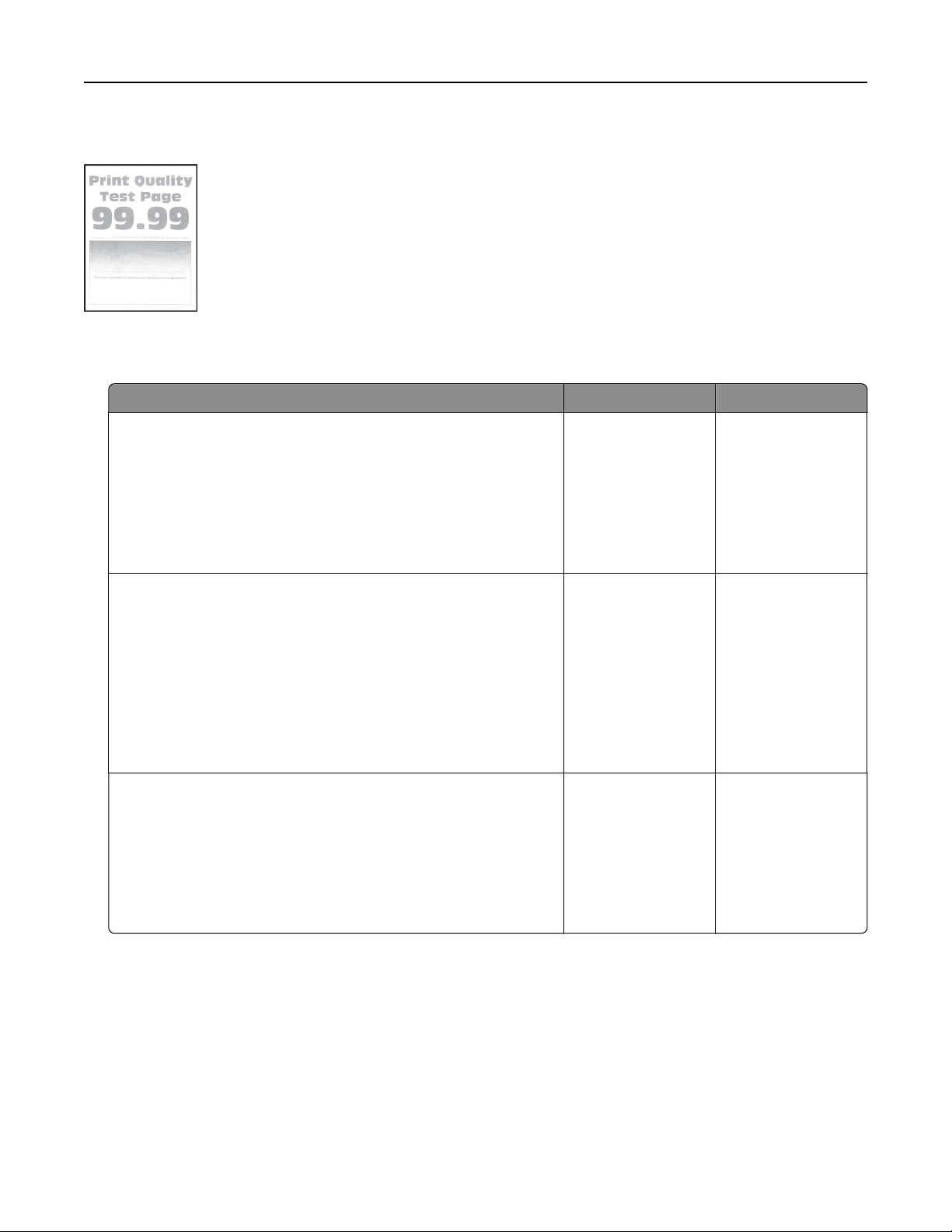
Light print
Note: Before solving the problem, print the Print Quality Test Pages. From the home screen, touch Settings >
Troubleshooting > Print Quality Test Pages.
Action Yes No
Step 1
a Perform Color Adjust.
From the home screen, touch Settings > Print > Quality >
Advanced Imaging > Color Adjust.
b Print the document.
Is the print light?
Go to step 2. The problem is
solved.
Step 2
a Depending on your operating system, increase toner darkness
from the Printing Preferences or Print dialog.
Note: You can also change the setting on the printer control
panel. From the home screen, touch Settings > Print >
Quality > Toner D arkness.
b Print the document.
Is the print light?
Go to step 3. The problem is
solved.
Step 3
a Turn o Color Saver.
From the home screen, touch Settings > Print > Quality > Color
Saver.
b Print the document.
Is the print light?
Go to step 4. The problem is
solved.
Troubleshoot a problem 436

Action Yes No
Step 4
a Depending on your operating system, specify the paper type
from the Printing Preferences or Print dialog.
Notes:
• Make sure that the setting matches the paper loaded.
• You can also change the setting on the printer control
panel. From the home screen, touch Settings > Paper >
Tray Configuration > Paper Size/Type.
b Print the document.
Is the print light?
Go to step 5. The problem is
solved.
Step 5
Check if paper has texture or rough finishes.
Are you printing on textured or rough paper?
Go to step 6. Go to step 7.
Step 6
a Replace textured or rough paper with plain paper.
b Print the document.
Is the print light?
Go to step 7. The problem is
solved.
Step 7
a Load paper from a fresh package.
Note: Paper absorbs moisture due to high humidity. Store
paper in its original wrapper until you are ready to use it.
b Print the document.
Is the print light?
Go to step 8. The problem is
solved.
Step 8
a Remove, and then insert the waste toner bottle.
b Perform Color Adjust.
From the home screen, touch Settings > Print > Quality >
Advanced Imaging > Color Adjust.
Is the print light?
Go to step 9. The problem is
solved.
Troubleshoot a problem 437
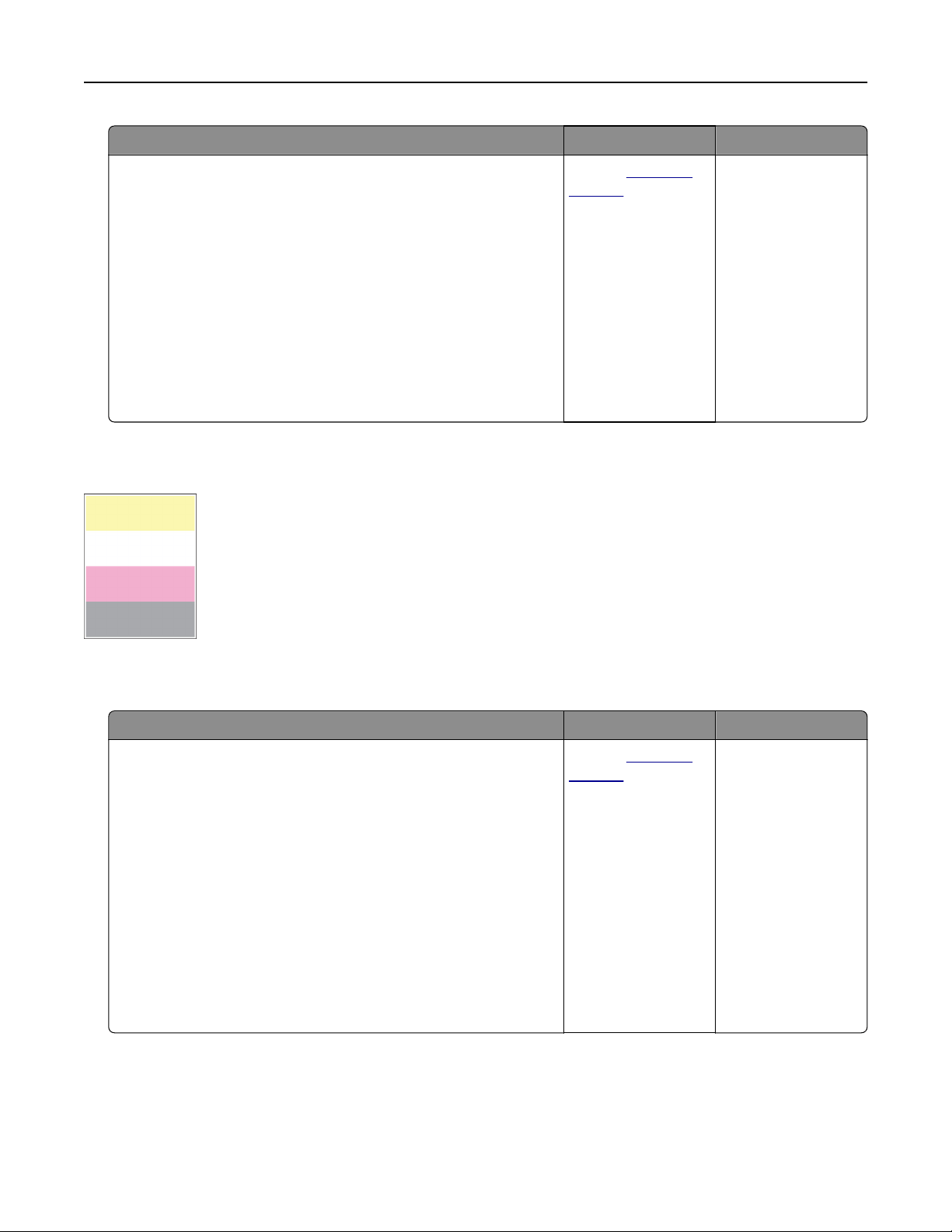
Action Yes No
Step 9
a Remove the photoconductor units.
Warning—Potential Damage: Do not expose the
photoconductor units to direct light. Extended exposure to
light may cause print quality problems.
Warning—Potential Damage: Do not touch the
photoconductor drums. Doing so may aect the quality of
future print jobs.
b Insert the photoconductor units.
c Print the document.
Is the print too light?
Contact
customer
support.
The problem is
solved.
Missing colors
Note: Before solving the problem, print the Print Quality Test Pages. From the home screen, touch Settings >
Troubleshooting > Print Quality Test Pages.
Action Yes No
a Remove the photoconductor unit of the missing color.
Warning—Potential Damage: Do not expose the
photoconductor unit to direct light. Extended exposure to
light may cause print quality problems.
Warning—Potential Damage: Do not touch the
photoconductor drum. Doing so may aect the quality of
future print jobs.
b Insert the photoconductor unit.
c Remove the toner cartridge of the missing color.
d Insert the toner cartridge of the missing color.
e Print the document.
Are some colors missing on print?
Contact
customer
support.
The problem is
solved.
Troubleshoot a problem 438
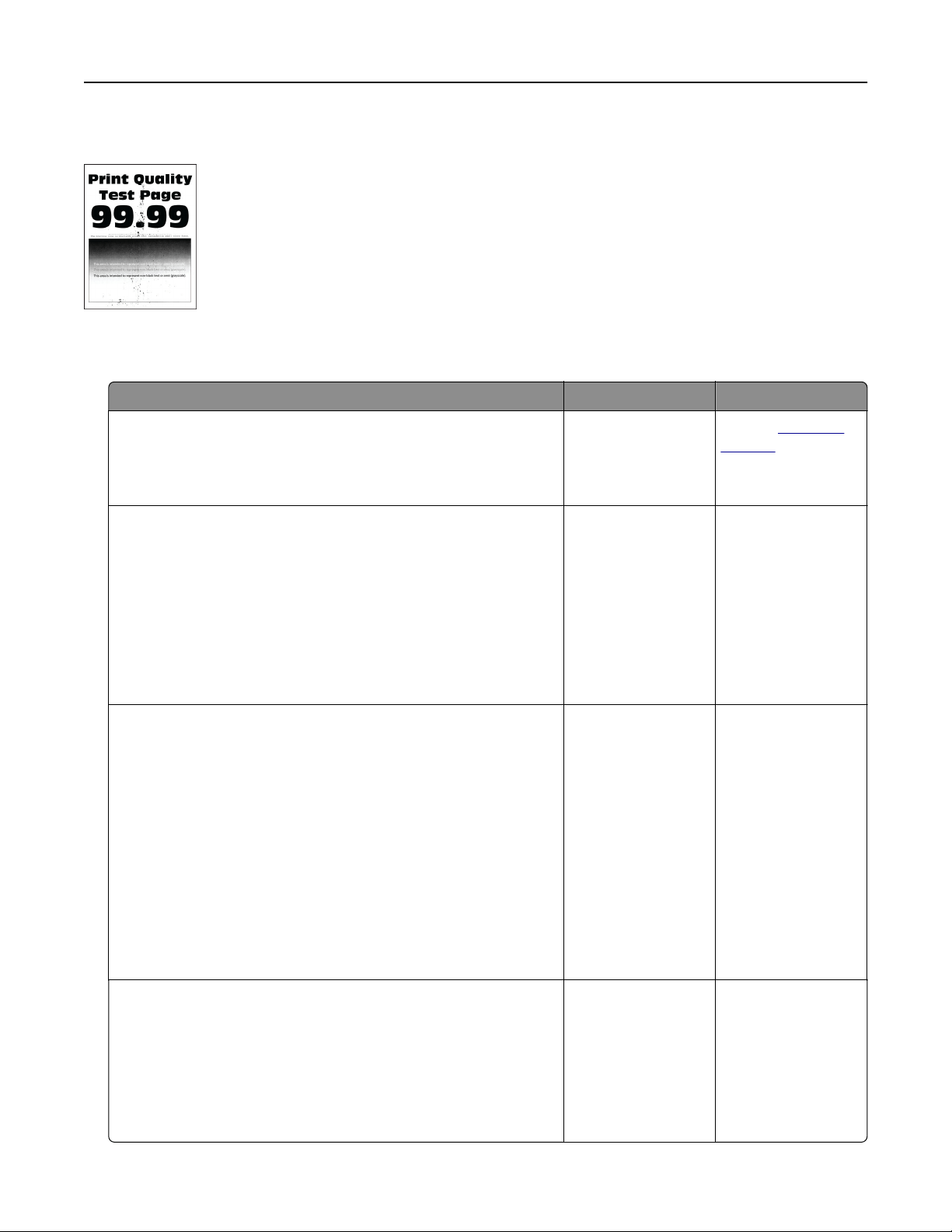
Mottled print and dots
Note: Before solving the problem, print the Print Quality Test Pages. From the home screen, touch Settings >
Troubleshooting > Print Quality Test Pages.
Action Yes No
Step 1
Check the printer for leaked toner contamination.
Is the printer free of leaked toner?
Go to step 2. Contact customer
support.
Step 2
a From the home screen, touch Settings > Paper > Tray
Configuration > Paper Size/Type.
b Check if the paper size and paper type settings match the
paper loaded.
Note: Make sure that the paper does not have texture or
rough finishes.
Do the settings match?
Go to step 4. Go to step 3.
Step 3
a Depending on your operating system, specify the paper size
and paper type from the Printing Preferences or Print dialog.
Notes:
• Make sure that the settings match the paper loaded in
the tray.
• You can also change the settings on the printer control
panel. From the home screen, touch Settings > Paper >
Tray
Configuration
> Paper Size/Type.
b Print the document.
Is the print mottled?
Go to step 4. The problem is
solved.
Step 4
a Load paper from a fresh package.
Note: Paper absorbs moisture due to high humidity. Store
paper in its original wrapper until you are ready to use it.
b Print the document.
Is the print mottled?
Go to step 5. The problem is
solved.
Troubleshoot a problem 439
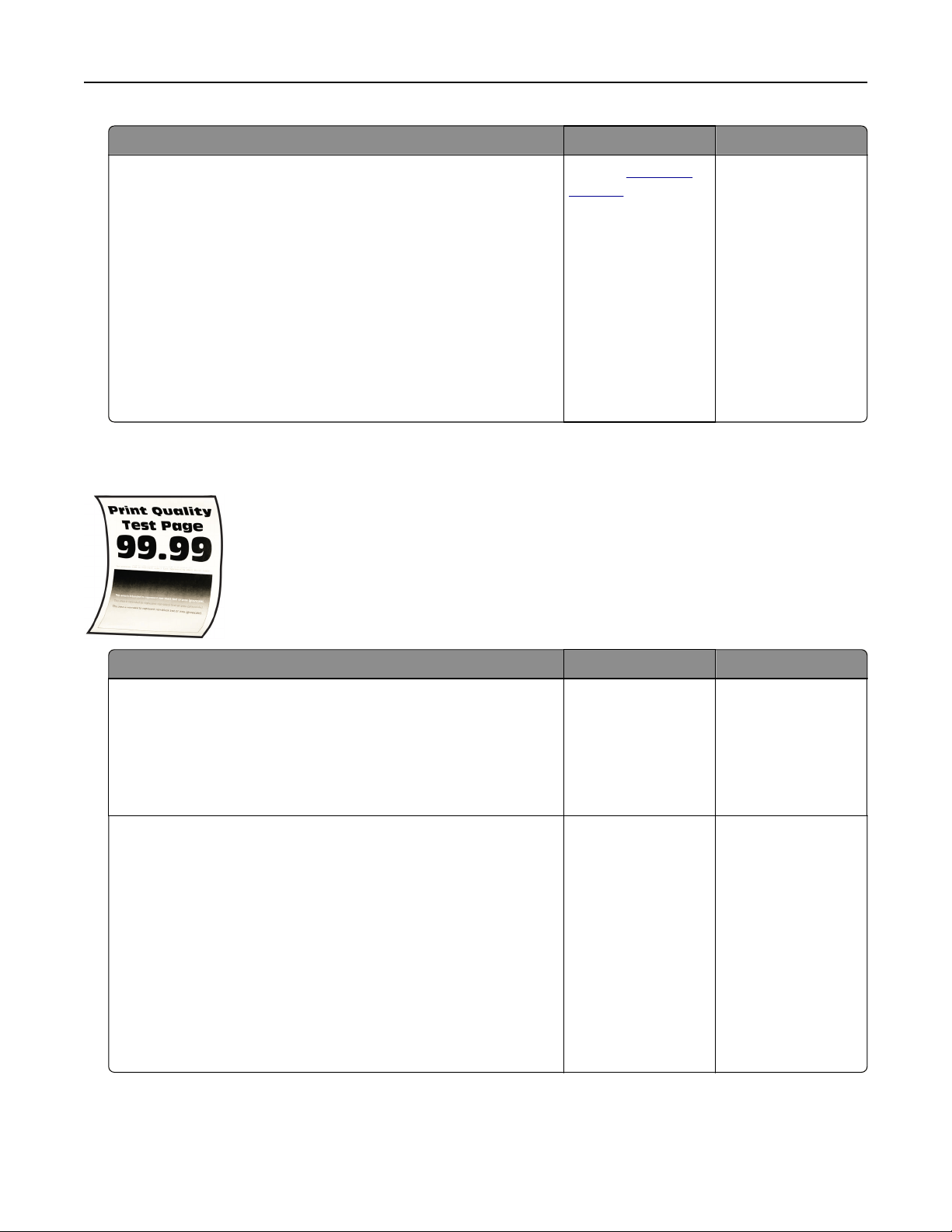
Action Yes No
Step 5
a Remove the photoconductor units.
Warning—Potential Damage: Do not expose
thephotoconductor units to direct light. Extended exposure to
light may cause print quality problems.
Warning—Potential Damage: Do not touch the
photoconductor drums. Doing so may aect the quality of
future print jobs.
b Insert the photoconductor units.
c Print the document.
Is the print mottled?
Contact
customer
support.
The problem is
solved.
Paper curl
Action Yes No
Step 1
a Adjust the guides in the tray to the correct position for the paper
loaded.
b Print the document.
Is the paper curled?
Go to step 2. The problem is
solved.
Step 2
a Depending on your operating system, specify the paper type
from the Printing Preferences or Print dialog.
Notes:
• Make sure that the setting matches the paper loaded.
• You can also change the setting on the printer control
panel. From the home screen, touch Settings > Paper >
Tray Configuration > Paper Size/Type.
b Print the document.
Is the paper curled?
Go to step 3. The problem is
solved.
Troubleshoot a problem 440
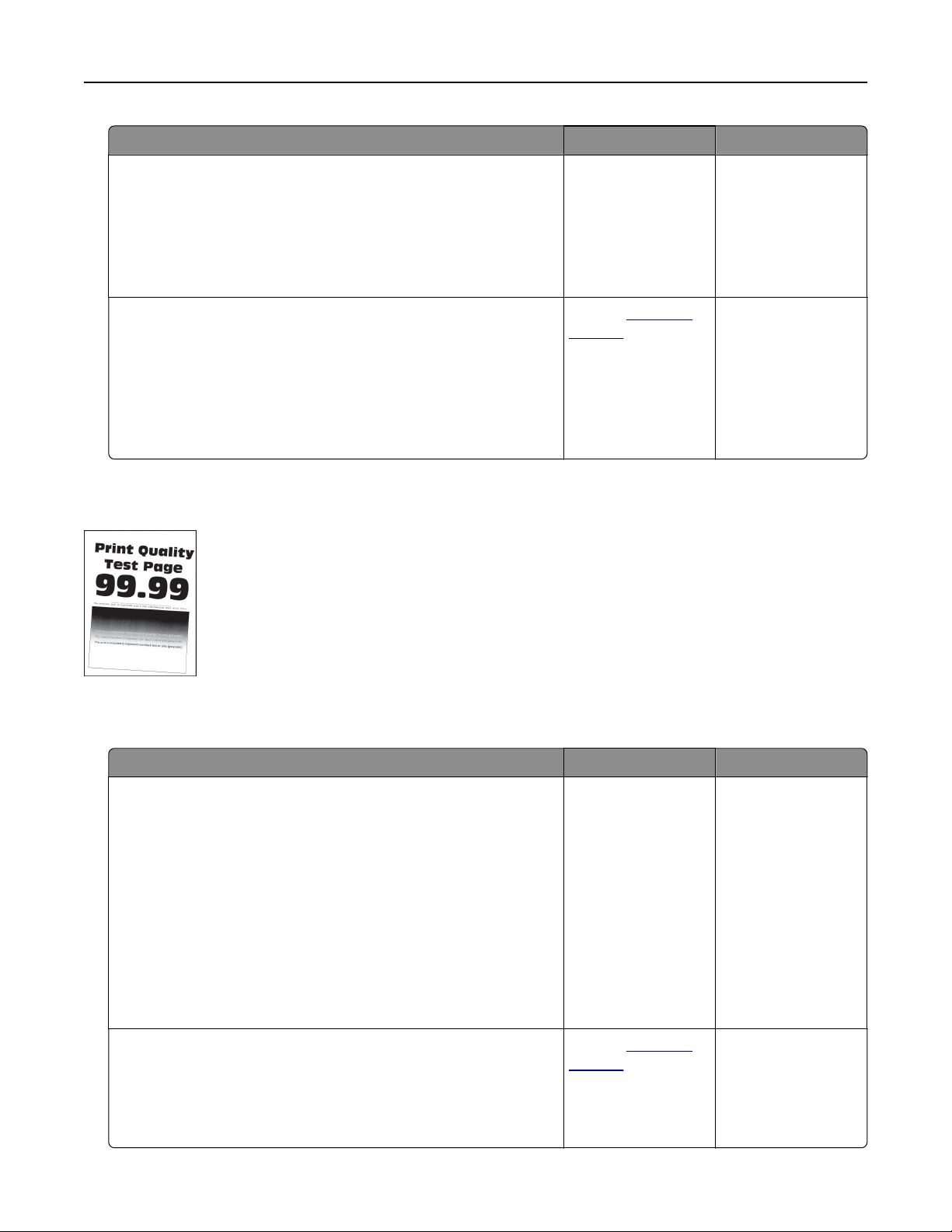
Action Yes No
Step 3
Print on the other side of the paper.
a Remove paper, flip it over, and then reload paper.
b Print the document.
Is the paper curled?
Go to step 4. The problem is
solved.
Step 4
a Load paper from a fresh package.
Note: Paper absorbs moisture due to high humidity. Store
paper in its original wrapper until you are ready to use it.
b Print the document.
Is the paper curled?
Contact
customer
support.
The problem is
solved.
Print crooked or skewed
Note: Before solving the problem, print the Print Quality Test Pages. From the home screen, touch Settings >
Troubleshooting > Print Quality Test Pages.
Action Yes No
Step 1
a Pull out the tray.
b Remove the paper, and then load paper from a fresh package.
Note: Paper absorbs moisture due to high humidity. Store
paper in its original wrapper until you are ready to use it.
c Adjust the paper guides in the tray to the correct position for
the paper loaded.
d Insert the tray.
e Print the document.
Is the print crooked or skewed?
Go to step 2. The problem is
solved.
Step 2
a Make sure that you are printing on a supported paper.
b Print the document.
Is the print crooked or skewed?
Contact
customer
support.
The problem is
solved.
Troubleshoot a problem 441
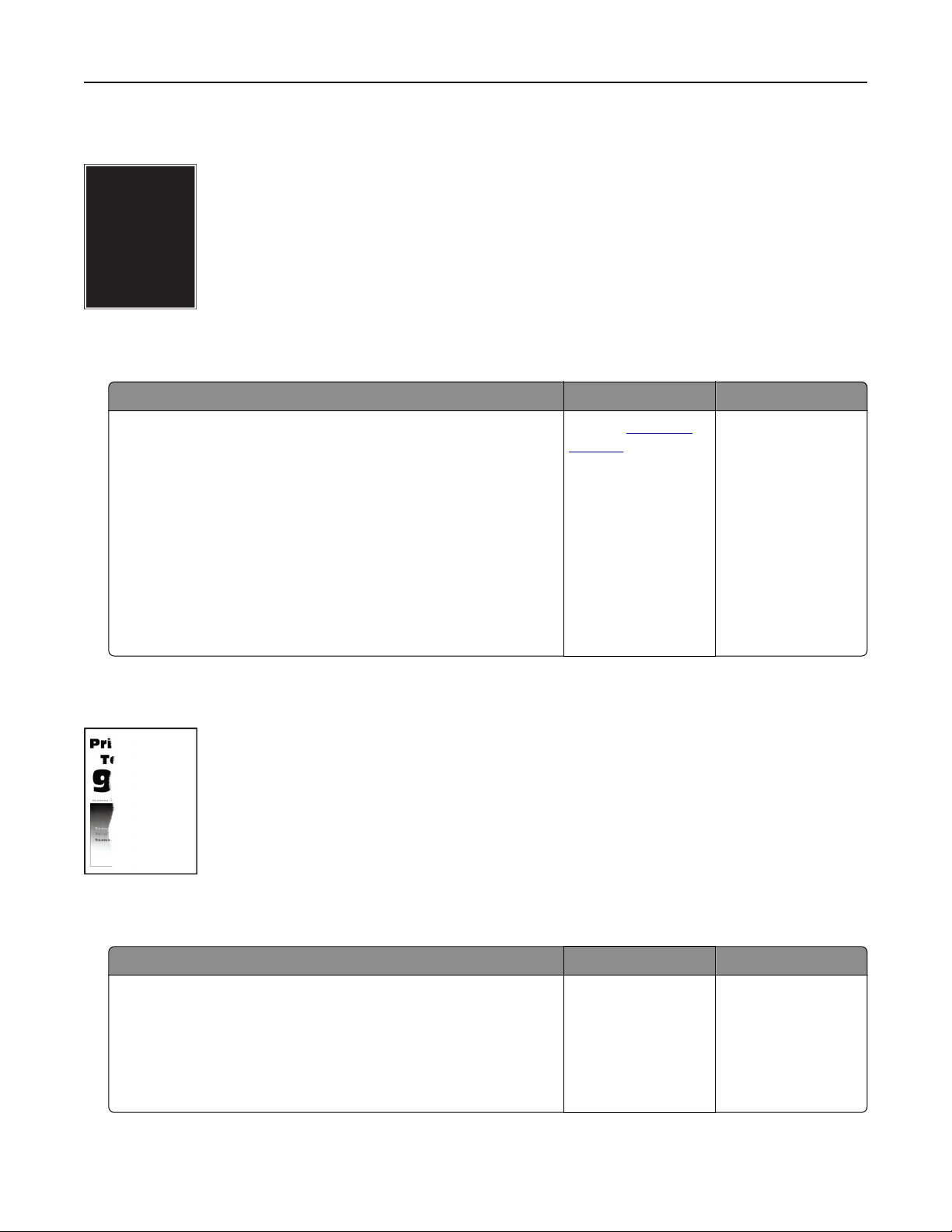
Solid color or black images
Note: Before solving the problem, print the Print Quality Test Pages. From the home screen, touch Settings >
Troubleshooting > Print Quality Test Pages.
Action Yes No
a Remove the photoconductor units.
Warning—Potential Damage: Do not expose the
photoconductor units to direct light. Extended exposure to
light may cause print quality problems.
Warning—Potential Damage: Do not touch the
photoconductor drums. Doing so may aect the quality of
future print jobs.
b Insert the photoconductor units.
c Print the document.
Is the printer printing solid color or black images?
Contact
customer
support.
The problem is
solved.
Text or images cut o
Note: Before solving the problem, print the Print Quality Test Pages. From the home screen, touch Settings >
Troubleshooting > Print Quality Test Pages.
Action Yes No
Step 1
a Adjust the paper guides in the tray to the correct position for
the paper loaded.
b Print the document.
Is the text or image clipped?
Go to step 2. The problem is
solved.
Troubleshoot a problem 442
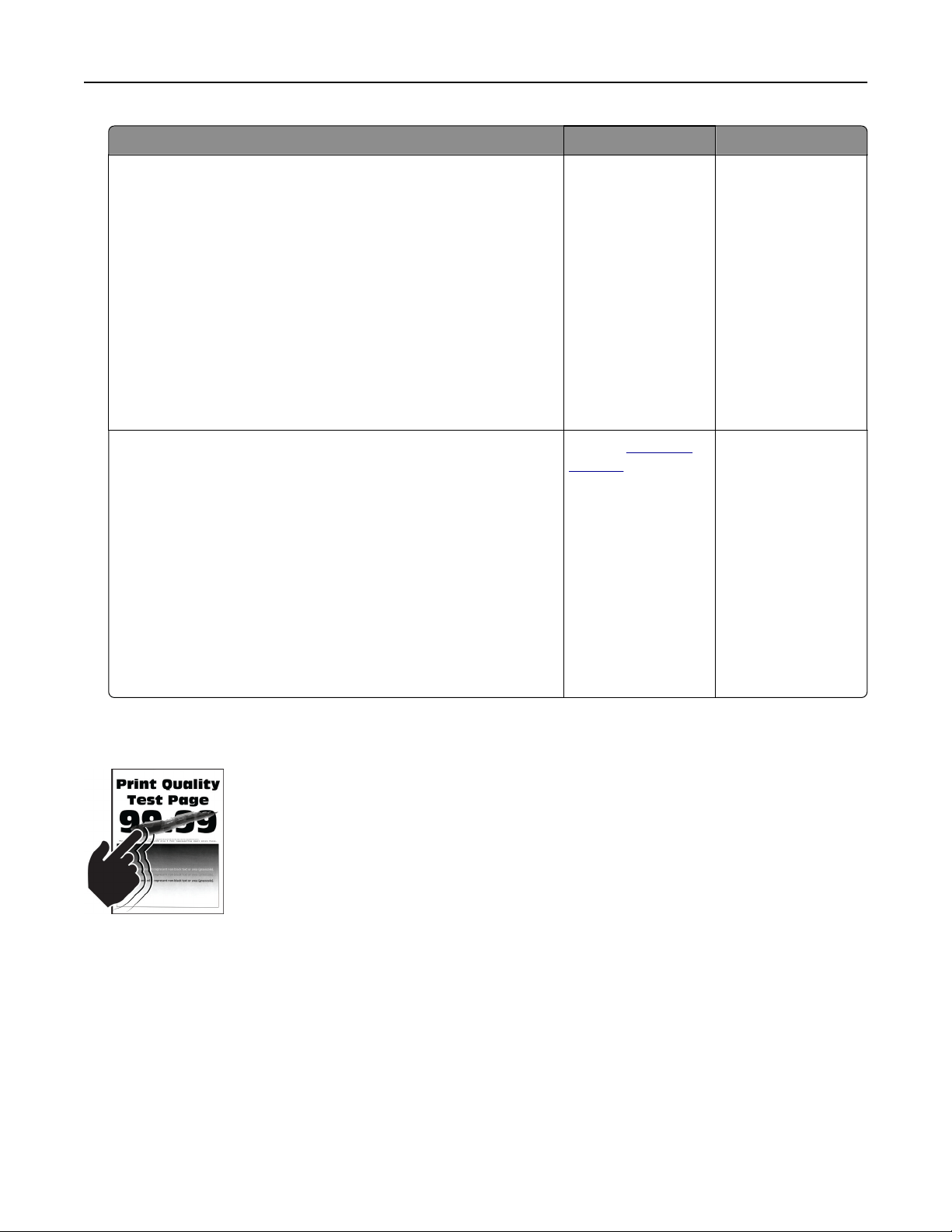
Action Yes No
Step 2
a Depending on your operating system, specify the paper size
from the Printing Preferences or Print dialog.
Notes:
• Make sure that the setting matches the paper loaded in
the tray.
• You can also change the setting on the printer control
panel. From the home screen, touch Settings > Paper >
Tray Configuration > Paper Size/Type.
b Print the document.
Is the text or image clipped?
Go to step 3. The problem is
solved.
Step 3
a Remove the photoconductor units.
Warning—Potential Damage: Do not expose the
photoconductor units to direct light. Extended exposure to
light may cause print quality problems.
Warning—Potential Damage: Do not touch the
photoconductor drums. Doing so may
aect
the quality of
future print jobs.
b Insert the photoconductor units.
c Print the document.
Is the text or image clipped?
Contact customer
support.
The problem is
solved.
Toner easily rubs o
Note: Before solving the problem, print the Print Quality Test Pages. From the home screen, touch Settings >
Troubleshooting > Print Quality Test Pages.
Troubleshoot a problem 443
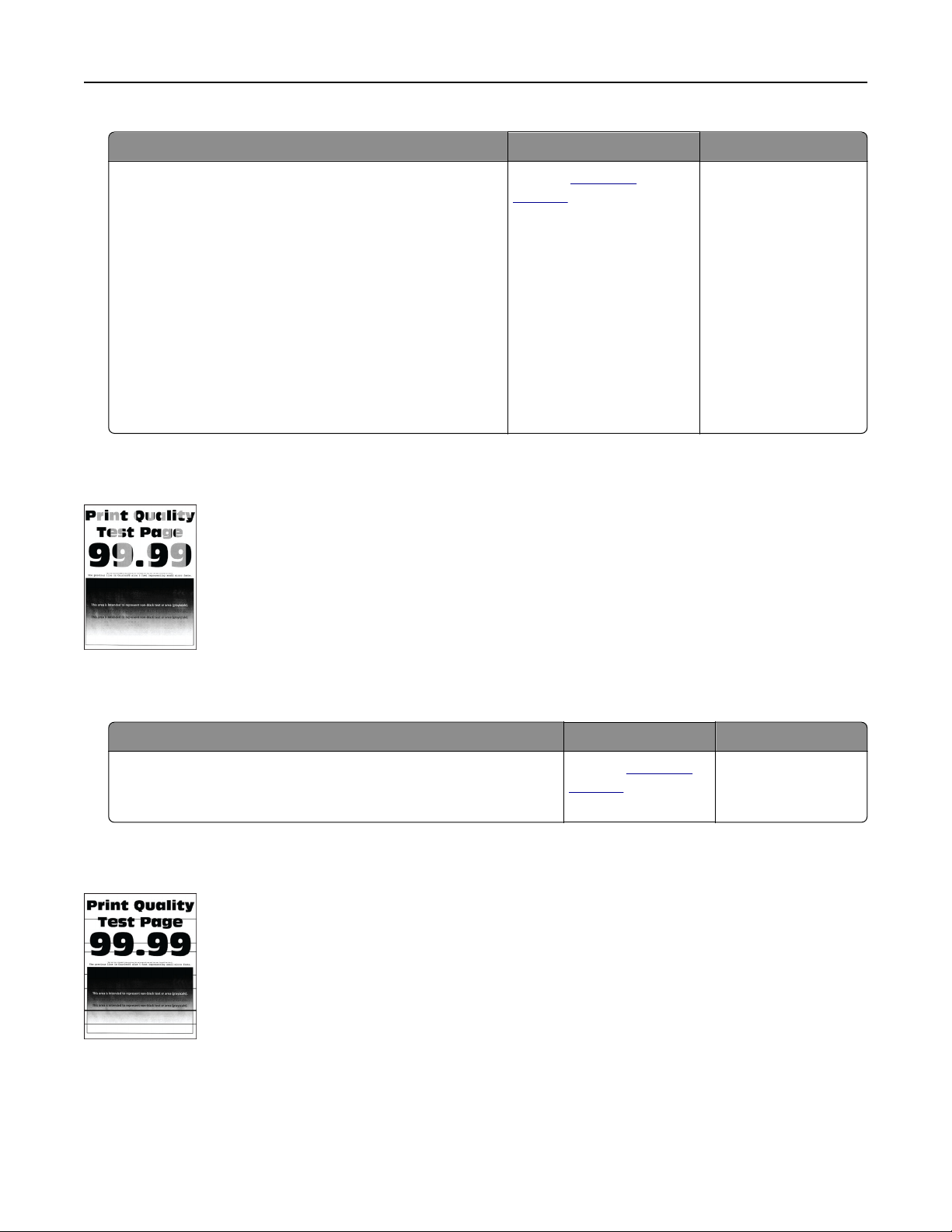
Action Yes No
1 Depending on your operating system, specify the
paper type from the Printing Preferences or Print
dialog.
Notes:
• Make sure that the setting matches the paper
loaded.
• You can also change the setting on the printer
control panel. From the home screen, touch
Settings > Paper > Tray
Configuration
> Paper
Size/Type.
2 Print the document.
Does the toner rub
o?
Contact
customer
support.
The problem is solved.
Uneven print density
Note: Before solving the problem, print the Print Quality Test Pages. From the home screen, touch Settings >
Troubleshooting > Print Quality Test Pages.
Action Yes No
Replace the photoconductor units, and then print the document.
Is the print density uneven?
Contact customer
support.
The problem is
solved.
Horizontal dark lines
Notes:
• Before solving the problem, print the Print Quality Test Pages. From the home screen, touch Settings >
Troubleshooting > Print Quality Test Pages.
• If horizontal dark lines keep appearing on the prints, then see the “Repeating defects” topic.
Troubleshoot a problem 444

Action Yes No
Step 1
a Depending on your operating system, specify the paper type
from the Printing Preferences or Print dialog box.
Notes:
• Make sure that the setting matches the paper loaded.
• You can also change the setting on the printer control
panel. From the home screen, touch Settings > Paper >
Tray
Configuration
> Paper Size/Type.
b Print the document.
Do horizontal dark lines appear on prints?
Go to step 2. The problem is
solved.
Step 2
a Load paper from a fresh package.
Note: Paper absorbs moisture due to high humidity. Store
paper in its original wrapper until you use it.
b Print the document.
Do horizontal dark lines appear on prints?
Go to step 3. The problem is
solved.
Step 3
a Remove the printhead wiper, and then clean the printhead
lenses.
b Print the document.
Do horizontal dark lines appear on prints?
Go to step 4. The problem is
solved.
Step 4
a Remove the photoconductor units.
Warning—Potential Damage: Do not expose the
photoconductor units to direct light. Extended exposure to
light may cause print quality problems.
Warning—Potential Damage: Do not touch the
photoconductor drums. Doing so may aect the quality of
future print jobs.
b Insert the photoconductor units.
c Print the document.
Do horizontal dark lines appear on prints?
Contact
customer
support.
The problem is
solved.
Troubleshoot a problem 445
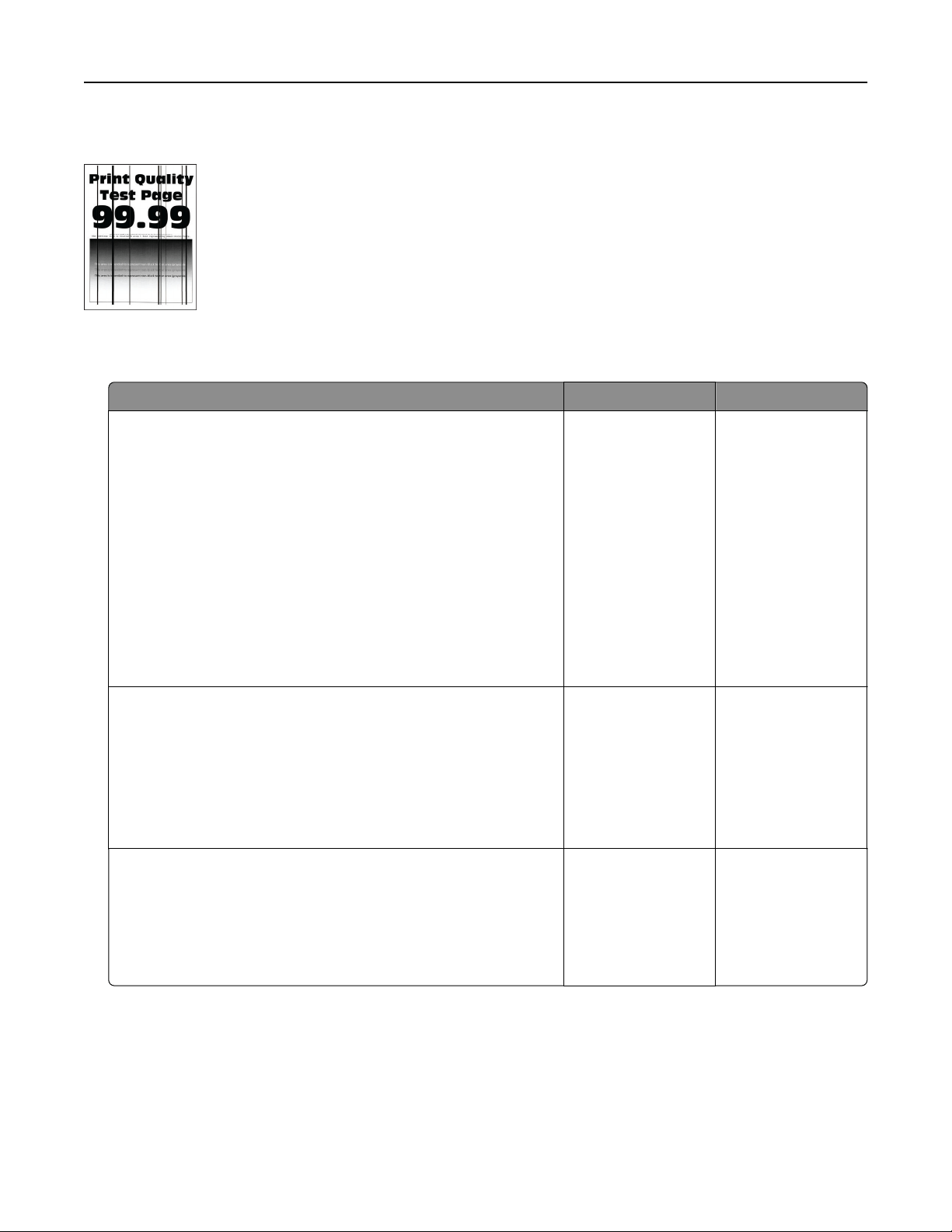
Vertical dark lines
Note: Before solving the problem, print the Print Quality Test Pages. From the home screen, touch Settings >
Troubleshooting > Print Quality Test Pages.
Action Yes No
Step 1
a Depending on your operating system, specify the paper type
from the Printing Preferences or Print dialog box.
Notes:
• Make sure that the setting matches the paper loaded in
the tray.
• You can also change the setting on the printer control
panel. From the home screen, touch Settings > Paper >
Tray
Configuration
> Paper Size/Type.
b Print the document.
Do vertical dark lines appear on prints?
Go to step 2. The problem is
solved.
Step 2
a Load paper from a fresh package.
Note: Paper absorbs moisture due to high humidity. Store
paper in its original wrapper until you use it.
b Print the document.
Do vertical dark lines appear on prints?
Go to step 3. The problem is
solved.
Step 3
a Remove the printhead wiper, and then clean the printhead
lenses.
b Print the document.
Do horizontal dark lines appear on prints?
Go to step 4. The problem is
solved.
Troubleshoot a problem 446
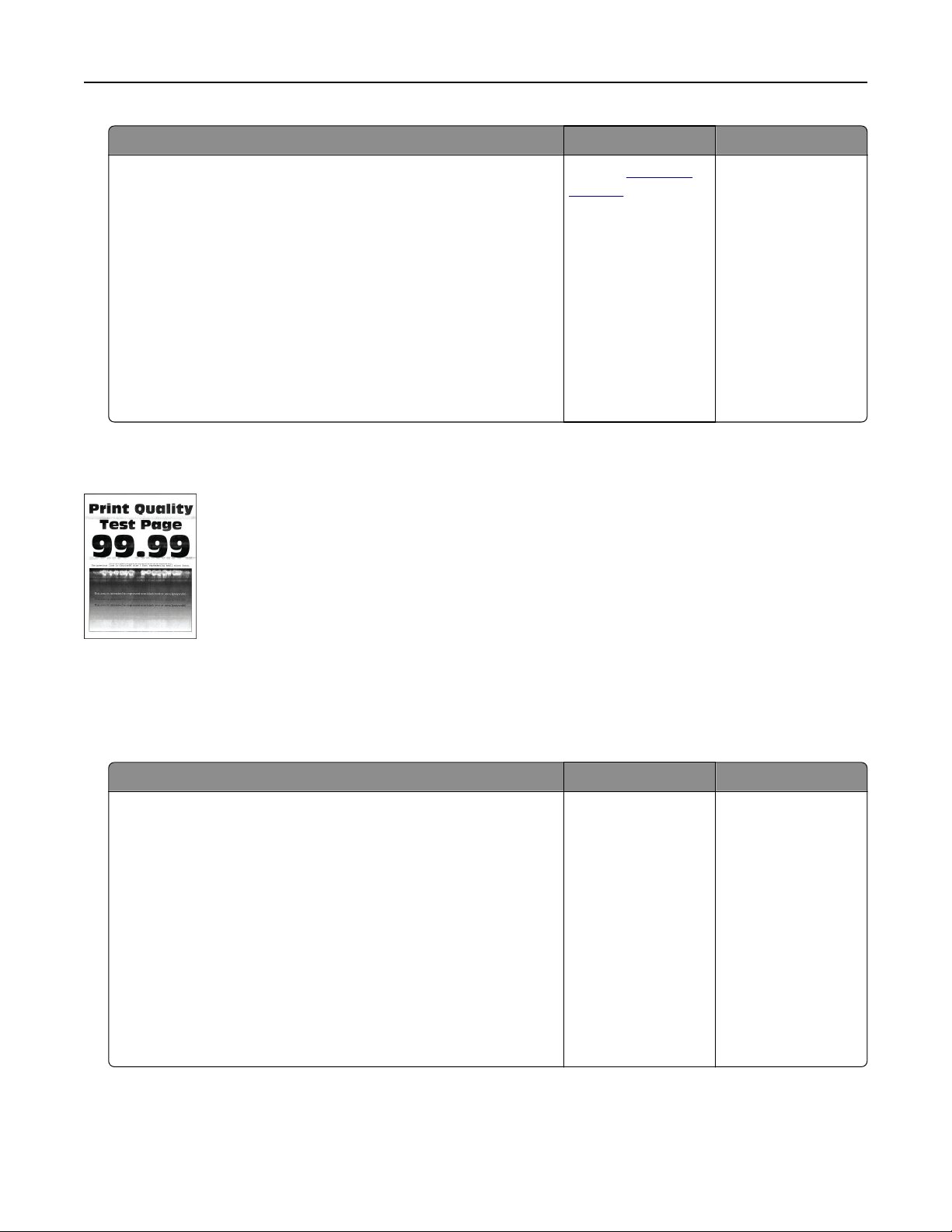
Action Yes No
Step 4
a Remove the photoconductor units.
Warning—Potential Damage: Do not expose the
photoconductor units to direct light. Extended exposure to
light may cause print quality problems.
Warning—Potential Damage: Do not touch the
photoconductor drums. Doing so may aect the quality of
future print jobs.
b Insert the photoconductor units.
c Print the document.
Do vertical dark lines appear on prints?
Contact
customer
support.
The problem is
solved.
Horizontal white lines
Notes:
• Before solving the problem, print the Print Quality Test Pages. From the home screen, touch Settings >
Troubleshooting > Print Quality Test Pages.
• If horizontal white lines keep appearing on the prints, then see the “Repeating defects” topic.
Action Yes No
Step 1
a Depending on your operating system, specify the paper type
from the Printing Preferences or Print dialog.
Notes:
• Make sure that the setting matches the paper loaded in
the tray.
• You can also change the setting on the printer control
panel. From the home screen, touch Settings > Paper >
Tray Configuration > Paper Size/Type.
b Print the document.
Do horizontal white lines appear on prints?
Go to step 2. The problem is
solved.
Troubleshoot a problem 447
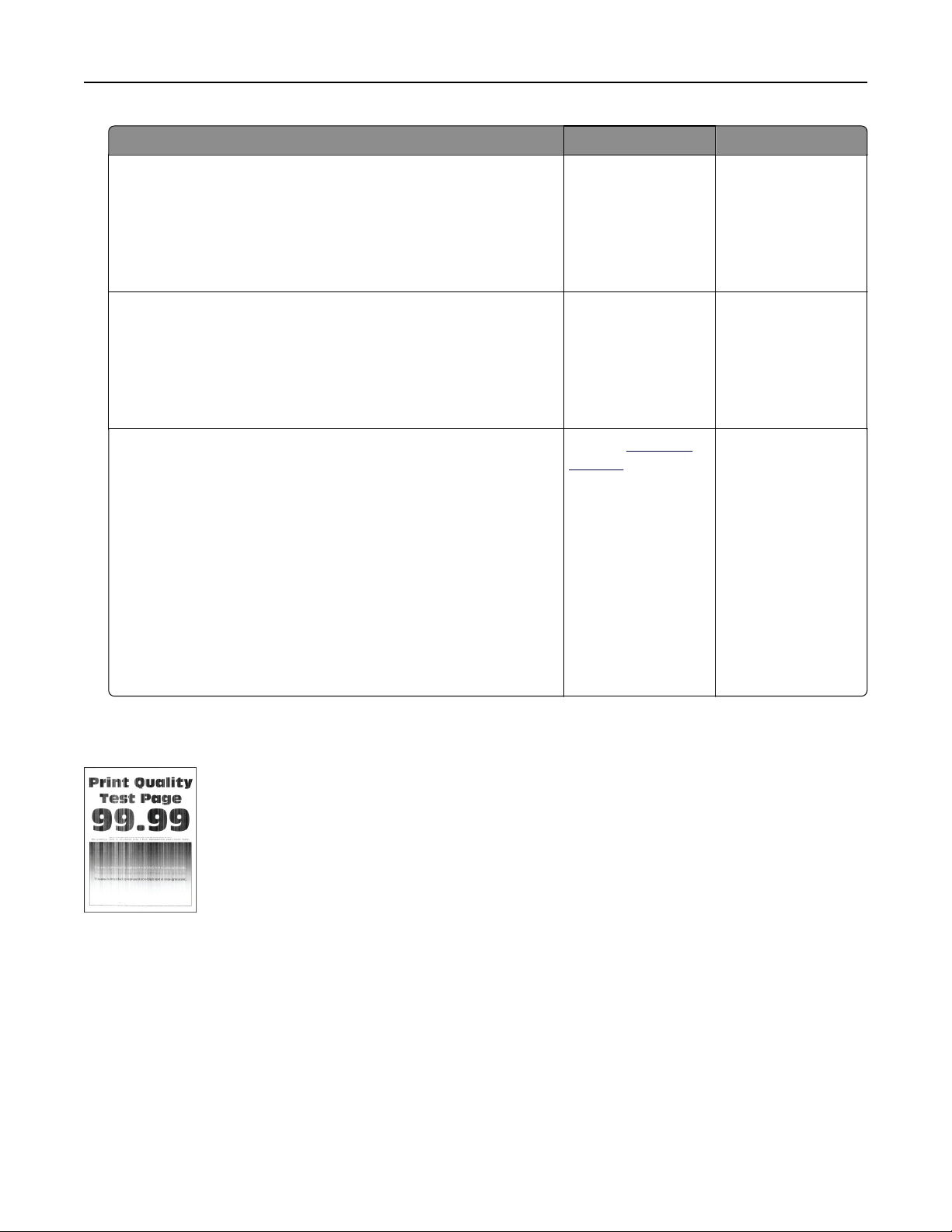
Action Yes No
Step 2
a Load the specified paper source with the recommended paper
type.
b Print the document.
Do horizontal white lines appear on prints?
Go to step 3. The problem is
solved.
Step 3
a Remove the printhead wiper, and then clean the printhead
lenses.
b Print the document.
Do horizontal dark lines appear on prints?
Go to step 4. The problem is
solved.
Step 4
a Remove the photoconductor units.
Warning—Potential Damage: Do not expose the
photoconductor units to direct light. Extended exposure to
light may cause print quality problems.
Warning—Potential Damage: Do not touch the
photoconductor drums. Doing so may
aect
the quality of
future print jobs.
b Insert the photoconductor units.
c Print the document.
Do horizontal white lines appear on prints?
Contact customer
support.
The problem is
solved.
Vertical white lines
Note: Before solving the problem, print the Print Quality Test Pages. From the home screen, touch Settings >
Troubleshooting > Print Quality Test Pages.
Troubleshoot a problem 448

Action Yes No
Step 1
a Depending on your operating system, specify the paper type
from the Printing Preferences or Print dialog box.
Notes:
• Make sure that the setting matches the paper loaded in
the tray.
• You can also change the setting on the printer control
panel. From the home screen, touch Settings > Paper >
Tray Configuration > Paper Size/Type.
b Print the document.
Do vertical white lines appear on prints?
Go to step 2. The problem is
solved.
Step 2
Check if you are using the recommended paper type.
a Load the specified paper source with the recommended paper
type.
b Print the document.
Do vertical white lines appear on prints?
Go to step 3. The problem is
solved.
Step 3
a Remove the printhead wiper, and then clean the printhead
lenses.
b Print the document.
Do horizontal dark lines appear on prints?
Go to step 4. The problem is
solved.
Step 4
a Remove the photoconductor units.
Warning—Potential Damage: Do not expose the
photoconductor units to direct light. Extended exposure to
light may cause print quality problems.
Warning—Potential Damage: Do not touch the
photoconductor drums. Doing so may
aect
the quality of
future print jobs.
b Insert the photoconductor units.
c Print the document.
Do vertical white lines appear on prints?
Contact
customer
support.
The problem is
solved.
Troubleshoot a problem 449
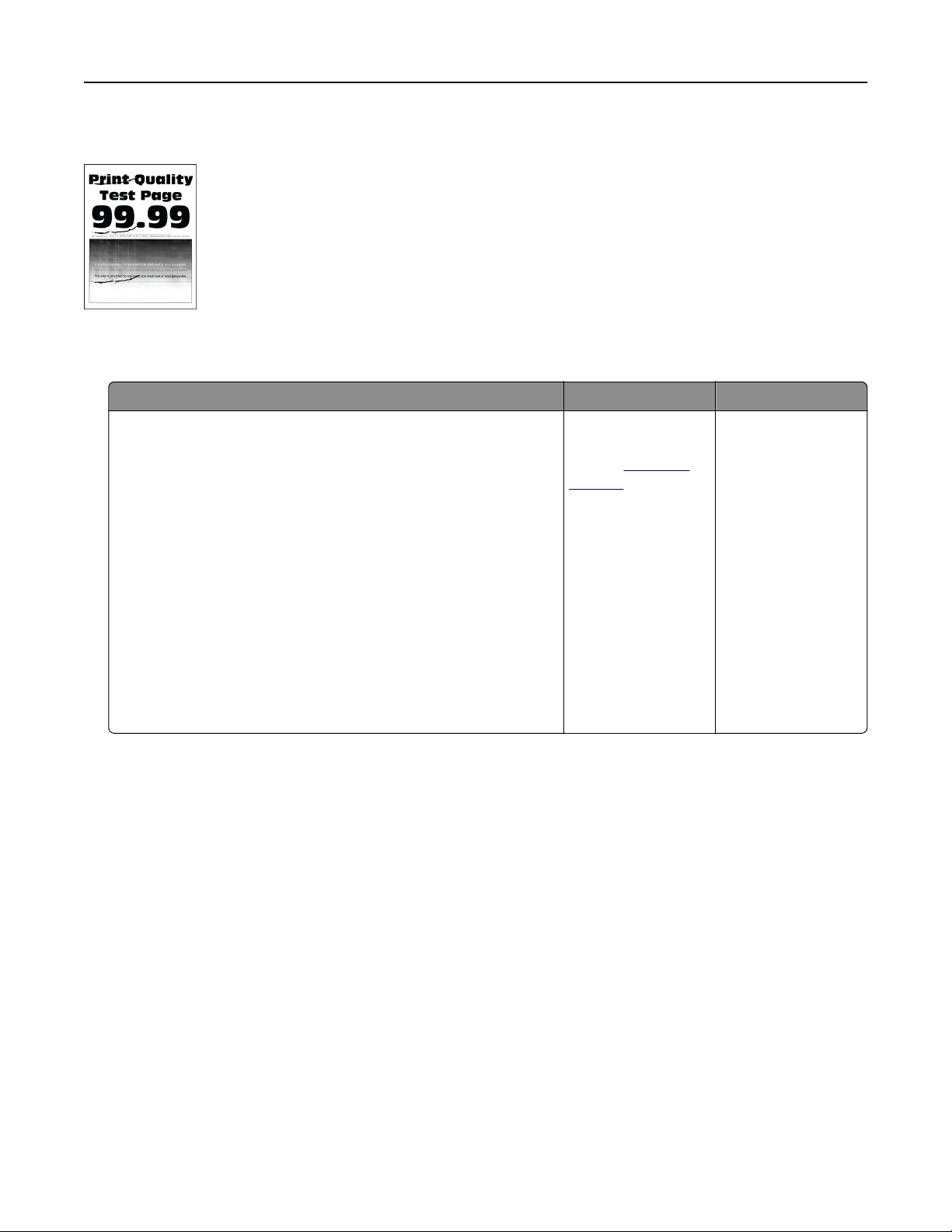
Repeating defects
Note: Before solving the problem, print the Print Quality Test Pages. From the home screen, touch Settings >
Troubleshooting > Print Quality Test Pages.
Action Yes No
Step 1
a Using the Maintenance Defect Ruler page, measure the
distance between the repeating defects on the aected color
page.
b Replace the supply item that matches the measurement on the
aected color page.
Photoconductor unit
• 94.6 mm (3.72 in.)
• 37.7 mm (1.48 in.)
Developer unit
• 32.7 mm (1.29 in.)
c Print the Print Quality Test Pages.
Do the defects still appear?
Take note of the
distance, and then
contact
customer
support or your
service
representative.
The problem is
solved.
Troubleshoot a problem 450

Action Yes No
Step 2
a Using the Maintenance Defect Ruler page, measure the
distance between the repeating defects on the aected color
page.
b Replace the supply item that matches the measurement on the
aected color page.
Second transfer roller
64.4 mm (2.54 in.)
Fuser
• 96 mm (3.78 in.)
• 88 mm (3.46 in.)
Transfer belt
• 37.7 mm (1.48 in.)
• 31.4 mm (1.24 in.)
• 70.7 mm (2.78 in.)
• 46.9 mm (1.85 in.)
c Print the Print Quality Test Pages.
Do the defects still appear?
Take note of the
distance, and then
contact
customer
support or your
service
representative.
The problem is
solved.
Print jobs do not print
Action Yes No
Step 1
a From the document you are trying to print, open the Print
dialog, and then check if you have selected the correct printer.
b Print the document.
Is the document printed?
The problem is
solved.
Go to step 2.
Step 2
a Check if the printer is on.
b Resolve any error messages that appear on the display.
c Print the document.
Is the document printed?
The problem is
solved.
Go to step 3.
Step 3
a Check if the ports are working and if the cables are securely
connected to the computer and the printer.
For more information, see the setup documentation that came
with the printer.
b Print the document.
Is the document printed?
The problem is
solved.
Go to step 4.
Troubleshoot a problem 451
Action Yes No
Step 4
a Turn o the printer, wait for about 10 seconds, and then turn on
the printer.
b Print the document.
Is the document printed?
The problem is
solved.
Go to step 5.
Step 5
a Remove, and then reinstall the print driver.
b Print the document.
Is the document printed?
The problem is
solved.
Contact
customer
support.
Confidential
and other held documents do not print
Action Yes No
Step 1
a From the control panel, check if the documents appear in the
Held Jobs list.
Note: If the documents are not listed, then print the
documents using the Print and Hold options.
b Print the documents.
Are the documents printed?
The problem is
solved.
Go to step 2.
Step 2
The print job may contain a formatting error or invalid data.
• Delete the print job, and then send it again.
• For PDF files, generate a new file, and then print the
documents.
Are the documents printed?
The problem is
solved.
Go to step 3.
Troubleshoot a problem 452

Action Yes No
Step 3
If you are printing from the Internet, then the printer may be reading
the multiple job titles as duplicates.
For Windows users
a Open the Printing Preferences dialog.
b From the Print and Hold tab, click Use Print and Hold, and then
click Keep duplicate documents.
c Enter a PIN, and then save the changes.
d Send the print job.
For Macintosh users
a Save and name each job dierently.
b Send the job individually.
Are the documents printed?
The problem is
solved.
Go to step 4.
Step 4
a Delete some held jobs to free up printer memory.
b Print the documents.
Are the documents printed?
The problem is
solved.
Go to step 5.
Step 5
a Add printer memory.
b Print the documents.
Are the documents printed?
The problem is
solved.
Contact
customer
support.
Job prints from the wrong tray or on the wrong paper
Action Yes No
Step 1
a Check if you are printing on the correct paper.
b Print the document.
Is the document printed on the correct paper?
Go to step 2. Load the correct
paper size and paper
type.
Troubleshoot a problem 453

Action Yes No
Step 2
a Depending on your operating system, specify the paper size
and paper type from the Printing Preferences or Print dialog.
Note: You can also change the settings on the printer control
panel. From the home screen, touch Settings > Paper > Tray
Configuration > Paper Size/Type.
b Make sure that the settings match the paper loaded.
c Print the document.
Is the document printed on the correct paper?
The problem is
solved.
Go to step 3.
Step 3
a Check if the trays are linked.
For more information, see
“Linking trays” on page 78.
b Print the document.
Is the document printed from the correct tray?
The problem is
solved.
Contact
customer
support.
Slow printing
Action Yes No
Step 1
Make sure that the printer cable is securely connected to the
printer and to the computer, print server, option, or other network
device.
Is the printer printing slow?
Go to step 2. The problem is
solved.
Step 2
a Make sure that the printer is not in Quiet Mode.
From the home screen, touch Settings > Device > Maintenance
> Config Menu > Device Operations > Quiet Mode.
b Print the document.
Is the printer printing slow?
Go to step 3. The problem is
solved.
Step 3
a Depending on your operating system, specify the print
resolution from the Printing Preferences or Print dialog.
b Set the resolution to 2400 Image Q.
c Print the document.
Is the printer printing slow?
Go to step 4. The problem is
solved.
Troubleshoot a problem 454

Action Yes No
Step 4
a Depending on your operating system, specify the paper type
from the Printing Preferences or Print dialog.
Notes:
• Make sure that the setting matches the paper loaded.
• You can also change the setting on the printer control
panel. From the home screen, touch Settings > Paper >
Tray Configuration > Paper Size/Type.
• Heavier paper prints more slowly.
• Paper narrower than letter, A4, and legal may print more
slowly.
b Print the document.
Is the printer printing slow?
Go to step 5. The problem is
solved.
Step 5
a Make sure that the printer settings for texture and weight match
the paper being loaded.
From the home screen, touch Settings > Paper > Media
Configuration
> Media Types.
Note: Rough paper texture and heavy paper weight may print
more slowly.
b Print the document.
Is the printer printing slow?
Go to step 6. The problem is
solved.
Step 6
Remove held jobs.
Is the printer printing slow?
Go to step 7. The problem is
solved.
Step 7
a Make sure that the printer is not overheating.
Notes:
• Allow the printer to cool down after a long print job.
• Observe the recommended ambient temperature for the
printer. For more information, see
“Selecting a location
for the printer” on page 35.
b Print the document.
Is the printer printing slow?
Contact
customer
support.
The problem is
solved.
Troubleshoot a problem 455

The printer is not responding
Action Yes No
Step 1
Check if the power cord is connected to the electrical outlet.
CAUTION—POTENTIAL INJURY: To avoid the risk of fire or
electrical shock, connect the power cord to an appropriately
rated and properly grounded electrical outlet that is near the
product and easily accessible.
Is the printer responding?
The problem is
solved.
Go to step 2.
Step 2
Check if the electrical outlet is turned o by a switch or breaker.
Is the electrical outlet turned o by a switch or breaker?
Turn on the switch or
reset the breaker.
Go to step 3.
Step 3
Check if the printer is on.
Is the printer on?
Go to step 4. Turn on the printer.
Step 4
Check if the printer is in Sleep or Hibernate mode.
Is the printer in Sleep or Hibernate mode?
Press the power
button to wake the
printer.
Go to step 5.
Step 5
Check if the cables connecting the printer and the computer are
inserted to the correct ports.
Are the cables inserted to the correct ports?
Go to step 6. Insert the cables to
the correct ports.
Step 6
Turn o the printer, install the hardware options, and then turn on
the printer.
For more information, see the documentation that came with the
option.
Is the printer responding?
The problem is
solved.
Go to step 7.
Step 7
Install the correct print driver.
Is the printer responding?
The problem is
solved.
Go to step 8.
Step 8
Turn o the printer, wait for about 10 seconds, and then turn on the
printer.
Is the printer responding?
The problem is
solved.
Contact
customer
support.
Troubleshoot a problem 456

Unable to read flash drive
Action Yes No
Step 1
Check if the printer is not busy processing another print, copy,
scan, or fax job.
Is the printer ready?
Go to step 3. Go to step 2.
Step 2
• Wait for the printer to
finish
processing the other job.
• Remove, and then insert the flash drive.
Does the printer recognize the flash drive?
The problem is
solved.
Go to step 3.
Step 3
Check if the flash drive is inserted into the front USB port.
Note: The flash drive does not work when it is inserted into the
rear USB port.
Is the
flash
drive inserted into the correct port?
Go to step 5. Go to step 4.
Step 4
Insert the flash drive into the correct port.
Does the printer recognize the flash drive?
The problem is
solved.
Go to step 5.
Step 5
Check if the flash drive is supported. For more information, see
“Supported flash drives and file types” on page 197.
Is the
flash
drive supported?
Go to step 7. Go to step 6.
Step 6
Insert a supported flash drive.
Does the printer recognize the flash drive?
The problem is
solved.
Go to step 7.
Step 7
Remove, and then insert the flash drive.
Does the printer recognize the flash drive?
The problem is
solved.
Contact
customer
support.
Enabling the USB port
From the home screen, touch Settings > Network/Ports > USB > Enable USB Port.
Troubleshoot a problem 457
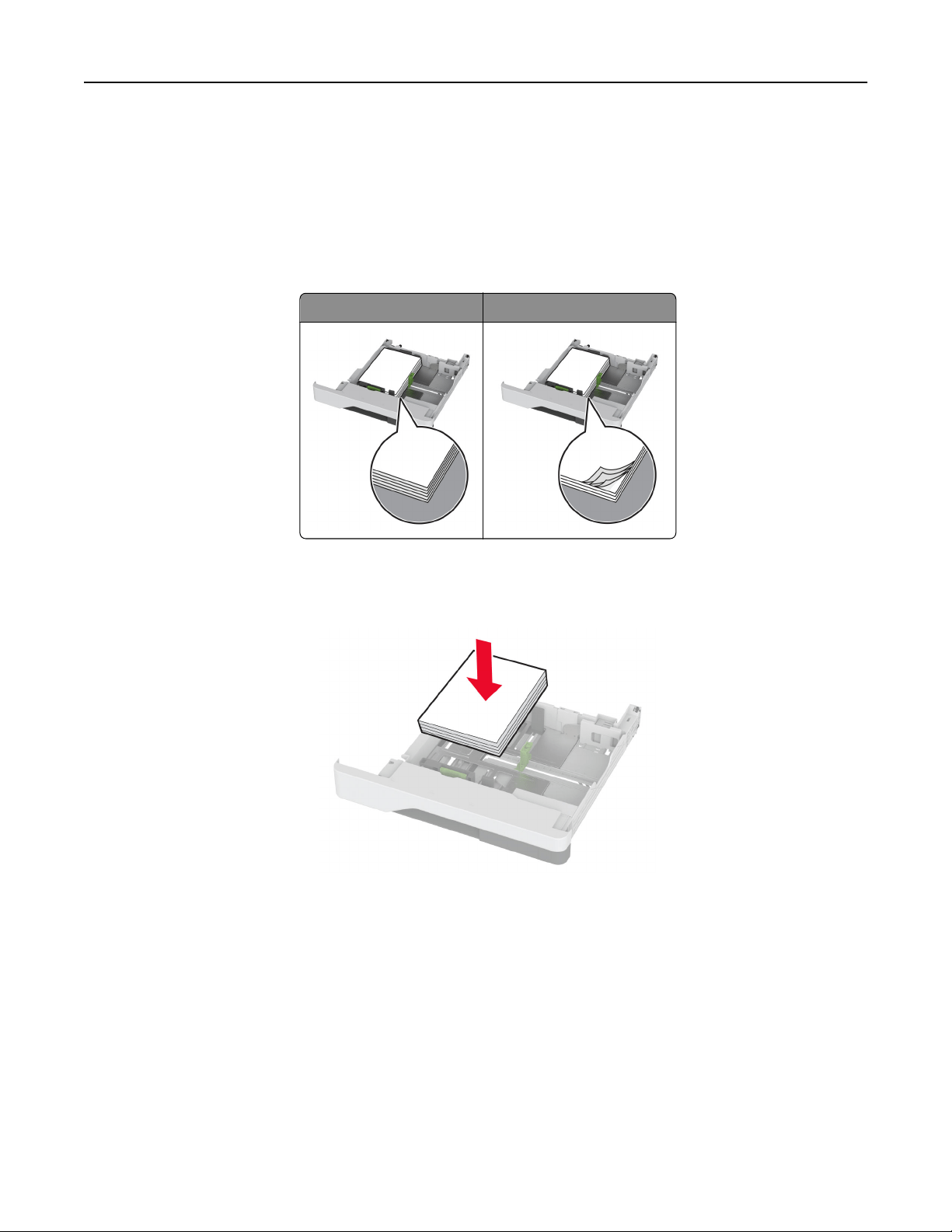
Clearing jams
Avoiding jams
Load paper properly
• Make sure that the paper lies flat in the tray.
Correct loading of paper Incorrect loading of paper
• Do not load or remove a tray while the printer is printing.
• Do not load too much paper. Make sure that the stack height is below the maximum paper
fill
indicator.
• Do not slide paper into the tray. Load paper as shown in the illustration.
• Make sure that the paper guides are positioned correctly and are not pressing tightly against the paper or
envelopes.
• Push the tray
firmly
into the printer after loading paper.
Use recommended paper
• Use only recommended paper or specialty media.
• Do not load paper that is wrinkled, creased, damp, bent, or curled.
Troubleshoot a problem 458

• Flex, fan, and align the paper edges before loading.
• Do not use paper that has been cut or trimmed by hand.
• Do not mix paper sizes, weights, or types in the same tray.
• Make sure that the paper size and type are set correctly on the computer or printer control panel.
• Store paper according to manufacturer recommendations.
Identifying jam locations
Notes:
• When Jam Assist is set to On, the printer flushes blank pages or pages with partial prints after a jammed
page has been cleared. Check your printed output for blank pages.
• When Jam Recovery is set to On or Auto, the printer reprints jammed pages.
Troubleshoot a problem 459
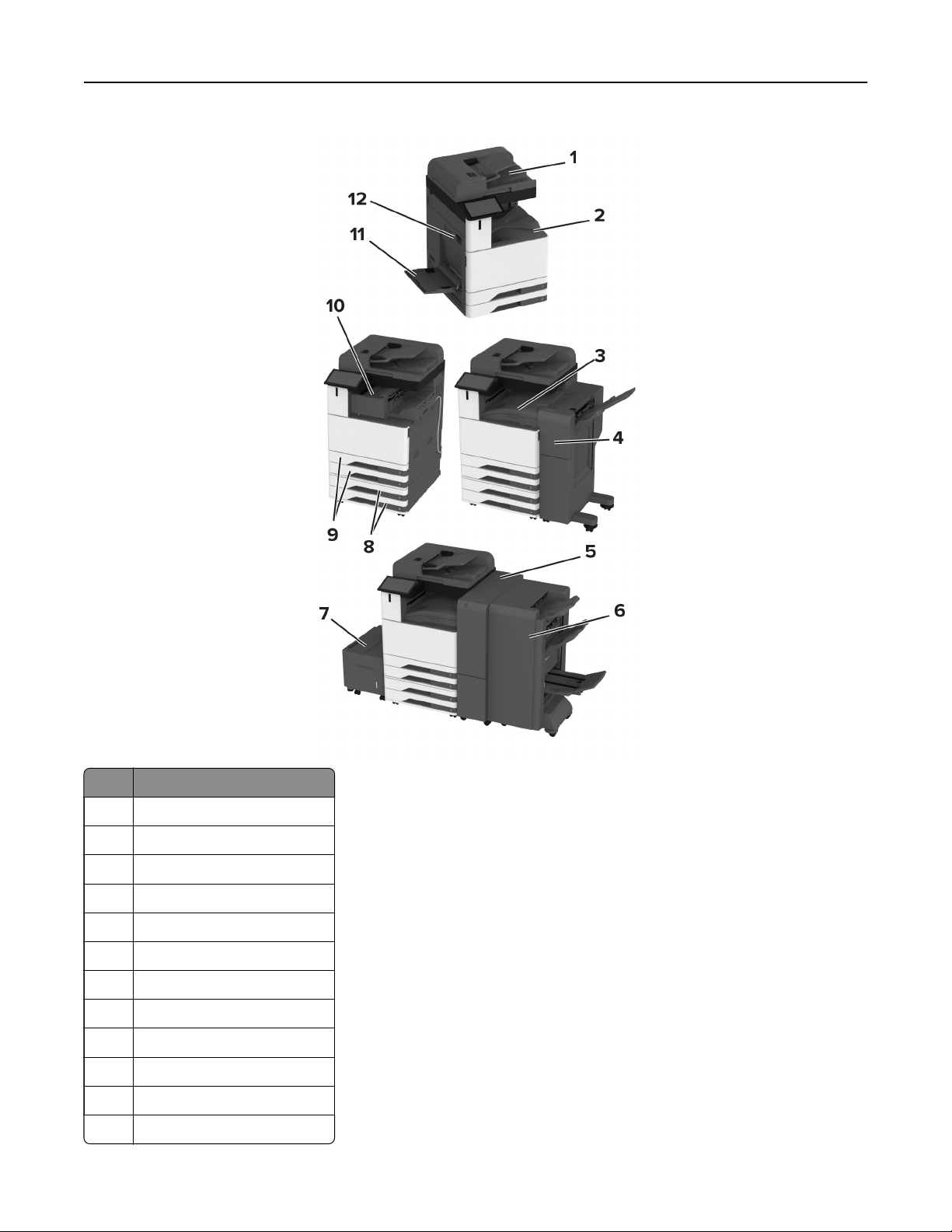
Jam locations
1 Automatic document feeder
2 Standard bin
3 Paper transport
4 Staple, hole punch finisher
5 Trifold/Z-fold finisher
6 Booklet finisher
7 2000-sheet tray
8 Optional trays
9 Standard trays
10 Staple finisher
11 Multipurpose feeder
12 Door A
Troubleshoot a problem 460
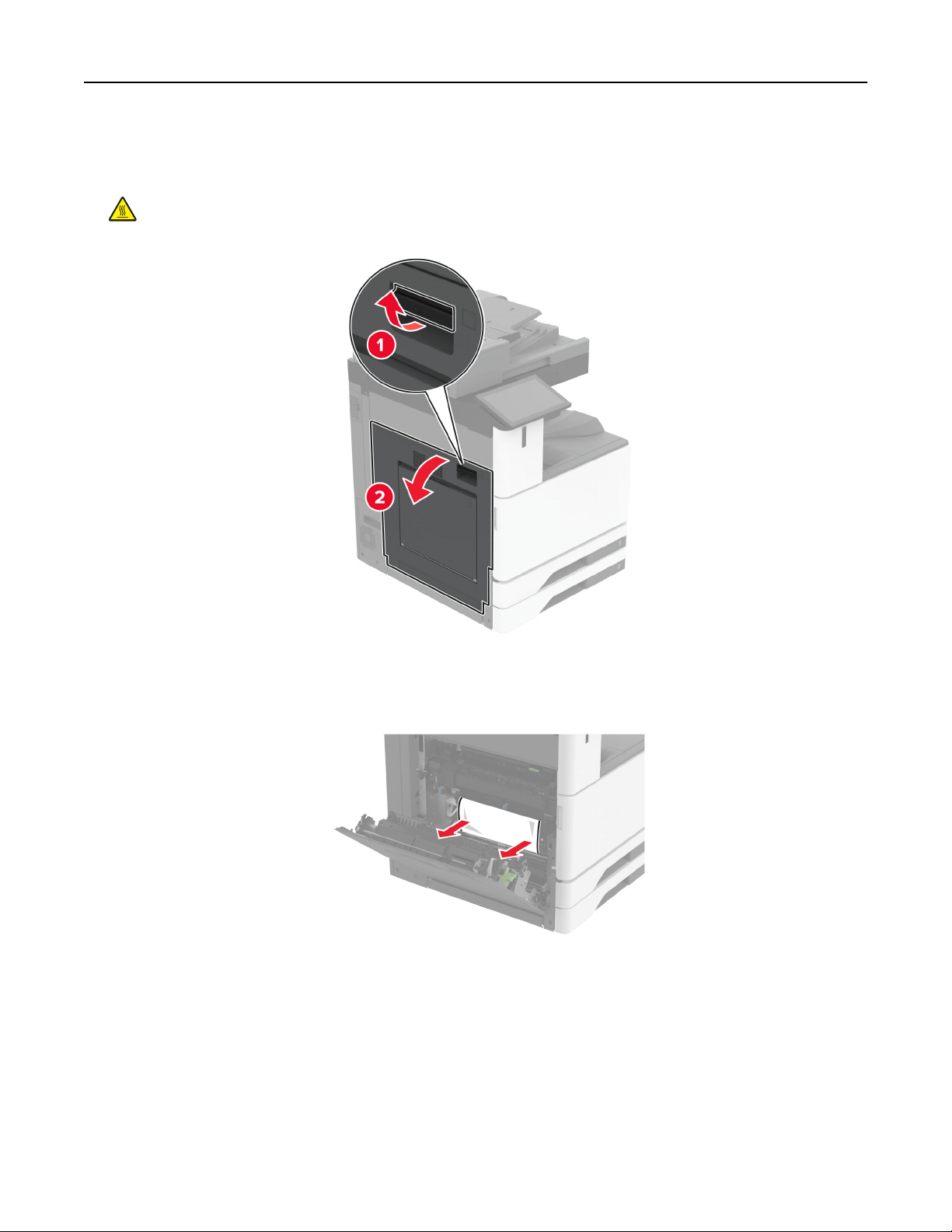
Paper jam in the standard tray
1 Open door A.
CAUTION—HOT SURFACE: The inside of the printer might be hot. To reduce the risk of injury from a
hot component, allow the surface to cool before touching it.
2 Remove the jammed paper.
Note: Make sure that all paper fragments are removed.
Troubleshoot a problem 461
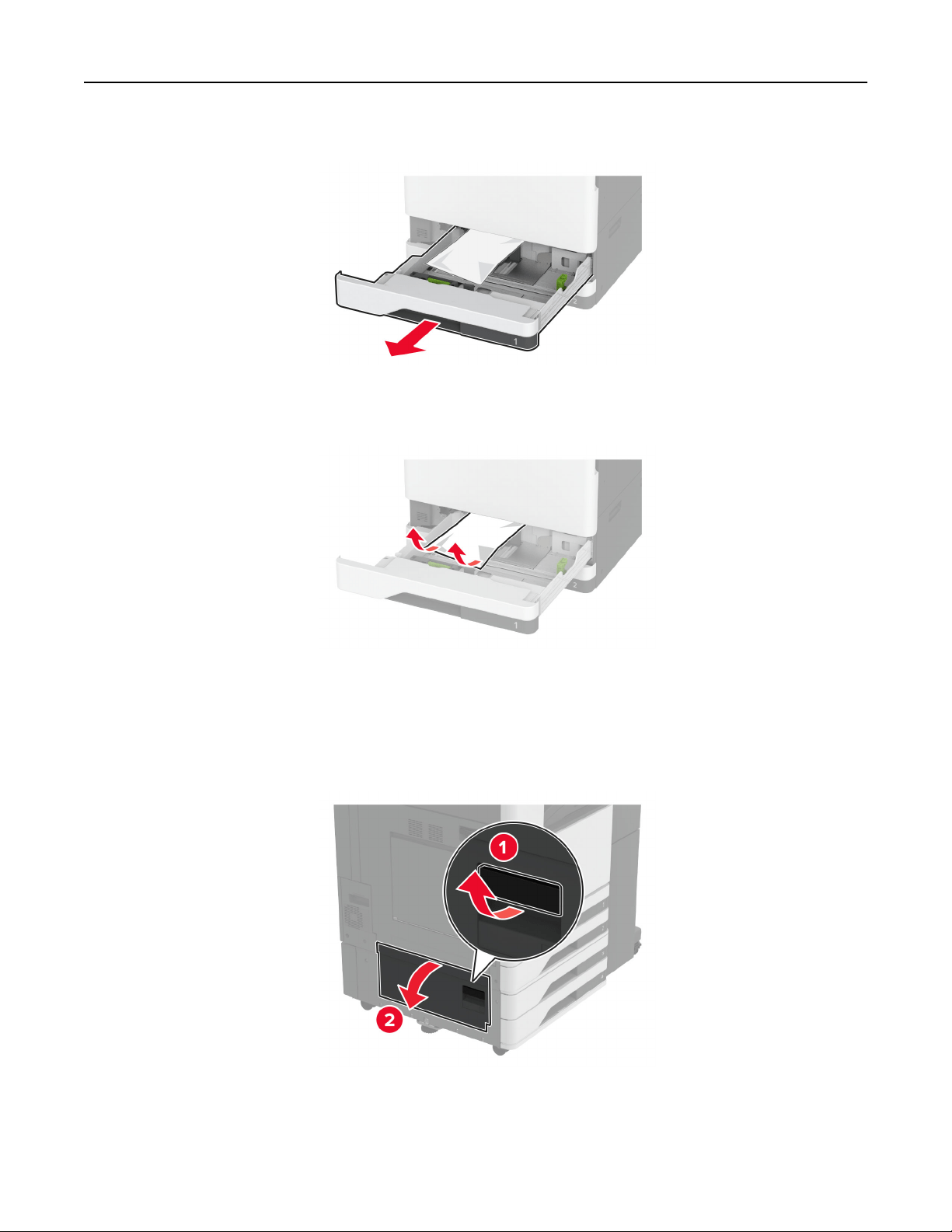
3 Pull out the standard tray.
4 Remove the jammed paper.
Note: Make sure that all paper fragments are removed.
5 Insert the tray, and then close door A.
Paper jam in the optional trays
1 Open door B.
2 Remove the jammed paper.
Note: Make sure that all paper fragments are removed.
Troubleshoot a problem 462
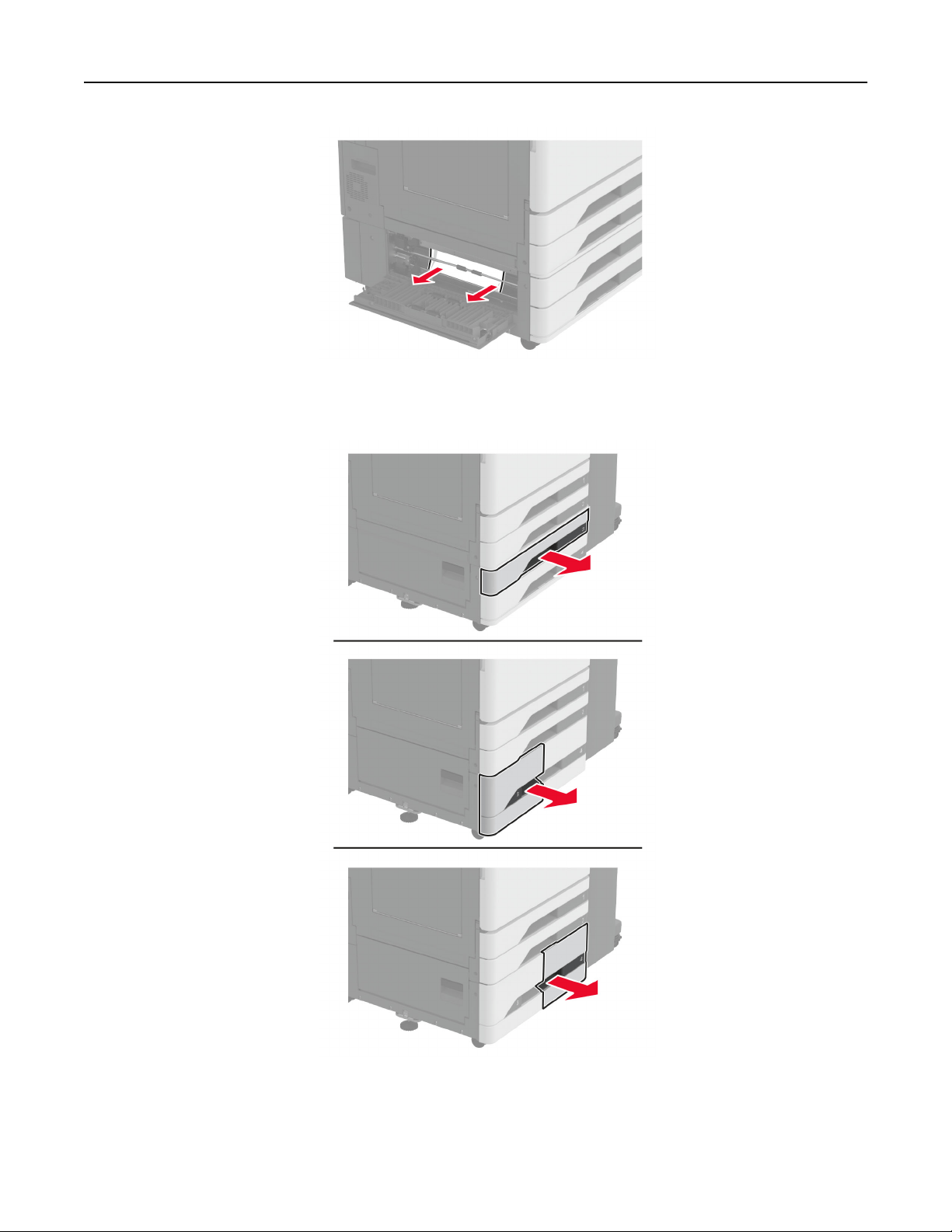
3 Close the door.
4 Pull out the optional 520‑sheet tray or 2000‑sheet tandem tray.
5 Remove the jammed paper.
Note: Make sure that all paper fragments are removed.
Troubleshoot a problem 463
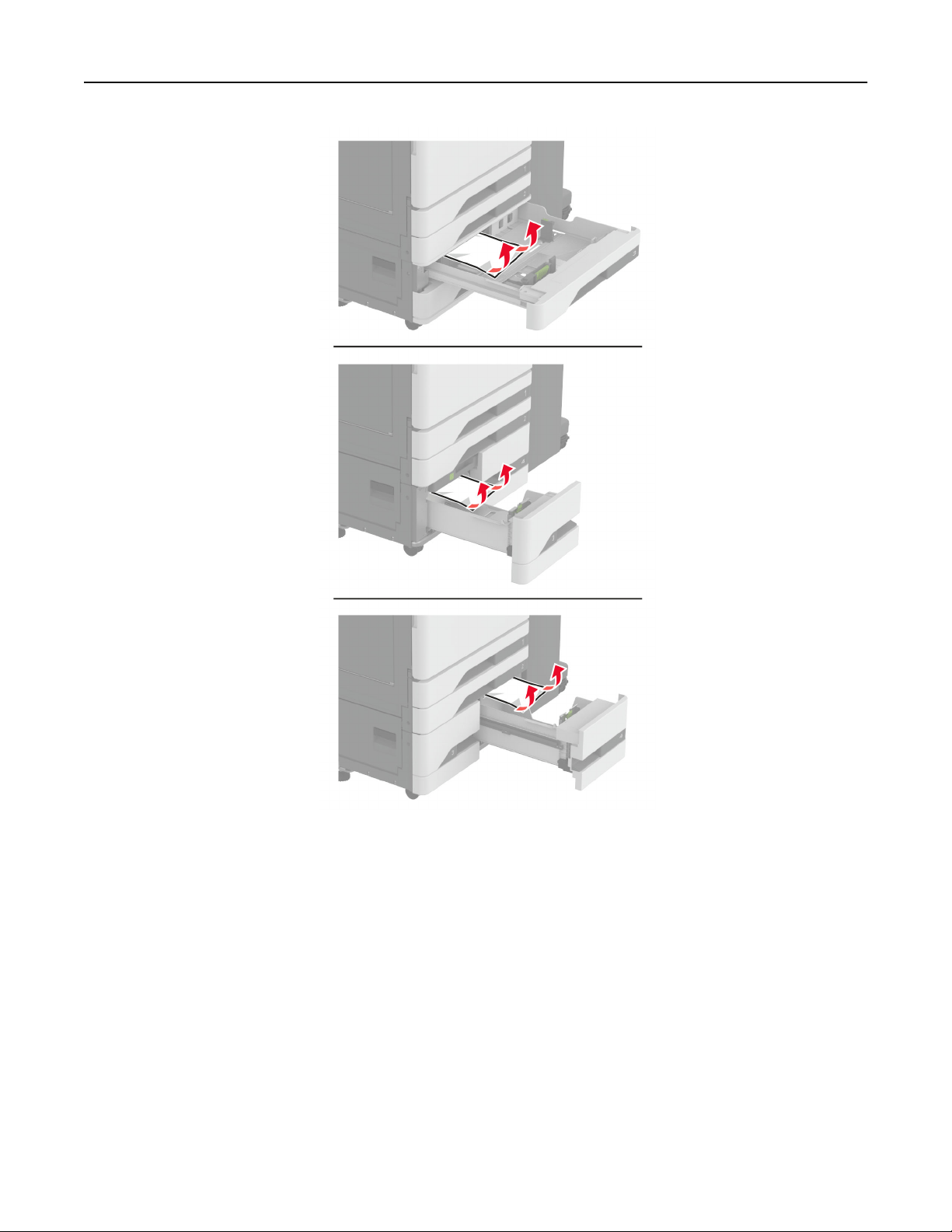
Troubleshoot a problem 464
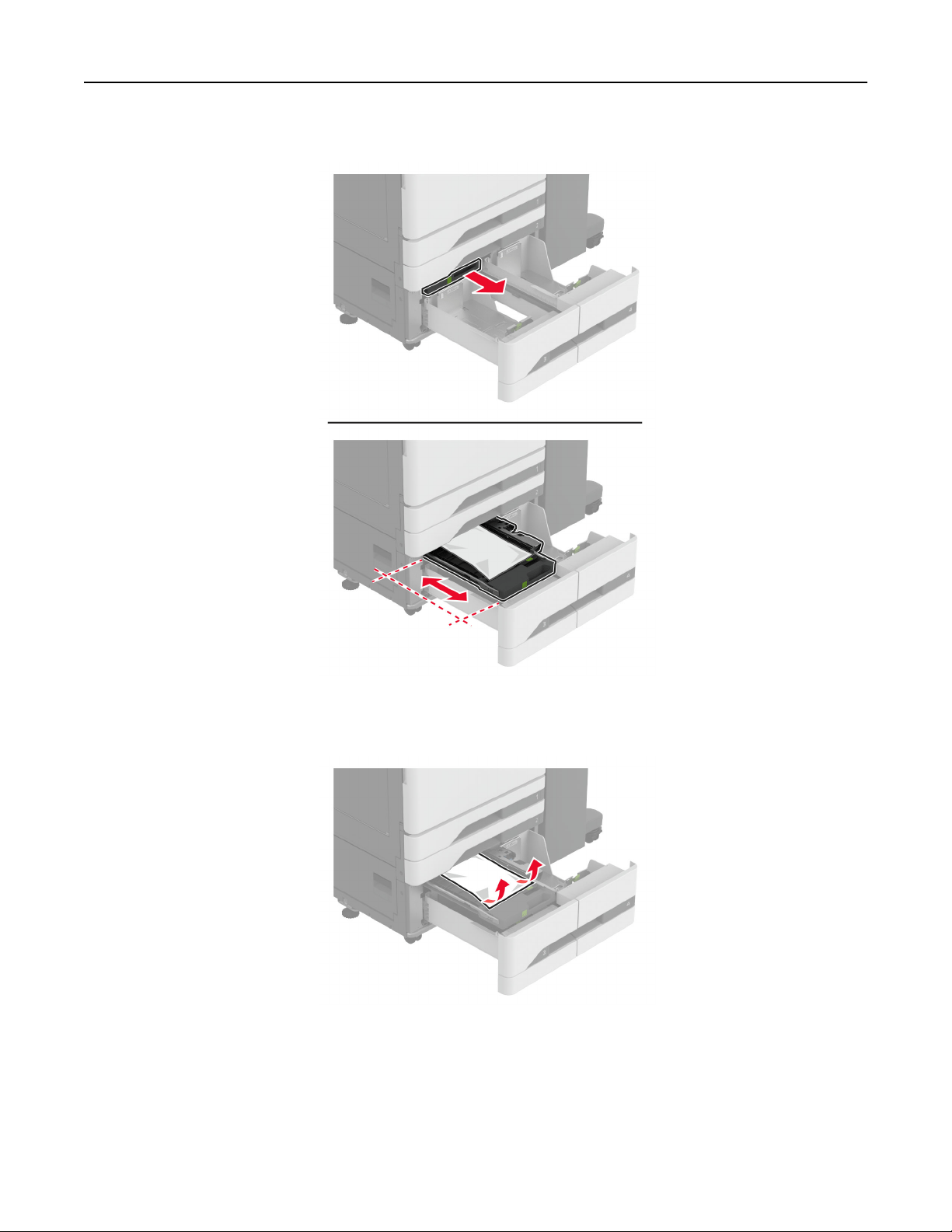
6 In tandem trays, pull out handle C, and then open the inner cover.
7 Remove the jammed paper.
Note: Make sure that all paper fragments are removed.
8 Close the cover, and then insert handle C.
9 Insert the tray.
Troubleshoot a problem 465
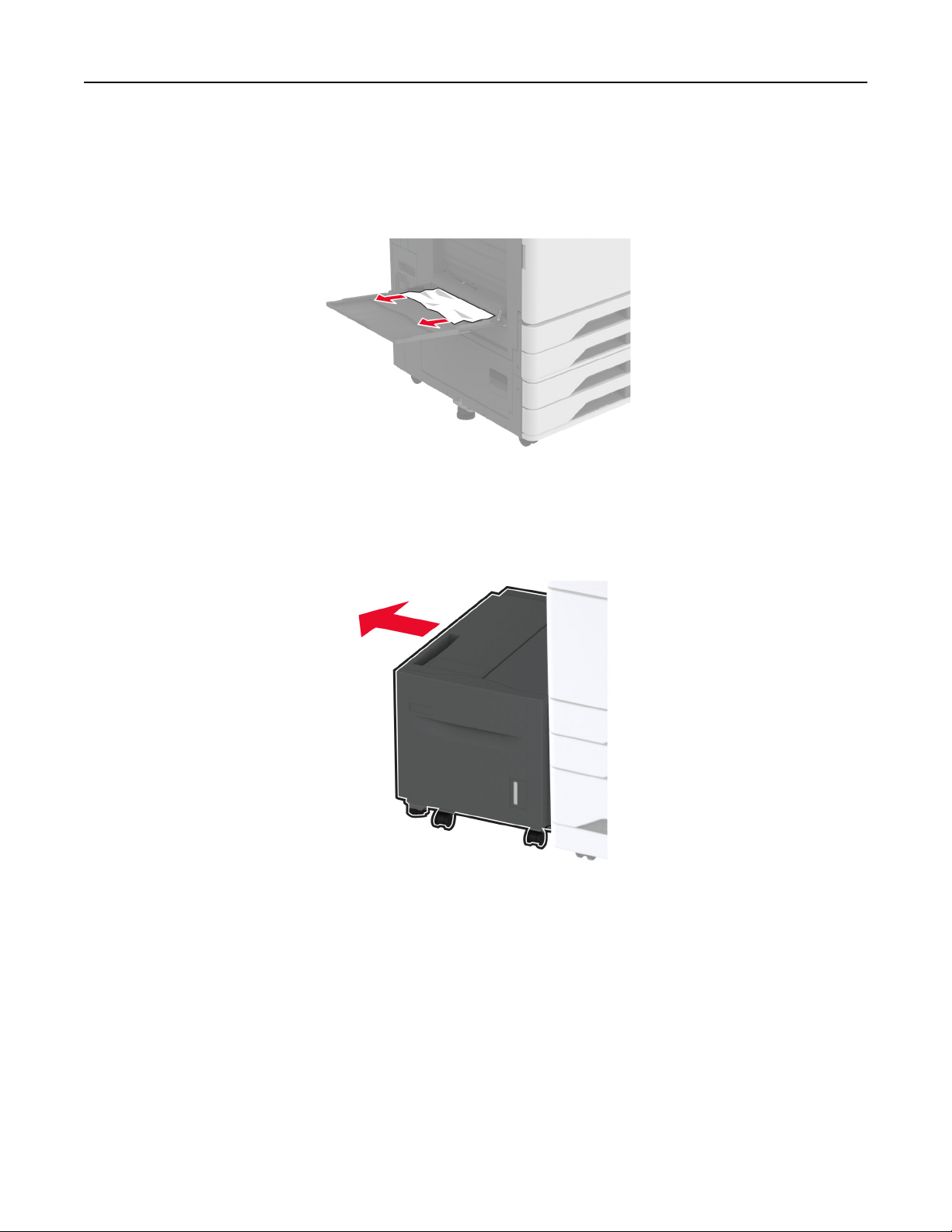
Paper jam in the multipurpose feeder
Remove the jammed paper.
Note: Make sure that all paper fragments are removed.
Paper jam in the 2000‑sheet tray
1 Slide the tray to the left.
2 Open door J, and then remove the jammed paper.
Note: Make sure that all paper fragments are removed.
Troubleshoot a problem 466
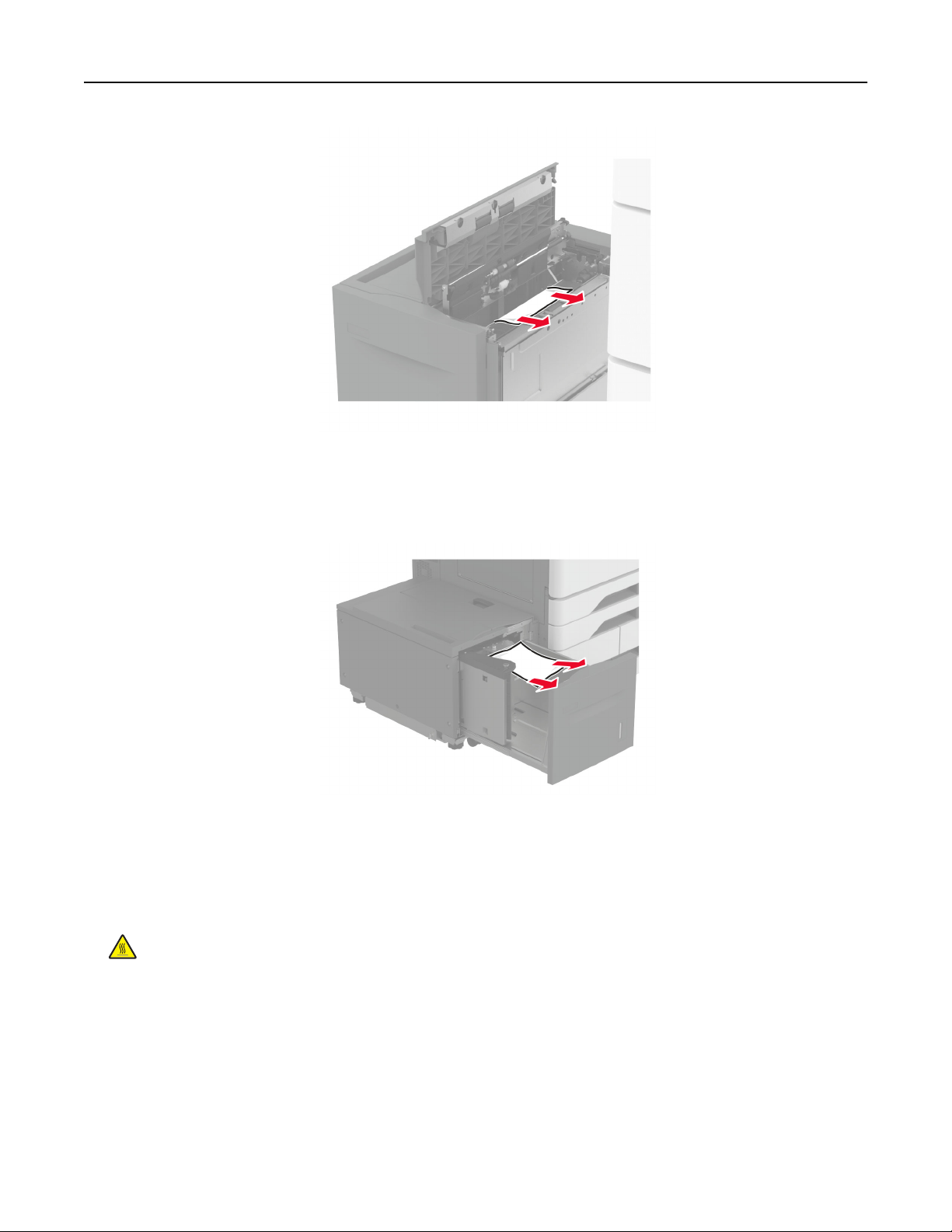
3 Close the door, and then slide the tray back into place.
4 Pull out the tray insert, and then remove the jammed paper.
Note: Make sure that all paper fragments are removed.
5 Push the tray insert back into place.
Paper jam in door A
1 Open door A.
CAUTION—HOT SURFACE: The inside of the printer might be hot. To reduce the risk of injury from a
hot component, allow the surface to cool before touching it.
Troubleshoot a problem 467
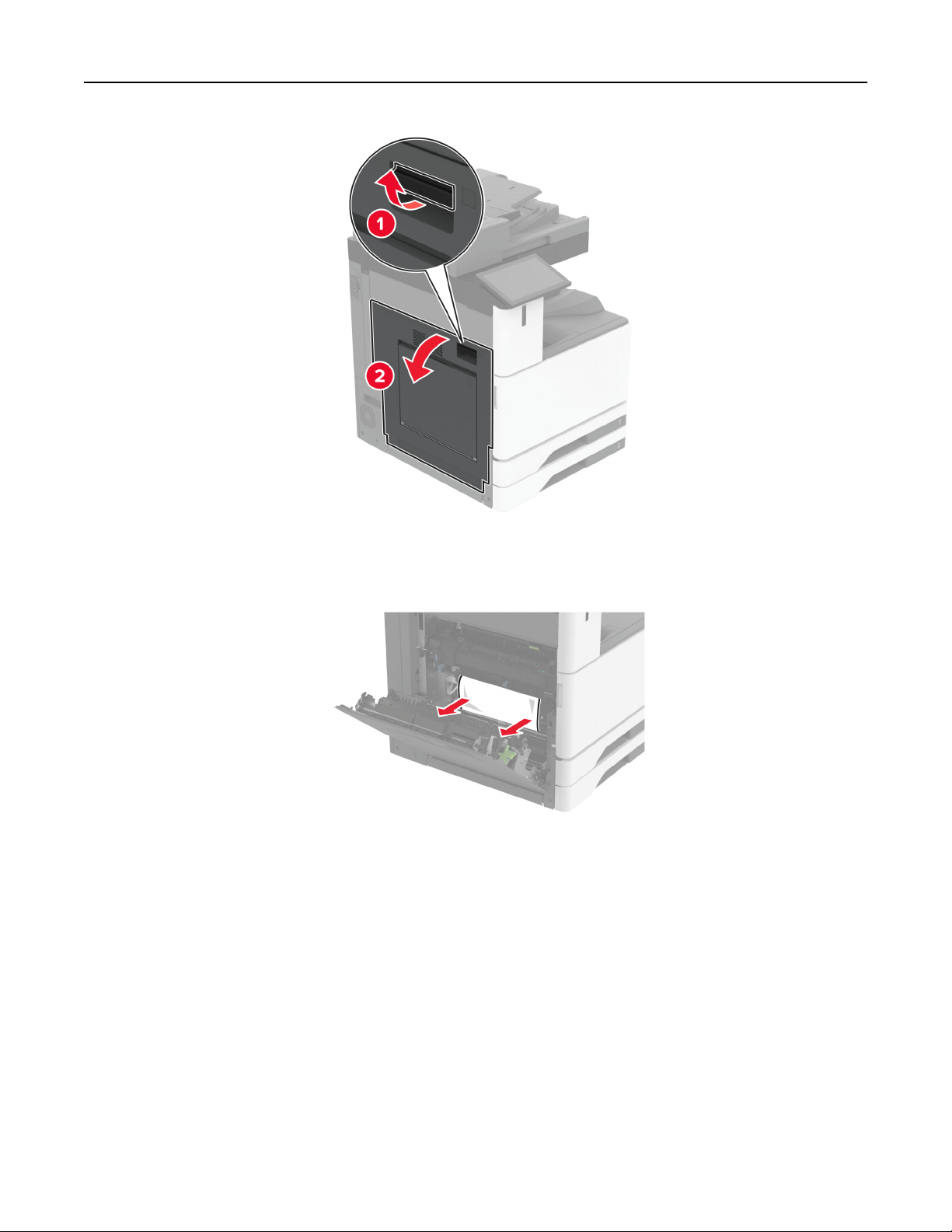
2 Remove the jammed paper.
Note: Make sure that all paper fragments are removed.
3 Open door A2, and then remove the jammed paper.
Note: Make sure that all paper fragments are removed.
Troubleshoot a problem 468
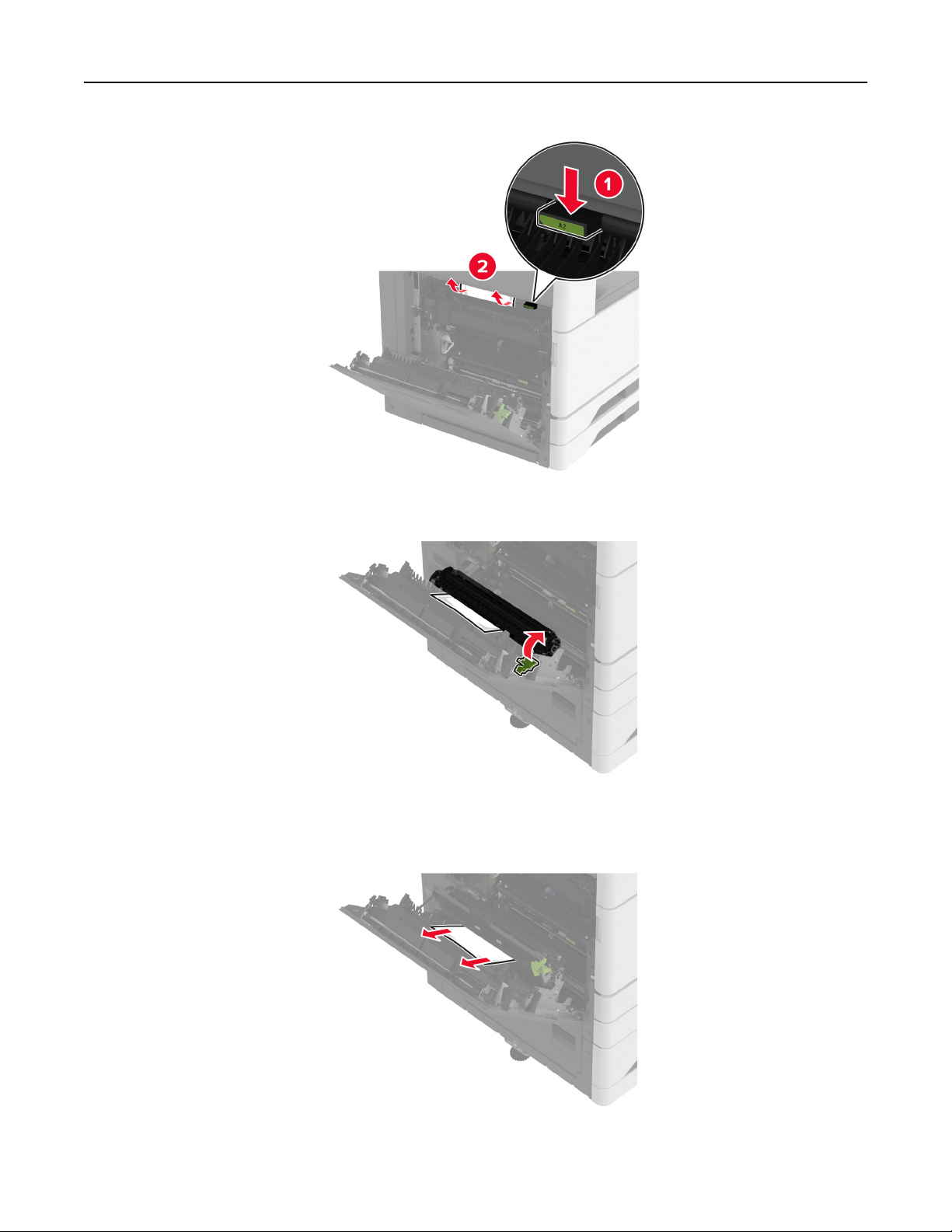
4 Lift door A3.
5 Remove the jammed paper.
Note: Make sure that all paper fragments are removed.
6 Close door A2, and then close door A.
Troubleshoot a problem 469
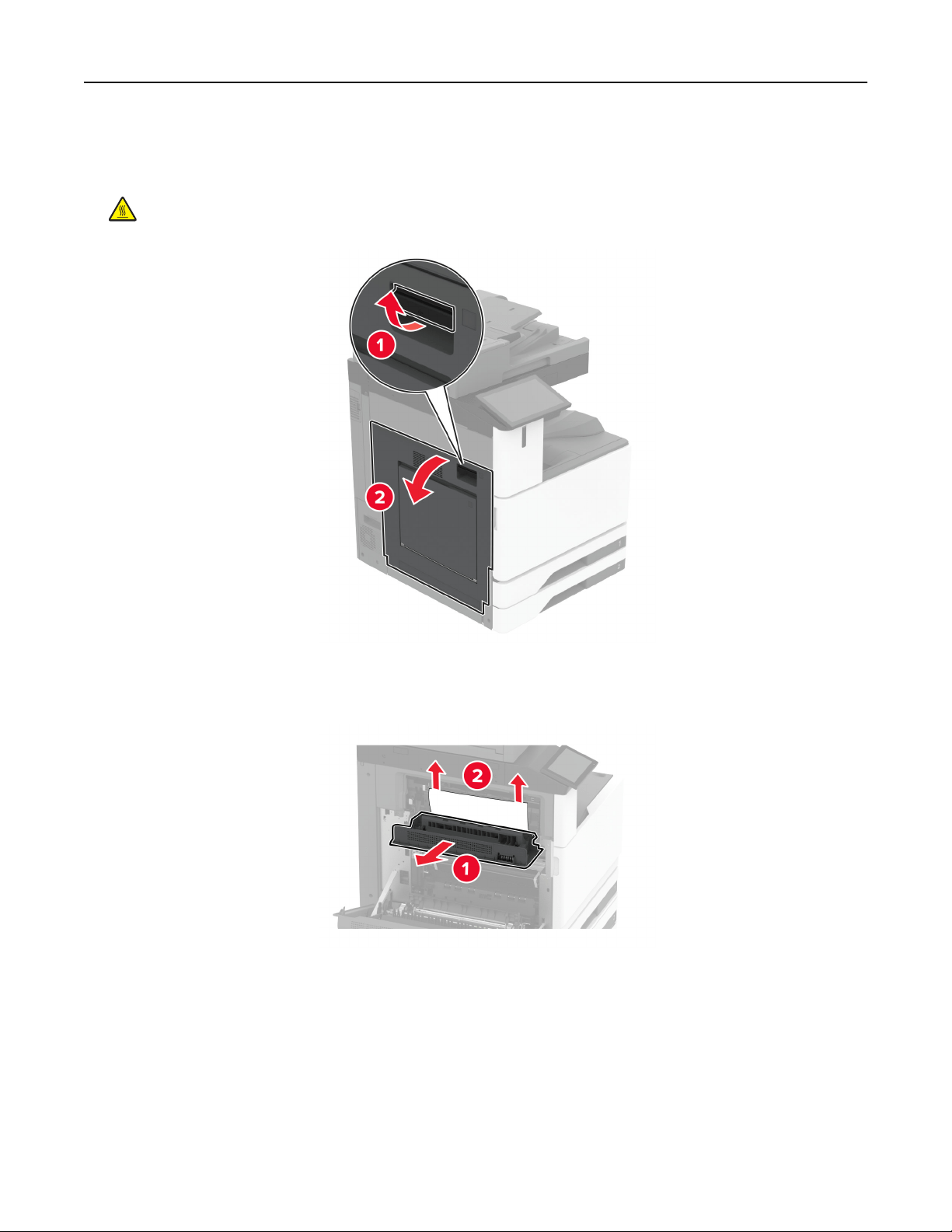
Paper jam in the standard bin
1 Open door A.
CAUTION—HOT SURFACE: The inside of the printer might be hot. To reduce the risk of injury from a
hot component, allow the surface to cool before touching it.
2 Open door C, and then remove the jammed paper.
Note: Make sure that all paper fragments are removed.
3 Close door C, and then close door A.
4 Removed jammed paper from the standard bin.
Note: Make sure that all paper fragments are removed.
Troubleshoot a problem 470
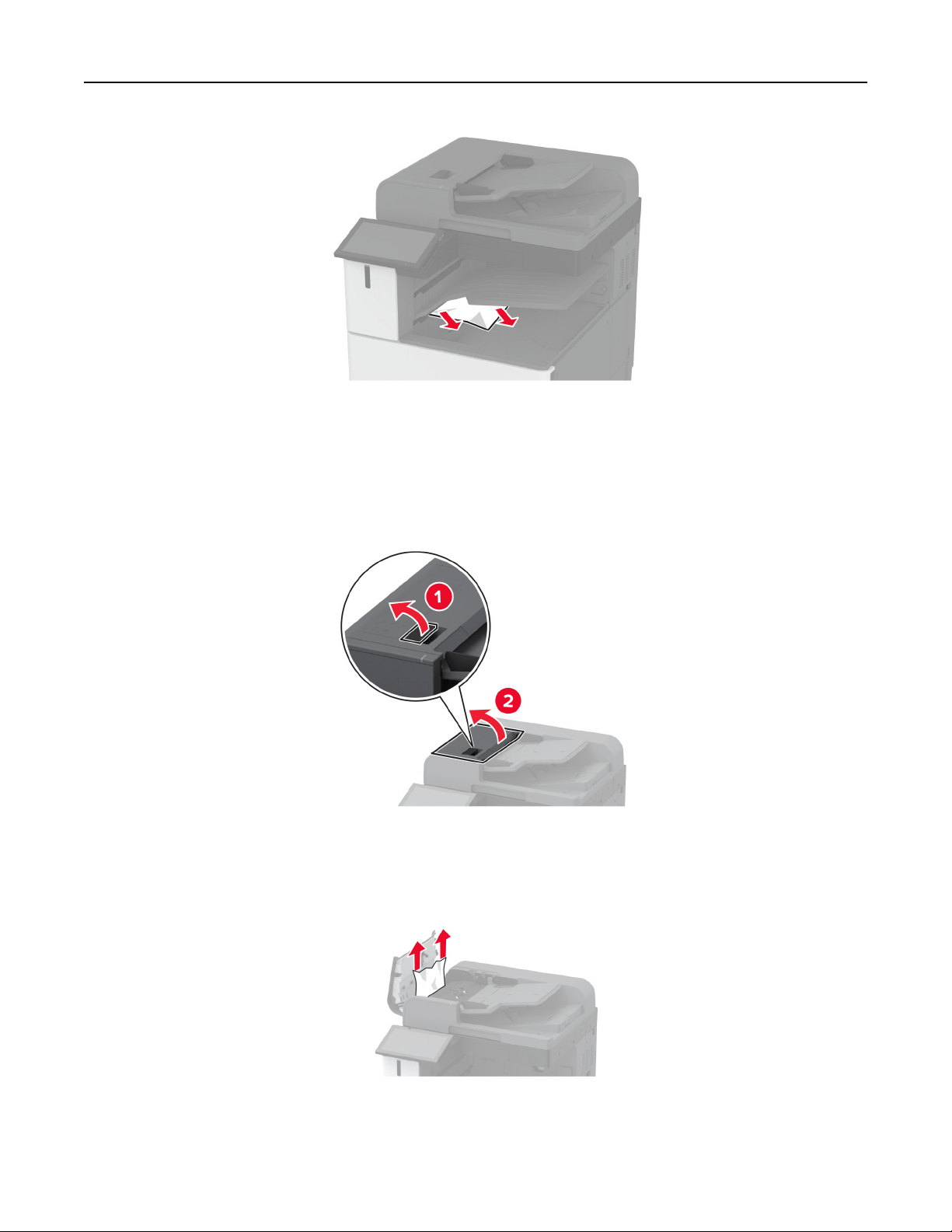
Paper jam in the automatic document feeder
1 Remove all original documents from the ADF tray.
2 Open the ADF cover.
3 Remove the jammed paper.
Note: Make sure that all paper fragments are removed.
4 Close the ADF cover.
Troubleshoot a problem 471
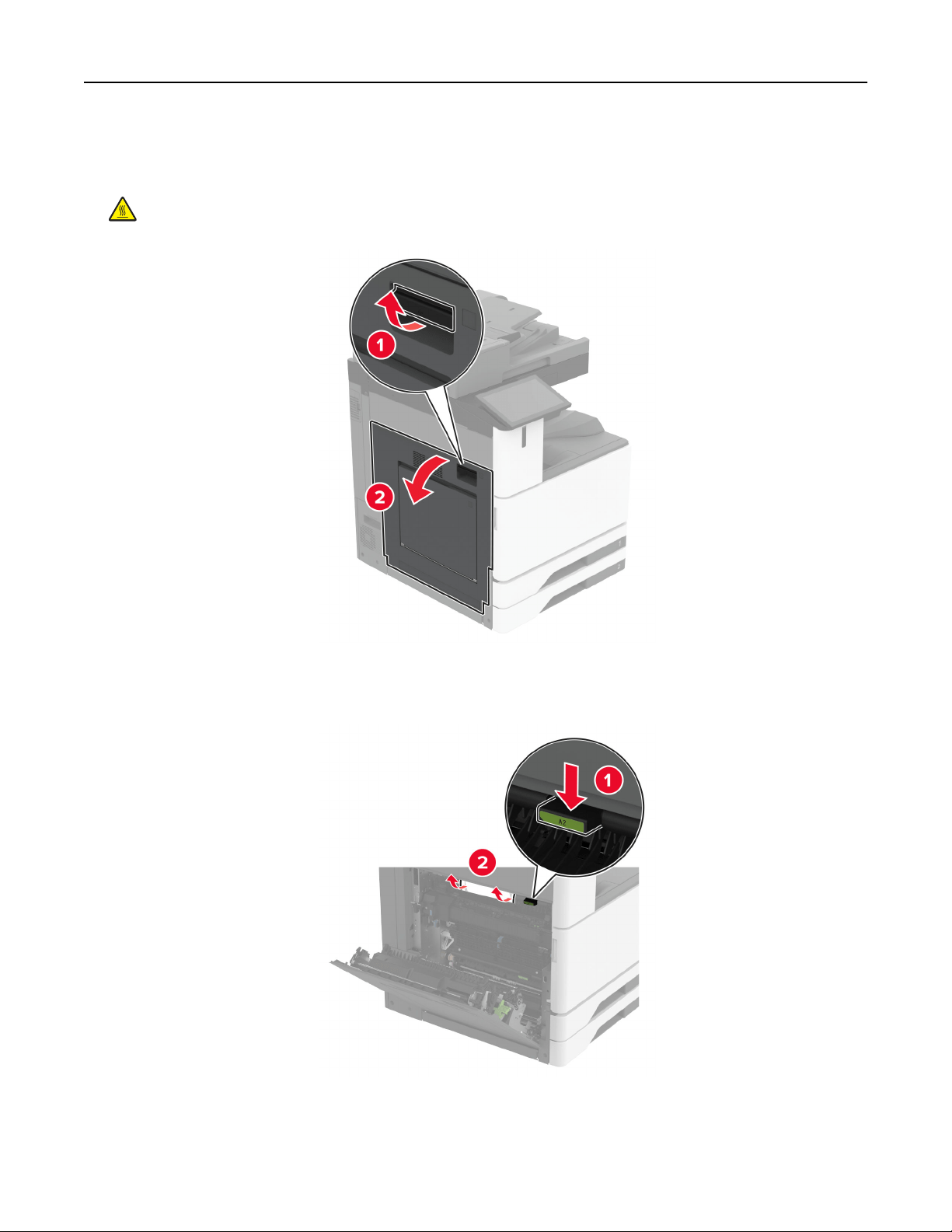
Paper jam in the staple finisher
1 Open door A.
CAUTION—HOT SURFACE: The inside of the printer might be hot. To reduce the risk of injury from a
hot component, allow the surface to cool before touching it.
2 Open door A1, and then remove the jammed paper.
Note: Make sure that all paper fragments are removed.
3 Close door A1, and then close door A.
4 Open the finisher top cover, and then remove the jammed paper.
Troubleshoot a problem 472
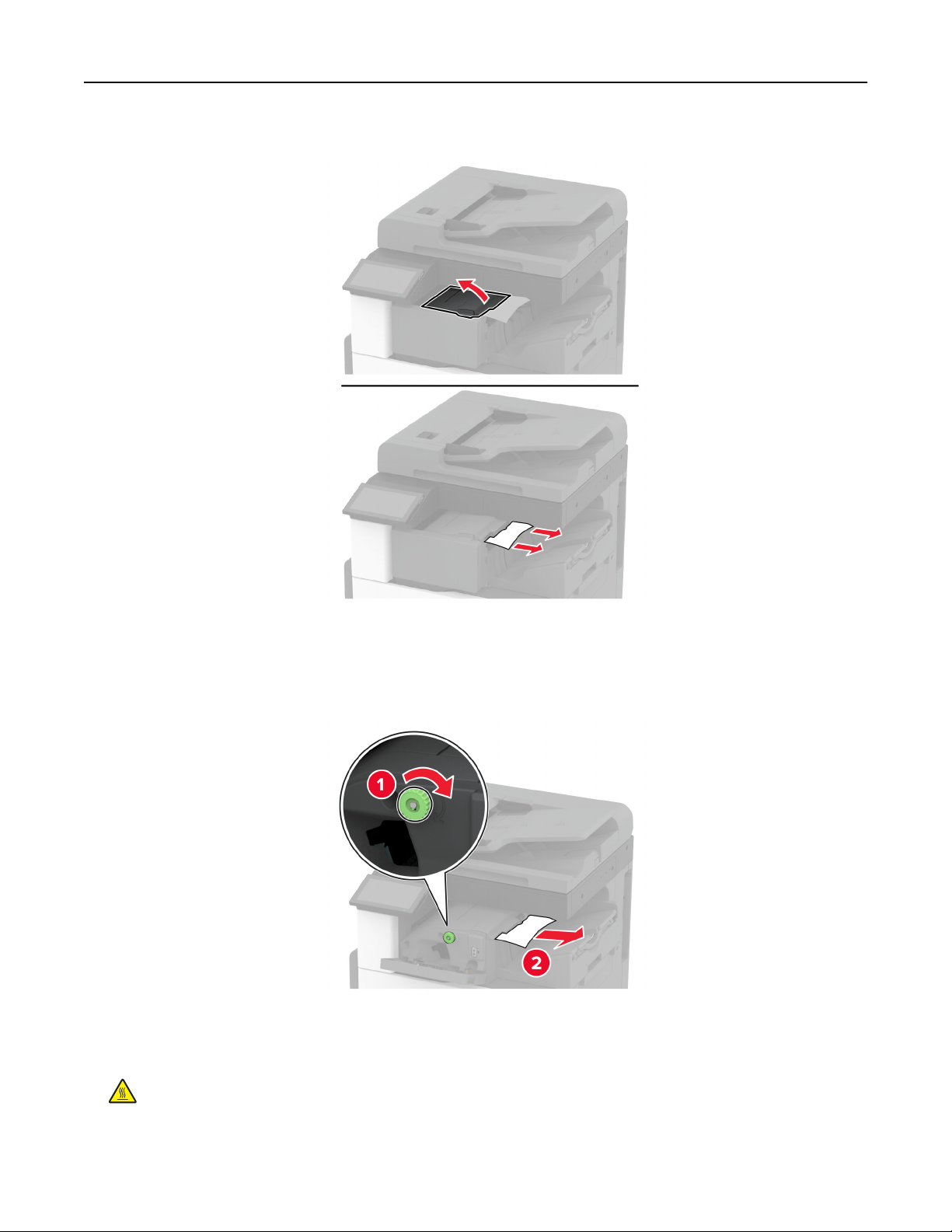
Note: Make sure that all paper fragments are removed.
5 Close the cover.
6 Open the finisher front cover, turn the knob, and then remove the jammed paper.
Note: Make sure that all paper fragments are removed.
7 Close the cover.
8 Open door A.
CAUTION—HOT SURFACE: The inside of the printer might be hot. To reduce the risk of injury from a
hot component, allow the surface to cool before touching it.
Troubleshoot a problem 473
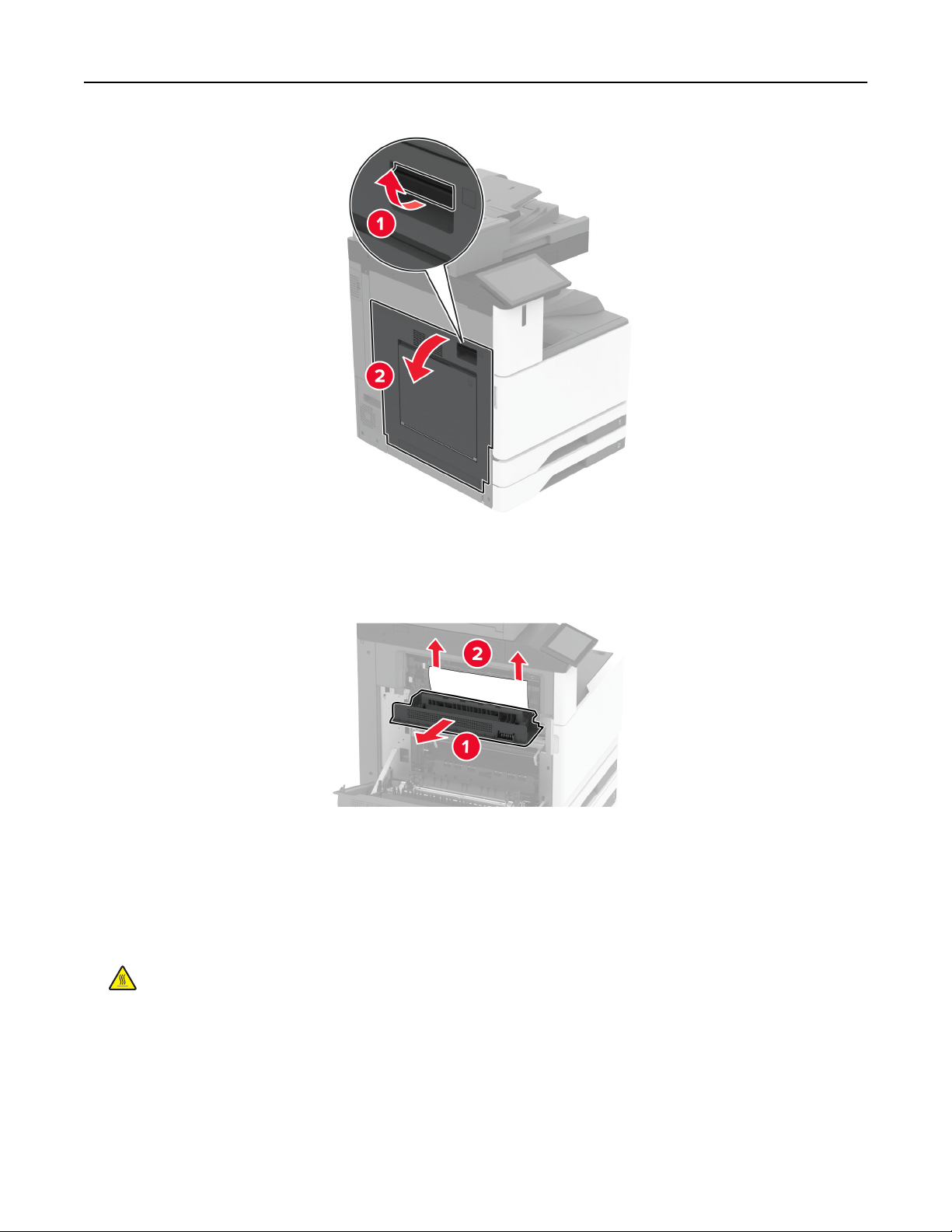
9 Open door C, and then remove the jammed paper.
Note: Make sure that all paper fragments are removed.
10 Close door C, and then close door A.
Paper jam in the staple, hole punch
finisher
1 Open door A.
CAUTION—HOT SURFACE: The inside of the printer might be hot. To reduce the risk of injury from a
hot component, allow the surface to cool before touching it.
Troubleshoot a problem 474
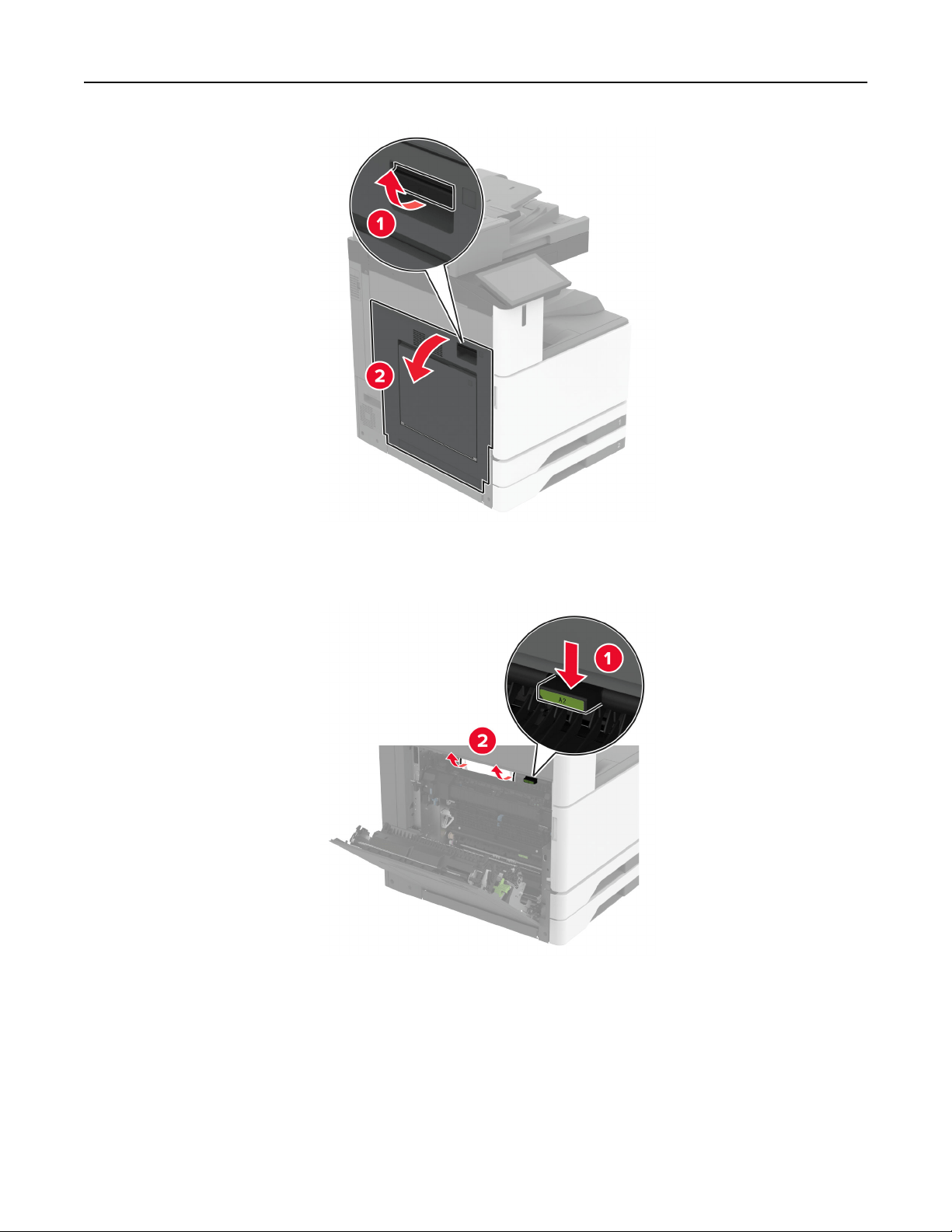
2 Open door A1, and then remove the jammed paper.
Note: Make sure that all paper fragments are removed.
3 Close door A1, and then close door A.
4 Lift the paper transport cover F, and then remove the jammed paper.
Note: Make sure that all paper fragments are removed.
Troubleshoot a problem 475
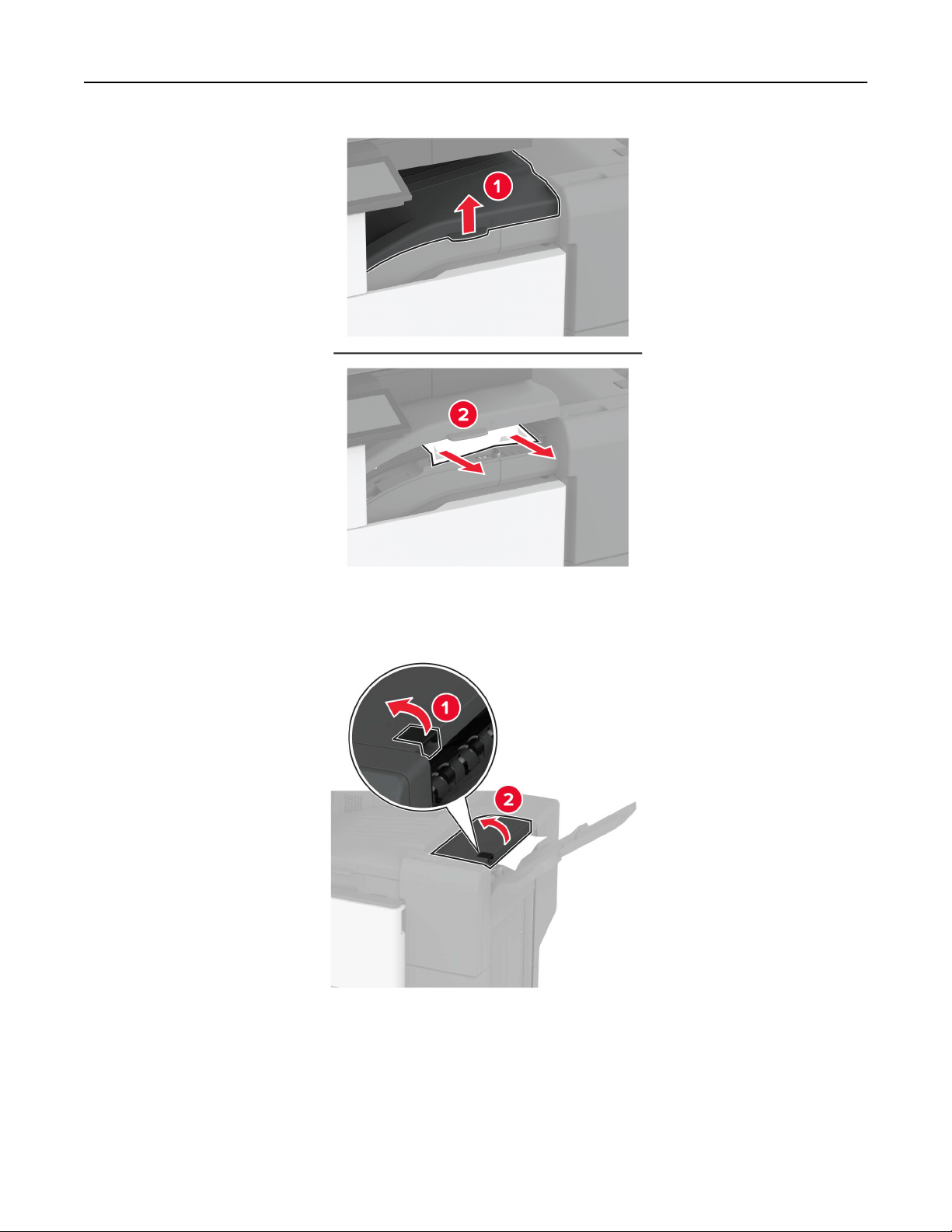
5 Close the paper transport cover.
6 Pull the lever on the staple, hole punch finisher, and then lift the cover.
7 Remove the jammed paper.
Note: Make sure that all paper fragments are removed.
Troubleshoot a problem 476
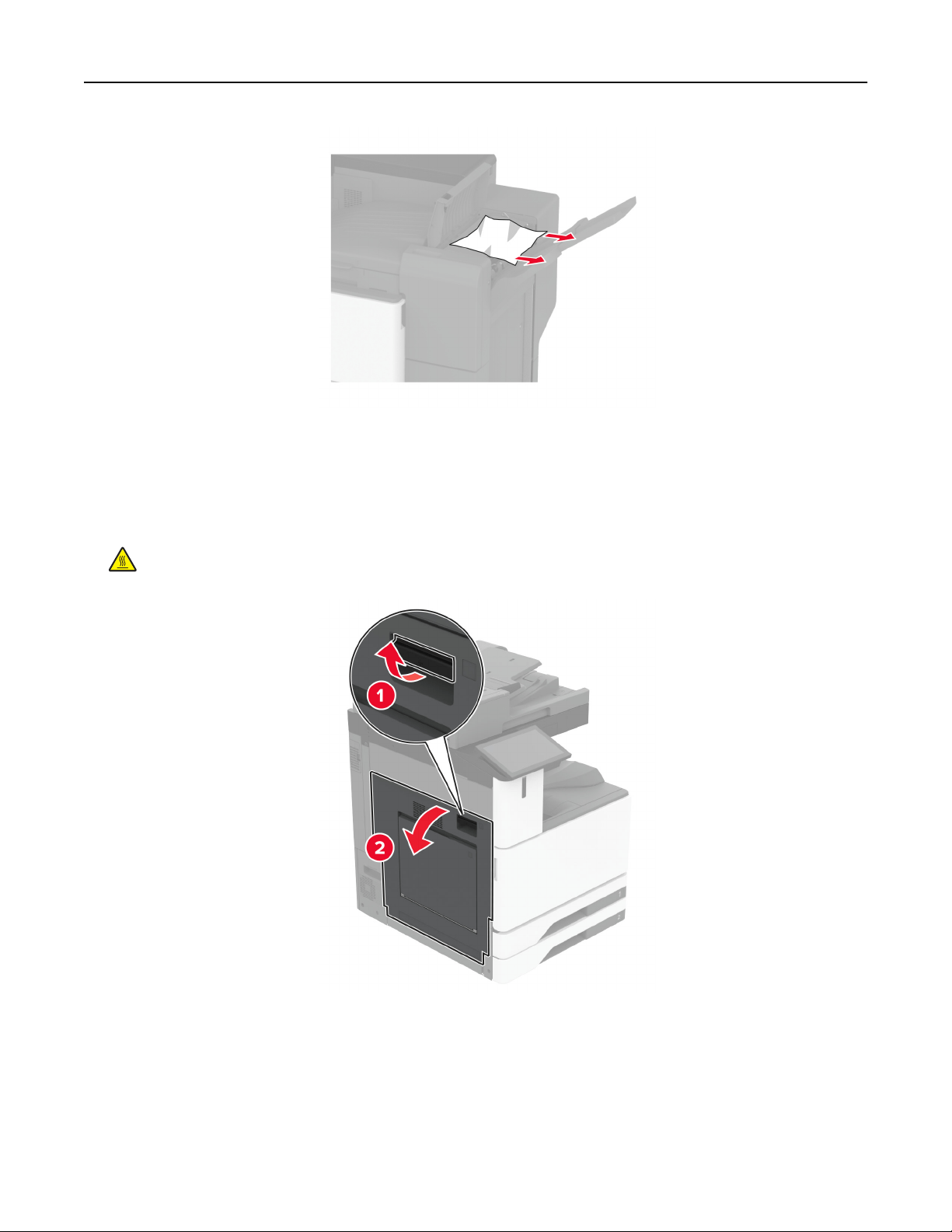
8 Close the finisher cover.
Paper jam in the trifold/Z
‑fold finisher
1 Open door A.
CAUTION—HOT SURFACE: The inside of the printer might be hot. To reduce the risk of injury from a
hot component, allow the surface to cool before touching it.
2 Open door A1, and then remove the jammed paper.
Note: Make sure that all paper fragments are removed.
Troubleshoot a problem 477
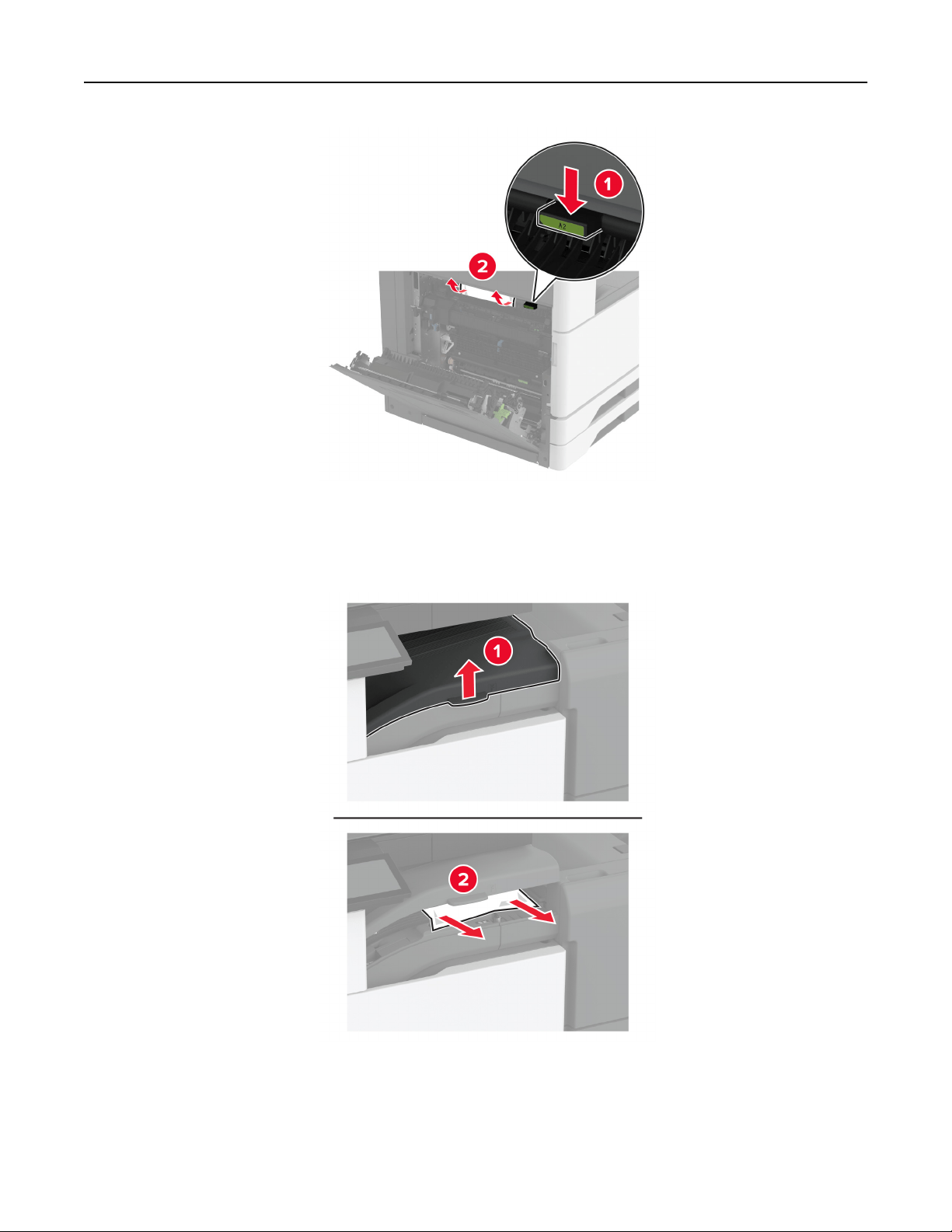
3 Close door A1, and then close door A.
4 Lift the paper transport cover F, and then remove the jammed paper.
Note: Make sure that all paper fragments are removed.
5 Close the cover.
Troubleshoot a problem 478
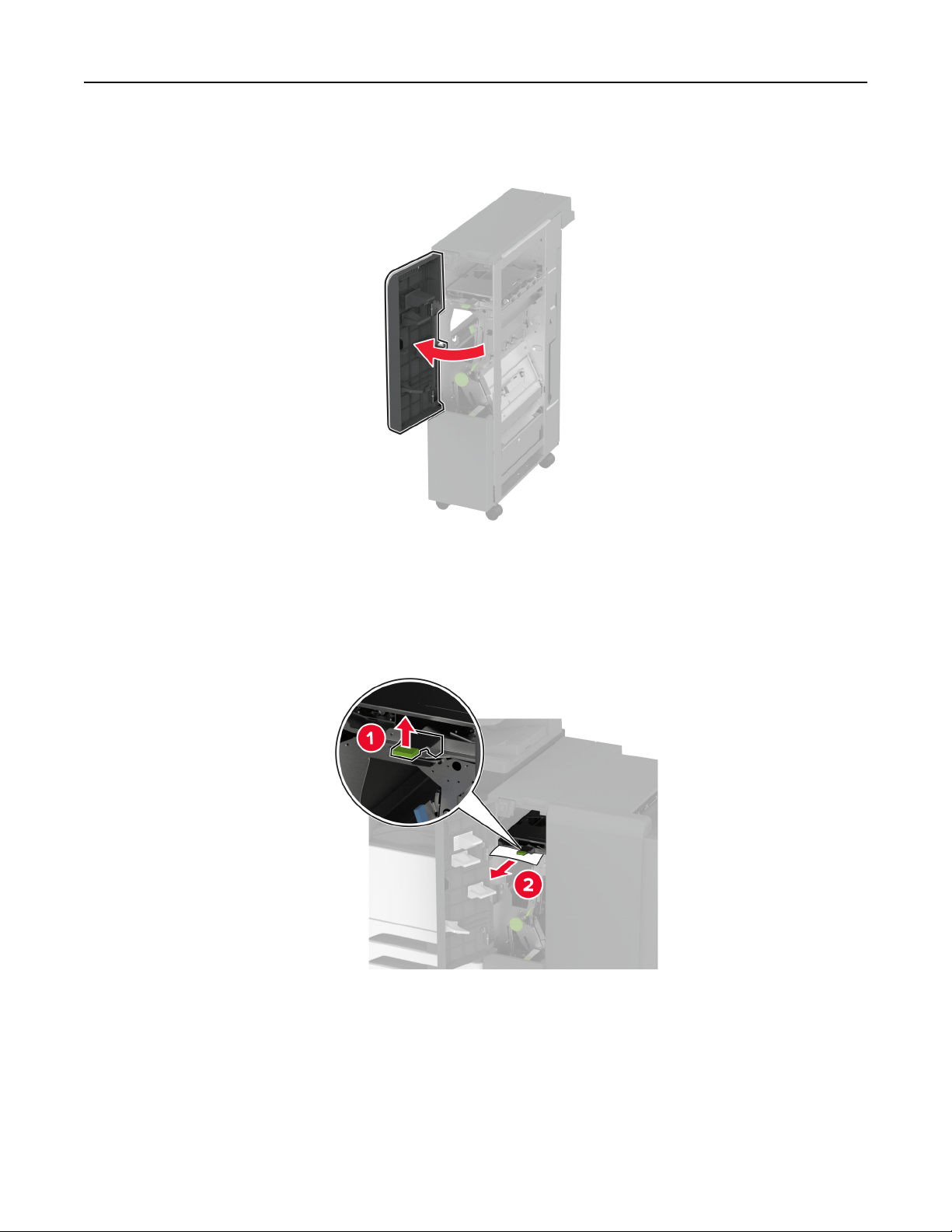
6 Open the trifold/Z‑fold finisher door.
7 Remove the jammed paper from any of the following locations.
Note: Make sure that all paper fragments are removed.
• Handle 2A
Note: Make sure to return the handle to its original position.
Troubleshoot a problem 479
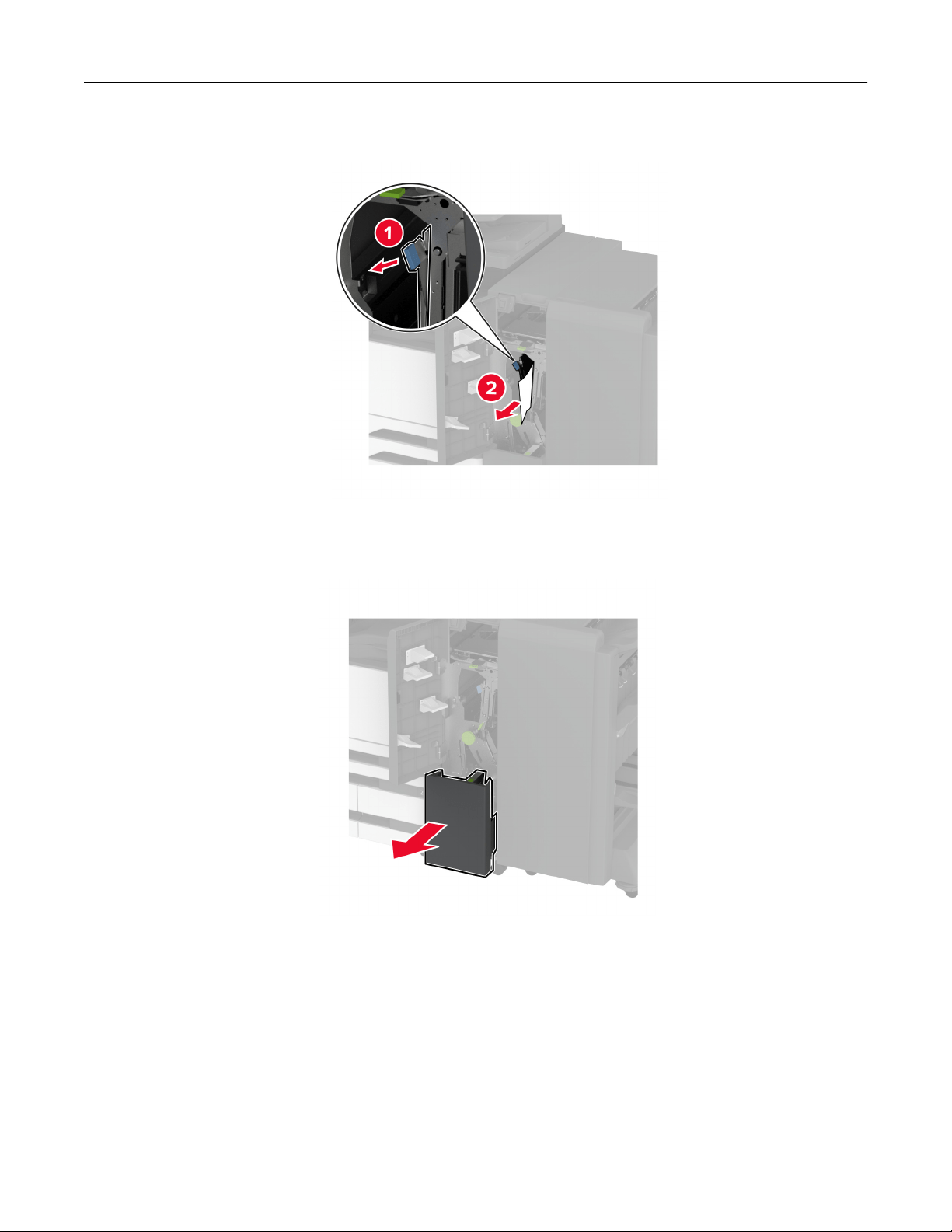
• Handle 2B
Note: Make sure to return the handle to its original position.
8 Pull out the finisher bin.
9 Remove the jammed paper from any of the following locations.
Note: Make sure that all paper fragments are removed.
Troubleshoot a problem 480
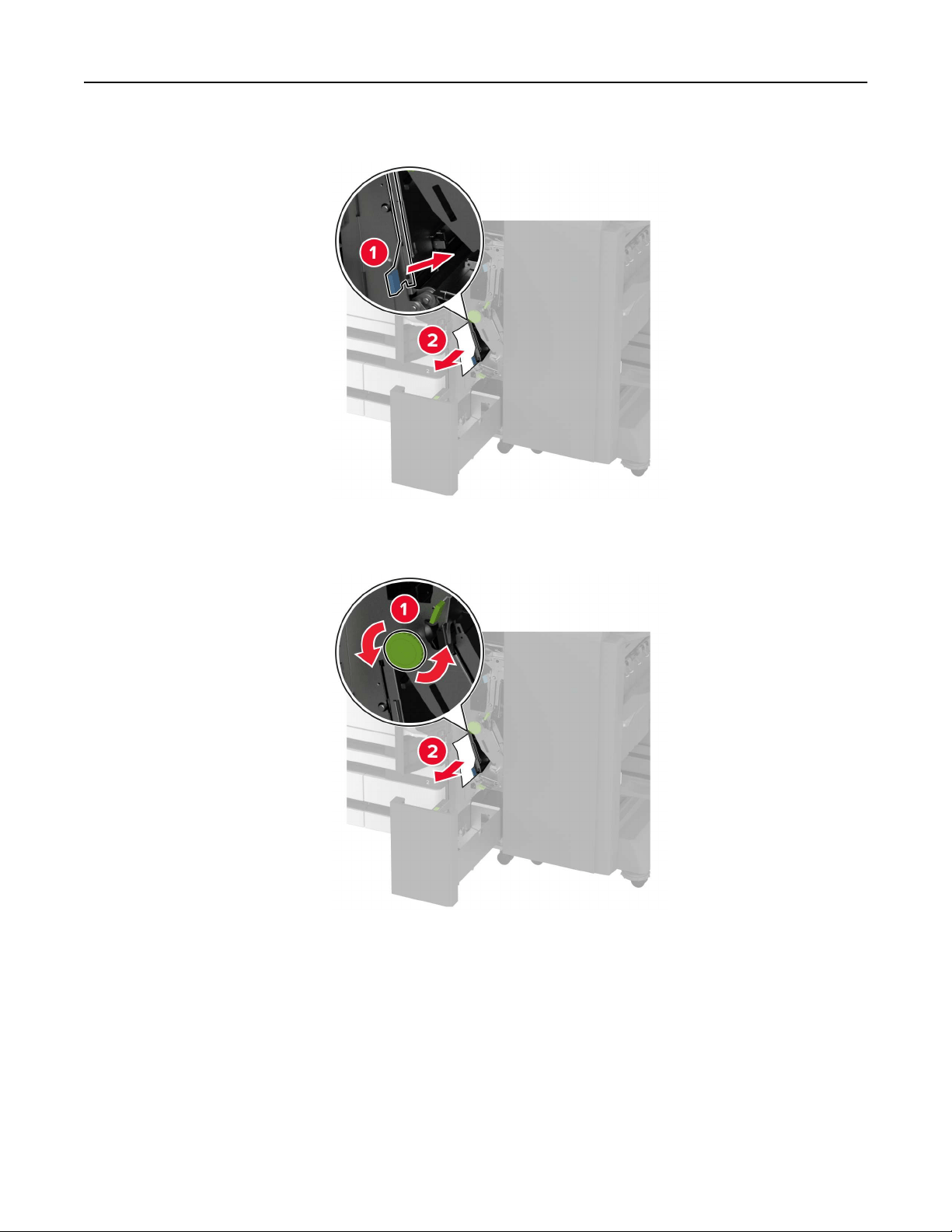
• Handle 2E
Note: Make sure to return the handle to its original position.
• Knob 2C
Troubleshoot a problem 481
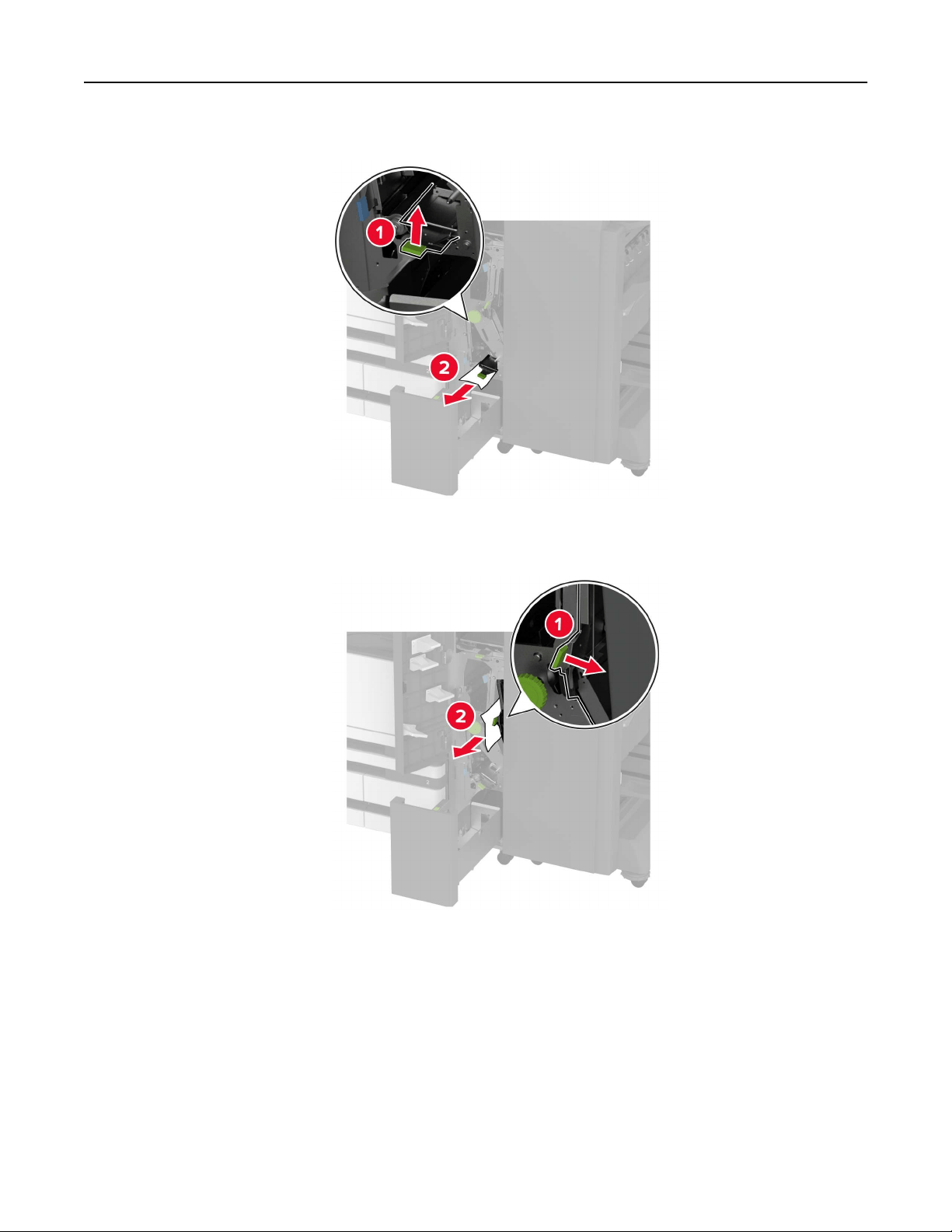
• Handle 2F
Note: Make sure to return the handle to its original position.
• Handle 2G
Note: Make sure to return the handle to its original position.
10 Push the finisher bin back into place, and then close the trifold/Z‑fold finisher door.
Troubleshoot a problem 482
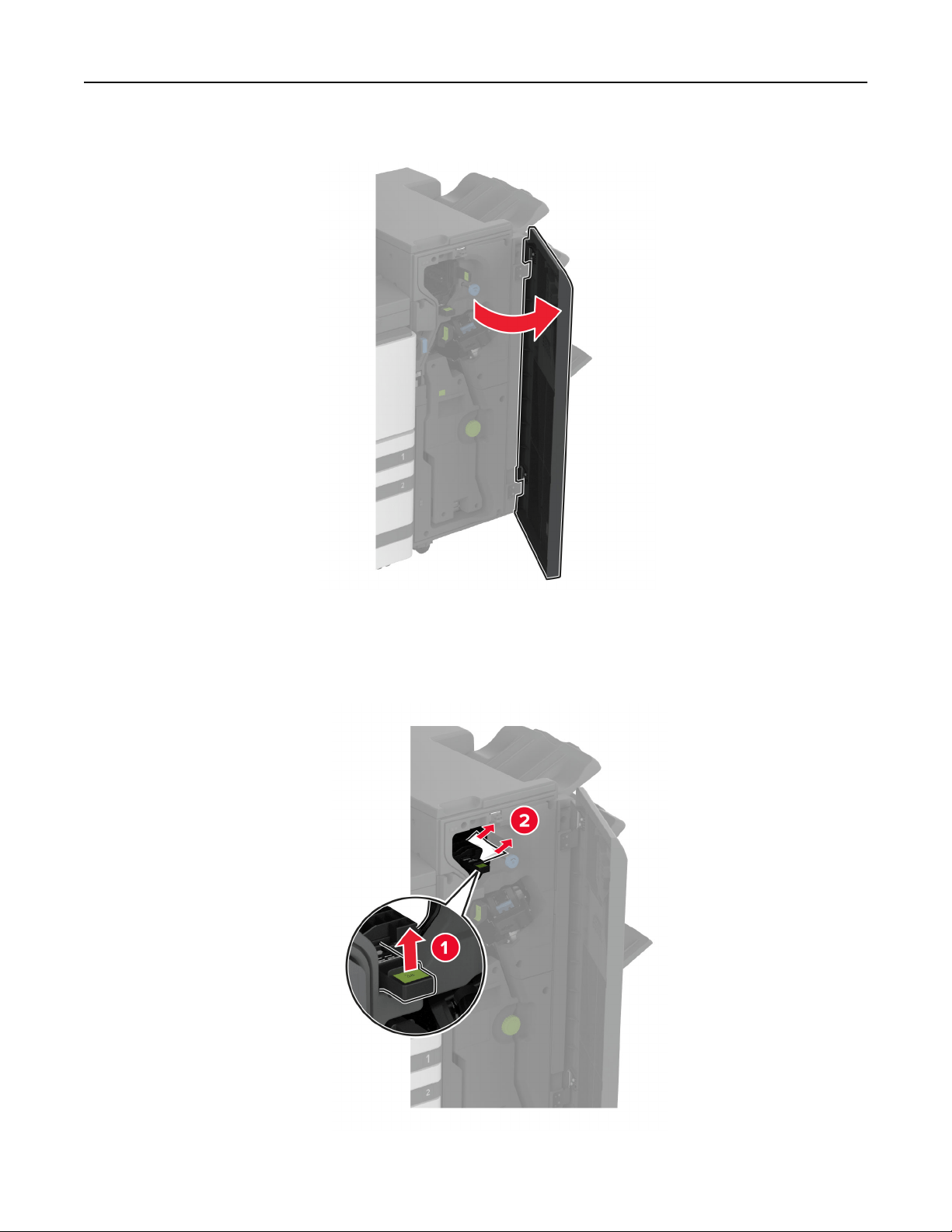
11 Open the booklet finisher door.
12 Remove the jammed paper from any of the following locations.
Note: Make sure that all paper fragments are removed.
• Handle 3A
Troubleshoot a problem 483
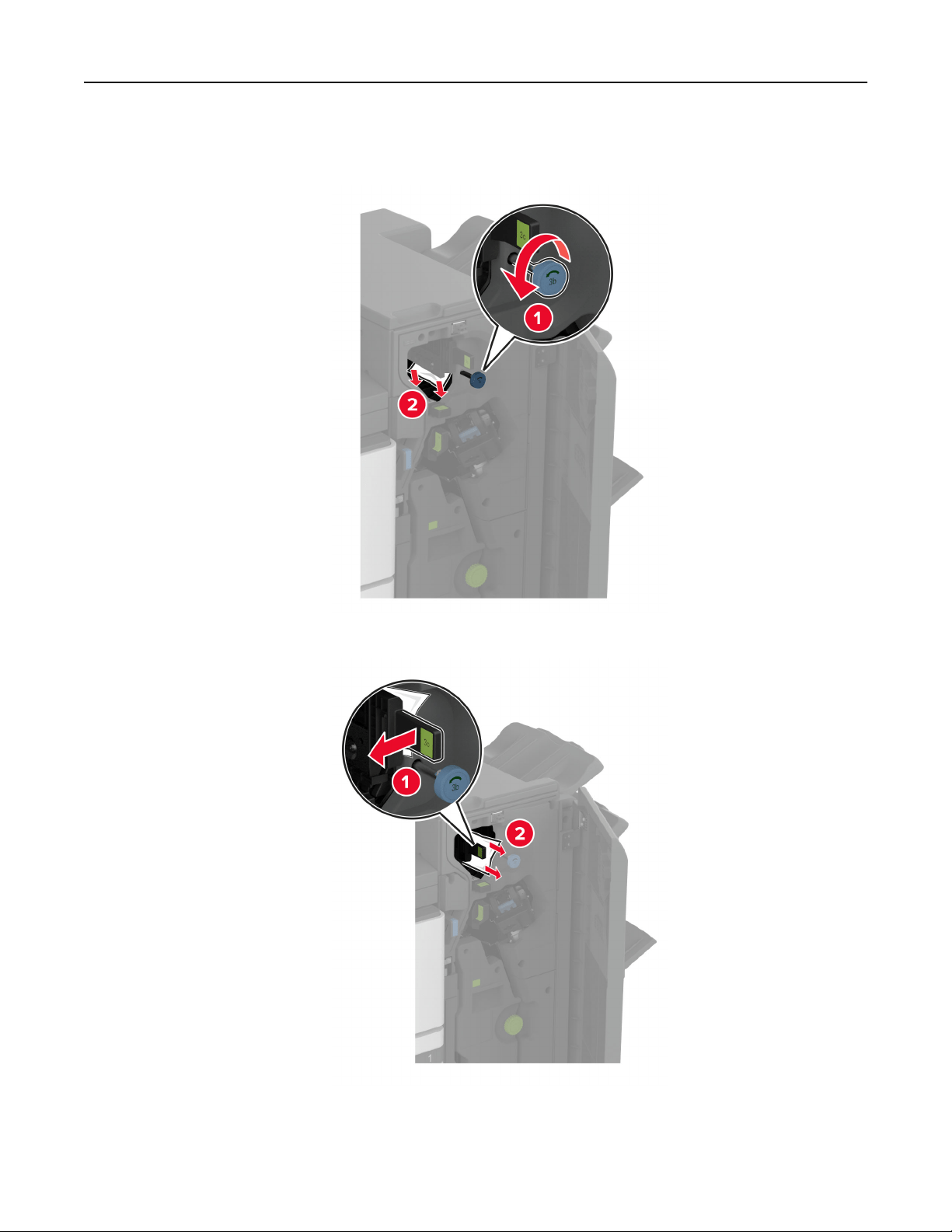
Note: Make sure to return the handle to its original position.
• Knob 3B
• Handle 3C
Note: Make sure to return the handle to its original position.
Troubleshoot a problem 484
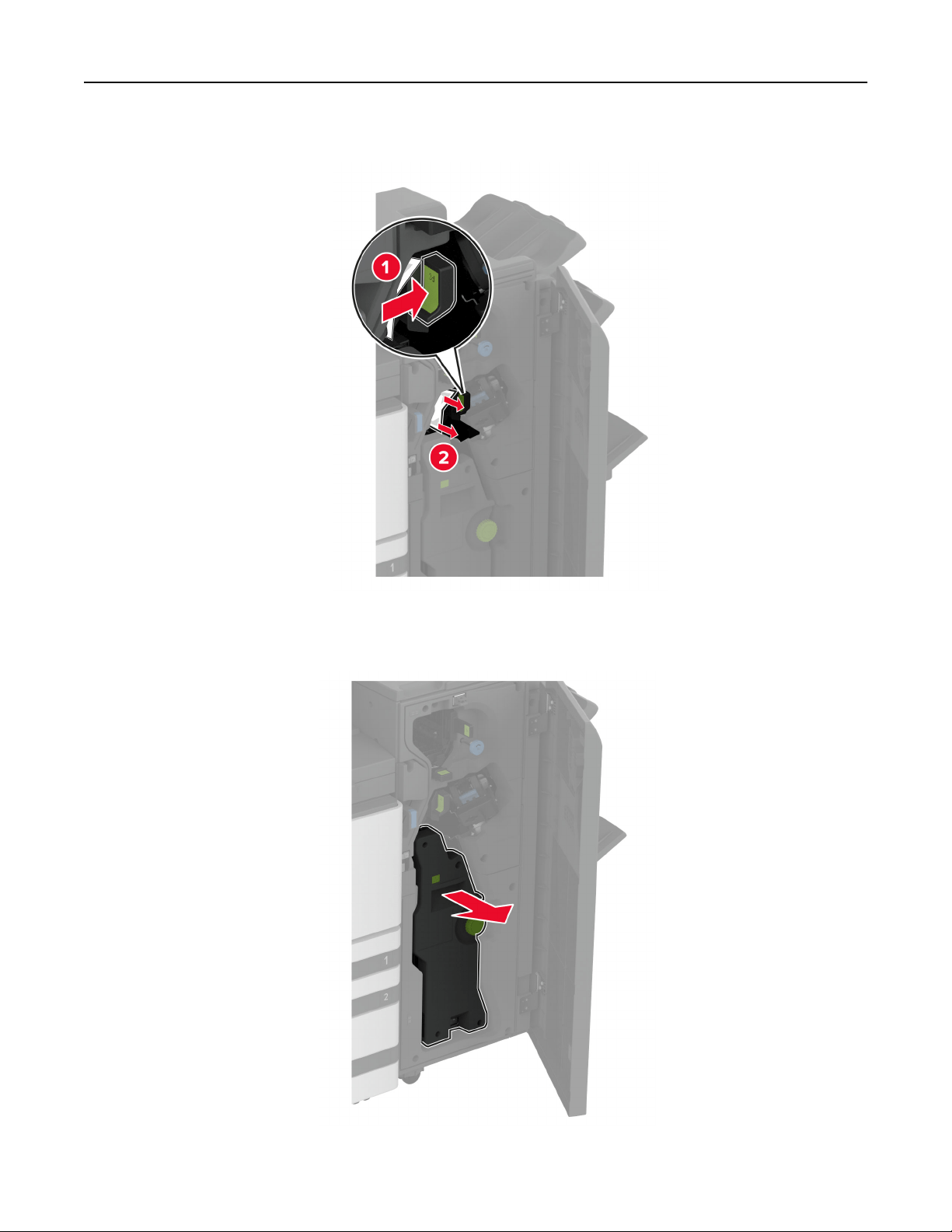
• Handle 3D
Note: Make sure to return the handle to its original position.
13 Pull out the booklet maker.
Troubleshoot a problem 485
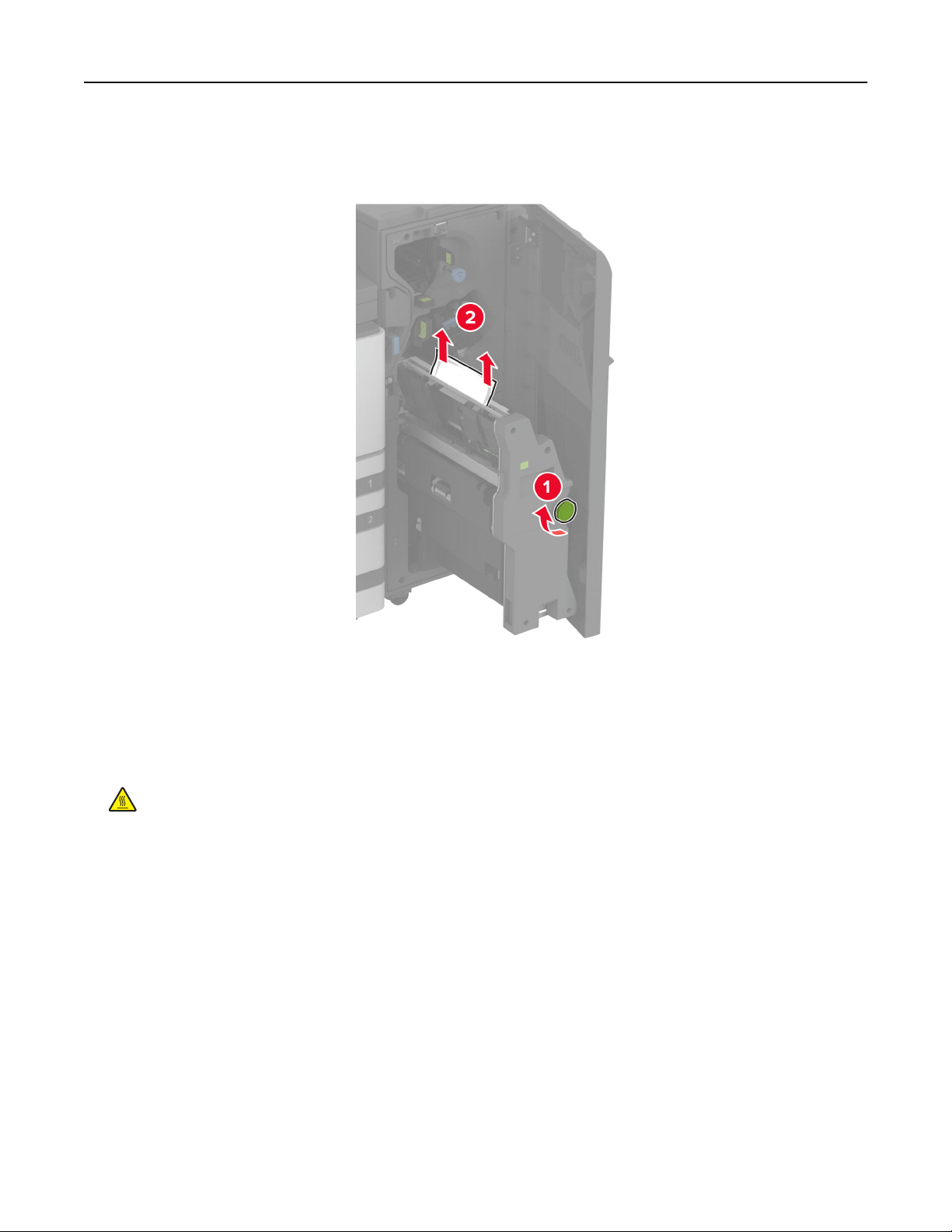
14 Turn knob 4A, and then remove the jammed paper.
Note: Make sure that all paper fragments are removed.
15 Push the booklet maker back into place, and then close the finisher door.
Paper jam in the booklet finisher
1 Open door A.
CAUTION—HOT SURFACE: The inside of the printer might be hot. To reduce the risk of injury from a
hot component, allow the surface to cool before touching it.
Troubleshoot a problem 486
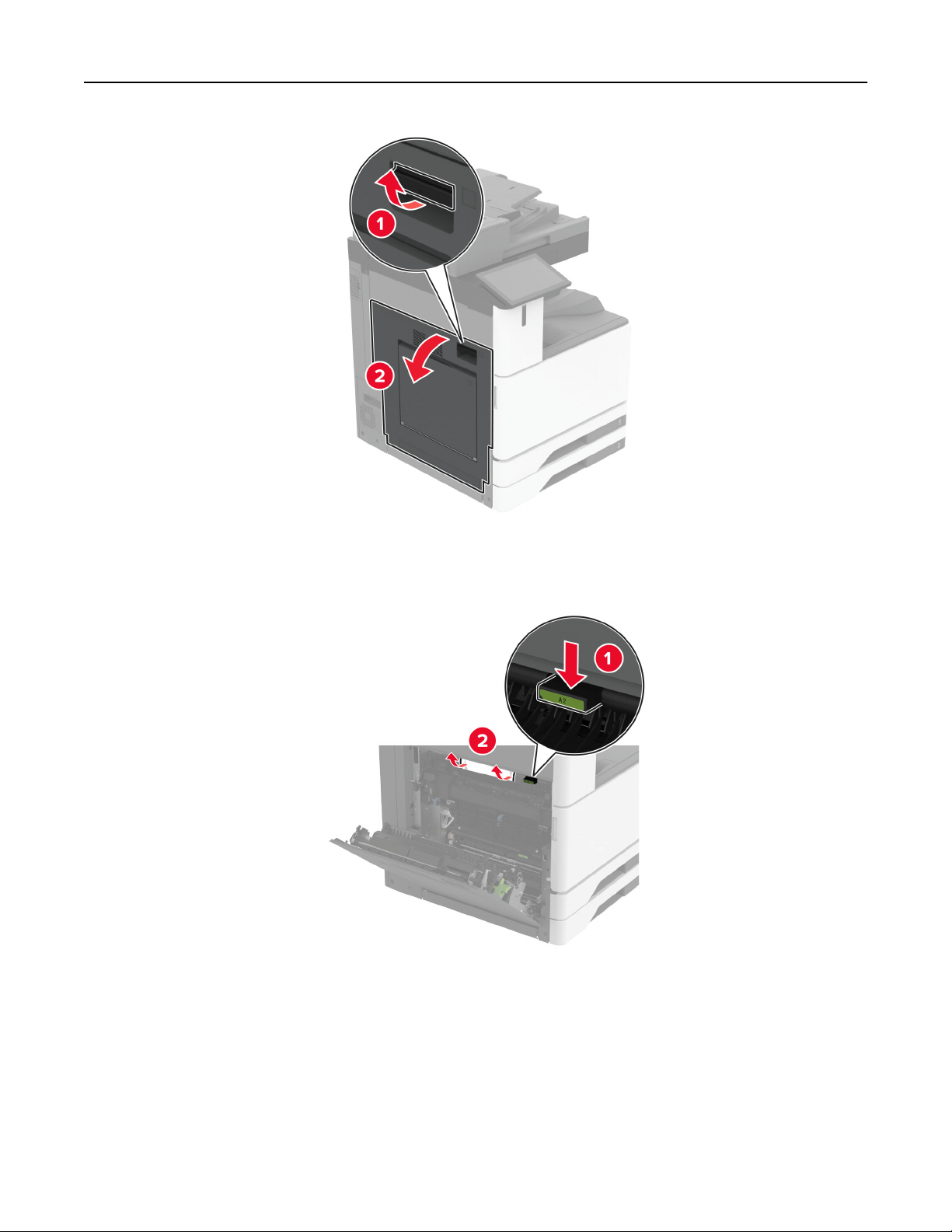
2 Open door A1, and then remove the jammed paper.
Note: Make sure that all paper fragments are removed.
3 Close door A1, and then close door A.
4 Lift the paper transport cover, and then remove the jammed paper.
Note: Make sure that all paper fragments are removed.
Troubleshoot a problem 487
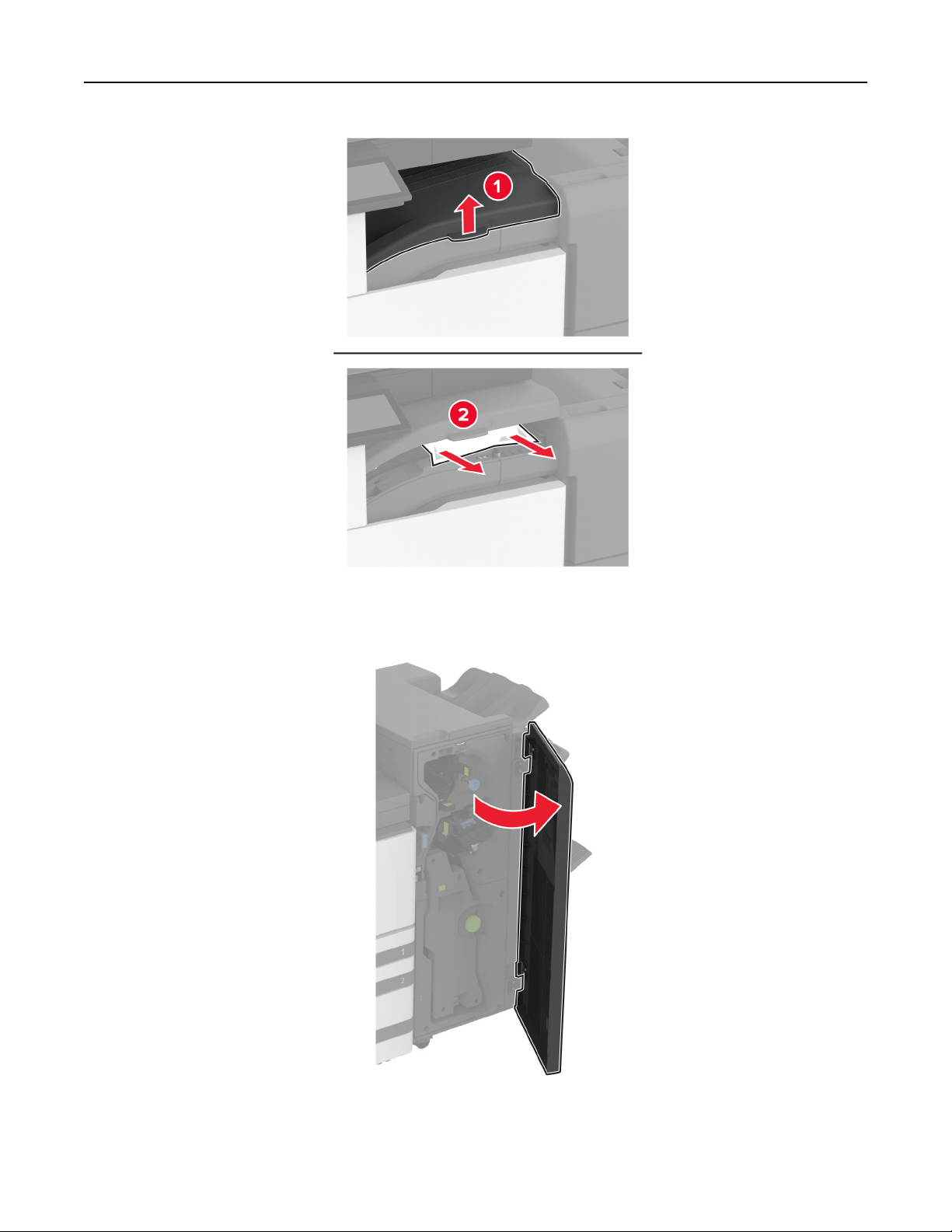
5 Close the cover.
6 Open the booklet finisher door.
Troubleshoot a problem 488
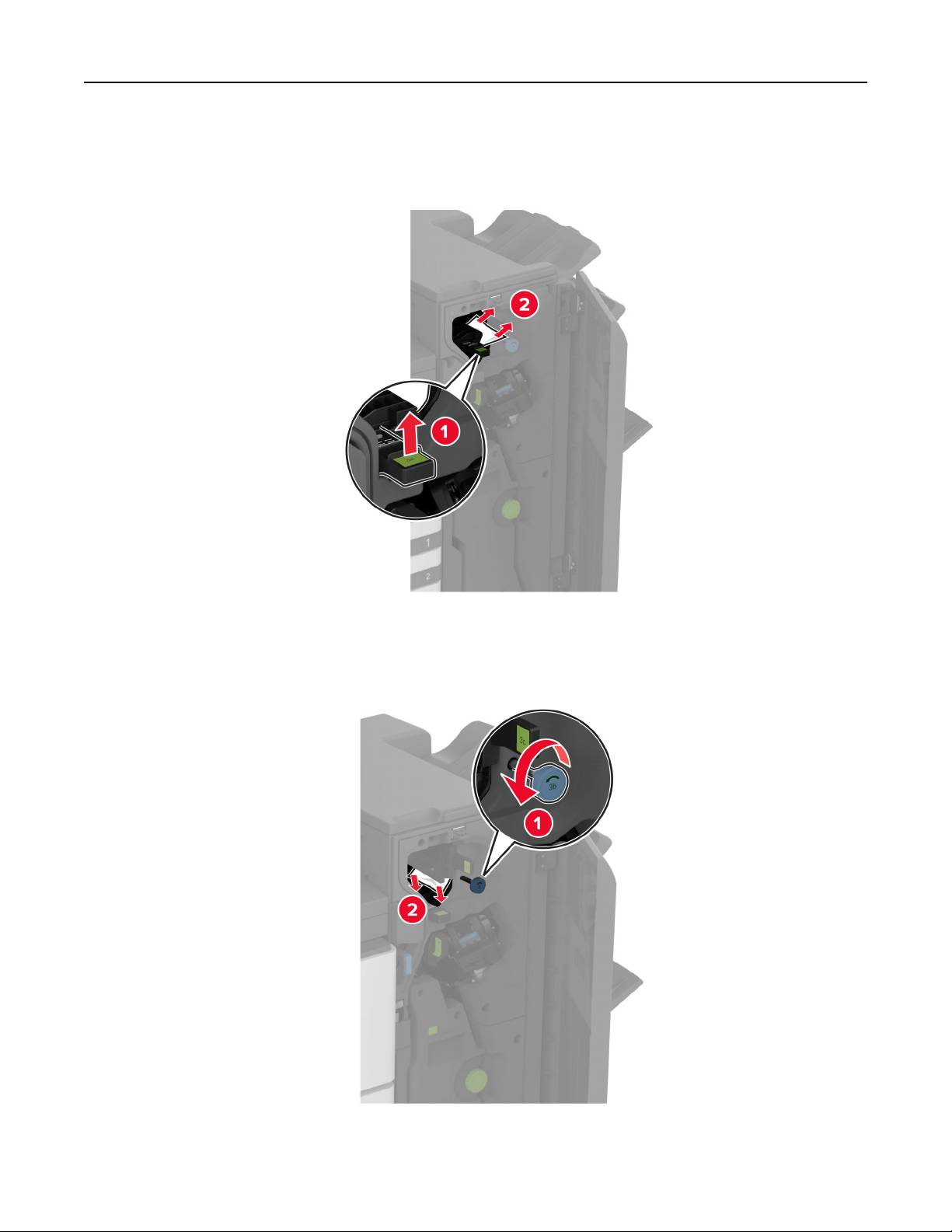
7 Remove the jammed paper from any of the following locations.
• Handle 3A
Note: Make sure to return the handle to its original position.
• Knob 3B
Note: Make sure to return the handle to its original position.
Troubleshoot a problem 489
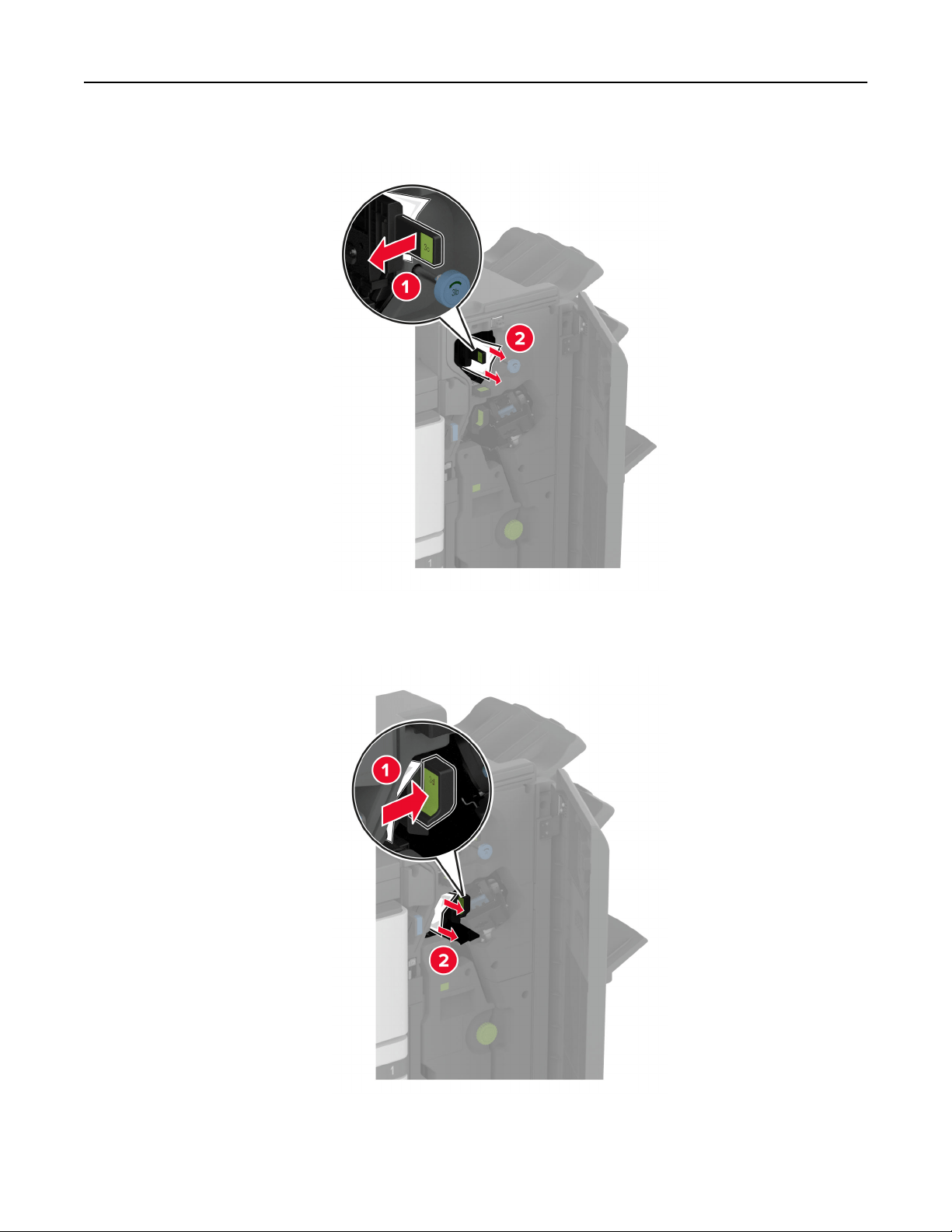
• Handle 3C
Note: Make sure to return the handle to its original position.
• Handle 3D
Note: Make sure to return the handle to its original position.
Troubleshoot a problem 490
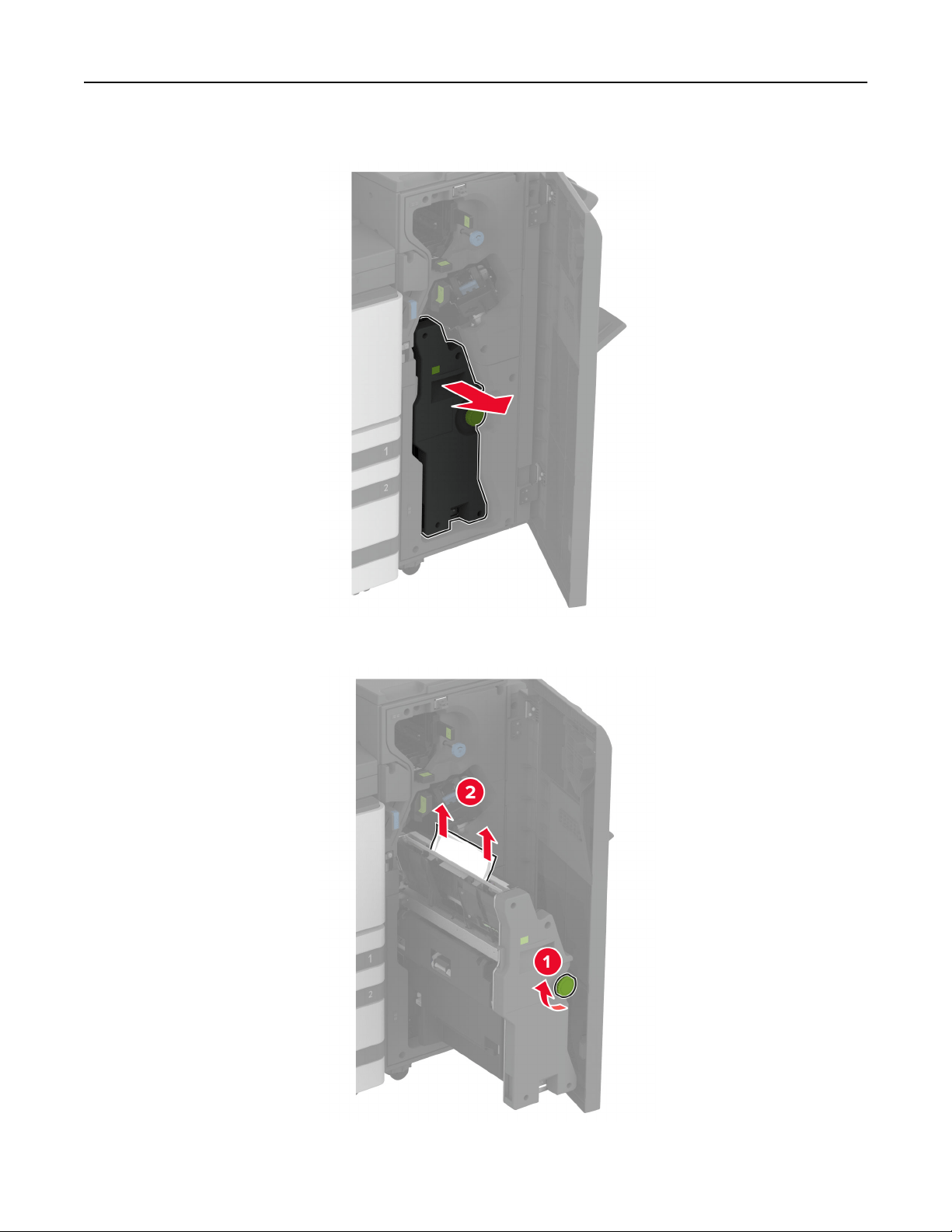
8 Pull out the booklet maker.
9 Turn knob 4A, and then remove the jammed paper.
10 Push the booklet maker back into place, and then close the finisher door.
Troubleshoot a problem 491

Network connection problems
Cannot open Embedded Web Server
Action Yes No
Step 1
a Check if the printer is on.
b Access the printer Embedded Web Server (EWS).
Can you open the EWS?
The problem is
solved.
Go to step 2.
Step 2
a Make sure that the printer IP address is correct.
Notes:
• View the IP address on the home screen.
• An IP address appears as four sets of numbers separated
by periods, such as 123.123.123.123.
b Access the EWS.
Can you open the EWS?
The problem is
solved.
Go to step 3.
Step 3
a Make sure that you installed a supported browser:
• Internet Explorer version 11 or later
• Microsoft Edge
• Safari version 6 or later
• Google Chrome
TM
version 32 or later
• Mozilla Firefox version 24 or later
b Access the EWS.
Can you open the EWS?
The problem is
solved.
Go to step 4.
Step 4
a Check if the network connection is working.
Note: If the connection is not working, then contact your
administrator.
b Access the EWS.
Can you open the EWS?
The problem is
solved.
Go to step 5.
Step 5
a Make sure that the cable connections to the printer and print
server are secure. For more information, see the
documentation that came with the print server.
b Access the EWS.
Can you open the EWS?
The problem is
solved.
Go to step 6.
Troubleshoot a problem 492

Action Yes No
Step 6
a Check if the web proxy servers are disabled.
Note: If the servers are disabled, then contact your
administrator.
b Access the EWS.
Can you open the EWS?
The problem is
solved.
Contact
customer
support.
Cannot connect the printer to the Wi‑Fi network
Action Yes No
Step 1
Make sure that Active Adapter is set to Auto.
From the home screen, touch Settings > Network/Ports > Network
Overview > Active Adapter > Auto.
Can the printer connect to the Wi‑Fi network?
The problem is
solved.
Go to step 2.
Step 2
Check if the correct Wi‑Fi network is selected.
Note: Some routers may share the default SSID.
Are you connecting to the correct Wi‑Fi network?
Go to step 4. Go to step 3.
Step 3
Connect to the correct Wi‑Fi network. For more information, see
“Connecting the printer to a Wi‑Fi network” on page 187.
Can the printer connect to the Wi‑Fi network?
The problem is
solved.
Go to step 4.
Step 4
Check the wireless security mode.
From the home screen, touch Settings > Network/Ports > Wireless
> Wireless Security Mode.
Is the correct wireless security mode selected?
Go to step 6. Go to step 5.
Step 5
Select the correct wireless security mode.
Can the printer connect to the Wi‑Fi network?
The problem is
solved.
Go to step 6.
Step 6
Make sure that you entered the correct network password.
Note: Take note of the spaces, numbers, and capitalization in the
password.
Can the printer connect to the Wi‑Fi network?
The problem is
solved.
Contact
customer
support.
Troubleshoot a problem 493
Hardware options problems
Cannot detect internal option
Action Yes No
Step 1
Turn o the printer, wait for about 10 seconds, and then turn on the
printer.
Does the printer detect the internal option?
The problem is
solved.
Go to step 2.
Step 2
Print the Menu Settings Page, and then check if the internal option
appears in the Installed Features list.
Is the internal option listed?
Go to step 4. Go to step 3.
Step 3
Check if the internal option is installed properly into the controller
board.
a Turn o the printer, and then unplug the power cord from the
electrical outlet.
b Make sure that the internal option is installed into the
appropriate connector on the controller board.
c Connect the power cord to the electrical outlet, and then turn
on the printer.
CAUTION—POTENTIAL INJURY: To avoid the risk of fire
or electrical shock, connect the power cord to an
appropriately rated and properly grounded electrical outlet
that is near the product and easily accessible.
Does the printer detect the internal option?
The problem is
solved.
Go to step 4.
Step 4
a Check if the internal option is available in the print driver.
Note: If necessary, manually add the internal option in the
print driver to make it available for print jobs. For more
information, see
“Adding available options in the print driver”
on page 80.
b Print the document.
Does the printer detect the internal option?
The problem is
solved.
Contact
customer
support.
Defective flash detected
Try one or more of the following:
• Replace the defective intelligent storage drive.
• From the home screen, touch Continue to ignore the message and continue printing.
Troubleshoot a problem 494

• Cancel the current print job.
Not enough free space in flash memory for resources
Try one or more of the following:
• Tou ch Continue to clear the message and continue printing.
• Delete fonts, macros, and other data stored in the flash memory.
• Install a hard disk.
Note: Downloaded fonts and macros that are not previously stored in the flash memory are deleted.
Issues with supplies
Missing or unresponsive toner cartridge
Action Yes No
Step 1
a Open the front door.
b Remove, and then insert the toner cartridge.
Is the toner cartridge missing or unresponsive?
Go to step 2. The problem is
solved.
Step 2
Check if the printer is using a genuine and supported Lexmark
toner cartridge.
Note: If the toner cartridge is not supported, then install a
supported one.
Is the toner cartridge missing or unresponsive?
Contact
customer
support.
The problem is
solved.
Non‑Lexmark supply
The printer has detected a non‑Lexmark supply or part installed in the printer.
Your Lexmark printer is designed to function best with genuine Lexmark supplies and parts. Use of third-
party supplies or parts may aect the performance, reliability, or life of the printer and its imaging
components.
All life indicators are designed to function with Lexmark supplies and parts and may deliver unpredictable
results if third-party supplies or parts are used. Imaging component usage beyond the intended life may
damage your Lexmark printer or associated components.
Warning—Potential Damage: Use of third-party supplies or parts can
aect
warranty coverage.
Damage caused by the use of third-party supplies or parts may not be covered by the warranty.
To accept any and all of these risks and to proceed with the use of non-genuine supplies or parts in your
printer, touch and hold the error message on the display using two fingers for 15 seconds. When a
confirmation dialog box appears, touch Continue.
Troubleshoot a problem 495

If you do not want to accept these risks, then remove the third-party supply or part from your printer and
install a genuine Lexmark supply or part. For more information, see
“Using genuine Lexmark parts and
supplies” on page 303.
If the printer does not print after clearing the error message, then reset the supply usage counter.
1 From the home screen, touch Settings > Device > Maintenance > Configuration Menu > Supply Usage
And Counters.
2 Select the part or supply that you want to reset, and then touch Start.
3 Read the warning message, and then touch Continue.
4 Using two fingers, touch the display for 15 seconds to clear the message.
Note: If you are unable to reset the supply usage counters, then return the supply item to the place of
purchase.
Paper feed problems
Envelope seals when printing
Action Yes No
Step 1
a Use an envelope that has been stored in a dry environment.
Note: Printing on envelopes with high moisture content can
seal the
flaps.
b Send the print job.
Does the envelope seal when printing?
Go to step 2. The problem is
solved.
Step 2
a Make sure that paper type is set to Envelope.
From the home screen, touch Settings > Paper > Tray
Configuration > Paper Size/Type.
b Send the print job.
Does the envelope seal when printing?
Contact
customer
support.
The problem is
solved.
Collated printing does not work
Action Yes No
Step 1
a From the home screen, touch Settings > Print > Layout >
Collate.
b Tou c h On [1,2,1,2,1,2].
c Print the document.
Is the document collated correctly?
The problem is
solved.
Go to step 2.
Troubleshoot a problem 496

Action Yes No
Step 2
a From the document that you are trying to print, open the Print
dialog box, and then select Collate.
b Print the document.
Is the document collated correctly?
The problem is
solved.
Go to step 3.
Step 3
a Reduce the number of pages to print.
b Print the document.
Are the pages collated correctly?
The problem is
solved.
Contact
customer
support.
Tray linking does not work
Action Yes No
Step 1
a Check if the trays contain the same paper size and paper type.
b Check if the paper guides are positioned correctly.
c Print the document.
Do the trays link correctly?
The problem is
solved.
Go to step 2.
Step 2
a From the home screen, touch Settings > Paper > Tray
Configuration > Paper Size/Type.
b Set the paper size and paper type to match the paper loaded
in the linked trays.
c Print the document.
Do the trays link correctly?
The problem is
solved.
Go to step 3.
Step 3
a Make sure that Tray Linking is set to Automatic. For more
information, see
“Linking trays” on page 78.
b Print the document.
Do the trays link correctly?
The problem is
solved.
Contact
customer
support.
Troubleshoot a problem 497

Paper frequently jams
Action Yes No
Step 1
a Remove the tray.
b Check if paper is loaded correctly.
Notes:
• Make sure that the paper guides are positioned correctly.
• Make sure that the stack height is below the maximum
paper
fill
indicator.
• Make sure to print on recommended paper size and type.
c Insert the tray.
d Print the document.
Do paper jams occur frequently?
Go to step 2. The problem is
solved.
Step 2
a From the home screen, touch Settings > Paper > Tray
Configuration > Paper Size/Type.
b Set the correct paper size and type.
c Print the document.
Do paper jams occur frequently?
Go to step 3. The problem is
solved.
Step 3
a Load paper from a fresh package.
Note: Paper absorbs moisture due to high humidity. Store
paper in its original wrapper until you are ready to use it.
b Print the document.
Do paper jams occur frequently?
Contact customer
support.
The problem is
solved.
Jammed pages are not reprinted
Action Yes No
a From the home screen, touch Settings > Device > Notifications
> Jam Content Recovery.
b In the Jam Recovery menu, touch On or Auto.
c Print the document.
Are the jammed pages reprinted?
The problem is
solved.
Contact
customer
support.
Troubleshoot a problem 498

E-mailing problems
Disabling the “SMTP server not set up” error message
From the control panel, navigate to Settings > E
‑mail > E‑mail Setup > Disable “SMTP Server not set up” error
> On.
To prevent the error from happening again, do one or more of the following:
• Update the printer firmware. For more information, see the “Updating firmware” section.
• Configure the e‑mail SMTP settings. For more information, see
“Configuring the e‑mail SMTP settings” on
page 53.
Cannot send e
‑mails
Action Yes No
Step 1
Make sure that the e‑mail SMTP settings are configured correctly.
For more information, see
“Configuring the e‑mail SMTP settings”
on page 53.
Can you send an e‑mail?
The problem is
solved.
Go to step 2.
Step 2
Make sure that you are using the correct password. Depending on
your e‑mail service provider, use your account password, app
password, or authentication password. For more information, see
“Configuring
the e‑mail SMTP settings” on page 53.
Can you send an e‑mail?
The problem is
solved.
Go to step 3.
Step 3
Make sure that the printer is connected to a network and that the
network is connected to the Internet.
Can you send an e‑mail?
The problem is
solved.
Contact
customer
support.
Troubleshoot a problem 499
Faxing problems
Caller ID is not shown
Note: These instructions apply only to printers that support analog fax. For more information, see the
Setting
up the printer to fax section.
Action Yes No
Enable caller ID.
From the home screen, touch Settings > Fax > Fax Setup > Fax
Receive Settings > Admin Controls > Enable Caller ID.
Does the caller ID appear?
The problem is
solved.
Contact customer
support.
Cannot send or receive faxes using analog fax
Action Yes No
Step 1
Resolve any error messages that appear on the display.
Can you send or receive a fax?
The problem is
solved.
Go to step 2.
Step 2
Make sure that the cable connections for the following equipment
are secure:
• Telephone
• Handset
• Answering machine
Can you send or receive a fax?
The problem is
solved.
Go to step 3.
Step 3
Check for a dial tone.
• Call the fax number to check if it is working properly.
• If you are using the On Hook Dial feature, then turn up the
volume to check if you hear a dial tone.
Can you hear a dial tone?
Go to step 5. Go to step 4.
Troubleshoot a problem 500

Action Yes No
Step 4
Check the telephone wall jack.
a Connect the analog telephone directly to the wall jack.
b Listen for a dial tone.
c If you do not hear a dial tone, then use a
dierent
telephone
cable.
d If you still do not hear a dial tone, then connect the analog
telephone to a
dierent
wall jack.
e If you hear a dial tone, then connect the printer to that wall jack.
Can you send or receive a fax?
The problem is
solved.
Go to step 5.
Step 5
Check if the printer is connected to an analog phone service or to
the correct digital connector.
• If you are using an Integrated Services for Digital Network
(ISDN) telephone service, then connect to an analog telephone
port of an ISDN terminal adapter. For more information, contact
your ISDN provider.
• If you are using DSL, then connect to a DSL filter or router that
supports analog use. For more information, contact your DSL
provider.
• If you are using a private branch exchange (PBX) telephone
service, then make sure that you are connecting to an analog
connection on the PBX. If none exists, then consider installing
an analog telephone line for the fax machine.
Can you send or receive a fax?
The problem is
solved.
Go to step 6.
Step 6
Temporarily disconnect other equipment and disable other
telephone services.
a Disconnect other equipment (such as answering machines,
computers, modems, or telephone line splitters) between the
printer and the telephone line.
b Disable call waiting and voice mail. For more information,
contact your telephone company.
Can you send or receive a fax?
The problem is
solved.
Go to step 7.
Step 7
Scan the original document one page at a time.
a Dial the fax number.
b Scan the document.
Can you send or receive a fax?
The problem is
solved.
Contact
customer
support.
Troubleshoot a problem 501

Can receive but not send faxes using analog fax
Action Yes No
Step 1
Load an original document properly into the ADF tray or on the
scanner glass.
Can you send faxes?
The problem is
solved.
Go to step 2.
Step 2
Set up the shortcut number properly.
• Check if the shortcut number is set for the telephone number
that you want to dial.
• Dial the telephone number manually.
Can you send faxes?
The problem is
solved.
Contact
customer
support.
Can send but not receive faxes using analog fax
Action Yes No
Step 1
Make sure that the paper source is not empty.
Can you receive faxes?
The problem is
solved.
Go to step 2.
Step 2
Check the ring count delay settings.
From the home screen, touch Settings > Fax > Fax Setup > Fax
Receive Settings > Rings to Answer.
Can you receive faxes?
The problem is
solved.
Go to step 3.
Step 3
If the printer is printing blank pages, then see
“Blank or white
pages” on page 431.
Can you receive faxes?
The problem is
solved.
Contact
customer
support.
Cannot set up etherFAX
Action Yes No
Step 1
Check the printer connectivity.
a Print the Network Setup Page. From the home screen, touch
Settings > Reports > Network > Network Setup Page.
b Check the network status.
Is the printer connected to the network?
Go to step 3. Go to step 2.
Troubleshoot a problem 502
Action Yes No
Step 2
Make sure that the printer is connected to a network and that the
network is connected to the Internet.
Can you set up etherFAX?
The problem is
solved.
Go to step 3.
Step 3
Make sure that etherFAX is set up correctly. For more information,
see
“Setting up the fax function using etherFAX” on page 47.
Can you set up etherFAX?
The problem is
solved.
Go to
https://www.etherfa
x.net/lexmark.
Cannot send or receive faxes using etherFAX
Action Yes No
Step 1
Make sure that the printer is connected to a network and that the
network is connected to the Internet.
Can you send or receive faxes using etherFAX?
The problem is
solved.
Go to step 2.
Step 2
Make sure that etherFAX is set up correctly.
a From the home screen, touch Settings > Fax > Fax Setup >
General Fax Settings.
b Make sure that you have the correct fax number.
c Make sure that Fax Transport is set to etherFAX.
Notes:
• This menu shows up only when more than one fax
transport is available.
• If the printer only has etherFAX installed, then it is
automatically configured.
Can you send or receive faxes using etherFAX?
The problem is
solved.
Go to step 3.
Step 3
Split large documents into smaller file sizes.
Can you send or receive faxes using etherFAX?
The problem is
solved.
Go to
https://www.etherfa
x.net/lexmark.
Troubleshoot a problem 503

Poor fax print quality
Action Yes No
Step 1
Make sure that there are no print quality defects.
a From the home screen, touch Settings > Troubleshooting >
Print Quality Test Pages.
b Correct any print quality defects. For more information, see
“Print quality is poor” on page 431.
Is the fax print quality satisfactory?
The problem is
solved.
Go to step 2.
Step 2
If you are using an analog fax, then decrease the incoming fax
transmission speed.
a From the home screen, touch Settings > Fax > Fax Setup > Fax
Receive Settings > Admin Controls.
b In the Max Speed menu, select a lower transmission speed.
Is the fax print quality satisfactory?
The problem is
solved.
Contact customer
support.
Missing information on the fax cover page
Action No Yes
a Turn
o
the printer, wait for about 10 seconds, and then turn on
the printer.
b Send or retrieve the fax.
Is there missing information on the fax cover page?
The problem is
solved.
Contact
customer
support.
Cannot send the fax cover page from the computer
Action Yes No
Step 1
a Make sure that the print driver is updated. For more information,
see
“Installing the printer software” on page 78.
b Send the fax.
Can you send the fax cover page?
The problem is
solved.
Go to step 2.
Troubleshoot a problem 504
Action Yes No
Step 2
a From the document that you are trying to fax, open the Print
dialog.
b Select the printer, and then click Properties, Preferences,
Options, or Setup.
c Click Fax, and then clear the Always display settings prior to
faxing setting.
d Send the fax.
Can you send the fax cover page?
The problem is
solved.
Contact
customer
support.
Scanning problems
Cannot scan to a computer
Action Yes No
Step 1
Perform a copy job.
Is the copy job successful?
Go to step 3. Go to step 2.
Step 2
a Turn o the printer, wait for about 10 seconds, and then turn it
back on.
b Scan the document.
Can you scan the document to a computer?
The problem is
solved.
Go to step 3.
Step 3
Check the printer connectivity.
a Print the Network Setup Page. From the home screen, touch
Settings > Reports > Network > Network Setup Page.
b Check the network status.
Is the printer connected to the network?
Go to step 5. Go to step 4.
Step 4
a Connect the printer to the network.
b Scan the document.
Can you scan the document to a computer?
The problem is
solved.
Go to step 5.
Troubleshoot a problem 505
Action Yes No
Step 5
a Make sure that the printer and the computer are connected to
the same network.
b Scan the document.
Can you scan the document to a computer?
The problem is
solved.
Contact
customer
support.
Cannot scan to a network folder
Action Yes No
Step 1
a Create a network folder shortcut.
b Scan a document using the shortcut. For more information, see
“Scanning to a network folder” on page 213.
Can you scan a document and save it to a network folder?
The problem is
solved.
Go to step 2.
Step 2
Make sure that the network folder path and format are correct. For
example, //server_hostname/foldername/path, where
server_hostname is a fully qualified domain (FQDN) or IP
address.
Is the network folder path and format correct?
Go to step 3. Go to step 4.
Step 3
Make sure that you have a write access permission to the network
folder.
Can you scan a document and save it to a network folder?
The problem is
solved.
Go to step 4.
Troubleshoot a problem 506

Action Yes No
Step 4
Update the network folder shortcut.
a Open a web browser, and then type the printer IP address in
the address field.
Notes:
• View the printer IP address on the home screen. The IP
address appears as four sets of numbers separated by
periods, such as 123.123.123.123.
• If you are using a proxy server, then temporarily disable it
to load the web page correctly.
b Click Shortcuts, and then select a shortcut.
Note: If you have multiple shortcut types, then select
Network Folder.
c In the Share Path field, type the network folder path.
Notes:
• If your share path is \\server_hostname
\foldername\path, then
type //server_hostname/foldername/path.
• Make sure that you use forward slashes when typing the
share path.
d From the Authentication menu, select your authentication
method.
Note: If Authentication is set to “Use assigned username and
password,” then in the User Name and Password fields, type
your credentials.
e Click Save.
Can you scan a document and save it to a network folder?
The problem is
solved.
Go to step 5.
Step 5
Make sure that the printer and the network folder are connected
to the same network.
Can you scan a document and save it to a network folder?
The problem is
solved.
Contact
customer
support.
Partial copies of document or photo
Action Yes No
Step 1
a Make sure that the document or photo is loaded facedown on
the upper left corner of the scanner glass.
b Copy the document or photo.
Is the document or photo copied correctly?
The problem is
solved.
Go to step 2.
Troubleshoot a problem 507
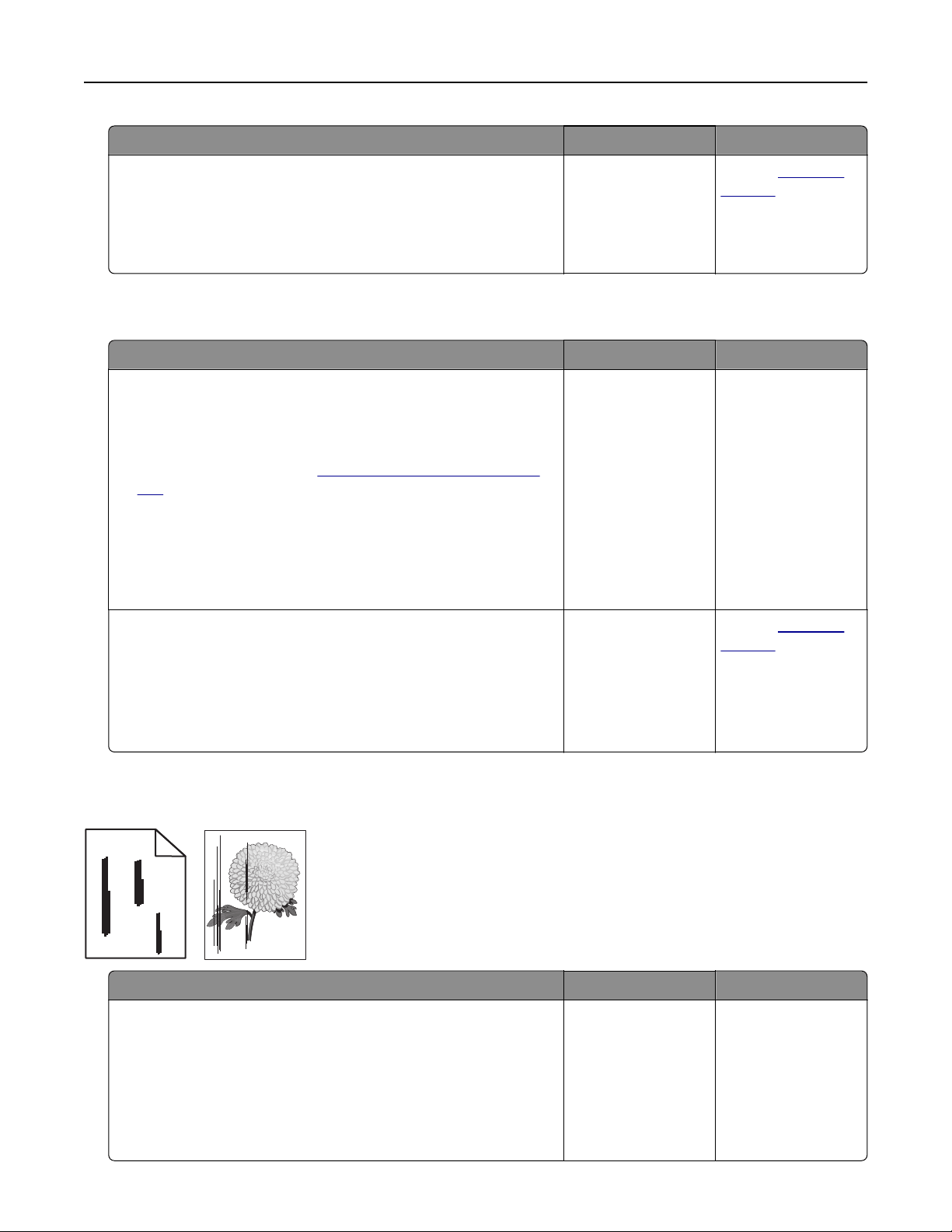
Action Yes No
Step 2
a Match the paper size setting and the paper loaded in the tray.
b Copy the document or photo.
Is the document or photo copied correctly?
The problem is
solved.
Contact
customer
support.
Poor copy quality
Action Yes No
Step 1
a Clean the scanner glass and the ADF glass with a damp, soft,
lint‑free cloth. If your printer has a second ADF glass inside the
ADF, then also clean that glass.
For more information, see
“Cleaning the scanner” on page
397.
b Make sure that the document or photo is loaded facedown on
the upper left corner of the scanner glass.
c Copy the document or photo.
Is the copy quality satisfactory?
The problem is
solved.
Go to step 2.
Step 2
a Check the quality of the original document or photo.
b Adjust the scan quality settings.
c Copy the document or photo.
Is the copy quality satisfactory?
The problem is
solved.
Contact
customer
support.
Vertical dark streaks on output when scanning from the ADF
ABCDE
ABCDE
ABCDE
Leading edge
Trailing edge
Action Yes No
Step 1
a Open the scanner cover.
b Using a damp, soft, lint‑free cloth, wipe the ADF glass and the
white underside of the scanner cover.
c Close the scanner cover.
Do vertical streaks appear on scanned documents?
Go to step 2. The problem is
solved.
Troubleshoot a problem 508
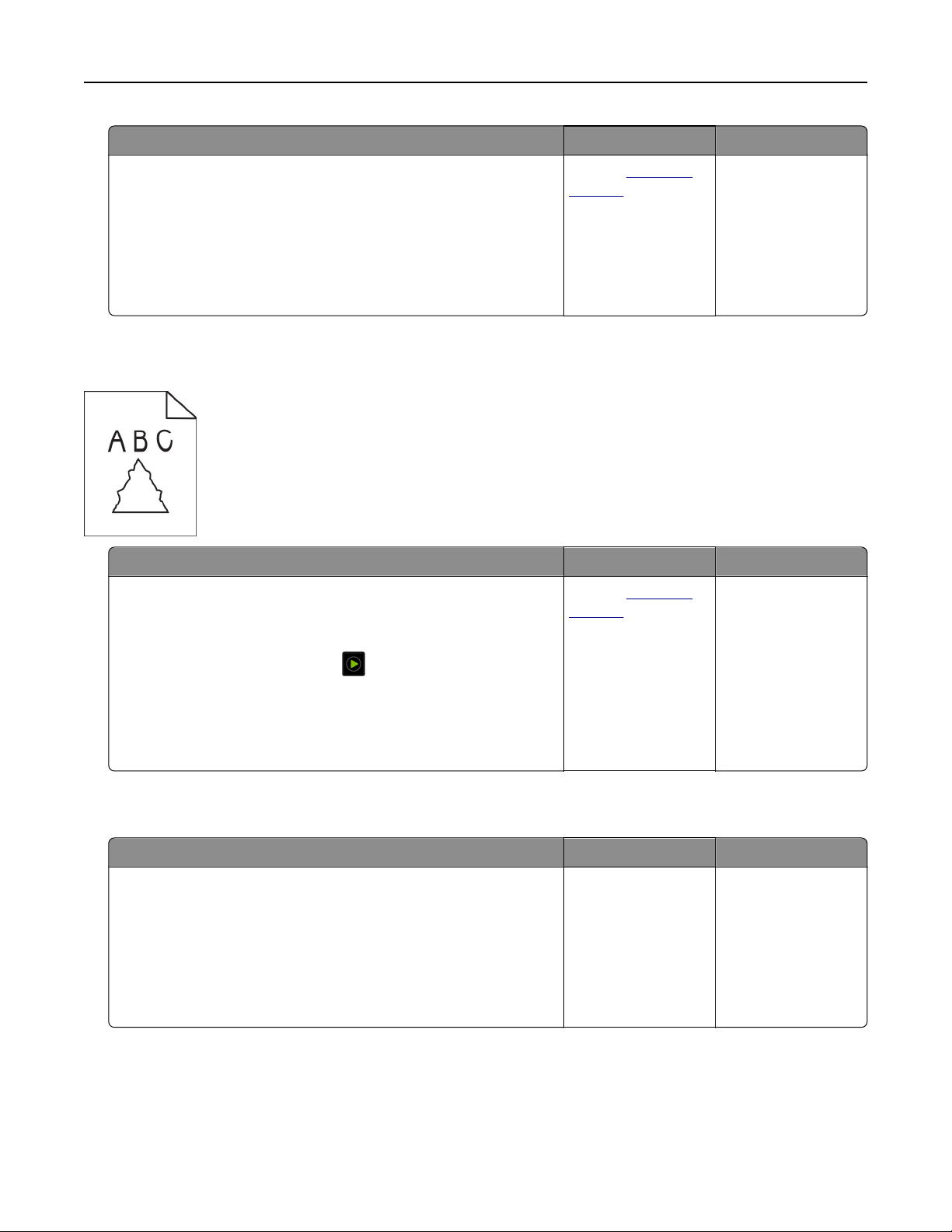
Action Yes No
Step 2
a Open the ADF cover.
b Using a damp, soft, lint‑free cloth, wipe the ADF glass and the
white underside of the ADF cover.
c Close the ADF cover.
Do vertical streaks appear on scanned documents?
Contact
customer
support.
The problem is
solved.
Jagged image or text when scanning from the ADF
Action Yes No
a Load 50 sheets of clean, plain paper into the ADF.
Note: The plain paper helps clean or remove dust and other
coating from the ADF feed rollers.
b From the home screen, touch
.
c Load an original document into the ADF.
d Scan the document.
Do jagged images or texts appear on the output?
Contact
customer
support.
The problem is
solved.
Scan job was not successful
Action Yes No
Step 1
Check the cable connections.
a Make sure that the Ethernet or USB cable is securely connected
to the computer and the printer.
b Resend the scan job.
Is the scan job successful?
The problem is
solved.
Go to step 2.
Troubleshoot a problem 509

Action Yes No
Step 2
Check the file you want to scan.
a Make sure that the file name is not already used in the
destination folder.
b Make sure that the document or photo you want to scan is not
open in another application.
c Resend the scan job.
Is the scan job successful?
The problem is
solved.
Go to step 3.
Step 3
a Make sure that the Append time stamp or the Overwrite
existing file check box is selected in the destination
configuration settings.
b Resend the scan job.
Is the scan job successful?
The problem is
solved.
Contact
customer
support.
Scanner does not close
Action Yes No
Remove obstructions that keep the scanner cover open.
Did the scanner cover close correctly?
The problem is
solved.
Contact customer
support.
Scanning takes too long or freezes the computer
Action Yes No
Close all applications that are interfering with the scan.
Does scanning take too long or freeze the computer?
Contact customer
support.
The problem is
solved.
Troubleshoot a problem 510

Scanner does not respond
Action Yes No
Step 1
a Check if the power cord is connected properly to the printer
and the electrical outlet.
CAUTION—POTENTIAL INJURY: To avoid the risk of
fire
or electrical shock, connect the power cord to an
appropriately rated and properly grounded electrical outlet
that is near the product and easily accessible.
b Copy or scan the document.
Is the scanner responding?
The problem is
solved.
Go to step 2.
Step 2
a Check if the printer is turned on.
b Resolve any error messages that appear on the display.
c Copy or scan the document.
Is the scanner responding?
The problem is
solved.
Go to step 3.
Step 3
a Turn o the printer, wait for about 10 seconds, and then turn the
printer on.
b Copy or scan the document.
Is the scanner responding?
The problem is
solved.
Contact
customer
support.
Adjusting scanner registration
1 From the home screen, touch Settings > Device > Maintenance > Configuration Menu > Scanner
Configuration > Scanner Manual Registration.
2 In the Print Quick Test menu, touch Start.
3 Place the Print Quick Test page on the scanner glass, and then touch Flatbed Registration.
4 In the Copy Quick Test menu, touch Start.
5 Compare the Copy Quick Test page with the original document.
Note: If the margins of the test page are
dierent
from the original document, then adjust Left Margin and
Top Margin.
6 Repeat step 4 and step 5 until the margins of the Copy Quick Test page closely match the original document.
Adjusting ADF registration
1 From the home screen, touch Settings > Device > Maintenance > Configuration Menu > Scanner
Configuration > Scanner Manual Registration.
2 In the Print Quick Test menu, touch Start.
Troubleshoot a problem 511

3 Place the Print Quick Test page on the ADF tray.
4 Tou ch Front ADF Registration or Rear ADF Registration.
Notes:
• To align Front ADF Registration, place the test page faceup, short edge
first
into the ADF.
• To align Rear ADF Registration, place the test page facedown, short edge
first
into the ADF.
5 In the Copy Quick Test menu, touch Start.
6 Compare the Copy Quick Test page with the original document.
Note: If the margins of the test page are
dierent
from the original document, then adjust Horizontal
Adjust and Top Margin.
7 Repeat
step 5 and step 6 until the margins of the Copy Quick Test page closely match the original document.
Color quality problems
Modifying the colors in printed output
1 From the home screen, touch Settings > Print > Quality > Advanced Imaging > Color Correction.
2 In the Color Correction menu, touch Manual > Color Correction Content.
3 Choose the appropriate color conversion setting.
Object type Color conversion tables
RGB Image
RGB Text
RGB Graphics
• Vivid—Produces brighter, more saturated colors and may be
applied to all incoming color formats.
• sRGB Display—Produces an output that approximates the colors
shown on a computer monitor. Black toner usage is optimized for
printing photographs.
• Display‑True Black—Produces an output that approximates the
colors shown on a computer monitor. This setting uses only black
toner to create all levels of neutral gray.
• sRGB Vivid—Provides an increased color saturation for the sRGB
Display color correction. Black toner usage is optimized for
printing business graphics.
• O
CMYK Image
CMYK Text
CMYK Graphics
• US CMYK—Applies color correction to approximate the
Specifications for Web Oset Publishing (SWOP) color output.
• Euro CMYK—Applies color correction to approximate Euroscale
color output.
• Vivid CMYK—Increases the color saturation of the US CMYK color
correction setting.
• O
Troubleshoot a problem 512

FAQ about color printing
What is RGB color?
RGB color is a method of describing colors by indicating the amount of red, green, or blue used to produce
a certain color. Red, green, and blue light can be added in various amounts to produce a large range of colors
observed in nature. Computer screens, scanners, and digital cameras use this method to display colors.
What is CMYK color?
CMYK color is a method of describing colors by indicating the amount of cyan, magenta, yellow, and black
used to reproduce a particular color. Cyan, magenta, yellow, and black inks or toners can be printed in various
amounts to produce a large range of colors observed in nature. Printing presses, inkjet printers, and color
laser printers create colors in this manner.
How is color specified in a document to be printed?
Software programs are used to specify and modify the document color using RGB or CMYK color
combinations. For more information, see the software program Help topics.
How does the printer know what color to print?
When printing a document, information describing the type and color of each object is sent to the printer and
is passed through color conversion tables. Color is translated into the appropriate amounts of cyan, magenta,
yellow, and black toner used to produce the color you want. The object information determines the application
of color conversion tables. For example, it is possible to apply one type of color conversion table to text while
applying a dierent color conversion table to photographic images.
What is manual color correction?
When manual color correction is enabled, the printer employs user‑selected color conversion tables to
process objects. Manual color correction settings are specific to the type of object being printed (text,
graphics, or images). It is also specific to how the color of the object is specified in the software program
(RGB or CMYK combinations). To apply a dierent color conversion table manually, see
“Modifying the colors
in printed output” on page 512.
If the software program does not specify colors with RGB or CMYK combinations, then manual color correction
is not useful. It is also not eective if the software program or the computer operating system controls the
adjustment of colors. In most situations, setting the Color Correction to Auto generates preferred colors for
the documents.
How can I match a particular color (such as a corporate logo)?
From the printer Quality menu, nine types of Color Samples sets are available. These sets are also available
from the Color Samples page of the Embedded Web Server. Selecting any sample set generates
multiple‑page prints consisting of hundreds of colored boxes. Each box contains a CMYK or RGB combination,
depending on the table selected. The observed color of each box is obtained by passing the CMYK or RGB
combination labeled on the box through the selected color conversion table.
By examining Color Samples sets, you can identify the box with color closest to the color being matched.
The color combination labeled on the box can then be used for modifying the color of the object in a software
program. For more information, see the software program Help topics. Manual color correction may be
necessary to use the selected color conversion table for the particular object.
Selecting which Color Samples set to use for a particular color‑matching problem depends on:
• The Color Correction setting being used (Auto, O, or Manual)
• The type of object being printed (text, graphics, or images)
• How the color of the object is specified in the software program (RGB or CMYK combinations)
Troubleshoot a problem 513

If the software program does not specify colors with RGB or CMYK combinations, then the Color Samples
pages are not useful. Additionally, some software programs adjust the RGB or CMYK combinations specified
in the program through color management. In these situations, the printed color may not be an exact match
of the Color Samples pages.
The print appears tinted
Action Yes No
Step 1
Perform Color Adjust.
a From the home screen, touch Settings > Print > Quality >
Advanced Imaging > Color Adjust.
b Print the document.
Does the print appear tinted?
Go to step 2. The problem is
solved.
Step 2
Perform Color Balance.
a From the home screen, touch Settings > Print > Quality >
Advanced Imaging > Color Balance.
b Adjust the settings.
c Print the document.
Does the print appear tinted?
Contact
customer
support.
The problem is
solved.
Contacting customer support
Before contacting customer support, make sure to have the following information:
• Printer problem
• Error message
• Printer model type and serial number
Go to
http://support.lexmark.com to receive e‑mail or chat support, or browse through the library of manuals,
support documentation, drivers, and other downloads.
Technical support via telephone is also available. In the U.S. or Canada, call 1-800-539-6275. For other countries
or regions, go to
http://support.lexmark.com.
Troubleshoot a problem 514

Recycle and dispose
Recycling Lexmark products
To return Lexmark products for recycling:
1 Go to
www.lexmark.com/recycle.
2 Select the product you want to recycle.
Note: Printer supplies and hardware not listed in the Lexmark Collection and Recycling Program may be
recycled through your local recycling center.
Recycling Lexmark packaging
Lexmark continually strives to minimize packaging. Less packaging helps to ensure that Lexmark printers are
transported in the most
ecient
and environmentally sensitive manner and that there is less packaging to
dispose of. These eciencies result in fewer greenhouse emissions, energy savings, and natural resource
savings. Lexmark also oers recycling of packaging components in some countries or regions. For more
information, go to
www.lexmark.com/recycle, and then choose your country or region. Information on available
packaging recycling programs is included with the information on product recycling.
Lexmark cartons are 100% recyclable where corrugated recycling facilities exist. Facilities may not exist in your
area.
The foam used in Lexmark packaging is recyclable where foam recycling facilities exist. Facilities may not exist
in your area.
When you return a cartridge to Lexmark, you can reuse the box that the cartridge came in. Lexmark recycles
the box.
Recycle and dispose 515

Notices
Product information
Product name:
Lexmark CX942adse; Lexmark CX943adtse, CX943adxse; Lexmark CX944adtse, CX944adxse; Lexmark
XC9445; Lexmark XC9455; Lexmark XC9465 MFPs
Machine type:
7580
Models:
478, 498, 678, 698, 878, 898
Edition notice
September 2023
The following paragraph does not apply to any country where such provisions are inconsistent with local
law: LEXMARK INTERNATIONAL, INC., PROVIDES THIS PUBLICATION “AS IS” WITHOUT WARRANTY OF ANY
KIND, EITHER EXPRESS OR IMPLIED, INCLUDING, BUT NOT LIMITED TO, THE IMPLIED WARRANTIES OF
MERCHANTABILITY OR FITNESS FOR A PARTICULAR PURPOSE. Some states do not allow disclaimer of
express or implied warranties in certain transactions; therefore, this statement may not apply to you.
This publication could include technical inaccuracies or typographical errors. Changes are periodically made
to the information herein; these changes will be incorporated in later editions. Improvements or changes in the
products or the programs described may be made at any time.
References in this publication to products, programs, or services do not imply that the manufacturer intends to
make these available in all countries in which it operates. Any reference to a product, program, or service is
not intended to state or imply that only that product, program, or service may be used. Any functionally
equivalent product, program, or service that does not infringe any existing intellectual property right may be
used instead. Evaluation and
verification
of operation in conjunction with other products, programs, or services,
except those expressly designated by the manufacturer, are the user’s responsibility.
For Lexmark technical support, go to
http://support.lexmark.com.
For information on Lexmark's privacy policy governing the use of this product, go to
www.lexmark.com/privacy.
For information on supplies and downloads, go to
www.lexmark.com.
© 2022 Lexmark International, Inc.
All rights reserved.
GOVERNMENT END USERS
The Software Program and any related documentation are "Commercial Items," as that term is
defined
in 48
C.F.R. 2.101, "Computer Software" and "Commercial Computer Software Documentation," as such terms are
used in 48 C.F.R. 12.212 or 48 C.F.R. 227.7202, as applicable. Consistent with 48 C.F.R. 12.212 or 48 C.F.R.
227.7202-1 through 227.7207-4, as applicable, the Commercial Computer Software and Commercial Software
Notices 516

Documentation are licensed to the U.S. Government end users (a) only as Commercial Items and (b) with only
those rights as are granted to all other end users pursuant to the terms and conditions herein.
Trademarks
Lexmark, the Lexmark logo, and MarkNet are trademarks or registered trademarks of Lexmark International,
Inc. in the United States and/or other countries.
Gmail, Android, Google Play, and Google Chrome are trademarks of Google LLC.
Macintosh, macOS, Safari, and AirPrint are trademarks of Apple Inc., registered in the U.S. and other countries.
App Store and iCloud are service marks of Apple Inc., registered in the U.S. and other countries. Use of the
Works with Apple badge means that an accessory has been designed to work specifically with the technology
identified in the badge and has been certified by the developer to meet Apple performance standards.
Microsoft, Internet Explorer, Microsoft 365, Microsoft Edge, Outlook, and Windows are trademarks of the
Microsoft group of companies.
The Mopria® word mark is a registered and/or unregistered trademark of Mopria Alliance, Inc. in the United
States and other countries. Unauthorized use is strictly prohibited.
PCL® is a registered trademark of the Hewlett-Packard Company. PCL is Hewlett-Packard Company’s
designation of a set of printer commands (language) and functions included in its printer products. This printer
is intended to be compatible with the PCL language. This means the printer recognizes PCL commands used
in various application programs, and that the printer emulates the functions corresponding to the commands.
PostScript is a registered trademark of Adobe Systems Incorporated in the United States and/or other countries.
Wi-Fi® and Wi-Fi Direct® are registered trademarks of Wi-Fi Alliance®.
All other trademarks are the property of their respective owners.
Licensing notices
All licensing notices associated with this product can be viewed from the CD:\NOTICES directory of the
installation software CD.
Noise emission levels
The following measurements were made in accordance with ISO 7779 and reported in conformance with ISO
9296.
Note: Some modes may not apply to your product.
1-meter average sound pressure, dBA
Printing One-sided: 48
Two-sided: 50
Scanning 56
Copying 57
Ready 29
Values are subject to change. See www.lexmark.com for current values.
Notices 517

Waste from Electrical and Electronic Equipment (WEEE) directive
The WEEE logo
signifies
specific
recycling programs and procedures for electronic products in countries of the
European Union. We encourage the recycling of our products.
If you have further questions about recycling options, visit the Lexmark Web site at
www.lexmark.com for your
local sales oce phone number.
India E-Waste notice
This product including components, consumables, parts and spares complies with the “India E-Waste Rules”
and prohibits use of lead, mercury, hexavalent chromium, polybrominated biphenyls or polybrominated
diphenyl ethers in concentrations exceeding 0.1% by weight and 0.01% by weight for cadmium, except for the
exemption set in the Rule.
Lithium
‑ion rechargeable battery
This product may contain a coin-cell, lithium-ion rechargeable battery, which should only be removed by a
trained technician. Crossed-out wheelie bin means the product should not be discarded as unsorted waste but
must be sent to separate collection facilities for recovery and recycling. In the event the battery is removed, do
not dispose of the battery in your household waste. There may be separate collection systems for batteries in
your local community, such as a battery-recycling
drop-o
location. The separate collection of waste batteries
Notices 518

assures appropriate treatment of waste including reuse and recycling and prevents any potential negative
eects on human health and environment. Please responsibly dispose of the batteries.
Product disposal
Do not dispose of the printer or supplies in the same manner as normal household waste. Consult your local
authorities for disposal and recycling options.
Returning Lexmark cartridges for reuse or recycling
The Lexmark Cartridge Collection Program allows you to return used cartridges for free to Lexmark for reuse
or recycling. One hundred percent of the empty cartridges returned to Lexmark are either reused or
demanufactured for recycling. The boxes used to return the cartridges are also recycled.
To return Lexmark cartridges for reuse or recycling, do the following:
1 Go to www.lexmark.com/recycle.
2 Select your country or region.
3 Select Lexmark Cartridge Collection Program.
4 Follow the instructions on the screen.
Static sensitivity notice
This symbol identifies static-sensitive parts. Do not touch the areas near these symbols without first touching
a metal surface in an area away from the symbol.
To prevent damage from electrostatic discharge when performing maintenance tasks such as clearing paper
jams or replacing supplies, touch any exposed metal frame of the printer before accessing or touching interior
areas of the printer even if the symbol is not present.
ENERGY STAR
Any Lexmark product bearing the ENERGY STAR
®
emblem on the product or on a start-up screen is certified to
comply with Environmental Protection Agency (EPA) ENERGY STAR requirements as of the date of manufacture.
Notices 519
Temperature information
Operating temperature and relative humidity 10 to 32.2°C (50 to 90°F) and 15 to 80% RH
15.6 to 32.2°C (60 to 90°F) and 8 to 80% RH
Maximum wet-bulb temperature
2
: 22.8°C (73°F)
Non-condensing environment
Printer / cartridge / imaging unit long-
term storage
1
15.6 to 32.2°C (60 to 90°F) and 8 to 80% RH
Maximum wet-bulb temperature
2
: 22.8°C (73°F)
Printer / cartridge / imaging unit short-term
shipping
-40 to 40°C (-40 to 104°F)
1
Supplies shelf life is approximately 2 years. This is based on storage in a standard oce environment at 22°C (72°F)
and 45% humidity.
2
Wet-bulb temperature is determined by the air temperature and the relative humidity.
Power consumption
Product power consumption
The following table documents the power consumption characteristics of the product.
Note: Some modes may not apply to your product.
Mode Description Power consumption (Watts)
Printing The product is generating hard‑copy output from
electronic inputs.
One-sided: 710 (CX942, XC9445); 790
(CX943, XC9455); 840 (CX944, XC9465)
Two-sided: 640 (CX942, XC9445); 710
(CX943, XC9455); 770 (CX944, XC9465)
Copy The product is generating hard‑copy output from
hard‑copy original documents.
780 (CX942, XC9445); 880 (CX943, XC9455);
870 (CX944, XC9465)
Scan The product is scanning hard‑copy documents. 136 (CX942, XC9445); 132 (CX943, XC9455);
125 (CX944, XC9465)
Ready The product is waiting for a print job. 96 (CX942, XC9445); 88 (CX943, CX944,
XC9455, XC9465)
Sleep Mode The product is in a high‑level energy‑saving mode. 1.2
Hibernate The product is in a low‑level energy‑saving mode. 0.1
O The product is plugged into an electrical outlet, but
the power switch is turned o.
0.1
The power consumption levels listed in the previous table represent time-averaged measurements.
Instantaneous power draws may be substantially higher than the average.
Values are subject to change. See
www.lexmark.com for current values.
Notices 520

Sleep Mode
This product is designed with an energy-saving mode called Sleep Mode. The Sleep Mode saves energy by
lowering power consumption during extended periods of inactivity. The Sleep Mode is automatically engaged
after this product is not used for a specified period of time, called the Sleep Mode Timeout.
Factory default Sleep Mode Timeout for this product (in minutes): 15
By using the configuration menus, the Sleep Mode Timeout can be modified between 1 minute and 120 minutes,
or between 1 minute and 114 minutes, depending on the printer model. If the printer speed is less than or equal
to 30 pages per minute, then you can set the timeout only up to 60 minutes or 54 minutes, depending on the
printer model. Setting the Sleep Mode Timeout to a low value reduces energy consumption, but may increase
the response time of the product. Setting the Sleep Mode Timeout to a high value maintains a fast response,
but uses more energy.
Some models support a Deep Sleep Mode, which further reduces power consumption after longer periods of
inactivity.
Hibernate Mode
This product is designed with an ultra‑low power operating mode called Hibernate mode. When operating in
Hibernate Mode, all other systems and devices are powered down safely.
The Hibernate mode can be entered in any of the following methods:
• Using the Hibernate Timeout
• Using the Schedule Power modes
Factory default Hibernate Timeout for this product in all countries or regions 3 days
The amount of time the printer waits after a job is printed before it enters Hibernate mode can be
modified
between one hour and one month.
Notes on EPEAT-registered imaging equipment products:
• Standby power level occurs in Hibernate or O mode.
• The product shall automatically power down to a standby power level of ≤ 1 W. The auto standby function
(Hibernate or O) shall be enabled at product shipment.
O
mode
If this product has an o mode which still consumes a small amount of power, then to completely stop product
power consumption, disconnect the power supply cord from the electrical outlet.
Total energy usage
It is sometimes helpful to estimate the total product energy usage. Since power consumption claims are
provided in power units of Watts, the power consumption should be multiplied by the time the product spends
in each mode in order to calculate energy usage. The total product energy usage is the sum of each mode's
energy usage.
Notices 521

Applicability of Regulation (EU) 2019/2015 and (EU) 2019/2020
Per Commission Regulation (EU) 2019/2015 and (EU) 2019/2020, the light source contained within this product
or its component is intended to be used for Image Capture or Image Projection only, and is not intended for
use in other applications.
Thailand NBTC technical standards conformity statement
คําประกาศเรื่องการเป็นไปตามมาตรฐานทางเทคนิคของ กสทช. ประเทศไทย
This telecommunication equipment conforms to the technical standards or requirements of NBTC.
เครื่องโทรคมนาคมและอุปกรณนี
้
มีความสอดคลองตามมาตรฐานหรือขอก
ํ
าหนดทางเทคนิคของ
กสทช
.
Regulatory notices for telecommunication terminal equipment
This section contains regulatory information pertaining to products that contain the analog facsimile card:
Lexmark Regulatory Type/Model Number:
LEX-M14-002
Notice to users of the US telephone network: FCC requirements
This equipment complies with Part 68 of the FCC rules and the requirements adopted by the Administrative
Council for Terminal Attachments (ACTA). On the back of this equipment is a label that contains, among other
information, a product identifier in the format US:AAAEQ##TXXXX. If requested, this number must be provided
to your telephone company.
This equipment uses the RJ-11C Universal Service Order Code (USOC) jack.
A plug and jack used to connect this equipment to the premises’ wiring and telephone network must comply
with the applicable FCC Part 68 rules and requirements adopted by the ACTA. Use a compliant telephone cord
(RJ-11) that is 26 AWG or larger when connecting this product to the public switched telephone network. See
your setup documentation for more information.
The Ringer Equivalence Number (REN) is used to determine the number of devices that may be connected to
a telephone line. Excessive RENs on a telephone line may result in the devices not ringing in response to an
incoming call. In most but not all areas, the sum of RENs should not exceed five (5.0). To be certain of the number
of devices that may be connected to a line, as determined by the total RENs, contact your local telephone
company. For products approved after July 23, 2001, the REN for this product is part of the product identifier
that has the format US:AAAEQ##TXXXX. The digits represented by ## are the REN without a decimal point
(for example, 03 is a REN of 0.3). For earlier products, the REN is shown separately on the label.
If this equipment causes harm to the telephone network, the telephone company will notify you in advance that
temporary discontinuance of service may be required. If advance notice is not practical, the telephone company
will notify the customer as soon as possible. You will also be advised of your right to file a complaint with the
FCC.
The telephone company may make changes in its facilities, equipment, operations or procedures that could
aect the operation of this equipment. If this happens, the telephone company will provide advance notice in
order for you to make necessary modifications to maintain uninterrupted service.
Notices 522

If you experience trouble with this equipment, for repair or warranty information, contact Lexmark International,
Inc. at
www.lexmark.com or your Lexmark representative. If the equipment is causing harm to the telephone
network, the telephone company may request that you disconnect the equipment until the problem is resolved.
This equipment contains no user serviceable parts. For repair and warranty information, contact Lexmark
International, Inc. See the previous paragraph for contact information.
Connection to party line service is subject to state taris. Contact the state public utility commission, public
service commission, or corporation commission for information.
If your home has specially wired alarm equipment connected to the telephone line, ensure the installation of
this equipment does not disable your alarm equipment. If you have questions about what will disable alarm
equipment, consult your telephone company or a qualified installer.
The Telephone Consumer Protection Act of 1991 makes it unlawful for any person to use a computer or other
electronic device, including fax machines, to send any message unless said message clearly contains in a
margin at the top or bottom of each transmitted page or on the first page of the transmission, the date and time
it is sent and an identification of the business or other entity, or other individual sending the message, and the
telephone number of the sending machine or such business, other entity, or individual. (The telephone number
provided may not be a 900 number or any other number for which charges exceed local or long-distance
transmission charges.)
See your user documentation in order to program this information into your fax machine.
Notice to users of the Canadian telephone network
This product meets the applicable Innovation, Science and Economic Development Canada technical
specifications.
The Ringer Equivalence Number (REN) indicates the maximum number of devices allowed to be connected to
a telephone interface. The termination of an interface may consist of any combination of devices subject only
to the requirement that the sum of the RENs of all the devices not exceed five. The REN is located on the product
label.
This equipment uses CA11A telephone jacks.
Avis réservé aux utilisateurs du réseau téléphonique du Canada
Ce produit est conforme aux
spécifications
techniques d’Innovation, Sciences et Développement économique
Canada.
Le numéro REN (ringer equivalence number : numéro d’équivalence de sonnerie) indique le nombre maximum
d'appareils pouvant être connectés à l’interface téléphonique. En bout de ligne, le nombre d’appareils qui
peuvent être connectés n’est pas directement limité, mais la somme des REN de ces appareils ne doit pas
dépasser cinq. Le numéro REN est indiqué sur l'étiquette produit.
Cet équipement utilise des prises de téléphone CA11A.
Notice to users of the New Zealand telephone network
The following are special conditions for the Facsimile User Instructions. The grant of a telepermit for any item
of terminal equipment indicates only that Spark has accepted that the item complies with minimum conditions
for connection to its network. It indicates no endorsement of the product by Spark, nor does it provide any sort
of warranty. Above all, it provides no assurance that any item will work correctly in all respects with another
Notices 523
item of telepermitted equipment of a dierent make or model, nor does it imply that any product is compatible
with all of Spark's network services.
This equipment shall not be set up to make automatic calls to the Spark “111” Emergency Service.
This equipment may not provide for the eective hand-over of a call to another device connected to the same
line.
This equipment should not be used under any circumstances that may constitute a nuisance to other Spark
customers.
This equipment is not capable, under all operating conditions, of correct operation at the higher speeds for
which it is designed. Spark will accept no responsibility should diculties arise in such circumstances.
The decadic (or pulse) dialing on this device is unsuitable for use on the Spark network in New Zealand.
For correct operation, the total of all the Ringer Equivalence Numbers (RENs) of all parallel devices connected
to the same telephone line may not exceed 5. The REN of this device is located on the label.
This device uses an RJ-11C modular connector. Contact your point of purchase if a BT adapter is required. The
Lexmark part number is 80D1873.
Some parameters required for compliance with Spark's telepermit requirements are dependent on the
equipment associated with this device. The associated equipment shall be set to operate within the following
limits for compliance to Spark's specifications:
• There shall be no more than 10 call attempts to the same number within any 30 minute period for any single
manual call initiation, and
• The equipment shall go on-hook for a period of not less than 30 seconds between the end of one attempt
and the beginning of the next call attempt.
• The equipment shall be set to ensure that automatic calls to
dierent
numbers are spaced such that there
is not less than 5 seconds between the end of one call attempt and the beginning of another.
Japanese telecom notice
The installed optional modem is in compliance with Japanese Telecommunication Law and has been Certified
by JATE, with the following Certification Number:
A18-0046001
Lexmark International, Inc.
LEX-M14-002
A18-0046001
Using this product in Switzerland
This product requires a Swiss billing tone filter (Lexmark part number 80D1877) to be installed on any line which
receives metering pulses in Switzerland.
Notices 524

Utilisation de ce produit en Suisse
Cet appareil nécessite l’utilisation d’un
filtre
de tonalité de facturation suisse (nº de référence Lexmark :
80D1877) devant être installé sur toute ligne recevant des impulsions de comptage en Suisse.
Verwendung dieses Produkts in der Schweiz
Für dieses Produkt muss ein schweizerischer Billing Tone Filter zur Zählzeichenübertragung (Lexmark
Teilenummer 80D1877) für jede Leitung installiert werden, über die in der Schweiz Zeitsteuertakte übertragen
werden.
Uso del prodotto in Svizzera
Questo prodotto richiede un filtro toni Billing svizzero, (codice Lexmark 80D1877) da installare su tutte le linee
che ricevono impulsi remoti in Svizzera.
Federal Communications Commission (FCC) compliance information
statement
This product has been tested and found to comply with the limits for a Class A digital device, pursuant to Part
15 of the FCC Rules. Operation is subject to the following two conditions: (1) this device may not cause harmful
interference, and (2) this device must accept any interference received, including interference that may cause
undesired operation.
The FCC Class A limits are designed to provide reasonable protection against harmful interference when the
equipment is operated in a commercial environment. This equipment generates, uses, and can radiate radio
frequency energy and, if not installed and used in accordance with the instruction manual, may cause harmful
interference to radio communications. Operation of this equipment in a residential area is likely to cause harmful
interference, in which case the user will be required to correct the interference at his own expense.
The manufacturer is not responsible for any radio or television interference caused by using other than
recommended cables or by unauthorized changes or modifications to this equipment. Unauthorized changes
or modifications could void the user's authority to operate this equipment.
Note: To assure compliance with FCC regulations on electromagnetic interference for a Class A computing
device, use a properly shielded and grounded cable such as Lexmark part number 1021231 for parallel attach
or 1021294 for USB attach. Use of a substitute cable not properly shielded and grounded may result in a
violation of FCC regulations.
Any questions regarding this compliance information statement should be directed to:
Director of Lexmark Technology & Services
Lexmark International, Inc.
740 West New Circle Road
Lexington, KY 40550
Telephone: (859) 232–2000
E-mail: [email protected]
Notices 525

Innovation, Science and Economic Development Canada compliance
statement
This Class A digital apparatus meets all requirements of the Canadian Interference-Causing Equipment
Standard ICES-003.
Avis de conformité aux normes de l’Innovation, Sciences et
Développement économique Canada
Cet appareil numérique de classe A est conforme aux exigences de la norme canadienne relative aux
équipements pouvant causer des interférences NMB-003.
European Community (EC) directives conformity
This product is in conformity with the protection requirements of EC Council directives 2014/30/EU, 2014/35/EU,
and 2011/65/EU as amended by (EU) 2015/863 on the approximation and harmonization of the laws of the
Member States relating to electromagnetic compatibility, safety of electrical equipment designed for use within
certain voltage limits, and on the restrictions of use of certain hazardous substances in electrical and electronic
equipment.
The manufacturer of this product is: Lexmark International, Inc., 740 West New Circle Road, Lexington, KY,
40550 USA. The EEA/EU authorized representative is: Lexmark International Technology Hungária Kft., 8
Lechner Ödön fasor, Millennium Tower III, 1095 Budapest HUNGARY. The EEA/EU Importer is: Lexmark
International Technology S.à.r.l. 20, Route de Pré-Bois, ICC Building, Bloc A, CH-1215 Genève, Switzerland. A
declaration of conformity to the requirements of the Directives is available upon request from the Authorized
Representative or may be obtained at
www.lexmark.com/en_us/about/regulatory-compliance/european-union-declaration-of-conformity.html.
This product satisfies the Class A limits of EN 55032 and safety requirements of EN 62368-1.
United Kingdom (UK) conformity
This product is in conformity with the protection requirements of the Electromagnetic Compatibility Regulations
2016, the Electrical Equipment (Safety) Regulations 2016, and the Restriction of the Use of Certain Hazardous
Substances in Electrical and Electronic Equipment Regulations 2012.
The manufacturer of this product is: Lexmark International, Inc., 740 West New Circle Road, Lexington, KY,
40550 USA. The UK Importer is: Lexmark International Ltd, Highfield House, Foundation Park - 8 Roxborough
Way, Maidenhead Berkshire - SL6 3UD, United Kingdom. A declaration of conformity is available upon request
from the UK Importer or may be obtained at
www.lexmark.com/en_us/about/regulatory-compliance/uk-declaration-of-conformity.html.
This product satisfies the Class A limits of BS EN 55032 and safety requirements of BS EN 62368-1.
Radio interference notice
Warning
Notices 526

This is a product that complies with the emission requirements of EN 55032 Class A limits and immunity
requirements of EN 55035. This product is not intended to be used in residential/domestic environments.
This is a Class A product. In a domestic environment, this product may cause radio interference, in which case
the user may be required to take adequate measures.
STATEMENT OF LIMITED WARRANTY FOR LEXMARK LASER PRINTERS,
LEXMARK LED PRINTERS, AND LEXMARK MULTIFUNCTION LASER
PRINTERS
Lexmark International, Inc., Lexington, KY
This limited warranty applies to the United States and Canada. For customers outside the U.S., refer to the
country-specific
warranty information that came with your product.
This limited warranty applies to this product only if it was originally purchased for your use, and not for resale,
from Lexmark or a Lexmark Remarketer, referred to in this statement as “Remarketer.”
Limited warranty
Lexmark warrants that this product:
—Is manufactured from new parts, or new and serviceable used parts, which perform like new parts
—Is, during normal use, free from defects in material and workmanship
If this product does not function as warranted during the warranty period, contact a Remarketer or Lexmark for
repair or replacement (at Lexmark's option).
If this product is a feature or option, this statement applies only when that feature or option is used with the
product for which it was intended. To obtain warranty service, you may be required to present the feature or
option with the product.
If you transfer this product to another user, warranty service under the terms of this statement is available to
that user for the remainder of the warranty period. You should transfer proof of original purchase and this
statement to that user.
Limited warranty service
The warranty period starts on the date of original purchase as shown on the purchase receipt and ends 12
months later provided that the warranty period for any supplies and for any maintenance items included with
the printer shall end earlier if it, or its original contents, are substantially used up, depleted, or consumed. Fuser
Units, Transfer/Transport Units, Paper Feed items, if any, and any other items for which a Maintenance Kit is
available are substantially consumed when the printer displays a “Life Warning” or “Scheduled Maintenance”
message for such item.
To obtain warranty service you may be required to present proof of original purchase. You may be required to
deliver your product to the Remarketer or Lexmark, or ship it prepaid and suitably packaged to a Lexmark
designated location. You are responsible for loss of, or damage to, a product in transit to the Remarketer or the
Lexmark designated location.
When warranty service involves the exchange of a product or part, the item replaced becomes the property of
the Remarketer or Lexmark. The replacement may be a new or repaired item.
Notices 527

The replacement item assumes the remaining warranty period of the original product.
Replacement is not available to you if the product you present for exchange is defaced, altered, in need of a
repair not included in warranty service, damaged beyond repair, or if the product is not free of all legal
obligations, restrictions, liens, and encumbrances.
As part of your warranty service and/or replacement, Lexmark may update the firmware in your printer to the
latest version. Firmware updates may modify printer settings and cause counterfeit and/or unauthorized
products, supplies, parts, materials (such as toners and inks), software, or interfaces to stop working. Authorized
use of genuine Lexmark products will not be impacted.
Before you present this product for warranty service, remove all print cartridges, programs, data, and removable
storage media (unless directed otherwise by Lexmark).
For further explanation of your warranty alternatives and the nearest Lexmark authorized servicer in your area
contact Lexmark on the World Wide Web.
Remote technical support is provided for this product throughout its warranty period. For products no longer
covered by a Lexmark warranty, technical support may not be available or only be available for a fee.
Extent of limited warranty
Lexmark does not warrant uninterrupted or error-free operation of any product or the durability or longevity of
prints produced by any product.
Warranty service does not include repair of failures caused by:
—Modification or unauthorized attachments
—Accidents, misuse, abuse or use inconsistent with Lexmark user’s guides, manuals, instructions or guidance
—Unsuitable physical or operating environment
—Maintenance by anyone other than Lexmark or a Lexmark authorized servicer
—Operation of a product beyond the limit of its duty cycle
—Use of printing media outside of Lexmark specifications
—Refurbishment, repair,
refilling
or remanufacture by a third party of products, supplies or parts
—Products, supplies, parts, materials (such as toners and inks), software, or interfaces not furnished by Lexmark
TO THE EXTENT PERMITTED BY APPLICABLE LAW, NEITHER LEXMARK NOR ITS THIRD PARTY SUPPLIERS
OR REMARKETERS MAKE ANY OTHER WARRANTY OR CONDITION OF ANY KIND, WHETHER EXPRESS
OR IMPLIED, WITH RESPECT TO THIS PRODUCT, AND SPECIFICALLY DISCLAIM THE IMPLIED
WARRANTIES OR CONDITIONS OF MERCHANTABILITY, FITNESS FOR A PARTICULAR PURPOSE, AND
SATISFACTORY QUALITY. ANY WARRANTIES THAT MAY NOT BE DISCLAIMED UNDER APPLICABLE LAW
ARE LIMITED IN DURATION TO THE WARRANTY PERIOD. NO WARRANTIES, EXPRESS OR IMPLIED, WILL
APPLY AFTER THIS PERIOD. ALL INFORMATION, SPECIFICATIONS, PRICES, AND SERVICES ARE SUBJECT
TO CHANGE AT ANY TIME WITHOUT NOTICE.
Limitation of liability
Your sole remedy under this limited warranty is set forth in this document. For any claim concerning performance
or nonperformance of Lexmark or a Remarketer for this product under this limited warranty, you may recover
actual damages up to the limit set forth in the following paragraph.
Lexmark's liability for actual damages from any cause whatsoever will be limited to the amount you paid for the
product that caused the damages. This limitation of liability will not apply to claims by you for bodily injury or
Notices 528

damage to real property or tangible personal property for which Lexmark is legally liable. IN NO EVENT WILL
LEXMARK BE LIABLE FOR ANY LOST PROFITS, LOST SAVINGS, INCIDENTAL DAMAGE, OR OTHER
ECONOMIC OR CONSEQUENTIAL DAMAGES. This is true even if you advise Lexmark or a Remarketer of the
possibility of such damages. Lexmark is not liable for any claim by you based on a third party claim.
This limitation of remedies also applies to claims against any Suppliers and Remarketers of Lexmark. Lexmark's
and its Suppliers' and Remarketers' limitations of remedies are not cumulative. Such Suppliers and Remarketers
are intended beneficiaries of this limitation.
Additional rights
Some states do not allow limitations on how long an implied warranty lasts, or do not allow the exclusion or
limitation of incidental or consequential damages, so the limitations or exclusions contained above may not
apply to you.
This limited warranty gives you specific legal rights. You may also have other rights that vary from state to state.
Notices 529

Index
Numerics
2 x 520‑sheet tray
installing 90
2000-sheet tandem tray
loading 65
2000‑sheet tandem tray
installing 97
2000‑sheet tandem tray roller kit
cleaning 411
replacing 345
2000‑sheet tray
installing 104
2000‑sheet tray feed rollers
cleaning 407
2000‑sheet tray roller kit
replacing 341
2520-sheet tandem tray
loading 69
520‑sheet tray
loading 61
520‑sheet tray insert
replacing 316
A
activating Voice Guidance 42
adapter plug 50
adding a shortcut
copy 205
adding apps to home screen 39
adding hardware options
print driver 80
adding internal options
print driver 80
adding printers to a computer 79
adding shortcut
e‑mail 206
fax destination 208
FTP address 213
ADF registration
adjusting 511
ADF roller kit
replacing 334
ADF separator roller cover
replacing 354
adjusting
scanner registration 511
adjusting ADF registration 511
adjusting brightness
of display 420
adjusting default volume
headphone 44
speaker 44
adjusting fax darkness 209
adjusting speech rate
Voice Guidance 44
adjusting toner darkness 201
AirPrint
using 194
analog fax
setting up 45
answering machine
setting up 48
applications, supported 39
assigning printer to a ring
pattern 52
attaching cables 36
avoiding paper jams 458
B
B4 paper guide
replacing 369
banner tray
installing 116
black images 442
blank pages 431
blocking junk faxes 209
booklet
printing 195
booklet copying 205
booklet finisher
using 195
C
caller ID is not shown 500
canceling a print job 201
cannot connect printer to
Wi‑Fi 493
cannot open Embedded Web
Server 492
cannot receive faxes using
analog fax 502
cannot scan to a computer 505
cannot scan to a network
folder 506
cannot send e‑mails 499
cannot send or receive faxes
using analog fax 500
cannot send or receive faxes
using etherFAX 503
cannot send the fax cover page
from the computer 504
Card Copy
setting up 40
cards
copying 204
changing fax resolution 208
changing the printer port settings
after installing ISP 186
changing the wallpaper 41
checking the status of parts and
supplies 302
cleaning
exterior of the printer 396
interior of the printer 396
cleaning parts
2000‑sheet tandem tray roller
kit 411
cleaning pick rollers 411
cleaning printhead lenses 399
cleaning the 2000‑sheet tray
feed rollers 407
cleaning the printer 396
Cleaning the Scanner 301
cleaning the scanner 397
cleaning the touch screen 396
cleaning the tray roller kit 403
clearing jam
in door A 467
in door B 462
in multipurpose feeder 466
in optional trays 462
in standard bin 470
in staple, hole punch
finisher
474
in the 2000‑sheet tandem
tray 462
in the 2000‑sheet tray 466
in the 520‑sheet tray 462
in the automatic document
feeder 471
in the booklet
finisher
486
in the standard tray 461
in the staple finisher 472
Index 530

clearing jams
in the trifold/Z‑fold finisher 477
collated printing does not
work 496
collating copies 203
color correction 512
color quality, troubleshooting
print appears tinted 514
colored background on print 434
computer
connecting to the printer 189
computer, scanning to 211
confidential documents do not
print 452
confidential print jobs
configuring 197
printing 198
configuring daylight saving
time 53
configuring supply
notifications 302
configuring the e‑mail server
settings 53
configuring the settings
fax speaker 53
configuring Wi‑Fi Direct 188
connecting a computer to the
printer 189
connecting mobile device
to printer 189
connecting printer to distinctive
ring service 52
connecting the printer
to a wireless network 187
connecting to a wireless network
using PIN method 187
using Push Button method 187
conserving supplies 421
contacting customer support 514
control panel
using 14
controller board access cover
replacing 380
copies
folding 205
oset stacking 205
punching holes 204
stapling 204
copy troubleshooting
partial copies of documents or
photos 507
poor copy quality 508
scanner does not respond 511
copying
cards 204
on both sides of the paper 203
on letterhead 203
photos 202
using the automatic document
feeder (ADF) 202
using the scanner glass 202
copying dierent paper
sizes 202
copying from
selected tray 202
copying multiple pages
onto a single sheet 204
creating a shortcut
copy 205
network folder 213
creating booklet
from copied documents 205
creating shortcut
e‑mail 206
fax destination 208
FTP address 213
creating shortcuts 40
crooked print 441
Customer Support
using 41
customer support
contacting 514
customizing the display 41
D
dark print 432
date and time
fax settings 53
daylight saving time
configuring 53
deactivating the Wi‑Fi
network 190
deactivating Voice Guidance 42
default headphone volume
adjusting 44
default speaker volume
adjusting 44
defective intelligent storage
drive 494
Device Quotas
setting up 41
dierent paper sizes,
copying 202
directory list
printing 199
display brightness
adjusting 420
Display Customization
using 41
displaying apps on home
screen 39
distinctive ring service, fax
enabling 52
documents, printing
from a computer 194
from a mobile device 194
dots on printed page 439
dual catch bin
installing 124
replacing 379
E
emission notices 517
emptying the hole punch
box 418
enabling Magnification mode 44
enabling personal identification
numbers 44
enabling spoken passwords 44
enabling the USB port 457
enabling Wi‑Fi Direct 189
enlarging a copy size 203
envelope seals when
printing 496
envelope tray
installing 82
loading 73
environmental settings 420
erasing
printer memory 191
erasing printer memory 192
erasing printer storage drive 192
error codes 423
error message
SMTP server not set up 499
error messages 423
etherFAX
setting up fax function 47
Ethernet port 36
exporting a configuration file
using the Embedded Web
Server 80
e‑mail
sending 206
Index 531

e‑mail alerts
setting up 302
e‑mail function
setting up 53
e‑mail server
configuring 53
e‑mail service providers 53
e‑mail shortcut
creating 206
e‑mail troubleshooting
cannot send e‑mails 499
e‑mailing
using the automatic document
feeder (ADF) 206
using the scanner glass 206
F
factory default settings
restoring 192
FAQ about color printing 513
fax
forwarding 209
holding 209
sending 207
fax darkness
adjusting 209
fax destination shortcut
creating 208
fax driver
installing 79
fax log
printing 209
fax resolution
changing 208
fax server, using
setting up the fax function 47
fax setup
country‑ or region‑specific 50
standard telephone line
connection 48
fax speaker
configuring the settings 53
fax troubleshooting
caller ID is not shown 500
can send but not receive faxes
using analog fax 502
cannot send faxes using analog
fax 502
cannot send or receive faxes
using analog fax 500
cannot send or receive faxes
using etherFAX 503
cannot send the fax cover page
from the computer 504
cannot set up etherFAX 502
missing information on the fax
cover page 504
poor print quality 504
fax, scheduling 208
faxing
setting the date and time 53
using the automatic document
feeder (ADF) 207
using the scanner glass 207
feed roller
replacing 334
file types
supported 197
finding printer information 10
finding the printer serial
number 11
firmware, updating
using the control panel 81
using the Embedded Web
Server 82
flash drive
printing from 196
scanning to 214
flash drives
supported 197
folding copies 205
folding printed sheets 200
font sample list
printing 198
forwarding fax 209
FTP address
creating shortcut 213
FTP server, scanning to
using the control panel 212
fuser
replacing 318
G
genuine Lexmark parts and
supplies 303
genuine parts and supplies 303
ghost images 433
gray background on print 434
H
hard disk
erasing 192
hard disk storage drive 192
hardware options
2 x 520‑sheet tray 90
2000‑sheet tandem tray 97
2000‑sheet tray 104
banner tray 116
booklet finisher 142
cabinet 109
envelope tray 82
spacer 84
staple finisher 125
hardware options, adding
print driver 80
held documents do not print 452
held jobs
printing 198
setting expiration time 197
Hibernate mode
configuring 420
holding faxes 209
hole punch box
emptying 418
replacing 373
home screen
customizing 39
using 37
home screen icons
displaying 39
horizontal dark lines 444
horizontal white lines 447
humidity around the printer 520
I
icons on the home screen
showing 39
images cut o on print 442
importing a configuration file
using the Embedded Web
Server 80
incorrect margins 435
indicator light
understanding the status 15
installing
booklet finisher 142
staple
finisher
132
installing 2 x 520-sheet tray 90
installing 2000-sheet tandem
tray 97
installing 2000-sheet tray 104
installing cabinet 109
installing optional spacer 84
installing options
internal solutions port 179
Index 532

printer hard disk 171
installing the banner tray 116
installing the booklet finisher 142
installing the dual catch bin 124
installing the envelope tray 82
installing the fax driver 79
installing the print driver 78
installing the printer software 78
installing the staple finisher 125
installing the staple, hole punch
finisher 132
installing the working shelf 121
installing trifold/Z‑fold
finisher 156
installing wireless print
server 177
intelligent storage drive 192
erasing 192
internal option is not
detected 494
internal options, adding
print driver 80
internal solutions port
installing 179
J
jagged image
scanning from the ADF 509
jagged text
scanning from the ADF 509
jam locations
identifying 459
jammed pages are not
reprinted 498
jams, paper
avoiding 458
job prints from the wrong
tray 453
job prints on the wrong
paper 453
junk faxes
blocking 209
L
letterhead
copying on 203
selecting 17
Lexmark Mobile Print
using 194
Lexmark ScanBack Utility
using 211
light print 436
linking trays 78
loading 2000-sheet tandem
tray 65
loading 2520-sheet tandem
tray 69
loading 520‑sheet tray 61
loading envelope tray 73
loading letterhead 75
loading multipurpose feeder 75
loading prepunched paper 75
loading trays 61, 65
locating the security slot 191
lower rear connector cover
replacing 359
M
Magnification mode
enabling 44
making booklet from copies 205
making copies 202
managing screen saver 41
manual color correction 512
MarkNet N8372 Wireless Print
Server 177
menu
802.1x 287
About this Printer 231
Accessibility 223
AirPrint 282
Anonymous Data
Collection 223
Cloud Services Enrollment 291
Confidential Print Setup 297
Configuration Menu 225
Copy Defaults 243
Custom Scan Sizes 242
Default Login Methods 293
Device 299
Disk Encryption 298
Eco‑Mode 217
Erase Temporary Data
Files 298
Ethernet 283
E‑mail Defaults 263
E‑mail Setup 262
Fax 300
Fax Mode 247
Fax Server Setup 259
Fax Setup 247
Finishing 233
Flash Drive Print 276
Flash Drive Scan 272
FTP Defaults 269
Help 301
Home Screen
Customization 230
HTTP/FTP Settings 289
Image 240
IPSec 286
Job Accounting 236
Layout 231
Local Accounts 293
Login Restrictions 297
LPD Configuration 288
Manage Permissions 292
Media Types 242
Menu Settings Page 299
Miscellaneous 299
Mobile Services
Management 282
Network 301
Network Overview 278
Notifications 219
Out of Service Erase 230
PCL 238
PDF 237
PostScript 237
Power Management 222
Preferences 216
Print 300
Quality 234
Remote Operator Panel 218
Restore Factory Defaults 224
Restrict external network
access 290
Schedule USB Devices 294
Security Audit Log 294
Setup 233
Shortcuts 300
SNMP 285
Solutions LDAP Settings 298
TCP/IP 284
ThinPrint 289
Tray Configuration 240
Troubleshooting 301
Universal Setup 241
USB 290
Web Link Setup 268
Wireless 279
Wi‑Fi Direct 281
menu map 215
Menu Settings Page
printing 301
Index 533

missing colors 438
missing information on the fax
cover page 504
missing or unresponsive toner
cartridge 495
mobile device
connecting to printer 189
printing from 194, 195
modifying color output 512
Mopria Print Service 194
mottled print and dots 439
moving the printer 35, 421
multipurpose feeder
loading 75
N
navigating the screen
using gestures 43
navigating the screen using
gestures 43
network folder
creating a shortcut 213
network setup page
printing 190
noise emission levels 517
nonvolatile memory
erasing 191
Non‑Lexmark supply 495
non‑volatile memory 192
Not enough free space in flash
memory for resources 495
notices 517, 519, 520, 521
O
oset
stacking in copies 205
oset
stacking in printed
sheets 200
on‑screen keyboard
using 43
optional spacer
installing 84
ordering supplies
photoconductor unit 304
toner cartridge 303
waste toner bottle 304
P
paper
letterhead 17
preprinted forms 17
selecting 15
unacceptable 16
Universal size setting 61
paper bail
replacing 377
paper characteristics 15
paper frequently jams 498
paper guidelines 15
paper jam
in door A 467
in standard bin 470
in the 2000‑sheet tray 466
in the automatic document
feeder 471
in the booklet finisher 486
in the standard tray 461
in the staple finisher 472
in the trifold/Z‑fold finisher 477
paper jam in door B 462
paper jam in multipurpose
feeder 466
paper jam in optional trays 462
paper jam in staple, hole punch
finisher 474
paper jam in the 2000‑sheet
tandem tray 462
paper jam in the 520‑sheet
tray 462
paper jams
avoiding 458
locating 459
paper size
setting 61
paper sizes
supported 17
paper type
setting 61
paper types
supported 30
paper weights
supported 34
parts status
checking 302
personal identification number
method 187
personal identification numbers
enabling 44
photoconductor unit
ordering 304
replacing 309
photos, copying 202
placing separator sheets 199
placing separator sheets
between copies
copying 203
poor fax print quality 504
power cord socket 36
power save modes
configuring 420
preprinted forms
selecting 17
print appears tinted 514
print driver
hardware options, adding 80
installing 78
print job
canceling 201
print jobs not printed 451
print quality
cleaning the scanner 397
Print Quality Test Pages 301
print quality troubleshooting
black pages 431
crooked print 441
dark print 432
ghost images appear on
prints 433
gray or colored
background 434
horizontal dark lines 444
horizontal white lines 447
light print 436
missing colors 438
mottled print and dots 439
paper curl 440
repeating print defects 450
skewed print 441
solid color or black images 442
text or images cut o 442
toner easily rubs o 443
uneven print density 444
vertical dark lines appear on
prints 446
vertical white lines 448
white pages 431
print troubleshooting
collated printing does not
work 496
confidential and other held
documents do not print 452
envelope seals when
printing 496
incorrect margins 435
Index 534

job prints from the wrong
tray 453
job prints on the wrong
paper 453
paper frequently jams 498
print jobs do not print 451
slow printing 454
tray linking does not work 497
unable to read flash drive 457
printed sheets
oset stacking 200
punching holes 199
stapling 199
printed sheets, folding 200
printer
minimum clearances 35
selecting a location for 35
shipping 421
printer configurations 12
printer error codes 423
printer error messages 423
printer hard disk
installing 171
printer information
finding 10
printer is not responding 456
printer memory
erasing 191
printer menus 215, 301
printer messages
Defective flash detected 494
Non‑Lexmark supply 495
Not enough free space in flash
memory for resources 495
printer options troubleshooting
cannot detect internal
option 494
printer port settings
changing 186
printer ports 36
printer settings
restoring factory default 192
printer software
installing 78
printer status 15
printhead lenses
cleaning 399
printhead wiper
replacing 322
printing
confidential print jobs 198
directory list 199
font sample list 198
from a computer 194
from a flash drive 196
from a mobile device 194, 195
held jobs 198
Menu Settings Page 301
network setup page 190
using Mopria Print Service 194
using Wi‑Fi Direct 195
printing a booklet 195
printing a directory list 199
printing a fax log 209
printing a font sample list 198
printing a network setup
page 190
printing from a computer 194
punching holes in copies 204
punching holes in printed
sheets 199
Push Button method 187
R
R9 rear cover
replacing 384
rear ports cover
replacing 383
received faxes
holding 209
recycling
Lexmark packaging 515
Lexmark products 515
reducing a copy size 203
removing paper jam
in door A 467
in door B 462
in multipurpose feeder 466
in optional trays 462
in staple, hole punch
finisher 474
in the 2000‑sheet tandem
tray 462
in the 2000‑sheet tray 466
in the 520‑sheet tray 462
in the automatic document
feeder 471
in the booklet finisher 486
in the standard tray 461
in the staple finisher 472
in the trifold/Z‑fold finisher 477
standard bin 470
repeat print jobs 197
repeating print defects 450
replacing parts
2000‑sheet tandem tray roller
kit 345
2000‑sheet tray roller kit 341
520‑sheet tray insert 316
ADF roller kit 334
ADF separator roller cover 354
B4 paper guide 369
controller board access
cover 380
dual catch bin 379
fuser 318
lower rear connector cover 359
paper bail 377
printhead wiper 322
R9 rear cover 384
rear ports cover 383
scanner glass pad 370
second transfer roller 356
small cover 367
staple cartridge
holder 390, 393
transfer module cleaner 325
tray roller kit 330
trifold/Z‑fold finisher bin 375
waste toner transfer unit 364
replacing pick rollers 345
replacing supplies
hole punch box 373
photoconductor unit 309
staple cartridge 385, 388
toner cartridge 304
waste toner bottle 360
replacing the waste toner
bottle 360
reports
printer status 303
printer usage 303
resetting
supply usage counters 495
resetting supply usage
counters 395
resetting the supply usage
counters 495
RJ‑11 adapter 50
running a slideshow 41
S
safety information 8, 9
saving paper 204
saving toner 204
Index 535

Scan Center
setting up 39
scan troubleshooting
cannot scan to a computer 505
cannot scan to network
folder 506
jagged image when scanning
from the ADF 509
jagged text when scanning from
the ADF 509
partial copies of documents or
photos 507
poor copy quality 508
scan job was not
successful 509
scanner does not respond 511
scanning freezes the
computer 510
scanning takes too long 510
vertical dark streaks on output
when scanning from the
ADF 508
scanner
cleaning 397
scanner does not close 510
scanner glass pad
replacing 370
scanning
to a computer 211
to an FTP server 212
to flash drive 214
using the automatic document
feeder (ADF) 211
using the scanner glass 211
scanning from ADF
jagged image 509
jagged text 509
scanning quality problem 508
scanning to a network folder 213
scanning to an FTP server
using the control panel 212
scheduling a fax 208
second transfer roller
replacing 356
securing printer data 192
security slot
locating 191
selecting location
for the printer 35
sending e‑mail 206
sending fax 207
separator roller
replacing 334
separator sheets
placing 199
serial number, printer
finding 11
serial printing
setting up 190
setting the paper size 61
setting the paper type 61
setting the Universal paper
size 61
setting up
analog fax 45
setting up Device Quotas 41
setting up e‑mail alerts 302
setting up fax
country‑ or region‑specific 50
standard telephone line
connection 48
setting up fax function
using etherFAX 47
setting up serial printing 190
setting up the fax function using
fax server 47
shipping the printer 421
shortcut
Copy 40
Email 40
Fax 40
FTP 40
shortcut, creating
e‑mail 206
fax destination 208
FTP address 213
shortcut, creating a
copy 205
shortcuts
creating 40
skewed print 441
Sleep mode
configuring 420
slow printing 454
small cover
replacing 367
SMB
scanning 213
SMTP server not set up 499
SMTP settings
configuring 53
solid color 442
sorting multiple copies 203
spoken passwords
enabling 44
staple cartridge
replacing 385, 388
staple cartridge holder
replacing 390, 393
staple finisher
installing 125
stapling copies 204
stapling printed sheets 199
statement of volatility 192
storage drive
erasing 192
storing paper 16
storing print jobs 197
supplies
conserving 421
supplies status
checking 302
supplies troubleshooting
missing or unresponsive toner
cartridge 495
supply notifications
configuring 302
supply usage counters
resetting 395, 495
supported applications 39
supported fax 45
supported file types 197
supported flash drives 197
supported paper sizes 17
supported paper types 30
supported paper weights 34
T
temperature around the
printer 520
text cut o on print 442
toner cartridge
ordering 303
replacing 304
toner darkness
adjusting 201
toner easily rubs
o
443
touch screen
cleaning 396
transfer module cleaner
replacing 325
tray roller kit
cleaning 403
replacing 330
Index 536

trays
linking 78
unlinking 78
trifold/Z‑fold finisher
installing 156
trifold/Z‑fold finisher bin
replacing 375
troubleshooting
cannot connect printer to
Wi‑Fi 493
cannot open Embedded Web
Server 492
FAQ about color printing 513
printer is not responding 456
SMTP server not set up 499
troubleshooting, color quality
print appears tinted 514
troubleshooting, copy
partial copies of documents or
photos 507
poor copy quality 508
scanner does not close 510
scanner does not respond 511
troubleshooting, e‑mail
cannot send e‑mails 499
troubleshooting, fax
caller ID is not shown 500
can send but not receive faxes
using analog fax 502
cannot send faxes using analog
fax 502
cannot send or receive faxes
using analog fax 500
cannot send or receive faxes
using etherFAX 503
cannot send the fax cover page
from the computer 504
cannot set up etherFAX 502
missing information on the fax
cover page 504
poor print quality 504
troubleshooting, print
collated printing does not
work 496
confidential and other held
documents do not print 452
envelope seals when
printing 496
incorrect margins 435
jammed pages are not
reprinted 498
job prints from the wrong
tray 453
job prints on the wrong
paper 453
paper frequently jams 498
print jobs do not print 451
slow printing 454
tray linking does not work 497
troubleshooting, print quality
blank pages 431
crooked print 441
dark print 432
ghost images appear on
prints 433
gray or colored
background 434
horizontal dark lines 444
horizontal white lines 447
light print 436
missing colors 438
mottled print and dots 439
paper curl 440
repeating print defects 450
skewed print 441
solid color or black images 442
text or images cut o 442
toner easily rubs o 443
uneven print density 444
vertical dark lines appear on
prints 446
vertical white lines 448
white pages 431
troubleshooting, printer options
cannot detect internal
option 494
troubleshooting, scan
cannot scan to a computer 505
cannot scan to a network
folder 506
jagged image when scanning
from the ADF 509
jagged text when scanning from
the ADF 509
partial copies of documents or
photos 507
poor copy quality 508
scan job was not
successful 509
scanner does not close 510
scanner does not respond 511
vertical dark streaks on output
when scanning from the
ADF 508
troubleshooting, supplies
missing or unresponsive toner
cartridge 495
two‑sided copying 203
U
unable to read
flash
drive
troubleshooting, print 457
uneven print density 444
Universal paper size
setting 61
unlinking trays 78
updating firmware
using the control panel 81
using the Embedded Web
Server 82
USB port 36
enabling 457
using Customer Support 41
using Display Customization 41
using genuine Lexmark parts and
supplies 303
using the ADF
copying 202
using the control panel 14
using the home screen 37
using the scanner glass
copying 202
V
verify print jobs 197
vertical dark lines appear on
prints 446
vertical dark streaks on output
when scanning from the
ADF 508
vertical white lines 448
viewing reports 303
Voice Guidance
activating 42
deactivating 42
speech rate 44
Voice Guidance speech rate
adjusting 44
volatile memory 192
erasing 191
Index 537

W
waste toner bottle
ordering 304
replacing 360
waste toner transfer unit
replacing 364
white pages 431
wireless network
connecting the printer to 187
Wi‑Fi Protected Setup 187
wireless networking 187
wireless print server
installing 177
Wi‑Fi Direct
configuring 188
enabling 189
printing from a mobile
device 195
Wi‑Fi network
deactivating 190
Wi‑Fi Protected Setup
wireless network 187
working shelf
installing 121
Index 538