Essential Wire-Free
Video Doorbell
User Manual

2
Contents
1. Get to Know Your Doorbell 5
If you choose to wire your doorbell ................................................................................................. 6
Get the Arlo Secure App ..................................................................................................................... 6
Do more with Arlo ................................................................................................................................ 7
2. Get Started 8
Charge the battery before installation ............................................................................................. 8
Use the Arlo Secure App for installation and setup ...................................................................... 9
Tips for optimal WiFi performance .................................................................................................. 9
Connect your mobile device to a 2.4 GHz WiFi network during setup .................................... 10
Doorbell LED ....................................................................................................................................... 11
Choose a good spot to mount your doorbell .............................................................................. 12
Mount your doorbell wire-free ........................................................................................................ 13
Test motion detection ...................................................................................................................... 14
Customize your doorbell settings ................................................................................................... 14
Recharge the battery a er installation .......................................................................................... 15
Chime options for your doorbell .................................................................................................... 16
3. Arlo Chime 2 18
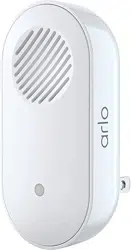
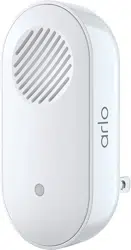
Meet your Chime 2 ............................................................................................................................. 18
Do more with your Chime 2 ............................................................................................................. 19
Find a good location for your Chime 2 ..........................................................................................19
Set up your Chime 2 .......................................................................................................................... 19
Chime 2 LED ........................................................................................................................................ 20
Select a melody for your Chime 2 .................................................................................................. 20
Use silent mode to stop the Chime 2 from ringing ..................................................................... 21
4. Optional: Connect a wired chime 22
Voltage requirements ........................................................................................................................ 22
Check the voltage level printed on the doorbell transformer ................................................. 23
Change from wire-free to wired installation ................................................................................. 24
Hardwire your Essential Wire-Free Video Doorbell ..................................................................... 24
Battery charging with a hardwired doorbell ................................................................................ 26

Essential Wire-Free Video Doorbell
3Contents User Manual
5. Use Your Doorbell 27
Answer your doorbell from your smartphone ............................................................................. 27
Accept a call from your doorbell..................................................................................................... 27
Respond to a visitor with a Quick Reply ........................................................................................28
Play a message from a visitor .......................................................................................................... 29
Use silent mode for the doorbell .................................................................................................... 29
Control the doorbell LED ................................................................................................................. 30
Change the call settings ................................................................................................................... 30
6. View and Record Videos 32
View your doorbell’s camera feed .................................................................................................. 33
Record clips from live video............................................................................................................. 33
Take a snapshot from live video ..................................................................................................... 34
2-Way Audio ........................................................................................................................................ 34
Change the order of the camera feeds .......................................................................................... 34
Motion detection activity zones ...................................................................................................... 35
View recordings and snapshots ...................................................................................................... 36
Download recordings........................................................................................................................ 37
7. Change Your Settings 39
Two-step verifi cation ........................................................................................................................39
Use face or fi ngerprint authentication .......................................................................................... 41
Customize your profi le ..................................................................................................................... 42
Change your Arlo password ............................................................................................................. 43
Reset a forgotten password ............................................................................................................. 43
Grant access to friends ..................................................................................................................... 44
Change the time zone ....................................................................................................................... 45
Doorbell settings ................................................................................................................................ 46
Adjust the fl icker setting ................................................................................................................... 49
View device information ................................................................................................................... 49
Remove a device from your account ............................................................................................. 49
Restart the doorbell from the Arlo Secure App ............................................................................ 50
8. Modes, Rules, and Alerts 51
Arm or disarm all your Arlo devices ............................................................................................... 51
Modes ................................................................................................................................................... 51

Essential Wire-Free Video Doorbell
4Contents User Manual
Select a mode ..................................................................................................................................... 52
Mute Notifi cations ............................................................................................................................. 52
Rules for modes ................................................................................................................................. 53
Trigger a Chime 2 when the doorbell is pressed ......................................................................... 53
Change motion sensitivity ............................................................................................................... 54
Automatically stop recording when motion stops ...................................................................... 54
Manage alerts ..................................................................................................................................... 55
Schedule when your doorbell camera is armed ......................................................................... 55
Geofencing with multiple mobile devices .................................................................................... 58
Use your doorbell to trigger another camera to record ............................................................. 60
9. Arlo Connect 62
Use Arlo with Amazon Alexa ............................................................................................................ 62
Add your doorbell to the Google Assistant app .......................................................................... 64
Use Arlo with IFTTT ........................................................................................................................... 64
10. Troubleshooting 65
Scan the QR code during doorbell setup ...................................................................................... 65
Arlo doesn’t discover your doorbell during setup ...................................................................... 66
Remove the doorbell from its mount ............................................................................................ 67
Reset the Video Doorbell .................................................................................................................. 67
Optimize your doorbell battery life ................................................................................................ 68
Scan the QR code during Chime 2 setup ...................................................................................... 69
Arlo doesn’t discover your Chime 2 during setup ....................................................................... 70
Your Chime 2 doesn’t ring when the Arlo doorbell is pressed .................................................. 70
Reset the Chime 2 .............................................................................................................................. 71
Can’t see video streams in a browser ............................................................................................ 72
Not receiving push notifi cations ..................................................................................................... 73
I can’t log in to my Arlo account ..................................................................................................... 74
Troubleshoot Arlo Geofencing ........................................................................................................ 75
5
1. Get to Know Your Doorbell
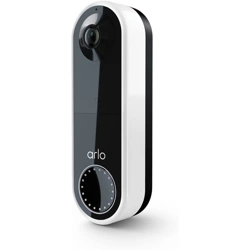
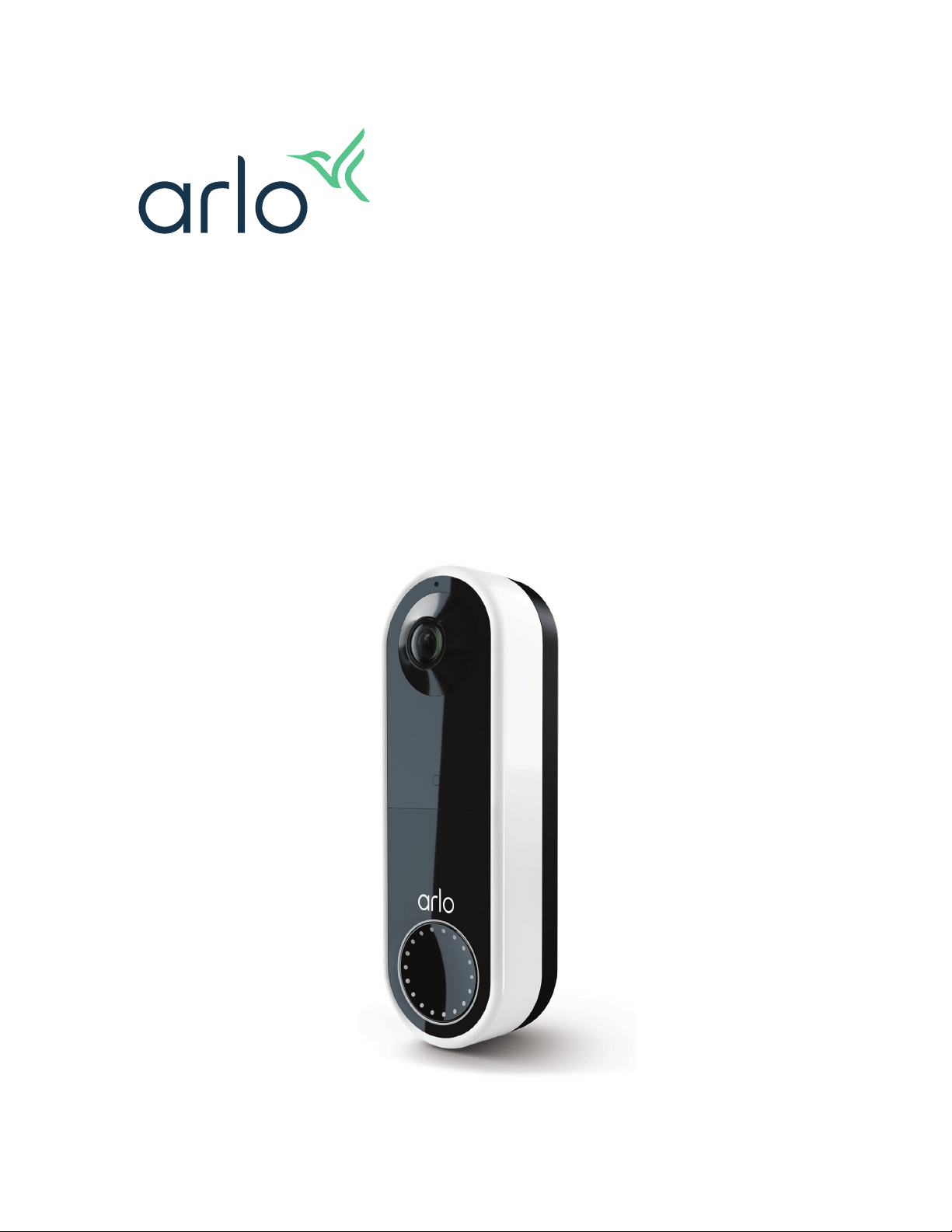
A better way to see the complete picture at your door. Your Arlo Essential Wire-Free Video
Doorbell can be powered by a rechargeable battery or hardwired. Connect directly to WiFi for
easy setup. When motion is detected, receive notifi cations and view live video from your
phone. See what’s at the door, from head to toe or a package on the ground during the day or
in low light with night vision, without opening your door. Speak to visitors with two-way
audio or use pre-recorded quick reply messages when you’re busy.
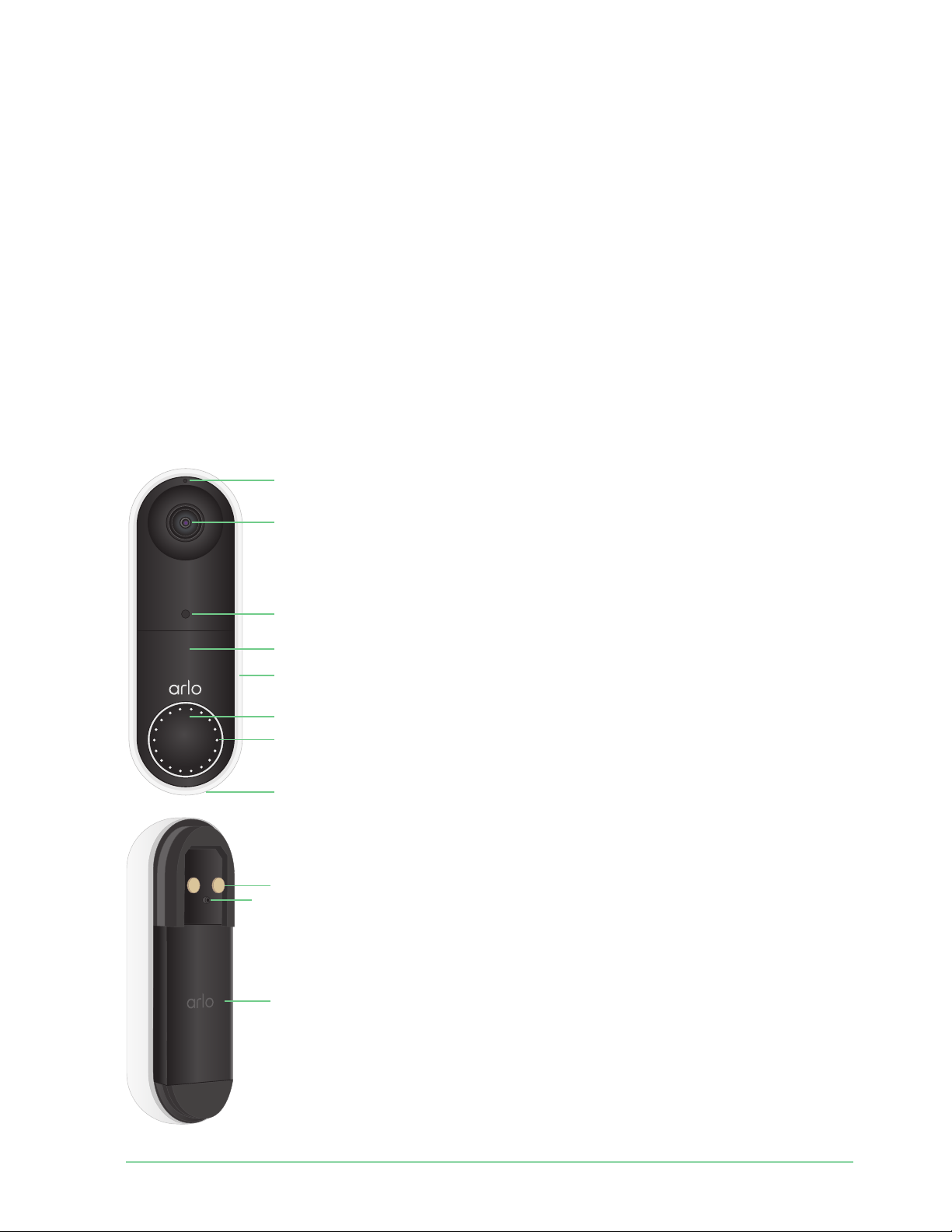
Microphone
Lens with 180-degree
fi eld of view
Ambient light sensor
IR LED for night vision
Weather-resistant casing
Doorbell button
Status LEDs
Speaker
Wiring terminals (optional)
Reset button (pinhole)
Rechargeable battery

6Get to Know Your Doorbell
Essential Wire-Free Video Doorbell
User Manual
If you choose to wire your doorbell
The wire-free Arlo Essential Doorbell comes with a rechargeable battery, which provides
power to the doorbell. Wiring is not required for installation. If you want to hardwire your
wire-free Essential Video Doorbell, you can.
The voltage must be 8 – 24VAC. If you want to install or upgrade a transformer, contact a
licensed electrician or visit arlo.com for information about installation services. For more
information about optional wiring, see 3. Optional: Connect a wired chime on page 22.
Get the Arlo Secure App
Download the Arlo Secure App. The Arlo Secure App lets you create an Arlo account in the
cloud and set up and manage all your Arlo devices.
Features
• See more at your front door. See a person from head to toe or a package on the ground
with a 180 degree diagonal viewing angle optimized for the front door.
• Security in the palm of your hand. Receive notifi cations when motion is detected and
watch live streaming video from your smartphone or tablet.
• More ways to answer. See and speak to visitors with clear two-way audio, or respond
with pre-recorded quick reply messages when you’re busy. Receive a video call when your
doorbell is pressed and never miss a visitor.
• Night Vision. See who’s at your door at night, even without a light on.
• Multiple powering options. Install without wires using the rechargeable battery, or
hardwire to existing wiring for continuous charging.
• Notifi cations that matter. Get alerts when your Video Doorbell spots people, vehicles,
animals or a package with Arlo Secure
1
.
1 Arlo Secure service is not available in certain countries. See www.arlo.com/ArloSecure for details.
Note: If you already use the Arlo Secure
App, make sure that you’re using the latest
version. To fi nd out if an update is available,
go to the app store and search for Arlo.

7Get to Know Your Doorbell
Essential Wire-Free Video Doorbell
User Manual
• Built-in smart siren. Trigger your siren automatically, or manually from the Arlo Secure
App.
• Visitor messaging. Guests can leave you a voice message if you’re unable to answer the
door, and you can listen remotely at your convenience.
• Direct to WiFi. Connects directly to WiFi for simple setup.
Do more with Arlo
You can add these options:
• Arlo Chime 2. The Arlo Chime 2 may be included with your Essential Wire-Free Video
Doorbell, or sold separately. Your Chime 2 lets you receive instant alerts from your wire-
free Essential Video Doorbell and your Arlo cameras. For more information, see Chapter 3.
Arlo Chime 2 on page 18.
• Add more Arlo cameras and devices. Cover more areas in and around your home by
adding cameras, security lights, and more.
• Upgrade your Arlo subscription. For more information,visit
What are the available Arlo
subscription plans and how much cloud recording is available?.
8
2. Get Started
Charge the battery before installation
Your Essential Wire-Free Video Doorbell comes with a rechargeable battery. We recommend
that you charge the battery to 100% before you install the doorbell. For help with recharging
the battery a er installation, see Replace battery/umounting on page 15.
Warning: Do not leave the doorbell outdoors without the battery installed. Doing so can
result in water intrusion into the doorbell.
To charge the battery before installation:
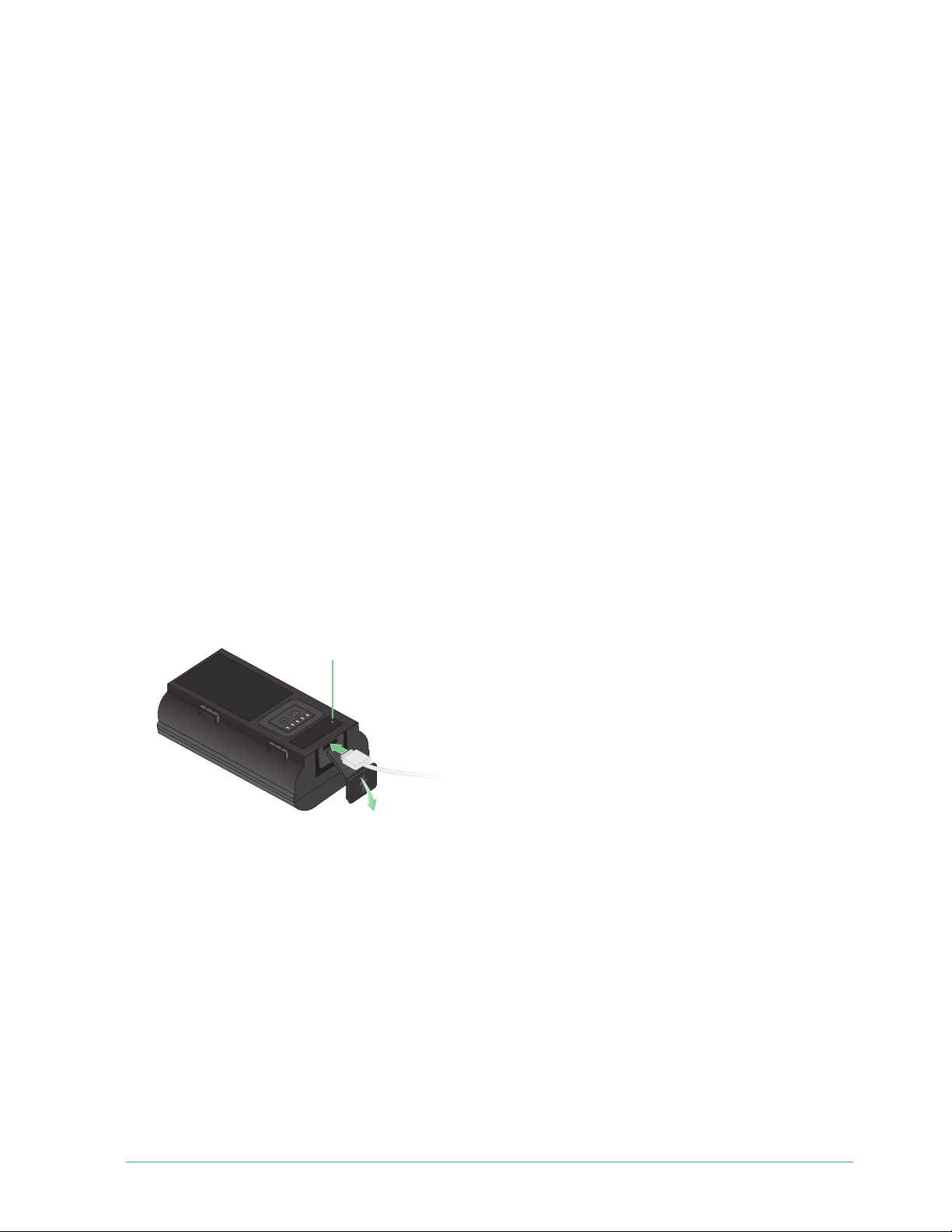
1. Connect the rechargeable battery to the USB charging cable that came in the package.
The charging cable works with most power adapters.
2. Charge the battery to 100%.
The battery LED lights red during charging, then turns green when the battery is fully
charged.
Note: If you haven’t installed your doorbell yet, we recommend that you wait to insert the
battery into the doorbell until you are ready to follow the steps in the Arlo Secure App to
install and set up your doorbell.
LED

9Get Started
Essential Wire-Free Video Doorbell
User Manual
Use the Arlo Secure App for installation and
setup
You must use the Arlo Secure App to install and set up your Essential Wire-Free Video
Doorbell. The Arlo Secure App guides you through installation and setup:
1. Create your Arlo account.
You use the same account to manage all your Arlo devices.
2. Follow the instructions in the Arlo Secure App to install and set up your doorbell.
Once you set up your Arlo account, you can access it by using the Arlo Secure App on a
smartphone or tablet, or from a computer using a web browser. If you’re using a computer,
enter
https://my.arlo.com/#/login in the address bar of the browser.
Tips for optimal WiFi performance
The distance between WiFi devices can aff ect the WiFi signal:
• Maximum recommended distance. Place your WiFi router within range of your doorbell.
The maximum line-of-sight range of your WiFi router is reduced by each wall, ceiling, or
other major obstruction between the doorbell and the router.
• Minimum recommended distance. To reduce WiFi interference, allow at least 6½ feet (2
meters) between your doorbell and any Arlo cameras that you install.
These materials can reduce WiFi signal strength if they are located between WiFi devices:
• Unusually thick walls and ceilings
• Brick
• Concrete
• Stone
• Ceramic
• Glass, especially mirrors
• Metal
• Large quantities of water, such as the water in a fi sh tank or water heater

10Get Started
Essential Wire-Free Video Doorbell
User Manual
Connect your mobile device to a 2.4 GHz WiFi
network during setup
If you’re connecting your Essential Wire-Free Video Doorbell directly to your router’s WiFi
network, it’s important to understand that your mobile device must connect to the same WiFi
network as the doorbell during setup.
Your doorbell can only connect to a 2.4 GHz WiFi network. Many routers broadcast WiFi
networks in both 2.4 GHz and 5 GHz bands, so your phone might connect to the 5 GHz WiFi
band. During setup, connect your phone to your 2.4 GHz WiFi network, then connect your
Video Doorbell to that same 2.4 GHz WiFi network.
Find your 2.4 GHz WiFi network name and password
Your phone might connect to your 5 GHz WiFi network most of the time. If you’re not sure
about how to fi nd the 2.4 GHz WiFi network:
• Look on your WiFi router label.
Many routers have a label that shows the WiFi network name, which is also called an SSID.
Your 2.4 GHz network name might have a 2, 2.4, or 2G at the end. Your 5 GHz network
name might have a 5 or 5G at the end. If you changed your WiFi settings, then check the
place where you saved your custom settings.
• If your WiFi network name or SSID doesn’t indicate whether it’s 2.4 GHz or 5 GHz, ask your
Internet service provider (ISP) or the person who set up your WiFi router.
• If you have a mesh WiFi network, it uses only one WiFi network name for both WiFi bands.
The doorbell fi nds and connects to the 2.4 GHz WiFi band. As long as you connect your
phone to the same mesh network, Arlo can discover the doorbell.
Connect your iOS (Apple) device to a 2.4 GHz network
1. Unlock your device and tap Settings.
2. Tap Wi-Fi, near the top of the list of Settings options.
3. Turn on WiFi by tapping the switch next to Wi-Fi at the top.
Note: WiFi is activated when the switch is green.
4. Select a 2.4 GHz WiFi network.
This is commonly indicated by a 2, 2.4, or 2G at the end of the network name.
5. If prompted, enter the password for the network.
When you’re connected to the WiFi network, a blue check mark appears to the le of the
network name.
11Get Started
Essential Wire-Free Video Doorbell
User Manual
Connect your Android device to a 2.4 GHz network
1. Unlock your device and tap Settings.
2. Tap Network & Internet > Wi-Fi.
3. Turn on WiFi by tapping Use WiFi at the top.
4. Select a 2.4 GHz WiFi network.
This is commonly indicated by a 2, 2.4, or 2G at the end of the network name.
5. If prompted, enter the password for the network.
When you’re connected to the WiFi network, the word Connected appears under the
network name.
Doorbell LED
The LED is on the outside of your doorbell and indicates how the doorbell is operating.
This section describes how the LED works if you didn’t change the default LED settings. For
information about changing the LED behavior, see
Control the LED on page 30.
The LED behaviors on your doorbell vary, depending on whether you have set it up.
LED behavior during setup
• Off . The battery is not in the doorbell, or the battery isn’t charged. For more information,
see
Charge the battery on page 8.
• Single white fl ash. The battery is correctly inserted in the doorbell.
• Flashing white. The doorbell is ready to connect to your WiFi router. A er you scan the QR
code in the Arlo Secure App, one of the following two behaviors happens:
• Rapid fl ashing white. The Arlo Secure App discovered your doorbell.
• Flashing amber. The Arlo Secure App did not discover your doorbell. Make sure that
both your doorbell and your mobile device are connected to the same 2.4 GHz WiFi
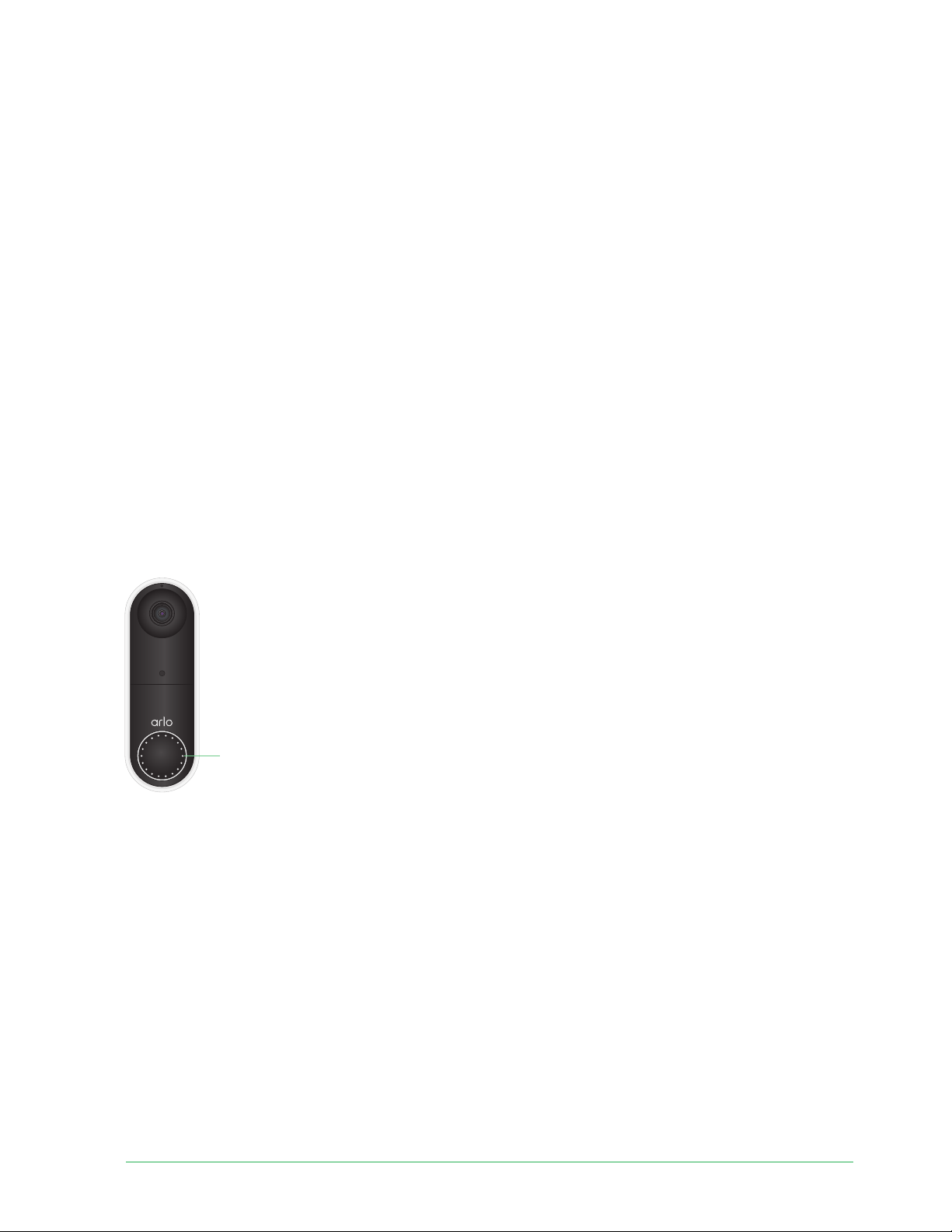
LED
12Get Started
Essential Wire-Free Video Doorbell
User Manual
network.
LED behavior a er setup
• Slow breathing pattern white. The doorbell detected motion.
• Solid white. The doorbell is connected to a call.
• Fading white. The call from the doorbell ended.
Choose a good spot to mount your doorbell
The best location for your doorbell varies by household and outdoor environment.
Place your doorbell with the fullest view of the area leading up to the front entry. This
provides the best opportunity to capture motion detection events and video clips that include
a person approaching the door. You can use the included angled mounting wedge to optimize
the angle of your doorbell.
When mounting your doorbell:
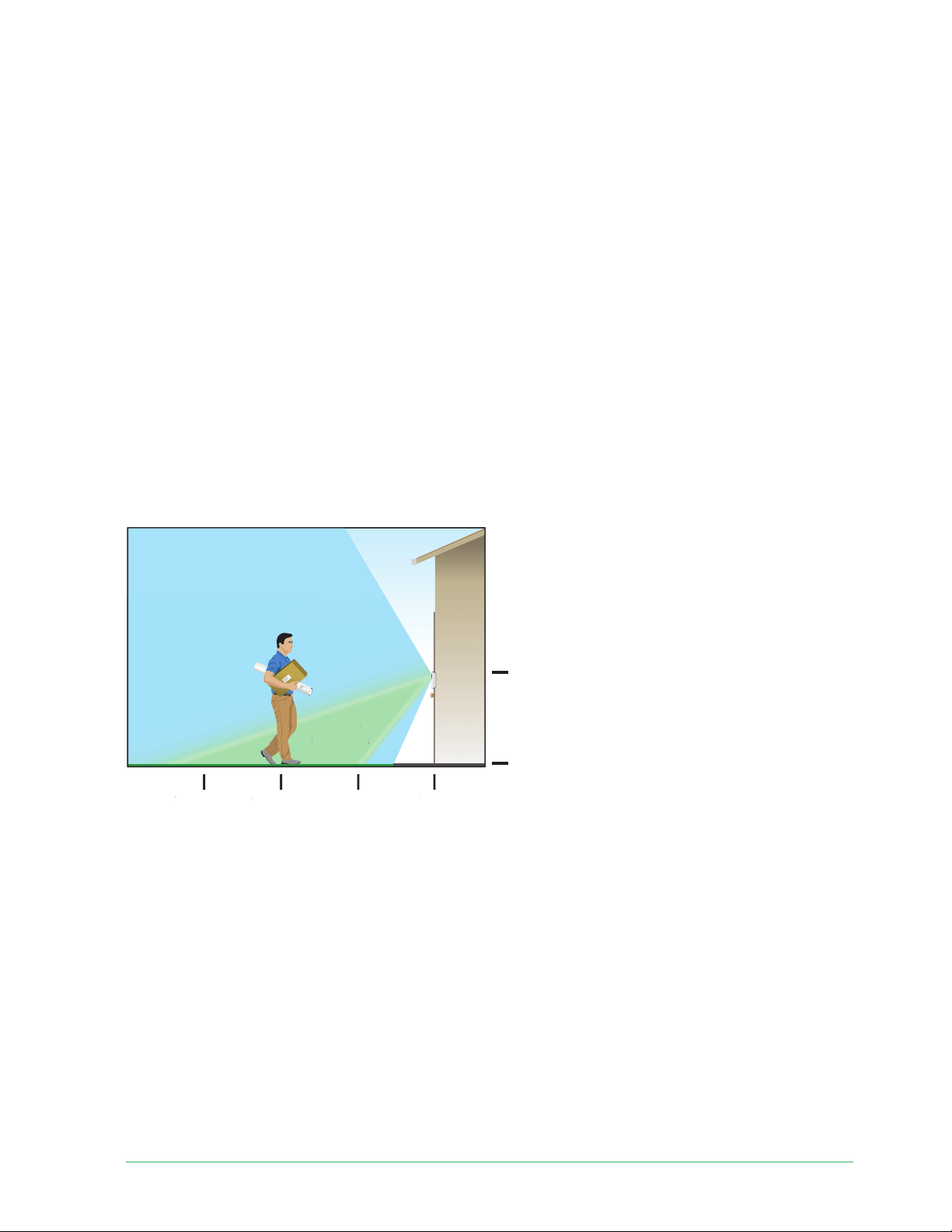
• Place the doorbell about 4 feet (1.2 m) above the ground.
• Make sure that nearby walls and other objects do not obstruct the view of your doorbell.
• The lower half of the camera’s fi eld of view is the motion-sensitive part of the image. The
doorbell begins recording when it detects motion in this area.
ХȅѰюЫ(ѱ
Doorbell
height
4ȅѰУюФ(ѱ
0ȅѰТ(ѱШȅѰУюЪ(ѱЫȅѰХюШ(ѱ
Doorbell
field of view
Motion
detection
area
Хȅ
Ѱю
Ы(
ѱ
0
ȅ
ѰТ
(ѱ
Шȅ
ѰУ
юЪ
(ѱ
Ыȅ
ѰХ
юШ
(ѱ
Doorbell
f
ield of vie
w
Mot
i
o
n
detectio
n
n
n
area
13Get Started
Essential Wire-Free Video Doorbell
User Manual
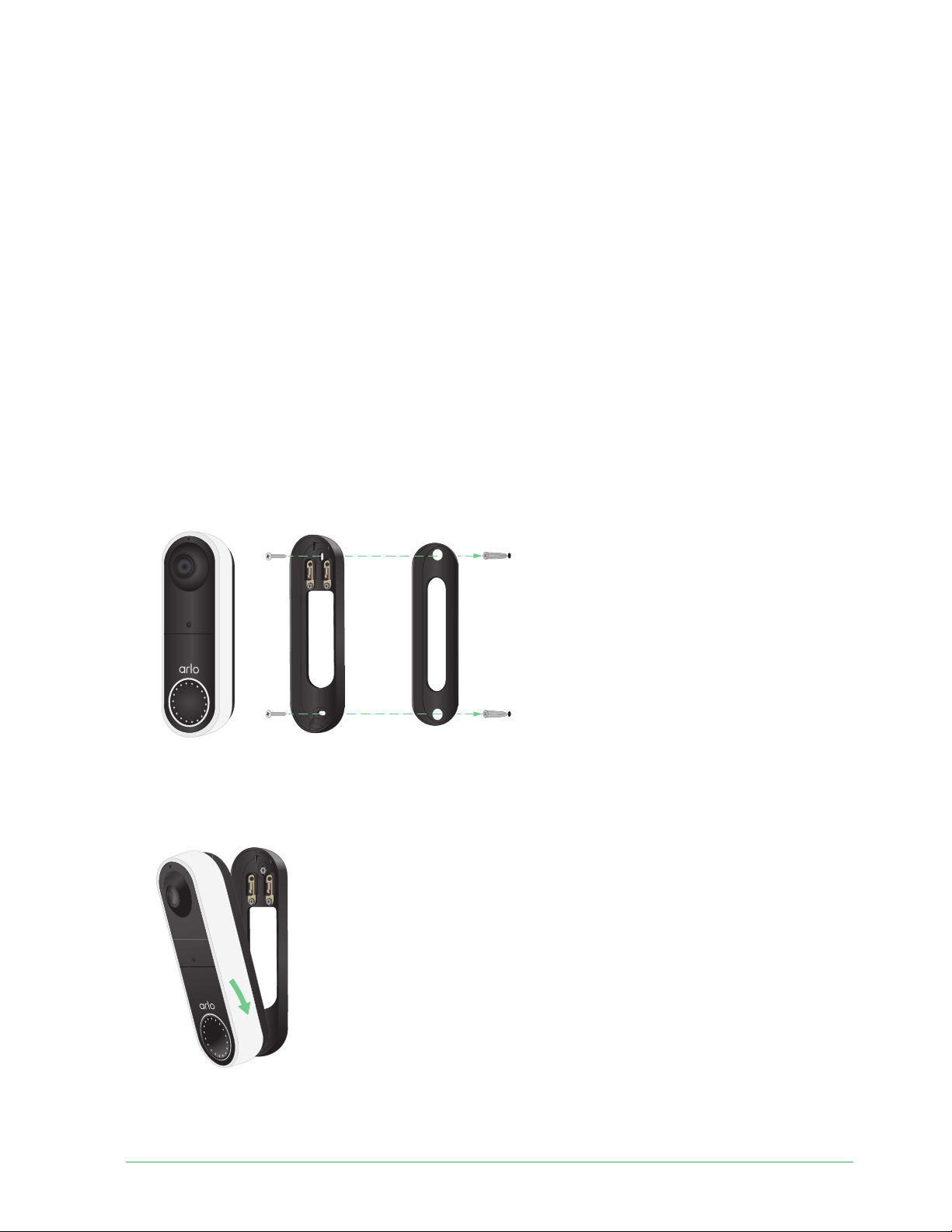
Mount your doorbell wire-free
Note: If you want to hardwire your doorbell, which is optional, see Hardwire your Essential
Wire-Free Video Doorbell
on page 24.
1. Place the mounting plate on the wall where you want to mount your doorbell, and mark
the locations for the two screw holes.
2. Decide whether to use the angled mounting plate to adjust the area your doorbell faces.
3. Use a 6 mm (15/64 inch) drill bit to drill two holes.
4. Align the mounting plate with the two holes in the wall.
5. While holding the mounting plate over the two holes (and the angled mounting plate, if
you’re using it), use a screwdriver to put a screw into each of the holes.
If you’re mounting the doorbell on drywall, we recommend that you use
the provided wall anchors.
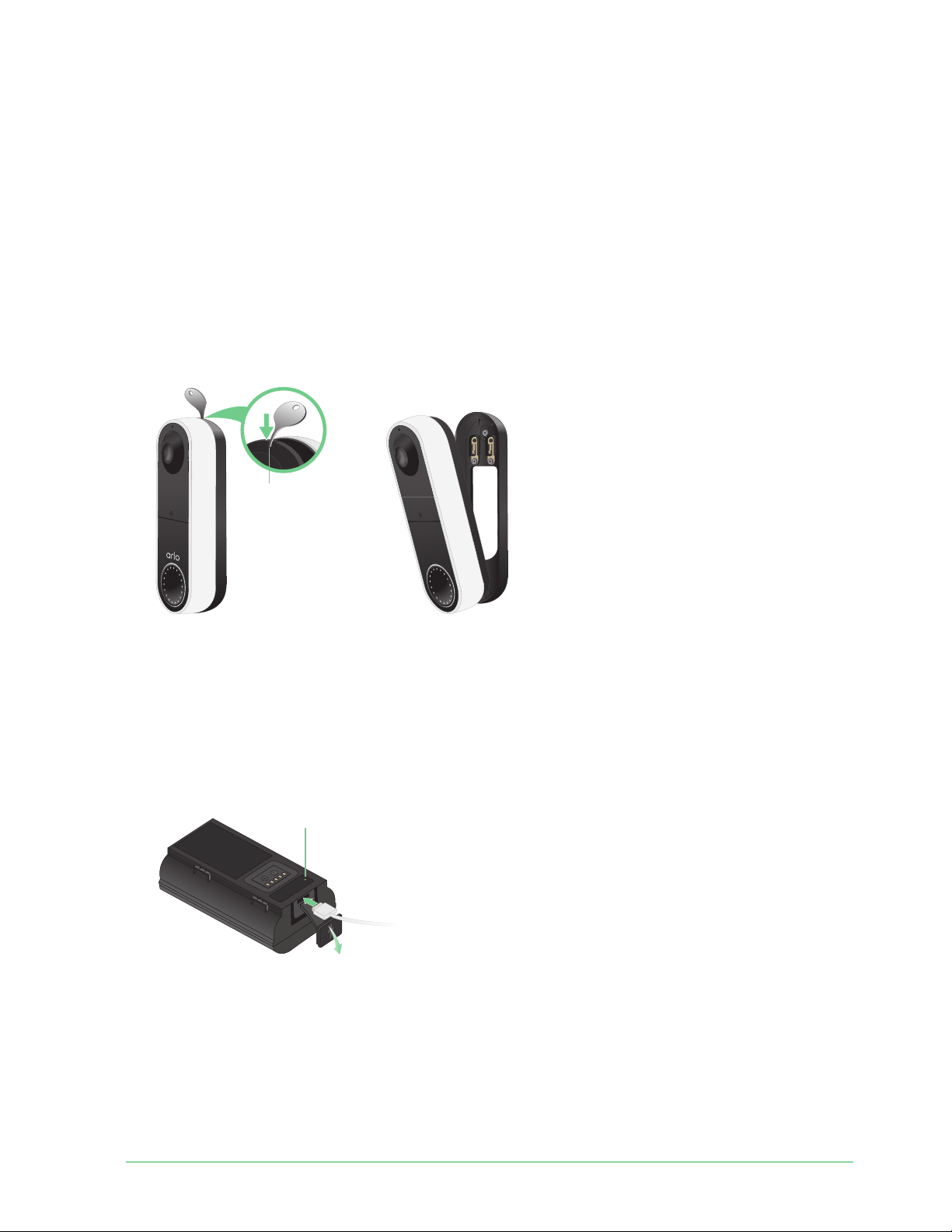
6. Place the doorbell on the mounting plate in a down-and-in motion.
When the doorbell is secured, there is a click sound.
Optional mounting wedge
Mounting plate

14Get Started
Essential Wire-Free Video Doorbell
User Manual
Test motion detection
You can use the motion detection test to fi nd the right motion sensitivity setting for your
doorbell.
1. Open the Arlo Secure App.
2. Tap the gear icon next to the Essential Wire-Free Video Doorbell.
3. Tap Device Utilities > Motion Detection Test.
4. Move in front of the camera.
During this test, the camera LED blinks white when motion is detected.
5. Move the slider to adjust the motion sensitivity level as needed.
Note: This motion sensitivity setting is only for use during the motion detection test so
that you can identify the setting you want to use.
6. A er you fi nd a setting that works well, edit the mode rule to change the sensitivity level
to your preferred setting so that it takes eff ect.
For more information about how to edit a mode rule, see
Change motion sensitivity on
page 54.
Customize your doorbell settings
You control the rules your doorbell uses to record and alert you by selecting a mode. You can
also arm or disarm all your Arlo devices.
The Arlo Secure App comes with four modes:
• Armed
• Disarmed
• Schedule
• Geofencing
You can customize each mode and you can also create custom modes. For information, see
Chapter
6. Modes, Rules, and Alerts on page 51.
15Get Started
Essential Wire-Free Video Doorbell
User Manual
Recharge the battery a er installation
Warning: Do not leave the doorbell outdoors without the battery installed. Doing so can
result in water intrusion into the doorbell.
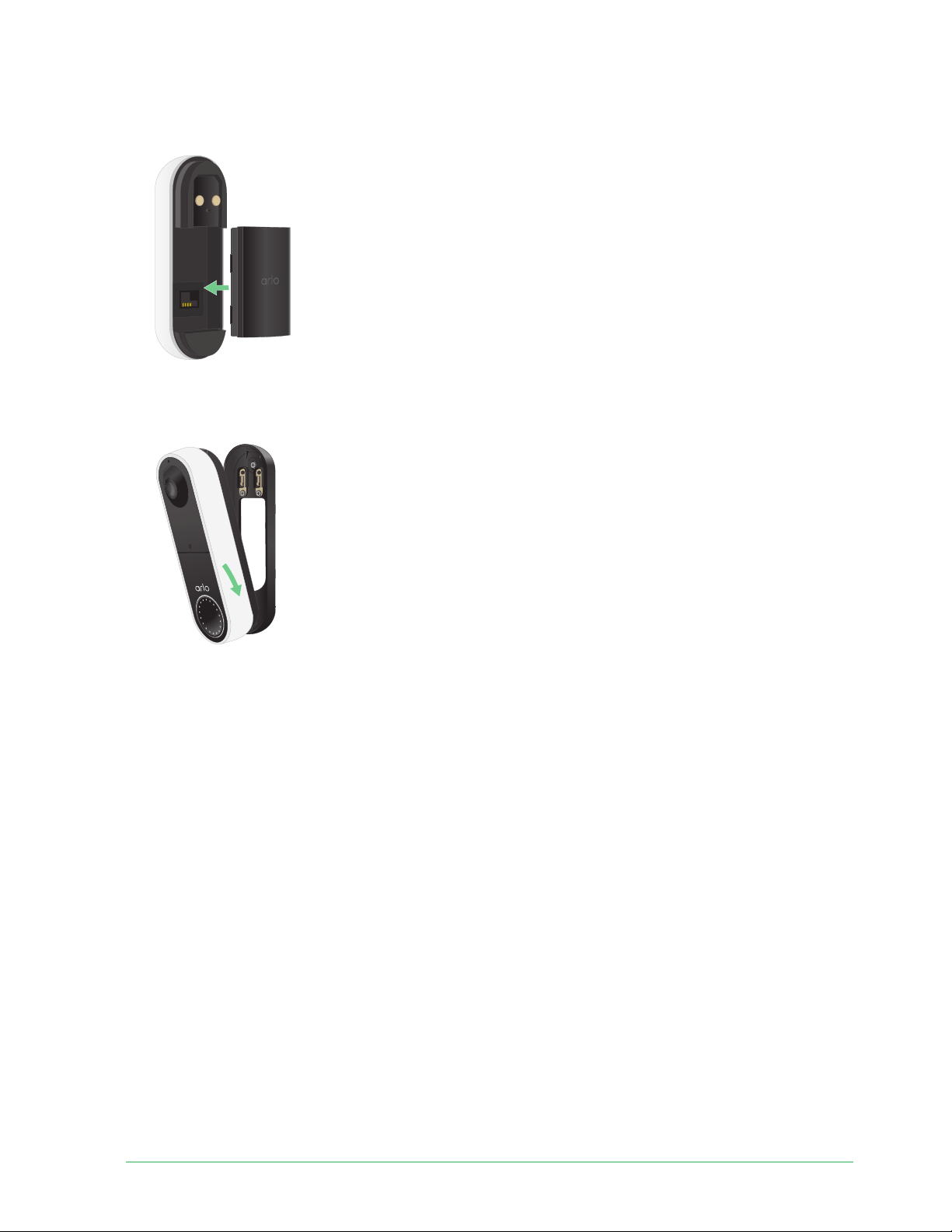
1. Locate the release pin that came with your Essential Wire-Free Video Doorbell.
Alternatively, you can use a paperclip or a similar object.
2. Insert the release pin into the release pinhole at the top of the doorbell mount.
A click occurs, and the doorbell is released from the mount.
3. Pull the doorbell off the mount in an up-and-out motion.
4. Bring the doorbell indoors.
5. Remove the battery from the doorbell.
6. Connect the battery to the USB charging cable that came in the package.
The charging cable works with most power adapters.
7. Charge the battery to 100%.
The battery LED lights red during charging, then turns green when the battery is fully
charged.
Rear Access
LED
16Get Started
Essential Wire-Free Video Doorbell
User Manual
8. Place the battery back into the doorbell.
9. Place the doorbell on the mounting plate in a down-and-in motion.
When the doorbell is secured, there is a click sound.
Chime options for your doorbell
The Essential Wire-Free Video Doorbell off ers several chime options. To hear a ring when
someone presses your doorbell, you can connect the doorbell to an Arlo Chime 2, your home’s
traditional chime, a smart home voice assistant system, your mobile device (for SIP video
call), or an Arlo Chime with a compatible Arlo SmartHub or base station.
Wire-free chime solutions
You can take advantage of a variety of wire-free options to hear a ring and receive notifi cations
when someone presses your Arlo doorbell.
• Doorbell video phone call.
Your doorbell is connected to the mobile device you used to set up the doorbell in the Arlo
Secure App. Your phone rings when someone presses your doorbell, and you can answer
the phone to speak with the person who rang the doorbell. If you have an iOS device, you
can assign a contact name and ringtone to the doorbell. For more information, see Answer
your doorbell from your smartphone on page 27.

17Get Started
Essential Wire-Free Video Doorbell
User Manual
• Arlo Chime 2.
The Arlo Chime 2 may be included with your Essential Wire-Free Video Doorbell, or sold
separately. Your Chime 2 lets you receive instant alerts from your Arlo doorbell and your
Arlo cameras. For more information, see Chapter 3. Arlo Chime 2 on page 18.
• Smart home voice assistant systems.
You can use a home voice assistant system—like Amazon Alexa or Google Assistant—to
make an announcement when someone presses your Essential Wire-Free Video Doorbell.
Your doorbell is also compatible with Samsung SmartThings and IFTTT. For more
information, see
Chapter 9. Arlo Connect on page 62.
• Arlo Chime, sold separately.
If you have an Arlo SmartHub or base station, you can use it to add an Arlo Chime to
your Arlo account. When an Arlo chime is on your account, you can pair it with your Arlo
doorbell. See
Connect an optional Arlo Chime (sold separately).
Traditional chime solution
Your Arlo doorbell is fully wire-free, but you can connect it to your existing doorbell wiring (if
applicable) to ring your household chime and to continuously charge the doorbell. For more
information, see Chapter 3. Optional: Connect a wired chime on page 22.
Connect an Arlo Chime (sold separately)
You can connect your Essential Wire-Free Video Doorbell to an Arlo Chime. When a chime is
connected, a ring plays when someone presses your video doorbell. This is a useful wire-free
solution if you don’t already have a mechanical or digital chime to connect to your doorbell.
Note: The Arlo Chime requires connection to an Arlo SmartHub or base station.
To connect an Arlo Chime to your doorbell:
1. Open the Arlo Secure App.
2. Tap Settings > My Devices.
3. Select your Arlo Essential Video Doorbell.
4. Scroll to the bottom of Device Settings, and tap Add Chime.
5. Follow the Arlo Secure App to connect your Arlo Chime.
When your Arlo Chime is connected to your Arlo Essential Video Doorbell, the chime
appears under PAIRED DEVICES on the Device Settings page.
18
3. Arlo Chime 2
The Arlo Chime 2 is optional. Depending on the product you purchase, the Arlo Chime 2 may
be included with your Essential Wire-Free Video Doorbell, or sold separately. The Arlo Chime 2
lets you receive instant alerts from your Arlo doorbell and your Arlo cameras.
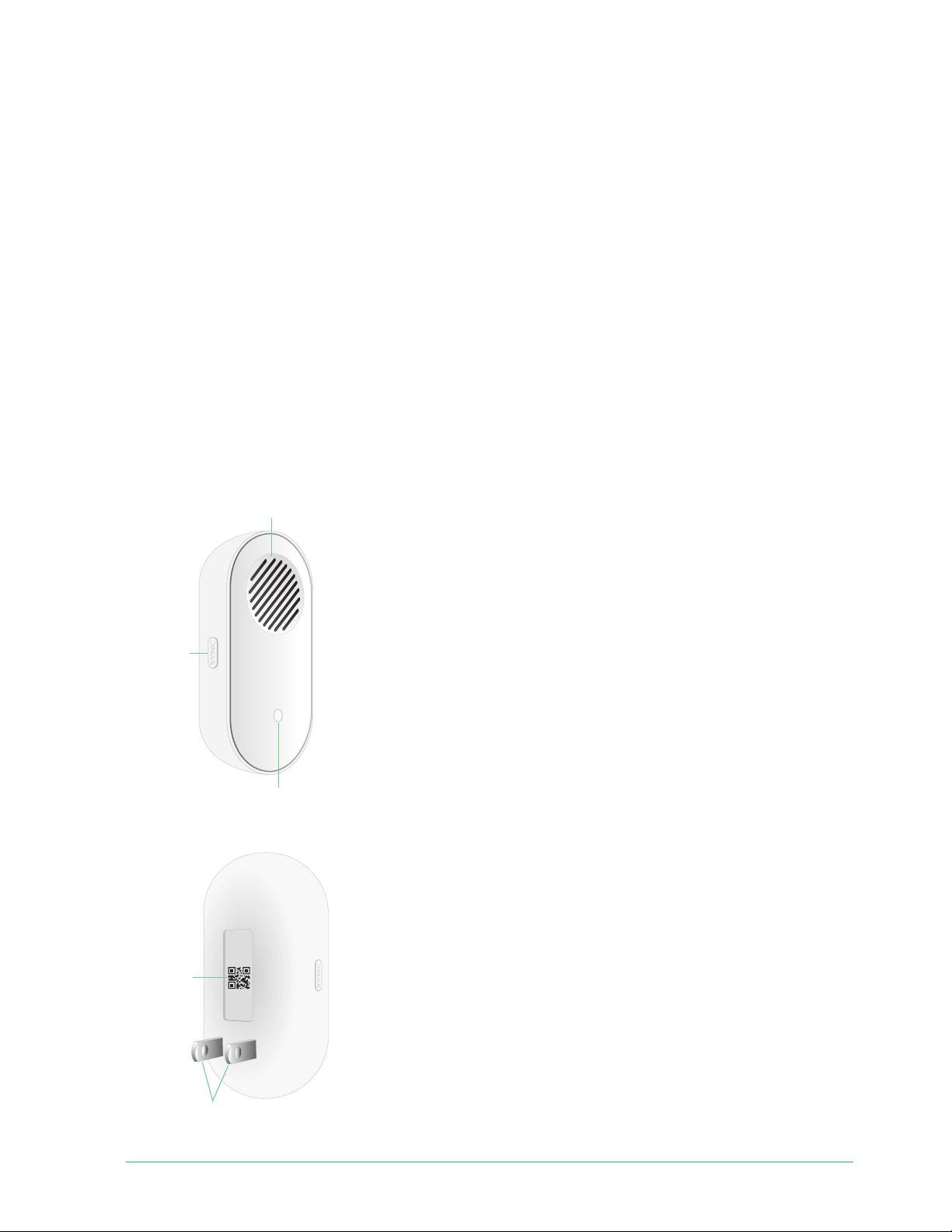
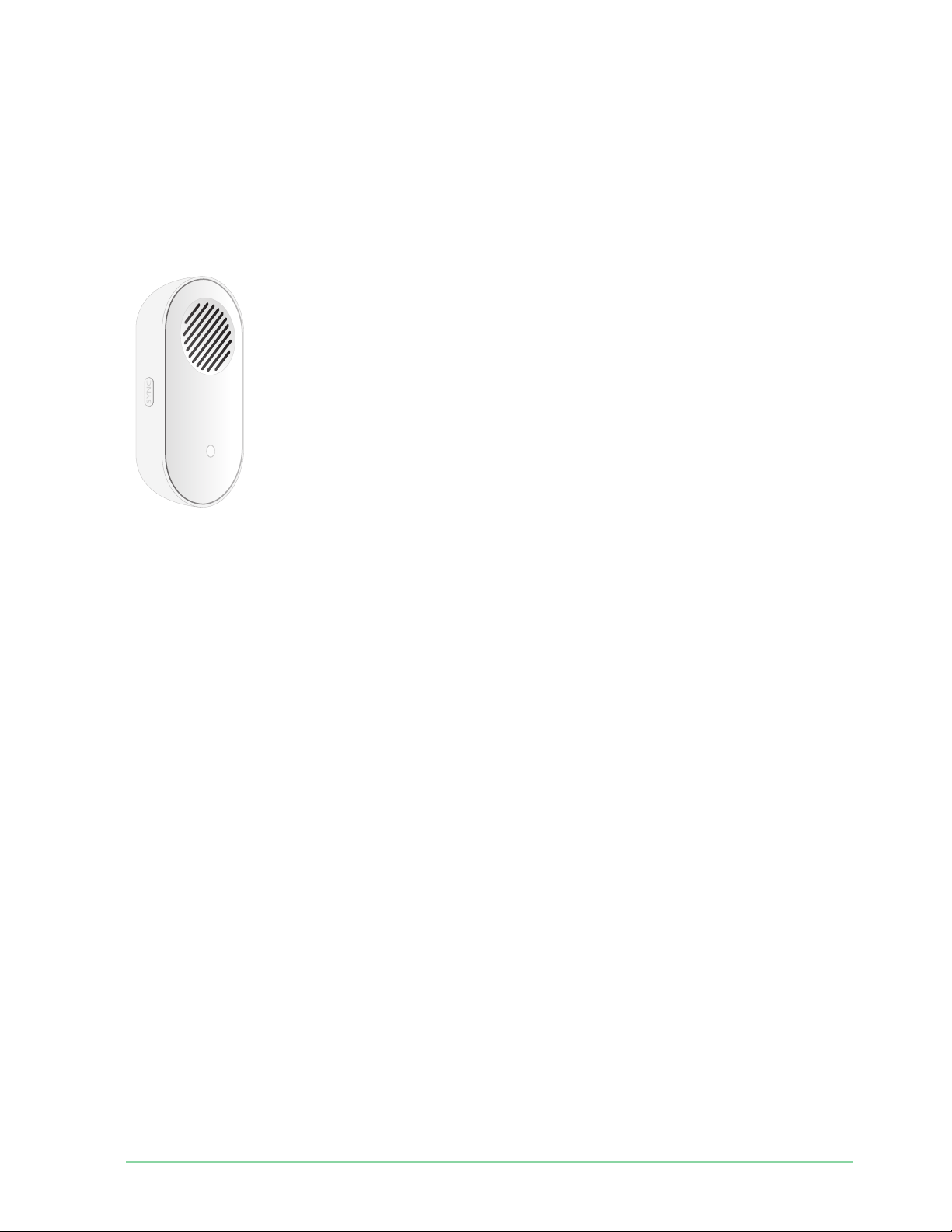
Meet your Chime 2
Speaker
Sync
button
Status
LED
QR code
Power
prongs
Front view, integrated items and features:
• Speaker: The speaker rings or plays a melody
when someone presses your doorbell. You can
also set up audio alerts or a siren sound to alert
you when motion or audio is detected on an Arlo
camera.
• Sync button: Use the sync button to help set up
your Arlo Chime 2, or to factory reset the chime.
• Status LED: The LED indicates the status of your
Arlo Chime 2.
Rear view, integrated items and features:
• QR code: Use the QR code to set up your Arlo
Chime 2.
• Power prongs: Plug your Arlo Chime 2 into a
wall outlet.

19Arlo Chime 2
Essential Wire-Free Video Doorbell
User Manual
Do more with your Chime 2
You can add an unlimited number of Arlo Chime 2 devices to your Arlo account. These devices
do not count toward the device limit of an Arlo subscription.
You can pair more than one Arlo doorbell with your Chime 2. For example, if you have two Arlo
Essential Video Doorbells (Wired or Wire-Free), you can set both to trigger your Arlo Chime.
You can also customize your Arlo doorbell’s melody, so you know which doorbell rang.
Find a good location for your Chime 2
When placing your Arlo Chime 2:
• Place your chime in a central area in your home. This helps to ensure that you hear the
chime from multiple areas of your home.
• Place your chime in a room where you are most o en present. If you need to select one of
many rooms in your home to place your chime, place the chime wherever you are most
likely to be when someone presses your doorbell.
• If possible, use a raised wall outlet. A higher position for your Arlo Chime 2 improves audio
and WiFi connectivity.
• Use a vertical wall outlet. Place your chime into an outlet that is vertical along a wall,
rather than horizontal like a power strip.
• Use multiple chimes throughout your home. If you have a large home, you might benefi t
from placing a separate Arlo Chime 2 on each fl oor or wing of your home.
Set up your Chime 2
Set up your Essential Wire-Free Video Doorbell fi rst, and then set up your Chime 2 to pair with
your doorbell.
1. Open the Arlo Secure App.
2. Tap Add New Device.
3. Follow the instructions in the Arlo Secure App to install and set up your Chime 2.
When your Arlo Chime 2 is connected to your Arlo Essential Video Doorbell, the chime
appears under PAIRED DEVICES on the Device Settings page in the Arlo Secure App.
20Arlo Chime 2
Essential Wire-Free Video Doorbell
User Manual
Chime 2 LED
The Arlo Chime 2 LED indicates the chime status and activity. When the chime fi rst powers
on, the LED lights solid white for a brief period. During regular operation, the LED is off except
when the Chime 2 is making a sound.
LED behaviors during setup
• Fading white. The chime is in pairing mode, and is ready to be set up.
• Fast blinking white. The chime connected to your WiFi network and your Arlo account.
• Slow blinking amber. A setup error occurred. See
Arlo doesn’t discover your Chime 2
during setup on page 70.
LED behaviors a er setup
• Alternating fl ashing white and amber. A fi rmware update is in progress. Do not remove,
reset, or unplug the chime.
• Fast blinking white. The chime completed a factory reset. For information about resetting,
your chime, see
Reset the Chime 2 on page 71.
• Slow blinking white. The chime is ringing or playing audio.
• Slow blinking amber. The chime is off line.
Select a melody for your Chime 2
You can select one of seven melodies to play when someone presses your Arlo doorbell and
triggers your Arlo Chime 2. If you have multiple Arlo doorbells associated with one chime, you
can set a diff erent melody for each doorbell so that you know which doorbell was pressed.
Status
LED

21Arlo Chime 2
Essential Wire-Free Video Doorbell
User Manual
To select a melody for your Arlo Chime 2:
1. Open the Arlo Secure App.
2. Tap Settings > My Devices.
3. Select an Arlo doorbell that is paired with your Arlo Chime 2.
4. Tap Melody > Chime Melody.
5. Select a melody.
Your settings are saved.
Use silent mode to stop the Chime 2 from
ringing
The Chime 2 rings when it’s paired to your Essential Video Doorbell and someone presses the
doorbell button. To stop the Chime 2 from ringing, select silent mode for the doorbell.
To turn silent mode features on and off :
1. Open the Arlo Secure App.
2. Tap the gear icon next to the doorbell.
3. Tap Silent Mode.
4. Adjust the settings.
For more detailed information, see
Turn Silent mode on and o on page 29.
22
4. Optional: Connect a wired chime
The Essential Wire-Free Doorbell comes with a rechargeable battery, which provides power
to the doorbell. Wiring is not required for installation. If you want to hardwire your Essential
Wire-Free Video Doorbell, you can. Hardwiring your doorbell lets you connect it to your
home’s existing chime and allows the doorbell to trickle charge when it’s not in use.
Voltage requirements
If you choose to wire your Essential Wire-Free Video Doorbell, the voltage must be 8 – 24 VAC
and a transformer is required.
If your voltage doesn’t meet the power requirements, and you need to install or upgrade a
transformer, contact a licensed electrician or visit arlo.com for information about installation
services.
We recommend that you check the voltage on the transformer that powers your existing
doorbell before installing your Essential Wire-Free Video Doorbell. If the transformer’s voltage
isn’t 8 – 24 VAC, you must upgrade your transformer before you use the doorbell.
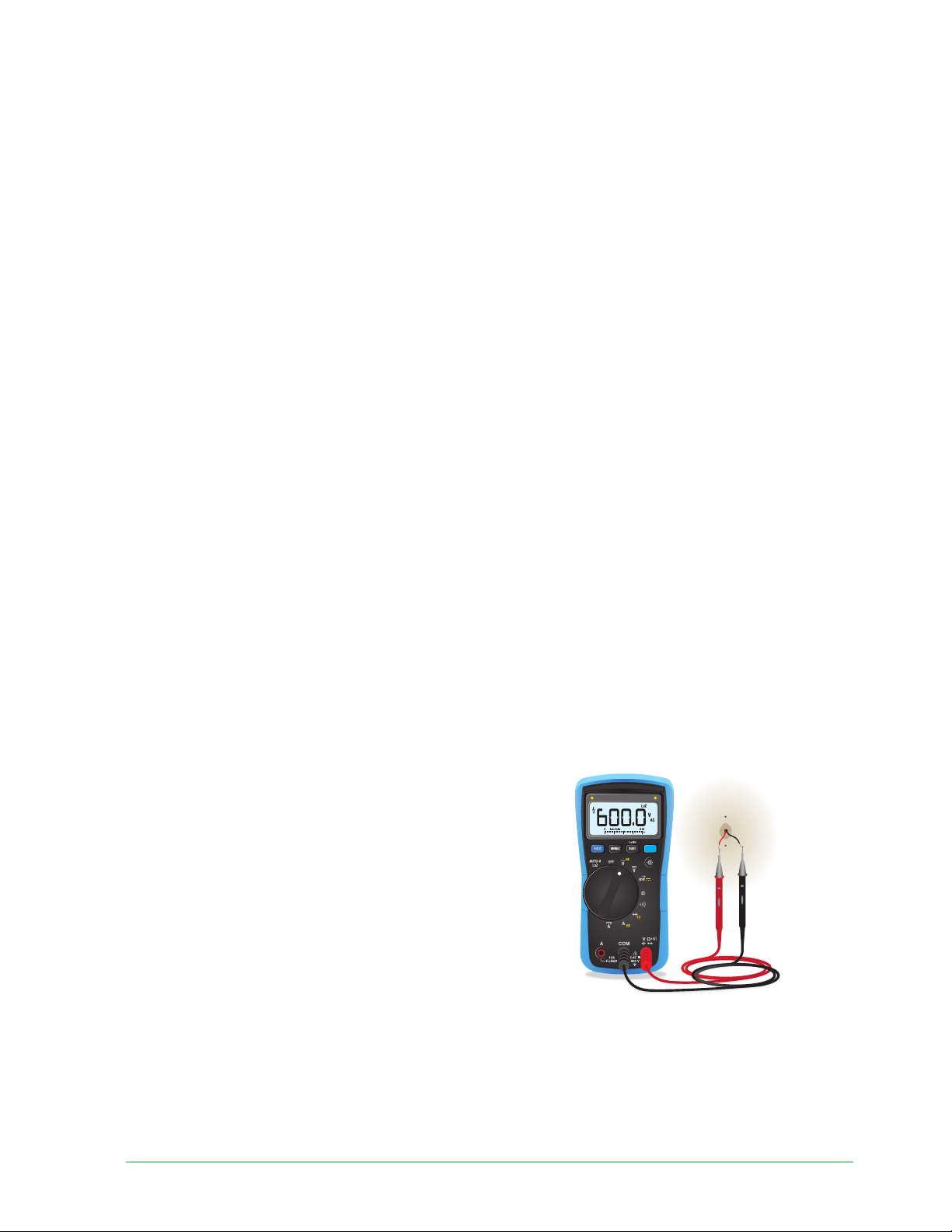
You can check the voltage level of your doorbell transformer by one of these methods:
• Use a multimeter to test the voltage.
A multimeter is an electronic tool that measures
the precise voltage level of your existing doorbell
wiring. Using a multimeter gives you the most
accurate estimate of your transformer’s voltage,
and it can be done without fi nding the
transformer. We recommend that you measure
at the existing doorbell wiring or at your chime.
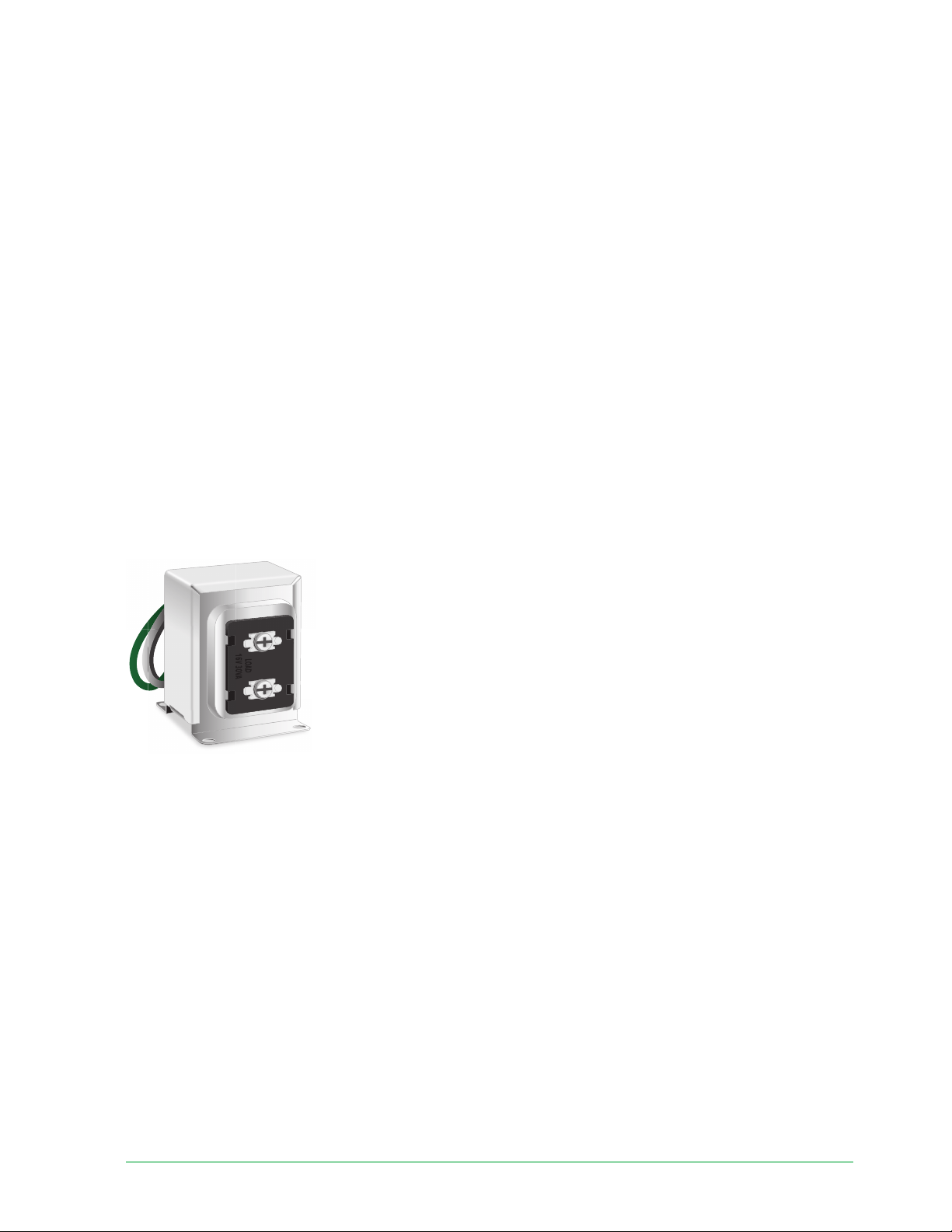
• Check if the voltage is printed on the
transformer that provides power to your
existing doorbell.
The estimated voltage is commonly printed on transformers. This is typically accurate, but
it isn’t as precise as using a multimeter.
23Optional: Connect a wired chime
Essential Wire-Free Video Doorbell
User Manual
Use a multimeter to check the voltage of a transformer
1. Disconnect your existing doorbell.
To do this, unmount or unscrew your existing doorbell to expose the wiring or AC
terminals on the back.
2. Set your multimeter to AC (the V with a wavy line on top or next to it).
3. Connect the two probes from the multimeter to the wires from your doorbell.
4. Read the voltage level on your multimeter’s display to make sure iti’s between 8-24 VAC
Check the voltage level printed on the doorbell
transformer
A doorbell transformer is a device that steps down your household AC voltage to a lower
voltage suitable for powering an electric doorbell.
The transformer is typically found:
• In the front closet near your existing doorbell
• Near your house’s circuit breaker
• In the basement or attic
• In the garage
• Near your house’s furnace
• In the crawl space under your house
Sample doorbell transformer
24Optional: Connect a wired chime
Essential Wire-Free Video Doorbell
User Manual
Change from wire-free to wired installation
If you already set up your doorbell wire-free, and now want to hardwire it, you must fi rst
remove the doorbell from your Arlo account, then re-add it in the Arlo Secure App and follow
the instructions for a wired doorbell.
1. Open the Arlo Secure App.
2. Tap Settings > My Devices.
3. Scroll to the bottom, and tap Remove Device.
4. Tap the Devices tab.
5. At the bottom of the Devices tab, tap Add New Device.
6. Select your Arlo doorbell.
Hardwire your Essential Wire-Free Video
Doorbell
This process is optional. The Essential Wire-Free Video Doorbell is battery operated, but you
can hardwire it if you like. Hardwiring your doorbell lets you connect it to your home’s existing
chime and allows the doorbell to trickle charge when it’s not in use.
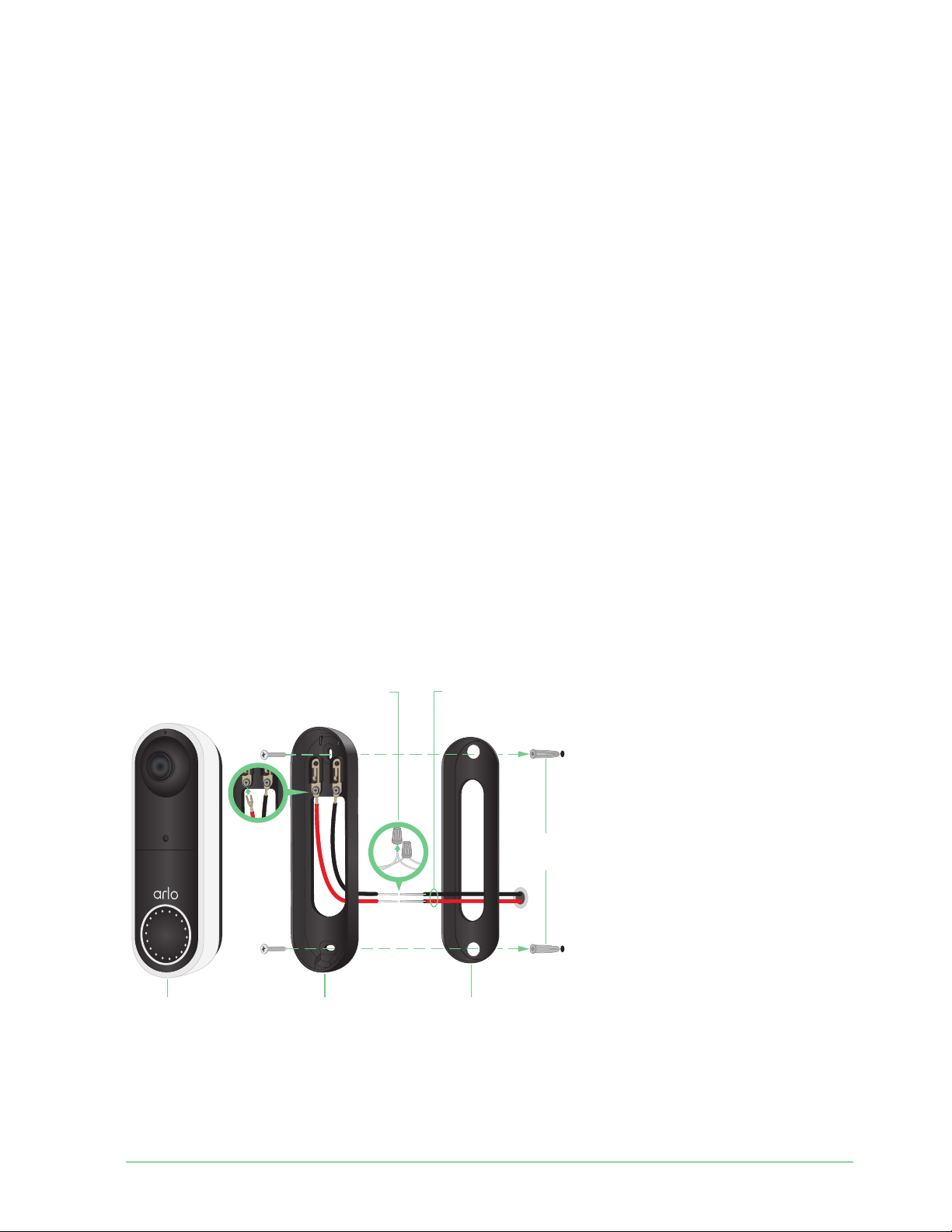
Tools
• A Phillips screwdriver is required to install the doorbell (not provided).
Video
Doorbell
Wall Anchors
(Optional)
Mounting
Plate
Angled
Mounting Wedge
(Optional)
Wire Extensions (Optional)
and Wire Nuts (Optional)
Wires are not
required for the
wire-free configuration

25Optional: Connect a wired chime
Essential Wire-Free Video Doorbell
User Manual
• You might also benefi t from having a drill, a level, and a ladder (to reach the chime).
Installation overview
You must use the Arlo Secure App for installation and setup. The Arlo Secure App guides you
through hardwired installation in this order:
1. Turn off your power at the breaker.
Warning: Failure to turn off your power might result in serious injury.
2. Follow the instructions in the Arlo Secure App to connect the wires and install your
doorbell.
3. Turn on power at the breaker.
4. Check the LED on your doorbell. See
LED during setup on page 19.
5. Connect your doorbell to your home network’s 2.4 GHz WiFi.
6. Determine whether to use the fl at mounting plate on its own, or combine it with the
angled mounting plate to adjust the fi eld of view for your doorbell.
Installing with an angled mounting plate depends on the position of the doorbell and the
walkway to your home. The angled mounting plate lets you install your doorbell so that it
is angled toward the le or angled toward the right.
Use the optional wire extensions
Two identical wire extensions and fasteners come in the package with your doorbell.
If the existing wires for your doorbell are too short to connect your Arlo doorbell, you can use
the wire extensions and fasteners to lengthen the wires.
To connect wire extensions to your Arlo doorbell:
1. Remove the rubber ends from the wire extensions.
2. Attach a wire extension to one of your existing doorbell wires.
To do this, connect the wire end of the wire extension (not the prong end) to your existing
doorbell wire and twist the wires together securely.
Fastener
Wire extension

26Optional: Connect a wired chime
Essential Wire-Free Video Doorbell
User Manual
3. Attach the second wire extension to the other doorbell wire.
4. Place the fasteners on top of the connected wire ends, and twist the fasteners.
The fasteners funnel and secure the wires together.
5. Attach the extended wires to the mounting plate.
6. Tuck the wire extensions and the fasteners into the wiring cavity in the wall, behind your
doorbell.
You can use the optional mounting plate to get a better vantage point for the doorbell if it
isn’t facing straight out at the desired entryway.
7. Place your doorbell onto the mounting plate.
Ensure that the mounting screws are completely screwed in and fl ush with the mounting
plate so that your Arlo doorbell clips securely into the mounting plate.
You are ready to use the Arlo Secure App to continue the setup process to hardwire your
doorbell.
Battery charging with a hardwired doorbell
The Essential Wire-Free Video Doorbell comes with a rechargeable battery, which provides
power to the doorbell. Wiring is not required for installation.
If you choose to hardwire your doorbell to an 8-24VAC transformer, your doorbell draws a
small current through the wiring to trickle charge the battery and reduce the need to take it
out for recharging. This means that your doorbell always consumes battery power while it is
active, and gradually recharges while it is asleep.
For safety and long-term reliability, the doorbell battery starts trickle charging when the
battery level drops below 65 percent, then stops charging when it reaches 80 percent. The
rate of charging and overall battery level is dependent on usage and weather conditions.
Additionally, frequent use of the doorbell can result in complete battery drain because the
doorbell battery only charges when not in use. You can use the Arlo Secure App to verify
changes in the battery percentage, but you will not see a charging icon when the doorbell is
hardwired.
Frequent use of the doorbell can result in complete battery drain because the doorbell battery
only charges when not in use. You can choose to bring the battery indoors and charge using
the microUSB cable to 100%, if desired.

27
5. Use Your Doorbell
Answer your doorbell from your smartphone
When a visitor presses your Essential Wire-Free Video Doorbell, your mobile device receives
a video call through an Internet connection. You must install the Arlo Secure App on your
smartphone and you must be logged in to the Arlo Secure App. The caller displays as the
name you gave to your Essential Wire-Free Video Doorbell. You can accept or decline the call
the same way you do for other calls that you receive on your smartphone.
When your smartphone rings, you can do the following:
• Accept the call and speak to your visitor.
• Answer the call with a Quick Reply. Select a recorded message for the doorbell to play for
the visitor.
• Decline the call. If a visitor presses your doorbell and you decline the call or don’t answer
your smartphone a er 20 seconds, your doorbell prompts the visitor to leave a message. If
the visitor leaves a message, it is saved as a Doorbell recording in your Arlo library.
If you want to receive the call on a diff erent phone, you can log out of the Arlo Secure App on
the fi rst smartphone and log into the Arlo Secure App on another smartphone or tablet.
To receive the call on multiple phones, you can create a grant access account (add doorbell
to the grant access account) and log in to the Arlo Secure App using the grant account on the
other smartphone. (See
Grant access to friends on page 44.)
Accept a call from your doorbell
To accept a call on your smartphone from your Essential Wire-Free Video Doorbell:
1. When you receive a call from the doorbell, tap Accept.
2. If you are prompted to allow Arlo to access the camera, tap OK.
The incoming call page displays.
3. To talk to the visitor, speak into your phone as you normally do.

28Use Your Doorbell
Essential Wire-Free Video Doorbell
User Manual
You can also tap a button to toggle between hands-free and earpiece mode, play a quick
reply message for the visitor, or mute your sound.
4. To toggle between hands-free and earpiece mode, tap the speaker button.
5. To play a quick reply message, tap the message icon and select a message from the list.
6. To mute yourself so that the visitor doesn’t hear sound, tap the microphone button.
7. When you’re fi nished, tap End.
Respond to a visitor with a Quick Reply
1. When you receive a call from the Essential Wire-Free Video Doorbell, tap Accept.
2. If you’re prompted to allow Arlo to access the camera, tap OK.
The incoming call page displays.
3. To play a quick reply message, tap the message icon and select a message from the list.
The messages are:
• We will be right there.
• Leave the package outside.
• Sorry, I’m not interested.
• Can I help you?
• I’m busy right now.
Change the language for Quick Reply messages
1. Open the Arlo Secure App.
2. Tap the gear icon next to the Essential Wire-Free Video Doorbell.
3. Scroll down and tap Language.
4. Select a language.

29Use Your Doorbell
Essential Wire-Free Video Doorbell
User Manual
Play a message from a visitor
If a visitor leaves a message a er pressing your doorbell, the message is saved in your Arlo
library.
1. Open the Arlo Secure App.
2. Tap Library.
3. Tap the doorbell recording.
Use silent mode for the doorbell
Silent mode allows you to temporarily disable incoming calls and/or chime rings on your
doorbell.
To turn Silent mode features on and off :
1. Open the Arlo Secure App.
2. Tap the gear icon next to the doorbell.
3. Tap Silent Mode.
4. Move the Silent Mode slider to enable or disable silent mode.
When Silent Mode is enabled, all the doorbell-press notifi cations are disabled by default. If
you want your chime to ring or receive a phone call when someone presses your doorbell,
you can move the individual sliders to enable each feature. When the toggle is green, the
feature is enabled.
5. Depending on your settings and whether you use an optional chime, select which of the
following you want to be silent:
• Incoming Call. Your mobile device receives a call when someone presses your Arlo
doorbell.
• Arlo Chime 2 or Arlo Chime. If you have an optional Arlo Chime 2 or Chime (sold
separately), you can select it.
• Traditional Chime. The chime that you wired your Arlo doorbell to rings when
someone presses your Arlo doorbell.
Note: When Silent Mode is enabled, third-party smart home assistants—such as Amazon
Alexa and Google Assistant—are disabled for your doorbell.

30Use Your Doorbell
Essential Wire-Free Video Doorbell
User Manual
Control the doorbell LED
The LED on your Video Doorbell indicates how the doorbell is operating. By default, the
doorbell lights white in a slow breathing pattern when motion is detected and lights solid
white when a video call is accepted and active. You can toggle these LED patterns on and off .
To change the settings for the Status LEDs:
1. Open the Arlo Secure App.
2. Tap the gear icon next to the Essential Wire-Free Video Doorbell.
3. Tap Doorbell LED.
4. Tap Breathe LED on Motion Detection to enable or disable this setting.
When Breathe LED is enabled, the LED lights in a slow breathing pattern when motion is
detected. When this setting is disabled, the LED remains off when motion is detected.
5. Tap LED on Call Accepted to enable or disable this setting.
When this setting is enabled, the LED lights solid white when a video call is accepted and
active. When this setting is disabled, the LED remains off when a call is accepted.
Change the call settings
1. Open the Arlo Secure App.
2. Tap the gear icon next to the Essential Wire-Free Video Doorbell.
3. Scroll down and tap Call Settings.
4. To turn the speaker on your mobile phone on and off , tap Speaker.
5. To mute the audio on your mobile phone, tap Mute.
6. To allow a visitor to leave a video message if you don’t accept a doorbell call a er 20
seconds, or if you decline the call, tap Leave your message.
Turn the doorbell siren on and off
Your doorbell includes a siren that you can turn on to discourage tampering by an unwanted
visitor. With an Arlo Secure plan, you can activate the siren from the push notifi cation sent on
motion detection.
1. Open the Arlo Secure App.
2. Tap Siren
on the upper right.

31Use Your Doorbell
Essential Wire-Free Video Doorbell
User Manual
3. Tap Activate Siren.
If you have multiple Arlo devices with sirens, you’re prompted to select a device.
4. Swipe the Siren icon to the right.
The siren remains active for fi ve minutes or until you turn it off .
5. To turn off the siren, tap the slider at the top of the Devices page.
32
6. View and Record Videos
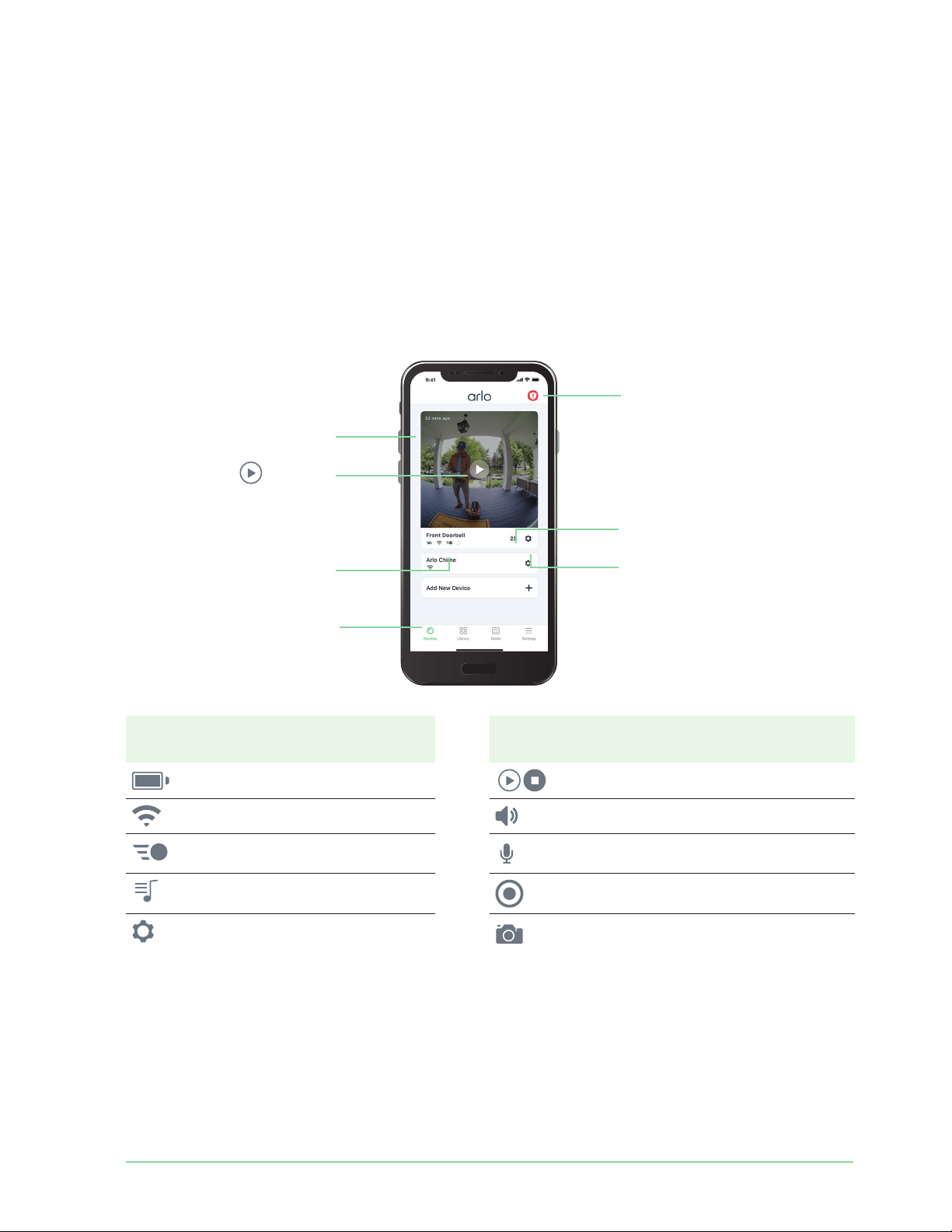
When you open the Arlo Secure App, the Devices page displays your doorbell’s camera feed.
Camera
icon
Located below each camera
feed
Camera
feed icon
Tap the camera feed to display
these icons
Battery charge Play/Stop
WiFi connection Mute the audio
Motion detection is on 2-way Audio
Silent mode Record video manually
View or change the settings Take a snapshot
Live camera feed
from the doorbell
Tap to turn the siren
on and off
Number of new recordings
Tap to view device settings
for the doorbell
Motion detection is on
Tap a button to go
to Devices, Library,
Modes, or Settings
Tap Play to stream
the camera feed

33View and Record Videos
Essential Wire-Free Video Doorbell
User Manual
View your doorbell’s camera feed
1. Open the Arlo Secure App.
2. Tap Play
on the camera feed.
The camera feed updates and camera feed icons display.
3. To stop viewing the live feed, tap Stop
.
Pan and zoom video
You can pan and zoom to focus in on the high-defi nition details of any live or recorded video.
Just pinch and drag any image as you do with photos on your smartphone. You can also
pinch and zoom in live feed, or use pinch and zoom to adjust your fi eld of view from the Video
Settings.
1. Open the Arlo Secure App.
2. Tap Library.
3. Tap any live video or prerecorded video from your Arlo library.
A full screen view displays.
4. To pan and zoom using a mobile device:
• Pinch to zoom in and out of the video.
• Touch and drag to move around the zoomed-in frame.
5. To pan and zoom using a computer:
• Click the Zoom icon.
• Use your mouse to move around the frame.
Record clips from live video
This feature requires an Arlo Secure subscription.
1. Open the Arlo Secure App.
2. Tap the camera feed image.
3. Tap Record
to begin recording.
This icon turns red to indicate that you’re recording the live feed.
4. To stop recording, tap Record
again.

34View and Record Videos
Essential Wire-Free Video Doorbell
User Manual
Take a snapshot from live video
This feature requires an Arlo Secure subscription.
1. Open the Arlo Secure App.
2. Tap the camera feed image.
3. Tap Snapshot
.
The snapshot is saved in your library.
2-Way Audio
The doorbell includes a microphone that supports 2-Way Audio.
1. Open the Arlo Secure App.
2. Tap the camera feed image.
3. Tap the microphone icon
.
4. The fi rst time you use 2-Way Audio, allow Arlo to use your phone’s microphone.
5. Tap the microphone button.
Two-way audio automatically opens, allowing you to use 2-Way Audio.
Change the order of the camera feeds
If you use more than one camera, you can change the order in which the camera feeds display
on the Devices page.
1. Open the Arlo Secure App.
2. Tap Settings.
3. Under SYSTEM, tap Device Order.
4. If you’re using a smartphone or tablet, tap Edit at the top of the page.
A list icon displays.
5. Tap and hold the list icon and drag each device to the correct position on the list.
6. Tap Save.

35View and Record Videos
Essential Wire-Free Video Doorbell
User Manual
Motion detection activity zones
With an Arlo Secure subscription, you can designate zones within the doorbell camera view
where you want the camera to detect and record motion.
Add an activity zone
1. Open the Arlo Secure App.
2. Tap Settings > My Devices.
3. Select the doorbell.
4. Under VIDEO, tap Activity Zones.
5. Tap +.
An activity zone box displays in the camera feed image.
6. Move the zone to the desired position in the camera feed image.
7. To reposition the zone, tap and hold the zone and move it.
8. To customize the zone name, tap Edit
and enter a name.
If you’re using a web browser, click > next to the zone name.
9. Tap Save.
Change an activity zone
1. Open the Arlo Secure App.
2. Tap Settings > My Devices.
3. Select the doorbell.
4. Under VIDEO, tap Activity Zones.
5. Tap a zone to select it.
6. Move the zone to the desired position in the camera feed image.
7. To reposition the zone, tap and hold the zone and move it.
8. To customize the zone name, tap Edit
and enter a name.
If you’re using a web browser, click > next to the zone name.
9. Tap Save.

36View and Record Videos
Essential Wire-Free Video Doorbell
User Manual
Delete an activity zone
1. Open the Arlo Secure App.
2. Tap Settings > My Devices.
3. Select the doorbell.
4. Under VIDEO, tap Activity Zones.
5. Tap a zone to select it.
6. Delete the device.
On an iOS device, slide the motion detection zone to the le and tap Delete.
On an Android device, slide the motion detection zone to the le .
View recordings and snapshots
With an Arlo Secure plan, your recordings and snapshots are stored in your Arlo library. You
can use the fi lter and the calender to fi nd and view specifi c recordings.
Access cloud recordings
Your Essential Wire-Free Video Doorbell records when it is in an armed mode and detects
motion. Your Arlo recordings are sent to your Arlo account in the cloud and stored in your
library. Recordings are encrypted with your user name and password.
You can access your recordings from the Arlo Secure App on your mobile device or by using
a web browser to visit https://my.arlo.com/#/login. You can download recordings from the
cloud and save them.
Use the Library
You can use the library to fi nd and view recordings based on the date.
1. Open the Arlo Secure App.
2. Tap Library.
A green circle indicates the selected day. A green dot below the date indicates each day on
which a video clip was recorded.
3. Tap a highlighted date.
Recordings from that date display below the calendar.

37View and Record Videos
Essential Wire-Free Video Doorbell
User Manual
Use the fi lter
You can use the fi lter to fi nd and view recordings based on criteria that you select.
1. Open the Arlo Secure App.
2. Tap Library.
3. Tap Filter in the upper le corner of the page.
4. Tap the fi ltering criteria that you want to use.
5. Tap Done.
Turn off the fi lter
1. Open the Arlo Secure App.
2. Tap Library.
3. Tap Filter in the upper le corner of the page.
4. Tap Reset.
5. Tap Done.
Download recordings
1. Open the Arlo Secure App.
2. Tap Library.
3. Tap a recording.
4. Tap Download.
5. Tap OK to confi rm.
Make a recording a favorite
1. Open the Arlo Secure App.
2. Tap Library.
3. Tap a recording.
4. Tap Favorite.

38View and Record Videos
Essential Wire-Free Video Doorbell
User Manual
Share recordings
1. Open the Arlo Secure App.
2. Tap Library.
3. Tap a recording.
4. Tap Share.
5. Share the fi le.
Donate recordings for research
You can donate video or snapshot fi les to Arlo to use for research and development of Arlo
products.
1. Open the Arlo Secure App.
2. Tap Library.
3. Tap a recording.
4. Tap Donate.
5. Tap OK to confi rm.
Delete recordings
1. Open the Arlo Secure App.
2. Tap Library.
3. Tap a recording.
4. Tap Delete.
5. Tap OK to confi rm.

39
7. Change Your Settings
Once you set up your Arlo account, you can access it by using the Arlo Secure App on a
smartphone or tablet, or from a computer using a web browser. If you’re using a computer,
enter https://my.arlo.com/#/login in the address bar of the browser.
Two-step verifi cation
Two-step verifi cation helps protect your account by adding another layer of security when you
log in to your Arlo account. Arlo will verify your identity anytime you sign in with a new device.
You can have up to fi ve diff erent two-step verifi cation methods, in addition to the email
address associated with your Arlo account.
You must enable two-step verifi cation enabled to access your Arlo account. This is to protect
your data and add an extra layer of security to your Arlo account. Before you set up two-step
verifi cation, make sure that you can log in to the email address associated with your Arlo
account. Your account email is always used as a backup option to log in to your account.
Note: If you’re a Friend on someone’s Arlo account, and the account owner sets up two-step
verifi cation, you don’t have to use two-step verifi cation to log in. Likewise, if you set up two-
step verifi cation as a Friend on an Arlo account, the account owner isn’t aff ected.
How two-step verifi cation works
To sign in with two-step verifi cation, you must fi rst enter your email address and password.
Then, you must verify your identity with a security code (delivered by SMS text message or
email) or confi rmation from an already trusted device. Requiring two pieces of information
helps to prevent any unwanted log in, even if someone has your Arlo account password.
• Trusted device. You can trust a device on your Arlo account so that you never have to
verify your log in with a push notifi cation or text message. The device shows up under the
list of trusted devices in Settings > Profi le > Login Settings > Two-Step Verifi cation.
• Push notifi cation. When someone attempts to log in to your Arlo account on a new device,
Arlo sends a push notifi cation to a previously trusted (and currently logged in) iOS or
Android device. Tap the push notifi cation on the trusted device to approve or deny the log
in.

40Change Your Settings
Essential Wire-Free Video Doorbell
User Manual
• SMS text message. When someone attempts to log in to your Arlo account, Arlo sends a
text message to the phone number that you verifi ed for two-step verifi cation. Enter the
security code from the text message to complete the log in.
• Email. If you can’t access a trusted device with push notifi cations, or if you can’t receive
SMS text messages, you can request a security code to be sent to the email associated
with your Arlo account.
Set up two-step verifi cation from the Arlo Secure App
Before you set up two-step verifi cation, make sure you can log in to the email that you’re
using for your Arlo account. Email is your backup two-step verifi cation option.
To enable two-step verifi cation from your mobile device:
1. Open the Arlo Secure App.
2. Tap Settings.
3. In the ACCOUNT section, select Profi le > Login Settings > Two-Step Verifi cation.
4. Tap the switch next to Enable.
5. Select Push Notifi cation and/or SMS Text Message as your verifi cation method.
Note: Your Arlo account email is an automatic back-up option.
6. Follow the instructions in the app to complete your two-step verifi cation setup.
Two-step verifi cation is enabled for your account.
Set up two-step verifi cation from a computer
To enable two-step verifi cation from your desktop:
1. Log in to my.arlo.com.
2. Click Settings > Profi le > Two-Step Verifi cation.
3. Click the switch next to Enable.
4. Click Add SMS Verifi cation as your verifi cation method.
Note: Note: Your Arlo account email is an automatic back-up option.
5. Follow the instructions to complete your two-step verifi cation setup.
Two-step verifi cation is enabled for your account.
Note: Push notifi cation verifi cation cannot be enabled on my.arlo.com. You must use the Arlo
Secure App to enable push notifi cation verifi cation.

41Change Your Settings
Essential Wire-Free Video Doorbell
User Manual
Add a phone number or device to two-step verifi cation
1. Open the Arlo Secure App.
2. Tap Settings.
3. In the ACCOUNT section, select Profi le > Login Settings > Two-Step Verifi cation.
4. To add a phone number, tap Add SMS Verifi cation and enter the phone number.
5. To add a trusted device, tap Add Trusted Device.
Remove a phone number or device from two-step verifi cation
1. Open the Arlo Secure App.
2. Tap Settings.
3. In the ACCOUNT section, select Profi le > Login Settings > Two-Step Verifi cation.
4. Tap the trashcan icon next to a phone number or trusted device.
Use face or fi ngerprint authentication
You can use Touch ID® or Face ID® with a compatible Apple device. With a compatible Android
device, you can use fi ngerprint authentication.
Your device must meet the following minimum requirements:
• Apple devices:
iOS version 10.3 or higher
A Touch ID compatible device (iPhone 5s, iPad Air 2, or newer)
A Face ID compatible device (iPhone X, iPad Pro 2018, or newer)
• Android devices:
Android OS version 6.0 or higher
A compatible Android device with fi ngerprint authentication
Turn fi ngerprint authentication on and off for the Arlo Secure
App
1. Enable fi ngerprint authentication on your iPhone or Android device.
2. Open the Arlo Secure App.

42Change Your Settings
Essential Wire-Free Video Doorbell
User Manual
3. Tap Settings.
4. In the ACCOUNT section, select Profi le > Login Settings.
5. Slide the toggle for fi ngerprint or Touch ID to the right (on) or le (off ).
Turn face authentication on and off for the Arlo Secure App
1. Enable Face ID authentication on your iPhone.
2. Open the Arlo Secure App.
3. Tap Settings.
4. In the ACCOUNT section, select Profi le > Login Settings.
5. Slide the toggle Face ID to the right (on) or le (off ).
Customize your profi le
You can enter your name, add a profi le photo and home address, and opt-in or opt-out of Arlo
news and support updates.
Add a profi le picture
1. Open the Arlo Secure App.
2. Tap Settings.
3. In the ACCOUNT section, select Profi le > Edit Profi le.
4. Tap the profi le picture at the top of the page.
5. Select Take Photo or Choose from Library.
Note: If you already have a profi le picture, you can also select Remove Current Photo.
6. Upload your preferred profi le picture.
7. Tap Save at the bottom of the page.
Edit profi le settings
You can enter your name, add a profi le photo and home address, and opt-in or opt-out of Arlo
news and support updates.
1. Open the Arlo Secure App.

43Change Your Settings
Essential Wire-Free Video Doorbell
User Manual
2. Tap Settings.
3. In the ACCOUNT section, select Profi le > Edit Profi le.
4. Enter your profi le settings.
5. Tap Save at the bottom of the page.
Change your Arlo password
You can change your password in the Arlo Secure App or by logging in to my.arlo.com.
1. Open the Arlo Secure App.
2. Tap Settings.
3. In the ACCOUNT section, select Profi le > Login Settings.
4. Enter your old password.
5. Enter a new password and then confi rm it.
6. Tap Change Password.
Your new password is saved.
Reset a forgotten password
If you forgot your Arlo password, you can reset it with a verifi ed email address.
1. Open the Arlo Secure App.
2. Tap Forgot Password?.
3. Enter your email address.
4. Tap Send Email.
An email is sent from alerts@arlo.com to your verifi ed email address.
5. Tap the link provided in that email.
6. Enter a new password.
7. Tap Submit.
Your password is reset.

44Change Your Settings
Essential Wire-Free Video Doorbell
User Manual
Grant access to friends
You can add friends to your Arlo account. Friends can view live streams from your cameras;
record video clips; view, share, mark as favorite, and delete clips from your library; and take
snapshots. Friends are granted limited access to some of the settings and features of your
Arlo account. You can select which cameras friends can see and what administrative rights are
available to them.
Friends without access rights can:
• Play and view library content.
• View live footage.
• Zoom and drag video footage.
• Control brightness.
• Enter full-screen view.
Friends who are granted access rights can also:
• Play and pause video footage.
• Record video footage.
• Mute the speaker.
• Access and change modes.
• View motion detection statuses.
• Manually record.
• Take snapshots.
• Mark as a favorite, share, download, and delete video footage.
• Use a camera’s microphone.
Add a friend
1. Open the Arlo Secure App.
2. Tap Settings.
3. Under ACCOUNT, tap Grant Access.
4. Tap Add or +.
5. Enter your friend’s fi rst name, last name, and email address.
6. Tap the Arlo devices that you want your friend to access.

45Change Your Settings
Essential Wire-Free Video Doorbell
User Manual
7. To grant access rights to your friend, tap Allow Access Rights.
Selecting Allow Access Rights allows this friend to change your account and camera
settings.
8. Tap Send Invite.
An email message is sent inviting your friend to create an Arlo account. This friend’s name
is displayed with the status Pending. When the friend accepts your invitation, the status
changes to Accepted.
Edit a friend’s access privileges
1. Open the Arlo Secure App.
2. Tap Settings.
3. Under ACCOUNT, tap Grant Access.
A list of your friends displays with the status of their accounts.
4. Tap the friend, and tap Edit
.
5. Tap cameras to select or deselect them.
6. Tap Allow Access Rights.
Selecting Allow Access Rights allows this friend to change your account and camera
settings.
7. Tap Done.
Delete a friend
1. Open the Arlo Secure App.
2. Tap Settings.
3. Under ACCOUNT, tap Grant Access.
4. Select the friend, and tap Edit
.
5. Tap Delete Friend.
6. Tap Yes.
Change the time zone
1. Open the Arlo Secure App.
2. Tap Settings > My Devices.

46Change Your Settings
Essential Wire-Free Video Doorbell
User Manual
3. Tap the Essential Wire-Free Video Doorbell.
4. Tap Time Zone.
5. Tap a time zone.
If you’re using a mobile device, your settings are saved.
6. If you’re using a computer, click Save.
Doorbell settings
You can view or change the settings for your doorbell using either of these methods:
• Tap Settings > My Devices and select the doorbell.
• Tap the gear icon below the doorbell’s camera feed.
Change the doorbell name
1. Open the Arlo Secure App.
2. Tap the gear icon next to the Essential Wire-Free Video Doorbell.
3. Tap Edit
next to the doorbell name.
4. Enter a new name.
Names are limited to 32 characters.
5. Tap Save.
Change the type of traditional chime the doorbell triggers
You can set your Essential Wire-Free Video Doorbell to trigger a mechanical, digital, or no
chime when someone presses the doorbell button.
Note: If you already added your doorbell in the Arlo Secure App and you selected battery
(not wired), then you’ll need to remove your doorbell from the Arlo Secure App and re-add it
selecting wired in order to change the chime setting.
To change the type of chime that your doorbell triggers when the doorbell is setup as wired:
1. Open the Arlo Secure App.
2. Tap the gear icon next to the Essential Wire-Free Video Doorbell.
3. Tap Traditional Chime.

47Change Your Settings
Essential Wire-Free Video Doorbell
User Manual
4. Select Mechanical, Digital, or None.
• Mechanical. Mechanical chimes make a traditional ding-dong sound when rung.
• Digital. Digital or electronic chimes have a speaker and can play a melody or ding-dong
when rung.
• None. Use this setting if you’re bypassing the doorbell chime or are installing to a
transformer, without any chime connected.
Change the brightness of the video
This change takes eff ect on the next video stream or motion recording.
1. Open the Arlo Secure App.
2. Tap the gear icon next to the Essential Wire-Free Video Doorbell.
3. Tap Video Settings.
4. Move the slider to increase or decrease the video brightness.
Change the video quality
This change takes eff ect on the next video stream or motion recording.
1. Open the Arlo Secure App.
2. Tap the gear icon next to the Essential Wire-Free Video Doorbell.
3. Tap Video Settings > Video Quality.
4. Tap to select 1536sq, 1080sq, or 720sq.
Turn night vision on and off
When night vision is enabled, the camera automatically turns on the infrared (IR) LED to
record in low-light conditions. We recommend that you turn off night vision if the camera is
facing refl ective surfaces, such as windows. This change takes eff ect on the next video stream
or motion recording.
1. Open the Arlo Secure App.
2. Tap the gear icon next to the Essential Wire-Free Video Doorbell.
3. Tap Video Settings.
4. Tap Night Vision.
5. If you’re using an Android device, tap the slider.
48Change Your Settings
Essential Wire-Free Video Doorbell
User Manual
Turn Auto HDR on and off
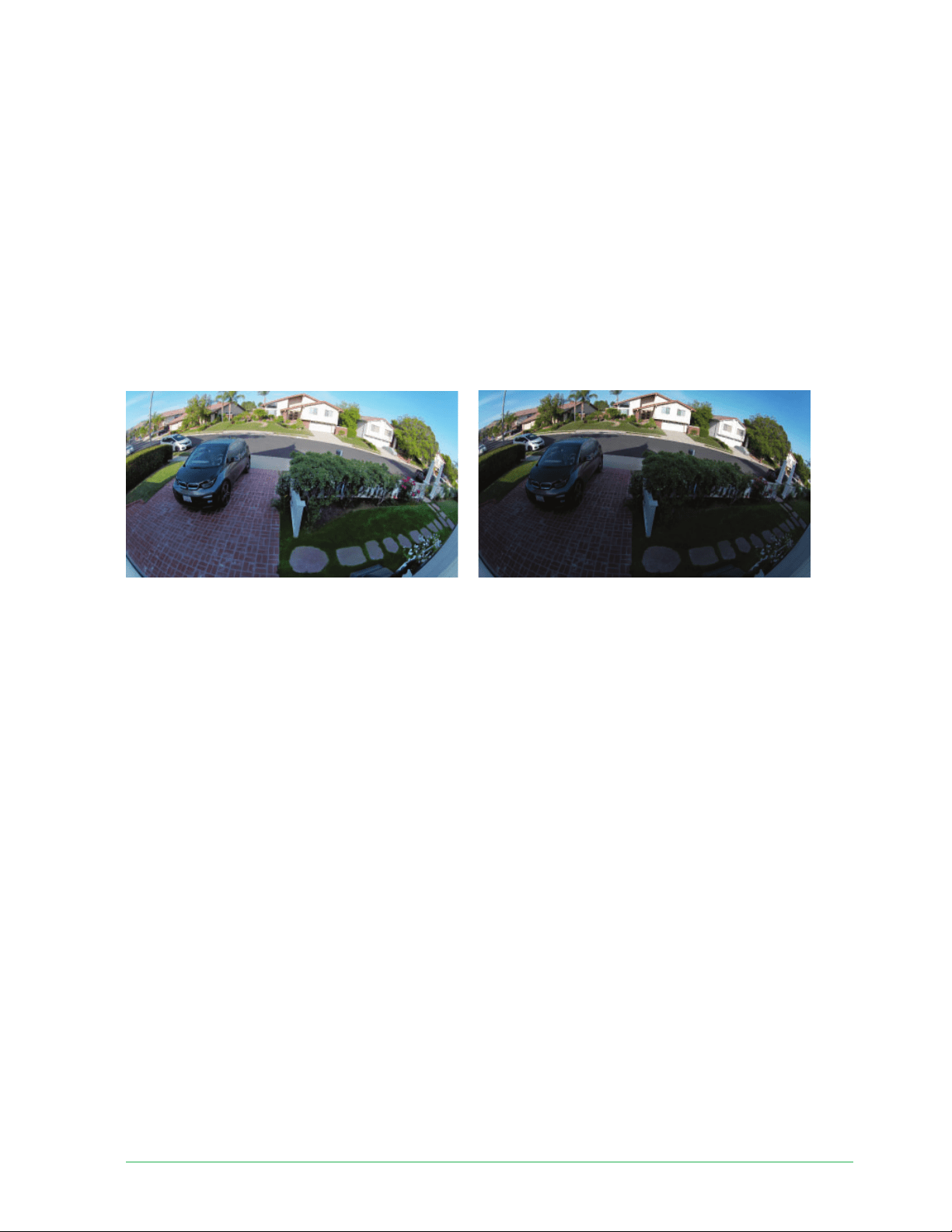
High Dynamic Range (HDR) is a so ware method of adjusting high-contrast video or photo
images that include areas of bright highlight and deep shadow. Without HDR, some images
with bright areas can appear washed out, while dark areas can appear black, without detail.
HDR makes it possible to see detail in both the highlights and shadows.
Your doorbell comes with an Auto HDR feature that is enabled by default. When your
doorbell’s camera detects an image that would benefi t from HDR, it automatically applies
HDR unless you use the Arlo Secure App to disable Auto HDR.
To turn Auto HDR on or off :
1. Open the Arlo Secure App.
2. Tap the gear icon next to your doorbell.
3. Tap Video Settings.
4. Tap Auto HDR.
If you’re using an Android device, tap the slider.
Change the audio settings
You can adjust the settings to turn the microphone on and off and adjust the speaker. These
settings take eff ect whether or not the microphone and speaker are enabled for live-streaming
and motion recording.
Note: Controls for the speaker and microphone settings of your mobile phone during a
doorbell video call are set up within Call Settings. See
Change the call settings on page 30.
To change the audio settings:
1. Open the Arlo Secure App.
Without Auto HDR
With Auto HDR

49Change Your Settings
Essential Wire-Free Video Doorbell
User Manual
2. Tap the gear icon next to the doorbell.
3. If you’re using a mobile device, tap Audio Settings.
4. Adjust the settings:
• Microphone toggle turns the microphone off and on.
• Speaker toggle and volume. To turn the speaker on and off , tap Speaker. To change
the speaker volume, move the Speaker Volume slider.
Adjust the fl icker setting
The combination of certain artifi cial light sources and the Video Doorbell’s camera shutter
speed might cause fl ickering or dark lines in recorded video. The default setting is Auto (60
Hz), but you can change this setting to 50 Hz.
1. Open the Arlo Secure App.
2. Tap the gear icon next to the Essential Wire-Free Video Doorbell.
3. Tap Flicker Adjustment.
4. Tap a setting.
View device information
You can view the fi rmware version, hardware version, and the serial number.
1. Open the Arlo Secure App.
2. Tap Settings > My Devices.
3. Tap the device.
4. Tap Device Info.
Remove a device from your account
1. Open the Arlo Secure App.
2. Tap Settings > My Devices.
3. Tap the device.
4. Scroll down and tap Remove Device.

50Change Your Settings
Essential Wire-Free Video Doorbell
User Manual
Restart the doorbell from the Arlo Secure App
1. Open the Arlo Secure App.
2. Tap Settings > My Devices.
3. Tap the doorbell.
4. Scroll down to the bottom of the page and tap Restart.

51
8. Modes, Rules, and Alerts
You can arm or disarm Arlo devices that detect motion or audio, either individually or all at
the same time. You can also can set up a schedule to automatically arm each device. Your
doorbell always detects motion. When it is armed, it alerts you when motion is detected, and
can be set up to ring a chime.
Arm or disarm all your Arlo devices
Arming or disarming all devices deactivates other modes, such as Schedule, Geofencing, and
Custom modes. To return a device to another mode, select the device and then select a mode.
To arm or disarm all your Arlo devices:
1. Open the Arlo Secure App.
2. Tap Modes.
3. Tap Arm All Devices or Disarm All Devices.
Modes
Arlo modes give you control over how your doorbell responds with recordings and alerts
when it detects motion. Modes let you tell your doorbell and other Arlo devices to respond
diff erently at diff erent times.
You can create your own modes, but the Arlo Secure App comes with these modes:
Armed. The doorbell records and sends alerts, and can trigger a chime to ring when
triggered, depending on your rule settings.
Disarmed. Pressing the doorbell button still works as usual, but the doorbell camera
doesn’t record or send alerts when motion is detected.
Schedule. Manage recordings and alerts based on a schedule.
Geofencing. Arm, disarm, or resume a schedule mode when you arrive at or leave
a given location based on your mobile device location.

52Modes, Rules, and Alerts
Essential Wire-Free Video Doorbell
User Manual
You can customize the Armed and Schedule modes and you can add new modes. When you’re
sleeping, you might want the doorbell to record, but not send you alerts. Then during the
daytime, the doorbell could both record and notify you when motion is detected. You can
create diff erent modes for the same doorbell or camera, but each Arlo device can only use one
mode at a time.
Select a mode
You can select a mode or set modes to activate according to a schedule.
1. Open the Arlo Secure App.
2. Tap Mode.
3. Tap the doorbell.
A list of modes displays.
4. Tap a mode to activate it.
The mode that you selected turns on immediately. The mode stays active until you change
it.
Mute Notifi cations
Mute Notifi cations temporarily silences push notifi cations to your mobile device, while videos
continue to be recorded. This is great for a party when you don’t want to be disturbed. You
can mute notifi cations from the Arlo Secure App. If you use Arlo Secure, you can also activate
Mute Notifi cations directly from push notifi cations.
To mute notifi cations:
1. Open the Arlo Secure App.
2. Tap Settings > Mute Notifi cations.
3. Select the length of time to mute notifi cations.
A message displays confi rming that you’re muting notifi cations. The Mute Notifi cation
status shows the amount of remaining time until notifi cations resume.
To unmute notifi cations
1. Open the Arlo Secure App.
2. Tap Settings > Mute Notifi cations > Unmute.
The Mute Notifi cations status changes to Off .

53Modes, Rules, and Alerts
Essential Wire-Free Video Doorbell
User Manual
Rules for modes
Each mode uses one or more rules. You can set these options.
• Trigger device. If your doorbell is your only Arlo device, it is the trigger device that detects
motion. If you use additional Arlo cameras or devices, you can create rules where one Arlo
device triggers another. For example, if the someone presses the doorbell at night, an Arlo
Security Light turns on. In this example, the doorbell is the trigger device.
• Action device. If your doorbell is your only Arlo device, it’s the action device. The action
device performs an action in response to the trigger device. For example, you might want
your driveway camera to trigger your doorbell camera to start recording video. Or you
might want your Chime 2 to alert you when your Arlo Security Light detects motion. You
decide what action each camera takes.
• Notifi cations. When a trigger is detected, the Arlo Secure App can send you push
notifi cations, email alerts, or both. You can also send email alerts to friends, family
members, pet sitters, or anyone who might need to respond when your Arlo doorbell or
camera is triggered.
Trigger a Chime 2 when the doorbell is pressed
Depending on the product you purchase, the Arlo Chime 2 may be included with your Arlo
Essential Wire-Free Video Doorbell, or sold separately. The Arlo Chime 2 lets you receive
instant alerts from your Arlo doorbell and your Arlo cameras.
During setup, you pair your Chime 2 with your Essential Video Doorbell. This means your
Chime 2 will ring when someone presses your doorbell button. (You don’t have to set up a
mode for that.) You can view the paired devices on the Device Settings page for the Chime 2
(Pair Doorbell) or the Device Settings page for the Doorbell (Pair Chime).
Mode rules are only used when setting up the Chime 2 as an action device to play a sound or
siren in response to a trigger, such as motion or audio from a doorbell or camera.
Set up a rule to use the Chime 2 as a siren
1. Open the Arlo Secure App.
2. Tap Mode.
3. Select your doorbell or the Arlo device that you want to use to trigger a siren.
A list of modes displays.
4. Tap Edit next to the mode that you want to edit.
5. Tap Edit next to the rule.

54Modes, Rules, and Alerts
Essential Wire-Free Video Doorbell
User Manual
6. Tap Add Device.
7. Select your Chime 2 on the Action Device page, and tap Save.
8. Select Activate Siren.
Change motion sensitivity
You can edit a rule to change the motion sensitivity level for your cameras.
1. Open the Arlo Secure App.
2. Tap Mode.
3. Tap the Essential Wire-Free Video Doorbell.
4. Tap Edit
next to the mode.
5. Tap Edit next to the rule.
6. Under If the following, tap Edit next to Motion is detected.
7. Move the slider to adjust the sensitivity level for motion detection for this camera.
If you used a mobile device to specify the settings, your settings are saved.
8. If you used a browser to specify the settings, click Save.
Automatically stop recording when motion stops
1. Open the Arlo Secure App.
2. Tap Mode.
3. Tap the Essential Wire-Free Video Doorbell.
4. Tap Edit next to the mode.
5. Under Then do the following, tap Edit next to Record video.
6. Select Record until activity stops (up to 300 sec).

55Modes, Rules, and Alerts
Essential Wire-Free Video Doorbell
User Manual
Manage alerts
Arlo can push notifi cations to your smartphone, send you email alerts, or do both. To receive
Arlo notifi cations on your phone, you must install the Arlo Secure App on your phone.
Note: If you log out of the Arlo Secure App on your smartphone or mobile device, you will
stop receiving push notifi cations.
1. Open the Arlo Secure App.
2. Tap Mode.
3. Tap the Essential Wire-Free Video Doorbell.
4. Tap Edit
next to the mode.
Note: The Disarmed mode doesn’t send alerts.
5. Under Alert, tap Push Notifi cation to turn alerts on and off for your mobile device.
6. Under Alert, tap Email Alerts to turn email notifi cations on and off .
7. To specify an email address, tap Edit
next to Email Alerts and enter the email address.
Schedule when your doorbell camera is armed
You can set a schedule to specify the days and times during the week when your doorbell’s
camera records in response to motion triggers. Schedules recur weekly. For example, the
schedule for Tuesday repeats every Tuesday as long as the schedule is turned on.
To schedule when your camera responds to motion triggers:
1. Open the Arlo Secure App.
2. Tap Mode.
3. Select your doorbell.
A list of modes displays.
4. Tap Schedule
.
5. Tap Edit next to Schedule.
6. Tap Add or +.
7. Set the days and times for your new schedule.

56Modes, Rules, and Alerts
Essential Wire-Free Video Doorbell
User Manual
Note: To add an overnight schedule such as 8:00 p.m. to 6:00 a.m., you need to add two
separate schedules. First, add 8:00 p.m. to 11:59 p.m., then add 12:00 a.m. to 6:00 a.m.
8. Tap Done.
Edit a schedule
1. Open the Arlo Secure App.
2. Tap Mode.
3. Select your doorbell.
A list of modes displays.
4. Tap Schedule .
5. Tap Edit next to Schedule.
6. Tap a green box.
7. Change the start and stop times and tap Save.
Set up Arlo Geofencing
Geofencing is a virtual fence around a location called a zone. You can use Arlo Geofencing to
arm, disarm, or resume schedule modes when your mobile device is in zone or out of zone. To
set up geofencing, you must use your mobile device and allow the Arlo Secure App to use your
location.
Geofencing accuracy
For accuracy, geofencing uses a combination of GPS, cellular data, and WiFi data. The local
environment aff ects geofencing:
• In urban environments, where the cell towers and WiFi routers are more dense, geofencing
accuracy can reach 100–200 meters.
Note: If you live in a skyscraper, geofencing might not work reliably due to GPS
inaccuracies. Using the Large radius setting might help.
• In rural areas, where cell towers and WiFi routers are sparse, geofencing accuracy can
reach several hundred meters.
To improve geofencing accuracy, make sure that your mobile device meets these conditions:
• WiFi is turned on.
• GPS or location services are turned on.

57Modes, Rules, and Alerts
Essential Wire-Free Video Doorbell
User Manual
Prepare your mobile device for geofencing
1. Enable GPS or location services so that Arlo can locate your device.
2. Enable WiFi.
3. Download the Arlo Secure App and log in on each mobile device that you plan to enable
for geofencing.
For Arlo Geofencing to work on your device, you must adjust the settings on your Android or
iOS mobile device as follows:
Android devices
• Location permission = On
• Location services = On
• Battery saver = Off
• Data limit = Off
• Airplane mode = Off
iOS (Apple) devices
• Share my location = On
• Location services = Always
• Airplane mode = Off
Set up geofencing for the fi rst time and set up modes
1. Open the Arlo Secure App.
2. Tap Mode.
3. Tap the Essential Wire-Free Video Doorbell.
4. Tap Geofencing
.
5. Allow the Arlo Secure App to use your mobile device’s location.
Geofencing works only if Arlo can locate your mobile device. The Location Address page
displays your current address.
6. To change the radius setting, tap Radius and select a radius size.
Radius sizes are Small, Medium, and Large (approximately 150 meters, 250 meters, and
500 meters, respectively).
7. Tap Device Location and enter a name for your location.

58Modes, Rules, and Alerts
Essential Wire-Free Video Doorbell
User Manual
8. Tap Away Mode and select a mode.
Your camera uses the Away mode when your mobile device is outside the radius of your
camera’s location. Most people select Armed, Schedule, or Custom Mode so that the
camera detects motion while they’re gone.
9. Tap Home Mode and select a mode.
Your camera uses this mode when your mobile device is within the radius of your camera’s
location. Most people select Disarmed while they’re home.
If you use more than one enabled mobile device, you might be asked to select an Arlo
device to connect it to.
10. To select the preferred mobile device, tap the device and then tap Next.
11. Tap Save.
For troubleshooting tips, see Troubleshoot Arlo Geofencing on page 75.
Geofencing with multiple mobile devices
Arlo Geofencing works with multiple mobile devices.
Arlo uses the fi rst-in, last-out principal to manage households where more than one person
uses geofencing. If everyone leaves home with their mobile devices, this triggers an away
state. Since no one is inside the geofence, your cameras are armed. When the fi rst person
comes home (fi rst in), their mobile device is now inside the geofence, triggering the home
state and your cameras are disarmed. If one person leaves, but another is still home, the
cameras stay disarmed in the home state until the last person leaves (last out).
We recommend that you enable geofencing only for the mobile device that each person
carries every day. For example, if you use a smartphone and a tablet, and you take your phone
when you leave, set your phone as an enabled device in your Geofencing settings. Don’t set
your tablet as an enabled device, because Away mode won’t be triggered when you go out
and leave your tablet home.
The Geofencing mode only changes from Home to Away when all enabled mobile devices are
outside the Device Location in your Geofencing settings.
To review which mobile devices participate in geofencing, open the Arlo Secure App and
check the Enabled Devices page in Geofencing settings (in the Modes section of the Arlo
Secure App). Remove any devices that you don’t want to trigger Home/Away mode changes.
Make sure that these conditions are met:
• Your Arlo devices are online.
• Geofencing is enabled.

59Modes, Rules, and Alerts
Essential Wire-Free Video Doorbell
User Manual
• Your friends’ and family’s mobile devices are added to your account.
For information about adding devices, see
Enable or disable geofencing for friends’ mobile
devices on page 59.
• (Required when your friend wants to participate in geofencing) Your friend is logged in to
the Arlo Secure App on his or her mobile device and the GPS or location service is enabled
on your friend’s mobile device.
Enable or disable geofencing for friends’ mobile devices
1. Open the Arlo Secure App.
2. Tap Mode.
3. Tap the Essential Wire-Free Video Doorbell.
4. Tap Edit next to Geofencing.
5. Tap Enabled Devices.
A list of mobile devices displays. A check mark appears next to the device name when
geofencing is enabled.
6. Tap one or more mobile devices.
The device location displays as either In Zone, Out of Zone, or Unavailable (if there’s an
issue contacting that device).
7. To disable geofencing, tap the mobile device again.
The check mark disappears when geofencing is disabled.
For more information, see Set up Arlo Geofencing on page 56.
Custom modes
You can add modes in addition to the modes that come with the Arlo Secure App and give the
new modes custom names, such as Vacation. You can create one rule for each mode.
You can create multiple rules within the same mode so that each camera performs diff erent
actions and sends diff erent alerts. You can also use Schedule mode to activate modes
automatically at diff erent times of the day or week. (See Schedule your rules on page 43.)

60Modes, Rules, and Alerts
Essential Wire-Free Video Doorbell
User Manual
Add a mode
1. Open the Arlo Secure App.
2. Tap Mode.
3. Tap the Essential Wire-Free Video Doorbell.
4. Tap Add a Mode.
5. Enter the mode name and tap Next.
6. Select the trigger device and tap Next.
This is the doorbell that detects motion.
7. Enter the trigger device settings for the When motion is detected and tap Next.
8. Use the slider to set the motion sensitivity for the trigger device and tap Next.
Higher motion sensitivity settings usually trigger your camera to capture videos more
frequently.
9. Set the audio sensitivity for the trigger device and tap Next.
10. Select an action device and tap Next.
This is the Arlo device that performs an action when the trigger device detects motion
or sound. You can select the same Arlo device you’re using as a trigger or a diff erent Arlo
device.
11. Select an action and tap Next.
You can select Record video,or Do nothing.
If you’re using a computer web browser, you can also specify the recording time setting.
12. Select the notifi cations for Arlo to send when motion or audio is detected and then tap
Next.
13. Review your settings and tap Save.
Use your doorbell to trigger another camera to
record
You can set up a rule so that your Video Doorbell triggers an Arlo camera to start recording
when the doorbell detects motion. For example, you can trigger an Arlo wire-free camera
overlooking your front entry to record, even if the camera doesn’t detect motion. You can
trigger an indoor Arlo camera to record, to ensure no one enters your home.
1. Open the Arlo Secure App.

61Modes, Rules, and Alerts
Essential Wire-Free Video Doorbell
User Manual
2. Tap the Essential Wire-Free Video Doorbell.
3. Tap the menu on the upper-right corner of the page to open it.
4. Tap Motion settings.
5. To receive alerts when your doorbell detects motion, tap Motion Triggered Alerts.
6. Tap Add Device.
7. Tap Camera and then tap Next.
8. Tap Record video and then tap Next.
For the recording settings, you can choose one of these options:
• Record until activity stops (up to 300 sec)
• Record for a fi xed length of time (then use the slider to select the number of seconds
from 10 to 120.)
9. Tap Next
The Motion Settings page shows your settings in Then do the following.
10. Tap Done.

62
9. Arlo Connect
Some partner devices require that the Essential Wire-Free Video Doorbell be set to
1080p/720p resolution to see video stream on assistant devices with a screen as they do not
support the default Essential Wire-Free Video Doorbell resolution, which is 1536 x 1536. For
information about setting the video quality for the Essential Wire-Free Video Doorbell, see
Change the video quality on page 47.
Use Arlo with Amazon Alexa
With the Arlo Skill and Alexa, you can access your Arlo devices using voice commands and
view a live camera feed on your Echo Show, Fire TV, or Fire tablet. Alexa can also notify you
when motion is detected by your Arlo cameras.
To use the Arlo Skill, you need a connected Essential Wire-Free Video Doorbell and one of
these Amazon devices:
• Echo Show
• Echo Spot
• Echo Dot
• Echo, Echo Plus
• Fire tablets (7th generation or newer)
• Fire TV (all generations)
• Fire TV stick (second generation only)
• Fire TV Edition smart TVs
Note: Some Alexa devices require that your Essential Wire-Free Video Doorbell be set to
1080p/720p resolution to see video stream as they do not support the default Essential Wire-
Free Video Doorbell resolution, which is 1536 x 1536. For information about setting the video
quality, see
Change the video quality on page 47.

63Arlo Connect
Essential Wire-Free Video Doorbell
User Manual
Enable the Arlo Skill
Make sure that your Essential Wire-Free Video Doorbell is powered on and connected to the
cloud.
Enable the Arlo skill in one of these ways:
• Ask Amazon Alexa “Alexa, enable Arlo skill” to receive instructions in your Alexa app to link
your Arlo account with your Alexa account.
• In the Alexa app, search for the Arlo Skill and select Enable Skill to link your Arlo account
with your Alexa account.
Use the Arlo Skill
A er you enable the Arlo Alexa Skill, you can try using these commands:
• “Alexa, show me <camera name>.” Start streaming a camera live.
• “Alexa, stop.” Stop an activity and return to your device’s home screen.
• “Alexa, hide <camera name>.” Stop streaming from a camera and return to your device’s
home screen.
• “Alexa, go home.” Return to your device’s home screen.
• “Alexa, show the last motion detected by my <camera name>.”
To use this command, your Arlo subscription must include viewing past video clips for
your camera.
Set up Alexa to notify you when your doorbell detects motion
You can use either of these methods:
• In the Smart Home section of the Alexa app, turn on Announcements for your Arlo camera.
• Create an Alexa Routine from the Alexa app main menu.

64Arlo Connect
Essential Wire-Free Video Doorbell
User Manual
Add your doorbell to the Google Assistant app
To use your doorbell with Google Assistant, you need:
• A Google Home Hub, a Chromecast device, a TV with Chromecast, or a media player with
Chromecast
• The Google Assistant app on your mobile device. This app is included with most Android
devices, but you can also download it from the Apple App Store on iOS devices.
• Some Google devices require that your Essential Wire-Free Video Doorbell be set to
1080p/720p resolution as they do not support the default video resolution, which is 1536
x 1536. For information about setting the video quality, see
Change the video quality on
page 47.
To connect your Arlo cameras to the Google Assistant app:
1. If you plan to use a voice-enabled speaker with the Google Assistant, set up that device.
2. Open the Google Assistant app to the home page.
3. Tap the + icon.
4. Tap Set up Device > Have something already set up?.
5. Select the Arlo icon from the list of device options.
You can search for Arlo or scroll down to fi nd Arlo on the list of devices.
6. Sign in with your Arlo account.
Your camera is added to Google Assistant.
7. To test your camera, say “Hey Google, show [name of room where camera is placed] on
[name of Google device].”
8. To end the stream, say “Hey Google, stop [name of Chromecast device].”
For more information, see Google Assistant Help: Control smart home devices.
Use Arlo with IFTTT
You can use the Arlo Secure App with IFTTT (If This Then That), a free cloud-based service that
connects smart home devices and applications.
To add Arlo to your IFTTT app, visit i tt.com/arlo.
To learn more about Arlo and IFTTT, visit arlo.com/community.
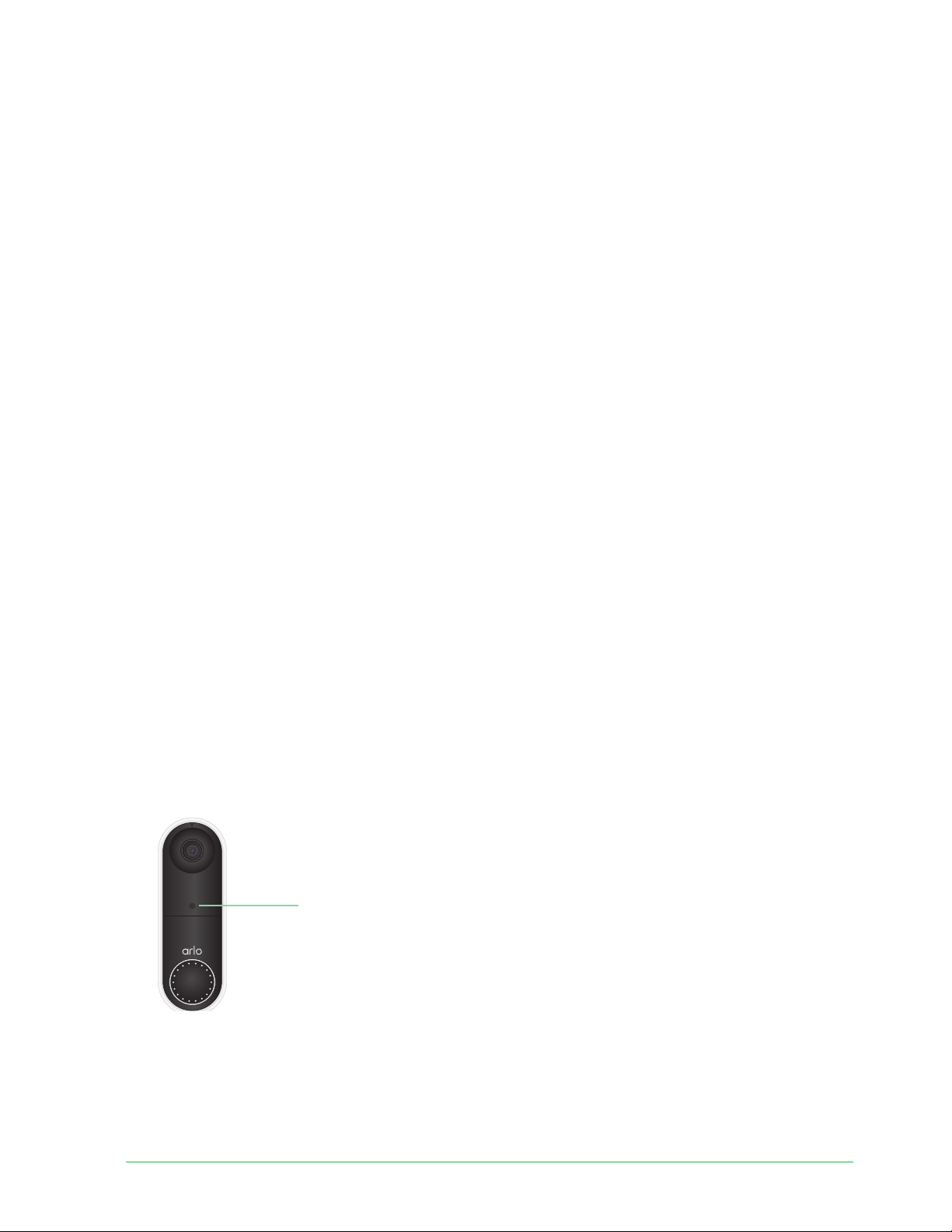
65
10. Troubleshooting
Scan the QR code during doorbell setup
During setup, your doorbell’s camera must scan a QR code from the Arlo Secure App when
you’re adding the doorbell to your 2.4 GHz WiFi network. If your doorbell doesn’t emit a chime
sound a er scanning the QR code, then the QR code was not successfully scanned.
If your doorbell didn’t scan the QR code:
• Scan the QR code in an evenly lit area.
Avoid scanning the QR code in a low light area.
• Move your phone closer to the doorbell’s camera lens.
Position your phone about four inches (10 cm) from the doorbell lens and slowly move it
closer. You can also try diff erent angles.
• Increase the brightness on your phone.
Turn up the brightness on your phone to the highest level. On an iPhone, also select Light
(not Dark) under Settings > Display & Brightness.
• If your phone is small, consider using the Arlo Secure App on a tablet to set up your
doorbell.
• If the infrared (IR) LED on the doorbell is lit red while you are scanning the QR code, cover
the LED with your thumb. The IR LED can interfere with scanning the QR code.
• Clean the doorbell’s camera lens.
Use a lint-free cloth to remove any smudges.
IR LED location

66Troubleshooting
Essential Wire-Free Video Doorbell
User Manual
Arlo doesn’t discover your doorbell during setup
A er your doorbell scans the QR code in the Arlo Secure App during setup, the Arlo Secure
App attempts to discover your Essential Wire-Free Video Doorbell on the same WiFi network
that your phone is connected to. Since the doorbell connects to 2.4 GHz WiFi networks,
during setup you must connect your phone to the same 2.4 GHz WiFi network.
If the Arlo Secure App doesn’t discover your doorbell during the setup process:
1. Check the doorbell LED to see what went wrong.
If the doorbell LED fl ashes amber for 10 seconds, the doorbell can’t connect to the
WiFi network. Make sure that you enter the correct WiFi settings for your 2.4 GHz WiFi
network. The WiFi network name (SSID) and WiFi password are both case sensitive.
MyWiFiPassword is not the same as mywifi password.
2. Check your phone’s WiFi connection.
During setup, your phone must connect to the same 2.4 GHz WiFi network as your
doorbell.
Many WiFi routers broadcast in both the 2.4 GHz and 5 GHz WiFi bands. Your home
network might include two WiFi networks, or even three if you have a guest network.
• In your phone’s WiFi settings, look for your WiFi network name that ends in 2, 2.4, or 2G
and connect to that network. For more information, see
Connect your mobile device to
a 2.4 GHz WiFi network during setup on page 10.
• Your phone might automatically connect to cellular data. To keep this from happening,
make sure that Wi-Fi Assist and Adaptive Wi-Fi features are off on your mobile device.
These features allow mobile phones to automatically switch between WiFi and cellular
network Internet access.
• If you use a VPN or WiFi extender, disconnect it during the WiFi setup process.
3. Check your WiFi router’s Internet connection.
A er your doorbell connect to the same WiFi network as your phone, the Arlo Secure App
needs to access your Arlo account in the cloud in order to add your doorbell to your Arlo
account.
If the Arlo Secure App still can’t discover your doorbell, visit Arlo Support
www.arlo.com/en-
us/support/
.
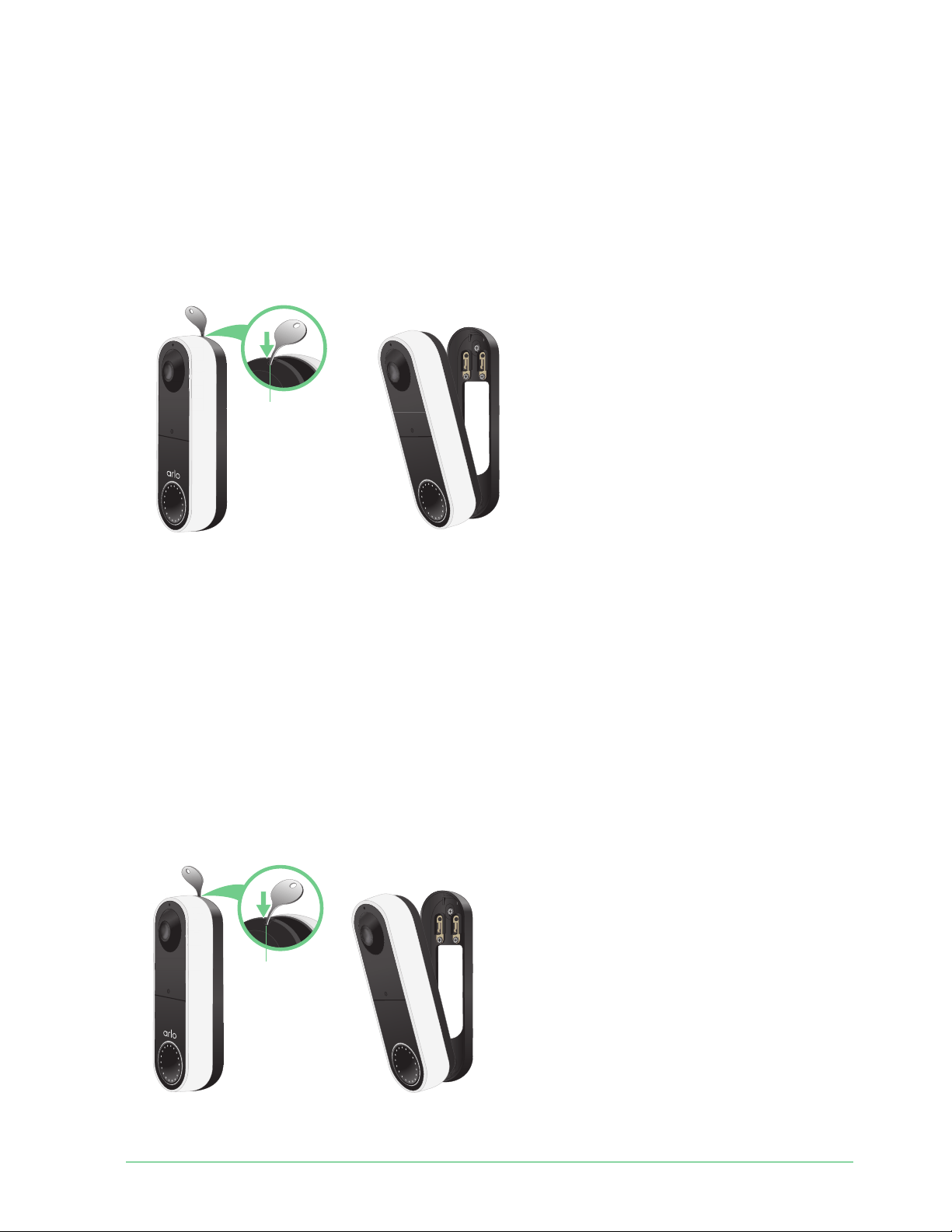
67Troubleshoot ing
Essential Wire-Free Video Doorbell
User Manual
Remove the doorbell from its mount
1. Locate the release pin that came with your Essential Wire-Free Video Doorbell.
Alternatively, you can use a paperclip or a similar object.
2. Insert the release pin into the release pinhole at the top of the doorbell mount.
A click occurs, and the doorbell is released from the mount.
3. Pull the doorbell off the mount in an up-and-out motion.
Reset the Video Doorbell
Resetting your Video Doorbell returns it to default settings. Your doorbell is also removed
from your Arlo account when you reset it. This means that you must use the Arlo Secure App
to add and set up your Video Doorbell a er a reset.
1. Locate the release pin that came with your Essential Wire-Free Video Doorbell.
Alternatively, you can use a paperclip or a similar object.
2. Insert the release pin into the release pinhole at the top of the doorbell mount.
A click occurs, and the doorbell is released from the mount.
3. Pull the doorbell off the mount in an up-and-out motion.
Rear Access
Rear Access

68Tro ubleshooting
Essential Wire-Free Video Doorbell
User Manual
4. Use a paperclip or the release pin to press and hold the reset button on the back of the
doorbell for about 10 seconds.
When the doorbell resets, the LED on the front of the doorbell fl ashes white.
5. To add the doorbell to your Arlo account and set it up, open the Arlo Secure App and tap
Add New Device.
Optimize your doorbell battery life
Your Essential Video Doorbell battery life is aff ected by frequent video recordings and its local
environment. Follow these tips and guidelines to improve your doorbell’s battery life.
• Charge the doorbell to 100% before the fi rst use. See Charge the battery before
installation on page 8.
• Place the doorbell in an area with good WiFi coverage. In the Arlo Secure App, you
can check the WiFi Signal Strength icon
for your doorbell. See Tips for optimal WiFi
performance on page 9.
• Don’t focus your doorbell on an area with high traff ic. To avoid unwanted notifi cations,
keep your doorbell’s fi eld of view (FOV) away from areas where you don’t want to detect
motion, such as a busy street. You can use the included angled mounting wedge to adjust
the orientation of your doorbell. For more information, see
Choose a good spot to mount
your doorbell on page 12.
Note: Activity zones help fi lter out notifi cations and recordings for motion events
that occur outside of your zone(s). They do not reduce your camera’s battery power
consumption, since your camera still continuously monitors for motion events within your
activity zone(s). For more information, visit What are activity zones and how do I create
them?.
• Hardwire your doorbell. You can hardwire your doorbell, which continuously trickle
charges the battery when the doorbell isn’t in use. See
4. Optional: Connect a wired chime
on page 22.

69Trouble shooting
Essential Wire-Free Video Doorbell
User Manual
The following factors reduce your doorbell battery life:
• Frequent motion and audio recordings. When your doorbell is armed, every time it
detects motion or audio, it uses battery power to record the event. If you want fewer
motion alerts and recordings, reduce the doorbell’s motion sensitivity. For more
information, see Change motion sensitivity on page 54. You can also set a schedule
for your doorbell so that it only records video at certain times of the day. For more
information, see Schedule when your doorbell camera is armed on page 55.
• Long livestreams and motion or audio recordings. Your Essential Wire-Free Video
Doorbell uses battery power while it is recording or streaming video. If possible, try to
avoid frequent and lengthy livestreams of your doorbell. Additionally, you can reduce the
length of each motion and audio recording. For more information, visit How do I adjust
Arlo video recording length?.
• Connection to a WiFi extender or mesh WiFi network. Some WiFi extenders or mesh
satellites might cause more power consumption on your doorbell.
If you are using a WiFi router with an extender, try to connect your doorbell to the router’s
WiFi network. For help reconfi guring your network connection, see the instructions for
your WiFi router or your WiFi extender.
If you are using a mesh WiFi network with a WiFi router and one or more satellites, try
moving your WiFi router closer to your doorbell, so that the doorbell connects to the
router instead of a satellite. For help reconfi guring your network, see the instructions for
your WiFi router.
Scan the QR code during Chime 2 setup
The Arlo Chime 2 is optional. Depending on the product you purchase, an Arlo Chime 2 may
be included with your Essential Wire-Free Video Doorbell, or sold separately.
When you use the Arlo Secure App to set up your Chime 2, you’re prompted to use your
mobile device to scan the QR code located on the chime. If the Arlo Secure App doesn’t read
this QR code, try the following:
• Move your mobile device closer or further from the QR code.
Your mobile device might need to be a certain distance from the QR code to properly
focus.
• Slowly move the phone camera closer to and farther away from the QR code to enable
the camera to focus better. Some smartphones might not be able to auto-focus.
• Try scanning the QR code at a diff erent angle.
• Scan the QR code in an evenly lit area.
Avoid scanning the QR code in the dark or directly under a bright light. Bright lighting can
cause refl ect off the Arlo device and inhibit your mobile device camera from seeing the
entire QR code.

70Troubleshooting
Essential Wire-Free Video Doorbell
User Manual
• Try setting up your Arlo device with a diff erent mobile device.
For example, if you tried using a tablet to set up your Arlo device, try using a smartphone
instead.
• Take a picture of the QR code, and scan the picture of the QR code.
If a diff erent smartphone or tablet doesn’t work, take a clear picture of the QR code, and
enlarge the picture on your screen. Then scan the picture with the device that you are
using to set up the device.
• Clean the camera lens on your mobile device.
The camera lens might have debris or a smudge on it, hindering its ability to scan the QR
code. Try using a lint-free cloth to remove anything that might prevent the camera from
scanning the QR code.
• If your QR code is scratched, damaged, or unreadable, contact Arlo Support.
Once your account and product are verifi ed, Arlo Support experts can send an email to
provide an undamaged version of the damaged QR code on your chime.
Arlo doesn’t discover your Chime 2 during setup
If the Arlo Secure App cannot discover your Chime 2, check the following:
1. An internet connection is available. Check the status of the internet on your WiFi router. If
your router isn’t connected to the internet, contact your internet service provider (ISP) or
router manufacturer.
2. You are typing the correct WiFi network SSID (network name) and password. The network
SSID and password are case-sensitive and must be EXACTLY correct. You can tap the
password eye icon to view your password before submitting.
3. Your mobile device and Chime 2 are not too far away from your WiFi router. We
recommend placing your Chime 2 about 10-15 feet (3-4.5 meters) away from your WiFi
router during the setup process. When your Chime 2 is set up and connected, you can
move it to an indoor location within range of your WiFi router.
Your Chime 2 doesn’t ring when the Arlo
doorbell is pressed
Your Chime 2 might not ring because your Essential Video Doorbell is in silent mode, the
Chime 2 isn’t paired with your doorbell, or due to internet connection issues or power
problems.
If your Arlo Chime 2 isn’t ringing, check the following:
• Is your doorbell in silent mode?
To view or change the silent mode setting for your doorbell, tap the gear icon next to the
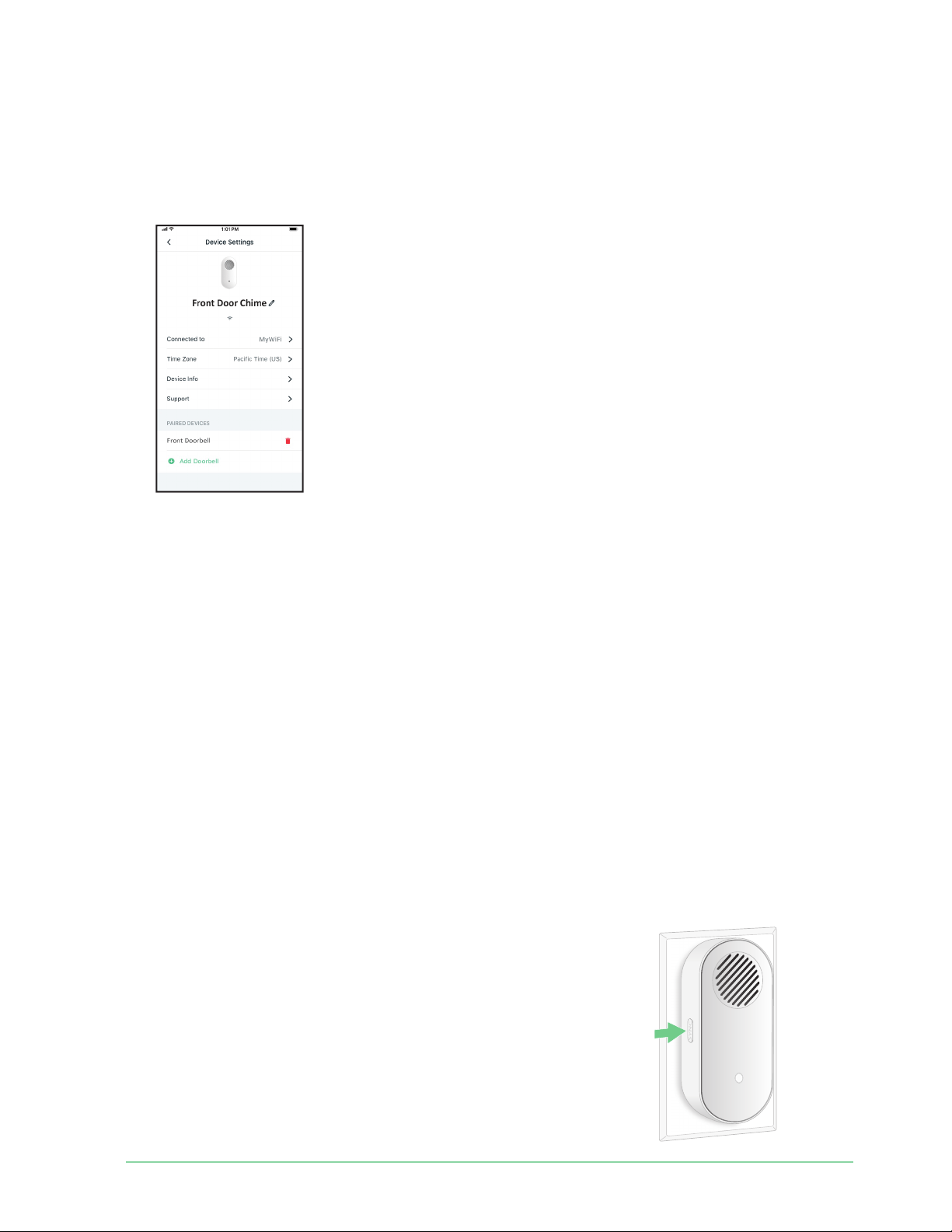
71Trouble shooting
Essential Wire-Free Video Doorbell
User Manual
doorbell and then tap Silent Mode.
• Is your Chime 2 paired to your Essential Video Doorbell ?
To check, open the Arlo Secure App and tap the gear icon next to your Chime 2. On the
Device Settings page, see if your doorbell appears under PAIRED DEVICES.
• Are your Arlo Chime 2 and the Essential Video Doorbell connected to internet?
To check, open the Arlo Secure App and tap the Settings icon next to your Arlo device. The
app indicates whether the device is off line.
• Is your Arlo Chime 2 receiving power?
The Chime 2 must be plugged in to an indoor power outlet that supplies continuous power
AC power.
If your Arlo Chime 2 still doesn’t ring, reset it and add it back to your Arlo account. For more
information, see the following section,
Reset the Chime 2.
If you are still unable to get Arlo Chime 2 to ring, visit www.arlo.com/en-us/support/ for
assistance.
Reset the Chime 2
Your Arlo Chime 2 must be plugged in to a wall outlet during the reset process . Resetting your
Chime 2 returns it to its factory default settings and disables the device. This means that you
must use the Arlo Secure App to set up your Chime 2 again a er a reset.
1. Plug your Chime 2 into a wall outlet.
2. Press and hold the Sync button on the side of your Chime 2
for 10 seconds, until the LED starts fl ashing.
The LED fl ashes white when the reset process begins.
3. Let go of the Sync button when the LED starts fl ashing.

72Troubleshoot ing
Essential Wire-Free Video Doorbell
User Manual
4. Open the Arlo Secure App and remove the Chime 2:
a. Tap the settings icon next to your Chime 2.
b. Scroll to the bottom of the Device Settings page, and tap Remove Device.
c. Close the Device Settings page.
5. Tap Add New Device on the Devices page.
6. Follow the instructions in the Arlo Secure App to set up your Chime 2.
When your Chime 2 is connected to your Arlo Essential Video Doorbell, the chime appears
under PAIRED DEVICES on the Device Settings page in the Arlo Secure App.
Can’t see video streams in a browser
The Arlo web client uses the Adobe Flash plug-in to display your camera streams in a browser.
Make sure that your browser isn’t blocking the plug-in and that you’re using the latest version
of Adobe Flash.
Your router might be blocking the ports to which Arlo sends data. To make sure that Arlo can
stay connected, you must keep ports 443 and 80 open on your router. Also see the following
sections WiFi signal interference and Out of range.
WiFi signal interference
Environments with multiple WiFi networks, WiFi devices, or frequencies can cause signal
interference with your Arlo system. Minimize the number of networks, WiFi devices, and
transmitted frequencies in the area where you place your WiFi router and cameras.
We recommend that you allow at least 6½ feet (2 meters) between your Essential Wire-Free
Video Doorbell and any Arlo cameras that you install to prevent WiFi signals between the
devices from interfering with each other.
Out of range
Make sure that your doorbell is within range of your WiFi router. The range might be reduced if
metal objects or thick walls and ceilings are between your router and the doorbell.

73Troub le shooting
Essential Wire-Free Video Doorbell
User Manual
Not receiving push notifi cations
You must be logged in to the Arlo Secure App to receive Arlo alerts on your smartphone or
mobile device. Arlo registers your device for push notifi cation when you log in. If you used the
logout option instead of simply exiting the app, you must log back in to the app. You receive
Arlo alerts even if your device is sleeping.
Check the rules for armed modes
Check the rules in your modes. Make sure that push notifi cation is enabled in the Armed mode
or in a custom mode if you created one.
1. Open the Arlo Secure App.
2. Tap the Mode button.
3. Select the Essential Wire-Free Video Doorbell.
A list of modes displays.
4. Tap Edit
next to Armed.
5. Tap Edit next to the rule.
6. Under Alert, make sure that the Push Notifi cation check box is selected.
7. If you made changes, tap Save.
Check the Arlo Secure App notifi cation settings on an iOS device
Make sure that you allow the Arlo Secure App to receive push notifi cations. The Arlo Secure
App push notifi cations might be disabled on your iOS device.
1. Tap the Settings icon for your iOS device.
2. Tap Notifi cations > Arlo.
3. Make sure that Allow Notifi cation is selected.
Check the Arlo Secure App notifi cation settings on an Android
device
Make sure that you allow the Arlo Secure App to receive push notifi cations. The Arlo Secure
App push notifi cations might be disabled on your Android device.
1. Tap the Settings icon for your Android device.
2. Tap Application Manager > Arlo.

74Trouble shooting
Essential Wire-Free Video Doorbell
User Manual
3. Make sure that the Show Notifi cations setting is selected.
If you said no to push notifi cations at installation
When you install the Arlo Secure App for the fi rst time, to receive alerts, you must select Allow
when asked if you want Arlo to send you push notifi cations. For iOS apps, a er you respond
to this alert, it isn’t presented again unless the device is restored to factory settings or the app
is uninstalled for at least a day.
If you said no on an iOS device, uninstall the app, wait for a day, and then reinstall it, and
allow notifi cations. If you don’t want to wait a day before you reinstall the app, you can use
the system clock on your device to simulate a day. Set the system clock forward a day or
more, turn your device off , and then turn the device back on. A er you reinstall the app, return
the system clock to the correct setting.
I can’t log in to my Arlo account
If you can’t sign in to your Arlo account in the Arlo Secure App or Arlo web portal, select the
scenario that applies to you. Follow the instructions to regain access to your account and/or
Arlo cameras.
• Forgot your password? You can use the email address associated with your Arlo account
to reset your Arlo account password. See Reset a forgotten password on page 43.
• Forgot the email address for your Arlo account? You’ll have to create a new Arlo account,
reset your Arlo cameras, then set up the cameras on the new account.
• Can’t access your trusted device or phone number? If you can’t access your trusted
device to verify a log in, or if you can’t receive SMS text messages, you can request to have
a security code sent to the email associated with your Arlo account. The email associated
with your Arlo account is always available as a backup login option,
• Lost access to ALL two-step verifi cation options and can’t verify your account log in?
You’ll have to create a new Arlo account, reset your Arlo cameras, then set up the cameras
on the new account.
Note: The email associated with your Arlo account is always used as a backup option to
recover your account. Make sure that you have access to your email account, and that the
email account is safe and secure.

75Troubleshoot ing
Essential Wire-Free Video Doorbell
User Manual
Troubleshoot Arlo Geofencing
Note: Selecting Modes > Arm All Devices or Disarm All Devices deactivates Geofencing mode.
To activate Geofencing mode, tap Modes, select your Arlo device, and then select Geofencing.
Each Arlo user has a unique setup environment. These are the most common geofencing
issues:
• Your mobile device isn’t sharing its location information with Arlo. See
Prepare your mobile
device for geofencing on page 57.
• Away mode isn’t triggered when you leave because an extra mobile device that’s enabled
for geofencing is still in the Device Location. See
Geofencing with multiple mobile devices
on page 58.
• Geofencing stopped working because the location sharing settings for a mobile device
changed. See
Prepare your mobile device for geofencing on page 57.
• A task-killing app is interfering with Arlo Geofencing. A task-killing app, such as Shutapp or
Doze, can disable Arlo Geofencing. To use Arlo Geofencing, disable any apps that suppress
the Arlo Secure App.
• Geofencing for your mobile device on your friend’s Arlo account isn’t working.
If you’re a friend on someone else’s Arlo account, your mobile device can only change
Home/Away modes if the Arlo account owner does the following:
• Turn on the Allow Access Rights setting. See
Grant access to friends on page 44.
• Set your device as an Enabled Device in Geofencing settings. See
Enable or disable
geofencing for friends’ mobile devices on page 59.
Still experiencing issues with geofencing? Contact Arlo Customer Support.

76
Essential Wire-Free Video Doorbell
User Manual
Support
For product updates and web support, visit http://www.arlo.com/en-us/support/.
Arlo Technologies, Inc.
2200 Faraday Ave. Suite 150
Carlsbad, CA 92008 USA
Document publication date: August 2022
PN 202-50027-05
Trademarks
© Arlo Technologies, Inc. Arlo, Arlo logo, and Every Angle Covered are trademarks of Arlo
Technologies, Inc. App Store is a service mark of Apple Inc. Google Play and the Google Play
logo are trademarks of Google LLC. Amazon and all related logos are trademarks of Amazon.
com, Inc. or its affiliates. Any other trademarks are for reference purposes.
Compliance
The regulatory marking is located at the bottom of the unit.
For regulatory compliance information including the EU Declaration of Conformity, visit www.
arlo.com/about/regulatory/.
See the regulatory compliance document before connecting the power supply.
FCC ID: 2APLE18300411
IC: 23815-18300411
CAN ICES-003(B)/NMB-003(B)
FCC ID: 2APLE 18300389
IC: 23815-1830389
CAN ICES-003(B)/NMB-003(B)