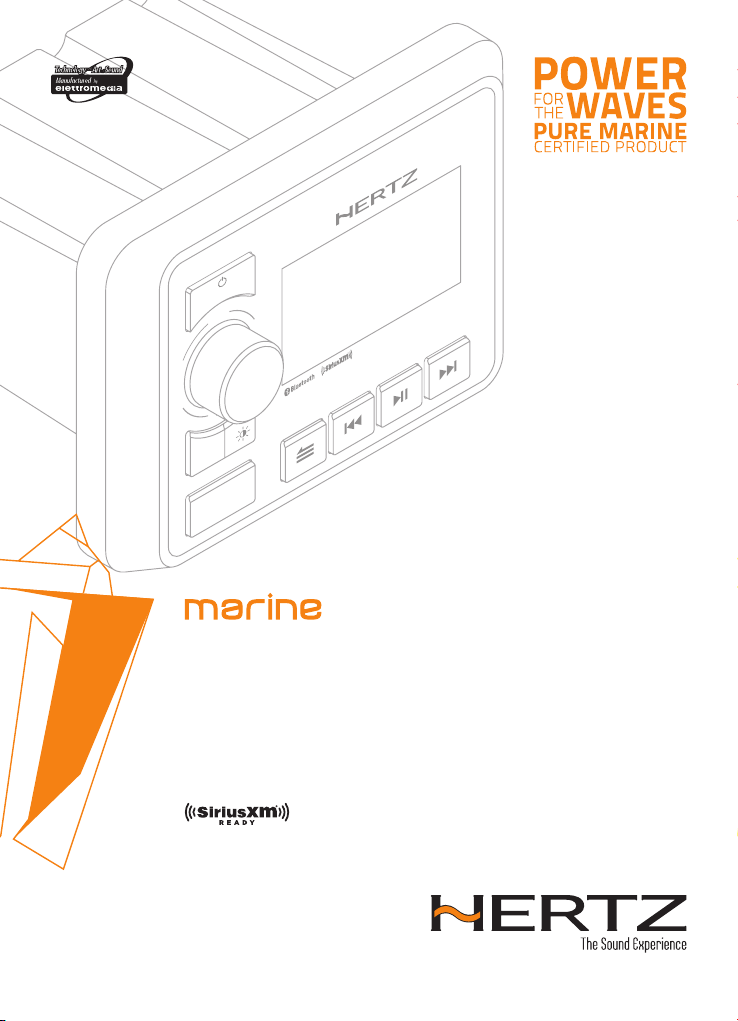
HMR 50
Rev. 0.1a
OWNER’S MANUAL
Marine grade source units
hertz-audio.com
SEL
H
M
R 50
ZONES
P
A
R
T
Y
VOL
SRC
R
E
A
DY

2
2. PRECAUTIONS ..............................................................................................................................4
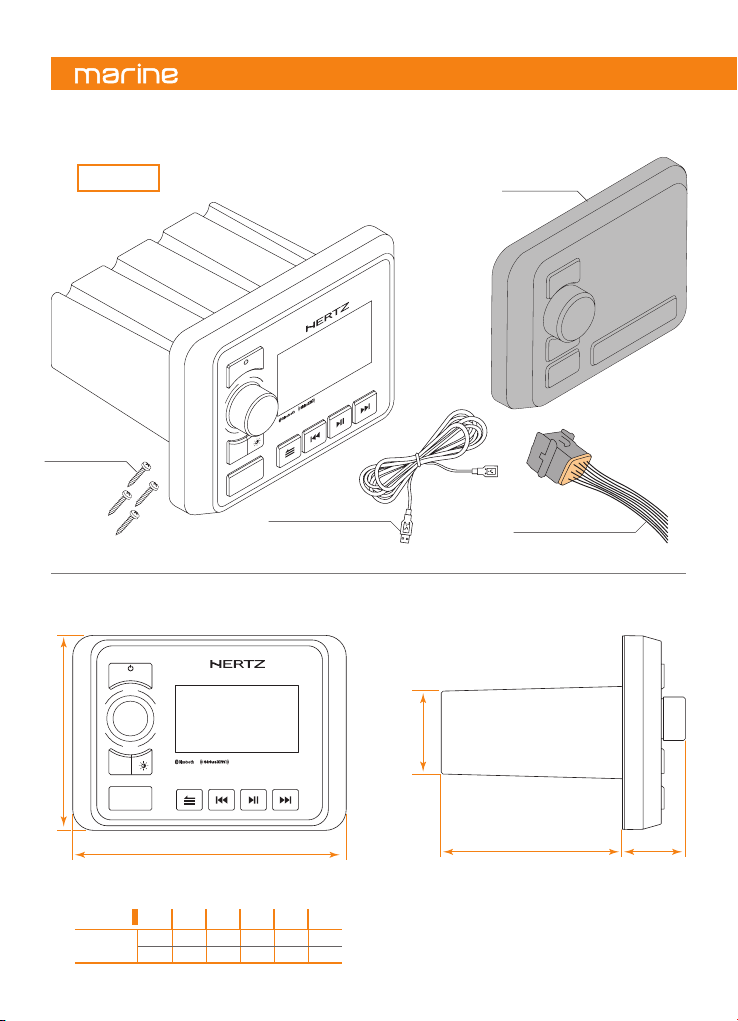
3. PACKAGING CONTENTS ...............................................................................................................6
4. DIMENSIONS ................................................................................................................................6
5. INSTALLATION .............................................................................................................................. 7
5.1 Before Starting ......................................................................................................................7
5.2 Installation Cautions.............................................................................................................7
5.3 Mounting hole .......................................................................................................................7
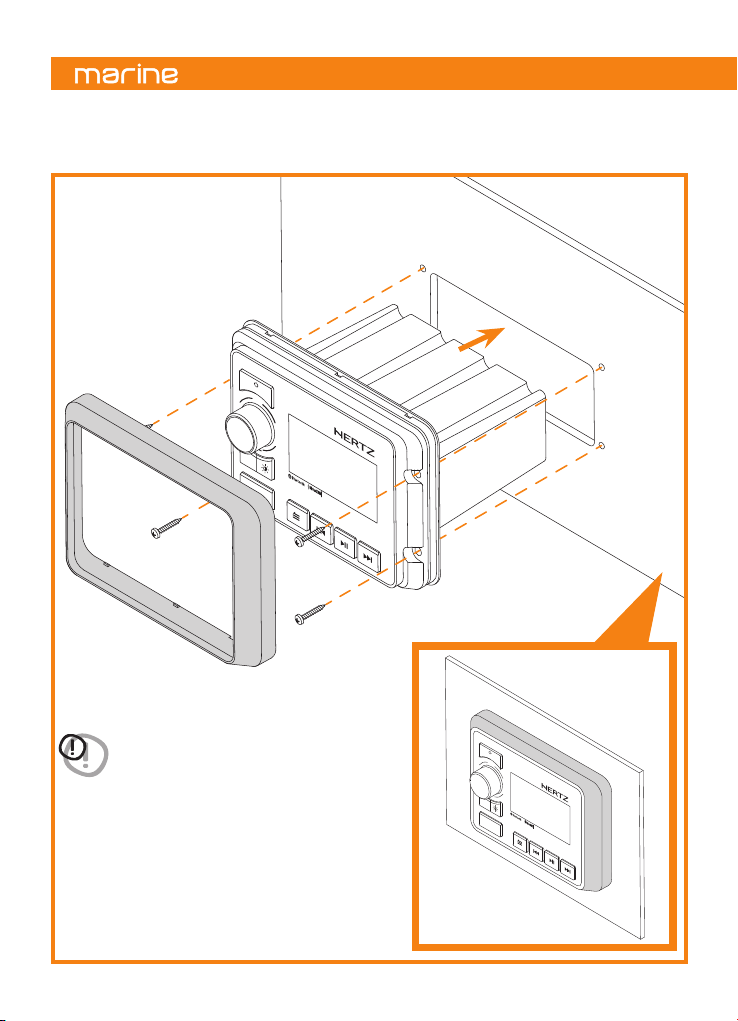
6. MOUNTING ...................................................................................................................................8
7. CONNECTIONS .............................................................................................................................. 9
8. CONTROLS ..................................................................................................................................10
8.1 Front Panel Controls ...........................................................................................................10
8.2 Name of Buttons and their Functions ..............................................................................10
9. OPERATIONS ..............................................................................................................................11
9.1 Basic Operation ...................................................................................................................11
• Power On/Off ...................................................................................................................11
• Adjusting the volume.......................................................................................................11
9.2 System Setting ....................................................................................................................12
• System Setting Menu ......................................................................................................12
• Display ...............................................................................................................................12
• Audio ..................................................................................................................................12
• Beep ...................................................................................................................................14
• System...............................................................................................................................14
• Low Battery Alert .............................................................................................................14
9.3 Tuner Operation (AM/FM) ..................................................................................................14
• Select tuner as Playing source........................................................................................14
• Settings Menu (AM/FM)..................................................................................................15
• Preset Station Selection (AM/FM) .................................................................................15
• Auto Seek Tuning (AM/FM) .............................................................................................15
• Manual Tune (AM/FM) ....................................................................................................15
• Save a Preset ....................................................................................................................16
• Select a preset from Favorites list (AM/FM).................................................................16
9.4 Weather Band Tuner Operation (Am/Fm) ........................................................................16
• Select WB tuner as Playing Source ................................................................................16
• Preset Station Selection (AM/FM) .................................................................................16
Index

3
Owner’s Manual
9.5 USB Mode Operation (when USB device is connected) ...................................................17
• Select USB as Playing Source ..........................................................................................17
• Connecting a USB device .................................................................................................17
• Select a Track ....................................................................................................................17
• Fast Forward/Fast Rewind ............................................................................................17
• Play / Pause .....................................................................................................................17
• USB Setting Menu ............................................................................................................17
9.6 Music Playback On An Apple Device Connected Via Usb ................................................18
• Select the desired song ...................................................................................................18
9.7 Bluetooth Operation ...........................................................................................................19
• Select Bluetooth as Playing Source ................................................................................19
• Pair Bluetooth Device ......................................................................................................19
• Disconnect Current Device ..............................................................................................19
• Connect Last Device .........................................................................................................19
• Remove a device from the list of paired devices ..........................................................19
• Play / Pause .....................................................................................................................20
• Select a Track ....................................................................................................................20
9.8 SiriusXM ...............................................................................................................................20
• SiriusXM Activation Process ...........................................................................................20
• SiriusXM Inteface .............................................................................................................21
• Direct Tuning .....................................................................................................................21
• SiriusXM Settings .............................................................................................................22
• Manage Lock Code ...........................................................................................................23
• SiriusXM Factory Default ................................................................................................23
9.9 AUX In Mode Operation ......................................................................................................24
9.10 Video In Mode Operation .................................................................................................24
• Automatic switching to VIDEO IN mode ........................................................................24
10. OPTIONAL ACCESSORIES ..........................................................................................................25
11. TROUBLESHOOTING ..................................................................................................................26
11.1 General...............................................................................................................................26
11.2 USB .....................................................................................................................................26
11.3 Bluetooth ...........................................................................................................................27
11.4 SirusXM Connect Tuner Troubleshooting ......................................................................28
12. TECHNICAL SPECIFICATIONS ....................................................................................................29

4
WARNING: for your safety, while boating,
keep the volume to a level at which
external sounds can be heard.
1. This unit uses precision parts and components
for its operation. In the event of any operating
issues, never open the case or disassemble the unit.
Contact your Hertz dealer or service center.
2. FCC STATEMENT
2.1 This device complies with Part 15 of the FCC Rules.
Operation is subject to the following two conditions:
(1) This device may not cause harmful interference.
(2) This device must accept any interference received,
including interference that may cause undesired
operation.
2.2 Changes or modifications not expressly approved
by the party responsible for compliance could
void the user’s authority to operate the equipment.
FCC ID: 2AYOQ-HMR50
NOTE: This equipment has been tested and found
to comply with the limits for a Class B digital device,
pursuant to Part 15 of the FCC Rules. These limits
are designed to provide reasonable protection
against harmful interference in a residential
installation. This equipment generates, uses and can
radiate radio frequency energy and, if not installed
and used in accordance with the instructions,
may cause harmful interference to radio
communications. However, there is no guarantee
that interference will not occur in a particular
installation. If this equipment does cause harmful
interference to radio or television reception, which
can be determined by turning the equipment off and on,
the user is encouraged to try to correct the interference
by one or more of the following measures:
- Reorient or relocate the receiving antenna.
- Increase the separation between the equipment
and receiver.
- Connect the equipment into an outlet on a circuit
different from that to which the receiver is connected.
- Consult the dealer or an experienced radio/TV
technician for help.
FCC Radiation Exposure Statement.
This equipment complied with FCC radiation exposure
limits set forth for an uncontrolled environment. This
equipment should be installed and operated with
minimum distance 20 cm between the unit & your body.
3. IC warning
This device complies with Industry Canada’s
license-exempt RSS standard(s).
Operation is subject to the following two conditions:
(1) This device may not cause interference
(2) This device must accept any interference,
including interference that may cause undesired
operation of the device.
This Class B digital apparatus complies with Canadian
ICES-0003. Le présent appareil est conforme aux CNR
d’Industrie Canada applicables aux appareils radio
exempts de licence.
L’exploitation est autorisée aux deux conditions suivantes:
(1) l’appareil ne doit pas produire de brouillage
(2) l’utilisateur de l’appareil doit accepter tout
brouillage radioélectrique subi, même si le
brouillage est susceptible d’en compromettre
le fonctionnement.
This equipment complies with IC radiation exposure
limits set forth for an uncontrolled environment.
The antenna should be installed and operated with
minimum distance of 20 cm between the radiator
and your body.
This transmitter must not be co-located or operating
in conjunction with any other antenna or transmitter.
Cet appareil est conforme aux limites d’exposition aux
rayonnements de la IC pour un environnement non
contrôlé. L’antenne doit être installé de façon à garder
une distance minimale de 20 centimètres entre la
source de rayonnements et votre corps.
L’émetteur ne doit pas être colocalisé ni fonctionner
conjointement avec à autre antenne ou autre émetteur.
2. PRECAUTIONS

5
Owner’s Manual
WARNING: changes or modifications to this unit not
expressly approved by the party responsible for
compliance could void the user’s authority to
operate the equipment.
IC ID: 24882-HMR50
4. The Bluetooth word mark and logos are registered
trademarks owned by the Bluetooth SIG, Inc. and
any use of such marks by Elettromedia srl is under
license. Other trademarks and trade names belong
to their respective owners.
5. aptX™ : Qualcomm aptX is a product of Qualcomm
Technologies, Inc. and/or its subsidiaries.
Qualcomm is a trademark of Qualcomm Incorporated,
registered in the United States and other countries.
aptX is a trademark of Qualcomm Technologies
International, Ltd., registered in the United States
and other countries and any use of such marks
by Elettromedia srl is under license.
6. USB Port
- The USB memory sticks must be recognized as
“USB” to work properly. Some models may not
operate correctly. In the event data is lost or
damaged under any condition, Elettromedia srl
shall not be liable for any damage. When using
the USB memory stick, we recommend that you
backup your data (music) to a personal computer
before using.
- Data (music) files may be damaged when USB
memory sticks are removed while the device
is reading data, or by static electricity and/or an
electrical surge.
- Connect/disconnect the USB memory stick when
it is not accessed.
- Disconnect the USB memory device when not
in use.
7. Cleaning the Body
- Use a soft, dry cloth and gently wipe off any
dirt or dust.
- For persistent dirt, apply some neutral detergent
diluted in water on a soft cloth, wipe off the dirt
gently, then wipe again with a dry cloth.
- Do not use benzene, thinner, boat cleaner, etc., as
these substances may damage the body or
cause the paint to peel. Also, leaving rubber or
plastic products in contact with the body for long
periods of time may cause stains.
CAUTIONS ON HANDLING
Protect from high temperatures. Exposure to direct sunlight for an extended period of time can produce
very high temperature inside the unit. It is recommended to protect the unit with the special cover when
not in use.
6
x 4 Screws
∅
3,5 x 38
mm.
A
C
E
B
D
USB extension cable
150 cm / 59 in.
PWR/SPK CABLE
16 cm / 6.3 in.
VOL
SEL
ZONES
SRC
3. PACKAGING CONTENTS
4. DIMENSIONS
HMR 50
Silicon Cover
PARTY
HMR 50
READY
SEL
H
M
R
50
ZONES
P
A
R
T
Y
VOL
SRC
R
E
A
DY
A B C D E
HMR 50
146 105 98 34 50 mm
5.75 4.13 3.86 1.34 1.97 in.
7
Owner’s Manual
1. This set is exclusively for use in vessels with a negative ground 12 V power supply.
2.
Read these instructions carefully.
3.
Make sure the battery “-” terminal is disconnected before starting.
This is to prevent short circuits during installation. (Figure 1).
1. In order to avoid any interference, do not install the tuner module or control unit in the proximity of the
engine compartment.
2. The use of unauthorized parts can cause permanent damage to the unit.
3. Always check your wire connections to ensure proper installation before turning on the unit.
4. Consult with your nearest dealer for proper installation or if other accessories are needed to complete
the installation.
5. Seek assistance if modifications or drilling holes to your vessel is needed.
6. Do not install the unit where it will be subjected to excessive moisture, dust, dirt, foreign particles or vibration.
Areas of high temperature from the engine, direct sunlight, or heat sources should also be avoided.
7. Do not install the unit in a location where it will interfere with the vessel operation, or it will injure the
passengers if there is a sudden or emergency stop.
5.1 BEFORE STARTING
5.2 INSTALLATION CAUTIONS
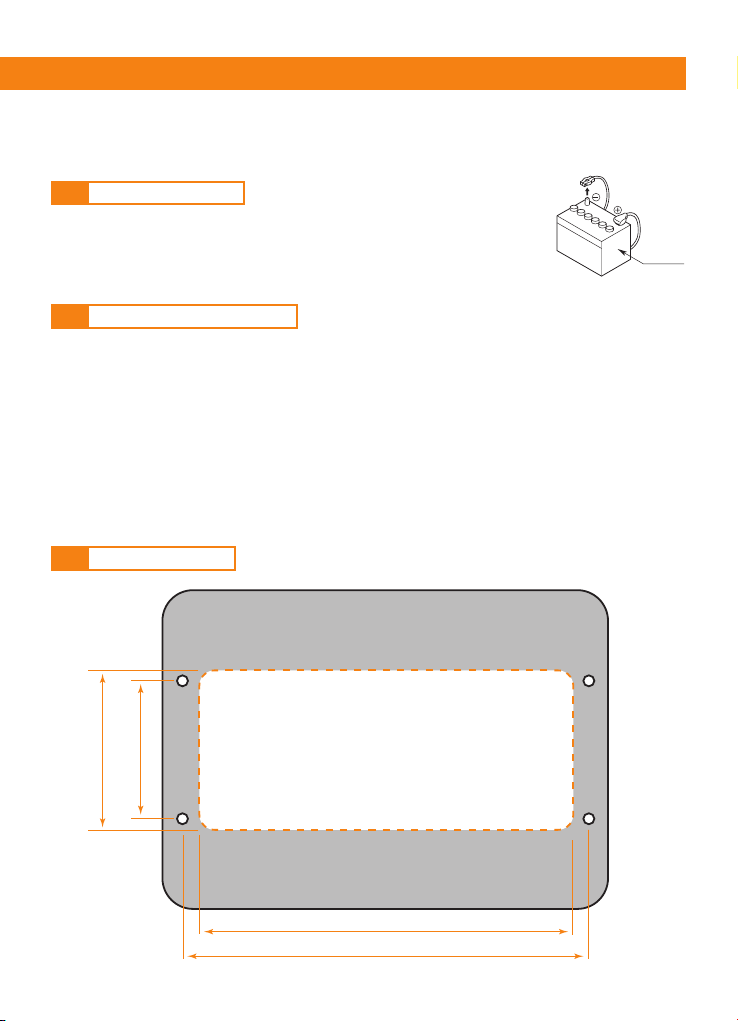
5.3 MOUNTING HOLE
5. INSTALLATION
Battery
Figure 1
122 mm (4.8 in.)
52 mm (2.05 in.)
50 mm (1.97 in.)
133 mm (5.2 in.)
8
6. MOUNTING
VOL
R
E
A
DY
HMR 50
VOL
ZONES
SRC
PARTY
SRC
PARTY
HMR 50
ZONES
R
E
A
DY
WARNING: before drilling or cutting, make sure there
is adequate space behind the mounting surface
to fit the HMR 50, including its wire harness.
VOL
R
E
A
DY
HMR 50
VOL
ZONES
SRC
PARTY
SRC
PARTY
HMR 50
ZONES
R
E
A
DY
9
Owner’s Manual
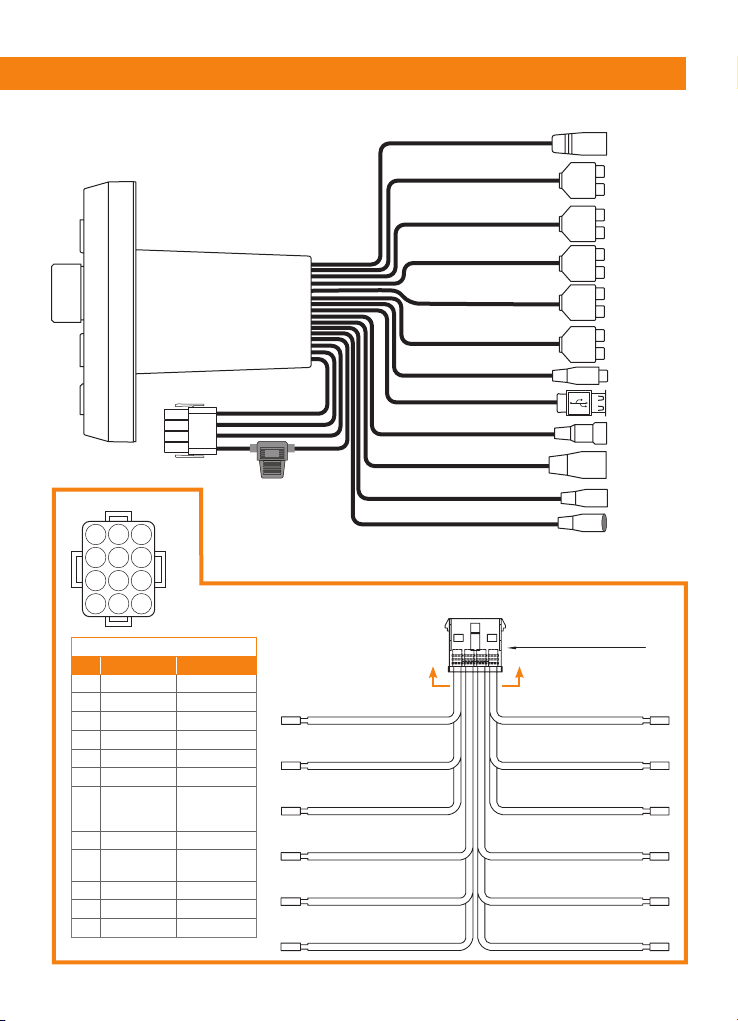
7. CONNECTIONS
12 pin Harness pin out
No. Wire color Description
1
Yellow Battery (+12V)
2
White/black Front left -
3
White Front left +
4
Red ACC (+12V)
5
Grey/black Front right -
6
Grey Front right +
7
Blue
Antenna/
Remote out
(+12V)
8
Green/black Rear left -
9
Green Rear left +
10
Black GND
11
Violet/black Rear right -
12
Violet Rear right +
121110
987
654
321
A-A
Note: cable out view
12 PIN HARNESS
Water Seal (Blue)
WHITE FRONT LEFT +BLACK GROUND
BLUE ANTENNA/REM OUT (+12V)GREEN REAR LEFT +
VIOLET/BLACK REAR RIGHT -GRAY FRONT RIGHT +
WHITE/BLACK FRONT LEFT -
YELLOW BATTERY (+12V)
VIOLET REAR RIGHT +GREEN/BLACK REAR LEFT -
RED ACC (+12V)GRAY/BLACK FRONT RIGHT -
A A
RADIO
ANTENNA
CAMERA
USB
Rch Red
Rch Red
Rch Red
Rch Red
Rch Red
Lch White
Lch White
Lch White
Lch White
Lch White
To HMC U1
To SXM
To HMC D1
FUSE
(15A)
BLACK ZONE 1
BROWN ZONE 2
GREEN ZONE 1 SUB
GRAY ZONE 3
RED AUX IN
BLACK USB IN
BLACK CAMERA IN
BLACK ANTENNA IN
BLACK REMOTE
BLACK WIRE REMOTE
BLACK SXM INPUT
VIOLET/WHITE
CAMERA
TRIGGER
10
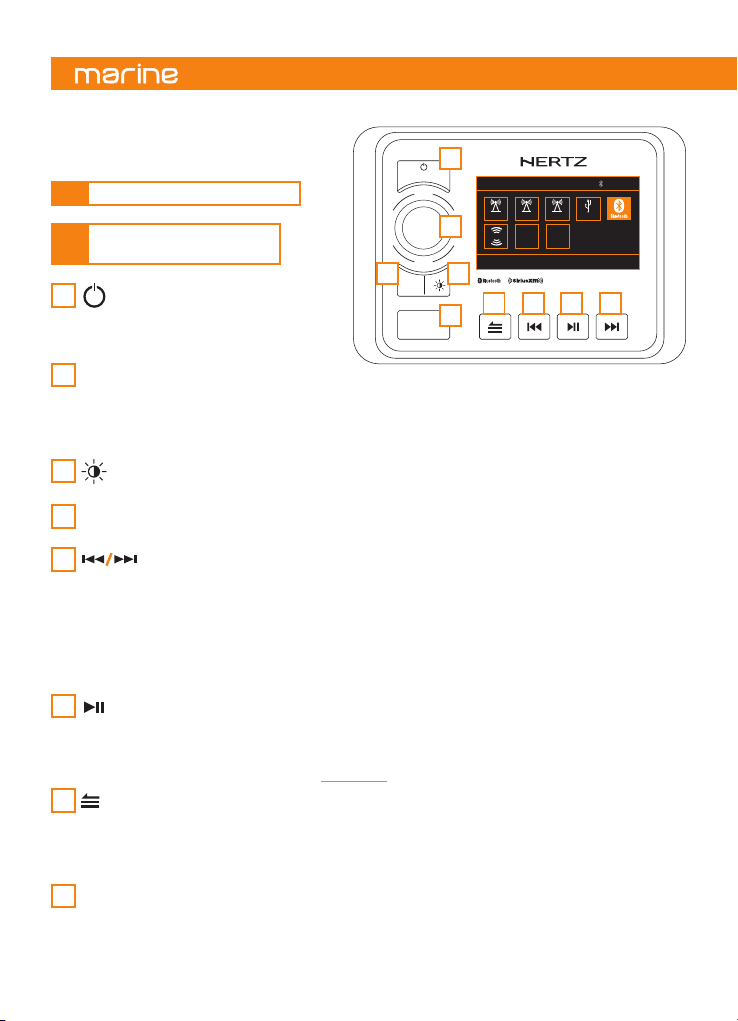
8.1 FRONT PANEL CONTROLS
8.2
NAME OF BUTTONS
AND THEIR FUNCTIONS
8. CONTROLS
- Power ON (short press).
- Power OFF (long press).
- Enter to SOURCE SELECTION (short press).
SRC Button
1
VOL/SEL Knob
- Adjust volume level (rotate).
- Menu navigation and setting adjustments (rotate/press).
- Mute ON/OFF (short press).
- AM/FM: FAVORITES menu (long press).
2
- Switch between two different brightness values for the display (short press).
DIMMER Button
4
- Brings the volume of all audio zones to level “15”.
PARTY Button (long press)
3
ZONES Button
- Access AUDIO ZONE LEVEL menu (short press).
- When into AUDIO ZONE LEVEL to switch between Zone1, Zone2, SUB (short press).
8
- AM/FM mode: access to manual tuning (short press).
- USB mode: pause or resume playback (Short press).
- BT mode: pause or resume playback (Short press).
- SirusXM mode: Direct Tuning function
(see sec. 9.9)
.
PLAY/PAUSE Button
6
MENU/BACK Button
- Access system settings (long press).
- Exit from system settings (long press).
- Access active source settings (short press).
- To go back/return to the previous screen (long press).
7
- AM/FM mode: previous/next preset station (short press).
Seek the previous/next strongest station (long press).
- USB mode: previous/next track (short press).
fast forward/rewind (press and hold).
- BT mode: previous/next track (short press).
- SiriusXM mode: seek the next / previous channel (short press).
quick search for the next / previous channel (long press).
5
Button
VOL
SEL
ZONES
SRC
PARTY
HMR 50
1
2
43
7 5 5
8
6
SOURCE SELECTION
press to select Bluetooth
12.5 V
FM AM WB USB
AUX
VIDEO
IN
sxm
READY
11
Owner’s Manual
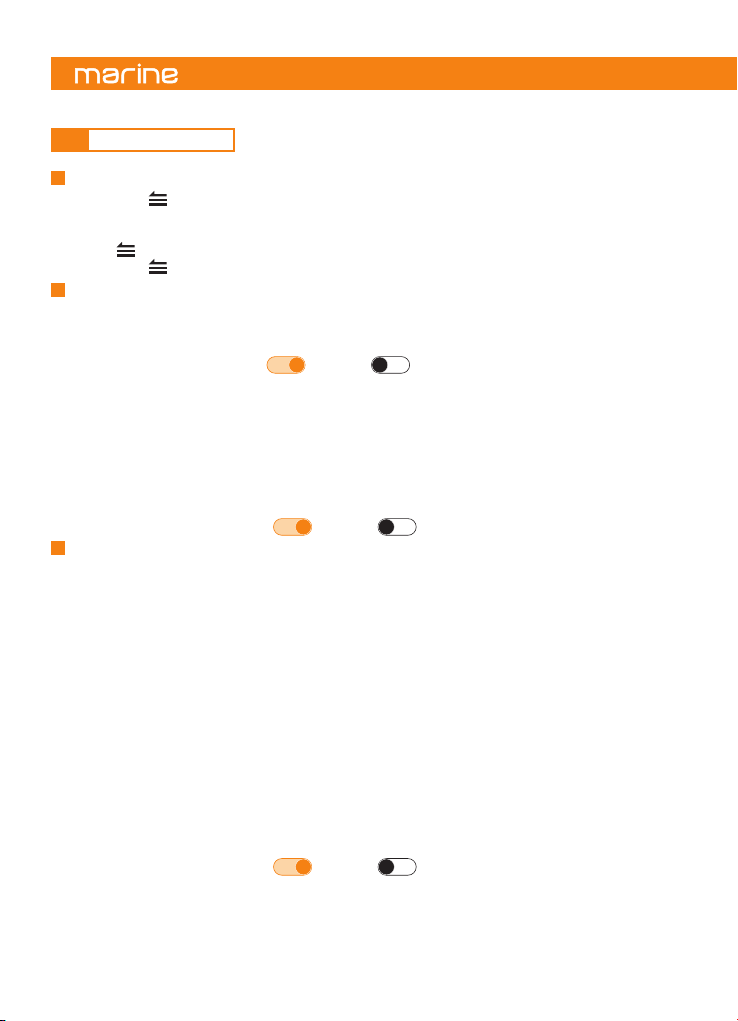
Selected zone volume level.
Zone max volume limit.
(rename option available, see chapter 9.2).
Zone name.
- When in AUDIO ZONE LEVEL to change
between Zone1, Zone2, Zone3, SUB.
(short press).
Mute on.
WARNING: when the unit is turned on, starting and stopping the engine with its volume raised to the
maximum level may cause hearing damage. Make sure you adjust the volume in advance.
WARNING: while boating, keep the volume at a level at which external sounds can still be heard.
Please be aware of the volume levels in residential, public areas and local volume level ordinances.
Engine ON position
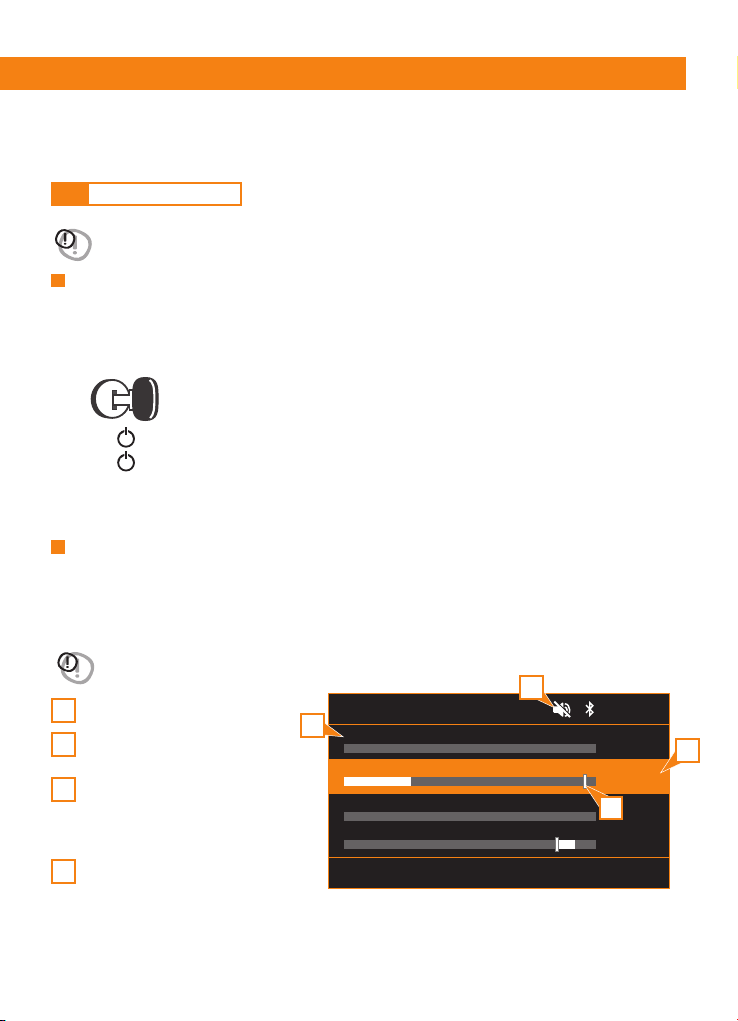
9.1 BASIC OPERATION
9. OPERATIONS
Adjusting the volume
Power On/Off
Rotate VOL/SEL knob to increase or decrease the volume.
The adjustable range of volume is from 0 to 40.
- The volume of each Zone and Sub relative level are adjustable separately in AUDIO ZONE LEVEL menu.
- Sub volume is linked with Zone1, adjustable relative level range is from -30 to +10.
1
2
3
4
Note:
- Start the engine before using this unit.
- Be careful about using this unit for a long time without running the engine. If you drain the vessel
battery, you may not be able to start the engine and this can reduce the service life of the battery.
1. Start the engine.
2. Press / SCR to turn the unit ON.
3. Press / SCR to access the SOURCE SELECTION menu.
4. Rotate VOL/SEL knob to highlight the desired source, press to select.
(FM>AM>WB>USB>BT>SXM*>AUX IN>VIDEO IN).
*only available in USA and Canada.
AUDIO ZONE LEVEL
Z1: ZONE 1 (OFF)
0
+3
12
Z2: ZONE 2
Z3: STATEROOM 3 (Fixed @ 4 Vrms)
SUB
12.5 V
press ZONES button to change selection
1
2
3
4
12
- Long press to access the system settings menu.
- Rotate VOL/SEL knob to highlight one of the available options, press to select.
(DISPLAY>AUDIO> BEEP> SYSTEM >LOW BATTERY ALERT>).
- Press to go back to the previous screen menu.
- Long press to exit from the system settings menu.
ZONE 1 (settings for ZONE 1 rca out, speaker outputs and ZONE 1 SUB rca out)
- Rotate VOL/SEL knob to highlight one of the available options, press to select.
(EQ>BALANCE-FADER>LOUDNESS>CROSSOVER>SUB>ZONE RENAME>MAX VOLUME LIMIT>LEVEL CONTROL MODE).
EQ (Equalizer Setting)
Rotate VOL/SEL knob to highlight one of the available options, press to select.
(CUSTOM>CLASS>JAZZ>ROCK>POP>FLAT)
The “CUSTOM” curve can be customized by the user:
- Rotate VOL/SEL knob and select the “CUSTOM” curve.
- Press VOL/SEL knob to select the desired frequency.
- Rotate VOL/SEL knob to vary the gain level of the selected frequency.
- Press again VOL/SEL knob to go to the following frequency.
BALANCE-FADER
Press VOL/SEL knob to switch between the options:
Balance: rotate VOL/SEL knob to adjust the Balance between the right and left channels from R07
(full right) to L07 (full left).
Fader: rotate VOL/SEL knob to adjust the level from F07 (full front) to R07 (full rear).
LOUDNESS
Rotate VOL/SEL knob to enable or disable this function.
CROSSOVER (to set the cutoff frequency for ZONE 1 rca out and speaker outputs).
Rotate the knob to select the desired cut-off frequency of the high pass filter (OFF>100Hz>80Hz>60Hz)
SUB (ZONE 1 SUB out settings)
SUB LEVEL
Rotate VOL/SEL to adjust the output volume level from -30 to +10.
9.2 SYSTEM SETTING
System Setting Menu
- Rotate VOL/SEL knob to highlight one of the available options, press to select.
(DIMMER>DIMMER BRIGHTNESS>BUTTONS BACKLIGHT, TEXT SCROLLING).
DIMMER
Press VOL/SEL knob to enable or disable this function.
DIMMER BRIGHTNESS
Press VOL/SEL knob to switch between the options:
DIMMER ON: rotate VOL/SEL knob to adjust brightness level from 0 to 8 when dimmer is enabled.
DIMMER OFF: rotate VOL/SEL knob to adjust brightness level from 0 to 8 when dimmer is disabled.
BUTTONS BACKLIGHT
Rotate VOL/SEL knob to highlight one of the available options, press to select.
(RED>GREEN>BLUE>WHITE>YELLOW>PURPLE>CAMBRIDGE BLUE>AUTO)
TEXT SCROLLING (enable continuous text scrolling where available)
Rotate VOL/SEL knob to enable or disable this function.
Display
Audio

13
Owner’s Manual
SUB LPF (to set the subwoofer cut-off frequency).
Rotate VOL/SEL knob to select the desired cut-off frequency of the low pass filter.
(OFF>100Hz>80Hz>60Hz).
INVERT PHASE
Rotate VOL/SEL knob to select the phase of the signal on the output.
When the function is enable the signal phase is inverted (180°).
ZONE RENAME (to select the desired name of an audio zone, to facilitate identification)
Rotate VOL/SEL knob to highlight one of the available options, press to select.
(BOW>BRIDGE>COCKPIT>FLY>GALLEY>HELM>SALOON>STATEROOM 1
STATEROOM 2>STATEROOM 3>STERN>TOWER>TRANSOM>ZONE 1).
MAX VOLUME LIMIT (to limit the maximum volume output of this zone).
Rotate VOL/SEL knob to adjust the desired Volume level limit from 0 to 40.
LEVEL CONTROL MODE.
Rotate VOL/SEL knob to highlight one of the available options:
- VARIABLE (default): the volume level of the signal output from this audio zone is variable and can
be controlled via the volume mixer ([ZONES] button).
- FIXED 4 VRMS MAX: the level of the output signal from this audio zone is fixed at 4Vrms. It will no
longer be possible to change the volume level for this zone until the “Variable” mode is selected.
- FIXED 2 VRMS MAX: the level of the output signal from this audio zone is fixed at 2Vrms.
It will no longer be possible to change the volume level for this zone until the “Variable” mode is selected.
- FIXED 1 VRMS MAX: the level of the output signal from this audio zone is fixed at 1Vrms.
It will no longer be possible to change the volume level for this zone until the “Variable” mode is selected.
- OFF: this audio zone is off. This zone will no longer play any sound until “Variable” or “Fixed” mode is selected.
ZONE 2 - ZONE 3 (ZONE 2 rca out, ZONE 3 rca out setting).
- Rotate VOL/SEL knob to highlight one of the available options, press to select.
(EQ>BALANCE >LOUDNESS>ZONE RENAME>MAX VOLUME LIMIT>LEVEL CONTROL MODE).
EQ (Equalizer Setting)
Rotate VOL/SEL knob to highlight one of the available options, press to select.
(CUSTOM>CLASS>JAZZ>ROCK>POP>FLAT).
The “CUSTOM” curve can be customized by the user:
- Rotate VOL/SEL knob and select the “CUSTOM” curve.
- Press VOL/SEL knob to select the desired frequency.
- Rotate VOL/SEL knob to vary the gain level of the selected frequency.
- Press again VOL/SEL knob to go to the following frequency.
BALANCE
Balance: rotate VOL/SEL knob to adjust the Balance between the right and left channels from R07
(full right) to L07 (full left).
LOUDNESS
Rotate VOL/SEL knob to enable or disable this function.
ZONE RENAME (to select the desired name of an audio zone, to facilitate identification).
Rotate VOL/SEL knob to highlight one of the available options, press to select.
(BOW>BRIDGE>COCKPIT>FLY>GALLEY>HELM>SALOON>STATEROOM 1
STATEROOM 2>STATEROOM 3>STERN>TOWER>TRANSOM>ZONE 2*).
*ZONE 3 for the ZONE 3.
MAX VOLUME LIMIT (to limit the maximum volume output of this zone).
Rotate VOL/SEL knob to adjust the desired Volume level limit from 0 to 40.
14
Press VOL/SEL knob to enable or disable this function.
Beep
(FACTORY DEFAULT>SOFTWARE VERSION)
FACTORY DEFAULT
Press VOL/SEL knob, then select and press [YES] to restore all settings to the factory default values.
SOFTWARE VERSION
Press VOL/SEL knob to show the software version information.
System
LEVEL CONTROL MODE
Rotate VOL/SEL knob to highlight one of the available options:
- VARIABLE (default): the volume level of the signal output from this audio zone is variable and can
be controlled via the volume mixer ([ZONES] button).
- FIXED 4 VRMS MAX: the level of the output signal from this audio zone is fixed at 4Vrms. It will no
longer be possible to change the volume level for this zone until the “Variable” mode is selected.
- FIXED 2 VRMS MAX: the level of the output signal from this audio zone is fixed at 2Vrms.
It will no longer be possible to change the volume level for this zone until the “Variable” mode is selected.
- FIXED 1 VRMS MAX: the level of the output signal from this audio zone is fixed at 1Vrms.
It will no longer be possible to change the volume level for this zone until the “Variable” mode is selected.
- OFF: this audio zone is off. This zone will no longer play any sound until “Variable” or “Fixed” mode is selected.
Press VOL/SEL knob to enable or disable this function.
Remark: this notification alerts you when the 12VDC supply voltage drops below 10 volts. If enabled, the
device will enter safe mode and disable the audio output. A warning will also be displayed on the
screen with instructions to shut down the device until normal operating voltage is restored.
Low Battery Alert (Notifies of low battery voltage condition).
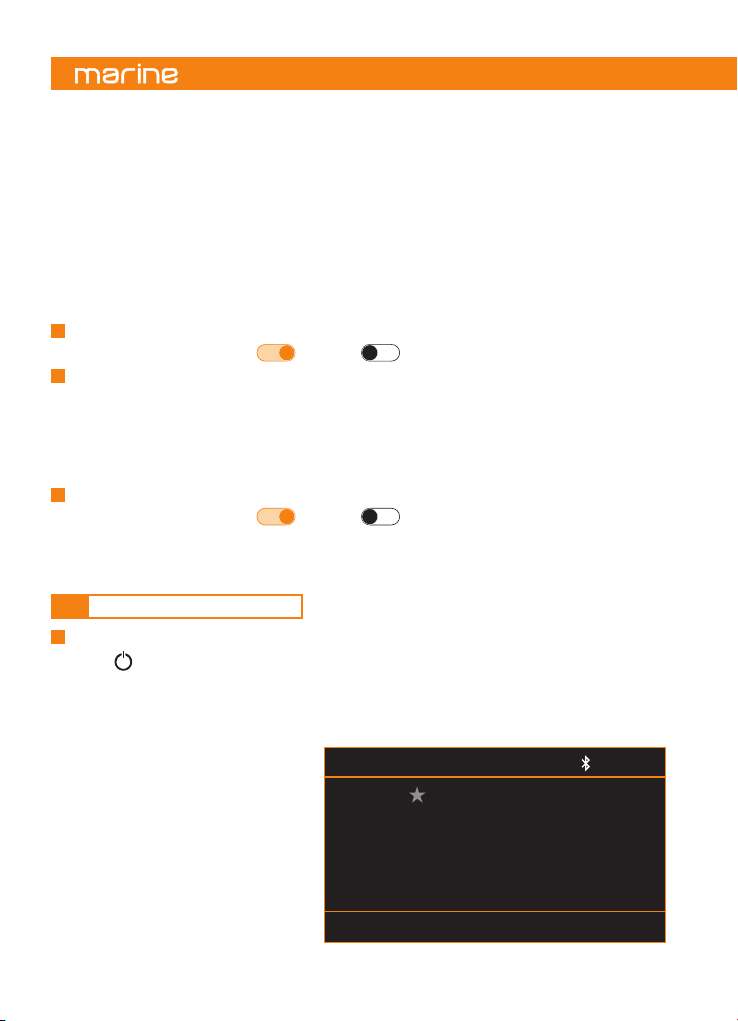
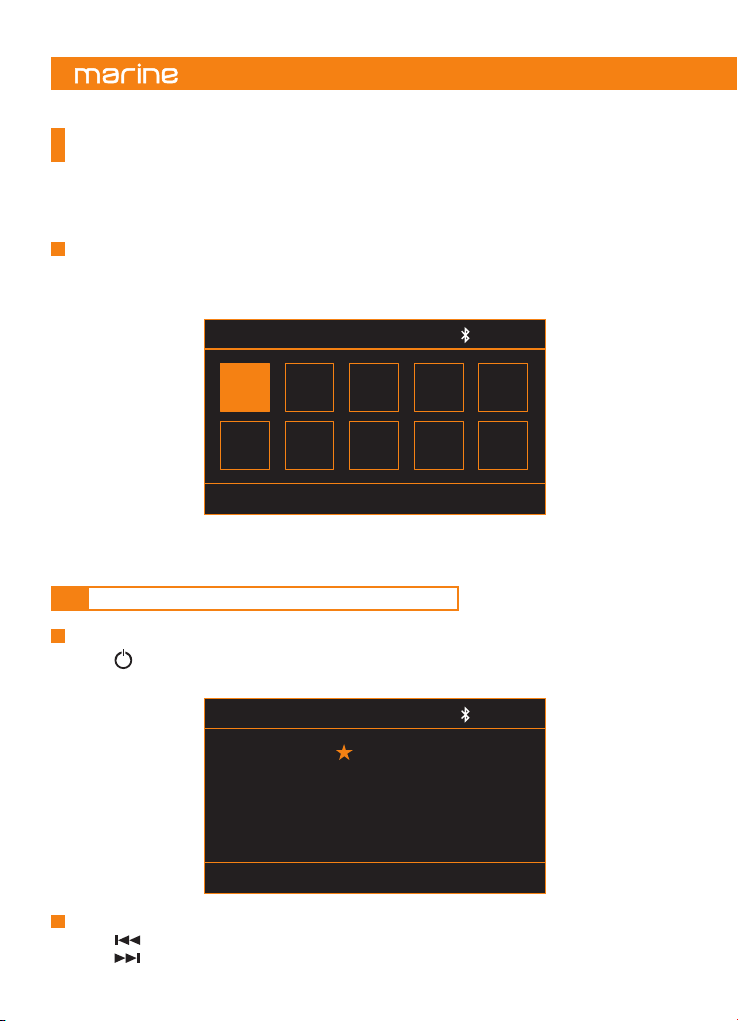
9.3 Tuner Operation (AM/FM)
Select tuner as Playing Source
1. Press / SCR to access the SOURCE SELECTION menu.
2. Rotate VOL/SEL knob to highlight the desired tuner mode,
press to select (FM>AM).
FM
press Menu for Settings
Station name
Radio text
Mhz106.50
12.5 V
long press KNOB to save
15
Owner’s Manual
- Press to access the settings menu. (AM/FM).
- Rotate VOL/SEL knob to highlight the desired option, press to select.
(PRESETS>RADIO REGION>LOCAL>AUTO STORE>RDS*>AF*).
*Europe region only.
- Press to go back to the previous screen or exit the menu.
PRESETS
- Press VOL/SEL knob to access the FAVORITES list.
- Rotate VOL/SEL knob to select the desired preset then press to select.
RADIO REGION
Rotate VOL/SEL knob to highlight the desired radio region, press to select.
(EUROPE>USA).
LOCAL (to tune in only the stations with the strongest signal)
Press VOL/SEL knob to enable or disable this function.
AUTO STORE
(only station with sufficient signal strength will be detected and stored in the memory).
Press VOL/SEL knob to automatically find the available stations and store them into presets
(the new station replaces any stations already stored).
RDS (FM Radio Data System)
Press VOL/SEL knob to enable or disable this function.
AF (FM Alternative Frequencies)
Press VOL/SEL knob to enable or disable this function
- Press to move to the previous preset.
- Press to move to the next preset.
- Long press to SEEK the previous strongest station.
- Long press to SEEK the next strongest station.
- Press to access the manual seek tuning, the screen will display MANUAL tune
(the system returns to AUTO mode after a few seconds if no key is pressed).
- Press or to manually tune to the desired frequency.
(the system returns to AUTO mode after a few seconds if no key is pressed).
Settings menu (AM/FM)
Preset station selection (AM/FM)
Auto Seek Tuning (AM/FM)
Manual Tune (AM/FM)
16
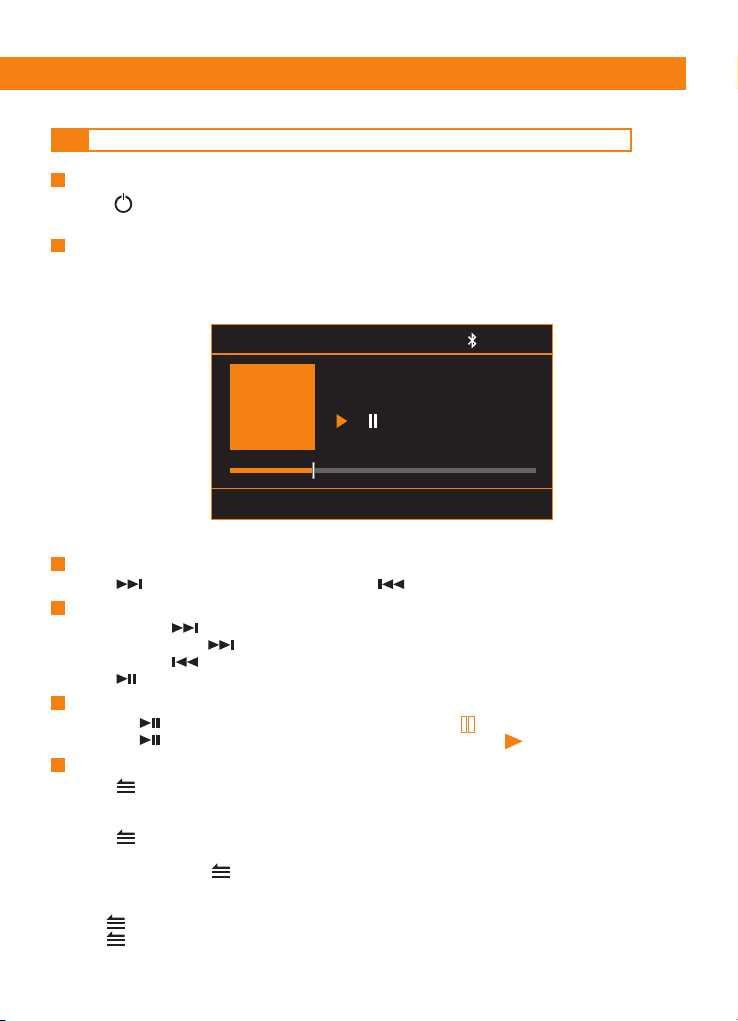
Select a preset from FAVORITES list (AM/FM).
Save a preset (You can save up to 18 of your favorite stations when in FM, or
up to 12 when in AM, as presets for a quick access).
1) Long press VOL/SEL knob to access the FAVORITES screen (AM/FM).
2) Rotate VOL/SEL knob to highlight the desired preset, press to select.
1) Tune the desired station / frequency.
2) Long press VOL/SEL knob to access the FAVORITES screen (AM/FM).
3) Rotate VOL/SEL knob to select the desired preset number.
4) Long press VOL/SEL knob to store it.
9.4 WEATHER BAND TUNER OPERATION (AM/FM)
Select WB tuner as Playing Source
1. Press / SCR to access the SOURCE SELECTION menu.
2. Rotate VOL/SEL knob to highlight the desired tuner mode, press to select (WB).
Preset Station Selection (AM/FM)
- Press to move to the previous preset.
- Press to move to the next preset.
FM FAVORITES
long press knob to save
12.5 V
FM
VIRGIN
01
06
FM
BBC
02
07
FM
87.50
03
08
FM
108.00
04
09
FM
96.50
05
10
WB
long press Menu for general Settings
12.5 V
Mhz106.50
Preset 1
17
Owner’s Manual
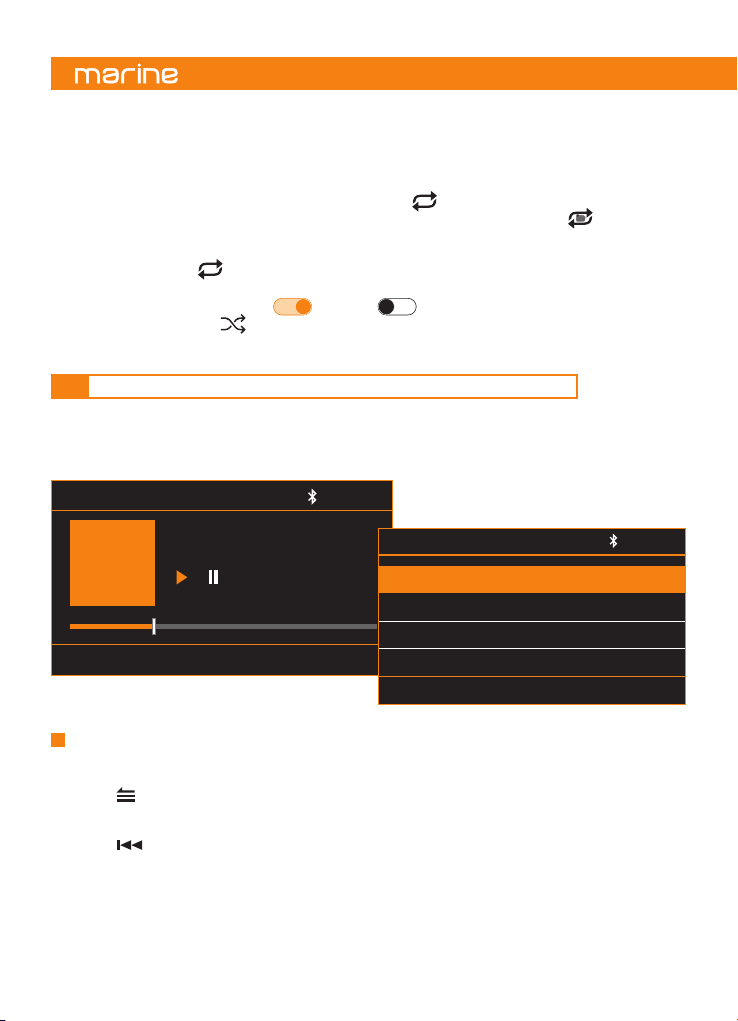
9.5 USB Mode Operation (available only when a USB device is connected)
Connecting a USB device
- Insert a USB device into the USB port (please check the tech sheet at the end of this manual for details).
- To remove the USB device, you should select another source or turn off the power, in order to avoid.
- damaging the USB device. Then remove the USB device.
- Press to move to the next track/song. Press to go back to the previous track/song.
Select a Track
- Press the to pause the track/song that is currently playing, lights up.
- Press the to resume playing the track/song that has been paused, lights up.
Play / Pause
Select USB as Playing Source
1. Press / SCR to access the SOURCE SELECTION menu.
2. Rotate VOL/SEL knob to highlight USB, press to select.
- Press and hold to fast forward through the track/song.
- Press again and hold to speed up the progress.
- Press and hold to fast rewind through the track/song.
- Press to return to playback.
Fast Forward/Fast Rewind
1 Press to enter the USB settings menu.
2 Rotate VOL/SEL knob to the desired option, press to select
(BROWSER>REPEAT>SHUFFLE).
3 Press to go back to previous screen or exit from the menu.
BROWSER
Use VOL/SEL knob and to browse the USB device content.
Rotate VOL/SEL knob to highlight the desired song or folder.
Press VOL/SEL knob to play the song or access the folder.
Press to exit from the current folder.
Press to exit the USB browsing (only if you are in the USB root).
Remark: the system exits from the USB browsing after a few seconds if no button is pressed.
USB Setting Menu
USB 12.5 V
1:13 / 3:44 07 of 10
Song name
Artist name
Album name
Album cover
folder name
18
REPEAT
Rotate VOL/SEL knob to the desired option, press to select:
REPEAT OFF>REPEAT ONE>REPEAT DIR>REPEAT ALL [DEFAULT]):
REPEAT OFF: the repeat play function is disabled. No “repeat” logo is shown on the screen.
REPEAT ONE: repeat playback of the current track. The logo is displayed on the screen.
REPEAT DIR: repeat playback of the songs contained in the current folder. The logo
is displayed on the screen.
REPEAT ALL: when all the tracks contained in the device have been played, playback restarts from the
first track. The logo is displayed on the screen.
SHUFFLE
Rotate VOL/SEL knob to enable or disable this function.
When enabled the logo is displayed on the screen.
1
ALL
9.6 MUSIC PLAYBACK ON AN APPLE DEVICE CONNECTED VIA USB
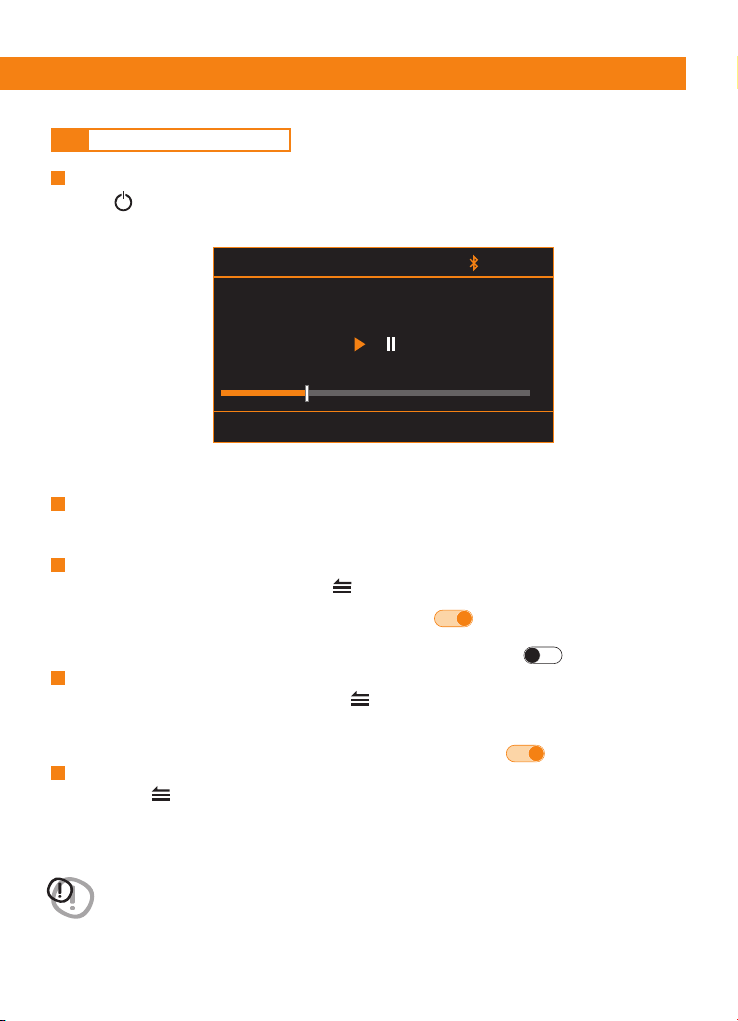
1. Connect a compatible Apple smartphone or media player to the head unit via USB.
2. You can use the music application on the Apple
®
device or the head unit controls to browse the music
library and to select, play, pause and skip tracks.
* Apple® is a trademark of Apple Inc., registered in
the US and other countries.
MOBILE PHONE 12.5 V
1:13 / 3:44 07 of 10
Song name
Artist name
Album name
Album cover
FILE BROWSING
press to select
PLAYLIST >
ARTISTS >
ALBUMS >
GENRES >
12.5 V
The songs contained in the * Apple® device are grouped as it happens in the device itself, through
playlists, such as: “Playlists”, “Artists”, “Albums”, “Genres”, “Songs”, “Composers” and “Audiobooks”.
- Press to view the contents of the Apple
®
device.
- Rotate VOL/SEL knob to highlight the desired playlist. Press to confirm selection.
- Rotate VOL/SEL knob to highlight the desired track. Press VOL/SEL knob to play the track.
- Press to go back.
Remark: the system exits USB navigation after a few seconds if no button is pressed.
Select the desired song
19
Owner’s Manual
9.7 BLUETOOTH OPERATION
Select Bluetooth as Playing Source
1. Press / SCR to access the SOURCE SELECTION menu.
2. Rotate VOL/SEL knob to highlight BT, press to select.
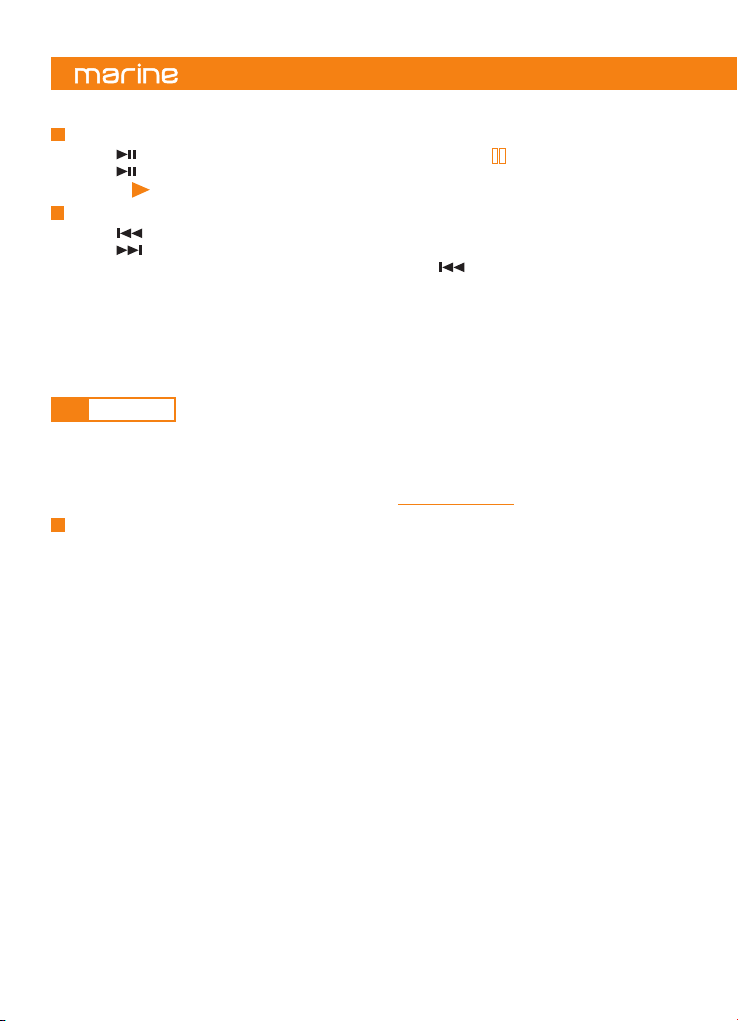
Enable Bluetooth in your streaming device and scan for nearby devices, select HMR 50 from your list
of available devices to connect.
Pair Bluetooth Device
1 When the device is connected short press to access BT Setting.
2 Rotate VOL/SEL knob and select SELECT DEVICE. Press to select.
3 The device currently connected is highlighted with the icon .
4 Rotate VOL/SEL knob to select the device currently connected and to be disconnected.
5 Press VOL/SEL knob to disconnect the selected device. The icon becomes
1 When the device is disconnected short press to access BT Setting.
2 Rotate VOL/SEL knob and select SELECT DEVICE. Press to select.
3 Rotate VOL/SEL knob to select the device to connect.
4 Press VOL/SEL knob to connect the device selected. The icon becomes
1 Short press to access BT Setting.
2 Rotate VOL/SEL knob and select REMOVE DEVICE. Press to select.
3 Rotate VOL/SEL knob to select the device to remove.
4 Press VOL/SEL knob to remove the device selected.
Disconnect Current Device
Connect Last Device
Remove a device from the list of paired devices
WARNING: please avoid operating your connected mobile phone while audio streaming as this may
cause noise or stuttering on the song playback. Audio streaming may or may not resume after
telephone interruption as this depends on the mobile phone used.
BT: phone name
press Menu for Settings
12.5 V
1:13 / 3:44 07 of 10
Song name
Artist name
Album name
20
Remark: playing order will depend on Bluetooth audio player. When is pressed some A2DP devices will
restart the current track depending on the duration of the playback. Some Bluetooth audio players may not
allow play/pause synchronization with this unit. Please make sure both the device and the main unit are in
the same play/pause status in BT Music mode.
- Press to pause the track/song that is currently playing. The icon is displayed on the screen.
- Press to resume playing the track/song that has been paused.
The icon is displayed on the screen.
- Press to move on to the previous track/song.
- Press to go back to the next track/song.
Play / Pausa
Select a Track
SiriusXM is where moments happen. The widest, deepest variety of music, ad-free. More games, more
sports, more coverage than anywhere. The most extensive entertainment, complete news coverage and
every kind of comedy. Listen in your car, on your phone, online and at home. A SiriusXM Connect Tuner
and subscription are required. For more information, visit www.siriusxm.com.
1 Activating your SiriusXM Subscription
After installing your SiriusXM Connect Tuner and antenna, power on your HMR 50 and select
SiriusXM mode. You should be able to hear the SiriusXM preview channel on Channel 1. If you cannot
hear the preview channel, please check the installation instructions to make sure your SiriusXM.
Connect tuner is properly installed.
After you can hear the preview channel, tune to Channel 0 to find the Radio ID of your tuner.
In addition, the Radio ID is located on the bottom of the SiriusXM Connect Tuner and its packaging.
You will need this number to activate your subscription. Write the number down for reference.
Note: the SiriusXM Radio ID does not include the letters I, O, S or F.
In the USA, you can activate online or by calling SiriusXM Listener care:
• Visit www.siriusxm.com/activatenow.
• Call SiriusXM Listener Care at 1-866-635-2349.
For Canadian Subscriptions, please contact:
• Visit www.siriusxm.ca/activate.
• Call SiriusXM Customer Care at 1-888-539-7474.
As part of the activation process, the SiriusXM satellites will send an activation message to your tuner.
When your radio detects that the tuner has received the activation message, your radio will display:
SUBSCRIPTION UPDATED.
Once subscribed, you can tune to channels in your subscription plan. Note, the activation process
usually takes 10 to 15 minutes, but may take up to an hour. Your radio will need to be powered on
and receiving the SiriusXM signal to receive the activation message.
2 IDENTIFYING THE SiriusXM Connect Tuner RADIO ID NUMBER
The SiriusXM Radio ID is required for activation and can be found by tuning to Channel 0 as well as
by looking on the label found on the SiriusXM Connect Tuner and its packaging. The Radio ID does
not include the letters I, O, S or F.
SiriusXM ACTIVATION PROCESS
9.8 SiriusXM
®
21
Owner’s Manual
Selecting a channel using the Direct Tuning feature.
1. From the primary SiriusXM Interface, press the [PLAY/PAUSE] button.
2. Enter the 3-digit Channel Number in the pop-up window by turning the KNOB to scroll to the first digit.
3. Press the KNOB to confirm the first digit, proceeding to the second digit.
4. Turn the KNOB, scrolling to the second digit.
5. Press the KNOB to confirm the second digit, proceeding to the third digit.
6. Turn the KNOB, scrolling to the third digit.
7. Press the KNOB to confirm the third digit and tune the entered channel.
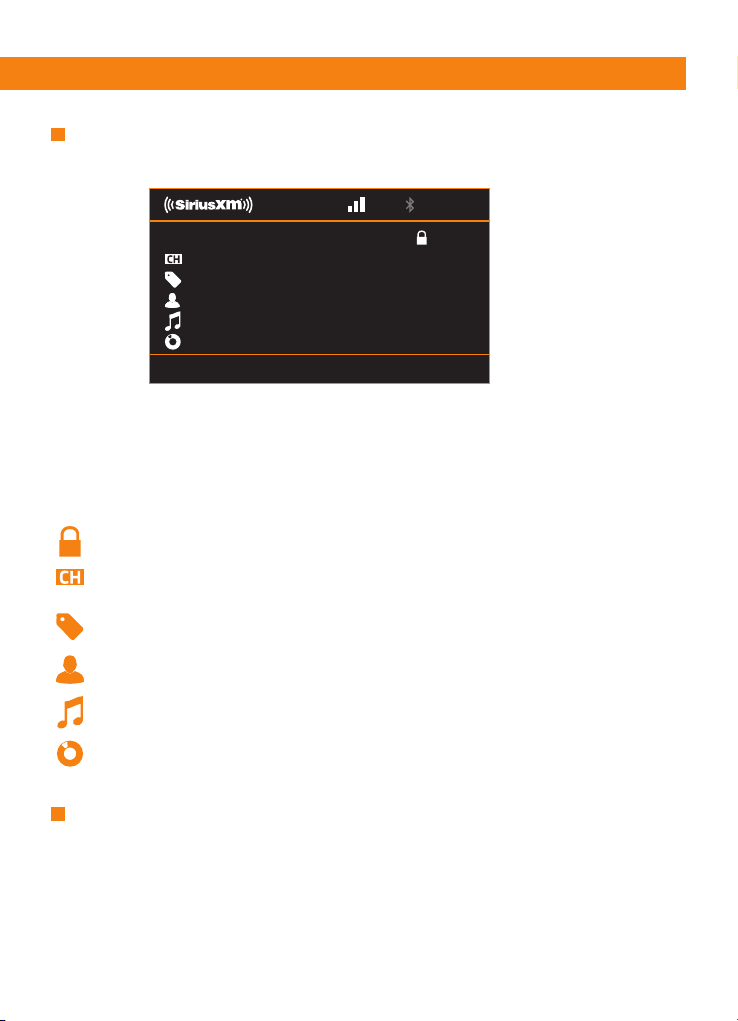
SiriusXM INTERFACE
DIRECT TUNING
11.5 V
press MENU for Settings
CH xx P1
Channel name
Categoty name
Artist name
Song tittle
Content info
CH xx
CHANNEL NUMBER
The currently playing channel number will appear.
P1
PRESET NUMBER
The currently playing channel preset number will appear.
LOCKED/UNLOCKED CHANNEL ICON
These icons inform the users if the channel is locked or not.
CHANNEL NAME
The currently playing channel name will appear below the SiriusXM channel number.
CATEGORY NAME
The category associated with the current channel will appear below the channel name.
ARTIST NAME
The name of the artist of the currently playing song will appear below the category name.
SONG TITLE
The currently playing song title will appear below the artist name.
CONTENT INFO
Any additional information associated with the currently playing song will appear below
the song title.

22
To access SiriusXM settings, press the MENU button to view the list of settings options.
Turn the KNOB, scrolling to highlight the desired setting, then press the KNOB to view the available
options for the setting.
1 CATEGORY LIST
Select CATEGORY LIST to choose a content category and view the channels that broadcast content
related to the category.
To browse content categories:
1. Press the MENU key to access SiriusXM Settings.
2. Turn the KNOB scrolling to & highlighting CATEGORY.
3. Press the KNOB to access the category list.
4. Turn the KNOB to scroll the category list & highlight the desired content category.
5. Press the KNOB to view the channels broadcast content relative to the category.
6. Turn the KNOB to scroll the channel list & highlight the desired channel.
7. Press the KNOB to tune the desired channel.
Visit www.siriusxm.com for more information about the SiriusXM Connect Tuner Channel lineup.
2 SELECTING PRESETS
To browse content categories:
1. Press the MENU key to access SiriusXM Settings.
2. Turn the KNOB scrolling to highlighting PRESETS.
3. Press the KNOB to access the preset list.
4. Turn the KNOB to scroll the preset list & highlight the desired preset channel.
5. Press the KNOB to tune the desired channel.
3 SAVING PRESETS
To save a preset:
1. Press the MENU key to access SiriusXM SETTINGS.
2. Turn the KONB, scrolling to and highlight SAVE PRESETS.
3. Press the KNOB to access the preset list.
4. Turn the KOB to scroll the preset list and highlight the desired preset location (1 - 18).
5. Press the MFD to confirm and save the channel in the desired preset location. Saving a new
channel in a preset location will replace a previously saved channel.
4 PARENTAL CONTROL
The Parental Control feature allows you to limit access to SiriusXM channels with mature content.
When enabled, the Parental Control feature requires you to enter a passcode to tune to the locked
channels. Information on setting up the passcode and locking channels can be found below.
1. Press the MENU key to access SiriusXM SETTINGS.
2. Turn the knob, scrolling to and highlight LOCK MATURE CHANNEL.
3. Press the knob to enter the ability to activate or deactivate the Parental Control feature.
How to Lock (restrict) or Unlock (unrestricted) the Parental Control Mature Channels.
SiriusXM SETTINGS

23
Owner’s Manual
Select MANAGE LOCK CODE to change the default or current Parental Control Lock code.
1. Press the MENU key to access SiriusXM SETTINGS.
2. Turn the KNOB, scrolling to and highlight MANAGE LOCK CODE.
Press the KNOB to access the ability to change the default or current Parental Control
Lock code. Entering a new Parental Control Lock code.
The default Lock Code is: 5220
1. Enter the 4-digit default or current Lock Code in the pop-up window by turning the
KNOB to scroll to the first digit.
2. Press the MFD to confirm the first digit, and proceed to the second digit.
3. Turn the KNOB, and scroll to the second digit.
4. Press the KNOB to confirm the second digit, and proceed to the third digit.
5. Turn the KNOB, and scroll to the third digit.
6. Press the KNOB to confirm the third digit, and proceed to the fourth digit.
7. Turn the KNOB, and scroll to the fourth digit.
8. Press the KNOB to confirm the fourth digit.
9. Enter the new 4-digit Lock Code in the pop-up window by following steps1-8 above.
Select SiriusXM FACTORY DEFAULT to reset all SiriusXM Connect Tuner setting to default.
Defaulted settings include Presets, Parental Lockout Code, Locked Channels, etc.
1. Press the MENU key to access SiriusXM SETTINGS.
2. Turn the KNOB, scrolling to and highlight SXM FACTORY DEFAULT.
3. Press the KNOB to access the ability to reset all SiriusXM settings to factory default.
Defaulted settings include Presets, Parental Control Locked Channels and Parental Control Lock Code.
MANAGE LOCK CODE
SiriusXM FACTORY DEFAULT
The default Lock Code is: 5220.
1. Enter the 4-digit default Lock Code in the pop-up window by turning the KNOB to scroll to the first digit.
2. Press the KNOB to confirm the first digit, and proceed to the second digit.
3. Turn the KNOB, and scroll to the second digit.
4. Press the KNOB to confirm the second digit, and proceed to the third digit.
5. Turn the KNOB, and scroll to the third digit.
6. Press the KNOB to confirm the third digit, and proceed to the fourth digit.
7. Turn the KNOB, and scroll to the fourth digit.
8. Press the KNOB to confirm the fourth digit.
9. Turn the KNOB, and select either ON or OFF.
10. Press the KNOB after selecting ON to Lock the Parental Control Mature Channels or OFF to
unlock Parental Control Mature Channels.
24
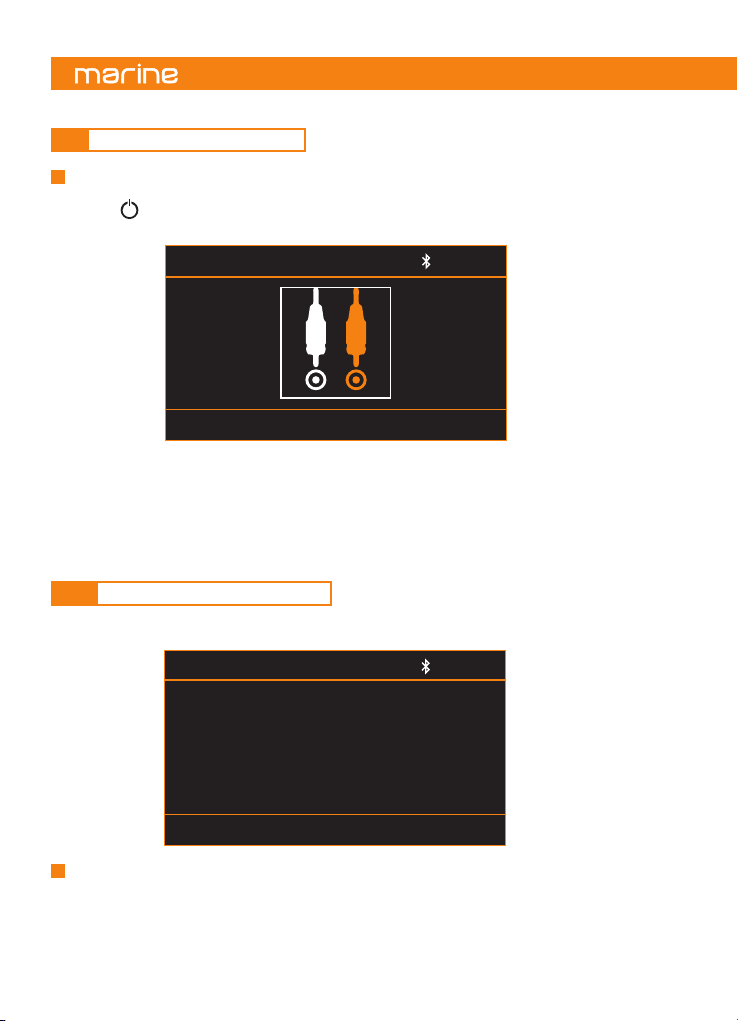
The AUX In RCA inputs in this system are provided to allow playback of sounds and music from external
devices connected to this unit.
1. Press /SRC to access the SOURCE SELECTION menu.
2. Rotate VOL/SEL knob to highlight AUX, press to select.
AUX 12.5 V
long press MENU for General Settings
The CAMERA IN RCA input (yellow) allows you to view images from an external camera (optional).
HMR 50 is equipped with a specific function that allows you to activate/deactivate the VIDEO IN mode
via an external command provided by the user through the “CAMERA TRIGGER” wire (purple/white) on
the back of the radio.
When + 12V is applied to the “CAMERA TRIGGER” wire, the radio switches to VIDEO IN mode. When the
+ 12V voltage is removed from the above control wire, the system reverts to the previously played source.
Automatic switching to VIDEO IN mode
VIDEO IN 12.5 V
9.9 AUX IN MODE OPERATION
9.10 VIDEO IN MODE OPERATION
25
Owner’s Manual
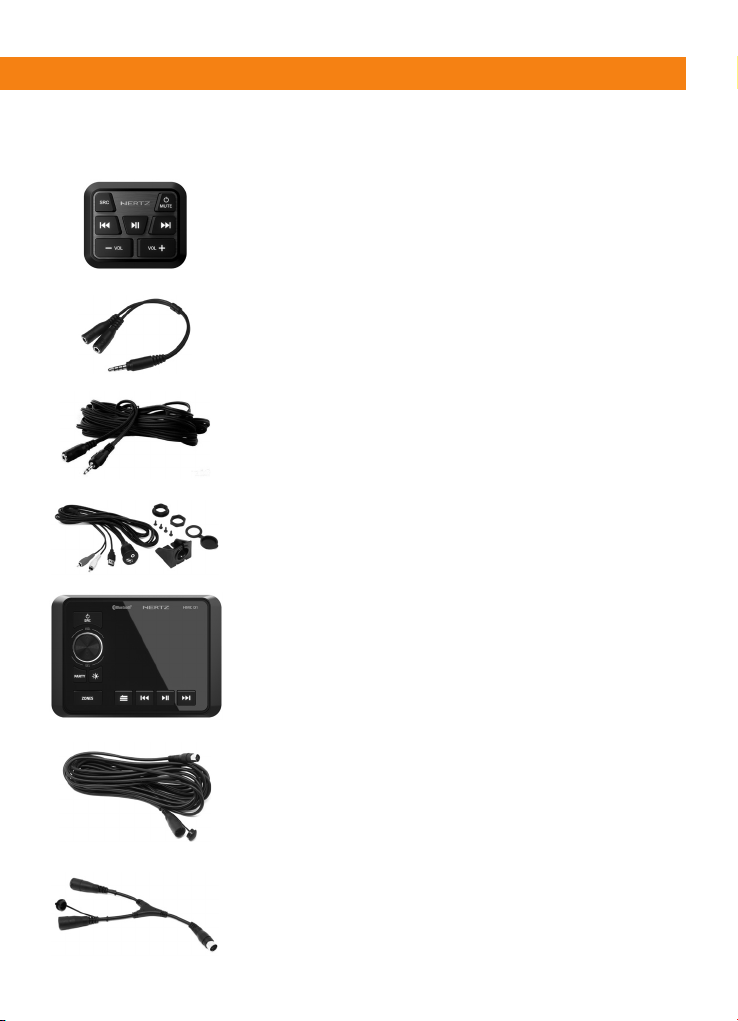
10. OPTIONAL ACCESSORIES
HMC U1
Compact remote control. Thanks to IPX7 certification you can
install HMC U1 remote control anywhere on the boat
(3.5mm jack cable).
HMA USB AUX IN
2 mt water proof extension cable.
HMA C3.5Y
Y cable for HMC U1 (3.5mm jack cable; from 1 male to 2 female).
To connect two HMC U1 to the head unit.
HMA C3.5
Extension cable for HMC U1 (3.5mm jack cable).
HMC D1 REMOTE CONTROL
Advanced remote control that replicates the HMR 50 head unit
display. Through the HMC D1 it is possible to manage all the
functions of the HMR 50 head unit remotely (13pin connector).
HMA C1306
10mt extension cable for HMC D1 (13pin connector).
HMA C13Y
Y cable for HMC D1 (13pin connector). To connect two HMC D1
remote controls to the head unit.
26
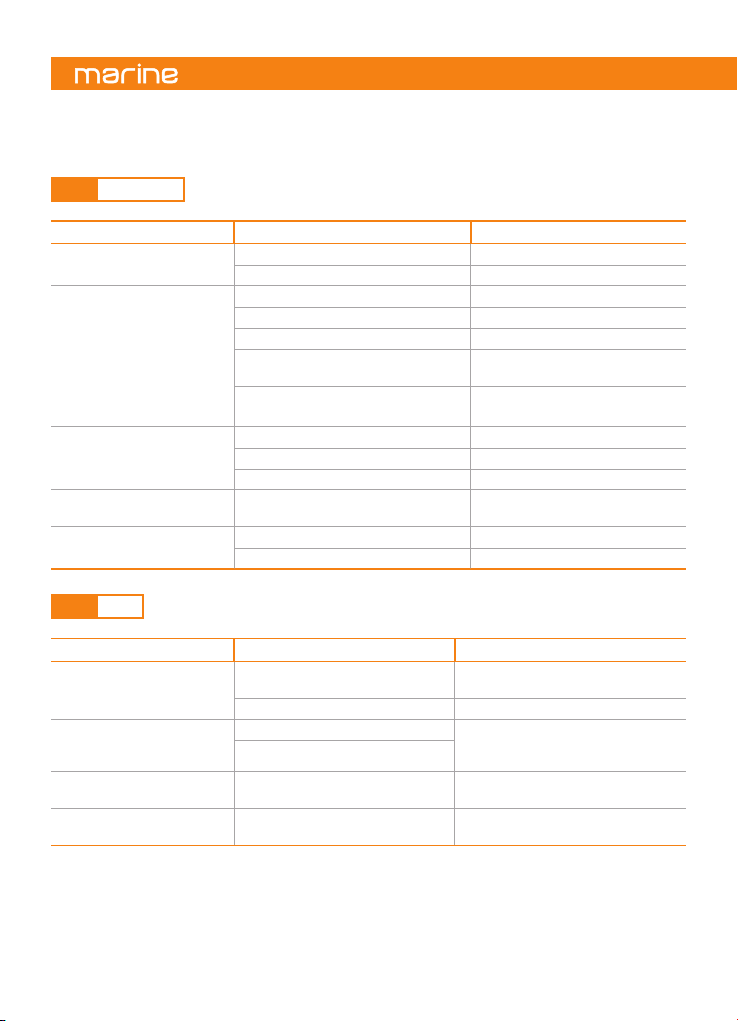
11. TROUBLESHOOTING
Problem Cause Remedy
Unit cannot power on.
Unit fuse blown. Replace with new fuse of correct value.
Vessel battery fuse blown. Replace with new fuse of correct value.
No/low audio output.
Incorrect audio output connection. Check wiring and correct.
Volume set too low. Increase volume level.
Speakers damaged. Replace speakers.
Heavily biased volume balance.
Adjust the channel balance to center
position.
Speaker wiring is in contact with metal
part of vessel.
Insulate all speaker wiring connections.
Poor sound quality or
distortion.
Speaker power rating does not match unit. Replace speakers.
Wrong connections. Check wiring and correct.
Speaker is shorted. Check wiring and correct.
Unit resets itself when engine
is off.
Incorrect connection between ACC and
Battery.
Check wiring and correct.
Auto seek function can not find
any stations.
The antenna cable is not connected. Insert the antenna cable securely.
The signals are too weak. Select a station manually.
Problem Cause Remedy
USB device cannot be inserted.
The USB device has been inserted
incorrectly.
Reverse the connection direction of the
USB device and try again.
The USB connector is broken. Replace with a new USB device.
USB device is not recognized
or USB SOURCE not accessible.
The USB device is damaged.
Disconnect the USB device and reconnect.
If the device is still not recognized, try
replacing it with a different USB device.
Connectors are loose.
No sound heard with the
display showing “No File”.
No MP3 / WMA/WAV* file is stored
in the USB device.
Store these files properly in the USB
device.
Sound skips or is noisy.
MP3 / WMA / WAV* files are
not encoded properly.
Use properly encoded MP3 / WMA /
WAV* files.
11.1 GENERAL
11.2 USB
*16bit/44.1kHz only
27
Owner’s Manual
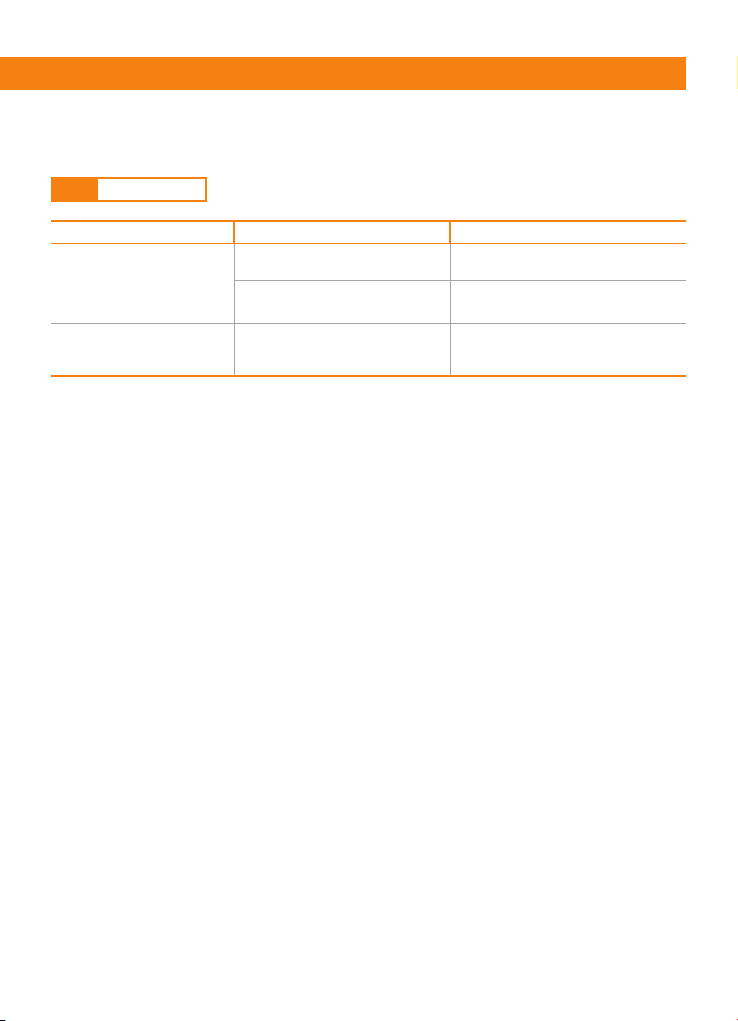
Problem Cause Remedy
Cannot pair the Bluetooth
enabled device with the audio
system.
The device does not support the profiles
required for the system.
The external BT device is not compatible.
The Bluetooth function of the device
is not enabled.
Refer to the user manual of the device for
how to enable the function.
Audio quality is poor after
connection with a Bluetooth
enabled device.
The Bluetooth reception is poor.
Move the device closer to the audio
system or remove any obstacle between
the device and the system.
11.3 BLUETOOTH
28
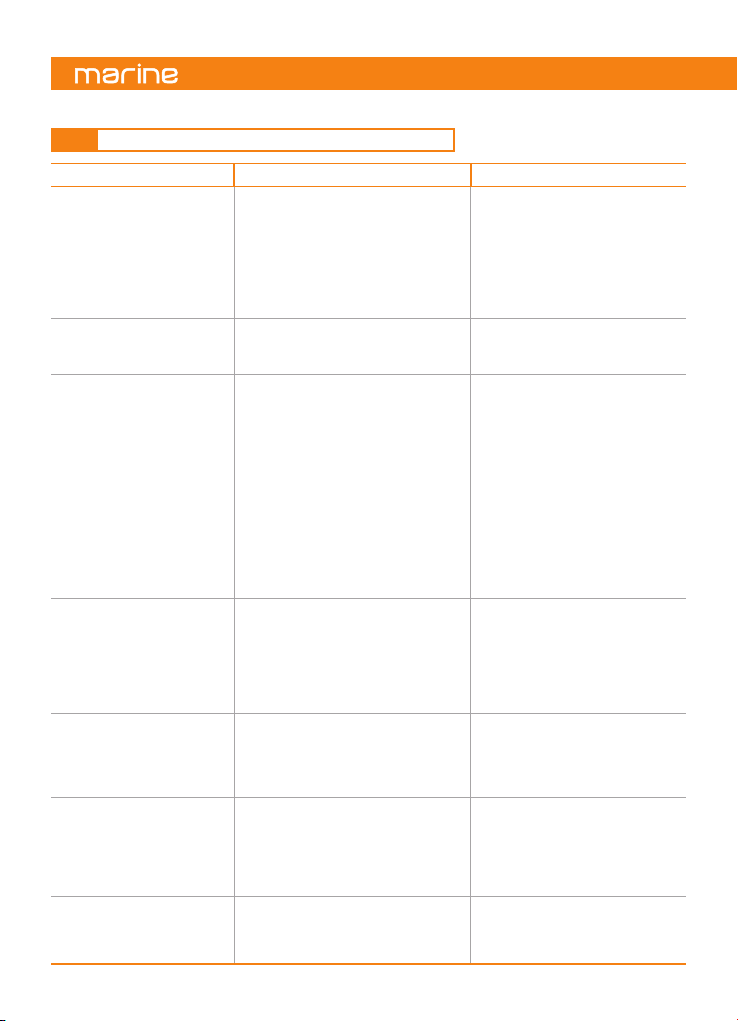
Problem Cause Remedy
Check Antenna.
The radio has detected a fault with the
SiriusXM antenna. The antenna cable
may be either disconnected or damaged.
Verify that the antenna cable is
connected to the SiriusXM Connect
Vehicle Tuner. Inspect the antenna
cable for damage and kinks. Replace
the antenna if the cable is damaged.
SiriusXM products are available at your
local car audio retailer or online at
https://shop.siriusxm.com/all-parts/
Check Tuner.
The radio is having difficulty communicating
with the SiriusXM Connect Vehicle Tuner. The
tuner may be disconnected or
damaged.
Verify that the SiriusXM Connect
Vehicle Tuner cable is securely
connected to the radio.
No Signal.
The SiriusXM Connect Tuner is having
difficulty receiving the SiriusXM satellite
signal.
Verify that your vessel is outdoors with a
clear view of the sky. Cable is damaged.
Verify that the SiriusXM magnetic
mount antenna is mounted on a metal
surface on the outside of the vessel.
Move the SiriusXM antenna away from
any obstructions. Inspect the antenna
cable for damage and kinks. Consult
the SiriusXM Connect Tuner installation
manual for more information on antenna
installation. Replace the antenna if
the SiriusXM products are available at
your local car audio retailer or online at
https://shop.siriusxm.com/all-parts/.
Subscription Updated.
The radio has detected a change in your
SiriusXM subscription status.
Press [BACK] to clear the message. In
the U.S.A., visit www.siriusxm.com or call
1-866-635-2349 if you have questions
about your subscription. In Canada,
visit www.siriusxm.ca/activate or call
Customer Care at 1-888-539-7474 if you
have questions about your subscription.
Channel Unavailable.
The channel that you have requested is not a
valid SiriusXM channel or the channel that you
were listening to is no longer available. You
may also see this message briefly when first
connecting a new SiriusXM Connect Tuner.
Visit www.siriusxm.com for more
information about the SiriusXM
channel lineup.
Channel Unsubscribed.
The channel that you have requested is
not included in your SiriusXM subscription
package or the channel that you were
listening to is no longer included in your
SiriusXM subscription package.
In the U.S.A., visit www.siriusxm.com or
call 1-866-635-2349 if you have questions
about your subscription package or
would like to subscribe to this channel. In
Canada, visit www.siriusxm.ca/activate or
call Customer Care at 1-888-539-7474
Channel Locked.
The channel that you have requested
is Locked by the radio Parental Control
feature.
See
(the section on Parental Control,
page 24)
for more information on the
Parental Control feature and how to
access locked channels.
11.4 SiriusXM Connect Tuner TROUBLESHOOTING
29
Owner’s Manual
12. TECHNICAL SPECIFICATIONS
FM TUNER
Frequency Range
USA 87.9 - 107.9 MHz
Europe 87.5 - 108.0 MHz
AM TUNER
Frequency Range
USA 530 - 1710 KHz
Europe 531 - 1620 KHz
AUDIO
Maximum Power Output 50 W x 4 (@ 4 Ohm)
Speaker impedance 4-8 ohms per channel
Line Max Output Level
@ 0.1 % THD
Zone 1: 4Vrms x 2 (RCA Stereo)
Zone 2: 4Vrms x 2 (RCA Stereo)
Zone 3: 4Vrms x 2 (RCA Stereo)
Sub: 4Vrms x 2 (RCA Stereo)
Tone Controls
Zone 1: Balance, Fader
Zone 2/3: Balance
EQ (8 bande)
Zone 1/2/3
(6 presets each zone)
Zone 1 High Pass
crossover frequency
60Hz,80Hz,100Hz,OFF
Sub Low Pass
crossover frequency
60Hz,80Hz,100Hz,OFF
USB
Interface 2.0 Full Speed
Maximum Current
Output 2 A
USB Voltage 5.0 V
Supported Audio Format
MP3, WMA,
WAV
(16bit/44.1kHz only)
Maximum MP3/WMA
Songs
Max Folder: 256
Max File: 999 Max files per folder: 999
USB Flash Drive Max Capacity 64 GB
Compatible Format FAT/FAT32
Apple
®
Compatibility
*
iPhone 6 or following
(functionality subordinated to
compatible version of IOS)
BLUETOOTH
Specification
Bluetooth Version 5.0 with
Qualcomm® aptX™ audio
Supported Profiles
• A2DP (Advanced Audio
Distribution Profile)
• AVRCP 1.5 (Audio/Video
Remote control profile)
• SSP (Simple Secure Pairing)
Connection Range Up to 10m (30ft.)
CAMERA INPUT
Ingresso Video Ingresso RCA CVBS (PAL/NTSC)
AUX IN
Ingresso Audio Stereo RCA (1 VRMS)
GENERAL
Power Supply Voltage 12 V DC (10 to 16 V allowable)
Grounding System Negative Ground
Operating
Temperature Range
-20°C to 70°C (-4°F to 158°F)
IP Protection IP66 IEC60529
Voltage Gauge Yes
Over/Low Voltage Alert
Over Temperature
Protection**
Display Type
3.5” COLOR TFT IPS (640 x 480 pixels)
SIZE
Unit Dimensions
mm / (in.) W x H x D
146 x 105 x 121
(5.75 x 4.13 x 4.76)
Mounting depth mm/
(in.) 99 (3.89)
Mounting Hole size
mm/(in.) W x H
122 x 52 (4.8 x 2.05)
WEIGHT
g/(lb) 830 (1.83)
CEA SPECIFICATIONS
Output power @ 4Ω, ⩽1% THD+N, 14.4 V:
22 W x 4 RMS
NOTE: Specifications and design are subject to change
without notice for further improvement.
* Apple®, AirPlay®, iPhone® and iPod touch® are trademarks
of Apple Inc., registered in the US and other countries
** To avoid an excessive overheating, the unit will enter in
Safe Mode and mute the audio output.
A warning will also be displayed on-screen with
instructions to turn the unit off. Until normal operating
temperature is restored.
30
Note

31
Owner’s Manual
Note

All specifications subject to change without notice
FML022_REV.D
PART OF ELETTROMEDIA
Strada Regina Km 3,500 - Marignano
62018 Potenza Picena (MC) Italy
T +39 0733 870 870 - F +39 0733 870 880
www.elettromedia.it