PXA800-ES-1A
ES
USER’S GUIDE
GUÍA DEL USUARIO
Please keep all information for future reference.
Guarde toda información para tener como referencia futura.
Safety Precautions
Before trying to use the Digital Piano, be sure to
read the separate “Safety Precautions”.
Precauciones de seguridad
Antes de intentar usar el piano, asegúrese de
leer las “Precauciones de seguridad” separadas.
EnglishEspañol
PX
-
A800
This recycle mark indicates that the packaging conforms to
the environmental protection legislation in Germany.
Esta marca de reciclaje indica que el empaquetado se
ajusta a la legislación de protección ambiental en Alemania.
MA1306-A Printed in China
C
PXA800_es_Cover1-4.fm 1 ページ 2013年6月27日 木曜日 午前10時46分
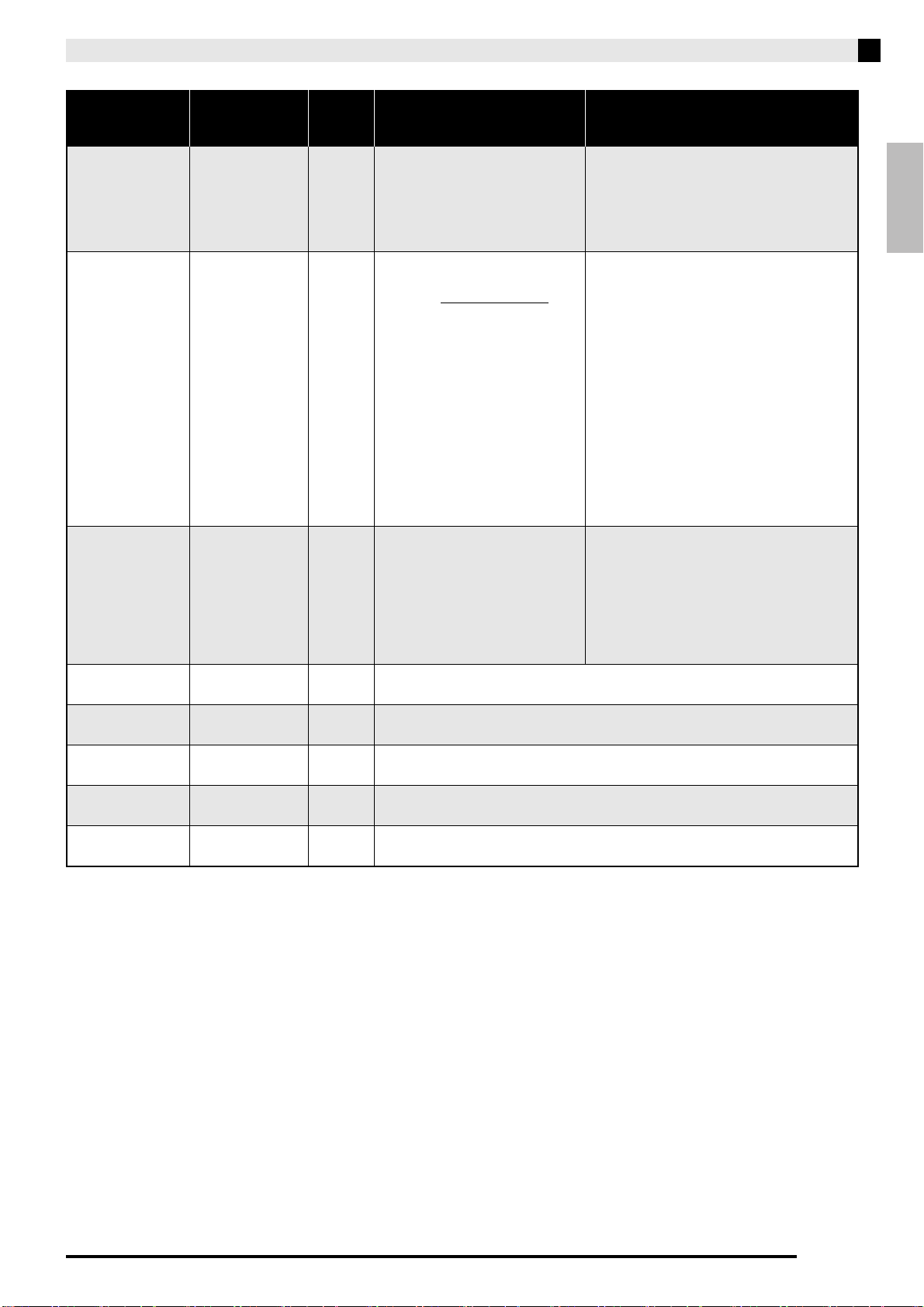
Function Transmitted Recognized Remarks
Basic
Channel
1 - 16
1 - 16
1 - 16
1 - 16
Default
Changed
Note
Number
0 - 127 0 - 127
0 - 127
*
1True voice
Program
Change
OO
0 - 127:True #
After
Touch
Control
Change
X
X
X
O
Pitch Bender
XO
System Exclusive
OO
Key’s
Ch’s
Velocity
O
9nH v = 1 - 127
O
8nH v = 0 - 127
O
9nH v = 1 - 127
X
9nH v = 0,
O
8nH v = 0 - 127
Note ON
Note OFF
Mode
Mode 3
X
Mode 3
X
Default
Messages
Altered
System
Common
X
X
X
X
X
X
: Song Pos
: Song Sel
: Tune
Aux
Messages
Remarks
X
O
X
X
X
O
O
X
: Local ON/OFF
: All notes OFF
: Active Sense
: Reset
System
Real Time
O
O
X
X
: Clock
: Commands
0, 32
1
5
6, 38
7
10
11
16
17
18
19
64
65
66
67
76
77
78
80
81
82
83
84
88
91
93
100, 101
120
121
Bank select
Modulation
Portamento Time
Data entry LSB, MSB
*2
Volume
Pan
Expression
DSP Parameter0
*2
DSP Parameter1
*2
DSP Parameter2
*2
DSP Parameter3
*2
Damper
Portamento Switch
Sostenuto
Soft pedal
Vibrato rate
Vibrato depth
Vibrato delay
DSP Parameter4
*2
DSP Parameter5
*2
DSP Parameter6
*2
DSP Parameter7
*2
Portamento Control
High resolution velocity prefix
Reverb send
*
3
Chorus send
RPN LSB, MSB
*2
All sound off
Reset all controller
Mode 1 : OMNI ON, POLY
Mode 3 : OMNI OFF, POLY
Mode 2 : OMNI ON, MONO
Mode 4 : OMNI OFF, MONO
O : Yes
X : No
O
O
O
O
O
O
O
O
O
O
O
O
O
O
O
O
O
O
O
O
O
O
O
O
O
O
O
O
O
O
X
X
X
O
X
X
X
X
X
X
O
X
O
O
X
X
X
X
X
X
X
X
O
X
O
X
X
O
*2
Model PX-A800 Version : 1.0
*2: For details, see MIDI Implementation at http://world.casio.com/.
*2: Si desea más información, vea Implementación MIDI en http://world.casio.com/
.
*3: This Instrument treats a hall simulator as a reverb.
*3: Este instrumento considera al simulador de salas como una reverberación.
TO REDUCE THE RISK OF FIRE OR ELECTRIC SHOCK, REFER SERVICING TO QUALIFIED SERVICE PERSONNEL.
Impor tant!
Please note the following important information before using this product.
• Before using the AD-E24250LW Adaptor to power the unit, be sure to check the AC Adaptor for any damage first. Carefully check the power
cord for breakage, cuts, exposed wire and other serious damage. Never let children use an AC adaptor that is seriously damaged.
• The product is not intended for children under 3 years.
• Use only CASIO AD-E24250LW adaptor.
• The AC adaptor is not a toy.
• Be sure to disconnect the AC adaptor before cleaning the product.
IMPORTANT SAFETY INSTRUCTIONS
1. Read these instructions.
2. Keep these instructions.
3. Heed all warnings.
4. Follow all instructions.
5. Do not use this apparatus near water.
6. Clean only with dry cloth.
7. Do not block any ventilation openings. Install in accordance with the manufacturer’s instructions.
8. Do not install near any heat sources such as radiators, heat registers, stoves, or other apparatus (including amplifiers) that produce heat.
9. Do not defeat the safety purpose of the polarized or grounding-type plug. A polarized plug has two blades with one wider than the other.
A grounding type plug has two blades and a third grounding prong. The wide blade or the third prong are provided for your safety. If the
provided plug does not fit into your outlet, consult an electrician for replacement of the obsolete outlet.
10. Protect the power cord from being walked on or pinched particularly at plugs, convenience receptacles, and the point where they exit
from the apparatus.
11. Only use attachments/accessories specified by the manufacturer.
12. Use only with the cart, stand, tripod, bracket, or table specified by the manufacturer, or sold with the
apparatus. When a cart is used, use caution when moving the cart/apparatus combination to avoid injury
from tip-over.
13. Unplug this apparatus during lightning storms or when unused for long periods of time.
14. Refer all servicing to qualified service personnel. Servicing is required when the apparatus has been damaged in any way, such as
power-supply cord or plug is damaged, liquid has been spilled or objects have fallen into the apparatus, the apparatus has been
exposed to rain or moisture, does not operate normally, or has been dropped.
The apparatus shall not be exposed to dripping or splashing and that no objects filled with liquids, such as vases, shall be placed on the
apparatus.
The power indicator being unlit does not mean the apparatus is completely disconnected from the MAINS.
When you need to have the apparatus completely disconnected from the MAINS, you must unplug the power cord. For that purpose, locate
the apparatus in a way that secures easy access to the power cord.
NOTICE
This equipment has been tested and found to comply with the limits for a Class B digital device, pursuant to Part 15 of the FCC Rules.
These limits are designed to provide reasonable protection against harmful interference in a residential installation. This equipment
generates, uses and can radiate radio frequency energy and, if not installed and used in accordance with the instructions, may cause
harmful interference to radio communications. However, there is no guarantee that interference will not occur in a particular installation. If
this equipment does cause harmful interference to radio or television reception, which can be determined by turning the equipment off and
on, the user is encouraged to try to correct the interference by one or more of the following measures:
• Reorient or relocate the receiving antenna.
• Increase the separation between the equipment and receiver.
• Connect the equipment into an outlet on a circuit different from that to which the receiver is connected.
• Consult the dealer or an experienced radio/TV technician for help.
FCC WARNING
Changes or modifications not expressly approved by the party responsible for compliance could void the user’s authority to operate the
equipment.
Declaration of Conformity
Model Number: PX-A800
Trade Name: CASIO COMPUTER CO., LTD.
Responsible party: CASIO AMERICA, INC.
Address: 570 MT. PLEASANT AVENUE, DOVER, NEW JERSEY 07801
Telephone number: 973-361-5400
This device complies with Part 15 of the FCC Rules, Operation is subject to the following two conditions:
(1) This device may not cause harmful interference, and (2) this device must accept any interference received, including interference that
may cause undesired operation.
Manufacturer:
CASIO COMPUTER CO., LTD.
6-2, Hon-machi 1-chome, Shibuya-ku, Tokyo 151-8543, Japan
Responsible within the European Union:
CASIO EUROPE GmbH
Casio-Platz 1, 22848 Norderstedt, Germany
This mark applies in EU countries only.
Declaration of Conformity According to EU Directive
PXA800_es_Cover1-4.fm 2 ページ 2013年6月27日 木曜日 午前10時46分
E-1
English
Contents
General Guide ................................... E-2
FUNCTION Button............................................................E-3
Saving Settings and Using Operation Lock......................E-3
Power Outlet...................................... E-4
Turning Power On or Off ..................................................E-4
Playing with Different Tones ........... E-5
Selecting and Playing a Tone...........................................E-5
Adjusting Acoustic Piano Sound Characteristics..............E-7
Layering Two Tones .........................................................E-7
Using Effects ....................................................................E-8
Using the Digital Piano’s Pedals.......................................E-9
Using the Metronome .....................................................E-10
Playing a Piano Duet......................................................E-11
Playing Back a Song ...................... E-12
Playing Back All of the Built-in Songs.............................E-12
Playing Back a Specific Music Library Song ..................E-13
Practicing with a Music Library Song..............................E-13
Playing Back Audio Data Stored on
a USB Flash Drive..........................................................E-14
Recording and Playback ................ E-15
Recording to Built-in Song Memory (Song Recorder) ....E-15
Using the SONG RECORDER Button............................E-16
Recording to a USB Flash Drive (Audio Recorder) ........E-18
Configuring Settings with the
Keyboard ......................................... E-21
To configure settings with the keyboard.........................E-21
Keyboard Keys Used for Configuring Settings ...............E-22
Parameter List ................................................................E-23
Hall simulator ..............................................................E-23
Tone selection.............................................................E-23
Chorus ........................................................................E-23
Brilliance .....................................................................E-23
Layer balance .............................................................E-23
Song select (SONG SELECT) ....................................E-23
Song volume...............................................................E-23
Metronome beat (METRONOME BEAT) ....................E-23
Metronome volume .....................................................E-23
Keyboard key (Transpose)..........................................E-24
Keyboard tuning (Tuning) ...........................................E-24
Octave shift.................................................................E-24
Temperament..............................................................E-24
Temperament select ...................................................E-24
Temperament Base note ............................................E-24
Temperament Base note select..................................E-24
Touch response (TOUCH RESPONSE).....................E-24
USB device mode .......................................................E-24
Send channel..............................................................E-24
Local control................................................................E-24
Operation tone ............................................................E-25
Back up.......................................................................E-25
Operation lock.............................................................E-25
USB flash drive mode .................................................E-25
Format.........................................................................E-25
Save............................................................................E-25
Load ............................................................................E-25
Delete..........................................................................E-25
USB Flash Drive.............................. E-26
Storing Standard Audio Data (WAV Files) to
a USB Flash Drive ..........................................................E-26
Connecting a USB Flash Drive to and
Detaching It from the Digital Piano .................................E-27
Formatting a USB Flash Drive ........................................E-28
Saving a Recorded Song to a USB Flash Drive .............E-29
Loading Song Data from a USB Flash Drive into
Digital Piano Memory......................................................E-30
Deleting Data from a USB Flash Drive ...........................E-31
Simple Play Back of a Song on a USB Flash Drive........E-32
Error Indicators ...............................................................E-33
Connecting to a Computer............. E-35
Minimum Computer System Requirements ....................E-35
Connecting the Digital Piano to Your Computer.............E-35
Using MIDI ......................................................................E-36
Transferring Song Data with a Computer .......................E-36
Reference......................................... E-47
Troubleshooting ..............................................................E-47
Product Specifications ....................................................E-48
Operating Precautions....................................................E-49
Appendix............................................ A-1
Tone List...........................................................................A-1
Song List...........................................................................A-1
MIDI Implementation Chart
Getting Ready ........................................................................................................E-39
Assembling the Stand.................................................. E-39
To connect the cable.................................................... E-43
To install the music stand...............................................E-43
Opening and Closing the Piano Lid
............................... E-44
Power Outlet ................................................................ E-45
Connecting Headphones ............................................. E-45
Connecting Audio Equipment or an Amplifier.............. E-46
Bundled and Optional Accessories.............................. E-46
Company and product names used in this manual may
be registered trademarks of others.
PXA800_e.book 1 ページ 2013年6月18日 火曜日 午後6時18分
E-2
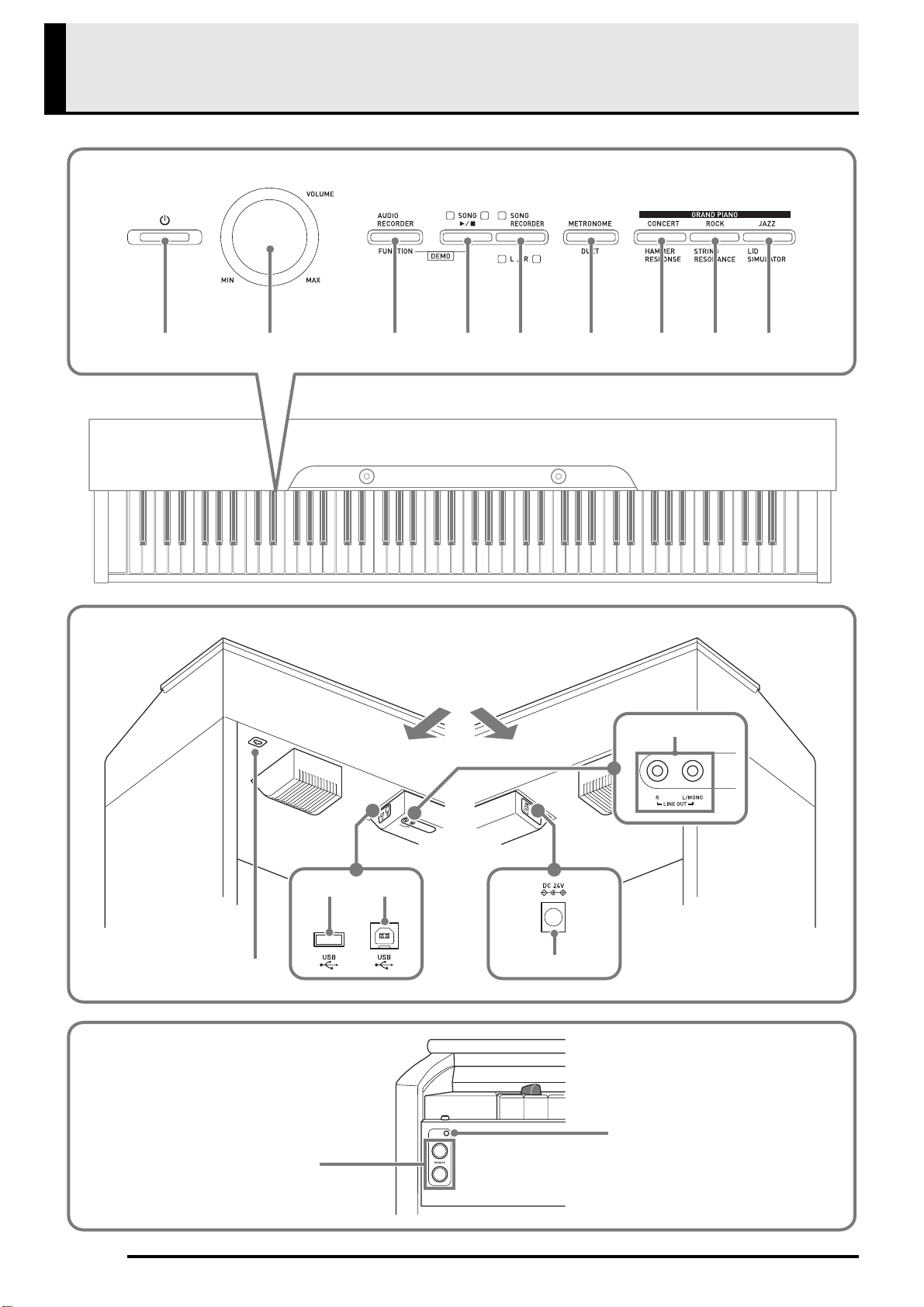
General Guide
21 3 4 5 6 8 97
bk
bq
bp
bl bm
bn
bo
Front
Bottom
Rear
PXA800_e.book 2 ページ 2013年6月18日 火曜日 午後6時18分
General Guide
E-3
English
*CAUTION
• Make sure that the cover is fully open whenever you are playing on the keyboard. A partially open cover can
suddenly close unexpectedly and pinch your fingers.
NOTE
• The names shown here are always indicated in bold when they appear within the text of this manual.
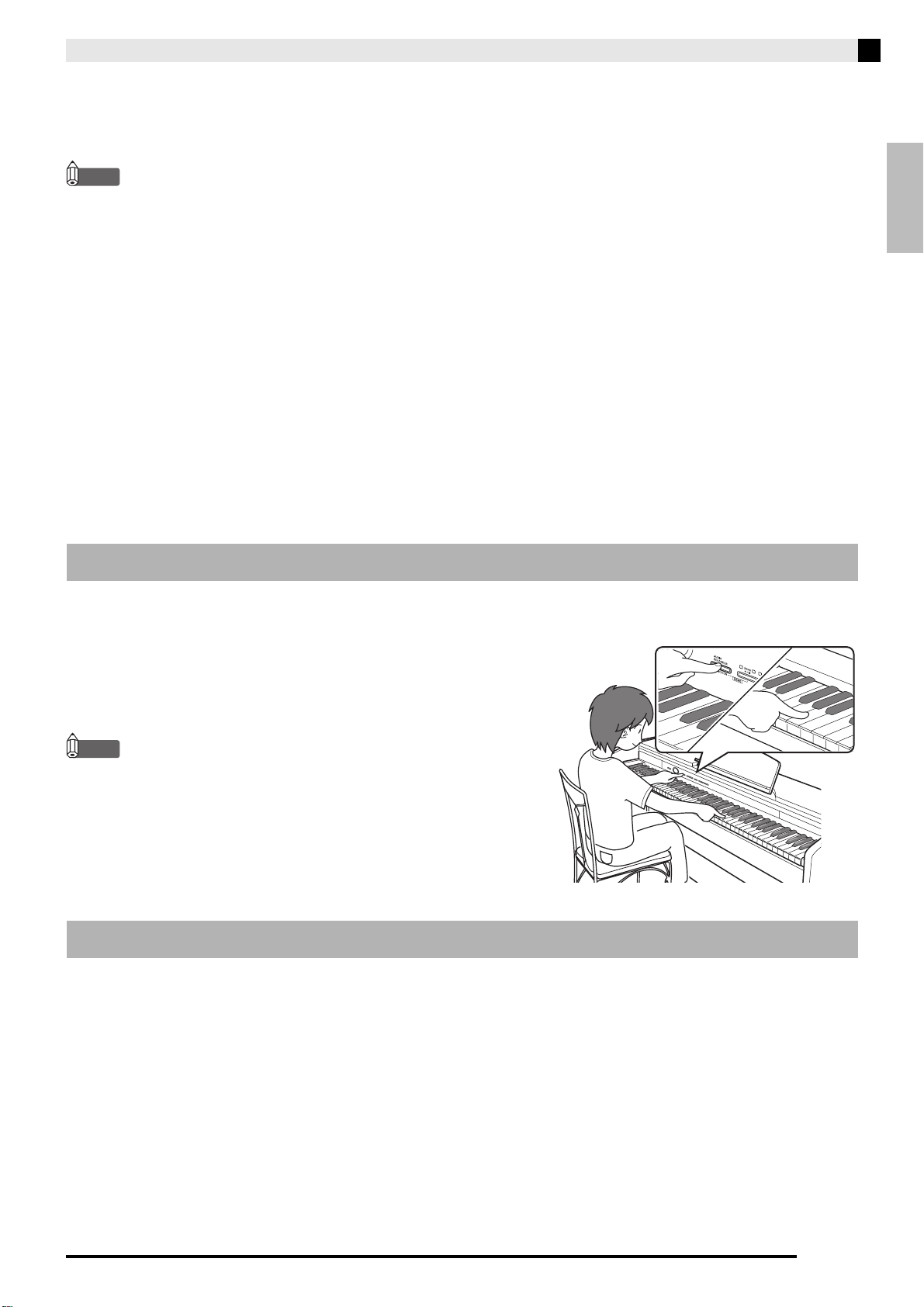
The FUNCTION button is used when configuring a variety of different Digital Piano settings. The following are
FUNCTION button basics.
z To change a setting, hold down the FUNCTION button as you
press the keyboard key that is assigned the setting you want to
select.
Example: “To select a tone” on page E-5
NOTE
• For details about operations and settings, see “Configuring
Settings with the Keyboard” on page E-21.
Your Digital Piano lets you save its current settings and lock its buttons to protect against operation errors. For
details, see “Parameter List” on pages E-23 - E-25.
FUNCTION Button
Saving Settings and Using Operation Lock
1 P (POWER) button
2 VOLUME controller
3 AUDIO RECORDER, FUNCTION button
4 SONG a button
5 SONG RECORDER (L/R) button
6 METRONOME, DUET button
7 GRAND PIANO (CONCERT),
HAMMER RESPONSE button
8 GRAND PIANO (ROCK),
STRING RESONANCE button
9 GRAND PIANO (JAZZ), LID SIMULATOR button
bk Pedal connector
bl USB flash drive port
bm USB port
bn DC 24V terminal
bo LINE OUT R, L/MONO jacks
bp PHONES jacks
bq Power lamp
PXA800_e.book 3 ページ 2013年6月18日 火曜日 午後6時18分
E-4
Power Outlet
After you finish assembling the stand, turn on the
Digital Piano. For details, see “Getting Ready” on page
E-39.
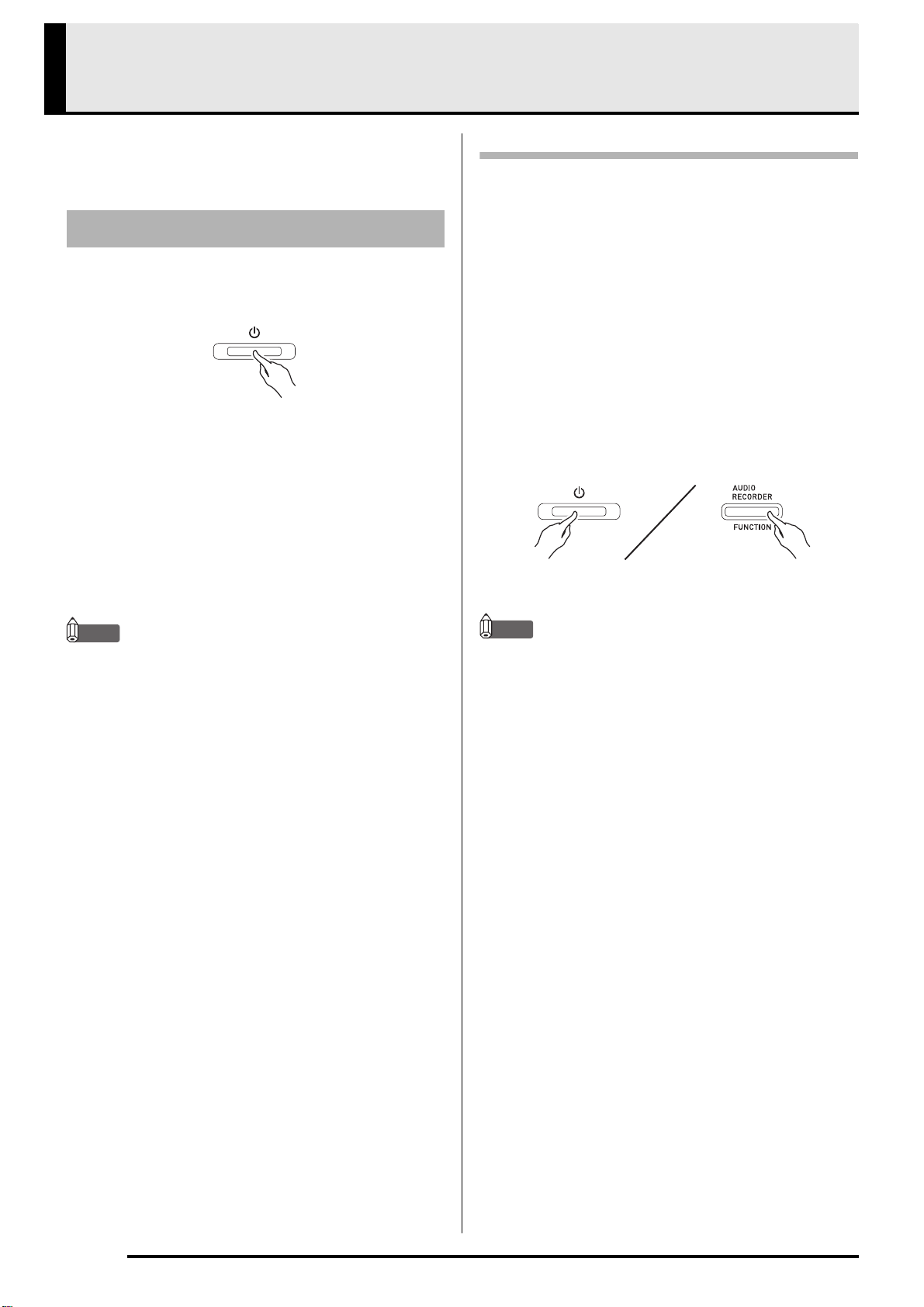
1.
Press the P (POWER) button to turn on
Digital Piano power.
• This causes the P (POWER) button to light.
• When you turn on the Digital Piano, it performs a
power up operation in order to initialize its system.
During system initialization the tone button lamps
cycle on and off in the sequence for about five
seconds to let you know that system initialization is
in progress.
2.
To turn off the Digital Piano, hold down the
P (POWER) button until its light goes out.
NOTE
• Pressing the P (POWER) button to turn off power
actually puts the Digital Piano into a standby state.
Minute amounts of current continue to flow within
the Digital Piano in the standby state. If you do not
plan to use the Digital Piano for a long time or if
there is a lightning storm in your area, be sure to
unplug the AC adaptor from the power outlet.
Auto Power Off
This Digital Piano is designed to turn off automatically
to avoid wasting power after no operation is
performed for a preset amount of time. The Auto
Power Off trigger time is about four hours.
• You also can use the procedure below to temporarily
suspend Auto Power Off.
■ To disable Auto Power Off
1.
While the Digital Piano is turned on, press the
P (POWER) button to turn it off.
2.
While holding down the FUNCTION button,
press the P (POWER) button to turn on the
Digital Piano.
• Auto Power Off will be disabled at this time.
NOTE
• Turning off the Digital Piano after performing the
above steps will re-enable Auto Power Off.
Turning Power On or Off
12
PXA800_e.book 4 ページ 2013年6月18日 火曜日 午後6時18分
E-5
English
Playing with Different Tones
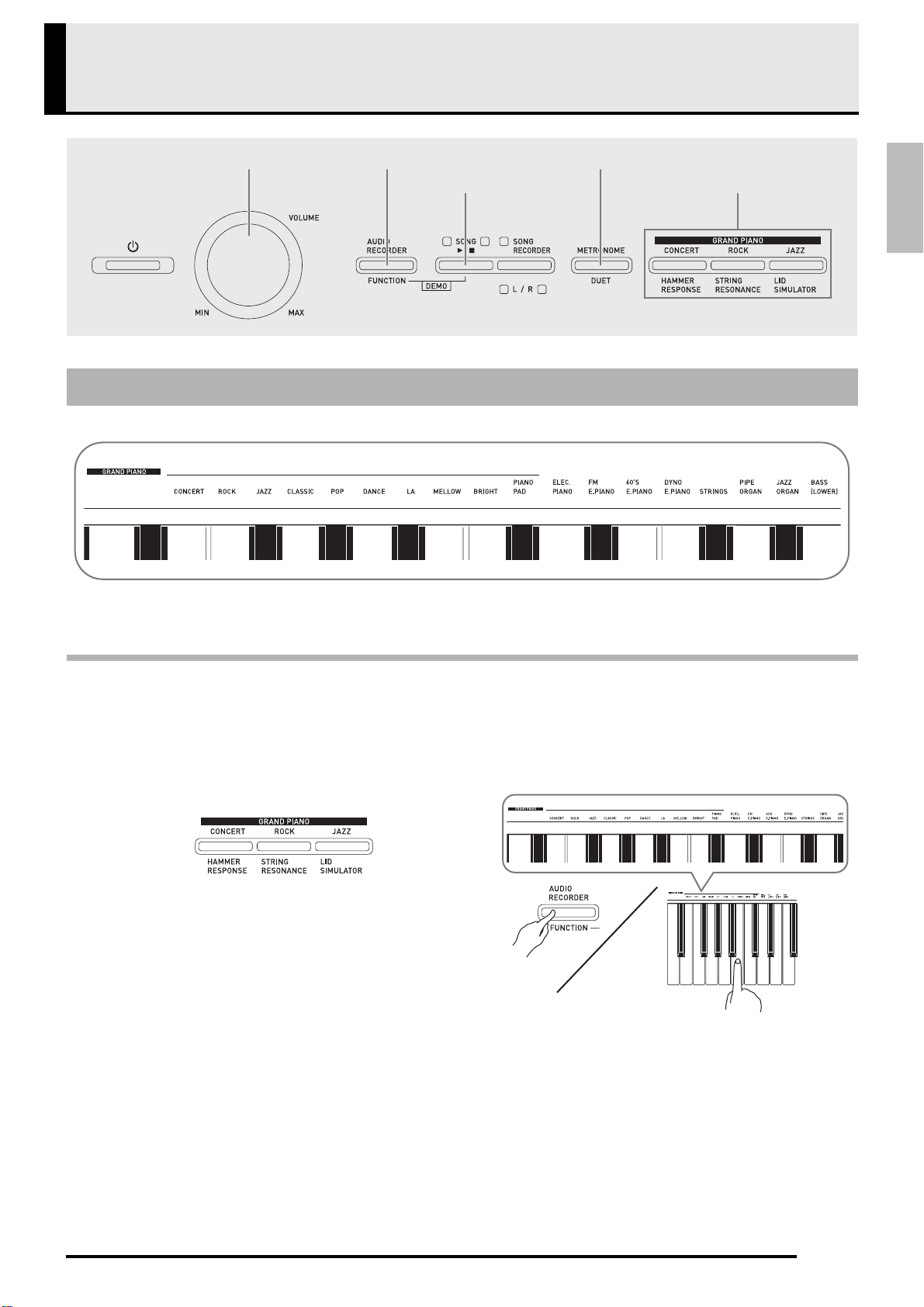
The Digital Piano comes with 18 built-in tones.
• The names of the tones are marked above the keyboard keys to which they are assigned.
To select a tone
1.
Select the tone you want.
2.
Use the VOLUME controller to adjust the volume.
Selecting and Playing a Tone
SONG a
FUNCTION
METRONOME
GRAND PIANO
VOLUME
z To select GRAND PIANO (CONCERT, ROCK or
JAZZ)
• Press one of the GRAND PIANO buttons
(CONCERT, ROCK, or JAZZ) to select the one
you want.
• The button lamp of the selected tone will light.
z To select one of the other tones
• While holding down the FUNCTION button,
press the keyboard key that corresponds to the
tone you want to select.
PXA800_e.book 5 ページ 2013年6月18日 火曜日 午後6時18分
E-6
Playing with Different Tones
NOTE
• Of the digital piano’s 18 built-in tones, the first ten
are grand piano tone. Each tone has its own
distinctive merits, so you should select the tone that
suits the song you are playing along with or your
own personal preferences. The CONCERT, ROCK,
and JAZZ tones are assigned to buttons for quick
and easy selection.
* Feature that applies computer morphing
technology to enable seamless changes between
sounds sampled at various dynamics from a full
concert grand piano.
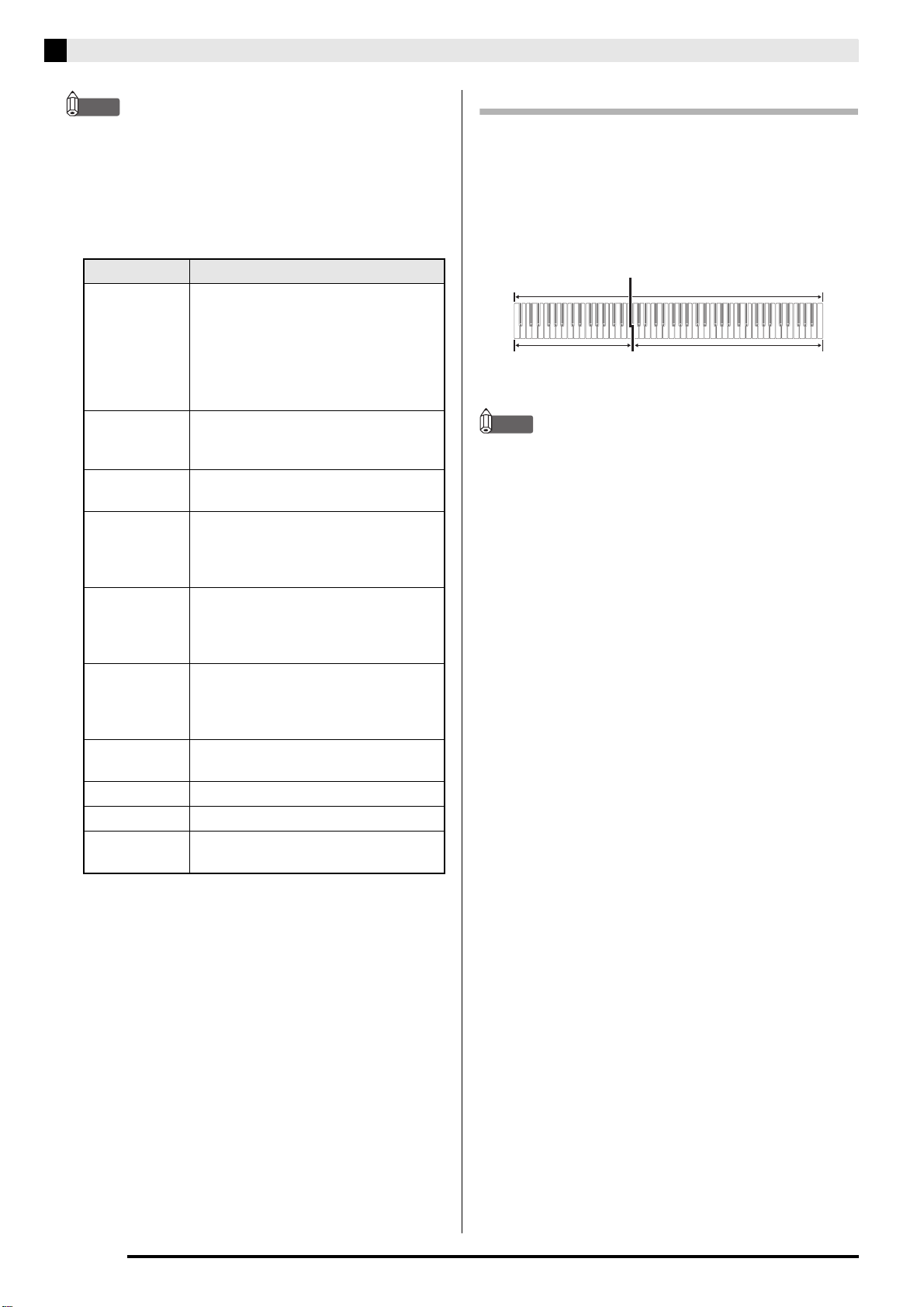
Bass Tone (BASS)
Selecting the BASS (LOWER) tone in step 1 of the
above procedure will assign the bass tone to the low
range (left side) of the keyboard. The high range (right
side) will be assigned the tone that was selected when
you pressed the BASS key.
• BASS tone lets you effectively split the keyboard
between two different tones.
NOTE
• To return the keyboard to a single tone, select any
tone other than BASS.
• You cannot select BASS when recording to Track 2.
Tone Name Characteristics
CONCERT A full concert grand piano tone that
uses Linear Morphing* for dynamic
and natural tone changes. This tone is
designed to reproduce damper,
resonance, and other piano nuances,
which makes it ideal for virtually any
type of piano performance.
ROCK A bright grand piano tone with strong
attack, making it suitable for rock
music.
JAZZ A grand piano tone with a sound and
edge that is suitable for jazz music.
CLASSIC A grand piano tone that reproduces
natural enunciation. The subtle
expression of this tone makes it perfect
for classical music.
POP A relatively bright grand piano tone. It
is suitable for singing along with one’s
own accompaniment and for playing
popular music.
DANCE A crisp grand piano tone with short
release. It is suitable for dance music
and other types of music with a crisp
rhythm.
LA This is a refreshing grand piano tone
with a touch of a chorus effect.
MELLOW A warm, subdued grand piano tone.
BRIGHT A bright and clear grand piano tone.
PIANO PAD A layered grand piano and synthesized
string pad tone.
Split Point
Low Range High Range
BASS PIPE ORGAN
(Currently selected tone)
PXA800_e.book 6 ページ 2013年6月18日 火曜日 午後6時18分
English
Playing with Different Tones
E-7
The tones of your Digital Piano have built-in elements
that give them the characteristic reverberation of an
acoustic piano. Each of these elements can be
individually adjusted to one of four levels.
z HAMMER RESPONSE
z STRING RESONANCE
z LID SIMULATOR
NOTE
• Opening or closing the Digital Piano’s lid does not
affect the LID SIMULATOR setting.
1.
While holding down the FUNCTION button,
press the button that corresponds to the
element whose setting you want to change.
• Each press of the button cycles to the next option for
that setting. The Digital Piano emits a beep pattern
that indicates the currently selected option:
One beep: Option 1 3 Two beeps: Option 2 3
Three beeps: Option 3 3 Four beeps: Option 4 3
One beep: Option 1, etc.
• The lamp of each button lights whenever the
standard setting of its element is selected.
NOTE
• In addition to the above, piano tones also have a
KEY OFF SIMULATOR.
z KEY OFF SIMULATOR
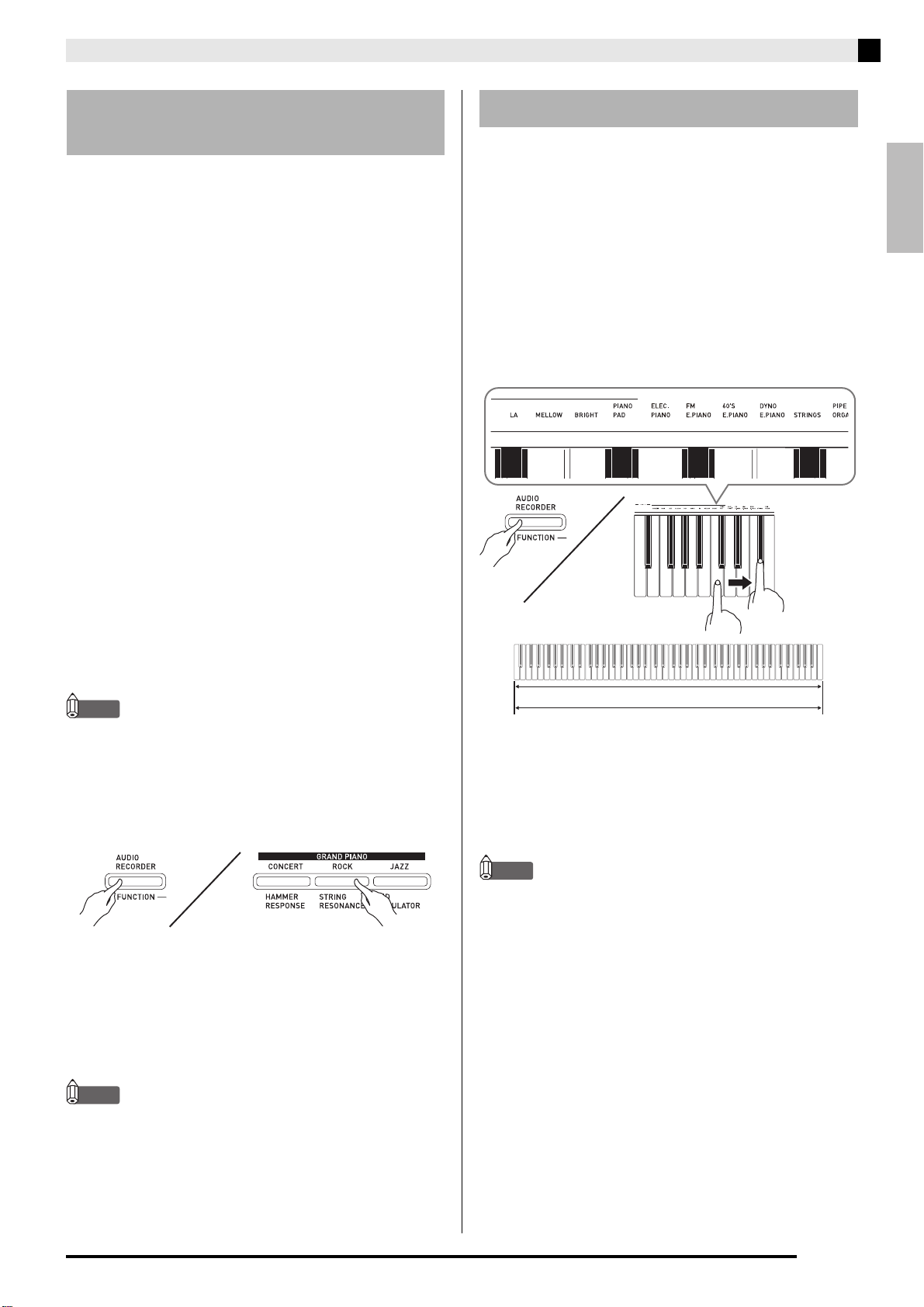
Use the following procedure to layer two tones, so they
sound at the same time.
When specifying two tones for layering, first tone you
select will be the main tone, while the second tone will
be the layered tone.
1.
While holding down the FUNCTION button,
press down the keyboard key for the first tone
you want to layer and then the key for the
second tone.
Example:
First press the
GRAND PIANO BRIGHT
key
and then the STRINGS key.
2.
To unlayer the keyboard, select another tone
by pressing the GRAND PIANO button or by
using the procedure under “Selecting and
Playing a Tone” (page E-5).
NOTE
• You cannot layer the BASS tone with another tone.
• You cannot perform the layer operation when
recording to Track 2.
Adjusting Acoustic Piano
Sound Characteristics
Controls the time deviation between when a key is
pressed and when the note actually sounds.
Settings
1: Fast 2: Grand piano feel 3: Slightly slower 4: Slow
Adjusts the characteristic reverberation (string
resonance) of an acoustic piano.
You can select a reverberation setting that matches
the song being played or your own personal
preference.
Settings
1: Suppressed 2: Slightly suppressed
3: Reverberation 4: Strong reverberation
Adjusts how sound resonates in accordance with the
opening state of a grand piano lid.
Settings
1: Lid closed 2: Lid opened slightly 3: Lid fully open
4: Lid removed
Causes notes to decay when keyboard keys are
released.
Layering Two Tones
GRAND PIANO BRIGHT
STRINGS
PXA800_e.book 7 ページ 2013年6月18日 火曜日 午後6時18分
E-8
Playing with Different Tones
To adjust the volume balance between
two layered tones
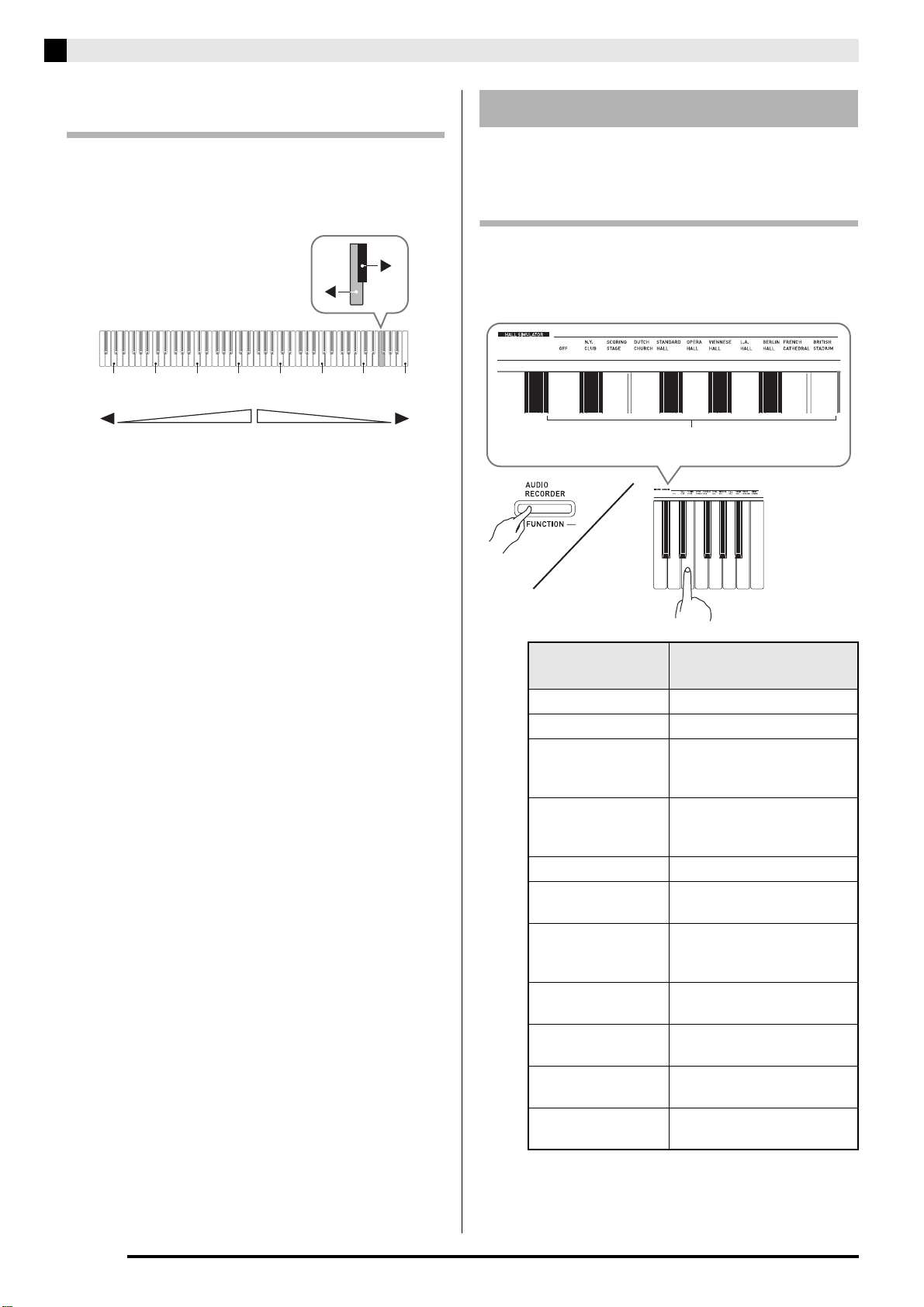
1.
While holding down the FUNCTION button,
use the keyboard keys shown below to adjust
the volume of the layered tones.
• To return the volume setting to its initial default, hold
down the FUNCTION button and press both of the
keys at the same time.
To apply a hall simulator
1.
While holding down the FUNCTION button,
press the keyboard key that corresponds to
the hall simulator name you want to select.
C1 C2 C3 C4 C5 C6 C7 C8
Initial default (Center)
Volume of the main tone
(First tone you selected)
Volume of the layered tone
(Second tone you selected)
Using Effects
Hall simulator: Makes your notes resonate.
Chorus : Adds more breadth to your notes.
Hall simulator
Name
Description
OFF Off
N.Y. CLUB Manhattan music club
SCORING STAGE Los Angeles movie scoring
stage (movie music
recording studio)
DUTCH CHURCH Amsterdam church with
acoustics that are suitable for
music
STANDARD HALL Standard concert hall
OPERA HALL Uniquely shaped Sydney
Concert Hall
VIENNESE HALL Viennese classic concert hall,
which was build
approximately 100 years ago
L.A. HALL Large modern Los Angeles
concert hall
BERLIN HALL Berlin arena type classic
concert hall
FRENCH
CATHEDRAL
Large gothic cathedral in
Paris
BRITISH STADIUM Large outdoor stadium in
the London suburbs
Hall simulator
PXA800_e.book 8 ページ 2013年6月18日 火曜日 午後6時18分
English
Playing with Different Tones
E-9
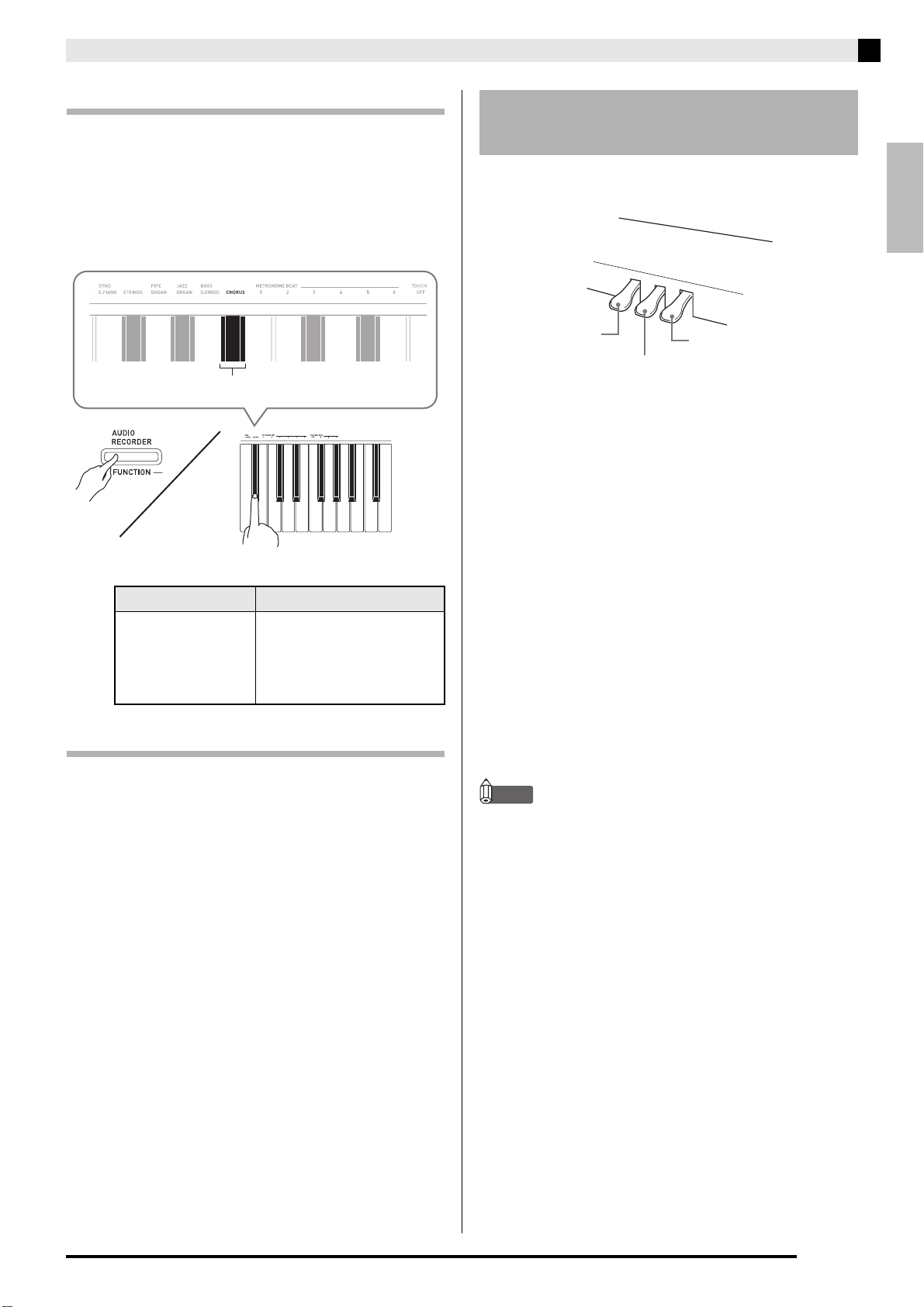
To apply chorus to a tone
1.
While holding down the FUNCTION button,
use the Chorus keyboard key to cycle
through the available settings.
• Each press of the Chorus keyboard key causes the
digital piano to beep according to which setting is
selected, as shown in the table below.
• Chorus
About DSP
DSP makes it possible to digitally produce complex
acoustic effects. The DSP is assigned to each tone
whenever you turn on Digital Piano power.
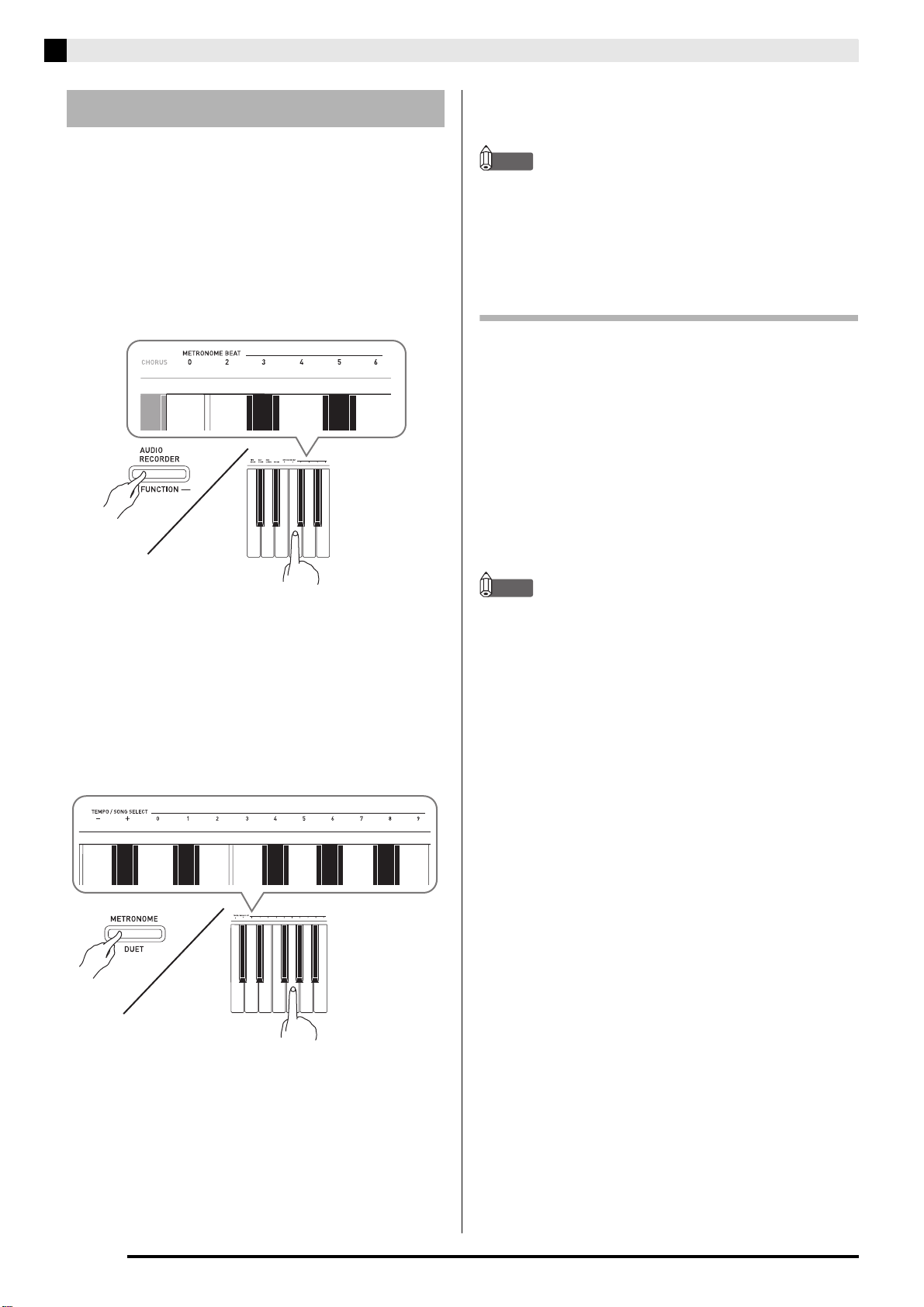
Your Digital Piano comes equipped with three pedals:
damper, soft, and sostenuto
Pedal Functions
z Damper Pedal
Pressing the damper pedal while playing causes notes
you play on the keyboard to be sustained (continue to
play) longer.
• When GRAND PIANO is selected as the tone, using
this pedal generates harmonic and other resonance,
just like the damper pedal on an acoustic grand
piano.
z Soft Pedal
Pressing this pedal while playing suppresses notes
played on the keyboard after the pedal was pressed,
and makes them sound softer.
z Sostenuto Pedal
Only the notes of the keys that are depressed when this
pedal is pressed are sustained until the pedal is
released.
NOTE
• If pressing the pedal does not produce the desired
effect, it could mean that the pedal cord is not
connected properly. Refer to step 1 under “To
connect the cable” (page E-43).
Number of Beeps Setting
1 (long)
1 (short)
2
3
4
Off (OFF)
Light Chorus
Medium Chorus
Deep Chorus
Flanger (whooshing effect)
Chorus
Using the Digital Piano’s
Pedals
Soft pedal
Damper pedal
Sostenuto pedal
PXA800_e.book 9 ページ 2013年6月18日 火曜日 午後6時18分
E-10
Playing with Different Tones
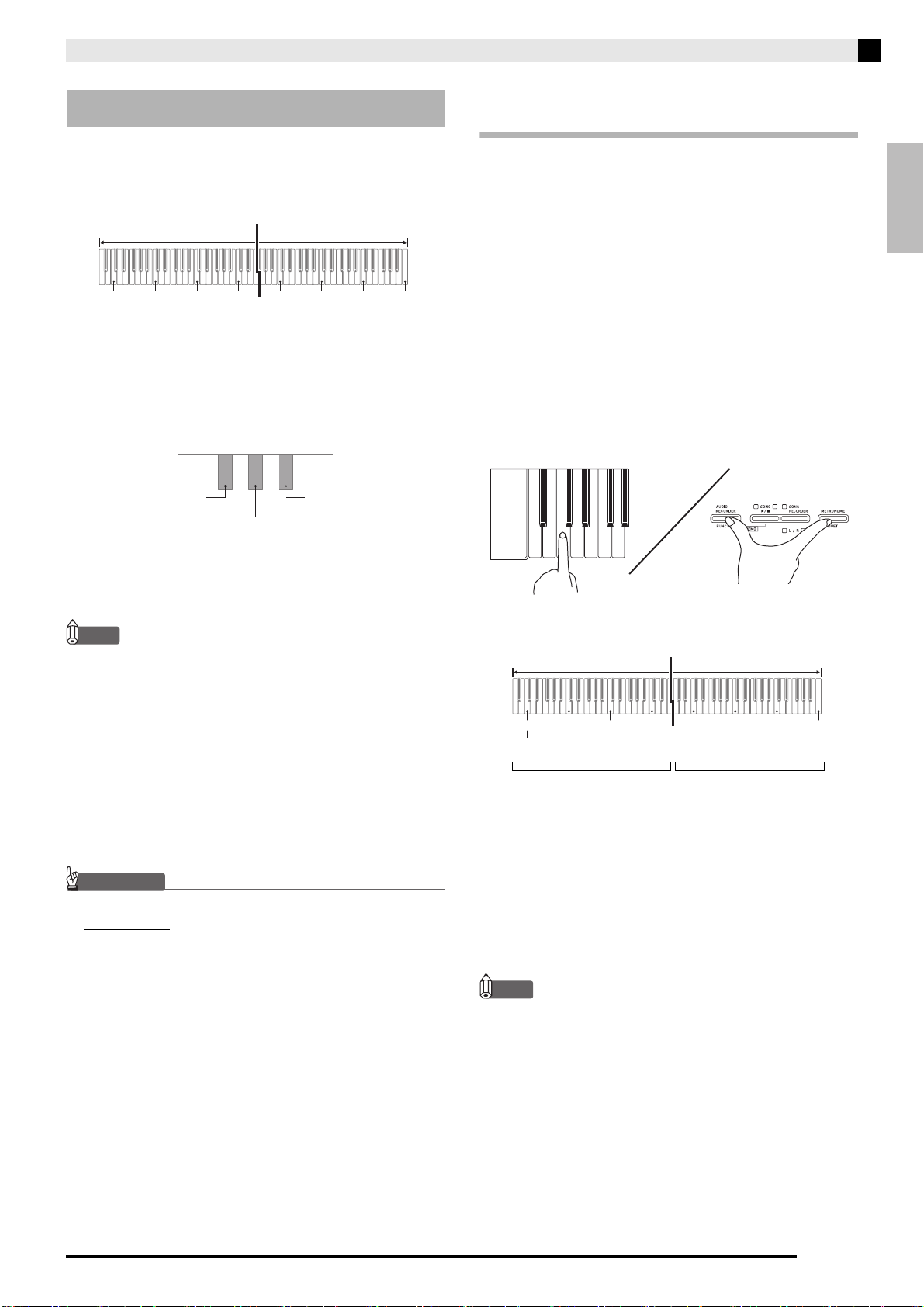
1.
Press the METRONOME button.
• This starts the metronome.
• The lamp above the SONG a button flash in time
with the metronome beat.
2.
To change the beat, hold down the
FUNCTION button as you press one of the
METRONOME BEAT keys to select a beat
setting.
• You can specify beats per measure value of 0, 2, 3, 4,
5, or 6. Specifying 0 as the setting plays a straight
click, without any chime. This setting lets you
practice with a steady beat.
3.
While holding down the METRONOME
button, use the TEMPO keys to specify a
tempo value in the range of 20 to 255 beats
per minute.
• Each press of the + or – key raises or lowers the
tempo value by 1.
• You can use the value input keys (0 to 9) to enter a
specific three-digit. Be sure to input all three digits.
Example: To enter “96”, press keys 0, 9, 6.
4.
Press the METRONOME button or SONG
a button to turn off the metronome.
NOTE
• To return the tempo setting to the default tempo of
the currently selected Music Library tune, press the
+ and – keys at the same time in step 3. Pressing +
and – while recording will return the tempo value to
120.
To adjust the metronome volume
You can perform the following procedure at any time,
regardless of whether or not the metronome is
sounding.
1.
While holding down the FUNCTION button,
use the METRONOME VOLUME keys to
specify a volume value in the range of 0 to 42.
• For details about using the keyboard keys for
settings, see “Keyboard Keys Used for Configuring
Settings” on page E-22.
• Each press of the T orS key raises or lowers the
metronome volume value by 1.
NOTE
• To return to the initial default setting, press T and
S at the same time.
Using the Metronome
PXA800_e.book 10 ページ 2013年6月18日 火曜日 午後6時18分
English
Playing with Different Tones
E-11
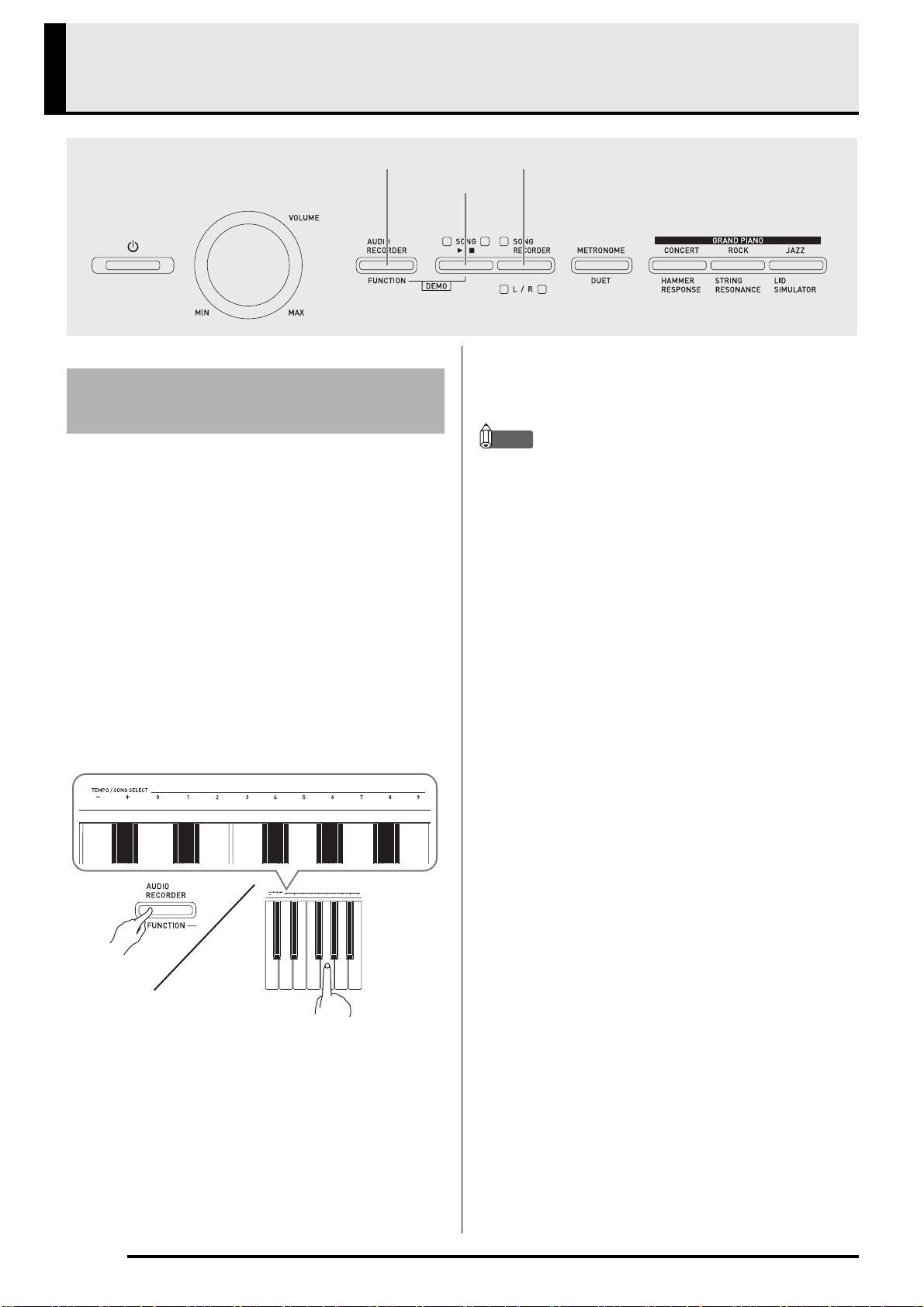
You can use the Duet Mode to split the Digital Piano’s
keyboard in the center so two people can play a duet.
The left and right side keyboards have virtually the
same range. The left pedal operates as the left side
damper pedal, while the right pedal is the right side
damper pedal.
The Duet Mode is the perfect way to conduct lessons,
with the teacher playing on the left side as the student
playing the same song on the right side.
NOTE
• Only the damper pedal for the right side keyboard
supports half-pedal operations.
1.
Select the piano tone you want to use for the
duet.
Example: GRAND PIANO (CLASSIC)
2.
While holding down the FUNCTION button,
press the METRONOME button to toggle
duet on (lamp lit) and off (lamp unlit).
IMPORTANT!
• You cannot use the Duet Mode while recording
(page E-15).
Changing the Octaves of the duet
keyboards
You can change the ranges of the left and right
keyboards in octave units from their initial default
settings. This comes in handy, for example, if the initial
default range is not enough when one person is
playing the left hand part and another person is
playing the right hand part.
1.
While holding down the FUNCTION and
METRONOME buttons, press the keyboard
C key that you want located at C4 (middle C)
of the left keyboard. Keep FUNCTION and
METRONOME depressed as you advance to
step 2, below.
• This will sound the note assigned to C4 and change
the octave of the left keyboard.
Example: Press the keyboard key of the leftmost C (C4)
will assign the range shown below.
2.
While still holding down the FUNCTION and
METRONOME buttons, press the keyboard
C key that you want located at C4 (middle C)
of the right keyboard.
• This will sound the note assigned to C4 and change
the octave of the right keyboard.
NOTE
• You can return the keyboards to their initial default
ranges by exiting and then re-entering the Duet
Mode.
Playing a Piano Duet
C3 C4 C5 C6 C3 C4 C5 C6
Keyboard
Split point
Left keyboard Right keyboard
(middle C)(middle C)
Pedals
Left side damper pedal
Left and right side damper pedal
Right side damper pedal
C4 C5 C6 C7 C3 C4 C5 C6
Left keyboard Right keyboard
(Pressed key)
1 octave higher than initial
setting
Unchanged
PXA800_02_e.fm 11 ページ 2013年6月20日 木曜日 午後6時37分
E-12
Playing Back a Song
Your Digital Piano comes with a Music Library of 60
built-in tunes. You can play all 60 tunes in sequence,
from beginning to end.
1.
While holding down the FUNCTION button,
press the SONG a button.
• This will start repeat demo playback of the built-in
songs in sequence, from 01 through 60.
• You can play along with a song on the keyboard as it
is playing. The tone assigned to the keyboard is the
one that is preset for the song that is playing.
2.
To change demo playback to a different song,
hold down the FUNCTION button as you use
the SONG SELECT keys to specify a song
number.
• Each press of the + or – key raises or lowers the song
number by 1.
• You can use the value input keys (0 to 9) to enter a
specific two-digit song number. Be sure to input both
digits.
Example: To select song 08, enter 0 and then 8.
3.
Press the SONG a button again to stop
built-in song play.
NOTE
• The tune selection and playback stop operations
described above are the only operations that are
possible during demo tune play.
SONG a
AUDIO RECORDER, FUNCTION
SONG RECORDER
Playing Back All of the Built-in
Songs
PXA800_e.book 12 ページ 2013年6月18日 火曜日 午後6時18分
English
Playing Back a Song
E-13
The Music Library includes both built-in songs (01 to
60), plus songs (61 to 70) that have been saved to
Digital Piano memory from a computer*. You can use
the procedure below to select one of these songs and
play it back.
* You can download music data from the Internet and
then transfer it from your computer to Digital Piano
memory. See “Transferring Song Data with a
Computer” on page E-36 for more information.
1.
Find the song number of the song you want to
play in the song list on page A-1.
2.
To specify a song, hold down the FUNCTION
button as you use the SONG SELECT
keyboard keys to specify a song number.
• For information about how to perform this step, see
the note under step 2 of the procedure under
“Playing Back All of the Built-in Songs” on page E-12.
3.
Press the SONG a button.
• This starts the playback of the song.
4.
To stop playback, press the SONG a
button again.
• Playback will stop automatically when the end of the
song is reached.
NOTE
• Pressing the + and – keyboard keys at the same time
will select song number 01.
• You also can adjust the playback tempo, Hall
simulator, etc. Refer to the pages below for
information about how to configure settings.
– Performance tempo: Page E-10 (step 3 under
“Using the Metronome”)
– Hall simulator: Page E-8 (“To apply a hall
simulator”)
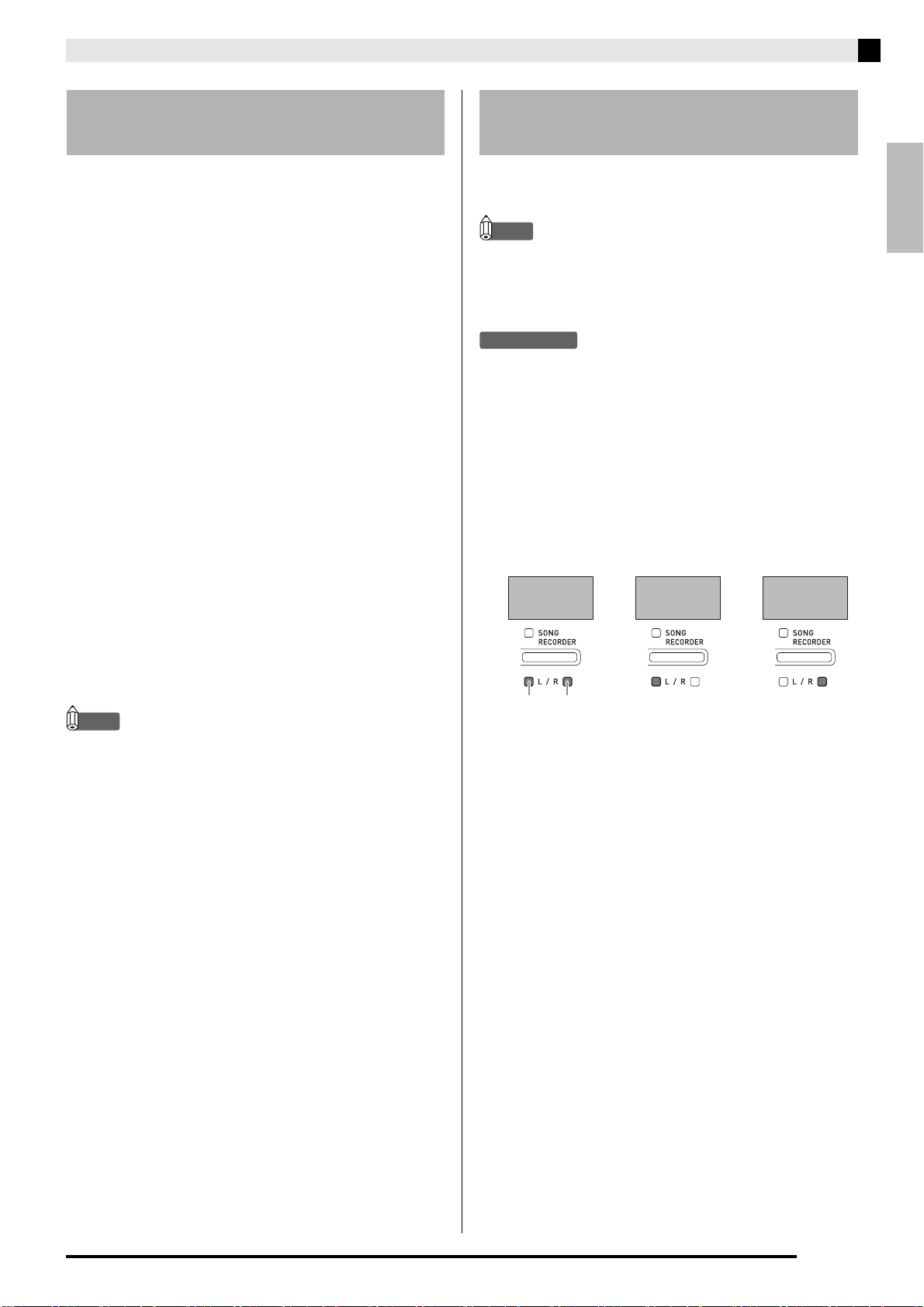
You can turn off the left hand part or right hand part of
a song and play along on the Digital Piano.
NOTE
• The Music Library includes a number of duets.
While a duet is selected, you can turn off the first
piano (Primo) or second piano (Secondo) tone and
play along with the song.
PREPARATION
• Select the song you want to practice and adjust the
tempo. See step 3 under “Using the Metronome”
(page E-10).
• A number of tunes have tempo changes part way
through in order to produce specific musical effects.
1.
While holding down the FUNCTION button,
press the SONG RECORDER (L/R) button to
select the part you want to turn off.
• Pressing a button toggles its part on (button lamp on)
and off (button lamp off).
2.
Press the SONG a button.
• This starts playback, without the part you turned off
in step 1.
3.
Play the missing part on the keyboard.
4.
To stop playback, press the SONG a
button again.
Playing Back a Specific Music
Library Song
Practicing with a Music Library
Song
Left hand Right hand
Both parts on
Right hand
part off
Left hand
part off
PXA800_e.book 13 ページ 2013年6月18日 火曜日 午後6時18分
E-14
Playing Back a Song
You can use your Digital Piano to play back audio data
(WAV files*) stored on a commercially available USB
flash drive.
See “USB Flash Drive” on page E-26 for more
information.
* Linear PCM, 16bit, 44.1 kHz, Stereo
PREPARATION
• Prepare a USB flash drive that contains data
recorded to it using the Digital Piano’s Audio
Recorder. See “Recording to a USB Flash Drive
(Audio Recorder)” on page E-18 for more
information.
• You can also use a computer to save audio data
(WAV file) to the USB Flash Drive for playback. See
“Storing Standard Audio Data (WAV Files) to a USB
Flash Drive” on page E-26 for more information.
• Insert the USB flash drive that contains the data you
want to play back into your Digital Piano’s USB
flash drive port.
1.
Press the AUDIO RECORDER button. Note
that you should press the button and
immediately release it. Do not hold it down.
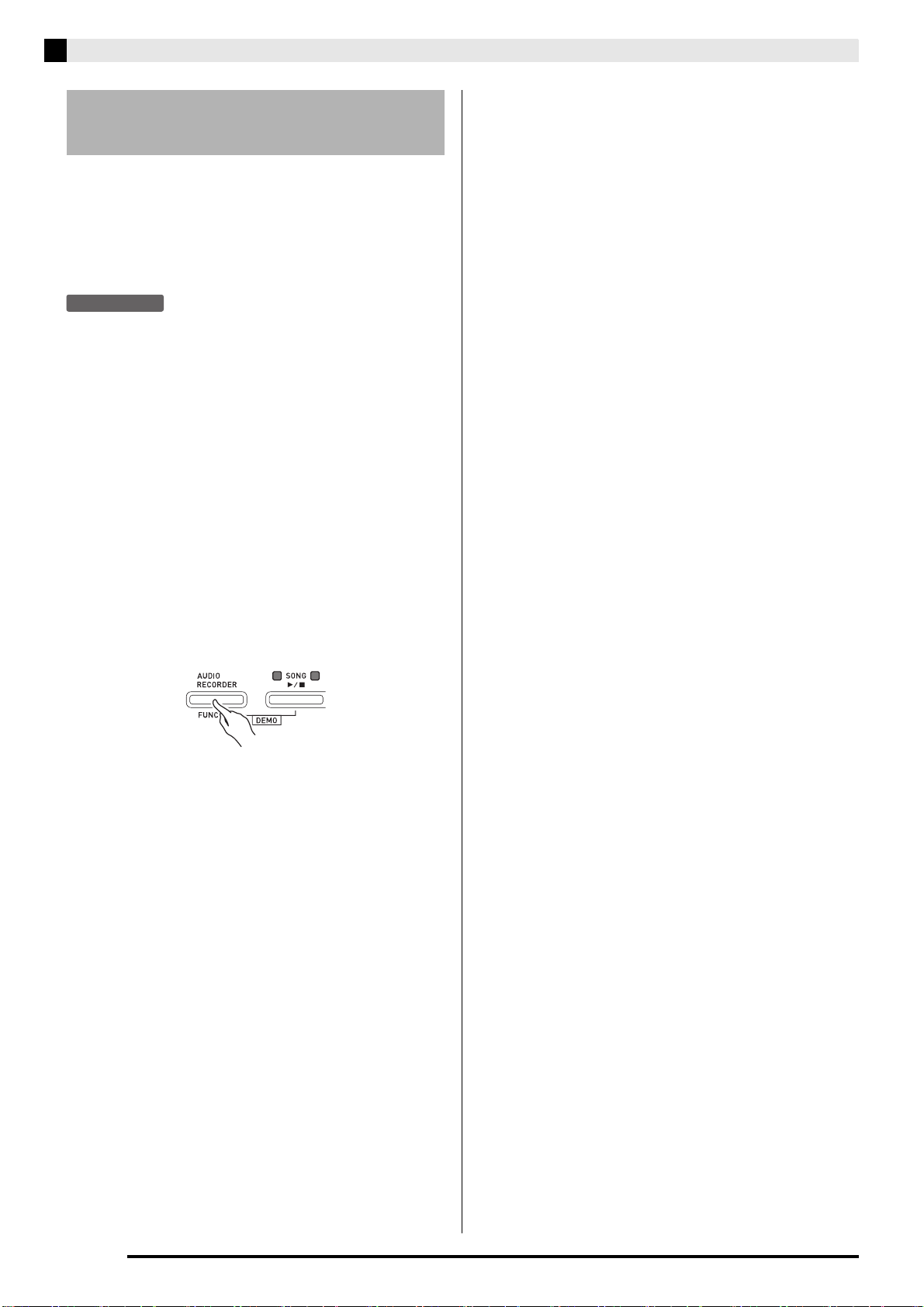
• This causes the two SONG a button indicator
lamps to light.
2.
Press the SONG RECORDER button so its
lamp is lit.
3.
Hold down the FUNCTION button as you use
the SONG SELECT keyboard keys to select
the song you want.
• Pressing the plus (+) key scrolls forward through
song file names (TAKE01.WAV, TAKE02.WAV, etc.).
Pressing the minus (–) key scrolls backward.
• You also can use the number (0 through 9) keyboard
keys to directly select a file by inputting its number.
The Digital Piano will beep if there is no file on the
USB flash drive that corresponds to the number you
input.
4.
While holding down the AUDIO RECORDER
button, press the SONG a button.
• This will start playback of the selected song.
5.
To stop playback of the song, press the
SONG a button.
Playing Back Audio Data
Stored on a USB Flash Drive
PXA800_e.book 14 ページ 2013年6月18日 火曜日 午後6時18分
E-15
English
Recording and Playback
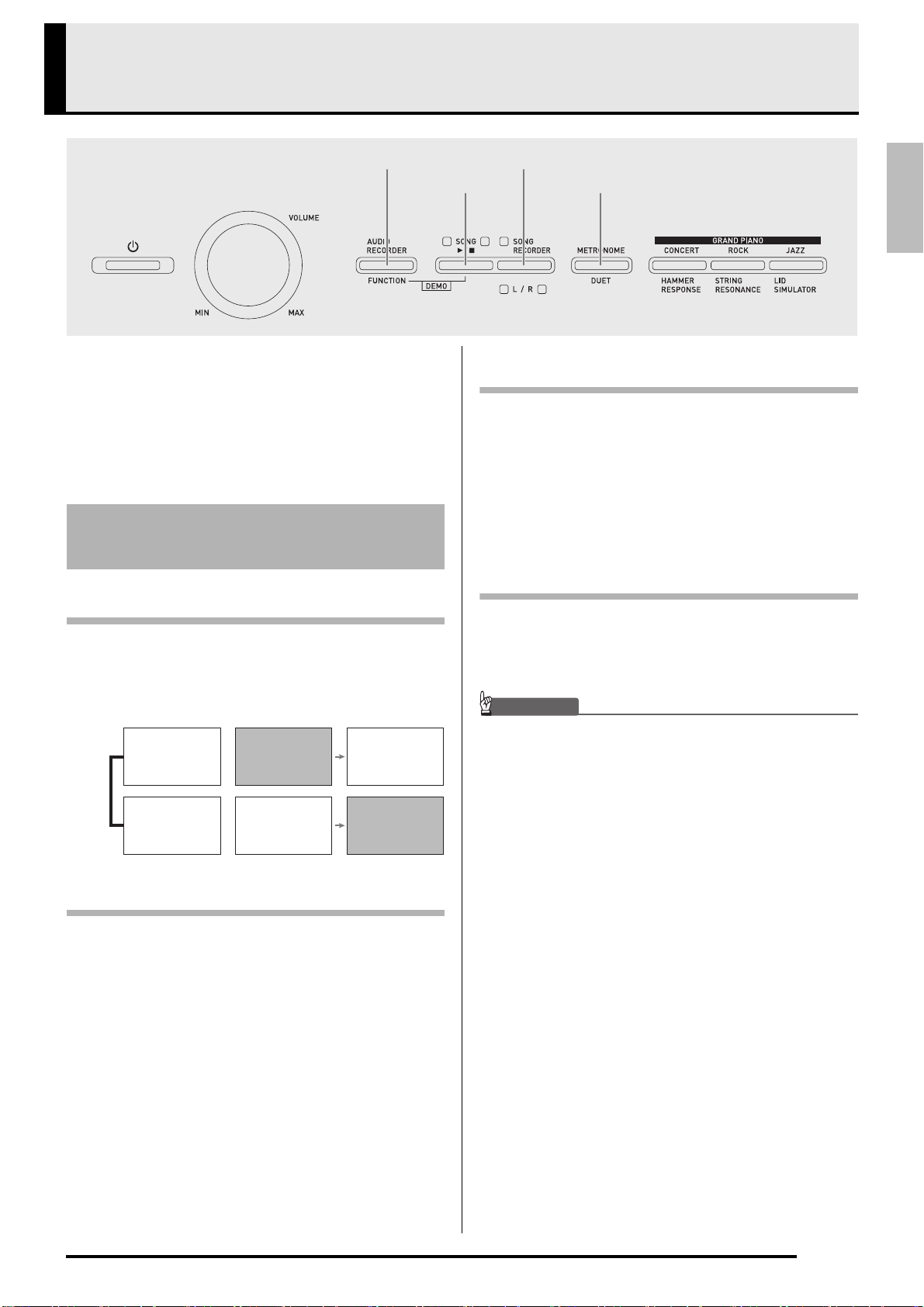
You can use the Song Recorder to record what you play
on the Digital Piano to built-in song memory. When a
commercially available USB flash drive is inserted in
the Digital Piano’s USB flash drive port, audio data is
recorded to and played back from the USB flash drive
(Audio Recorder).
Tracks
A track is a container of recorded data, and a song
consists of two tracks: Track 1 and Track 2. You can
record each track separately and then combine them so
they play back together as a single song.
Memory Capacity
• You can record approximately 5,000 notes in Digital
Piano memory.
• The SONG RECORDER button lamp will flash at
high speed when memory runs low.
• Recording stops automatically if the number of
notes in memory exceeds the maximum.
Recorded Data
• Keyboard play
• Tone used
• Pedal operations
• Hall simulator and chorus settings (Track 1 only)
• Tempo setting (Track 1 only)
• Layer setting (Track 1 only)
• Split setting (Track 1 only)
• Octave shift setting (Track 1 only)
Recording Data Storage
• Starting a new recording deletes any data that was
previously recorded in memory.
• Should power fail during recording, all of the data in
the track you are recording will be deleted.
IMPORTANT!
• CASIO COMPUTER CO., LTD. takes no
responsibility for any damages, lost profits, or claims
by third parties arising from the deletion of recorded
data due to malfunction, repair, or for any other
reason.
SONG a METRONOME
AUDIO RECORDER, FUNCTION
SONG RECORDER
Recording to Built-in Song
Memory (Song Recorder)
Track 1 Record
While playing
back. . .
Track 2 Record
Song
PXA800_e.book 15 ページ 2013年6月18日 火曜日 午後6時18分
E-16
Recording and Playback
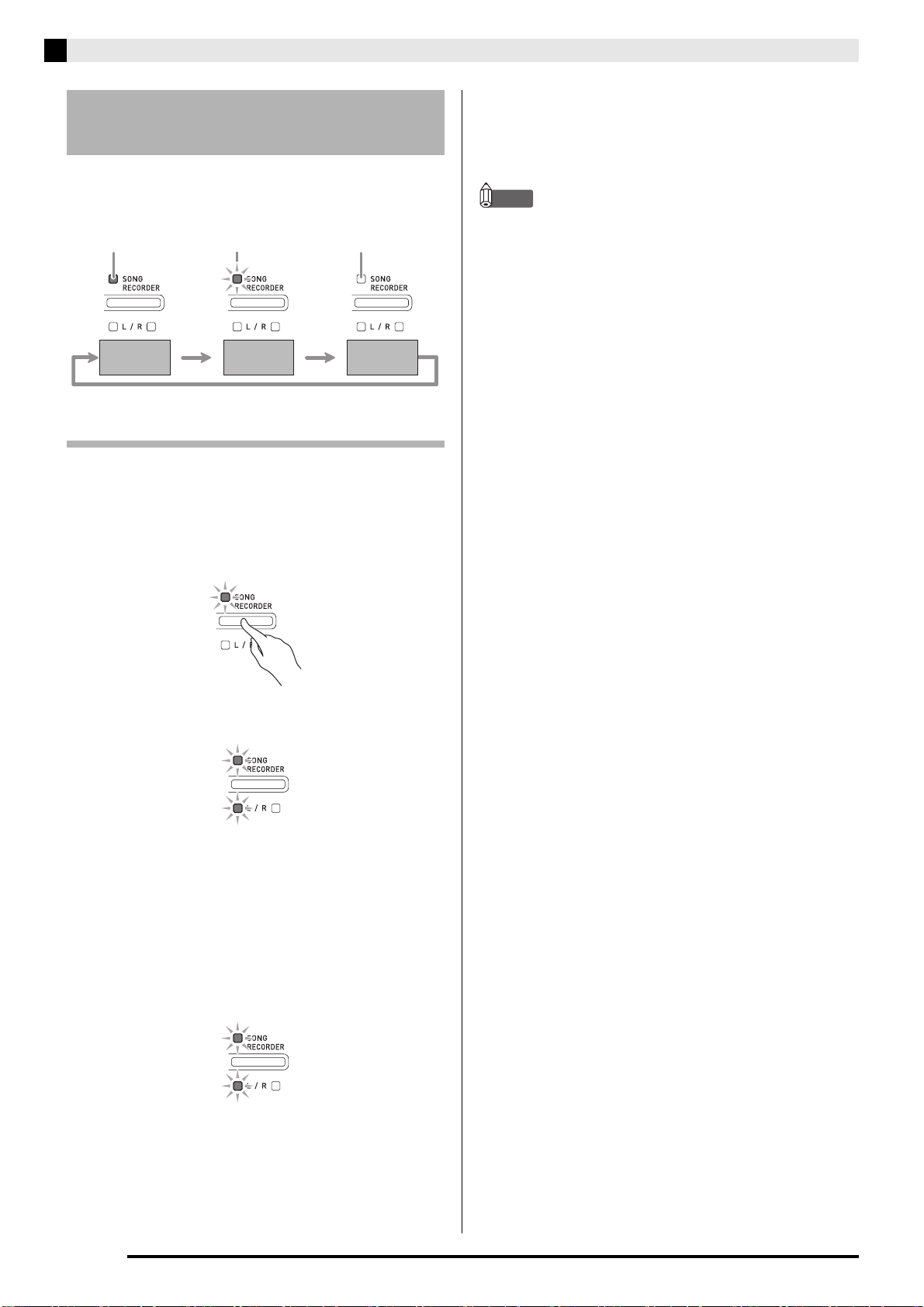
Each press of the SONG RECORDER button cycles
through the recording options in the sequence shown
below.
Recording to a Specific Song Track
After recording to either of the tracks of a song, you can
record to the other track while listening to playback
what you recorded in the first track.
1.
Press the SONG RECORDER button twice
so its lamp is flashing.
• At this time the L lamp will flash to indicate that the
Digital Piano is standing by for recording to Track 1.
2.
While holding down the FUNCTION button,
press the SONG RECORDER (L/R) button to
select the track you want to record.
• Make sure that the indicator lamp for the record track
is flashing.
Track 1: L lamp
Track 2: R lamp
Example: Track 1 selected
3.
Select the tone and effects (Track 1 only) you
want to use in your recording.
• Tone (page E-5)
• Effects (page E-8)
NOTE
• If you want the metronome to sound while you are
recording, configure the beat and tempo settings,
and then press the METRONOME button. See
“Using the Metronome” on page E-10 for more
information.
4.
Start playing something on the keyboard.
• Recording will start automatically.
5.
To stop recording, press the SONG a
button.
• This will cause the SONG RECORDER button lamp
and the lamp of the track you recorded to change
from flashing to lit.
• To play back the track you just recorded, press the
SONG a button.
6.
After you are finished recording or playing
back, press the SONG RECORDER button
so its lamp goes out.
Using the SONG RECORDER
Button
Lit Flashing Off
Playback
Standby
Record
Standby
Normal
PXA800_e.book 16 ページ 2013年6月18日 火曜日 午後6時18分
English
Recording and Playback
E-17
Recording to One Track while Listening
to Playback of the Other Track
1.
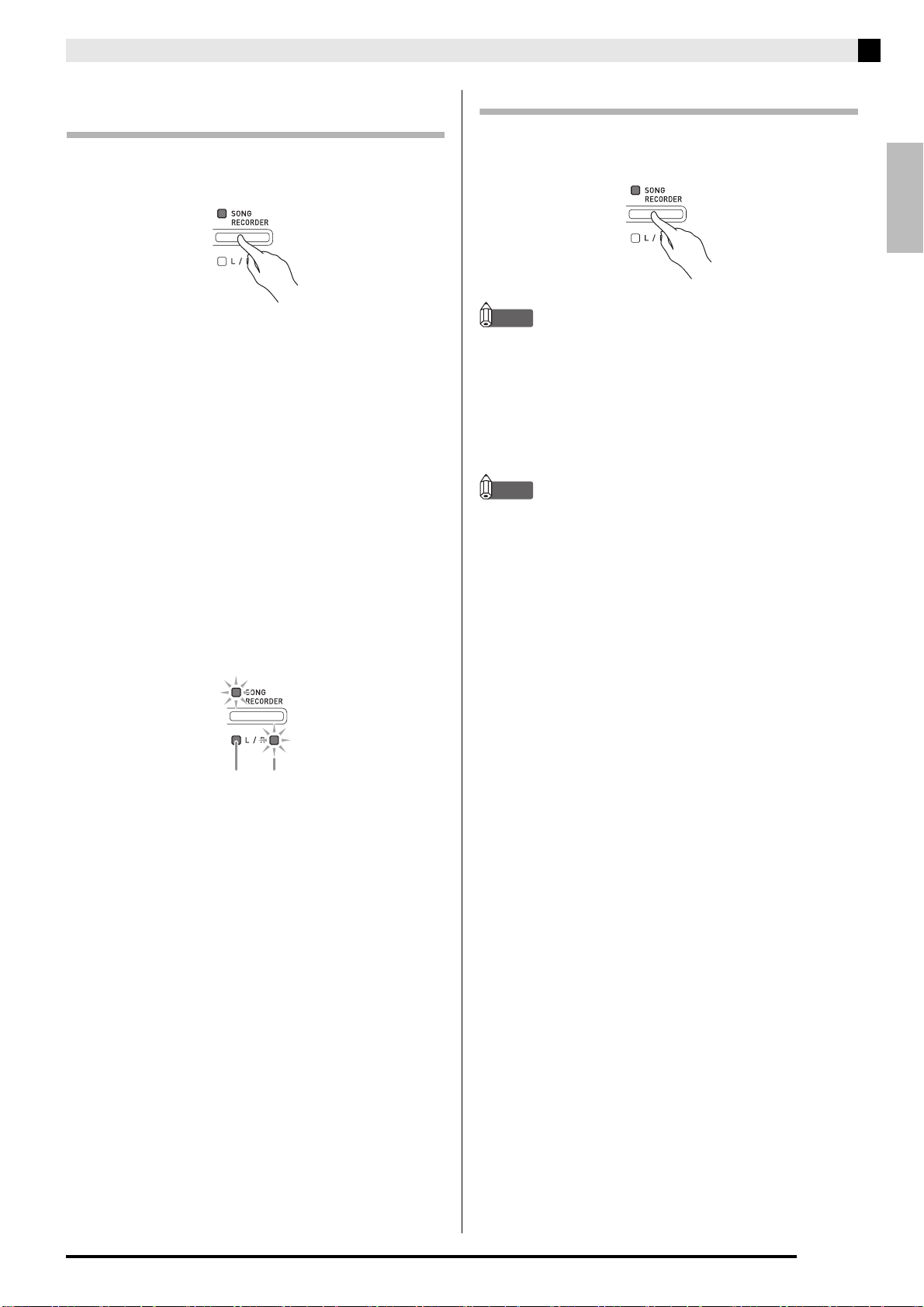
Press the SONG RECORDER button so its
lamp is lit.
2.
While holding down the FUNCTION button,
press the SONG RECORDER (L/R) button to
select the track you want to play back while
recording.
3.
Press the SONG RECORDER button so its
lamp is flashing.
• This will cause the L lamp to flash.
4.
While holding down the FUNCTION button,
press the SONG RECORDER (L/R) button to
select the track you want to record.
• Make sure that the indicator lamp for the record track
is flashing.
Example: To listen to playback of Track 1 as you record
to Track 2
5.
Select the tone and effects (Track 1 only) you
want to use for your recording.
6.
Press the SONG a button or play
something on the keyboard.
• This will start both playback of the recorded track
and recording to the other track.
7.
To stop recording, press the SONG a
button.
Playing Back from Digital Piano Memory
1.
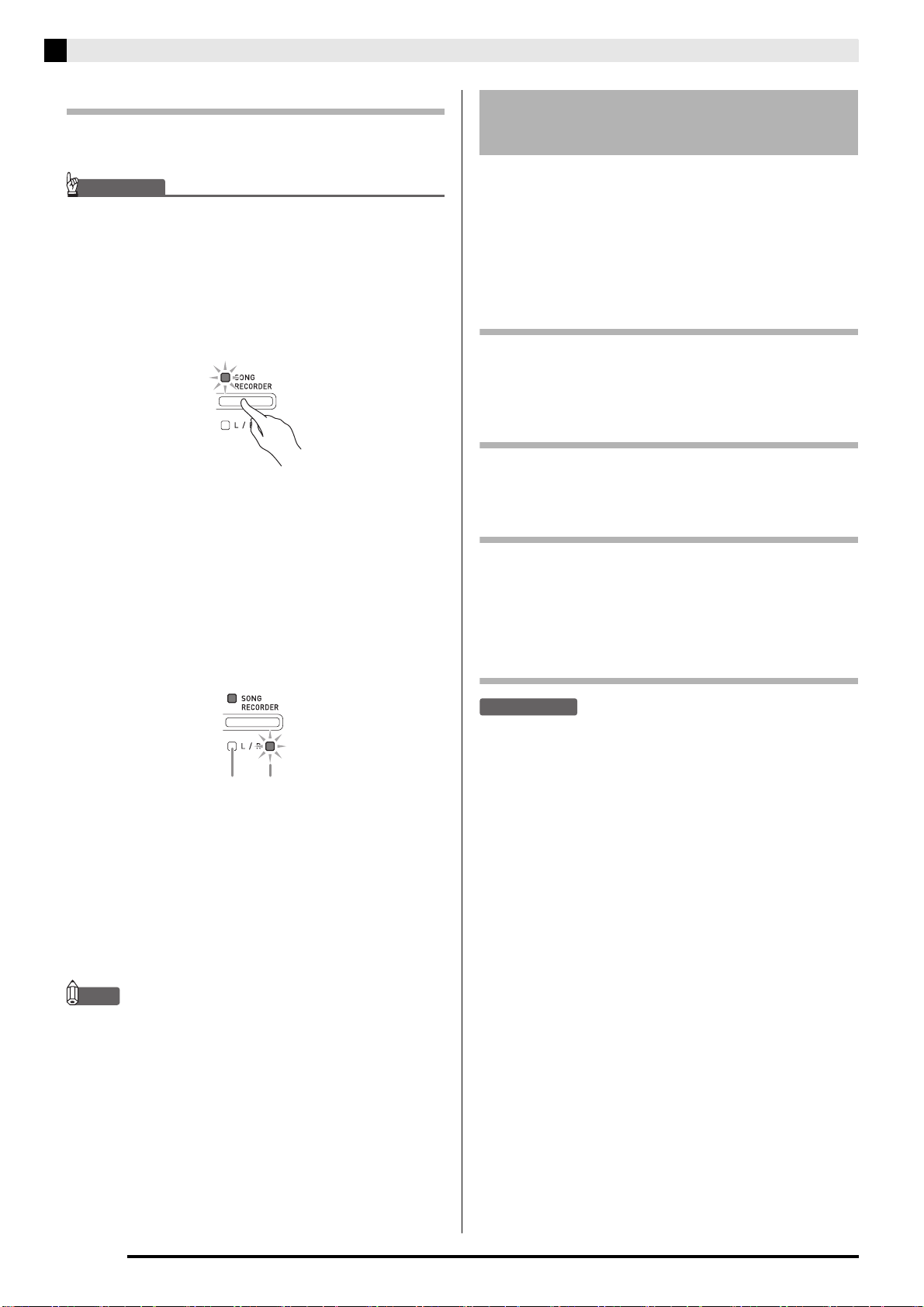
Press the SONG RECORDER button so its
lamp is lit.
NOTE
• When a song has something recorded in both tracks,
you can turn off one track and play back just the
other track, if you want.
2.
Press the SONG a button.
• This starts playback of the song and/or track you
selected.
NOTE
• You can change the tempo setting as a track is
playing.
• Press the SONG a button again to stop playback.
Lit (Play) Flashing (Record Standby)
PXA800_e.book 17 ページ 2013年6月18日 火曜日 午後6時18分
E-18
Recording and Playback
Deleting Recorded Data
The following procedure deletes a specific track of a
song.
IMPORTANT!
• The procedure below deletes all of the data of the
selected track. Note that the delete operation cannot
be undone. Check to make sure you really do not
need the data in Digital Piano memory before you
perform the following steps.
1.
Press the SONG RECORDER button twice
so its lamp is flashing.
2.
While holding down the FUNCTION button,
press the SONG RECORDER (L/R) button to
select the track you want to delete.
3.
Press the SONG RECORDER button until its
lamp is lit.
• This will cause the lamp of the track you selected in
step 2 of this procedure to flash.
Example: If you selected Track 2 for deletion
4.
Once again, hold down the FUNCTION
button as you press the SONG RECORDER
button.
• This deletes the selected track and enters playback
standby.
• To cancel the delete operation at any time, press the
SONG RECORDER button twice so its lamp is unlit.
NOTE
• Only the Digital Piano’s SONG RECORDER (L/R)
button are operational from step 3 until you actually
perform the delete operation in step 4. No other
button operation can be performed.
Anything played on the Digital Piano is recorded to the
USB flash drive as audio data (WAV files*). If you play
along on the Digital Piano as you play back data stored
in song memory, the memory playback and your
keyboard play are both recorded to USB flash drive.
* Linear PCM, 16bit, 44.1 kHz, Stereo
Recording Capacity
• 99 files (No. 01 to No. 99)
• Approximately 25 minutes maximum recording per
file.
Recorded Data
• Anything played on the Digital Piano is recorded.
• Individual part recording is not supported.
Recording Data Storage
Each new recording of audio data to a USB flash drive
is automatically assigned a new file name, so existing
data is not overwritten.
Recording Digital Piano Play
(Audio Recorder)
PREPARATION
• Be sure to format the USB flash drive on the Digital
Piano before using it. See “USB Flash Drive” on page
E-26 for more information.
1.
Insert the USB flash drive into the Digital
Piano’s USB flash drive port.
• When you plug in a USB flash drive, the Digital Piano
initially needs to “mount” the USB flash drive and
prepare for data exchange. Note that Digital Piano
operations are momentarily disabled while a USB
flash drive mounting sequence is being performed.
The Digital Piano’s L/R lamps flash while the
mounting process is in progress. It may take up to 10
or 20 seconds or even longer for a USB flash drive to
be mounted. Do not attempt to perform any
operation on the Digital Piano while a mounting
sequence is in progress (while L/R lamps are
flashing). A USB flash drive needs to be mounted
each time it is connected to the Digital Piano.
Off Flashing: Delete standby
Recording to a USB Flash
Drive (Audio Recorder)
PXA800_e.book 18 ページ 2013年6月18日 火曜日 午後6時18分
English
Recording and Playback
E-19
2.
Press the AUDIO RECORDER button. Note
that you should press the button and
immediately release it. Do not hold it down.
• This causes the two SONG a button indicator
lamps to light.
3.
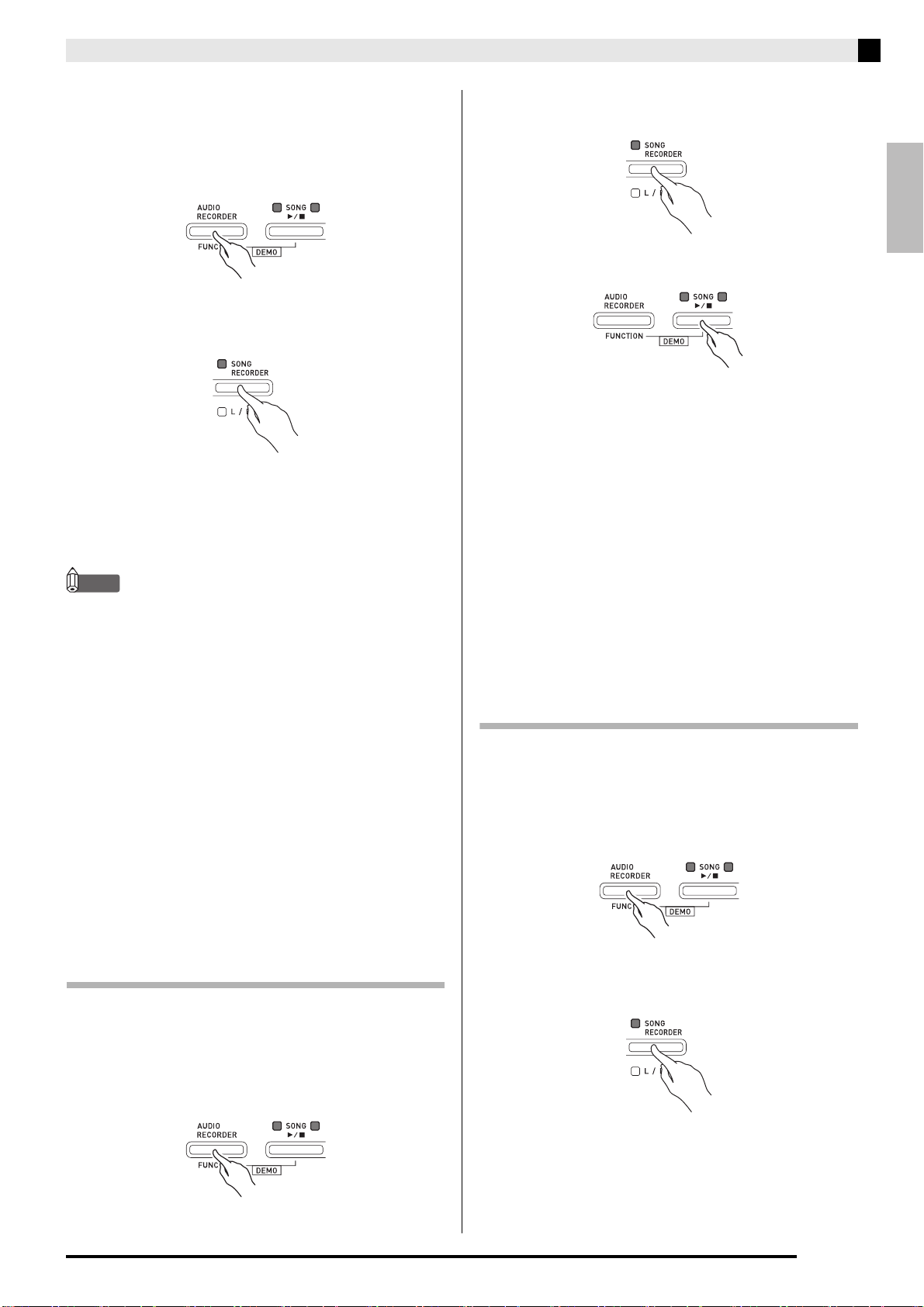
Press the SONG RECORDER button so its
lamp is lit.
4.
Start playing something on the keyboard.
• The SONG RECORDER button lamp will flash once
or twice to indicate that recording to the USB flash
drive has started.
NOTE
• Do not remove the USB flash drive from the USB
flash drive port while the two SONG a lamps are
flashing or lit. Doing so will interrupt recording and
may corrupt data.
5.
To stop recording, press the AUDIO
RECORDER button.
• The two SONG a button lamps will flash together
three or four times to let you know that audio
recording is complete. If you want to continue
recording, perform the operations from step 4 of this
procedure. If you want to play back what you
recorded, perform the operations from step 3 under
“Playing Back Data Recorded on a USB Flash Drive”
(page E-19). To exit the audio record/playback
operation, press the AUDIO RECORDER button.
Recording Digital Piano Play as Data
Recorded in Song Memory Plays Back
(Audio Recorder)
1.
Press the AUDIO RECORDER button. Note
that you should press the button and
immediately release it. Do not hold it down.
• This causes the two SONG a button indicator
lamps to light.
2.
Press the SONG RECORDER button so its
lamp is lit.
3.
Press the SONG a button.
• This will start playback of the current song memory
contents. Play along on the Digital Piano.
4.
To stop recording, press the AUDIO
RECORDER button.
• The two SONG a button lamps will flash together
three or four times to let you know that audio
recording is complete. If you want to continue
recording, perform the operations from step 4 under
“Recording Digital Piano Play (Audio Recorder)”
(page E-18). If you want to play back what you
recorded, perform the operations from step 3 under
“Playing Back Data Recorded on a USB Flash Drive”
(page E-19). To exit the audio record/playback
operation, press the AUDIO RECORDER button.
Playing Back Data Recorded on a USB
Flash Drive
1.
Press the AUDIO RECORDER button. Note
that you should press the button and
immediately release it. Do not hold it down.
• This causes the two SONG a button indicator
lamps to light.
2.
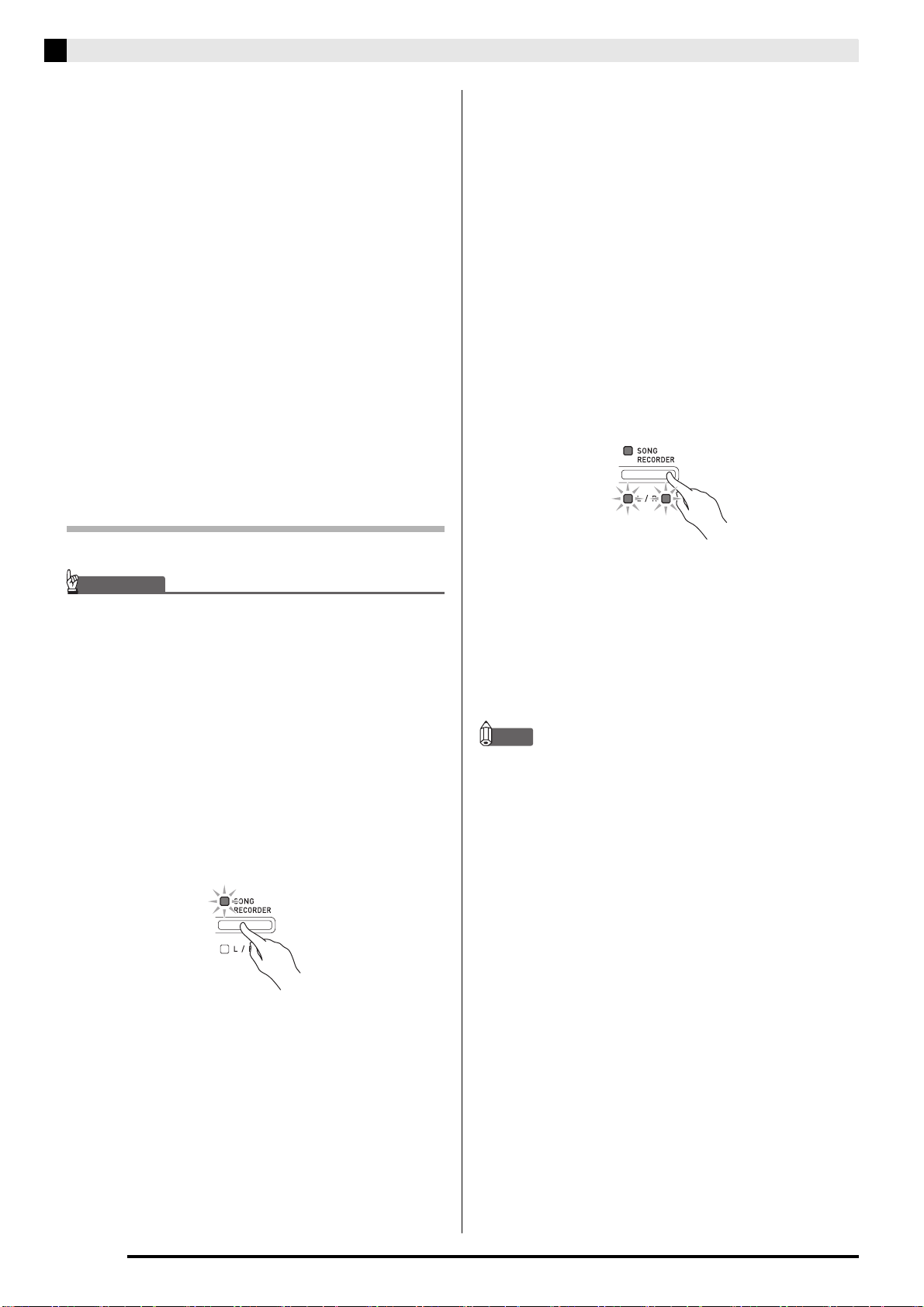
Press the SONG RECORDER button so its
lamp is lit.
PXA800_e.book 19 ページ 2013年6月18日 火曜日 午後6時18分
E-20
Recording and Playback
3.
While holding down the AUDIO RECORDER
button, press the SONG a button.
• This starts playback of the last song you recorded.
To select a file and play it
Hold down the FUNCTION button as you use the
SONG SELECT keyboard keys to select the song you
want.
• Press the minus (–) keyboard key to scroll back
through songs in reverse chronological order.
• Press the plus (+) keyboard to key scrolls forward.
• You also can use the number keyboard keys
(0 through 9) to inputting a two-digit file number (01
to 99) and directly select a file (TAKE01.WAV,
TAKE02.WAV, etc.). The keyboard will beep if there
is no file on the USB flash drive that corresponds to
the number you input.
4.
To stop playback of the song, press the
SONG a button.
Deleting an Audio File from a USB Flash
Drive
Files can be deleted one at a time.
IMPORTANT!
• The procedure below deletes all of the data of the
selected file. Note that the delete operation cannot
be undone. Check to make sure you really do not
need the data in Digital Piano memory before you
perform the following steps.
1.
Press the AUDIO RECORDER button. Note
that you should press the button and
immediately release it. Do not hold it down.
• This causes the two SONG a button indicator
lamps to light.
2.
Press the SONG RECORDER button twice
so its lamp is flashing.
3.
If you want to delete the last file you
recorded, jump directly to step 4.
To select a file and delete it
Hold down the FUNCTION button as you use the
SONG SELECT keyboard keys to select the song you
want.
• Press the minus (–) keyboard key to scroll back
through songs in reverse chronological order.
• Press the plus (+) keyboard to key scrolls forward.
• You also can use the number keyboard keys
(0 through 9) to inputting a two-digit file number (01
to 99) and directly select a file (TAKE01.WAV,
TAKE02.WAV, etc.). The keyboard will beep if there
is no file on the USB flash drive that corresponds to
the number you input.
4.
Hold down the SONG RECORDER button
until both the L and R lamps flash.
5.
Once again, hold down the FUNCTION
button as you press the SONG RECORDER
button.
• The Digital Piano will enter the song recorder
playback mode after file deletion is complete.
• To cancel the delete operation at any time, press the
SONG RECORDER button twice so its lamp is unlit.
NOTE
• When you record a new file, it is always
automatically assigned the next new file number in
the sequence of files currently on the USB flash
drive, even if a previous number is unused (because
a file was deleted). For example, if a USB flash drive
contains files numbered 01, 02, 04, 07, 08, the next
file recorded to the USB flash drive will be assigned
file number 09.
PXA800_e.book 20 ページ 2013年6月18日 火曜日 午後6時18分
E-21
English
Configuring Settings with the Keyboard
In addition to selecting tones and Music Library tunes,
you also can use the FUNCTION button in
combination with the keyboard keys to configure
effect, keyboard touch, and other settings.
1.
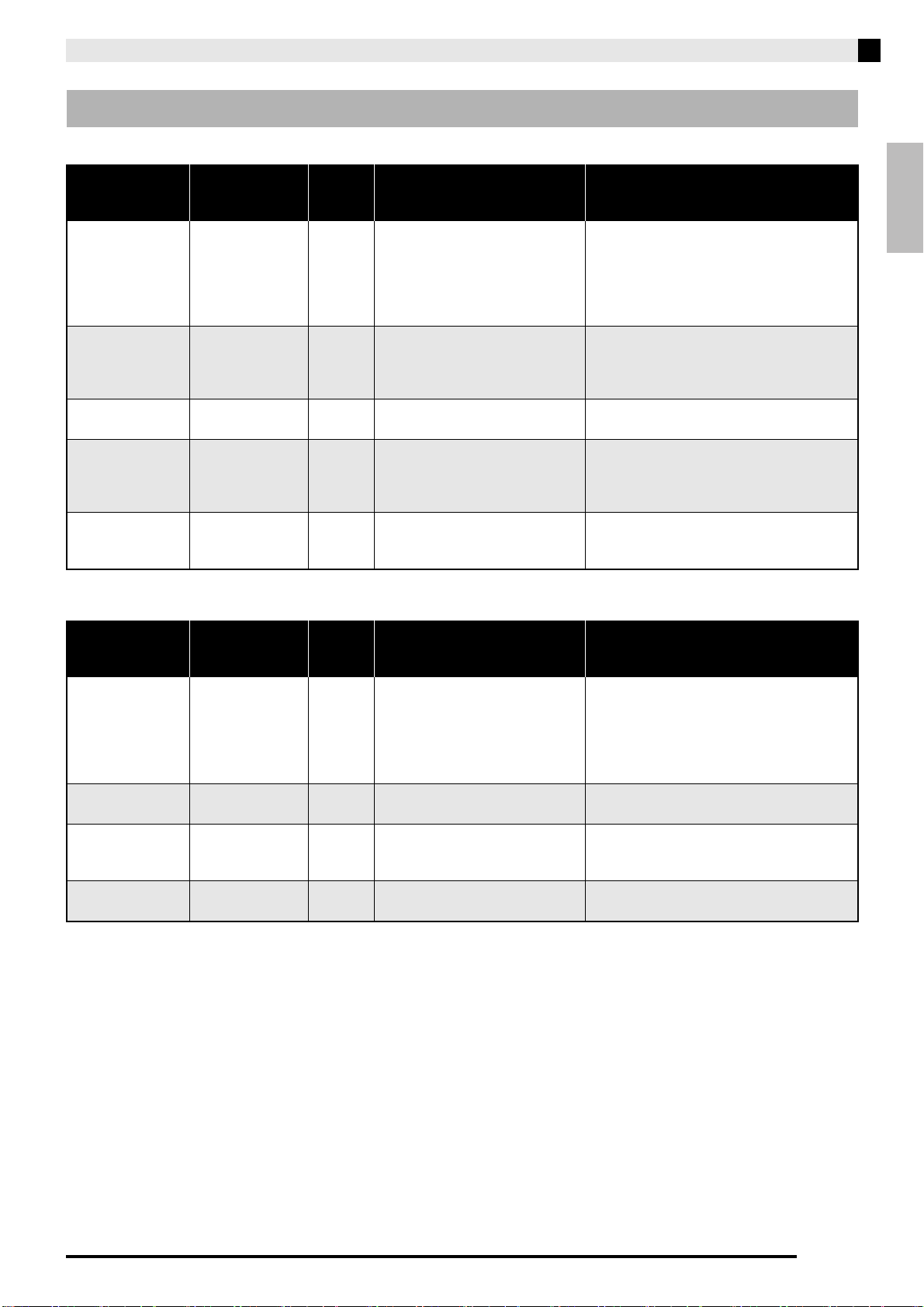
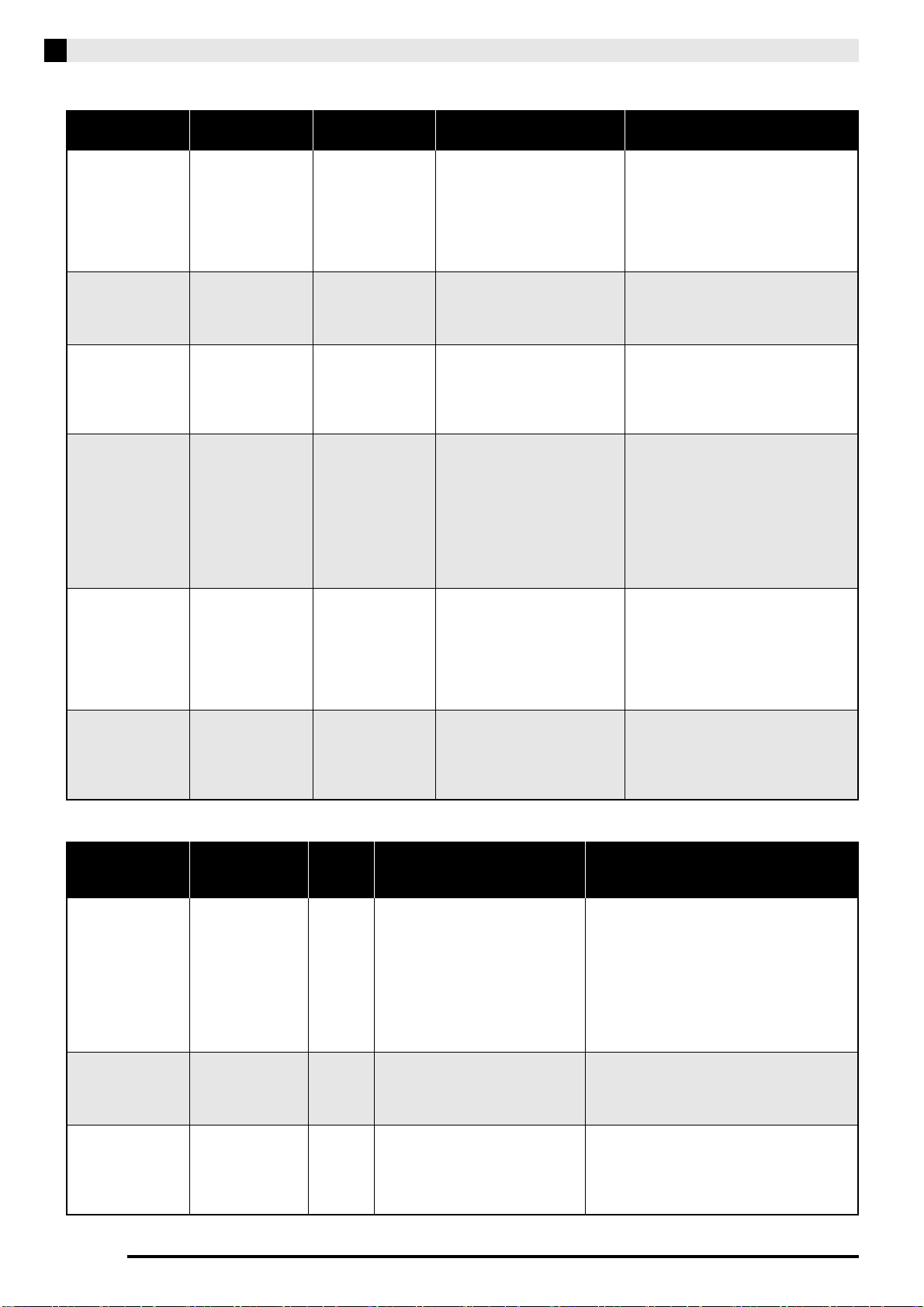
Use the “Parameter List” on pages E-23 -
E-25 to find the setting you want to configure,
and note its details.
2.
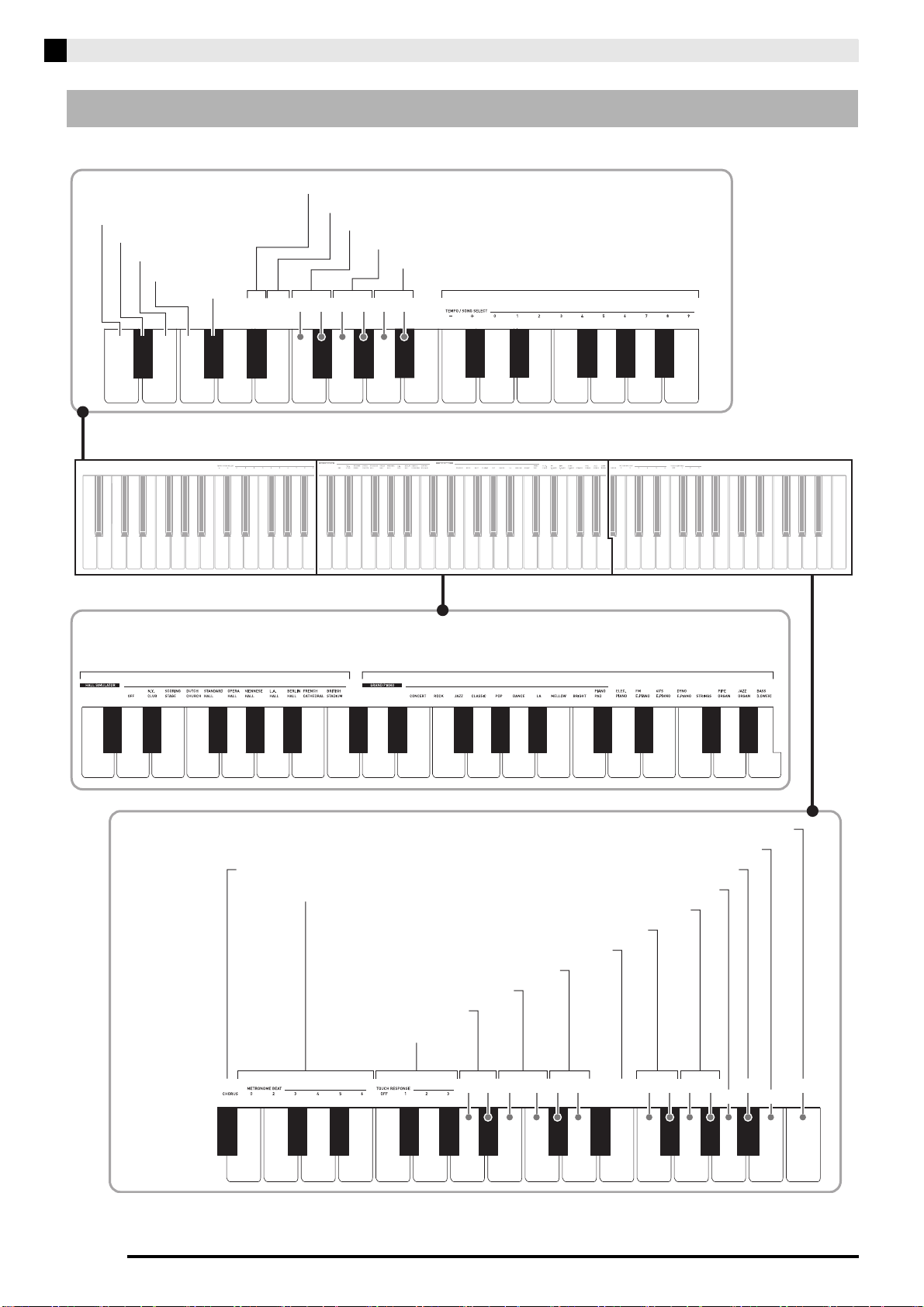
Use “Keyboard Keys Used for Configuring
Settings” on page E-22 to find the location on
the keyboard for configuring the setting you
want.
3.
While holding down the FUNCTION button,
press the keyboard key for the setting you
want to configure.
• The Digital Piano will sound an operation tone after it
configures the setting.
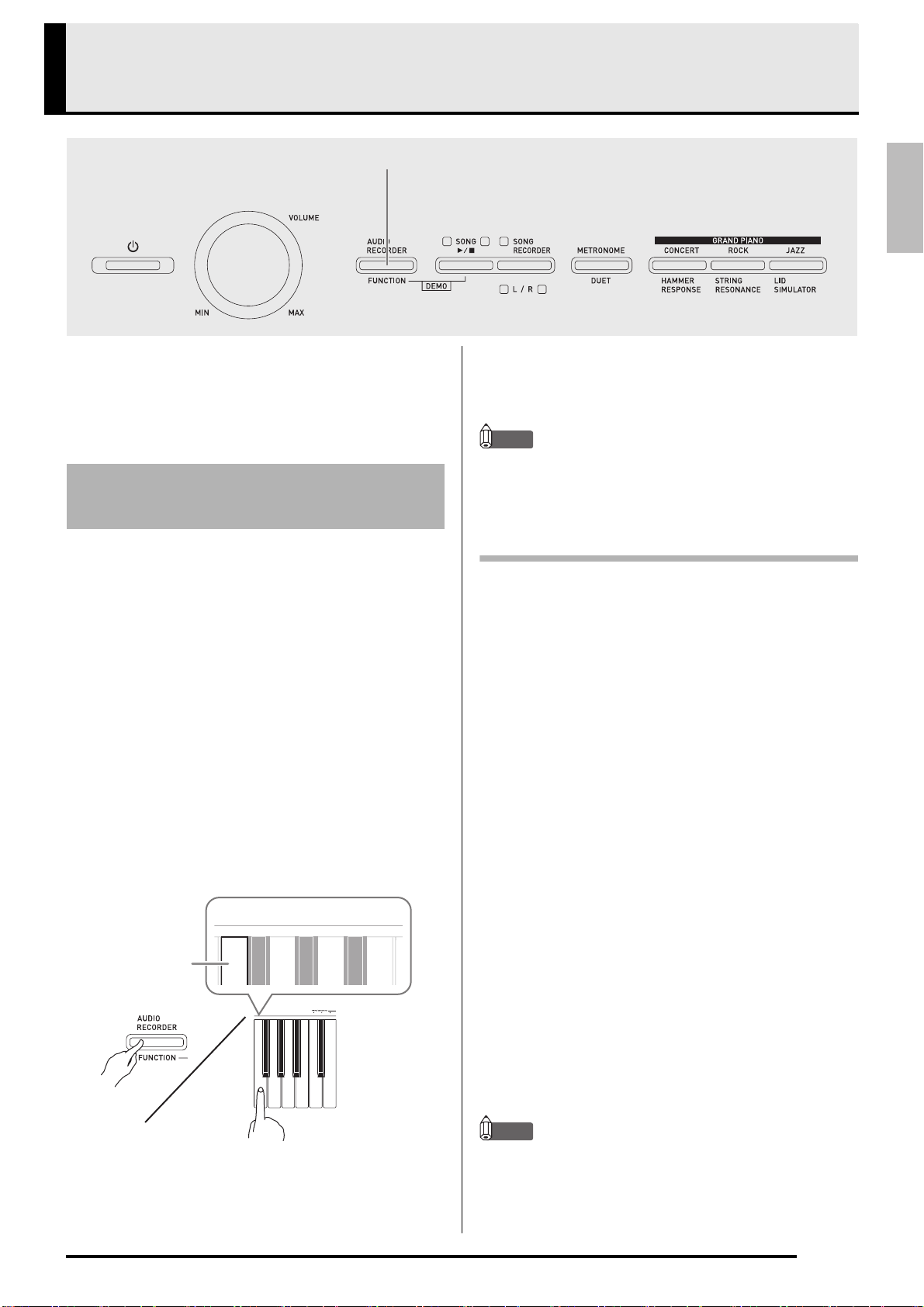
Example: To lower the transpose setting by one
semitone
4.
Release the FUNCTION button to complete
the setting procedure.
NOTE
• You can configure the Digital Piano so no operation
tone sounds in step 3. For details, see “
bt
Operation
tone” under “Parameter List” on pages E-23 - E-25.
Keyboard Setting Operation Types
There are four types of operations that you can perform
while configuring settings with the keyboard keys:
Type A, Type B, Type C, and Type D.
Example: Pressing the STRINGS keyboard key to select the
STRINGS 1 tone
• Holding down a key raises or lowers the setting at
high speed.
• To return to the initial default setting, press both
keys at the same time.
Example: To enter “20”, press keys 2, 0.
• When you press a key, the Digital Piano will beep to
let you know which setting is selected.
• A long beep indicates that the applicable setting is
turned off.
Example: While chorus is turned off, pressing the Chorus
keyboard key twice will cause the digital piano
to beep twice, which indicates that the Medium
Chorus setting is selected.
NOTE
• You can find out what operation type applies to each
setting by checking the “Operation Type” in the
“Parameter List” on pages E-23 - E-25.
FUNCTION
To configure settings with the
keyboard
Transpose T key
Type A: Direct input
Type B: Raising or lowering a setting using the + and
– or T and S keyboard keys
Type C: Value input using the numeric keys (0 to 9)
Type D: Toggling or cycling through settings by
pressing a keyboard key
PXA800_e.book 21 ページ 2013年6月18日 火曜日 午後6時18分
E-22
Configuring Settings with the Keyboard
• The numbers 1 through cq correspond to the same numbers in the “Parameter List” on pages E-23 - E-25.
Keyboard Keys Used for Configuring Settings
−
−
+
OFF
/
ON
OFF
/
ON
OFF
/
ON
OFF
/
ON
[Left keyboard]
[Overall]
[Center keyboard]
[Right keyboard]
6
Song select/Temperament select/
Base note select
bm
Song volume
bo
Brilliance
bn
Metronome volume
2
Base note
3
Keyboard key (Transpose)
4
Keyboard tuning (Tuning)
7
Hall simulator
8
Tone selection
bp
USB device mode
bq
Layer balance
bl
Touch response
br
Send channel
bs
Local control
bt
Operation tone
ck
Back up
cl
Operation lock
5
Octave shift
bk
Metronome beat
9
Chorus
cm
USB flash drive mode
cn
Format
co
Save
cp
Load
cq
Delete
1
Temperament
PXA800_e.book 22 ページ 2013年6月18日 火曜日 午後6時18分
Configuring Settings with the Keyboard
E-23
English
■ Tones
■ Song/Metronome
Parameter List
Parameter Settings
Operation
Type
(page E-21)
Description Remarks
7
Hall simulator Off (OFF), N.Y.
CLUB to BRITISH
STADIUM
Default:
STANDARD
HALL
A Specifies the hall simulator of
notes. (page E-8)
8
Tone selection See page E-5.
Default: GRAND
PIANO
(CONCERT)
A Assigns a tone to the keyboard.
(page E-5)
9
Chorus Off (OFF), 1 to 4
Default: 2
D Controls the breadth of notes.
(page E-8)
bo
Brilliance –3 to 0 to 3
Default: 0
B Specifies the brilliance of notes.
Pressing [+] makes notes brighter
and harder. Pressing [–] makes
notes mellower and softer.
• To return the setting to its initial default (0),
press [+] and [–] at the same time.
bq
Layer balance –24 to 0 to 24
Default: 0
B Specifies the volume balance
between the main tone and the
layered tone. (page E-8)
Parameter Settings
Operation
Type
(page E-21)
Description Remarks
6
Song select
(SONG SELECT)
01 to 70
Default: 01
B (+/–)
C (0 to 9)
Selects a Music Library tune.
(page E-13)
• Always enter two-digits when using the
number keys (0 to 9) to input a value.
Example: To input 8, enter 0, 8 (leading
zero required).
• This setting cannot be changed while
recording.
bm
Song volume 00 to 42
Default: 42
B Sets the volume level of Music
Library playback.
• This setting cannot be changed while
recording.
bk
Metronome beat
(METRONOME
BEAT)
0, 2, 3, 4, 5, 6
Default: 4
A Specifies the metronome beat.
(page E-10)
• The metronome beat setting cannot be
changed while playback of a Music Library
tune is in progress.
bn
Metronome
volume
00 to 42
Default: 36
B Specifies the metronome volume.
(page E-10)
PXA800_e.book 23 ページ 2013年6月18日 火曜日 午後6時18分
E-24
Configuring Settings with the Keyboard
■ Keyboard
■ MIDI and Other Settings
Parameter Settings
Operation Type
(page E-21)
Description Remarks
3
Keyboard key
(Transpose)
–12 to 0 to 12
Default: 0
B Raises or lowers the tuning of
the Digital Piano in semitone
steps.
• The transpose setting cannot be
configured while Music Library
playback is in progress or while in
the Duet Mode.
• Raising the key of the Digital Piano
can cause notes the highest part of
the range to become distorted.
4
Keyboard tuning
(Tuning)
415.5Hz to 440.0Hz
to 465.9Hz
Default: 440.0Hz
B Raises or lowers the overall
pitch of the Digital Piano in
0.1Hz steps from the standard
pitch of A4 = 440.0Hz.
• The pitch setting cannot be changed
while playback of a Music Library
tune is in progress.
5
Octave shift –2 to 0 to 2
Default: 0
B Change the range of the
keyboard in octave units.
• You can configure octave shift
settings for the main tone part and
layered tone part.
• You cannot configure octave shift
settings for split tone parts.
1
6
Temperament
Temperament
select
Temperament:
00 to 16
Default: 00
(Equal Temperament)
B (+/–)
C (0 to 9)
You can change the scale
(tuning system) of the
keyboard from standard equal
temperament to another tuning
that is more suitable for
playing Indian music, Arabic
music, classical pieces, etc.
<Temperaments>
00: Equal / 01: Pure Major /
02: Pure Minor / 03: Pythagorean /
04: Kirnberger 3 / 05: Werckmeister /
06: Mean-Tone / 07: Rast / 08: Bayati /
09: Hijaz / 10: Saba / 11: Dashti /
12: Chahargah / 13: Segah /
14: Gurjari Todi / 15: Chandrakauns /
16: Charukeshi
2
6
Temperament
Base note
Temperament
Base note select
Base note:
–, +, 0 to 9 (C to B)
Default
: C
A Specifies the base note of the
currently selected
temperament.
• In the case of equal
temperament, changing the
base note will not affect the
scale.
<Base notes>
–: C / +: C
#
/ 0: D / 1: E
b
/ 2: E / 3: F /
4: F
#
/ 5: G / 6: A
b
/ 7: A / 8: B
b
/ 9: B
bl
Touch response
(TOUCH
RESPONSE)
Off (OFF), 1 to 3
Default: 2
A Specifies the relative touch of
the keyboard keys.
Setting a smaller value causes
lighter touch to produce more
powerful sound.
Parameter Settings
Operation
Type
(page E-21)
Description Remarks
bp
USB device
mode
MIDI, Storage
Default: MIDI
–
The Digital Piano enters the MIDI
mode automatically when it is
connected to a computer by a USB
cable. Select storage when saving
Recorder memory song data to a
computer or when loading
computer song data to Digital
Piano memory. (page E-36)
• While Storage is selected for this setting, the
GRAND PIANO (CONCERT, ROCK, and
JAZZ) button lamps flash, and all other
lamps are unlit.
• All Digital Piano operations are disabled at
this time.
• Each press of the USB device mode
keyboard key toggles between the MIDI
and storage modes.
br
Send channel 01 to 16
Default: 01
B Specifies one of the MIDI channels
(1 through 16) as the Send channel,
which is used for sending MIDI
messages to an external device.
bs
Local control Off, On
Default: On
D Selecting “Off” for Local control
cuts off the Digital Piano’s sound
source, so no sound is produced by
the Digital Piano when keys are
pressed.
• The local control setting cannot be changed
while playback of a Music Library tune is in
progress.
PXA800_e.book 24 ページ 2013年6月18日 火曜日 午後6時18分
Configuring Settings with the Keyboard
E-25
English
bt
Operation tone Off, On
Default: On
D Selecting “Off” disables sounding
of the operation tone whenever a
keyboard key is pressed while the
FUNCTION or METRONOME is
depressed.
• This setting is retained even when the
Digital Piano is turned off.
• The operation tone setting cannot be
changed while Music Library playback is in
progress, while the metronome is
sounding, and during recording.
ck
Back up Off, On
Default: Off
D When “On” is selected for this
setting, the Digital Piano will
remember its current settings
*1
,
and restore them when it is turned
on again.
When “Off” is selected, settings
*2
are reset to their initial defaults
whenever the Digital Piano is
turned on.
*1
The following settings are not
remembered.
•Duet Mode
•Tune LR (part)
•Local control
*2
Except for the operation tone
on/off setting.
• The back up setting cannot be changed
while Music Library playback is in
progress, while the metronome is
sounding, in the Duet Mode, and during
recording.
cl
Operation lock Off, On
Default: Off
D Selecting “On” for this setting locks
the Digital Piano’s buttons (except
for the P (POWER) button and the
buttons required for unlock), so no
operation can be performed.
Turn on operation lock when you
want to protect against
unintentional button operations.
• The operation lock setting cannot be
changed while Music Library playback is in
progress, while the metronome is
sounding, and during recording.
cm
USB flash drive
mode
Off, On
Default: Off
–
USB flash drive mode.
cn
Format Off, On
Default: Off
–
Formats a USB flash drive.
co
Save Off, On
Default: Off
–
Stores data to a USB flash drive.
cp
Load Off, On
Default: Off
–
Loads data from a USB flash drive to Digital Piano song memory.
cq
Delete Off, On
Default: Off
–
Deletes USB flash drive data.
Parameter Settings
Operation
Type
(page E-21)
Description Remarks
PXA800_e.book 25 ページ 2013年6月18日 火曜日 午後6時18分
E-26
USB Flash Drive
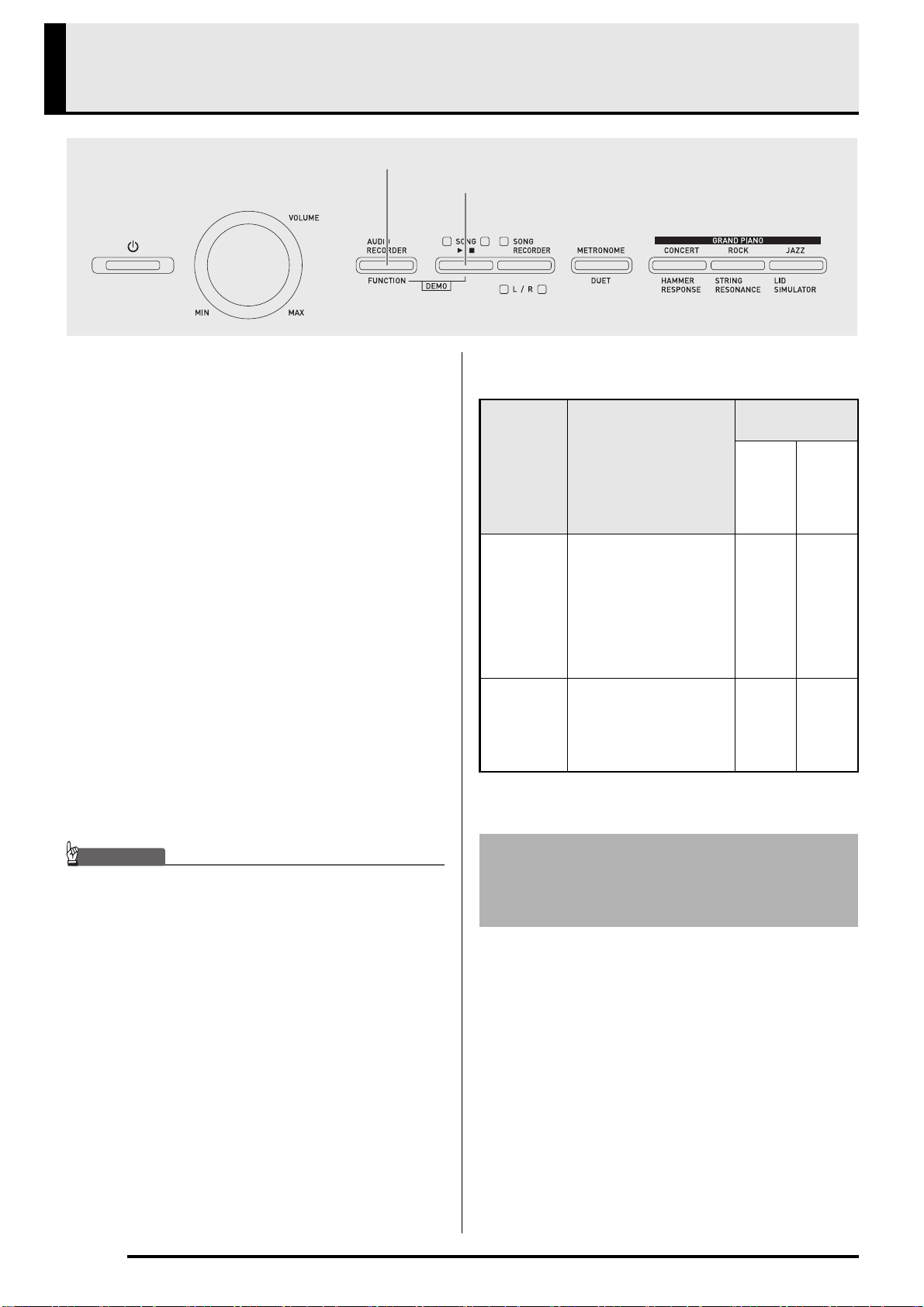
Your Digital Piano supports the following USB flash
drive operations.
z USB flash drive formatting
z Data storage to a USB flash drive
z USB flash drive data loading to Digital Piano
memory
z Delete data from a USB flash drive
z Easy play back of song data from a USB flash drive
■ Supported USB Flash Drives
Capacity: 32GB or less recommended
IMPORTANT!
• Operation of the above type of USB flash drive has
been confirmed, but this does not guarantee
operation.
• Use a FAT (FAT32) format USB flash drive.
• You may not be able to use a USB flash drive that is
recognized as multiple drives on your computer.
• A USB flash drive that is recognized as a CD-ROM
on your computer is not supported.
• A USB flash drive with an anti-virus function and/or
security functions is not supported.
■ Save and Load Data Formats and Capacities
* Can be converted to a standard MIDI file (SMF
format 0, file name extension .MID) and saved.
Performing a record operation with the Digital Piano’s
audio recorder creates a folder named AUDIO on the
USB flash drive. WAV files are stored in the AUDIO
folder, automatically assigning them names from
TAKE01.WAV to TAKE99.WAV. You also can connect
a USB flash drive to a computer and change the names
of audio data (WAV) files to the format
“TAKEXX.WAV”*, and move them to the AUDIO
folder. Then you will be able to play them back on the
Digital Piano.
* XX = 01 to 99
SONG a
FUNCTION
• Song data recorded with the Digital Piano’s song
recorder is on a USB flash drive as MIDI files
(SMF format 0).
• Standard audio data from a computer (WAV files)
can also be stored on a USB flash drive and
played back on the Digital Piano.
• Digital Piano play can be recorded directly to a
USB flash drive. For details, see “Recording to a
USB Flash Drive (Audio Recorder)” (page E-18).
• MIDI files and CASIO format files stored on a
USB flash drive can be loaded into the Digital
Piano’s Music Library (61 to 70).
Data Type
Description
(File Name Extension)
Supported
Operations
Save to
USB
flash
drive
Load
from
USB
flash
drive
User songs
(page E-36)
One of the following two
types of music data
1. CASIO format data
(CM2)
2. Standard MIDI files
(MID)
SMF Format 0 or
Format 1
– O
Songs
recorded
with song
recorder
(page E-15)
Song data recorded on
this Digital Piano (MID)
O* –
Storing Standard Audio Data
(WAV Files) to a USB Flash
Drive
PXA800_e.book 26 ページ 2013年6月18日 火曜日 午後6時18分
English
USB Flash Drive
E-27
USB Flash Drive and USB Flash Drive
Port Handling Precautions
IMPORTANT!
• Be sure to observe the precautions provided in the
documentation that comes with the USB flash drive.
• Avoid using a USB flash drive under the following
conditions. Such conditions can corrupt data stored
on the USB flash drive.
• Areas subjected to high temperature, high
humidity, or corrosive gas
• Areas subjected to strong electrostatic charge and
digital noise
• Never remove the USB flash drive while data is
being written to or loaded from it. Doing so can
corrupt the data on the USB flash drive and damage
the USB flash drive port.
• Never insert anything besides a USB flash drive into
the USB flash drive port. Doing so creates the risk of
malfunction.
• A USB flash drive can become warm after very long
use. This is normal and does not indicate
malfunction.
• Static electricity conducted to the USB flash drive
port from your hand or from a USB flash drive can
cause malfunction of the Digital Piano. If this
happens, turn the Digital Piano off and then back on
again.
IMPORTANT!
• Never plug any other device besides a USB flash
drive into the USB flash drive port.
• When you plug in a USB flash drive, the Digital
Piano initially needs to “mount” the USB flash drive
and prepare for data exchange. Note that Digital
Piano operations are momentarily disabled while a
USB flash drive mounting sequence is being
performed. The Digital Piano’s L/R lamps flash while
the mounting process is in progress. It may take up
to 10 or 20 seconds or even longer for a USB flash
drive to be mounted. Do not attempt to perform any
operation on the Digital Piano while a mounting
sequence is in progress (while L/R lamps are
flashing). A USB flash drive needs to be mounted
each time it is connected to the Digital Piano.
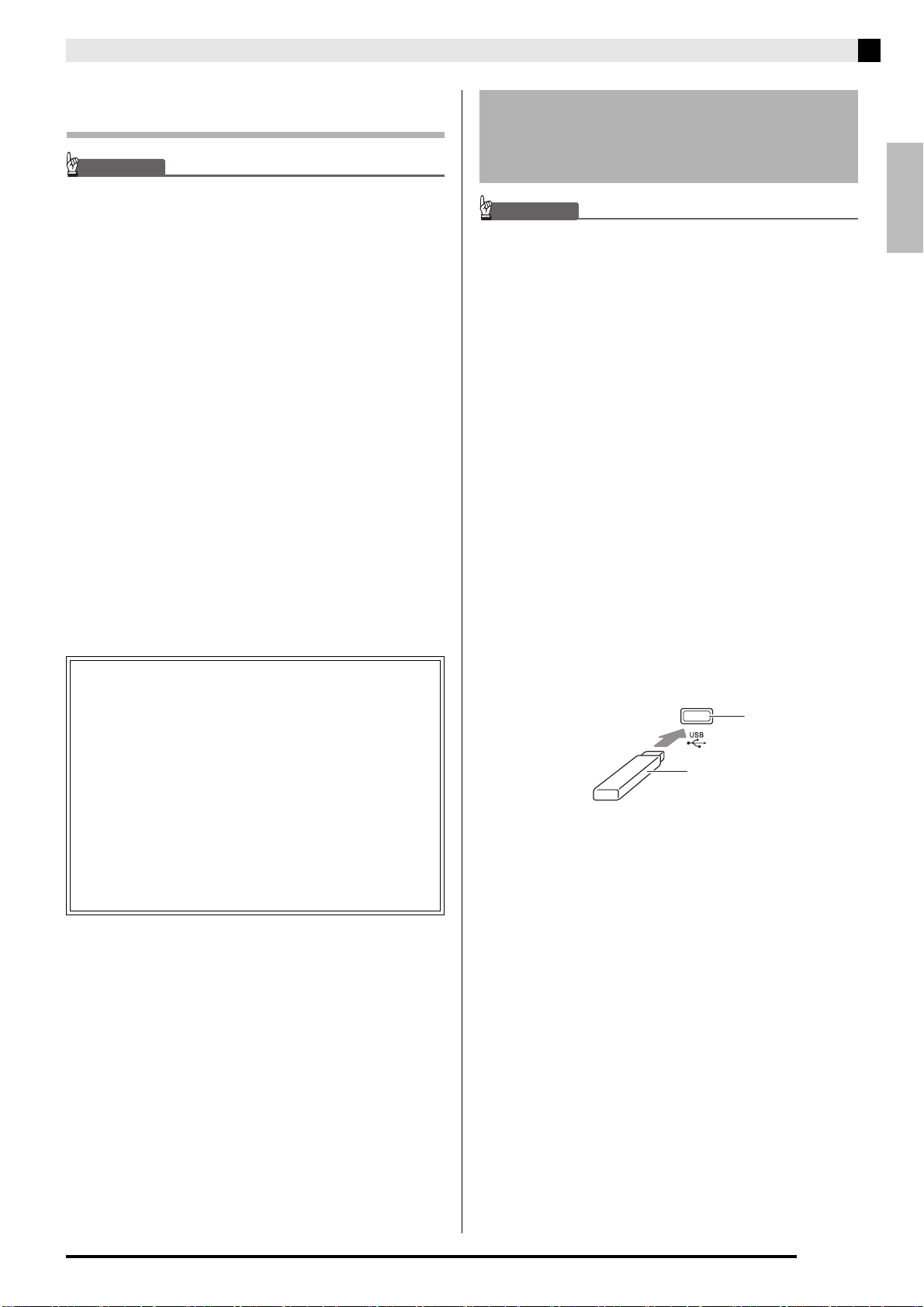
■ To insert a USB flash drive
1.
As shown in the illustration below, insert the
USB flash drive into the Digital Piano’s USB
flash drive port.
• Carefully push the USB flash drive in as far as it will
go. Do not use undue force when inserting the USB
flash drive.
■ To remove a USB flash drive
1.
Check to confirm that there is no data
exchange operation being performed, and
then pull the USB flash drive straight out.
Copyrights
You are allowed to use recordings for your own
personal use. Any reproduction of an audio or music
format file, without the permission of its copyright
holder, is strictly prohibited under copyright laws
and international treaties. Also, making such files
available on the Internet or distributing them to third
parties, regardless of whether such activities are
conducted with or without compensation, is strictly
prohibited under copyright laws and international
treaties. CASIO COMPUTER CO., LTD. shall not be
held in any way liable for any use of this Digital
Piano that is illegal under copyright laws.
Connecting a USB Flash Drive
to and Detaching It from the
Digital Piano
USB flash drive
USB flash drive port
PXA800_e.book 27 ページ 2013年6月18日 火曜日 午後6時18分
E-28
USB Flash Drive
IMPORTANT!
• Be sure to format a USB flash drive on the Digital
Piano before using it for the first time.
• Before formatting a USB flash drive, make sure it
does not have any valuable data stored on it.
• The format operation performed by this Digital Piano
is a “quick format”. If you want to completely delete
all of the data in USB flash drive, format it on your
computer or some other device.
<Supported USB Flash Drives>
This Digital Piano supports USB flash drives formatted
to FAT32. If your USB flash drive is formatted to a
different file system, use the Windows format function
to reformat it to FAT32. Do not use quick format.
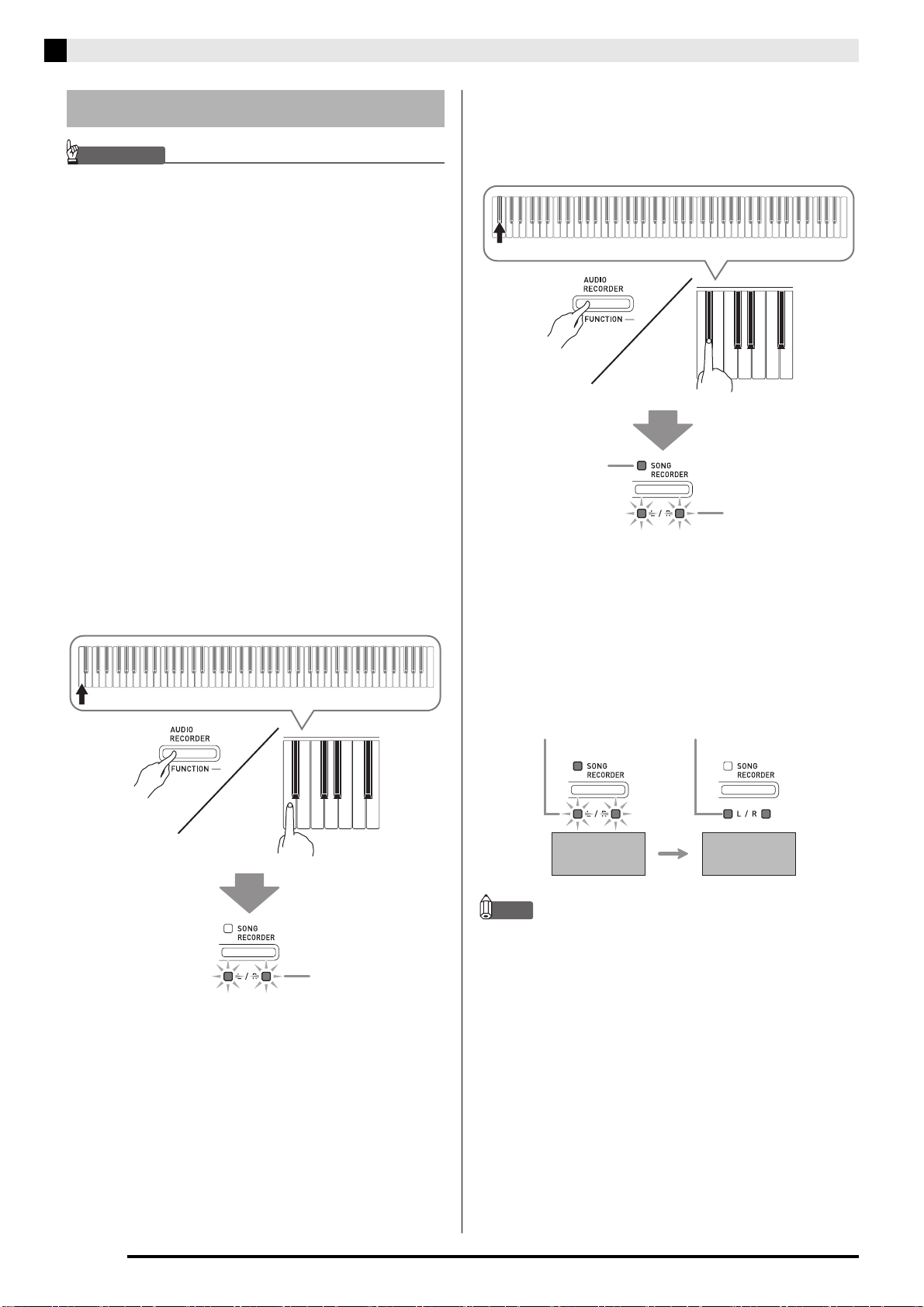
1.
Insert the USB flash drive you want to format
into the Digital Piano’s USB flash drive port.
2.
While holding down the FUNCTION button,
press the keyboard key that corresponds to
the USB flash drive mode.
• This will cause the L/R lamps to flash.
3.
While holding down the FUNCTION button,
press the format keyboard key.
• This will cause the SONG RECORDER button lamp
to light.
• To cancel the format operation, hold down the
FUNCTION button as you press the USB flash drive
mode key.
4.
Press the SONG a button.
• This starts formatting.
• After formatting is complete, the L/R lamps will light
and the Digital Piano will exit the formatting
operation.
NOTE
• Formatting a large-capacity USB flash drive can take
several minutes.
Formatting a USB Flash Drive
Flashing
Lit
Flashing
Flashing Lit
Formatting
started
Formatting
complete
PXA800_e.book 28 ページ 2013年6月18日 火曜日 午後6時18分
English
USB Flash Drive
E-29
Use the procedure below to save data you recorded on
the Digital Piano to a USB flash drive as a MIDI file
(SMF format 0).
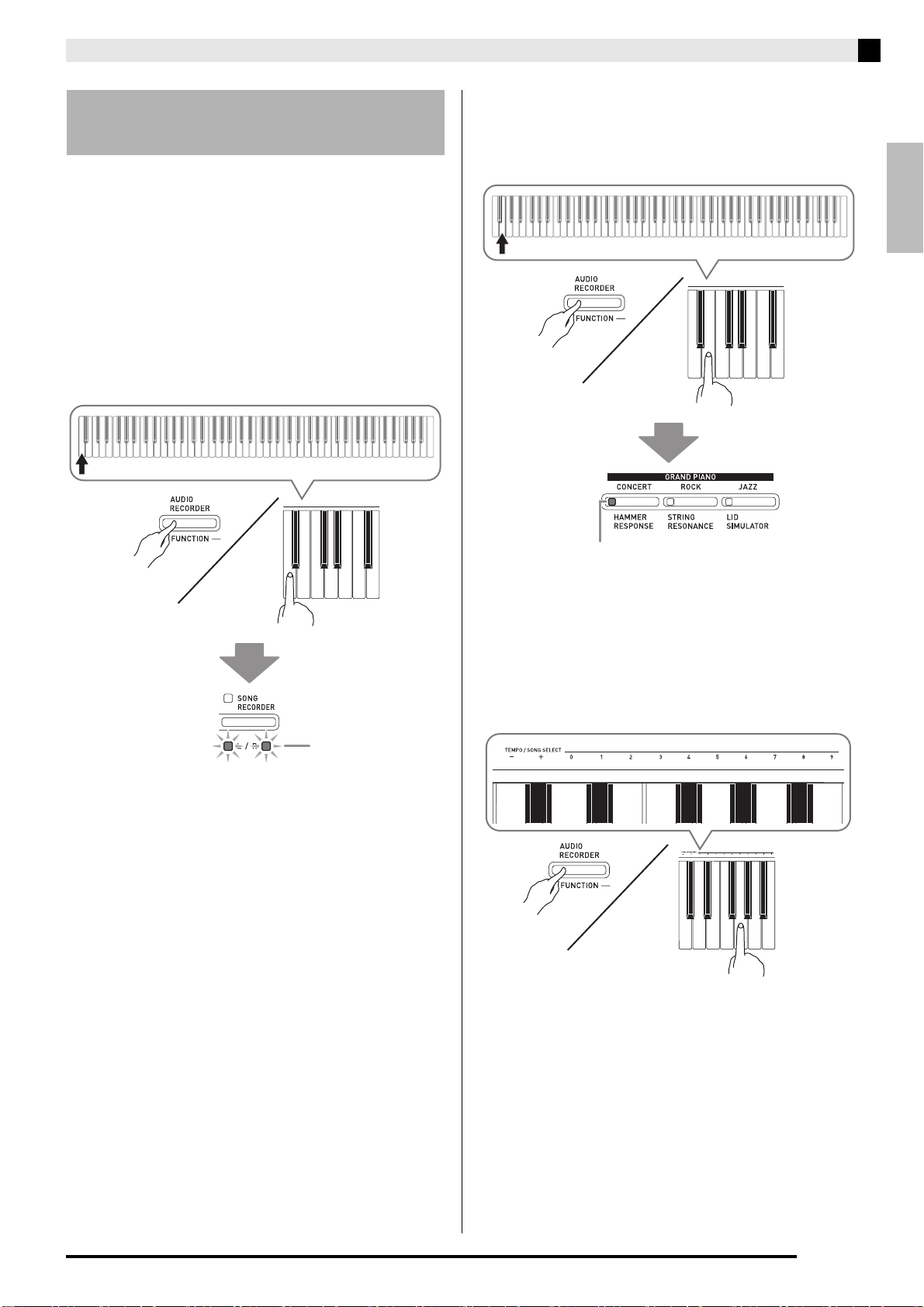
1.
Insert the USB flash drive into the Digital
Piano’s USB flash drive port.
2.
While holding down the FUNCTION button,
press the keyboard key that corresponds to
the USB flash drive mode.
• This will cause the L/R lamps to flash.
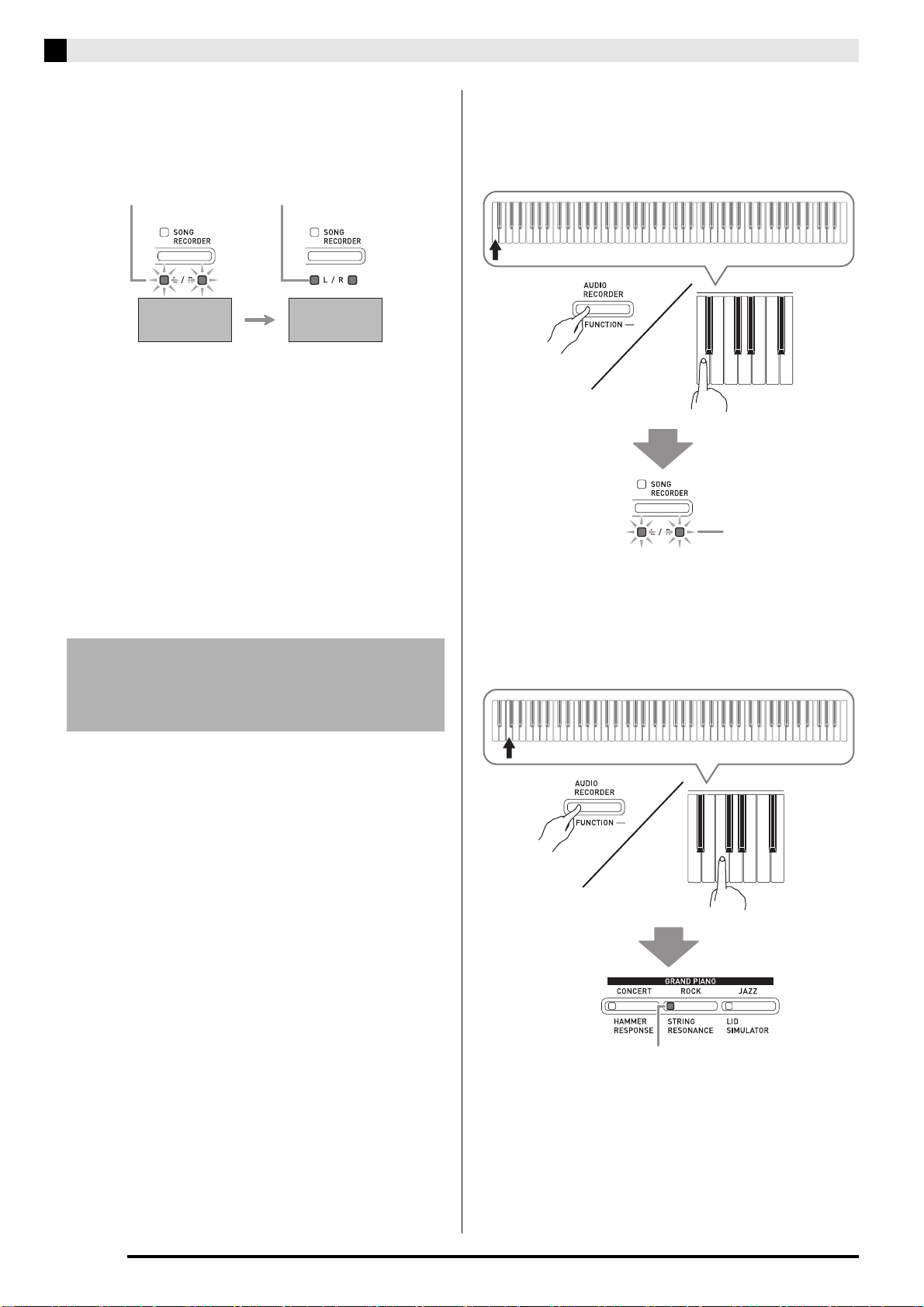
3.
While holding down the FUNCTION button,
press the save keyboard key.
• This will cause the GRAND PIANO (CONCERT)
button lamp to light.
• To exit the data save operation, hold down the
FUNCTION button as you press the USB flash drive
mode key.
4.
Hold down the FUNCTION button as you use
the SONG SELECT keyboard keys to select
a song number (61 to 70).
• The Digital Piano will emit a short beep if you specify
a correct song number, and a long beep if the song
number is not correct.
Saving a Recorded Song to a
USB Flash Drive
Flashing
Lit
PXA800_e.book 29 ページ 2013年6月18日 火曜日 午後6時18分
E-30
USB Flash Drive
5.
Press the SONG a button.
• This starts the data save operation.
• When saving is complete, the L/R lamps will light to
indicate that the USB flash drive mode has been
exited.
■ USB Flash Drive Data (File) Storage
Locations
The above procedure stores piano data in a folder
named MUSICLIB on the USB flash drive.
• The MUSICLIB folder is created automatically when
you format the USB flash drive on the Digital Piano
(page E-28).
• Note that files not in the MUSICLIB folder cannot be
loaded or deleted by this Digital Piano.
• The “MUSICLIB” folder contains sub-folders named
“61” through “70”. Data is saved in the sub-folder
whose name corresponds to the song number you
specify in step 4 of the procedure above.
You can use the procedure below to load user song
data (page E-36) from a USB flash drive to the Digital
Piano’s Music Library (song numbers 61 to 70). After
that, you can play back the user song or use it for
lesson play.
1.
On your computer, copy the file you want to
load to one of the numbered sub-folders (61
through 70) inside the “MUSICLIB” folder on
the USB flash drive.
• The number names of the sub-folders correspond to
the Digital Piano’s user song numbers (61 to 70).
2.
Insert the USB flash drive into the Digital
Piano’s USB flash drive port.
3.
While holding down the FUNCTION button,
press the keyboard key that corresponds to
the USB flash drive mode.
• This will cause the L/R lamps to flash.
4.
While holding down the FUNCTION button,
press the load keyboard key.
• This will cause the GRAND PIANO (ROCK) button
lamp to light.
• To cancel the load operation, hold down the
FUNCTION button as you press the USB flash drive
mode key.
Loading Song Data from a
USB Flash Drive into Digital
Piano Memory
Flashing Lit
Save started Save complete
Flashing
Lit
PXA800_e.book 30 ページ 2013年6月18日 火曜日 午後6時18分
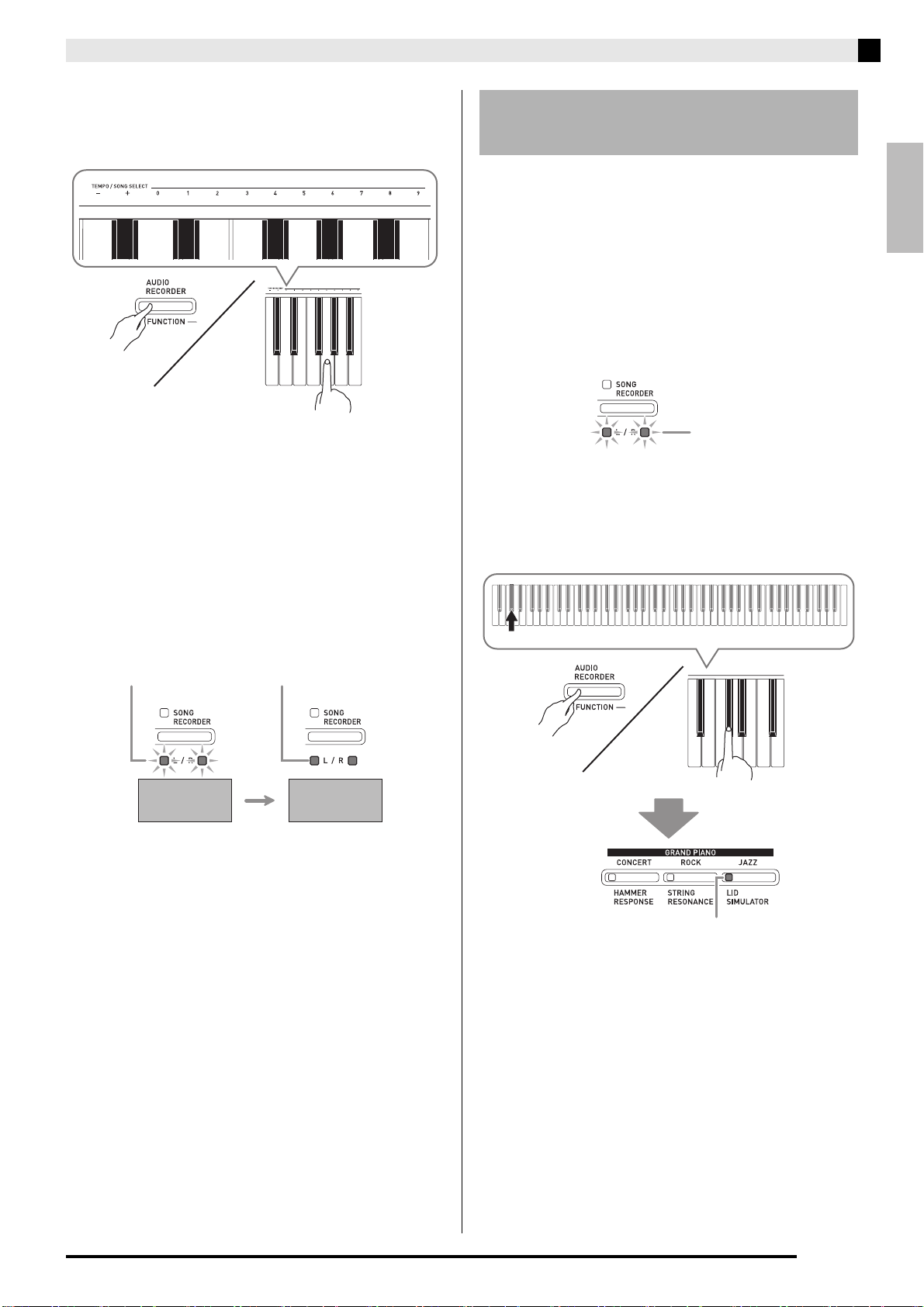
English
USB Flash Drive
E-31
5.
Hold down the FUNCTION button as you use
the SONG SELECT keyboard keys to select
a song number (61 to 70).
• The Digital Piano will emit a short beep if you specify
a correct song number, and a long beep if the song
number is not correct.
• Selecting song number 00 will batch load the 10 files
from 61 through 70 to the Digital Piano’s song
memory.
6.
Press the SONG a button.
• This starts loading of the data to the Music Library
user song area.
• When loading is complete, the L/R lamps will light to
indicate that the USB flash drive mode has been
exited.
You can use the procedure below to delete song data
stored in the “MUSICLIB” folder on a USB flash drive.
1.
Insert the USB flash drive into the Digital
Piano’s USB flash drive port.
2.
While holding down the FUNCTION button,
press the keyboard key that corresponds to
the USB flash drive mode.
• This will cause the L/R lamps to flash.
3.
While holding down the FUNCTION button,
press the delete keyboard key.
• This will cause the GRAND PIANO (JAZZ) button
lamp to light.
• To exit the data delete operation, hold down the
FUNCTION button as you press the USB flash drive
mode key.
Flashing Lit
Loading start Loading complete
Deleting Data from a USB
Flash Drive
Flashing
Lit
PXA800_e.book 31 ページ 2013年6月18日 火曜日 午後6時18分
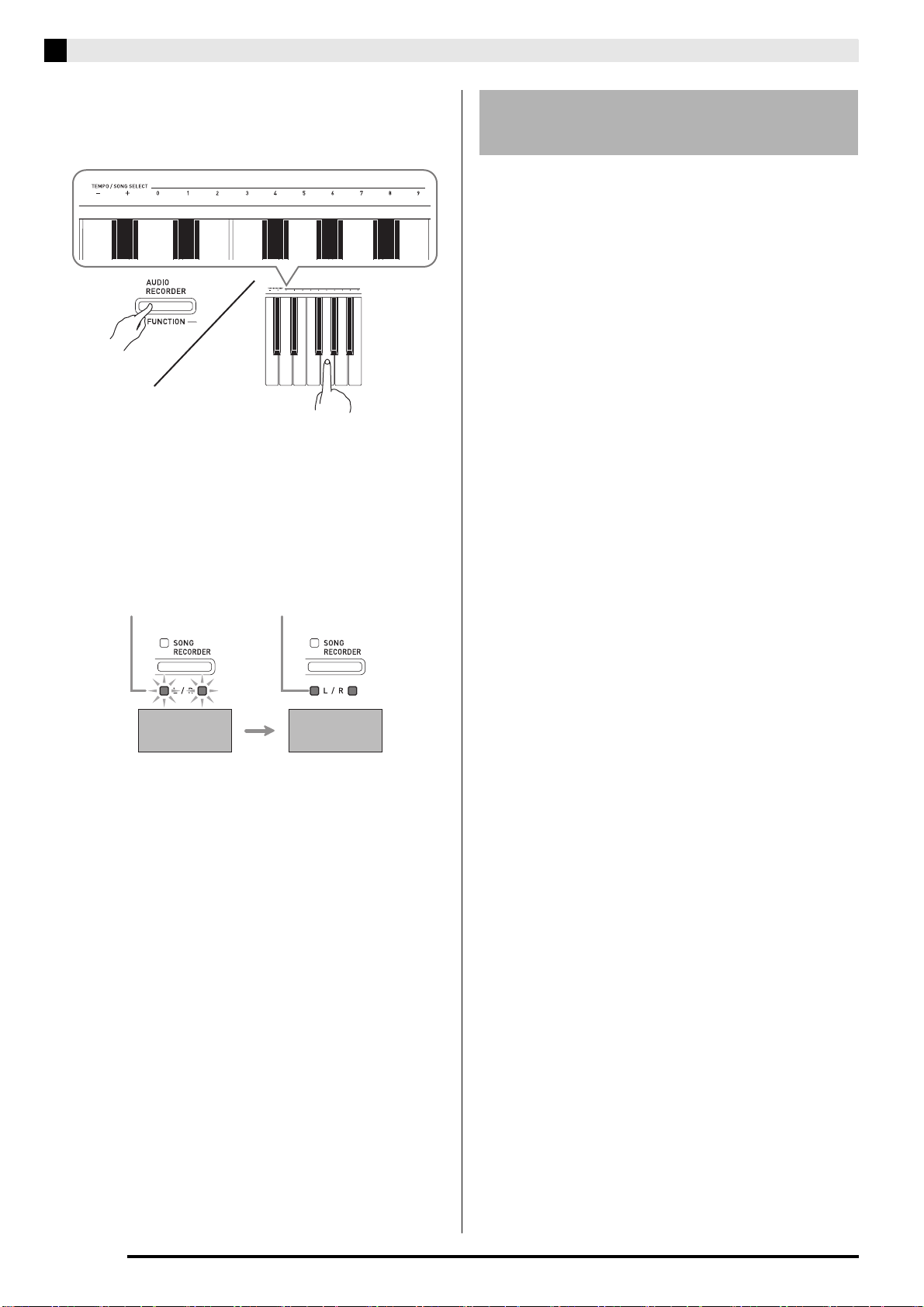
E-32
USB Flash Drive
4.
Hold down the FUNCTION button as you use
the SONG SELECT keyboard keys to select
a song number (61 to 70).
• The Digital Piano will emit a short beep if you specify
a correct song number, and a long beep if the song
number is not correct.
5.
Press the SONG a button.
• This starts deletion of the selected data.
• When deleting is complete, the L/R lamps will light
to indicate that the USB flash drive mode has been
exited.
You can use the procedure below to play back a user
song (page E-36) stored on a USB flash drive without
loading the song into Digital Piano Music Library
memory (song numbers 61 to 70).
1.
On your computer, copy the data you want to
play back on the Digital Piano into the
MUSICLIB folder on the USB flash drive.
• Of the song data in the MUSICLIB folder, you can
select any of the first 99 songs, sorted in file name
sequence, for playback.
2.
Insert the USB flash drive into the Digital
Piano’s USB flash drive port.
3.
While holding down the FUNCTION button,
press the keyboard key that corresponds to
the USB flash drive mode.
• This will cause the L/R lamps to flash.
4.
Press the SONG a button.
• This will start playback of the song data.
• Press the SONG a button again to stop playback.
5.
To change to another song, hold down the
FUNCTION button as you use the SONG
SELECT plus (+) and minus (–) keyboard
keys to select the song you want to hear.
• Pressing the plus (+) or minus (–) key scrolls through
song file names.
• You can use the value input keys (0 to 9) to enter a
specific two-digit song number.
Example: To select song 08, enter 0 and then 8.
6.
To exit the USB flash drive song playback
function, hold down the FUNCTION button as
you press the USB flash drive mode key.
Flashing Lit
Delete start Delete complete
Simple Play Back of a Song on
a USB Flash Drive
PXA800_e.book 32 ページ 2013年6月18日 火曜日 午後6時18分
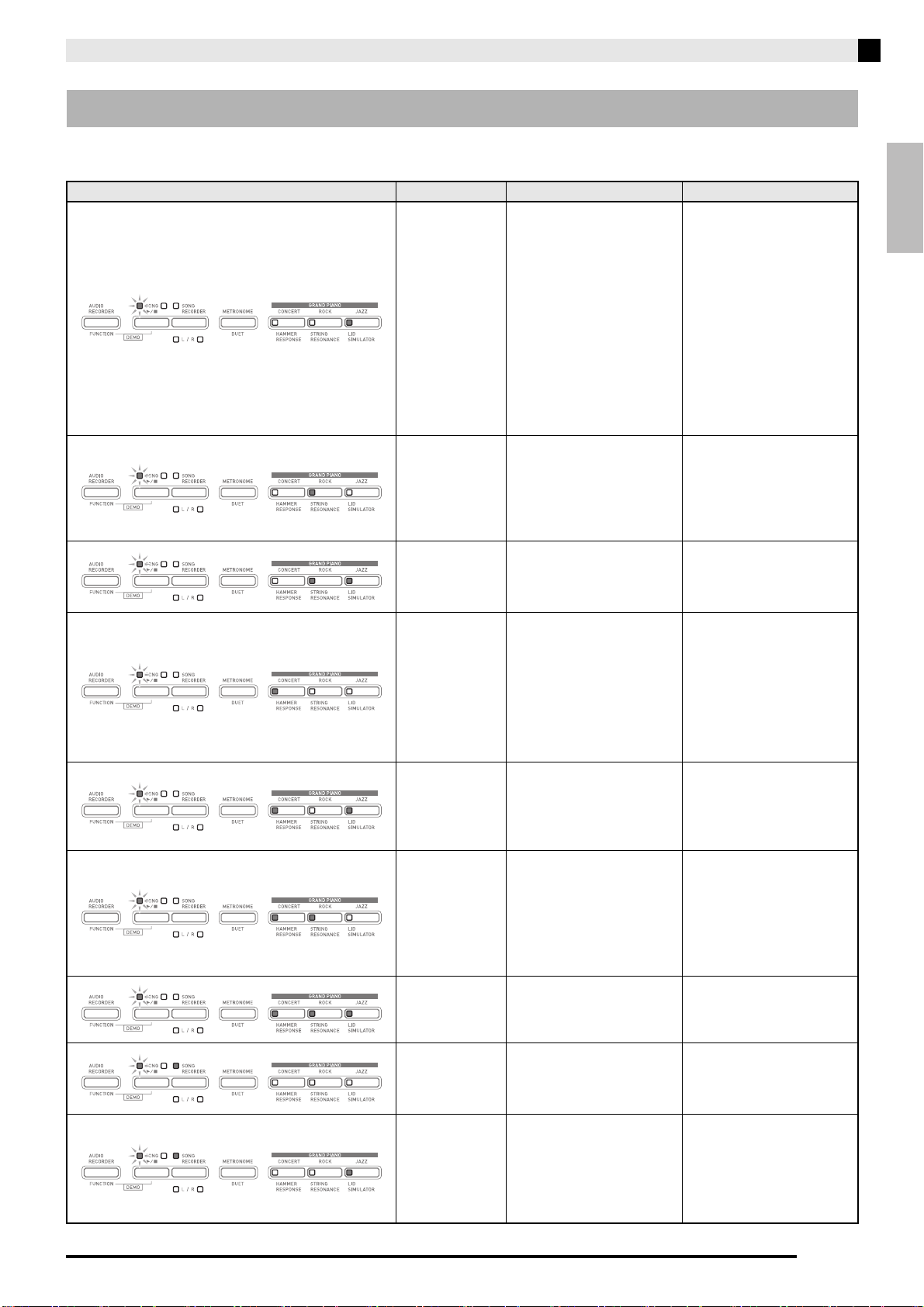
USB Flash Drive
E-33
English
The following shows how the lamps indicate the error type when an error occurs due to data transfer failure or
some other reason.
Error Indicators
Lamps Error Type Cause Action
No Media
1. The USB flash drive is
not connected to the
Digital Piano’s USB
flash drive port.
1. Correctly plug the USB
flash drive into the USB
flash drive port.
2. The USB flash drive
was removed while
some operation was in
progress.
2. Do not remove the USB
flash drive while any
operation is in
progress.
3. The USB flash drive is
write-protected.
3. Unprotect the USB
flash drive.
4. The USB flash drive has
anti-virus software.
4. Use a USB flash drive
that does not have anti-
virus software.
No File
There is no loadable file in
the “MUSICLIB” folder or
no playable file in the
“AUDIO” folder.
Move the file you want to
load into the “MUSICLIB”
folder or the file you want
to play into the “AUDIO”
folder (pages E-26 and
E-29).
No Data
You are attempting to save
data to a USB flash drive
when there is no data to
save.
Record something before
performing a save
operation.
Read Only
A read-only file with the
same name you are trying
to use is already stored on
USB flash drive.
• Change the name and
then save the new data.
• Remove the read-only
attribute from the existing
USB flash drive file and
overwrite it with the new
data.
• Use a different USB flash
drive.
Media Full
There is not enough space
available on the USB flash
drive.
Delete some of the files on
the USB flash drive to
make room for new data
(page E-31) or use a
different USB flash drive.
File Full
1. There are too many
files on the USB flash
drive.
1. Delete some of the files
on the USB flash drive
to make room for new
data.
2. There is a file named
TAKE99.WAV in the
“AUDIO” folder.
2. Delete the WAV file in
the “AUDIO” folder.
Not SMF01
You are attempting to play
back SMF Format 2 song
data.
This Digital Piano
supports playback of SMF
Format 0 or Format 1 only.
Size Over
The data on the USB flash
drive is too big to play.
This Digital Piano
supports playback of song
data files with a maximum
size of 65 kbytes.
Wrong Data
1. The USB flash drive
data is corrupted.
—
2. USB flash drive
contains data that is not
supported by this
Digital Piano.
PXA800_e.book 33 ページ 2013年6月18日 火曜日 午後6時18分
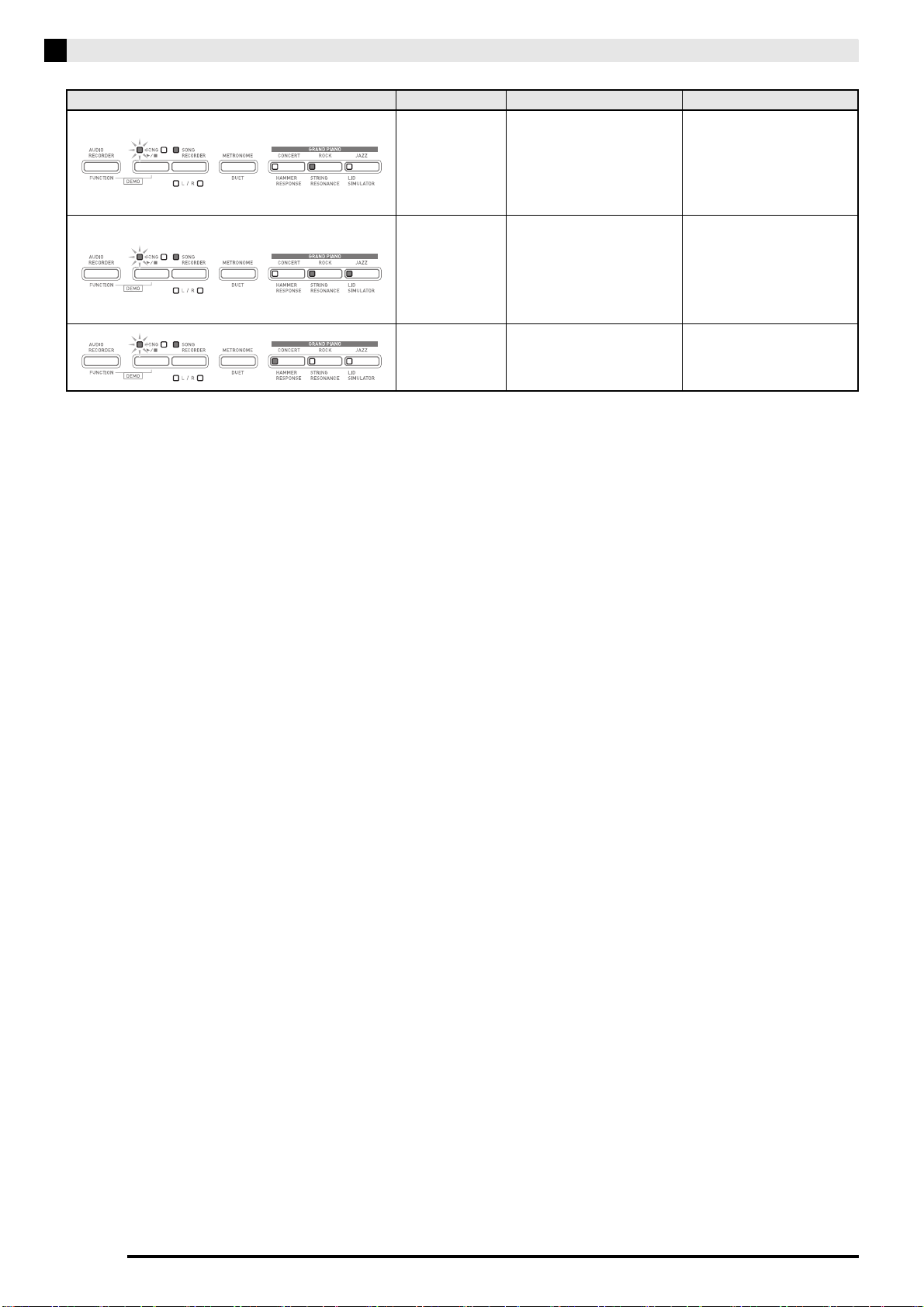
E-34
USB Flash Drive
Convert
There is not enough
Digital Piano memory
available to convert a song
recorder song to SMF data
and store it on the USB
flash drive.
Reduce the size of the song
data.
Example:
Delete any tracks that are
not required.
Format
1. The USB flash drive
format is not
compatible with this
Digital Piano.
1. Format the USB flash
drive on the Digital
Piano.
2. The USB flash drive is
corrupted.
2. Use a different USB
flash drive.
Media R/W
The USB flash drive is
corrupted.
Use a different USB flash
drive.
Lamps Error Type Cause Action
PXA800_e.book 34 ページ 2013年6月18日 火曜日 午後6時18分
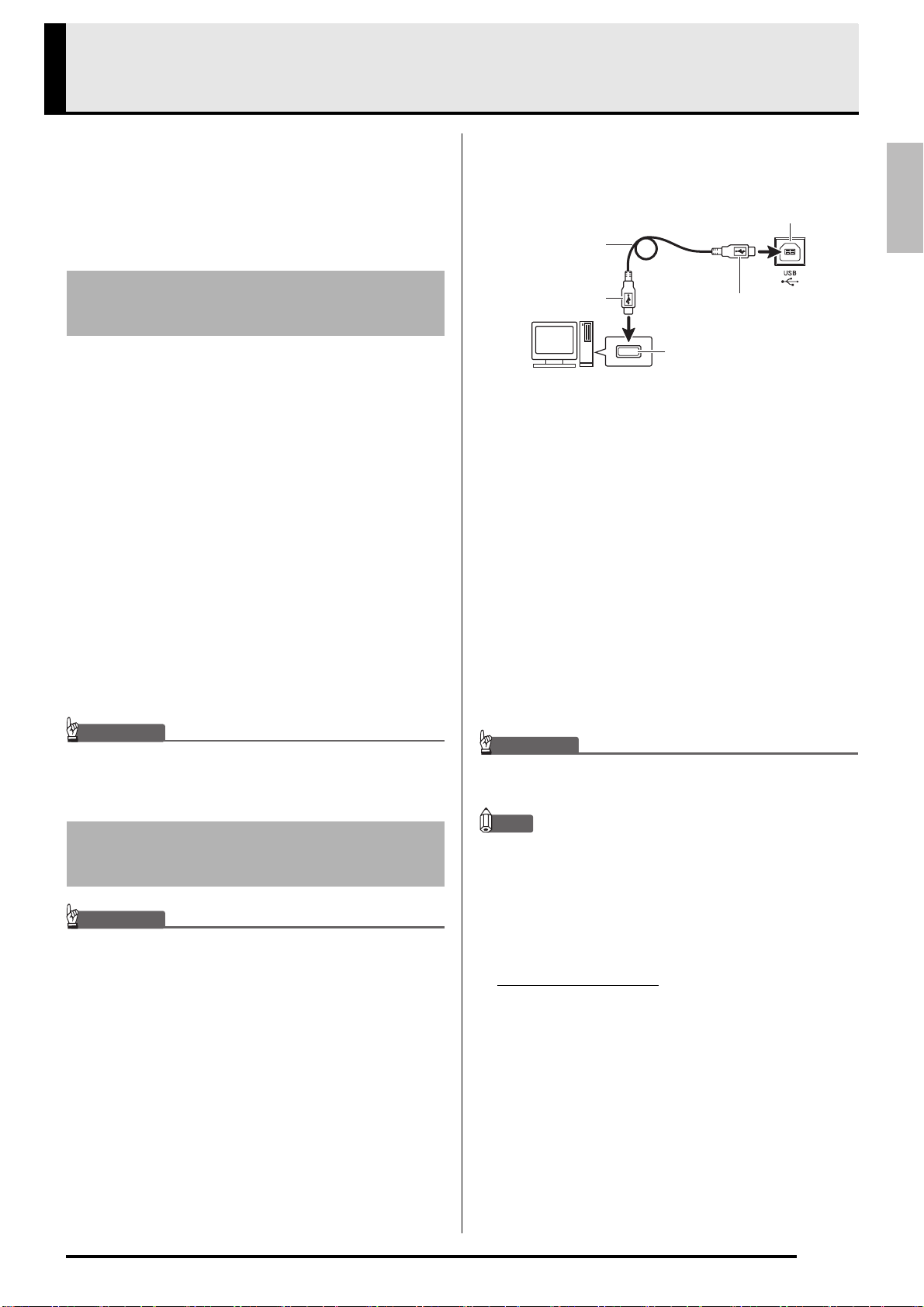
E-35
English
Connecting to a Computer
You can connect the Digital Piano to a computer and
exchange MIDI data between them. You can send play
data from the Digital Piano to commercially available
music software running on your computer, or you can
send MIDI data from your computer to the Digital
Piano for playback.
The following shows the minimum computer system
requirements for sending and receiving MIDI data.
Check to make sure that your computer complies with
these requirements before connecting the Digital Piano
to it.
z Operating System
Windows
®
XP (SP2 or later)
*1
Windows Vista
®
*2
Windows
®
7
*3
Windows
®
8
*4
Mac OS
®
X (10.3.9, 10.4.11, 10.5.X, 10.6.X, 10.7.X, 10.8.X)
z USB port
IMPORTANT!
• Never connect to a computer that does not conform
to the above requirements. Doing so can cause
problems with your computer.
IMPORTANT!
• Make sure you follow the steps of the procedure
below exactly. Connecting incorrectly can make data
send and receive impossible.
1.
Turn off the Digital Piano and then start up
your computer.
• Do not start up the music software on your computer
yet!
2.
After starting up your computer, use a
commercially available USB cable to connect
it to the Digital Piano.
3.
Turn on the Digital Piano.
• If this is the first time you are connecting the Digital
Piano to your computer, the driver software required
to send and receive data will be installed on your
computer automatically.
4.
Start up commercially available music
software on your computer.
5.
Configure the music software settings to
select one of the following as the MIDI device.
• For information about how to select the MIDI device,
see the user documentation that comes with the
music software you are using.
IMPORTANT!
• Be sure to turn on the Digital Piano first before
starting up your computer’s music software.
NOTE
• Once you are able to connect successfully, there is no
problem with leaving the USB cable connected when
you turn off your computer and/or Digital Piano.
• For detailed specifications and connections that
apply to MIDI data send and receive by this Digital
Piano, see the latest support information provided
by the website at the following URL.
http://world.casio.com/
Minimum Computer System
Requirements
*1: Windows XP Home Edition
Windows XP Professional (32-bit)
*2: Windows Vista (32-bit)
*3: Windows 7 (32-bit, 64-bit)
*4: Windows 8 (32-bit, 64-bit)
Connecting the Digital Piano
to Your Computer
CASIO USB-MIDI : For Windows Vista, Windows 7,
Windows 8, Mac OS X
USB Audio Device: For Windows XP
Computer USB port
A connector
Digital Piano USB port
B connector
USB cable
(A-B type)
PXA800_e.book 35 ページ 2013年6月18日 火曜日 午後6時18分
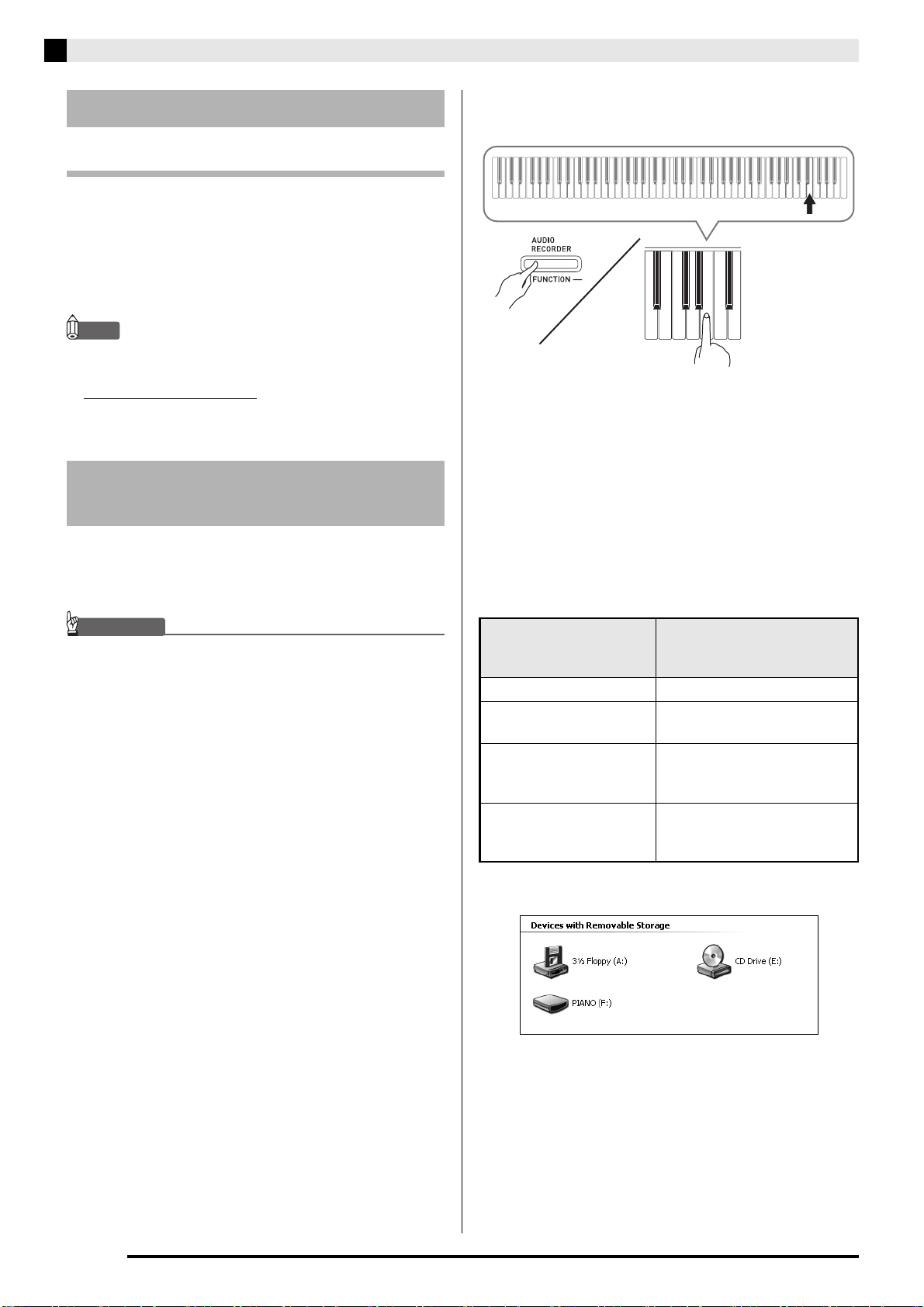
E-36
Connecting to a Computer
What is MIDI?
The letters MIDI stand for Musical Instrument Digital
Interface, which is the name of a worldwide standard
for digital signals and connectors that makes it possible
to exchange musical data between musical instruments
and computers (machines) produced by different
manufacturers.
NOTE
• For detailed information about MIDI
Implementation, visit the CASIO website at:
http://world.casio.com/
.
See “Send channel” and “Local control” on page E-24.
Use the procedures in this section to transfer Recorder
memory data to a computer for storage, and to load
songs to user song memory (Music Library 61 to 70).
IMPORTANT!
• Turning off the Digital Piano while data is being
saved or loaded can cause all data currently stored
in Digital Piano memory (recorded songs, etc.) to be
deleted. Take care so power is not turned off
accidentally during data save and load operations. If
data is deleted, it will take longer than normal for the
Digital Piano to power up the next time you turn it on
(page E-4).
1.
Perform steps 1 through 3 of the procedure
under “Connecting the Digital Piano to Your
Computer” on page E-35.
2.
Change the Digital Piano’s USB device mode
to storage.
• While holding down the FUNCTION button, press
the keyboard key that corresponds to the USB device
mode.
• After this setting is changed, the GRAND PIANO
(CONCERT, ROCK, and JAZZ) button lamps flash,
and all other lamps are unlit.
• See “USB device mode” on page E-24 for more
information.
3.
On your computer, perform the required
operation to display your computer’s storage
devices.
• The memory of this Digital Piano will appear as
“PIANO” under “Devices with Removable Storage”.
Using MIDI
Transferring Song Data with a
Computer
If your computer is
running this operating
system:
Do this:
Windows XP Double-click “My Computer”.
Windows Vista,
Windows 7
Double-click “Computer”.
Windows 8 Open any folder. On the
navigation window, click
“Computer”.
Mac OS Skip step 3 and double-click
“PIANO” on your Mac
desktop.
PXA800_e.book 36 ページ 2013年6月18日 火曜日 午後6時18分
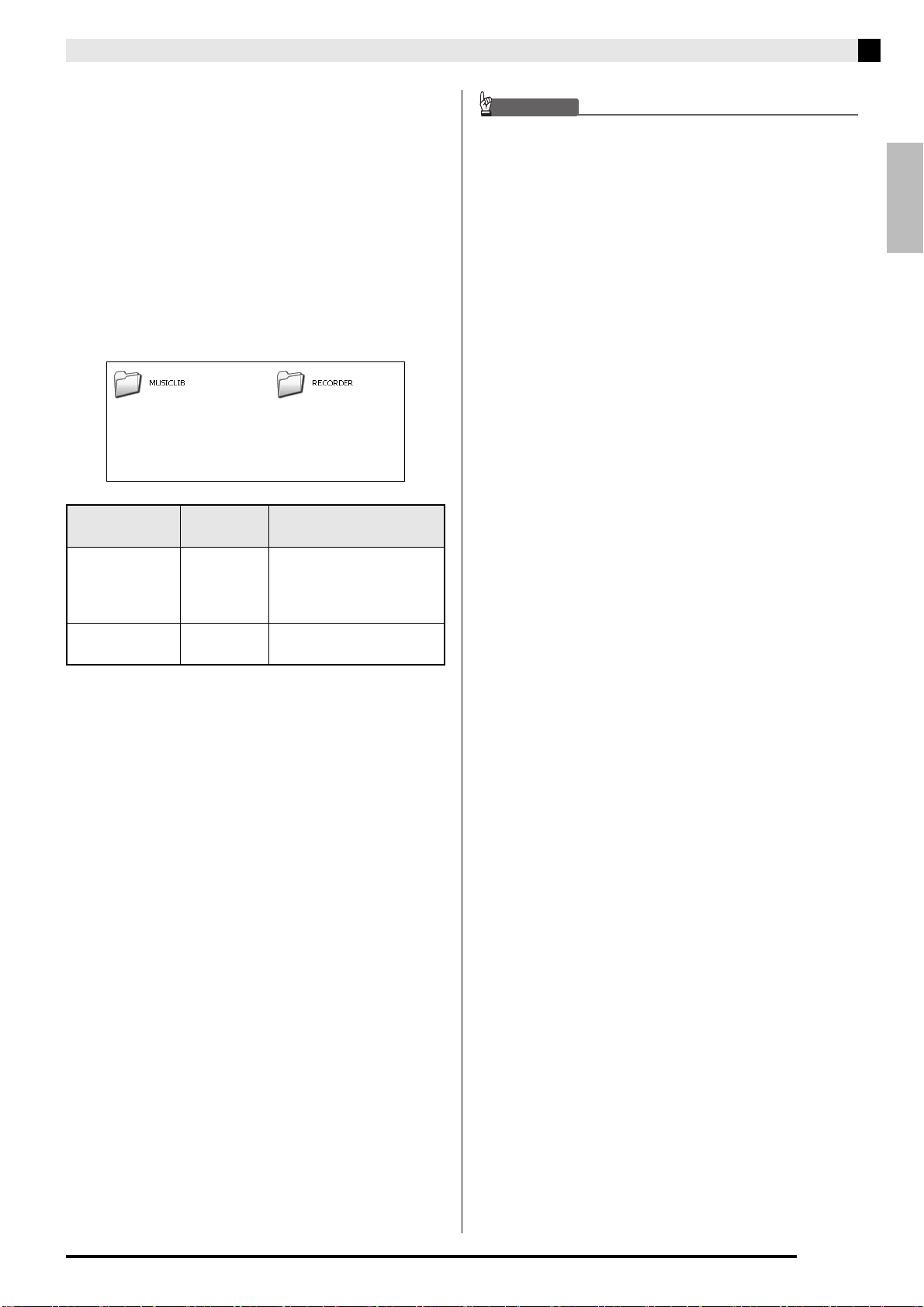
English
Connecting to a Computer
E-37
4.
Double-click “PIANO”.
• “PIANO” contains folders named “MUSICLIB” and
“RECORDER”.
• To transfer a user song to the Digital Piano from your
computer, open the “MUSICLIB” folder and put the
song into one of the numbered subfolders (61
through 70). Each subfolder corresponds to a Music
Library number: Subfolder 61 to Music Library 61,
and so on.
• The files in the “RECORDER” folder are songs that
have been recorded with the Digital Piano’s recorder
function. You can move files from the “RECORDER”
folder to another location on your computer, and you
can return recorded song files to the Digital Piano by
placing them into the “RECORDER” folder.
* Before starting a store or load operation, first check
the file name extension to ensure it matches the ones
shown in this column.
In the case of a song recorded with the Digital
Piano’s recorder function, change its file name to one
of the names and extensions shown in this column.
IMPORTANT!
• The initial default configuration for Windows XP,
Windows Vista, Windows 7, and Windows 8 is to
hide file name extensions. Perform one of the
following operations on your computer to show file
name extensions.
• To show file name extensions under Windows XP
• To show file name extensions under Windows Vista
or Windows 7
• To show file name extensions under Windows 8
■ To load a song into user song memory
(Music Library 61 to 70)
Data Type
Folder
Name
File Name and Extension
*
User songs MUSICLIB .MID: SMF format data
(format 0/1)
.CM2: CASIO original
format data
Recorder
memory data
RECORDER BIDREC01.CSR: CASIO
original format data
1. Open the folder you want.
2. On the [Tools] menu, click [Folder Options].
3. Click the [View] tab. In the [Advanced settings] list,
clear the check box next to [Hide extensions for
known file types].
4. Click [OK].
1. Open Folder Options by clicking the [Start] button,
clicking [Control Panel], clicking [Appearance and
Personalization], and then clicking [Folder Options].
2. Click the [View] tab. Under [Advanced settings]
clear the [Hide extensions for known file types]
check box.
3. Click [OK].
1. Open any folder.
2. Click the [View] menu and then select the [File name
extensions] check box in the [Show/hide] group.
1. Open the MUSICLIB folder.
2. Copy the song file (.MID or .CM2) to the number-
named subfolder (61 to 70) whose name matches the
number of the Music Library location to which you
want to load the song.
• If there are two files with the filename extensions
.MID and .CM2 in the MUSICLIB folder, only the
.MID data will be loaded into user song memory.
PXA800_e.book 37 ページ 2013年6月18日 火曜日 午後6時18分
E-38
Connecting to a Computer
■ To transfer Recorder memory data between
the Digital Piano and your computer
To transfer the Digital Piano’s current Recorder
memory data to your computer, copy the contents of
the RECORDER folder to your computer.
To return Recorder data you previously saved to your
computer back to Recorder memory, copy it back to the
RECORDER folder (and replace the current
RECORDER folder contents).
5.
After the file copy operation is complete,
return the USB device mode to MIDI.
• If you are using a Macintosh, perform the eject
operation (drag them to the trash can).
• While holding down the FUNCTION button, press
the applicable keyboard key. See “USB device mode”
on page E-24 for more information.
• Returning the USB device mode to MIDI will load the
contents of MUSICLIB into user song memory and
the contents of RECORDER into Recorder memory.
IMPORTANT!
• A data conversion error is indicated when both of the
SONG a button lamps, and the GRAND PIANO
(CONCERT, ROCK, and JAZZ) button lamps are all
lit, and all other lamps are unlit.
Copyrights
The rights of creators and copyright holders of music,
images, computer programs, databases, and other
data are protected by copyright laws. You are allowed
to reproduce such works for personal or non-
commercial use only. For any other purpose, all
reproduction (including data format conversion),
modification, transfer of reproductions, distribution
over a network, or any other use without permission
of the copyright holder exposes you to claims for
damages and criminal prosecution for copyright
infringement and violation of the author’s personal
rights. Be sure to reproduce and otherwise use
copyrighted works only in accordance with applicable
copyright laws.
PXA800_e.book 38 ページ 2013年6月18日 火曜日 午後6時18分
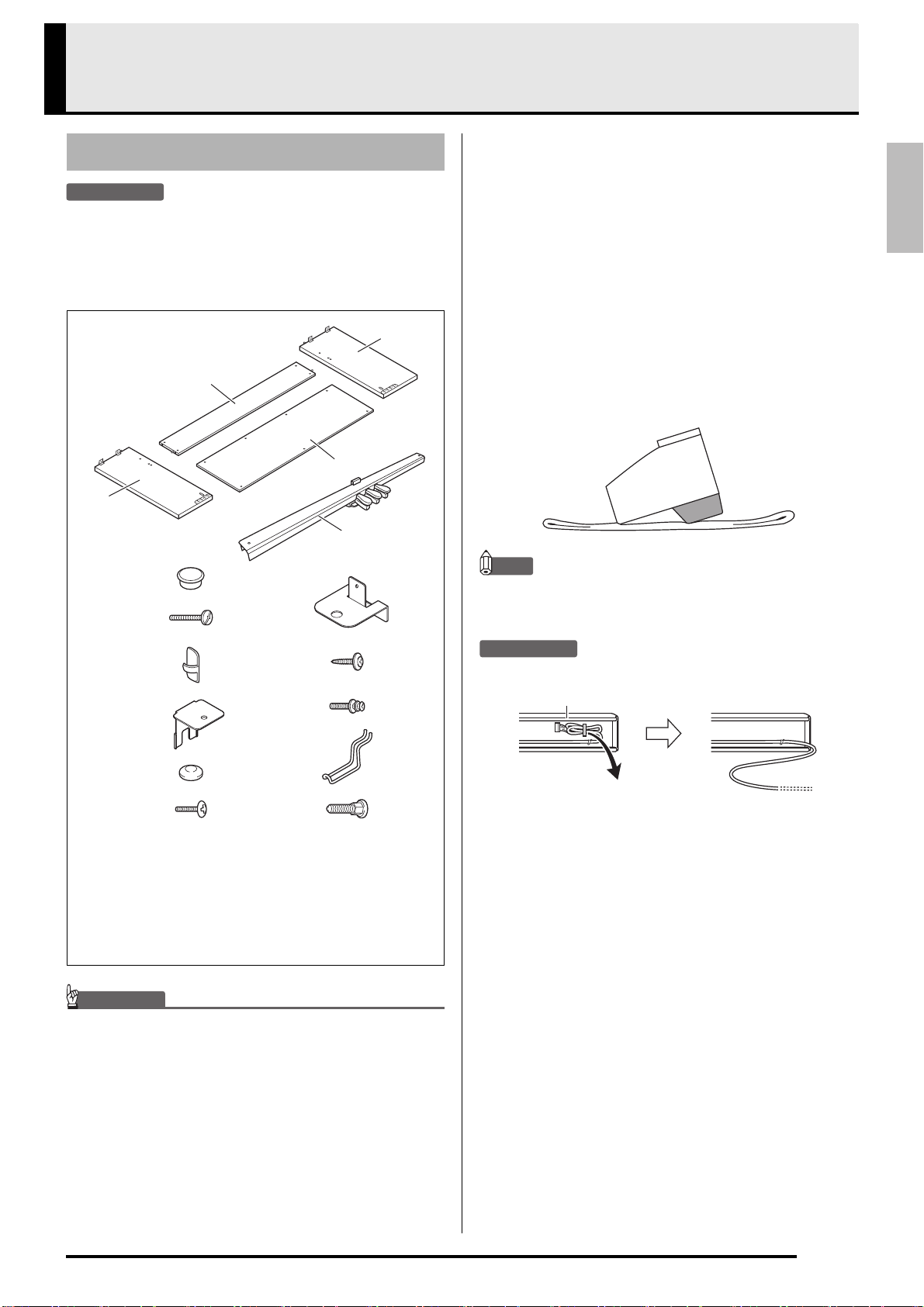
E-39
English
Getting Ready
PREPARATION
• Before starting assembly, check to make sure that
you have all the parts shown below.
• This stand does not include any of the tools required
for assembly. It is up to you to prepare a large
Philips head (+) screwdriver for assembly.
IMPORTANT!
• Do not use any screws other than those that come
with the stand. Doing so risks damage to the stand
and/or Digital Piano.
• You can find the screws in a plastic bag inside of the
packing material.
• If anything is missing or damaged, contact your local
CASIO service provider.
*CAUTION
• The stand should be assembled by two people
working together.
• The stand should be assembled on a flat surface.
• Do not remove the tape securing the keyboard cover
in place until assembly is complete. Removing the
tape can cause the keyboard cover to open and close
during assembly, creating the risk of personal injury
to your hands and fingers.
• Take care that you do not pinch your fingers
between parts when assembling them.
• When placing the Digital Piano on the floor, be sure
to place it on something soft (a blanket, cushion,
etc.). Do not place the Digital Piano directly onto the
floor.
NOTE
• Be sure to follow the proper procedure when
assembling the stand.
PREPARATION
• Pull the pedal unit cable out from the pedal unit
E
.
Assembling the Stand
A
Side panel ........................... ×1
B
Side panel ........................... ×1
C
Back board .......................... ×1
D
Screw caps.......................... ×6
E
Pedal unit ............................ ×1
F
Screws ................................ ×2
G
Clips .................................... ×2
H
Brackets .............................. ×2
I
Screw caps ......................... ×2
J
Screws ................................ ×4
K
Back board.......................... ×1
L
Brackets .............................. ×2
M
Screws ................................ ×4
N
Screws ................................ ×3
O
Headphones hook............... ×1
P
Screw .................................. ×1
A
B
D
H
I
F
G
E
C
J
L
M
N
O
P
K
E
PXA800_e.book 39 ページ 2013年6月18日 火曜日 午後6時18分
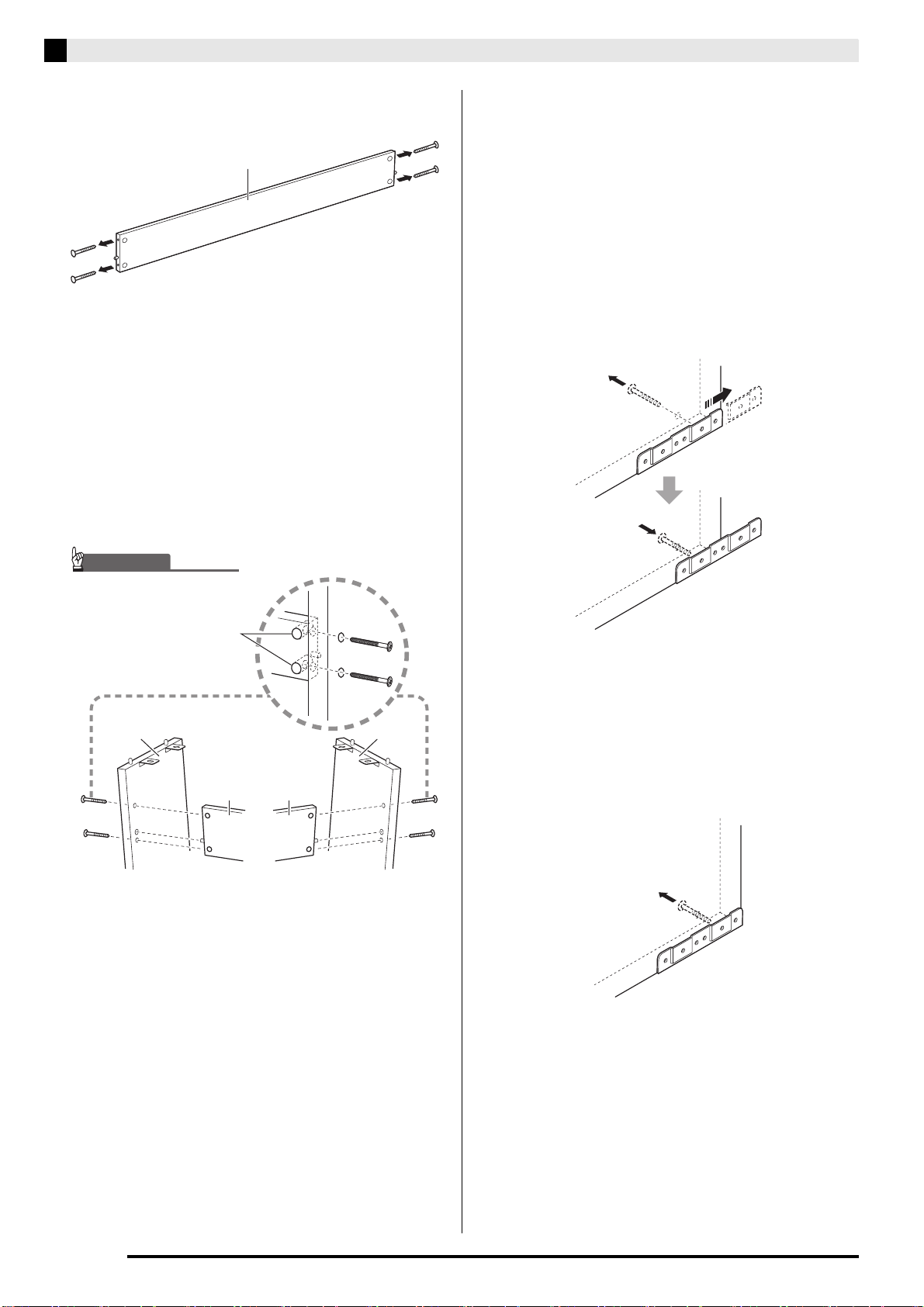
E-40
Getting Ready
1.
Remove the four screws (two on each end)
from back board
C
.
2.
Attach side panels
A
and
B
to back board
C. Secure side panels
A
and
B
to the back
board
C
using the screws you removed in
step 1.
• Attach the side panels so the side of the back board
C
where the joint connectors are inserted is facing
towards the back of the stand.
• If you have trouble inserting a screw into a joint
connector screw hole, use a screwdriver to adjust the
joint connector by rotating it.
3-1.
If you plan to locate the piano and stand
where it is not against a wall, you need to
extend the anti-tip brackets at the base of
side panels
A
and
B
. Remove the two
screws (one on the outside of each side
panel) that hold the brackets, and then slide
the brackets as shown in the illustration. After
extending the anti-tip brackets, reinstall the
screws that secure them in place, but do not
tighten the screws fully at this time.
[Inside of side panels]
3-2.
If you plan to locate the piano and stand
against a wall, loosen the two screws (one on
the outside of each side panel) that secure
the brackets. You do not need to remove the
screws in this case.
• In this case, you do not need to remove the screws.
Just loosen them.
C
CC
AB
IMPORTANT!
Joint connectors
• When inserting a screw into a
joint connector, keep your
finger on the joint connector
hole on the back of back board
C
to make sure the joint
connector does not come out
of the hole.
PXA800_e.book 40 ページ 2013年6月18日 火曜日 午後6時18分
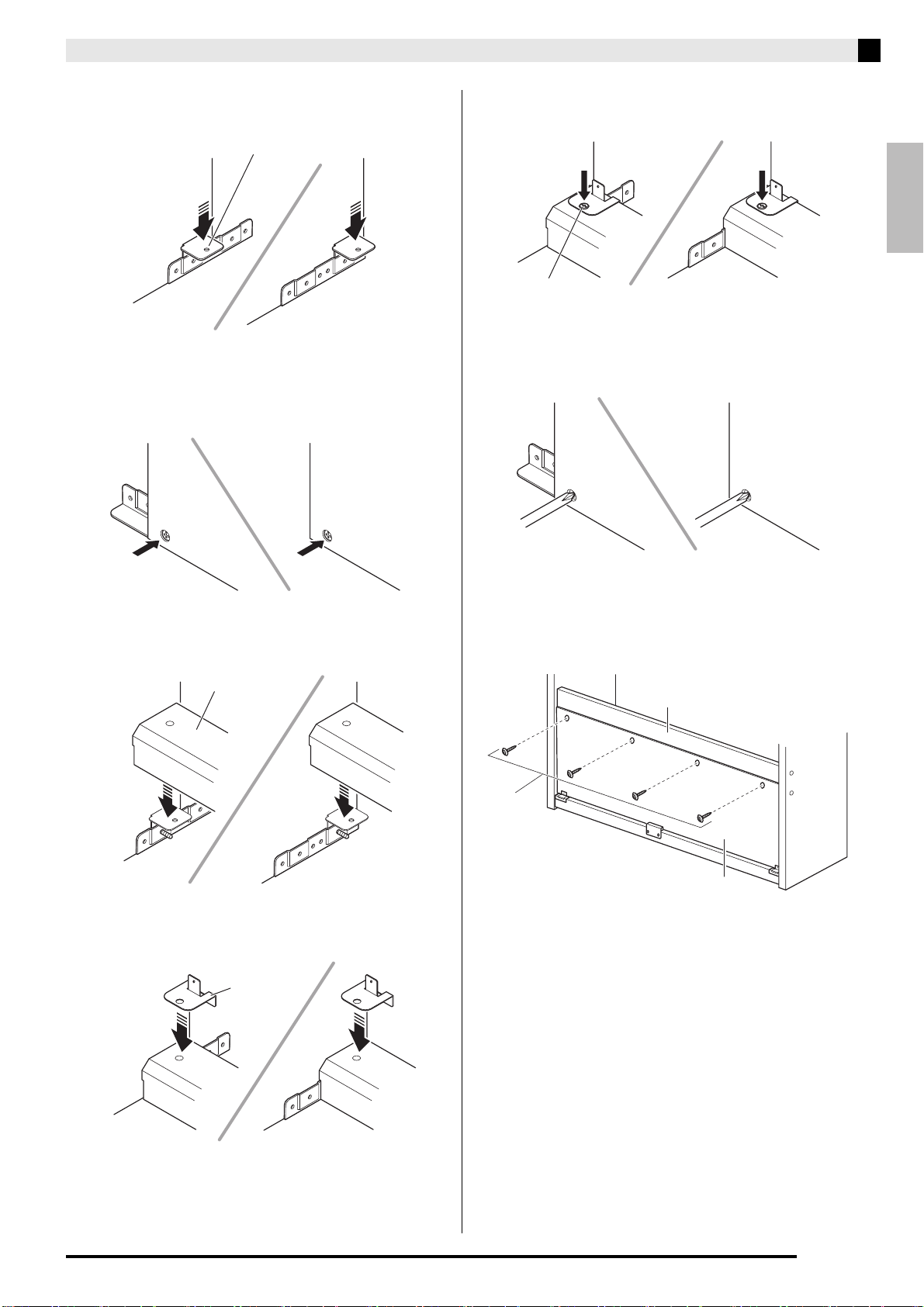
English
Getting Ready
E-41
4.
Insert angle brackets H into the gap between
the anti-tipping bracket and the side panel.
5.
From the outside of side panels
A
and
B
,
temporarily tighten the screws you loosened
in step 3, above.
6.
Mount pedal unit
E
onto angle brackets
H
,
which you installed in step 5, above.
7.
Mount brackets
L
onto both ends of the
pedal unit
E
.
8.
Use the screws
F
to securely fix the brackets
L
to the pedal unit
E
.
9.
After adjusting the position (height) of pedal
unit
E
, fully tighten the screws that you
temporarily tightened in step 5, above.
10.
Secure the back board
K
to the back board
C
.
• Screw the screws
M
into the four holes in the back
board
K
.
H
E
L
F
M
4
X
C
K
PXA800_e.book 41 ページ 2013年6月18日 火曜日 午後6時18分
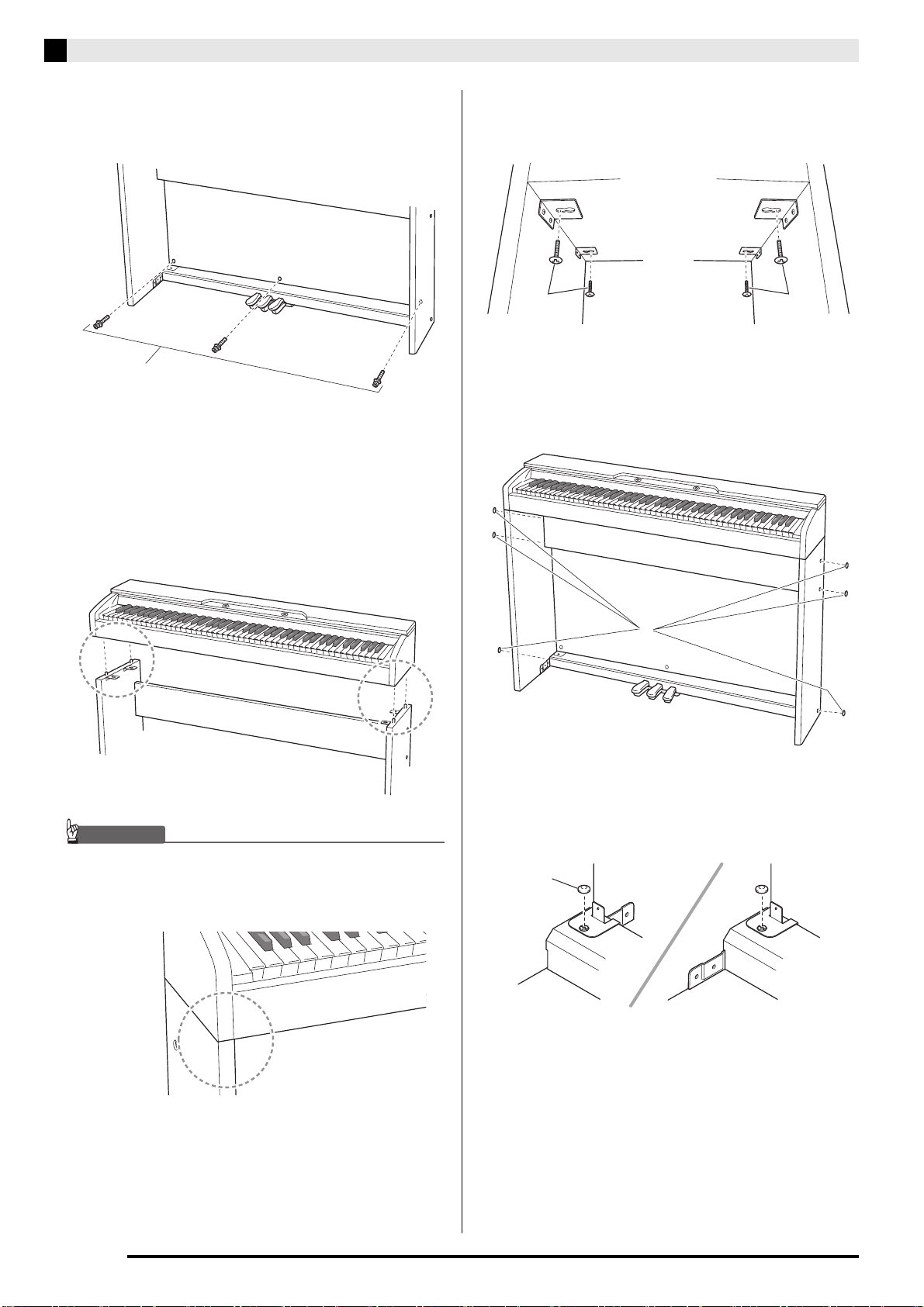
E-42
Getting Ready
11.
Go around to the front of the Digital Piano
and securely tighten the three screws
N
shown in the illustration below.
12.
Mount the piano onto the stand. Position the
piano so the dowels on the top edges of side
panels
A
and
B
enter the dowel holes on the
bottom of the piano.
• Note that there is nothing anchoring the piano to the
stand at this time. Take care to ensure that the piano
does not fall off the stand.
IMPORTANT!
• After mounting the piano onto the stand, check to
make sure the sides of the piano and the side panels
of the stand are position relative to each other as
shown in the nearby illustration.
13.
Use the screws
J
to securely fix the brackets
at the top of side panels
A
and
B
to the
bottom of the piano.
14.
After checking to make sure the six screws
that secure side panels
A
and
B
are fully
tightened, cover the heads of the screws with
screw caps
D
.
15.
With the two screw caps
I
, cover the heads
of the screws that you fully tightened in
step 8.
N
3
X
JJ
D
I
PXA800_e.book 42 ページ 2013年6月18日 火曜日 午後6時18分
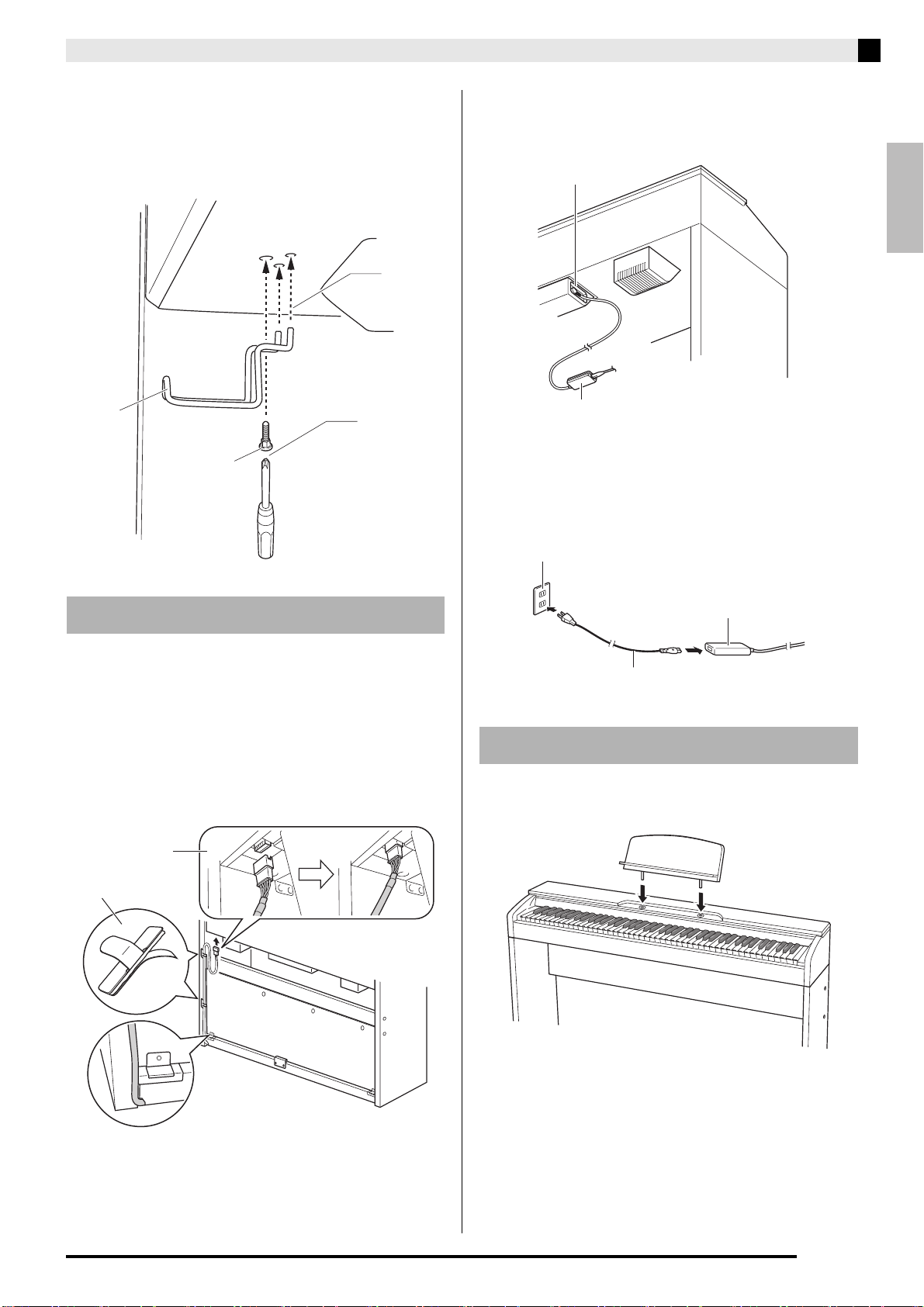
English
Getting Ready
E-43
16.
Install the headphones hook
O
.
1.
Making sure that the pedal unit cable plug is
oriented as shown in the illustration below,
plug it into the pedal connector on the bottom
of the piano.
a.Press the plug fully into the connector as far as it will
go.
b.Use the clips G to secure the pedal cable to two
locations on side panel B.
2.
Insert the plug of the AC adaptor that comes
with the Digital Piano into its power terminal
(DC 24V).
3.
Plug the power cord of the AC adaptor that
comes with the Digital Piano into a household
power outlet as shown in the illustration
below.
1.
Install the music stand by inserting its pegs
into the holes in the top of the piano.
(16-1) Insert the headphones hook
O
into the two holes
on the bottom of the piano.
(16-2) Use the screw
P
to secure the headphones hook
in place.
To connect the cable
O
P
16-2
16-1
G
b.
a.
To install the music stand
AC adaptor plug
Supplied AC adaptor
Household power outlet
AC adaptor
Power cord
PXA800_e.book 43 ページ 2013年6月18日 火曜日 午後6時18分
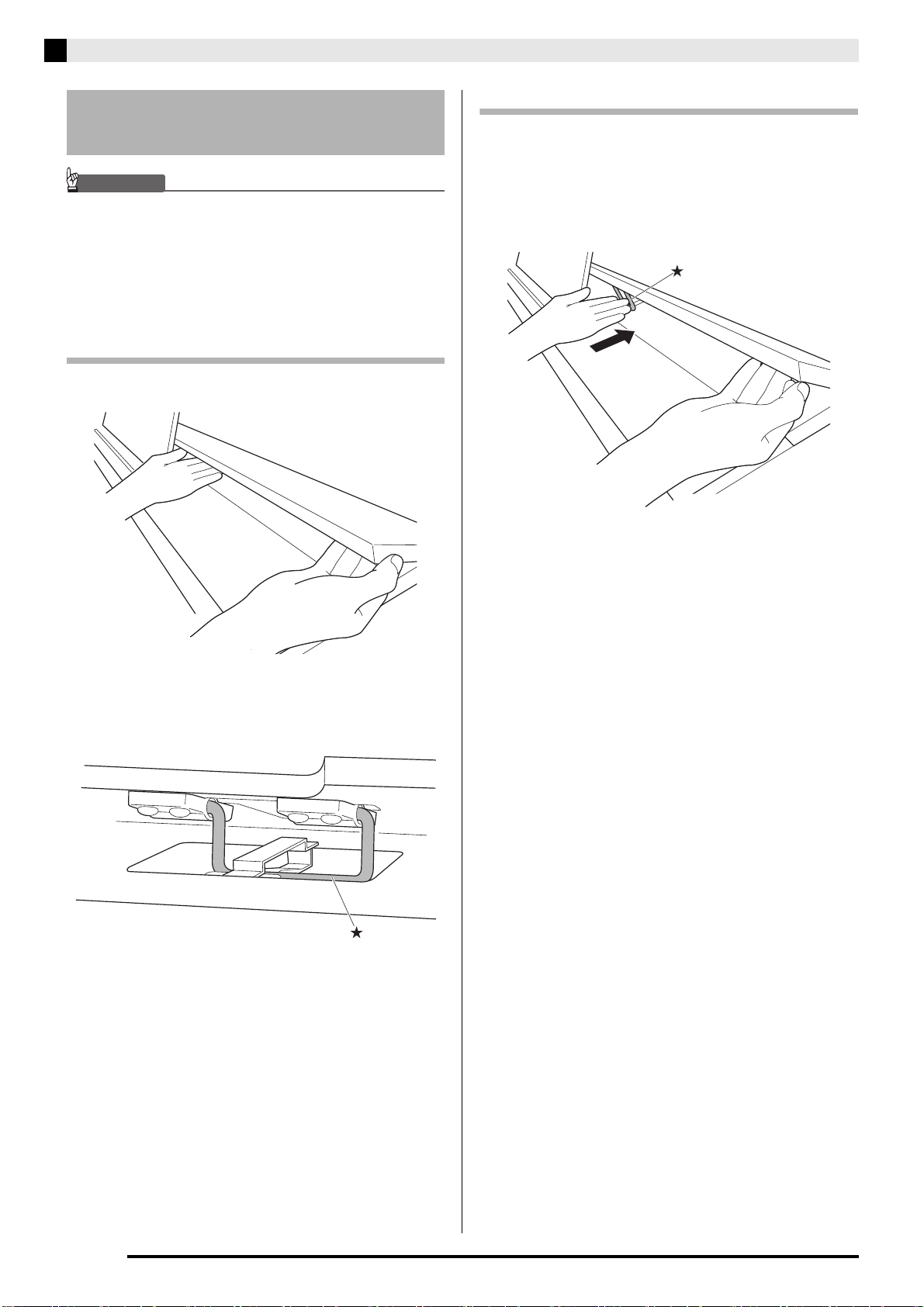
E-44
Getting Ready
IMPORTANT!
• Use both hands whenever opening or closing the lid,
and take care that you do not close it on your fingers.
• Do not open the lid too wide. Doing so creates the
risk of damage to the cover and Digital Piano.
• Stand in front of the Digital Piano on the right side
when opening or closing the lid.
To open the lid
1.
Lift up the lid as shown in the illustration.
• The lid has a support bracket (indicated by the star
in the illustration) attached to its inside surface.
Check to make sure that the support bracket is
standing up fully.
To close the lid
1.
Carefully lift up slightly on the lid.
2.
Use the fingers of your left hand to press
back on the support bracket () as you
slowly and carefully lower the lid.
Opening and Closing the
Piano Lid
PXA800_e.book 44 ページ 2013年6月18日 火曜日 午後6時18分
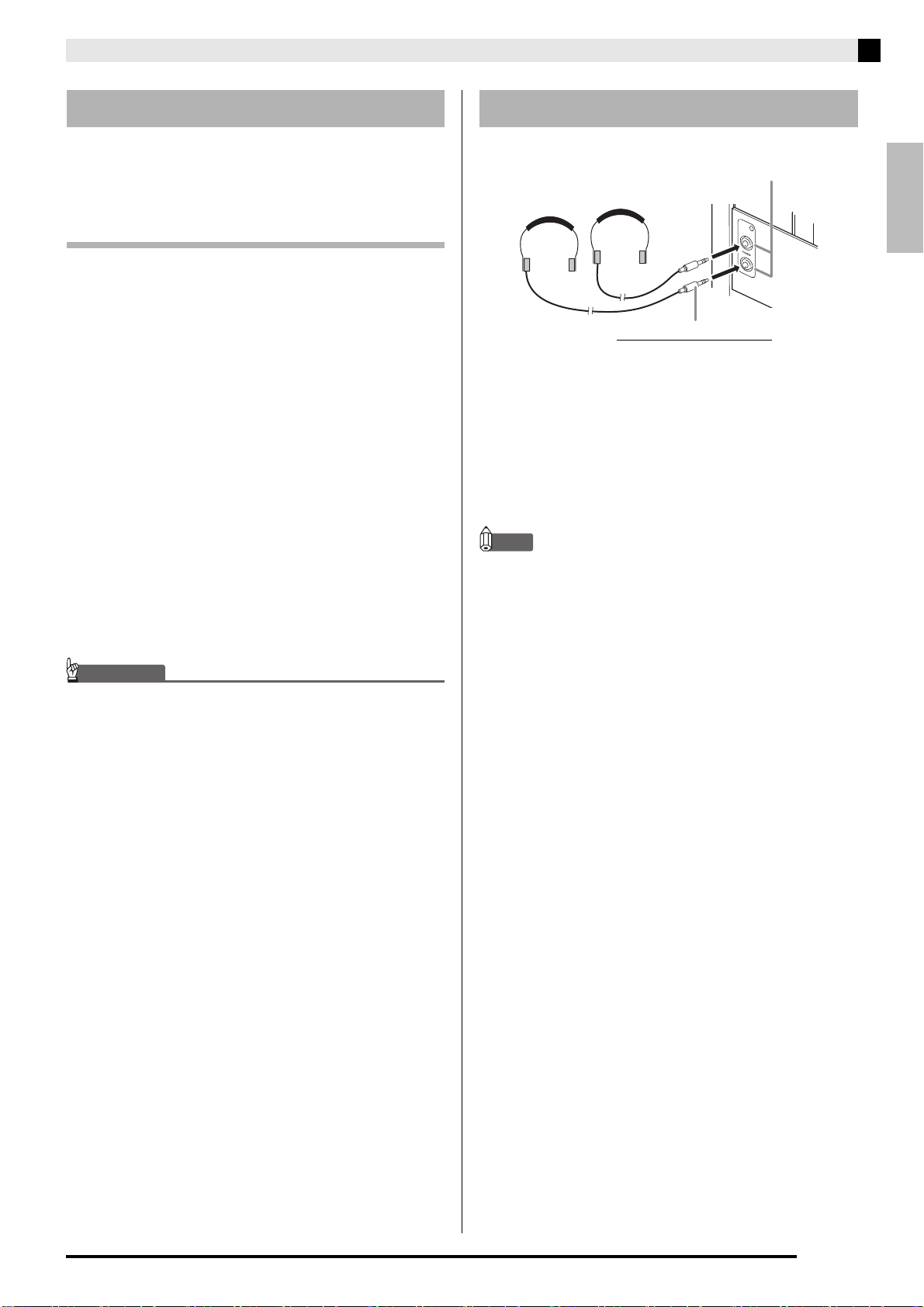
English
Getting Ready
E-45
Your Digital Piano runs on standard household power.
Be sure to turn off power whenever you are not using
the Digital Piano.
Using an AC Adaptor
Use only the AC adaptor (JEITA Standard, with unified
polarity plug) that comes with this Digital Piano. Use
of a different type of AC adaptor can cause
malfunction of the Digital Piano.
Specified AC Adaptor: AD-E24250LW
• Use the supplied power cord to connect the AC
adaptor.
■ About the AC adaptor that comes with the
Digital Piano
Note the following important precautions to avoid
damage to the AC adaptor and power cord.
• Never pull on the cord with excessive force.
• Never repeatedly pull on the cord.
• Never twist the cord at the base of the plug or
connector.
• Before moving the Digital Piano, be sure to unplug
the AC adaptor from the power outlet.
• Loop and bundle the power cord, but never wind it
around the AC adaptor.
IMPORTANT!
• Never connect the AC adaptor that comes with this
Digital Piano to any other device besides this Digital
Piano. Doing so creates the risk of malfunction.
• Make sure the Digital Piano is turned off before
plugging in or unplugging the AC adaptor.
• The AC adaptor will become warm to the touch after
very long use. This is normal and does not indicate
malfunction.
• Use the AC adaptor so its label surface is pointed
downwards. The AC adaptor becomes prone to
emitting electromagnetic waves when the label
surface is facing upwards.
Connect commercially available headphones to the
PHONES jacks. Connecting headphones to either of
the PHONES jack cuts off output to the speakers,
which means you can practice even late at night
without bothering others. To protect your hearing,
make sure that you do not set the volume level too high
when using headphones.
NOTE
• Be sure to push the headphones plug into the
PHONES jacks as far as it will go. If you don’t, you
may hear sound from only one side of the
headphones.
• If the plug of the headphones you are using does not
match the PHONES jacks, use the applicable
commercially available adaptor plug.
• If you are using headphones that require an adaptor
plug, make sure you do not leave the adaptor
plugged in when you unplug the headphones. If you
do, nothing will sound from the speakers when you
play.
Power Outlet Connecting Headphones
PHONES jacks
Front
Stereo standard plug
PXA800_e.book 45 ページ 2013年6月18日 火曜日 午後6時18分
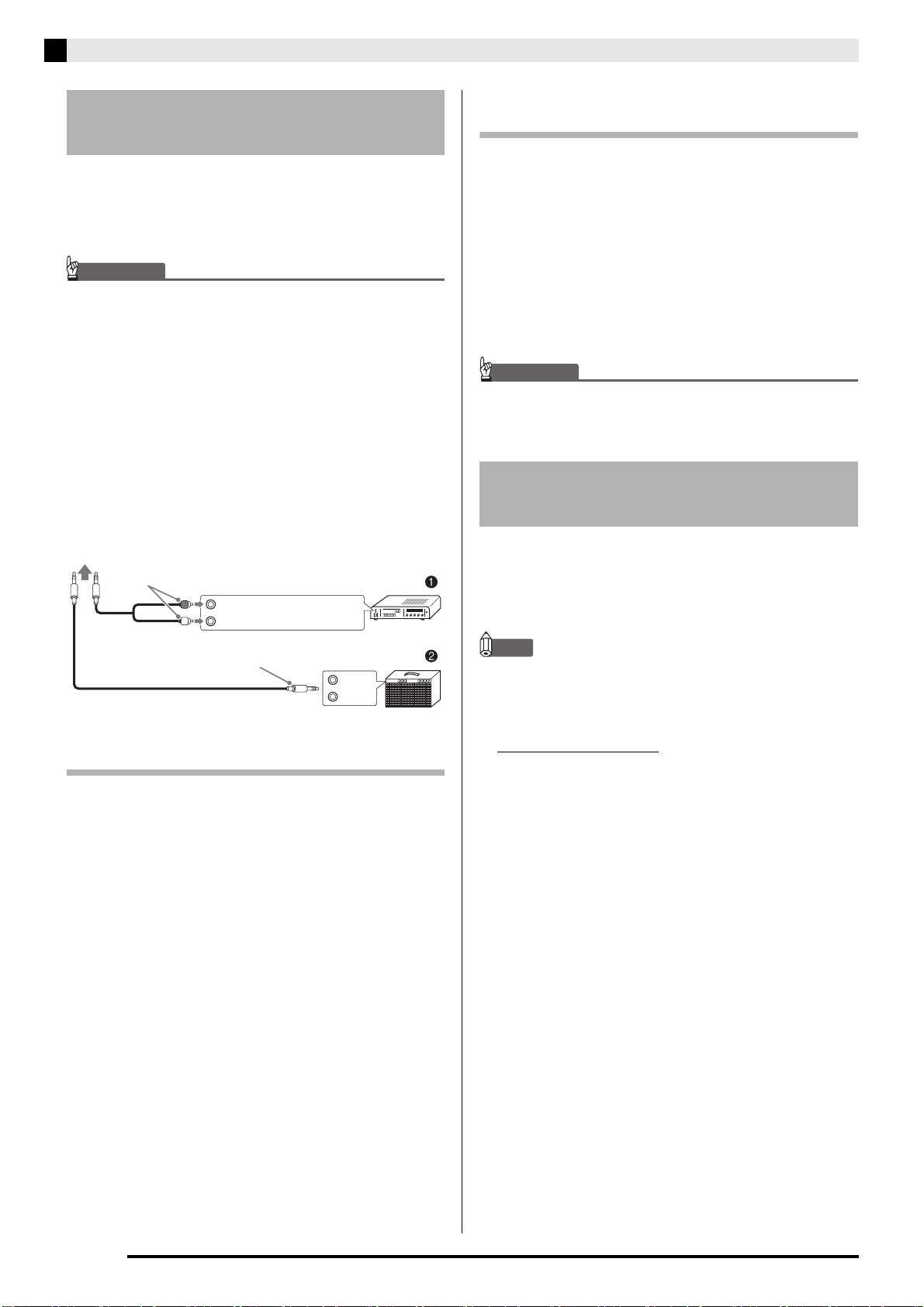
E-46
Getting Ready
You can connect audio equipment or a music amplifier
to the Digital Piano and then play through external
speakers for more powerful volume and better sound
quality.
IMPORTANT!
• The Digital Piano automatically adjusts sound output
to optimize for headphone output (when headphones
are connected) or built-in speaker output (when
headphones are not connected). This also will cause
a change in the output quality from the Digital
Piano’s LINE OUT R and L/MONO jacks.
• Whenever connecting a device to the Digital Piano,
first use the VOLUME controller to set the volume to
a low level. After connecting, you can adjust the
volume to the level you want.
• Whenever you connect any device to the Digital
Piano, be sure to read the user documentation that
comes with the device.
Connecting to Audio Equipment 1
Use commercially available cables to connect the
external audio equipment to the Digital Piano’s LINE
OUT jacks as shown in Figure 1. LINE OUT R jack
output is right channel sound, while LINE OUT L/
MONO jack output is left channel sound. It is up to
you to purchase connecting cables like the ones shown
in the illustration for connection of audio equipment.
Normally in this configuration you must set the audio
equipment’s input selector to the setting that specifies
the terminal (such as AUX IN) to which the piano is
connected. Use the Digital Piano’s VOLUME controller
to adjust the volume level.
Connecting to a Musical Instrument
Amplifier 2
Use commercially available cables to connect the
amplifier to the Digital Piano’s LINE OUT jacks as
shown in Figure 2. LINE OUT R jack output is right
channel sound, while LINE OUT L/MONO jack
output is left channel sound. Connecting to the LINE
OUT L/MONO jack only outputs a mixture of both
channels. It is up to you to purchase connecting cable
like the one shown in the illustration for connection of
the amplifier. Use the Digital Piano’s VOLUME
controller to adjust the volume level.
IMPORTANT!
• When using the LINE OUT jacks, also connect
headphones to the PHONES jack. This will switch
the LINE OUT output to appropriate sound quality.
Use only accessories that are specified for use with this
Digital Piano.
Use of unauthorized accessories creates the risk of fire,
electric shock, and personal injury.
NOTE
• You can get information about accessories that are
sold separately for this product from the CASIO
catalog available from your retailer, and from the
CASIO website at the following URL.
http://world.casio.com/
Connecting Audio Equipment
or an Amplifier
INPUT 1
INPUT 2
Guitar amplifier
Keyboard amplifier, etc.
Standard plug
To either of the Digital Piano’s LINE OUT jacks
RIGHT (Red)
LEFT (White)
Audio amplifier AUX IN jack, etc.
Pin plug
Bundled and Optional
Accessories
PXA800_e.book 46 ページ 2013年6月18日 火曜日 午後6時18分
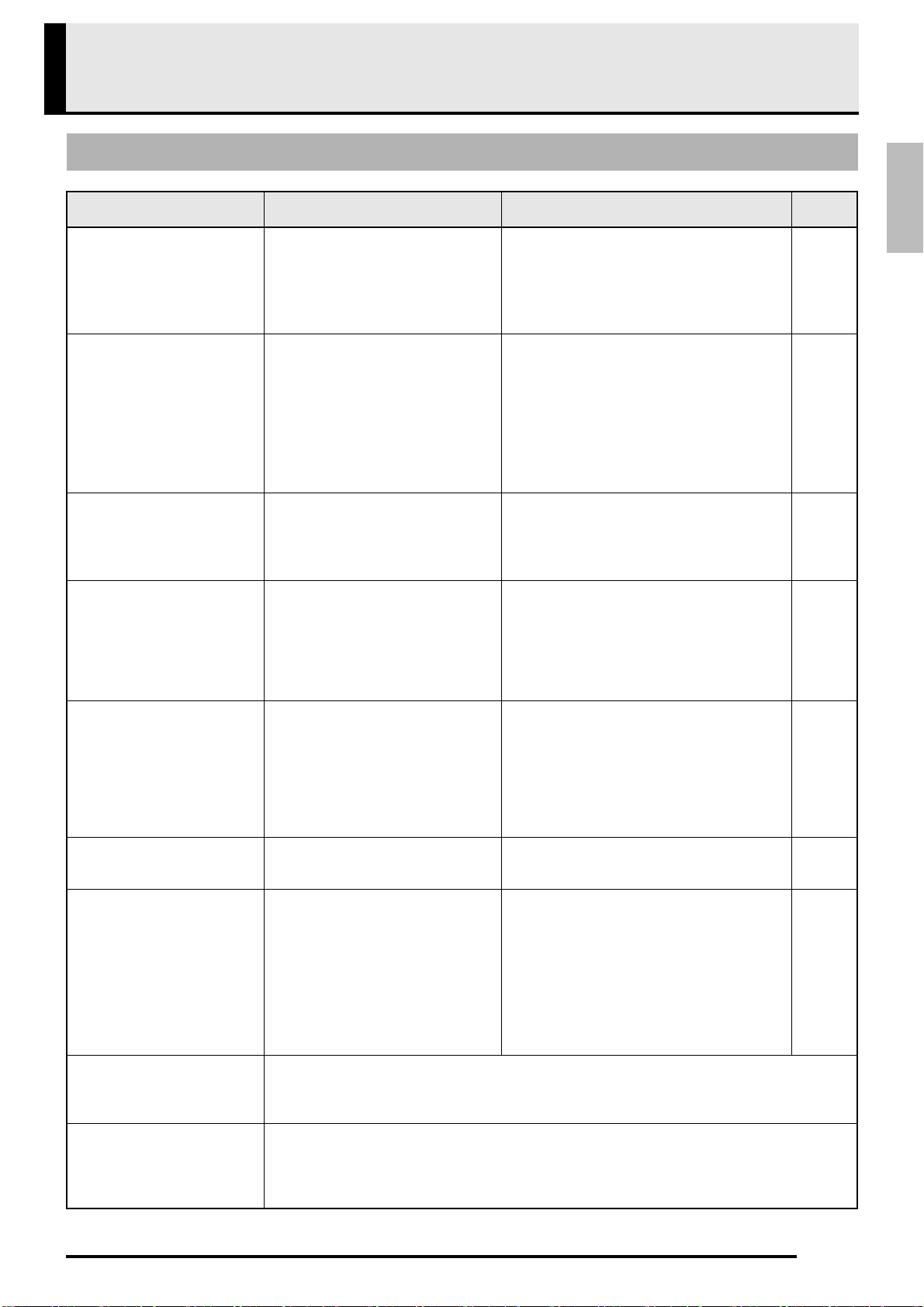
E-47
English
Reference
Troubleshooting
Problem Cause Action
See
Page
No sound is produced when I
press a keyboard key.
1. The VOLUME controller is set to
“MIN”.
1. Rotate the VOLUME controller more towards
“MAX”.
) E-5
2. Headphones or an adaptor plug is
plugged into one of the PHONES
jacks.
2. Disconnect whatever is connected to the
PHONES jacks.
) E-45
3. MIDI Local control is turned off. 3. Turn on the Local control setting. ) E-24
The pitch of the Digital Piano
is off.
1. The Digital Piano’s key setting is
something other than “440.0Hz”.
1. Change the key setting to “440.0Hz”, or turn
Digital Piano power off and then back on
again.
) E-24
2. Digital Piano tuning is incorrect. 2. Adjust Digital Piano tuning, or turn the Digital
Piano off and then back on again.
) E-24
3. Octave shift is enabled. 3. Change the octave shift setting to 0. ) E-24
4. A non-standard temperament
setting is being used.
4. Change the temperament setting to
“00: Equal”, which is the standard modern
tuning.
) E-24
Nothing happens when I
press a pedal.
1. The pedal unit cable is not
connected.
1. Connect the cable correctly. ) E-43
2. The pedal unit cable plug is not
plugged in completely.
2. Make sure that the pedal unit cable plug is
inserted as far as it will go into the pedal
connector on the bottom of the digital piano.
Tones and/or effects sound
strange. Turning power off
and then back on again does
not eliminate the problem.
Example:
Note intensity does
not change even though I
alter key pressure.
The “Back up” feature is turned on. Turn off “Back up”. Next, turn power off and then
back on again.
) E-25
I cannot transfer data after
connecting the Digital Piano
to a computer.
– 1. Check to make sure that the USB cable is
connected to the Digital Piano and computer,
and that the correct device is selected with
your computer’s music software.
) E-35
2. Turn off the Digital Piano and then exit the
music software on your computer. Next, turn
the Digital Piano back on and then restart the
music software on your computer.
I cannot store data to a USB
flash drive or load data from a
USB flash drive.
– See “Error Indicators”. ) E-33
It takes a long time before I
can use the Digital Piano after
I turn it on.
Digital Piano memory data was
corrupted because a data transfer
operation with a computer was in
progress the last time you turned off
the Digital Piano. When this happens,
the Digital Piano performs a memory
format operation the next time you turn
it on. You cannot perform any other
operation while a format operation is in
progress.
It takes about 20 seconds after you turn on
power to perform the memory format operation.
Wait until the format operation is complete. Note
that you should take care to avoid turning off the
Digital Piano while a data transfer operation with
a computer is in progress.
) E-36
A tone’s quality and volume
sounds slightly different
depending where it is played
on the keyboard.
This is an unavoidable result of the digital sampling process,
*
and does not indicate malfunction.
* Multiple digital samples are taken for the low range, middle range, and high range of the original
musical instrument. Because of this, there may be very slight differences in tonal quality and
volume between sample ranges.
When I press a button, the
note that is sounding cuts out
momentarily or there is a
slight change in how effects
are applied.
This happens when the sounds of multiple parts are sounding at the same time while using layer,
using the Duet Mode, playing back a built-in tune, recording, etc. Pressing a button when one of
these conditions exists will cause the effect setting that is built into the tone to change automatically,
which causes notes to cut out momentarily or causes a slight change in how effects are being
applied.
PXA800_e.book 47 ページ 2013年6月18日 火曜日 午後6時18分
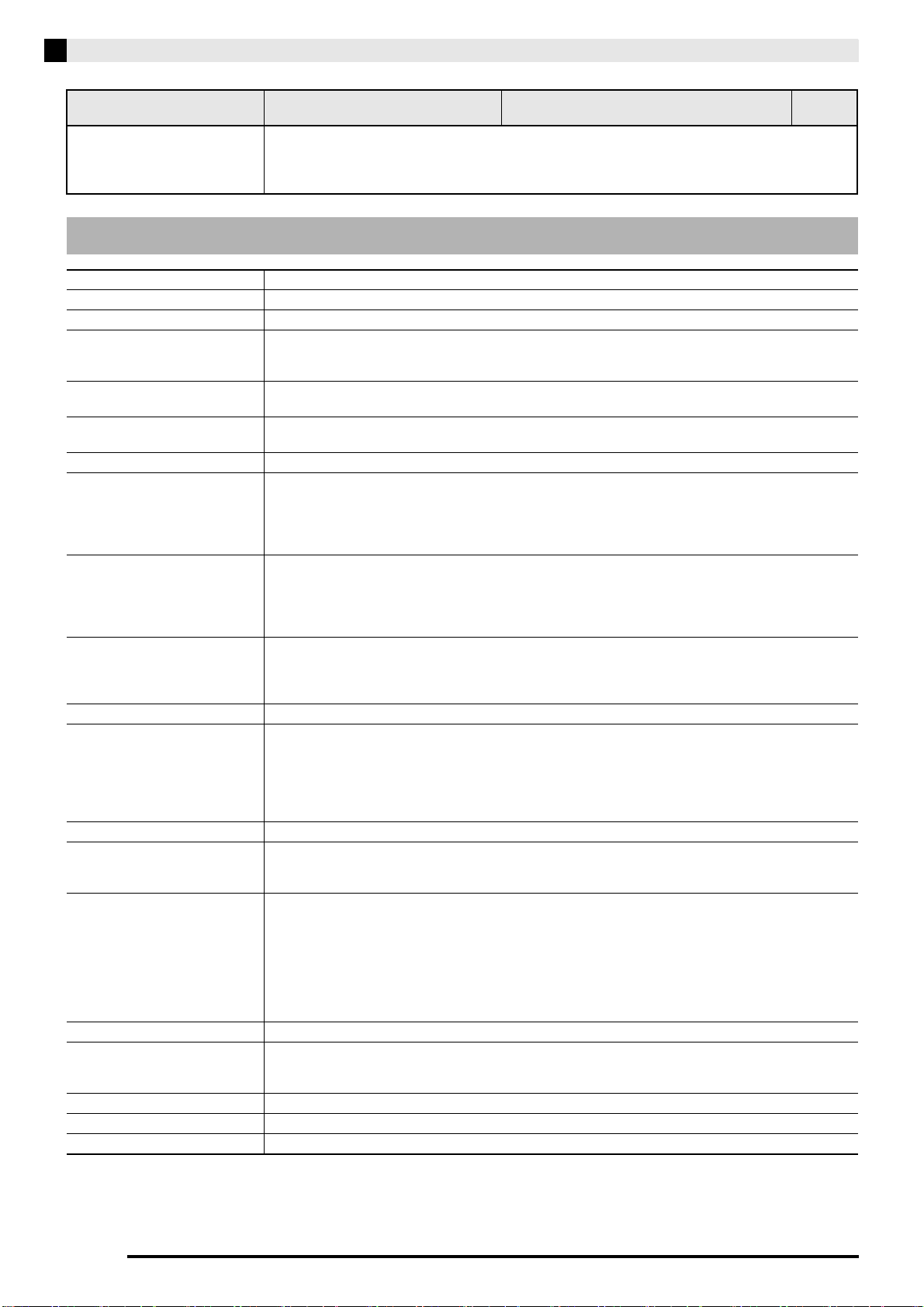
E-48
Reference
• Specifications and designs are subject to change without notice.
There are knots, saw blade
marks, and/or other marks on
the finish of the Digital Piano.
The finish of the Digital Piano has been designed to faithfully reproduce the appearance of natural
wood, including cuts and other marks in the wood. Though knots, saw blade marks, and/or other
marks may be visible on the finish, they are not actual cracks or scratches. Such marks will not
cause any problems with the use of your Digital Piano.
Product Specifications
Model PX-A800BN
Keyboard 88-key piano keyboard, with Touch Response
Maximum Polyphony 256 notes
Tones 18
• Layer (excluding bass tone)
• Split (Low-range bass tone only)
Effects Brilliance (–3 to 0 to 3), Hall simulator (10 types), Chorus (4 types), DSP, Damper Resonance,
Hammer response, String resonance, Lid simulator, Key Off Simulator
Metronome • Beats: 0, 2, 3, 4, 5, 6
• Tempo Range: 20 to 255
Duet Adjustable tone range (–1 to 2 octaves)
Music Library • Number of Songs: 60, User Songs: 10 (Up to approximately 90KB per song, approximately 900KB for 10
songs)*
* Based on 1KB = 1024 bytes, 1MB = 1024
2
bytes
• Song volume: Adjustable
• Part On/Off: L, R
Song Recorder • Functions: Real-time recording, playback
• Number of Song: 1
• Number of Tracks: 2
• Capacity: Approximately 5,000 notes total
• Recorded Data Protection: Built-in flash memory
Audio Recorder • Real-time recording and playback to USB flash drive*
* Linear PCM, 16bit, 44.1 kHz, stereo .WAV format
• Songs: 99 files
• Approximately 25 minutes maximum recording per file.
Pedals Damper (with half-pedal operation), Soft, Sostenuto
Other Functions • Touch Select: 3 types, Off
• Transpose: 2 octaves (–12 to 0 to 12)
• Tuning: 415.5Hz to 440.0Hz to 465.9Hz (variable)
• Temperament
• Octave shift
• Operation Lock
MIDI 16-channel multi-timbre receive
USB Flash Drive • Capacity: 32GB or less recommended
• Supported Functions: SMF playback, data storage, data loading, USB flash drive format, delete data,
play back of audio data
Inputs/Outputs • PHONES jacks: Stereo standard jacks × 2
• Power: 24V DC
• LINE OUT R, L/MONO jacks: Standard jacks × 2
Output impedance: 2.3K
Ω
Output voltage: 1.8V (RMS) MAX
• USB port : Type B
• USB flash drive port : Type A
• Pedal connector
Speakers
φ
12cm × 2 +
φ
5cm × 2 (Output 20W + 20W)
Power Requirements AC Adaptor: AD-E24250LW
• Auto Power Off: Approximately 4 hours after last operation. Auto Power Off can be disabled.
• The AC adaptor can be used safely in areas up to 3,000 meters above sea level.
Power Consumption 24V = 20W
Dimensions Digital Piano and Stand: 136.7 (W) × 29.9 (D) × 83.7 (H) cm (53
7
/
8
× 11
3
/
4
× 32
15
/
16
inch)
Weight Digital Piano and Stand: approximately 35.5kg (78.3 lbs)
Problem Cause Action
See
Page
PXA800_e.book 48 ページ 2013年6月18日 火曜日 午後6時18分
English
Reference
E-49
Be sure to read and observe the following operating
precautions.
■ Location
Avoid the following locations for this product.
• Areas exposed to direct sunlight and high humidity
• Areas subjected to temperature extremes
• Near a radio, TV, video deck, or tuner
The above devices will not cause malfunction of the
product, but the product can cause interference in
the audio or video of a nearby device.
■ User Maintenance
• Never use benzine, alcohol, thinner, or other
chemical agents to clean the product.
• To clean the product or its keyboard, wipe with a
soft cloth moistened in a weak solution of water and
a mild neutral detergent. Wring all excess moisture
from the cloth before wiping.
■ Included and Optional Accessories
Use only accessories that are specified for use with this
product. Use of unauthorized accessories creates the
risk of fire, electric shock, and personal injury.
■ Digital Piano Finish
The finish of the Digital Piano has been designed to
faithfully reproduce the appearance of natural wood,
including cuts and other marks in the wood. Though
knots, saw blade marks, and/or other marks may be
visible on the finish, they are not actual cracks or
scratches. Such marks will not cause any problems
with the use of your Digital Piano.
■ Weld Lines
Lines may be visible on the exterior of the product.
These are “weld lines” that result from the plastic
molding process. They are not cracks or scratches.
■ Musical Instrument Etiquette
Always be aware of others around you whenever using
this product. Be especially careful when playing late at
night to keep the volume at levels that do not disturb
others. Other steps you can take when playing late at
night are closing the window and using headphones.
• Any reproduction of the contents of this manual,
either in part or its entirety, is prohibited. Except for
your own, personal use, any other use of the
contents of this manual without the consent of
CASIO is prohibited under copyright laws.
• IN NO EVENT SHALL CASIO BE LIABLE FOR
ANY DAMAGES WHATSOEVER (INCLUDING,
WITHOUT LIMITATION, DAMAGES FOR LOSS
OF PROFITS, BUSINESS INTERRUPTION, LOSS
OF INFORMATION) ARISING OUT OF THE USE
OF OR INABILITY TO USE THIS MANUAL OR
PRODUCT, EVEN IF CASIO HAS BEEN ADVISED
OF THE POSSIBILITY OF SUCH DAMAGES.
• The contents of this manual are subject to change
without notice.
■ AC Adaptor Handling Precautions
• Use a power outlet that is easily accessible so you
can unplug the AC adaptor when a malfunction
occurs or whenever else you need to do so.
• The AC adaptor is intended for indoor use only. Do
not use it where it might be exposed to splashing or
moisture. Do not place any container, such as a
flower vase, that contains liquid on the AC adaptor.
• Store the AC adaptor in a dry place.
• Use the AC adaptor in an open, well-ventilated area.
• Never cover the AC adaptor with newspaper, a table
cloth, a curtain, or any other similar item.
• Unplug the AC adaptor from the power outlet if you
do not plan to use the Digital Piano for a long time.
• Never try to repair the AC adaptor or modify it in
any way.
• AC adaptor operating environment
Temperature: 0 to 40°C
Humidity: 10% to 90% RH
• Output polarity:
Operating Precautions
PXA800_e.book 49 ページ 2013年6月18日 火曜日 午後6時18分
E-50
Reference
AC Adaptor Handling Precautions
Model: AD-E24250LW
1. Read these instructions.
2. Keep these instructions on hand.
3. Heed all warnings.
4. Follow all instructions.
5. Do not use this product near water.
6. Clean only with a dry cloth.
7. Do not install near radiators, heat registers, stoves, or any other source of heat (including amplifiers).
8. Use only attachments and accessories specified by the manufacturer.
9. Refer all servicing to qualified service personnel. Servicing is required after any of the following occurs:
when the product is damaged, when the power supply cord or plug is damaged, when liquid is spilled into
the product, when a foreign object falls into the product, when the product is exposed to rain or moisture,
when the product does not operate normally, when the product is dropped.
10. Do not allow the product to be exposed to dripping or splashing liquid. Do not place any object containing
liquid on the product.
11. Do not allow the electrical load output to exceed the label rating.
12. Make sure the surrounding area is dry before plugging into a power source.
13. Make sure the product is oriented correctly.
14. Unplug the product during lightning storms or when you do not plan to use it for a long time.
15. Do not allow product ventilation openings to become blocked. Install the product in accordance with the
manufacturer’s instructions.
16. Take care the power cord is located where it will not be stepped upon or bent severely, particularly in
locations close to plugs and convenience receptacles, and in locations where it exits from the product.
17. The AC adaptor should be plugged into a power outlet as close to the product as possible to allow
immediate disconnection of the plug in case of emergency.
The symbol below is an alert indicating un-insulated hazardous voltage inside the product’s enclosure, which
may be sufficient to constitute the risk of electric shock to users.
’
The symbol below is an alert indicating the presence of important operating and maintenance (servicing)
instructions in the documentation that accompanies the product.
*
PXA800_e.book 50 ページ 2013年6月18日 火曜日 午後6時18分
A-1
Appendix/Apéndice
Tone List/Lista de tonos
Tone Name/
Nombre de tonos
Program Change/
Cambio de programa
Bank Select MSB/
MSB de selección de
banco
GRAND PIANO CONCERT 0 0
GRAND PIANO ROCK 0 1
GRAND PIANO JAZZ 0 2
GRAND PIANO CLASSIC 0 3
GRAND PIANO POP 0 4
GRAND PIANO DANCE 0 5
GRAND PIANO LA 0 6
GRAND PIANO MELLOW
0 7
GRAND PIANO BRIGHT
08
(GRAND PIANO) PIANO PAD
0 9
ELEC PIANO 4 0
FM E.PIANO 5 0
60’S E.PIANO 4 1
DYNO E.PIANO 4 2
STRINGS 49 0
PIPE ORGAN 19 0
JAZZ ORGAN 17 0
BASS (LOWER) 32 0
Song List/Lista de canciones
No./Nº Song Name/Nombre de canciones
01 Nocturne Op.9-2
02 Fantaisie-Impromptu Op.66
03 Étude Op.10-3 “Chanson de l’adieu”
04 Étude Op.10-5 “Black Keys”
05 Étude Op.10-12 “Revolutionary”
06 Étude Op.25-9 “Butterflies”
07 Prélude Op.28-7
08 Valse Op.64-1 “Petit Chien”
09 Valse Op.64-2
10 Moments Musicaux 3
11 Impromptu Op.90-2
12 Marche Militaire 1 (Duet)
13 Frühlingslied [Lieder Ohne Worte Heft 5]
14 Fröhlicher Landmann [Album für die Jugend]
15 Von fremden Ländern und Menschen [Kinderszenen]
16 Träumerei [Kinderszenen]
17 Tambourin
18
Menuet BWV Anh.114 [Clavierbüchlein der Anna Magdalena Bach]
19 Inventio 1 BWV 772
20 Inventio 8 BWV 779
21 Inventio 13 BWV 784
22 Praeludium 1 BWV 846 [Das Wohltemperierte Klavier 1]
23 Le Coucou
24 Gavotte
25 Sonatina Op.36-1 1st Mov.
26 Sonatine Op.20-1 1st Mov.
27 Sonate K.545 1st Mov.
28 Sonate K.331 3rd Mov. “Turkish March”
29 Rondo K.485
30 Für Elise
31 Marcia alla Turca
32 Sonate Op.13 “Pathétique” 1st Mov.
33 Sonate Op.13 “Pathétique” 2nd Mov.
34 Sonate Op.13 “Pathétique” 3rd Mov.
35 Sonate Op.27-2 “Moonlight” 1st Mov.
36 Rhapsodie 2
37 Waltz Op.39-15 (Duet)
38 Liebesträume 3
39 Blumenlied
40 La Prière d’une Vierge
41 Csikos Post
42 Humoresque Op.101-7
43 Melodie [Lyrische Stücke Heft 2]
44 Sicilienne Op.78
45 Berceuse [Dolly] (Duet)
46 Arabesque 1
47 La Fille aux Cheveux de Lin [Préludes]
48 Passepied [Suite bergamasque]
49 Gymnopédie 1
50 Je Te Veux
51 Salut d’Amour
52 The Entertainer
53 Maple Leaf Rag
54 L’arabesque [25 Etüden Op.100]
55 La Styrienne [25 Etüden Op.100]
56 Ave Maria [25 Etüden Op.100]
57 Le retour [25 Etüden Op.100]
58 La chevaleresque [25 Etüden Op.100]
59 No.13 [Études de Mécanisme Op.849]
60 No.26 [Études de Mécanisme Op.849]
PXA800_s.book 1 ページ 2013年6月19日 水曜日 午前9時44分
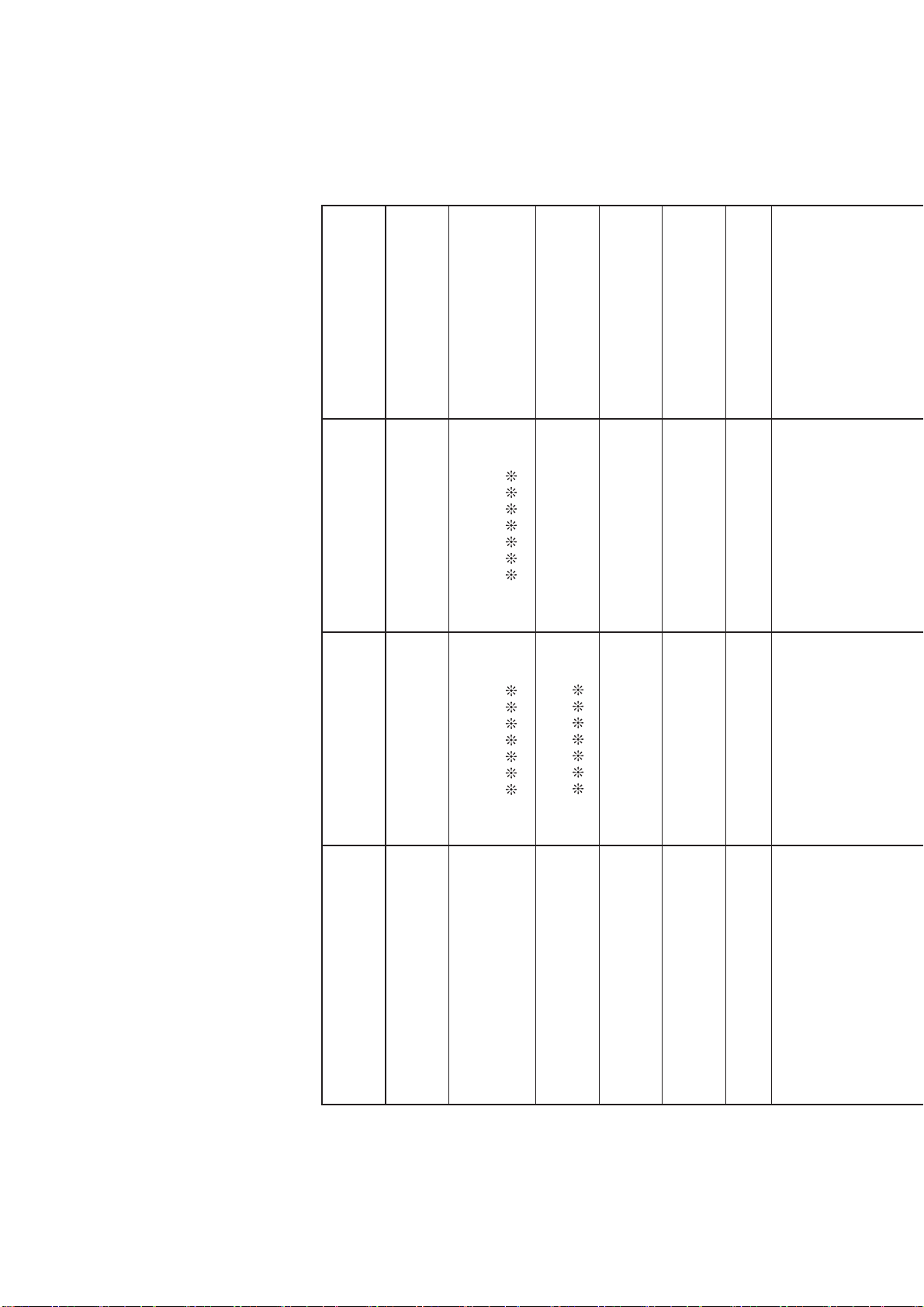
Function Transmitted Recognized Remarks
Basic
Channel
1 - 16
1 - 16
1 - 16
1 - 16
Default
Changed
Note
Number
0 - 127 0 - 127
0 - 127
*
1True voice
After
Touch
Control
Change
X
X
X
O
Pitch Bender
XO
Key’s
Ch’s
Velocity
O
9nH v = 1 - 127
O
8nH v = 0 - 127
O
9nH v = 1 - 127
X
9nH v = 0,
O
8nH v = 0 - 127
Note ON
Note OFF
Mode
Mode 3
X
Mode 3
X
Default
Messages
Altered
0, 32
1
5
6, 38
7
10
11
16
17
18
19
64
65
66
67
76
77
78
80
81
82
83
84
88
Bank select
Modulation
Portamento Time
Data entry LSB, MSB
*2
Volume
Pan
Expression
DSP Parameter0
*2
DSP Parameter1
*2
DSP Parameter2
*2
DSP Parameter3
*2
Damper
Portamento Switch
Sostenuto
Soft pedal
Vibrato rate
Vibrato depth
Vibrato delay
DSP Parameter4
*2
DSP Parameter5
*2
DSP Parameter6
*2
DSP Parameter7
*2
Portamento Control
High resolution velocity prefix
Rbd
*
3
O
O
O
O
O
O
O
O
O
O
O
O
O
O
O
O
O
O
O
O
O
O
O
O
O
O
X
X
X
O
X
X
X
X
X
X
O
X
O
O
X
X
X
X
X
X
X
X
O
X
Model PX-A800 Version : 1.0
*1 : Depends on tone
*1 : Depende del tono
MIDI Implementation Chart
PXA800_s.book 2 ページ 2013年6月19日 水曜日 午前9時44分
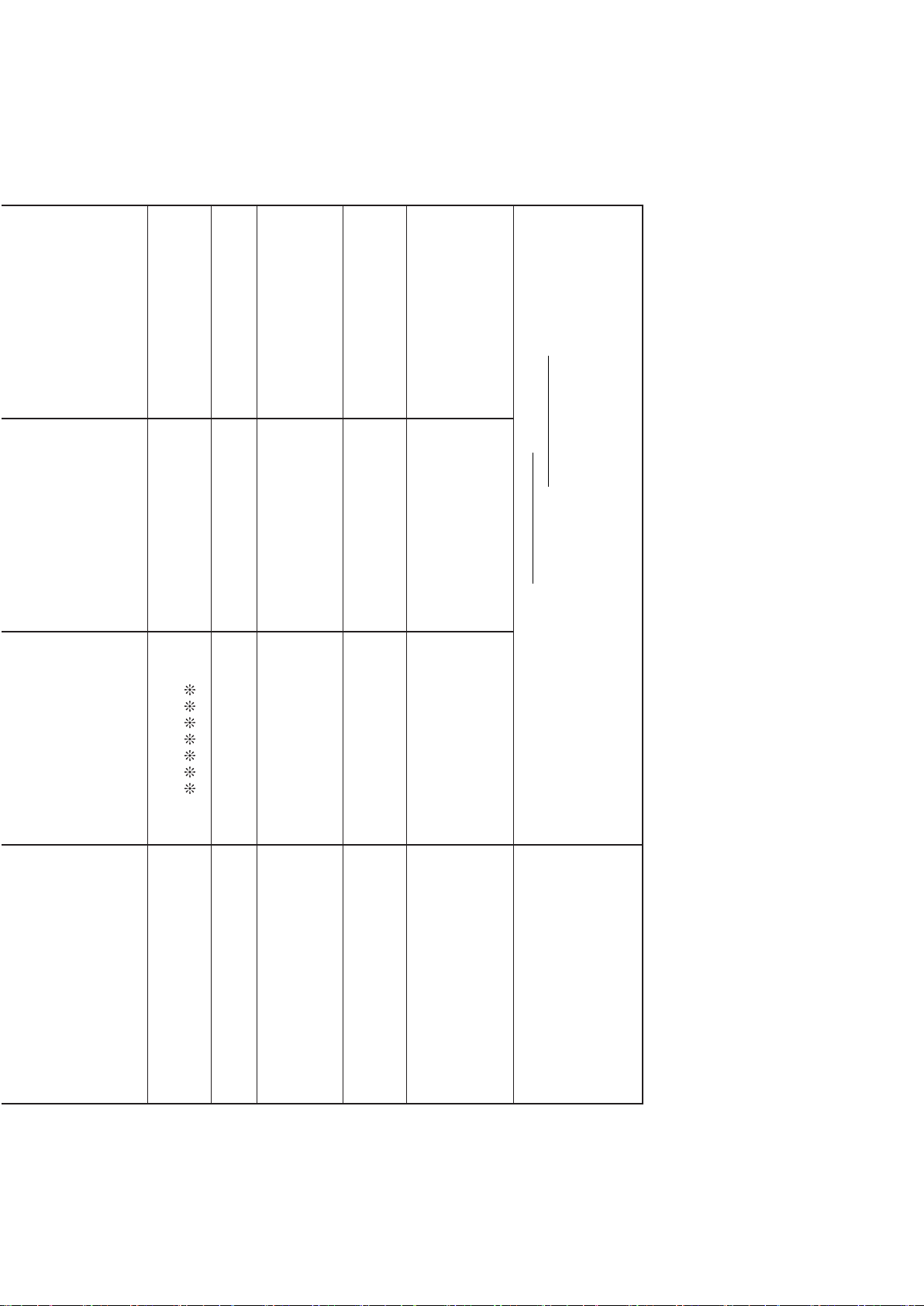
Function Transmitted Recognized Remarks
Basic
Channel
1 - 16
1 - 16
1 - 16
1 - 16
Default
Changed
Note
Number
0 - 127 0 - 127
0 - 127
*
1True voice
Program
Change
OO
0 - 127:True #
After
Touch
Control
Change
X
X
X
O
Pitch Bender
XO
System Exclusive
OO
Key’s
Ch’s
Velocity
O
9nH v = 1 - 127
O
8nH v = 0 - 127
O
9nH v = 1 - 127
X
9nH v = 0,
O
8nH v = 0 - 127
Note ON
Note OFF
Mode
Mode 3
X
Mode 3
X
Default
Messages
Altered
System
Common
X
X
X
X
X
X
: Song Pos
: Song Sel
: Tune
Aux
Messages
Remarks
X
O
X
X
X
O
O
X
: Local ON/OFF
: All notes OFF
: Active Sense
: Reset
System
Real Time
O
O
X
X
: Clock
: Commands
0, 32
1
5
6, 38
7
10
11
16
17
18
19
64
65
66
67
76
77
78
80
81
82
83
84
88
91
93
100, 101
120
121
Bank select
Modulation
Portamento Time
Data entry LSB, MSB
*2
Volume
Pan
Expression
DSP Parameter0
*2
DSP Parameter1
*2
DSP Parameter2
*2
DSP Parameter3
*2
Damper
Portamento Switch
Sostenuto
Soft pedal
Vibrato rate
Vibrato depth
Vibrato delay
DSP Parameter4
*2
DSP Parameter5
*2
DSP Parameter6
*2
DSP Parameter7
*2
Portamento Control
High resolution velocity prefix
Reverb send
*
3
Chorus send
RPN LSB, MSB
*2
All sound off
Reset all controller
Mode 1 : OMNI ON, POLY
Mode 3 : OMNI OFF, POLY
Mode 2 : OMNI ON, MONO
Mode 4 : OMNI OFF, MONO
O : Yes
X : No
O
O
O
O
O
O
O
O
O
O
O
O
O
O
O
O
O
O
O
O
O
O
O
O
O
O
O
O
O
O
X
X
X
O
X
X
X
X
X
X
O
X
O
O
X
X
X
X
X
X
X
X
O
X
O
X
X
O
*2
Model PX-A800 Version : 1.0
*2: For details, see MIDI Implementation at http://world.casio.com/.
*2: Si desea más información, vea Implementación MIDI en http://world.casio.com/
.
*3: This Instrument treats a hall simulator as a reverb.
*3: Este instrumento considera al simulador de salas como una reverberación.
TO REDUCE THE RISK OF FIRE OR ELECTRIC SHOCK, REFER SERVICING TO QUALIFIED SERVICE PERSONNEL.
Impor tant!
Please note the following important information before using this product.
• Before using the AD-E24250LW Adaptor to power the unit, be sure to check the AC Adaptor for any damage first. Carefully check the power
cord for breakage, cuts, exposed wire and other serious damage. Never let children use an AC adaptor that is seriously damaged.
• The product is not intended for children under 3 years.
• Use only CASIO AD-E24250LW adaptor.
• The AC adaptor is not a toy.
• Be sure to disconnect the AC adaptor before cleaning the product.
IMPORTANT SAFETY INSTRUCTIONS
1. Read these instructions.
2. Keep these instructions.
3. Heed all warnings.
4. Follow all instructions.
5. Do not use this apparatus near water.
6. Clean only with dry cloth.
7. Do not block any ventilation openings. Install in accordance with the manufacturer’s instructions.
8. Do not install near any heat sources such as radiators, heat registers, stoves, or other apparatus (including amplifiers) that produce heat.
9. Do not defeat the safety purpose of the polarized or grounding-type plug. A polarized plug has two blades with one wider than the other.
A grounding type plug has two blades and a third grounding prong. The wide blade or the third prong are provided for your safety. If the
provided plug does not fit into your outlet, consult an electrician for replacement of the obsolete outlet.
10. Protect the power cord from being walked on or pinched particularly at plugs, convenience receptacles, and the point where they exit
from the apparatus.
11. Only use attachments/accessories specified by the manufacturer.
12. Use only with the cart, stand, tripod, bracket, or table specified by the manufacturer, or sold with the
apparatus. When a cart is used, use caution when moving the cart/apparatus combination to avoid injury
from tip-over.
13. Unplug this apparatus during lightning storms or when unused for long periods of time.
14. Refer all servicing to qualified service personnel. Servicing is required when the apparatus has been damaged in any way, such as
power-supply cord or plug is damaged, liquid has been spilled or objects have fallen into the apparatus, the apparatus has been
exposed to rain or moisture, does not operate normally, or has been dropped.
The apparatus shall not be exposed to dripping or splashing and that no objects filled with liquids, such as vases, shall be placed on the
apparatus.
The power indicator being unlit does not mean the apparatus is completely disconnected from the MAINS.
When you need to have the apparatus completely disconnected from the MAINS, you must unplug the power cord. For that purpose, locate
the apparatus in a way that secures easy access to the power cord.
NOTICE
This equipment has been tested and found to comply with the limits for a Class B digital device, pursuant to Part 15 of the FCC Rules.
These limits are designed to provide reasonable protection against harmful interference in a residential installation. This equipment
generates, uses and can radiate radio frequency energy and, if not installed and used in accordance with the instructions, may cause
harmful interference to radio communications. However, there is no guarantee that interference will not occur in a particular installation. If
this equipment does cause harmful interference to radio or television reception, which can be determined by turning the equipment off and
on, the user is encouraged to try to correct the interference by one or more of the following measures:
• Reorient or relocate the receiving antenna.
• Increase the separation between the equipment and receiver.
• Connect the equipment into an outlet on a circuit different from that to which the receiver is connected.
• Consult the dealer or an experienced radio/TV technician for help.
FCC WARNING
Changes or modifications not expressly approved by the party responsible for compliance could void the user’s authority to operate the
equipment.
Declaration of Conformity
Model Number: PX-A800
Trade Name: CASIO COMPUTER CO., LTD.
Responsible party: CASIO AMERICA, INC.
Address: 570 MT. PLEASANT AVENUE, DOVER, NEW JERSEY 07801
Telephone number: 973-361-5400
This device complies with Part 15 of the FCC Rules, Operation is subject to the following two conditions:
(1) This device may not cause harmful interference, and (2) this device must accept any interference received, including interference that
may cause undesired operation.
Manufacturer:
CASIO COMPUTER CO., LTD.
6-2, Hon-machi 1-chome, Shibuya-ku, Tokyo 151-8543, Japan
Responsible within the European Union:
CASIO EUROPE GmbH
Casio-Platz 1, 22848 Norderstedt, Germany
This mark applies in EU countries only.
Declaration of Conformity According to EU Directive
PXA800_es_Cover1-4.fm 2 ページ 2013年6月27日 木曜日 午前10時46分
PXA800-ES-1A
ES
USER’S GUIDE
GUÍA DEL USUARIO
Please keep all information for future reference.
Guarde toda información para tener como referencia futura.
Safety Precautions
Before trying to use the Digital Piano, be sure to
read the separate “Safety Precautions”.
Precauciones de seguridad
Antes de intentar usar el piano, asegúrese de
leer las “Precauciones de seguridad” separadas.
EnglishEspañol
PX
-
A800
This recycle mark indicates that the packaging conforms to
the environmental protection legislation in Germany.
Esta marca de reciclaje indica que el empaquetado se
ajusta a la legislación de protección ambiental en Alemania.
MA1306-A Printed in China
C
PXA800_es_Cover1-4.fm 1 ページ 2013年6月27日 木曜日 午前10時46分