OMPDV288.book Page i Thursday. Jmm 16 2005 10:09 AM
More for your money
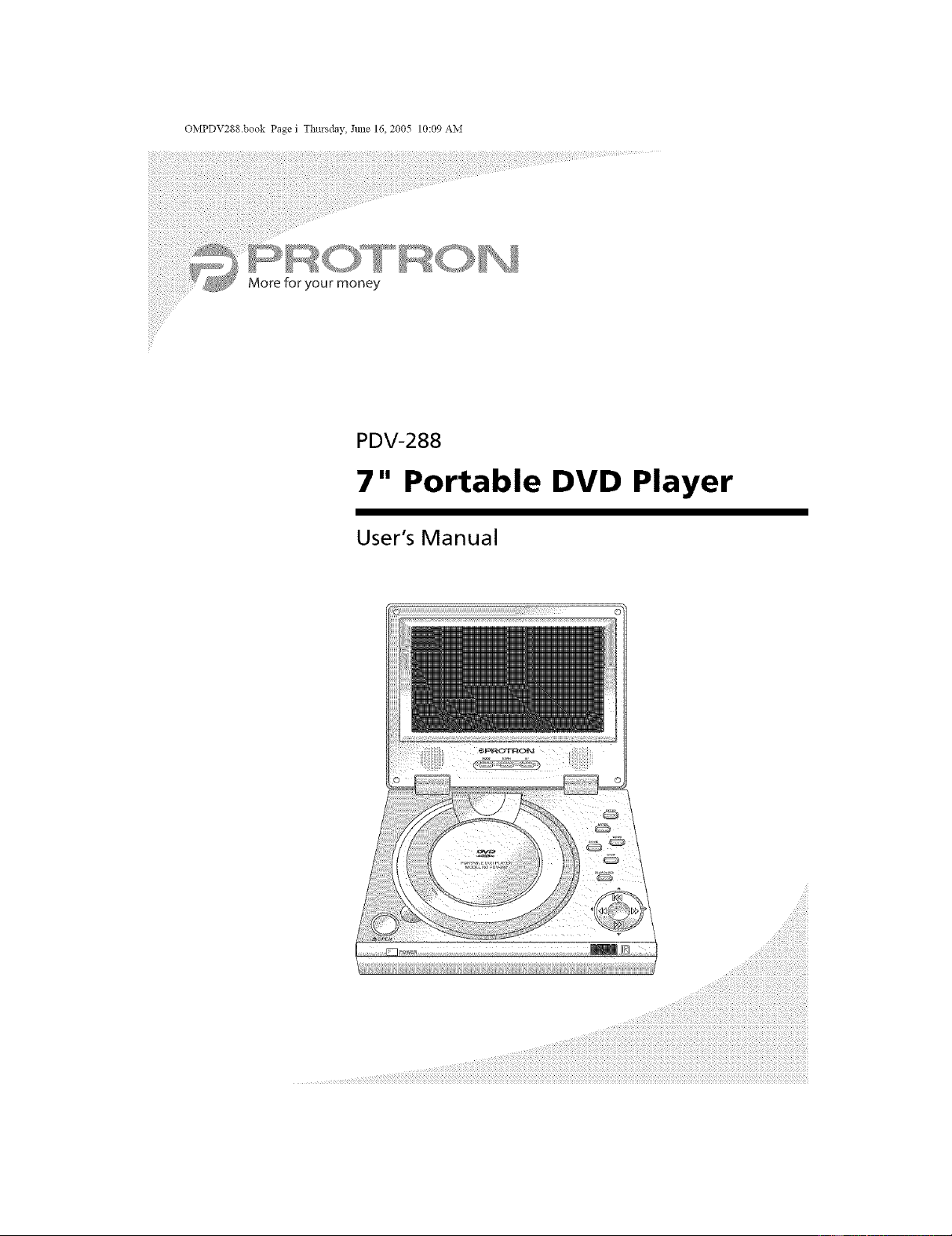
PDV-288
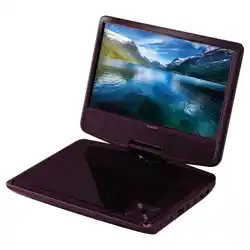
7" Portable DVD Player
User's Manual
OMPDV288 book Page ii Thursday, June t6, 2005 10:09 AM
Protron PDV-288 Portable DVD Player User's Manual.
© 2005 Protron Digital Corporation. All rights reserved.
Under copyright law, this manual may not be reproduced in any form, in whole
or in part, without the prior written consent of Protron Digital Corporation,
Disclaimer
Protron Digital Corporation has reviewed this manual and provides it only as a
guide to operation. All statements, technical information, and recommendations
in this manual and in any guides or related documents are believed reliable, but
the accuracy and completeness thereof are not guaranteed or warranted, and they
are not intended to be, nor should they be understood to be, representations or
warranties concerning the products described.
Specifications are subject to change without notice.
Trademarks
Protron is a registered trademark of Prosonic Group Corporation.
Protron Digital Corporation
2133 S. Green Privado
Ontario, CA 91761
Printed in China
OMPDV288.book Page iii Thursday, June t6_ 2005 10:09 AM
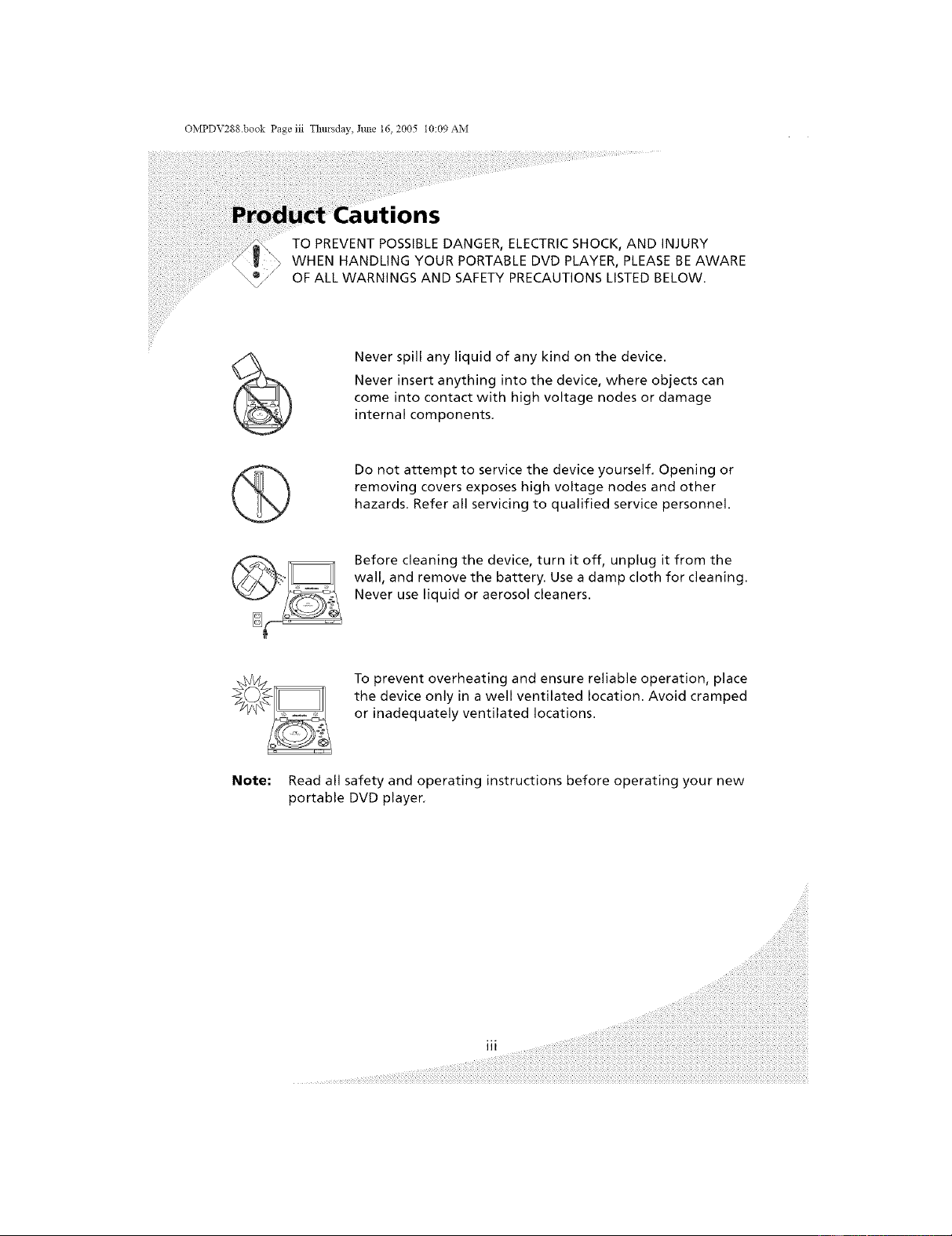
TO PREVENT POSSIBLE DANGER, ELECTRIC SHOCK, AND INJURY
WHEN HANDLING YOUR PORTABLE DVD PLAYER, PLEASE BE AWARE
OF ALL WARNINGS AND SAFETY PRECAUTIONS LISTED BELOW.
Never spill any liquid of any kind on the device.
Never insert anything into the device, where objects can
come into contact with high voltage nodes or damage
internal components,
Do not attempt to service the device yourself. Opening or
removing covers exposes high voltage nodes and other
hazards, Refer all servicing to qualified service personnel.
Before cleaning the device, turn it off, unplug it from the
wall, and remove the battery. Use a damp cloth for cleaning.
Never use liquid or aerosol cleaners.
To prevent overheating and ensure reliable operation, place
the device only in a well ventilated location. Avoid cramped
or inadequately ventilated locations.
Note: Read all safety and operating instructions before operating your new
portable DVD player,
OMPDV288 book Page iv Tlmrsday, June 16, 2005 t0:09 AM
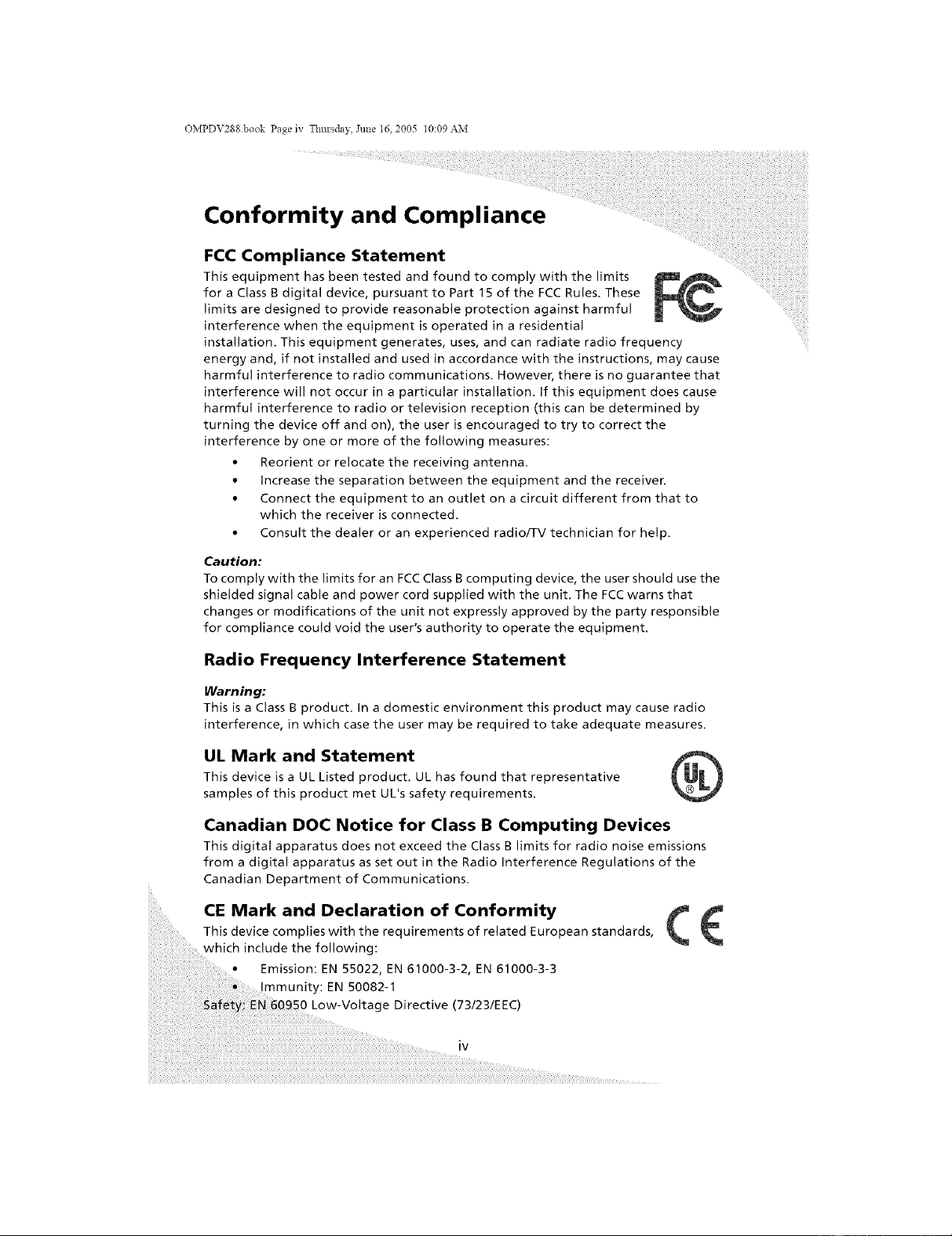
Conformity and Compliance
FCC Compliance Statement
This equipment has been tested and found to comply with the limits
for a Class B digital device, pursuant to Part 15 of the FCC Rules. These
limits are designed to provide reasonable protection against harmful
interference when the equipment is operated in a residential
installation. This equipment generates, uses, and can radiate radio frequency
energy and, if not installed and used in accordance with the instructions, may cause
harmful interference to radio communications. However, there is no guarantee that
interference will not occur in a particular installation. If this equipment does cause
harmful interference to radio or television reception (this can be determined by
turning the device off and on), the user is encouraged to try to correct the
interference by one or more of the following measures:
• Reorient or relocate the receiving antenna.
• Increase the separation between the equipment and the receiver.
• Connect the equipment to an outlet on a circuit different from that to
which the receiver is connected.
• Consult the dealer or an experienced radio/TV technician for help.
Caution:
To comply with the limits for an FCC Class B computing device, the user should use the
shielded signal cable and power cord supplied with the unit. The FCC warns that
changes or modifications of the unit not expressly approved by the party responsible
for compliance could void the user's authority to operate the equipment.
Radio Frequency Interference Statement
Warning:
This is a Class B product. In a domestic environment this product may cause radio
interference, in which case the user may be required to take adequate measures.
UL Mark and Statement
This device is a UL Listed product. UL has found that representative
samples of this product met UL's safety requirements.
Canadian DOC Notice for Class B Computing Devices
This digital apparatus does not exceed the Class B limits for radio noise emissions
from a digital apparatus as set out in the Radio Interference Regulations of the
Canadian Department of Communications.
CE Mark and Declaration of Conformity
This device complies with the requirements of related European standards,
which include the following:
Emission: EN 55022, EN 61000-3-2, EN 61000-3-3
EN 50082-1
Low-Voltage Directive (73/23/EEC)
OMPDV288.book Page v Tlmrsday, June 16, 2005 t0:09 AM
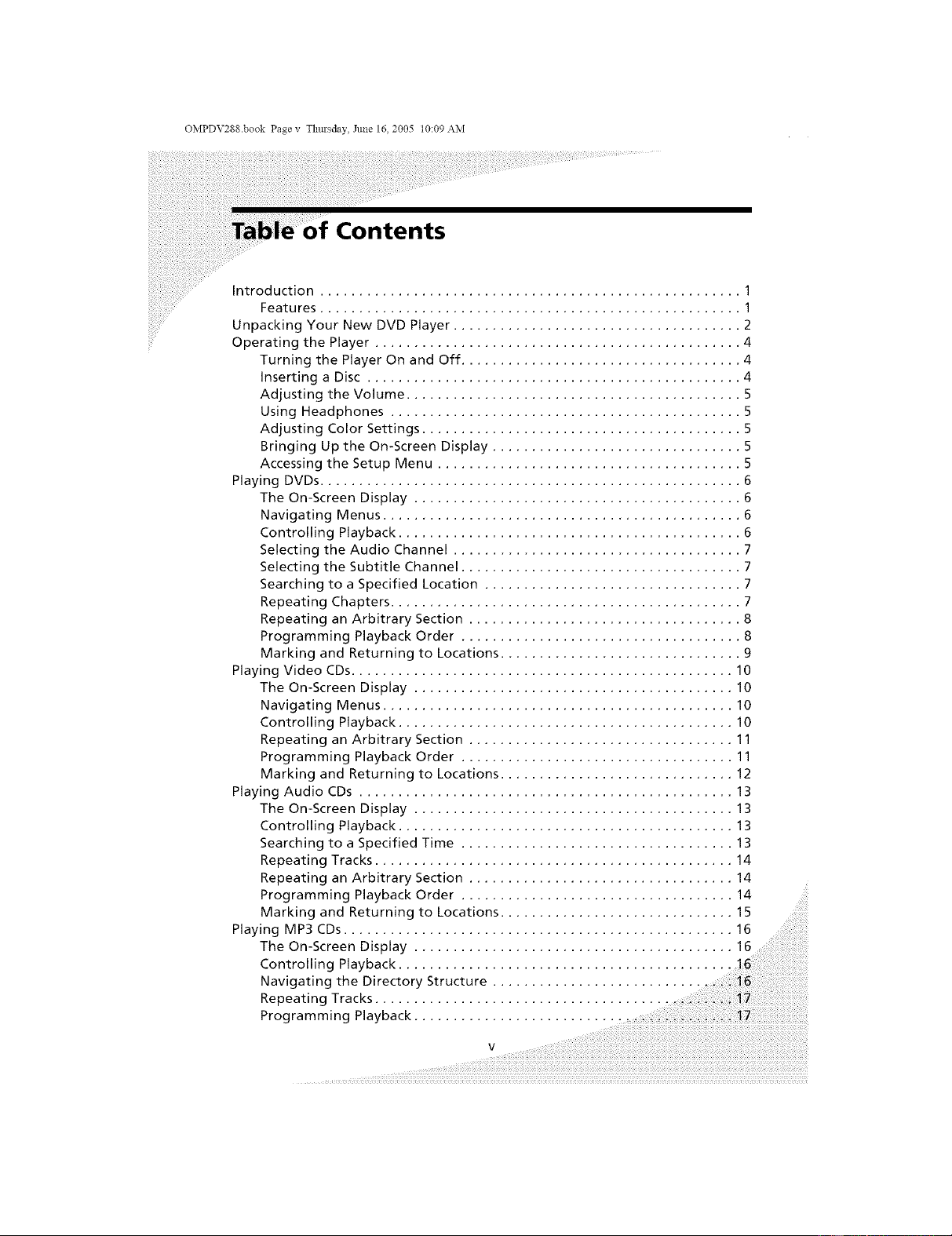
Contents
Introduction ...................................................... 1
Features ...................................................... 1
Unpacking Your New DVD Player ..................................... 2
Operating the Player ............................................... 4
Turning the Player On and Off .................................... 4
Inserting a Disc ................................................ 4
Adjusting the Volume ........................................... 5
Using Headphones ............................................. 5
Adjusting Color Settings ......................................... 5
Bringing Up the On-Screen Display ................................ 5
Accessing the Setup Menu ....................................... 5
Playing DVDs ...................................................... 6
The On-Screen Display .......................................... 6
Navigating Menus .............................................. 6
Controlling Playback ............................................ 6
Selecting the Audio Channel ..................................... 7
Selecting the Subtitle Channel ................................... 7
Searching to a Specified Location ................................. 7
Repeating Chapters ............................................. 7
Repeating an Arbitrary Section ................................... 8
Programming Playback Order .................................. 8
Marking and Returning to Locations ............................... 9
Playing Video CDs................................................ 10
The On-Screen Display ......................................... 10
Navigating Menus ............................................. 10
Controlling Playback ........................................... 10
Repeating an Arbitrary Section .................................. 11
Programming Playback Order ................................... 11
Marking and Returning to Locations .............................. 12
Playing Audio CDs ............................................... 13
The On-Screen Display ......................................... 13
Controlling Playback ........................................... 13
Searching to a Specified Time ................................... 13
Repeating Tracks .............................................. 14
Repeating an Arbitrary Section .................................. 14
Programming Playback Order ................................... 14
Marking and Returning to Locations .............................. I S
Playing MP3 CDs.................................................. 16
The On-Screen Display ......................................... 16
Controlling Playback.
Navigating the Directory Structure
Repeating Tracks.
Programming Playback ....................... ..........................................................................
i i i i i i i i i i i i i i i i i i i i i i i i i i i i i i i i i !
V
OMPDV288 book Page vi Thursday, June 16, 2005 t0:09 AM
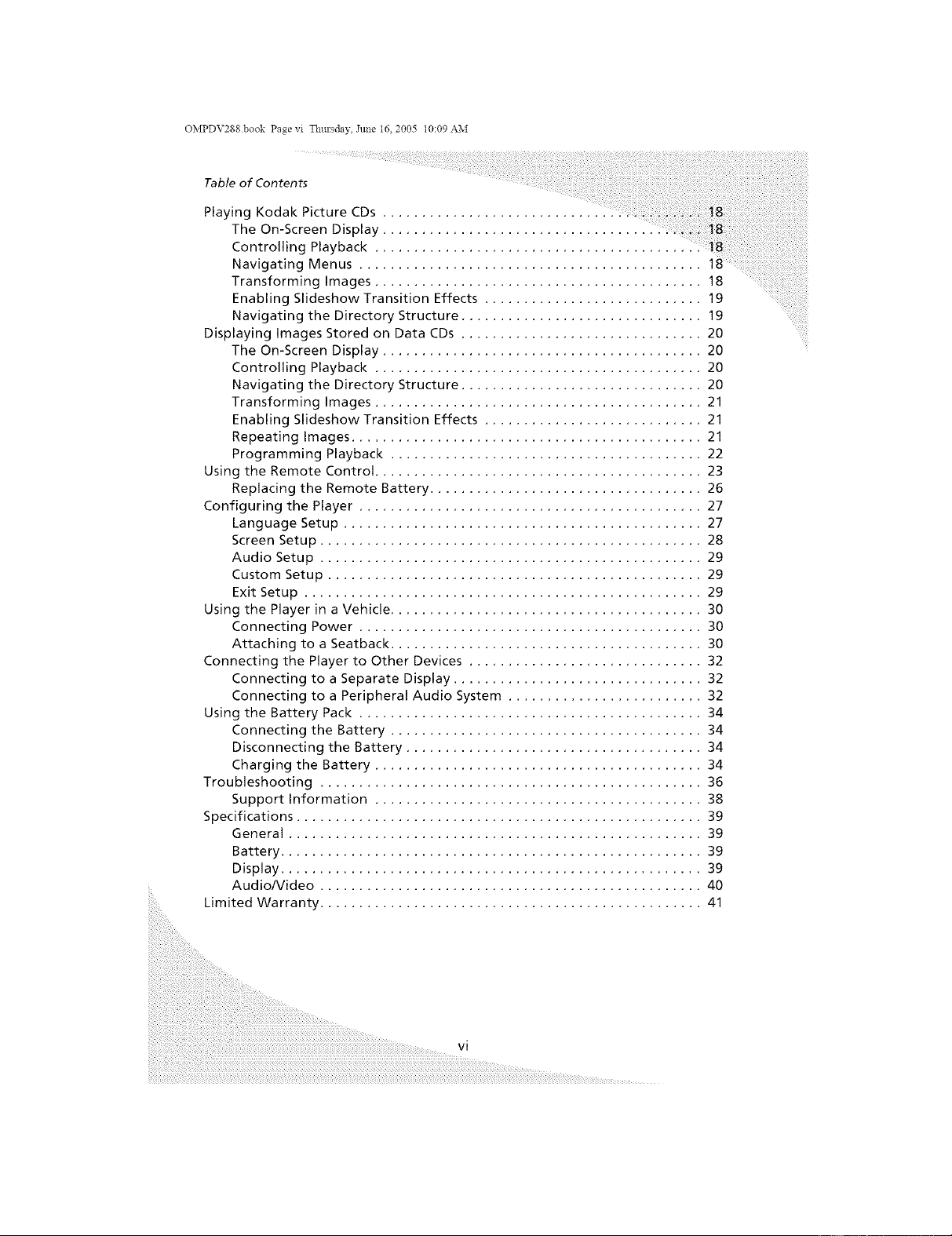
Table of Contents
Playing Kodak Picture CDs
The On-Screen Display
Controlling Playback
Navigating Menus ............................................ 18
Transforming Images .......................................... 18
Enabling Slideshow Transition Effects ............................ 19
Navigating the Directory Structure ............................... 19
Displaying Images Stored on Data CDs ............................... 20
The On-Screen Display ......................................... 20
Controlling Playback .......................................... 20
Navigating the Directory Structure ............................... 20
Transforming Images .......................................... 21
Enabling Slideshow Transition Effects ............................ 21
Repeating Images ............................................. 21
Programming Playback ........................................ 22
Using the Remote Control .......................................... 23
Replacing the Remote Battery ................................... 26
Configuring the Player ............................................ 27
Language Setup .............................................. 27
Screen Setup ................................................. 28
Audio Setup ................................................. 29
Custom Setup ................................................ 29
Exit Setup ................................................... 29
Using the Player in a Vehicle ........................................ 30
Connecting Power ............................................ 30
Attaching to a Seatback ........................................ 30
Connecting the Player to Other Devices .............................. 32
Connecting to a Separate Display ................................ 32
Connecting to a Peripheral Audio System ......................... 32
Using the Battery Pack ............................................ 34
Connecting the Battery ........................................ 34
Disconnecting the Battery ...................................... 34
Charging the Battery .......................................... 34
Troubleshooting ................................................. 36
Support Information .......................................... 38
Specifications .................................................... 39
General ..................................................... 39
Battery ...................................................... 39
Display ...................................................... 39
AudioNideo ................................................. 40
Limited Warranty ................................................. 41
vi
OMPDV288.book Page t Thmsday, June 16, 2005 t0:09 AM
++++_
Congratulations on purchasing your new Protron Portable DVD Player!
With a large 7" screen and over two and a half hours of battery life, your new
player allows you to watch movies on the road, in the air--anywhere. In
addition, it can play music and photo CDs so you can listen to music or browse
photo albums wherever you are.
Audio and video outputs allow you to connect your player to a television and/
or stereo system for the highest audio and video quality. A car power adapter
allows you to use your player on the road for as long as you want.
Features
• Large 7" screen
• Fully compatible with DVD, Audio CD, MP3 CD, Video CD, Super Video
CD, Kodak Picture CD, CD-ROM, and CD-R media
• Superlative error correction
• Displays JPEGs stored on data CDs
• 10-bit, 525-1ine digital video converter
• 24-bit, 96kHz digital audio converters for high fidelity sound
• Dolby Digital surround sound
• Composite video output
• Digital coaxial audio output
• Stereo audio output
• Headphones output
• 4 languages: English, Spanish, French, and German
• 32 DVD subtitle channels supported
• Multi-angle video playback
OMPDV288 book Page 2 Tllm'sday, June 16, 2005 t0:09 AM
Unpacking Your New DVD Player
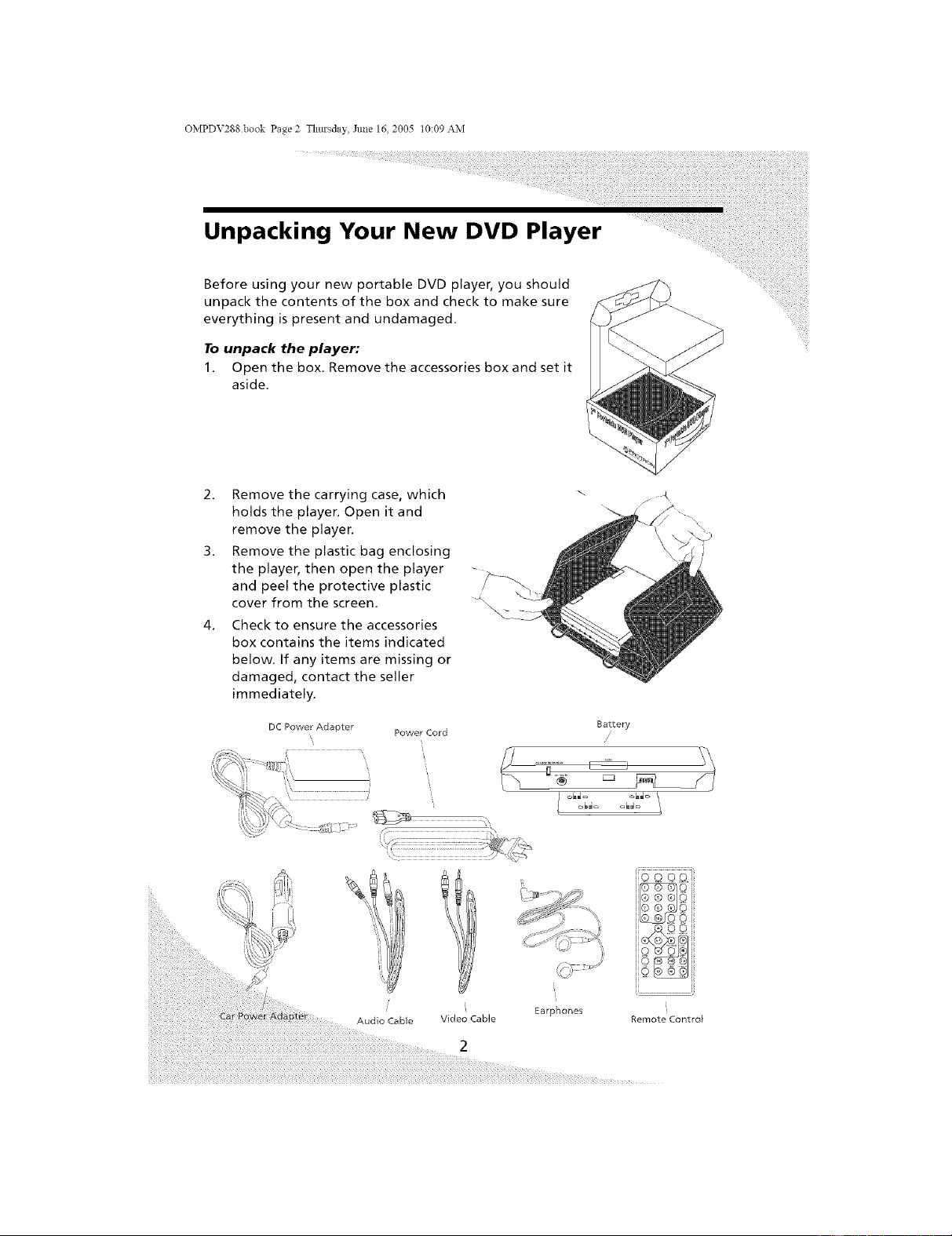
Before using your new portable DVD player, you should
unpack the contents of the box and check to make sure
everything is present and undamaged,
To unpack the player:
1. Open the box, Remove the accessories box and set it
aside,
2. Remove the carrying case, which
holds the player. Open it and
remove the player.
3. Remove the plastic bag enclosing
the player, then open the player
and peel the protective plastic
cover from the screen, ",
4. Check to ensure the accessories
box contains the items indicated
below. If any items are missing or
damaged, contact the seller
immediately.
DC Power Adapter
Power Cord
Battery
/
\
/
Audio Cable
OMPDV288.book Page 3 Thmsday, June 16, 2005 t0:09 AM
Unpacking Your New DVD Player
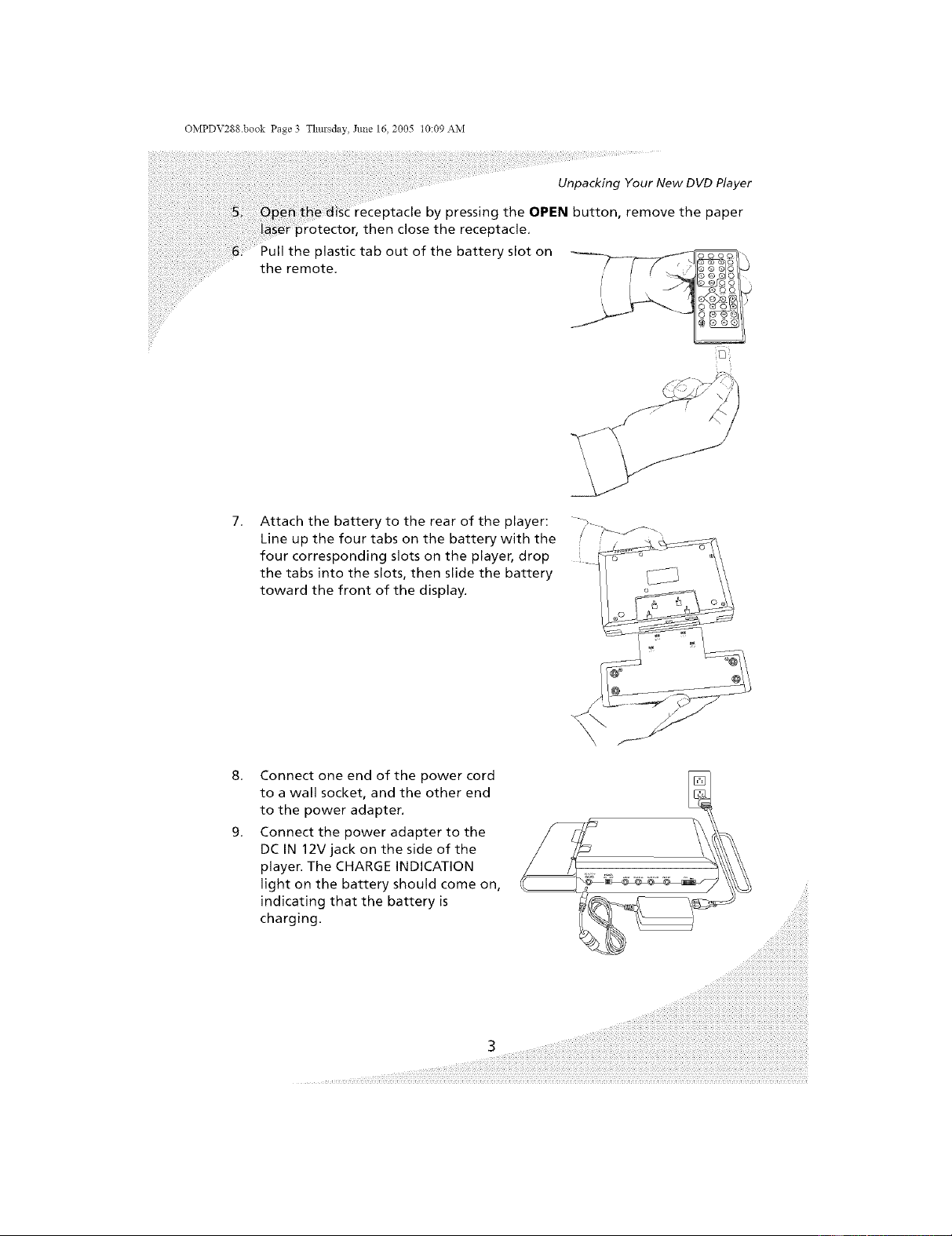
receptacle by pressing the OPEN button, remove the paper
3rotector, then close the receptacle.
Pull the plastic tab out of the battery slot on
the remote.
Attach the battery to the rear of the player:
Line up the four tabs on the battery with the
four corresponding slots on the player, drop
the tabs into the slots, then slide the battery
toward the front of the display.
" 7_
Connect one end of the power cord
to a wall socket, and the other end
to the power adapter.
Connect the power adapter to the
DC IN 12V jack on the side of the
player. The CHARGE INDICATION
light on the battery should come on,
indicating that the battery is
charging.
OMPDV288 book Page 4 Tllm'sday, June 16, 2005 t0:09 AM
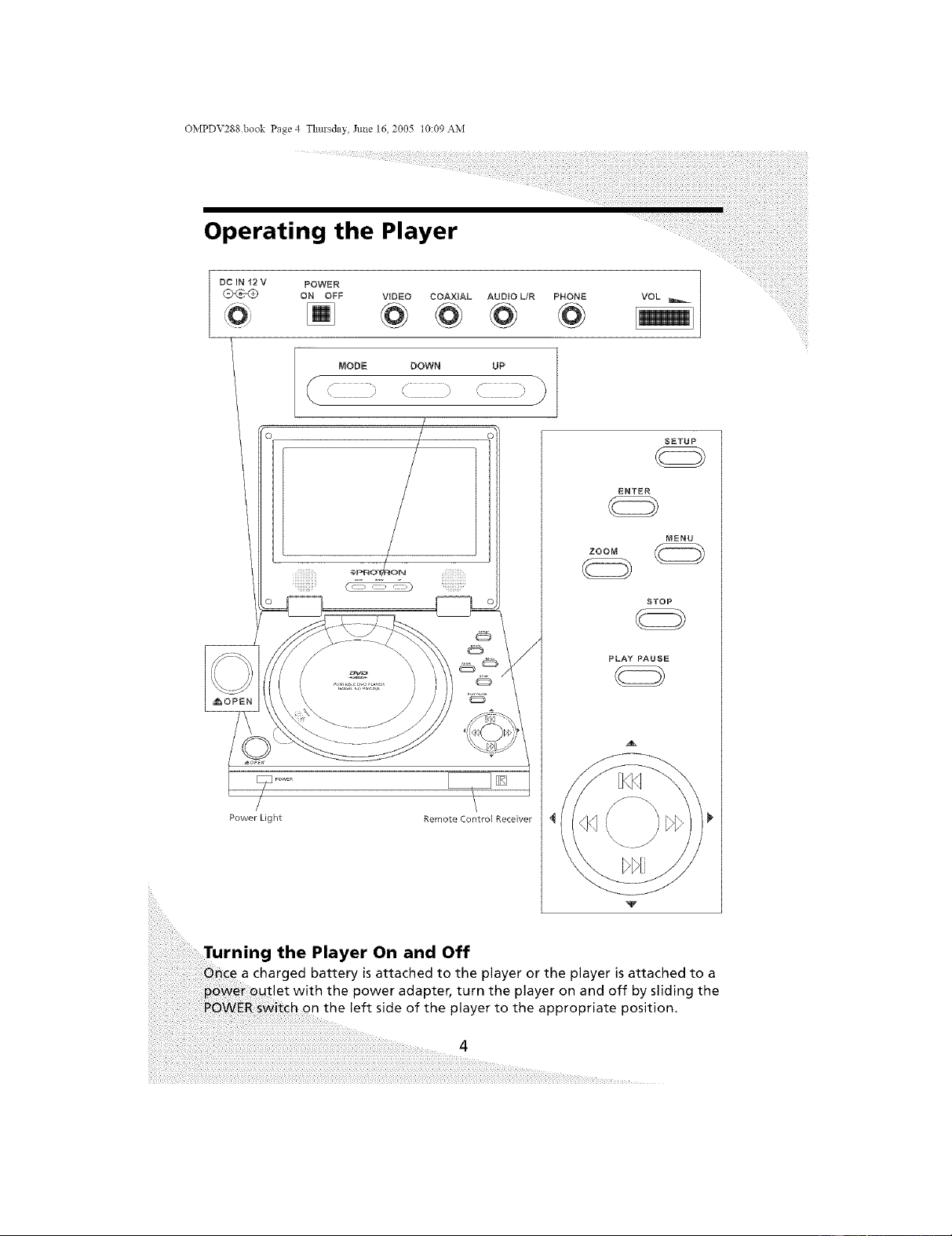
Operating the Player
POWER
ON OFF VIDEO COAXIAL AUDIO UR PHONE VOL
MODE DOWN UP |
/
\ / , / , /
/
Power Light Remote Control Receiver
SETUP
ENTER
MENU
ZOOM
STOP
PLAY PAUSE
A
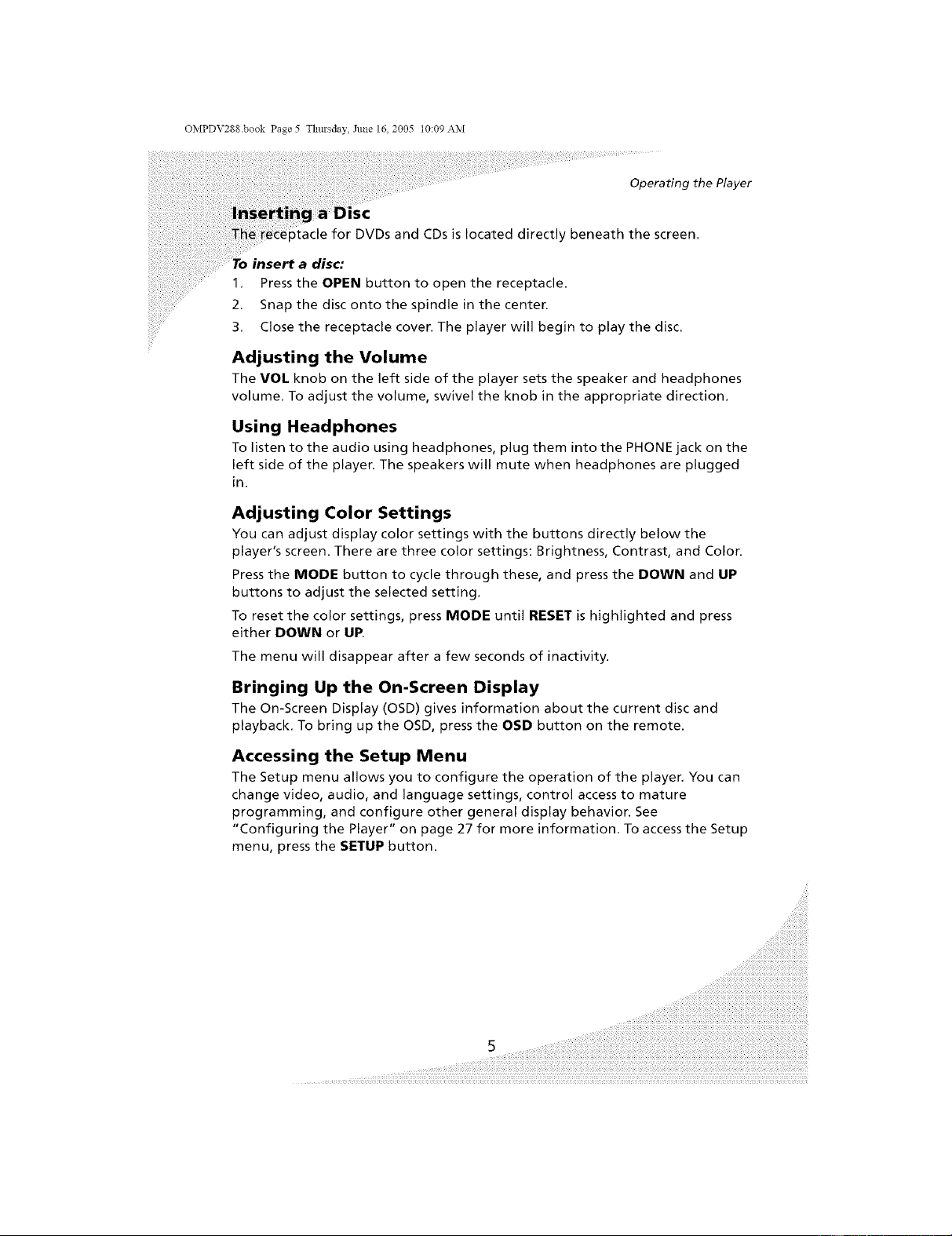
the Player On and Off
charged battery is attached to the player or the player is attached to a
with the power adapter, turn the player on and off by sliding the
the left side of the player to the appropriate position.
4
OMPDV288.book Page 5 Thmsday, June 16, 2005 t0:09 AM
Operating the Player
DVDs and CDs is located directly beneath the screen,
disc;
1, Press the OPEN button to open the receptacle.
2. Snap the disc onto the spindle in the center.
3. Close the receptacle cover. The player will begin to play the disc.
Adjusting the Volume
The VOL knob on the left side of the player sets the speaker and headphones
volume, To adjust the volume, swivel the knob in the appropriate direction.
Using Headphones
To listen to the audio using headphones, plug them into the PHONE jack on the
left side of the player. The speakers will mute when headphones are plugged
in.
Adjusting Color Settings
You can adjust display color settings with the buttons directly below the
player's screen. There are three color settings: Brightness, Contrast, and Color.
Press the MODE button to cycle through these, and press the DOWN and UP
buttons to adjust the selected setting.
To reset the color settings, press MODE until RESET is highlighted and press
either DOWN or UP.
The menu will disappear after a few seconds of inactivity.
Bringing Up the On-Screen Display
The On-Screen Display (OSD) gives information about the current disc and
playback. To bring up the OSD, press the OSD button on the remote.
Accessing the Setup Menu
The Setup menu allows you to configure the operation of the player. You can
change video, audio, and language settings, control access to mature
programming, and configure other general display behavior. See
"Configuring the Player" on page 27 for more information, To access the Setup
menu, press the SETUP button.
OMPDV288 book Page 6 Tllm'sday, June 16, 2005 t0:09 AM
Playing DVDs
DVDs will play upon insertion. The player can perform all standard DVD
playback and search functions,
The On-Screen Display
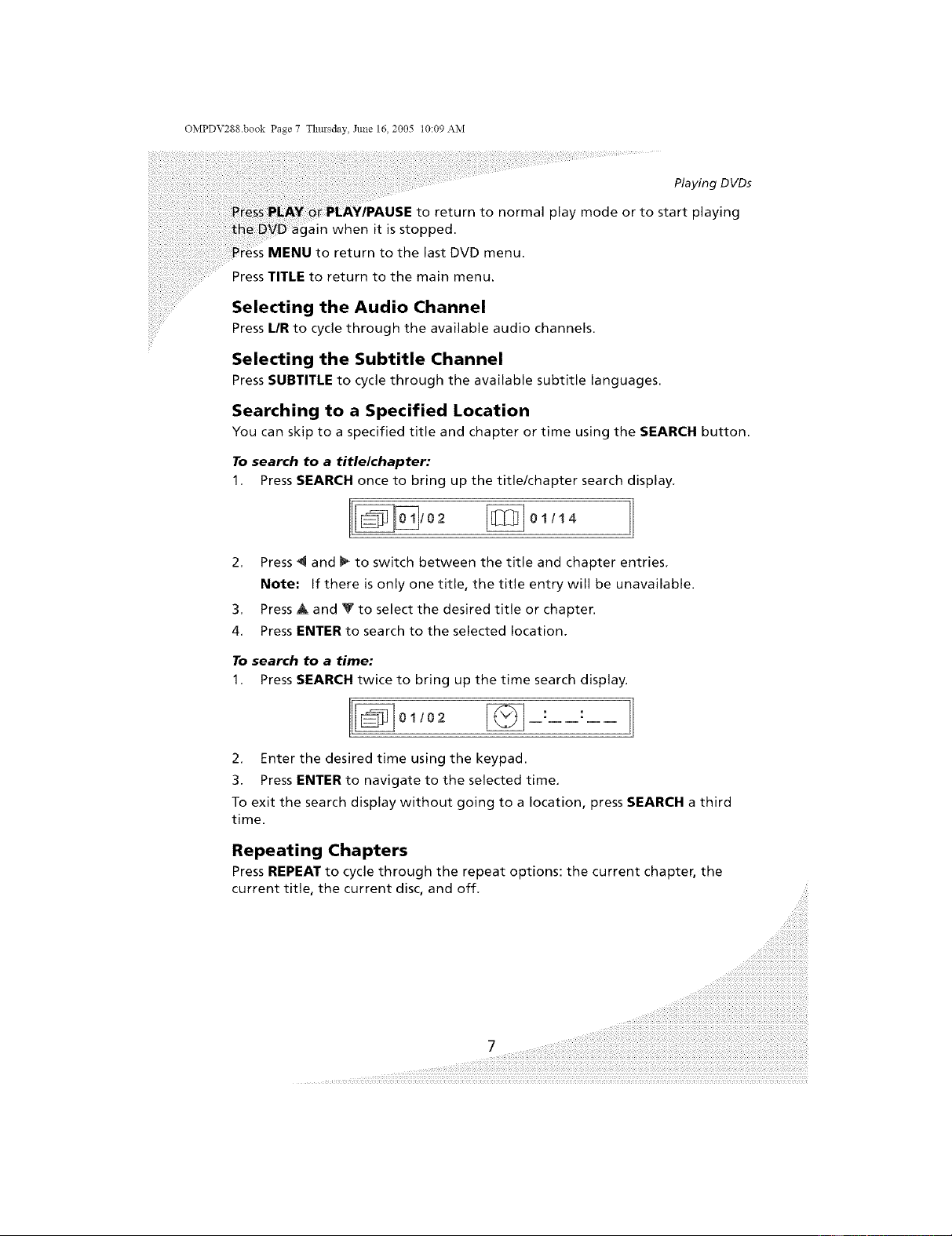
The DVD OSD has two modes:
The first mode (press OSD once) shows the current title number, chapter
number, and playback time.
The second mode (press OSD twice) shows the current title number, chapter
number, playback time, playback state (play, stop, pause, and so on), subtitle
channel, audio channel, video format, and shot angle,
_[_: !/14 00 : 00 : 05 ||]
_: English!/5
J
AC42 CH _[_: NTSC Inter_ce _: 1/2
Navigating Menus
When in a DVD menu, use the arrow controls to navigate,
Press ENTER to select an item.
Press MENU to return to the previous menu,
Controlling Playback
When playing a DVD, use the following buttons to navigate (some are on the
remote, and some are on the player itself):
Press STOP to stop the DVD completely.
When the DVD is playing, press PAUSE/STEP or PLAY/PAUSE to pause it.
When the DVD is paused, press PAUSE/STEP to step forward one frame at a
time.
Press PREV to return to the previous chapter.
Press NEXT to skip to the next chapter.
Press REV to reverse DVD playback. Pressing this button repeatedly changes
the speed at which the DVD reverses: 2x, 4x, 8x, 16x, or 32x. Pressing REV
again when reversing at 32x speed returns to normal play mode.
Press FWD to fast forward the DVD. This button operates as the REV button
S.
the video at a slower speed. Pressing the button repeatedly
speed options: xl/2, xl/4, xl/8, xl/16, and xl/32.
OMPDV288.book Page 7 Thmsday, Jm_e 16, 2005 t0:09 AM
Playing DVDs
to return to normal play mode or to start playing
ain when it is stopped.
MENU to return to the last DVD menu.
Press TITLE to return to the main menu.
Selecting the Audio Channel
Press UR to cycle through the available audio channels.
Selecting the Subtitle Channel
Press SUBTITLE to cycle through the available subtitle languages.
Searching to a Specified Location
You can skip to a specified title and chapter or time using the SEARCH button.
To search to a titlelchapter:
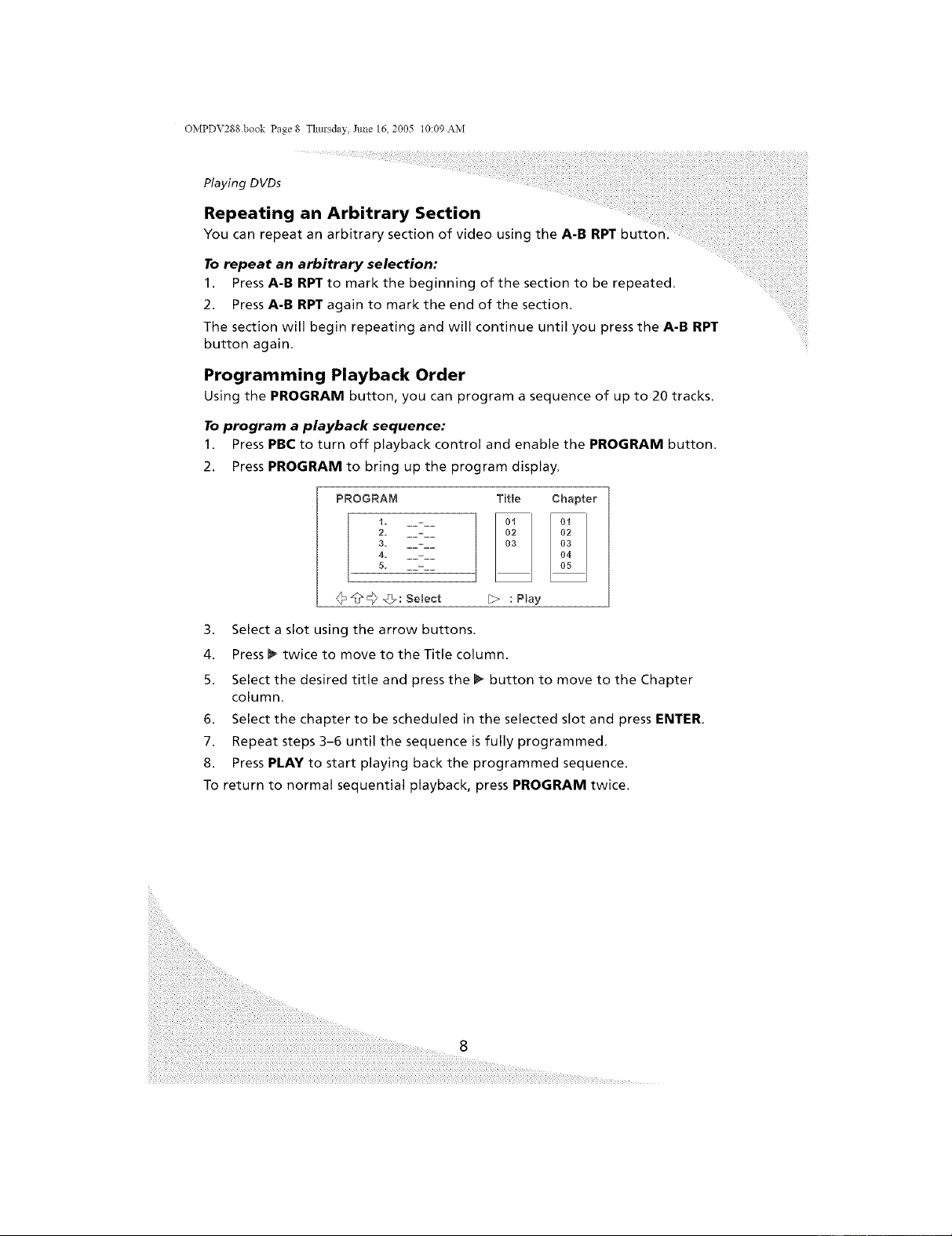
1, Press SEARCH once to bring up the title/chapter search display,
2 [_01/14 1
2, Press _1 and _ to switch between the title and chapter entries,
Note: If there is only one title, the title entry will be unavailable.
3, Press A and _ to select the desired title or chapter.
4, Press ENTER to search to the selected location.
To search to a time:
1. Press SEARCH twice to bring up the time search display.
2,
3.
01102 [_ :
Enter the desired time using the keypad.
PressENTER to navigate to the selected time,
To exit the search display without going to a location, press SEARCH a third
time.
Repeating Chapters
Press REPEAT to cycle through the repeat options: the current chapter, the
current title, the current disc, and off,
7 ....
OMPDV288 book Page 8 Tllm'sday, June 16, 2005 t0:09 AM
Playing DVDs
Repeating an Arbitrary Section
You can repeat an arbitrary section of video using the A-B
To repeat an arbitrary selection:
1. Press A-B RPT to mark the beginning of the section to be repeated,
2. Press A-B RPT again to mark the end of the section.
The section will begin repeating and will continue until you press the A-B RPT
button again,
Programming Playback Order
Using the PROGRAM button, you can program a sequence of up to 20 tracks.
To program a playback sequence:
1. Press PBC to turn off playback control and enable the PROGRAM button,
2. Press PROGRAM to bring up the program display,
PROGRAM
1= _-
2= _-
3= _-
4. _-
5. _-
TR[e Chapter
02
03
04
I_> : Play
3. Select a slot using the arrow buttons.
4. Press _ twice to move to the Title column.
5. Select the desired title and press the _ button to move to the Chapter
column.
6. Select the chapter to be scheduled in the selected slot and press ENTER.
7. Repeat steps 3-6 until the sequence is fully programmed,
8. Press PLAY to start playing back the programmed sequence.
To return to normal sequential playback, press PROGRAM twice.
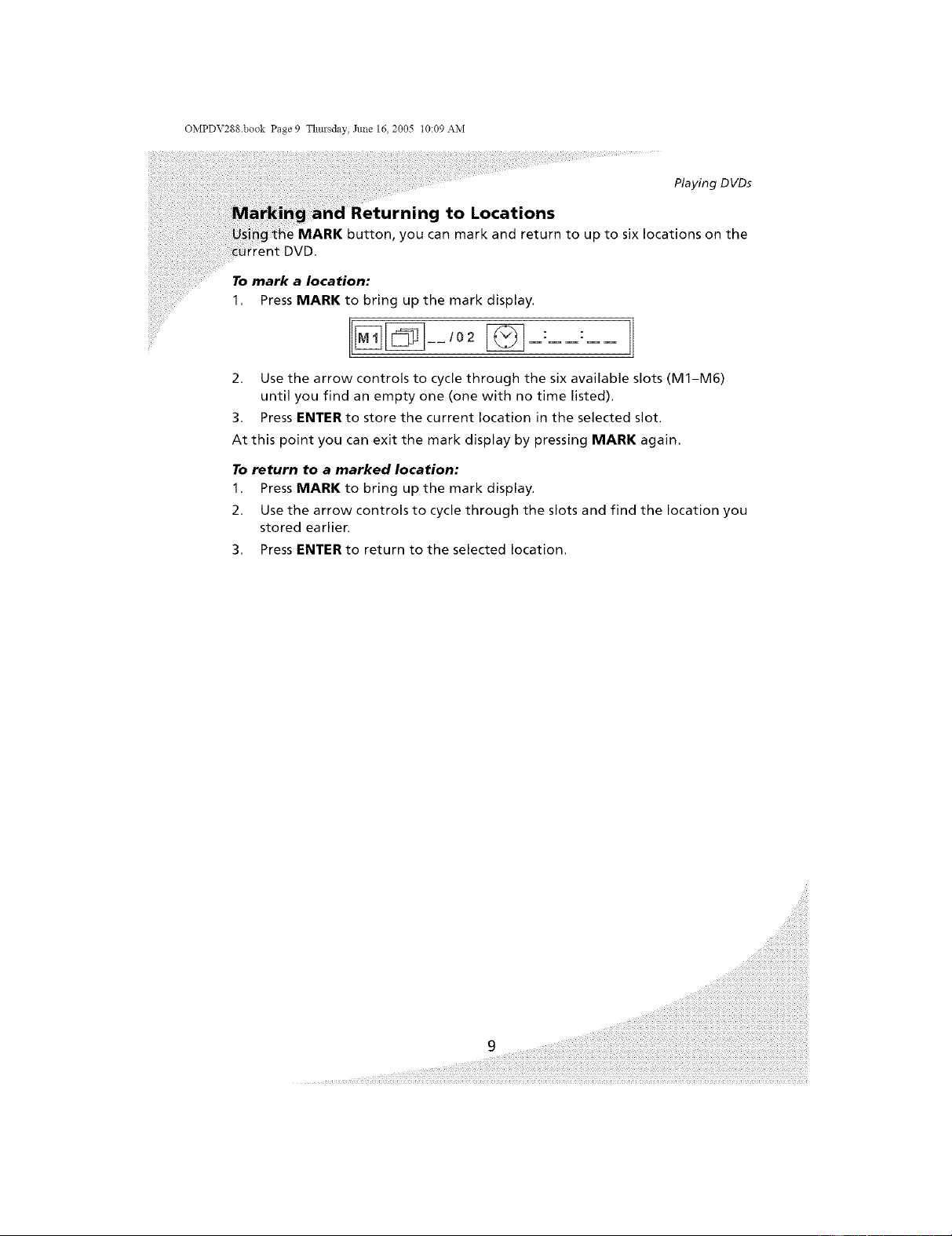
OMPDV288.book Page 9 Thmsday, June 16, 2005 t0:09 AM
Playing D VDs
,g to Locations
button, you can mark and return to up to six locations on the
To mark a location:
1. Press MARK to bring up the mark display.
2, Use the arrow controls to cycle through the six available slots (M1-M6)
until you find an empty one (one with no time listed).
3, Press ENTER to store the current location in the selected slot.
At this point you can exit the mark display by pressing MARK again,
To return to a marked location:
1, Press MARK to bring up the mark display,
2, Use the arrow controls to cycle through the slots and find the location you
stored earlien
3, Press ENTER to return to the selected location,
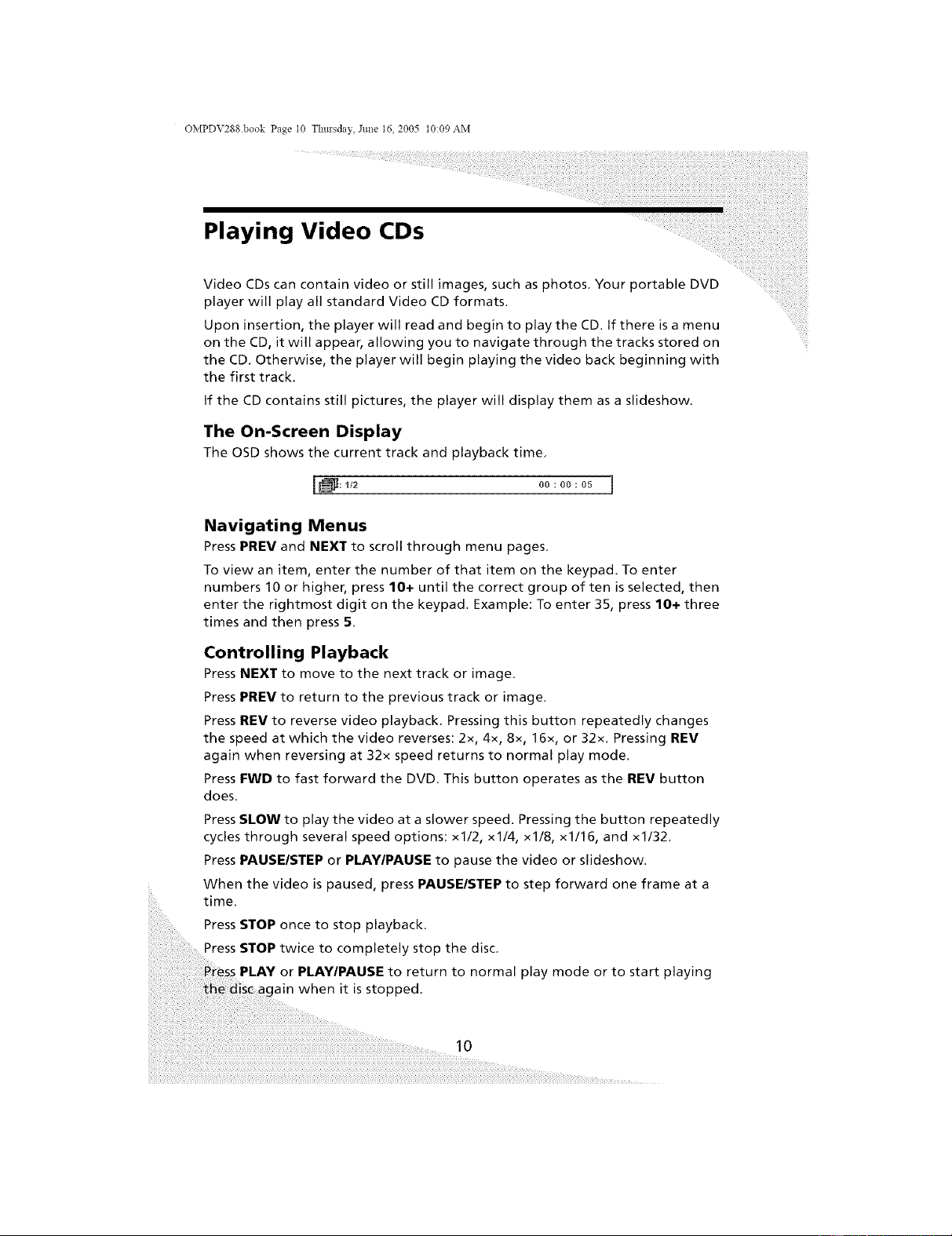
OMPDV288 book Page 10 Thm'sday, June 16, 2005 t0:09 AM
Playing Video CDs
Video CDs can contain video or still images, such as photos, Your portable DVD
player will play all standard Video CD formats.
Upon insertion, the player will read and begin to play the CD. If there is a menu
on the CD, it will appear, allowing you to navigate through the tracks stored on
the CD. Otherwise, the player will begin playing the video back beginning with
the first track.
If the CD contains still pictures, the player will display them as a slideshow,
The On-Screen Display
The OSD shows the current track and playback time,
11_: _/2 00:00:05 ]
Navigating Menus
Press PREV and NEXT to scroll through menu pages.
To view an item, enter the number of that item on the keypad. To enter
numbers 10 or higher, press 10+ until the correct group of ten is selected, then
enter the rightmost digit on the keypad, Example: To enter 35, press 10+ three
times and then press 5,
Controlling Playback
Press NEXT to move to the next track or image.
Press PREY to return to the previous track or image.
Press REV to reverse video playback. Pressing this button repeatedly changes
the speed at which the video reverses: 2x, 4x, 8x, 16x, or 32x. Pressing REV
again when reversing at 32x speed returns to normal play mode.
Press FWD to fast forward the DVD. This button operates as the REV button
does.
Press SLOW to play the video at a slower speed. Pressing the button repeatedly
cycles through several speed options: xl/2, xl/4, xl/8, x1/16, and x1/32.
Press PAUSE/STEP or PLAY/PAUSE to pause the video or slideshow.
When the video is paused, press PAUSE/STEP to step forward one frame at a
time.
Press STOP once to stop playback.
Press STOP twice to completely stop the disc.
PLAY or PLAY/PAUSE to return to normal play mode or to start playing
lain when it is stopped,
10
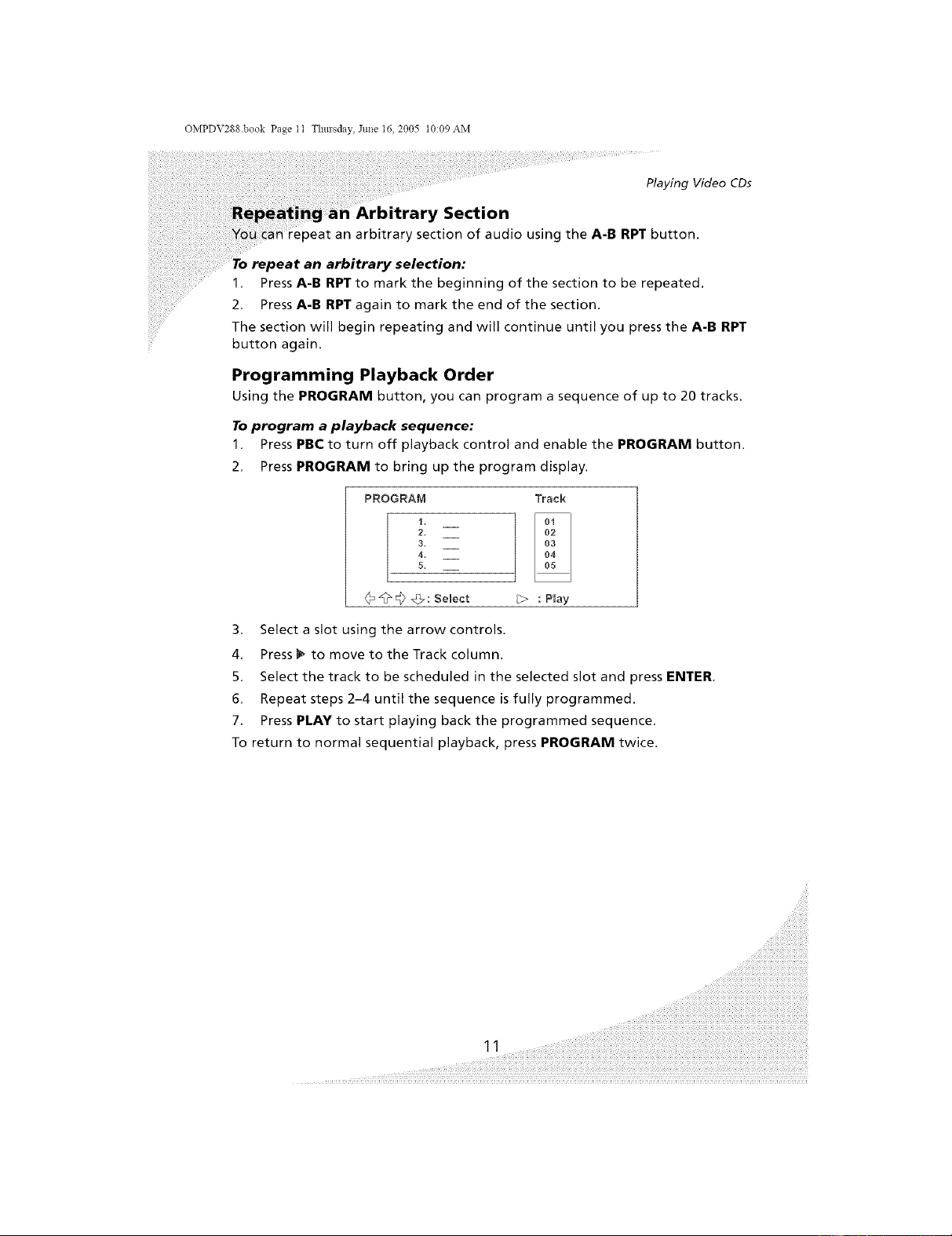
OMPDV288.book Page t t Thm'sday, June 16, 2005 t0:09 AM
Playing Video CDs
Section
_eat an arbitrary section of audio using the A-B RPT button.
an arbitrary selection:
1, Press A-B RPTto mark the beginning of the section to be repeated.
2, Press A-B RPT again to mark the end of the section.
The section will begin repeating and will continue until you press the A-B RPT
button again.
Programming Playback Order
Using the PROGRAM button, you can program a sequence of up to 20 tracks.
To program a playback sequence:
1, Press PBCto turn off playback control and enable the PROGRAM button.
2, Press PROGRAM to bring up the program display.
PROGRAM
1,
2.
3.
4.
5.
_@@ @7: Select
Track
02
03
04
: Play
3. Select a slot using the arrow controls.
4, Press _ to move to the Track column.
5. Select the track to be scheduled in the selected slot and press ENTER,
6. Repeat steps 2-4 until the sequence is fully programmed.
7. Press PLAY to start playing back the programmed sequence.
To return to normal sequential playback, press PROGRAM twice,
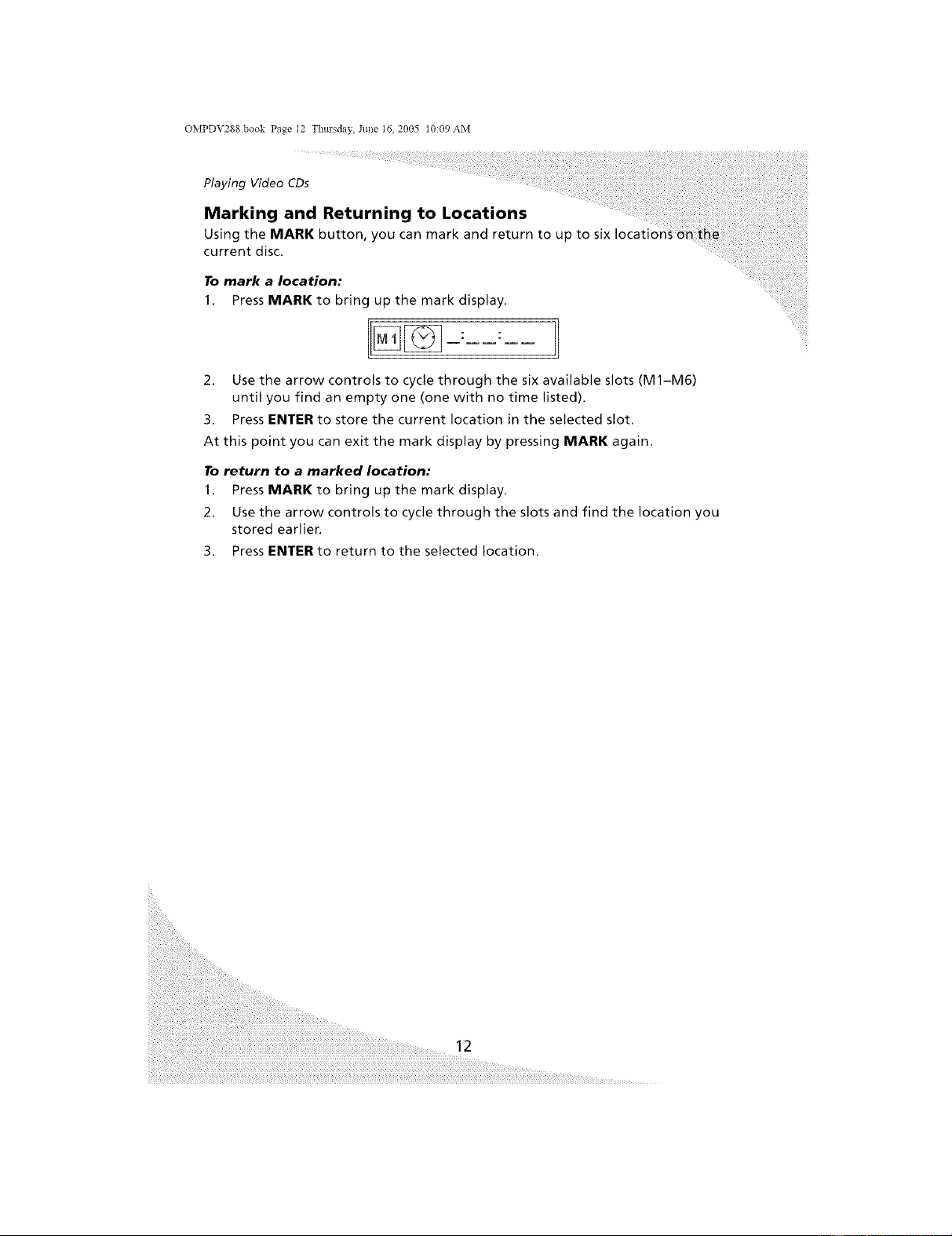
OMPDV288 book Page 12 Thm'sday, June 16, 2005 t0:09 AM
Playing Video CDs
Marking and Returning to Locations
Using the MARK button, you can mark and return to up to six
current disc.
To mark a location:
1. Press MARK to bring up the mark display.
2. Use the arrow controls to cycle through the six available slots (M1-M6)
until you find an empty one (one with no time listed).
3. Press ENTER to store the current location in the selected slot.
At this point you can exit the mark display by pressing MARK again.
To return to a marked location:
1. Press MARK to bring up the mark display.
2. Use the arrow controls to cycle through the slots and find the location you
stored earlier.
3. Press ENTER to return to the selected location.
12
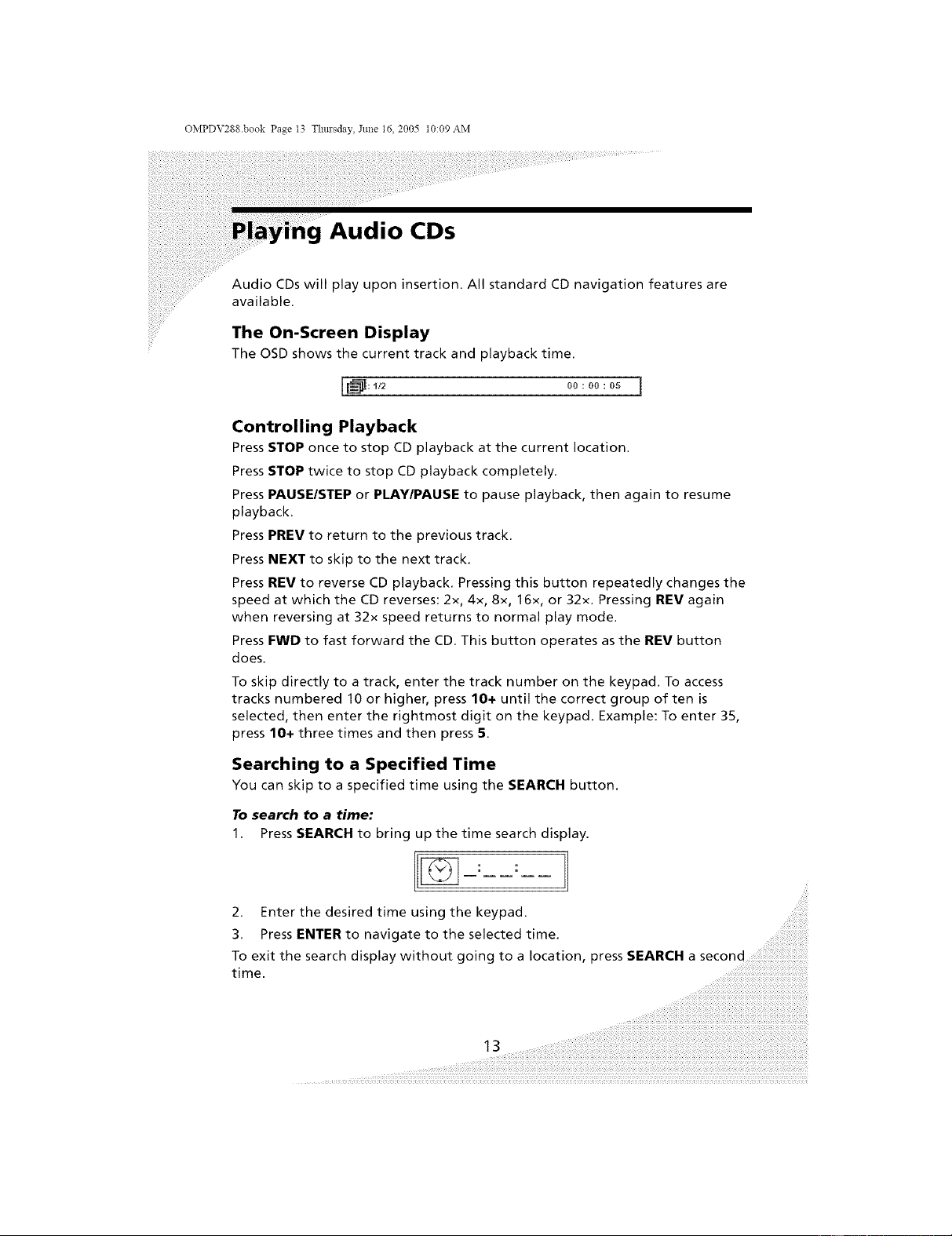
OMPDV288.book Page t3 Thm'sday, Jm_e 16, 2005 t0:09 AM
Audio CDs
Audio CDs will play upon insertion. All standard CD navigation features are
available.
The On-Screen Display
The OSD shows the current track and playback time.
[I_:!/2 oo:oo:o5 1
Controlling Playback
Press STOP once to stop CD playback at the current location.
Press STOP twice to stop CD playback completely.
Press PAUSE/STEP or PLAY/PAUSE to pause playback, then again to resume
playback.
Press PREV to return to the previous track.
Press NEXT to skip to the next track.
Press REV to reverse CD playback. Pressing this button repeatedly changes the
speed at which the CD reverses: 2x, 4x, 8x, 16x, or 32x. Pressing REV again
when reversing at 32x speed returns to normal play mode.
Press FWD to fast forward the CD. This button operates as the REV button
does.
To skip directly to a track, enter the track number on the keypad. To access
tracks numbered 10 or higher, press 10+ until the correct group of ten is
selected, then enter the rightmost digit on the keypad. Example: To enter 35,
press 10+ three times and then press 5.
Searching to a Specified Time
You can skip to a specified time using the SEARCH button.
To search to a time:
1. Press SEARCH to bring up the time search display.
: :
2. Enter the desired time using the keypad.
3, Press ENTER to navigate to the selected time,
To exit the search display without going to a location, press SEARCH a second
time ....
i i i i i i i i i i i i i i i i i i i i i
13 ....
OMPDV288 book Page 14 Thm'sday, June 16, 2005 t0:09 AM
Playing Audio CDs
Repeating Tracks
Press REPEAT to cycle through the repeat options: the current track,
current disc, and off.
Repeating an Arbitrary Section
You can repeat an arbitrary section of audio using the A-B RPT button.
To repeat an arbitrary selection:
1. Press A-B RPT to mark the beginning of the section to be repeated,
2. Press A-B RPT again to mark the end of the section.
The section will begin repeating and will continue until you press the A-R RPT
button again,
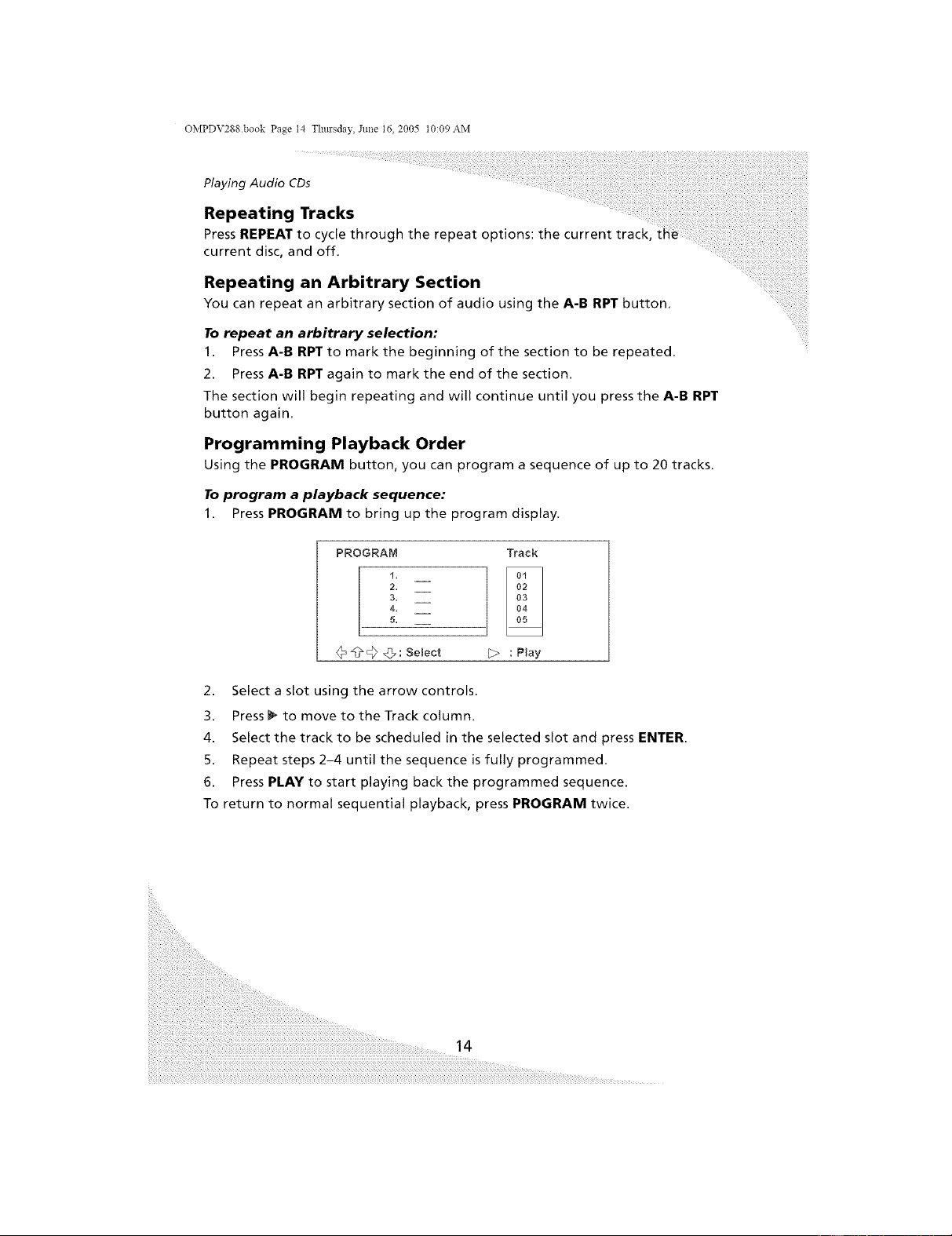
Programming Playback Order
Using the PROGRAM button, you can program a sequence of up to 20 tracks.
To program a playback sequence:
1. Press PROGRAM to bring up the program display,
PROGRAM
!.
2.
3.
4.
5.
@@@ @7: Select
Track
O2
03
O4
[:> : Play
2. Select a slot using the arrow controls.
3. Press _ to move to the Track column.
4. Select the track to be scheduled in the selected slot and press ENTER.
5. Repeat steps 2-4 until the sequence is fully programmed.
6. Press PLAY to start playing back the programmed sequence.
To return to normal sequential playback, press PROGRAM twice.
14
OMPDV288.book Page t5 Thm'sday, June t6, 2005 t0:09 AM
Playing Audio CDs
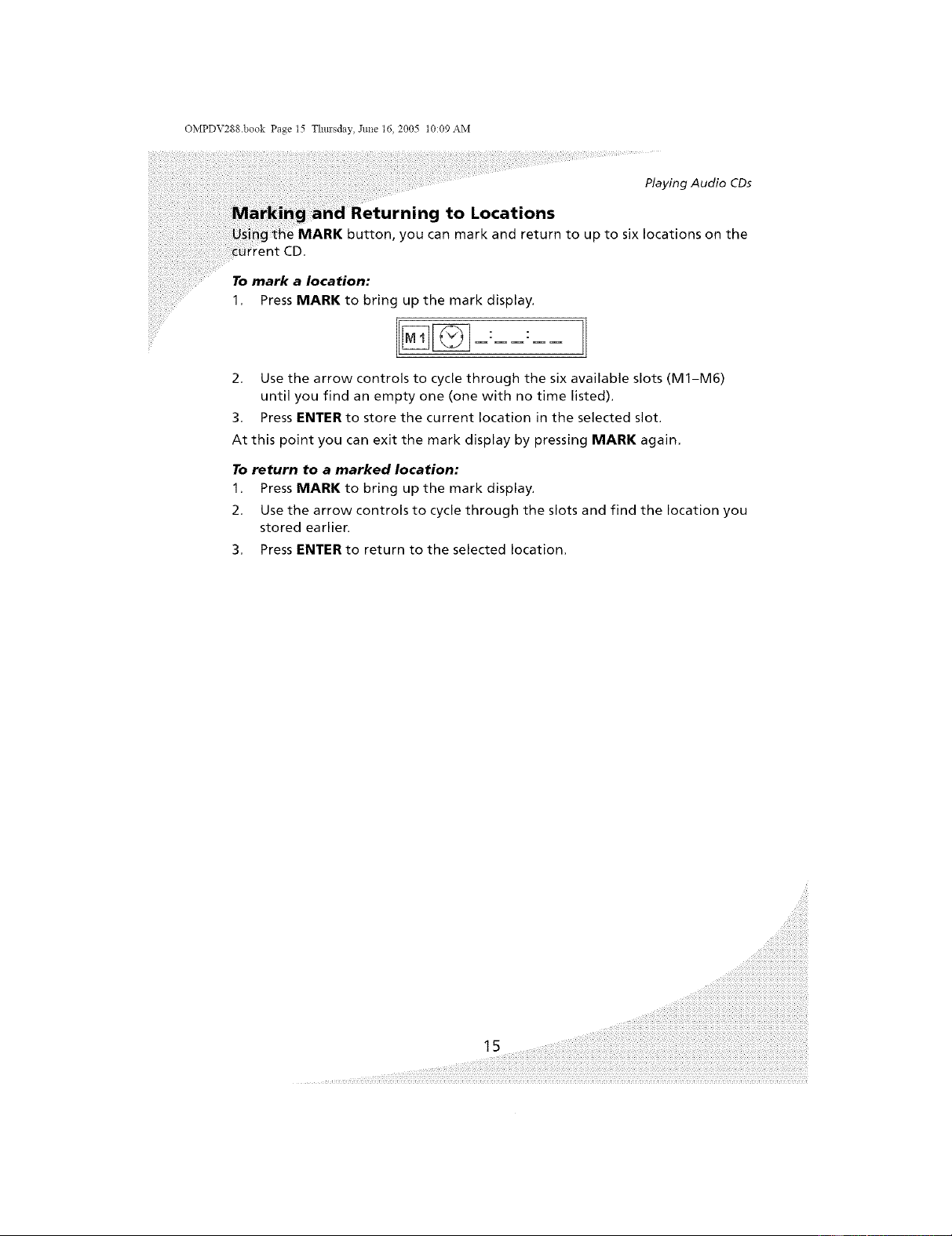
,g to Locations
button, you can mark and return to up to six locations on the
To mark a location:
1. Press MARK to bring up the mark display.
2, Use the arrow controls to cycle through the six available slots (MI-M6)
until you find an empty one (one with no time listed).
3, Press ENTER to store the current location in the selected slot.
At this point you can exit the mark display by pressing MARK again,
To return to a marked location:
1. Press MARK to bring up the mark display.
2, Use the arrow controls to cycle through the slots and find the location you
stored earlien
3, Press ENTER to return to the selected location.
OMPDV288 book Page 16 Thm'sday, June 16, 2005 t0:09 AM
Playing MP3 CDs
Upon inserting an MP3 CD, the player will begin playing the MP3 tracks stored
on the disc and bring up the directory structure for navigation and playback,
The On-Screen Display
The OSD shows the current track, directory, and playback time.
Root 00:00: ]
Controlling Playback
Press STOP once to stop CD playback at the current location.
Press STOP twice to stop CD playback completely.
Press PAUSE/STEP or PLAY/PAUSE to pause playback, then again to resume
playback.
Press PREV to return to the previous track.
Press NEXT to skip to the next track.
Press REV to reverse CD playback. Pressing this button repeatedly changes the
speed at which the CD reverses: 2x, 4x, 8x, 16x, or 32x. Pressing REV again
when reversing at 32x speed returns to normal play mode.
Press FWD to fast forward the CD. This button operates as the REV button
does.
To skip directly to a track, enter the track number on the keypad and then press
ENTER,
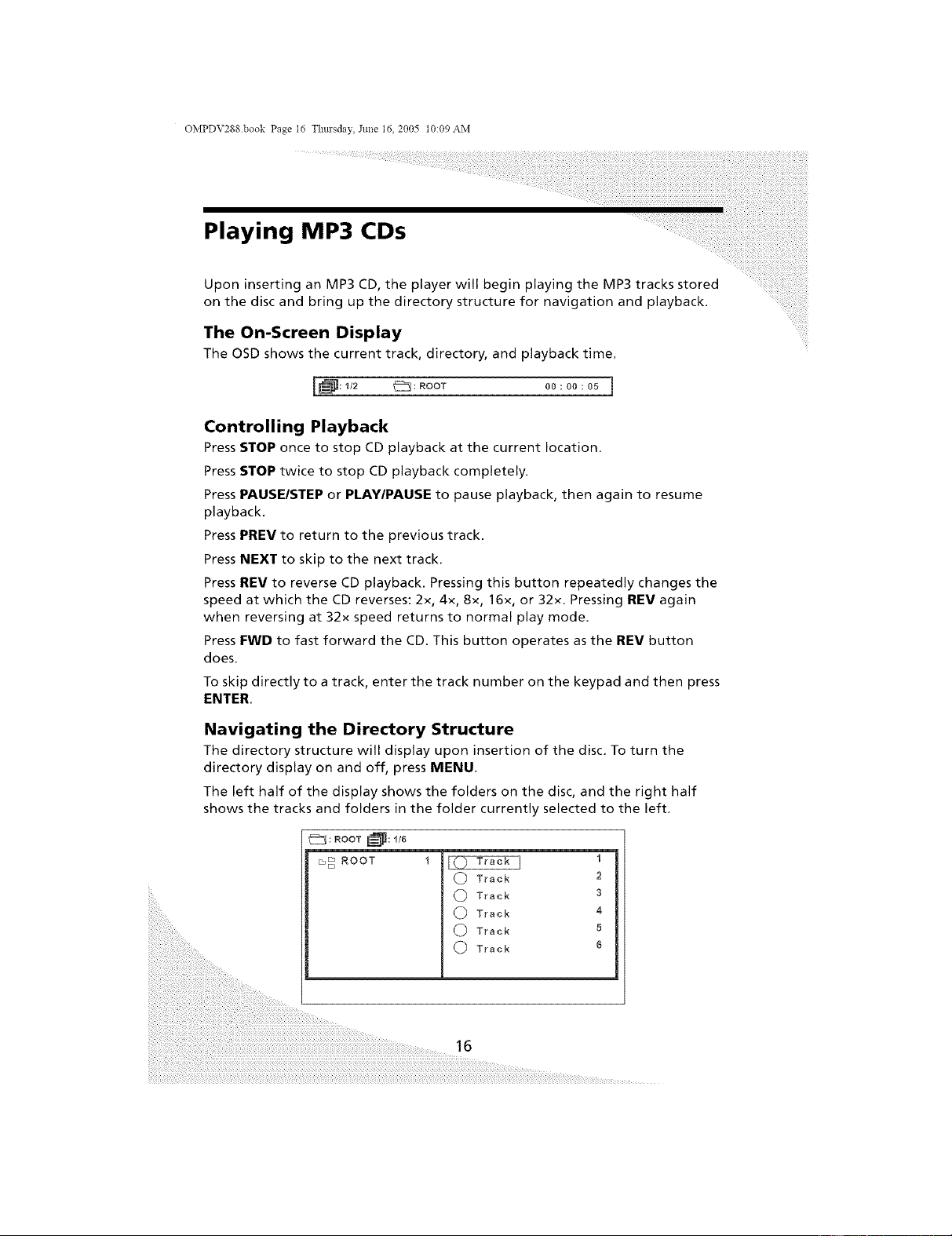
Navigating the Directory Structure
The directory structure will display upon insertion of the disc. To turn the
directory display on and off, press MENU,
The left half of the display shows the folders on the disc, and the right half
shows the tracks and folders in the folder currently selected to the left.
_: ROOT _: !/6
_ ROOT
(_ Track
C) Track
C) Track
(_) Track
C) Track
2
3
4
5
6
16
OMPDV288.book Page t7 Thm'sday, Jm_e 16, 2005 t0:09 AM
Playing MP3 CDs
scroll through the list.
and _ to move between the left and right halves of the display.
ENTER to enter a folder or play back an MP3 track.
Repeating Tracks
Press REPEAT to cycle through the repeat options: the current track, the
current folder, the current disc, and off.
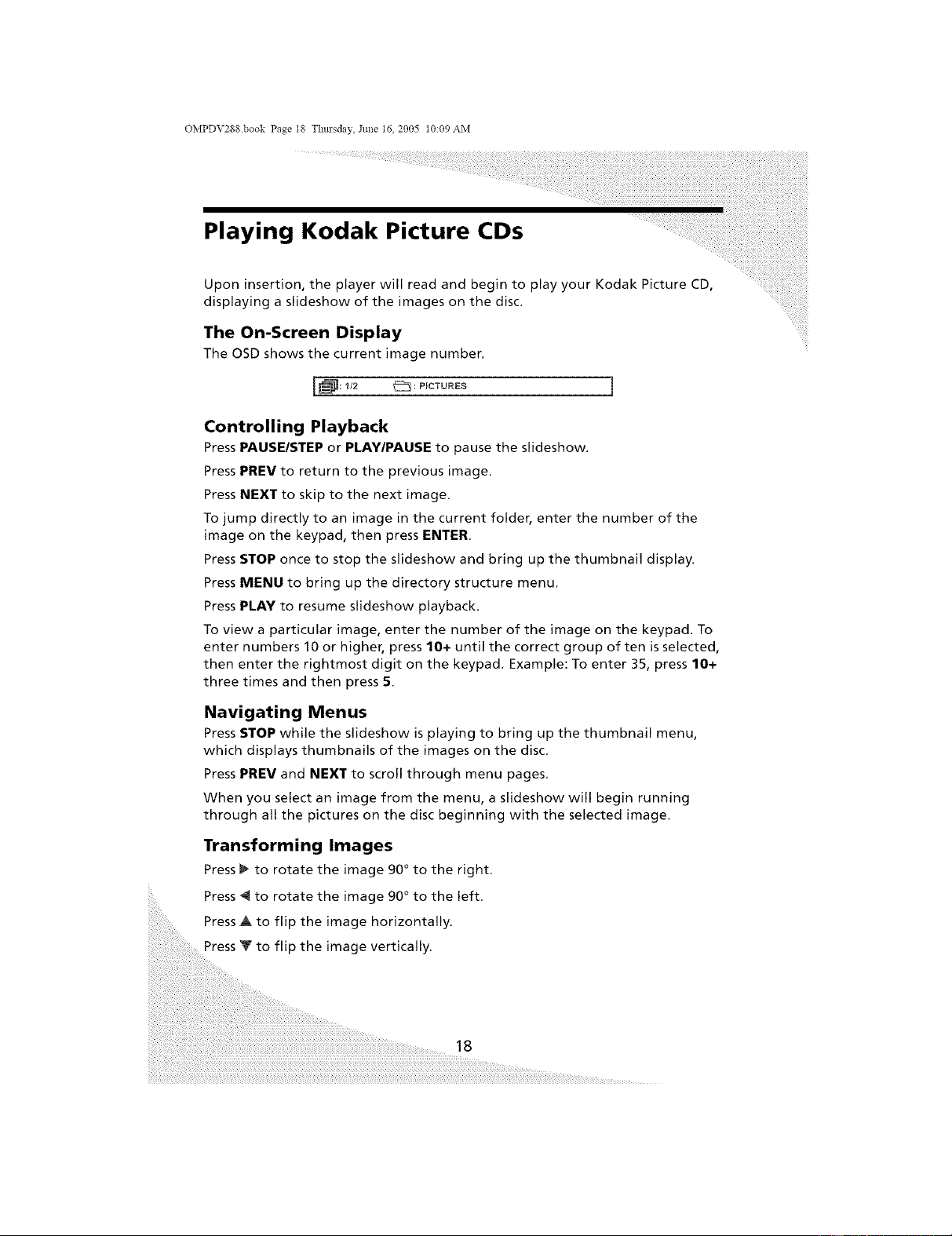
Programming Playback
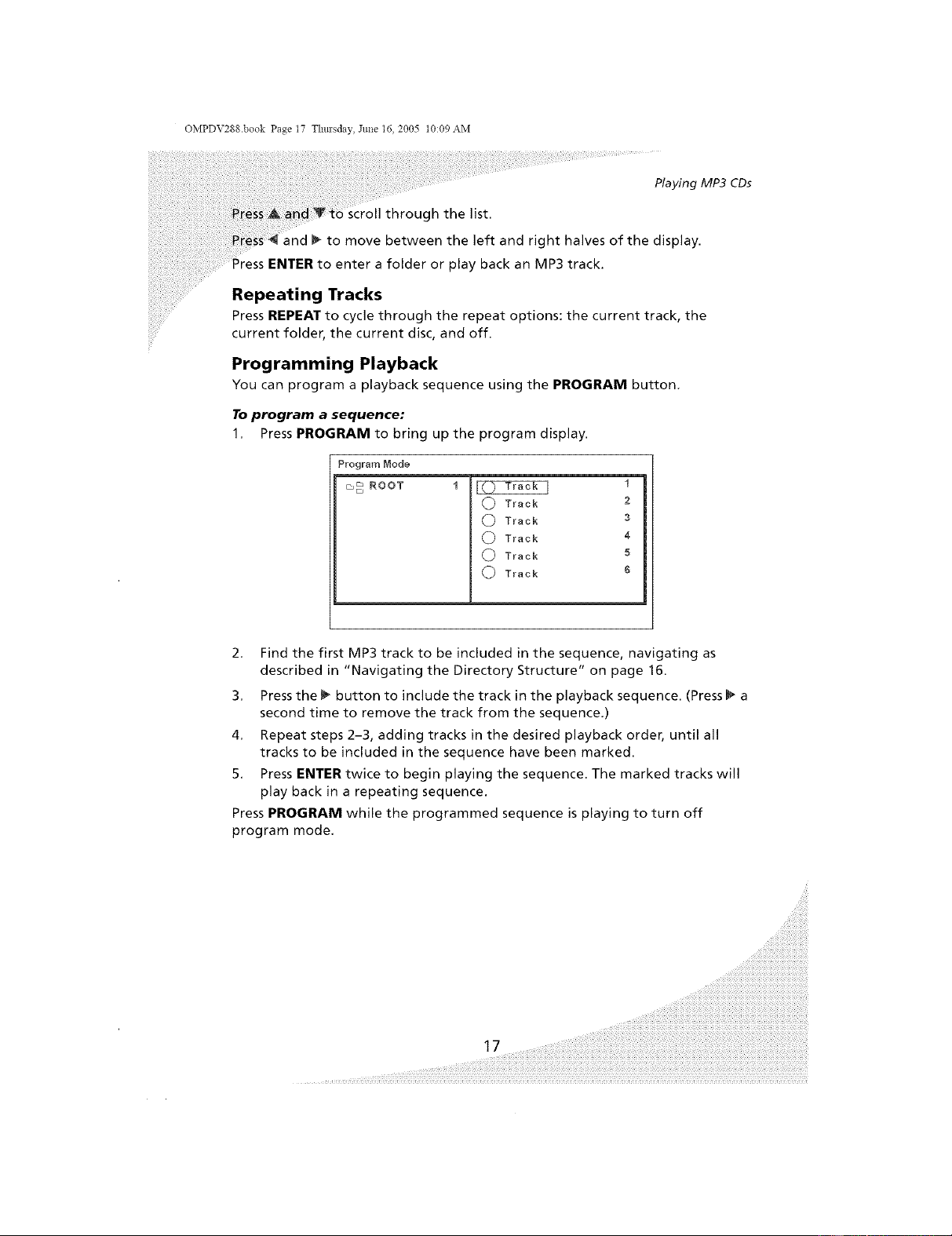
You can program a playback sequence using the PROGRAM button,
To program a sequence:
1, Press PROGRAM to bring up the program display.
Program Node
m_ ROOT
(_) Track
C) Track
(_ Track
C) Track
@ Track
1
2
3
4
5
6
2, Find the first MP3 track to be included in the sequence, navigating as
described in "Navigating the Directory Structure" on page 16.
3, Press the t_ button to include the track in the playback sequence. (Press I_ a
second time to remove the track from the sequence.)
4, Repeat steps 2-3, adding tracks in the desired playback order, until all
tracks to be included in the sequence have been marked.
5, Press ENTER twice to begin playing the sequence. The marked tracks will
play back in a repeating sequence.
Press PROGRAM while the programmed sequence is playing to turn off
program mode,
OMPDV288 book Page 18 Thm'sday, June 16, 2005 t0:09 AM
Playing Kodak Picture CDs
Upon insertion, the player will read and begin to play your Kodak Picture CD,
displaying a slideshow of the images on the disc.
The On-Screen Display
The OSD shows the current image number,
Controlling Playback
Press PAUSE/STEP or PLAY/PAUSE to pause the slideshow.
Press PREV to return to the previous image.
Press NEXT to skip to the next image.
To jump directly to an image in the current folder, enter the number of the
image on the keypad, then press ENTER.
Press STOP once to stop the slideshow and bring up the thumbnail display.
Press MENU to bring up the directory structure menu,
Press PLAY to resume slideshow playback.
To view a particular image, enter the number of the image on the keypad. To
enter numbers 10 or higher, press 10+ until the correct group often is selected,
then enter the rightmost digit on the keypad, Example: To enter 35, press 10+
three times and then press 5.
Navigating Menus
Press STOP while the slideshow is playing to bring up the thumbnail menu,
which displays thumbnails of the images on the disc.
Press PREV and NEXT to scroll through menu pages.
When you select an image from the menu, a slideshow will begin running
through all the pictures on the disc beginning with the selected image.
Transforming Images
Press _ to rotate the image 90 ° to the right.
Press _ to rotate the image 90 ° to the left.
Press A to flip the image horizontally.
Press T to flip the image vertically.
18
OMPDV288.book Page t9 Thm'sday, Jtme 16, 2005 t0:09 AM
++++_
Playing Kodak Picture CDs
Transition Effects
through the available slideshow transition effects:
No Effect
Effect 1--Slides the new image up over the old
Effect 2--Slides the new image down over the old
• Effect 3--Slides the old image up to uncover the new
• Effect 4--Slides the old image down to uncover the new
• Effect 5--Draws the new image over the old from the top and bottom
simultaneously to the middle
• Effect6--Drawsthenewimageovertheoldfromthemiddletothetop
and bottom simultaneously
• Effect 7--Draws the new image over the old from bottom to top
• Effect 8--Draws the new image over the old from top to bottom
• Effect 9--Draws the new image over the old from bottom to top in
eight horizontal slices simultaneously
• Effect 10--Draws the new image over the old from top to bottom in
eight horizontal slices simultaneously
• Effect 11--Fades out the old image, then fades in the new
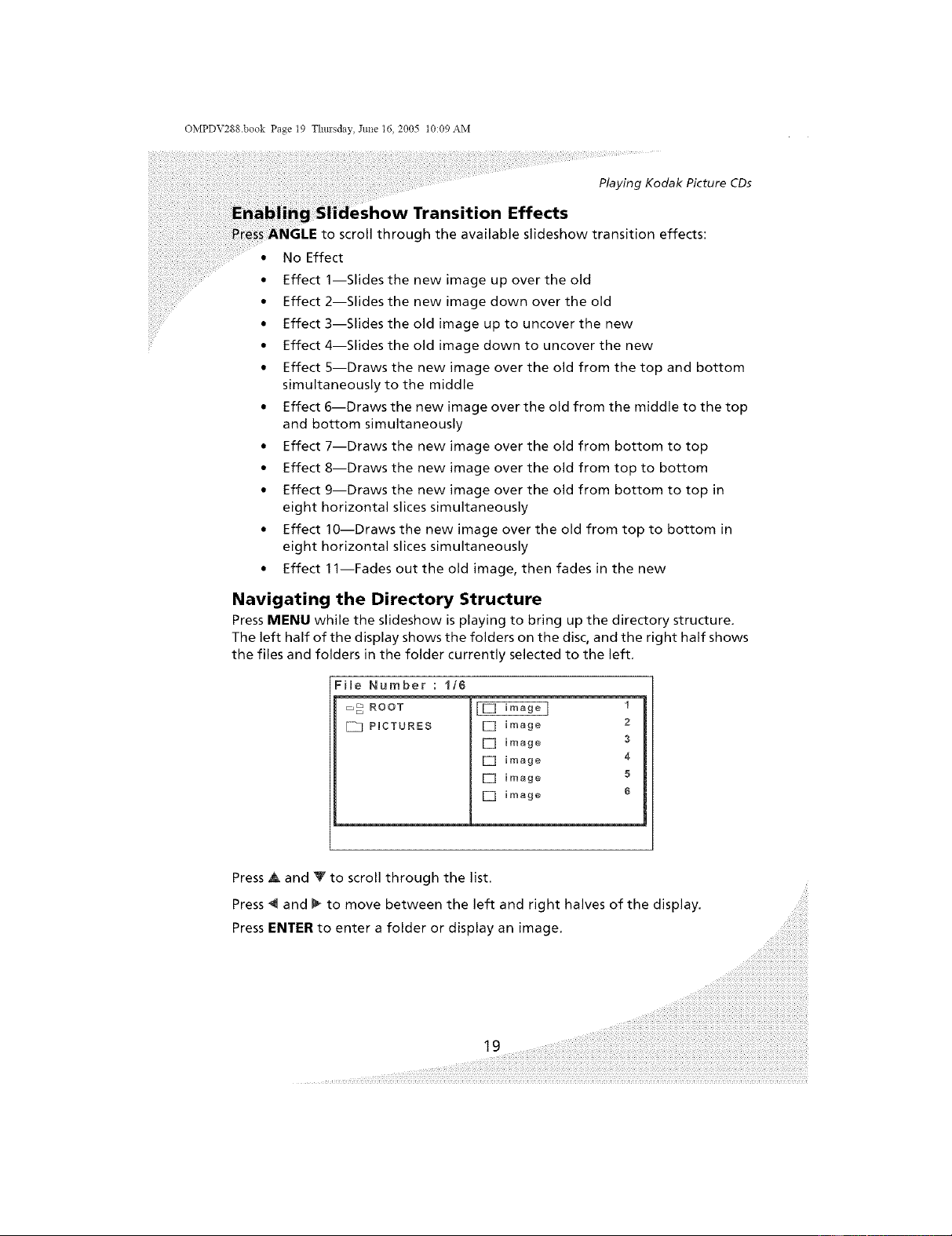
Navigating the Directory Structure
Press MENU while the slideshow is playing to bring up the directory structure.
The left half of the display shows the folders on the disc, and the right half shows
the files and folders in the folder currently selected to the left.
FHe Number : i/6
_ ROOT
PmCTURES
[] image ]
[] image
[] image
[] image
[] image
[] image
1
2
3
4
5
6
Press Ak and T to scroll through the list.
Press4and_tomovebetweentheleftand righthalvesofthedisplay.
Press ENTER to enter a folder or display an image,
19 ....
OMPDV288 book Page 20 Thm'sday, June 16, 2005 t0:09 AM
Displaying Images Stored on Data
When you insert a data CD, the player will detect and display in a slideshow
any JPEG format images stored on the disc.
The player allows you to program the slideshow order, rotate and flip images,
use transition effects, and repeat images or groups of images,
The On-Screen Display
The OSD shows the current image number and file directory.
II_: 1/2 _: ROOT
Controlling Playback
Press PAUSE/STEP or PLAY/PAUSE to pause the slideshow,
Press PREV to return to the previous image.
Press NEXT to skip to the next image.
To jump directly to an image in the current folder, enter the number of the
image on the keypad, then press ENTER,
Press STOP once to stop the slideshow and bring up the directory structure menu.
Press STOP twice to completely stop the disc,
Press PLAY to resume slideshow playback.
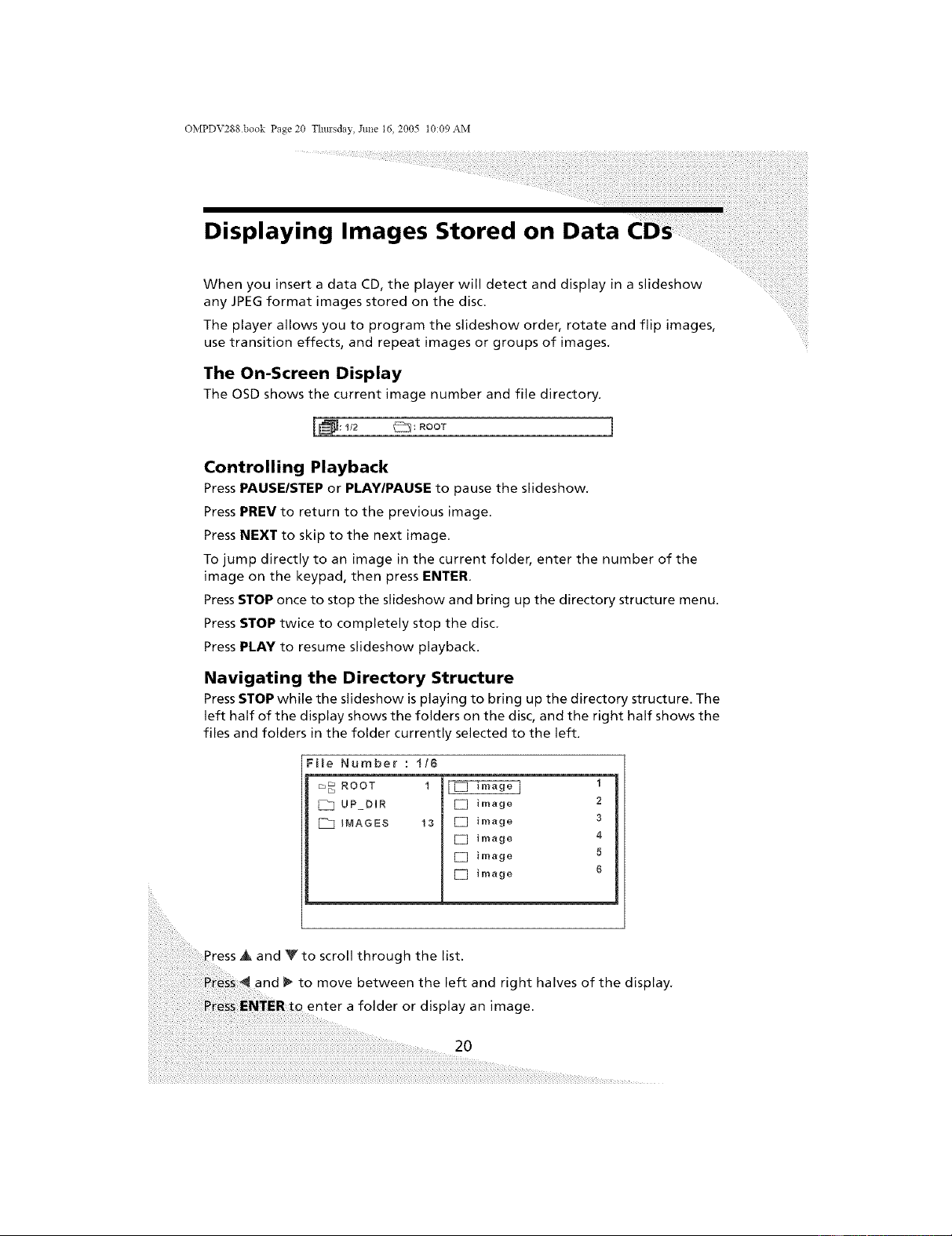
Navigating the Directory Structure
Press STOP while the slideshow is playing to bring up the directory structure. The
left half of the display shows the folders on the disc, and the right half shows the
files and folders in the folder currently selected to the left.
File Number : t/6
m_ ROOT 1
UP DIR
INAGES 13
[Z image ]
[] image
E] image
E] image
E] image
[] image
1
2
3
4
5
6
'ress • and _to scroll through the list.
and _ to move between the left and right halves of the display,
enter a folder or display an image.
2O
OMPDV288.book Page 21 Thm'sday, Jtme t6, 2005 t0:09 AM
++++_
Displaying Images Stored on Data CDs
Images
rotate the image 90 ° to the right.
to rotate the image 90 ° to the left.
Press A to flip the image horizontally.
Press _ to flip the image vertically.
Enabling Slideshow Transition Effects
Press ANGLE to scroll through the available slideshow transition effects:
• No Effect
• Effect 1--Slides the new image up over the old
• Effect 2--Slides the new image down over the old
• Effect 3--Slides the old image up to uncover the new
• Effect 4--Slides the old image down to uncover the new
• Effect 5--Draws the new image over the old from the top and bottom
simultaneously to the middle
• Effect 6--Draws the new image over the old from the middle to the top
and bottom simultaneously
• Effect 7--Draws the new image over the old from bottom to top
• Effect 8--Draws the new image over the old from top to bottom
• Effect 9--Draws the new image over the old from bottom to top in
eight horizontal slices simultaneously
• Effect 10--Draws the new image over the old from top to bottom in
eight horizontal slices simultaneously
• Effect 11--Fades out the old image, then fades in the new
Repeating Images
Press the REPEAT button to scroll through the repeat modes: the current
image, the current folder, the entire disc, and off.
OMPDV288 book Page 22 Thmsday, June 16, 2005 t0:09 AM
Displaying Images Stored on Data CDs
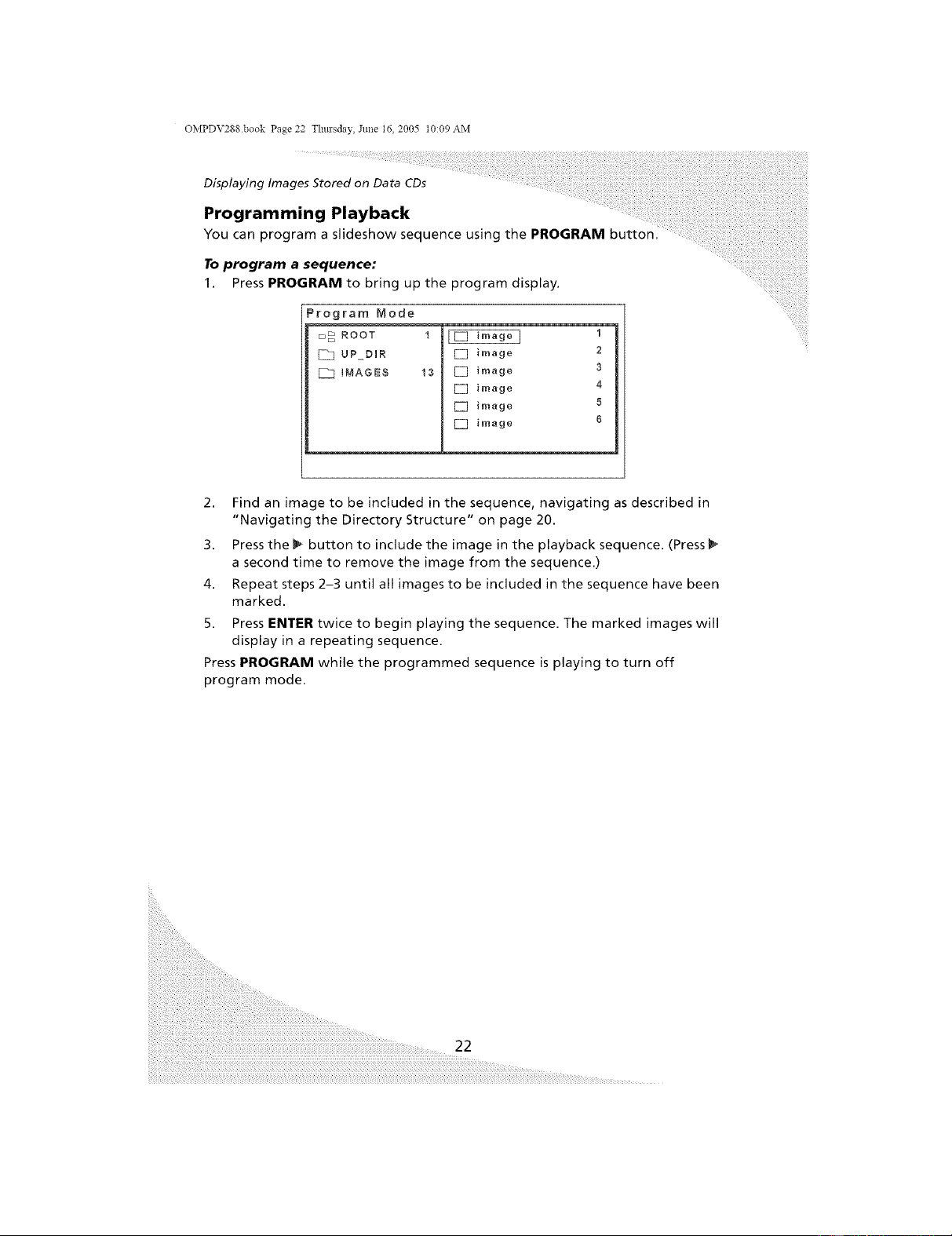
Programming Playback
You can program a slideshow sequence using the PROGRAM button,
To program a sequence:
1. Press PROGRAM to bring up the program display.
Program Mode
m_ ROOT
UP_DIR
[_ INAGES
E] image
13 [] image
[] image
[] image
[] image
2
3
4
5
6
2. Find an image to be included in the sequence, navigating as described in
"Navigating the Directory Structure" on page 20.
3. Press the 1_ button to include the image in the playback sequence. (Press
a second time to remove the image from the sequence.)
4. Repeat steps 2-3 until all images to be included in the sequence have been
marked.
5. Press ENTER twice to begin playing the sequence. The marked images will
display in a repeating sequence.
Press PROGRAM while the programmed sequence is playing to turn off
program mode.
22
OMPDV288.book Page 23 Thm'sday, Jtme 16, 2005 t0:09 AM
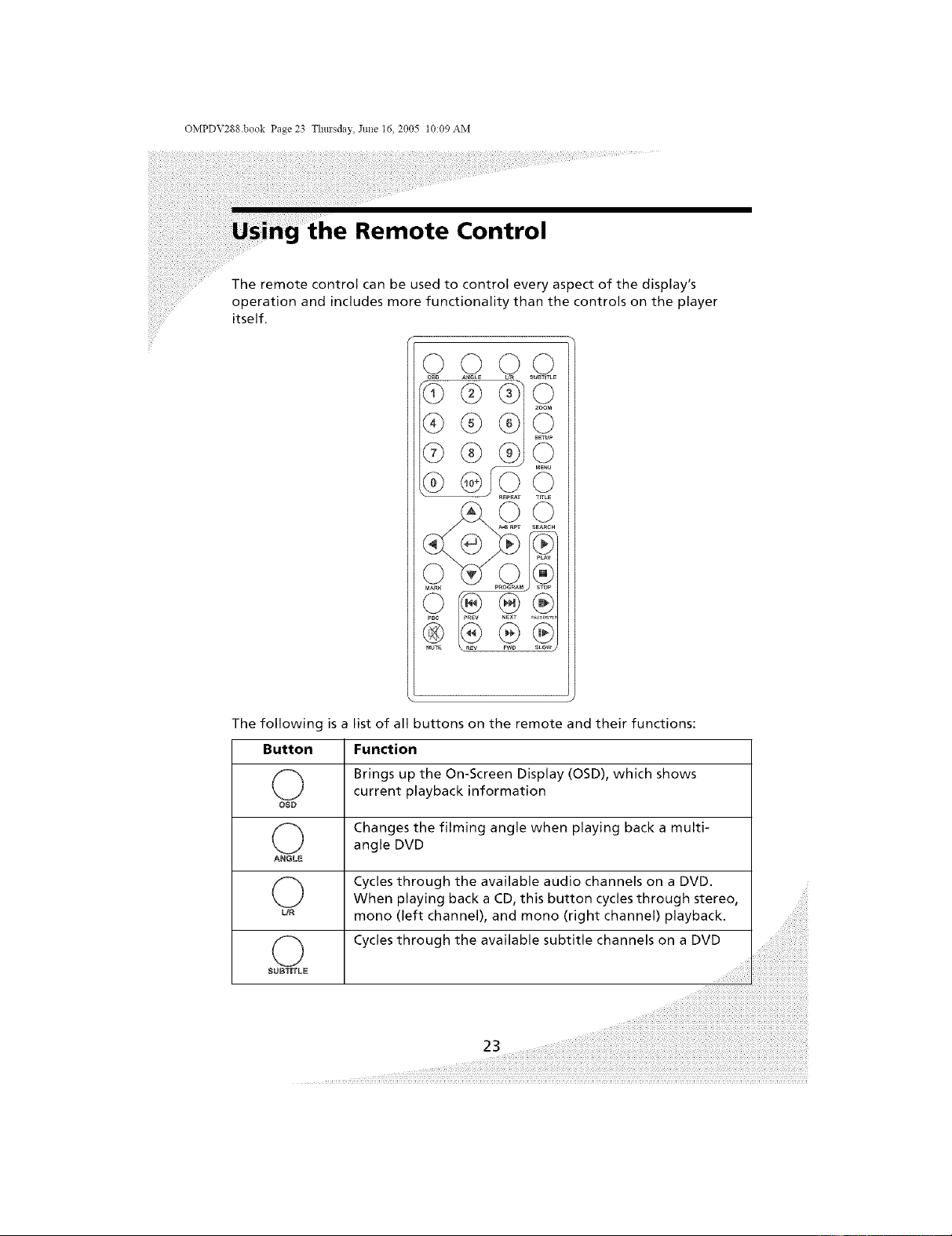
Remote Control
The remote control can be used to control every aspect of the display's
operation and includes more functionality than the controls on the player
itself.
®
The following is a list of all buttons on the remote and their functions:
Button Function
(_ Brings up the On-Screen Display (OSD), which shows
current playback information
OSD
(_ Changes the filming angle when playing back a multi-
angle DVD
ANGLE
(_ Cycles through the available audio channels on a DVD.
When playing back a CD, this button cycles through stereo,
uR mono (left channel), and mono (right channel) playback.
O Cycles through the available subtitle channels on a DVD
SUBTITLE
OMPDV288 book Page 24 Thm'sday, June 16, 2005 t0:09 AM
Using the Remote Control
Button
©
ZOON
©
SETUP
©
MENU
©
TITLE
@@
@
@
G
G
G
Function
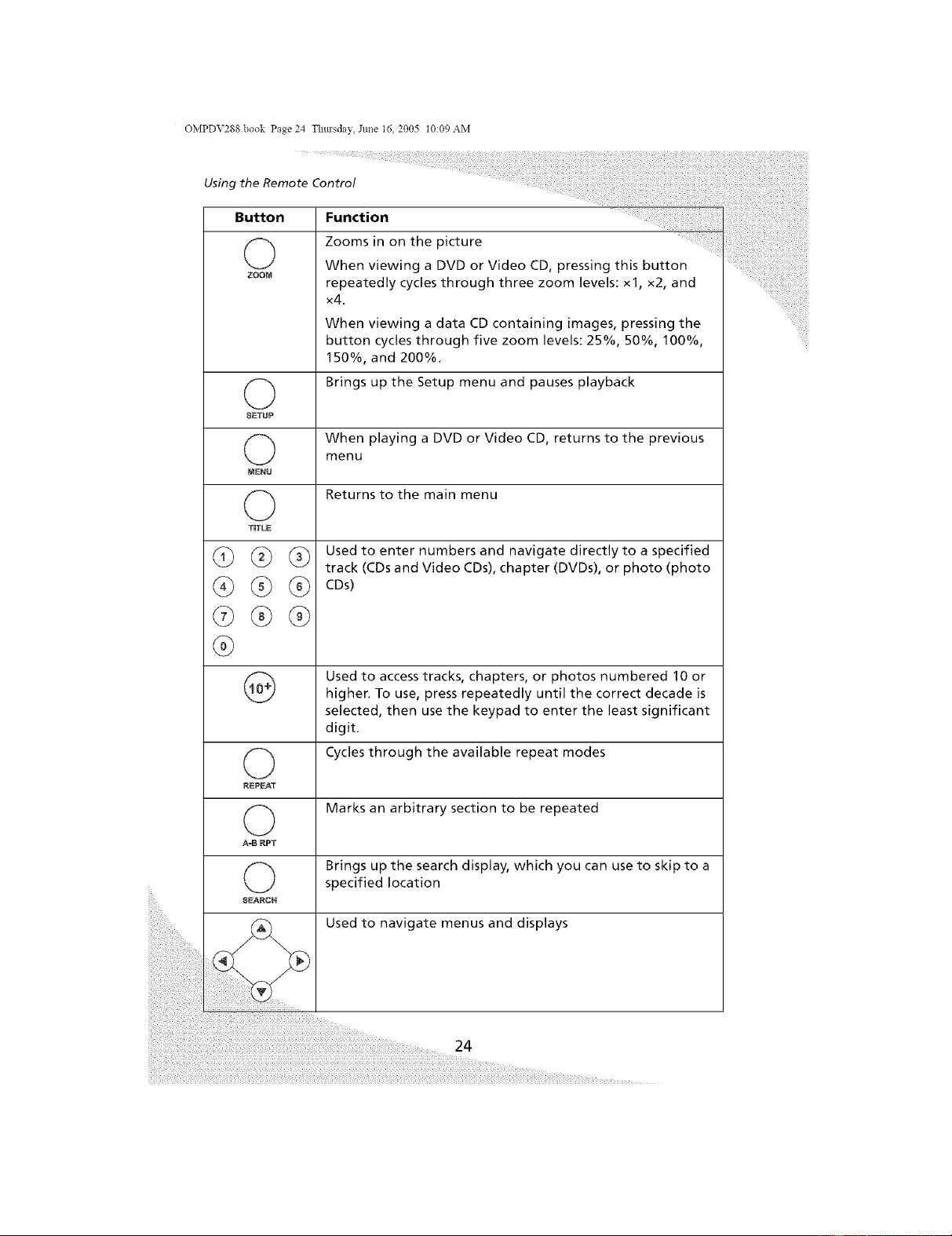
Zooms in on the picture
When viewing a DVD or Video CD, pressing this button
repeatedly cycles through three zoom levels: xl, x2, and
x4.
When viewing a data CD containing images, pressing the
button cycles through five zoom levels: 25%, 50%, 100%,
150%, and 200%,
Brings up the Setup menu and pauses playback
When playing a DVD or Video CD, returns to the previous
menu
Returns to the main menu
Used to enter numbers and navigate directly to a specified
track (CDs and Video CDs), chapter (DVDs), or photo (photo
CDs)
Used to access tracks, chapters, or photos numbered 10 or
higher, To use, press repeatedly until the correct decade is
selected, then use the keypad to enter the least significant
digit.
Cycles through the available repeat modes
©
REPEAT
O Marks an arbitrary section to be repeated
A=B RPT
O Brings up the search display, which you can use to skip to a
specified location
SEARCH
Used to navigate menus and displays
24
OMPDV288.book Page 25 Thm'sday, June 16, 2005 t0:09 AM
Using the Remote Control
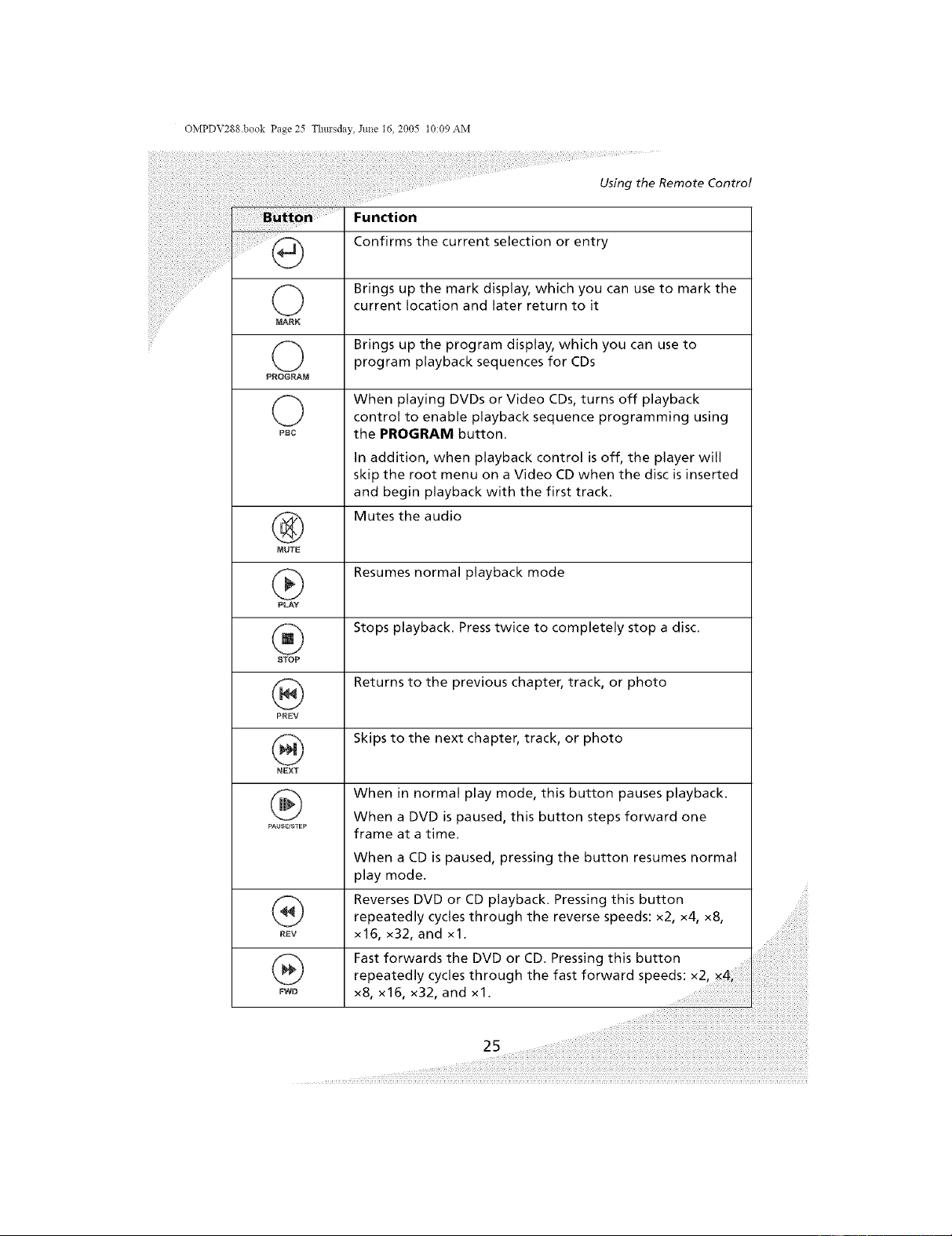
....... Function
Confirms the current selection or entry
(_) Brings up the mark display, which you can use to mark thecurrent location and later return to it
MARK
(_) Brings up the program display, which you can use to
program playback sequences for CDs
PROGRAM
©
PBC
When playing DVDs or Video CDs, turns off playback
control to enable playback sequence programming using
the PROGRAM button.
In addition, when playback control is off, the player will
skip the root menu on a Video CD when the disc is inserted
and begin playback with the first track.
Mutes the audio
MUTE
Resumes normal playback mode
PLRY
Stops playback. Press twice to completely stop a disc.
STOP
Returns to the previous chapter, track, or photo
PREV
Skips to the next chapter, track, or photo
NEXT
When in normal play mode, this button pauses playback.
When a DVD is paused, this button steps forward one
frame at a time.
When a CD is paused, pressing the button resumes normal
play mode,
Reverses DVD or CD playback. Pressing this button
repeatedly cycles through the reverse speeds: x2, x4, x8,
REV x16, x32, and xl.
®
FWD
Fast forwards the DVD or CD. Pressing this button
repeatedly cycles through the fast forward speeds: x2,
x8, x16, x32, and xl.
i i i i i i i i i i i i i i i i i i i i i
OMPDV288 book Page 26 Thm'sday, June 16, 2005 t0:09 AM
Using the Remote Control
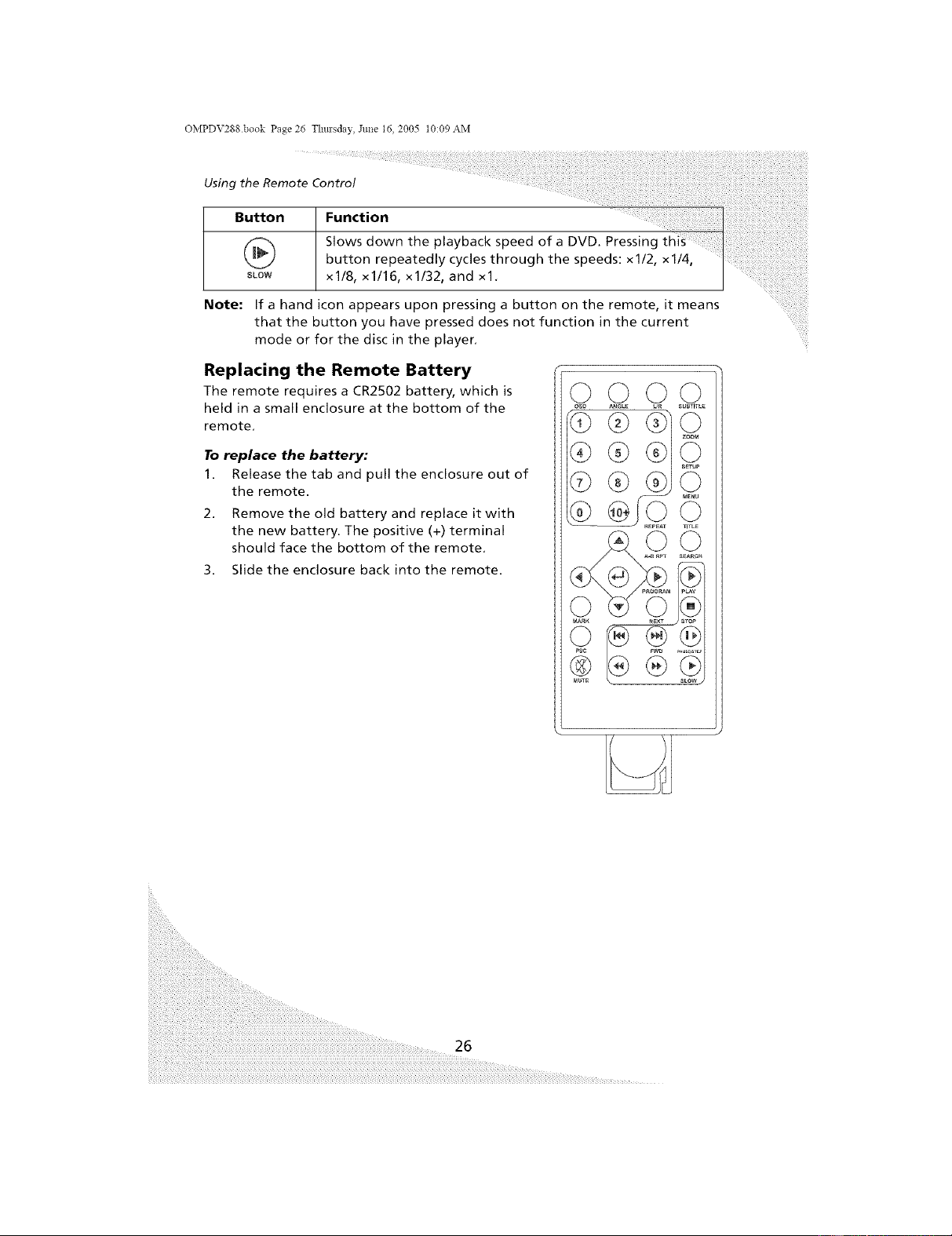
Button Function
Slows down the playback speed of a DVD. Pressing
button repeatedly cycles through the speeds: x1/2, xl/4,
slow x1/8, xl/16, x1/32, and xl,
Note: If a hand icon appears upon pressing a button on the remote, it means
that the button you have pressed does not function in the current
mode or for the disc in the player,
Replacing the Remote Battery
The remote requires a CR2502 battery, which is
held in a small enclosure at the bottom of the
remote.
To replace the battery:
1. Release the tab and pull the enclosure out of
the remote.
2. Remove the old battery and replace it with
the new battery. The positive (+) terminal
should face the bottom of the remote.
3. Slide the enclosure back into the remote.
....
©©
_( REPEAT TITL_
MARK _E×T
SLaW •
26
OMPDV2gg.book Page 27 Thm'sday, June 16, 2005 t0:09 AM
uring the Player
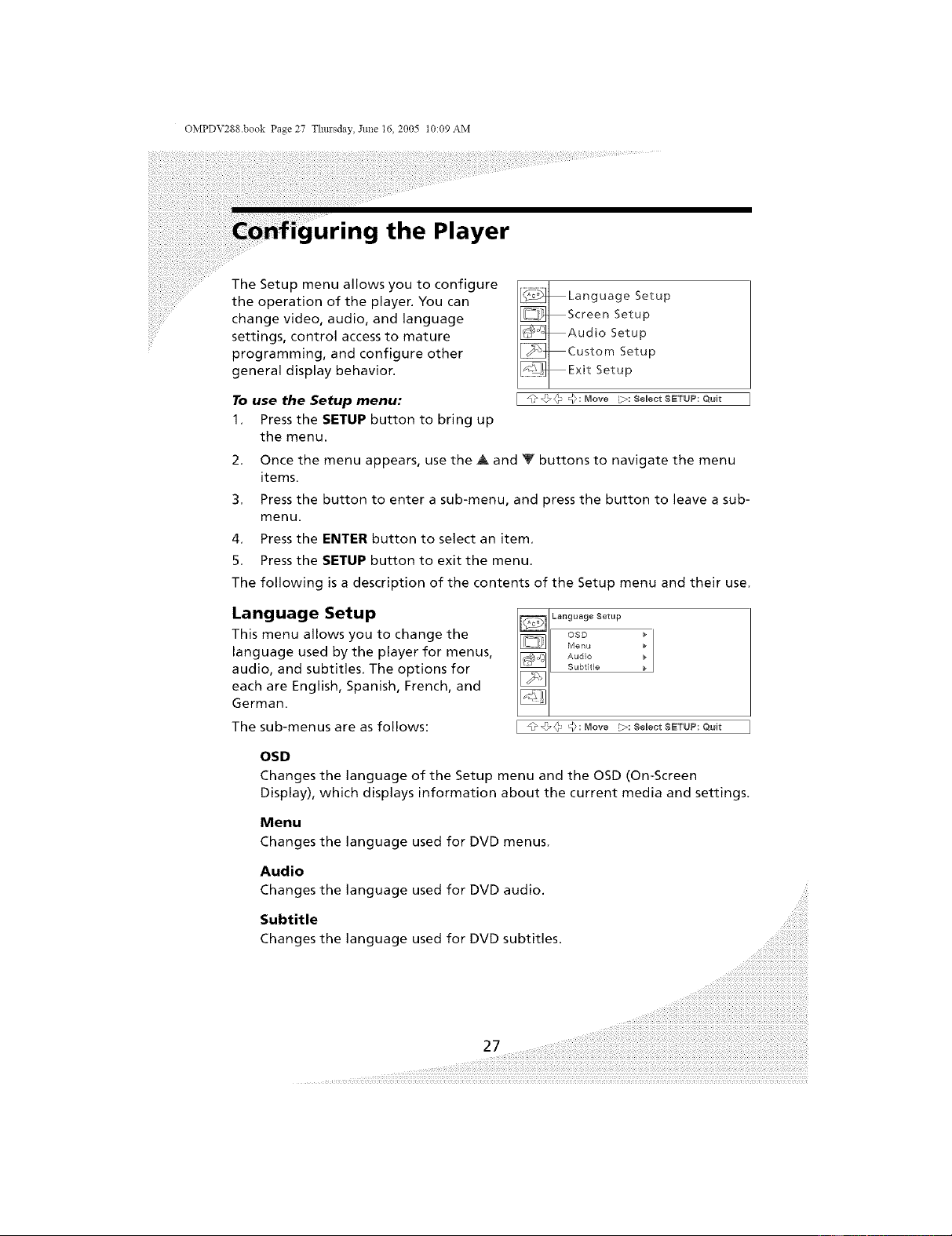
The Setup menu allows you to configure
the operation of the player. You can
change video, audio, and language
settings, control access to mature
programming, and configure other
general display behavior,
[ @@_r _ @: Move _: Select SETUP: Quit
To use the Setup menu:
1, Press the SETUP button to bring up
the menu.
2, Once the menu appears, use the A and Y buttons to navigate the menu
items.
3, Press the button to enter a sub-menu, and press the button to leave a sub-
menu.
4, Press the ENTER button to select an item,
5, Press the SETUP button to exit the menu,
The following is a description of the contents of the Setup menu and their use.
[ @@_ _: Move _: $eJect SETUP: Quit
Language Setup
This menu allows you to change the
language used by the player for menus,
audio, and subtitles, The options for
each are English, Spanish, French, and
German.
The sub-menus are as follows:
OSD
Changes the language of the Setup menu and the OSD (On-Screen
Display), which displays information about the current media and settings,
Menu
Changes the language used for DVD menus,
Audio
Changes the language used for DVD audio.
Subtitle
Changes the language used for DVD subtitles.
...._:;i_i_!_!_:ii_!_!_:ii_!_!_:ii_!_!_:ii_!_!_:ii_!_!_:ii_!_!_:ii_!_!_:ii_!_!_:ii_!_!_:ii_!_!_:ii_!_!_:ii_!_!_:ii_!_!_:ii_!_!_:ii_!_!_:ii_!_!_:i_!__)
_;)IMMMMMMMMMMMMMMMMMMMMM_
OMPDV288 book Page 28 Thm'sday, June 16, 2005 t0:09 AM
Configuring the Player
Screen Setup
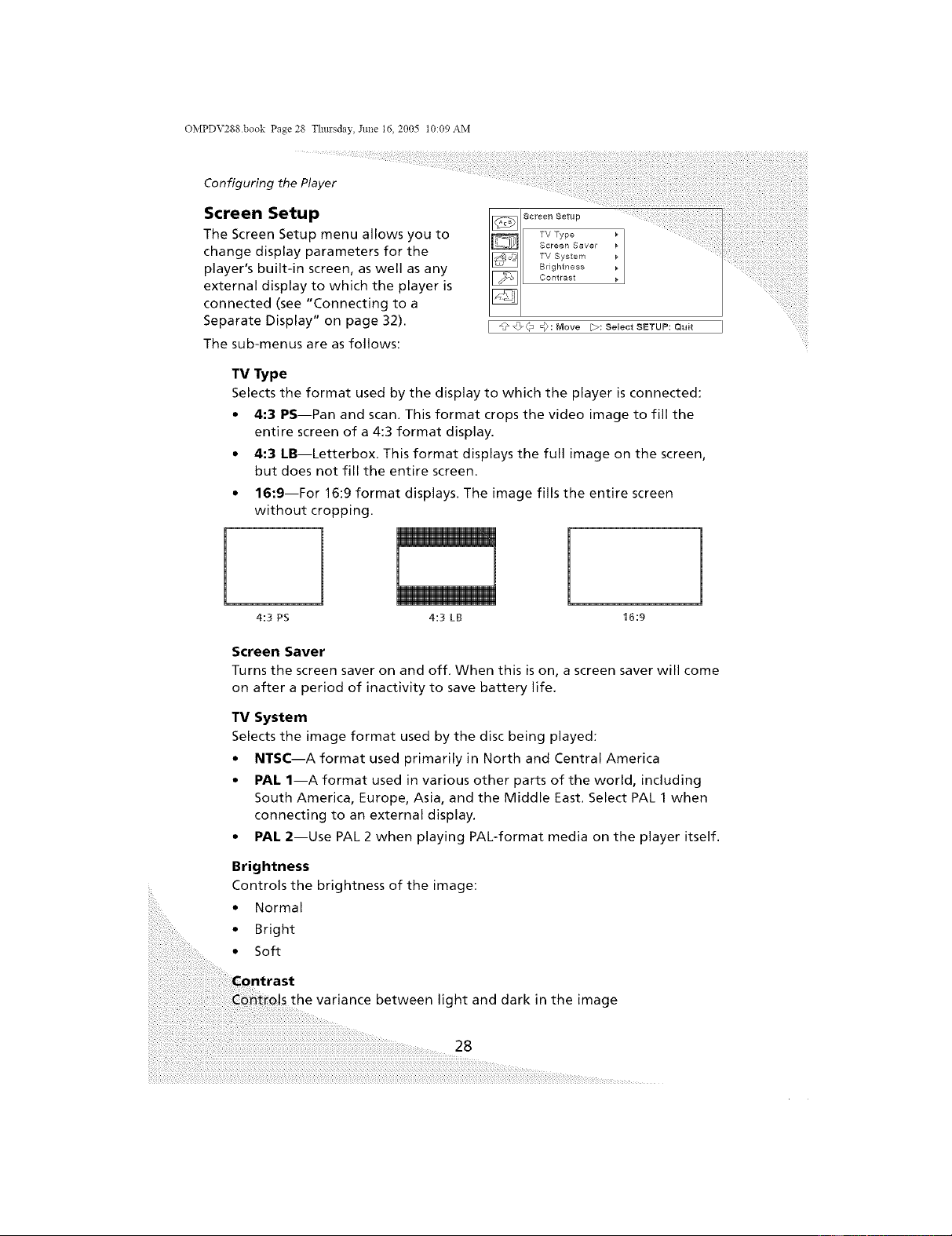
The Screen Setup menu allows you to
change display parameters for the
player's built-in screen, as well as any
external display to which the player is
connected (see "Connecting to a
Separate Display" on page 32).
The sub-menus are as follows:
I @@(" _):[_ove [_:SelectSETLIP:Quit I
TV Type
Selects the format used by the display to which the player is connected:
• 4:3 PS--Pan and scan. This format crops the video image to fill the
entire screen of a 4:3 format display.
• 4:3 LB--Letterbox. This format displays the full image on the screen,
but does not fill the entire screen.
• 16:9--For 16:9 format displays. The image fills the entire screen
without cropping.
4:3 PS 16:9
l
4:3 LB
Screen Saver
Turns the screen saver on and off. When this is on, a screen saver will come
on after a period of inactivity to save battery life.
TV System
Selects the image format used by the disc being played:
• NTSC--A format used primarily in North and Central America
• PAl. 1--A format used in various other parts of the world, including
South America, Europe, Asia, and the Middle East. Select PAL 1 when
connecting to an external display.
• PAl. 2--Use PAL 2 when playing PAL-format media on the player itself.
Brightness
Controls the brightness of the image:
• Normal
• Bright
• Soft
the variance between light and dark in the image
28
OMPDV288.book Page 29 Thmsday, June 16, 2005 t0:09 AM
Configuring the Player
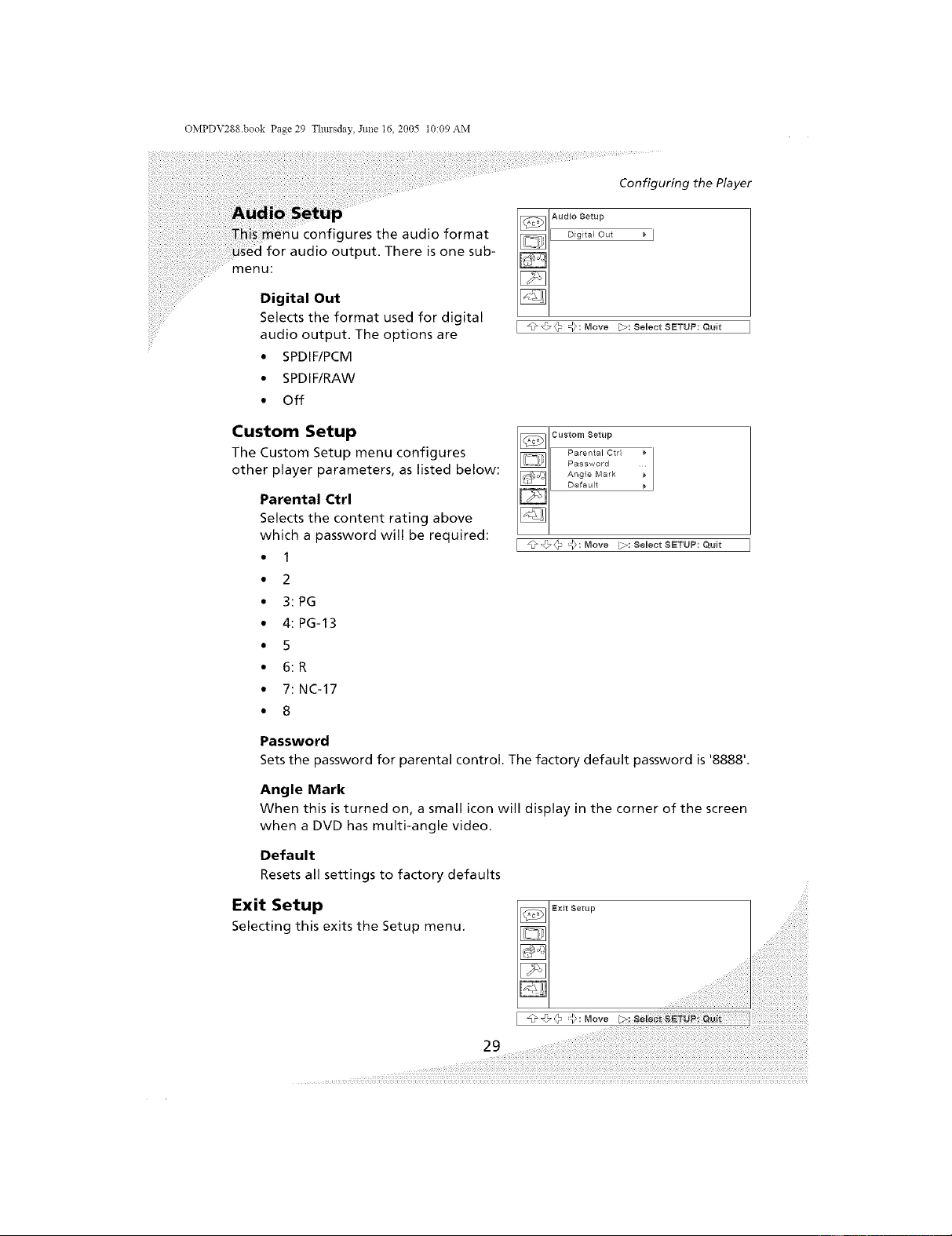
gures the audio format
audio output. There is one sub-
menu:
Digital Out
Selects the format used for digital
audio output. The options are
• SPDIF/PCM
• SPDIF/RAW
• Off
Custom Setup
The Custom Setup menu configures
other player parameters, as listed below:
Parental Ctrl
Selects the content rating above
which a password will be required:
• 1
• 2
• 3: PG
• 4:PG-13
• 5
• 6: R
• 7:NC-17
• 8
Password
[ @_ _: Move _: SeJect SETUP: Quit
[ _L_@@ @: Move _>: SeJect SETUP: Quit
Sets the password for parental control. The factory default password is '8888%
Angle Mark
When this is turned on, a small icon will display in the corner of the screen
when a DVD has multi-angle video.
Default
Resets all settings to factory defaults
Exit Setup
Selecting this exits the Setup menu.
I _© '_:M°ve
29 ....
OMPDV288 book Page 30 Thm'sday, June 16, 2005 t0:09 AM
Using the Player in a Vehicle
Your portable DVD player is designed to accommodate usage in a vehicle. A
vehicle power adapter is included to power the player from your vehicle, and
the carrying case can be adapted to attach the player to a seatback.
Connecting Power
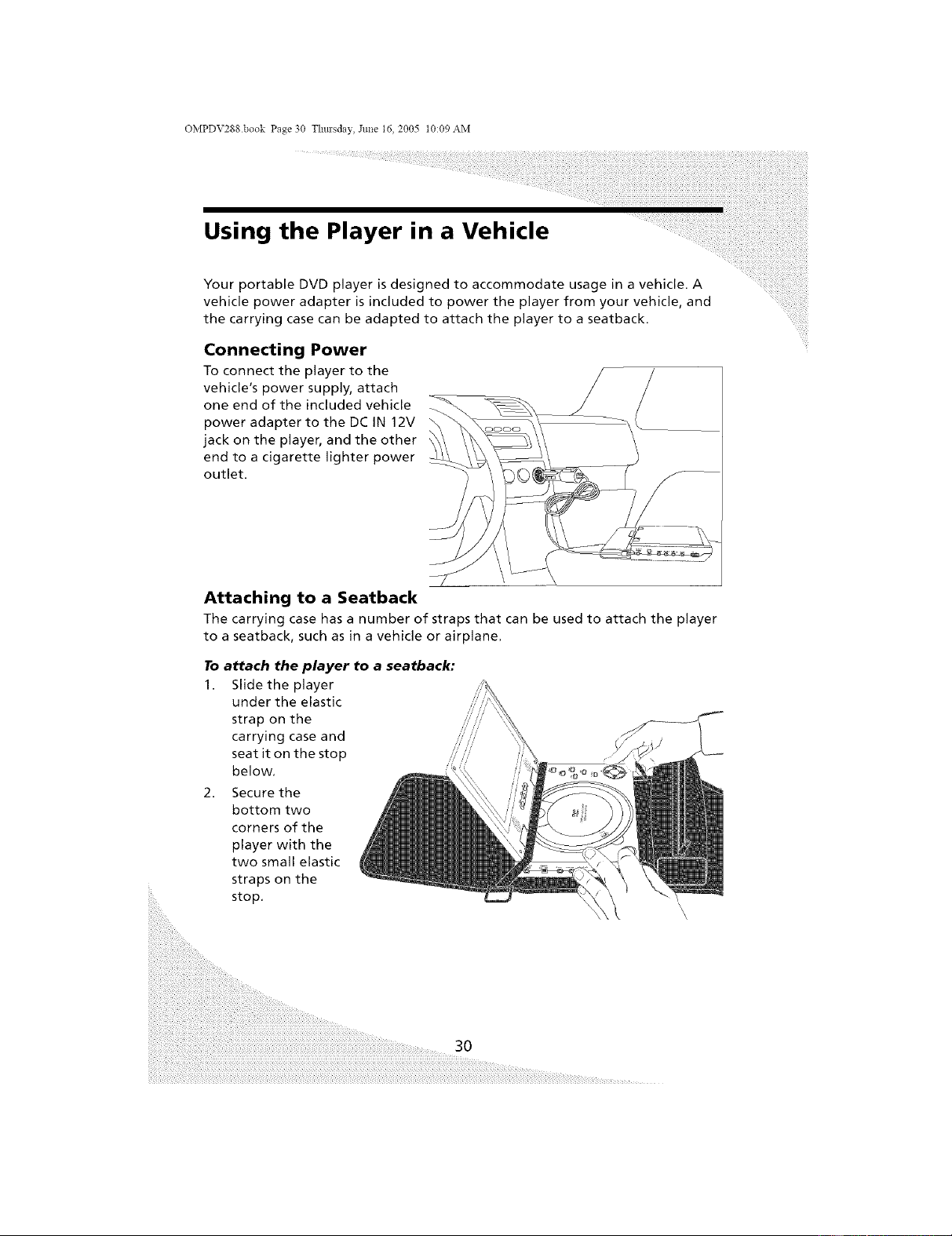
To connect the player to the
vehicle's power supply, attach
one end of the included vehicle
power adapter to the DC IN 12V
jack on the player, and the other
end to a cigarette lighter power
outlet.
Attaching to a Seatback
The carrying case has a number of straps that can be used to attach the player
to a seatback, such as in a vehicle or airplane.
To attach the player to a seatback:
1. Slide the player
under the elastic
strap on the
carrying case and
seat it on the stop
below.
2. Secure the
bottom two
corners of the
player with the
two small elastic
straps on the
stop.
3O
OMPDV288.book Page 3t Thm'sday, Jm_e 16, 2005 t0:09 AM
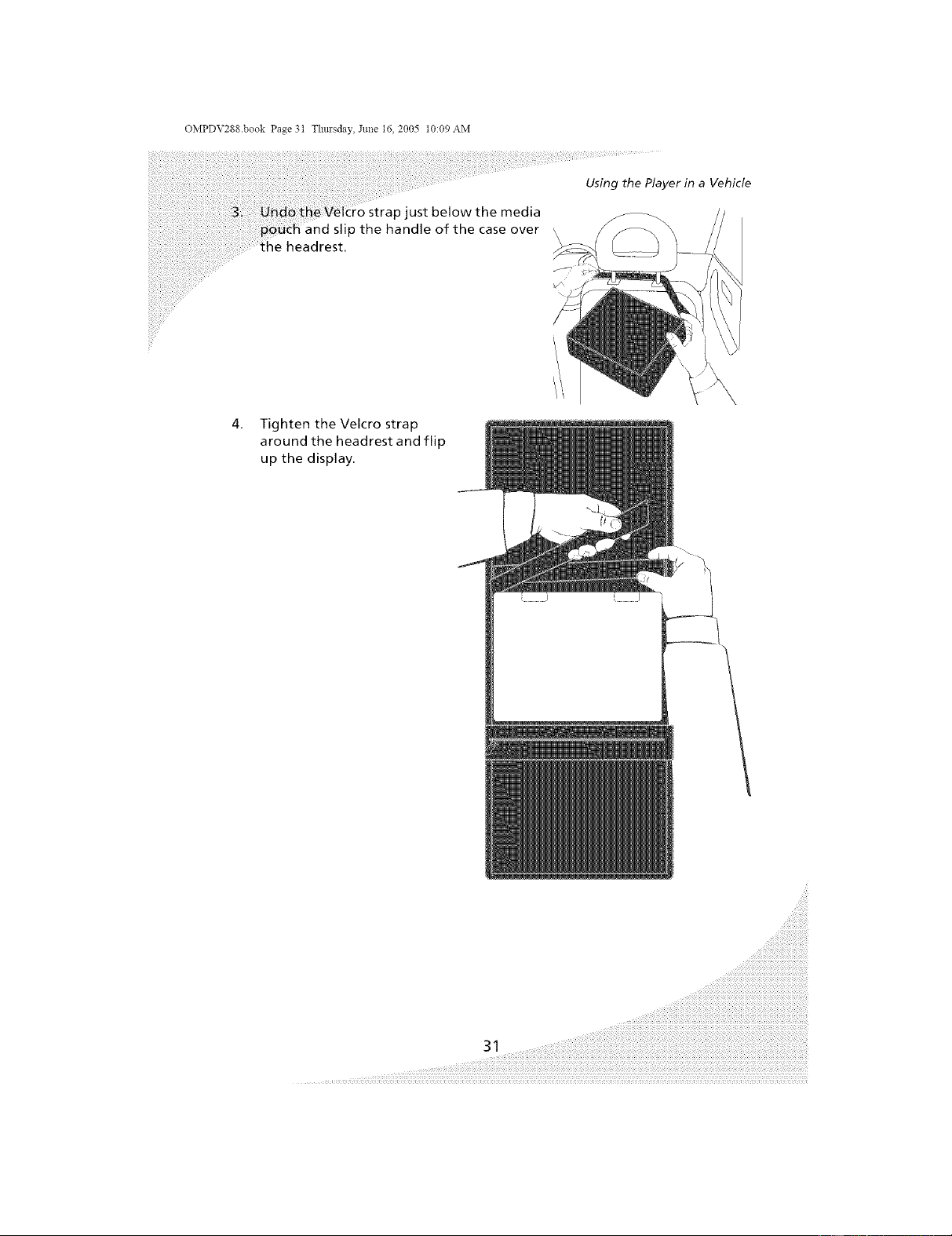
:o strap just below the media
slip the handle of the case over \
headrest.
Using the Player in a Vehicle
4, Tighten the Velcro strap
around the headrest and flip
up the display.
OMPDV288 book Page 32 Thm'sday, June 16, 2005 t0:09 AM
Connecting the Player to Other
You can connect your portable DVD player to an external display for a larger
picture, or to an external audio system for better sound.
Connecting to a Separate Display
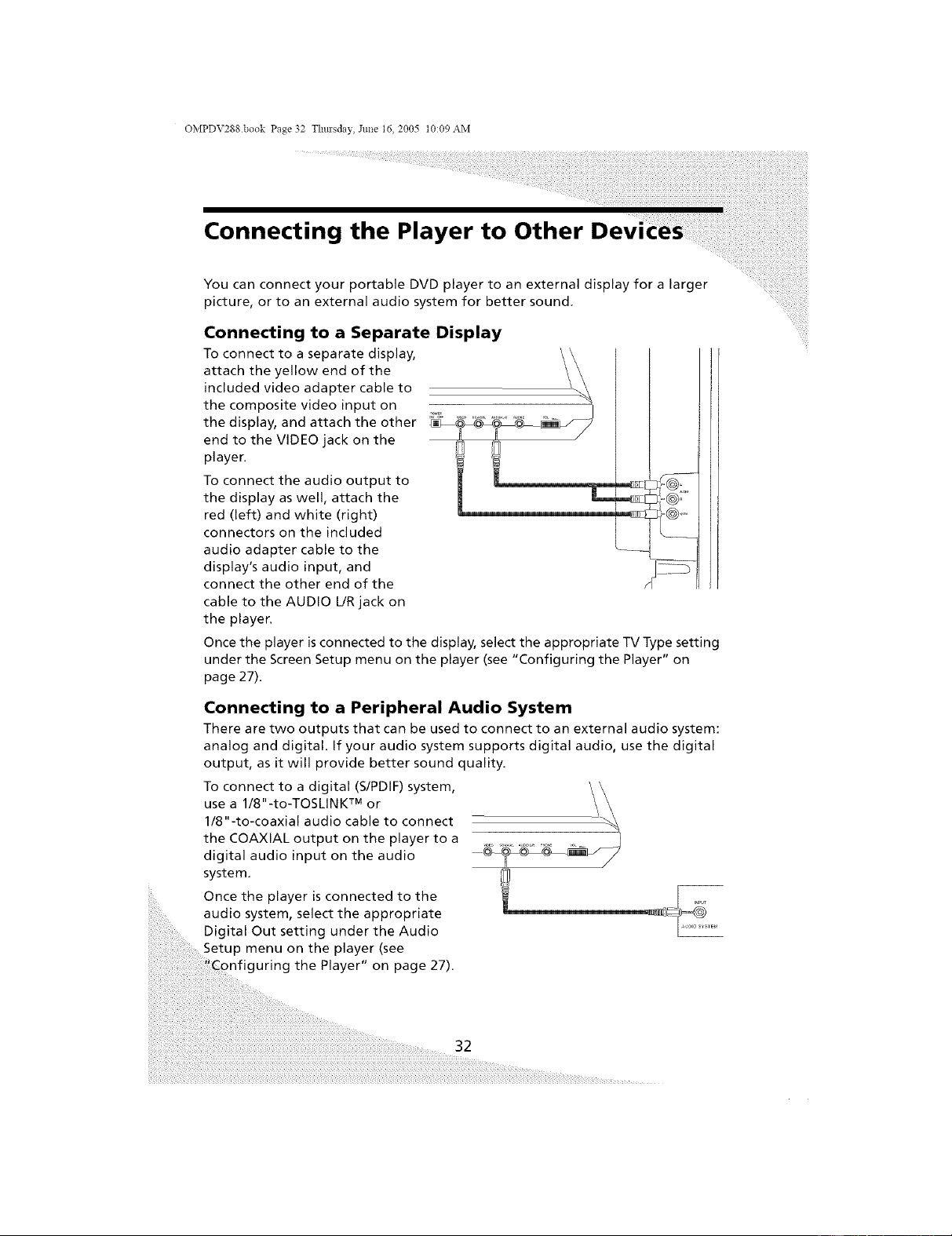
To connect to a separate display, '\
attach the yellow end of the
included video adapter cable to
the composite video input on _
the display, and attach the other __
i!_i i
end to the VIDEO jack on the
player.
To connect the audio output to
the display as well, attach the
red (left) and white (right)
connectors on the included
audio adapter cable to the
display's audio input, and
connect the other end of the
cable to the AUDIO URjack on
the player.
Once the player is connected to the display, select the appropriate TV Type setting
under the Screen Setup menu on the player (see "Configuring the Player" on
page 27).
Connecting to a Peripheral Audio System
There are two outputs that can be used to connect to an external audio system:
analog and digital. If your audio system supports digital audio, use the digital
output, as it will provide better sound quality.
To connect to a digital (S/PDIF) system, '\
use a 1/8"-to-TOSLINK TM or
1/8"-to-coaxial audio cable to connect
the COAXIAL output on the player to a
digital audio input on the audio
/
system.
Once the player is connected to the
audio system, select the appropriate
Digital Out setting under the Audio
Setup menu on the player (see
nfiguring the Player" on page 27).
32
OMPDV288.book Page 33 Thm'sday, Jm_e 16, 2005 t0:09 AM
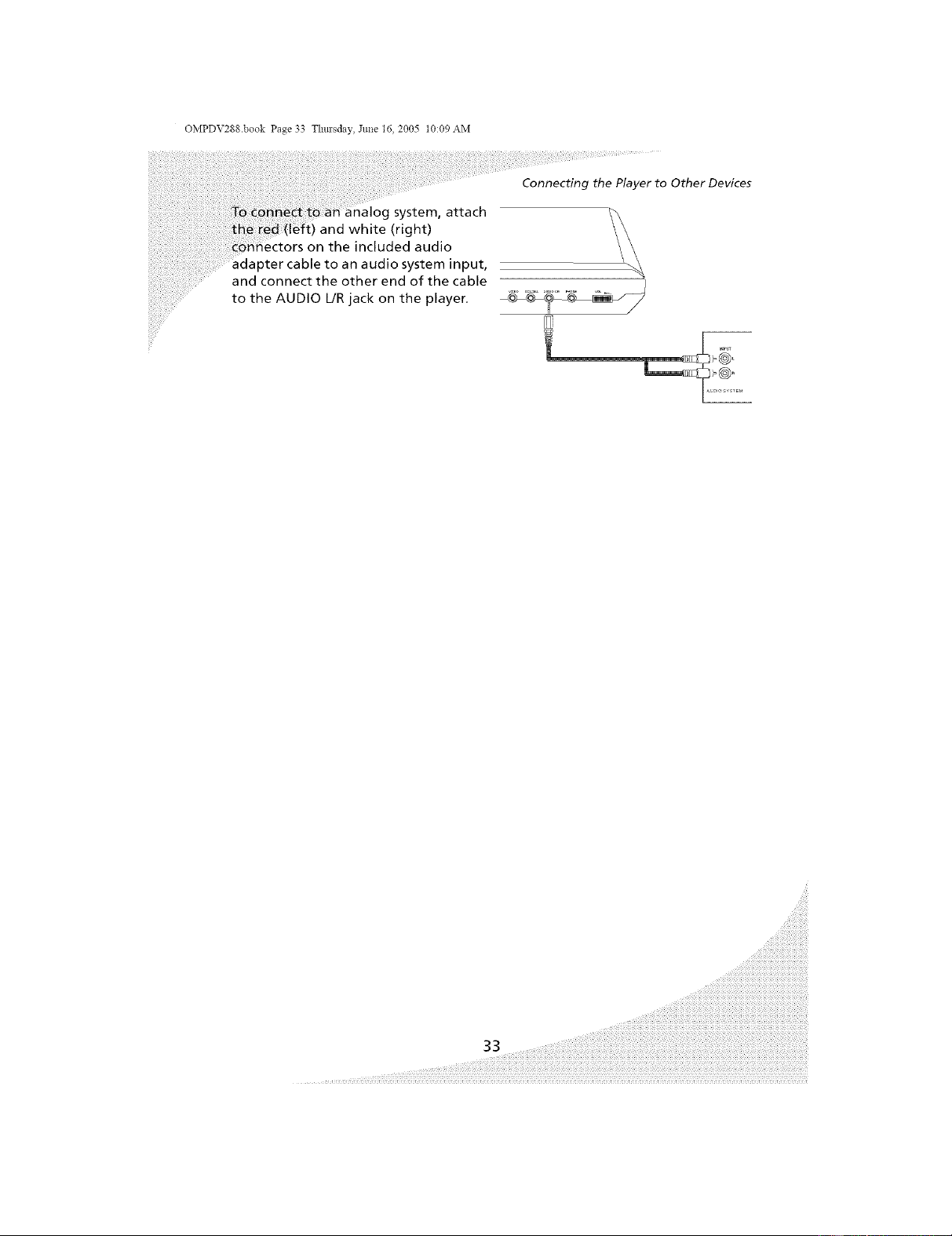
,g system, attach
and white (right)
iectors on the included audio
system input,
and connect the other end of the cable
to the AUDIO UR jack on the player,
Connecting the Player to Other Devices
/
OMPDV288 book Page 34 Thm'sday, June 16, 2005 t0:09 AM
Using the Battery Pack
The battery life of the included battery pack is more than two and a half hours.
It attaches to the rear of the player and may be charged separately or while
connected to the player,
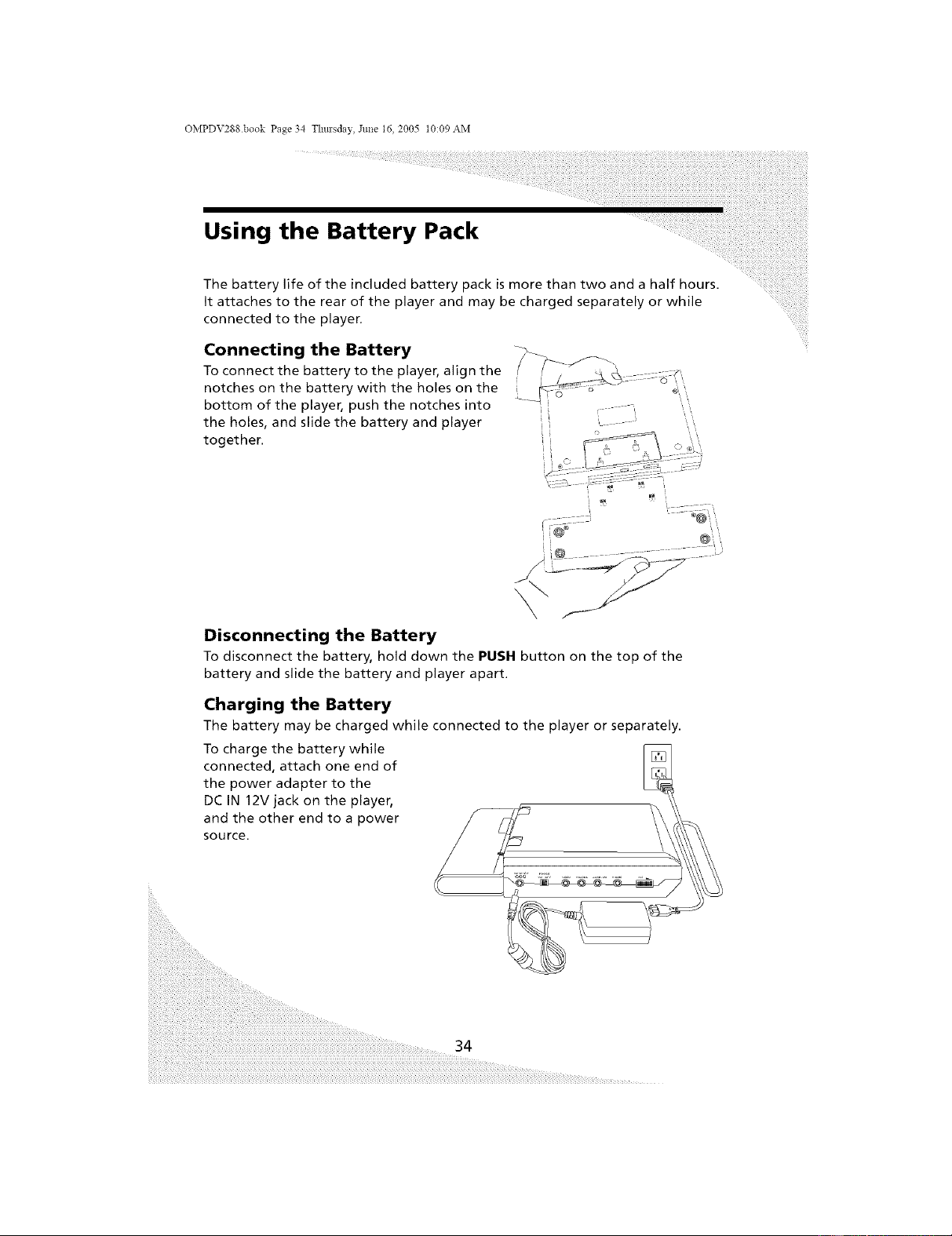
Connecting the Battery
To connect the battery to the player, alignthe / /-_-_'_ _,
notches on the battery with the holes on the
bottom of the player, push the notches into _ --_ o
the holes, and slide the battery and player
together.
ii® • •• >,
Disconnecting the Battery
To disconnect the battery, hold down the PUSH button on the top of the
battery and slide the battery and player apart.
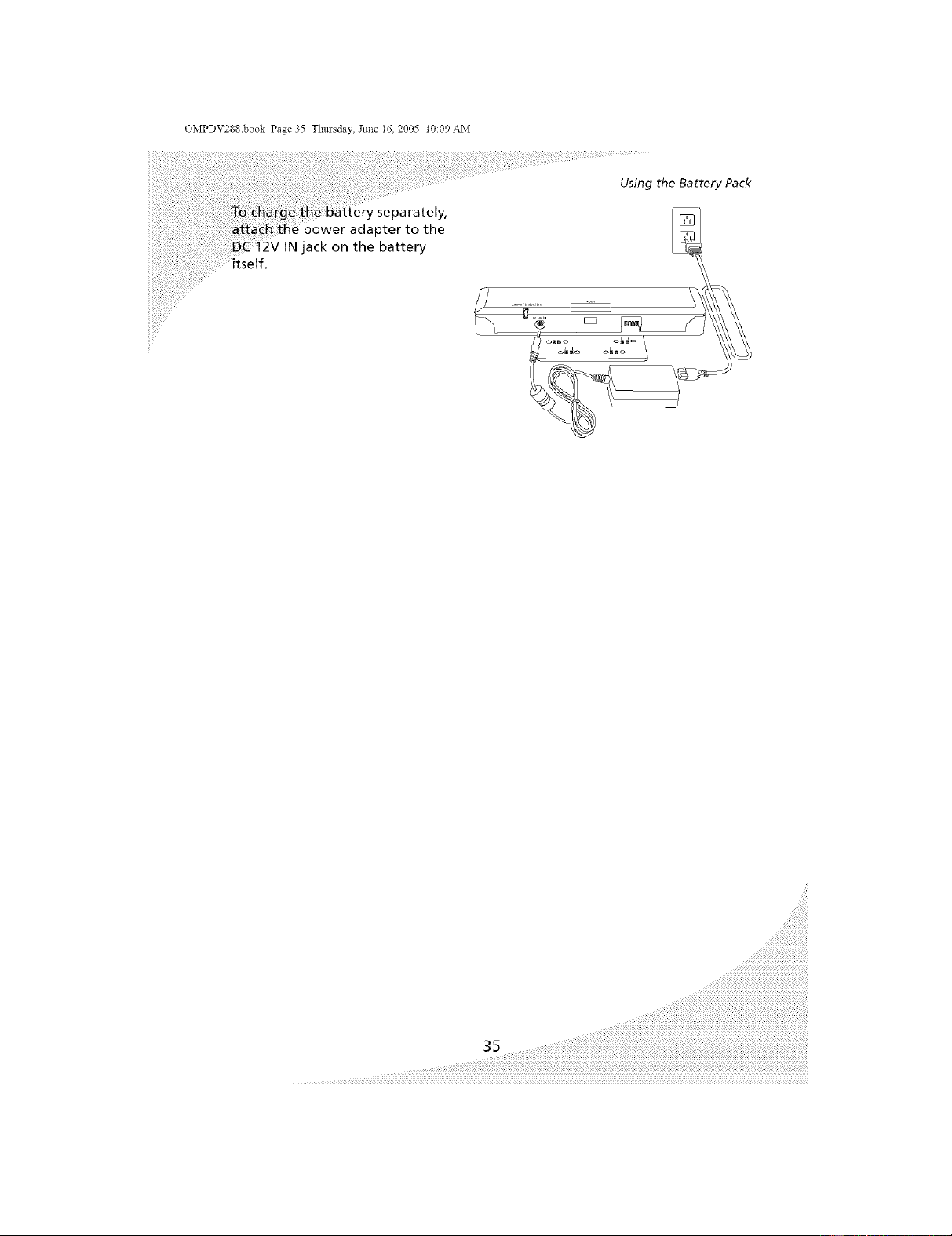
Charging the Battery
The battery may be charged while connected to the player or separately.
To charge the battery while
connected, attach one end of
the power adapter to the
DC IN 12V jack on the player,
and the other end to a power
source.
34
OMPDV288.book Page 35 Thm'sday, June 16, 2005 t0:09 AM
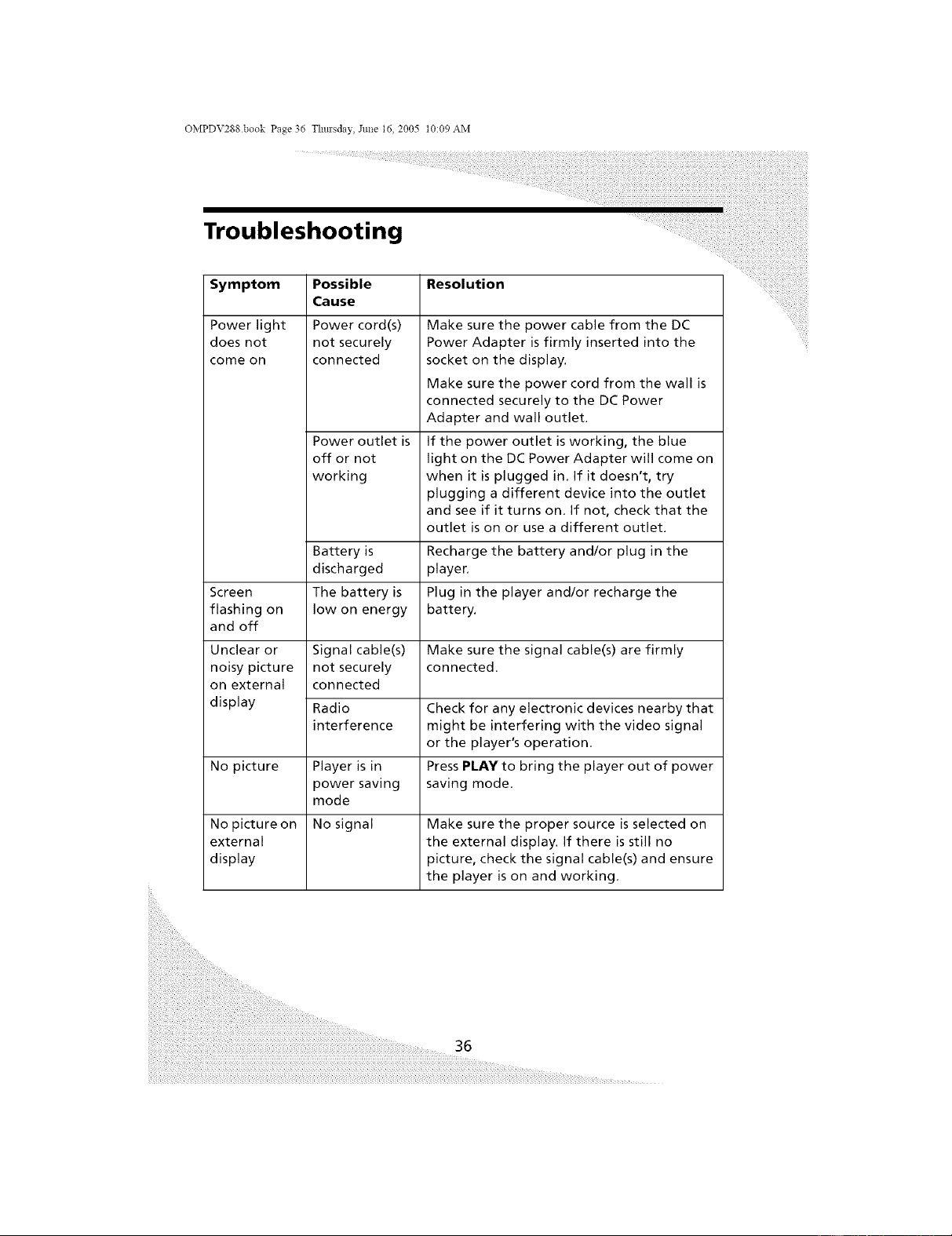
Using the Battery Pack
power adapter to the
2V IN jack on the battery
OMPDV288 book Page 36 Thm'sday, June 16, 2005 t0:09 AM
Troubleshooting
Resolution
Symptom
Power light
does not
come on
Possible
Cause
Power cord(s)
not securely
connected
Power outlet is
off or not
working
Make sure the power cable from the DC
Power Adapter is firmly inserted into the
socket on the display.
Make sure the power cord from the wall is
connected securely to the DC Power
Adapter and wall outlet.
If the power outlet is working, the blue
light on the DC Power Adapter will come on
when it is plugged in. If it doesn't, try
plugging a different device into the outlet
and see if it turns on. If not, check that the
outlet is on or use a different outlet.
Recharge the battery and/or plug in the
playen
Plug in the player and/or recharge the
battery.
Battery is
discharged
Screen The battery is
flashing on low on energy
and off
Unclear or Signal cable(s) Make sure the signal cable(s) are firmly
noisy picture not securely connected.
on external connected
display Radio Check for any electronic devices nearby that
interference might be interfering with the video signal
or the player's operation.
No picture Player is in Press PLAY to bring the player out of power
power saving saving mode.
mode
No picture on No signal Make sure the proper source is selected on
external the external display. If there is still no
display picture, check the signal cable(s) and ensure
the player is on and working.
36
OMPDV288.book Page 37 Thm'sday, June 16, 2005 t0:09 AM
Troubleshooting
Possible Resolution
Cause
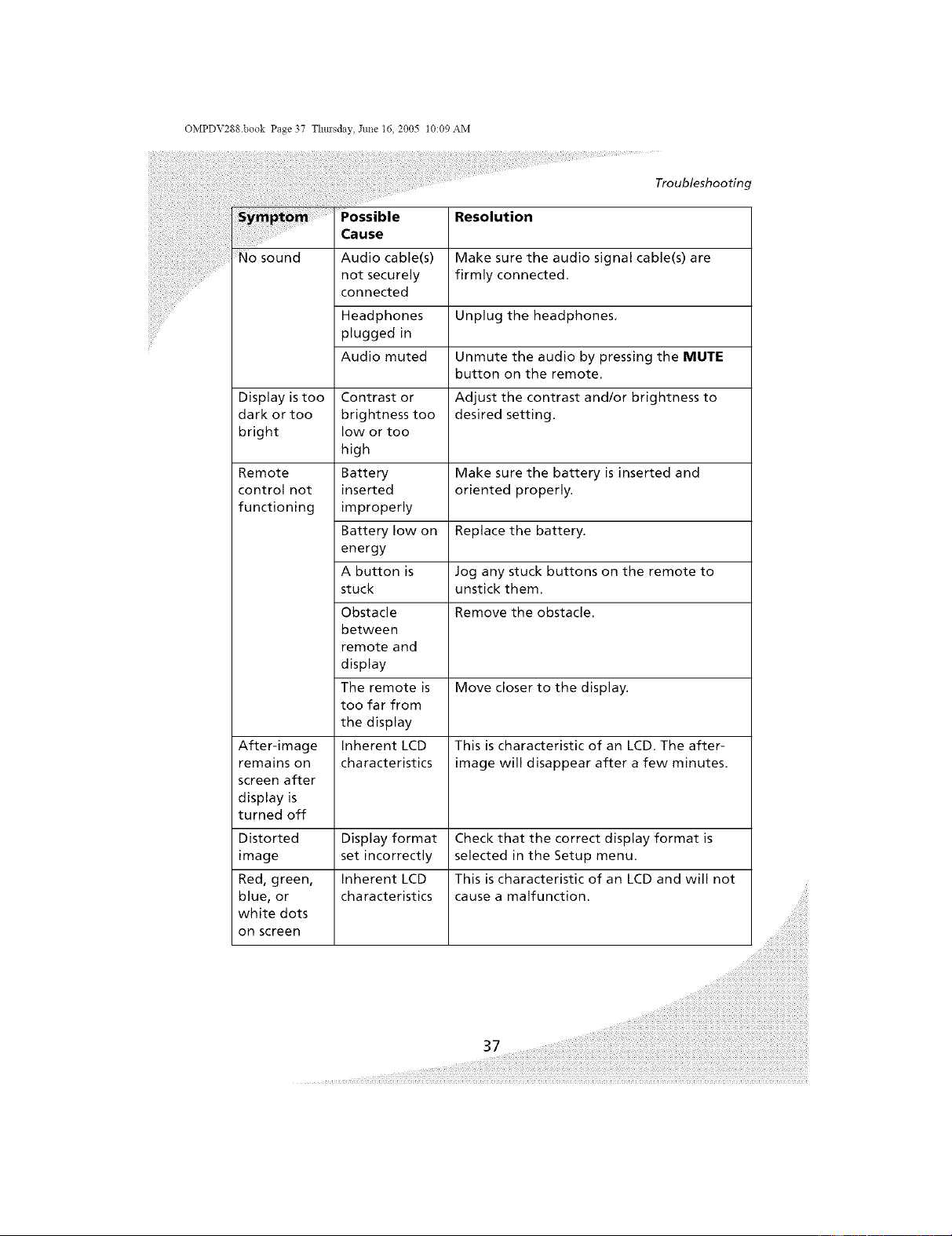
No sound Audio cable(s) Make sure the audio signal cable(s) are
not securely firmly connected,
connected
Headphones Unplug the headphones,
plugged in
Audio muted Unmute the audio by pressing the MUTE
button on the remote.
Display is too Contrast or Adjust the contrast and/or brightness to
dark or too brightness too desired setting.
bright low or too
high
Remote Battery Make sure the battery is inserted and
control not inserted oriented properly.
functioning improperly
Battery low on Replace the battery.
energy
A button is Jog any stuck buttons on the remote to
stuck unstick them.
Obstacle Remove the obstacle,
between
remote and
display
The remote is Move closer to the display.
too far from
the display
After-image Inherent LCD This is characteristic of an LCD. The after-
remains on characteristics image will disappear after a few minutes.
screen after
display is
turned off
Distorted Display format Check that the correct display format is
image set incorrectly selected in the Setup menu.
Red, green, Inherent LCD This is characteristic of an LCD and will not
blue, or characteristics cause a malfunction.
white dots
on screen
i i i i i i i i i i i i i i i i i i i i i
OMPDV288 book Page 38 Thm'sday, June 16, 2005 t0:09 AM
Troubleshooting
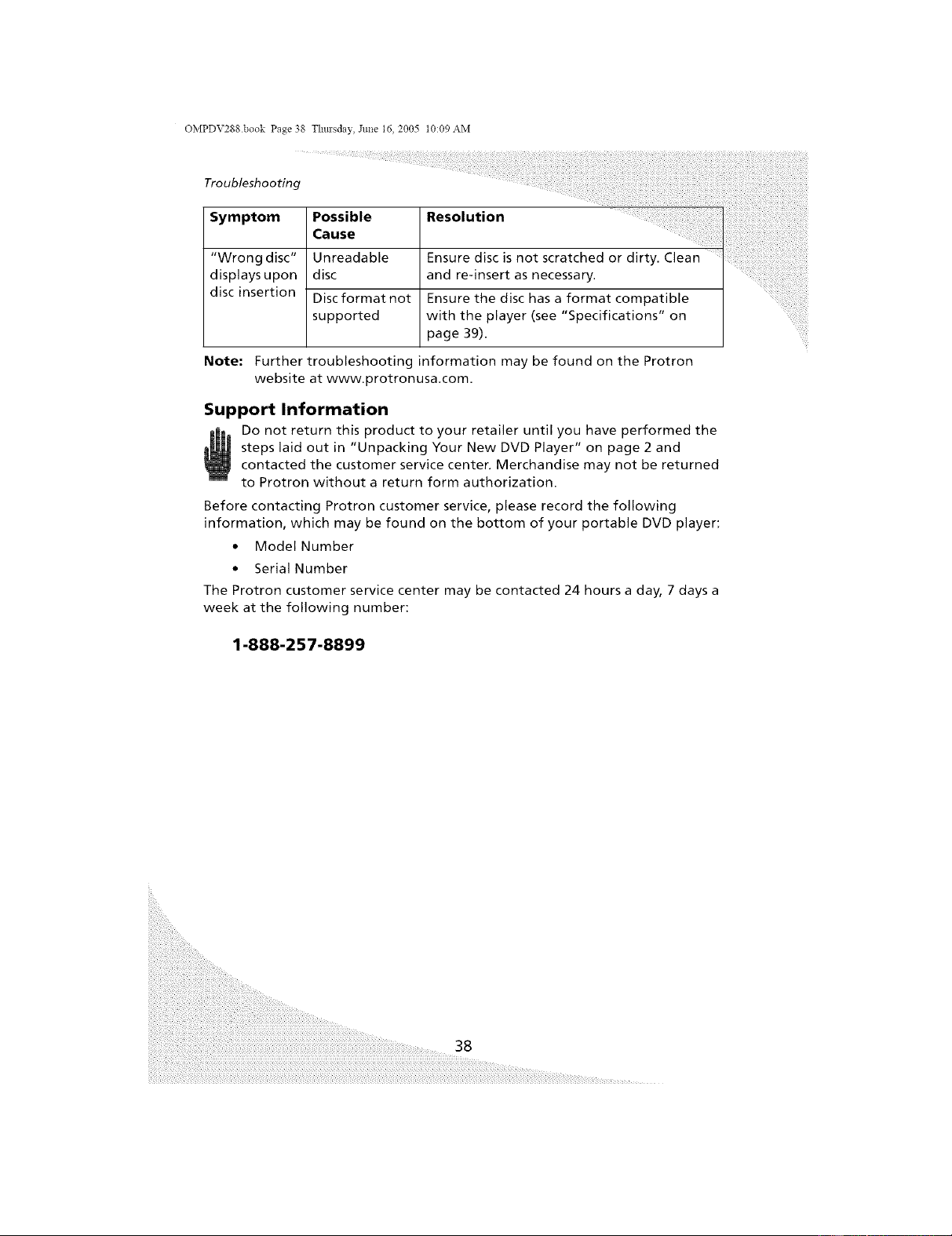
symptomPossib,eReso,utioo .....
Cause
"Wrong disc" Unreadable Ensure disc is not scratched or dirty. Clean
displays upon disc and re-insert as necessary.
disc insertion Disc format not Ensure the disc has a format compatible
supported with the player (see "Specifications" on
page 39).
Note: Further troubleshooting information may be found on the Protron
website at www.protronusa,com.
Support Information
Do not return this product to your retailer until you have performed the
steps laid out in "Unpacking Your New DVD Player" on page 2 and
contacted the customer service center, Merchandise may not be returned
to Protron without a return form authorization.
Before contacting Protron customer service, please record the following
information, which may be found on the bottom of your portable DVD player:
• Model Number
• Serial Number
The Protron customer service center may be contacted 24 hours a day, 7 days a
week at the following number:
1-888-257-8899
38
OMPDV2gg.book Page 39 Thmsday, June 16, 2005 t0:09 AM
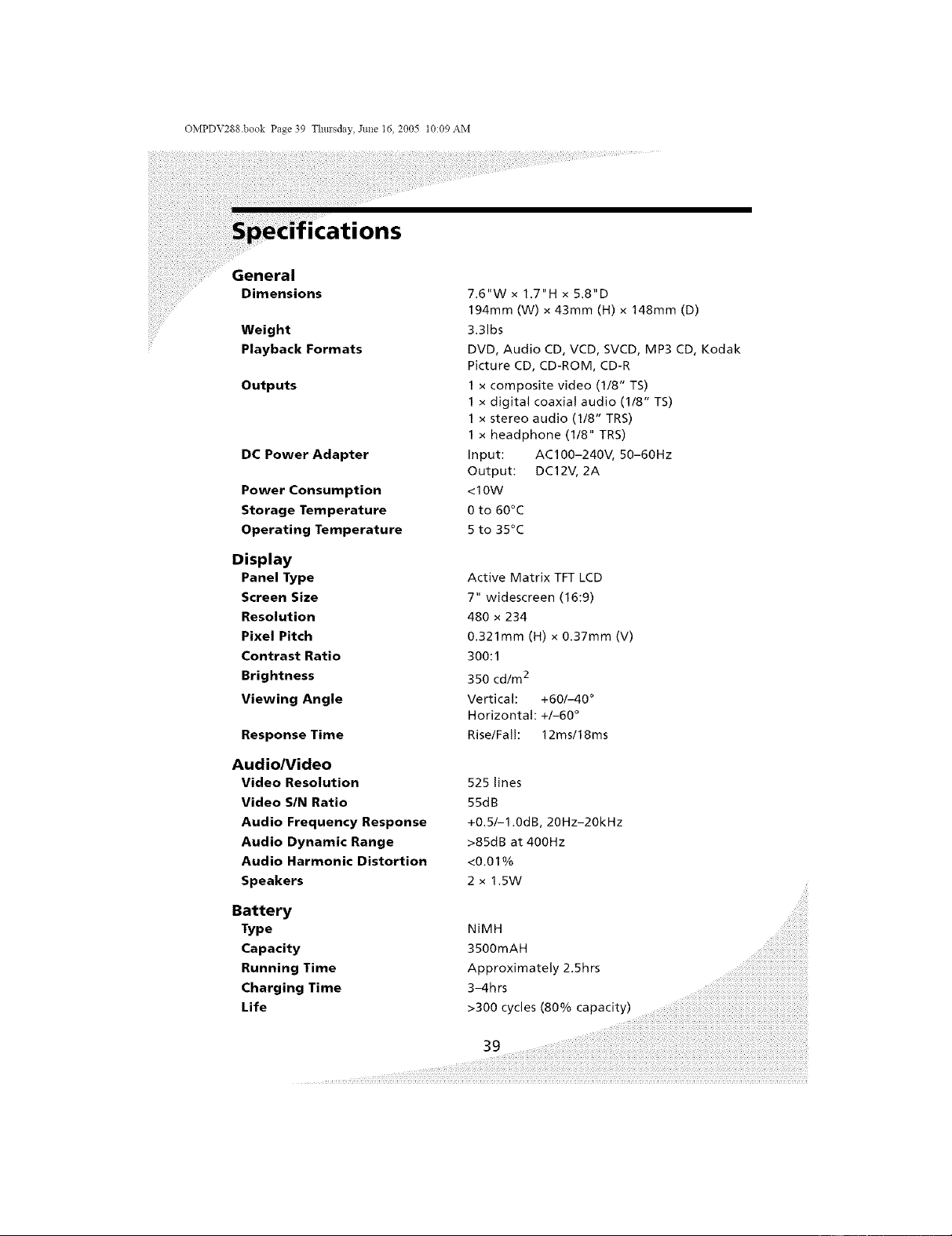
General
Dimensions
Weight
Playback Formats
Outputs
DC Power Adapter
Power Consumption
Storage Temperature
Operating Temperature
Display
Panel Type Active Matrix TFT LCD
Screen Size 7" widescreen (16:9)
Resolution 480 x 234
Pixel Pitch 0.321mm (H) x 0.37mm (V)
Contrast Ratio 300:1
Brightness 350 cd/m 2
Viewing Angle Vertical: +60/-40 °
Horizontal: +/-60 °
Response Time Rise/Fal!: 12ms/18ms
Audio/Video
Video Resolution 525 lines
Video SIN Ratio 55dB
Audio Frequency Response +0.5/-1.0dB, 20Hz-20kHz
Audio Dynamic Range >85dB at 400Hz
Audio Harmonic Distortion <0.01%
Speakers 2 x 1.5W
Battery
Type NiMH
Capacity 3500mAH
Running Time Approximately 2.5hrs
Charging Time 3-4hrs
Life
7.6"W x 1.7"H x 5.8"D
194mm (W) x 43mm (H) x 148mm (D)
3.31bs
DVD, Audio CD, VCD, SVCD, MP3 CD, Kodak
Picture CD, CD-ROM, CD-R
1 x composite video (1/8" TS)
1 x digital coaxial audio (1/8" TS)
1 x stereo audio (1/8" TRS)
1 x headphone (1/8" TRS)
Input: AC100-240V, 50-60Hz
Output: DC12V, 2A
<10W
0 to 60°C
5 to 35°C
>300 cycles (80% capacity)
OMPDV288 book Page 40 Thmsday, June 16, 2005 t0:09 AM
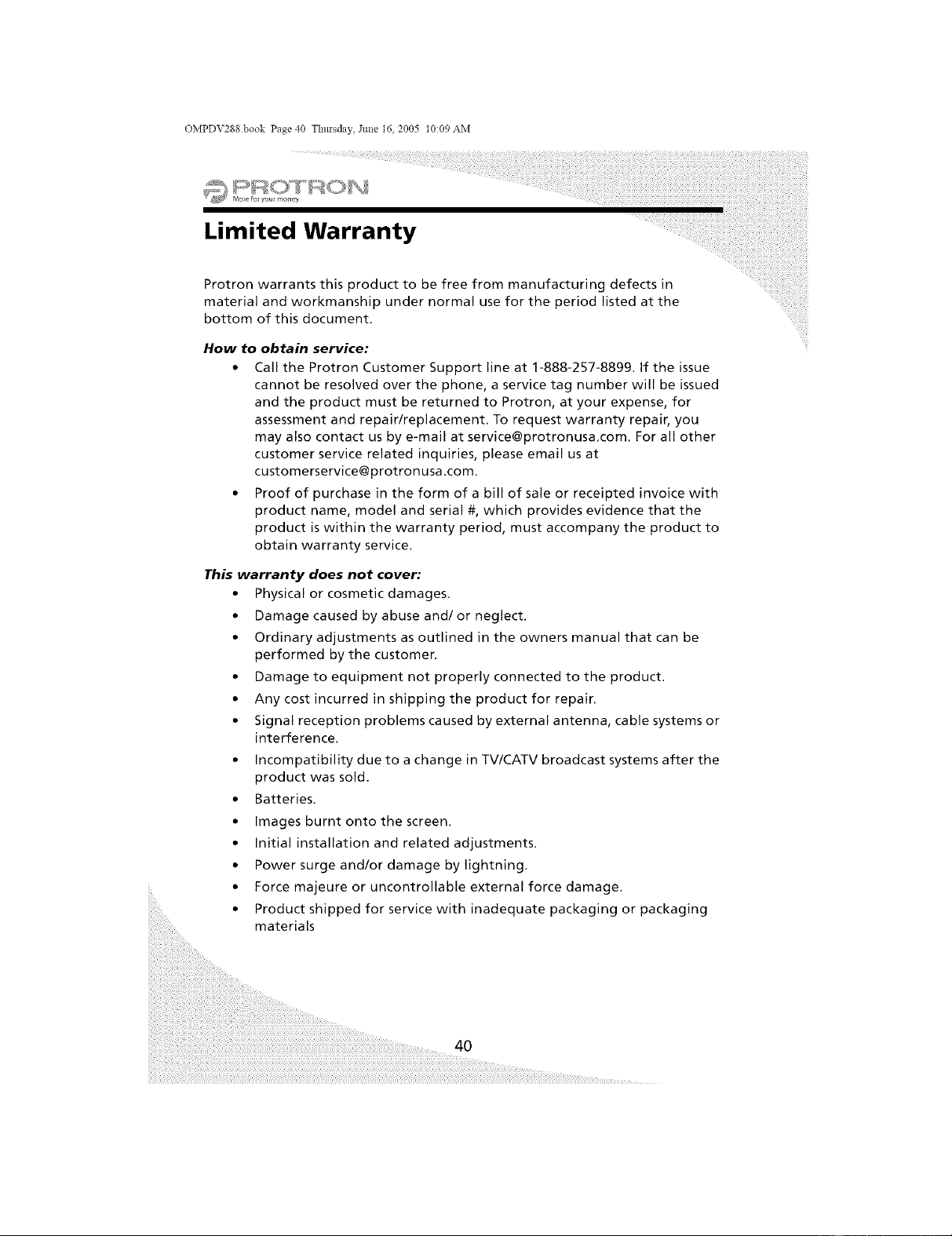
Limited Warranty
Protron warrants this product to be free from manufacturing defects in
material and workmanship under normal use for the period listed at the
bottom of this document.
How to obtain service:
• Call the Protron Customer Support line at 1-888-257-8899. If the issue
cannot be resolved over the phone, a service tag number will be issued
and the product must be returned to Protron, at your expense, for
assessment and repair/replacement. To request warranty repair, you
customer service related inquiries, please email usat
• Proof of purchase in the form of a bill of sale or receipted invoice with
product name, model and serial #, which provides evidence that the
product is within the warranty period, must accompany the product to
obtain warranty service.
This warranty does not cover:
• Physical or cosmetic damages.
• Damage caused by abuse and/or neglect.
• Ordinary adjustments as outlined in the owners manual that can be
performed by the customer.
• Damage to equipment not properly connected to the product.
• Any cost incurred in shipping the product for repair.
• Signal reception problems caused by external antenna, cable systems or
interference.
• Incompatibility due to a change in TV/CATV broadcast systems after the
product was sold,
• Batteries.
• Images burnt onto the screen.
• Initial installation and related adjustments.
• Power surge and/or damage by lightning.
• Force majeure or uncontrollable external force damage.
• Product shipped for service with inadequate packaging or packaging
materials
40
OMPDV288.book Page 41 Thm+sday, Jtme 16, 2005 t0:09 AM
Limited Warranty
++++_
will assess the product and cover all labor charges to repair
your product.
Protron will provide new, or at our discretion, refurbished replacement
parts required to repair your 3roduct.
This warranty is void if:
• Product is used in a commercial application or rental.
• Damaged through misuse, negligence or abuse,
• Modified or repaired by anyone other than an authorized PROTRON
service center,
• Damaged because it is improperly connected to any other equipment.
• If the original proof of purchase cannot be supplied.
• If the identifiable markings on the product such as Serial # are defaced,
unrecognizable, or missing.
• The product is used outside the country in which it was originally sold.
This warranty is non-transferable and only applies to the original purchase. Any
implied warranties, including the warranty of merchantability, are limited in
duration to the period of this expressed warranty and no warranty whether
expressed or implied shall apply to the product thereafter, Under no
circumstance shall PROTRON be liable for any loss or consequential damage
arising out of the use of this product, This warranty gives specific legal rights.
However, you may have other rights that may vary from state/province to state/
province. Some states/provinces do not allow limitations on implied warranties
or exclusions of consequential damage, Therefore these restrictions may not
apply to you,
90 days Labor and Parts
OMPDV288 book Page 42 Thm'sday, June 16, 2005 t0:09 AM
Protron Digital Corporation
http://www.protron usa .com/
PDV-288
OMPDV288