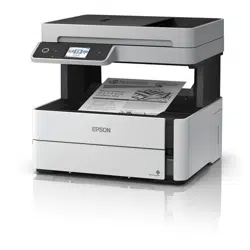

ET-M2170 User's Guide


3
Contents
ET-M2170 User's Guide............................................................................................................................. 11
Product Basics .......................................................................................................................................... 12
Using the Control Panel ..................................................................................................................... 12
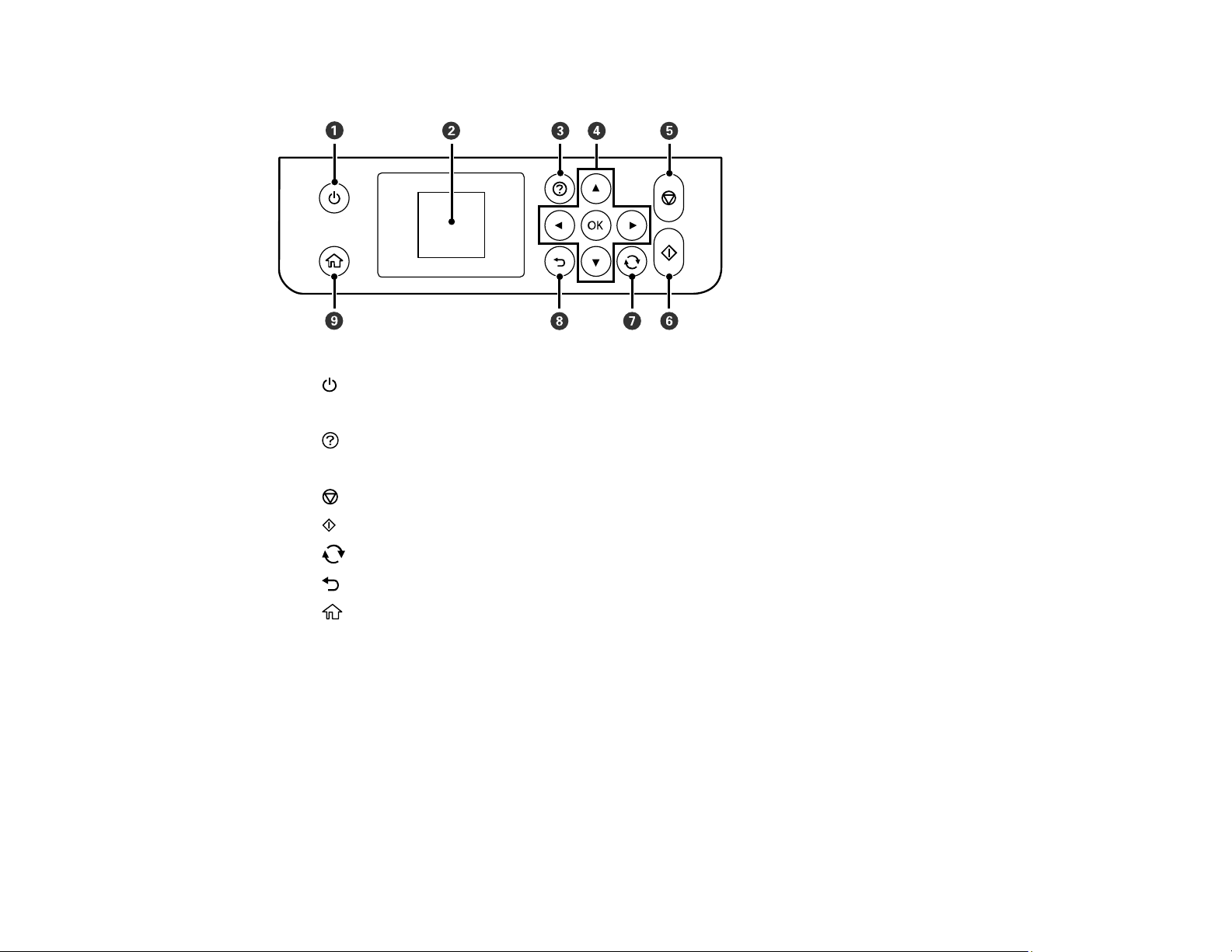
Control Panel Buttons and Lights .................................................................................................. 13
The LCD Screen............................................................................................................................ 14
Status Icon Information.................................................................................................................. 14
Changing LCD Screen Language.................................................................................................. 15
Product Parts Locations ..................................................................................................................... 16
Product Parts - Front ..................................................................................................................... 16
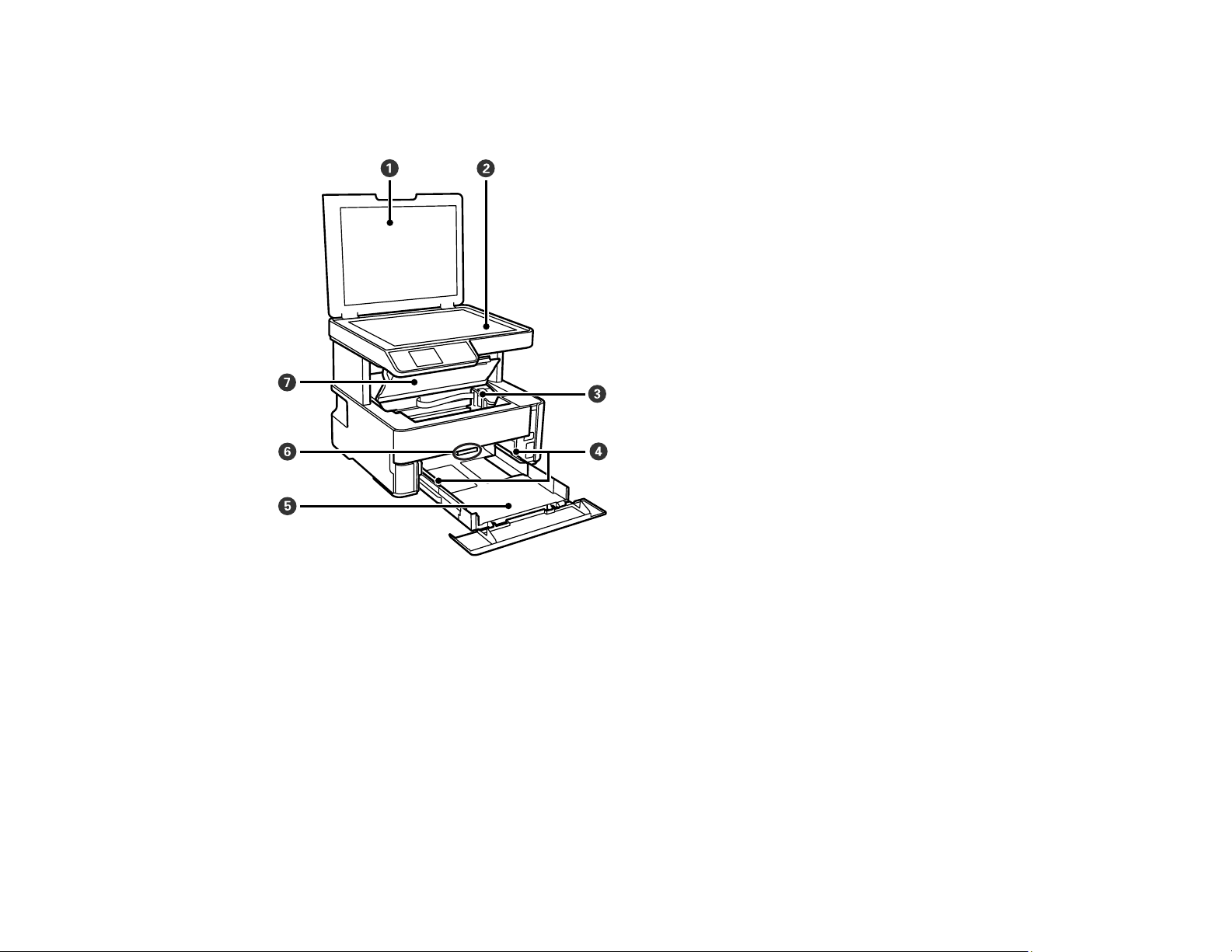
Product Parts - Inside .................................................................................................................... 17
Product Parts - Back...................................................................................................................... 18
Checking for Software Updates.......................................................................................................... 18
Using Power Saving Settings ............................................................................................................. 19
Changing the Sleep Timer Setting from the Control Panel ............................................................ 19
Changing the Power Off Timer Setting from the Control Panel...................................................... 21
Epson Connect Solutions for Smartphones, Tablets, and More ......................................................... 22
Setting Up Epson Connect Services.............................................................................................. 23
Using Epson Email Print ............................................................................................................... 24
Using the Epson iPrint Mobile App ................................................................................................ 24
Using Epson Remote Print ........................................................................................................... 25
Using AirPrint .................................................................................................................................... 26
Using Google Cloud Print................................................................................................................... 26
Setting Up Google Cloud Print on a Chromebook ......................................................................... 27
Android Printing Using the Epson Print Enabler ................................................................................ 28
Using the Mopria Print Service .......................................................................................................... 29
Using Fire OS Printing ....................................................................................................................... 30
Using Windows 10 Mobile Printing .................................................................................................... 30
Using Epson Print and Scan App with Windows Tablets ................................................................... 31
Voice-activated Printing ..................................................................................................................... 31

4
Wi-Fi or Wired Networking........................................................................................................................ 33
Network Security Recommendations ................................................................................................. 33
Wi-Fi Infrastructure Mode Setup......................................................................................................... 34
Selecting Wireless Network Settings from the Control Panel ........................................................ 35
Wi-Fi Direct Mode Setup .................................................................................................................... 37
Connecting to a Mobile Device Using Wi-Fi Direct (Simple AP)..................................................... 37
Enabling Wi-Fi Direct Mode (Simple AP) ....................................................................................... 39
Modifying the Wi-Fi Direct Network Name or Password ................................................................ 40
Wi-Fi Protected Setup (WPS)............................................................................................................. 42
Using WPS to Connect to a Network ............................................................................................. 42
Printing a Network Status Sheet......................................................................................................... 43
Printing a Network Connection Report ............................................................................................... 44
Network Connection Report Codes and Messages ....................................................................... 45
Changing or Updating Network Connections ..................................................................................... 50
Accessing the Web Config Utility................................................................................................... 51
Changing a USB Connection to a Wi-Fi Connection...................................................................... 51
Changing a Wi-Fi Connection to a Wired Network Connection...................................................... 51
Connecting to a New Wi-Fi Router ................................................................................................ 52
Disabling Wi-Fi Features ............................................................................................................... 53
Loading Paper ........................................................................................................................................... 54
Loading Paper in the Cassette ........................................................................................................... 54
Loading Paper in the Rear Paper Feed Slot ....................................................................................... 60
Paper Loading Capacity..................................................................................................................... 63
Double-sided Printing Capacity.......................................................................................................... 65
Compatible Epson Papers.................................................................................................................. 66
Paper or Media Type Settings - Printing Software.............................................................................. 67
Selecting the Paper Settings - Control Panel ..................................................................................... 67
Paper or Media Type Settings - Control Panel............................................................................... 68
Selecting the Default Paper Source Settings...................................................................................... 69
Paper Source Settings Options ..................................................................................................... 70
Placing Originals on the Product ............................................................................................................. 71
Placing Originals on the Scanner Glass ............................................................................................. 71

5
Copying ...................................................................................................................................................... 73
Copying Documents or Photos........................................................................................................... 73
Copying Options................................................................................................................................. 75
Printing from a Computer ......................................................................................................................... 77
Printing with Windows ........................................................................................................................ 77
Selecting Basic Print Settings - Windows ...................................................................................... 78
Paper Source Options - Windows ............................................................................................. 80
Print Quality Options - Windows ............................................................................................... 80
Multi-Page Printing Options - Windows..................................................................................... 80
Selecting Double-sided Printing Settings - Windows ..................................................................... 81
Double-sided Printing Options - Windows................................................................................. 83
Print Density Adjustments - Windows ....................................................................................... 84
Selecting Additional Layout and Print Options - Windows ............................................................. 85
Custom Tone Correction Options - Windows ............................................................................ 87
Image Options and Additional Settings - Windows.................................................................... 88
Header/Footer Settings - Windows ........................................................................................... 88
Selecting a Printing Preset - Windows........................................................................................... 89
Selecting Extended Settings - Windows ........................................................................................ 91
Extended Settings - Windows ................................................................................................... 92
Printing Your Document - Windows............................................................................................... 93
Locking Printer Settings - Windows ............................................................................................... 94
Locked Setting Options............................................................................................................. 96
Selecting Default Print Settings - Windows.................................................................................... 96
Changing the Language of the Printer Software Screens ......................................................... 97
Changing Automatic Update Options ............................................................................................ 99
Printing with the Built-in Epson Driver - Windows 10 S..................................................................... 100
Selecting Print Settings - Windows 10 S...................................................................................... 100
Printing on a Mac ............................................................................................................................. 104
Selecting Basic Print Settings - Mac ........................................................................................... 105
Paper Source Options - Mac................................................................................................... 108
Print Quality Options - Mac ..................................................................................................... 108
Selecting Page Setup Settings - Mac .......................................................................................... 109
Selecting Print Layout Options - Mac........................................................................................... 110

6
Selecting Double-sided Printing Settings - Mac........................................................................... 110
Double-sided Printing Options and Adjustments - Mac........................................................... 112
Selecting Printing Preferences - Mac .......................................................................................... 112
Printing Preferences - Mac...................................................................................................... 113
Printing Your Document - Mac..................................................................................................... 114
Checking Print Status - Mac.................................................................................................... 115
Printing From a Chromebook ........................................................................................................... 115
Cancelling Printing Using a Product Button...................................................................................... 116
Scanning .................................................................................................................................................. 117
Starting a Scan................................................................................................................................. 117
Starting a Scan Using the Product Control Panel ........................................................................ 117
Changing Default Scan Job Settings ...................................................................................... 119
Setting Up a WSD Port (Windows 7/Windows Vista) .............................................................. 119
Starting a Scan Using the Epson Scan 2 Icon ............................................................................. 120
Starting a Scan from a Scanning Program................................................................................... 122
Starting a Scan from a Smart Device........................................................................................... 124
Scanning in Epson Scan 2 ............................................................................................................... 124
Additional Scanning Settings - Main Settings Tab ....................................................................... 127
Additional Scanning Settings - Advanced Settings Tab............................................................... 127
Saving Scanned Documents as a Searchable PDF Using Epson Scan 2 ................................... 128
Image Format Options................................................................................................................. 130
Scan Resolution Guidelines ........................................................................................................ 131
Refilling Ink and Replacing the Maintenance Box ................................................................................ 132
Ink Safety Precautions ..................................................................................................................... 132
Checking the Ink and Maintenance Box Levels................................................................................ 134
Checking the Ink Level on Your Product...................................................................................... 134
Checking Maintenance Box Status on the LCD Screen............................................................... 135
Checking Ink and Maintenance Box Levels - Windows ............................................................... 135
Checking Ink and Maintenance Box Levels - Mac ....................................................................... 137
Disabling Special Offers with Windows ....................................................................................... 139
Purchase Epson Ink and Maintenance Box...................................................................................... 140
Ink Bottle and Maintenance Box Part Numbers ........................................................................... 141
Refilling the Ink Tank........................................................................................................................ 141

7
Maintenance Box Replacement ....................................................................................................... 146
Adjusting Print Quality............................................................................................................................ 148
Print Head Maintenance................................................................................................................... 148
Print Head Nozzle Check............................................................................................................. 148
Checking the Nozzles Using the Product Control Panel ......................................................... 149
Checking the Nozzles Using a Computer Utility...................................................................... 152
Print Head Cleaning .................................................................................................................... 155
Cleaning the Print Head Using the Product Control Panel ...................................................... 155
Cleaning the Print Head Using a Computer Utility................................................................... 157
Power Cleaning ........................................................................................................................... 160
Power Cleaning Using the Product Control Panel................................................................... 161
Power Cleaning Using a Computer Utility ............................................................................... 161
Print Head Alignment ....................................................................................................................... 163
Aligning the Print Head Using the Product Control Panel ............................................................ 163
Cleaning the Paper Guide ................................................................................................................ 165
Cleaning the Print Head Path ........................................................................................................... 166
Checking the Number of Sheets ....................................................................................................... 168
Checking the Sheet Counter - Windows ...................................................................................... 169
Checking the Sheet Counter - Mac.............................................................................................. 169
Cleaning and Transporting Your Product ............................................................................................. 171
Cleaning Your Product ..................................................................................................................... 171
Cleaning the Paper Rollers .............................................................................................................. 171
Transporting Your Product ............................................................................................................... 174
Solving Problems .................................................................................................................................... 178
Checking for Software Updates........................................................................................................ 178
Product Status Messages ................................................................................................................ 179
Message Appears Prompting You to Reset the Ink Level ................................................................ 180
Running a Product Check ................................................................................................................ 180
Resetting Control Panel Defaults ..................................................................................................... 182
Solving Setup Problems ................................................................................................................... 183
Product Does Not Turn On or Off................................................................................................. 183
Noise After Filling the Ink............................................................................................................. 183
Software Installation Problems .................................................................................................... 184

8
Solving Network Problems ............................................................................................................... 184
Product Cannot Connect to a Wireless Router or Access Point .................................................. 185
Network Software Cannot Find Product on a Network................................................................. 186
Product Does Not Appear in Mac Printer Window ....................................................................... 187
Wireless Network Connection is Unstable on a Mac ................................................................... 188
Wired Network Connection Becomes Unstable........................................................................... 188
Cannot Print Over a Network....................................................................................................... 189
Cannot Scan Over a Network ...................................................................................................... 190
Solving Copying Problems ............................................................................................................... 191
Product Makes Noise, But Nothing Copies.................................................................................. 192
Product Makes Noise When It Sits for a While............................................................................. 192
Solving Paper Problems................................................................................................................... 192
Paper Feeding Problems............................................................................................................. 192
Paper Jam Problems in the Front of the Product ......................................................................... 193
Paper Jam Problems Inside the Product ..................................................................................... 195
Paper Jam Problems in the Rear Cover ...................................................................................... 197
Paper Ejection Problems ............................................................................................................. 199
Solving Problems Printing from a Computer..................................................................................... 199
Nothing Prints.............................................................................................................................. 199
Product Icon Does Not Appear in Windows Taskbar ................................................................... 200
Printing is Slow ............................................................................................................................ 201
Solving Page Layout and Content Problems.................................................................................... 203
Inverted Image............................................................................................................................. 203
Too Many Copies Print ................................................................................................................ 203
Blank Pages Print ........................................................................................................................ 203
Incorrect Margins on Printout....................................................................................................... 204
Incorrect Characters Print............................................................................................................ 205
Incorrect Image Size or Position.................................................................................................. 205
Slanted Printout........................................................................................................................... 206
Solving Print Quality Problems......................................................................................................... 207
White or Dark Lines in Printout .................................................................................................... 207
Blurry or Smeared Printout .......................................................................................................... 208
Faint Printout or Printout Has Gaps ............................................................................................. 210

9
Grainy Printout............................................................................................................................. 211
Solving Scanning Problems ............................................................................................................. 212
Scanning Software Does Not Operate Correctly ......................................................................... 212
Cannot Start Epson Scan 2 ......................................................................................................... 212
Scanning is Slow ......................................................................................................................... 213
Solving Scanned Image Quality Problems ....................................................................................... 213
Image Consists of a Few Dots Only............................................................................................. 214
Line of Dots Appears in All Scanned Images............................................................................... 214
Straight Lines in an Image Appear Crooked ................................................................................ 214
Image is Distorted or Blurry ......................................................................................................... 214
Image Colors are Patchy at the Edges ........................................................................................ 215
Image is Too Dark ....................................................................................................................... 215
Back of Original Image Appears in Scanned Image .................................................................... 215
Ripple Patterns Appear in an Image ............................................................................................ 216
Scanned Image Colors Do Not Match Original Colors................................................................. 216
Scanned Image Edges are Cropped ........................................................................................... 216
Characters are Not Recognized During Conversion to Editable Text (OCR)............................... 217
Uninstall Your Product Software....................................................................................................... 217
Uninstalling Product Software - Windows.................................................................................... 217
Uninstalling Product Software - Mac............................................................................................ 219
Where to Get Help............................................................................................................................ 219
Technical Specifications ........................................................................................................................ 221
Windows System Requirements ...................................................................................................... 221
Mac System Requirements .............................................................................................................. 222
Paper Specifications ........................................................................................................................ 222
Printable Area Specifications ........................................................................................................... 224
Scanning Specifications ................................................................................................................... 225
Ink Specifications ............................................................................................................................. 226
Dimension Specifications ................................................................................................................. 226
Electrical Specifications ................................................................................................................... 227
Environmental Specifications ........................................................................................................... 227
Interface Specifications .................................................................................................................... 227
Network Interface Specifications ...................................................................................................... 228

10
Safety and Approvals Specifications ................................................................................................ 229
Notices ..................................................................................................................................................... 230
Important Safety Instructions............................................................................................................ 230
General Product Safety Instructions ............................................................................................ 230
LCD Screen Safety Instructions................................................................................................... 232
Wireless Connection Safety Instructions ..................................................................................... 232
FCC Compliance Statement............................................................................................................. 233
Binding Arbitration and Class Waiver ............................................................................................... 233
Trademarks...................................................................................................................................... 237
Copyright Notice............................................................................................................................... 237
libTIFF Software Acknowledgment.............................................................................................. 238
A Note Concerning Responsible Use of Copyrighted Materials................................................... 238
Default Delay Times for Power Management for Epson Products ............................................... 239
Copyright Attribution.................................................................................................................... 239

11
ET-M2170 User 's Guide
Welcome to the ET-M2170 User's Guide.
For a printable PDF copy of this guide, click here.

12
Product Basics
See these sections to learn about the basic features of your product.
Using the Control Panel
Product Parts Locations
Checking for Software Updates
Using Power Saving Settings
Epson Connect Solutions for Smartphones, Tablets, and More
Using AirPrint
Using Google Cloud Print
Android Printing Using the Epson Print Enabler
Using the Mopria Print Service
Using Fire OS Printing
Using Windows 10 Mobile Printing
Using Epson Print and Scan App with Windows Tablets
Voice-activated Printing
Using the Control Panel
See these sections to learn about the control panel and select control panel settings.
Control Panel Buttons and Lights
The LCD Screen
Status Icon Information
Changing LCD Screen Language
Parent topic: Product Basics
14
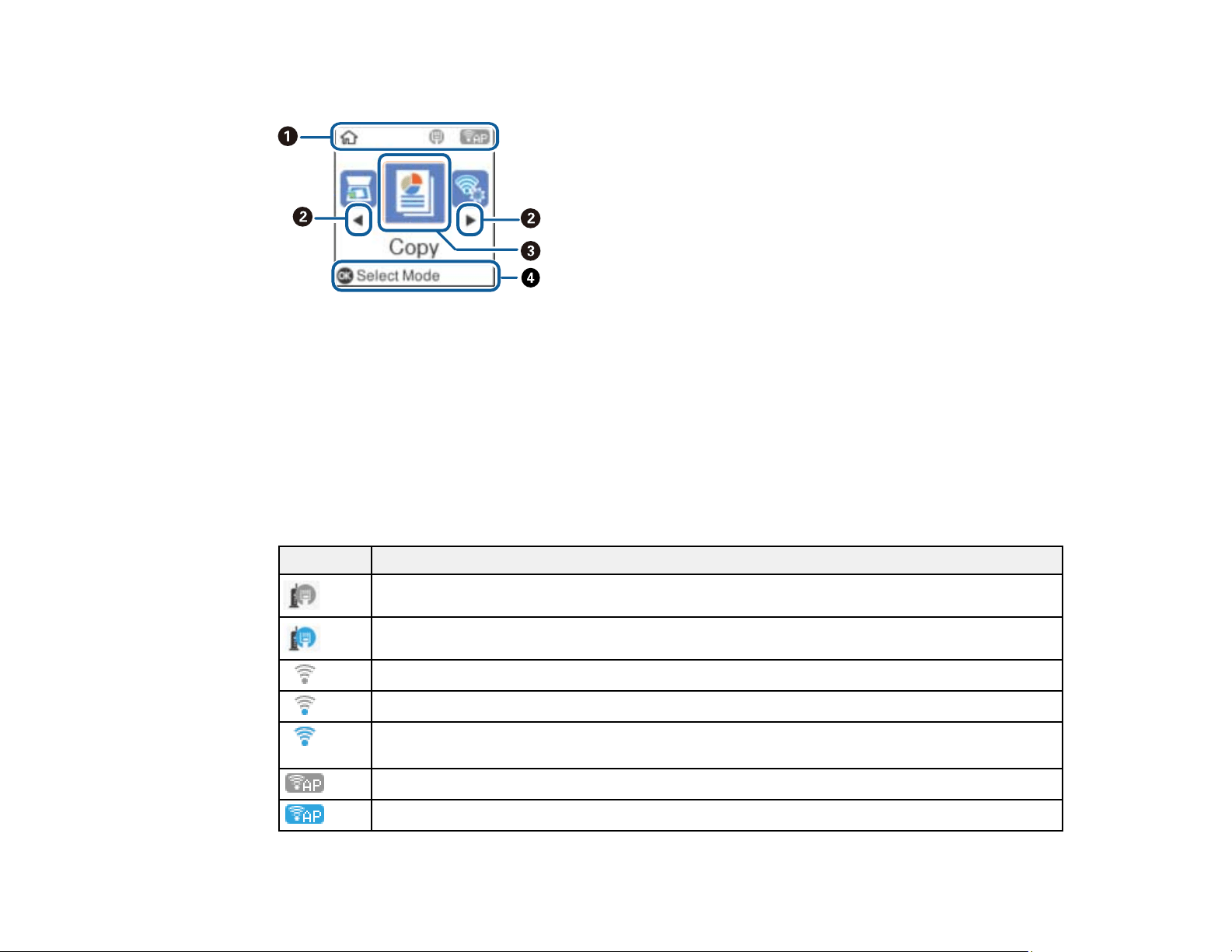
The LCD Screen
1 Network status icons
2 Use left and right arrow buttons to scroll menus or options
3 Currently selected item
4 Available button functions
Parent topic: Using the Control Panel
Status Icon Information
Your product displays status icons on the LCD screen for certain product status conditions.
Icons Description
The product is not connected to a wired (Ethernet) network.
The product is connected to a wired (Ethernet) network.
The wireless network is disabled or currently processing a connection.
The product is searching for an SSID or experiencing a wireless network connection issue.
The product is connected to a wireless network; the number of bars indicates the
connection's signal strength.
Wi-Fi Direct is not enabled.
Wi-Fi Direct is enabled.
15
Parent topic: Using the Control Panel
Changing LCD Screen Language
You can change the language used on the LCD screen.
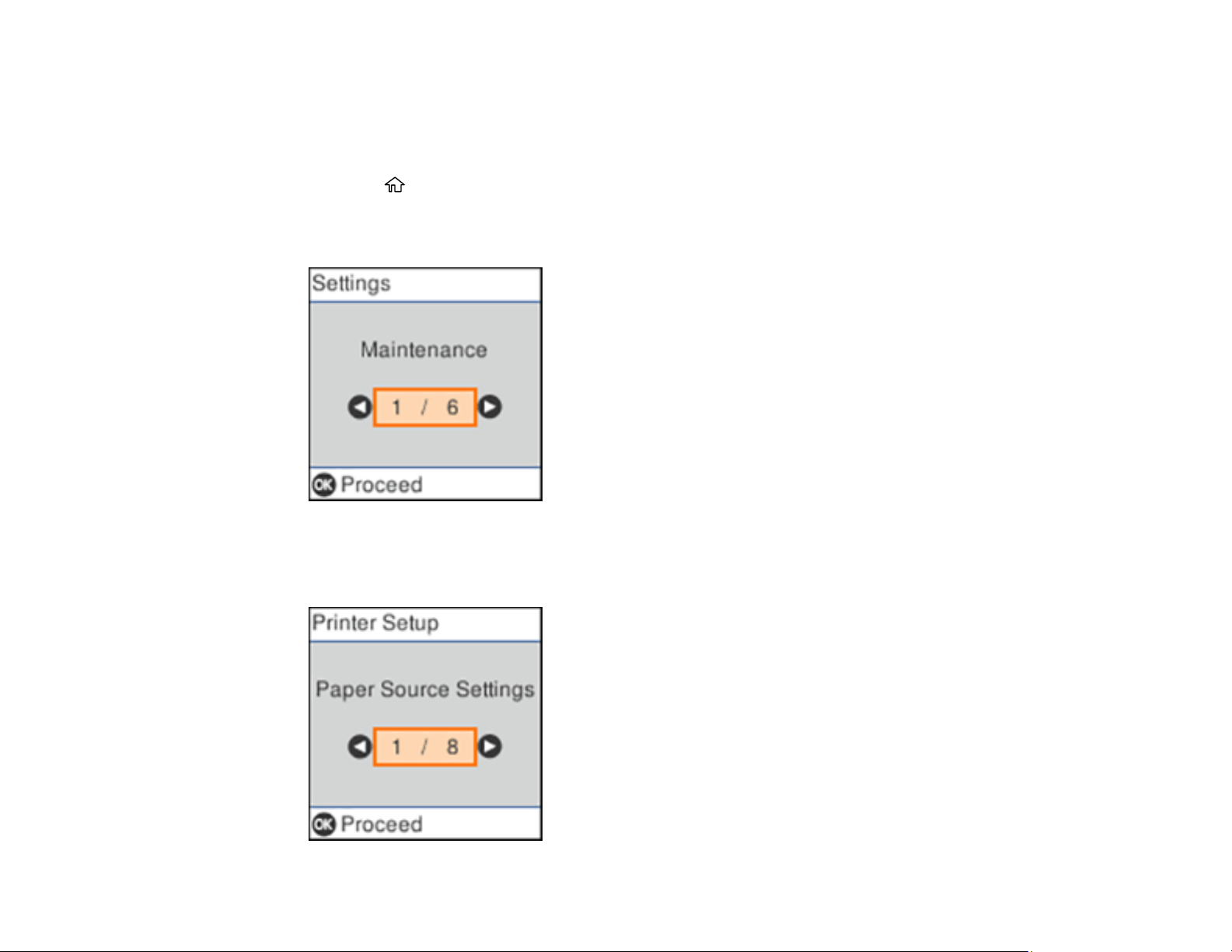
1. Press the home button, if necessary.
2. Press the arrow buttons to select Settings and press the OK button.
You see a screen like this:
3. Select Printer Setup and press the OK button.
You see this screen:
16
4. Select Language and press the OK button.
5. Select a language and press the OK button.
6. Press the home button to exit.
Parent topic: Using the Control Panel
Product Parts Locations
See these sections to identify the parts on your product.
Product Parts - Front
Product Parts - Inside
Product Parts - Back
Parent topic: Product Basics
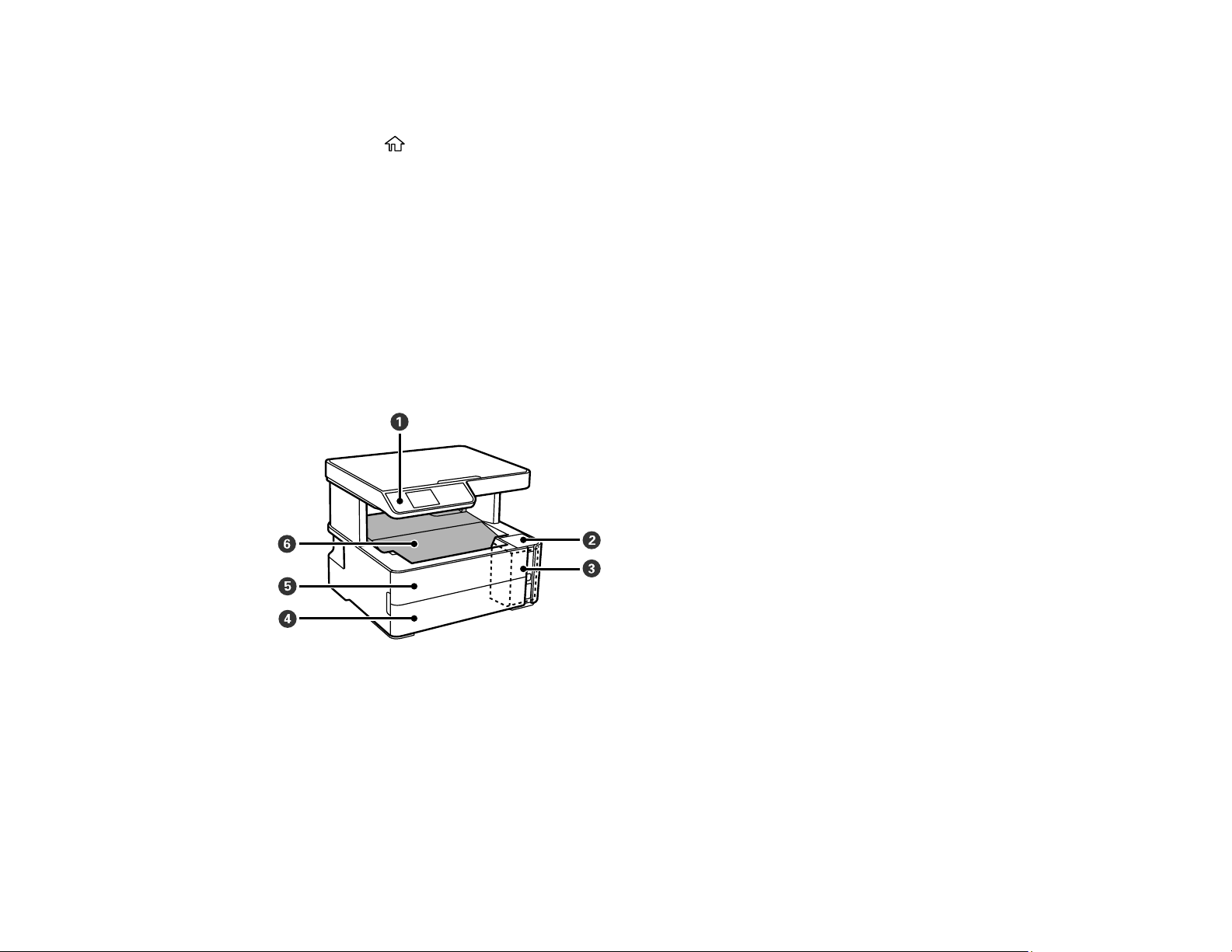
Product Parts - Front
1 Control panel
2 Ink tank cover
3 Ink tank
4 Paper cassette cover
5 Front cover
6 Output tray
18
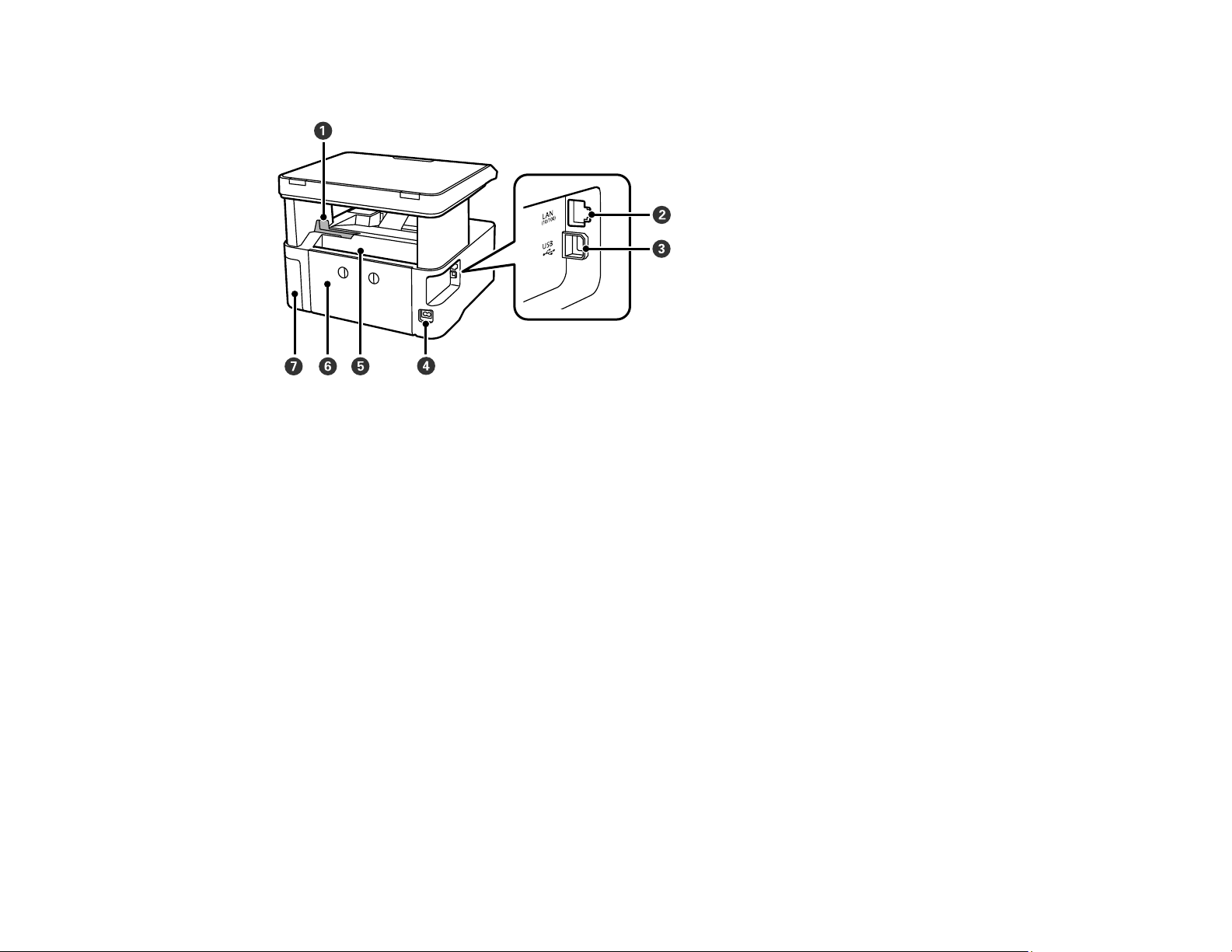
Product Parts - Back
1 Paper stopper
2 LAN port
3 USB port
4 AC inlet
5 Rear paper feed slot
6 Rear cover
7 Maintenance box cover
Parent topic: Product Parts Locations
Checking for Software Updates
It's a good idea to check Epson's support website occasionally for free updates to your product software.
Visit epson.com/support (U.S.), epson.ca/support (Canada), or epson.com.jm/support (Caribbean) and
select your product.

19
• Windows: Your printer software automatically checks for updates. You can also manually update the
software by selecting Software Update here:
• Accessing the Windows Desktop and right-clicking the icon for your product in the right side of
the Windows taskbar, or clicking the up arrow and right-clicking .
• On the Maintenance tab in the printer settings window
You can also update the software by selecting EPSON Software Updater in the EPSON or EPSON
Software program group, accessible by the Start button, or on the Start or Apps screens, depending
on your version of Windows.
• OS X: You can manually update the software by opening the Applications > Epson Software folder
and selecting EPSON Software Updater.
• macOS 10.12.x, 10.13.x, or 10.14.x: You can manually update the software by opening the App
Store, selecting Updates, searching for a software update option for Epson Software, and selecting
Update.
Parent topic: Product Basics
Using Power Saving Settings
Your product enters sleep mode automatically and turns off the LCD screen if it is not used for a period
of time. You can make the time period shorter and select other options to save energy and resources.
Changing the Sleep Timer Setting from the Control Panel
Changing the Power Off Timer Setting from the Control Panel
Parent topic: Product Basics
Changing the Sleep Timer Setting from the Control Panel
You can use the product's control panel to change the time period before the product enters sleep mode.
1. Press the home button, if necessary.
2. Press the arrow buttons to select Settings and press the OK button.
3. Select Printer Setup and press the OK button.
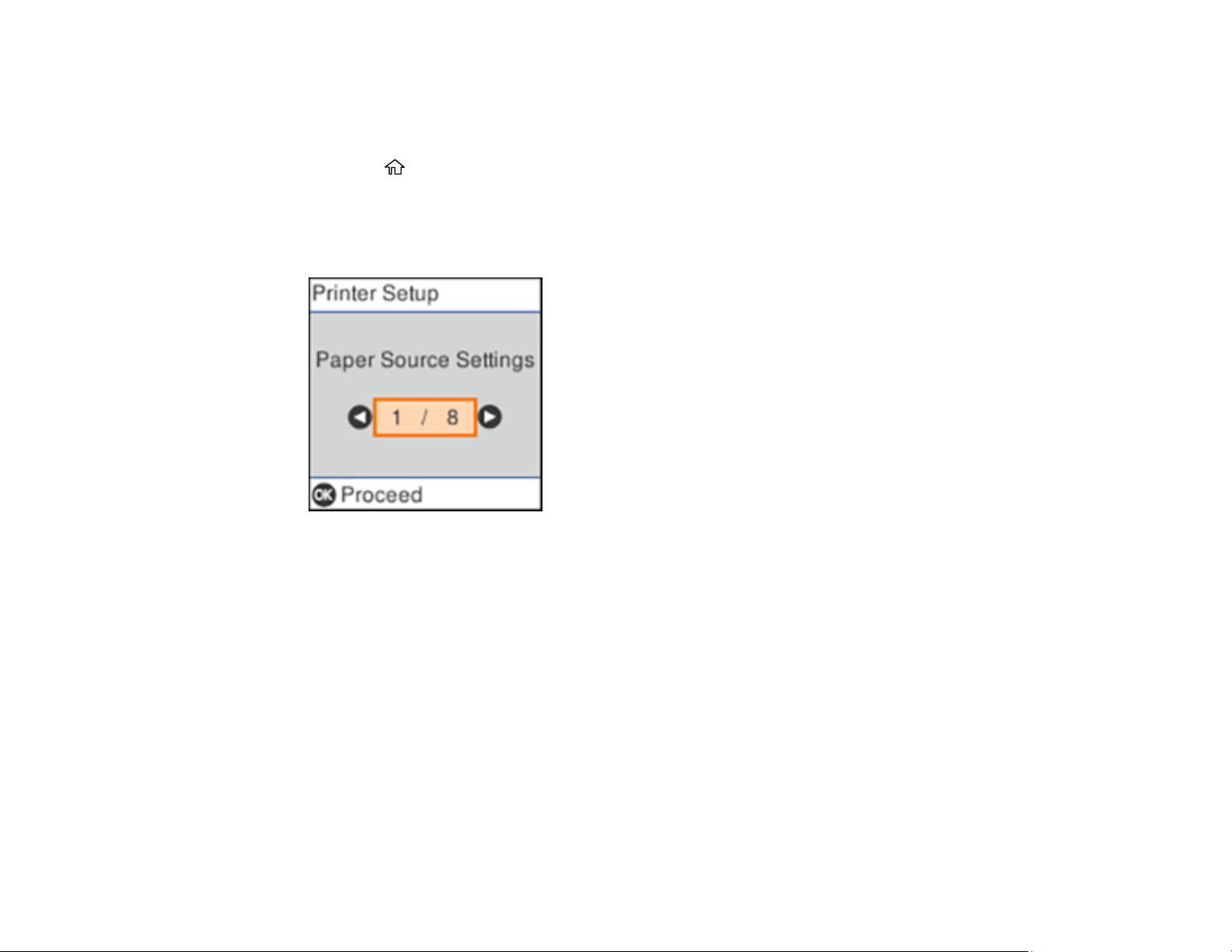
20
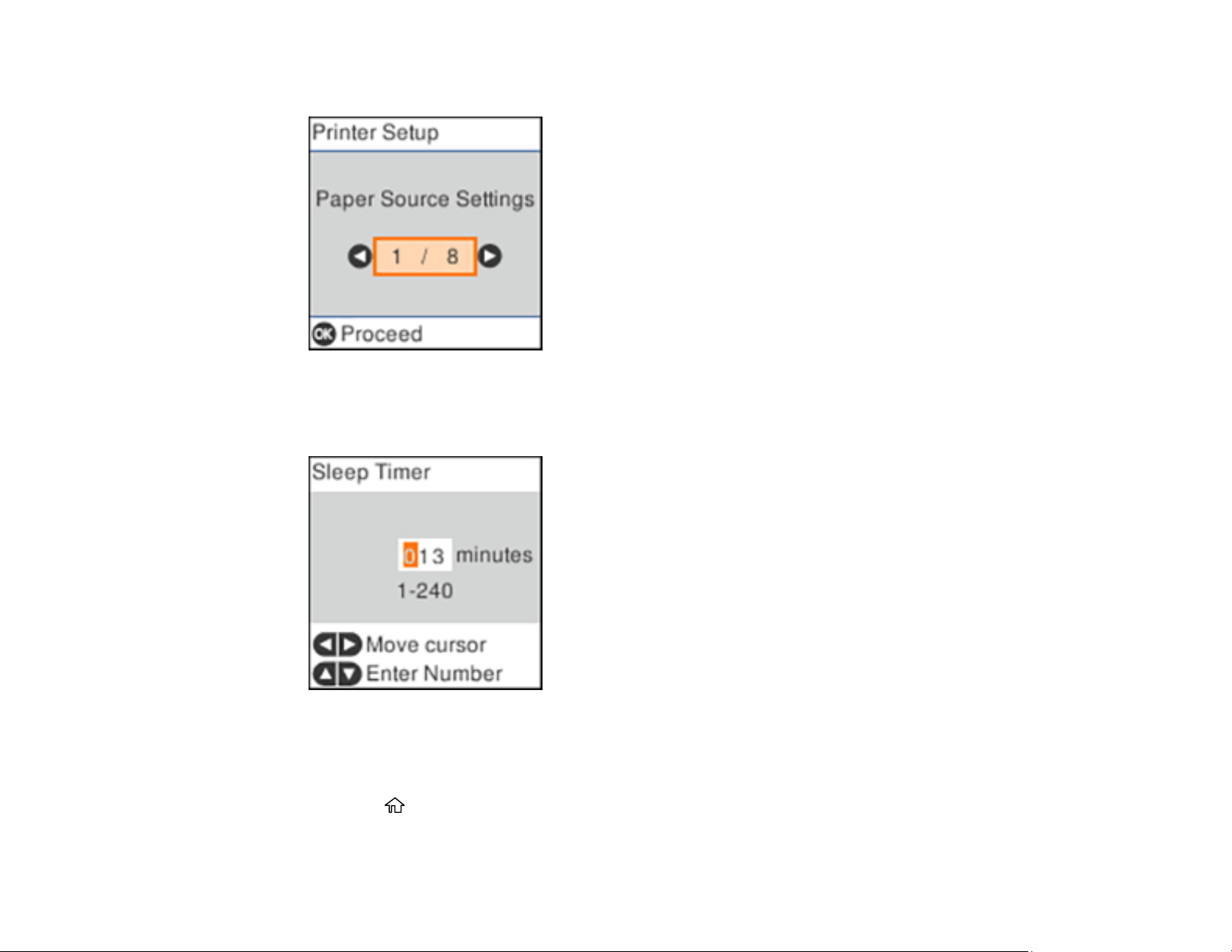
You see this screen:
4. Select Sleep Timer and press the OK button.
You see this screen:
5. Press the left or right arrow button to move the cursor and press the up or down arrow button to
adjust the number of minutes of inactivity before the product enters sleep mode. Then press the OK
button.
6. Press the home button to exit.
Parent topic: Using Power Saving Settings
21
Changing the Power Off Timer Setting from the Control Panel
You can use the product's control panel to change the time period before the printer turns off
automatically.
1. Press the home button, if necessary.
2. Press the arrow buttons to select Settings and press the OK button.
3. Select Printer Setup and press the OK button.
You see this screen:
4. Select Power Off Timer and press the OK button.
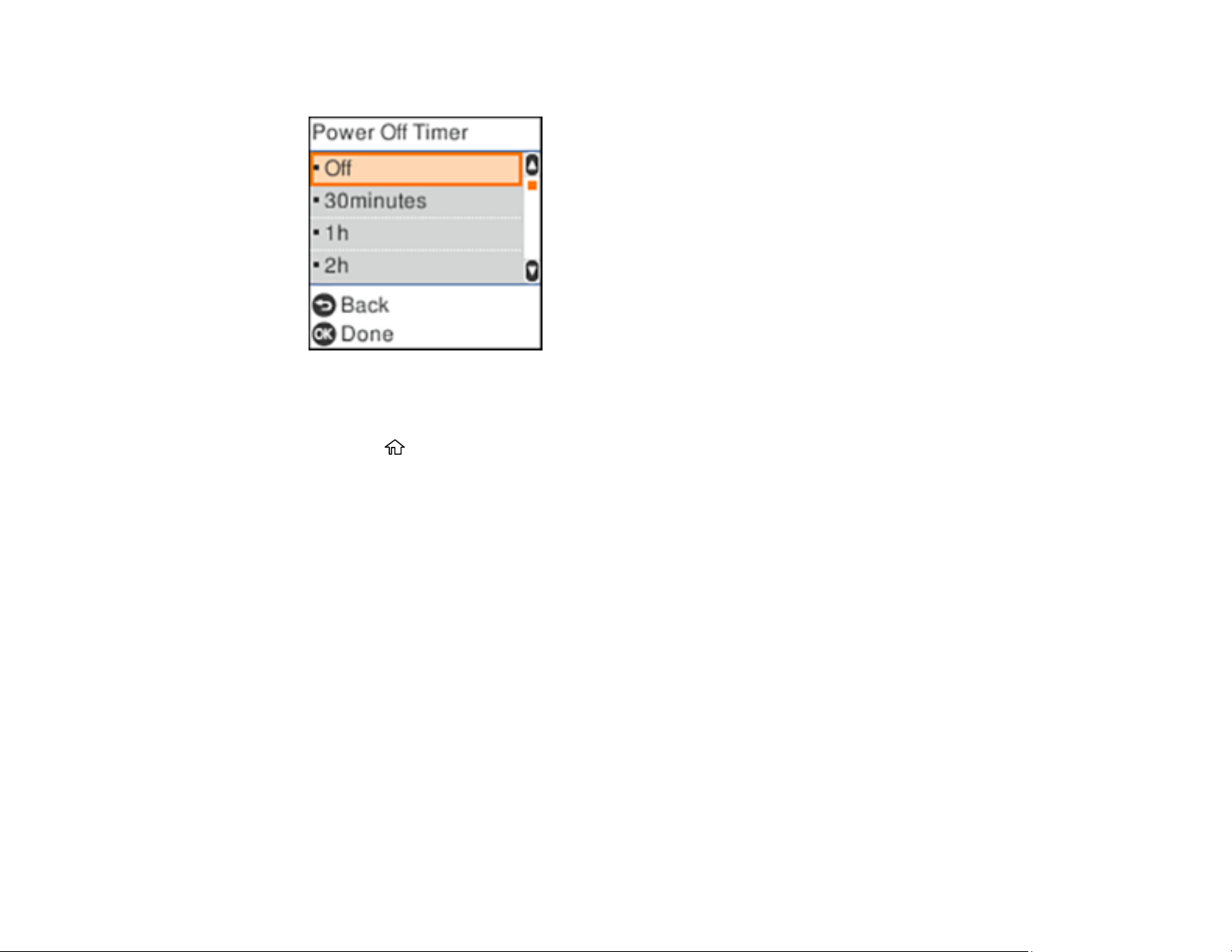
22
You see this screen:
5. Select the length of time after which you want the product to automatically turn off when it is not in
use. Then press the OK button.
6. Press the home button to exit.
Parent topic: Using Power Saving Settings
Epson Connect Solutions for Smartphones, Tablets, and More
Use your smartphone, tablet, or computer to print and scan documents, photos, emails, and web pages
from your home, office, or even across the globe.
Note: If you are using your Epson product with the Windows 10 S operating system, you cannot use the
software described in this section. You also cannot download and install any Epson product software
from the Epson website for use with Windows 10 S; you must obtain software only from the Windows
Store.
Print from anywhere with these Epson Connect solutions:
• Epson Email Print
• Epson iPrint Mobile App
• Epson Remote Print
Scan and send a file as an email or upload it to an online service directly from your Epson product with
the Epson iPrint Mobile App.
23
Setting Up Epson Connect Services
Using Epson Email Print
Using the Epson iPrint Mobile App
Using Epson Remote Print
Parent topic: Product Basics
Setting Up Epson Connect Services
If you did not activate your product's email address for use with Epson Connect when you set up your
product, you can activate it using the product control panel.
1. Press the home button, if necessary.
2. Press the left or right arrow button to select Settings and press the OK button.
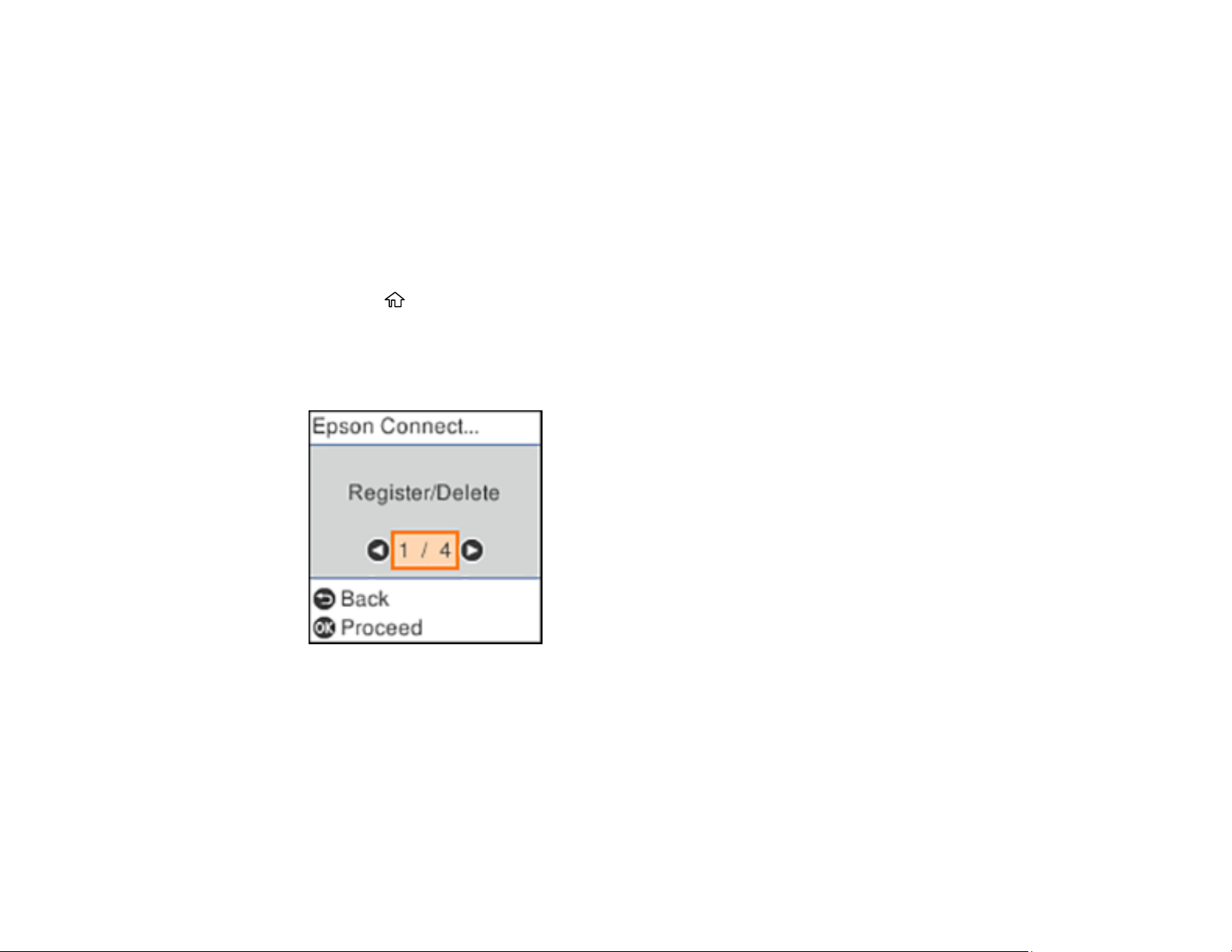
3. Press the arrow buttons to select Epson Connect Services and press the OK button.
You see this screen:
4. Press the OK button to select Register/Delete.
5. Press the OK button to select Yes and follow the instructions on the LCD screen to activate your
product's email address.
Parent topic: Epson Connect Solutions for Smartphones, Tablets, and More

24
Using Epson Email Print
With Epson Email Print, you can print from any device that can send email, such as your smartphone,
tablet, or laptop. Just activate your product's unique email address. When you want to print, attach a
PDF, Microsoft Office document, or photo to an email and send it to your product. Both the email and the
attachments will print automatically.
1. Connect your product to your network. See the link below.
2. If you did not already set up Email Print when you installed your product software, see the link below
to use your product control panel to activate your unique email address. Or visit epson.com/connect
(U.S), epson.ca/connect (Canada), or epsonconnect.com (Caribbean) to learn more about Email
Print, create your Epson Connect account, and register your product to the Epson Connect service.
3. Now you are ready to send and print emails to your product's Email Print address.
Note: Go to epsonconnect.com and log into your Epson Connect account to personalize your product's
email, adjust print settings, and set up other Epson Connect services.
Parent topic: Epson Connect Solutions for Smartphones, Tablets, and More
Related tasks
Setting Up Epson Connect Services
Related topics
Wi-Fi or Wired Networking
Using the Epson iPrint Mobile App
Use this free Apple and Android app to print and scan with networked Epson products. Epson iPrint lets
you print PDFs, Microsoft Office documents, photos, and web pages over a wireless network. You can
scan and save a file on your device, send it as an email, or upload it to an online service such as Box,
Dropbox, Evernote, or Google Drive.
1. Connect your product to your wireless network. See the link below.
2. Visit epson.com/connect (U.S), epson.ca/connect (Canada), or epson.com.jm/connect (Caribbean)
to learn more about Epson iPrint and check the compatibility of your mobile device.
3. Download Epson iPrint from the Apple App Store or Google Play.
4. Connect your mobile device to the same wireless network as your product.
5. Open Epson iPrint and select your Epson product.
Now you are ready to print or scan with your mobile device and your Epson product.

25
Parent topic: Epson Connect Solutions for Smartphones, Tablets, and More
Related tasks
Setting Up Epson Connect Services
Related topics
Wi-Fi or Wired Networking
Using Epson Remote Print
With Epson Remote Print software, you can print from your laptop or desktop computer to an Epson
Email-enabled product anywhere in the world.
1. Connect your Epson product to your wireless network. See the link below.
2. If you did not already set up an Epson Connect account when you installed your product software,
visit epsonconnect.com to create your account and register your product to the Epson Connect
service.
Note: Make a note of your product's email address.
3. Visit epsonconnect.com to learn more about Remote Print and how to download the Remote Print
Driver software.
4. Download and install the Remote Print software.
5. Enter the email address and optional access key of your Epson product during Remote Print setup.
6. Now you are ready to print remotely. Select the print command in your laptop or desktop computer
application and choose the Remote Print option for your Epson product.
Parent topic: Epson Connect Solutions for Smartphones, Tablets, and More
Related tasks
Setting Up Epson Connect Services
Related topics
Wi-Fi or Wired Networking
26
Using AirPrint
AirPrint enables instant wireless printing from iPhone, iPad, iPod touch, and Mac without the need to
install drivers or download software.
Note: If you disabled paper configuration messages on your product control panel, you cannot use
AirPrint. See the link below to enable the messages, if necessary.
1. Load paper in your product.
2. Set up your product for wireless printing. See the link below.
3. Connect your Apple device to the same wireless network that your product is using.
4. Print from your device to your product.
Note: For details, see the AirPrint page on the Apple website.
Parent topic: Product Basics
Related references
Paper Source Settings Options
Related topics
Wi-Fi or Wired Networking
Using Google Cloud Print
With a Google Account, you can print from your Apple or Android device to your Epson product. You can
also print from Chromebooks and the Google Chrome browser without drivers or cables.
1. Connect your Epson product to your wireless network. See the link below.
2. Note your product's IP address by checking your network status. See the link below.
3. Connect your computer or your mobile device to the same wireless network as your Epson product.
4. Enter your product's IP address into the address bar of a web browser.

27
5. Select the Google Cloud Print Services option.
Note: If you don't see the Google Cloud Print Services option, turn your product off and back on. If
the option still doesn't appear, select the Firmware Update option and follow the on-screen
instructions to update your product.
6. Click Register.
7. Select the checkbox to agree to the Usage Advisory and click Next.
8. Click OK to launch the sign-in page.
A separate browser window opens.
9. Enter your Google Account username and password and click Sign in, or, if you don't have an
account, click Sign up for a new Google Account and follow the on-screen instructions.
10. Click Finish printer registration to complete setup and print a test page.
Your product is now linked to your Google Account and can be accessed from any Chromebook,
computer, Apple or Android device with Internet access. Visit Epson Support for Google Cloud Print
(U.S) or Epson Support for Google Cloud Print (Canada) for more information on using Google Cloud
Print, or the Google Cloud Print website for a list of supported apps.
Setting Up Google Cloud Print on a Chromebook
Parent topic: Product Basics
Related tasks
Setting Up Epson Connect Services
Printing a Network Status Sheet
Related topics
Wi-Fi or Wired Networking
Setting Up Google Cloud Print on a Chromebook
With a Google Account, you can print from a Chromebook without drivers or cables.
1. Connect your Epson product to your wireless network. See the link below.
2. Turn on your Chromebook and connect it to the same wireless network as your product.
Note: See your Chromebook's documentation for details on connecting to a network.

28
3. Do one of the following:
• Click Add to Cloud Print in the notification that appears in the corner of your Chromebook
screen.
Note: If you do not see a notification, check to see if a number appears in the status area at the
lower-right corner of the screen. Click this number to open the notifications menu, then click Add
to Cloud Print.
• Open a web browser and enter chrome://devices in the address bar. Skip to step 5.
• If you see a registration confirmation screen instead, click Register.
4. Click Add Device.
5. Click the Register button that appears next to your product.
6. Click Register on the confirmation screen. Your product's LCD screen displays a confirmation
message.
7. Select OK or press the OK button on your product to confirm the Google Cloud Print connection and
print a test page.
Your product is now linked to your Google Account and can be accessed from any Chromebook, iPhone,
or Android phone with Internet access. Visit Epson Support for Google Cloud Print (U.S) or Epson
Support for Google Cloud Print (Canada) for more information on using Google Cloud Print, or the
Google Cloud Print website for a list of supported apps.
Parent topic: Using Google Cloud Print
Related topics
Wi-Fi or Wired Networking
Android Printing Using the Epson Print Enabler
You can wirelessly print your documents, emails, photos, and web pages right from your Android phone
or tablet (Android v4.4 or later). With a few taps, your Android device will discover your nearby Epson
product and print.
1. Connect your Epson product to your wireless network. See the link below.
2. On your Android device, download the Epson Print Enabler plug-in from Google Play.
3. Go to Settings on your Android device, select Printing, and enable the Epson plug-in.
4. Connect your Android device to the same wireless network as your product.

29
5. Now you are ready to print. From an Android application such as Chrome or Gmail, tap the menu
icon and print whatever is on the screen.
Note: If you do not see your product, tap All Printers and select your product.
Parent topic: Product Basics
Related tasks
Setting Up Epson Connect Services
Related topics
Wi-Fi or Wired Networking
Using the Mopria Print Service
You can use the Mopria Print Service to print from your Android phone or tablet (Android v4.4 or later) to
your Epson product or any Mopria-certified product from other manufacturers. You can download the
Mopria Print Service from Google Play.
Note: For details on the Mopria Print Service, click here (U.S) or click here (Canada).
1. Connect your Epson product to your wireless network. See the link below.
2. On your Android device, download the Mopria Print Service app from Google Play.
Note: On some Samsung Galaxy devices, Mopria may come preinstalled.
3. Go to Settings on your Android device, select Printing, and enable the Mopria Print Service.
4. Connect your Android device to the same wireless network as your product.
5. Now you are ready to print. From an Android application such as Chrome or Gmail, tap the menu
icon and select Print. Then select All printers, select your Epson product, adjust your print settings,
and print.
Parent topic: Product Basics
Related topics
Wi-Fi or Wired Networking

30
Using Fire OS Printing
You can wirelessly print from Amazon Fire tablets and phones to your nearby networked Epson product.
There is no software to download, no drivers to install, and no cables to connect. With just a few taps in
Email, Calendar, Contacts, and WPS Office, you can send whatever is on the screen to an Epson
product.
1. Connect your Epson product to your wireless network. See the link below.
2. Connect your Amazon device to the same wireless network as your product.
3. Now you are ready to print. From your Amazon application, tap the print option and select your
product to print whatever is on the screen.
Note: If you see a message telling you that a plug-in is required, tap OK and tap Download. If your
Amazon Fire product uses Fire OS 5 and above, your device automatically uses the built-in Mopria
Print Service app to print.
Parent topic: Product Basics
Related tasks
Setting Up Epson Connect Services
Related topics
Wi-Fi or Wired Networking
Using Windows 10 Mobile Printing
You can wirelessly print from Windows 10 Mobile tablets and phones to your nearby networked Epson
product. There is no software to download, no drivers to install, and no cables to connect. Look for the
print option in your Windows 10 application to send whatever is on the screen to an Epson product.
1. Connect your Epson product to your wireless network. See the link below.
2. Connect your Windows 10 Mobile device to the same wireless network as your product.
3. Now you are ready to print. From your Windows 10 application, tap the print option and select your
product to print whatever is on the screen.
Parent topic: Product Basics
Related topics
Wi-Fi or Wired Networking

31
Using Epson Print and Scan App with Windows Tablets
You can use this free app to print photos and scan from your Windows (Windows 8 or higher) Surface
RT or Pro tablet with networked Epson products. Epson Print and Scan App allows you to scan and
capture images right to your tablet or to Microsoft OneDrive.
Note: The Epson Print and Scan App does not support Windows 10 Mobile printing.
1. Connect your Epson product to your wireless network. See the link below.
2. Download Epson Print and Scan App from the Microsoft Windows Store.
3. Connect your Windows tablet to the same wireless network as your product.
4. Open Epson Print and Scan App and select your Epson product.
Now you are ready to print photos or scan.
Parent topic: Product Basics
Related topics
Wi-Fi or Wired Networking
Voice-activated Printing
Take advantage of voice-activated, hands-free printing from your Epson product with Alexa, Siri, and
Google Assistant. Depending on which voice assistant you use, you can ask your product to print
photos, calendars, recipes, photo props, and more. Click here for more information.
1. Connect your product to your network. See the link below.
2. Do one of the following:
• Alexa or Google Assistant: Set up your product's email address for use with Epson Connect. See
the link below to activate it from the product control panel.
• Siri: Download and install the Epson iPrint app then select your product. See the link below for
instructions.
3. Click here for instructions on how to set up your product and voice assistant to use the voice-
activated printing feature.
Now you are ready to print with your voice and your Epson product.
Parent topic: Product Basics
Related tasks
Setting Up Epson Connect Services


33
Wi-Fi or Wired Networking
See these sections to use your product on a Wi-Fi or wired network.
Network Security Recommendations
Wi-Fi Infrastructure Mode Setup
Wi-Fi Direct Mode Setup
Wi-Fi Protected Setup (WPS)
Printing a Network Status Sheet
Printing a Network Connection Report
Changing or Updating Network Connections
Network Security Recommendations
To help deter unauthorized access to your product over a network, you should protect your network
environment using appropriate security measures.
Security measures such as these can help deter threats such as loss of user data, use of telephone and
fax lines, and other intrusions:
• Enable security on your wireless LAN
Enable the appropriate security on the wireless LAN you plan to use with your product. Network
security such as a network password can deter interception of traffic over the wireless LAN. Your
router may already have a default password enabled by your Internet service provider (ISP). See your
ISP and router documentation for instructions on how to change the default password and better
secure your network.
• Connect your product only to a network protected by a firewall
Connecting your product directly to the Internet may leave it vulnerable to security threats. Instead,
connect it to a router or other network connection protected by a firewall. Your router may already
have a firewall set up by your Internet service provider; check with your ISP for confirmation. For best
results, set up and use a private IP address for your network connection.
• Change the default administrator password on your product
If your product has an option to set an administrator password, change the default administrator
password to deter access by unauthorized users to personal data stored on your product, such as IDs,
passwords, and contact lists.
Parent topic: Wi-Fi or Wired Networking
34
Wi-Fi Infrastructure Mode Setup
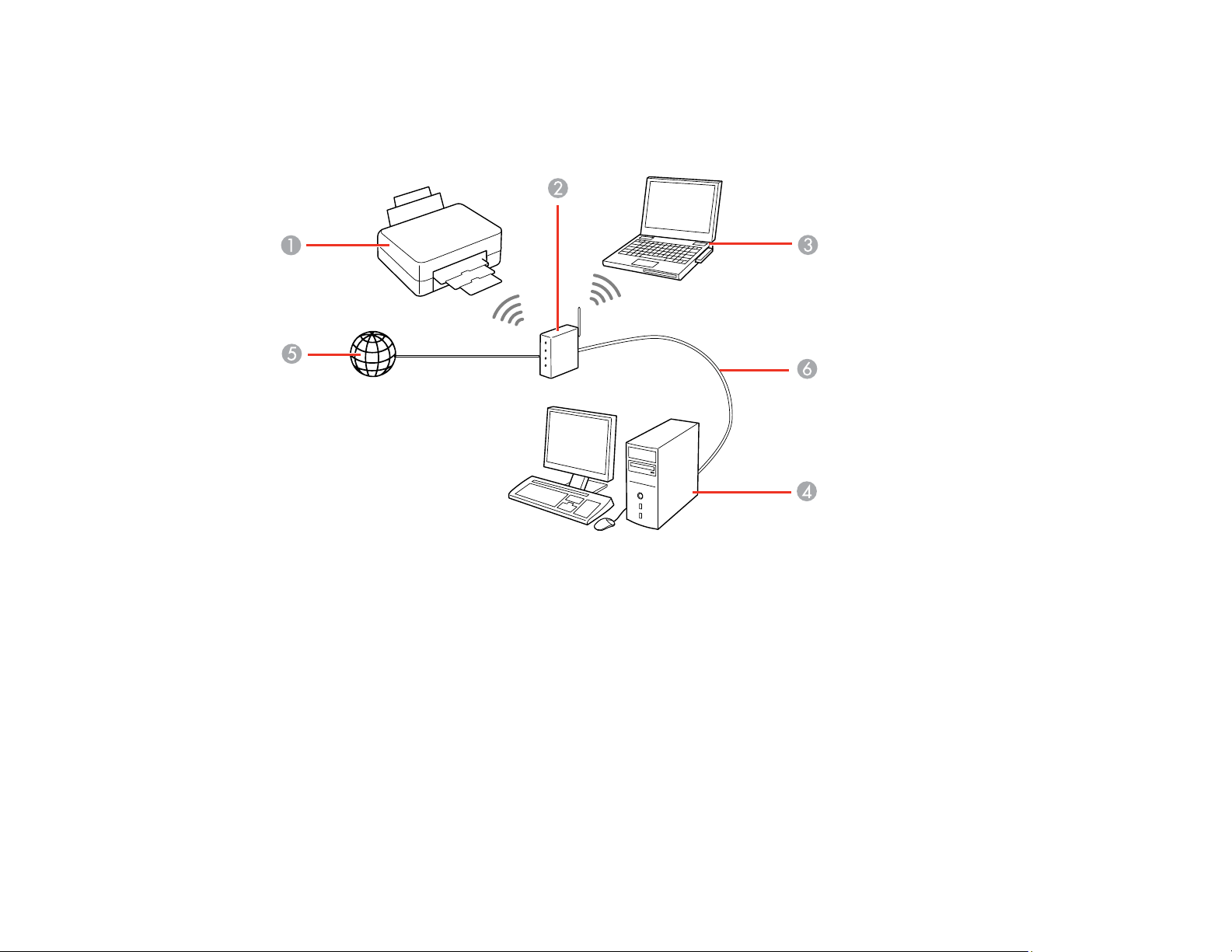
You can set up your product to communicate with your computer using a wireless router or access point.
The wireless router or access point can be connected to your computer over a wireless or wired network.
1 Epson product
2 Wireless router or access point
3 Computer with a wireless interface
4 Computer
5 Internet
6 Ethernet cable (used only for wired connection to the wireless router or access point)
Selecting Wireless Network Settings from the Control Panel
Parent topic: Wi-Fi or Wired Networking
35
Selecting Wireless Network Settings from the Control Panel
You can select or change wireless network settings using your product control panel.
To install your product on a wireless network, follow the instructions on the Start Here sheet and install
the necessary software. The installer program guides you through network setup.
Note: Breakdown or repair of this product may cause loss of network data and settings. Epson is not
responsible for backing up or recovering data and settings during or after the warranty period. We
recommend that you make your own backup or print out your network data and settings.
1. Press the home button, if necessary.
2. Press the arrow buttons to select Wi-Fi Setup and press the OK button.
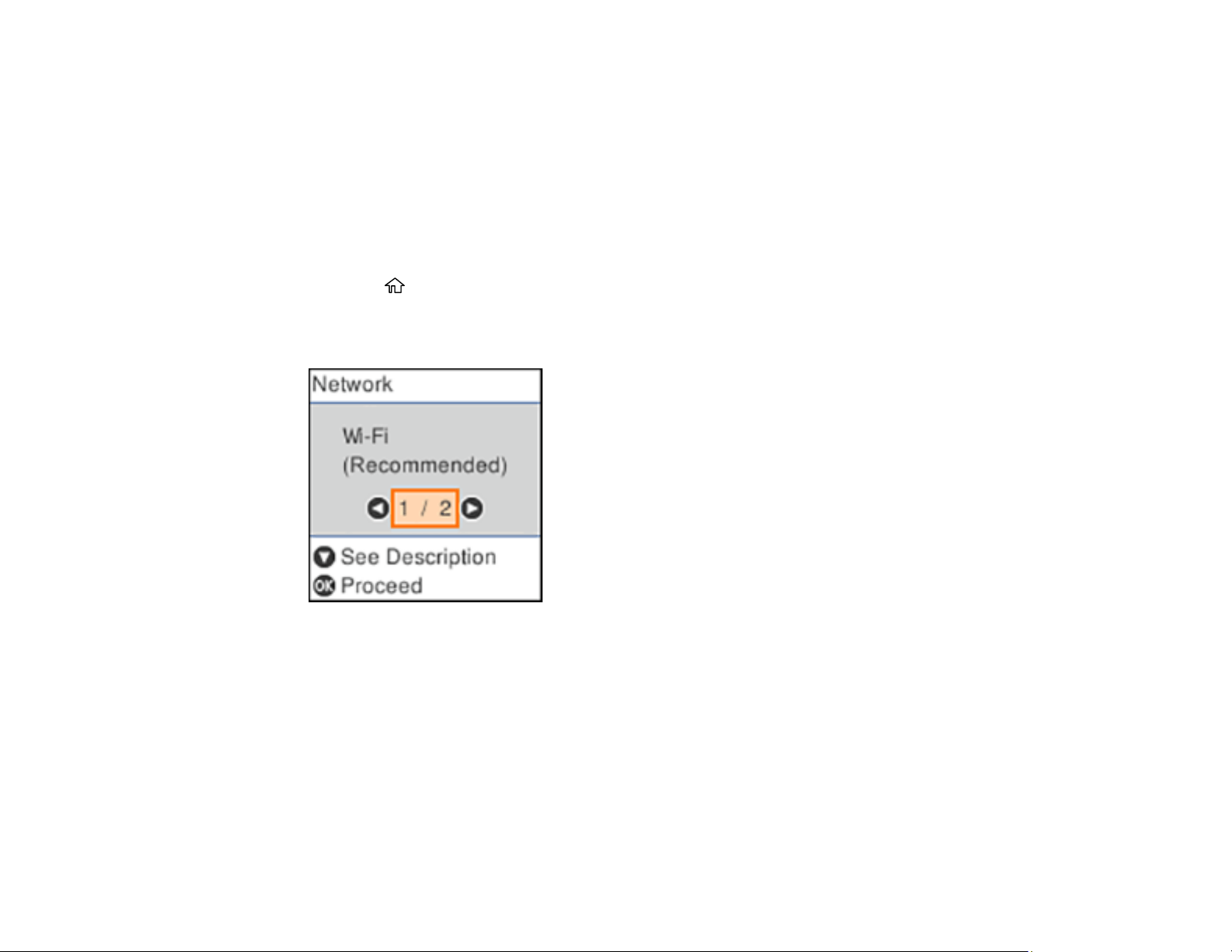
You see this screen:
3. Press the arrow buttons to select Wi-Fi (Recommended) and press the OK button twice.
4. Press the arrow buttons to select Wi-Fi Setup Wizard and press the OK button twice.
5. Press the arrow buttons to select the name of your wireless network and press the OK button. If you
do not see your wireless network's name, you can enter it manually.
Note: To enter the wireless network name manually, select Other SSIDs and press the OK button.
Enter your network name as described in the next step.
36
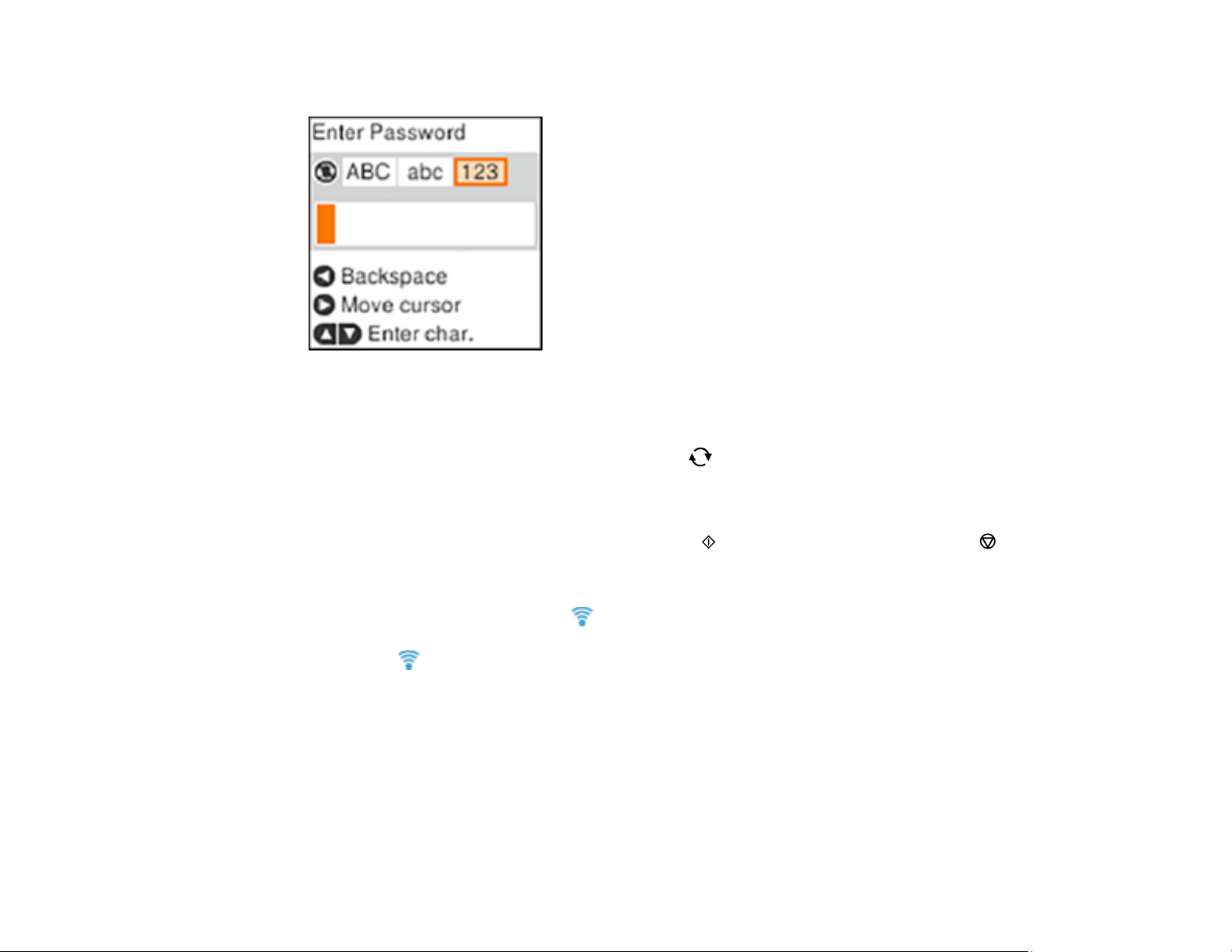
6. Enter your wireless password (or network name and then password).
• To scroll through the characters, press the up or down arrow button.
• To move the cursor to the right or to enter a space, press the right arrow button.
• To change the character case or type, press the reset button.
• To delete the previous character, press the left arrow button.
• When you finish entering characters, press the OK button.
7. If you want to print a network setup report, press the start button. (Otherwise, press the stop
button.)
8. Press the OK button to exit, if necessary.
Your product should now display a Wi-Fi icon on the LCD screen.
Note: If the Wi-Fi icon is not displayed on the LCD screen, you may have selected the wrong
network name or entered the password incorrectly. Repeat these steps to try again.
Parent topic: Wi-Fi Infrastructure Mode Setup
Related tasks
Printing a Network Status Sheet
37
Wi-Fi Direct Mode Setup
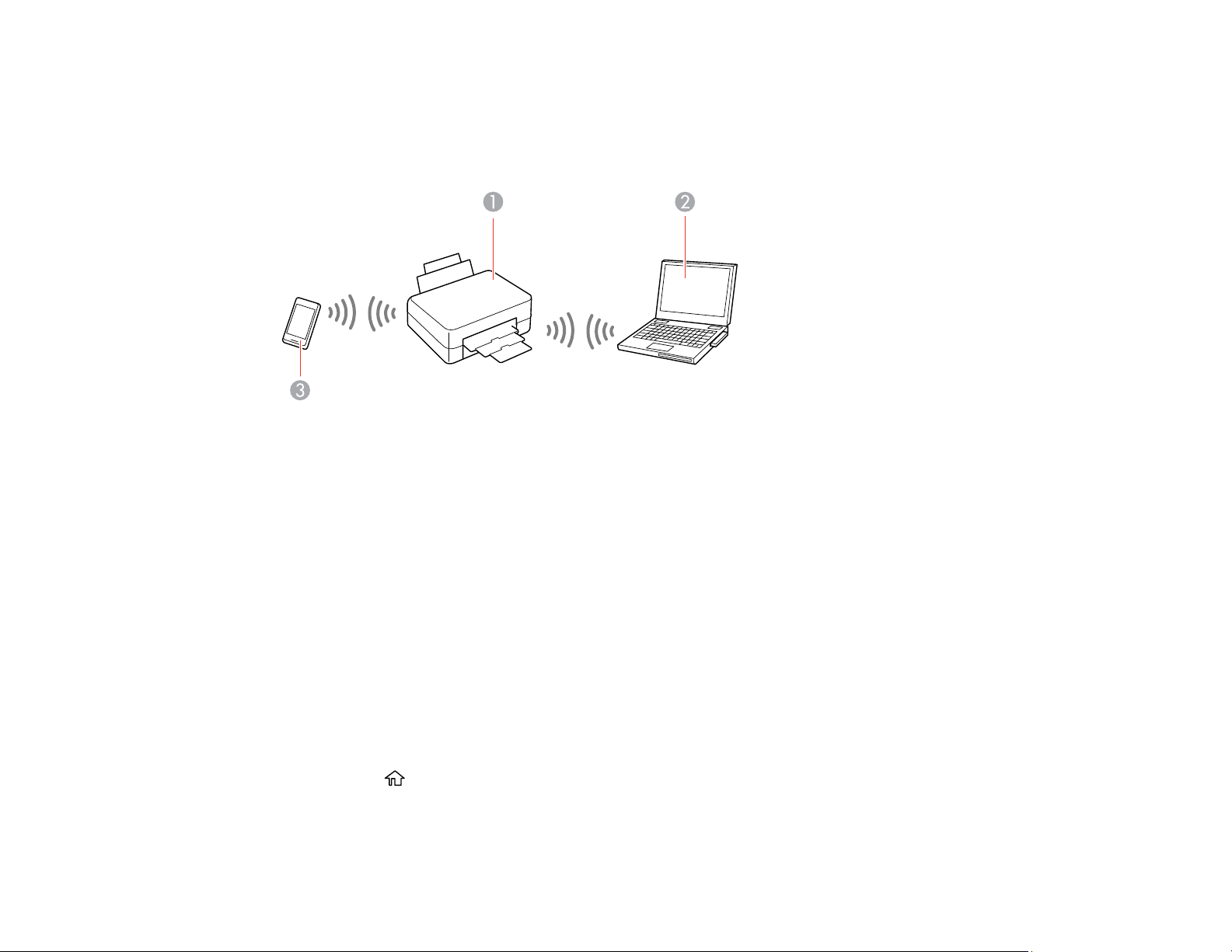
You can set up your product to communicate directly with your computer or another device without
requiring a wireless router or access point. In Wi-Fi Direct Mode, the product itself acts as a network
access point for up to 8 devices.
1 Epson product
2 Computer with a wireless interface
3 Other wireless device
Connecting to a Mobile Device Using Wi-Fi Direct (Simple AP)
Enabling Wi-Fi Direct Mode (Simple AP)
Modifying the Wi-Fi Direct Network Name or Password
Parent topic: Wi-Fi or Wired Networking
Connecting to a Mobile Device Using Wi-Fi Direct (Simple AP)
You can connect a mobile device directly to the printer without a wireless router or access point.
Note: Make sure the Epson iPrint app is installed on your mobile device before connecting to the printer.
1. Press the home button, if necessary.
2. Select Wi-Fi Setup and press the OK button.
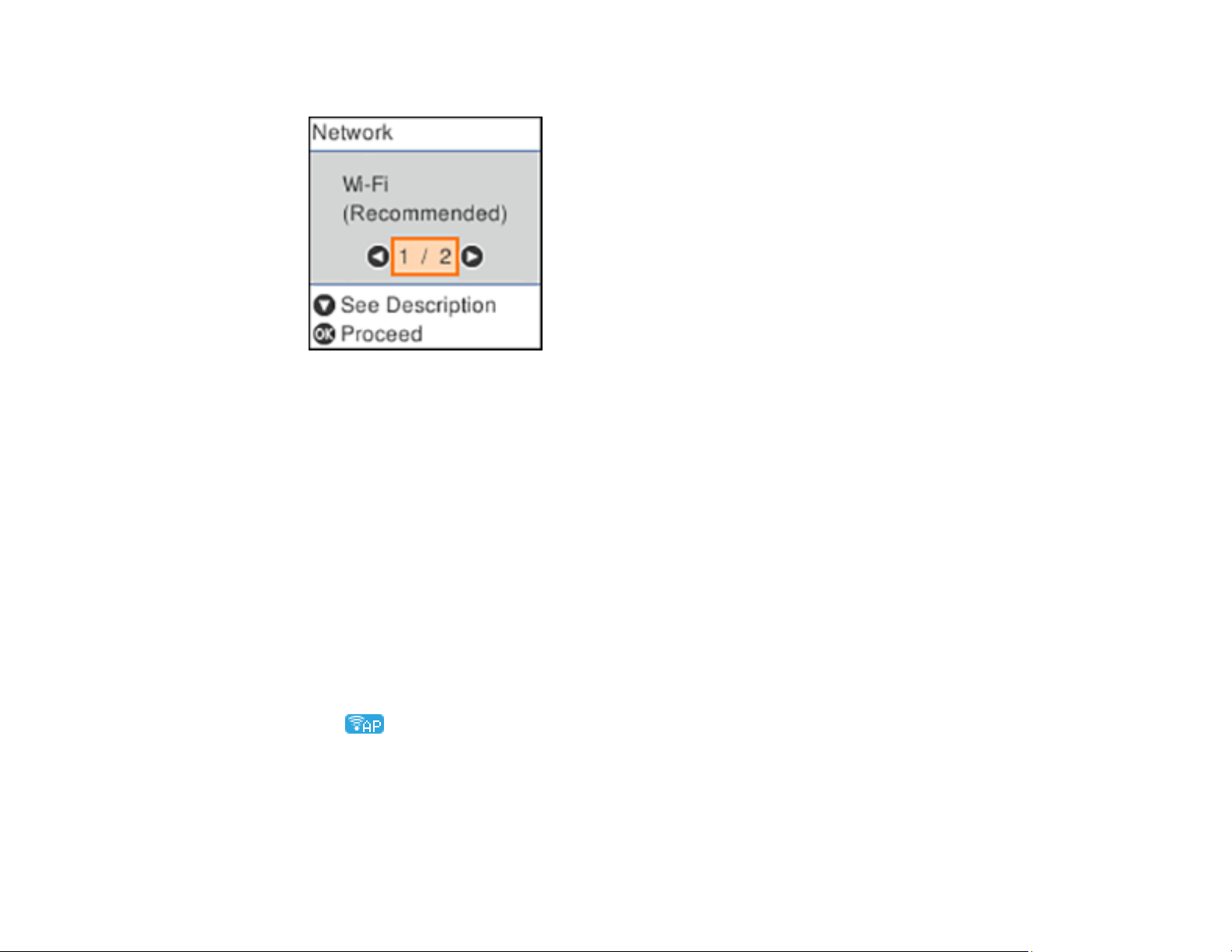
38
You see a screen like this:
3. Select Wi-Fi Direct and press the OK button.
4. View the information on the following screens and press the OK button as necessary.
5. Do one of the following:
• For iOS devices, select iOS. Press the down arrow as needed to view the displayed information.
Scan the QR code with the camera app on your device and follow the instructions on your device.
Press the down arrow button to verify the printer information, and then open the Epson iPrint app
on your device and select the printer displayed on the LCD screen. Press the OK button.
• For Android devices, select Android. Press the down arrow button to display the printer
information. Open the Epson iPrint app on your device and select the printer displayed on the LCD
screen. Press the OK button.
• For other types of devices, select Other OS Devices. Press the down arrow button to display the
printer information. Use your device to select the Wi-Fi network name (SSID) displayed on the
LCD screen, then enter the password shown.
6. Follow the instructions on the LCD screen to complete Wi-Fi Direct setup.
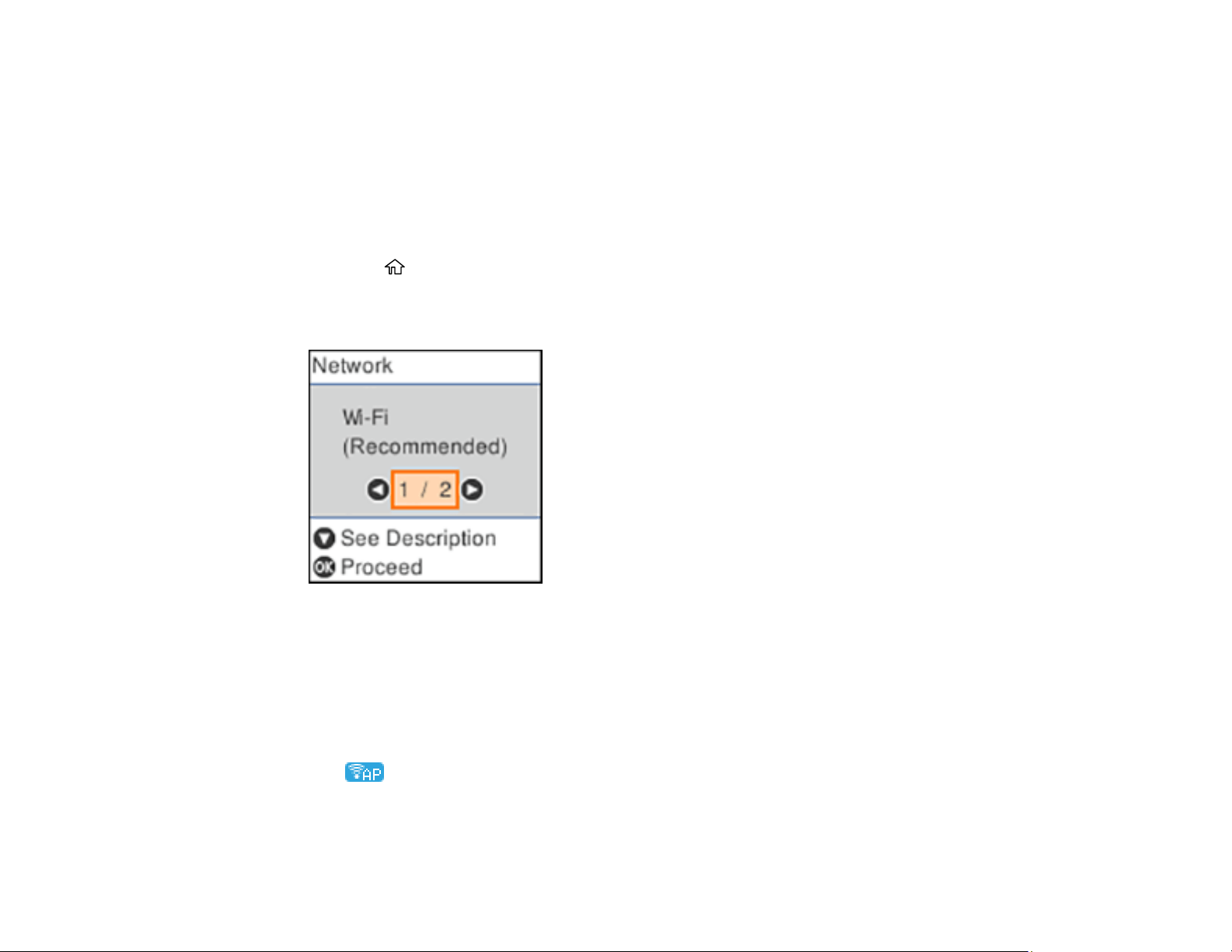
The Wi-Fi Direct icon is displayed on the LCD screen and indicates if Wi-Fi Direct is enabled
on the product.
If you are printing from a computer, make sure you installed the network software as described on
the Start Here sheet.
Parent topic: Wi-Fi Direct Mode Setup
39
Enabling Wi-Fi Direct Mode (Simple AP)
You can enable Wi-Fi Direct mode to allow direct communication between your product and computer or
other devices without a wireless router or access point.
To change the Wi-Fi Direct network name or password, follow the link at the end of this topic.
Note: If you are printing from a computer, make sure you installed the network software as described on
the Start Here sheet.
1. Press the home button, if necessary.
2. Press the arrow buttons to select Wi-Fi Setup and press the OK button.
You see this screen:
3. Press the arrow buttons to select Wi-Fi Direct and press the OK button.
4. Press the OK button twice.
5. Press the arrow buttons to display Other OS Devices and press the OK button.
6. Press the down arrow button to see the Wi-Fi Direct network name and password.
7. Press the OK button twice to exit.
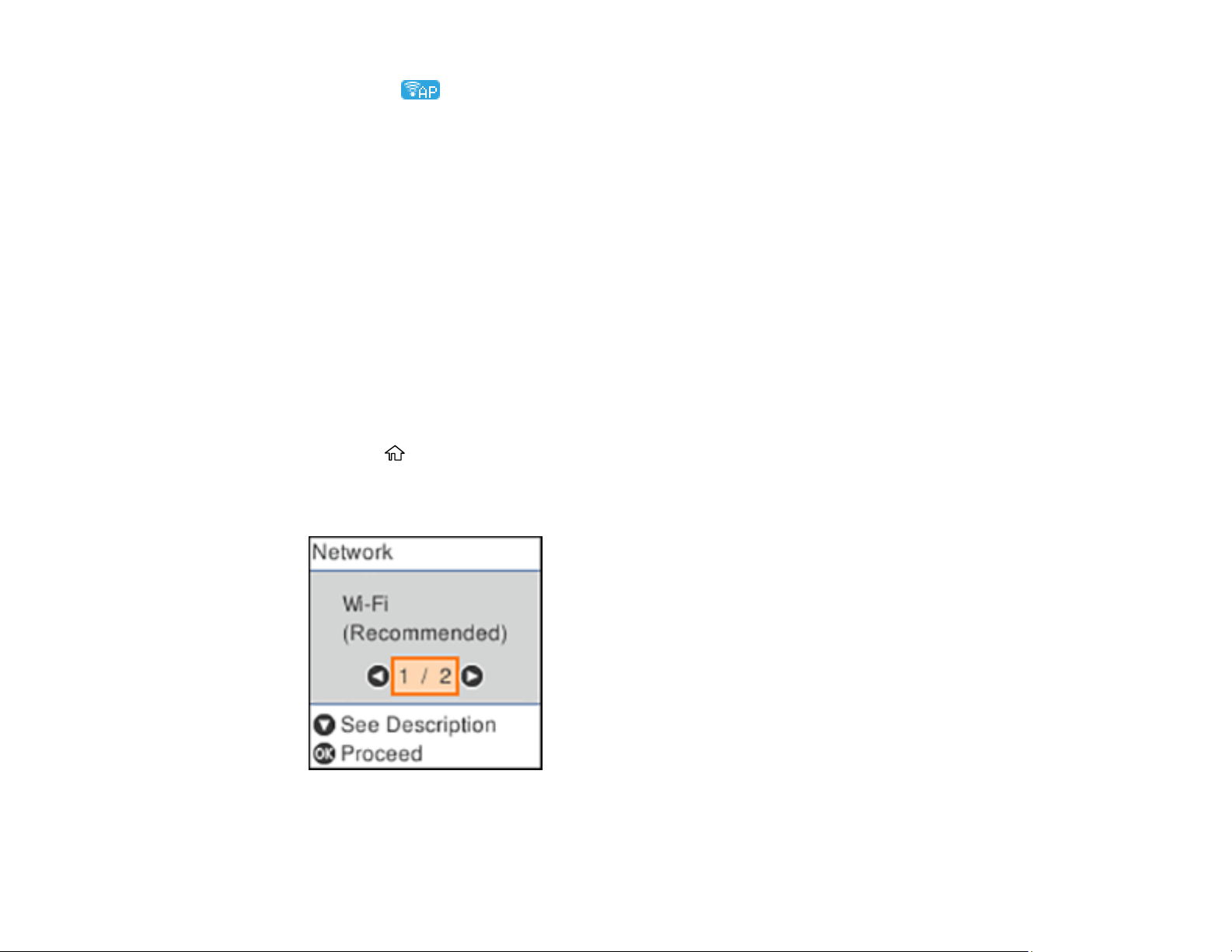
The Wi-Fi Direct icon is displayed on the LCD screen and indicates if Wi-Fi Direct is enabled
on the product.
40
Note: If the Wi-Fi Direct icon is not displayed in blue on the LCD screen, Wi-Fi Direct mode is
not enabled. Repeat these steps to try again.
To disable Wi-Fi Direct, follow the steps above to display Other OS Devices and press the down arrow
button. Press the left or right arrow button to select Disable Wi-Fi Direct and press the OK button twice.
Press the OK button again to return to the main menu.
Parent topic: Wi-Fi Direct Mode Setup
Related tasks
Modifying the Wi-Fi Direct Network Name or Password
Modifying the Wi-Fi Direct Network Name or Password
You can modify the Wi-Fi Direct name and password to create a more descriptive and secure Wi-Fi
Direct network.
Note: If you are printing from a computer, make sure you installed the network software as described on
the Start Here sheet.
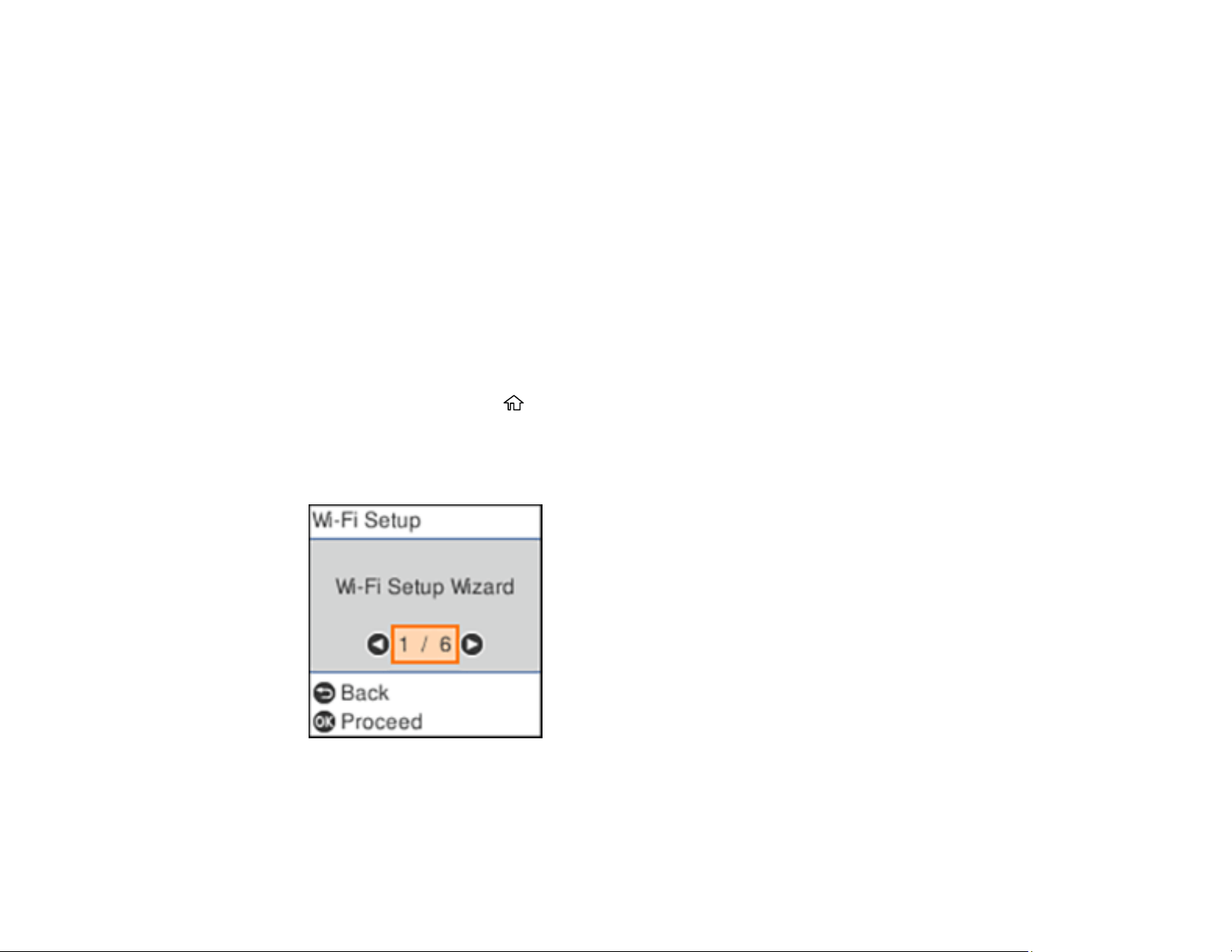
1. Press the home button, if necessary.
2. Press the arrow buttons to select Wi-Fi Setup and press the OK button.
You see this screen:
3. Press the arrow buttons to select Wi-Fi Direct and press the OK button.

41
4. Press the OK button twice.
5. Press the down arrow button and do one of the following:
• To change the Wi-Fi Direct network name, select Change Network Name and press the OK
button twice. Press the right arrow button to display the network name entry screen. Hold down
the left arrow button to erase the current name, then follow the on-screen instructions to enter the
new network name.
• To change the Wi-Fi Direct password, select Change Password and press the OK button twice.
Hold down the left arrow button to erase the current password, then follow the on-screen
instructions to enter your new Wi-Fi Direct password.
Note: Your password must be at least 8 and no more than 22 characters long.
Note: If you have already connected devices or computers to your product via Wi-Fi Direct, they will
be disconnected when you change the network name or password.
6. When entering your Wi-Fi Direct network name or password, do the following:
• To scroll through the characters, press the up or down arrow button.
• To move the cursor to the right, press the right arrow button.
• To change the character case or type, press the reset button.
• To delete the previous character, press the left arrow button.
• When you finish entering characters, press the OK button.
7. Press the OK button.
8. Use your computer or wireless device to select the Wi-Fi network name (SSID) displayed on the
LCD screen, then enter the password shown.
Note: Make a note of the SSID and password that appear.
9. Press the OK button to exit.
Computers and wireless devices can now access the product using the new network name and
password.
Parent topic: Wi-Fi Direct Mode Setup
42
Wi-Fi Protected Setup (WPS)
If your network uses a WPS-enabled wireless router or access point, you can quickly connect your
product to the network using Wi-Fi Protected Setup (WPS).
Note: To check if your router is WPS-enabled, look for a button labeled WPS on your router or access
point. If there is no hardware button, there may be a virtual WPS button in the software for the device.
Check your network product documentation for details.
Using WPS to Connect to a Network
Parent topic: Wi-Fi or Wired Networking
Using WPS to Connect to a Network
If you have a WPS-enabled router or access point, you can use Wi-Fi Protected Setup (WPS) to connect
your product to the network.
1. On the product, press the home button, if necessary.
2. Press the arrow buttons to select Wi-Fi Setup > Wi-Fi (Recommended) and press the OK button
twice.
You see this screen:
3. Press the arrow buttons to select Push Button Setup (WPS) and press the OK button.
4. Follow the instructions on the LCD screen to complete WPS setup.
43
If the network connection is successful, the icon is displayed on the LCD screen.
Note: If the icon is not displayed on the LCD screen, repeat these steps to try again.
Parent topic: Wi-Fi Protected Setup (WPS)
Printing a Network Status Sheet
You can print a network status sheet for detailed information about your product's network status.
1. Press the home button, if necessary.
2. Press the arrow buttons to select Settings > Network Settings > Print Status Sheet and press the
OK button.
You see this screen:
3. Press the start button to print the network status sheet.
If you want to cancel the operation, press the stop button.
Examine the settings shown on the network status sheet to diagnose any problems you have.
Parent topic: Wi-Fi or Wired Networking
Related tasks
Accessing the Web Config Utility
44
Printing a Network Connection Report
You can print a network connection report to view solutions to any problems you may have using your
product on a network.
1. Press the home button, if necessary.
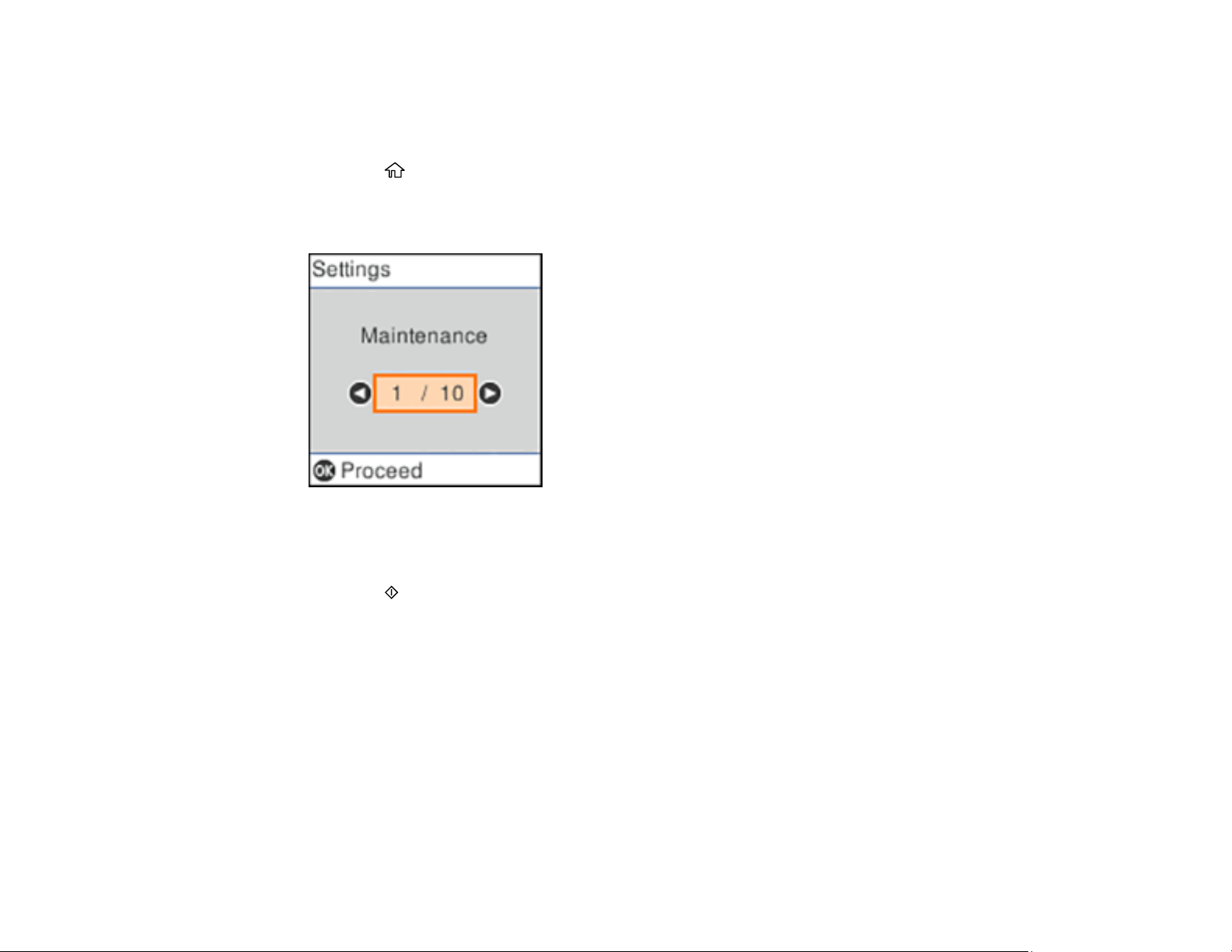
2. Press the arrow buttons to select Settings and press the OK button.
You see a screen like this:
3. Press the arrow buttons to select Network Settings and press the OK button.
4. Press the arrow buttons to select Connection Check and press the OK button.
5. Press the start button to print the network connection report.
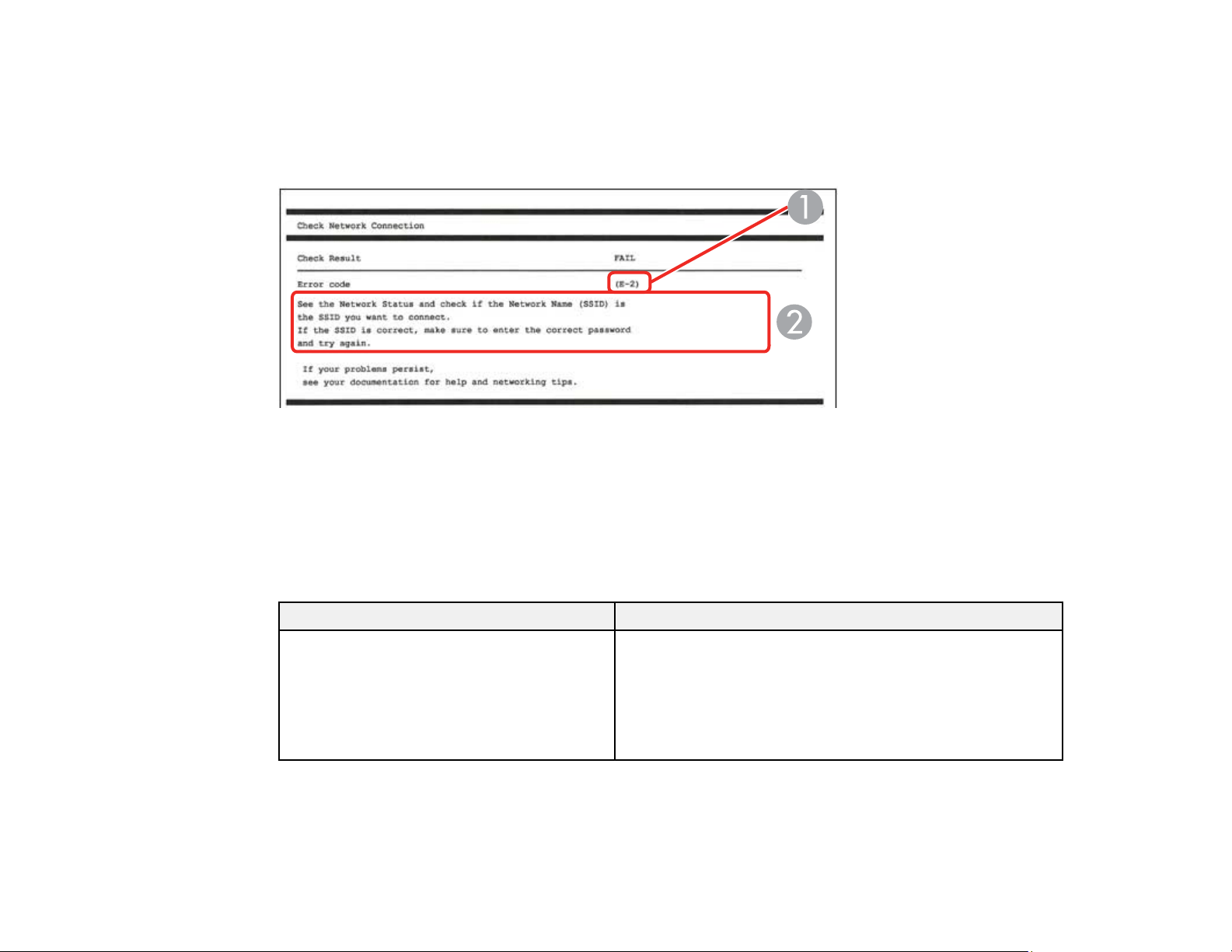
Examine the error codes and solutions shown on the network connection report.
Network Connection Report Codes and Messages
Parent topic: Wi-Fi or Wired Networking
45
Network Connection Report Codes and Messages
Check the error codes and messages on the network connection report to solve problems you may
encounter with network connections. The tables here list solutions to problems based on the error codes
and messages that may appear on the top of the report.
1 Error code
2 Message
Note: Error codes and messages listed here may not all apply to your product.
Error Codes and Messages
Error code and message Solution
E1
Confirm that the network cable is
connected and network devices such as
hub, router, or access point are turned on.
Make sure your router, access point, and/or hub are
turned on, and the network cable is securely connected to
your device and to your product.
If you are trying to set up Wi-Fi, remove the network cable
and set up Wi-Fi again. Ethernet and Wi-Fi cannot be
connected at the same time.

46
Error code and message Solution
E2, E3, or E7
No wireless network names (SSID) found.
Confirm that the router/access point is
turned on and the wireless network (SSID)
is set up correctly. Contact your network
administrator for assistance.
No wireless network names (SSID) found.
Confirm that the wireless network name
(SSID) of the PC you wish to connect is set
up correctly. Contact your network
administrator for assistance.
Entered security key/password does not
match the one set for your router/access
point. Confirm security key/password.
Contact your network administrator for
assistance.
Check the following:
• Make sure your router or access point is turned on, and
is correctly connected to your computer or network
device.
• Turn off the router or access point, wait about 10
seconds, and turn it on again.
• Move your product closer to your router or access point,
and remove any obstacles between them. Also move
your product away from devices such as wireless
phones or microwaves.
• Confirm that the SSID shown on the network
connection report matches the label on your router or
access point. Also make sure your SSID uses only
ASCII characters and symbols, or your product cannot
display the SSID correctly.
• If you are trying to connect using the WPS push button
method, make sure your router or access point supports
it.
• If you are using a network password, check the label on
your router or access point to confirm that you are using
the correct password, or check with your network
administrator or router/access point documentation.
• If you are connecting to a smart device that generates
an SSID, check the device documentation for the SSID
and password you should use.
• If your wireless connection suddenly disconnects, and
another smart device was added to the network using a
WPS push button method or your network was set up
using a non-WPS push button method, try downloading
and installing your product software again.

47
Error code and message Solution
E5
Security mode (e.g. WEP, WPA) does not
match the current setting of the printer.
Confirm security mode. Contact your
network administrator for assistance.
If the security on your router or access point is not one of
the following types, change the type of security on your
router or access point and reset your product's network
settings.
• WEP-64 bit (40 bit)
• WEP-128 bit (104 bit)
• WPA PSK (TKIP/AES); also known as WPA Personal
• WPA2 PSK (TKIP/AES); also known as WPA2 Personal
• WPA (TKIP/AES)
• WPA2 (TKIP/AES)
Also make sure you are connecting to the 2.4GHz band
on your network and using the password for that band.
E6
MAC address of your printer may be
filtered. Check whether your router/access
point has restrictions such as MAC address
filtering. See the documentation of the
router/access point or contact your network
administrator for assistance.
If your router or access point has MAC address filtering
enabled, register your product's MAC address so it is not
filtered. Locate the MAC address on the network
connection report and check your router or access point
documentation for instructions.
If your router or access point is using shared
authentication with WEP security, confirm that you are
using the correct authentication key and index.
If your router or access point limits the number of
connected devices, raise the connection limit. See your
router or access point documentation for instructions.
E8
Incorrect IP address is assigned to the
printer. Confirm IP address setup of the
network device (hub, router, or access
point). Contact your network administrator
for assistance.
If your product's Obtain IP Address setting is set to Auto,
enable DHCP on your router or access point. If it is set to
Manual, the IP address may be out of range or on a
different network segment; set a valid IP address using
your product control panel or the Web Config utility.
You can also try turning off your product and the router or
access point, waiting about 10 seconds, and turning them
on again.

48
Error code and message Solution
E9
Confirm the connection and network setup
of the PC or other device. Connection using
the EpsonNet Setup is available. Contact
your network administrator for assistance.
Make sure your computer or network device are turned
on. Also make sure that you can access the internet and
other devices on the same network from the devices you
are trying to connect to your product.
If you still cannot connect to your product, turn off your
router or access point, wait about 10 seconds, and turn it
on again. Download and install your product software
again to reset your network settings.
E10
Confirm IP address, subnet mask, and
default gateway setup. Connection using
the EpsonNet Setup is available. Contact
your network administrator for assistance.
Make sure other devices on the network are turned on and
do the following:
• If your product's Obtain IP Address setting is set to
Manual, check the IP address, subnet mask, and
default gateway addresses on the network connection
report to see if they are correct. If not, correct the
settings.
• If DHCP is enabled, set your product's Obtain IP
Address setting to Auto. If you want to use the DHCP-
assigned address as a static address, set the Obtain IP
Address setting to Manual, enter the product's IP
address as listed on the network connection report, and
set the subnet mask to 255.255.255.0.
If you still cannot connect to your product, turn off your
router or access point, wait about 10 seconds, and turn it
on again.
E11
Setup is incomplete. Confirm default
gateway setup. Connection using the
EpsonNet Setup is available. Contact your
network administrator for assistance.
If you set your product's TCP/IP Setup setting to Manual,
check that the default gateway address listed on the
network connection report is correct. Also turn on the
device that is set as the default gateway.

49
Error code and message Solution
E12
Confirm the following
-Entered security key/password is correct
-Index of the security key/password is set to
the first number
-IP address, subnet mask, or default
gateway setup is correct
Contact your network administrator for
assistance.
Make sure other devices on the network are turned on and
do the following:
• Make sure the IP address, subnet mask, and default
gateway addresses are correct, if you are entering them
manually.
• Confirm that the subnet mask and default gateway
addresses for other devices are the same.
• Make sure the IP address does not conflict with other
devices.
If you still cannot connect to your product, do the
following:
• Turn off your router or access point, wait about 10
seconds, and turn it on again.
• Download and install your product software again to
reset your network settings.
• If your router or access point uses WEP security with
several registered passwords, make sure that the first
registered password is set on your product.
E13
Confirm the following
-Entered security key/password is correct
-Index of the security key/password is set to
the first number
-Connection and network setup of the PC
or other device is correct
Contact your network administrator for
assistance.
Make sure your router, access point, and/or hub are
turned on. Also make sure the TCP/IP setup on your
router, access point, and/or hub is not set manually; this
may cause your product's network settings to differ from
the manually set up devices.
If you still cannot connect to your product, do the
following:
• Turn off your router or access point, wait about 10
seconds, and turn it on again.
• Download and install your product software again to
reset your network settings.
• If your router or access point uses WEP security with
several registered passwords, make sure that the first
registered password is set on your product.

50
Network Environment Messages
Message Solution
*Multiple network names (SSID) that match
your entered network name (SSID) have
been detected. Confirm network name
(SSID).
Check the settings on your router and other access points
to make sure each one uses a different SSID.
The Wi-Fi environment needs to be
improved. Turn the wireless router off and
then turn it on. If the connection does not
improve, see the documentation for the
wireless router.
Move your product closer to your router or access point,
and remove any obstacles between them. Then turn off
your router or access point, wait about 10 seconds, and
turn it back on again. If you still cannot connect to your
product, check the documentation that came with your
router or access point for solutions.
*No more devices can be connected.
Disconnect one of the connected devices if
you want to add another one.
You can connect up to 8 computers or other devices to
your product using a Wi-Fi Direct (Simple AP) connection.
If you want to add another device, disconnect an existing
connected device first.
The same SSID as Wi-Fi Direct exists in
the environment. Change the Wi-Fi Direct
SSID if you cannot connect a smart device
to the printer.
Change the Wi-Fi Direct SSID.
Parent topic: Printing a Network Connection Report
Changing or Updating Network Connections
See these sections to change or update how your product connects to a network.
Accessing the Web Config Utility
Changing a USB Connection to a Wi-Fi Connection
Changing a Wi-Fi Connection to a Wired Network Connection
Connecting to a New Wi-Fi Router
Disabling Wi-Fi Features
Parent topic: Wi-Fi or Wired Networking

51
Accessing the Web Config Utility
You can select your product's network settings and confirm its operating status using a web browser.
You do this by accessing your product's built-in Web Config utility from a computer or other device that is
connected to the same network as your product.
1. Print a network status sheet.
2. Locate the IP address for your product that is listed on the network status sheet.
3. On a computer or other device connected to the same network as your product, open a web
browser.
4. Enter your product's IP address into the address bar.
You see the available Web Config utility options.
Parent topic: Changing or Updating Network Connections
Related tasks
Printing a Network Status Sheet
Changing a USB Connection to a Wi-Fi Connection
If you have already connected your product to your computer using a USB connection, you can change
to a Wi-Fi connection.
1. Disconnect the USB cable from your product.
2. Uninstall your product software.
3. Download and install your product software from the Epson website using the instructions on the
Start Here sheet.
Parent topic: Changing or Updating Network Connections
Related concepts
Uninstall Your Product Software
Changing a Wi-Fi Connection to a Wired Network Connection
If you have already connected your product to your computer wirelessly, you can change to a wired
network connection if necessary.
1. Disable your product's Wi-Fi features.
2. Connect one end of an Ethernet network cable to the product's LAN port.
3. Connect the other end to any available LAN port on your router or access point.

52
4. Uninstall your product software.
5. Download and install your product software from the Epson website.
6. Follow the on-screen instructions to install the software.
7. When you see the Select Your Connection screen, select Wired network connection.
8. If you see a Select Setup Option screen, select Set up printer for the first time.
9. Continue following the rest of the on-screen instructions.
Parent topic: Changing or Updating Network Connections
Related concepts
Uninstall Your Product Software
Related tasks
Disabling Wi-Fi Features
Connecting to a New Wi-Fi Router
If you change the wireless router you have been using on your network, you need to update your
product's Wi-Fi connection to the new router.
Note: If you switch to a 5 GHz wireless router, set the router to operate in dual band (2.4 GHz and
5 GHz) mode. If your router uses a single network name (SSID) for both the 2.4 GHz and 5 GHz band,
give each band its own network name (SSID) instead, such as Home Network 2.4 GHz and Home
Network 5 GHz. See your router documentation for instructions.
1. Do one of the following:
• Windows: Uninstall your product software.
• Mac: Go to the next step.
2. Download and install your product software from the Epson website using the instructions on the
Start Here sheet.
Parent topic: Changing or Updating Network Connections
Related concepts
Uninstall Your Product Software
Related tasks
Disabling Wi-Fi Features
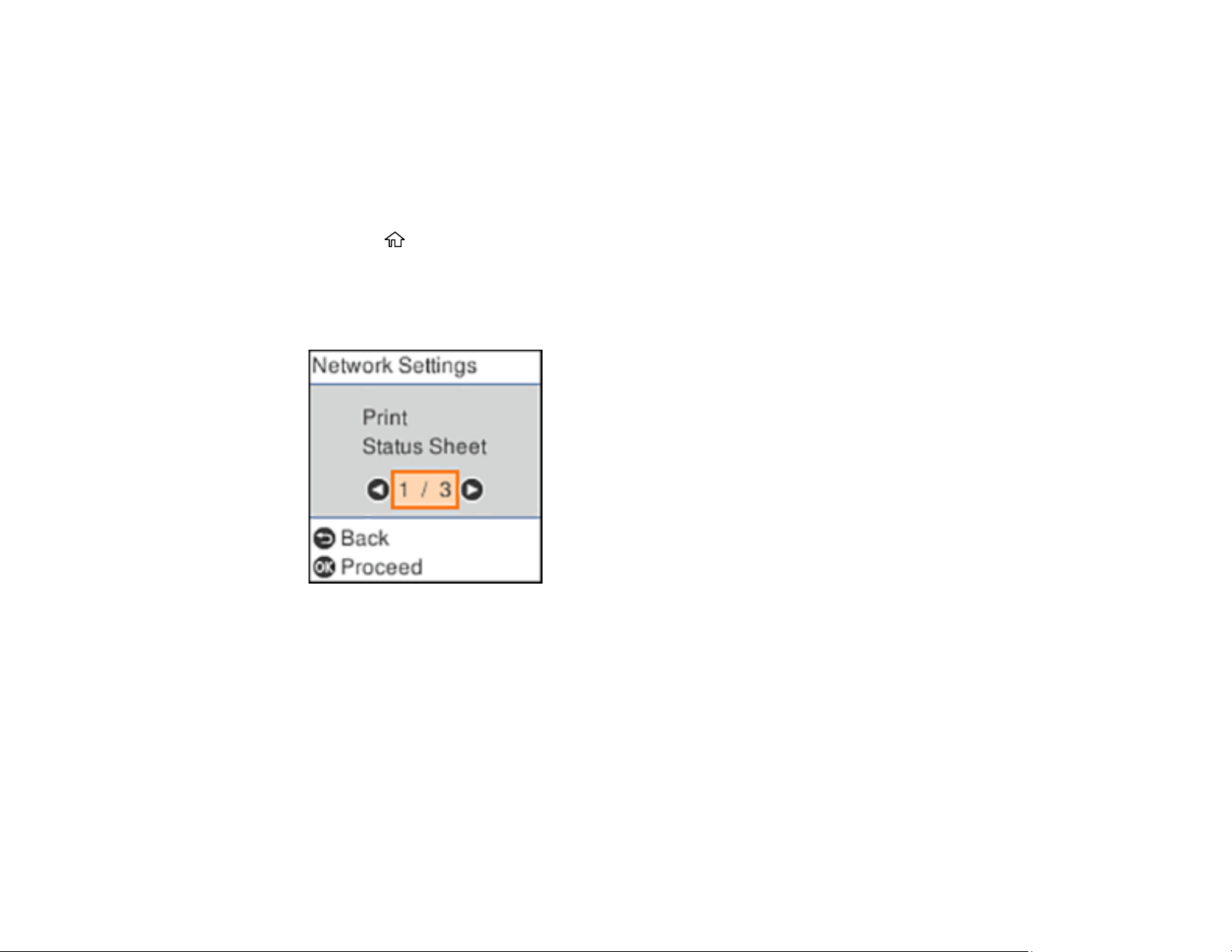
53
Disabling Wi-Fi Features
You may need to disable your product's Wi-Fi features if you change your network connection type or
need to solve a problem with your network connection.
Note: Before disabling Wi-Fi features, make a note of your product's SSID (network name) and
password, and any network settings selected for the Epson Connect services you may use.
1. Press the home button, if necessary.
2. Press the arrow buttons to select Settings and press the OK button.
3. Press the arrow buttons to select Network Settings and press the OK button.
You see this screen:
4. Press the arrow buttons to select Wi-Fi Setup and press the OK button.
5. Press the arrow buttons to select Wi-Fi (Recommended) and press the OK button twice.
6. Press the arrow buttons to select Others and press the OK button.
7. Press the arrow buttons to select Disable Wi-Fi and press the OK button.
8. Press the OK button to disable Wi-Fi.
Parent topic: Changing or Updating Network Connections
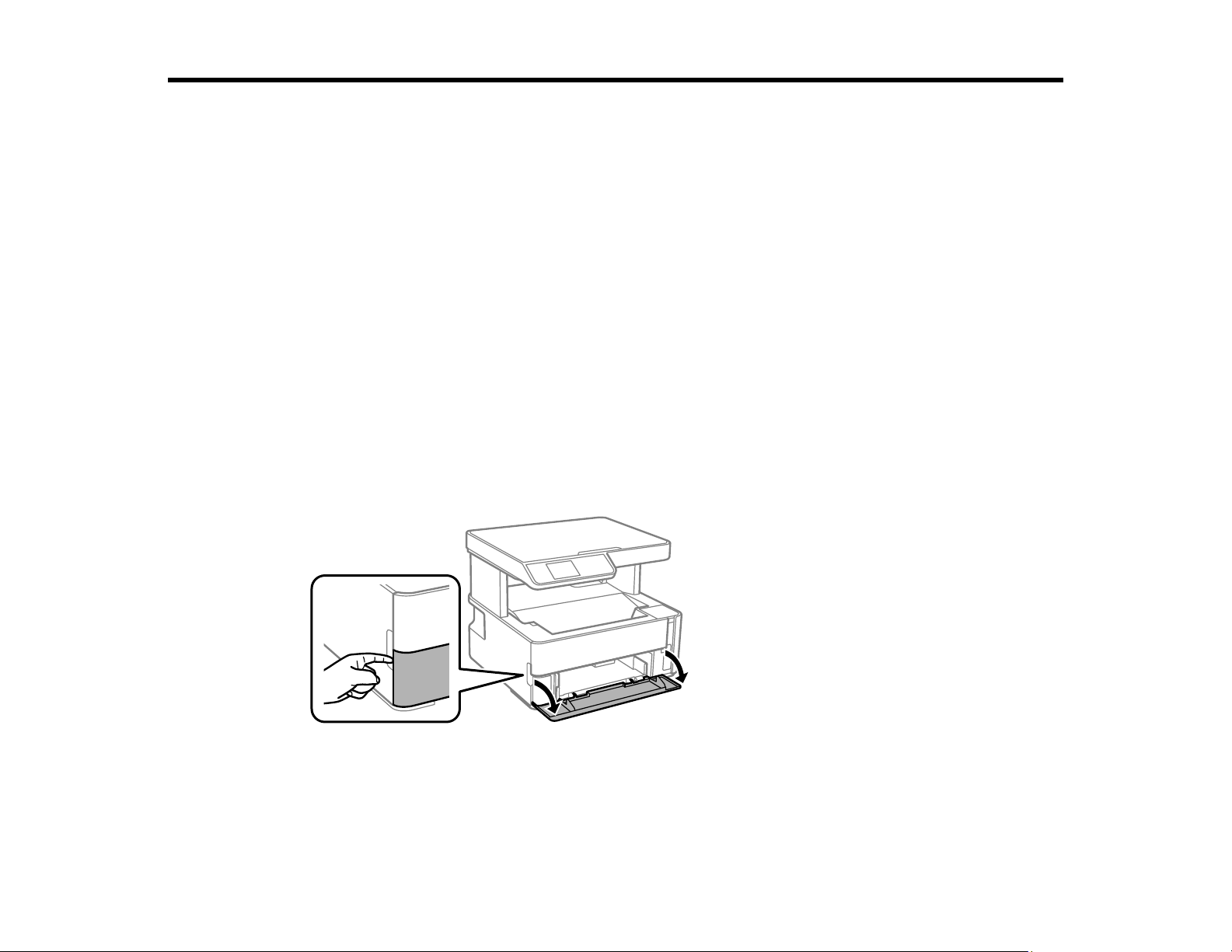
54
Loading Paper
Before you print, load paper for the type of printing you will do.
Loading Paper in the Cassette
Loading Paper in the Rear Paper Feed Slot
Paper Loading Capacity
Double-sided Printing Capacity
Compatible Epson Papers
Paper or Media Type Settings - Printing Software
Selecting the Paper Settings - Control Panel
Selecting the Default Paper Source Settings
Loading Paper in the Cassette
You can load paper up to this size in the paper cassette: Legal (8.5 × 14 inches [216 × 356 mm]).
Note: Before loading paper, make sure your product is not currently printing, scanning, or copying.
1. Open the paper cassette cover.
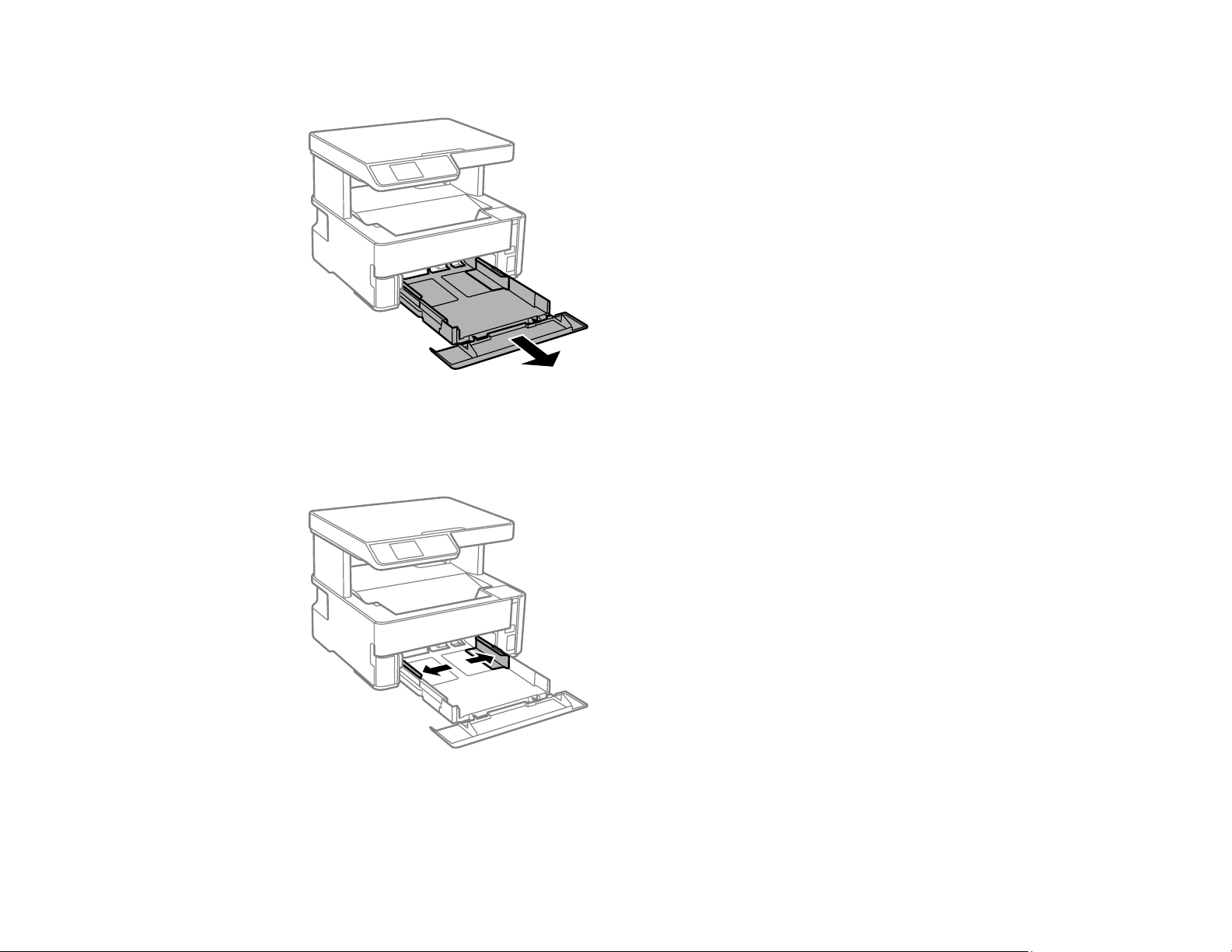
55
2. Pull out the paper cassette until it stops.
Note: You cannot remove the paper cassette.
3. Slide the edge guides outward.
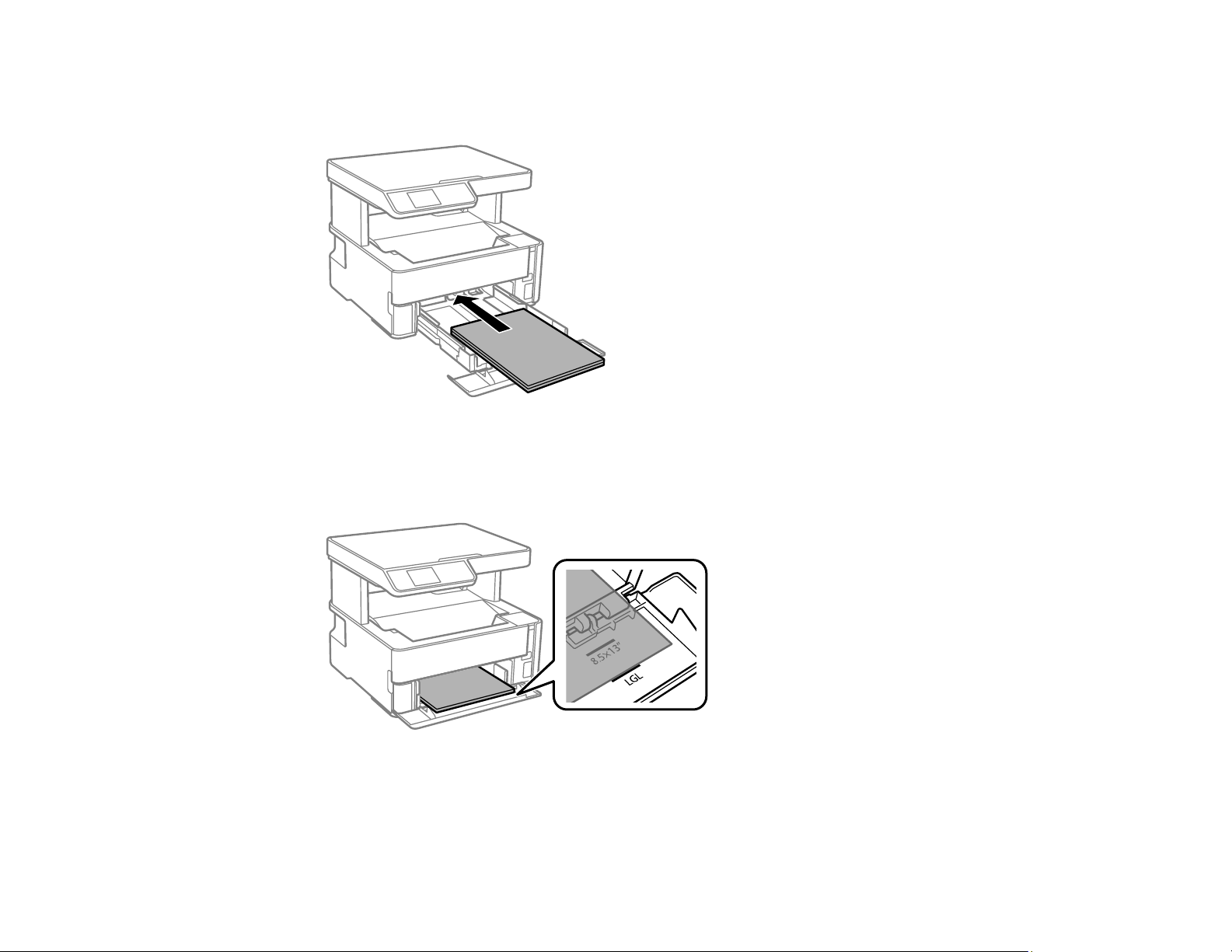
56
4. Do one of the following:
• Insert paper into the cassette with the printable side facedown and slide it in until it stops.
Note: Make sure the paper is loaded against the rear of the cassette.
• For legal-size paper, load paper using the guide line as shown.
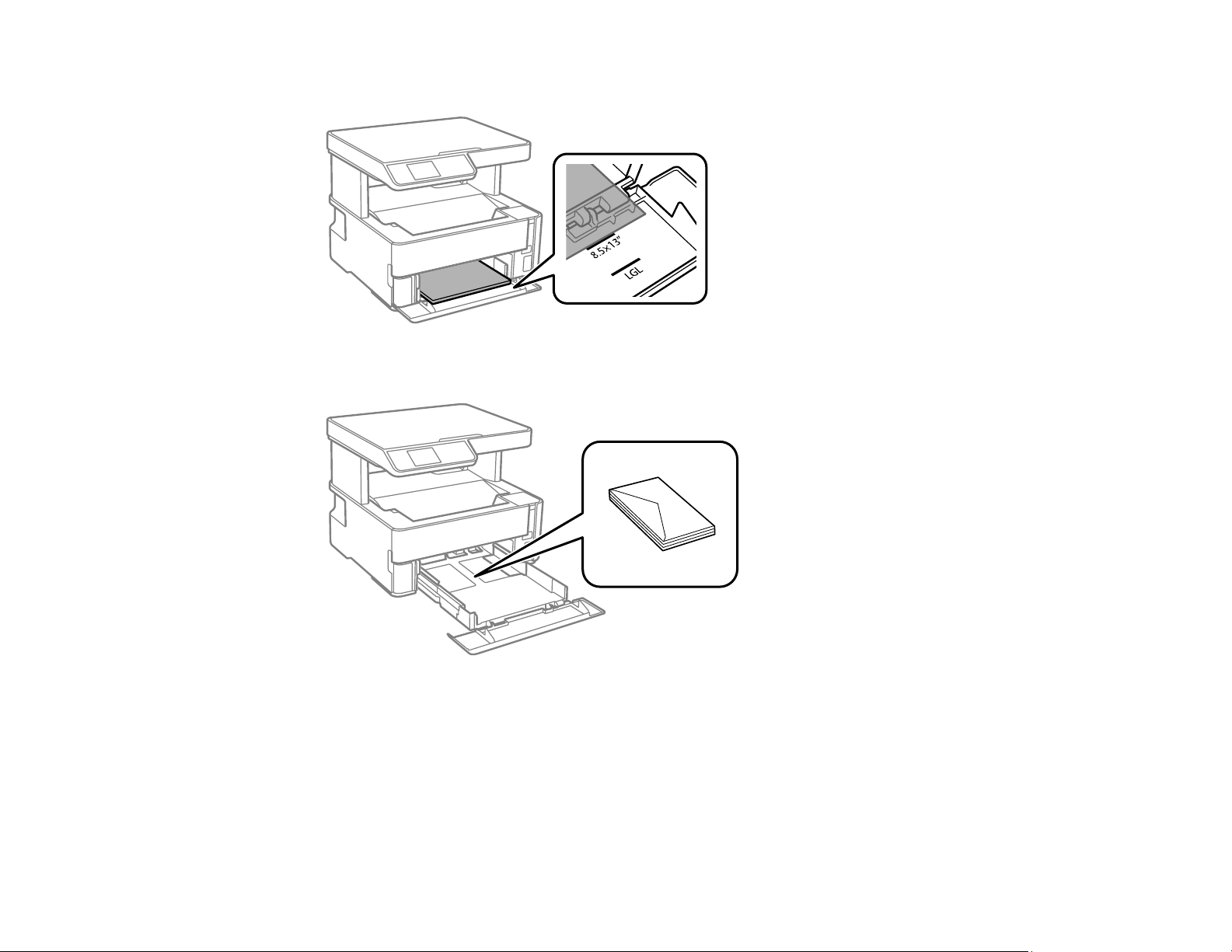
57
• For 8.5 × 13 inches (216 × 330 mm) paper, load paper using the guide line as shown.
• Insert up to 10 envelopes with the printable side facedown and flap edge left, as shown.
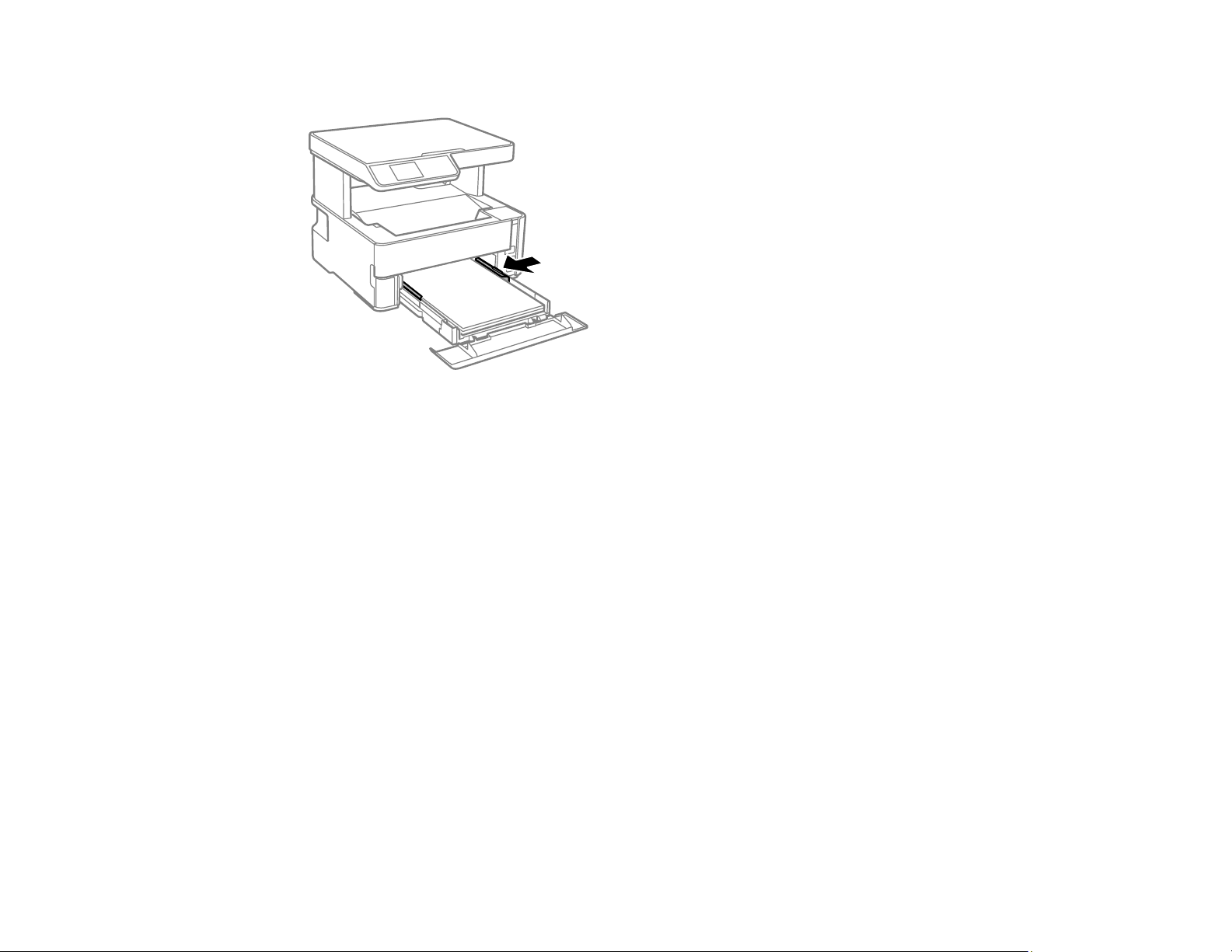
58
5. Slide the edge guides against the paper, but not too tightly.
Note: Make sure the paper fits under the tabs on the edge guides.
6. Slide the cassette back into the product until it stops.
7. Select the size and type of the paper you loaded on the product LCD screen and press the OK
button. If your paper size is not displayed, select User Defined and press the OK button.
Note: If you are printing on letterhead, select Letterhead as the paper type. If you select Letterhead
and you are printing on paper that is smaller than the printer driver setting, make sure you select the
correct paper size setting or the printer may print beyond the edges of the paper. Two-sided printing
is not available on letterhead paper.
8. Do one of the following:
• Close the paper cassette cover.
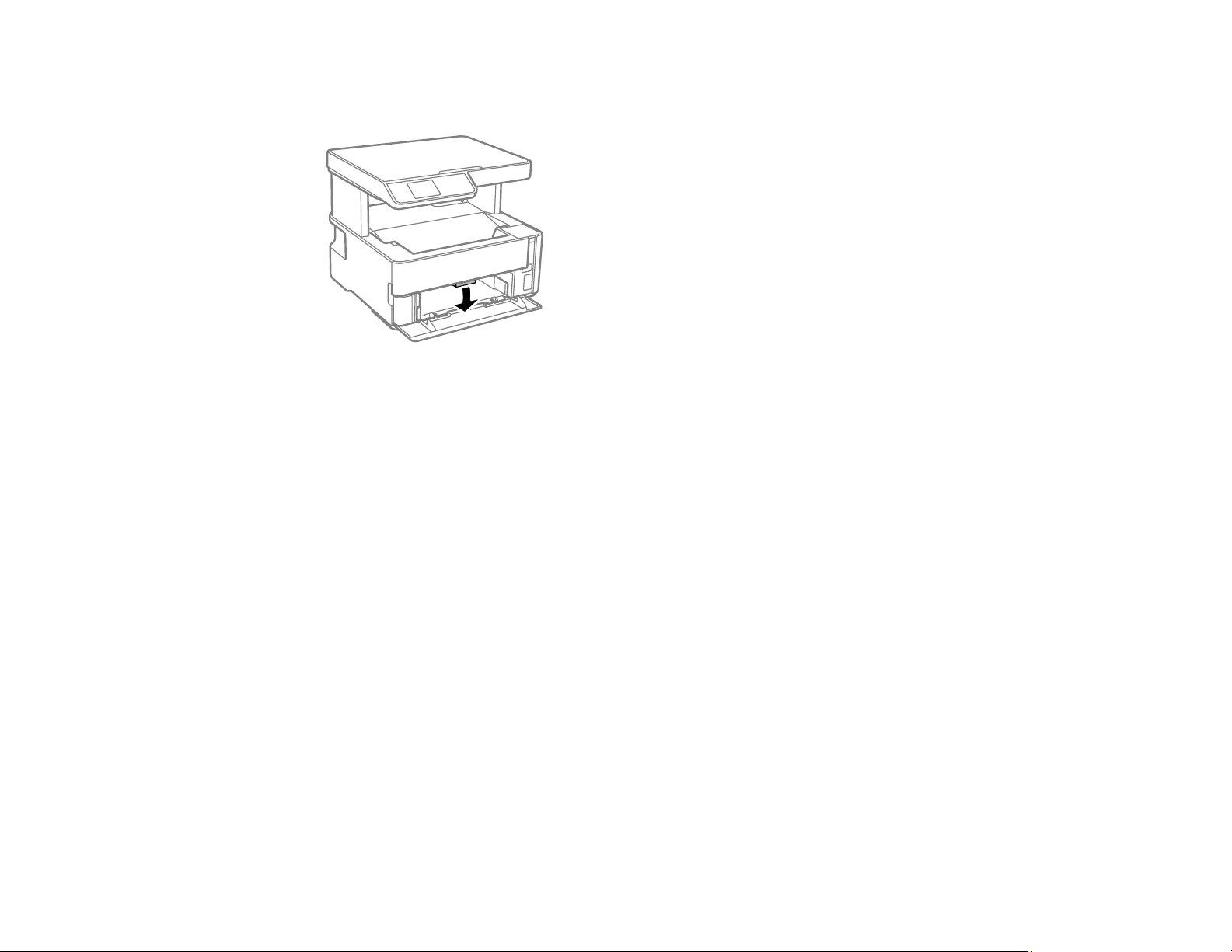
59
• If you loaded envelopes, thick paper, or business cards, lower the output selector to eject paper to
the front of the product and leave the paper cassette cover open.
Note: Do not remove or insert the paper cassette during printing.
Always follow these paper loading guidelines:
• Load only the recommended number of sheets.
• Load paper short edge first and printable side facedown.
• Make sure the paper fits under the tabs on the edge guides and does not stick out from the rear of
the cassette.
• Do not load an envelope that is curled, folded, or too thin.
• Do not load windowed envelopes or envelopes with adhesive surfaces on the flaps.
• If you have trouble loading a stack of envelopes, press each envelope flat before loading it or load
one envelope at a time.
• If print quality declines when printing multiple envelopes, try loading one envelope at a time.
• Load letterhead or pre-printed paper top edge first.
• Check the paper package for any additional loading instructions.
Parent topic: Loading Paper
Related references
Paper Loading Capacity
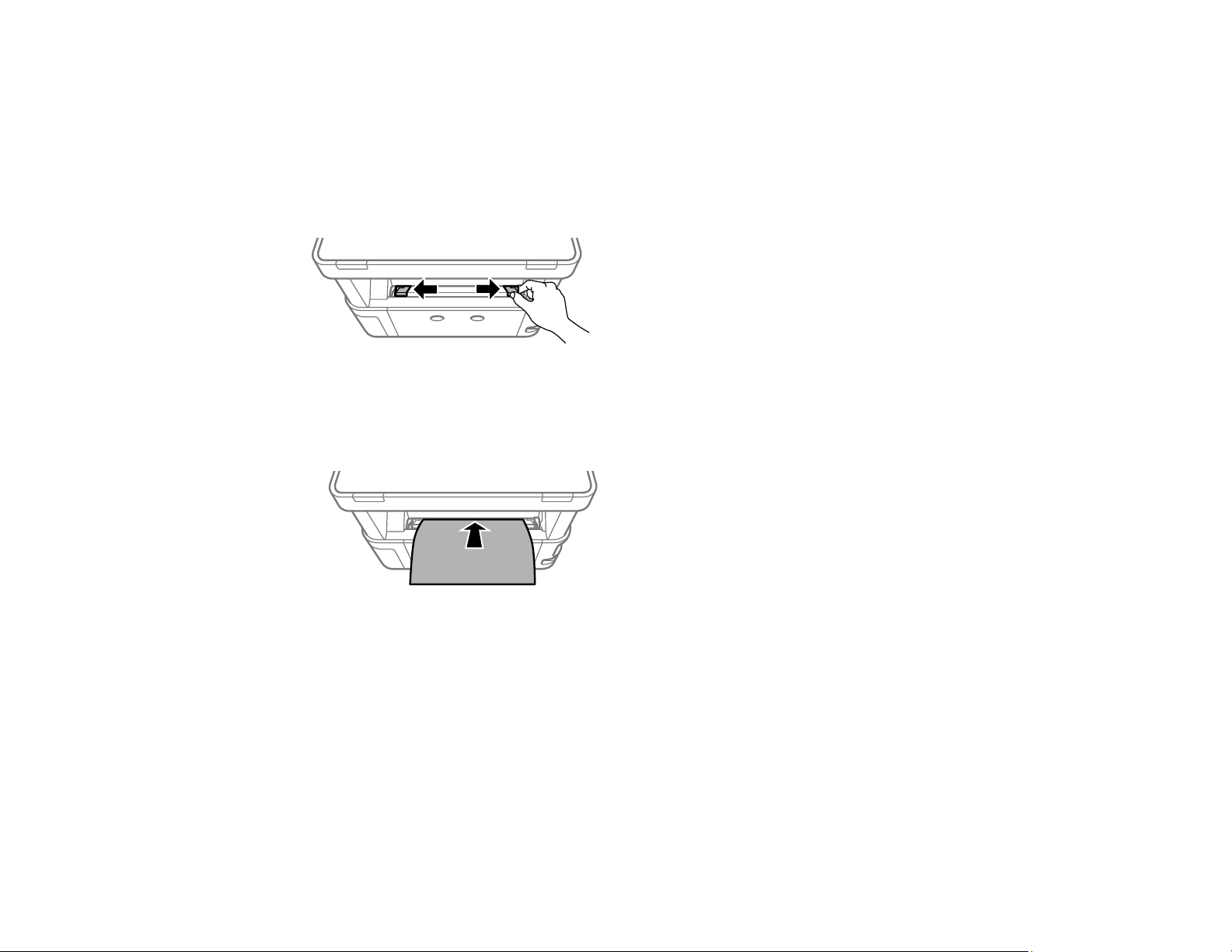
60
Related tasks
Selecting the Default Paper Source Settings
Loading Paper in the Rear Paper Feed Slot
You can print documents on a variety of paper types and sizes from the rear paper feed slot.
1. Slide the edge guides out all the way.
2. Do one of the following:
• Insert one sheet of paper printable side up and short edge first, in the center of the rear paper feed
slot.
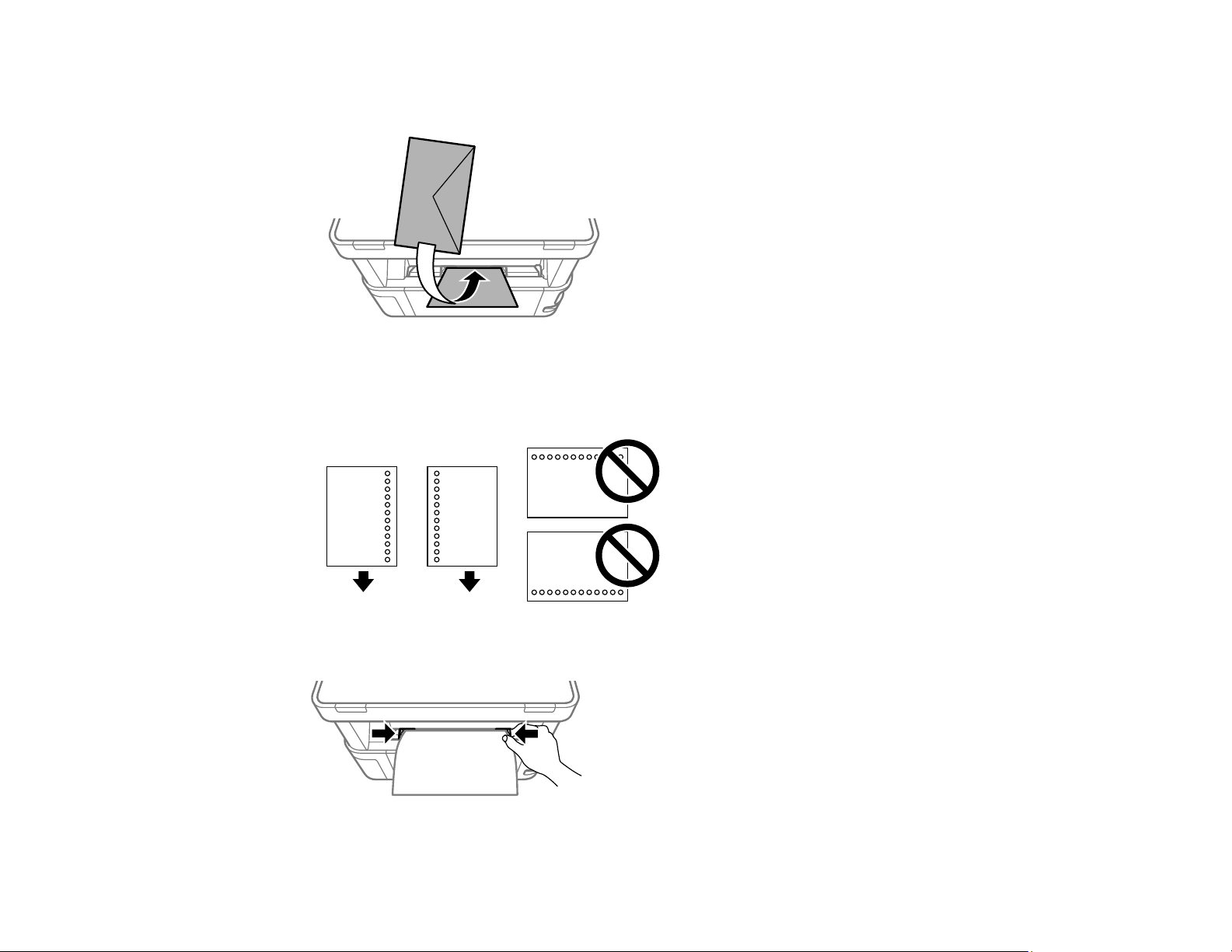
61
• Load one envelope in the center of the rear paper feed slot. Load it printable side up and flap edge
left.
• Load one sheet of loose-leaf or other paper with holes facing as shown. You can load one sheet at
a time in only these sizes: Letter (8.5 × 11 inches [216 × 279 mm]), A4 (8.3 × 11.7 inches
[210 × 297 mm]), or Legal (8.5 × 14 inches [216 × 356 mm]).
3. Slide the edge guides against the paper, but not too tightly.
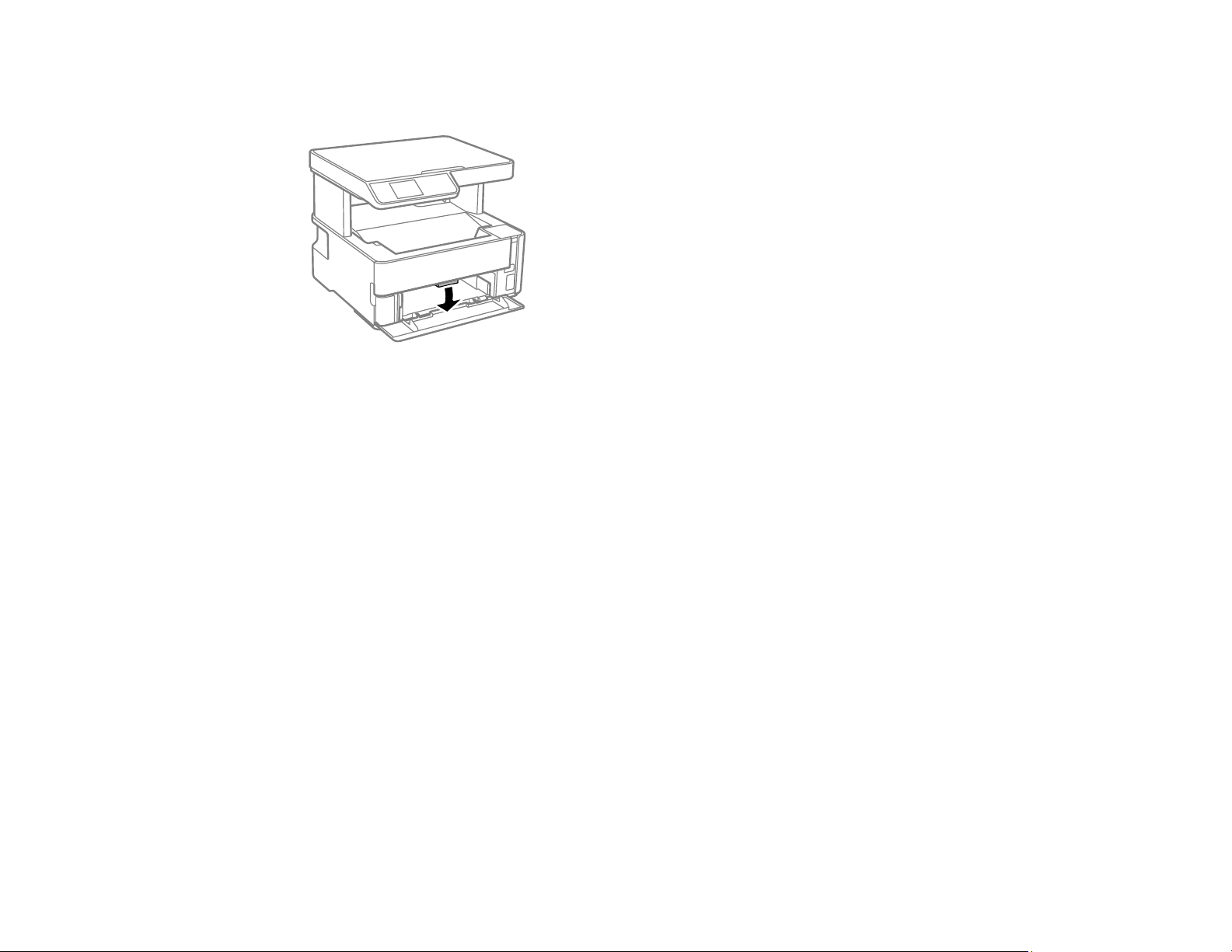
62
4. If you loaded envelopes or thick paper, open the paper cassette cover, lower the output selector to
eject paper to the front of the printer, and leave the paper cassette cover open.
5. Select Settings > Printer Setup > Paper Source Settings > Paper Setting to select the size and
type of paper you loaded. If your paper size is not displayed, select User Defined.
Note: If you are printing on letterhead, select Letterhead as the paper type. If you select Letterhead
and you are printing on paper that is smaller than the printer driver setting, make sure you select the
correct paper size setting or the printer may print beyond the edges of the paper. Two-sided printing
is not available on letterhead paper.
Always follow these paper loading guidelines:
• Load only one sheet or envelope at a time.
• Load paper short edge first and printable side up.
• Load letterhead or pre-printed paper top edge first.
• If you have trouble loading an envelope, press it flat before loading it.
• Do not load an envelope that is curled, folded, or too thin.
• Do not load windowed envelopes or envelopes with adhesive surfaces on the flaps.
• Check the paper package for any additional loading instructions.
Parent topic: Loading Paper
Related references
Paper Loading Capacity

63
Related tasks
Selecting the Default Paper Source Settings
Paper Loading Capacity
Note: The output tray holds up to 100 sheets of plain paper. Exceeding this limit can cause paper to fall
or a paper jam to occur. Remove printouts as necessary to keep the amount of paper in the output tray
under 100 sheets.

64
Paper type Loading capacity
Cassette Rear Paper Feed
Plain paper
Copy paper
Letterhead paper
High-quality plain paper
Letter (8.5 × 11 inches
[216 × 279 mm]) or A4 (8.3 × 11.7
inches [210 × 297 mm]) size or
smaller: 250 sheets
1 sheet
Legal (8.5 × 14 inches
[216 × 356 mm]) size: 1 sheet
User-defined (3.5 × 5 inches [89
× 127 mm] to 8.5 × 47.2 inches
[215.9 × 1200 mm]): 1 sheet
—
User-defined (2.1 × 3.4 inches [54
× 86 mm] to 8.5 × 47.2 inches [215.9
× 1200 mm]): —
1 sheet
User-defined (7.2 × 10.1 inches
[182 × 257 mm] to 8.5 × 11.7 inches
[215.9 × 297 mm]): 1 sheet
Epson Bright White Pro Paper
Epson Bright White Premium
Paper
Epson Multipurpose Plus Paper
200 sheets
Epson Presentation Paper Matte 100 sheets
Epson Premium Presentation
Paper Matte
20 sheets
Epson Premium Presentation
Paper Matte Double-sided
1 sheet
Epson Ultra Premium
Presentation Paper Matte
Thick paper (25 to 68 lb [91 to 256
g/m²])
—
Envelopes 10 envelopes 1 envelope
Parent topic: Loading Paper

65
Related references
Paper Specifications
Double-sided Printing Capacity
You can print double-sided on the paper types and sizes listed here.
Paper type Size Double-sided printing capacity
Paper cassette Rear paper feed
slot
Plain paper
Copy paper
High-quality plain paper
Letter (8.5 × 11 inches
[216 × 279 mm]) or A4
(8.3 × 11.7 inches
[210 × 297 mm])
250 sheets 1 sheet
User-defined (7.2 × 10.1
inches [182 × 257 mm] to
8.5 × 11.7 inches [215.9 x
297 mm])
1 sheet
Epson Bright White Pro
Paper
Epson Bright White
Premium Paper
Epson Multipurpose Plus
Paper
Letter (8.5 × 11 inches
[216 × 279 mm])
200 sheets
You cannot print double-sided on the following paper types:
• Epson Presentation Paper Matte
• Epson Premium Presentation Paper Matte
• Epson Ultra Premium Presentation Paper Matte
• Epson Premium Presentation Paper Matte Double-sided
• Envelopes
Parent topic: Loading Paper

66
Compatible Epson Papers
You can purchase genuine Epson ink, maintenance boxes, and paper at epson.com (U.S. sales),
epson.ca (Canadian sales), or epson.com.jm (Caribbean sales). You can also purchase supplies from
an Epson authorized reseller. To find the nearest one, call 800-GO-EPSON (800-463-7766) in the U.S.
or 800-807-7766 in Canada.
Paper Type Size Part number Sheet count
Epson Bright White Pro Paper Letter (8.5 × 11 inches
[216 × 279 mm])
S041586 500
Epson Bright White Premium
Paper
Letter (8.5 × 11 inches
[216 × 279 mm])
S450218-4 500
Epson Multipurpose Plus Paper Letter (8.5 × 11 inches
[216 × 279 mm])
S450217-4 500
Epson Presentation Paper Matte Letter (8.5 × 11 inches
[216 × 279 mm])
S041062 100
Legal (8.5 × 14 inches
[216 × 356 mm])
S041067 100
Epson Premium Presentation
Paper Matte
8 × 10 inches (203 × 254 mm) S041467 50
Letter (8.5 × 11 inches
[216 × 279 mm])
S041257 50
Epson Premium Presentation
Paper Matte Double-sided
Letter (8.5 × 11 inches
[216 × 279 mm])
S041568 50
Epson Ultra Premium Presentation
Paper Matte
Letter (8.5 × 11 inches
[216 × 279 mm])
S041341 50
Parent topic: Loading Paper

67
Paper or Media Type Settings - Printing Software
For this paper Select this paper Type or Media Type setting
Plain paper
Epson Bright White Pro Paper
Epson Bright White Premium Paper
Epson Multipurpose Plus Paper
Plain Paper / Bright White Paper
Letterhead paper Letterhead
Envelopes Envelope
Epson Presentation Paper Matte Presentation Paper Matte
Epson Premium Presentation Paper Matte
Epson Premium Presentation Paper Matte Double-
sided
Premium Presentation Paper Matte
Epson Ultra Premium Presentation Paper Matte
Thick paper 25 to 68 lb (91 to 256 g/m²)
Card Stock
Note: The settings listed here are available only when printing from your computer; they do not apply to
your product's control panel settings.
Parent topic: Loading Paper
Selecting the Paper Settings - Control Panel
You can change the default paper size and paper type using the control panel on the product.
Note: These settings appear automatically when paper is inserted if you set the Paper Setup Auto
Display setting to On.
1. Press the home button, if necessary.
2. Select Settings > Printer Setup > Paper Source Settings > Paper Setting.
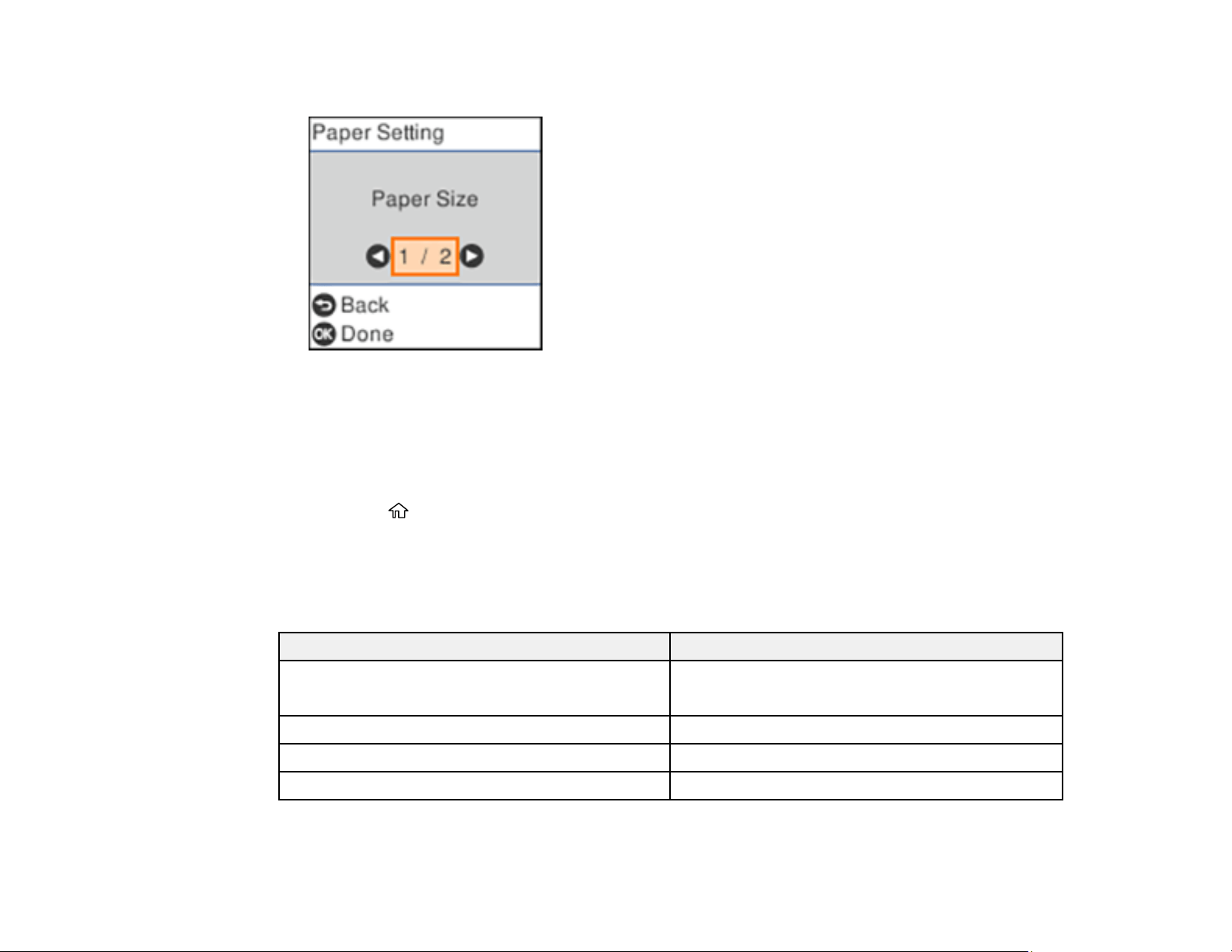
68
You see a screen like this:
3. Select Paper Size.
4. Select the paper size you loaded.
5. Select Paper Type.
6. Select the paper type you loaded.
7. Select the home button to exit.
Paper or Media Type Settings - Control Panel
Parent topic: Loading Paper
Paper or Media Type Settings - Control Panel
For this paper Select this Paper Type setting
Plain paper
Epson Bright White Pro Paper
Plain Paper
Letterhead paper Letterhead
High-quality plain paper Hi-Quality Plain Paper
Epson Presentation Paper Matte Presentation Matte
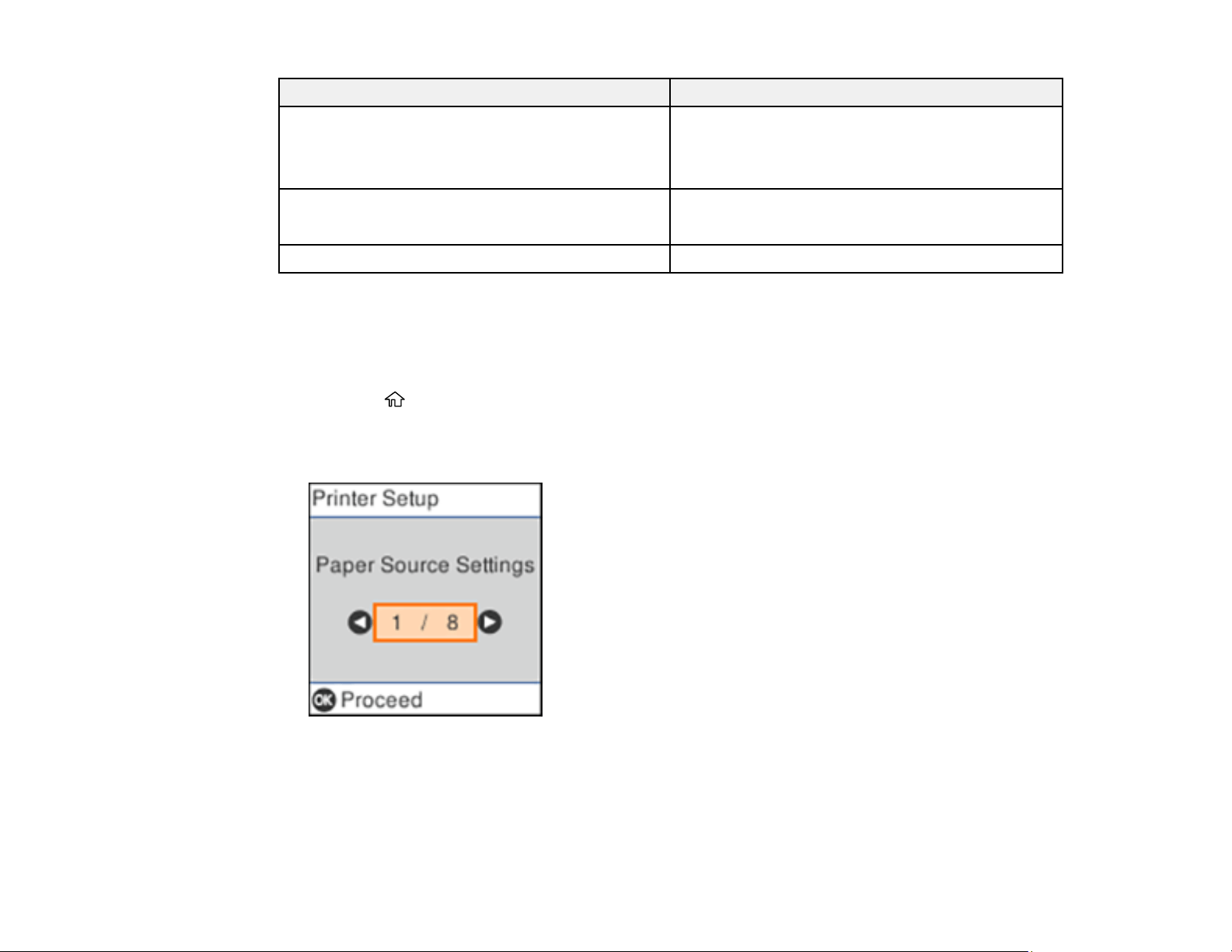
69
For this paper Select this Paper Type setting
Epson Premium Presentation Paper Matte
Epson Premium Presentation Paper Matte Double-
sided
Prem. Matte
Epson Ultra Premium Presentation Paper Matte
Thick paper 25 to 68 lb (91 to 256 g/m²)
Card Stock
Envelope Envelope
Parent topic: Selecting the Paper Settings - Control Panel
Selecting the Default Paper Source Settings
You can change default paper source settings using the control panel on the product.
1. Press the home button, if necessary.
2. Select Settings > Printer Setup.
You see a screen like this:
3. Select Auto Error Solver and select one of these options:
• Turn on this setting to display a warning and print single-sided when a 2-sided printing error
occurs, or to print only what the printer could process when a memory full error occurs.
• Turn off this setting to display an error message and stop printing if an error occurs.
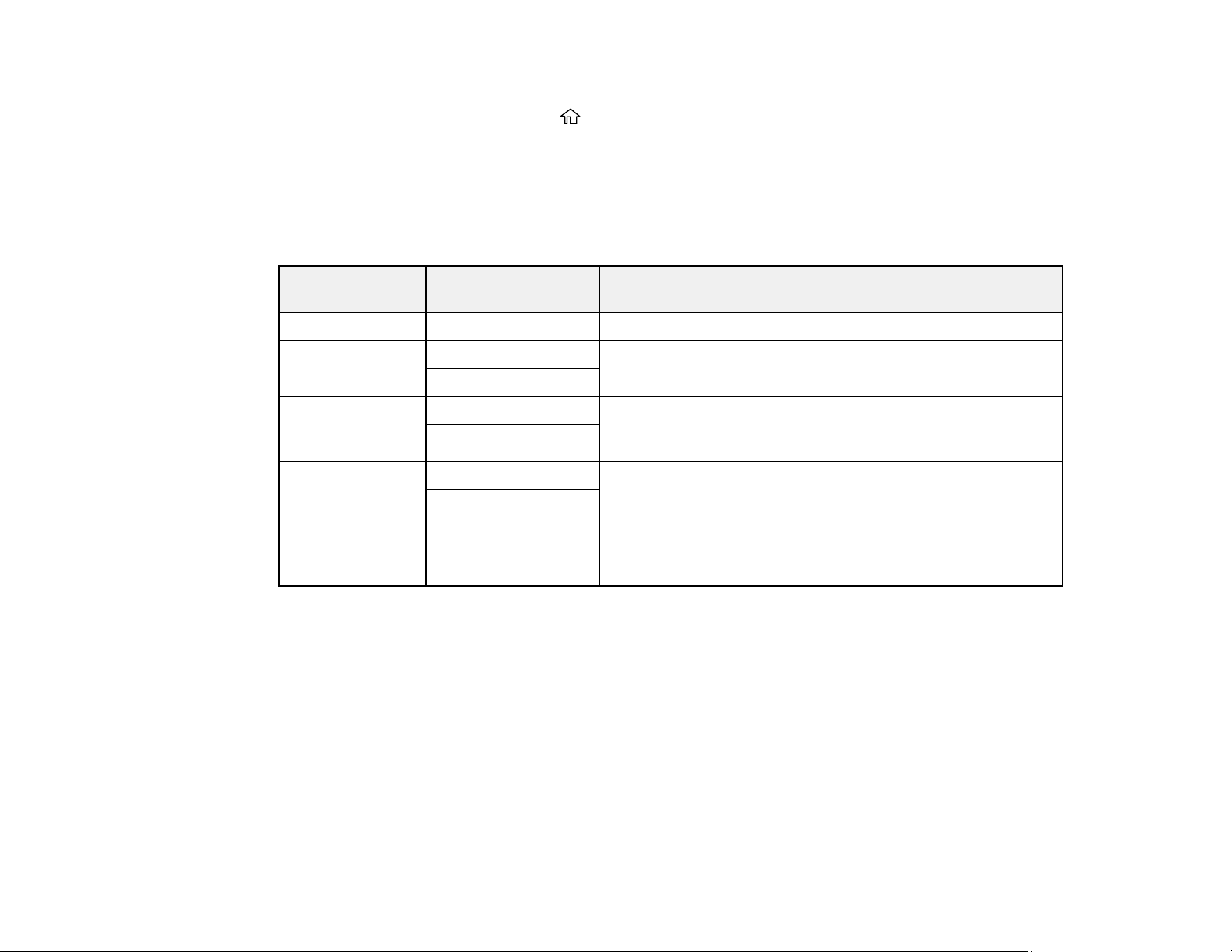
70
4. Select the Paper Source Settings options you want to use.
5. When you are finished, press the home button to exit.
Paper Source Settings Options
Parent topic: Loading Paper
Paper Source Settings Options
Select the paper source options you want to use for your print jobs.
Paper Source
Settings option
Available settings Description
Paper Setting Various Select the paper size and type for each paper source
A4/Letter Auto
Switching
On Select On to switch the selected paper size to match the
loaded paper (Letter or A4) if the wrong size is selected
Off
Error Notice Paper Size Notice Select On for either of these settings to display an error
message when the selected paper type or size does not
match the loaded paper
Paper Type Notice
Paper Setup
Auto Display
On Select On to automatically display a menu that lets you
select the paper size and type when you load paper in the
product.
Note: If this setting is disabled, you cannot print using
AirPrint.
Off
Parent topic: Selecting the Default Paper Source Settings
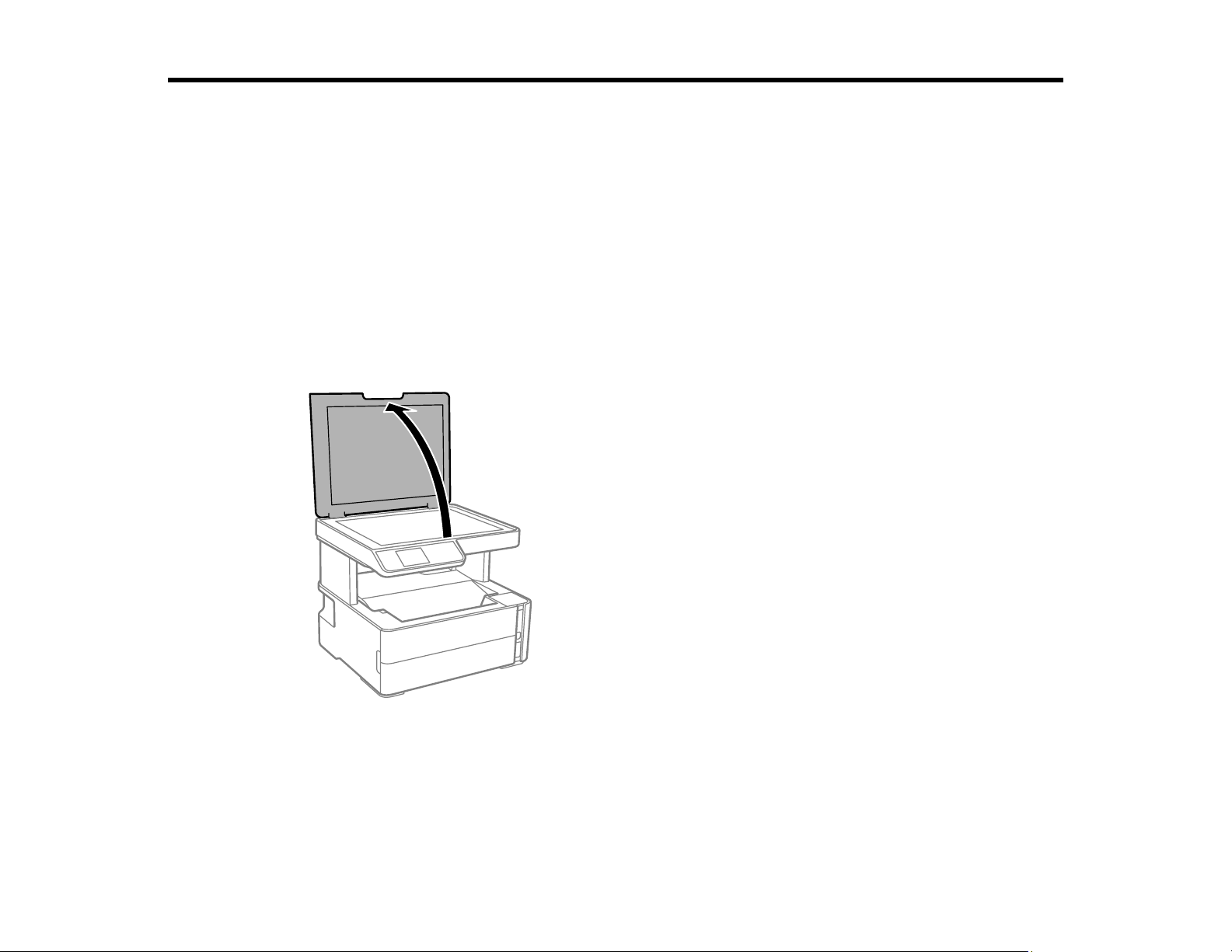
71
Placing Originals on the Product
Follow the instructions here to place your original documents or photos on the product.
Caution: Do not place anything on top of your product or use its cover as a writing surface to avoid
damaging it.
Placing Originals on the Scanner Glass
Placing Originals on the Scanner Glass
You can place originals up to this size on the scanner glass: Letter (8.5 × 11 inches [216 × 279 mm]) or
A4 (8.3 × 11.7 inches [210 × 297 mm]).
1. Open the document cover.
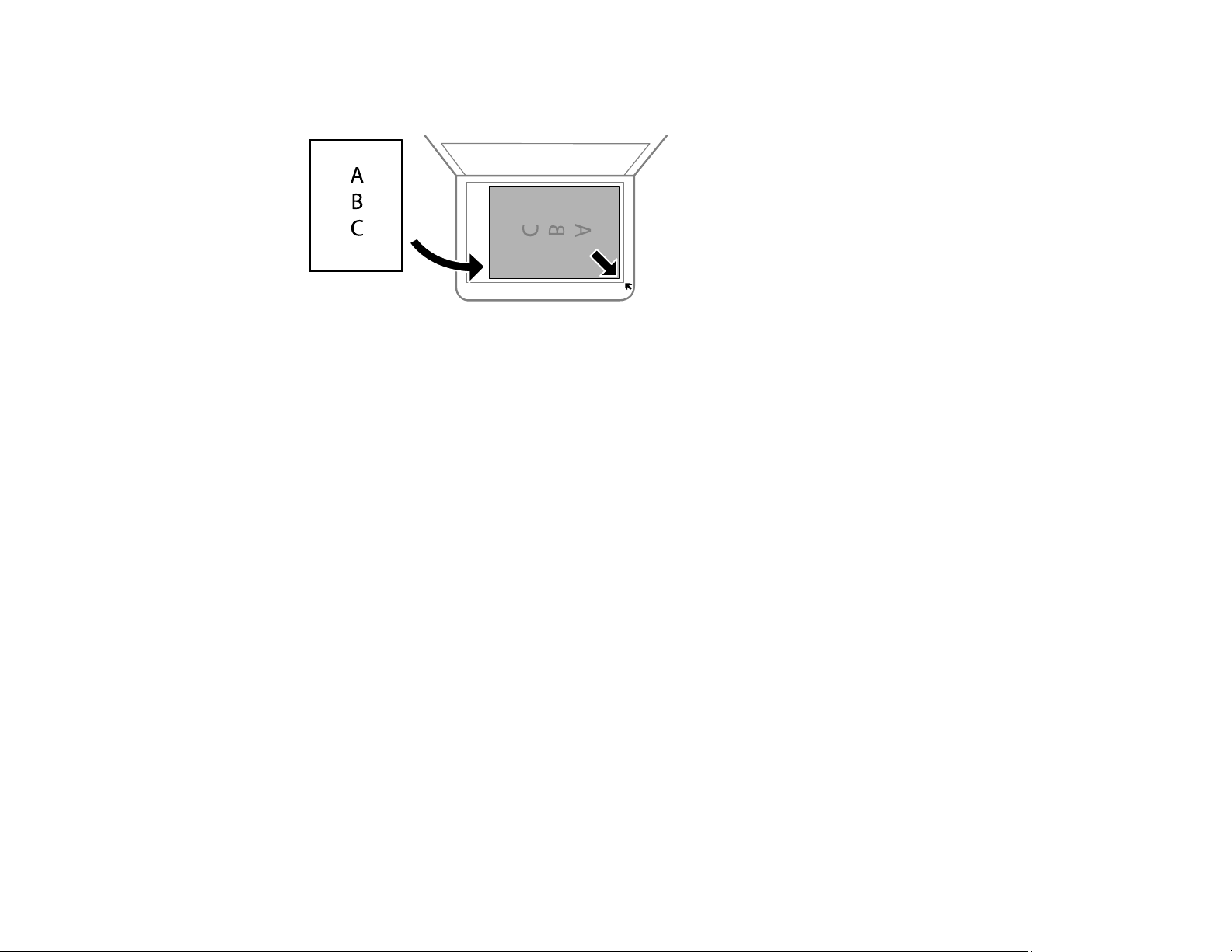
72
2. Place your original facedown on the scanner glass with the top facing into the corner. Slide the
original to the edges of the indicated corner.
Note: The edges of your original may be cropped by 0.06 inch (1.5 mm) from the edge of the
scanner glass. Manually position your original away from the edges to prevent cropping.
Note: If you are placing an ID card on the scanner glass, position the card 0.19 inch (5 mm) from the
corner of the scanner glass.
3. Close the document cover gently to keep your original in place.
Caution: Do not push down on the document cover or scanner glass or you may damage the
product.
Remove your originals after scanning. If you leave the originals on the scanner glass for a long time, they
may stick to the glass surface.
Parent topic: Placing Originals on the Product
Related topics
Copying
Scanning
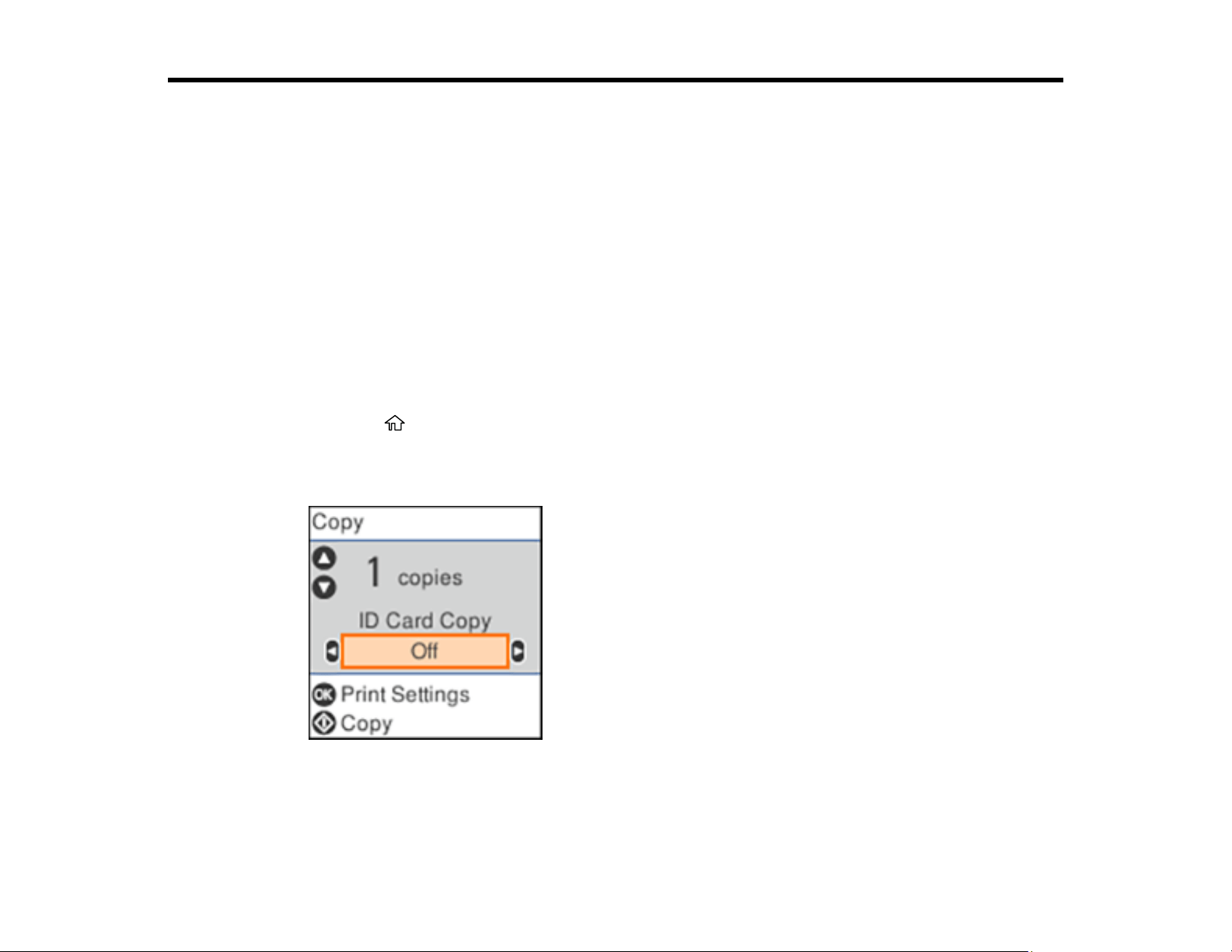
73
Copying
See the information here to copy documents or photos using your product.
Note: Copies may not be exactly the same size as your originals.
Copying Documents or Photos
Copying Options
Copying Documents or Photos
You can copy documents or photos onto various sizes and types of paper, including Epson special
papers.
1. Place your original document or photo on the scanner glass.
2. Load the paper you want to print on in the product.
3. Press the home button, if necessary.
4. Press the left or right arrow button to select Copy and press the OK button.
You see this screen:
5. To print more than one copy, press the up or down arrow button to select the number (up to 99).
6. To copy both sides of an ID card onto one side of a sheet of paper, press the left or right arrow
button to enable ID Card Copy.
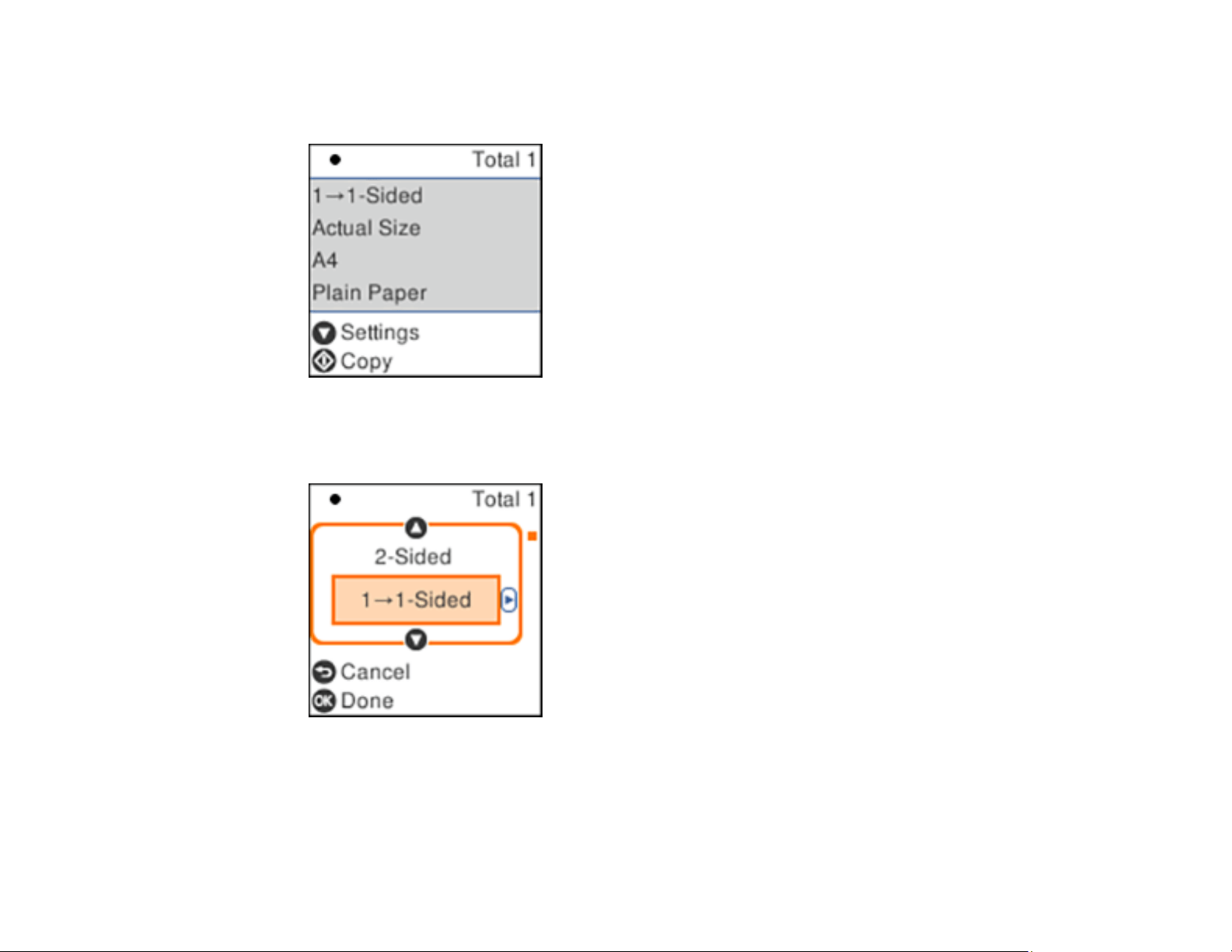
74
7. Press the OK button to view the print settings for the copies.
You see a screen like this:
8. Press the down arrow button to view the individual settings.
You see this screen:

75
9. To change the print settings, press the left or right arrow button and select the necessary settings.
When you are finished, press the OK button.
Note: To copy to paper in the rear paper feed, make sure to select Paper Setting > Rear Paper
Feed Slot.
10. When you are ready to copy, press the start button.
Note: To cancel copying, press the stop button.
Parent topic: Copying
Related references
Copying Options
Compatible Epson Papers
Paper Loading Capacity
Related topics
Loading Paper
Placing Originals on the Product
Copying Options
Select the copying options you want to use for your copies.
Note: Not all options or settings may be available, depending on other copying settings.
Print Settings
Copying option Available settings Description
2-Sided 1>1-Sided Select to make 2-sided copies. When you select 1>2-Sided,
also select the orientation and binding edge for your
originals or copies.
1>2-Sided
Density Varying levels Adjusts the lightness or darkness of copies
Paper Size Various settings Selects the paper size
Paper Type Various settings Selects the paper type
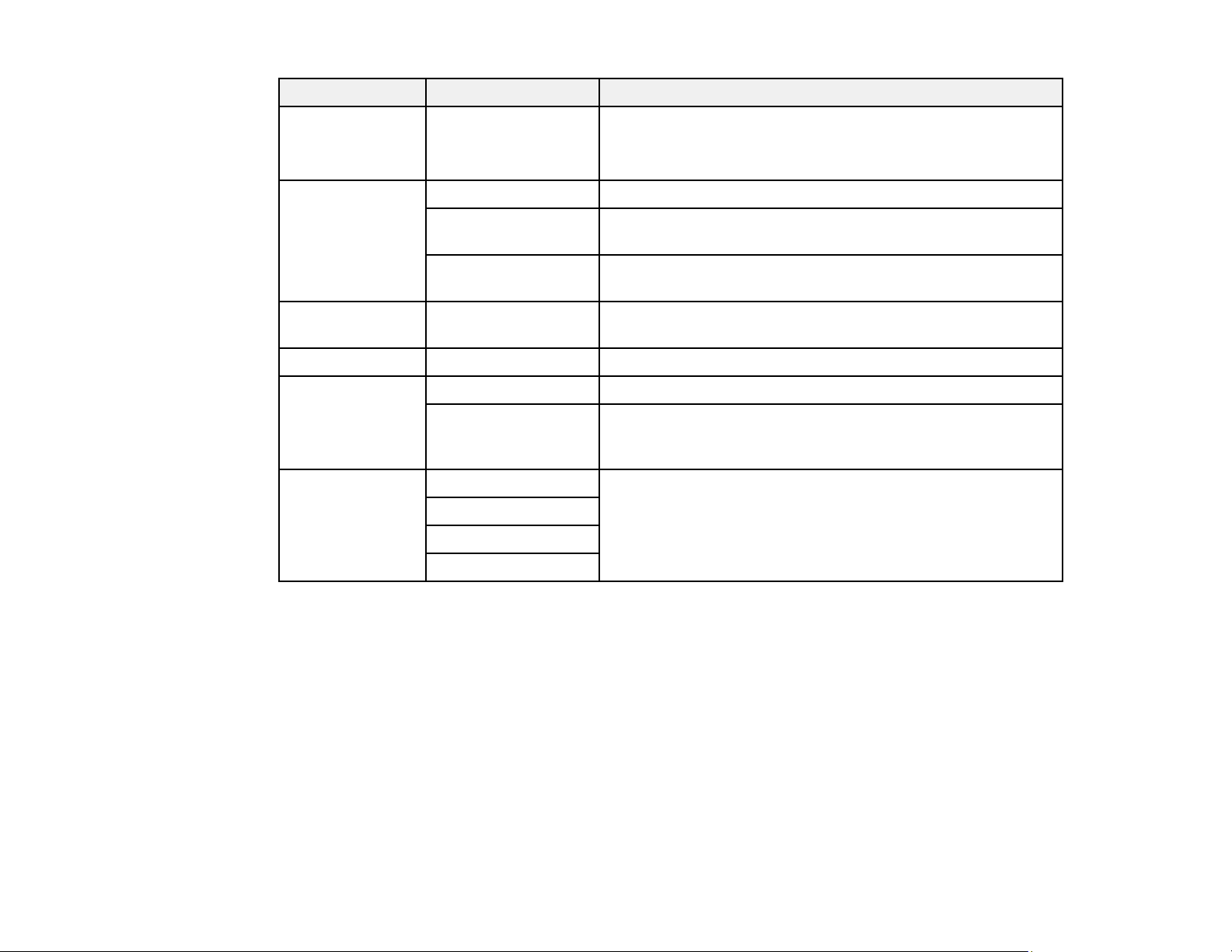
76
Copying option Available settings Description
Paper Setting Paper Cassette
Rear Paper Feed
Slot
Selects the paper source
Reduce/Enlarge Actual Size Copies the original at its full size
Auto Fit Automatically sizes the image to fit the paper size you
selected
Custom 100% and
other conversions
Displays the amount to re-size the original. Change the
amount by adjusting the Custom Size setting.
Custom Size 25 - 400 in 1%
increments
Adjusts the amount to re-size the original.
Original Size Various sizes Select the document size of your original
Multi-Page Single Page Copies each page of the original onto an individual sheet
2-up Copies multiple page documents onto one sheet. Scroll
down and select the document orientation and layout order
settings as necessary.
Original Type Text Specifies the document type of your originals and adjusts
the quality of your copies
Text & Image
Photo
Text & Image (Best)
Parent topic: Copying

77
Printing from a Computer
Before printing from your computer, make sure you have set up your product and installed its software
as described on the Start Here sheet.
Note: If you have an Internet connection, it is a good idea to check for updates to your product software
on Epson's support website. If you see a Software Update screen, select Enable automatic checking
and click OK. The update scans your system to see if you have the latest product software. Follow the
on-screen instructions.
Printing with Windows
Printing with the Built-in Epson Driver - Windows 10 S
Printing on a Mac
Printing From a Chromebook
Cancelling Printing Using a Product Button
Printing with Windows
You can print with your product using any Windows application, as described in these sections.
Note: If you are using your Epson product with the Windows 10 S operating system, you cannot use the
software described in this section. You also cannot download and install any Epson product software
from the Epson website for use with Windows 10 S; you must obtain software only from the Windows
Store.
Selecting Basic Print Settings - Windows
Selecting Double-sided Printing Settings - Windows
Selecting Additional Layout and Print Options - Windows
Selecting a Printing Preset - Windows
Selecting Extended Settings - Windows
Printing Your Document - Windows
Locking Printer Settings - Windows
Selecting Default Print Settings - Windows
Changing Automatic Update Options
Parent topic: Printing from a Computer
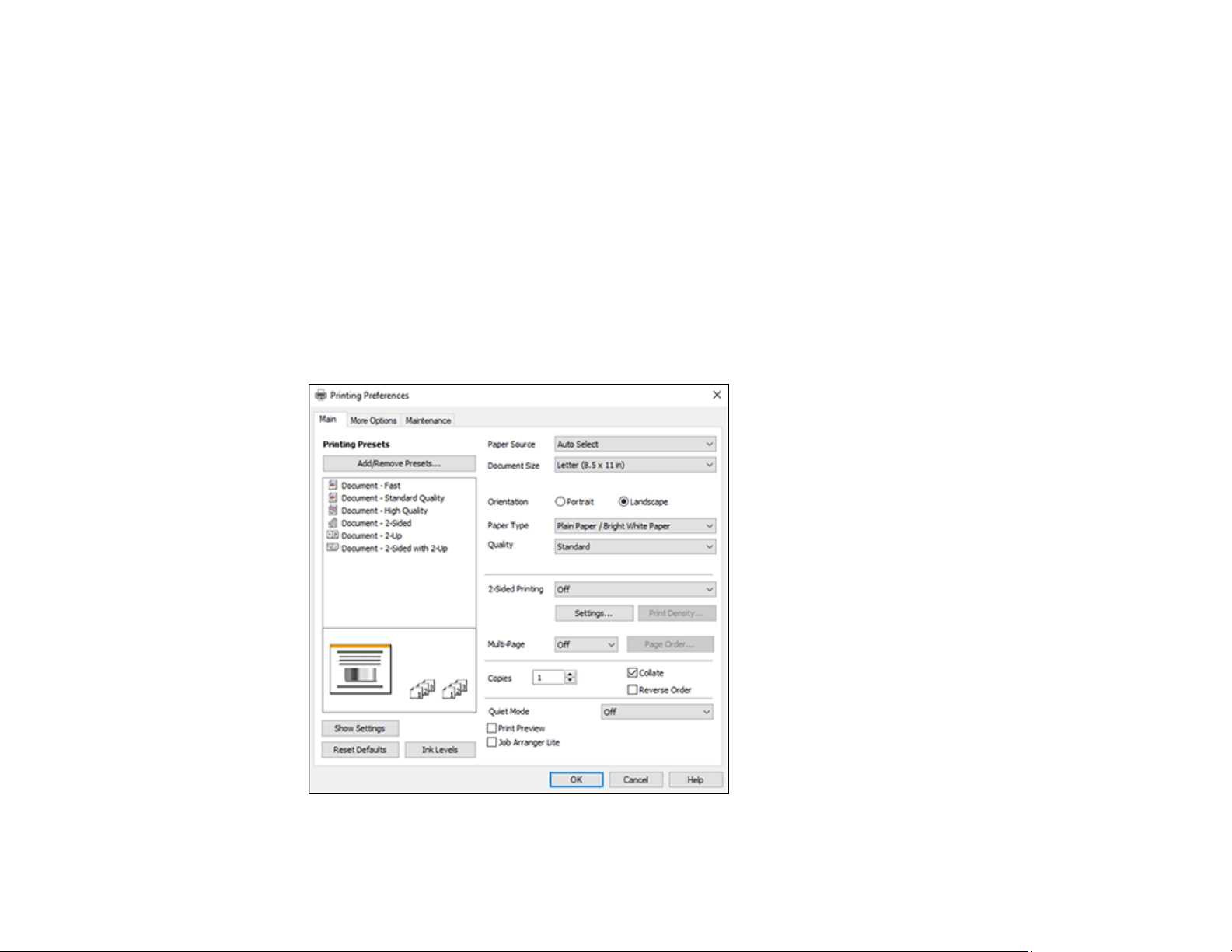
78
Selecting Basic Print Settings - Windows
Select the basic settings for the document or photo you want to print.
1. Open a photo or document for printing.
2. Select the print command in your application.
Note: You may need to select a print icon on your screen, the Print option in the File menu, or
another command. See your application's help utility for details.
3. If necessary, select your product name as the printer you want to use.
Note: You may also need to select Properties or Preferences to view your print settings.
You see the Main tab of your printer settings window:

79
4. For the Paper Source setting, select where you loaded the paper you want to print on.
5. Select the size of the paper you loaded as the Document Size setting.
Note: You can also select the User-Defined setting to create a custom paper size.
6. Select the orientation of your document.
Note: If you are printing an envelope, select Landscape.
7. Select the type of paper you loaded as the Paper Type setting.
Note: The setting may not exactly match the name of your paper. Check the paper type settings list
for details.
8. Select the Quality setting that matches the print quality you want to use.
9. To print on both sides of the paper, select a 2-Sided Printing option.
10. To print multiple pages on one sheet of paper, or print one image on multiple sheets of paper, select
one of the settings in the Multi-Page menu and select the printing options you want.
11. To print multiple copies and arrange their print order, select the Copies options.
12. To preview your job before printing, select Print Preview.
13. To save your print job as a project that can be modified and combined with other print jobs, select
Job Arranger Lite.
14. To reduce noise during printing when you select Plain Paper/Bright White Paper, select On in the
Quiet Mode menu.
Note: Enabling Quiet Mode may reduce printing speed.
Paper Source Options - Windows
Print Quality Options - Windows
Multi-Page Printing Options - Windows
Parent topic: Printing with Windows
Related references
Paper or Media Type Settings - Printing Software

80
Related tasks
Selecting Double-sided Printing Settings - Windows
Paper Source Options - Windows
You can select any of the available options in the Paper Source menu to print on the paper loaded in that
source.
Auto Select
Automatically selects the paper source based on the selected paper size.
Paper Cassette
Selects the paper in the cassette as the paper source.
Rear Paper Feed Slot
Selects the paper in the rear feed slot as the paper source.
Parent topic: Selecting Basic Print Settings - Windows
Print Quality Options - Windows
You can select any of the available Quality options to fine-tune the quality of your print. Some settings
may be unavailable, depending on the paper type and border setting you have chosen.
Draft
For draft printing on plain paper.
Standard
For everyday text and image printing.
High
For photos and graphics with high print quality.
Parent topic: Selecting Basic Print Settings - Windows
Multi-Page Printing Options - Windows
You can select any of the available options in the Multi-Page menu to set up your multi-page print job.
2-Up and 4-Up
Prints 2 or 4 pages on one sheet of paper. Click the Page Order button to select page layout and
border options.
2×1 Poster, 2×2 Poster, 3×3 Poster, 4×4 Poster
Prints one image on multiple sheets of paper to create a larger poster. Click the Settings button to
select image layout and guideline options.
Parent topic: Selecting Basic Print Settings - Windows

81
Selecting Double-sided Printing Settings - Windows
You can print on both sides of the paper by selecting one of the 2-Sided Printing options on the Main
tab.
Note: Some options may be pre-selected or unavailable, depending on other settings you have chosen
or if you are accessing the product over a network.
1. Select one of the following options for 2-Sided Printing:
• Auto (Long-edge binding) to print your double-sided print job by automatically flipping the paper
on the long edge.
• Auto (Short-edge binding) to print your double-sided print job by automatically flipping the paper
on the short edge.
2. Click the Settings button.
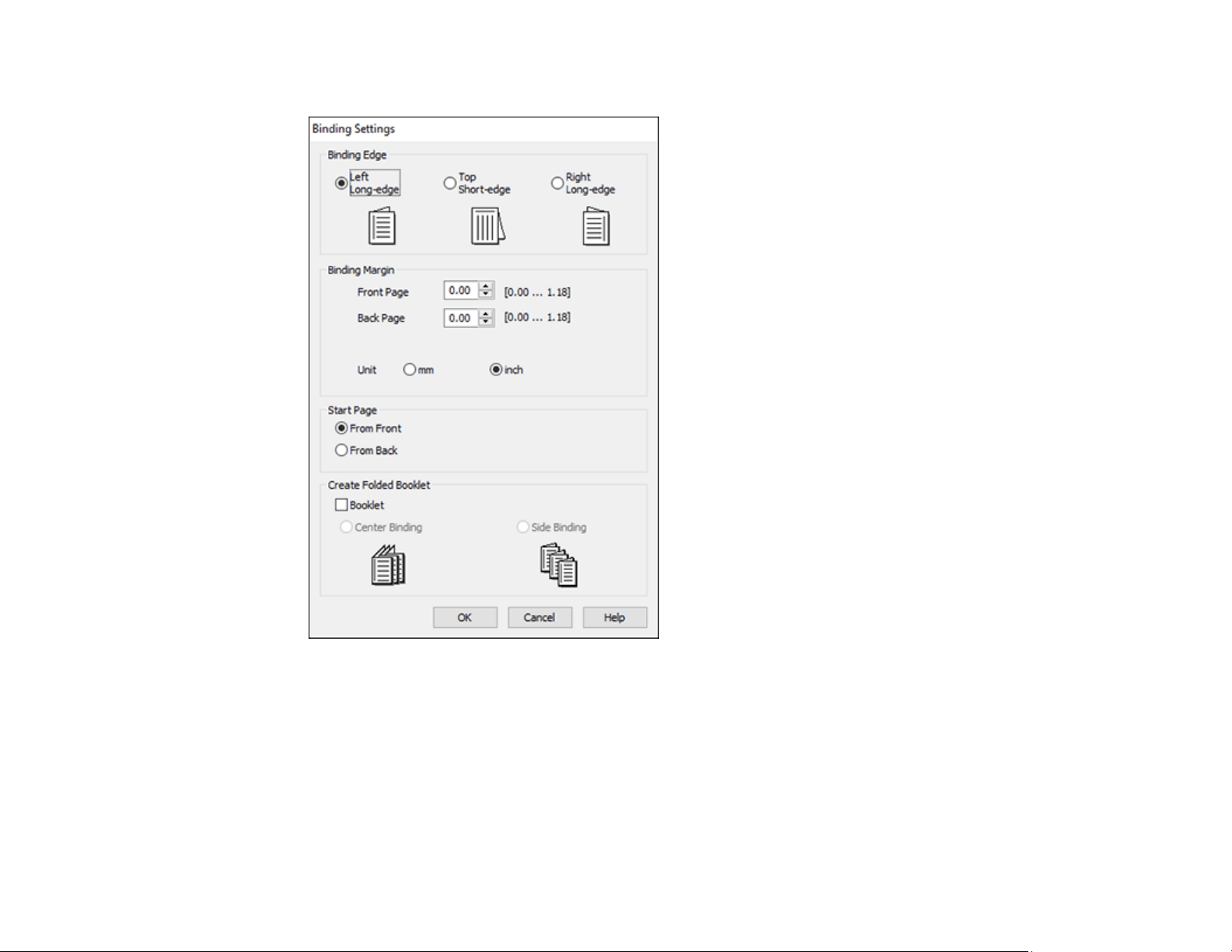
82
You see this window:
3. Select the double-sided printing options you want to use.
4. Click OK to return to the Main tab.
5. Click the Print Density button.
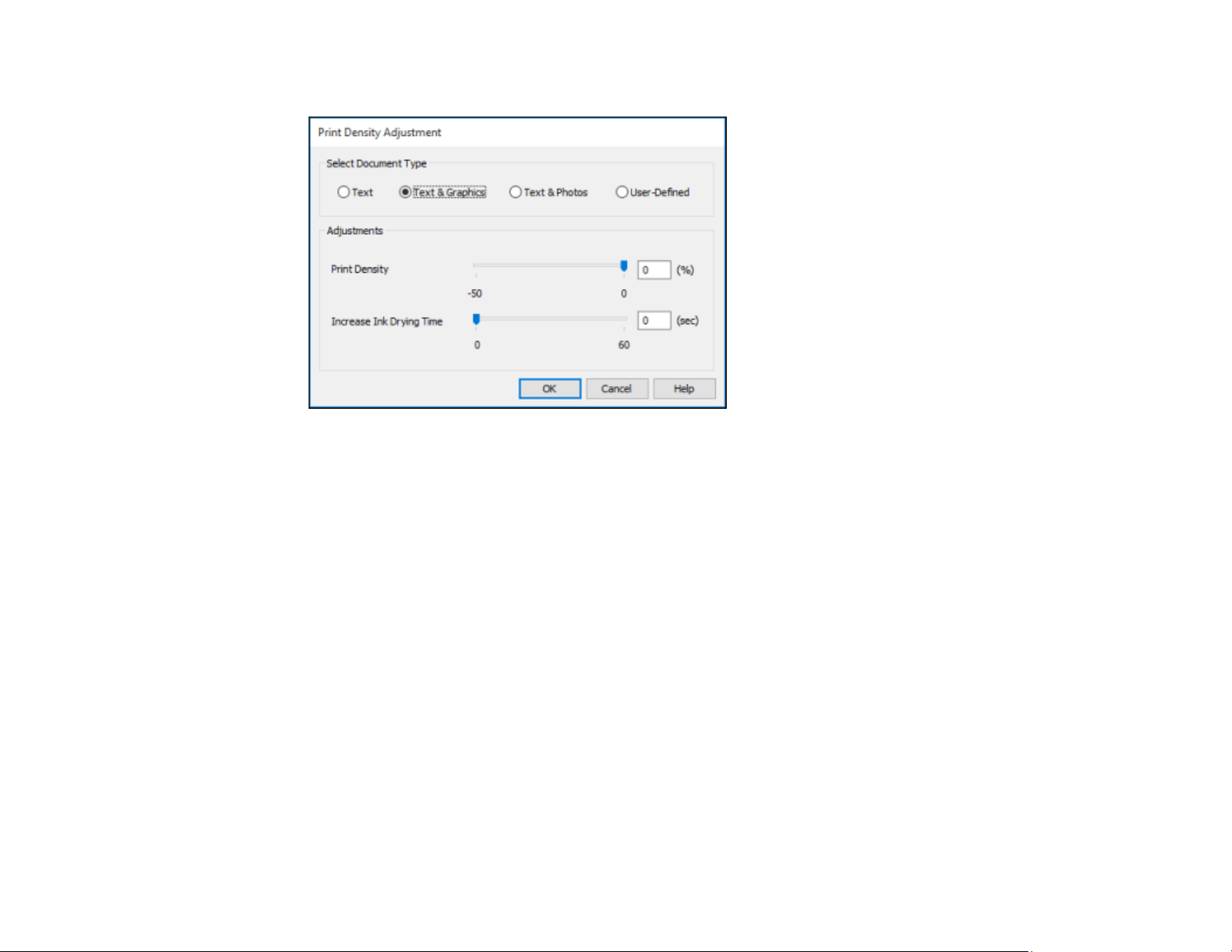
83
You see this window:
6. Select the type of document you are printing as the Document Type setting. The software
automatically sets the Adjustments options for that document type.
7. If necessary, select the Adjustments options you want to use.
8. Click OK to return to the Main tab.
9. Print a test copy of your double-sided document to test the selected settings.
10. Follow any instructions displayed on the screen during printing.
Double-sided Printing Options - Windows
Print Density Adjustments - Windows
Parent topic: Printing with Windows
Related tasks
Selecting Basic Print Settings - Windows
Double-sided Printing Options - Windows
You can select any of the available options on the Binding Settings window to set up your double-sided
print job.
Binding Edge Options
Select a setting that orients double-sided print binding in the desired direction.

84
Binding Margin Options
Select options that define a wider margin to allow for binding.
Start Page
Selects whether printing starts on the front or back page.
Create Folded Booklet Options
Select the Booklet checkbox and a binding option to print double-sided pages as a booklet.
Parent topic: Selecting Double-sided Printing Settings - Windows
Print Density Adjustments - Windows
You can select any of the available options on the Print Density Adjustment window to adjust the print
quality of your double-sided print job.
Print Density
Sets the level of ink coverage for double-sided printing.
Increase Ink Drying Time
Sets the amount of time required for drying ink after printing on one side of the paper before printing
the other side in double-sided printing to prevent ink smearing.
Parent topic: Selecting Double-sided Printing Settings - Windows
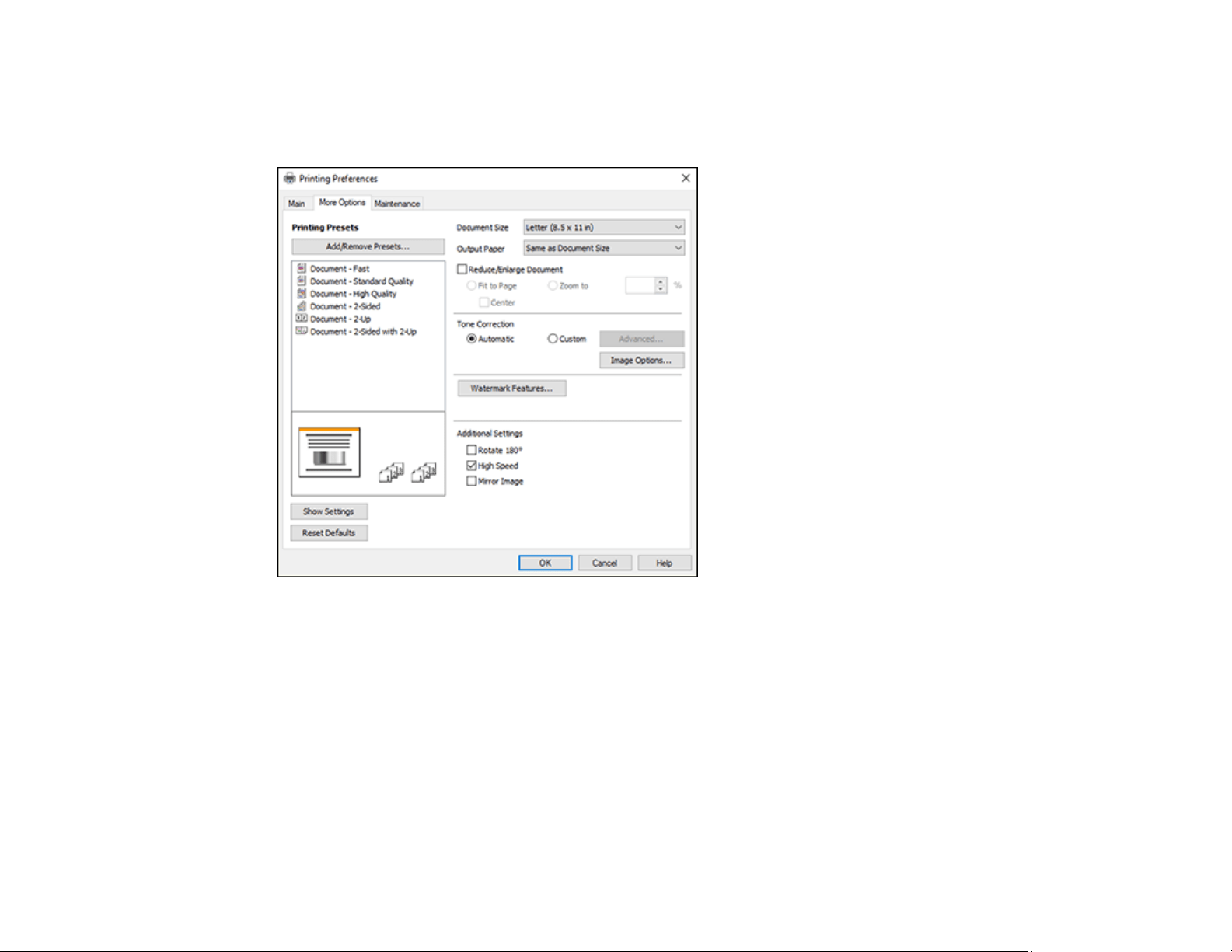
85
Selecting Additional Layout and Print Options - Windows
You can select a variety of additional layout and printing options for your document or photo on the More
Options tab.
1. To change the size of your printed document or photo, select the Reduce/Enlarge Document
checkbox and select one of these sizing options:
• Select the Fit to Page option to size your image to fit the paper you loaded. Select the size of your
document or photo as the Document Size setting, and the size of your paper as the Output
Paper setting. If you want to center your image on the paper, select the Center option.
• Select the Zoom to option to reduce or enlarge your document or photo by a specific percentage.
Select the percentage in the % menu.
2. Select one of the following Tone Correction options:
• Select Automatic to automatically adjust the brightness and contrast for your image.

86
• Select Custom and click the Advanced button to manually adjust the tone correction settings or
turn off color management in your printer software.
• Select Image Options to access additional settings for improving printed images.
3. To add the following features, click the Watermark Features button:
• Anti-Copy Pattern: adds a watermark that only appears when your printout is copied
• Watermark: adds a visible watermark to your printout
• Header/Footer: adds information such as the date and time to the top or bottom of your printout
Note: Click the Settings button to customize the text and location of the header or footer.
4. Select any of the Additional Settings options to customize your print.
Custom Tone Correction Options - Windows
Image Options and Additional Settings - Windows
Header/Footer Settings - Windows
Parent topic: Printing with Windows
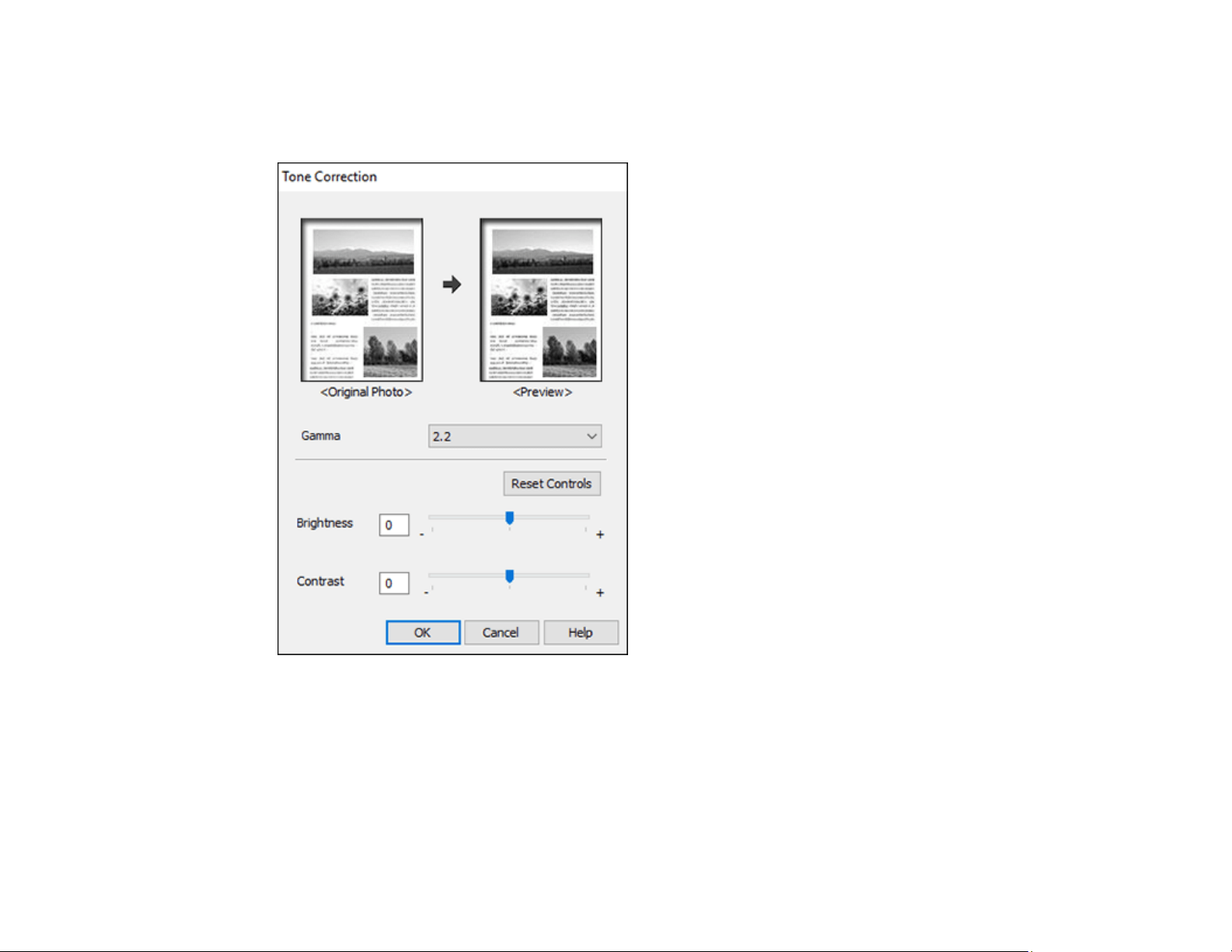
87
Custom Tone Correction Options - Windows
You can select any of the available options in the Tone Correction window to customize the image tone
for your print job.
Gamma
Adjusts the midtone density of the image.
Brightness
Adjusts the overall lightness and darkness of the image.
Contrast
Adjusts the difference between the light and dark areas of the overall image.

88
Parent topic: Selecting Additional Layout and Print Options - Windows
Image Options and Additional Settings - Windows
You can select any of the Image Options and Additional Settings to customize your print. Some options
may be pre-selected or unavailable, depending on other settings you have chosen.
Image Options
Emphasize Text
Adjusts the weight of printed text to increase readability.
Emphasize Thin Lines
Adjusts the weight of printed lines to increase visibility.
Edge Smoothing
Smooths jagged edges in low-resolution images such as screen captures or images from the Web.
Enhance Light Text and Lines
Adjusts the weight of light text and printed lines to increase visibility.
Additional Settings Options
Rotate 180º
Prints the image rotated 180º from its original orientation.
High Speed
Speeds up printing but may reduce print quality.
Mirror Image
Flips the printed image left to right.
Parent topic: Selecting Additional Layout and Print Options - Windows
Header/Footer Settings - Windows
You can select any of the Header/Footer Settings options to add headers or footers when you print. The
items are available to print at the top or bottom of your pages, in either the left, right, or center of the
page.
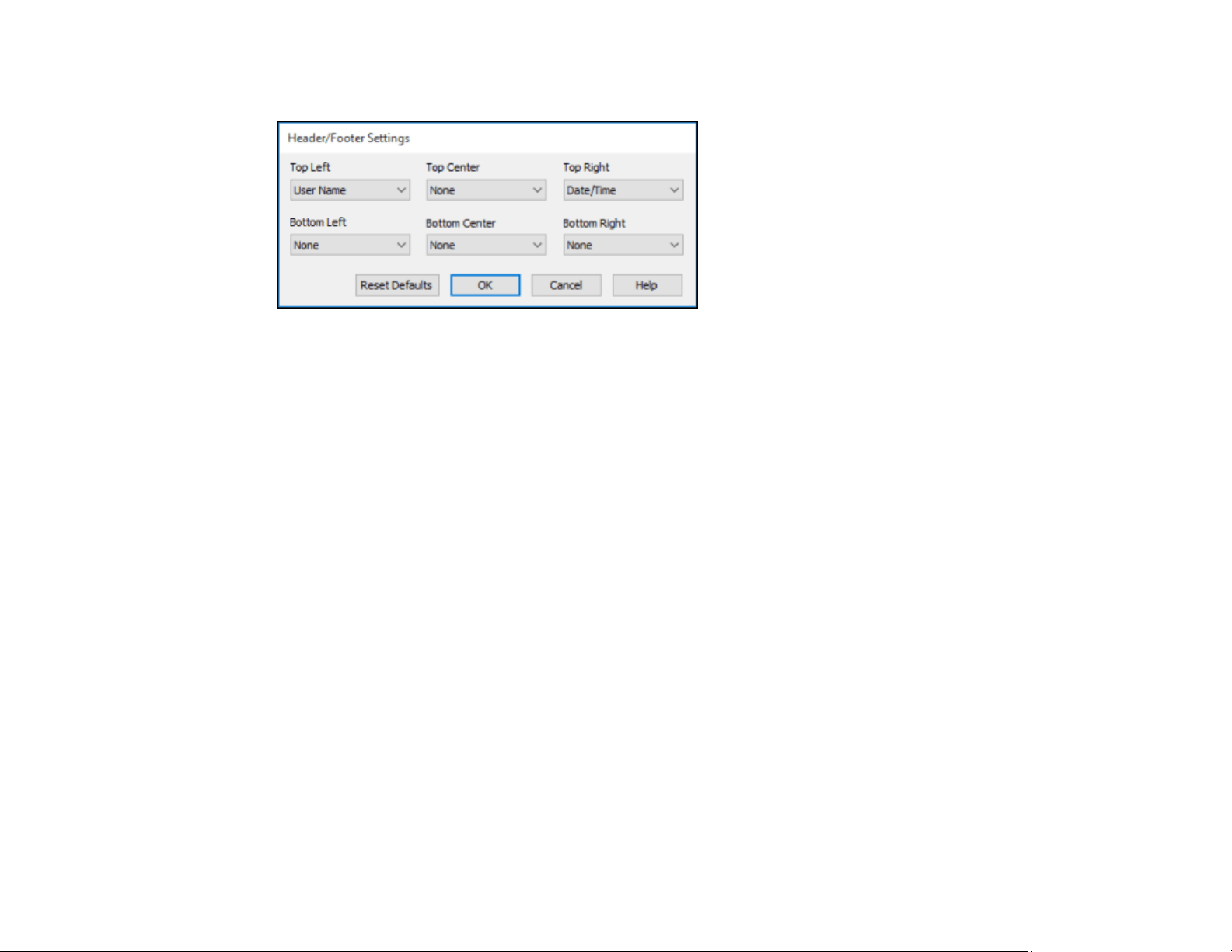
89
Note: These settings are not saved with your document.
You can select to print the following information:
• User Name
• Computer Name
• Date
• Date/Time
• Document Name
• Collate Number
Note: The user name, computer name, date, and time come from the Windows Control Panel on your
computer.
Parent topic: Selecting Additional Layout and Print Options - Windows
Selecting a Printing Preset - Windows
For quick access to common groups of print settings, you can select a printing preset on the Main or
More Options tab.
Note: You can create your own preset by clicking the Add/Remove Presets button.
1. Click the Main or More Options tab.
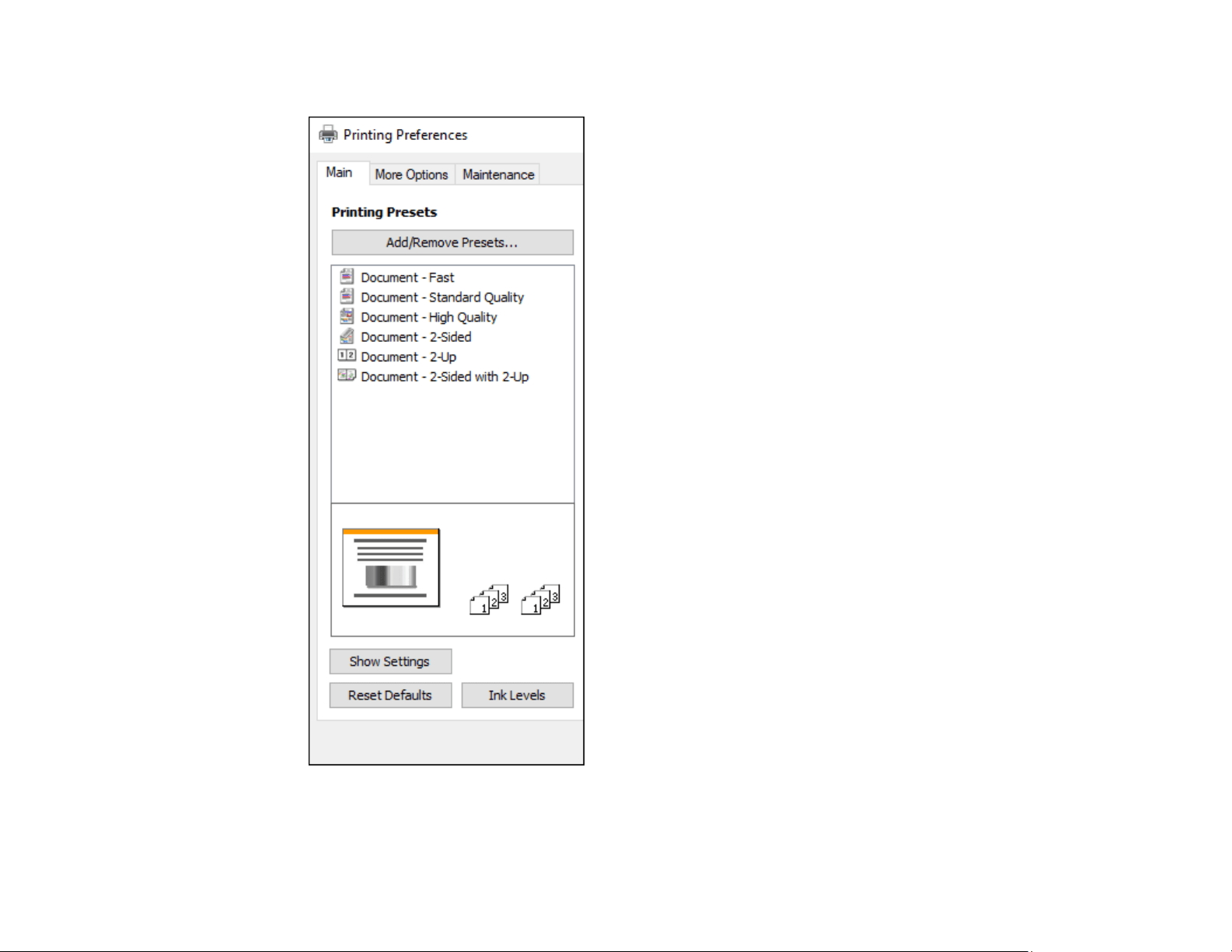
90
You see the available Printing Presets on the left:
2. Place your cursor over one of the Printing Presets to view its list of settings.
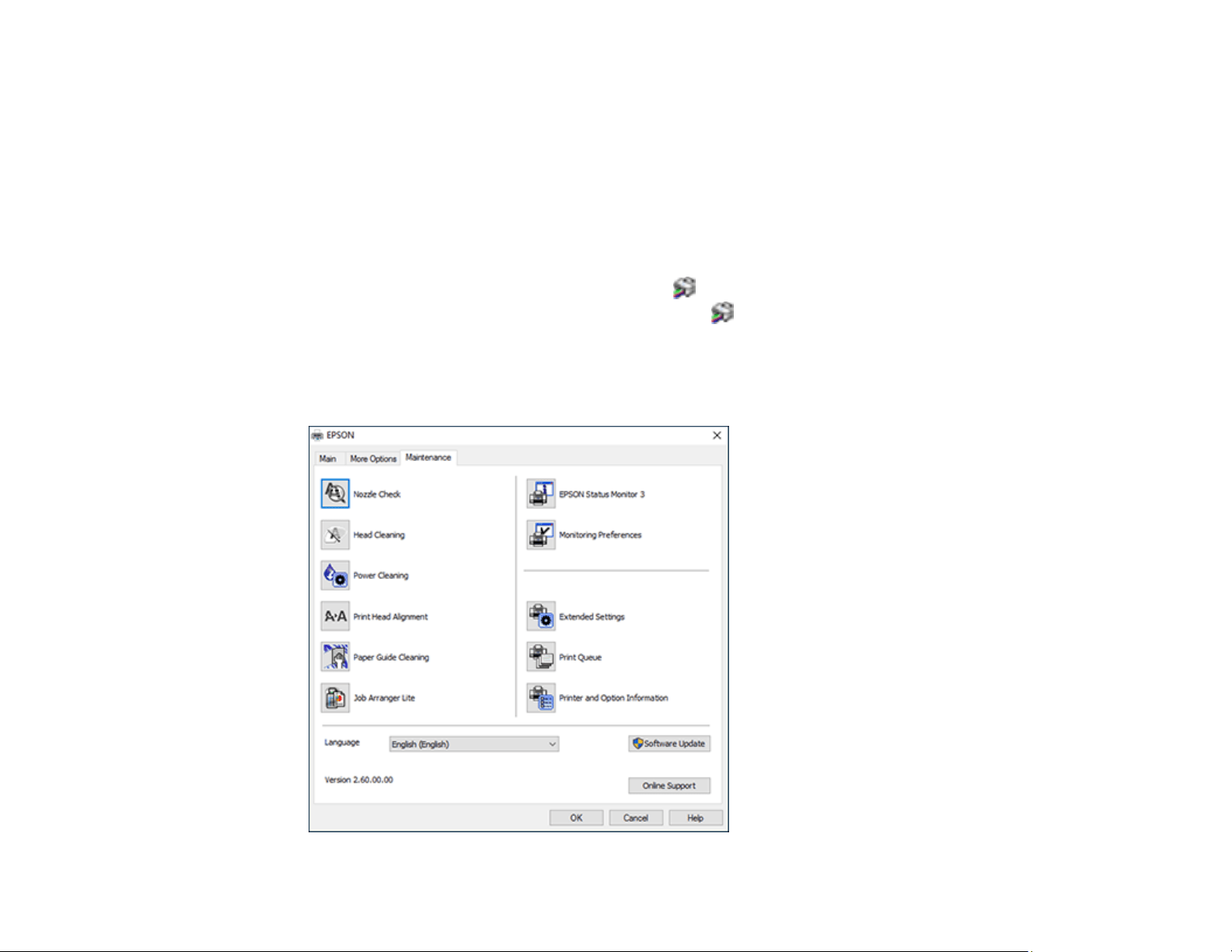
91
3. Click on a preset to change its settings, or use any of the available options on the screen to control
your printing presets.
4. To choose a preset for printing, select it.
5. Click OK.
Parent topic: Printing with Windows
Selecting Extended Settings - Windows
You can select additional settings that apply to all the print jobs you send to your product.
1. Access the Windows Desktop and right-click the icon for your product in the right side of the
Windows taskbar, or click the up arrow and right-click .
2. Select Printer Settings.
3. Click the Maintenance tab.
You see the maintenance options:
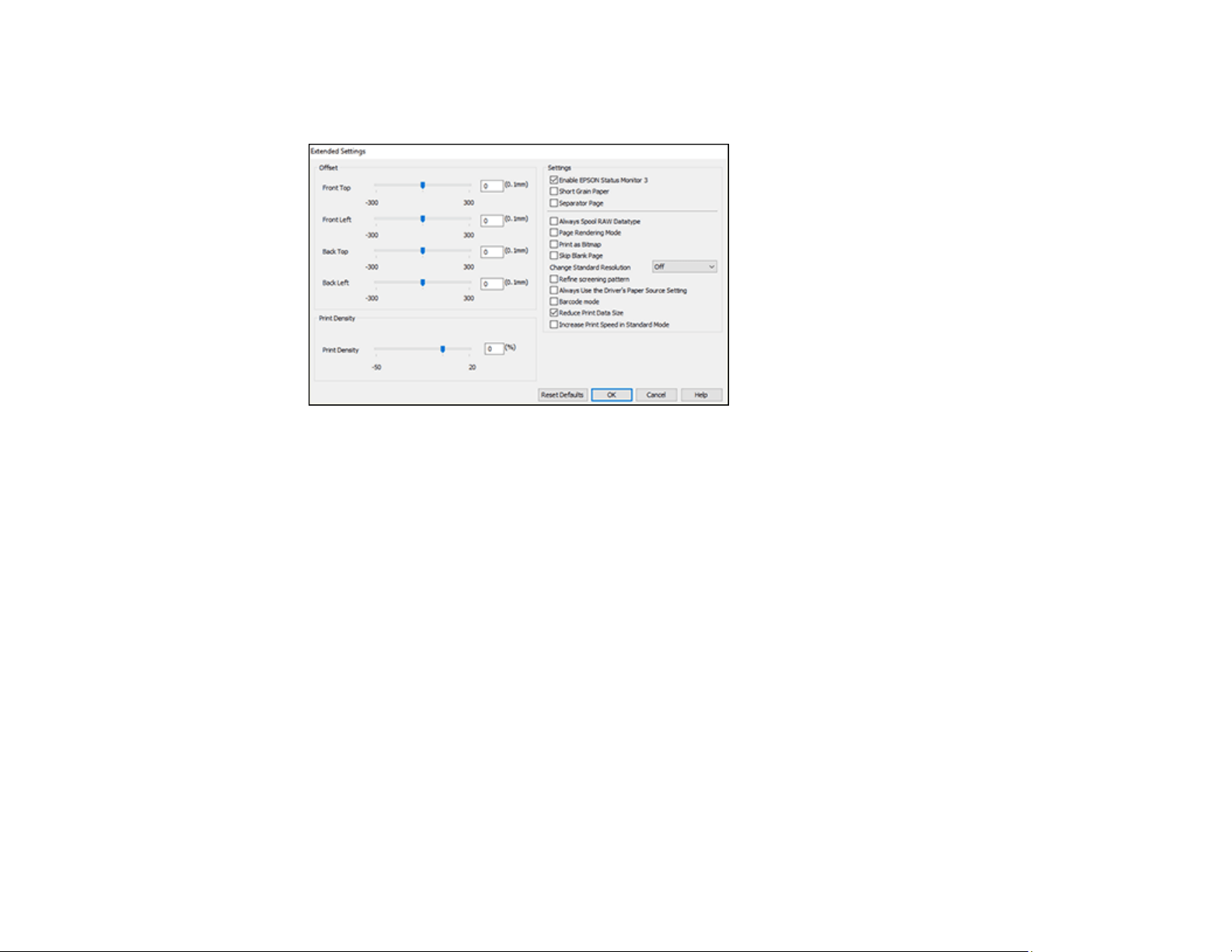
92
4. Click the Extended Settings button.
You see this window:
5. Select any of the extended settings to customize your print.
6. Click OK to close the Extended Settings window.
7. Click OK to close the printer software window.
Extended Settings - Windows
Parent topic: Printing with Windows
Extended Settings - Windows
You can select from these settings on the Extended Settings window.
Enable EPSON Status Monitor 3
Enables product monitoring for ink and paper supplies and other issues.
Short Grain Paper
Prevents ink from smearing when you print on envelopes or other thick paper.
Separator Page
Before each document, prints a separator page containing the title, user, date, and time.
Always Spool RAW Datatype
Increases print speed and may solve other printing problems.

93
Page Rendering Mode
Increases print speed when printing is extremely slow or the print head stops during printing.
Print as Bitmap
Increases print speed when printing is extremely slow or the print head stops during printing, and
other settings do not help.
Skip Blank Page
Ensures that your product does not print pages that contain no text or images.
Change Standard Resolution
Reduces the resolution of print data to correct printing problems.
Refine screening pattern
Prints graphics with a finer screening pattern.
Always Use the Driver's Paper Source Setting
Prints using the paper source setting in the printer driver, rather than the setting in your application.
Barcode mode
Reduces bleeding when printing barcodes on plain paper, letterhead paper, recycled paper,
preprinted paper, envelopes, and thick paper.
Reduce Print Data Size
Increases print data compression to improve print speed. Not recommended when printing fine
patterns.
Increase Print Speed in Standard Mode
Increases print speed when printing on plain paper with a Standard Quality setting.
Parent topic: Selecting Extended Settings - Windows
Printing Your Document - Windows
Once you have selected your print settings, you are ready to save your settings and print.
1. Click OK to save your settings.
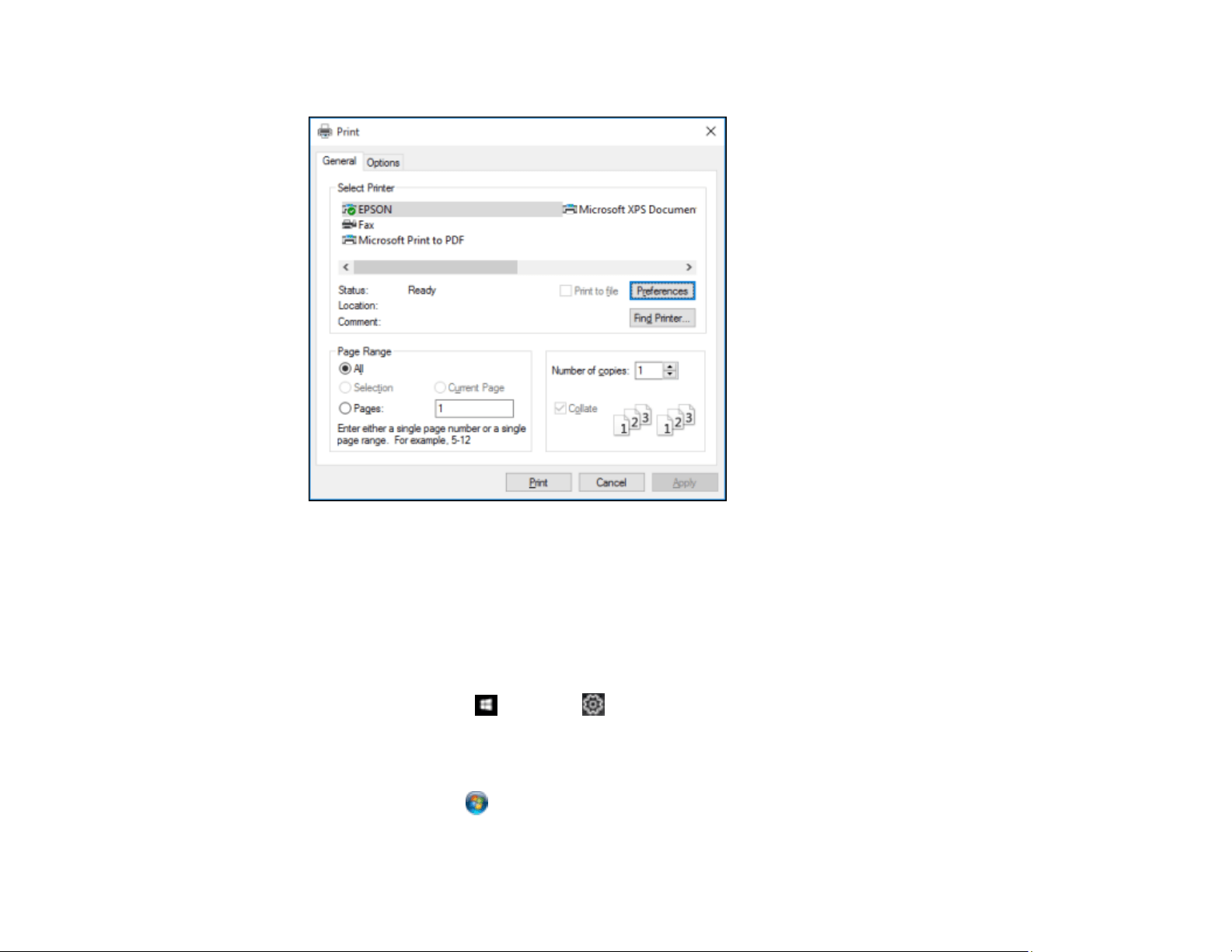
94
You see your application's Print window, such as this one:
2. Click OK or Print to start printing.
Parent topic: Printing with Windows
Locking Printer Settings - Windows
Windows administrators can lock access to some printer settings to prevent unauthorized changes.
1. Do one of the following:
• Windows 10: Click and select (Settings) > Devices > Printers & scanners. Select your
product name and select Manage > Printer properties.
• Windows 8.x: Navigate to the Apps screen and select Control Panel > Hardware and Sound >
Devices and Printers. Right-click your product and select Printer properties.
• Windows 7: Click and select Devices and Printers. Right-click your product and select
Printer properties.
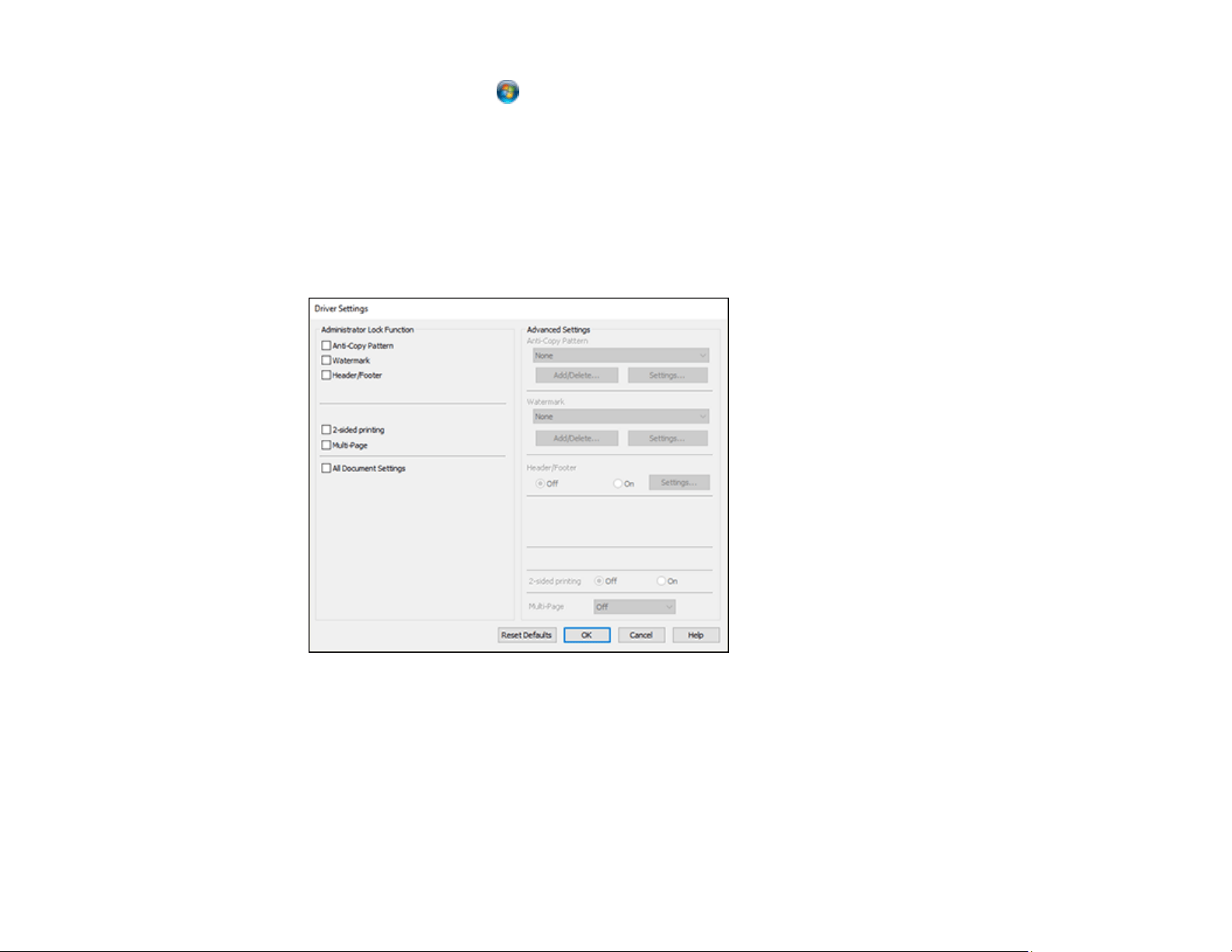
95
• Windows Vista: Click and select Control Panel. Click Printer under Hardware and Sound,
then right-click your product and select Properties.
2. Click the Optional Settings tab.
Note: You can prevent access to the Optional Settings tab by changing the user or group
permissions in the Security tab.
3. Click Driver Settings.
You see this window:
4. Select the checkbox for each setting you want to lock. To lock all print settings, select All Document
Settings.
5. Under Advanced Settings, select the setting option you want to use for each locked setting.
6. Click OK.
Locked Setting Options
Parent topic: Printing with Windows
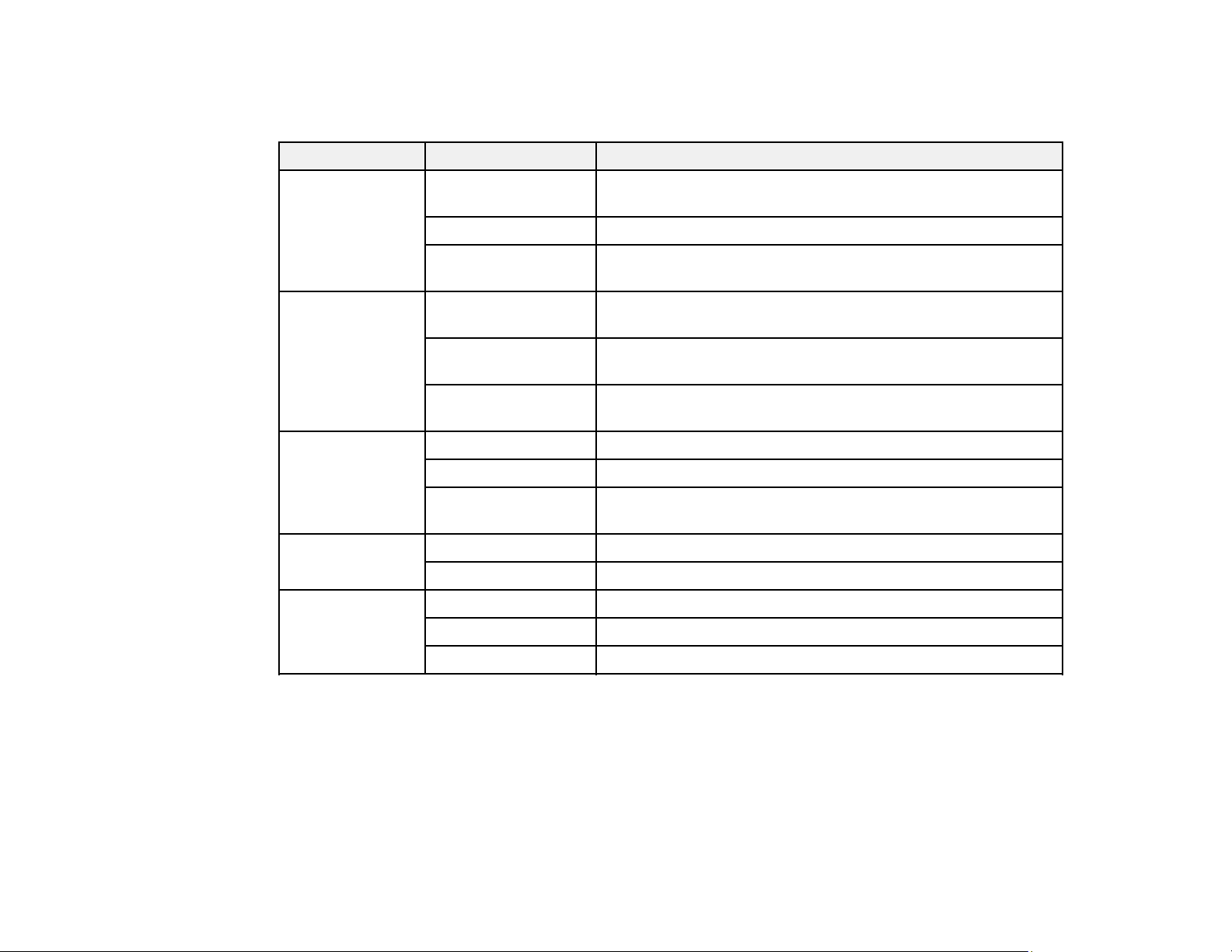
96
Locked Setting Options
Select the options you want to use for any locked print settings.
Setting Options Description
Anti-Copy
Pattern
Various data items Lets you select the data to use for the pattern or prohibit anti-
copy patterns
Add/Delete Lets you add or delete a customized anti-copy pattern
Settings Lets you select the arrangement, size, and other settings for
the custom anti-copy pattern
Watermark Various text
watermarks
Lets you select the text for the watermark or prohibit
watermarks
Add/Delete Lets you add or delete a customized text or image-based
watermark
Settings Lets you select the size, position, and other watermark
settings
Header/Footer Off Prohibits headers or footers
On Allows headers and footers
Settings Lets you select the text and position for printing headers and
footers
2-sided printing Off Allows printing on one side of the paper only
On Allows printing on both sides of the paper
Multi-Page Off Prohibits multi-page settings
2-Up Allows printing of 2 pages on one sheet of paper
4-Up Allows printing of 4 pages on one sheet of paper
Parent topic: Locking Printer Settings - Windows
Selecting Default Print Settings - Windows
When you change your print settings in a program, the changes apply only while you are printing in that
program session. If you want to change the print settings you use in all your Windows programs, you can
select new default print settings.
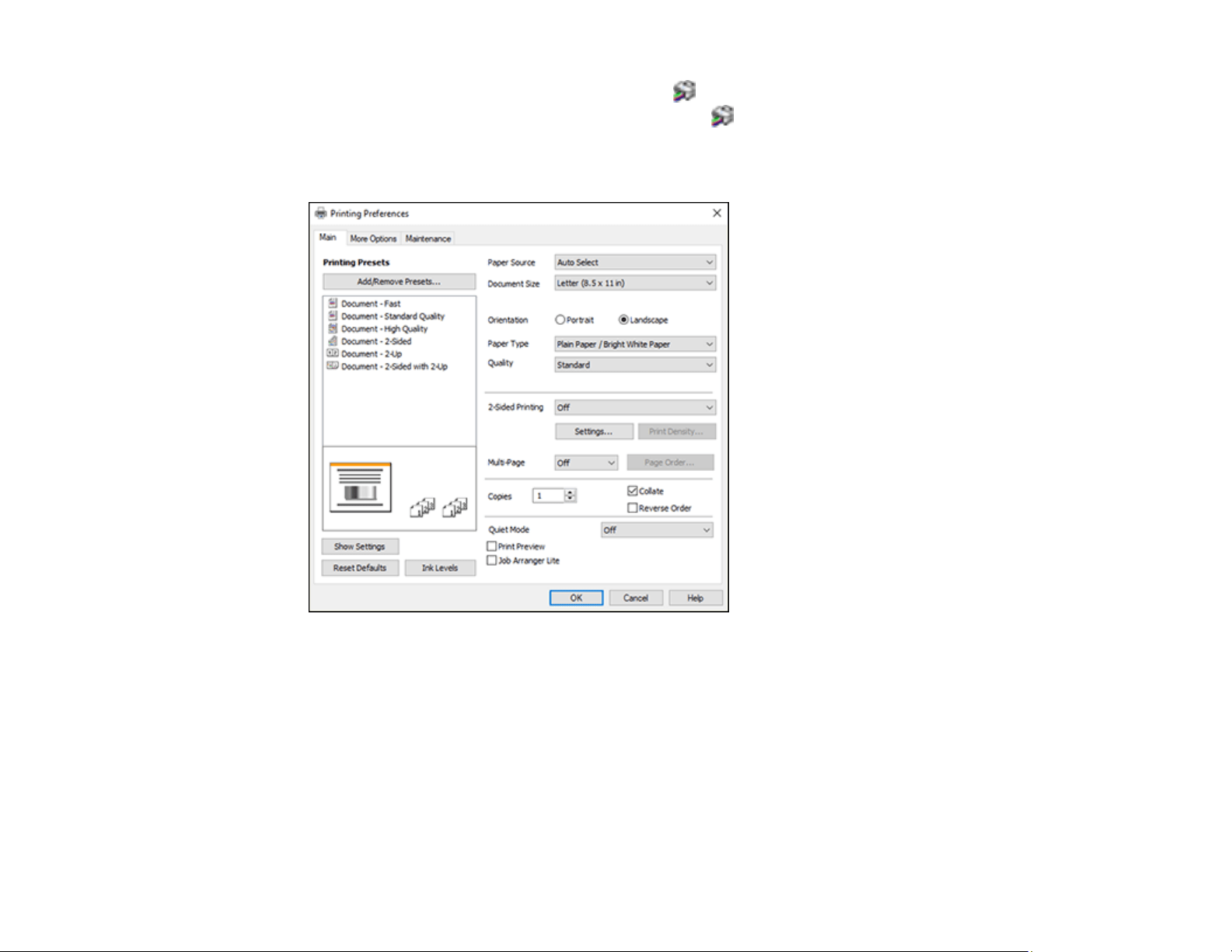
97
1. Access the Windows Desktop and right-click the icon for your product in the right side of the
Windows taskbar, or click the up arrow and right-click .
2. Select Printer Settings.
You see the printer settings window:
3. Select the print settings you want to use as defaults in all your Windows programs.
4. Click OK.
These settings are now the defaults selected for printing. You can still change them as needed for
printing in any program session.
Changing the Language of the Printer Software Screens
Parent topic: Printing with Windows
Changing the Language of the Printer Software Screens
You can change the language used on the Windows printer software screens.
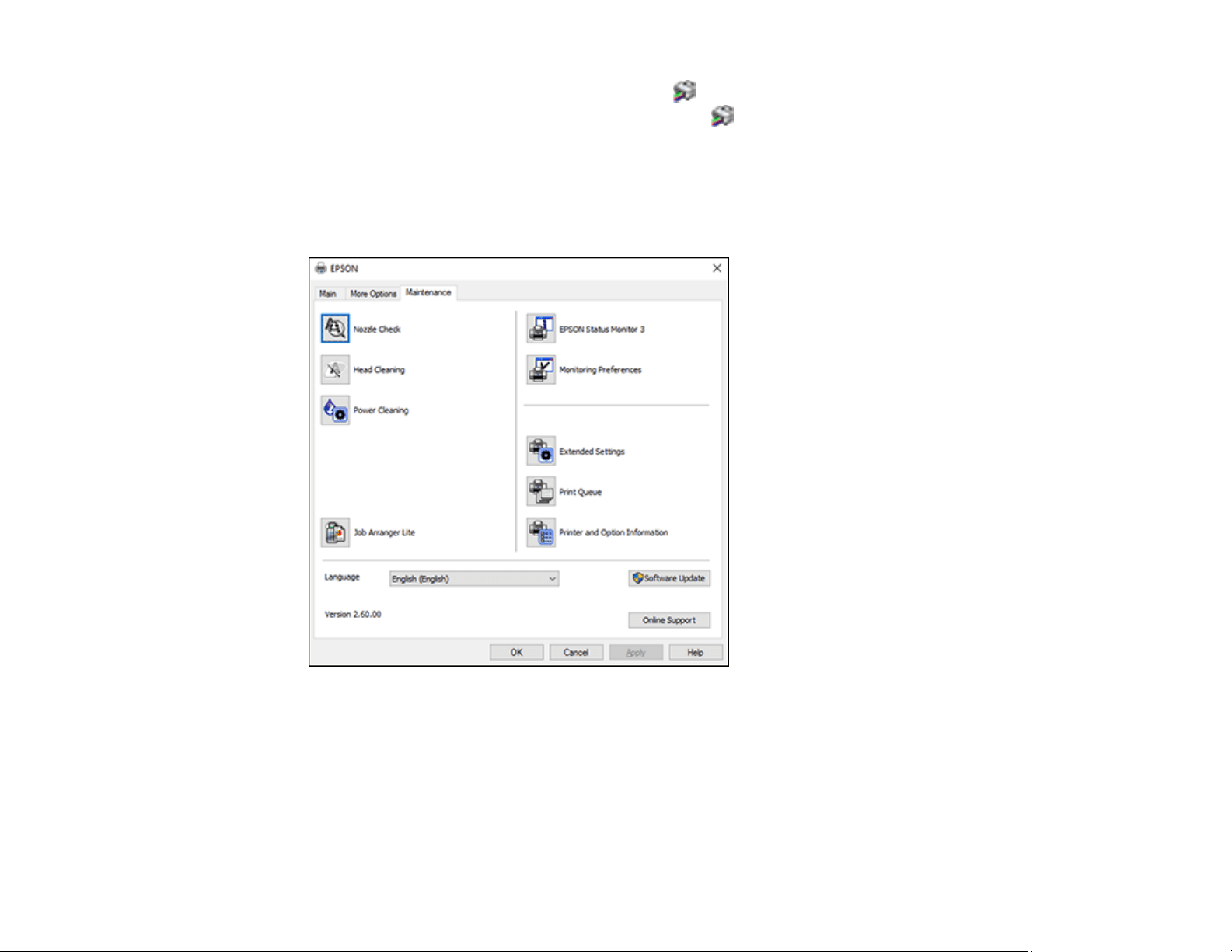
98
1. Access the Windows Desktop and right-click the icon for your product in the right side of the
Windows taskbar, or click the up arrow and right-click .
2. Select Printer Settings.
You see the printer settings window.
3. Click the Maintenance tab.
You see the maintenance options:
4. Select the language you want to use as the Language setting.
5. Click OK to close the printer software window.
The printer software screens appear in the language you selected the next time you access them.
Parent topic: Selecting Default Print Settings - Windows
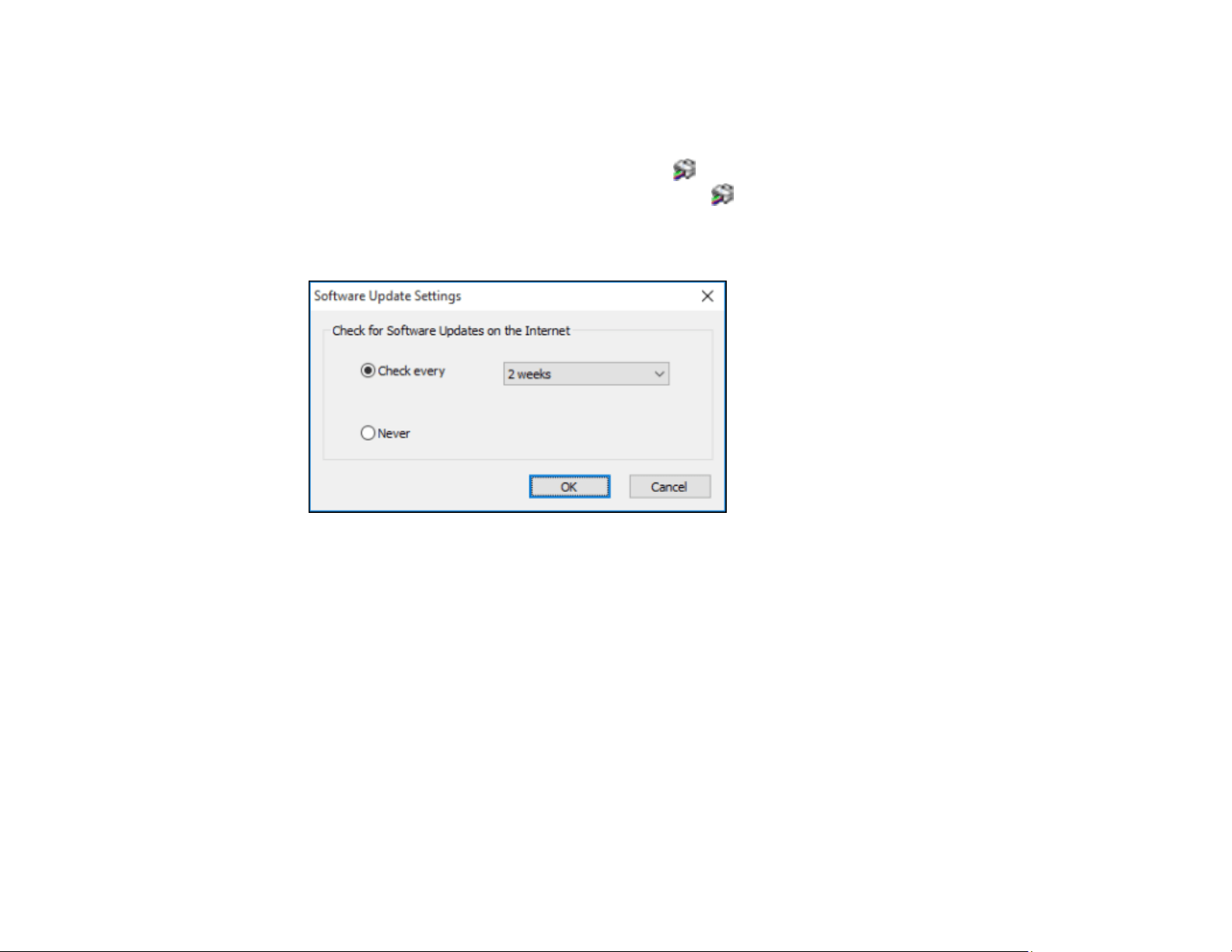
99
Changing Automatic Update Options
Your printer software for Windows automatically checks for updates to the product software. You can
change how often the software checks for updates or disable this feature.
1. Access the Windows Desktop and right-click the icon for your product in the right side of the
Windows taskbar, or click the up arrow and right-click .
2. Select Software Update Settings.
You see this window:
3. Do one of the following:
• To change how often the software checks for updates, select a setting in the Check every menu.
• To disable the automatic update feature, select the Never option.
4. Click OK to exit.
Note: If you choose to disable the automatic update feature, you can check for updates manually.
Parent topic: Printing with Windows
Related tasks
Checking for Software Updates

100
Printing with the Built-in Epson Driver - Windows 10 S
You can print with the built-in Epson printer driver using any printing program on Windows 10 S, as
described in these sections.
Note: The built-in Epson driver in Windows 10 S does not include all the available print settings for your
product. To print with additional settings, download and install the Epson Print and Scan utility from the
Windows Store. You cannot download and install any Epson product software from the Epson website
for use with Windows 10 S; you must obtain software only from the Windows Store.
Selecting Print Settings - Windows 10 S
Parent topic: Printing from a Computer
Selecting Print Settings - Windows 10 S
Select the settings for your print job in your Windows 10 S application.
1. Open a document for printing.
2. Select the print command in your application.
Note: You may need to select a print icon on your screen, the Print option in the File menu, or
another command. See your application's help utility for details.
3. If necessary, select your product name as the printer you want to use.
Note: You may also need to select Properties or Preferences to view your print settings.
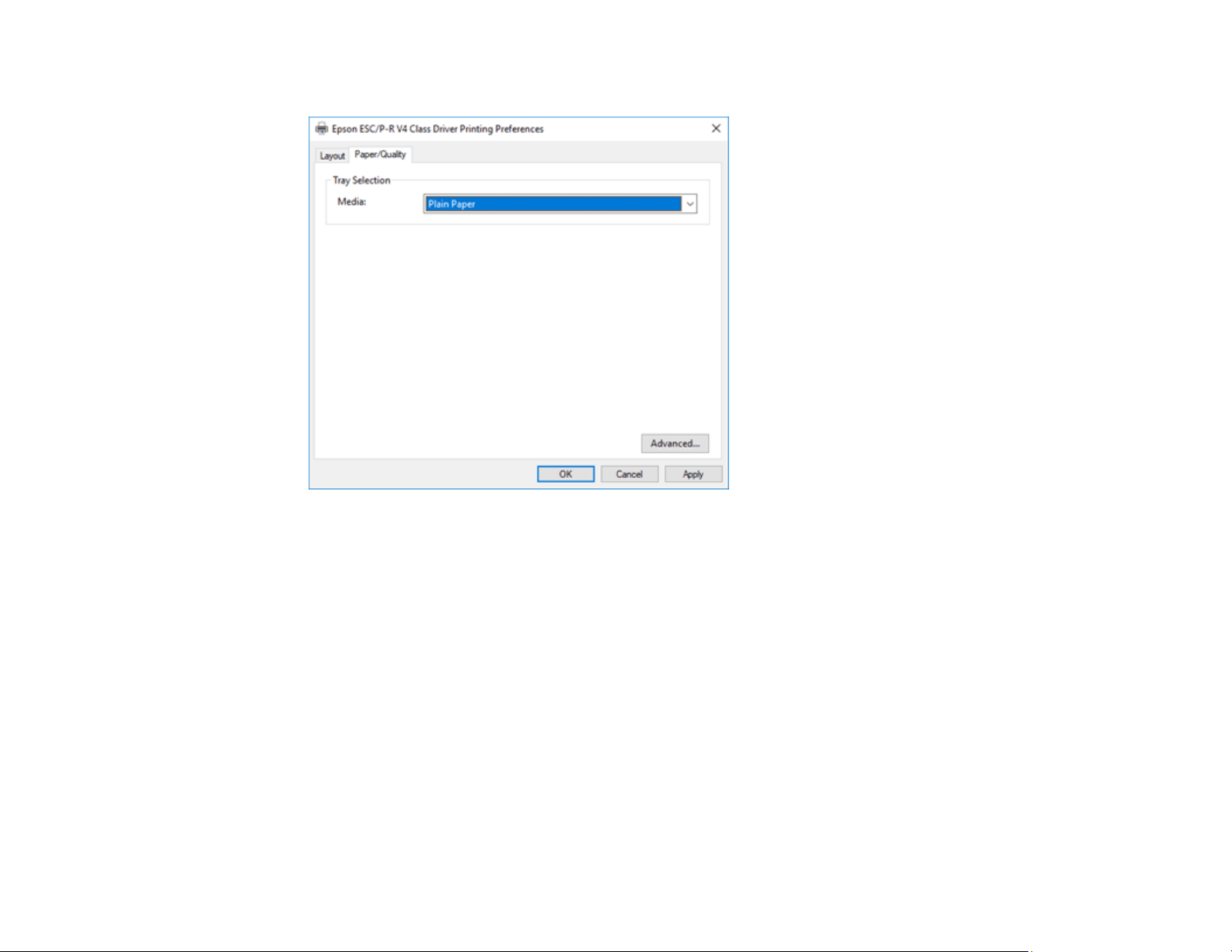
101
You see a window like this:
4. Select the type of paper you loaded as the Media setting.
Note: The setting may not exactly match the name of your paper. Check the paper type settings list
for details.
5. Click the Advanced button.
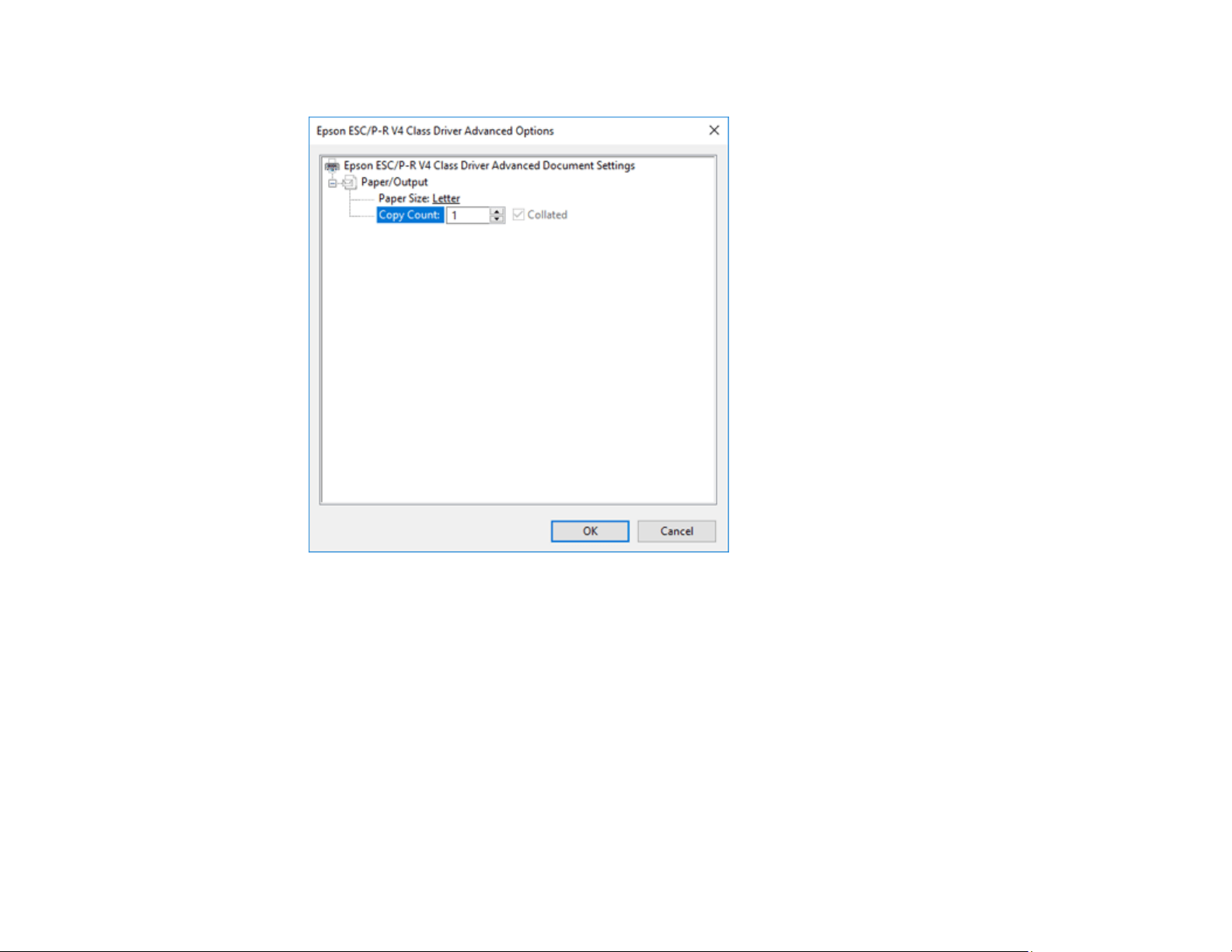
102
You see a window like this:
6. Select the size of the paper you loaded as the Paper Size setting.
7. To print multiple copies, select or enter the number as the Copy Count setting.
8. To print multiple copies of multi-page documents in sets, select the Collated checkbox.
9. Click OK.
You return to the printing preferences window.
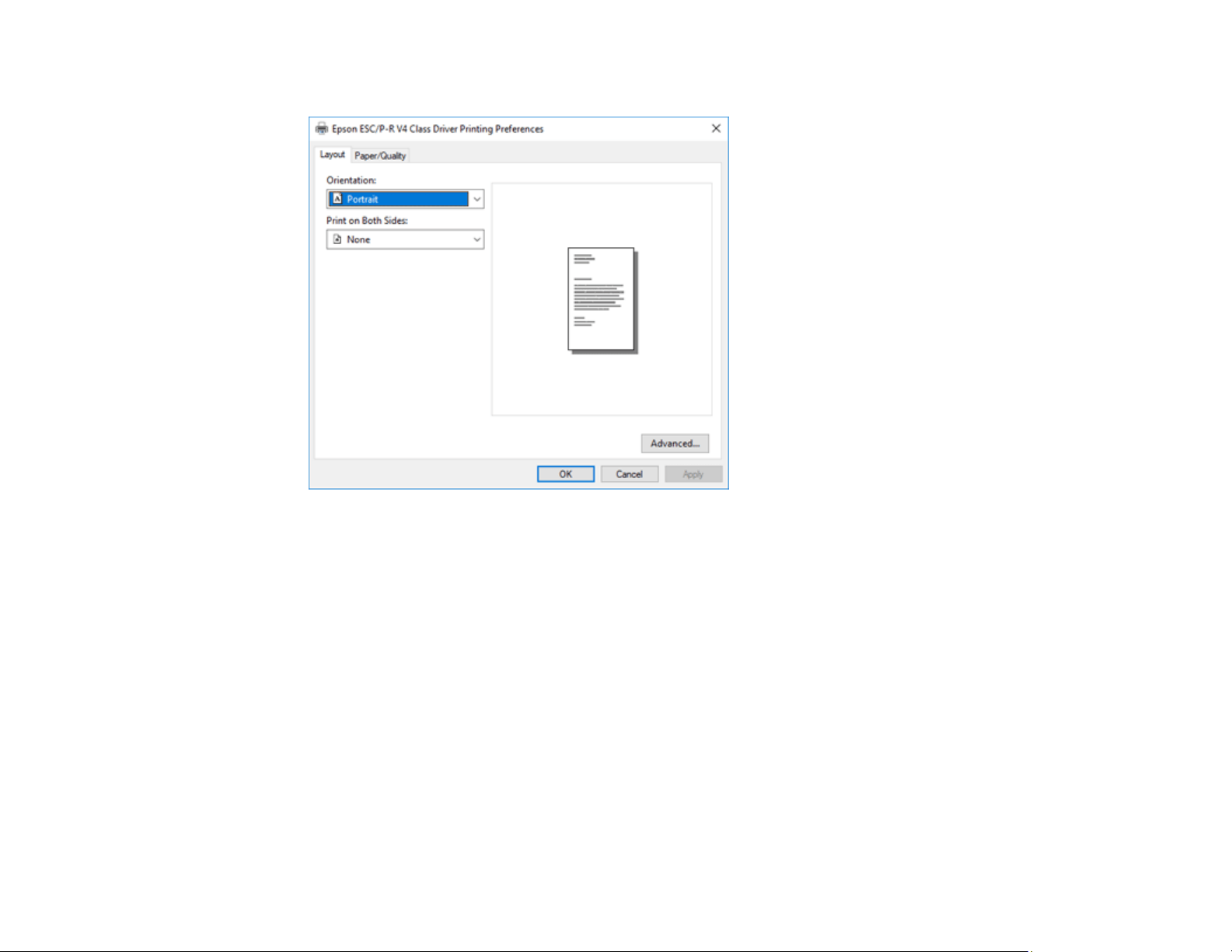
103
10. Select the Layout tab.
11. Select the orientation of your document as the Orientation setting.
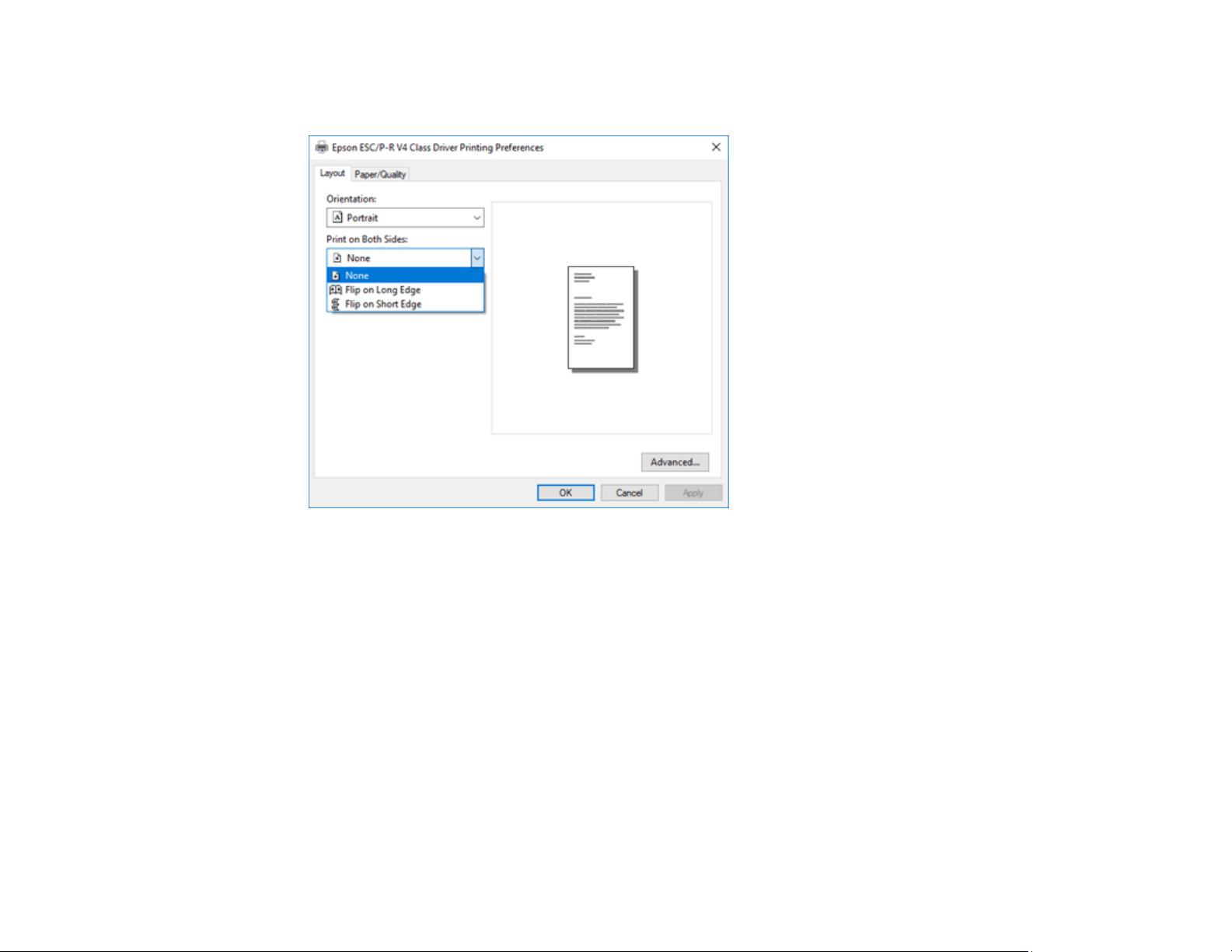
104
12. To print double-sided, select one of the Print on Both Sides options, depending on how you want to
orient the page layout. The icon next to each option shows the layout.
13. Click OK to save your settings.
You see your application's Print window.
14. Click OK or Print to start printing.
Parent topic: Printing with the Built-in Epson Driver - Windows 10 S
Printing on a Mac
You can print with your product using any Mac printing program, as described in these sections.
Note: If you have an Internet connection, it is a good idea to check for updates to your product software
on Epson's support website.
Selecting Basic Print Settings - Mac
Selecting Page Setup Settings - Mac
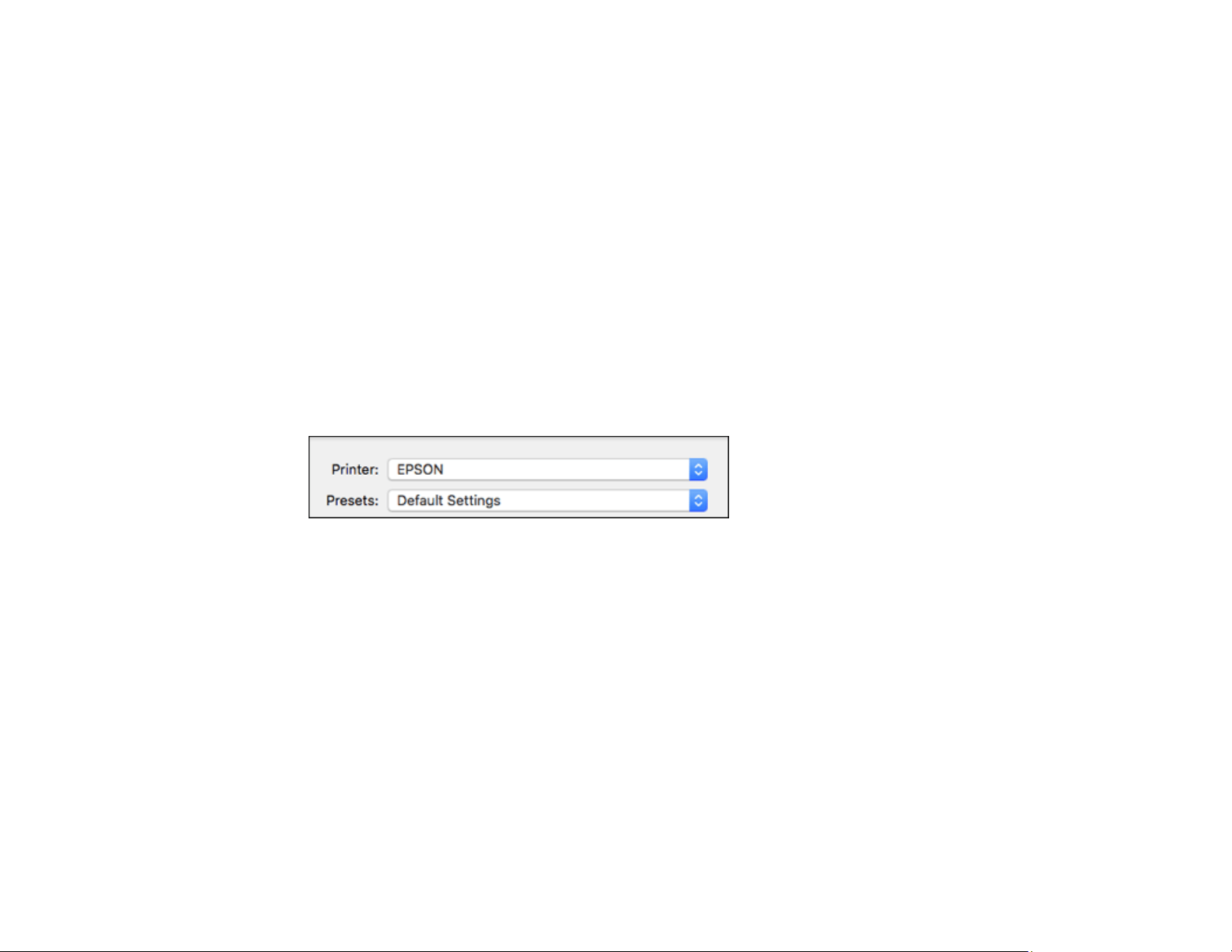
105
Selecting Print Layout Options - Mac
Selecting Double-sided Printing Settings - Mac
Selecting Printing Preferences - Mac
Printing Your Document - Mac
Parent topic: Printing from a Computer
Selecting Basic Print Settings - Mac
Select the basic settings for the document or photo you want to print.
1. Open a photo or document for printing.
2. Select the print command in your application.
Note: You may need to select a print icon on your screen, the Print option in the File menu, or
another command. See your application's help utility for details.
3. Select your product as the Printer setting.
4. If necessary, click the arrow next to the Printer setting or the Show Details button to expand the
print window.
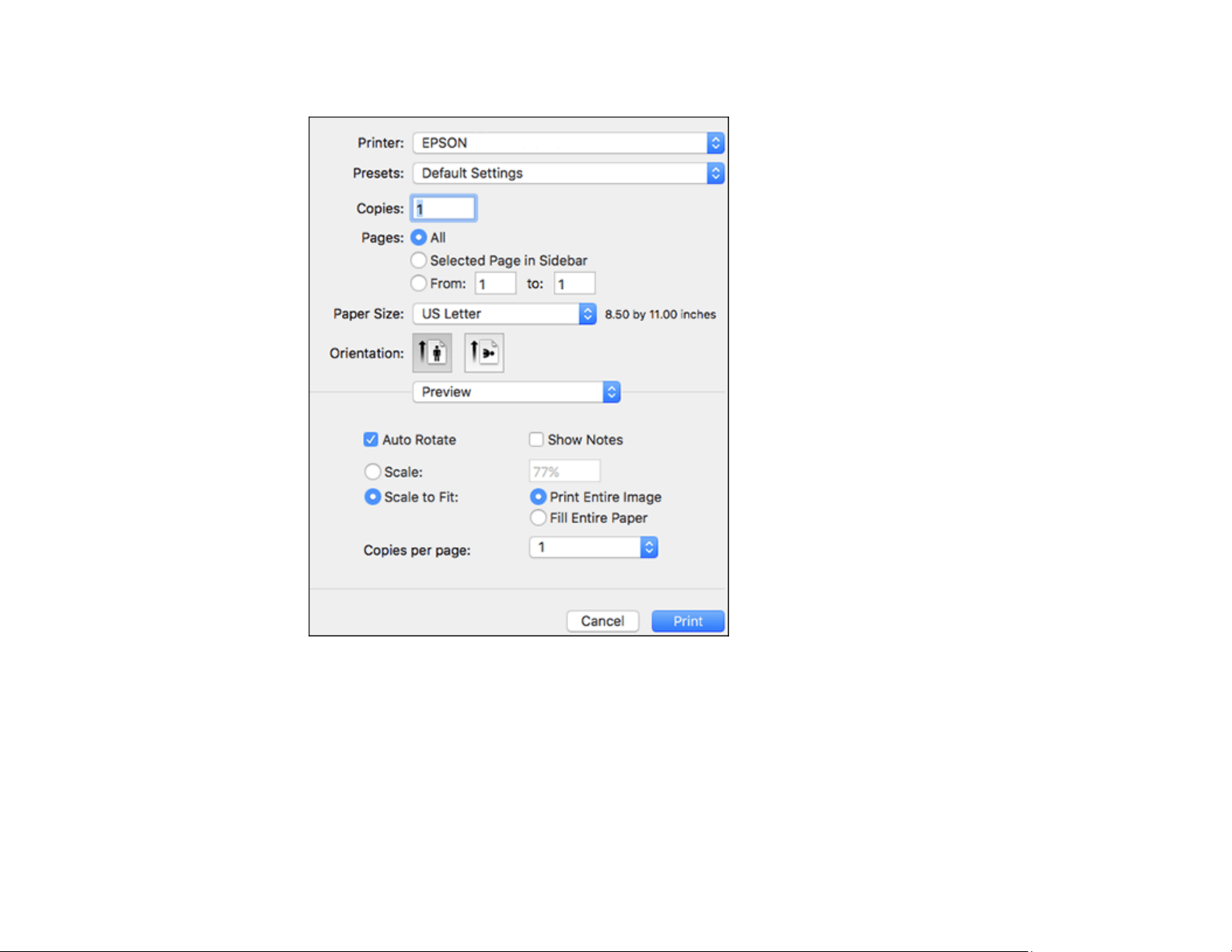
106
You see the expanded printer settings window for your product:
Note: The print window may look different, depending on the Mac OS version and the application
you are using.
5. Select the Copies and Pages settings as necessary.
Note: If you do not see these settings in the print window, check for them in your application before
printing.
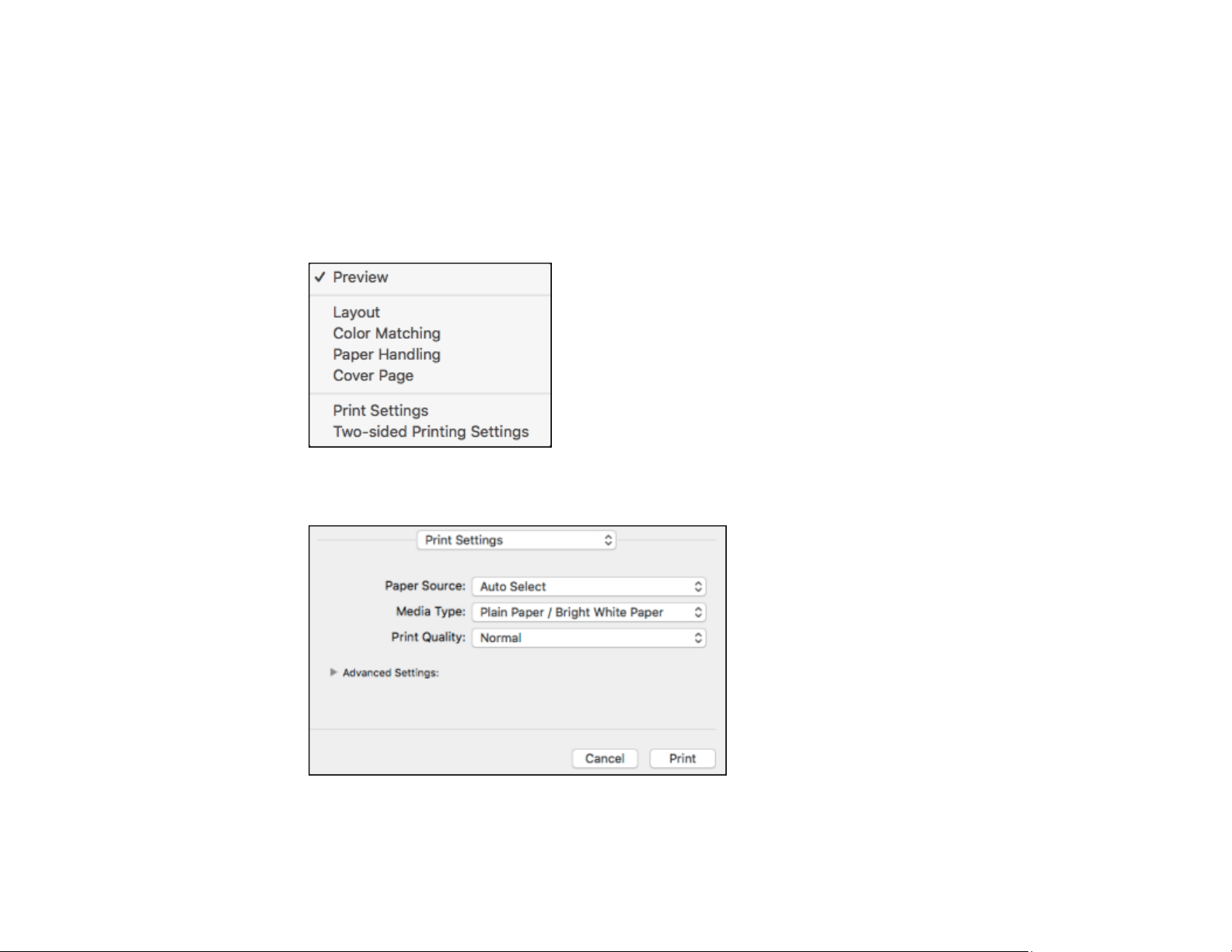
107
6. Select the page setup options: Paper Size and Orientation.
Note: If you do not see these settings in the print window, check for them in your application before
printing. They may be accessible by selecting Page Setup from the File menu.
7. Select any application-specific settings that appear on the screen, such as those shown in the image
above for the Preview application.
8. Select Print Settings or Printer Features from the pop-up menu.
You see these settings:

108
Note: The available print settings and appearance of the print window may be different than those
covered here, depending on the Mac OS version and the application you are using.
9. Select the Paper Source you wish to print from.
10. Select the type of paper you loaded as the Media Type setting.
Note: The setting may not exactly match the name of your paper. Check the paper type settings list
for details.
11. Select the Print Quality setting you want to use.
12. Select any of the available print options.
Paper Source Options - Mac
Print Quality Options - Mac
Parent topic: Printing on a Mac
Related tasks
Selecting Page Setup Settings - Mac
Printing Your Document - Mac
Paper Source Options - Mac
You can select any of the available options in the Paper Source menu to print on the paper loaded in that
source.
Auto Select
Automatically selects the paper source based on the selected paper size.
Paper Cassette
Selects the paper in the cassette as the paper source.
Rear Paper Feed Slot
Selects the paper in the rear feed slot as the paper source.
Parent topic: Selecting Basic Print Settings - Mac
Print Quality Options - Mac
You can select any of the available Print Quality options to fine-tune the quality of your print. Some
settings may be unavailable, depending on the paper type setting you have chosen.
Draft
For draft printing on plain paper.
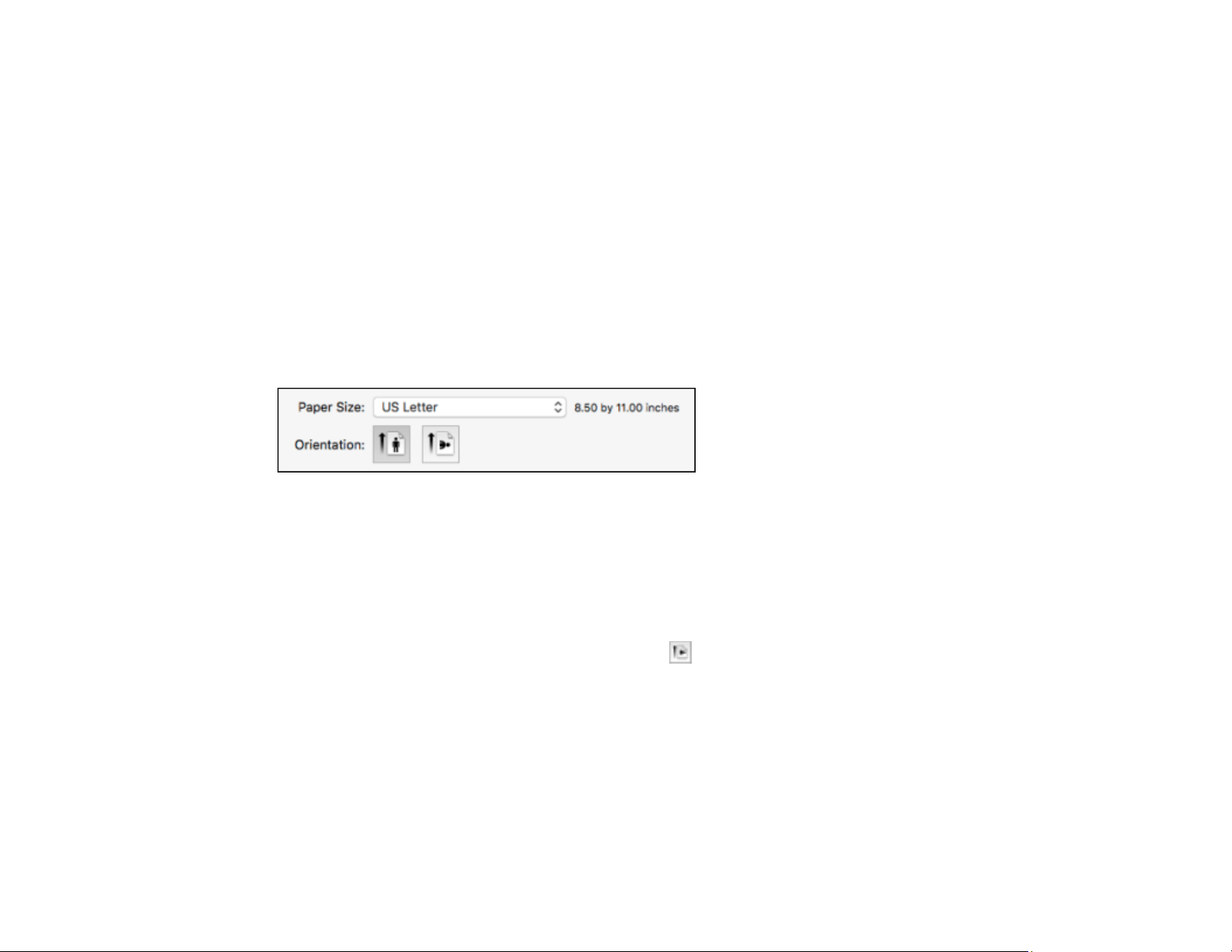
109
Normal
For everyday text and image printing.
Fine
For text and graphics with good quality and print speed.
Quality
For text and graphics with increased quality and print speed.
Best Quality
For the best print quality, but the slowest print speed.
Parent topic: Selecting Basic Print Settings - Mac
Selecting Page Setup Settings - Mac
Depending on your application, you may be able to select the paper size and orientation settings from
the print window.
Note: If you do not see these settings in the print window, check for them in your application before
printing. They may be accessible by selecting Page Setup from the File menu.
1. Select the size of the paper you loaded as the Paper Size setting.
2. Select the orientation of your document or photo as shown in the print window.
Note: If you are printing an envelope, select the icon.
Note: You can reduce or enlarge the size of the printed image by selecting Paper Handling from the
pop-up menu and selecting a scaling option.
Parent topic: Printing on a Mac
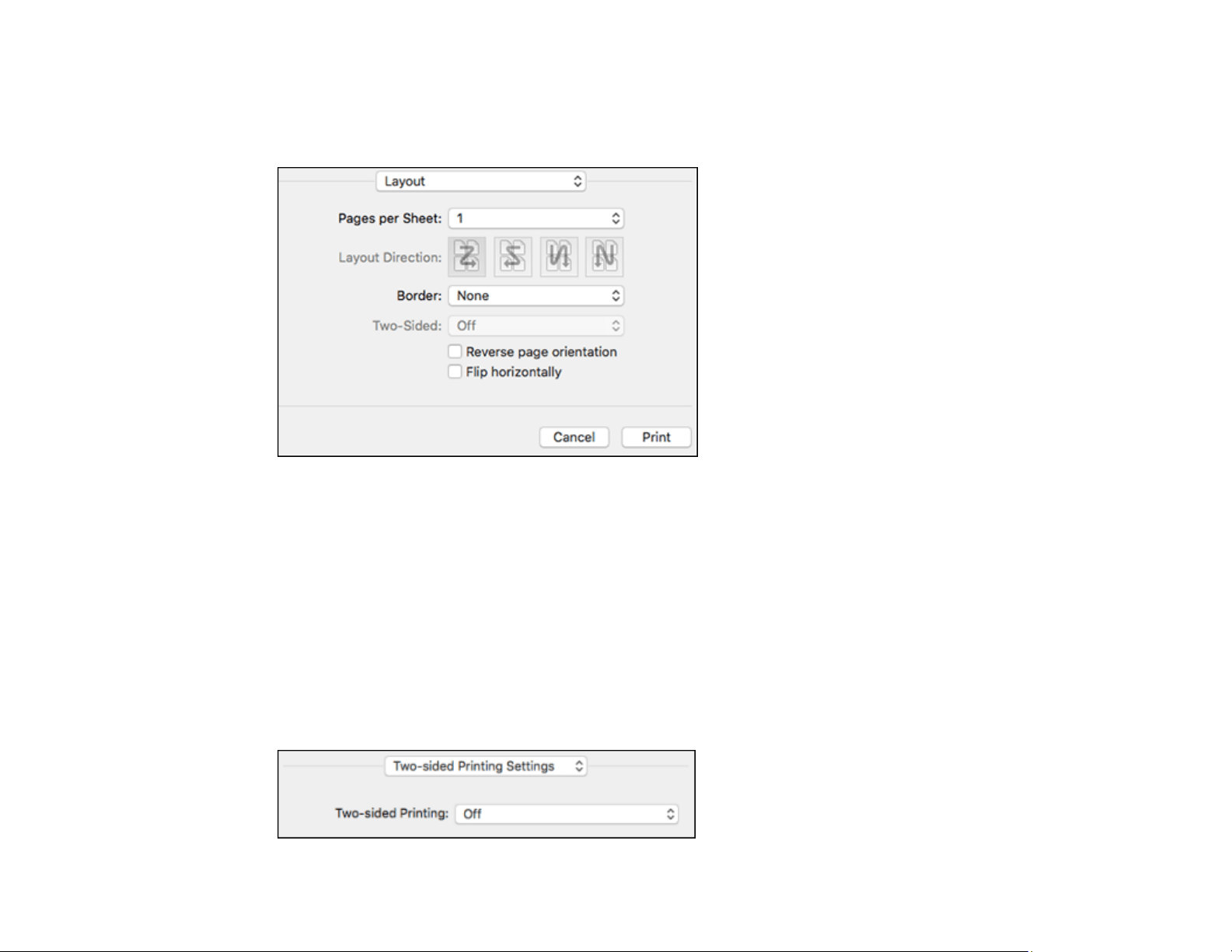
110
Selecting Print Layout Options - Mac
You can select a variety of layout options for your document or photo by selecting Layout from the pop-
up menu on the print window.
• To print multiple pages on one sheet of paper, select the number of pages in the Pages per Sheet
pop-up menu. To arrange the print order of the pages, select a Layout Direction setting.
• To print borders around each page on the sheet, select a line setting from the Border pop-up menu.
• To print on both sides of each page, select a setting from the Two-Sided pop-up menu.
• To invert or flip the printed image, select the Reverse page orientation or Flip horizontally settings.
Parent topic: Printing on a Mac
Selecting Double-sided Printing Settings - Mac
You can print on both sides of the paper by selecting Two-sided Printing Settings from the pop-up
menu on the print window.
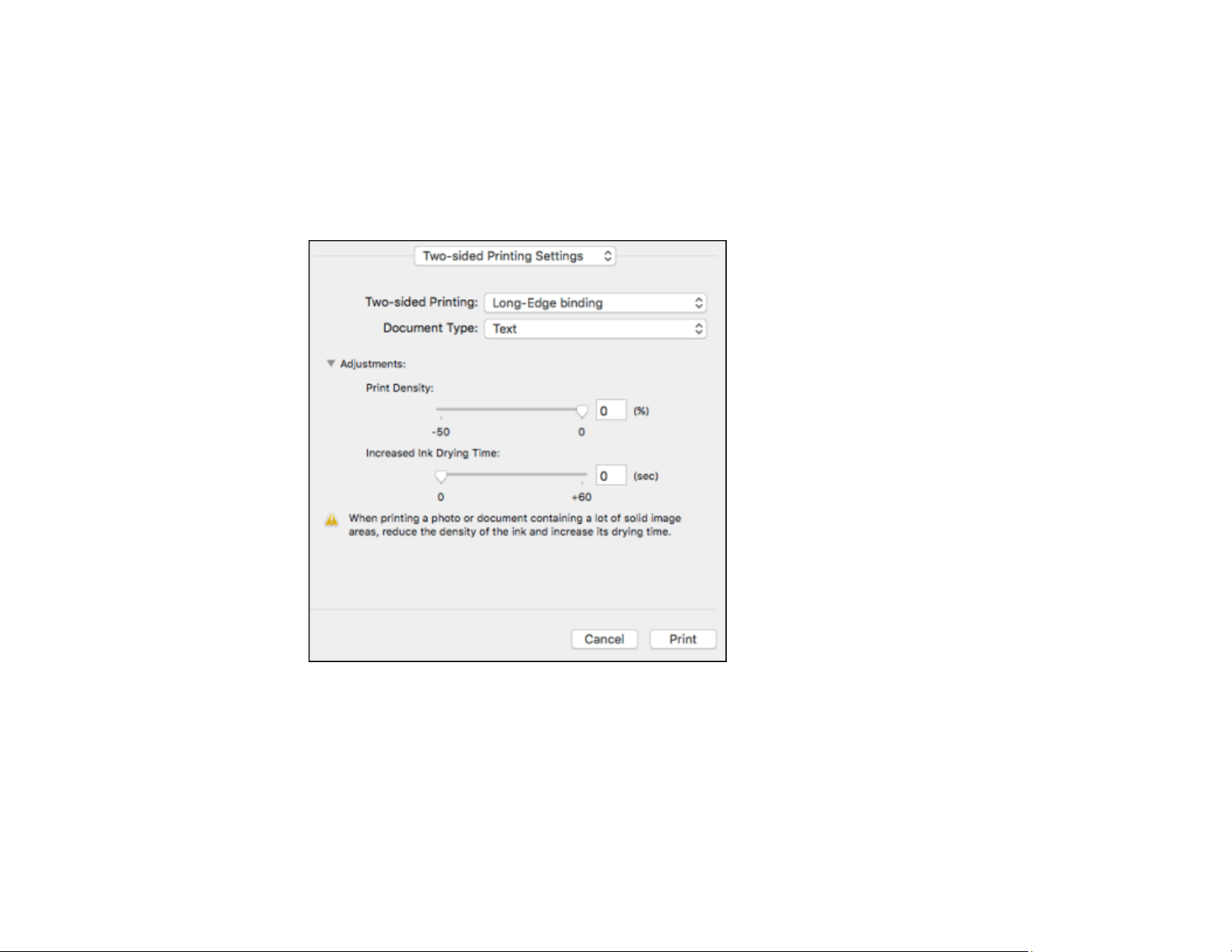
111
Note: Some options may be pre-selected or unavailable, depending on other settings you have chosen
or if you are accessing the product over a network. This screen may be different, depending on the Mac
OS version you are using.
1. Select one of the Two-sided Printing options.
2. Select the type of document you are printing as the Document Type setting. The software
automatically sets the Adjustments options for that document type.
3. If necessary, customize the Adjustments settings as instructed on the screen.
4. Print a test copy of your double-sided document to test the selected settings.
5. Follow any instructions displayed on the screen during printing.
Double-sided Printing Options and Adjustments - Mac
Parent topic: Printing on a Mac

112
Double-sided Printing Options and Adjustments - Mac
You can select any of the available options in the Two-sided Printing Settings pop-up menu to set up
your double-sided print job.
Long-Edge binding
Orients double-sided printed pages to be bound on the long edge of the paper.
Short-Edge binding
Orients double-sided printed pages to be bound on the short edge of the paper.
Print Density
Sets the level of ink coverage for double-sided printing.
Increased Ink Drying Time
Sets the amount of time required for drying ink after printing on one side of the paper before printing
the other side in double-sided printing.
Parent topic: Selecting Double-sided Printing Settings - Mac
Selecting Printing Preferences - Mac
You can select printing preferences that apply to all the print jobs you send to your product.
1. In the Apple menu or the Dock, select System Preferences.
2. Select Print & Fax, Print & Scan, or Printers & Scanners, select your product, and select Options
& Supplies.
3. Select Driver or Options.
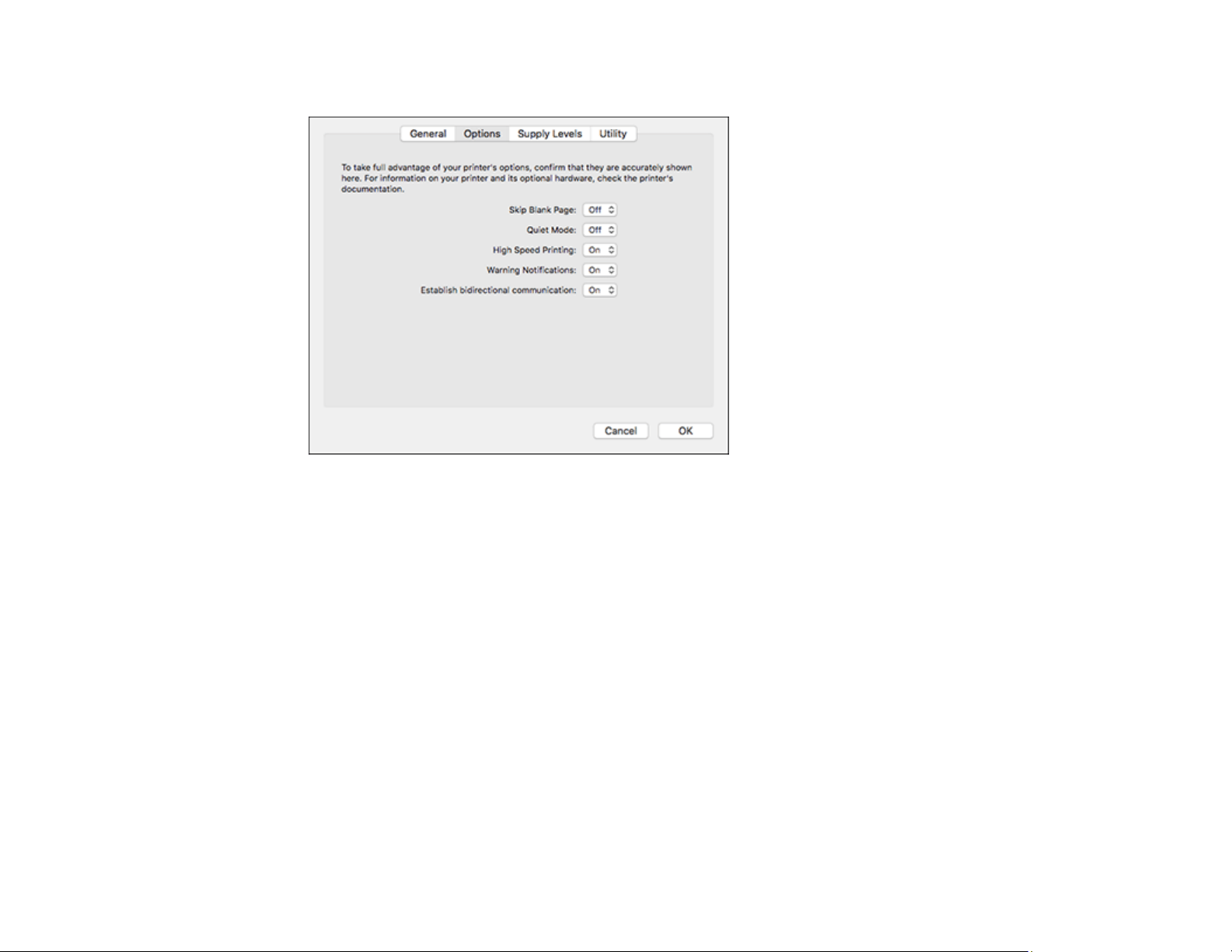
113
You see a screen like this:
4. Select any of the available printing preferences.
5. Click OK.
Printing Preferences - Mac
Parent topic: Printing on a Mac
Printing Preferences - Mac
You can select from these settings on the Options or Driver tab.
Skip Blank Page
Ensures that your product does not print pages that contain no text or images.
Quiet Mode
Lessens noise during printing but may decrease print speed.
High Speed Printing
Speeds up printing but may reduce print quality.
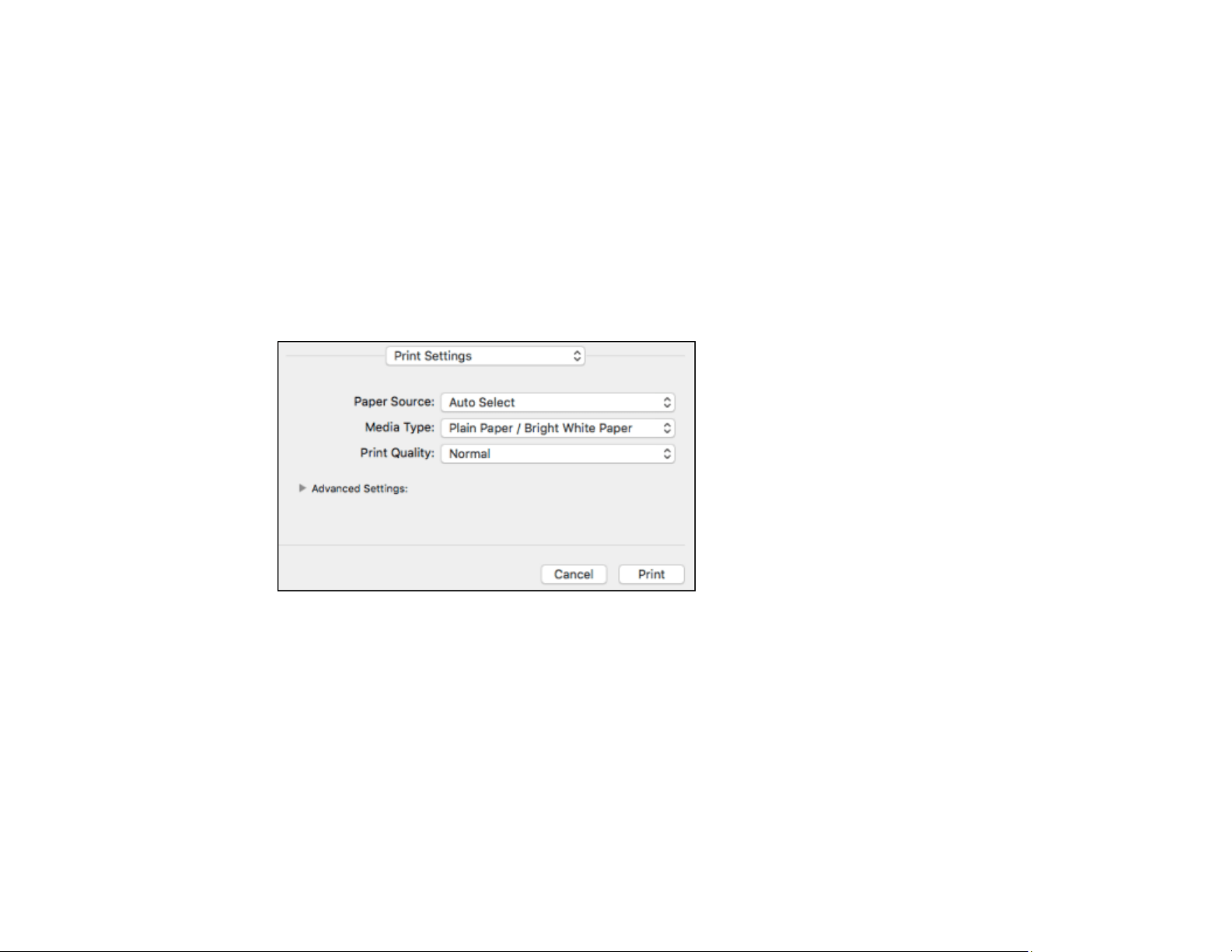
114
Warning Notifications
Lets you choose whether or not to receive warning notifications from the printer software for various
operating conditions.
Establish bidirectional communication
Allows the product to communicate with the computer. Do not change the default setting unless you
experience issues when using a shared printing pool.
Parent topic: Selecting Printing Preferences - Mac
Printing Your Document - Mac
Once you have selected your print settings, you are ready to print.
Click Print at the bottom of the print window.
Checking Print Status - Mac
Parent topic: Printing on a Mac
Related tasks
Selecting Basic Print Settings - Windows
Selecting Page Setup Settings - Mac
Selecting Print Layout Options - Mac
Selecting Printing Preferences - Mac
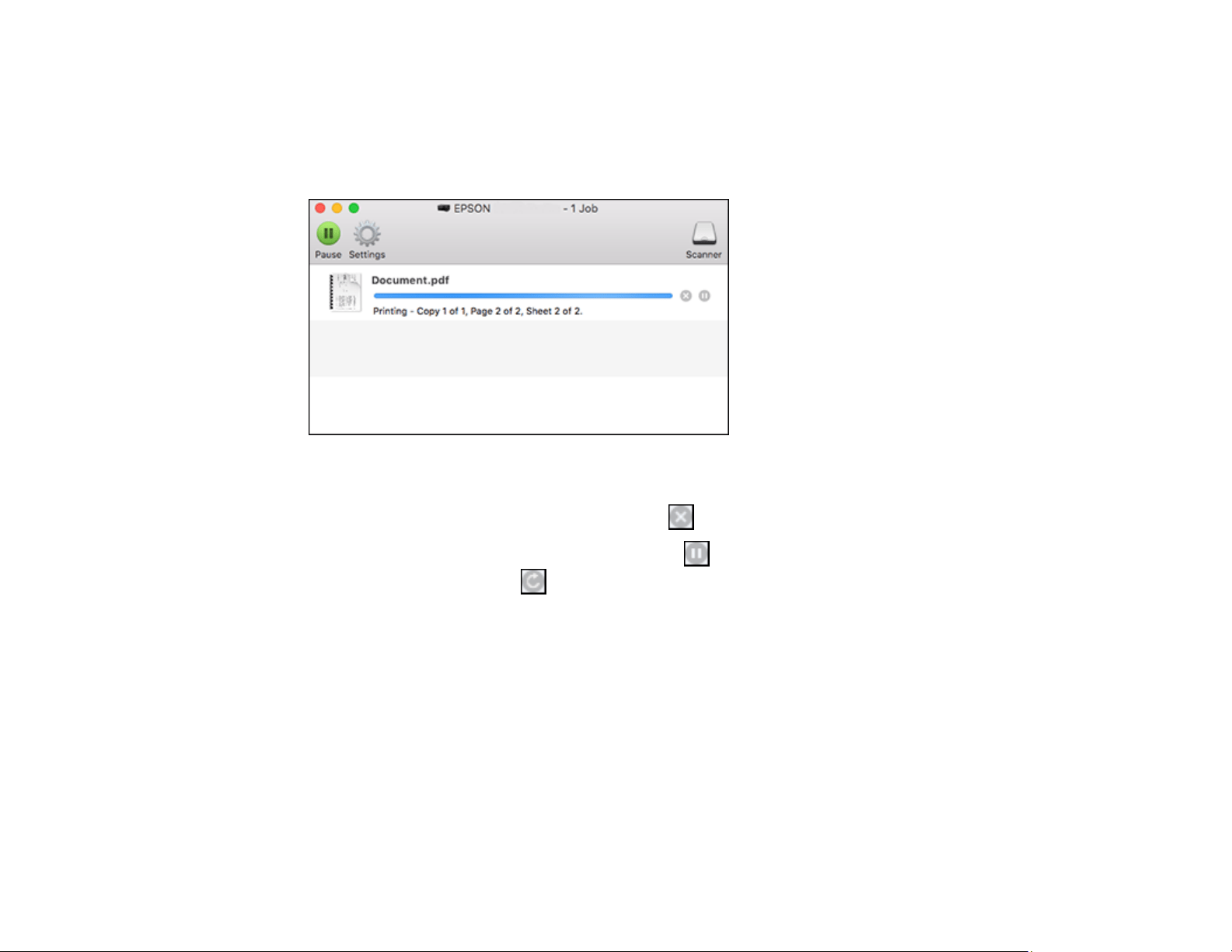
115
Checking Print Status - Mac
During printing, you can view the progress of your print job, control printing, and check ink status.
1. Click the printer icon when it appears in the Dock.
You see the print status window:
2. Select the following options as necessary for your Mac OS version:
• To cancel printing, click the print job and click or Delete.
• To pause a print job, click the print job and click or Hold. To resume a print job, click the
paused print job and click or Resume.
• To pause printing for all queued print jobs, click Pause or Pause Printer.
• To display other printer information, click Settings or Supply Levels.
Parent topic: Printing Your Document - Mac
Printing From a Chromebook
With a Google Account, you can print from a Chromebook without drivers or cables.
1. Connect your Epson product to your wireless network. See the link below.
2. Turn on your Chromebook and connect it to the same wireless network as your product.
Note: See your Chromebook's documentation for details on connecting to a network.

116
3. Do one of the following:
• Click Add to Cloud Print in the notification that appears in the corner of your Chromebook
screen.
Note: If you do not see a notification, check to see if a number appears in the status area at the
lower-right corner of the screen. Click this number to open the notifications menu, then click Add
to Cloud Print.
• Open a web browser and enter chrome://devices in the address bar. Skip to step 4.
• If you see a registration confirmation screen instead, click Register.
4. Click Add Device.
5. Click the Register button that appears next to your product.
6. Click Register on the confirmation screen.
7. Select OK or press the OK button on your product to confirm the Google Cloud Print connection and
print a test page.
8. To print to the connected product, select the print command in your Chrome app.
Your product is now linked to your Google Account and can be accessed from any Chromebook where
you are logged in, as long as you have Internet access. Visit Epson Support for Google Cloud Print (U.S)
or Epson Support for Google Cloud Print (Canada) for more information on using Google Cloud Print, or
the Google Cloud Print website for a list of supported apps.
Parent topic: Printing from a Computer
Related topics
Wi-Fi or Wired Networking
Cancelling Printing Using a Product Button
If you need to cancel printing, press the stop button on your product.
Parent topic: Printing from a Computer

117
Scanning
You can scan your originals and save them as digital files.
Starting a Scan
Scanning in Epson Scan 2
Starting a Scan
After placing your originals on your product for scanning, start scanning using one of these methods.
Starting a Scan Using the Product Control Panel
Starting a Scan Using the Epson Scan 2 Icon
Starting a Scan from a Scanning Program
Starting a Scan from a Smart Device
Parent topic: Scanning
Starting a Scan Using the Product Control Panel
You can scan an image to your computer using your product's control panel buttons.
Your product automatically selects default scan settings, but you can view or change them as necessary.
If you are scanning to a computer, you can change the default scan settings using the Event Manager
utility on the computer.
1. Make sure you installed the product software and connected the product to your computer or
network.
Note: Restart your computer after installing the product software to enable scanning from the control
panel. Also make sure the Event Manager program is not being blocked by your firewall or security
software.
2. Press the home button, if necessary.
3. Press the left or right arrow button to select Scan and press the OK button.
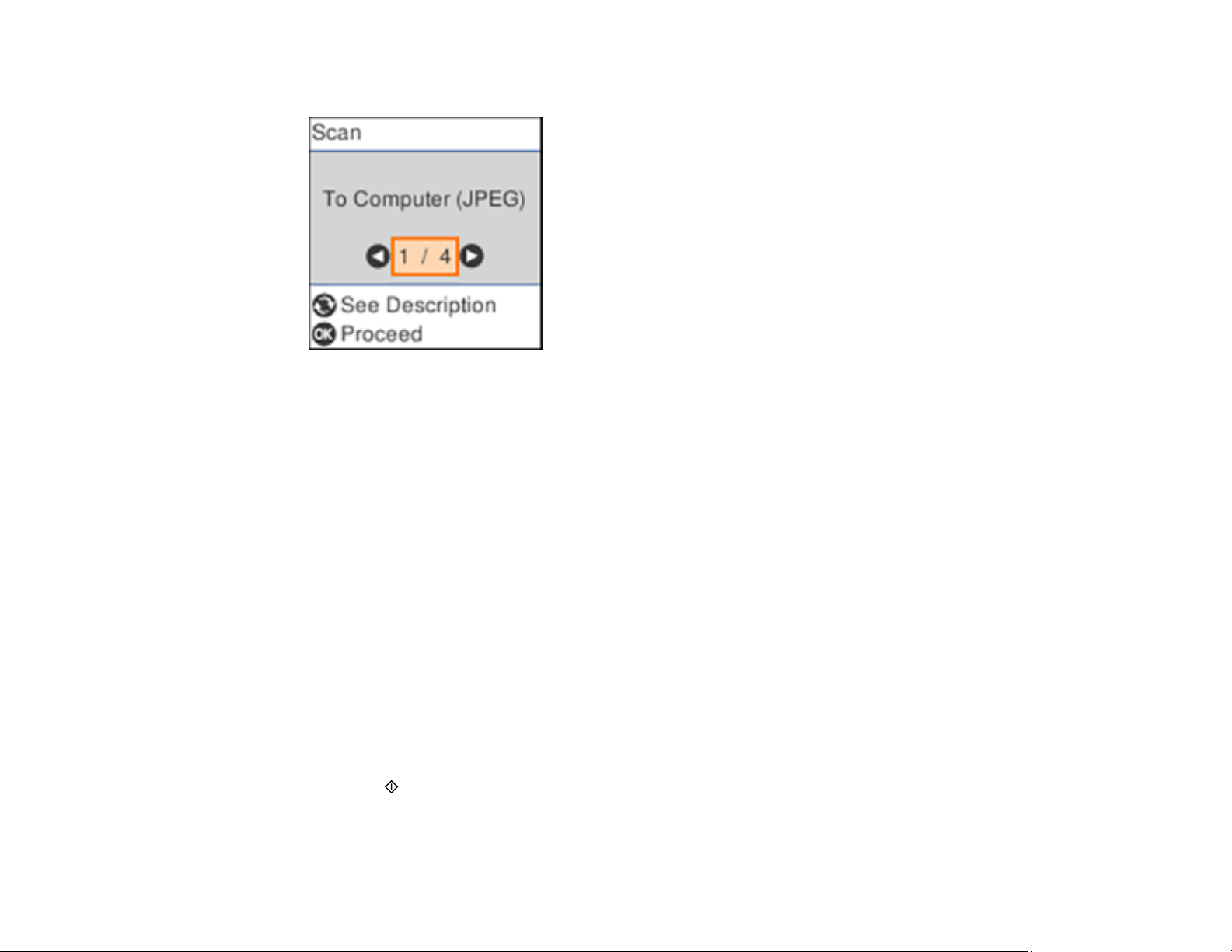
118
You see a screen like this:
4. Press the left or right arrow button to select a scan option and press the OK button.
• To Computer (JPEG) saves your scan as a JPEG file on your computer or as an image capture
on a Mac.
• To Computer (PDF) saves your scan as a PDF file on your computer or as an image capture on a
Mac.
• To Computer (Email) scans your original and attaches it to a message in your e-mail program.
You can select the e-mail program you want to use and resize your image, if necessary, from an
option screen on your computer.
Note: This works with MAPI-type email such as Microsoft Outlook, Windows Live Mail, Mac Mail,
and Entourage, but not web-based email such as Gmail.
• To Computer (Custom) saves your scan using custom settings you have selected with the Event
Manager custom scan settings option.
• To WSD lets you manage network scanning in Windows 10, Windows 8.x, Windows 7, or
Windows Vista (English only). To use this feature, you must first set up a WSD (Web Services for
Devices) port on your Windows 7 or Windows Vista computer (the port is set up automatically on
Windows 10 and Windows 8.x).
5. Press the start button to start scanning.
Changing Default Scan Job Settings
Setting Up a WSD Port (Windows 7/Windows Vista)

119
Parent topic: Starting a Scan
Changing Default Scan Job Settings
You can view or change the default scan job settings your product uses when you scan to your
computer. You do this using the Event Manager program.
1. Do one of the following to open Event Manager:
• Windows 10: Click and select EPSON Software > Event Manager.
• Windows 8.x: Navigate to the Apps screen and select Event Manager.
• Windows (other versions): Click or Start > All Programs or Programs > EPSON Software
> Event Manager.
• Mac: Open the Applications folder, click Epson Software, and select Event Manager.
2. Open the Scanner (Windows) or Select Scanner (Mac) drop-down list and select your product, if
necessary.
3. Click Make Job Settings.
4. Open the Edit Job Settings drop-down list and select the scan job settings you want to view or
change.
5. Change the settings as necessary.
6. Click OK.
7. Click Close to close the Event Manager window.
Parent topic: Starting a Scan Using the Product Control Panel
Setting Up a WSD Port (Windows 7/Windows Vista)
You can scan to a networked Windows computer using WSD (Web Services for Devices). You must first
set up a WSD port on your Windows 7 or Windows Vista system (the port is set up automatically on
Windows 10 and Windows 8.x).
Before you set up a WSD port, make sure you installed your product software, and connected your
product and computer to the same network.
1. Turn on your product.
2. Print a network status sheet so you can identify the network name and model name for your product
on the network.
3. Click or Start and select Computer.
4. On the left side of the window, select Network.

120
5. Locate your product on the Network screen, right-click it, and select Install.
6. When you see the User Account Control screen, click Continue.
Note: If you see an Uninstall screen, click Uninstall and repeat these steps as necessary.
7. When you see the message Your device is ready to use in the Windows taskbar, click the
message.
8. On the Driver Software Installation screen, make sure your product is listed as Ready to use. Then
click Close.
9. Do one of the following:
• Windows 7: Click and select Devices and Printers.
• Windows Vista: Click Start and select Control Panel > Hardware and Sound > Printers.
10. Make sure that an icon appears for your product's name on the network.
When you use WSD, select your product name to scan over the network.
Parent topic: Starting a Scan Using the Product Control Panel
Starting a Scan Using the Epson Scan 2 Icon
You can start the Epson Scan 2 program to select scan settings, scan, and save the scanned image to a
file.
Note: If you are using your Epson product with the Windows 10 S operating system, you cannot use the
software described in this section. You also cannot download and install any Epson product software
from the Epson website for use with Windows 10 S; you must obtain software only from the Windows
Store.
• Windows 10: Click and select EPSON > Epson Scan 2.
• Windows 8.x: Navigate to the Apps screen and select Epson Scan 2 .
• Windows (other versions): Click or Start, and select All Programs or Programs. Select EPSON
> Epson Scan 2 > Epson Scan 2.
• Mac: Open the Applications folder, open the Epson Software folder, and select Epson Scan 2.
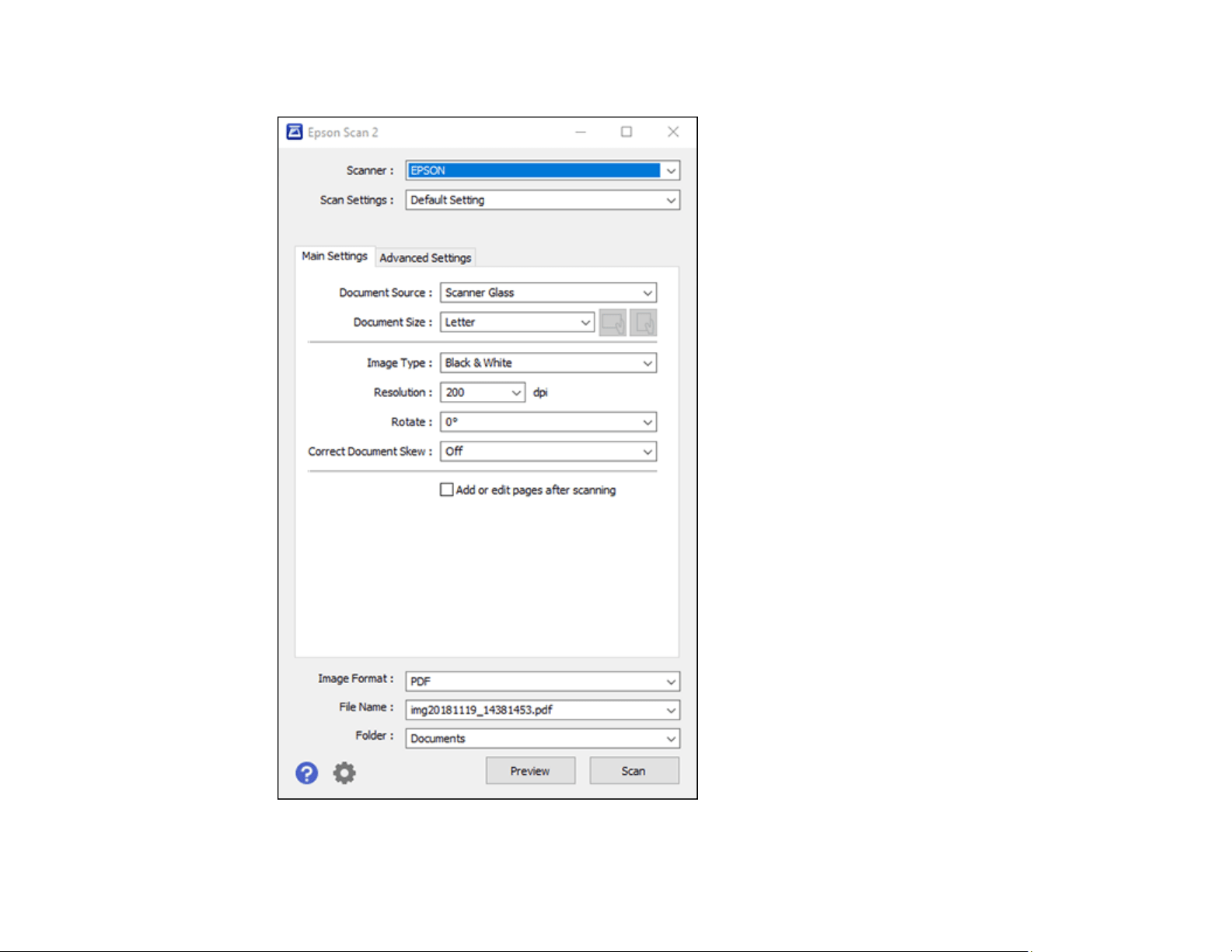
121
You see an Epson Scan 2 window like this:

122
Parent topic: Starting a Scan
Starting a Scan from a Scanning Program
You can start Epson Scan 2 from a TWAIN-compliant scanning program to select scan settings, scan,
and open the scanned image in the program.
Note: If you are using your Epson product with the Windows 10 S operating system, you cannot use the
software described in this section. You also cannot download and install any Epson product software
from the Epson website for use with Windows 10 S; you must obtain software only from the Windows
Store.
1. Open your scanning program and select its scanning option. (See your scanning program help for
instructions.)
2. Select your product.
Note: In certain programs, you may need to select your product as the "source" first. If you see a
Select Source option, choose it and select your product. With Windows, do not select a WIA option
for your product; not all scan functions will be available.
123
You see an Epson Scan 2 window like this:

124
Parent topic: Starting a Scan
Starting a Scan from a Smart Device
You can start a scan from a smart device using the Epson iPrint app. You can save the scanned
document to your device or a cloud service, e-mail it, or print it.
Note: If you are using your Epson product with the Windows 10 S operating system, you cannot use the
software described in this section. You also cannot download and install any Epson product software
from the Epson website for use with Windows 10 S; you must obtain software only from the Windows
Store.
Note: Your device must be connected to the same wireless network as your Epson product.
1. Download the Epson iPrint app from your device's app store or from Epson's website.
2. Place your original on the product for scanning.
3. Open the Epson iPrint app and select your product.
4. Select the scan settings and scan your original.
5. Save your scanned image to a file or cloud location.
Parent topic: Starting a Scan
Related tasks
Using the Epson iPrint Mobile App
Scanning in Epson Scan 2
Epson Scan 2 automatically scans your document and saves the scanned file in PDF format in your
operating system's Documents or My Documents folder, or opens it in your scanning program. You can
select settings, preview, and change the scanned file settings as necessary.
Note: If you are using your Epson product with the Windows 10 S operating system, you cannot use the
software described in this section. You also cannot download and install any Epson product software
from the Epson website for use with Windows 10 S; you must obtain software only from the Windows
Store.
1. Start Epson Scan 2.
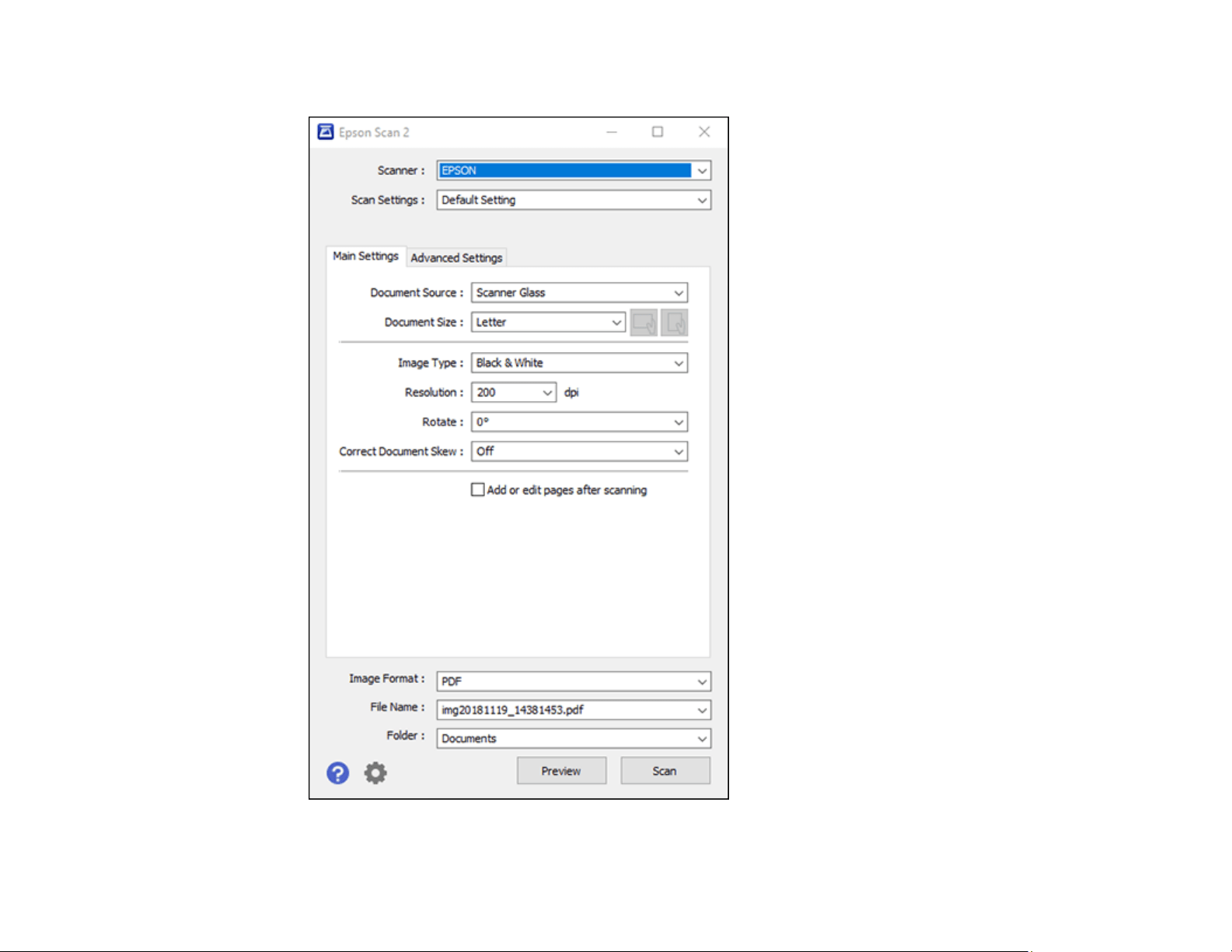
125
You see this window:
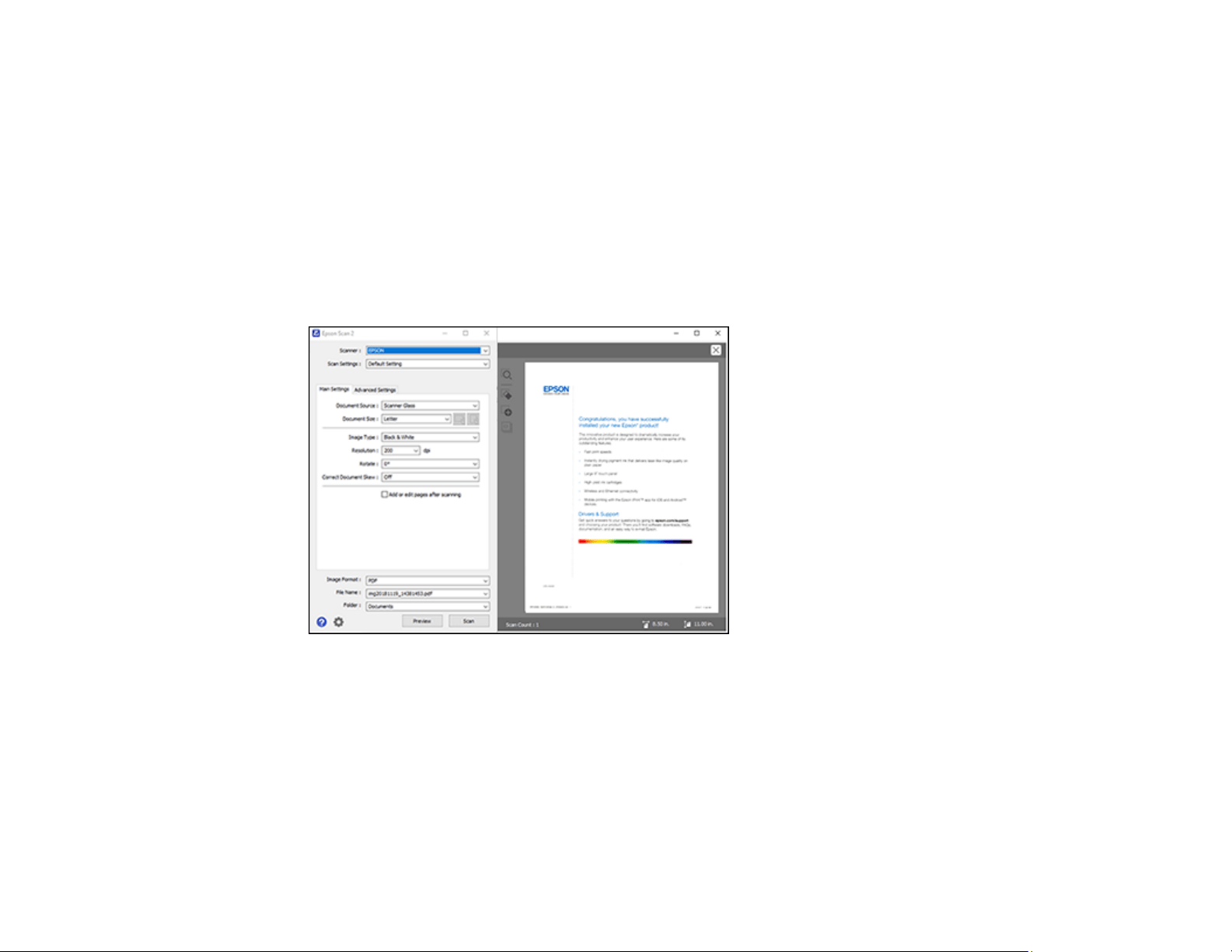
126
2. Select the Document Source setting that matches where you placed your original.
3. Select the Document Size setting that matches the size of your original. You can select Customize
to enter a custom size, if necessary.
4. Select the image type of your original and how you want it scanned as the Image Type setting.
5. Select the Resolution setting you want to use for your scan.
6. Select the Rotate setting to rotate the scanned image.
7. Select the Correct Document Skew setting to correct skewed originals, image contents, or both.
8. Click the Preview button.
Epson Scan 2 previews your original and displays the results in the Epson Scan 2 window.
9. Select any of the additional settings that you want to use on the Main Settings tab.
10. Click the Advanced Settings tab and select any settings that you want to use.
11. Select the format in which you want to save your scanned file as the Image Format setting. If
necessary, select Options and select any desired format options.
12. Enter the file name for your scanned file in the File Name field. If necessary, select Settings to
modify the file name settings.

127
13. Select the location in which you want to save your scanned file as the Folder setting. If necessary,
select Select to create a new folder.
14. Click Scan.
The product scans your original and saves the scanned file in the location you specified.
Additional Scanning Settings - Main Settings Tab
Additional Scanning Settings - Advanced Settings Tab
Saving Scanned Documents as a Searchable PDF Using Epson Scan 2
Image Format Options
Scan Resolution Guidelines
Parent topic: Scanning
Additional Scanning Settings - Main Settings Tab
You can select these additional scanning settings on the Epson Scan 2 Main Settings tab. Not all
adjustment settings may be available, depending on other settings you have chosen.
Rotate
Rotates the original image clockwise to the desired angle before scanning it. Select Auto to allow
your product to automatically rotate the image based on the orientation of the text (may take longer to
scan).
Correct Document Skew
Corrects skewed originals, image contents, or both.
Add or edit pages after scanning
Lets you add, remove, or edit the pages in a scan, including rotating pages and changing the page
order.
Note: To save multiple pages in a single file, you must select a file format that supports multiple
pages such as PDF or Multi-TIFF. If you select another file format, each scanned image or page is
saved as a separate file.
Parent topic: Scanning in Epson Scan 2
Additional Scanning Settings - Advanced Settings Tab
You can select these additional scanning settings on the Epson Scan 2 Advanced Settings tab. Not all
adjustment settings may be available, depending on other settings you have chosen.
Remove Background
Removes the background of the originals.

128
Text Enhancement
Sharpens the appearance of letters in text documents.
Auto Area Segmentation
Makes black and white images clearer and text recognition more accurate by separating the text from
the graphics.
Threshold
Adjusts the level at which black areas in text and line art are delineated, improving text recognition in
OCR (Optical Character Recognition) programs.
Color Enhance
Enhances the shades of the color you select in the scanned image. This setting is available only if you
select Grayscale or Black & White as the Image Type setting.
Brightness
Adjusts the overall lightness and darkness of the scanned image.
Contrast
Adjusts the difference between the light and dark areas of the overall scanned image.
Gamma
Adjusts the midtone density of the scanned image.
Unsharp Mask
Makes the edges of certain image areas clearer. Turn off this option to leave softer edges.
Descreening
Removes the ripple pattern that might appear in subtly shaded image areas, such as skin tones. This
option improves results when scanning magazines or newspapers. (The results of descreening do not
appear in the preview image, only in your scanned image.)
Edge Fill
Corrects shadowing around the edges of the image by filling the shadows with black or white.
Dual Image Output
Scans the original image twice using different output settings (Windows only).
Parent topic: Scanning in Epson Scan 2
Saving Scanned Documents as a Searchable PDF Using Epson Scan 2
You can scan a document and save the text in a searchable PDF. In a searchable PDF, text is
recognized using Optical Character Recognition (OCR) and then embedded in the scanned original.
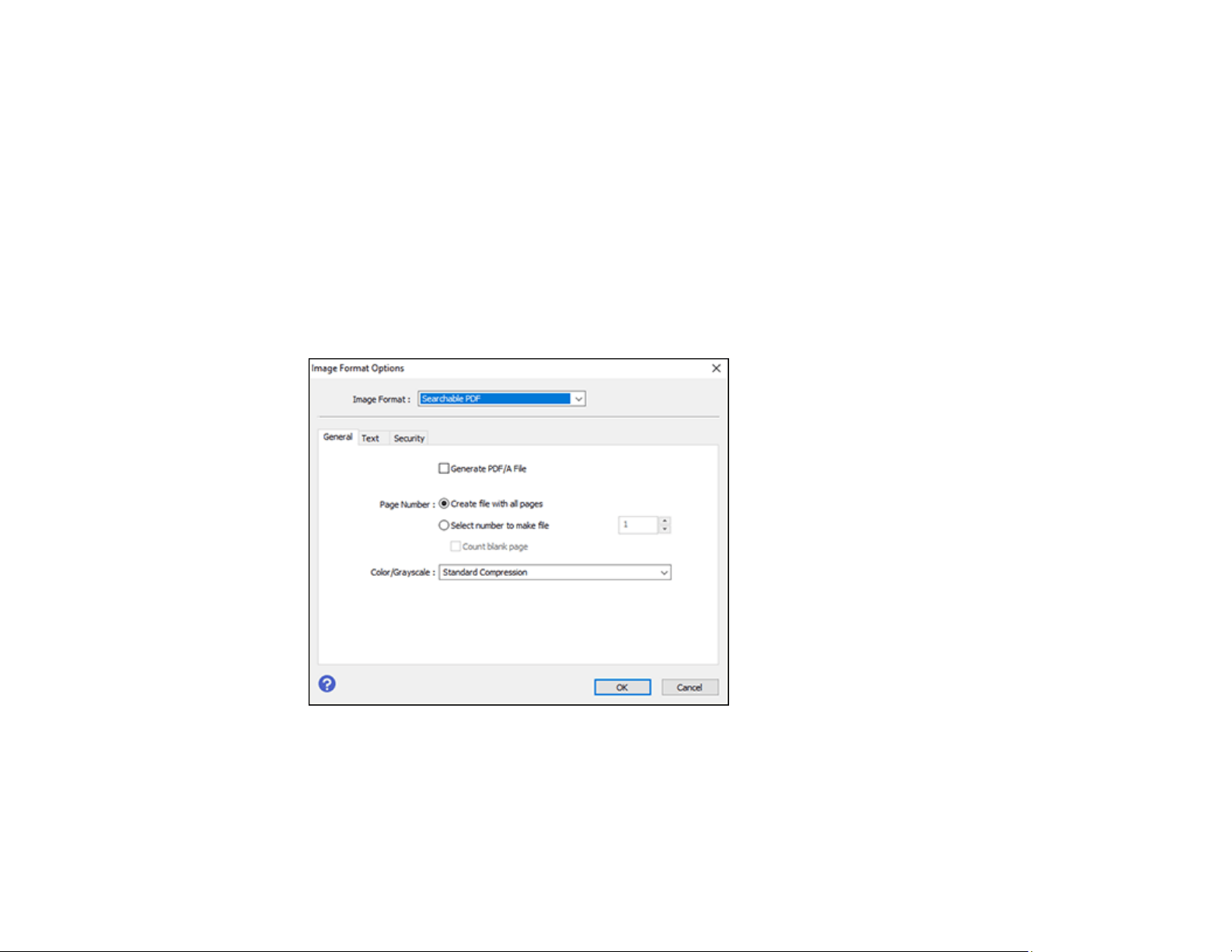
129
Note: The required Epson Scan 2 OCR Component is installed automatically when you install your
product software as instructed on the Start Here sheet. If you install your scanner software programs
individually, be sure to also install this component if you want to perform OCR.
1. Load your original in the product for scanning.
2. Start Epson Scan 2.
3. Select your scan settings.
4. Click Preview and adjust the area you want to scan, if necessary.
5. Select Searchable PDF as the Image Format setting.
6. Select Options from the Image Format list.
You see this window:
7. Select any of the options on the General tab.
8. Select the Text tab.
9. Make sure the language used in the document text is selected as the Text Language setting.

130
10. Select the Security tab if you want to add a password to the PDF or protect printing or editing
properties.
11. Click OK.
12. Confirm the File Name setting and select a Folder setting for your document.
13. Click Scan.
The scanned image is saved as a searchable PDF.
Parent topic: Scanning in Epson Scan 2
Image Format Options
You can select different image formats and related options. For details on available options, click the ?
icon on the Epson Scan 2 Image Format Options window. Not all image formats have options.
BITMAP (*.bmp)
A standard image file format for most Windows programs.
JPEG (*.jpg)
An image format that lets you highly compress image data. However, the higher the compression, the
lower the image quality. (The TIFF format is recommended when you need to modify or retouch your
scanned image.)
PNG (*.png)
An image format that does not lose quality during editing.
TIFF (*.tif)
A file format created for exchanging data between many programs, such as graphic and DTP
software.
Multi-TIFF (*.tif)
A TIFF file format when multiple pages are saved to the same file, allowing you to edit the images
using a compatible program.
PDF (*.pdf)
A document format that is readable by Windows and Mac systems using Adobe Reader, Acrobat, or
other programs. You can save multi-page documents in one PDF file.
Searchable PDF (*.pdf)
A document format that is readable by Windows and Mac systems using Adobe Reader, Acrobat, or
other programs. You can save multi-page documents in one PDF file. Recognized text in the scanned
document can be searched.
Parent topic: Scanning in Epson Scan 2

131
Scan Resolution Guidelines
The Resolution setting, measured in dpi (dots per inch), controls the amount of detail captured in your
scans. Increasing the resolution raises the amount of detail captured but comes with the following
disadvantages:
• Larger file sizes
• It takes longer to scan your originals, send/receive your scans by email or fax, and to print your scans
• The image may become too large to fit on your display or print on paper
If you plan to enlarge a scanned image so you can print it at a larger size, you may need to increase the
resolution from the default resolution set by Epson Scan 2. Follow these guidelines to determine the
resolution setting you need:
• You will scan the image at its original size but enlarge it later in an image-editing program.
Increase the Epson Scan 2 Resolution setting in your scan. Increase the resolution by the same
amount you will increase the image size to retain a high image quality. For example, if the resolution is
300 dpi (dots per inch) and you will double the image size later, change the Resolution setting to 600
dpi.
• You will scan the image at 100% or smaller size.
Select the Epson Scan 2 Resolution setting based on how you will use the scanned image:
• Email/view on a computer screen/post on the web: 96 to 200 dpi
• Print/fax/convert to editable text (OCR)/create searchable PDF: 200 to 300 dpi
Parent topic: Scanning in Epson Scan 2

132
Refilling Ink and Replacing the Maintenance Box
When the ink level is below the lowest line on the ink tank, you need to refill it. Periodically check the ink
tank to see if it needs to be refilled.
Before checking the ink level or refilling an ink tank as described here, be sure to read the ink safety
precautions.
Caution: If the ink level is below the lower line on the ink tank, fill it to the upper line on the ink tank.
Continued use of the product when the ink level is below the lower line on a tank could damage the
product.
Ink Safety Precautions
Checking the Ink and Maintenance Box Levels
Purchase Epson Ink and Maintenance Box
Refilling the Ink Tank
Maintenance Box Replacement
Ink Safety Precautions
Note: The product has a low ink alert system. The accuracy of this system depends on the user refilling
the ink tank correctly. The product cannot directly measure the ink level in the tank; instead it estimates
the amount of ink remaining by internally monitoring ink usage. The low ink alert system may generate
inaccurate messages if the ink tank is not refilled according to these instructions.
As a precaution, perform regular visual inspections of the ink tank to ensure the ink level does not fall
below the lower line. Continued use of the product when the ink level is below the lower line on the tank
could damage the product.
Ink Handling Precautions
Observe the following when handling the ink:
• Keep ink bottles and the ink tank out of the reach of children. Do not allow children to drink from or
handle the ink bottles and bottle caps.
• Do not tilt or shake an ink bottle after removing its seal; otherwise, ink may leak.
• Be careful not to touch any ink when you handle the ink tank, ink tank cap, and opened ink bottles or
ink bottle caps.

133
• If ink gets on your skin, wash it thoroughly with soap and water. If ink gets into your eyes, flush them
immediately with water. If ink gets into your mouth, spit it out immediately. Seek medical advice if
problems persist.
Ink Refilling Precautions
• Use ink bottles with the correct part number for this product.
• Epson's warranties do not extend to any damage caused by the use of third-party ink or ink not
designed for your printer.
• This product requires careful handling of ink. Ink may splatter when the ink tank is filled or refilled with
ink. If ink gets on your clothes or belongings, it may not come off.
• Do not open the ink bottle package until you are ready to fill the ink tank. Ink bottles are vacuum
packed to maintain reliability. If you leave an ink bottle unpacked for a long time before using it, print
quality may be affected.
• If the ink level is below the lower line on the ink tank, refill the ink soon. Continued use of the product
when the ink level is below the lower line on the ink tank could damage the product.
• Epson recommends filling the ink tank to the upper line when the product is not operating.
• After bringing an ink bottle inside from a cold storage site, allow it to warm up at room temperature for
at least three hours before using it.
• Store ink bottles in a cool, dark place.
• Store the ink bottles in the same environment as the product. When storing or transporting an ink
bottle after removing its seal, do not tilt the bottle and do not subject it to impacts or temperature
changes. Otherwise, ink may leak even if the cap on the ink bottle is tightened securely. Be sure to
keep the ink bottle upright when tightening the cap, and take measures to prevent ink from leaking
when you transport the bottle.
• Use the ink bottle before the date printed on the package.
• Do not shake or squeeze the ink bottle.
Ink Bottle and Ink Tank Information
• To maintain optimum print head performance, some ink is consumed from the ink tank during printing
and when performing maintenance operations, such as cleaning the print head.
• The ink bottles may contain recycled materials, but this does not affect product function or
performance.
Parent topic: Refilling Ink and Replacing the Maintenance Box
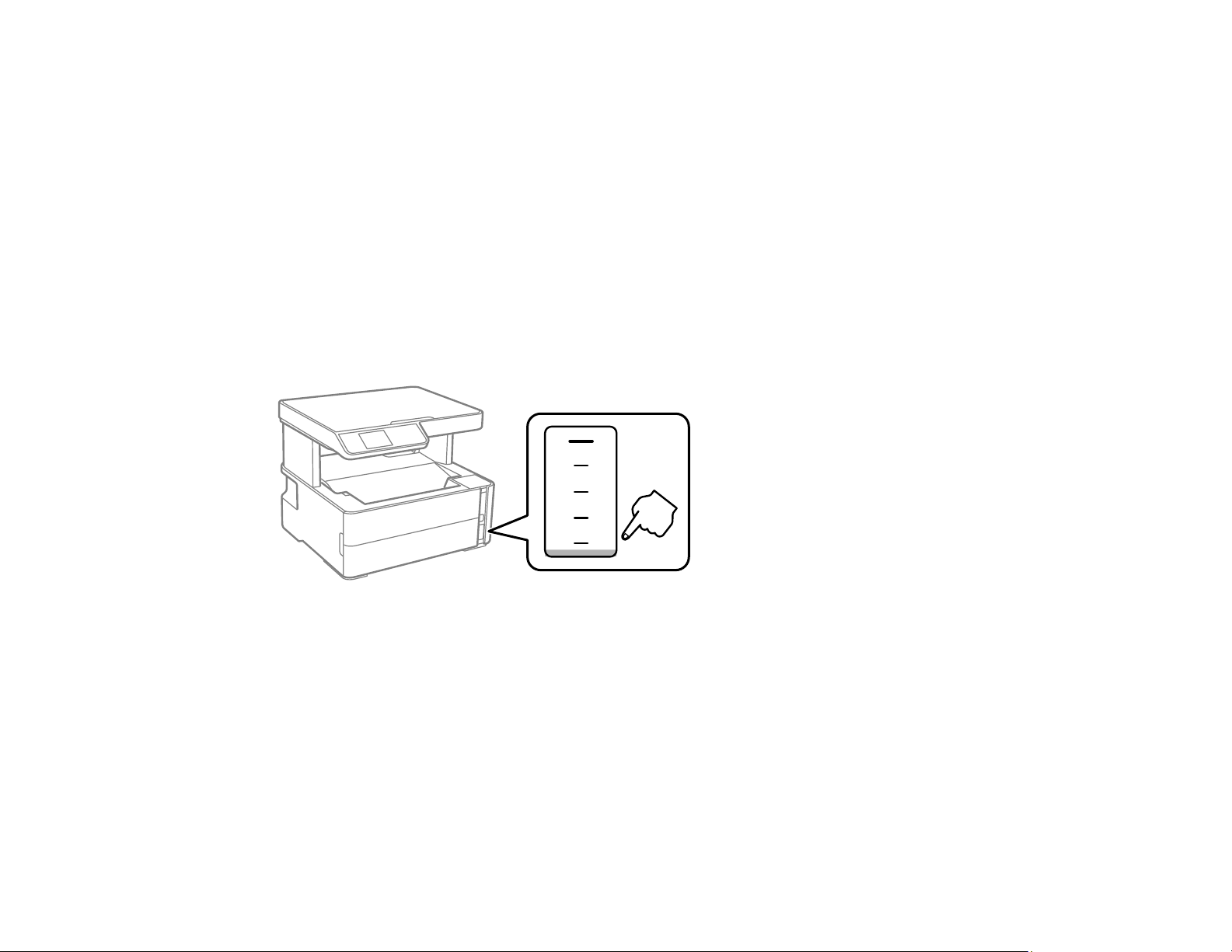
134
Checking the Ink and Maintenance Box Levels
Your product and software will let you know when to refill the ink or replace the maintenance box.
Checking the Ink Level on Your Product
Checking Maintenance Box Status on the LCD Screen
Checking Ink and Maintenance Box Levels - Windows
Checking Ink and Maintenance Box Levels - Mac
Disabling Special Offers with Windows
Parent topic: Refilling Ink and Replacing the Maintenance Box
Checking the Ink Level on Your Product
To confirm the actual ink level, visually check the ink level in the product’s ink tank. Make sure the ink
level is above the lower line on the ink tank.
Note: The product has a low ink alert system. The accuracy of this system depends on the user refilling
the ink tank correctly. The product cannot directly measure the ink level in the tank; instead it estimates
the amount of ink remaining by internally monitoring ink usage. The low ink alert system may generate
inaccurate messages if the ink tank is not refilled according to these instructions.
As a precaution, perform regular visual inspections of the ink tank to ensure the ink level does not fall
below the lower line. Continued use of the product when the ink level is below the lower line on the tank
could damage the product.
Parent topic: Checking the Ink and Maintenance Box Levels

135
Related tasks
Refilling the Ink Tank
Checking Maintenance Box Status on the LCD Screen
You can check the status of your maintenance box using your product's LCD screen.
1. Press the home button, if necessary.
2. Select Maintenance > Maintenance Box Service Life and press the OK button.
You see the remaining ink capacity of the maintenance box.
3. Press the OK button again to exit the screen.
Parent topic: Checking the Ink and Maintenance Box Levels
Checking Ink and Maintenance Box Levels - Windows
A low ink reminder appears if you try to print when ink is low, and you can check your ink level at any
time using a utility on your Windows computer.
1. To check your ink and maintenance box levels, access the Windows Desktop and double-click the
icon for your product in the right side of the Windows taskbar, or click the up arrow and double-
click .
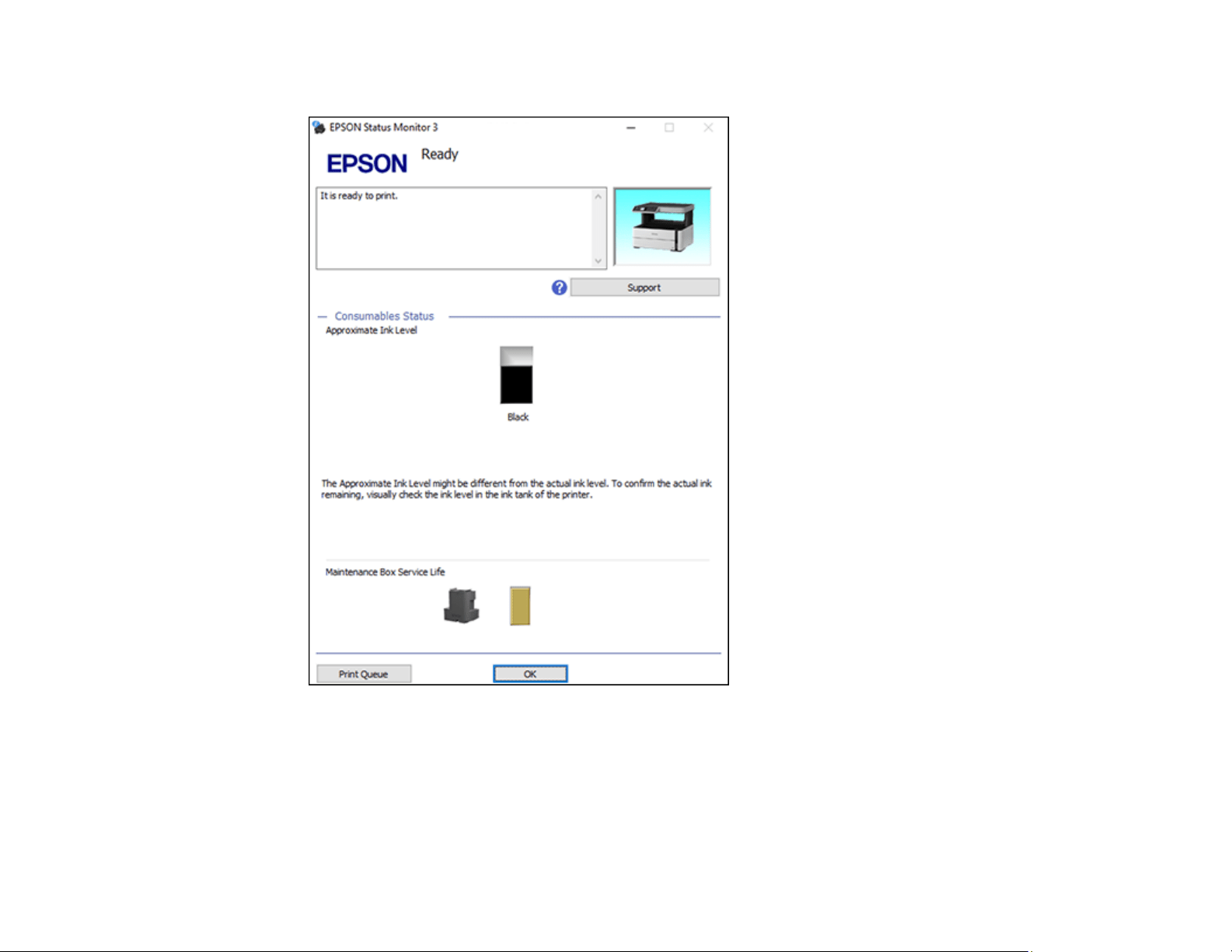
136
You see a window like this:
2. Refill the ink tank or replace the maintenance box as needed.
Note: The product has a low ink alert system. The accuracy of this system depends on the user
refilling the ink tank correctly. The product cannot directly measure the ink level in the tank; instead it
estimates the amount of ink remaining by internally monitoring ink usage. The low ink alert system
may generate inaccurate messages if the ink tank is not refilled according to these instructions.

137
As a precaution, perform regular visual inspections of the ink tank to ensure the ink level does not
fall below the lower line. Continued use of the product when the ink level is below the lower line on
the tank could damage the product.
Parent topic: Checking the Ink and Maintenance Box Levels
Related tasks
Refilling the Ink Tank
Checking Ink and Maintenance Box Levels - Mac
You can check your ink level using a utility on your Mac.
1. In the Apple menu or the Dock, select System Preferences. Select Print & Fax, Print & Scan, or
Printers & Scanners, select your product, and select Options & Supplies. Select Utility and select
Open Printer Utility.
2. Select EPSON Status Monitor.
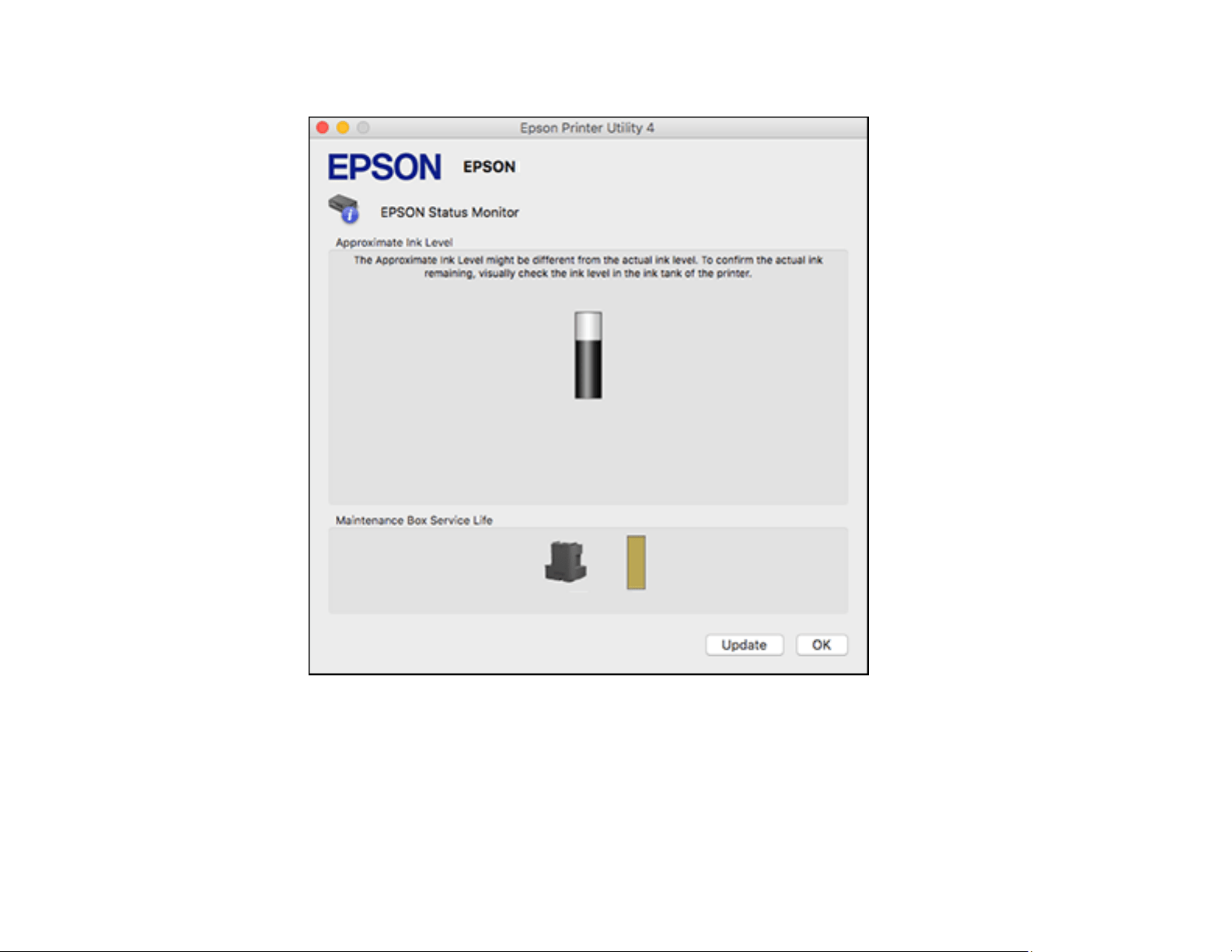
138
You see a window like this:
3. Refill the ink tank or replace the maintenance box as needed.
Note: To update or refresh the displayed ink level, click Update.
Note: The product has a low ink alert system. The accuracy of this system depends on the user
refilling the ink tank correctly. The product cannot directly measure the ink level in the tank; instead it

139
estimates the amount of ink remaining by internally monitoring ink usage. The low ink alert system
may generate inaccurate messages if the ink tank is not refilled according to these instructions.
As a precaution, perform regular visual inspections of the ink tank to ensure the ink level does not
fall below the lower line. Continued use of the product when the ink level is below the lower line on
the tank could damage the product.
Parent topic: Checking the Ink and Maintenance Box Levels
Related tasks
Refilling the Ink Tank
Disabling Special Offers with Windows
You can disable special offers messages from Epson using a utility on your Windows computer.
1. Access the Windows Desktop and right-click the icon for your product in the right side of the
Windows taskbar, or click the up arrow and right-click . Select Monitoring Preferences.
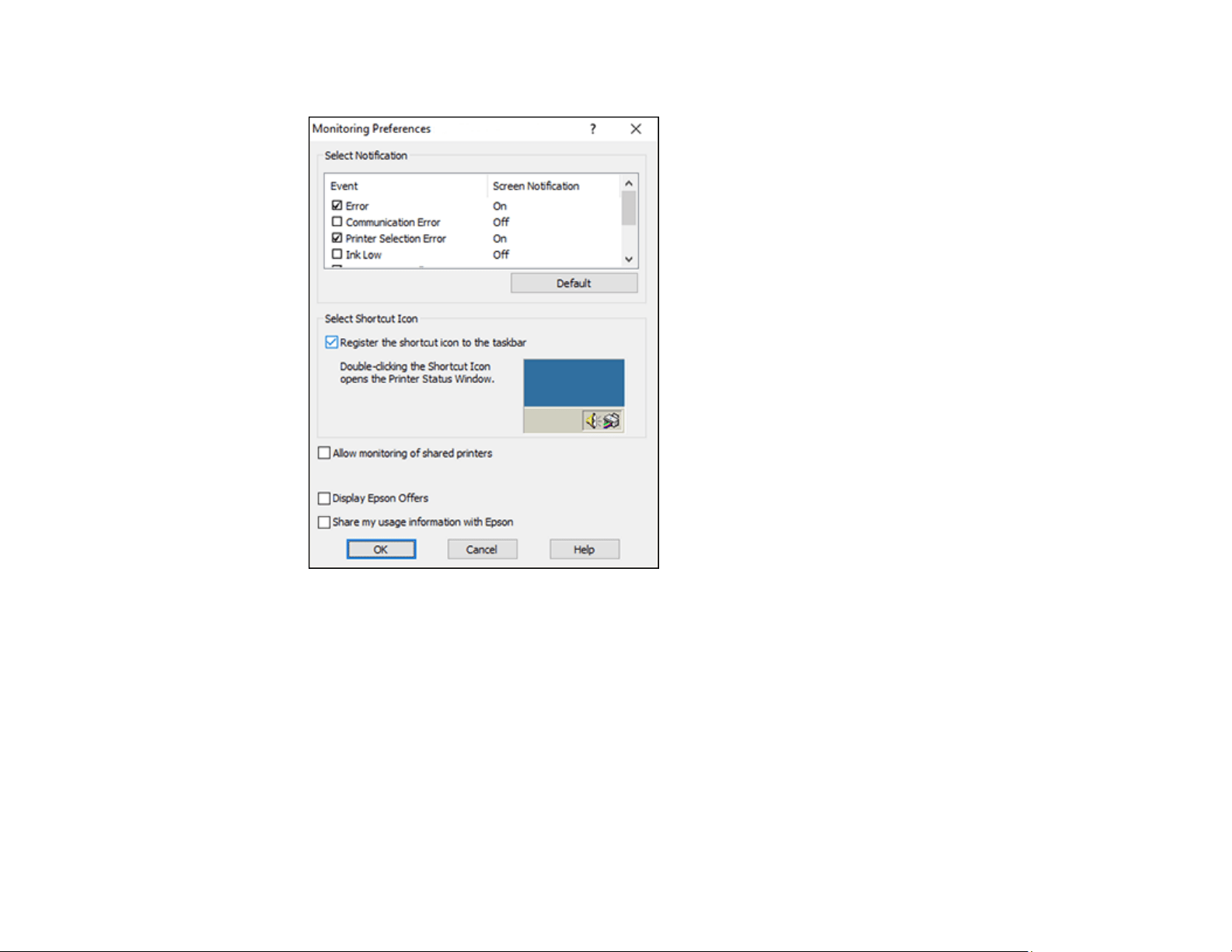
140
You see this window:
2. To disable promotional offers, deselect the Display Epson Offers checkbox.
Parent topic: Checking the Ink and Maintenance Box Levels
Purchase Epson Ink and Maintenance Box
You can purchase genuine Epson ink, maintenance boxes, and paper at epson.com (U.S. sales),
epson.ca (Canadian sales), or epson.com.jm (Caribbean sales). You can also purchase supplies from
an Epson authorized reseller. To find the nearest one, call 800-GO-EPSON (800-463-7766) in the U.S.
or 800-807-7766 in Canada.
Note: Epson's warranties do not extend to any damage caused by the use of third-party ink or ink not
designed for your printer.

141
The included ink bottle must be used for printer setup and is not for resale. The printer ships with a full
ink bottle and part of the ink from the bottle is used to charge the print head. Yields vary considerably
based on images printed, print settings, paper type, frequency of use and temperature.
Check the ink level in your product frequently, and refill the ink tank if necessary.
Ink Bottle and Maintenance Box Part Numbers
Parent topic: Refilling Ink and Replacing the Maintenance Box
Ink Bottle and Maintenance Box Part Numbers
Use these part numbers when you order or purchase new ink bottles or a new maintenance box. Use the
ink by the date printed on the package.
Ink color Part number
Black 532
Maintenance box part number: T04D100
Parent topic: Purchase Epson Ink and Maintenance Box
Refilling the Ink Tank
Make sure you have a new ink bottle handy and have read the ink safety precautions before you begin.
You can continue to use the product even if the ink tank is not filled all the way. However, for the most
accurate ink level monitoring, fill all the ink tank up to the upper line.
Note: The product has a low ink alert system. The accuracy of this system depends on the user refilling
the ink tank correctly. The product cannot directly measure the ink level in the tank; instead it estimates
the amount of ink remaining by internally monitoring ink usage. The low ink alert system may generate
inaccurate messages if the ink tank is not refilled according to these instructions.
As a precaution, perform regular visual inspections of the ink tank to ensure the ink level does not fall
below the lower line. Continued use of the product when the ink level is below the lower line on the tank
could damage the product.
Caution: If ink spills, wipe it off immediately with a damp towel to avoid permanent stains. If ink gets on
your clothes or belongings, it may not come off.
1. Turn on your product.
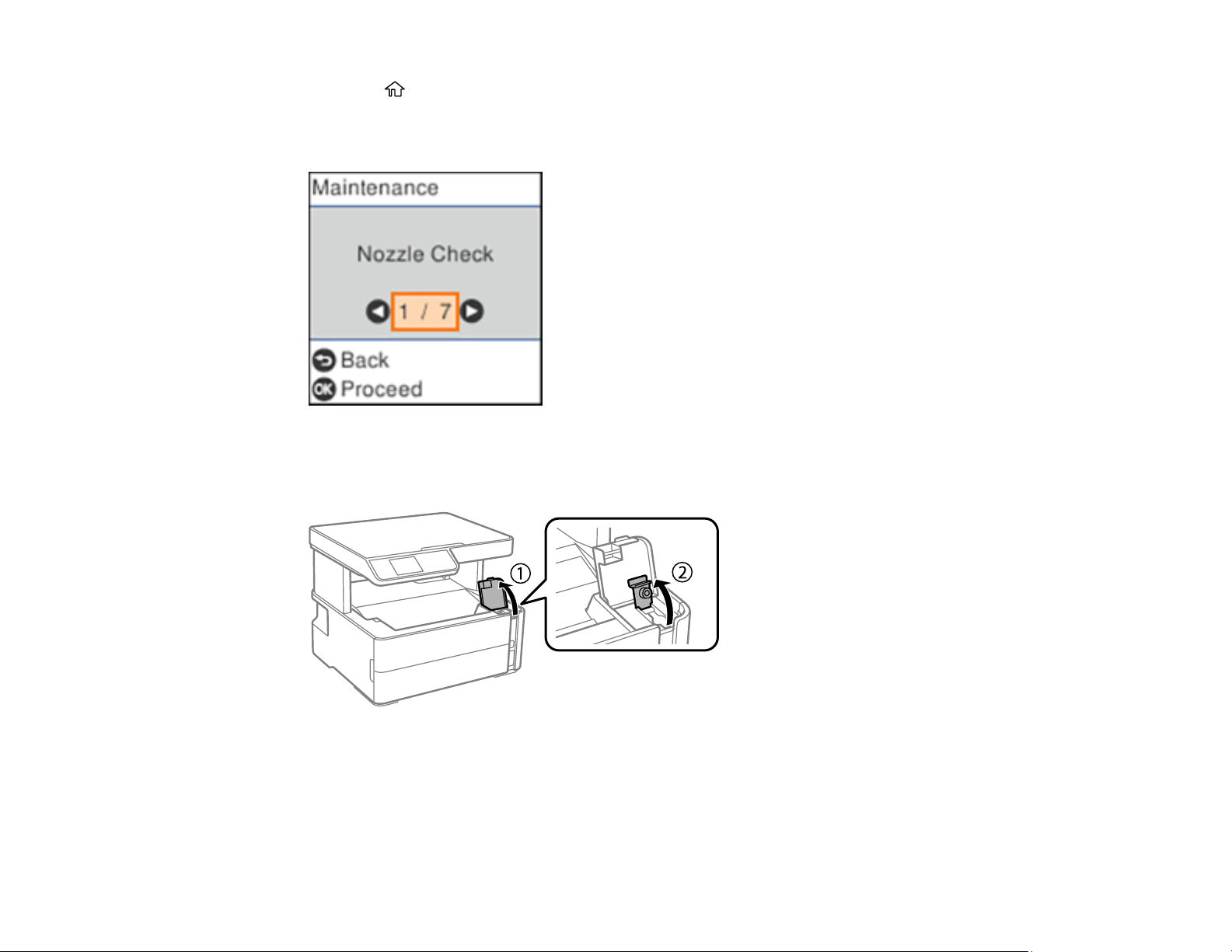
142
2. Press the home button, if necessary.
3. Select Maintenance and press the OK button.
You see this screen:
4. Select Reset Ink Level and press the OK button.
5. Open the ink tank cover, then open the ink tank cap.

143
6. Hold the ink bottle upright and slowly turn the bottle cap to remove it.
Caution: Do not shake or squeeze the bottle. Do not touch the top of the bottle after its cap is
removed.
Warning: If ink gets on your skin, wash it thoroughly with soap and water. If ink gets into your eyes,
flush them immediately with water. If ink gets into your mouth, spit it out immediately. Seek medical
advice if problems persist. Keep the ink bottles out of the reach of children and do not drink the ink.
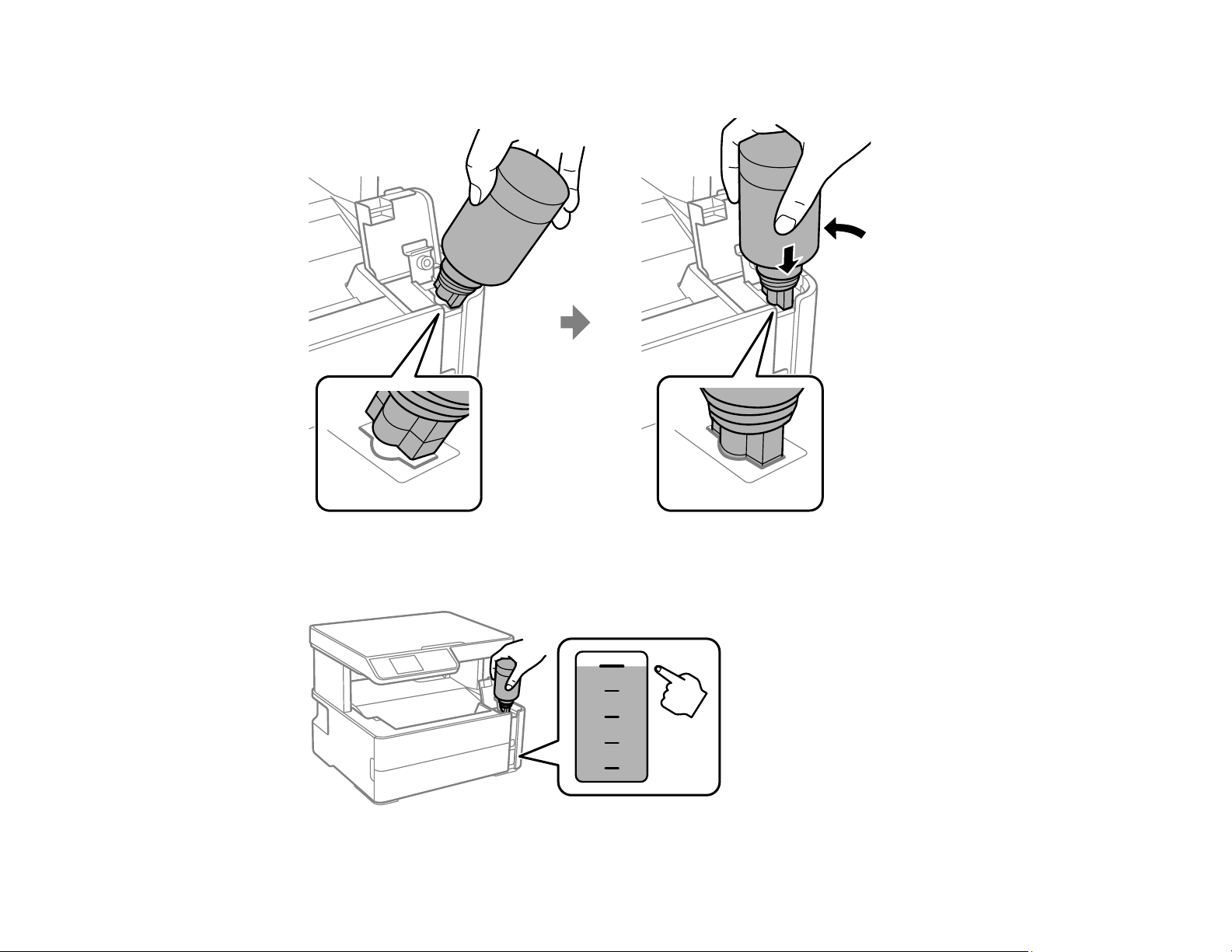
144
7. Insert the ink bottle into the filling port, as shown below.
8. Wait for the ink to fill the tank. Do not squeeze the bottle. Ink flows into the tank and stops
automatically when the ink is filled to the upper line.
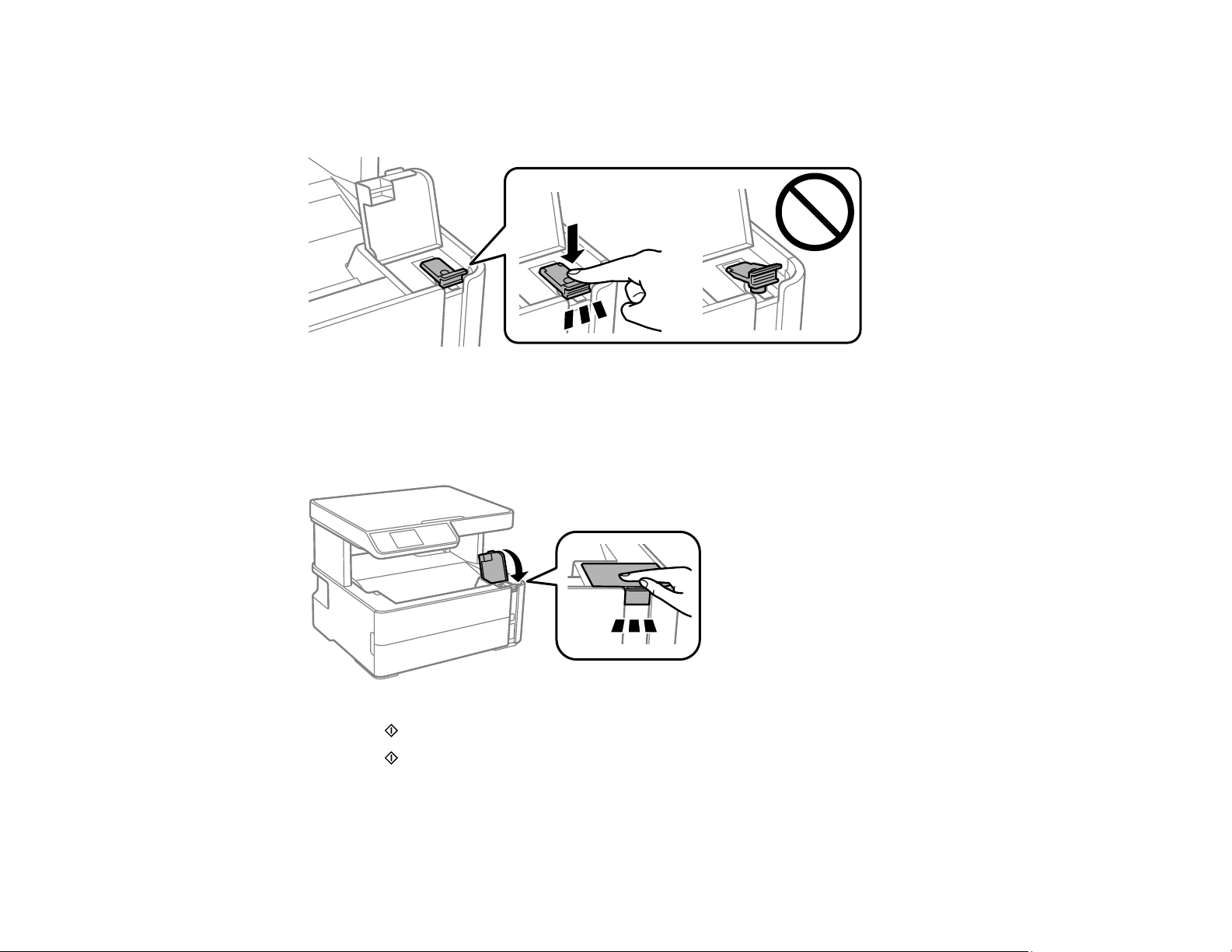
145
Note: If ink does not flow from the bottle, lift and reinsert the bottle.
9. When the ink tank is full, remove the ink bottle and securely close the ink tank cap.
Note: If any ink remains in the bottle, replace the bottle cap and tighten it. Store the bottle upright for
later use.
10. Close the ink tank cover.
11. Press the start button and read the on-screen information. Press the OK button when necessary.
12. Press the start button again to reset the ink level.
Caution: If you reset the ink level without refilling the ink tank to the upper line, you may print without
enough ink in the tank and damage your printer. Before you print, make sure you visually check the
ink level of the tank.

146
Parent topic: Refilling Ink and Replacing the Maintenance Box
Related concepts
Purchase Epson Ink and Maintenance Box
Related tasks
Checking the Ink Level on Your Product
Maintenance Box Replacement
The maintenance box stores surplus ink that gets collected during printing or print head cleaning. When
you see a message on the LCD screen, follow the on-screen instructions to replace the maintenance
box.
Note: When the maintenance box is full, you cannot print or clean the print head until it is replaced.
However, you can perform operations that do not require ink, such as scanning.
Note the following precautions when replacing the maintenance box:
• Do not remove the maintenance box or its cover except when replacing the maintenance box;
otherwise, ink may leak.
• Do not touch the green chip on the side of the maintenance box.
• Do not tilt the maintenance box after removing it or ink may leak.
• Do not touch the openings in the maintenance box or you may get ink on you.
• Do not drop the maintenance box or subject it to strong shocks.
• If you cannot replace the cover, the maintenance box may not be installed correctly. Remove and
reinstall the maintenance box.
• Do not store the maintenance box in high or freezing temperatures.
• Do not replace the maintenance box during printing; otherwise, ink may leak.
• If you cannot close the maintenance box cover, make sure the maintenance box is installed properly.
• Keep the maintenance box out of direct sunlight.
Caution: Do not reuse a maintenance box that has been removed and left uninstalled for a long period.
Keep the maintenance box away from direct sunlight.
Note: The maintenance box is a user-replaceable part and is not covered by the product warranty.


148
Adjusting Print Quality
If your print quality declines, you may need to run a utility to clean or align the print head.
If running these utilities does not solve the problem, you may need to run a Power Cleaning or clean the
paper or print head path.
Print Head Maintenance
Print Head Alignment
Cleaning the Paper Guide
Cleaning the Print Head Path
Checking the Number of Sheets
Print Head Maintenance
If your printouts become too light, or you see dark or light bands across them, you may need to clean the
print head nozzles. Cleaning uses ink, so clean the nozzles only if print quality declines.
You can check for clogged nozzles before you clean them so you don’t clean them unnecessarily.
Note: You cannot clean the print head if the ink level has reached the lower line on the ink tank, and may
not be able to clean it when the ink level in the tank is low. You must refill the ink tank first.
If you still see white or dark lines or gaps in your printouts, even after cleaning the print head several
times, you can run a Power Cleaning.
Print Head Nozzle Check
Print Head Cleaning
Power Cleaning
Parent topic: Adjusting Print Quality
Related tasks
Refilling the Ink Tank
Print Head Nozzle Check
You can print a nozzle check pattern to check for clogged nozzles.
Checking the Nozzles Using the Product Control Panel
Checking the Nozzles Using a Computer Utility
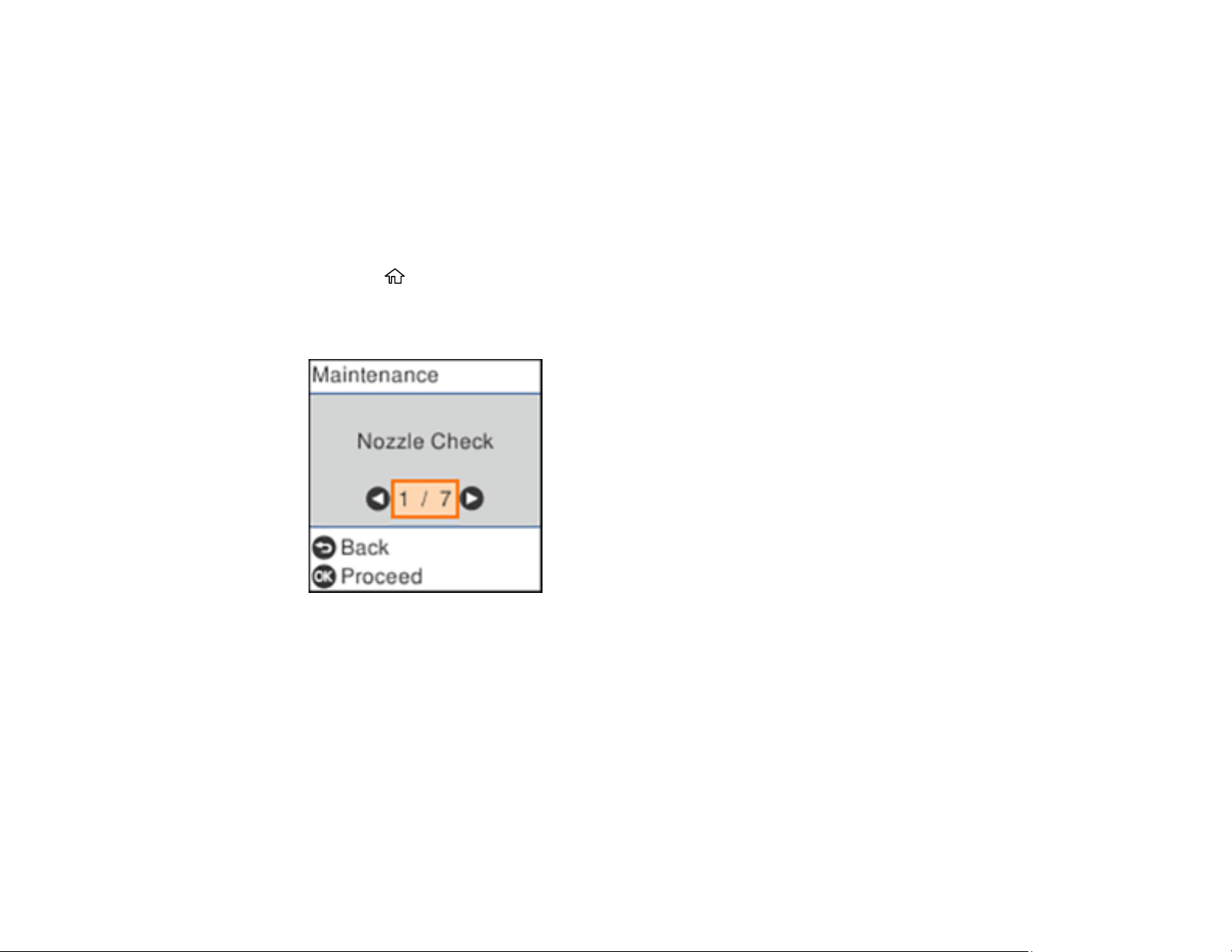
149
Parent topic: Print Head Maintenance
Related tasks
Refilling the Ink Tank
Checking the Nozzles Using the Product Control Panel
You can check the print head nozzles using the control panel on your product.
1. Make sure there are no errors on the LCD screen.
2. Load a few sheets of plain paper in the paper cassette.
3. Press the home button, if necessary.
4. Select Maintenance and press the OK button.
You see this screen:
5. Press the OK button to select Nozzle Check.
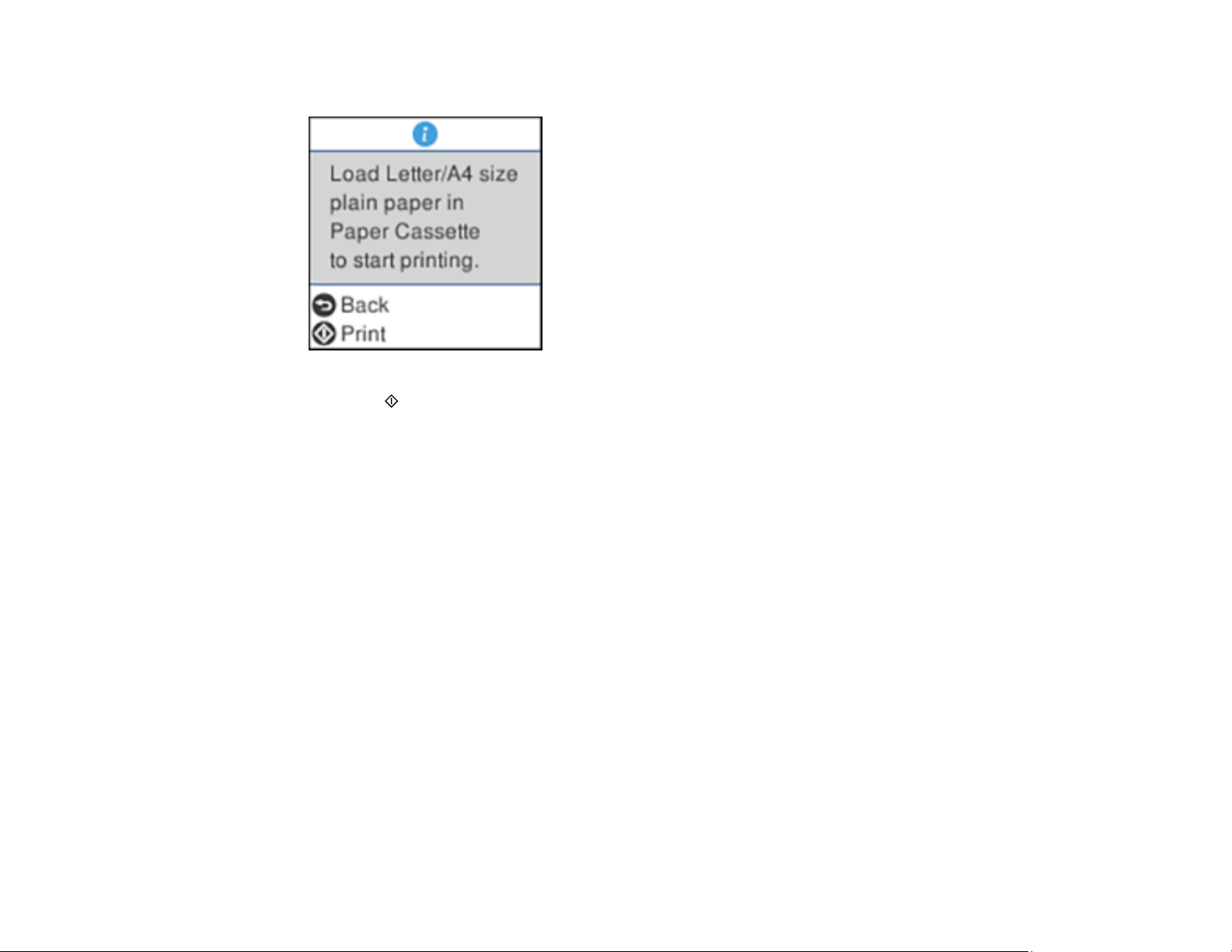
150
You see this screen:
6. Press the start button to print.
The nozzle check pattern is printed.

151
7. Check the printed pattern to see if there are gaps in the lines.
Print head is clean
Print head needs cleaning
Print head needs Power Cleaning
8. Do one of the following:
• If there are no gaps, the print head is clean. Select No and press the OK button.

152
• If there are gaps or the pattern is faint, select Yes and press the OK button. Follow the instructions
on the screen to clean the print head.
• If almost the entire pattern is missing, select No and press the OK button. See the link below for
instructions on performing a Power Cleaning.
Parent topic: Print Head Nozzle Check
Related tasks
Cleaning the Print Head Using the Product Control Panel
Power Cleaning Using the Product Control Panel
Refilling the Ink Tank
Related topics
Loading Paper
Checking the Nozzles Using a Computer Utility
You can check the print head nozzles using a utility on your Windows or Mac computer.
1. Make sure there are no errors on the LCD screen.
2. Load a few sheets of plain paper in the paper cassette.
3. Do one of the following:
• Windows: Access the Windows Desktop and right-click the icon for your product in the right
side of the Windows taskbar, or click the up arrow and right-click .
• Mac: In the Apple menu or the Dock, select System Preferences. Select Print & Fax, Print &
Scan, or Printers & Scanners, select your product, and select Options & Supplies. Select
Utility and select Open Printer Utility.
4. Select Nozzle Check.
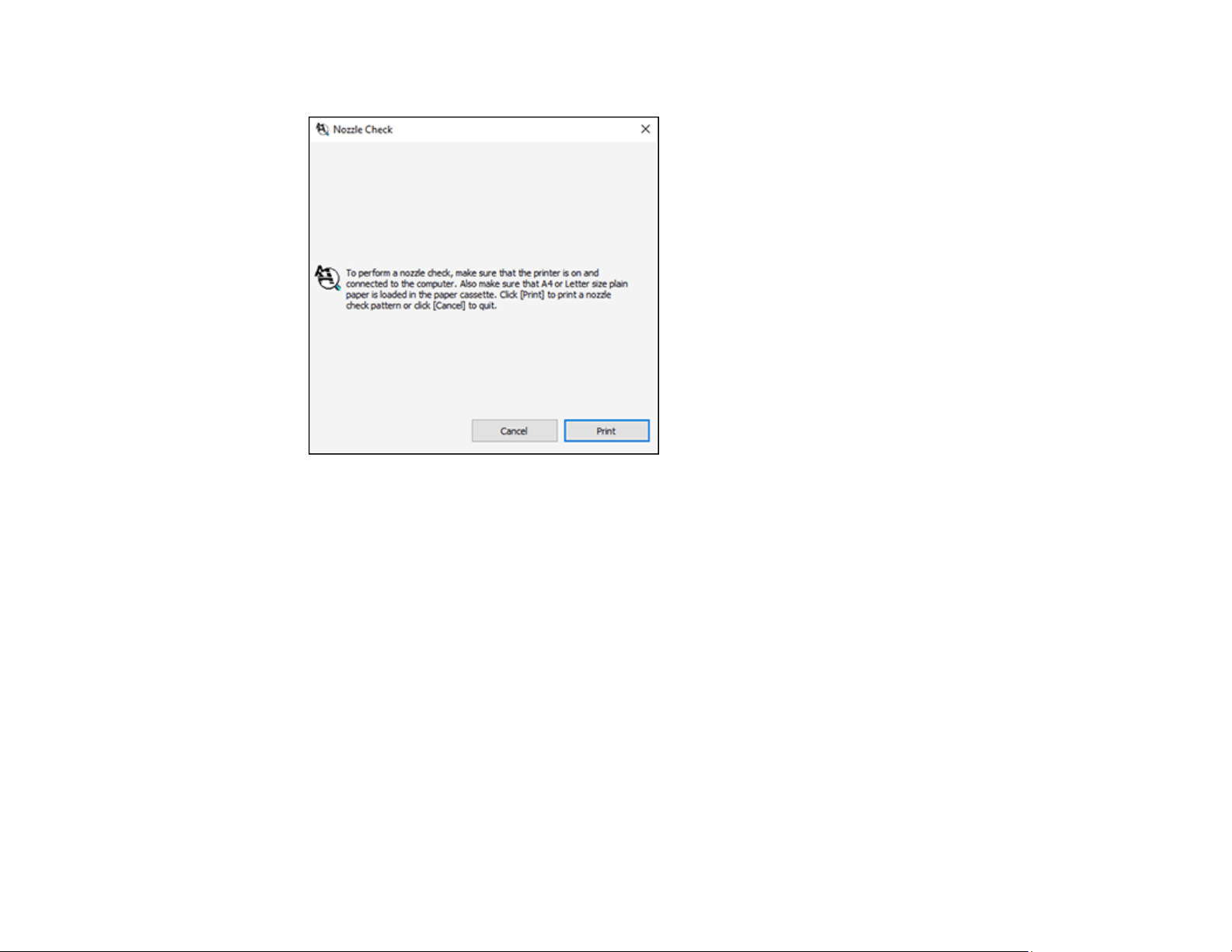
153
You see a window like this:
5. Click Print.

154
6. Check the printed pattern to see if there are gaps in the lines.
Print head is clean
Print head needs cleaning
Print head needs Power Cleaning
7. If there are no gaps, click Finish.

155
If there are gaps or the pattern is faint, clean the print head. If almost the entire pattern is missing,
see the link below for instructions on performing a Power Cleaning.
Parent topic: Print Head Nozzle Check
Related tasks
Cleaning the Print Head Using a Computer Utility
Power Cleaning Using a Computer Utility
Refilling the Ink Tank
Related topics
Loading Paper
Print Head Cleaning
If print quality has declined and the nozzle check pattern indicates clogged nozzles, you can clean the
print head.
Note: You cannot clean the print head if the ink level has reached the lower line on the ink tank, and may
not be able to clean it when the ink level in the tank is low. You must refill the ink tank first.
Cleaning the Print Head Using the Product Control Panel
Cleaning the Print Head Using a Computer Utility
Parent topic: Print Head Maintenance
Related tasks
Refilling the Ink Tank
Cleaning the Print Head Using the Product Control Panel
You can clean the print head nozzles using the control panel on your product.
1. Make sure there are no errors on the LCD screen.
2. Load a few sheets of plain paper in the paper cassette.
3. Press the home button, if necessary.
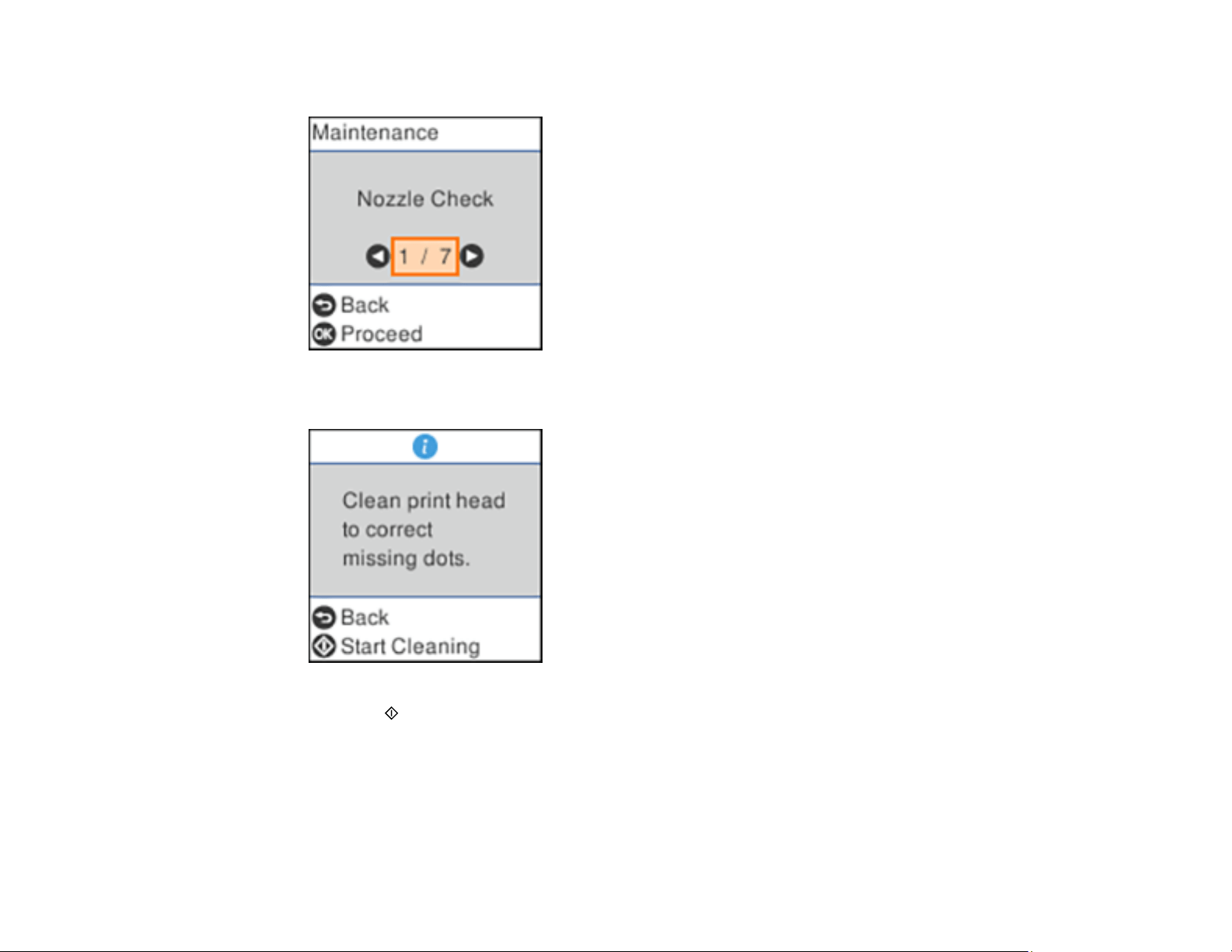
156
4. Select Maintenance and press the OK button.
5. Select Head Cleaning and press the OK button.
6. Press the start button to clean the print head. You see a message on the LCD screen during the
cleaning cycle.
Caution: Never turn off the product or open the printer cover during a cleaning cycle or you may not
be able to print.
When the cleaning cycle is finished, you see a message on the LCD screen.

157
7. Select Nozzle Check, press the OK button, and press the start button to run a nozzle check and
confirm that the print head is clean.
If you don’t see any improvement after cleaning the print head up to 3 times, turn off the product and wait
at least 6 hours. Then try cleaning the print head again. If quality still does not improve, run a Power
Cleaning. If there is still no improvement, contact Epson support.
Parent topic: Print Head Cleaning
Related tasks
Checking the Nozzles Using the Product Control Panel
Power Cleaning Using the Product Control Panel
Refilling the Ink Tank
Related topics
Loading Paper
Cleaning the Print Head Using a Computer Utility
You can clean the print head using a utility on your Windows or Mac computer.
1. Make sure there are no errors on the LCD screen.
2. Load a few sheets of plain paper in the paper cassette.
3. Do one of the following:
• Windows: Access the Windows Desktop and right-click the icon for your product in the right
side of the Windows taskbar, or click the up arrow and right-click .
• Mac: In the Apple menu or the Dock, select System Preferences. Select Print & Fax, Print &
Scan, or Printers & Scanners, select your product, and select Options & Supplies. Select
Utility and select Open Printer Utility.
4. Select Head Cleaning.
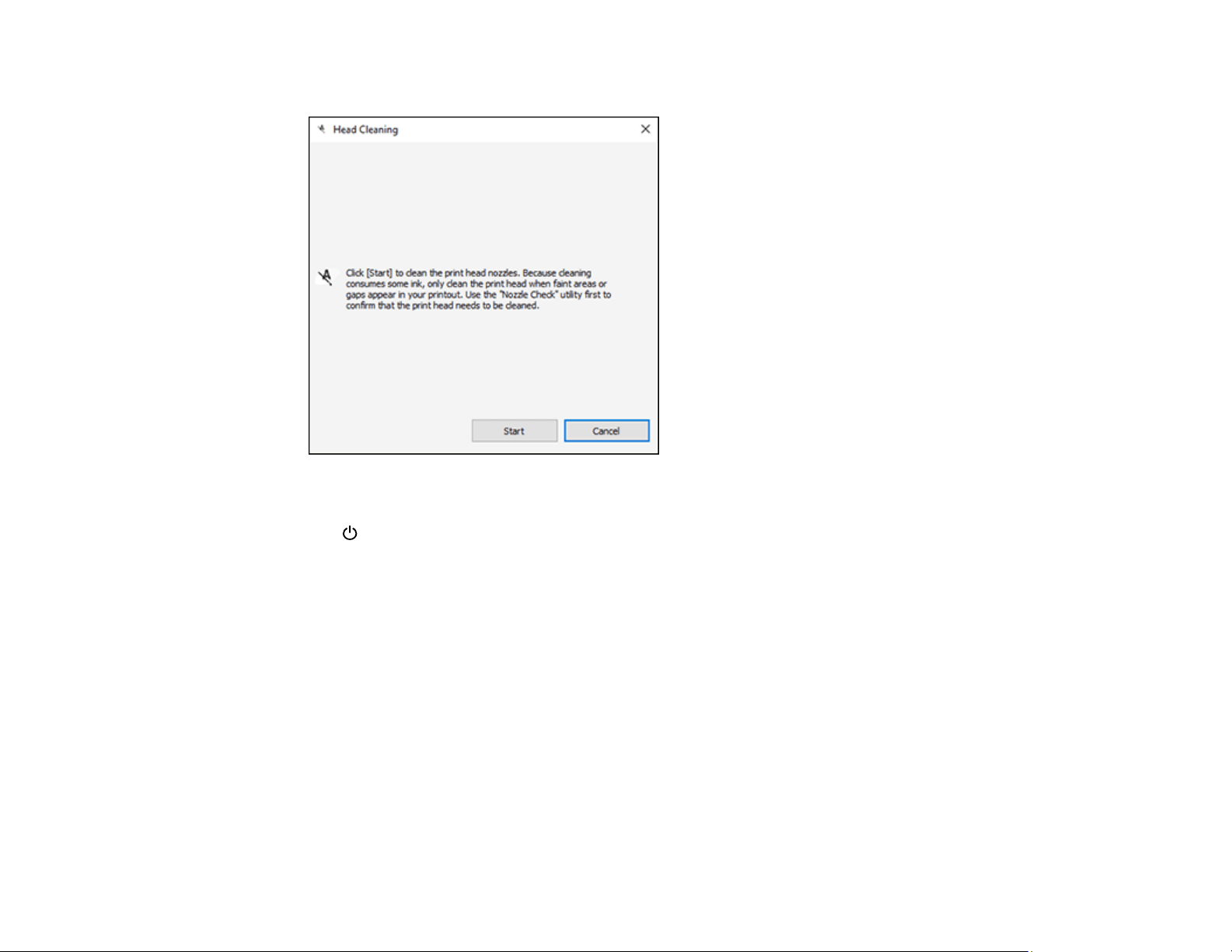
158
You see a window like this:
5. Click Start to begin the cleaning cycle.
The power light flashes throughout the cleaning cycle and stays on when the cleaning cycle is
finished.
Caution: Never turn off the product or open the printer cover during a cleaning cycle or you may not
be able to print.
6. When the cleaning cycle is finished, you can check to see if the nozzles are clean; click Print Nozzle
Check Pattern and click Print.

159
7. Check the printed pattern to see if there are gaps in the lines.
Print head is clean
Print head needs cleaning
Print head needs Power Cleaning
• If there are no gaps, click Finish.
• If there are gaps or the pattern is faint, click Clean to clean the print head again.

160
• If almost the entire pattern is missing, click Finish and perform a Power Cleaning.
If you don’t see any improvement after cleaning the print head up to 3 times, turn off the product and wait
at least six hours. Run a nozzle check again. If quality still does not improve, run a Power Cleaning. If
there is still no improvement, contact Epson support.
Parent topic: Print Head Cleaning
Related references
Where to Get Help
Related tasks
Refilling the Ink Tank
Power Cleaning Using a Computer Utility
Related topics
Loading Paper
Power Cleaning
If you still see white or dark lines or missing nozzles in your printouts, even after cleaning the print head
several times, you can run a Power Cleaning.
If you do not see improvement after running a Power Cleaning, turn off the product and wait at least 12
hours before running another Power Cleaning.
Caution: Running a Power Cleaning consumes a lot of ink, so you should run it only if necessary. Make
sure the ink tank is at least one-third full before running a Power Cleaning, or it may damage the product.
Caution: Power Cleaning may cause the maintenance box to reach its capacity sooner. When the
maintenance box is full, you need to replace it to continue printing.
Power Cleaning Using the Product Control Panel
Power Cleaning Using a Computer Utility
Parent topic: Print Head Maintenance
Related tasks
Refilling the Ink Tank
Checking the Nozzles Using the Product Control Panel
Checking the Nozzles Using a Computer Utility
Checking Ink and Maintenance Box Levels - Windows
Checking Ink and Maintenance Box Levels - Mac

161
Checking the Ink Level on Your Product
Checking Maintenance Box Status on the LCD Screen
Power Cleaning Using the Product Control Panel
You can run a Power Cleaning using the control panel on your product.
Note: After a Power Cleaning, you must turn off the product and wait at least 12 hours before running
another Power Cleaning.
1. Make sure there are no errors on the LCD screen.
2. Turn off the product.
3. Visually check the ink level and make sure the ink tank is at least one-third full.
Caution: If you run a Power Cleaning when the ink level is low, you may damage the product.
4. Press and hold the power button and the help button at the same time until you see the Power
Cleaning screen. Then release both buttons.
5. Follow the instructions on the LCD screen to run the Power Cleaning.
6. When the Power Cleaning is finished, run a nozzle check.
If the print quality did not improve, turn off the product and wait at least 12 hours before running another
Power Cleaning.
If the print quality does not improve after running the Power Cleaning utility multiple times, contact Epson
for support.
Parent topic: Power Cleaning
Related tasks
Refilling the Ink Tank
Power Cleaning Using a Computer Utility
You can run a Power Cleaning using a utility on your Windows or Mac computer.
Note: After running a Power Cleaning, you must turn off the product and wait at least 12 hours before
running another Power Cleaning.
1. Make sure there are no errors on the LCD screen.
2. Load a few sheets of plain paper in the cassette.
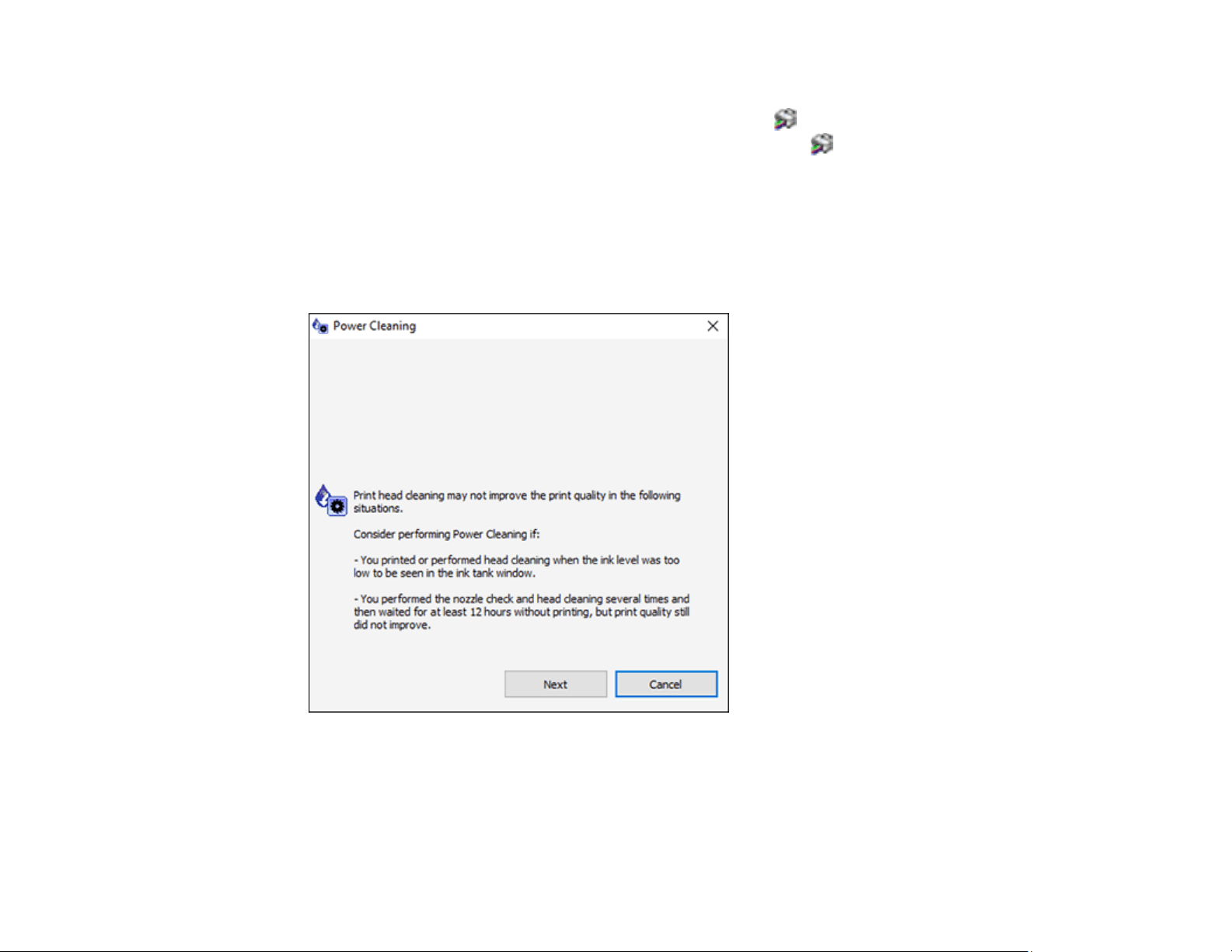
162
3. Do one of the following:
• Windows: Access the Windows Desktop and right-click the icon for your product in the right
side of the Windows taskbar, or click the up arrow and right-click . Select Printer Settings and
click the Maintenance tab.
• Mac: In the Apple menu or the Dock, select System Preferences. Select Print & Fax, Print &
Scan, or Printers & Scanners, select your product, and select Options & Supplies. Select
Utility and select Open Printer Utility.
4. Select Power Cleaning.
You see a window like this:
5. Follow the on-screen instructions to run a Power Cleaning.
6. When Power Cleaning is finished, run a nozzle check.
If the print quality did not improve, turn off the product and wait at least 12 hours before running another
Power Cleaning.

163
If the print quality does not improve after running the Power Cleaning utility multiple times, contact Epson
for support.
Parent topic: Power Cleaning
Related tasks
Refilling the Ink Tank
Print Head Alignment
If your printouts become grainy or blurry, you notice misalignment of vertical lines, or you see dark or
light horizontal bands, you may need to align the print head.
Note: Banding may also occur if your print head nozzles need cleaning.
Aligning the Print Head Using the Product Control Panel
Parent topic: Adjusting Print Quality
Related tasks
Refilling the Ink Tank
Aligning the Print Head Using the Product Control Panel
You can align the print head using the control panel on your product.
1. Make sure there are no errors on the LCD screen.
2. Load a few sheets of plain paper in the cassette.
3. Press the home button, if necessary.
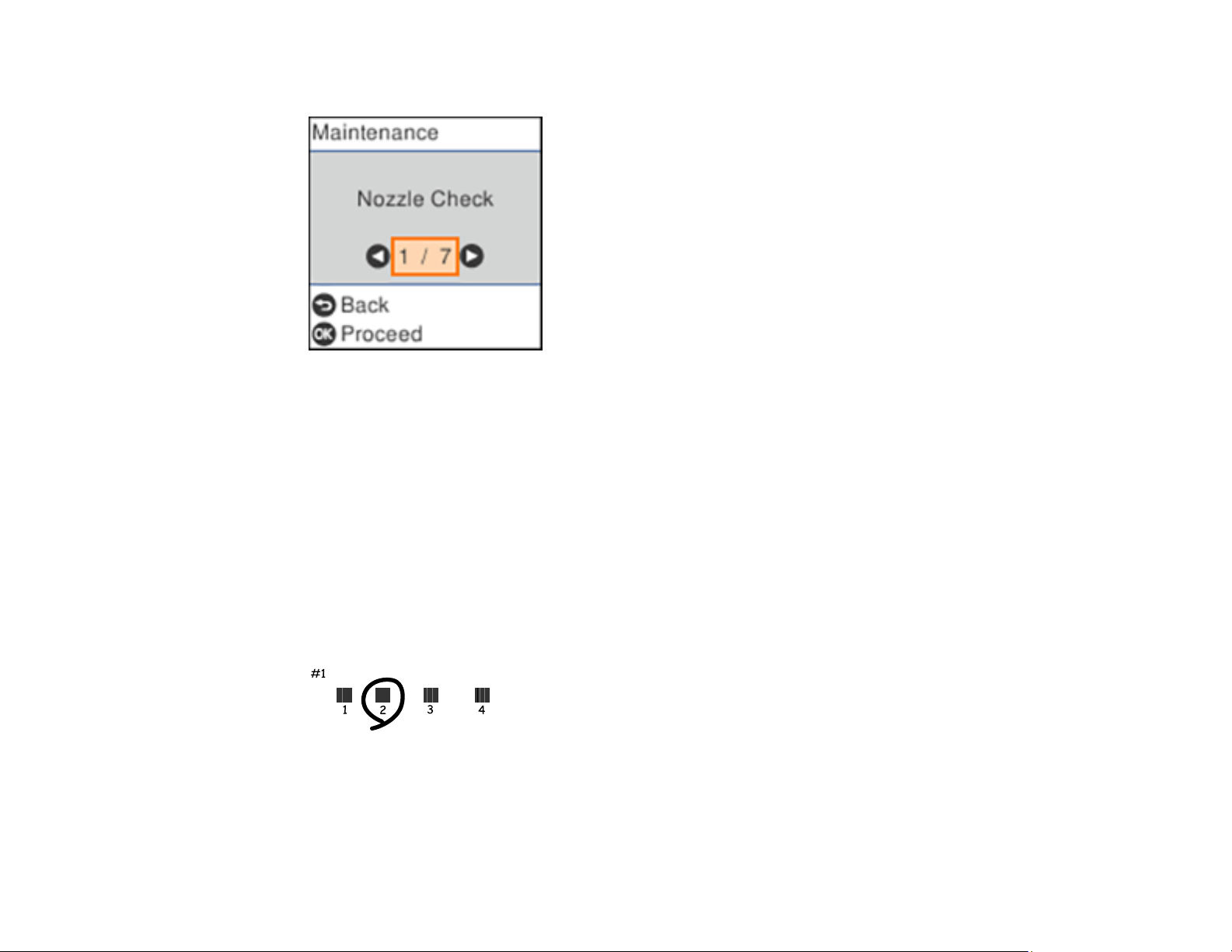
164
4. Select Maintenance and press the OK button.
5. Select Print Head Alignment and press the OK button.
6. Do one of the following:
• Select Vertical Alignment and press the OK button.
• Select Horizontal Alignment and press the OK button.
7. Press the OK button to print an alignment sheet.
Note: Do not cancel printing while you are printing a head alignment pattern.
8. Check the printed pattern and select the number representing the most solid printed pattern for each
set on the LCD screen.
Vertical Alignment
Horizontal Alignment
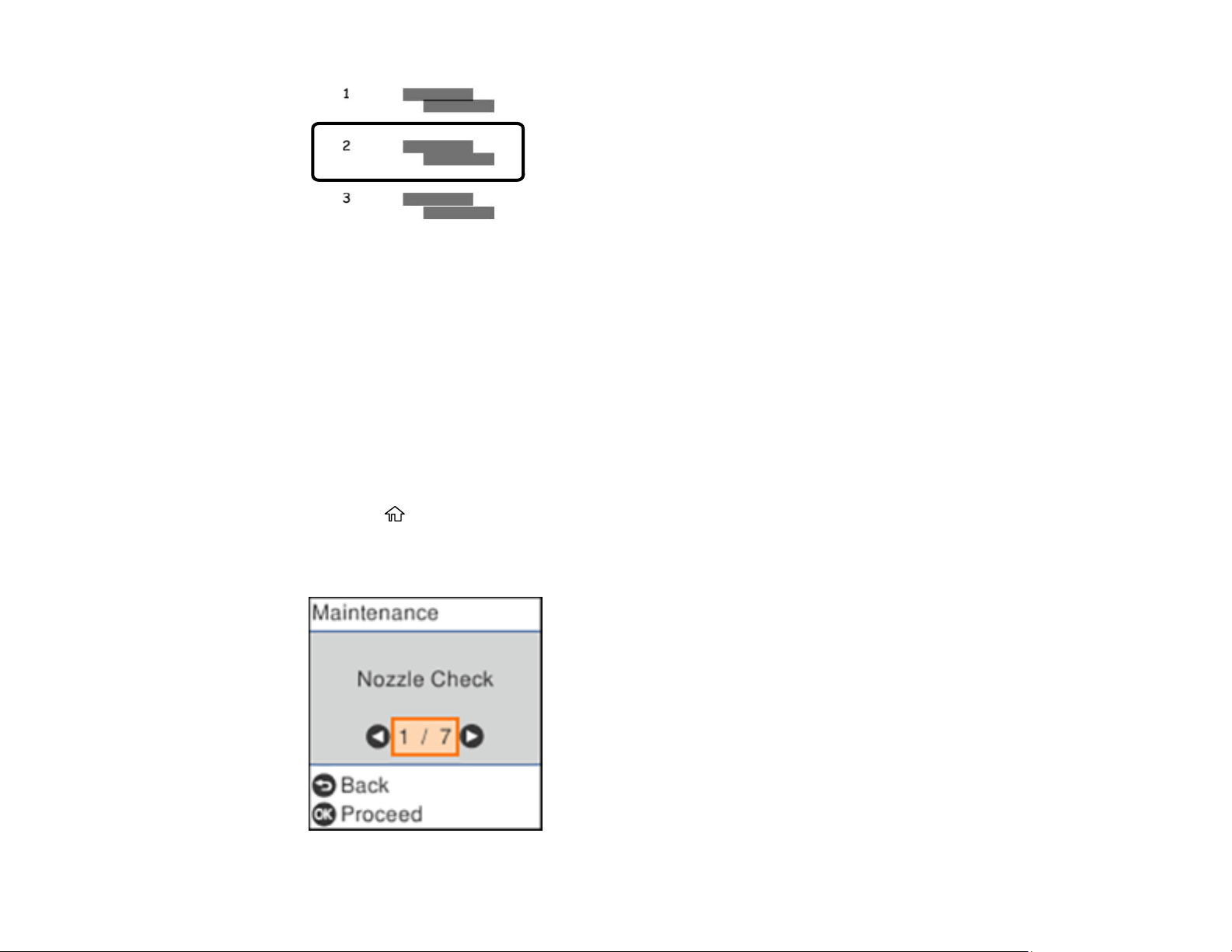
165
9. Press the OK button when you are finished.
Parent topic: Print Head Alignment
Related topics
Loading Paper
Cleaning the Paper Guide
If you see ink on the back of a printout or if printouts are smeared or scuffed, you can clean the paper
guide roller to remove any excess ink.
1. Make sure there are no errors on the LCD screen.
2. Load plain paper in the cassette in this size: Letter (8.5 × 11 inches [216 × 279 mm]) or A4
(8.3 × 11.7 inches [210 × 297 mm]).
3. Press the home button, if necessary.
4. Select Maintenance.
You see a screen like this:

166
5. Select Paper Guide Cleaning and press the OK button.
6. Follow the instructions on the LCD screen to clean the paper guide.
7. Repeat these steps as necessary until the paper comes out clean.
Parent topic: Adjusting Print Quality
Related concepts
Print Head Nozzle Check
Related tasks
Cleaning the Print Head Using a Computer Utility
Cleaning the Print Head Using a Computer Utility
Cleaning the Print Head Path
If the print quality has not improved after cleaning and aligning the print head and cleaning the paper
path, the print head path inside the printer may be smeared with ink.
To clean the print head path, use the following:
• Several cotton swabs
• ¼ cup (60 ml) water containing 2 to 3 drops of mild dish detergent
• A small flashlight
Caution: Do not use any other liquid to clean the print head path or you may damage your product.
1. Turn off the product.
2. Unplug the power cable.
3. Disconnect any connected cables.
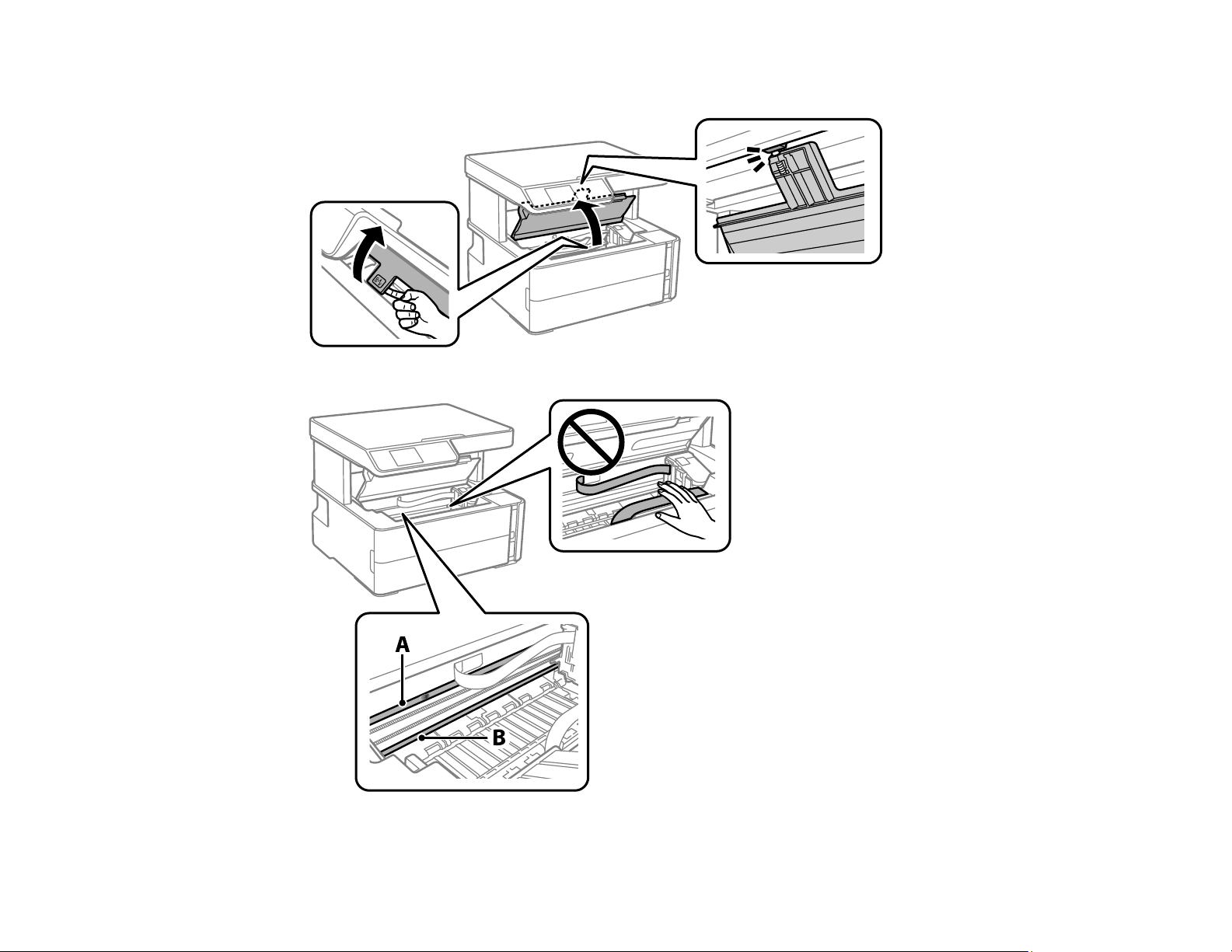
167
4. Open the printer cover.
5. Using the flashlight, check the translucent film shown here for ink smears.

168
A Translucent film
B Print head rail
Caution: Do not touch the print head rail or wipe the grease off of it. You may not be able to print. Do
not touch the white flat cable or ink tubes.
6. Moisten a cotton swab with the water and detergent mixture, and squeeze out any excess moisture.
Lightly wipe the ink off the translucent film.
Caution: Do not press too hard on the film or you may dislocate the anchor springs and damage
your product.
7. Use a new, dry cotton swab to dry the translucent film. Do not leave cotton fibers on the film.
8. Repeat steps 6 and 7 as necessary to clean all ink smears.
9. When the translucent film is dry, close the printer cover.
10. Reconnect any disconnected cables, plug in the power cord, and turn on the product.
Parent topic: Adjusting Print Quality
Checking the Number of Sheets
You can view an option that displays the number of sheets of paper that have fed through the product.
Note: You can also view the number of sheets of paper fed through the product by printing a nozzle
check.
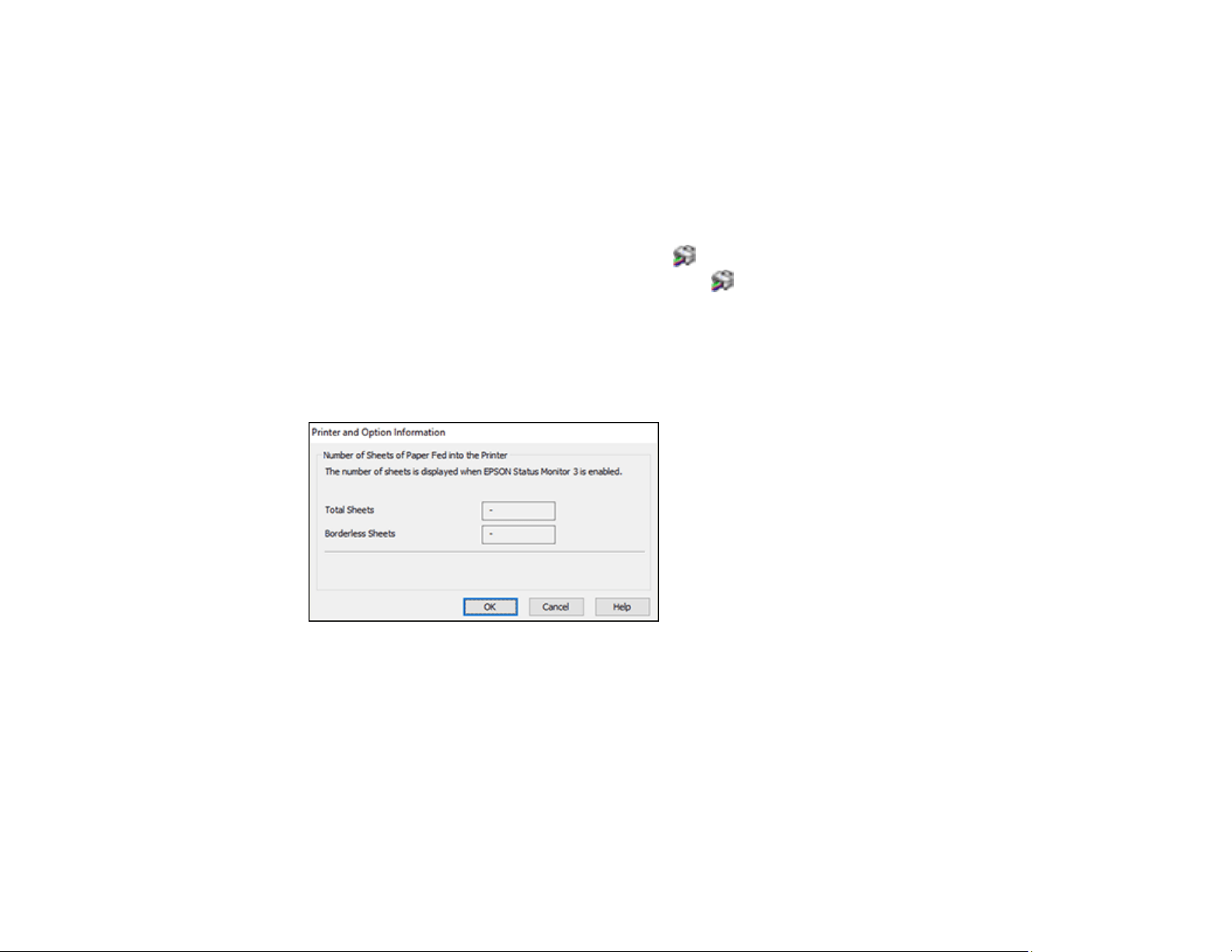
169
Checking the Sheet Counter - Windows
Checking the Sheet Counter - Mac
Parent topic: Adjusting Print Quality
Checking the Sheet Counter - Windows
You can check the number of sheets of paper that have fed through the product by checking the sheet
counter.
1. Access the Windows Desktop and right-click the icon for your product in the right side of the
Windows taskbar, or click the up arrow and right-click .
2. Select Printer Settings.
3. Click the Maintenance tab.
4. Select Printer and Option Information.
You see this window:
5. After checking the number of sheets fed into the printer, click OK to close the window.
Note: The number of sheets is displayed only when Epson Status Monitor 3 is enabled.
Parent topic: Checking the Number of Sheets
Checking the Sheet Counter - Mac
You can check the number of sheets of paper that have fed through the product by checking the sheet
counter.
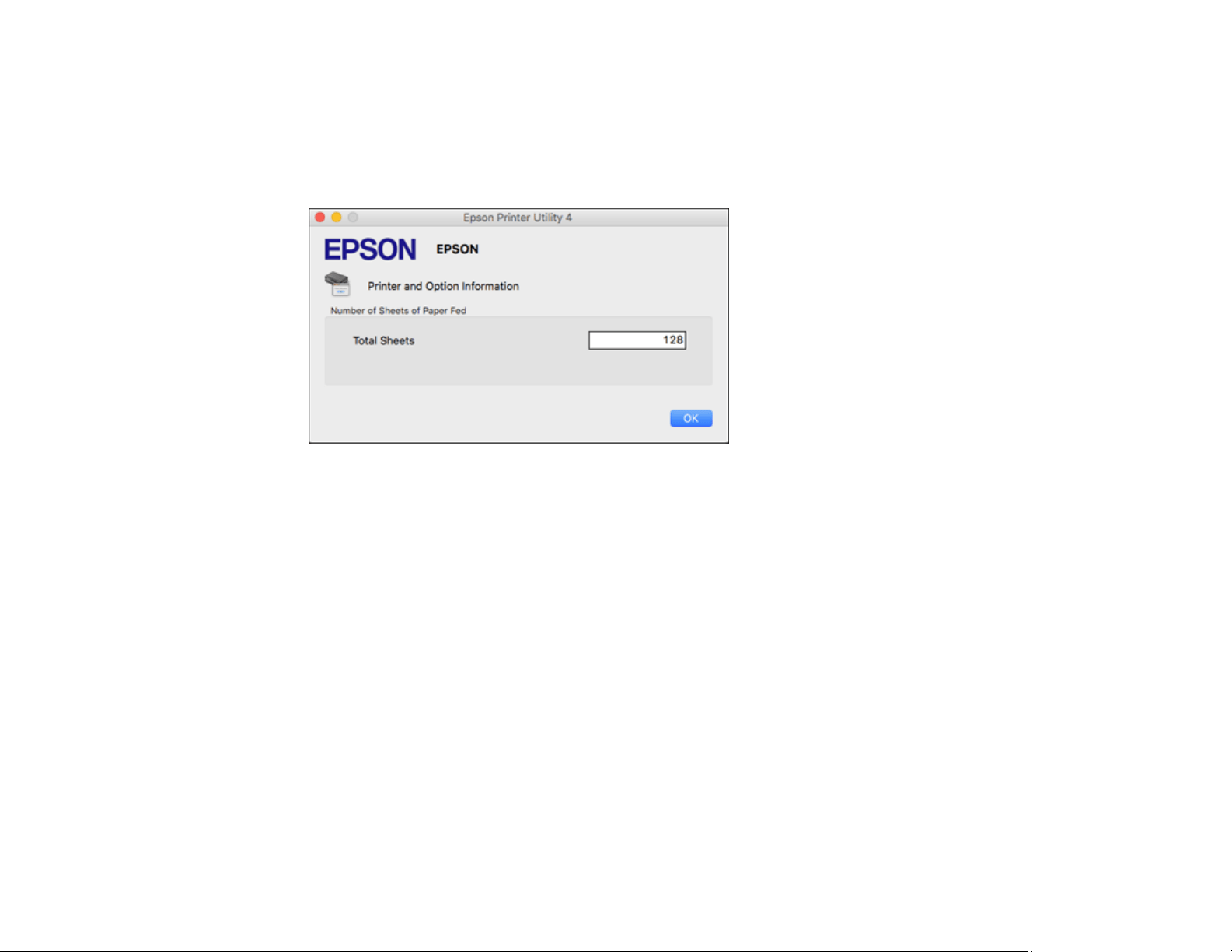
170
1. In the Apple menu or the Dock, select System Preferences. Select Print & Fax, Print & Scan, or
Printers & Scanners, select your product, and select Options & Supplies. Select Utility and select
Open Printer Utility.
2. Select Printer and Option Information.
You see this window:
3. After checking the number of sheets fed into the printer, click OK to close the window.
Parent topic: Checking the Number of Sheets

171
Cleaning and Transporting Your Product
See these sections if you need to clean or transport your product.
Cleaning Your Product
Cleaning the Paper Rollers
Transporting Your Product
Cleaning Your Product
To keep your product working at its best, you should clean it several times a year.
Close the front cover and paper cassette cover when you are not using the product to protect it from
dust.
Caution: Do not use a hard brush, alcohol, or paint thinner to clean the product or you may damage it.
Do not use oil or other lubricants inside the product or let water get inside it.
1. Turn off the product.
2. Unplug the power cable.
3. Disconnect any connected cables.
4. Remove all the paper.
5. Open the document cover.
6. Clean the scanner glass with a soft, lint-free cloth (microfiber is recommended), moistened with a
little glass cleaner.
Caution: Do not spray glass cleaner directly on the glass and do not press the glass surface with
any force.
7. Close the document cover.
8. Clean the outer case and control panel with a soft, dry cloth. Do not use liquid or chemical cleansers.
Parent topic: Cleaning and Transporting Your Product
Cleaning the Paper Rollers
If you encounter repeated paper feed issues from the cassette, clean the paper rollers inside the
product.
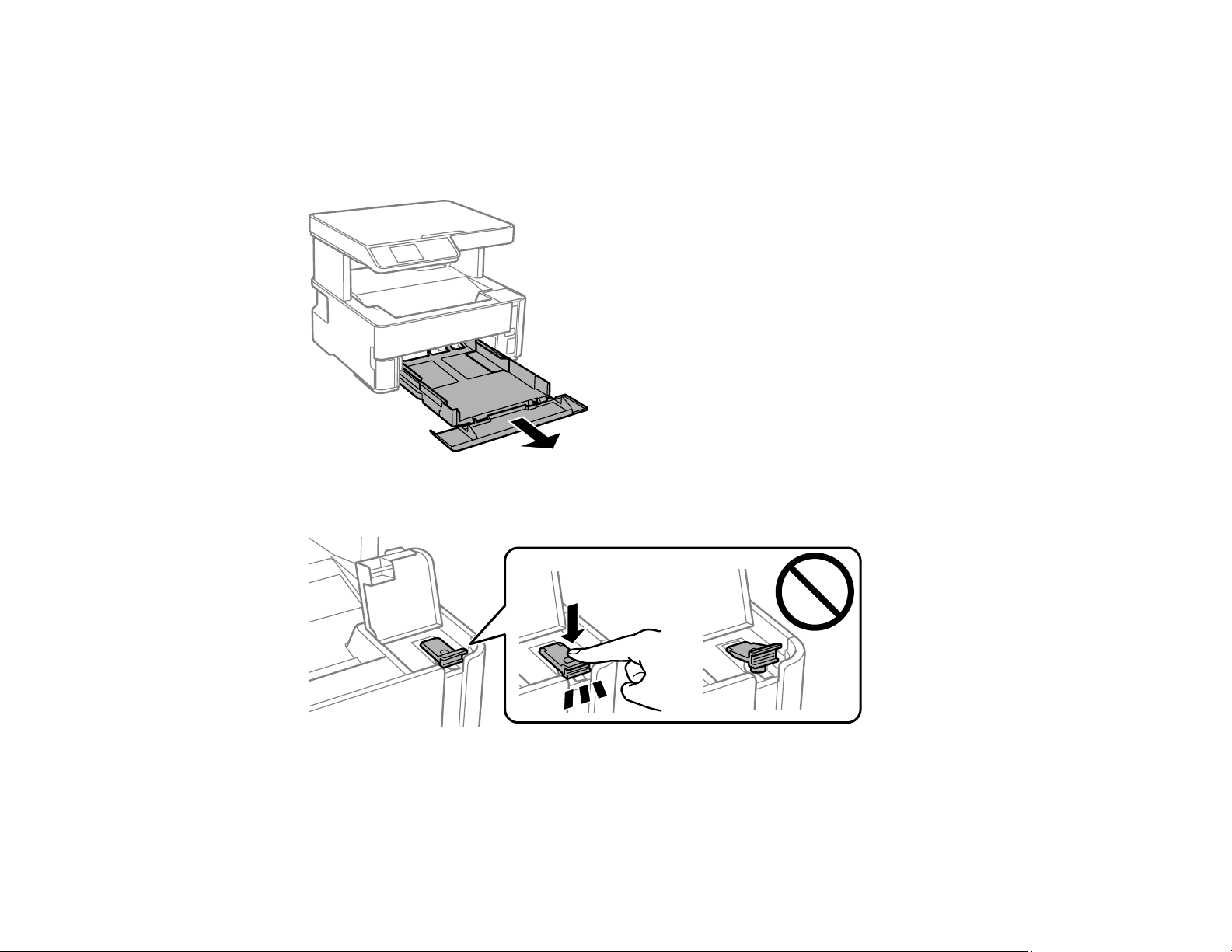
172
1. Turn off the product.
2. Unplug the power cable.
3. Disconnect any connected cables.
4. Slide out the paper cassette and remove the paper.
5. Make sure the ink tank cap is securely closed.
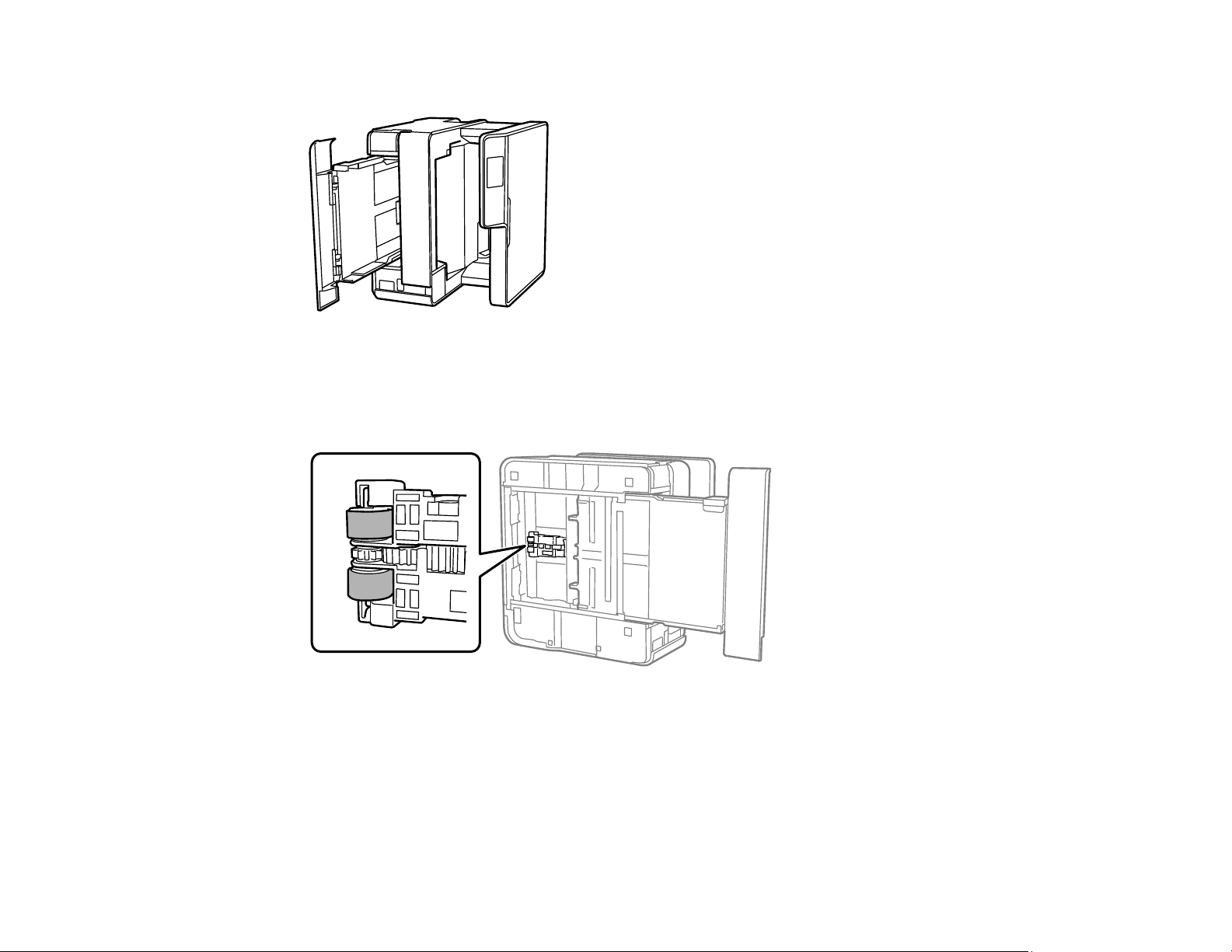
173
6. Place the product on its side with the ink tank on the bottom.
Warning: Be careful not to trap your fingers under the product.
7. Use a soft, moist cloth to clean the paper rollers, as shown. Rotate the rollers to clean them
thoroughly.
8. Return the product to its normal position.
Caution: Do not leave the product on its side for an extended period of time.
9. Replace the paper, slide in the paper cassette, and connect the power cord and any interface
cables.
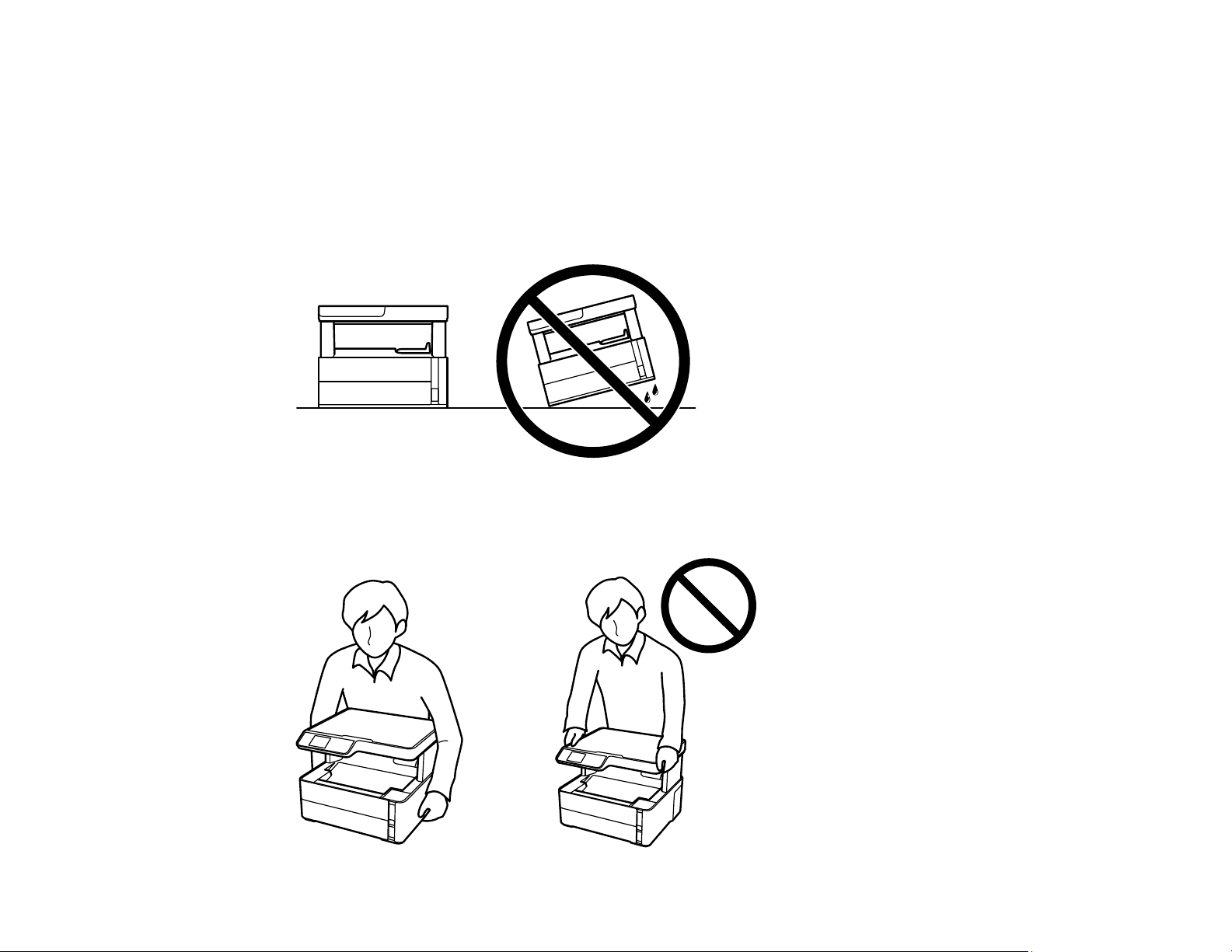
174
Parent topic: Cleaning and Transporting Your Product
Transporting Your Product
If you need to store your product or transport it some distance, prepare it for transportation as described
here.
Caution: During transportation and storage, follow these guidelines:
• Avoid tilting the product, placing it vertically, or turning it upside down; otherwise ink may leak.
• Do not lift the product by gripping the scanner unit. Make sure you lift using the handholds on the
bottom of the product.
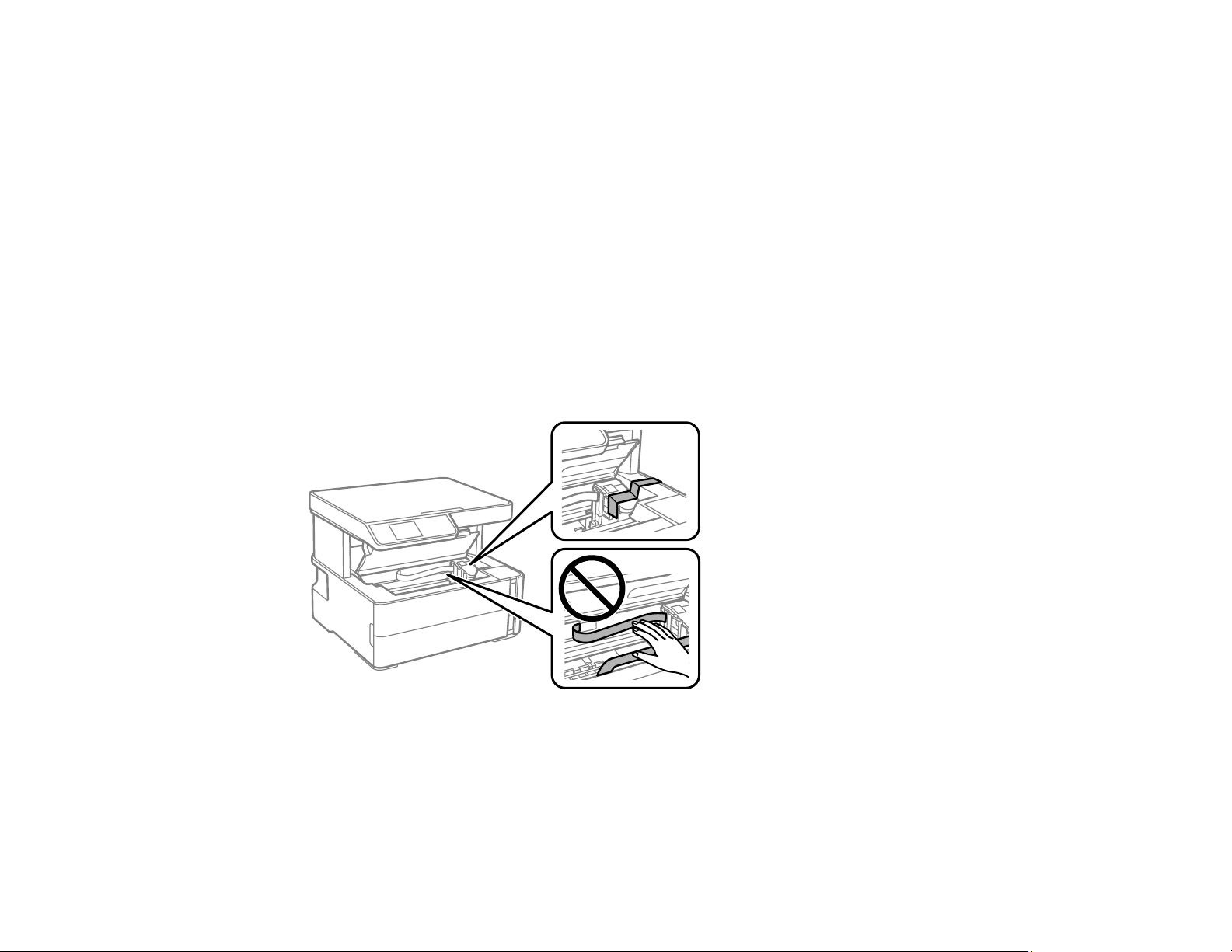
175
• When storing or transporting an ink bottle after removing its seal, do not tilt the bottle and do not
subject it to impacts or temperature changes. Otherwise, ink may leak even if the cap on the ink bottle
is tightened securely. Be sure to keep the ink bottle upright when tightening the cap, and take
measures to prevent ink from leaking when transporting the ink bottles.
• Do not put opened ink bottles in the box with the product.
• Do not carry the product by its control panel; this may damage the product.
Note: Before storing your product for a long period, replace low, expended, or expired ink to help
prevent the print head from drying out. Store your product in a cool, dry place.
1. Turn off the product.
2. Open the printer cover and check to see if the print head is in the far right position (the home
position). If not, turn on the product, wait for the print head to move to the far right, then turn the
product off again.
3. Secure the print head to the case with tape.
Caution: Do not place tape on the white flat cable or ink tubes inside the product; otherwise, you
may damage your product.
4. Remove all the paper from the product.
5. Unplug the power cable.
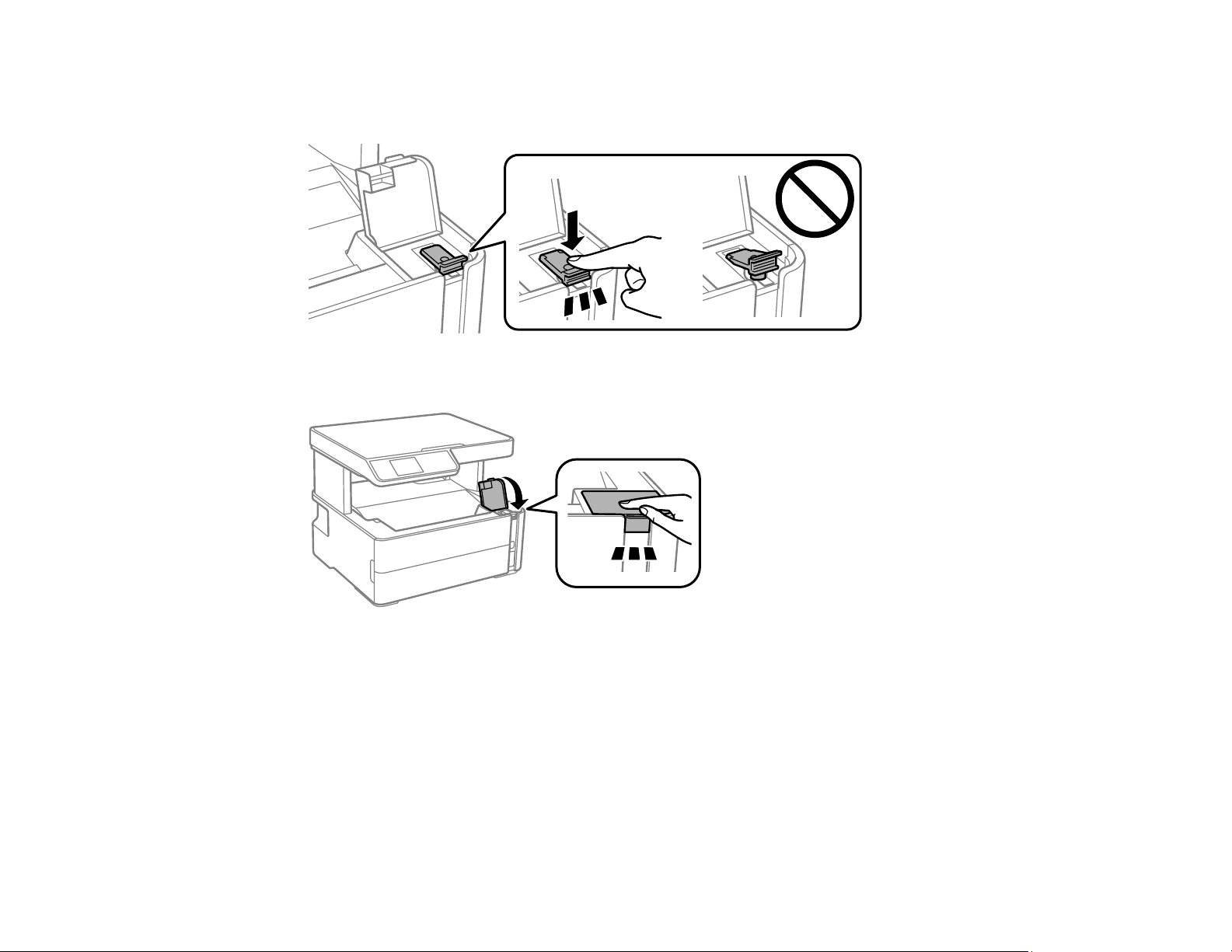
176
6. Disconnect any connected cables.
7. Open the ink tank cover and make sure that the ink tank cap is installed securely.
8. Close the ink tank cover.
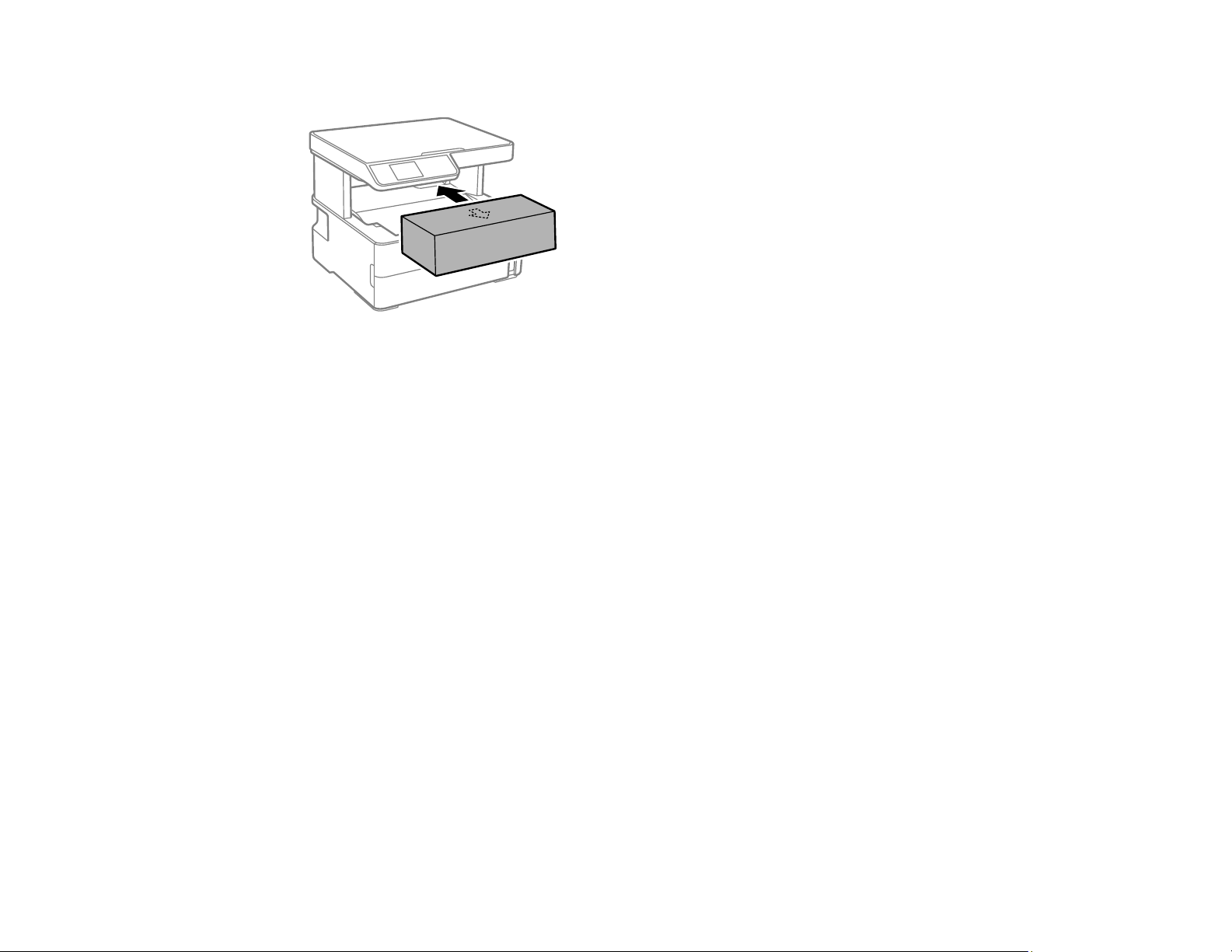
177
9. Insert the accessory box that came with the printer with the flap facing the front as shown below.
10. Place the product in a plastic bag.
11. Place the product in its original packaging materials, if possible, or use equivalent cushioning around
the product.
Be sure to remove the tape from the print head before turning on your product. If print quality has
declined when you print again, clean and align the print head.
Parent topic: Cleaning and Transporting Your Product
Related concepts
Print Head Cleaning
Print Head Alignment

178
Solving Problems
Check these sections for solutions to problems you may have using your product.
Checking for Software Updates
Product Status Messages
Message Appears Prompting You to Reset the Ink Level
Running a Product Check
Resetting Control Panel Defaults
Solving Setup Problems
Solving Network Problems
Solving Copying Problems
Solving Paper Problems
Solving Problems Printing from a Computer
Solving Page Layout and Content Problems
Solving Print Quality Problems
Solving Scanning Problems
Solving Scanned Image Quality Problems
Uninstall Your Product Software
Where to Get Help
Checking for Software Updates
It's a good idea to check Epson's support website occasionally for free updates to your product software.
Visit epson.com/support (U.S.), epson.ca/support (Canada), or epson.com.jm/support (Caribbean) and
select your product.
• Windows: Your printer software automatically checks for updates. You can also manually update the
software by selecting Software Update here:
• Accessing the Windows Desktop and right-clicking the icon for your product in the right side of
the Windows taskbar, or clicking the up arrow and right-clicking .
• On the Maintenance tab in the printer settings window
You can also update the software by selecting EPSON Software Updater in the EPSON or EPSON
Software program group, accessible by the Start button, or on the Start or Apps screens, depending
on your version of Windows.

179
• OS X: You can manually update the software by opening the Applications > Epson Software folder
and selecting EPSON Software Updater.
• macOS 10.12.x or later: You can manually update the software by opening the App Store, selecting
Updates, searching for a software update option for Epson Software, and selecting Update.
Parent topic: Solving Problems
Product Status Messages
You can often diagnose problems with your product by checking the messages on its LCD screen.
LCD code Condition/solution
(E-01) A printer error has occurred. Turn the product off and then back on again. If the error
continues, check for a paper jam. If there is no paper jam, contact Epson for support.
(E-02) A scanner error has occurred. Turn the product off and then back on again.
(W-01) Paper is jammed in the product. Remove the jammed paper, then press the button
indicated on the LCD screen to clear the error. If the error continues, turn the product
off and back on again.
(I-22) To establish a wireless connection using an access point, press the button on the
access point or click the button on the access point's wireless settings screen
displayed on your computer screen.
(I-23) Enter the PIN code displayed on the LCD screen into the access point or computer
within two minutes. If you wait longer than two minutes, a time-out error occurs, the
code changes, and you must enter a new code.
(I-31) To make wireless connection settings from your computer, run the installer and follow
the on-screen instructions.
(I-41) The Paper Setup Auto Display option is disabled. You must enable Paper Setup
Auto Display to use AirPrint.
(I-60) Your computer may not support WSD (Web Services for Devices). The Scan to PC
(WSD) function is available only for computers running English versions of Windows
10, Windows 8.x, Windows 7, or Windows Vista.
Recovery Mode A firmware update has failed. Connect your product using a USB cable and try
updating the firmware again. If you still receive this error message, contact Epson for
support.
Parent topic: Solving Problems

180
Related references
Where to Get Help
Related tasks
Checking for Software Updates
Related topics
Solving Paper Problems
Loading Paper
Wi-Fi or Wired Networking
Message Appears Prompting You to Reset the Ink Level
If you see a message on the LCD screen prompting you to reset the ink level, do the following:
1. Refill the ink tank all the way to the upper line.
Note: Depending on the operating conditions, you may see the ink reset message even when there is
still ink in the tank.
2. Follow the instructions on the LCD screen to reset the ink level.
Note: The product has a low ink alert system. The accuracy of this system depends on the user refilling
the ink tank correctly. The product cannot directly measure the ink level in the tank; instead it estimates
the amount of ink remaining by internally monitoring ink usage. The low ink alert system may generate
inaccurate messages if the ink tank is not refilled according to these instructions.
As a precaution, perform regular visual inspections of the ink tank to ensure the ink level does not fall
below the lower line. Continued use of the product when the ink level is below the lower line on the tank
could damage the product.
Parent topic: Solving Problems
Running a Product Check
Running a product check helps you determine if your product is operating properly.
1. Disconnect any interface cables connected to your product.
2. Load plain paper in the product.
3. Press the home button, if necessary.
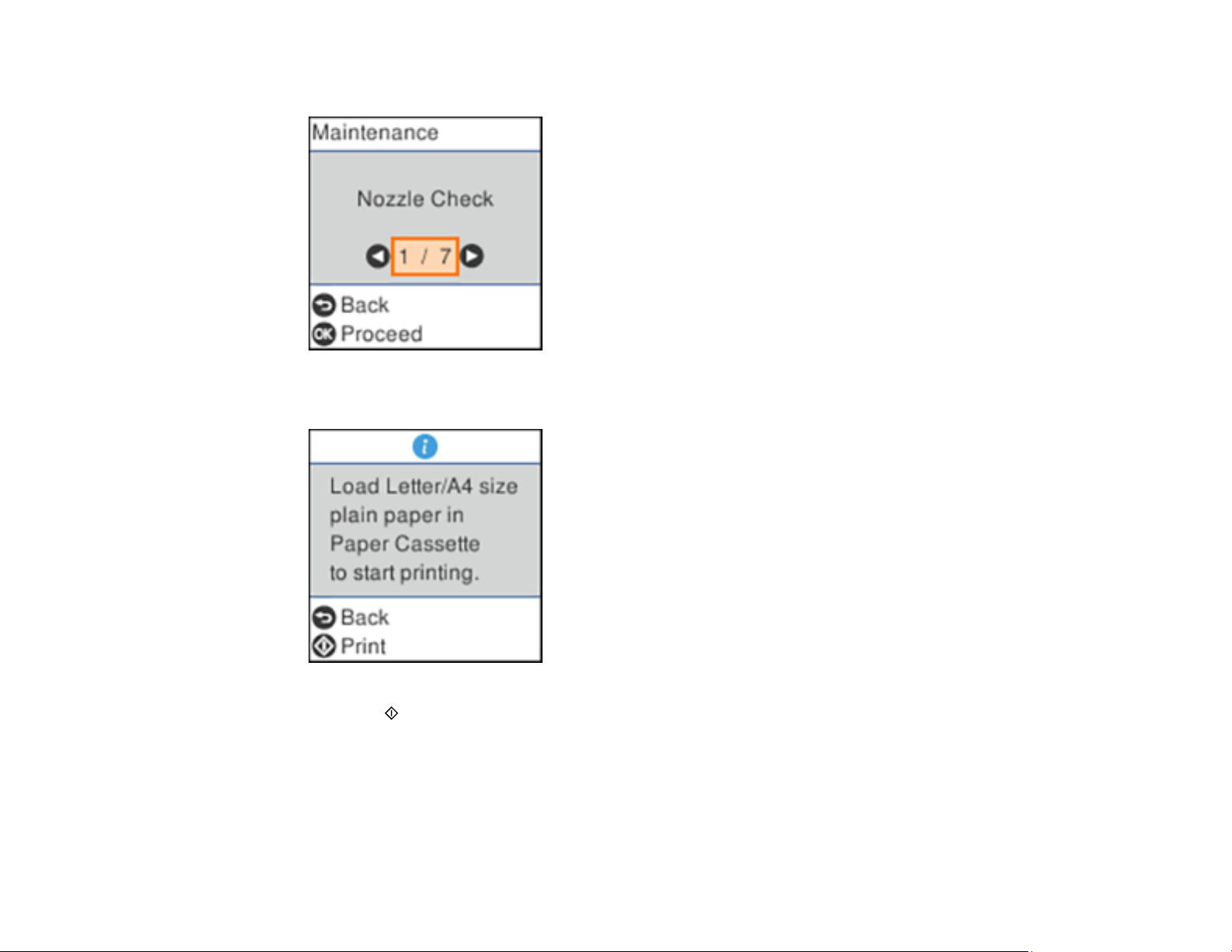
181
4. Select Maintenance and press the OK button.
5. Select Nozzle Check and press the OK button.
6. Press the start button.
The nozzle check pattern is printed.
7. Do one of the following, depending on the results of the product check:
• If the page prints and the nozzle check pattern is complete, the product is operating properly. Any
operation problem you may have could be caused by your computer, cable, software, or selected
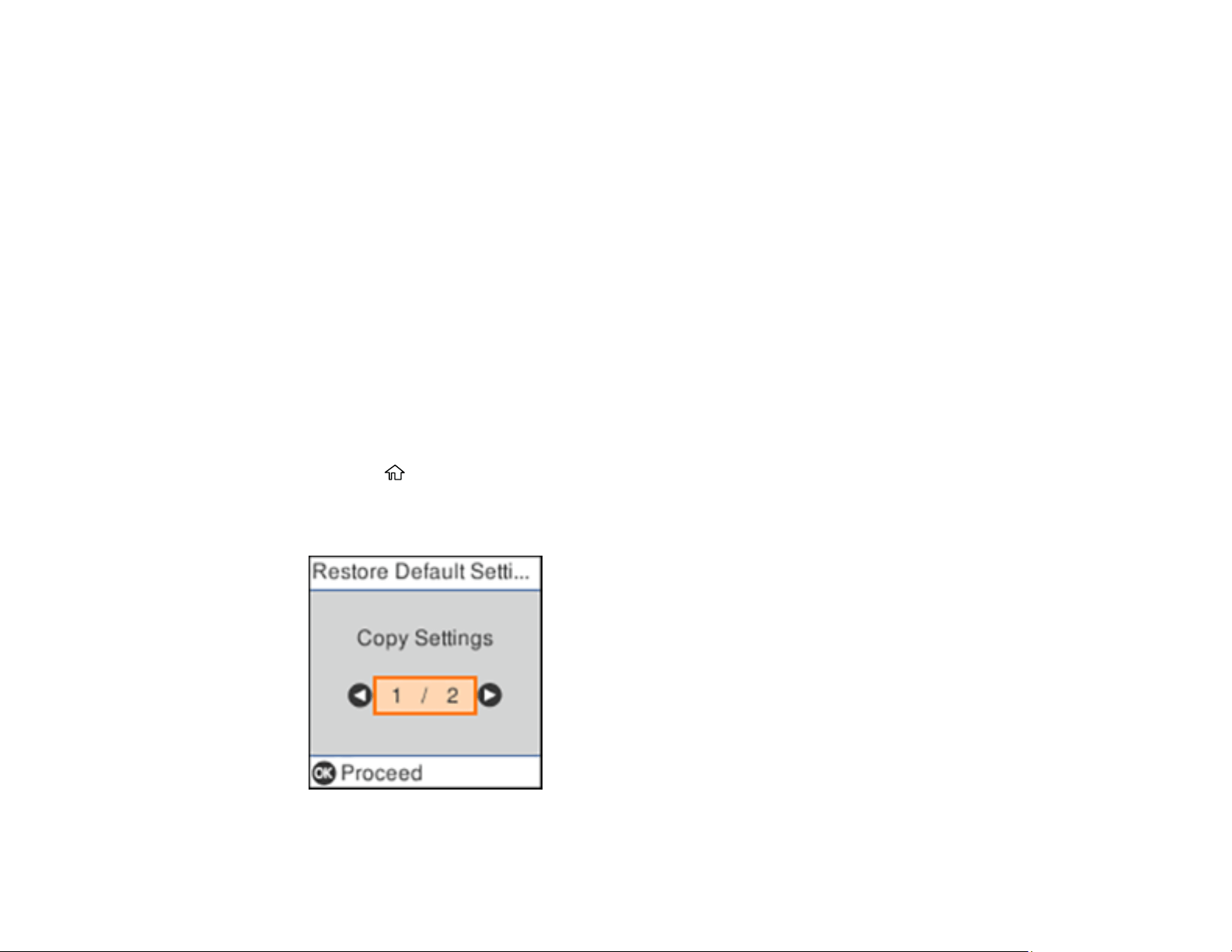
182
settings. Check the other solutions in this book or try uninstalling and reinstalling your printer
software.
• If the page prints but the nozzle check pattern has gaps, clean or align the print head.
• If the page does not print, the product may have a problem. Check the other solutions in this
manual. If they do not work, contact Epson.
Parent topic: Solving Problems
Related concepts
Print Head Cleaning
Print Head Alignment
Uninstall Your Product Software
Related references
Where to Get Help
Resetting Control Panel Defaults
If you have a problem with settings on the product control panel, you can reset them to their factory
defaults. You can choose which settings to reset or reset them all.
1. Press the home button, if necessary.
2. Press the arrow buttons to select Settings and press the OK button.
3. Select Restore Default Settings and press the OK button.

183
4. Select one of these options:
• Copy Settings: Resets all copy settings.
• Scan Settings: Resets all scan settings.
• Network Settings: Resets all network settings.
• Clear All Data and Settings: Resets all settings.
You see a confirmation screen.
5. Press the OK button to reset the selected settings. (Press the stop button if you want to cancel the
operation.)
Parent topic: Solving Problems
Solving Setup Problems
Check these sections if you have problems while setting up your product.
Product Does Not Turn On or Off
Noise After Filling the Ink
Software Installation Problems
Parent topic: Solving Problems
Product Does Not Turn On or Off
If you cannot turn the product on or off, try these solutions:
• If you cannot turn on your product, make sure the power cord is securely connected and hold down
the power button a little longer.
• If you cannot turn off your product, hold down the power button a little longer. If you still cannot turn off
your product, unplug the power cord, plug the power cord back in, then turn your product on and off
again using the power button.
Parent topic: Solving Setup Problems
Noise After Filling the Ink
If you hear noises from your product after filling the ink tank with ink, check these solutions:
• The first time you fill the tank with ink, the product must charge its print head. Wait until charging
finishes before you turn off the product, or it may charge improperly and use excess ink the next time
you turn it on. Your product is finished charging the print head when the power light stops flashing.

184
• If the product's print head stops moving or making noise, and the charging process has not finished,
turn off your product. Turn it back on and check to see if charging is still in progress. If it is still in
progress, contact Epson for help.
Parent topic: Solving Setup Problems
Software Installation Problems
If you have problems while installing your product software, try these solutions:
• Make sure your product is turned on and any necessary cables are securely connected at both ends. If
you still have problems installing software, disconnect the cable and carefully follow the instructions on
the Start Here sheet. Also make sure your system meets the requirements for your operating system.
• Close any other programs, including screen savers and virus protection software, and install your
product software again.
• In Windows, make sure your product is selected as the default printer and the correct port is shown in
the printer properties.
• If you see any error message or your software does not install correctly in Windows, you may not have
software installation privileges. Contact your system administrator.
• If you are printing over a network, make sure your product is set up properly on the network.
Parent topic: Solving Setup Problems
Related concepts
Uninstall Your Product Software
Related references
Windows System Requirements
Mac System Requirements
Solving Network Problems
Check these solutions if you have problems setting up or using your product on a network.
Note: Breakdown or repair of this product may cause loss of network data and settings. Epson is not
responsible for backing up or recovering data and settings during or after the warranty period. We
recommend that you make your own backup or print out your network data and settings.
Product Cannot Connect to a Wireless Router or Access Point
Network Software Cannot Find Product on a Network
Product Does Not Appear in Mac Printer Window

185
Wireless Network Connection is Unstable on a Mac
Wired Network Connection Becomes Unstable
Cannot Print Over a Network
Cannot Scan Over a Network
Parent topic: Solving Problems
Product Cannot Connect to a Wireless Router or Access Point
If your product has trouble finding or connecting to a wireless router or access point, try these solutions:
• If you are connecting the product via Wi-Fi Protected Setup (WPS) and the Wi-Fi icon on your
product's LCD screen is not lit or does not appear, make sure you select one of the WPS options from
the product control panel within 2 minutes of pressing the WPS button on your router.
• Make sure to place your product within contact range of your 2.4 GHz router or access point. Avoid
placing your product near a microwave oven, 2.4 GHz cordless phone, or large metal object, such as a
filing cabinet.
Note: If you are using a 5 GHz wireless router, set the router to operate in dual band (2.4 GHz and
5 GHz) mode. If your router uses a single network name (SSID) for both the 2.4 GHz and 5 GHz band,
give each band its own network name (SSID) instead, such as Home Network 2.4 GHz and Home
Network 5 GHz. See your router documentation or contact your internet service provider for
instructions.
• Verify that your router or access point is operating correctly by connecting to it from your computer or
another device.
• Print a network connection report and check the codes and messages on the report to help determine
the cause of the problem.
• You may need to disable the firewall and any anti-virus software on your wireless router or access
point.
• Try restarting your router following the instructions in your router documentation.
Note: If you are reading these instructions online, you will lose your Internet connection when you
restart your router.
• Check to see if access restrictions, such as MAC address filtering, are set on the router or access
point. If access restrictions are set, add your product's MAC address to your router's address list. To
obtain your product's MAC address, print a network status sheet. Then follow the instructions in your
router or access point documentation to add the address to the list.

186
• If your router or access point does not broadcast its network name (SSID), follow the instructions that
came with your product to enter your wireless network name manually.
• If your router or access point has security enabled, determine the kind of security it is using and any
required password or passphrase for connection. Then make sure to enter the exact WEP key or WPA
passphrase correctly.
• Check if your computer is restricting the available wireless channels. If so, verify that your wireless
access point is using one of the usable channels and change to a usable channel, if necessary.
• If you cannot connect your product to a device using Wi-Fi Direct, you may have exceeded the
maximum number of devices connected to your product (8). Print a network status sheet or access
Web Config on the browser for your device and check the number of connected devices. If 8 devices
are already connected, disconnect a device by deleting the product's SSID from the Wi-Fi screen of
that device. If fewer than 8 devices are connected, check the accuracy of your other network settings,
move your device closer to your product, and try connecting again.
• If you are using a Wi-Fi Direct connection that suddenly disconnects, the Wi-Fi direct password on
your device may have been changed. If necessary, delete the existing DIRECT-xxxxxxxx connection
settings from your device and enter a new password. See your device documentation for instructions.
Parent topic: Solving Network Problems
Related concepts
Wi-Fi Direct Mode Setup
Related tasks
Printing a Network Status Sheet
Printing a Network Connection Report
Disabling Wi-Fi Features
Related topics
Wi-Fi or Wired Networking
Network Software Cannot Find Product on a Network
If EpsonNet Setup cannot find your product on a network, try these solutions:
• Make sure your product is turned on and connected to your network. Verify the connection using your
product control panel.
• Check if your network name (SSID) contains non-ASCII characters. Your product cannot display non-
ASCII characters.
• Print a network connection report and check the codes and messages on the report to help determine
the cause of the problem.

187
• Make sure your product is not connected to a guest network.
• If necessary, reinstall your product software and try running EpsonNet Setup again:
1. Reset your product's network settings to their factory defaults.
2. Windows only: Uninstall your product software.
3. Restart your router following the instructions in your router documentation.
Note: If you are reading these instructions online, you will lose your Internet connection when you
restart your router, so note the next step before restarting it.
4. Download your product software from the Epson website using the instructions on the Start Here
sheet.
• If you have replaced your router, reinstall your product software to connect to the new router.
Note: If you are using a 5 GHz wireless router, set the router to operate in dual band (2.4 GHz and
5 GHz) mode. If your router uses a single network name (SSID) for both the 2.4 GHz and 5 GHz band,
give each band its own network name (SSID) instead, such as Home Network 2.4 GHz and Home
Network 5 GHz. See your router documentation or contact your internet service provider for
instructions.
• Check to see if your wireless router or access point has an enabled Privacy Separator function that is
preventing detection of your device over the network. See your router or access point documentation
for instructions on disabling the Privacy Separator function.
Parent topic: Solving Network Problems
Related concepts
Uninstall Your Product Software
Related topics
Wi-Fi or Wired Networking
Product Does Not Appear in Mac Printer Window
If your product does not appear in the Mac printer window, try these solutions:
• Turn your product off, wait 30 seconds, then turn it back on again.
• If you are connecting the product via Wi-Fi Protected Setup (WPS) and the Wi-Fi icon does not appear
on your product's LCD screen, make sure you select one of the WPS options from the product control
panel within 2 minutes of pressing the WPS button on your router.

188
• If you are connecting the product wirelessly via EpsonNet Setup and you do not see the Wi-Fi antenna
icon with connection bars on your LCD screen, make sure your product software was installed
correctly. If necessary, reinstall your software.
Note: If you are using a 5 GHz wireless router, set the router to operate in dual band (2.4 GHz and
5 GHz) mode. If your router uses a single network name (SSID) for both the 2.4 GHz and 5 GHz band,
give each band its own network name (SSID) instead, such as Home Network 2.4 GHz and Home
Network 5 GHz. See your router documentation or contact your internet service provider for instructions.
Parent topic: Solving Network Problems
Related concepts
Uninstall Your Product Software
Wireless Network Connection is Unstable on a Mac
If you connected a device to a USB 3.0 port on your Mac, you may experience wireless network
interference between your product and your Mac.
If you cannot connect to your product over the wireless network or the connection becomes unstable,
move the device connected to your Mac USB 3.0 port further away from your Mac.
Parent topic: Solving Network Problems
Wired Network Connection Becomes Unstable
When you connect the product to a wired network using a router or access point that supports IEEE
802.3az (Energy Efficient Ethernet), the connection may become unstable, you may be unable to
connect to the product, and the communication speed may become slow. If you experience any of these
issues, follow the steps below to disable IEEE 802.3az and then connect your product again.
1. Disconnect the Ethernet cables connected to the computer and your product.
2. Disable IEEE 802.3az for the computer's network adapter if it is enabled (check your operating
system's Ethernet connection settings).
3. Connect the computer and your product directly with an Ethernet cable.
4. Print a network connection report from your product.
5. On the computer, open a web browser and enter your product's IP address from the network
connection report.
6. Select Advanced Settings > Network Settings > Wired LAN.
7. Select OFF for IEEE 802.3az. and click Next.

189
8. Click OK and remove the Ethernet cable connecting the computer and your product.
9. If you disabled IEEE 802.3az for your computer's network adapter, enable it.
10. Reconnect the Ethernet cables from the router or access point to your computer and product.
If problems still occur, other devices on the network may be causing them.
Parent topic: Solving Network Problems
Related tasks
Printing a Network Connection Report
Cannot Print Over a Network
If you cannot print over a network, try these solutions:
• Make sure that your product is turned on.
• Make sure you install your product's network software as described in your product documentation.
• Print a network status sheet and verify that the network settings are correct. If the network status is
Disconnected, check any cable connections and turn your product off and then on again.
• Print a network connection report and check the codes and messages on the report to help determine
the cause of the problem.
• If you are using TCP/IP, make sure the product's IP address is set correctly for your network. If your
network does not assign IP addresses using DHCP, set the IP address manually.
• Make sure your computer and product are both using the same wireless network.
• If network printing is slow, print a network status sheet and check the signal strength. If it is poor, place
your product closer to your router or access point. Avoid placing your product near a microwave oven,
2.4 GHz cordless phone, or large metal object, such as a filing cabinet.
Note: If you are using a 5 GHz wireless router, set the router to operate in dual band (2.4 GHz and
5 GHz) mode. See your router documentation for instructions.
• Try restarting your router following the instructions in your router documentation.
Note: If you are reading these instructions online, you will lose your Internet connection when you
restart your router.
• Check if there are any paused print jobs.
• Make sure your printer is selected as the default printer.

190
• Check if the selected printer port is correct.
• Check to see if your wireless router or access point has an enabled Privacy Separator function that is
preventing printing from a device over the network. See your router or access point documentation for
instructions on disabling the Privacy Separator function.
• If you are connecting the product via Wi-Fi Protected Setup (WPS) and the Wi-Fi icon does not appear
on your product's LCD screen, make sure you select one of the WPS options from the product control
panel within 2 minutes of pressing the WPS button on your router.
• Check your wired LAN router or access point to see if the LED for the port to which your product is
connected is on or flashing. If the link LED is off, try the following:
• Make sure the Ethernet cable is securely connected to your product and to your router, access
point, switch, or hub.
• Try connecting your product to a different port or a different router, access point, switch, or hub.
• Try connecting with a different Ethernet cable.
• Try printing to your product from another computer on the network.
Note: If you are using a 5 GHz wireless router, set the router to operate in dual band (2.4 GHz and
5 GHz) mode. See your router documentation for instructions.
• If you are connecting the product via EpsonNet Setup and the Wi-Fi icon does not appear on the LCD
screen, make sure your product software was installed correctly. If necessary, reinstall your software.
Parent topic: Solving Network Problems
Related references
Cannot Scan Over a Network
Related tasks
Printing a Network Status Sheet
Related topics
Wi-Fi or Wired Networking
Cannot Scan Over a Network
If you cannot start Epson Scan 2 for scanning over a network, try these solutions:
• If you cannot scan from your product control panel, make sure you restarted your computer after
installing the product software. Make sure the Event Manager program is not being blocked by your
firewall or security software.

191
Note: If you are using a 5 GHz wireless router, set the router to operate in dual band (2.4 GHz and
5 GHz) mode. If your router uses a single network name (SSID) for both the 2.4 GHz and 5 GHz band,
give each band its own network name (SSID) instead, such as Home Network 2.4 GHz and Home
Network 5 GHz. See your router documentation or contact your internet service provider for
instructions.
• If you are scanning a large original at a high resolution, a network communication error may occur. Try
scanning again at a lower resolution.
• If network communication was interrupted while starting Epson Scan 2, exit Epson Scan 2, wait a few
seconds, and restart it. If Epson Scan 2 cannot restart, turn off your product, turn it back on, and try
restarting Epson Scan 2 again.
• Check the scanner setting and reset the connection if necessary using Epson Scan 2 Utility:
Windows 10: Click and select EPSON > Epson Scan 2 Utility. Make sure your product is
selected. If necessary, select the Other tab and click Reset.
Windows 8.x: Navigate to the Apps screen, select EPSON, and select Epson Scan 2 Utility. Make
sure your product is selected. If necessary, select the Other tab and click Reset.
Windows (other versions): Click or Start > All Programs or Programs > EPSON > Epson
Scan 2 > Epson Scan 2 Utility. Make sure your product is selected. If necessary, select the Other
tab and click Reset.
Mac: Open the Applications folder, click Epson Software, and click Epson Scan 2 Utility. Make
sure your product is selected. If necessary, select the Other tab and click Reset.
• You may need to disable the firewall and any anti-virus software on your wireless router or access
point.
Parent topic: Solving Network Problems
Related tasks
Starting a Scan Using the Product Control Panel
Starting a Scan Using the Epson Scan 2 Icon
Solving Copying Problems
Check these solutions if you have problems copying with your product.
Product Makes Noise, But Nothing Copies
Product Makes Noise When It Sits for a While
Parent topic: Solving Problems

192
Product Makes Noise, But Nothing Copies
If your product makes a noise, but nothing copies, try these solutions:
• Run a nozzle check to see if any of the print head nozzles are clogged. Then clean the print head, if
necessary.
• If the nozzle check page does not print, but the product's power is on, make sure your product
software is installed correctly.
• Make sure your product is level (not tilted).
Parent topic: Solving Copying Problems
Related concepts
Print Head Nozzle Check
Print Head Cleaning
Product Makes Noise When It Sits for a While
Your product is performing routine maintenance. This is normal.
Parent topic: Solving Copying Problems
Solving Paper Problems
Check these sections if you have problems using paper with your product.
Paper Feeding Problems
Paper Jam Problems in the Front of the Product
Paper Jam Problems Inside the Product
Paper Jam Problems in the Rear Cover
Paper Ejection Problems
Parent topic: Solving Problems
Paper Feeding Problems
If you have problems feeding paper, try these solutions:
• If paper does not feed for printing, remove it from the rear feed slot or cassette. Reload it, then adjust
the edge guides. Make sure the paper stack is not above the tab on the edge guides inside the
cassette. Make sure to load only one sheet at a time in the rear feed slot.
• Be sure to insert the paper cassette all the way into your product.

193
• If multiple pages feed at once, remove the paper, fan the edges to separate the sheets, and reload it.
• Do not load more than the recommended number of sheets.
• Make sure your paper meets the specifications for your product.
• If paper jams when you print on both sides of the paper, try loading fewer sheets.
• Run the paper guide cleaning utility to clean the paper roller.
• Clean the roller inside the printer to remove any dust on the paper path.
• For best results, follow these guidelines:
• Use new, smooth, high-quality paper that is not curled, creased, old, too thin, or too thick.
• Load paper in the cassette printable side down.
• Follow any special loading instructions that came with the paper.
• Use long-grain paper. If you are not sure what type of paper you are using, check the paper
packaging or contact the manufacturer to confirm the paper specifications.
Parent topic: Solving Paper Problems
Related references
Paper Jam Problems in the Front of the Product
Paper Jam Problems Inside the Product
Paper Jam Problems in the Rear Cover
Paper Specifications
Paper Jam Problems in the Front of the Product
If you see a message that paper has jammed in the front of the product, follow the steps here.
1. Cancel the print job, if necessary.
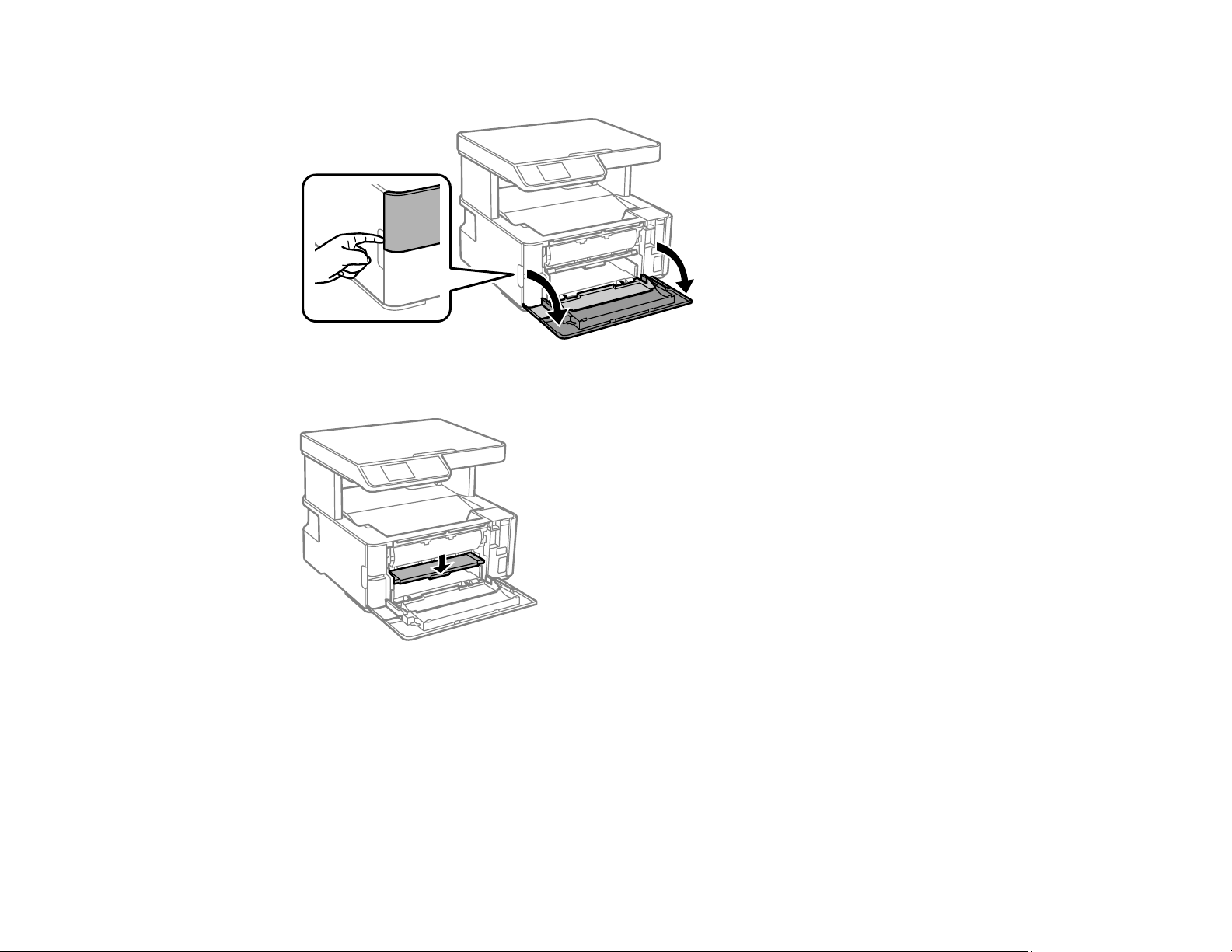
194
2. Open the front cover.
3. Lower the output selector.
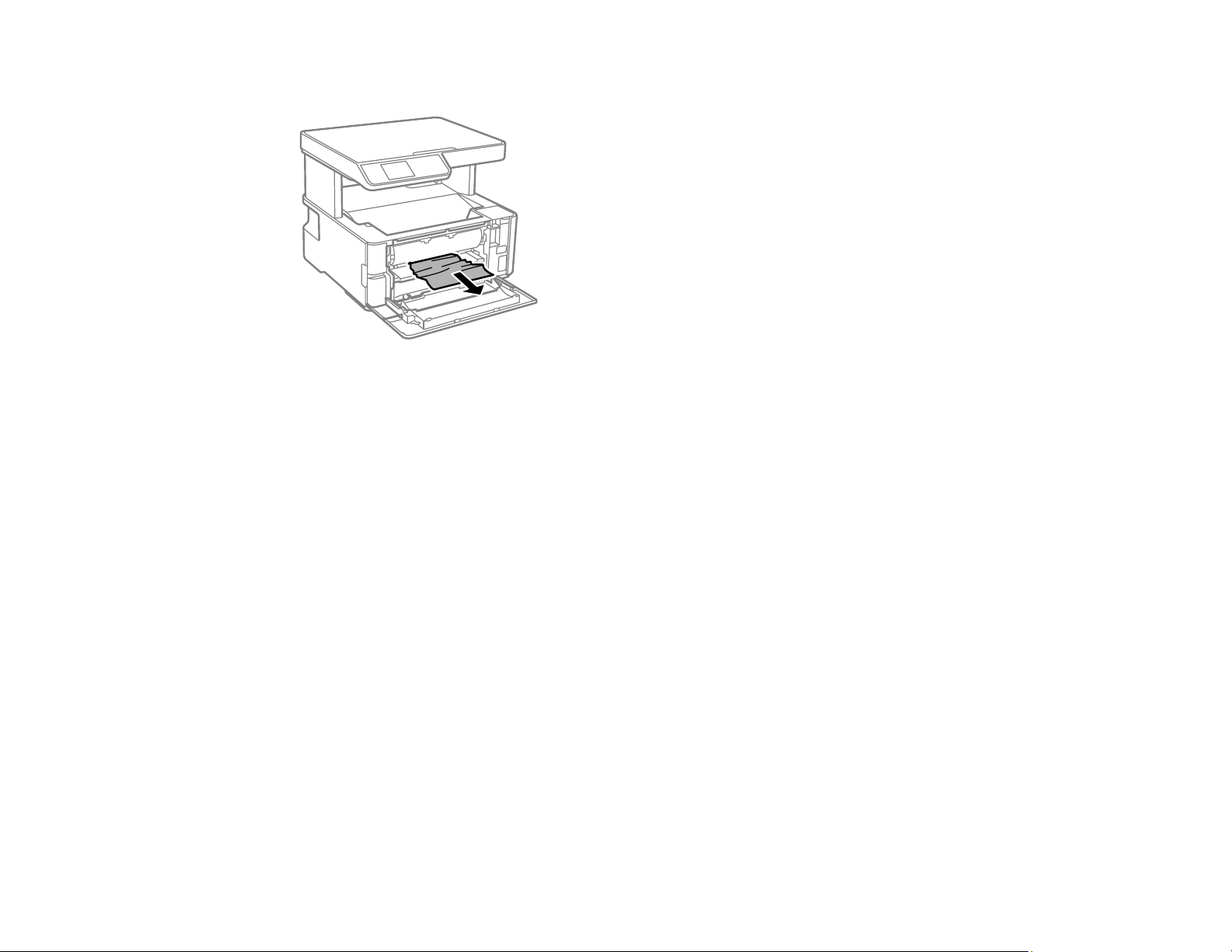
195
4. Remove any jammed paper from the front of the printer.
5. Raise the output selector.
6. Close the front cover.
7. Follow the prompts on the LCD screen to clear any error messages. If you still see a paper jam
message, check the other paper jam solutions.
Parent topic: Solving Paper Problems
Paper Jam Problems Inside the Product
If you see a message that paper has jammed inside the product, follow the steps here.
Warning: Never touch the buttons on the control panel while your hand is inside the product. If the
product starts operating, it may cause an injury. Do not touch any protruding parts inside the product.
1. Cancel the print job, if necessary.
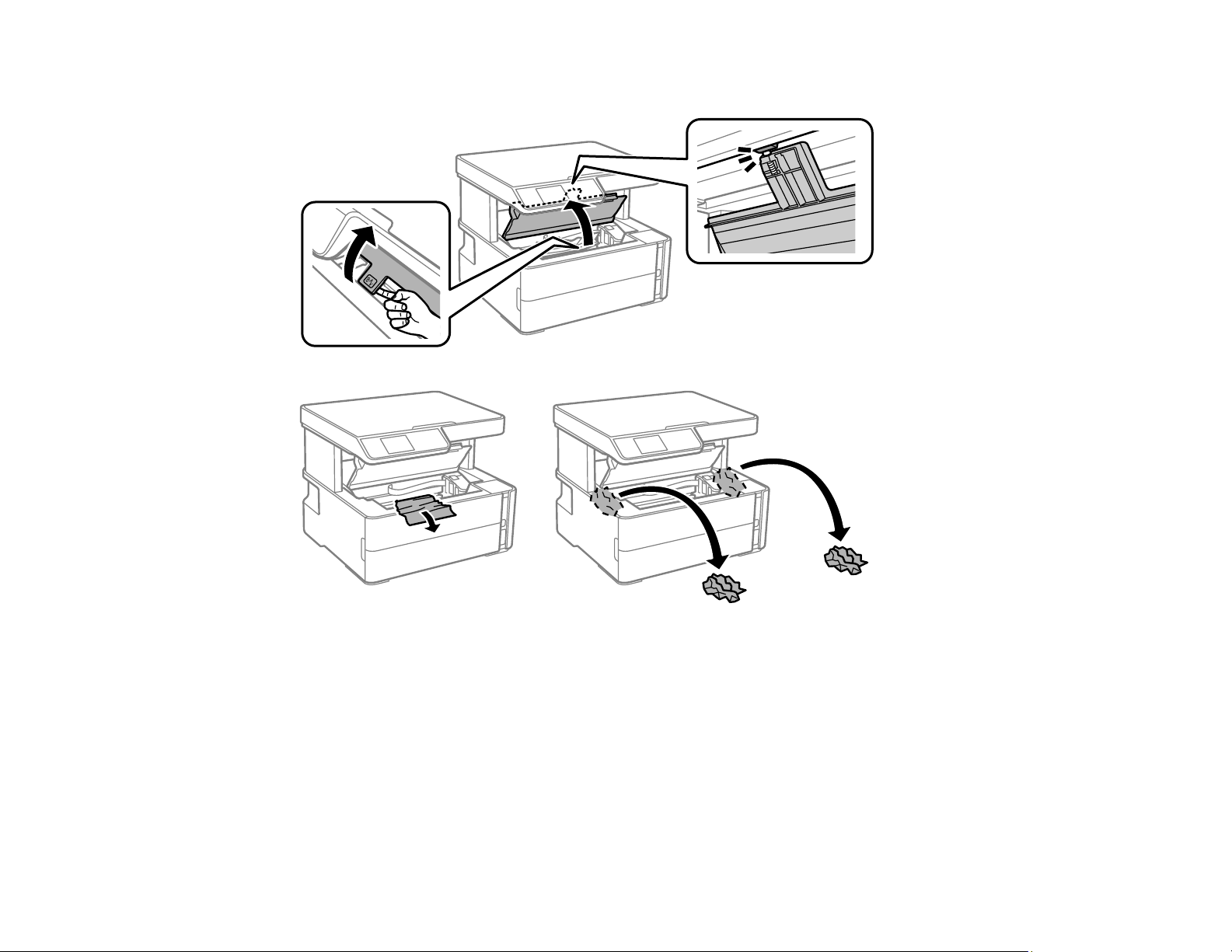
196
2. Lift the printer cover until it clicks into place and remove any jammed paper inside.
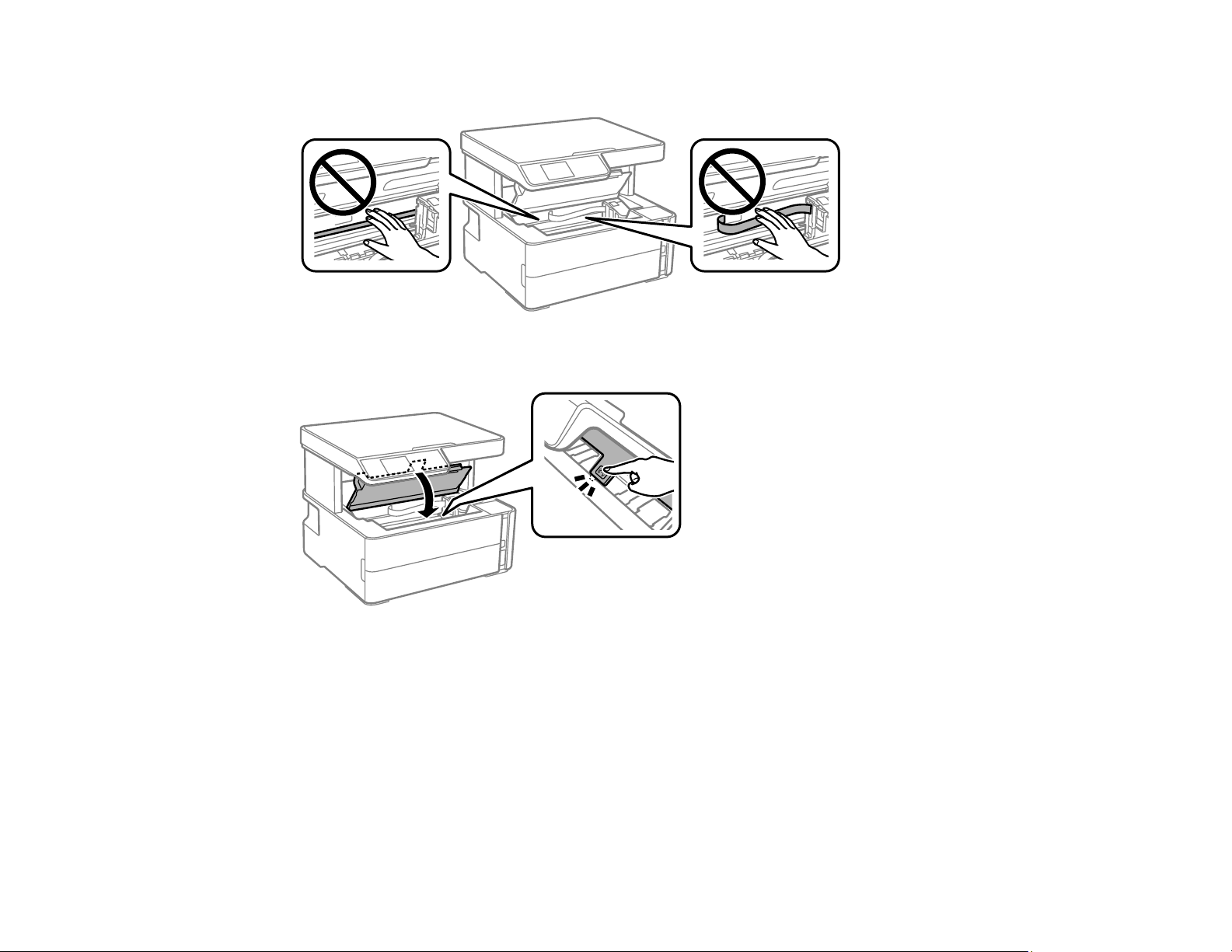
197
Caution: Do not touch the flat white cable or translucent film inside the printer.
3. Close the printer cover.
4. Follow the prompts on the LCD screen to clear any error messages. If you still see a paper jam
message, check the other paper jam solutions.
Parent topic: Solving Paper Problems
Paper Jam Problems in the Rear Cover
If you see a message that paper has jammed in the rear cover, follow the steps here.
1. Cancel the print job, if necessary.
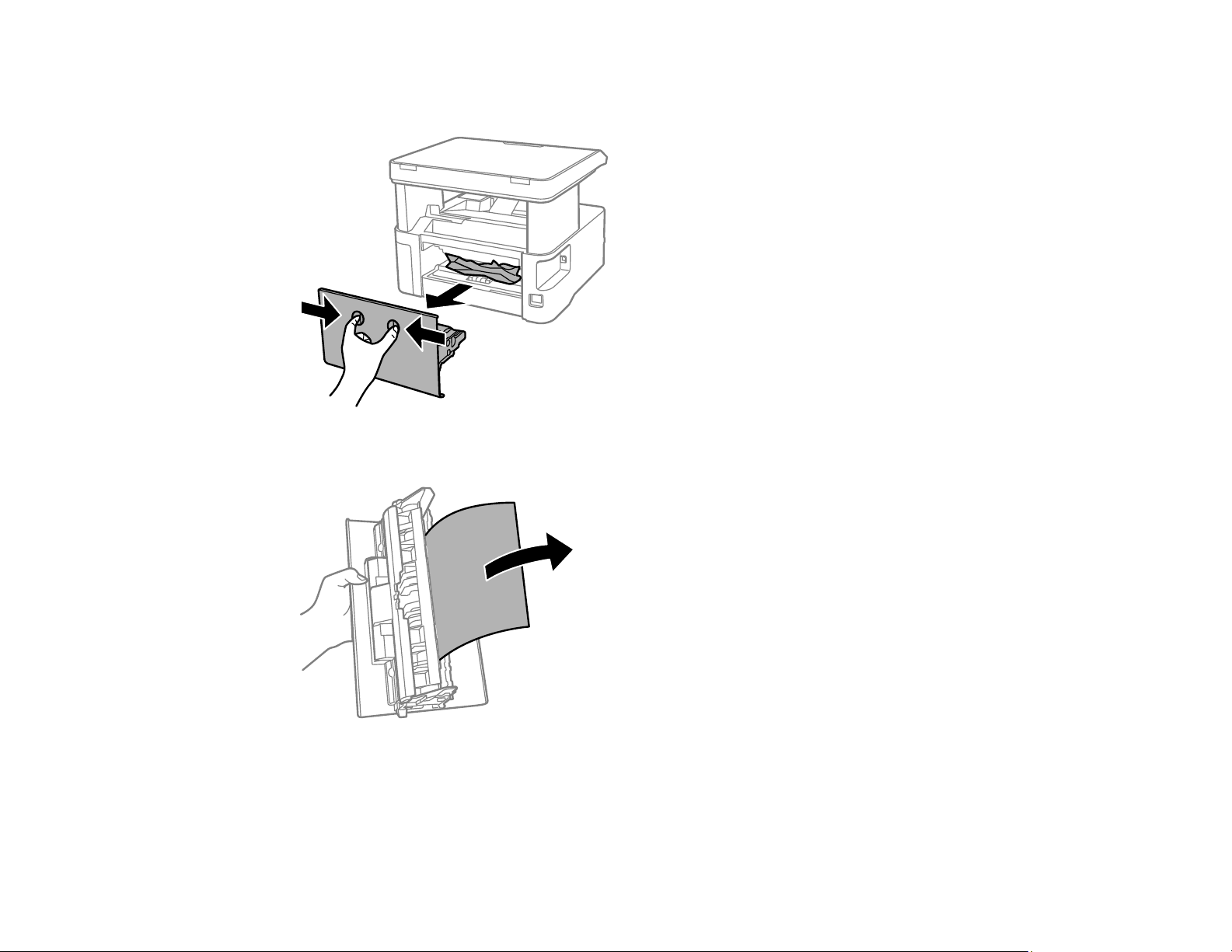
198
2. Press the buttons to release the rear cover and remove the cover from your product. Carefully remove
any jammed paper from inside the product.
3. Remove any jammed paper from the rear cover.
4. Press the buttons and reattach the rear cover.
5. Follow the prompts on the LCD screen to clear any error messages. If you still see a paper jam
message, check the other paper jam solutions.

199
Parent topic: Solving Paper Problems
Paper Ejection Problems
If you have problems with paper ejecting properly, try these solutions:
• If paper does not eject fully, you may have set the wrong paper size. Cancel printing to eject the paper.
Select the correct paper size when you reprint.
• If paper falls from the output tray, extend the paper stopper.
• If paper is wrinkled when it ejects, it may be damp or too thin. Load new paper and be sure to select
the correct paper type setting when you reprint.
Parent topic: Solving Paper Problems
Related references
Paper Jam Problems Inside the Product
Paper or Media Type Settings - Printing Software
Paper or Media Type Settings - Control Panel
Paper Loading Capacity
Related topics
Loading Paper
Solving Problems Printing from a Computer
Check these sections if you have problems while printing from your computer.
Note: When printing using AirPrint, the available print settings are different from those covered in this
manual. See the Apple website for details.
Nothing Prints
Product Icon Does Not Appear in Windows Taskbar
Printing is Slow
Parent topic: Solving Problems
Nothing Prints
If you have sent a print job and nothing prints, try these solutions:
• Make sure your product is turned on and connected to your computer.
• Make sure any interface cables are connected securely at both ends.

200
• If you connected your product to a USB hub, make sure it is a first-tier hub. If it still does not print,
connect your product directly to your computer instead of the hub.
• If the printer cannot print using a USB connection, disconnect the USB cable from the computer, right-
click on the printer icon displayed on the computer, and select Remove Device. Then connect the
USB cable to the computer and try a test print.
• Make sure the printer status is not offline or pending.
• Run a product check to see if a test page prints. If the test page prints, check to see if your product
software is installed correctly.
• Make sure your system meets the requirements for your operating system. If you are printing a high-
resolution image, you may need more than the minimum requirements. Print the image at a lower
resolution or if necessary, increase your system's memory.
• In Windows, make sure your product is selected as the default printer and the printer port setting
matches the printer connection port.
• In Windows, delete all jobs from the Windows Spooler. Click Print Queue on the Maintenance tab in
the printer settings window, and cancel any stalled print jobs.
• On a Mac, make sure the printer is added to the printer list and the printer is not paused.
• Make sure your product is selected as the printer in your printing program.
Parent topic: Solving Problems Printing from a Computer
Related tasks
Running a Product Check
Product Icon Does Not Appear in Windows Taskbar
If you do not see your product icon in the Windows taskbar, first try restarting your computer. If that does
not work, try this solution:
1. Do one of the following:
• Windows 10: Click and select (Settings) > Devices > Printers & scanners. Select your
product name and select Manage > Printing preferences.
• Windows 8.x: Navigate to the Apps screen and select Control Panel > Hardware and Sound >
Devices and Printers. Right-click your product name, select Printing Preferences, and select
your product name again if necessary.
• Windows 7: Click and select Devices and Printers. Right-click your product name, select
Printing Preferences, and select your product name again if necessary.

201
• Windows Vista: Click , select Control Panel, and click Printer under Hardware and Sound.
Right-click your product name, select Printing Preferences, and select your product name again if
necessary.
2. Click the Maintenance tab.
3. Click the Extended Settings button.
4. Select Enable EPSON Status Monitor 3 and click OK.
5. Click the Monitoring Preferences button.
6. Click the checkbox for the option that adds the shortcut icon to the taskbar.
7. Click OK to close the open program windows.
Parent topic: Solving Problems Printing from a Computer
Printing is Slow
If printing becomes slow, try these solutions:
• Make sure your system meets the requirements for your operating system. If you are printing a high-
resolution image, you may need more than the minimum requirements. If necessary, increase your
system's memory.
• If you are using Windows 7, close the Devices and Printers window before you print.
• Make sure Quiet Mode is turned off.
• Clear space on your hard drive or run a defragmentation utility to free up existing space.
• Close any programs you are not using when you print.
• If your product is connected to a USB hub, connect it directly to your computer instead.
• If printing becomes slower after printing continuously for a long time, the product may have
automatically slowed down to protect the print mechanism from overheating or becoming damaged.
Let the product rest with the power on for 30 minutes, then try printing again.
• If you are printing over a wireless network, factors such as interference, network traffic, or weak signal
strength may affect your printing speed.
For the fastest printing, select the following settings in your product software:
• Make sure the paper type setting matches the type of paper you loaded.
• Turn on any high speed settings in your product software.
• Select a lower print quality setting.

202
• Make sure the ink drying time has not been increased for double-sided printing.
• Windows: Click the Maintenance or Utility tab, select Extended Settings or Speed and Progress,
and select the following settings:
• Always Spool RAW Datatype
• Page Rendering Mode
• Print as Bitmap
• Windows: Select Printer Properties, click the More Options tab, and make sure the High Speed
setting is enabled.
• Mac: Select System Preferences, select Printers & Scanners, and select your product. Select
Options & Supplies, select Options (or Driver), and enable the High Speed Printing setting.
If printing is still slow and you are using Windows 7 or Windows Vista, try the following:
1. Click and select Computer or My Computer. Double-click the C: drive and open these folders:
ProgramData > EPSON > PRINTER.
Note: If you do not see the ProgramData folder, open the Organize menu and select Folder and
search options. In the window that appears, click the View tab, select Show hidden files, folders,
and drives in the Advanced settings list, and click OK.
2. Right-click the EPAUDF01.AUD file and select Delete.
3. Restart your computer and try printing again.
Parent topic: Solving Problems Printing from a Computer
Related references
Paper or Media Type Settings - Printing Software
Windows System Requirements
Mac System Requirements
Related tasks
Selecting Basic Print Settings - Windows
Selecting Basic Print Settings - Mac
Selecting Extended Settings - Windows
Selecting Printing Preferences - Mac

203
Solving Page Layout and Content Problems
Check these sections if you have problems with the layout or content of your printed pages.
Note: When printing using AirPrint, the available print settings are different from those covered in this
manual. See the Apple website for details.
Inverted Image
Too Many Copies Print
Blank Pages Print
Incorrect Margins on Printout
Incorrect Characters Print
Incorrect Image Size or Position
Slanted Printout
Parent topic: Solving Problems
Inverted Image
If your printed image is inverted unexpectedly, try these solutions:
• Turn off any mirror or inversion settings in your printing application.
• Turn off the Mirror Image, Flip horizontally, or Reverse page orientation settings in your printer
software. (This option has different names, depending on your operating system version.)
Parent topic: Solving Page Layout and Content Problems
Related tasks
Selecting Additional Layout and Print Options - Windows
Selecting Basic Print Settings - Mac
Too Many Copies Print
Make sure that the Copies setting in your printing program or printer software is not set for multiple
copies.
Parent topic: Solving Page Layout and Content Problems
Blank Pages Print
If blank pages print unexpectedly, try these solutions:
• Make sure you selected the correct paper size settings in your printing program and printer software.

204
• If a blank page exists in a document you are printing and you want to skip printing it, select the Skip
Blank Page setting in your printer software, if available.
• Run a print head nozzle check to see if any of the nozzles are clogged. Then clean the print head, if
necessary.
• Make sure your product is selected as the printer in your printing program.
• You may need to refill the ink. Visually check the ink level.
Parent topic: Solving Page Layout and Content Problems
Related concepts
Print Head Nozzle Check
Print Head Cleaning
Related references
Paper or Media Type Settings - Printing Software
Related topics
Loading Paper
Incorrect Margins on Printout
If your printed page has incorrect margins, try these solutions:
• Make sure you selected the correct paper size settings in your printing program and printer software.
• Make sure you selected the correct margins for your paper size in your printing program.
• Make sure your paper is positioned correctly for feeding into the product.
• When placing originals on the scanner glass, align the corner of the original with the corner indicated
by the arrow. If the edges of the copy are cropped, move the original slightly away from the corner.
• Clean the scanner glass and the document cover. If there is dust or stains on the glass, the copy area
may extend to include the dust or stains.
You can use the preview option in your printer software to check your margins before you print.
Parent topic: Solving Page Layout and Content Problems
Related references
Copying Options
Related tasks
Selecting Basic Print Settings - Windows
Selecting Basic Print Settings - Mac

205
Selecting Page Setup Settings - Mac
Placing Originals on the Scanner Glass
Related topics
Loading Paper
Incorrect Characters Print
If incorrect characters appear in your prints, try these solutions before reprinting:
• Make sure any cables are securely connected at both ends.
• In Windows, delete all jobs from the Windows Spooler. Click Print Queue on the Maintenance tab in
the printer settings window, and cancel any stalled print jobs.
• If your product is connected to a USB hub, connect it directly to your computer instead.
• If your computer entered sleep mode the last time you printed, the next print job after your computer
exits sleep mode may contain garbled characters. Print your document again.
• If incorrect characters still appear in your prints, try connecting your product using a different cable.
• Make sure you are using the printer software for this product. Check the product name at the top of the
driver window.
Parent topic: Solving Page Layout and Content Problems
Related tasks
Selecting Basic Print Settings - Windows
Selecting Basic Print Settings - Mac
Selecting Page Setup Settings - Mac
Incorrect Image Size or Position
If your printed image is the wrong size or in the wrong position, try these solutions:
• Make sure you selected the correct paper size and layout settings in your printing program and printer
software.
• Make sure you selected the correct paper size on the control panel.
• Make sure your paper is positioned correctly for feeding into the printer.
• Slide the edge guides against the edges of the paper.
• Clean the scanner glass and document cover.

206
• If the edges of a copy are cropped, slightly move the original away from the edges of the scanner
glass.
• Make sure you selected the correct margins for your paper size in your printing program.
• Be sure to select the correct Original Size setting for your original in the Copy settings.
You can use the preview option in your printer software to check your margins before you print.
Parent topic: Solving Page Layout and Content Problems
Related references
Copying Options
Related tasks
Selecting Basic Print Settings - Windows
Selecting Basic Print Settings - Mac
Selecting Page Setup Settings - Mac
Placing Originals on the Scanner Glass
Related topics
Loading Paper
Slanted Printout
If your printouts are slanted, try these solutions:
• Slide the edge guides against the edges of the paper.
• Select a higher print quality setting in your printer software.
• Turn off any high speed settings in your product software.
• Align the print head.
• Make sure the product is not printing while tilted or at an angle.
Parent topic: Solving Page Layout and Content Problems
Related tasks
Selecting Basic Print Settings - Windows
Selecting Basic Print Settings - Mac
Selecting Page Setup Settings - Mac

207
Solving Print Quality Problems
Check these sections if your printouts have problems with print quality, but your image looks fine on your
computer screen.
Note: When printing using AirPrint, the available print settings are different from those covered in this
manual. See the Apple website for details.
White or Dark Lines in Printout
Blurry or Smeared Printout
Faint Printout or Printout Has Gaps
Grainy Printout
Parent topic: Solving Problems
Related topics
Solving Scanned Image Quality Problems
White or Dark Lines in Printout
If you notice white or dark lines in your prints (also called banding), try these solutions before you reprint:
• Run a nozzle check to see if any of the print head nozzles are clogged. Then clean the print head, if
necessary.
• Make sure the paper type setting matches the type of paper you loaded.
• Make sure you loaded the printable side of the paper correctly for your product.
• Turn off any high speed settings in your product software.
• Align the print head.
• Adjust the print quality in the product software.
• If you continue to see horizontal or vertical bands or streaks in your printouts after cleaning and
aligning the print head,you can finely tune the horizontal or vertical alignment in the Maintenance
menu.
• If you continue to see horizontal bands or streaks in your printouts after cleaning the print head and
adjusting the print quality, make print quality adjustments for each paper type.
• When vertical banding appears or the paper is smeared, clean the paper path.
• You may need to refill the ink. Visually check the ink level.
• If you have not used the product for a long time, run the Power Cleaning utility.

208
Note: Power Cleaning consumes a lot of ink, so run this utility only if you cannot improve print quality
by cleaning the print head.
Parent topic: Solving Print Quality Problems
Related concepts
Print Head Nozzle Check
Print Head Cleaning
Print Head Alignment
Power Cleaning
Related references
Paper or Media Type Settings - Printing Software
Related tasks
Selecting Printing Preferences - Mac
Selecting Additional Layout and Print Options - Windows
Refilling the Ink Tank
Related topics
Loading Paper
Blurry or Smeared Printout
If your printouts are blurry or smeared, try these solutions:
• Make sure your paper is not damp, curled, old, or loaded incorrectly in your product.
• Use a support sheet with special paper, or load special paper one sheet at a time.
• Place a piece of black paper on the back of the original and copy it again.
• Make sure your paper meets the specifications for your product.
• Use Epson papers to ensure proper saturation and absorption of genuine Epson inks.
• Make sure the paper type setting in your product software matches the type of paper you loaded.
• If you are printing on letterhead paper, make sure the paper size setting matches the size of paper you
loaded. If you select a paper size that is too large for the paper you loaded, the product may print
beyond the edges of the paper and cause ink to smear.
• Make sure you loaded the printable side of the paper correctly for your product.
• If you are printing on thick paper or envelopes, make sure you select the appropriate settings. In
Windows, you can also try selecting Short Grain Paper in Extended Settings.

209
• If you are printing on thick paper or envelopes, make sure you select the appropriate settings.
• When manually printing 2-sided, make sure the ink is completely dry before loading the paper.
• Do not stack printouts immediately after printing.
• Turn off any high speed settings in your product software.
• If you print on both sides of a sheet of paper, smudges may appear on the reverse side of heavily
saturated or dark images. If one side of a sheet will contain a lighter image or text, print that side first.
Adjust the density and/or ink drying time settings.
• The ink level may be low and you may need to refill the ink. Visually check the ink level.
• Run a nozzle check to see if any of the print head nozzles are clogged. Then clean the print head, if
necessary.
• Align the print head.
• Adjust the print quality in the product software.
• Clean the paper rollers.
• Do not press too hard on the original or the document cover when you are scanning originals on the
scanner glass.
• If you have not used the product for a long time, run the Power Cleaning utility.
Note: Power Cleaning consumes a lot of ink, so run this utility only if you cannot improve print quality
by cleaning the print head.
Note: Your product will not operate properly while tilted at an angle. Place it on a flat, stable surface that
extends beyond the base of the product in all directions.
Parent topic: Solving Print Quality Problems
Related concepts
Print Head Nozzle Check
Print Head Cleaning
Print Head Alignment
Related references
Paper Specifications
Compatible Epson Papers

210
Related tasks
Aligning the Print Head Using the Product Control Panel
Selecting Printing Preferences - Mac
Selecting Additional Layout and Print Options - Windows
Selecting Extended Settings - Windows
Selecting Basic Print Settings - Windows
Selecting Basic Print Settings - Mac
Cleaning the Paper Guide
Faint Printout or Printout Has Gaps
If your printouts are faint or have gaps, try these solutions:
• Run a nozzle check to see if any of the print head nozzles are clogged. Then clean the print head, if
necessary.
• The ink level may be low. Visually check the ink level.
• Make sure the paper type setting matches the type of paper you loaded.
• Make sure your paper is not damp, curled, old, or loaded incorrectly in your product.
• Align the print head.
• Adjust the print quality in the product software.
• Clean the paper rollers.
• If you have not used the product for a long time, run the Power Cleaning utility.
Note: Power Cleaning consumes a lot of ink, so run this utility only if you cannot improve print quality
by cleaning the print head.
Parent topic: Solving Print Quality Problems
Related references
Paper or Media Type Settings - Printing Software
Paper or Media Type Settings - Control Panel
Related tasks
Cleaning the Paper Guide
Refilling the Ink Tank

211
Related topics
Loading Paper
Grainy Printout
If your printouts are grainy, try these solutions:
• Make sure you loaded the printable side of the paper correctly for your product.
• Select a higher print quality setting and turn off any high speed settings in your product software.
• Run a nozzle check to see if any of the print head nozzles are clogged. Then clean the print head, if
necessary.
• Align the print head.
• Adjust the print quality in the product software.
• You may need to increase the image resolution or print a smaller size; see your software
documentation.
Note: Images from the Internet may be low resolution and not result in a high quality printout.
• If you enlarged the image size in an image-editing program, you need to increase the image resolution
setting to retain a high image quality. Increase the image resolution by the same amount you increase
the image size. For example, if the image resolution is 300 dpi (dots per inch) and you will double the
image size for printing, change the resolution setting to 600 dpi.
Note: Higher resolution settings result in larger file sizes, which take longer to process and print.
Consider the limitations of your computer system when selecting a resolution, and select the lowest
possible resolution that produces acceptable quality to keep file sizes manageable.
Parent topic: Solving Print Quality Problems
Related concepts
Print Head Nozzle Check
Print Head Cleaning
Print Head Alignment
Related tasks
Selecting Printing Preferences - Mac
Selecting Additional Layout and Print Options - Windows
Selecting Basic Print Settings - Mac

212
Selecting Basic Print Settings - Windows
Solving Scanning Problems
Check these solutions if you have problems scanning with your product.
Scanning Software Does Not Operate Correctly
Cannot Start Epson Scan 2
Scanning is Slow
Parent topic: Solving Problems
Scanning Software Does Not Operate Correctly
If your scanning software does not operate correctly, try these solutions:
• Make sure your computer has adequate memory and meets the system requirements for your
operating system.
• Make sure your computer is not running in a power-saving mode, such as sleep or standby. If so,
wake your system and restart your scanning software.
• If you upgraded your operating system but did not reinstall your scanning software, try reinstalling it.
• In Windows, make sure your product is listed as a valid device in the Scanners and Cameras control
panel.
Parent topic: Solving Scanning Problems
Related concepts
Uninstall Your Product Software
Related references
Windows System Requirements
Mac System Requirements
Cannot Start Epson Scan 2
If you cannot start Epson Scan 2, try these solutions:
• Make sure your product is turned on and any interface cables are securely connected at both ends.
• Make sure Epson Scan 2 is selected as your scanning program.
• Make sure your computer is not running in a power-saving mode, such as sleep or standby. If so,
wake your system and restart Epson Scan 2.
• Check the connection setting and test the connection using Epson Scan 2 Utility:

213
Windows 10: Click and select EPSON > Epson Scan 2 Utility. Make sure the correct product is
selected. If necessary, select the Other tab and click Reset.
Windows 8.x: Navigate to the Apps screen and select Epson Scan 2 Utility. Make sure the correct
product is selected. If necessary, select the Other tab and click Reset.
Windows (other versions): Click or Start > All Programs or Programs > EPSON > Epson Scan
2 > Epson Scan 2 Utility. Make sure the correct product is selected. If necessary, select the Other
tab and click Reset.
Mac: Open the Applications folder, click Epson Software, and click Epson Scan 2 Utility. Make
sure the correct product is selected. If necessary, select the Other tab and click Reset.
• Make sure you do not have multiple versions of Epson Scan 2 installed. If you do, uninstall both
versions and install one version.
• If you upgraded your operating system but did not reinstall Epson Scan 2, try reinstalling it.
Parent topic: Solving Scanning Problems
Related topics
Starting a Scan
Scanning is Slow
If scanning becomes slow, try these solutions:
• Scan your original at a lower resolution, if possible.
• Make sure your system meets the requirements for your operating system. If you are scanning a high-
resolution image, you may need more than the minimum requirements. If necessary, increase your
system's memory or reduce the resolution.
Parent topic: Solving Scanning Problems
Solving Scanned Image Quality Problems
Check these sections if a scanned image on your computer screen has a quality problem.
Image Consists of a Few Dots Only
Line of Dots Appears in All Scanned Images
Straight Lines in an Image Appear Crooked
Image is Distorted or Blurry
Image Colors are Patchy at the Edges
Image is Too Dark

214
Back of Original Image Appears in Scanned Image
Ripple Patterns Appear in an Image
Scanned Image Colors Do Not Match Original Colors
Scanned Image Edges are Cropped
Characters are Not Recognized During Conversion to Editable Text (OCR)
Parent topic: Solving Problems
Image Consists of a Few Dots Only
If your scanned image consists only of a few dots, try these solutions:
• Make sure you placed your original for scanning facing the correct way.
• If the Image Type setting is Black & White, adjust the Threshold and scan again.
• Do not press on the original or the document cover with too much force.
Parent topic: Solving Scanned Image Quality Problems
Line of Dots Appears in All Scanned Images
If a line of dots appears in all your scanned images, clean the scanner glass with a soft, dry, lint-free
cloth or use a small amount of glass cleaner on the cloth, if necessary. Paper towels are not
recommended.
Caution: Do not spray glass cleaner directly on the scanner glass.
Parent topic: Solving Scanned Image Quality Problems
Straight Lines in an Image Appear Crooked
If straight lines in an original appear crooked in a scanned image, make sure to place your original
straight when you scan it.
Parent topic: Solving Scanned Image Quality Problems
Related tasks
Placing Originals on the Scanner Glass
Image is Distorted or Blurry
If a scanned image appears distorted or blurry, try these solutions:
• Do not move your original or your product during scanning.

215
• Your product will not operate properly while tilted at an angle. Place your product on a flat, stable
surface that extends beyond its base in all directions.
• Adjust these Epson Scan 2 settings (if available) and try scanning again:
• Increase the Resolution setting.
• If the Image Type setting is Black & White, adjust the Threshold setting.
• If the Image Type setting is Color or Grayscale, select the Unsharp Mask setting.
• If the Image Type setting is Black & White, select Text Enhancement. If the Image Type setting is
Color or Grayscale, change the Text Enhancement setting to High.
Parent topic: Solving Scanned Image Quality Problems
Related references
Additional Scanning Settings - Main Settings Tab
Additional Scanning Settings - Advanced Settings Tab
Image Colors are Patchy at the Edges
If you are scanning a thick or warped original, cover its edges with paper to block external light as you
scan it.
Parent topic: Solving Scanned Image Quality Problems
Image is Too Dark
If your scanned image is too dark, try these solutions:
• If the Image Type is set to Color or Grayscale, adjust the Brightness setting.
• Check the brightness and contrast settings of your computer monitor.
Parent topic: Solving Scanned Image Quality Problems
Related references
Additional Scanning Settings - Main Settings Tab
Additional Scanning Settings - Advanced Settings Tab
Back of Original Image Appears in Scanned Image
If an image from the back of a thin original appears in your scanned image, try these solutions:
• Place a piece of black paper on the back of the original and scan it again.

216
• Adjust these Epson Scan 2 settings (if available) and try scanning again:
• Select the Advanced Settings tab and adjust the Brightness setting.
• Select Text Enhancement.
Parent topic: Solving Scanned Image Quality Problems
Ripple Patterns Appear in an Image
You may see a ripple pattern (called a moiré) in scanned images of printed documents. This is caused
by interference from differing pitches in the scanner's screen and your original's halftone screen. To
reduce this effect, adjust these Epson Scan 2 settings (if available) and try scanning again:
• Select the Descreening setting.
• Select a lower Resolution setting.
Parent topic: Solving Scanned Image Quality Problems
Related references
Additional Scanning Settings - Main Settings Tab
Additional Scanning Settings - Advanced Settings Tab
Scanned Image Colors Do Not Match Original Colors
Printed colors can never exactly match the colors on your computer monitor because printers and
monitors use different color systems: monitors use RGB (red, green, and blue) and printers typically use
CMYK (cyan, magenta, yellow, and black).
Check the color matching and color management capabilities of your computer, display adapter, and the
software you are using to see if they are affecting the palette of colors you see on your screen.
To adjust the colors in your scanned image, adjust these Epson Scan 2 settings (if available) and try
scanning again:
• If the Image Type setting is Color or Grayscale, adjust the Contrast setting.
• If the Image Type setting is Black & White or Grayscale, adjust the Color Enhance setting.
Parent topic: Solving Scanned Image Quality Problems
Scanned Image Edges are Cropped
If the edges of a scanned image are cropped, make sure your original is placed correctly for scanning. If
necessary, move your original away from the edges of the scanner glass slightly.
Parent topic: Solving Scanned Image Quality Problems

217
Related tasks
Placing Originals on the Scanner Glass
Characters are Not Recognized During Conversion to Editable Text (OCR)
If characters in your scanned images are not recognized during OCR conversion, try these solutions:
• Make sure your original is loaded straight on your product.
• Use an original with clear text.
• On the Image Format Options window in Epson Scan 2, check that Text Language is set correctly
on the Text tab.
• Select Settings > Scanner Settings > Scan Settings, adjust the following settings, and try scanning
again:
• On the Main Settings tab, make sure you select the correct Image Type for your original.
• On the Advanced Settings tab, select Text Enhancement and choose a setting.
Note: The Text Enhancement setting depends on the selected Image Type.
• If the Image Type is set to Black & White , adjust the Threshold setting on the Advanced Settings
tab.
Parent topic: Solving Scanned Image Quality Problems
Related tasks
Placing Originals on the Scanner Glass
Uninstall Your Product Software
If you have a problem that requires you to uninstall and re-install your software, follow the instructions for
your operating system.
Uninstalling Product Software - Windows
Uninstalling Product Software - Mac
Parent topic: Solving Problems
Uninstalling Product Software - Windows
You can uninstall and then re-install your product software to solve certain problems.
1. Turn off the product.

218
2. Disconnect any interface cables.
3. Do one of the following:
• Windows 10: Click and select (Settings) > Apps or System > Apps & features. Then
select the program you want to uninstall and select Uninstall.
• Windows 8.x: Navigate to the Apps screen and select Control Panel > Programs > Programs
and Features. Select the uninstall option for your Epson product, then select Uninstall/Change.
Note: If you see a User Account Control window, click Yes or Continue.
Select your product again, if necessary, then select OK, and click Yes to confirm the
uninstallation.
• Windows (other versions): Click or Start, and select All Programs or Programs. Select
EPSON, select your product, then click EPSON Printer Software Uninstall.
Note: If you see a User Account Control window, click Yes or Continue.
In the next window, select your product and click OK. Then follow any on-screen instructions.
4. Do one of the following to uninstall Epson Event Manager, then follow any on-screen instructions:
• Windows 10/8.x: Select Epson Event Manager and click Uninstall.
• Windows 7/Windows Vista: Open the Windows Control Panel utility. Select Programs and
Features. (In Classic view, select Programs and click Uninstall a program.) Select Epson
Event Manager and click Uninstall/Change.
5. Do one of the following to uninstall Epson Scan 2, then follow any on-screen instructions:
• Windows 10: Select Epson Scan 2 and click Uninstall.
• Windows 8.x/Windows 7/Windows Vista: Select Epson Scan 2 and click Uninstall/Change.
6. Restart your computer, then see the Start Here sheet to re-install your software.
Note: If you find that re-installing your product software does not solve a problem, contact Epson.
Parent topic: Uninstall Your Product Software

219
Uninstalling Product Software - Mac
In most cases, you do not need to uninstall your product software before re-installing it. However, you
can download the Uninstaller utility from the Epson support website to uninstall your product software as
described here.
Note: If you find that re-installing your product software does not solve a problem, contact Epson.
1. To download the Uninstaller utility, visit epson.com/support (U.S.), epson.ca/support (Canada), or
epson.com.jm/support (Caribbean) and select your product.
2. Click Downloads.
3. Select your operating system, click Utilities, locate the Uninstaller utility, and click Download.
4. Run the file you downloaded.
5. Double-click the Uninstaller icon.
6. In the Epson Uninstaller screen, select the checkbox for each software program you want to
uninstall.
7. Click Uninstall.
8. Follow the on-screen instructions to uninstall the software.
9. Reinstall your product software.
Note: If you uninstall the printer driver and your product name remains in the Print & Fax, Print & Scan,
or Printers & Scanners window, select your product name and click the – (remove) icon to remove it.
Parent topic: Uninstall Your Product Software
Where to Get Help
If you need to contact Epson for technical support services, use the following support options.
Internet Support
Visit Epson's support website at epson.com/support (U.S.), epson.ca/support (Canada), or
epson.com.jm/support (Caribbean) and select your product for solutions to common problems. You can
download drivers and documentation, get FAQs and troubleshooting advice, or e-mail Epson with your
questions.

220
Speak to a Support Representative
Before you call Epson for support, please have the following information ready:
• Product name
• Product serial number (located on a label on the product)
• Proof of purchase (such as a store receipt) and date of purchase
• Computer configuration
• Description of the problem
Then call:
• U.S.: (562) 276-4382, 6 AM to 8 PM, Pacific Time, Monday through Friday, and 7 AM to 4 PM, Pacific
Time, Saturday
• Canada: (905) 709-3839, 6 AM to 8 PM, Pacific Time, Monday through Friday, and 7 AM to 4 PM,
Pacific Time, Saturday
Days and hours of support are subject to change without notice. Toll or long distance charges may
apply.
Purchase Supplies and Accessories
You can purchase genuine Epson ink and paper at epson.com (U.S. sales), epson.ca (Canadian sales),
or epson.com.jm (Caribbean sales). You can also purchase supplies from an Epson authorized reseller.
To find the nearest one, call 800-GO-EPSON (800-463-7766) in the U.S. or 800-807-7766 in Canada.
Parent topic: Solving Problems

221
Technical Specifications
These sections list the technical specifications for your product.
Note: Epson offers a recycling program for end of life Epson products. Please go to this site (U.S) or this
site (Canada) for information on how to return your Epson products for proper disposal.
Windows System Requirements
Mac System Requirements
Paper Specifications
Printable Area Specifications
Scanning Specifications
Ink Specifications
Dimension Specifications
Electrical Specifications
Environmental Specifications
Interface Specifications
Network Interface Specifications
Safety and Approvals Specifications
Windows System Requirements
To use your product and its software, your computer should use one of these Microsoft operating
systems:
• Windows 10
• Windows 8.x
• Windows 7
• Windows Vista
• Windows Server 2016
• Windows Server 2012 R2
• Windows Server 2012
• Windows Server 2008 R2
• Windows Server 2008

222
• Windows Server 2003 R2
• Windows Server 2003 SP2 or later
Note: For the latest product software available for your operating system, visit the Epson support site at
epson.com/support (U.S.), epson.ca/support (Canada), or epson.com.jm/support (Caribbean), select
your product, and select Downloads.
Parent topic: Technical Specifications
Mac System Requirements
To use your product and its software, your Mac should use one of these operating systems:
• macOS 10.14.x
• macOS 10.13.x
• macOS 10.12.x
• OS X 10.11.x
• OS X 10.10.x
• OS X 10.9.x
• OS X 10.8.x
• OS X 10.7.x
• OS X 10.6.8
Note: For the latest product software available for your operating system, visit the Epson support site at
epson.com/support (U.S.), epson.ca/support (Canada), or epson.com.jm/support (Caribbean), select
your product, and select Downloads.
Parent topic: Technical Specifications
Paper Specifications
Note: Since the quality of any particular brand or type of paper may be changed by the manufacturer at
any time, Epson cannot guarantee the quality of any non-Epson brand or type of paper. Always test a
sample of paper stock before purchasing large quantities or printing large jobs.

223
Single-sheets
Size A4 (8.3 × 11.7 inches [210 × 297 mm])
A6 (4.1 × 5.8 inches [105 × 148 mm])
Letter (8.5 × 11 inches [216 × 279 mm])
Legal (8.5 × 14 inches [216 × 356 mm])
8 × 10 inches (203 × 254 mm)
8.5 × 13 inches (216 × 330 mm)
Half Letter (5.5 × 8.5 inches [140 × 216 mm])
Executive (7.25 × 10.5 inches [184 × 267 mm])
Mexico-Oficio (8.5 × 13.4 inches [216 × 340 mm])
Oficio 9 (8.46 × 12.4 inches [215 × 315 mm])
Paper types Plain paper
Note: Your product also supports compatible papers distributed by
Epson. See the link at the end of this topic for a list of compatible
Epson papers.
Weight Plain paper: 17 lb (64 g/m
2
) to 24 lb (90 g/m
2
)
Envelopes
Size No. 10 (4.1 × 9.5 inches [105 × 241 mm])
Paper types Plain bond paper
Weight 20 lb (75 g/m
2
) to 24 lb (90 g/m
2
)
Parent topic: Technical Specifications
Related references
Compatible Epson Papers
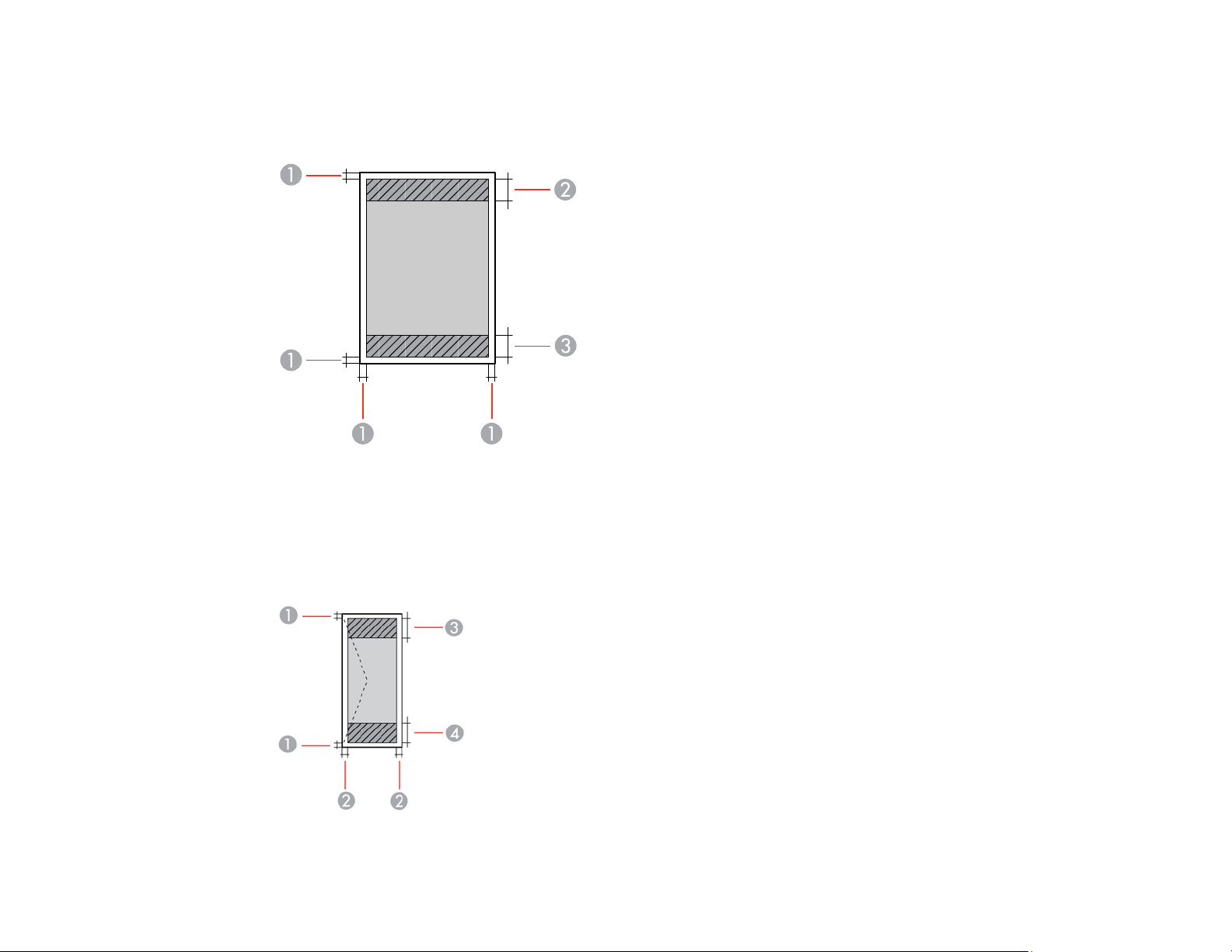
224
Printable Area Specifications
Single sheets - borders
1 Top/bottom/left/right margins: 0.12 inch (3 mm) minimum
2 Reduced print quality area/top: 1.81 inches (46 mm) minimum
3 Reduced print quality area/bottom: 1.73 inches (44 mm) minimum
Envelopes

225
1 Right/left margins: 0.12 inch (3 mm) minimum
2 Top/bottom margins: 0.20 inch (5 mm) minimum
3 Reduced print quality area/right: 0.95 inch (24 mm) minimum
4 Reduced print quality area/left: 1.81 inches (46 mm) minimum
Parent topic: Technical Specifications
Scanning Specifications
Scanner type Flatbed, color
Photoelectric device CIS
Effective pixels 10200 × 14040 pixels at 1200 dpi
Document size Maximum: 8.5 × 11.7 inches (216 × 297 mm)
Scanner glass: US letter or A4
Scanning resolution 1200 dpi (main scan)
2400 dpi (sub scan)
Output resolution 50 to 9600 in 1 dpi increments
Image data Color:
48 bits per pixel internal (16 bits per pixel per color internal)
24 bits per pixel external (8 bits per pixel per color external)
Grayscale:
16 bits per pixel internal
8 bits per pixel external
Black and white:
16 bits per pixel internal
1 bit per pixel external
Light source LED
Parent topic: Technical Specifications

226
Ink Specifications
Note: Epson's warranties do not extend to any damage caused by the use of third-party ink or ink not
designed for your printer.
The included ink bottle must be used for printer setup and is not for resale. The printer ships with a full
ink bottle and part of the ink from the bottle is used to charge the print head. Yields vary considerably
based on images printed, print settings, paper type, frequency of use and temperature.
Check the ink level in your product frequently, and refill the ink tank if necessary.
Color Black
Ink bottle life Epson recommends using an ink bottle before the date printed on
the package
Temperature Storage: –4 to 104 °F (–20 to 40 °C)
1 month at 104 °F (40 °C)
Ink freezes at 5 °F (–15 °C)
Ink thaws and is usable after approximately 2 hours at 77 °F (25 °C)
Parent topic: Technical Specifications
Related references
Ink Bottle and Maintenance Box Part Numbers
Dimension Specifications
Height Stored: 11.9 inches (302 mm)
Printing: 11.9 inches (302 mm)
Width Stored: 14.8 inches (375 mm)
Printing: 14.8 inches (375 mm)
Depth Stored: 13.7 inches (347 mm)
Printing: 13.7 inches (347 mm)
Weight
(without ink and power cord)
Approximately 13.7 lb (6.2 kg)

227
Parent topic: Technical Specifications
Electrical Specifications
Power supply rating 100 to 240 V
Rated frequency range 50/60 Hz
Rated current 0.5 to 0.2 A
Power consumption
(with USB connection)
Standalone copying: Approximately 12.0 W (ISO/IEC24712)
Ready mode: Approximately 4.9 W
Sleep mode: Approximately 0.7 W
Power off mode: Approximately 0.2 W
Parent topic: Technical Specifications
Environmental Specifications
Temperature Operating: 50 to 95 °F (10 to 35 °C)
Storage: –4 to 104 °F (–20 to 40 °C)
1 month at 104 °F (40 °C)
Humidity
(without condensation)
Operating: 20 to 80% RH
Storage: 5 to 85% RH
Parent topic: Technical Specifications
Interface Specifications
Interface type Hi-Speed USB
Parent topic: Technical Specifications

228
Network Interface Specifications
Wi-Fi
Standard IEEE 802.11 b/g/n; IEEE 802.11n is available only for the HT20
Frequency range 2.4 GHz
Maximum radio-frequency
power transmitted
20 dBm (EIRP)
Coordination modes Infrastructure mode
Wi-Fi Direct (Simple AP); not supported for IEEE 802.11b
Note: Wi-Fi Direct Simple AP mode available even if you connect
the product to an Ethernet network.
Security WPA2-PSK (AES); complies with WPA2 with support for
WPA/WPA2 Personal; Wi-Fi Direct supports only WPA2-PSK (AES)
security
WEP (64/128 bit)
Ethernet
Standard IEEE802.3i (10BASE-T); use a category 5e or higher shielded
twisted pair cable to prevent radio interference
IEEE802.3u (100BASE-TX)
IEEE802.3az (Energy Efficient Ethernet); the connected device
should be IEEE802.3az compliant
Communication mode Auto, 10Mbps Full duplex, 10Mbps Half duplex, 100Mbps Full
duplex, 100Mbps Half duplex
Connector RJ-45
Security Protocol
SSL/TLS: HTTPS Server/Client, IPPS
Parent topic: Technical Specifications

229
Safety and Approvals Specifications
United States Safety: UL60950-1
EMC: FCC part 15 Subpart B class B
Canada Safety: CAN/CSA C22.2 No. 60950-1
EMC: CAN/CSA-CEI/IEC CISPR 22 Class B
This equipment contains the following wireless module:
• Manufacturer: Seiko Epson Corporation.
• Type: J26H006
This product conforms to Part 15 of FCC Rules and RSS-210 of the IC Rules. Epson cannot accept
responsibility for any failure to satisfy the protection requirements resulting from a non-recommended
modification of the product. Operation is subject to the following two conditions: (1) this device may not
cause harmful interference, and (2) this device must accept any interference received, including
interference that may cause undesired operation of the device.
To prevent radio interference to the licensed service, this device is intended to be operated indoors and
away from windows to provide maximum shielding. Equipment (or its transmit antenna) that is installed
outdoors is subject to licensing.
This equipment complies with FCC/IC radiation exposure limits set forth for an uncontrolled environment
and meets the FCC radio frequency (RF) Exposure Guidelines in Supplement C to OET65 and RSS-102
of the IC radio frequency (RF) Exposure rules. This equipment should be installed and operated so that
the radiator is kept at least 7.9 inches (20 cm) or more away from a person's body (excluding extremities:
hands, wrists, feet and ankles).
Parent topic: Technical Specifications

230
Notices
Check these sections for important notices about your product.
Note: Epson offers a recycling program for end of life Epson products. Please go to this site (U.S) or this
site (Canada) for information on how to return your Epson products for proper disposal.
Important Safety Instructions
FCC Compliance Statement
Binding Arbitration and Class Waiver
Trademarks
Copyright Notice
Important Safety Instructions
Before using your Epson product, read and follow these safety instructions.
General Product Safety Instructions
LCD Screen Safety Instructions
Wireless Connection Safety Instructions
Parent topic: Notices
General Product Safety Instructions
• Be sure to follow all warnings and instructions marked on the product.
• Use only the type of power source indicated on the product's label.
• Use only the power cord that comes with the product. Use of another cord may cause fires or shock.
Do not use the cord with any other equipment.
• Make sure the AC power cord meets the relevant local safety standard.
• Place the product near a wall outlet where the plug can be easily unplugged.
• Avoid plugging the product into an outlet on the same circuit as a photo copier or air control system
that regularly switches on and off, or on an outlet controlled by a wall switch or timer.
• Do not let the power cord become damaged or frayed. Place it to avoid abrasions, cuts, fraying,
crimping, and kinking. Do not place objects on top of it and do not allow it to be stepped on or run over.
Be careful to keep the cord straight at each end.

231
• If you use an extension cord with the product, make sure the total ampere rating of the devices
plugged into the extension cord does not exceed the cord's ampere rating. Also, make sure the total
ampere rating of all devices plugged into the wall outlet does not exceed the wall outlet's ampere
rating.
• Always turn off the product using the power button, and wait until the power light stops flashing before
unplugging the product or cutting off power to the electrical outlet.
• If you will not be using the product for a long period, unplug the power cord from the electrical outlet.
• Place the product on a flat, stable surface that extends beyond its base in all directions. It will not
operate properly if it is tilted or at an angle.
• Allow space behind the product for the cables, and space above the product so that you can fully raise
the document cover.
• Leave enough space in front of the product for the paper to be fully ejected.
• Avoid locations that are subject to rapid changes in heat or humidity, shocks or vibrations, or dust.
• Do not place or store the product outdoors.
• Do not place the product near excessive heat sources or in direct sunlight.
• Leave enough room around the product for sufficient ventilation. Do not block or cover openings in the
case or insert objects through the slots.
• Keep the product away from potential sources of electromagnetic interference, such as loudspeakers
or the base units of cordless telephones.
• Keep your product at least 8.7 inches (22 cm) away from cardiac pacemakers to prevent your
product's radio waves from affecting the operation of the pacemaker.
• When connecting the product to a computer or other device with a cable, ensure the correct
orientation of the connectors. Each connector has only one correct orientation. Inserting a connector
in the wrong orientation may damage both devices connected by the cable.
• Do not sit or lean on the product. Do not place heavy objects on the product.
• Do not touch the flat white cable or ink tubes inside the product.
• Do not move the print head by hand; this may damage the product.
• Do not put your hand inside the product while it is printing.
• Do not spill liquid on the product or use the product with wet hands.
• Do not use aerosol products that contain flammable gases inside or around the product. Doing so may
cause fire.
• Do not press too hard on the scanner glass when placing originals.

232
• Do not open the scanner section while the product is copying, printing, scanning, or performing any
other functions.
• Be careful not to trap your fingers when closing the document cover or printer cover.
• Except as specifically explained in your documentation, do not attempt to service or disassemble the
product yourself.
• Unplug the product and refer servicing to qualified service personnel under the following conditions: if
the power cord or plug is damaged; if liquid has entered the product; if the product has been dropped
or the case damaged; if the product does not operate normally or exhibits a distinct change in
performance. Adjust only those controls that are covered by the operating instructions.
• Before transporting the product, make sure that the print head is in the home (far right) position.
• When storing or transporting the product, do not tilt it, stand it on its side, or turn it upside down;
otherwise, ink may leak.
Parent topic: Important Safety Instructions
LCD Screen Safety Instructions
• Use only a dry, soft cloth to clean the LCD screen. Do not use liquid or chemical cleansers.
• If the LCD screen is damaged, contact Epson. If the liquid crystal solution gets on your hands, wash
them thoroughly with soap and water. If the liquid crystal solution gets into your eyes, flush them
immediately with water. If discomfort or vision problems remain after a thorough flushing, see a doctor
immediately.
• Do not press too hard on the LCD screen or subject it to heavy impacts.
• Do not use a pointy or sharp object, such as a pen or your fingernail, to operate the LCD screen.
• If the LCD screen chips or cracks, do not touch or attempt to remove the broken pieces; contact Epson
for support.
• The LCD screen may contain a few small bright or dark spots, and may display uneven brightness.
These are normal and do not indicate that the screen is damaged in any way.
Parent topic: Important Safety Instructions
Wireless Connection Safety Instructions
Radio waves from this product may adversely affect the operation of medical equipment or automatically
controlled devices, such as pacemakers, automatic doors or fire alarms. When using this product near
such devices or inside a medical facility, follow the directions from authorized staff members at the
facility, and follow all posted warnings and directions on the device to avoid causing an accident.
Parent topic: Important Safety Instructions

233
FCC Compliance Statement
For United States Users
This equipment has been tested and found to comply with the limits for a Class B digital device, pursuant
to Part 15 of the FCC Rules. These limits are designed to provide reasonable protection against harmful
interference in a residential installation. This equipment generates, uses, and can radiate radio
frequency energy and, if not installed and used in accordance with the instructions, may cause harmful
interference to radio or television reception. However, there is no guarantee that interference will not
occur in a particular installation. If this equipment does cause interference to radio and television
reception, which can be determined by turning the equipment off and on, the user is encouraged to try to
correct the interference by one or more of the following measures:
• Reorient or relocate the receiving antenna.
• Increase the separation between the equipment and receiver.
• Connect the equipment into an outlet on a circuit different from that to which the receiver is connected.
• Consult the dealer or an experienced radio/TV technician for help.
WARNING
The connection of a non-shielded equipment interface cable to this equipment will invalidate the FCC
Certification or Declaration of this device and may cause interference levels which exceed the limits
established by the FCC for this equipment. It is the responsibility of the user to obtain and use a shielded
equipment interface cable with this device. If this equipment has more than one interface connector, do
not leave cables connected to unused interfaces. Changes or modifications not expressly approved by
the manufacturer could void the user’s authority to operate the equipment.
For Canadian Users
CAN ICES-3(B)/NMB-3(B)
Parent topic: Notices
Binding Arbitration and Class Waiver
1. DISPUTES, BINDING INDIVIDUAL ARBITRATION, AND WAIVER OF CLASS ACTIONS AND
CLASS ARBITRATIONS
1.1 Disputes. The terms of this Section 1 shall apply to all Disputes between you and Epson. The term
"Dispute" is meant to have the broadest meaning permissible under law and includes any dispute, claim,
controversy or action between you and Epson arising out of or relating to this Agreement, Epson
branded products (hardware and including any related software), or other transaction involving you and

234
Epson, whether in contract, warranty, misrepresentation, fraud, tort, intentional tort, statute, regulation,
ordinance, or any other legal or equitable basis. "DISPUTE" DOES NOT INCLUDE IP CLAIMS, or more
specifically, a claim or cause of action for (a) trademark infringement or dilution, (b) patent infringement,
(c) copyright infringement or misuse, or (d) trade secret misappropriation (an "IP Claim"). You and Epson
also agree, notwithstanding Section 1.6,that a court, not an arbitrator, may decide if a claim or cause of
action is for an IP Claim.
1.2 Binding Arbitration. You and Epson agree that all Disputes shall be resolved by binding arbitration
according to this Agreement. ARBITRATION MEANS THAT YOU WAIVE YOUR RIGHT TO A JUDGE
OR JURY IN A COURT PROCEEDING AND YOUR GROUNDS FOR APPEAL ARE LIMITED.
Pursuant to this Agreement, binding arbitration shall be administered by JAMS, a nationally recognized
arbitration authority, pursuant to its code of procedures then in effect for consumer related disputes, but
excluding any rules that permit joinder or class actions in arbitration (for more detail on procedure, see
Section 1.6 below). You and Epson understand and agree that (a) the Federal Arbitration Act (9 U.S.C.
§1, et seq.) governs the interpretation and enforcement of this Section 1, (b) this Agreement
memorializes a transaction in interstate commerce, and (c) this Section 1 shall survive termination of this
Agreement.
1.3 Pre-Arbitration Steps and Notice. Before submitting a claim for arbitration, you and Epson agree to
try, for sixty (60) days, to resolve any Dispute informally. If Epson and you do not reach an agreement to
resolve the Dispute within the sixty (60) days), you or Epson may commence an arbitration. Notice to
Epson must be addressed to: Epson America, Inc., ATTN: Legal Department, 3840 Kilroy Airport Way,
Long Beach, CA 90806 (the "Epson Address"). The Dispute Notice to you will be sent to the most recent
address Epson has in its records for you. For this reason, it is important to notify us if your address
the Dispute shall include the sender's name, address and contact information, the facts giving rise to the
Dispute, and the relief requested (the "Dispute Notice"). Following receipt of the Dispute Notice, Epson
and you agree to act in good faith to resolve the Dispute before commencing arbitration.
1.4 Small Claims Court. Notwithstanding the foregoing, you may bring an individual action in the small
claims court of your state or municipality if the action is within that court's jurisdiction and is pending only
in that court.
1.5 WAIVER OF CLASS ACTIONS AND CLASS ARBITRATIONS. YOU AND EPSON AGREE THAT
EACH PARTY MAY BRING DISPUTES AGAINST THE OTHER PARTY ONLY IN AN INDIVIDUAL
CAPACITY, AND NOT AS A PLAINTIFF OR CLASS MEMBER IN ANY CLASS OR
REPRESENTATIVE PROCEEDING, INCLUDING WITHOUT LIMITATION FEDERAL OR STATE
CLASS ACTIONS, OR CLASS ARBITRATIONS. CLASS ACTION LAWSUITS, CLASS-WIDE
ARBITRATIONS, PRIVATE ATTORNEY-GENERAL ACTIONS, AND ANY OTHER PROCEEDING
WHERE SOMEONE ACTS IN A REPRESENTATIVE CAPACITY ARE NOT ALLOWED.
ACCORDINGLY, UNDER THE ARBITRATION PROCEDURES OUTLINED IN THIS SECTION, AN
ARBITRATOR SHALL NOT COMBINE OR CONSOLIDATE MORE THAN ONE PARTY'S CLAIMS

235
WITHOUT THE WRITTEN CONSENT OF ALL AFFECTED PARTIES TO AN ARBITRATION
PROCEEDING.
1.6 Arbitration Procedure. If you or Epson commences arbitration, the arbitration shall be governed by
the rules of JAMS that are in effect when the arbitration is filed, excluding any rules that permit arbitration
on a class or representative basis (the "JAMS Rules"), available at http://www.jamsadr.com or by calling
1-800-352-5267, and under the rules set forth in this Agreement. All Disputes shall be resolved by a
single neutral arbitrator, and both parties shall have a reasonable opportunity to participate in the
selection of the arbitrator. The arbitrator is bound by the terms of this Agreement. The arbitrator, and not
any federal, state or local court or agency, shall have exclusive authority to resolve all disputes arising
out of or relating to the interpretation, applicability, enforceability or formation of this Agreement,
including any claim that all or any part of this Agreement is void or voidable. Notwithstanding this broad
delegation of authority to the arbitrator, a court may determine the limited question of whether a claim or
cause of action is for an IP Claim, which is excluded from the definition of "Disputes" in Section 1.1
above. The arbitrator shall be empowered to grant whatever relief would be available in a court under
law or in equity. The arbitrator may award you the same damages as a court could, and may award
declaratory or injunctive relief only in favor of the individual party seeking relief and only to the extent
necessary to provide relief warranted by that party's individual claim. In some instances, the costs of
arbitration can exceed the costs of litigation and the right to discovery may be more limited in arbitration
than in court. The arbitrator's award is binding and may be entered as a judgment in any court of
competent jurisdiction.
You may choose to engage in arbitration hearings by telephone. Arbitration hearings not conducted by
telephone shall take place in a location reasonably accessible from your primary residence, or in Orange
County, California, at your option.
a) Initiation of Arbitration Proceeding. If either you or Epson decides to arbitrate a Dispute, both parties
agree to the following procedure:
(i) Write a Demand for Arbitration. The demand must include a description of the Dispute and the amount
of damages sought to be recovered. You can find a copy of a Demand for Arbitration at
http://www.jamsadr.com ("Demand for Arbitration").
(ii) Send three copies of the Demand for Arbitration, plus the appropriate filing fee, to: JAMS, 500 North
State College Blvd., Suite 600 Orange, CA 92868, U.S.A.
(iii) Send one copy of the Demand for Arbitration to the other party (same address as the Dispute
Notice), or as otherwise agreed by the parties.
b) Hearing Format. During the arbitration, the amount of any settlement offer made shall not be disclosed
to the arbitrator until after the arbitrator determines the amount, if any, to which you or Epson is entitled.
The discovery or exchange of non-privileged information relevant to the Dispute may be allowed during
the arbitration.

236
c) Arbitration Fees. Epson shall pay, or (if applicable) reimburse you for, all JAMS filings and arbitrator
fees for any arbitration commenced (by you or Epson) pursuant to provisions of this Agreement.
d) Award in Your Favor. For Disputes in which you or Epson seeks $75,000 or less in damages exclusive
of attorney's fees and costs, if the arbitrator's decision results in an award to you in an amount greater
than Epson's last written offer, if any, to settle the Dispute, Epson will: (i) pay you $1,000 or the amount
of the award, whichever is greater; (ii) pay you twice the amount of your reasonable attorney's fees, if
any; and (iii) reimburse you for any expenses (including expert witness fees and costs) that your attorney
reasonably accrues for investigating, preparing, and pursuing the Dispute in arbitration. Except as
agreed upon by you and Epson in writing, the arbitrator shall determine the amount of fees, costs, and
expenses to be paid by Epson pursuant to this Section 1.6d).
e) Attorney's Fees. Epson will not seek its attorney's fees and expenses for any arbitration commenced
involving a Dispute under this Agreement. Your right to attorney's fees and expenses under Section
1.6d) above does not limit your rights to attorney's fees and expenses under applicable law;
notwithstanding the foregoing, the arbitrator may not award duplicative awards of attorney's fees and
expenses.
1.7 Opt-out. You may elect to opt-out (exclude yourself) from the final, binding, individual
arbitration procedure and waiver of class and representative proceedings specified in this
Agreement by sending a written letter to the Epson Address within thirty (30) days of your assent
to this Agreement (including without limitation the purchase, download, installation of the
Software or other applicable use of Epson Hardware, products and services) that specifies (i)
your name, (ii) your mailing address, and (iii) your request to be excluded from the final, binding
individual arbitration procedure and waiver of class and representative proceedings specified in
this Section 1. In the event that you opt-out consistent with the procedure set forth above, all
other terms shall continue to apply, including the requirement to provide notice prior to litigation.
1.8 Amendments to Section 1. Notwithstanding any provision in this Agreement to the contrary, you
and Epson agree that if Epson makes any future amendments to the dispute resolution procedure and
class action waiver provisions (other than a change to Epson's address) in this Agreement, Epson will
obtain your affirmative assent to the applicable amendment. If you do not affirmatively assent to the
applicable amendment, you are agreeing that you will arbitrate any Dispute between the parties in
accordance with the language of this Section 1 (or resolve disputes as provided for in Section 1.7, if you
timely elected to opt-out when you first assented to this Agreement).
1.9 Severability. If any provision in this Section 1 is found to be unenforceable, that provision shall be
severed with the remainder of this Agreement remaining in full force and effect. The foregoing shall not
apply to the prohibition against class or representative actions as provided in Section 1.5. This
means that if Section 1.5 is found to be unenforceable, the entire Section 1 (but only Section 1)
shall be null and void.
Parent topic: Notices

237
Trademarks
EPSON
®
is a registered trademark, EPSON Exceed Your Vision is a registered logomark, and Epson
Connect
TM
is a trademark of Seiko Epson Corporation.
Epson iPrint
TM
and Remote Print
TM
are trademarks of Seiko Epson Corporation.
Windows is a registered trademark of Microsoft Corporation in the United States and/or other countries.
Apple, App Store, AirPrint, AirPrint logo, iPad, iPhone, iPod touch, Mac, macOS, and OS X are
trademarks of Apple Inc., registered in the U.S. and other countries.
Use of the Works with Apple badge means that an accessory has been designed to work specifically
with the technology identified in the badge and has been certified by the developer to meet Apple
performance standards.
Google
®
is a registered trademark and Android
TM
, Chromebook
TM
, Gmail
TM
, Google Chrome
TM
, and
Google Cloud Print
TM
are trademarks of Google LLC.
Wi-Fi Direct
®
is a registered trademark of Wi-Fi Alliance
®
.
General Notice: Other product names used herein are for identification purposes only and may be
trademarks of their respective owners. Epson disclaims any and all rights in those marks.
Parent topic: Notices
Copyright Notice
All rights reserved. No part of this publication may be reproduced, stored in a retrieval system, or
transmitted in any form or by any means, electronic, mechanical, photocopying, recording, or otherwise,
without the prior written permission of Seiko Epson Corporation. The information contained herein is
designed only for use with this Epson product. Epson is not responsible for any use of this information as
applied to other products.
Neither Seiko Epson Corporation nor its affiliates shall be liable to the purchaser of this product or third
parties for damages, losses, costs, or expenses incurred by purchaser or third parties as a result of:
accident, misuse, or abuse of this product or unauthorized modifications, repairs, or alterations to this
product, or (excluding the U.S.) failure to strictly comply with Seiko Epson Corporation's operating and
maintenance instructions.

238
Seiko Epson Corporation shall not be liable for any damages or problems arising from the use of any
options or any consumable products other than those designated as Original Epson Products or Epson
Approved Products by Seiko Epson Corporation.
Seiko Epson Corporation shall not be held liable for any damage resulting from electromagnetic
interference that occurs from the use of any interface cables other than those designated as Epson
approved Products by Seiko Epson Corporation.
This information is subject to change without notice.
libTIFF Software Acknowledgment
A Note Concerning Responsible Use of Copyrighted Materials
Default Delay Times for Power Management for Epson Products
Copyright Attribution
Parent topic: Notices
libTIFF Software Acknowledgment
Copyright © 1988-1997 Sam Leffler
Copyright © 1991-1997 Silicon Graphics, Inc.
Permission to use, copy, modify, distribute, and sell this software and its documentation for any purpose
is hereby granted without fee, provided that (I) the above copyright notices and this permission notice
appear in all copies of the software and related documentation, and (ii) the names of Sam Leffler and
Silicon Graphics may not be used in any advertising or publicity relating to the software without the
specific, prior written permission of Sam Leffler and Silicon Graphics.
THE SOFTWARE IS PROVIDED "AS-IS" AND WITHOUT WARRANTY OF ANY KIND, EXPRESS,
IMPLIED OR OTHERWISE, INCLUDING WITHOUT LIMITATION, ANY WARRANTY OF
MERCHANTABILITY OR FITNESS FOR A PARTICULAR PURPOSE.
IN NO EVENT SHALL SAM LEFFLER OR SILICON GRAPHICS BE LIABLE FOR ANY SPECIAL,
INCIDENTAL, INDIRECT OR CONSEQUENTIAL DAMAGES OF ANY KIND, OR ANY DAMAGES
WHATSOEVER RESULTING FROM LOSS OF USE, DATA OR PROFITS, WHETHER OR NOT
ADVISED OF THE POSSIBILITY OF DAMAGE, AND ON ANY THEORY OF LIABILITY, ARISING OUT
OF OR IN CONNECTION WITH THE USE OR PERFORMANCE OF THIS SOFTWARE.
Parent topic: Copyright Notice
A Note Concerning Responsible Use of Copyrighted Materials
Epson encourages each user to be responsible and respectful of the copyright laws when using any
Epson product. While some countries' laws permit limited copying or reuse of copyrighted material in

239
certain circumstances, those circumstances may not be as broad as some people assume. Contact your
legal advisor for any questions regarding copyright law.
Parent topic: Copyright Notice
Default Delay Times for Power Management for Epson Products
This product will enter sleep mode after a period of nonuse. This is to ensure that the product meets
Energy Star standards of energy efficiency. More energy savings can be achieved by setting the time to
sleep to a shorter interval.
Parent topic: Copyright Notice
Related tasks
Changing the Sleep Timer Setting from the Control Panel
Changing the Power Off Timer Setting from the Control Panel
Copyright Attribution
© 2019 Epson America, Inc.
11/19
CPD-56774R2
Parent topic: Copyright Notice

