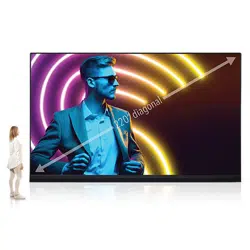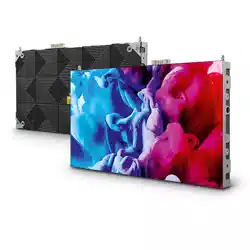

Installation and
Maintenance manual
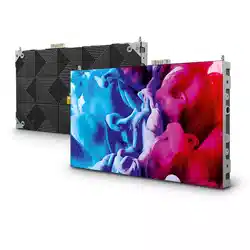
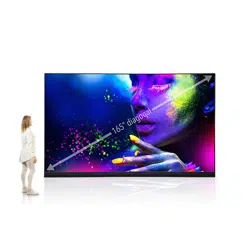
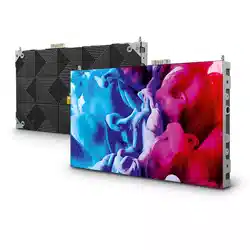
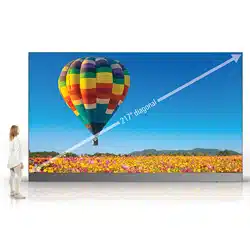
LED Module
[Models for indoor use]
LED-FC009i
LED-FC012i
LED-FC015i
MODELS: LED-FC009i, LED-FC012i, LED-FC015i

Table of Contents
Important Information ...................................................................English-1
Contents ......................................................................................... English-5
Related Items for Installation ........................................................English-6
Parts Name ....................................................................................English-7
Installation Example ......................................................................English-9
1. Installation location ....................................................................................................... 9
2. Handle ...................................................................................................................... 10
3. Installation with brackets ............................................................................................. 11
4. Installation with a wall-mount frame ............................................................................. 14
5. Wiring ....................................................................................................................... 30
6. Installing the pixel card ............................................................................................... 35
Screen Conguration ....................................................................English-37
Image Setting ..............................................................................English-46
Cleaning .......................................................................................English-48
Maintenance .................................................................................English-49
Troubleshooting ...........................................................................English-54
1. Display problems ........................................................................................................ 54
2. State monitoring using the software .............................................................................. 55
Specications ...............................................................................English-60
Diagram .......................................................................................English-61
English - 1
Important Information
Safety Precautions and Maintenance
FOR OPTIMUM PERFORMANCE, PLEASE NOTE
THE FOLLOWING WHEN SETTING UP AND
USING THE LED DISPLAY SYSTEM:
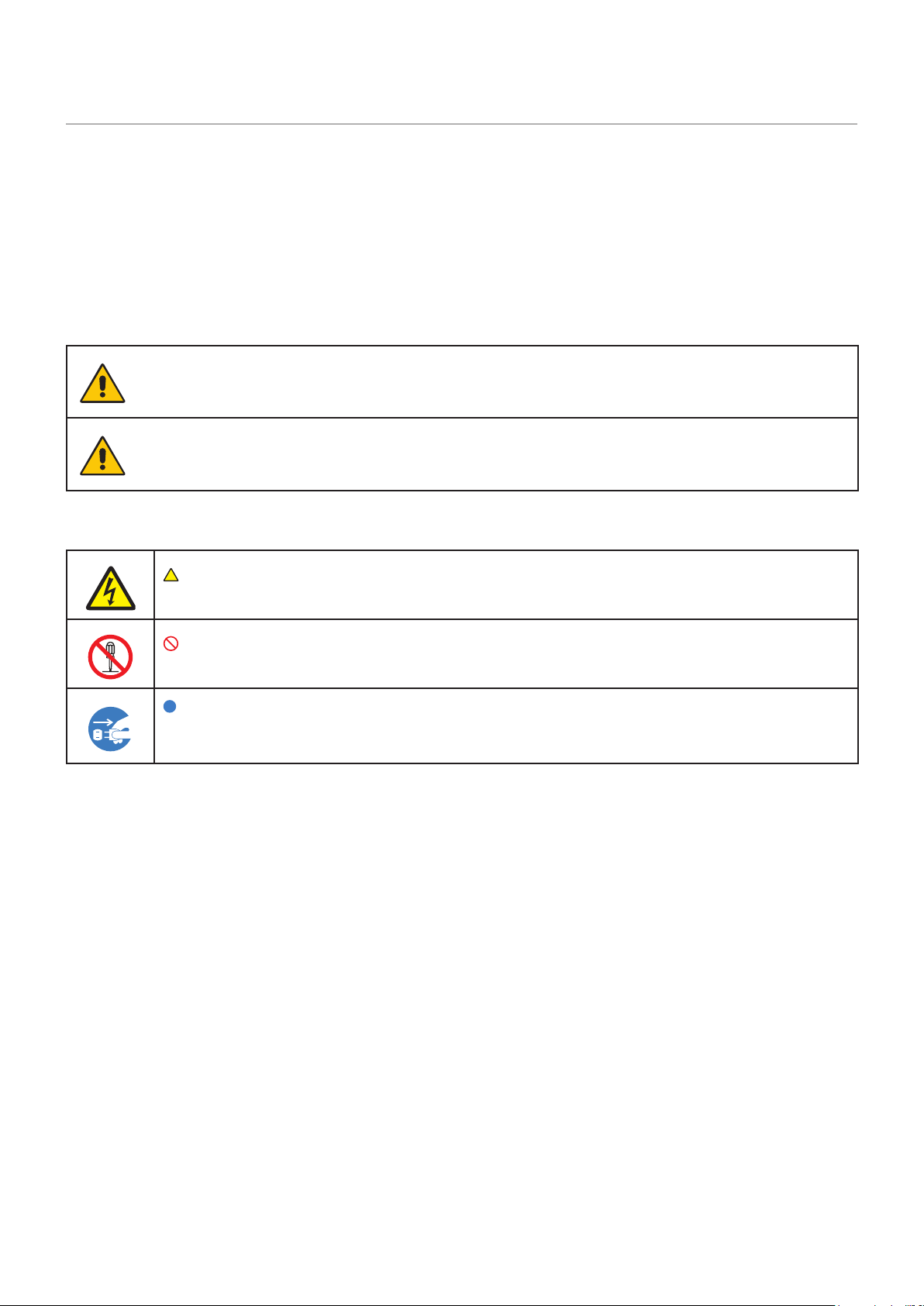
About the Symbols
To ensure safe and proper use of the product, this manual uses a number of symbols to prevent
injury to you and others as well as damage to property. The symbols and their meanings are
described below. Be sure to understand them thoroughly before reading this manual.
WARNING
Failing to heed this symbol and handling the product
incorrectly could result in accidents leading to major
injury or death.
CAUTION
Failing to heed this symbol and handling the product
incorrectly could result in personal injury or damage to
surrounding property.
Examples of symbols
Indicates a warning or caution.
This symbol indicates you should be careful of electric shocks.
Indicates a prohibited action.
This symbol indicates something that must be prohibited.
Indicates a mandatory action.
This symbol indicates that the power cord should be unplugged from the
power outlet.
English - 2
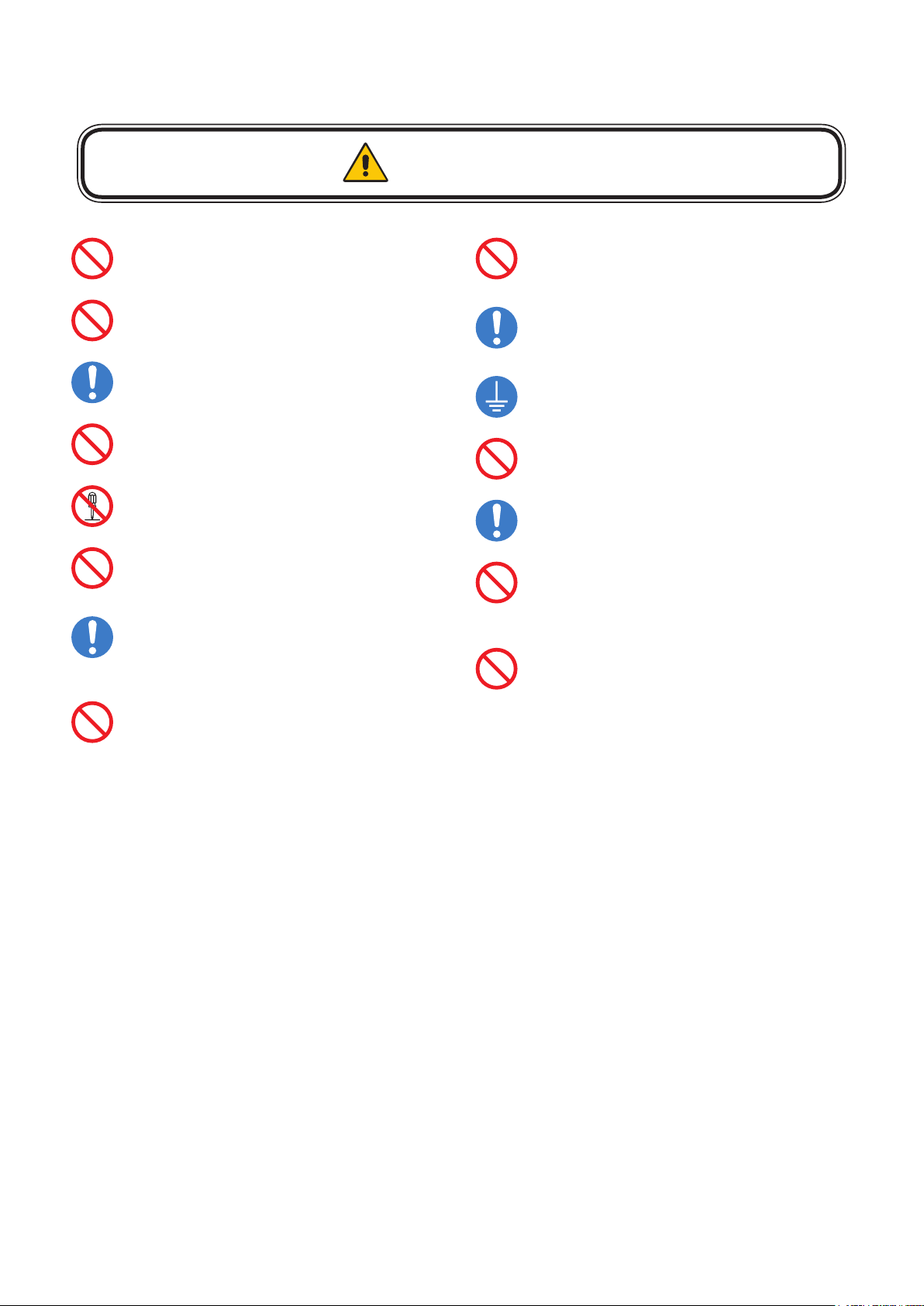
● Be sure to read the following before using the product to use it correctly and safely.
WARNING
Do not apply vibrations or shocks to the
product.
Do not install the product to unstable
locations or locations subject to vibrations.
Always ask a technician to perform the
installation.
Do not connect the cables with wet hands.
Otherwise, it may cause an injury or an
electrical shock.
Do not repair or modify the product yourself.
Otherwise, it may cause an injury, a re or an
electrical shock.
In case of thunder, do not touch the power
cord. Otherwise, it may cause an electrical
shock.
Connect the product to the correct voltage.
If the product is connected to a voltage other
than the specied voltage, it may lead to a
re or an electrical shock.
In case of a malfunction (nothing is displayed
on the screen, etc.) or if smoke, abnormal
heat, or a strange sound or odor is generated,
turn the power off and immediately ask a
technician or your retailer for repair.
Install the product so that the vents are not
obstructed.
Make sure there are enough people available
to ensure safety (at least two people) when
installing or moving the product. Otherwise, it
may lead to an injury.
Be sure to ground the product. If the product
is not grounded, there is a risk of electrical
shock in case a malfunction occurs.
In case foreign matter has entered into the
product, immediately disconnect the power
supply and stop using the product.
After the installation, if a problem such as
loose screws occurs, immediately ask a
technician or your retailer for repair.
Do not put objects into the product.
Otherwise, it may cause a re or an electrical
shock.
In case the product is in contact with water
or another liquid, immediately disconnect the
power supply and stop using the product. If
you continue using the product in that state,
it may lead to a malfunction, a re, or an
electrical shock.
English - 3
This product can only be serviced in the country where it was purchased.
CAUTION
When connecting the power cord to the
product’s AC IN terminal, make sure the
connector is fully and rmly inserted.
Do not damage the power cord. Do not put
heavy objects on it, place it near heaters, pull
it with excessive strength, or apply a strong
force on it while it is bent.
A damaged power cord may cause a re or an
electrical shock.
Do not install the product in narrow places
where heat tends to build up.
Do not use the product in an environment
with low heat dissipation.
Otherwise, it may cause a malfunction.
The RJ-45 port of the product is for use
with the product only. Do not connect it to a
network. Connecting this port to a network
that may receive over-voltage current may
cause damage to the product or an electrical
shock.
Do not use the product in a vehicle or another
means of transportation.
Do not place the product under direct sunlight
or near heaters.
This product is designed to be used indoors.
Do not use it outdoors. Otherwise, it may
cause a malfunction.
Do not use or store the product in the
following places.
• Near heaters
• Places with lots of humidity or dust, or
places subject to oily smoke
• Places where water or oil may splash
• Places with lots of corrosive gases, such as
near hot springs
• Places where the product may freeze
• Do not place the product on its side, face
down, or upside down.
• Places with lots of vibrations
If you will not be using the product for a long
time, disconnect it from the power distributor
for safety purposes.
Disconnect the power supply when
performing the maintenance.
Install the product in accordance with the
local laws and regulations.
Use ESD gloves when handling Pixel cards
to prevent static electricity from the human
body and contamination due to nger oils,
perspiration salts, aking skin, and/or other
forms of human excretory secretions. The
LED modules and their electrical components
are sensitive to biological agents and
exposure to such risks degradation of
materials and performance.
Eliminate any static electricity from your body
before touching the Pixel cards by touching
an aluminum sash, a door knob, or some
other metal object.
English - 4
Recommended Use & Maintenance
About the LED lamps
The surface of the pixel card is vulnerable to shocks, so do not press or hit the surface.
LED lamps are sensitive to static electricity and surge voltage, which may damage their components
and decrease their reliability.
Take measures against static electricity during the installation. Do not touch the LED display areas.
The LED lamps may absorb and hold moisture during the LED module installation or if not used for
a long time. Therefore, in such cases, the brightness must be increased gradually during a break-in
period before setting the normal brightness.
If the LED lamps are lit with 100% brightness while moisture is retained, the temperature will rise very
quickly and the water inside the lamps will evaporate and expand. This will cause the encapsulating
resin to expand, which may lead to separation of the boundary surface inside the LED lamps. This
separation can cause the LED lamps not to light up properly.
Lamp break-in
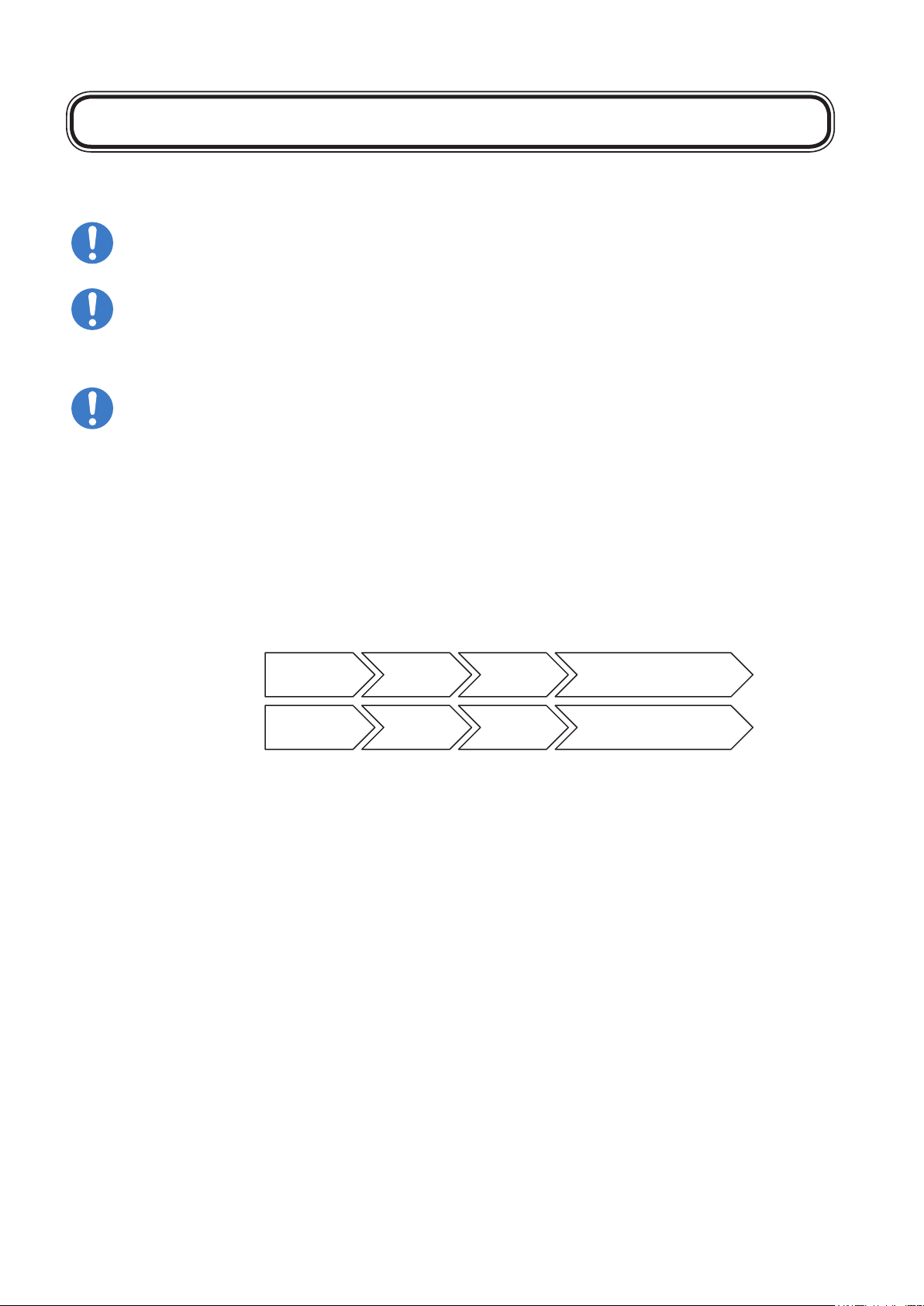
Congure the brightness settings as shown below with a video displayed on the LED
module.
After a break-in period of approximately 3 hours, the LED module can be used under normal
conditions.
Time since start-up: 0
(just after start-up)
1 hour 2 hours 3 hours
Full white
Normal operation70%50%
80%60%40%
Brightness
value 20%
Normal operation
Video content
Pixel card surface cleaning
The surface of the pixel card is easily scratched, so handle it with care so as not to push or rub
it with a hard object. Be careful not to stain the surface of the pixel card with your ngers. If the
surface of the pixel card becomes dirty, wipe it gently with a dry cloth. Also, use a clean cloth and
avoid using the same cloth repeatedly.
English - 5
Contents
The supplied parts are as follows.
In case one of these parts is missing or damaged, contact the retailer.
CAUTION
Depending on the system you ordered, there is a cabinet without the upper connector.
[Cabinet]
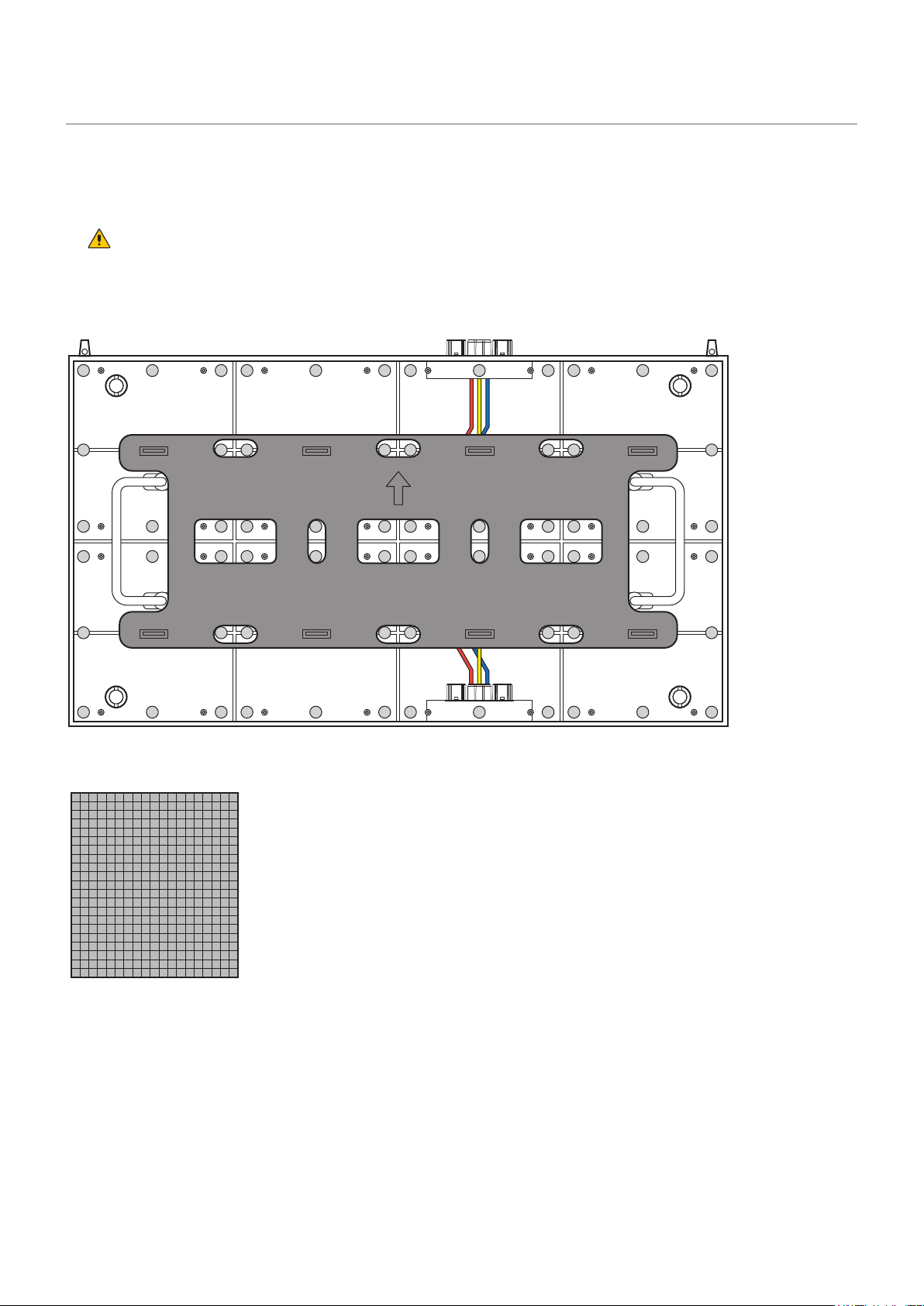
[Pixel card]
8 cards per cabinet
English - 6
Related Items for Installation
The items required when installing the system are shown below.
Contact your retailer for more details.
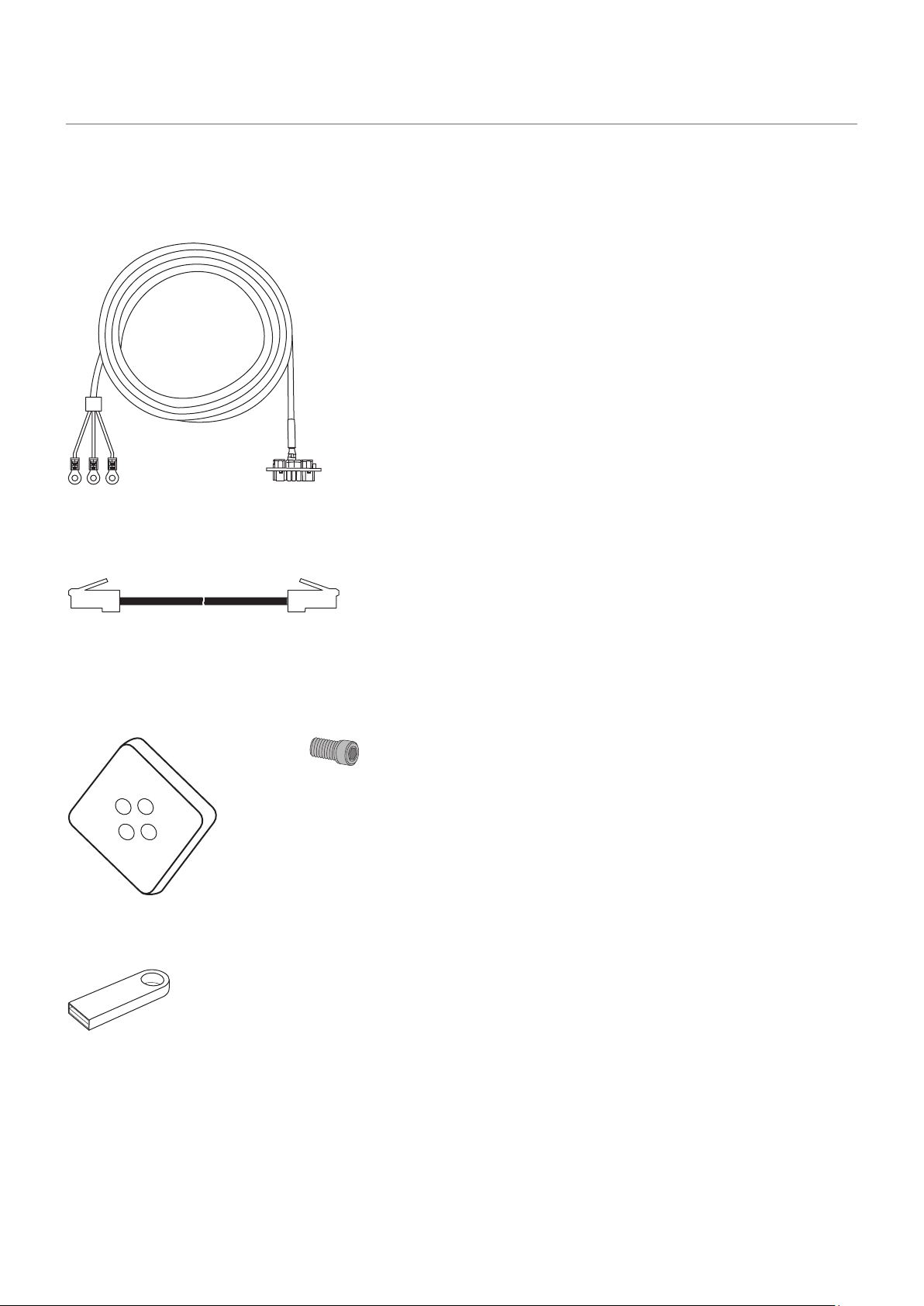
[Power cord]
To connect the LED module to the power distributor
[LAN cable]
To connect two LED modules together
(120 mm for vertical connection, 1000 mm for horizontal connection)
[Cabinet alignment bracket] [Connection screw for LED modules]
[USB drive]
Contains the data, the user’s manual (this document), and
the control software for the product you have purchased.
English - 7
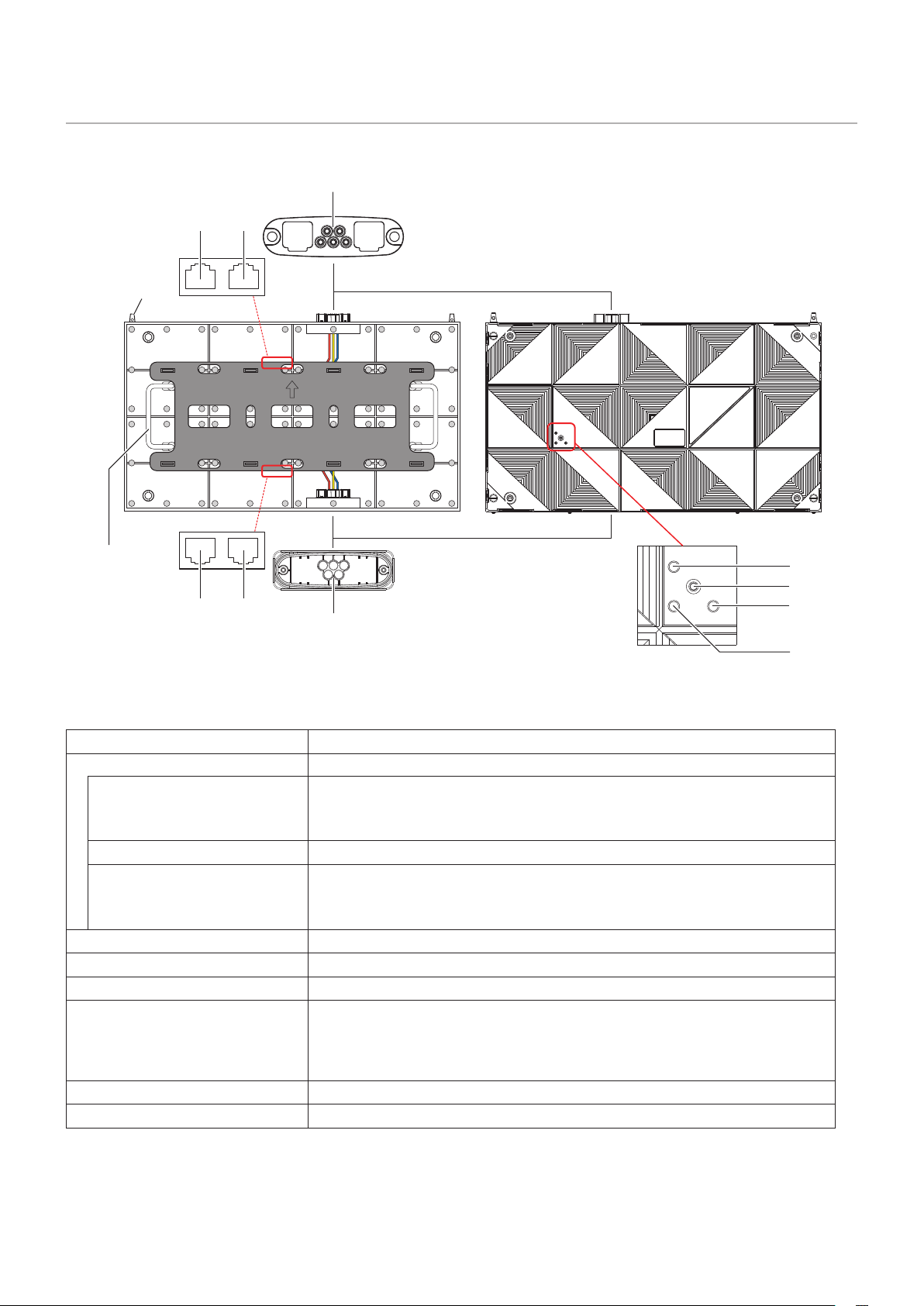
Parts Name
①③
⑤
⑪
Front Rear
⑦
⑩
⑧
⑨
⑫
④②
⑥
Name Description
Interface connectors Input and output connectors for the signal and AC power.
12 Signal input/output
To input the signal from the LED controller or the previous LED module.
When a signal is input into 1, the signal is output from 2.
When a signal is input into 2, the signal is output from 1.
34 Signal input/output
Not functioning with this product.
56 Power input (output) When AC power is input into 5, AC power is output from 6.
When AC power is input into 6, AC power is output from 5.
Do not input AC power into both 5 and 6.
7 Status lamp (red)
Flashes when a signal is being input.
8 Status lamp (blue)
Not functioning with this device.
9 Status lamp (green)
Lights up when power is being input.
0 Test button
Used to display the test patterns. The displayed pattern changes each
time the test button is pressed.
The signal from the LED controller must be interrupted to display a test
pattern.
! Handle
Use the handles when carrying and installing the cabinet.
@ Guide pin
Used to align the cabinets when installing them on top of each other.
English - 8
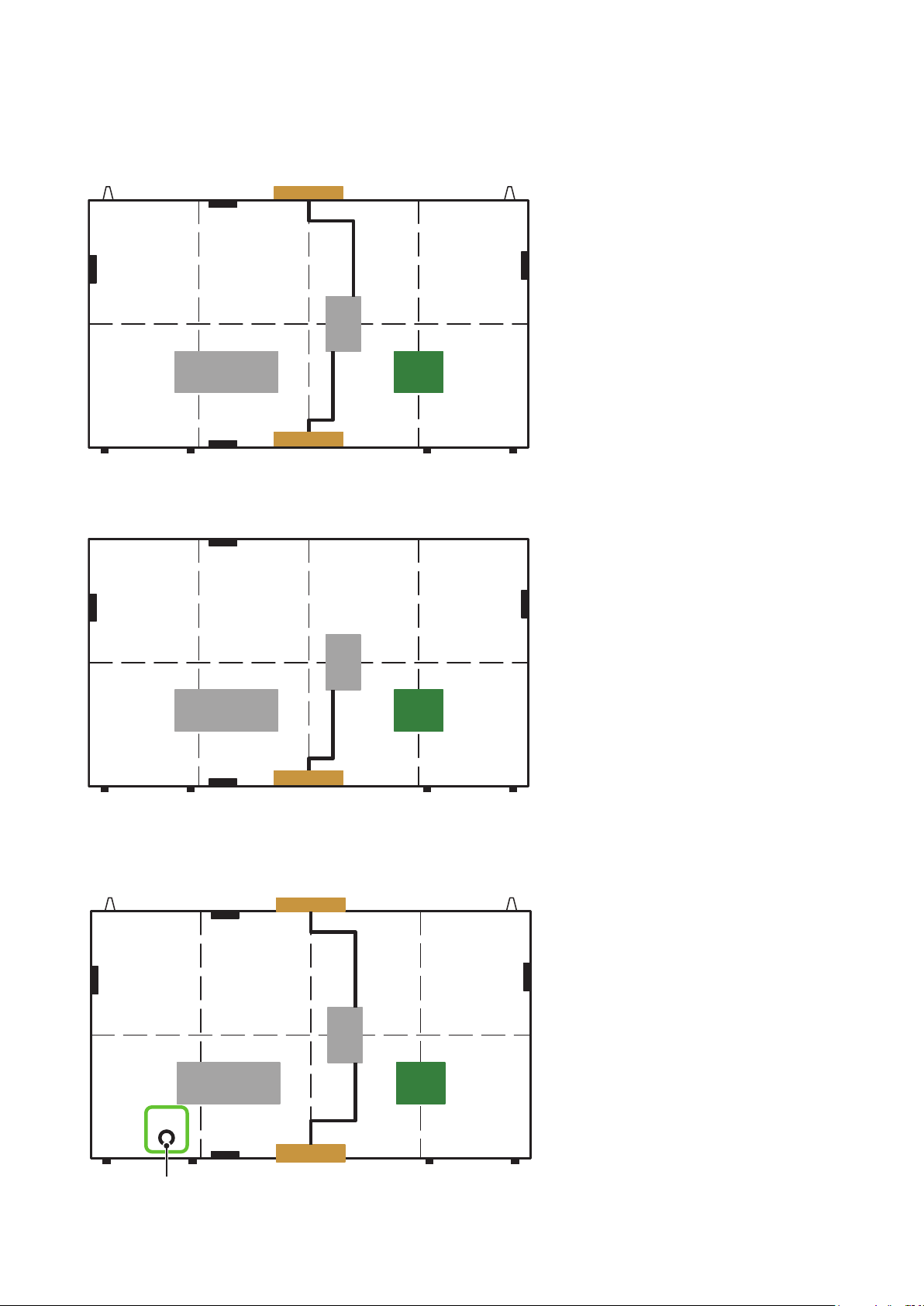
There are two types of cabinets.
(1) Type A
The connectors are equipped on the top and bottom sides. There are guide pins on the top.
Power unit
Receiving
card
Power
hub
board
(2) Type B
There are no connectors on the top side. There are no guide pins.
Power unit
Receiving
card
Power
hub
board
[When assembling a 6 x 6 frame set using FC009i]
It is necessary to connect a LAN cable in the middle of the installation work. That is the reason why
a model (Type A’) with a hole for LAN cable connection on the rear has been made available.
Data
Power unit
Receiving
card
Power
hub
board
Hole for LAN cable connection
English - 9
Installation Example
1. Installation location
Before the installation, be sure to review the following safety precautions to ensure proper and safe
installation.
CAUTION
• Ask a technician to perform the installation.
• Make sure the product is moved and installed by enough people to ensure safety.
• Make sure that the beams or the other structures to which the product is installed have enough strength to
support the weight of the product, and make sure that the product is securely xed.
• Do not install directly the product to a surface that has not enough strength.
• When installing the product in a narrow place (in a wall, etc.), leave enough gaps around the LED screens
to prevent an increase in the temperature.
Make sure to use the product lower than the normal operating temperature.
Pay particular attention to the installation environment (heat from the external environment, direct
sunlight, heat generated by the number of displays) in order to facilitate cooling of the LED modules.
If cooling is not sufcient, take measures, such as increasing the distance from the walls or installing a
forced-air cooling system.
Ask a technician or your retailer for more details.
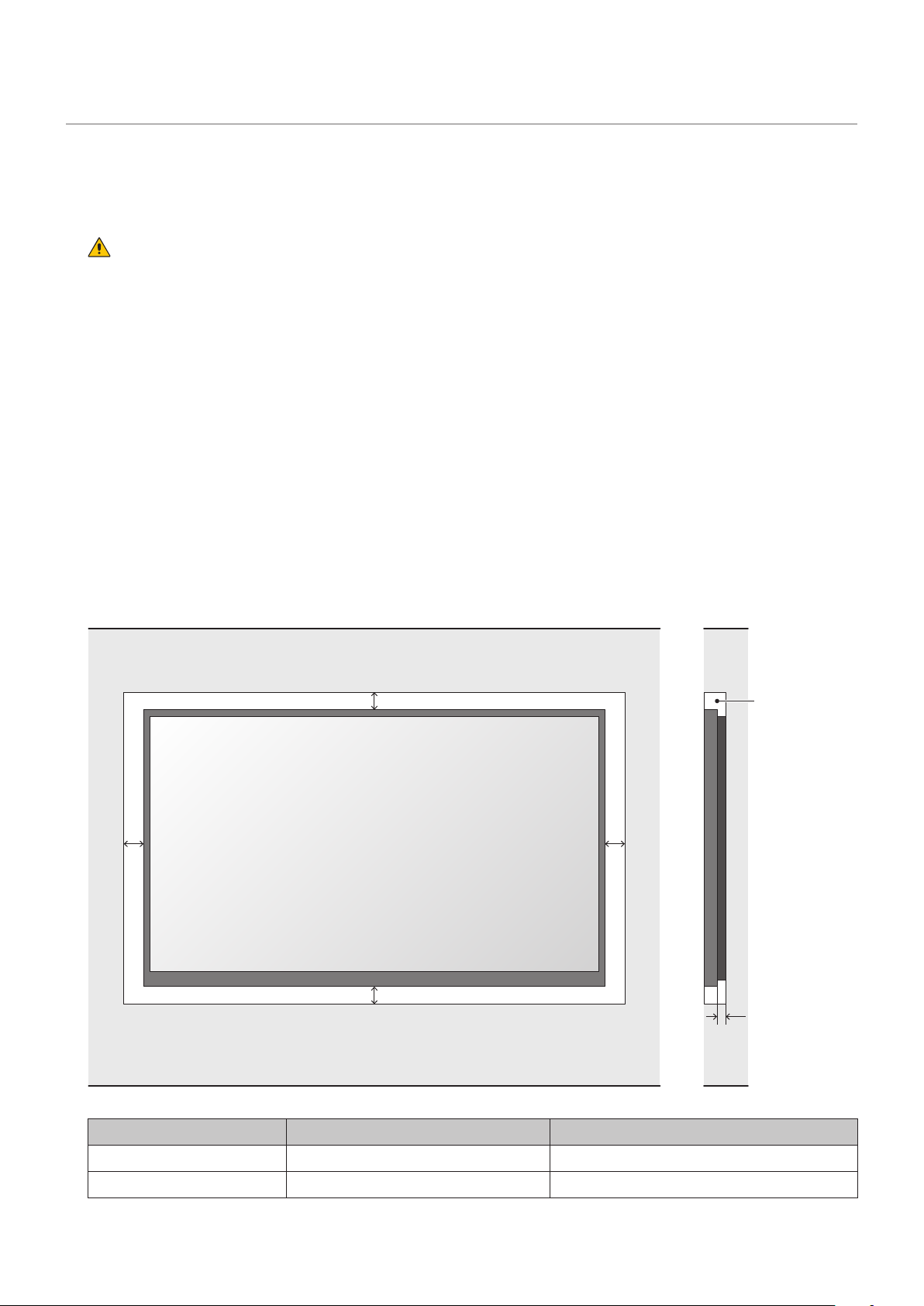
There is an example for setting.
In wall setting
AA
C
B
B
< 40 °C
A B C
min distance to sides min. distance to top and bottom Distance between wall and system
60 mm 60 mm 20 mm
English - 10
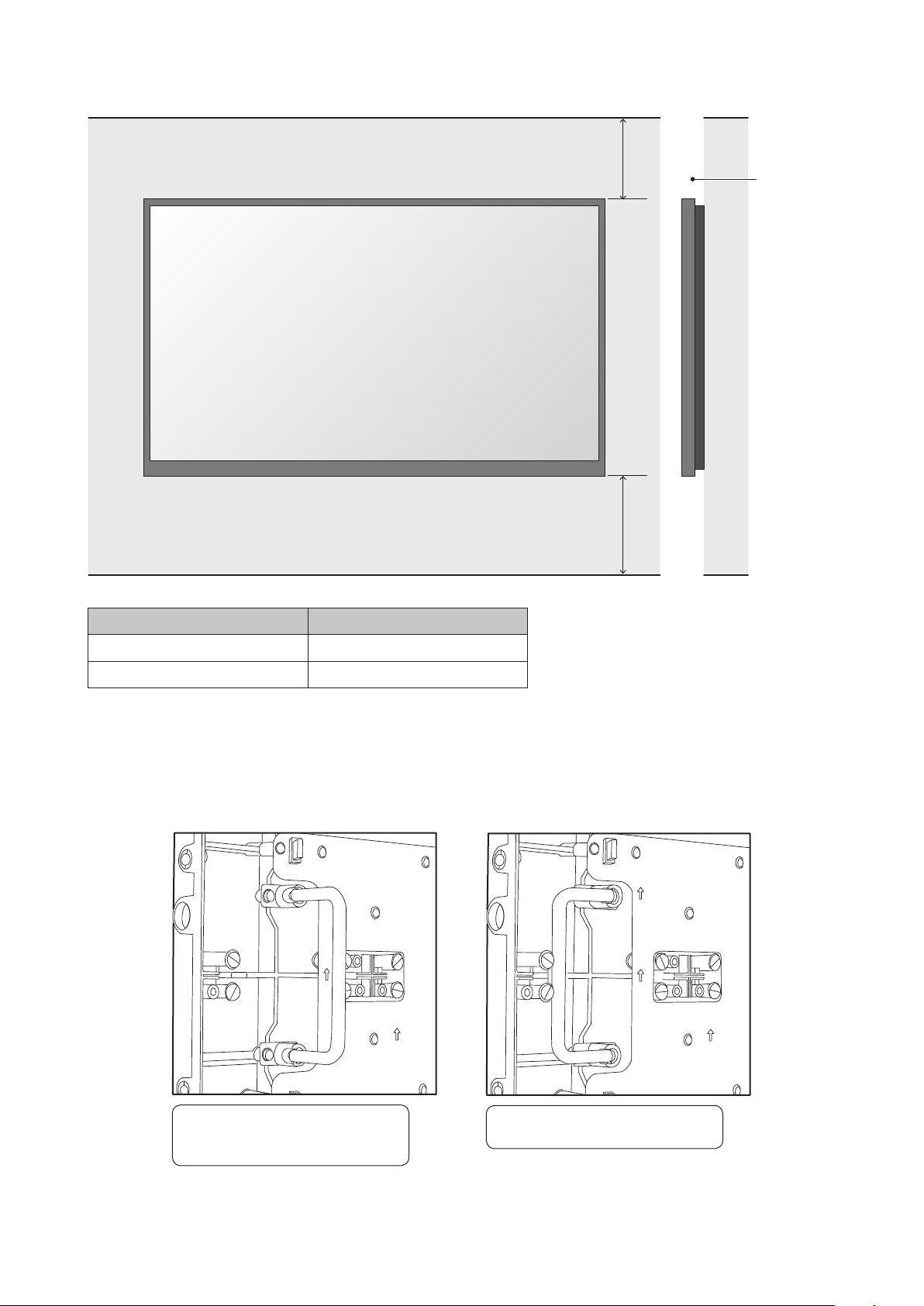
Wall mounting setting
D
E
< 40 °C
D E
min. distance to ceiling min. distance to oor
60 mm or more 60 mm or more
2. Handle
Use the handles when carrying and installing the cabinet.
Put the handles in their original positions after the installation work has been completed.
When carrying or installing the
cabinet, pull out the handles on
both sides.
Put the handles back after the
work has been completed.
English - 11
3. Installation with brackets
A recommended example of installation when using the brackets is shown below. Ask a technician or
your retailer for the installation procedure when not using the brackets.
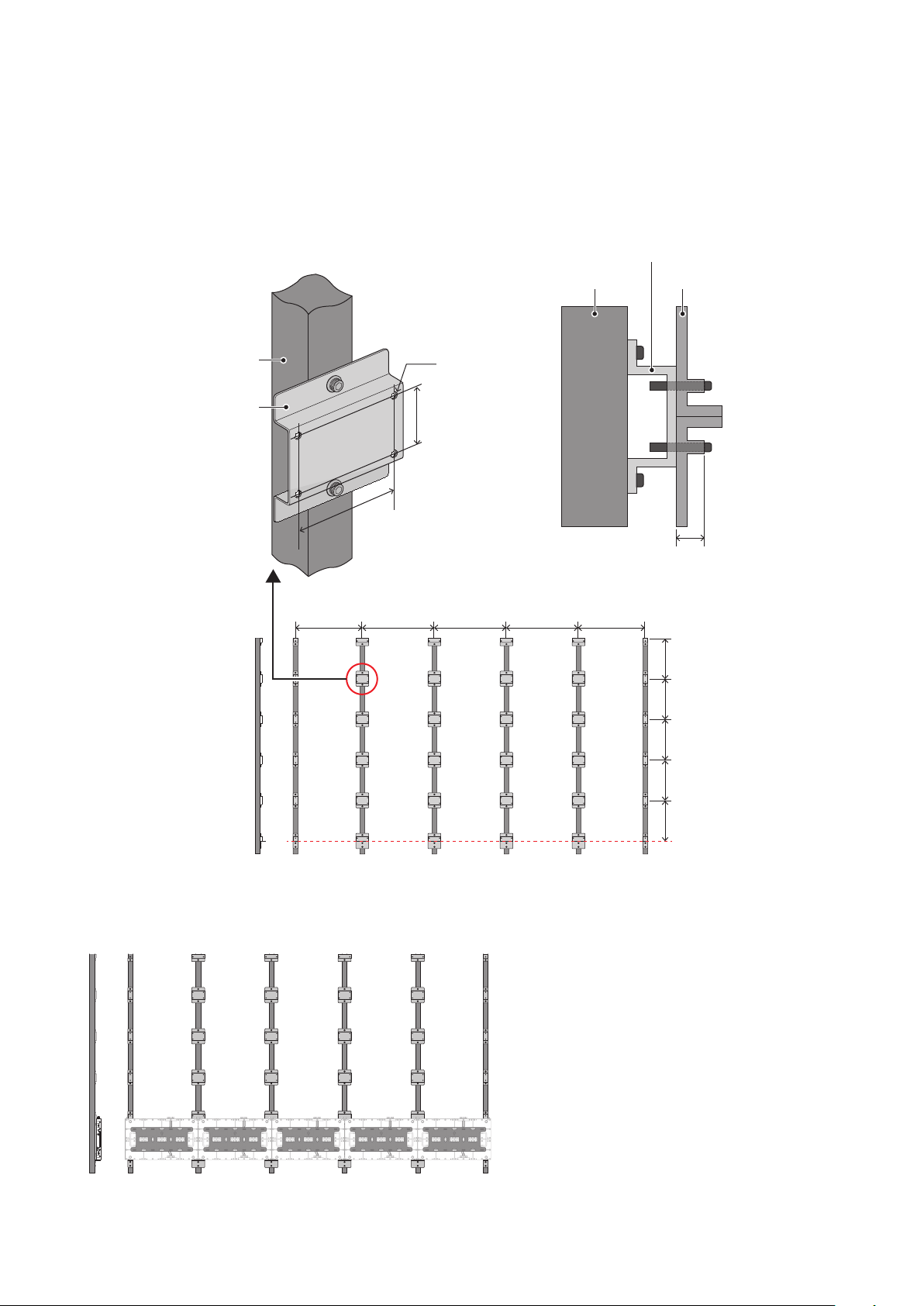
Install the brackets to the frame as shown in the gure below.
Use screws with a length adapted to the cabinet thickness (30 mm). Use also brackets with a
sufcient thickness to hold the screws.
88 mm
48 mm
30 mm
4-M6
Installation example
Frame
Frame
Bracket
Bracket
Cabinet
564 mm 564 mm608 mm 608 mm 608 mm
342 mm
342 mm
342 mm
342 mm
342 mm
Adjust the horizontality of the lowest row.
Install the LED cabinets starting from the bottom row.
First, secure temporarily the cabinets to the bracket using screws.
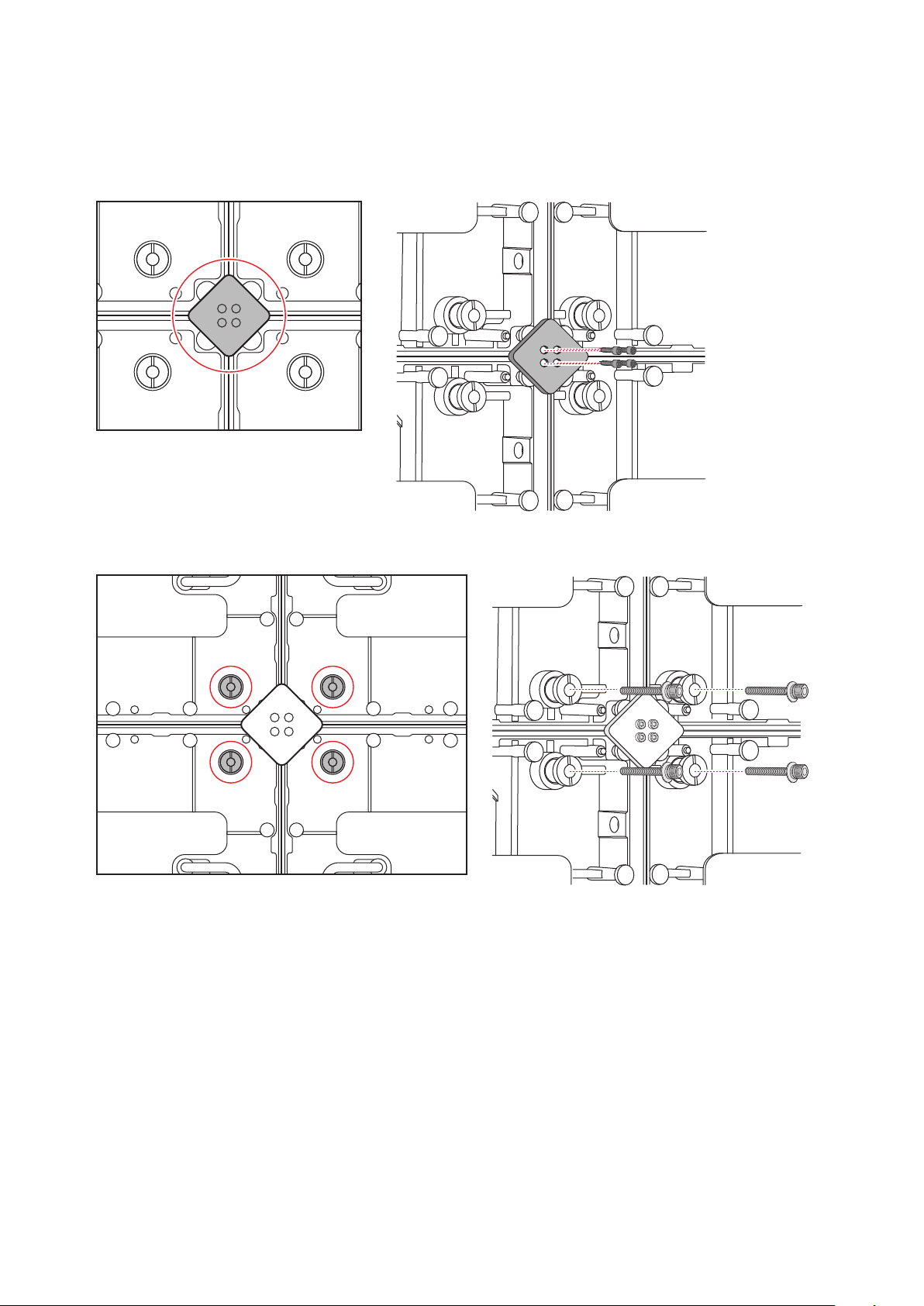
English - 12
Then, secure the LED cabinets together using connection screws for LED modules. Do not tighten
the screws completely.
After you have installed two rows of cabinets, align the surfaces of the cabinets using the
Adjustment plate.
Secure the LED cabinets to the brackets with screws.
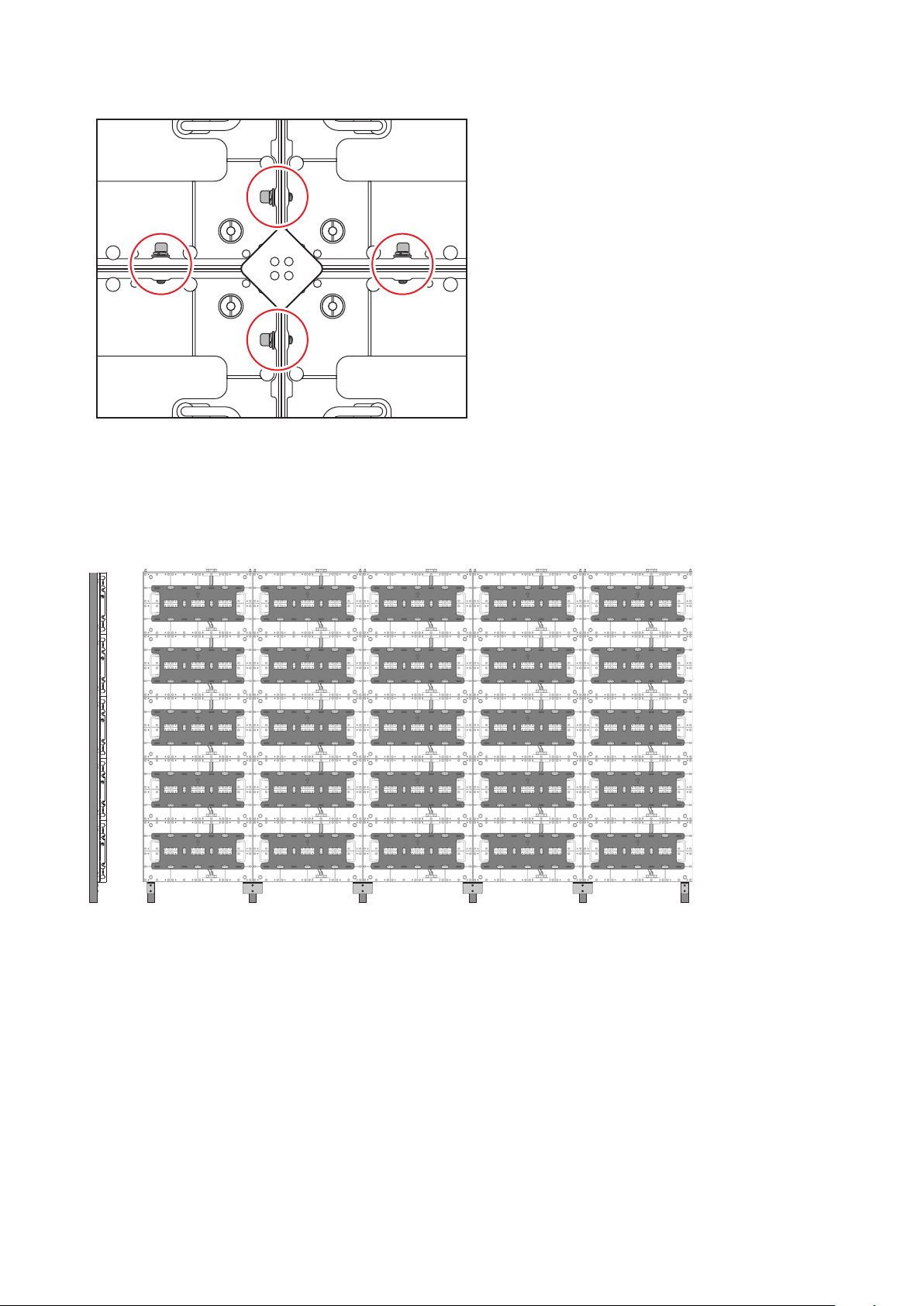
English - 13
Secure the LED modules to each other with screws.
When the cabinets’ surfaces are aligned, completely tighten the screws securing the cabinets
together and the screws securing the cabinets to the brackets.
Remove the Adjustment plate after the screws have been tightened.
Follow the same procedure to install the next row of cabinets and align their surfaces.
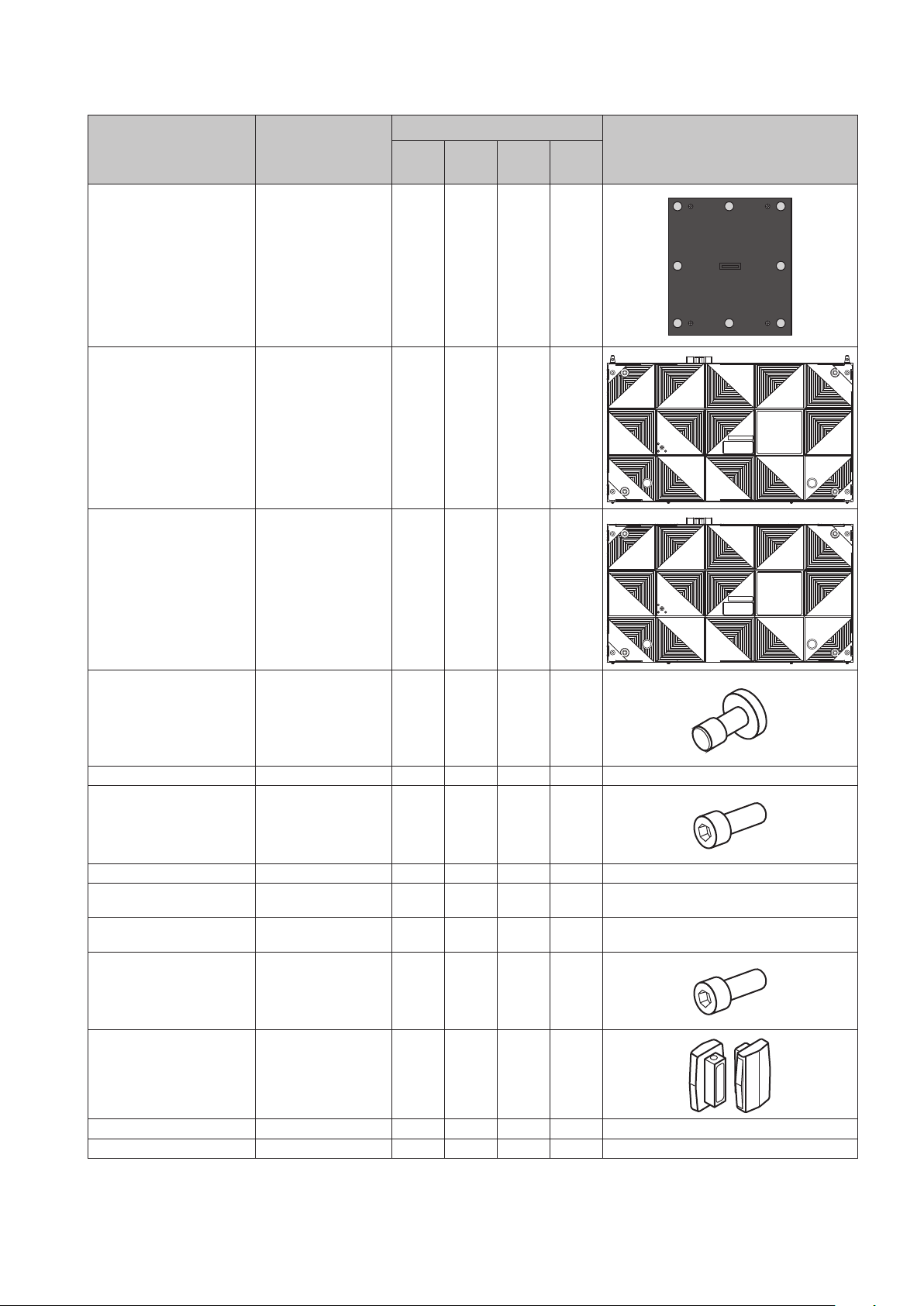
English - 14
4. Installation with a wall-mount frame
Parts Specications
Quantity
4 x 4
frame set
(LED-FC012i)
5 x 5
frame set
(LED-FC015i)
6 x 6
frame set
(LED-FC009i)
8 x 8
frame set
(LED-FC012i)
Pixel card
pitch 1.2, 1.5, 1.9, 3.8
152 x 171 x 10 mm 128 200 288 512
Cabinet Type A
(all rows except top row)
608 x 342 x 39 mm 12 20 30 56
Cabinet Type B
(only top row)
608 x 342 x 39 mm 4 5 6 8
Cabinet hanger pin Head diameter 15
mm, thickness 5
mm, M8 external
dental pattern,
axis length 17 mm,
stainless steel color
24 48 60 96
Power bar cover plate 1 1 1 2
Power bar screw
(M8×20)
Hexagon socket
head screw
12 16 20 24
Power bar 1 1 1 2
Bottom frame connecting
part
– – – 1
Screw for Bottom frame
connecting
– – – 2
Screw for corner frame
bottom
(M6×12)
Hexagon socket
head screw
2 2 2 2
Corner frame bottom
(left, right)
2 2 2 2
Overframe (left, right) 2 2 2 2
Mounting bar 3 4 5 6
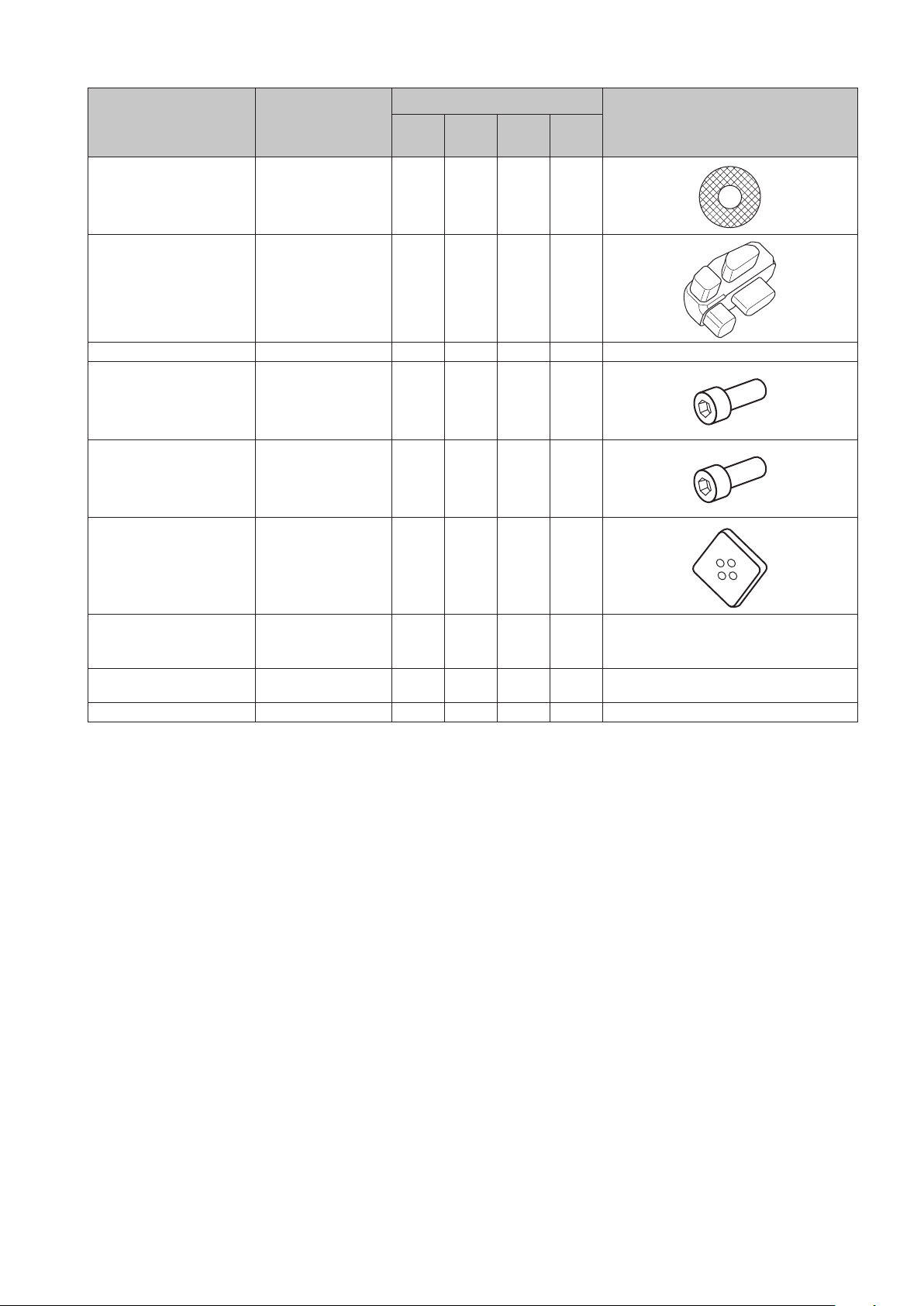
English - 15
Parts Specications
Quantity
4 x 4
frame set
(LED-FC012i)
5 x 5
frame set
(LED-FC015i)
6 x 6
frame set
(LED-FC009i)
8 x 8
frame set
(LED-FC012i)
Washer 12 20 30 48
Corner frame top
(left, right)
2 2 2 2
Overframe (top) 1 1 1 2
Screw for overframe
(M8×16)
Hexagon socket
head screw
10 12 12 14
Screw for cabinet (to
Power bar)
(M8×16)
Hexagon socket
head screw
8 10 12 16
Adjustment plate 10 12 14 18
Screw for connecting
cabinets
(M8×25)
48 80 120 224
LAN cable between LED
controller and module
120 mm 12 20 30 56
Alignment bar 1 1 1 1
Four different wall-mount frames can be used depending on the system size. Ask your retailer for more details.
English - 16
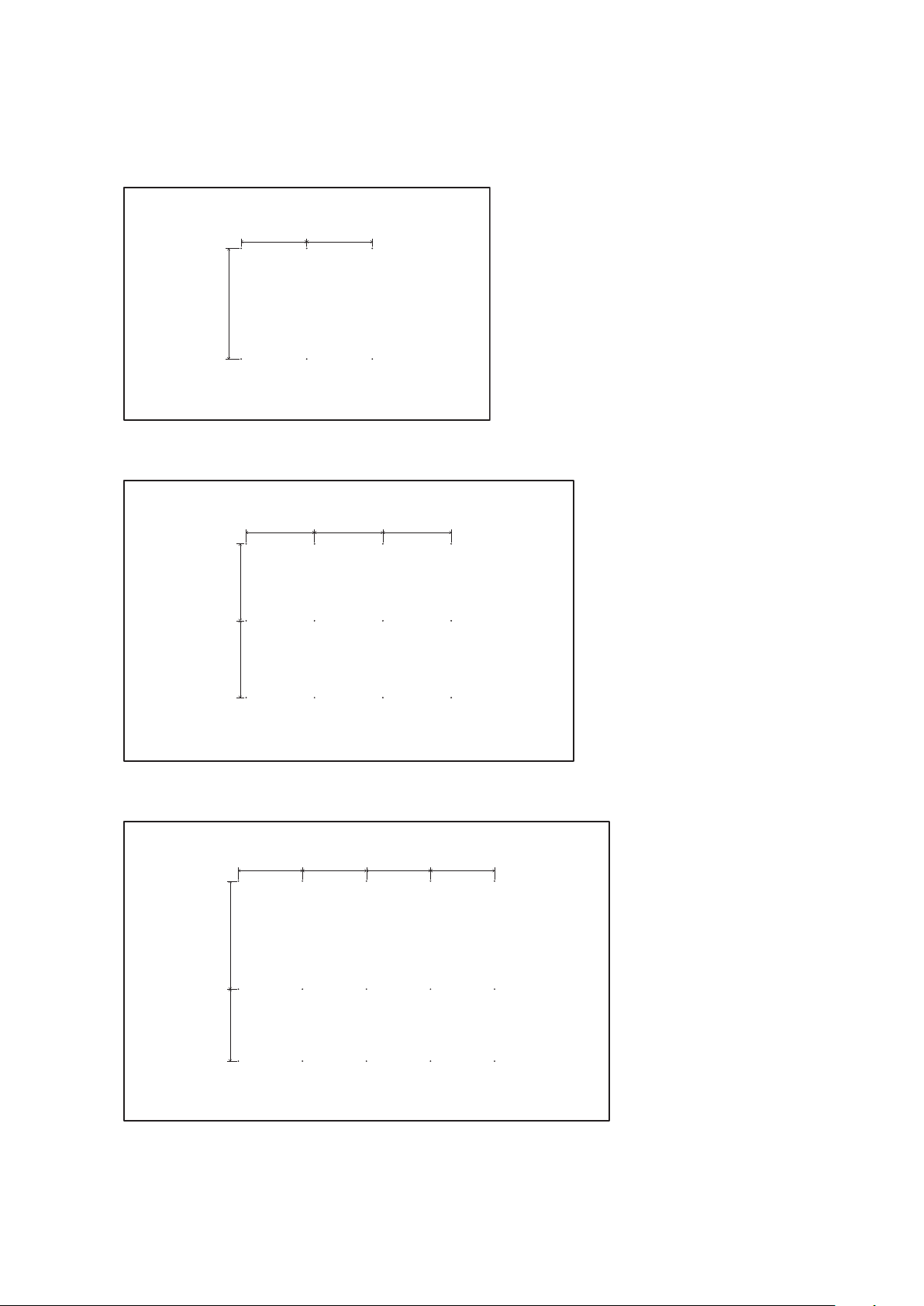
4.1 Mark the positions of the anchor points on the wall
• Mark the positions of the holes you will make for the anchor points (refer to the gures below and the
“Anchor points number and positions” table on the next page).
• Before making the holes, check the verticality of the marks using a spirit level.
1026 mm
608 mm608 mm
Anchor points positions: 4 x 4 frame set
684 mm
684 mm
608 mm 608 mm 608 mm
Anchor points positions: 5 x 5 frame set
608 mm 608 mm 608 mm 608 mm
1026 mm
684 mm
Anchor points positions: 6 x 6 frame set
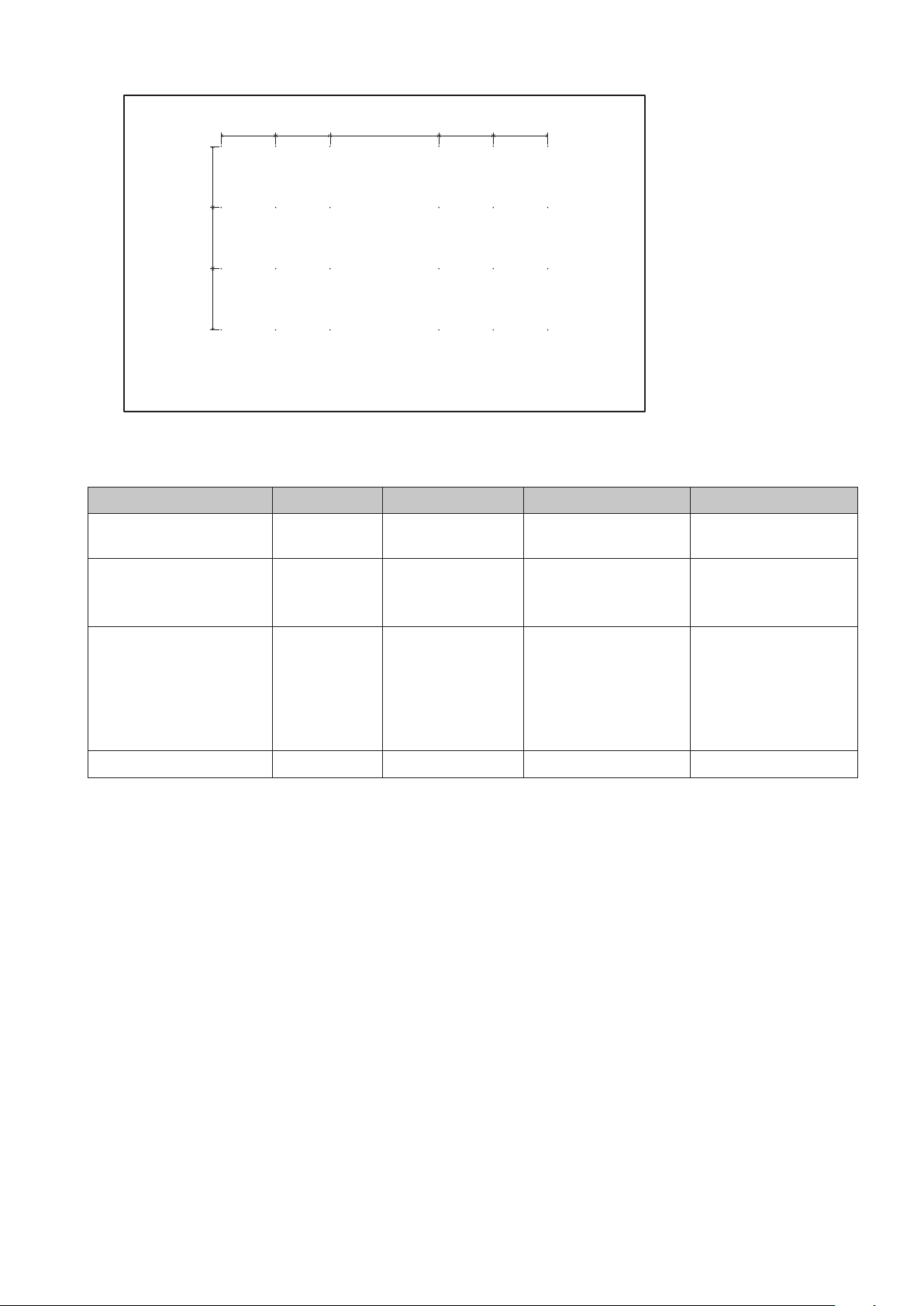
English - 17
684 mm
684 mm
684 mm
608 mm 608 mm 1216 mm 608 mm 608 mm
Anchor points positions: 8 x 8 frame set
Anchor points number and positions
Frame set 4×4 5×5 6×6 8×8
Anchor points
(horizontal x vertical)
3×2 4×3 5×3 6×5
Horizontal distance 608 mm 608 mm 608 mm Distance center:
1216 mm
Others: 608 equally
Vertical distance 1026 mm 684 mm equally Distance top row –
middle row: 1026
mm
Distance middle
row – bottom row:
684 mm
Distance Bottom
row: 342 mm,
others 684 mm
equally
Anchor size Ø10 mm Ø10 mm Ø10 mm Ø10 mm
4.2 Make the holes at the anchor positions
• Make holes at the anchor positions using a suitable tool.
• Use screw anchors/anchor plugs as required.
• Remove the dust or dirt, and wipe off any drilling chips and dust.
English - 18
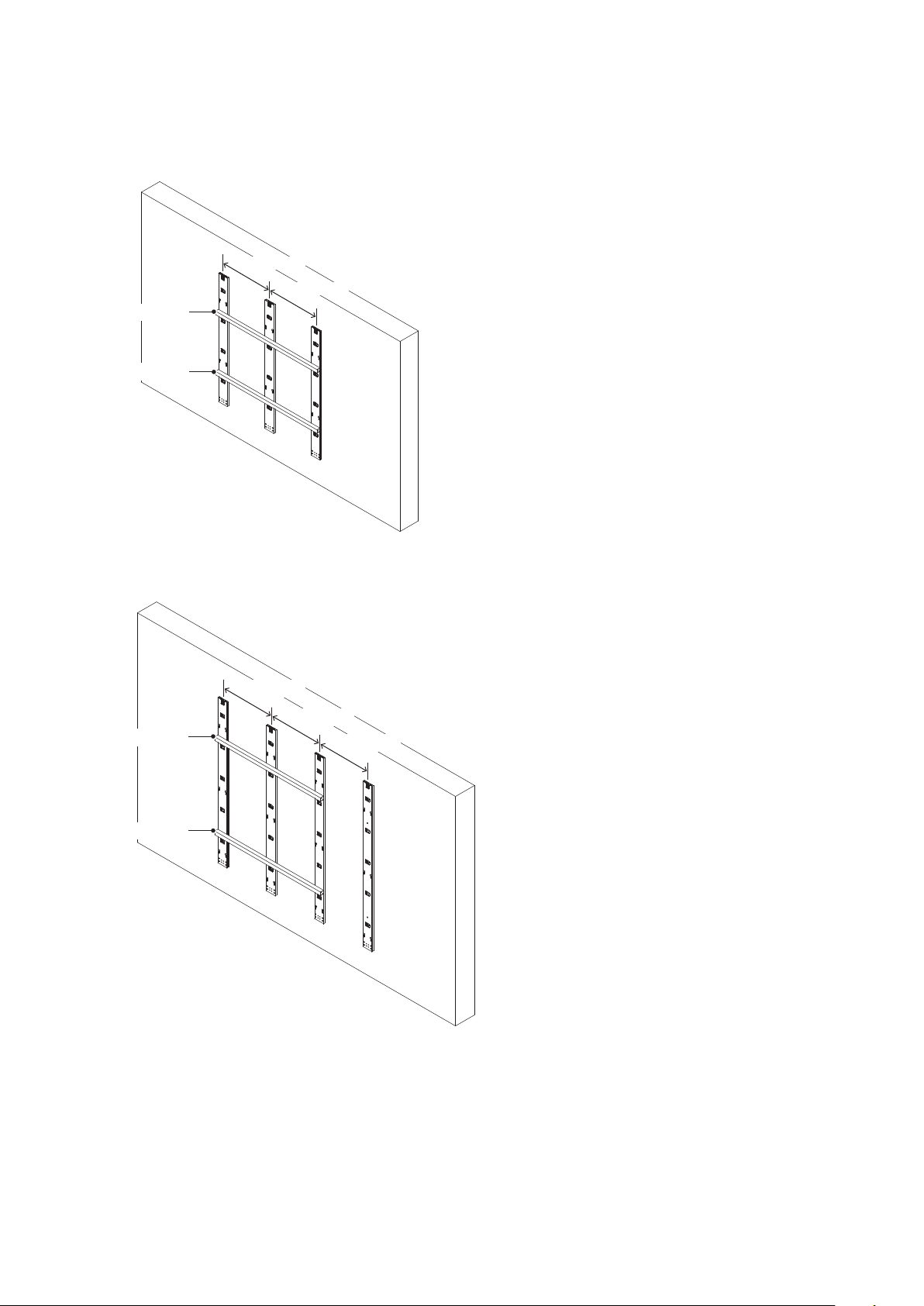
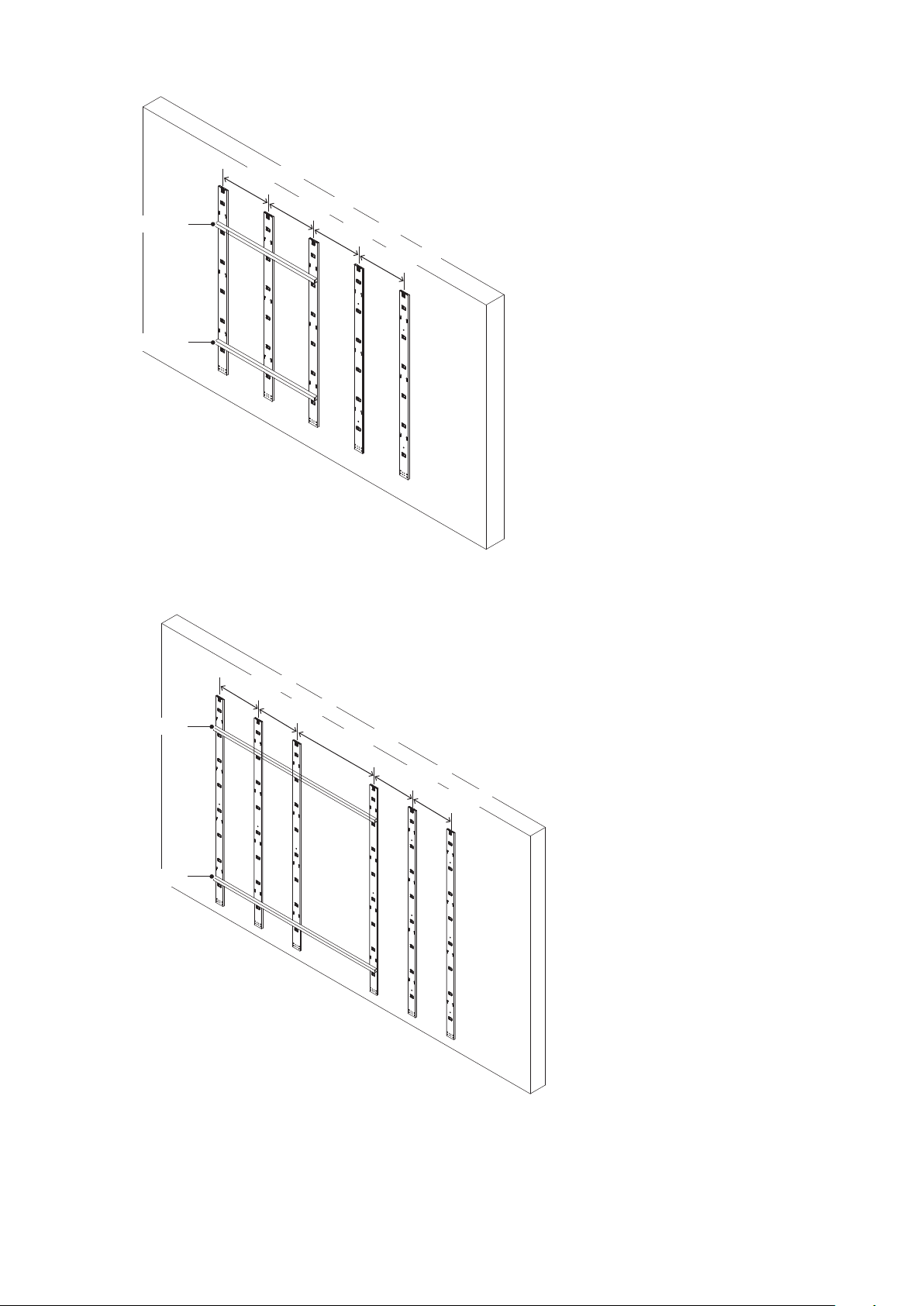
4.3 Install the mounting bars
(1) Install the mounting bars on the anchor points on the wall.
(2) Check the distance between the mounting bars using the alignment bars.
608 mm
608 mm
Alignment bar
Alignment bar
4 x 4 frame set
Alignment bar
Alignment bar
608 mm
608 mm
608 mm
5 x 5 frame set
English - 19
608 mm
608 mm
608 mm
608 mm
Alignment bar
Alignment bar
6 x 6 frame set
1216 mm
608 mm
608 mm
608 mm
608 mm
Alignment bar
Alignment bar
8 x 8 frame set
English - 20
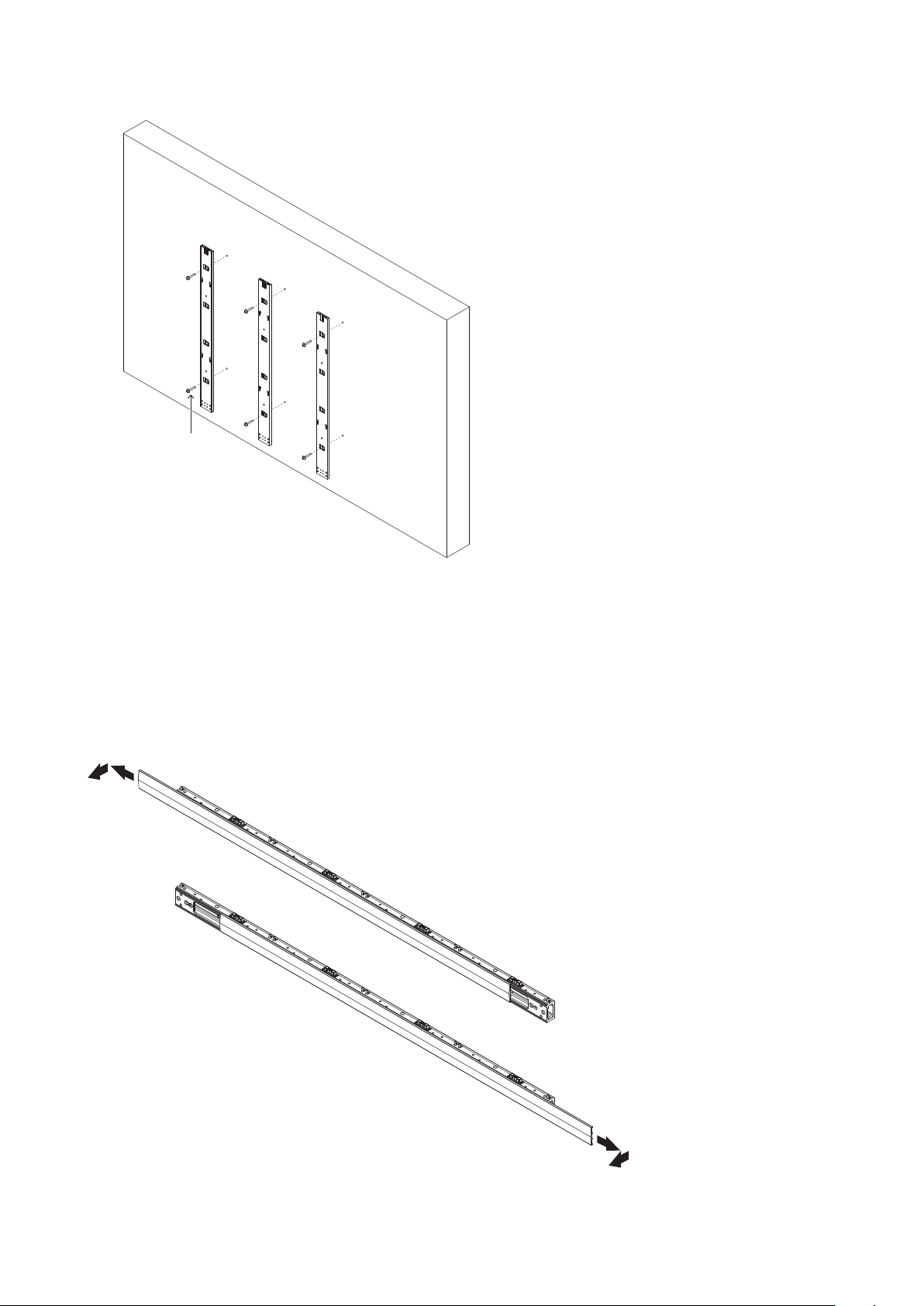
(3) Check the evenness using a spirit level and the alignment bars together. Adjust the positions if required.
M10 screws
Wall mounted: Mounting bar installation (4 x 4 frame set)
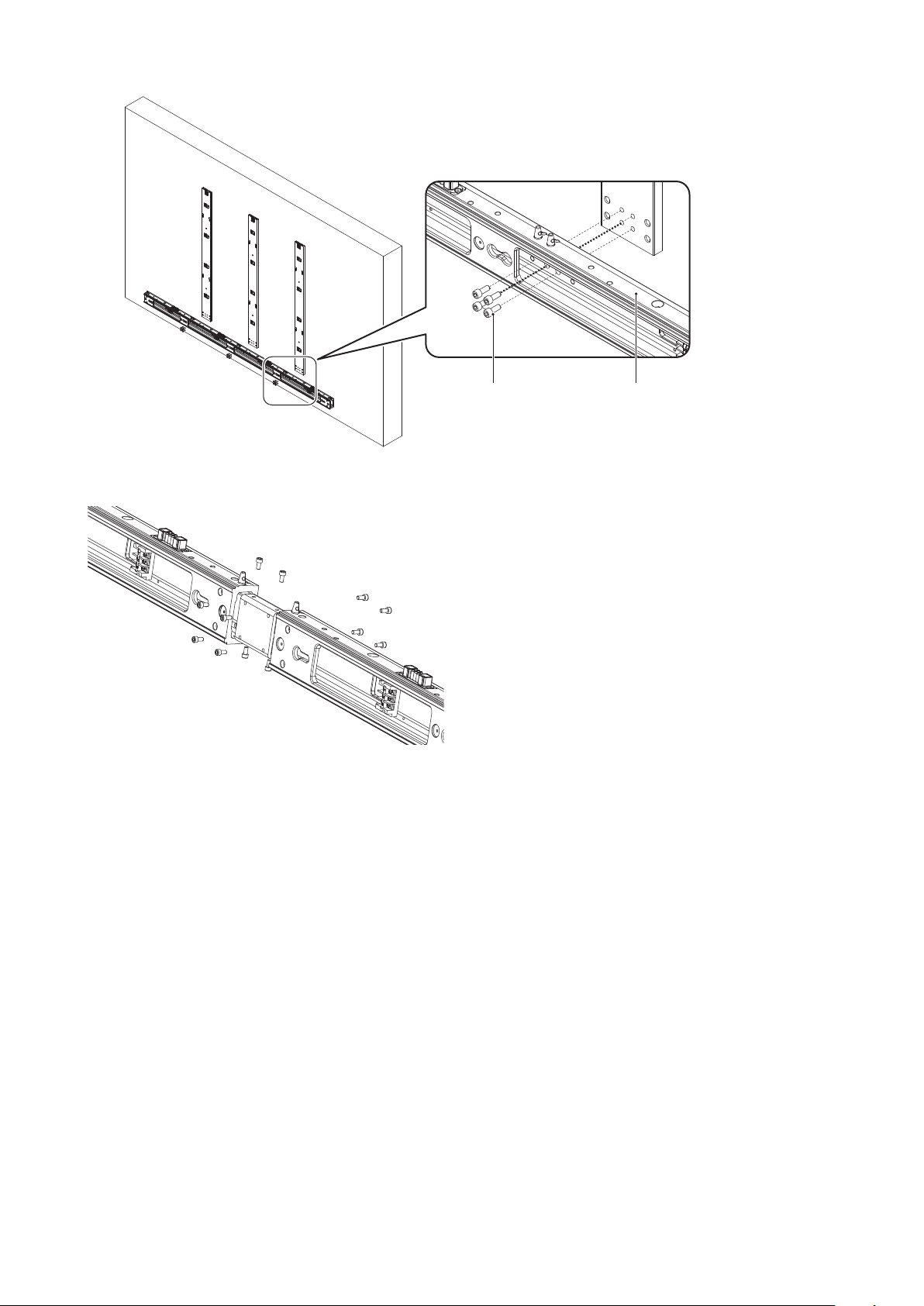
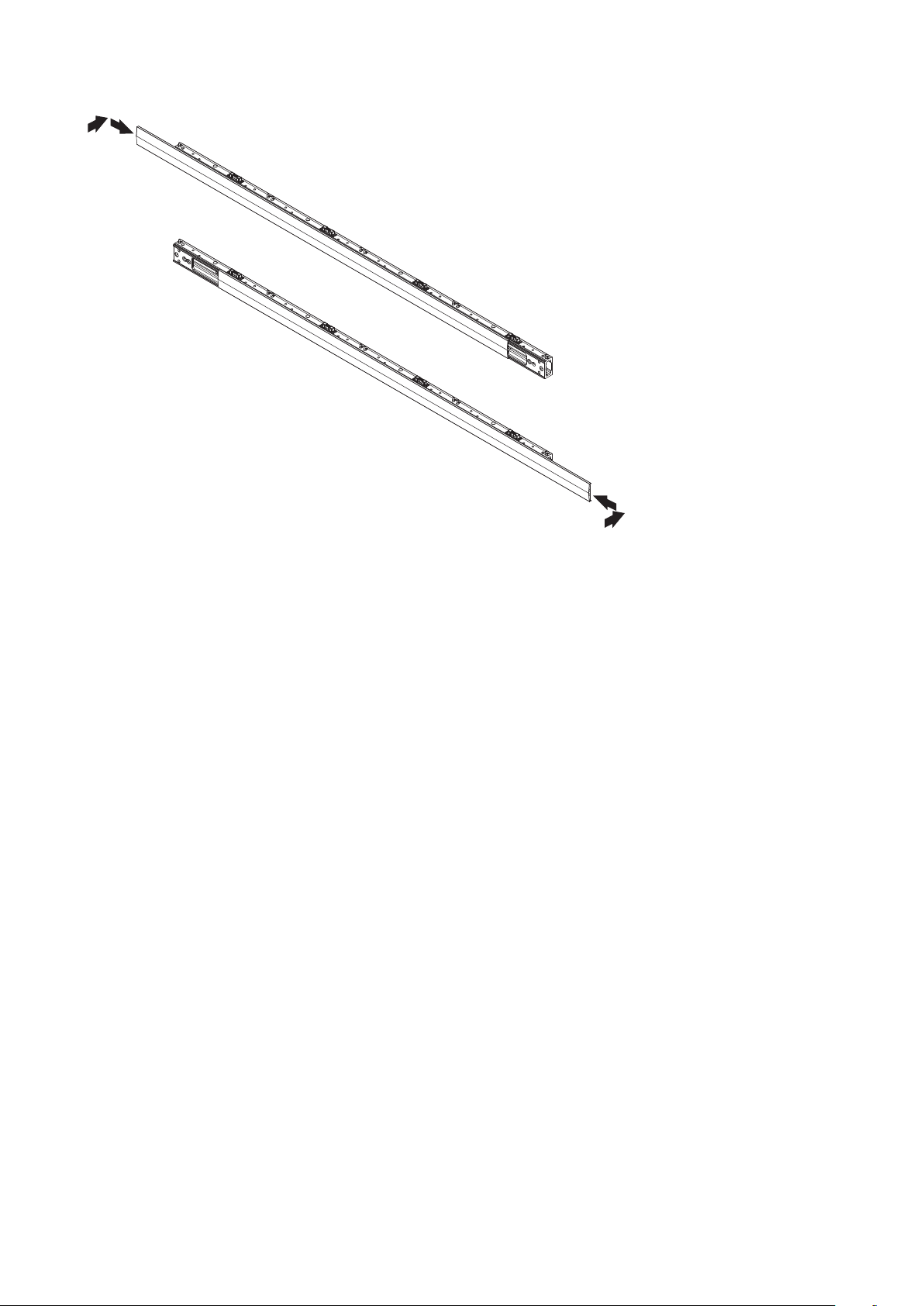
4.4 Install the power bar
Remove the power bar cover and install the power bar using Power bar screw (M8) screws.
How to remove the power bar cover
Sliding the power bar cover for removing. Power bar cover can slide left or right.
English - 21
Power barPower bar screw (M8)
When using the 8 x 8 frame set, use the power bar connecting part to install the power bar.
English - 22
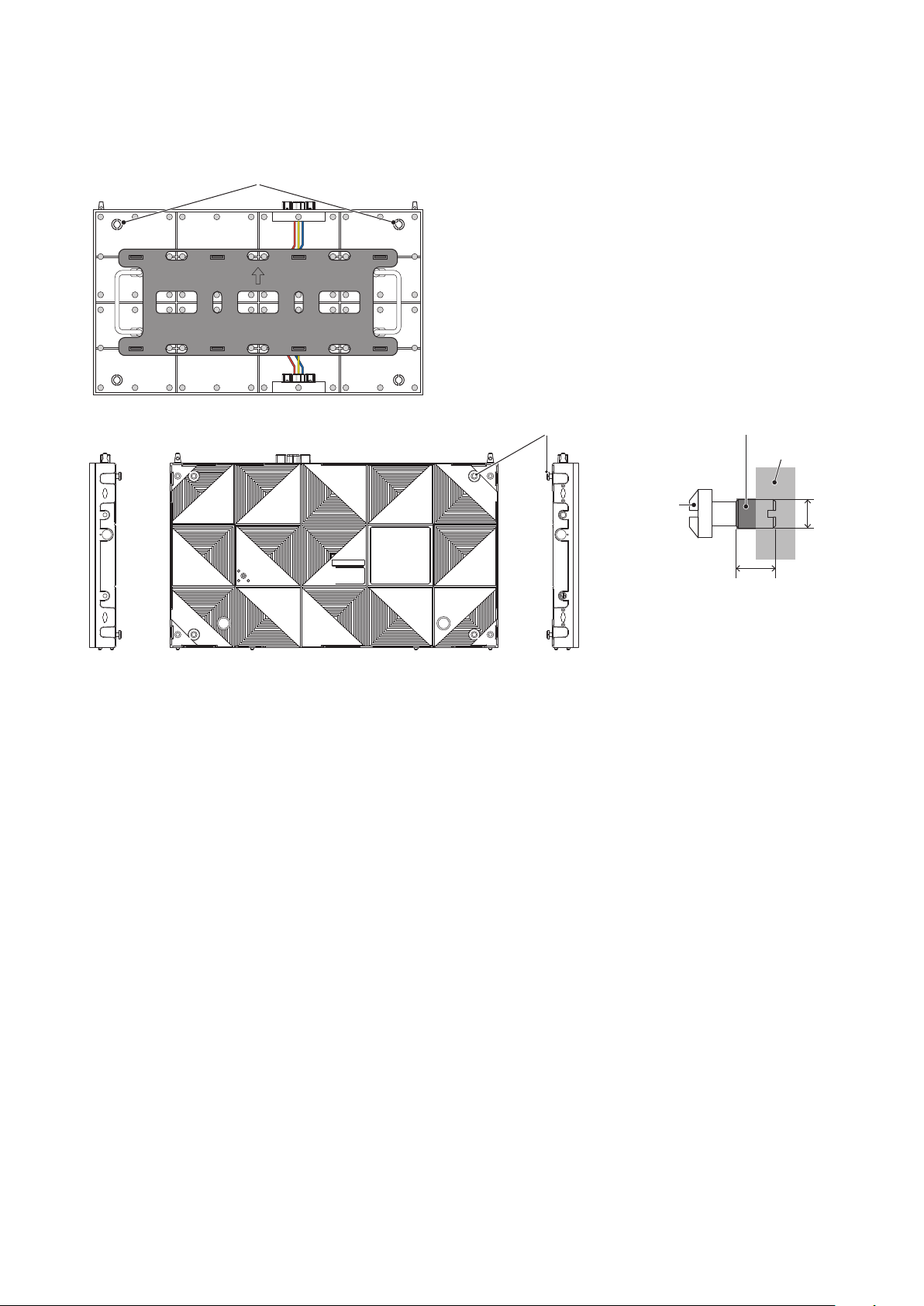
4.5 Install the cabinet hanger pins to the back of the cabinets
Turn the vertical alignment screw on the top corner of the cabinet so that it protrudes about 5 mm.
Insert the hanger pins into the four corners of the cabinets up to where there is a difference in their diameter.
Vertical alignment screw
Hanger pin
Vertical alignment screw
LED cabinet
M8
8 mm
Hanger pin
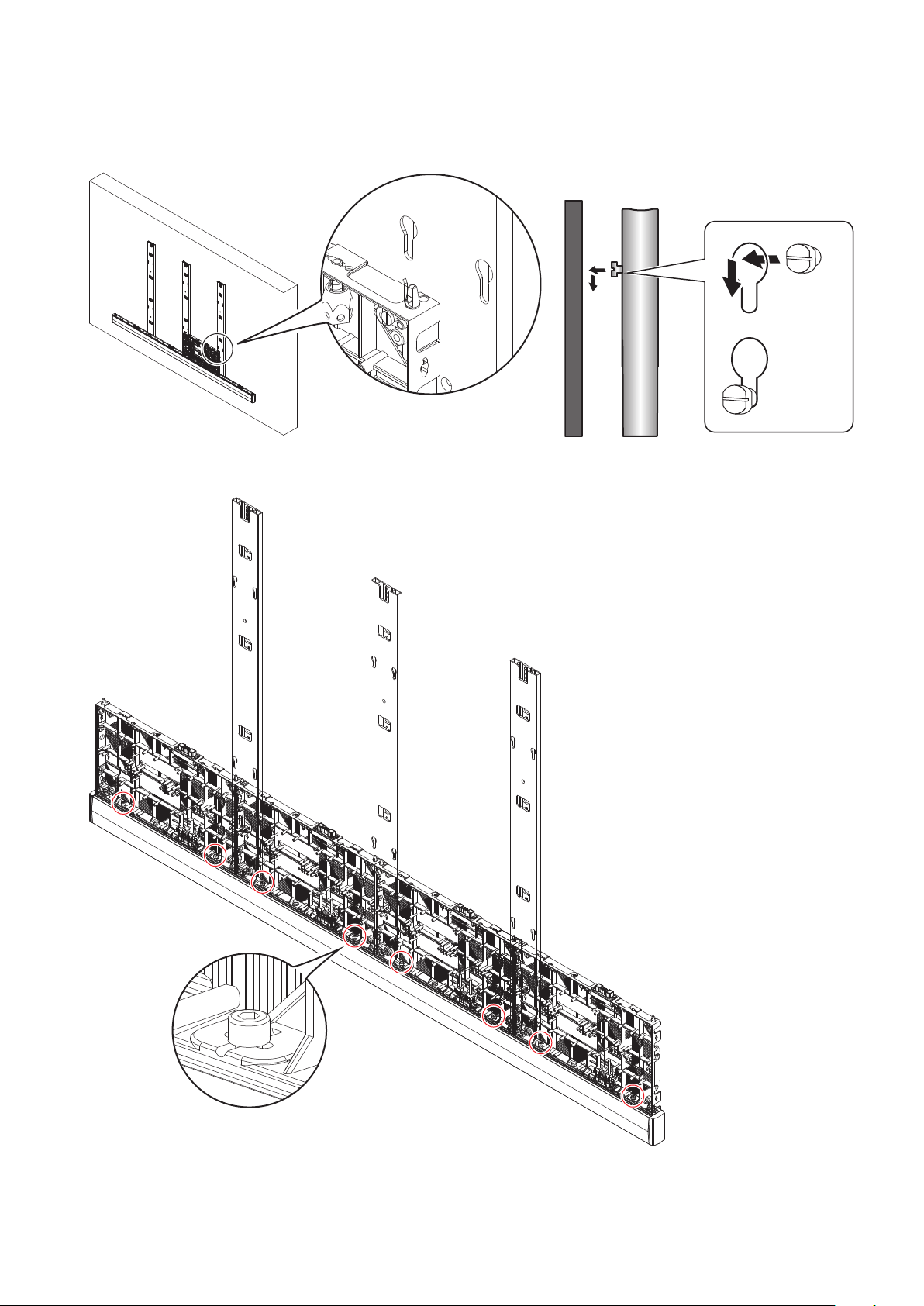
English - 23
4.6 Install the cabinets
Hook the hanger pins, which have been inserted into the cabinets, into the holes on the mounting bars starting
from the lowest row.
Fix temporarily the cabinets of the rst row to the power bar.
English - 24
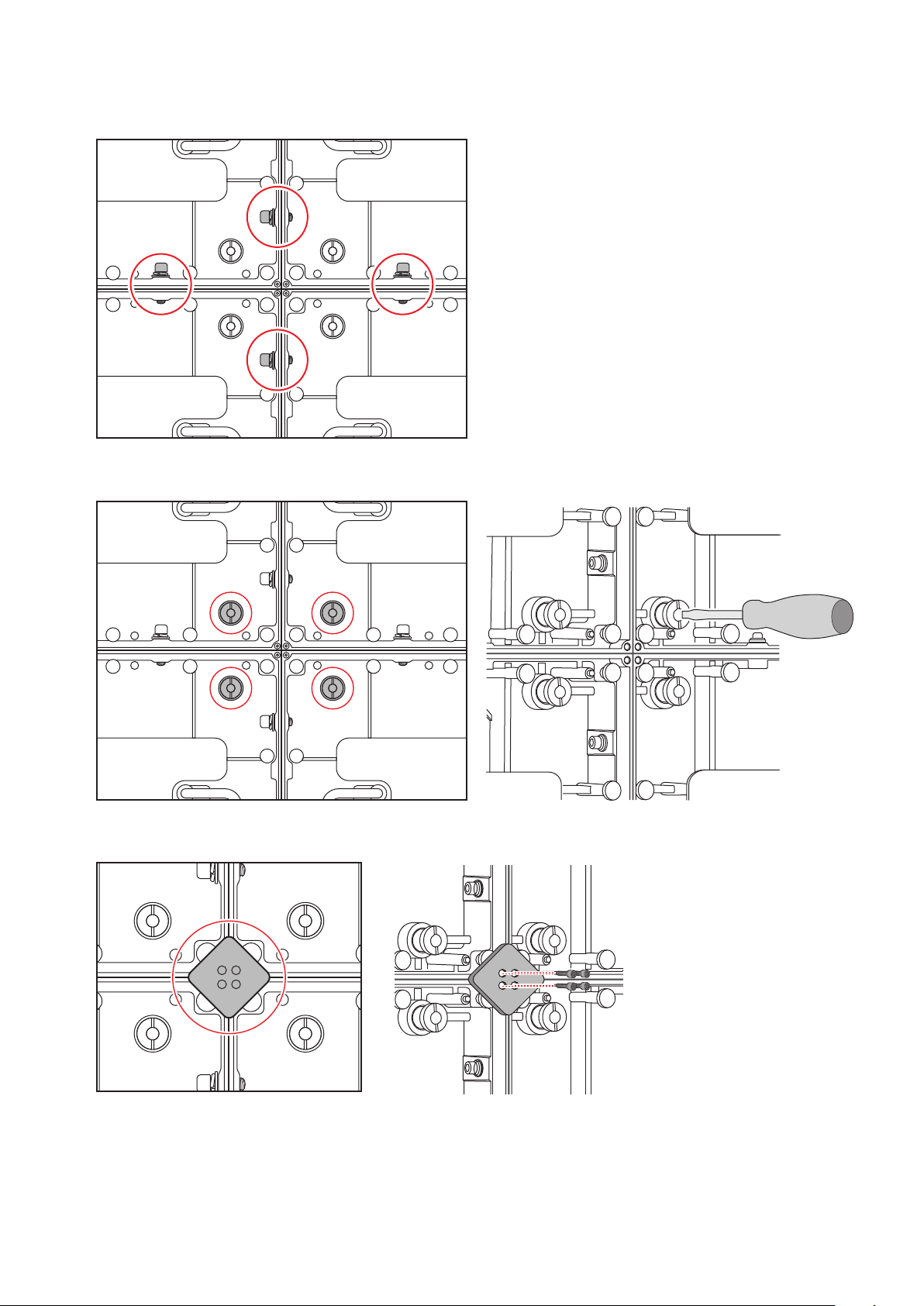
Hook the hanger pins of the cabinets of the second row to the mounting bars.
Secure the LED cabinets together using screws for connecting cabinets. Do not tighten the screws completely.
Turn the center of vertical alignment screw with a athead screwdriver for align the cabinet position.
After you have installed two rows of cabinets, align the surfaces of the cabinets using the Adjustment plates.
When the cabinets’ surfaces are aligned, securely tighten the cabinets of the rst row to the power bar, the
cabinets of the rst row together, as well as the cabinets of the rst row with the cabinets of the second row.
Remove the Adjustment plates after the screws have been tightened.
Follow the same procedure to install the next row of cabinets and align their surfaces.
English - 25
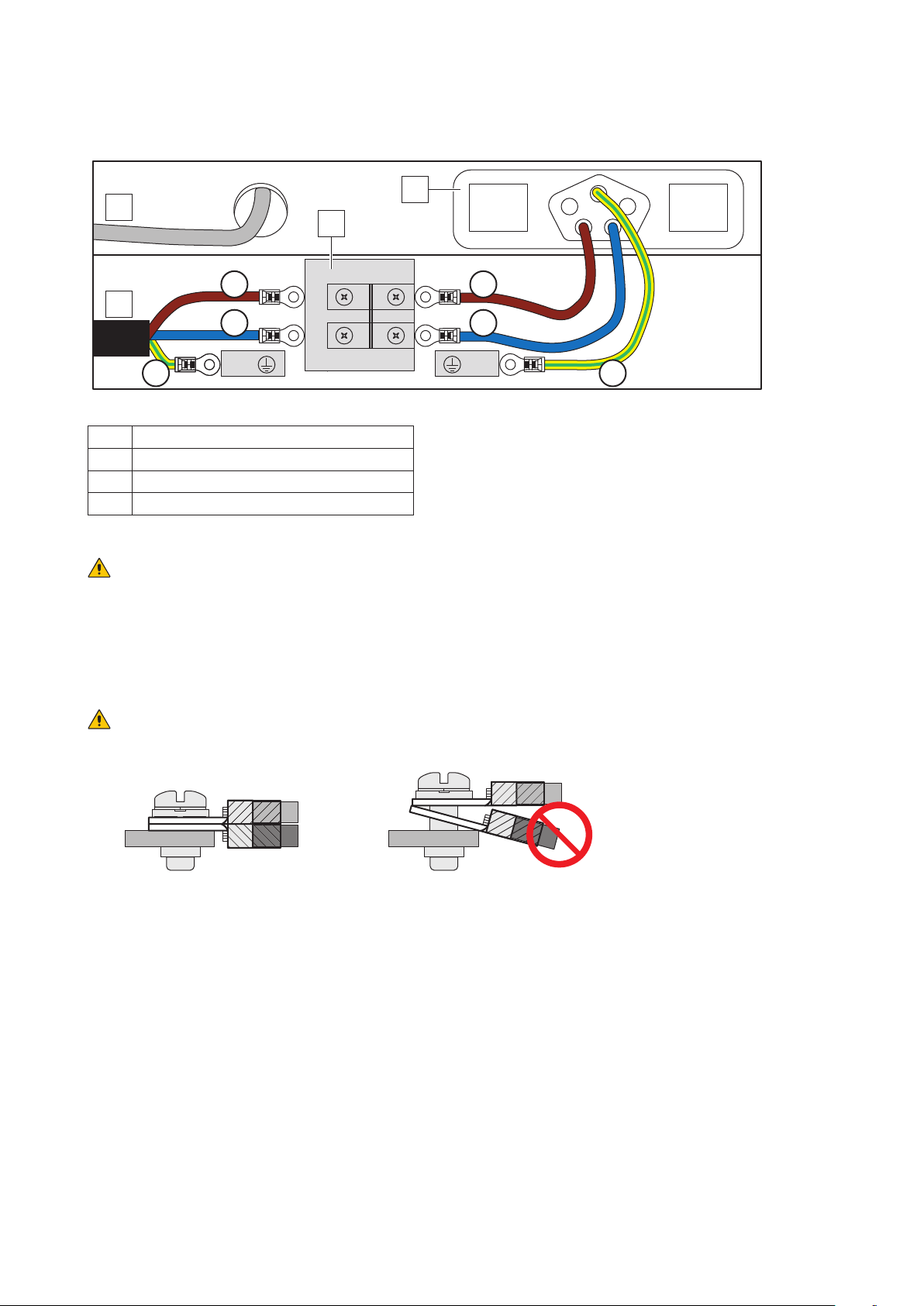
Connect the power cord and the LAN cable from the opening at the back of the power bar.
How to connect the power cord
PE PE
L
N
L
N
A
D
C
B
A External power input
B Terminal in Power bar
C Power supply socket in Power bar
D Data cable
WARNING
Pay attention to the wire colors of the power cord when connecting the cord. If the cables are not connected
correctly, it may lead to a re or an electrical shock.
Blue (N)
Brown (L)
Yellow green (Ground)
CAUTION:
When attaching two cables with one screw, place the ring terminals of the cables back to back.
OK NG
English - 26
Install the power bar cover.
English - 27
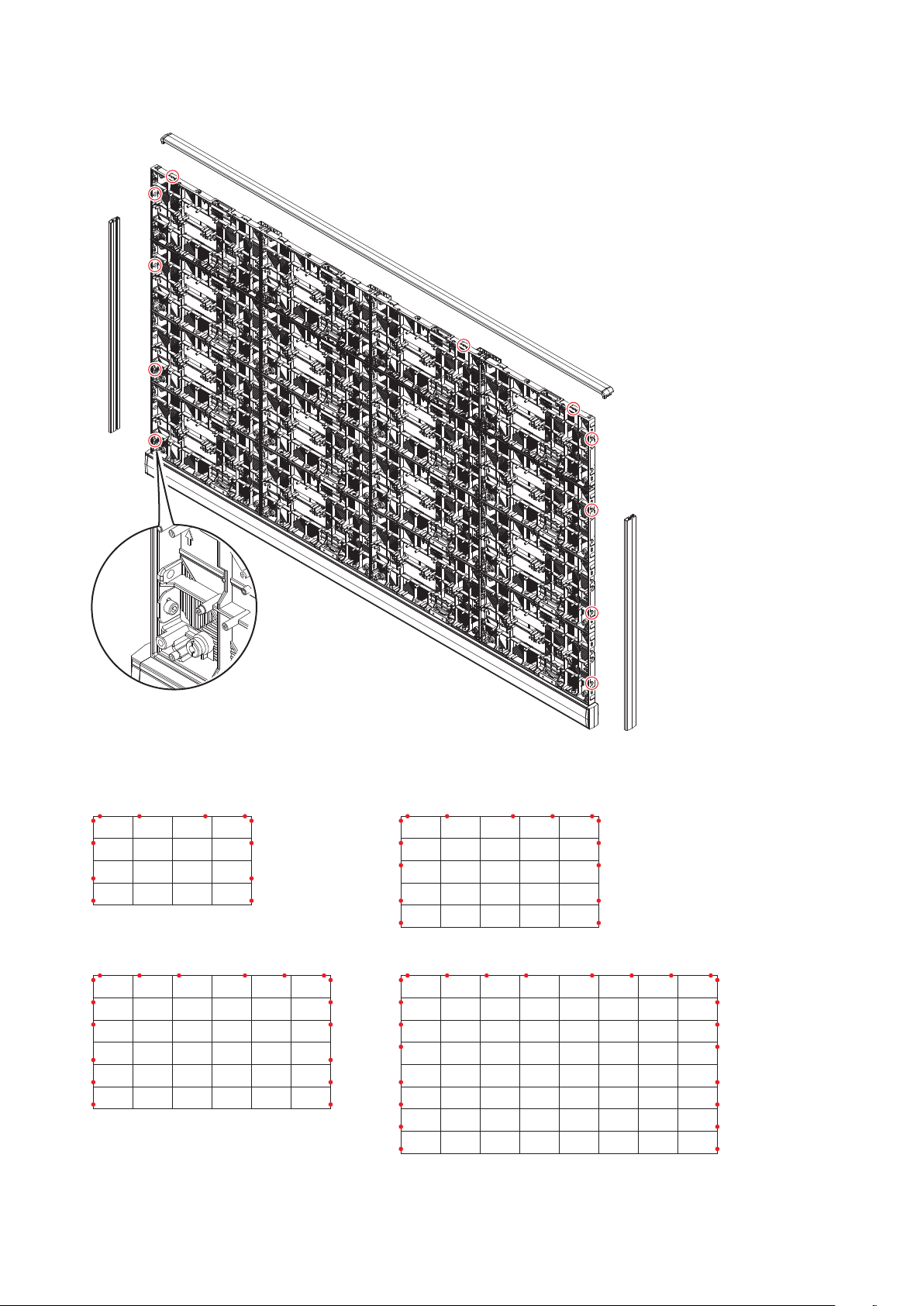
Insert the slot nuts inside the over frame into the holes of the screw for connecting cabinets and x them with
screw for overframe (M8) screws.
Install the corner parts to the corner frame top and install it on the top of the cabinets.
Slot nut installation locations
8 x 8 frame set
5 x 5 frame set
4 x 4 frame set
6 x 6 frame set
English - 28
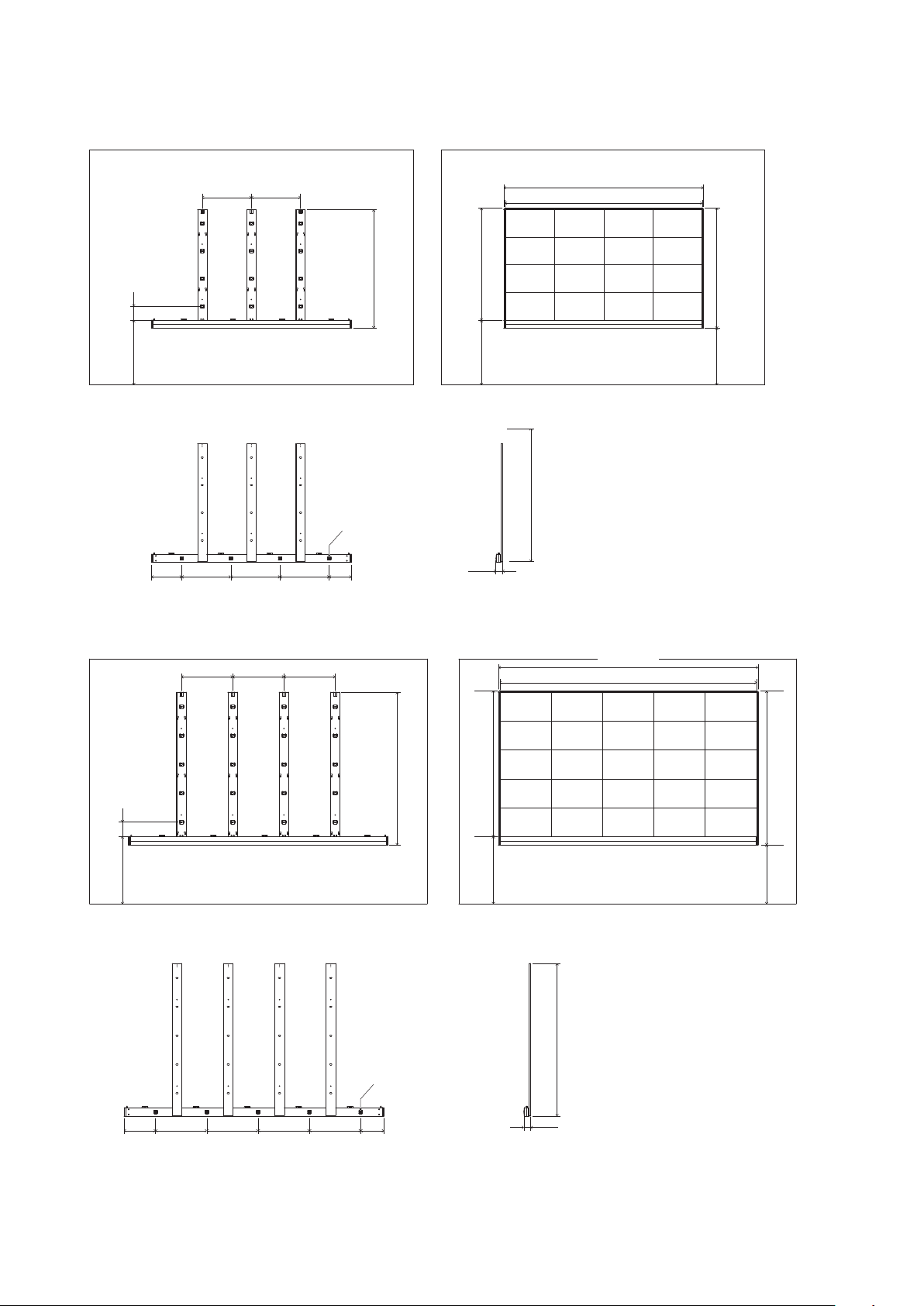
4.7 Assembly diagrams
4 x 4 frame set
B B B B
A A A A
A A A A
A A A A
800 171
1459.5
1459.5
1368
1489.5
800
698.5
608 608
Through hole for
the LAN cable
608608608374 274
82
2472
2432
5 x 5 frame set
B
A
A
A
A
B
A
A
A
A
B
A
A
A
A
B
A
A
A
A
B
A
A
A
A
1801.5
1801.5
1710
1831.5
800
698.5
171800
608 608 608
3040
3080
374 608 608 608 608 274
82
Through hole for
the LAN cable
English - 29
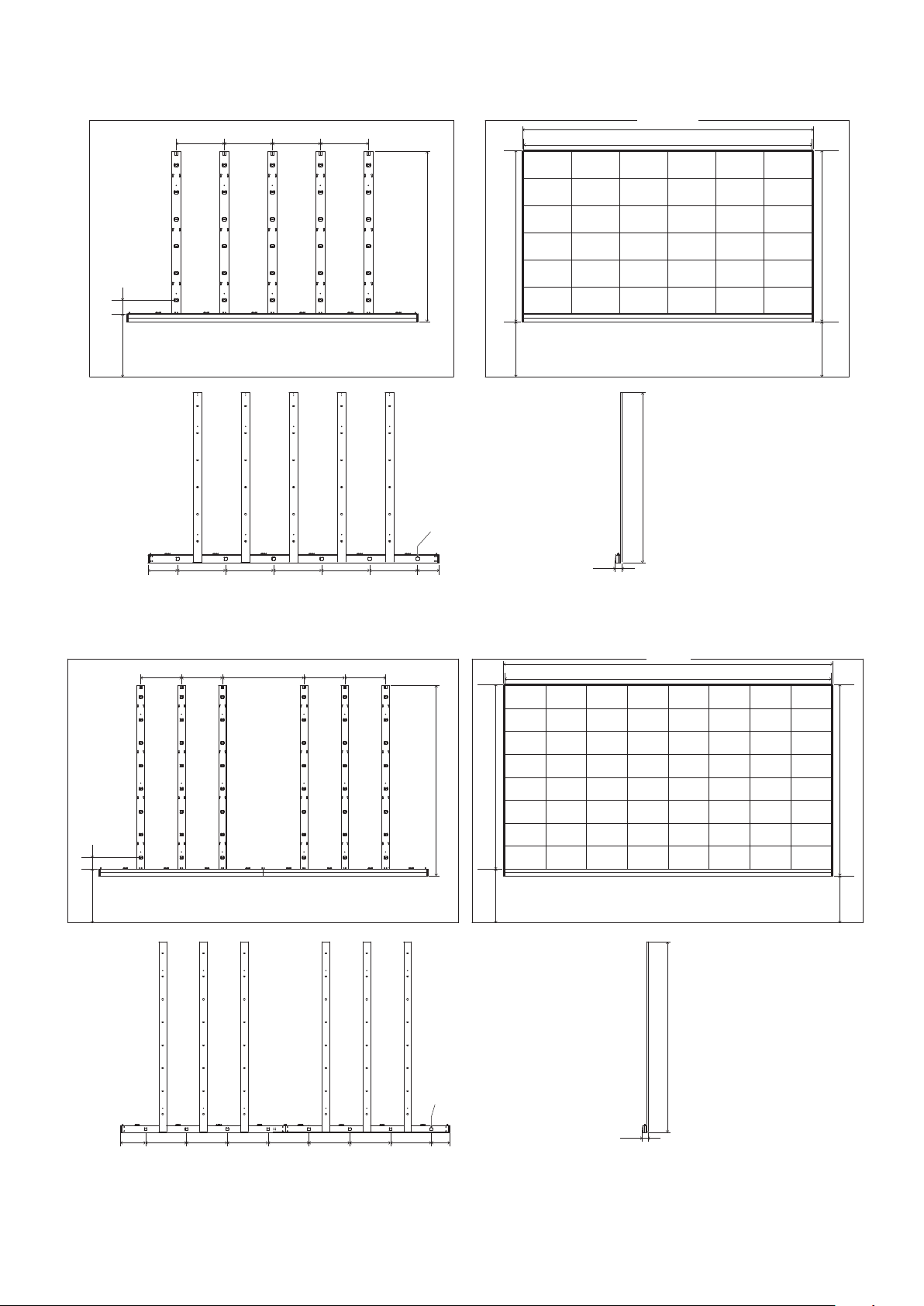
6 x 6 frame set
B
A’
A
A’
A
A
B
A’
A
A’
A
A
B
A’
A
A’
A
A
B
A’
A
A’
A
A
B
A’
A
A’
A
A
B
A’
A
A’
A
A
2152
2142
2052
2173.5
800
698.5
800 171
608 608 608 608
3648
3688
608 608 608 608 608 274374
82
Through hole for
the LAN cable
8 x 8 frame set
B
A
A
A
A
A
A
A
B
A
A
A
A
A
A
A
B
A
A
A
A
A
A
A
B
A
A
A
A
A
A
A
B
A
A
A
A
A
A
A
B
A
A
A
A
A
A
A
B
A
A
A
A
A
A
A
B
A
A
A
A
A
A
A
2837.5
2736
2857.5
800
698.5
800 171
608 608608 6081216
4864
4904
608 608 608 608 608 608 608 274374
82
Through hole for
the LAN cable
English - 30
5. Wiring
(1) Maximum number of signal connections
The maximum number of connections per LAN cable is shown below.
Product name Maximum number of connections
LED-FC009i 2 modules
LED-FC012i 5 modules
LED-FC015i 7 modules
CAUTION
The maximum number of connections may differ depending on the connected LED controller. Therefore,
check the specications of the LED controller you are using.
Ask a technician or your retailer for more details.
(2) Maximum number of power connections
CAUTION
Exceeding the maximum capacity may generate smoke or cause a re.
Check the voltage used and do not exceed the connection limits shown below.
Product name 100 - 120 V AC
200 - 240 V AC
LED-FC009i 20 modules 40 modules
LED-FC012i 20 modules 40 modules
LED-FC015i 20 modules 40 modules
(3) Connection when using a wall-mount frame
4 x 4 frame set (LED-FC012i)
Control PC
LED Controller Main
HDMI 1
100-120V/Max 20A*
or
200-240V/Max 20A*
*: This connection is an example of connection when using the maximum capacity.
Please check the capacity of the switchboard to be connected.
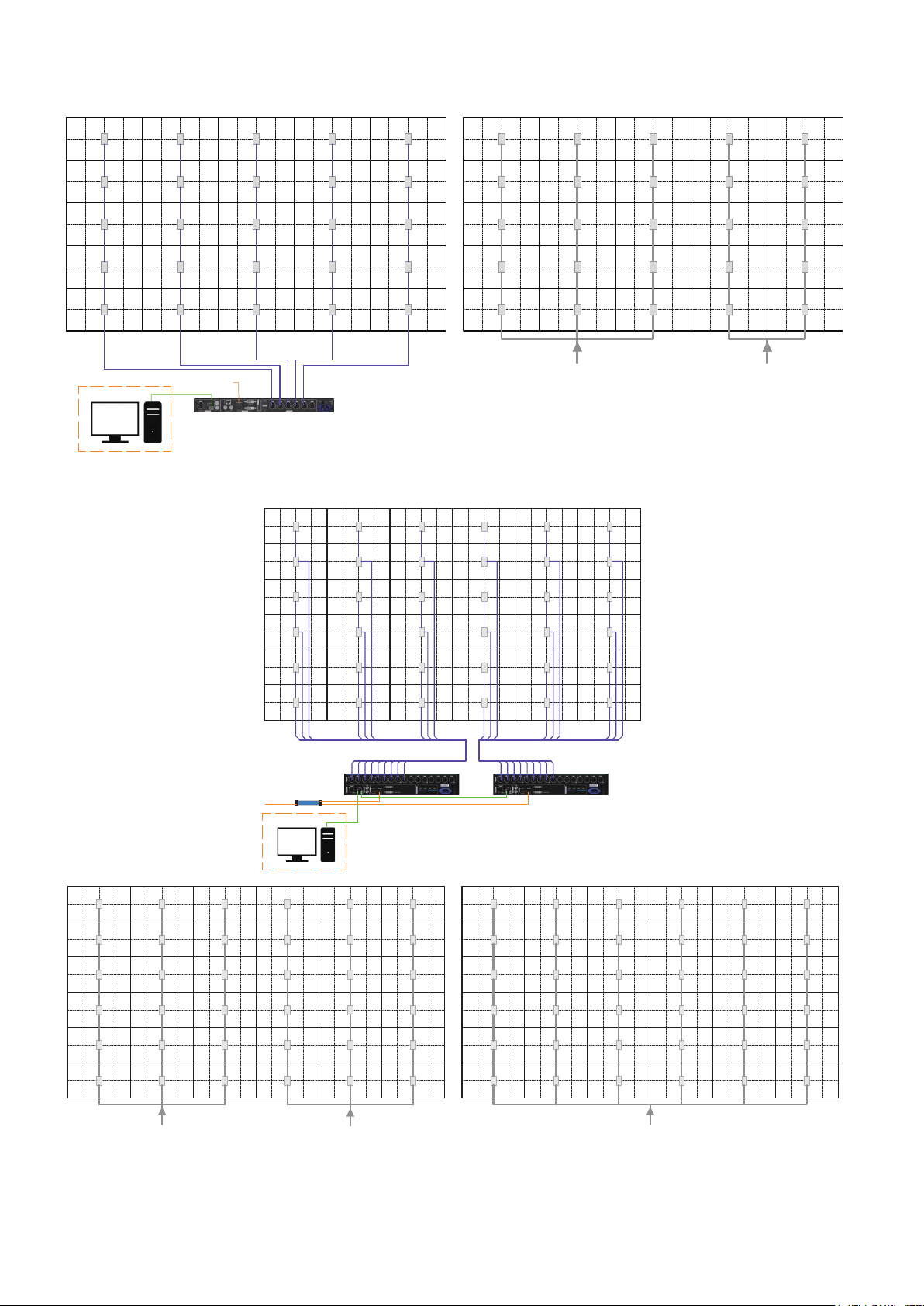
English - 31
5 x 5 frame set (LED-FC015i)
*: This connection is an example of connection when using the maximum capacity.
Please check the capacity of the switchboard to be connected.
Control PC
LED Controller Main
HDMI 1
100-120V/Max 20A*
or
200-240V/Max 20A*
100-120V/Max 20A*
or
200-240V/Max 20A*
6 x 6 frame set (LED-FC009i)
RVRV RVRV RVRV RVRV RVRV
RV
RV
RV
RV
RV
RV
RV
RV
RV
RV
RV
RV
RV
RV
RV
RV
RV
RV
RV
RV
RV
RV
RV
RV
RV
RV
RV
RV
RV
RV
RV
RV
RV
RV
RV
RV
RV
RV
RV
RV
RVRV RVRV RVRV RVRV RVRV
RVRV
RV
RV
RV
RV
RV
RV
RV
RV
RVRV
123
1 23456789 10 11 12 13 14 15 16 17 18
10
HDMI Splitter
456 789 312111 615141 17 18
PSU
PSU
PSU
PSU
PSU
PSU
PSU
PSU
PSU
PSU
PSU
PSU
PSU
PSU
PSU
PSU
PSU
PSU
PSU
PSU
PSU
PSU PSU
PSU
PSU
PSU
PSU PSU PSU PSU PSU
PSU PSU PSU PSU PSU
200-240V/Max 20A*
PSU
PSU
PSU
PSU
PSU
PSU
PSU
PSU
PSU
PSU
PSU
PSU
PSU
PSU
PSU
PSU
PSU
PSU
PSU
PSU
PSU
PSU PSU
PSU
PSU
PSU
PSU PSU PSU PSU PSU
PSU PSU PSU PSU PSU
100-120V/Max 20A*
or
200-240V/Max 20A*
100-120V/Max 20A*
or
200-240V/Max 20A*
LED Controller Main 1 LED Controller Main 2
HDMI 1
Control PC
*: This connection is an example of connection when using the maximum capacity.
Please check the capacity of the switchboard to be connected.
English - 32
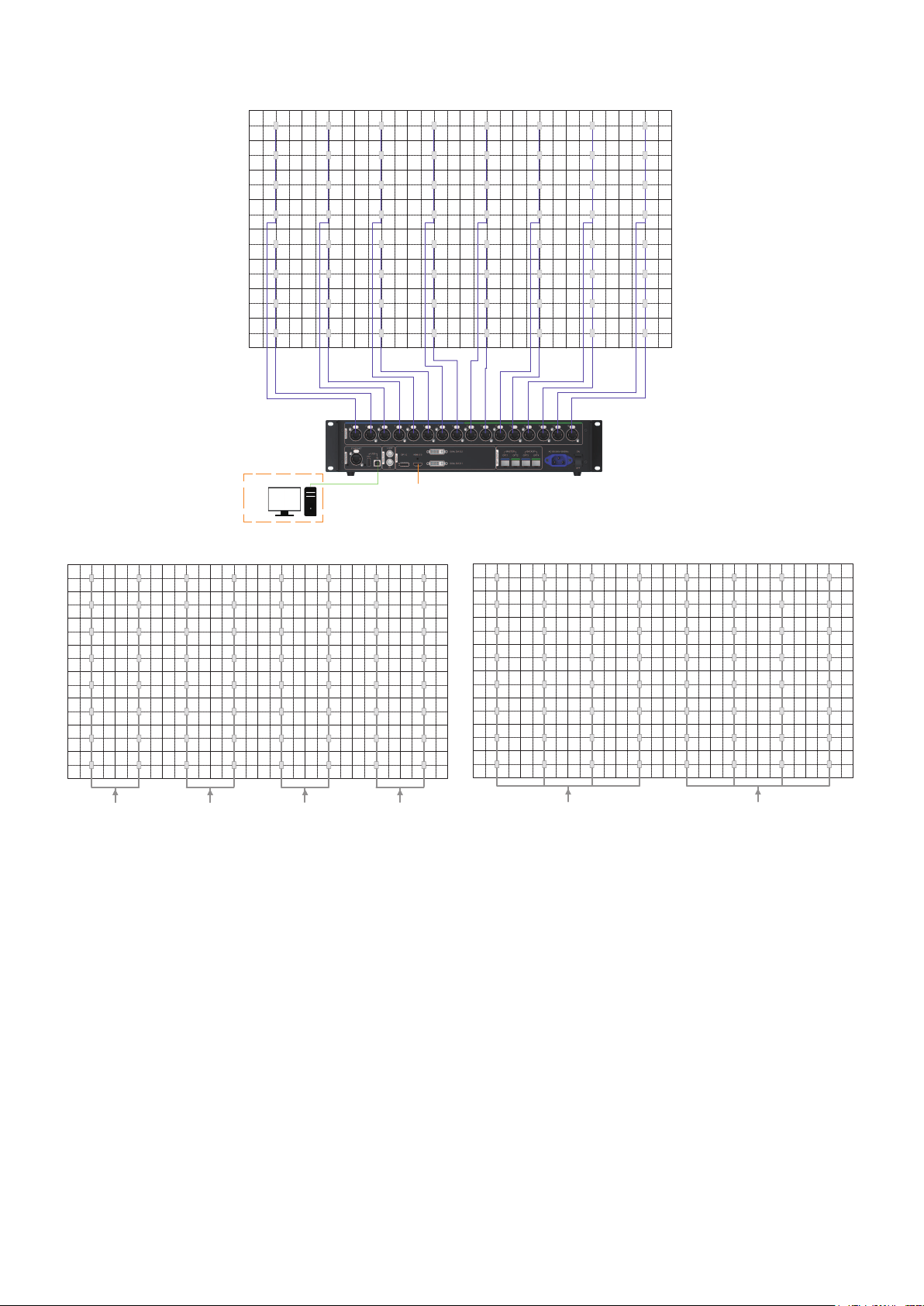
8 x 8 frame set (LED-FC012i)
RV
RV
RV
RV
RV
RV
RV
RV
RV
RV
RV
RV
RV
RV
RV
RV
RV
RV
RV
RV
RV
RV
RV
RV
RV
RV
RV
RV
RV
RV
RV RV RV RV RV RV
RV
RV
RV
RV
RV
RV
RV
RV
RV
RV
RV RV
RV RV RV RV RV RV
RV RV RV RV RV RV
RV RV
RV RV
PSU
PSU
PSU
PSU
PSU
PSU
PSU
PSU
PSU
PSU
PSU
PSU
PSU
PSU
PSU
PSU
PSU
PSU
PSU
PSU
PSU
PSU
PSU
PSU
PSU
PSU
PSU
PSU
PSU
PSU
PSU PSU PSU PSU PSU PSU
PSU
PSU
PSU
PSU
PSU
PSU
PSU
PSU
PSU
PSU
PSU PSU
PSU
PSU
PSU
PSU PSU PSU
PSU PSU PSU PSU
PSU PSU
PSU PSU
PSU PSU
PSU
PSU
PSU
PSU
PSU
PSU
PSU
PSU
PSU
PSU
PSU
PSU
PSU
PSU
PSU
PSU
PSU
PSU
PSU
PSU
PSU
PSU
PSU
PSU
PSU
PSU
PSU
PSU
PSU
PSU
PSU PSU PSU PSU
PSU PSU
PSU
PSU
PSU
PSU
PSU
PSU
PSU
PSU
PSU
PSU
PSU PSU
PSU PSU PSU PSU PSU PSU
PSU PSU PSU PSU PSU PSU
PSU PSU
PSU PSU
100-120V/Max 20A*
or
200-240V/Max 20A*
100-120V/Max 20A*
or
200-240V/Max 20A*
100-120V/Max 20A*
or
200-240V/Max 20A*
100-120V/Max 20A*
or
200-240V/Max 20A*
200-240V/Max 20A* 200-240V/Max 20A*
LED Controller Main
HDMI 1
Control PC
*: This connection is an example of connection when using the maximum capacity.
Please check the capacity of the switchboard to be connected.
English - 33
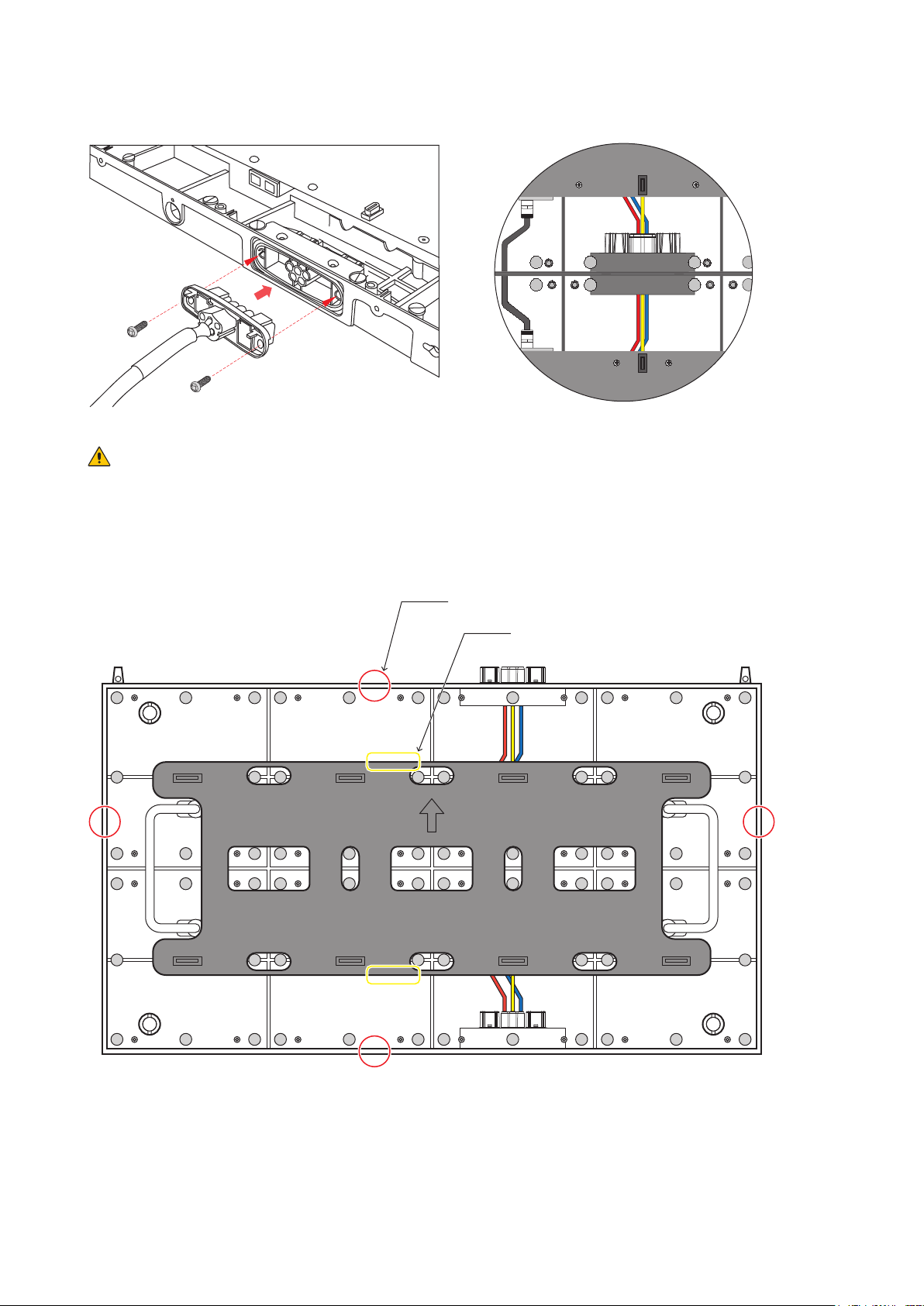
(4) Power cord connection
Connect the power cords to the LED modules on the rst row.
LED module bottom
Connect the power cords between the LED modules.
CAUTION
Make sure the connector is fully and rmly inserted.
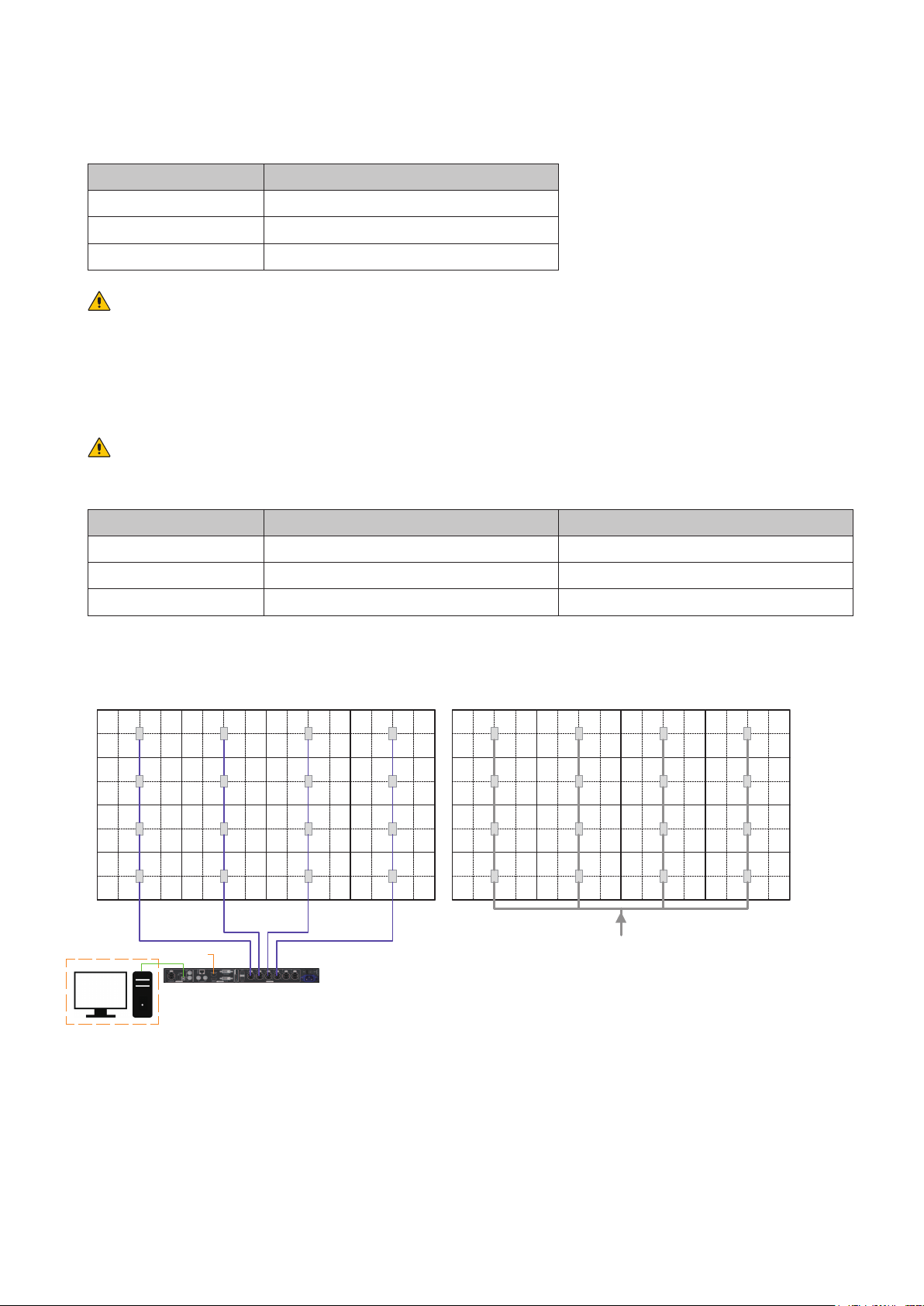
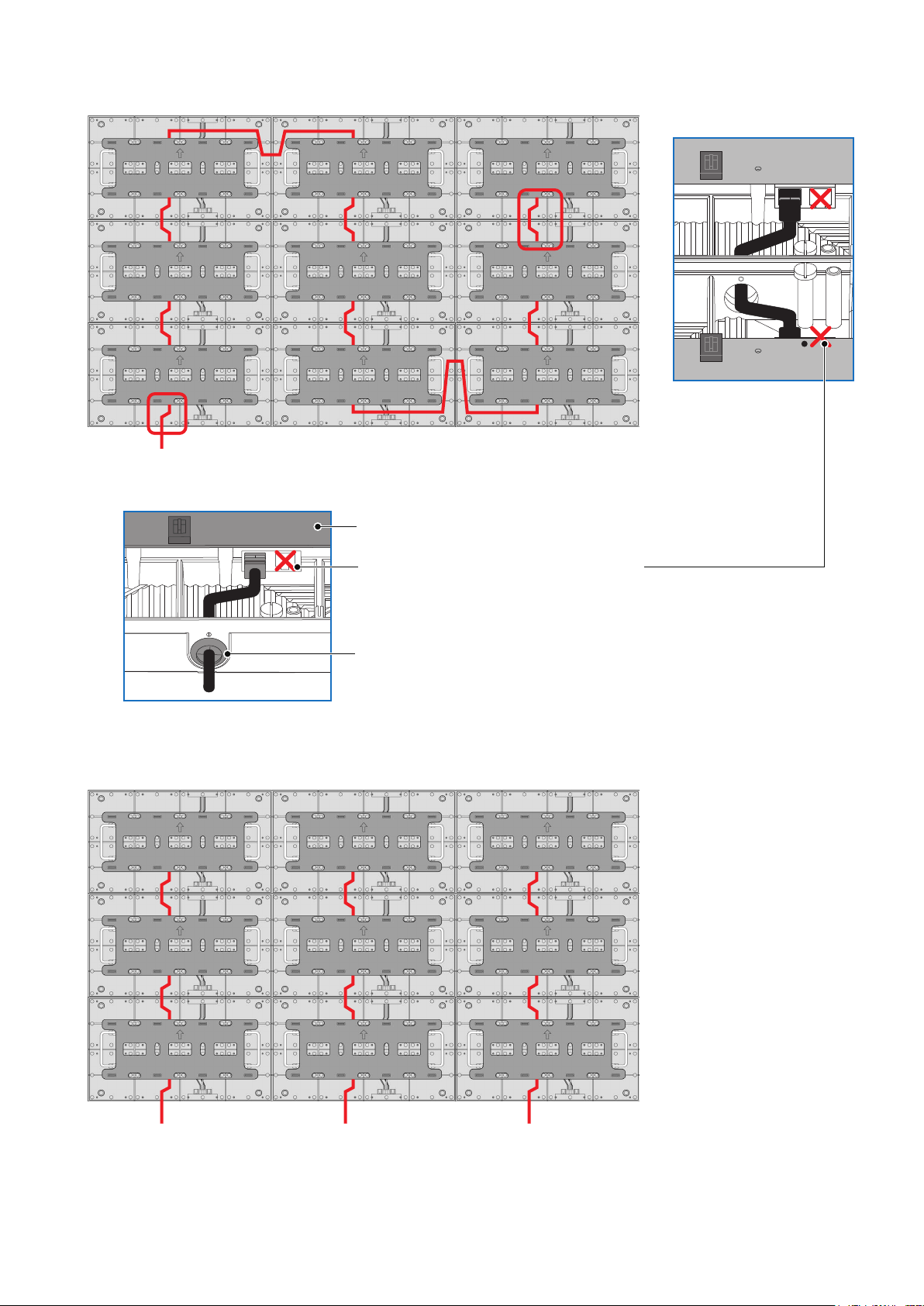
(5) LAN cable connection
Connect the LAN cables for the signal between the LED modules. Use the through holes to pass the cables
between the modules.
Four through holes for the LAN cables
LAN connectors
English - 34
[Connection example 1] Connecting all the LED modules using a single LAN cable
Hub board
Insert the LAN cable into the through hole and connect it to
the LAN connector on the left.
LAN cable from the LED
controller
Connect the cable to the LAN connector on
the left.
Do not use the LAN connector on the right.
[Connection example 2] Connecting from bottom to top using multiple ports
English - 35
6. Installing the pixel card
CAUTION
• The pixel cards contain powerful magnets. If magnetic cards come close to the pixel cards, the data
contained within may be damaged. Therefore, do not carry any magnetic card when installing the pixel
cards.
• When installing the pixel cards, pay attention not to damage them against the pixel cards already installed
or other objects. Otherwise, the video may not be displayed properly.
• Take measures against static electricity when installing the pixel card. Do not touch the LED display areas
and the back of the pixel card.
• Check that the power supply to the LED modules is cut before starting the work.
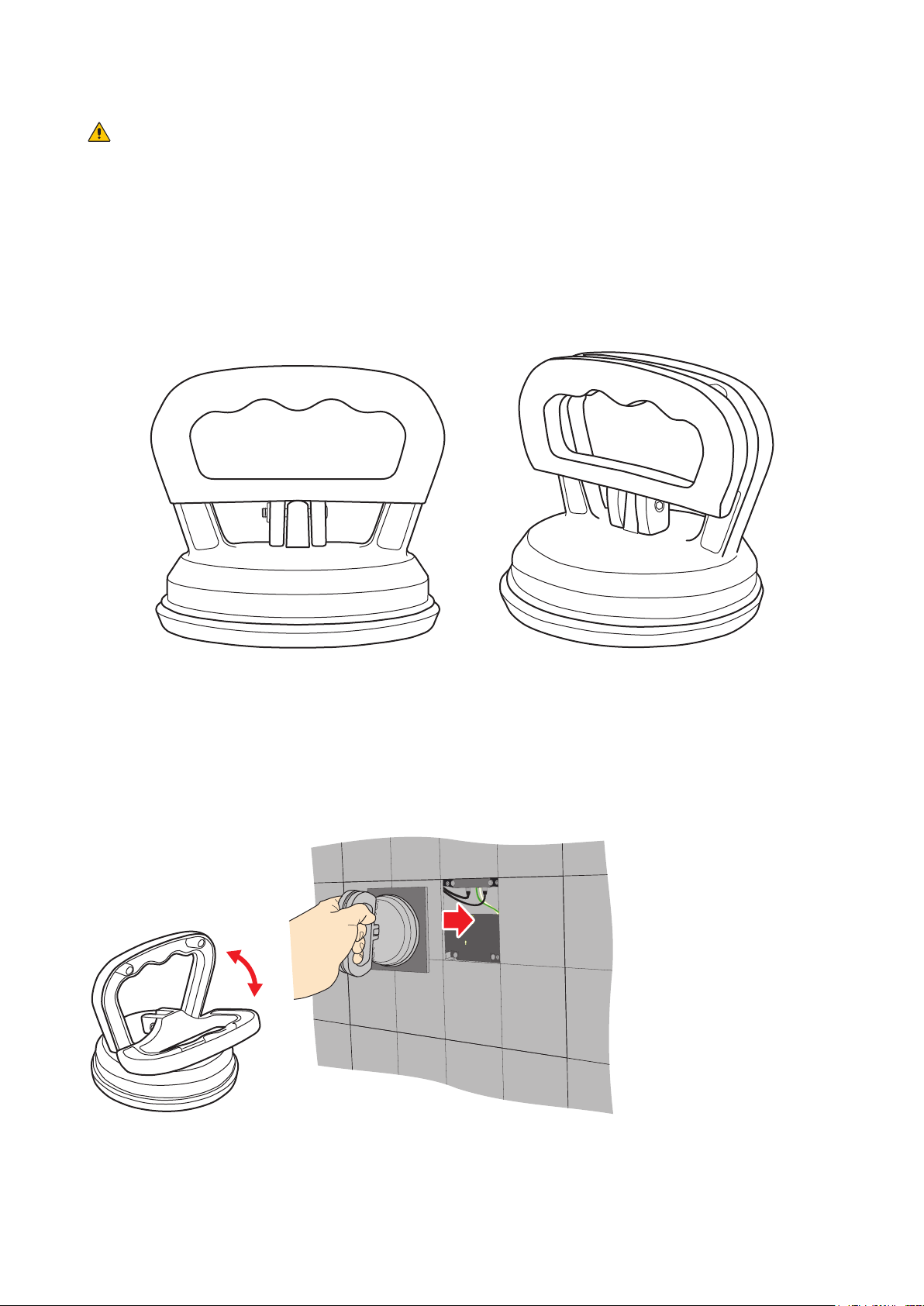
(1) Open the grips of maintenance tool and push the maintenance tool against the pixel card. Close the
grips of maintenance tool.
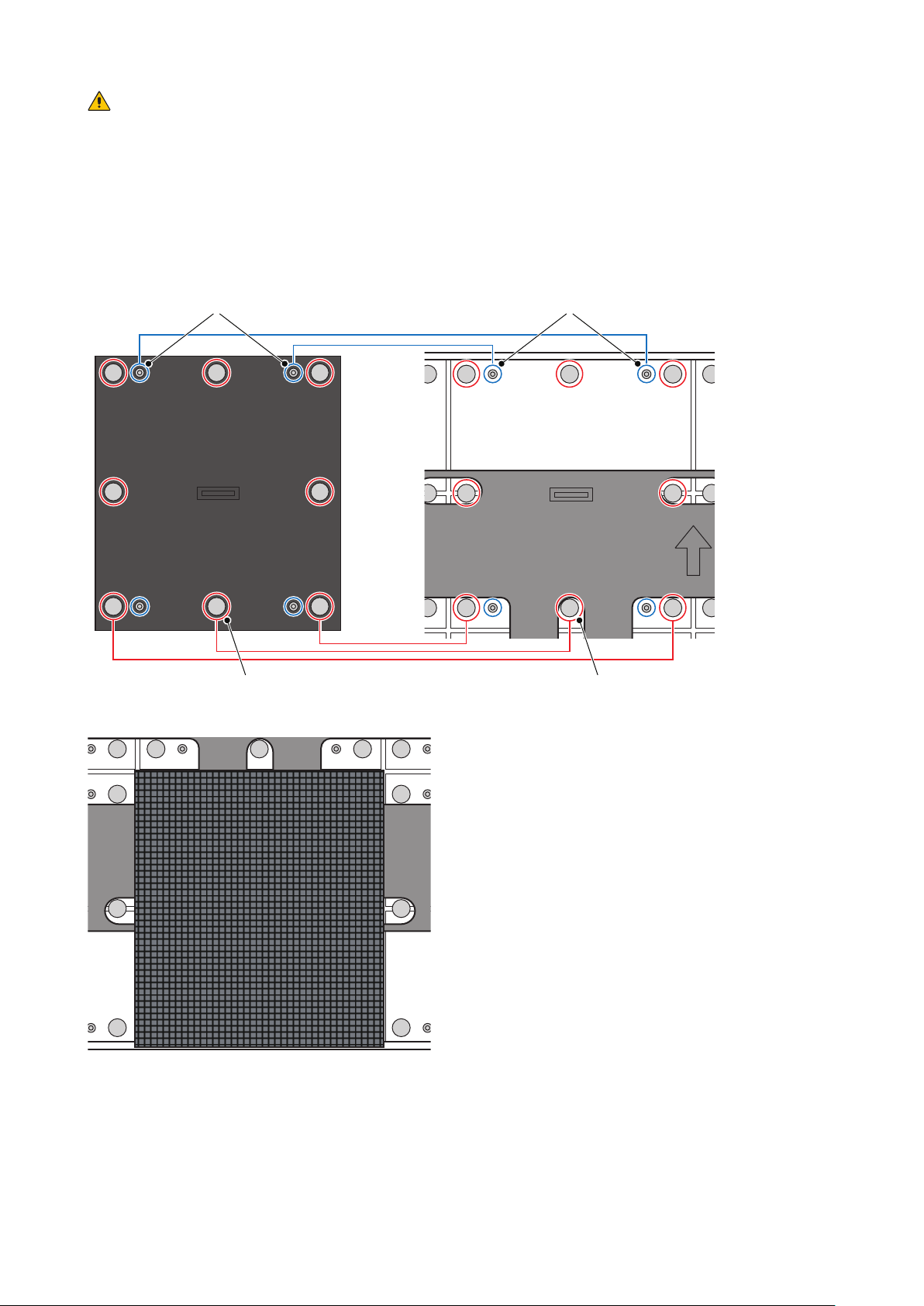
(2) Install the pixel card to the cabinet paying attention that the arrows on the back of the pixel card and on
the hub board are orientated toward the same direction, and that the four guide pins of the pixel card
are aligned to the guide holes of the cabinet (four for each pixel card).
The pixel card is secured by the 8 magnets on each cabinet.
English - 36
CAUTION
The pixel cards contain powerful magnets. If magnetic cards come close to the pixel cards, the data
contained within may be damaged. Therefore, do not carry any magnetic card when installing the pixel
cards.
The arrows (↑) at the back of the pixel cards indicate the upper side.
Install the pixel card into the cabinet with the four guide holes of the pixel card aligned with the four guide
pins of the cabinet (four pins for each pixel card). The pixel card is secured by the 8 magnets on each cabinet.
Insert into the guide holes
4 guide holes
8 magnet interfaces 8 magnets
4 guide pins
English - 37
Screen Conguration
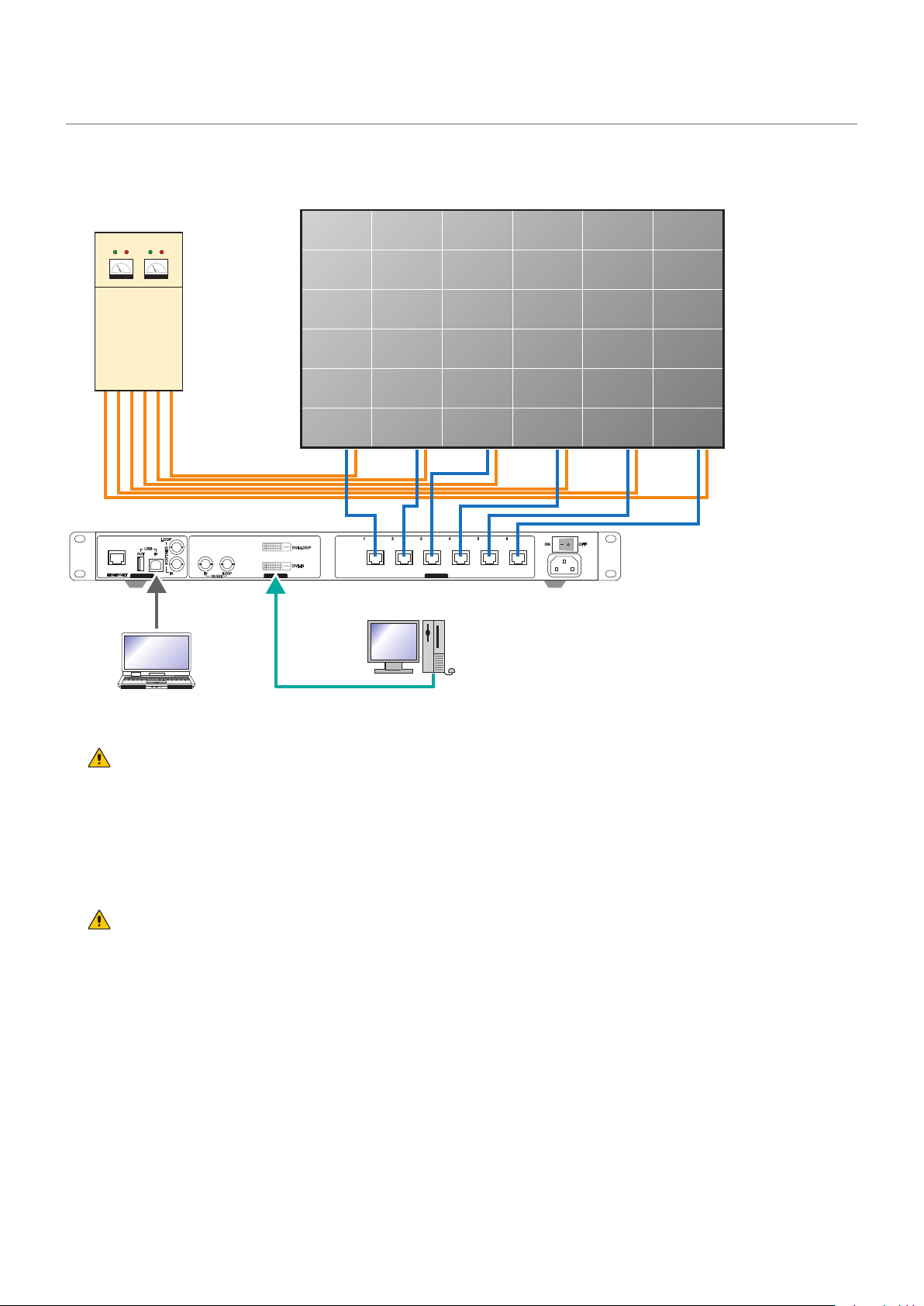
Check that all the connections are completed, and then turn on the LED modules and the LED
controller.
CONTROL INPUT OUTPUT
Power distributor
Video signalControl signal
LED controller
WARNING
Pay attention to the wire colors of the power cord when connecting the cord. If the cables are not connected
correctly, it may lead to a re or an electrical shock.
Blue (N)
Brown (L)
Yellow green (Ground)
CAUTION
When using LAN cables of 60 m to 100 m in length, the product may not operate correctly depending on the
quality of the cables. In such a case, it is recommended to use optical-ber cables.
Ask a technician or your retailer for more details.
English - 38
Setting the screen conguration
Perform the setting using the LCT-Mars control software by Novastar.
Log in with the administrator privileges.
Display the login screen as follows: User(U) → Advanced Synchronous System UserLogin(A).
Enter the password (“admin” by default) to log in with the administrator privileges.
To change the password, go to User(U) → Change Password(U) with the administrator privileges.
CAUTION
Do not forget the new password after it has been changed.
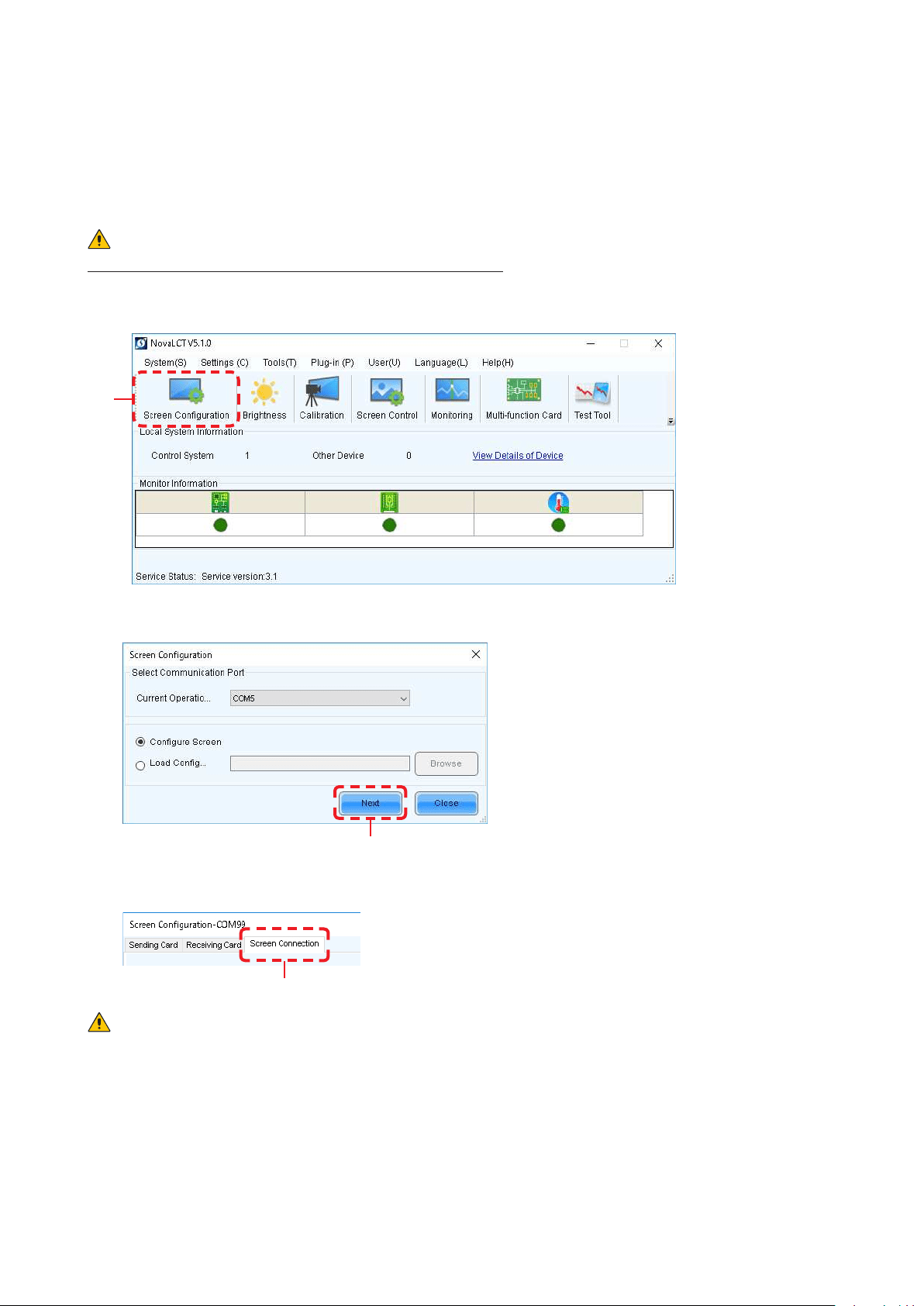
Click “Screen Conguration” (a).
(a)
Check the port in “Select Communication Port”, and then click the “Next” button (b).
(b)
In the Screen Conguration screen that is displayed, select the “Screen Connection” tab (c).
(c)
CAUTION
Do not change the settings in the “Receiving Card” tab.
Otherwise, the video may not be displayed properly.
English - 39
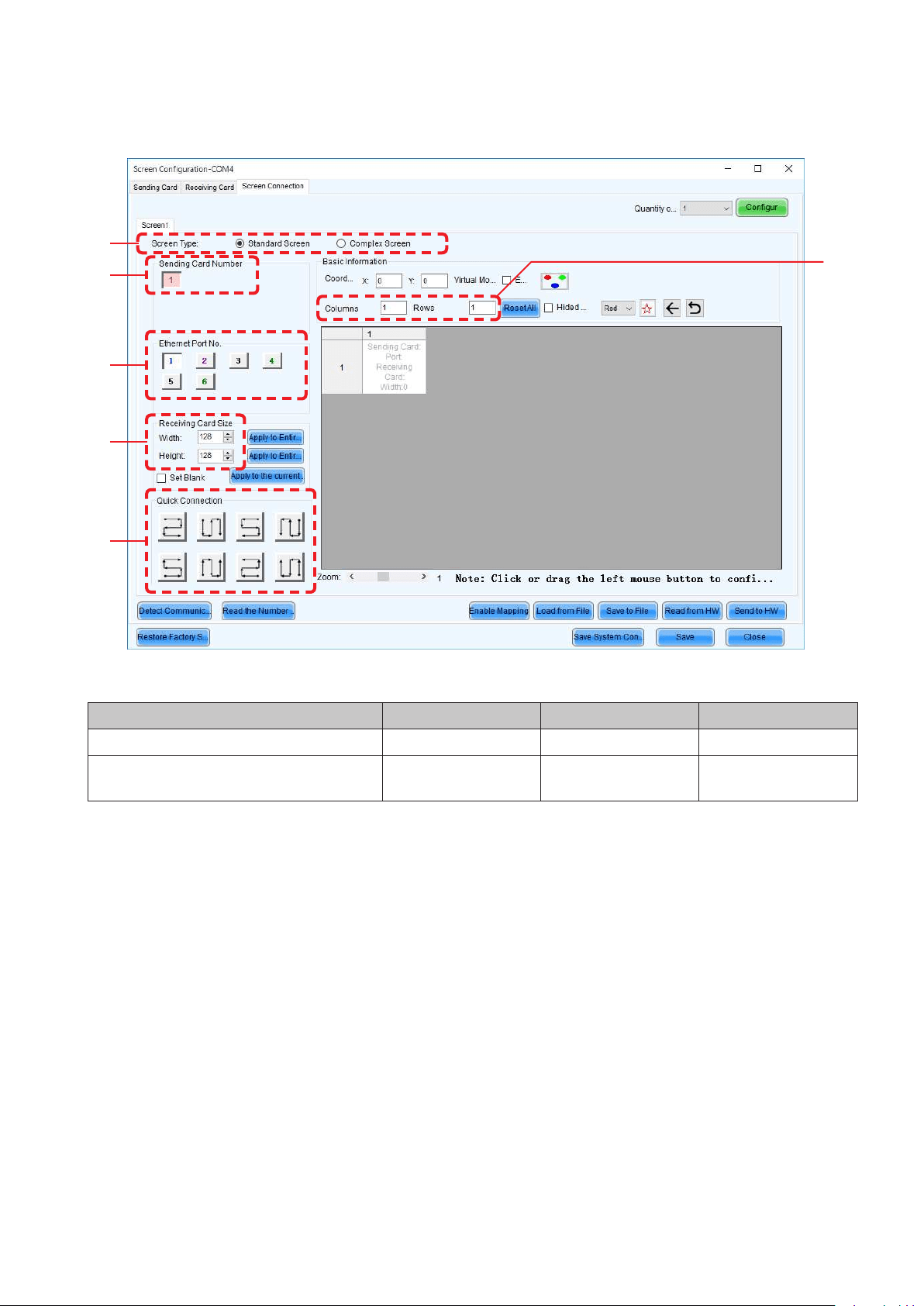
Select “Standard Screen” under “Screen Type” (d).
The settings in “Sending Card Number” (e) and “Ethernet Port No.” (f) vary depending on the
connected LED controller.
(d)
(e)
(h)
(f)
(g)
(i)
Enter the value in the table below under “Receiving Card Size” (g).
Product name LED-FC009i LED-FC012i LED-FC015i
Pixel pitch 0.9 mm 1.2 mm 1.5 mm
Number of displayed pixels
(resolution/module)
Width 640
Height 360
Width 480
Height 270
Width 384
Height 216
[Columns/Rows] Enter the number of installed screens under “Columns/Rows” (h) (the number of vertically
installed screens in Columns, and the number of horizontally installed screens in Rows).
English - 40
[Conguration example]
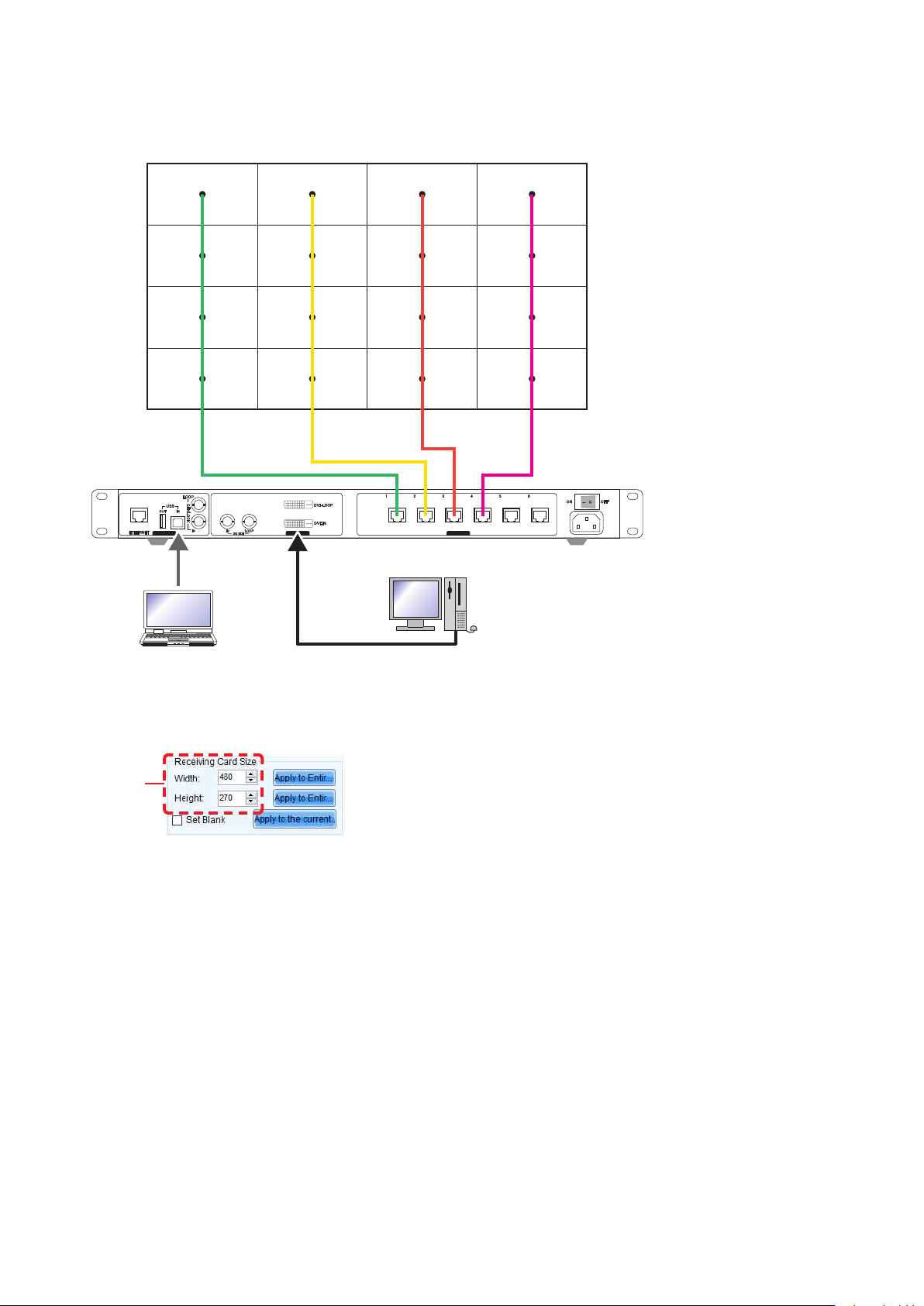
The setting values are given for the following example where 16 LED-E012i modules (pixel pitch of 1.25 mm)
are installed in a 4 (columns) x 4 (rows) conguration.
CONTROL INPUT OUTPUT
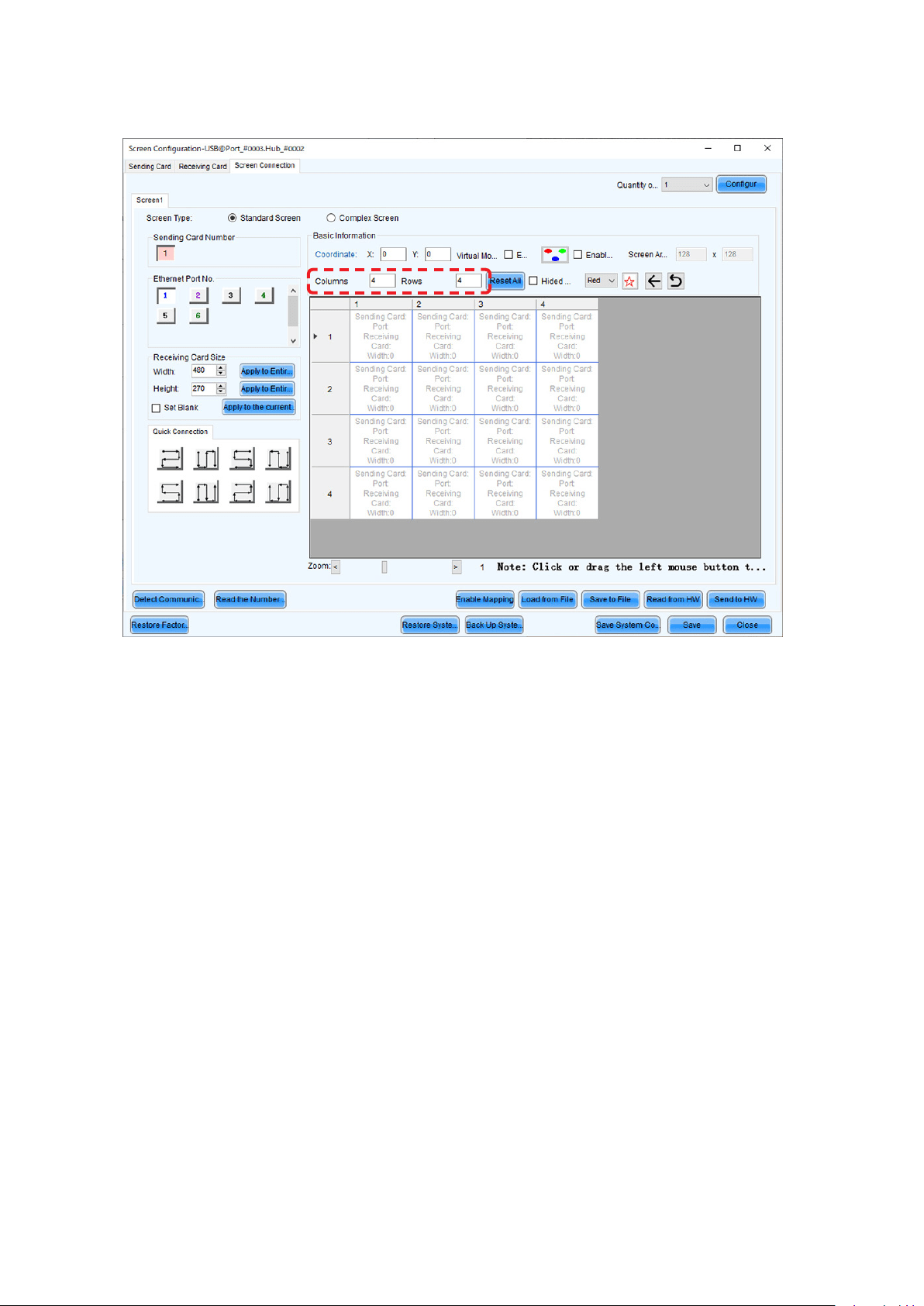
(1) With a pixel pitch of 1.25 mm, enter Width=480 and Height=270 under “Receiver Card Size” (g).
Do not use the buttons located next to the values.
(g)
English - 41
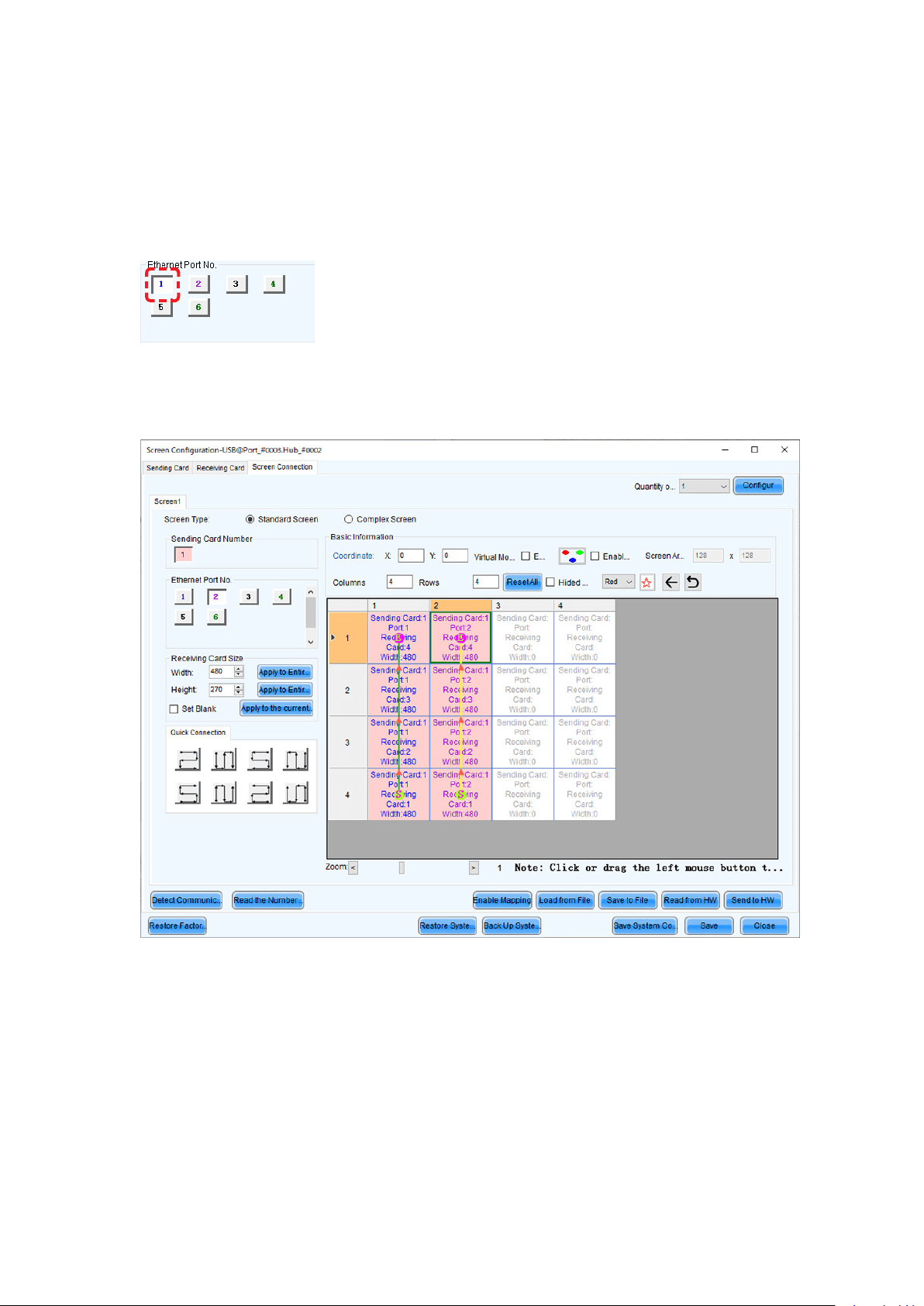
(2) Since the conguration is 4 (columns) x 4 (rows), enter Columns=4 and Rows=4. A 4 (columns) x 4
(rows) screen conguration is displayed.
English - 42
(3) If multiple LED controllers are used, select the number of the connected LED controllers.
Since only one controller is used in this example, it is not necessary to set “Sending Card Number” (e).
(4) Congure the connection.
(4)-1 Connecting from bottom to top using multiple ports
The system is connected to port 1 of the LED controller.
Select “1” (port 1) under “Ethernet Port No.” (f).
Select the cabinet at the bottom left with the mouse, and then select the other cabinets up to the top
cabinet.
Then select Port2 and select the cabinets from the bottom to the top as you did for Port1.
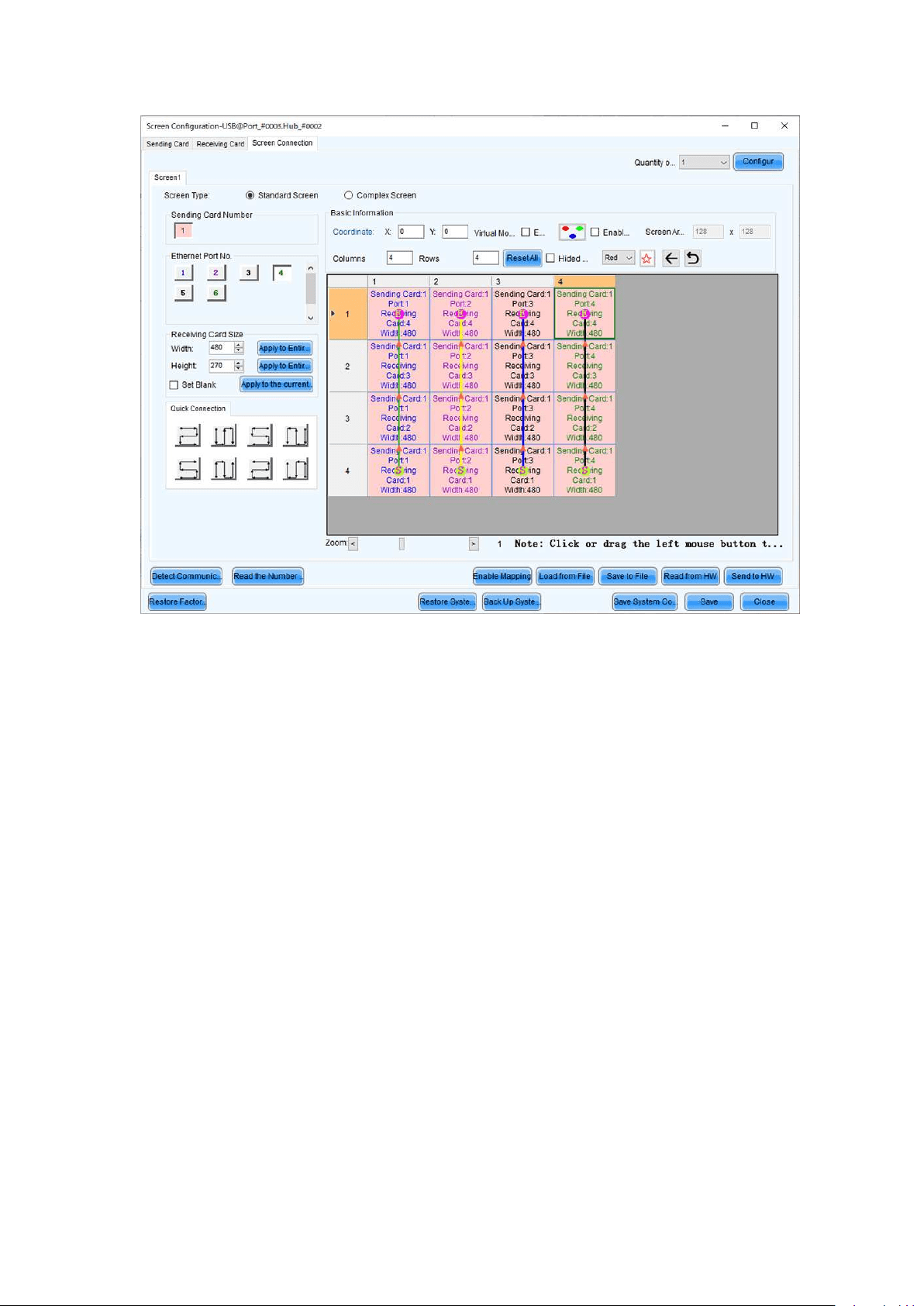
English - 43
Follow the same procedure for Port3 and Port4.
English - 44
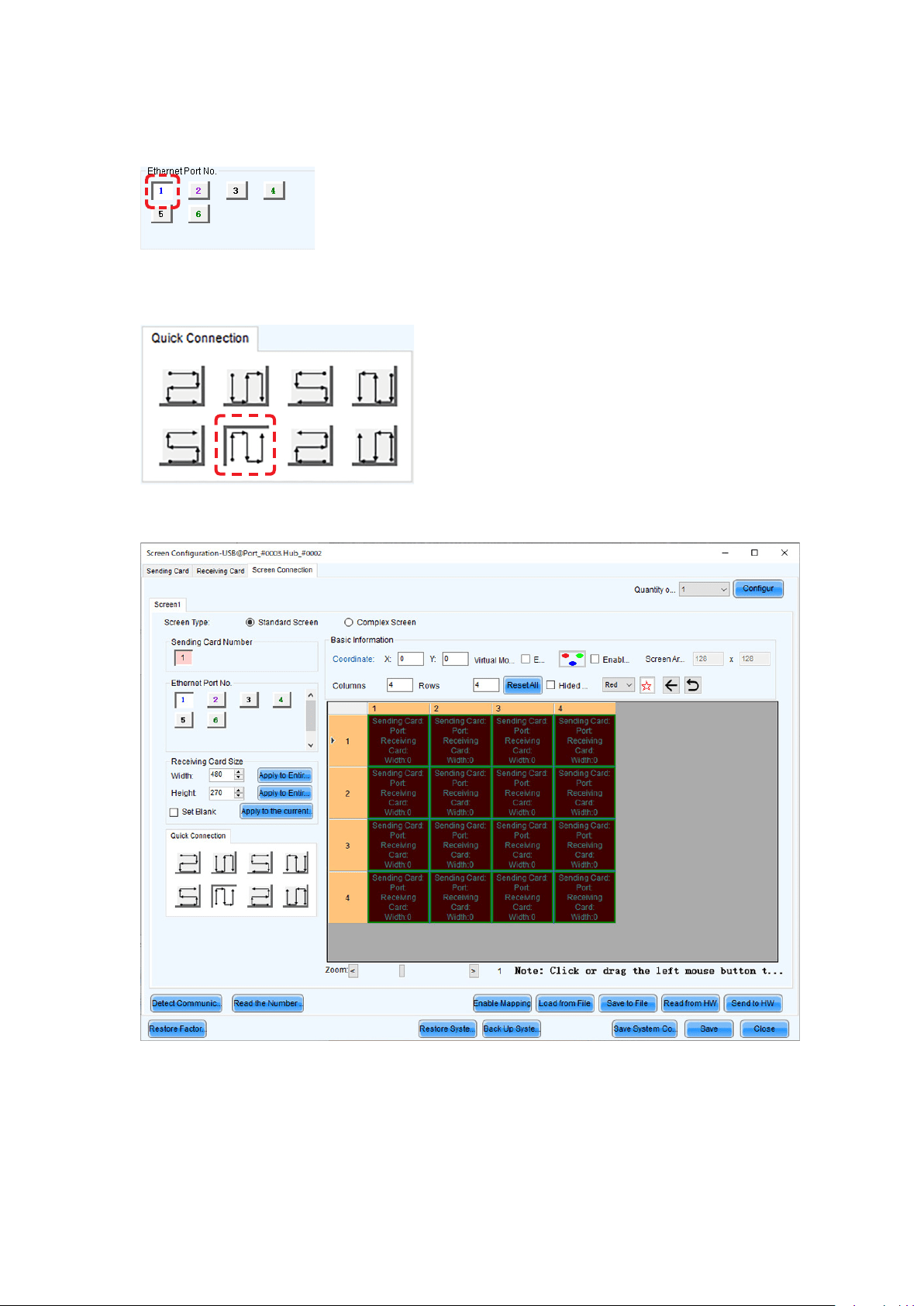
(4)-2 Connecting all the LED modules using a single LAN cable
The system is connected to port 1 of the LED controller.
Select “1” (port 1) under “Ethernet Port No.” (f).
Click (select) the connection pattern under “Quick Connection” (i). Since the modules are connected
from the bottom left to the top right in the example, the pattern is as shown in the gure.
Select all the cabinets from the top left to the bottom right as shown in the gure below.
The selection is done automatically to obtain the screen below.
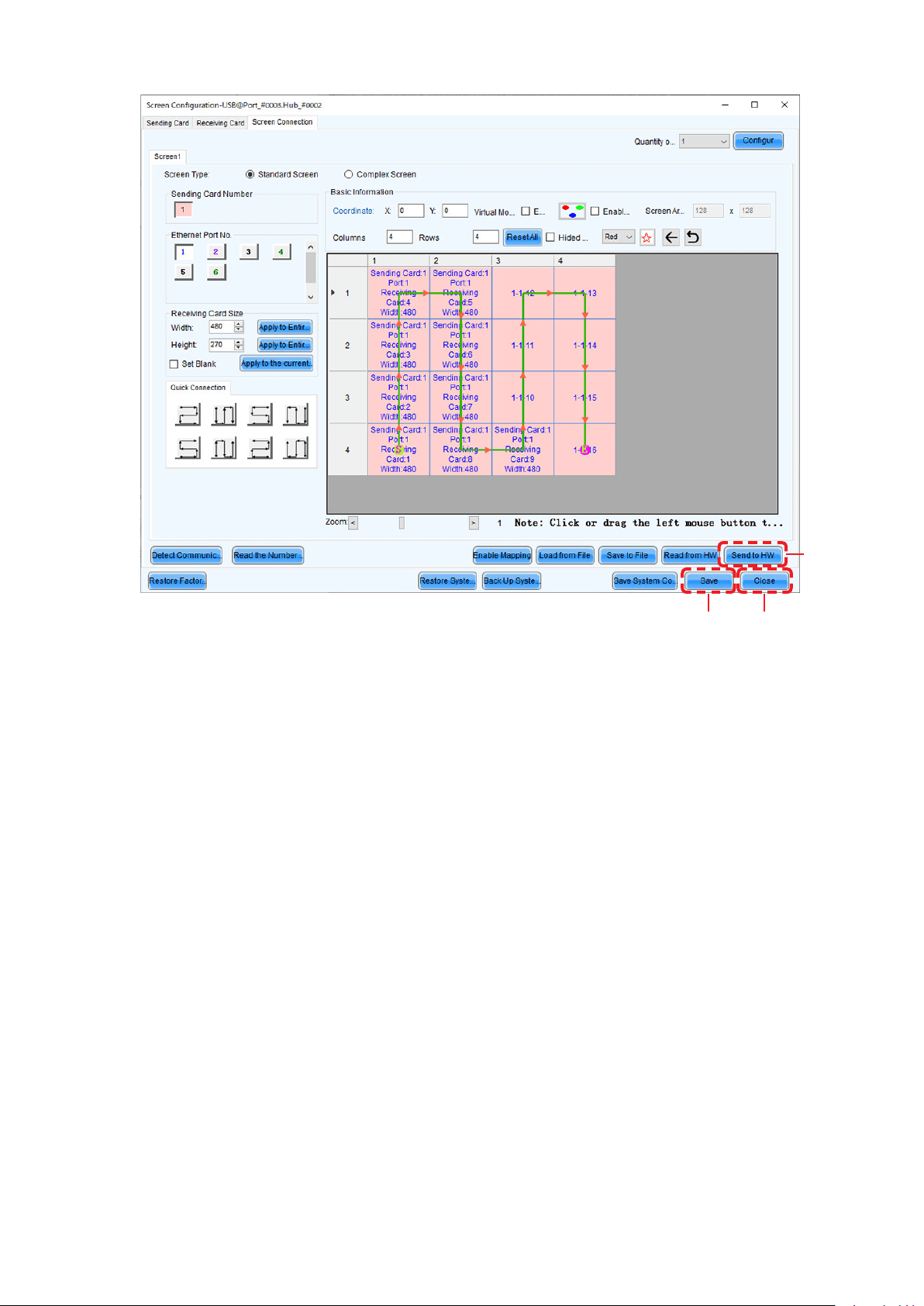
English - 45
(k)
(j)
(l)
(5) Save the settings.
(a) Click the “Send to HW” button (j). When the dialog box indicating that the process nished
successfully is displayed, click OK.
(b) Check that the image is correctly displayed, and then click the “Save” button (k). When the screen
indicating that the process nished successfully is displayed, click OK.
The setting of the screen conguration is complete. Click the “Close” button (l) to close the Screen Conguration
screen.
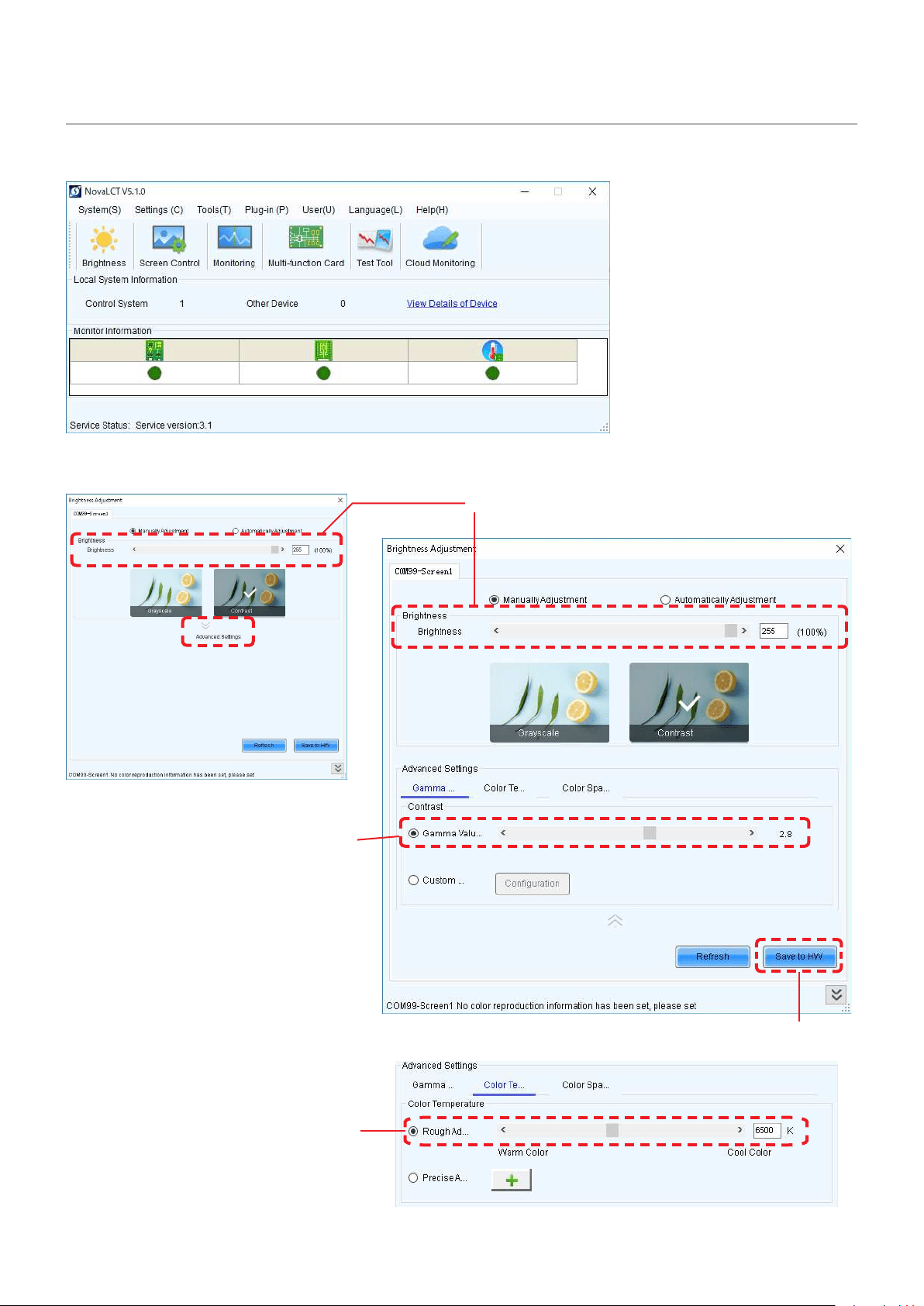
English - 46
Image Setting
You can adjust the brightness, the gamma correction value, and the color temperature.
Click “Brightness” on the top screen to display the following window.
(e)
(c)
(b)
(d)
(a)
Click “Advanced Settings” to
expand the screen.

English - 47
Click “Advanced Settings” (
) (a) to expand the setting screen.
(1) Brightness
Set the brightness of the screen using the slider (b).
Increasing the value increases the brightness.
(2) Gamma correction
Set the gamma correction value using the slider (c).
Increasing the value makes the dark parts of the screen darker.
(3) Color temperature
Set the color temperature using the slider (d).
Increasing the value makes the colors more bluish, while reducing the value makes the colors more
reddish.
When the setting is complete, click the “Save to HW” button to save the settings.
English - 48
Cleaning
The screen brightness may decrease if dust or another foreign material is adhering to the surface of the pixel
card.
The magnet used to install the pixel cards also attracts magnetic metal particles, such as iron powder.
Therefore, magnetic metal particles may adhere to areas near the magnet of the pixel card and the brightness
homogeneity of the screen may decrease.
Cleaning should be performed regularly depending on the installation environment.
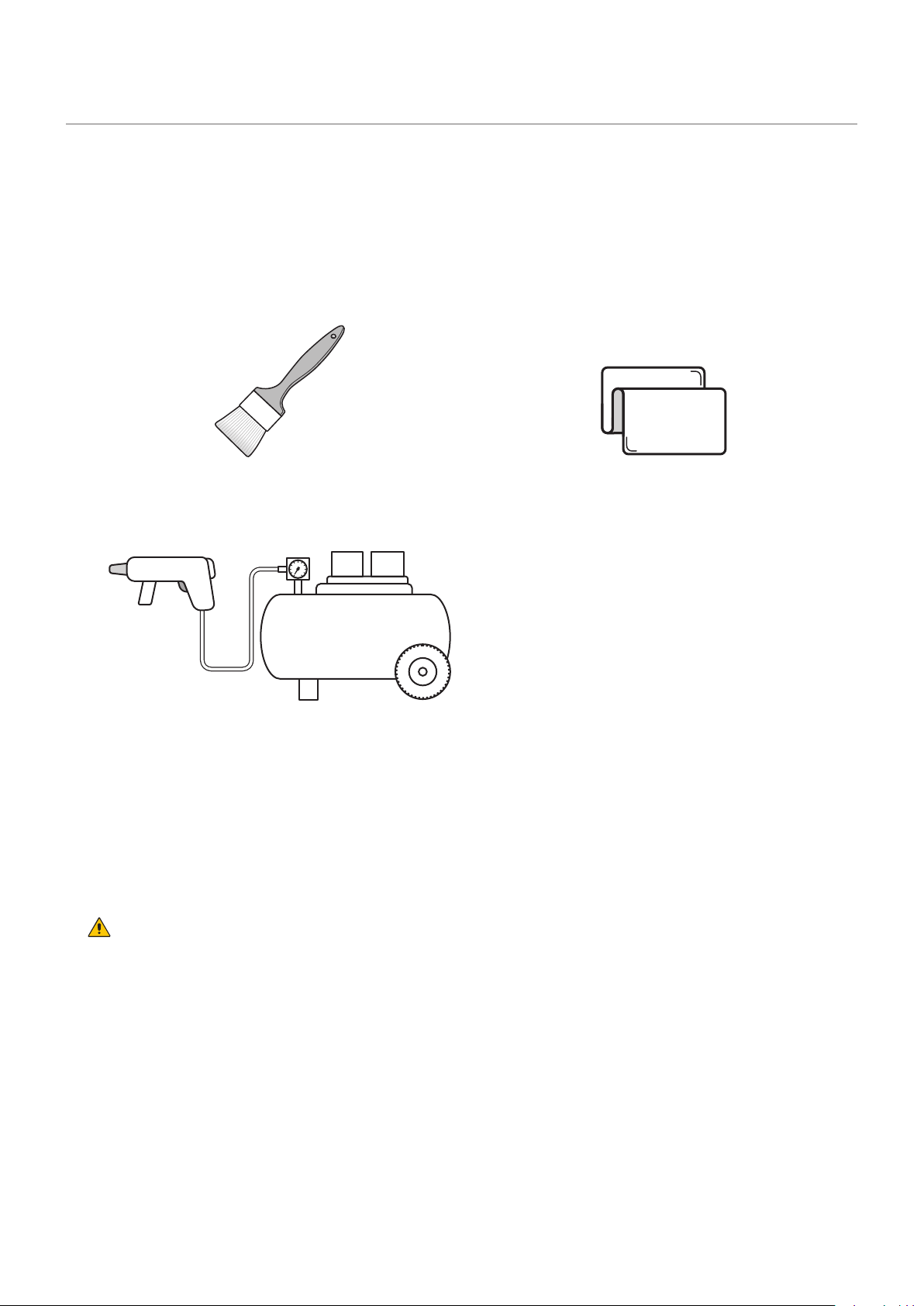
Required tools (example).
Soft brush
(animal hair brush to prevent static electricity)
Soft cloth
(that does not generate static electricity)
Air blower (compressor)
Cleaning method
a) Turn the LED displays off.
b) Use the soft brush to remove any dirt on the surface of the pixel card. If these parts are very dirty, use
the air blower to remove the dirt.
c) Use the soft cloth to remove the dirt on the screen surface.
d) Repeat the steps (b) and (c) to remove all the dirt.
CAUTION
• Do not use water or any other liquid.
• Do not use a stiff brush.
• Pay attention not to damage the surface of the pixel card when using the soft brush, the air blower, or the
soft cloth.
English - 49
Maintenance
CAUTION
• Disconnect the power supply to the LED modules when performing the maintenance.
• Use the correct screwdriver for the shape of the screws when removing (loosening) or setting (tightening)
the screws.
Pay attention not to drop the screws and the other parts you have removed.
Pay attention not to lose the removed screws since they will be reused.
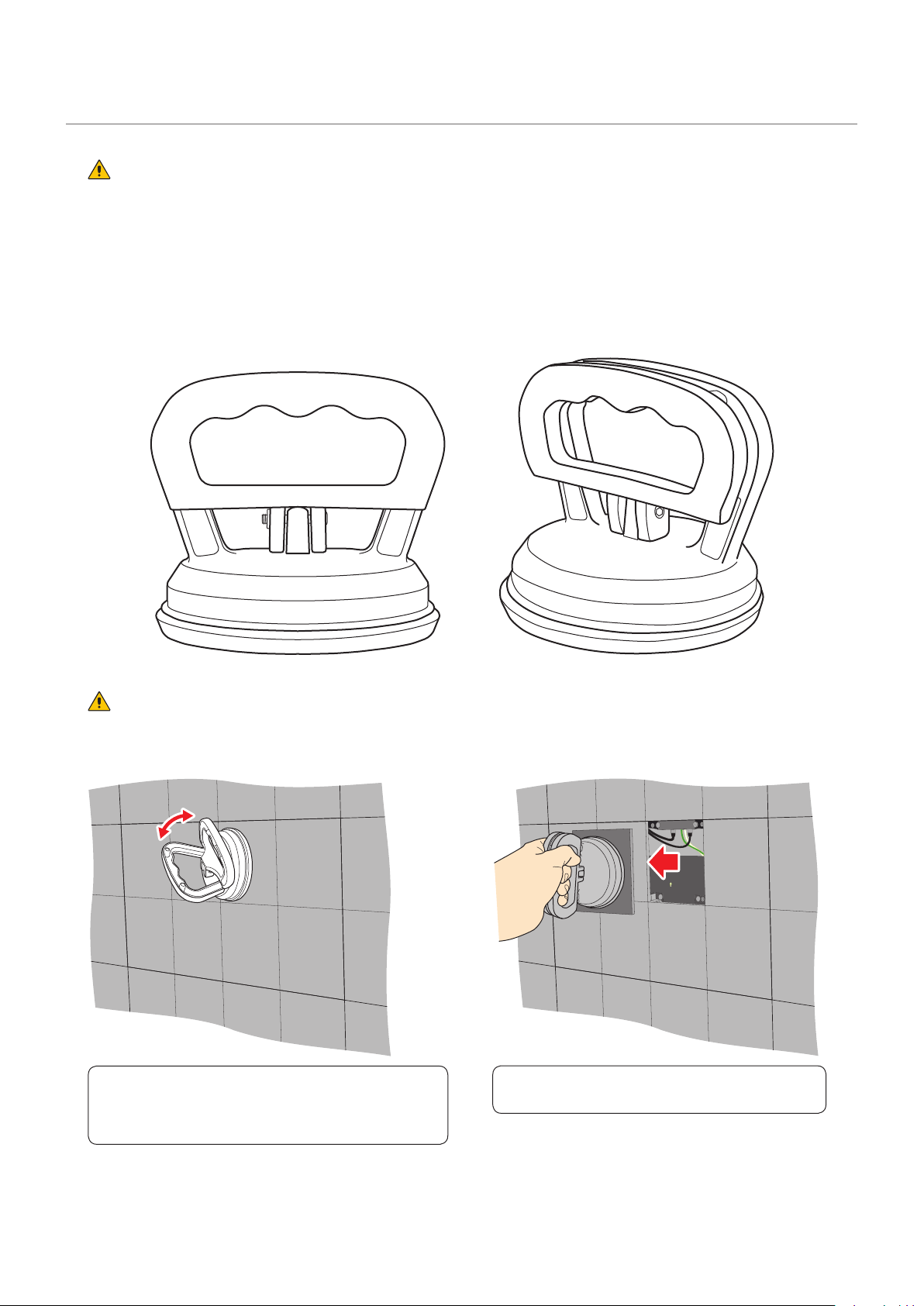
Removing a pixel card
CAUTION:
Lightly hold the pixel card with your hand to prevent it from falling.
(1) Open the grips of the maintenance tool and push
the maintenance tool against the pixel card. Close
the grips of the maintenance tool and stick the
pixel card.
(2) Pull it straight toward you to remove the pixel
card.
English - 50
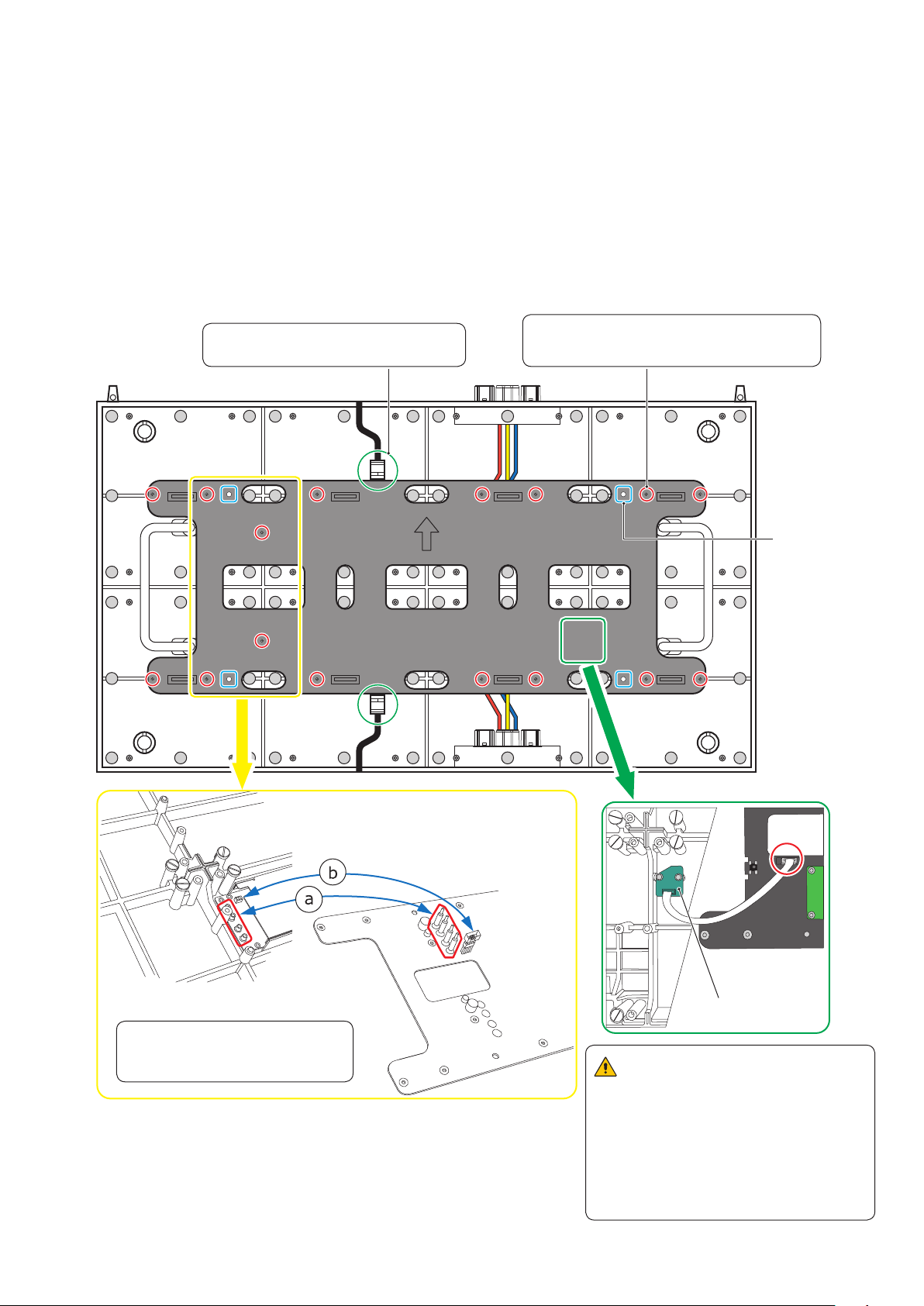
Removing and installing the hub board
(1) Removing the hub board
(a) Disconnect the LAN cable from the hub board
(b) Remove the 16 screws securing the hub board with a Phillips screwdriver (No. 1).
(c) Since the hub board is connected to the power unit with pins and connectors, remove it by raising
this part, as well as the part with the positioning holes. The status board and the hub board are
connected with a cable.
Pay attention not to pull the hub board.
(d) Disconnect the cable from the hub board, and then remove the hub board.
4 positioning
holes
Status board
Cabinet
Hub board
Remove the 16 screws.
Use a Phillips screwdriver (No. 1).
Each power unit is connected to a
hub board with three pins a and
connectors b.
CAUTION:
The hub board is connected to the
status board with a at cable. When
removing the hub board, pay attention
not to pull and damage the cable.
Disconnect the connector on the hub
board, and then remove the hub
board.
Disconnect the LAN cable from the hub
board.
English - 51
(2) Installing the hub board
Install the hub board into the cabinet following the procedure below.
(a) Connect the status board to the hub board using the cable.
(b) Install the hub board into the cabinet. Install it with the power unit pins and connectors aligned.
Insert the pins and connectors completely and check that the hub board is securely attached and not
bent.
(c) Tighten the 16 screws. Use a tightening torque of 3 ± 0.5 kgf•cm.
(d) Connect the LAN cable.
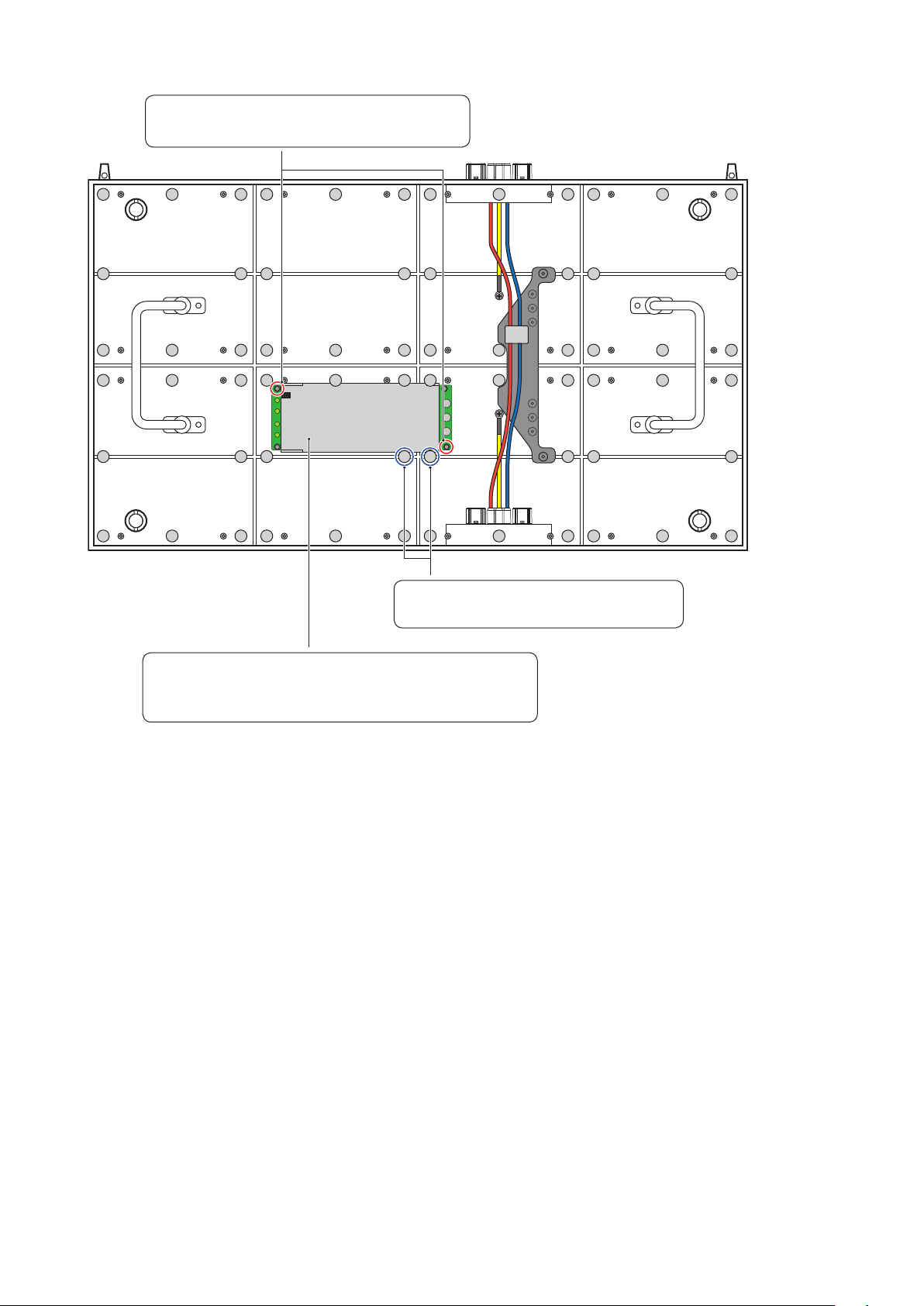
Replacing the power unit
The power unit dissipates heat through the cabinet. Apply some thermal paste on the back of the power unit
to be replaced. Ask your retailer for more details on the types of thermal paste.
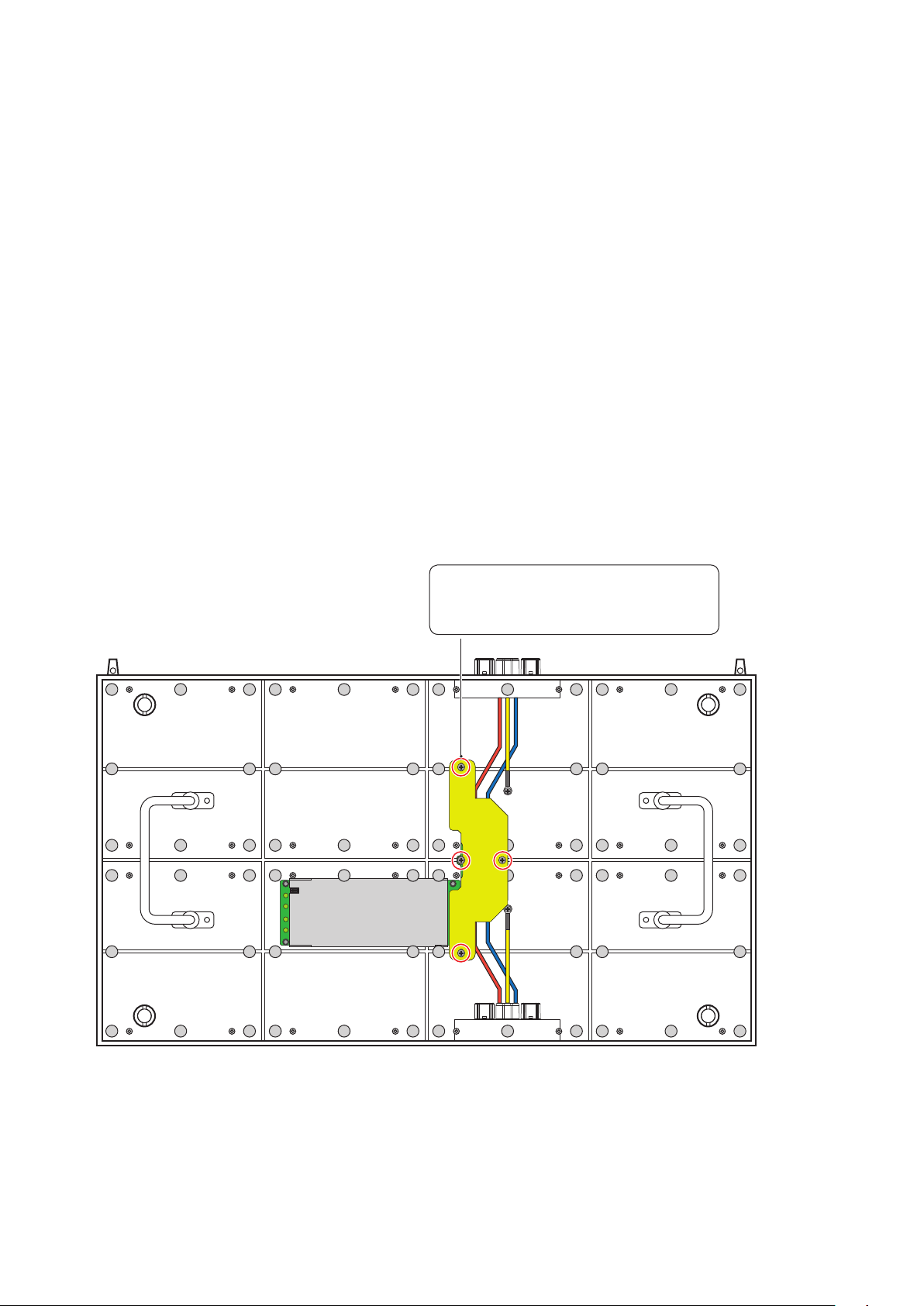
(a) Remove the hub board following the “(1) Removing the hub board” procedure on the previous page.
(b) Remove the four screws, and then remove the power hub board.
(c) Remove the two magnets and the two screws securing the power unit, and then replace the power
unit.
(d) Install the power hub board, the protective sheet, and the hub board.
(e) Install the hub board following the “(2) Installing the hub board” procedure on the previous page.
Remove the four screws.
Use a Phillips screwdriver (No. 2).
Torque for installation: 3 ± 0.5 kgf•cm
English - 52
Replace the power unit.
Use the screws you have removed to secure the power unit.
Tightening torque: 3 ± 0.5 kgf•cm
Remove the two screws securing the power unit.
Use a Phillips screwdriver (No. 2).
Use a pair of pliers to hold the two
magnets, rotate them, and remove them.
English - 53
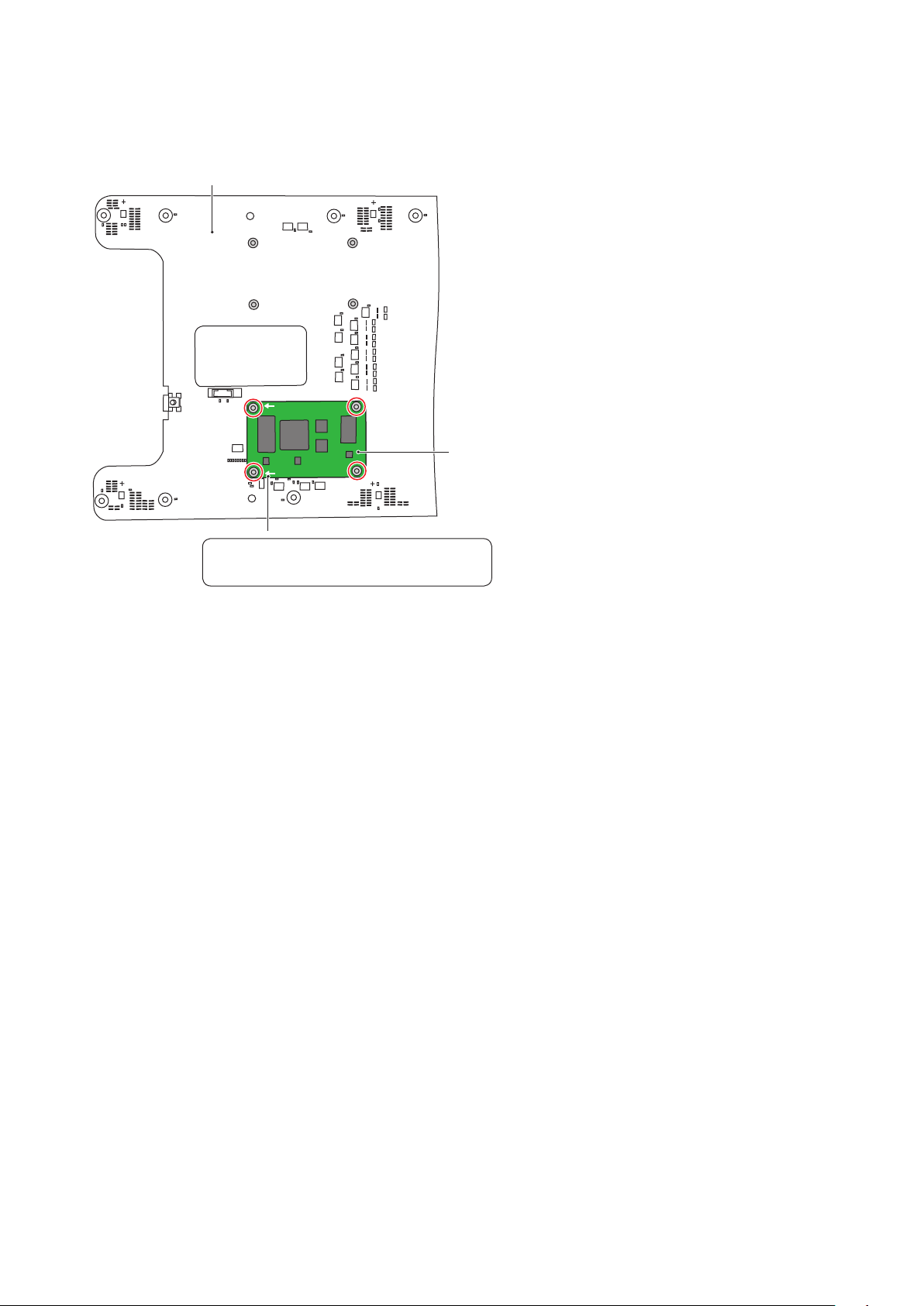
Replacing the receiving card
The receiving card is xed to the hub board with two board-to-board connectors.
Hub board
Receiving card
Install the receiving card so that the
arrow is orientated to the left.
English - 54
Troubleshooting
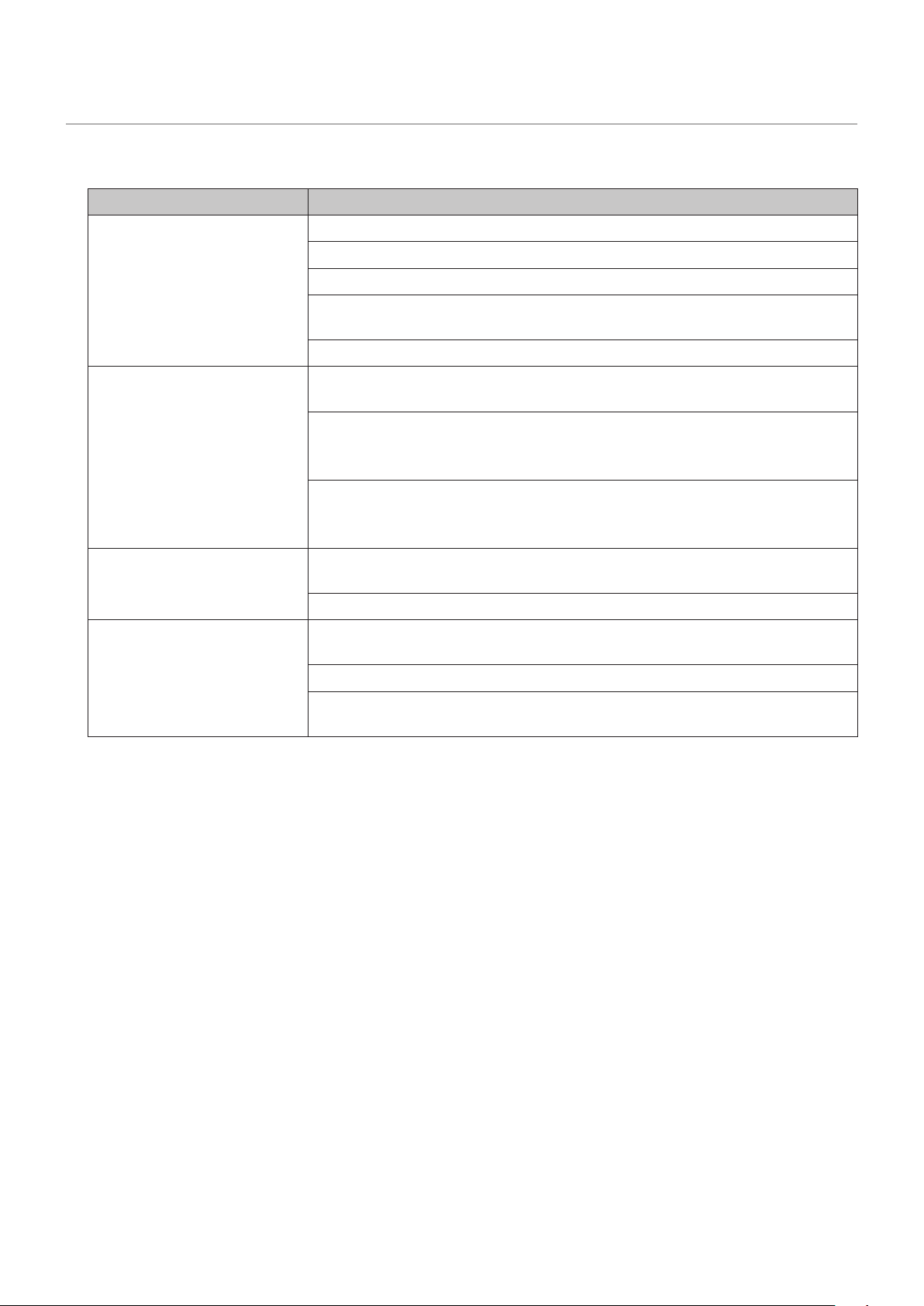
1. Display problems
Problem Solution
Nothing is displayed on
all the LED modules.
Check that power is being supplied to the LED modules.
Check that the LED controller is turned on.
Check that a video signal is being input to the LED controller.
Check that a LAN cable is correctly connected between the LED
controller and the LED module.
Check that the brightness is not set to 0% (= not lit).
Nothing is displayed on
one LED module.
Check that a LAN cable is correctly connected between the LED
controller and the LED module.
The receiving card inside the LED module may be broken.
→ Check the status of the LED module by following the procedure
in the next section “2 State monitoring using the software”.
The power unit inside the LED module may be broken.
→ Check the status of the LED module by following the procedure
in the next section “2 State monitoring using the software”.
No image is displayed on
one pixel card.
Check that the contacts of the pixel card are correct (contacts of
the hub board).
The pixel card may be broken. Replace it with a spare pixel card.
Control (communication)
is not possible.
Check that the communication cable is correctly connected between
the computer and the LED controller.
Check that the LED controller is turned on.
If the communication cable is a USB cable, check that the device
driver runs correctly.
English - 55
2. State monitoring using the software
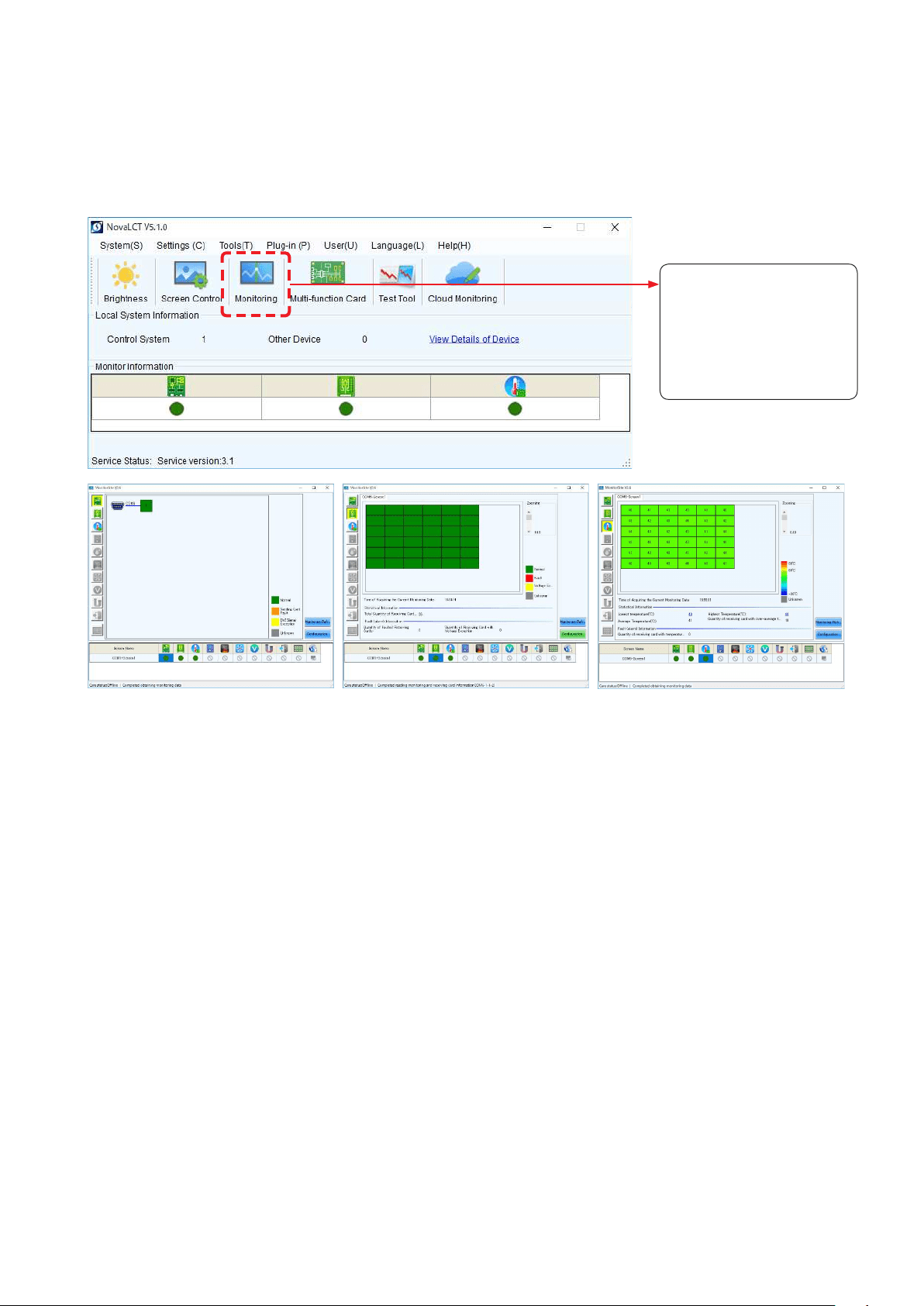
In case of a problem, you will be able to determine the location where it occurred by monitoring the state of
the system.
2-1 Display under normal conditions
The display is green under normal conditions.
Click “Monitoring” to check
- the state of the LED
controller
- the operating state of the
LED modules
- the temperature of the
LED modules
State of the LED controller State of the LED modules Temperature of the LED modules
English - 56
2-2 Display under abnormal conditions
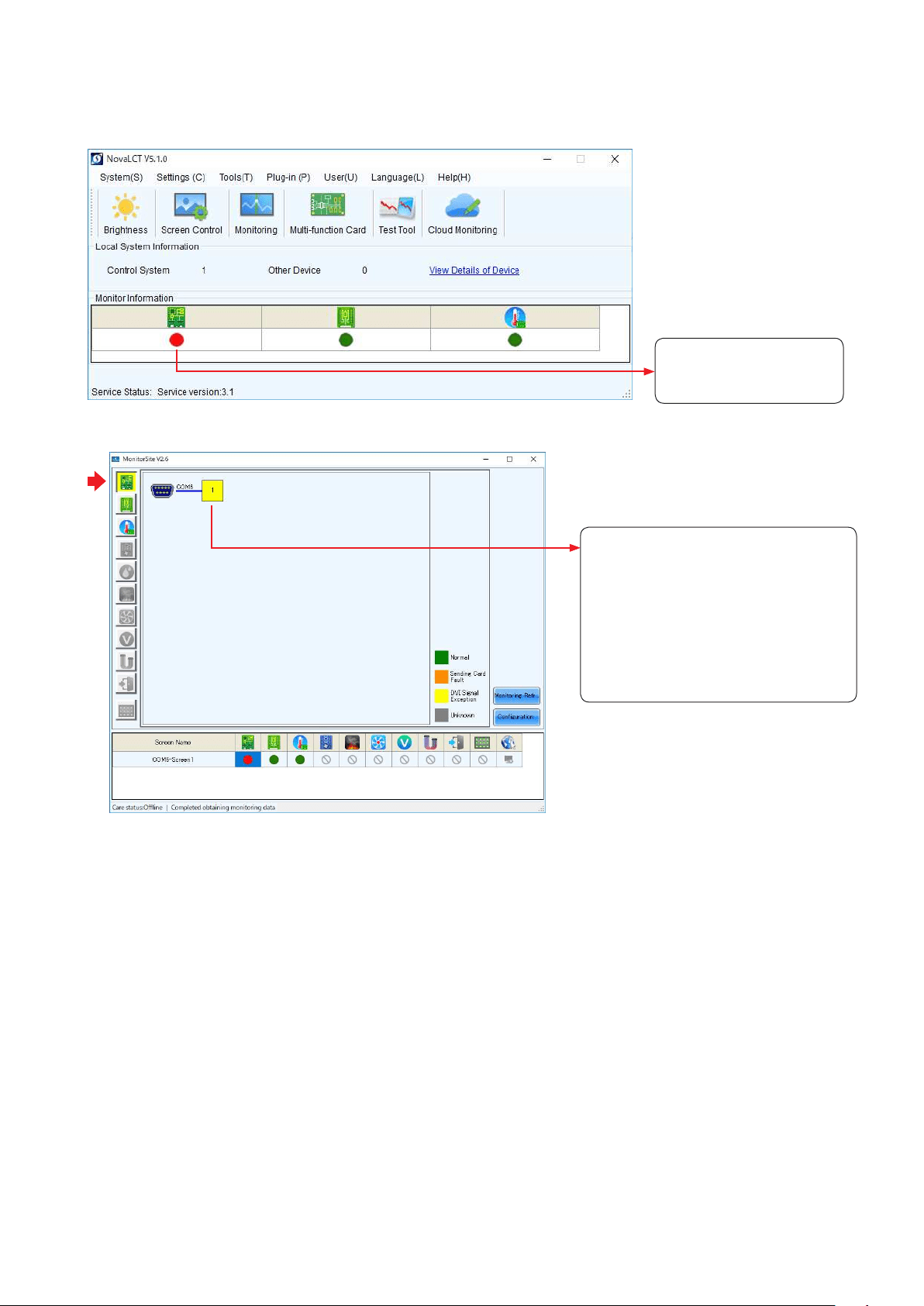
(1) Problem with the input signal to the LED controller
When the display is red,
there is a problem with the
LED controller.
To display more details, click “Monitoring”, and then click “Sending card” on the screen that is displayed.
No video signal is being input to the LED
controller.
- Check that the LAN cable is
connected.
- Check that a video signal is being
output from the video output
equipment.
- If multiple signals are being input to
the LED controller, check the input
settings of the LED controller.
English - 57
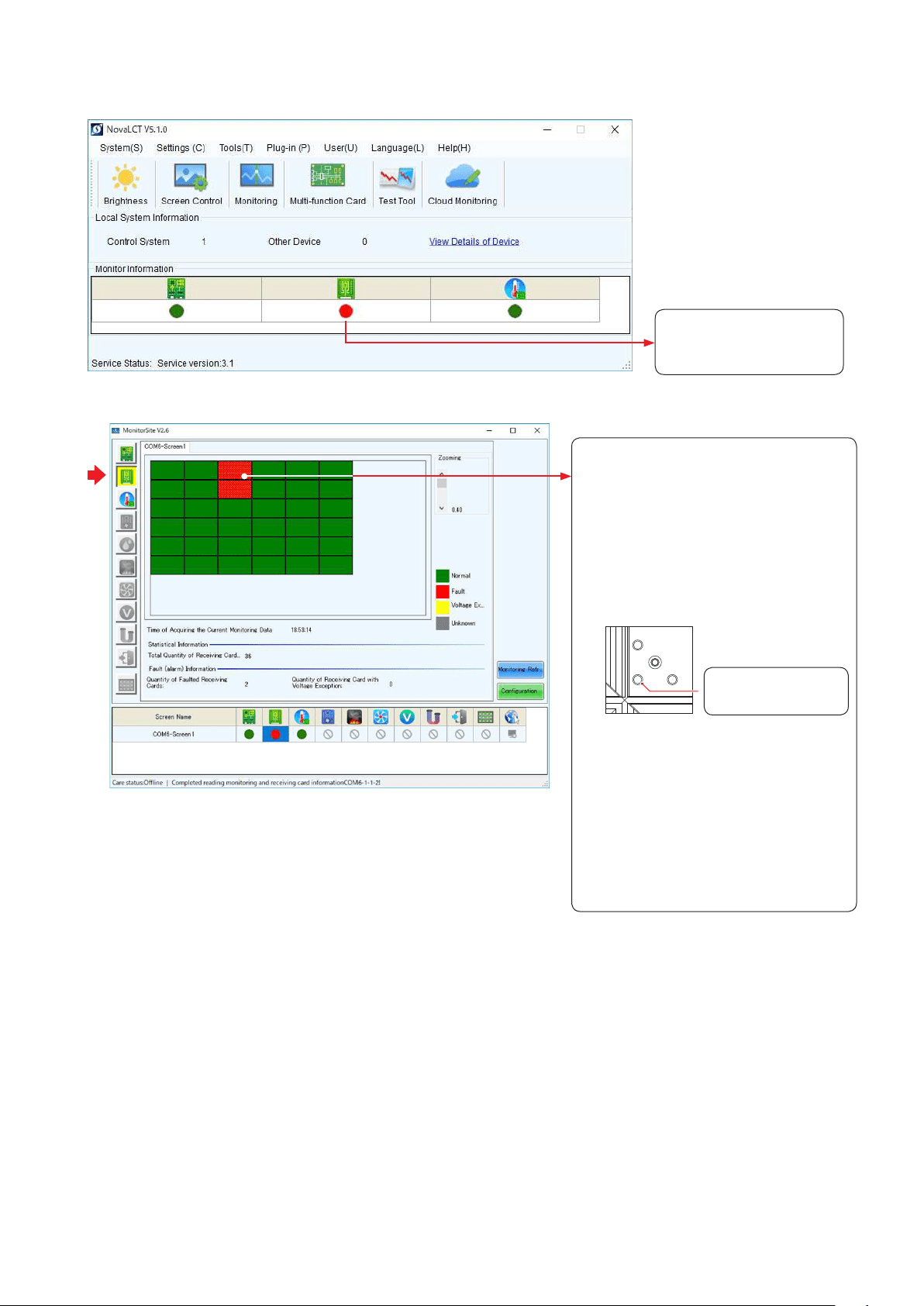
(2) Problem with the LED modules
When the display is red,
there is a problem with the
LED module operation.
To display more details, click “Monitoring”, and then click “Receiving card” on the screen that is displayed.
In the example shown on the left, the
following problems must be considered.
- Signal loss between the screen of the
3rd row 3rd column and the screen of
the 2nd row 3rd column
→ Check the internal LAN cable.
- Problem with both power units of the
screen of the 2nd row 3rd column
→ Check the rear indicator (green) to
see if it is lit.
There is no problem
if it is lit green.
If it is not lit, the power unit is
probably broken. (Replacing the power
unit)
- Problem with the receiving card of the
screen of the 2nd row 3rd column
→ Check that the receiving card is
securely connected. If there are no
connection problems, the receiving
card may malfunction. (Replacing
the receiving card)
English - 58
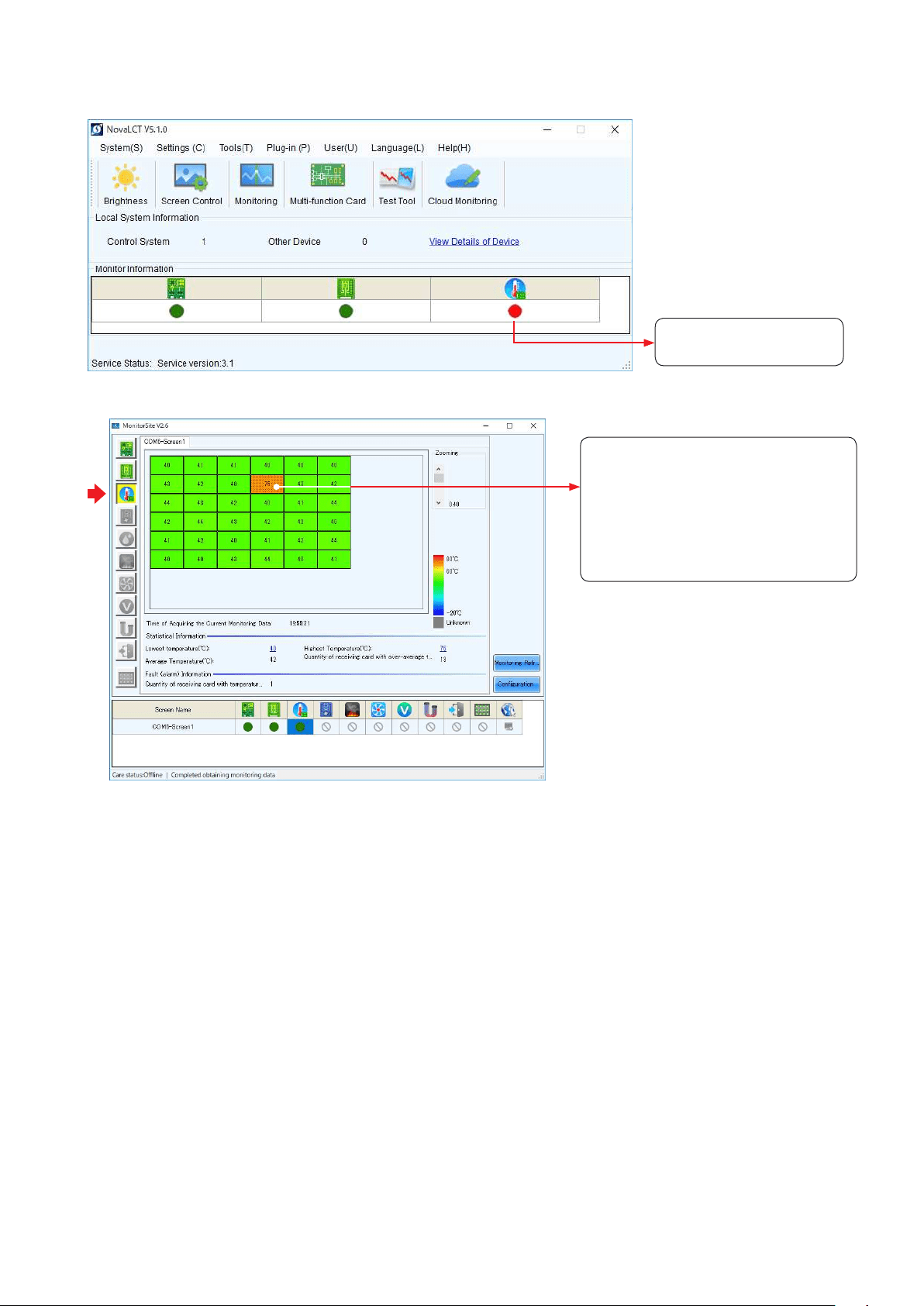
(3) Problem with the internal temperature of the LED modules
There is a problem with
the LED module operation.
To display more details, click “Monitoring”, and then click “Temperature” on the screen that is displayed.
The LED modules with a high
temperature are displayed in warm
colors.
Since the internal temperature is high,
decrease the brightness setting.
If changing the brightness setting could
not solve the problem, contact your
retailer or the Customer Service.
English - 59
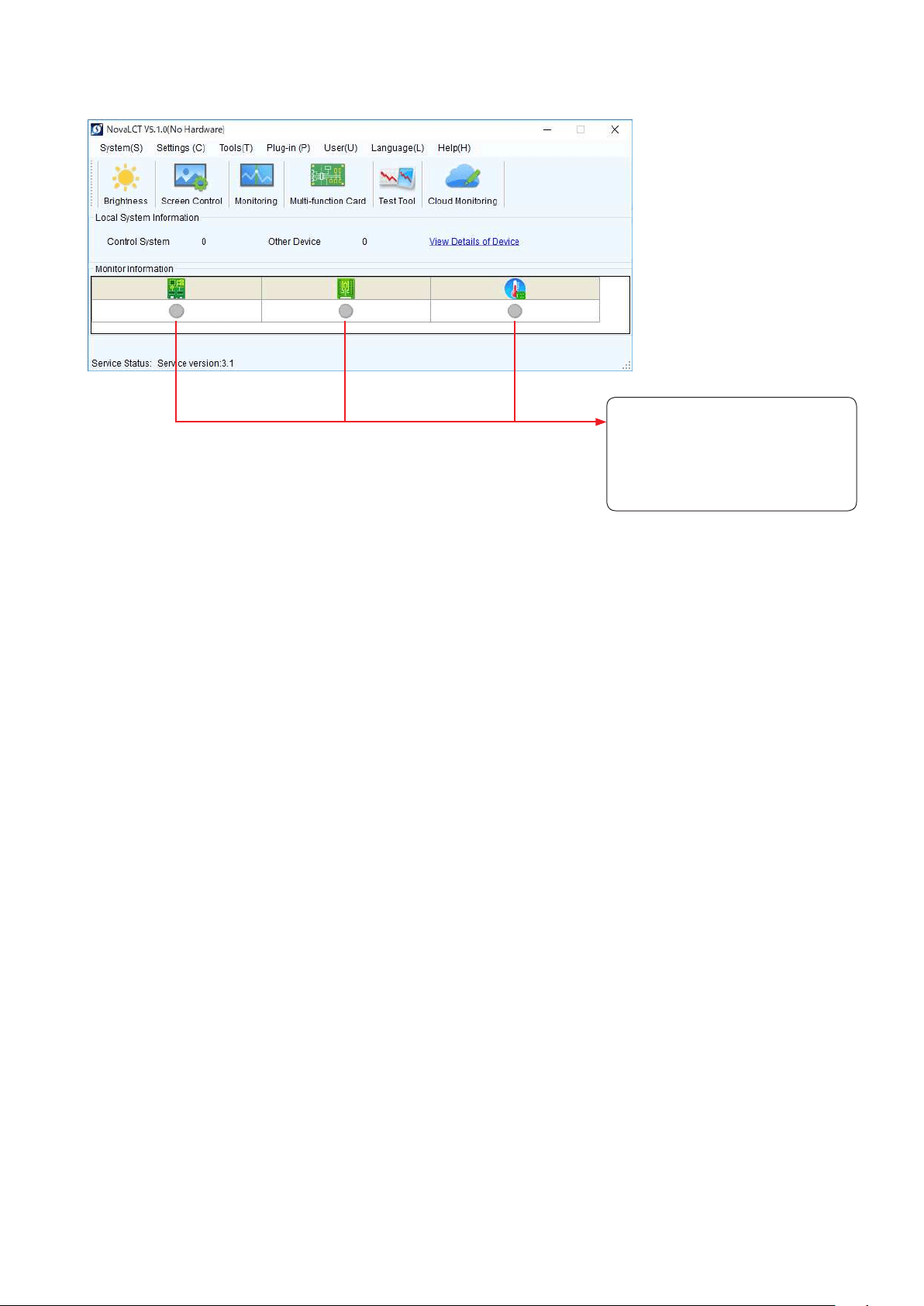
(4) Communication problem
When the display is grey, the
communication is not established.
→ Check that the USB cable is
connected.
→ Check that the LED controller is
turned on.
English - 60
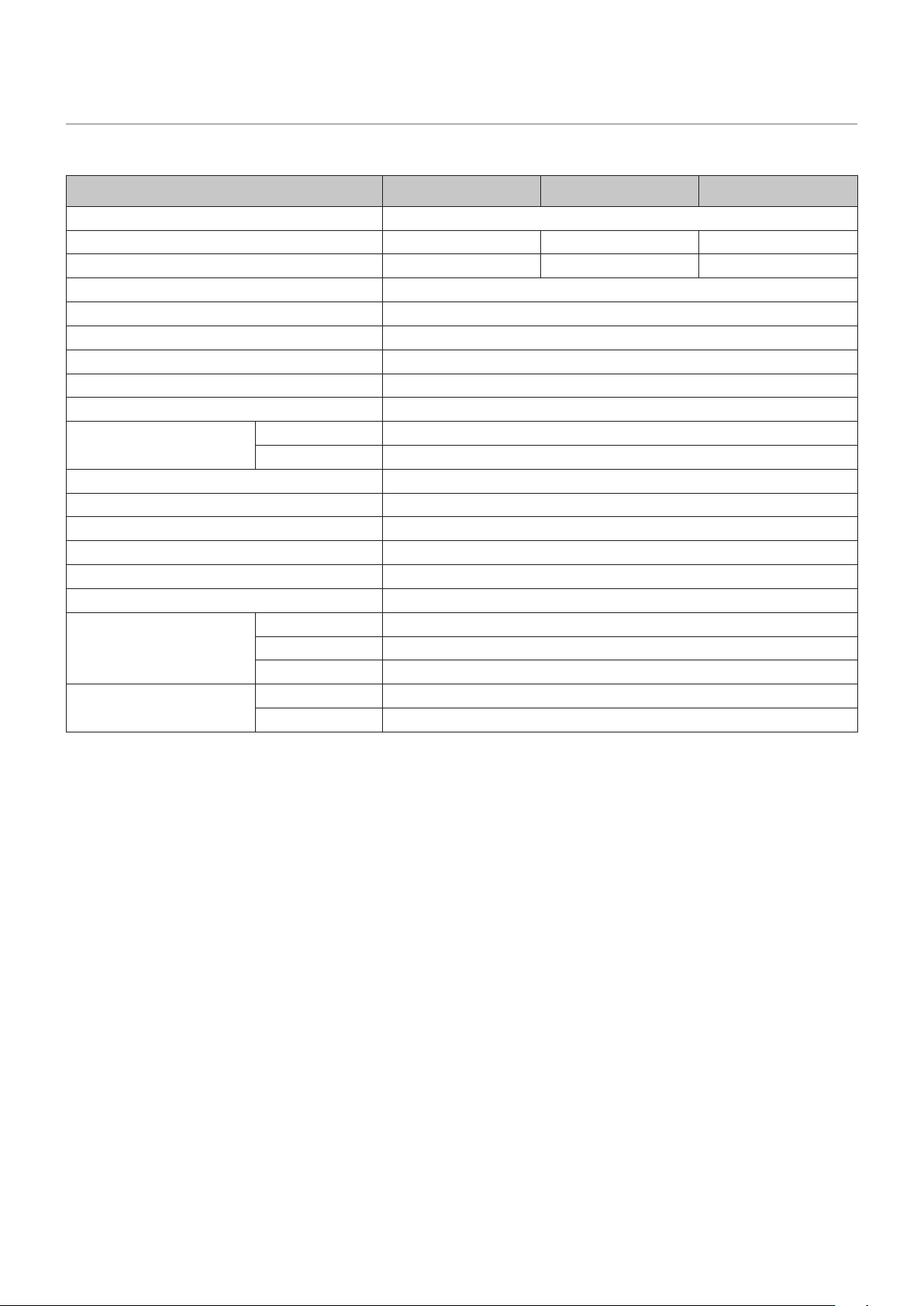
Specications
Models for indoor use
LED-FC009i
LED-FC012i LED-FC015i
LED conguration Flip chip COB (chip size : 4mil*8mil)
Pixel pitch 0.95 mm 1.26 mm 1.583 mm
Number of displayed pixels (resolution/module) 640 × 340 480 × 270 384 × 216
Brightness 800 cd/m
2
Contrast ratio 20000:1
Brightness adjustment range 0 to 100% (256 increments)
Gamma correction 1.0 to 4.0 (default setting: 2.8)
Color temperature 3000 K to 9500 K (default setting: 6500 K)
Viewing angle Up 80°, Down 80°, Left 80°, Right 80°
Signal interface Signal input 1 × RJ-45
Signal output 1 × RJ-45
Power supply 100 V AC to 240 V AC, 50 Hz/60 Hz
Power consumption (all white, 100% brightness) 70 W
IP rating Front IP40 / Rear IP20
Maintenance Front
Dimensions 608 × 342 × 48.5 mm
Weight 7.0 kg
Operating environment Temperature -20 to 40°C
Humidity 10% to 80% (without condensation)
Altitude No more than 5000 m
Storage environment Temperature -20 to 45°C
Humidity 10% to 85% (without condensation)
Specications are subject to change without notice.
English - 61
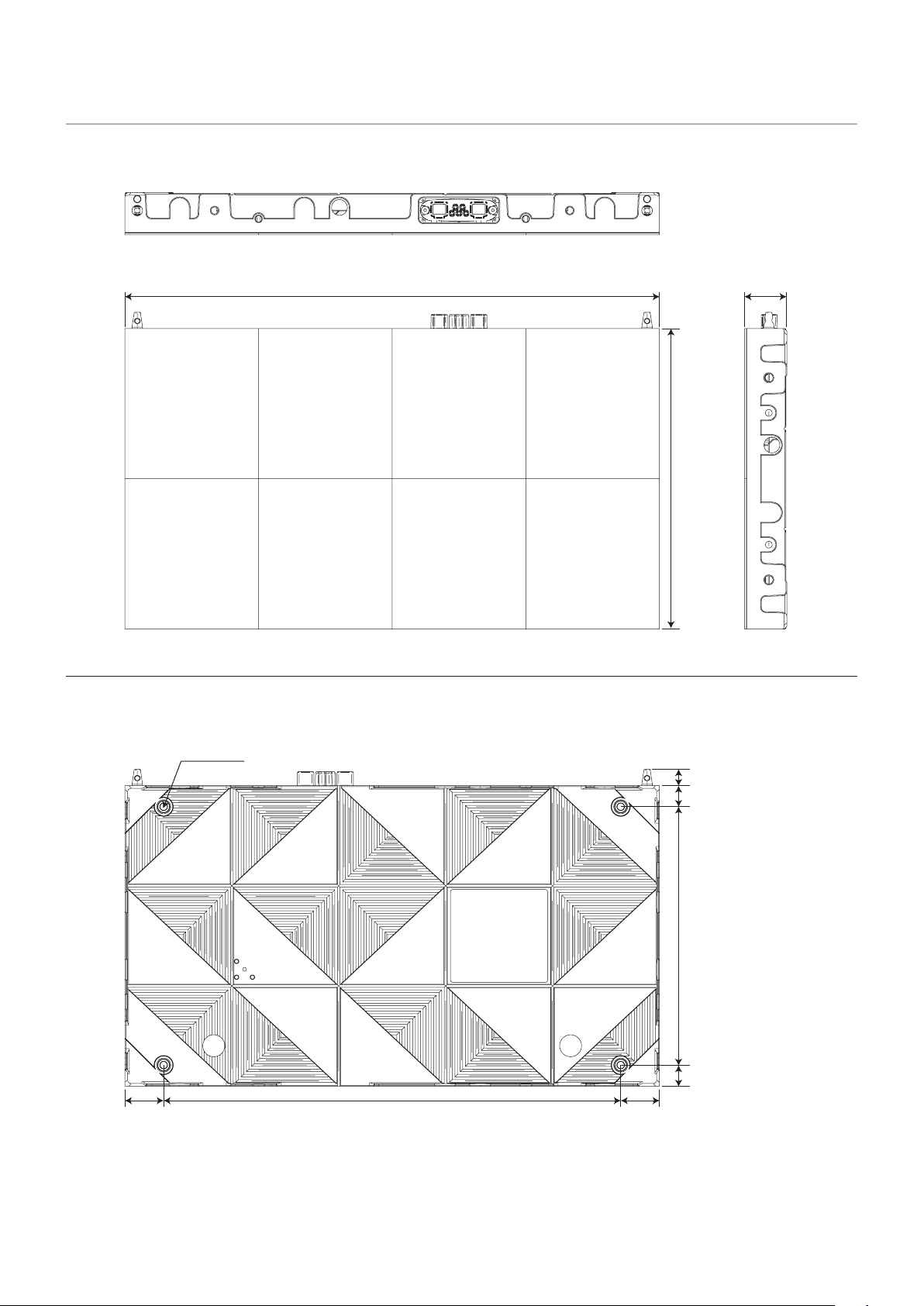
Diagram
LED-FC009i / LED-FC012i / LED-FC015i
608 48.5
342
Rear
4 x M8
18.5
24
24
44 44520
294
(Unit: mm)
English - 62
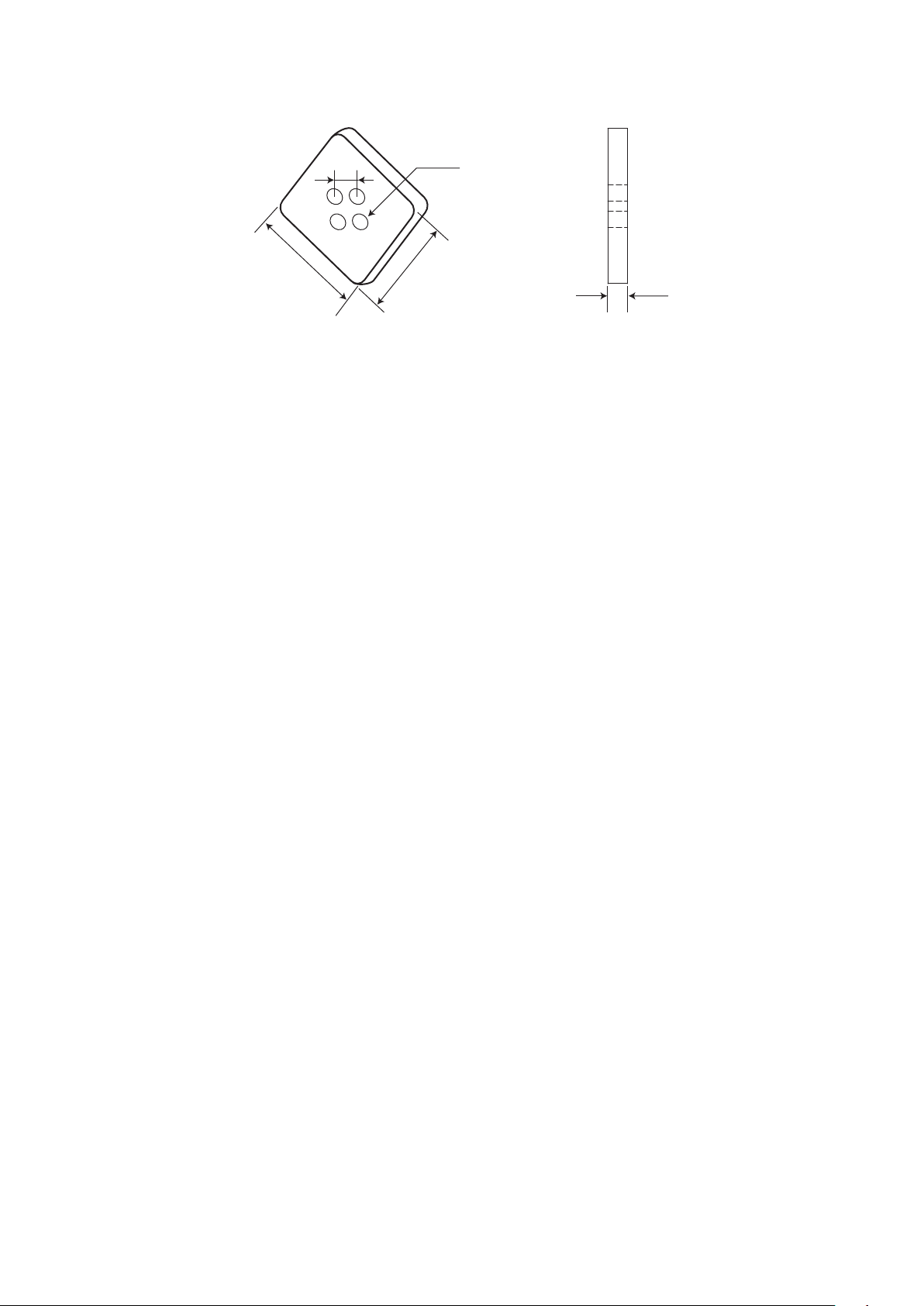
LED-FC009i / LED-FC012i / LED-FC015i Adjustment plate
6
35
35
8
4-Φ5
(Unit: mm)