SSD
Installation guide
Solid State Drive

Please read before you begin
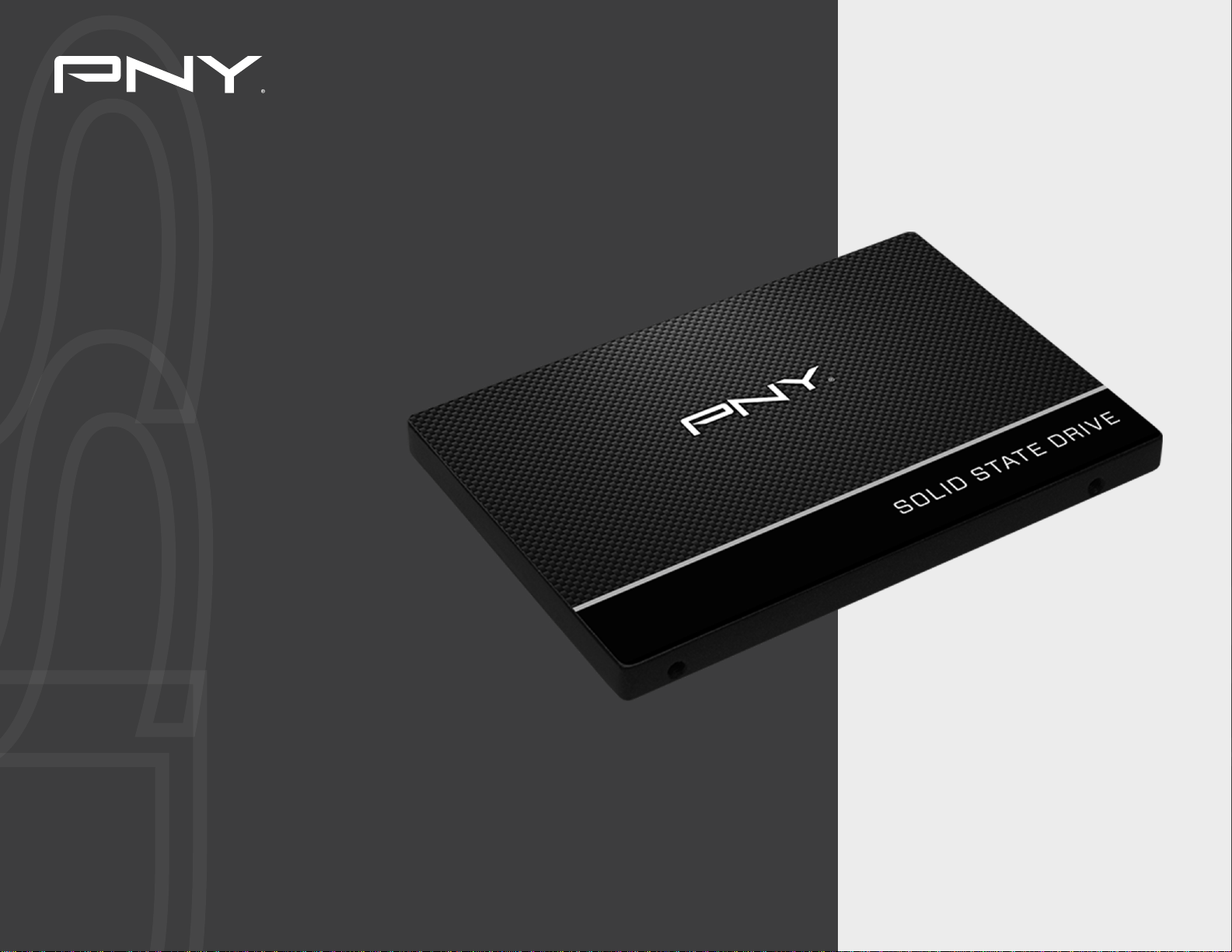
• Your new PNY SSDs is a 2.5” SATA III ( Serial ATA 3rd generation ) drive,
and is backwards compatible with SATA II and SATA I.
Please consult your system specications for compatibility.
• If you are installing this SSD in a desktop system or server, you may
need a 3.5” drive bay adapter
( not included with the PNY SSD ).
• PNY SSDs are intended as replacements for traditional hard drives and
solid state drives; please consult your system manual or manufacturer
for instructions on installing a new hard drive or SSD. This procedure
will vary by system manufacturer and model. Sample instructions are
available at www.pny.com/SSD
• PNY SSDs are shipped without any operating system, programs, or data
installed.
• If you are replacing your boot drive, it is recommended that you “clone”
the existing hard disk onto your SSD before you do anything else. This
may require software and/or a special cable or connector ( not included
with the PNY SSD ).
NOTE: Most clone utilities will only work if the space used on your
current hard drive is less than or equal to the available space on your
new SSD.
• If you do not have a clone utility, or the amount of used storage on your
current HDD exceeds the available space on your new SSD, you will
need to backup your data from your current hard drive, install your OS
and applications from scratch, and then restore your data onto your
new SSD. Please be sure that you have the necessary installation disks
for your OS and programs.
• As with any computer upgrade, please ensure you are properly grounded
and free of static electricity before continuing.
• PNY is not responsible for lost or missing data or damage to your sys-
tem resulting from installation of this SSD.
• If you are not familiar or comfortable with the installation process for
your new drive, it is highly recommended that you visit your local Com-
puter Retailer or Service Center for assistance.
What you will need
• Your new PNY SSD
• Your notebook computer
• Your notebook computer’s user manual
• A Phillips screwdriver
• Your OS ( Operating System ) CD/DVD, or other means by which to
install your Operating System and/or restore your OS, Programs
and Data
• Optional – 3.5” drive bay adapter for desktop or server
installation.
Important considerations
1

Installation steps
2
Turn off the notebook power.
Disconnect all notebook power cables.
Turn the notebook upside down and remove the battery.
Locate the hard drive panel on the bottom of your notebook
(Refer to your user manual).
Unscrew and remove the panel.
If there is a tab on the existing hard drive, gently pull it up and then to
the outside to remove the hard drive from the bay.
If your hard drive attaches to your motherboard via a cable, hold
the cable’s connector - not the cable itself - and gently remove the
drive from it.
If any proprietary connector or spacer bracket is attached to your
existing hard drive, remove it and set it aside.
Remove the new PNY SSD from its packaging and attach the
connector or spacer bracket you removed in step 8. (This helps the
SSD t securely in the drive bay.)
Align the SATA connector pins on the SSD with the SATA connector
in the drive bay.
Slide the SSD rmly against the SATA connectors in the drive bay so
that there is no space where the SATA connection and the SSD align.
Reattach the hard drive panel and screws you removed in step 5.
Reinstall the battery.
Reattach the power cables.
Turn the notebook power on.
DONE! Enjoy your new PNY SSD and all its benets.
17
If you cloned your drive prior to installation, your system should
boot up normally. Otherwise, load your OS and drivers (Refer to
your notebook or OS user manual), as well as other programs, then
restore your data.
1
2
3
4
5
6
7
8
9
10
11
12
13
14
15
17
16