

Content
General Safety Summary ................................................................................................ 1
Chapter 1 Getting Start ................................................................................................... 3
1.1 General Check ..................................................................................................... 4
1.2 The User interface ................................................................................................ 5
1.3 Install Software ..................................................................................................... 7
1.4 Install Driver ....................................................................................................... 10
1.5 Communication with Bluetooth(Hantek365C/D) ............................................ 13
1.6 Communication with Bluetooth(Hantek365E/F) ............................................. 16
Chapter 2: Operating Data Logger ............................................................................... 21
2.1 Making Voltage Measurement ............................................................................ 22
2.2 Making Current Measurement ............................................................................ 24
2.3 Measuring Resistance Values ............................................................................ 27
2.4 Making a Diode Measurement ........................................................................... 28
2.5 Making a Capacitance Measurement ................................................................. 30
2.6 Selecting Automatic/Manual Range Adjustment ................................................. 31
2.7 Taking a Relative Measurement......................................................................... 31
2.8 Temperature Measurement ................................................................................ 32
Chapter 3: Appendix ..................................................................................................... 34
Appendix A Specifications ........................................................................................ 35
Appendix B: Accessories .......................................................................................... 37
Appendix C: General Maintenance .......................................................................... 38

Safety Summary
USER’S MANUAL 1
General Safety Summary
Review the following safety precautions carefully before operate the device to avoid any personal
injuries or damages to the device and any products connected to it. To avoid potential hazards
use the device as specified by this user’s guide only.
To Avoid Fire or Personal Injury.
Correctly Plug in and Pull out. When the Data Logger probes are connecting to the voltage
source, please do not plug in or pull out.
Check All Terminal Ratings. To avoid fire or shock hazard, observe all ratings and markings
on the product. Consult the product manual for further ratings information before making
connections to the product.
Do Not Operate With Suspected Failures. If suspected damage occurs with the device,
have it inspected by qualified service personnel before further operations.
Provide Proper Ventilation. Refer to the installation instructions for proper ventilation of the
device.
Do not operate in Wet/Damp Conditions.
Do not operate in an Explosive Atmosphere.
Keep Product Surfaces Clean and Dry.
Safety Summary
USER’S MANUAL 2
Safety Information
In order to ensure the correct using and the best efficient service, please carefully read the user’s
manual.
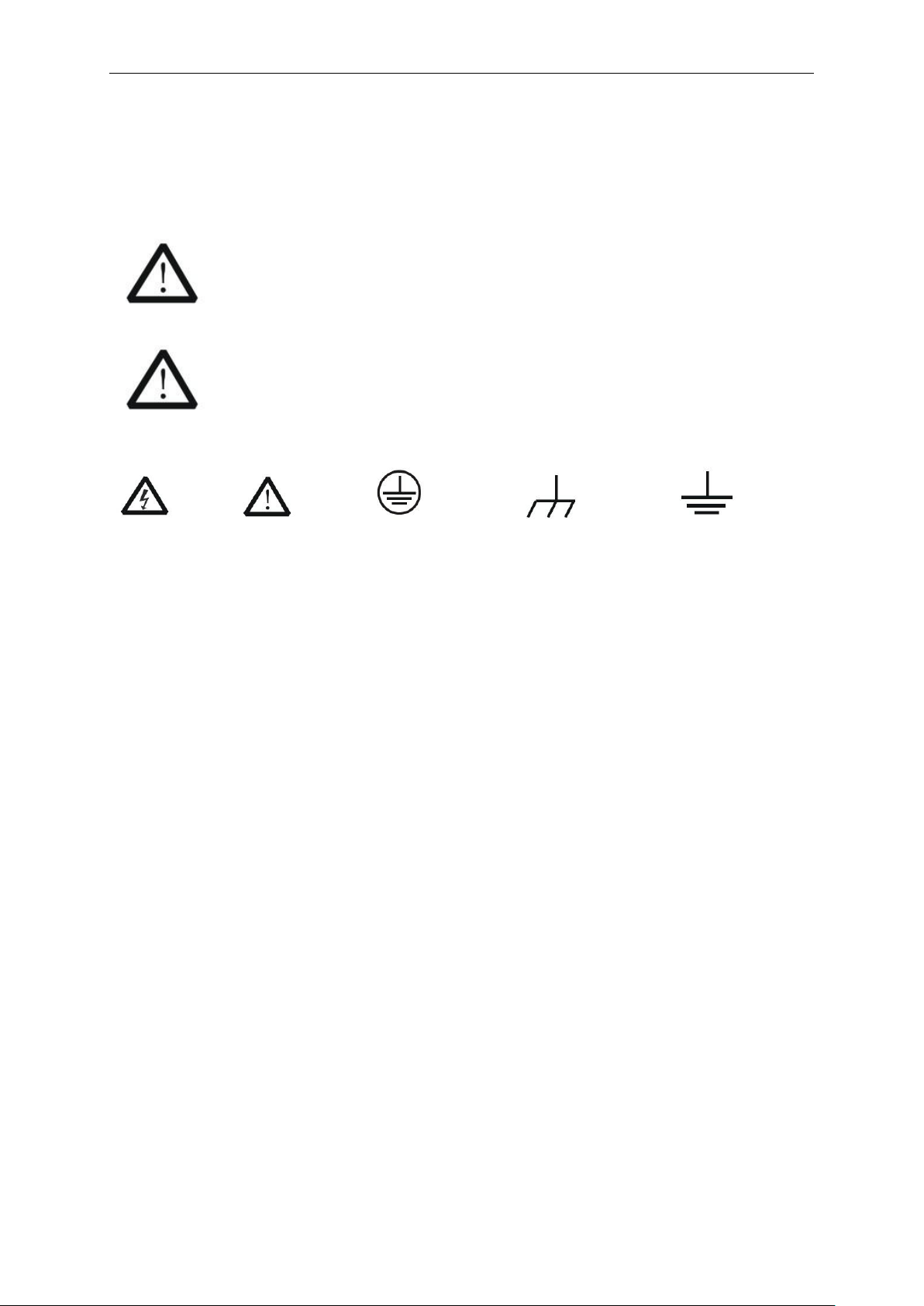
System Symbols
These symbols may appear in this manual or on the Data Logger.
Warning: “Warning” identifies conditions and actions that pose hazards to the
users.
Caution: “Caution” identifies conditions and actions that may damage the product
or other properties.
DANGER: Refer to Protective Chassis grand Earth(grand)
High Voltage the manual Condutor Terminal Terminal
System Terms
The following terms may appear on the Data Logger:
Danger: The term “Danger” is used in the manual to indicate that when you read this mark,
personal injury may be caused to immediately.
Warning: The term “Warning” is used in the manual to indicate that when you read this mark,
personal injury may not be caused to you immediately, but you need to be cautionary.
Notice: The term “Notice” is used in this manual to indicate that damages may be caused on
this product or other properties.

Getting Start
USER’S MANUAL 3
Chapter 1 Getting Start
General Check
The User interface
Install Software
Install Driver

Getting Start
USER’S MANUAL 4
1.1 General Check
When you have got a new Hantek365 series Data Logger, it is suggested that you should perform
a general inspection on the instrument according to the following steps:
Check the shipping container for damage:
Keep the damaged shipping container or cushioning material until the contents of the shipment
have been checked for completeness and the instrument has been checked mechanically and
electrically.
Check the accessories:
Accessories supplied with the instrument are listed in “Accessories” in this manual. If the contents
are incomplete or damaged, please notify our distributor at your local area or the sales
department.
Check the instrument:
In case there is any mechanical damage or defect, or the instrument does not operate properly or
fails performance tests, please notify our distributor at your local area or the sales department.
Getting Start
USER’S MANUAL 5
1.2 The User interface
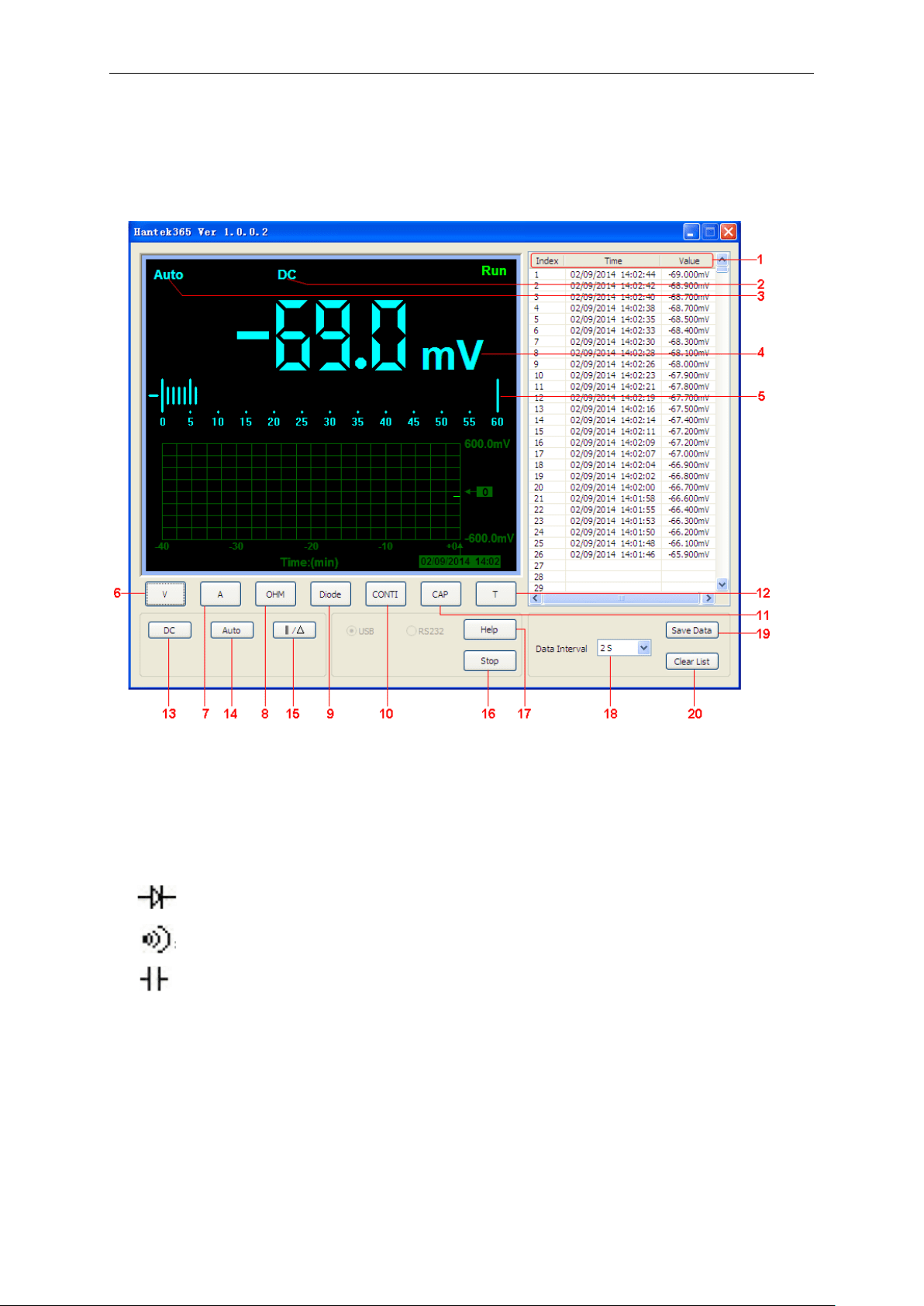
Click the software icon on the desk after you finished the software setting and equipment
connecting. Then a user interface will be showed as follows:
Description:
1. Data List
2. Description
DC: DC voltage/DC current measurement
AC: AC voltage/AC current measurement
: Diode measurement
: On-Off test
: Capacitance measurement
3. Manual/Auto: Select manual or auto measurement type.
4. Measured value
5. Trend chart
6. Voltage button
7. Current button
8. Resistance button
9. Diode button

Getting Start
USER’S MANUAL 6
10. On-Off test
11. Capacitance button
12. Temperature measurement
13. DC: click DC to switch to AC.
14. Auto: Click Auto to switch to Manual mode
15. Relative Measurement
16. Stop/Run: Stop or start acquire data
17. Help menu
18. Data Interval: 1s~100s
19. Save data
20. Clear data list
Getting Start
USER’S MANUAL 7
1.3 Install Software
Caution: You must install the software before using the Data Logger.
1. While in Windows, insert the installation CD into the CD-ROM drive.
2. The installation should start up automatically. Otherwise in Windows Explorer, switch to the
CD-ROM drive and run Setup.exe.
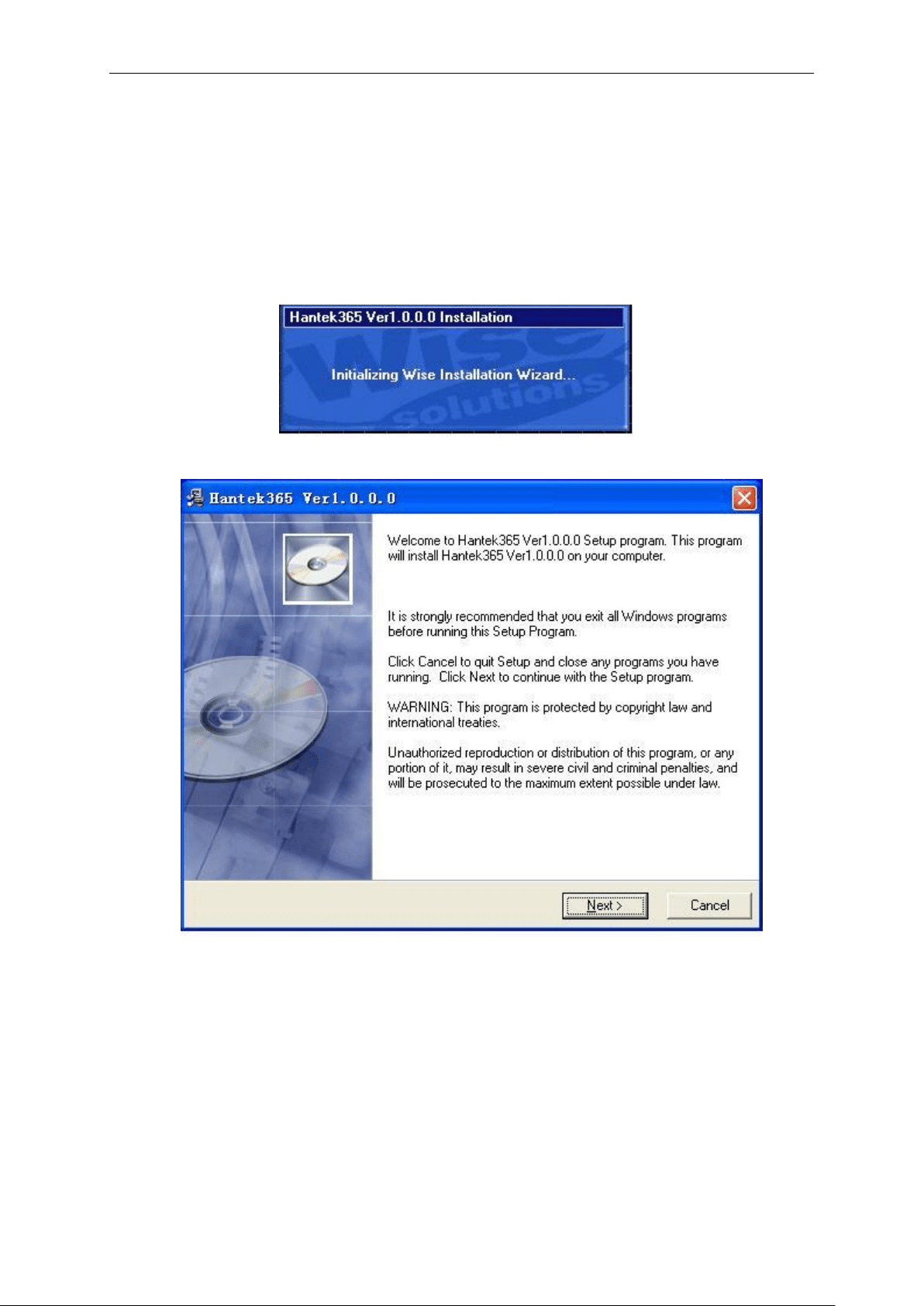
3. The software Installation is started. Click 'Next' to continue.
Getting Start
USER’S MANUAL 8
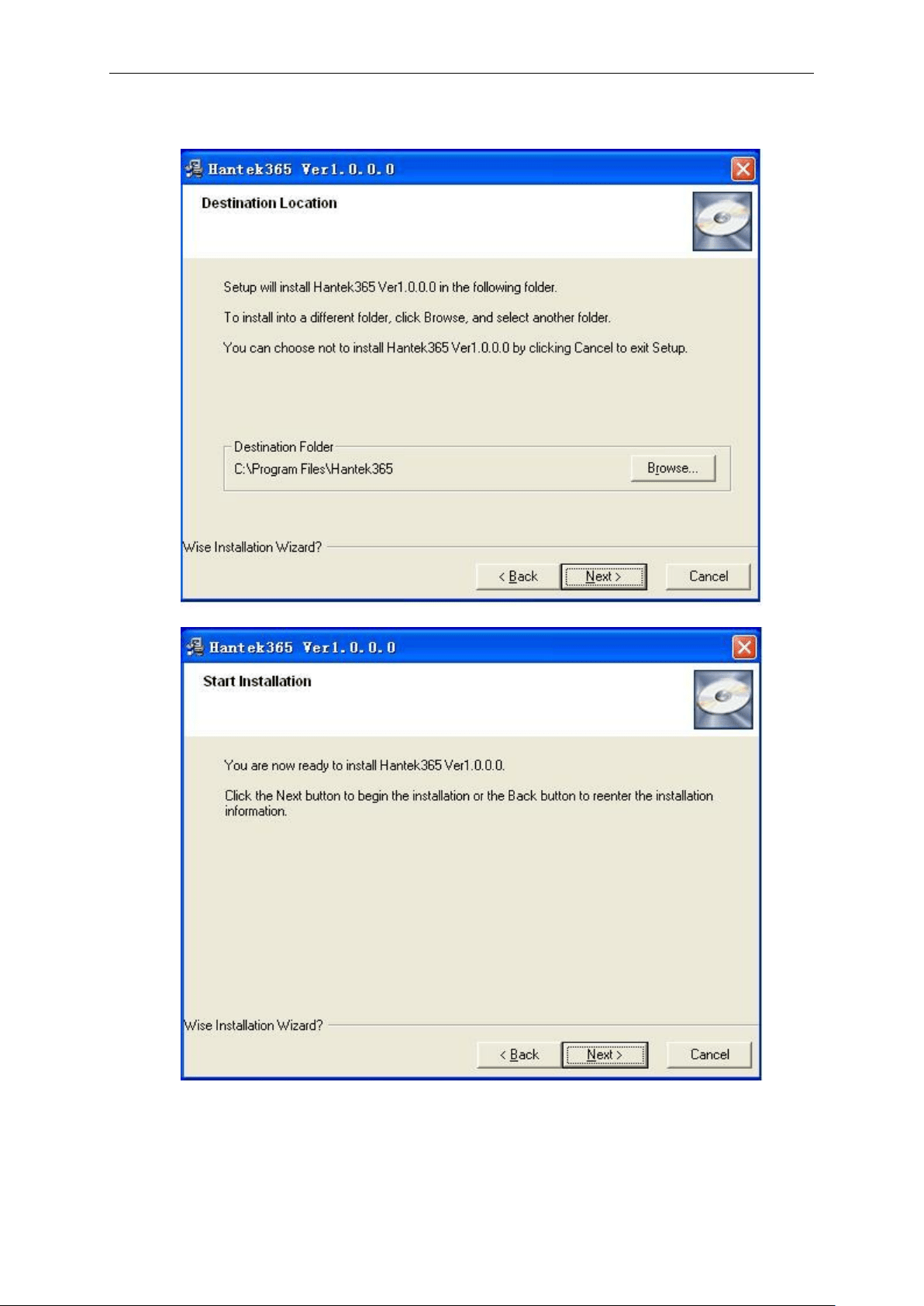
4. Choose a Setup Type directory. Click 'Next' to continue.
Getting Start
USER’S MANUAL 9
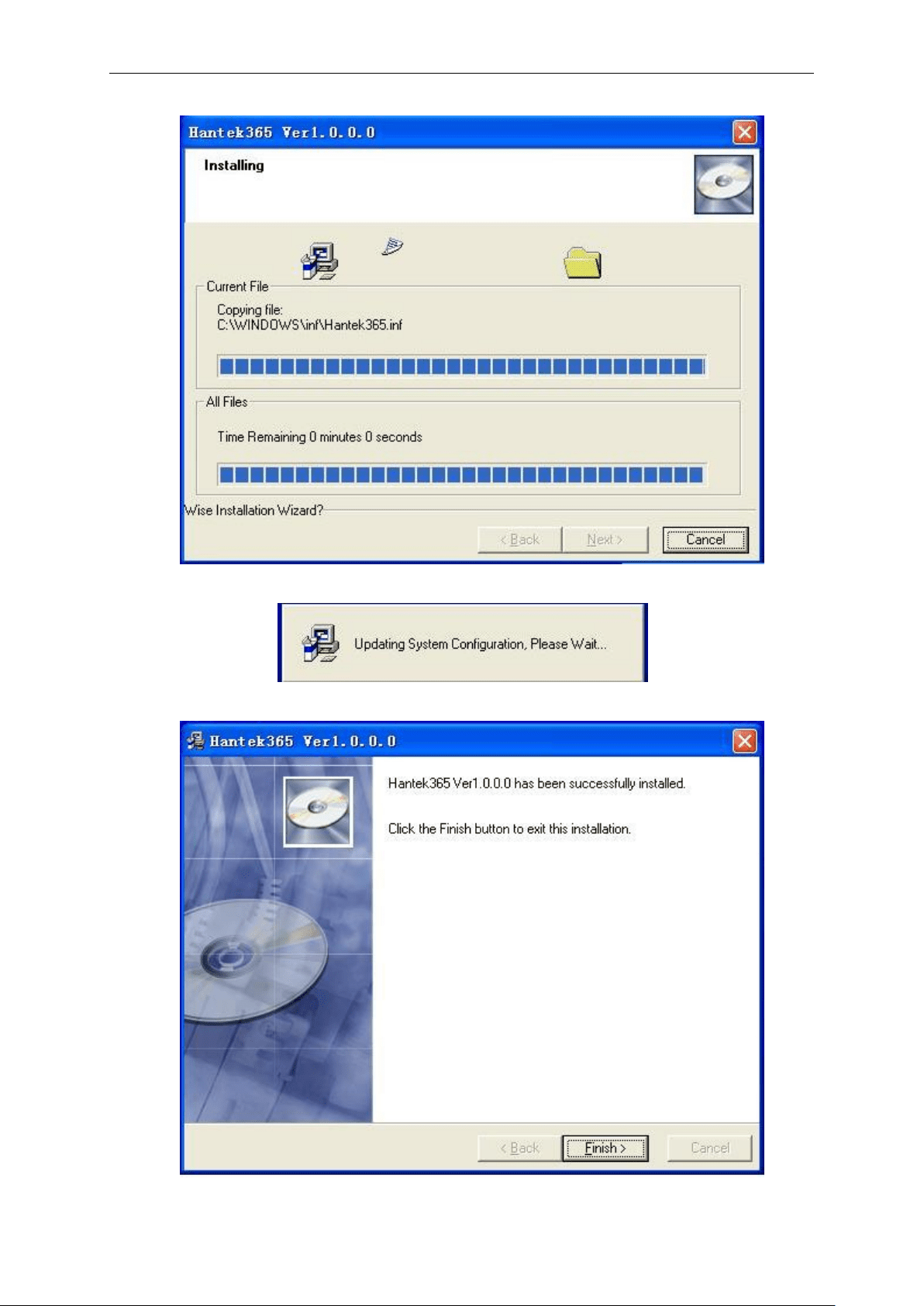
5. Check the setup information. Click Next to start copying of Files.
6. Updating System Configuration.
7. The installation is complete.
Getting Start
USER’S MANUAL 10
1.4 Install Driver
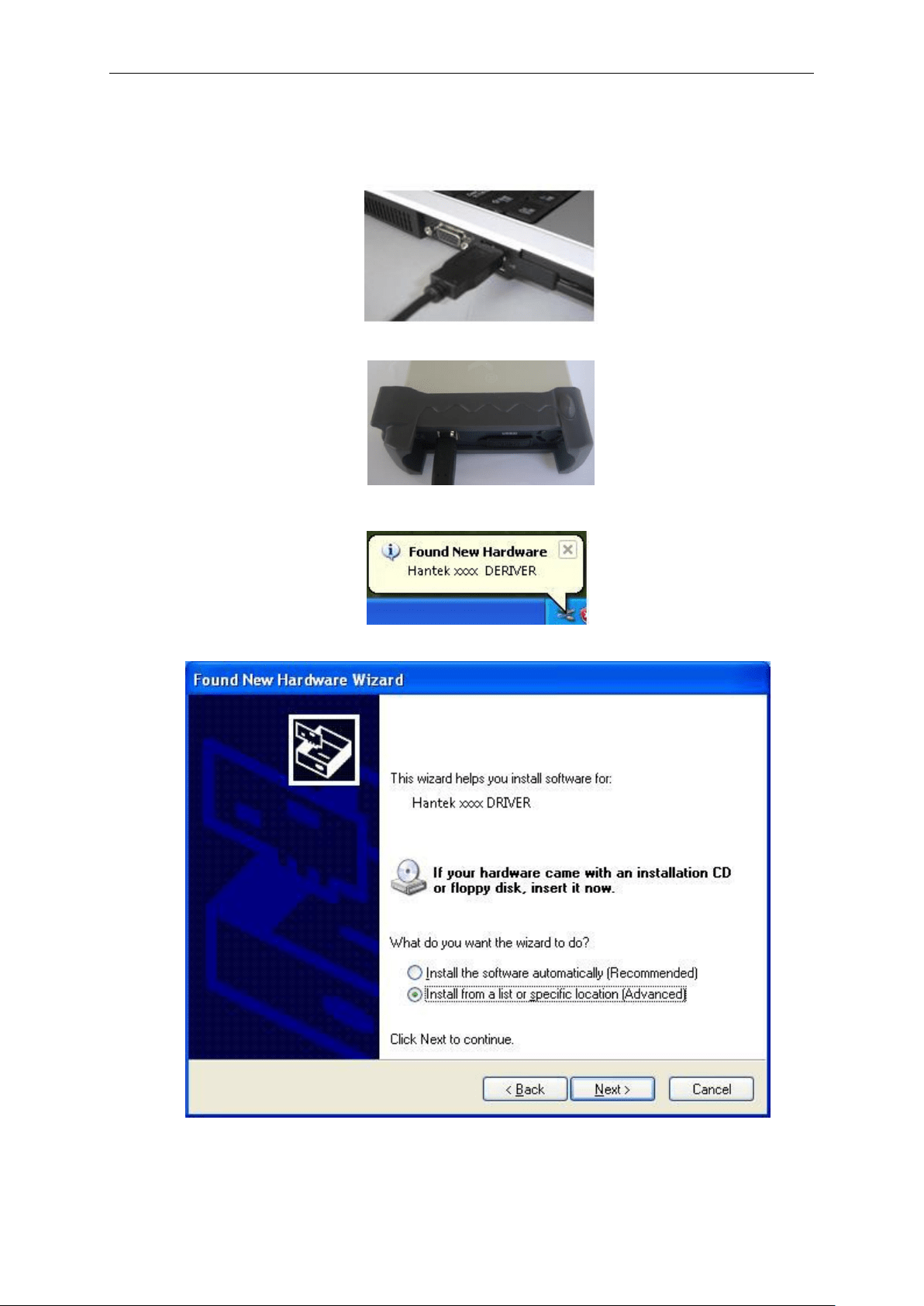
1. Connect the A-Type Plug of USB cable to your PC’S USB port.
2. Connect the B-Type Plug of USB cable to Hantek365’s USB port.
3. New hardware is found.
4. New hardware search wizard starts.
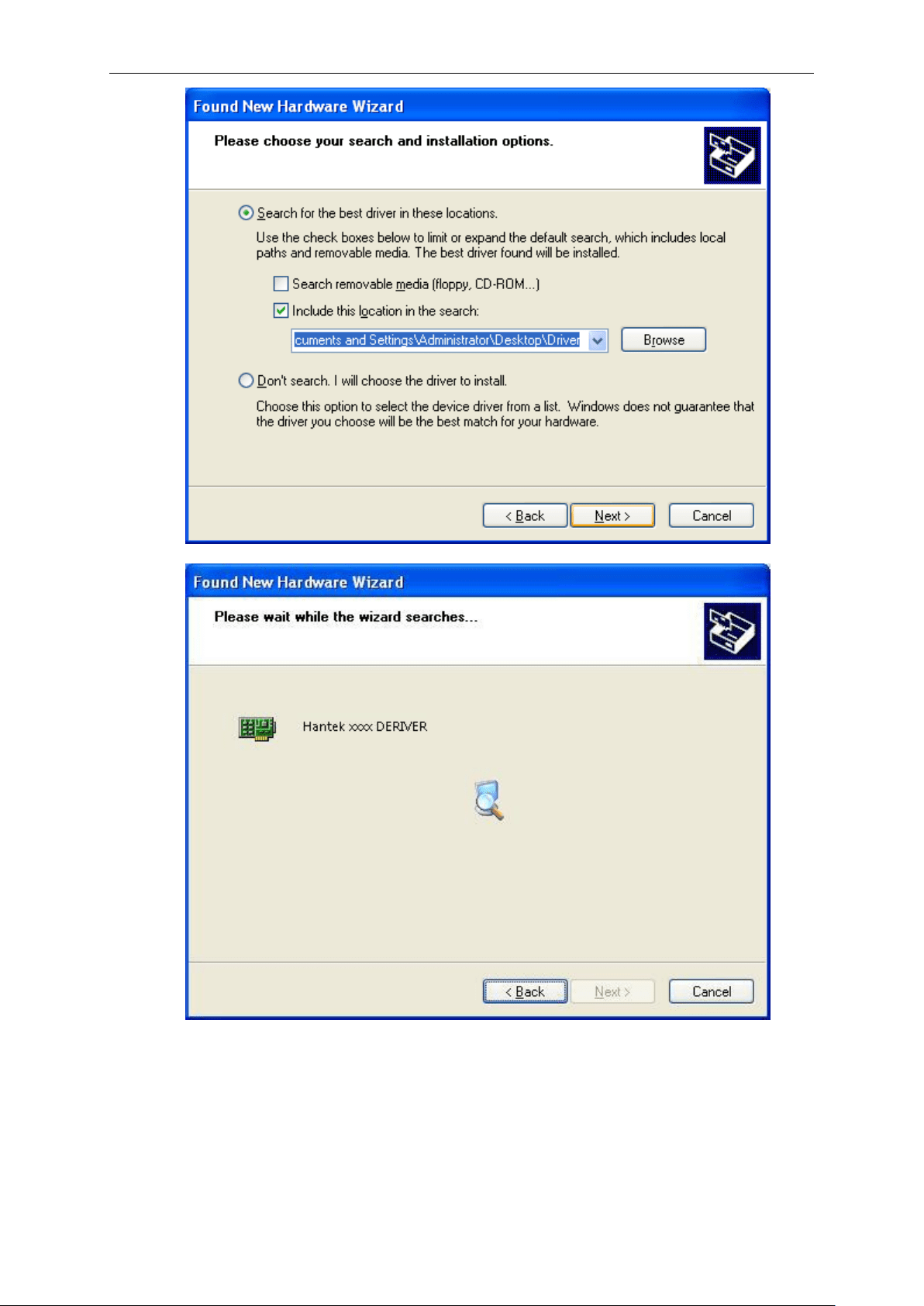
5. New hardware search wizard starts to search the driver.
Getting Start
USER’S MANUAL 11
Getting Start
USER’S MANUAL 12
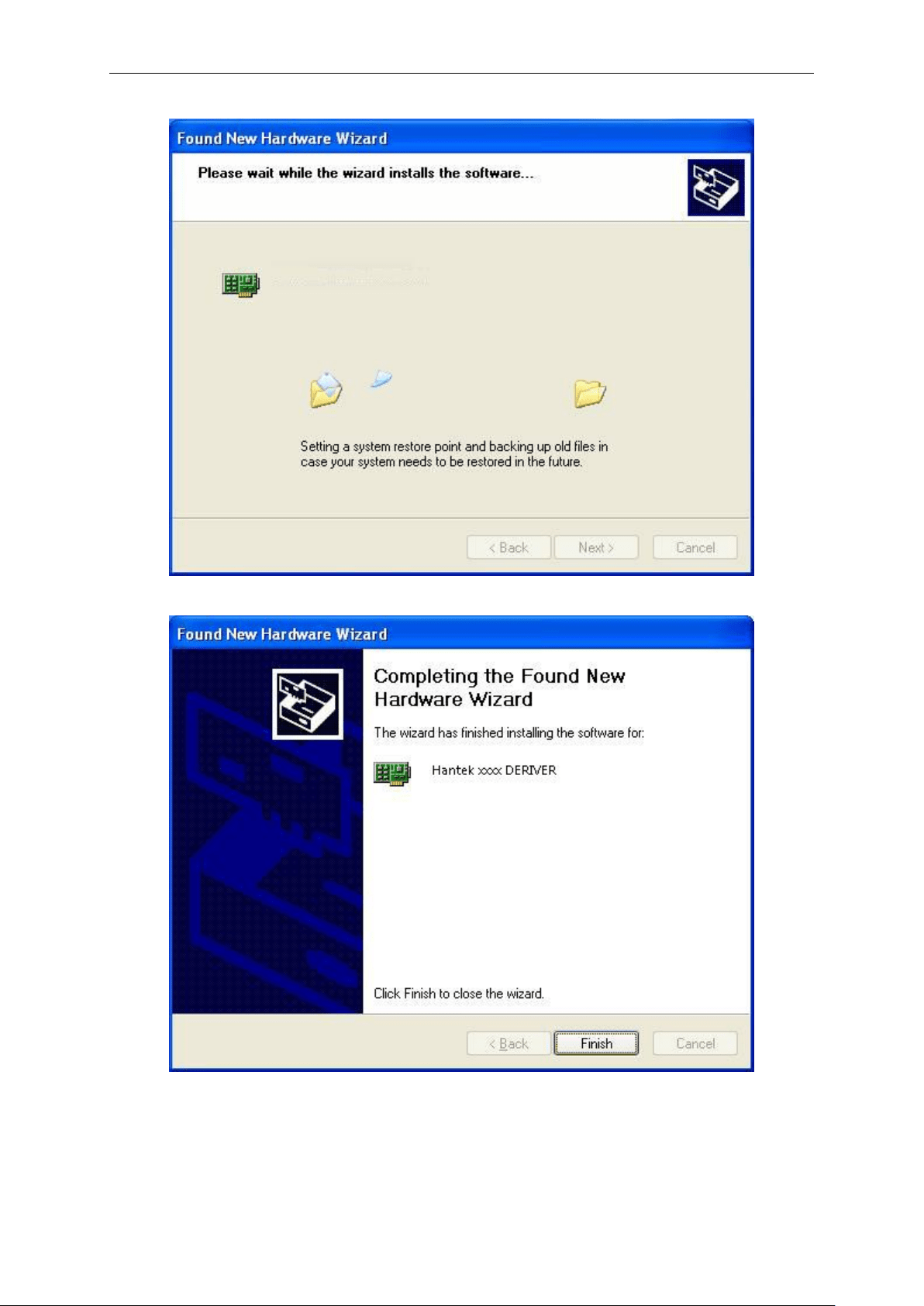
6. New hardware wizard installs “DRIVER”.
7. The wizard has finished installing for “DRIVER”.
Getting Start
USER’S MANUAL 13
1.5 Communication with Bluetooth(Hantek365C/D)
1. Inset the Bluetooth adapter to PC USB port. After waiting for several seconds, install the
bluetooth driver automatically. Open the computer control panel; you will see the bluetooth
icon on the lower right corner of the computer.
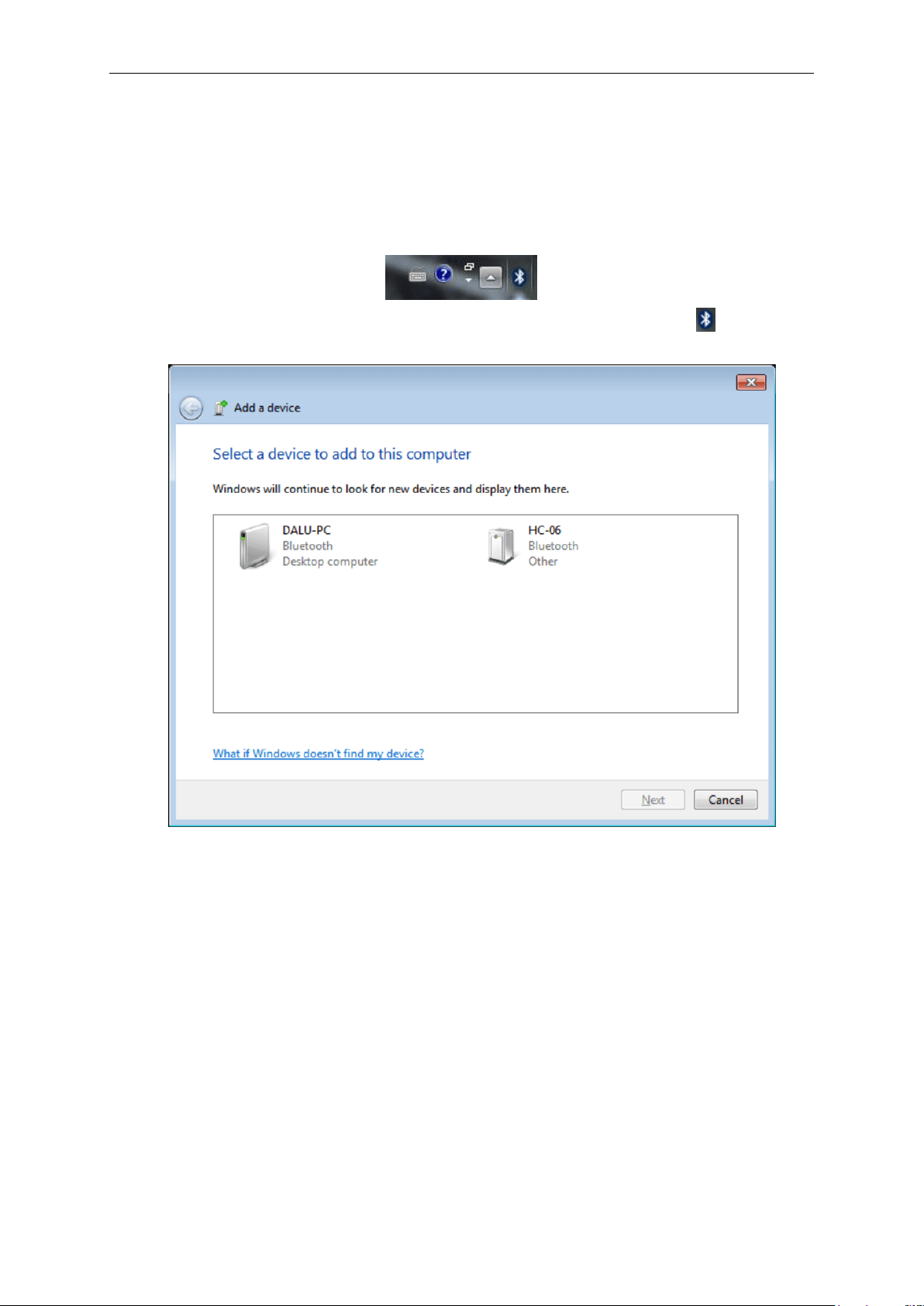
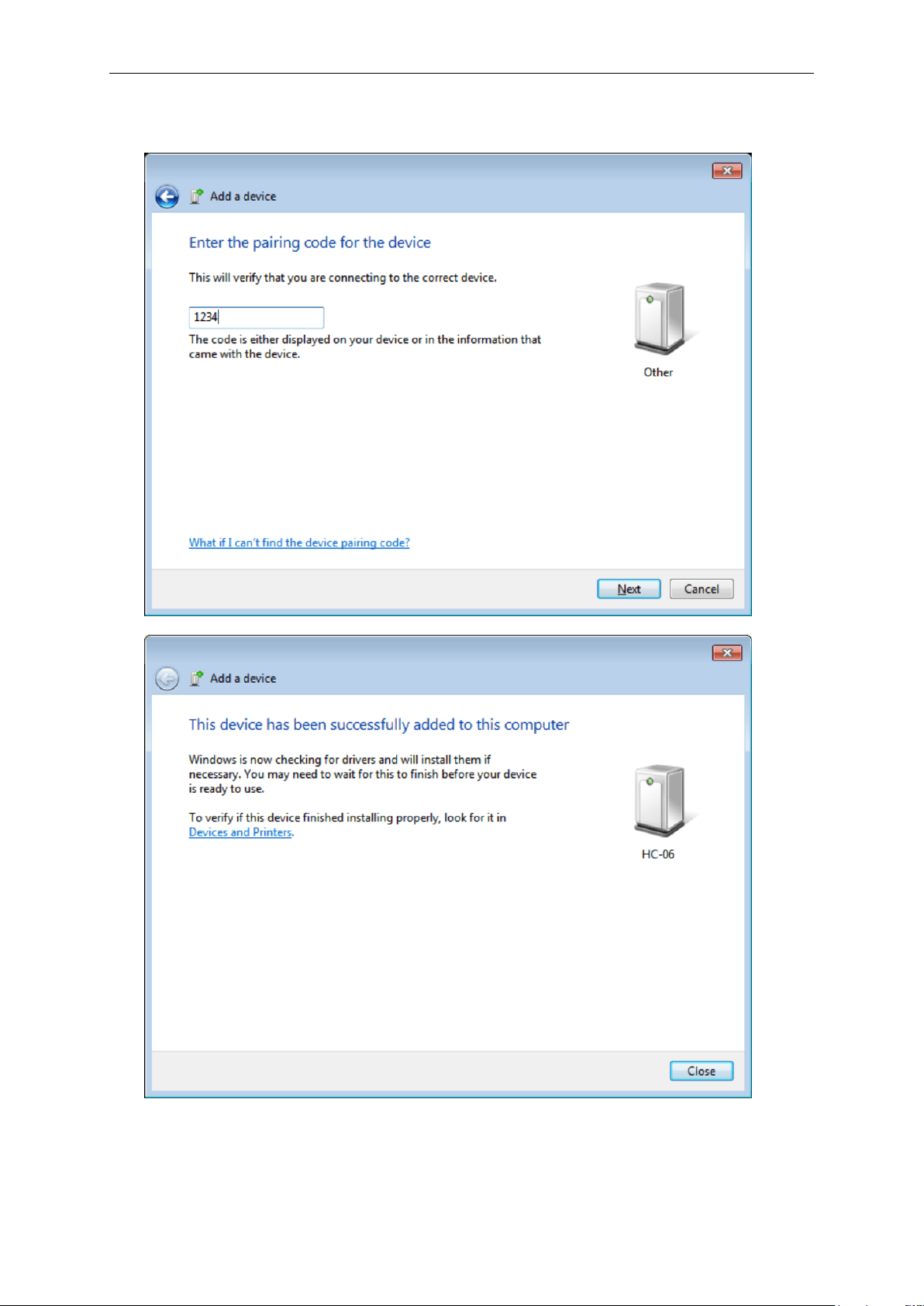
2. Press the switch, and the red light will be on. Double-click the bluetooth icon on the lower
right corner of the computer, and click “Add a device”, select “HC-06”.
Getting Start
USER’S MANUAL 14
3. Next, and input the pairing code “1234”, the device will be successfully added to the
computer.
Getting Start
USER’S MANUAL 15
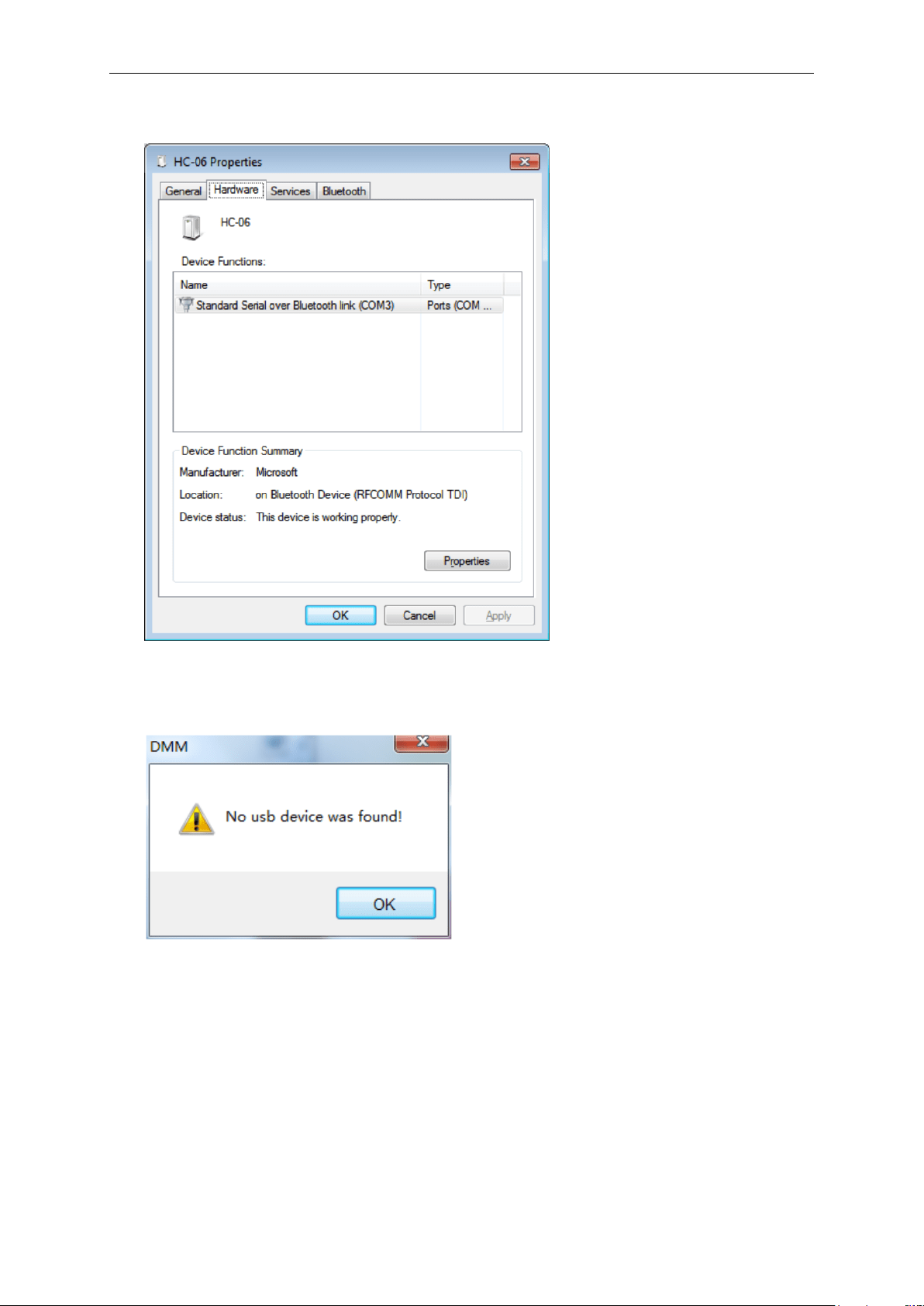
4. Right click “HC-06” icon to look up HC-06 Properties. On the Hardware bar you will check and
remember the COM port number what the bluetooth device uses.
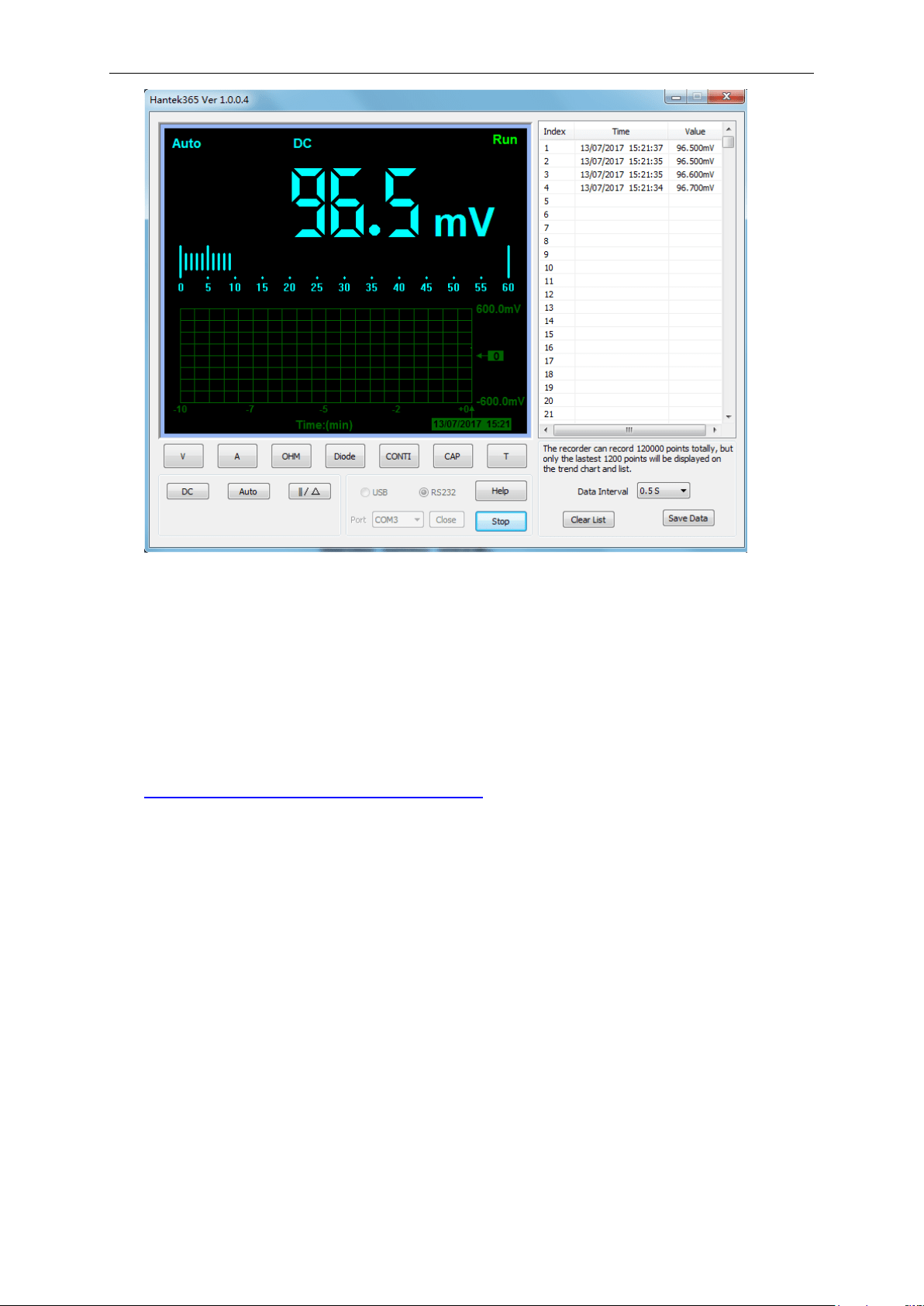
5. Run “Hantek365 USB”, there will have a prompt “No usb device was found”, and please click
“OK”. Now please click “Stop”, and select connection mode to “RS232”. Set Port to the COM
port number. Then click “open”, the software will work normally.
Getting Start
USER’S MANUAL 16
1.6 Communication with Bluetooth(Hantek365E/F)
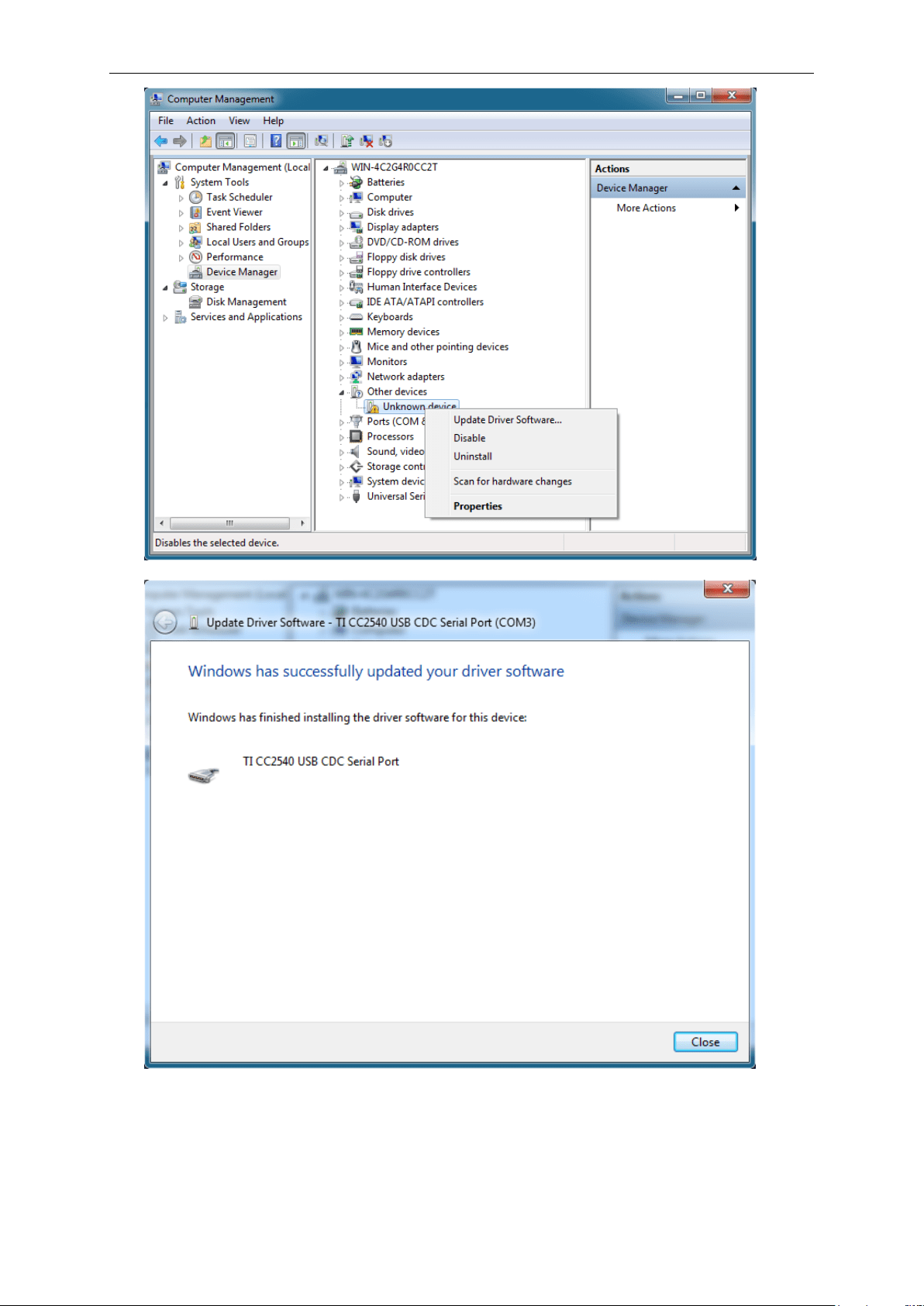
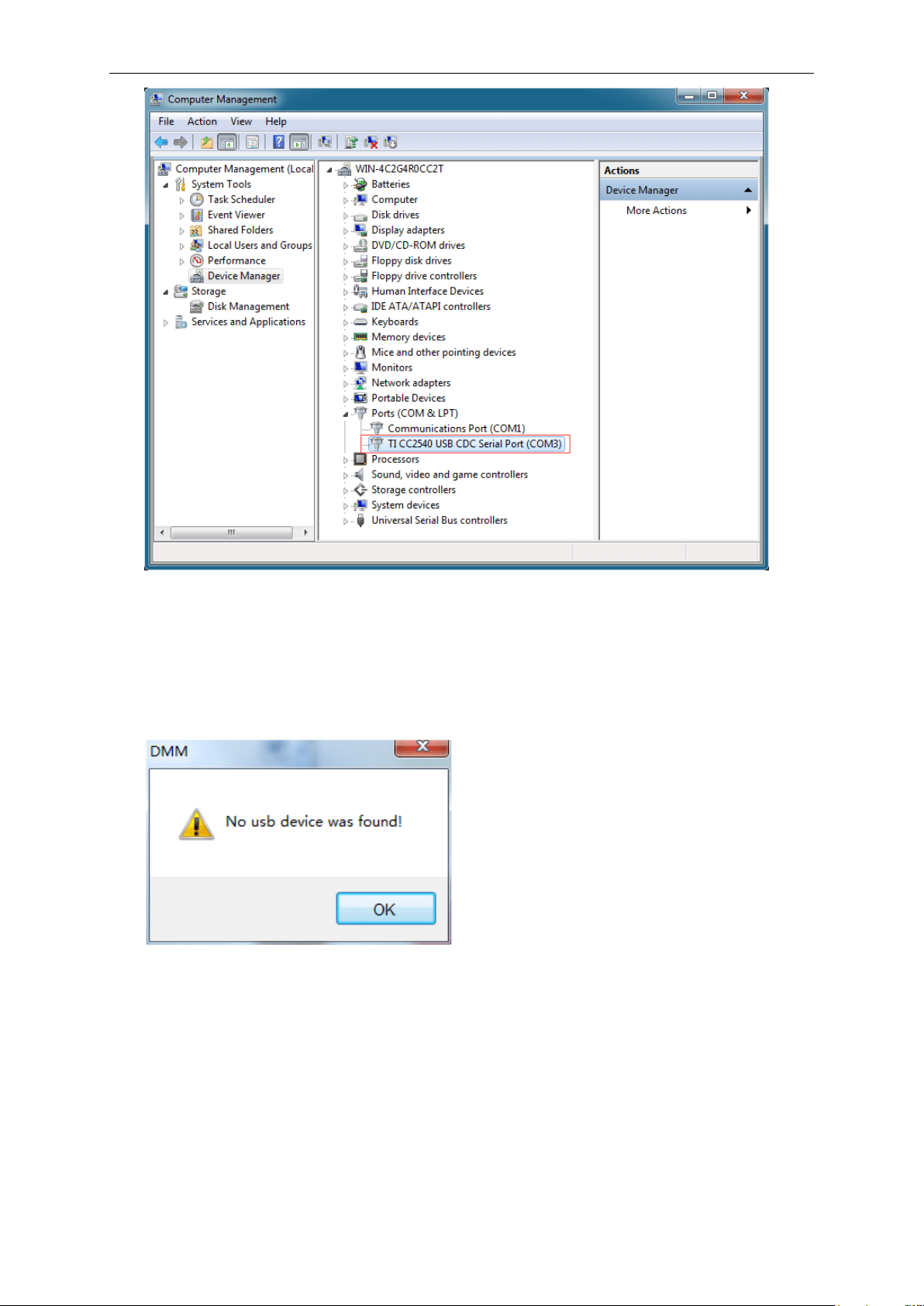
1. Inset the Bluetooth adapter to PC USB port. After waiting for several seconds, right click the
unknown device in the device manager to install the Bluetooth driver manually.
Download the Bluetooth driver on our website:
http://hantek.com/en/ProductDetail_9_156.html
Getting Start
USER’S MANUAL 17
Getting Start
USER’S MANUAL 18
2. Press the power button of the Hantek365 to open. Now, view the indicator of the Bluetooth,
when the indicator stops flashing, the connection between Hantek365 and Bluetooth adapter
is successful.
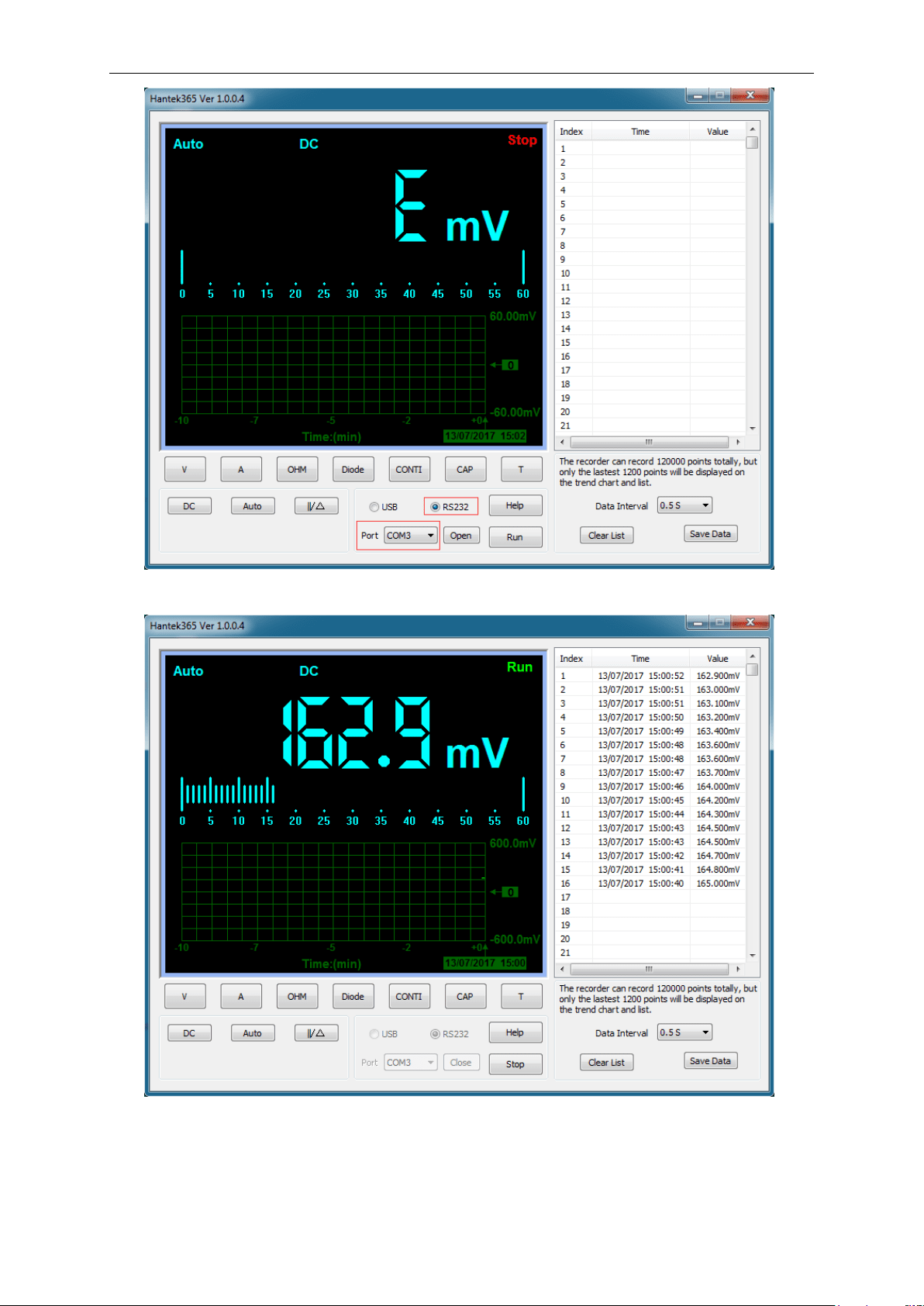
3. Open the Hantek365 software, there will have a prompt “No usb device was found”, and
please click “OK”.
4. Now click “Stop”, and select connection mode to “RS232”. Set the port to the COM port
number of the Bluetooth.
Getting Start
USER’S MANUAL 19
5. Then click “open”, the communication is successful.

Getting Start
USER’S MANUAL 20
Attention:
1. Make sure that the battery has enough power, otherwise the communication is unstable.
2. Computer built-in Bluetooth can not communicate with Hantek365E/F. And the Bluetooth
adapter must be purchased from us to use. Bluetooth adapter purchased by users from other
sources can not be able to connect.

Operating Data Logger
USER’S MANUAL 21
Chapter 2: Operating Data Logger
The user should know how to determine the system setup from the status bar of a Data Logger.
This chapter will give guides to show how to use the menus and perform basic measurements.
Making Voltage Measurement
Making Current Measurement
Measuring Resistance Values
Making a Diode Measurement
Making a Capacitance Measurement
Selecting Automatic/Manual Range Adjustment
Taking a Relative Measurement
Temperature Measurement
Operating Data Logger
USER’S MANUAL 22
2.1 Making Voltage Measurement
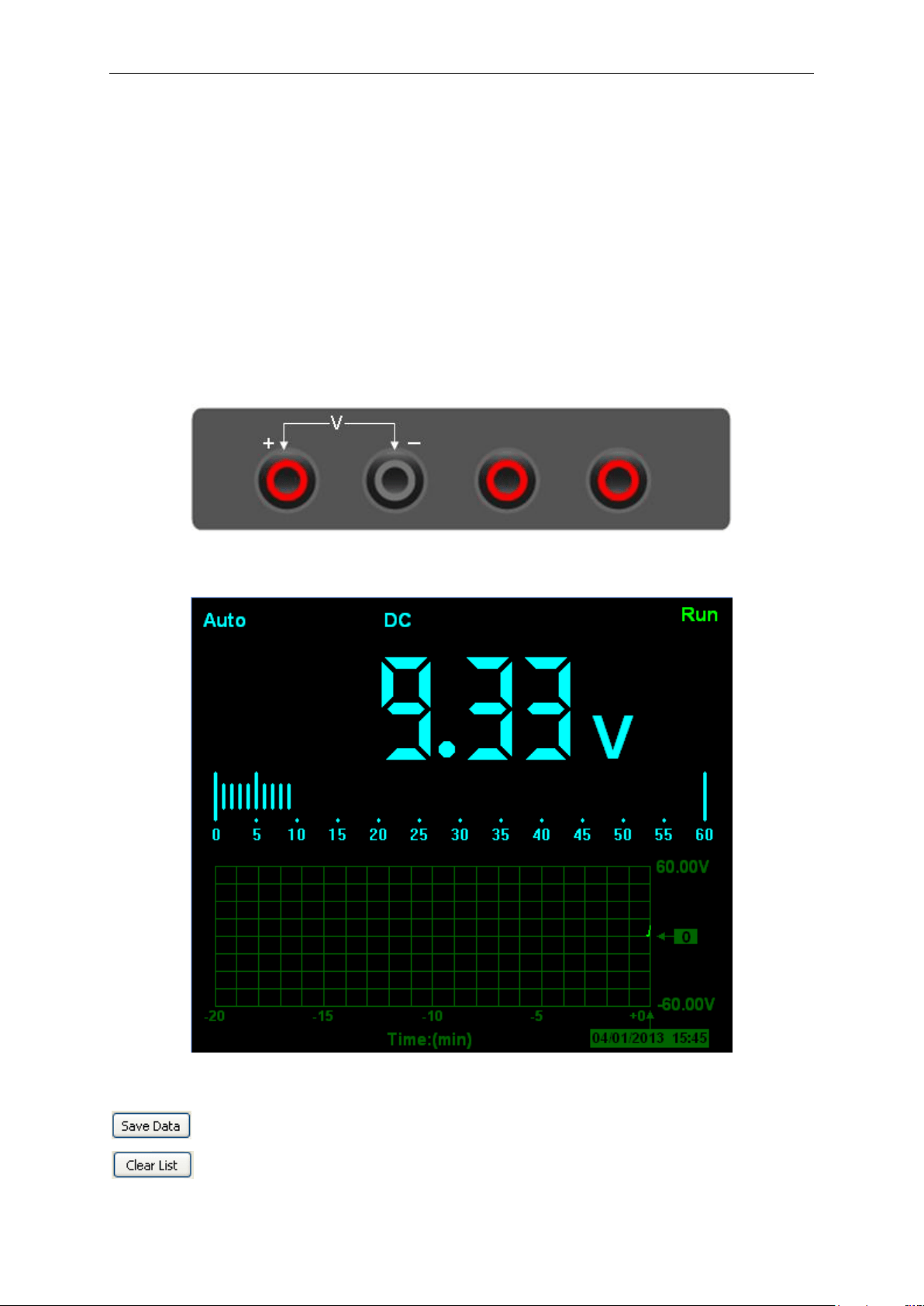
1. Making a DC Voltage Measurement
To measure a DC voltage, follow these steps:
1. Click the “V” key and DC appears at the top of the screen.
2. Connect the black lead into the COM banana jack input and the red lead into the V/Ω/C banana
jack input.
3. Connect the red and black leads to the measured points and the voltage value of measured
points is displayed on the screen.
Connect Data Logger probes(HT325) with Hantek365 as illustrated in the following figure:
Figure 2-1
Then, the following figure will be displayed:
Figure 2-2 DC Voltage Measurement
: Save data as .txt.
: Clear the right data list.
Operating Data Logger
USER’S MANUAL 23
: Start to acquire data.
: Get users’ help.
: Set data interval 1s, 2s, 5s, 10s.
2. Making an AC Voltage Measurement
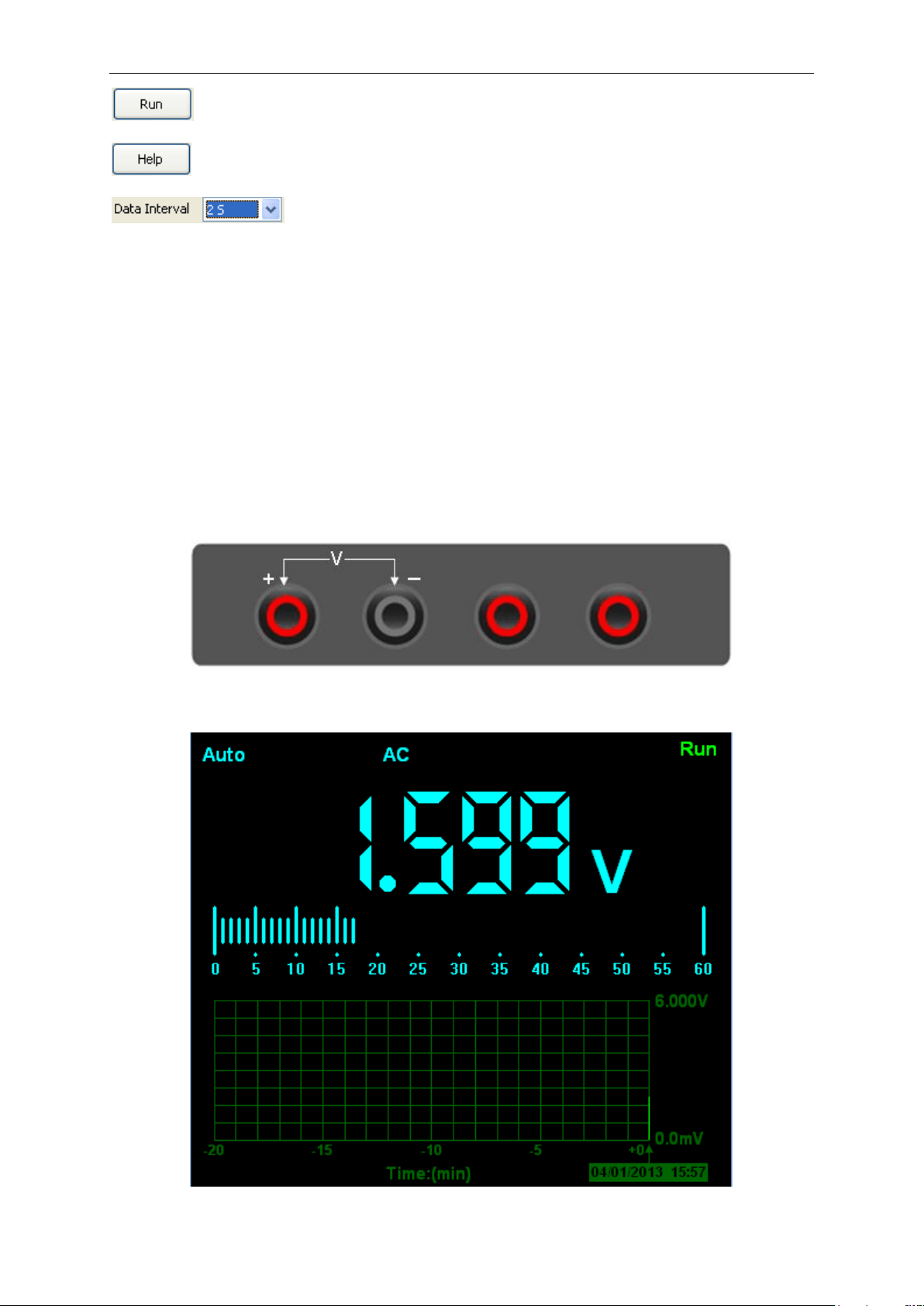
To measure the AC voltage, follow these steps:
1) Click the “V” key and DC appears on the screen.
2) Click “DC” key and AC appears on the screen.
3) Connect the black lead into the COM banana jack input and the red lead into the V/Ω/C banana
jack input.
4) Connect the red and black leads to the measured points and the AC voltage value of measured
points will be displayed on the screen.
Connect Data Logger probes(HT325) with Hantek365 as illustrated in the following figure:
Figure 2-3
Then, the following figure will be displayed:
Figure 2-4 AC Voltage Measurement
Operating Data Logger
USER’S MANUAL 24
The user can select Auto measure and Manual measure. Voltage range can be set 60.00mV,
600.0mV, 6.000V, 60.00V, 600.0V.
2.2 Making Current Measurement
1. Making a DC Current Measurement
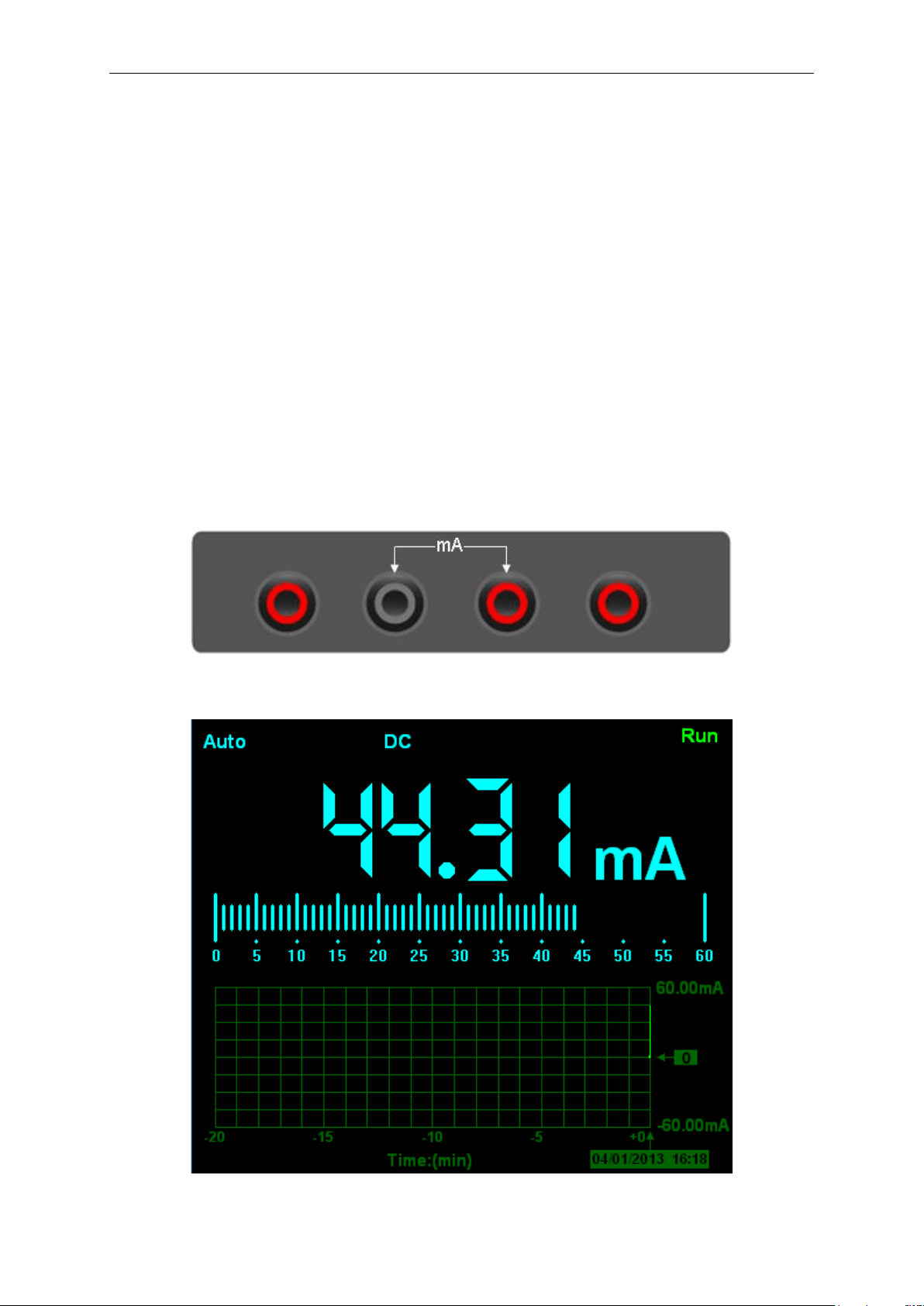
To measure a DC current which is less than 600mA, follow these steps:
1) Click the “A” key and then “DC” appears on the screen. The unit on the main reading screen is
“mA”. Click “A” key to switch the measurement between mA and A. The default is 600mA. Click
“Auto” key to switch the measurement range from 60mA to 600mA.
2) Connect the black lead into the COM banana jack input and the red lead into the mA banana
jack input.
3) Connect the red and black leads to the measured points and the DC current value of measured
points will be displayed on the screen.
Connect Data Logger probes(HT325) with Hantek365 as illustrated in the following figure:
Figure 2-5
Then, the following figure will be displayed on the screen:
Figure 2-6 DC current Measurement for 600mA
Operating Data Logger
USER’S MANUAL 25
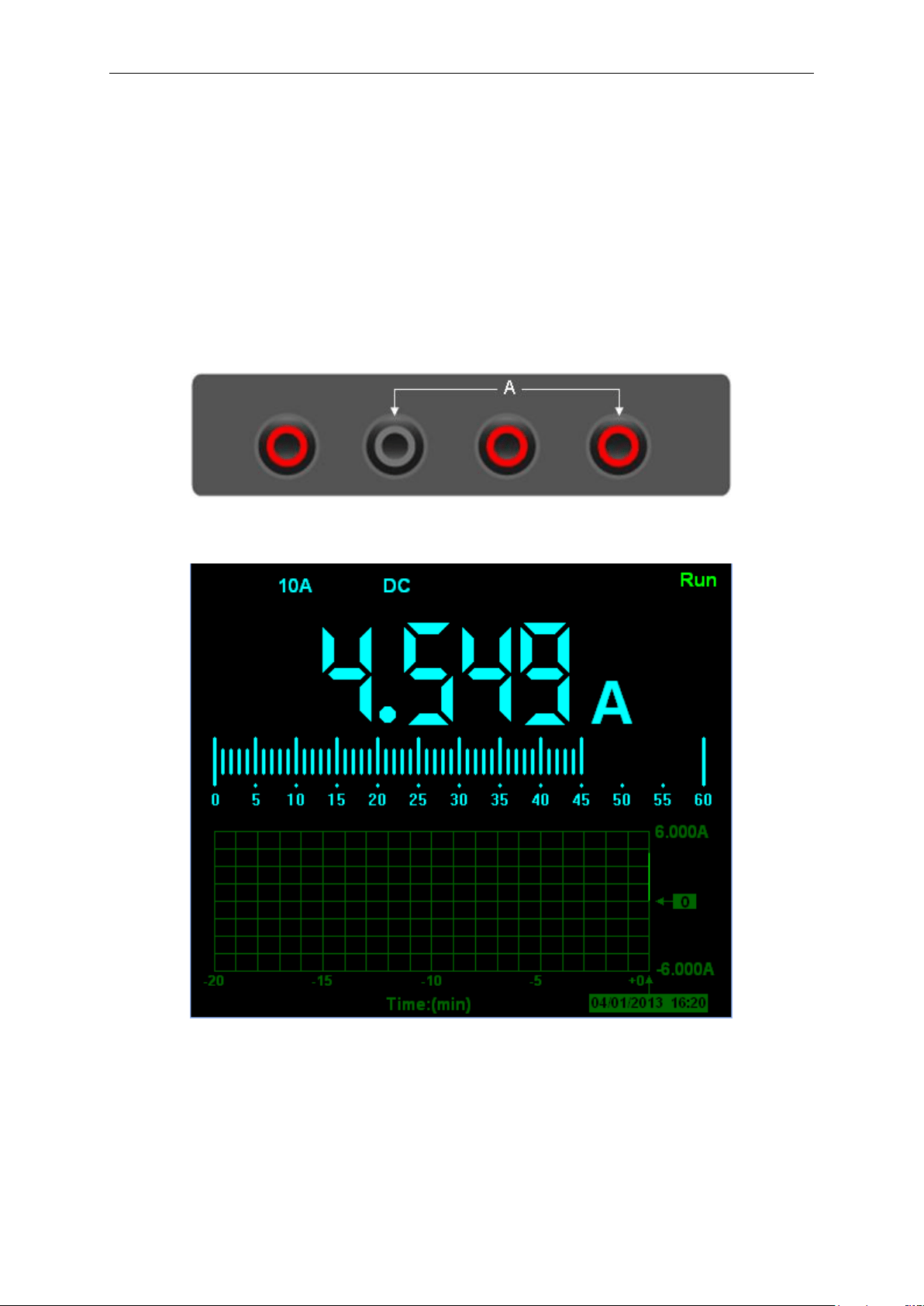
To measure a DC current which is larger than 600mA, follow these steps:
1) Click the “A” key and then “DC” appears on the screen. The unit on the main reading screen is
mA.
2) Click “A” key to switch to 10A measurement, the unit on the main reading screen is A.
3) Connect the black lead into the COM banana jack input and the red lead into the 10A banana
jack input.
4) Connect the red and black leads to the measured points and the DC current value of the
measured points will be displayed on the screen.
5) Click “A” to return to 600mA measurement.
Connect Data Logger probes(HT325) with Hantek365 as illustrated in the following figure:
Figure 2-7
Then, the following figure will be displayed on the screen:
Figure 2-8 DC current Measurement for 10A
2. Making an AC Current Measurement
To measure an AC current which is less than 600mA, follow these steps:
1) Click the “A” key and then “DC” appears on the screen. The unit on the main reading screen is
“mA”, and “mA” will display on the screen, Click “mA” to switch the measurement between mA and
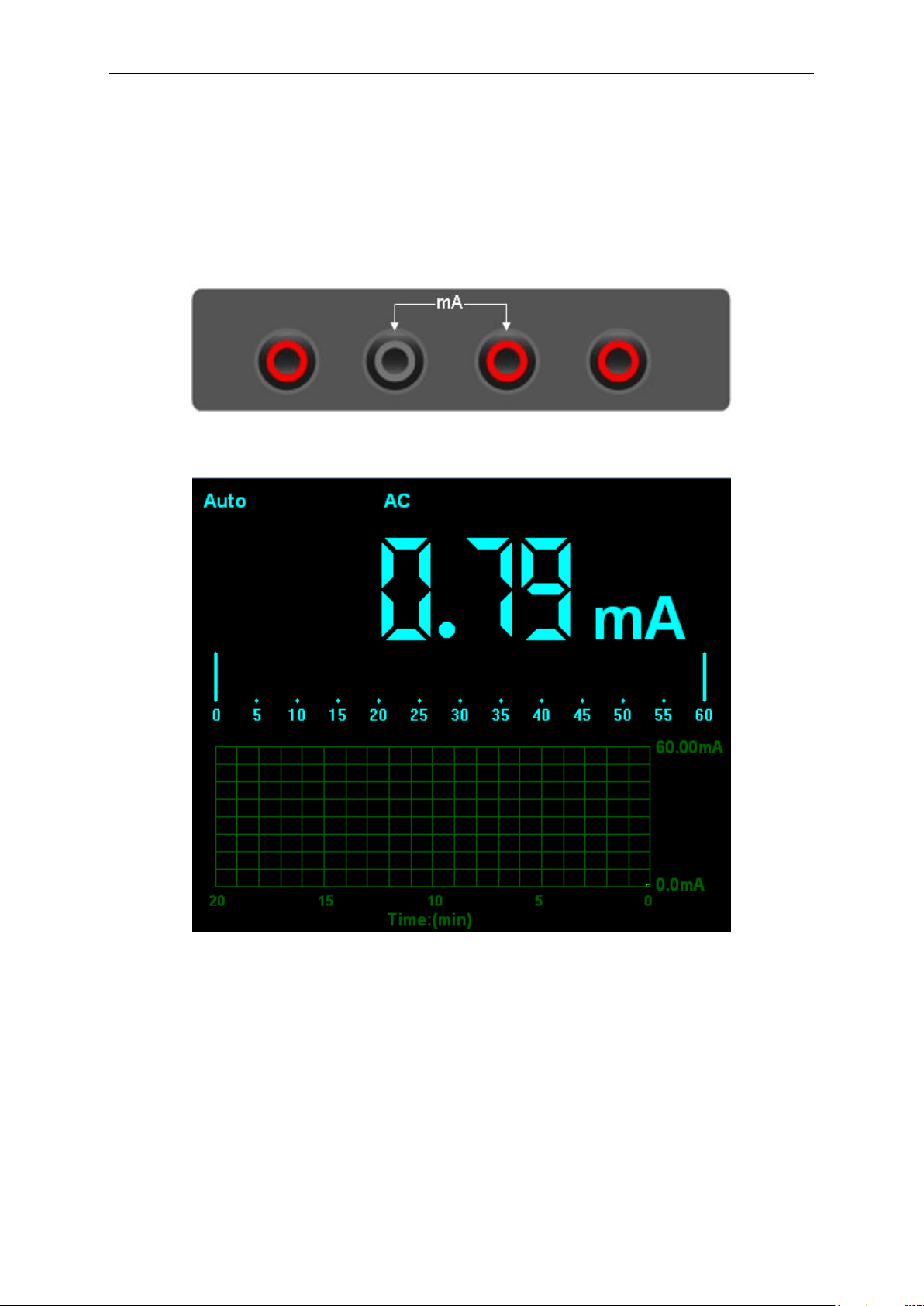
Operating Data Logger
USER’S MANUAL 26
10A. The default is 600mA.
2) Click “DC” key and AC will display on the screen.
3) Connect the black lead into the COM banana jack input and the red lead into the mA banana
jack input.
4) Connect the red and black leads to the measured points and the AC current value of measured
points will be displayed on the screen.
Connect Data Logger probes(HT325) with Hantek365 as illustrated in the following figure:
Figure 2-9
Then, the following figure will be displayed on the screen:
Figure 2-10 AC current Measurement for 600mA
To measure an AC current which is larger than 600mA, follow these steps:
1) Click the “A” key and then “DC” appears on the screen. The unit on the main reading screen is
mA.
2) Click the “DC” key and then “AC” appears on the screen.
3) Click “mA” key to switch to10A measurement, the unit on the main reading screen is A.
4) Insert the black lead into the COM banana jack input and the red lead into the 10A banana jack
input.
5) Connect the red and black leads to the measured points and the AC current value of the
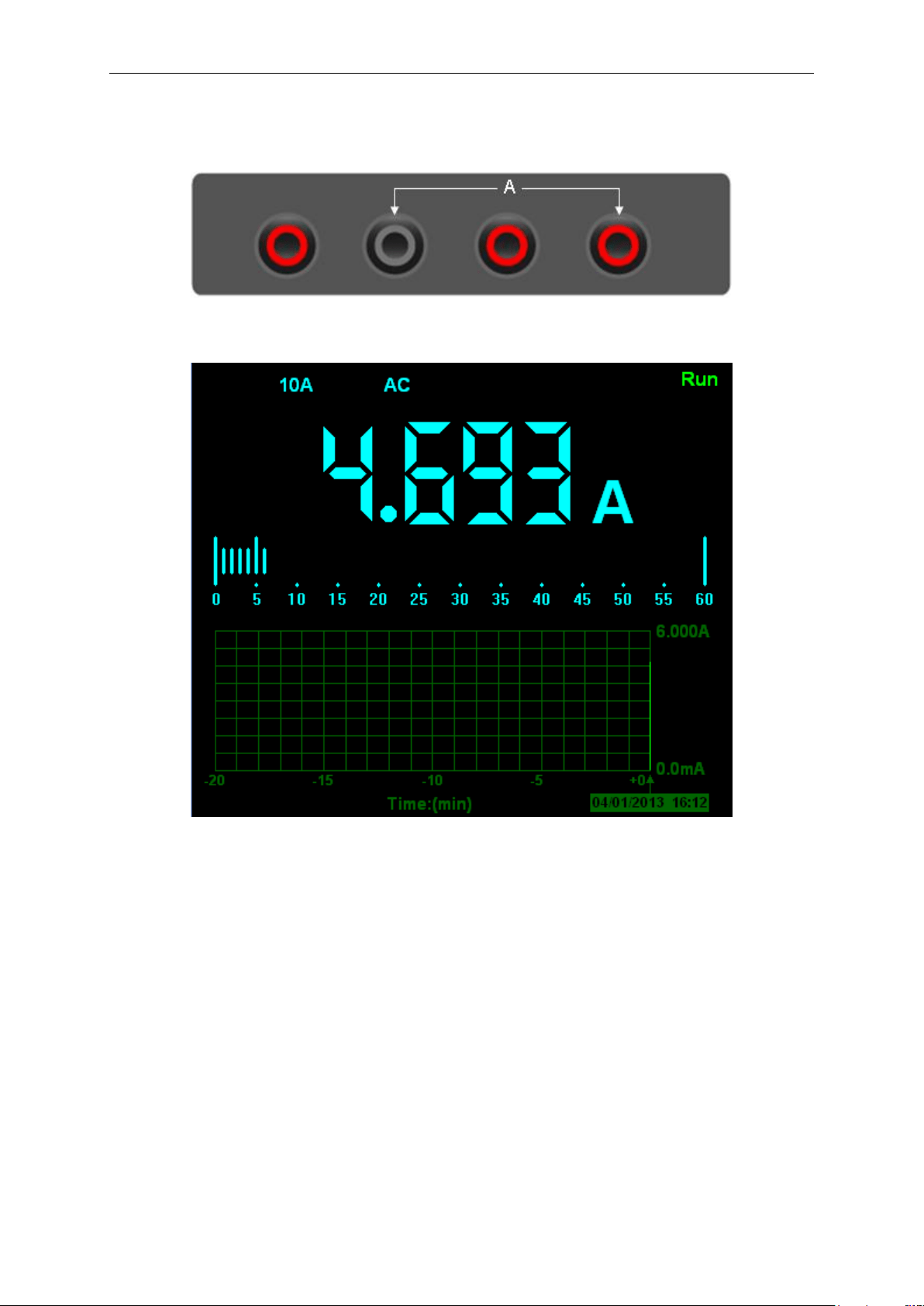
Operating Data Logger
USER’S MANUAL 27
measure points will be displayed on the screen.
6) Click “A” to return to 600mA measurement.
Connect Data Logger probes(HT325) with Hantek365 as illustrated in the following figure:
Figure 2-11
Then, the following figure will be displayed on the screen:
Figure 2-12 AC current Measurement for 10A
2.3 Measuring Resistance Values
To measure a resistance, follow these steps:
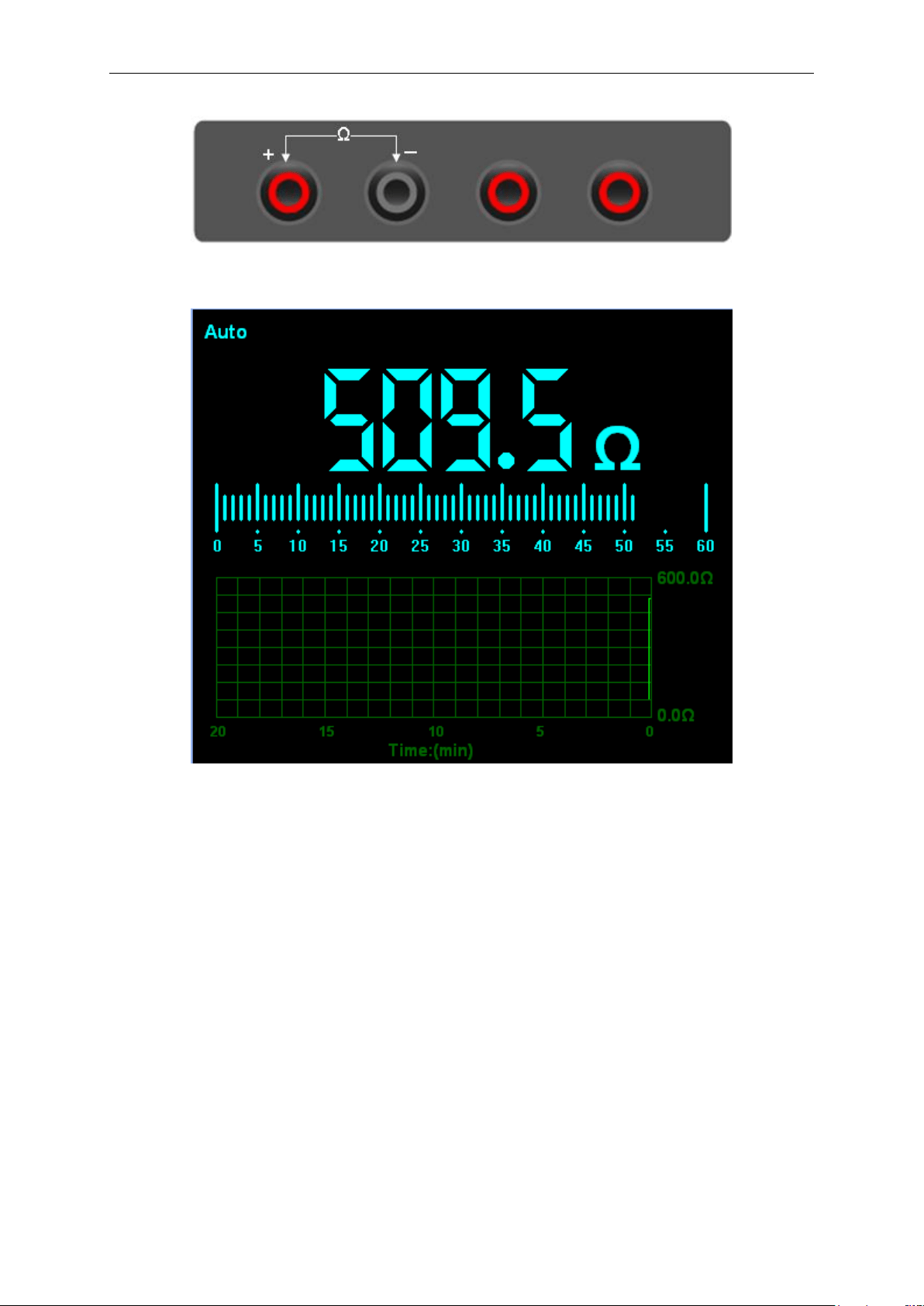
1) Click the “OHM” key and then resistance measurement window appears on the screen.
2) Connect the black lead into the COM banana jack input and the red lead into the V/Ω/C banana
jack input.
3) Connect the red and black test leads to the resistor. The resistance value is shown on the
screen in Ohm.
Operating Data Logger
USER’S MANUAL 28
Connect Data Logger probes(HT325) with Hantek365 as illustrated in the following figure:
Figure 2-13
Then, the following figure will be displayed on the screen:
Figure 2-14 Resistance Measurement
2.4 Making a Diode Measurement
To make a measurement on the diode, follow these steps:
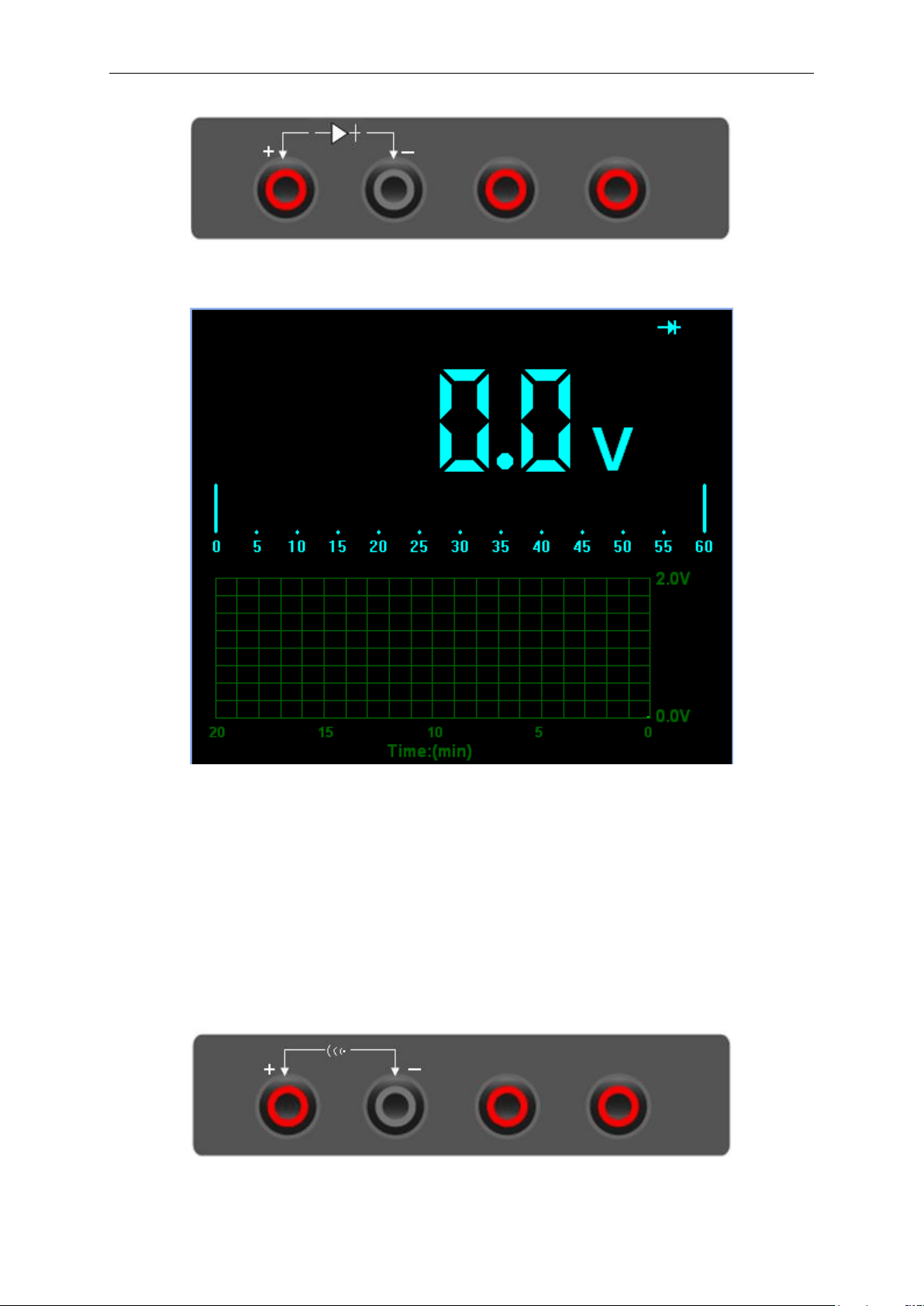
1) Click the “Diode” key and a diode symbol appears at the top of the screen.
2) Connect the black lead into the COM banana jack input and the red lead into the V/Ω/C banana
jack input.
3) Connect the red and black leads to the diode and the voltage value of the diode is displayed on
the screen in volt.
Operating Data Logger
USER’S MANUAL 29
Connect Data Logger probes(HT325) with Hantek365 as illustrated in the following figure:
Figure 2-15
Then, the following figure will be displayed on the screen:
Figure 2-16 Diode Measurement
To perform an On-Off test, follow these steps:
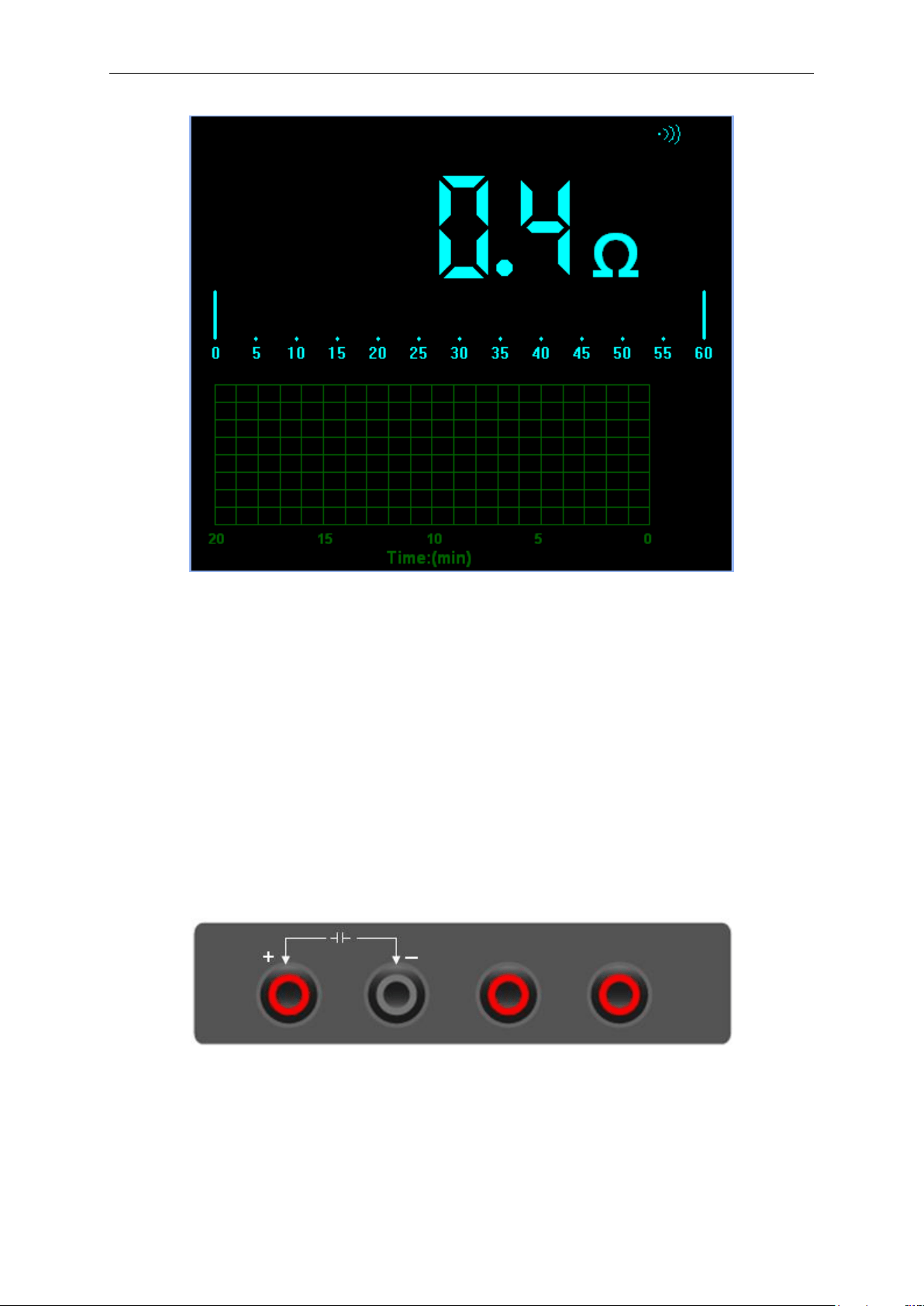
1) Click the “CONTI” key and then On-Off indictor appears on the top of the screen.
2) Connect the black lead into the COM banana jack input and the red lead into the V/Ω/C banana
jack input.
3) Connect the red and black leads to the tested points. If the resistance value of the test points is
less than 10 Ω, you will hear beep sound from the test tool.
Connect Data Logger probes(HT325) with Hantek365 as illustrated in the following figure:
Figure 2-17
Operating Data Logger
USER’S MANUAL 30
Then, the following figure will be displayed on the screen.
Figure 2-18 On-Off Measurement
2.5 Making a Capacitance Measurement
To measure a capacitance, follow these steps:
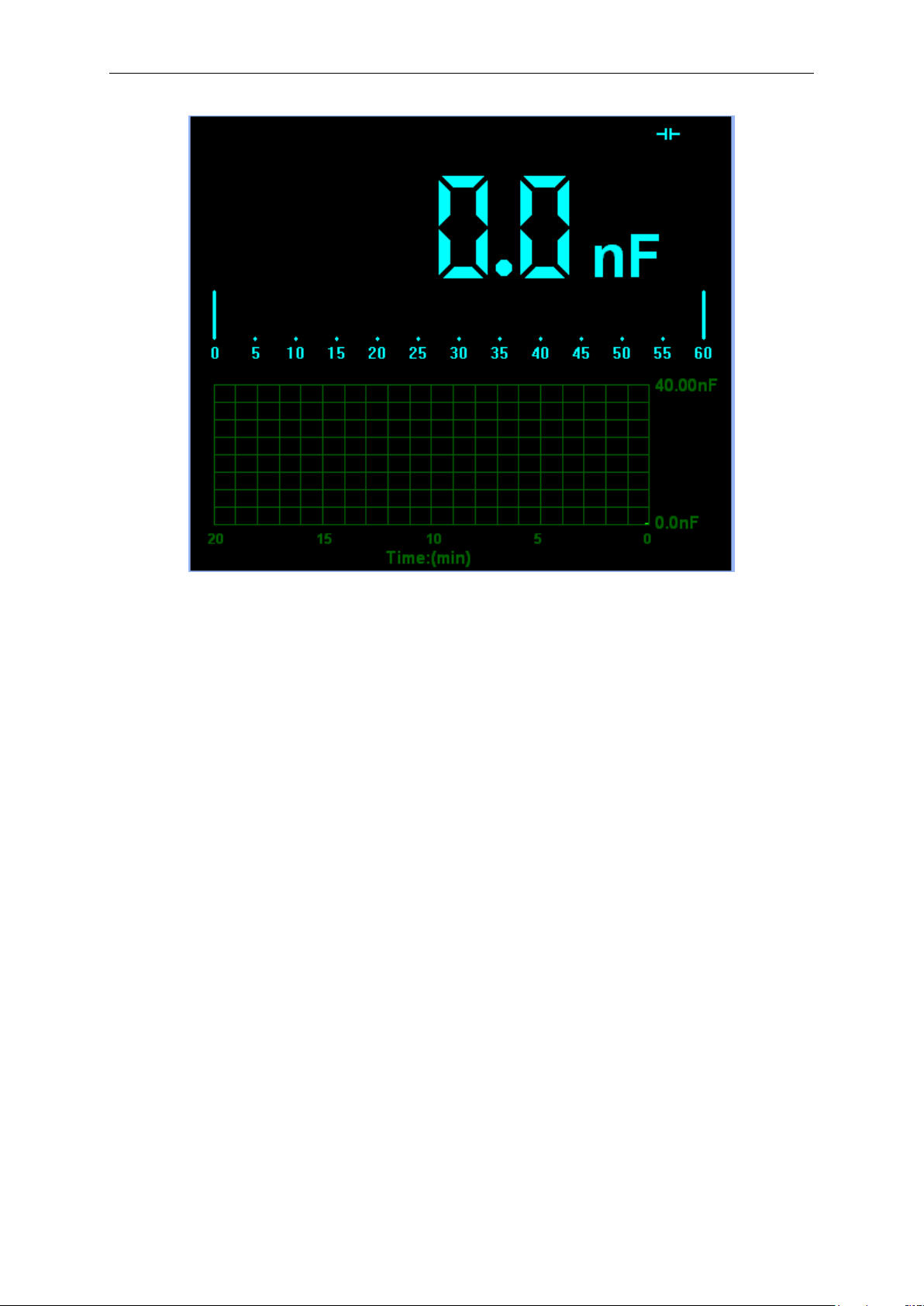
1) Click the “CAP” key and a capacitor symbol appears on the top of the screen.
2) Connect the black lead into the COM banana jack input and the red lead into the V/Ω/C banana
jack input.
3) Connect the red and black leads to the capacitor and the capacitance value is displayed on the
screen in μF or nF.
Connect Data Logger probes(HT325) with Hantek365 as illustrated in the following figure:
Figure 2-19
Operating Data Logger
USER’S MANUAL 31
Then, the following figure will be displayed on the screen.
Figure 2-20 Capacitance Measurement
2.6 Selecting Automatic/Manual Range Adjustment
The default range mode of the instrument is automatic range. If you are using the DC/AC
mode, to switch to the manual range, do these steps:
1) Click “Auto” key to enter the manual range mode and then Manual is displayed on the top of the
screen.
2) Under the manual range mode, the measuring range is increased by a stage, Click “Auto” to
switch manual.
3) Click “Manual” key to switch back to the automatic range mode and then Auto is displayed on
the top of the screen.
Attention: capacitance measurement without manual range mode.
2.7 Taking a Relative Measurement
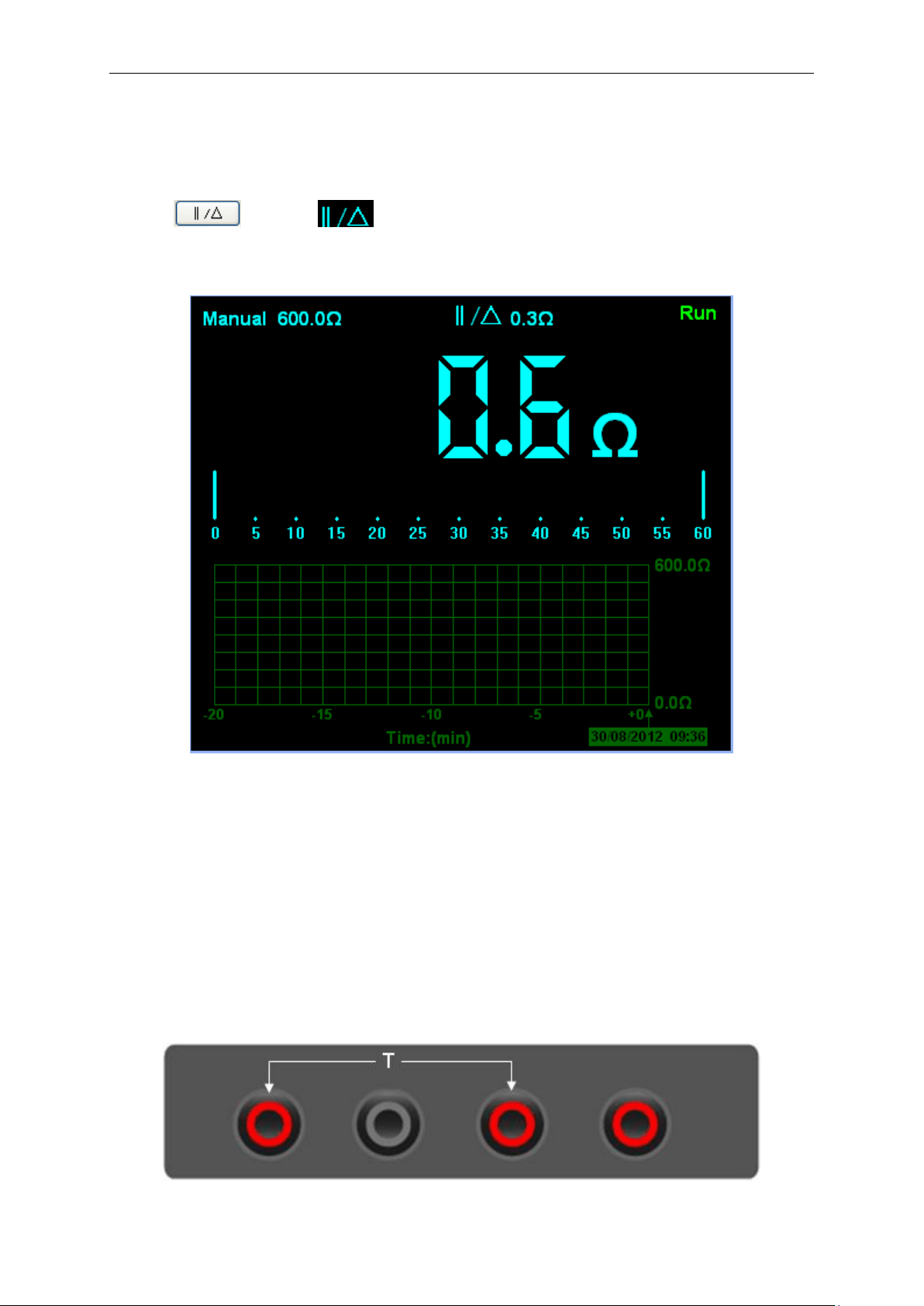
A currently measured result relative to the defined reference value is displayed in a relative
measurement.
The following example shows how to take a relative measurement. At first, it is required to
acquire a reference value.
Operating Data Logger
USER’S MANUAL 32
1) Click the V/A/OHM/CAP key.
2) Connect the black lead into the COM banana jack input and the red lead into the V//Ω/C
banana jack input.
3) Connect the red and black test leads to the tested device. The value is shown on the screen.
4) Click key then is displayed on the top of the screen. The saved reference
value is displayed beside.
Then, the following figure will be displayed on the screen.
Figure 2-21 Relative Measurement
2.8 Temperature Measurement
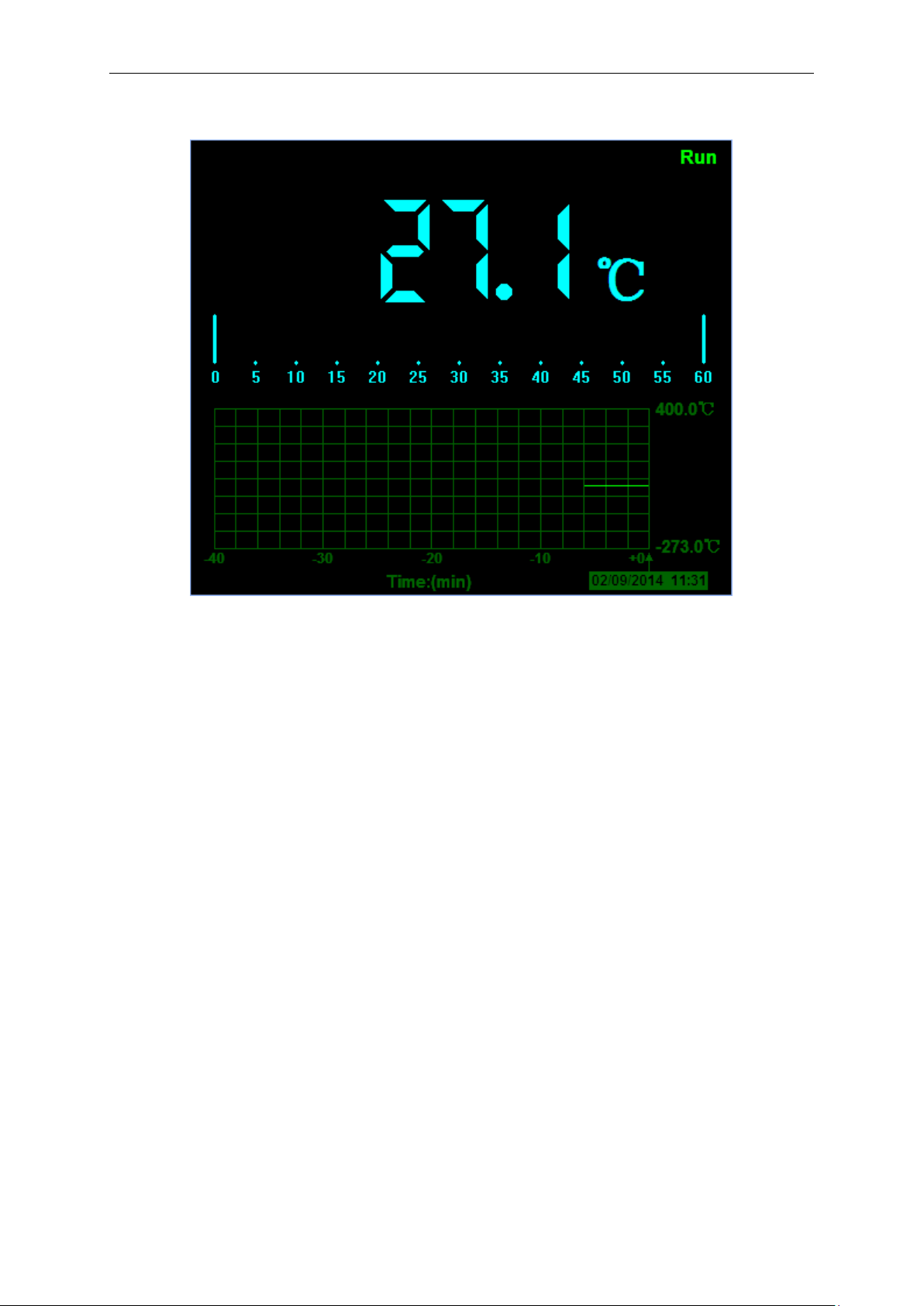
The series of Bluetooth/USB Data Logger can measure temperature.
1) Click the T key.
2) Connect the black lead into the mA banana jack input and the red lead into the V//Ω/C banana
jack input.
3) Connect the red and black test leads to the tested device. The value is shown on the screen.
Figure 2-22
Operating Data Logger
USER’S MANUAL 33
Connect the thermocouple sensor of the metal parts with the tested device. Then, the following
figure will be displayed on the screen.
Figure 2-23 Temperature Measurement
Click C key to switch to Fahrenheit. And Click F key to switch to Celsius.

Appendix
USER’S MANUAL 34
Chapter 3: Appendix
Appendix A: Specifications
Appendix B: Accessories
Appendix C: General maintenance

Appendix
USER’S MANUAL 35
Appendix A Specifications
Specification:
Data Logger Mode
Maximum Resolution
6000 Counts
DMM Testing Modes
Voltage, Current, Resistance, Capacitance, Diode &
Continuity
Maximum Input Voltage
AC: 600V DC: 800V
Maximum Input Current
AC: 10A DC: 10A
Input Impedance
10MΩ
Data Logger Specification
Function
Range
Accuracy
Resolution
DC Voltage
60.00mV
±1%±1 digit
10uV
600.00mV
100uV
6.000V
1mV
60.00V
10mV
600.0V
100mV
800V
1V
AC Voltage
60.00mV
±1%±3 digit
10uV
600.0mV
100uV
6.000V
1mV
60.00V
10mV
600.0V
100mV
DC Current
60.00mA
±1.5%±1 digit
10uA
600.0mA
±1%±1 digit
100uA
6.000A
±1.5%±3digit
1mA
10.00A
10mA
AC Current
60.00mA
±1.5%±3digit
10uA
600.0mA
±1%±1 digit
100uA
6.000A
±1.5%±3digit
1mA
10.00A
10mA
Resistance
600.0Ω
±1%±3digit
0.1Ω
6.000KΩ
±1%±1digit
1Ω
60.00KΩ
10Ω
600.0KΩ
100Ω
6.000MΩ
1KΩ
60.00MΩ
±1.5%±3digit
10KΩ
Capacitance
40.00nF
±1%±1digit
10pF
400.0nF
100pF
4.000uF
1nF
40.00uF
10nF
400.0uF
100nF
Attention: The smallest capacitance value that can be measured is
5nF.
Temperature
100℃~1000℃
±2%±3digit
1℃
0~100℃
0.1℃

Appendix
USER’S MANUAL 36
-200℃~0
1℃
Diode
0V~2.0V
On-Off Test
<10Ω
Difference:
Type
Bluetooth
Lithium battery
RMS
Optional Accessory
Hantek365A
-
-
-
-
Hantek365B
-
-
Yes
-
Hantek365C
Yes①
Yes
-
-
Hantek365D
Yes①
Yes
Yes
-
Hantek365E
Yes②
Yes
-
USB Bluetooth Adapter
Hantek365F
Yes②
Yes
Yes
① Connect the device with windows PC via Bluetooth with Bluetooth adapter.
② Connect with iPad via Bluetooth directly. Support the third generation or higher versions, and
all series of iPad mini.
Connect the device with windows PC via Bluetooth with Bluetooth adapter.

Appendix
USER’S MANUAL 37
Appendix B: Accessories
Standard accessories
Data Logger Probes x 2
A USB Cable
A PC software CD of the Data Logger
A Thermocouple Sensor
Optional accessory
Bluetooth adapter(Optional accessory for Hantek365E and Hantek365F)

Appendix
USER’S MANUAL 38
Appendix C: General Maintenance
General Care
Do not store or leave the Data Logger where the device will be exposed to direct sunlight for long
periods of time.
Caution
To avoid damages to the device or probes, do not expose them to sprays, liquids or solvents.
To avoid damages to the surface of the device or probes not use any abrasive or chemical
cleaning agents.
Cleaning
Inspect the device and probes as often as operating conditions require. Make sure the device
disconnect form all power sources.
To clean the exterior surface, perform the following steps:
1. Remove loose dust on the outside of the Data Logger and probes with a lint-free cloth to
avoid scratching the clear glass display filter.
2. Use a soft cloth dampened with water to clean the device.