
Part No. 78408201
Printed in Japan
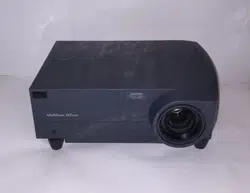
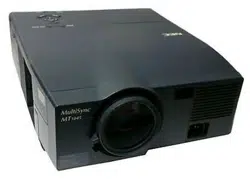
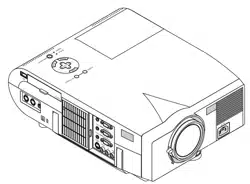
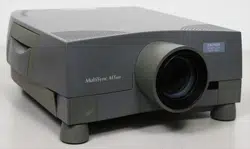
NEC Multimedia Theatre
NEC Multimedia Theatre
LCD Projector
User’s Manual
NEC Technologies, Inc.
1250 N. Arlington Heights Road,Suite 500
Itasca, Illinois 60143-1248
®
2
Precautions
Please read this manual carefully before using your NEC MultiSync
MT1000 LCD Projector and keep the manual handy for future refer-
ence.
Your serial number is located next to the main power switch on the back of
your MultiSync MT1000 . Record it here:
IMPORTANT INFORMATION
RF Interference
WARNING
The Federal Communications Commission does not allow any
modifications or changes to the unit EXCEPT those specified by
NEC Technologies in this manual. Failure to comply with this
government regulation could void your right to operate this equip-
ment.
This equipment has been tested and found to comply with the limits
for a Class A digital device, pursuant to Part 15 of the FCC Rules.
These limits are designed to provide reasonable protection against
harmful interference in a commercial installation. This equipment
generates, uses and can radiate radio frequency energy and, if not
installed and used in accordance with the instructions, may cause
harmful interference to radio communications. Operation of this
equipment in a residential area is likely to cause harmful interfer-
ence in which case the user will be required to correct the interfer-
ence at their own expense.
DOC Compliance Notice
This Class A digital apparatus meets all requirements of the Canadian Interfer-
ence-Causing Equipment Regulations.
CAUTION
LASER RADIATION-
DO NOT STARE INTO BEAM
WAVE LENGTH: 670 nm
MAX. OUTPUT: 1 mW
CLASS II LASER PRODUCT
CAUTION
TO PREVENT SHOCK, DO NOT OPEN THE CABI-
NET. NO USER-SERVICEABLE PARTS INSIDE.
REFER SERVICING TO QUALIFIED NEC SERVICE
PERSONNEL.
This symbol warns the user that uninsulated voltage
within the unit may be sufficient to cause electrical
shock. Therefore, it is dangerous to make any kind
of contact with any part inside of the unit.
This symbol alerts the user that important informa-
tion concerning the operation and maintenance of
this unit has been provided. The information should
be read carefully to avoid problems.
WARNING
TO PREVENT FIRE OR SHOCK, DO NOT EXPOSE THIS UNIT
TO RAIN OR MOISTURE. DO NOT USE THIS UNIT’S
GROUNDED PLUG WITH AN EXTENSION CORD OR IN AN
OUTLET UNLESS ALL THREE PRONGS CAN BE FULLY IN-
SERTED. DO NOT OPEN THE CABINET. THERE ARE HIGH-
VOLTAGE COMPONENTS INSIDE. ALL SERVICING MUST BE
DONE BY QUALIFIED NEC SERVICE PERSONNEL.
1
2

3
Important Safeguards
These safety instructions are to ensure the long life of your LCD projector and
to prevent fire and shock. Please read them carefully and heed all warnings.
Installation
1. For best results, use your LCD projector in a darkened room.
2. Place the projector on a flat, level surface in a dry area away from dust and
moisture.
3. Do not place your LCD projector in direct sunlight, near heaters or heat
radiating appliances.
4. Exposure to direct sunlight, smoke or steam can harm internal components.
5.Handle your LCD projector carefully. Dropping or jarring can damage
internal components.
6. Do not place heavy objects on top of the LCD projector.
7. If installing the LCD projector on the ceiling:
a. The ceiling must be strong enough to support the LCD projector and the
installation must be in accordance with any local building codes.
b. The LCD projector must be installed by qualified NEC service personnel.
Power Supply
1. The LCD projector is designed to operate on a power supply of 100-120 or
220-240 V 50/60 Hz AC. Ensure that your power supply fits this requirement
before attempting to use your LCD projector.
2. Handle the power cable carefully and avoid excessive bending. A damaged
cord can cause electric shock or fire.
3.If the LCD projector is not to be used for an extended period of time,
disconnect the plug from the power outlet.
Cleaning
1. Unplug the LCD projector before cleaning.
2. Clean the cabinet periodically with a damp cloth. If heavily soiled, use a mild
detergent. Never use strong detergents or solvents such as alcohol or thinner.
3. Use a blower or lens paper to clean the lens, and be careful not to scratch or
mar the lens.
4. Clean the air filter with a vacuum cleaner after every 100 hours of operation.
a. Clean the outside of the filter with a vacuum cleaner.
b. Do not use water or any other liquid to clean the air filter.
c. Do not operate your LCD projector without the air filter.
Lamp Replacement
• Be sure to replace the lamp when the Status light comes on. If you continue
to use the lamp after 2000 hours of use, the lamp bulb may shatter, and pieces
of glass may be scattered in the lamp case. Do not touch them as the pieces of
glass may cause injury. If this happens, contact your NEC dealer for lamp
replacement.
• Allow a minimum of ONE minute to elapse between turning the lamp off and
on. High voltage is applied to the lamp immediately when the power is turned
on. Therefore turning the power off and quickly back on may shorten the life
of your lamp and result in damage to your LCD projector.
Fire and Shock Precautions
1. Ensure that there is sufficient ventilation and that vents are unobstructed to
prevent the build-up of heat inside your LCD projector. Allow at least 3 inches
(10cm) of space between your LCD projector and a wall.
2. Prevent foreign objects such as paper clips and bits of paper from falling into
your LCD projector. Do not attempt to retrieve any objects that might fall into
your projector. Do not insert any metal objects such as a wire or screwdriver
into your LCD project. If something should fall into your projector, discon-
nect it immediately and have the object removed by a qualified NEC service
person.
3. Do not place any liquids on top of your LCD projector.
• Do not look into the lens while the projector is on. Serious
damage to your eyes could result.
• Do not look into the laser pointer while it is on and do not point
the laser beam at another person. Serious injury could result.
3
4
4
Ce symbole a pour but de prévenir l’utilisateur de la
présence d’une tension dangereuse, non isolée se
trouvant à l’intérieur de l’appareil. Elle est d’une
intensité suffisante pour constituer un risque
d’électrocution. Eviter le contact avec les pièces à
l’intérieur de cet appareil.
Ce symbole a pour but de prévenir l’utilisateur de la
présence d’importantes instructions concernant
l’entretien et le fonctionnement de cet appareil. Par
conséquent, elles doivent être lues attentivement
afin d’éviter des problèmes.
Importantes précautions de sécurité
Les points suivants sont des précautions de sécurité importantes destinées à
garantir une longue durée de service du projecteur à écran à cristaux liquides
(LCD) et afin d’éviter un incendie et des risques d’électrocution. S’assurer de
lire attentivement ces précautions de sécurité et respecter tous les
avertissements décrits ci-dessous.
Installation
1. Pour un fonctionnement optimal, utiliser le projecteur à écran à cristaux
liquides (LCD) dans une pièce sombre.
2. Placer le projecteur à écran à cristaux liquides (LCD) sur une surface à niveau
et dans un endroit sec exempt de poussières et d’humidité.
3. Ne pas placer le projecteur à écran à cristaux liquides (LCD) en plein soleil,
près d’appareils ménagers ou d’autres appareils de chauffage.
ATTENTION
RISQUE D’ELECTROCUTION NE PAS OUVRIR
AVERTISSEMENT
AFIN DE REDUIRE LES RISQUES D’INCENDIE OU
D’ELECTROCUTION, NE PAS EXPOSER CET APPAREIL A LA
PLUIE OU A L’HUMIDITE. AUSSI, NE PAS UTILISER LA FICHE
POLARISEE AVEC UN PROLONGATEUR OU UNE AUTRE
PRISE DE COURANT SAUF SI CES LAMES PEUVENT ETRE
INSEREES A FOND. NE PAS OUVRIR LE COFFRET, DES
COMPOSANTES HAUTE TENSION SE TROUVENT A
L’INTERIEUR. LAISSER A UN PERSONNEL QUALIFIE LE
SOIN DE REPARER CET APPAREIL.
DOC avis de conformation
DOC avis de conformation
Cet appareil numérique de la classe A respecte toutes les exigences du
Règlement sur le Matériel Brouilleur du Canada.
5
6
ATTENTION
RAYONNEMENT LASER NE PAS
REGARDER DANS LE FAISCEAU
LONGUEUR D’ONDE: 670 nm
MAX. SORTIE: 1 mW
APPREIL A LASER DE CLASSE 2

5
4. La fumée, la vapeur et l’exposition aux rayons directs du soleil risquent de
détériorer sérieusement les composantes internes.
5. Eviter des manipulations brusques lors du déplacement du projecteur à écran
à cristaux liquides (LCD), car un choc violent pourrait endommager les
composantes internes.
6. Ne pas deposer d’objets lourds sur le dessus du projecteur à écran à cristaux
liquides (LCD).
7. Lors de l’installation du projecteur à écran à cristaux liquides (LCD) au
plafond, respecter les instructions suivantes.
a. Le plafond doit être suffisamment solide pour supporter le poids du
projecteur à écran à cristaux liquides (LCD) et il doit être installé selon
les codes de construction locaux.
b. Le projecteur à écran à cristaux liquides (LCD) doit être installé par un
personnel qualifié.
Alimentation
1. Le projecteur à écran à cristaux liquides (LCD) est conçu pour fonctionner à
100-120 ou 220-240VCA 50/60Hz. S’assurer que la tension d’alimentation
locale satisfait cette exigence avant d’utiliser le projecteur.
2.Manipuler le câble d’alimentation avec précaution et éviter de le plier
excessivement. Un cordon endommagé risque de provoquer une
électrocution ou un incendie.
3. Si le projecteur à écran à cristaux liquides (LCD) n’est pas utilisé pendant une
période prolongée, retirer la fiche de la prise secteur.
Nettoyage
1.Débrancher le projecteur à écran à cristaux liquides (LCD) de la prise
d’alimentation avant le nettoyage.
2. Nettoyer régulièrement le coffret avec un chiffon doux. S’il y a des taches
tenaces, utiliser une solution d’un détergent doux. Ne jamais utiliser de
détergents puissants ou des solvants, tel que l’alcool ou un diluant pour
nettoyer le projecteur à écran à cristaux liquides (LCD).
3. Utiliser un appareil diffuseur chauffant ou du papier de nettoyage de lentille
disponible dans le commerce pour nettoyer la lentille.
Ne pas frapper ou rayer la surface de la lentille, car des défauts risquent de se
produire sur la surface de la lentille.
4. Nettoyer le filtre à air toutes les 100 heures.
a. Nettoyer seulement l’extérieur avec un aspirateur.
b. Ne pas nettoyer le filtre à air avec de l’eau ou un liquide.
c. Ne pas utiliser le projecteur à écran à cristaux liquides (LCD) sans
le filtre à air.
Remplacement de la lampe
• Assurez-vous de bien remplacer la lampe lorsque le voyant d’usure
s’allume. Si vous continuez d’utiliser la lampe après 2000 heures
d’utilisation, l’ampoule peut se briser et des brisures de verre peuvent être
éparpillées dans le compartiment de la lampe. Ne les touchez pas car elles
peuvent vous blesser. Dans ce cas, contactez votre revendeur NEC afin de
procéder au remplacement de la lampe.
• Attendez minimum UNE minute après avoir éteint la lampe avant de la
rallumer. Une haute tension est immédiatement appliquée à la lampe quand
celle-ci est mise sous tension. Par conséquent, éteindre, puis tout de suite
rallumer peut abréger la vie de votre lampe et endommager votre projecteur
LCD.
Précautions pour éviter un incendie ou
une électrocution
1. Une ventilation appropriée doit être assurée afin d’éviter une accumulation de
chaleur à l’intérieur du projecteur à écran à cristaux liquides (LCD). S’assurer
que les trous de ventilation ne sont pas obstrués. Laisser un espace d’au moins
10 cm (quatre pouces) entre le projecteur à écran à cristaux liquides (LCD) et
les murs.
2. Eviter que des objets étrangers, des agrafes, des clous et du papier, par
exemple, pénètrent à l’intérieur du projecteur à écran à cristaux liquides
(LCD). Ne pas essayer de récupérer ces objets soi-même ou ne pas insérer des
objets métalliques, des fils et des tourne-vis, par exemple à l’intérieur du
projecteur à écran à cristaux liquides (LCD). Si un objet tombe à l’intérieur
du projecteur à écran à cristaux liquides (LCD), le débrancher
immédiatement et contacter un dépanneur qualifié pour retirer l’objet.
3. Ne pas placer des liquides sur le dessus du projecteur à écran à cristaux
liquides (LCD).
• Ne regardez pas à l’intérieur de l’objectif lorsque le projecteur
est en marche. Vous risquez de vous blesser gravement aux
yeux.
• Ne regardez pas à l’intérieur de la flèche laser lorsque celle-ci
est en marche et ne dirigez pas le rayon laser sur une autre
personne. Vous risquez de provoquer ue blessure grave.
7
8

6
NEC MultiSync
®
LCD Projector
Products
NEC Technologies, Inc. (hereafter NECTECH) warrants this product to be free
from defects in material and workmanship under the following terms.
HOW LONG IS THE WARRANTY?
Parts and labor are warranted for (2) two years from the date of the first customer
purchase. The lamp is warranted for 2000 hours of operating time or six months,
whichever comes first.
WHO IS PROTECTED?
This warranty may be enforced only by the first purchaser.
WHAT IS COVERED AND WHAT IS NOT COVERED
Except as specified below, this warranty covers all defects in material or
workmanship in this product. The following are not covered by the warranty:
1. Any product which is not distributed in the U.S.A., Canada and Mexico by
NECTECH or which is not purchased in the U.S.A., Canada or Mexico from
an authorized NECTECH dealer. If you are uncertain as to whether a dealer
is authorized, please contact NECTECH at 800-836-0655.
2. Any product on which the serial number has been defaced, modified or
removed.
3. Damage, deterioration or malfunction resulting from:
a. Accident, misuse, abuse, neglect, fire, water, lightning or other acts of
nature, unauthorized product modification, or failure to follow instruc-
tions supplied with the product.
b. Repair or attempted repair by anyone not authorized by NECTECH.
c. Any shipment of the product (claims must be presented to the carrier).
d. Removal or installation of the product.
e. Any other cause which does not relate to a product defect.
4. Cartons, carrying cases, batteries, external cabinets, magnetic tapes, or any
accessories used in connection with the product.
WHAT WE WILL PAY FOR AND WHAT WE WILL NOT
PAY FOR
We will pay labor and material expenses for covered items. But we will not pay
for the following:
1. Removal or installation charges.
2. Costs of initial technical adjustments (set-up), including adjustment of user
controls. These costs are the responsibility of the NECTECH dealer from
whom the product was purchased.
3. Payment of shipping charges.
HOW YOU CAN GET WARRANTY SERVICE
1.To obtain service on your product, consult the dealer from whom you
purchased the product.
2. Whenever warranty service is required, the original dated invoice (or a copy)
must be presented as proof of warranty coverage. Please be prepared to
describe or demonstrate the problem to your dealer.
3.For the name of the nearest NECTECH authorized service center, call
NECTECH at 800-836-0655.
LIMITATION OF IMPLIED WARRANTIES
ALL IMPLIED WARRANTIES, INCLUDING WARRANTIES OF MER-
CHANTABILITY AND FITNESS FOR A PARTICULAR PURPOSE, ARE
LIMITED IN DURATION TO THE LENGTH OF THIS WARRANTY.
EXCLUSION OF DAMAGES
NECTECH’S LIABILITY FOR ANY DEFECTIVE PRODUCT IS LIMITED
TO THE REPAIR OR REPLACEMENT OF THE PRODUCT AT OUR
OPTION. NECTECH SHALL NOT BE LIABLE FOR:
1. DAMAGE TO OTHER PROPERTY CAUSED BY ANY DEFECTS IN
THIS PRODUCT, DAMAGES BASED UPON INCONVENIENCE, LOSS
OF USE OF THE PRODUCT, LOSS OF TIME, COMMERCIAL LOSS;
OR
2. ANY OTHER DAMAGES, WHETHER INCIDENTAL, CONSEQUEN-
TIAL OR OTHERWISE. SOME STATES DO NOT ALLOW LIMITA-
TIONS ON HOW LONG AN IMPLIED WARRANTY LASTS AND/OR
DO NOT ALLOW THE EXCLUSION OR LIMITATION OF INCIDEN-
TAL OR CONSEQUENTIAL DAMAGES, SO THE ABOVE LIMITA-
TIONS AND EXCLUSIONS MAY NOT APPLY TO YOU.
HOW STATE LAW RELATES TO THE WARRANTY
This warranty gives you specific legal rights, and you may also have other rights
which vary from state to state.
FOR MORE INFORMATION, TELEPHONE 800-366-5213
NEC TECHNOLOGIES, INC.
1250 N. Arlington Heights Road, Suite 500
Itasca, Illinois 60143-1248
NOTE: All products returned to NECTECH for service MUST have
prior approval. To get approval, call NEC Technologies at
800-836-0655.
LIMITED WARRANTY
9
10

7
1. Introduction
Introduction To The MultiSync MT1000 LCD Projector ................................................ 13
How Do You Get Started? ............................................................................................... 13
What’s In The Box? ........................................................................................................ 15
Getting To Know Your MultiSync MT1000 LCD Projector ............................................ 17
Front Features .......................................................................................................... 17
Rear Features ........................................................................................................... 18
Top Features ............................................................................................................ 19
Terminal Panel Features ........................................................................................... 21
Remote Control Features ......................................................................................... 25
2. Installation
Setting Up Your MultiSync MT1000 LCD Projector ...................................................... 29
Selecting A Location ................................................................................................ 30
Using A Tabletop Or Cart ........................................................................................ 31
Ceiling Installation ................................................................................................... 33
Reflecting The Image ............................................................................................... 34
Rear Screen Projection............................................................................................. 34
Wiring Diagram ......................................................................................................... 35-36
Connecting Your PC Or Macintosh Computer ................................................................ 37
Connecting Your Document Camera ............................................................................... 41
Connecting Your VCR Or Laser Disc Player ................................................................... 41
Connecting An External Monitor .................................................................................... 42
Connecting Your Remote Mouse Receiver ...................................................................... 44
TABLE OF CONTENTS
3. Operation
General Controls ............................................................................................................. 47
Using The Menus ............................................................................................................ 49
Menu Descriptions & Functions ..................................................................................... 51
Source Menu (Source Icons) .................................................................................... 51
Image Adjust Menu(Sound And Picture Control Icons) ........................................... 53
Power Menu(Projector Control Icons) .................................................................... 57
Settings Menu(Maintenance Icons) .......................................................................... 59
4. Maintenance
Replacing The Lamp ....................................................................................................... 61
Cleaning Or Replacing The Filter ................................................................................... 63
Remote Control Battery Installation................................................................................ 64
5. Troubleshooting
Status Light Messages..................................................................................................... 69
Common Problems & Solutions...................................................................................... 71
6. Specifications
Optical ............................................................................................................................ 73
Electrical ......................................................................................................................... 74
Mechanical ..................................................................................................................... 74
D-Sub Pin Assignments .................................................................................................. 77
Timing Chart................................................................................................................... 79
PC Control Command Reference .................................................................................... 81
Cable Connection............................................................................................................ 85
11
12

8
This section introduces you to your new MultiSync MT1000 LCD
Projector, provides a list of materials that comes with your projector
and describes the features and controls.
Congratulations On Your Purchase Of The MultiSync
MT1000 LCD Projector
The MultiSync MT1000 is one of the very best LCD projectors avail-
able today. The multiple LCD panels enable you to project precise
images up to 300 inches across (measured diagonally) from your PC or
Macintosh computer (desktop or notebook), VCR, document camera,
or even a laser disc player.
You can use the projector on a tabletop or cart, you can permanently
mount it on a ceiling*, or you can use MultiSync MT1000 LCD
Projector to project images from behind the screen. The remote control
can be used wirelessly or with a cable, and you can even use the remote
control with the remote mouse receiver to operate the mouse on your
PC or Mac. But best of all, the MultiSync MT1000 is an NEC LCD
projector. That means you can depend on years of reliable performance
and crystal-clear presentations!
INTRODUCTION1
The features you’ll enjoy include:
• Simple set up and operation.
• A high-performance 250 watt metal halide lamp that delivers 450
ANSI lumens and is guaranteed for 2000 hours of service or six
months, whichever comes first.
• A wireless remote control that operates the projector from any
angle.
• A laser pointer that' s built into the remote control.
• The power zoom control enables you to adjust the image to be
between 20 and 300 inches (measured diagonally).
• You can choose between video modes depending on your source:
"normal" for a typical picture, "natural" for true color reproduction,
and "camera" for use with a document camera or low APL picture.
• The "image capture" enables you to use the entire picture as a
background image or to create an image loop.
• An image can be projected from in front or behind a screen, and the
projector can even be installed on the ceiling.
• Supports most IBM VGA, S-VGA, XGA, SXGA(pseudo),
Macintosh, or any other RGB signals within a horizontal frequency
range of 15.754 to 85 kHz and a vertical frequency range of 50 to 85
Hz. This includes NTSC, PAL, SECAM and NTSC4.43 standard
video signals.
Note: Composite video standards are as follows:
NTSC: U.S. TV standard for video in U.S. and Canada.
PAL: TV standard used in western Europe
SECAM: TV standard used in France and Eastern Europe
NTSC4.43: TV standard used in Middle East countries
• The remote control can be used with or without a cable, and you can
even use the remote to operate your PC or Macintosh mouse
wirelessly from across the room with the remote mouse receiver.
• You can control your MultiSync MT1000 LCD Projector with a PC.
• The contemporary cabinet design is compact, easy to carry, and
complements any office, board room or auditorium.
* Installing the MultiSync MT1000 LCD Projector on the ceiling
must be done by authorized NEC technicians. Consult your NEC
dealer for more information.
INTRODUCTION
13
14
9
How Do You Get Started?
The fastest way to get started is to take your time and do everything
right the first time. Take a few minutes now to watch the introductory
video and review the manual. This may save you hours later on. At the
beginning of each section of the manual you'll find an overview. If the
section doesn't apply, you can skip it.
What’s In The Box?
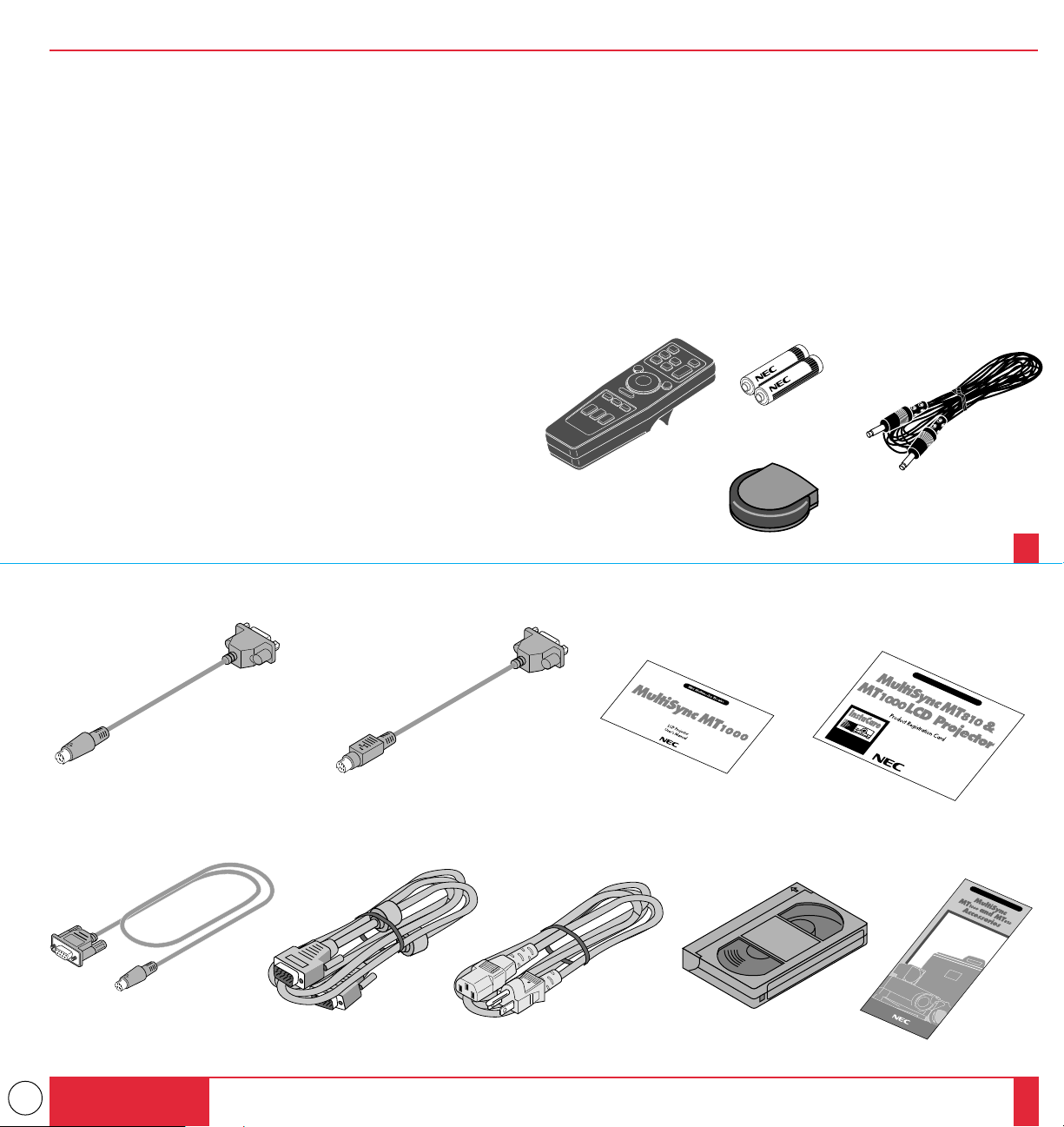
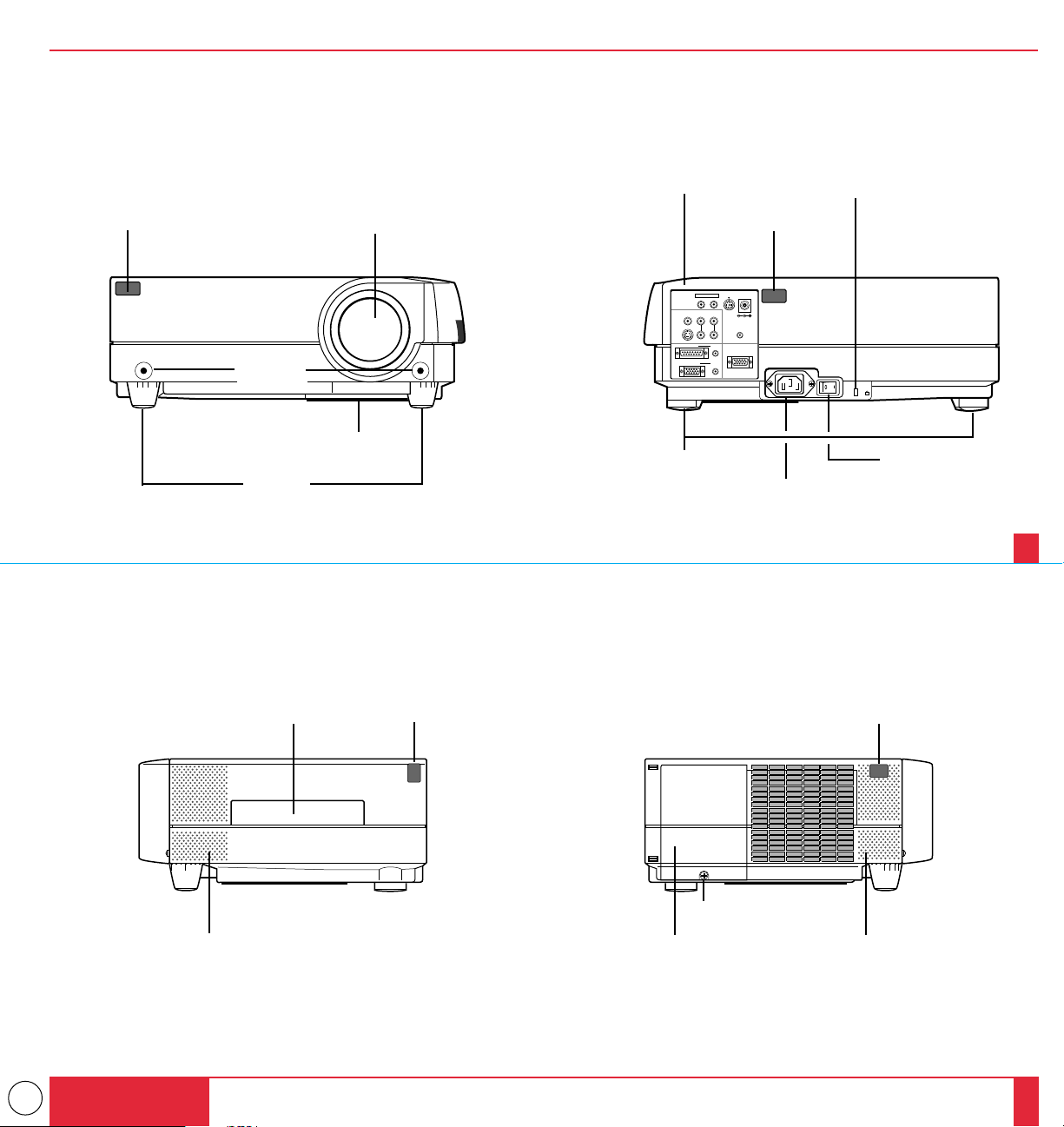
Make sure your box contains everything listed. If any pieces are
missing, contact your dealer. Please save the original box and packing
materials if you ever need to ship your MultiSync MT1000 LCD
Projector.
• NEC MultiSync MT1000 LCD Projector
• Remote Control With Built-In Laser Pointer And Cables
• Remote Mouse Receiver
• PC/Macintosh MultiCable (15-Pin Mini D-Sub To 15-Pin D-Sub Connector)
• Power Cable
• Two AA Batteries
• Introductory Video
• User's Manual
• Accessory Catalog
• Registration Card
INTRODUCTION
15
16
Batteries (AA22)
Remote Mouse Receiver
Remote cableRemote control
Mouse adapter (For Macintosh)
Accessory catalog
User’s manual
PC/Macintosh MultiCable
(15-Pin Mini D-Sub To 15-Pin D-Sub connector)
Power cable
Registration cardMouse adapter (For IBM PS/2)
Introductory video
Serial cable
10
Built-In Speakers (1W)
Getting To Know Your MultiSync
MT1000 LCD Projector
AC Input
Plug the female end of the supplied power
cable here, and the male end into a properly
grounded outlet.
Remote Sensor
Built-In Speakers (1W)
Rear Feet
Slot for Kensington MicroSaver Security System
Main Power Switch
Right Side Features
Lamp Cover
Lamp Cover Set Screw
Left Side Features
Remote SensorRemote Sensor
Terminal Panel
Front Features
One-Touch
Tilt buttons
Lens And Lens CapRemote Sensor
Filter Vent
Front Feet
REMOTE CONTROL
PC
CONTROL
S-VIDEO INPUT
INPUT
VIDEO INPUT AUDIO INPUT
OUTPUT
AUDIO OUTPUT
AUDIORGB INPUT 1
RGB INPUT 2
AUDIO
DC12V/400mA
OUTPUT
RGB MONITOR OUTPUT
L / MONO
R
L / MONO
R
K
Rear Features
Carrying Handle
INTRODUCTION
17
18
11
FOCUS
ZOOM
ADJUST
ENTER
SELECT
MENU
POWER
ON/OFF
STATUSPUSH
Top Features
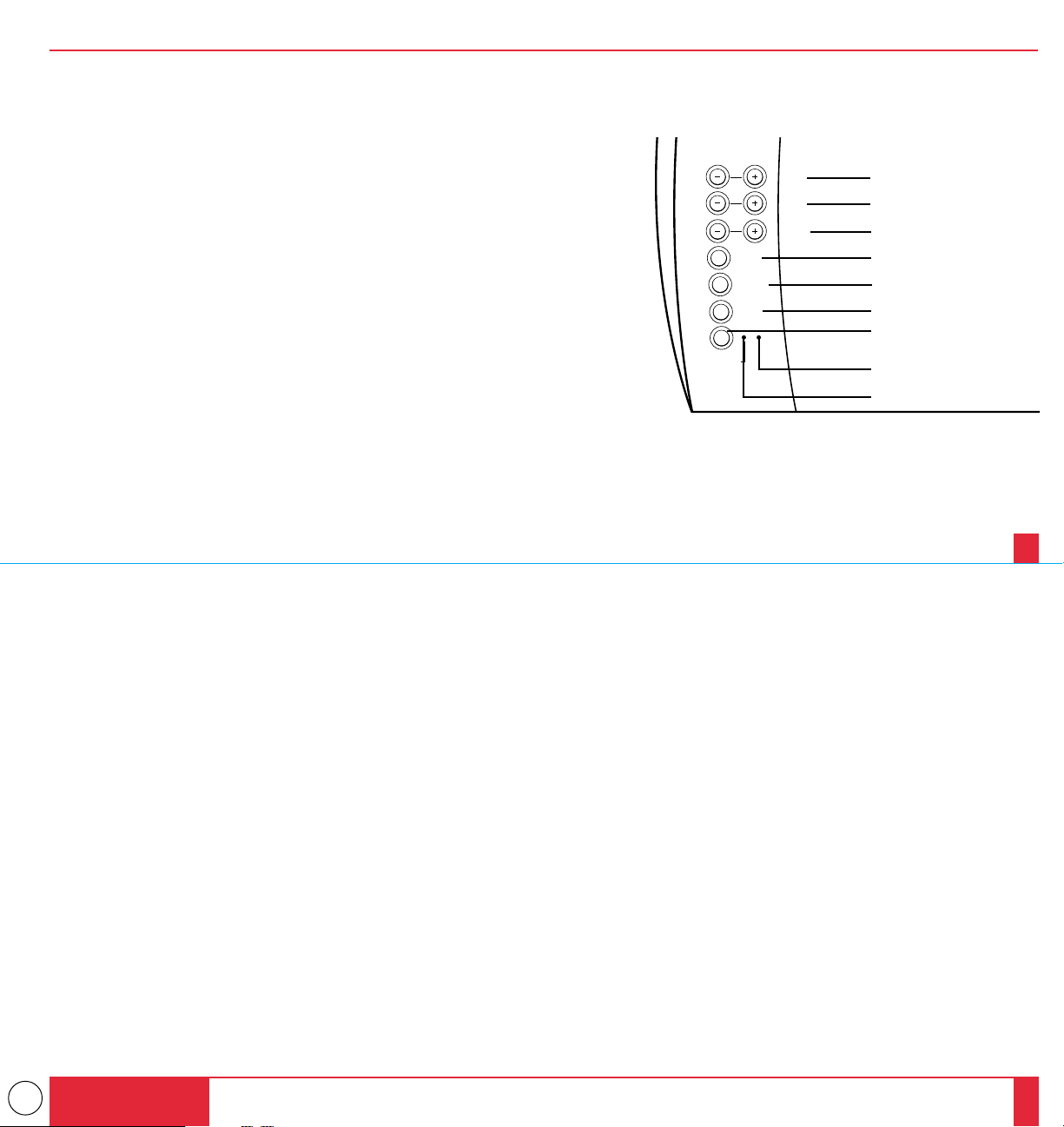
1 Power Button
Use this button to turn the power on and off when the Main Power Switch is on and
the LCD projector is in standby. (When this button is pressed and held for at least
two seconds, the “Display Mute” mode will be canceled.)
2 Menu Button
Displays the on- screen menu.
3 Select Button
After you press the “Menu” button, use this button to select the menu icon of the
item you wish to adjust.
4 Enter Button
Executes your menu selection.
5 (+) (–) Adjust Button
Use these buttons while you' re in the Image Adjust mode to change the level of a
selected menu item. These buttons are also used to set an item in the Power or
Settings menus.
6 (+) (–) Zoom Buttons
Press the (+) button to make the image larger; press (–) to make the image smaller.
7 (+) (–) Focus Buttons
Press the (+) or (–) buttons to focus an image.
8 Power Indicator
When this indicator is green, the LCD projector is on; when the indicator is amber, it
is standing by.
9 Status Indicator
When this is lit red continually, it's warning you that the projection lamp has exceed
2000 hours of service. After this light appears, it is advisable to replace the projection
lamp as soon as possible.(See pages 61 and 62)
When the operating time of the lamp exceeds 2000 hours, the STATUS indicator is
lit red continually. In addition the message "LAMP USAGE XX HOURS" appears
continually when the on-screen menu is not displayed.
If this light blinks red rapidly, it indicates that either the lamp cover or filter cover is
not attached properly; if the light blinks slowly it means the projector's internal
temperature is too hot to operate safely. See the Status Light Messages on pages 69
and 70 for more details.
7
6
5
4
3
2
1
9
8
INTRODUCTION
19
20
12
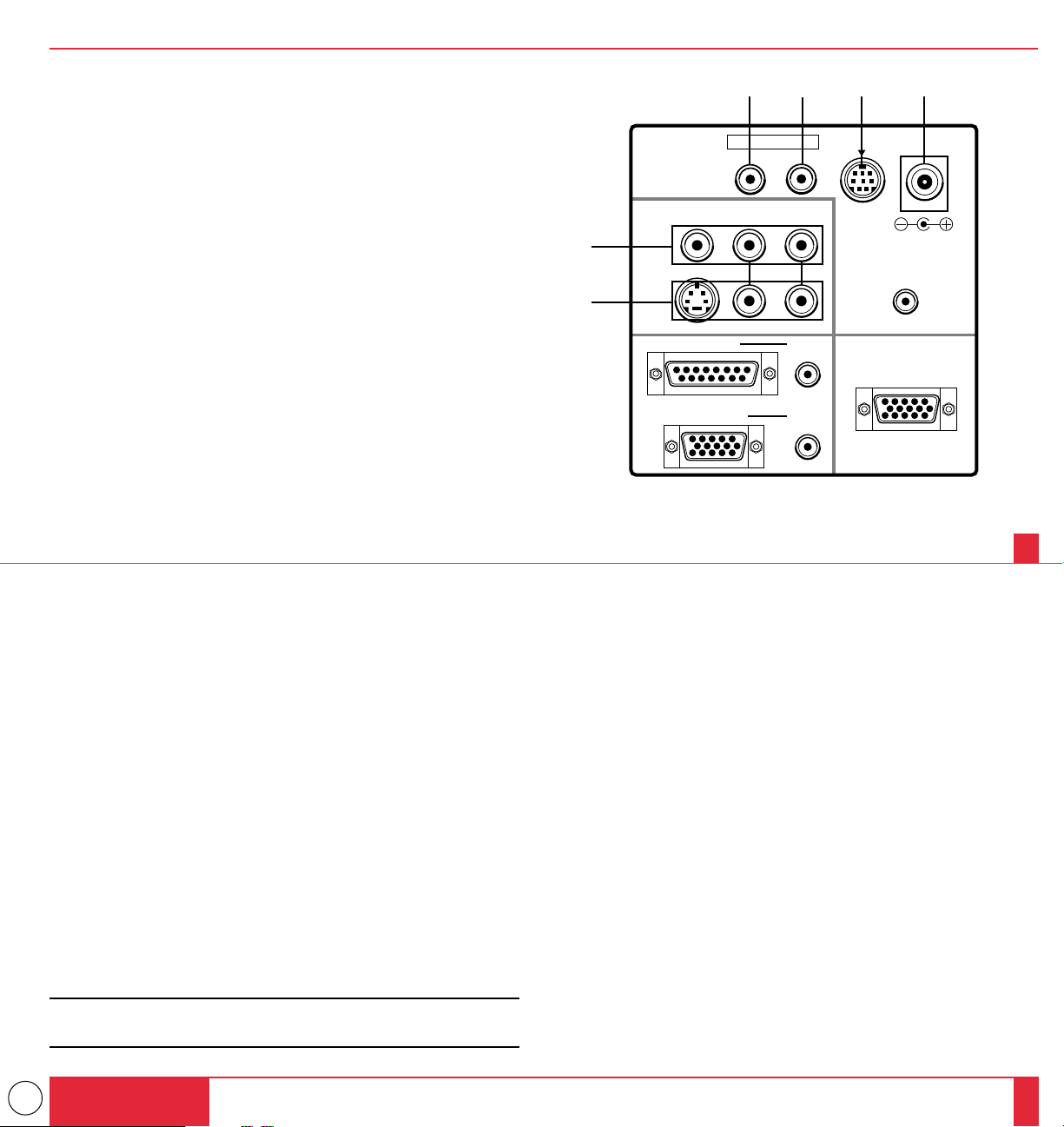
Terminal Panel Features
This panel is located in the rear and is where you connect your cables.
1 Remote Control Jacks
a. Remote Control Input Jack
Connect your remote control cable here for wired operation.
b. Remote Control Output Jack
This terminal enables you to operate up to five LCD projectors with
the same remote control.
When your remote mouse receiver is connected here, the remote
sensors on the LCD projector cabinet will receive your mouse
commands.
2 PC Control Port
Use this port to connect your PC to control the MultiSync MT1000
Projector. This enables you to use your PC and serial communica-
tion protocol to control the projector. If you are writing your own
program, command references are on pages 79 to 82.
3 12V DC/400 mA Output Terminal
Use this terminal to plug in a document camera or any other 12V
accessory.
4 Video Input
Connect a VCR, laser disc player, or document camera here to
project video.
Left Channel/Mono Audio Input Jack
This is your left channel audio input for stereo sound coming from
video equipment or audio system. This also serves as your monaural
audio input.
Right Channel Audio Input Jack
This is your right channel audio input for stereo sound.
5 S-Video Input
Here is where you connect S-Video input from an external source
like a VCR.
Left Channel/Mono Audio Input Jack
This is your left channel audio input for stereo sound coming from
S-Video equipment or audio system. This also serves as your
monaural audio input.
Right Channel Audio Input Jack
This is your right channel audio input for stereo sound.
NOTE: S-Video provides more vivid color and higher resolution than
the traditional composite video format.
REMOTE CONTROL
PC
CONTROL
S-VIDEO INPUT
INPUT
VIDEO INPUT AUDIO INPUT
OUTPUT
AUDIO OUTPUT
AUDIORGB INPUT 1
RGB INPUT 2
AUDIO
DC12V/400mA
OUTPUT
RGB MONITOR OUTPUT
L / MONO
R
L / MONO
R
1 a 1 b 2 3
4
5
INTRODUCTION
21
22
13
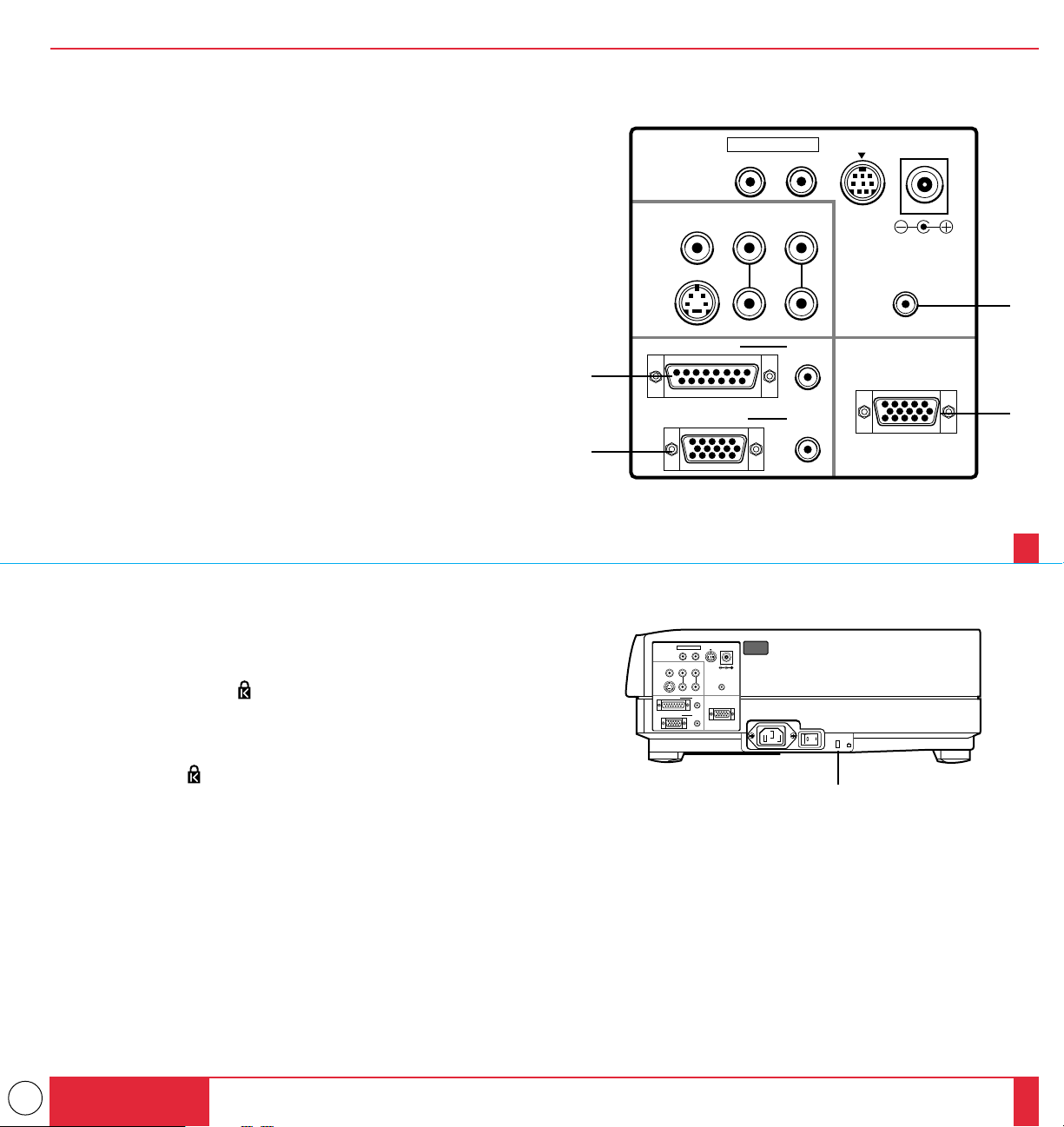
6 RGB Input 1 Connector (D-Sub 15 pin)
Connect your PC or other RGB equipment such as IBM or compat-
ible computers. Use the NEC MultiCable that's supplied to connect
to a PC.
RGB 1 Audio Input Mini Jack
This is where you connect RGB audio output from a computer or
another RGB source.
7 RGB Input 2 Connector (Mini D-Sub 15 pin)
Connect a Macintosh or compatible computer here using the NEC
MultiCable that's supplied.
RGB 2 Audio Input Mini Jack
This is where you connect a second RGB audio output from a
computer or another RGB source.
8 Audio Output Mini Jack
Connect additional external speakers here to listen to audio coming
from your computer, Video or S-Video input.
9 RGB Monitor Output Connector (Mini D-Sub 15 pin)
You can use this connector to loop your computer image to an
external monitor from either the RGB 1 or RGB 2 input source.
0 Built-in Security Slot ( )
This security slot supports the MicroSaver
®
Security System.
MicroSaver
®
is a registered trademark of Kensington Microware
Inc. The logo is trademarked and owned by Kensington
Microware Inc.
REMOTE CONTROL
PC
CONTROL
S-VIDEO INPUT
INPUT
VIDEO INPUT AUDIO INPUT
OUTPUT
AUDIO OUTPUT
AUDIORGB INPUT 1
RGB INPUT 2
AUDIO
DC12V/400mA
OUTPUT
RGB MONITOR OUTPUT
L / MONO
R
L / MONO
R
8
6
7
9
REMOTE CONTROL
PC
CONTROL
S-VIDEO INPUT
INPUT
VIDEO INPUT AUDIO INPUT
OUTPUT
AUDIO OUTPUT
AUDIORGB INPUT 1
RGB INPUT 2
AUDIO
DC12V/400mA
OUTPUT
RGB MONITOR OUTPUT
L / MONO
R
L / MONO
R
K
0
INTRODUCTION
23
24
14
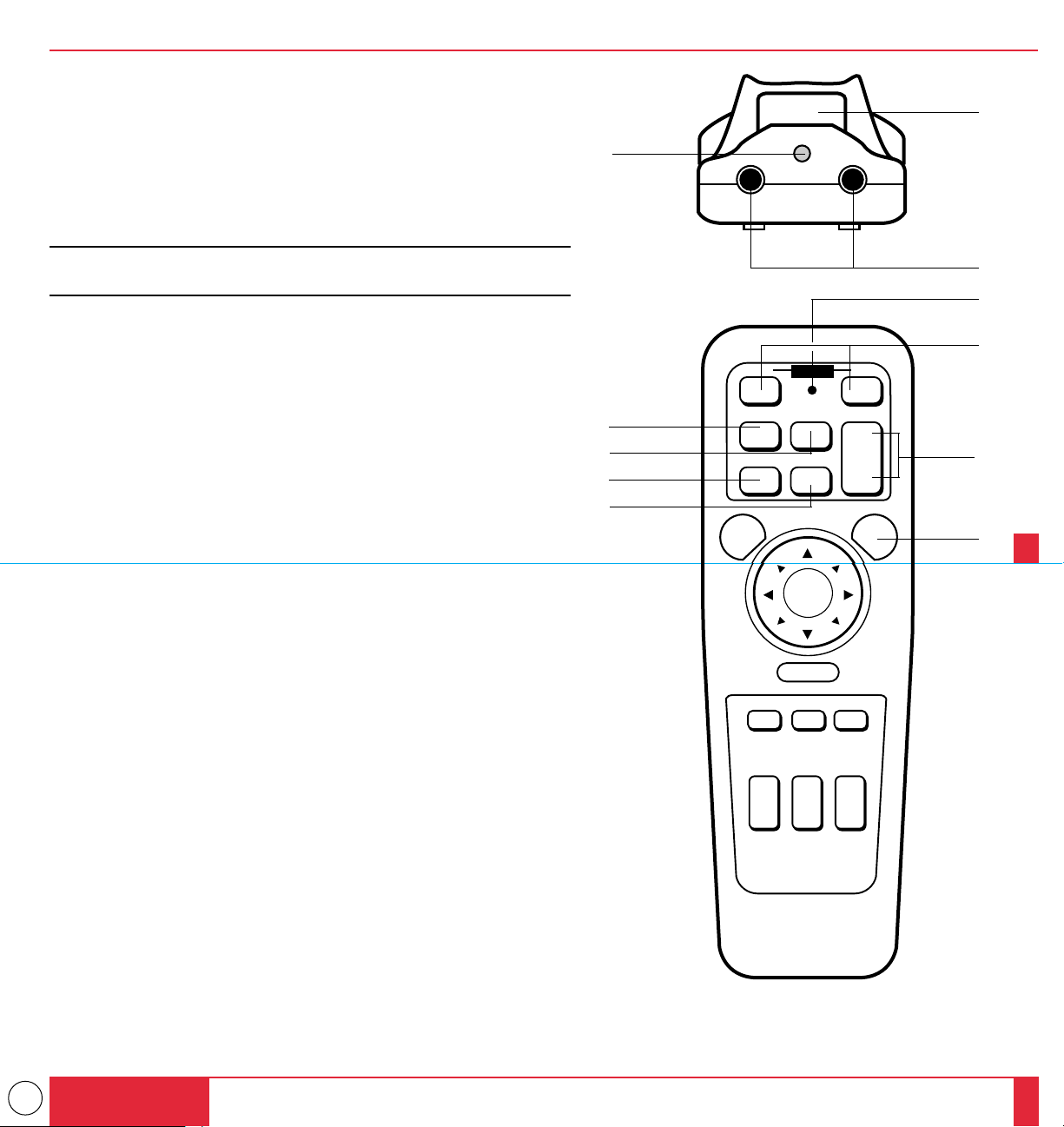
Remote Control Features
You can use your remote control with the cable or wireless to operate your
MultiSync MT1000 LCD Projector. With the remote mouse receiver connected
to your computer, you can also use the projector's remote control to operate
your computer's mouse wireless, too. (See pages 43 and 44 to connect the
remote mouse receiver to your computer.)
If you want to use your remote control with the cable, connect one end of the
cable to the jack on the remote control and the other end to the Terminal Panel.
NOTE: If you are using a Macintosh computer, you can click either the right or
left button to activate the mouse.
1 Left Click Button
Use this button to enter your menu selection. It works the same as the
"Enter" button on the cabinet.
2 Laser Pointer
Beams a laser light when “Laser” button is pressed.
3 Infrared Transmitter
Direct the remote control toward the remote sensor on the projector cabinet
or the remote mouse receiver.
4 LED
Flashes when any button is pressed.
5 Power On And Off
If your main power switch is turned on, you can use this button to turn your
MultiSync MT1000 LCD Projector on and off.
6 Video Button
Press to select an NTSC, PAL, SECAM or NTSC4.43 compatible video
source from a VCR, laser disc player or document camera.
7 Volume Buttons
Press (+) to increase the volume and (-) to decrease it.
8 S-Video Button
Press to select an S-Video source from a VCR.
9 RGB 1 Button
Press to select a video source from a computer connected to your RGB 1
port.
0 RGB 2 Button
Press to select a video source from a computer connected to your RGB 2
port.
A Laser Button
Press and hold this button to activate the laser pointer. When lit, you can use
the laser to draw your audience's attention to a red dot that you can place on
any object within 30 feet (10 m).
INTRODUCTION
25
26
OFF ON
VIDEO
RGB 1
MENU LASER
S-VIDEO VOLUME
+
–
RGB 2
POWER
4
5
6
8
9
0
7
A
1
3
2
R-CLICK
ZOOM FOCUS
POSITION
MAGNIFY
REDUCE
PIC-MUTE FREEZE
+
–
+
–
+
–
+
–
15
NOTE: You cannot use Menu and Position at the same time.
Remote Control Precautions
• Do not look into the laser pointer while it is on.
• Do not point the laser beam at a person.
• When the cable is connected to the remote control, it will not work in the
wireless mode.
• Handle the remote control carefully.
• If the remote control gets wet, wipe it dry immediately.
• Avoid excessive heat and humidity.
•
If you will not be using the remote control for a long time, remove the batteries.
• Do not mix new and old or different types of batteries.
INTRODUCTION
27
28
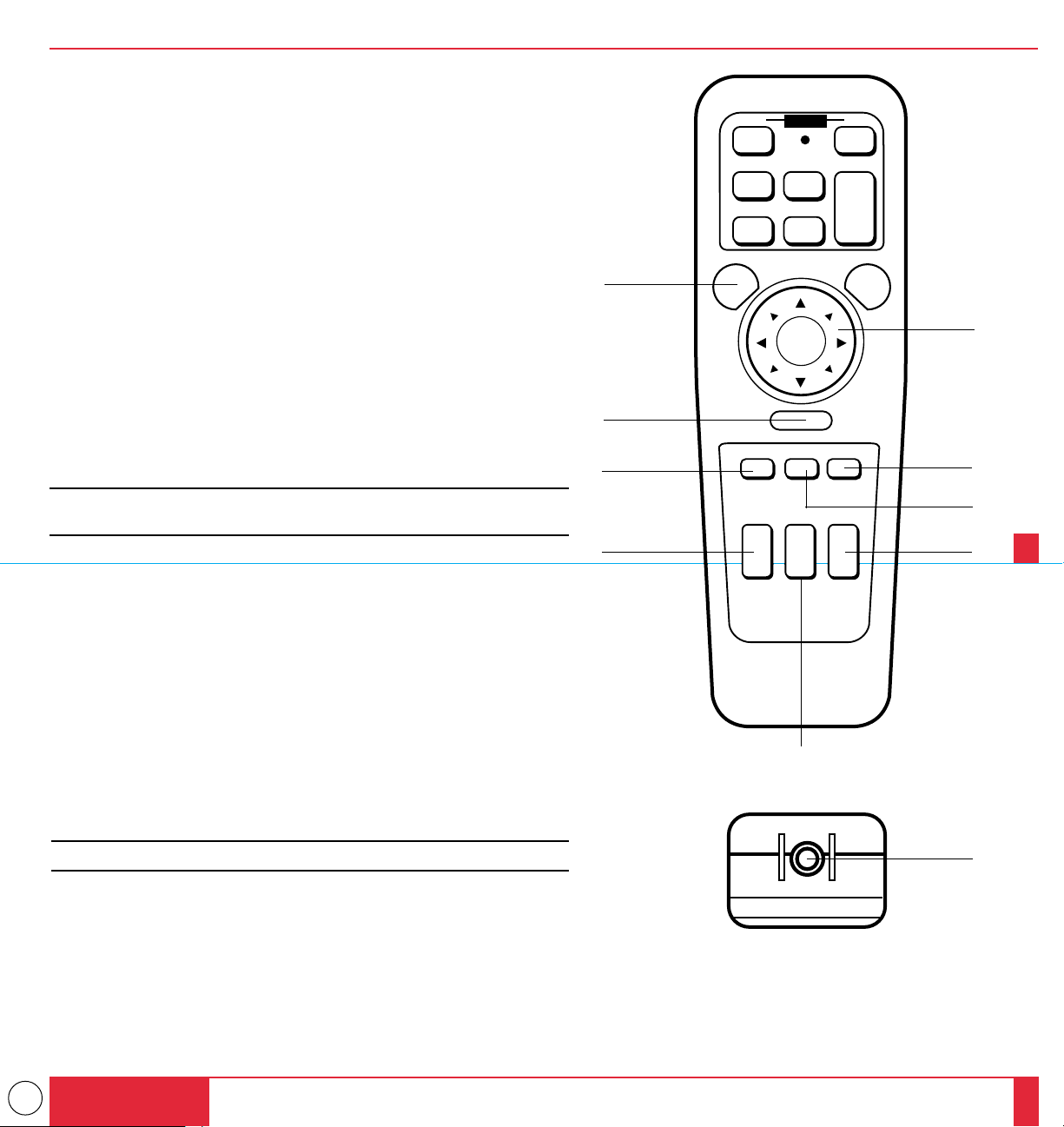
B Menu Button
Use this button to call up the On-Screen Menu so you can adjust and set the
image. After you press this button, it will light up. During this time you can
use the mouse pointer and right/left click buttons to make menu selections.
If no buttons are pressed within 10 seconds while it illuminates, the light
goes out. To return to the main menu from a sub menu, press this button
again.
C Mouse Pointer Button
Works as a mouse for your projected computer image. This button is also
used to adjust position.
This button selects the submenu you want to adjust. (See page 49.)
After you make your on-screen menu selection, use this button to adjust the
level up or down. (See page 49.)
D Right Click Button
Press this button to exit "Menus" or "Position."
E Freeze Button
This button will freeze a picture. Press again to resume motion.
F Position Button
When the picture is magnified, press this button to activate the mouse
buttons that you can use to reposition the image in eight directions. When
you're finished, the "Position" button will remain lit for 10 seconds.
NOTE: When you are adjusting Position, the Mouse Pointer button is used to move
the picture.
OFF ON
VIDEO
RGB 1
MENU
R-CLICK
LASER
ZOOM FOCUS
S-VIDEO VOLUME
+
–
POSITION
MAGNIFY
REDUCE
PIC-MUTE FREEZE
RGB 2
+
+
–
++
POWER
G
F
D
E
H
J
I
B
C
K
G Picture Mute Button
This button turns off the image for a short period of time. Press
again to restore the image.
H Magnify/Reduce Button
Use the (+) or (–) button to adjust the image size up to 400%.
I Focus Button
Press the (+) or (–) button to adjust the focus.
J Zoom Button
Press the (+) button to zoom in and the (–) button to zoom out.
K Remote Jack
Connect your remote control cable here for for wired operation.
– – –
16
This section describes how to set up your MultiSync MT1000 LCD projector
and how to connect video and audio sources.
Setting Up Your MultiSync MT1000 LCD
Projector
Your MultiSync MT1000 LCD Projector is simple to set up and use. But
before you get started, you must first:
1. Determine the image size
2. Set up a screen or select a non-glossy white wall onto which you can project
your image.
Carrying The LCD Projector Always carry your LCD projector by the
handle. Ensure that the power cord and any other cables connecting to video
sources are disconnected before moving the projector. When moving the
projector or when it is not in use, cover the lens with the lens cap.
INSTALLATION2
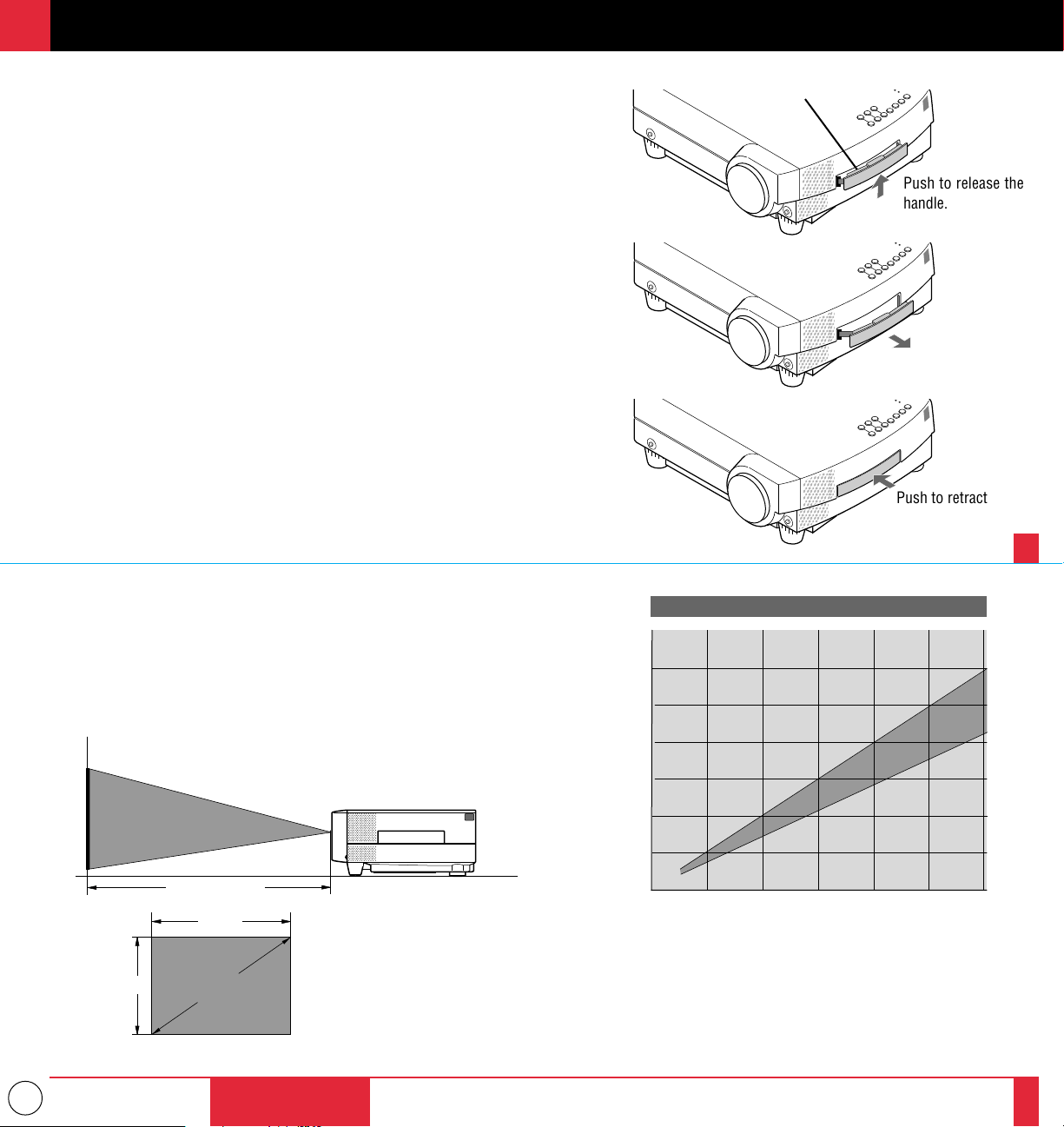
Carrying handle
Pull out
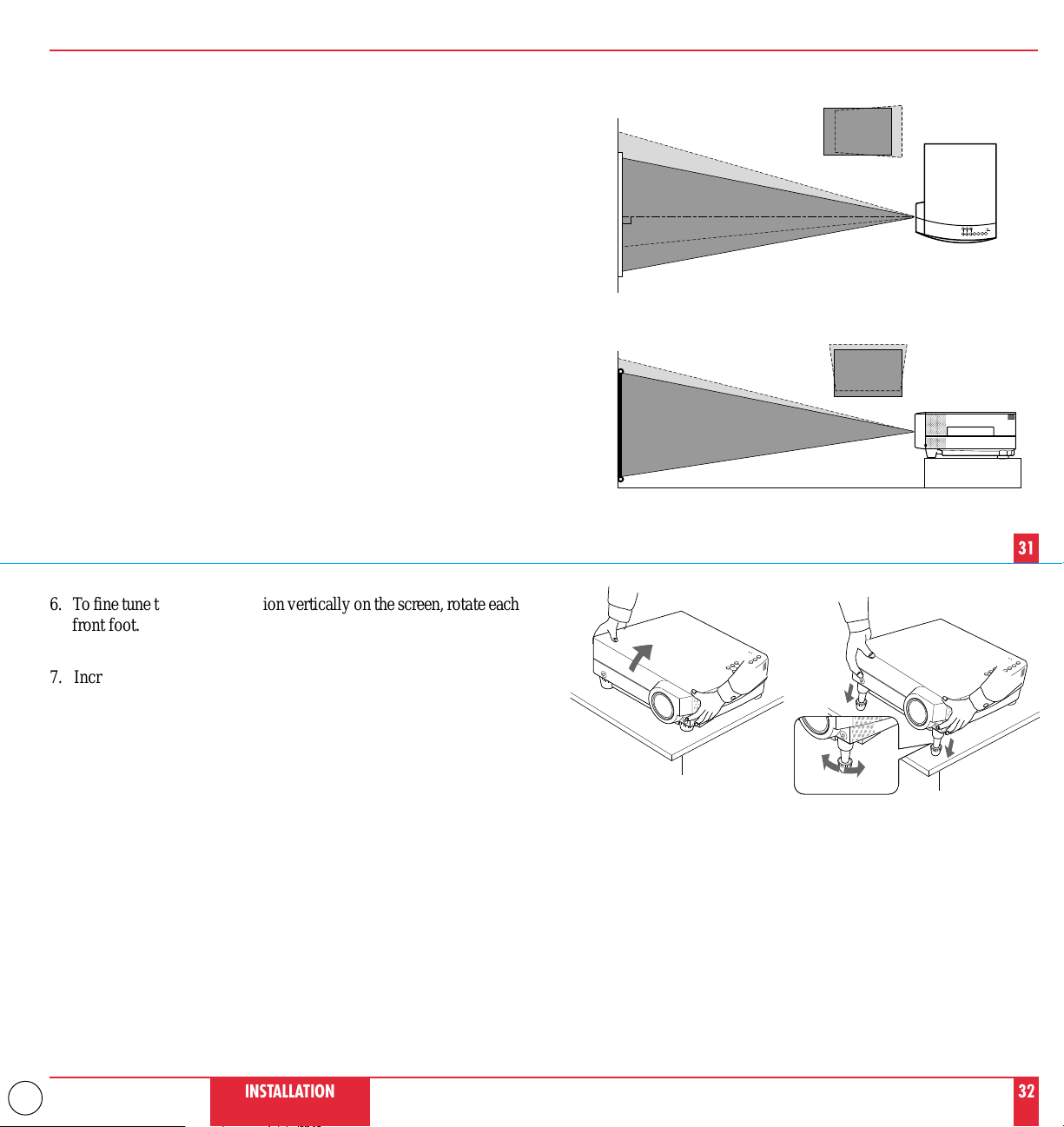
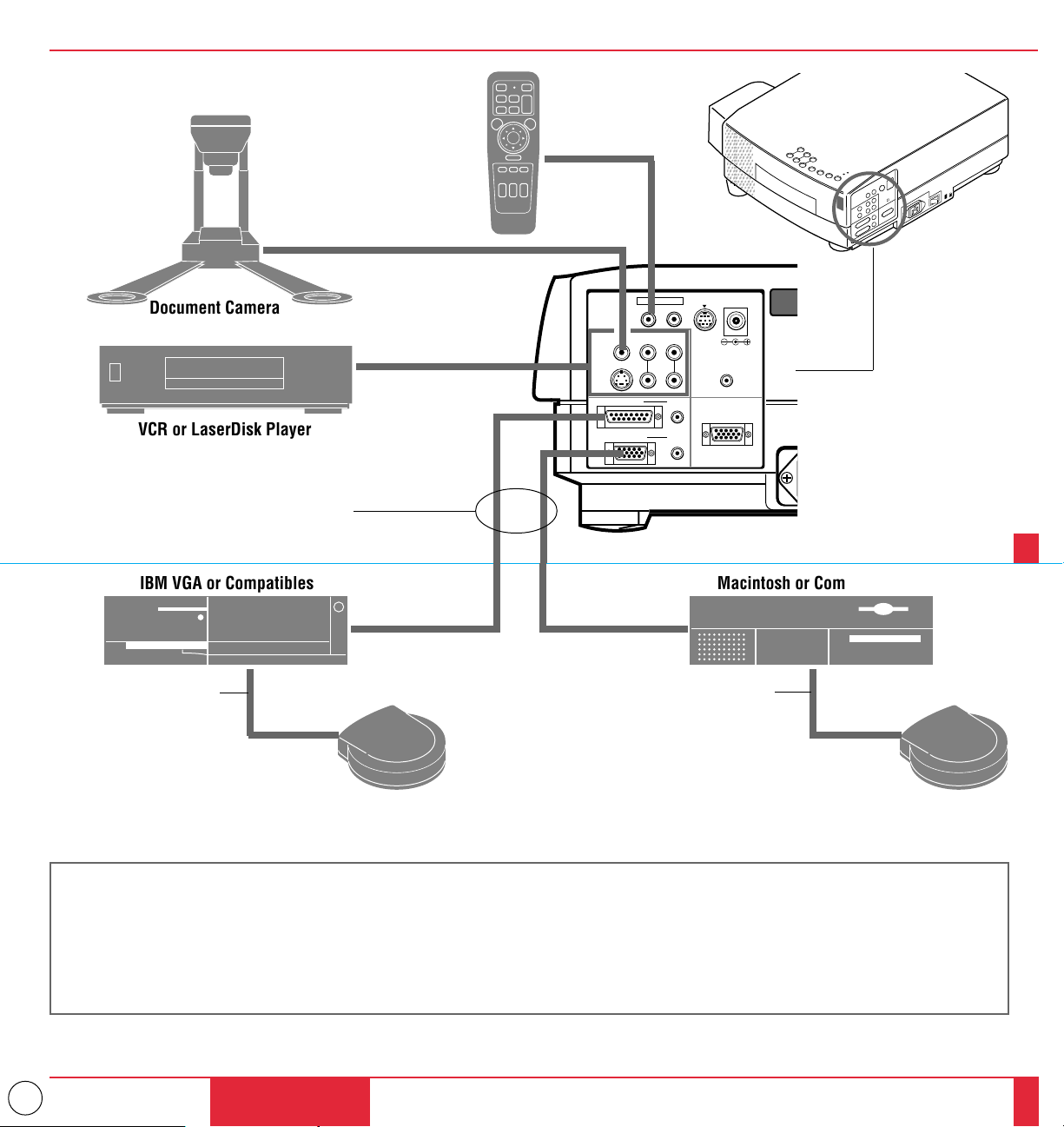
Selecting A Location The further your LCD projector is from the screen or
wall, the larger the image. The minimum size the image can be is approxi-
mately 20" (0.5 m) measured diagonally when the projector is roughly 3 feet
(1.0 m) from the wall or screen. The largest the image can be is 300" (7.6 m)
when the projector is about 40.03 feet (12.2 m) from the wall or screen.
350
300
250
200
150
100
50
0
0.0 6.56 13.12 19.69 26.25 32.81 40.03 ft.
(2.0) (4.0) (6.0) (8.0) (10.0) (12.2) (m)
Projection Distance
Diagonal Image Size (inch)
Projection Distance and Image Size
300”
235”
WIDE
TELE
27”
20”
INSTALLATION
29
30
Width
Height
Screen size
(diagonal)
Projection distance
Push to release the
handle.
Push to retract
17
Using A Tabletop Or Cart
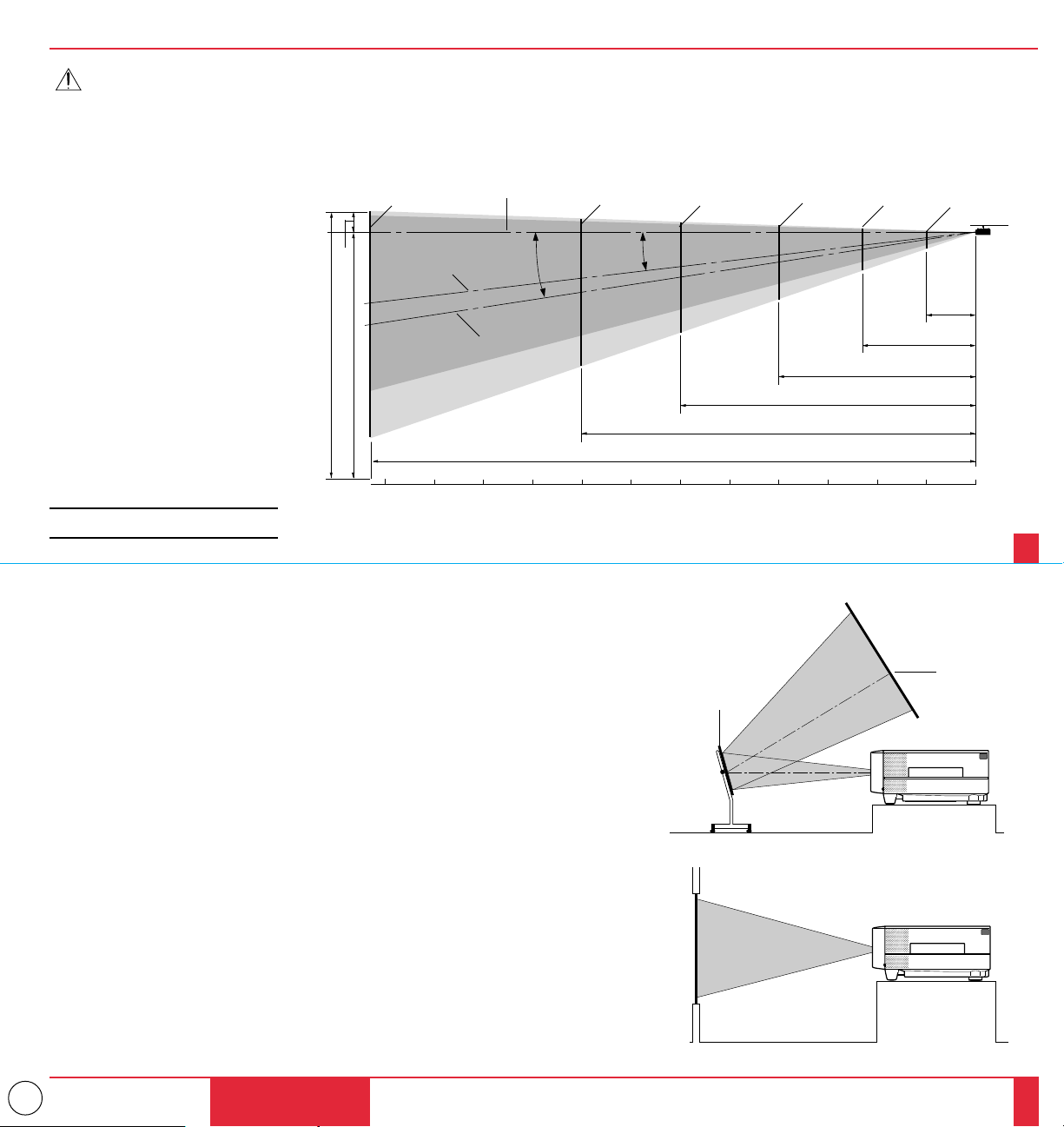
1. Place your LCD projector on a flat level surface at the optimal
distance from the screen or wall so you realize the size image you
want. (Avoid having bright room lighting or sun light directly on the
screen or wall where you'll be projecting the image.)
2. Connect the power cable, remove the lens cap and turn the projector
on. (If no input signal is available, the projector will display a
background image.)
3. Ensure that the projector is square to the screen.
4. Move the projector left or right to center the image horizontally on
the screen. (A)
5. To center the image vertically (B), lift the front edge of the projector
and press the buttons on the front of the projector, just above the
feet, to release the one-touch tilt feet. (There is approximately 10.5˚
of up and down adjustment for the front of the projector. )
INSTALLATION
31
32
6. To fine tune the image's position vertically on the screen, rotate each
front foot.
7. Increase or reduce the size of the projected image by pressing the
"Zoom" (+) or (–) buttons on the remote control or top of the
cabinet.
FOCUS
ZOOM
ADJUST
ENTER
SELECT
MENU
POWER
ON/OFF
STATUSPUSH
(A) Top view
(B) Side view
screen
screen
18
If your projector is mounted on the ceiling and your image is upside down, use the
“Menu” and “Select” buttons on your projector cabinet or (▲) (▼) buttons on your
remote control to correct the orientation. (See page 60.)
Reflecting The Image
Using a mirror to reflect your LCD projector's image enables you to enjoy a much
larger image. Contact your NEC dealer if you need a mirror.
If you're using a mirror and your image is inverted, use the “Menu” and “Select”
buttons on your projector cabinet or (▲) (▼) buttons on your remote control to correct
the orientation. (See page 60.)
Rear Screen Projection
You can use your MultiSync MT1000 LCD projector to project an image from the rear
onto a transparent screen. The distance the projector must be from the screen is the
same as if you were projecting the image from the front. Contact your NEC dealer if
you need a transparent screen.
If you're projecting the image from the rear and your image is inverted, use the “Menu"
and "Select" buttons on your projector cabinet or (▲) (▼) buttons on your remote
control to correct the image. (See page 60 .)
Mirror
Screen
INSTALLATION 34
WARNING
•
Only use your LCD projector on a solid, level surface. If the projector falls to the ground, you can be injured and the projector severely damaged.
• Do not use the LCD projector where temperatures vary greatly. The projector must be used at temperatures between 32˚F (0˚C) and 104˚F (40˚C).
• Do not expose the LCD projector to moisture, dust, or smoke. This will harm the screen image.
• Ensure that you have ad-
equate ventilation around
your LCD projector so heat
can dissipate. Do not cover
the vents on the bottom or
the side of the projector.
Ceiling Installation
Installing your MultiSync
MT1000 LCD Projector on the
ceiling must be done by a
qualified technician. Contact
your NEC dealer for more in-
formation.
Do not attempt to install the
projector yourself.
33
3.28 ft
(1 m)
7.87 ft
(2.4 m)
13.12 ft
(4 m)
19.69 ft
(6 m)
26.25 ft
(8 m)
6.5°
8.5°
40.03 ft
(12.2 m)
39.37 36.09 32.81 29.53 26.25 22.97 19.69 16.40 13.12 9.84 6.56 3.28 0 (ft)
(12) (11) (10) (9) (8) (7) (6) (5) (4) (3) (2) (1) 0 (m)
235”-300” 165”-222” 115”-150” 77”-100” 47”-60” 20”-27”
Screen center line
(Telephoto)
Screen center line
(Wide)
Optical axis center line
13.39 ft
(4081.9 mm)
1.43 ft
(435.2 mm)
1.64 ft
(0.5 mm)
0
13.12 ft
(4 mm)
Distance from optical axis center
Screen size = diagonal(inch)
NOTE : Distances may vary
±
5%.
Distance from lens surface
19
REMOTE CONTROL
PC
CONTROL
S-VIDEO INPUT
INPUT
VIDEO INPUT AUDIO INPUT
OUTPUT
AUDIO OUTPUT
AUDIORGB INPUT 1
RGB INPUT 2
AUDIO
DC12V/400mA
OUTPUT
RGB MONITOR OUTPUT
L / MONO
R
L / MONO
R
Document Camera
VCR or LaserDisk Player
IBM VGA or Compatibles Macintosh or Compatibles
Remote Mouse Receiver Remote Mouse Receiver
IBM/MAC MultiCable
To mini D-Sub 15-pin or D-Sub 15-pin
connector on the LCD Projector.
Wiring Diagram
To video, S-video,
and audio inputs on
the LCD projector.
PS/2 mouse adapter
(supplied)
Remote Control Guideline
1. Plug the serial cable with the remote mouse receiver into your computer's mouse port and restart your computer to gain remote mouse
control.
2. When using the remote control's built-in infrared mouse on a laptop computer, the laptop's mouse, trackball or trackpad will be disabled.
Disconnect the infrared receiver and restart your computer to regain trackball or trackpad mouse control.
3. If the screen goes blank while using your remote control, it may be the result of the computer's screen-saver or power management
software. If you accidentally hit the OFF button on the remote control, wait one full minute and then press the ON button to resume.
Mac ADB adapter
(supplied)
INSTALLATION
35
36
20
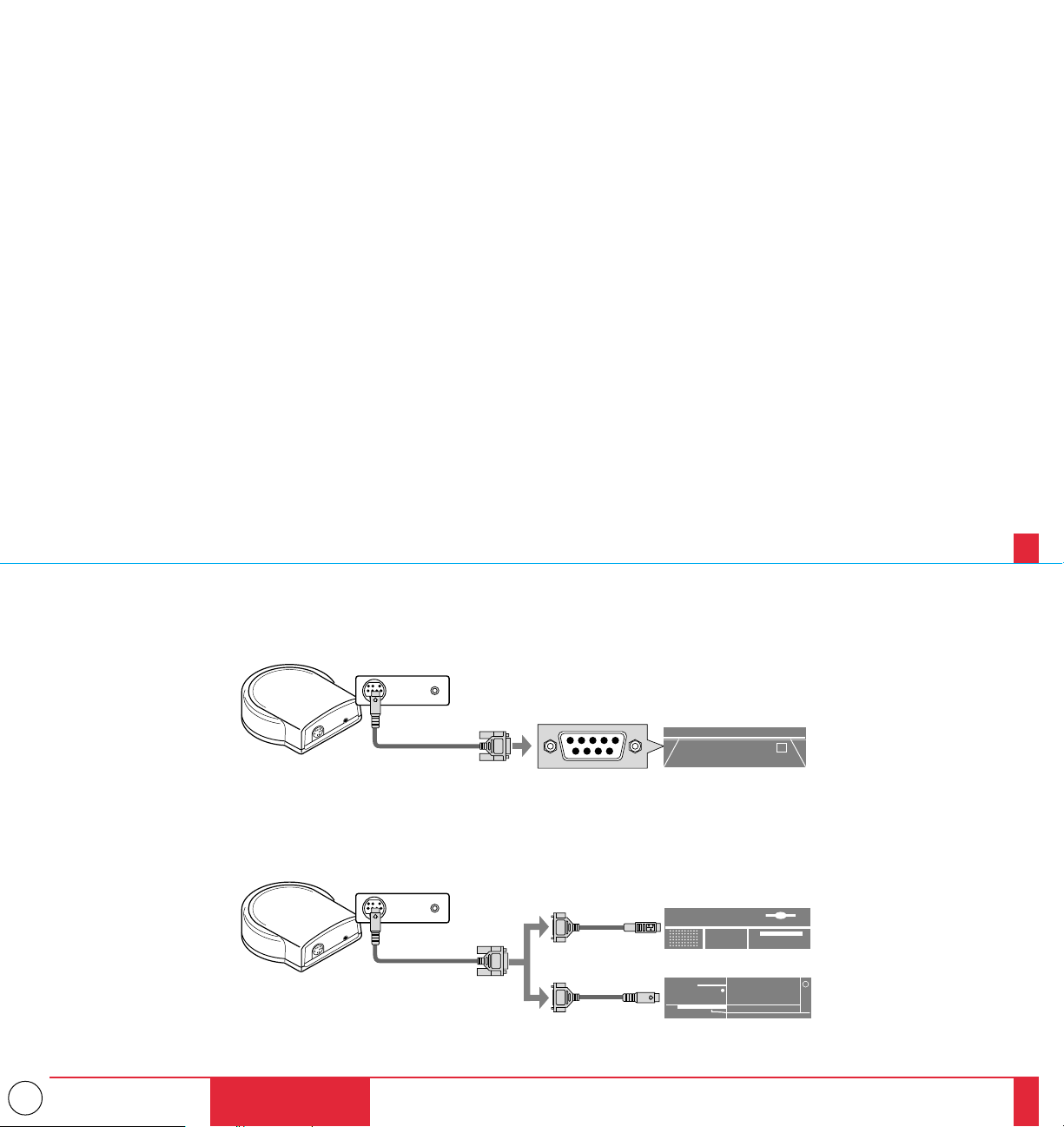
3. Use the MultiCable that's supplied to connect your PC or Macintosh computer to the
LCD projector. For a PC, use the smaller 15-pin connector on the cable to connect to
your computer's video port; use the larger 15-pin connector on the cable to connect
to the projector's RGB 1 input. For Macintosh, use the larger 15-pin connector on the
cable to connect to your computer's video port; use the smaller 15-pin connector on
the cable to connect to the projector's RGB 2 input. (You can also use your own
video cable if you wish. For a PC cable, use the smaller 15-pin connector RGB 2 on
the projector. For a Macintosh cable, use the larger 15-pin connector RGB 1 on the
projector.)
4. Turn on the LCD projector and the computer.
5. If the projector goes blank after a period of inactivity, it may be caused by a screen
saver installed on the computer you've connected to the projector.
NOTE: Refer to your computer's owner's manual for more information about your
computer's video output requirements and any special identification or configuring your
projector's image and monitor may require.
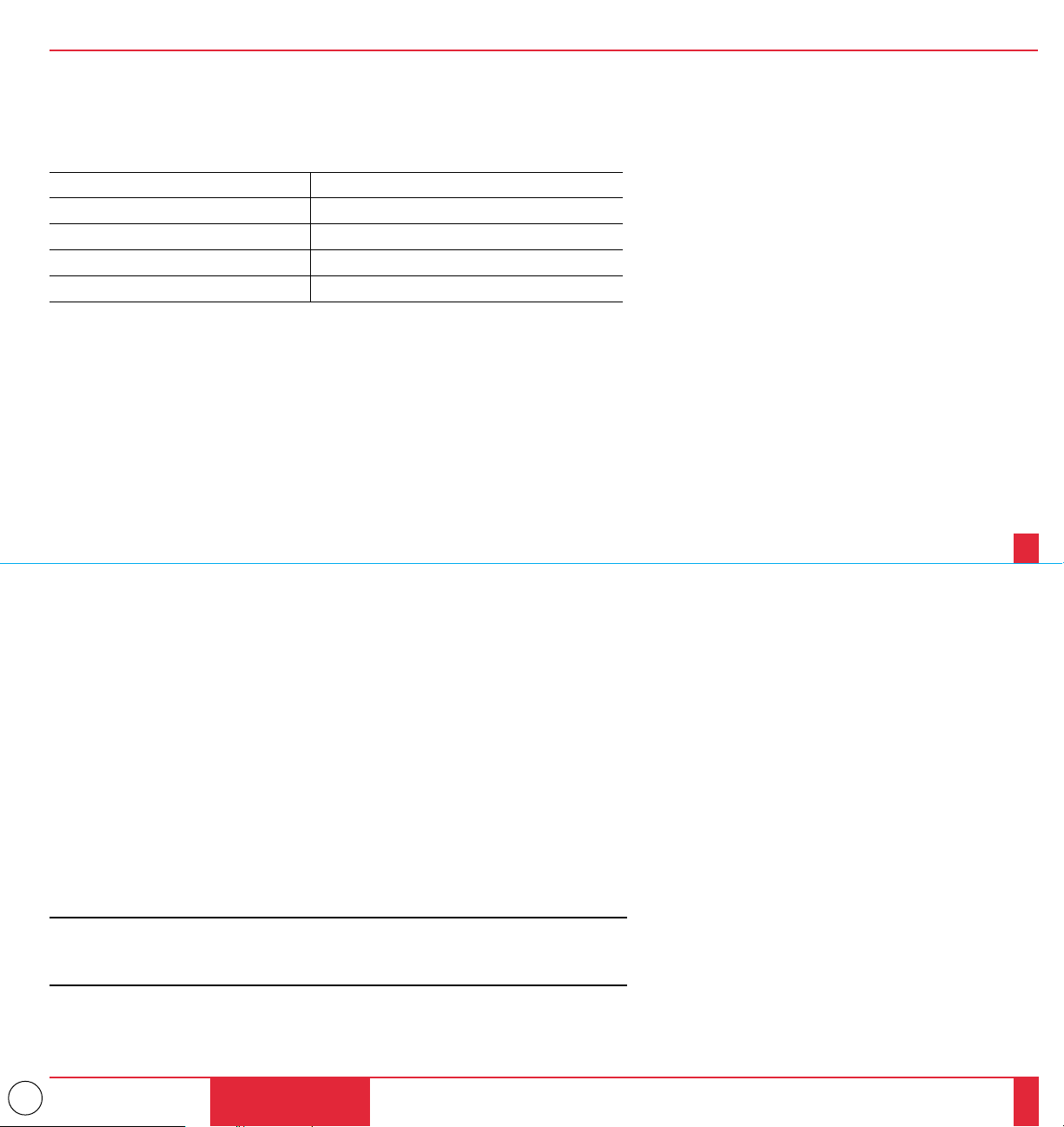
VGA 6402480 for graphics VGA 6402400 for graphics
VGA 6402350 for graphics VGA 7202400 for text
VGA 7202350 for text SVGA 8002600
XGA 10242768 Macintosh at 10242768
Macintosh at 6402480 Macintosh at 8322624
INSTALLATION
37
38
Connecting Your PC Or Macintosh Computer
Connecting your PC or Macintosh computer to your MultiSync MT1000 LCD Projec-
tor will enable you to project your computer's screen image for an impressive presenta-
tion. All of these following display standards are supported:
To connect to a PC, Macintosh or computer equipped with an XGA/SVGA/VGA
adapter or compatible graphics adapter, simply:
1. Turn off the power to your LCD projector and computer.
2. If your PC does not support XGA/SVGA/VGA you will need to install an XGA/
SVGA/VGA graphics board. Consult your computer's owner's manual for your
XGA/SVGA/VGA configuration. If you need to install a new board, see the manual
that comes with your new graphics board for installation instructions.

21
Changing Video Resolutions
Depending on your computer's graphic capability, you may be able
to select one of several resolutions. Generally a computer- either a
PC or Macintosh- with 1 meg. of memory will run:
6402480 at 16.7 million colors (24 bit Truecolor)
8002600 at 65 thousand colors.
10242768 at 256 colors.
As the resolution increases, the number of colors you can run
decreases. With 2 meg. of memory a computer will run:
6402480 at 16.7 million colors (24 bit Truecolor).
8002600 at 16.7 million colors (24 bit Truecolor).
10242768 at 65 thousand colors.
128021024 at 256 colors.
Windows 95
There are two methods you can use to change your resolution.
Method 1
1. Move your cursor to the background image and click.
2. In the "Properties" menu, select "Settings."
3. Change your resolution and click "OK."
4. You may be asked to reboot for the changes to take affect, or you' ll
get a message that "Windows is about to resize your display." You' ll
be asked if you want to keep your settings. Select "Yes."
Method 2
1. Click on your "My Computer" icon.
2. Open "Control Panel" and select "Display."
3. Change your resolution and click "OK." after the new resolution is
selected.
4. You may be asked to reboot for the changes to take affect, or you' ll
get a message that "Windows is about to resize your display." You' ll
be asked if you want to keep your settings. Select "Yes."
Windows 3.1
1. Click on the "Main" icon and open "Control Panel."
2. Select "Change System Settings" and click on "Option."
3. Choose "Change Display Settings."
4. Select the resolution you want.
5. Choose the current drive or another.
6. Restart Windows for the changes to take affect.
Macintosh
1. Under the Apple menu, select "Control Panels" and open "Moni-
tors."
2. Click and open "Options."
3. Select your new resolution and click "OK."
If you have an NEC monitor connected to your Macintosh, you may
have a "DPI-On-The-Fly" extension that enables you to change your
resolution directly. The "DPI-On-The-Fly" icon is under your Apple
menu.
Notebook Computers And Resolution Standards
NEC projectors are designed to project industry standardized video
such as VESA (Video Electronics Standards Association) or VGA
(Video Graphics Array). Notebook computers do not use industry
standards. They use whatever timing is necessary to match their local
LCD display. The end result is typically not standards. By turning off
your notebook's display, the timing parameters are a bit more like the
real VESA or VGA signal.
For an optimal projected image with a notebook computer, it is
recommended that you use the CUSTOM 6 memory data. This feature
is useful when an XGA image (10242768) is displaying with a
notebook computer supported by SXGA (128021024). See Source
Menu on page 52 for more information.
INSTALLATION
39
40

22
Connecting Your Document Camera
You can connect your MultiSync MT1000 LCD Projector to a document camera. To do so, simply:
1. Turn off the power to your LCD projector and document camera.
2. Use a standard video cable to connect your document camera to the Video input on your projector.
3. Turn on the LCD projector and the document camera.
NOTE: Refer to your document camera's owner's manual for more information about your camera's
video output requirements .
Connecting Your VCR Or Laser Disc Player
Use common RCA cables (not provided) to connect your VCR or laser disc player to your MultiSync
MT1000 LCD Projector. To make these connections, simply:
1. Turn off the power to your LCD projector and VCR or laser disc player.
2. Connect one end of your RCA cable to the video output connector on the back of your VCR or laser
disc player, connect the other end to the Video input on your projector. Use standard RCA audio
patch cords to connect the audio from your VCR or laser disc player to your projector (if your VCR
or laser disc player has this capability). Be careful to keep your right and left channel connections
correct for stereo sound.
3. Turn on the LCD projector and the VCR or laser disc player.
NOTE: Refer to your VCR or laser disc player owner's manual for more information about your
equipment's video output requirements.
Connecting An External Monitor
You can connect a separate, external monitor to your LCD projector to simultaneously view on a monitor
the image you're projecting. To do so:
1. Turn off the power to your LCD projector and computer, document camera or video source.
2. Use a 15-pin cable to connect your monitor to the RGB MONITOR OUT connector on your LCD
projector.
3. Turn on the LCD projector and the computer, document camera or video source.
INSTALLATION
41
42
23
Connecting Your Remote Mouse Receiver
The remote mouse receiver enables you to operate your computer's mouse functions from the NEC
MultiSync MT1000 remote control. It is a great convenience for clicking through your computer-
generated presentations.
To connect the remote mouse receiver:
1. Turn off your computer.
2. For PCs: Remove your current mouse and connect the serial cable from the remote mouse
receiver to your PC's mouse port. (Use the 6-pin adapter for connecting to a PS/2 computer.)
For Macintosh: Remove your current mouse from your computer, attach the Macintosh adapter
to the remote mouse receiver's serial cable, and connect the receiver to your mouse port.
3. When the remote mouse receiver is installed, it will disable your regular mouse, disconnect the
remote mouse receiver and restart your computer.
IBM PC/AT
IBM PS/2
Macintosh
INSTALLATION
43
44
24
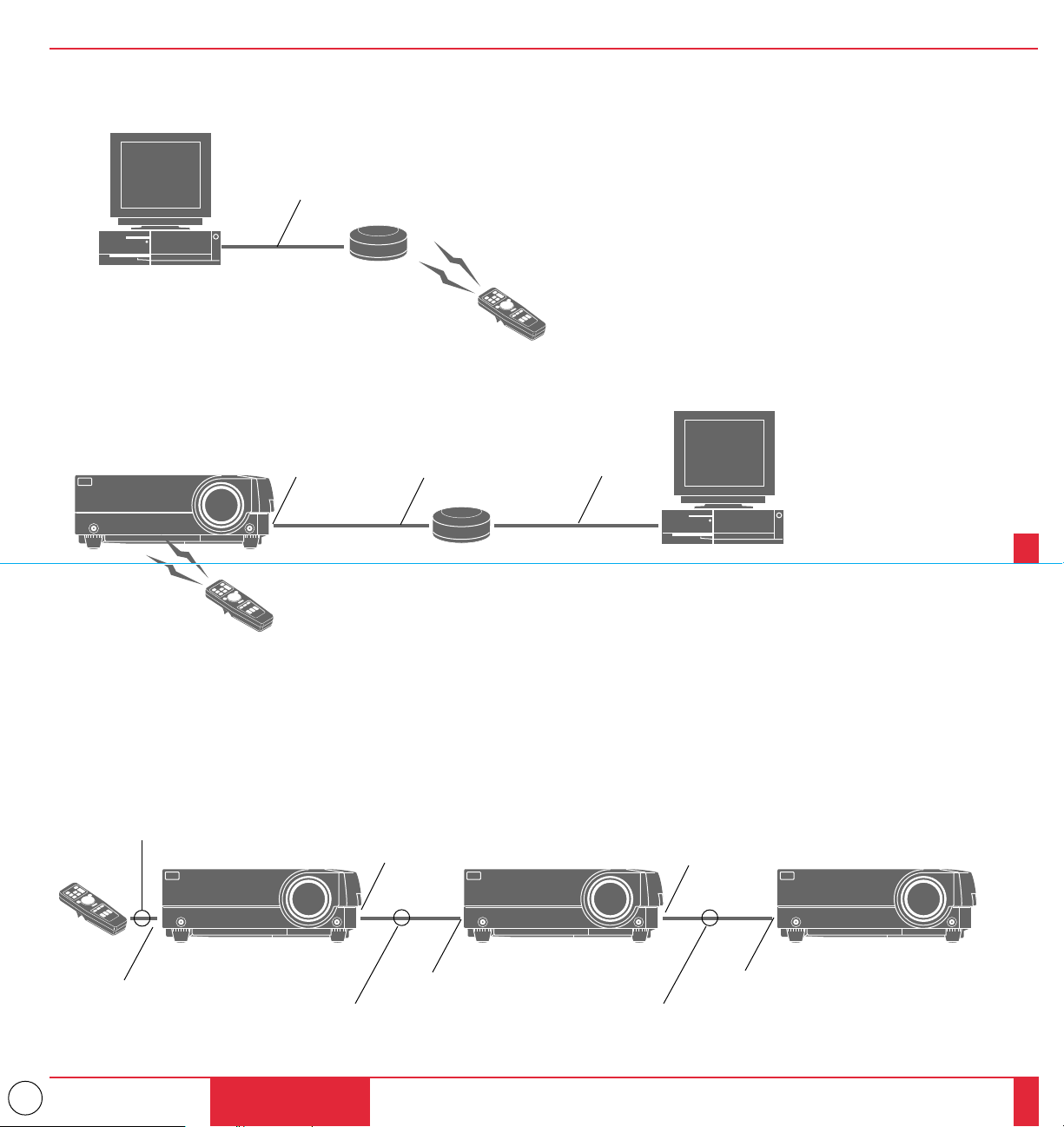
m The Remote Mouse Receiver as a mouse for your computer
Serial cable (supplied)
m The Remote sensors on the projector cabinet work as the remote sensor on the Remote
Mouse Receiver
Remote cable
(supplied)
m You can daisy-chain as many as five LCD projectors and operate them with the same
remote control. To do so:
1. Turn off your projectors.
2. Use the remote control cables supplied to connect the Remote Control Output of one projector to the Remote
Control Input of the next until all the projectors are connected.
Remote cable (supplied)
INSTALLATION
45
46
Serial cable
(supplied)
REMOTE CONTROL
OUTPUT
REMOTE CONTROL
OUTPUT
REMOTE CONTROL
OUTPUT
REMOTE CONTROL
INPUT
REMOTE CONTROL
INPUT
REMOTE CONTROL
INPUT
Remote cable (supplied) Remote cable (supplied)

25
This section describes how to select a computer or video source and how to adjust the
picture and sound.
General Controls Before you turn on your MultiSync MT1000 LCD Projector,
ensure that the computer or video source is turned on and that your lens cap is removed.
1. Turn On The LCD Projector The main power switch is on the back panel of the
MultiSync MT1000 LCD Projector. By turning this switch on, the projector will go
into its standby mode and the power light will glow amber. Only after you press the
"On" button on the remote control or projector cabinet will the power light turn to
green and the projector become ready to use.
NOTE: To turn the LCD projector on and off with just the back panel switch, use the
menu and enable the "auto start" feature. (See page 57. )
2. Select The Computer Or Video Source Press the "Video" (VCR, document
camera, or laser disc player), "S-video", "RGB 1" or "RGB 2" (computer) button on
the remote control to display the image. Or press the "Menu" button on the cabinet
and use the icons to select your video source: "Video", "S-Video", "RGB 1" or
"RGB 2."
OPERATION3
3. Adjust The Image Size Press the "Zoom" button (+) or (-) on the remote control or
projector cabinet to make the image larger or smaller.
4. Focus Press the "Focus" button (+) or (-) on the remote control or projector cabinet to
focus the image.
5. Turning Off The Projector First press the "off" button on the remote control or the
projector cabinet. The power light will glow amber. Then turn off the main power
switch on the back panel. The power light will go out.
IMPORTANT:
• The LCD projector should be unplugged if it will not to be used for an extended
period.
• To turn off the image briefly (five minutes or less), use the "Picture Mute" button
instead of turning the projector off and on.
• The LCD projector will display a black, blue, or loop image if no input signal is
present.
• Do not turn the LCD projector off and then immediately back on. The projector needs
to cool for a minute before it can be restarted.
OPERATION
47
48
26
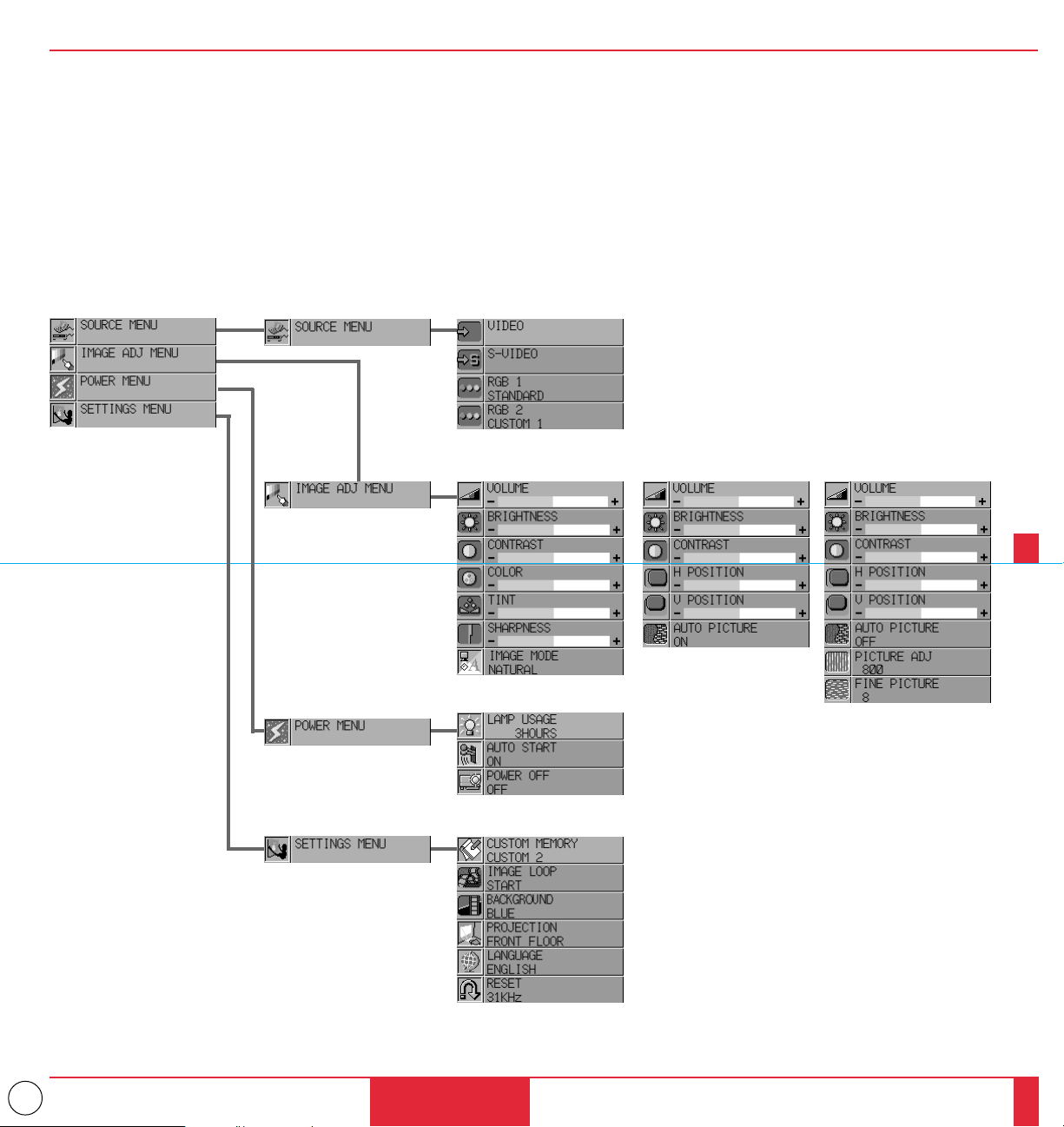
Using The Menus
1. Press the "Menu" button on the remote control or projector cabinet to display the Main Menu.
2. Press the "Select" button on the projector cabinet or (▲) (▼) buttons on your remote control to highlight the menu for the item you want
to adjust.
3. Press the "Enter" button on the projector cabinet or the "Left Click" button on the remote control to select a submenu or item.
4. Adjust the level or turn the selected item on or off by using the "Adjust" (+) or (–) buttons on the remote control or cabinet. The on-screen
gauge will show you the amount of increase or decrease. [The (+) button is "on" and (–) is "off".]
5. The change is stored until you adjust it again.
6. Repeat steps 2-5 to adjust an additional item, or press "Right-Click" on your remote control to quit the menu display.
OPERATION
49
50
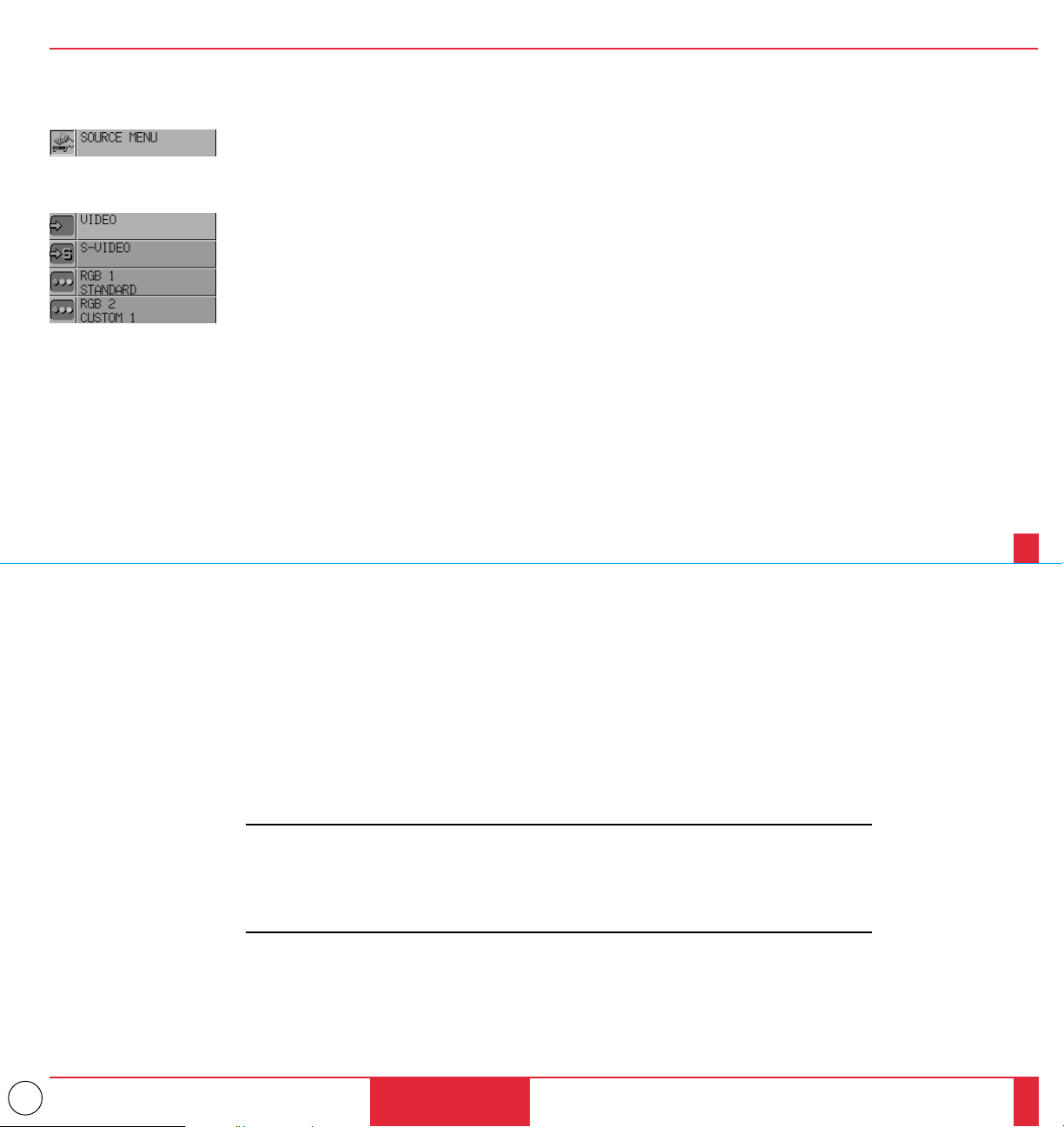
VIDEO RGB AUTO PICTURE ON RGB AUTO PICTURE OFF
27
Menu Descriptions & Functions
Source Menu
RGB 1
Selects the computer connected to your RGB 1 input. Use the "Adjust" (+) or (–) buttons to
select a standard* or one of six** custom settings you can create. Press the "Enter" button
on the cabinet or the "Left Click" button on the remote control to save your selection.
RGB 2
Selects the computer connected to your RGB 2 input. Use the "Adjust" (+) or (–) buttons to
select a standard* or one of six** custom settings you can create. Press the “Enter” button
on the cabinet or the “Left Click” button on the remote control to save your selection.
NOTE:
* Standard is normally used and it can be user changed and automatically recalled.
** ”Custom 6” is read only. This feature is useful when an XGA image (1024
2
768) is displayed
with a notebook computer supported by SXGA (1280
2
1024).
OPERATION
51
52
Enables you to select a video source such as a VCR, laser disc player, computer or document
camera depending on what is connected to your inputs. Press the "Select" button on the
projector cabinet or (▲) (▼) buttons on your remote control to highlight the menu for the
item you want to adjust
Video
Selects what is connected to your Video input-VCR, laser disc player, DVD player, or
document camera.
S-Video
Selects what is connected to your S-Video input-VCR, DVD player, or laser disc player.
28
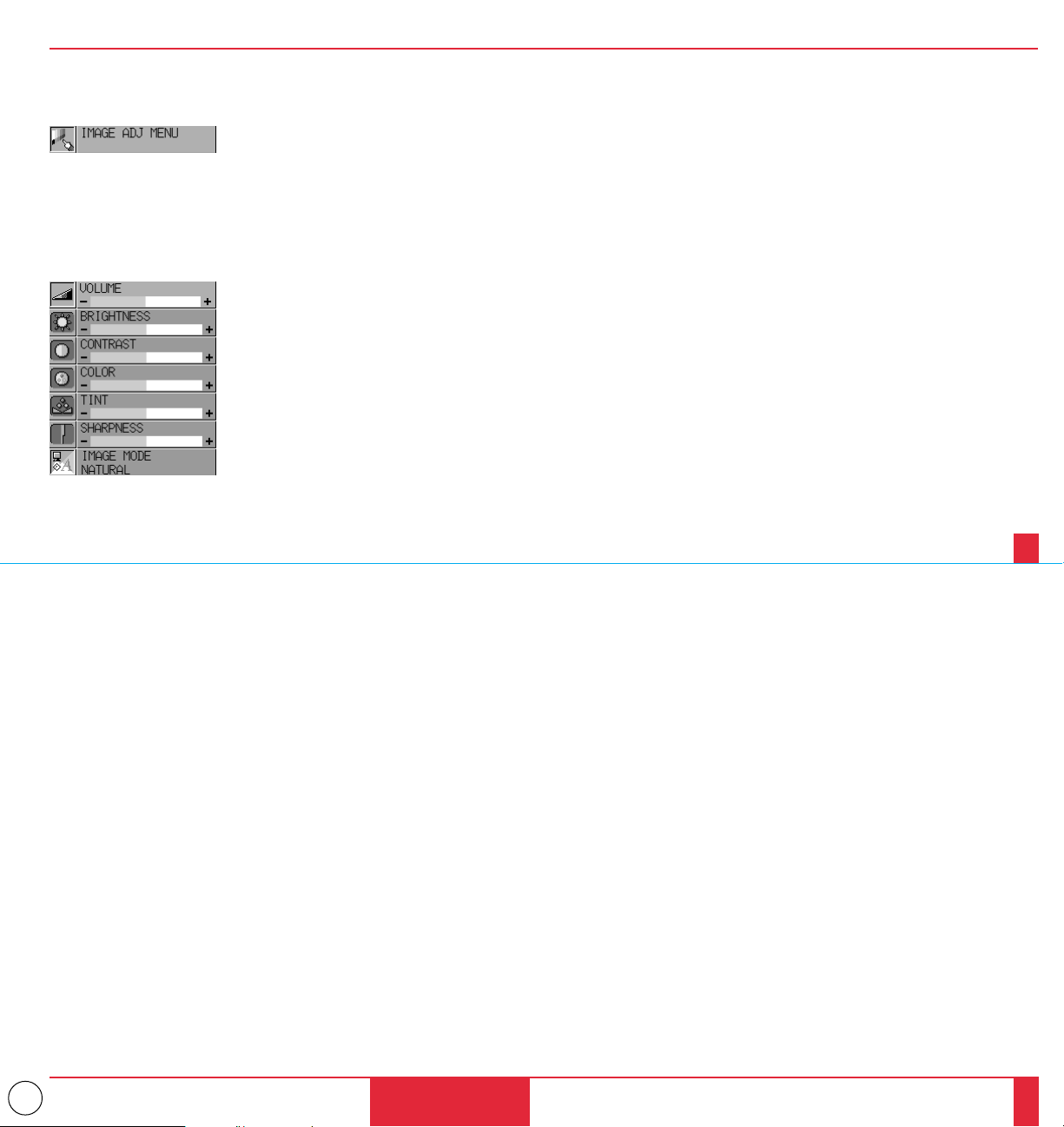
Image Adjustment
Menu
Color*
Use the “Adjust” (+) or (–) buttons to adjust the color.
Tint*
Use the “Adjust” (+) or (–) buttons to adjust the tint.
Sharpness*
Use the “Adjust” (+) or (–) buttons to adjust the sharpness.
Image Mode*
Use the “Adjust” (+) or (–) buttons to choose “Normal” for a regular picture “Natural” for
true color reproduction, or “Document Camera” for a document camera or other low APL
picture.
OPERATION
53
54
Provides access to controls for your image and sound. Use the “Select” button on the projector
cabinet or (▲) (▼) buttons on your remote control to highlight the menu for the item you
want to adjust.
The volume, brightness, contrast, color, tint, sharpness and Image mode controls are available
for Video or S-Video sources.
The volume, brightness, contrast, horizontal position, vertical position and auto picture
controls are available for RGB 1 or RGB 2 sources.
Volume
Use the “Adjust” (+) or (–) buttons to adjust the volume.
Brightness
Use the “Adjust” (+) or (–) buttons to adjust the brightness.
Contrast
Use the “Adjust” (+) or (–) buttons to adjust the contrast.
29
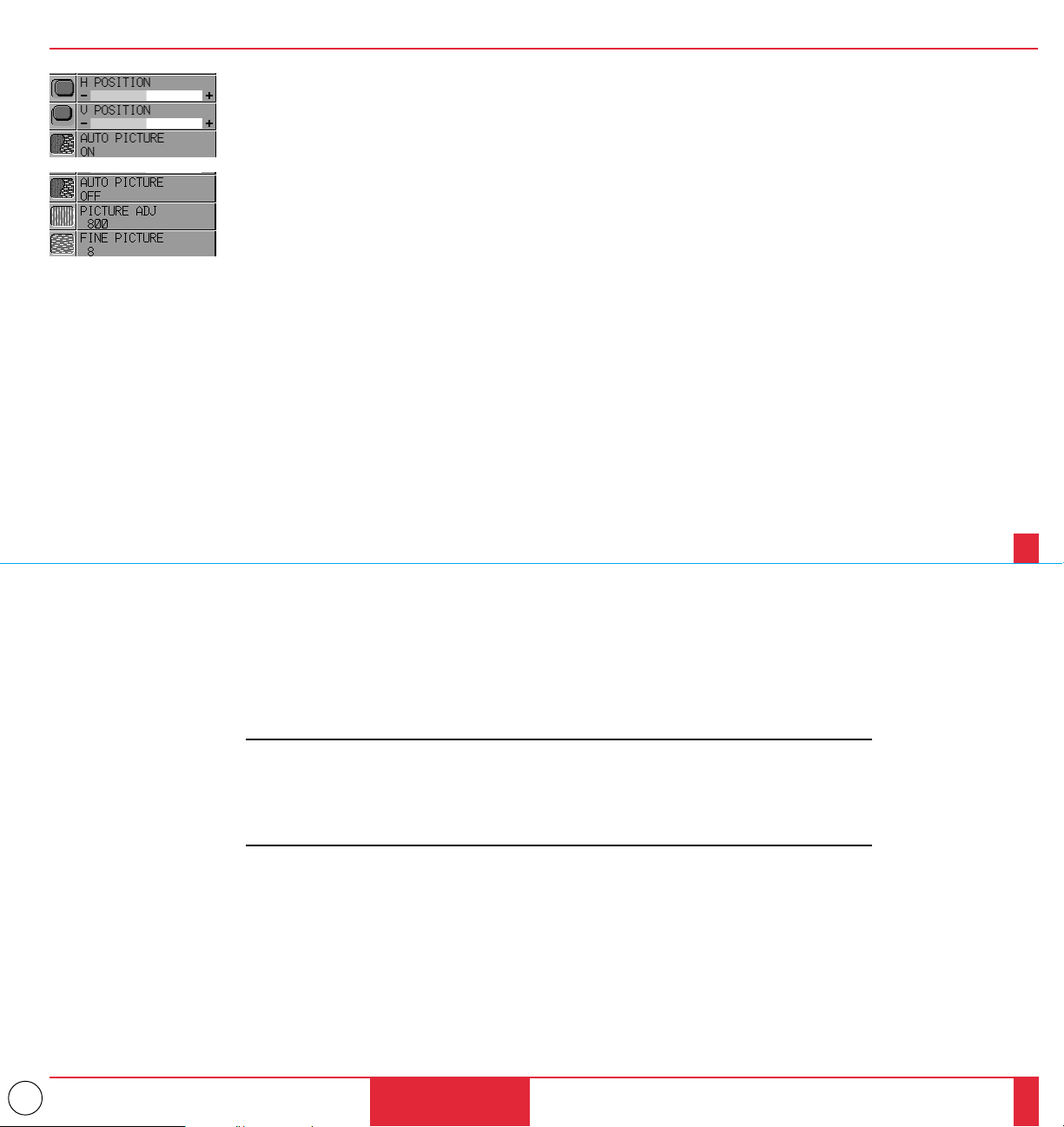
Fine Picture
..
(when AUTO PICTURE is off)
Use this icon to adjust the clock phase or to reduce video noise, dot interference or cross
talk. (This is evident when part of your image appears to be shimmering.) Use the “Adjust”
(+) and (–) buttons to adjust the image. Use the Fine Adjustment only after the Picture
Adjustment is complete. This adjustment is made automatically when the Auto Picture is
turned on.
NOTE:
,
Color, Tint, Sharpness and Image Mode controls will not work with an RGB source. The Tint
control will not work with a PAL or SECAM source.
,,
Horizontal and Vertical position controls, and Picture, Fine Picture and Auto Picture
adjustments will not work with a Video or S-Video source.
OPERATION
55
56
Horizontal Position
..
Use the “Adjust” (+) button to move the image right; (–) to move it left.
Vertical Position
..
Use the “Adjust” (+) button to move the image up; (–) to move it down.
Auto Picture
..
Use the “Adjust” (+) button to turn this feature on so “Picture” and “Fine Picture” adjustments
are made automatically. Use the “Adjust” (–) button to turn this feature off so you can make
“Picture and Fine Picture” adjustments manually.
Picture Adjustment
..
(when AUTO PICTURE is off)
Use this icon with the “Fine Picture Adjustment” to fine tune the computer image or to
remove any vertical banding that might appear. This function adjusts the clock frequencies
that eliminate the horizontal banding in the image. Press the “Adjust” (+) and (–) buttons
until the banding disappears. This adjustment may be necessary when you connect your
computer for the first time. This adjustment is made automatically when the Auto Picture is
turned on.
30
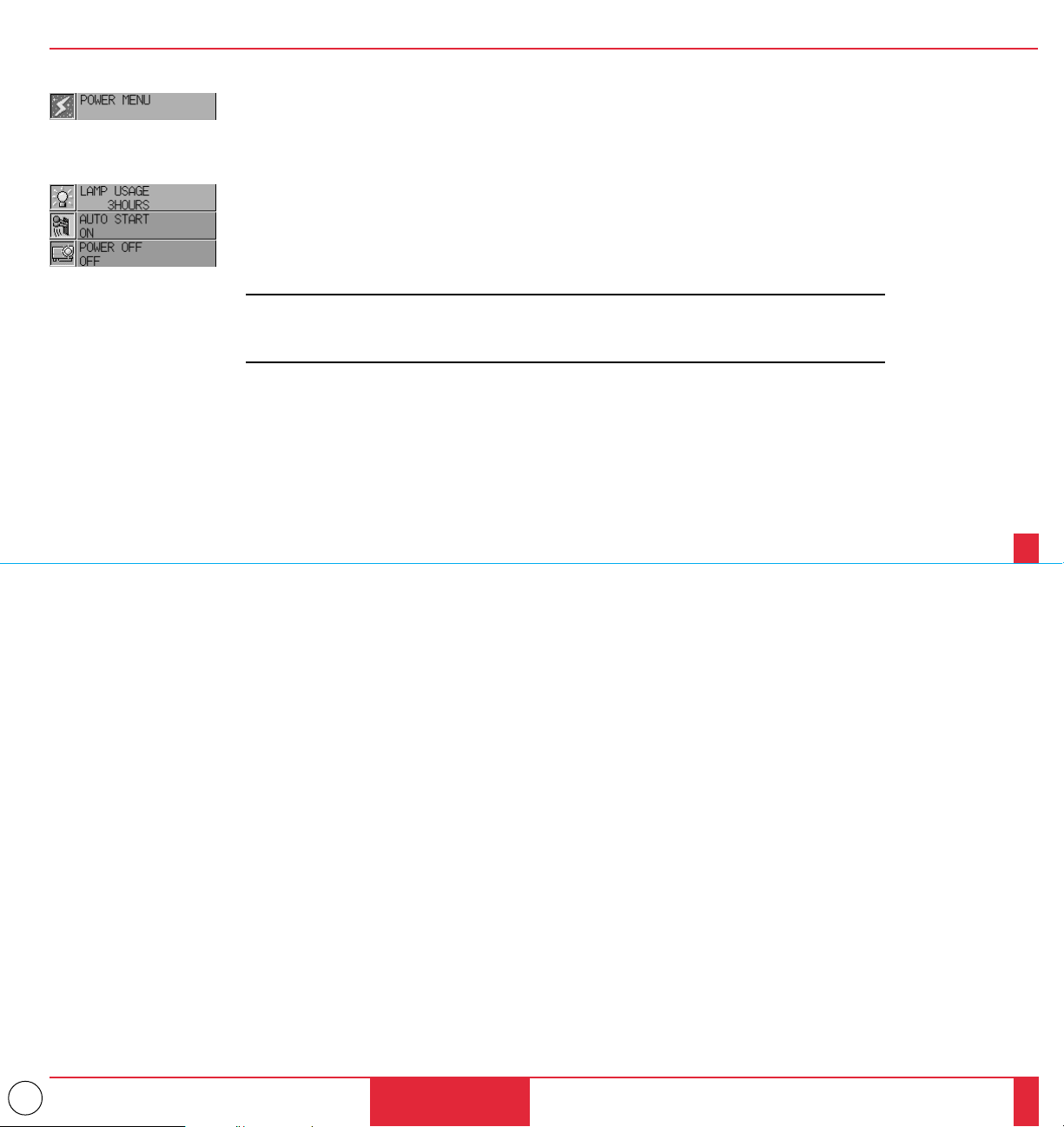
Provides access to Lamp Usage information and the Auto Start and Power Management
features. Use the “Select” button on the projector cabinet or (▲) (▼) buttons on your remote
control to access a submenu. Then press “Adjust” (+) or (–) to choose a specific option.
Lamp Usage
This tells you how long the lamp has been in operation. It is recommended that you replace a
lamp after 2000 hours of service. After you install a new lamp, select this icon and press and
hold the “Power On” button on the remote control for ten seconds to reset the lamp clock back
to zero.
NOTE: The projector will turn off and go into stand by mode after 2100 hours of service. If this
happens, press the "Power Off" button on the remote control for ten seconds to reset the lamp clock
back to zero. Do this only after replacing the lamp.
Auto Start
Turns the LCD projector on automatically when the main power switch is turned on. This
eliminates the need to always use the “Power” button on the remote control or projector
cabinet. Press (+) to turn this feature on and (–) to turn it off.
Power Menu
Power Management
When “Power Off” is on and there is no RGB video input for five minutes or more, the
projector will automatically turn itself off. Press the (+) to turn this feature on and (–) to turn
it off. This feature does not work with Video or S-Video sources.
OPERATION
57
58
31
Settings Menu
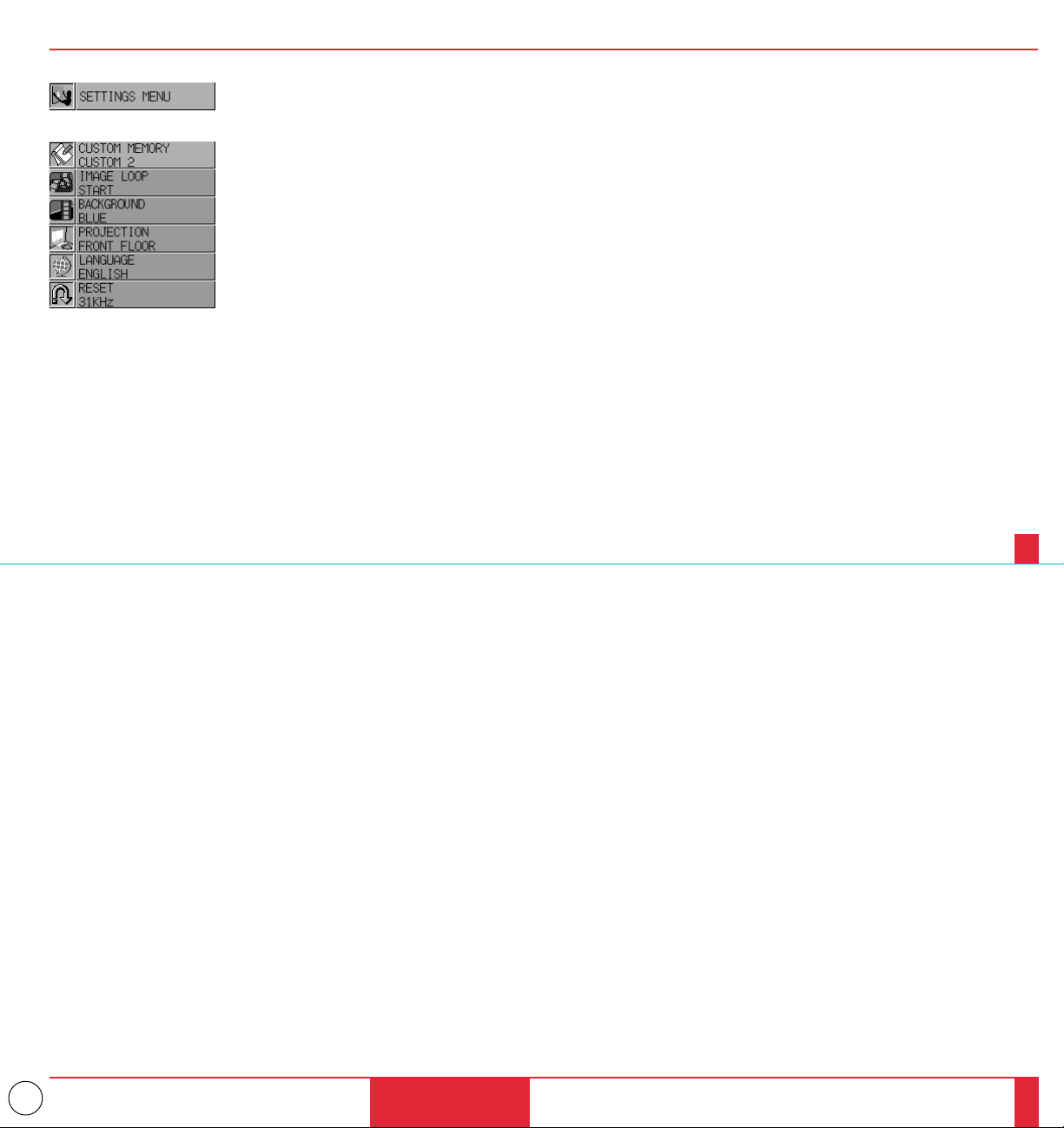
Enables you to set preferences and other operating options. Use the “Select” button on the projector
cabinet or (▲) (▼) buttons on your remote control to access the submenu you want.
Custom Memory
This enables you to save your current settings for an RGB source in one of five memories, Custom
1-5.
To change the STANDARD settings, proceed as follows:
1. Connect your computer to the MultSync MT1000.
2. Select the "STANDARD" in RGB 1 or RGB 2 source.
3. Adjust the horizontal/vertical position, Picture, and Fine Picture adjustments.
4. Select the Custom Memory icon.
5. Press the "Adjust" (+) or (–) buttons to choose a memory location, then press "Enter" on the cabinet
or the "Left Click" on your remote control to save the new settings.
If you do not want to change the STANDARD settings, first select the Custom Memory icon, then
do the same as step 5.
Image Loop
This feature enables you to “capture” an image from a source that is currently being displayed. Up
to 8 images can be stored.
Press the “Adjust” (+) or (–) buttons to select "Start" for the image you want to loop and “Capture”
for the image you want to capture or to select “Delete” and delete all captured images from memory.
Press “Enter” on the cabinet or the “Left Click” on your remote control to save your image loop
changes. To stop an image loop, press one of the “Video”, “S-Video”, “RGB1” or “RGB2” button, or
using the Source menu.
Background
Use this feature to display a black or blue screen or to start an image loop when no input signal is
available.
Press the “Adjust” (+) or (–) buttons to choose the back screen you want — blue, black or an image
loop. Press “Enter” on the cabinet or the “Left Click” on your remote control to save your change.
Projection
This reorients your image for your type of projection. Press the “Adjust” (+) or (–) button until it is
correct. Press “ENTER” on the cabinet or the “Left Click” on your remote control to save your
change. The options are: front floor projection, rear ceiling projection, rear floor projection, and
front ceiling projection.
Language
Use the “Adjust” (+) or (–) to choose one of six languages for on-screen instructions. Press “ENTER”
on the cabinet or the “Left Click” on your remote control to save your change The options are:
English, German, French, Italian, Spanish and Swedish.
Reset
Changes all adjustments to the factory preset levels for each source individually. To activate, you
must hold down the “Adjust” (+) button on the cabinet or remote control for at least two seconds.
The adjustments that will be reset are horizontal and vertical control, picture and fine picture adjustment
(for the current source only), brightness, contrast, color, tint, and sharpness.
OPERATION
59
60
32
This section describes the simple maintenance procedures you should follow
to replace the lamp, clean or replace the filter, and replace the batteries in the
remote control.
Replacing The Lamp
After your lamp has been operating for 2000 hours or longer, the
“status” light in the cabinet will go on. Even though the lamp may still
be working, replace it at 2000 hours to maintain optimal projector
performance.
CAUTION
• DO NOT TOUCH THE LAMP immediately after it has been used. It will
be extremely hot. Allow at least one hour for the lamp to cool before
handling.
• DO NOT REMOVE ANY SCREWS except the lamp cover set screw
and two lamp case screws. You could receive an electric shock.
• Turn off the main power to the projector and disconnect the power cord.
Allow at least one hour for the lamp to cool.
• The projector will turn off and go into stand by mode after 2100 hours of
service. If this happens, be sure to replace the lamp. If you continue to
use the lamp after 2000 hours of use, the lamp bulb may shatter, and
pieces of glass may be scattered in the lamp case. Do not touch them as
the pieces of glass may cause injury. If this happens, contact your NEC
dealer for lamp replacement.
MAINTENANCE4
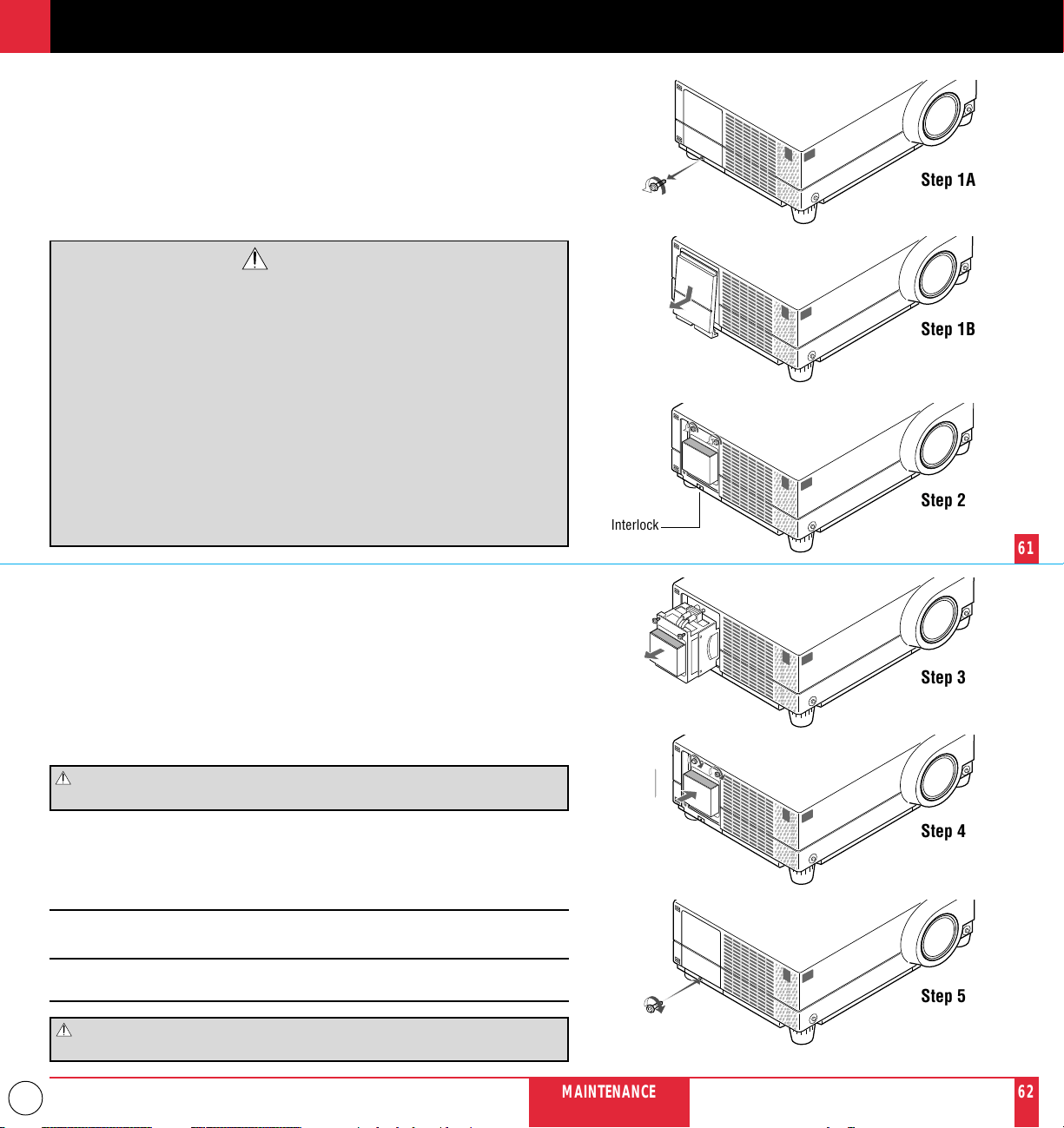
To replace the lamp:
1. Remove the single screw that secures the lamp housing cover and remove
the cover.
2. Remove the two screws securing the lamp case. (There is an interlock on
this case to prevent the risk of electrical shock. Do not attempt to circum-
vent this interlock.)
3. Remove the lamp by pulling out the complete assembly.
4. Install a new lamp case assembly and secure it in place with the two screws.
CAUTION: Do not use a lamp other than the NEC replacement lamp.
Order this from your NEC dealer using your projector's model number.
5. Reattach the lamp cover and reinstall the single screw.
6. After you install a new lamp, select the lamp Usage icon and press and hold
the "Power On" button on the remote control for ten seconds to reset the
lamp time clock to zero.
NOTE: If resetting the lamp clock back to zero after 2100 hours of service, press
the "Power Off" (not "Power On") button on the remote control for ten seconds .
NOTE: When you replace the lamp, it is also wise to replace the filter. The filter
comes in the same package with your replacement lamp.
CAUTION: Do not put the LCD projector on end except to replace the air
filter.
Step 1A
Step 1B
Step 2
Step 3
Step 4
Step 5
Interlock
MAINTENANCE
61
62
33
Cleaning Or Replacing The Filter
The air-filter sponge keeps the inside of the MultiSync MT1000 LCD Projector free from dust or dirt
and should be cleaned after every 100 hours of operation (more often in dusty conditions). If the filter
is dirty or clogged, your projector may overheat.
NOTE: Clean your filter after every 100 hours of operation.
CAUTION
• Turn off the LCD projector and wait for the fan to stop. Turn off the main power and unplug
the projector before replacing the filter.
• Only clean the outside of the filter cover with a vacuum cleaner.
• Do not attempt to operate the projector without a filter.
• Your LCD projector will not operate unless the filter is installed correctly.
• Do not put the LCD projector on end except to replace the filter.
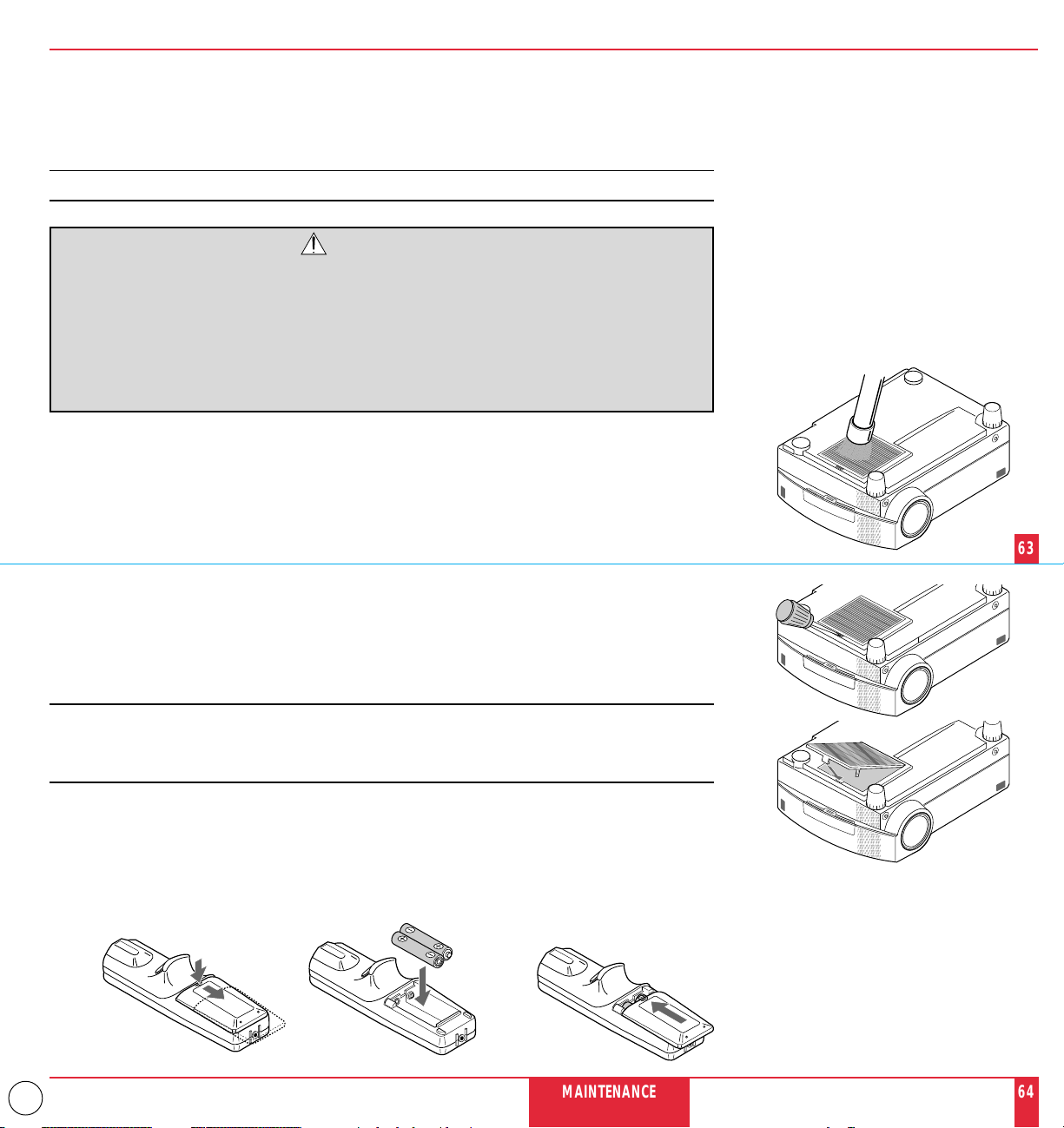
To clean the air-filter:
1. Turn over the projector. Put the LCD projector on end so that the bottom is visible.
2. Vacuum the filter through the filter cover.
3. Place the projector back in a horizontal position.
To replace the air-filter:
1. Remove the filter panel by pushing up on the catch of the cover with a flat-head screwdriver until
you feel it detach.
2. Remove the filter and replace it.
3. Reinstall the filter panel.
NOTE: Do not detach the sponge from the filter cover. Do not wash the filter with soap and water.
Soap and water will damage the filter membrane.
Before replacing the air-filter, remove dust and dirt from the projector cabinet. Keep out dust
and dirt during filter replacement.
Remote Control Battery Installation
1. Press firmly and slide the battery cover off.
2. Remove both old batteries and install new ones (AA). Ensure that you have the batteries' polarity
(+/–) aligned correctly.
3. Slip the cover back over the batteries until it snaps into place.
MAINTENANCE
63
64
34
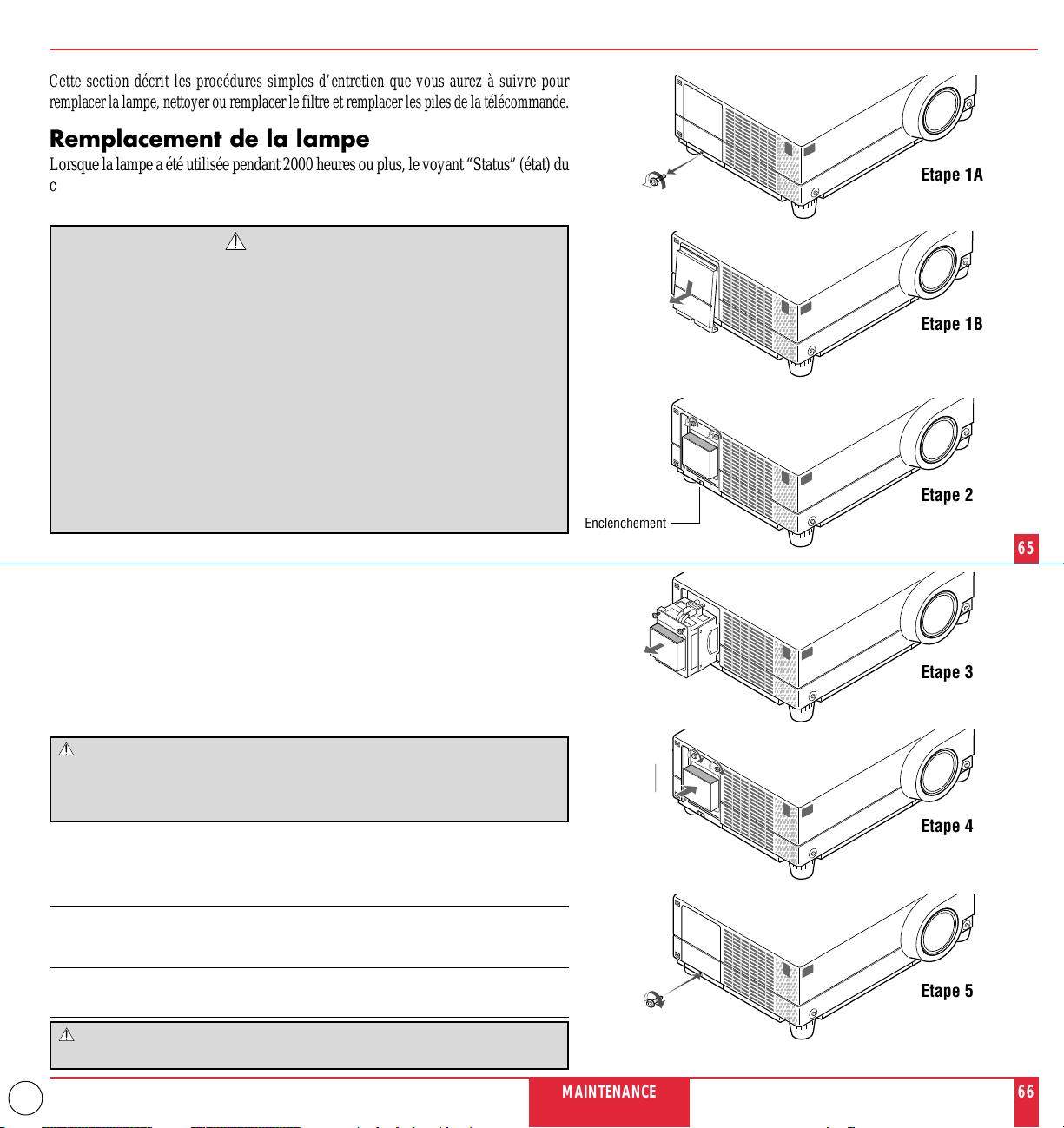
Etape 1A
Etape 1B
Etape 2
Etape 3
Etape 4
Etape 5
Enclenchement
MAINTENANCE
65
66
Cette section décrit les procédures simples d’entretien que vous aurez à suivre pour
remplacer la lampe, nettoyer ou remplacer le filtre et remplacer les piles de la télécommande.
Remplacement de la lampe
Lorsque la lampe a été utilisée pendant 2000 heures ou plus, le voyant “Status” (état) du
coffret s’allume. Même si la lampe peut encore fonctionner, remplacez-la au bout de
2000 heures pour conserver une performance optimale de votre projecteur.
PRECAUTIO N
•
NE TOUCHEZ PAS A LA LAMPE juste après qu’elle a été utilisée. Elle est très
chaude. Laissez-la refoidir pendant au moins une heure avant de la manipuler.
• NE RETIREZ AUCUNE VIS mis à part la vis qui fixe le couvercle de lampe
et les deux vis du compartiment de lampe. Vous risquez de recevoir une
décharge éléctrique.
• Mettez le projecteur hors circuit et débranchez le cordon d’alimentation.
Laissez refroidir la lampe pendant au moins une heure.
• Le projecteur s’éteindra et restera en attente après 2100 heures d’utilisation.
Dans ce cas, remplacez la lampe. Si vous continuez d’utiliser la lampe après
2000 heures d’utilisation, l’ampoule peut se briser et des brisures de verre
peuvent être éparpillées dans le compartiment de la lampe. Ne les touchez pas
car elles peuvent vous blesser. Dans ce cas, contactez votre revendeur NEC
afin de procéder au remplacement de la lampe.
Pour remplacer la lampe :
1.
Retirer l’unique vis qui fixe le couvercle de lampe et retirez le couvercle.
2.
Retirez les deux vis qui fixent le compartiment de lampe. (Afin de prévenir
contre un risque de décharge électrique, il y a un enclenchement sur ce
compartiment. Ne tentez pas de détourner cet enclenchement.)
3. Retirez la lampe en tirant tout l’assemblage.
4.
Installez un nouvel assemblage de compartiment lampe et fixez-le avec les deux vis.
PRECAUTION: N’utilisez pas d’autres lampes qu’une lampe de
rechange NEC.
Commandez-la auprès de votre vendeur NEC en donnant le numéro
de modèle du projecteur.
5. Fixez de nouveau le couvercle de lampe et replacez la vis unique.
6.
Une fois la nouvelle lampe installée, sélectionnez l’icone d’utilisation de lampe
et appuyez et maintenez la touche “Power On” (alimentation activée) de la
télécommande pendant dix secondes afin de remettre à zéro l’horloge de lampe.
REMARQUE : Pour remettre à zéro l’horloge de lampe après 2100 heures
d’utilisation, appuyez sur la touche “Power Off” (alimentation désactivée)(et non
“Power On” (alimentation activée)) de la télécommande pendant dix secondes .
REMARQUE: Lorsque vous remplacez la lampe, il est recommandé de changer
également le filtre. Le filtre se trouve dans le même emballage que la lampe de rechange.
PRECAUTION: Ne dressez pas le projecteur debout sauf pour
changer le filtre à air.
35
MAINTENANCE
67
68
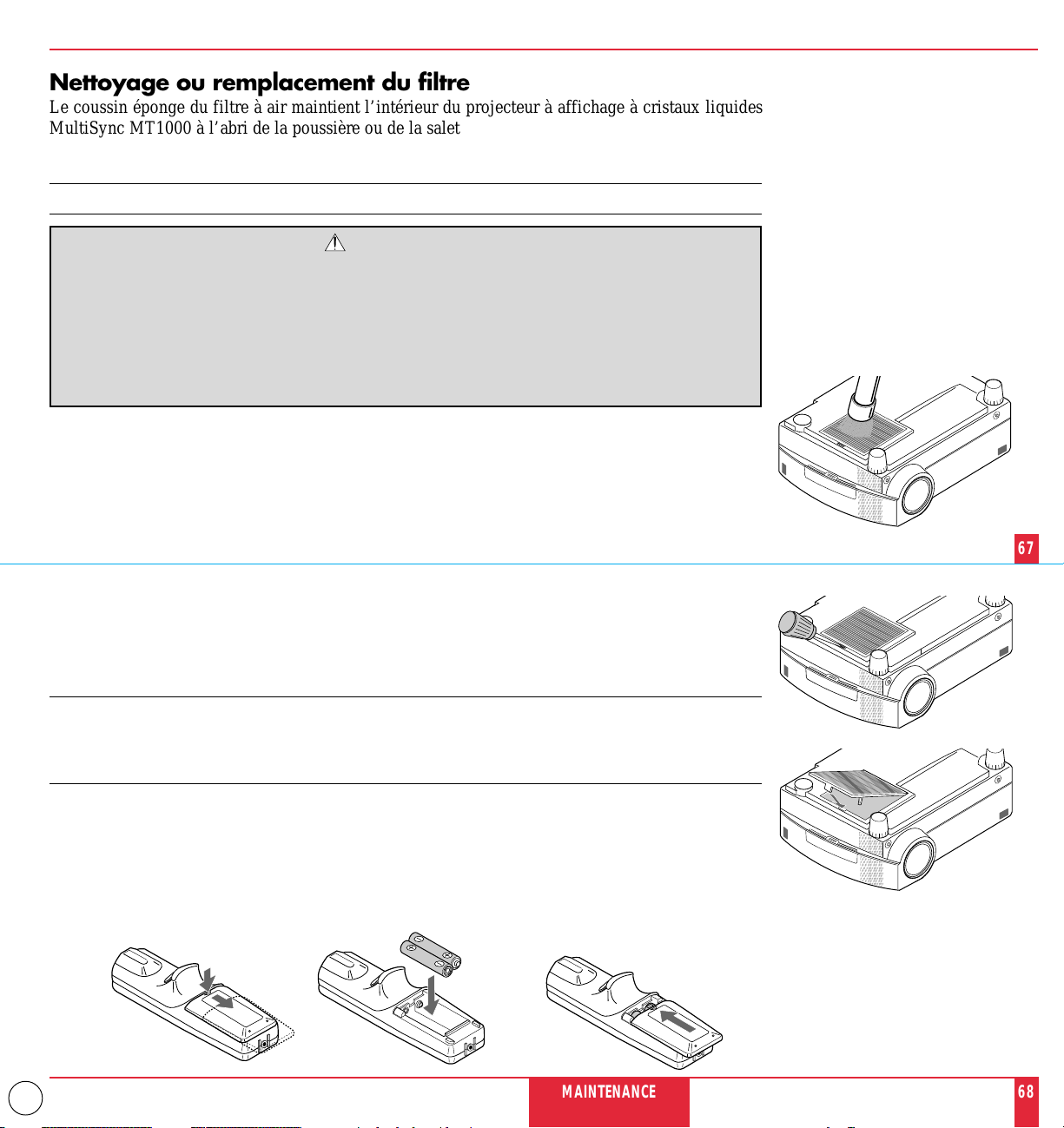
Nettoyage ou remplacement du filtre
Le coussin éponge du filtre à air maintient l’intérieur du projecteur à affichage à cristaux liquides
MultiSync MT1000 à l’abri de la poussière ou de la saleté et doit être nettoyé toutes les 100 heures
d’utilisation (plus souvent dans les endroits poussiéreux). Si le filtre est sale ou bouché, le projecteur
risque de surchauffer.
REMARQUE: Nettoyez le filtre toutes les 100 heures d’utilisation.
PRECAUTION
• Mettez le projecteur à affichage à cristaux liquides hors circuit et attendez que le ventilateur
s’arrête. Couez l’alimentation et déranchez le projecteur avant de remplacer le filtre.
• Nettoyez uniquement le couvercle extérieur du filtre avec un aspirateur.
• N’essayez pas de faire fonctionner le projecteur sans filtre.
• Votre projecteur à affichage à cristaux liquides ne fonctionnera pas tant que le filtre ne sera pas
installé correctement.
• Ne dressez pas le projecteur à affichage à cristaux liquides debout sauf pour remplacer le filtre.
Pour nettoyer le filtre à air:
1.Retourner le projecteur. Dressez le projecteur à affichage à cristaux liquides debout de façon à ce que
l’arrière soit visible.
2.Aspirez le filtre à travers le couvercle de filtre.
3.Remettez le projecteur en position horizontale.
Pour remplacer le filtre à air :
1.Retirez le panneau du filtre en poussant vers le haut sur le cliquet du couvercle à l’aide d’un tournevis
à tête plate jusqu’à ce que vous sentiez qu’il se détache.
2.Retirez le filtre et remplacez-le.
3.Réinstallez le panneau du filtre.
NOTE: Ne détachez pas le coussin éponge du couvercle de filtre. Ne lavez pas le filtre au savon et à l’eau. Le savon
et l’eau endommageront la membrane du filtre.
Avant de remplacer le filtre à air, dépoussiérez et nettoyez le coffret du projecteur. Maintenez propre
pendant le remplacement du filtre.
Installation des piles de la télécommande
1. Appuyez fermement et retirez le couvercle des piles en le faisant glisser.
2. Retirez les deux piles usagées et installez de nouvelles piles (AA). Assurez-vous de respecter la
polarité (+/–) des piles.
3. Remettez le couvercle des piles en le faisant glisser, jusqu’à ce qu’il s’emboîte.
36
This section helps you resolve problems you may encounter while setting up or using your MultiSync MT1000 LCD Projector.
Status Light Messages
TROUBLESHOOTING5
TROUBLE SHOOTING
69
70
Status
m Normal
m The projector lamp has exceeded 2000 hours of operation and
should be replaced.
m Either the lamp cover or filter panel is not fastened properly. Check
each and reattach them if necessary.
m The projector is overheated.
• If there is insufficient ventilation around the projector or if the
room where you're presenting is particularly warm, move the
projector to a cooler location.
• Check the filter and clean it if necessary.
• If the problem persists, contact your NEC dealer for service.
Condition
OFF
On Continually
Blinking very rapidly
(On and off in a cycle of 1 sec.)
Blinking rapidly
(On and off in a cycle of 4 sec.)
Blinking Slowly
(On and off in a cycle of 8 sec.)
Blinking very slowly
(On and off in a cycle of 12 sec.)
m The cooling fan has stopped. Contact your NEC dealer for service.
m The lamp is not turned on.
• The projector was turned off and back on too quickly. Turn
off the projector, wait one minute, then turn the projector
back on. Or the lamp is burnt.
37
Common Problems & Solutions
Problem
Does not turn on
No picture
Image isn’t square to the screen
Picture is blurred
Image is scrolling vertically,
horizontally or both
Remote control does not work
Status indicator is lit or
blinking
Cross color in RGB
mode
Check These Items
• Check that the cord is plugged in and that the power switch on the back panel is on.
• Ensure that the air filter and filter panel are installed correctly. (See page 64.)
• Check the status light to see if the projector has overheated or the lamp usage exceeds 2100 hours.
• Use the menu icons to select your source (Video, S-Video, RGB1 or 2). (See pages 51 and 52.)
• Ensure your cables are connected properly.
• Use icons to adjust the brightness and contrast.
• Remove the lens cap.
• Reposition the projector to improve its angle to the screen.
• Adjust the focus. (See page 20 or 28.)
• Reposition the projector to improve its angle to the screen.
• Ensure that the distance between the projector and screen is within the adjustment range of the lens.
• Use icons to select the source you want to input.
• Install new batteries. (See page 64.)
• Make sure there are no obstacles between you and the projector.
• Stand within 23 feet (7m) of the projector.
See the Status Light message chart on pages 69 and 70.
If “Auto Picture” is off, turn it on. If “Auto Picture” is on, turn it off and balance the image with the Picture
Adjustment icon and Fine Picture Adjustment icon.
To Contact Your NEC Service Representative, Call 1-800-836-0655
TROUBLE SHOOTING
71
72
This section explains conditions that you will encounter when operating your MT1000
while displaying an SXGA (128021024) image.
When a menu or message is displayed while an SXGA image is projected, several lines
of information will be lost.
When the "LAMP USAGE 2000 HOURS" message appears, several lines of information
will be lost.
The "LAMP USAGE 2000 HOURS" message will not appear when the freeze button is
activated.
SXGA images inherently display a 5 to 4 ratio, resulting in an image that appears to be
smaller and more square than the 4 to 3 format commonly displayed.

38
This section provides technical information about the MultiSync MT1000 LCD Projector's performance.
Optical
LCD Panel
1.3", p-Si TFT active-matrix, 10242768 dots
Lens Power zoom, power focus
F 2.5 f =52 – 68 mm
Lamp Metal halide lamp 250 W
(Guaranteed life span: 2,000 hours or
6 months from date of purchase,
whichever comes first.)
Image Size 20-300 inches diagonal
Projection Distance 3.28 – 40.03 ft (1.0 – 12.2 m)
Light Output 450 ANSI lumens
Contrast Ratio Greater than 200 : 1
Color Temperature 8,500 ± 1500 Kelvin
SPECIFICATIONS6
Electrical
Inputs Video (NTSC / PAL / SECAM / NTSC4.43)
RGB (H : 15 – 85 kHz, V : 50 – 85 Hz)
Video Bandwidth 80 MHz
Color Reproduction Full color, 16.7 million colors simultaneously.
Horizontal Resolution 550 TV lines: NTSC, 350TV lines: PAL / SECAM / NTSC 4.43
RGB 1024 dots horizontal, 768 dots vertical
Power Requirement 100 – 120 / 220 – 240 VAC, 50 / 60 Hz
Input Current 5.8 A
Mechanical
Dimensions 15.4" (W)25.8" (H)212.7" (D)
39.0 cm (W)214.5 cm (H)232.1 cm (D)
Net Weight 15.9 lbs / /7.2 kg
Operational Temperatures LCD projector: 32° – 104°F(0° to 40°C), 20 – 80% humidity
Remote control: 32° – 140°F (0° to 60°C)
Remote mouse receiver: 32° – 140°F (0° to 60°C)
Regulations UL Approved (UL 1950, CSA 950)
Meets DOC Canada requirements
Meets FCC Class A requirements
SPECIFICATIONS
73
74
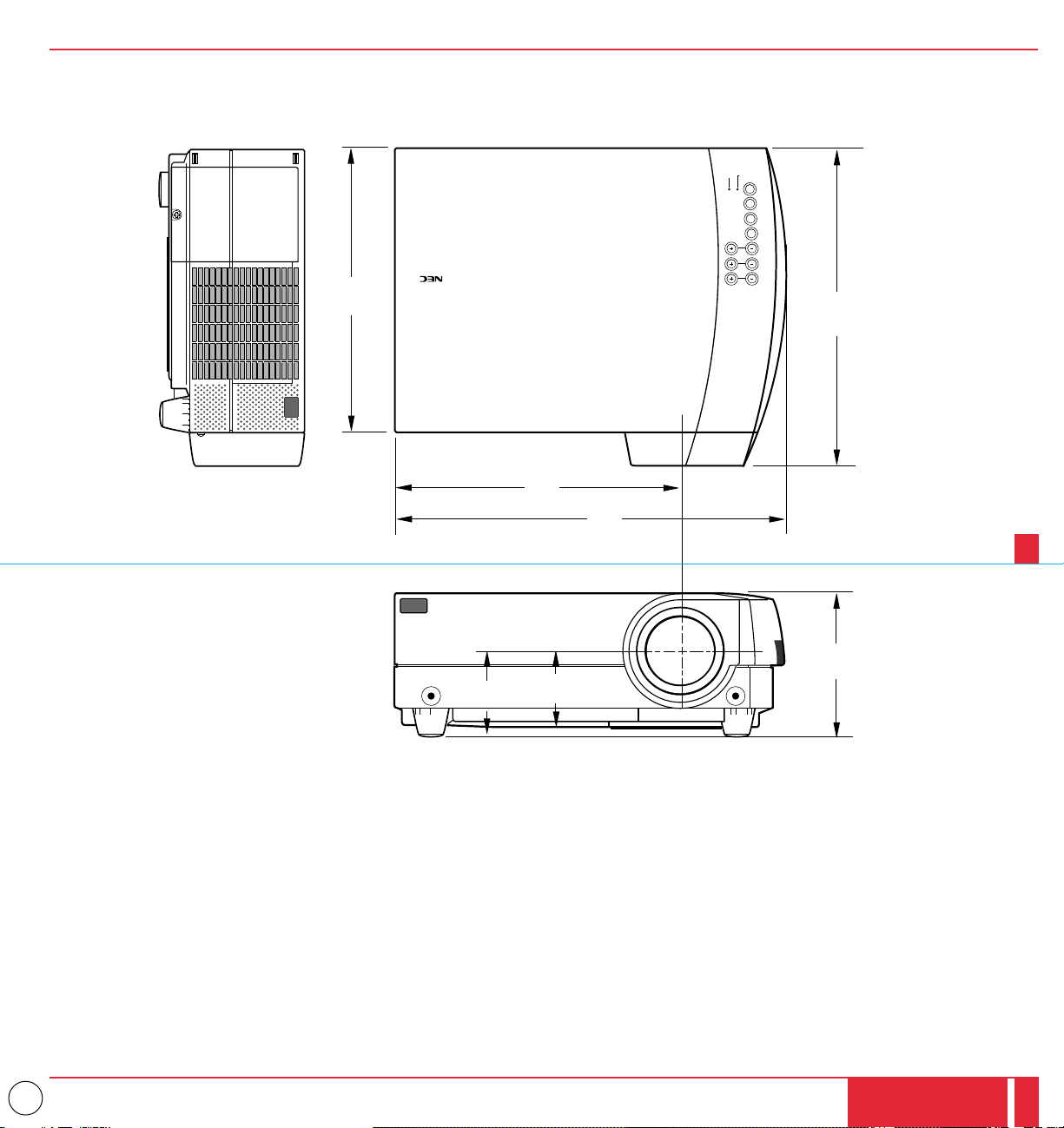
39
Cabinet Dimensions
Unit : inch (mm)
SPECIFICATIONS
75
76
11.3"
(286.5)
15.4"
(390)
11.3"
(285.0)
12.7"
(321.0)
FOCUS
ZOOM
ADJUST
ENTER
SELECT
MENU
POWER
ON/OFF
STATUSPUSH
3.1"
(77.2)
5.8"
(145.0)
3.1"
(78.2)

40
D-Sub Pin Assignments
PC 15-Pin mini D-Sub Macintosh 15-Pin D-Sub
Pin No. Signal to be connected Pin No Signal to be connected
1 Red 1 Red GND
2 Green 2 Red
3 Blue 3 Horizontal Sync
4 GND 4 GND
5 GND 5 Green
6 Red GND 6 Green GND
7 Green GND 7 No Connection
8 Blue GND 8 No Connection
9 No Connection 9 Blue
10 Digital GND 10 No Connection
11 GND 11 GND
12 No Connection 12 Vertical Sync
13 Horizontal Sync 13 Blue GND
14 Vertical Sync 14 No Connection
15 No Connection 15 No Connection
1
2
34
5
11
12
13
1415
6
7
8
9
10
1
2
34
5
11
12
13
1415
6
7
8
9
10
PC 15-Pin mini D-Sub
Macintosh 15-Pin D-Sub
SPECIFICATIONS
77
78

41
Timing Chart
Y/N Signal Resolution Refresh F.H. Dot
Rate (Hz) (kHz) Clk(MHz)
Y NTSC 6402480 60 15.734 -
Y PAL 7682576 50 15.625 -
Y SECAM 7682576 50 15.625 -
Y VESA 6402350 85.08 37.86 31.5
Y IBM 6402400 70 31.47 25.175
Y VESA 6402400 85.08 37.86 31.5
Y MAC 6402400 66 35 30.24
Y VESA 6402480 59.94 31.47 25.175
Y IBM 6402480 60 31.47 25.175
Y MAC 6402480 60 31.47 25.175
Y MAC 6402480 66.7 34.97 31.334
Y MAC 6402480 66.67 35 30.24
Y VESA 6402480 72.81 37.86 31.5
Y VESA 6402480 75 37.5 31.5
Y IBM 6402480 75 39.375 31.49
Y VESA 6402480 85.01 43.269 36
Y IBM 7202350 70.09 31.469 28.322
Y IBM 7202400 70.09 31.4469 28.322
Y VESA 7202400 85.04 37.927 40
Y IBM 7202350 87.85 39.44 35.5
Y IBM 7202400 87.7 39.375 35.5
Y VESA 8002600 56.25 35.16 36
Y VESA 8002600 60.32 37.879 40
Y VESA 8002600 72.19 48.077 50
Y VESA 8002600 75 46.88 49.5
Y VESA 8002600 85.06 53.674 56.25
Y MAC 8322624 74.55 49.725 57.283
N VESA 10242768 43interlace 35.5 44.9
Y VESA 10242768 60 48.363 65
Y VESA 10242768 70.07 57.476 75
Y IBM 10242768 72.03 58.131 79
Y MAC 10242768 74.93 60.241 80
Y VESA 10242768 75.03 60.023 78.75
Y VESA 10242768 85 68.677 94.5
Y SGI 10242768 60.4 49.7 70
# MAC 11522870 75.6 68.7 100
# SUN 11522900 69.95 61.769 92.94
# SGI 11522900 76.05 71.736 105.6
# SGI 128021024 60 63.9 107.35
# VESA 128021024 60.04 64.286 108
# MAC 128021024 69.89 74.882 118.5
# HP 128021024 72.01 78.125 135
# VESA 128021024 75.03 79.976 135
# SUN 128021024 76.11 81.13 135
SPECIFICATIONS
79
80
# 1152x870, # 1152x900 and # 1280x1024 images
are compressed.

42
PC Control Command Reference
Command Codes
No. Function Code Data Description
01 Video 03H No Same as remote
02 RGB1 04H No Same as remote
03 RGB2 05H No Same as remote
04 S-VIDEO C6H No Same as remote
05 Power On 08H No Same as remote (See NOTE on page 86.)
06 Power Off 14H No Same as remote
07 Picture Mute 47H No Same as remote
08 Audio Mute 45H No
09 Onscreen Mute 11H No
10 Power Zoom W 09H No Same as remote
11 Power Zoom T 0AH No Same as remote
12 Power Focus + 0BH No Same as remote
13 Power Focus – 0CH No Same as remote
14 Reset 43H No (Resets immediately after returning ACK)
15 D Up DEH No Same as remote
16 D Down DFH No Same as remote
17 D Right DCH No Same as remote
18 D Left DDH No Same as remote
19 D Right Up 21H No Same as remote
20 D Left Up 22H No Same as remote
21 D Right Down 23H No Same as remote
22 D Left Down 24H No Same as remote
23 Freeze 4CH No Same as remote
24 Slide + 4BH No Same as remote
25 Slide - 20H No Same as remote
26 Front Floor 33H No
27 Front Ceiling 34H No
28 Rear Floor 35H No
29 Rear Ceiling 36H No
30 Auto Start On 19H No
31 Auto Start Off 1AH No
32 Auto Picture On 1BH No
33 Auto Picture Off 1CH No
SPECIFICATIONS
81
82

43
Command Codes (continued)
No. Function Code Data Description
34 Image mode Doc Cam 1DH No
35 Image mode Normal 1EH No
36 Image mode Natural 1FH No
37 Power Management On 15H No
38 Power Management Off 16H No
39 Digital Zoom W 89H No Same as remote
40 Digital Zoom T 8AH No Same as remote
41 Brightness 60H Yes 0 to 63
42 Contrast 62H Yes 0 to 63
43 Color 64H Yes 0 to 63
44 Tint 66H Yes -32 to +31(E0 to 1F)
45 Sharpness 68H Yes 0 to 3
46 Audio Volume 6AH Yes 0 to 63
47 Picture Adj 70H Yes* FFE0H to 001FH (-32 to +31)
48 Fine Picture 6EH Yes 0 to 127
49 H Position 72H Yes -128 to +127 (80 to 7F)
50 V Position 74H Yes -64 to +63 (C0 to 3F)
51 Lamp Reset 27H No
52 Language Select 3DH Yes 00:English, 01:German, 02:French, 03:Italian, 04:Spanish, 05:Swedish
SPECIFICATIONS
83
84
These commands are subject to change without notice.
*(Low-order data) (High-order data) CSUM
CSUM = Checksum is a low-order digit of the sum from the Code to the immediately
preceding data.
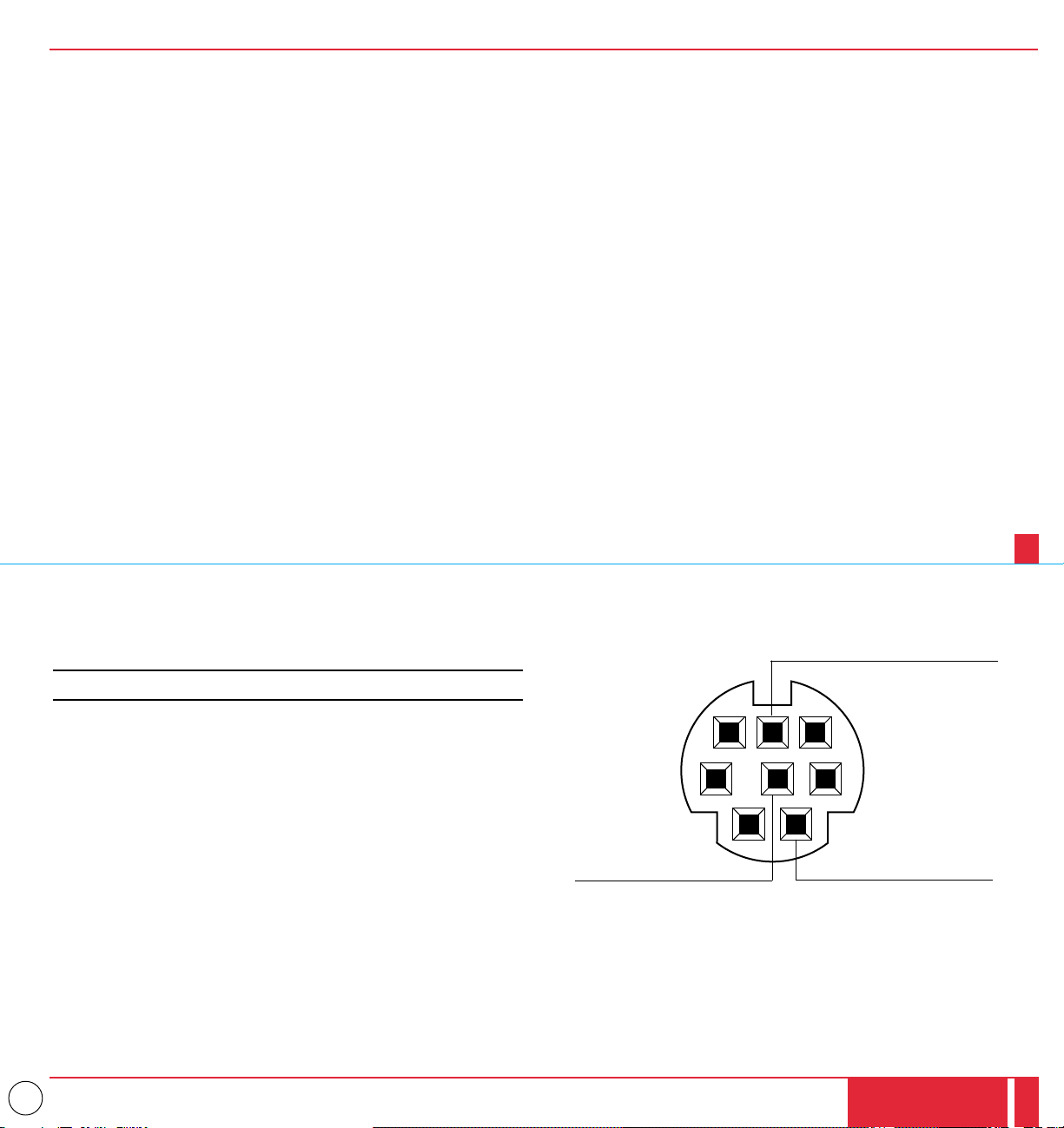
44
44
Err 04: Parameter Error ( parameter data abnormal)
12
54 3
6
7
8
To RxD of PC
©
PC Control Connector (DIN-8P)
Cable Connection
Communication Protocol
Baud rate: 9600 bps
Data length: 8 bits
Parity: No parity
Stop bit: One bit
X on/off: None
Communications
Full duplex
procedure:
If the CPU of the LCD projector has received the data correctly, it returns an ACK(C5H). If the received data is not correct, the CPU returns a
NAK(CAH), then the following status:
Receiving success: C5
Receiving failure: CA Err
Err 01: Command Error (command not supported)
Err 02: Checksum Error
Err 03: Busy (command not acceptable)
NOTE: If failing in powering-on, the CPU returns the following NAKs:
CA Err 1
Err 1 8X (Apply the corresponding bit.)
Bit 0: Either filter panel or lamp cover is not attached correctly
Bit 1: Fan stoppage
Bit 2: Overheated
Bit 3: Lamp lighting failure
To TxD of PC
§
To GND of PC
©
SPECIFICATIONS
85
86