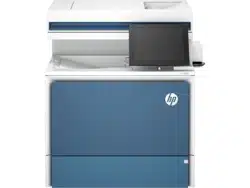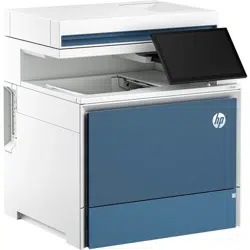
HP Color LaserJet Enterprise MFP 5800
HP Color LaserJet Enterprise Flow MFP 5800
www.hp.com/support/colorlj5800MFP
User Guide

HP Color LaserJet Enterprise MFP 5800
- User Guide
SUMMARY
This guide provides configuration, use, warranty, safety and environmental information.

Legal information
Copyright and License
© Copyright 2022 HP Development
Company, L.P.
Reproduction, adaptation, or translation
without prior written permission is
prohibited, except as allowed under the
copyright laws.
The information contained herein is subject
to change without notice.
The only warranties for HP products and
services are set forth in the express
warranty statements accompanying such
products and services. Nothing herein
should be construed as constituting an
additional warranty. HP shall not be
liable for technical or editorial errors or
omissions contained herein.
Edition 1, 10/2022
Trademark Credits
Adobe
®
, Adobe Photoshop
®
, Acrobat
®
, and
PostScript
®
are trademarks of Adobe
Systems Incorporated.
Apple and the Apple logo are trademarks
of Apple Inc., registered in the U.S. and
other countries.
macOS is a trademark of Apple Inc.,
registered in the U.S. and other countries.
AirPrint is a trademark of Apple Inc.,
registered in the U.S. and other countries.
Google™ is a trademark of Google Inc.
Microsoft®, Windows®, and Windows
Server® are U.S. registered trademarks of
Microsoft Corporation.
UNIX
®
is a registered trademark of The
Open Group.

Table of contents
1Printer overview.................................................................................................................................................................................................................................1
Warning icons...............................................................................................................................................................................................................................1
Potential shock hazard.........................................................................................................................................................................................................2
Printer views.................................................................................................................................................................................................................................2
Printer front view...........................................................................................................................................................................................................2
Printer back view ...........................................................................................................................................................................................................3
Control-panel view........................................................................................................................................................................................................4
Printer specifications.............................................................................................................................................................................................................7
Technical specifications...........................................................................................................................................................................................7
Supported operating systems.............................................................................................................................................................................9
Mobile printing solutions.........................................................................................................................................................................................11
Printer dimensions.......................................................................................................................................................................................................11
Power consumption, electrical specifications, and acoustic emissions...........................................................................12
Operating-environment range ...........................................................................................................................................................................13
Printer hardware setup and software installation........................................................................................................................................13
2Paper trays........................................................................................................................................................................................................................................14
Load paper to Tray 1 (multipurpose tray).............................................................................................................................................................14
Load Tray 1 (multipurpose tray) ........................................................................................................................................................................14
Tray 1 (multipurpose tray) paper orientation..........................................................................................................................................16
Load paper to Tray 2...........................................................................................................................................................................................................20
Load Tray 2 or the optional 550-sheet trays.........................................................................................................................................20
Tray 2 and the optional 550-sheet trays paper orientation ......................................................................................................22
Use alternative letterhead mode....................................................................................................................................................................25
Load and print envelopes................................................................................................................................................................................................26
Print envelopes.............................................................................................................................................................................................................26
Envelope orientation ................................................................................................................................................................................................26
Load and print labels .......................................................................................................................................................................................................... 27
Manually feed labels ................................................................................................................................................................................................ 27
Label orientation..........................................................................................................................................................................................................28
3Supplies, accessories, and parts....................................................................................................................................................................................29
Order supplies, accessories, and parts...............................................................................................................................................................29
Ordering.............................................................................................................................................................................................................................29
Supplies and accessories....................................................................................................................................................................................29
Customer self-repair parts ..................................................................................................................................................................................31
Configure the HP toner-cartridge-protection supply settings............................................................................................................32
Introduction.....................................................................................................................................................................................................................32
Enable or disable the Cartridge Policy feature...................................................................................................................................32
Enable or disable the Cartridge Protection feature........................................................................................................................34
iii

Replace the toner cartridges.......................................................................................................................................................................................37
Toner cartridge information...............................................................................................................................................................................37
Remove and replace the toner cartridge ................................................................................................................................................39
Replace the toner collection unit (TCU).................................................................................................................................................................41
Replace the toner collection unit (TCU)......................................................................................................................................................41
Replace the staple cartridge (stapler models only)....................................................................................................................................43
Remove and replace the staple cartridge in the 3-bin stapler/stacker...........................................................................43
Remove and replace the staple cartridge in the convenience stapler............................................................................45
4Print........................................................................................................................................................................................................................................................47
Print tasks (Windows).........................................................................................................................................................................................................47
How to print (Windows)..........................................................................................................................................................................................47
Automatically print on both sides (Windows)........................................................................................................................................48
Manually print on both sides (Windows) ..................................................................................................................................................48
Print multiple pages per sheet (Windows)...............................................................................................................................................48
Select the paper type (Windows) ...................................................................................................................................................................49
Additional print tasks...............................................................................................................................................................................................49
Print tasks (macOS)............................................................................................................................................................................................................ 50
How to print (macOS)............................................................................................................................................................................................. 50
Automatically print on both sides (macOS)........................................................................................................................................... 50
Manually print on both sides (macOS)...................................................................................................................................................... 50
Print multiple pages per sheet (macOS)....................................................................................................................................................51
Select the paper type (macOS)........................................................................................................................................................................51
Additional print tasks...............................................................................................................................................................................................52
Store print jobs on the printer to print later or print privately...........................................................................................................52
Introduction.....................................................................................................................................................................................................................52
Create a stored job (Windows) ........................................................................................................................................................................52
Create a stored job (macOS)............................................................................................................................................................................53
Print a stored job........................................................................................................................................................................................................54
Delete a stored job....................................................................................................................................................................................................55
Information sent to printer for Job Accounting purposes .........................................................................................................55
Mobile printing..........................................................................................................................................................................................................................55
Mobile printing solutions.......................................................................................................................................................................................56
Wi-Fi, Wi-Fi Direct Print, NFC, and BLE printing....................................................................................................................................56
HP ePrint via email.....................................................................................................................................................................................................57
AirPrint ................................................................................................................................................................................................................................58
Android embedded printing................................................................................................................................................................................58
Print from a USB flash drive .........................................................................................................................................................................................58
Enable the USB port for printing.....................................................................................................................................................................59
Print USB documents ..............................................................................................................................................................................................59
Print using the SuperSpeed USB 3.0 port (wired) ....................................................................................................................................... 60
Method one: Enable the SuperSpeed USB 3.0 port from the printer control panel menus............................ 60
Method two: Enable the SuperSpeed USB 3.0 port from the HP Embedded Web Server (network-
connected printers only)...................................................................................................................................................................................... 60
5Copy.......................................................................................................................................................................................................................................................62
Make a copy ..............................................................................................................................................................................................................................62
iv

Copy on both sides (duplex)..........................................................................................................................................................................................64
Additional copy tasks........................................................................................................................................................................................................ 66
6Scan.......................................................................................................................................................................................................................................................67
Set up Scan to Email...........................................................................................................................................................................................................67
Introduction.....................................................................................................................................................................................................................67
Before you begin.........................................................................................................................................................................................................67
Step one: Access the HP Embedded Web Server (EWS) ........................................................................................................... 68
Step two: Configure the Network Identification settings ........................................................................................................... 69
Step three: Configure the Send to Email feature............................................................................................................................. 69
Step four: Configure the Quick Sets (optional) ...................................................................................................................................79
Step five: Set up Send to Email to use Office 365 Outlook (optional)...............................................................................79
Set up Scan to Network Folder ..................................................................................................................................................................................82
Introduction.....................................................................................................................................................................................................................82
Before you begin.........................................................................................................................................................................................................82
Step one: Access the HP Embedded Web Server (EWS) ............................................................................................................82
Step two: Set up Scan to Network Folder...............................................................................................................................................83
Set up Scan to SharePoint.............................................................................................................................................................................................92
Introduction.....................................................................................................................................................................................................................93
Before you begin.........................................................................................................................................................................................................93
Step one: Access the HP Embedded Web Server (EWS) ............................................................................................................93
Step two: Enable Scan to SharePoint and create a Scan to SharePoint Quick Set..............................................94
Scan a file directly to a SharePoint site...................................................................................................................................................95
Quick Set scan settings and options for Scan to SharePoint.................................................................................................97
Set up Scan to USB Drive.............................................................................................................................................................................................. 98
Introduction.................................................................................................................................................................................................................... 98
Step one: Access the HP Embedded Web Server (EWS) ........................................................................................................... 98
Step two: Enable Scan to USB Drive.......................................................................................................................................................... 99
Step three: Configure the Quick Sets (optional)................................................................................................................................ 99
Default scan settings for Scan to USB Drive setup..................................................................................................................... 100
Default file settings for Save to USB setup ........................................................................................................................................ 101
Scan to email..........................................................................................................................................................................................................................102
Introduction...................................................................................................................................................................................................................102
Scan to email...............................................................................................................................................................................................................102
Scan to job storage.......................................................................................................................................................................................................... 104
Introduction.................................................................................................................................................................................................................. 104
Scan to job storage on the printer ............................................................................................................................................................ 104
Print from job storage on the printer....................................................................................................................................................... 106
Scan to network folder....................................................................................................................................................................................................107
Introduction...................................................................................................................................................................................................................107
Scan to network folder.........................................................................................................................................................................................107
Scan to SharePoint........................................................................................................................................................................................................... 109
Introduction.................................................................................................................................................................................................................. 109
Scan to SharePoint................................................................................................................................................................................................ 109
Scan to USB drive.................................................................................................................................................................................................................111
Introduction.....................................................................................................................................................................................................................111
v

Scan to USB drive......................................................................................................................................................................................................111
Use HP JetAdvantage business solutions........................................................................................................................................................113
Additional scan tasks........................................................................................................................................................................................................113
7Fax..........................................................................................................................................................................................................................................................115
Set up fax ...................................................................................................................................................................................................................................115
Introduction....................................................................................................................................................................................................................115
Set up fax by using the printer control panel......................................................................................................................................115
Change fax configurations............................................................................................................................................................................................116
Fax dialing settings ..................................................................................................................................................................................................116
General fax send settings ..................................................................................................................................................................................117
Fax receive settings................................................................................................................................................................................................118
Send a fax..................................................................................................................................................................................................................................119
Create a fax printing schedule ..................................................................................................................................................................................121
Block incoming faxes........................................................................................................................................................................................................122
Create a list of blocked fax numbers.......................................................................................................................................................122
Delete numbers from the list of blocked fax numbers...............................................................................................................122
Additional fax tasks ...........................................................................................................................................................................................................122
8Manage the printer ..................................................................................................................................................................................................................124
Advanced configuration with the HP Embedded Web Server (EWS)..........................................................................................124
Introduction...................................................................................................................................................................................................................124
How to access the HP Embedded Web Server (EWS).................................................................................................................125
HPEmbedded Web Server features..........................................................................................................................................................126
Configure IP network settings...................................................................................................................................................................................134
Printer sharing disclaimer..................................................................................................................................................................................134
View or change network settings ................................................................................................................................................................134
Rename the printer on a network................................................................................................................................................................135
Manually configure IPv4 TCP/IP parameters from the control panel ..............................................................................135
Manually configure IPv6 TCP/IP parameters from the control panel..............................................................................136
Link speed and duplex settings.....................................................................................................................................................................136
Printer security features................................................................................................................................................................................................137
Introduction...................................................................................................................................................................................................................137
Security statements...............................................................................................................................................................................................137
Assign an administrator password.............................................................................................................................................................138
IP Security ......................................................................................................................................................................................................................139
Encryption support: HP High Performance Secure Hard Disks ...........................................................................................139
Lock the formatter...................................................................................................................................................................................................139
Energy-conservation settings....................................................................................................................................................................................139
Set the sleep timer and configure the printer to use 1 watt or less of power .........................................................139
Set the sleep schedule........................................................................................................................................................................................ 140
HPWebJetadmin................................................................................................................................................................................................................ 140
Software and firmware updates............................................................................................................................................................................. 140
9Solve problems ............................................................................................................................................................................................................................141
vi

Control panel help system.............................................................................................................................................................................................141
Reset factory settings.....................................................................................................................................................................................................142
Introduction...................................................................................................................................................................................................................142
Method one: Reset factory settings from the printer control panel.................................................................................142
Method two: Reset factory settings from the HP Embedded Web Server (network-connected
printers only).................................................................................................................................................................................................................142
A “Cartridge is low” or “Cartridge is very low” message displays on the printer control panel or EWS.........142
Change the “Very Low” settings ...................................................................................................................................................................143
Order supplies ............................................................................................................................................................................................................144
Printer does not pick up paper or misfeeds...................................................................................................................................................144
Introduction...................................................................................................................................................................................................................144
The printer does not pick up paper............................................................................................................................................................144
The printer picks up multiple sheets of paper...................................................................................................................................147
The document feeder jams, skews, or picks up multiple sheets of paper.................................................................. 150
Clear paper jams ..................................................................................................................................................................................................................151
Paper jam locations.................................................................................................................................................................................................151
Auto-navigation for clearing paper jams................................................................................................................................................152
Experiencing frequent or recurring paper jams?.............................................................................................................................152
31.13.yz jam error in the document feeder............................................................................................................................................152
13.B2.D1 jam error in Tray 1 (multipurpose tray)................................................................................................................................155
13.B2.D2 jam error in Tray 2..............................................................................................................................................................................157
13.A3 jam error in Tray 3.....................................................................................................................................................................................162
13.A4 jam error in Tray 4.....................................................................................................................................................................................167
13.A5 jam error in Tray 5.....................................................................................................................................................................................174
13.B2 jam error in right door..............................................................................................................................................................................181
13.B4 jam errors in the right door ...............................................................................................................................................................184
13.B9 jam errors in the fuser .......................................................................................................................................................................... 186
13.E1 jam error in the output bin................................................................................................................................................................... 190
13.60 jam errors in the fuser exit area when printing to a 3 bin stapler/stacker ..................................................191
13.80, 13.83, or 13.84 jam errors in the 3 Bin Stapler/Stacker................................................................................................193
Resolving color print quality problems................................................................................................................................................................197
Introduction.................................................................................................................................................................................................................. 198
Troubleshoot print quality................................................................................................................................................................................. 198
Improve copy image quality .........................................................................................................................................................................................211
Check the scanner glass for dirt and smudges...............................................................................................................................212
Calibrate the scanner ...........................................................................................................................................................................................213
Check the paper settings...................................................................................................................................................................................214
Check the image-adjustment settings.....................................................................................................................................................214
Optimize copy quality for text or pictures ............................................................................................................................................215
Improve scan image quality ........................................................................................................................................................................................215
Check the scanner glass for dirt and smudges...............................................................................................................................215
Check the resolution settings......................................................................................................................................................................... 217
Check the color settings.....................................................................................................................................................................................217
Check the image-adjustment settings..................................................................................................................................................... 217
Optimize scan quality for text or pictures ............................................................................................................................................218
Check the output-quality settings................................................................................................................................................................219
vii

Improve fax image quality.............................................................................................................................................................................................219
Check the scanner glass for dirt and smudges...............................................................................................................................219
Check the send-fax resolution settings..................................................................................................................................................221
Check the image-adjustment settings....................................................................................................................................................222
Optimize fax quality for text or pictures................................................................................................................................................222
Check the error-correction setting............................................................................................................................................................222
Check the fit-to-page setting..........................................................................................................................................................................223
Send to a different fax machine..................................................................................................................................................................223
Check the sender's fax machine.................................................................................................................................................................223
Solve wired network problems.................................................................................................................................................................................223
Introduction..................................................................................................................................................................................................................224
Poor physical connection..................................................................................................................................................................................224
The computer is unable to communicate with the printer ......................................................................................................224
The printer is using incorrect link and duplex settings for the network.......................................................................224
New software programs might be causing compatibility problems................................................................................225
The computer or workstation might be set up incorrectly......................................................................................................225
The printer is disabled, or other network settings are incorrect .......................................................................................225
Solve wireless network problems..........................................................................................................................................................................225
Introduction..................................................................................................................................................................................................................225
Wireless connectivity checklist ....................................................................................................................................................................225
The printer does not print after the wireless configuration completes........................................................................226
The printer does not print, and the computer has a third-party firewall installed................................................226
The wireless connection does not work after moving the wireless router or printer........................................ 227
Cannot connect more computers to the wireless printer....................................................................................................... 227
The wireless printer loses communication when connected to a VPN......................................................................... 227
The network does not appear in the wireless networks list .................................................................................................. 227
The wireless network is not functioning................................................................................................................................................ 227
Reduce interference on a wireless network.......................................................................................................................................228
Solve fax problems ...........................................................................................................................................................................................................228
Checklist for solving fax problems ............................................................................................................................................................228
General fax problems...........................................................................................................................................................................................230
Appendix AService and support......................................................................................................................................................................................232
HP limited warranty statement................................................................................................................................................................................232
UK, Ireland, and Malta...........................................................................................................................................................................................233
Austria, Belgium, Germany, and Luxemburg.......................................................................................................................................234
Belgium, France, and Luxemburg ................................................................................................................................................................234
Italy .....................................................................................................................................................................................................................................235
Spain..................................................................................................................................................................................................................................236
Denmark .........................................................................................................................................................................................................................236
Norway.............................................................................................................................................................................................................................236
Sweden............................................................................................................................................................................................................................237
Portugal...........................................................................................................................................................................................................................237
Greece and Cyprus................................................................................................................................................................................................ 237
Hungary...........................................................................................................................................................................................................................238
Czech Republic..........................................................................................................................................................................................................238
Slovakia...........................................................................................................................................................................................................................239
Poland...............................................................................................................................................................................................................................239
viii

Bulgaria ...........................................................................................................................................................................................................................239
Romania..........................................................................................................................................................................................................................240
Belgium and the Netherlands.........................................................................................................................................................................240
Finland..............................................................................................................................................................................................................................240
Slovenia............................................................................................................................................................................................................................241
Croatia ..............................................................................................................................................................................................................................241
Latvia..................................................................................................................................................................................................................................241
Lithuania ..........................................................................................................................................................................................................................241
Estonia .............................................................................................................................................................................................................................242
HP'sPremium Protection Warranty: LaserJet toner cartridge limited warranty statement ....................................242
Long life consumable and maintenance kit limited warranty statement................................................................................243
HPpolicy on non-HPsupplies.....................................................................................................................................................................................243
HPanticounterfeit Web site........................................................................................................................................................................................243
Data stored on the toner cartridge......................................................................................................................................................................244
End User License Agreement....................................................................................................................................................................................244
Customer self-repair warranty service.............................................................................................................................................................248
Customer support..............................................................................................................................................................................................................249
Appendix BEnvironmental product stewardship program...........................................................................................................................250
Protecting the environment........................................................................................................................................................................................250
Ozone production...............................................................................................................................................................................................................250
Power consumption..........................................................................................................................................................................................................250
Toner consumption ...........................................................................................................................................................................................................250
Paper use...................................................................................................................................................................................................................................251
Plastics ........................................................................................................................................................................................................................................251
HPLaserJet print supplies............................................................................................................................................................................................251
Paper.............................................................................................................................................................................................................................................251
Material restrictions..........................................................................................................................................................................................................251
Battery information............................................................................................................................................................................................................251
Disposal of waste equipment by users (EU, UK, and India)................................................................................................................252
Electronic hardware recycling..................................................................................................................................................................................252
Brazil hardware recycling information...............................................................................................................................................................252
WEEE (Turkey)........................................................................................................................................................................................................................253
Chemical substances......................................................................................................................................................................................................253
Product Power Data per European Union Commission Regulation 1275/2008 and the UK Relevant
Statutory Requirements................................................................................................................................................................................................253
SEPA Ecolabel User Information (China) ..........................................................................................................................................................253
The regulation of the implementation on China energy label for printer, fax, and copier.........................................253
Restriction on Hazardous Substances statement (India)...................................................................................................................254
Substances Table (China)............................................................................................................................................................................................255
ix

Material Safety Data Sheet (MSDS)....................................................................................................................................................................255
EPEAT...........................................................................................................................................................................................................................................256
Substances Table (Taiwan).........................................................................................................................................................................................256
For more information.......................................................................................................................................................................................................256
Appendix CRegulatory information................................................................................................................................................................................258
Regulatory statements...................................................................................................................................................................................................258
Regulatory model identification numbers.............................................................................................................................................258
European Union & United Kingdom Regulatory Notice...............................................................................................................258
FCC regulations........................................................................................................................................................................................................259
Canada - Industry Canada ICES-003 Compliance Statement..............................................................................................259
VCCI statement (Japan).....................................................................................................................................................................................259
EMC statement (Korea).......................................................................................................................................................................................259
EMC statement (China).......................................................................................................................................................................................259
Power cord instructions.....................................................................................................................................................................................260
Power cord statement (Japan)......................................................................................................................................................................260
Laser safety.................................................................................................................................................................................................................260
Laser statement for Finland............................................................................................................................................................................260
Nordic Statements (Denmark, Finland, Norway, Sweden).........................................................................................................261
GS statement (Germany)....................................................................................................................................................................................261
Eurasian Conformity (Armenia, Belarus, Kazakhstan, Kyrgyzstan, Russia) ................................................................262
Taiwan BSMI USB Port (Walk-up) statement......................................................................................................................................262
EMI statement (Taiwan).......................................................................................................................................................................................262
Product stability........................................................................................................................................................................................................263
Telecom (fax) statements ............................................................................................................................................................................................263
Fax Cord Statement..............................................................................................................................................................................................263
Europe Statement for Telecom Operation..........................................................................................................................................263
Declaração para a ANATEL do Brasil......................................................................................................................................................263
New Zealand Telecom Statements ...........................................................................................................................................................263
Additional FCC statement for telecom products (US)................................................................................................................264
Telephone Consumer Protection Act (US) ...........................................................................................................................................264
Industry Canada CS-03 requirements ...................................................................................................................................................264
Japan Telecom Mark ............................................................................................................................................................................................266
Belarus.............................................................................................................................................................................................................................266
Wireless statements........................................................................................................................................................................................................266
European regulatory notice.............................................................................................................................................................................266
FCC compliance statement—United States........................................................................................................................................266
Australia statement...............................................................................................................................................................................................267
Brazil: (Portuguese) ................................................................................................................................................................................................267
Canadian statements...........................................................................................................................................................................................267
Products with 5 GHz Operation Industry of Canada...................................................................................................................267
Exposure to Radio Frequency Radiation (Canada)........................................................................................................................267
European Regulatory Notice...........................................................................................................................................................................268
China CMIIT Wireless Statement ................................................................................................................................................................268
Notice for use in Japan ......................................................................................................................................................................................268
Notice for use in Russia.....................................................................................................................................................................................268
Mexico statement....................................................................................................................................................................................................268
x

Taiwan statement....................................................................................................................................................................................................268
Taiwan NCC statement.......................................................................................................................................................................................268
Thailand Wireless Statement.........................................................................................................................................................................269
Belarus.............................................................................................................................................................................................................................269
RFID/NFC Statement........................................................................................................................................................................................................269
China Short Range Device Statement ..................................................................................................................................................269
Index.........................................................................................................................................................................................................................................................270
xi

Printer overview1
Review the location of features on the printer, the physical and technical specifications of the
printer, and where to locate setup information.
The following information is correct at the time of publication. For current information, see Support
for HP Color LaserJet Enterprise MFP 5800
For more information:
HP's all-inclusive help for the printer includes the following information:
● Install and configure
● Learn and use
● Solve problems
● Download software and firmware updates
● Join support forums
● Find warranty and regulatory information
Warning icons
Use caution if you see a warning icon on your HP printer, as indicated in the icon definitions.
Figure 1-1 Caution: Electric shock
Figure 1-2 Caution: Hot surface
Figure 1-3 Caution: Keep body parts away from moving parts
Figure 1-4 Caution: Sharp edge in close proximity
Figure 1-5 Warning
Printer overview
1
Potential shock hazard
Review this important safety information.
● Read and understand these safety statements to avoid an electrical shock hazard.
● Always follow basic safety precautions when using this product to reduce risk of injury from fire
or electric shock.
● Read and understand all instructions in the user guide.
● Observe all warnings and instructions marked on the product.
● Use only a grounded electrical outlet when connecting the product to a power source. If you do
not know whether the outlet is grounded, check with a qualified electrician.
● Do not touch the contacts on any of the sockets on the product. Replace damaged cords
immediately.
● Unplug this product from wall outlets before cleaning.
● Do not install or use this product near water or when you are wet.
● Install the product securely on a stable surface.
● Install the product in a protected location where no one can step on or trip over the power cord.
Printer views
Identify certain parts of the printer and the control panel.
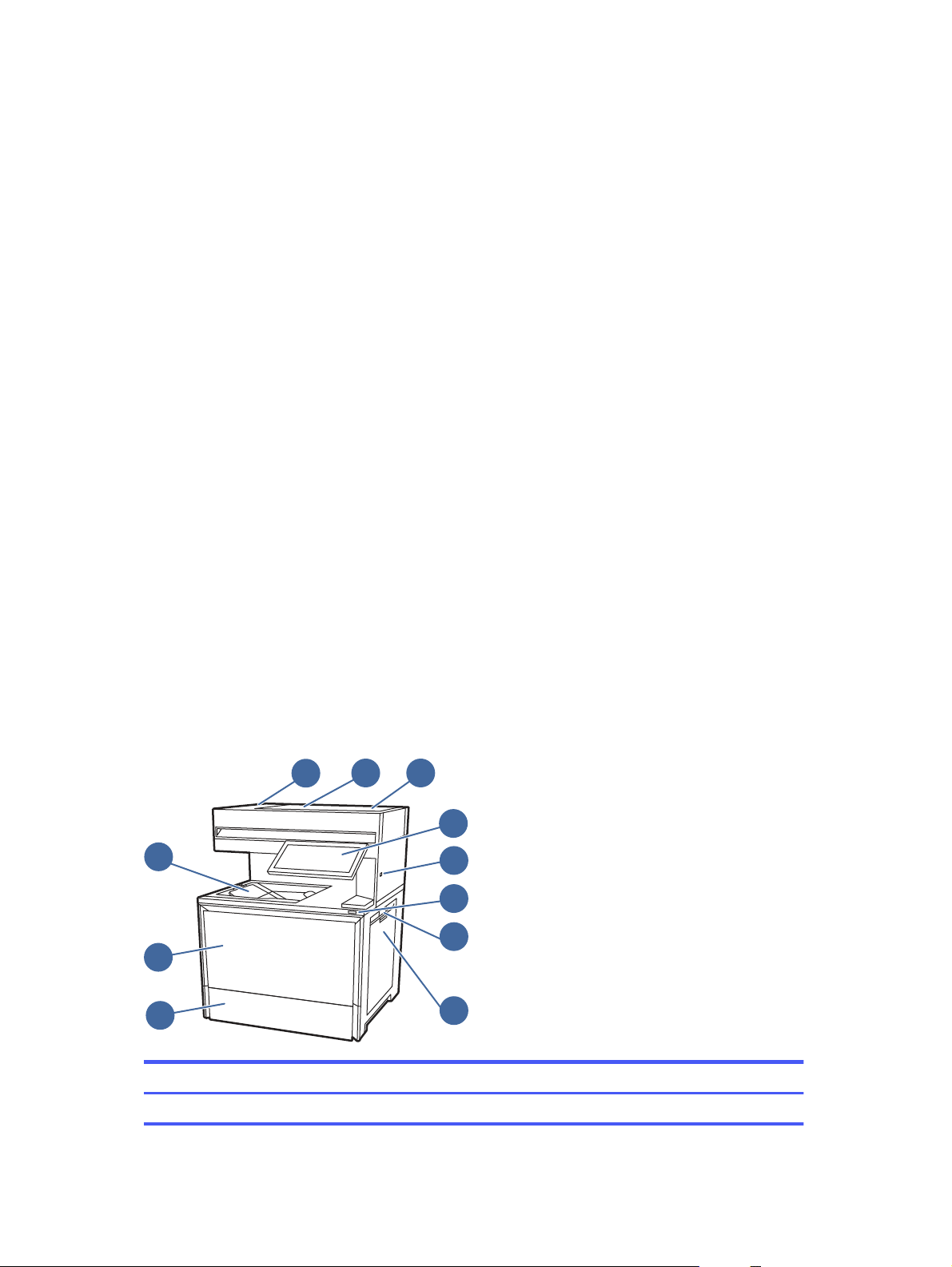
Printer front view
Locate features on the front of the printer.
Figure 1-6 Printer front view
1
6
7
5
8
11
9
10
4
2 3
Item
Description
1 Automatic document feeder output tray
2 Chapter 1Printer overview

Item Description
2 Automatic document feeder cover, for access for clearing jams
3 Automatic document feeder input tray
4 Control panel with color touchscreen display (tilts up for easier viewing)
5 Easy-access USB port
Insert a USB flash drive for printing or scanning without a computer or to update the printer firmware.
NOTE: An administrator must enable this port before use.
6 On/off button
7 Right door, for access for clearing jams
8 Tray 1 (multipurpose tray)
9 Tray 2
10 Front door, for access to the toner cartridges
11 Output bin
Printer back view
Locate features on the back of the printer.
Printer back view
3
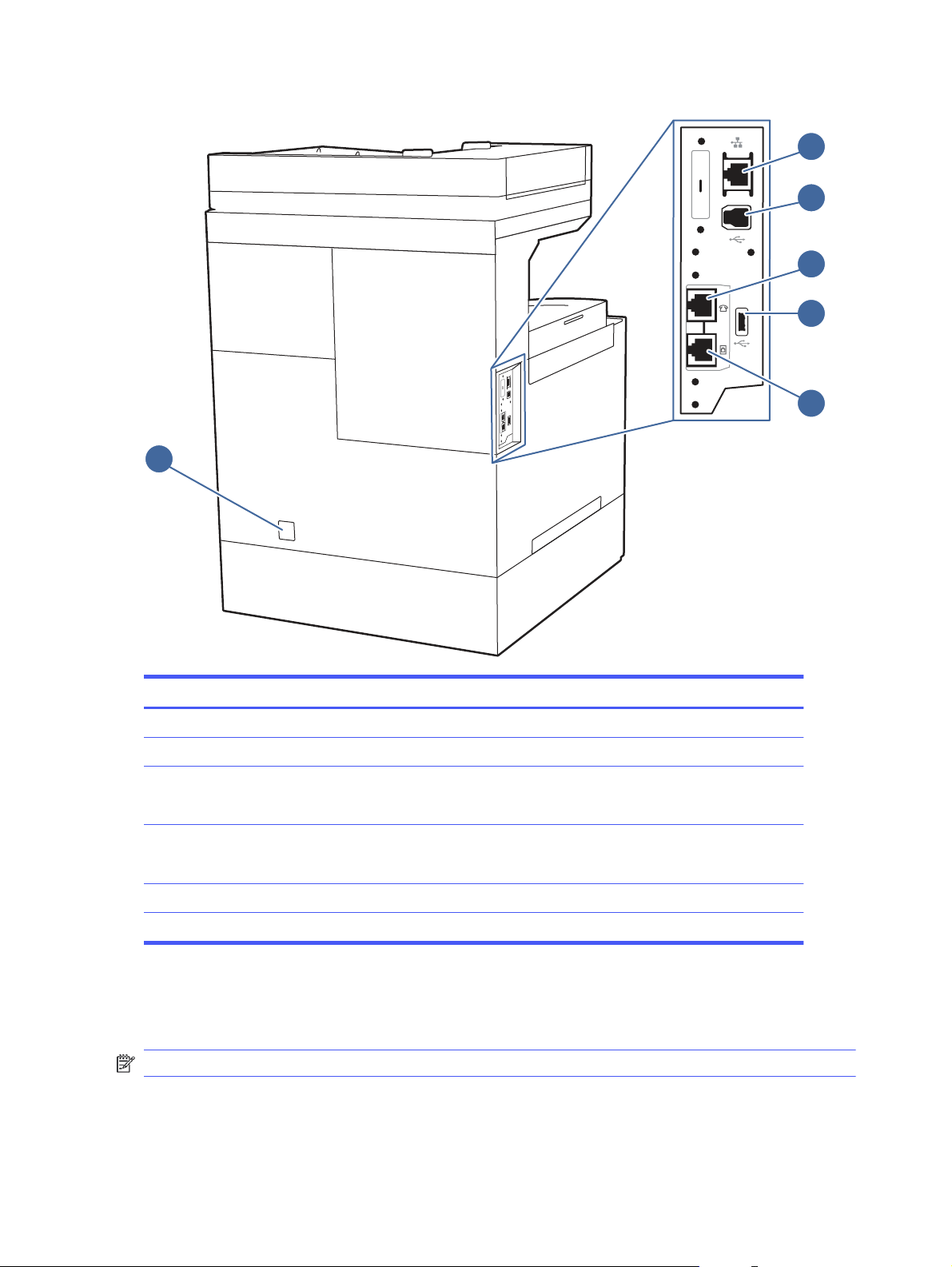
Figure 1-7 Printer back view
6
3
4
2
1
5
Item Description
1 Local area network (LAN) Ethernet (RJ-45) network port
2 SuperSpeed USB 3.0 interface port
3 Telephone "line out" port (for attaching an extension phone, answering machine, or other device)
NOTE: This port should remain covered when not in use.
4 SuperSpeed USB 3.0 host port (for job storage and private printing)
NOTE: This port should remain covered when not in use.
5 Fax "line in" port (for attaching the fax phone line to the printer)
6 Power connection
Control-panel view
The control panel provides access to the printer features and indicates the current status of the
printer.
NOTE: Tilt the control panel for easier viewing.
4
Chapter 1Printer overview
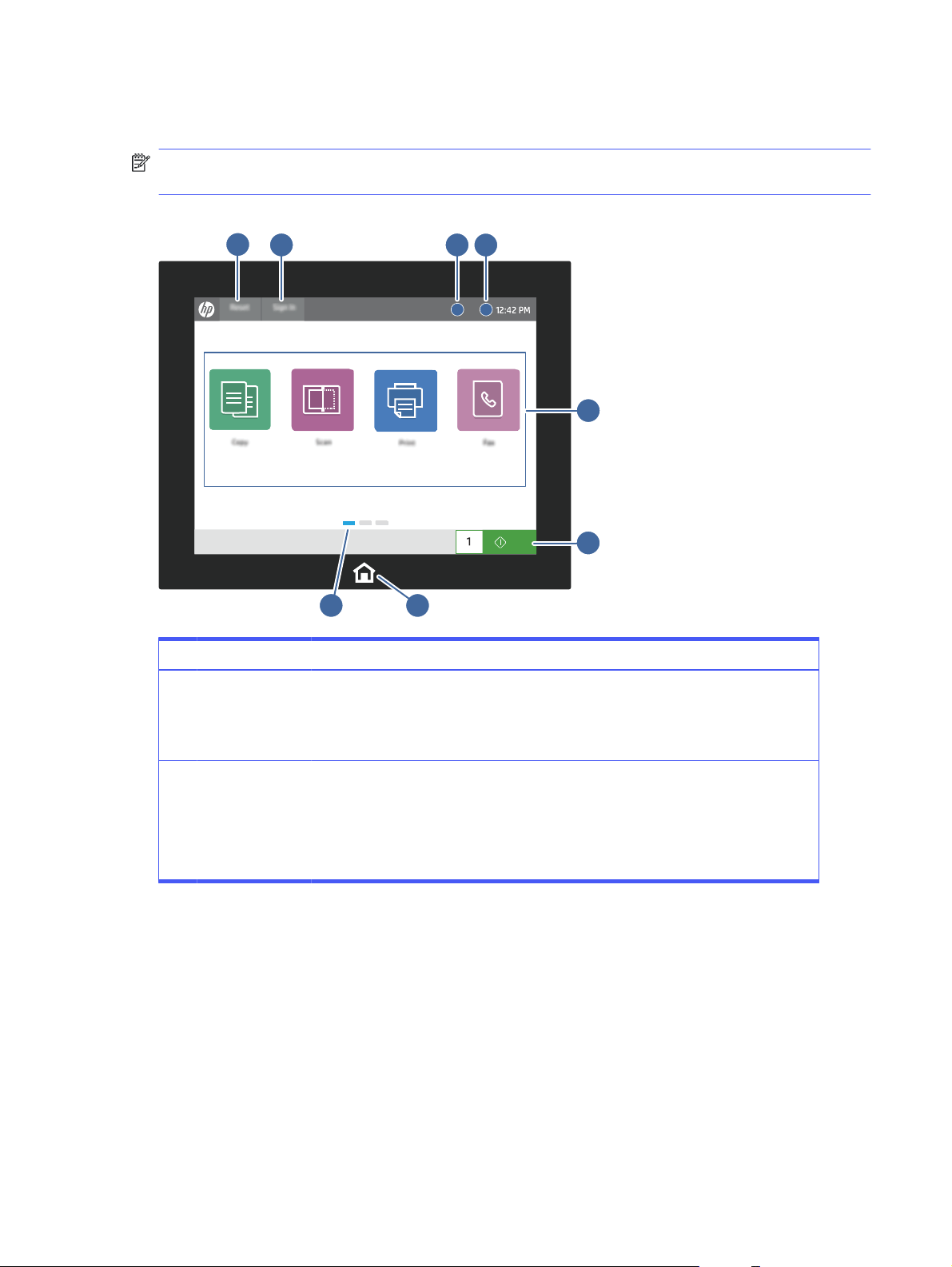
The Home screen provides access to the printer features and indicates the current status of the
printer.
NOTE: The features that appear on the Home screen can vary, depending on the printer
configuration.
Figure 1-8 Control-panel view
?i
1 2 3 4
5
6
8
7
Item Control Description
1 Reset button The Reset button returns the printer to default settings and is always present if
users are not logged in. The Reset button is not present when the Sign Out button
is present. Touch the Reset button to resume and release jobs from the previous
pause state and interrupt mode, reset the quick copy count in the copy count field,
exit special modes, reset the display language and the keyboard layout.
2 Sign In or Sign
Out button
Touch the Sign In button to access secured features.
Touch the Sign Out button to sign out of the printer. The printer restores all options to
the default settings.
NOTE: This button displays only if the administrator has configured the printer to
require permission for access to features.
Control-panel view 5
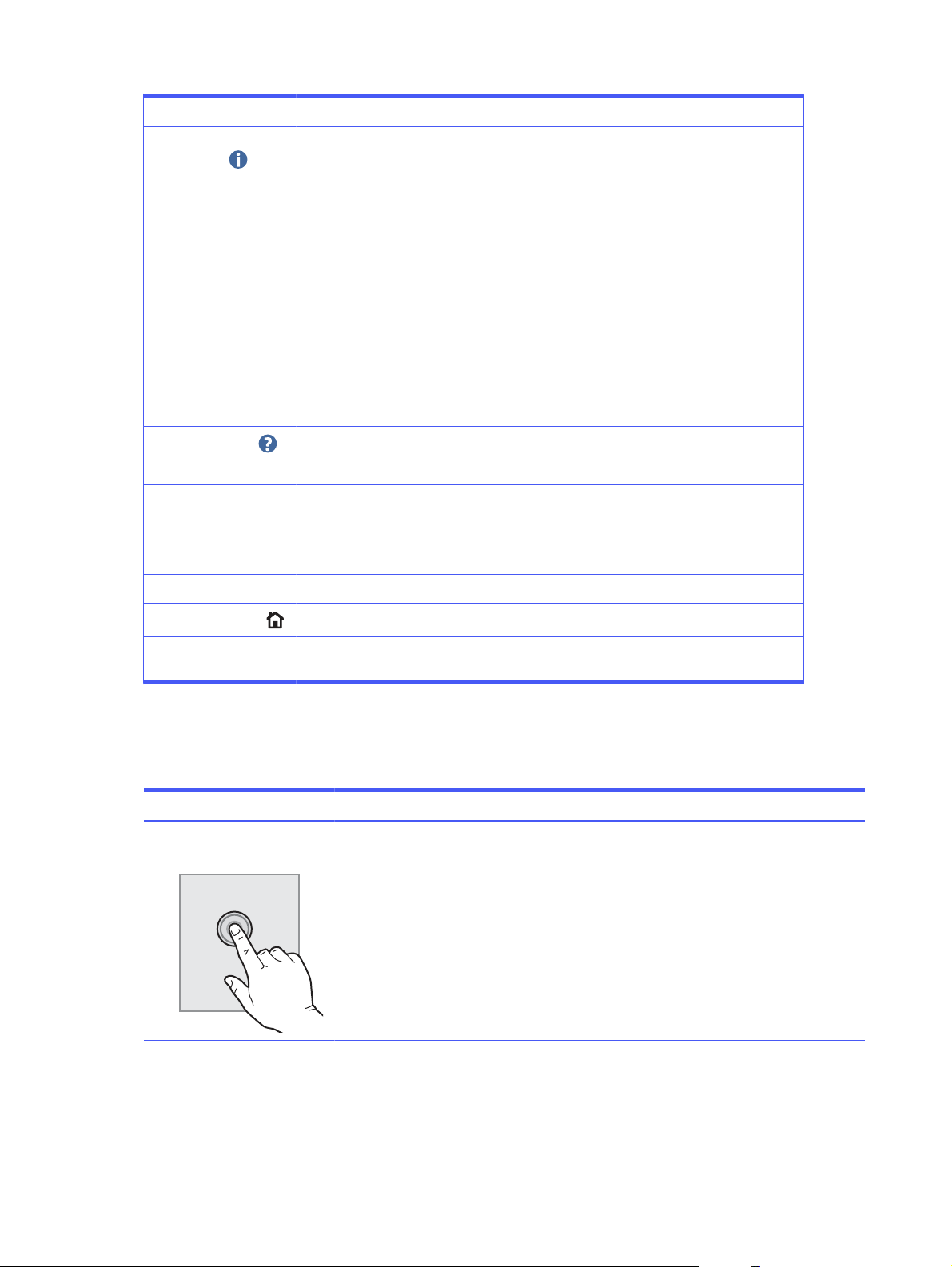
Item Control Description
3 Information
button
Touch the information button to access a screen that provides access to several
types of printer information. Touch the buttons at the bottom of the screen for the
following information:
● Display Language: Change the language setting for the current user session.
● Sleep Mode: Place the printer into sleep mode.
● Wi-Fi Direct: View information for how to connect directly to the printer using a
phone, tablet, or other device with Wi-Fi (only available when the optional wireless
accessory is installed).
● Wireless: View or change wireless connection settings (only available when the
optional wireless accessory is installed).
● Ethernet: View or change Ethernet connection settings.
● HPWeb Services: View information to connect and print to the printer using
HPWeb Services (ePrint).
4
Help button
Touch the Help button to open the embedded help system.
The status line provides information about the overall printer status.
5 Applications area Touch any of the icons to open the application. Swipe the screen sideways to access
more applications.
NOTE: The available applications vary by printer. The administrator can configure
which applications appear and the order in which they appear.
6 Copy button Touch the Copy button to start a copy job.
7
Home button
Touch the Home button to return to the Home screen.
8 Home-screen
page indicator
Indicates the number of pages on the Home screen or in an application. The current
page is highlighted. Swipe the screen sideways to scroll between pages.
How to use the touchscreen control panel
Perform the following actions to use the printer touchscreen control panel.
Table 1-1
Touchscreen control panel actions
Action Description Example
Touch Touch an item on the screen to select
that item or open that menu. Also, when
scrolling through menus, briefly touch the
screen to stop the scrolling.
Touch the Settings icon to open the
Settings app.
6 Chapter 1Printer overview
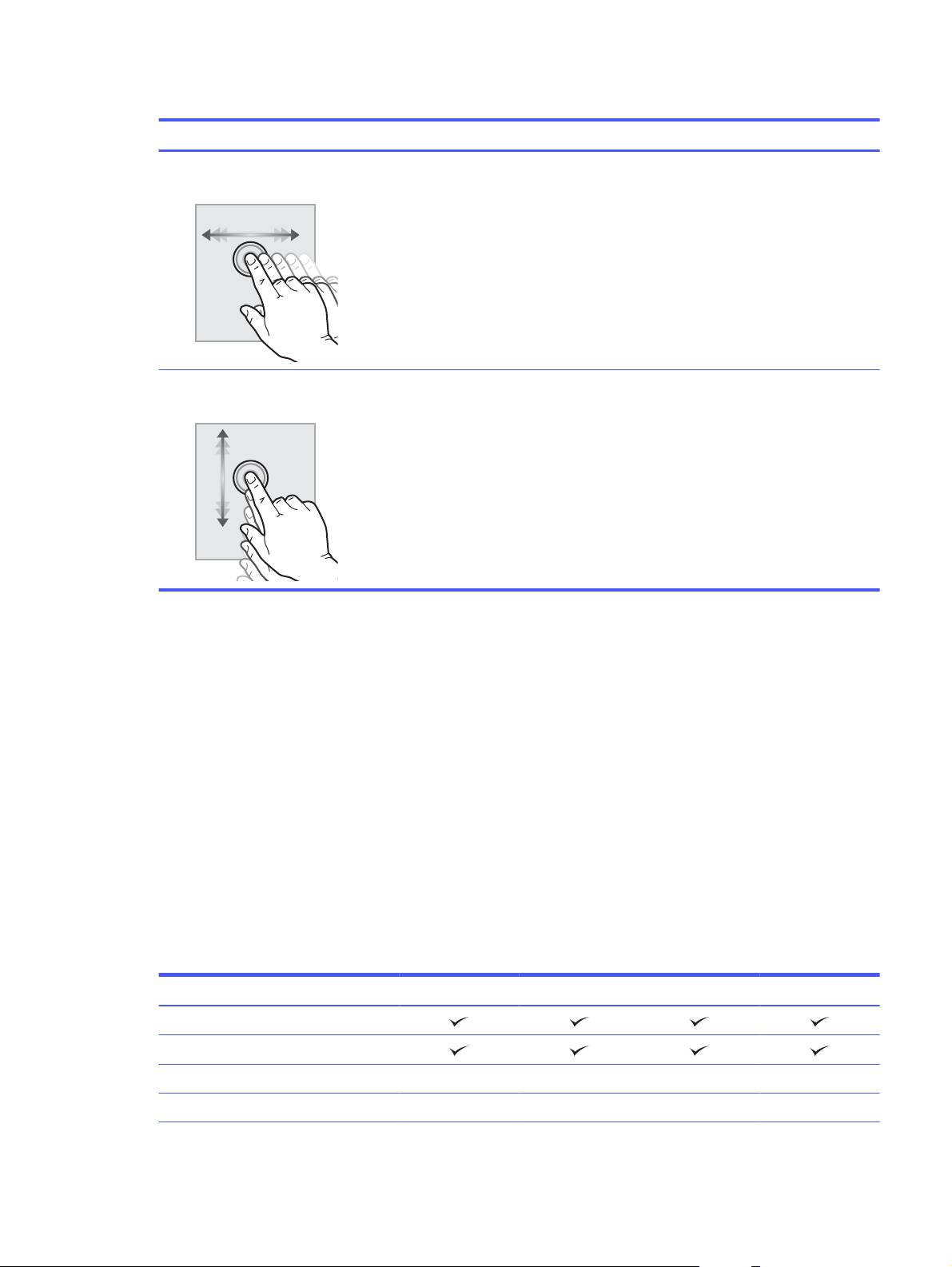
Table 1-1 Touchscreen control panel actions (continued)
Action Description Example
Swipe Touch the screen and then move your
finger horizontally to scroll the screen
sideways.
Swipe until the Settings app displays.
Scroll Touch the screen and then move your
finger vertically to scroll the screen up and
down. When scrolling through menus, briefly
touch the screen to stop the scrolling.
Scroll through the Settings app.
Printer specifications
Determine the specifications for your printer model.
Technical specifications
Review the technical specifications for the printer.
Product numbers for each model
● 5800dn - #6QN29A
● 5800f - #6QN30A
● 5800zf - #58R10A
● 5800 Configurable (can be custom-configured when ordered)
Table 1-2
Paper handling specifications
Paper handling features 5800dn 5800f 5800zf 5800 Configurable
Tray 1 (100-sheet capacity)
Tray 2 (550-sheet capacity)
Optional 550-sheet accessory tray Optional Optional Optional Available option
Printer stand Optional Optional Optional Available option
Printer specifications 7

Table 1-2 Paper handling specifications (continued)
Paper handling features 5800dn 5800f 5800zf 5800 Configurable
Printer stand with storage
compartment
Optional Optional Optional Available option
Convenience stapler Not available Available option
3-bin Stapler/stacker Not available Not available Not available Available option
Automatic duplex printing
Table 1-3 Connectivity specifications
Connectivity features 5800dn 5800f 5800zf 5800 Configurable
10/100/1000 Ethernet LAN connection
with IPv4 and IPv6
Dual-band wireless Optional Optional Optional Available option
Wifi-Direct and BLE Optional Optional Optional Available option
SuperSpeed USB 3.0 rear ports and Hi-
Speed USB 2.0 front port for walk-up
USB printing
Hardware integration pocket (HIP) for
connecting accessory and third-party
devices
Table 1-4 Print specifications
Print features 5800dn 5800f 5800zf 5800 Configurable
Prints up to 43 pages per minute (ppm)
on A4 and 45 ppm on letter-sized paper
Job storage and private printing
Table 1-5 Copy and scan specifications
Copy and scan features 5800dn 5800f 5800zf 5800 Configurable
ADF copy/scan speed 100 images-per-
minute (ipm) single-sided, and 50 ipm
double-sided
Not included Available option
ADF copy/scan speed 120 ipm single-
sided, and 60 ipm double-sided
Not included Not included Available option
100-page document feeder with dual-
head scanning for single-pass duplex
copying and scanning
Scan to E-mail, Scan to USB, and Scan
to Network Folder options
8 Chapter 1Printer overview

Table 1-6 Other specifications
Other features 5800dn 5800f 5800zf 5800 Configurable
6 GB base memory
32 GB embedded Multi-Media
Controller (eMMC)
Not included Available option
500 GB Hard Disk Drive Optional Optional Available option
256 GB Solid-state drive Optional Optional Optional Available option
512 GB FIPS Hard Disk Drive Optional Optional Optional Available option
Small color touchscreen control panel Not included Available option
Large color touchscreen control panel Not included Not included Available option
Fax features Optional Available option
HP Trusted Platform Module for
encrypting all data that passes through
the printer
Supported operating systems
Learn about supported operating systems.
The following information applies to the Printer-Specific Windows PCL 6 and HP print drivers for
macOS and to the software installer.
Windows: The HPSoftware Installer can be downloaded from the printer support website for this
printer and installs the correct "HPPCL.6” print driver, depending on the Windows operating system,
along with optional software when using the software installer. Download the "HPPCL.6" print driver
from the printer-support website for this printer: www.hp.com/support.
macOS: Mac computers are supported with this printer. Download HPEasy Start either from
123.hp.com or from the Printer Support page, and then use HPEasy Start to install the HP print
driver. HPEasy Start is not included in the HPSoftware Installer.
1. Go to 123.hp.com.
2. Follow the steps provided to download the printer software.
Linux: For information and print drivers for Linux, go to www.hp.com/go/linuxprinting.
UNIX: For information and print drivers for UNIX®, go to www.hp.com/go/unixmodelscripts.
Table 1-7
Supported operating systems and print drivers
Operating system Print driver installed (from the software on the web)
Windows 7 SP1, 32-bit and 64-bit The “HPPCL 6” printer-specific print driver is installed for
this operating system as part of the software installation.
Windows 10, 32-bit and 64-bit The “HPPCL-6” printer-specific print driver is installed for
this operating system as part of the software installation.
Windows 11, 32-bit and 64-bit The “HP PCL-6” printer-specific print driver is installed for
this operating system as part of the software installation.
Supported operating systems 9

Table 1-7 Supported operating systems and print drivers (continued)
Operating system Print driver installed (from the software on the web)
Windows Server 2003 SP2, 32-bit The “HPPCL.6” printer-specific print driver is available for
download from the printer-support website. Download the
driver, and then use the Microsoft Add Printer tool to install
it.
Microsoft retired mainstream support for Windows Server
2003 in July 2010. HP will continue to provide best effort
support for the discontinued Server 2003 operating system.
Some features and page sizes in the print driver are not
supported.
Windows Server 2008 R2, 64-bit The “HPPCL 6” printer-specific print driver is available for
download from the printer-support website. Download the
driver, and then use the Microsoft Add Printer tool to install
it.
Windows Server 2012, 64-bit The PCL 6 printer-specific print driver is available for
download from the printer-support website. Download the
driver, and then use the Microsoft Add Printer tool to install
it.
Windows Server 2012 R2, 64-bit The PCL 6 printer-specific print driver is available for
download from the printer-support website. Download the
driver, and then use the Microsoft Add Printer tool to install
it.
Windows Server 2016, 64-bit The PCL 6 printer-specific print driver is available for
download from the printer-support website. Download the
driver, and then use the Microsoft Add Printer tool to install
it.
Windows Server 2019, 64-bit The PCL 6 printer-specific print driver is available for
download from the printer-support website. Download the
driver, and then use the Microsoft Add Printer tool to install
it.
Windows Server 2022, 64-bit The PCL 6 printer-specific print driver is available for
download from the printer-support website. Download the
driver, and then use the Microsoft Add Printer tool to install
it.
macOS Catalina v10.15, macOS Big Sur v11.0, macOS
Monterey v12.0
To install the print driver, download HPEasy Start from
123.hp.com. Follow the steps provided to install the printer
software and print driver.
NOTE: Supported operating systems can change. For a current list of supported operating
systems, go to support.hp.com for HP's all-inclusive help for the printer.
NOTE: For details on client and server operating systems and for HPUPD driver support for this
printer, go to www.hp.com/go/upd. Under Additional information, click the links.
Table 1-8
Minimum system requirements
Windows macOS
● Internet connection
● Dedicated USB 1.1 or 2.0 connection or a network
connection
● 2 GB of available hard-disk space
● Internet connection
● 1 GB of available hard-disk space
10 Chapter 1Printer overview
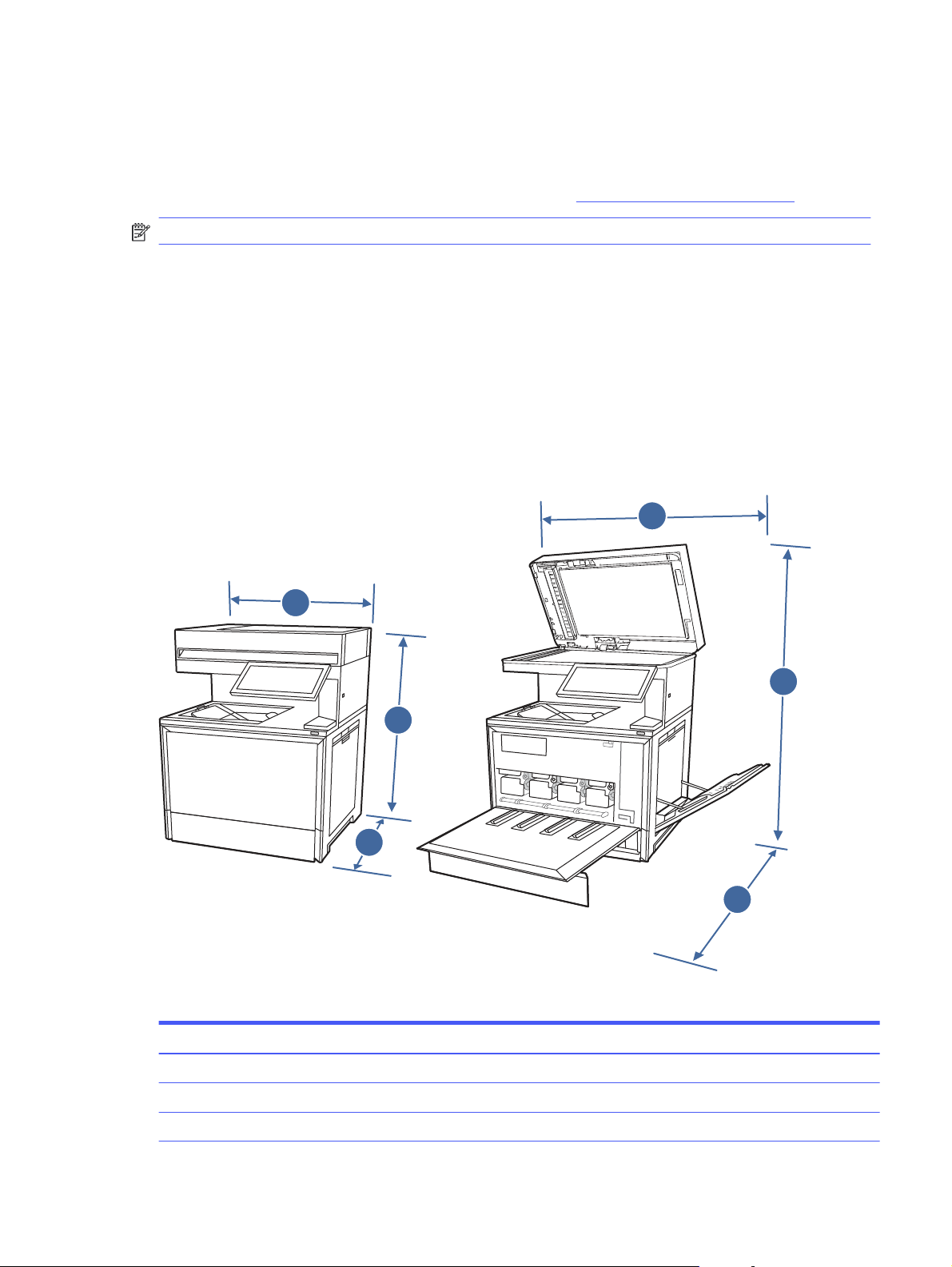
Mobile printing solutions
HP offers multiple mobile printing solutions to enable easy printing to an HPprinter from a laptop,
tablet, smartphone, or other mobile device.
To see the full list and to determine the best choice, go to www.hp.com/go/MobilePrinting.
NOTE: Update the printer firmware to ensure all mobile printing capabilities are supported.
● Wi-Fi Direct on wireless models
● AirPrint
● Android Printing
● HP Smart app
Printer dimensions
Make sure your printer environment is large enough to accommodate the printer.
Figure 1-9 Printer dimensions (dn model)
1
3
2
2
1
3
Table 1-9 Dimensions for the printer (dn model)
Measurement Printer fully closed Printer fully opened
1. Width 500mm (19.6in) 860mm (33.8in)
2. Height 583mm (23in) 853mm (33.6in)
3. Depth 460mm (18.1in) 770mm (30.3in)
Mobile printing solutions 11
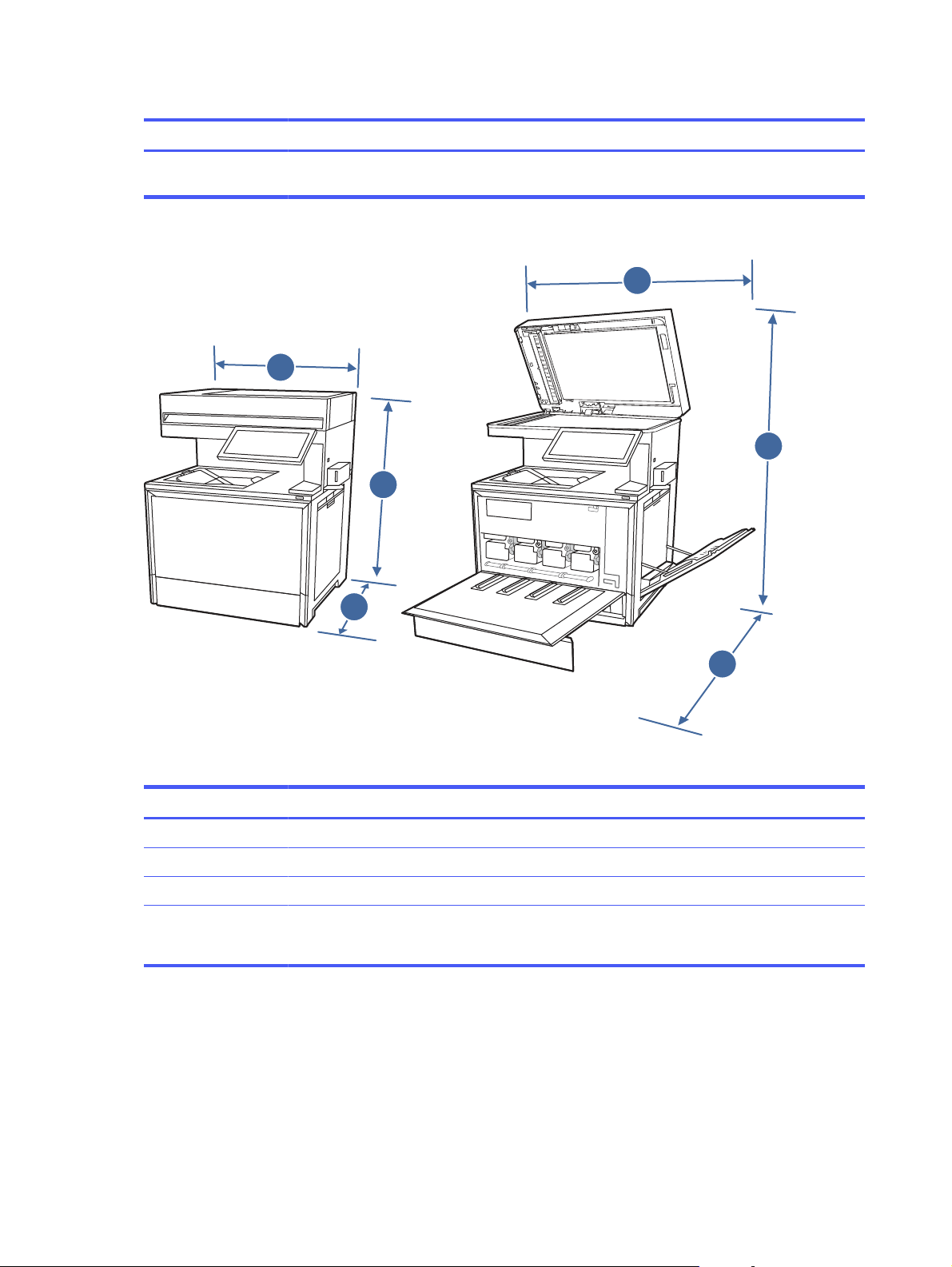
Table 1-9 Dimensions for the printer (dn model) (continued)
Measurement Printer fully closed Printer fully opened
Weight (with
cartridges)
39kg (86lb) 39kg (86lb)
Figure 1-10 Printer dimensions (f and zf models)
1
3
2
2
1
3
Table 1-10 Dimensions for the printer (f and zf models)
Measurement Printer fully closed Printer fully opened
1. Width 542mm (21.3in) 860mm (33.8in)
2. Height 583mm (23in) 853mm (33.6in)
3. Depth 460mm (18.1in) 770mm (30.3in)
Weight (with
cartridges)
f model: 38.9kg (85.76lb)
zf model: 39.1kg (86.2lb)
f model: 38.9kg (85.76lb)
zf model: 39.1kg (86.2lb)
Power consumption, electrical specifications, and acoustic emissions
In order to operate properly, the printer must be in an environment that meets certain power
specifications.
12
Chapter 1Printer overview

See Support for HP Color LaserJet Enterprise MFP 5800 for current information.
CAUTION: Power requirements are based on the country/region where the printer is sold. Do not
convert operating voltages. This will damage the printer and void the printer warranty.
Operating-environment range
In order to operate properly, the printer must be in an environment that meets certain specifications.
Table 1-11 Operating-environment specifications
Environment Recommended Storage
Temperature 15° to 27°C (59° to 80.6°F) 10° to 32.5°C (50° to 90.5°F)
Relative humidity 30% to 70% relative humidity (RH) 10% to 80% relative humidity (RH)
Printer hardware setup and software installation
For basic setup instructions, see the Hardware Installation Guide that came with the printer. For
additional instructions, go to HP support on the web.
Go to Support for HP Color LaserJet Enterprise MFP 5800 for HP's all-inclusive help for the printer,
which includes the following information:
● Install and configure
● Learn and use
● Solve problems
● Download software and firmware updates
● Join support forums
● Find warranty and regulatory information
● Find instructions about how to use the Microsoft Add Printer tool
Operating-environment range
13

Paper trays2
Discover how to load and use the paper trays, including how to load special items such as
envelopes and labels.
The following information is correct at the time of publication. For current information, see Support
for HP Color LaserJet Enterprise MFP 5800.
For more information:
HP's all-inclusive help for the printer includes the following information:
● Install and configure
● Learn and use
● Solve problems
● Download software and firmware updates
● Join support forums
● Find warranty and regulatory information
Use caution when loading the paper trays.
CAUTION: Do not extend more than one paper tray at a time.
Do not use paper tray as a step.
All trays must be closed while relocating/moving product.
Keep hands out of paper trays or drawers when closing.
If the printer has a keyboard, close keyboard tray when not in use.
Load paper to Tray 1 (multipurpose tray)
The following information describes how to load paper in Tray 1.
CAUTION: To avoid jams, never add or remove paper from Tray 1 during printing.
Load Tray 1 (multipurpose tray)
This tray holds up to 100 sheets of 75 grams per square meter (20 lb) paper, or 10 envelopes.
NOTE: Select the correct paper type in the print driver before printing.
14
Chapter 2Paper trays
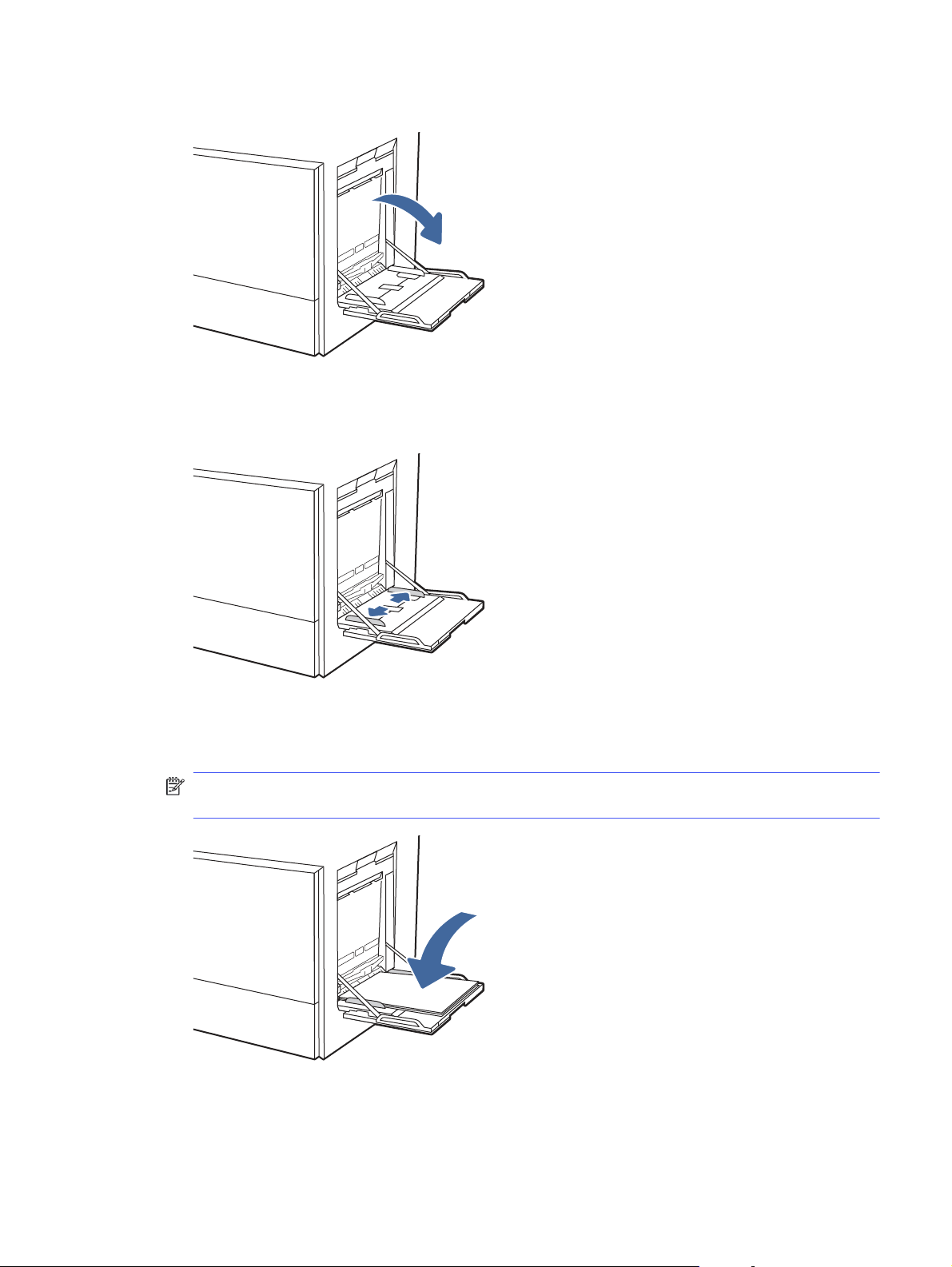
1. Open Tray 1.
2. Pull out the tray extension to support the paper, if necessary.
3. Use the adjustment latch to spread the paper guides outward.
4. Load paper in the tray.
Make sure that the paper fits under the fill line on the paper guides.
NOTE: The maximum stack height is 10mm (0.4in), or approximately 100 sheets of 75 grams
per square meter (20 lb) paper.
Load Tray 1 (multipurpose tray)
15
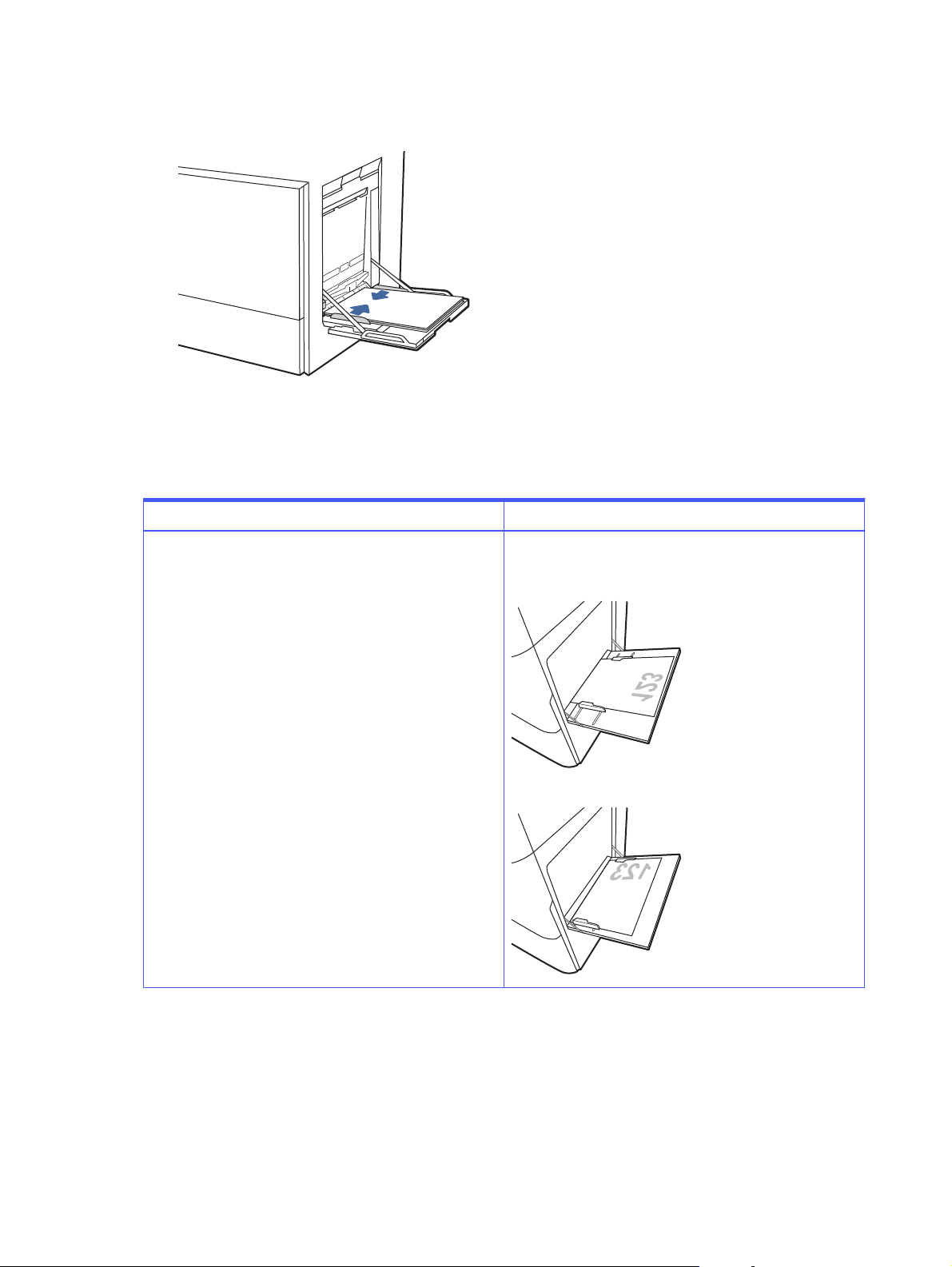
5. Using the adjustment latch, adjust the side guides so that they lightly touch the paper stack, but
do not bend it.
Tray 1 (multipurpose tray) paper orientation
Position paper correctly in Tray 1 (multipurpose tray) to ensure the best print quality.
Table 2-1 Letterhead or preprinted paper - Portrait
Duplex mode How to load paper
1-sided printing Face-down
Bottom edge leading into the printer
Right side of pre-printed image leading into the printer
16
Chapter 2Paper trays
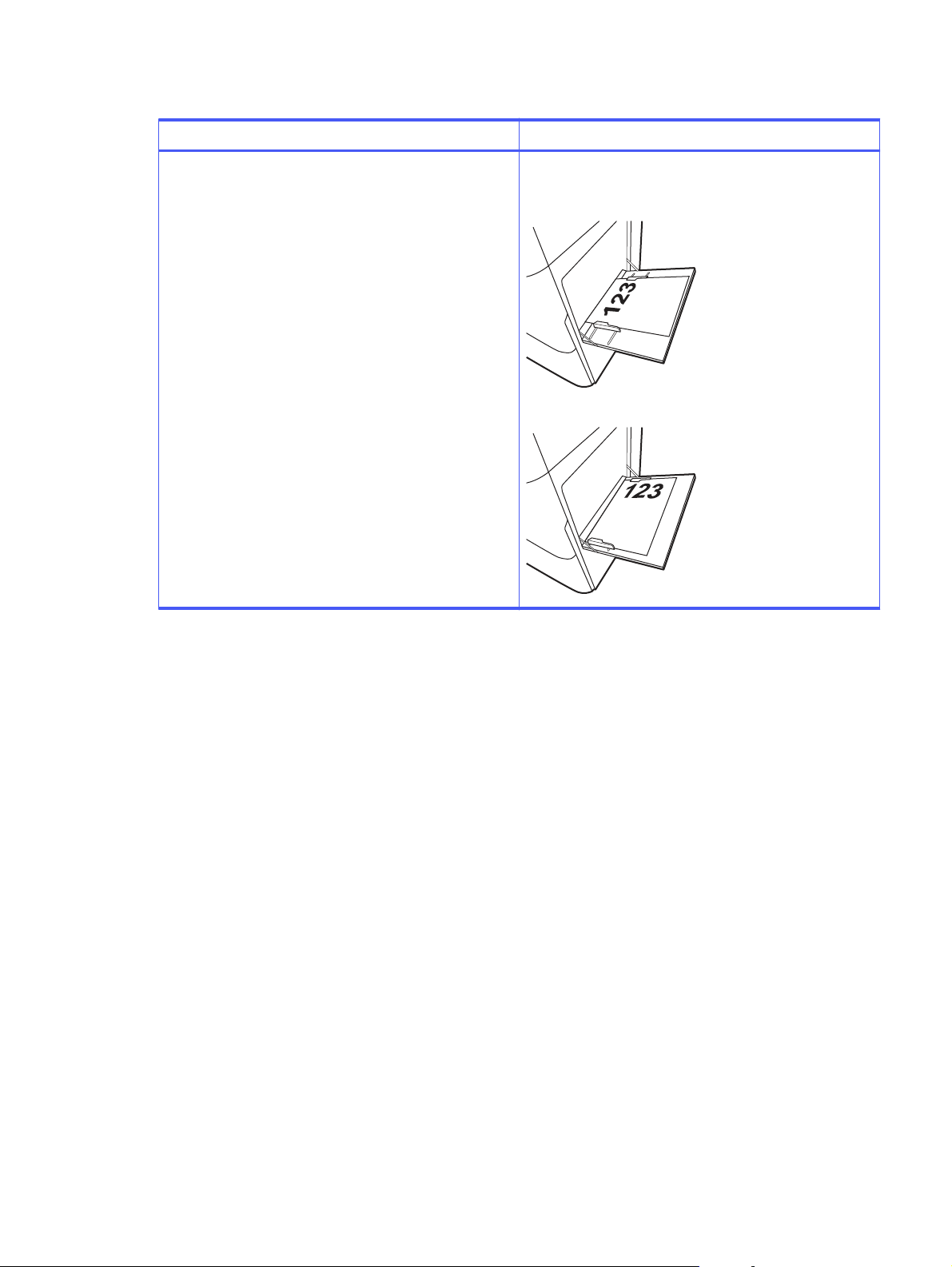
Table 2-1 Letterhead or preprinted paper - Portrait (continued)
Duplex mode How to load paper
Automatic 2-sided printing or with Alternative Letterhead
Mode enabled
Face-up
Top edge leading into the printer
Left side of pre-printed image leading into the printer
Tray 1 (multipurpose tray) paper orientation
17
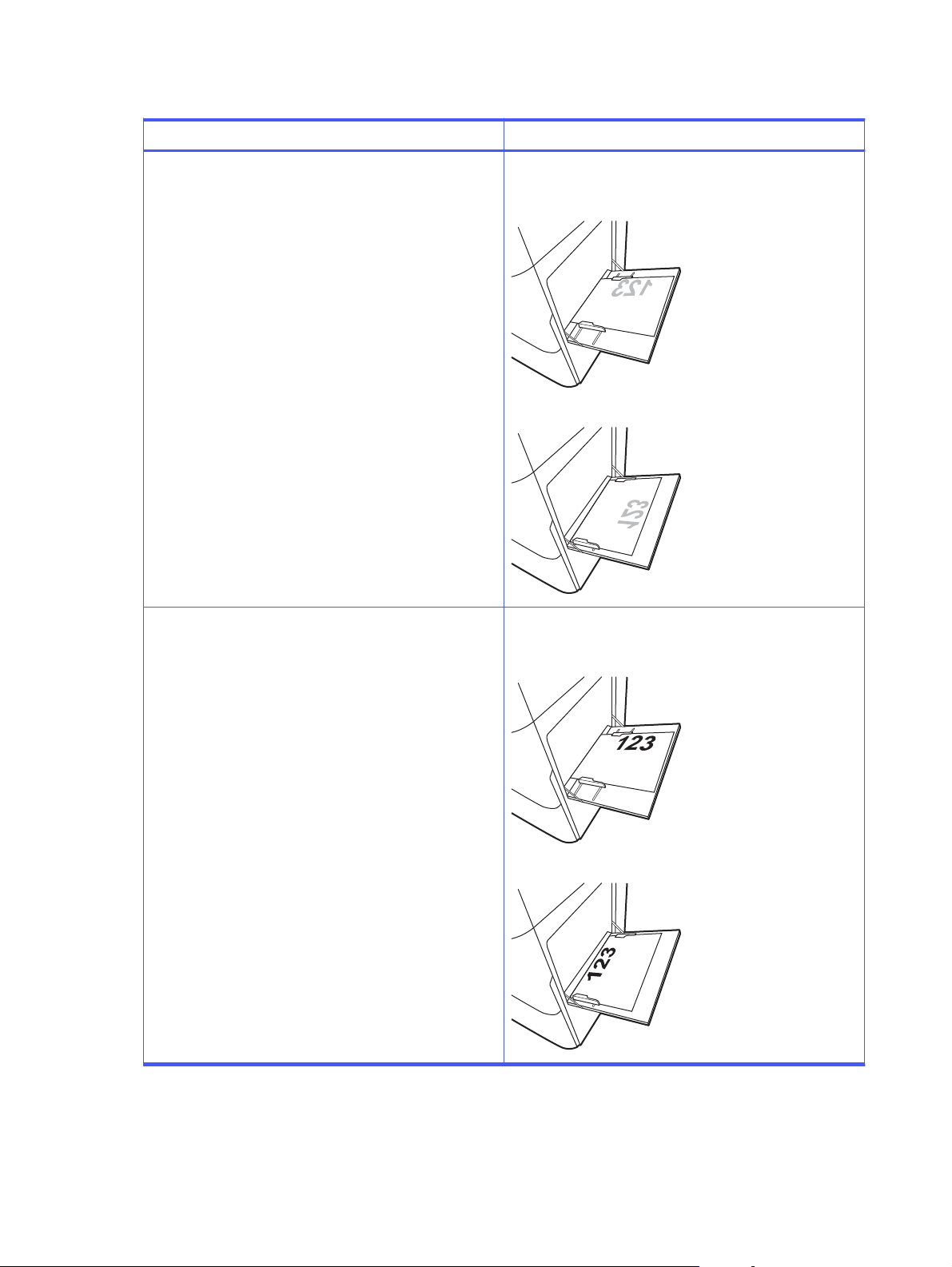
Table 2-2 Letterhead or preprinted paper - Landscape
Duplex mode How to load paper
1-sided printing Face-down
Right edge of pre-printed image leading into the printer
Bottom edge leading into the printer
Automatic 2-sided printing or with Alternative Letterhead
Mode enabled
Face-up
Left side of the pre-printed image leading into the printer
Top edge leading into the printer
18
Chapter 2Paper trays
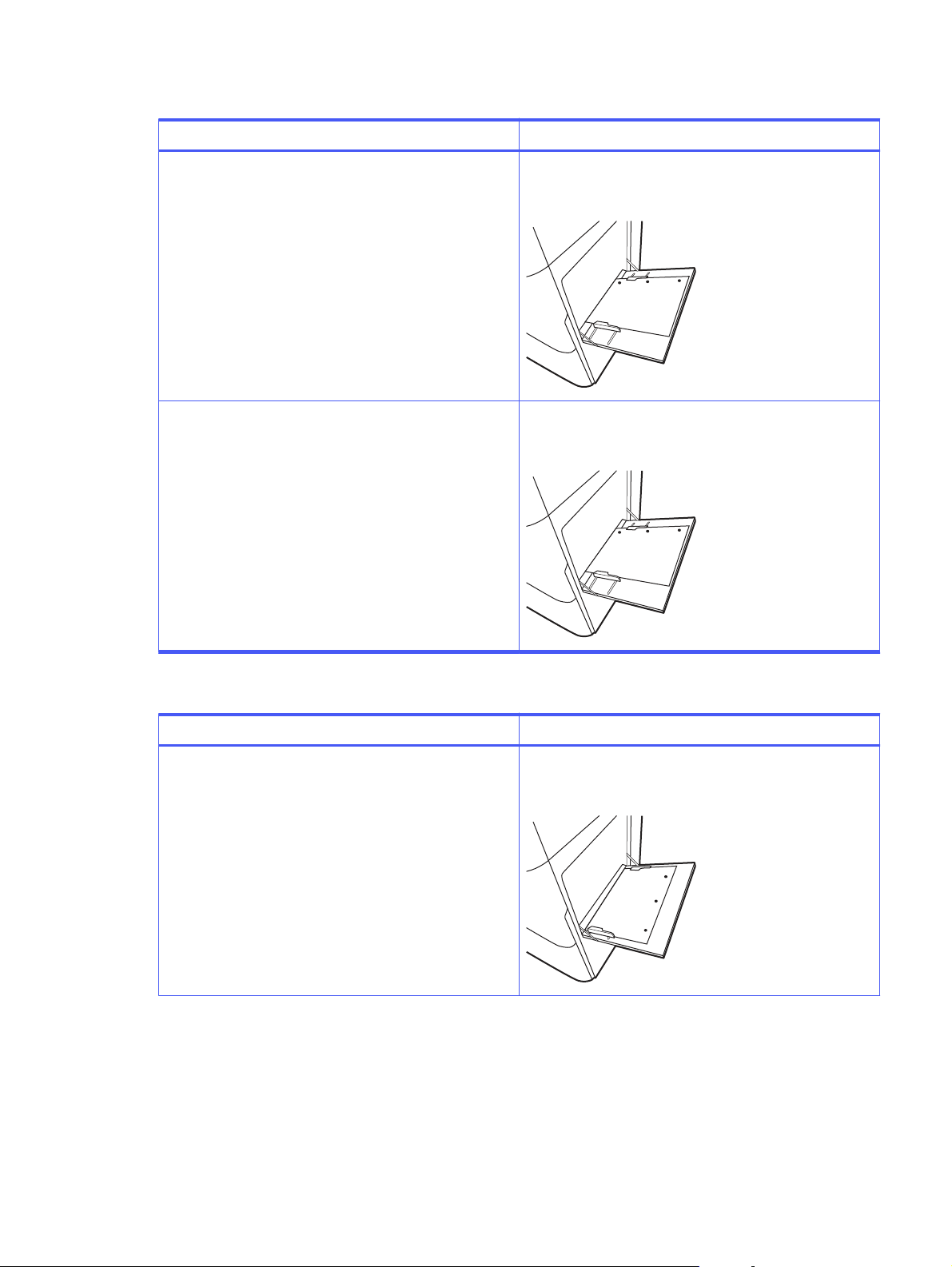
Table 2-3 Prepunched paper - Portrait
Duplex mode How to load paper
1-sided printing Face-down
Holes toward the back of the printer
Automatic 2-sided printing or with Alternative Letterhead
Mode enabled
Face-up
Holes toward the back of the printer
Table 2-4 Prepunched paper - Landscape
Duplex mode How to load paper
1-sided printing Face-down
Holes away from the printer
Tray 1 (multipurpose tray) paper orientation 19
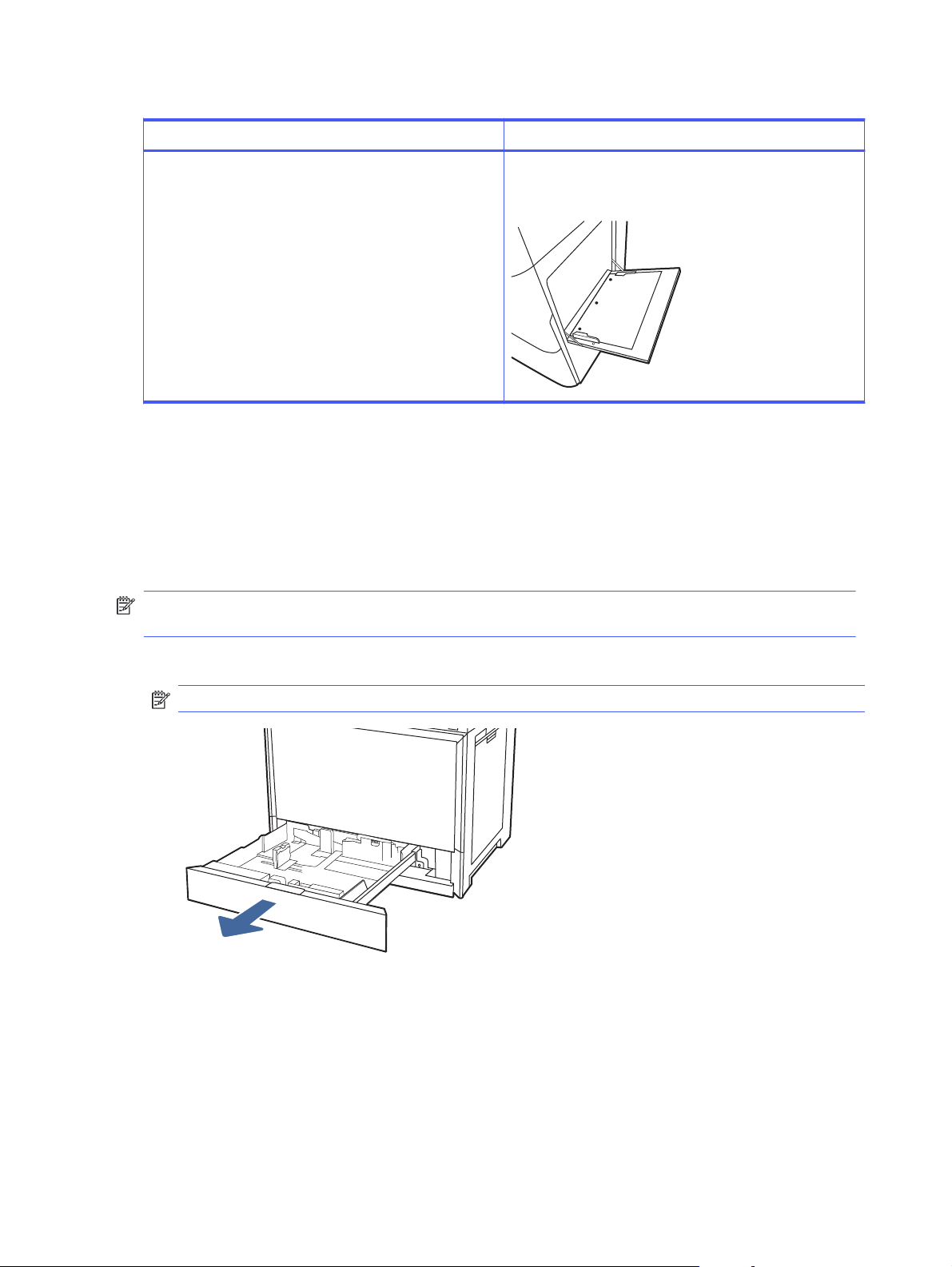
Table 2-4 Prepunched paper - Landscape (continued)
Duplex mode How to load paper
Automatic 2-sided printing or with Alternative Letterhead
Mode enabled
Face-up
Holes towards the printer
Load paper to Tray 2
Review the following information about loading paper to Tray 2.
Load Tray 2 or the optional 550-sheet trays
These trays hold up to 550 sheets of 75 grams per square meter (20 lb) paper.
NOTE: The procedure to load paper to Tray 2 or the optional 550-sheet trays is the same. Only
Tray 2 is shown here.
1. Open the tray.
NOTE: Do not open any tray while it is in use.
20
Chapter 2Paper trays
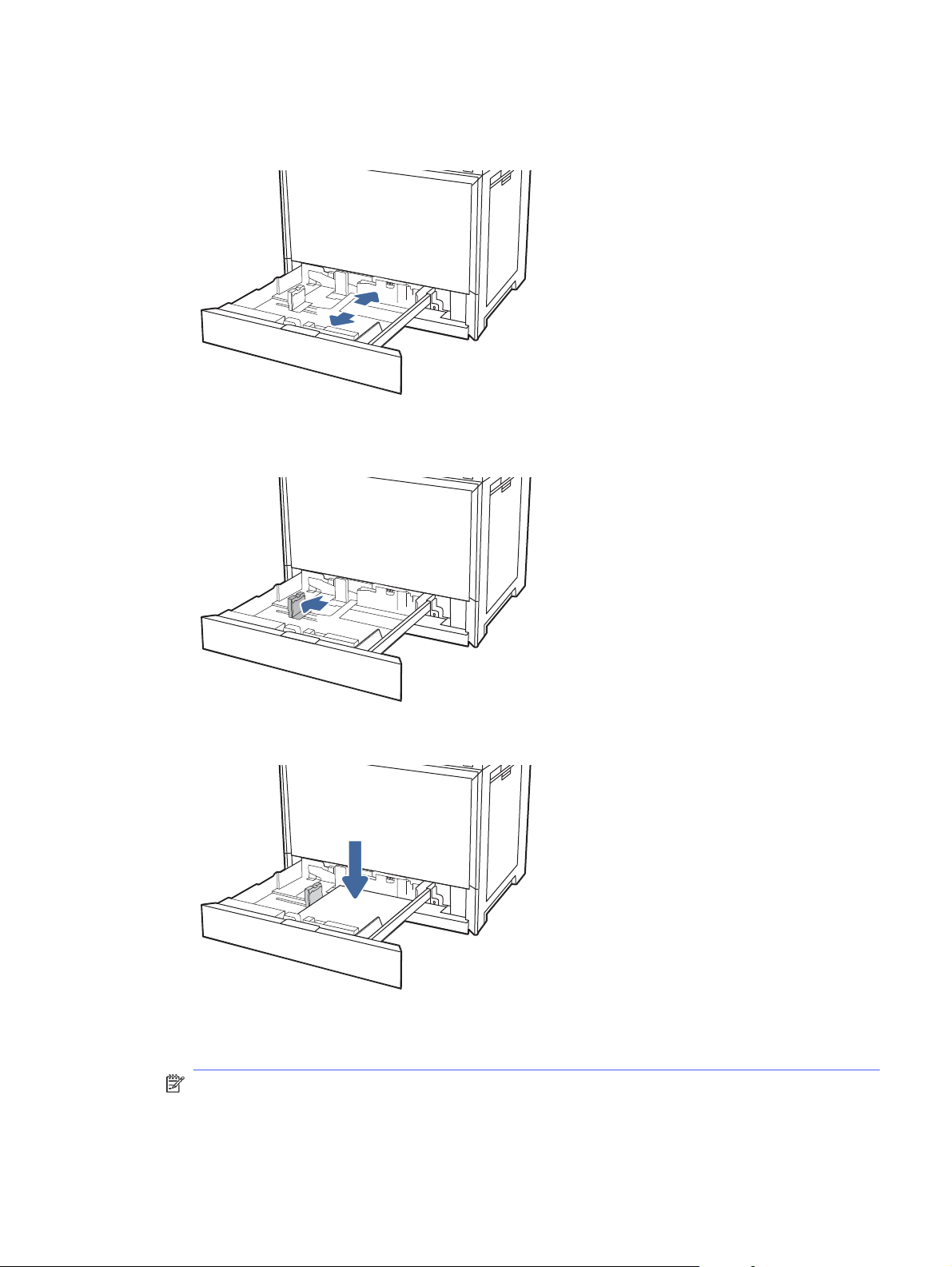
2. Before loading paper, adjust the paper-width guides by holding down the blue lock/unlock
toggle switch on the rear paper-width guide, pinching the blue adjustment latch on the front
paper-width guide, and then sliding the guides to the fully open position.
3. Adjust the paper-length guide by pushing in at the bottom of the blue adjustment latch while
sliding the guide to the size of the paper being used.
4. Load paper into the tray.
5. Adjust the paper-length and paper-width guides to the size of the paper being used. Check the
paper to verify the guides lightly touch the stack, but do not bend it.
NOTE: Do not adjust the paper guides tightly against the paper stack. Adjust them to the
indentations or markings in the tray.
Load Tray 2 or the optional 550-sheet trays
21
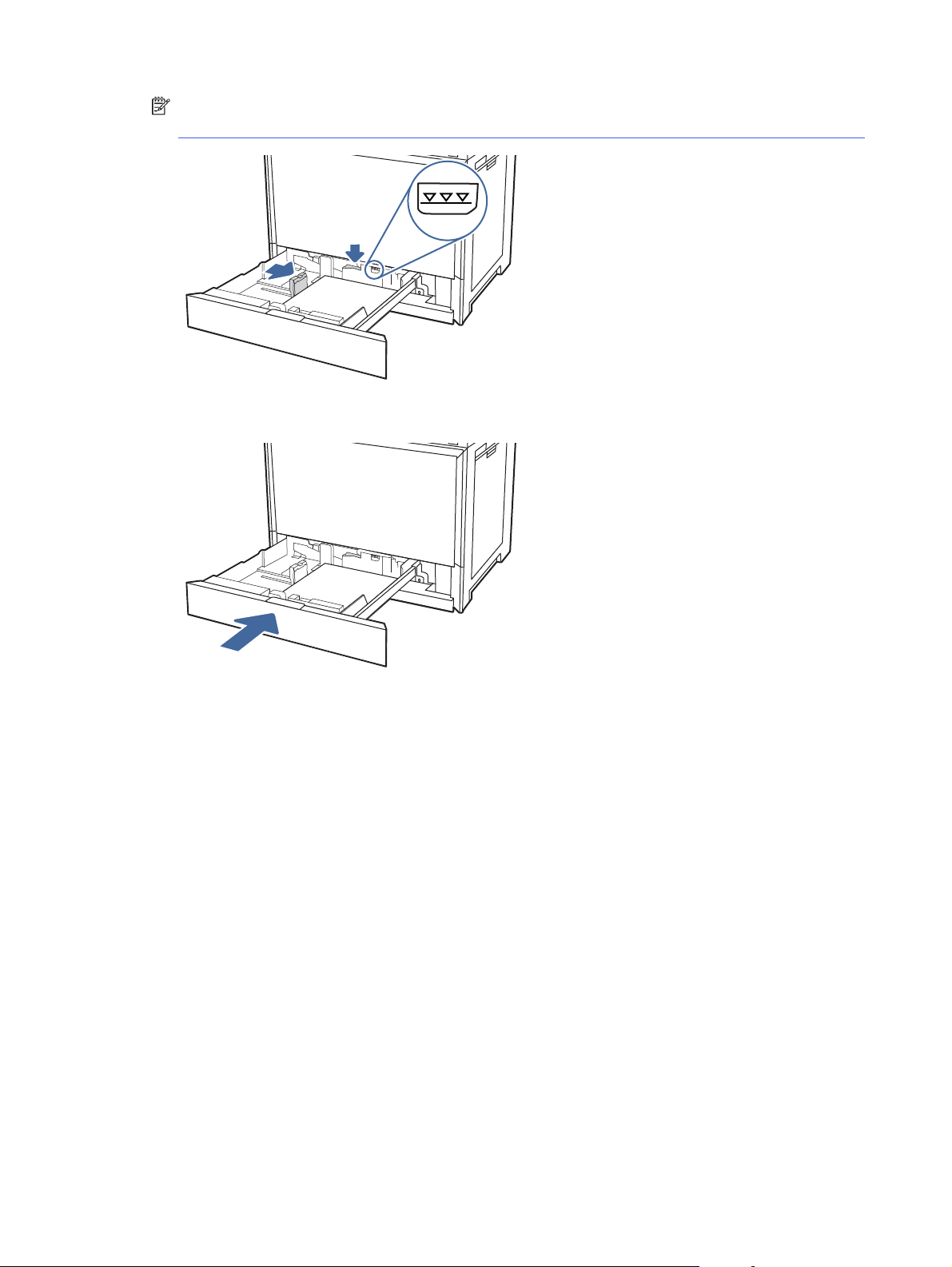
NOTE: To prevent jams, adjust the paper guides to the correct size and do not overfill the tray.
Be sure that the top of the stack is below the tray full indicator.
6. Close the tray.
7. The tray configuration message displays on the printer control panel.
8. Select OK to accept the detected type and size, or select Modify to choose a different paper
size or type.
For custom-size paper, specify the X and Y dimensions for the paper when the prompt displays
on the printer control panel.
Tray 2 and the optional 550-sheet trays paper orientation
Position paper correctly in Tray 2 and the optional 550-sheet trays to ensure the best print quality.
22
Chapter 2Paper trays
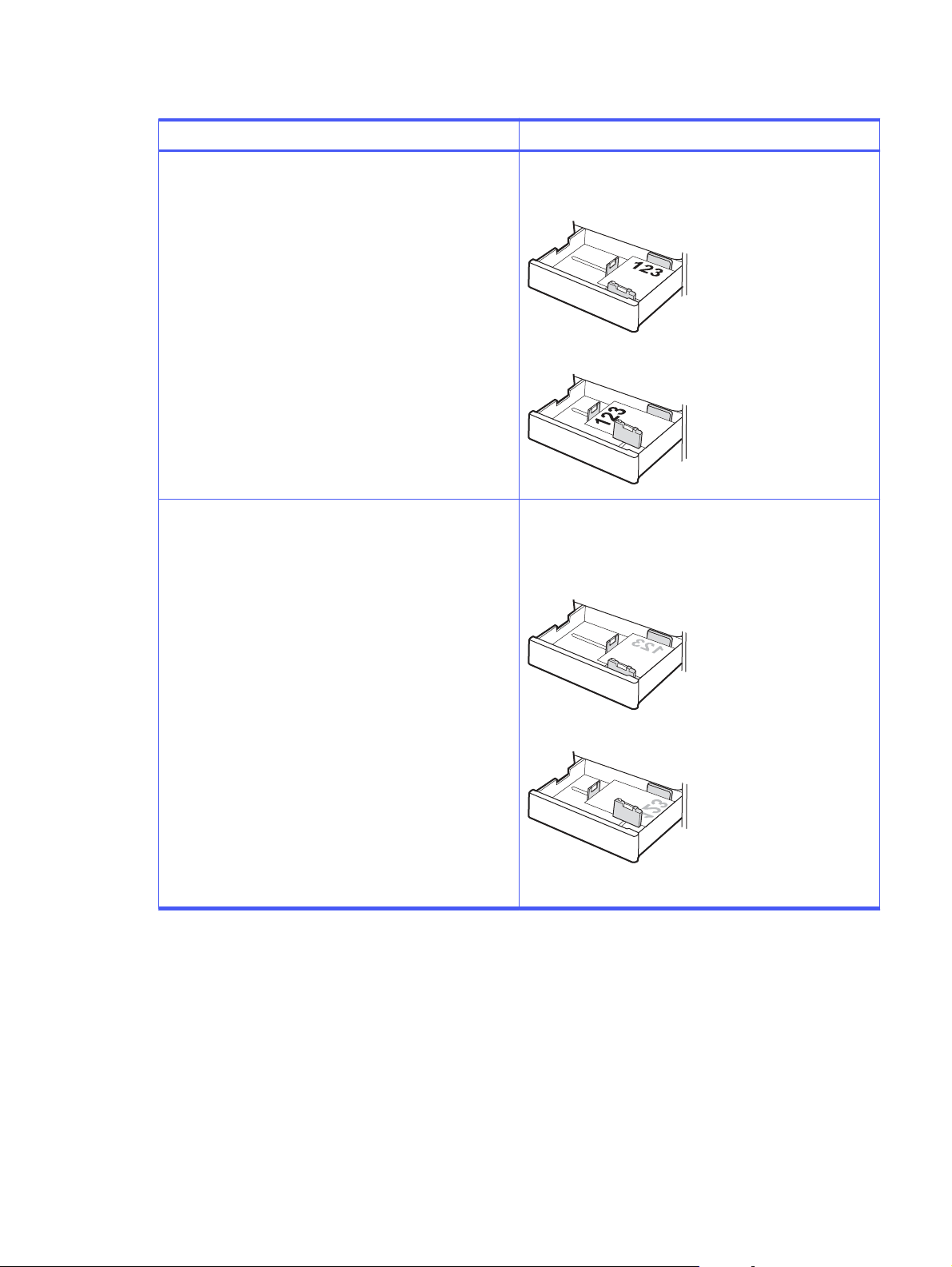
Table 2-5 Letterhead or preprinted paper - Portrait
Duplex mode How to load paper
1-sided printing Face-up
Top edge at the back of the tray
Top edge at the left side of the tray
Automatic 2-sided printing or with Alternative Letterhead
Mode enabled
Face-down
Top edge at the back of the tray
NOTE: This is the preferred orientation when printing on A4
or Letter.
Top edge at the right side of the tray
Tray 2 and the optional 550-sheet trays paper orientation 23
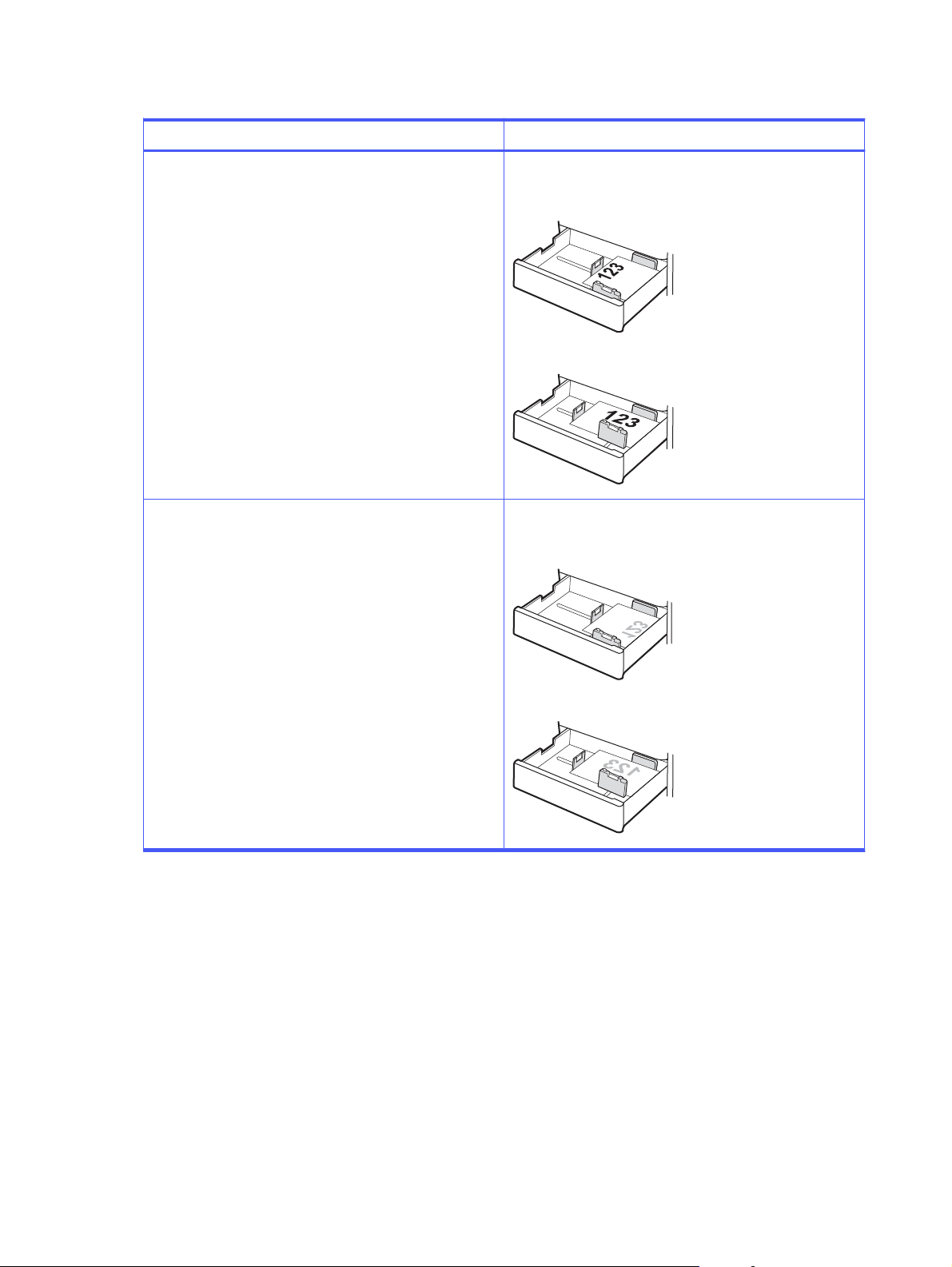
Table 2-6 Letterhead or preprinted paper - Landscape
Duplex mode How to load paper
1-sided printing Face-up
Top edge at the left side of the tray
Top edge at the back of the tray
Automatic 2-sided printing or with Alternative Letterhead
Mode enabled
Face-down
Top edge at the right side of the tray
Top edge at the back of the tray
24 Chapter 2Paper trays
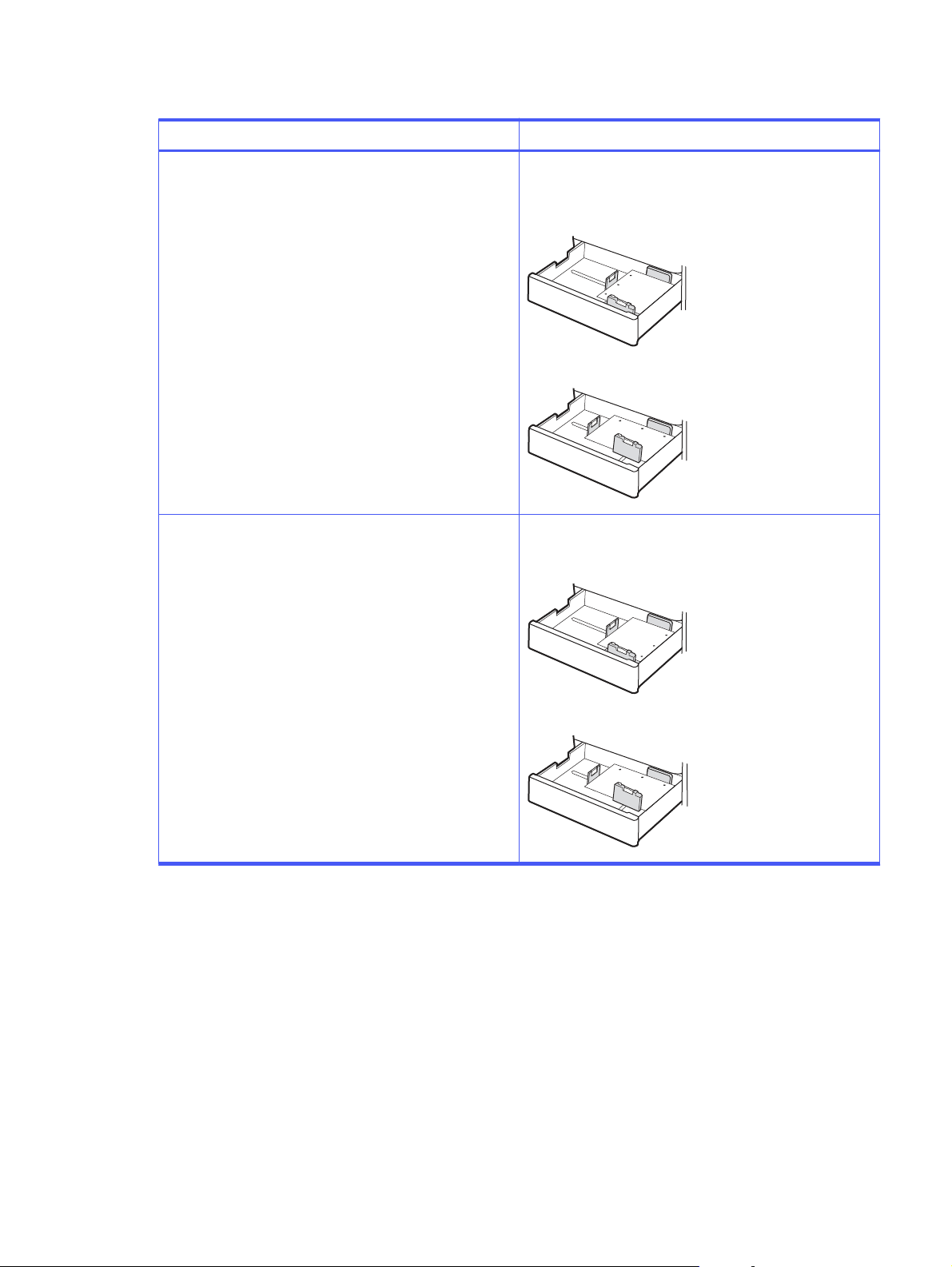
Table 2-7 Prepunched paper - Portrait
Duplex mode How to load paper
1-sided printing Face-up
Holes at the left side of the tray, with the top of the form at
the rear of the printer
Holes at the back of the tray
Automatic 2-sided printing or with Alternative Letterhead
Mode enabled
Face-down
Holes at the right side of the tray
Holes at the back of the tray
Use alternative letterhead mode
Use the Alternative Letterhead Mode feature to load letterhead or preprinted paper into the tray the
same way for all jobs, whether printing to one side of the sheet of paper or to both sides. When
using this mode, load paper as for automatic duplex printing.
Enable Alternative Letterhead Mode by using the printer control-panel menus
Use the Settings menu to enable Alternative Letterhead Mode.
1. From the Home screen on the printer control panel, open the Settings menu.
2. Open the following menus:
Use alternative letterhead mode
25

a. Copy/Print or Print
b. Manage Trays
c. Alternative Letterhead Mode
3. Select On.
Load and print envelopes
To print on envelopes, use only Tray 1 (multipurpose tray). Tray 2 and the optional 550-sheet trays do
not support envelopes. Tray 1 (multipurpose tray) holds up to 10 envelopes.
Print envelopes
To print envelopes using the manual feed option, follow these steps to select the correct settings in
the print driver, and then load the envelopes into the tray after sending the print job to the printer.
1. From the software program, select the Print option.
2. Select the printer from the list of printers, and then click the Properties or Preferences button
to open the print driver.
NOTE: The name of the button varies for different software programs.
3. Click the Paper/Quality tab.
4. In the Paper size drop-down list, select the correct size for the envelopes.
5. In the Paper type drop-down list, select Envelope.
6. In the Paper source drop-down list, select Manual feed.
7. Click the OK button to close the Document Properties dialog box.
8. In the Print dialog box, click the OK button to print the job.
Envelope orientation
Envelopes need to be loaded in a specific manner in order to print correctly.
26
Chapter 2Paper trays
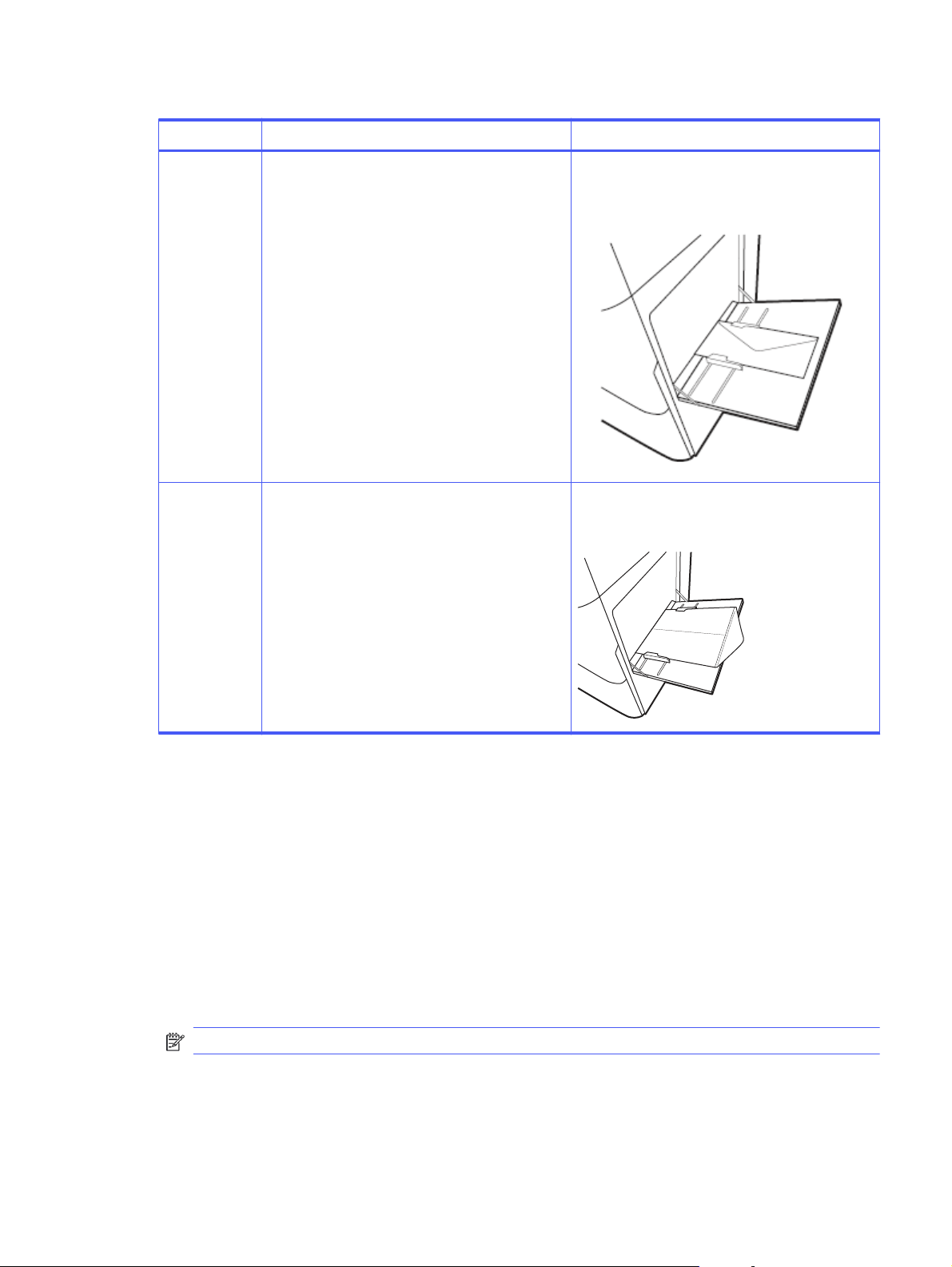
Table 2-8 Envelope orientation
Tray Envelope size How to load envelopes
Tray 1 Envelope #9, Envelope #10, Envelope Monarch,
Envelope DL, Envelope B5, Envelope C5 (wallet),
Envelope C6
Face-down
Top edge toward the back of the printer
Tray 1 Envelope B5, Envelope C5 (pocket) Face-down
Bottom edge leading into the printer; top flap open
Load and print labels
To print on sheets of labels, use only Tray 1 (multipurpose tray). Tray 2, Tray 3 and the optional 2 x
520-sheet trays do not support labels.
Manually feed labels
Use the manual feed mode for Tray 1 (multipurpose tray) to print sheets of labels.
1. From the software program, select the Print option.
2. Select the printer from the list of printers, and then click the Properties or Preferences button
to open the print driver.
NOTE: The name of the button varies for different software programs.
3. Click the Paper/Quality tab.
4. In the Paper size drop-down list, select the correct size for the sheets of labels.
Load and print labels
27

5. In the Paper type drop-down list, select Labels.
6. In the Paper source drop-down list, select Manual feed.
7. Click the OK button to close the Document Properties dialog box.
8. In the Print dialog box, click the Print button to print the job.
Label orientation
Labels need to be loaded in a specific manner in order to print correctly.
Table 2-9 Label orientation
Tray How to load labels
Tray 1 Face-down
Bottom edge leading into the printer
28 Chapter 2Paper trays

Supplies, accessories, and parts3
Order supplies or accessories, replace the toner cartridges, or remove and replace another part.
The following information is correct at the time of publication. For current information, see Support
for HP Color LaserJet Enterprise MFP 5800.
HP's all-inclusive help for the printer includes the following information:
● Install and configure
● Learn and use
● Solve problems
● Download software and firmware updates
● Join support forums
● Find warranty and regulatory information
Order supplies, accessories, and parts
Find out how to obtain replacement supplies, accessories, and parts for the printer.
Ordering
Order parts, supplies, or accessories through one of the following channels.
Table 3-1
Ordering options
Ordering option Ordering information
Order supplies and paper www.hp.com
Order genuine HPparts or accessories www.hp.com/buy/parts
Order through service or support providers Contact an HP-authorized service or support provider.
Order using the HPEmbedded Web Server (EWS) To access, in a supported web browser on your computer,
enter the printer IP address or host name in the
address/URL field. The EWS contains a link to the HP
website, which provides options for purchasing Original HP
supplies.
Supplies and accessories
Find information about the supplies and accessories that are available for your printer.
NOTE: Cartridges are for distribution and use with their designated product only; they will not
work with other printer models.
Supplies, accessories, and parts
29

Table 3-2 Supplies
Item Cartridge number Part number
HP 213A Black Original LaserJet Toner
Cartridge
213A W2130A
HP 213A Cyan Original LaserJet Toner
Cartridge
213A W2131A
HP 213A Yellow Original LaserJet Toner
Cartridge
213A W2132A
HP 213A Magenta Original LaserJet
Toner Cartridge
213A W2133A
HP 213X High Yield Black Original
LaserJet Toner Cartridge
213X W2130X
HP 213X High Yield Cyan Original
LaserJet Toner Cartridge
213X W2131X
HP 213X High Yield Yellow Original
LaserJet Toner Cartridge
213X W2132X
HP 213X High Yield Magenta Original
LaserJet Toner Cartridge
213X W2133X
HP 213Y Extra High Yield Black Original
LaserJet Toner Cartridge
213Y W2130Y
HP 213Y Extra High Yield Cyan Original
LaserJet Toner Cartridge
213Y W2131Y
HP 213Y Extra High Yield Yellow
Original LaserJet Toner Cartridge
213Y W2132Y
HP 213Y Extra High Yield Magenta
Original LaserJet Toner Cartridge
213Y W2133Y
HP Staple cartridge pack for the
convenience stapler - contains two
staple cartridges with 1500 staples
each
Not applicable Q7432A
HP Staple Cartridge Refill for the
optional 3-bin stapler/stacker
Not applicable J8J96A
Table 3-3 Accessories
Item Description Part number
HP Color LaserJet 550-sheet Paper
Tray
Optional (Tray 3) 550-sheet paper
feeder
6QN57A
HP Color LaserJet Storage Stand Optional printer stand with storage
space
6QN55A
HP Color LaserJet Stand Optional printer stand 6QN54A
HP MFP Analog Fax 702 Accessory Optional fax accessory 1M0Q0A
HP MFP Analog Fax 703 Accessory Optional fax accessory
NOTE: Available in Korea only.
1M0Q1A
HP LaserJet Workflow Accelerator
Card
Accelerator card 1M0Q5A
30 Chapter 3Supplies, accessories, and parts

Table 3-3 Accessories (continued)
Item Description Part number
HP Printing Voice Assistant Accessory to add voice command and
screen reader functions to the printer
478C2A
HP Accessibility Kit Accessibility tools including an
accessible keyboard, prop handle, and
braille labels
2TD64A
HP Internal USB Expansion Kit Two optional USB ports for connecting
third-party devices
4XN67A
HP Jetdirect LAN Accessory HP Jetdirect accessory for network
connectivity
8FP31A
HP Foreign Interface Harness Optional port for connecting third-party
devices
B5L31A
HP LaserJet Workflow Keyboard - US External keyboard for Flow models only 1M0Q2A
HP LaserJet Workflow Keyboard - UK External keyboard for Flow models only 616H2A
HP LaserJet Keyboard Overlay Kit
for Simplified Chinese & Traditional
Chinese
Language-specific, adhesive overlay
for the physical keyboard
A7W12A
HP LaserJet Keyboard
Overlay Kit-Danish/French-Switzerland/
German-Switzerland
Language-specific, adhesive overlay
for the physical keyboard
A7W13A
HP LaserJet Swedish Overlay
Keyboard
Language-specific, adhesive overlay
for the physical keyboard
A7W14A
HP USB Universal Card Reader Multiple-protocol proximity card reader X3D03A
HP HIP2 Keystroke Reader Dual-band, keystroke card reader that
can read up to four different card
types simultaneously
Y7C05A
HP Legic Secure USB Reader Authentication card reader 4QL32A
HP Removable Hard Drive Enclosure Hard drive enclosure that can be
locked
2NR12A
HP LaserJet Secure Solid State Drive Solid state hard drive 1M0Q4A
HP 500GB CCC FIPS Hard Disk Drive Hard disk drive 9EQ11A
HP 500GB CCC FIPS TAA Hard Disk
Drive
TAA-compliant hard disk drive 6HN31A
HP Jetdirect 3100w BLE/NFC/Wireless HP Jetdirect accessory for Wi-Fi, BLE,
NFC, and proximity badge reading
3JN69A
Customer self-repair parts
Customer self-repair (CSR) parts are available for many HP LaserJet printers to reduce repair time.
NOTE: More information about the CSR program and benefits can be found at www.hp.com/go/
csr-support and www.hp.com/go/csr-faq.
Genuine HP replacement parts can be ordered at www.hp.com/buy/parts or by contacting an HP-
authorized service or support provider. When ordering, one of the following will be needed: part
number, serial number (found on back of printer), product number, or printer name.
Customer self-repair parts
31

● Parts listed as Mandatory self-replacement are to be installed by the customer unless the
customer is willing to pay HPservice personnel to perform the repair. For these parts, on-site or
return-to-depot support is not provided under the HPprinter warranty.
● Parts listed as Optional self-replacement can be installed by HPservice personnel at your
request for no additional charge during the printer warranty period.
Table 3-4 Customer self-repair (CSR) parts
Item Description Self-replacement
options
Part number
HP Color LaserJet 550 sheet Paper
Tray
550-sheet paper feeder (optional
Tray 3)
Mandatory 6QN57A
Configure the HP toner-cartridge-protection supply settings
A network administrator can configure the toner-cartridge-protection settings using the printer
control panel or the HP Embedded Web Server (EWS).
Introduction
Use HP Cartridge Policy and Cartridge Protection to control which cartridges are installed in the
printer and protect the cartridges that are installed from theft.
In HP Web Jetadmin, the settings are located under the Device Management pane in the following
menu chain: Config > Supplies > Cartridge Policy or Cartridge Protection.
● Cartridge Policy: This feature protects the printer from counterfeit toner cartridges by allowing
only genuine HP cartridges to be used with the printer. Using genuine HP cartridges ensures the
best possible print quality. When someone installs a cartridge that is not a genuine HP cartridge,
the printer control panel displays a message that the cartridge is unauthorized and it provides
information explaining how to proceed.
● Cartridge Protection: This feature permanently associates toner cartridges with a specific
printer, or fleet of printers, so they cannot be used in other printers. Protecting cartridges
protects your investment. When this feature is enabled, if someone attempts to transfer a
protected cartridge from the original printer into an unauthorized printer, that printer will
not print with the protected cartridge. The printer control panel displays a message that the
cartridge is protected, and it provides information explaining how to proceed.
CAUTION: After enabling cartridge protection for the printer, all subsequent toner cartridges
installed in the printer are automatically and
permanently
protected. To avoid protecting a new
cartridge, disable the feature
before
installing the new cartridge.
Turning the feature off does not turn off protection for cartridges that are currently installed.
Enable or disable the Cartridge Policy feature
The Cartridge Policy feature can be enabled or disabled using the control panel or the Embedded
Web Server (EWS).
NOTE: Enabling or disabling this feature might require entering an administrator password.
Check with your administrator to determine if an administrator password has been set. EWS
passwords cannot be recovered.
32
Chapter 3Supplies, accessories, and parts

Use the printer control panel to enable the Cartridge Policy feature
From the printer control panel, a network administrator can enable the Cartridge Policy feature. This
allows only genuine HP cartridges to be used with the printer.
1. From the Home screen on the printer control panel, navigate to the Settings application, and
then select the Settings icon.
2. Open the following menus:
a. Manage Supplies
b. Cartridge Policy
3. Select Authorized HP.
Use the printer control panel to disable the Cartridge Policy feature
From the printer control panel, a network administrator can disable the Cartridge Policy feature. This
removes the restriction that only genuine HP cartridges can be used.
1. From the Home screen on the printer control panel, navigate to the Settings application, and
then select the Settings icon.
2. Open the following menus:
a. Manage Supplies
b. Cartridge Policy
3. Select Off.
Use the HP Embedded Web Server (EWS) to enable the Cartridge Policy feature
From the EWS, a network administrator can enable the Cartridge Policy feature. This allows only
genuine HP cartridges to be used with the printer.
1. Open the HPEmbedded Web Server (EWS):
a. From the Home screen on the printer control panel, touch the Information icon , and
then touch the Ethernet icon to display the IP address or host name.
b. Open a web browser, and in the address line, type the IP address or host name exactly as
it displays on the printer control panel. Press the Enter key on the computer keyboard.
The EWS opens.
NOTE: If the web browser displays a message indicating that accessing the website
might not be safe, select the option to continue to the website. Accessing this website will
not harm the computer.
2. Open the Copy/Print tab.
3. From the left navigation pane, select Manage Supplies.
4. In the Supply Settings area, select Authorized HP from the Cartridge Policy drop-down list.
5. Click the Apply button to save the changes.
Use the printer control panel to enable the Cartridge Policy feature
33

Use the HP Embedded Web Server (EWS) to disable the Cartridge Policy feature
From the EWS, a network administrator can disable the Cartridge Policy feature. This removes the
restriction that only genuine HP cartridges can be used.
1. Open the HPEmbedded Web Server (EWS):
a. From the Home screen on the printer control panel, touch the Information icon , and
then touch the Ethernet icon to display the IP address or host name.
b. Open a web browser, and in the address line, type the IP address or host name exactly as
it displays on the printer control panel. Press the Enter key on the computer keyboard.
The EWS opens.
NOTE: If the web browser displays a message indicating that accessing the website
might not be safe, select the option to continue to the website. Accessing this website will
not harm the computer.
2. Open the Copy/Print tab.
3. From the left navigation pane, select Manage Supplies.
4. In the Supply Settings area, select Off from the Cartridge Policy drop-down list.
5. Click the Apply button to save the changes.
Troubleshoot Cartridge Policy control panel error messages
Review the recommended actions for Cartridge Policy error messages.
Table 3-5
Cartridge Policy control panel error messages
Error message Description Recommended action
10.0X.30 Unauthorized <Color>
Cartridge
The administrator has configured this
printer to use only genuine HP supplies
that are still under warranty. The
cartridge must be replaced to continue
printing.
Replace the cartridge with a genuine
HP toner cartridge.
If you believe you purchased a genuine
HP supply, visit www.hp.com/go/
anticounterfeit to determine if the
toner cartridge is a genuine HP
cartridge, and learn what to do if it is
not a genuine HP cartridge.
Enable or disable the Cartridge Protection feature
The Cartridge Protection feature can be enabled or disabled using the control panel or the
Embedded Web Server (EWS).
NOTE: Enabling or disabling this feature might require entering an administrator password.
Check with your administrator to determine if an administrator password has been set. EWS
passwords cannot be recovered.
34
Chapter 3Supplies, accessories, and parts

Use the printer control panel to enable the Cartridge Protection feature
From the printer control panel, a network administrator can enable the Cartridge Protection feature.
This protects the cartridges associated with the printer from being stolen and used in other printers.
1. From the Home screen on the printer control panel, navigate to the Settings application, and
then select the Settings icon.
2. Open the following menus:
a. Manage Supplies
b. Cartridge Protection
3. Select Protect Cartridges.
4. When the printer prompts to confirm, select Continue to enable the feature.
CAUTION: After enabling cartridge protection for the printer, all subsequent toner cartridges
installed in the printer are automatically and
permanently
protected. To avoid protecting a new
cartridge, disable the feature
before
installing the new cartridge.
Turning the feature off does not turn off protection for cartridges that are currently installed.
Use the printer control panel to disable the Cartridge Protection feature
From the printer control panel, a network administrator can disable the Cartridge Protection feature.
This removes protection for any new cartridges installed in the printer.
1. From the Home screen on the printer control panel, navigate to the Settings application, and
then select the Settings icon.
2. Open the following menus:
a. Manage Supplies
b. Cartridge Protection
3. Select Off.
Use the HP Embedded Web Server (EWS) to enable the Cartridge Protection feature
From the EWS, a network administrator can enable the Cartridge Protection feature. This protects
the cartridges associated with the printer from being stolen and used in other printers.
1. Open the HPEmbedded Web Server (EWS):
a. From the Home screen on the printer control panel, touch the Information icon , and
then touch the Ethernet icon to display the IP address or host name.
b. Open a web browser, and in the address line, type the IP address or host name exactly as
it displays on the printer control panel. Press the Enter key on the computer keyboard.
The EWS opens.
Use the printer control panel to enable the Cartridge Protection feature
35

NOTE: If the web browser displays a message indicating that accessing the website
might not be safe, select the option to continue to the website. Accessing this website will
not harm the computer.
2. Open the Copy/Print tab.
3. From the left navigation pane, select Manage Supplies.
4. In the Supply Settings area, select Protect cartridges from the Cartridge Protection drop-down
list.
5. Click the Apply button to save the changes.
CAUTION: After enabling cartridge protection for the printer, all subsequent toner cartridges
installed in the printer are automatically and
permanently
protected. To avoid protecting a new
cartridge, disable the feature
before
installing the new cartridge.
Turning the feature off does not turn off protection for cartridges that are currently installed.
Use the HP Embedded Web Server (EWS) to disable the Cartridge Protection feature
From the EWS, a network administrator can disable the Cartridge Protection feature. This removes
protection for any new cartridges installed in the printer.
1. Open the HPEmbedded Web Server (EWS):
a. From the Home screen on the printer control panel, touch the Information icon , and
then touch the Ethernet icon to display the IP address or host name.
b. Open a web browser, and in the address line, type the IP address or host name exactly as
it displays on the printer control panel. Press the Enter key on the computer keyboard.
The EWS opens.
NOTE: If the web browser displays a message indicating that accessing the website
might not be safe, select the option to continue to the website. Accessing this website will
not harm the computer.
2. Open the Copy/Print tab.
3. From the left navigation pane, select Manage Supplies.
4. In the Supply Settings area, select Off from the Cartridge Protection drop-down list.
5. Click the Apply button to save the changes.
Troubleshoot Cartridge Protection control panel error messages
Review the recommended actions for Cartridge Protection error messages.
36
Chapter 3Supplies, accessories, and parts

Table 3-6 Cartridge Protection control panel error messages
Error message Description Recommended action
10.0X.57 Protected <Color> Cartridge The cartridge can only be used in
the printer or fleet of printers that
initially protected it using HP Cartridge
Protection.
The Cartridge Protection feature allows
an administrator to restrict cartridges
to work in only one printer or fleet
of printers.The cartridge must be
replaced to continue printing.
Replace the cartridge with a new toner
cartridge.
Replace the toner cartridges
Replace the toner cartridges if you receive a message on the printer, or if you have print quality
problems.
Toner cartridge information
Review details about ordering replacement toner cartridges.
The printer indicates when the toner-cartridge level is low and very low. The actual toner cartridge
life remaining can vary. Consider having a replacement cartridge available to install when print
quality is no longer acceptable.
Continue printing with the current cartridge until redistributing the toner no longer yields acceptable
print quality. To redistribute the toner, remove the toner cartridge from the printer and gently rock
the cartridge back and forth end to end. For graphical representation, see the cartridge replacement
instructions. Reinsert the toner cartridge into the printer, and then close the cover.
To purchase cartridges or check cartridge compatibility for the printer, go to www.hp.com/go/
suresupply. Scroll to the bottom of the page and verify that the country/region is correct.
Table 3-7
Supplies
Item Cartridge number Part number
HP 213A Black Original LaserJet Toner
Cartridge
213A W2130A
HP 213A Cyan Original LaserJet Toner
Cartridge
213A W2131A
HP 213A Yellow Original LaserJet Toner
Cartridge
213A W2132A
HP 213A Magenta Original LaserJet
Toner Cartridge
213A W2133A
HP 213X High Yield Black Original
LaserJet Toner Cartridge
213X W2130X
HP 213X High Yield Cyan Original
LaserJet Toner Cartridge
213X W2131X
HP 213X High Yield Yellow Original
LaserJet Toner Cartridge
213X W2132X
Replace the toner cartridges 37
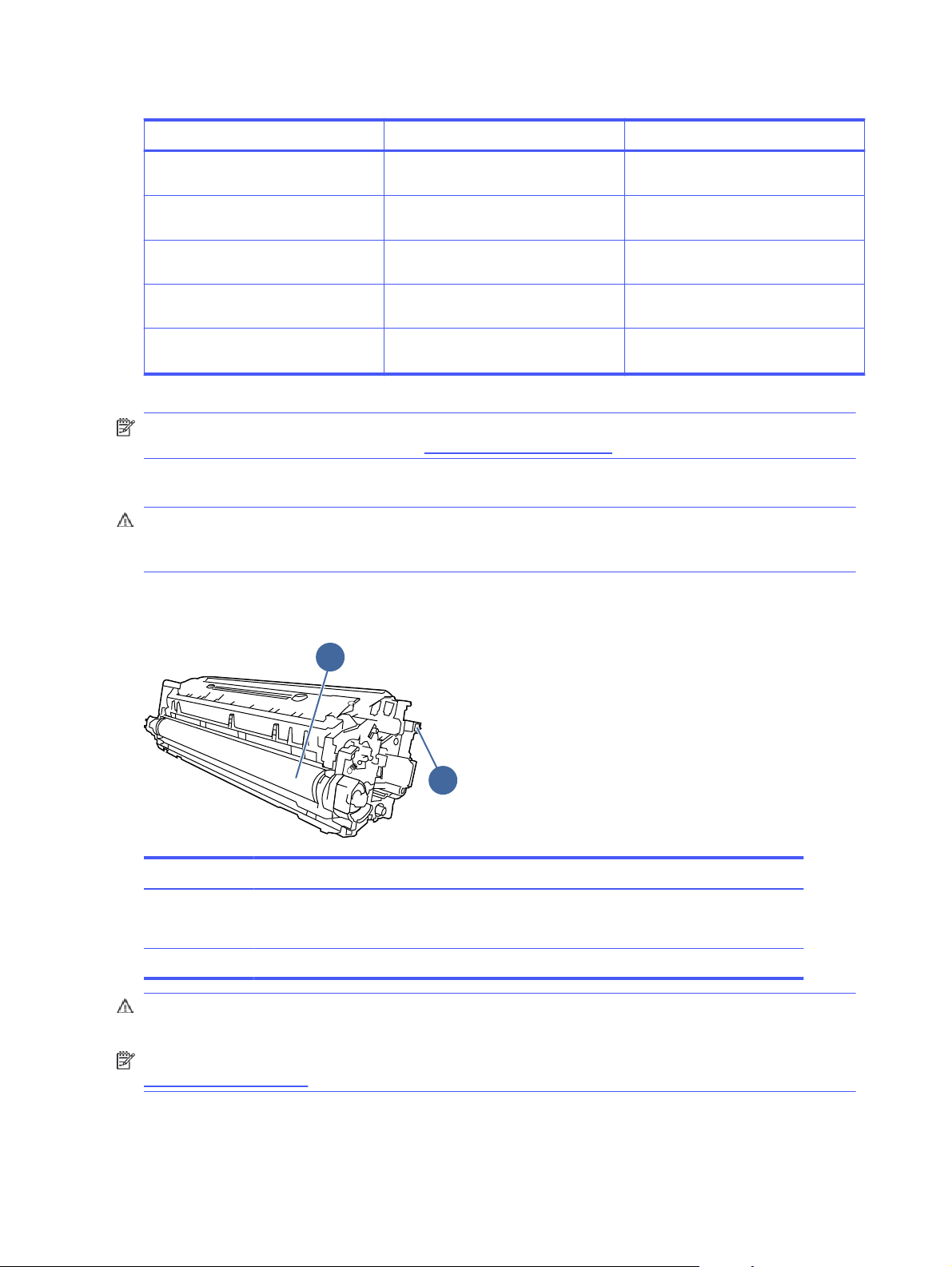
Table 3-7 Supplies (continued)
Item Cartridge number Part number
HP 213X High Yield Magenta Original
LaserJet Toner Cartridge
213X W2133X
HP 213Y Extra High Yield Black Original
LaserJet Toner Cartridge
213Y W2130Y
HP 213Y Extra High Yield Cyan Original
LaserJet Toner Cartridge
213Y W2131Y
HP 213Y Extra High Yield Yellow
Original LaserJet Toner Cartridge
213Y W2132Y
HP 213Y Extra High Yield Magenta
Original LaserJet Toner Cartridge
213Y W2133Y
NOTE: High-yield toner cartridges contain more toner than standard cartridges for increased
page yield. For more information, go to www.hp.com/go/toneryield.
Do not remove the toner cartridge from its package until it is time to replace it.
CAUTION: To prevent damage to the toner cartridge, do not expose it to light for more than a few
minutes. Cover the green imaging drum if the toner cartridge must be removed from the printer for
an extended period of time.
The following illustration shows the toner cartridge components.
Figure 3-1 Toner cartridge components
1
2
Number
Description
1 Imaging drum
CAUTION: Do not touch the imaging drum. Fingerprints can cause print-quality problems.
2 Memory chip
CAUTION: If toner gets on clothing, wipe it off by using a dry cloth and wash the clothes in cold
water. Hot water sets toner into fabric.
NOTE: Information about recycling used toner cartridges is in the toner cartridge box or at
www.hp.com/hprecycle.
38
Chapter 3Supplies, accessories, and parts
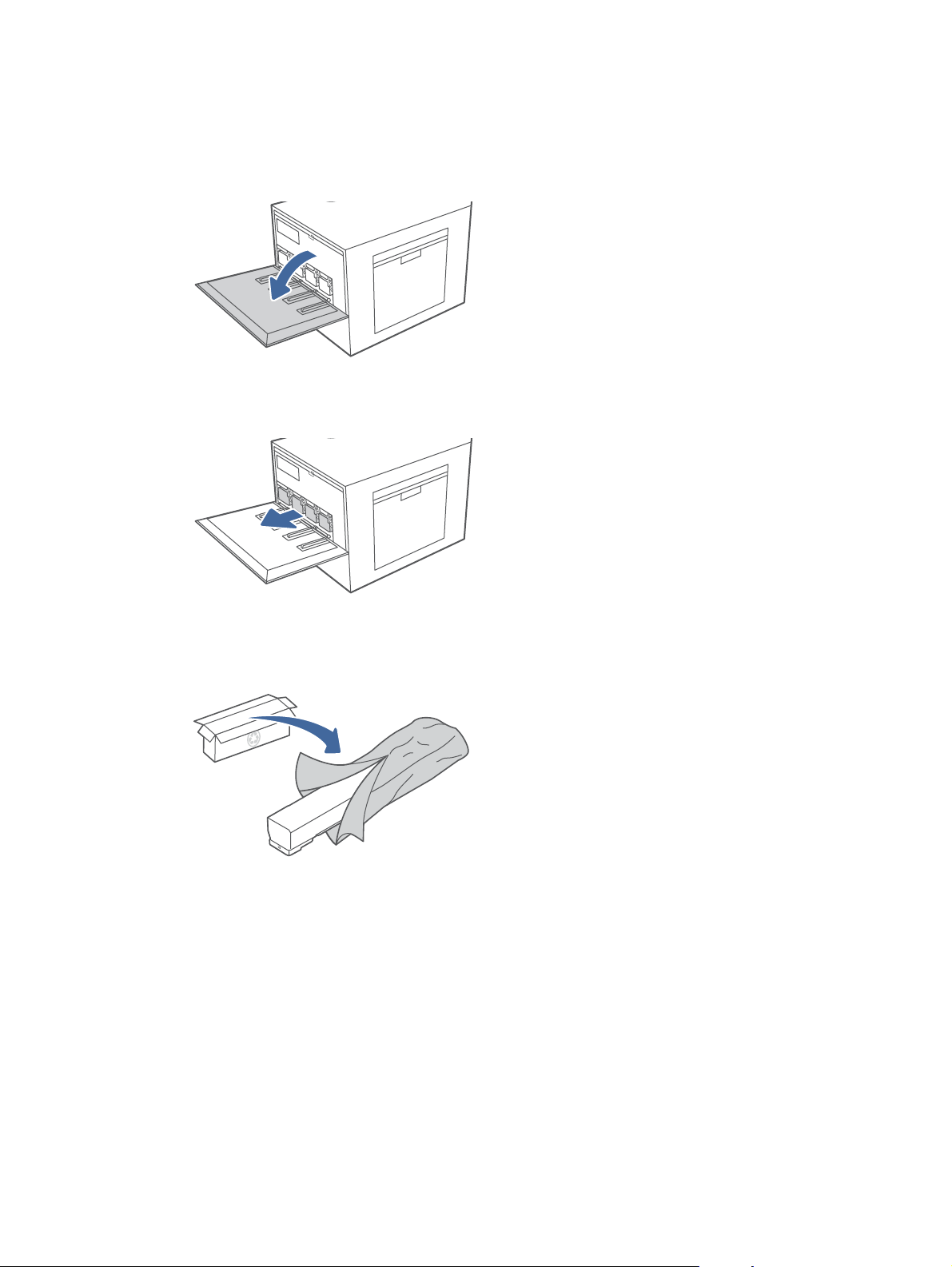
Remove and replace the toner cartridge
Follow these steps to replace the toner cartridge.
1. Open the front door.
2. Grasp the end of the toner cartridge and pull it straight out of the printer.
3. Remove the new toner cartridge from its package. Save all packaging for recycling the used
toner cartridge.
Remove and replace the toner cartridge
39
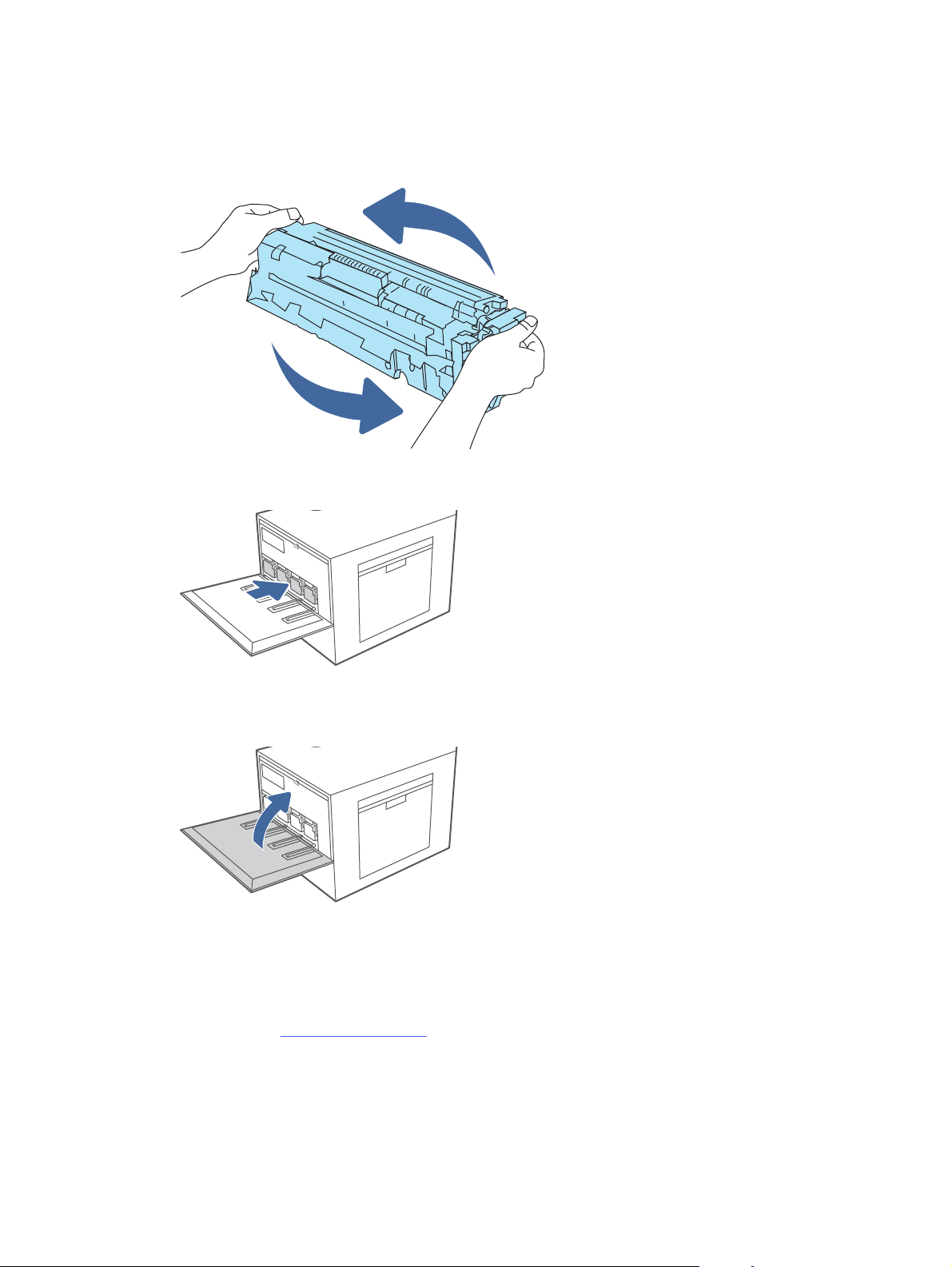
4. Hold both ends of the toner cartridge and rock it back and forth end to end to evenly distribute
the toner that is inside.
5. Align the toner cartridge with its slot and insert it into the printer.
6. Close the front door.
7. Pack the used toner cartridge into the box that the new toner cartridge came in. See the
enclosed recycling guide for information about recycling.
In the U.S. and Canada, a pre-paid shipping label is included in the box. In other countries/
regions, go to www.hp.com/recycle to print a pre-paid shipping label.
Adhere the pre-paid shipping label to the box, and return the used cartridge to HP for recycling.
40
Chapter 3Supplies, accessories, and parts
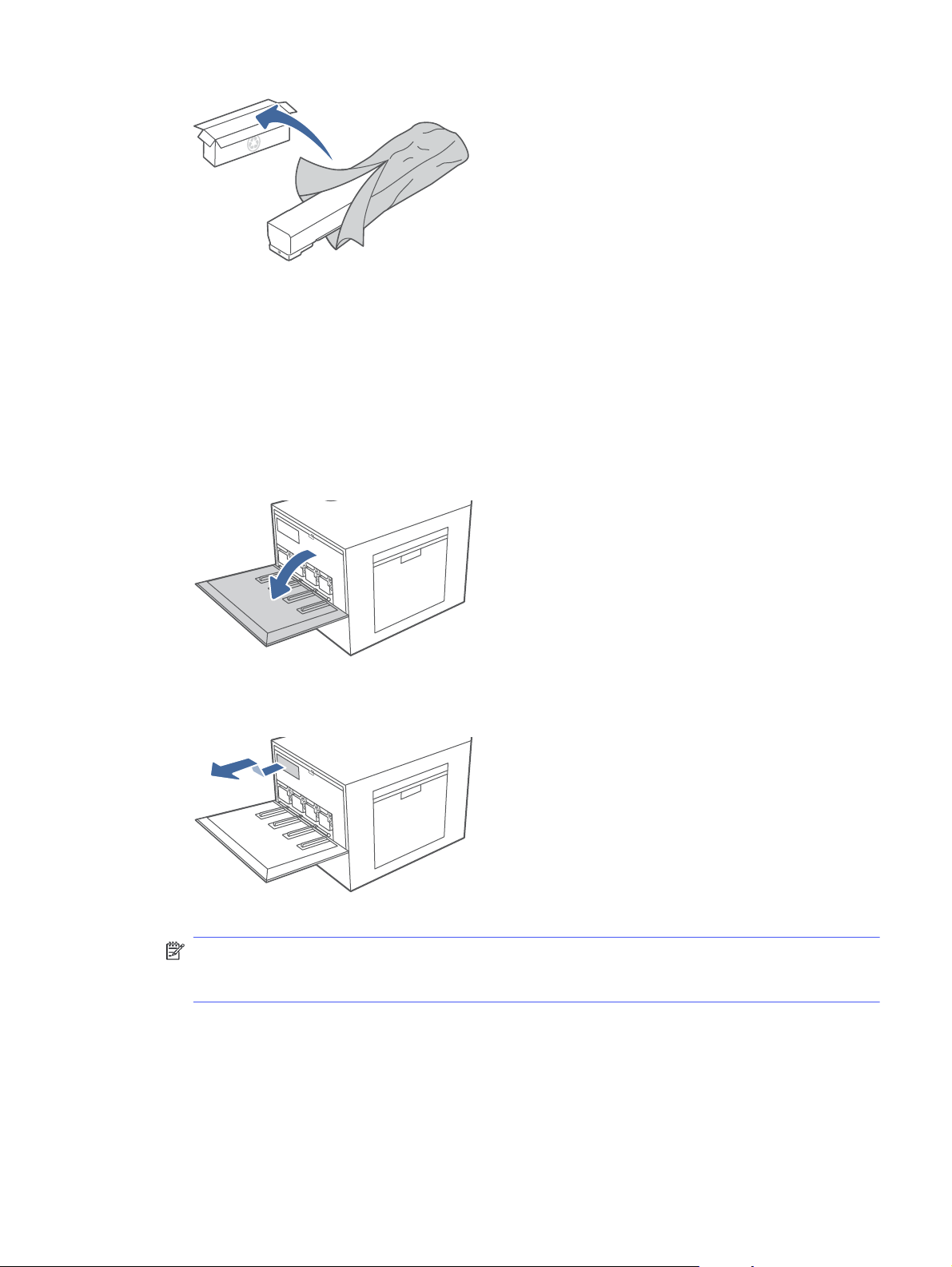
Replace the toner collection unit (TCU)
Replace the toner collection unit if you receive a message on the printer, or if you have print quality
problems.
Replace the toner collection unit (TCU)
Follow these steps to replace the toner collection unit (TCU).
1. Open the front door.
2. Lift the TCU slightly and then pull it out of the printer.
NOTE: Maintain the position of the TCU as you pull it out from the printer. This will ensure that
you do not spill any waste toner in the printer. Place the unit into the clear plastic bag the new
TCU was packaged in.
Replace the toner collection unit (TCU)
41
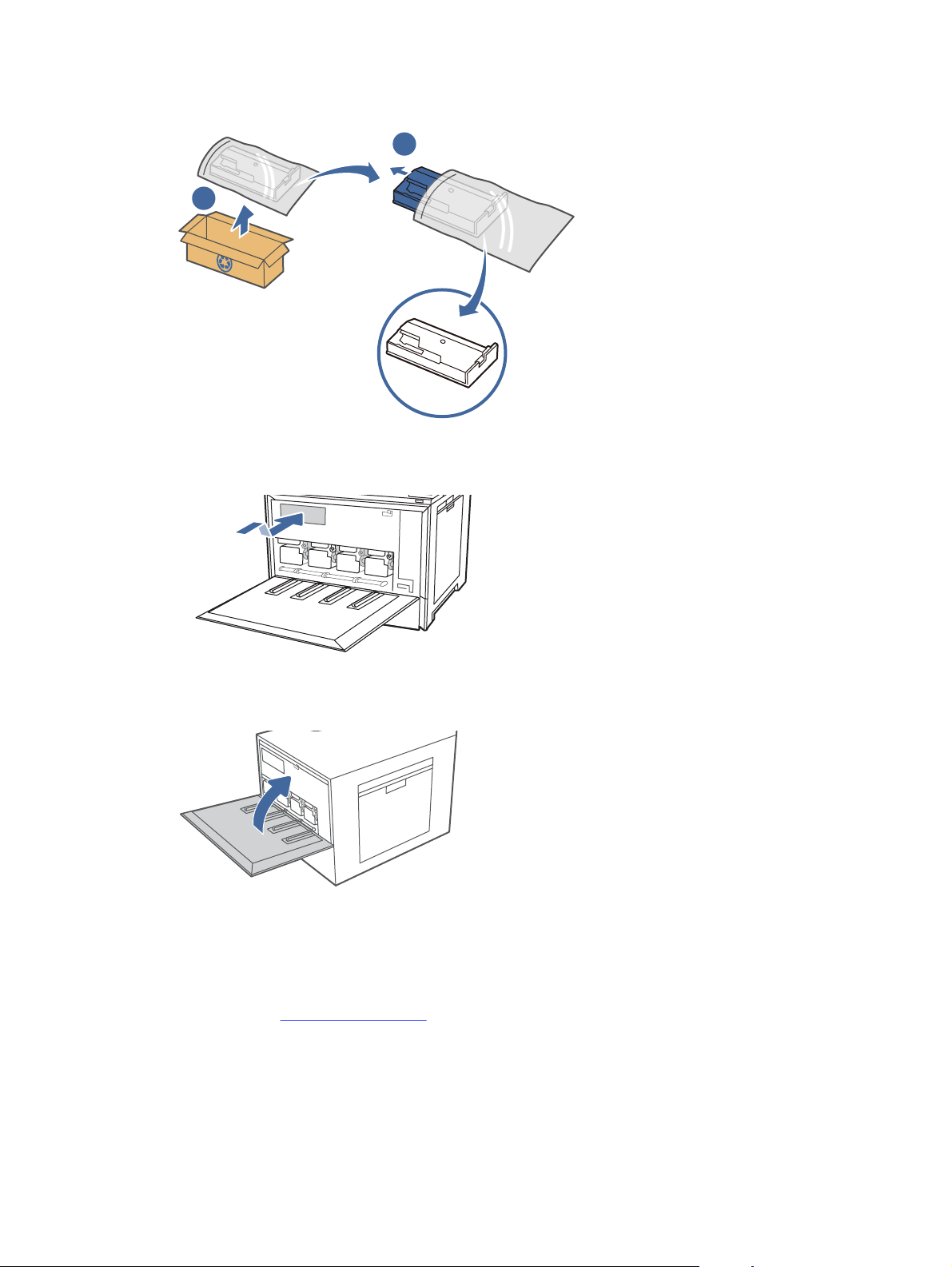
3. Remove the new TCU from its package. Save all packaging for recycling the used TCU.
1
2
4. Install the new TCU by inserting it into the printer, and then lifting slightly to make sure it pushes
all the way in.
5. Close the front door.
6. Pack the used TCU into the box that the new TCU came in. See the enclosed recycling guide for
information about recycling.
In the U.S. and Canada, a pre-paid shipping label is included in the box. In other countries/
regions, go to www.hp.com/recycle to print a pre-paid shipping label.
Adhere the pre-paid shipping label to the box, and return the used TCU to HP for recycling.
42
Chapter 3Supplies, accessories, and parts
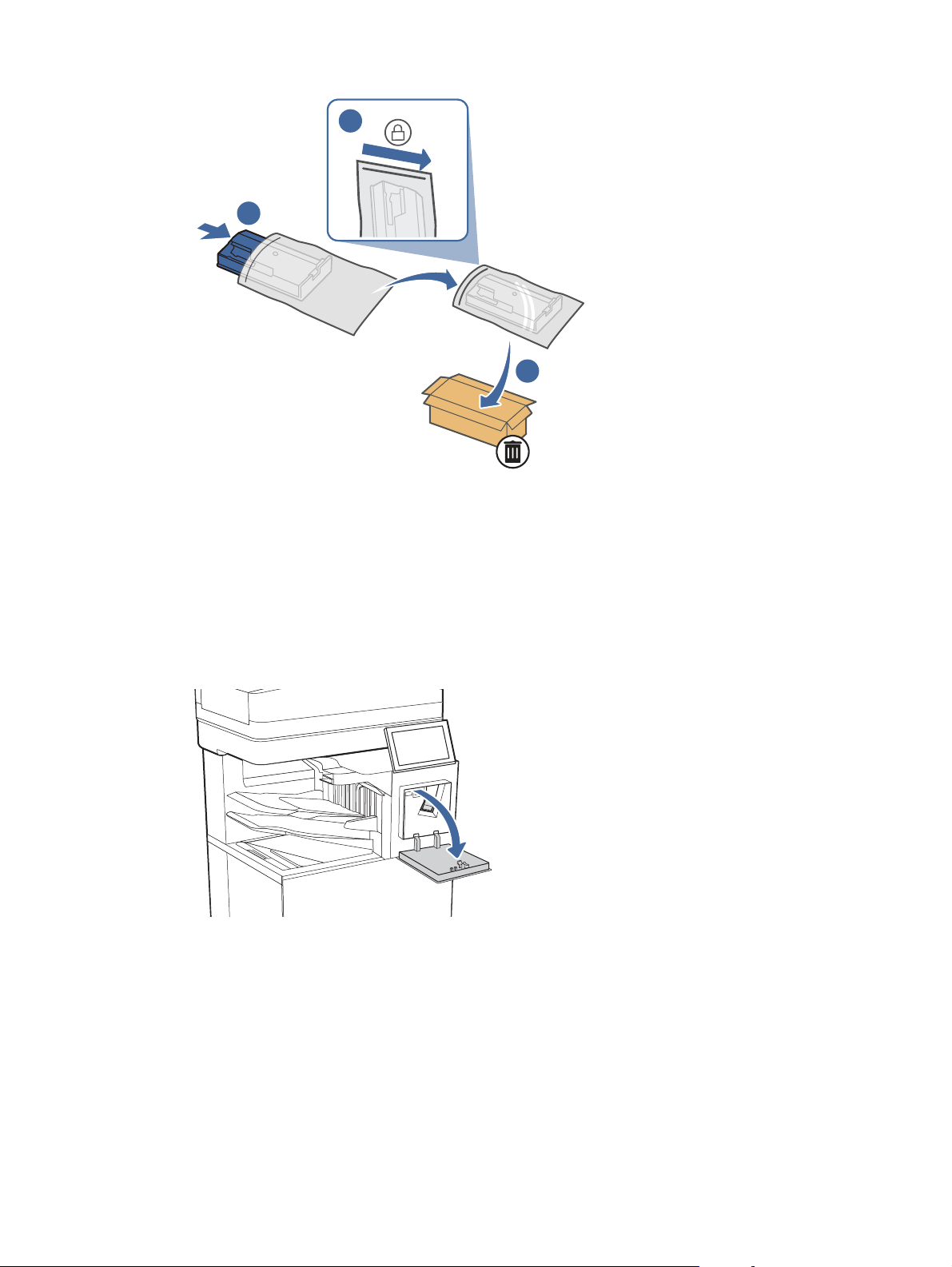
1
3
2
Replace the staple cartridge (stapler models only)
The following applies to models with staplers.
Remove and replace the staple cartridge in the 3-bin stapler/stacker
Use the steps below to remove and replace the staple cartridge in the 3-bin stapler/stacker.
1. Open the 3-bin stapler/stacker staple door.
Replace the staple cartridge (stapler models only)
43
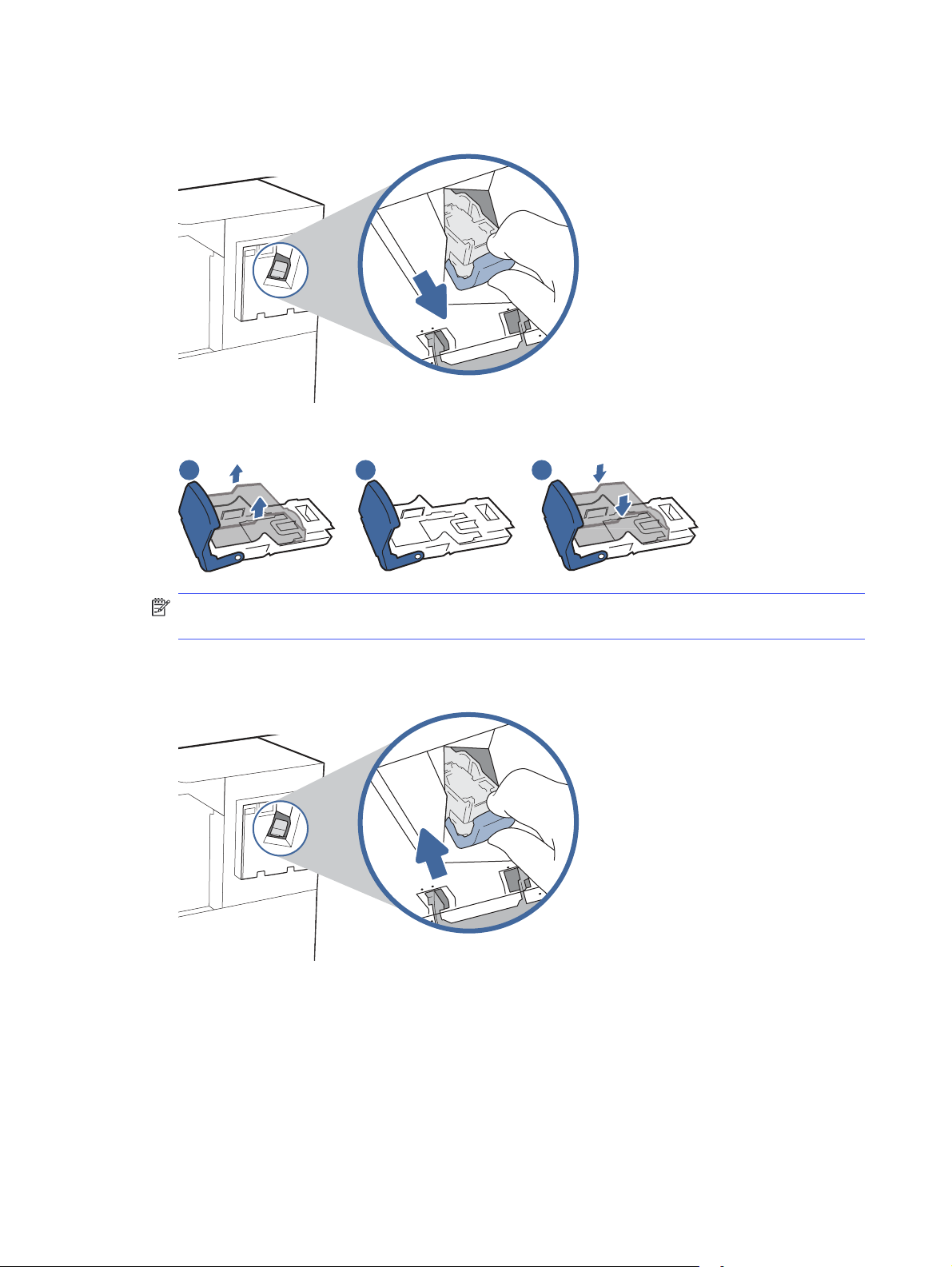
2. Pull down the colored handle on the staple carriage, and then pull the staple carriage straight
out.
3. Remove the staple cartridge from the sled and replace it with the new staple cartridge.
1 2 3
NOTE: Do not dispose of the staple carrier/sled. The sled is not an orderable or replaceable
part.
4. Reinstall the staple carriage into the stapler by pressing the colored handle inward until it
snaps into place.
44
Chapter 3Supplies, accessories, and parts
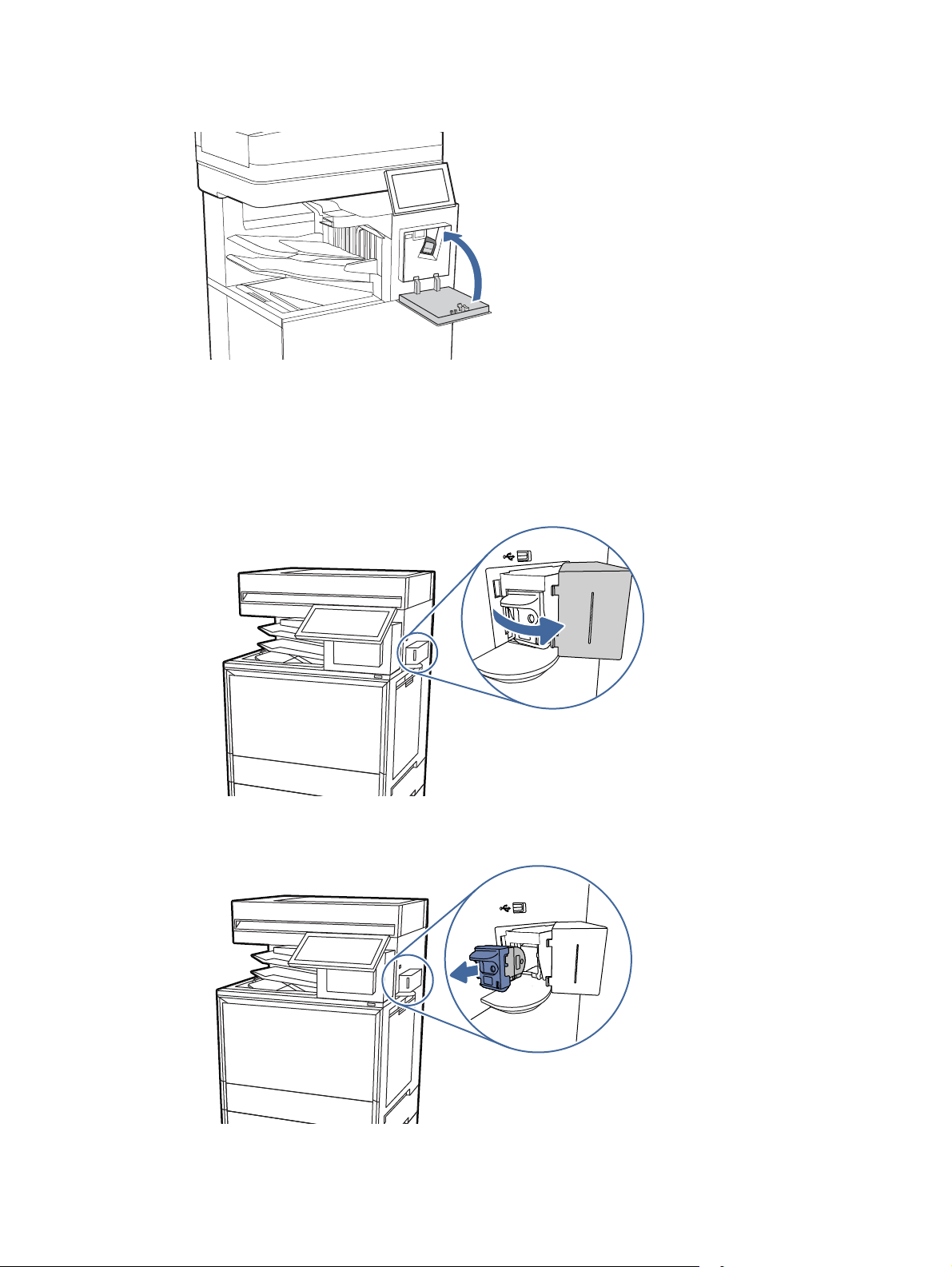
5. Close the 3-bin stapler/stacker staple door.
Remove and replace the staple cartridge in the convenience stapler
Use the steps below to remove and replace the staple cartridge in the convenience stapler on the
left side of the printer.
1. Open the stapler door.
2. Pull the staple carriage straight out.
Remove and replace the staple cartridge in the convenience stapler
45
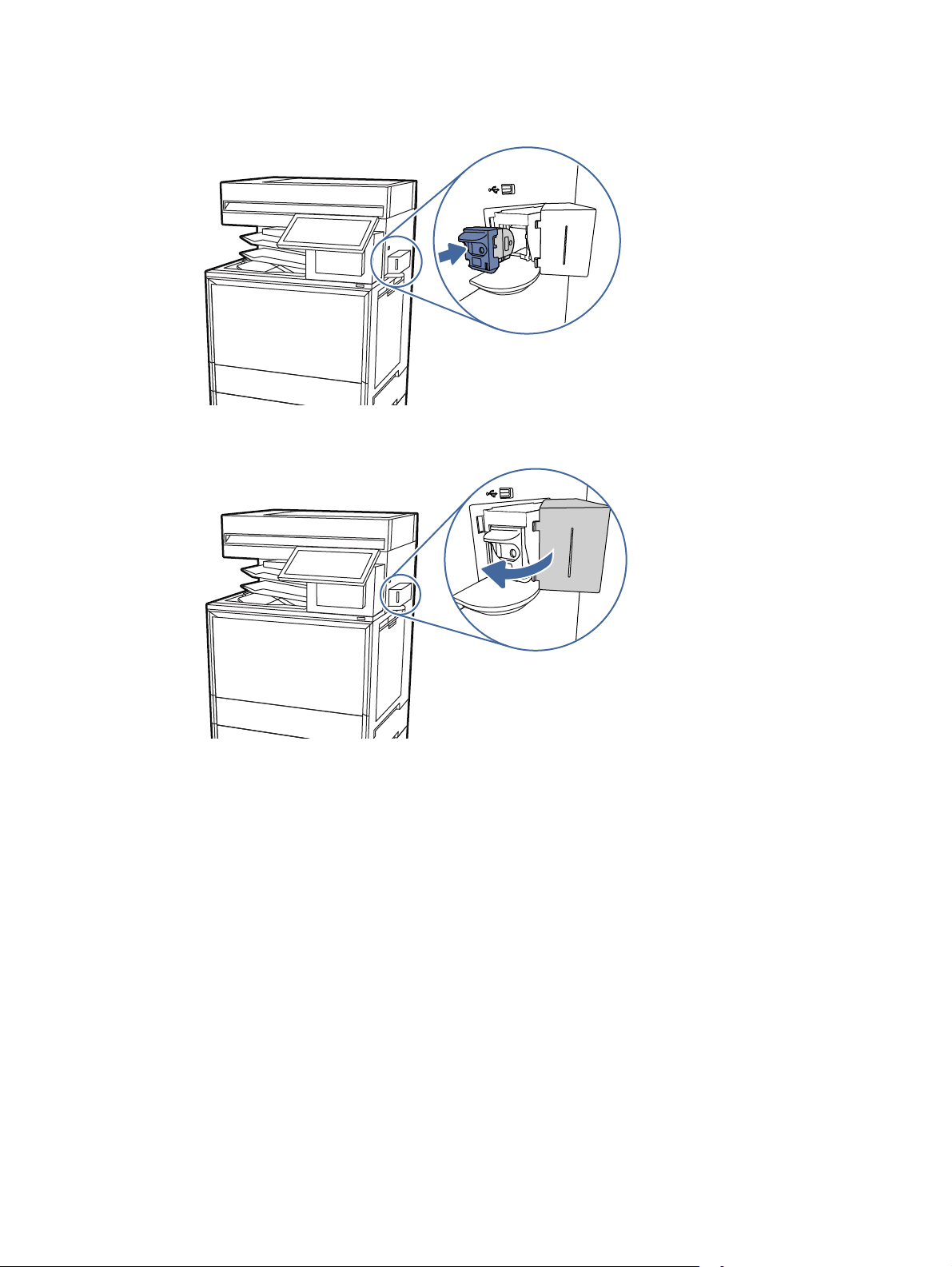
3. Insert the new staple carriage into the stapler.
4. Close the stapler door.
46
Chapter 3Supplies, accessories, and parts

Print4
Print using the software, or print from a mobile device or USB flash drive.
The following information is correct at the time of publication. For current information, see Support
for HP Color LaserJet Enterprise MFP 5800.
For more information:
HP's all-inclusive help for the printer includes the following information:
● Install and configure
● Learn and use
● Solve problems
● Download software and firmware updates
● Join support forums
● Find warranty and regulatory information
Print tasks (Windows)
Learn about common printing tasks for Windows users.
How to print (Windows)
Use the Print option from a software application to select the printer and basic options for your print
job.
The following procedure describes the basic printing process for Windows.
1. From the software program, select the Print option.
2. Select the printer from the list of printers. To change settings, click the Printer Properties or
Preferences button to open the print driver.
NOTE: The name of the button varies for different software programs.
For the HP PCL 6 driver, the HP AiO Printer Remote application downloads additional driver
features when More settings is selected.
NOTE: For more information, click the Help (?) button in the print driver.
3. Click the tabs in the print driver to configure the available options. For example, set the paper
orientation on the Finishing tab, and set the paper source, paper type, paper size, and quality
settings on the Paper/Quality tab.
4. Click the OK button to return to the Print dialog box. Select the number of copies to print from
this screen.
5. Click the Print button to print the job.
Print
47

Automatically print on both sides (Windows)
If your printer has an automatic duplexer installed, you can automatically print on both sides of the
paper. Use a paper size and type supported by the duplexer.
1. From the software program, select the Print option.
2. Select the printer from the list of printers, and then click the Printer Properties or Preferences
button to open the print driver.
NOTE: The name of the button varies for different software programs.
For the HP PCL 6 driver, the HP AiO Printer Remote application downloads additional driver
features when More settings is selected.
3. Click the Finishing tab.
4. Select Print on both sides. Click OK to close the Document Properties dialog.
5. In the Print dialog, click Print to print the job.
Manually print on both sides (Windows)
Use this procedure for printers that do not have an automatic duplexer installed or to print on paper
that the duplexer does not support.
1. From the software program, select the Print option.
2. Select the printer from the list of printers, and then click the Printer Properties or Preferences
button to open the print driver.
NOTE: The name of the button varies for different software programs.
For the HP PCL 6 driver, the HP AiO Printer Remote application downloads additional driver
features when More settings is selected.
3. Click the Finishing tab.
4. Select Print on both sides (manually), and then click OK to close the Document Properties
dialog.
5. In the Print dialog, click Print to print the first side of the job.
6. Retrieve the printed stack from the output bin, and place it in Tray1.
7. If prompted, select the appropriate control panel button to continue.
Print multiple pages per sheet (Windows)
When you print from a software application using the Print option, you can select an option to print
multiple pages on a single sheet of paper. For example, you might want to do this if you are printing
a very large document and want to save paper.
1. From the software program, select the Print option.
2. Select the printer from the list of printers, and then click the Printer Properties or Preferences
button to open the print driver.
NOTE: The name of the button varies for different software programs.
48
Chapter 4Print

For the HP PCL 6 driver, the HP AiO Printer Remote application downloads additional driver
features when More settings is selected.
3. Click the Finishing tab.
4. Select the number of pages per sheet from the Pages per sheet drop-down.
5. Select the correct Print page borders, Page order, and Orientation options. Click OK to close
the Document Properties dialog.
6. In the Print dialog, click Print to print the job.
Select the paper type (Windows)
When you print from a software application using the Print option, you can set the paper type you
are using for your print job. For example, if your default paper type is Letter, but you are using a
different paper type for a print job, select that specific paper type.
1. From the software program, select the Print option.
2. Select the printer from the list of printers, and then click the Printer Properties or Preferences
button to open the print driver.
NOTE: The name of the button varies for different software programs.
For the HP PCL 6 driver, the HP AiO Printer Remote application downloads additional driver
features when More settings is selected.
3. Click the Paper/Quality tab.
4. Select the paper type from the Paper type drop-down list.
5. Click OK to close the Document Properties dialog. In the Print dialog, click Print to print the job.
If the tray needs to be configured, a tray configuration message displays on the printer control
panel.
6. Load the tray with the specified type and size of paper, and then close the tray.
7. Touch the OK button to accept the detected type and size, or touch the Modify button to
choose a different paper size or type.
8. Select the correct type and size, and then touch the OK button.
Additional print tasks
Locate information on the Web for performing common printing tasks.
Go to Support for HP Color LaserJet Enterprise MFP 5800.
Instructions are available for print tasks, such as the following:
● Create and use printing shortcuts or presets
● Select the paper size, or use a custom paper size
● Select the page orientation
● Create a booklet
Select the paper type (Windows)
49

● Scale a document to fit a specific paper size
● Print the first or last pages of the document on different paper
● Print watermarks on a document
Print tasks (macOS)
Print using the HP printing software for macOS, including how to print on both sides or print multiple
pages per sheet.
How to print (macOS)
Use the Print option from a software application to select the printer and basic options for your print
job.
The following procedure describes the basic printing process for macOS.
1. Click the File menu, and then click the Print option.
2. Select the printer.
3. Click Show Details or Copies & Pages, and then select other menus to adjust the print settings.
NOTE: The name of the item varies for different software programs.
4. Click the Print button.
Automatically print on both sides (macOS)
If your printer has an automatic duplexer installed, you can automatically print on both sides of the
paper. Use a paper size and type supported by the duplexer.
NOTE: This information applies to printers that include an automatic duplexer.
NOTE: This feature is available if you install the HP print driver. It might not be available if you are
using AirPrint
®
.
1. Click the File menu, and then click the Print option.
2. Select the printer.
3. Click Show Details or Copies & Pages, and then click the Layout menu.
macOS 10.14 Mojave and later: Click Show Details, click Two-Sided, and then click the Layout
menu.
NOTE: The name of the item varies for different software programs.
4. Select a binding option from the Two-Sided drop-down list.
5. Click the Print button.
Manually print on both sides (macOS)
Use this procedure for printers that do not have an automatic duplexer installed or to print on paper
that the duplexer does not support.
50
Chapter 4Print

NOTE: This feature is available if you install the HP print driver. It might not be available if you are
using AirPrint.
1. Click the File menu, and then click the Print option.
2. Select the printer.
3. Click Show Details or Copies & Pages, and then click the Manual Duplex menu.
NOTE: The name of the item varies for different software programs.
4. Click the Manual Duplex box, and select a binding option.
5. Click the Print button.
6. Go to the printer and remove any blank paper that is in Tray1.
7. Retrieve the printed stack from the output bin and place it with the printed-side facing down in
the input tray.
8. If prompted, touch the appropriate control panel button to continue.
Print multiple pages per sheet (macOS)
When you print from a software application using the Print option, you can select an option to print
multiple pages on a single sheet of paper. For example, you might want to do this if you are printing
a very large document and want to save paper.
1. Click the File menu, and then click the Print option.
2. Select the printer.
3. Click Show Details or Copies & Pages, and then click the Layout menu.
NOTE: The name of the item varies for different software programs.
4. From the Pages per Sheet drop-down list, select the number of pages that you want to print on
each sheet.
5. In the Layout Direction area, select the order and placement of the pages on the sheet.
6. From the Borders menu, select the type of border to print around each page on the sheet.
7. Click the Print button.
Select the paper type (macOS)
When you print from a software application using the Print option, you can set the paper type you
are using for your print job. For example, if your default paper type is Letter, but you are using a
different paper type for a print job, select that specific paper type.
1. Click the File menu, and then click the Print option.
2. Select the printer.
Print multiple pages per sheet (macOS)
51

3. Click Show Details or Copies & Pages, and then click the Media & Quality menu or the Paper/
Quality menu.
NOTE: The name of the item varies for different software programs.
4. Select from the Media & Quality or Paper/Quality options.
NOTE: This list contains the master set of options available. Some options are not available on
all printers.
● Media Type: Select the option for the type of paper for the print job.
● Print Quality or Quality: Select the resolution level for the print job.
● Edge-To-Edge Printing: Select this option to print close to the paper edges.
5. Click the Print button.
Additional print tasks
Locate information on the Web for performing common printing tasks.
Go to Support for HP Color LaserJet Enterprise MFP 5800.
Instructions are available for print tasks, such as the following:
● Create and use printing shortcuts or presets
● Select the paper size, or use a custom paper size
● Select the page orientation
● Create a booklet
● Scale a document to fit a specific paper size
● Print the first or last pages of the document on different paper
● Print watermarks on a document
Store print jobs on the printer to print later or print privately
Store print jobs in the printer memory for printing at a later time.
Introduction
The following information provides procedures for creating and printing documents that are stored
on the USB flash drive. These jobs can be printed at a later time or printed privately.
Create a stored job (Windows)
Store jobs on the USB flash drive for private or delayed printing.
1. From the software program, select the Print option.
52
Chapter 4Print

2. Select the printer from the list of printers, and then select Printer Properties or Preferences.
NOTE: The name of the button varies for different software programs.
For the HP PCL 6 driver, the HP AiO Printer Remote application downloads additional driver
features when More settings is selected.
3. Click the Job Storage tab.
4. Select a Job Storage Mode option:
● Proof and Hold: Print and proof one copy of a job, and then print more copies.
● Personal Job: The job does not print until you request it at the printer control panel. For this
job-storage mode, you can select one of the Make Job Private/Secure options. If you assign
a personal identification number (PIN) to the job, you must provide the required PIN at the
control panel. If you encrypt the job, you must provide the required password at the control
panel. The print job is deleted from memory after it prints and is lost if the printer loses
power.
● Quick Copy: Print the requested number of copies of a job and store a copy of the job in
the printer memory so you can print it again later.
● Stored Job: Store a job on the printer and allow other users to print the job at any time. For
this job-storage mode, you can select one of the Make Job Private/Secure options. If you
assign a personal identification number (PIN) to the job, the person who prints the job must
provide the required PIN at the control panel. If you encrypt the job, the person who prints
the job must provide the required password at the control panel.
5. To use a custom user name or job name, click the Custom button, and then enter the user
name or the job name.
Select which option to use if another stored job already has that name:
● Use Job Name + (1-99): Append a unique number to the end of the job name.
● Replace Existing File: Overwrite the existing stored job with the new one.
6. Click the OK button to close the Document Properties dialog box. In the Print dialog box, click
the Print button to print the job.
Create a stored job (macOS)
Store jobs on the USB flash drive for private or delayed printing.
1. Click the File menu, and then click the Print option.
2. In the Printer menu, select the printer.
3. Click Show Details or Copies & Pages, and then click the Job Storage menu.
NOTE: If the Job Storage menu is not showing, follow the instructions in the "Disable or enable
job storage feature" section to activate the menu.
Create a stored job (macOS)
53

4. In the Mode drop-down list, select the type of stored job.
● Proof and Hold: Print and proof one copy of a job, and then print more copies. The first copy
prints immediately. Printing of the subsequent copies must be initiated from the device's
front control panel. For example, if 10 copies are sent, one copy prints immediately, and the
other nine copies will print when the job is retrieved. The job is deleted after all copies are
printed.
● Personal Job: The job does not print until someone requests it at the printer control panel.
If the job has a personal identification number (PIN), provide the required PIN at the control
panel. The print job is deleted from memory after it prints.
● Quick Copy: Print the requested number of copies of a job and store a copy of the job in
the printer memory to print it again later. The job is deleted manually or by the job retention
schedule.
● Stored Job: Store a job on the printer and allow other users to print the job at any time.
If the job has a personal identification number (PIN), the person who prints the job must
provide the required PIN at the control panel. The job is deleted manually or by the job
retention schedule.
5. To use a custom user name or job name, click the Custom button, and then enter the user
name or the job name.
NOTE: macOS 10.14 Mojave and later: The print driver no longer includes the Custom button.
Use the options below the Mode drop-down list to set up the saved job.
Select which option to use if another stored job already has that name.
● Use Job Name + (1-99): Append a unique number to the end of the job name.
● Replace Existing File: Overwrite the existing stored job with the new one.
6. If you selected the Stored Job or Personal Job option in the Mode drop-down list, you can
protect the job with a PIN. Type a 4-digit number in the Use PIN to Print field. When other people
attempt to print this job, the printer prompts them to enter this PIN.
7. Click the Print button to process the job.
Print a stored job
Use the following procedure to print a job that is stored in the printer memory.
1. From the Home screen on the printer control panel, navigate to the Print application, and then
select the Print icon.
2. Select Print from Job Storage.
3. Select the name of the folder where the job is stored, or select Choose to see the folder list.
4. Select the name of the job. If the job is private or encrypted, enter the PIN or password.
5. To adjust the number of copies, select the number of copies field. Use the keypad to enter the
number of copies to print.
6. Select Start or Print to print the job.
54
Chapter 4Print

Delete a stored job
You can delete documents that have been saved to the printer when they are no longer needed. You
can also adjust the maximum number of jobs for the printer to store.
Delete a job that is stored on the printer
Use the control panel to delete a job that is stored in the printer memory.
1. From the Home screen on the printer control panel, navigate to the Print application, and then
select the Print icon.
2. Select Print from Job Storage.
3. Select the name of the folder where the job is stored or select Choose to see the folder list.
4. Select the name of the job. If the job is private or encrypted, enter the PIN or password.
5. Select the Trash button to delete the job.
Change the job storage limit
When a new job is stored in the printer memory, the printer overwrites any previous jobs with the
same user and job name. If a job is not already stored under the same user and job name, and the
printer needs additional space, the printer might delete other stored jobs starting with the oldest.
To change the number of jobs that the printer can store, complete the following procedure:
1. From the Home screen on the printer control panel, navigate to the Settings application, and
then select the Settings icon.
2. Open the following menus:
a. Copy/Print or Print
b. Manage Stored Jobs
c. Temporary Job Storage Limit
3. Use the keypad to enter the number of jobs that the printer stores.
4. Select OK or Done to save the setting.
Information sent to printer for Job Accounting purposes
Printing jobs sent from drivers on the client (e.g., PC) may send personally identifiable information
to HP’s Printing and Imaging devices.This information may include, but is not limited to, user name
and client name from which the job originated that may be used for job accounting purposes, as
determined by the Administrator of the printing device. This same information may also be stored
with the job on the mass storage device (e.g., disk drive) of the printing device when using the job
storage feature.
Mobile printing
Mobile and ePrint solutions enable easy printing to an HP printer from a laptop, tablet, smartphone,
or other mobile device.
Delete a stored job
55

Mobile printing solutions
Learn what HP offers for mobile printing solutions.
HP offers multiple mobile and ePrint solutions to enable easy printing to an HP printer from a laptop,
tablet, smartphone, or other mobile device. To see the full list and to determine the best choice, go
to HP Customer Support - Knowledge Base.
● Wi-Fi Direct
● HP ePrint via email (Requires HPWeb Services to be enabled and the printer to be registered
with HPConnected)
● HP ePrint app (Available for Android, iOS, and Blackberry)
● HPAll-in-One Remote app for iOS and Android devices
● HP ePrint software
● AirPrint
● Android Printing
Wi-Fi, Wi-Fi Direct Print, NFC, and BLE printing
HP provides Wi-Fi Direct Print, Near Field Communication (NFC), and Bluetooth Low Energy (BLE)
printing for printers with a supported HPJetdirect 3100w BLE/NFC/Wireless Accessory. This is an
optional accessory.
These features enable Wi-Fi capable (mobile) devices to make a wireless network connection
directly to the printer without using a wireless router.
The printer does not need to be connected to the network for this mobile walk-up printing to work.
Use Wi-Fi Direct Print to print wirelessly from the following devices:
● iPhone, iPad, or iPod touch using Apple AirPrint
● Android mobile devices using the Android embedded print solution
For more information on wireless printing, go to www.hp.com/go/LaserJetMobilePrinting.
NFC, BLE, and Wi-Fi Direct Print capabilities can be enabled or disabled from the printer control
panel.
Enable wireless printing
To print wirelessly from mobile devices, Wi-Fi Direct must be turned on.
1. From the Home screen on the printer control panel, select the Settings menu.
2. Select the following menus:
a. Networking
b. Wi-Fi Direct
c. Status
3. Select On, and then select OK to enable wireless printing.
56
Chapter 4Print

Change the Wi-Fi Direct name
Change the printer Wi-Fi Direct name using the HP Embedded Web Server (EWS).
NOTE: In environments where more than one model of the same printer is installed, it might be
helpful to provide each printer a unique Wi-Fi Direct Name for easier printer identification for HP
Wi-Fi Direct printing. The Wireless network names, e.g., Wireless, Wi-Fi Direct, etc. are available on
the Information screen by selecting the Information icon , and then selecting the Wi-Fi Direct
icon .
Complete the following procedure to change the printer Wi-Fi Direct name:
1. From the Home screen on the printer control panel, select the Settings icon.
2. Open the following menus:
a. Networking
b. Wi-Fi Direct
c. Wi-Fi Direct Name
3. Use the keypad to change the name in the Wi-Fi Direct Name text field, and then select OK.
HP ePrint via email
Use HPePrint via email to print documents by sending them as an email attachment to the printer's
email address from any email enabled device.
To use HPePrint via email, the printer must meet these requirements:
● The printer must be connected to a wired or wireless network and have Internet access.
● HPWeb Services must be enabled on the printer, and the printer must be registered with
HPSmart.
Follow this procedure to enable HP Web Services and register with HP Smart:
1. Open the HPEmbedded Web Server (EWS):
a. From the Home screen on the printer control panel, touch the Information icon , and
then touch the Ethernet icon to display the IP address or host name.
b. From a computer on the same network as the printer, open a web browser. In the address
line, type the IP address or host name exactly as it displays on the printer control panel.
Press the Enter key on the computer keyboard. The EWS opens.
NOTE: If the web browser displays a message indicating that accessing the website
might not be safe, select the option to continue to the website. Accessing this website will
not harm the computer.
2. Click the HP Web Services tab.
Change the Wi-Fi Direct name
57

3. Select the option to enable Web Services.
NOTE: Enabling Web Services might take several minutes.
4. Go to www.hpconnected.com to create an account and complete the setup process.
AirPrint
Direct printing using Apple’s AirPrint is supported for iOS and from Mac computers running macOS
10.7 Lion and newer.
Use AirPrint to print directly to the printer from an iPad, iPhone (3GS or later), or iPod touch (third
generation or later) in the following mobile applications:
● Mail
● Photos
● Safari
● iBooks
● Select third-party applications
To use AirPrint, the printer must be connected to the same network (sub-net) as the Apple device.
For more information about using AirPrint and about which HP printers are compatible with AirPrint,
go to www.hp.com/go/MobilePrinting.
NOTE: Before using AirPrint with a USB connection, verify the version number. AirPrint versions 1.3
and earlier do not support USB connections.
Android embedded printing
HP's built-in print solution for Android and Kindle enables mobile devices to automatically find and
print to HP printers that are either on a network or within wireless range for Wi-Fi Direct printing.
The print solution is built into many versions of the operating system.
NOTE: If printing is not available on your device, go to the Google Play > Android apps and install
the HP Print Service Plugin.
For more information on how to use Android embedded printing and which Android devices are
supported, go to www.hp.com/go/MobilePrinting.
Print from a USB flash drive
This printer features easy-access USB printing to print files without a computer.
The printer accepts standard USB flash drives in the USB port near the control panel. It supports the
following types of files:
● .pdf
● .prn
● .pcl
58
Chapter 4Print

● .ps
● .cht
● .jpg
● .png
Enable the USB port for printing
The USB port is disabled by default. Before using this feature, enable the USB port.
Use one of the following methods to enable the port:
Method one: Enable the USB port from the printer control panel
Use the printer control panel to enable the USB port for printing.
1. From the Home screen on the printer control panel, navigate to the Settings application, and
then select the Settings icon.
2. Open the following menus:
a. Copy/Print or Print
b. Enable Device USB
3. Select Enable Print from USB Drive.
Method two: Enable the USB port from the HP Embedded Web Server (network-connected
printers only)
Use the HP Embedded Web Server to enable the USB port for printing.
1. From the Home screen on the printer control panel, touch the Information icon , and then
touch the Ethernet icon to display the IP address or host name.
2. Open a web browser, and in the address line, type the IP address exactly as it displays on the
printer control panel. Press the Enter key on the computer keyboard. The EWS opens.
NOTE: If the web browser displays a message indicating that accessing the website might not
be safe, select the option to continue to the website. Accessing this website will not harm the
computer.
3. Select the Copy/Print tab for MFP models or the Print tab for SFP models.
4. In the left menu, select Print from USB Drive Settings.
5. Select Enable Print from USB Drive.
6. Click Apply.
Print USB documents
Print documents from a USB flash drive.
Enable the USB port for printing
59

1. Insert the USB flash drive into the easy-access USB port.
NOTE: The port might be covered. For some printers, the cover flips open. For other printers,
pull the cover straight out to remove it.
2. From the Home screen on the printer control panel, navigate to the Print application, and then
select the Print icon.
3. Select Print from USB Drive.
4. Select Choose, select the name of the document to print, and then select Select.
NOTE: The document might be in a folder. Open folders as necessary.
5. To adjust the number of copies, touch the box to the left of the Print button, and then select
the number of copies from the keypad that opens. To close the keypad, select the Close
button .
6. Select Print to print the document.
Print using the SuperSpeed USB 3.0 port (wired)
Enable the SuperSpeed USB 3.0 port for wired USB printing. The port is located in the interface
ports area and is disabled by default.
Use one of the following methods to enable the SuperSpeed USB 3.0 port. Once the port is enabled,
install the product software in order to print using this port.
Method one: Enable the SuperSpeed USB 3.0 port from the printer control
panel menus
Use the control panel to enable the port.
1. From the Home screen on the printer control panel, navigate to the Settings application, and
then select the Settings icon.
2. Open the following menus:
a. General
b. Enable Device USB
3. Select the Enabled option.
Method two: Enable the SuperSpeed USB 3.0 port from the HP Embedded Web
Server (network-connected printers only)
Use the HP EWS to enable the port.
1. Find the printer IP address. On the printer control panel, select the Information button , and
then select the Network icon to display the IP address or host name.
60
Chapter 4Print

2. Open a web browser, and in the address line, type the IP address exactly as it displays on the
printer control panel. Press the Enter key on the computer keyboard. The EWS opens.
NOTE: If the web browser displays a message indicating that accessing the website might not
be safe, select the option to continue to the website. Accessing this website will not harm the
computer.
3. Select the Security tab.
4. On the left side of the screen, select General Security.
5. Scroll down to the Hardware Ports and select the following check boxes:
a. Enable Device USB
b. Enable Host USB plug and play
6. Click Apply.
Method two: Enable the SuperSpeed USB 3.0 port from the HP Embedded Web Server (network-connected
printers only) 61

Copy5
Make copies with the printer, learn how to copy a two-sided document, and locate additional copy
tasks on the web.
The following information is correct at the time of publication. For current information, see Support
for HP Color LaserJet Enterprise MFP 5800.
For more information:
HP's all-inclusive help for the printer includes the following information:
● Install and configure
● Learn and use
● Solve problems
● Download software and firmware updates
● Join support forums
● Find warranty and regulatory information
Make a copy
Copy a document or picture from the scanner glass or automatic document feeder.
1. Place the document face-down on the scanner glass, or place it face-up in the document feeder
and adjust the paper guides to fit the size of the document.
2. From the Home screen on the printer control panel, navigate to the Copy application, and then
select the Copy icon.
3. To select the number of copies, touch the box next to Copy, use the keypad to enter the
number of copies, and then touch the close keypad button .
4. Select Optimize Text/Picture to optimize for the type of image being copied: text, graphics, or
photos. Select one of the predefined options.
5. Set options marked with a yellow triangle before using the preview feature.
NOTE: After the preview scan, these options are removed from the main Options list and are
summarized in the Pre-scan Options list. To change any of these options, discard the preview
and start over.
Using the preview feature is optional.
62
Chapter 5Copy

6. Touch the right pane of the screen to preview the document. In the preview screen, use the
buttons on the right of the screen to adjust the preview options and to rearrange, rotate, insert,
or remove pages.
Table 5-1 Buttons on the right side of the preview pane
Button Description
Use these buttons to toggle between single-page view and thumbnail view. More options are
available in thumbnail view than in single-page view.
Use these buttons to zoom in or out on the selected page.
NOTE: Select only one page at a time to use these buttons.
Use this button to rotate the page 180 degrees.
NOTE: This button is available only in the thumbnail view.
Use this button to delete the selected pages.
NOTE: This button is available only in the thumbnail view.
Use these buttons to rearrange the pages within the document. Select one or more pages
and move them to the left or right.
NOTE: These buttons are available only in the thumbnail view.
Use this button to add a page to the document. The printer prompts to scan additional pages.
Use this button to clear the changes made in the preview and start over.
Touch this button to collapse the preview screen and return to the Copy screen.
7. When the document is ready, touch Copy to begin copying.
Make a copy
63

Copy on both sides (duplex)
Copy or print on both sides of the paper.
1. Place the document face-down on the scanner glass, or place it face-up in the document feeder
and adjust the paper guides to fit the size of the document.
2. From the Home screen on the printer control panel, navigate to the Copy application, and then
select the Copy icon.
3. In the Options pane, select Original Side, and then select the option that describes the original
document:
● Use Automatically detect to detect whether the original is printed on one or both sides of
the page.
● Use 1-sided for originals that are printed on one side of the page.
● Use 2-sided (book-style) for originals that flip on the right/left edge of the page, like books.
If the image is portrait, the output flips on the long edge of the page. If the image is
landscape, the output flips on the short edge of the page.
● Use 2-sided (flip-style) for originals that flip on the top/bottom edge of the page, like
calendars. If the image is portrait, the output flips on the short edge of the page. If the
image is landscape, the output flips on the long edge of the page.
4. Select Output Sides, and then select one of these options:
● 1-sided: The output will be 1-sided. However, if the administrator has restricted 1-sided
printing, the output will be 2-sided book-style.
● 2-sided (book-style): The output will flip on the right/left edge of the page, like a book. If the
image is portrait, the output flips on the long edge of the page. If the image is landscape,
the output flips on the short edge of the page.
● 2-sided (flip-style): The output will flip on the top/bottom edge of the page, like a calendar.
If the image is portrait, the output flips on the short edge of the page. If the image is
landscape, the output flips on the long edge of the page.
5. Set options marked with a yellow triangle before using the preview feature.
NOTE: After the preview scan, these options are removed from the main Options list and are
summarized in the Pre-scan Options list. To change any of these options, discard the preview
and start over.
Using the preview feature is optional.
64
Chapter 5Copy
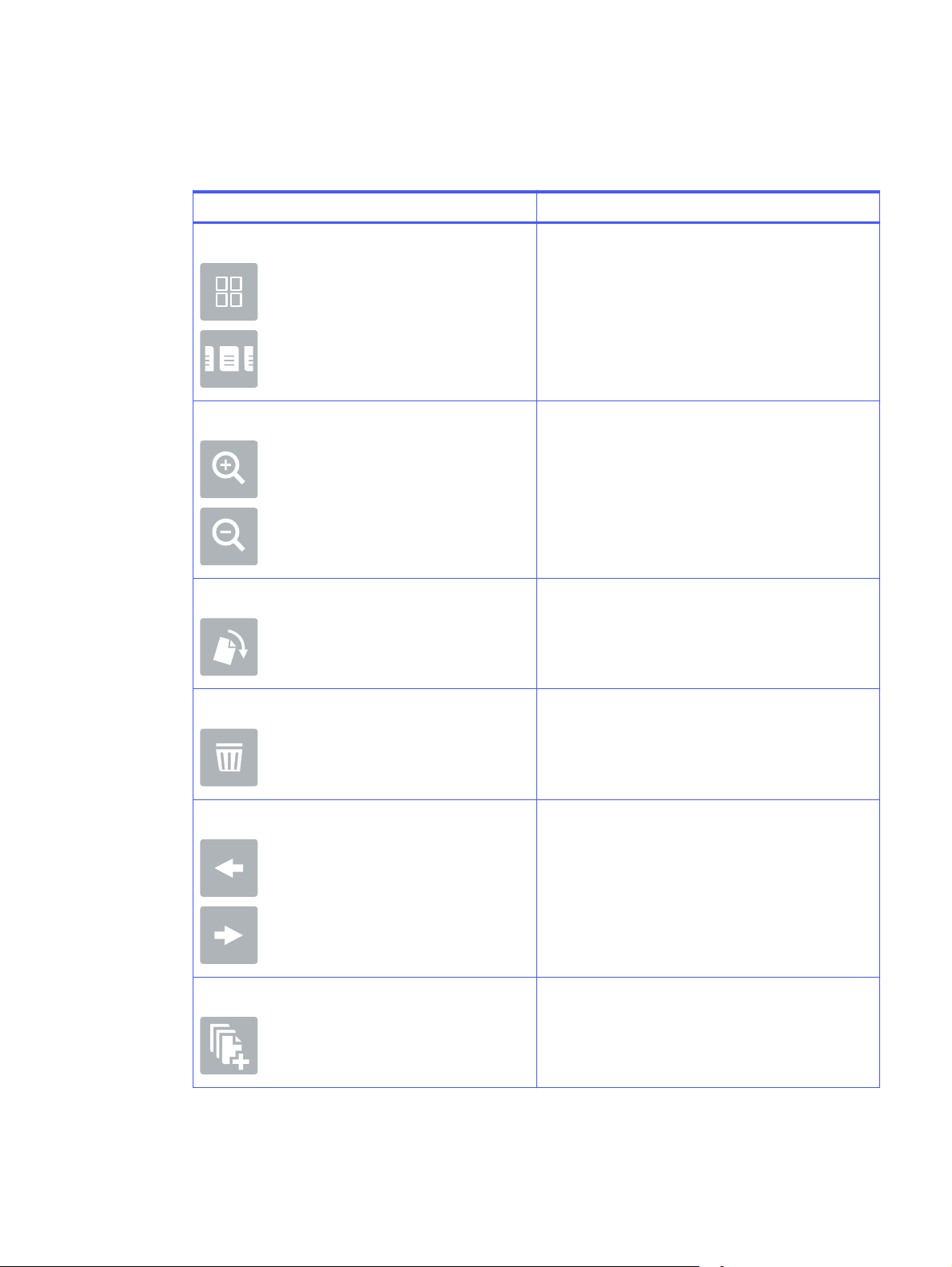
6. Touch the right pane of the screen to preview the document. In the preview screen, use the
buttons on the right of the screen to adjust the preview options and to rearrange, rotate, insert,
or remove pages.
Table 5-2 Buttons on the right side of the preview pane
Button Button function
Thumbnail and page view buttons Use these buttons to toggle between single-page view
and thumbnail view. More options are available in
thumbnail view than in single-page view.
Zoom buttons Use these buttons to zoom in or out on the selected
page.
NOTE: Select only one page at a time to use these
buttons.
Rotate button Use this button to rotate the page 180 degrees.
NOTE: This button is available only in the thumbnail
view.
Delete button Use this button to delete the selected pages.
NOTE: This button is available only in the thumbnail
view.
Arrow buttons Use these buttons to rearrange the pages within the
document. Select one or more pages and move them to
the left or right.
NOTE: These buttons are available only in the thumbnail
view.
Add page button Use this button to add a page to the document. The
printer prompts to scan additional pages.
Copy on both sides (duplex) 65

Table 5-2 Buttons on the right side of the preview pane (continued)
Button Button function
Clear preview button Use this button to clear the changes made in the preview
and start over.
Collapse preview button Touch this button to collapse the preview screen and
return to the Copy screen.
7. When the document is ready, touch Start to begin copying.
Additional copy tasks
Locate information on the Web for performing common copy tasks.
Go to Support for HP Color LaserJet Enterprise MFP 5800.
Instructions are available for copy tasks, such as the following:
● Copy or scan pages from books or other bound documents
● Copy mixed-size documents
● Copy or scan both sides of an identification card
● Copy or scan a document into a booklet format
66
Chapter 5Copy

Scan6
Scan using the software, or scan directly to email, a USB flash drive, a network folder, or another
destination.
The following information is correct at the time of publication. For current information, see Support
for HP Color LaserJet Enterprise MFP 5800.
For more information:
HP's all-inclusive help for the printer includes the following information:
● Install and configure
● Learn and use
● Solve problems
● Download software and firmware updates
● Join support forums
● Find warranty and regulatory information
Set up Scan to Email
The printer has a feature that enables it to scan a document and send it to one or more email
addresses.
Introduction
To use this scan feature, the printer must be connected to a network; however, the feature is not
available until it has been configured. There are two methods for configuring Scan to Email, the Scan
to Email Setup Wizard for basic and Email Setup for advanced.
Use the following information to set up the Scan to Email feature.
Before you begin
To set up the Scan to Email feature, the printer must have an active network connection.
Administrators need the following information before beginning the configuration process.
● Administrative access to the printer
● DNS suffix (e.g., companyname.com)
Scan
67
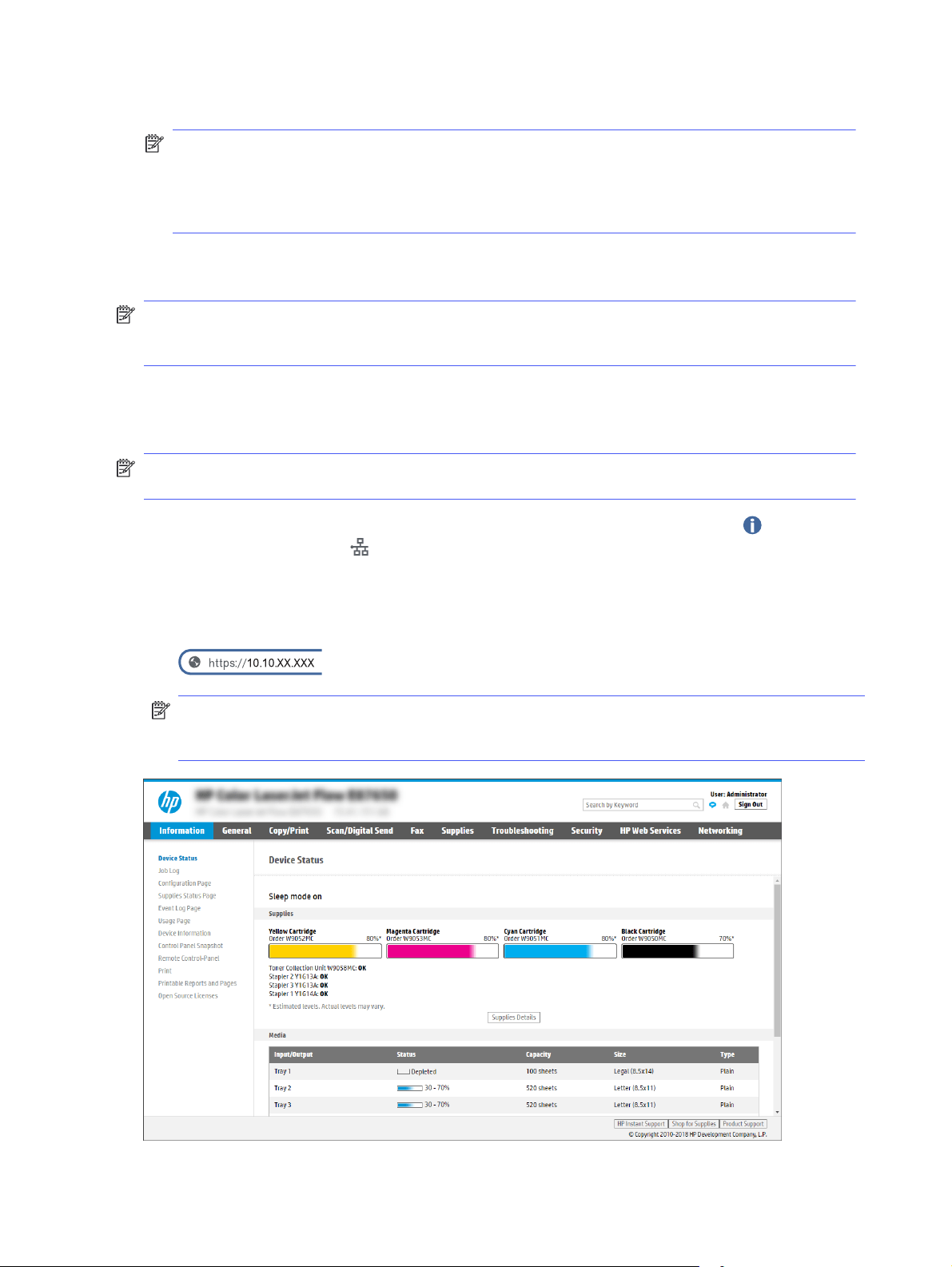
● SMTP server (e.g., smtp.mycompany.com)
NOTE: If you do not know the SMTP server name, SMTP port number, or authentication
information, contact the email/Internet service provider or system administrator for the
information. SMTP server names and port names are typically found by doing an Internet
search. For example, use terms like "Gmail smtp server name" or "Yahoo smtp server name" to
search.
● SMTP server authentication requirements for outgoing email messages, including the user name
and password used for authentication, if applicable.
NOTE: Consult your email service provider's documentation for information on digital sending
limits for your email account. Some providers may temporarily lock your account if you exceed
your sending limit.
Step one: Access the HP Embedded Web Server (EWS)
Open the EWS to start the setup process.
NOTE: The figure in this topic shows an EWS screen for a color printer. However, the procedure
below is valid for both color and mono printers.
1. From the Home screen on the printer control panel, touch the Information icon , and then
touch the Ethernet icon to display the IP address or host name.
2. Open a web browser, and in the address line, type the IP address or host name exactly as it
displays on the printer control panel. Press the Enter key on the computer keyboard. The EWS
opens.
NOTE: If the web browser displays a message indicating that accessing the website might not
be safe, select the option to continue to the website. Accessing this website will not harm the
computer.
68
Chapter 6Scan
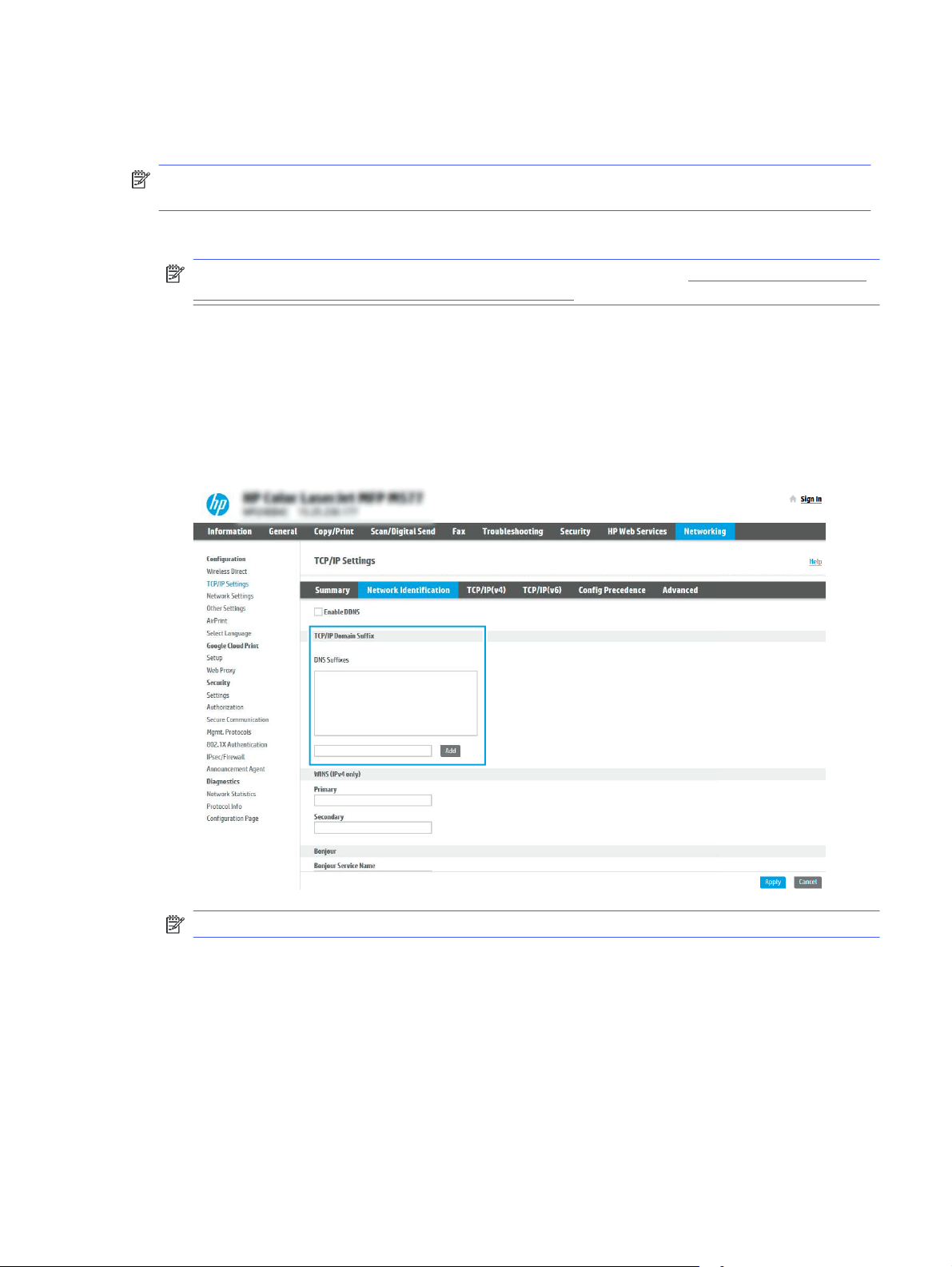
Step two: Configure the Network Identification settings
Configure advanced setting for network identification.
NOTE: Configuring email setup on the Networking tab is an advanced process and might require
the assistance of a system administrator.
1. Using the EWS top navigation tabs, click Networking.
NOTE: For configuring the network settings for use with Office 365, Step five: Set up Send to
Email to use Office 365 Outlook (optional) on page 79
2. In the left navigation pane, click TCP/IP Settings. A username/password might be required to
access the Network Identification tab of the EWS.
3. On the TCP/IP Settings dialog, click the Network Identification tab.
4. If DNS is required on the network, in the TCP/IP Domain Suffix area, verify that the DNS suffix
for the email client being used is listed. DNS suffixes have this format:
companyname.com
,
gmail.com
, etc.
NOTE: If the Domain Name suffix is not set up, use the IP address.
5. Click Apply.
6. Click OK.
Step three: Configure the Send to Email feature
The two options for configuring Send to Email are the Email Setup Wizard for basic configuration
and Email Setup for advanced configuration. Use the following options to configure the Send to
Email feature:
Step two: Configure the Network Identification settings
69
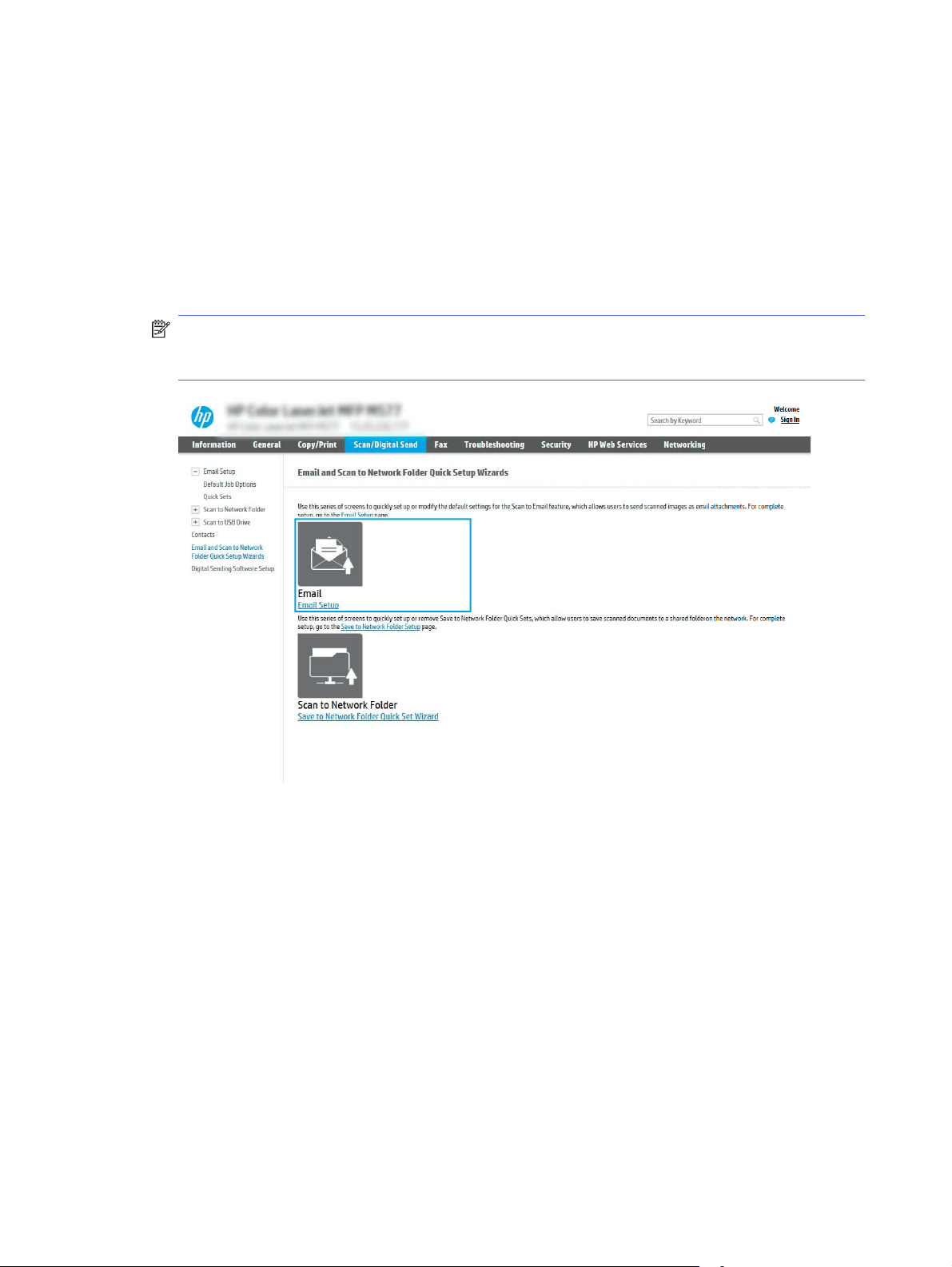
Method one: Basic configuration using the Email Setup Wizard
Perform basic configuration using the Email Setup Wizard.
This option opens the Email Setup Wizard in the HP Embedded Web Server (EWS) for basic
configuration.
1. Using the EWS top navigation tabs, click Scan/Digital Send.
2. In the left navigation pane, click Email and Scan to Network Folder Quick Setup Wizards.
3. In the Email and Scan to Network Folder Quick Setup Wizards dialog, click the Email Setup link.
NOTE: If a message displays indicating that the Scan to Email feature is disabled, click
Continue to proceed with the configuration and enable the Scan to Email feature upon
completion.
4. On the Configure Email Servers (SMTP) dialog, select one of the following options and complete
the steps:
● Option one: Use a server already in use by Email.
Select Use a server already in use by Email, and then click Next.
● Option two: Search the network for the outgoing email server.
This option finds outgoing SMTP servers inside your firewall only.
a. Select Search network for outgoing email server, and then click Next.
b. Select the appropriate server from the Configure Email Server (SMTP) list, and then
click Next.
c. Select the option that describes the server’s authentication requirements:
– Server does not require authentication: Select Server does not require
authentication, and then click Next.
70
Chapter 6Scan

-OR-
– Server requires authentication: From the drop-down list, select an authentication
option:
○ Select Use credentials of user to connect after Sign In at the control panel,
and then click Next.
-OR-
○ Select Always use these credentials, enter the User name and Password, and
then click Next.
● Option three: Add the SMTP server.
a. Select Add SMTP server.
b. Enter the Server Name and Port Number, and then click Next.
NOTE: In most cases, the default port number does not need to be changed.
NOTE: If you are using a hosted SMTP service such as Gmail, verify the SMTP
address, port number, and SSL settings from the service provider’s website or other
sources. Typically, for Gmail, the SMTP address is smtp.gmail.com, port number 465,
and the SSL should be enabled.
Please refer to online sources to confirm these server settings are current and valid
at the time of configuration.
c. Select the appropriate server authentication option:
– Server does not require authentication: Select Server does not require
authentication, and then click Next.
-OR-
– Server requires authentication: Select an option from the Server requires
authentication drop-down list:
○ Select Use credentials of user to connect after Sign In at the control panel,
and then click Next.
-OR-
○ Select Always use these credentials, enter the User name and Password, and
then click Next.
5. On the Configure Email Settings dialog, enter the following information about the sender’s email
address, and then click Next.
NOTE: When setting up the From, Subject, and Message fields, if the User editable check box
is unchecked, users will not be able to edit those fields at the printer control panel when
sending an email.
Method one: Basic configuration using the Email Setup Wizard
71

Table 6-1 Send email settings
Option Description
From
(Required)
Select one of the following options from the From drop-down list:
● User’s address (sign-in required)
● Default From: Enter a default email address and display name in the Default
From Email Address and Default Display Name fields
NOTE: Create an email account for the printer, and use this address for the
default email address.
NOTE: Configure the email feature so that users must sign in before using it.
This prevents users from sending an email from an address that is not their
own.
Subject
(Optional)
Provide a default subject line for the email messages.
Message
(Optional)
Create a custom message.
To use this message for all emails sent from the printer, clear the User editable
check box for Message.
6. In the Configure File Scan Settings area, set the default scanning preferences, and then click
Next.
Table 6-2
Scan settings
Option Description
File Type Select the default file type for the scanned document:
● PDF
● JPEG
● TIFF
●
MTIFF
●
XPS
● PDF/A
HP LaserJet Enterprise Flow MFP printers or MFP printers that are connected to a
digital send software (DSS) server also support the following OCR file types:
● Text (OCR)
● Unicode Text (OCR)
● RTF (OCR)
● Searchable PDF (OCR)
● Searchable PDF/A (OCR)
●
HTML (OCR)
●
CSV (OCR)
72
Chapter 6Scan

Table 6-2 Scan settings (continued)
Option Description
Color/Black Select the default color setting for the scanned document:
● Color
● Black
● Black/Gray
●
Automatically detect
Quality and File Size Select the default output quality for the scanned document:
● Low (small file)
● Medium
● High (large file)
Resolution Select the default scan resolution for the scanned document:
● 75 dpi
● 150 dpi
● 200 dpi
●
300 dpi
●
400 dpi
● 600 dpi
7. Review the Summary area, and then click Finish to complete the setup.
Method two: Advanced configuration using the Email Setup
Use the following steps for advanced configuration using the E-mail Setup dialog in the EWS.
1. Using the EWS top navigation tabs, click Scan/Digital Send, expand the Email Setup menu in the
left navigation pane, and then click Default Job Options.
The Default Job Options page displays the Basic Settings for Scan to Email setup. To access
additional settings, click the Advanced Settings button at the bottom of the page. To switch
back to basic settings, click the Basic Settings button.
NOTE: This procedure covers the steps for Basic Settings first and then the steps for
Advanced Settings.
Method two: Advanced configuration using the Email Setup
73
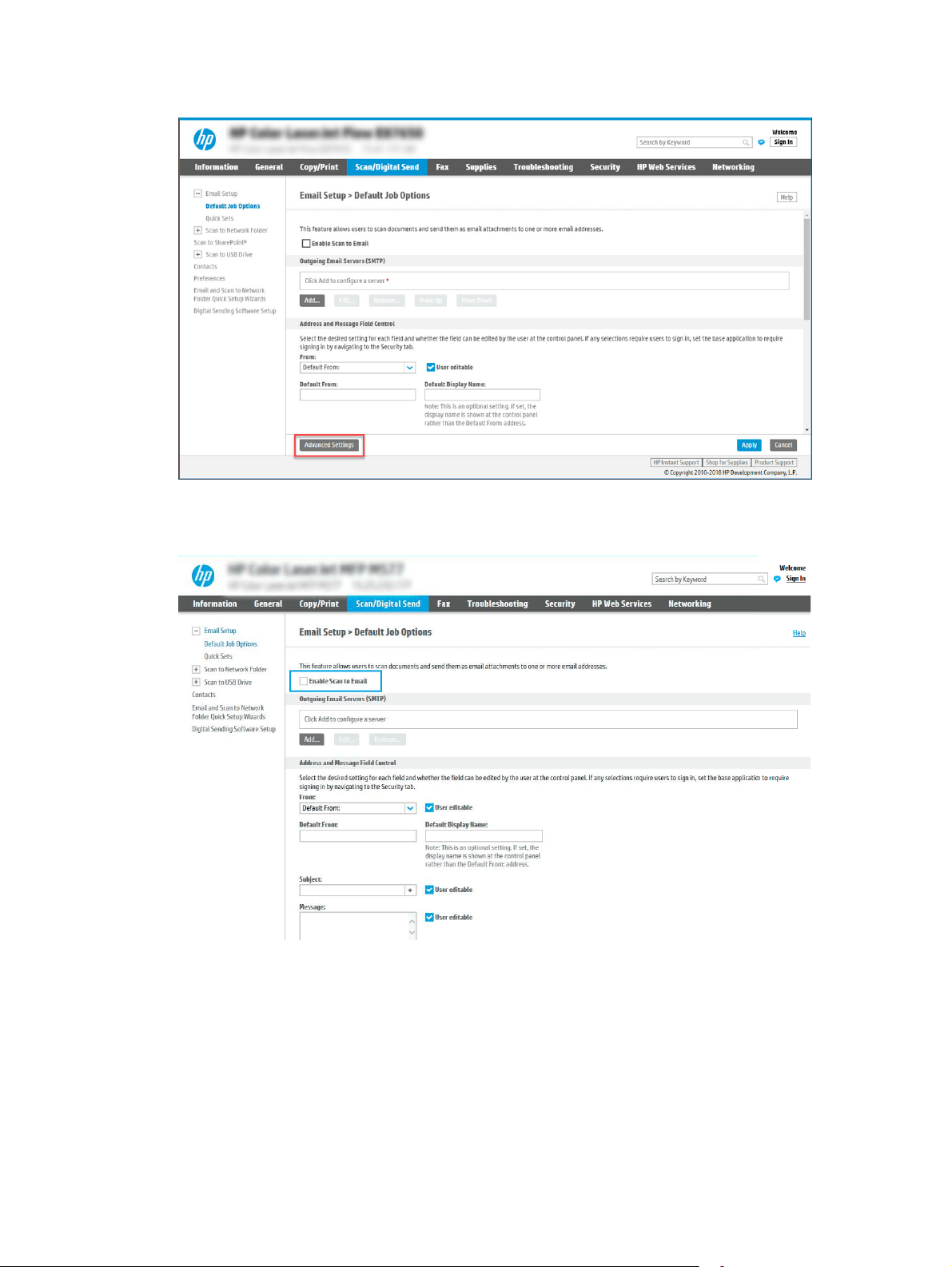
Figure 6-1 Location of Advanced Settings button
2. On the Default Job Options page, select the Enable Scan to Email check box. If this check box is
not selected, the feature is unavailable at the printer control panel.
3. In the Outgoing Email Servers (SMTP) area, complete the steps for one of the following options:
● Select one of the displayed servers.
● Click Add to start the SMTP wizard.
a. In the SMTP wizard, select one of the following options:
– Option one: I know my SMTP server address or host name: Enter the address of an
SMTP server, and then click Next
74
Chapter 6Scan

– Option two: If you do not know the address of the SMTP server, select Search
network for outgoing email server, and then click Next. Select the server, and then
click Next.
NOTE: If an SMTP server was already created for another printer function, the Use a
server already in use by another function option displays. Select this option, and then
configure it to be used for the email function.
b. On the Set the basic information necessary to connect to the server dialog, set the
options to use, and then click Next.
– Some servers have problems sending or receiving emails that are larger than 5
megabytes (MB). These problems can be prevented by entering a number in Split
emails if larger than (MB).
– In most cases, the default port number does not need to be changed. However,
when using the Enable SMTP SSL Protocol option, port 587 must be used.
– If you are using Google™ Gmail for email service, select the Enable SMTP SSL
Protocol check box. Typically, for gmail, the SMTP address is smtp.gmail.com, port
number 465, and the SSL should be enabled. Refer to online sources to confirm
these server settings are current and valid at the time of configuration.
c. On the Server Authentication Requirements dialog, select the option that describes the
server’s authentication requirements:
– Server does not require authentication, and then click Next.
– Server requires authentication
○ From the drop-down box, select Use credentials of user to connect after Sign
In at the control panel, and then click Next.
○ From the drop-down box, select Always use these credentials, enter the
Username and Password, and then click Next.
NOTE: If using a signed-in user's credentials, set email to require sign in by the user
on the printer control panel. Deny device guest access to email by clearing the check
box for email in the Device Guest column in the Sign in and Permission Policies area
on the Access Control dialog of the Security tab. The icon in the check box changes
from a check mark to a lock.
d. On the Server Usage dialog, choose the printer functions that will send email through
this SMTP server, and then click the Next button.
If the server requires authentication, a user name and password for sending automatic
alerts and reports from the printer will be required.
e. On the Summary and Test dialog, enter a valid email address in the Send test email to:
field, and then click Test.
f. Verify that all of the settings are correct, and then click Finish to complete the
outgoing email server set up.
Method two: Advanced configuration using the Email Setup
75

4. In the Address and Message Field Control area, enter a From: setting and any of the other
optional settings.
Table 6-3 Address and Message Field Control (Basic Settings)
Feature Description
User editable To use the Default From address and Default Display Name for all emails sent from
this printer (unless a user is signed in), clear the User editable check box.
When setting up the address fields, if the User editable check box is cleared, users
will not be able to edit those fields at the printer control panel when sending an email.
For send-to-me functionality, clear the User editable check boxes for all of the address
fields, including the From:, To:, CC:, and BCC: fields, and then set that user's send email
From: their own email address and To: their own email address.
Default From: and Default
Display Name:
Provide an email address and name to use for the From: address for the email
message.
NOTE: Create an email account for the printer, and use this address for the default
email address.
NOTE: Configure the email feature so that users must sign in before using it. This
prevents users from sending an email from an address that is not their own.
Subject: Provide a default subject line for the email messages.
Message: Create a custom message. To use this message for all emails sent from the printer,
clear or do not select the User editable check box for Message:.
Table 6-4 Address and Message Field Control (Advanced Settings - optional)
Feature Description
Address Field Restrictions Specify whether users must select an email address from an address book or whether
users are allowed to enter in an email address manually.
CAUTION: If Users must select from address book is selected, and any of the address
fields are also set as User editable, changes to those editable fields also change the
corresponding values in the address book.
To prevent users from changing contacts in the Address Book at the printer control
panel, go to the Access Control page on the Security tab, and deny Device Guest
access to address book modifications.
Allow invalid email address
formats
Select to allow an invalid email address format.
To: Provide a To (recipient) email address for emails.
CC: Provide a CC email address for emails.
BCC: Provide a BCC email address for emails.
5. In the File Settings area, set the default file settings preferences.
Table 6-5
File Settings (Basic Settings)
Feature Description
File Name Default file name for the file to be saved.
Select the User editable check box to make this setting editable at the printer control
panel.
76 Chapter 6Scan

Table 6-5 File Settings (Basic Settings) (continued)
Feature Description
File Type Select the file format for the saved file.
Select the User editable check box to make this setting editable at the printer control
panel.
Resolution Set the resolution for the file. Higher resolution images have more dots per inch (dpi),
so they show more detail. Lower resolution images have fewer dots per inch and show
less detail, but the file size is smaller.
Quality and File Size Select the quality for the file. Higher-quality images require a larger file size than
lower-quality images, and they take more time to send.
Color/Black Specify whether copies are to be printed in color, black and gray, or black only (color
printers only).
Table 6-6 File settings (Advanced Settings - optional)
Feature Description
File Name Prefix Set the default file name prefix used for files saved to a network folder.
File Name Suffix Set the default file name suffix used for files saved to a network folder.
Duplicate filename suffix default [filename]_YYYYMMDDT
File Name Preview Enter a file name, and then click the Update Preview button.
File Numbering Format Select a file name format for when the job is divided into multiple files.
Add numbering when job
has just one file (ex. _1–1)
Select this setting to add numbering to a file name when the job is only one file instead
of multiple files.
High Compression (smaller
file)
Select this setting to compress the scanned file, which reduces the file size. However,
the scanning process for a High compression file might take longer than for a Normal
compression file.
PDF encryption If the file type is PDF, then this option encrypts the output PDF file. A password must be
specified as part of the encryption. The same password must be used to open the file.
The user will be prompted to enter a password prior to scanning their job if one has not
been set prior to pressing start.
Suppress blank pages If the Suppress blank pages option is enabled, blank pages will be ignored.
Create Multiple Files Select this setting to scan pages into separate files based on a predetermined
maximum number of pages per file.
6. Click the Advanced Settings button to display the following settings:
● Signing and Encryption
● Notification (job notification)
● Scan Settings
Method two: Advanced configuration using the Email Setup
77

7. In the Signing and Encryption area, set the signing and encryption preferences.
Table 6-7 Signing and Encryption settings
Feature Description
Signing Select whether to sign the email with a security certificate.
Select the User editable check box to make this setting editable at the printer control
panel.
Hashing Algorithm Select the algorithm to use for signing the certificate.
Encryption Select whether to encrypt the email.
Select the User editable check box to make this setting editable at the printer control
panel.
Encryption Algorithm Select the algorithm to use for encrypting the email.
Attribute for Recipient
Public Key
Enter which attribute to use to retrieve the recipient’s public key certificate from LDAP.
Use the recipient public
key certificate to verify the
recipient
Select this setting to use the recipient’s public key certificate to verify the recipient.
8. In the Notification area, select when users will receive notifications about sent emails. The
default setting is using the signed in user's email address. If the recipient email address is
blank, no notification is sent.
9. In the Scan Settings area, set the default scanning preferences.
Table 6-8
Scan Settings
Feature Description
Original Size Select the page size of the original document.
Original Sides Select whether the original document is single-sided or double-sided.
Optimize Text/Picture Select to optimize the output of a particular type of content.
Content Orientation Select the way the content of the original document is placed on the page: Portrait or
Landscape.
Background Cleanup Select a value to remove faint images from the background or to remove a light
background color.
Darkness Select a value to adjust the darkness of the file.
Contrast Select a value to adjust the contrast of the file.
Sharpness Select a value to adjust the sharpness of the file.
Image Preview Select whether to require or make optional a displayed preview of the job or to disable
a preview.
Cropping Options Select whether or not to allow a job to be cropped and the type of cropping option.
Erase Edges Select this setting to specify the width of edge margins to be erased, in either inches
or millimeters, for the front side and back side of a job.
10. Review the selected options to verify that they are accurate, and then click Apply to complete
the setup.
78
Chapter 6Scan

Step four: Configure the Quick Sets (optional)
Quick Sets are optional short-cut jobs that can be accessed on the main Home screen or within the
Quick Sets application at the printer. Use the following procedure to configure the Quick Sets.
1. In the Email Setup area of the left navigation pane, click Quick Sets.
2. Select one of the following options:
● Select an existing Quick Set under Quick Sets Application in the table.
-OR-
● Click Add to start the Quick Set Wizard.
3. If you selected Add, the Quick Sets Setup page opens. Complete the following information:
● Quick Set Name: Enter a title for the new Quick Set.
● Quick Set Description: Enter a description of the Quick Set.
● Quick Set Start Option: To set how the Quick Set starts, click either Enter application, then
user presses Start or Start instantly when selected from the Home Screen.
4. Define the following settings for the Quick Set: Address and Message Field Control, Signing and
Encryption, Notification, Scan Settings, File Settings.
5. Click Finish to save the Quick Set.
Step five: Set up Send to Email to use Office 365 Outlook (optional)
Enable the printer to send an email with an Office 365 Outlook account from the control panel.
Introduction
Microsoft Office 365 Outlook is a cloud-based email system provided by Microsoft which uses
Microsoft's Simple Mail Transfer Protocol (SMTP) server to send or receive emails. Complete the
following to enable the printer to send an email with an Office 365 Outlook account from the control
panel.
NOTE: You must have an email address account with Office 365 Outlook to configure the settings
in the EWS.
Configure the outgoing email server (SMTP) to send an email from an Office 365 Outlook
account
Configure the outgoing email server using the following procedure.
1. Using the EWS top navigation tabs, click Networking.
2. In the left navigation pane, click TCP/IP Settings.
3. In the TCP/IP Settings area, click the Network Identification tab.
Step four: Configure the Quick Sets (optional)
79
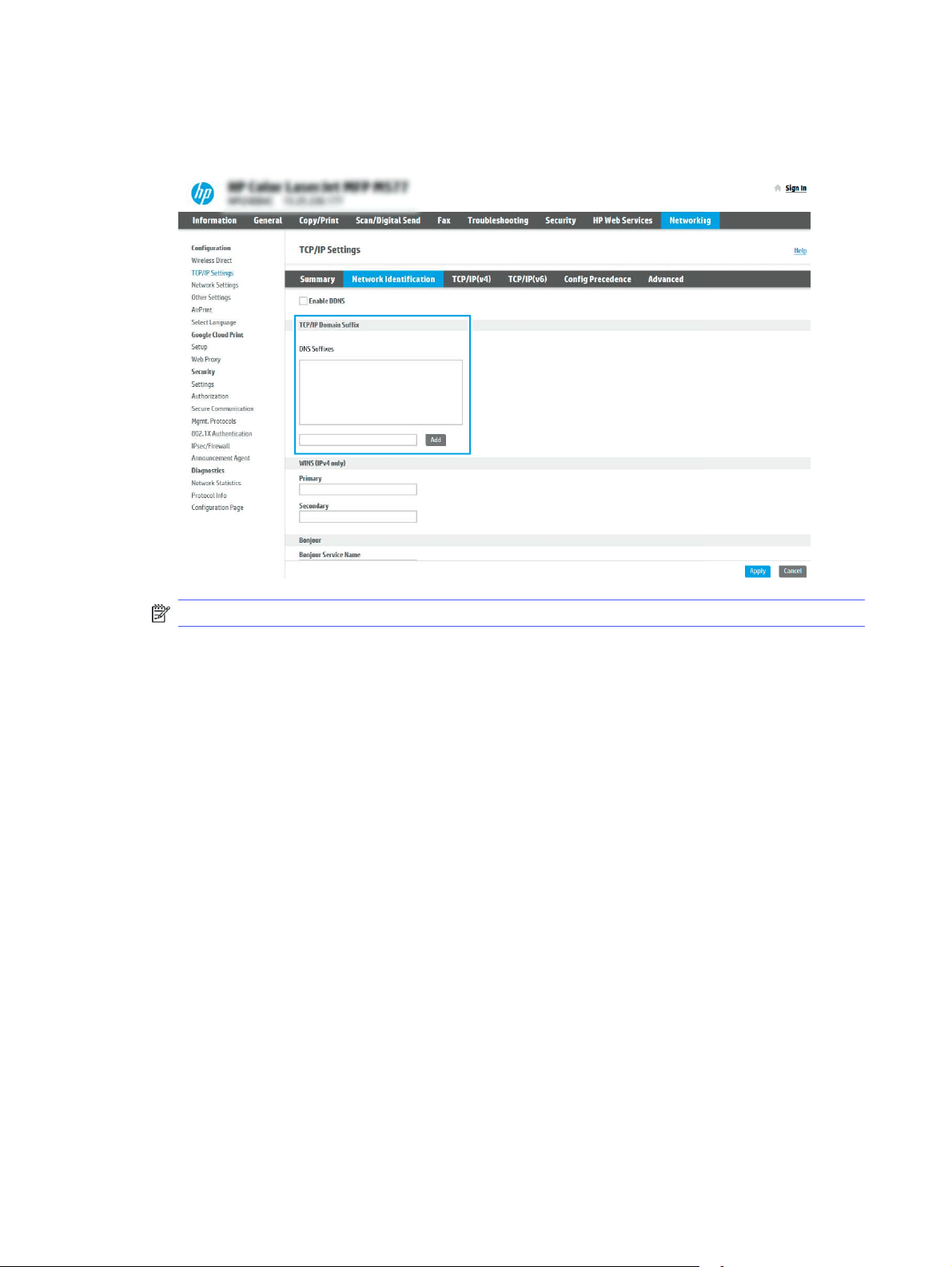
4. If DNS is required on the network, in the TCP/IP Domain Suffix area, verify that the DNS suffix
for the email client being used is listed. DNS suffixes have this format:
companyname.com
,
Gmail.com
, etc.
NOTE: If the Domain Name suffix is not set up, use the IP address.
5. Click Apply.
6. Click the Scan/Digital Send tab.
7. On the left navigation pane, click Email Setup.
80
Chapter 6Scan
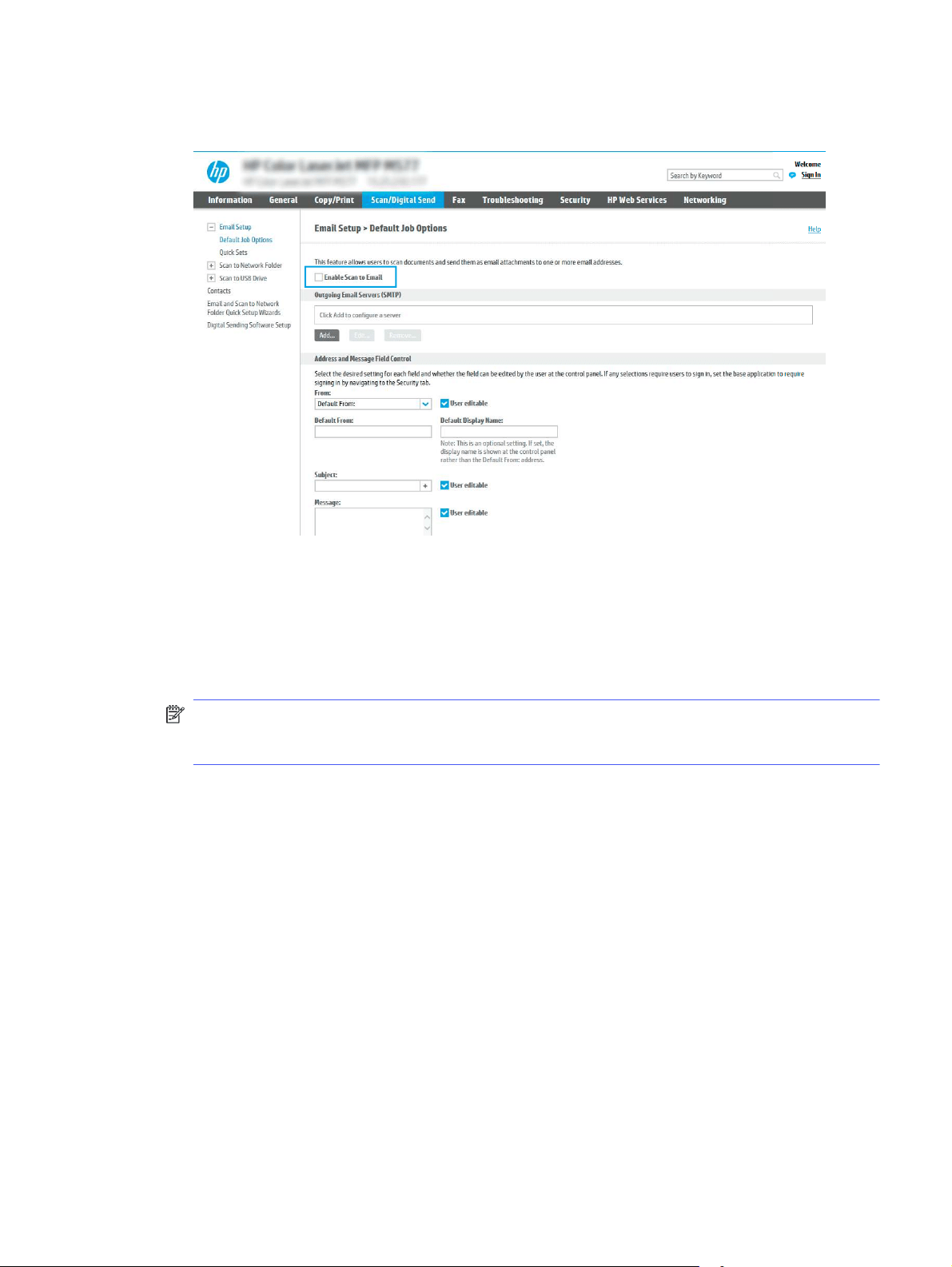
8. On the Email Setup page, select the Enable Scan to Email check box. If this check box is not
available, the feature is unavailable at the printer control panel.
9. In the Outgoing Email Servers (SMTP) area, click Add to start the SMTP wizard.
10. In the I know my SMTP server address or host name field, type smtp.onoffice.com, and then
click Next.
11. On the Set the basic information necessary to connect to the server dialog, in the Port Number
field, type 587.
NOTE: Some servers have problems sending or receiving emails that are larger than 5
megabytes (MB). These problems can be prevented by entering a number in Split emails if
larger than (MB).
12. Select the Enable SMTP SSL Protocol check box, and then click Next.
13. On the Server Authentication Requirements dialog, complete the following information:
a. Select Server requires authentication.
b. From the drop-down list, select Always use these credentials.
c. In the Username field, type the Office 365 Outlook email address.
d. In the Password field, type the Office 365 Outlook account password, and then click Next.
14. On the Server Usage dialog, choose the printer functions that will send email through this SMTP
server, and then click the Next button.
15. On the Summary and Test dialog, enter a valid email address in the Send a test email to: field,
and then click Test.
16. Verify that all of the settings are correct, and then click Finish to complete the outgoing email
server setup.
Configure the outgoing email server (SMTP) to send an email from an Office 365 Outlook account
81

For more information, go to Microsoft's Support page.
Set up Scan to Network Folder
Set up the Scan to Folder feature to scan documents directly to network folder.
Introduction
This section explains how to enable and configure the Scan to Network Folder function. The printer
has a feature that enables it to scan a document and save it to a network folder. To use this scan
feature, the printer must be connected to a network; however, the feature is not available until it
has been configured. There are two methods for configuring Scan to Network Folder, the Save to
Network Folder Setup Wizard for basic setup and Save to Network Folder Setup for advanced setup.
Before you begin
Have the following items available before you set up the Scan to Network feature.
NOTE: To set up the Scan to Network Folder feature, the printer must have an active network
connection.
Administrators need the following items before beginning the configuration process.
● Administrative access to the printer.
● The fully-qualified domain name (FQDN) (e.g., \\servername.us.companyname.net\scans) of the
destination folder OR the IP address of the server (e.g., \\16.88.20.20\scans).
NOTE: The use of the term "server" in this context refers to the computer where the shared
folder resides.
Step one: Access the HP Embedded Web Server (EWS)
Open the EWS to start the setup process.
NOTE: The figure in this topic shows an EWS screen for a color printer. However, the procedure
below is valid for both color and mono printers.
1. From the Home screen on the printer control panel, touch the Information icon , and then
touch the Ethernet icon to display the IP address or host name.
2. Open a web browser, and in the address line, type the IP address or host name exactly as it
displays on the printer control panel. Press the Enter key on the computer keyboard. The EWS
opens.
NOTE: If the web browser displays a message indicating that accessing the website might not
be safe, select the option to continue to the website. Accessing this website will not harm the
computer.
82
Chapter 6Scan
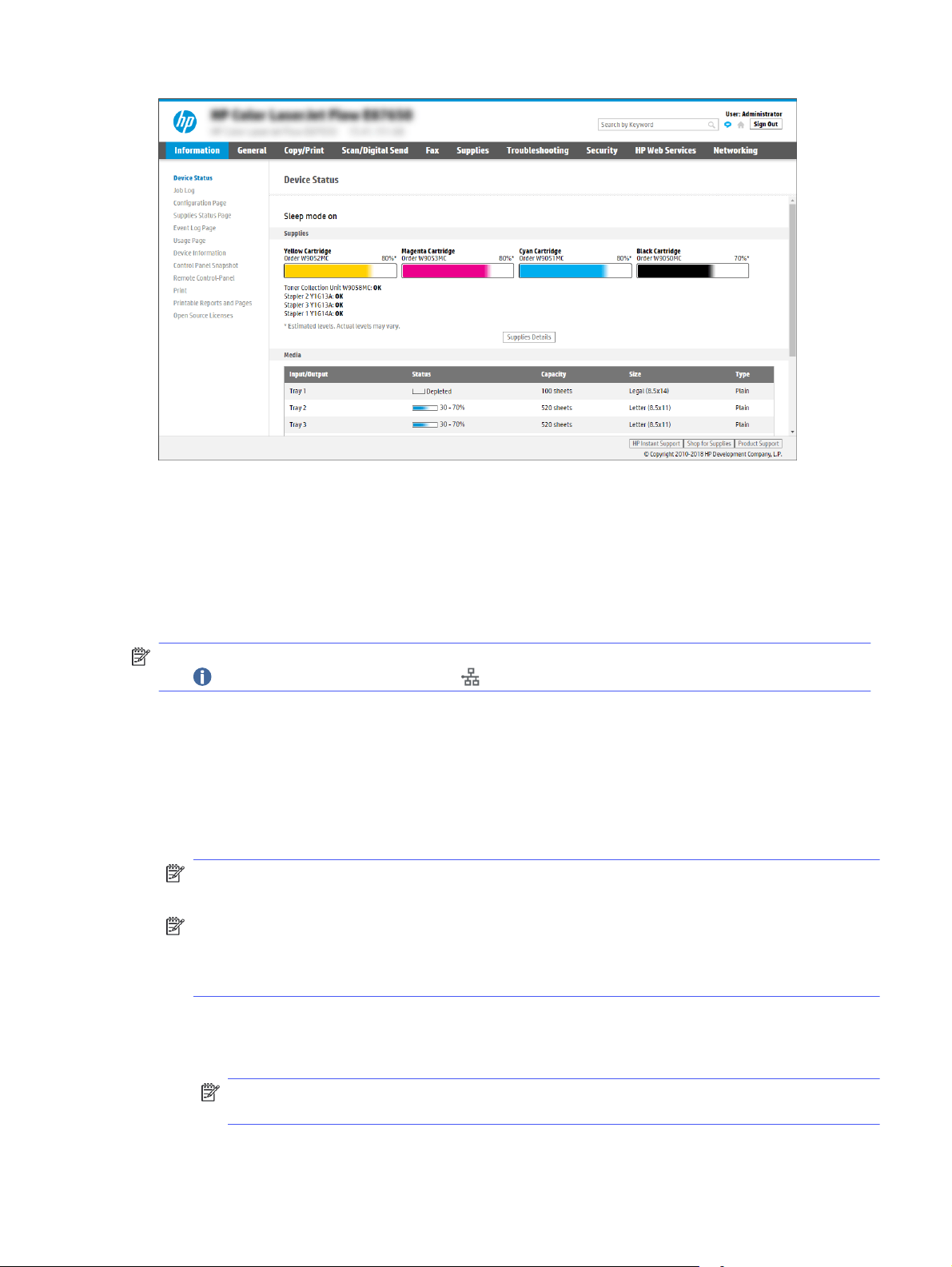
Step two: Set up Scan to Network Folder
Set up Scan to Network Folder using one of the following methods.
Method one: Use the Scan to Network Folder Wizard
Use this option for basic configuration of the Save to Network Folder feature using the Scan to
Network Folder wizard.
NOTE: Before you begin: To display the printer's IP address or host name, touch the Information
icon , and then touch the Network icon on the printer's control panel.
1. Using the EWS top navigation tabs, click Scan/Digital Send tab. The Email and Scan to Network
Folder Quick Setup Wizards dialog opens.
2. In the left navigation pane, click Email and Scan to Network Folder Quick Setup Wizards.
3. Click the Save to Network Folder Quick Set Wizard link.
4. On the Add or Remove a Save to Network Folder Quick Set dialog, click Add.
NOTE: Quick Sets are shortcut jobs that can be accessed on the printer Home screen or
within the Quick Sets application.
NOTE: The Save to Network Folder feature can be minimally configured without creating a
quick set. However, without the Quick Set, users must enter the destination folder information
at the control panel for each scan job. A quick set is required to include Save to Network Folder
metadata.
5. On the Add Folder Quick Set dialog, complete the following information:
a. In the Quick Set Title field, type a title.
NOTE: Name the Quick Set something that users can understand quickly (e.g., "Scan and
save to a folder").
Step two: Set up Scan to Network Folder
83

b. In the Quick Set Description field, type a description explaining what the Quick Set will
save.
c. Click Next.
6. On the Configure Destination Folder dialog, complete the following information:
a. In the UNC Folder Path field, type a folder path where the scan will go.
The folder path can either be the fully-qualified domain name (FQDN) or the IP address of
the server. Be sure that the folder path (e.g., \scans) follows the FQDN or IP address.
FQDN example: \\servername.us.companyname.net\scans
IP address example: \\16.88.20.20\scans
NOTE: The FQDN can be more reliable than the IP address. If the server gets its IP
address via DHCP, the IP address can change. However, the connection with an IP address
might be faster because the printer does not need to use DNS to find the destination
server.
b. From the Authentication Settings drop-down, select one of the following options:
● Use credentials of user to connect after Sign In at the control panel
● Always use these credentials
NOTE: If Always use these credentials is selected, a user name and password must
be entered in the corresponding fields, and the printer’s access to the folder must be
verified by clicking Verify Access.
c. In the Windows Domain field, type the Windows domain.
TIP: To find the Windows domain in Windows 7, click Start, click Control Panel, click
System.
To find the Windows domain in Windows 8, click Search, enter System in the search box,
and then click System.
The domain is listed under Computer name, domain, and workgroup settings.
d. Click Next.
7. On the Configure File Scan Settings dialog, set the default scanning preferences for the Quick
Set, and then click Next.
8. Review the Summary dialog, and then click Finish.
Method two: Use Scan to Network Folder Setup
This option enables advanced configuration of the Save to Network Folder feature using the
HPEmbedded Web Server (EWS) for the printer.
NOTE: Before you begin: To display the printer's IP address or host name, touch the Information
icon , and then touch the Network icon on the printer's control panel.
84
Chapter 6Scan

Step one: Begin the configuration
Use the following steps to begin Scan to Network Folder setup.
1. Click the Scan/Digital Send tab.
2. In the left navigation pane, click Scan to Network Folder Setup.
Step two: Configure the Scan to Network Folder settings
Use the following procedure to complete Scan to Network Folder setup.
Step one: Begin the configuration
Use the following steps to begin configuration.
1. On the Scan to Network Folder Setup page, select the Enable Scan to Network Folder check
box. If this box is not selected, the feature is unavailable at the printer control panel.
2. In the Scan to Network Folder area of the left navigation pane, click Quick Sets. Click Add to
open the Quick Sets Setup dialog.
NOTE: Quick Sets are shortcut jobs that can be accessed on the printer Home screen or
within the Quick Sets application.
NOTE: The Scan to Network Folder feature can be minimally configured without creating a
Quick Set. However, without the Quick Set, users must enter the destination folder information
at the control panel for each scan job. A Quick Set is required to include Scan to Network
Folder metadata.
Complete all of the settings in the Quick Set Setup to fully configure the Scan to Network Folder
feature.
Dialog one: Set the Quick Set name, description, and options for user interaction at the control panel
Set the Quick Set details for user interaction at the printer's control panel.
Use the Set the button location for the Quick Set and options for user interaction at the control
panel dialog to configure where the Quick Set button will display on the printer control panel and to
configure the level of user interaction at the printer control panel.
1. In the Quick Set Name field, type a title.
NOTE: Name the Quick Set something that users can understand quickly (e.g., "Scan and save
to a folder").
2. In the Quick Set Description field, type a description explaining what the Quick Set will save.
3. From the Quick Set Start Option list, select one of the following options:
● Option one: Enter application, then user presses Start.
● Option two: Start instantly upon selection.
Select one of the following prompt options :
○ Prompt for original sides
○ Prompt for additional pages
Step one: Begin the configuration
85

○ Require Preview
NOTE: If Start instantly upon selection is selected, the destination folder must be entered
in the next step.
4. Click Next.
Dialog two: Folder Settings
Use the Folder Settings dialog to configure the types of folders the printer sends scanned
documents to and the folder permissions.
There are two types of destination folders to select from:
● Shared folders or FTP folders
● Personal shared folders
There are two types of folder permissions to select from:
● Read and write access
● Write access only
Configure the destination folder for scanned documents
Select one of the following options to set up a destination folder.
Option 1: Configure the printer to save to a shared folder or FTP folder
To save scanned documents to a standard shared folder or an FTP folder, complete the following
steps.
1. If it is not already selected, select Save to shared folders or FTP folders.
2. Click Add.... The Add Network Folder Path dialog opens.
3. On the Add Network Folder Path dialog, select one of the following options:
● Option one: Save to a standard shared network folder.
86
Chapter 6Scan
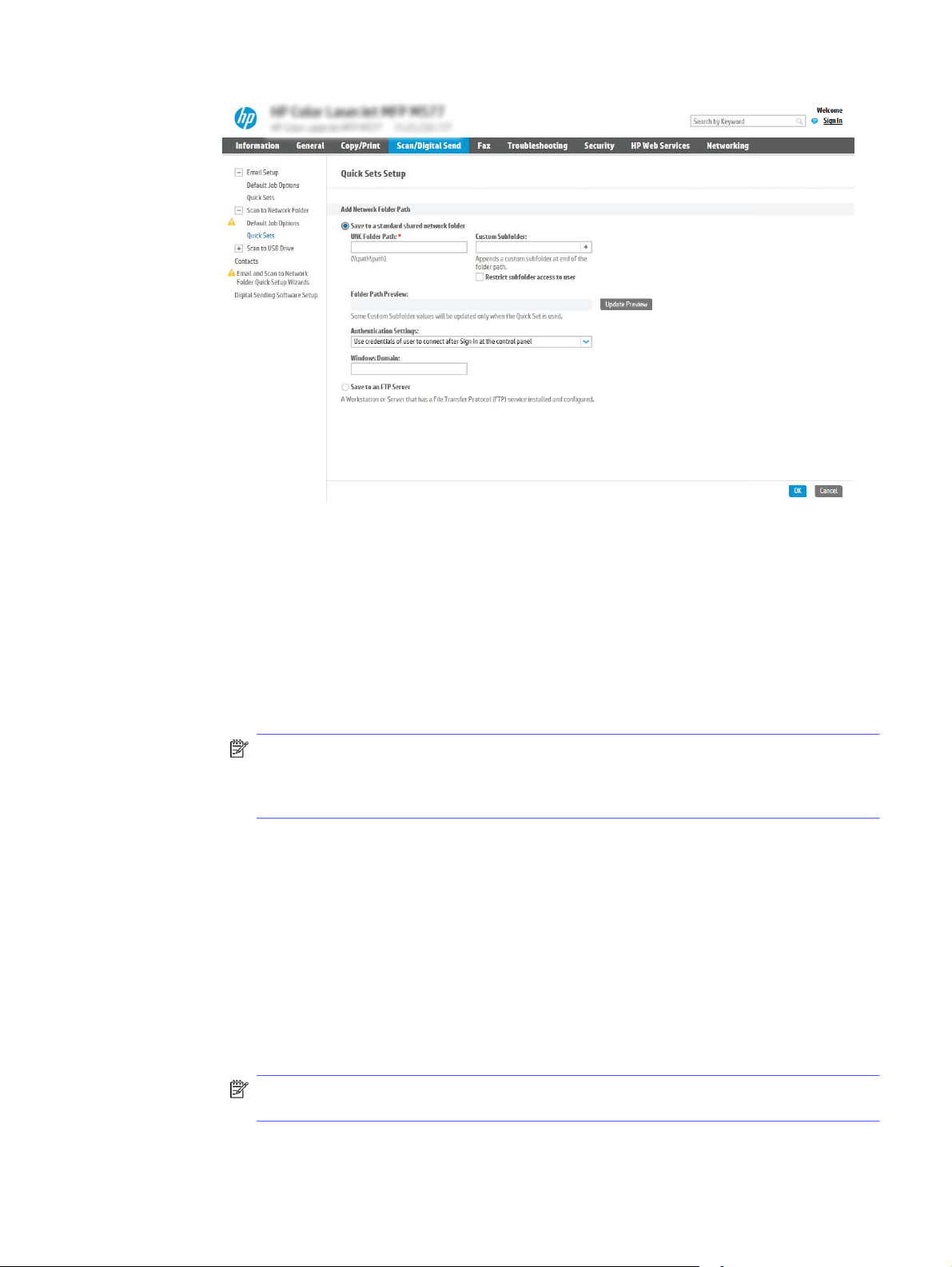
a. If it is not already selected, select Save to a standard shared network folder.
b. In the UNC Folder Path field, type a folder path.
The folder path can either be the fully-qualified domain name (FQDN) or the IP address
of the server. Be sure that the folder path (e.g., \scans) follows the FQDN or IP
address.
FQDN example: \\servername.us.companyname.net\scans
IP address example: \\16.88.20.20\scans
NOTE: The FQDN can be more reliable than the IP address. If the server gets its IP
address via DHCP, the IP address can change. However, the connection with an IP
address might be faster because the printer does not need to use DNS to find the
destination server.
c. To automatically create a subfolder for scanned documents in the destination folder,
select a format for the subfolder name from the Custom Subfolder list.
To restrict the subfolder access to the user who creates the scan job, select Restrict
subfolder access to user.
d. To view the complete folder path for scanned documents, click Update Preview.
e. From the Authentication Settings list, select one of the following options:
– Use credentials of user to connect after Sign In at the control panel
– Always use these credentials
NOTE: If Always use these credentials is selected, a user name and password must
be entered in the corresponding fields.
Option 1: Configure the printer to save to a shared folder or FTP folder
87
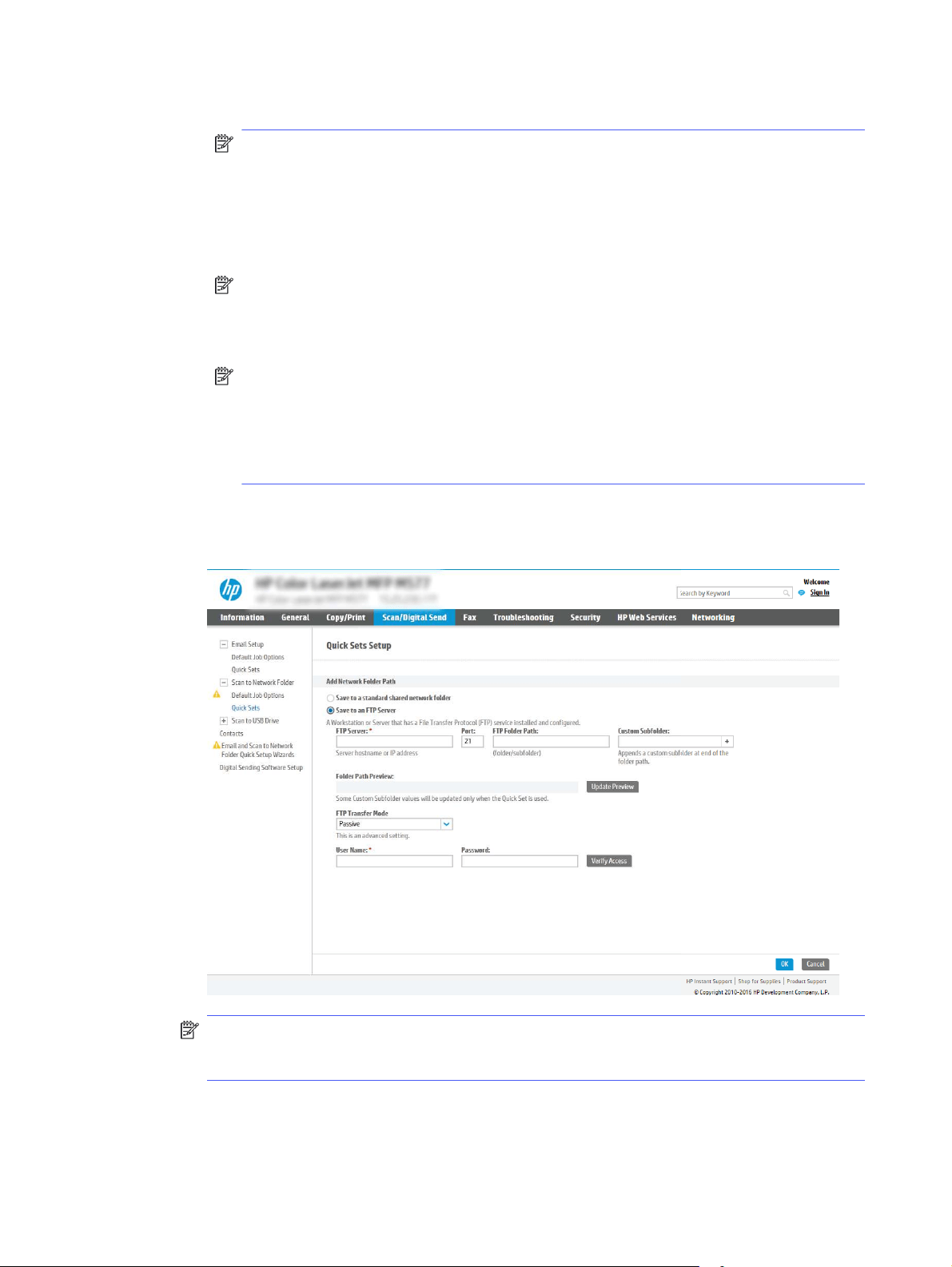
f. In the Windows Domain field, type the Windows domain.
NOTE: To find the Windows domain in Windows 7, click Start, click Control Panel, click
System.
To find the Windows domain in Windows 8, click Search, enter System in the search
box, and then click System.
The domain is listed under Computer name, domain, and workgroup settings.
NOTE: If a shared folder is set to be accessed by everyone, values for a workgroup
name (default is “Workgroup”), a user name, and password must be entered in the
corresponding fields. However, if the folder is within a particular user’s folders and not
Public, the user name and password of that user must be used.
NOTE: An IP address might be necessary instead of a computer name. Many home
routers do not handle computer names well, and there is no Domain Name Server
(DNS). In this case, it is best to set up a static IP address on the shared PC to alleviate
the problem of DHCP assigning a new IP address. On a typical home router, this is
done by setting a static IP address that is on the same subnet, but outside the DHCP
address range.
g. Click OK.
● Option two: Save to an FTP Server.
NOTE: If an FTP site is outside the firewall, a proxy server must be specified under the
network settings. These settings are located in the EWS Networking tab, under the
Advanced options.
a. Select Save to an FTP Server.
b. In the FTP Server field, type the FTP server name or IP address.
88
Chapter 6Scan

c. In the Port field, type the port number.
NOTE: In most cases, the default port number does not need to be changed.
d. To automatically create a subfolder for scanned documents in the destination folder,
select a format for the subfolder name from the Custom Subfolder list.
e. To view the complete folder path for scanned documents, click Update Preview.
f. From the FTP Transfer Mode list, select one of the following options:
– Passive
– Active
g. In the Username field, type the user name.
h. In the Password field, type the password.
i. Click Verify Access to confirm the destination can be accessed.
j. Click OK.
Option 2: Configure the printer to save to a personal shared folder
To save scanned documents to a personal shared folder, complete the following steps.
NOTE: This option is used in domain environments where the administrator configures a shared
folder for each user. If the Save to a personal shared folder feature is configured, users will be
required to sign in at the printer control panel using Windows credentials or LDAP authentication.
1. Select Save to a personal shared folder.
2. In the Retrieve the device user’s home folder using this attribute field, type the user’s home
folder in the Microsoft Active Directory.
NOTE: Verify that the user knows where this home folder is located on the network.
3. To add a user name subfolder at the end of the folder path, select Create subfolder based on
user name.
To restrict the subfolder access to the user who creates the scan job, select Restrict subfolder
access to user.
Select the destination folder permissions
Select one of the following options to set up destination folder permissions.
Option 1: Configure read and write access
To send scanned documents to a folder configured for read and write access, complete the
following steps.
NOTE: Send only to folders with read and write access supports folder verification and job
notification.
1. If it is not already selected, select Send only to folders with read and write access.
Option 2: Configure the printer to save to a personal shared folder
89

2. To require the printer to verify folder access before starting a scan job, select Verify folder
access prior to job start.
NOTE: Scan jobs can complete more quickly if Verify folder access prior to job start is not
selected; however, if the folder is unavailable, the scan job will fail.
3. Click Next.
Option 2: Configure write access only
To send scanned documents to a folder configured for write access only, complete the following
steps.
NOTE: Allow sending to folders with write access only does not support folder verification or job
notification.
NOTE: If this option is selected, the printer cannot increment the scan filename. It sends the same
filename for all scans.
Select a time-related filename prefix or suffix for the scan filename, so that each scan is saved as
a unique file, and does not overwrite a previous file. This filename is determined by the information
in the File Settings dialog in the Quick Set Wizard.
1. Select Allow sending to folders with write access only.
2. Click Next.
Dialog three: Notification Settings
Use the Notification Settings dialog to configure when notifications will be sent.
■
On the Notification Settings dialog, complete one of the following tasks:
● Option one: Do not notify.
a. Select Do not notify.
b. To prompt the user to review their notification settings, select Prompt user prior to job
start, and then click Next.
● Option two: Notify when job completes.
a. Select Notify when job completes.
b. Select the method for delivering the notification from the Method Used to Deliver
Notification list.
If the method of notification selected is Email, type the email address in the Notification
Email Address field.
c. To include a thumbnail of the first scanned page in the notification, select Include
Thumbnail.
d. To prompt the user to review their notification settings, select Prompt user prior to job
start, and then click Next.
● Option three: Notify only if job fails.
a. Select Notify only if job fails.
90
Chapter 6Scan

b. Select the method for delivering the notification from the Method Used to Deliver
Notification list.
If the method of notification selected is Email, type the email address in the Notification
Email Address field.
c. To include a thumbnail of the first scanned page in the notification, select Include
Thumbnail.
d. To prompt the user to review their notification settings, select Prompt user prior to job
start, and then click Next.
Dialog four: Scan Settings
Complete the scan settings as follows.
On the Scan Settings dialog, set the default scanning preferences for the Quick Set, and then click
Next.
Table 6-9 Scan settings
Feature Description
Original Size Select the page size of the original document.
Original Sides Select whether the original document is single-sided or double-sided.
Optimize Text/Picture Select to optimize for the output of a particular type of content.
Content Orientation Select the way the content of the original document is placed on the page: Portrait or
Landscape.
Background Cleanup Select a value to remove faint images from the background or to remove a light
background color.
Darkness Select a value to adjust the darkness of the file.
Contrast Select a value to adjust the contrast of the file.
Sharpness Select a value to adjust the sharpness of the file.
Image Preview Select whether to require or make optional a displayed preview of the job or to disable a
preview.
Cropping Options Select whether or not to allow a job to be cropped and the type of cropping option.
Erase Edges Select this setting to specify the width of edge margins to be erased, in either inches or
millimeters, for the front side and back side of a job.
Dialog five: File Settings
Complete the file settings as follows.
On the File Settings dialog, set the default file settings for the Quick Set, and then click Next.
Table 6-10
File settings
Feature Description
File Name Prefix Set the default file name prefix used for files saved to a network folder.
File Name Default file name for the file to be saved.
Select the User editable check box to make this setting editable at the printer control panel.
Dialog four: Scan Settings 91

Table 6-10 File settings (continued)
Feature Description
File Name Suffix Set the default file name suffix used for files saved to a network folder.
File Name Preview Enter a file name, and then click the Update Preview button.
File Numbering Format Select a file name format for when the job is divided into multiple files.
Add numbering when job has
just one file (ex. _1–1)
Select this setting to add numbering to a file name when the job is only one file instead of
multiple files.
File Type Select the file format for the saved file.
Select the User editable check box to make this setting editable at the printer control panel.
High Compression (smaller
file)
Select this setting to compress the scanned file, which reduces the file size. However,
the scanning process for a High compression file might take longer than for a Normal
compression file.
PDF encryption If the file type is PDF, then this option encrypts the output PDF file. A password must be
specified as part of the encryption. The same password must be used to open the file. The
user will be prompted to enter a password prior to scanning their job if one has not been
set prior to starting the scan.
Resolution Set the resolution for the file. Higher resolution images have more dots per inch (dpi), so
they show more detail. Lower resolution images have fewer dots per inch and show less
detail, but the file size is smaller.
Quality and File Size Select the quality for the file. Higher-quality images require a larger file size than lower-
quality images, and they take more time to send.
Color/Black Specify whether copies are to be printed in color, black and gray, or black only.
Suppress blank pages If the Suppress blank pages option is enabled, blank pages will be ignored.
Metadata File Format Use the drop-down list to select the file format for metadata information.
Create Multiple Files Select this setting to scan pages into separate files based on a predetermined maximum
number of pages per file.
Dialog six: Summary
On the Summary dialog, review the Summary dialog, and then click Finish.
Step three: Complete the configuration
Use the following steps to complete Scan to Network Folder setup.
1. In the left navigation pane, click Scan to Network Folder.
2. On the Scan to Network Folder page, review the selected settings, and then click Apply to
complete the setup.
Set up Scan to SharePoint
Use Scan to SharePoint to scan documents directly to a Microsoft SharePoint site. This feature
eliminates the need to scan the documents to a network folder, USB flash drive, or email message,
and then manually upload the files to the SharePoint site.
92
Chapter 6Scan
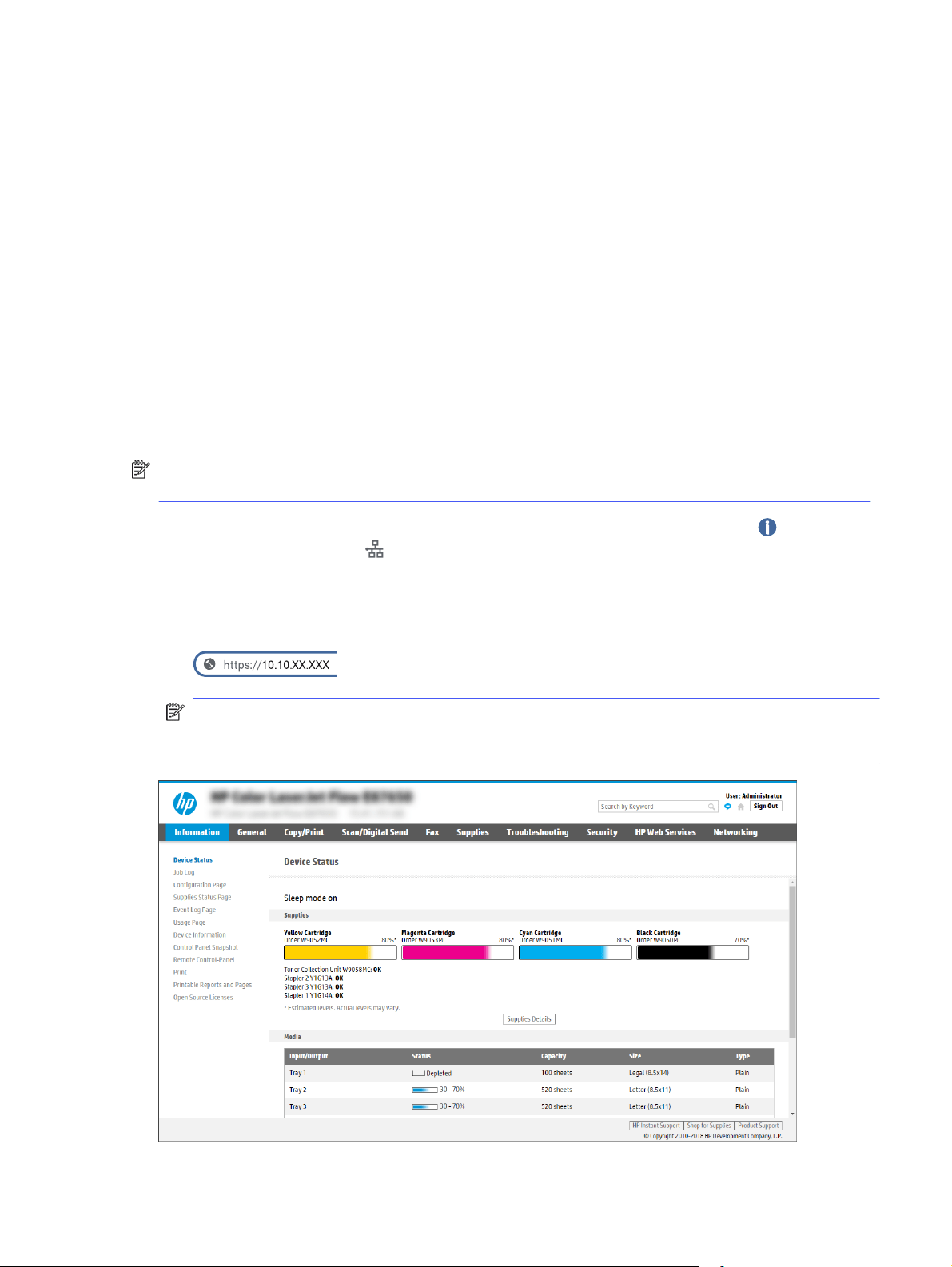
Introduction
Set up the Scan to SharePoint feature, and then scan documents directly to a SharePoint site.
Scan to SharePoint supports all scanning options, including the ability to scan documents as images
or use the OCR features to create text files or searchable PDFs.
The feature is disabled by default. Enable Save to Sharepoint in the HP Embedded Web Server
(EWS).
Before you begin
Before this procedure can be completed, the destination folder that the scanned files will be saved
to must exist on the SharePoint site, and write access must be enabled to the destination folder.
Scan to SharePoint is disabled by default.
Step one: Access the HP Embedded Web Server (EWS)
Open the EWS to start the setup process.
NOTE: The figure in this topic shows an EWS screen for a color printer. However, the procedure
below is valid for both color and mono printers.
1. From the Home screen on the printer control panel, touch the Information icon , and then
touch the Ethernet icon to display the IP address or host name.
2. Open a web browser, and in the address line, type the IP address or host name exactly as it
displays on the printer control panel. Press the Enter key on the computer keyboard. The EWS
opens.
NOTE: If the web browser displays a message indicating that accessing the website might not
be safe, select the option to continue to the website. Accessing this website will not harm the
computer.
Introduction
93

Step two: Enable Scan to SharePoint and create a Scan to SharePoint Quick
Set
Follow the steps to enable the Scan to SharePoint feature and create a Scan to SharePoint Quick
Set.
1. Using the top navigation tabs, click Scan/Digital Send.
2. In the left navigation pane, click Scan to SharePoint®.
NOTE: Quick Sets are shortcut jobs that can be accessed on the printer Home screen or
within the Quick Sets application.
3. Select Enable Scan to SharePoint®, and then click Apply.
4. In the Scan to SharePoint area of the left navigation pane, click Quick Sets. Click Add to launch
the Quick Set Wizard.
5. Enter a Quick Set Name (for example, “Scan to SharePoint”) and a Quick Set Description.
6. Select a Quick Set Start Option to determine what occurs after selecting a Quick Set on the
printer control panel, and then click Next.
7. Use the following steps to add the path to the SharePoint folder:
a. Click Add on the SharePoint Destination Settings page to open the Add SharePoint Path
page.
b. Open another browser window, navigate to the SharePoint folder to use, and then copy the
folder path for the SharePoint folder from that browser window.
c. Paste the SharePoint folder path into the SharePoint Path: field.
d. By default, the printer overwrites an existing file that has the same file name as the new
file. Clear Overwrite existing files so that a new file with the same name as an existing file
is given an updated time/date stamp.
e. Select an option from the Authentication Settings drop-down menu. Select whether it is
necessary to sign in to the SharePoint site with credentials, or store the credentials within
the Quick Set.
NOTE: Use credentials of user to connect after Sign In at the control panel is selected in
the Authentication Settings drop-down menu, the logged-in user must have permission to
write to the specified SharePoint site.
NOTE: For security purposes, the printer does not display credentials entered in the
Quick Set Wizard.
f. Click OK to complete the SharePoint path setup, and navigate back to the SharePoint
Destination Settings page.
8. Select Verify folder access prior to job start to ensure that the SharePoint folder specified
as the destination folder is accessible each time the Quick Set is used. If this option is not
selected, jobs can be saved to the SharePoint folder more quickly. However, if this option is not
selected
and
the SharePoint folder is inaccessible, the job will fail.
9. Click Next.
94
Chapter 6Scan

10. Set a Condition on Which to Notify on the Notification Settings page. This setting configures
the Quick Set to either not notify, or to send email messages or print a summary page if a job
either completes successfully or fails. Select one of the following options from the Condition on
Which to Notify drop-down menu:
● Select Do not notify for the Quick Set to not perform any notification action when a job
completes successfully or fails.
● Select Notify when job completes to for the Quick Set to send a notification when a job
completes successfully.
● Select Notify only if job fails to for the Quick Set to send a notification only when a job fails.
Selecting either Notify when job completes or Notify only if job fails requires the Method Used
to Deliver Notification: to be set. Select from the following options:
● Email: Use this option to send an email when the selected notification condition occurs. This
option requires a valid email address in the Notification Email Address: field.
NOTE: To use the email notification feature, first configure the email feature on the
printer.
● Print: Use this option to print the notification when the selected notification condition
occurs.
NOTE: Select Include Thumbnail for either notification option to include a thumbnail image
of the first page of the scanned page of the job.
11. Click Next.
12. Select options from the Scan Settings page, and then click Next. For more information, see
Table 6-12Scan settings for Scan to SharePoint on page 97.
13. Select options from the File Settings page, and then click Next. For more information, see Table
6-13File settings for Scan to SharePoint on page 97.
14. Review the summary of settings. Click Finish to save the Quick Set or click Previous to edit the
settings.
Scan a file directly to a SharePoint site
Follow the steps to scan a document directly to a SharePoint site.
1. Place the document face-down on the scanner glass, or place it face-up in the document feeder
and adjust the paper guides to fit the size of the document.
2. From the Home screen on the printer control panel, navigate to the Scan application, select the
Scan icon, and then select Scan to SharePoint®.
NOTE: It might be necessary to sign in to the printer to use this feature.
3. Under Quick Sets, touch Select, select a Quick Set, and then select Load.
4. Touch the File Name: text field to open a keyboard. Type the name for the file using either the
on-screen keyboard or the physical keyboard, and touch the Enter button .
5. Touch Options to view and configure settings for the document.
Scan a file directly to a SharePoint site
95

6. Touch the right pane of the screen to preview the document. In the preview screen, use the
buttons on the right of the screen to adjust the preview options and to rearrange, rotate, insert,
or remove pages.
Table 6-11 Buttons on the right side of the preview pane
Button Description
Use these buttons to toggle between single-page view and thumbnail view. More options are
available in thumbnail view than in single-page view.
Use these buttons to zoom in or out on the selected page.
NOTE: Select only one page at a time to use these buttons.
Use this button to rotate the page 180 degrees.
NOTE: This button is available only in the thumbnail view.
Use this button to delete the selected pages.
NOTE: This button is available only in the thumbnail view.
Use these buttons to rearrange the pages within the document. Select one or more pages
and move them to the left or right.
NOTE: These buttons are available only in the thumbnail view.
Use this button to add a page to the document. The printer prompts to scan additional pages.
Use this button to clear the changes made in the preview and start over.
Touch this button to collapse the preview screen and return to the Copy screen.
7. When the document is ready, select Send to save it to the SharePoint location.
96
Chapter 6Scan

Quick Set scan settings and options for Scan to SharePoint
Review the settings and options available in the Quick Set Wizard when adding, editing, or copying a
Scan to SharePoint Quick Set.
Table 6-12 Scan settings for Scan to SharePoint
Feature Description
Original Size Select the page size of the original document.
Original Sides Select whether the original document is single-sided or double-sided.
Optimize Text/Picture Select to optimize for the output of a particular type of content.
Content Orientation Select the way the content of the original document is placed on the page: Portrait or
Landscape.
Background Cleanup Select a value to remove faint images from the background or to remove a light
background color.
Darkness Select a value to adjust the darkness of the file.
Contrast Select a value to adjust the contrast of the file.
Sharpness Select a value to adjust the sharpness of the file.
Image Preview Select whether to require or make optional a displayed preview of the job or to disable a
preview.
Cropping Options Select whether or not to allow a job to be cropped and the type of cropping option.
Erase Edges Select this setting to specify the width of edge margins to be erased, in either inches or
millimeters, for the front side and back side of a job.
Table 6-13 File settings for Scan to SharePoint
Feature Description
File Name Prefix Set the default file name prefix used for files to be saved.
File Name Default file name for the file to be saved.
Select the User editable check box to make this setting editable at the printer control panel.
File Name Suffix Set the default file name suffix used for files to be saved.
Duplicate filename suffix default [filename]_YYYYMMDDT
File Name Preview Enter a file name, and then click the Update Preview button.
File Numbering Format Select a file name format for when the job is divided into multiple files.
Add numbering when job has
just one file (ex. _1–1)
Select this setting to add numbering to a file name when the job is only one file instead of
multiple files.
File Type Select the file format for the saved file.
Select the User editable check box to make this setting editable at the printer control panel.
High Compression (smaller
file)
Select this setting to compress the scanned file, which reduces the file size. However,
the scanning process for a High compression file might take longer than for a Normal
compression file.
Quick Set scan settings and options for Scan to SharePoint 97

Table 6-13 File settings for Scan to SharePoint (continued)
Feature Description
PDF encryption If the file type is PDF, then this option encrypts the output PDF file. A password must be
specified as part of the encryption. The same password must be used to open the file. The
user will be prompted to enter a password prior to scanning their job if one has not been
set prior to starting the scan.
Resolution Set the resolution for the file. Higher resolution images have more dots per inch (dpi), so
they show more detail. Lower resolution images have fewer dots per inch and show less
detail, but the file size is smaller.
Quality and File Size Select the quality for the file. Higher-quality images require a larger file size than lower-
quality images, and they take more time to send.
Color/Black Specify whether copies are to be printed in color, black and gray, or black only
Suppress blank pages If the Suppress blank pages option is enabled, blank pages will be ignored.
Create Multiple Files Select this setting to scan pages into separate files based on a predetermined maximum
number of pages per file.
Set up Scan to USB Drive
Enable the Scan to USB feature, which allows you to scan directly to a USB flash drive.
Introduction
The printer has a feature that enables it to scan a document and save it to a USB flash drive. The
feature is not available until it has been configured through the HP Embedded Web Server (EWS).
Step one: Access the HP Embedded Web Server (EWS)
Open the EWS to start the setup process.
NOTE: The figure in this topic shows an EWS screen for a color printer. However, the procedure
below is valid for both color and mono printers.
1. From the Home screen on the printer control panel, touch the Information icon , and then
touch the Ethernet icon to display the IP address or host name.
2. Open a web browser, and in the address line, type the IP address or host name exactly as it
displays on the printer control panel. Press the Enter key on the computer keyboard. The EWS
opens.
NOTE: If the web browser displays a message indicating that accessing the website might not
be safe, select the option to continue to the website. Accessing this website will not harm the
computer.
98
Chapter 6Scan
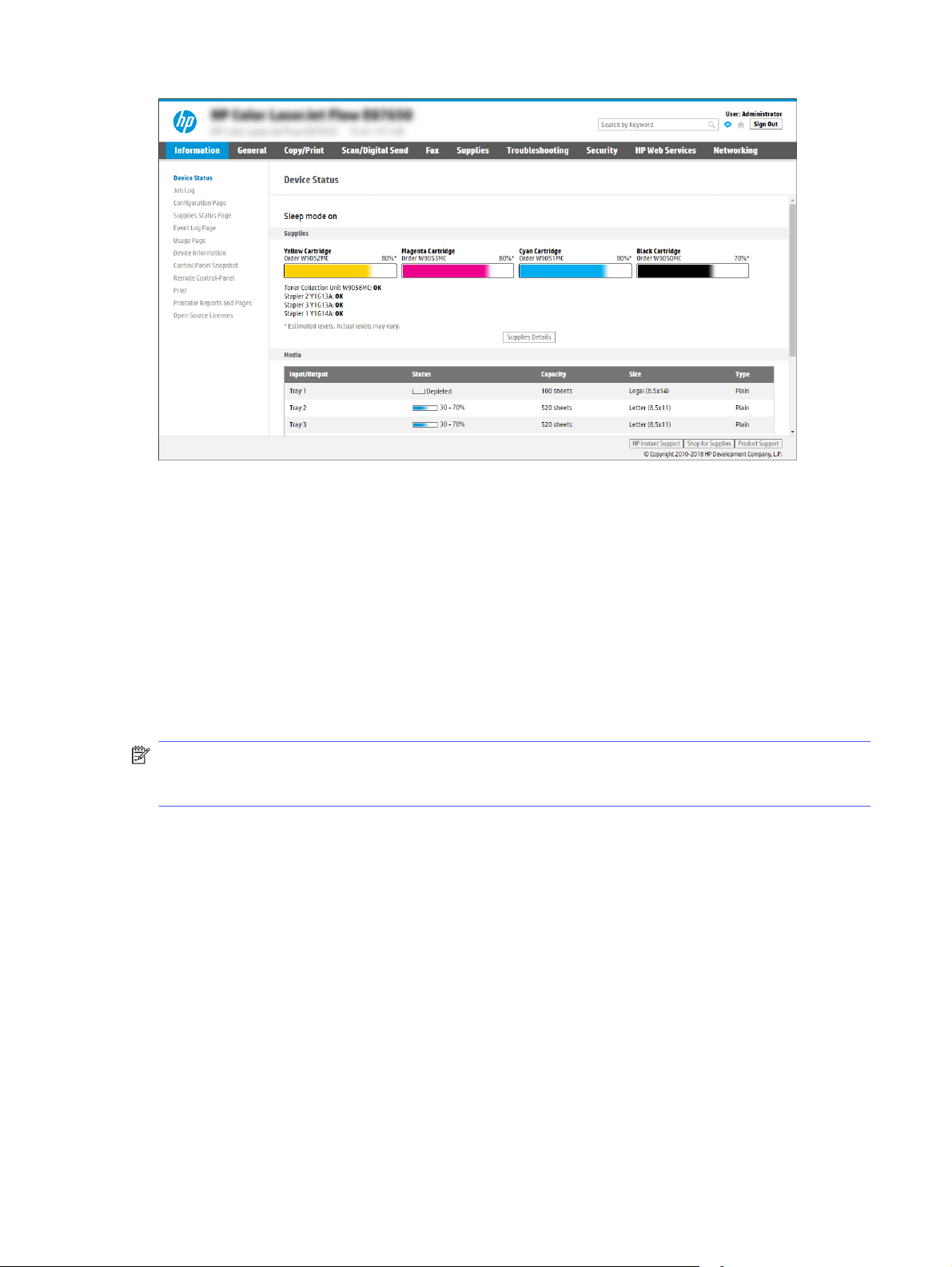
Step two: Enable Scan to USB Drive
Enable Scan to USB Drive using the following steps.
1. Select the Security tab.
2. Scroll to Hardware Ports and make sure that Enable Host USB plug and play is enabled.
3. Select the Scan/Digital Send tab and then click the Scan to USB Driver Settings option in the
left navigation pane.
4. Select the Enable Scan to USB Drive check box.
5. Click Apply at the bottom of the page.
NOTE: Most devices ship with hard disk drives (HDDs) already installed. In some cases, additional
storage devices can be added via USB. Verify whether the Save to USB feature needs to be
expanded to USB and hard drive.
Step three: Configure the Quick Sets (optional)
Use the following steps to set up Quick Sets for Scan to USB Drive. Quick Sets are shortcut jobs
that can be accessed on the printer Home screen or within the Quick Sets application.
1. In the Scan to USB Drive area of the left navigation pane, click Quick Sets.
2. Select one of the following options:
● Select an existing Quick Set under Quick Sets Application in the table.
-OR-
● Click Add to start the Quick Set Wizard.
3. If you clicked Add, the Quick Sets Setup page opens. Complete the following information:
a. Quick Set Name: Enter a title for the new Quick Set.
Step two: Enable Scan to USB Drive
99

b. Quick Set Description: Enter a description of the Quick Set.
c. Quick Set Start Option: To set how the Quick Set starts, click either Enter application, then
user presses Start or Start instantly when selected from the Home Screen.
4. Select a default location where scanned files are saved on USB storage devices inserted into
the USB port on the control panel, and then click Next. The default location options are:
● Save at root directory of the USB storage device.
● Create or place in this folder on the USB Storage Device — The path to the folder on the
USB storage device must be specified when using this file location option. A backslash \
must be used to separate folder\subfolder names in the path.
5. Select an option from the Condition on Which to Notify: drop-down list, and then click Next.
This setting determines if, or how, users are notified when a Save To USB Quick Set job
completes or fails. The options for the Condition on Which to Notify: setting are:
● Do not notify
● Notify when job completes
● Notify only if job fails
6. Choose the Scan Settings for the Quick Set, and then click Next.
NOTE: For more information on the available scan settings, see Default scan settings for Scan
to USB Drive setup on page 100
7. Choose the File Settings for the Quick Set, and then click Next.
NOTE: For more information on the available file settings, see Default scan settings for Scan
to USB Drive setup on page 100
8. Review the summary of settings, and then click Finish to save the Quick Set, or click Previous to
edit the settings.
Default scan settings for Scan to USB Drive setup
Review the default settings for Scan to USB Drive setup.
Table 6-14
Scan settings for Scan to USB Drive setup
Feature Description
Original Size Select the page size of the original document.
Original Sides Select whether the original document is single-sided or double-sided.
Optimize Text/Picture Select to optimize for the output of a particular type of content.
Content Orientation Select the way the content of the original document is placed on the page: Portrait or
Landscape.
Background Cleanup Select a value to remove faint images from the background or to remove a light
background color.
Darkness Select a value to adjust the darkness of the file.
Contrast Select a value to adjust the contrast of the file.
100 Chapter 6Scan

Table 6-14 Scan settings for Scan to USB Drive setup (continued)
Feature Description
Sharpness Select a value to adjust the sharpness of the file.
Image Preview Select whether to require or make optional a displayed preview of the job or to disable a
preview.
Cropping Options Select whether or not to allow a job to be cropped and the type of cropping option.
Erase Edges Select this setting to specify the width of edge margins to be erased, in either inches or
millimeters, for the front side and back side of a job.
Default file settings for Save to USB setup
Review the options for Save to USB setup.
Table 6-15 File settings for Save to USB setup
Option name Description
File Name Prefix Set the default file name prefix used for files saved to a network folder.
File Name Default file name for the file to be saved.
Select the User editable check box to make this setting editable at the printer control panel.
File Name Suffix Set the default file name suffix used for files saved to a network folder.
Duplicate filename suffix default [filename]_YYYYMMDDT
File Name Preview Enter a file name, and then click the Update Preview button.
File Numbering Format Select a file name format for when the job is divided into multiple files.
Add numbering when job has
just one file (ex. _1–1)
Select this setting to add numbering to a file name when the job is only one file instead of
multiple files.
File Type Select the file format for the saved file.
Select the User editable check box to make this setting editable at the printer control panel.
High Compression (smaller
file)
Select this setting to compress the scanned file, which reduces the file size. However,
the scanning process for a High compression file might take longer than for a Normal
compression file.
PDF encryption If the file type is PDF, then this option encrypts the output PDF file. A password must be
specified as part of the encryption. The same password must be used to open the file. The
user will be prompted to enter a password prior to scanning their job if one has not been
set prior to starting the scan.
Resolution Set the resolution for the file. Higher resolution images have more dots per inch (dpi), so
they show more detail. Lower resolution images have fewer dots per inch and show less
detail, but the file size is smaller.
Quality and File Size Select the quality for the file. Higher-quality images require a larger file size than lower-
quality images, and they take more time to send.
Color/Black Specify whether copies are to be printed in color, black and gray, or black only.
Suppress blank pages If the Suppress blank pages option is enabled, blank pages will be ignored.
Create Multiple Files Select this setting to scan pages into separate files based on a predetermined maximum
number of pages per file.
Default file settings for Save to USB setup 101

Scan to email
Scan a document directly to an email address or contact list. The scanned document is sent as an
email message attachment.
Introduction
The printer has a feature that enables it to scan a document and send it to one or more email
addresses.
Scan to email
Use the following steps to scan a document directly to an email address or contact list.
1. Place the document face-down on the scanner glass, or place it face-up in the document feeder
and adjust the paper guides to fit the size of the document.
2. From the Home screen on the printer control panel, navigate to the Scan application, select the
Scan icon, and then select Scan to Email.
NOTE: If prompted, type your user name and password.
3. Touch the To field to open a keyboard.
NOTE: If you are signed in to the printer, your user name or other default information might
appear in the From field. If so, you might not be able to change it.
4. Specify the recipients by using one of these methods:
● Use the keypad to enter the address in the To field.
To send to multiple addresses, separate the addresses with a semicolon, or select the
Enter button on the touchscreen keyboard after typing each address.
● Use a contact list as follows:
a. Select the Contacts button that is next to the To field to open the Contacts screen.
b. Select the appropriate contact list.
c. Select a name or names from the list of contacts to add to the recipients list, and then
select Add.
5. Complete the Subject, File Name, and Message fields by touching the field and using the
touchscreen keyboard to enter information. Select the Close button whenever you need to
close the keyboard.
6. To load a Quick Set, select Load, select the Quick Set, and then select Load under the Quick
Sets list.
NOTE: Quick Sets are predefined settings for various types of output, such as Text,
Photograph, and High Quality. You can select a Quick Set to view the description.
7. To configure settings, such as File Type and Resolution, Original Sides, and Content Orientation,
select Options in the lower left corner, and then select the settings from the Options menus.
Select Done if prompted.
102
Chapter 6Scan
8. Optional Preview: Touch the right pane of the screen to preview the document. You can use the
Expand and Collapse buttons on the left side of the preview pane to expand and collapse the
preview screen.
Table 6-16 Buttons on the left side of the preview pane
Button Description
Expand the preview screen.
Collapse the preview screen.
Use the buttons on the right of the screen to adjust the preview options and to rearrange,
rotate, insert, or remove pages.
Table 6-17 Buttons on the right side of the preview pane
Button Description
Use these buttons to toggle between single-page view and thumbnail view. More options are
available in thumbnail view than in single-page view.
Use these buttons to zoom in or out on the selected page.
NOTE: Select only one page at a time to use these buttons.
Use this button to rotate the page 180 degrees.
NOTE: This button is available only in the thumbnail view.
Use this button to delete the selected pages.
NOTE: This button is available only in the thumbnail view.
Scan to email 103
Table 6-17 Buttons on the right side of the preview pane (continued)
Button Description
Use these buttons to rearrange the pages within the document. Select one or more pages
and move them to the left or right.
NOTE: These buttons are available only in the thumbnail view.
Use this button to add a page to the document. The printer prompts to scan additional pages.
Use this button to clear the changes made in the preview and start over.
Touch this button to collapse the preview screen and return to the Copy screen.
9. When the document is ready, select Send to email it.
NOTE: The printer might prompt you to add the email address to the contact list.
Scan to job storage
Scan a document and save it to a job storage folder on the printer.
Introduction
The printer has a feature that enables it to scan a document and save it to a job storage folder on
the printer. You can retrieve the document from the printer and print it when needed.
NOTE: Before you can scan to a storage folder on the printer, your printer administrator or IT
department must use the HP Embedded Web Server to enable the feature and configure the
settings.
Scan to job storage on the printer
Use this procedure to scan a document and save it to a job storage folder on the printer so that you
can print copies at any time.
1. Place the document face-down on the scanner glass, or place it face-up in the document feeder
and adjust the paper guides to fit the size of the document.
2. From the Home screen on the printer control panel, navigate to the Scan application, select the
Scan icon, and then select Scan to Job Storage.
NOTE: If prompted, enter your user name and password.
104
Chapter 6Scan

3. Select the default storage folder name shown under Folder.
If the printer administrator has configured the option, you can create a new folder. Follow these
steps to create a new folder:
a. Select the New Folder icon .
b. Select the New Folder field, type the folder name, and then select OK.
4. Make sure that you have selected the correct folder.
5. Touch the Job Name text field to open a touchscreen keyboard, type the name for the file, and
then select the Enter button .
6. To make the job private, select the PIN button , enter a four-digit PIN in the PIN field, and then
close the touchscreen keypad.
7. To configure settings, such as Sides and Content Orientation, select Options in the lower left
corner, and then select the settings from the Options menus. Select Done for each setting if
prompted.
8. Optional Preview: Touch the right pane of the screen to preview the document. You can use the
Expand and Collapse buttons on the left side of the preview pane to expand and collapse the
preview screen.
Table 6-18
Buttons on the left side of the preview pane
Button Description
Expand the preview screen.
Collapse the preview screen.
Use the buttons on the right of the screen to adjust the preview options and to rearrange,
rotate, insert, or remove pages.
Table 6-19
Buttons on the right side of the preview pane
Button Description
Use these buttons to toggle between single-page view and thumbnail view. More options are
available in thumbnail view than in single-page view.
Scan to job storage on the printer 105

Table 6-19 Buttons on the right side of the preview pane (continued)
Button Description
Use these buttons to zoom in or out on the selected page.
NOTE: Select only one page at a time to use these buttons.
Use this button to rotate the page 180 degrees.
NOTE: This button is available only in the thumbnail view.
Use this button to delete the selected pages.
NOTE: This button is available only in the thumbnail view.
Use these buttons to rearrange the pages within the document. Select one or more pages
and move them to the left or right.
NOTE: These buttons are available only in the thumbnail view.
Use this button to add a page to the document. The printer prompts to scan additional pages.
Use this button to clear the changes made in the preview and start over.
Touch this button to collapse the preview screen and return to the Copy screen.
9. When the document is ready, select Save to save the file to the storage folder.
Print from job storage on the printer
Use this procedure to print a scanned document that is in a job storage folder on the printer.
1. From the Home screen on the printer control panel, navigate to the Print application, select the
Print icon, and then select Print from Job Storage.
2. Under Stored Jobs to Print, select Choose, select the folder in which the document is saved,
select the document, and then select Select.
3. If the document is private, enter the four-digit PIN in the Password field, and then select OK.
106
Chapter 6Scan

4. To adjust the number of copies, touch the box to the left of the Print button, and then select
the number of copies from the keypad that opens. Select the Close button to close the
keypad.
5. Select Print to print the document.
Scan to network folder
Scan a document and save it to a folder on the network.
Introduction
The printer can scan a file and save it in a shared folder on the network.
Scan to network folder
Use this procedure to scan a document and save it to a network folder.
NOTE: You might be required to sign in to the printer to use this feature.
1. Place the document face-down on the scanner glass, or place it face-up in the document feeder
and adjust the paper guides to fit the size of the document.
2. From the Home screen on the printer control panel, navigate to the Scan application, select the
Scan icon, and then select Scan to Network Folder.
3. Specify a folder destination. Folder options must first be configured by the printer
administrator.
● To select a folder location that the administrator already set up, select Load under Quick
Sets and Defaults, select the folder, and then select Load.
● To specify a new folder location, touch the Folder Paths field to open a touchscreen
keyboard, type the path to the folder, and then select the Enter button . Enter user
credentials if prompted and then select Save to save the path.
NOTE: Use this format for the path: \\server\folder, where “server” is the name of the
server that hosts the shared folder, and “folder” is the name of the shared folder. If the
folder is nested inside other folders, complete all necessary segments of the path to reach
the folder. For example:
\\server\folder\folder
NOTE: The Folder Paths field might have a pre-defined path, and it might not be editable.
In this situation, the administrator has configured this folder for common access.
4. Touch the File Name text field to open a touchscreen keyboard, type the name for the file, and
then select the Enter button .
5. To configure settings, such as File Type and Resolution, Original Sides, and Content Orientation,
select Options in the lower left corner, and then select the settings from the Options menus.
Select Done for each setting if prompted.
Scan to network folder
107
6. Optional Preview: Touch the right pane of the screen to preview the document. You can use the
Expand and Collapse buttons on the left side of the preview pane to expand and collapse the
preview screen.
Table 6-20 Buttons on the left side of the preview pane
Button Description
Expand the preview screen.
Collapse the preview screen.
Use the buttons on the right of the screen to adjust the preview options and to rearrange,
rotate, insert, or remove pages.
Table 6-21 Buttons on the right side of the preview pane
Button Description
Use these buttons to toggle between single-page view and thumbnail view. More options are
available in thumbnail view than in single-page view.
Use these buttons to zoom in or out on the selected page.
NOTE: Select only one page at a time to use these buttons.
Use this button to rotate the page 180 degrees.
NOTE: This button is available only in the thumbnail view.
Use this button to delete the selected pages.
NOTE: This button is available only in the thumbnail view.
108 Chapter 6Scan
Table 6-21 Buttons on the right side of the preview pane (continued)
Button Description
Use these buttons to rearrange the pages within the document. Select one or more pages
and move them to the left or right.
NOTE: These buttons are available only in the thumbnail view.
Use this button to add a page to the document. The printer prompts to scan additional pages.
Use this button to clear the changes made in the preview and start over.
Touch this button to collapse the preview screen and return to the Copy screen.
7. When the document is ready, select Send to save the file to the network folder.
Scan to SharePoint
Scan a document directly to a SharePoint site.
Introduction
If you have a workflow-equipped printer, you can scan a document and send it to a SharePoint site.
This feature eliminates the need to scan the documents to a network folder, USB flash drive, or
email message, and then manually upload the files to the SharePoint site.
Scan to SharePoint supports all scanning options, including the ability to scan documents as images
or use the OCR features to create text files or searchable PDFs.
NOTE: Before you can scan to SharePoint, your printer administrator or IT department must use
the HP Embedded Web Server to enable the feature and set it up.
Scan to SharePoint
Use the following steps to scan a document directly to a SharePoint site.
1. Place the document face-down on the scanner glass, or place it face-up in the document feeder
and adjust the paper guides to fit the size of the document.
2. From the Home screen on the printer control panel, navigate to the Scan application, select the
Scan icon, and then select Scan to SharePoint®.
NOTE: It might be necessary to sign in to the printer to use this feature.
3. Under Quick Sets, touch Select, select a Quick Set, and then select Load.
Scan to SharePoint
109
4. Select the File Name: text field to open a keyboard. Type the name for the file, and then select
the enter button .
5. To configure settings, such as File Type and Resolution, Sides, and Content Orientation, select
Options in the lower left corner, and then select the settings from the Options menus. Select
Done if prompted.
6. Optional Preview: Touch the right pane of the screen to preview the document. You can use the
Expand and Collapse buttons on the left side of the preview pane to expand and collapse the
preview screen.
Table 6-22 Buttons on the left side of the preview pane
Button Description
Expand the preview screen.
Collapse the preview screen.
Use the buttons on the right of the screen to adjust the preview options and to rearrange,
rotate, insert, or remove pages.
Table 6-23
Buttons on the right side of the preview pane
Button Description
Use these buttons to toggle between single-page view and thumbnail view. More options are
available in thumbnail view than in single-page view.
Use these buttons to zoom in or out on the selected page.
NOTE: Select only one page at a time to use these buttons.
Use this button to rotate the page 180 degrees.
NOTE: This button is available only in the thumbnail view.
110 Chapter 6Scan
Table 6-23 Buttons on the right side of the preview pane (continued)
Button Description
Use this button to delete the selected pages.
NOTE: This button is available only in the thumbnail view.
Use these buttons to rearrange the pages within the document. Select one or more pages
and move them to the left or right.
NOTE: These buttons are available only in the thumbnail view.
Use this button to add a page to the document. The printer prompts to scan additional pages.
Use this button to clear the changes made in the preview and start over.
Touch this button to collapse the preview screen and return to the Copy screen.
7. When the document is ready, select Send to save it to the SharePoint location.
Scan to USB drive
Scan a document directly to a USB drive.
Introduction
The printer can scan a file and save it to a USB flash drive.
Scan to USB drive
Use the following steps to scan a document directly to a USB drive.
NOTE: You might be required to sign in to the printer to use this feature.
1. Place the document face-down on the scanner glass, or place it face-up in the document feeder
and adjust the paper guides to fit the size of the document.
2. Insert the USB drive into the USB port near the printer control panel.
3. From the Home screen on the printer control panel, navigate to the Scan application, select the
Scan icon, and then select Scan to USB Drive.
4. Select the USB drive under Destination, and then select the save location (either the root of the
USB drive or an existing folder).
Scan to USB drive
111
5. Touch the File Name text field to open a touchscreen keyboard, type the name for the file, and
then select the Enter button .
6. To configure settings, such as File Type and Resolution, Original Sides, and Content Orientation,
select Options in the lower left corner, and then select the settings from the Options menus.
Select Done if prompted.
7. Optional Preview: Touch the right pane of the screen to preview the document. You can use the
Expand and Collapse buttons on the left side of the preview pane to expand and collapse the
preview screen.
Table 6-24 Buttons on the left side of the preview pane
Button Description
Expand the preview screen.
Collapse the preview screen.
Use the buttons on the right of the screen to adjust the preview options and to rearrange,
rotate, insert, or remove pages.
Table 6-25
Buttons on the right side of the preview pane
Button Description
Use these buttons to toggle between single-page view and thumbnail view. More options are
available in thumbnail view than in single-page view.
Use these buttons to zoom in or out on the selected page.
NOTE: Select only one page at a time to use these buttons.
Use this button to rotate the page 180 degrees.
NOTE: This button is available only in the thumbnail view.
112 Chapter 6Scan

Table 6-25 Buttons on the right side of the preview pane (continued)
Button Description
Use this button to delete the selected pages.
NOTE: This button is available only in the thumbnail view.
Use these buttons to rearrange the pages within the document. Select one or more pages
and move them to the left or right.
NOTE: These buttons are available only in the thumbnail view.
Use this button to add a page to the document. The printer prompts to scan additional pages.
Use this button to clear the changes made in the preview and start over.
Touch this button to collapse the preview screen and return to the Copy screen.
8. When the document is ready, select Save to save the file to the USB drive.
Use HP JetAdvantage business solutions
HP JetAdvantage solutions are workflow and printing solutions that are easy to use, and both
network- and cloud-based. HP JetAdvantage solutions are designed to help businesses of all types,
including healthcare, financial services, manufacturing, and public sector, manage a fleet of printers
and scanners.
HP JetAdvantage Solutions include:
● HP JetAdvantage Security solutions
● HP JetAdvantage Management solutions
● HP JetAdvantage Workflow solutions
● HP JetAdvantage Mobile Printing solutions
For more information about HP JetAdvantage business workflow and printing solutions, go to
www.hp.com/go/PrintSolutions.
Additional scan tasks
Locate information on the Web for performing common scan tasks.
Use HP JetAdvantage business solutions
113

Go to Support for HP Color LaserJet Enterprise MFP 5800.
Instructions are available for performing specific scan tasks, such as the following:
● Copy or scan pages from books or other bound documents
● Send a scanned document to a folder in the printer memory
● Copy or scan both sides of an identification card
● Copy or scan a document into a booklet format
114 Chapter 6Scan

Fax7
Configure the fax features, and send and receive faxes using the printer.
The following information is correct at the time of publication. For current information, see Support
for HP Color LaserJet Enterprise MFP 5800.
For more information:
HP's all-inclusive help for the printer includes the following information:
● Install and configure
● Learn and use
● Solve problems
● Download software and firmware updates
● Join support forums
● Find warranty and regulatory information
Set up fax
Set up the fax features for the printer.
Introduction
This information applies to fax and Flow models, or to other printers when an optional analog fax
accessory has been installed. Before continuing, connect the printer to a phone line (for analog fax)
or to an Internet or network fax service.
Set up fax by using the printer control panel
Configure the fax features using the control panel.
1. From the Home screen on the printer control panel, navigate to the Settings application, and
then select the Settings icon.
2. Open the following menus:
a. Fax
b. Internal Fax Modem Setup
NOTE: If the Internal Fax Modem Setup menu does not appear in the menu listing, LAN or
Internet fax might be enabled. When LAN or Internet fax is enabled, the analog fax
accessory is disabled and the Internal Fax Modem Setup menu does not display. Only one
fax feature, either LAN fax, analog fax, or Internet fax, can be enabled at a time. To use
analog fax when LAN fax is enabled, use the HP Embedded Web Server to disable LAN fax.
3. Select the location from the list on the right side of the screen, and then select Next.
Fax
115

4. Touch the Company Name text field, and use the keypad to type the company name.
5. Touch the Fax Number text field, and use the keypad to type the sending fax number. Select
Next.
6. Verify that the date and time settings are correct. Make changes as necessary, and then select
Next.
7. If a dialing prefix is required for sending faxes, touch the Dialing Prefix text field, and use the
keypad to enter the number.
8. Review all the information on the left pane, and then select Finish to complete the fax setup.
Change fax configurations
Change or update fax settings.
NOTE: The settings configured using the control panel override any settings made in the HP
Embedded Web Server.
Fax dialing settings
Use the following steps to change the fax dialing settings.
1. From the Home screen on the printer control panel, navigate to the Settings application, and
then select the Settings icon.
2. Open the following menus:
a. Fax
b. Fax Send Settings
c. Fax Dialing Settings
3. Configure any of the following settings, and then select Done.
Table 7-1
Fax dialing settings
Menu item Description
Redial on Error The Redial on Error feature sets the number of times a fax number will be
redialed when an error occurs during a fax transmission.
Redial on No Answer The Redial on No Answer setting selects the number of times the fax
accessory redials if the number dialed does not answer. The number of
retries is either 0 to 1 (used in the U.S.) or 0 to 2, depending on the location
setting. The interval between retries is set by the Redial Interval setting.
Redial on Busy The Redial on Busy setting selects the number of times (0 through 9) the fax
accessory redials a number when the number is busy. The interval between
retries is set by the Redial Interval setting.
116 Chapter 7Fax

Table 7-1 Fax dialing settings (continued)
Menu item Description
Redial Interval The Redial Interval setting selects the number of minutes between retries if
the number dialed is busy or not answering, or if an error occurs.
NOTE: You might observe a redial message on the control panel when both
the Redial on Busy and Redial on No Answer settings are set to off. This
occurs when the fax accessory dials a number, establishes a connection, and
then loses the connection. As a result of this error condition, the fax
accessory performs three automatic redial attempts regardless of the redial
settings. During this redial operation, a message displays on the control
panel to indicate that a redial is in progress.
Fax Send Speed The Fax Send Speed setting sets the modem bit rate (measured in bits per
second) of the Analog Fax modem while sending a fax.
● Fast (v.34 – 33.6k)
●
Medium (v.17 – 14.4k)
●
Slow (v.29 – 9.6k)
Line Monitor Volume Use the Line Monitor Volume setting to control the printer's dialing volume
level when sending faxes.
Dialing Mode The Dialing Mode setting sets the type of dialing that is used: either tone
(touch-tone phones) or pulse (rotary-dial phones).
Dialing Prefix The Dialing Prefix setting allows you to enter a prefix number (such as a "9"
to access an outside line) when dialing. This prefix number is automatically
added to all phone numbers when dialed.
Detect Dial Tone The Detect Dial Tone setting determines whether the fax checks for a dial
tone before sending a fax.
General fax send settings
Use the following steps to change the fax send settings.
1. From the Home screen on the printer control panel, navigate to the Settings application, and
then select the Settings icon.
2. Open the following menus:
a. Fax
b. Fax Send Settings
c. General Fax Send Settings
3. Configure any of the following settings, and then select Done.
Table 7-2
Fax send settings
Menu item Description
Fax Number Confirmation When the Fax Number Confirmation feature is enabled, the fax number must
be entered twice to ensure that it was entered correctly. The feature is
disabled by default.
PC Fax Send Use the PC Fax Send feature to send faxes from a PC. This feature is
enabled by default.
General fax send settings 117

Table 7-2 Fax send settings (continued)
Menu item Description
Error Correction Mode Normally, the fax accessory monitors the signals on the telephone line
while it is sending or receiving a fax. If the fax accessory detects an error
during the transmission and the Error Correction Mode setting is on, the fax
accessory can request that the error portion of the fax be sent again.
The Error Correction Mode feature is enabled by default. You should turn
it off only if you are having trouble sending or receiving a fax and if you
are willing to accept the errors in the transmission and a probable quality
reduction in the image. Turning off the setting might be useful when you are
trying to send a fax overseas or receive one from overseas, or if you are
using a satellite telephone connection.
NOTE: Some VoIP providers might suggest turning off the Error Correction
Mode setting. However, this is not usually necessary.
Fax Header Use the Fax Header feature to control whether the header is appended to
the top, and content is shifted down, or if the header is overlaid on top of the
previous header.
Fax receive settings
Use the following steps to change the fax receive settings.
1. From the Home screen on the printer control panel, navigate to the Settings application, and
then select the Settings icon.
2. Open the following menus:
a. Fax
b. Fax Receive Settings
c. Fax Receive Setup
3. Configure any of the following settings, and then select Done.
Table 7-3
Fax receive settings
Menu item Description
Receive Mode The Receive Mode setting determines how the fax accessory receives fax
jobs. Select one of the following options:
● Automatic
●
TAM
●
Fax/Tel
●
Manual
Rings to Answer The Rings to Answer setting determines the number of times the phone rings
before the call is answered by the fax accessory.
NOTE: The default range for the available options for the Rings to Answer
setting is location-specific. The range of possible Rings to Answer options is
limited by location.
If the fax accessory is not answering, and the Rings to Answer setting is 1,
try increasing it to 2.
Ring Volume The Ring Volume setting allows you to adjust the ringer volume.
118 Chapter 7Fax

Table 7-3 Fax receive settings (continued)
Menu item Description
Fax Receive Speed Touch the Fax Receive Speed drop-down menu and select one of the
following options:
● Fast (v.34 – 33.6k)
●
Medium (v.17 – 14.4k)
●
Slow (v.29 – 9.6k)
Extension Phone This setting allows you use a separate telephone in conjunction with the fax
functions.
Allow Reprinting This setting allows you to reprint received faxes.
Receive to PC This setting allows you to receive faxes directly to your computer.
Fax Polling This setting allows you to enable or disable the fax polling function.
Fax/Tel Ring Time This setting determines the number of times the phone rings before the
fax/tel mode initiates.
Send a fax
Use the following steps to send a fax from the printer.
1. Place the document face-down on the scanner glass, or place it face-up in the document feeder
and adjust the paper guides to fit the size of the document.
2. From the Home screen on the printer control panel, navigate to the Fax application, and then
select the Fax icon. You might be prompted to type a user name and password.
3. Specify the recipients using one of these methods:
● Use the keypad to enter the recipient or recipients.
Touch the Fax Recipients text field, and then use the keypad to enter the fax number. To
send to multiple fax numbers, separate the numbers with a semicolon, or select the Enter
button on the touchscreen keyboard after typing each number.
● Use a contact list as follows:
a. Select the Contacts button that is next to the Fax Recipients field to open the
Contacts screen.
b. Select the appropriate contact list.
c. Select a name or names from the list of contacts to add to the recipients list, and then
select Add.
4. To load a Quick Set, select Load, select the Quick Set, and then select Load under the Quick
Sets list.
NOTE: Quick Sets are predefined settings for various types of output, such as Text,
Photograph, and High Quality. You can select a Quick Set to view the description.
Send a fax
119
5. To configure settings, such as Resolution, Sides, and Content Orientation, select Options in
the lower left corner, and then select the settings from the Options menus. Select Done if
prompted.
6. Optional Preview: Touch the right pane of the screen to preview the document. You can use the
Expand and Collapse buttons on the left side of the preview pane to expand and collapse the
preview screen.
Table 7-4 Buttons on the left side of the preview pane
Button Description
Expand the preview screen.
Collapse the preview screen.
Use the buttons on the right of the screen to adjust the preview options and to rearrange,
rotate, insert, or remove pages.
Table 7-5
Buttons on the right side of the preview pane
Button Description
Use these buttons to toggle between single-page view and thumbnail view. More options are
available in thumbnail view than in single-page view.
Use these buttons to zoom in or out on the selected page.
NOTE: Select only one page at a time to use these buttons.
Use this button to rotate the page 180 degrees.
NOTE: This button is available only in the thumbnail view.
Use this button to delete the selected pages.
NOTE: This button is available only in the thumbnail view.
120 Chapter 7Fax
Table 7-5 Buttons on the right side of the preview pane (continued)
Button Description
Use these buttons to rearrange the pages within the document. Select one or more pages
and move them to the left or right.
NOTE: These buttons are available only in the thumbnail view.
Use this button to add a page to the document. The printer prompts to scan additional pages.
Use this button to clear the changes made in the preview and start over.
Touch this button to collapse the preview screen and return to the Copy screen.
7. When the document is ready, select Send to send the fax.
Create a fax printing schedule
Faxes print automatically upon receipt, but they can also be stored and printed on a schedule that
you determine. After you create the schedule, you can enable or disable the schedule as needed.
1. From the Home screen on the printer control panel, navigate to the Settings application, and
then select the Settings icon.
2. Open the following menus:
a. Fax
b. Fax Receive Settings
c. Fax Printing Schedule
3. Under Incoming Fax Options, select Use Schedule.
4. Select New Event.
5. Select an option under Event Type.
● Begin Printing
● Begin Storing
6. Choose a time and the day. You can select multiple days.
7. Select Save. To add another event, repeat steps 4 – 6.
8. Select Done to enable the fax printing schedule.
Create a fax printing schedule
121

Block incoming faxes
Use the fax block list setting to create a list of blocked phone numbers. When a fax is received from
a blocked phone number, the fax is not printed and is immediately deleted from memory.
Create a list of blocked fax numbers
Use the following steps to create the list of fax numbers to block.
1. From the Home screen on the printer control panel, navigate to the Settings application, and
then select the Settings icon.
2. Open the following menus:
a. Fax
b. Fax Receive Settings
c. Blocked Fax Numbers
3. Use one of the following options to add a number to the list:
● Select Add Last Sender.
● Select the New Fax Number field, type the number on the keypad that appears, and then
select the Enter button . To add additional numbers, type the number and select the
Enter button .
4. Select Done.
Delete numbers from the list of blocked fax numbers
Use the following steps to remove numbers from the list of blocked fax numbers.
1. From the Home screen on the printer control panel, navigate to the Settings application, and
then select the Settings icon.
2. Open the following menus:
a. Fax
b. Fax Receive Settings
c. Blocked Fax Numbers
3. Select one or more existing fax numbers in the list, or select Select All if you want to remove all
the numbers.
4. Select the Trash button , and then select Delete on the confirmation prompt.
Additional fax tasks
Locate information on the Web for performing common fax tasks.
Go to Support for HP Color LaserJet Enterprise MFP 5800.
Instructions are available for fax tasks, such as the following:
122
Chapter 7Fax

● Create and manage fax speed dial lists
● Configure fax billing codes
● Use a fax printing schedule
● Block incoming faxes
● Fax archiving and forwarding
Additional fax tasks 123

Manage the printer8
Utilize management tools, configure security and energy-conservation settings, and manage
firmware updates for the printer.
The following information is correct at the time of publication. For current information, see Support
for HP Color LaserJet Enterprise MFP 5800.
For more information:
HP's all-inclusive help for the printer includes the following information:
● Install and configure
● Learn and use
● Solve problems
● Download software and firmware updates
● Join support forums
● Find warranty and regulatory information
Advanced configuration with the HP Embedded Web Server
(EWS)
Use the HP Embedded Web Server to manage advanced printing functions.
Introduction
Use the HP Embedded Web Server to manage printing functions from a computer instead of the
printer control panel.
● View printer status information
● Determine the remaining life for all supplies and order new ones
● View and change tray configurations
● View and change the printer control-panel menu configuration
● View and print internal pages
● Receive notification of printer and supplies events
● View and change network configuration
The HP Embedded Web Server works when the printer is connected to an IP-based network. The
HPEmbedded Web Server does not support IPX-based printer connections. Internet access is not
needed to open and use the HPEmbedded Web Server.
124
Chapter 8Manage the printer
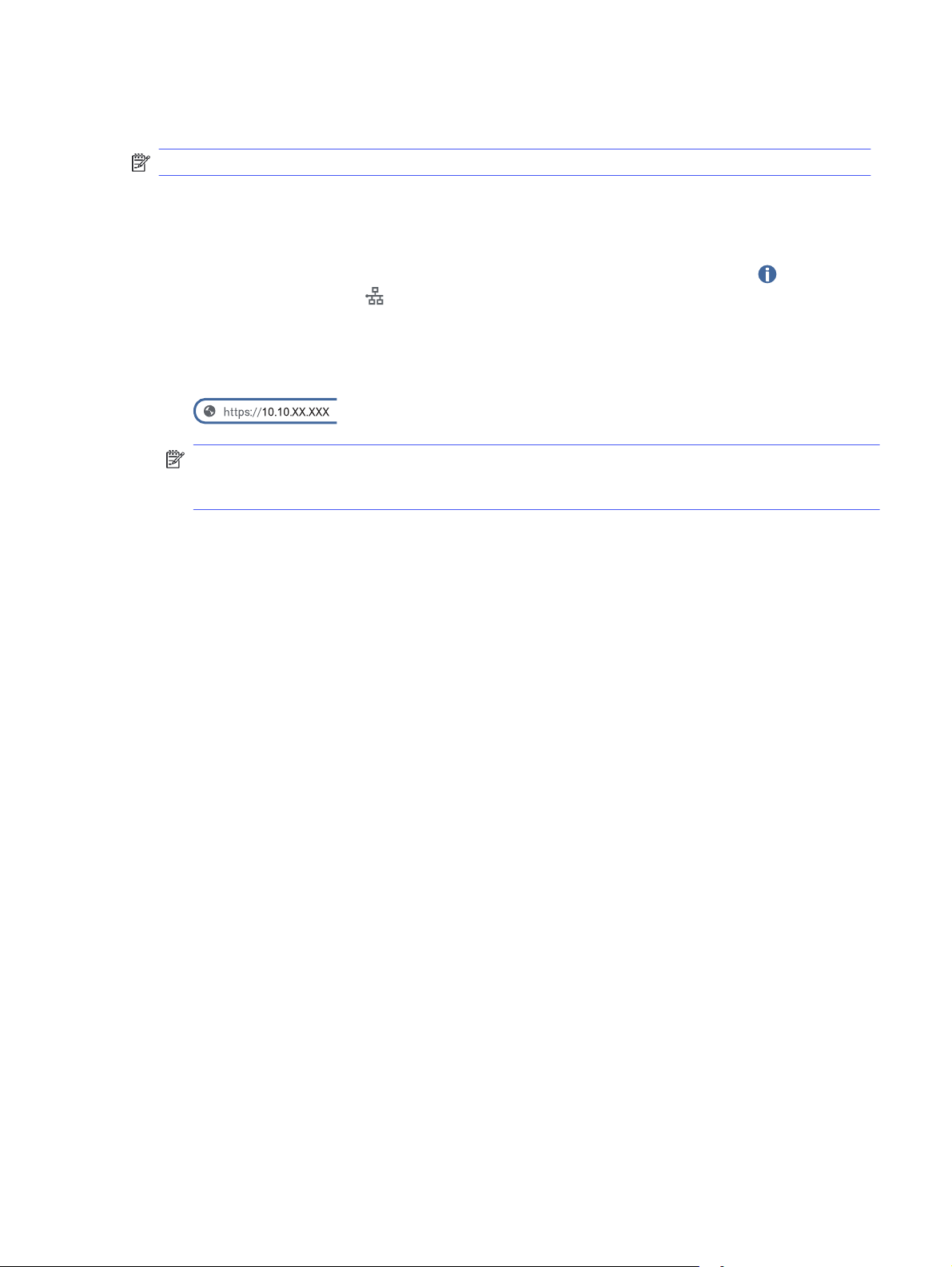
When the printer is connected to the network, the HP Embedded Web Server is automatically
available.
NOTE: The HP Embedded Web Server is not accessible beyond the network firewall.
How to access the HP Embedded Web Server (EWS)
Use the following steps to open the Embedded Web Server.
1. From the Home screen on the printer control panel, touch the Information icon , and then
touch the Ethernet icon to display the IP address or host name.
2. Open a web browser, and in the address line, type the IP address or host name exactly as it
displays on the printer control panel. Press the Enter key on the computer keyboard. The EWS
web page opens.
NOTE: If the web browser displays a message indicating that accessing the website might not
be safe, select the option to continue to the website. Accessing this website will not harm the
computer.
To use the HP Embedded Web Server, the browser must meet the following requirements:
Windows® 7
● Internet Explorer (version 8.x or greater)
● Google Chrome (version 34.x or greater)
● Firefox (version 20.x or greater)
Windows® 8 or greater
● Internet Explorer (version 9.x or greater)
● Google Chrome (version 34.x or greater)
● Firefox (version 20.x or greater)
Windows 10 or greater
● Microsoft Edge (version 93 or greater)
● Internet Explorer (version 9.x or greater)
● Google Chrome (version 34.x or greater)
● Firefox (version 20.x or greater)
macOS
● Safari (version 5.x or greater)
● Google Chrome (version 34.x or greater)
Linux
How to access the HP Embedded Web Server (EWS)
125
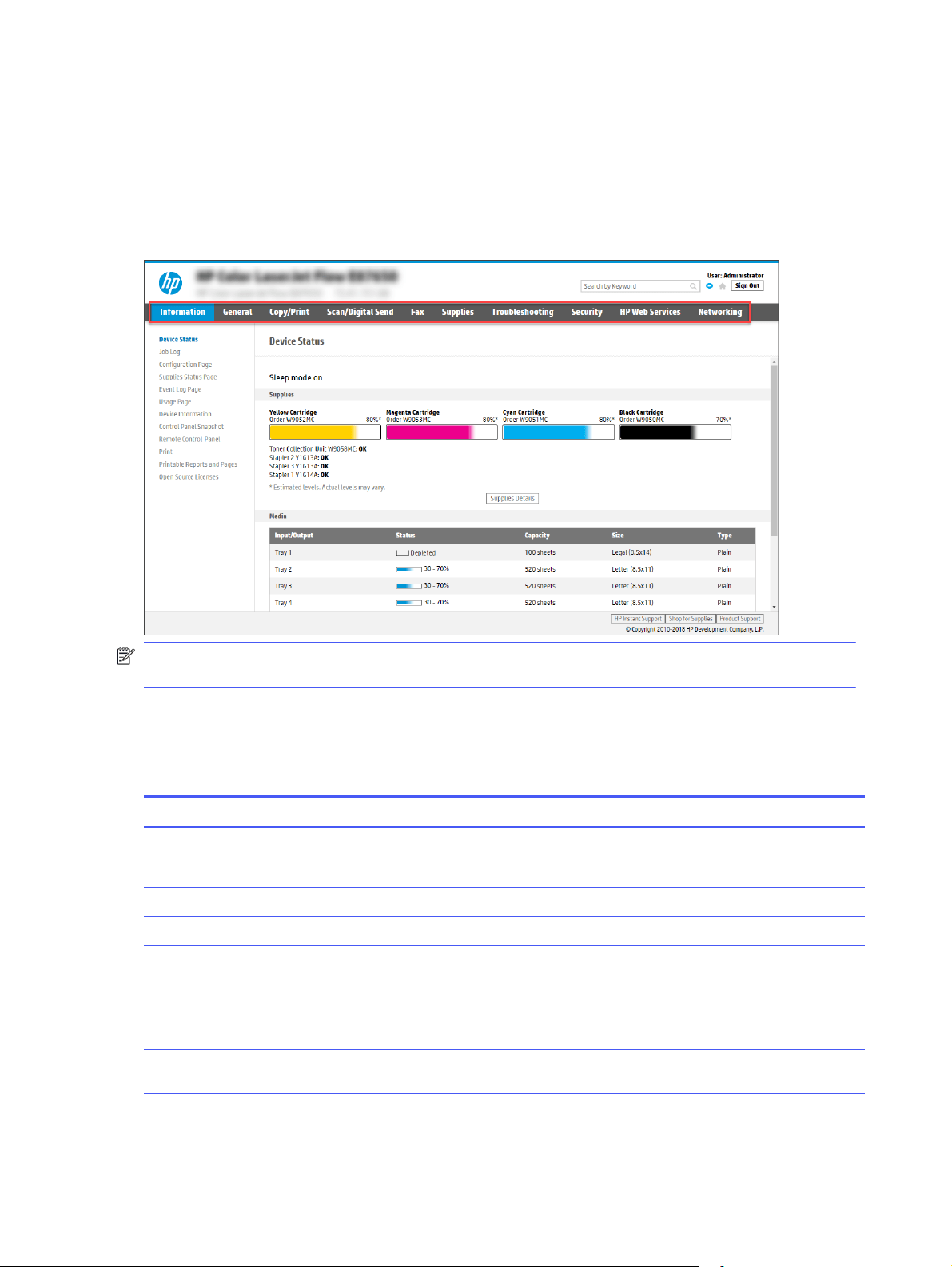
● Google Chrome (version 34.x or greater)
● Firefox (version 20.x or greater)
HPEmbedded Web Server features
Learn about the HP Embedded Web Server (EWS) features available on each tab.
Figure 8-1 EWS Tabs
NOTE: Copy/Print, Scan/Digital Send, and Fax tabs only appear for multi-function printers (MFPs).
A Print tab appears for single-function printers (SFPs).
Information
tab
Refer to the table for settings in the Information tab.
Table 8-1
HPEmbedded Web Server Information tab
Menu Description
Device Status Shows the printer status and shows the estimated life remaining of HPsupplies.
The page also shows the type and size of paper set for each tray. To change the
default settings, click the Change Settings link.
Job Log Provides a list of the jobs that have been processed.
Configuration Page Shows the information found on the configuration page.
Supplies Status Page Shows the status of the supplies for the printer.
Event Log Page Shows a list of all printer events and errors. Use the HP Instant Support link
(in the Other Links area on all HPEmbedded Web Server pages) to connect to
a set of dynamic web pages that help solve problems. These pages also show
additional services available for the printer.
Usage Page Shows a summary of the number of pages the printer has printed, grouped by
size, type, and paper print path.
Device Information Shows the printer network name, address, and model information. To customize
these entries, click the Device Information menu on the General tab.
126 Chapter 8Manage the printer

Table 8-1 HPEmbedded Web Server Information tab (continued)
Menu Description
Control Panel Snapshot Shows an image of the current screen on the control panel display.
Remote Control-Panel Provides a way to troubleshoot or manage the printer from a browser window on
a desktop or laptop.
Print Allows the user to send a print-ready file to the printer to be printed.
Printable Reports and Pages Lists the internal reports and pages for the printer. Select one or more items to
print.
Open Source Licenses Shows a summary of the licenses for open source software programs that can
be used with the printer.
General tab
Refer to the table for settings in the
General tab.
Table 8-2 HPEmbedded Web Server General tab
Menu Description
Control Panel Customization Reorder, show, or hide features on the control-panel display.
Change the default display language and keyboard layouts.
Quick Sets Configure jobs that are available in the Quick Sets area of the Home screen on
the printer control panel.
Alerts Set up email alerts for various printer and supplies events.
Control Panel Settings App Shows the Settings app options that are available on the printer control panel.
General Settings Configure how the printer recovers from jams and other general printer settings.
Edit Other Links Add or customize a link to another website. This link displays in the footer area
on all HPEmbedded Web Server pages.
Ordering Information Enter information about ordering replacement toner cartridges. This information
displays on the supplies status page.
Device Information Name the printer and assign an asset number to it. Enter the name of the
primary contact who will receive information about the printer.
Language Set the language in which to display the HPEmbedded Web Server information.
Firmware Upgrade Download and install printer firmware upgrade files.
Date/Time Settings Set the date and time or synchronize with a network time server.
Energy Settings Set or edit a wake time, sleep time, and sleep delay for the printer. Set a different
schedule for each day of the week and for holidays.
Set which interactions with the printer cause it to wake from sleep mode.
Import/Export Provides import and export functionality for Home Screen settings, Quick Sets,
Contacts (Address Books), accounts and permissions, job apps, and other items.
The exported .zip file contains one or more .xml settings files or an editable .csv
file (containing user accounts or contacts). The file can be imported to other
HP products. Import a previously exported .zip file to transfer settings, user
accounts, or contacts.
General tab 127

Table 8-2 HPEmbedded Web Server General tab (continued)
Menu Description
Back up and Restore Create a backup file that contains printer and user data. If necessary, use this
file to restore data to the printer.
Reset Factory Settings Restore printer settings to the factory defaults.
Solution Installer Install or remove third-party software packages that extend or modify the
functionality of the printer.
Job Statistics Settings Provides connection information about third-party job-statistics services, or
enables local serverless device job accounting.
Quota Settings Provides connection information about third-party job-quota services, or enables
local device quota service.
Other Links list
Configure which links display in the footer of the HPEmbedded Web Server by using the
Edit Other
Links menu on the General tab.
NOTE: The following are the default links.
Table 8-3 HPEmbedded Web Server Other Links list
Menu Description
HP Instant Support Connect to the HP website to find solutions to printer problems.
Shop for Supplies Connect to the HP website for information on purchasing original HP supplies,
such as cartridges and paper.
Product Support Connect to the support site for the printer to search for help on various topics.
Copy/Print tab
Refer to the table for settings in the Copy/Print tab.
Table 8-4
HP Embedded Web Server Copy/Print tab
Menu Description
Print from USB Drive Settings Enable or disable the Print from USB Drive menu on the control panel.
Manage Stored Jobs Enable or disable the ability to store jobs in the printer memory.
Configure job-storage options.
Default Print Options Configure the default options for print jobs.
Restrict Color
(Color printers only)
Permit or restrict color printing and copying.
Specify permissions for individual users or for jobs that are sent from specific
software programs.
PCL and PostScript Settings Adjust the PCL and PostScript settings for all print jobs, including copy jobs and
received faxes.
Print Quality Configure the print quality settings, including color adjustment, image
registration, and allowed paper types.
128 Chapter 8Manage the printer

Table 8-4 HP Embedded Web Server Copy/Print tab (continued)
Menu Description
Copy Settings Configure the default options and Quick Sets for copy jobs.
NOTE: If job-specific copy setting options are not set from the control panel at
the start of a job, the default settings will be used for the job.
Expert Copy Enable or disable Expert Copy and set the initial copy view.
The Expert Copy feature is available only on some HP MFPs with larger control
panels, and is available in FutureSmart 4 firmware 24.7.3 release or later.
Manage Trays Configure settings for paper trays.
Manage Stapler/Stacker Configure settings for the stapler/stacker for printers that have this feature.
Scan/Digital Send tab
Refer to the table for settings in the
Scan/Digital Send tab.
Table 8-5 HP Embedded Web Server Scan/Digital Send tab
Menu Description
Scan to Email Setup Configure the default email settings for digital sending, including the following:
● Settings for the outgoing mail (SMTP) server
● Settings for Email Quick Sets jobs
● Default message settings, such as the "From" address and the subject line
● Settings for digital signatures and encryption
● Settings for email notifications
● Default scan settings for email jobs
● Default file settings for email jobs
Scan to Network Folder
Configure the network folder settings for digital sending, including the following:
● Settings for Quick Sets jobs saved in a network folder
● Settings for notifications
● Default scan settings for jobs saved in a network folder
● Default file settings for jobs saved in a network folder
Scan to SharePoint® Configure the SharePoint settings for digital sending, including the following:
● Settings for Quick Sets jobs saved in a document library on the SharePoint
site
● Default settings for jobs saved in a document library on the SharePoint site
Scan/Digital Send tab 129

Table 8-5 HP Embedded Web Server Scan/Digital Send tab (continued)
Menu Description
Scan to USB Drive Configure the USB settings for digital sending, including the following:
● Settings for Quick Sets jobs saved on a USB flash drive
● Settings for notifications
● Default scan settings for jobs saved on a USB flash drive
● Default file settings for jobs saved on a USB flash drive
Contacts Manage contacts, including the following:
● Add email addresses into the printer one at a time.
● Import a large list of frequently-used email addresses on to the printer all at
once, rather than adding them one at a time.
● Export contacts from the printer into a .CSV file on the computer to use as a
data backup, or import the records onto another HP printer.
● Edit email addresses that have already been saved in the printer.
Preferences Manage general scanning settings.
Email and Scan to Network Folder
Quick Setup Wizards
Configure the printer to send scanned images as email attachments.
Configure the printer to save scanned images to network-folder Quick Sets.
Quick Sets provide easy access to files saved on the network.
Digital Sending Software Setup Configure settings related to using optional Digital Sending software.
Fax tab
Refer to the table for settings in the Fax tab.
Table 8-6
HP Embedded Web Server Fax tab
Menu Description
Fax Send Setup Configure settings for sending faxes, including the following:
● Default settings for outgoing faxes
● Settings for fax Quick Sets jobs
● Settings for notifications
● Default setting for sending faxes using the internal fax modem
● Settings for using a LAN fax service
● Settings for using an Internet fax service
Fax Speed Dials Manage speed dials, including the following:
● Import .CSV files containing email addresses, fax numbers, or user records,
so that they can be accessed on this printer.
● Export email, fax, or user records from the printer into a file on the computer
to use as a data backup, or import the records onto another HP printer.
Fax Receive Setup Configure default print options for incoming faxes, and set up a fax printing
schedule.
130 Chapter 8Manage the printer

Table 8-6 HP Embedded Web Server Fax tab (continued)
Menu Description
Fax Archive and Forwarding Enable or disable fax archiving and fax forwarding, and configure basic settings
for each:
● Fax archiving is a method to send a copy of all incoming and outgoing faxes
to an email address, a network folder, or an FTP server.
● Fax forwarding is a method to forward incoming faxes to a different fax
device.
Fax Activity Log Contains a list of the faxes that have been sent from or received by this printer.
Supplies tab
Refer to the table for settings in the
Supplies tab.
Table 8-7 HP Embedded Web Server Supplies tab
Menu Description
Manage Supplies Configure how the printer reacts when supplies reach a Very Low state.
Troubleshooting tab
Refer to the table for settings in the Troubleshooting tab.
Table 8-8
HPEmbedded Web Server Troubleshooting tab
Menu Description
General Troubleshooting Use the following options as appropriate:
● Reports and Tests area: Select and print several types of reports and tests.
Some reports can be viewed in the EWS by clicking the View button.
● Fax Tools area: Configure settings for fax troubleshooting. (MFP and Digital
Sender products with HP analog fax accessory only)
● OXPd Troubleshooting area: Enable or disable the Allow a Non-Secure
Connection for Web Services option
● Auto Recovery area: Enable or disable the Enable Auto Recovery option,
which allows the printer to auto recover from errors that might require the
power to be turned off and on (for example, a 49 error).
Online Help Link to HP cloud-based online help to assist in troubleshooting printing issues.
Diagnostic Data
NOTE: This item is available only if an
administrator password is set from the
Security tab.
Export printer information to a file that can be useful for HP technical support to
use for detailed problem analysis.
Calibration/Cleaning Enable the automatic cleaning feature, create and print the cleaning page, and
select an option to calibrate the printer immediately.
Reset Factory Settings Restore printer settings to factory defaults.
Firmware Upgrade Download and install printer firmware upgrade files.
Scheduled Restart Restart the printer at the frequency or time specified.
Supplies tab 131

Security tab
Refer to the table for settings in the Security tab.
Table 8-9 HP Embedded Web Server Security tab
Menu Description
General Security Settings for general security, including the following:
● Configure an administrator password to restrict access to certain features
on the printer.
● Set a custom device Service Access Code.
● Set PJL password for processing PJL commands.
● Set file system access and firmware upgrade security.
● Enable or disable the Host USB port on the control panel or the USB
connectivity port on the formatter for printing directly from a computer.
● View the status of all security settings.
Account Policy
Enable administrator account settings.
Access Control Configure access to printer functions for specific individuals or groups, and
select the method individuals use to sign in to the printer.
Protect Stored Data Configure and manage the internal storage for the printer.
Configure settings for jobs that are stored on the printer internal storage.
Manage Remote Apps Manage or whitelist remote apps by importing or deleting certificates that allow
devices to use this product.
Certificate Management Install and manage security certificates for access to the printer and the
network.
Email Domain Restriction If email functionality is enabled, administrators can limit the email addresses to
which the printer can send messages.
Security Log Export security event log data to a file that can be used for detailed problem
analysis.
Web Service Security Allow resources on this printer to be accessed by web pages from different
domains. If no sites are added to the list, then all sites are trusted.
Self Test Verify that the security functions are running according to expected system
parameters.
HP Web Services tab
Use the HP Web Services tab to configure and enable HPWeb Services for this printer. It is
necessary to Enable HPWeb Services to use the HPePrint feature.
Table 8-10
HP Embedded Web Server HP Web Services tab
Menu Description
Web Services Setup Connect this printer to HP Connected on the web by enabling HP Web Services.
Web Proxy Configure a proxy server if there are issues enabling HP Web Services or
connecting the printer to the Internet.
HP JetAdvantage Access solutions that extend the capabilities of the printer
132 Chapter 8Manage the printer

Table 8-10 HP Embedded Web Server HP Web Services tab (continued)
Menu Description
Smart Cloud Print Enable Smart Cloud Print, which allows access to web-based apps that extend
the capabilities of the printer.
Networking tab
Use the Networking tab to configure and secure network settings for the printer when it is
connected to an IP-based network. This tab does not display if the printer is connected to other
types of networks.
Table 8-11 HP Embedded Web Server Networking tab > Configuration settings
Menu Description
Wireless Station Configure the initial wireless settings.
NOTE: The configuration options available depend on the print server model.
Wi-Fi Direct Configure Wi-Fi Direct settings for printers that include embedded Wi-Fi Direct
Print and NFC printing or that have a wireless accessory installed.
NOTE: The configuration options available depend on the print server model.
TCP/IP Settings Configure TCP/IP settings for IPv4 and IPv6 networks.
NOTE: The configuration options available depend on the print server model.
Network Settings Configure IPX/SPX, AppleTalk, DLC/LLC, and SNMP settings, depending on the
print server model.
Other Settings Configure general printing protocols and services supported by the print server.
The available options depend on the print server model, but can include firmware
update, LPD queues, USB settings, support information, and refresh rate.
AirPrint Enable, set up, or disable network printing from Apple-supported printers.
Select Language Change the language displayed by the HP Embedded Web Server. This
page displays if the web pages support multiple languages. Optionally, select
supported languages through language-preference settings in the browser.
Select Location Select a country/region for the printer.
Table 8-12 HP Embedded Web Server Networking tab > Security settings
Menu Description
Settings View and restore current security settings to factory-default values.
Configure security settings using the Security Configuration Wizard.
NOTE: Do not use the Security Configuration Wizard to configure security
settings if using network-management applications, such as HP Web Jetadmin.
Authorization Control configuration management and use of this printer, including limiting host
access to this printer through an Access Control List (ACL) (for selected print
servers on IPv4 networks only).
Secure Communication Configure Transport Layer Security (TLS) protocol and encryption options.
Networking tab 133

Table 8-12 HP Embedded Web Server Networking tab > Security settings (continued)
Menu Description
Mgmt. Protocols Configure and manage security protocols for this printer, including the following:
● Set the security management level for the HP Embedded Web Server, and
control traffic over HTTP and HTTPS.
● Configure the SNMP (Simple Network Management Protocol) operation.
Enable or disable the SNMP v1/v2c or SNMP v3 agents on the print server.
● Control access through protocols that may not be secure, such as printing
protocols, print services, discovery protocols, name resolution services, and
configuration-management protocols.
802.1X Authentication Configure 802.1X authentication settings on the Jetdirect print server as required
for client authentication on the network, and reset the 802.1X authentication
settings to factory-default values.
CAUTION: When changing the 802.1X authentication settings; the printer might
lose its connection. To reconnect, it might be necessary to reset the print server
to a factory-default state and reinstall the printer.
IPsec/Firewall View or configure a Firewall policy or an IPsec/Firewall policy.
Announcement Agent Enable or disable the HP Device Announcement Agent, set the configuration
server, and configure mutual authentication using certificates.
Table 8-13 HP Embedded Web Server Networking tab > Diagnostics settings
Menu Description
Network Statistics Display network statistics that are collected and stored on the HP Jetdirect print
server.
Protocol Info View a list of network-configuration settings on the HP Jetdirect print server for
each protocol.
Configuration Page View the HP Jetdirect configuration page, which contains status and
configuration information.
Configure IP network settings
Use the EWS to configure the printer network settings.
Printer sharing disclaimer
Review the following disclaimer.
HPdoes not support peer-to-peer networking, as the feature is a function of Microsoft operating
systems and not of the HPprinter drivers. Go to Microsoft at www.microsoft.com.
View or change network settings
Use the HPEmbedded Web Server to view or change IP configuration settings.
1. Open the HPEmbedded Web Server (EWS):
134
Chapter 8Manage the printer
a. From the Home screen on the printer control panel, touch the Information icon , and
then touch the Ethernet icon to display the IP address or host name.
b. Open a web browser, and in the address line, type the IP address or host name exactly as
it displays on the printer control panel. Press the Enter key on the computer keyboard.
The EWS opens.
NOTE: If the web browser displays a message indicating that accessing the website
might not be safe, select the option to continue to the website. Accessing this website will
not harm the computer.
2. Click the Networking tab to obtain network information. Change settings as needed.
Rename the printer on a network
To rename the printer on a network so that it can be uniquely identified, use the HPEmbedded Web
Server.
1. Open the HPEmbedded Web Server (EWS):
a. From the Home screen on the printer control panel, touch the Information icon , and
then touch the Ethernet icon to display the IP address or host name.
b. Open a web browser, and in the address line, type the IP address or host name exactly as
it displays on the printer control panel. Press the Enter key on the computer keyboard.
The EWS opens.
NOTE: If the web browser displays a message indicating that accessing the website
might not be safe, select the option to continue to the website. Accessing this website will
not harm the computer.
2. Open the General tab.
3. On the Device Information page, the default printer name is in the Device Name field. You can
change this name to uniquely identify this printer.
NOTE: Completing the other fields on this page is optional.
4. Click the Apply button to save the changes.
Manually configure IPv4 TCP/IP parameters from the control panel
Use the control-panel Settings menus to manually set an IPv4 address, subnet mask, and default
gateway.
1. From the Home screen on the printer control panel, navigate to the Settings application, and
then select the Settings icon.
2. Open the following menus:
Rename the printer on a network
135

a. Networking
b. Ethernet
c. TCP/IP
d. IPV 4 Settings
e. Config Method
3. Select the Manual option, and then touch the Save button.
4. Open the Manual Settings menu.
5. Touch the IP Address, Subnet Mask, or Default Gateway option.
6. Touch the first field to open a keypad. Enter the correct digits for the field, and then touch the
OK button.
Repeat the process for each field, and then touch the Save button.
Manually configure IPv6 TCP/IP parameters from the control panel
Use the control-panel Settings menus to manually set an IPv6 address.
1. From the Home screen on the printer control panel, navigate to the Settings application, and
then select the Settings icon.
2. To enable manual configuration, open the following menus:
a. Networking
b. Ethernet
c. TCP/IP
d. IPV6 Settings
3. Select Enable, and then select On.
4. Select the Enable Manual Settings option, and then touch the Done button.
5. To configure the address, open the Address menu, and then touch the field to open a keypad.
6. Use the keypad to enter the address, and then touch the OK button.
7. Touch Save.
Link speed and duplex settings
Use the following steps to make changes to link speed and duplex settings.
NOTE: This information applies only to Ethernet networks. It does not apply to wireless networks.
The link speed and communication mode of the print server must match the network hub. For
most situations, leave the printer in automatic mode. Incorrect changes to the link speed and
136
Chapter 8Manage the printer

duplex settings might prevent the printer from communicating with other network devices. To make
changes, use the printer control panel.
NOTE: The printer setting must match the setting for the network device (a network hub, switch,
gateway, router, or computer).
NOTE: Making changes to these settings causes the printer to turn off and then on. Make
changes only when the printer is idle.
1. From the Home screen on the printer control panel, navigate to the Settings application, and
then select the Settings icon.
2. Open the following menus:
a. Networking
b. Ethernet
c. Link Speed
3. Select one of the following options:
● Auto: The print server automatically configures itself for the highest link speed and
communication mode allowed on the network.
● 10T Half: 10 megabytes per second (Mbps), half-duplex operation
● 10T Full: 10 Mbps, full-duplex operation
● 10T Auto: 10 Mbps, automatic-duplex operation
● 100TX Half: 100 Mbps, half-duplex operation
● 100TX Full: 100 Mbps, full-duplex operation
● 100TX Auto: 100 Mbps, automatic-duplex operation
● 1000T Full: 1000 Mbps, full-duplex operation
4. Touch the Save button. The printer turns off and then on.
Printer security features
Restrict who has access to configuration settings, secure data, and prevent access to valuable
hardware components.
Introduction
The printer includes several security features to restrict who has access to configuration settings,
to secure data, and to prevent access to valuable hardware components.
Security statements
Review this important security statement.
The printer supports security standards and recommended protocols that help you keep the printer
secure, protect critical information on your network, and simplify the way you monitor and maintain
the printer.
Printer security features
137

Assign an administrator password
Assign an administrator password for access to the printer and the HPEmbedded Web Server so
that unauthorized users cannot change the printer settings.
Use the HPEmbedded Web Server (EWS) to set the password
Use the following steps to set a password for the printer.
1. Open the HPEmbedded Web Server (EWS):
a. From the Home screen on the printer control panel, touch the Information icon , and
then touch the Ethernet icon to display the IP address or host name.
b. Open a web browser, and in the address line, type the IP address or host name exactly as
it displays on the printer control panel. Press the Enter key on the computer keyboard.
The EWS opens.
NOTE: If the web browser displays a message indicating that accessing the website
might not be safe, select the option to continue to the website. Accessing this website will
not harm the computer.
2. Click the Security tab.
3. Open the General Security menu.
4. In the area labeled Set the Local Administrator Password, enter the name to associate with the
password in the Username field.
5. Enter the password in the New Password field, and then enter it again in the Verify Password
field.
NOTE: To change an existing password, first enter the existing password in the Old Password
field.
6. Click the Apply button.
IMPORTANT: Make note of the password and store it in a safe place. The administrator
password cannot be recovered. If the administrator password is lost or forgotten, contact HP
Support for the assistance required to completely reset the printer.
Click here to contact HP Support about resetting the printer password.
Provide user access credentials at the printer control panel
Use the following steps to sign into the control panel.
Some features on the printer control panel can be secured so that unauthorized people cannot use
them. When a feature is secured, the printer prompts you to sign in before you can use it. You can
also sign in without waiting for a prompt by selecting Sign In from the printer control panel.
Typically, the credentials for signing in to the printer are the same as for signing in to the network.
Consult the network administrator for this printer if you have questions about which credentials to
use.
138
Chapter 8Manage the printer

1. From the Home screen on the printer control panel, select Sign In.
2. Follow the prompts to enter the credentials.
NOTE: To maintain security for the printer, select Sign Out when you have finished using the
printer.
IP Security
IP Security (IPsec) is a set of protocols that control IP-based network traffic to and from
the printer. IPsec provides host-to-host authentication, data integrity, and encryption of network
communications.
For printers that are connected to the network and have an HP Jetdirect print server, you can
configure IPsec by using the Networking tab in the HPEmbedded Web Server.
Encryption support: HP High Performance Secure Hard Disks
The hard disk provides hardware-based encryption so you can securely store sensitive data without
impacting printer performance. This hard disk uses the latest Advanced Encryption Standard (AES)
and has versatile time-saving features and robust functionality.
Use the Security menu in the HP Embedded Web Server to configure the disk.
Lock the formatter
The formatter has a slot that you can use to attach a security cable.
Locking the formatter prevents someone from removing valuable components from it.
Energy-conservation settings
Learn about the energy-conservation settings that are available for the printer.
Set the sleep timer and configure the printer to use 1 watt or less of power
The sleep settings affect how much power the printer uses, the wake/sleep time, how quickly the
printer enters sleep mode, and how quickly the printer wakes up from sleep mode.
To configure the printer to use 1 watt or less of power while in sleep mode, enter the time for the
Sleep after Inactivity setting.
1. From the Home screen on the printer control panel, select Settings.
2. Open the following menus:
● General
● Energy Settings
● Sleep Settings
3. Select Sleep after Inactivity to specify the number of minutes the printer is inactive before it
enters sleep mode. Enter the appropriate time period.
4. Select Done to save the settings.
IP Security
139

Set the sleep schedule
Use the Sleep Schedule feature to configure the printer to automatically wake or go into Sleep
mode at specific times on specific days of the week.
1. From the Home screen on the printer control panel, navigate to the Settings application, and
then select the Settings icon.
2. Open the following menus:
a. General
b. Energy Settings
c. Sleep Schedule
3. Select the New Event button, and then select the type of event to schedule: Wake Event or
Sleep Event.
4. For a wake or sleep event, configure the time and the days of the week for the event. Select
Save to save the setting.
HPWebJetadmin
HPWeb Jetadmin is an award-winning, industry-leading tool for efficiently managing a wide variety
of networked HP products, including printers, multifunction printers, and digital senders. This single
solution allows you to remotely install, monitor, maintain, troubleshoot, and secure your printing and
imaging environment — ultimately increasing business productivity by helping you save time, control
costs, and protect your investment.
HPWeb Jetadmin upgrades are periodically made available to provide support for specific product
features. Go to www.hp.com/go/webjetadmin for more information.
Software and firmware updates
HP regularly updates features that are available in the printer firmware. To take advantage of the
most current features, update the printer firmware.
Download the most recent firmware update file from the web:
Go to Support for HP Color LaserJet Enterprise MFP 5800. Click Software, Drivers and Firmware.
140
Chapter 8Manage the printer
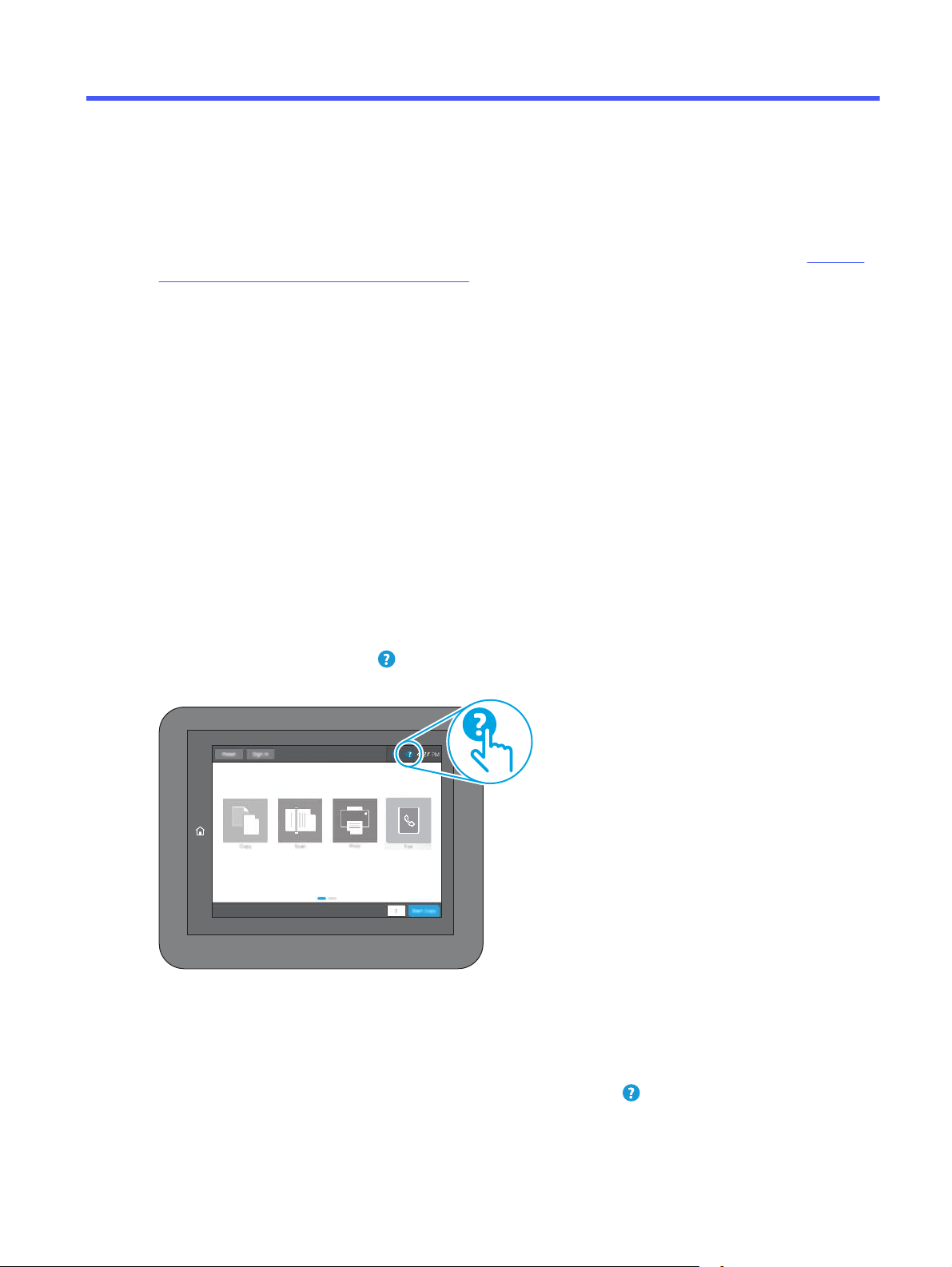
Solve problems9
Troubleshoot problems with the printer. Locate additional resources for help and technical support.
The following information is correct at the time of publication. For current information, see Support
for HP Color LaserJet Enterprise MFP 5800.
For more information:
HP's all-inclusive help for the printer includes the following information:
● Install and configure
● Learn and use
● Solve problems
● Download software and firmware updates
● Join support forums
● Find warranty and regulatory information
Control panel help system
The printer has a built-in Help system that explains how to use each screen. To open the Help
system, touch the Help button in the upper-right corner of the screen.
For some screens, the Help opens to a global menu where you can search for specific topics. You
can browse through the menu structure by touching the buttons in the menu.
Some Help screens include animations that show specific procedures, such as clearing paper jams.
If the printer alerts of an error or warning, touch the Help button to open a message that
describes the problem. The message also contains instructions to help solve the problem.
Solve problems
141

Reset factory settings
Resetting the printer settings to the factory-set defaults can help resolve problems.
Introduction
Use one of the following methods to reset the printer settings to the original settings from the
factory.
Method one: Reset factory settings from the printer control panel
Use the printer control panel to restore the settings to their original values.
1. From the Home screen on the printer control panel, navigate to the Settings application, and
then select the Settings icon.
2. Open the following menus:
a. General
b. Reset Factory Settings
3. Select Reset.
A verification message advises that completing the reset function might result in loss of data.
4. Select Reset to complete the process.
NOTE: The printer restarts automatically after the reset operation completes.
Method two: Reset factory settings from the HP Embedded Web Server
(network-connected printers only)
Use the HP EWS to reset the printer settings to the original settings.
1. On the printer control panel, select the Information button , and then select the Network
icon to display the IP address or host name.
2. Open the General tab.
3. On the left side of the screen, click Reset Factory Settings.
4. Click the Reset button.
NOTE: The printer restarts automatically after the reset operation completes.
A “Cartridge is low” or “Cartridge is very low” message
displays on the printer control panel or EWS
Review the possible solutions to this issue.
Cartridge is low: The printer indicates when a toner cartridge level is low. Actual toner cartridge
life remaining may vary. Consider having a replacement available to install when print quality is no
longer acceptable. The toner cartridge does not need to be replaced now.
142
Chapter 9Solve problems
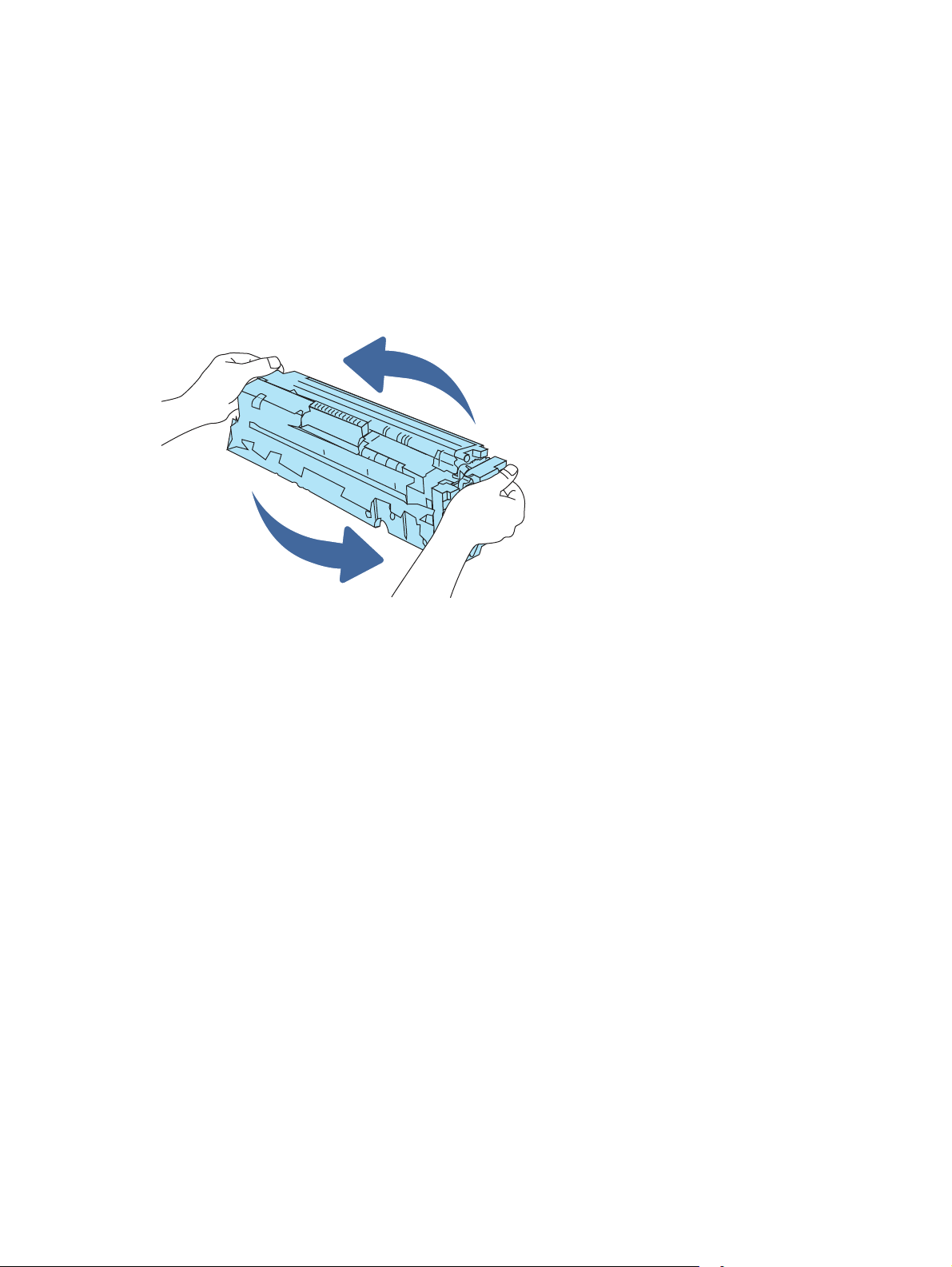
Continue printing with the current cartridge until redistributing the toner no longer yields acceptable
print quality. To redistribute the toner, remove the toner cartridge from the printer and gently rock
the cartridge back and forth end to end. Reinsert the toner cartridge into the printer and close the
cover.
Cartridge is very low: The printer indicates when the toner cartridge level is very low. Actual toner
cartridge life remaining may vary. To extend the life of the toner, gently rock the cartridges back and
forth end to end. Consider having a replacement available to install when print quality is no longer
acceptable. The toner cartridge does not need to be replaced now unless the print quality is no
longer acceptable.
HP’s Premium Protection Warranty expires when a message indicating that HP's Premium Protection
Warranty on this supply has ended appears on the Supplies Status Page or the EWS.
Change the “Very Low” settings
You can change the way the printer reacts when supplies reach the Very Low state. You do not have
to re-establish these settings when you install a new cartridge.
Change the “Very Low” settings at the control panel
Change the setting at the printer control panel.
1. From the Home screen on the printer control panel, navigate to the Settings application, and
then select the Settings icon.
2. Open the following menus:
a. Manage Supplies
b. Very Low Behavior
c. Black Cartridge or Color Cartridges
3. Select one of the following options:
● Select the Stop option to set the printer to stop printing when the cartridge reaches the
Very Low threshold.
Change the “Very Low” settings
143

● Select the Prompt to continue option to set the printer to stop printing when the cartridge
reaches the Very Low threshold. You can acknowledge the prompt or replace the cartridge
to resume printing.
● Select the Continue option to set the printer to alert you that the cartridge is very low,
and to continue printing beyond the Very Low setting without interaction. This can result in
unsatisfactory print quality.
For printers with fax capability
When the printer is set to the Stop or Prompt to continue option, there is some risk that faxes will
not print when the printer resumes printing. This can occur if the printer has received more faxes
than the memory can hold while the printer is waiting.
The printer can print faxes without interruption when it passes the Very Low threshold if you select
the Continue option for the cartridge, but print quality might degrade.
Order supplies
Order supplies and paper for your HP printer.
Table 9-1 Ordering options
Ordering option Ordering information
Order supplies and paper www.hp.com
Order through service or support providers Contact an HP-authorized service or support provider.
Order using the HPEmbedded Web Server
(EWS)
To access, in a supported web browser on your computer, enter the
printer IP address or host name in the address/URL field. The EWS
contains a link to the HP website, which provides options for purchasing
Original HP supplies.
Printer does not pick up paper or misfeeds
Use this information if the printer is not picking up paper from the tray or is picking up multiple
sheets of paper at one time.
Introduction
The following solutions can help solve problems if the printer is not picking up paper from the tray or
is picking up multiple sheets of paper at one time. Either of these situations can result in paper jams.
The printer does not pick up paper
If the printer does not pick up paper from the tray, try these solutions:
1. Open the printer and remove any jammed sheets of paper. Verify that no torn remnants of
paper remain inside the printer.
2. Load the tray with the correct size of paper for the job.
3. Make sure the paper size and type are set correctly on the printer control panel.
144
Chapter 9Solve problems
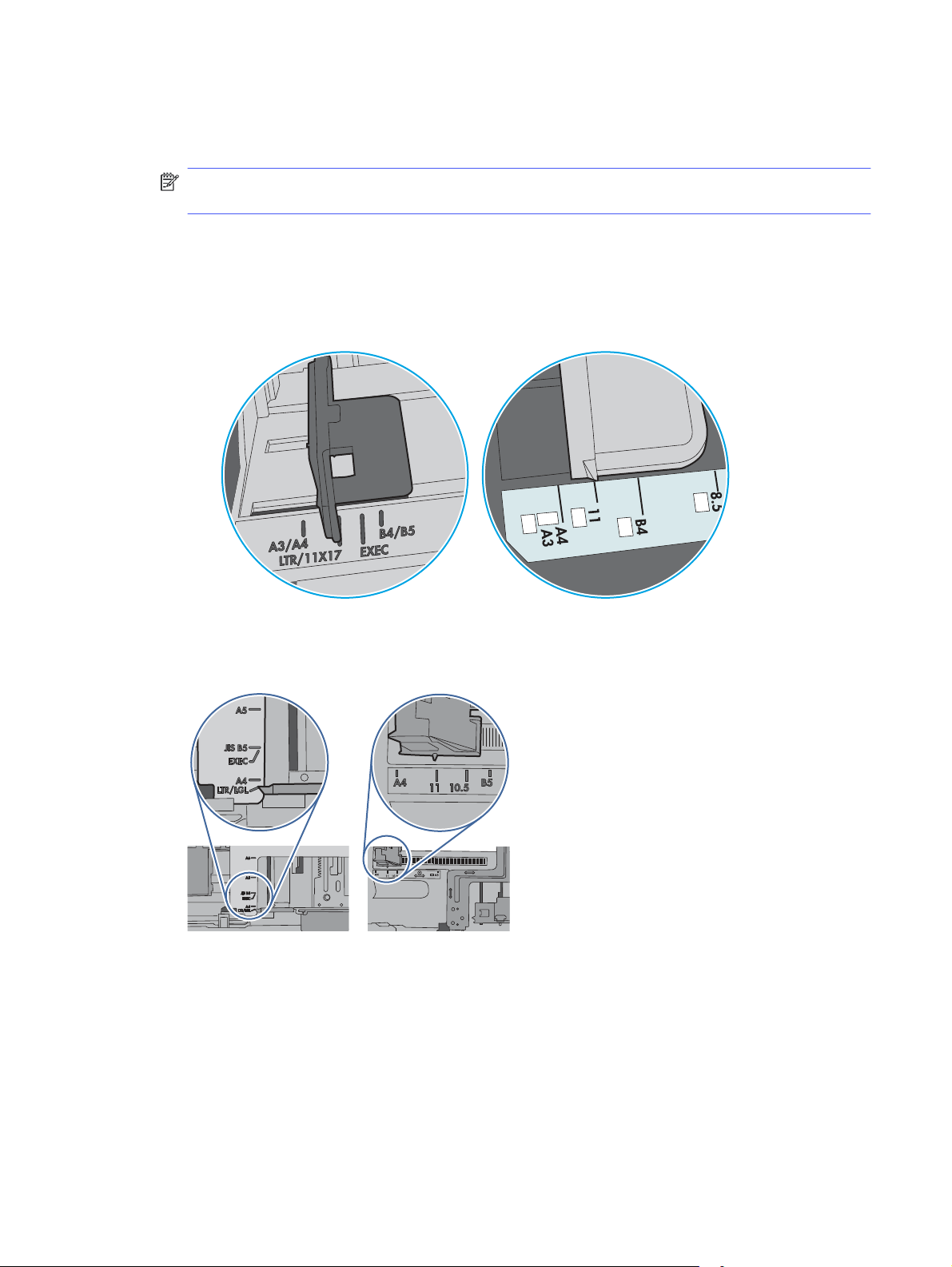
4. Make sure the paper guides in the tray are adjusted correctly for the size of paper. Adjust the
guides to the appropriate indentation in the tray. The arrow on the tray guide should line up
exactly with the marking on the tray.
NOTE: Do not adjust the paper guides tightly against the paper stack. Adjust them to the
indentations or markings in the tray.
The following images show examples of the paper-size indentations in the trays for various
printers. Most HP printers have markings similar to these.
Figure 9-1 Size markings for Tray 1 or the multipurpose tray
Figure 9-2 Size markings for cassette trays
5. Verify that the humidity in the room is within specifications for this printer and that paper is
being stored in unopened packages. Most reams of paper are sold in moisture-proof wrapping
to keep paper dry.
In high-humidity environments, paper at the top of the stack in the tray can absorb moisture, and
it might have a wavy or uneven appearance. If this happens, remove the top 5 to 10 sheets of
paper from the stack.
The printer does not pick up paper
145
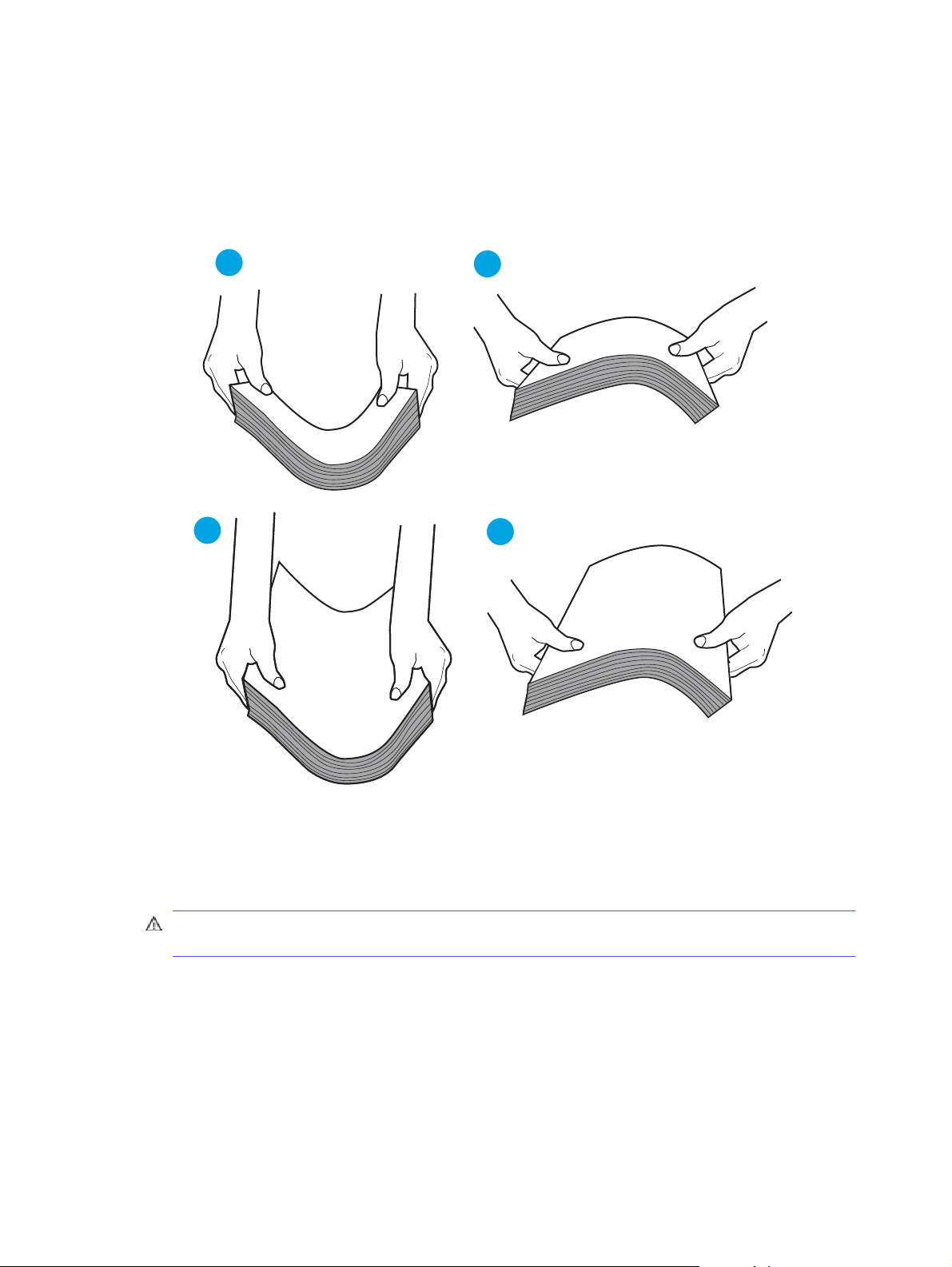
In low-humidity environments, excess static electricity can cause sheets of paper to stick
together. If this happens, remove the paper from the tray, and flex the stack by holding it
at each end and bringing the ends up to form a U shape. Then, rotate the ends down to
reverse the U shape. Next, hold each side of the stack of paper and repeat this process. This
process releases individual sheets without introducing static electricity. Straighten the paper
stack against a table before returning it to the tray.
Figure 9-3 Technique for flexing the paper stack
1
2
1
2
A4
A3
6. Check the printer control panel to see if it is displaying a prompt to feed the paper manually.
Load paper, and continue.
7. The rollers above the tray might be contaminated. Clean the rollers with a lint-free cloth
dampened with warm water. Use distilled water, if it is available.
CAUTION: Do not spray water directly onto the printer. Instead, spray water on the cloth or
dab the cloth in water and wring it out before cleaning the rollers.
The following image shows examples of the roller location for various printers.
146
Chapter 9Solve problems

Figure 9-4 Roller locations for Tray 1 or the multipurpose tray
The printer picks up multiple sheets of paper
If the printer picks up multiple sheets of paper from the tray, try these solutions:
1. Remove the stack of paper from the tray and flex it, rotate it 180 degrees, and flip it over.
Do not
fan the paper.
Return the stack of paper to the tray.
NOTE: Fanning the paper introduces static electricity. Instead of fanning the paper, flex the
stack by holding it at each end and bringing the ends up to form a U shape. Then, rotate the
ends down to reverse the U shape. Next, hold each side of the stack of paper and repeat this
process. This process releases individual sheets without introducing static electricity.
Straighten the paper stack against a table before returning it to the tray.
The printer picks up multiple sheets of paper
147

Figure 9-5 Technique for flexing the paper stack
1
2
1
2
A4
A3
2. Use only paper that meets HP specifications for this printer.
3. Verify that the humidity in the room is within specifications for this printer, and that paper is
being stored in unopened packages. Most reams of paper are sold in moisture-proof wrapping
to keep paper dry.
In high-humidity environments, paper at the top of the stack in the tray can absorb moisture, and
it might have a wavy or uneven appearance. If this happens, remove the top 5 to 10 sheets of
paper from the stack.
In low-humidity environments, excess static electricity can cause sheets of paper to stick
together. If this happens, remove the paper from the tray and flex the stack as described above.
4. Use paper that is not wrinkled, folded, or damaged. If necessary, use paper from a different
package.
5. Make sure the tray is not overfilled by checking the stack-height markings inside the tray. If it is
overfilled, remove the entire stack of paper from the tray, straighten the stack, and then return
some of the paper to the tray.
The following examples show the stack-height markings in the trays for various printers. Most
HP printers have markings similar to these. Also make sure that all sheets of paper are below
the tabs near the stack-height marks. These tabs help hold the paper in the correct position as it
enters the printer.
148
Chapter 9Solve problems
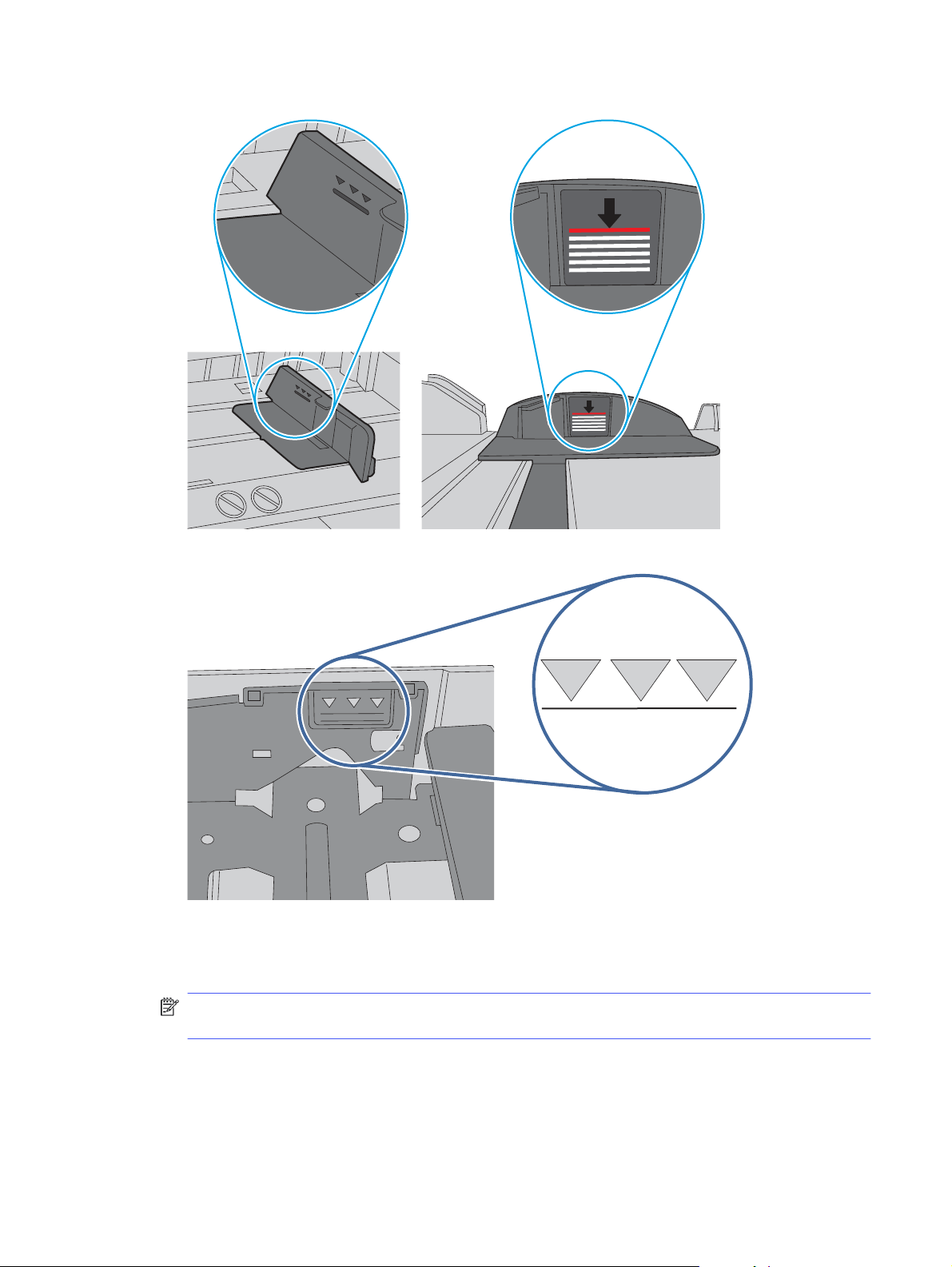
Figure 9-6 Stack-height markings
Figure 9-7 Tab for the paper stack
6. Make sure the paper guides in the tray are adjusted correctly for the size of paper. Adjust the
guides to the appropriate indentation in the tray. The arrow on the tray guide should line up
exactly with the marking on the tray.
NOTE: Do not adjust the paper guides tightly against the paper stack. Adjust them to the
indentations or markings in the tray.
The following images show examples of the paper-size indentations in the trays for various
printers. Most HP printers have markings similar to these.
The printer picks up multiple sheets of paper
149
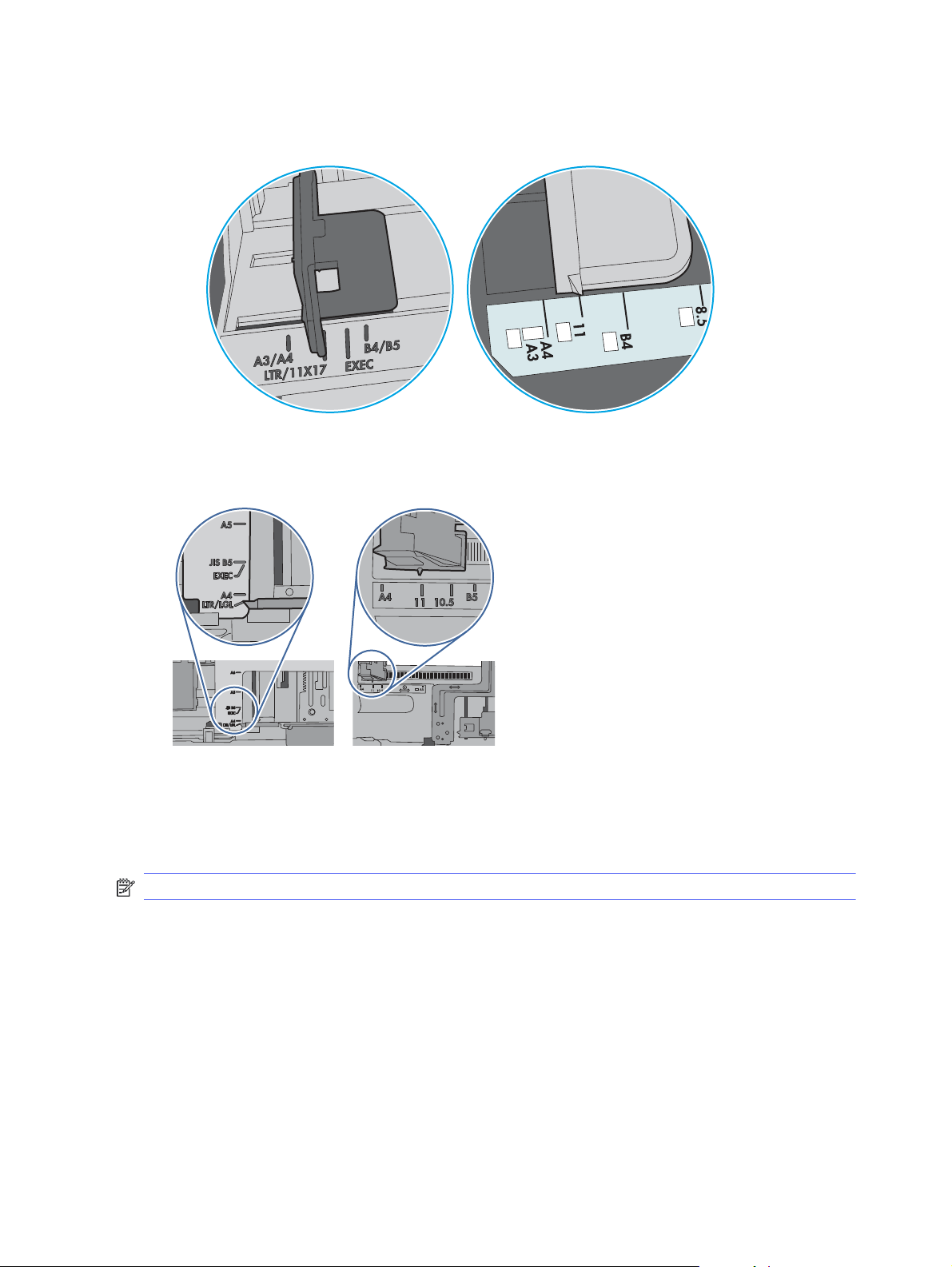
Figure 9-8 Size markings for Tray 1 or the multipurpose tray
Figure 9-9 Size markings for cassette trays
7. Make sure the printing environment is within recommended specifications.
The document feeder jams, skews, or picks up multiple sheets of paper
If the document feeder jams, skews, or picks up multiple sheets of paper, try these solutions.
NOTE: This information applies to MFP printers only.
● The original might have something on it, such as staples or self-adhesive notes, that must be
removed.
● Check that all rollers are in place and that the roller-access cover inside the document feeder is
closed.
● Make sure that the top document-feeder cover is closed.
● The pages might not be placed correctly. Straighten the pages and adjust the paper guides to
center the stack.
● The paper guides must be touching the sides of the paper stack to work correctly. Make sure
that the paper stack is straight and the guides are against the paper stack.
150
Chapter 9Solve problems
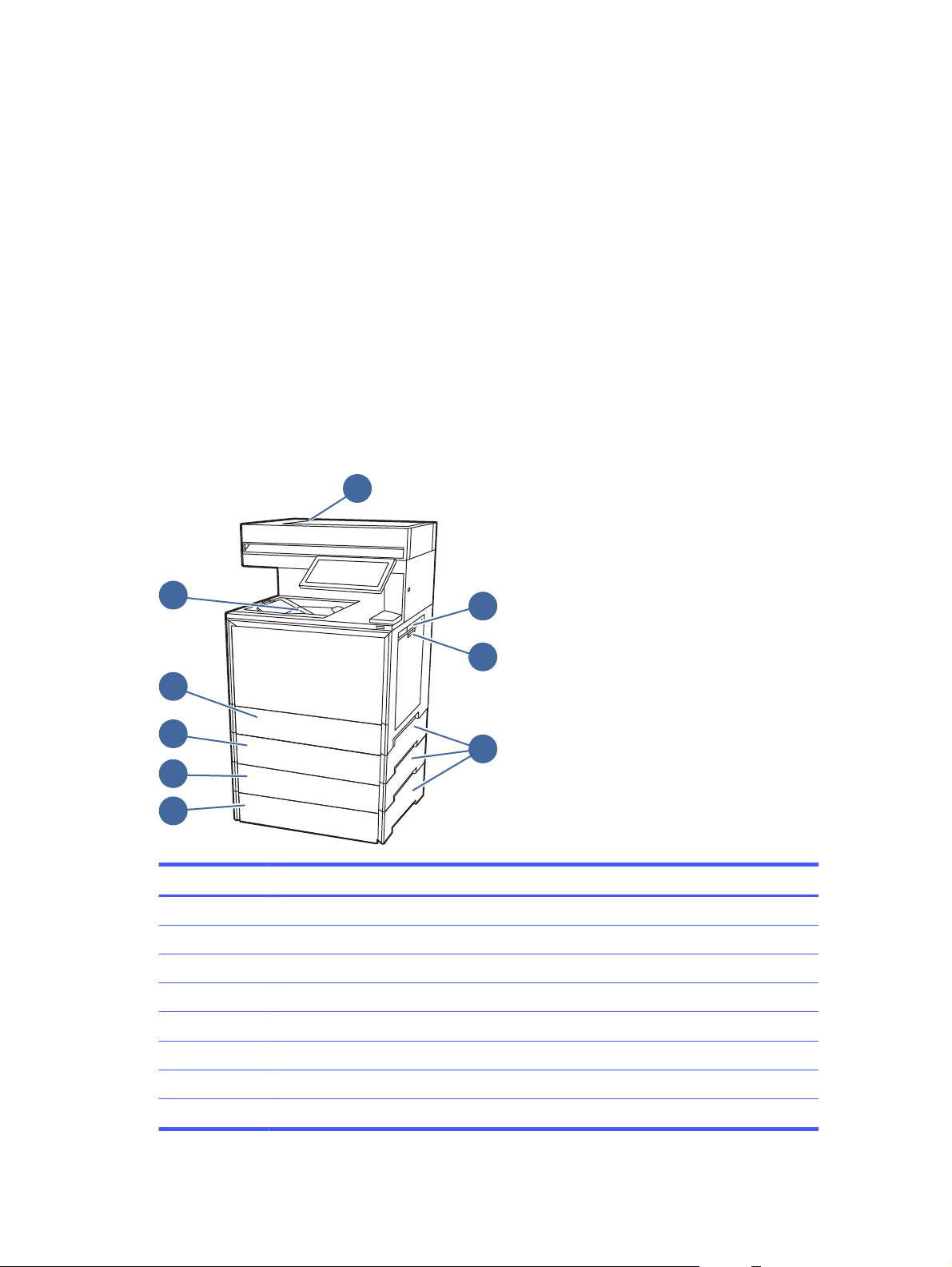
● The document feeder input tray or output bin might contain more than the maximum number
of pages. Make sure the paper stack fits below the guides in the input tray, and remove pages
from the output bin.
● Verify that there are no pieces of paper, staples, paper clips, or other debris in the paper path.
● Clean the document-feeder rollers and the separation pad. Use compressed air or a clean,
lint-free cloth moistened with warm water. If misfeeds still occur, replace the rollers.
● From the Home screen on the printer control panel, scroll to and touch the Supplies button.
Check the status of the document-feeder kit, and replace it if necessary.
Clear paper jams
Use the procedures in this section to clear jammed paper from the printer paper path.
Paper jam locations
Jams can occur in these locations.
1
2
3
8
9
5
6
7
4
Item
Description
1 Document feeder
2 Right door and fuser area
3 Tray 1 (multipurpose tray)
4 Tray jam access doors
5 Optional Tray 5
6 Optional Tray 4
7 Optional Tray 3
8 Tray 2
Clear paper jams 151

Item Description
9 Output bin
Auto-navigation for clearing paper jams
Learn about printer jam clearing auto-navigation.
The auto-navigation feature assists in clearing jams by providing step-by-step instructions on the
control panel.
When you complete a step, the printer displays instructions for the next step until you have
completed all steps in the procedure.
Experiencing frequent or recurring paper jams?
To reduce the number of paper jams, try these solutions.
1. Use only paper that meets HP specifications for this printer.
2. Use paper that is not wrinkled, folded, or damaged. If necessary, use paper from a different
package.
3. Use paper that has not previously been printed or copied on.
4. Make sure the tray is not overfilled. If it is, remove the entire stack of paper from the tray,
straighten the stack, and then return some of the paper to the tray.
5. Make sure the paper guides in the tray are adjusted correctly for the size of paper. Adjust the
guides so they are touching the paper stack without bending it.
6. Make sure that the tray is fully inserted in the printer.
7. If you are printing on heavy, embossed, or perforated paper, use the manual feed feature and
feed sheets one at a time.
8. Open the Trays menu on the printer control panel. Verify that the tray is configured correctly for
the paper type and size.
9. Make sure the printing environment is within recommended specifications.
31.13.yz jam error in the document feeder
The following information describes how to clear paper jams in the document feeder. When a jam
occurs, the control panel displays an animation that assists in clearing the jam.
Recommended action for customers
When a jam occurs, the control panel displays a message and an animation that assists in clearing
the jam.
● 31.13.01 Jam in document feeder
● 31.13.02 Jam in document feeder
● 31.13.13 Jam in document feeder
152
Chapter 9Solve problems
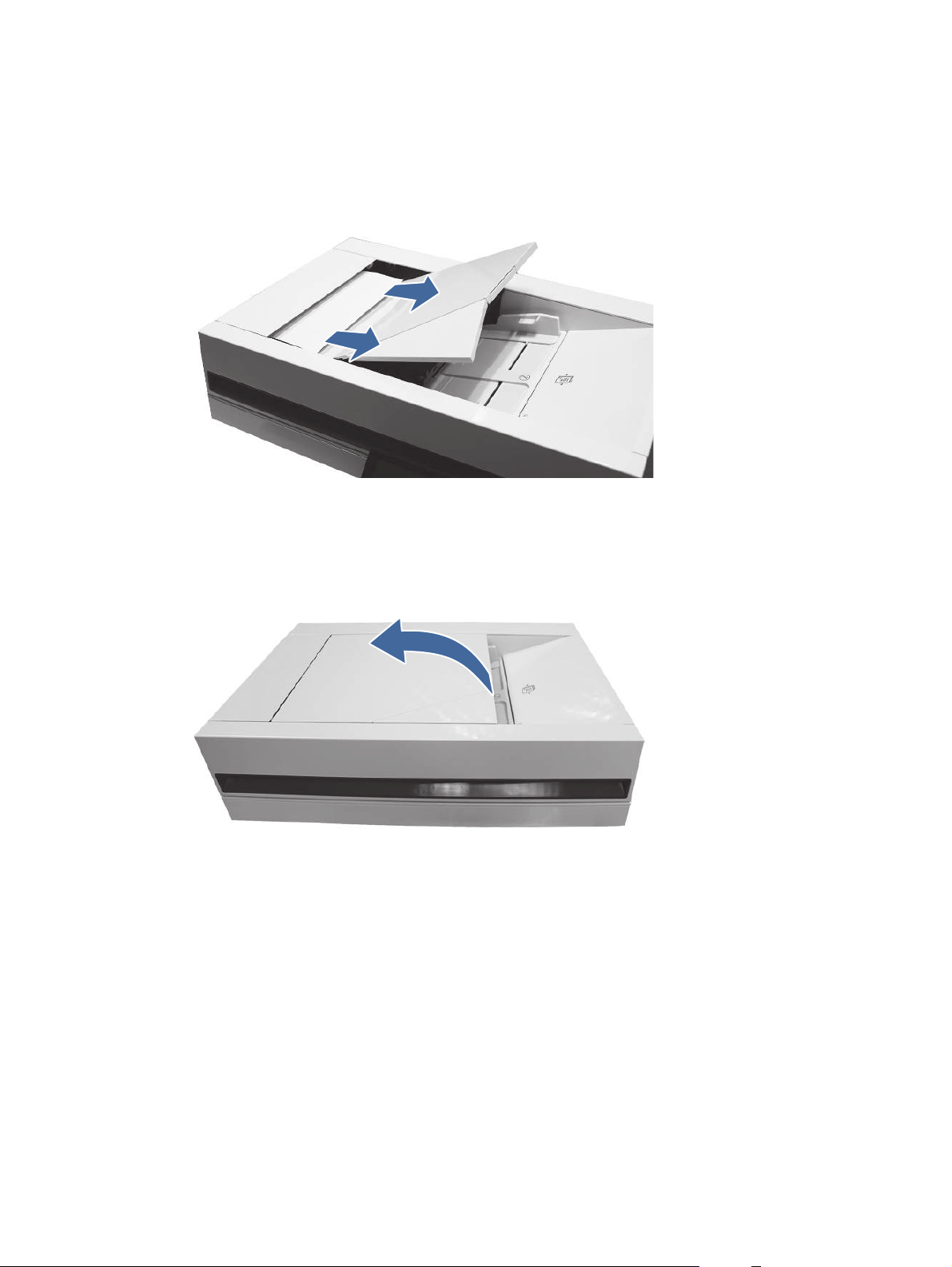
1. Remove paper from the exit assembly of the document feeder.
2. Open the document-feeder cover.
31.13.yz jam error in the document feeder
153
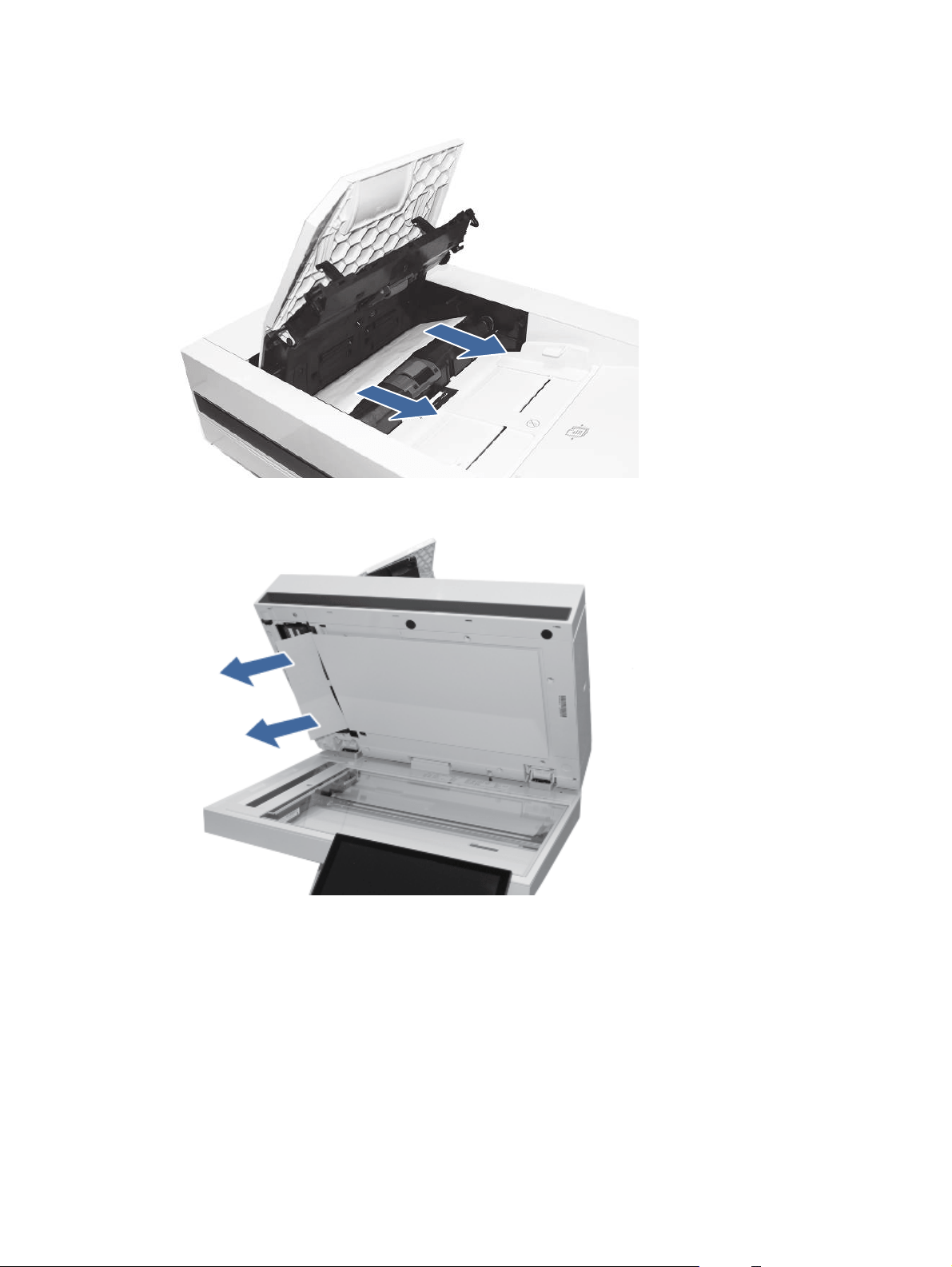
3. Remove any jammed paper from the document feeder input area.
4. Lift the document feeder and check the lower side of the feed path.
154
Chapter 9Solve problems
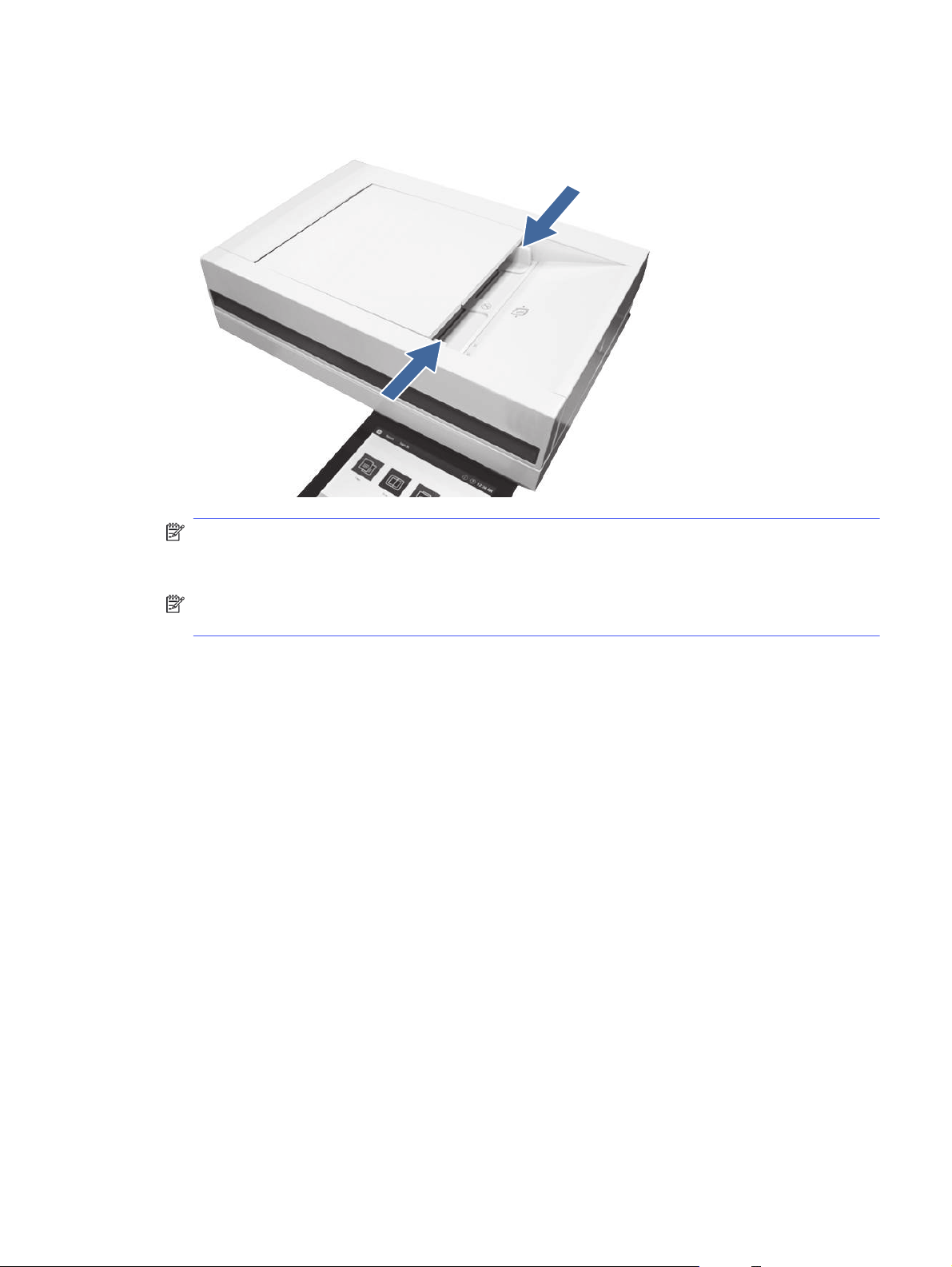
5. Make sure the guides in the document-feeder input tray are adjusted to the correct size for the
document before loading paper.
NOTE: To avoid document feeder jams, to copy narrow documents, use the flatbed scanner.
Remove all staples and paper clips from original documents. Do not feed damaged or wrinkled
paper.
NOTE: Original documents that are printed on heavy, glossy paper can jam more frequently
than originals that are printed on plain paper.
13.B2.D1 jam error in Tray 1 (multipurpose tray)
Use the following procedure to clear paper jams in Tray 1 (multipurpose tray). When a jam occurs,
the control panel displays an animation that assists in clearing the jam.
Recommended action for customers
When a jam occurs, the control panel displays a message and an animation that assists in clearing
the jam.
● 13.B2.D1 Jam in tray 1
13.B2.D1 jam error in Tray 1 (multipurpose tray)
155
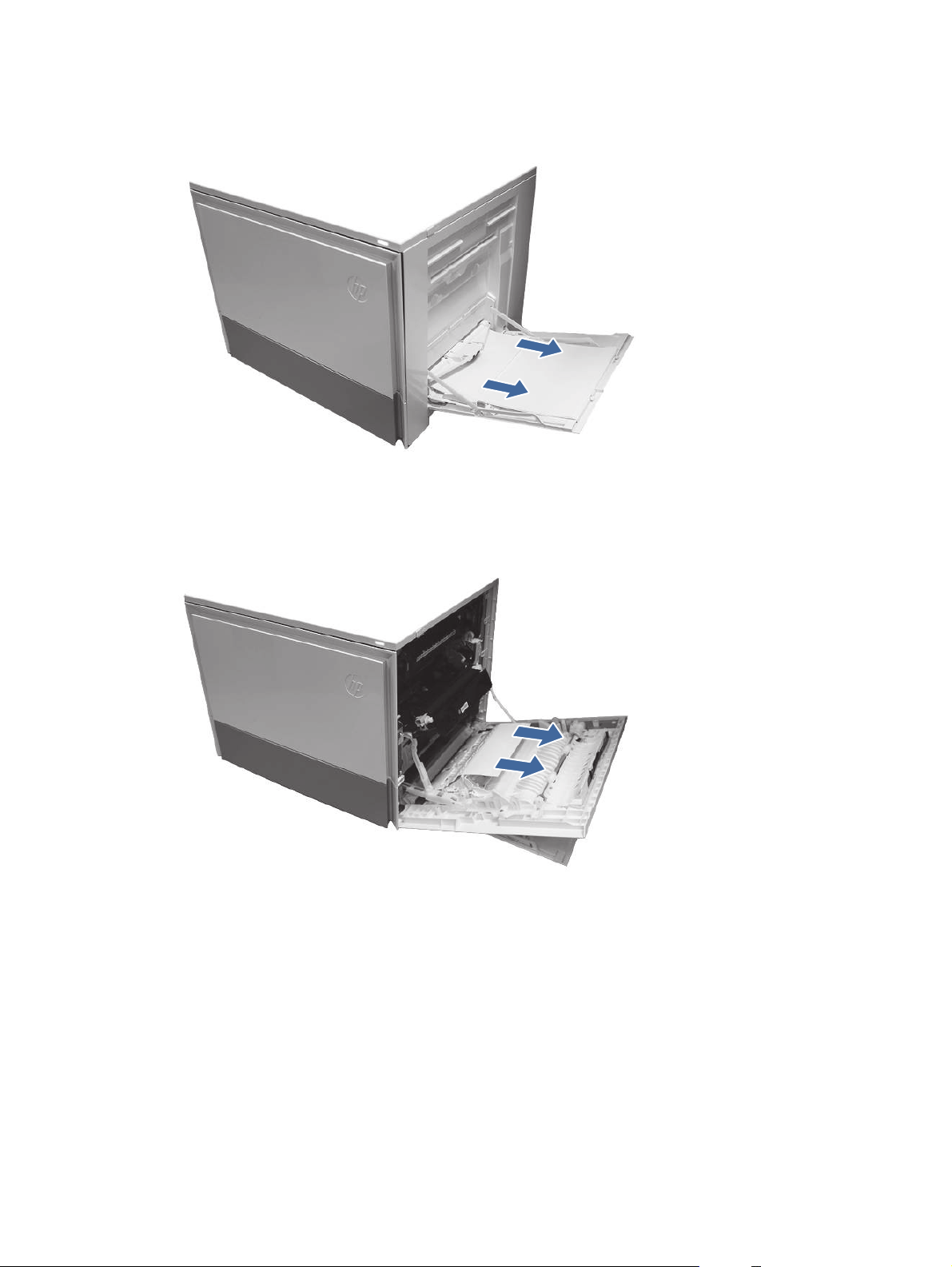
1. If you can see the jammed sheet in Tray 1, remove the jammed sheet by gently pulling it straight
out.
2. Open the right door and remove paper from the area shown.
3. Close the right to allow the printer to clear the message.
4. Make sure the type and quality of the paper being used meets the HP specifications for the
printer.
156
Chapter 9Solve problems
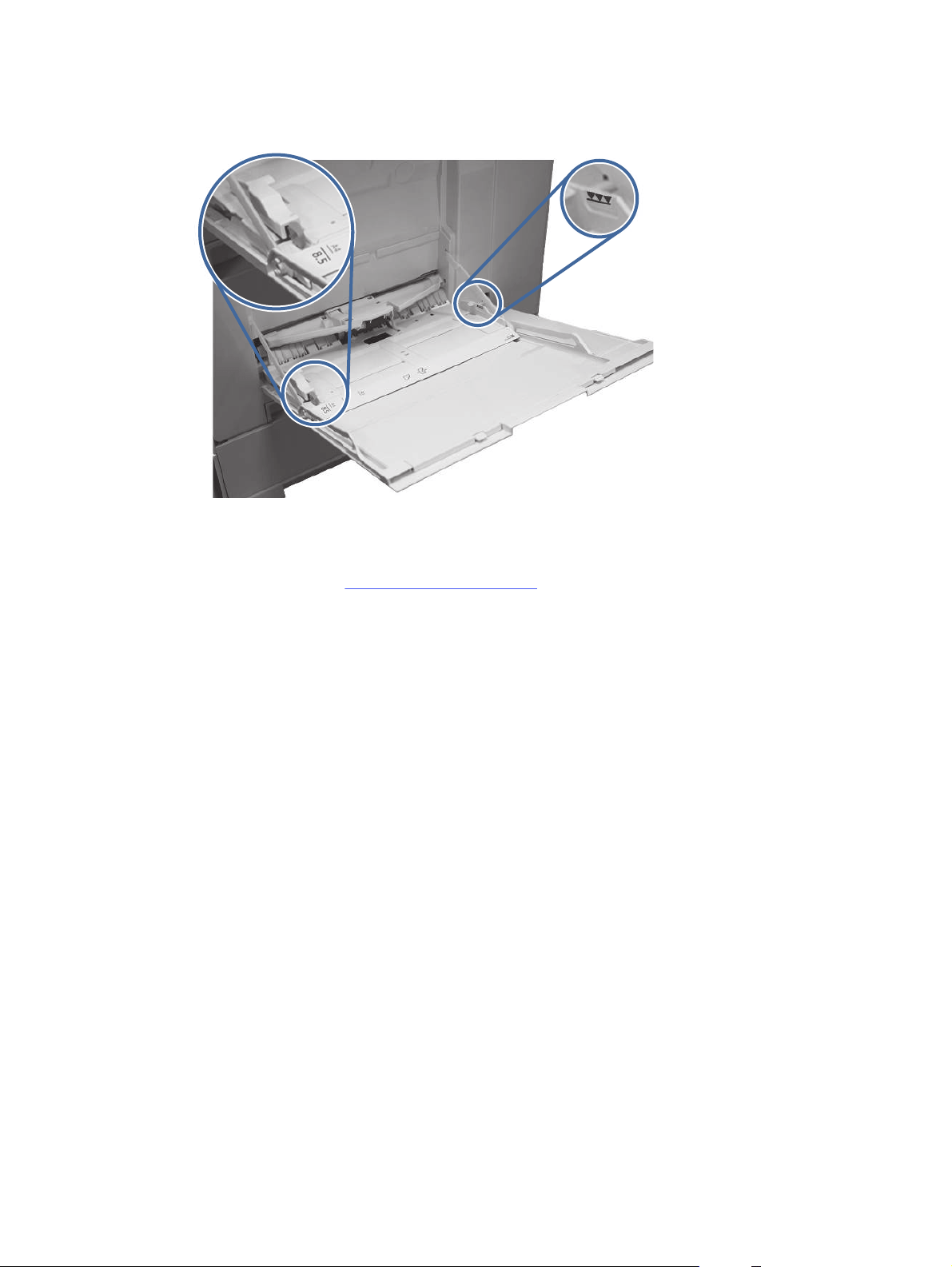
5. Make sure the Tray 1 guides are set to the correct paper size and that the paper tray is not
overfilled (paper is below the 3 triangles on the right guide).
6. Load the paper back into the tray and restart the print job.
7. If the error persists, contact your HP-authorized service or support provider, or contact
customer support at www.hp.com/go/contactHP.
13.B2.D2 jam error in Tray 2
Use the following procedure to check for paper in all possible jam locations related to Tray 2. When
a jam occurs, the control panel displays an animation that assists in clearing the jam.
Recommended action for customers
When a jam occurs, the control panel displays a message and an animation that assists in clearing
the jam.
● 13.B2.D2 Paper jam in tray 2
13.B2.D2 jam error in Tray 2
157
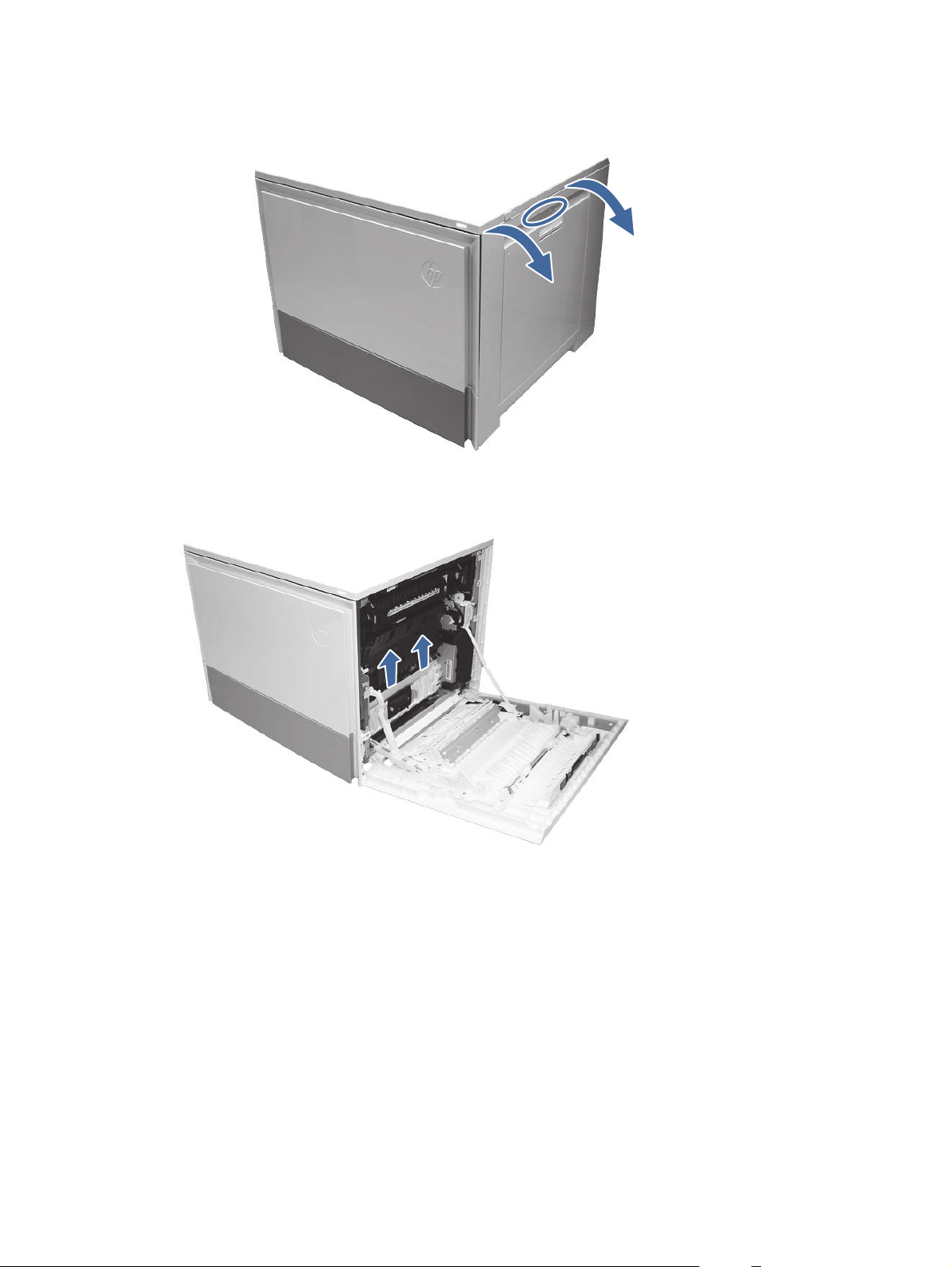
1. Open the right door.
2. Gently remove any jammed paper.
3. Close the right door to clear the control panel message.
158
Chapter 9Solve problems
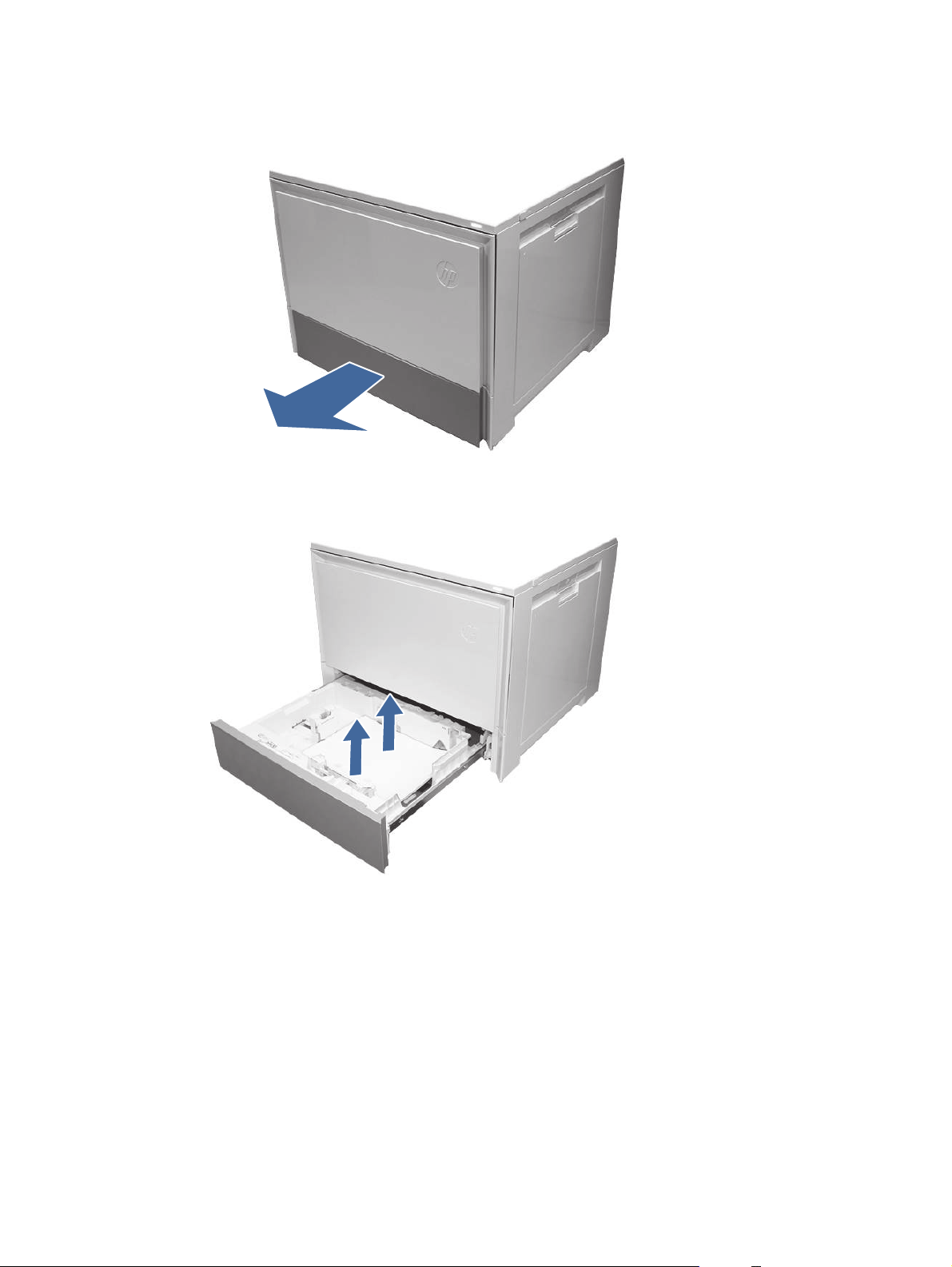
4. Open Tray 2.
5. Remove the paper from the tray and discard any bent, curled, or damaged sheets.
13.B2.D2 jam error in Tray 2
159
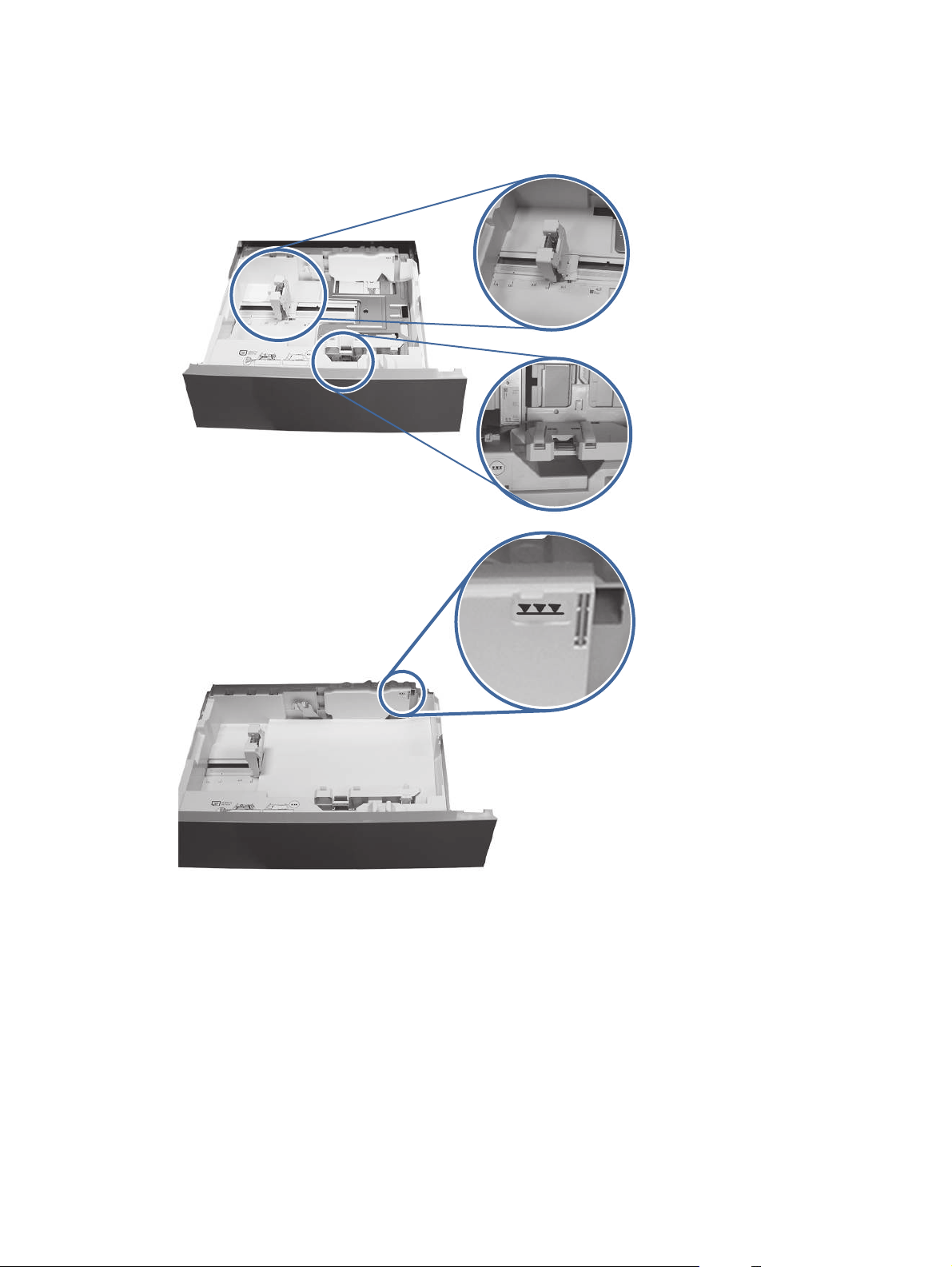
6. Make sure that the tray width and length guides are set to the correct paper size for the paper
being installed into the tray and that the tray is not over filled above the fill mark (line below 3
triangles on rear guide).
7. Ensure the type and quality of the paper being used meets the HP specifications for the printer.
8. If the error persists, clean the Tray 2 pick, feed, separation rollers.
160
Chapter 9Solve problems
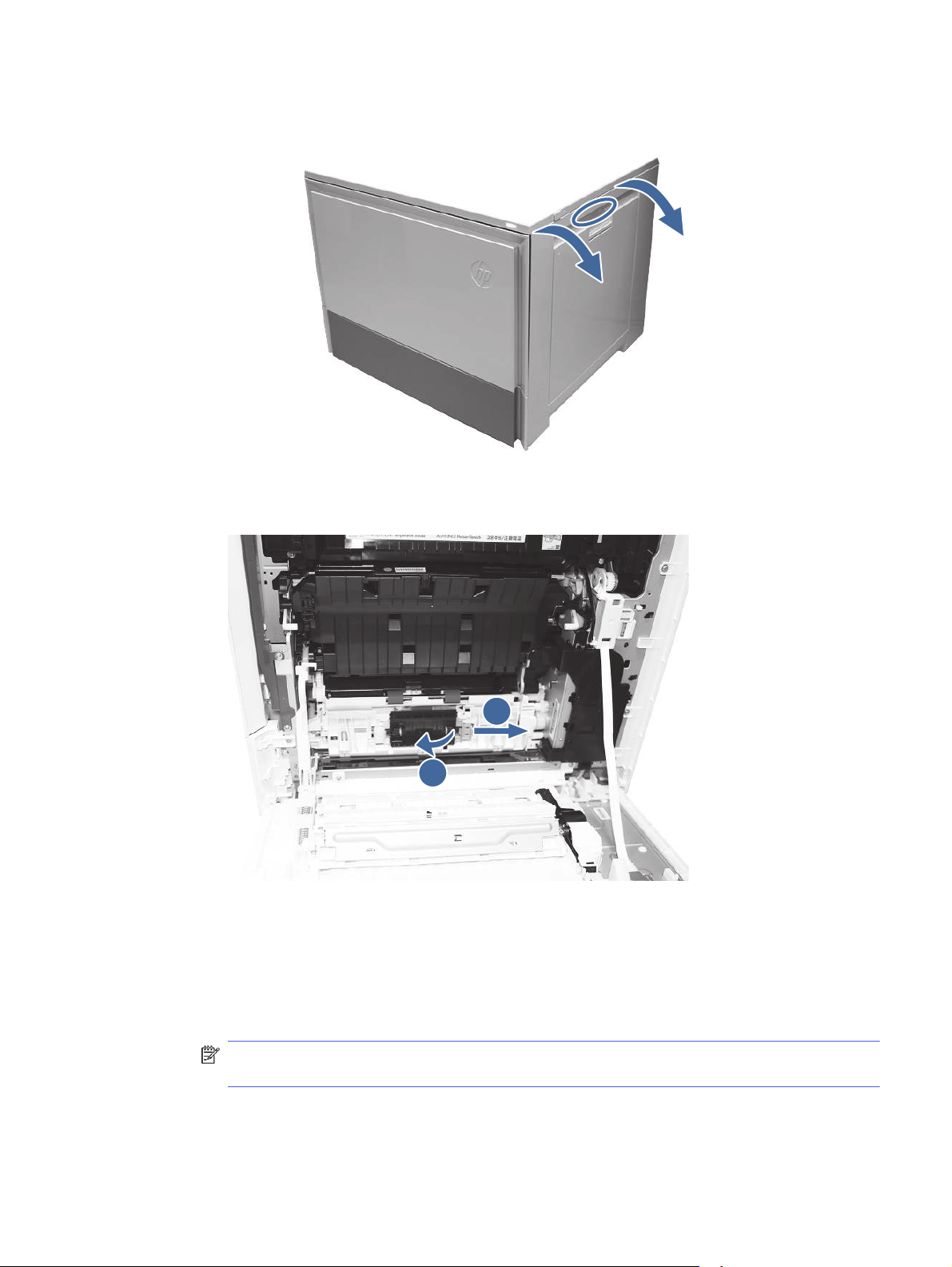
a. Open the right door to access the rollers.
b. Locate and remove the Tray 2 separation roller.
1
2
Call-out 1- slide locking lever
Call-out 2- Remove the roller assembly.
c. Remove the Tray 2 pick and feed rollers.
To remove the roller assembly, gently pull on the side of the assembly and slide out as
shown.
NOTE: Do not touch the rubber part of the rollers with hands. Oils or debris from hands
can cause paper pickup issues.
13.B2.D2 jam error in Tray 2
161
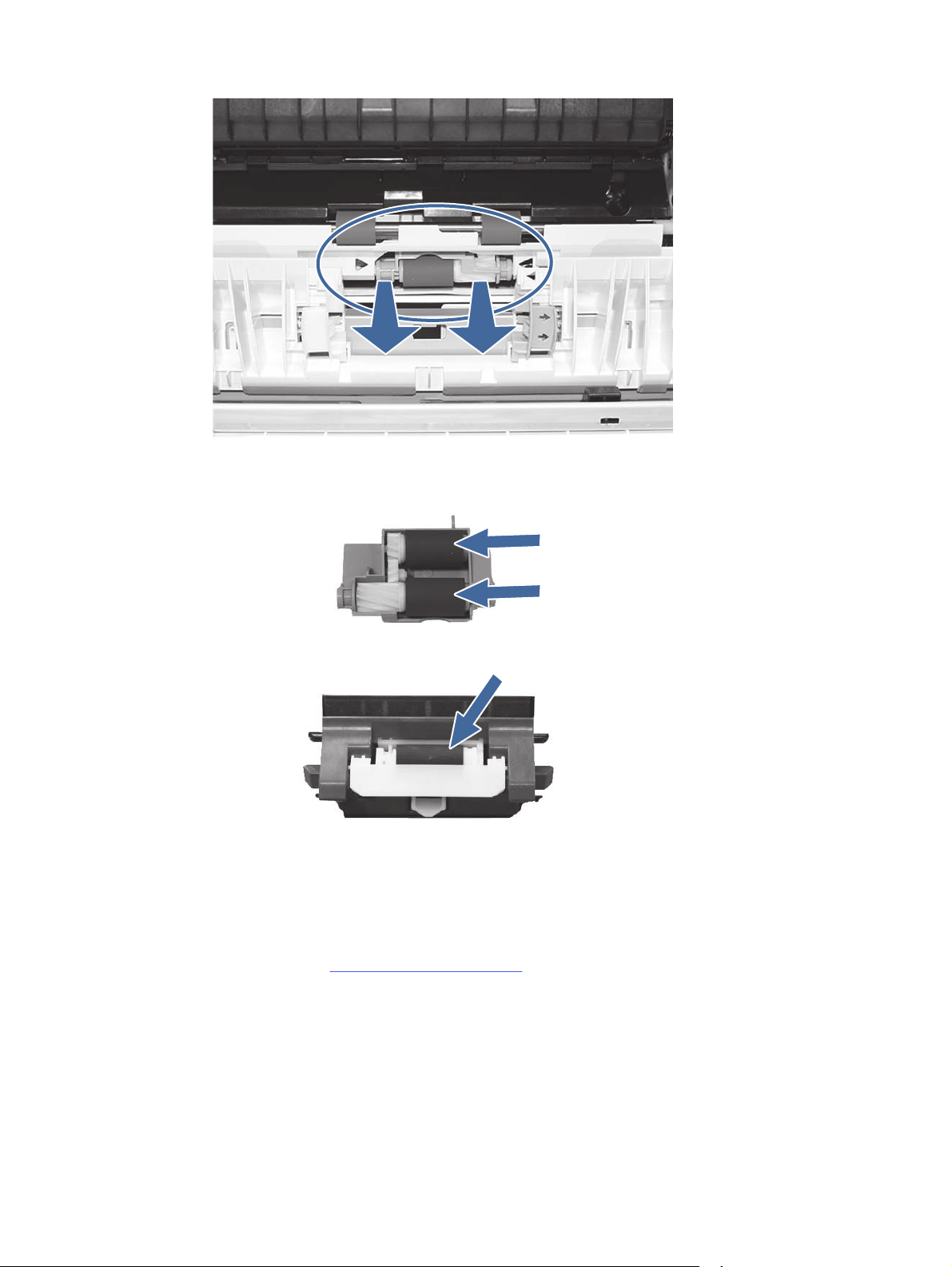
d. Clean the rollers with a dampened lint free cloth.
e. Reinstall the roller assemblies and close the right door.
f. Run a print job from Tray 2.
9. If the error persists, contact your HP-authorized service or support provider, or contact
customer support at www.hp.com/go/contactHP.
13.A3 jam error in Tray 3
Follow these troubleshooting steps in the order presented.
Recommended action for customers
Use the following procedure to check for paper in all possible jam locations related to the 550-sheet
trays. When a jam occurs, the control panel displays an animation that assists in clearing the jam.
162
Chapter 9Solve problems
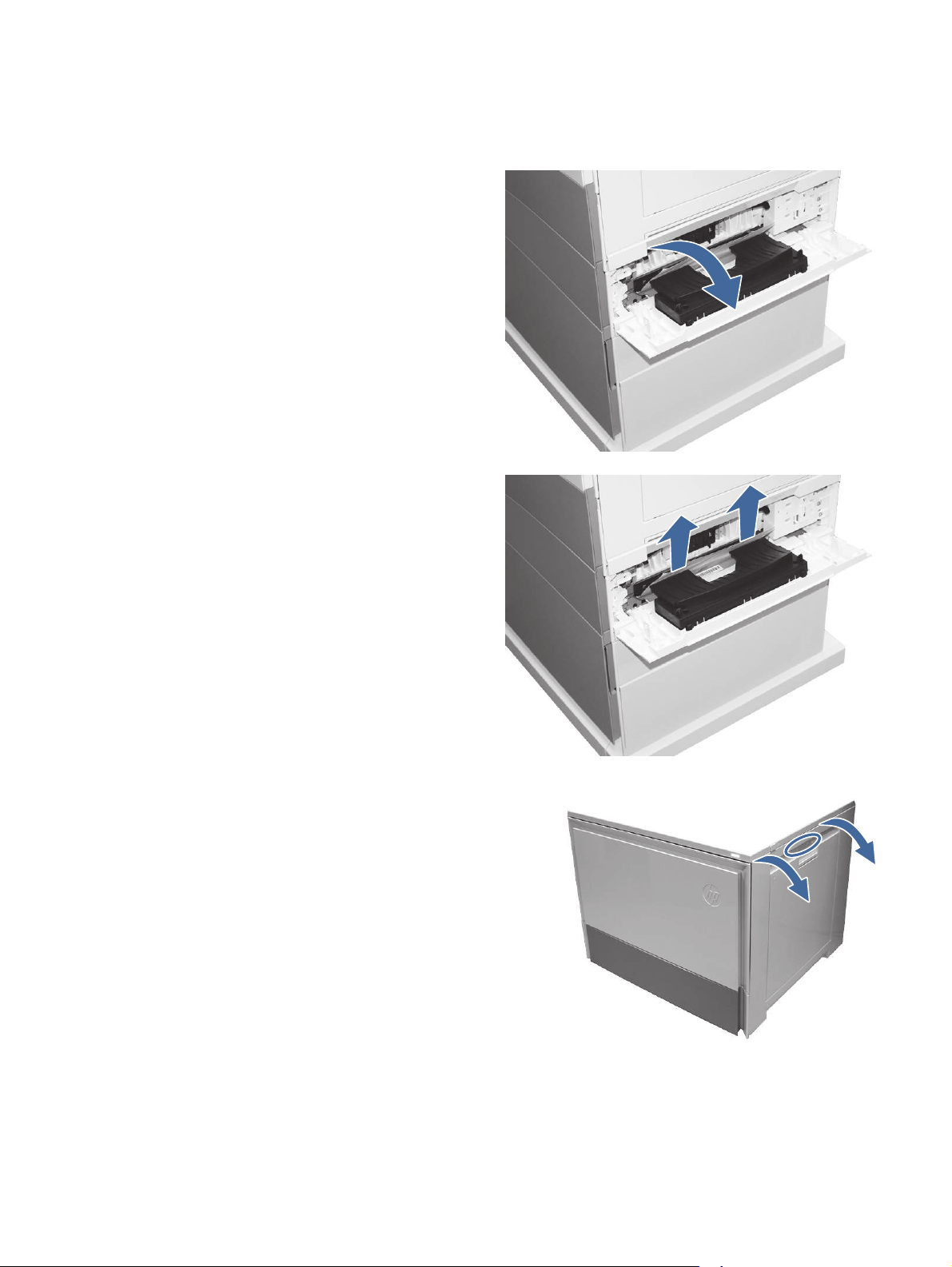
● 13.A3.A3 Jam in tray 3
● 13.A3.D3 Jam in tray 3
1. Open the Tray 3 right side access door.
2. Remove any jammed paper found in access
area.
3. Open the right door.
13.A3 jam error in Tray 3 163
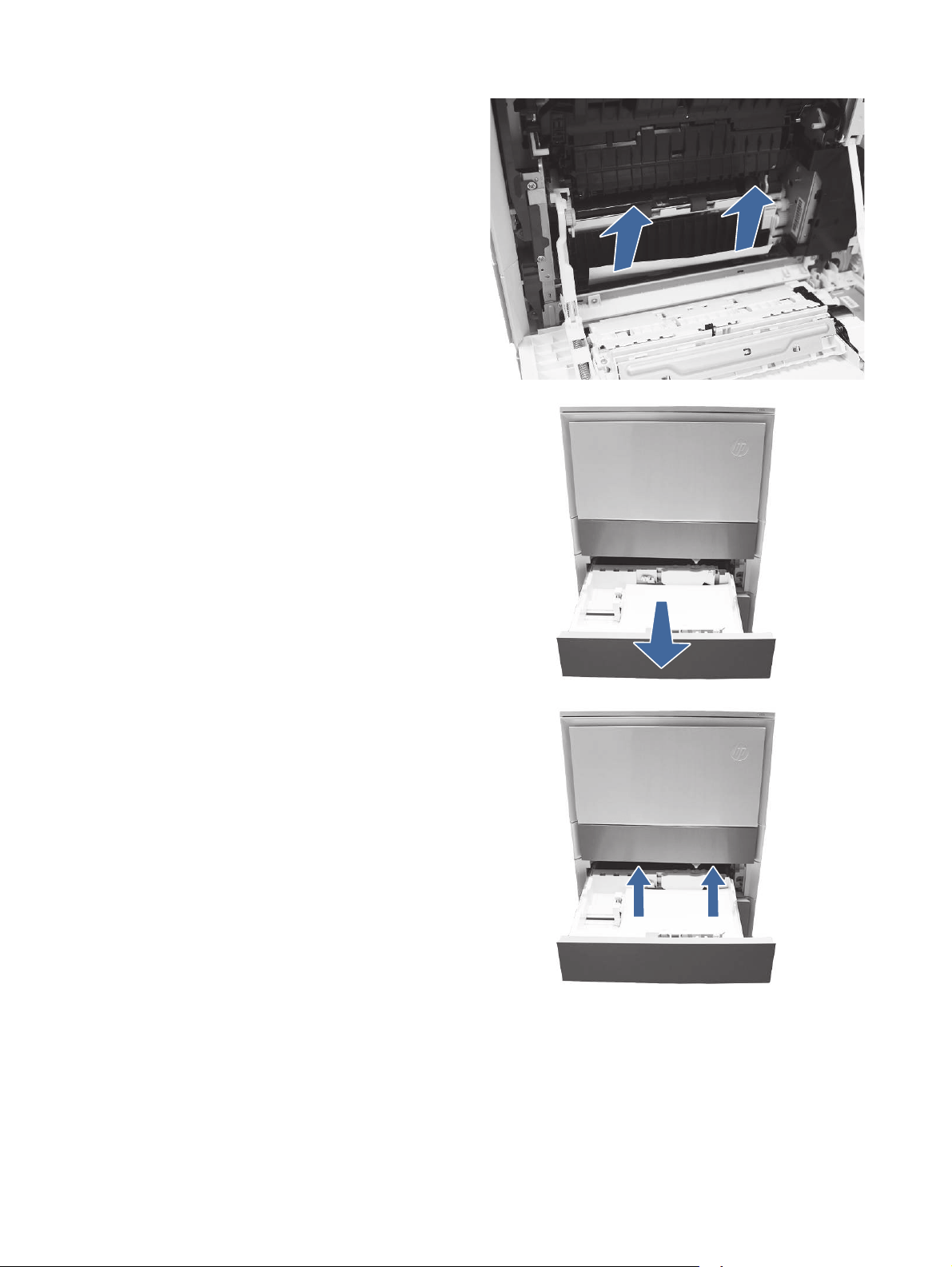
4. Gently remove any jammed paper.
5. Open Tray 3.
6. Remove the paper from the tray and discard
any bent, curled, or damaged sheets.
164 Chapter 9Solve problems
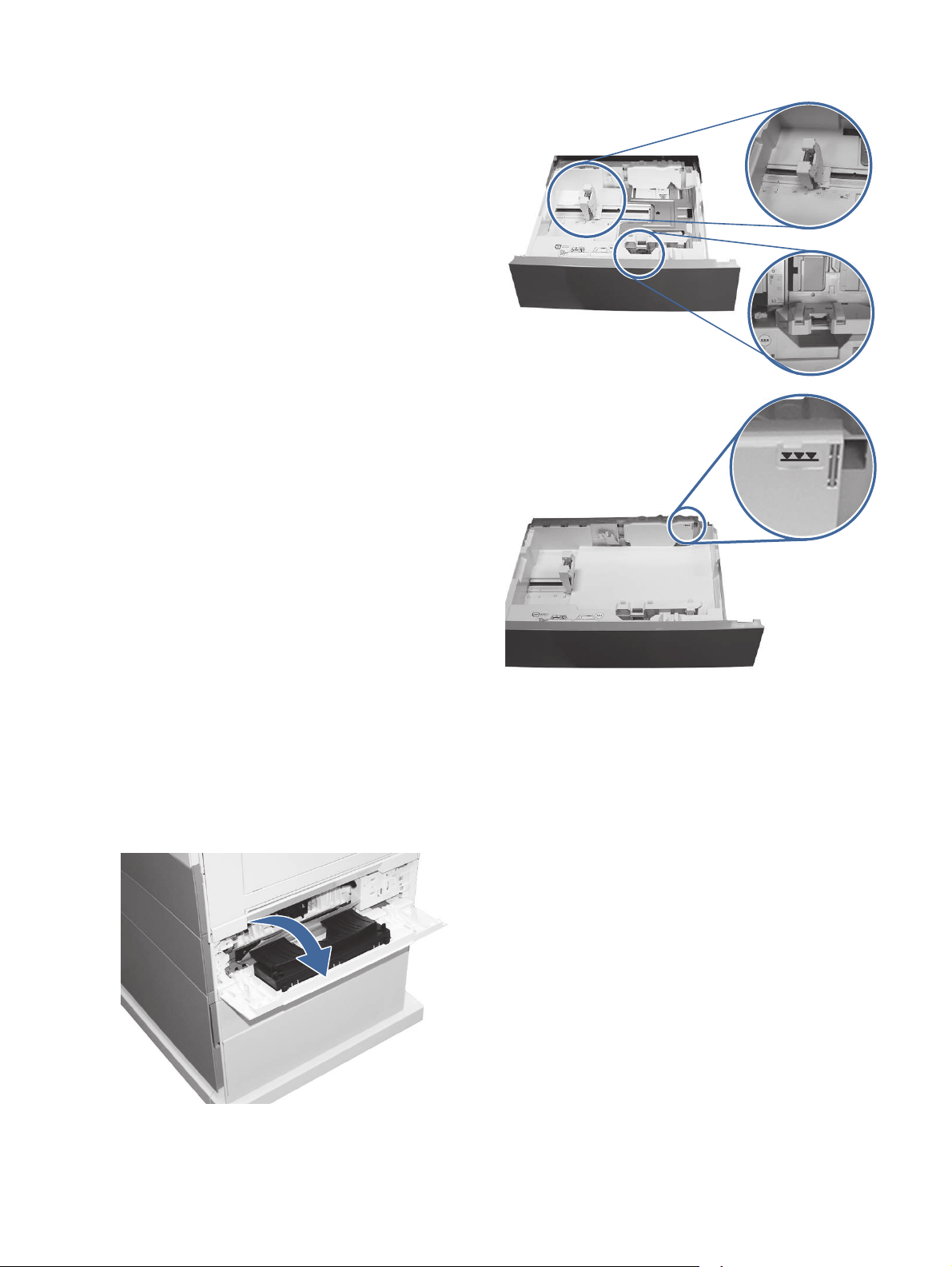
7. Make sure that the tray width and length
guides are set to the correct paper size for
the paper being installed into the tray and that
the tray is not over filled above the fill mark
(line below 3 triangles on rear guide).
8. Ensure the type and quality of the paper
being used meets the HP specifications for
the printer.
9. If the error persists, clean the Tray 3 pick,
feed, separation rollers.
a. Open the Tray 3 right door to access the
rollers.
13.A3 jam error in Tray 3 165
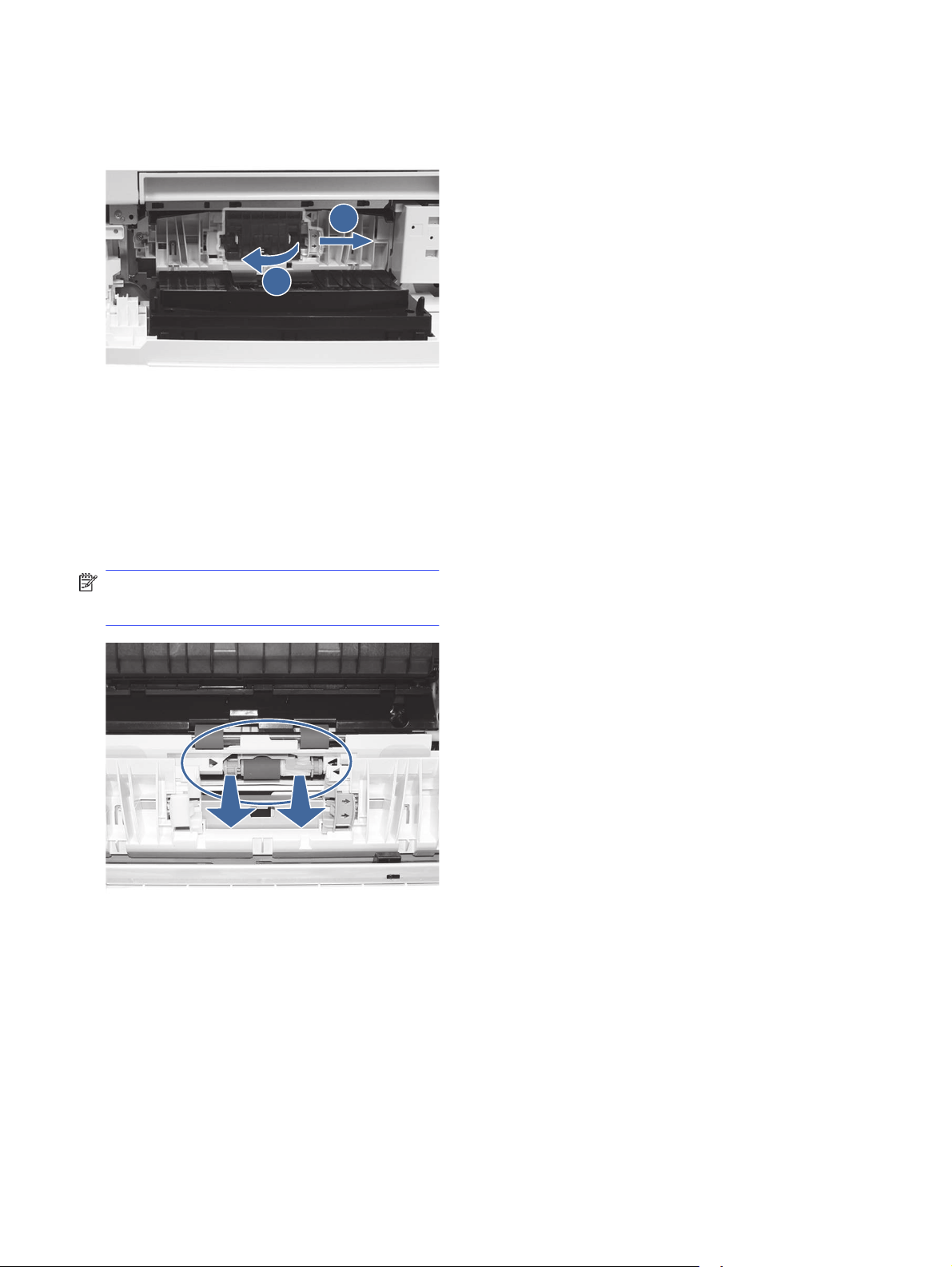
b. Locate and remove the Tray 3 separation
roller.
1
2
Call-out 1- slide locking lever
Call-out 2- Remove the roller assembly.
c. Remove the Tray 3 pick and feed rollers.
To remove the roller assembly, gently pull on
the side of the assembly and slide out as
shown.
NOTE: Do not touch the rubber part of the
rollers with hands. Oils or debris from hands
can cause paper pickup issues.
166
Chapter 9Solve problems

d. Clean the rollers with a dampened lint
free cloth.
e. Reinstall the roller assemblies and close
the right door.
f. Run a print job from Tray 3.
10. If the error persists, contact your HP-
authorized service or support provider, or
contact customer support at www.hp.com/go/
contactHP.
13.A4 jam error in Tray 4
Use the following procedure to check for paper in all possible jam locations related to the 550 sheet
Tray 4. When a jam occurs, the control panel displays an animation that assists in clearing the jam.
Recommended action for customers
When a jam occurs, the control panel displays a message and an animation that assists in clearing
the jam.
● 13.A4.A4 Paper jam in tray 4
● 13.A4.D4 Paper jam in tray 4
13.A4 jam error in Tray 4
167
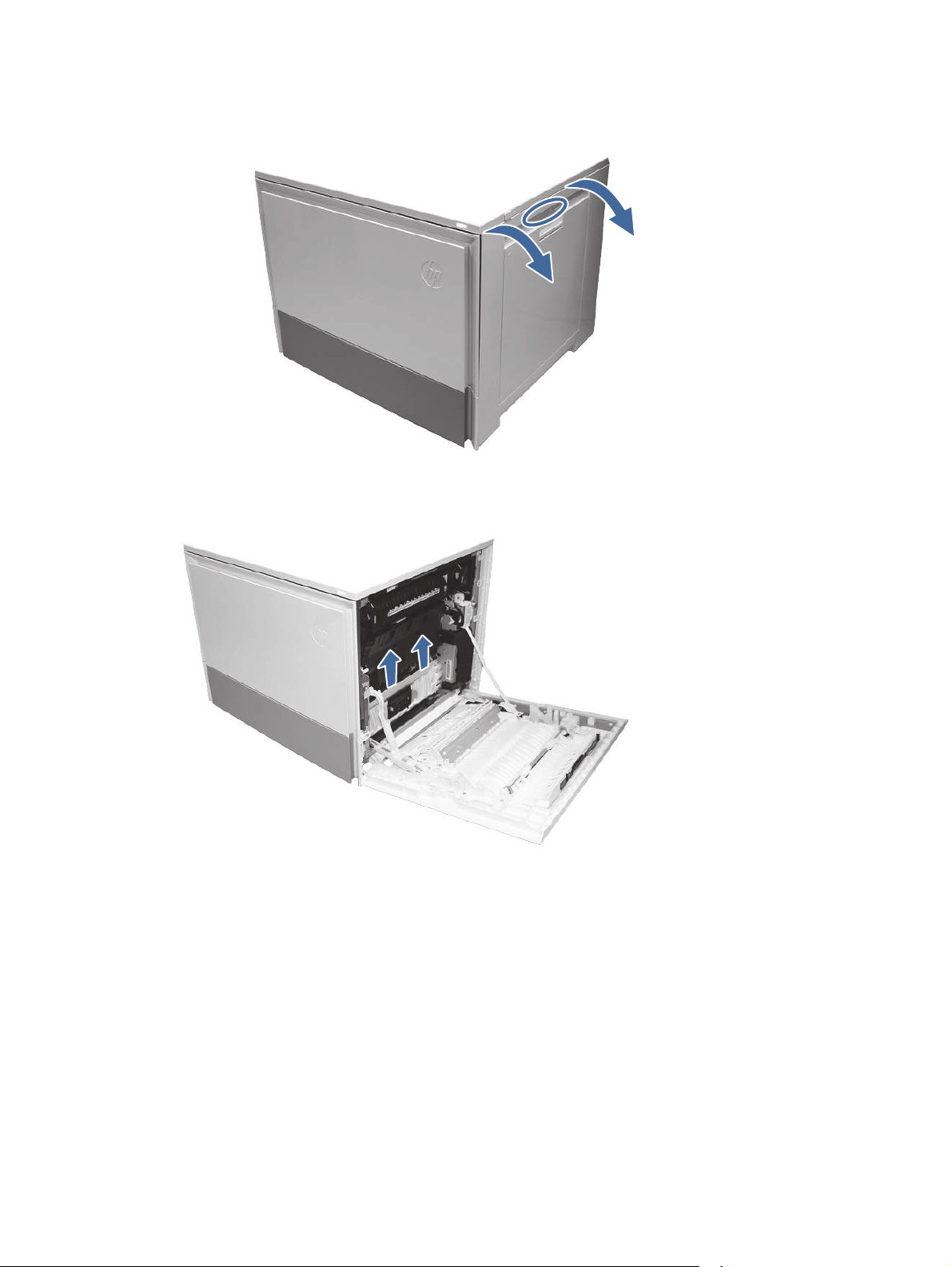
1. Open the right door.
2. Gently remove any jammed paper.
168
Chapter 9Solve problems
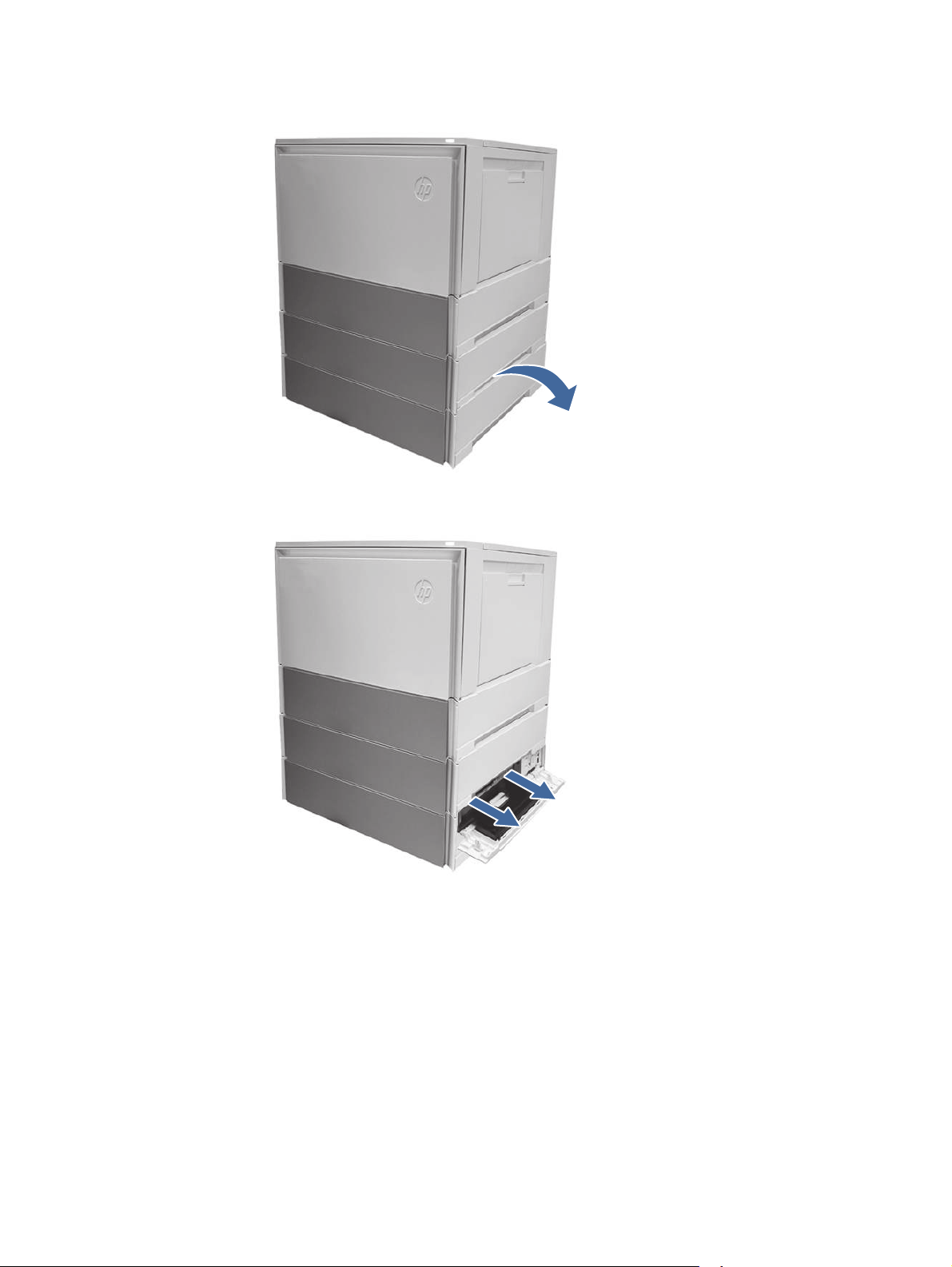
3. Open the Tray 4 right access door.
4. Gently remove any jammed paper.
13.A4 jam error in Tray 4
169
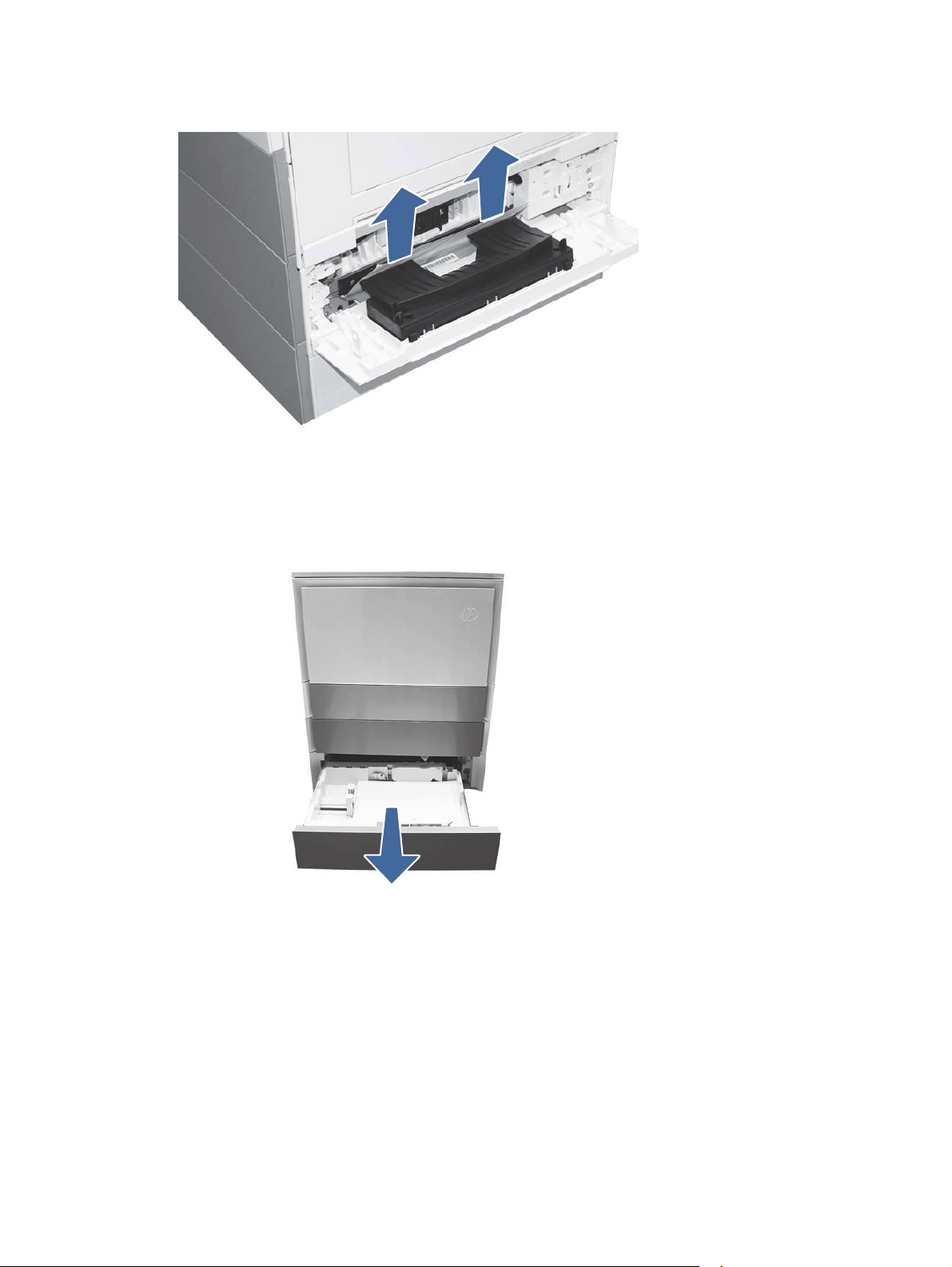
5. Open the Tray 3 access door and gently remove any jammed paper.
6. Close the right door to clear the control panel message.
7. Open Tray 4.
170
Chapter 9Solve problems
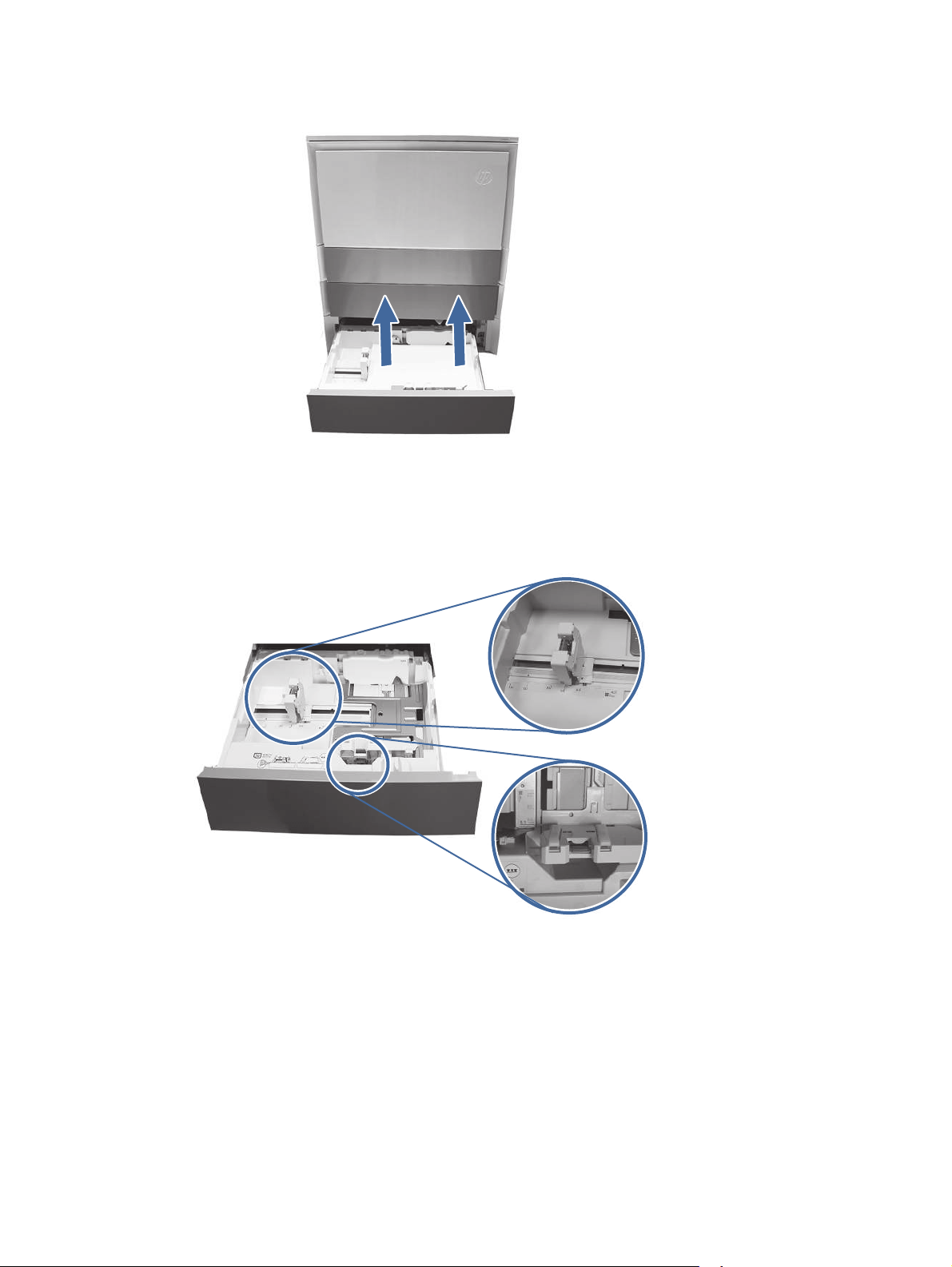
8. Remove the paper from the tray and discard any bent, curled, or damaged sheets.
9. Make sure that the tray width and length guides are set to the correct paper size for the paper
being installed into the tray and that the tray is not over filled above the fill mark (line below 3
triangles on rear guide).
13.A4 jam error in Tray 4
171
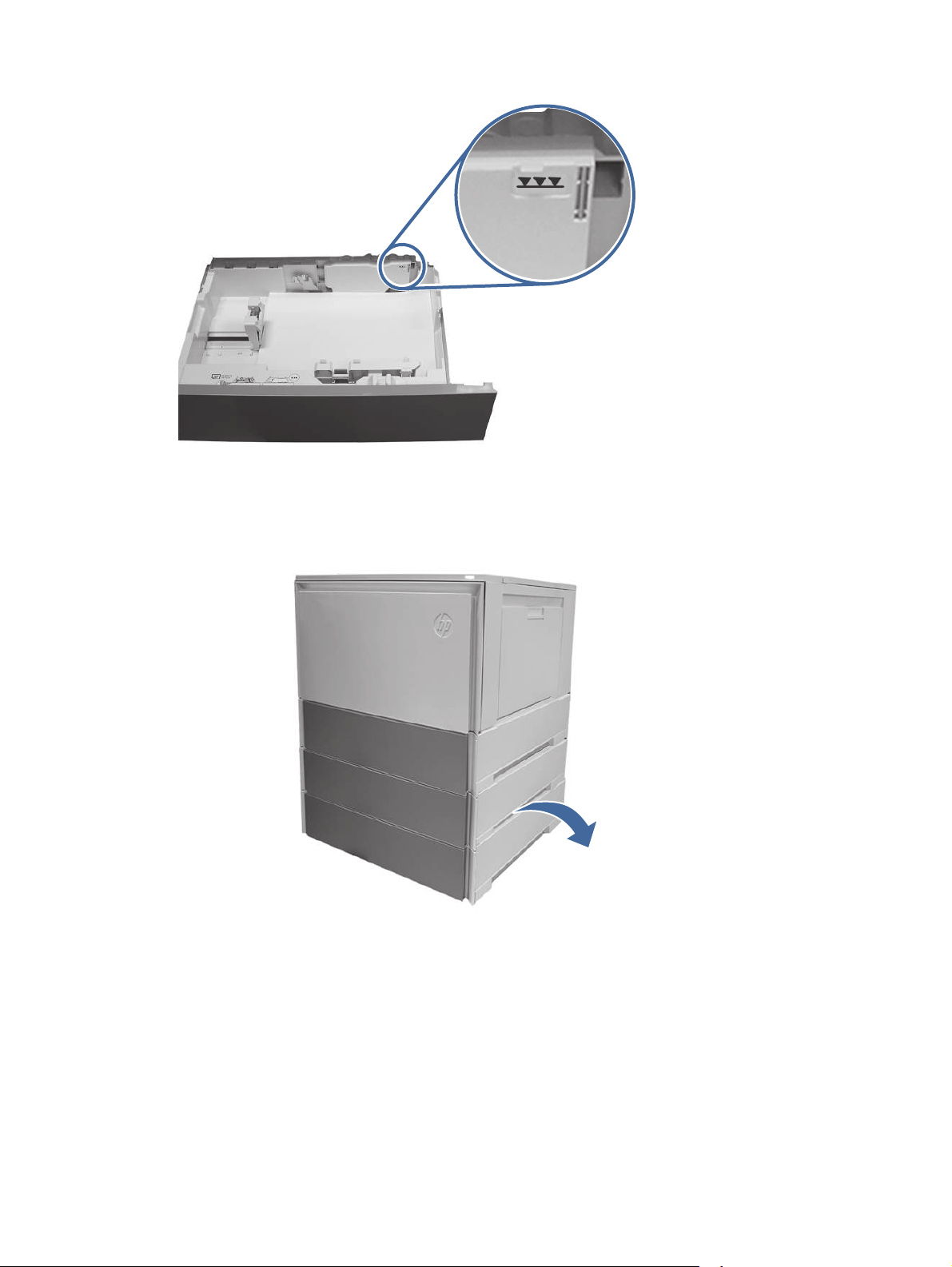
10. Ensure the type and quality of the paper being used meets the HP specifications for the printer.
11. If the error persists, clean the Tray 4 pick, feed, separation rollers.
a. Open the Tray 4 door to access the rollers.
172
Chapter 9Solve problems
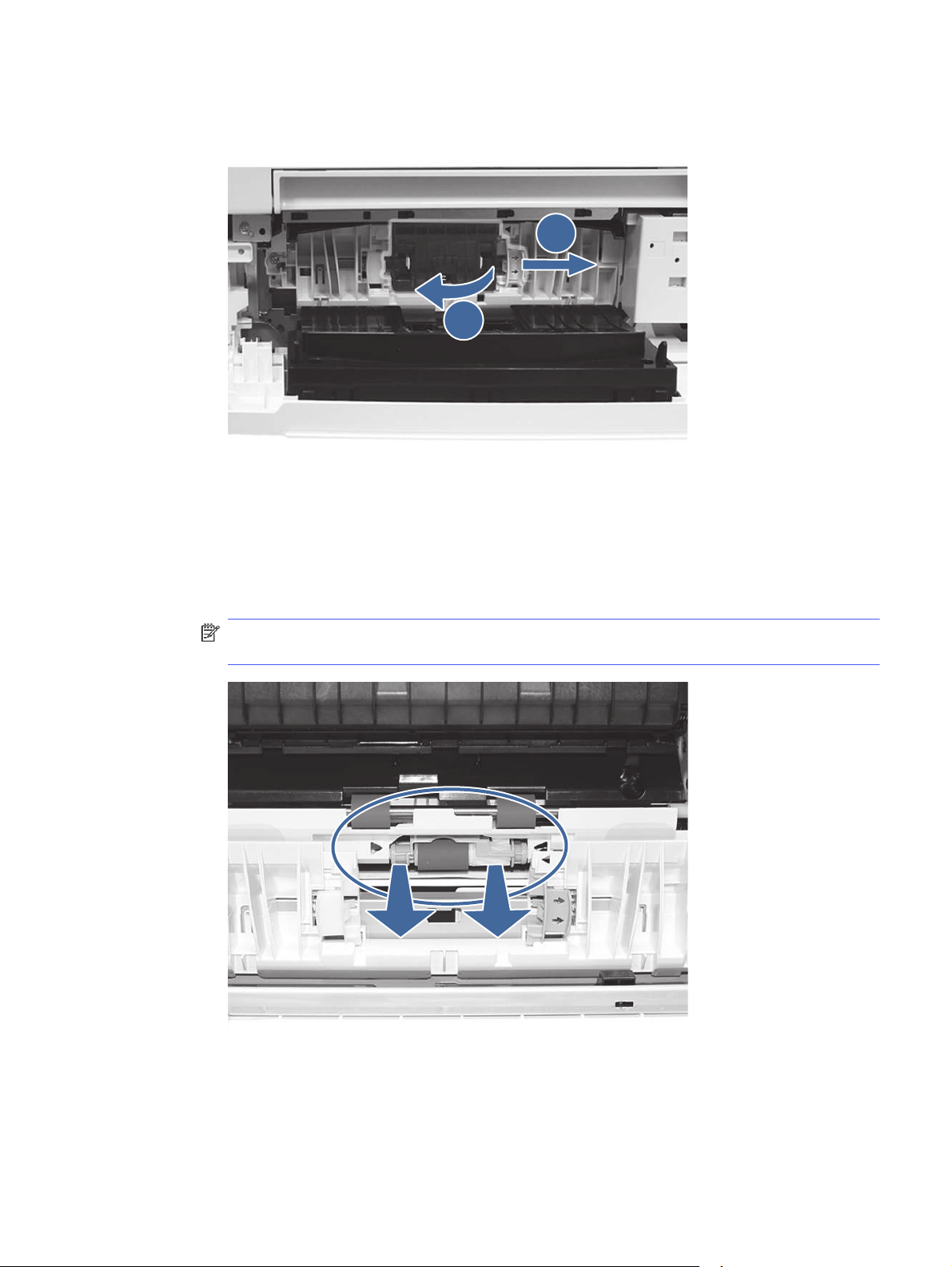
b. Locate and remove the Tray 4 separation roller.
1
2
Call-out 1- slide locking lever
Call-out 2- Remove the roller assembly.
c. Remove the Tray 4 pick and feed rollers.
To remove the roller assembly, gently pull on to the side of the rollers as shown.
NOTE: Do not touch the rubber part of the rollers with hands. Oils or debris from hands
can cause paper pickup issues.
13.A4 jam error in Tray 4
173

d. Clean the rollers with a dampened lint free cloth.
e. Reinstall the roller assemblies and close the right door.
f. Run a print job from Tray 4.
12. If the error persists, contact your HP-authorized service or support provider, or contact
customer support at www.hp.com/go/contactHP.
13.A5 jam error in Tray 5
Use the following procedure to check for paper in all possible jam locations related to the 550 sheet
Tray 4. When a jam occurs, the control panel displays an animation that assists in clearing the jam.
Recommended action for customers
When a jam occurs, the control panel displays a message and an animation that assists in clearing
the jam.
● 13.A5.A5 Paper jam in tray 5
● 13.A5.D5 Paper jam in tray 5
174
Chapter 9Solve problems
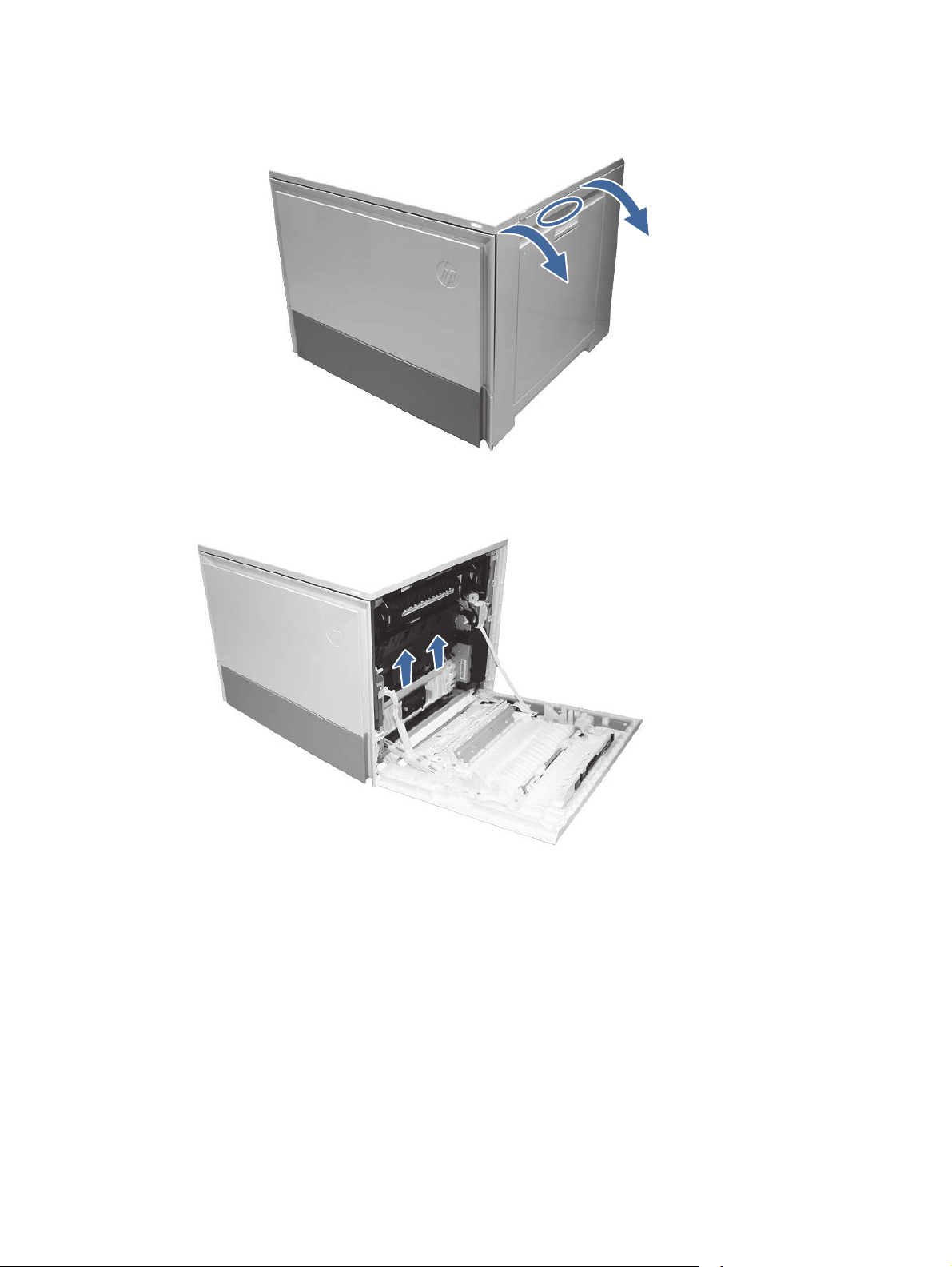
1. Open the right door.
2. Gently remove any jammed paper.
13.A5 jam error in Tray 5
175
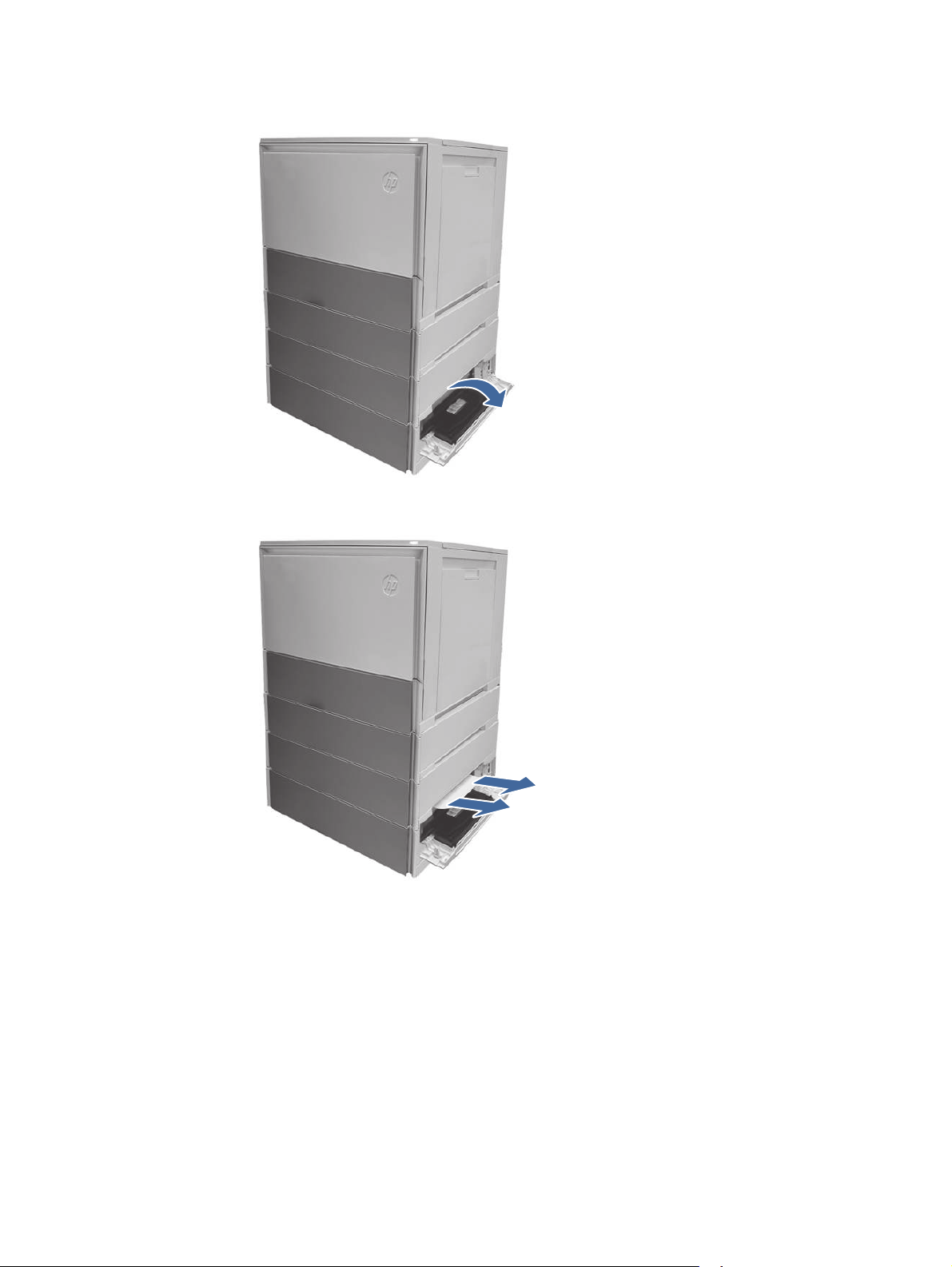
3. Open the Tray 5 right access door.
4. Gently remove any jammed paper.
176
Chapter 9Solve problems
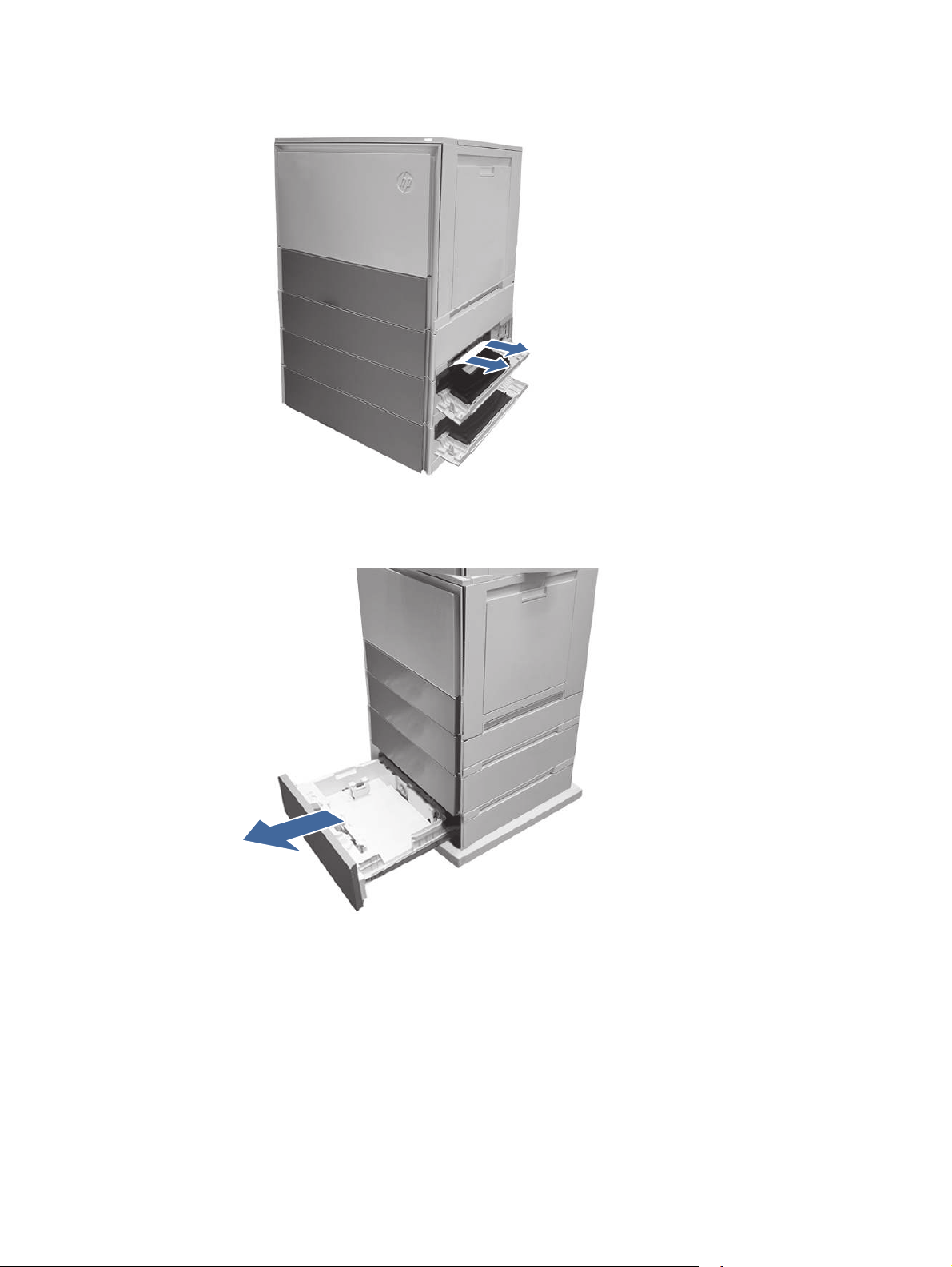
5. Open the Tray 4 access door and gently remove any jammed paper.
6. Close the right door to clear the control panel message.
7. Open Tray 5.
13.A5 jam error in Tray 5
177
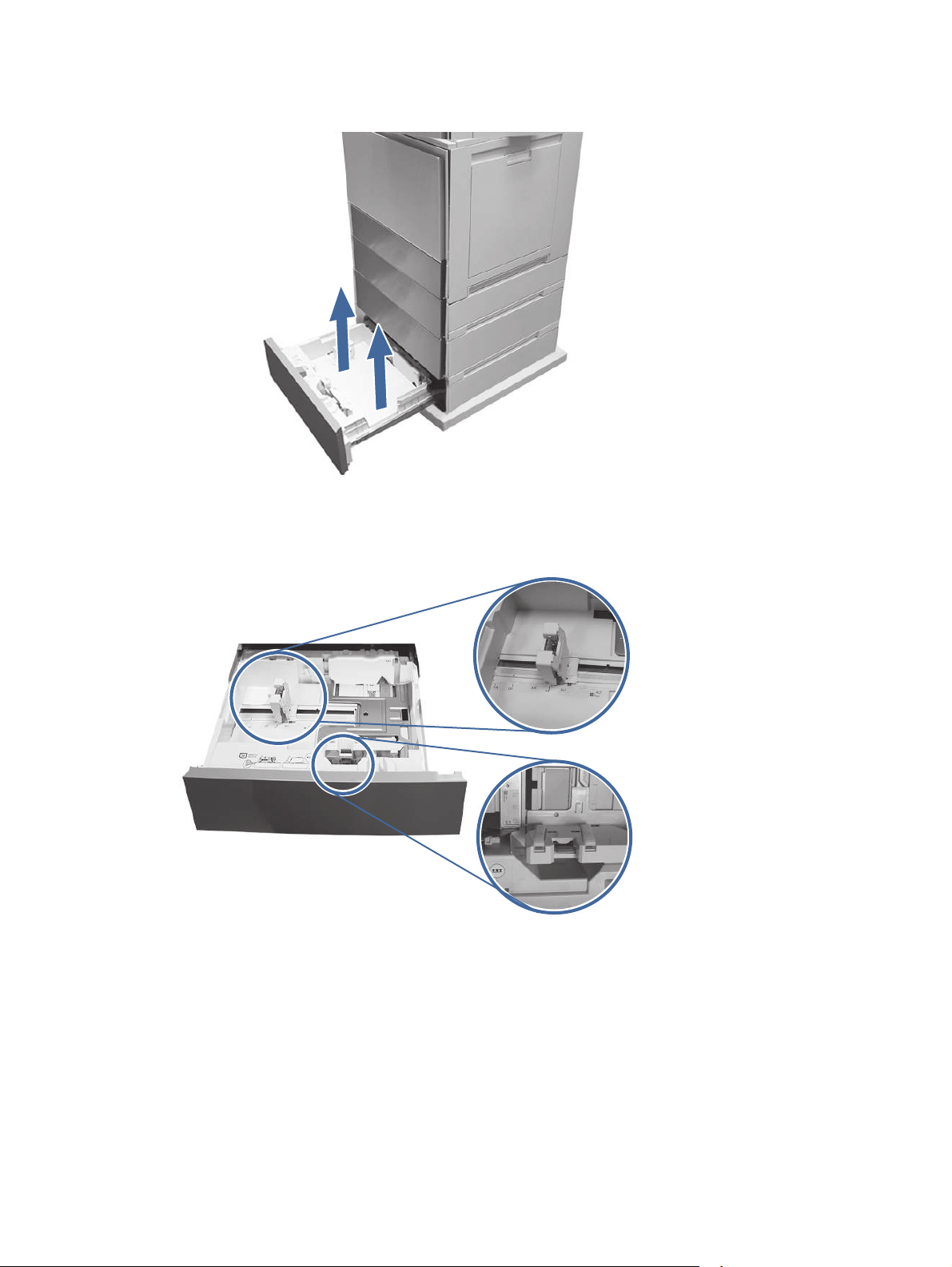
8. Remove the paper from the tray and discard any bent, curled, or damaged sheets.
9. Make sure that the tray width and length guides are set to the correct paper size for the paper
being installed into the tray and that the tray is not over filled above the fill mark (line below 3
triangles on rear guide).
178
Chapter 9Solve problems
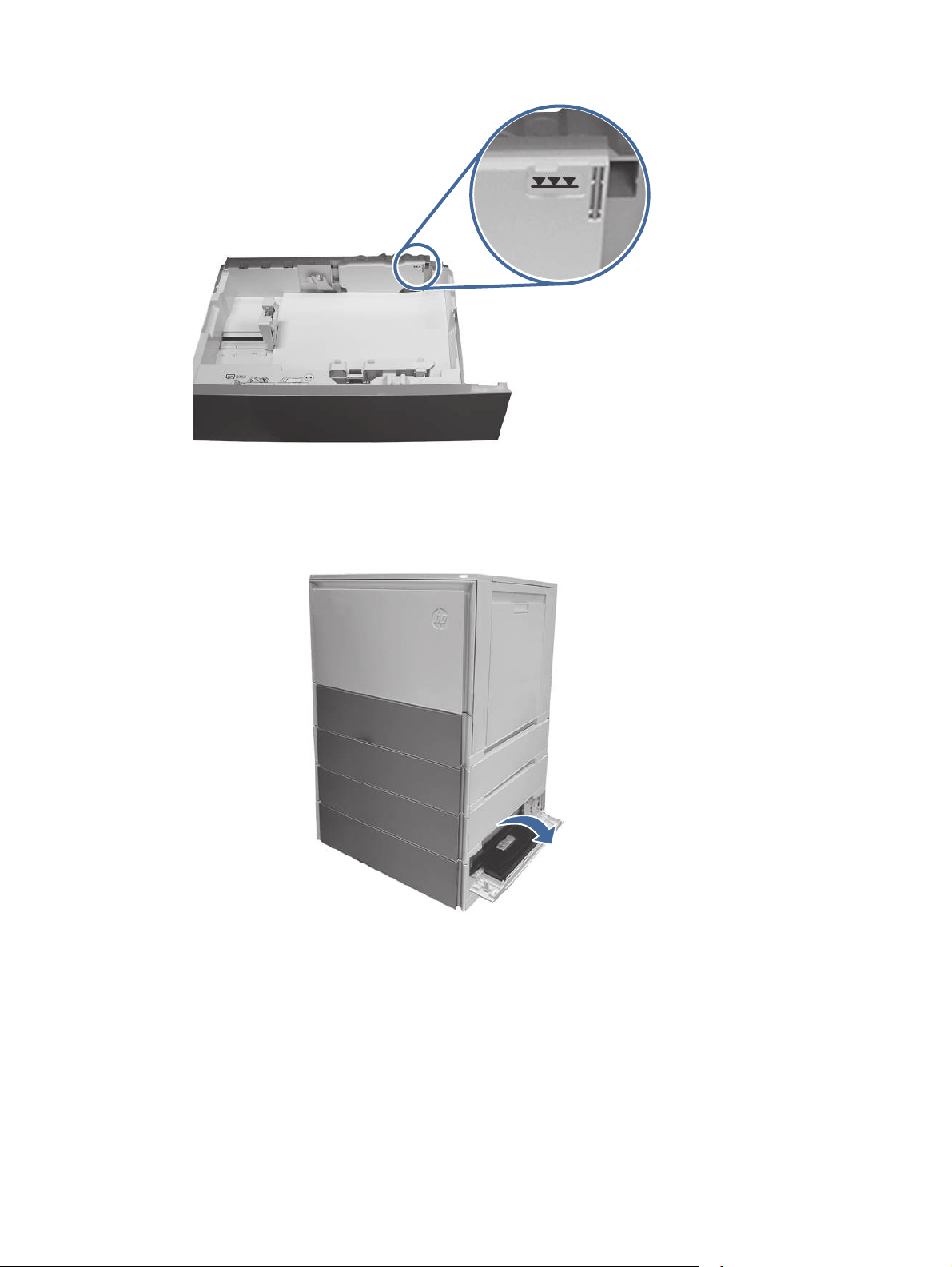
10. Ensure the type and quality of the paper being used meets the HP specifications for the printer.
11. If the error persists, clean the Tray 5 pick, feed, separation rollers.
a. Open the Tray 5 door to access the rollers.
13.A5 jam error in Tray 5
179
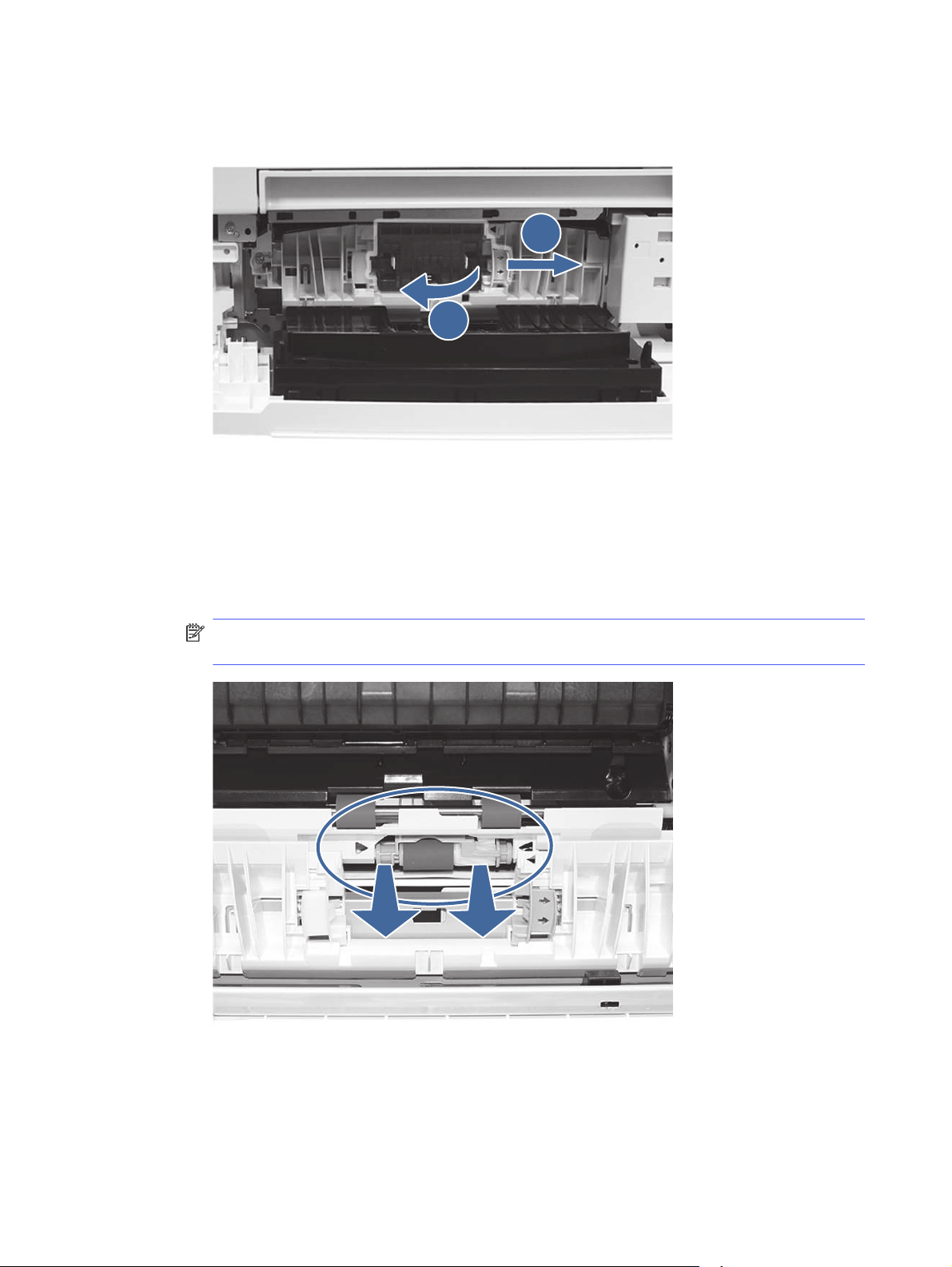
b. Locate and remove the Tray 5 separation roller.
1
2
Call-out 1- slide locking lever
Call-out 2- Remove the roller assembly.
c. Remove the Tray 5 pick and feed rollers.
To remove the roller assembly, gently pull on to the side of the rollers as shown.
NOTE: Do not touch the rubber part of the rollers with hands. Oils or debris from hands
can cause paper pickup issues.
180
Chapter 9Solve problems
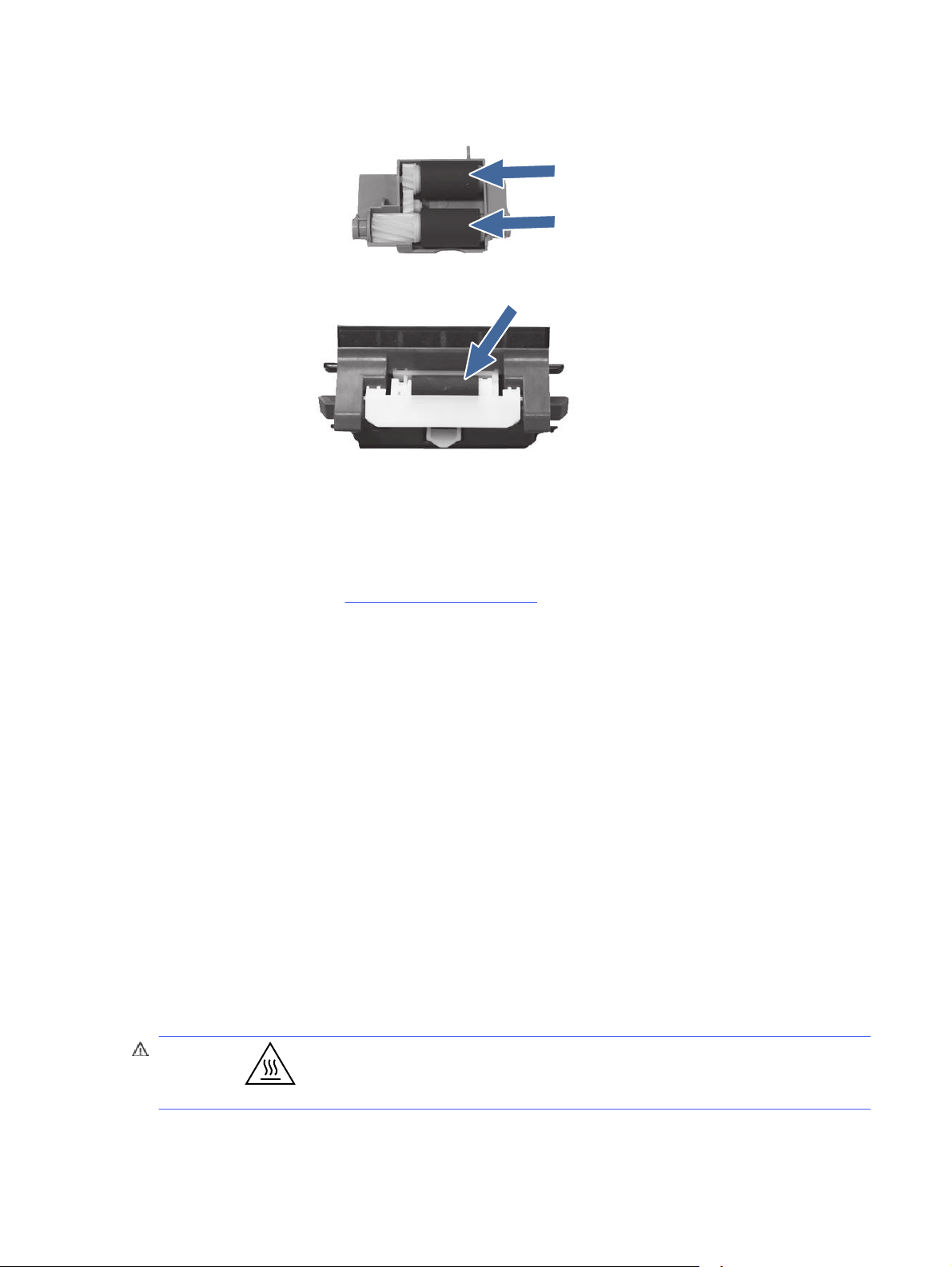
d. Clean the rollers with a dampened lint free cloth.
e. Reinstall the roller assemblies and close the right door.
f. Run a print job from Tray 5.
12. If the error persists, contact your HP-authorized service or support provider, or contact
customer support at www.hp.com/go/contactHP.
13.B2 jam error in right door
Use the following procedure to clear paper jams in the right door and fuser area. When a jam
occurs, the control panel displays an animation that assists in clearing the jam.
Recommended action for customers
When a jam occurs, the control panel displays a message and an animation that assists in clearing
the jam.
● 13.B2.Az Stay jam in right door
● 13.B2.Dz Delay jam in right door
● 13.B2.5z Inappropriate to the Delivery Path jam
● 13.B2.FF Residual paper jam in right door
z = paper tray. This can be trays 1-5 or "D" for duplex jobs
Or
z = Fuser mode. This can be 0-9 or A-F.
CAUTION: The fuser can be hot while the printer is in use. Wait for the fuser to cool
before handling it.
13.B2 jam error in right door
181
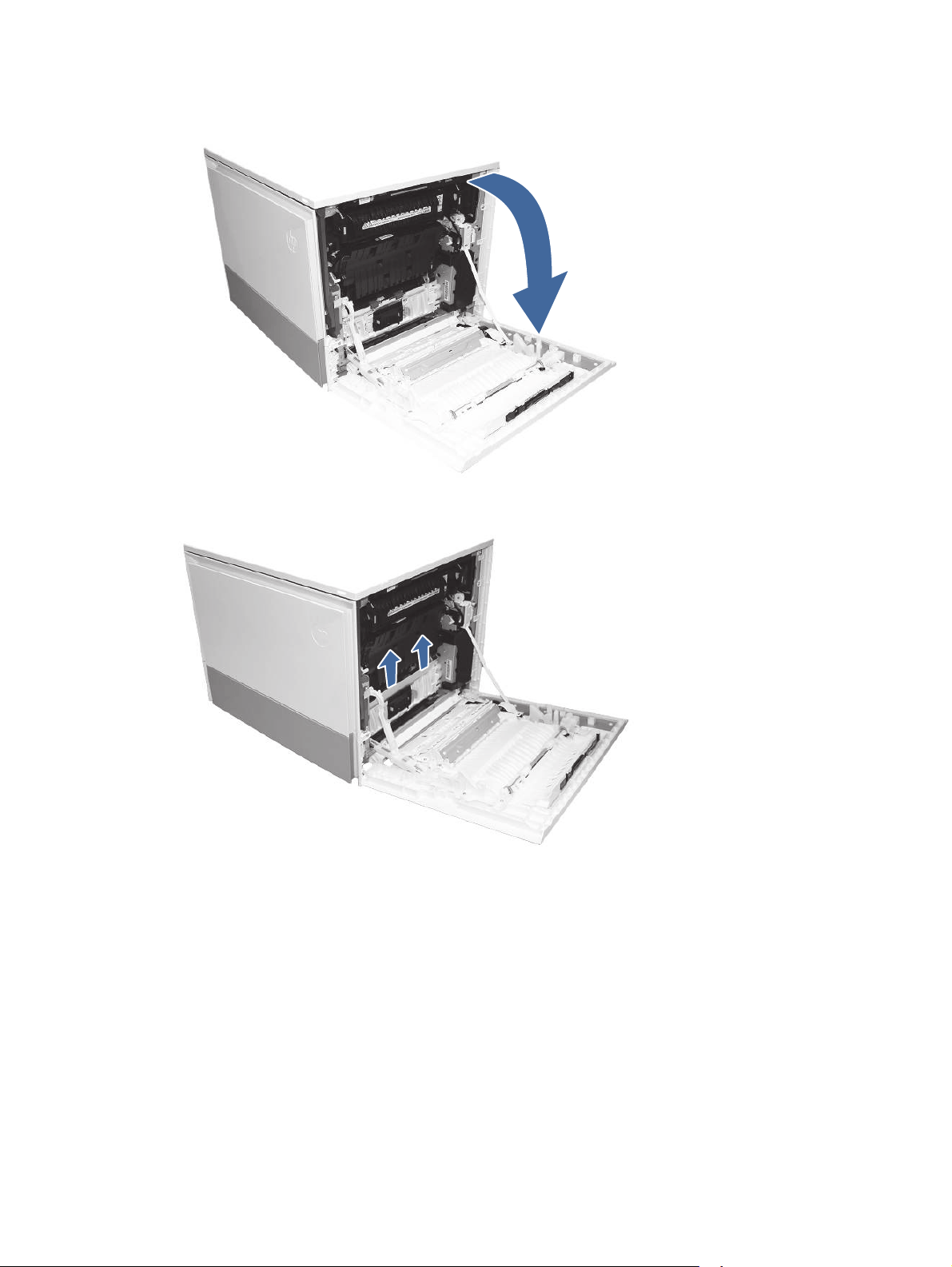
1. Open the right door.
2. Gently remove any jammed paper.
182
Chapter 9Solve problems
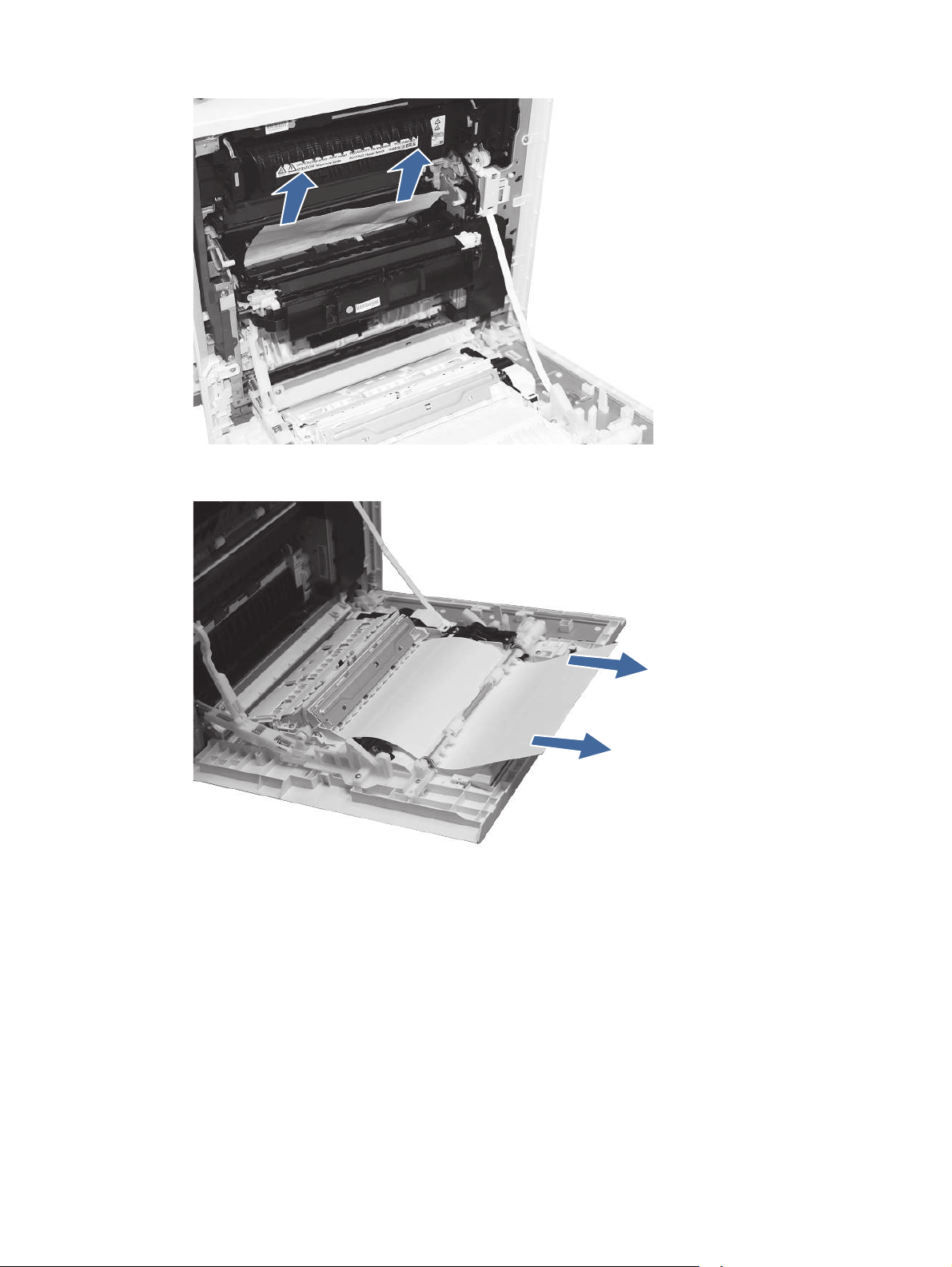
3. Gently remove any jammed paper from the duplexer paper path.
13.B2 jam error in right door
183
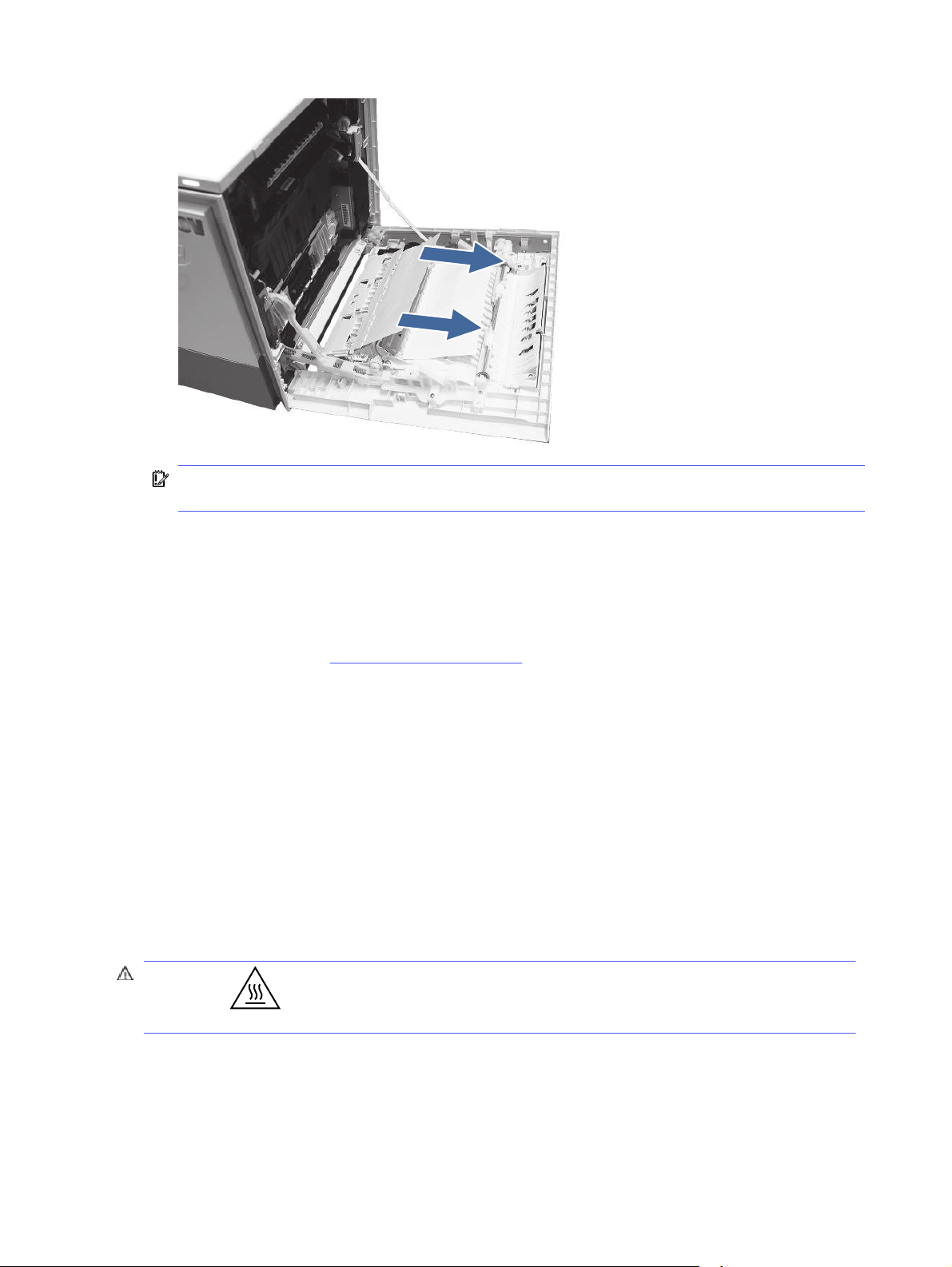
IMPORTANT: Make sure the paper being used is not to short for the printers duplexer
requirements.
4. Close the right door.
5. Ensure the type and quality of the paper being used meets the HP specifications for the printer.
6. Ensure the paper tray guides are set to the correct size for the paper loaded.
7. If the error persists, contact your HP-authorized service or support provider, or contact
customer support at www.hp.com/go/contactHP.
13.B4 jam errors in the right door
Use the following procedure to clear paper jams in the right door and fuser area. When a jam
occurs, the control panel displays an animation that assists in clearing the jam.
Recommended action for customers
When a jam occurs, the control panel displays a message and an animation that assists in clearing
the jam.
● 13.B4.Cz Jam in right door
● 13.B4.FF Residual paper jam in right door
z = paper tray. This can be trays 1-5 or "D" for duplex print jobs.
CAUTION: The fuser can be hot while the printer is in use. Wait for the fuser to cool
before handling it.
184
Chapter 9Solve problems
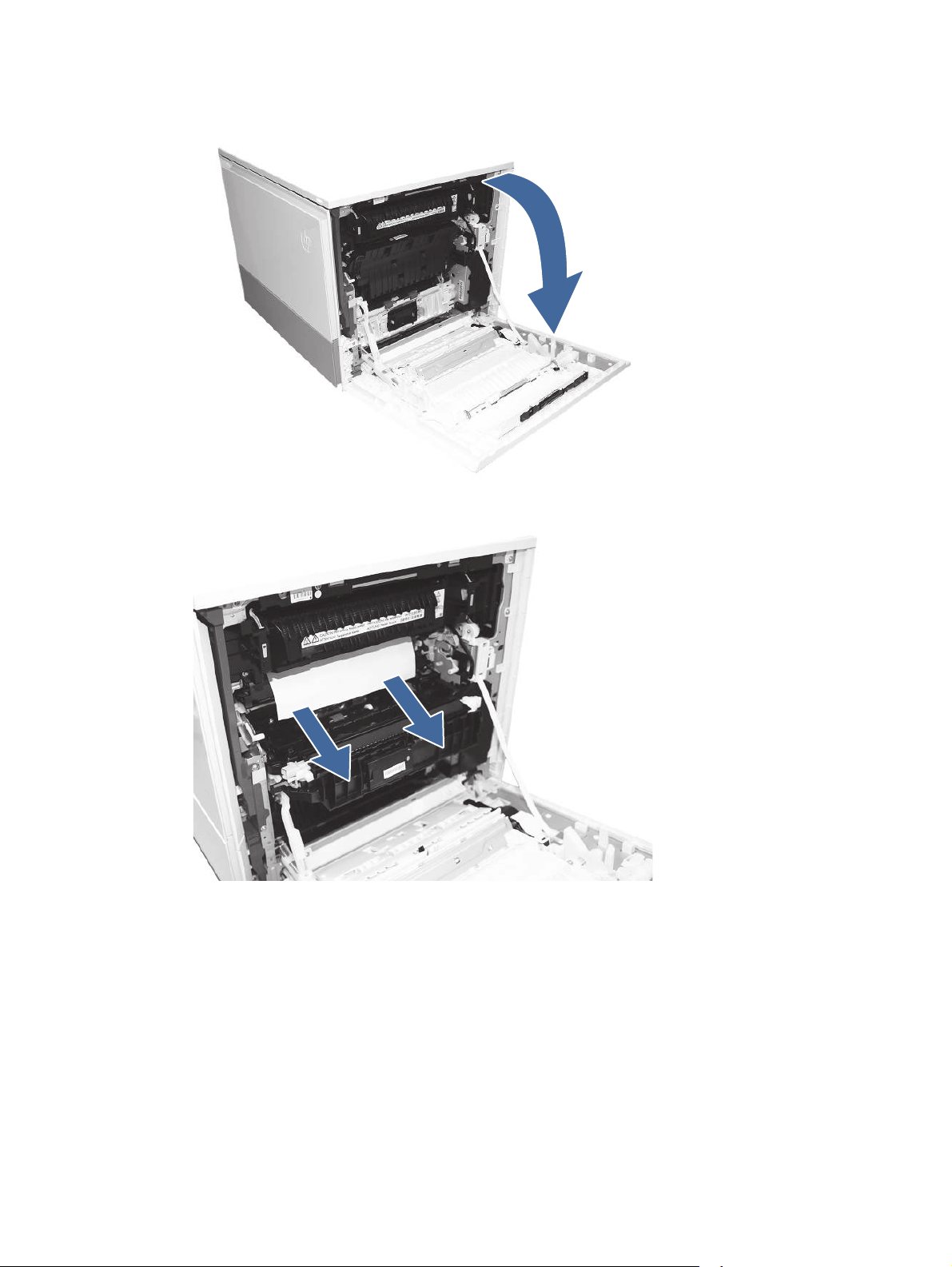
1. Open the right door.
2. Gently remove any jammed paper.
13.B4 jam errors in the right door
185
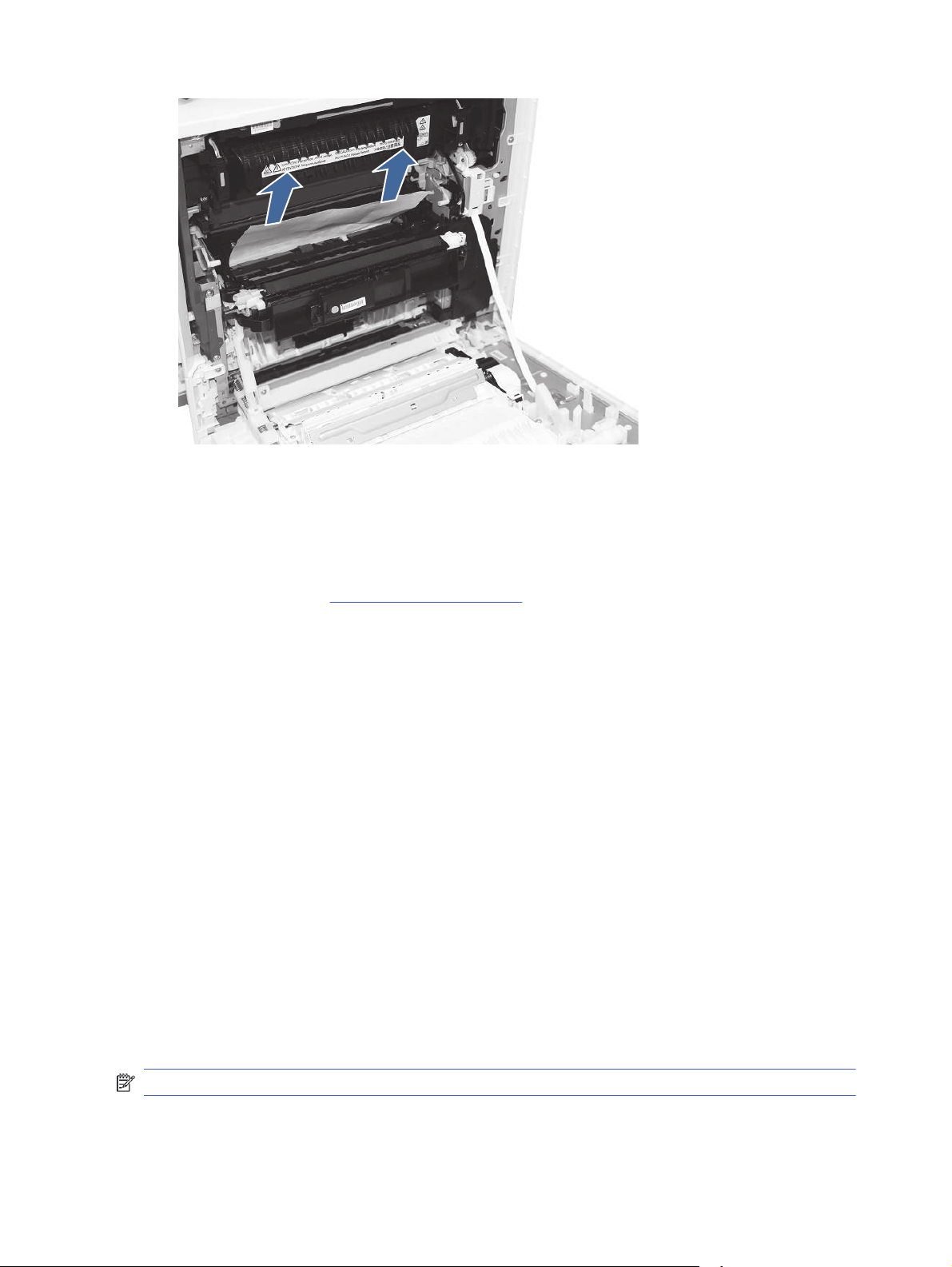
3. Close the right door.
4. Ensure the type and quality of the paper being used meets the HP specifications for the printer.
5. Ensure the paper tray guides are set to the correct size for the paper loaded.
6. If the error persists, contact your HP-authorized service or support provider, or contact
customer support at www.hp.com/go/contactHP.
13.B9 jam errors in the fuser
Use the following procedure to clear paper jams in the right door and fuser area. When a jam
occurs, the control panel displays an animation that assists in clearing the jam.
Recommended action for customers
When a jam occurs, the control panel displays a message and an animation that assists in clearing
the jam.
● 13.B9.yz Jam in right door
y = jam type (A or D)
z = Paper tray. This can be 0-5 or "D" for duplex print jobs.
Or
z = Fuser mode. This can be 0-9 or A-F.
● 13.B9.Cz Jam in right door (Fuser wrap jam)
z = Fuser mode. This can be 0-9 or A-F.
● 13.B9.FF Residual paper jam in right door
NOTE: The fuser is hot while the printer is in use. Wait for the fuser to cool before clearing jams.
186
Chapter 9Solve problems
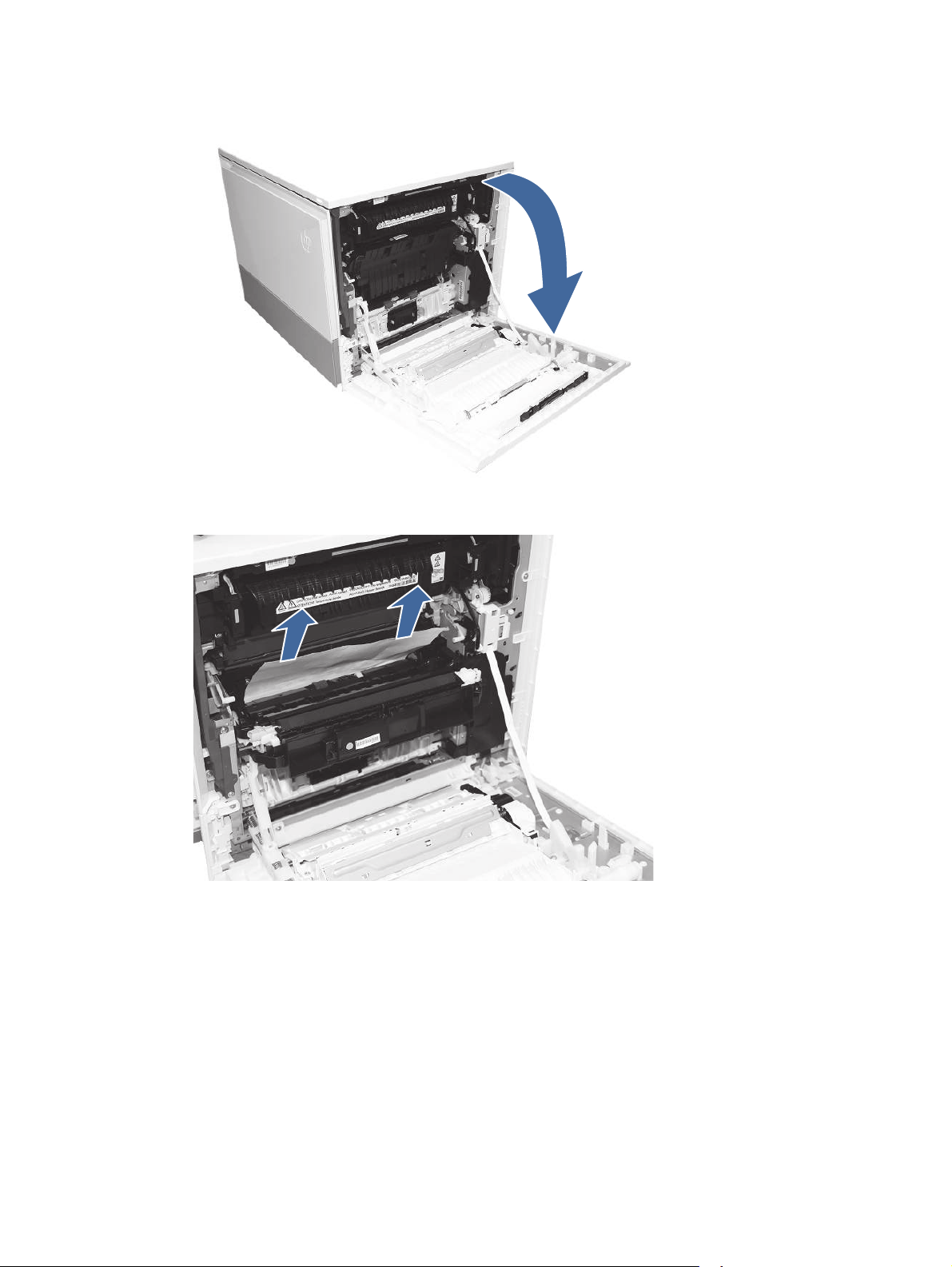
1. Open the right door.
2. Gently remove any jammed paper from the fuser input.
13.B9 jam errors in the fuser
187
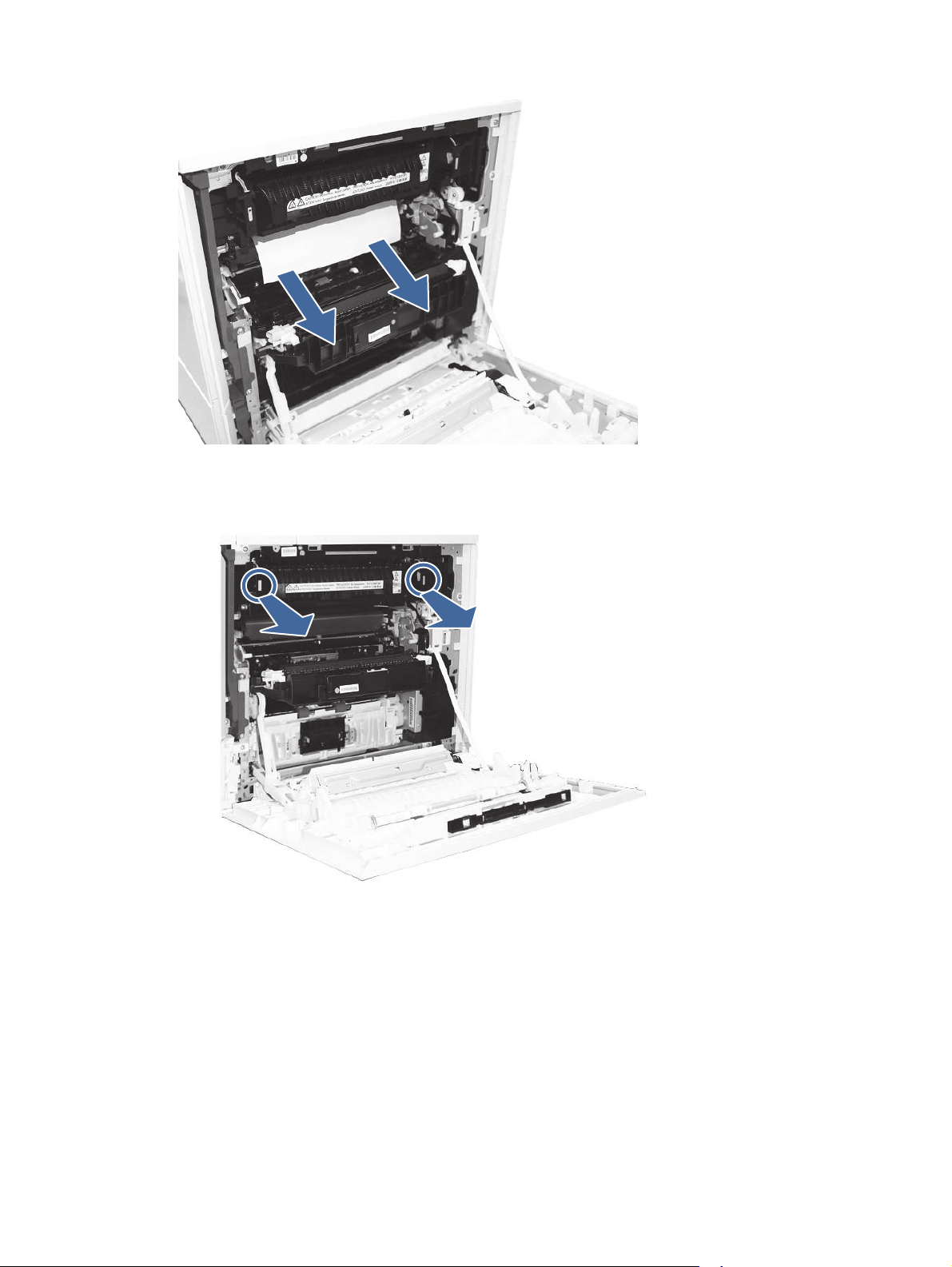
3. Remove the fuser and remove any jammed paper found.
a. Squeeze the release levers on the handles (circle call-outs) and then remove the fuser.
188
Chapter 9Solve problems
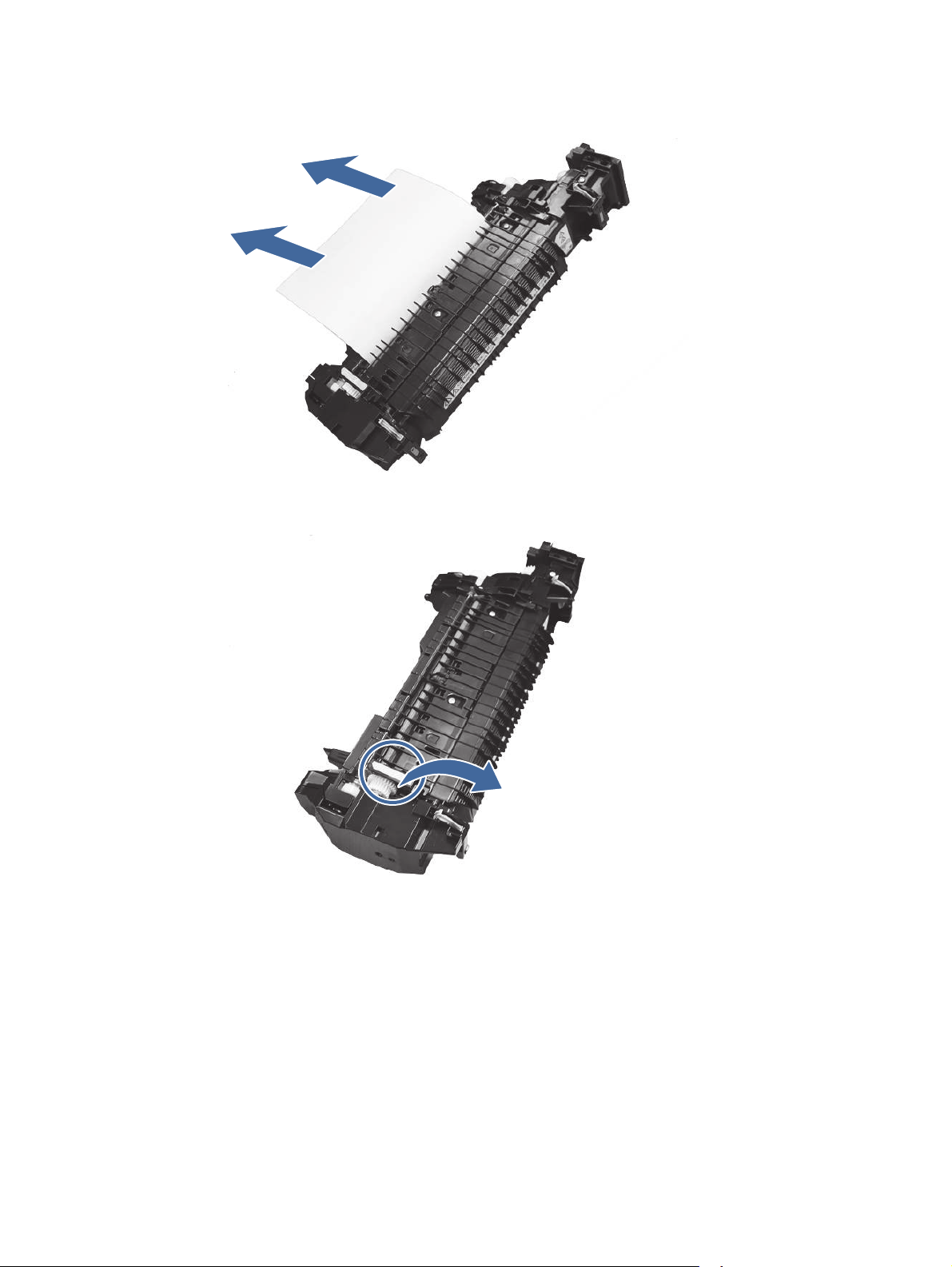
b. Remove any paper from the exit of the fuser.
c. Open the fuser access and check for a z-fold paper jam.
13.B9 jam errors in the fuser
189
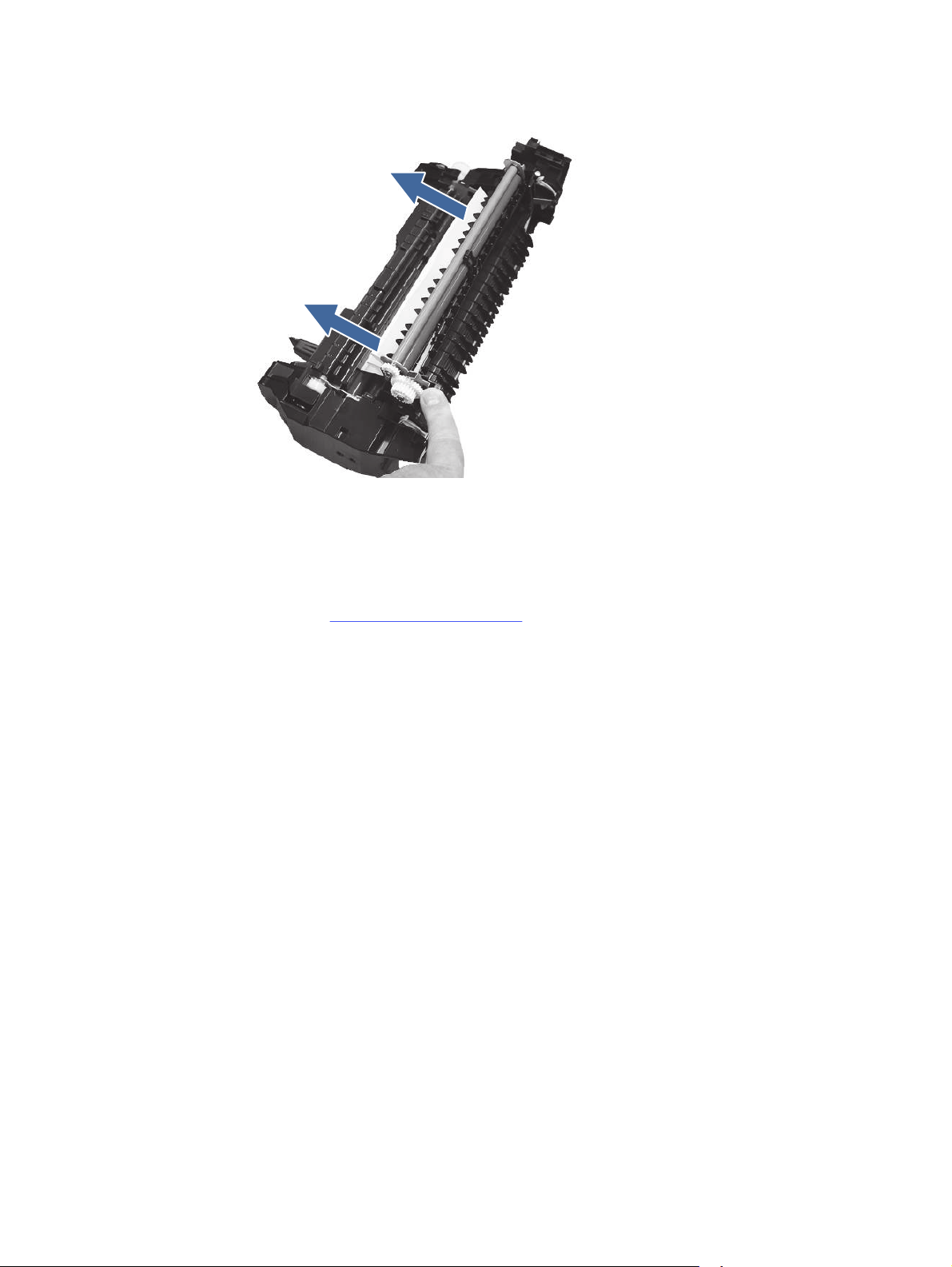
d. Remove jammed paper from fuser.
e. Reinstall the fuser and close the right door.
4. If the error persists, ensure the type and quality of the paper being used meets the HP
specifications for the printer.
5. If the error persists, contact your HP-authorized service or support provider, or contact
customer support at www.hp.com/go/contactHP.
13.E1 jam error in the output bin
Use the following procedure to check for paper in all possible jam locations in the output bin. When a
jam occurs, the control panel displays an animation that assists in clearing the jam.
Recommended action for customers
When a jam occurs, the control panel displays a message and an animation that assists in clearing
the jam.
● 13.E1.Dz Jam in output bin
● 13.E1.FF Residual paper jam in output bin
z = paper type that is being printer on. This can be 0-9 or A-F.
190
Chapter 9Solve problems
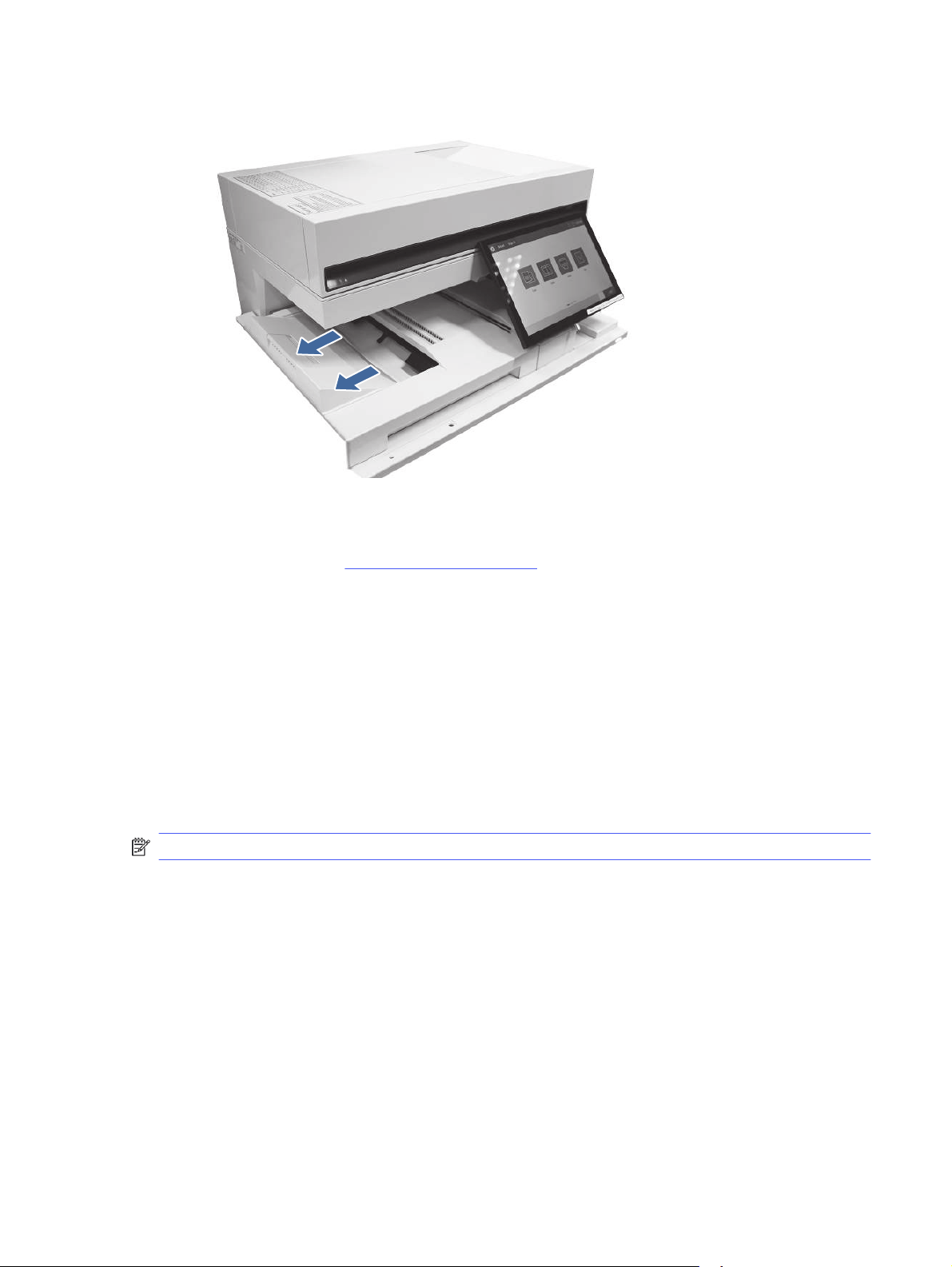
1. If paper is visible in the output bin, grasp the leading edge and remove it.
2. Ensure the type and quality of the paper being used meets the HP specifications for the printer.
3. If the error persists, contact your HP-authorized service or support provider, or contact
customer support at www.hp.com/go/contactHP.
13.60 jam errors in the fuser exit area when printing to a 3 bin stapler/stacker
Use the following procedure to check for paper in all possible jam locations in the fuser exit area.
When a jam occurs, the control panel displays an animation that assists in clearing the jam.
Recommended action for customers
When a jam occurs, the control panel displays a message and an animation that assists in clearing
the jam.
● 13.60.51, 13.60.52 Paper too short jam
● 13.60.61, 13.60.62, 13.60.63, 13.60.64 Inter-Page Gap Jam
NOTE: The images provide do not show any accessories attached to the printer.
13.60 jam errors in the fuser exit area when printing to a 3 bin stapler/stacker
191
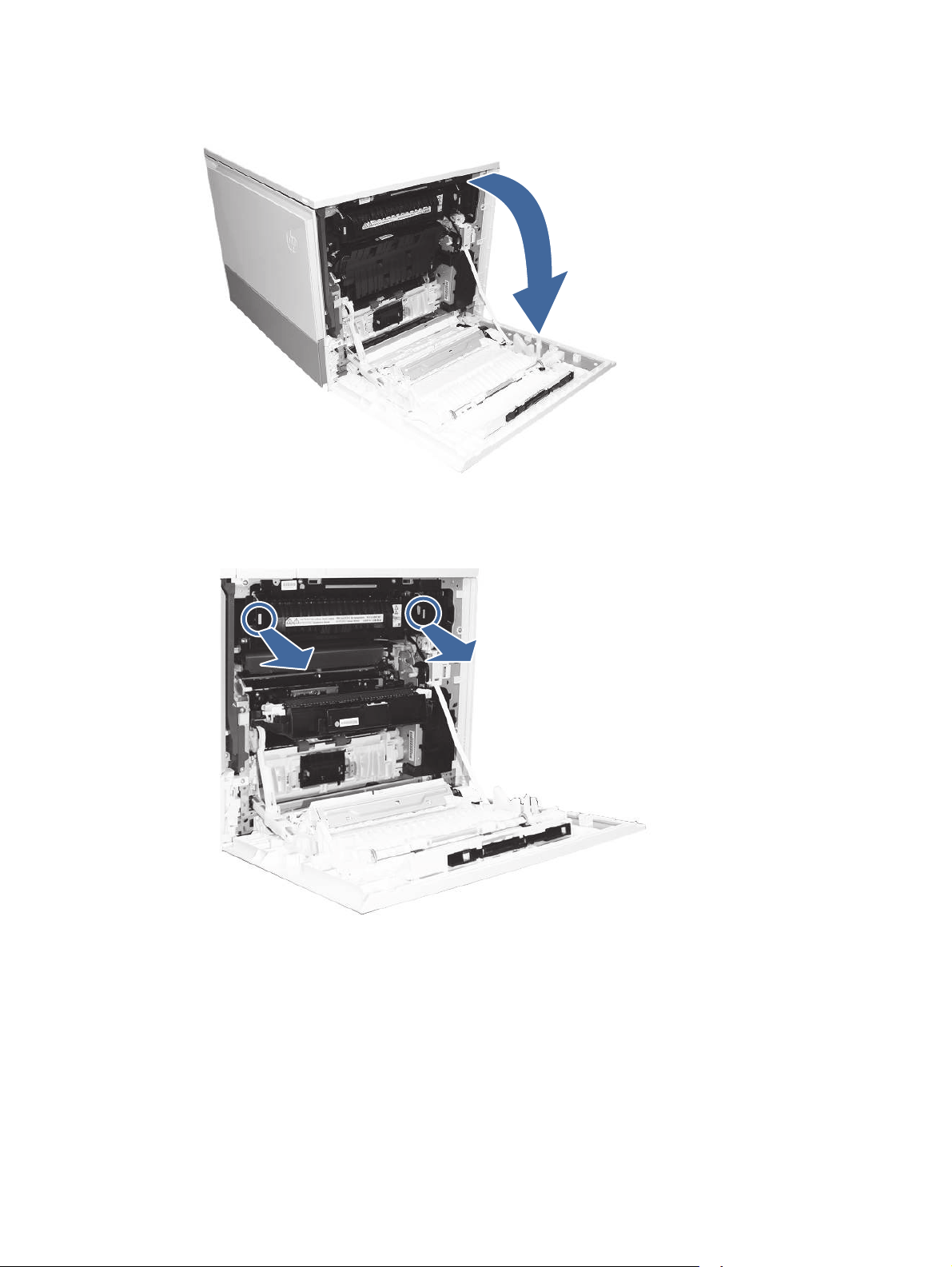
1. Open the right door.
2. Remove the fuser and remove any jammed paper found.
a. Squeeze the release levers on the handles (circle call-outs) and then remove the fuser.
192
Chapter 9Solve problems
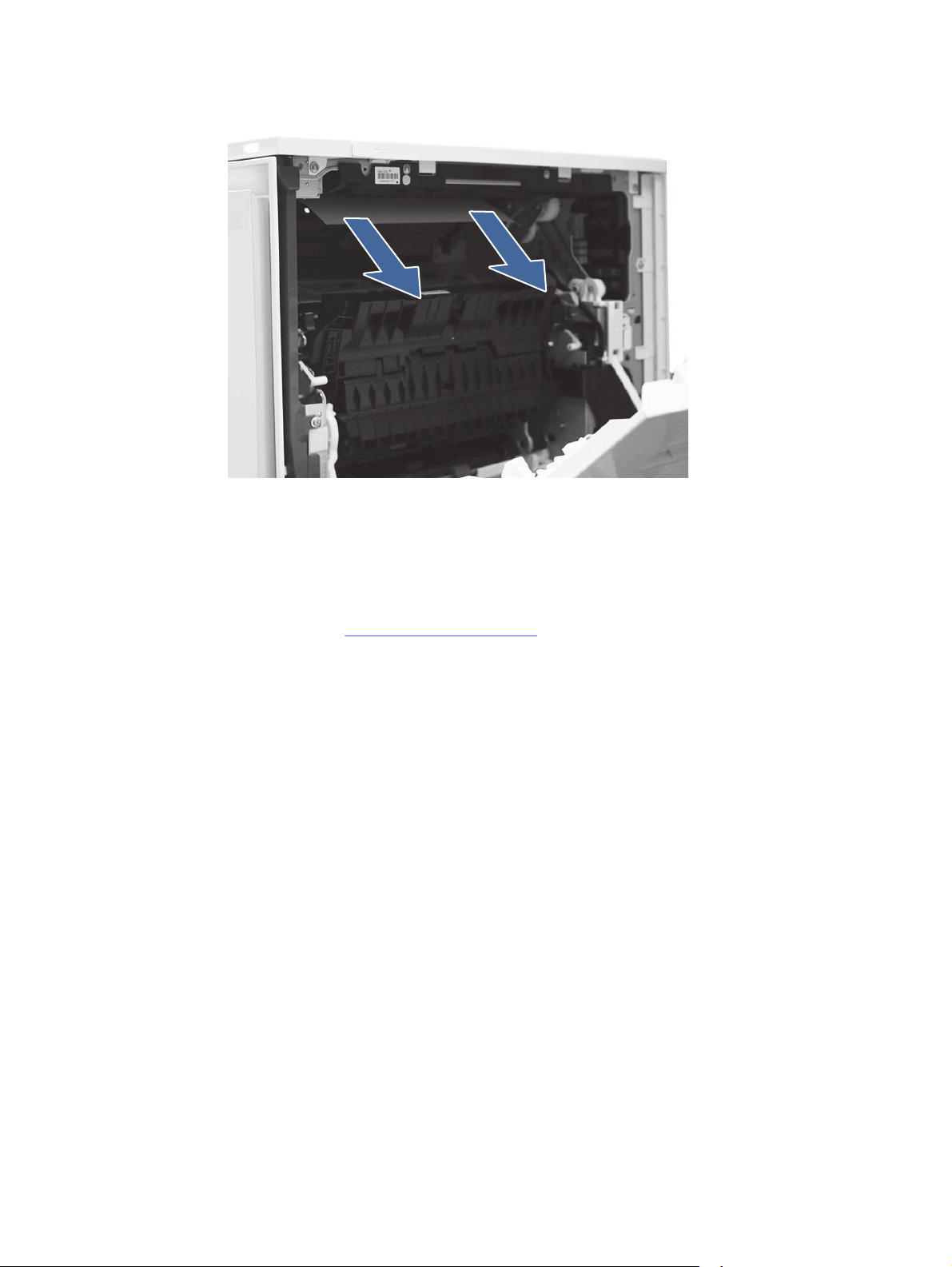
b. Remove any paper jammed in the fuser exit area.
c. Reinstall the fuser and close the right door.
3. Close right door to allow the printer to clear jam message.
4. Ensure the type and quality of the paper being used meets the HP specifications for the printer.
5. If the error persists, contact your HP-authorized service or support provider, or contact
customer support at www.hp.com/go/contactHP.
13.80, 13.83, or 13.84 jam errors in the 3 Bin Stapler/Stacker
Use the following procedure to check for paper in all possible jam locations in the output bin. When a
jam occurs, the control panel displays an animation that assists in clearing the jam.
Recommended action for customers
When a jam occurs, the control panel displays a message and an animation that assists in clearing
the jam.
● 13.80.yz Jam in 3 Bin stapler/stacker
● 13.83.yz Jam in 3 Bin stapler/stacker
● 13.84.yz Jam in 3 Bin stapler/stacker
y = "A" (stay jam), "B" (delay jam) "F" (residual jam)
z = Output destination tray 0-4
13.80, 13.83, or 13.84 jam errors in the 3 Bin Stapler/Stacker
193
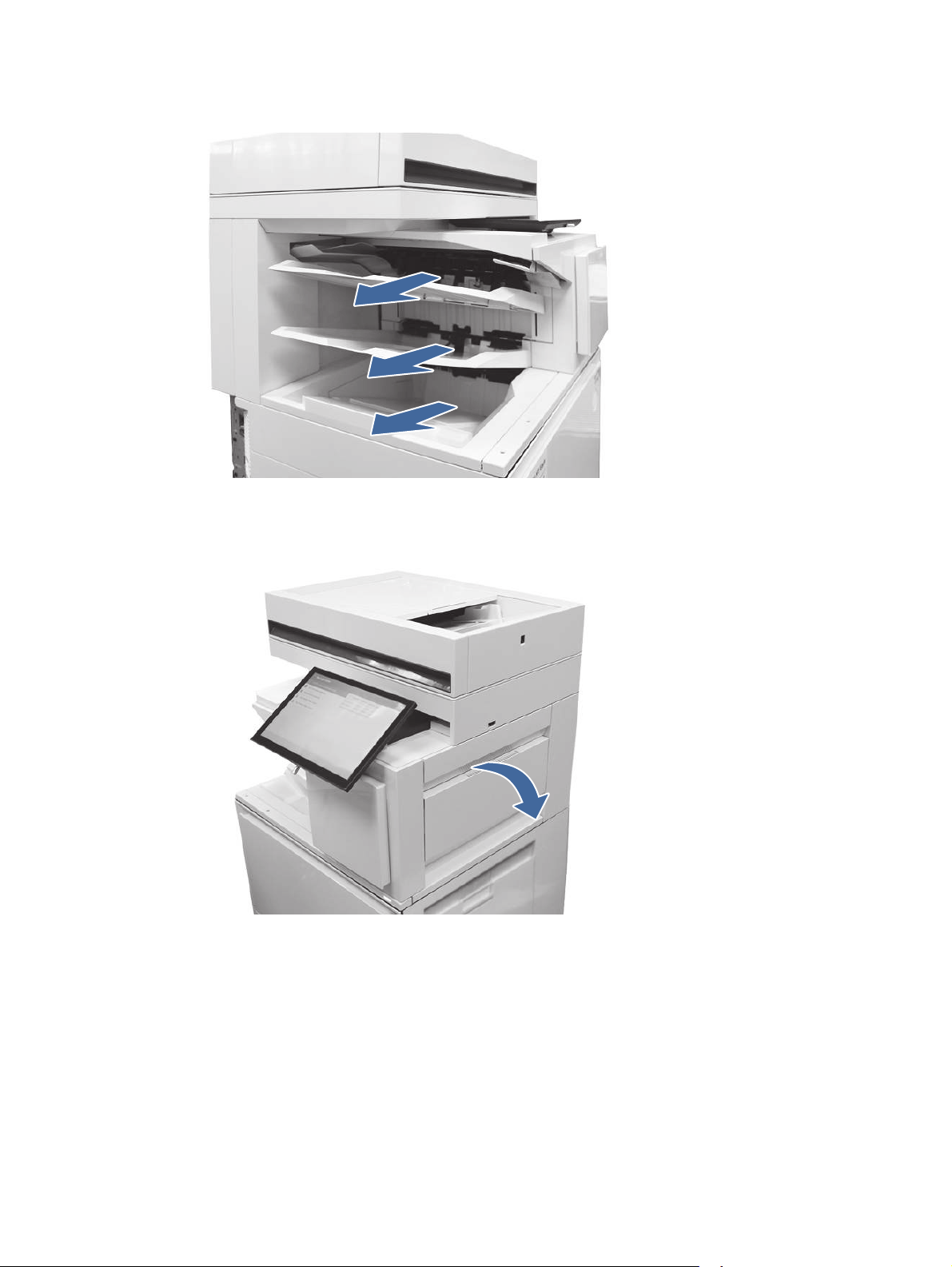
1. Remove any paper from the output bins.
2. Clear all paper from upper right door.
a. Open the upper right door.
194
Chapter 9Solve problems
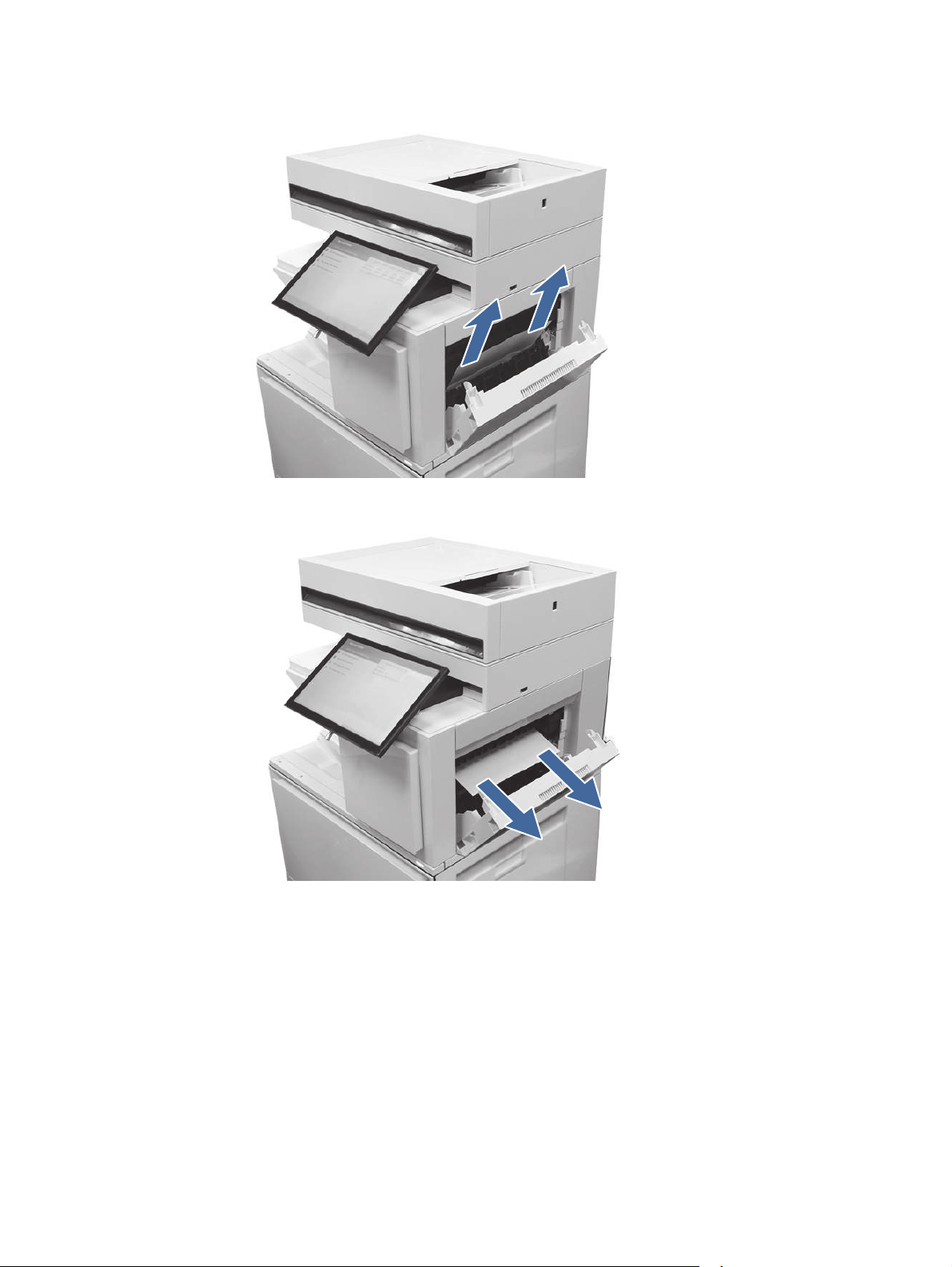
b. Remove paper from input area inside the door.
c. Remove paper from upper output area inside the door.
13.80, 13.83, or 13.84 jam errors in the 3 Bin Stapler/Stacker
195
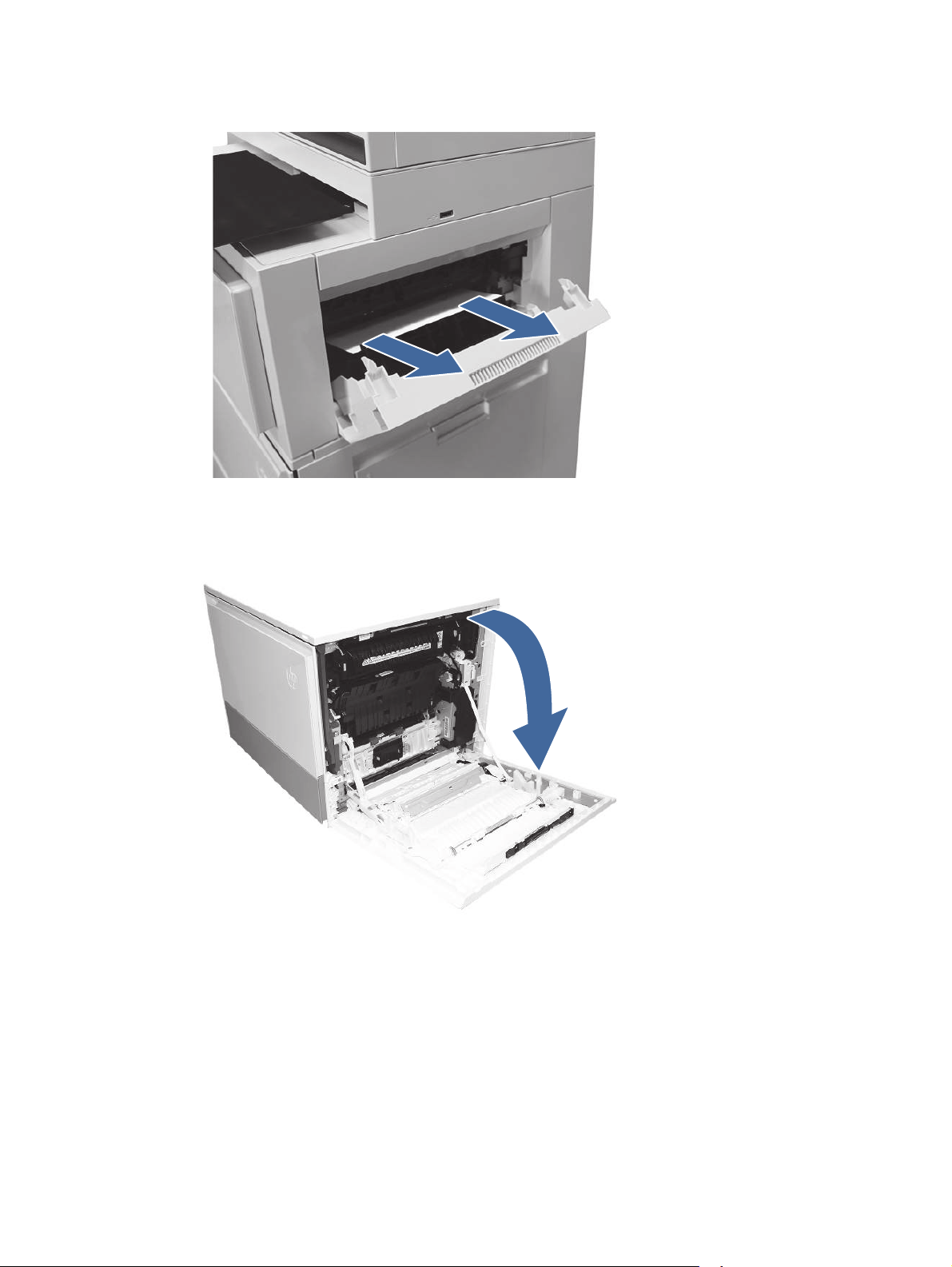
d. Remove paper from upper standard exit area.
e. Close the upper right door.
3. Open the right door.
4. Remove the fuser and remove any jammed paper found.
196
Chapter 9Solve problems
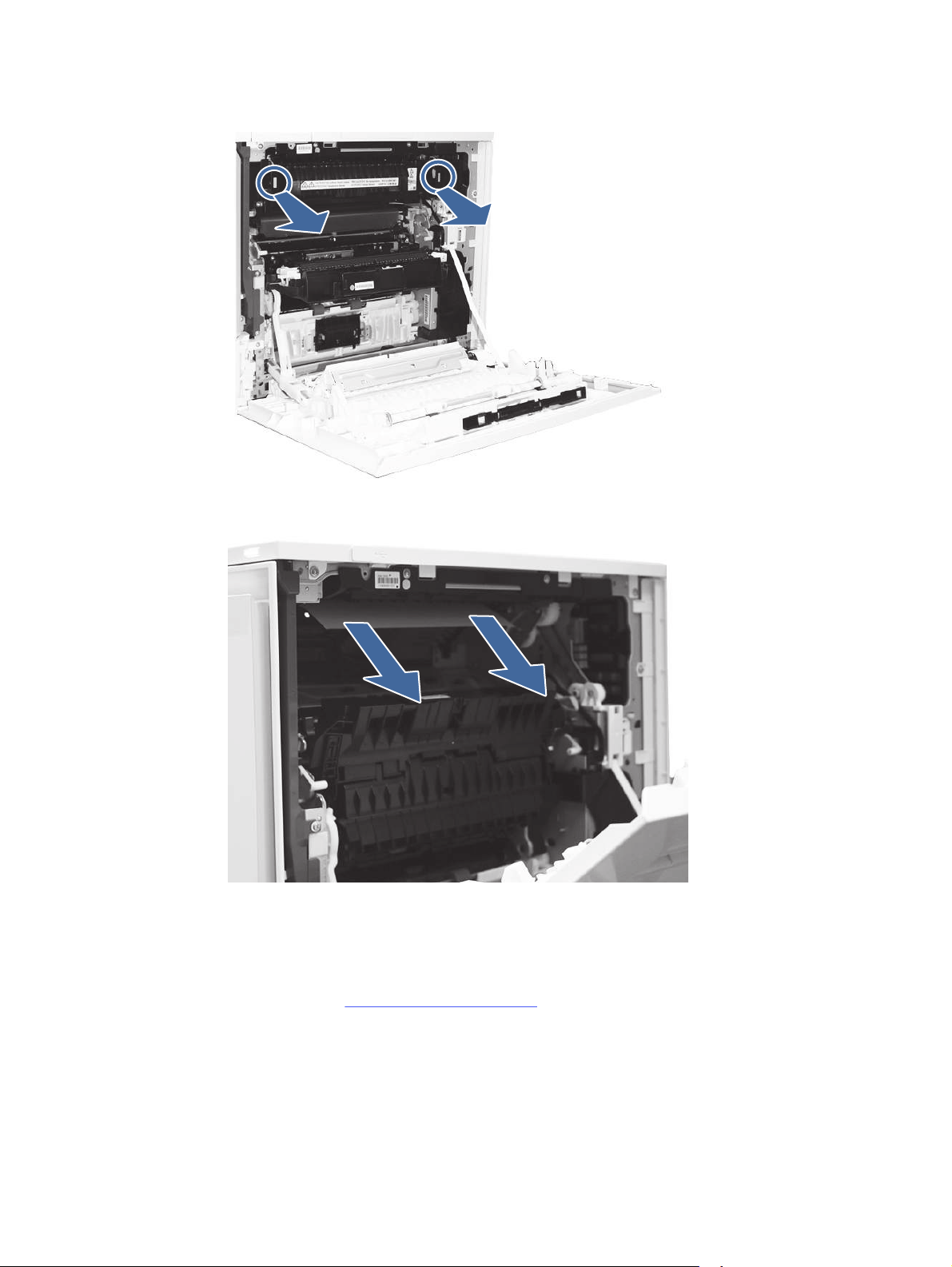
a. Squeeze the release levers on the handles (circle call-outs) and then remove the fuser.
b. Remove any paper jammed in the fuser exit area.
c. Reinstall the fuser and close the right door.
5. Ensure the type and quality of the paper being used meets the HP specifications for the printer.
6. If the error persists, contact your HP-authorized service or support provider, or contact
customer support at www.hp.com/go/contactHP.
Resolving color print quality problems
Use the information below to troubleshoot print-quality, color-quality, and image-quality problems on
HP Color LaserJet Enterprise printers.
Resolving color print quality problems
197

Introduction
The troubleshooting steps can help resolve the following defects:
● Blank pages
● Black pages
● Colors that do not align
● Curled paper
● Dark or light bands
● Dark or light streaks
● Fuzzy print
● Gray background or dark print
● Light print
● Loose toner
● Missing toner
● Scattered dots of toner
● Skewed images
● Smears
● Streaks
Troubleshoot print quality
To resolve print-quality issues, try these steps in the order presented.
To troubleshoot specific image defects, see Troubleshoot image defects.
Update the printer firmware
Try upgrading the printer firmware.
For instructions, go to www.hp.com/support.
Print from a different software program
Try printing from a different software program.
If the page prints correctly, the problem is with the software program from which you were printing.
Check the paper-type setting for the print job
Check the paper type setting when printing from a software program and the printed pages have
smears, fuzzy or dark print, curled paper, scattered dots of toner, loose toner, or small areas of
missing toner.
198
Chapter 9Solve problems

Check the paper type setting on the control panel
Check the paper type setting on the printer control panel, and change the setting as needed.
1. Open and close the paper tray.
2. Follow the control panel prompts to confirm or modify the paper type and size settings for the
tray.
3. Make sure the paper loaded meets specifications.
4. Adjust the humidity and resistance setting on the control panel to match the environment.
a. Open the following menus:
i. Settings
ii. Copy/Print
iii. Print quality
iv. Adjust paper type
b. Select the paper type that matches the type loaded in the tray.
c. Use the arrows to increase or decrease the humidity and resistance setting.
5. Make sure the driver settings match the control panel settings.
NOTE: The print driver settings will override any control panel settings.
Check the paper type setting (Windows)
Check the paper type setting for Windows, and change the setting as needed.
NOTE: The print driver settings will override any control panel settings.
1. From the software program, select the Print option.
2. Select the printer, and then click the Properties or Preferences button.
3. Click the Paper/Quality tab.
4. From the Paper Type drop-down list, click the More... option.
5. Expand the list of Type is: options.
6. Expand the category of paper types that best describes your paper.
7. Select the option for the type of paper you are using, and click the OK button.
8. Click the OK button to close the Document Properties dialog box. In the Print dialog box, click
the OK button to print the job.
Check the paper type setting (macOS)
Check the paper type setting for macOS, and change the setting as needed.
1. Click the File menu, and then click the Print option.
2. In the Printer menu, select the printer.
Check the paper type setting on the control panel
199

3. By default, the print driver displays the Copies & Pages menu. Open the menus drop-down list,
and then click the Finishing menu.
4. Select a type from the Media Type drop-down list.
5. Click the Print button.
Check toner-cartridge status
Follow these steps to check the estimated life remaining in the toner cartridges and if applicable,
the status of other replaceable maintenance parts.
Step one: Print the Supplies Status Page
The supplies status page indicates the cartridge status.
1. From the Home screen on the printer control panel, select the Reports menu.
2. Select the Configuration/Status Pages menu.
3. Select Supplies Status Page, and then select Print to print the page.
Step two: Check supplies status
Check the supplies status report as follows.
1. Look at the supplies status report to check the percent of life remaining for the toner
cartridges and, if applicable, the status of other replaceable maintenance parts.
Print quality problems can occur when using a toner cartridge that is at its estimated end of
life. The supplies status page indicates when a supply level is very low. After an HP supply has
reached the very low threshold, HP’s premium protection warranty on that supply has ended.
The toner cartridge does not need to be replaced now unless the print quality is no longer
acceptable. Consider having a replacement available to install when print quality is no longer
acceptable.
If you determine that you need to replace a toner cartridge or other replaceable maintenance
parts, the supplies status page lists the genuine HP part numbers.
2. Check to see if you are using a genuine HP cartridge.
A genuine HP toner cartridge has the word “HP” on it, or has the HP logo on it. For more
information on identifying HP cartridges go to www.hp.com/go/learnaboutsupplies.
Print a cleaning page
During the printing process paper, toner, and dust particles can accumulate inside the printer and
can cause print-quality issues such as toner specks or spatter, smears, streaks, lines, or repeating
marks.
Follow these steps to clean the printer paper path:
1. From the Home screen on the printer control panel, select the Support Tools menu.
2. Select the following menus:
a. Maintenance
b. Calibration/Cleaning
200
Chapter 9Solve problems

c. Cleaning Page
3. Select Print to print the page.
A Cleaning... message displays on the printer control panel. The cleaning process takes a few
minutes to complete. Do not turn the printer off until the cleaning process has finished. When it
is finished, discard the printed page.
Visually inspect the toner cartridge or cartridges
Follow these steps to inspect each toner cartridge:
1. Remove the toner cartridge from the printer, and verify that the sealing tape has been
removed.
2. Check the memory chip for damage.
3. Examine the surface of the green imaging drum.
CAUTION: Do not touch the imaging drum. Fingerprints on the imaging drum can cause print-
quality problems.
4. If you see any scratches, fingerprints, or other damage on the imaging drum, replace the toner
cartridge.
5. Reinstall the toner cartridge and print a few pages to see if the problem has resolved.
Check paper and the printing environment
Use the following information to check the paper selection and the printing environment.
Step one: Use paper that meets HP specifications
Some print-quality problems arise from using paper that does not meet HP specifications.
● Always use a paper type and weight that this printer supports.
● Use paper that is of good quality and free of cuts, nicks, tears, spots, loose particles, dust,
wrinkles, voids, staples, and curled or bent edges.
● Use paper that has not been previously printed on.
● Use paper that does not contain metallic material, such as glitter.
● Use paper that is designed for use in laser printers. Do not use paper that is designed only for
use in Inkjet printers.
● Use paper that is not too rough. Using smoother paper generally results in better print quality.
Step two: Check the environment
The environment can directly affect print quality and is a common cause of print-quality or paper-
feeding issues. Try the following solutions:
● Move the printer away from drafty locations, such as open windows or doors, or air-conditioning
vents.
● Make sure the printer is not exposed to temperatures or humidity outside of printer
specifications.
Visually inspect the toner cartridge or cartridges
201

● Do not place the printer in a confined space, such as a cabinet.
● Place the printer on a sturdy, level surface.
● Remove anything that is blocking the vents on the printer. The printer requires good air flow on
all sides, including the top.
● Protect the printer from airborne debris, dust, steam, grease, or other elements that can leave
residue inside the printer.
Step three: Set the individual tray alignment
Follow these steps when text or images are not centered or aligned correctly on the printed page
when printing from specific trays.
1. From the Home screen on the printer control panel, select the Settings menu.
2. Select the following menus:
a. Copy/Print or Print
b. Print Quality
c. Image Registration
3. Select Tray, and then select the tray to adjust.
4. Select Print Test Page, and then follow the instructions on the printed pages.
5. Select Print Test Page again to verify the results, and then make further adjustments if
necessary.
6. Select Done to save the new settings.
Try a different print driver
Try a different print driver when printing from a software program and the printed pages have
unexpected lines in graphics, missing text, missing graphics, incorrect formatting, or substituted
fonts.
Download any of the following drivers from the HPWeb site: Support for HP Color LaserJet
Enterprise MFP 5800.
Table 9-2
Print drivers
Driver Description
HPPCL.6 driver If available, this printer-specific print driver supports older operating systems like
Windows XP and Windows Vista. For a list of supported operating systems, go to
www.hp.com/go/support.
HPPCL 6 driver This printer-specific print driver supports Windows 7 and newer operating
systems that support version 3 drivers. For a list of supported operating systems,
go to www.hp.com/go/support.
HPPCL-6 driver This product-specific print driver supports Windows 8 and newer operating
systems that support version 4 drivers. For a list of supported operating systems,
go to www.hp.com/go/support.
202 Chapter 9Solve problems

Table 9-2 Print drivers (continued)
Driver Description
HPUPD PS driver ● Recommended for printing with Adobe software programs or with other
highly graphics-intensive software programs
● Provides support for printing from Postscript emulation needs, or for
Postscript flash font support
HPUPD PCL 6 ● Recommended for printing in all Windows environments
● Provides the overall best speed, print quality, and printer feature support for
most users
● Developed to align with Windows Graphic Device Interface (GDI) for best
speed in Windows environments
● Might not be fully compatible with third-party and custom software
programs that are based on PCL5
Troubleshoot color quality
Calibrating the printer can help ensure color print quality.
Calibrate the printer to align the colors
Calibration is a printer function that optimizes print quality.
Follow these steps to resolve print-quality problems such as misaligned color, colored shadows,
blurry graphics, or other print-quality issues.
1. From the Home screen on the printer control panel, select the Support Tools menu.
2. Select the following menus:
● Maintenance
● Calibration/Cleaning
● Full Calibration
3. Select Start to start the calibration process.
A Calibrating message will display on the printer control panel. The calibration process takes a
few minutes to complete. Do not turn the printer off until the calibration process has finished.
4. Wait while the printer calibrates, and then try printing again.
Troubleshoot image defects
Review examples of image defects and steps to resolve these defects.
Troubleshoot color quality
203
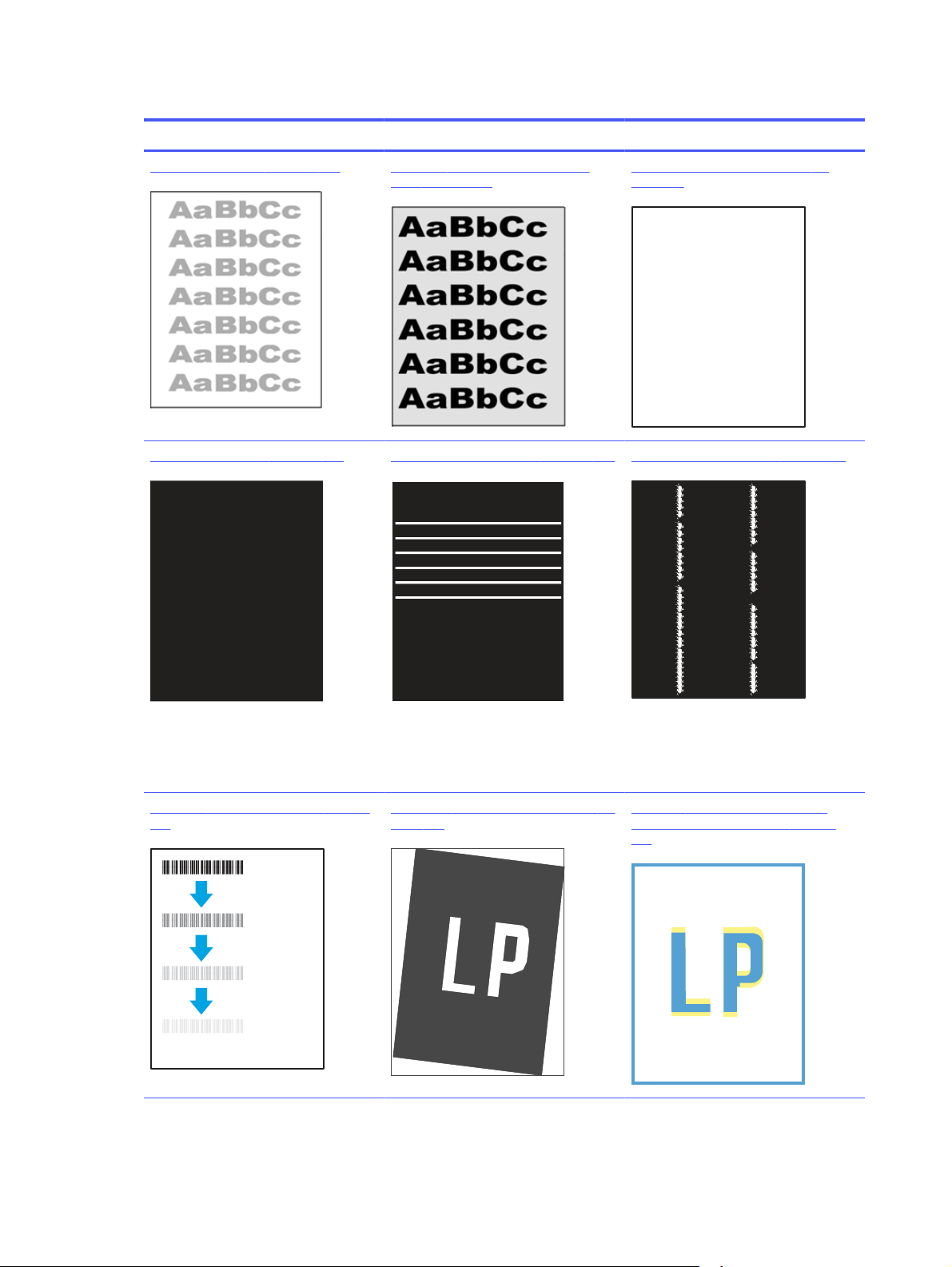
Table 9-3 Image defects table quick reference
Defect Defect Defect
Table 9-11Light print on page 209 Table 9-9Gray background or dark
print on page 208
Table 9-6Blank page — No print on
page 207
Table 9-5Black page on page 206 Table 9-4Banding defects on page 206 Table 9-13Streak defects on page 211
Table 9-8Fixing/fuser defects on page
207
Table 9-10Image placement defects on
page 209
Table 9-7Color plane registrations
defects (color models only) on page
207
204 Chapter 9Solve problems
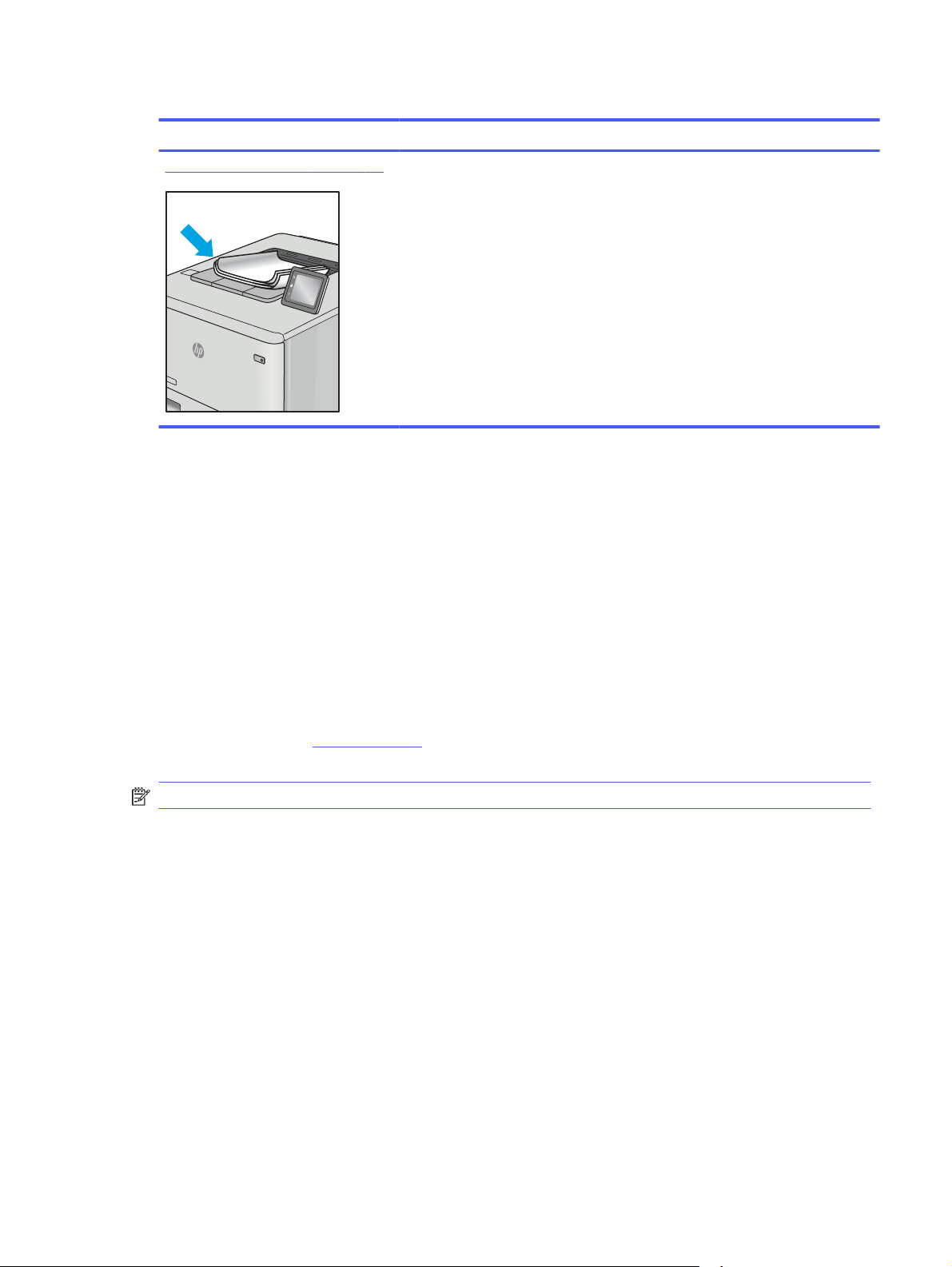
Table 9-3 Image defects table quick reference (continued)
Defect Defect Defect
Table 9-12Output defects on page 210
Image defects, no matter the cause, can often be resolved using the same steps. Use the following
steps as a starting point for solving image defect issues.
1. Reprint the document. Print quality defects can be intermittent in nature or can go away
completely with continued printing.
2. Check the condition of the cartridge or cartridges. If a cartridge is in a Very Low state (it has
passed the rated life), replace the cartridge.
3. Make sure that the driver and tray print mode settings match the media that is loaded in the
tray. Try using a different ream of media or a different tray. Try using a different print mode.
4. Make sure the printer is within the supported operating temperature/humidity range.
5. Make sure that the paper type, size, and weight are supported by the printer. See the printer
support page at support.hp.com for a list of the supported paper sizes and types for the
printer.
NOTE: The term "fusing" refers to the part of the printing process where toner is affixed to paper.
The following examples depict letter-size paper that has passed through the printer with the short
edge first.
Troubleshoot image defects
205

Table 9-4 Banding defects
Sample Description Possible solutions
Dark or light lines which repeat down
the length of the page, and are wide-
pitch and/or impulse bands. They might
be sharp or soft in nature. The defect
displays only in areas of fill, not in text
or sections with no printed content.
1. Reprint the document.
2. Try printing from another tray.
3. Replace the cartridge.
4. Use a different paper type.
5. Enterprise models only: From the
Home screen on the printer
control panel, go to the Adjust
Paper Types menu, and then
choose a print mode that is
designed for a slightly heavier
media than what you are using.
This slows the print speed and
might improve the print quality.
6. If the issue persists, go to
support.hp.com.
Table 9-5 Black page
Sample Description Possible solutions
The entire printed page is black.
1. Visually inspect the cartridge to
check for damage.
2. Make sure that the cartridge is
installed correctly.
3. Replace the cartridge.
4. If the issue persists, go to
support.hp.com.
206 Chapter 9Solve problems
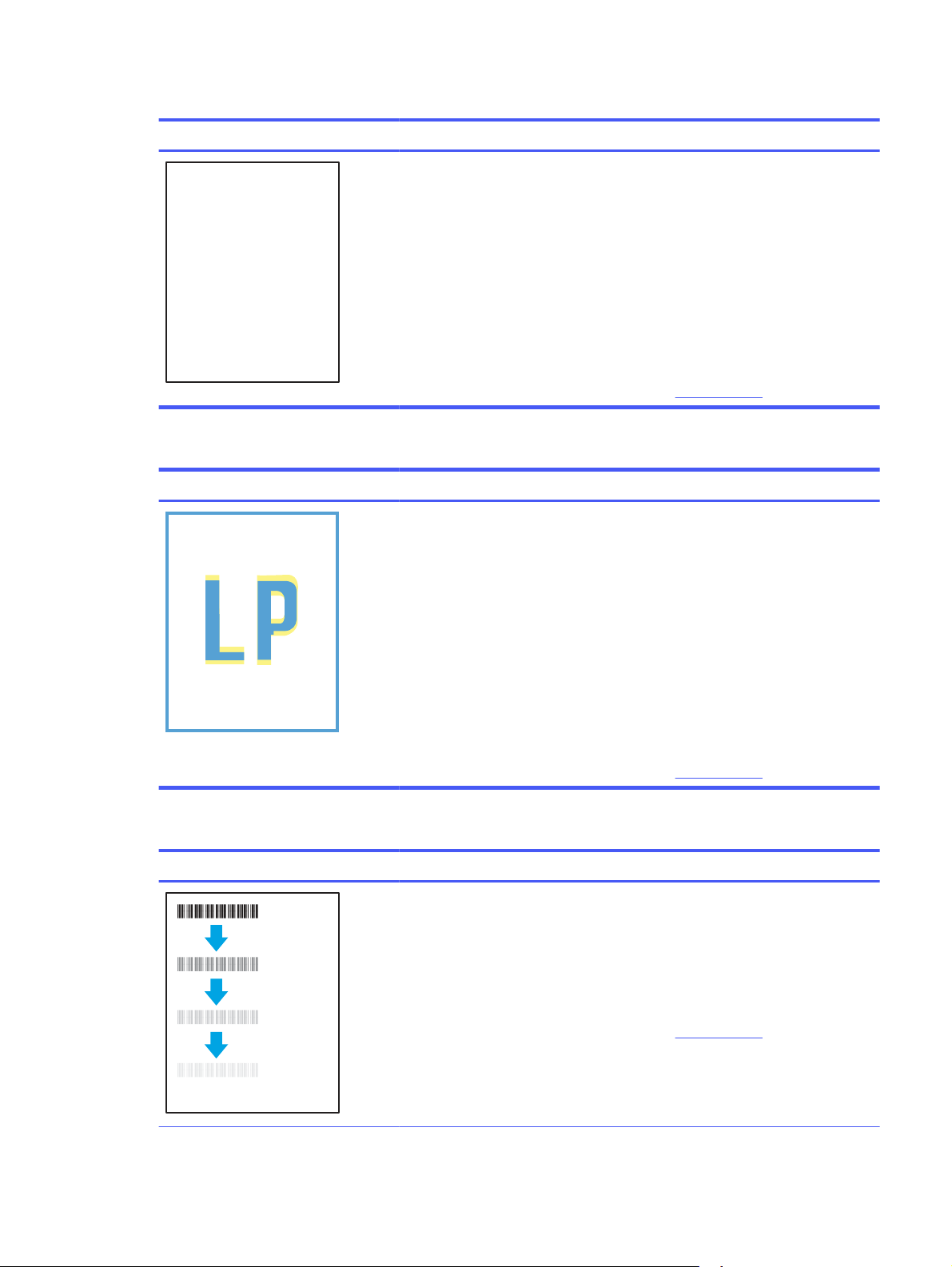
Table 9-6 Blank page — No print
Sample Description Possible solutions
The page is completely blank and
contains no printed content.
1. Make sure that the cartridges are
genuine HP cartridges.
2. Make sure that the cartridge is
installed correctly.
3. Print with a different cartridge.
4. Check the paper type in the
paper tray and adjust the printer
settings to match. If necessary,
select a lighter paper type.
5. If the issue persists, go to
support.hp.com.
Table 9-7 Color plane registrations defects (color models only)
Sample Description Possible solutions
One or more color plane(s) is not
aligned with the other color planes.
This registration error will typically
occur with yellow.
1. Reprint the document.
2. From the printer control panel,
calibrate the printer.
3. If a cartridge has reached a Very
Low state, or the printed output
is severely faded, replace the
cartridge.
4. From the printer control panel use
the Restore Calibration feature
to reset the printer's calibration
settings to the factory defaults.
5. If the issue persists, go to
support.hp.com.
Table 9-8 Fixing/fuser defects
Sample Description Possible solutions
Slight shadows or offsets of the image
are repeated down the page. The
repeated image might fade with each
recurrence.
1. Reprint the document.
2. Check the paper type in the
paper tray and adjust the printer
settings to match. If necessary,
select a lighter paper type.
3. If the issue persists, go to
support.hp.com.
Troubleshoot image defects 207
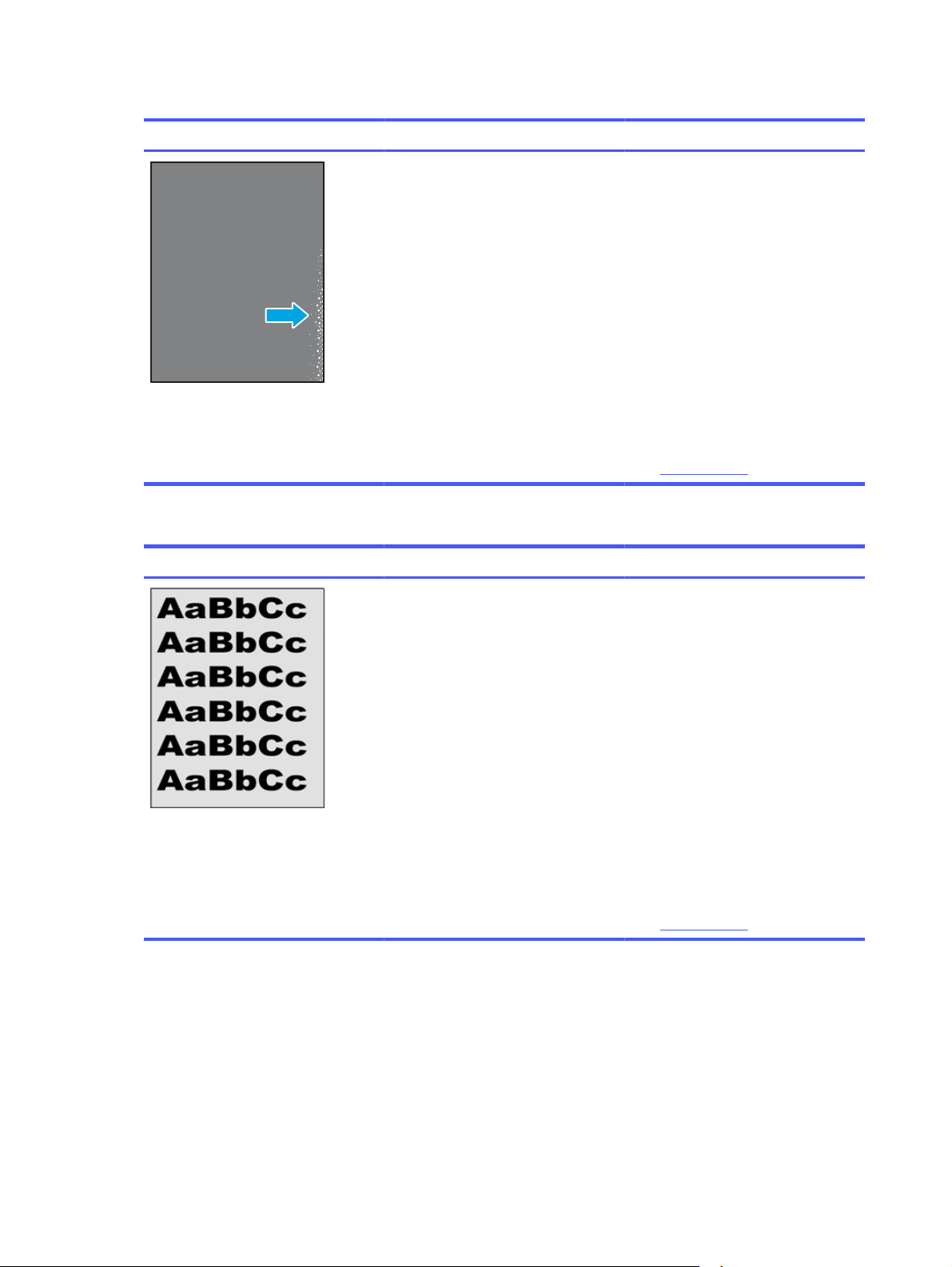
Table 9-8 Fixing/fuser defects (continued)
Sample Description Possible solutions
Toner rubs off along either edge of the
page. This defect is more common at
the edges of high-coverage jobs, and
on light media types, but can occur
anywhere on the page.
1. Reprint the document.
2. Check the paper type in the
paper tray and adjust the printer
settings to match. If necessary,
select a heavier paper type.
3. Enterprise models only: From
the printer control panel, go
to the Edge-to-Edge menu and
then select Normal. Reprint the
document.
4. Enterprise models only: From the
printer control panel, select Auto
Include Margins and then reprint
the document.
5. If the issue persists, go to
support.hp.com.
Table 9-9 Gray background or dark print
Sample Description Possible solutions
The image or text is darker than
expected and/or the background is
gray.
1. Make sure that the paper in the
trays has not already been run
through the printer.
2. Use a different paper type.
3. Reprint the document.
4. Mono models only: From the Home
screen on the printer control
panel, go to the Adjust Toner
Density menu, and then adjust the
toner density to a lower level.
5. Make sure that the printer is
within the supported operating
temperature and humidity range.
6. Replace the cartridge.
7. If the issue persists, go to
support.hp.com.
208
Chapter 9Solve problems
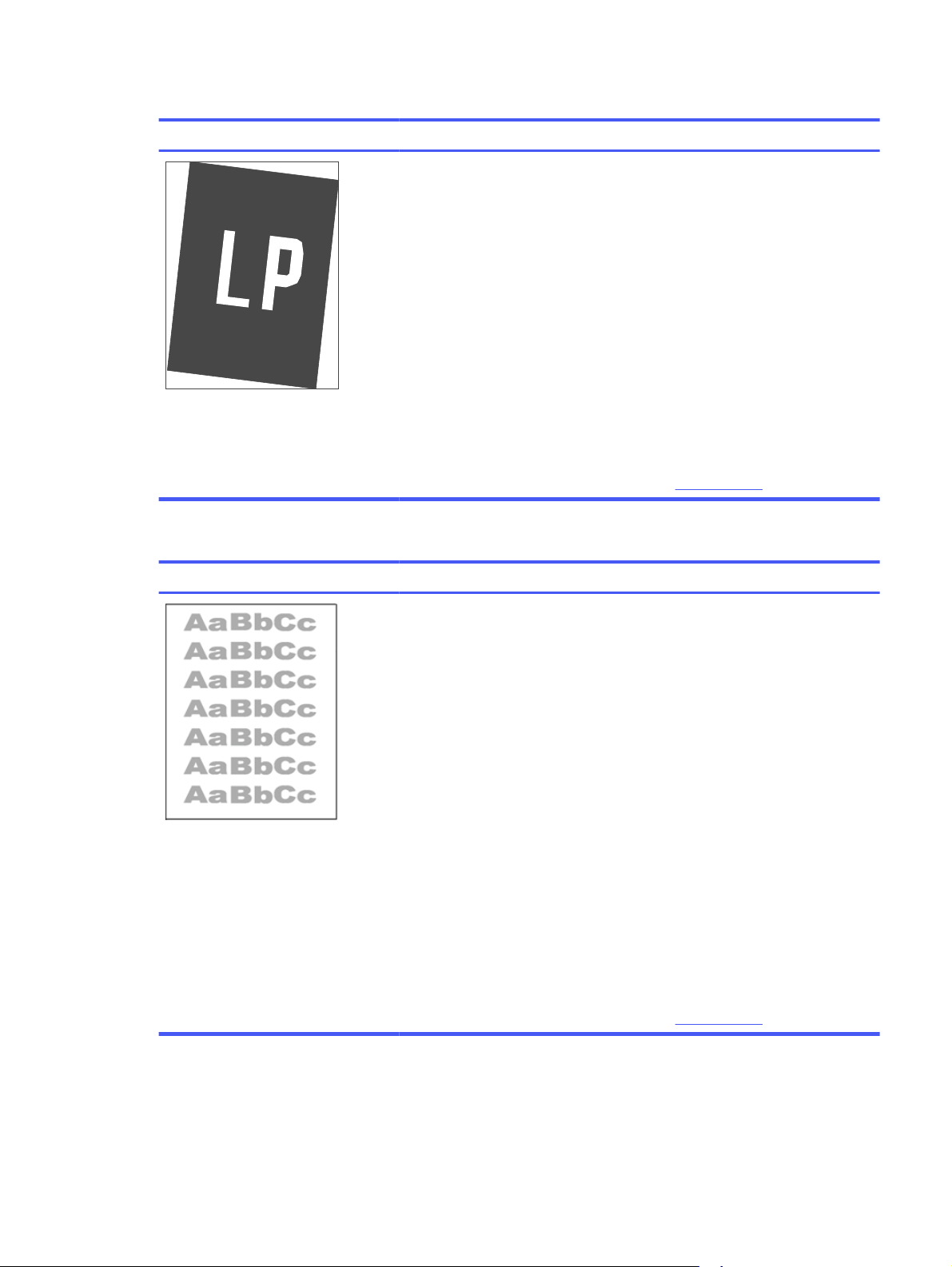
Table 9-10 Image placement defects
Sample Description Possible solutions
The image is not centered, or is
skewed on the page. The defect occurs
when the paper is not positioned
properly as it is pulled from the tray
and moves through the paper path.
1. Reprint the document.
2. Remove the paper and then
reload the tray. Make sure that all
the paper edges are even on all
sides.
3. Make sure that the top of the
paper stack is below the tray-full
indicator. Do not overfill the tray.
4. Make sure that the paper guides
are adjusted to the correct size
for the paper. Do not adjust the
paper guides tightly against the
paper stack. Adjust them to the
indentations or markings in the
tray.
5. If the issue persists, go to
support.hp.com.
Table 9-11 Light print
Sample Description Possible solutions
The printed content is light or faded on
the entire page.
1. Reprint the document.
2. Remove the cartridge, and then
shake it to redistribute the toner.
Reinsert the toner cartridges into
the printer and close the cover.
For a graphical representation of
this procedure, see
Replace the
toner cartridges
.
3. Mono models only: Make sure
that the EconoMode setting is
disabled, both at the printer
control panel and in the print
driver.
4. Make sure that the cartridge is
installed correctly.
5. Print a Supplies Status Page and
check the life and usage of the
cartridge.
6. Replace the cartridge.
7. If the issue persists, go to
support.hp.com.
Troubleshoot image defects
209
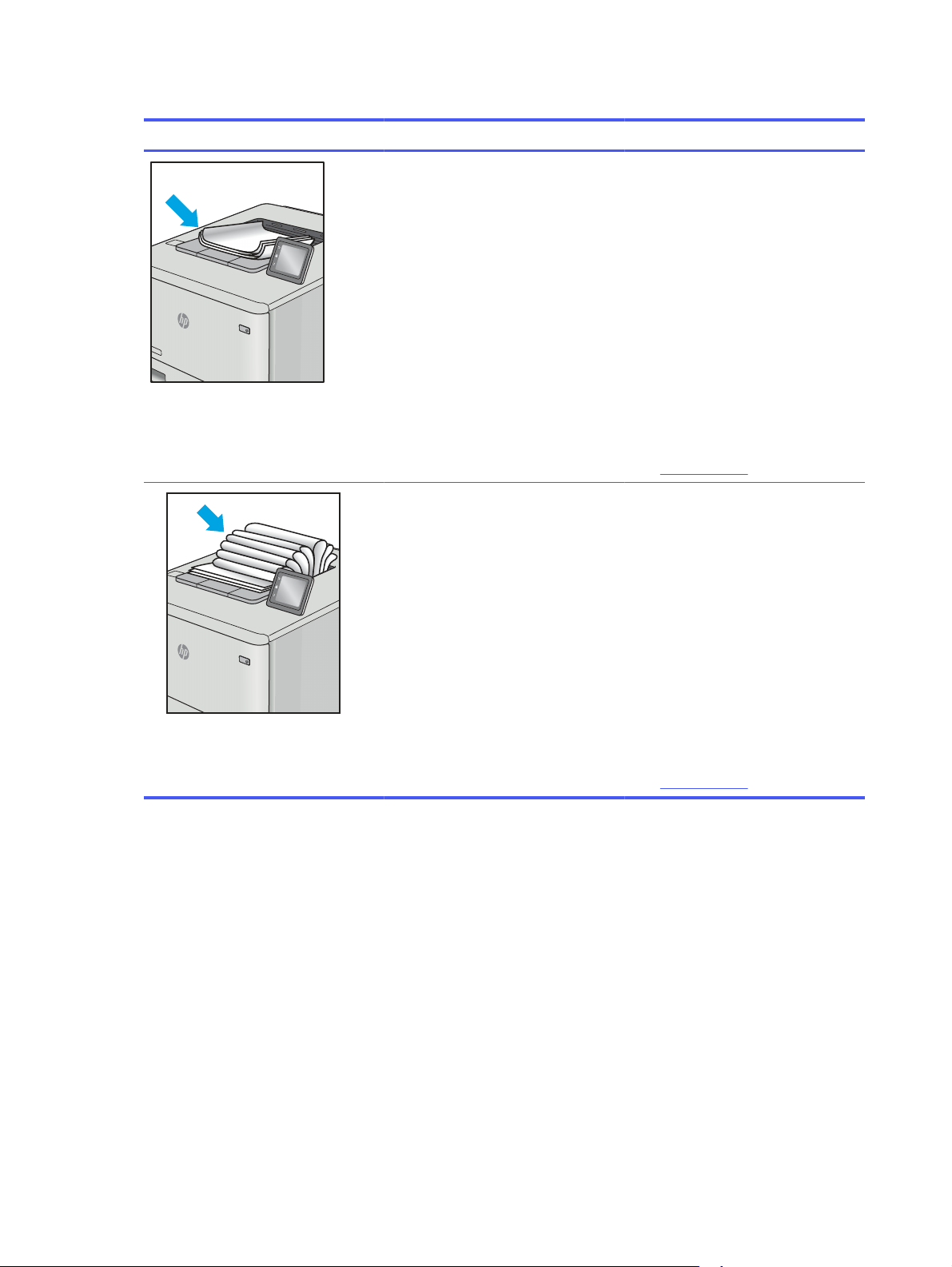
Table 9-12 Output defects
Sample Description Possible solutions
Printed pages have curled edges. The
curled edge can be along the short or
long side of the paper. Two types of
curl are possible:
● Positive curl: The paper curls
toward the printed side. The
defect occurs in dry environments
or when printing high-coverage
pages.
● Negative curl: The paper curls
away from the printed side. The
defect occurs in high-humidity
environments or when printing
low-coverage pages.
1.
Reprint the document.
2. Positive curl: From the printer
control panel, select a heavier
paper type. The heavier paper
type creates a higher temperature
for printing.
Negative curl: From the printer
control panel, select a lighter
paper type. The lighter paper type
creates a lower temperature for
printing. Try storing the paper in
a dry environment prior to use, or
use freshly opened paper.
3. Print in duplex mode.
4. If the issue persists, go to
support.hp.com.
The paper does not stack well in the
output tray. The stack might be uneven,
skewed, or the pages might be pushed
out of the tray and onto the floor. Any
of the following conditions can cause
this defect:
● Extreme paper curl
● The paper in the tray is wrinkled
or deformed
● The paper is a non-standard
paper type, such as envelopes
● The output tray is too full
1.
Reprint the document.
2. Extend the output bin extension.
3. If the defect is caused by
extreme paper curl, refer to the
troubleshooting steps for "Output
curl."
4. Use a different paper type.
5. Use freshly opened paper.
6. Remove the paper from the
output tray before the tray gets
too full.
7. If the issue persists, go to
support.hp.com.
210
Chapter 9Solve problems
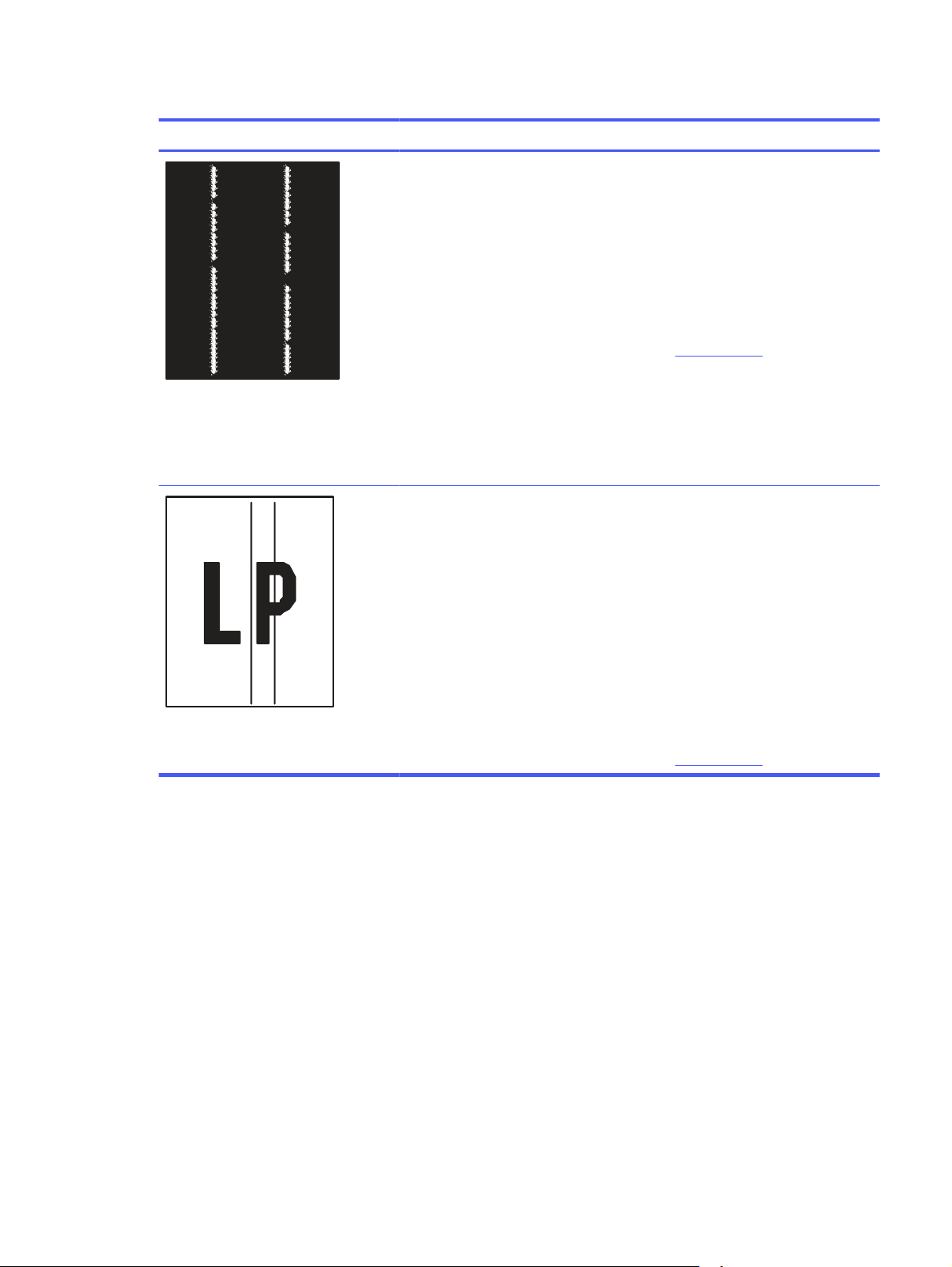
Table 9-13 Streak defects
Sample Description Possible solutions
Light vertical streaks that usually span
the length of the page. The defect
displays only in areas of fill, not in text
or sections with no printed content.
1. Reprint the document.
2. Remove the cartridge, and then
shake it to redistribute the toner.
Reinsert the toner cartridges into
the printer and close the cover.
For a graphical representation of
this procedure, see
Replace the
toner cartridges
.
3. If the issue persists, go to
support.hp.com.
NOTE: Both light and dark vertical
streaks can occur when the printing
environment is outside the specified
range for temperature or humidity.
Refer to your printer's environmental
specifications for allowable
temperature and humidity levels.
Dark vertical lines which occur down
the length of the page. The defect
might occur anywhere on the page,
in areas of fill or in sections with no
printed content. On color models, these
lines or streaks will also be visible on
the ITB cleaning page.
1. Reprint the document.
2. Remove the cartridge, and then
shake it to redistribute the toner.
Reinsert the toner cartridges into
the printer and close the cover.
For a graphical representation of
this procedure, see
Replace the
toner cartridges
.
3. Print a cleaning page.
4. Check the toner level in the
cartridge.
5. If the issue persists, go to
support.hp.com.
Improve copy image quality
If the printer is having copy quality problems, try the following solutions in the order presented to
resolve the issue.
Try these few simple steps first:
● Use the flatbed scanner rather than the document feeder.
● Use high-quality originals.
● When using the document feeder, load the original document into the feeder correctly, using the
paper guides, to avoid unclear or skewed images.
If the problem still exists, try these additional solutions. If they do not fix the problem, see “Improve
print quality” for further solutions.
Improve copy image quality
211
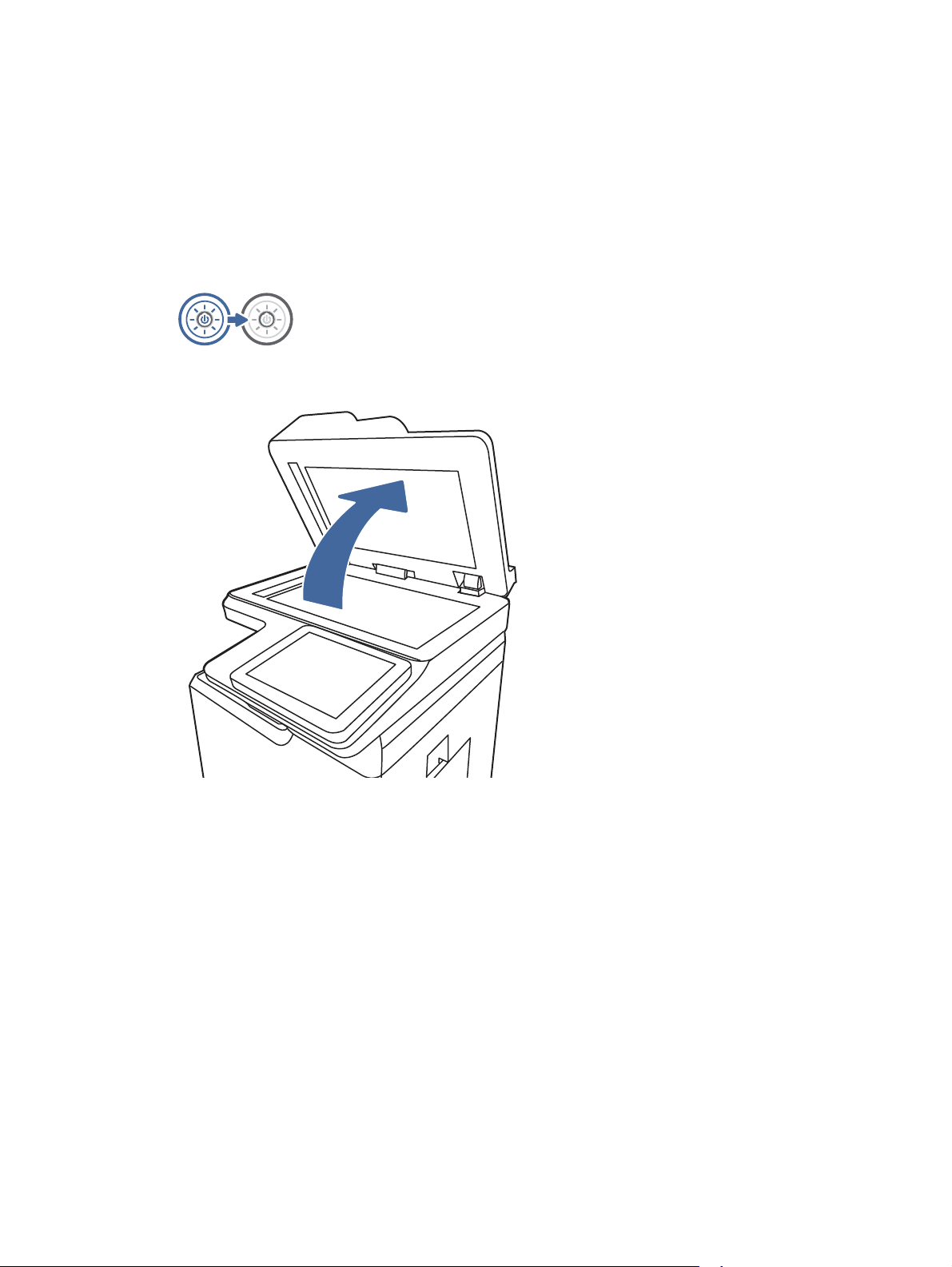
Check the scanner glass for dirt and smudges
Learn about solving copy-quality debris problems.
Over time, specks of debris might collect on the scanner glass and document feeder white plastic
backing, which might cause print defects. Use the following procedure to clean the scanner if the
printed pages have streaks, unwanted lines, black dots, poor print quality, or unclear text.
1. Press the power button to turn the printer off, and then disconnect the power cable from the
electrical outlet.
2. Open the scanner lid.
212
Chapter 9Solve problems
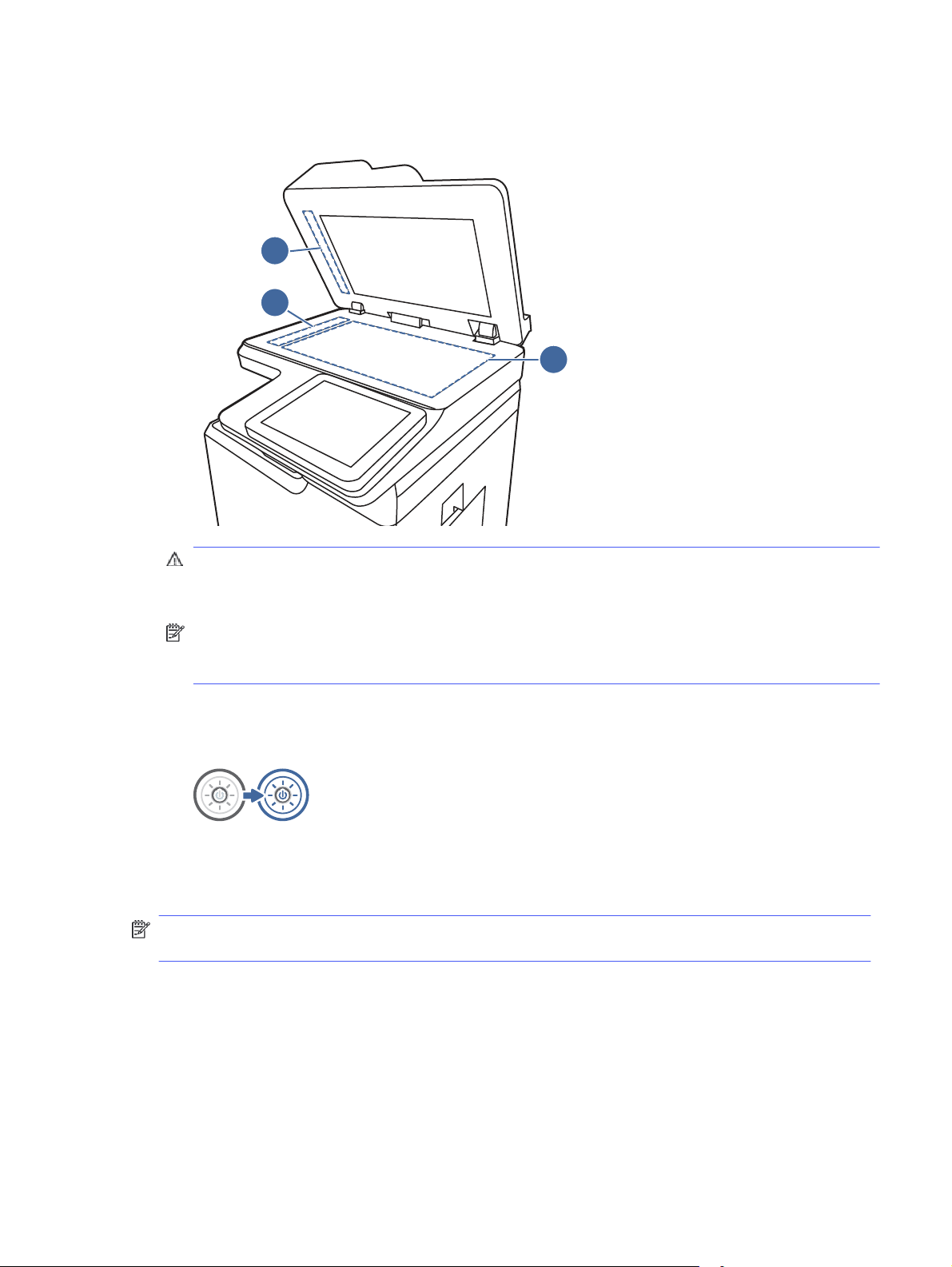
3. Clean the scanner glass (callout 1) and the document feeder strips (callout 2, callout 3) with a
soft cloth or sponge that has been moistened with nonabrasive glass cleaner.
3
2
1
CAUTION: Do not use abrasives, acetone, benzene, ammonia, ethyl alcohol, or carbon
tetrachloride on any part of the printer; these can damage the printer. Do not place liquids
directly on the glass or platen. They might seep and damage the printer.
NOTE: If you are having trouble with streaks on copies when you are using the document
feeder, be sure to clean the small strips of glass on the left side of the scanner (callout 2,
callout 3).
4. Dry the glass and white plastic parts with a chamois or a cellulose sponge to prevent spotting.
5. Connect the power cable to an outlet, and then press the power button to turn the printer on.
Calibrate the scanner
Calibration is a process that optimizes scan quality.
NOTE: When using the document feeder, make sure to adjust the guides in the input tray so they
are against the original document.
1. From the Home screen on the printer control panel, navigate to the Support Tools application,
and then select the Support Tools icon.
2. Open the following menus:
a. Maintenance
b. Calibration/Cleaning
c. Calibrate Scanner
Calibrate the scanner
213

3. Touch the Start button to start the calibration process. Follow the on-screen prompts.
4. Wait while the printer calibrates, and then try copying again.
Check the paper settings
Follow these steps if copied pages have smears, fuzzy or dark print, curled paper, or areas where
pigment has dropped out.
Check the paper selection options
Use the following steps to check the paper selection options.
1. From the Home screen on the printer control panel, navigate to the Copy application, and then
select the Copy icon.
2. Select Options, and then scroll to and select Paper Selection.
3. Select Paper size, and then select one of the predefined options.
4. Select Paper type, and then select one of the predefined options.
5. Select Paper tray, and then select one of the predefined options.
6. Select Done to save the paper selection options.
Check the image-adjustment settings
Adjust the settings in the Copy menu to optimize image quality.
● Sharpness: Clarify or soften the image. For example, increasing the sharpness could make text
appear crisper, but decreasing it could make photos appear smoother.
● Darkness: Increase or decrease the amount of white and black used in colors in scanned
images.
● Contrast: Increase or decrease the difference between the lightest and the darkest color on the
page.
● Background Cleanup: Remove faint colors from the background of scanned images. For
example, if the original document is printed on colored paper, use this feature to lighten the
background without affecting the darkness of the image.
● Automatic Tone: Available for Flow printers only. The printer automatically adjusts the Darkness,
Contrast, and Background Cleanup settings to the most appropriate for the scanned document.
1. From the Home screen on the printer control panel, navigate to the Copy application, and then
select the Copy icon.
2. Select Options, and then scroll to and select Image Adjustment.
3. Adjust the sliders to set the levels, and select Done.
4. Select Copy to start the copy job.
NOTE: These settings are temporary. After you have finished the job, the printer returns to the
default settings.
214
Chapter 9Solve problems

Optimize copy quality for text or pictures
Optimize the copy job for the type of image being copied: text, graphics, or photos.
1. From the Home screen on the printer control panel, navigate to the Copy application, and then
select the Copy icon.
2. Select Options, and then select Optimize Text/Picture.
3. Select one of the predefined options.
4. Select Copy to start the copy job.
NOTE: These settings are temporary. After you have finished the job, the printer returns to the
default settings.
Improve scan image quality
Try the following basic solutions to improve scanned image quality.
● Use the flatbed scanner rather than the document feeder.
● Use high-quality originals.
● When using the document feeder, load the original document into the feeder correctly, using the
paper guides, to avoid unclear or skewed images.
If the problem still exists, try these additional solutions. If they do not fix the problem, see “Improve
print quality” for further solutions.
Check the scanner glass for dirt and smudges
Learn about solving copy-quality debris problems.
Over time, specks of debris might collect on the scanner glass and document feeder white plastic
backing, which might cause print defects. Use the following procedure to clean the scanner if the
printed pages have streaks, unwanted lines, black dots, poor print quality, or unclear text.
1. Press the power button to turn the printer off, and then disconnect the power cable from the
electrical outlet.
Optimize copy quality for text or pictures
215
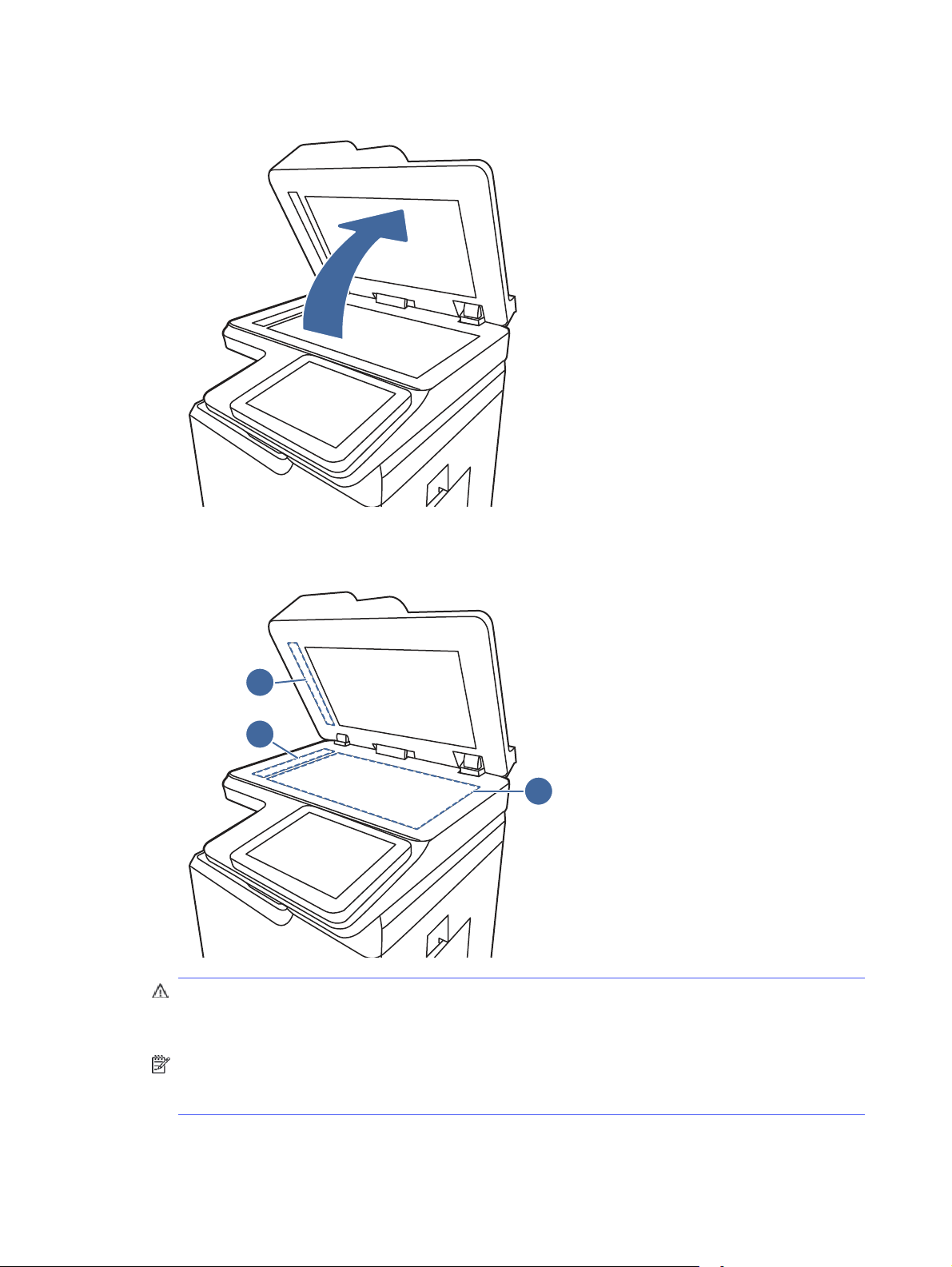
2. Open the scanner lid.
3. Clean the scanner glass (callout 1) and the document feeder strips (callout 2, callout 3) with a
soft cloth or sponge that has been moistened with nonabrasive glass cleaner.
3
2
1
CAUTION: Do not use abrasives, acetone, benzene, ammonia, ethyl alcohol, or carbon
tetrachloride on any part of the printer; these can damage the printer. Do not place liquids
directly on the glass or platen. They might seep and damage the printer.
NOTE: If you are having trouble with streaks on copies when you are using the document
feeder, be sure to clean the small strips of glass on the left side of the scanner (callout 2,
callout 3).
4. Dry the glass and white plastic parts with a chamois or a cellulose sponge to prevent spotting.
216
Chapter 9Solve problems

5. Connect the power cable to an outlet, and then press the power button to turn the printer on.
Check the resolution settings
Follow these steps to adjust the resolution setting. Setting the resolution to a high value increases
the file size and the scan time.
1. From the Home screen on the printer control panel, navigate to the Scan application, and then
select the Scan icon.
2. Select one of the following Scan features:
● Scan to Email
● Scan to Network Folder
● Scan to USB Drive
● Scan to SharePoint®
3. Select Options, and then select File Type and Resolution.
4. Select one of the predefined Resolution options, and then select Done.
5. Select Send or Save to start the scan.
Check the color settings
Follow these steps to adjust the color setting.
1. From the Home screen on the printer control panel, navigate to the Scan application, and then
select the Scan icon.
2. Select one of the following Scan features:
● Save to Device Memory
● Scan to Email
● Scan to Network Folder
● Scan to USB
● Scan to SharePoint®
3. Touch the Options button.
4. In the Options pane, scroll to and select Color/Black.
5. Select one of the predefined options.
6. Touch the Send button.
Check the image-adjustment settings
Adjust the settings in the Scan menu to optimize image quality.
Check the resolution settings
217

● Sharpness: Clarify or soften the image. For example, increasing the sharpness could make text
appear crisper, but decreasing it could make photos appear smoother.
● Darkness: Increase or decrease the amount of white and black used in colors in scanned
images.
● Contrast: Increase or decrease the difference between the lightest and the darkest color on the
page.
● Background Cleanup: Remove faint colors from the background of scanned images. For
example, if the original document is printed on colored paper, use this feature to lighten the
background without affecting the darkness of the image.
● Automatic Tone: Available for Flow printers only. The printer automatically adjusts the Darkness,
Contrast, and Background Cleanup settings to the most appropriate for the scanned document.
1. From the Home screen on the printer control panel, navigate to the Scan application, and then
select the Scan icon.
2. Select one of the following Scan features:
● Scan to Email
● Scan to Network Folder
● Scan to USB Drive
● Scan to Job Storage
● Scan to SharePoint®
3. Select Options, and then select Image Adjustment.
4. Adjust the sliders to set the levels, and then select Done.
5. Select Send or Save to start the scan.
NOTE: These settings are temporary. After you have finished the job, the printer returns to the
default settings.
Optimize scan quality for text or pictures
Optimize the scan job for the type of image being scanned: text, graphics, or photos.
1. From the Home screen on the printer control panel, navigate to the Scan application, and then
select the Scan icon.
2. Select one of the following Scan features:
● Scan to Email
● Scan to Network Folder
● Scan to USB Drive
● Scan to Job Storage
● Scan to SharePoint®
3. Select Options, and then select Optimize Text/Picture.
218
Chapter 9Solve problems

4. Select one of the predefined options.
5. Select Send or Save to start the scan.
NOTE: These settings are temporary. After you have finished the job, the printer returns to the
default settings.
Check the output-quality settings
This setting adjusts the level of compression when saving the file. For the highest quality, select the
highest setting.
1. From the Home screen on the printer control panel, navigate to the Scan application, and then
select the Scan icon.
2. Select one of the following Scan features:
● Scan to Email
● Scan to Network Folder
● Scan to USB Drive
● Scan to SharePoint®
3. Select Options, and then select File Type and Resolution.
4. Select one of the predefined Quality and File Size options, and then select Done.
5. Select Send or Save to start the scan.
Improve fax image quality
If the printer is having fax quality problems, try the following solutions in the order presented to
resolve the issue.
Try these few simple steps first:
● Use the flatbed scanner rather than the document feeder.
● Use high-quality originals.
● When using the document feeder, load the original document into the feeder correctly, using the
paper guides, to avoid unclear or skewed images.
If the problem still exists, try these additional solutions. If they do not fix the problem, see “Improve
print quality” for further solutions.
Check the scanner glass for dirt and smudges
Learn about solving copy-quality debris problems.
Over time, specks of debris might collect on the scanner glass and document feeder white plastic
backing, which might cause print defects. Use the following procedure to clean the scanner if the
printed pages have streaks, unwanted lines, black dots, poor print quality, or unclear text.
Check the output-quality settings
219
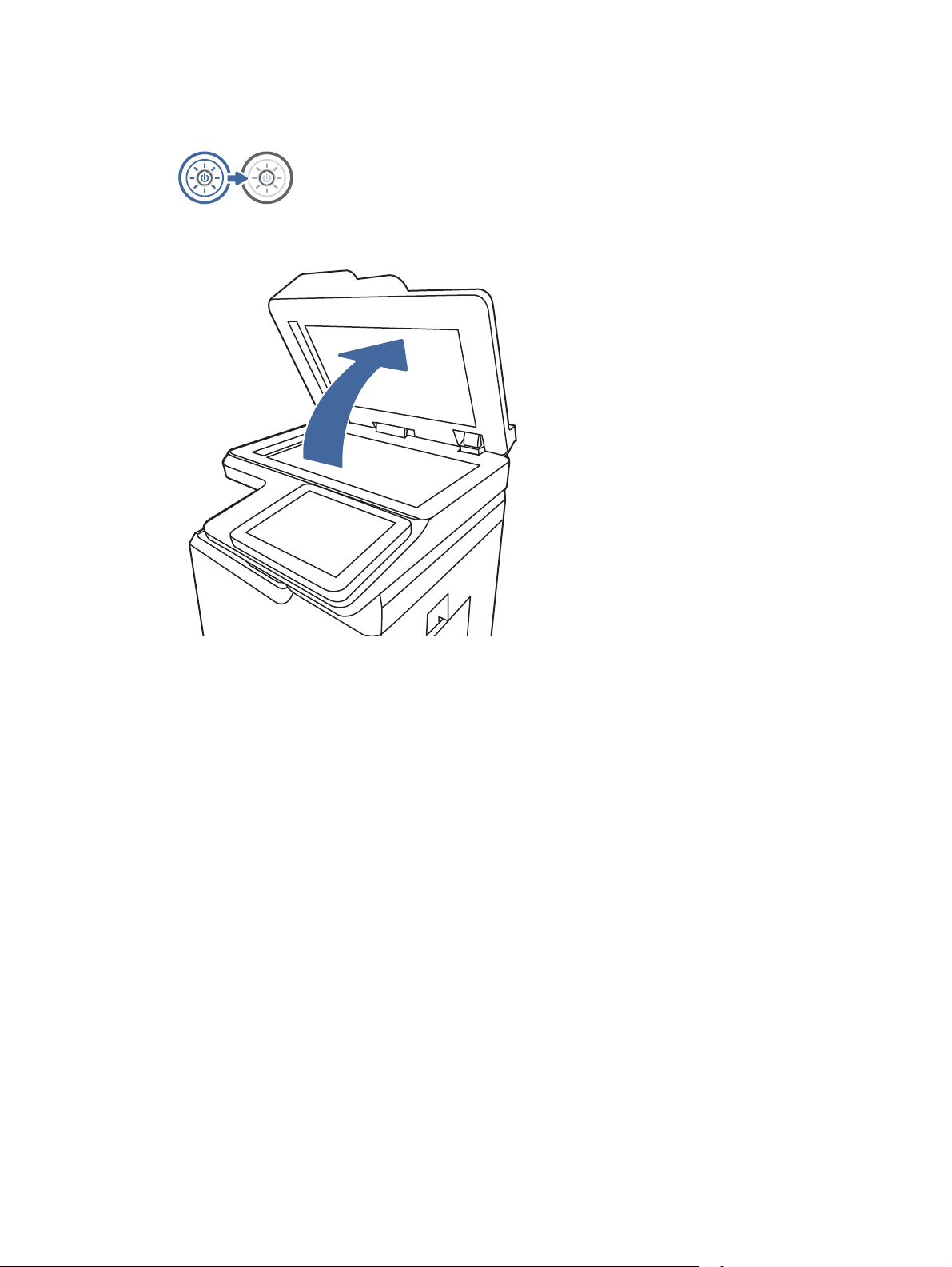
1. Press the power button to turn the printer off, and then disconnect the power cable from the
electrical outlet.
2. Open the scanner lid.
220 Chapter 9Solve problems
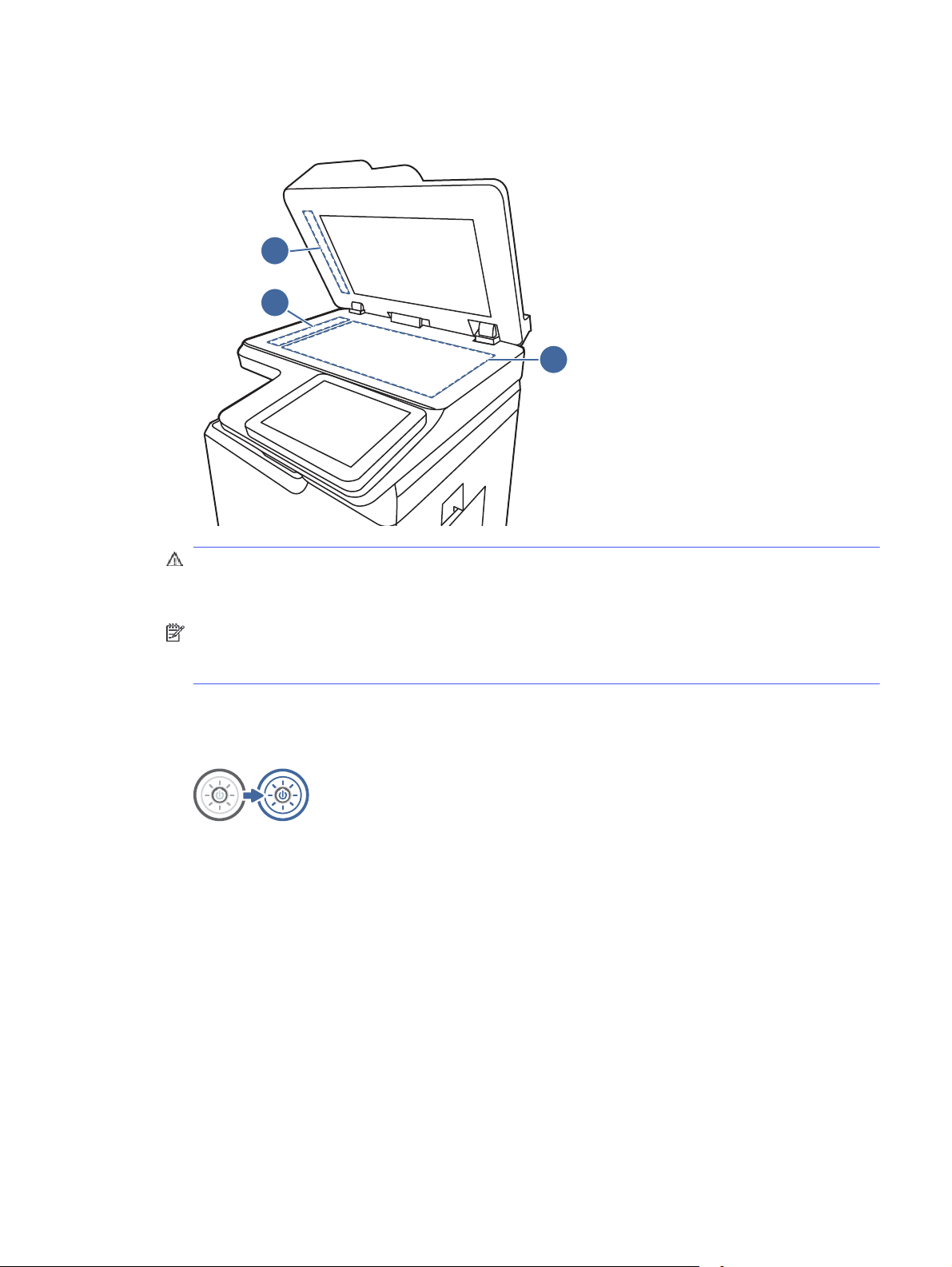
3. Clean the scanner glass (callout 1) and the document feeder strips (callout 2, callout 3) with a
soft cloth or sponge that has been moistened with nonabrasive glass cleaner.
3
2
1
CAUTION: Do not use abrasives, acetone, benzene, ammonia, ethyl alcohol, or carbon
tetrachloride on any part of the printer; these can damage the printer. Do not place liquids
directly on the glass or platen. They might seep and damage the printer.
NOTE: If you are having trouble with streaks on copies when you are using the document
feeder, be sure to clean the small strips of glass on the left side of the scanner (callout 2,
callout 3).
4. Dry the glass and white plastic parts with a chamois or a cellulose sponge to prevent spotting.
5. Connect the power cable to an outlet, and then press the power button to turn the printer on.
Check the send-fax resolution settings
Adjust the resolution of outgoing faxes as needed. A higher resolution setting increases the fax size
and send time.
1. From the Home screen on the printer control panel, navigate to the Fax application, and then
select the Fax icon.
2. Select Options.
3. In the Options pane, scroll to and select Resolution.
4. Select one of the predefined options, and then select Send to send the fax.
Check the send-fax resolution settings
221

Check the image-adjustment settings
Adjust the settings in the Fax menu to optimize image quality.
● Sharpness: Clarify or soften the image. For example, increasing the sharpness could make text
appear crisper, but decreasing it could make photos appear smoother.
● Darkness: Increase or decrease the amount of white and black used in colors in scanned
images.
● Contrast: Increase or decrease the difference between the lightest and the darkest color on the
page.
● Background Cleanup: Remove faint colors from the background of scanned images. For
example, if the original document is printed on colored paper, use this feature to lighten the
background without affecting the darkness of the image.
● Automatic Tone: Available for Flow printers only. The printer automatically adjusts the Darkness,
Contrast, and Background Cleanup settings to the most appropriate for the scanned document.
1. From the Home screen on the printer control panel, navigate to the Fax application, and then
select the Fax icon.
2. Select Options.
3. In the Options pane, scroll to and select Image Adjustment.
4. Adjust the sliders to set the levels, and then select Done.
5. Select Send to send the fax.
NOTE: These settings are temporary. After you have finished the job, the printer returns to the
default settings.
Optimize fax quality for text or pictures
Optimize the fax job for the type of image being scanned: text, graphics, or photos.
1. From the Home screen on the printer control panel, navigate to the Fax application, and then
select the Fax icon.
2. Select Options.
3. In the Options pane, scroll to and select Optimize Text/Picture.
4. Select one of the predefined options.
5. Select Send to send the fax.
NOTE: These settings are temporary. After you have finished the job, the printer returns to the
default settings.
Check the error-correction setting
Make sure the Error Correction Mode setting is enabled. This setting can improve image quality.
1. From the Home screen on the printer control panel, navigate to the Settings application, and
then select the Settings icon.
222
Chapter 9Solve problems

2. Open the following menus:
a. Fax
b. Fax Send Settings
c. General Fax Send Settings
3. Select the Error Correction Mode option. Touch the Done button.
Check the fit-to-page setting
If the Fit to Page setting is enabled, and the incoming fax is larger than the default page size, the
printer attempts to scale the image to fit the page. If this setting is disabled, larger images split
across multiple pages.
1. From the Home screen on the printer control panel, navigate to the Settings application, and
then select the Settings icon.
2. Open the following menus:
a. Fax
b. Fax Receive Settings
c. Default Job Options
d. Fit to Page
3. Select the On option to enable the setting, or select the Off option to disable it.
Send to a different fax machine
The problem might be related to fax machine settings or supplies status.
Try sending the fax to a different fax machine. If the fax quality is better, the problem is related to
the initial recipient's fax machine settings or supplies status.
Check the sender's fax machine
Try the following to check the sender's fax machine.
Ask the sender to try sending from a different fax machine. If the fax quality is better, the problem
is with the sender's fax machine. If a different fax machine is unavailable, ask the sender to consider
making the following changes:
● Make sure the original document is on white (not colored) paper.
● Increase the fax resolution, quality level, or contrast settings.
● If possible, send the fax from a computer software program.
Solve wired network problems
Check the following information to resolve wired network issues.
Check the fit-to-page setting
223

Introduction
Certain types of problems can indicate there is a network communication problem. These problems
include the following issues:
Poor physical connection
Check the cable connections.
1. Verify that the printer is attached to the correct network port using a cable of the correct
length.
2. Verify that cable connections are secure.
3. Look at the network port connection on the back of the printer, and verify that the amber
activity light flashes indicating network traffic, and the green link-status light is continuously lit
indicating a network link.
4. If the problem continues, try a different cable or port on the hub.
The computer is unable to communicate with the printer
Verify that the printer is communicating with the network and your computer.
1. Test network communication by pinging the network.
a. Open a command-line prompt on your computer.
● For Windows, click Start, click Run, type cmd, and then press Enter.
● For macOS, go to Applications, then Utilities, and open Terminal.
b. Type ping followed by the IP address for your printer.
c. If the window displays round-trip times, the network is working.
2. If the ping command failed, verify that the network hubs are on, and then verify that the
network settings, the printer, and the computer are all configured for the same network (also
known as subnet).
3. Open the printer properties and click the Ports tab. Verify that the current IP address for the
printer is selected. The printer IP address is listed on the printer configuration page.
4. If you installed the printer using the HP standard TCP/IP port, select the box labeled Always
print to this printer, even if its IP address changes.
5. If you installed the printer using a Microsoft standard TCP/IP port, use the printer’s hostname
instead of the IP address.
6. If the IP address is correct, delete the printer and then add it again.
7. Reinstall the printer software and driver.
The printer is using incorrect link and duplex settings for the network
HP recommends leaving these settings in automatic mode (the default setting). If you change these
settings, you must also change them for your network.
224
Chapter 9Solve problems

New software programs might be causing compatibility problems
Verify that any new software programs are correctly installed and that they use the correct print
driver.
The computer or workstation might be set up incorrectly
An incorrectly configured computer can cause issues with printing.
1. Check the network drivers, print drivers, and the network redirection settings.
2. Verify that the operating system is configured correctly.
The printer is disabled, or other network settings are incorrect
Check the network settings.
1. Review the printer’s configuration/networking pages to check the status of the network settings
and protocols.
2. Reconfigure the network settings if necessary.
Solve wireless network problems
Check the following information to resolve wireless network issues.
Introduction
Use the troubleshooting information to help resolve issues.
NOTE: To determine whether HP NFC, Wi-Fi, BLE, or other wireless printing capabilities are
enabled on the printer, print a configuration page from the printer control panel.
NOTE: If you have been experiencing intermittent loss of network connectivity, first update the
printer firmware. For instructions on how to update the printer firmware, go to
http://support.hp.com, search for your printer, and then search on “update the firmware.”
Wireless connectivity checklist
Use the checklist to help resolve wireless connection issues.
● For printers that do not support simultaneous wired and wireless connections, verify that the
network cable is not connected.
● Verify that the printer and the wireless router are turned on and have power. Also make sure
that the wireless radio in the printer is turned on. (The wireless network indicator is solid when
the printer is connected to a wireless network, and blinking when it is searching for a wireless
network.)
● Verify that the service set identifier (SSID) is correct:
– For a wireless connection to your network, confirm that your mobile device is connecting to
the correct router/access point.
– For a Wi-Fi Direct connection, print a configuration page to determine the printer’s SSID.
New software programs might be causing compatibility problems
225

If you are not sure that the SSID is correct, run the wireless setup again.
● With secured networks, verify that the security information is correct. If the security information
is incorrect, run the wireless setup again.
● If the wireless network is working correctly, try accessing other computers on the wireless
network. If the network has Internet access, try connecting to the Internet over a wireless
connection.
● Verify that the encryption method (AES or TKIP) is the same for the printer as it is for the
wireless access point (on networks using WPA security).
● Verify that the printer is within the range of the wireless network. For most networks, the printer
must be within 30 m (100 ft) of the wireless access point (wireless router).
● Verify that obstacles do not block the wireless signal. Remove any large metal objects between
the access point and the printer. Make sure poles, walls, or support columns containing metal or
concrete do not separate the printer and wireless access point.
● Verify that the printer is located away from electronic devices that might interfere with the
wireless signal. Many devices can interfere with the wireless signal including motors, cordless
phones, security system cameras, other wireless networks, and some Bluetooth devices.
● For computers connecting to the wireless printer:
– Verify that the print driver is installed on the computer.
– Verify that you have selected the correct printer port.
– Verify that the computer and printer connect to the same wireless network.
– If your environment has multiple wireless signals and you need the printer to support dual
band networks on both 2.4 GHz and 5 GHz, install the HP Jetdirect 2900nw print server
accessory.
– For macOS, verify that the wireless router supports Bonjour.
The printer does not print after the wireless configuration completes
Resolve issues between your computer and the printer.
1. Make sure that the printer is turned on and in the ready state.
2. Turn off any third-party firewalls on your computer.
3. Make sure that the wireless network is working correctly.
4. Make sure that your computer is working correctly. If necessary, restart the computer.
5. Verify that you can open the printer HPEmbedded Web Server from a computer on the
network.
The printer does not print, and the computer has a third-party firewall installed
Verify that a firewall is not interfering with wireless communication.
1. Update the firewall with the most recent update available from the manufacturer.
226
Chapter 9Solve problems

2. If programs request firewall access when you install the printer or try to print, make sure that
you allow the programs to run.
3. Temporarily turn off the firewall, and then install the wireless printer on the computer. Enable
the firewall when you have completed the wireless installation.
The wireless connection does not work after moving the wireless router or
printer
Verify that the printer and network settings are correct.
1. Make sure that the router or printer connects to the same network that your computer
connects to.
2. Print a configuration page.
3. Compare the service set identifier (SSID) on the configuration page to the SSID in the printer
configuration for the computer.
4. If the numbers are not the same, the devices are not connecting to the same network.
Reconfigure the wireless setup for the printer.
Cannot connect more computers to the wireless printer
Complete the following steps to solve connection issues.
1. Make sure that the other computers are within the wireless range and that no obstacles block
the signal. For most networks, the wireless range is within 30 m (100 ft) of the wireless access
point.
2. Make sure that the printer is turned on and in the ready state.
3. Make sure there are not more than 5 concurrent Wireless Print Direct users.
4. Turn off any third-party firewalls on your computer.
5. Make sure that the wireless network is working correctly.
6. Make sure that your computer is working correctly. If necessary, restart the computer.
The wireless printer loses communication when connected to a VPN
Typically, you cannot connect to a VPN and other networks at the same time.
The network does not appear in the wireless networks list
Follow these steps when the network does not appear in the wireless network list on your computer
or mobile device.
● Make sure the wireless router is turned on and has power.
● The network might be hidden. However, you can still connect to a hidden network. Make sure the
router/access point is advertising the SSID by checking for its SSID in the available networks
seen by your mobile device.
The wireless network is not functioning
Complete the following steps to ensure that the network is functioning correctly.
The wireless connection does not work after moving the wireless router or printer
227

1. For printers that do not support simultaneous wired and wireless connections, make sure that
the network cable is disconnected.
2. To verify if the network has lost communication, try connecting other devices to the network.
3. Test network communication by pinging the network.
a. Open a command-line prompt on your computer.
● For Windows, click Start, click Run, type cmd, and then press Enter.
● For macOS, go to Applications, then Utilities, and open Terminal.
b. Type ping followed by the router IP address.
c. If the window displays round-trip times, the network is working.
4. Make sure that the router or printer connects to the same network that the computer connects
to.
a. Print a configuration page.
b. Compare the service set identifier (SSID) on the configuration report to the SSID in the
printer configuration for the computer.
c. If the numbers are not the same, the devices are not connecting to the same network.
Reconfigure the wireless setup for the printer.
Reduce interference on a wireless network
The following tips can reduce interference in a wireless network:
● Keep the wireless devices away from large metal objects, such as filing cabinets, and other
electromagnetic devices, such as microwaves and cordless telephones. These objects can
disrupt radio signals.
● Keep the wireless devices away from large masonry structures and other building structures.
These objects can absorb radio waves and lower signal strength.
● Position the wireless router in a central location in line of sight with the wireless printers on the
network.
Solve fax problems
Use the following sections to solve issues involving the printer fax functions.
Checklist for solving fax problems
Use the following checklist to help identify the cause of any fax-related problems you encounter:
● Are you using the fax cable supplied with the fax accessory? This fax accessory has been
tested with the supplied fax cable to meet RJ11 and functional specifications. Do not substitute
another fax cable; the analog-fax accessory requires an analog-fax cable. It also requires an
analog phone connection.
228
Chapter 9Solve problems

● Is the fax/phone line connector seated in the outlet on the fax accessory? Make sure that the
phone jack is correctly seated in the outlet. Insert the connector into the outlet until it "clicks."
NOTE: Verify that the phone jack is connected to the fax port rather than to the network port.
The ports are similar.
● Is the phone wall jack working properly? Verify that a dial tone exists by attaching a phone to the
wall jack. Can you hear a dial tone, and can you make or receive a phone call?
What type of phone line are you using?
Verify the type of phone line you are using, and review the recommendations for that type of line.
● Dedicated line: A standard analog fax/phone line assigned to receive or send faxes.
NOTE: The phone line should be for printer fax use only and not shared with other types of
telephone devices. Examples include alarm systems that use the phone line for notifications to
a monitoring company.
● PBX system: A business-environment phone system. Standard home phones and the fax
accessory use an analog phone signal. Some PBX systems are digital and might not be
compatible with the fax accessory. You might need an interfacing Analog Telephone Adapter
(ATA) to connect the fax machine to digital PBX systems.
● Roll-over lines: A phone system feature where a new call "rolls over" to the next available line
when the first incoming line is busy. Try attaching the printer to the first incoming phone line. The
fax accessory answers the phone after it rings the number of times set in the rings-to-answer
setting.
Are you using a surge-protection device?
A surge-protection device can be used between the wall jack and the fax accessory to protect the
fax accessory against electrical power passed through the phone lines. These devices can cause
some fax communication problems by degrading the quality of the phone signal.
If you are having problems sending or receiving faxes and are using one of these devices, connect
the printer directly to the phone jack on the wall to determine whether the problem is with the
surge-protection device.
Are you using a phone company voice-messaging service or an answering machine?
If the rings-to-answer setting for the messaging service is lower than the rings-to-answer setting for
the fax accessory, the messaging service answers the call, and the fax accessory cannot receive
faxes.
If the rings-to-answer setting for the fax accessory is lower than that of the messaging service, the
fax accessory answers all calls.
Does your phone line have a call-waiting feature?
If the fax telephone line has an activated call-waiting feature, a call-waiting notice can interrupt a fax
call in progress, which causes a communication error.
Ensure that a call-waiting feature is not active on the fax telephone line.
What type of phone line are you using?
229

Check fax accessory status
If the analog-fax accessory does not appear to be functioning, print a Configuration Page report to
check the status.
1. From the Home screen, scroll to and select Reports.
2. Open the following menus:
a. Configuration/Status Pages
b. Configuration Page
3. Touch the Print button to print the report, or touch the View button to view the report on the
screen. The report consists of several pages.
NOTE: The printer IP address or host name is listed on the Jetdirect Page.
4. On the Fax Accessory Page of the Configuration Page, under the Hardware Information
heading, check the Modem Status. The following table identifies the status conditions and
possible solutions.
NOTE: If the Fax Accessory Page does not print, there might be a problem with the analog fax
accessory. If you are using LAN fax or Internet fax, those configurations could be disabling the
feature.
Table 9-14
Analog-fax accessory troubleshooting
Status conditions Possible solutions
Operational / Enabled
1
The analog-fax accessory is installed and ready.
Operational / Disabled
1
The fax accessory is installed, but you have not
configured the required fax settings yet.
The fax accessory is installed and operational; however,
the HPDigital Sending utility has either disabled the
printer fax feature or has enabled LAN fax. When LAN fax
is enabled, the analog-fax feature is disabled. Only one
fax feature, either LAN fax or analog fax, can be enabled
at a time.
NOTE: If LAN fax is enabled, the Scan to Fax feature is
unavailable on the printer control panel.
Non-Operational / Enabled/Disabled
1
The printer has detected a firmware failure. Upgrade the
firmware.
Damaged / Enabled/Disabled
1
The fax accessory has failed. Reseat the fax accessory
card and check for bent pins. If the status is still
DAMAGED, replace the analog-fax accessory card.
1 ENABLED indicates that the analog-fax accessory is enabled and turned on; DISABLED indicates that LAN fax is
enabled (analog fax is turned off).
General fax problems
Learn about solutions for common fax problems.
The fax failed to send
Verify the fax issue, and try the suggested solution.
230
Chapter 9Solve problems

JBIG is enabled, and the receiving fax machine does not have JBIG capability.
Turn off the JBIG setting.
No fax address book button displays
Verify the fax issue, and try the suggested solution.
None of the contacts in the selected contacts list have fax information associated with them. Add
the necessary fax information.
Not able to locate the Fax settings in HPWeb Jetadmin
Verify the fax issue, and try the suggested solution.
Fax settings in HPWeb Jetadmin are located under the device's status page drop-down menu.
Select Digital Sending and Fax from the drop-down menu.
The header is appended to the top of the page when the overlay option is enabled
This fax issue is a normal part of operation.
For all forwarded faxes, the printer appends the overlay header to the top of a page.
This is normal operation.
A mix of names and numbers is in the recipients box
This fax issue is a normal part of operation.
Names and numbers can both display, depending on where they are from. The fax address book
lists names, and all other databases list numbers.
This is normal operation.
A one-page fax prints as two pages
Verify the fax issue, and try the suggested solution.
The fax header is being appended to the top of the fax, pushing text to a second page.
To print a one page fax on a single page, set the overlay header to overlay mode, or adjust the
fit-to-page setting.
A document stops in the document feeder in the middle of faxing
Verify the fax issue, and try the suggested solution.
A jam is in the document feeder.
Clear the jam, and send the fax again.
The volume for sounds coming from the fax accessory is too high or too low
Verify the fax issue, and try the suggested solution.
The volume setting needs to be adjusted.
Adjust the volume in the Fax Send Settings menu and the Fax Receive Settings menu.
No fax address book button displays
231

Service and supportA
HP limited warranty statement
HPPRODUCT DURATION OF LIMITED WARRANTY*
HP Color LaserJet Enterprise MFP 5800 One-year, next-business day, onsite warranty
NOTE: *Warranty and support options vary by product, country, and local legal requirements. Go
to support.hp.com to learn about HP award-winning service and support options in your region.
HP warrants to you, the end-user customer, this HP Limited Warranty applies only to HP branded
products sold or leased a) from HP Inc., its subsidiaries, affiliates, authorized resellers, authorized
distributors, or country distributors; and, b) with this HP Limited Warranty, that HPhardware and
accessories will be free from defects in materials and workmanship after the date of purchase, for
the period specified above. If HP receives notice of such defects during the warranty period, HP will,
at its option, either repair or replace products which prove to be defective. Replacement products
may be either new or equivalent in performance to new.
HP warrants to you that HPsoftware will not fail to execute its programming instructions after the
date of purchase, for the period specified above, due to defects in material and workmanship when
properly installed and used. If HP receives notice of such defects during the warranty period, HP will
replace software which does not execute its programming instructions due to such defects.
HP does not warrant that the operation of HP products will be uninterrupted or error free. If HP is
unable, within a reasonable time, to repair or replace any product to a condition as warranted, you
will be entitled to a refund of the purchase price upon prompt return of the product.
HPproducts may contain remanufactured parts equivalent to new in performance or may have been
subject to incidental use.
Warranty does not apply to defects resulting from (a) improper or inadequate maintenance
or calibration, (b) software, interfacing, parts or supplies not supplied by HP, (c) unauthorized
modification or misuse, (d) operation outside of the published environmental specifications for the
product, or (e) improper site preparation or maintenance.
TO THE EXTENT ALLOWED BY LOCAL LAW, THE ABOVE WARRANTIES ARE EXCLUSIVE AND NO
OTHER WARRANTY OR CONDITION, WHETHER WRITTEN OR ORAL, IS EXPRESSED OR IMPLIED AND
HPSPECIFICALLY DISCLAIMS ANY IMPLIED WARRANTIES OR CONDITIONS OF MERCHANTABILITY,
SATISFACTORY QUALITY, AND FITNESS FOR A PARTICULAR PURPOSE. Some countries/regions,
states or provinces do not allow limitations on the duration of an implied warranty, so the above
limitation or exclusion might not apply to you. This warranty gives you specific legal rights and
you might also have other rights that vary from country/region to country/region, state to state, or
province to province.
HP's limited warranty is valid in any country/region or locality where HP has a support presence for
this product and where HP has marketed this product. The level of warranty service you receive
may vary according to local standards. HP will not alter form, fit or function of the product to make
it operate in a country/region for which it was never intended to function for legal or regulatory
reasons.
232
Appendix AService and support

TO THE EXTENT ALLOWED BY LOCAL LAW, THE REMEDIES IN THIS WARRANTY STATEMENT
ARE YOUR SOLE AND EXCLUSIVE REMEDIES. EXCEPT AS INDICATED ABOVE, IN NO EVENT WILL
HPOR ITS SUPPLIERS BE LIABLE FOR LOSS OF DATA OR FOR DIRECT, SPECIAL, INCIDENTAL,
CONSEQUENTIAL (INCLUDING LOST PROFIT OR DATA), OR OTHER DAMAGE, WHETHER BASED IN
CONTRACT, TORT, OR OTHERWISE. Some countries/regions, states or provinces do not allow the
exclusion or limitation of incidental or consequential damages, so the above limitation or exclusion
may not apply to you.
THE WARRANTY TERMS CONTAINED IN THIS STATEMENT, EXCEPT TO THE EXTENT LAWFULLY
PERMITTED, DO NOT EXCLUDE, RESTRICT OR MODIFY AND ARE IN ADDITION TO THE MANDATORY
STATUTORY RIGHTS APPLICABLE TO THE SALE OF THIS PRODUCT TO YOU.
UK, Ireland, and Malta
The HPLimited Warranty is acommercial guarantee voluntarily provided by HP. The name and
address of the HP entity responsible for the performance of the HPLimited Warranty in your
country/region is as follows:
UK: HPInc UK Limited, Cain Road, Amen Corner, Bracknell, Berkshire, RG12 1HN
Ireland: Hewlett-Packard Ireland Limited, Liffey Park Technology Campus, Barnhall Road, Leixlip,
Co.Kildare
Malta: Hewlett-Packard Europe B.V., Amsterdam, Meyrin Branch, Route du Nant-d'Avril 150, 1217
Meyrin, Switzerland
United Kingdom: The HPLimited Warranty benefits apply in addition to any legal rights to
aguarantee from seller of nonconformity of goods with the contract of sale. These rights
expire six years from delivery of goods for products purchased in England or Wales and five
years from delivery of goods for products purchased in Scotland. However various factors
may impact your eligibility to receive these rights. For further information, please consult
the following link: Consumer Legal Guarantee (www.hp.com/go/eu-legal) or you may visit the
European Consumer Centers website (http://ec.europa.eu/consumers/solving_consumer_disputes/
non-judicial_redress/ecc-net/index_en.htm). Consumers have the right to choose whether to claim
service under the HPLimited Warranty or against the seller under the legal guarantee.
Ireland: The HPLimited Warranty benefits apply in addition to any statutory rights from
seller in relation to nonconformity of goods with the contract of sale. However various
factors may impact your eligibility to receive these rights. Consumer statutory rights are not
limited or affected in any manner by HPCare Pack. For further information, please consult
the following link: Consumer Legal Guarantee (www.hp.com/go/eu-legal) or you may visit the
European Consumer Centers website (http://ec.europa.eu/consumers/solving_consumer_disputes/
non-judicial_redress/ecc-net/index_en.htm). Consumers have the right to choose whether to claim
service under the HPLimited Warranty or against the seller under the legal guarantee.
Malta: The HPLimited Warranty benefits apply in addition to any legal rights to atwo-year
guarantee from seller of nonconformity of goods with the contract of sale; however various
factors may impact your eligibility to receive these rights. Consumer statutory rights are not
limited or affected in any manner by the HPLimited Warranty. For further information, please
consult the following link: Consumer Legal Guarantee (www.hp.com/go/eu-legal) or you may visit the
European Consumer Centers website (http://ec.europa.eu/consumers/solving_consumer_disputes/
non-judicial_redress/ecc-net/index_en.htm). Consumers have the right to choose whether to claim
service under the HPLimited Warranty or against the seller under two-year legal guarantee.
UK, Ireland, and Malta
233

Austria, Belgium, Germany, and Luxemburg
Die beschränkte HPHerstellergarantie ist eine von HP auf freiwilliger Basis angebotene
kommerzielle Garantie. Der Name und die Adresse der HPGesellschaft, die in Ihrem Land für die
Gewährung der beschränkten HPHerstellergarantie verantwortlich ist, sind wie folgt:
Deutschland: HPDeutschland GmbH, Schickardstr. 32, D-71034 Böblingen
Österreich: HPAustria GmbH., Technologiestrasse 5, A-1120 Wien
Luxemburg: Hewlett-Packard Luxembourg S.C.A., 75, Parc d'Activités Capellen, Rue Pafebruc, L-8308
Capellen
Belgien: HPBelgium BVBA, Hermeslaan 1A, B-1831 Diegem
Die Rechte aus der beschränkten HPHerstellergarantie gelten zusätzlich zu den
gesetzlichen Ansprüchen wegen Sachmängeln auf eine zweijährige Gewährleistung ab
dem Lieferdatum. Ob Sie Anspruch auf diese Rechte haben, hängt von zahlreichen
Faktoren ab. Die Rechte des Kunden sind in keiner Weise durch die beschränkte
HPHerstellergarantie eingeschränkt bzw. betroffen. Weitere Hinweise finden Sie auf der
folgenden Website: Gewährleistungsansprüche für Verbraucher (www.hp.com/go/eu-legal) oder
Sie können die Website des Europäischen Verbraucherzentrums (http://ec.europa.eu/consumers/
solving_consumer_disputes/non-judicial_redress/ecc-net/index_en.htm) besuchen. Verbraucher
haben das Recht zu wählen, ob sie eine Leistung von HP gemäß der beschränkten
HPHerstellergarantie in Anspruch nehmen oder ob sie sich gemäß der gesetzlichen zweijährigen
Haftung für Sachmängel (Gewährleistung) sich an den jeweiligen Verkäufer wenden.
Belgium, France, and Luxemburg
La garantie limitée HP est une garantie commerciale fournie volontairement par HP. Voici les
coordonnées de l'entité HP responsable de l'exécution de la garantie limitée HP dans votre pays:
France: HPFrance SAS, société par actions simplifiée identifiée sous le numéro 448 694 133 RCS
Evry, 1 Avenue du Canada, 91947, Les Ulis
G.D. Luxembourg: Hewlett-Packard Luxembourg S.C.A., 75, Parc d'Activités Capellen, Rue Pafebruc,
L-8308 Capellen
Belgique: HPBelgium BVBA, Hermeslaan 1A, B-1831 Diegem
France: Les avantages de la garantie limitée HP s'appliquent en complément des droits dont
vous disposez au titre des garanties légales applicables dont le bénéfice est soumis à des
conditions spécifiques. Vos droits en tant que consommateur au titre de la garantie légale
de conformité mentionnée aux articles L. 211-4 à L. 211-13 du Code de la Consommation et
de celle relatives aux défauts de la chose vendue, dans les conditions prévues aux articles
1641 à 1648 et 2232 du Code de Commerce ne sont en aucune façon limités ou affectés
par la garantie limitée HP. Pour de plus amples informations, veuillez consulter le lien suivant :
Garanties légales accordées au consommateur (www.hp.com/go/eu-legal). Vous pouvez également
consulter le site Web des Centres européens des consommateurs (http://ec.europa.eu/consumers/
solving_consumer_disputes/non-judicial_redress/ecc-net/index_en.htm). Les consommateurs ont le
droit de choisir d’exercer leurs droits au titre de la garantie limitée HP, ou auprès du vendeur au titre
des garanties légales applicables mentionnées ci-dessus.
POUR RAPPEL:
Garantie Légale de Conformité:
234
Appendix AService and support

« Le vendeur est tenu de livrer un bien conforme au contrat et répond des défauts de conformité existant
lors de la délivrance.
Il répond également des défauts de conformité résultant de l'emballage, des instructions de montage
ou de l'installation lorsque celle-ci a été mise à sa charge par le contrat ou a été réalisée sous sa
responsabilité ».
Article L211-5 du Code de la Consommation:
« Pour être conforme au contrat, le bien doit:
1° Etre propre à l'usage habituellement attendu d'un bien semblable et, le cas échéant:
- correspondre à la description donnée par le vendeur et posséder les qualités que celui-ci a présentées
à l'acheteur sous forme d'échantillon ou de modèle;
- présenter les qualités qu'un acheteur peut légitimement attendre eu égard aux déclarations publiques
faites par le vendeur, par le producteur ou par son représentant, notamment dans la publicité ou
l'étiquetage;
2° Ou présenter les caractéristiques définies d'un commun accord par les parties ou être propre à
tout usage spécial recherché par l'acheteur, porté à la connaissance du vendeur et que ce dernier
a accepté ».
Article L211-12 du Code de la Consommation:
« L'action résultant du défaut de conformité se prescrit par deux ans à compter de la délivrance du
bien ».
Garantie des vices cachés
Article 1641 du Code Civil:
« Le vendeur est tenu de la garantie à raison des défauts cachés de la chose
vendue qui la rendent impropre à l'usage auquel on la destine, ou qui diminuent tellement cet usage que
l'acheteur ne l'aurait pas acquise, ou n'en aurait donné qu'un moindre prix, s'il les avait connus. »
Article 1648 alinéa 1 du Code Civil:
« L'action résultant des vices rédhibitoires doit être intentée par l'acquéreur dans un délai de deux ans à
compter de la découverte du vice. »
G.D. Luxembourg et Belgique: Les avantages de la garantie limitée HP s'appliquent en complément
des droits dont vous disposez au titre de la garantie de non-conformité des biens avec
le contrat de vente. Cependant, de nombreux facteurs peuvent avoir un impact sur le
bénéfice de ces droits. Vos droits en tant que consommateur au titre de ces garanties ne
sont en aucune façon limités ou affectés par la garantie limitée HP. Pour de plus amples
informations, veuillez consulter le lien suivant: Garanties légales accordées au consommateur
(www.hp.com/go/eu-legal) ou vous pouvez également consulter le site Web des Centres
européens des consommateurs (http://ec.europa.eu/consumers/solving_consumer_disputes/non-
judicial_redress/ecc-net/index_en.htm). Les consommateurs ont le droit de choisir de réclamer un
service sous la garantie limitée HP ou auprès du vendeur au cours d'une garantie légale de deux
ans.
Italy
La Garanzia limitata HP è una garanzia commerciale fornita volontariamente da HP. Di seguito
sono indicati nome eindirizzo della società HP responsabile della fornitura dei servizi coperti dalla
Garanzia limitata HP nel vostro Paese:
Italy
235

Italia: HP Italy S.r.l., Via Carlo Donat Cattin,5 20063 Cernusco S/Naviglio
I vantaggi della Garanzia limitata HP vengono concessi ai consumatori in aggiunta ai diritti derivanti
dalla garanzia di due anni fornita dal venditore in caso di non conformità dei beni rispetto al
contratto di vendita. Tuttavia, diversi fattori possono avere un impatto sulla possibilita’ di beneficiare
di tali diritti. I diritti spettanti ai consumatori in forza della garanzia legale non sono in alcun modo
limitati, né modificati dalla Garanzia limitata HP. Per ulteriori informazioni, si prega di consultare
il seguente link: Garanzia legale per iclienti (www.hp.com/go/eu-legal), oppure visitare il sito Web
dei Centri europei per iconsumatori (http://ec.europa.eu/consumers/solving_consumer_disputes/
non-judicial_redress/ecc-net/index_en.htm). I consumatori hanno il diritto di scegliere se richiedere
un servizio usufruendo della Garanzia limitata HP oppure rivolgendosi al venditore per far valere la
garanzia legale di due anni.
Spain
Su Garantía limitada de HP es una garantía comercial voluntariamente proporcionada por HP. El
nombre ydirección de las entidades HP que proporcionan la Garantía limitada de HP (garantía
comercial adicional del fabricante) en su país es:
España: Hewlett-Packard Española S.L. Calle Vicente Aleixandre, 1 Parque Empresarial Madrid - Las
Rozas, E-28232 Madrid
Los beneficios de la Garantía limitada de HP son adicionales ala garantía legal de 2 años
ala que los consumidores tienen derecho arecibir del vendedor en virtud del contrato de
compraventa; sin embargo, varios factores pueden afectar su derecho arecibir los beneficios
bajo dicha garantía legal. A este respecto, la Garantía limitada de HP no limita oafecta en
modo alguno los derechos legales del consumidor (www.hp.com/go/eu-legal). Para más información,
consulte el siguiente enlace: Garantía legal del consumidor opuede visitar el sitio web de los
Centros europeos de los consumidores (http://ec.europa.eu/consumers/solving_consumer_disputes/
non-judicial_redress/ecc-net/index_en.htm). Los clientes tienen derecho aelegir si reclaman un
servicio acogiéndose ala Garantía limitada de HP oal vendedor de conformidad con la garantía
legal de dos años.
Denmark
Den begrænsede HP-garanti er en garanti, der ydes frivilligt af HP. Navn og adresse på det HP-
selskab, der er ansvarligt for HP's begrænsede garanti idit land, er som følger:
Danmark: HPInc Danmark ApS, Engholm Parkvej 8, 3450, Allerød
Den begrænsede HP-garanti gælder itillæg til eventuelle juridiske rettigheder, for en toårig
garanti fra sælgeren af varer, der ikke er ioverensstemmelse med salgsaftalen, men forskellige
faktorer kan dog påvirke din ret til at opnå disse rettigheder. Forbrugerens lovbestemte rettigheder
begrænses eller påvirkes ikke på nogen måde af den begrænsede HP-garanti. Se nedenstående
link for at få yderligere oplysninger: Forbrugerens juridiske garanti (www.hp.com/go/eu-legal)
eller du kan besøge De Europæiske Forbrugercentres websted (http://ec.europa.eu/consumers/
solving_consumer_disputes/non-judicial_redress/ecc-net/index_en.htm). Forbrugere har ret til at
vælge, om de vil gøre krav på service ihenhold til HP's begrænsede garanti eller hos sælger
ihenhold til en toårig juridisk garanti.
Norway
HPs garanti er en begrenset og kommersiell garanti som HP selv har valgt å tilby. Følgende lokale
selskap innestår for garantien:
Norge: HPNorge AS, Rolfbuktveien 4b, 1364 Fornebu
236
Appendix AService and support

HPs garanti kommer itillegg til det mangelsansvar HP har ihenhold til norsk
forbrukerkjøpslovgivning, hvor reklamasjonsperioden kan være to eller fem år, avhengig av hvor
lenge salgsgjenstanden var ment å vare. Ulike faktorer kan imidlertid ha betydning for om
du kvalifiserer til å kreve avhjelp iht slikt mangelsansvar. Forbrukerens lovmessige rettigheter
begrenses ikke av HPs garanti. Hvis du vil ha mer informasjon, kan du klikke på følgende
kobling: Juridisk garanti for forbruker (www.hp.com/go/eu-legal) eller du kan besøke nettstedet
til de europeiske forbrukersentrene (http://ec.europa.eu/consumers/solving_consumer_disputes/non-
judicial_redress/ecc-net/index_en.htm). Forbrukere har retten til å velge å kreve service under HPs
garanti eller iht selgerens lovpålagte mangelsansvar.
Sweden
HP:s begränsade garanti är en kommersiell garanti som tillhandahålls frivilligt av HP. Namn och
adress till det HP-företag som ansvarar för HP:s begränsade garanti iditt land är som följer:
Sverige: HPPPS Sverige AB, SE-169 73 Stockholm
Fördelarna som ingår iHP:s begränsade garanti gäller utöver de lagstadgade rättigheterna till
tre års garanti från säljaren angående varans bristande överensstämmelse gentemot köpeavtalet,
men olika faktorer kan påverka din rätt att utnyttja dessa rättigheter. Konsumentens lagstadgade
rättigheter varken begränsas eller påverkas på något sätt av HP:s begränsade garanti. Mer
information får du om du följer denna länk: Lagstadgad garanti för konsumenter (www.hp.com/go/eu-
legal) eller så kan du gå till European Consumer Centers webbplats (http://ec.europa.eu/consumers/
solving_consumer_disputes/non-judicial_redress/ecc-net/index_en.htm). Konsumenter har rätt att
välja om de vill ställa krav enligt HP:s begränsade garanti eller på säljaren enligt den lagstadgade
treåriga garantin.
Portugal
A Garantia Limitada HP é uma garantia comercial fornecida voluntariamente pela HP. O nome ea
morada da entidade HP responsável pela prestação da Garantia Limitada HP no seu país são os
seguintes:
Portugal: HPCP – Computing and Printing Portugal, Unipessoal, Lda., Edificio D. Sancho I, Quinta da
Fonte, Porto Salvo, Lisboa, Oeiras, 2740 244
As vantagens da Garantia Limitada HP aplicam-se cumulativamente com quaisquer direitos
decorrentes da legislação aplicável à garantia de dois anos do vendedor, relativa adefeitos
do produto econstante do contrato de venda. Existem, contudo, vários fatores que
poderão afetar asua elegibilidade para beneficiar de tais direitos. Os direitos legalmente
atribuídos aos consumidores não são limitados ou afetados de forma alguma pela Garantia
Limitada HP. Para mais informações, consulte aligação seguinte: Garantia legal do
consumidor (www.hp.com/go/eu-legal) ou visite oWeb site da Rede dos Centros Europeus
do Consumidor (http://ec.europa.eu/consumers/solving_consumer_disputes/non-judicial_redress/ecc-
net/index_en.htm). Os consumidores têm odireito de escolher se pretendem reclamar assistência
ao abrigo da Garantia Limitada HP ou contra ovendedor ao abrigo de uma garantia jurídica de dois
anos.
Greece and Cyprus
Η Περιορισμένη εγγύηση HP είναι μια εμπορική εγγύηση η οποία παρέχεται εθελοντικά από την HP.
Η επωνυμία και η διεύθυνση του νομικού προσώπου ΗΡ που παρέχει την Περιορισμένη εγγύηση ΗΡ
στη χώρα σας είναι η εξής:
Ελλάδα /Κύπρoς: HPPrinting and Personal Systems Hellas EPE, Tzavella 1-3, 15232 Chalandri, Attiki
Sweden
237

Ελλάδα /Κύπρoς: HP Συστήματα Εκτύπωσης και Προσωπικών Υπολογιστών Ελλάς Εταιρεία
Περιορισμένης Ευθύνης, Tzavella 1-3, 15232 Chalandri, Attiki
Τα προνόμια της Περιορισμένης εγγύησης HP ισχύουν επιπλέον των νόμιμων δικαιωμάτων
για διετή εγγύηση έναντι του Πωλητή για τη μη συμμόρφωση των προϊόντων με τις
συνομολογημένες συμβατικά ιδιότητες, ωστόσο η άσκηση των δικαιωμάτων σας αυτών μπορεί
να εξαρτάται από διάφορους παράγοντες. Τα νόμιμα δικαιώματα των καταναλωτών δεν
περιορίζονται ούτε επηρεάζονται καθ’ οιονδήποτε τρόπο από την Περιορισμένη εγγύηση HP.
Για περισσότερες πληροφορίες, συμβουλευτείτε την ακόλουθη τοποθεσία web: Νόμιμη εγγύηση
καταναλωτή (www.hp.com/go/eu-legal) ή μπορείτε να επισκεφτείτε την τοποθεσία web των
Ευρωπαϊκών Κέντρων Καταναλωτή (http://ec.europa.eu/consumers/solving_consumer_disputes/non-
judicial_redress/ecc-net/index_en.htm). Οι καταναλωτές έχουν το δικαίωμα να επιλέξουν αν θα
αξιώσουν την υπηρεσία στα πλαίσια της Περιορισμένης εγγύησης ΗΡ ή από τον πωλητή στα πλαίσια
της νόμιμης εγγύησης δύο ετών.
Hungary
A HP korlátozott jótállás egy olyan kereskedelmi jótállás, amelyet aHP asaját elhatározásából
biztosít. Az egyes országokban aHP mint gyártó által vállalt korlátozott jótállást biztosító HP
vállalatok neve és címe:
Magyarország: HPInc Magyarország Kft., H-1117 Budapest, Alíz utca 1.
A HP korlátozott jótállásban biztosított jogok azokon ajogokon felül illetik meg Önt,
amelyek atermékeknek az adásvételi szerződés szerinti minőségére vonatkozó kétéves,
jogszabályban foglalt eladói szavatosságból, továbbá ha az Ön által vásárolt termékre
alkalmazandó, ajogszabályban foglalt kötelező eladói jótállásból erednek, azonban számos
körülmény hatással lehet arra, hogy ezek ajogok Önt megilletik-e. További információért kérjük,
keresse fel akövetkező webhelyet: Jogi Tájékoztató Fogyasztóknak (www.hp.com/go/eu-legal)
vagy látogassa meg az Európai Fogyasztói Központok webhelyét (http://ec.europa.eu/consumers/
solving_consumer_disputes/non-judicial_redress/ecc-net/index_en.htm). A fogyasztóknak jogában áll,
hogy megválasszák, hogy ajótállással kapcsolatos igényüket aHP korlátozott jótállás alapján vagy
akétéves, jogszabályban foglalt eladói szavatosság, illetve, ha alkalmazandó, ajogszabályban foglalt
kötelező eladói jótállás alapján érvényesítik.
Czech Republic
Omezená záruka HP je obchodní zárukou dobrovolně poskytovanou společností HP. Názvy aadresy
společností skupiny HP, které odpovídají za plnění omezené záruky HP ve vaší zemi, jsou následující:
Česká republika: HPInc Czech Republic s. r. o., Za Brumlovkou 5/1559, 140 00 Praha 4
Výhody, poskytované omezenou zárukou HP, se uplatňuji jako doplňek kjakýmkoli právním
nárokům na dvouletou záruku poskytnutou prodejcem vpřípadě nesouladu zboží skupní smlouvou.
Váš nárok na uznání těchto práv však může záviset na mnohých faktorech. Omezená záruka
HP žádným způsobem neomezuje ani neovlivňuje zákonná práva zákazníka. Další informace
získáte kliknutím na následující odkaz: Zákonná záruka spotřebitele (www.hp.com/go/eu-legal)
případně můžete navštívit webové stránky Evropského spotřebitelského centra (http://ec.europa.eu/
consumers/solving_consumer_disputes/non-judicial_redress/ecc-net/index_en.htm). Spotřebitelé mají
právo se rozhodnout, zda chtějí službu reklamovat vrámci omezené záruky HP nebo vrámci
zákonem stanovené dvouleté záruky uprodejce.
238
Appendix AService and support

Slovakia
Obmedzená záruka HP je obchodná záruka, ktorú spoločnosť HP poskytuje dobrovoľne. Meno
aadresa subjektu HP, ktorý zabezpečuje plnenie vyplývajúce zObmedzenej záruky HP vo vašej
krajine:
Slovenská republika: HPInc Slovakia, s.r.o., Galvaniho 7, 821 04 Bratislava
Výhody Obmedzenej záruky HP sa uplatnia vedľa prípadných zákazníkových zákonných nárokov
voči predávajúcemu zvád, ktoré spočívajú vnesúlade vlastností tovaru sjeho popisom podľa
predmetnej zmluvy. Možnosť uplatnenia takých prípadných nárokov však môže závisieť od rôznych
faktorov. Služby Obmedzenej záruky HP žiadnym spôsobom neobmedzujú ani neovplyvňujú zákonné
práva zákazníka, ktorý je spotrebiteľom. Ďalšie informácie nájdete na nasledujúcom prepojení:
Zákonná záruka spotrebiteľa (www.hp.com/go/eu-legal), prípadne môžete navštíviť webovú lokalitu
európskych zákazníckych stredísk (http://ec.europa.eu/consumers/solving_consumer_disputes/non-
judicial_redress/ecc-net/index_en.htm). Spotrebitelia majú právo zvoliť si, či chcú uplatniť servis
vrámci Obmedzenej záruky HP alebo počas zákonnej dvojročnej záručnej lehoty upredajcu.
Poland
Ograniczona gwarancja HP to komercyjna gwarancja udzielona dobrowolnie przez HP. Nazwa iadres
podmiotu HP odpowiedzialnego za realizację Ograniczonej gwarancji HP wPolsce:
Polska: HPInc Polska sp. zo.o., Szturmowa 2a, 02-678 Warszawa, wpisana do rejestru
przedsiębiorców prowadzonego przez Sąd Rejonowy dla m.st. Warszawy wWarszawie, XIII Wydział
Gospodarczy Krajowego Rejestru Sądowego, pod numerem KRS 0000546115, NIP 5213690563,
REGON 360916326, GIOŚ E0020757WZBW, kapitał zakładowy 480.000 PLN.
Świadczenia wynikające zOgraniczonej gwarancji HP stanowią dodatek do praw przysługujących
nabywcy wzwiązku zdwuletnią odpowiedzialnością sprzedawcy ztytułu niezgodności
towaru zumową (rękojmia). Niemniej, na możliwość korzystania ztych praw mają
wpływ różne czynniki. Ograniczona gwarancja HP wżaden sposób nie ogranicza praw
konsumenta ani na nie nie wpływa. Więcej informacji można znaleźć pod następującym
łączem: Gwarancja prawna konsumenta (www.hp.com/go/eu-legal), można także odwiedzić
stronę internetową Europejskiego Centrum Konsumenckiego (http://ec.europa.eu/consumers/
solving_consumer_disputes/non-judicial_redress/ecc-net/index_en.htm). Konsumenci mają prawo
wyboru co do możliwosci skorzystania albo zusług gwarancyjnych przysługujących wramach
Ograniczonej gwarancji HP albo zuprawnień wynikających zdwuletniej rękojmi wstosunku do
sprzedawcy.
Bulgaria
Ограничената гаранция на HP представлява търговска гаранция, доброволно предоставяна от
HP. Името и адресът на дружеството на HP за вашата страна, отговорно за предоставянето на
гаранционната поддръжка в рамките на Ограничената гаранция на HP, са както следва:
HPInc Bulgaria EOOD (Ейч Пи Инк България ЕООД), гр. София 1766, район р-н Младост, бул.
Околовръстен Път No 258, Бизнес Център Камбаните
Предимствата на Ограничената гаранция на HP се прилагат в допълнение към всички
законови права за двугодишна гаранция от продавача при несъответствие на стоката
с договора за продажба. Въпреки това, различни фактори могат да окажат влияние
върху условията за получаване на тези права. Законовите права на потребителите не
са ограничени или засегнати по никакъв начин от Ограничената гаранция на HP. За
допълнителна информация, моля вижте Правната гаранция на потребителя (www.hp.com/go/eu-
legal) или посетете уебсайта на Европейския потребителски център (http://ec.europa.eu/
consumers/solving_consumer_disputes/non-judicial_redress/ecc-net/index_en.htm). Потребителите
Slovakia
239

имат правото да избират дали да претендират за извършване на услуга в рамките
на Ограничената гаранция на HP или да потърсят такава от търговеца в рамките на
двугодишната правна гаранция.
Romania
Garanția limitată HP este ogaranție comercială furnizată în mod voluntar de către HP. Numele
și adresa entității HP răspunzătoare de punerea în aplicare aGaranției limitate HP în țara
dumneavoastră sunt următoarele:
Romănia: HPInc Romania SRL, 5 Fabrica de Glucoza Str., Building F, Ground Floor and Floor 8, 2nd
District, Bucureşti
Beneficiile Garanției limitate HP se aplică suplimentar faţă de orice drepturi privind garanţia
de doi ani oferită de vânzător pentru neconformitatea bunurilor cu contractul de vânzare; cu
toate acestea, diverşi factori pot avea impact asupra eligibilităţii dvs. de abeneficia de aceste
drepturi. Drepturile legale ale consumatorului nu sunt limitate sau afectate în vreun fel de
Garanția limitată HP. Pentru informaţii suplimentare consultaţi următorul link: garanția acordată
consumatorului prin lege (www.hp.com/go/eu-legal) sau puteți accesa site-ul Centrul European
al Consumatorilor (http://ec.europa.eu/consumers/solving_consumer_disputes/non-judicial_redress/
ecc-net/index_en.htm). Consumatorii au dreptul să aleagă dacă să pretindă despăgubiri în cadrul
Garanței limitate HP sau de la vânzător, în cadrul garanției legale de doi ani.
Belgium and the Netherlands
De Beperkte Garantie van HP is een commerciële garantie vrijwillig verstrekt door HP. De naam en
het adres van de HP-entiteit die verantwoordelijk is voor het uitvoeren van de Beperkte Garantie van
HP in uw land is als volgt:
Nederland: HPNederland B.V., Startbaan 16, 1187 XR Amstelveen
België: HPBelgium BVBA, Hermeslaan 1A, B-1831 Diegem
De voordelen van de Beperkte Garantie van HP vormen een aanvulling op de wettelijke garantie voor
consumenten gedurende twee jaren na de levering te verlenen door de verkoper bij een gebrek aan
conformiteit van de goederen met de relevante verkoopsovereenkomst. Niettemin kunnen diverse
factoren een impact hebben op uw eventuele aanspraak op deze wettelijke rechten. De wettelijke
rechten van de consument worden op geen enkele wijze beperkt of beïnvloed door de Beperkte
Garantie van HP. Raadpleeg voor meer informatie de volgende webpagina: Wettelijke garantie
van de consument (www.hp.com/go/eu-legal) of ukan de website van het Europees Consumenten
Centrum bezoeken (http://ec.europa.eu/consumers/solving_consumer_disputes/non-judicial_redress/
ecc-net/index_en.htm). Consumenten hebben het recht om te kiezen tussen enerzijds de Beperkte
Garantie van HP of anderzijds het aanspreken van de verkoper in toepassing van de wettelijke
garantie.
Finland
HP:n rajoitettu takuu on HP:n vapaaehtoisesti antama kaupallinen takuu. HP:n myöntämästä takuusta
maassanne vastaavan HP:n edustajan yhteystiedot ovat:
Suomi: HPFinland Oy, Piispankalliontie, FIN - 02200 Espoo
HP:n takuun edut ovat voimassa mahdollisten kuluttajansuojalakiin perustuvien oikeuksien lisäksi sen
varalta, että tuote ei vastaa myyntisopimusta. Saat lisätietoja seuraavasta linkistä: Kuluttajansuoja
(www.hp.com/go/eu-legal) tai voit käydä Euroopan kuluttajakeskuksen sivustolla (http://ec.europa.eu/
consumers/solving_consumer_disputes/non-judicial_redress/ecc-net/index_en.htm). Kuluttajilla on
oikeus vaatia virheen korjausta HP:n takuun ja kuluttajansuojan perusteella HP:lta tai myyjältä.
240
Appendix AService and support

Slovenia
Omejena garancija HP je prostovoljna trgovska garancija, ki jo zagotavlja podjetje HP. Ime in naslov
poslovne enote HP, ki je odgovorna za omejeno garancijo HP vvaši državi, sta naslednja:
Slovenija: Hewlett-Packard Europe B.V., Amsterdam, Meyrin Branch, Route du Nant-d'Avril 150, 1217
Meyrin, Switzerland
Ugodnosti omejene garancije HP veljajo poleg zakonskih pravic, ki ob sklenitvi kupoprodajne
pogodbe izhajajo iz dveletne garancije prodajalca vprimeru neskladnosti blaga, vendar lahko na
izpolnjevanje pogojev za uveljavitev pravic vplivajo različni dejavniki. Omejena garancija HP nikakor
ne omejuje strankinih zzakonom predpisanih pravic in ne vpliva nanje. Za dodatne informacije glejte
naslednjo povezavo: Strankino pravno jamstvo (www.hp.com/go/eu-legal); ali pa obiščite spletno
mesto evropskih središč za potrošnike (http://ec.europa.eu/consumers/solving_consumer_disputes/
non-judicial_redress/ecc-net/index_en.htm). Potrošniki imajo pravico izbrati, ali bodo uveljavljali
pravice do storitev vskladu zomejeno garancijo HP ali proti prodajalcu vskladu zdvoletno zakonsko
garancijo.
Croatia
HP ograničeno jamstvo komercijalno je dobrovoljno jamstvo koje pruža HP. Ime iadresa HP subjekta
odgovornog za HP ograničeno jamstvo uvašoj državi:
Hrvatska: HPComputing and Printing d.o.o. za računalne isrodne aktivnosti, Radnička cesta 41,
10000 Zagreb
Pogodnosti HP ograničenog jamstva vrijede zajedno uz sva zakonska prava na dvogodišnje jamstvo
kod bilo kojeg prodavača sobzirom na nepodudaranje robe sugovorom okupnji. Međutim, razni
faktori mogu utjecati na vašu mogućnost ostvarivanja tih prava. HP ograničeno jamstvo ni na
koji način ne utječe niti ne ograničava zakonska prava potrošača. Dodatne informacije potražite
na ovoj adresi: Zakonsko jamstvo za potrošače (www.hp.com/go/eu-legal) ili možete posjetiti web-
mjesto Europskih potrošačkih centara (http://ec.europa.eu/consumers/solving_consumer_disputes/
non-judicial_redress/ecc-net/index_en.htm). Potrošači imaju pravo odabrati žele li ostvariti svoja
potraživanja usklopu HP ograničenog jamstva ili pravnog jamstva prodavača utrajanju ispod dvije
godine.
Latvia
HP ierobežotā garantija ir komercgarantija, kuru brīvprātīgi nodrošina HP. HP uzņēmums, kas sniedz
HP ierobežotās garantijas servisa nodrošinājumu jūsu valstī:
Latvija: HPFinland Oy, PO Box 515, 02201 Espoo, Finland
HP ierobežotās garantijas priekšrocības tiek piedāvātas papildus jebkurām likumīgajām tiesībām
uz pārdevēja un/vai rażotāju nodrošinātu divu gadu garantiju gadījumā, ja preces neatbilst
pirkuma līgumam, tomēr šo tiesību saņemšanu var ietekmēt vairāki faktori. HP ierobežotā
garantija nekādā veidā neierobežo un neietekmē patērētāju likumīgās tiesības. Lai iegūtu
plašāku informāciju, izmantojiet šo saiti: Patērētāju likumīgā garantija (www.hp.com/go/eu-
legal) vai arī Eiropas Patērētāju tiesību aizsardzības centra tīmekļa vietni (http://ec.europa.eu/
consumers/solving_consumer_disputes/non-judicial_redress/ecc-net/index_en.htm). Patērētājiem ir
tiesības izvēlēties, vai pieprasīt servisa nodrošinājumu saskaņā ar HP ierobežoto garantiju, vai arī
pārdevēja sniegto divu gadu garantiju.
Lithuania
HP ribotoji garantija yra HP savanoriškai teikiama komercinė garantija. Toliau pateikiami HP
bendrovių, teikiančių HP garantiją (gamintojo garantiją) jūsų šalyje, pavadinimai ir adresai:
Slovenia
241

Lietuva: HPFinland Oy, PO Box 515, 02201 Espoo, Finland
HP ribotoji garantija papildomai taikoma kartu su bet kokiomis kitomis įstatymais nustatytomis
teisėmis į pardavėjo suteikiamą dviejų metų laikotarpio garantiją dėl prekių atitikties pardavimo
sutarčiai, tačiau tai, ar jums ši teisė bus suteikiama, gali priklausyti nuo įvairių aplinkybių. HP
ribotoji garantija niekaip neapriboja ir neįtakoja įstatymais nustatytų vartotojo teisių. Daugiau
informacijos rasite paspaudę šią nuorodą: Teisinė vartotojo garantija (www.hp.com/go/eu-legal)
arba apsilankę Europos vartotojų centro internetinėje svetainėje (http://ec.europa.eu/consumers/
solving_consumer_disputes/non-judicial_redress/ecc-net/index_en.htm). Vartotojai turi teisę prašyti
atlikti techninį aptarnavimą pagal HP ribotąją garantiją arba pardavėjo teikiamą dviejų metų
įstatymais nustatytą garantiją.
Estonia
HP piiratud garantii on HP poolt vabatahtlikult pakutav kaubanduslik garantii. HP piiratud garantii
eest vastutab HP üksus aadressil:
Eesti: HPFinland Oy, PO Box 515, 02201 Espoo, Finland
HP piiratud garantii rakendub lisaks seaduses ettenähtud müüjapoolsele kaheaastasele garantiile,
juhul kui toode ei vasta müügilepingu tingimustele. Siiski võib esineda asjaolusid, mille puhul teie
jaoks need õigused ei pruugi kehtida. HP piiratud garantii ei piira ega mõjuta mingil moel tarbija
seadusjärgseid õigusi. Lisateavet leiate järgmiselt lingilt: tarbija õiguslik garantii (www.hp.com/go/
eu-legal) või võite külastada Euroopa tarbijakeskuste veebisaiti (http://ec.europa.eu/consumers/
solving_consumer_disputes/non-judicial_redress/ecc-net/index_en.htm). Tarbijal on õigus valida, kas
ta soovib kasutada HP piiratud garantiid või seadusega ette nähtud müüjapoolset kaheaastast
garantiid.
HP'sPremium Protection Warranty: LaserJet toner cartridge
limited warranty statement
This HP product is warranted to be free from defects in materials and workmanship.
This warranty does not apply to products that (a) have been refilled, refurbished, remanufactured
or tampered with in any way, (b) experience problems resulting from misuse, improper storage, or
operation outside of the published environmental specifications for the printer product or (c) exhibit
wear from ordinary use.
To obtain warranty service, please return the product to place of purchase (with a written
description of the problem and print samples) or contact HP customer support. At HP's option,
HP will either replace products that prove to be defective or refund your purchase price.
TO THE EXTENT ALLOWED BY LOCAL LAW, THE ABOVE WARRANTY IS EXCLUSIVE AND NO OTHER
WARRANTY OR CONDITION, WHETHER WRITTEN OR ORAL, IS EXPRESSED OR IMPLIED AND HP
SPECIFICALLY DISCLAIMS ANY IMPLIED WARRANTIES OR CONDITIONS OF MERCHANTABILITY,
SATISFACTORY QUALITY, AND FITNESS FOR A PARTICULAR PURPOSE.
TO THE EXTENT ALLOWED BY LOCAL LAW, IN NO EVENT WILL HP OR ITS SUPPLIERS BE LIABLE FOR
DIRECT, SPECIAL, INCIDENTAL, CONSEQUENTIAL (INCLUDING LOST PROFIT OR DATA), OR OTHER
DAMAGE, WHETHER BASED IN CONTRACT, TORT, OR OTHERWISE.
THE WARRANTY TERMS CONTAINED IN THIS STATEMENT, EXCEPT TO THE EXTENT LAWFULLY
PERMITTED, DO NOT EXCLUDE, RESTRICT OR MODIFY AND ARE IN ADDITION TO THE MANDATORY
STATUTORY RIGHTS APPLICABLE TO THE SALE OF THIS PRODUCT TO YOU.
242
Appendix AService and support

Long life consumable and maintenance kit limited warranty
statement
This HP product is warranted to be free from defects in materials and workmanship until the earlier
of a) the printer providing a low-life indicator on the control panel, or b) the expiration of the
warranty period. Replacement Preventative Maintenance kits or LLCs products carry a 90 day parts
only limited warranty, from the last purchase date.
This warranty does not apply to products that (a) have been refurbished, remanufactured or
tampered with in any way, (b) experience problems resulting from misuse, improper storage, or
operation outside of the published environmental specifications for the printer product or (c) exhibit
wear from ordinary use.
To obtain warranty service, please return the product to place of purchase (with a written
description of the problem) or contact HPcustomer support. At HP’s option, HP will either replace
products that prove to be defective or refund your purchase price.
TO THE EXTENT ALLOWED BY LOCAL LAW, THE ABOVE WARRANTY IS EXCLUSIVE AND NO
OTHER WARRANTY OR CONDITION, WHETHER WRITTEN OR ORAL, IS EXPRESSED OR IMPLIED.
HP SPECIFICALLY DISCLAIMS ANY IMPLIED WARRANTIES OR CONDITIONS OF MERCHANTABILITY,
SATISFACTORY QUALITY, AND FITNESS FOR A PARTICULAR PURPOSE.
TO THE EXTENT ALLOWED BY LOCAL LAW, IN NO EVENT WILL HP OR ITS SUPPLIERS BE LIABLE FOR
DIRECT, SPECIAL, INCIDENTAL, CONSEQUENTIAL (INCLUDING LOST PROFIT OR DATA), OR OTHER
DAMAGE, WHETHER BASED IN CONTRACT, TORT, OR OTHERWISE.
THE WARRANTY TERMS CONTAINED IN THIS STATEMENT, EXCEPT TO THE EXTENT LAWFULLY
PERMITTED, DO NOT EXCLUDE, RESTRICT OR MODIFY AND ARE IN ADDITION TO THE MANDATORY
STATUTORY RIGHTS APPLICABLE TO THE SALE OF THE PRODUCT TO YOU.
HPpolicy on non-HPsupplies
HPcannot recommend the use of non-HPtoner cartridges, either new or remanufactured.
NOTE: For HPprinter products, the use of a non-HPtoner cartridge or a refilled toner cartridge
does not affect either the warranty to the customer or any HPsupport contract with the customer.
However, if product failure or damage is attributable to the use of a non-HPtoner cartridge or
refilled toner cartridge, HPwill charge its standard time and materials charges to service the
product for the particular failure or damage.
HPanticounterfeit Web site
Go to
www.hp.com/go/anticounterfeit when you install an HP cartridge and the control-panel
message indicates the cartridge is non-HP. HPwill help determine if the cartridge is genuine and
take steps to resolve the problem.
Your cartridge might not be a genuine HP cartridge if you notice the following:
● The supplies status page indicates that a non-HPsupply is installed.
● You are experiencing a high number of problems with the cartridge.
● The cartridge does not look like it usually does (for example, the packaging differs from
HPpackaging).
Long life consumable and maintenance kit limited warranty statement
243

Data stored on the toner cartridge
The HPtoner cartridges used with this product contain a memory chip that assists in the operation
of the product.
In addition, this memory chip collects a limited set of information about the usage of the product,
which might include the following: the date when the toner cartridge was first installed, the date
when the toner cartridge was last used, the number of pages printed using the toner cartridge,
the page coverage, the printing modes used, any printing errors that might have occurred, and the
product model. This information helps HPdesign future products to meet our customers' printing
needs.
The data collected from the toner cartridge memory chip does not contain information that can be
used to identify a customer or user of the toner cartridge or their product.
HPcollects a sampling of the memory chips from toner cartridges returned to HP's free return
and recycling program (HPPlanet Partners: www.hp.com/hprecycle). The memory chips from this
sampling are read and studied in order to improve future HPproducts. HPpartners who assist in
recycling this toner cartridge might have access to this data, as well.
Any third party possessing the toner cartridge might have access to the anonymous information on
the memory chip.
End User License Agreement
READ CAREFULLY BEFORE USING THIS SOFTWARE EQUIPMENT: This End-User License Agreement
("EULA") is a legal agreement between (a) you (either an individual or a single entity) and (b) HP Inc.
("HP") that governs your use of the Sign-In Once application installed on or made available by HP for
use with your printing device (the “Software”).
An amendment or addendum to this EULA may accompany the HP Product.
RIGHTS IN THE SOFTWARE ARE OFFERED ONLY ON THE CONDITION THAT YOU AGREE TO
ALL TERMS AND CONDITIONS OF THIS EULA. BY INSTALLING, COPYING, DOWNLOADING, OR
OTHERWISE USING THE SOFTWARE, YOU AGREE TO BE BOUND BY THE TERMS OF THIS EULA.
IF YOU DO NOT ACCEPT THESE LICENSE TERMS, YOUR SOLE REMEDY IS TO IMMEDIATELY STOP
USING SOFTWARE AND TO UNINSTALL THE PRODUCT FROM YOUR DEVICE.
THIS EULA IS A GLOBAL AGREEMENT AND IS NOT SPECIFIC TO ANY PARTICULAR COUNTRY, STATE
OR TERRITORY. IF YOU ACQUIRED THE SOFTWARE AS A CONSUMER WITHIN THE MEANING OF
RELEVANT CONSUMER LEGISLATION IN YOUR COUNTRY, STATE OR TERRITORY, THEN DESPITE
ANYTHING TO THE CONTRARY IN THIS EULA, NOTHING IN THIS EULA AFFECTS ANY NON
EXCLUDABLE STATUTORY RIGHTS OR REMEDIES THAT YOU MAY HAVE UNDER SUCH CONSUMER
LEGISLATION AND THIS EULA IS SUBJECT TO THOSE RIGHTS AND REMEDIES. REFER TO SECTION
17 FOR FURTHER INFORMATION ON YOUR CONSUMER RIGHTS.
1. GRANT OF LICENSE. HP grants you the following rights provided you comply with all terms and
conditions of this EULA. In the case you are representing an entity or organization, the same
terms and conditions in this Section 1 shall also apply with respect to the use, copying, and
storage of the Software on the devices of your respective entity or organization.
244
Appendix AService and support

a. Use. You may use one copy of the Software on your device for the purpose of accessing
and using the Software. You may not separate component parts of the Software for use on
more than one device. You do not have the right to distribute the Software, nor do you have
the right to modify the Software or disable any licensing or control feature of the Software.
You may load the Software into the temporary memory (RAM)of your device for purposes of
using the Software.
b. Storage. You may copy the Software into the local memory or storage device of your device.
c. Copying. You may make archival or back-up copies of the Software, provided the copy
contains all of the original Software's proprietary notices and that it is used only for back-up
purposes.
d. Reservation of Rights. HP and its suppliers reserve all rights not expressly granted to you in
this EULA.
e. Freeware. Notwithstanding the terms and conditions of this EULA, all or any portion of the
Software which constitutes non-proprietary HP software or software provided under public
license by third parties ("Freeware"), is licensed to you subject to the terms and conditions
of the software license agreement or other documentation accompanying such Freeware at
the time of download, installation, or use of the Freeware. Use of the Freeware by you shall
be governed entirely by the terms and conditions of such license.
2. UPGRADES. To use Software identified as an upgrade, you must first be licensed for the original
Software identified by HP as eligible for the upgrade. After upgrading, you may no longer use the
original Software Product that formed the basis for your upgrade eligibility.
3. ADDITIONAL SOFTWARE. This EULA applies to updates or supplements to the original Software
provided by HP unless HP provides other terms along with the update or supplement. In case of
a conflict between such terms, the other terms will prevail.
4. TRANSFER.
a. Third Party. The initial user of the Software may make a one-time transfer of the Software to
another end user. Any transfer must include all component parts, media, printed materials,
this EULA, and if applicable, the Certificate of Authenticity. The transfer may not be an
indirect transfer, such as a consignment. Prior to the transfer, the end user receiving the
transferred product must agree to all the EULA terms. Upon transfer of the Software, your
license is automatically terminated.
b. Restrictions. You may not rent, lease or lend the Software or use the Software for
commercial timesharing or bureau use. You may not sublicense, assign or transfer the
license or Software except as expressly provided in this EULA.
5. PROPRIETARY RIGHTS. All intellectual property rights in the Software and user documentation
are owned by HP or its suppliers and are protected by law, including but not limited to
United States copyright, trade secret, and trademark law, as well as other applicable laws and
international treaty provisions. You shall not remove any product identification, copyright notices
or proprietary restrictions from the Software.
6. LIMITATION ON REVERSE ENGINEERING. You may not reverse engineer, decompile, or
disassemble the Software, except and only to the extent that the right to do so is mandated
under applicable law notwithstanding this limitation or it is expressly provided for in this EULA.
7. TERM. This EULA is effective unless terminated or rejected. This EULA will also terminate upon
conditions set forth elsewhere in this EULA or if you fail to comply with any term or condition of
this EULA.
End User License Agreement
245

8. ACCOUNT SET-UP.
a. You must register and establish an account on HP ID in order to use the Software. It is
your responsibility to obtain and maintain all equipment, services and software needed for
access to and use of the HP ID account, any applications linked via this Software, and your
device(s), as well as paying any applicable charges.
b. YOU ARE SOLELY AND FULLY RESPONSIBLE FOR MAINTAINING THE CONFIDENTIALITY OF
ANY USERNAMES AND PASSWORDS COLLECTED BY THE SOFTWARE. You must notify HP
immediately of any unauthorized use of your HP ID account or any other breach of security
related to this Software or the device(s) it is installed on.
9. NOTICE OF DATA COLLECTION. HP may collect usernames, passwords, device IP addresses,
and/or other authentication information used by you to access HP ID and the various
applications connected via this Software. HP may use this data to optimize Software
performance based on user preferences, provide support and maintenance, and assure security
and software integrity. You can read more about the data collection in the sections titled “What
Data We Collect” and “How We Use Data” in the HP Privacy Statement.
10. DISCLAIMER OF WARRANTIES. TO THE MAXIMUM EXTENT PERMITTED BY APPLICABLE LAW,
HPAND ITS SUPPLIERS PROVIDE THE SOFTWARE “AS IS” AND WITH ALL FAULTS, AND
HEREBY DISCLAIM ALL OTHER WARRANTIES, DUTIES, AND CONDITIONS, EITHER EXPRESS,
IMPLIED, OR STATUTORY, INCLUDING, BUT NOT LIMITED TO, WARRANTIES: (i) OF TITLE AND
NON-INFRINGEMENT; (ii) OF MERCHANTABILITY; (iii) OF FITNESS FOR A PARTICULAR PURPOSE;
(iv) THAT THE SOFTWARE WILL FUNCTION WITH NON-HP SUPPLIES OR ACCESSORIES; AND (v),
OF LACK OF VIRUSES ALL WITH REGARD TO THE SOFTWARE. Some states/jurisdictions do not
allow exclusion of implied warranties or limitations on the duration of implied warranties, so the
above disclaimer may not apply to you in its entirety.
11. LIMITATION OF LIABILITY. Subject to local law, notwithstanding any damages that you might
incur, the entire liability of HP and any of its suppliers under any provision of this EULA and
your exclusive remedy for all of the foregoing shall be limited to the greater of the amount
actually paid by you separately for the Software or U.S. $5.00. TO THE MAXIMUM EXTENT
PERMITTED BY APPLICABLE LAW, IN NO EVENT SHALL HPOR ITS SUPPLIERS BE LIABLE
FOR ANY SPECIAL, INCIDENTAL, INDIRECT, OR CONSEQUENTIAL DAMAGES WHATSOEVER
(INCLUDING, BUT NOT LIMITED TO, DAMAGES FOR LOSS OF PROFITS OR CONFIDENTIAL OR
OTHER INFORMATION, FOR BUSINESS INTERRUPTION, FOR PERSONAL INJURY, OR FOR LOSS
OF PRIVACY) ARISING OUT OF OR IN ANY WAY RELATED TO THE USE OF OR INABILITY TO USE
THE SOFTWARE, OR OTHERWISE IN CONNECTION WITH ANY PROVISION OF THIS EULA, EVEN
IF HPOR ANY SUPPLIER HAS BEEN ADVISED OF THE POSSIBILITY OF SUCH DAMAGES AND
EVEN IF THE REMEDY FAILS OF ITS ESSENTIAL PURPOSE. Some states/jurisdictions do not allow
the exclusion or limitation of incidental or consequential damages, so the above limitation or
exclusion may not apply to you.
12. U.S. GOVERNMENT CUSTOMERS. Consistent with FAR 12.211 and 12.212, Commercial Computer
Software, Computer Software Documentation, and Technical Data for Commercial Items are
licensed to the U.S. Government under HP's standard commercial license.
13. COMPLIANCE WITH EXPORT LAWS. You shall comply with all laws and regulations of the United
States and other countries ("Export Laws") to assure that the Software is not (1) exported,
directly or indirectly, in violation of Export Laws, or (2) used for any purpose prohibited by Export
Laws, including, without limitation, nuclear, chemical, or biological weapons proliferation.
14. CAPACITY AND AUTHORITY TO CONTRACT. You represent that you are of the legal age of
majority in your state of residence and, if applicable, you are duly authorized by your employer
to enter into this contract.
246
Appendix AService and support

15. APPLICABLE LAW. This EULA is governed by the laws of the State of California, U.S.A.
16. ENTIRE AGREEMENT. Unless you have entered into a separate license agreement for the
Software, this EULA (including any addendum or amendment to this EULA which is included
with the HPProduct) is the entire agreement between you and HP relating to the Software
and it supersedes all prior or contemporaneous oral or written communications, proposals and
representations with respect to the Software or any other subject matter covered by this EULA.
To the extent the terms of any HP policies or programs for support services conflict with the
terms of this EULA, the terms of this EULA shall control.
17. CONSUMER RIGHTS. Consumers in some countries, states or territories may have the benefit
of certain statutory rights and remedies under consumer legislation in respect of which HP’s
liability cannot lawfully be excluded or limited. If you acquired the Software as a consumer within
the meaning of relevant consumer legislation in your country, state or territory, the provisions
of this EULA (including the disclaimers of warranties, limitations and exclusions of liability) must
be read subject to applicable law and apply only to the maximum extent permitted by that
applicable law.
Australian Consumers: If you acquired the Software as a consumer within the meaning of the
‘Australian Consumer Law’ under the Australian Competition and Consumer Act 2010 (Cth) then
despite any other provision of this EULA:
a. the Software comes with guarantees that cannot be excluded under the Australian
Consumer Law, including that goods will be of acceptable quality and services will be
supplied with due care and skill. You are entitled to a replacement or refund for a major
failure and compensation for any other reasonably foreseeable loss or damage. You are
also entitled to have the Software repaired or replaced if it is not of acceptable quality and
the failure does not amount to a major failure
b. nothing in this EULA excludes, restricts or modifies any right or remedy, or any guarantee,
warranty or other term or condition implied or imposed by the Australian Consumer Law
which cannot be lawfully excluded or limited; and
c. the benefits provided to you by the express warranties in this EULA are in addition to
other rights and remedies available to you under the Australian Consumer Law. Your rights
under the Australian Consumer Law prevail to the extent that they are inconsistent with any
limitations contained in the express warranty.
The Software may be capable of retaining user-generated data. HP hereby provides you with
notice that if HP repairs your Software, that repair may result in the loss of that data. To the
full extent permitted by law, the limitations and exclusions of HP’s liability in this EULA apply
in respect of any such loss of data.
If you think that you are entitled to any warranty under this agreement or any of the above
remedies, please contact HP:
Table A-1
HP PPS Australia Pty Ltd
Building F, 1 Homebush Bay
Drive
Rhodes, NSW 2138
Australia
End User License Agreement 247

To initiate a support request or warranty claim, please call 13 10 47 (within Australia) or +61 2
8278 1039 (if dialing internationally) or visit www.hp.com.au and select the “Support” tab for the
most current customer service options.
If you are a consumer within the meaning of the Australia Consumer Law and you are
purchasing the Software or warranty and support services for the Software which are not of a
kind ordinarily acquired for personal, domestic or household use or consumption, then despite
any other provision of this EULA, HP limits its liability for failure to comply with a consumer
guarantee as follows:
a. provision of warranty or support services for the Software: to any one or more of the
following: re-supply of the services or payment of the costs of having the services re-
supplied;
b. provision of the Software: to any one or more of the following: replacement of the Software
or the supply of equivalent software; repair of the Software; payment of the costs of
replacing the Software or of acquiring equivalent software; or payment of the costs of
having the Software repaired; and
c. otherwise, to the maximum extent permitted by law.
New Zealand Consumers: In New Zealand, the Software comes with guarantees that cannot
be excluded under the Consumer Guarantees Act 1993. In New Zealand, Consumer Transaction
means a transaction involving a person who is purchasing goods for personal, domestic or
household use or consumption and not for the purpose of a business. New Zealand consumers
who are purchasing goods for personal, domestic or household use or consumption and not for
the purpose of a business ("New Zealand Consumers") are entitled to repair, replacement or
refund for a failure and compensation for other reasonably foreseeable loss or damage. A New
Zealand Consumer (as defined above) may recover the costs of returning the product to the
place of purchase if there is a breach of the New Zealand consumer law; furthermore, if it will be
of significant cost to the New Zealand Consumer to return the goods to HP then HP will collect
such goods at its own cost. Where any supply of products or services is for business purposes,
you agree that the Consumer Guarantees Act 1993 does not apply and that given the nature
and value of the transaction, this is fair and reasonable.
© Copyright 2019 HPDevelopment Company, L.P.
The information contained herein is subject to change without notice. All other product names
mentioned herein may be trademarks of their respective companies. To the extent permitted
by applicable law, the only warranties for HP products and services are set forth in the
express warranty statements accompanying such products and services. Nothing herein should
be construed as constituting an additional warranty. To the extent permitted by applicable law, HP
shall not be liable for technical or editorial errors or omissions contained herein.
Version: April 2019
Customer self-repair warranty service
HP products are designed with many Customer Self Repair (CSR) parts to minimize repair time and
allow for greater flexibility in performing defective parts replacement. If during the diagnosis period,
HP identifies that the repair can be accomplished by the use of a CSR part, HP will ship that part
directly to you for replacement. There are two categories of CSR parts: 1)Parts for which customer
self repair is mandatory. If you request HP to replace these parts, you will be charged for the travel
and labor costs of this service. 2)Parts for which customer self repair is optional. These parts
are also designed for Customer Self Repair. If, however, you require that HP replace them for you,
248
Appendix AService and support

this may be done at no additional charge under the type of warranty service designated for your
product.
Based on availability and where geography permits, CSR parts will be shipped for next business day
delivery. Same-day or four-hour delivery may be offered at an additional charge where geography
permits. If assistance is required, you can call the HPTechnical Support Center and a technician will
help you over the phone. HP specifies in the materials shipped with a replacement CSR part whether
a defective part must be returned to HP. In cases where it is required to return the defective
part to HP, you must ship the defective part back to HP within a defined period of time, normally
five(5) business days. The defective part must be returned with the associated documentation in
the provided shipping material. Failure to return the defective part may result in HP billing you for
the replacement. With a customer self repair, HP will pay all shipping and part return costs and
determine the courier/carrier to be used.
Customer support
Get telephone support for your country/region
Have the product name, serial number, date of purchase,
and problem description ready.
Country/region phone numbers are on the flyer that was in
the box with your product or at www.hp.com/support/.
Get 24-hour Internet support, and download software
utilities and drivers
Support for HP Color LaserJet Enterprise MFP 5800
Order additional HPservice or maintenance agreements www.hp.com/go/carepack
Register your product www.register.hp.com
Customer support 249

Environmental product stewardship
program
B
Protecting the environment
HP is committed to providing quality products in an environmentally sound manner. This product has
been designed with several attributes to minimize impacts on our environment.
Ozone production
The airborne emissions of ozone for this product has been measured according to a standardized
protocol* and when these emissions data are applied to an anticipated high-use scenario in an
office workspace**, HP has determined there is no appreciable amount of ozone generated during
printing and the levels are well within current indoor air quality standards and guidelines.
* Test method for the determination of emissions from hardcopy devices with respect to awarding
the environmental label for office devices with printing function; DE-UZ 205 – BAM January, 2018
** Based on ozone concentration when printing 2 hours per day in 30.6 cubic meter room with a
ventilation rate of 0.68 air changes per hour with HP printing supplies
Power consumption
Power usage drops significantly while in Ready, Sleep, or Off mode, which saves natural resources
and saves money without affecting the high performance of this product. HP printing and imaging
equipment marked with the ENERGY STAR
®
logo is qualified to the U.S. Environmental Protection
Agency's ENERGY STAR specifications for imaging equipment. The following mark will appear on
ENERGY STAR qualified imaging products:
Additional ENERGY STAR qualified imaging product model information is listed at:
www.hp.com/go/energystar
Toner consumption
EconoMode uses less toner, which might extend the life of the print cartridge. HPdoes not
recommend the full-time use of EconoMode. If EconoMode is used full-time, the toner supply might
outlast the mechanical parts in the print cartridge. If print quality begins to degrade and is no longer
acceptable, consider replacing the print cartridge.
250
Appendix BEnvironmental product stewardship program

Paper use
This product’s duplex feature (manual or automatic) and N-up printing (multiple pages printed on one
page) capability can reduce paper usage and the resulting demands on natural resources.
Plastics
Plastic parts over 25 grams are marked according to international standards that enhance the
ability to identify plastics for recycling purposes at the end of the product’s life.
HPLaserJet print supplies
Original HPSupplies were designed with the environment in mind. HP makes it easy to conserve
resources and paper when printing. And when you are done, we make it easy and free to recycle.
1
All HP cartridges returned to HPPlanet Partners go through a multiphase recycling process where
materials are separated and refined for use as raw material in new Original HP cartridges and
everyday products. No Original HP cartridges returned through HPPlanet Partners are ever sent to
a landfill, and HP never refills or resells Original HP cartridges.
To participate in the HPPlanet Partners return and recycling program, visit www.hp.com/hprecycle.
Select your country/region for information on how to return HP printing supplies. Multi-lingual
program information and instructions are also included in every new HPLaserJet print cartridge
package.
1
Program availability varies. For more information, visit www.hp.com/hprecycle.
Paper
This product is capable of using recycled paper and lightweight paper (EcoFFICIENT™) when the
paper meets the guidelines outlined in the
HP LaserJet Printer Family Print Media Guide
. This
product is suitable for the use of recycled paper and lightweight paper (EcoFFICIENT™) according to
EN12281:2002.
Material restrictions
This HPproduct does not contain added mercury.
Battery information
This product may contain a:
● Poly-carbonmonofluoride lithium (BR type) or
● Manganese dioxide lithium (CR type)
battery that may require special handling at end-of-life.
NOTE: NOTE for CR type only: Perchlorate material - special handling may apply. See
http://dtsc.ca.gov/hazardouswaste/perchlorate.
Weight: ~3 g
Paper use
251

Location: On motherboard
User Removable: No
廢電池請回收
For recycling information, you can contact http://www.hp.com/recycle or contact your local
authorities or the Electronics Industries Alliance: http://www.eiae.org.
Disposal of waste equipment by users (EU, UK, and India)
This symbol means do not dispose of your product with your other household waste. Instead, you
should protect human health and the environment by handing over your waste equipment to a
designated collection point for the recycling of waste electrical and electronic equipment. For more
information, please contact your household waste disposal service, or go to: www.hp.com/recycle.
Electronic hardware recycling
HPencourages customers to recycle used electronic hardware. For more information about
recycling programs go to: www.hp.com/recycle.
Brazil hardware recycling information
Este produto eletrônico e seus componentes não devem ser descartados no lixo comum, pois
embora estejam em conformidade com padrões mundiais de restrição a substâncias nocivas,
podem conter, ainda que em quantidades mínimas, substâncias impactantes ao meio ambiente.
Ao final da vida útil deste produto, o usuário deverá entregá-lo à HP. A não observância dessa
orientação sujeitará o infrator às sanções previstas em lei.
Após o uso, as pilhas e/ou baterias dos produtos HP deverão ser entregues ao estabelecimento
comercial ou rede de assistência técnica autorizada pela HP.
Para maiores informações, inclusive sobre os pontos de recebimento, acesse:
www.hp.com.br/reciclar
252 Appendix BEnvironmental product stewardship program

WEEE (Turkey)
Türkiye Cumhuriyeti: AEEE Yönetmeliğine Uygundur
Chemical substances
HP is committed to providing our customers with information about the chemical substances in our
products as needed to comply with legal requirements such as REACH (Regulation EC No 1907/2006
of the European Parliament and the Council). A chemical information report for this product can be
found at: www.hp.com/go/reach.
Product Power Data per European Union Commission
Regulation 1275/2008 and the UK Relevant Statutory
Requirements
For product power data, including the power consumption of the product in networked standby if
all wired network ports are connected and all wireless network ports are activated, please refer
to section P14 ‘Additional Information’ of the product IT ECO Declaration at www.hp.com/hpinfo/
globalcitizenship/environment/productdata/itecodesktop-pc.html.
SEPA Ecolabel User Information (China)
中国环境标识认证产品用户说明
噪声大于 63.0 dB(A)的办公设备不宜放置于办公室内,请在独立的隔离区域使用。
如需长时间使用本产品或打印大量文件,请确保在通风良好的房间内使用。
如您需要确认本产品处于零能耗状态,请按下电源关闭按钮,并将插头从电源插座断开。
您可以使用再生纸,以减少资源耗费。
The regulation of the implementation on China energy label
for printer, fax, and copier
依据“复印机、打印机和传真机能源效率标识实施规则”,本打印机具有中国能效标签。根据“复印机、打
印机和传真机能效限定值及 能效等级” (“GB21521”) 决定并计算得出该标签上所示的能效等级和 TEC (典
型能耗) 值。
1. 能效等级
能效等级分为三个等级,等级 1 级能效最高。 根据产品类型和打印速度标准决定能效限定值。
2. 能效信息
2.1 LaserJet 打印机和高性能喷墨打印机
● 典型能耗
典型能耗是正常运行 GB21521 测试方法中指定的时间后的耗电量。 此数据表示为每周千瓦时
(kWh)。
WEEE (Turkey)
253

标签上所示的能效数字按涵盖根据“复印机、打印机和传真机能源效率标识实施规则”选择的登记装置中
所有配置的代表性配置测定而 得。因此,本特定产品型号的实际能耗可能与标签上所示的数据不同。
有关规格的详细信息,请参阅 GB21521 标准的当前版本。
Restriction on Hazardous Substances statement (India)
This product, as well as its related consumables and spares, complies with the reduction in
hazardous substances provisions of the "India E-waste Rule 2016." It does not contain lead,
mercury, hexavalent chromium, polybrominated biphenyls or polybrominated diphenyl ethers in
concentrations exceeding 0.1 weight % and 0.01 weight % for cadmium, except where allowed
pursuant to the exemptions set in Schedule 2 of the Rule.
254
Appendix BEnvironmental product stewardship program
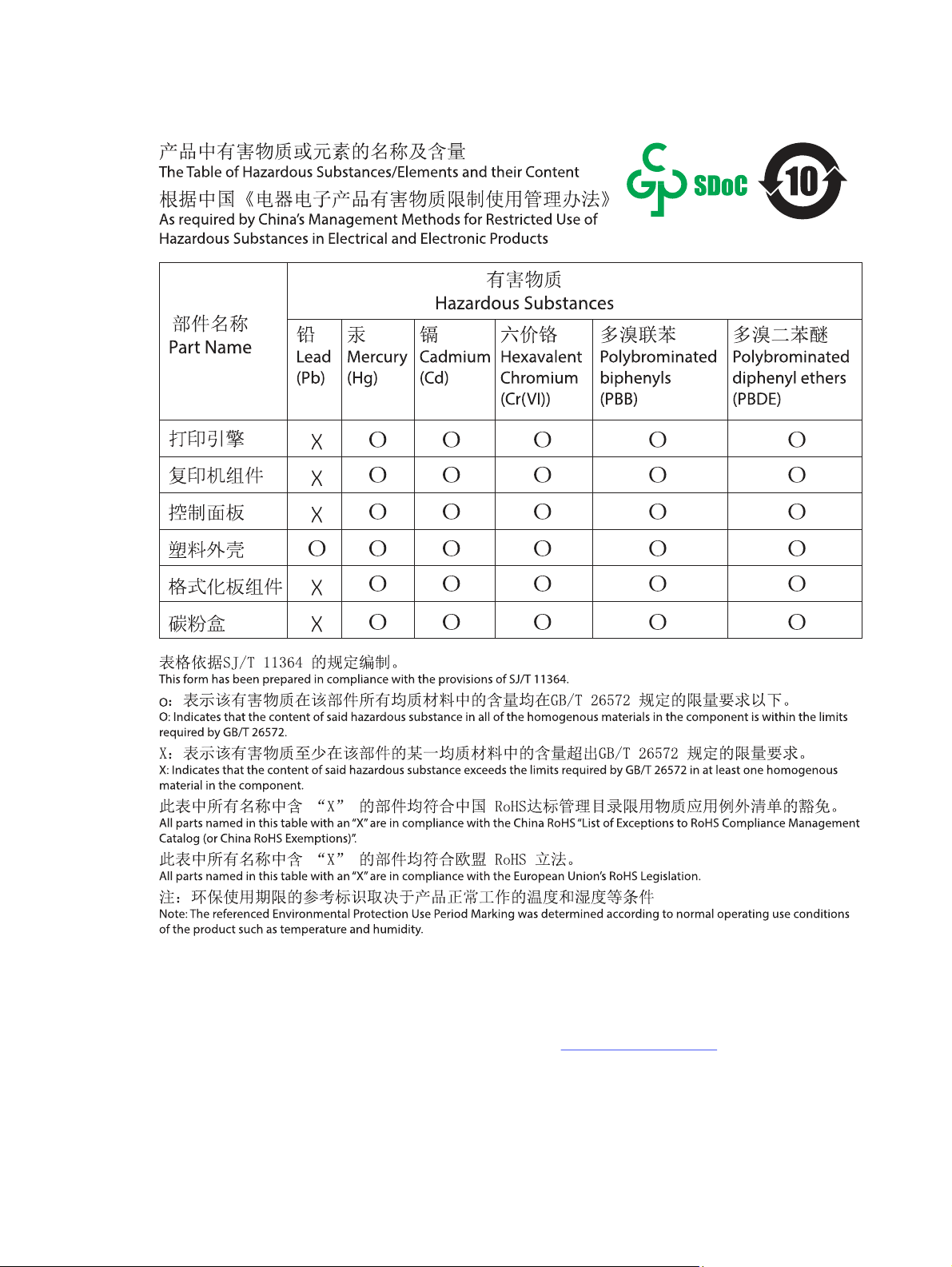
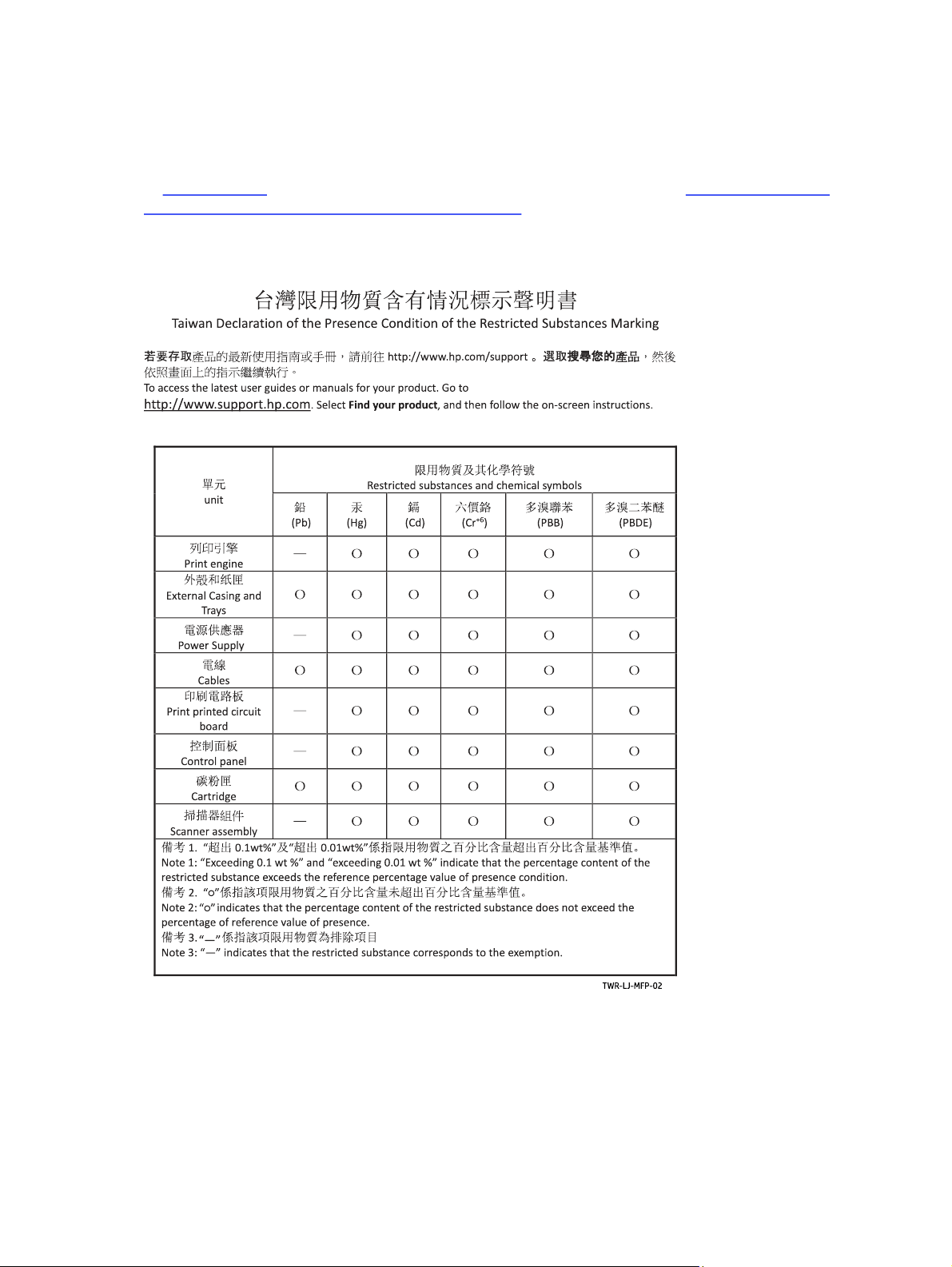
EPEAT
Many HP products are designed to meet EPEAT. EPEAT is a comprehensive environmental
rating that helps identify greener electronics equipment. For more information on EPEAT go
to www.epeat.net. For information on HP's EPEAT registered products go to www.hp.com/hpinfo/
globalcitizenship/environment/pdf/epeat_printers.pdf.
Substances Table (Taiwan)
For more information
To obtain information about these environmental topics:
● Product environmental profile sheet for this and many related HPproducts
256
Appendix BEnvironmental product stewardship program


Regulatory informationC
Regulatory statements
Regulatory model identification numbers
For regulatory identification purposes, your product is assigned a regulatory model number.
Regulatory model numbers should not be confused with marketing names or product numbers.
Table C-1 Regulatory model identification numbers
Product model number Regulatory model number
HP Color LaserJet Enterprise MFP 5800
HP Color LaserJet Enterprise MFP 5800dn
BOISB-2001-02
HP Color LaserJet Enterprise MFP 5800f
HP Color LaserJet Enterprise Flow MFP 5800zf
BOISB-2001-03
European Union & United Kingdom Regulatory Notice
Products bearing the CE marking and UKCA marking comply with one or more of the following EU
Directives and/or equivalent UK Statutory Instruments as may be applicable: Low Voltage Directive
2014/35/EU, EMC Directive 2014/30/EU, Eco Design Directive 2009/125/EC, RED 2014/53/EU, RoHS
Directive 2011/65/EU.
Compliance with these directives is assessed using applicable European Harmonized Standards.
The full EU and UK Declaration of Conformity can be found at the following website: www.hp.com/go/
certificates (Search with the product model name or its Regulatory Model Number (RMN), which may
be found on the regulatory label.)
The point of contact for regulatory matters is: Email [email protected]
The EU point of contact for regulatory matters is:
HP Deutschland GmbH, HP HQ-TRE, 71025 Boeblingen, Germany
The UK point of contact for regulatory matters is:
HP Inc UK Ltd, Regulatory Enquiries, Earley West, 300 Thames Valley Park Drive, Reading, RG6 1PT
258
Appendix CRegulatory information
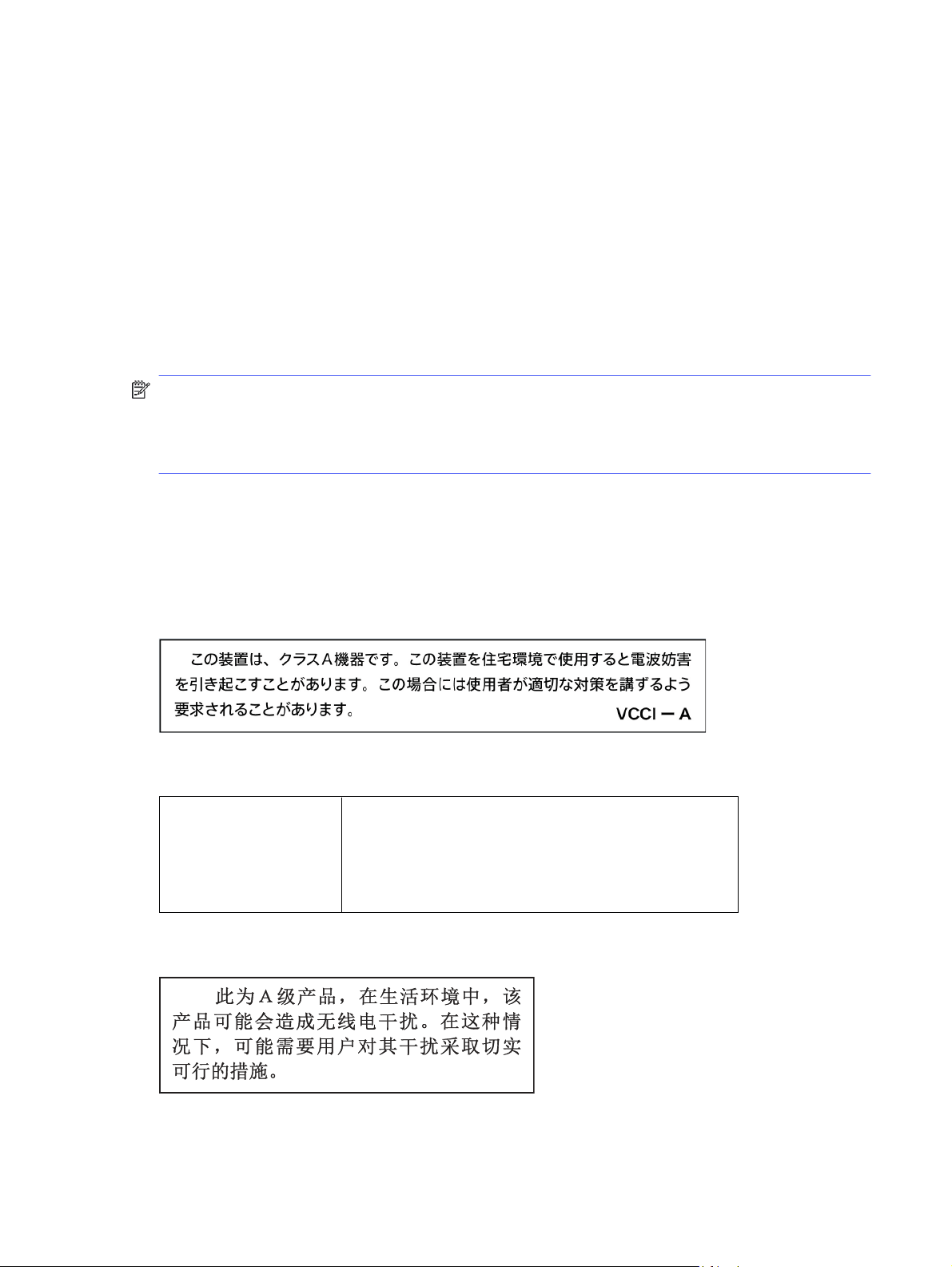
The product meets the requirements of EN 55032 and its equivalent UK/BS EN standard, in which
case the following applies: 'Warning – This is a Class A product. In a domestic environment this
product may cause radio interference in which case the user may be required to take adequate
measures.’
FCC regulations
This equipment has been tested and found to comply with the limits for a Class A digital device,
pursuant to Part 15 of the FCC rules. These limits are designed to provide reasonable protection
against harmful interference when the equipment is operated in a commercial environment. This
equipment generates, uses, and can radiate radio frequency energy, and if not installed and used in
accordance with the instruction manual, may cause harmful interference to radio communications.
Operation of this equipment in a residential area is likely to cause harmful interference in which
case the user will be required to correct the interference at his own expense.
NOTE: Any changes or modifications to the printer that are not expressly approved by HP could
void the user’s authority to operate this equipment.
Use of a shielded interface cable is required to comply with the Class A limits of Part 15 of FCC
rules.
Canada - Industry Canada ICES-003 Compliance Statement
CAN ICES-003(A)/NMB-003(A)
VCCI statement (Japan)
VCCI 32-1 規定適合の場合
EMC statement (Korea)
₤ݠݠỵᑤῙ⾈ἀᩌῙ⺐
Ꮩℱᆌℱ⺙ᩡ⳹ኬᕋ⁰ݠݠᆌᩌ
ⅅῙ⾈ἀᩌῙ⺈ῠℴⰼԴᩝ₈
ῠᅔ₸ᯥ௸ఔ
$ܹݠݠ
ỵᑤῙᕙ⫥ᰐݠ⃀
EMC statement (China)
FCC regulations 259
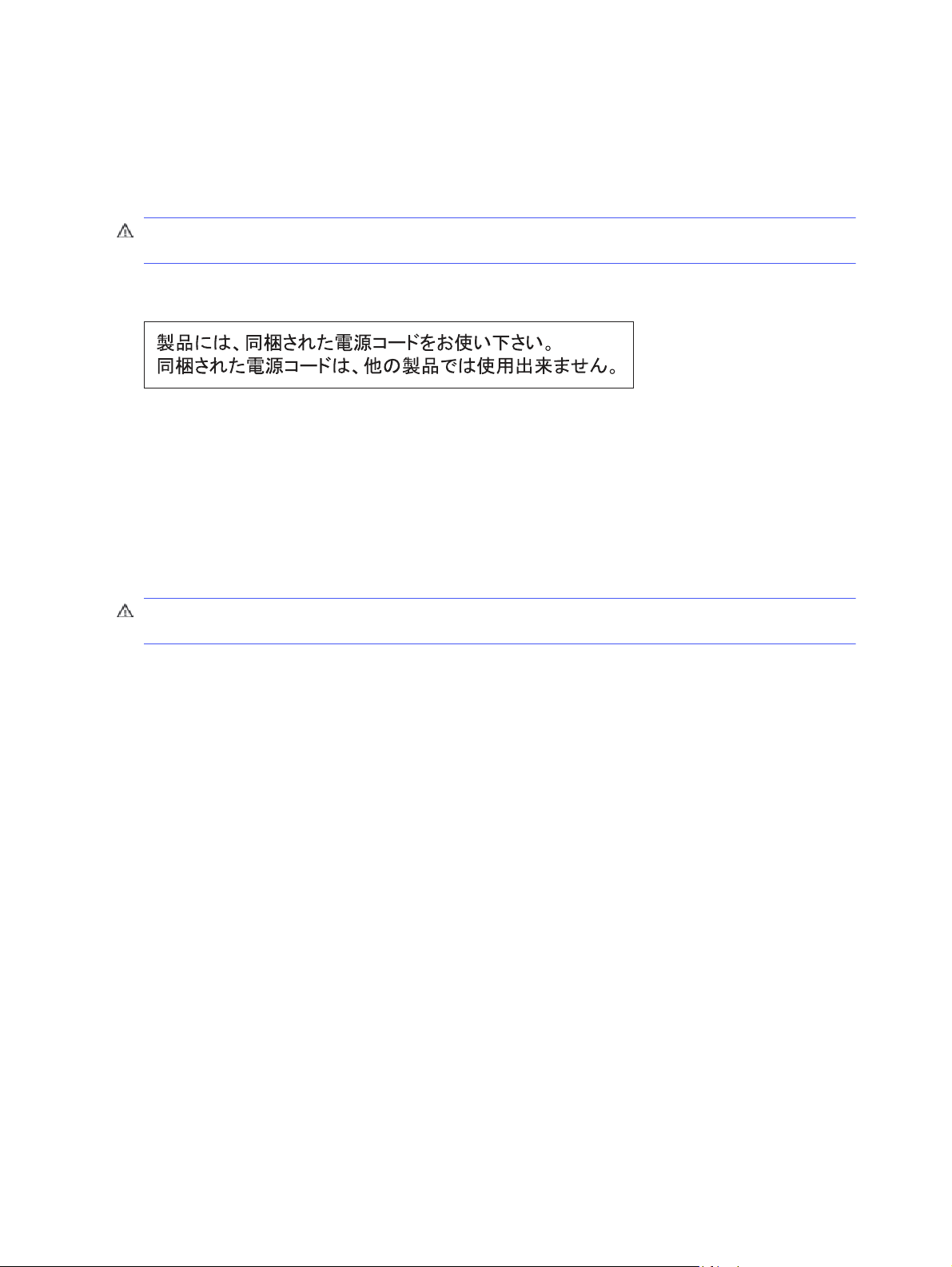
Power cord instructions
Make sure your power source is adequate for the product voltage rating. The voltage rating is on
the product label. The product uses either 100-127Vac or 220-240Vac and 50/60Hz.
Connect the power cord between the product and a grounded AC outlet.
CAUTION: To prevent damage to the product, use only the power cord that is provided with the
product.
Power cord statement (Japan)
Laser safety
The Center for Devices and Radiological Health (CDRH) of the U.S. Food and Drug Administration
has implemented regulations for laser products manufactured since August1,1976. Compliance is
mandatory for products marketed in the United States. The device is certified as a “Class 1” laser
product under the U.S. Department of Health and Human Services (DHHS) Radiation Performance
Standard according to the Radiation Control for Health and Safety Act of 1968. Since radiation
emitted inside the device is completely confined within protective housings and external covers, the
laser beam cannot escape during any phase of normal user operation.
WARNING! Using controls, making adjustments, or performing procedures other than those
specified in this user guide may result in exposure to hazardous radiation.
For other US/Canada regulatory matters, please contact:
HP Inc.
1501 Page Mill Rd, Palo Alto, CA 94304, USA
Email contact: [email protected] or Telephone contact: +1 (650) 857-1501
Laser statement for Finland
Luokan 1 laserlaite
HP Color LaserJet Enterprise MFP 5800, HP Color LaserJet Enterprise MFP 5800dn, HP Color
LaserJet Enterprise MFP 5800f, HP Color LaserJet Enterprise Flow MFP 5800zf, laserkirjoitin on
käyttäjän kannalta turvallinen luokan 1 laserlaite. Normaalissa käytössä kirjoittimen suojakotelointi
estää lasersäteen pääsyn laitteen ulkopuolelle. Laitteen turvallisuusluokka on määritetty standardin
EN 60825-1 (2014) mukaisesti.
VAROITUS !
Laitteen käyttäminen muulla kuin käyttöohjeessa mainitulla tavalla saattaa altistaa käyttäjän
turvallisuusluokan 1 ylittävälle näkymättömälle lasersäteilylle.
VARNING !
Om apparaten används på annat sätt än i bruksanvisning specificerats, kan användaren utsättas för
osynlig laserstrålning, som överskrider gränsen för laserklass 1.
260
Appendix CRegulatory information

HUOLTO
HP Color LaserJet Enterprise MFP 5800, HP Color LaserJet Enterprise MFP 5800dn, HP Color
LaserJet Enterprise MFP 5800f, HP Color LaserJet Enterprise Flow MFP 5800zf - kirjoittimen
sisällä ei ole käyttäjän huollettavissa olevia kohteita. Laitteen saa avata ja huoltaa ainoastaan
sen huoltamiseen koulutettu henkilö. Tällaiseksi huoltotoimenpiteeksi ei katsota väriainekasetin
vaihtamista, paperiradan puhdistusta tai muita käyttäjän käsikirjassa lueteltuja, käyttäjän tehtäväksi
tarkoitettuja ylläpitotoimia, jotka voidaan suorittaa ilman erikoistyökaluja.
VARO !
Mikäli kirjoittimen suojakotelo avataan, olet alttiina näkymättömällelasersäteilylle laitteen ollessa
toiminnassa. Älä katso säteeseen.
VARNING !
Om laserprinterns skyddshölje öppnas då apparaten är i funktion, utsättas användaren för osynlig
laserstrålning. Betrakta ej strålen.
Tiedot laitteessa käytettävän laserdiodin säteilyominaisuuksista: Aallonpituus 775-795 nm Teho 5 m
W Luokan 3B laser.
Nordic Statements (Denmark, Finland, Norway, Sweden)
Denmark:
Apparatets stikprop skal tilsuttes en stikkontakt med jord, som giver forbindelse til stikproppens
jord.
Finland:
Laite on liitettävä suojakoskettimilla varustettuun pistorasiaan.
Norway:
Apparatet må tilkoples jordet stikkontakt.
Sweden:
Apparaten skall anslutas till jordat uttag.
GS statement (Germany)
Das Gerät ist nicht für die Benutzung im unmittelbaren Gesichtsfeld am Bildschirmarbeitsplatz
vorgesehen. Um störende Reflexionen am Bildschirmarbeitsplatz zu vermeiden, darf dieses Produkt
nicht im unmittelbaren Gesichtsfeld platziert werden.
Das Gerät ist kein Bildschirmarbeitsplatz gemäß BildscharbV. Bei ungünstigen Lichtverhältnissen
(z. B. direkte Sonneneinstrahlung) kann es zu Reflexionen auf dem Display und damit zu
Einschränkungen der Lesbarkeit der dargestellten Zeichen kommen.
Die Bilddarstellung dieses Gerätes ist nicht für verlängerte Bildschirmtätigkeiten geeignet.
Nordic Statements (Denmark, Finland, Norway, Sweden)
261
Eurasian Conformity (Armenia, Belarus, Kazakhstan, Kyrgyzstan, Russia)
Taiwan BSMI USB Port (Walk-up) statement
台灣 BSMI USB 埠 (Walk-up) 聲明
產品前端, 上方或側邊之 USB 埠 (walk-up 埠), 僅支持隨身碟.
EMI statement (Taiwan)
262 Appendix CRegulatory information

Product stability
Do not extend more than one paper tray at a time.
Do not use paper tray as a step.
All trays must be closed while relocating/moving product.
Keep hands out of paper tray when closing.
If the printer has a keyboard, close keyboard tray when not in use.
Telecom (fax) statements
Fax Cord Statement
Product may or may not have fax/telephone cord enclosed. If not provided to reduce the risk of fire,
use only No. 26 AWG or larger telecommunication line cord.
Europe Statement for Telecom Operation
The printer meets applicable EU Directive & UK Statutory Instruments and carries the CE & UKCA
mark accordingly. For details see EU & UK Declaration of Conformity issued by the manufacturer.
For printers with the feature to be connected to the analog Public Switched Telecommunication
Networks (PSTN):
Due to differences between individual European national PSTNs the product may not guarantee
unconditional assurance of successful operation on every PSTN termination point. Network
compatibility depends on the correct setting being selected by the customer in preparation of its
connection to the PSTN. Please follow the instructions provided in the user manual. If you experience
network compatibility issues, please contact your equipment supplier or HPInc. help desk in the
country of operation. Connecting to a PSTN termination point may be the subject of additional
requirements set out by the local PSTN operator.
Declaração para a ANATEL do Brasil
Para maiores informações consulte o site da ANATEL – www.anatel.gov.br
New Zealand Telecom Statements
The grant of a Telepermit for any item of terminal equipment indicates only that Telecom has
accepted that the item complies with minimum conditions for connection to its network. It indicates
no endorsement of the product by Telecom, nor does it provide any sort of warranty. Above
all, it provides no assurance that any item will work correctly in all respects with another item
of Telepermitted equipment of a different make or model, nor does it imply that any product is
compatible with all of Telecom’s network services.
This equipment may not provide for the effective hand-over of a call to another device connected to
the same line.
This equipment shall not be set up to make automatic calls to the Telecom “111” Emergency Service.
This product has not been tested to ensure compatibility with the FaxAbility distinctive ring service
for New Zealand.
Product stability
263

Additional FCC statement for telecom products (US)
This equipment complies with Part 68 of the FCC rules and the requirements adopted by the ACTA.
On the back of this equipment is a label that contains, among other information, a product identifier
in the format US:AAAEQ##TXXXX. If requested, this number must be provided to the telephone
company.
The REN is used to determine the quantity of devices, which may be connected to the telephone
line. Excessive RENs on the telephone line may result in the devices not ringing in response to an
incoming call. In most, but not all, areas, the sum of the RENs should not exceed five (5.0). To be
certain of the number of devices that may be connected to the line, as determined by the total
RENs, contact the telephone company to determine the maximum REN for the calling area.
This equipment uses the following USOC jacks: RJ11C.
FCC-compliant telephone cord, jack and modular plug should be used with this equipment. This
equipment is designed to be connected to the telephone network or premises wiring using a
compatible modular jack, which is Part 68 compliant. This equipment cannot be used on telephone
company-provided coin service. Connection to Party Line Service is subject to state tariffs.
If this equipment causes harm to the telephone network, the telephone company will notify you
in advance that temporary discontinuance of service may be required. If advance notice is not
practical, the telephone company will notify the customer as soon as possible. Also, you will be
advised of your right to file a complaint with the FCC if you believe it is necessary.
The telephone company may make changes in its facilities, equipment, operations, or procedures
that could affect the operation of the equipment. If this happens, the telephone company will
provide advance notice in order for you to make the necessary modifications in order to maintain
uninterrupted service.
If trouble is experienced with this equipment, please see the numbers in this manual for repair and
(or) warranty information. If the trouble is causing harm to the telephone network, the telephone
company may request you remove the equipment from the network until the problem is resolved.
The customer can do the following repairs: Replace any original equipment that came with the
device. This includes the toner cartridge, the supports for trays and bins, the power cord, and the
telephone cord. It is recommended that the customer install an AC surge arrestor in the AC outlet to
which this device is connected. This is to avoid damage to the equipment caused by local lightning
strikes and other electrical surges.
Telephone Consumer Protection Act (US)
The Telephone Consumer Protection Act of 1991 makes it unlawful for any person to use a computer
or other electronic device, including fax machines, to send any message unless such message
clearly contains, in a margin at the top or bottom of each transmitted page or on the first page of
the transmission, the date and time it is sent and an identification of the business, other entity, or
individual sending the message and the telephone number of the sending machine or such business,
or other entity, or individual. (The telephone number provided cannot be a 900 number or any other
number for which charges exceed local or long distance transmission charges).
Industry Canada CS-03 requirements
Notice: The Industry Canada label identifies certified equipment. This certification means
the equipment meets certain telecommunications network protective, operational, and safety
requirements as prescribed in the appropriate Terminal Equipment Technical Requirement
document(s). The Department does not guarantee the equipment will operate to the user’s
satisfaction. Before installing this equipment, users should ensure that it is permissible for
264
Appendix CRegulatory information

the equipment to be connected to the facilities of the local telecommunications company. The
equipment must also be installed using an acceptable method of connection. The customer should
be aware that compliance with the above conditions may not prevent degradation of service
in some situations. Repairs to certified equipment should be coordinated by a representative
designated by the supplier. Any repairs or alterations made by the user to this equipment, or
equipment malfunctions, may give the telecommunications company cause to request the user to
disconnect the equipment. Users should ensure for their own protection that the electrical ground
connections of the power utility, telephone lines, and internal metallic water pipe system, if present,
are connected together. This precaution can be particularly important in rural areas.
CAUTION: Users should not attempt to make such connections themselves, but should contact
the appropriate electric inspection authority, or electrician, as appropriate. The Ringer Equivalence
Number (REN) of this device is shown on the regulatory chassis label.
This product meets the applicable Innovation, Science and Economic Development Canada technical
specifications.
The Ringer Equivalence Number (REN) indicates the maximum number of devices allowed to be
connected to a telephone interface. The termination of an interface may consist of any combination
of devices subject only to the requirement that the sum of the RENs of all the devices not exceed
five (5).
The standard connecting arrangement code (telephone jack type) for equipment with direct
connections to the telephone network is CA11A.
Remarque: L'étiquette Industrie Canaca identifie un équiement certifié. Cette certification signifie
que l'équipement satisfait à certaines exigences en matière de protection, d'exploitation et de
sécurité du réseau de télécommunications, conformément au(x) document(s) sur les exigences
techniques relatives à l'équipement terminal. Le Ministère ne garantit pas que l'équipement
donnera satisfaction à l'utilisateur. Avant d'installer cet équipement, les utilisateurs doivent
s'assurer qu'ils sont autorisés à connecter l'équipement aux installations de l'entreprise locale
de télécommunications. L'équipement doit également être installé via une méthode de connexion
appropriée. Le client doit être conscient que le respect des conditions ci-dessus ne peut pas
empêcher la dégradation du service dans certaines situations. Les réparations de l'équipement
certifié doivent être coordonnées par un représentant désigné par le fournisseur. Toute réparation
ou modification apportée par l'utilisateur à cet équipement ou tout dysfonctionnement de
l'équipement peut amener l'entreprise de télécommunications à demander à l'utilisateur de
débrancher l'équipement. Pour leur propre protection, les utilisateurs doivent s'assurer que les
connexions électriques à la terre du service public d'électricité, des lignes téléphoniques et, le cas
échéant, des conduites d'eau métalliques internes sont raccordées ensemble. Cette précaution peut
être particulièrement importante dans les zones rurales.
CAUTION: Les utilisateurs ne doivent pas tenter d'effectuer eux-mêmes de tels raccordements,
mais doivent prendre contact avec les services d'inspection électrique appropriés ou avec un
électricien, selon le cas. Le numéro d'équivalence de sonnerie (REN) de cet appareil est indiqué sur
l'étiquette réglementaire du châssis.
Ce produit est conforme aux spécifications techniques applicables d'Innovation, Sciences et
Développement économique Canada.
Le numéro d'équivalence de sonnerie (REN) indique le nombre maximum d'appareils pouvant être
connectés à une interface téléphonique. La terminaison d'une interface peut consister en n'importe
quelle combinaison de dispositifs, à la seule condition que la somme des REN de tous les dispositifs
ne dépasse pas cinq (5).
Industry Canada CS-03 requirements
265

Le code de raccordement standard (type prise téléphonique) pour les appareils directement
raccordés au réseau téléphonique est CA11A.
Japan Telecom Mark
この製品には、認定済みファックス モジュールが含まれています。
認証番号 (XXX XXXXXXXX) は、HP アナログ ファックス アクセサリにあります。
Belarus
В соответствии с Постановлением Совета Министров Республики Беларусь от 24 мая 2017 года
№ 383 (об описании и порядке применения знака соответствия к техническому регламенту
Республики Беларусь) продукция, требующая подтверждения соответствия техническому
регламенту Республики Беларусь, размещенная на рынке Республики Беларусь, должна быть
маркирована знаком соответствия ТР BY.
Wireless statements
European regulatory notice
Wireless functionality in Europe
For products with 802.11b/g/n or Bluetooth radio
This product operates on radio frequency between 2400
MHz and 2483.5 MHz, with a transmit power of 20 dBm (100
mW) or less.
For products with 802.11a/b/g/n radio
CAUTION: IEEE802.11x wireless LAN with 5.15-5.35
GHz frequency band is restricted for indoor use only in
all European Union member states, EFTA (Iceland, Norway,
Liechtenstein) and most other European countries (i.e.:
Switzerland, Turkey, Republic of Serbia). Using this WLAN
application outdoors might lead to interference issues with
existing radio services.
This product operates on radio frequencies between 2400
MHz and 2483.5 MHz, and between 5170 MHz and 5710 MHz,
with a transmit power of 20 dBm (100 mW) or less.
FCC compliance statement—United States
Exposure to radio frequency radiation
CAUTION: The radiated output power of this device is far below the FCC radio frequency
exposure limits. Nevertheless, the device shall be used in such a manner that the potential for
human contact during normal operation is minimized.
In order to avoid the possibility of exceeding the FCC radio frequency exposure limits, human
proximity to the antenna shall not be less than 20cm (8in) during normal operation.
266
Appendix CRegulatory information

This device complies with Part 15 of FCC Rules. Operation is subject to the following two conditions:
(1) this device may not cause interference, and (2) this device must accept any interference,
including interference that may cause undesired operation of the device.
CAUTION: Based on Section 15.21 of the FCC rules, changes of modifications to the operation of
this product without the express approval by HP may invalidate its authorized use.
Australia statement
This device incorporates a radio-transmitting (wireless) device. For protection against radio
transmission exposure, it is recommended that this device be operated no less than 20cm from
the head, neck, or body.
Brazil: (Portuguese)
Este equipamento não tem direito à proteção contra interferência prejudicial e não pode causar
interferência em sistemas devidamente autorizados.
Para maiores informações consulte o site da ANATEL – www.anatel.gov.br
Canadian statements
For Indoor Use. This digital apparatus does not exceed the Class B limits for radio noise emissions
from digital apparatus as set out in the radio interference regulations of the Canadian Department
of Communications. The internal wireless radio complies with RSS 210 of Industry Canada.
Pour l´usage d´intérieur. Le présent appareil numérique n´émet pas de bruits radioélectriques
dépassant les limites applicables aux appareils numériques de Classe B prescribes dans le
règlement sur le brouillage radioélectrique édicté par le Ministère des Communications du Canada.
Le composant RF interne est conforme à la norme CNR-210 d´Industrie Canada.
Products with 5 GHz Operation Industry of Canada
CAUTION: When using IEEE 802.11a wireless LAN, this product is restricted to indoor use, due to
its operation in the 5.15- to 5.25-GHz frequency range. Industry Canada requires this product to be
used indoors for the frequency range of 5.15 GHz to 5.25 GHz to reduce the potential for harmful
interference to co-channel mobile satellite systems. High-power radar is allocated as the primary
user of the 5.25- to 5.35-GHz and 5.65- to 5.85-GHz bands. These radar stations can cause
interference with and/or damage to this device.
Lors de l'utilisation d'un réseau local sans fil IEEE 802.11a, ce produit est réservé à une utilisation en
intérieur en raison de sa plage de fréquences, comprise entre 5,15 et 5,25 GHz. Industrie Canada
recommande l'utilisation en intérieur de ce produit pour la plage de fréquences comprise entre 5,15
et 5,25 GHz afin de réduire les interférences nuisibles potentielles avec les systèmes de satellite
portables utilisant le même canal. Le radar à haute puissance est défini comme étant le principal
utilisateur des bandes 5,25 à 5,35 GHz et 5,65 à 5,85 GHz. Ces stations radar peuvent provoquer
des interférences sur ce périphérique et/ou l'endommager.
Exposure to Radio Frequency Radiation (Canada)
WARNING! Exposure to Radio Frequency Radiation The radiated output power of this device is
below the Industry Canada radio frequency exposure limits. Nevertheless, the device should be
used in such a manner that the potential for human contact is minimized during normal operation.
Australia statement
267

To avoid the possibility of exceeding the Industry Canada radio frequency exposure limits, human
proximity to the antennas should not be less than 20 cm (8 inches).
AVERTISSEMENT! Exposition aux émissions de fréquences radio. La puissance de sortie émise par
ce périphérique est inférieure aux limites fixées par Industrie Canada en matière d’exposition aux
fréquences radio. Néanmoins, les précautions d'utilisation du périphérique doivent être respectées
afin de limiter tout risque de contact avec une personne.
European Regulatory Notice
The telecommunications functionality of this product may be used in the following European
countries/regions:
Austria, Belgium, Bulgaria, Cyprus, Czech Republic, Denmark, Estonia, Finland, France, Germany,
Greece, Hungary, Iceland, Ireland, Italy, Latvia, Liechtenstein, Lithuania, Luxembourg, Malta,
Netherlands, Norway, Poland, Portugal, Romania, Slovak Republic, Slovenia, Spain, Sweden,
Switzerland, and United Kingdom.
China CMIIT Wireless Statement
中国无线电发射设备通告
型号核准代码显示在产品本体的铭牌上。
Notice for use in Japan
この機器は技術基準適合
証明又は工事設計認証を受けた無線設備を搭載しています。
Notice for use in Russia
Существуют определенные ограничения по использованию беспроводных сетей (стандарта
802.11b/g) с рабочей частотой 2,4 ГГц: Данное оборудование может использоваться
внутри помещений с использованием диапазона частот 2400-2483,5МГц (каналы 1-13).
При использовании внутри помещений максимальная эффективная изотропно–излучаемая
мощность (ЭИИМ) должна составлять не более 100мВт.
Mexico statement
Aviso para los usuarios de México
“La operación de este equipo está sujeta a las siguientes dos condiciones: (1) es posible que este
equipo o dispositivo no cause interferencia perjudicial y (2) este equipo o dispositivo debe aceptar
cualquier interferencia, incluyendo la que pueda causar su operación no deseada."
Para saber el modelo de la tarjeta inalámbrica utilizada, revise la etiqueta regulatoria de la
impresora.
Taiwan statement
取得審驗證明之低功率射頻器材,非經核准,公司、商號或使用者均不得擅自變更頻率、加大功率或變
更原設計之特性及功能。低功率射頻器材之使用不得影響飛航安全及干擾合法通信;經發現有干擾現象
時,應立即停用,並改善至無干擾時方得繼續使用。前述合法通信,指依電信管理法規定作業之無線電
通信。低功率射頻器材須忍受合法通信或工業、科學及醫療用電波輻射性電機設備之干擾。
Taiwan NCC statement
應避免影響附近雷達系統之操作。
268
Appendix CRegulatory information

高增益指向性天線只得應用於固定式點對點系統。
Thailand Wireless Statement
This radio communication equipment has the electromagnetic field strength in compliance with the
Safety Standard for the Use of Radio Communication Equipment on Human Health announced by
the National Telecommunications Commission.
Belarus
В соответствии с Постановлением Совета Министров Республики Беларусь от 24 мая 2017 года
№ 383 (об описании и порядке применения знака соответствия к техническому регламенту
Республики Беларусь) продукция, требующая подтверждения соответствия техническому
регламенту Республики Беларусь, размещенная на рынке Республики Беларусь, должна быть
маркирована знаком соответствия ТР BY.
RFID/NFC Statement
China Short Range Device Statement
若产品为微功率短距离无线电发射设备 ,在此承诺: 本设备符合《微功率短距离无线电发射设备目录和
技术要求》, 不擅自做任何改变,不会对其他合法的无线电台(站)产生有害干扰,也不会提出免受
有害干扰保护,不会在任何管制区域内使用.
Thailand Wireless Statement
269

Index
Symbols/Numerics
550-sheet paper trays
part numbers 29
550-sheet tray
jams 151
A
accessories
ordering 29
part numbers 29
acoustic specifications 12
AirPrint 55, 58
alternative letterhead mode 14,
25
Android devices
printing from 55, 58
anticounterfeit supplies 232, 243
B
batteries included 250, 251
bin, output
locating 2
Bonjour
identifying 124
browser requirements
HP Embedded Web
Server 124
C
calibrate
colors 203
scanner 211
cartridge
replacing 37
cartridge policy 32
cartridge protection 32, 34
cartridges
non-HP 232, 243
order numbers 37
recycling 250, 251
warranty 232, 242
checklist
wireless connectivity 225
China Short Range Device
Statement 269
cleaning
glass 211, 215, 219
paper path 198
colors
calibrate 203
control panel
help 141
locating 2
locating features 4
copy
optimize for text or
pictures 211
copy settings
HP Embedded Web
Server 124, 126, 128
copying
overview 62
counterfeit supplies 232, 243
customer support
online 232, 249
D
default gateway, setting 135, 136
deleting
stored jobs 52, 55
digital send settings
HP Embedded Web
Server 124, 126, 129
digital sending
folders 107
printer memory 104
sending documents 102
USB 111
dimensions, printer 11
disposal, end-of-life 250, 251
document feeder
jams 151, 152
locating 2
paper-feeding problems 144,
150
double-sided printing
Mac 50
Windows 47
duplex printing
Mac 50
duplex printing (double-sided)
settings (Windows) 47
Windows 47
duplexer
jams 151
duplexing
manually (Mac) 50
manually (Windows) 47
E
easy-access USB port
locating 2
easy-access USB printing 58
edge-to-edge copying 211
electrical specifications 12
electronic hardware
recycling 250, 252
Embedded Web Server
changing network
settings 134
changing printer name 135
opening 134
Embedded Web Server (EWS)
assigning passwords 137, 138
features 124
network connection 124
end-of-life disposal 250, 251
energy use, optimizing 139
envelopes
orientation 14
orientation, loading 26
envelopes, loading 26
environmental stewardship
program 250
Eurasian conformity 258, 262
Explorer, versions supported
HP Embedded Web
Server 124
F
fax
block 122
feeding problems 228, 230
optimize for text or
pictures 219
270
Index

overview 115
required settings 115
settings 116, 122
setup 115
fax settings
HP Embedded Web
Server 124, 126, 130
required 115
FCC regulations 258, 259
feeding problems 228, 230
Finnish laser safety
statement 258, 260
folders
sending to 107
formatter
locating 3
fraud Web site 232, 243
front door
locating 2
fuser
jams 151, 184, 186
G
gateway, setting default 135, 136
general configuration
HP Embedded Web
Server 124, 126, 127
genuine HP cartridges 32
glass, cleaning 211, 215, 219
H
hard disks
encrypted 137, 139
hardware recycling, Brazil 250,
252
Help button
locating 4
help, control panel 141
Home button
locating 4
HP Customer Care 232, 249
HPEmbedded Web Server
changing network
settings 134
changing printer name 135
copy settings 124, 126, 128
digital send settings 124, 126,
129
fax settings 124, 126, 130
general configuration 124, 126,
127
HP Web Services 124, 126, 132
information pages 124, 126
network settings 124, 126, 133
opening 134
other links list 124, 126, 128
print settings 124, 126, 128
scan settings 124, 126, 129
security settings 124, 126, 132
supplies 131
troubleshooting tools 124, 126,
131
HP Embedded Web Server (EWS)
features 124
network connection 124
HP ePrint 55
HP ePrint software 55
HP fraud Web site 232, 243
HP JetAdvantage business
solutions 113
HP Web Jetadmin 140
HP Web Services
enabling 124, 126, 132
I
image quality
check toner-cartridge
status 198, 200
information pages
HP Embedded Web
Server 124, 126
interface ports
locating 3
Internet Explorer, versions
supported
HP Embedded Web
Server 124
IP Security 137, 139
IPsec 137, 139
IPv4 address 135
IPv6 address 136
J
jams
550-sheet tray 151
auto-navigation 152
causes of 152
document feeder 151, 152
duplexer 151
fuser 151, 184, 186
in right door 181
locations 151
output bin 151, 190, 191, 193
Tray 1 151
Tray 2 151, 157
Tray 4 167, 174
Japanese VCCI statement 258,
259
Jetadmin, HP Web 140
JetAdvantage 113
jobs, stored
creating (Windows) 52
deleting 52, 55
Mac settings 52
printing 52, 54
K
Korean EMC statement 258, 259
L
label
orientation 27
labels
orientation, loading 28
printing (Windows) 47
printing on 27
labels, loading 27
laser safety statements 258, 260
license, software 232, 244
loading
paper in Tray 1 14
paper in Tray 2 20
lock
formatter 137, 139
M
Mac driver settings
Job Storage 52
managing network 134
managing the printer
overview 124
manual duplex
Mac 50
Windows 47
margins, small
copying 211
material restrictions 250, 251
Material Safety Data Sheet
(MSDS) 250, 255
memory
included 7
memory chip (toner)
locating 37
Index
271

memory chip, toner cartridge
description 232, 244
mercury-free product 250, 251
mobile printing
Android devices 55, 58
mobile printing, software
supported 11
multiple pages per sheet
printing (Mac) 50
printing (Windows) 47
N
Near Field Communication
printing 55, 56
Netscape Navigator, versions
supported
HP Embedded Web
Server 124
network
printer name, changing 135
settings, changing 134
settings, viewing 134
network duplex settings,
changing 136
Network Folder, scan to 107
network link speed settings,
changing 136
network settings
HP Embedded Web
Server 124, 126, 133
networks
default gateway 135, 136
HP Web Jetadmin 140
IPv4 address 135
IPv6 address 136
subnet mask 135, 136
supported 7
NFC connect and print 55, 56
non-HP supplies 232, 243
O
on/off button
locating 2
online help, control panel 141
online support 232, 249
operating-environment range
printer 13
optimize copy images 211
optimize fax images 219
optimize scanned images 215
ordering
supplies and accessories 29
orientation
envelopes 26
labels 28
other links list
HP Embedded Web
Server 124, 126, 128
output bin
clear jams 151, 190, 193
locating 2
P
pages per minute 7
pages per sheet
selecting (Mac) 50
selecting (Windows) 47
paper
jams 151, 152
loading Tray 1 14
loading Tray 2 20
selecting 198, 201
Tray 1 orientation 14, 16
Tray X orientation 22
paper jams
550-sheet tray 151
document feeder 151, 152
duplexer 151
fuser 151, 184, 186
locations 151
output bin 151, 190, 191, 193
right door 181
Stapler stacker 191
Tray 1 151
Tray 2 151, 157
Tray 4 167, 174
paper pickup problems
solving 144, 147
paper trays
overview 14
part numbers 29
paper type
selecting (Windows) 47
paper types
selecting (Mac) 50
paper, ordering 29
part numbers
accessories 29
replacement parts 31
supplies 29
toner cartridges 29
potential shock hazard 2
power
consumption 12
power usage 139
print media
loading in Tray 1 14
print on both sides
Mac 50
manually, Windows 47
Windows 47
print settings
HP Embedded Web
Server 124, 126, 128
printer
operating-environment
range 13
overview 1
printer memory
sending to 104
printer memory, scan to 104
printing
from USB storage
accessories 58
overview 47
stored jobs 52, 54
printing on both sides
settings (Windows) 47
private printing 52
product number
location 3
protect cartridges 32, 34
R
recycling 250, 251
electronic hardware 250, 252
replacement parts
part numbers 31
replacing
staples 43
toner cartridges 37
toner collection unit 41
required settings
fax 115
reset factory settings 142
right door
locating 2
Right door
jams 181
S
safety statements 258, 260
272
Index

Save to printer memory 104
scan settings
HP Embedded Web
Server 124, 126, 129
Scan to Network Folder 107
initial setup 82
Scan to USB Drive 111
enabling 98
scanner
calibrate 211
glass cleaning 211, 215, 219
scanning
optimize for text or
pictures 215
overview 67
scanning to email
sending documents 102
scanning to folder 107
scanning to printer folder 104
scanning to printer memory 104
scanning to USB 111
security
encrypted hard disk 137, 139
security settings
HP Embedded Web
Server 124, 126, 132
sending to email
sending documents 102
serial number
locating 3
settings
fax 116, 122
reset to factory (default)
settings 142
Sign In button
locating 4
Sign Out button
locating 4
sleep delay
setting 139
small margins 211
software
software license
agreement 232, 244
special paper
printing (Windows) 47
specifications
electrical and acoustic 12
speed, optimizing 139
Stapler stacker
clear jams 191
staples
replacing 43
status, fax accessory page 228
storage, job
Mac settings 52
store print jobs 52
stored jobs
creating (Mac) 52
creating (Windows) 52
deleting 52, 55
printing 52, 54
storing jobs
with Windows 52
subnet mask 135, 136
supplies
counterfeit 232, 243
HP Embedded Web Server 131
low threshold settings 142
non-HP 232, 243
ordering 29
part numbers 29
recycling 250, 251
replacing staples 43
replacing toner cartridges 37
replacing toner collection
unit 41
using when low 142
support
online 232, 249
system requirements
HP Embedded Web
Server 124
T
Taiwan EMI statement 258, 262
TCP/IP
manually configuring IPv4
parameters 135
manually configuring IPv6
parameters 136
technical support
online 232, 249
toner cartridge
low threshold settings 142
using when low 142
toner cartridges
components 37
memory chips 232, 244
non-HP 232, 243
order numbers 37
part numbers 29
recycling 250, 251
replacing 37
See
toner cartridges
warranty 232, 242
toner collection unit
replacing 41
touchscreen
locating features 4
transparencies
printing (Windows) 47
Tray 1
jams 151
loading envelopes 26
locating 2
paper orientation 14, 16
Tray 2
jams 151, 157
loading 20
locating 2
paper orientation 22
Tray 3
paper orientation 22
Tray 4
jams 167, 174
trays
capacity 7
included 7
locating 2
use alternative letterhead
mode 25
troubleshooting
check toner-cartridge
status 198, 200
jams 151, 152
network problems 223
overview 141
paper feed problems 144
wired network 223
wireless network 225
troubleshooting tools
HP Embedded Web
Server 124, 126, 131
two-sided printing
settings (Windows) 47
U
USB
sending to 111
USB port
enabling 58-60
Index
273

USB storage accessories
printing from 58
W
warranty
customer self repair 232, 248
license 232, 244
product 232
toner cartridges 232, 242
waste disposal 250, 252
web browser requirements
HP Embedded Web
Server 124
Web sites
customer support 232, 249
fraud reports 232, 243
Material Safety Data Sheet
(MSDS) 250, 255
websites
HP Web Jetadmin,
downloading 140
weight, printer 11
Wi-Fi Direct Print 11, 55, 56
wireless network
troubleshooting 225
wireless network
interference 225, 228
274
Index