HITACHI
Inspire the Ne×
Instruction Manual
V_DEO
RAM
RAM
l_ilhrJ;].,IIII:]1!:
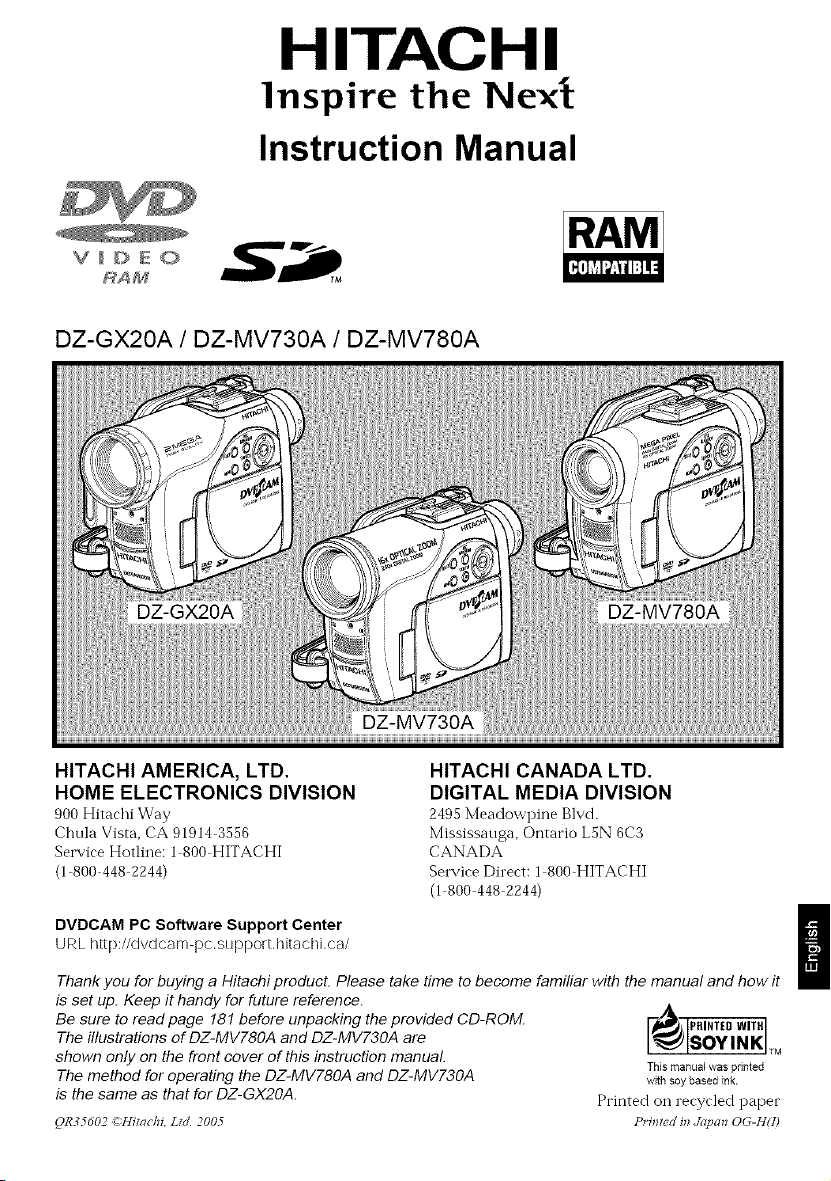
DZ-GX20A / DZ-MV730A / DZ-MV780A
HITACHI AMERICA, LTD.
HOME ELECTRONICS DIVISION
900 Hitarhi Way
Chula Vista, CA 91914 3556
Service Hotline: 1 800 HITACHI
11 800 448 2244)
HITACHI CANADA LTD.
DIGITAL MEDIA DIVISION
2495 Meadowpine Blvd.
Mississauga, Ontario L5N 6C3
CANADA
Service Direct: 1 800 HITACHI
(1 800 448 2244)
DVDCAM PC Software Support Center
URL http://dvdcam pc.support,hitachi.ca/
Thank you for buying a Hitachi product. Please take time to become familiar with the manual and how it
is set up. Keep it handy for future reference.
Be sure to read page 181 before unpacking the provided CD-ROM.
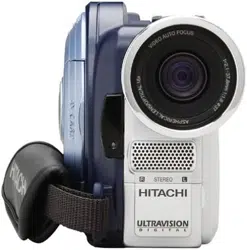
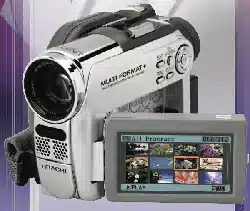
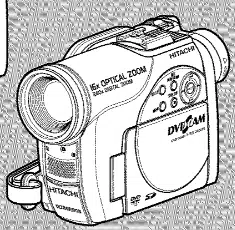
The illustrations of DZ-MV780A and DZ-MV730A are
shown only on the front cover of this instruction manual
The method for operating the DZ-MV780A and DZ-MV730A
is the same as that for DZ-GX2OA.
QR35d02 f,Himchi, Lid 200.5
This manual was printed
with soy based ink.
Printed on recycled paper
Printed in gdpcm OG-H(I)
Important Information
For Your Safety
The power switch turns the DVD video camera/recorder on and off, leavingthe date/time feature unaffected. If the
camera/recorder is to be left unattended for a long period of time, turn it off
WARNING : TO PREVENT FIRE OR SHOCK HAZARD, DO NOTEXPOSE THIS UNIT TO RAIN OR MOISTURE.
WARNING : TO PREVENT FIRE OR SHOCK HAZARD, USE THE
RECOMMENDED ACCESSORIES ONLY.
WARNING: TO PREVENT FIRE OR SHOCK HAZARD,
BE SURE TO USE THE SPECIFIED AC ADAPTER/
CHARGER (DZ-ACS2).
The DVD video camera/recorder and AC
adapter/charger have the following caution
marks.
[@:_tj| [o3_I
/&
RiSK OF ELECTRIC SHOCK Jl_
DO NOT OPEN
Identifications of caution marks
This symbol warns the user that
tminsulated voltage within the nnit
may have snfficient magnitude to cause
electric shock. Therefore. it is dangerous
to make any kind of contact with any
inside part of this trait.
CAUTION: TO REDUCE THE RISK OF
ELECTRIC SHOCK, DO NOT OPEN.
NO USER-SERVICEABLE PARTS INSIDE,
REFER SERVICING TO QUALIFIED
SERVICE PERSONNEL.
/k
This symbol alerts the user that
important literature concerning the
operation and maintenance of this trait
has been included. Therefore, it should
he read carefully to avoid any
problems.
Precautions
WARNING: Many television programs and fihns
are copyrighted. In certain circumstances, copy
right law may apply to private in home
videotaping of copyrighted materials.
This Class B digital apparatus complies with
Canadian ICES 003.
The liquid crystal dispkty (LCD) panel is
made by highly precise technology. More than
99.99% of its picttwe elements (pixels) are
ett>ctive, but some (less than 0.01%) may
appear as colored bright clots. This does not
indicate a t;_ult as the LCD panel stretches the
limits of current technology.
CLASS 1 I
LASER PRODUCT
CAUTION
This product contains a laser diode of higher
class than 1. To ensure continued safety, do
not remove any covers or attempt to gain
access to the inside of the product. Refer all
servicing to qualified personnel.
2
Warning: This device complies with Part 15 of the FCC Rules. Operation is subject to the fbllowing
two conditions: (1) This device may not cause harmflfl inter%rence, and (2) this device illust accept
any interference received, including interference that may cause undesired operation.
Note: This equipment has heen tested and fbtmd to comply with tile limits for a Class B digital
device, pursuant to Part 15of tile FCC Rules. These limits are designed to provide reasonable
)rotection against harmflfi interference in a residential installation. This equipment generates, uses,
md can radiate radio fl'equency energy and, if not installed and used in accordance with the
instructions, may cause harmflfl interference to radio commtmications. However, there is no
guarantee that interference will not occur in a pm ticnlar installation. If this equipment does cause
harmfld interference to radio or television reception, which can be determined by turning tile
equipment off and on, tile user is encouraged to try to correct by one or more of tile %llowing
measures:
Reorient or relocate the receiving antenna.
Increase tile separation between tile equipment and receiver.
Connect tile equipment into an outlet on a circuit different fl'om that to which the receiver is
connected.
Consult tile dealer or an experienced radio/TV technician fbr help.
_aution to the user: Changes or modifications not expressly approved by the manufi_cturer void
tile user's authority to operate the equipment.
Microsoft ®, Windows _, Windows ® Me, Winctows :_ 2000 Pro%ssional. and Windows c_'XP are
registered trademarks of"Microsoft Corporation.
Intel _¢,Pentium :_ Processor. and Celeron _ Processor are registered trademarks of Intel Corporation.
IBM _ and PC/AT _ are registered trademarks of"International Business Machines Corporation.
Manufhcmred under license fl'om Dolby Lahoratories.
"Dolhy" and tile douhle D symbol are trademarks of Dolhy Laboratories.
Other company names and product names listed are trademarks or brand names belonging to each
individual company.
SD logo is a trademark.
3
IMPORTANT SAFETY INSTRUCTIONS
In addition to the careful attention devoted to quality standards in the manufacture of your video product, safety is a
major factor in the design of every instrument. But, safety is your responsibility too.
This page fists important information that will help to assure your enjoyment and proper use of DVD video camera/
recorder end accessory equipment.
1 Read these instructions
2 Keep these instructions.
3 Heed allwarnings
4 Fotlow alI instructions
5 Do not use this apparatus near water
6 CIean only with dry cloth
7 Do not block any ventilation openings InstaII in
accordance with the manufacturer's instructions
8 Do not instatl near any heat sources such as
radiators, heat registers, stoves, or other apparatus
(including amplifiers) that produce heat.
Protect the power cord from being walked on or
pinched particularly at ptugs, convenience
receptacles, and the point where they exit from the
apparatus
10 Only use attachments/accessories specified by the
manufacturer
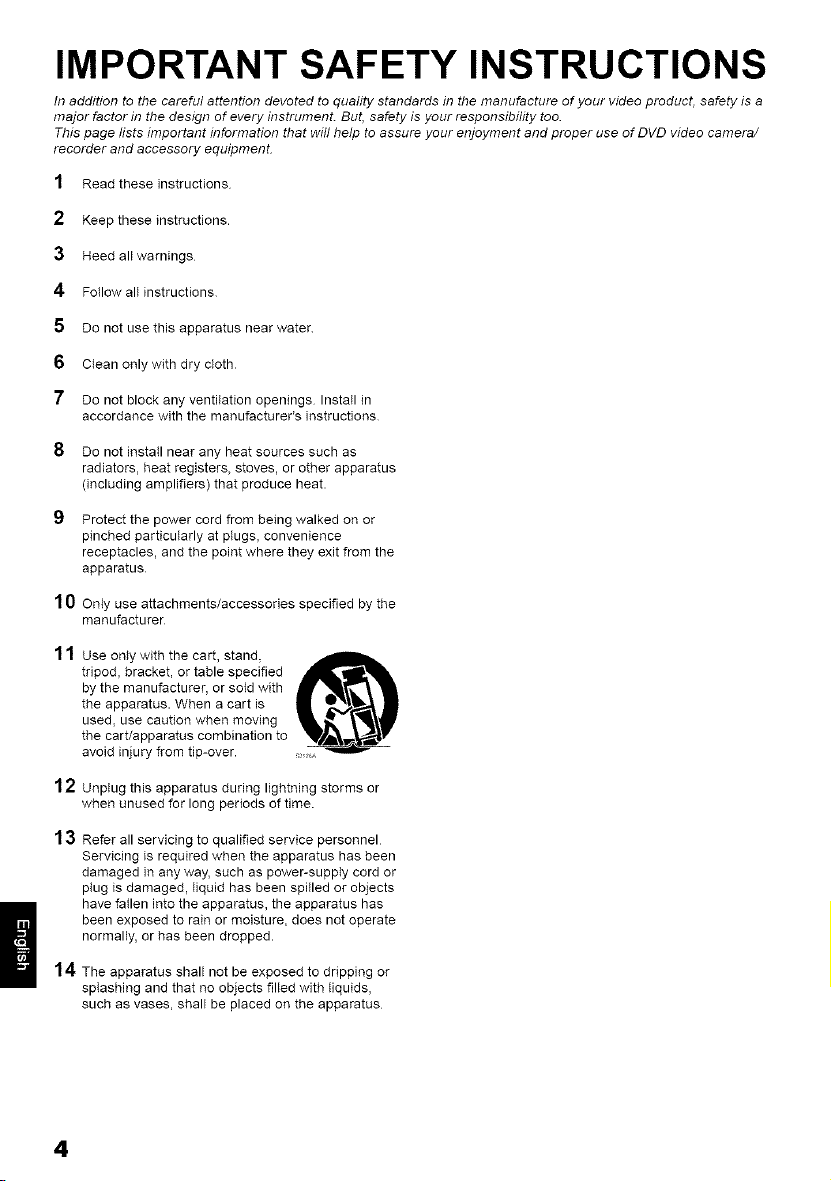
11 Use only with the cart, stand,
tripod, bracket, or table specified
by the manufacturer, or sold with
the apparatus. When a cart is
used, use caution when moving
the cart/apparatus combination to
avoid injury from tip-over. :,_,
12 Unptug this apparatus during lightning storms or
when unused for long periods of time.
13 Refer all servicing to qualified service personnel
Servicing is required when the apparatus has been
damaged in any way, such as power-supply cord or
ptug is damaged, Iiqaid has been spitled or objects
have fallen into the apparatus, the apparatus has
been exposed to rain or moisture, does not operate
normally, or has been dropped.
14 The apparatus shall not be exposed to dripping or
spIashing and that no objects filled with tiquids,
such as vases, shall be placed on the apparatus
4
Cautions When Using
Handle the liquid crystal display (LCD) with care:
• The LCD is a very delirate display devire: Do not press its surf_re with %rre, hit it o1"prirk it with
a sharp otoject.
• If you push the LCD surfhce, unevenness in display may occur. If unevenness does not disappear
soon, turn the DVD video camera/recorder off" wait fbr a %w moments, and then turn it on again.
• Do not place the DVD video camera/recorder with the open LCD screen down.
• Close the LCD monitor when not using the DVD video camera/recordei:
Liquid crystal display (LCD) and viewfinder:
• The LCD srreen and viewfinder are the produrts of highly prerise technology. An-long the total
number of pixels (approx. 120,000 pixels fur LCD monitor and equivalent to approx. 200,000 pixels
for viewfinder), 0.01% or less pixels may be missing (black dots) or may remain lit as colored dots
(red, hlue, green). This shows the limitations of the current technolog> and does not indicate a
fi_ult that will inter%re with recording.
• The LCD screen and viewfinder will he slightly dimmer than usual when the DVD video camera/
recorder is at low temperature, as in cold areas, or immediately af'.er power is turned on. Normal
brightness will be restored when the temperature inside the DVD video camera/recorder rises.
Hold the DVD video camera/recorder correctly:
• Do not hoM the viewfinder or LCD monitor when lif'.ing the DVD video ramera/rerorder: The
viewfinder or LCD monitor could detach and the DVD video camera/recorder may fall.
Do not subject the DVD video camera/recorder to impact:
• This DVD video ramera/rerorder is a prerision marhine. Take great rare that you do not strike it
against a hard object or let it fhll.
• When using a tripod, firmly secure the DVD video camera/recorder on it. Do not use the DVD
video camera/recorder with a tripod in a place where it is subject to severe vihrations or impact.
No sand or dust!
• Fine sand or dust entering the DVD video ramera/rerorder or AC adapter/rharger rould rause
malflmctions or defects.
No water or oil!
• Water or oil entering the DVD video ramera/rerorder or AC adapter/rharger rould rause elertrir
shock, malflmctions or defects.
5
Heat on surface of product:
• Tile surfhces of the DVD video camera/recorder, AC adapter/charger and battery will be slightly
warm, but this does not indicate a f_mlt.
Screen on connected TV:
• Never leave the disr navigation srreen, still image o1"ramera image displayed on your TV to whirh
tile DVD video camera/recorder is connected: Doing so could result in displayed image retention
or phosphor degradation of TV screen.
Be careful of ambient temperature:
• Using tile DVD video camera/recorder in a place where the temperature is over 104°F (40°C) or
under 32°F (0°C) will result in abnormal recording/playback.
• Take care that tile temperature of this DVD video camera/recorder, when connected to PC does
not rise excessively (reference for usage: approx. 30 minutes at about 86°F (30°C)).
• Do not leave tile DVD video camera/recorder on beach sand o1"in a closed vehicle where the
temperature is very higb fur a long time: This could cause malflmctions.
Do not point directly at the sun:
• If dirert sunlight strikes tile lens or viewfinder, tile DVD video ran-lera/rerorder rould malflmrtion
or a fire could occtm
• Do not leave the DVD video camera/recorder with the LCD screen exposed to direct sunlight: This
could cause malflmctions.
Do not use the DVD video camera/recorder near TV or radio:
• This rould rause noise to appear on the TV srreen o1"in radio broadrasts.
Do not use the DVD video camera/recorder near strong radio waves or magnetism:
• If the DVD video ramera/rerorder is used near strong radio waves o1"magnetism, surh as near a
radio wave tower o1"electric appliances, noise could enter video and audio that are being recorded.
During playback of normally recorded video and audio, noise may also be present in picture and
sound.
At worst the DVD video camera/recorder could malflmction.
Do not expose the DVD video camera/recorder to soot or steam:
• Thick soot o1"steam rould damage the DVD video ramera/rerorder rase o1"rause malflmrtions.
Do not use the DVD video camera/recorder near corrosive gas:
• If"tbe DVD video ramera/rerorder is used in a plare where tbere is dense exhaust gas generated
by gasoline or diesel engine, corrosive gas such as hydrogen sulfide, o1"sulfllr such as in a hot
spring area, tile external or internal terminals could corrode, which would disable normal
operation, or tile battery connecting terminals could corrode, so power will not turn on.
Do not use the DVD video camera/recorder near ultrasonic humidifier:
• With some water in humidifier, raMum and other rhemirals dissolved ill water rould sratter in the
air, and white particles could adhere to the optical bead of the DVD video camera/recorder, which
could cause it to operate abnormally.
Do not expose the DVD video camera/recorder to insecticide:
• Insertiride entering tile DVD video ramera/rerorder could dirty the lens in laser pirkup blork,
and in such a case tile DVD video camera/recorder might not operate normally. Turn tile DVD
video camera/recorder off and cover it with vinyl sheet, etc. before using insecticide.
Do not use a generally available 8 cm CD lens cleaner:
• Cleaning the lens is not neressary when using this DVD video ramera/rerorder in the usual way.
• Using 8 cm CD lens cleaner could cause this DVD video camera/recorder to be f_mlty.
• If you have to clean the lens, use a Hitachi Maxell cleaner that is exclusively fbr 8 cm DVD discs.
6
Be careful of moisture condensation:
• When you move the DVD video camera/recorder between places where tile dift_rence in
temperatures is great such as entering a lodge fl'om a ski slope or going out of a cooled room or
vehicle condensation (vapor in air warmed or cooled to water droplets) could occur on tile lens
and/or inside tile DVD video camera/recordei: If condensation occurs, do not open the cover of
disc or card insertion block if possible. If condensation occurs on the lens, wipe it off with a soft,
dry cloth. Even if the external surfime of DVD video camera/recorder has dried, condensation may
remain inside: Turn the DVD video camera/recorder off and leave it in a dry place for at least 1 2
hours be%re using it again.
Do not use the DVD video camera/recorder for a long uninterrupted period of time:
• This DVD video camera/recorder cannot be used fbr a long time continuously as a surveillance
camera/monito_ If you use it fur a long continuous period of time, the temperature of DVD video
camera/recorder cotfld exceed the limit and the recording/playback operation may slow down or
other faults cotfld occur. If this happens, turn it off and wait fbr a while befbre using it again.
Do not turn the DVD video camera/recorder off while the ACCESS/PC indicator or
CARD ACCESS indicator is lit or blinking:
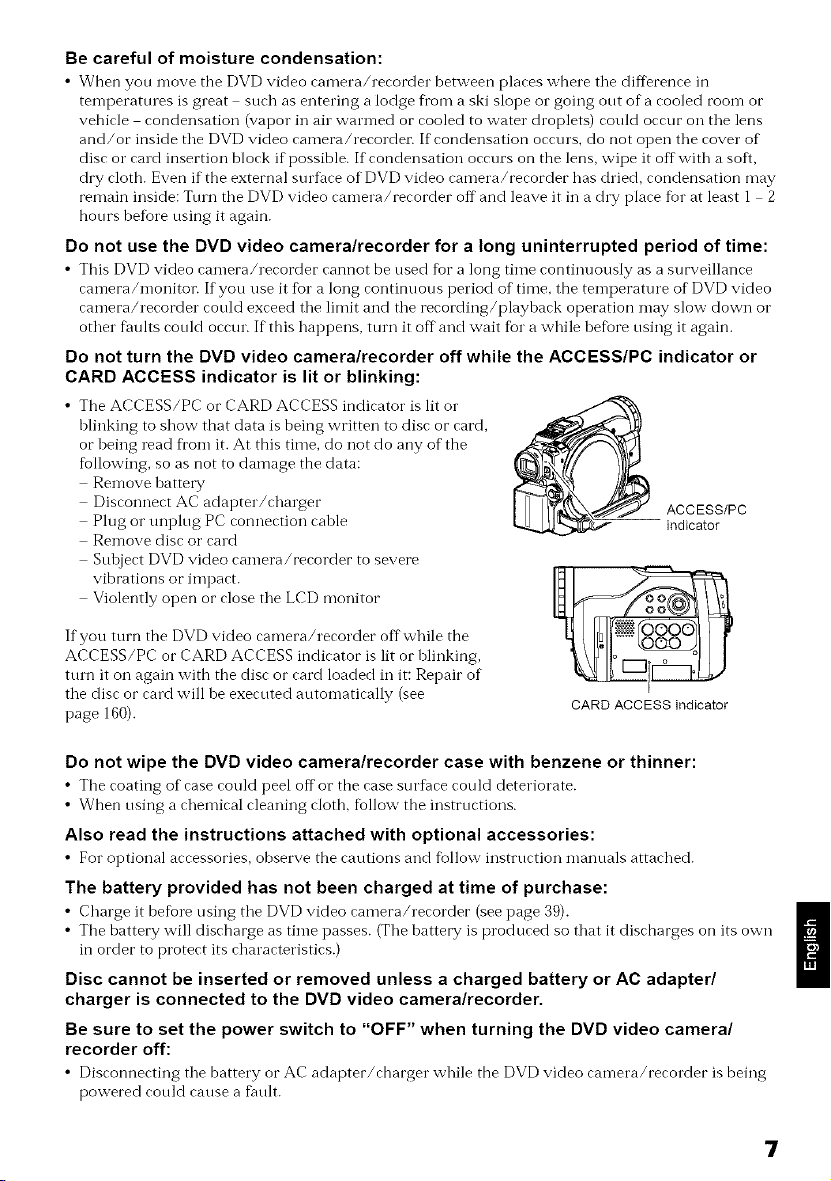
• The ACCESS/PC or CARD ACCESS indicator is lit or
blinking to show that data is being written to disc or card,
or being read fl'om it. At this time, do not do any of the
fbllowing, so as not to damage the data:
Remove battery
Disconnect AC adapter/charger
Plug or unplug PC connection cable
Remove disc or card
Sul0ject DVD video camera/recorder to severe
vibrations or impact.
Violently open or close the LCD monitor
If you turn the DVD video camera/recorder offwhile the
ACCESS/PC or CARD ACCESS indicator is lit or blinking,
turn it on again with the disc or card loaded in it: Repair of
the disc or card will be executed automatically (see
page 160).
ACCESS/PC
indicator
CARD ACCESS indicator
Do not wipe the DVD video camera/recorder case with benzene or thinner:
• The roating of ease could peel offor the ease surfi_ee rould deteriorate.
• When using a chemical cleaning cloth, follow the instructions.
Also read the instructions attached with optional accessories:
• For optional areessories, observe the rautions and fbllow instrurtion manuals attached.
The battery provided has not been charged at time of purchase:
• Charge it before using the DVD video camera/recorder (see page 39).
• The battery will discharge as time passes. (The battery is produced so that it discharges on its own
in order to protect its characteristics.)
Disc cannot be inserted or removed unless a charged battery or AC adapter/
charger is connected to the DVD video camera/recorder.
Be sure to set the power switch to "OFF" when turning the DVD video camera/
recorder off:
• Disronnecting the battery or AC adapter/charger while the DVD video ramera/rerorder is being
powered could cause a f_mlt.
7
Cautions When Storing
Do not leave the DVD video camera/recorder in a place where the temperature is
very high for a long period of time:
• The temi)erature inside a closed vehirle o1"trunk ran berome very high in a hot season. If you leave
tile DVD video camera/recorder in such a place, it could malfunction o1"tile case could be
damaged. Also, do not expose tile DVD video camera/recorder to direct stmlight or place it near a
heater:
Do not store the DVD video camera/recorder in a place where the humidity is high
or in a dusty place:
• Dust entering the DVD video ramera/rerorder rouM rause malf\mrtions. If the humidity is high,
tile lens could be moldy, and the DVD video camera/recorder could become inoperable. It is
recommended that you put the DVD video camera/recorder with desiccant in a box when storing
it in a closet, etc.
Do not store the DVD video camera/recorder in a place subject to strong
magnetism or intense vibrations:
• This rould rause malf\mrtions.
Detach the battery from the DVD video camera/recorder and store it in a cool place:
• Leaving the battery attarhed or storing it at high temperature rould shorten its life.
Suggestions and Restrictions
Make a trial recording:
• Always make a trial rerording before doing artual rerording to make sure that rerording is normal.
The data that have not been stored normally because of a defect in the DVD video camera/
recorder cannot be restored.
It is recommended that you use DVD RAM disc fl'om which recorded contents can be deleted fin,
trial recording.
Do not use the DVD video camera/recorder for professional applications:
• This DVD video ramera/rerorder is designed and produced for home use rerording and playhark.
The recorded contents cannot be compensated for:
• Hitarhi rannot rompensate for any damages raused when recording is not made normally or
recorded contents cannot he played back because of a defect in the DVD video camera/recorder_
disc or card. Also, Hitachi cannot be responsible fur your recorded video and audio.
• If you or a third party make a mistake when handling this DVD video camera/recorder, disc, card,
etc., the recorded contents may be lost. We cannot be responsible for compensation fur damage due
to loss of recorded contents.
Copyright:
• Data recorded on the disc or card in this DVD video camera/recorder using other" digital/analog
media or devices are protected by the copyright act and cannot be used without permission of the
owner of copyright, except fur" personal enjoyment. Be aware that recording is restricted fbr some
demonstrations, performances and exhibitions, even fbr personal enjoyment.
8
Read This First
Toguide you, we have included following six chapters.
• The section on "Setups" explains how to set
up tile DVD video camera/recorder, battery,
and set the date/time.
• The section on "Basic Techniques" explains the
basic operation of this DVD video camera/
recorder recording of movies, still images,
external input, and playback of recorded
images.
• The section on "Advanced Teclmiques '_
explains settings on this DVD video camera/
recorder for more advanced usage.
• The section on "Disc Navigation" explains
editing with Disc Navigation: Refer to this
section when finalizing DVD R disc and
initializing DVD RAM disc.
• The section on "Connecting to PC" explains
the contents of provided CD ROM and how to
install the software included.
• "Subsidia W Intormation" includes an
introduction to products sold separately,
proper cleaning, and troubleshooting.
We want this manual to be as helpful as
possible, so it includes two easy ways to find the
information you need.
• A quick index for the inforn-lation you use
most otLen (this page).
• A detailed table of contents directing you to
specific infiormation quickly (see pages 12
t4).
Get to know your DVD video camera/recorder by
using this manual, and get to know Hitachi. We
appreciate your business.
Quick Index
Available Discs ................................................ 24
Recording Movie ............................................. 49
Playing Back .................................................... 58
Connecting to a TV .......................................... 77
Functions Available with Disc Navigation ...... 107
Connecting to PC .......................................... 138
With this DVD video camera/recorder yon can view the picture being recorded o1"the playback
picture whether on the LCD monitor or in the viewfinder. Opening or closing the LCD monitor
switches the picture to appear on the LCD monitor or in the viewfinder.
It is possible to switch the language in the on screen display of this DVD video camera/recorder
(see page 101).
About This Manual
@Displays in this manual
Understand that the displays are different fl'om those you will actually see in the viewfinder oi"on
the LCD screen.
@Notation of cancel button
Press the stop/cancel button to stop your operation midway_ or return tbe n-lent/screen to the
preceding one. The expression "press the • button" will be used in tbis text.
@_, _ and _ marks beside headings
Some fimetions of tbis DVD video camera/recorder are unavailable with disc oi" card used. Refer to
the marks at right above each f\mction to identify whether the disc or" card is comi)atil)le witb the
t\mction. Refer to these marks and identify the flmctions and operation to match the disc o1"card you
rise.
@Illustrations in this manual
Altbough tbe external appearances of DZ GX20A, DZ MV780A and DZ MV730A are diff'erent, tbe
method of operating these models is identical.
The illustrations of DZ GX20A are used fur the explanation in this text.
9
Introduction
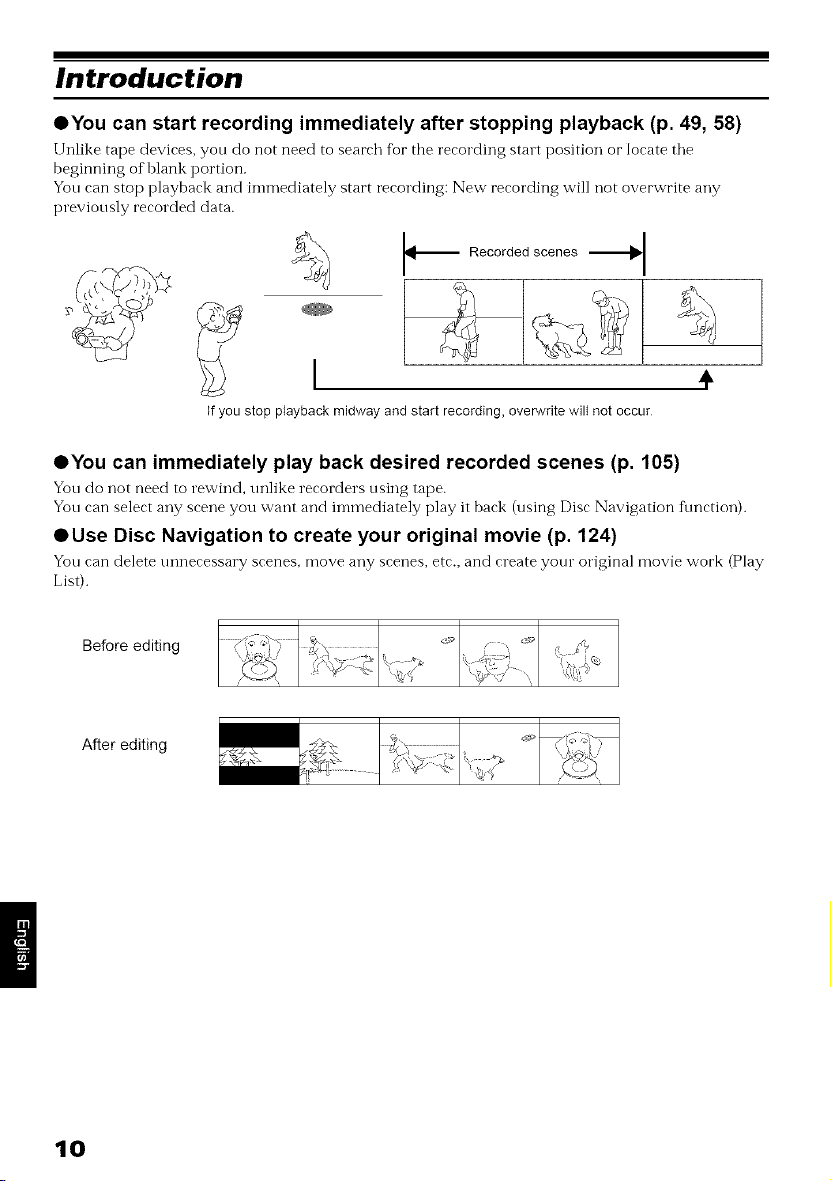
• You can start recording immediately after stopping playback (p. 49, 58)
Unlike tape devices, you do not need to search tbr tbe recording start position or locate tile
beginning of blank portion.
You can stop playback and immediately start recording: New recording will not overwrite any
previously recorded data.
Recorded scenes '_t
4'
If you stop playback midway and start recording, overwrite wilt not occur
OYou can immediately play back desired recorded scenes (p. 105)
You do not need to rewind, unlike recorders using tape.
You can select any scene you want and immediately play it back (using Disc Navigation function).
OUse Disc Navigation to create your original movie (p. 124)
You can delete tmnecessary scenes, move any scenes, etc., and create your original movie work (Play
List).
Before editing
After editing
10
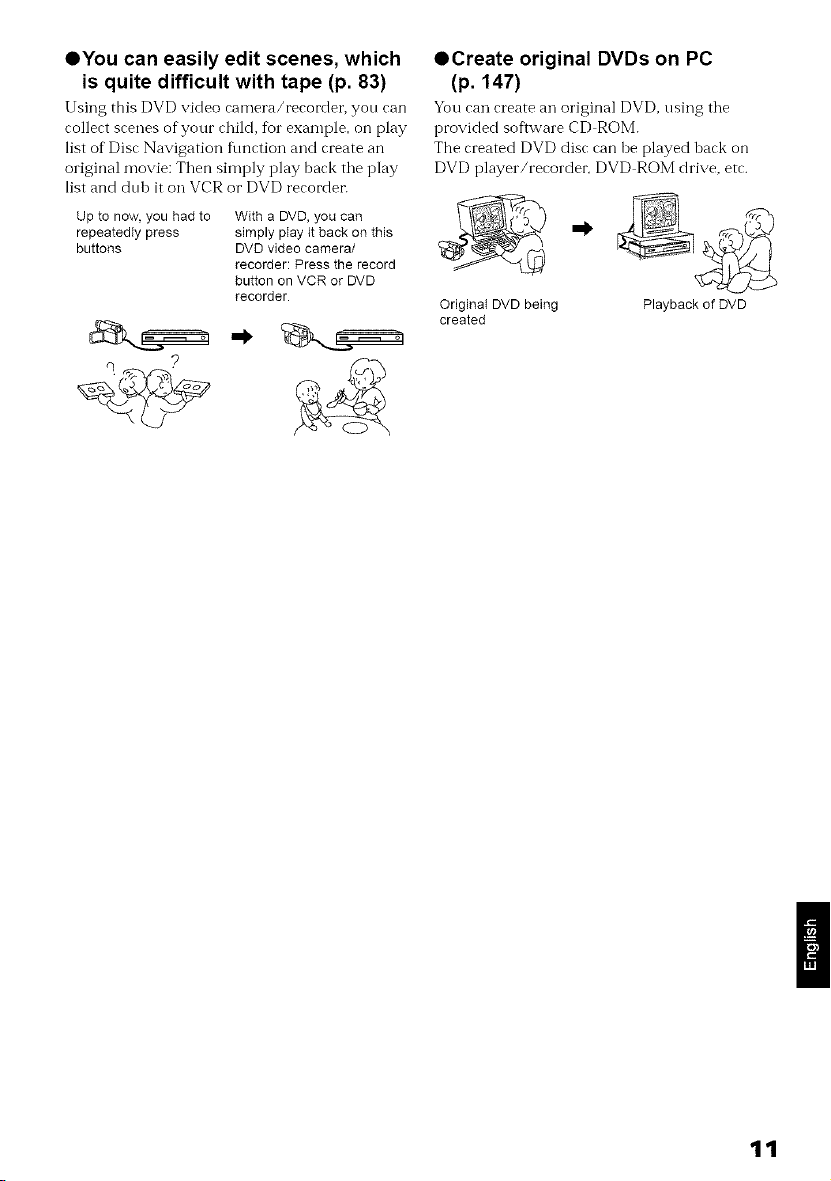
OYou can easily edit scenes, which
is quite difficult with tape (p. 83)
Using this DVD video camera/recorder, you can
collect scenes of your child, for example, on play
list of Disc Navigation fimction and create an
original movie: Then simply play back tile play
list and dub it on VCR or DVD recordei:
Up to now, you had to With a DVD, you can
repeatedly press simply pIay it back on this
buttons DVD video camera/
recorder: Press the record
button on VCR or DVD
recorder.
OCreate original DVDs on PC
(p. 147)
¥ou can create an original DVD, using the
provided software CD ROM.
The created DVD disc can be played back on
DVD player/recorder, DVD ROM drive, etc.
&-
Original DVD being Playback of DVD
created
11
Table of Contents
Important Information ......................................... 2
For Your Safety .................................................. 2
Precautions ........................................................ 2
IMPORTANT SAFETY INSTRUCTIONS ........... 4
Cautions When Using ........................................ 5
Cautions When Storing ...................................... 8
Suggestions and Restrictions ............................ 8
Read This First .................................................. 9
About This Manual ............................................. 9
Introduction ...................................................... 10
Table of Contents ............................................ 12
Checking Provided Accessories ...................... 15
Names of Parts ................................................ 16
Try Recording and Playing Back using Disc
(Video and Photo) ......................................... 20
Try Recording and Playing Back using Card
(Photo) .......................................................... 22
Discs and Cards .............................................. 24
AVAILABLE DISCS ............................................. 24
INFORMATION ON DVD-R DISC ....................... 25
EXAMPLES OF DISCS THAT CANNOT BE
USED ON THIS DVD VIDEO
CAMERA/RECORDER: .................................... 25
HANDLING DISCS .............................................. 26
DISC CLEANING ................................................. 26
AVAILABLE CARDS ............................................ 27
Storage Capacity on Disc or Card ................... 28
RECORDABLB TIME OF MOVIE (VIDEO) ......... 28
RECORDABLB STILLS (PHOTOS) ON DISC .. 28
RECORDABLB STILLS (PHOTOS) ON CARD. 29
SIZE AND QUALITY OF PHOTOS ..................... 30
Setups
Setting Up the DVD Video Camera/
Recorder ....................................................... 31
HOLDING DVD VIDEO CAMERA/
RECORDER ..................................................... 31
ATTACHING SHOULDER STRAP ...................... 32
ATTACHING LENS CAP ..................................... 32
INSERTING BATTERY INTO REMOTE
CONTROL ........................................................ 33
REMOVING BATTERY FROM REMOTE
CONTROL ........................................................ 33
VIEWING IMAGE ON LCD MONITOR
SCREEN ........................................................... 35
CLOSING LCD MONITOR .................................. 36
VIEWING SUBJECT THROUGH
VIEWFINDER ................................................... 36
SETTING DATE AND TIME ................................ 37
CHANGING DISPLAY FORMAT OF DATE
AND TIME ......................................................... 38
Setting Up the Battery ...................................... 39
CHARGING BATTERY ........................................ 39
ATTACHING BATTERY TO DVD VIDEO
CAMERA/RECORDER ..................................... 40
REMOVING BATTERY ........................................ 40
BATTERY REMAINING LEVEL INDICATOR... 42
EFFICIENT USE OF BATTERY .......................... 42
USING DVD VIDEO CAMERA/RECORDER
WITH AC ADAPTER/CHARGER ...................... 43
Turning DVD Video Camera/Recorder On
and Off ........................................................... 44
Inserting and Removing Disc ........................... 45
INSERTING DISC ................................................ 45
REMOVING DISC ................................................ 47
Inserting and Removing Card .......................... 48
Basic Techniques
Recording Movie .............................................. 49
Recording Stills ................................................ 51
On-Screen Information .................................... 52
INFORMATION DISPLAY DURING
RECORDING .................................................... 52
Zooming ........................................................... 56
MACRO RECORDING ........................................ 57
RECORDING SUBJECTS FOR STRONGER
WIDE-ANGLE OR TELEPHOTO EFFECT ....... 57
Playing Back .................................................... 58
PLAYING BACK .................................................. 58
PLAYBACK FROM START OF DISC OR
CARD ................................................................ 59
SEARCH PLAYBACK OF MOVIE ....................... 59
FRAME ADVANCE/FRAME BACK/SLOW
PLAYBACK OF MOVIE .................................... 59
SKIP PLAYBACK OF MOVIE .............................. 60
PLAYING BACK STILLS ..................................... 60
JUMPING TO SPECIFIED POINT (GO TO) ........ 61
On-Screen Information Display ........................ 62
INFORMATION DISPLAY DURING
PLAYBACK ....................................................... 62
Checking Flow of Quick Menu ......................... 63
FLOW OF QUICK MENU WHEN RECORDING
MOVIE: ............................................................. 65
FLOW OF QUICK MENU WHEN RECORDING
PHOTO (DISC): ................................................ 66
FLOW OF QUICK MENU WHEN RECORDING
PHOTO (CARD): .............................................. 68
FLOW OF QUICK MENU
(WITH DVD-RAM DISC): .................................. 70
FLOW OF QUICK MENU
(WITH DVD-R DISC): ....................................... 71
FLOW OF QUICK MENU
(WITH CARD): .................................................. 71
Manually Focusing Subject .............................. 72
FOCUSING DURING RECORDING .................... 72
12
Adjusting Brightness of Image to be recorded
(Exposure) ..................................................... 74
Compensating for Backlight ............................. 74
Using External Microphone .............................. 75
Built-in Video Flash (for DZ-GX20A only) ........ 76
Viewing on TV Screen ...................................... 77
CONNECTING TO A TV ...................................... 77
VIEWING ON TV SCREEN ................................. 78
Playback on DVD Recorder/Player .................. 79
PLAYING BACK DVD-RAM DISC ....................... 79
PLAYING BACK DVD-R DISC ............................ 79
Recording (Dubbing)Images ........................... 80
RECORDING (DUBBING) IMAGES FROM
OTHER VIDEO DEVICE ................................... 80
RECORDING (DUBBING) IMAGES FROM
OTHER VIDEO CAMERAS .............................. 82
RECORDING (DUBBING) IMAGES ON
OTHER VIDEO DEVICES ................................ 83
Advanced Techniques
Checking Flow of Normal Menu ....................... 84
Setting Up Camera Functions .......................... 86
SELECTING SHOOTING MODE TO MATCH
THE SUBJECT
(SWITCHING PROGRAM AE MODE) .............. 86
RECORDING DARK SUBJECTS USING LCD
MONITOR LIGHT ............................................. 87
ADJUSTING COLOR (WHITE BALANCE) .......... 88
USING THE ELECTRONIC IMAGE
STABILIZER (EIS) ............................................ 90
RECORDING SUBJECT USING LARGE
MAGNIFICATION (DIGITAL ZOOM) ................ 90
REDUCING WIND NOISE DURING
RECORDING (MIC FILTER) ............................ 90
Setting Up Record Functions ........................... 91
SWITCHING MOVIE QUALITY
(VIDEO MODE) ................................................ 91
SETTING TO WIDE TV SCREEN MODE
(16:9 MODE) ..................................................... 92
SWITCHING QUALITY OF STILL IMAGE
(QUALITY) ........................................................ 94
RECEIVING IMAGE FROM ANOTHER DEVICE
(INPUT SOURCE) ............................................ 94
SWITCHING EXTERNAL INPUT RECORDING
METHOD (PHOTO INPUT) .............................. 95
SELF-TIMER ....................................................... 96
SETTING ON-SCREEN DISPLAY OUTPUT
ON OR OFF (OSD OUTPUT) ........................... 97
LCD/EVF Setup ................................................ 98
SETTING BRIGHTNESS OF LCD SCREEN
(LCD BRIGHTNESS) ........................................ 98
SETTING BRIGHTNESS OF VIEWFINDER
(EVF BRIGHTNESS) ........................................ 98
SETTING COLOR DENSITY
(COLOR LEVEL) .............................................. 99
ALWAYS DISPLAYING IMAGE IN
VIEWFINDER ................................................... 99
Initial Settings ................................................. 100
SWITCHING OPERATING SOUND ON OR
OFF (BEEP) .................................................... 100
TURNING DVD VIDEO CAMERA/RECORDER
OFF AUTOMATICALLY (POWER SAVE) ...... 100
TURNING RECORD LED ON OR OFF
(RECORD LED) .............................................. 101
CHANGING DISPLAY LANGUAGE
(LANGUAGE) .................................................. 101
RESETTING MENU SETTINGS TO
DEFAULTS (RESET) ...................................... 102
Disc Navigation
Using Disc Navigation ................................... 103
STARTING OR TERMINATING DISC
NAVIGATION .................................................. 103
PLAYING BACK FROM DISC NAVIGATION
SCREEN ......................................................... 105
SELECTING MULTIPLE SCENES .................... 106
SELECTING CONSECUTIVE SCENES
TOGETHER .................................................... 106
FUNCTIONS AVAILABLE WITH DISC
NAVIGATION .................................................. 107
UNDERSTANDING FLOW OF DiSC
NAVIGATION MENU ...................................... 108
Scene ............................................................ 110
DELETING SCENES (EDIT - DELETE) ........... 110
DIVIDING MOVIES (EDIT- DIVIDE) ................ 112
COMBINING MULTIPLE SCENES
(EDIT - COMBINE) ......................................... 113
ARRANGING ORDER OF SCENES
(EDIT - MOVE) ............................................... 113
DIRECTING SCENES EFFECTIVELY
(EFFECT - FADE) .......................................... 114
PLAYING BACK BY SKIPPING SCENES
(EFFECT - SKIP) ........................................... 115
CHANGING IMAGES FOR THUMBNAILS
(EFFECT - THUMBNAIL) ............................... 116
COPYING STILLS ON DVD-RAM DISC TO
CARD (COPY) ................................................ 117
LOCKING SCENES ON CARD (LOCK) ............ 118
SELECTING SCENES USING MENU SCREEN
(SELECT) ........................................................ 119
DISPLAYING INFORMATION USING MENU
SCREEN (DETAIL) ......................................... 120
Program ......................................................... 12!
WHAT IS "PROGRAM"? .................................... 121
SWITCHING TO THUMBNAIL DISPLAY OF
SPECIFIC DATE (SWITCH) ........................... 121
PLAYING BACK PROGRAM (PLAY) ................ 122
CHANGING TITLE OF PROGRAM (TITLE) ...122
Play List ......................................................... 124
WHAT IS "PLAY LIST"? ..................................... 124
CREATING NEW PLAY LIST (CREATE) .......... 124
SWITCHING TO DISPLAY OF EACH PLAY
LIST (SWITCH) ............................................... 125
PLAYING BACK A PLAY LIST (PLAY) .............. 125
ADDING SCENES TO PLAY LIST
(EDITING PLAY LIST) .................................... 126
DELETING SCENES FROM PLAY LIST
(EDITING PLAY LIST) .................................... 127
13
ADDING SCENES USING SUBMENU
FOR EDITING (EDITING PLAY LIST) ............ 127
DELETING SCENES USING SUBMENU
FOR EDITING (EDITING PLAY LIST) ............ 128
SELECTING SCENES USING SUBMENU
FOR EDITING (EDITING PLAY LIST) ............ 128
ARRANGING ORDER OF SCENES (MOVE).. 129
CHANGING TITLE OF PLAY LIST (TITLE) ...... 130
DELETING PLAY LIST (DELETE) .................... 130
GO TO ............................................................. 131
TOP (END) ........................................................ 131
Disc or Card Management ............................. 132
INITIALIZING DISC OR CARD
(FORMAT DISC. FORMAT CARD) ................ 132
PROTECTING DISC FROM WRITING
(PROTECT DISC)........................................... 133
VERIFYING REMAINING FREE SPACE ON
DISC OR CARD (CAPACITY) ........................ 133
UPDATING CONTROL INFORMATION OF
DVD-RAM DISC
(UPDATE CONTROL INFO.).......................... 134
FINALIZING DVD-R DISC (FINALIZE DISC).. 135
Others ............................................................ 136
DISPLAYING MOVIES OR STILLS
INDEPENDENTLY (CATEGORY) .................. 136
PLAYING BACK SCENES REPEATEDLY
(REPEAT PLAY)............................................. 136
SLIDE SHOW (CONTINUOUS PLAYBACK OF
STILLS)........................................................... 137
Connecting to PC
(DZ-GX20A/DZ-MV780A)
THE FOLLOWING ARE AVAILABLE WHEN
CONNECTING TO PC.................................... 138
Contents on Provided CD-ROM .................... 140
Installing Software ......................................... !42
DISPLAYING INSTALLER SCREEN ................ 142
INSTALLING SOFTWARE ................................ 143
Creating DVD Video from DVD-RAM Disc
Recorded on DVD Video Camera/
Recorder ..................................................... !47
Uninstalling Software ..................................... !49
Cautions When Using DVD Video Camera!
Recorder by Connecting It to PC ................ !49
Introduction to Video Editing Software ........... !50
Subsidiary Information
Introduction to Optional Accessories ............. 151
CAMERA ACCESSORIES ................................ 151
POWER SUPPLY.............................................. 151
Removing Disc from Its Package ................... !52
REMOVING AND REPLACING FROM/IN
ROUND DVD HOLDER .................................. 152
REMOVING DISC FROM CARTRIDGE ............ 153
Cleaning ......................................................... 153
Changing Setting of Demonstration ............... 154
Terminology ................................................... !55
No DVD Video Camera!Recorder Operation -
Check the Following: ................................... 158
Trouble Messages ......................................... 160
Troubleshooting ............................................. 167
System Reset ................................................ 174
Major Specifications ....................................... 175
To Order in the United States ........................ 178
To Order in the Canada ................................. 178
Index .............................................................. 179
Be sure to read the following before opening
the package of CD-ROM ............................. 181
14
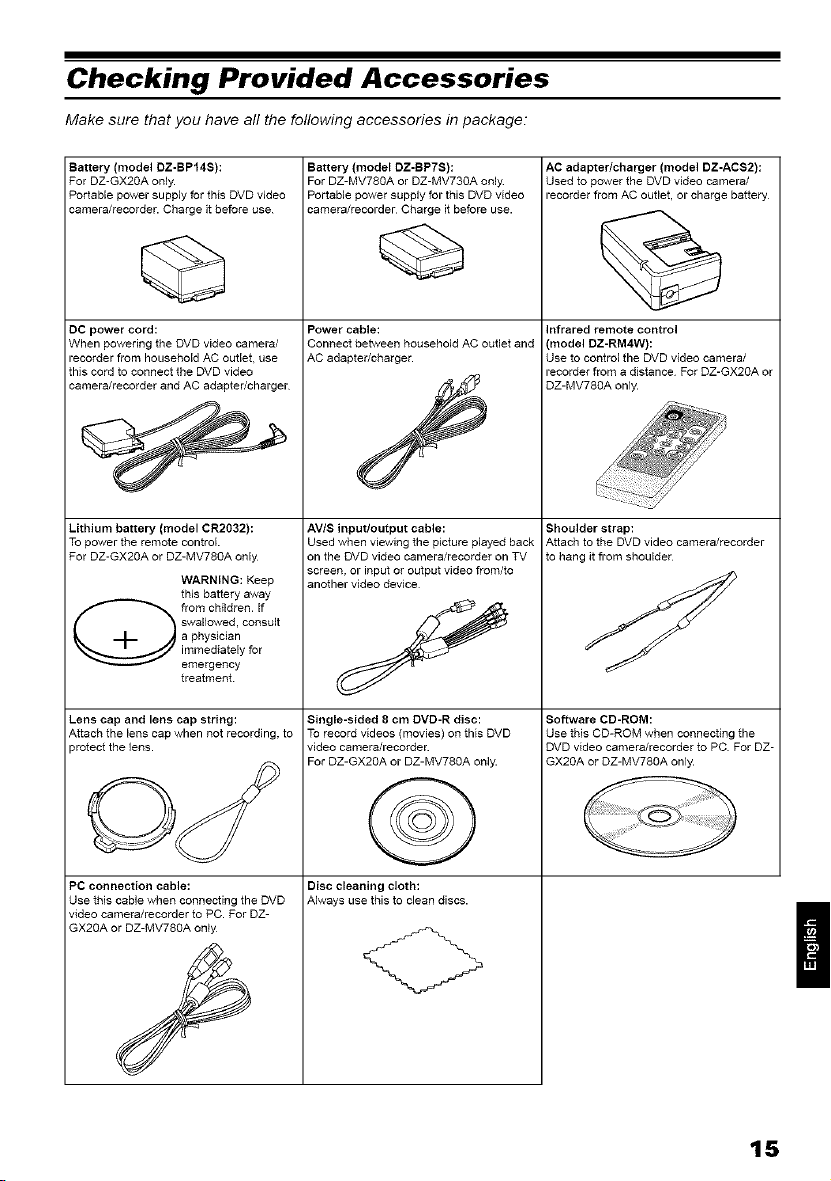
Checking Provided Accessories
Make sure that you have all the following accessories in package:
Battery (model DZ-BPf4S):
For DZ-GX20A only.
Portable power supply for this DVD video
camera/recorder. Charge it before use.
DC power cord:
When powering the DVD video camera/
recorder from household AC outlet, use
this cord to connect the DVD video
camera/recorder and AC adapter/charger
Lithium battery (model CR2032):
To power the remote control.
For DZ-GX2OA or DZ-MV78OA only
WARNING: Keep
this battery away
from children. If
swallowed, consult
a physician
immediately for
emergency
treatment
Lens cap and lens cap string:
Attach the lens cap when not recording, to
_rotect the lens.
PC connection cable:
Use this cable when connecting the DVD
video camera/recorder to PC. For DZ-
GX20A or DZ-MV780A only
Battery (model DZ-BP7S):
For DZ-MV780A or DZ-MV730A only
Portable power supply for this DVD video
camera/recorder Charge it before use.
Power cable:
Connect between household AC outlet and
AC adapter/charger.
AVIS input/output cable:
Used when viewing the picture played back
on the DVD video camera/recorder on TV
screen, or input or output video from/to
another video device
Single-sided 8 cm DVD-R disc:
To record videos (movies) on this DVD
video camera/recorder.
For DZ-GX2OA or DZ-MV78OA only.
@
Disc cleaning cloth:
Always use this to clean discs.
AC adapter/charger (model DZ-ACS2):
Used to power the DVD video camera/
recorder from AC outlet, or charge battery
Infrared remote control
model DZ-RM4W):
Use to control the DVD video camera/
recorder from a distance For DZ-GX20A or
DZ-MV780A only.
Shoulder strap:
Attach to the DVD video camera/recorder
to hang it from shoulder
Software CD-ROM:
Use this CD-ROM when connecting the
DVD video camera/recorder to PC. For DZ-
GX20A or DZ-MV780A only.
15
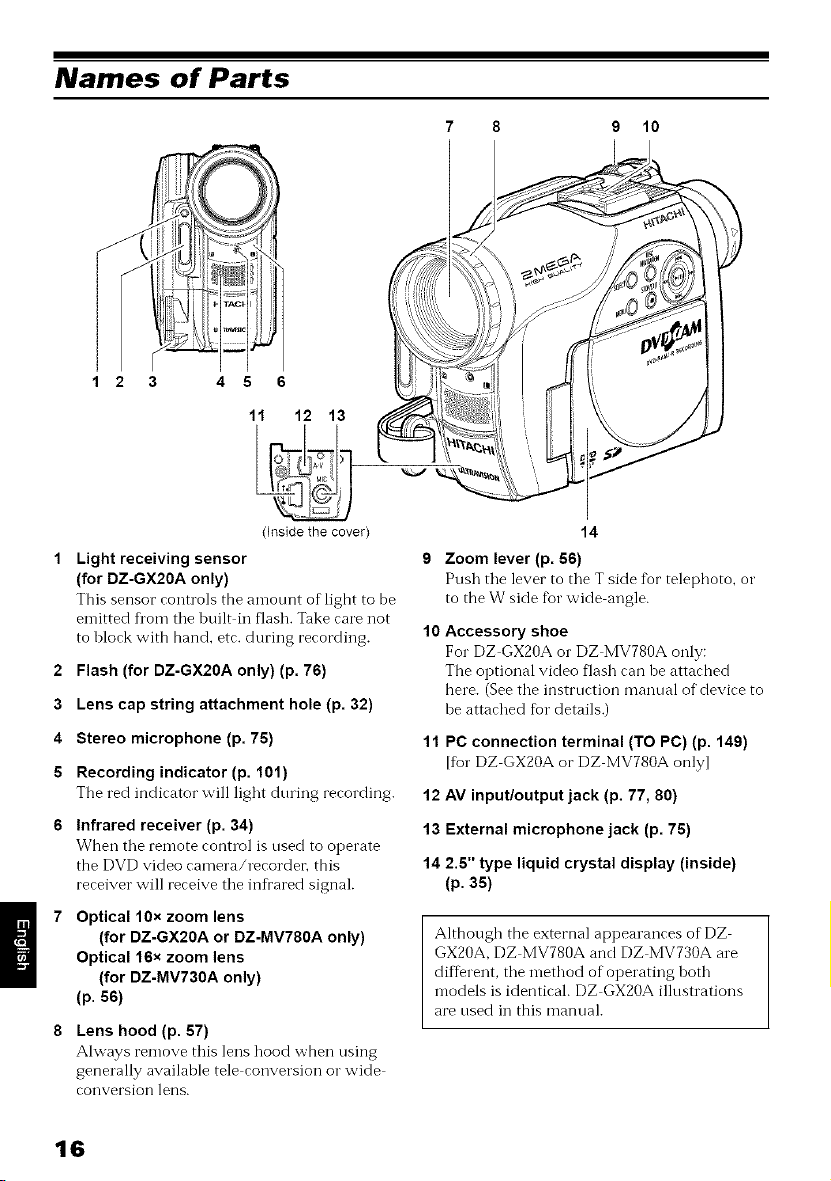
Names of Parts
2
3
4
5
1 2 3 4 5 6
11 12 13
(Inside the cover)
Light receiving sensor
(for DZ-GX20A only)
This sensor controls the anlOUlK oflight to be
emitted fl'om the built in flash. Take care not
to block with hand, etc. during recording.
Flash (for DZ-GX20A only) (p. 76)
Lens cap string attachment hole (p. 32)
Stereo microphone (p. 75)
Recording indicator (p. 101)
The red indicator will light during recording.
Infrared receiver (p. 34)
When tile remote control is used to operate
the DVD video camera/recorder, this
receiver will receive the infl'ared signal.
Optical 10x zoom lens
(for DZ-GX20A or DZ-MV780A only)
Optical 16× zoom lens
(for DZ-MV730A only)
(p. 56)
Lens hood (p. 57)
Always remove this lens hood when using
generally available tele conversion o1"wide
conversion lens.
7 8 9 10
r ....
14
9 Zoom lever (p. 56)
Push tile lever to tile T side f}ortelephoto_ o1"
to the W side %r wide angle.
10 Accessory shoe
For DZ GX20A o1"DZ MV780A only:
The optional video flash can be attached
here. (See tile instruction manual of device to
be attached %r details.)
11 PC connection terminal (TO PC) (p. 149)
I%r DZ GX20A o1"DZ MV780A onlyl
12 AV input/output jack (p. 77, 80)
13 External microphone jack (p. 75)
14 2.5" type liquid crystal display (inside)
(p. 35)
Although the external appearances of DZ
GX20A, DZ MV780A and DZ MV730A are
different, tile method of operating both
models is identical. DZ GX20A illustrations
are used in this manual.
16
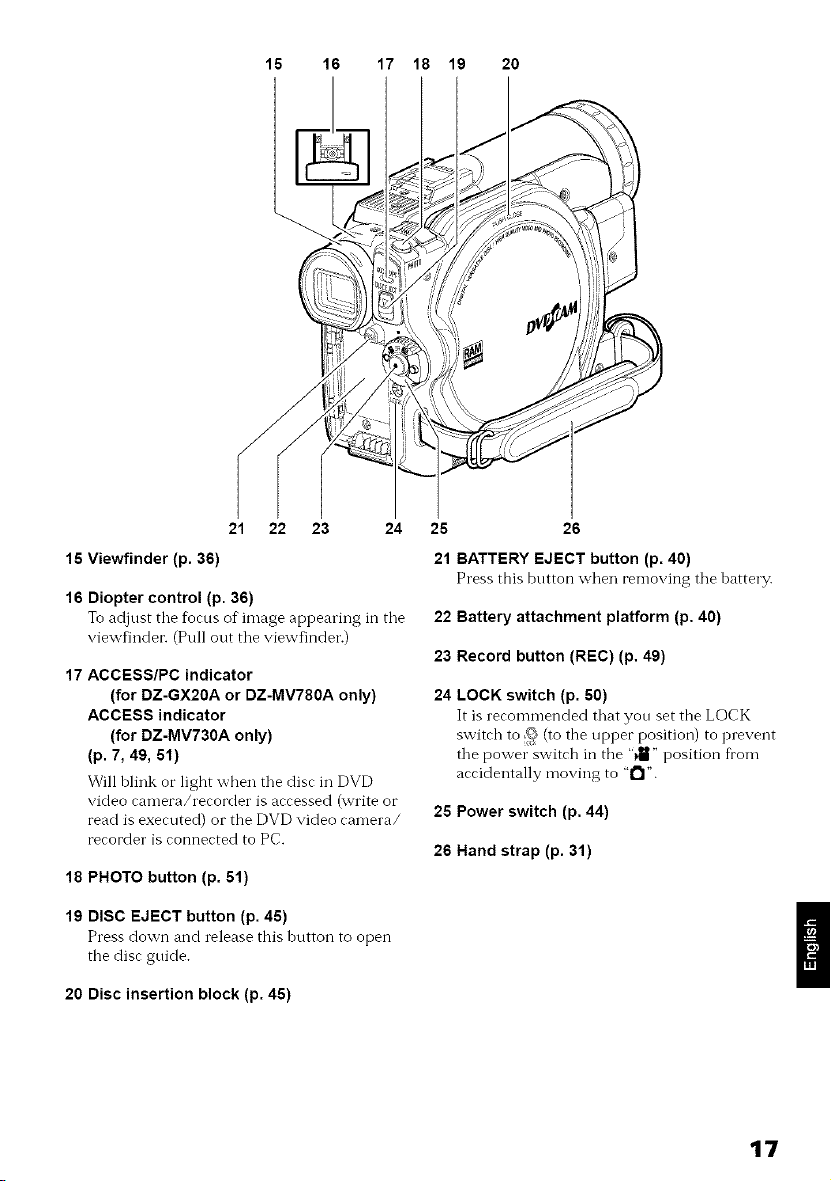
i5 16 17 18 19 20
21 22 23 24
15 Viewfinder (p. 36)
16 Diopter control (p. 36)
To adjust tile focus of image appearing m the
viewfindeI_ (Pull out tile viewfinder.)
17 ACCESS/PC indicator
(for DZ-GX20A or DZ-MV780A only)
ACCESS indicator
(for DZ-MV730A only)
(p. 7, 49, 5t)
Will blink or light when tile disc in DVD
video camera/recorder is accessed (write or
read is executed) or the DVD video camera/
recorder is connected to PC.
18 PHOTO button (p, 51)
19 DISC EJECT button (p. 45)
Press down and release this button to open
the disc guide.
20 Disc insertion block (p. 45)
25 26
21 BATTERY EJECT button (p. 40)
Press this button when removing the battery.
22 Battery attachment platform (p. 40)
23 Record button (REC) (p, 49)
24 LOCK switch (p. 50)
It is recommended that you set the LOCK
switcl_ to ,_ (to the upper position) to prevent
the power switch in the "_,_" position from
accidentally moving to "t"l".
25 Power switch (p. 44)
26 Hand strap (p. 31)
17
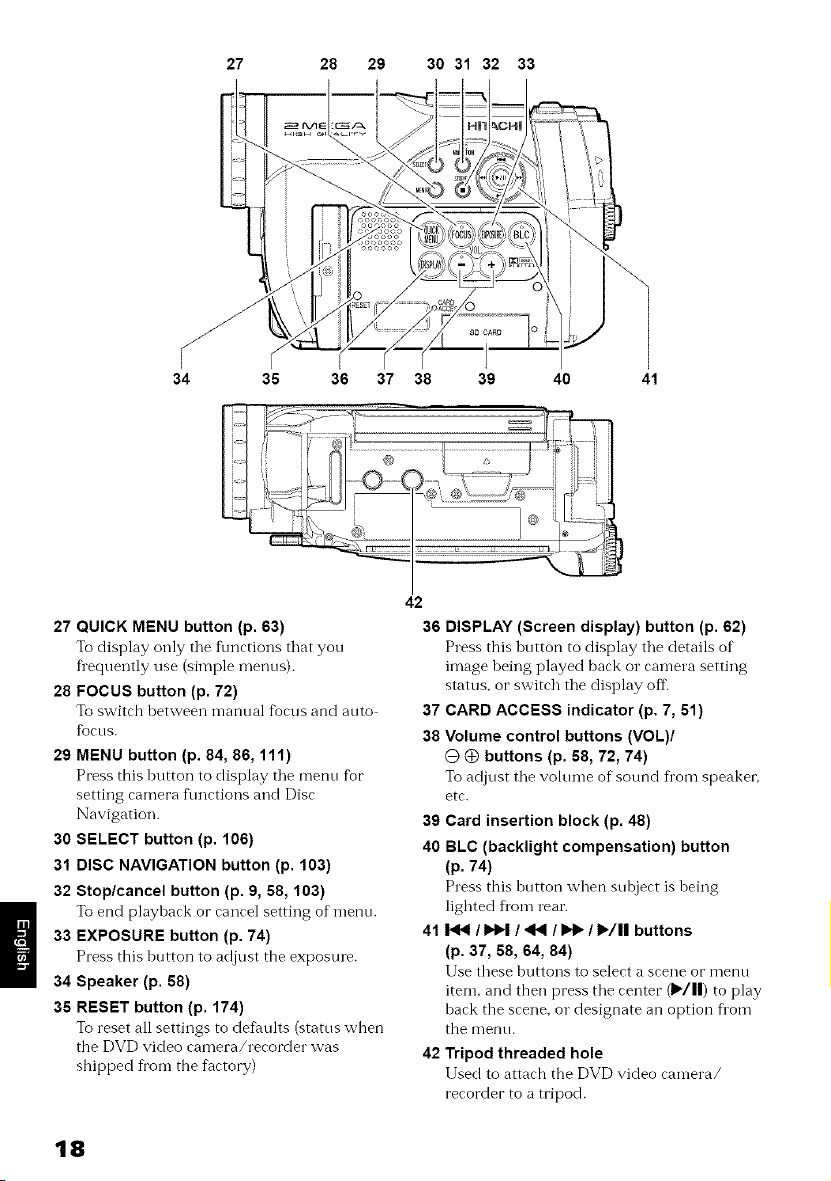
27 28 29 30 31 32 33
34
36 36 37 38 39 40 41
27 QUICK MENU button (p. 63)
To display only the t\mctions that you
fl'equently use (simple menus).
28 FOCUS button (p. 72)
To switch hetween manual fkocus and auto
fL)CLIS.
29 MENU button (p. 84, 66, 111)
Press this button to display tile menu f_r
setting camera f\mctions and Disc
Navigation.
30 SELECT button (p. 106)
31 DISC NAVIGATION button (p. 103)
32 Stop/cancel button (p. 9, 58, 103)
To end playback or cancel setting of menu.
33 EXPOSURE button (p. 74)
Press this button to adjust the exposure.
34 Speaker (p. 58)
35 RESET button (p. 174)
To reset all settings to def_ults (stares when
the DVD video camera/recorder was
shipped from the factory)
42
36 DISPLAY (Screen display) button (p. 62)
Press this button to display the details of
image being played back or camera setting
status, or switch the display off
37 CARD ACCESS indicator (p. 7, 5i)
38 Volume control buttons (VOL)/
_ buttons (p. 66, 72, 74)
To adjust the volume of sound fl'om speaker,
etc.
39 Card insertion block (p. 48)
40 BLC (backlight compensation) button
(p. 74)
Press this button when subject is being
lighted fl'om reai:
41 _ / b_H / 41<1/ IH_ / I_/ll buttons
(p. 37, 58, 64, 84)
Use these buttons to select a scene or menu
item, and then press the ceilter (1_/||) to play
hack the scene, or designate an option Dora
the menu.
42 Tripod threaded hole
Used to attach the DVD video canlera/
recorder to a tripod.
18
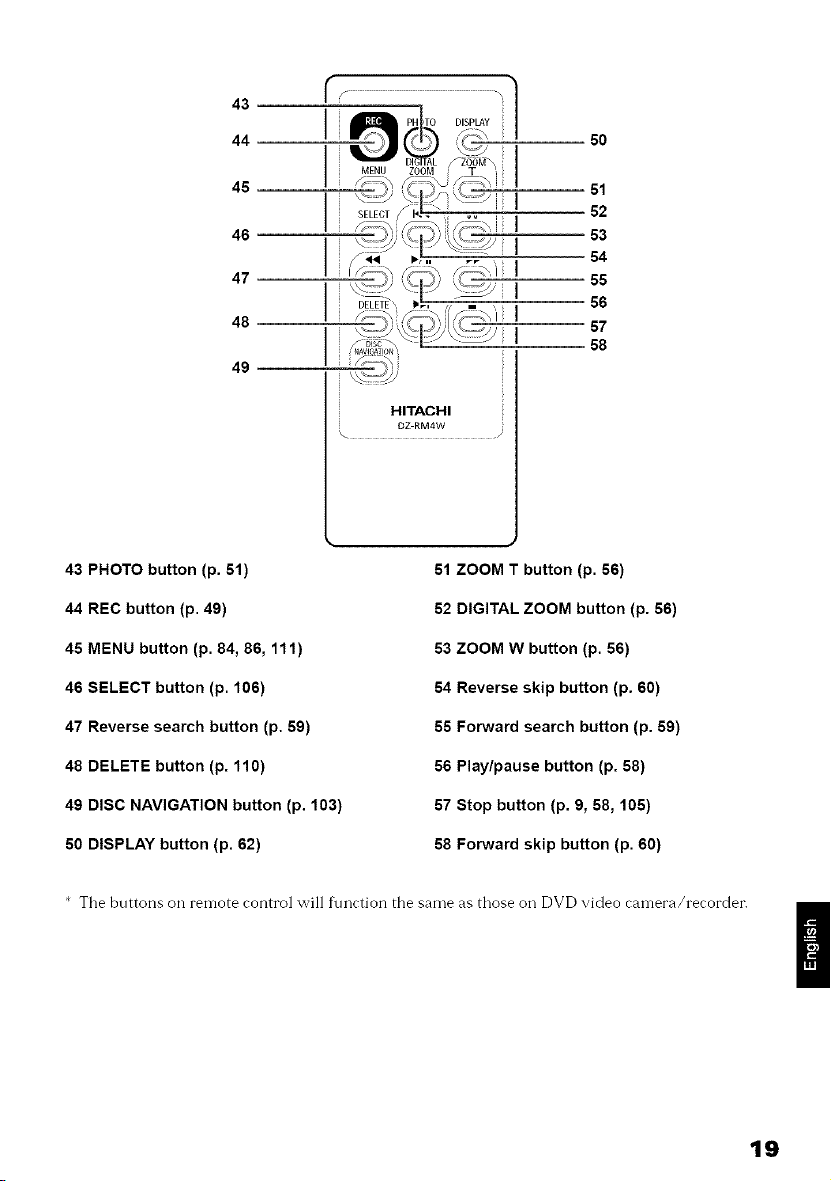
43
44_
45
46
47
48
49
50
51
52
53
54
55
56
.....57
58
HITACHI
DZ-RM4W
\
43 PHOTO button (p. 51)
44 REC button (p. 49)
45 MENU button (p. 84, 86, i11)
46 SELECT button (p. 106)
47 Reverse search button (p. 59)
48 DELETE button (p. 110)
49 DISC NAVIGATION button (p. 103)
50 DISPLAY button (p. 62)
51 ZOOM T button (p. 56)
52 DIGITAL ZOOM button (p. 56)
53 ZOOM W button (p. 56)
54 Reverse skip button (p. 60)
55 Forward search button (p. 59)
56 Play/pause button (p. 58)
57 Stop button (p. 9, 58, 105)
58 Forward skip button (p. 60)
* The bnttons on remote control will t\mction the same as those oil DVD video camera/recorder.
19
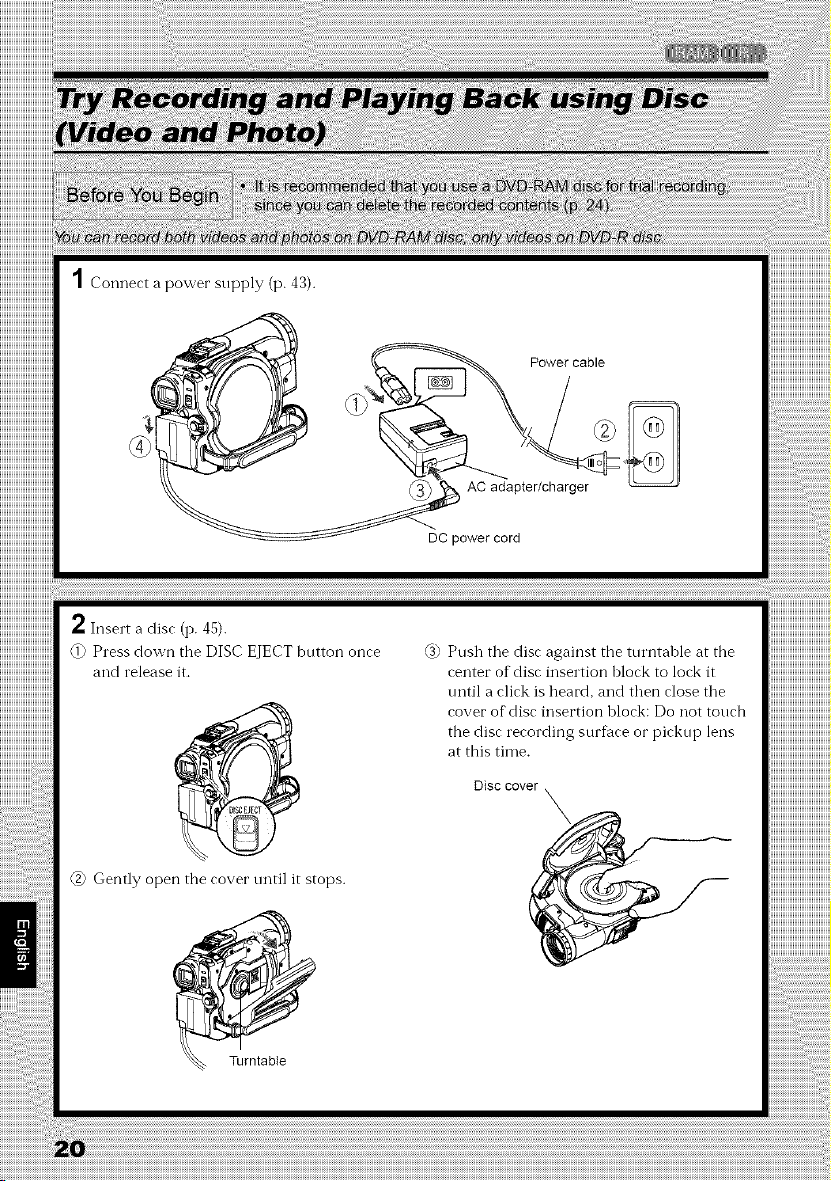
1 Connect a power supply (p. 43).
Power cable
AC adapter/charger
DC power cord
2 Insert a disc (p. 45).
@ Press down the DISC EJECT bntton once
and release it.
@ Gently open the cover tmtil it stops.
@ Push the disc against the turntable at the
center of disc insertion block to lock it
until a click is heard, and then close the
covet" of disc insertion block: Do not touch
the disc recording surfitce or pickup lens
at this time.
Disc cover
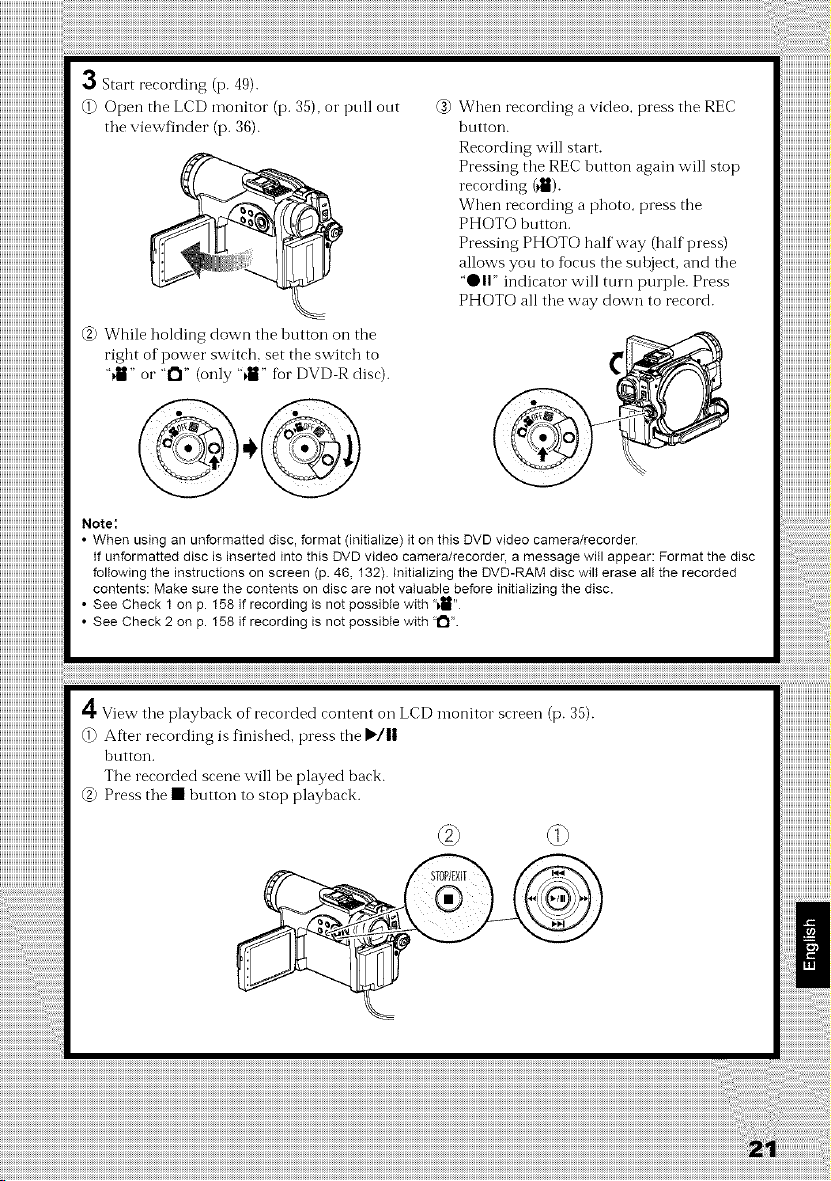
3 Start recording (p. 49).
@ Open the LCD monitor (p. 35), o1"pull out
tile viewf_nder (p. 36).
@ While holding down the button on the
right of power switch, set the switch to
"_ll" or "l"l" (only "din" fbr DVD R disc).
@ When recording a video, press the REC
button.
Recording will start.
Pressing the REC button again will stop
recording (_).
When recording a photo, press the
PHOTO button.
Pressing PHOTO half way (half press)
allows you to tiocus the suhject, and the
"O I1" indicator will turn purple. Press
PHOTO all the way down to record.
Note:
• When using an unformatted disc, format (initialize) it on this DVD video camera/recorder
If unformatted disc is inserted into this DVD video camera/recorder, a message witl appear: Format the disc
following the instructions on screen (p. 46, 132) Initializing the DVD-RAM disc will erase alt the recorded
contents: Make sure the contents on disc are not valuable before initializing the disc.
• See Check 1 on p. 158 if recording is not possibte with "v_"
• See Check 2 on p. 158 if recording is not possibIe with "_'.
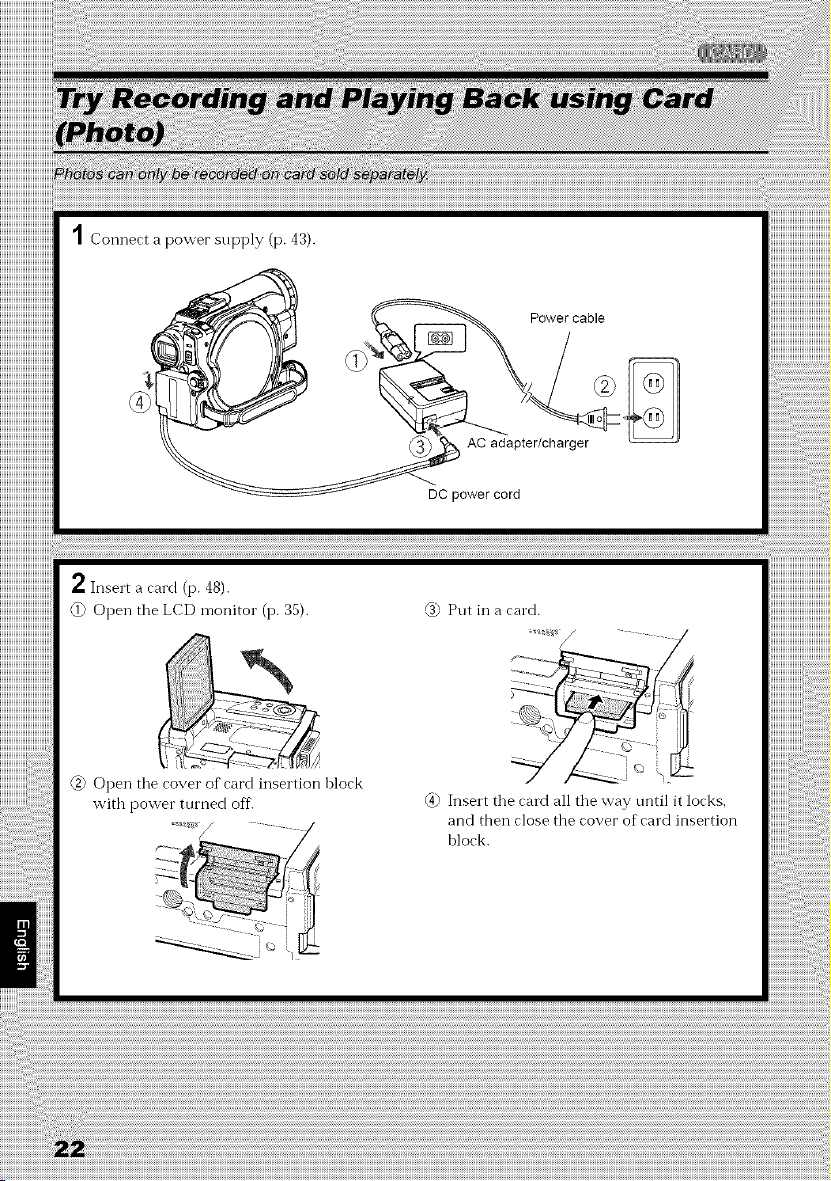
1 Connect a power supply (p. 43).
Power cable
AC adapter/charger
DC power cord
2 Insert a card ([3.48).
@ Open tile LCD monitor (i3. 35). @ Put in a card.
@ Open tile cover of card insertion block
with power turned off.
.......• .........j
@ Insert tile card all tile way until it locks,
and then close the cover of card insertion
block.
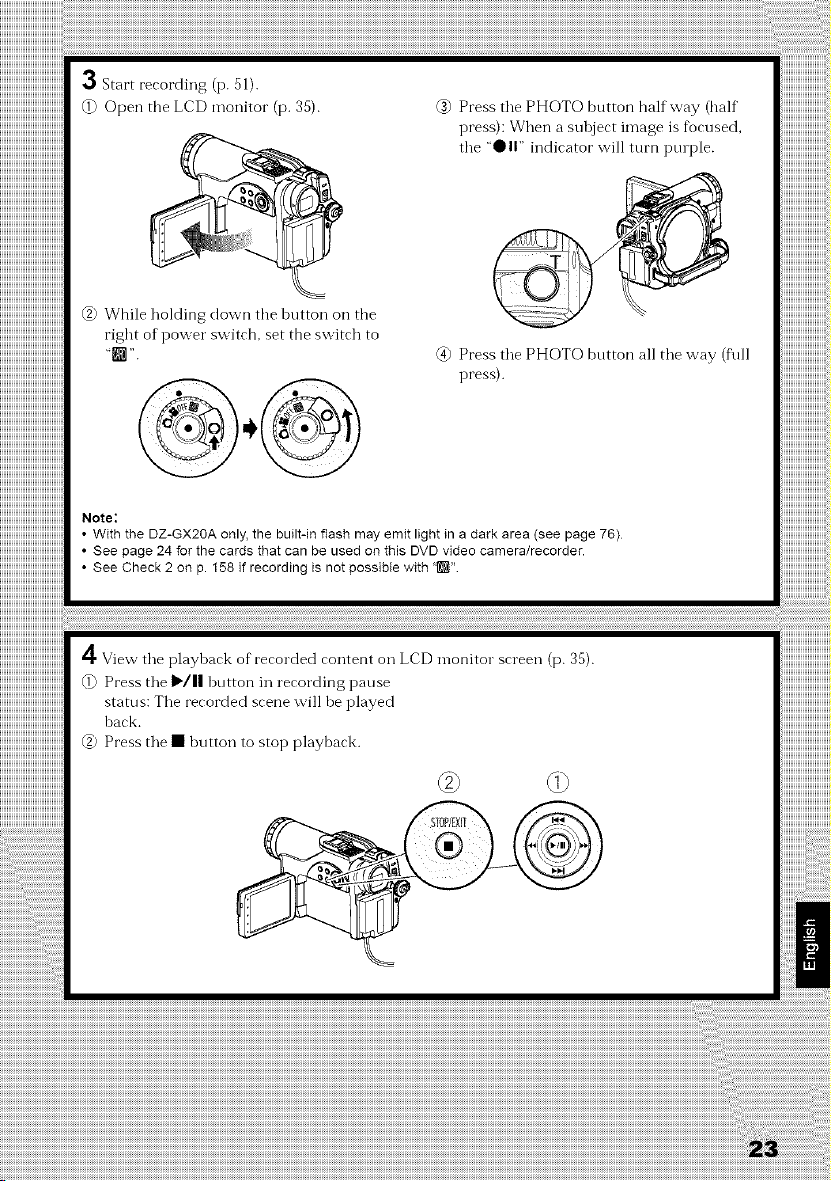
3 Start recording (p. 51).
@ Open tbe LCD monitor (p. 35).
@ While holding down tbe button on tbe
right of power switch, set the switch to
"[]"
@ Press tile PHOTO button halfway (balf
press): When a suloject image is focused,
tile "QII" indicator will turn purple.
@ Press the PHOTO button all the way (f\dl
press).
Note:
• With the DZ-GX2OA only, the built-in flash may emit light in a dark area (see page 76)
• See page 24 for the cards that can be used on this DVD video camera/recorder.
• See Check 2 on p. 158 if recording is not possibte with ':[]"
4 View the playback of recorded content on LCD monitor screen (p. 35).
@ Press the I_/|| button in recording pause
status: Tile recorded scene will be played
back.
@ Press tile • button to stop playback.
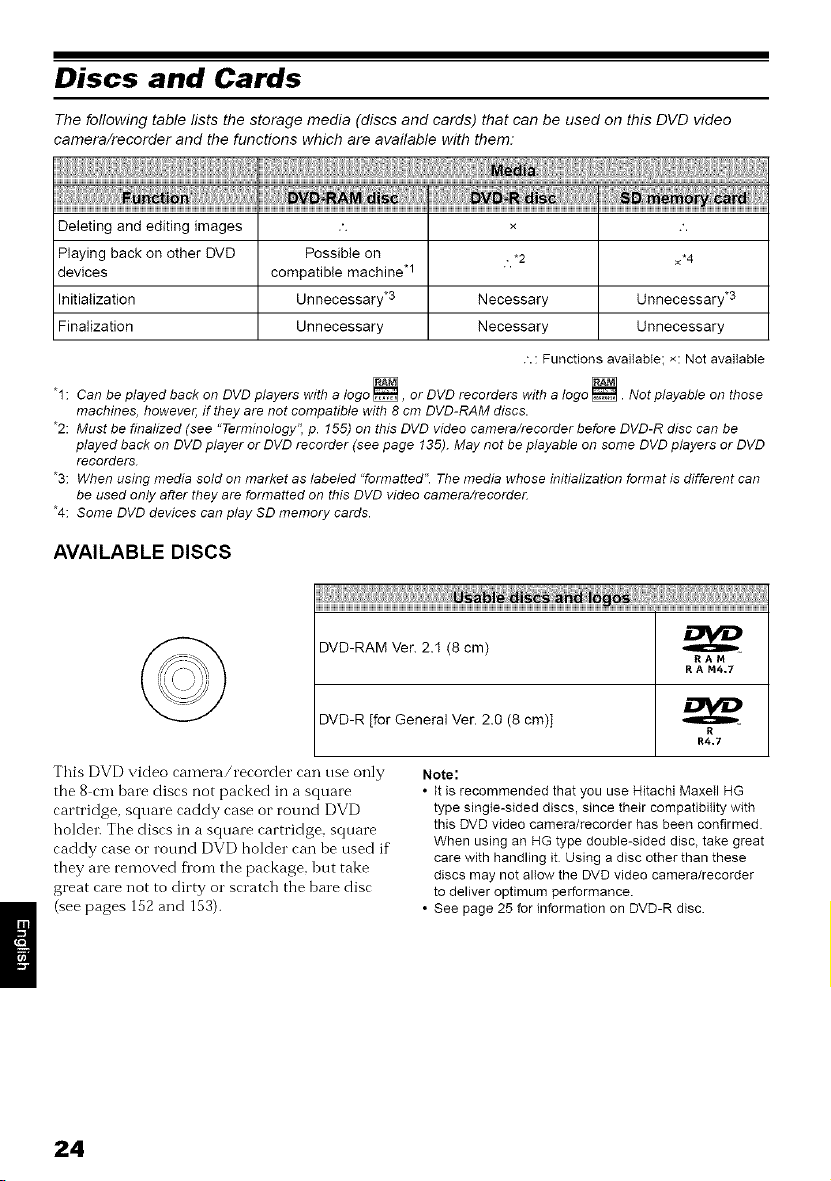
Discs and Cards
The following table lists the storage media (discs and cards) that can be used on this DVD video
camera/recorder and the functions which are available with them:
Deleting and editing images .'. × .'.
Playing back on other DVD Possible on • *2 ×*4
devices compatible machine q
Initialization Unnecessary .3 Necessary Unnecessary .3
Finalization Unnecessary Necessary Unnecessary
.'. : Functions available; x: Not available
"1 : Can be played back on DVD players with a logo N, or DVD recorders with a logo []. Not playable on those
machines, however, if they are not compatible with 8 cm DVD-RAM discs.
*2: Must be finalized (see "Terminology", p. 155) on this DVD video camera/recorder before DVD-R disc can be
played back on DVD player or DVD recorder (see page 135). May not be playable on some DVD players or DVD
recorders.
*3: When using media sold on market as labeled "formatted". The media whose initialization format is different can
be used only after they are formatted on this DVD video camera/recorder.
"4: Some DVD devices can play SD memory cards.
AVAILABLE DISCS
DVD-RAM Ver. 2.I (8 cm)
RAN
R A N4.7
DVD-R [for General Vet. 2.0 (8 cm)]
R
R4.7
This DVD video camera/recorder can use only
the 8 cm hare discs not packed in a square
cartridge square caddy case or round DVD
holder The discs in a square cartridge square
caddy case ol round DVD holder can be used if
they are removed flora the package but take
great care not to dirty ol scratch the bare disc
(see pages 152 and 153)
Note:
• it is recommended that you use Hitachi Maxeil HG
type single-sided discs, since their compatibility with
this DVD video camera/recorder has been confirmed.
When using an HG type double-sided disc, take great
care with handling it Using a disc other than these
discs may not alIow the DVD video camera/recorder
to deliver optimum performance.
• See page 25 for information on DVD-R disc.
24
INFORMATION ON DVD-R DISC
You cannot record a still on DVD R disc, o1"
delete any recorded images o1"data.
For optimum recording on DVD R disc, this
DVD video camera/recorder writes control data
to tile disc in order to automatically make
adjusmmnts when it is inserted and ejected
accompanying recording. If tile disc has no area
to be written liar adjtlstment, recording may not
be possible. To prevent this, do not insert or eject
a DVD R disc accompanying recording more
than 100 times.
Although some models are compatible with tile
VR mode using DVD R disc, this DVD video
camera/recorder is not compatible with that
n-lode.
OFinalizing DVD-R disc
BefOre using the 8 cm DVD R disc provided on
this DVD video camera/recorder on a DVD
player o1" DVD video recorder that is compatible
with 8 cm DVD R disc, the disc must be
finalized on this DVD video camera/recordei:
For the finalizing procedure of 8 cm DVD R disc,
reDr to "FINALIZING DVD R DISC (FINALIZE
DISC)" (p. 135).
Note:
• When using an unformatted DVD-R disc, it is
necessary to format it on this DVD video camera/
recorder (see page 46).
• Do not insert a DVD-R disc recorded on this DVD
video camera/recorder but not fnalized, into a
recordable device, such as a DVD recorder: The
recorded data may be damaged (except for devices
that allow ptayback of a DVD-R disc not finalized on
this DVD video camera/recorder)
• DVD-R discs edited and finalized on PC or those
finalized on another DVD recorder may not be
playabIe on this DVD video camera/recorder,
depending on the editing software used or recorded
status of DVD-R disc
• If you insert a DVD-R disc recorded on a DVD video
camera/recorder other than DZ-GX2OA, DZ-MV780A
or DZ-MV730A and not finalized, the Disc Navigation
screen witl automaticaIly start, and no recording can
be done on the disc nor can it be finalized
EXAMPLES OF DISCS THAT CANNOT
CAMERA/RECORDER:
DVD RAM (2.6 GB) VeI: 1.0
CD RW
DVD R (3.9 GB) VeI: 1.0
CD
DVD R (4.7 GB) for Authoring VeI: 2.0
LD
DVD RW
MO
DVD+RW
MD
DVD+R
iD
DVD ROM
Floppy disk
DVD Video
Discs other than those with diameter of 8 cm
CD R
CD ROM
DVD R (douhle layered)
BE USED ON THIS DVD VIDEO
Note:
Discs recorded on PC or DVD recorder may not be
playable on this DVD video camera/recorder: If so,
message "This disc cannot be used." will appear. Also,
blue thumbnails witt appear (Fig. 1" on page 26), or
normal playback will not be possible
25
HANDLING DISCS
OUsing discs
DVD RAM and DVD R discs are very delicate
recording media. Carefully read the fbllowing
cautions and observe them:
• Ahvays use a brand new disc when recording
important materiah
• Be sure not to touch tile recording surR_ce of
disc, or dirty or scratch it.
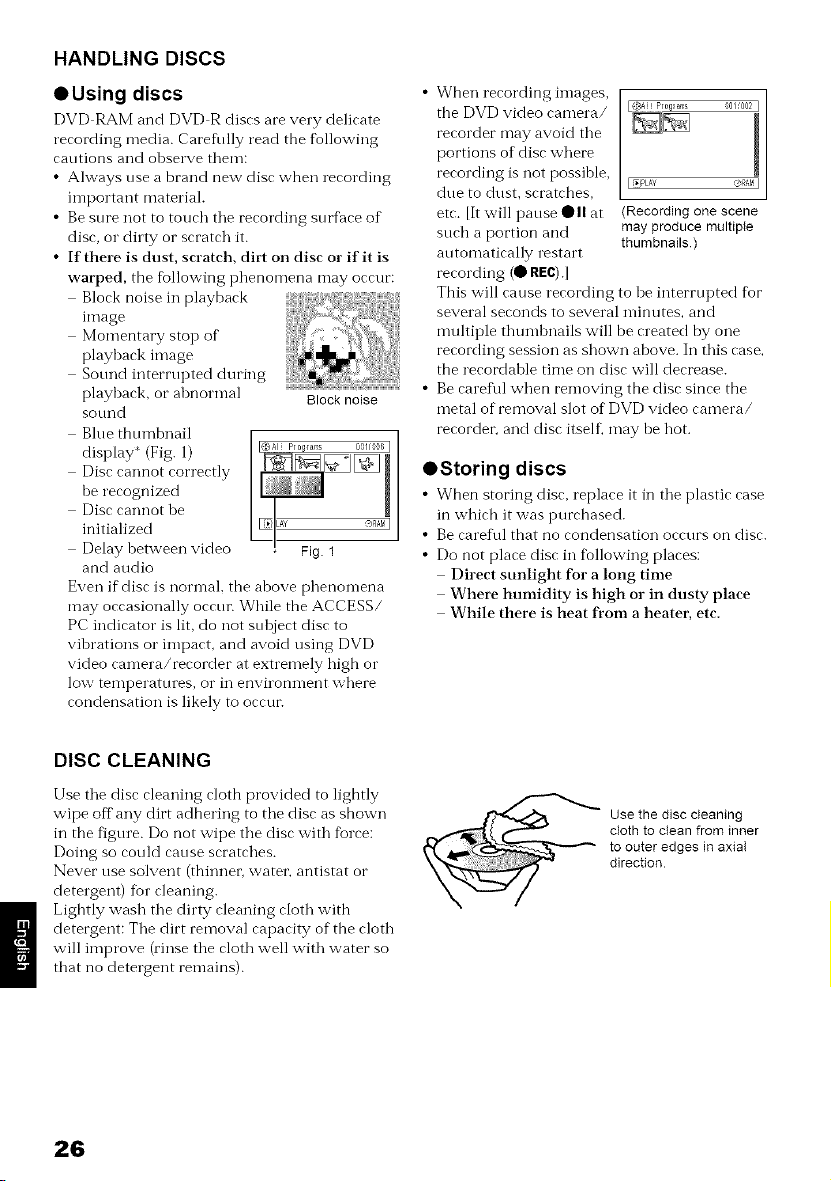
• If there is dust, scratch, dirt on disc or if it is
warped, the %llowing phenomena may occur:
Block noise in playback
image
Momentary stop of
playback image
Sound interrupted during
playback, or abnormal Block noise
sot/nd
Blue thumbnail
display* (Fig. 1)
Disc cannot con'ectly
be recognized
Disc cannot be
initialized
Delay between video
and audio
Even if disc is normal, the above phenomena
may occasionally occtm While the ACCESS/
PC indicator is lit, do not subject disc to
vibrations or impact, and avoid using DVD
video camera/recorder at extremely high or
low temperatures, o1"in environment where
condensation is likely to occtm
When recording images,
tile DVD video camera/ 01,,002J
recorder may avoid tile
portions of disc where
1
recording is not possible, I"_L_Y ®_A_!I
due to dust, scratches,
etc. lit will pause QII at (Recording one scene
such a portion and may produce multiple
automatically restart thumbnails)
recording (0 REC).[
This will cause recording to be interrupted fbr
several seconds to several minutes, and
multiple thumbnails will be created by one
recording session as shown above. In this case,
the recordable time on disc will decrease.
Be careflll when removing the disc since the
metal of removal slot of DVD video camera/
recordei; and disc itself, may be hot.
OStoring discs
• _Vben storing disc, replace it ill tile plastic case
in which it was purchased.
• Be careflll that no condensation occurs on disc.
• Do not place disc in fbllowing places:
Direct sunlight for a long time
Where humidity is high or in dusty place
While there is heat from a heater, etc.
DISC CLEANING
Use tile disc cleaning cloth provided to lightly
wipe off any dirt adhering to tile disc as shown
in the figure. Do not wipe tile disc with fbrce:
Doing so could cause scratches.
Never use solvent (thinner, water, antistat or
detergenO for cleaning.
Ligbtly wash tile dirty cleaning cloth with
detergent: Tile dirt removal capacity of the cloth
will improve (rinse tile cloth well with water so
tbat no detergent remains).
Use the disc cleaning
cloth to clean from inner
to outer edges in axial
direction.
26
AVAILABLE CARDS
SD memory card can be used on this DVD video
calllera/recorder.
When using an exclusive adapter, a miniSD
memory card can be used in tile same way as an
SD memory cald.
OHandling card
• Do not use cards other than
the designated ones.
• Be sure to use a brand new
cal_t when recording vital
images.
• Do not touch the card
terminal or allow it to touch
metal. Terminal
• Do not paste anything other
than exclusive label on label pasting portion.
• Do not subject card to impact, bend o1" drop it.
• Do not disassemble card or modify it.
• Do not expose card to water.
• Do not use o1" store card in the fbllowing
places:
Where tile temperature is high, such as in
vehicle at high temperatures, under burning
Stltl o1" near a heatei=
Where humidity is high, or in dusty place
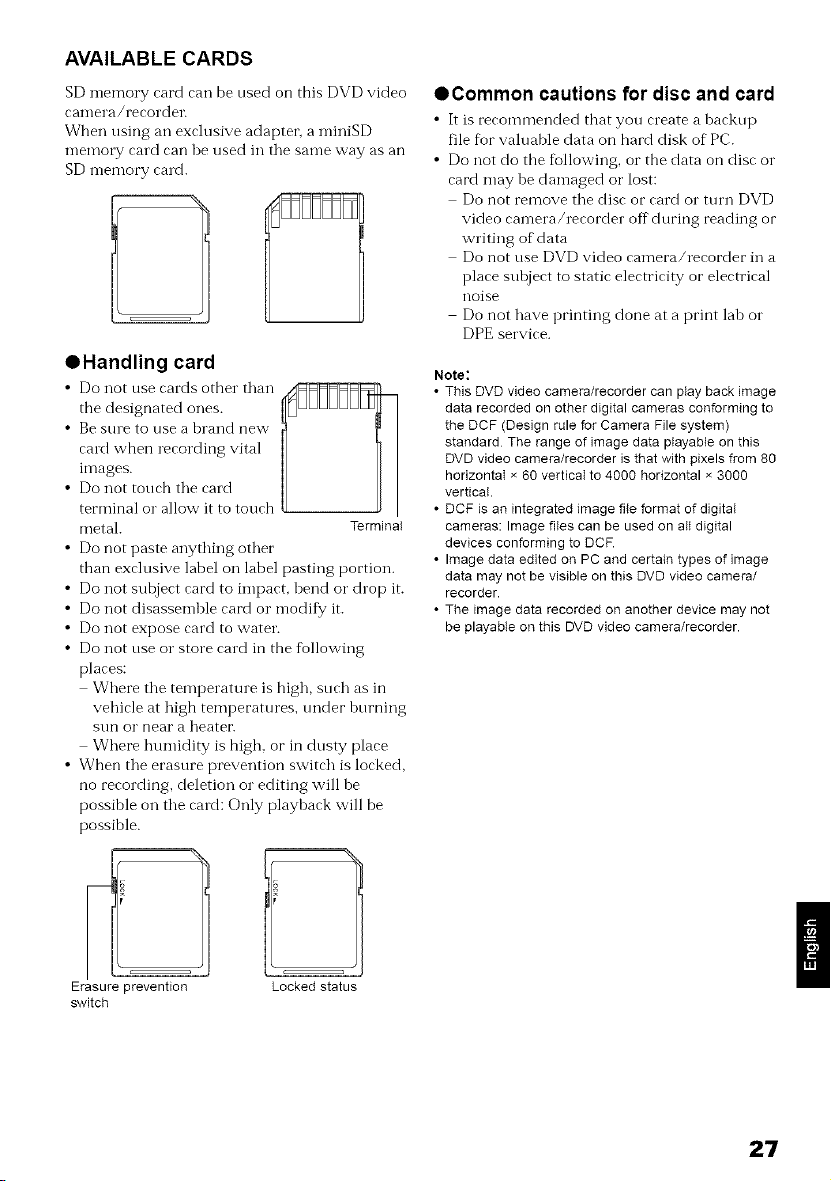
• When tile erasure prevention switch is locked,
no recording, deletion o1"editing will be
possible on tile cm_t: Only playhack will be
possible.
Erasure ,revention Locked status
switch
OCommon cautions for disc and card
• It is recommended that you create a backup
file for valuable data on hard disk of PC.
• Do not do tile following, or the data on disc o1"
card may be damaged or lost:
Do not remove file disc or card o1" turn DVD
video camera/recorder off during reading or
writing of data
Do not use DVD video camera/recorder in a
place sul0ject to static electricity or electrical
noise
Do not have printing done at a print lab or
DPE service.
Note:
• This DVD video camera/recorder can play back image
data recorded on other digital cameras conforming to
the DCF (Design rule for Camera File system)
standard The range of image data playable on this
DVD video camera/recorder is that with pixels from 80
horizontal x 60 vertical to 4000 horizontal x 3000
vertical.
• DCF is an integrated image file format of digital
cameras: Image files can be used on all digital
devices conforming to DCR
• Image data edited on PC and certain types of image
data may not be visible on this DVD video camera/
recorder.
• The image data recorded on another device may not
be playable on this DVD video camera/recorder.
27
Storage Capacity on Disc or Card
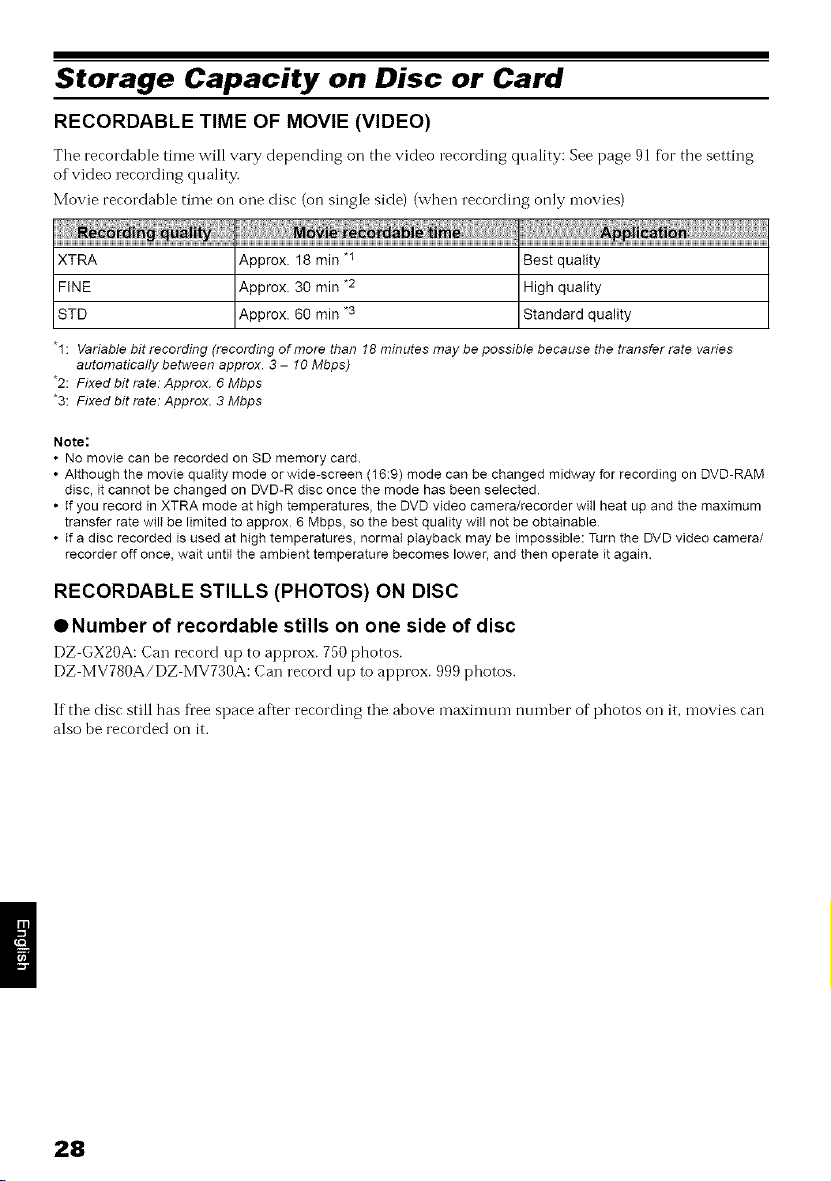
RECORDABLE TIME OF MOVIE (VIDEO)
Tile reeordable tinle will vary depending oil tbe video recording quality: See page 91 fbr tbe setting
of video recording quality.
Movie recordable time on one disc (on single side) (when recording only movies)
XTRA Approx. 18 min "1 Best quality
FINE Approx. 30 min *2 High quality
STD Approx. 60 min *3 Standard quality
"1 : Variable bit recording (recording of more than 18 minutes may be possible because the transfer rate varies
automatically between approx. 3 - 10 Mbps)
*2: Fixed bit rate: Approx. 6 Mbps
*3: Fixed bit rate: Approx. 3 Mbps
Note:
• No movie can be recorded on SD memory card.
•AIthough the movie quality mode or wide-screen (16:9) mode can be changed midway for recording on DVD-RAM
disc, it cannot be changed on DVD-R disc once the mode has been selected
• If you record in XTRA mode at high temperatures, the DVD video camera/recorder will heat up and the maximum
transfer rate wilt be limited to approx 6 Mbps, so the best quality will not be obtainable
• If a disc recorded is used at high temperatures, normal playback may be impossible: Turn the DVD video camera/
recorder off once, wait until the ambient temperature becomes lower, and then operate it again.
RECORDABLE STILLS (PHOTOS) ON DISC
eNumber of recordable stills on one side of disc
DZ GX20A: Can record up to approx. 750 pbotos.
DZ MV780A/DZ MV730A: Can record up to approx. 999 photos.
If the disc still has fl'ee space after recording the above maximum number of photos on it, movies can
also be recorded on it.
28
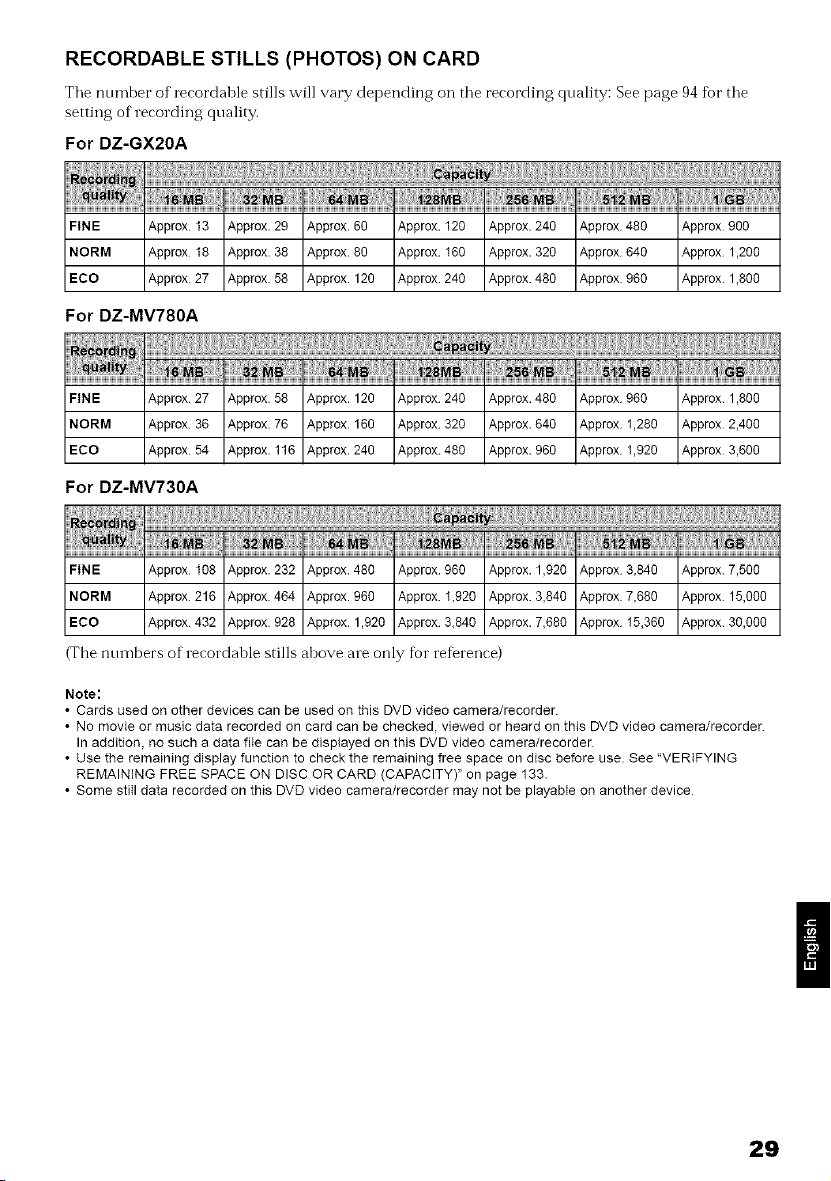
RECORDABLE STILLS (PHOTOS) ON CARD
Tlle number of recordable stills will vary depending oil tile recording quality: See page 94 for tile
setting of recording quality.
For DZ-GX20A
FINE Approx 13
NORM Approx 18
ECO Approx 27
For DZ-MV780A
Approx. 29 Approx. 60 Approx. 120 Approx. 240 Approx 480 Approx 900
Approx. 38 Approx. 80 Approx. 160 Approx. 320 Approx 640 Approx 1,200
Approx. 58 Approx. 120 Approx 240 Approx. 480 Approx 960 Approx. 1,800
Approx. 58 Approx. 120 Appmx 240 Approx. 480 Appmx 960 Approx. 1,800
Approx. 76 Approx. 160 Approx 320 Approx. 640 Approx 1,280 Approx 2,400
Approx. 116 Approx. 240 Approx 480 Approx. 960 Approx 1,920 Approx 3,600
FINE Approx 27
NORM Approx 36
ECO Approx 54
For DZ-MV730A
a = .a, =
FINE Approx 108 Approx. 232 Approx. 480 Approx 960 Approx. 1,920 Approx 3,840 Approx. 7,500
NORM Approx 216 Approx. 464 Approx. 960 Approx 1,920 Approx. 3,840 Approx 7,680 Approx. 15,000
ECO Approx 432 Approx. 928 Approx. 1,920 Approx 3,840 Approx. 7,680 Approx 15,360 Approx. 30,000
(The numbers of recordable stills above are only for reference)
Note:
• Cards used on other devices can be used on this DVD video camera/recorder.
• No movie or music data recorded on card can be checked, viewed or heard on this DVD video camera/recorder
In addition, no such a data fiIe can be displayed on this DVD video camera/recorder.
• Use the remaining display function to check the remaining free space on disc before use. See 'VERIFYING
REMAINING FREE SPACE ON DISC OR CARD (CAPACITY)" on page 133
• Some stiII data recorded on this DVD video camera/recorder may not be playabie on another device
29
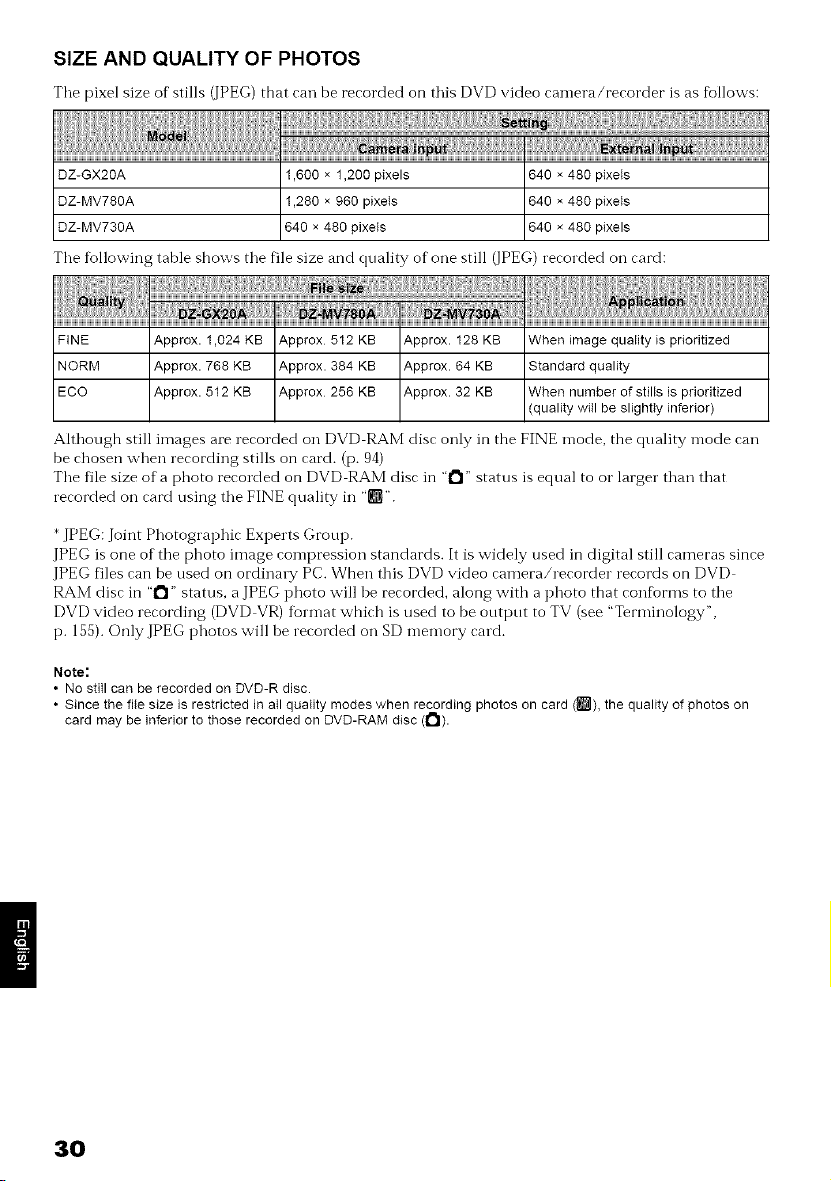
SIZE AND QUALITY OF PHOTOS
Tile pixel size of stills (]PEG) that ran be rerorded on this DVD video ramera/rerorder is as follows:
}} i{{{{{ { { {,} i{{{{{ { {
DZ-GX2gA 1,600 * 1,200pixels 640 ×480 pixels
DZ-MV78OA 1,280 x 960 pixeIs 640 × 480 pixeis
DZ-MV730A 640 x 480 pixeis 640 x 480 pixels
Tile following table shows the file size and quality of'one still (JPEG) recorded oil card:
FiNE Approx. 1,024 KB Approx 512 KB Approx. 128 KB When image quality is prioritized
NORM Approx. 768 KB Approx. 384 KB Approx. 64 KB Standard quality
ECO Approx. 512 KB Approx 256 KB Approx. 32 KB When number of stills is pdodtized
(quality will be slightly inferior)
Although still images are recorded on DVD RAM disc only in the FINE n-lode, the quality mode can
be chosen when recording stills on card. (p. 94)
The file size of a photo recorded on DVD RAM disc in "t"l" status is equal to or larger than that
recorded on card using the FINE quality in "[1_".
* JPEG: Joint Photographic Experts Group.
JPEG is one of the photo image compression standards. It is widely used in digital still cameras since
JPEG files can be used on ordinary PC. When this DVD video camera/recorder records on DVD
RAM disc in "t"l" status, a JPEG photo will be recorded, along with a photo that conf_rms to the
DVD video recording (DVD VR) format which is used to be output to TV (see "Terminology",
p. 155). Only JPEG photos will be recorded on SD memory card.
Note:
• No stitl can be recorded on DVD-R disc.
• Since the file size is restricted in ail quality modes when recording photos on card ({g_]),the quality of photos on
card may be inferior to those recorded on DVD-RAM disc (1"1).
31}
This section explains preparations for recording - setting up the DVD video camera/recorder
and battery.
Setting Up the DVD Video Camera/Recorder
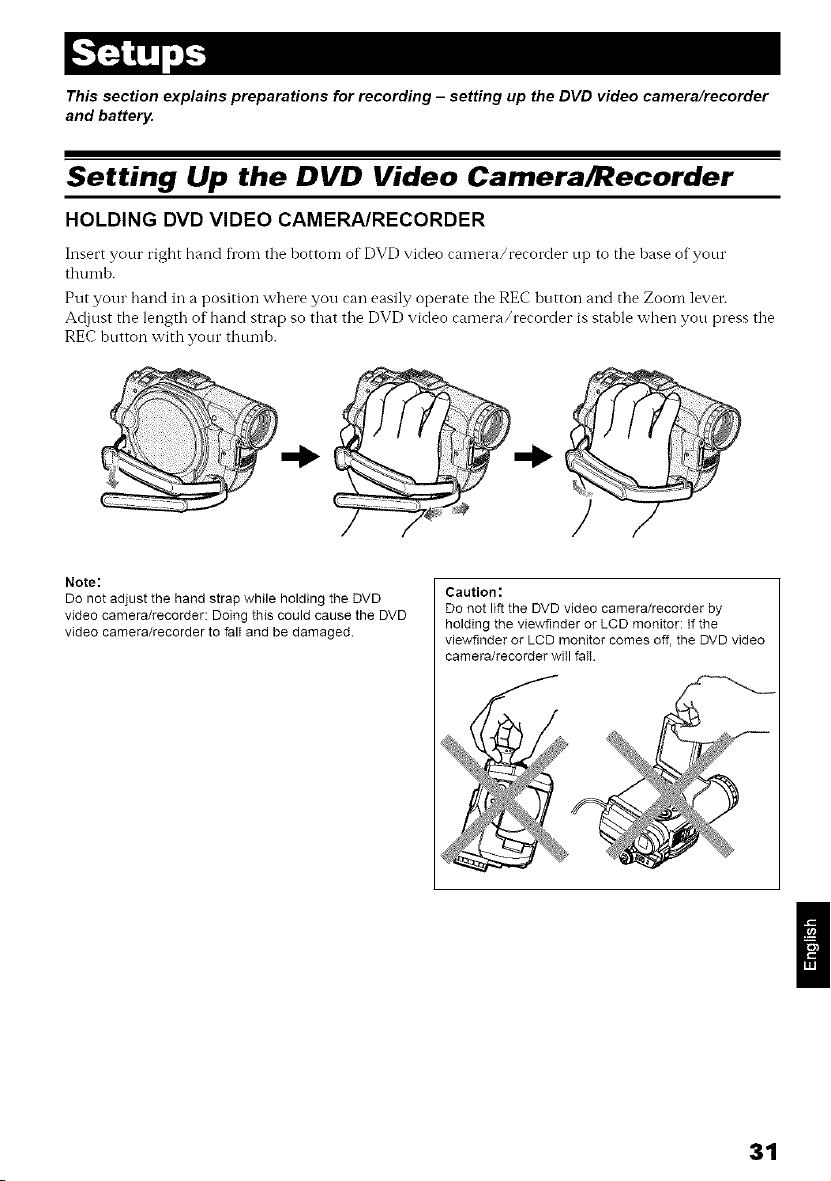
HOLDING DVD VIDEO CAMERA/RECORDER
Insert your right hand fl'om tile bottom of DVD video ramera/rerorder up to tile base of your
thumb.
Put your hand in a position where you can easily operate tile REC button and the Zoom lever.
Adjust the length of hand strap so that the DVD video camera/recorder is stable when you press the
REC button with your thumb.
Note:
Do not adjust the hand strap while holding the DVD
video camera/recorder: Doing this could cause the DVD
video camera/recorder to fall and be damaged.
Caution :
Do not lift the DVD video camera/recorder by
holding the viewflnder or LCD monitor: If the
viewfinder or LCD monitor comes off, the DVD video
camera/recorder will fall.
31
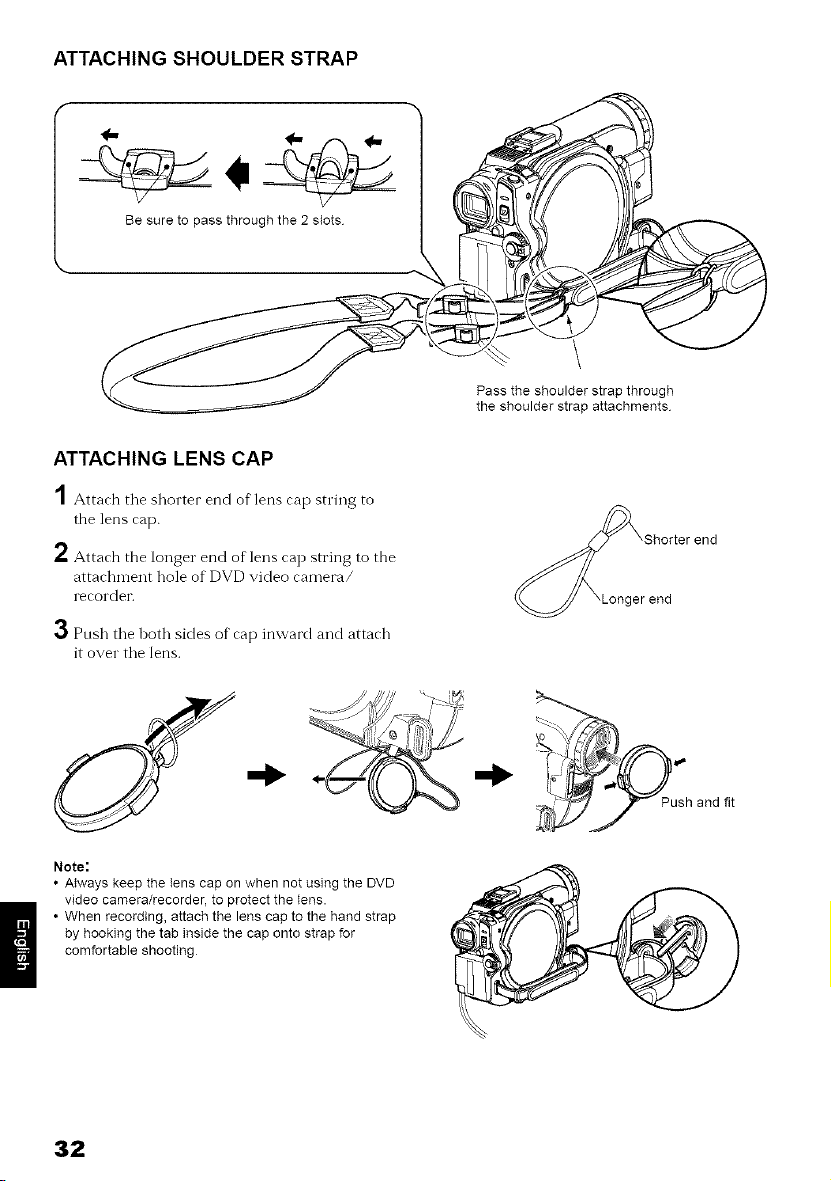
ATTACHING SHOULDER STRAP
Be sure to pass through the 2 slots
Pass the shoulder strap through
the shoulder strap attachments
ATTACHING LENS CAP
A
/ Attach tile shorter end of lens cap string to
the lens cap.
2 Attach the longer end of lens cap string to the
attachment hole of DVD video camera/
recorder.
Pnsh tile both sides of cap inward and attach
it over tile lens.
Note:
• Always keep the lens cap on when not using the DVD
video camera/recorder, to protect the lens.
• When recording, attach the lens cap to the hand strap
by hooking the tab inside the cap onto strap for
comfortable shooting
er end
32
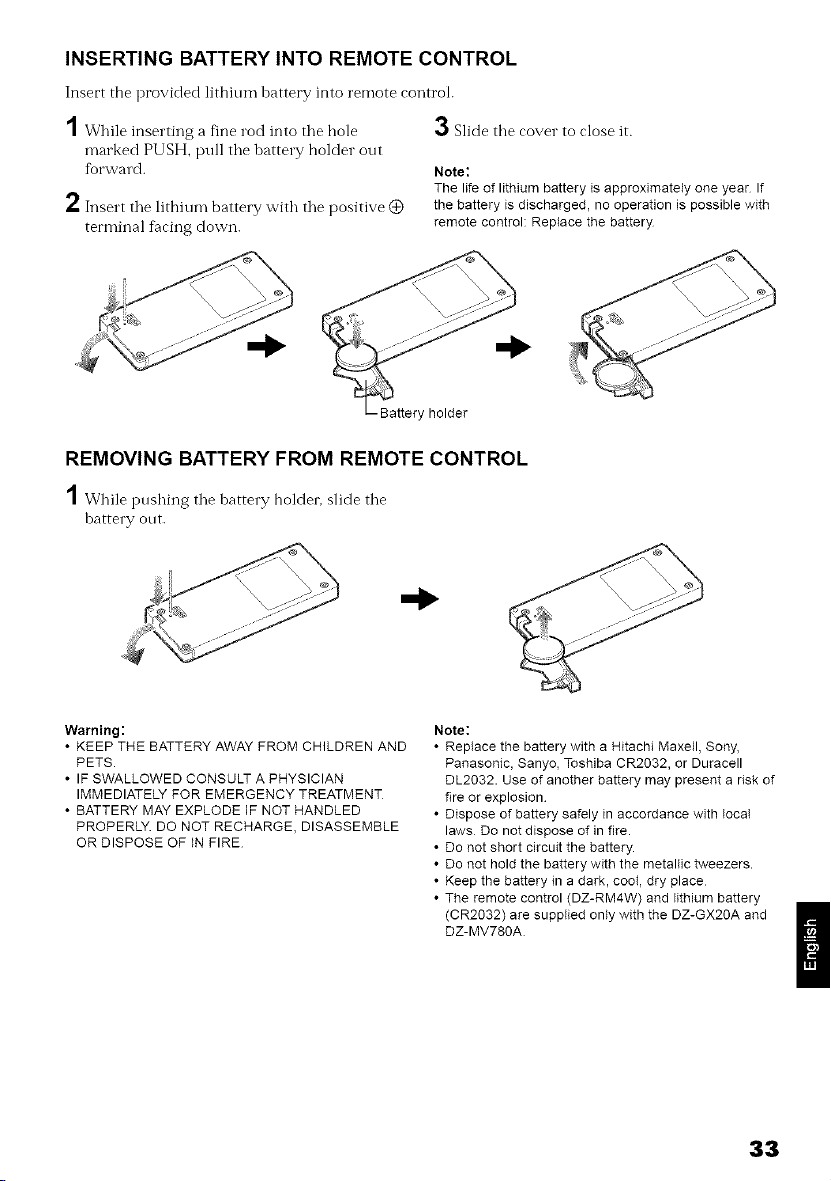
INSERTING BATTERY INTO REMOTE CONTROL
Insert the provided lithium battery into remote controh
,4
/ While inserting a fine rod into tile bole
marked PUSH, pull tile battery holder out
fiJrward.
2 Insert tile lithium battery with tile positive (_)
terminal f_cing down.
3Slide tbe cox,er to close it.
Note:
The life of lithium battery is approximately one year If
the battery is discharged, no operation is possible with
remote control: Replace the battery
Battery holder
REMOVING BATTERY FROM REMOTE CONTROL
I Whi,epnshingtile battery holder, slide tile
battery out.
Warning:
• KEEP THE BATTERY AWAY FROM CHILDREN AND
PETS.
• IF SWALLOWED CONSULT A PHYSICIAN
IMMEDIATELY FOR EMERGENCY TREATMENT
• BATTERY MAY EXPLODE IF NOT HANDLED
PROPERLY. DO NOT RECHARGE, DISASSEMBLE
OR DISPOSE OF IN FIRE
Note:
• Replace the battery with a Hitachi Maxell, Sony,
Panasonic, Sanyo, Toshiba CR2032, or Duracell
DL2032. Use of another battery may present a risk of
fire or explosion
• Dispose of battery safely in accordance with IocaI
laws Do not dispose of in fire.
• Do not short circuit the battery.
• Do not hold the battery with the metallic tweezers.
• Keep the battery in a dark, cool, dry place
• The remote control (DZ-RM4W) and lithium battery
(CR2032) are supplied only with the DZ-GX2OA and
DZ-MV78OA
33
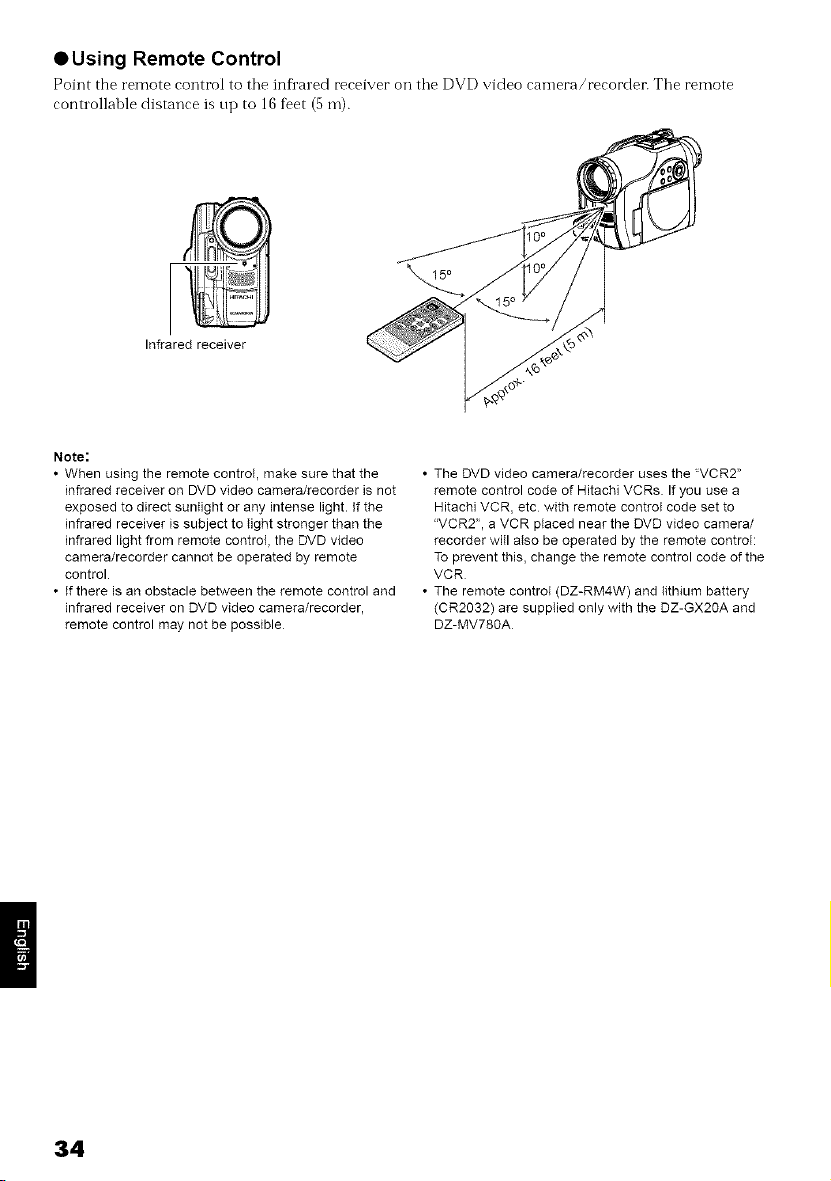
OUsing Remote Control
Point the remote control to tile inf,'areal receiver oil tile DVD video camera/recorcteI_ Tile remote
controllable distance is up to 16 feet (5 m).
\
Infrared receiver
Note:
• When using the remote control, make sure that the
infrared receiver on DVD video camera/recorder is not
exposed to direct suntight or any intense light. If the
infrared receiver is subject to light stronger than the
infrared light from remote control, the DVD video
camera/recorder cannot be operated by remote
control.
• If there is an obstacle between the remote control and
infrared receiver on DVD video camera/recorder,
remote control may not be possible
• The DVD video camera/recorder uses the 'VCR2"
remote control code of Hitachi VCRs If you use a
Hitachi VCR, etc with remote control code set to
"VCR2", a VCR placed near the DVD video camera/
recorder will atso be operated by the remote control:
To prevent this, change the remote control code of the
VCR
• The remote control (DZ-RM4W) and lithium battery
(CR2032) are suppIied only with the DZ-GX20A and
DZ-MV780A
34
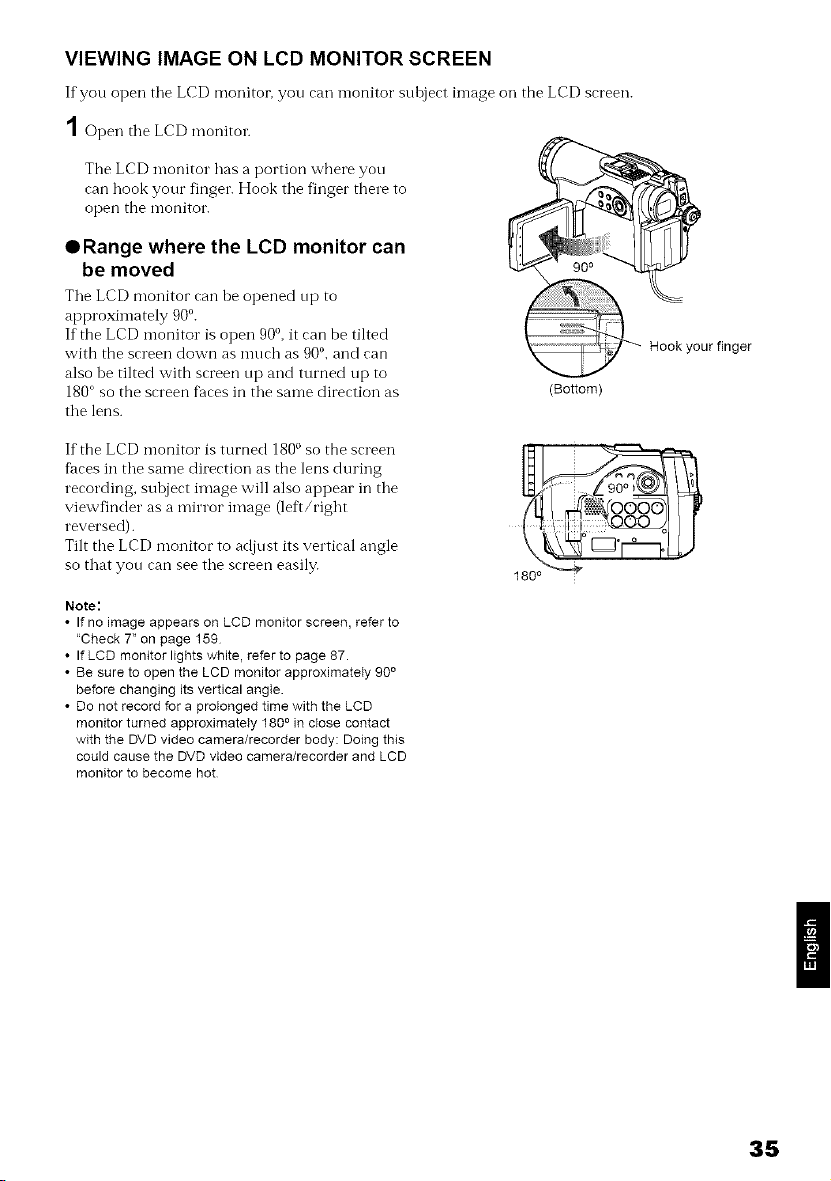
VIEWING IMAGE ON LCD MONITOR SCREEN
If you open tile LCD monitoi; you can n-lonitor subject in-lage oil the LCD screen.
1 Open tile LCD monitor.
The LCD monitor has a portion where you
can hook your finger. Hook tile finger there to
open the monitor.
ORange where the LCD monitor can
be moved
Tile LCD monitor can be opened up to
approximately 900.
If the LCD monitor is open 90 °, it can be tilted
with the screen down as much as 900, and can
also be tilted with screen up and turned up to
180° so the screen f._ces in tile same direction as
tile lens.
(Bottom)
Hook your finger
If the L CD monitor is turned 1800so the screen
f_ces in tile same direction as the lens during
recording, subject image will also appear in tile
viewfinder as a mirror image (left/right
reversed).
Tilt the LCD monitor to adjust its vertical angle
so that you can see tile screen easily.
Note:
• If no image appears on LCD monitor screen, refer to
"Check T' on page 159
• If LCD monitor lights white, refer to page 87.
• Be sure to open the LCD monitor approximately 90 o
before changing its vertical angle.
• Do not record for a prolonged time with the LCD
monitor turned approximately 1800 in close contact
with the DVD video camera/recorder body: Doing this
could cause the DVD video camera/recorder and LCD
monitor to become hot
35
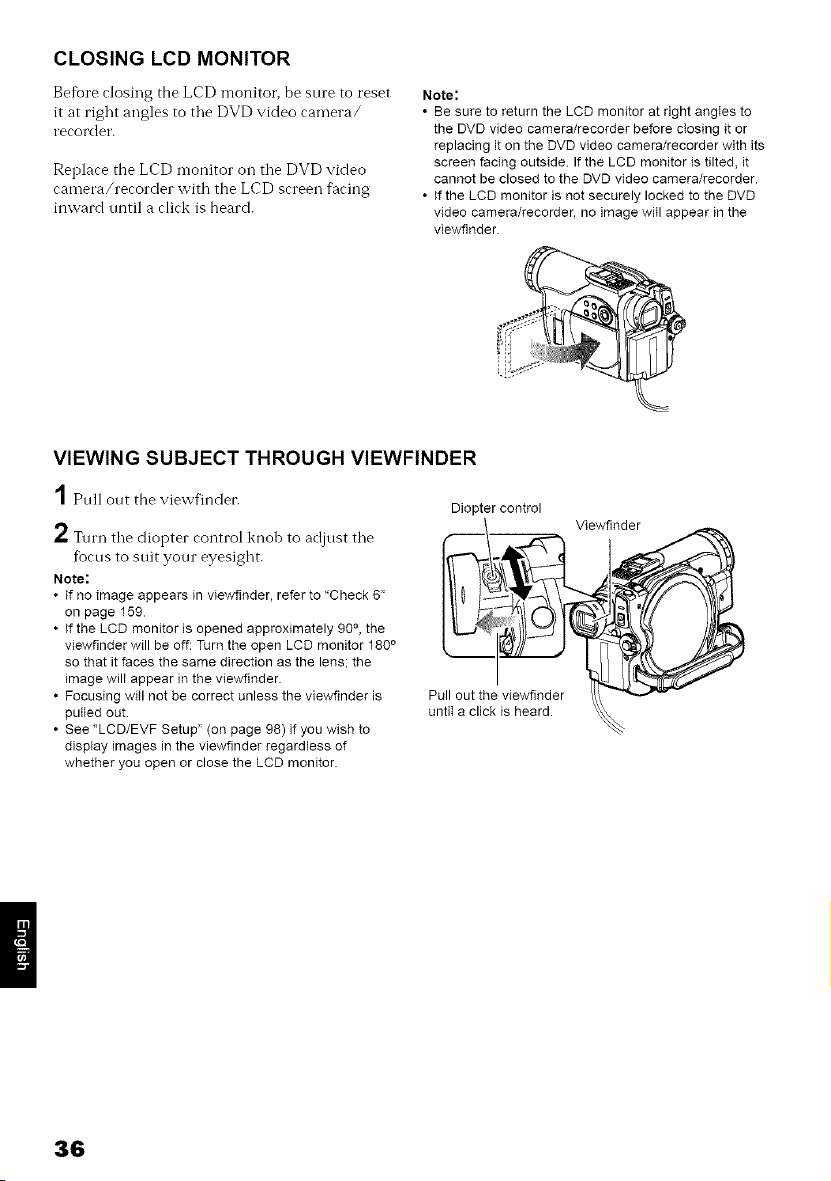
CLOSING LCD MONITOR
Before dosing the LCD n-lonitor, be sure to reset
it at right angles to tile DVD video camera/
recorder.
Replace the LCD monitor Oil tile DVD video
camera/recorder with the LCD screen f;_cing
inward until a click is heard.
Note:
• Be sure to return the LCD monitor at right angIes to
the DVD video camera/recorder before cIosing it or
replacing it on the DVD video camera/recorder with its
screen facing outside If the LCD monitor is tilted, it
cannot be closed to the DVD video camera/recorder.
• If the LCD monitor is not securely locked to the DVD
video camera/recorder, no image witl appear in the
viewflnder.
VIEWING SUBJECT THROUGH VIEWFINDER
1Pull out the viewfinder.
L Turn tile diopter control knob to adjust tile
fbcus to suit your eyesight.
Note:
• If no image appears in viewfinder, refer to 'Check 6"
on page 159
• If the LCD monitor is opened approximately 90 °, the
vtewfinder will be off: Turn the open LCD monitor 180 °
so that it faces the same direction as the lens; the
image will appear in the viewfinder.
• Focusing will not be correct unless the viewfinder is
putied out
• See "LCD/EVF Setup" (on page 98) if you wish to
display images in the viewfinder regardless of
whether you open or close the LCD monitor.
Diopter control
36
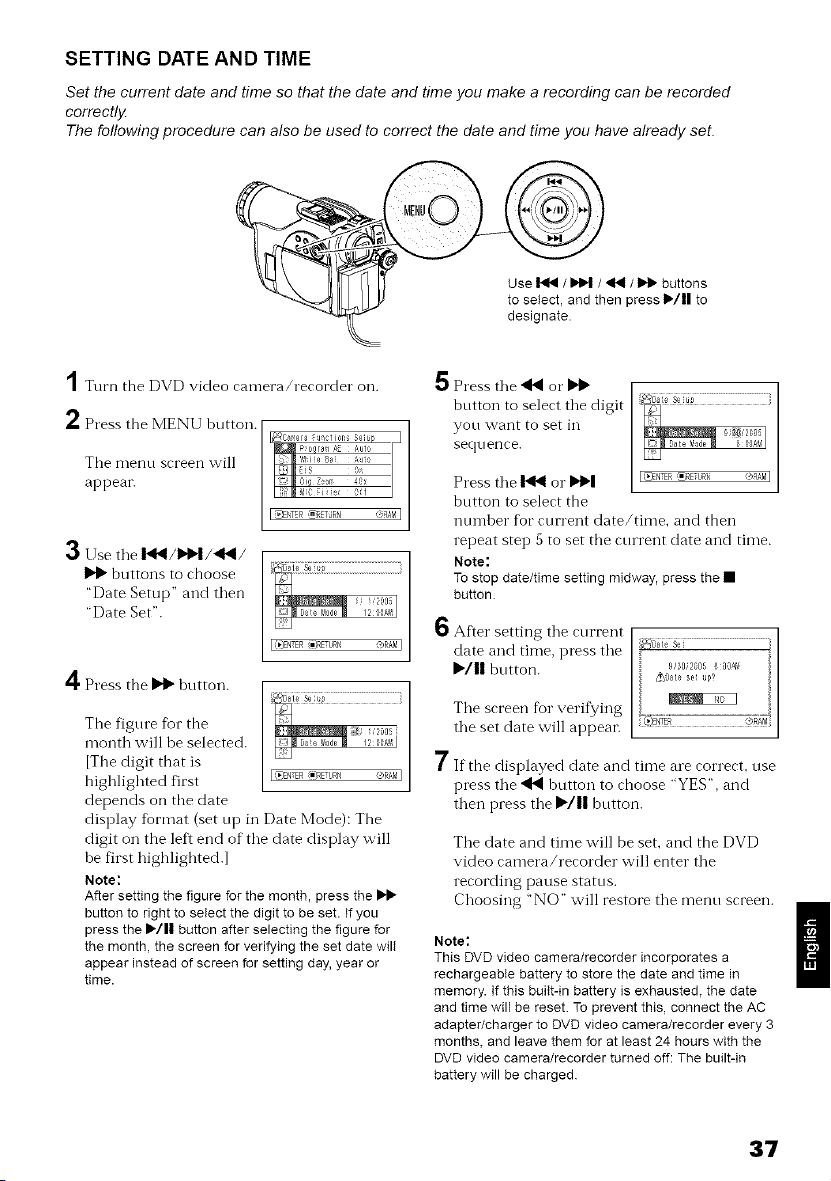
SETTING DATE AND TIME
Set the current date and time so that the date and time you make a recording can be recorded
correctly
The following procedure can also be used to correct the date and time you have already set.
Use _ / _ / ,1_ / _ buttons
to select, and then press I,/11 to
designate.
1 Turn the DVD video camera/recorder on.
2 Press the MENU button.
The menn screen will
appear.
Use tile I_1_/I,'I,!/'_II/
buttons to choose
"Date Setup" and then
"Date Set".
4Press the _ hntton.
T}_ Oi_ Z_oz 401
ii_ MiC Fii{er 0_f
I _ENTERi_;RETJRN c_MI
(,}-NTER(_)RETIJRN ORAMI
The fignre fbr the
month will be selected.
IThe digit that is
highlighted first I{_'J£NER'm)RETIJRN®R}MI
depends on tile date
display %rmat (set up in Date Mode): The
digit on the ]eft end of tile date display will
he first highlighted.I
Note:
After setting the figure for the month, press the
button to right to select the digit to be set. tf you
press the I_/11 button after selecting the figure for
the month, the screen for verifying the set date wilt
appear instead of screen for setting day,year or
time.
5 Press tile _ o1"_ I
button to select the digit I
yon want to set in I
seqnence.
Press tile _ o1"Dd_l _,_rER@_ETURt _>MI
button to select the
numher %r current date/time, and then
repeat step 5 to set tile current date and time.
Note:
Tostop date/time setting midway, press the •
button
6After setting tile cnrrent I
date and time, press tile I,,_,i, _,
I_/11 bntton, d/0_t_g/a°*2_OS_eupt_°°_
The screen %r verifying
the set date wi appear.
7 If the displayed date and time are correcL use
press the _ button to choose "YES", and
then press tile I"/11 button.
The date and time will be set, and the DVD
video camera/recorder will enter tile
recording pause status.
Choosing "NO" will restore tile menu screen.
Note:
This DVD video camera/recorder incorporates a
rechargeabIe battery to store the date and time in
memory. If this buitt-in battery is exhausted, the date
and time will be reset To prevent this, connect the AC
adapter/charger to DVD video camera/recorder every 3
months, and leave them for at least 24 hours with the
DVD video camera/recorder turned off: The built-in
battery will be charged
I
37
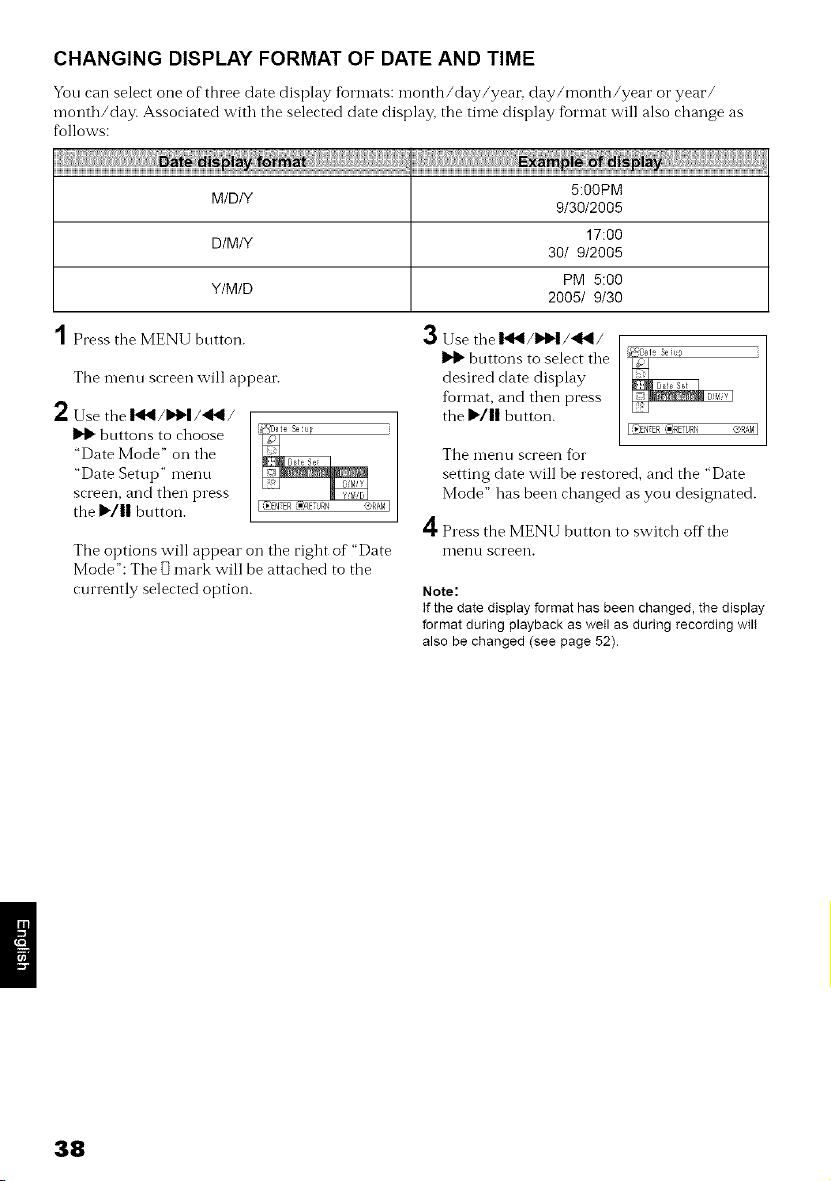
CHANGING DISPLAY FORMAT OF DATE AND TIME
You can select one of three date display fbrmats: month/day/year, day/month/year o1"year/
month/day. Associated with the selected date display, the time display fbrmat will also change as
follows:
5:O0PM
M/D/Y 9/30/2005
17:00
D/M/Y 30/ 9/2005
PM 5:00
Y/MID 2005/ 9/30
Press the MENU button.
The menu screen will appear.
2 Use the 1_I4/D"I_I/'_I/
11_ buttons to choose
"Date Mode" on the
"Date Setup" menu
screen, and then press
the I_'/|| button.
The options will appear on tile right of "Date
Mode": Tile 1_mark will be attached to the
currently selected option.
,._ Use tile I_1_/_1_/'_1/
buttons to select the
desired date display
fi0rmat, and then press
the I_'/|| button.
The n?enu screen fbl"
setting date will be restored, and the "Date
Mode" has been changed as you designated.
4 Press the MENI J button to switch off the
I_lentl screen.
Note:
If the date display format has been changed, the display
format during playback as well as during recording wilt
also be changed (see page 52).
38
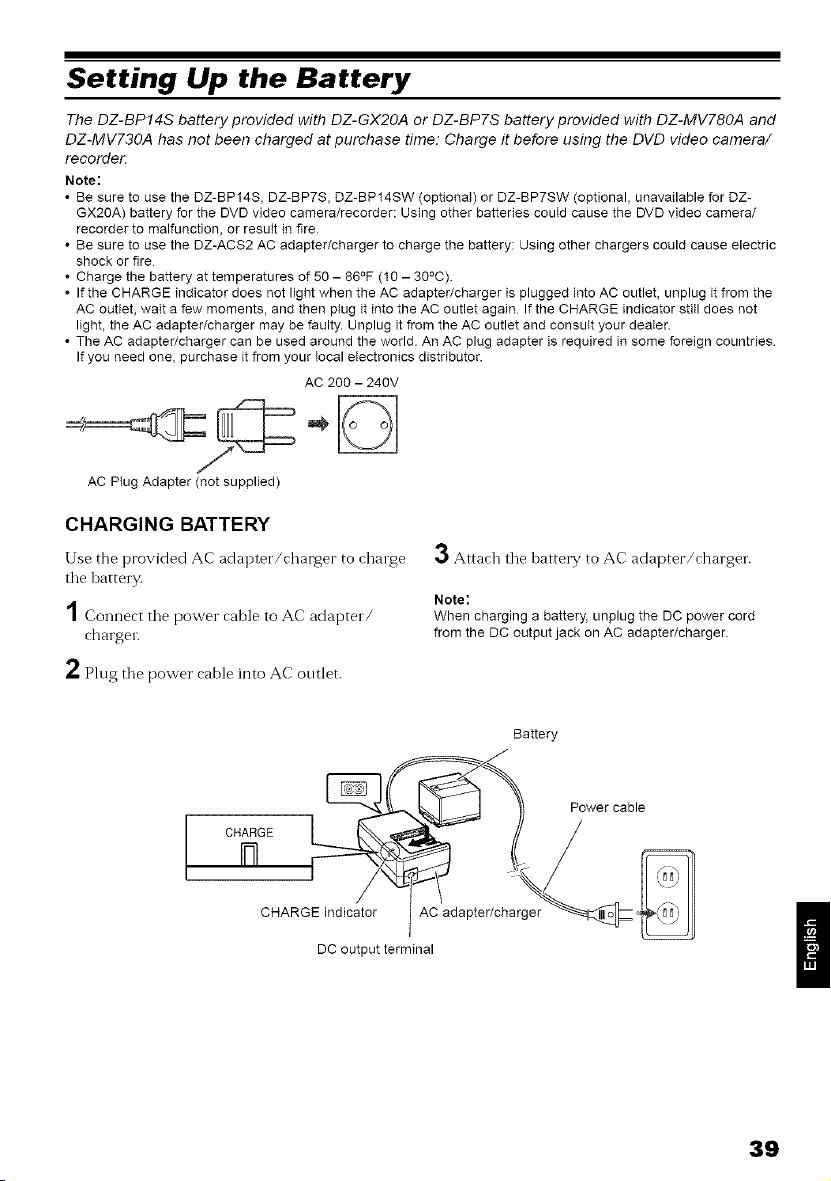
Setting Up the Battery
The DZ-BP14S battery provided with DZ-GX20A or DZ-BP7S battery provided with DZ-MV780A and
DZ-MV730A has not been charged at purchase time: Charge it before using the DVD video camera/
recorder.
Note:
• Be sure to use the DZ-BP14S, DZ-BP7S, DZ-BP14SW (optionaI) or DZ-BP7SW (optional, unavailable for DZ-
GX2OA) battery for the DVD video camera/recorder: Using other batteries coutd cause the DVD video camera/
recorder to malfunction, or result in fire.
• Be sure to use the DZ-ACS2 AC adapter/charger to charge the battery: Using other chargers could cause electric
shock or fire
• Charge the battery at temperatures of 50 - 86°F (10 - 30°C).
• If the CHARGE indicator does not light when the AC adapter/charger is plugged into AC outlet, unplug it from the
AC outlet, wait a few moments, and then plug it into the AC outlet again If the CHARGE indicator stitl does not
light, the AC adapter/charger may be faulty. Unplug it from the AC outlet and consutt your deater.
• The AC adapter/charger can be used around the world. An AC plug adapter is required in some foreign countries
If you need one, purchase it from your Iocal electronics distributor.
AC 200 - 240V
AC Plug Adapter (not supplied)
CHARGING BATTERY
Use the provided AC adapter/charger to charge
tile battery.
1 Connect tile power cable to AC adapter/
charger.
2 Plug the power cable into AC outlet.
3 Attach the battery to AC adapter/charger.
Note:
When charging a battery, unplug the DC power cord
from the DC output jack on AC adapter/charger.
Battery
CHARGE
Power cable
CHARGE indicator AC adapter/charger
DC output terminal
39
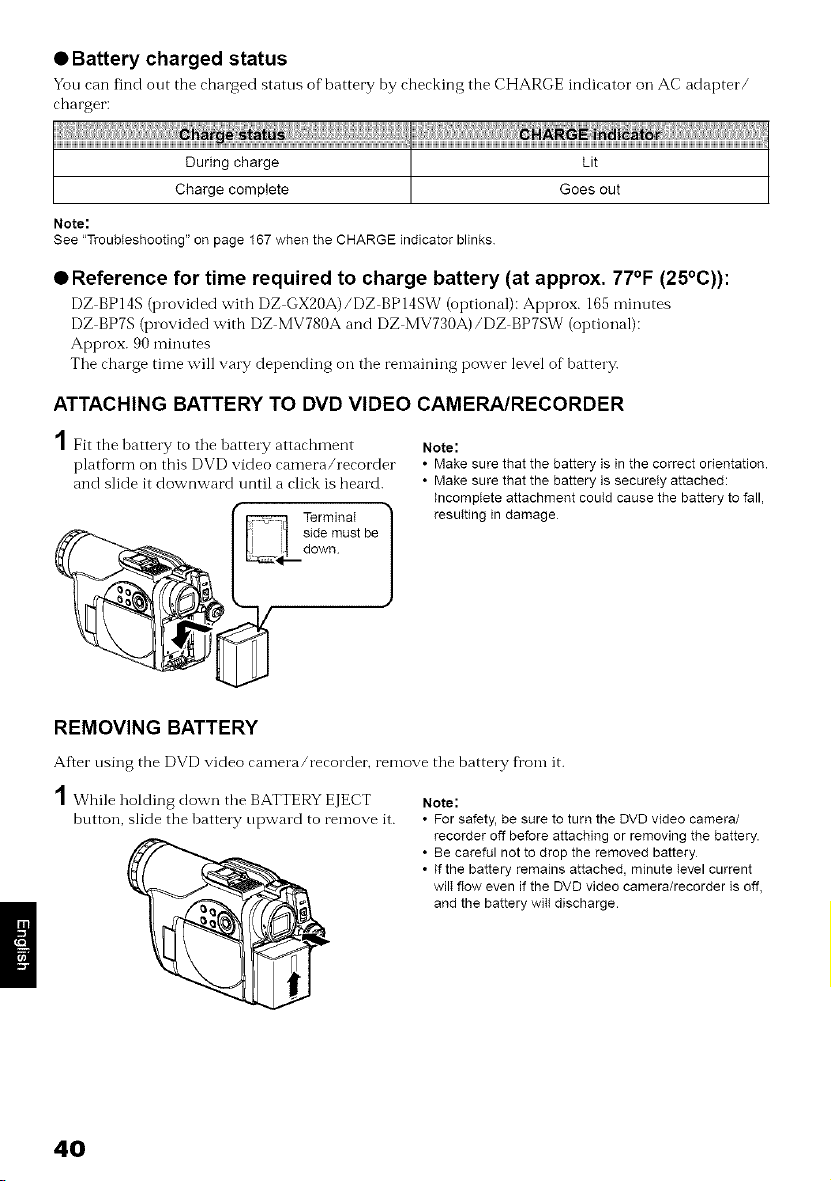
• Battery charged status
You can find out the charged status of" battery by checking the CHARGE indicator on AC adapter/
charger:
During charge l Lit
Charge complete l Goes out
Note:
See "Troubleshooting" on page 167 when the CHARGE indicator blinks
• Reference for time required to charge battery (at approx. 77°F (25°C)):
DZ BP14S (provided with DZ GX20A)/DZ BP 14SKY(optional): Approx. 165 mirmtes
DZ BP7S (provided with DZ MV780A and DZ MV730A)/DZ BP7SW (optional):
Approx. 90 mirmtes
The charge time will vary depending on the rernaining power level of battery.
ATTACHING BATTERY TO DVD VIDEO CAMERA/RECORDER
Fit the hattery to the hattery attachrnent
platfbrm on this DVD video carnera/recorder
and slide it downward until a click is heard.
TerminaI
down
Note:
• Make sure that the battery is in the correct orientation.
• Make sure that the battery is securety attached:
Incomplete attachment could cause the battery to fall,
resulting in damage
REMOVING BATTERY
After using the DVD video camera/recorder, remove the battery fl'onr it.
1 While holding down the BATTERY EJECT
button, slide the hattery upward to renrove it.
Note:
• For safety, be sure to turn the DVD video camera/
recorder off before attaching or removing the battery.
• Be careful not to drop the removed battery
• If the battery remains attached, minute level current
will flow even if the DVD video camera/recorder is off,
and the battery wilt discharge.
4O
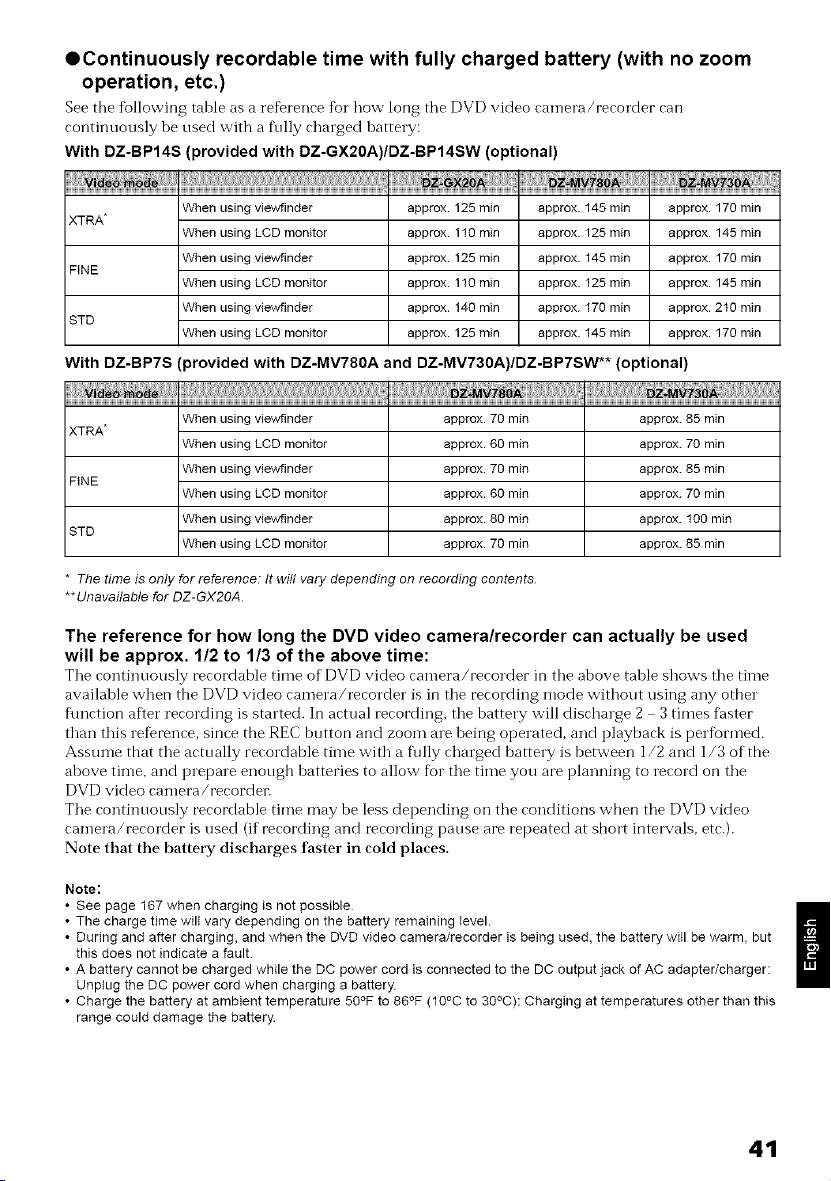
OContinuously recordable time with fully charged battery (with no zoom
operation, etc.)
See the following table as a reference for how long the DVD video can-lera/recorder can
continuously be used with a fl/lly charged hattery:
With DZ-BP148 (provided with DZ-GX20A)/DZ-BP14SW (optional)
When using viewfinder approx. 125 min approx. 145 min approx. 170 min
XTRA*
When using LCD monitor approx. 110 rain approx. 125 min approx. 145 min
When using viewfinder approx. 125 min approx. 145 min approx. 170 min
FINE
When using LCD monitor approx. 110 min approx. 125 min approx. 145 min
When using viewfinder approx. 140 min approx. 170 min approx. 210 min
STD
When using LCD monitor approx. 125 min approx. 145 min approx. 170 min
With DZ-BP7S (provided with DZ-MV780A and DZ-MV730A)/DZ-BP7SW** (optional)
When using viewfinder approx. 70 min approx. 85 min
XTRA*
When using LCD monitor approx. 60 min approx. 70 min
When using viewfinder approx. 70 min approx. 85 min
FINE
When using LCD monitor approx. 60 min approx. 70 min
When using viewfinder approx. 80 min approx. 100 min
STD
When using LCD monitor approx. 70 min approx. 85 min
* The time is only for reference: It will vary depending on recording contents.
** Unavailable for DZ-GX2OA.
The reference for how long the DVD video camera/recorder can actually be used
will be approx. 1/2 to 1/3 of the above time:
Tile continuously recordable time of DVD video camera/recorder in the above table shows the time
available when the DVD video camera/recorder is in the recording mode without using any other
f\mction after recording is started. In actual recording, the battery will discharge 2 3 times f:aster
than this reference, since the REC button and zoom are being operated, and playback is perfbrmed.
Assume that the actually recordable time with a flflly charged battery is between 1/2 and 1/3 of the
ahove time, and prepare enough hatteries to allow Ra" the time you are planning to record on the
DVD video camera/recorder:
The continuously recordable time may be less depending on the conditions when the DVD video
camera/recorder is used (if recording and recording pause are repeated at short intervals, etc.).
Note that the batterT discharges faster in cold places.
Note:
• See page 167 when charging is not possible
• The charge time wilt vary depending on the battery remaining Ievel.
!1
• During and after charging, and when the DVD video camera/recorder is being used, the battery witl be warm, but
this does not indicate a fault
• A battery cannot be charged while the DC power cord is connected to the DC output jack of AC adapter/charger:
Unplug the DC power cord when charging a battery
• Charge the battery at ambient temperature 50°F to 86°F (10°C to 30°C): Charging at temperatures other than this
range could damage the battery
41
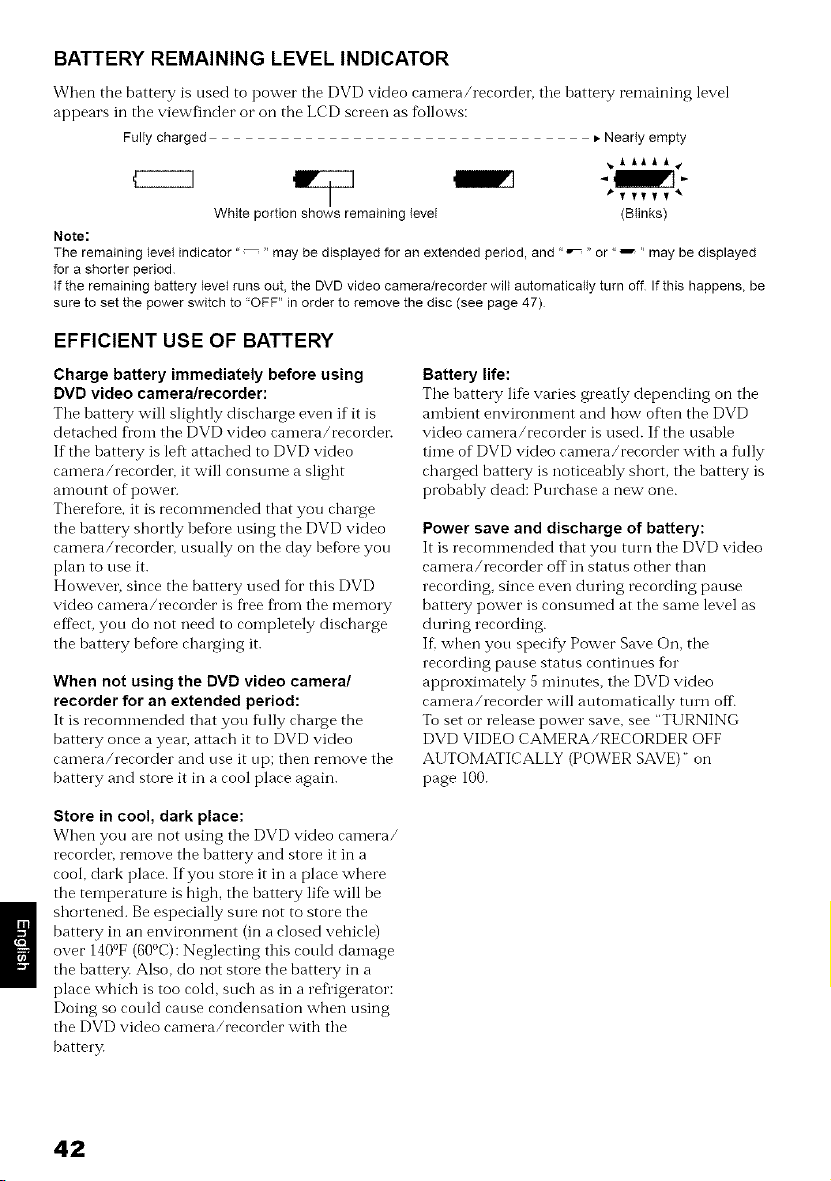
BATTERY REMAINING LEVEL INDICATOR
When the battery is used to power tile DVD video camera/recorder, tile battery remaining level
appears in the viewfinder or on the LCD screen as follows:
Fully charged • Nearly empty
_ ltllAit¥
_TYYYT*"
White portion shows remaining level (Btinks)
Note:
The remaining levet indicator "_ " may be displayed for an extended period, and "_ " or "_ " may be displayed
for a shorter period
If the remaining battery level runs out, the DVD video camera/recorder will automatically turn off If this happens, be
sure to set the power switch to "OFF" in order to remove the disc (see page 47)
EFFICIENT USE OF BATTERY
Charge battery immediately before using
DVD video cameralrecorder:
The battery will slightly disrharge even ifit is
detached fl'om the DVD video camera/recordei_
If the battery is left attached to DVD video
camera/recorder, it will consume a slight
amot/nt of povv'et\
Therefore, it is recommended that you charge
the battery shortly befbre using the DVD video
camera/recorder, usually on the day befbre you
plan to use it.
However, since the battery used for this DVD
video camera/recorder is fi'ee fl'om the memory
eft)ct, you do not need to completely discharge
the battery bef}0re charging it.
When not using the DVD video camera/
recorder for an extended period:
It is rerommended that you fiflly rharge the
battery once a year, attach it to DVD video
camera/recorder and use it tq); then remove the
battery and store it in a cool place again.
Battery life:
The battery life varies greatly depending on the
ambient environment and how ofien the DVD
video camera/recorder is used. If the usable
time of DVD video camera/recorder with a fiflly
charged battery is noticeably short, the battery is
probably dead: Purchase a new one.
Power save and discharge of battery:
It is recommended that you turn the DVD video
camera/recorder of'[ in status other than
recording, since even during recording pause
battery power is consumed at the same level as
during recording.
If_when you specify Power Save On, the
recording pause status continues for
approximately 5 minutes, the DVD video
camera/recorder will automatically turn off
To set or release power save. see "TURNING
DVD VIDEO CAMERA/RECORDER OFF
AUTOMATICALLY (POWER SAVE)" on
page 100.
Store in cool, dark place:
When you are not using the DVD video camera/
recorder, remove the battery and store it in a
cool, dark place. If you store it in a place where
the temperature is high, the battery life will be
shortened. Be especially sure not to store the
battery in an environment (in a closed vehicle)
over 140°F (60°C): Neglecting this could damage
the battery. Also, do not store the battery in a
place which is too cold, such as in a refl'igerator:
Doing so could cause condensation when using
the DVD video camera/recorder with the
battery.
42
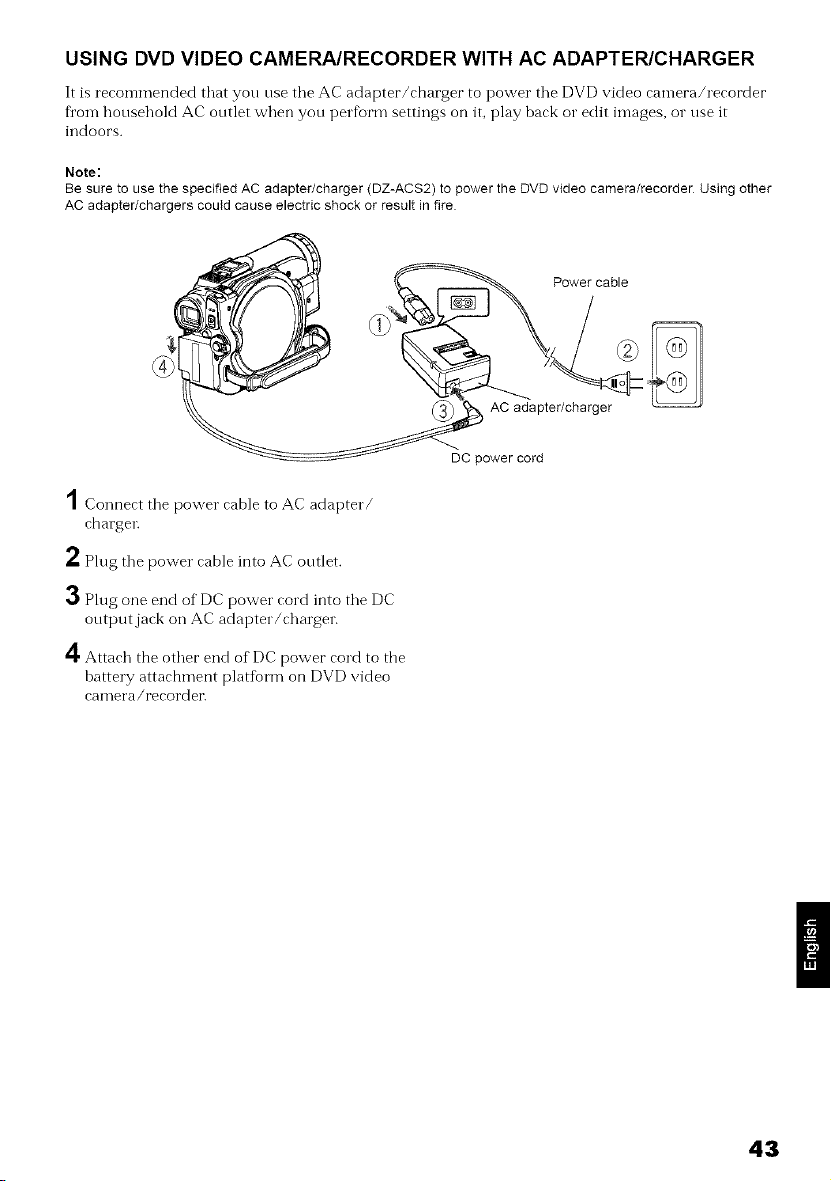
USING DVD VIDEO CAMERA/RECORDER WITH AC ADAPTER/CHARGER
It is recommended that yon nse tile AC adapter/ctmrger to power tile DVD video ean-lera/recorder
Dora honsehold AC ontlet when yon perfbrm settings on it, play back o1"edit images, o1"use it
indoors.
Note:
Be sure to use the specified AC adapter/charger (DZ-ACS2) to power the DVD video camera/recorder Using other
AC adapter/chargers could cause electric shock or result in fire
Power cable
AC adapter/charger
1Connect tile power cable to AC adapter/
charger.
2 Plug the power cable into AC outlet.
3Plug one end of DC power cord into the DC
output jack on AC adapter/charger.
11
_1' Attach the other end of DC power cord to tbe
battery attachment plat%rm on DVD video
camera/recorder.
DC power cord
43
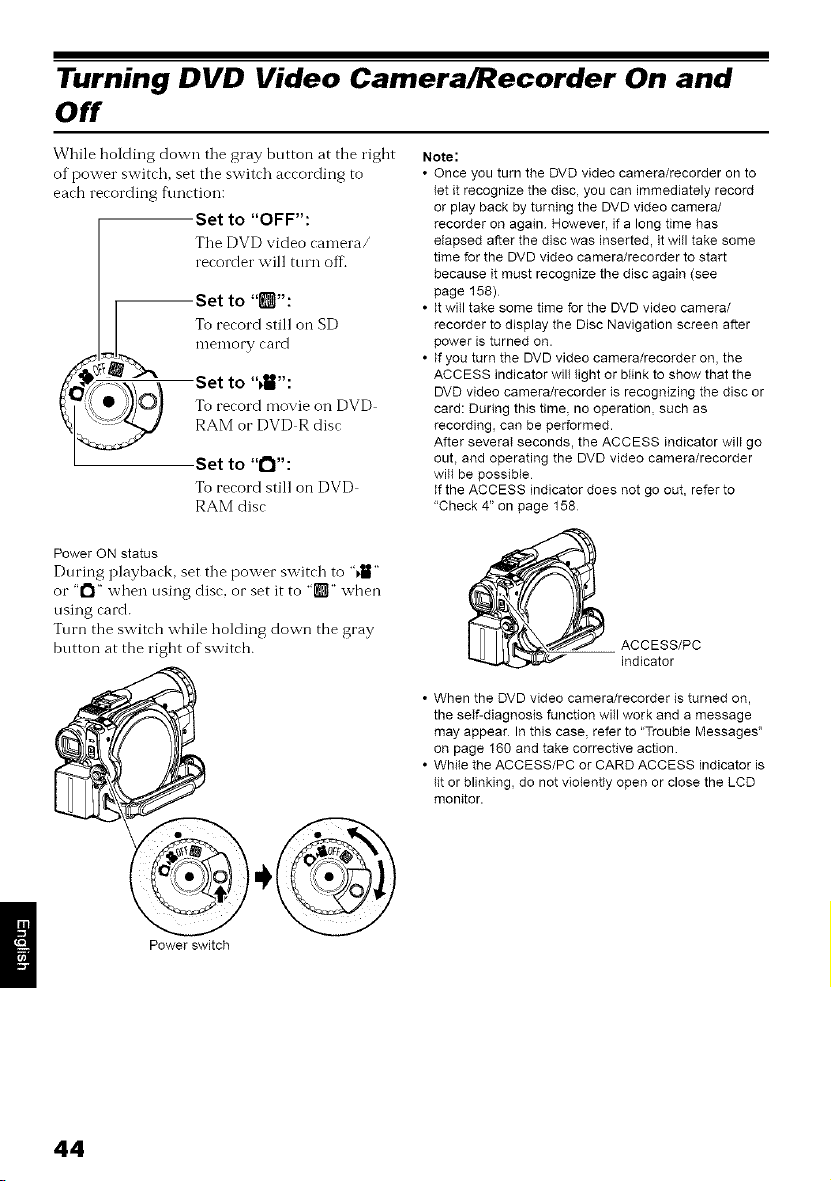
Turning DVD Video Camera/Recorder On and
Off
While holding down tile gray button at the right
of power switch, set tile switch according to
each recording function:
Set to "OFF":
Tile DVD video camera/
recorder will turn oft\
Set to "D":
To record still on SD
memory card
Set to "_":
To record movie on DVD
RAM or DVD R disc
Set to "1_1":
To record still on DVD
RAM disc
Note:
• Once you turn the DVD video camera/recorder on to
let it recognize the disc, you can immediately record
or play back by turning the DVD video camera/
recorder on again However, if a long time has
elapsed after the disc was inserted, it will take some
time for the DVD video camera/recorder to start
because it must recognize the disc again (see
page 158)
• It will take some time for the DVD video camera/
recorder to display the Disc Navigation screen after
power is turned on
• If you turn the DVD video camera/recorder on, the
ACCESS indicator wilt light or blink to show that the
DVD video camera/recorder is recognizing the disc or
card: During this time, no operation, such as
recording, can be performed
After severaI seconds, the ACCESS indicator will go
out, and operating the DVD video camera/recorder
wiIt be possible
If the ACCESS indicator does not go out, refer to
"Check 4" on page 158
PowerONstatus
During playback, set the power switch to "_"
or "1_1"when using disc, or set it to "[1_1"when
using card.
Turn the switch while holding down the gray
button at the right of switch.
ACCESS/PC
indicator
Power switch
• When the DVD video camera/recorder is turned on,
the self-diagnosis function will work and a message
may appear In this case, refer to "Trouble Messages"
on page 160 and take corrective action
• While the ACCESS/PC or CARD ACCESS indicator is
lit or blinking, do not violently open or close the LCD
monitor
44
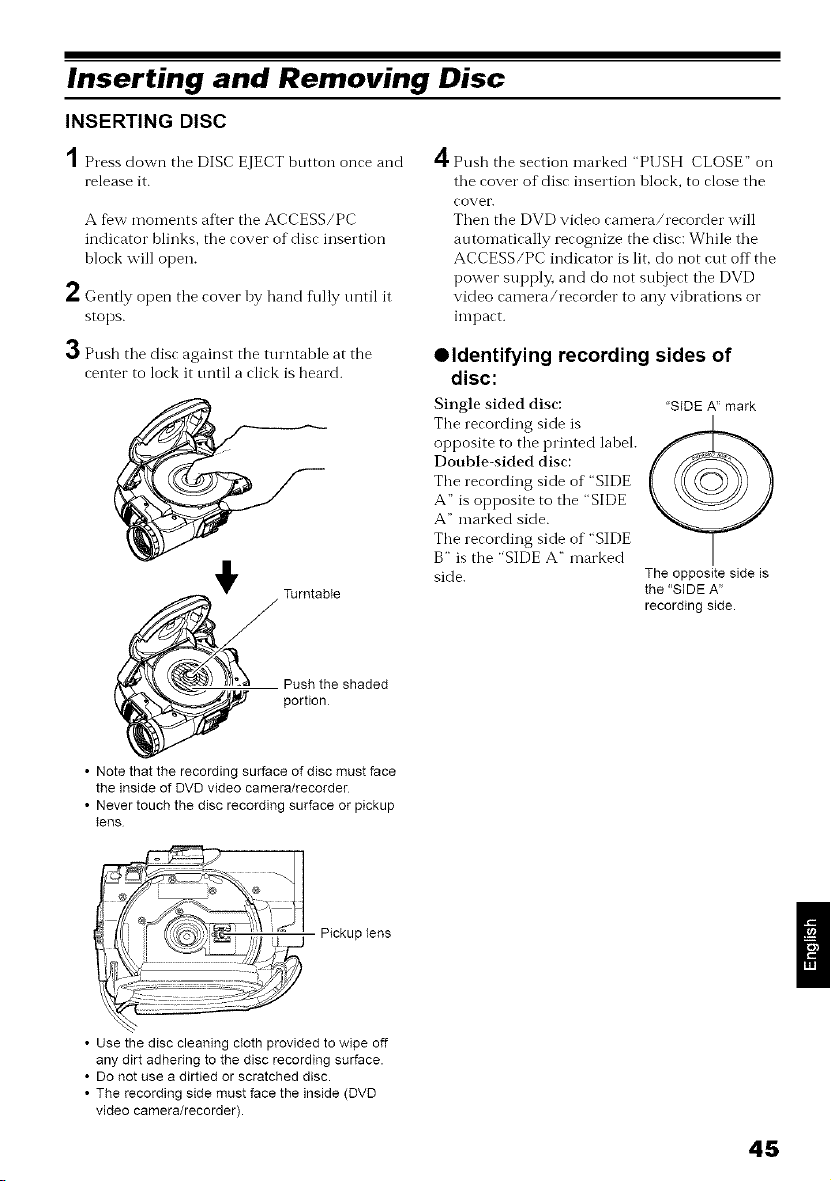
Inserting and Removing Disc
INSERTING DISC
A
/ Press down tile DISC EJECT bntton once and
release it.
A few moments after the ACCESS/PC
indicator blinks, the cover of disc insertion
block will open.
2 Gently open tile cover by hand f\dly nntil it
stops.
3 Push the disc against the turntable at the
center to lock it until a click is heard.
TurntabIe
_ _ Push the shaded
portion
• Note that the recording surface of disc must face
the inside of DVD video camera/recorder
• Never touch the disc recording surface or pickup
tens
A
_1' Push the section marked "PUSH CLOSE" on
the cover of disc insertion block, to close the
covetL
Then the DVD video camera/recorder will
automatically recognize the disc: While the
ACCESS/PC indicator is lit, do not cut off the
power supply, and do not subject the DVD
video camera/recorder to any vibrations or
impact.
• Identifying recording sides of
disc:
Single sided disc:
The recording side is
opposite to the printed labeh
Double-sided disc:
The recording side of "SIDE
A" is opposite to the "SIDE
A" marked side.
The recording side of "SIDE
B" is the "SIDE A" marked
side.
"SIDE A" mark
The opposite side is
the "SIDE A"
recording side.
: iilJ _t
:_ _- Pickup lens
• Use the disc cleaning cIoth provided to wipe off
any dirt adhering to the disc recordingsurface.
• Do notuse a dirtiedor scratched disc.
• The recording side must face the inside (DVD
video camera/recorder).
45
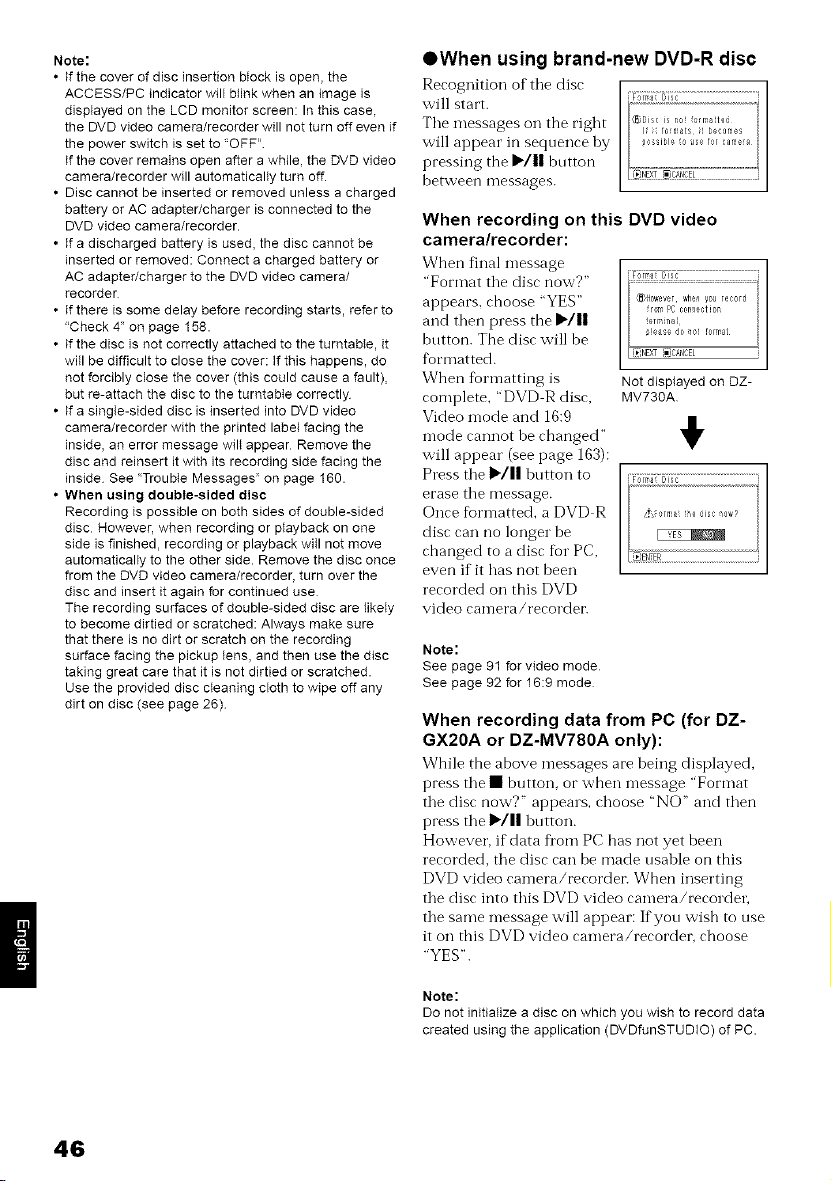
Note:
• If the cover of disc insertion btock is open, the
ACCESS/PC indicator will blink when an image is
displayed on the LCD monitor screen: In this case,
the DVD video camera/recorder will not turn off even if
the power switch is set to "OFF"
If the cover remains open after a while, the DVD video
camera/recorder will automatically turn off.
• Disc cannot be inserted or removed unless a charged
battery or AC adapter/charger is connected to the
DVD video camera/recorder.
• If a discharged battery is used, the disc cannot be
inserted or removed: Connect a charged battery or
AC adapter/charger to the DVD video camera/
recorder
• If there is some delay before recording starts, refer to
"Check 4" on page 158.
• If the disc is not correctly attached to the turntaNe, it
witl be difficult to close the cover: if this happens, do
not forcibly close the cover (this could cause a fault),
but re-attach the disc to the turntable correctly
• If a single-sided disc is inserted into DVD video
camera/recorder with the printed label facing the
inside, an error message will appear Remove the
disc and reinsert it with its recording side facing the
inside See "Trouble Messages" on page 160.
• When using double-sided disc
Recording is possible on both sides of double-sided
disc However, when recording or playback on one
side is finished, recording or playback will not move
automatically to the other side. Remove the disc once
from the DVD video camera/recorder, turn over the
disc and insert it again for continued use
The recording surfaces of double-sided disc are likeIy
to become dirtied or scratched: Always make sure
that there is no dirt or scratch on the recording
surface facing the pickup tens, and then use the disc
taking great care that it is not dirtied or scratched.
Use the provided disc cleaning cloth to wipe off any
dirt on disc (see page 26)
OWhen using brand-new DVD-R disc
Recognition of tile disc
will start. F r_;_iLii ..............................i
The messages on the right
will appear in sequence by
pressing the IP'/|| button
betx, veen nlessages.
When recording on this DVD video
camera/recorder:
When final message
"Format the disc now?"
appears, choose "YES"
and then press the I_./n
button. The disc will be
riot'matted.
When fiormatting is
complete, "DVD R disc,
Video mode and 16:9
II
mode cannot he changed" !_'
will appear (see page 163):
Press the I_/11 hutton to
erase the message.
Once fiormatted_ a DVD R
disc can no longer be
changed to a disc fbr PC,
even if it has not been
recorded on this DVD
video camera/recordei:
JForr_'Esr ]
Not displayed on DZ-
MV73OA
Note:
See page 91 for video mode
See page 92 for 16:9 mode
When recording data from PC (for DZ-
GX20A or DZ-MV780A only):
While the above messages are heing displayed,
press the • button_ or when message "Format
the disc now?" appears, choose "NO" and then
press the I_/|| hutton.
However, if data fl'om PC has not yet been
recorded, the disc can be made usahle on this
DVD video camera/recordei: When inserting
the disc into this DVD video camera/recorder,
the same message will appear: If you wish to use
it on this DVD video camera/recordei; choose
"YES".
Note:
Do not initialize a disc on which you wish to record data
created using the application (DVDfunSTUDIO) of PC.
46
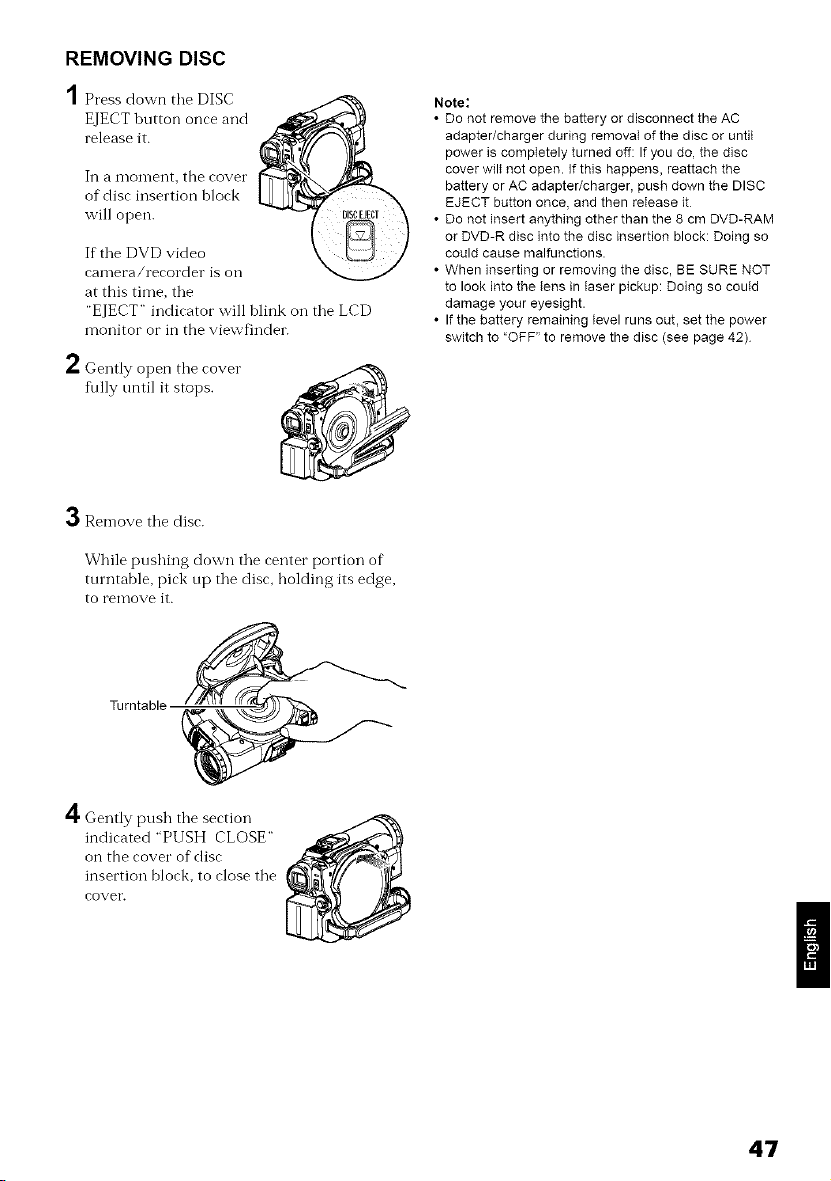
REMOVING DISC
A
/ Press down tile DISC
EJECT button once and
release it.
In a i_lon-lent, the cover
of disc insertion block
will open.
If tile DVD video
calllera/recorder is oil
at this time, the
"EJECT" indicator will blink oil tile LCD
monitor or in the viewfinder.
2Gently open tile cover"
fiflly tmtil it stops. _ _:_
3Remove tile disc.
While pushing down tile center portion of
turntable, pick up tile disc, bolding its edge,
to remove it.
Note:
• Do not remove the battery or disconnect the AC
adapter/charger during removaI of the disc or untit
power is completely turned off: If you do, the disc
cover wilt not open. If this happens, reattach the
battery or AC adapter/charger, push down the DISC
EJECT button once, and then release it
• Do not insert anything other than the 8 cm DVD-RAM
or DVD-R disc into the disc insertion block: Doing so
could cause malfunctions.
• When inserting or removing the disc, BE SURE NOT
to look into the tens in laser pickup: Doing so could
damage your eyesight.
• If the battery remaining level runs out, set the power
switch to "OFF" to remove the disc (see page 42)
Turntable
4Gently push tile section
indicated "PUSH CLOSE"
on the covet" of disc
insertion block, to close tile
cover'.
47
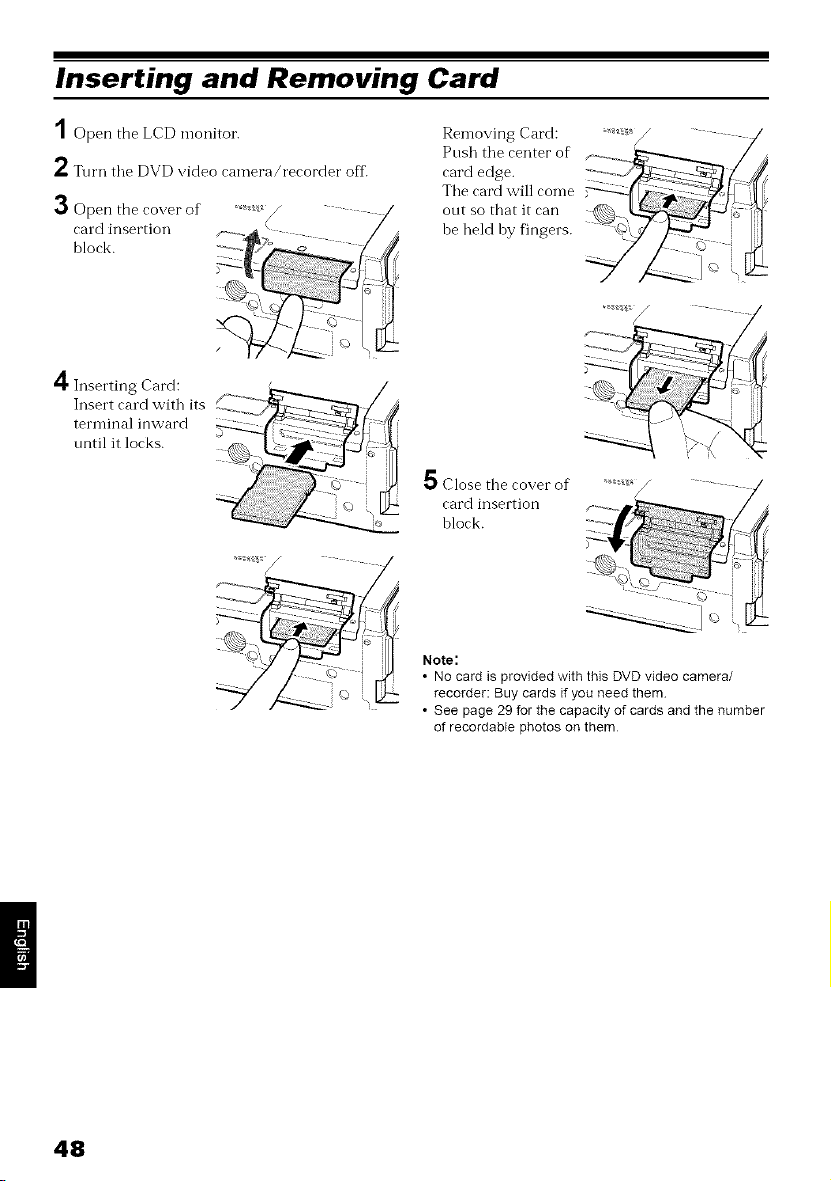
Inserting and Removing Card
1 Open the LCD monitor.
2 Turn tile DVD video camera/recorder off.
3 Open the cover of
card insertion _-___ _ ....
block.
.... - <5..... }i,
4 Inserting Card: /
Insert card with its £ ........ _./_- /_
terminal inward
until it locks. ,> -.2/!_ _
.,
Removing Card: _ / -
cardPnShedge.tilecenter of _--___ ":-- _'_!t:l
Tbe card will con-le
out so that it can 7_%
be held by fingers. _,, _
Close tbe cover of
card insertion
block.
Note:
• No card is provided with this DVD video camera/
recorder: Buy cards if you need them
• See page 29 for the capacity of cards and the number
of recordable photos on them
48
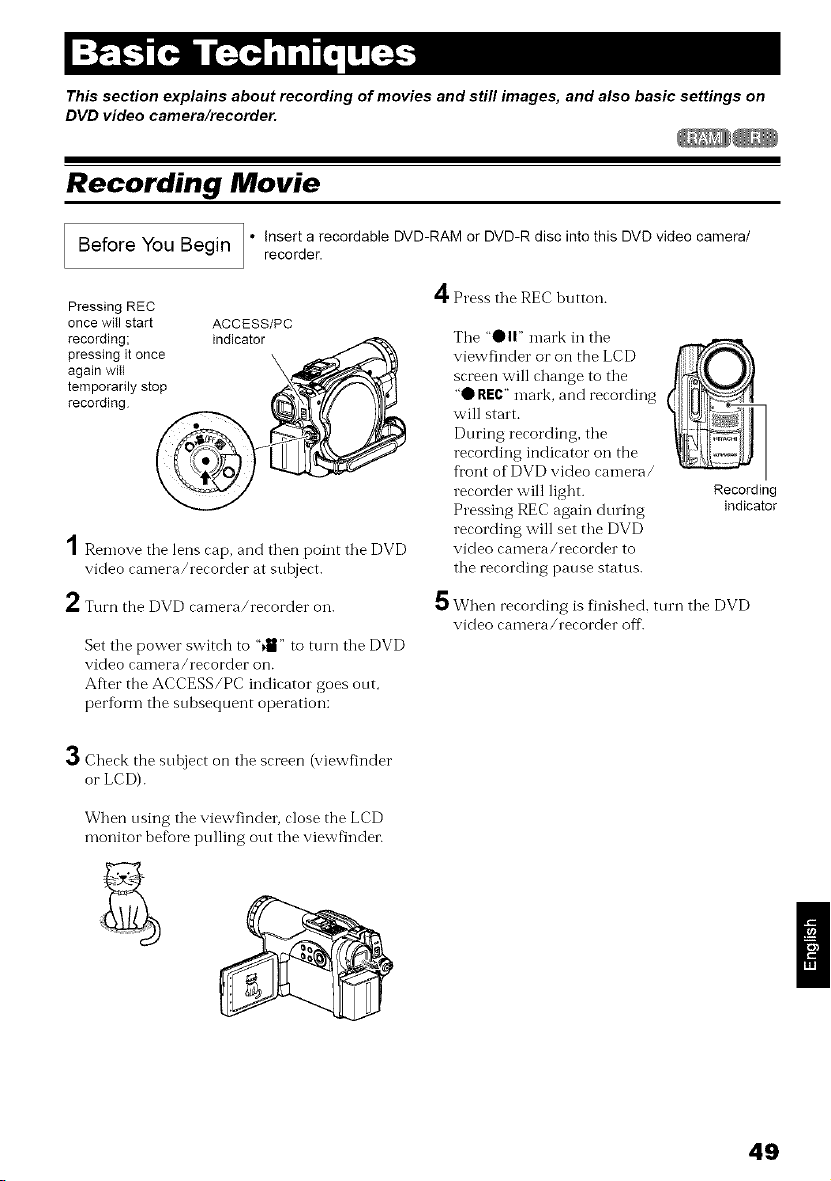
This section explains about recording of movies and still images, and also basic settings on
DVD video camera/recorder.
Recording Movie
q
Before You Begin /" Insert a recordable DVD-RAM or DVD-R disc into this DVD video camera/
J
recorder.
Pressing REC
once witl start ACCESS/PC
recording; indicator
pressing itonce
again will
temporarily stop
recording
1Remove tile lens cap, and then point tile DVD
video camera/recorder at subject.
2 Turn the DVD camera/recorder oil.
Set tile power switch to "_ll_"to turn tile DVD
video camera/recorder on.
After the ACCESS/PC indicator goes out,
per%rm tile subsequent operation:
4Press tile REC button.
Tile "OI1" mark in tile
viewfinder or on the LCD
screen will change to tile
"0 REC"mark, and recording
will start.
During recording, tile
recording indicator on the
front of DVD video camera/
recorder will light.
Pressing REC again during
recording will set tile DVD
video camera/recorder to
tile recording pause status.
Recording
indicator
i_ When recording is finished, tnrn tile DVD
video camera/recorder off.
3Check the snloject on tile screen (viewfinder
or LCD).
When using tile viewfinder, close the LCD
monitor befbre ptdling out tile viewf_nder.
49
Note:
• See "Check 1" on page 158 when recording movie is
not possible.
• See "Check 4" on page 158 if it takes some time
before recording is possible.
• See "Check 5" on page 159 if the DVD video camera/
recorder does not operate.
• See page 52 for on-screen information display.
• It is recommended that you use DVD-RAM disc from
which recorded contents can be deleted
• Sound is recorded from the stereo microphone on the
front of DVD video camera/recorder: Take care that
this microphone is not blocked
• You can press the REC button immediately after the
DVD video camera/recorder enters the recording
pause status, but no further recording can be made
white "DISC ACCESS" is being displayed
Recording wili restart after the message disappears.
• Do not turn power off while message "DISC ACCESS"
is being displayed.
Take care that power is not interrupted while the
ACCESS/PC indicator is blinking.
The minimum recordable time of movie is
approximately 3 seconds
See page 101 for setting of Record LED (recording
indicator) On/Off.
For various functions available during recording, see
"Setting Up Camera Functions" on page 86.
Hitachi cannot be responsible for video and audio that
cannot be recorded or edited because of any defect.
The power switch can be changed over even during
recording, but the operation will not be changed.
Each time the DVD video camera/recorder enters the
recording pause status, the counter display witl be
reset to "0:00:00"
• It is recommended that you set the LOCK switch to !_
(the upper position) to prevent the power switch in the
"411"position from accidentally moving to "1_1"position.
• Do not insert a non-finalized DVD-R disc into another
DVD device: Doing so could cause the disc to
become unusabIe (except in the case of the devices
that have a function that can play back a disc that has
not been finalized on this DVD video camera/
recorder).
• When using an unformatted DVD-R disc, it is
necessary to format it on this DVD video camera/
recorder (see page 46)
50
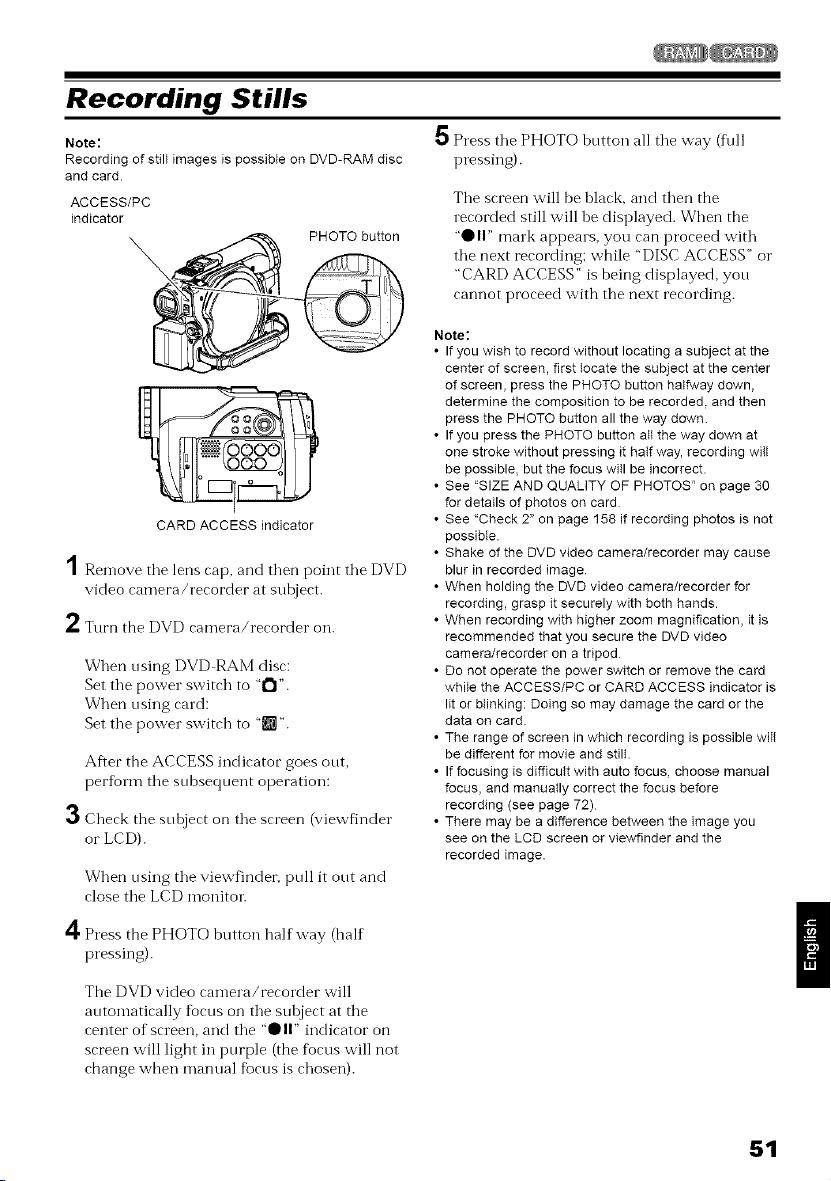
Recording Stills
Note:
Recording of stilt images is possible on DVD-RAM disc
and card.
ACCESS/PC
indicator
__ PHOTO button
CARD ACCESS indicator
5 Press the PHOTO botton all the way (full
pressing).
Tile screen will be black, and then the
recorded still will be displayed. When the
'0 I1" mark appears, you can proceed with
tile next recording; while "DISC ACCESS" o1"
"CARD ACCESS" is being displayed, you
cannot proceed with the next recording.
Note:
• If you wish to record without locating a subject at the
center of screen, first locate the subject at the center
1Remove tile lens cap, and then point tile DVD
of screen, press the PHOTO button halfway down,
determine the composition to be recorded, and then
press the PHOTO button all the way down
• If you press the PHOTO button all the way down at
one stroke without pressing tt hatf way, recording wiIt
be possible, but the focus witl be incorrect.
• See ':SIZE AND QUAMTY OF PHOTOS " on page 30
for details of photos on card
• See ':Check 2" on page 158 if recording photos is not
possibte.
• Shake of the DVD video camera/recorder may cause
blur in recorded image
video camera/recorder at subject.
2Turn the DVD camera/recorder on.
When using DVD RAM disc:
Set the power switch to '1"1".
When using card:
Set the power switch to "lg_".
After the ACCESS indicator goes out,
perform the subsequent operation:
3 Check the subject on the screen (viewfinder
or LCD).
When using the viewfinder, ptfll it out and
close the LCD monitor.
• When holding the DVD video camera/recorder for
recording, grasp it securely with both hands.
• When recording with higher zoom magnification, it is
recommended that you secure the DVD video
camera/recorder on a tripod
• Do not operate the power switch or remove the card
white the ACCESS/PC or CARD ACCESS indicator is
lit or btinking: Doing so may damage the card or the
data on card.
• The range of screen tn wNch recording is possible witt
be different for movie and still.
• If focusing is difficult with auto focus, choose manual
focus, and manually correct the focus before
recording (see page 72)
• There may be a difference between the image you
see on the LCD screen or vtewfinder and the
recorded image.
4Press the PHOTO button halfway (half
pressing).
The DVD video camera/recoMer will
automatically focus on the subject at the
center of screen, and the "OI1" indicator on
screen will light in purple (the focus will not
change v,;hen manual focus is chosen).
51
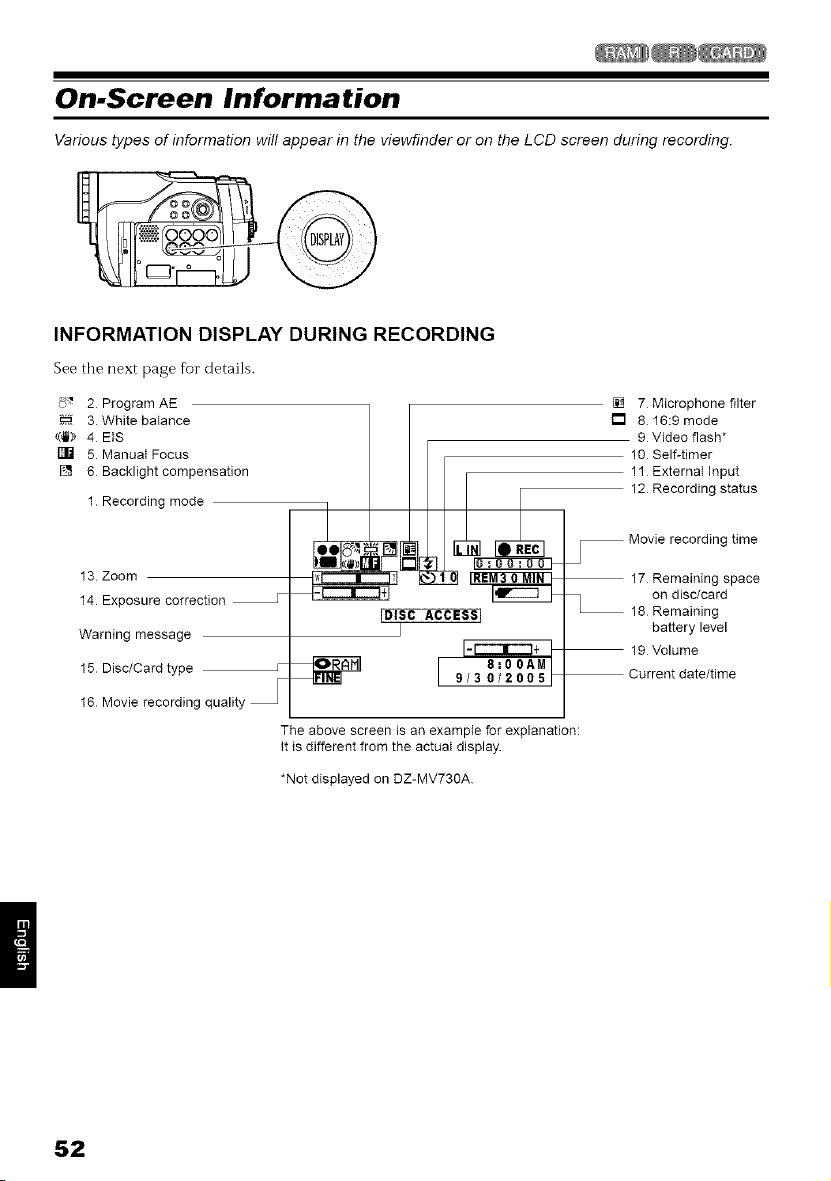
On-Screen Information
Various types of information will appear in the viewfinder or on the LCD screen during recording.
INFORMATION DISPLAY DURING RECORDING
See the next page fbr details.
_ 2 Program AE
3 White balance
((_)) 4 EIS
5 Manual Focus
[] 6 Backlight compensation
1 Recording mode
13 Zoom
14. Exposure correction
Warning message
15 Disc/Card type
16 Movie recording quality
IDISC ACCESS I
J
I 8:00A.|
9/3 0/2005 F
[] 7 Microphone filter
[] 8 16:9 mode
9 Video flash*
10 Self-timer
11 Externat Input
12 Recording status
Movie recording time
17 Remaining space
on disc/card
18 Remaining
battery level
19 Volume
Current date/time
The above screen is an example for explanation:
It is different from the actual display.
*Not displayed on DZ-MV730A
52
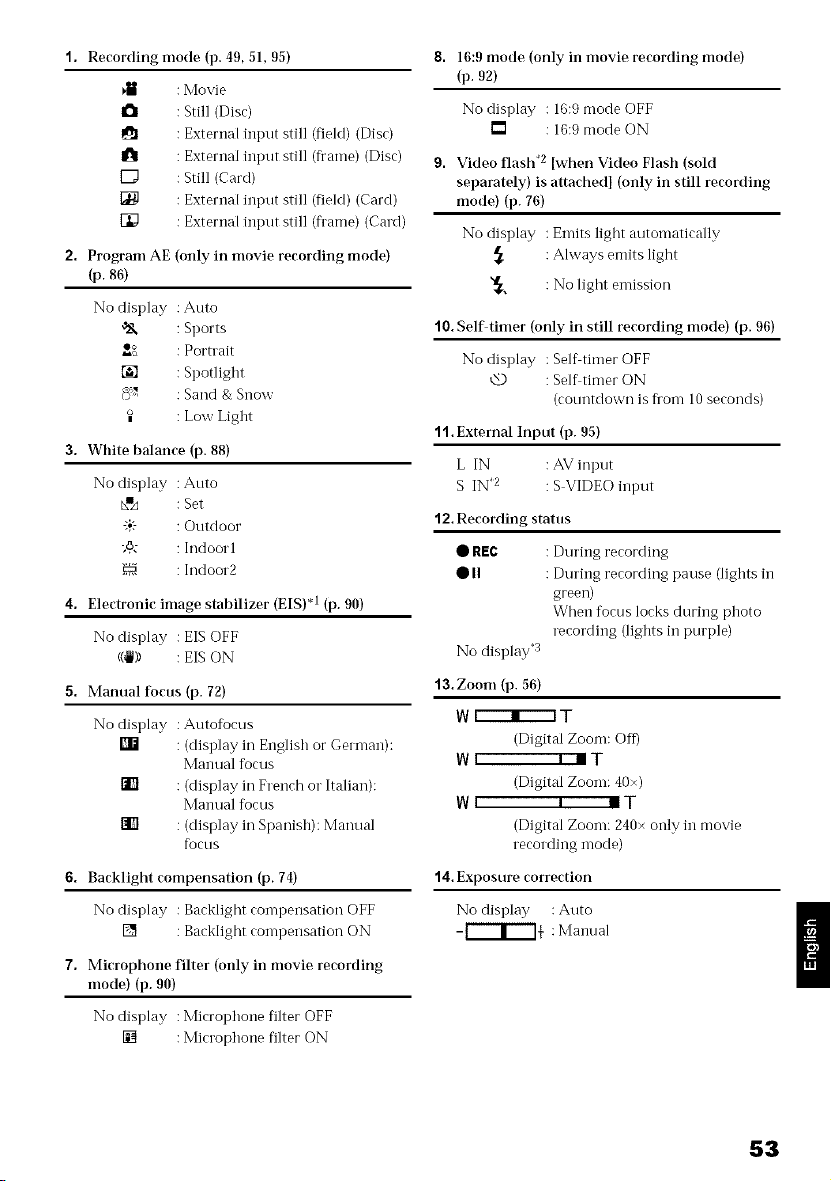
1. Recording mode (p. 49, 51, 95)
: Movie
2. Program AE
(p. 86)
a : Still (Disc)
: External input still (field) (Disc)
I_1 : External input still (fi'ame) (Disc)
[_ : Still (Card)
_1 : External input still (field) (Card)
[_ : External input still (fi'ame) (Card)
(only in movie recording mode)
No display : Auto
',_ : Sports
{_, : Portrait
[] : Spotlight
8 ",_' : Sand & Snow
: Low Light
3. White balance (p. 88)
No display : Auto
_x'e : Set
"+:- : Outdoor
-,6.z : Indool 1
: Indoor2
4. Electronic image stahilizer (EIS) *1 (p. 90)
No display :EISOFF
((_)) : EISON
5. Manual focus (p. 72)
No display : Autofocus
[] : (display in English or German):
Manual focus
t_ : (display in Frerlch o1"Italian):
Manual focus
[] : (display in Spanish): Manual
focus
6. Backlight compensation (p. 14)
No display : Bacldight compensation OFF
[] : Backlight compensation ON
7. Microphone filter (only in movie recording
mode) (p. 90)
No display : Microphone filter OFF
[] : Microphone filter ON
8. 16:9 mode (only in movie recording mode)
(p. 92)
No display : 16:9 mode OFF
[] : 16:9 mode ON
9. Video flash .2 [when Video Flash (sold
separately) is attachedJ (only in still recording
mode) (17. 76)
No display : Emits light automatically
,_ : Ahvays emits light
"_, : No light emission
10. Self timer (only in still recording mode) (p. 96)
No display : Selftimer OFF
Q : Self timer ON
(countdown is fi'om 10 seconds
"l1. External Input (17.95)
L IN : AV input
S IN _z : S VIDEO input
"12. Recording status
• REC : During recording
• II : During recording pause (lights in
green)
When focus locks during photo
recordiilg (lights in purple)
No display '3
13. Zoom (p. 56)
W r----r---3 T
(Digital Zoom: Off)
INI I _T
(Digital Zoom: 40×)
WI I _T
(Digital Zoom: 240× only i1_movie
recording mode)
"14,Exposure correction
No display : Auto
-P--f-I+ : Mantlal
53
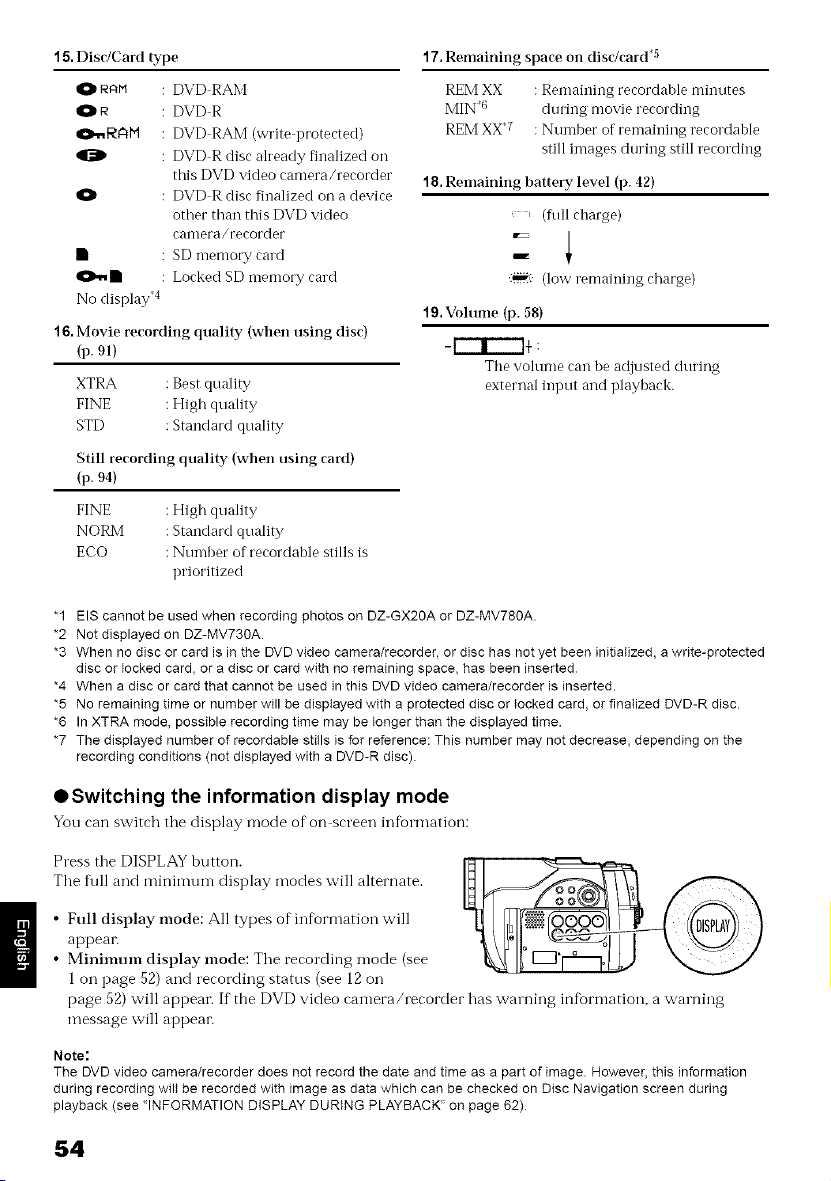
15, Disr/Card type
O RAN : DVD RAM
R : DVD R
_.,_RAM : DVD RAM (write protected)
: DVD R disc ah'eady finalized oil
this DVD video camera/recorder
: DVD R disc finalized oil a device
other than this DVD video
camera/recorder
• : SD memory card
• : Locked SD memory card
No display _'t
16. Movie recording quality {wllen using disc)
(p. 91)
XTRA : Best quality
FINE : High quality
STD : Standard quality
Still recording quality {when using card)
(p. 94)
FINE : High quality
NORM : Standard quality
ECO : Number of recordable stills is
prioritized
17. Remaining space on disc/card .5
REM XX
MIN'(_
REM XX 7
: Remaining recordable minutes
during movie recording
: Number of remaining recordabIe
still images during still recording
18. Remaining battery level (p. 42)
' (flfll charge)
E
:_ (low remaining charge)
19. Vohmle (p. 58)
The vohlme can lie adjusted during
external input and playback.
"1 EIS cannot be used when recording photos on DZ-GX20A or DZ-MV780A.
*2 Not displayed on DZ-MV730A.
*3 When no disc or card is in the DVD video camera/recorder, or disc has not yet been initialized, a write-protected
disc or locked card, or a disc or card with no remaining space, has been inserted
*4 When a disc or card that cannot be used in this DVD video camera/recorder is inserted.
*5 No remaining time or number will be displayed with a protected disc or locked card, or finaIized DVD-R disc.
*6 In XTRA mode, possible recording time may betonger than the displayed time.
*7 The displayed number of recordable stills is for reference: This number may not decrease, depending on the
recording conditions (not displayed with a DVD-R disc).
OSwitching the information display mode
You can switch the display mode of on screen information:
Press the DISPLAY button.
The flfll and mininmm display modes will alternate.
• Full display mode: All types ofinfbrmation will
appeai:
• Minimum display mode: The recording mode (see
1 on page 52) and recording stares (see 12on
page 52) will appem: If the DVD video camera/recorder has warning infbrmation, a warning
message will appeai:
Note:
The DVD video camera/recorder does not record the date and time as a part of image. However, this information
during recording will be recorded with image as data which can be checked on Disc Navigation screen during
playback (see "INFORMATION DISPLAY DURING PLAYBACK" on page 62)
54
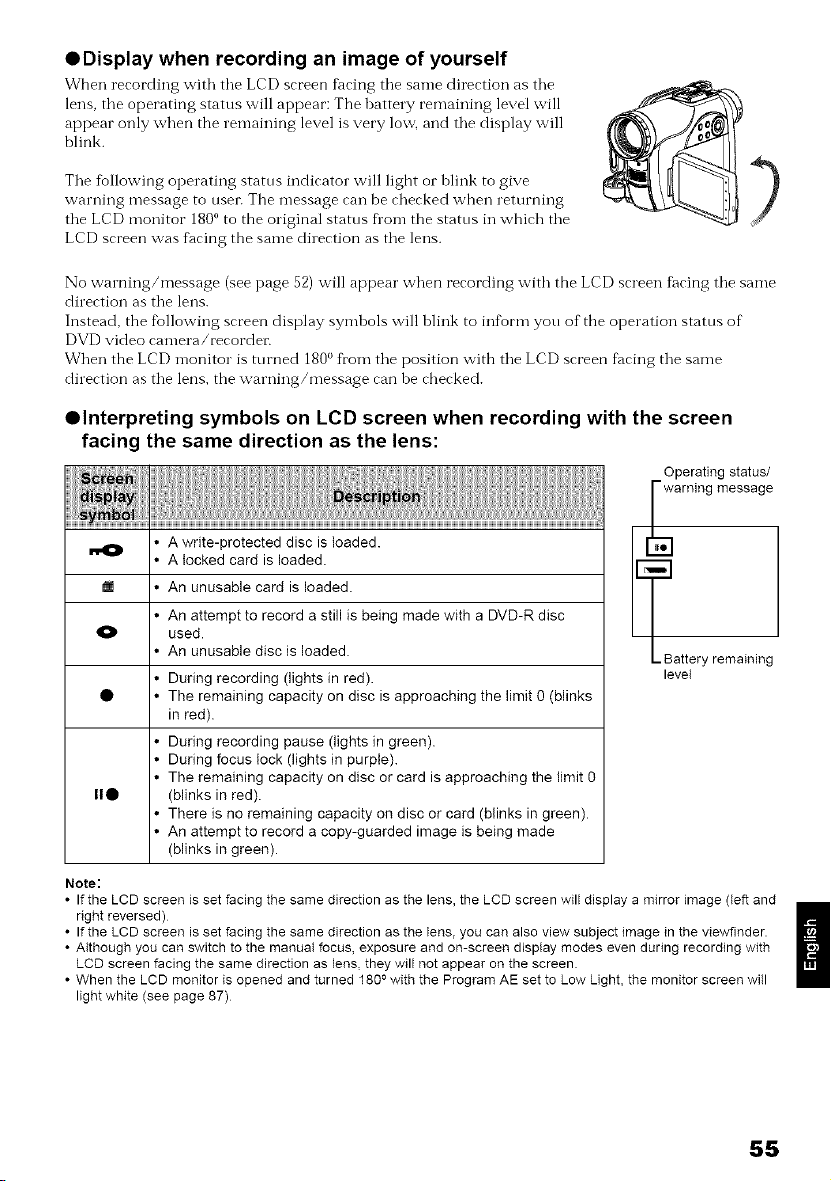
ODisplay when recording an image of yourself
Wben recording with tile LCD screen f_cing tile same direction as tile
lens, tile operating status will appear: The battery remaining level will
appear only when the remaining level is very low, and tile display will
blink.
Tile fiallowing operating status indicator will light or blink to give
warning message to usei: The message can be checked when returning
the LCD monitor 180o to the original status fi'om the status in which tile
LCD screen was R_cing the same direction as tile lens.
No warning/message (see page 52) will appear when recording with the LCD screen ti_cing tile same
direction as tile lens.
Instead, the tbllowing screen display symbols will blink to int5rm you of tile operation status of
DVD video camera/recordet_
When the LCD monitor is turned 180° from tile position with tile LCD screen tilcing tile same
direction as tile lens, the warning/message can be cbecked.
elnterpreting symbols on LCD screen when recording with the screen
facing the same direction as the lens:
m
o
HO
• A write-protected disc is loaded.
• A locked card is loaded.
• An unusable card is loaded.
• An attempt to record a still is being made with a DVD-R disc
used.
• An unusable disc is loaded.
• During recording (lights in red).
• The remaining capacity on disc is approaching the limit 0 (blinks
in red).
• During recording pause (lights in green).
• During focus lock (lights in purple).
• The remaining capacity on disc or card is approaching the limit 0
(blinks in red).
• There is no remaining capacity on disc or card (blinks in green).
• An attempt to record a copy-guarded image is being made
(blinks in green).
Operating status/
_ warning message
_Battery remaining
level
Note:
• If the LCD screen is set facing the same direction as the lens, the LCD screen will display a mirror image (left and
right reversed) H
• If the LCD screen is set facing the same direction as the lens, you can also view subject image in the viewflnder.
• Although you can switch to the manual focus, exposure and on-screen display modes even during recording with
LCD screen facing the same direction as lens, they will not appear on the screen
• When the LCD monitor is opened and turned 180 o with the Program AE set to Low Light, the monitor screen will
light white (see page 87)
55
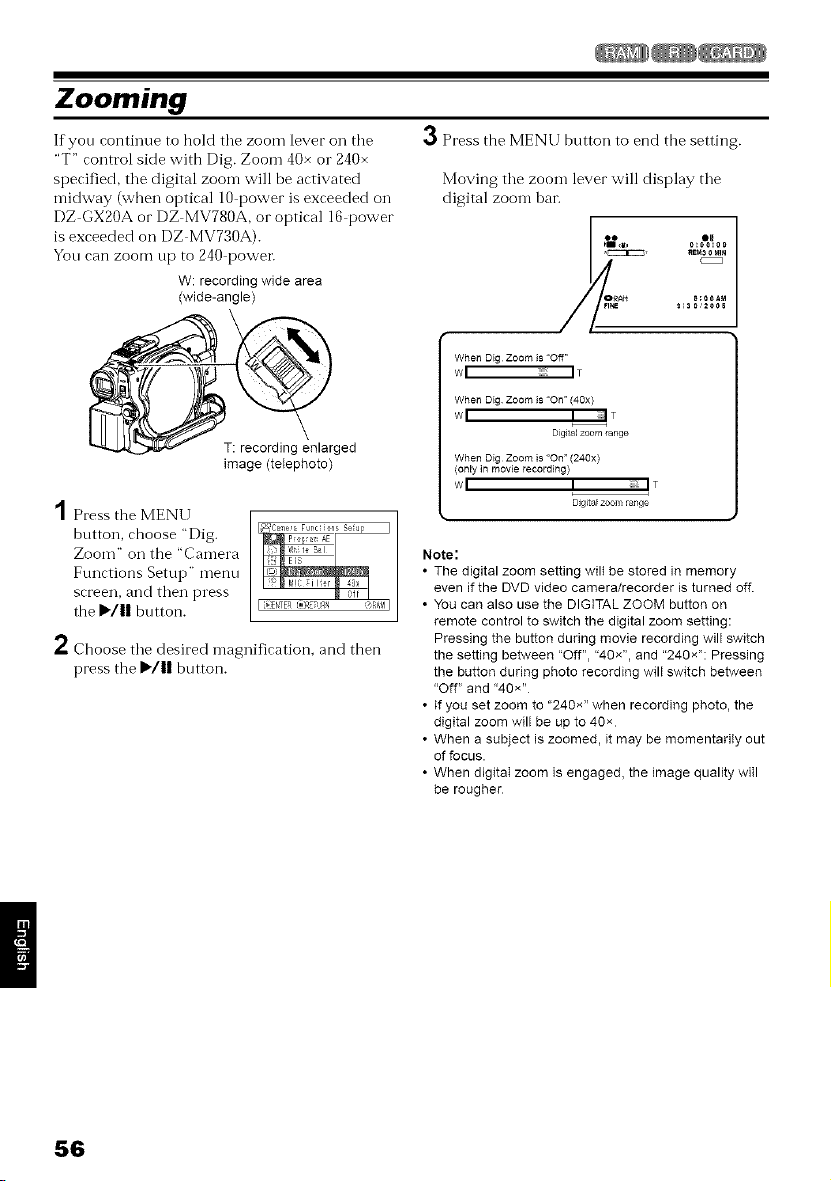
Zooming
If you continue to hold tile zoom lever on the
"T" control side with Dig. Zoom 40x o1"240×
specified, tile digital zoom will be activated
midway (when optical 10 power is exceeded on
DZ GX20A or DZ MV780A, or optical 16 power
is exceeded on DZ MV730A).
You can zoom up to 240 power.
W: recording wide area
(wide-angle)
ged
image (teIephoto)
A
/ Press the MENU
button, choose "Dig.
Zoom" on the 'Camera
Functions Setup" menu
screen, and then press
the I_/11 button.
3 Press the MENU button to end the setting.
Moving the zoom lever will display the
digital zoom bar.
When Dig Zoom is "Off"
w I I •
When Dig Zoom is "On" (40x)
W ] ] 7 •
Digital zoom range
When Dig Zoom is "On" (240x)
(oNy in movie recording)
Digital zoom range
2 Choose the desired magnification, and then
press the I_/11 button.
Note:
• The digital zoom setting wilt be stored in memory
even if the DVD video camera/recorder is turned off
• You can also use the DIGITAL ZOOM button on
remote control to switch the digital zoom setting:
Pressing the button during movie recording will switch
the setting between ':Off", "40x", and "240x": Pressing
the button during photo recording will switch between
"Off" and ':40×"
• If you set zoom to "240×" when recording photo, the
digital zoom will be up to 40×
• When a subject is zoomed, it may be momentarily out
of focus.
• When digitaI zoom is engaged, the image quality will
be rougher
56
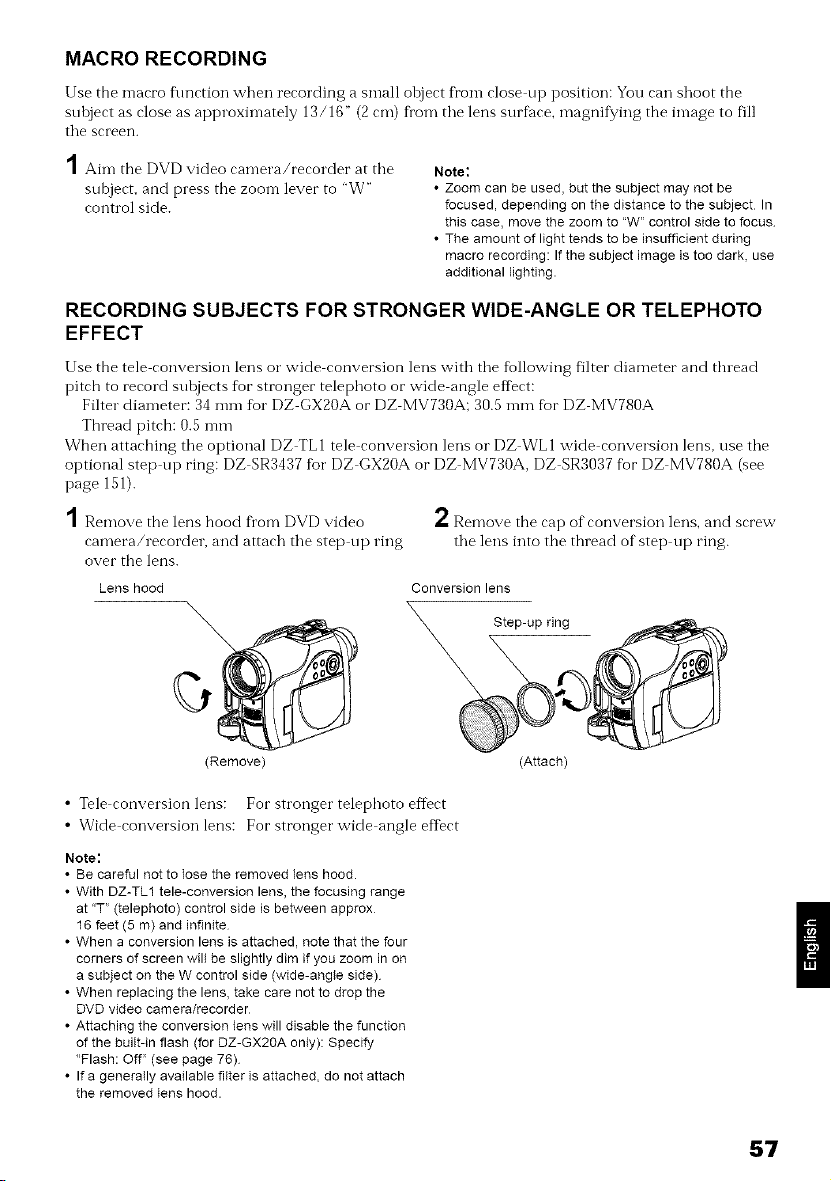
MACRO RECORDING
Use the macro function when recording a small object fl'om close up position: You can shoot the
suhject as close as approximately 13/16" (2 cm) fl'om tile lens surfitce, magnifying the image to fill
tile screen.
,4
/ Aint the DVD video camera/recorder at the
subject, and press the zoom lever to "W"
control side.
Note:
• Zoom can be used, but the subject may not be
focused, depending on the distance to the subject In
this case, move the zoom to "W" control side to focus
• The amount of light tends to be insufficient during
macro recording: If the subject image is too dark, use
additional lighting.
RECORDING SUBJECTS FOR STRONGER WIDE-ANGLE OR TELEPHOTO
EFFECT
Use the tele conversion lens or wide conversion lens with the fbllovving filter diameter and thread
pitch to record subjects for stronger telephoto or wide angle eft)ct:
Filter diameter: 34 mm for DZ GX20A or DZ MV730A: 30.5mm fbr DZ MV780A
Thread pitch: 0.5 mm
When attaching the optional DZ TL 1 tele conversion lens or DZ WL 1wide conversion lens, use the
optional step tilt ring: DZ SR3437 for DZ GX20A or DZ MV730A, DZ SR3037 fbr DZ MV780A (see
page 151).
,4 ol
/ Remove the lens hood fl_om DVD video *" Remove the cap of conversion lens, and screw
camera/recorder, and attach the step tip ring the lens into the thread of step tip ring.
over the lens.
Lens hood Conversion lens
Step-up ring
(Remove) (Attach)
• Tele conversion lens: For stronger telephoto effect
• Wide conversion lens: For stronger wide angle effect
Note:
• Be careful not to lose the removed lens hood.
• With DZ-TL1 tele-conversion lens, the focusing range
at "T" (telephoto) control side is between approx
16 feet (5 m) and infinite
• When a conversion lens is attached, note that the four
corners of screen will be slightly dim if you zoom in on
a subject on the W control side (wide-angle side)
• When replacing the lens, take care not to drop the
DVD video camera/recorder
• Attaching the conversion lens will disable the function
of the built-in flash (for DZ-GX20A onty): Specify
'Flash: Off" (see page 76)
• If a generally available filter is attached, do not attach
the removed tens hood.
57
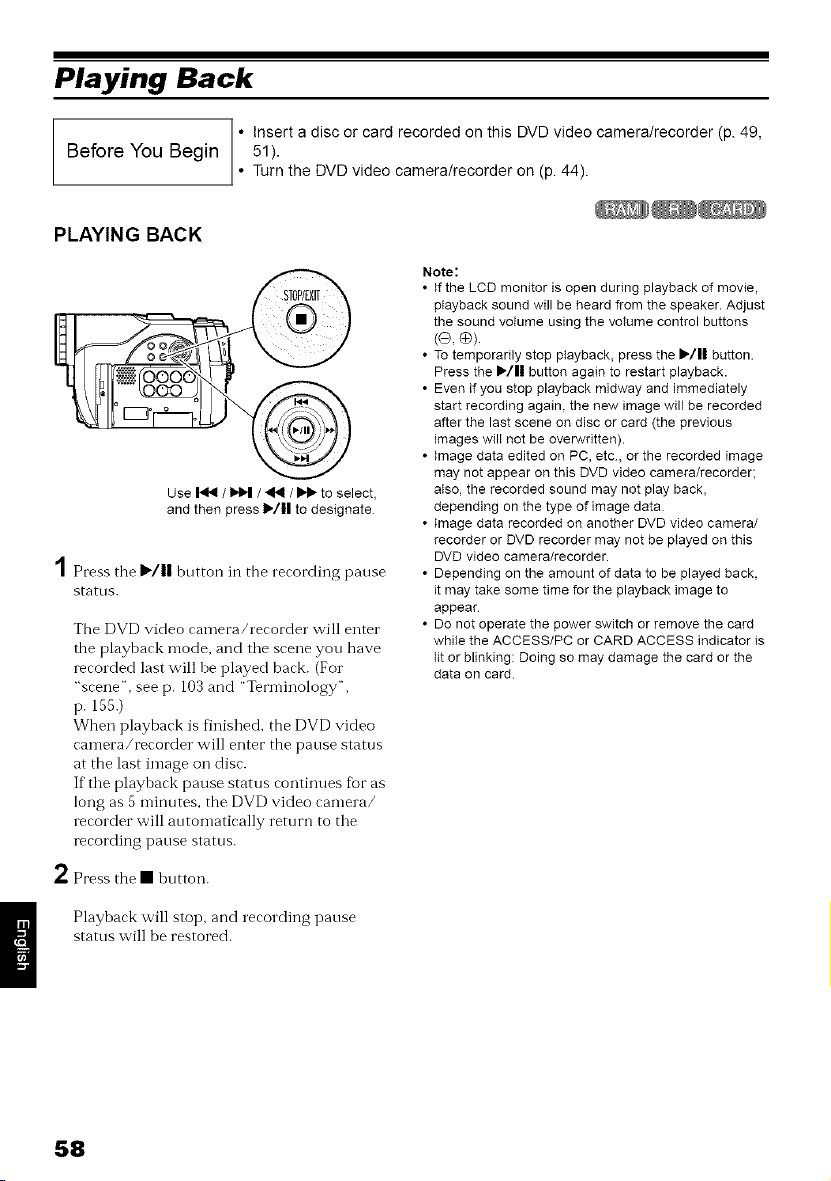
Playing Back
insert a disc or card recorded on this DVD video camera/recorder (p. 49,
Before You Begin 51).
Turn the DVD video camera/recorder on (p. 44).
PLAYING BACK
Use _ / _ / _ / _ to select,
and then press 1_/11 to designate
2
Press the I_/11 button in the recording pause
StTItt/S.
The DVD video camera/recorder will enter
the playback mode, and tile scene you have
recorded last will be played back (For
'scene", see p 103 and 'Terminology",
17. 155.)
When playback is finished, the DVD video
camera/recorder will enter the pause status
at the last image on disc.
If the playback pause stares continues fbr as
long as 5 minutes, the DVD video camera/
recorder will automatically return to the
recording pause status.
Press the • button
Playback will stop, and recording pause
stares will be restored
Note:
• If the LCD monitor is open during playback of movie,
playback sound will be heard from the speaker. Adjust
the sound volume using the voIume control buttons
(O, e)
• To temporarily stop playback, press the I_/11 button.
Press the I_/1| button again to restart playback.
• Even if you stop playback midway and immediately
start recording again, the new image will be recorded
after the last scene on disc or card (the previous
images will not be overwritten).
• image data edited on PC, etc, or the recorded image
may not appear on this DVD video camera/recorder;
atso, the recorded sound may not play back,
depending on the type of image data
• image data recorded on another DVD video camera/
recorder or DVD recorder may not be ptayed on this
DVD video camera/recorder.
• Depending on the amount of data to be played back,
it may take some time for the playback image to
appear
• Do not operate the power switch or remove the card
while the ACCESS/PC or CARD ACCESS indicator is
Iit or blinking: Doing so may damage the card or the
data on card.
58
PLAYBACK FROM START OF DISC OR CARD
Use the Go To fimction (p. 61) or Disc
Navigation flmction (p. 103) to play back fi'om
the start of disc or card.
SEARCH PLAYBACK OF MOVIE
During playback, press the _1 o1"I_ button and
hold it: Search playback will start.
Hold down _ :
Scenes will be visually scanned forward.
Hold down _II :
Scenes will be visually scanned backward.
Release tile _II or _ button when you find tile
desired image:
Normal playback will start from that point.
Note:
• See page 158 if search playback does not operate
normally.
FRAME ADVANCE/FRAME BACK/SLOW PLAYBACK OF MOVIE
During playback pause, press the _II or
button: Frame advance, fi'ame back or slow
playback will start.
Press _1_ once:
Picture will advance one frame.
Press _ once:
Picture will go back one frame.
Hold down _ :
Forward slow playback.
Hold down _II :
Reverse slow playback.
After Dame advance, fl'ame back o1" slow
playback, the DVD video camera/recorder will
enter the playback pause status.
Note:
• In slow playback, a rapidly moving subject image may
be distorted
• The intervals for playing back frames in frame
advance/frame back/slow playback are as follows:
Frame advance and forward stow: Approx. 0.03
second
Frame back and reverse slow: Approx 05 second
• No sound will be heard during search playback or
slow playback
59
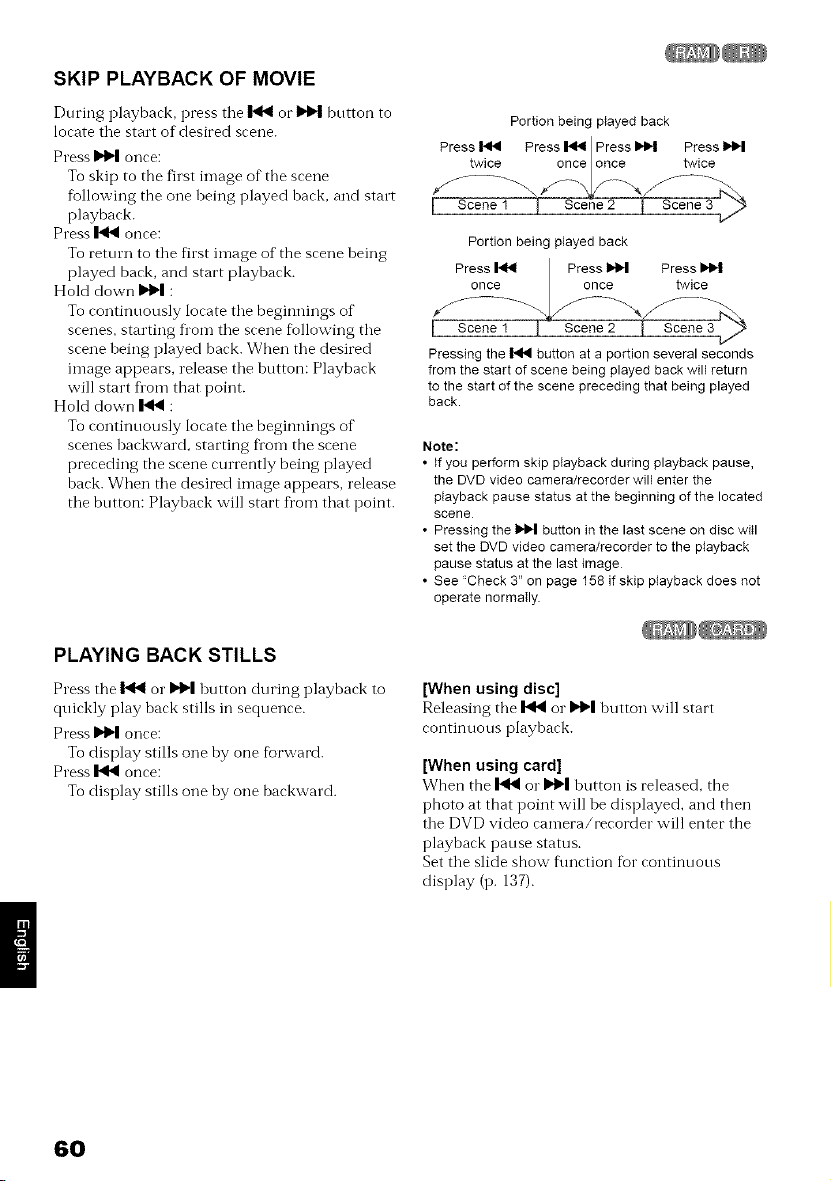
SKIP PLAYBACK OF MOVIE
During playback, press tile _ or _1_ button to
locate tile start of desired scene.
Press b'lH once:
To skip to the first image of tbe scene
fbllowing the one being played back, and start
playback.
Press I_1 once:
To return to tile first image of the scene being
played back, and start playback.
Hold down b'lH :
To continuously locate tile beginnings of
scenes, starting fl'om tile scene following tile
scene being played back. Wben tile desired
image appears, release tile button: Playback
will start fi'om that point.
Hold down _ :
To continuously locate tile beginnings of
scenes backward, starting fl'om the scene
preceding tbe scene currently being played
back. When tile desired image appears, release
tile button: Playback will start fl'om that point.
Portionbeing played back
Press _ Press _ I Press _ Press I_
I
twice once Ionce twice
Portion being played back
Press _ Press _ Press
once I once twice
I Scene1 ! Scer [ _1,_
Pressingthe _ button at a portion several seconds
from the start of scene being played back will return
to the start of the scene preceding that being played
back.
Note:
• If you perform skip playback during playback pause,
the DVD video camera/recorder will enter the
playback pause status at the beginning of the located
scene
• Pressing the _ button in the last scene on disc will
set the DVD video camera/recorder to the playback
pause status at the last image
• See ':Check 3" on page 158 if skip playback does not
operate normally.
PLAYING BACK STILLS
Press the _ or b'l_l button during playback to
quickly play back stills in sequence.
Press I'_1 once:
To display stills one by one fbrward.
Press I_1 once:
To display stills one by one backward.
[When using disc]
Releasing tbe _ or b'l_l button will start
continuous playback.
[When using card]
When the _ or b't_l button is released, the
photo at that point will be displayed, and then
the DVD video camera/recorder will enter the
playback pause status.
Set the slide show fimction fur continuous
display (p. 137).
6O
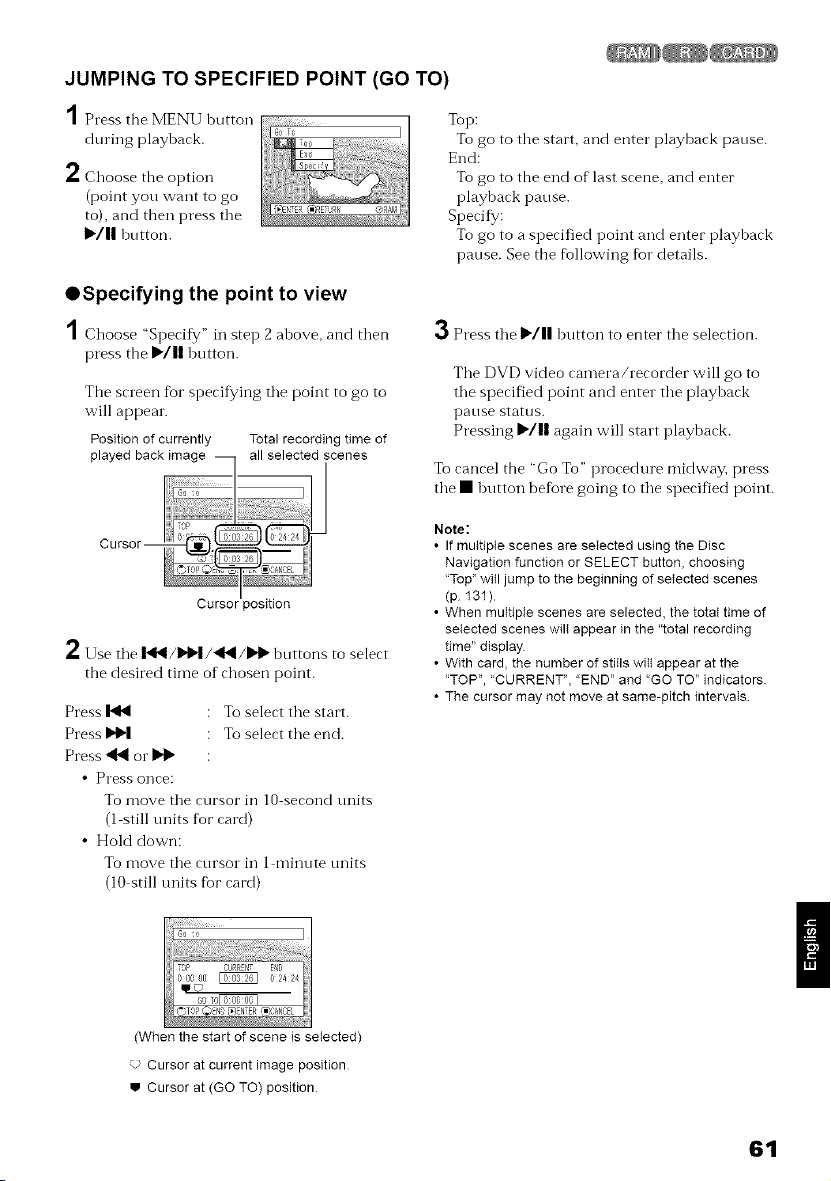
JUMPING TO SPECIFIED POINT (GO TO)
1 Press the MENU button
during playback.
2 Choose the option
(point you want to go
to), and then press tile
li_/|| button.
Top:
To go to tile start, and enter playback pause.
End:
To go to the end of last scene, and enter
playback pause.
Specif,/:
To go to a specified point and enter playback
pause. See tbe flollowing for details.
OSpecifying the point to view
10hoose .1step2, bove,then
press tbe I,,III button.
The screen fbr specif_¢ing the point to go to
will appear.
Position of currently Total recording time of
scenes
3 Press the !'/ll button to enter the selection.
The DVD video camera/recorder will go to
the specified point and enter the playback
pause stattls.
Pressing !"/ll again will start playback.
To cancel the "Go To" procedure midway, press
the • button before going to the specified point.
2Use the i'_l_/i'i,I/_'ql/li_l_bnttons to select
the desired time of chosen point.
Press _ : To select the start.
Press Dd_l : To select the end.
Press _l or _ :
• Press once:
To move the cursor in 10 second units
(1 still units fkor card)
• HoM down:
To move the cursor in 1 minute units
(10 still units fbr card)
Note:
• If multiple scenes are selected using the Disc
Navigation function or SELECT button, choosing
"Top" will jump to the beginning of selected scenes
(p 131)
• When multiple scenes are selected, the total time of
selected scenes will appear in the "total recording
time" display.
• With card, the number of stills wilt appear at the
"TOP '_,"CURRENT", "END" and "GO TO" indicators
• The cursor may not move at same-pitch intervals
/
(When the start of scene is selected)
-_ Cursor at current image position
w Cursor at (GO TO) position
61
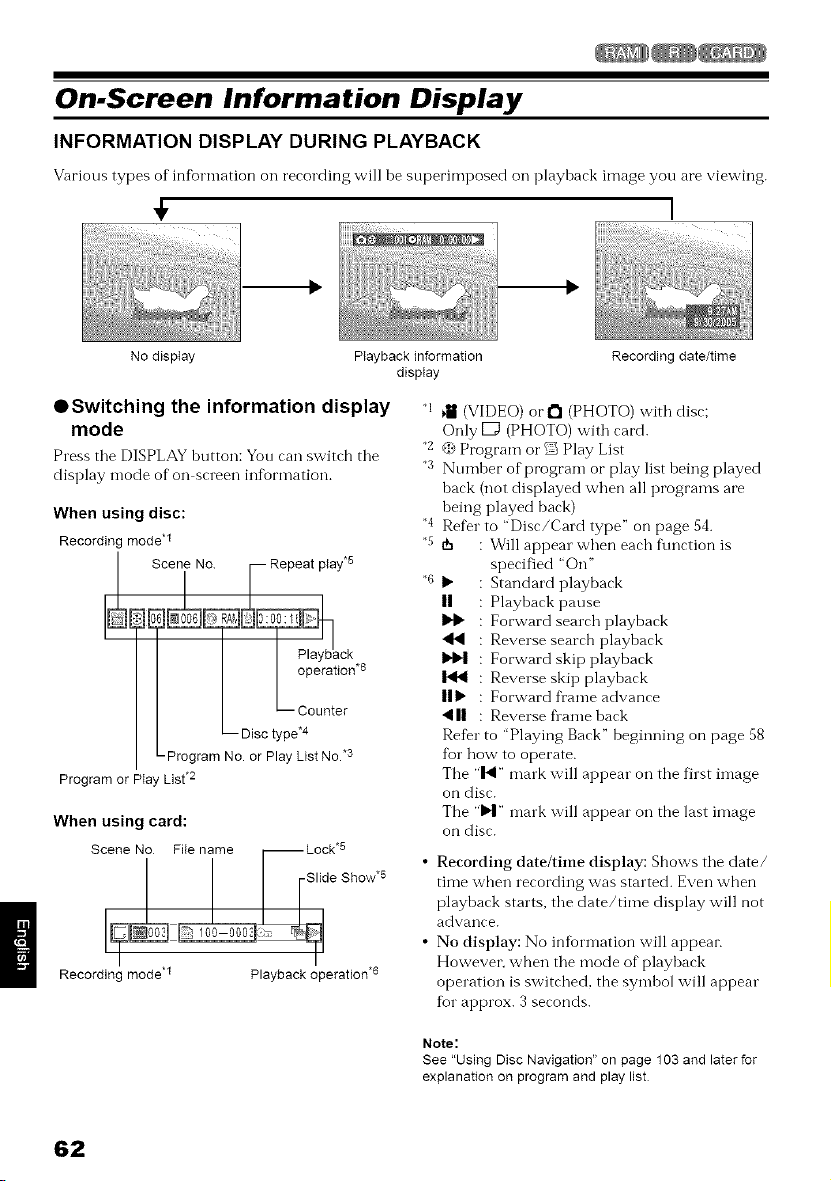
On-Screen Information Display
INFORMATION DISPLAY DURING PLAYBACK
Various types of infbrmation oil rerording will be superimposed oil playbark image you are viewing.
÷ I
No disptay Playback information Recording date/time
display
• Switching the information display q
mode
*2
Press tile DISPLAY button: You ran switrb tile
*3
display mode of on screen infbrmation.
When using disc:
Recording mode .1
Scene_o
E E] E
-Repeat play .5
A_BE( :l_Pla_yback
operation .6
-- Counter
-- Disc type .4
-Program No. or Play List No. .3
Program or PIay List.2
When using card:
Recording mode .1 Playback operation .6
(VIDEO) or t"l (PHOTO) with disc;
Only [Zl (PHOTO) with card.
<{?Program or _ Play List
Number of program or play list being played
back (not displayed when all programs are
being played back)
Refer to "Disc/Card type" on page 54.
Will appear when each f\mction is
specified "On _'
Standard playback
|| Playback pause
Forward search playback
_II Reverse search playback
Forward skip playback
Reverse skip playback
|| _" Forward frame advance
,I || Reverse frame back
Refer to "Playing Back" beginning on page 58
for how to operate.
The "1_" mark will appear on the first image
on disc.
The "_1" mark will appear" on the last image
on disc.
• Recording date/time display: Shows the date/
time wben recording was started. Even when
playback starts, the date/time display will not
advance.
• No display: No information will appear:
However; when the mode of playback
operation is switched, the symbol will appear
fur" approx. 3 seconds.
Note:
See "Using Disc Navigation" on page 103 and later for
explanation on program and play list
62
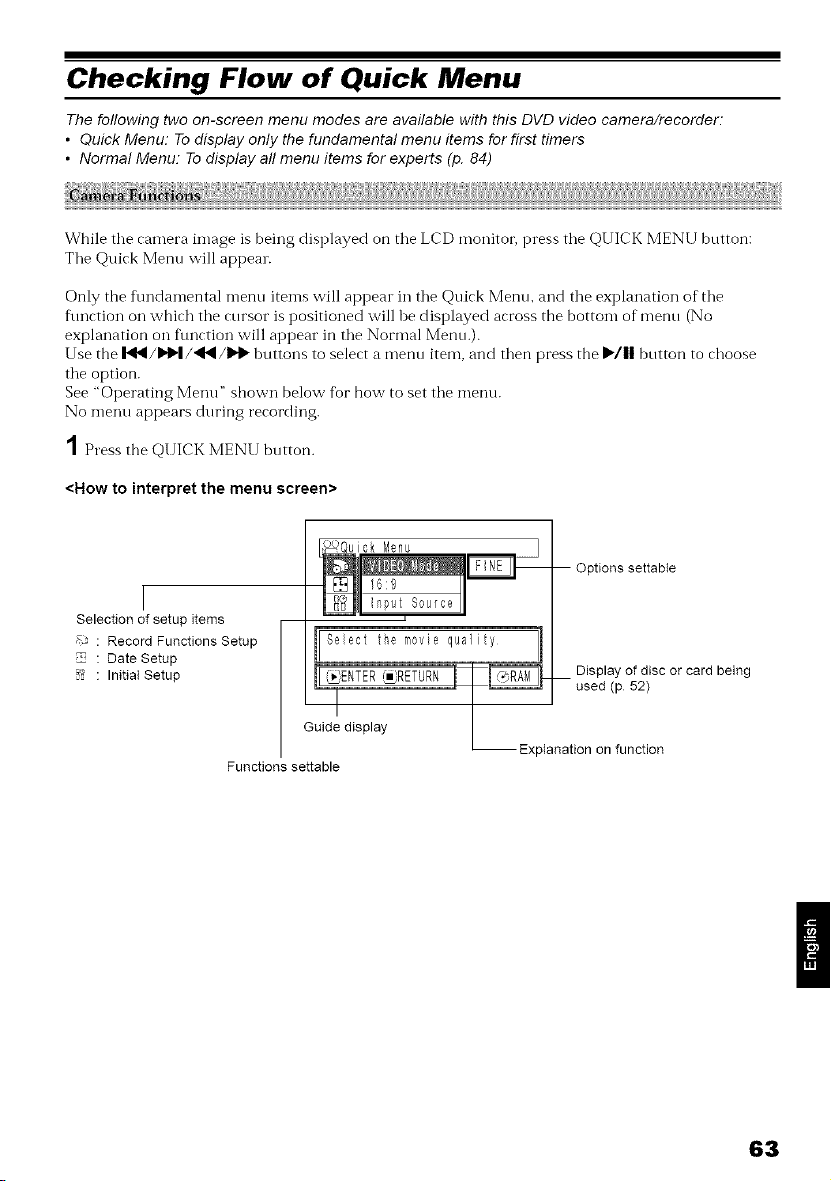
Checking Flow of Quick Menu
The following two on-screen menu modes are available with this DVD video camera/recorder:
• Quick Menu: To display only the fundamental menu items for first timers
• Normal Menu. Todisplay all menu items for experts (p. 84)
While the camera image is being displayed on the LCD monitor, press the QUICK MENU bntton:
Tile Quick Menn will appear.
Only the f\mdamental menu items will appear in tile Quick Menu, and tile explanation of tile
flmction on which tile cursor is positioned will be displayed across the bottom of menu (No
explanation on t\mction will appear in the Normal Menu.).
Use the I_I/D,'I_|/_II/D,'I_ buttons to select a menu item, and then press the I_/11 button to choose
the option.
See "Operating Menu" shown below %r how to set the menu.
No menu appears during recording.
1 Press the QUICK MENU button.
<How to interpret the menu screen>
I
Selection of setup items
Record Functions Setup
Date Setup
Initial Setup
-- Options settaNe
1_I_111e_u_Source
the movie quality I
i
] I _--------------_ Display of disc or card being
_ENTER _ used (p 52)
_RETURN
/
Guide display
L Explanation on function
Functions settable
II
63
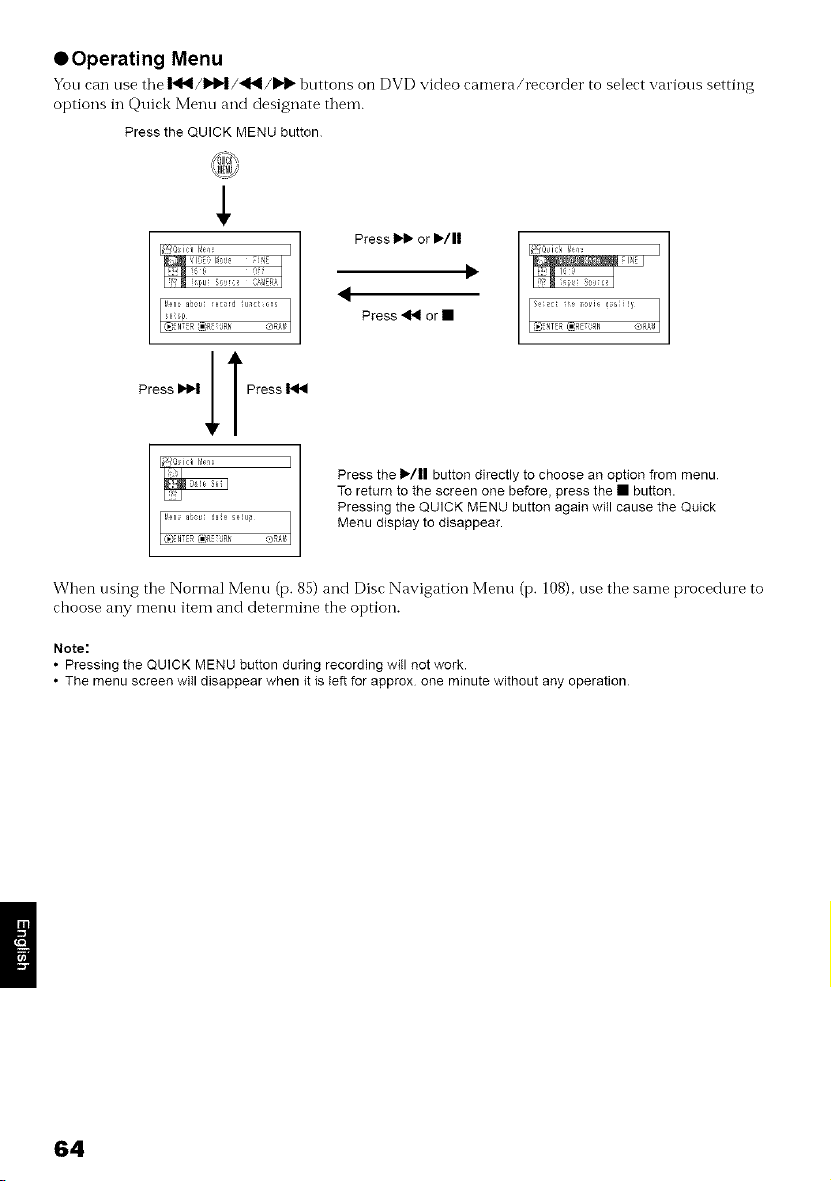
OOperating Menu
You can use tile I_I_/_D,'I/'_I/I_I_ buttons on DVD video camera/recorder to select various setting
options in Quick Menu and designate them.
Press the QUICK MENU button
$
u d ,}ns
I
Press _ or I,/11
,I
Press41_or•
Press the 1_/|| button directly to choose an option from menu
To return to the screen one before, press the • button.
Pressing the QUICK MENU button again will cause the Quick
Menu display to disappear.
When using the Normal Menu (p. 85) and Disc Navigation Menu (p. 108), use the same procedure to
choose any menu item and determine the option.
Note:
• Pressing the QUICK MENU button during recording will not work.
• The menu screen will disappear when it is left for approx one minute without any operation
64
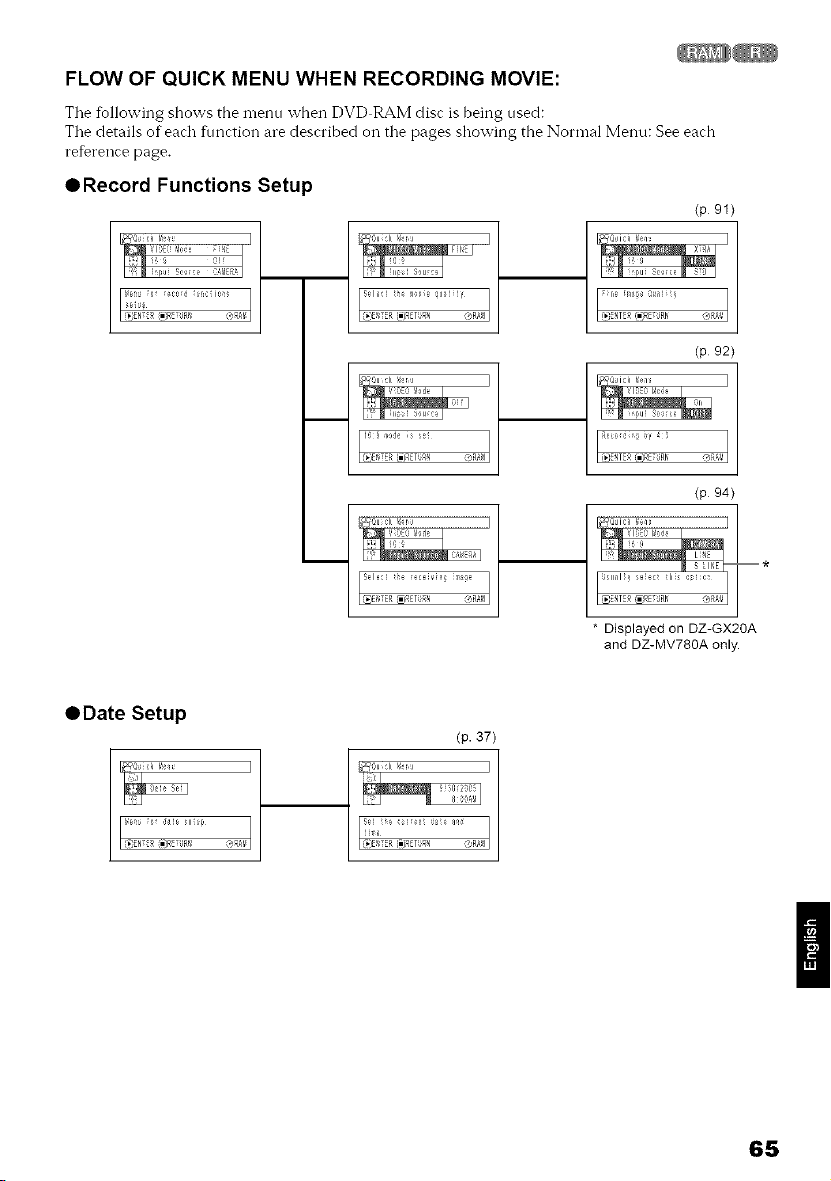
FLOW OF QUICK MENU WHEN RECORDING MOVIE:
Tile fbllowing shows tbe menu when DVD RAM disc is being used:
Tile details of each flmction are described oil tile pages showing the Normal Menu: See each
reference page.
ORecord Functions Setup
(p 91)
I:'1_ pui 8, r,:e _ s;o I
(p 92)
(p 94)
* Displayed on DZ-GX20A
and DZ-MV780A only.
ODate Setup
(p. 37)
(gR#!/ E (Ii}RETUR_, QRAM
II
65
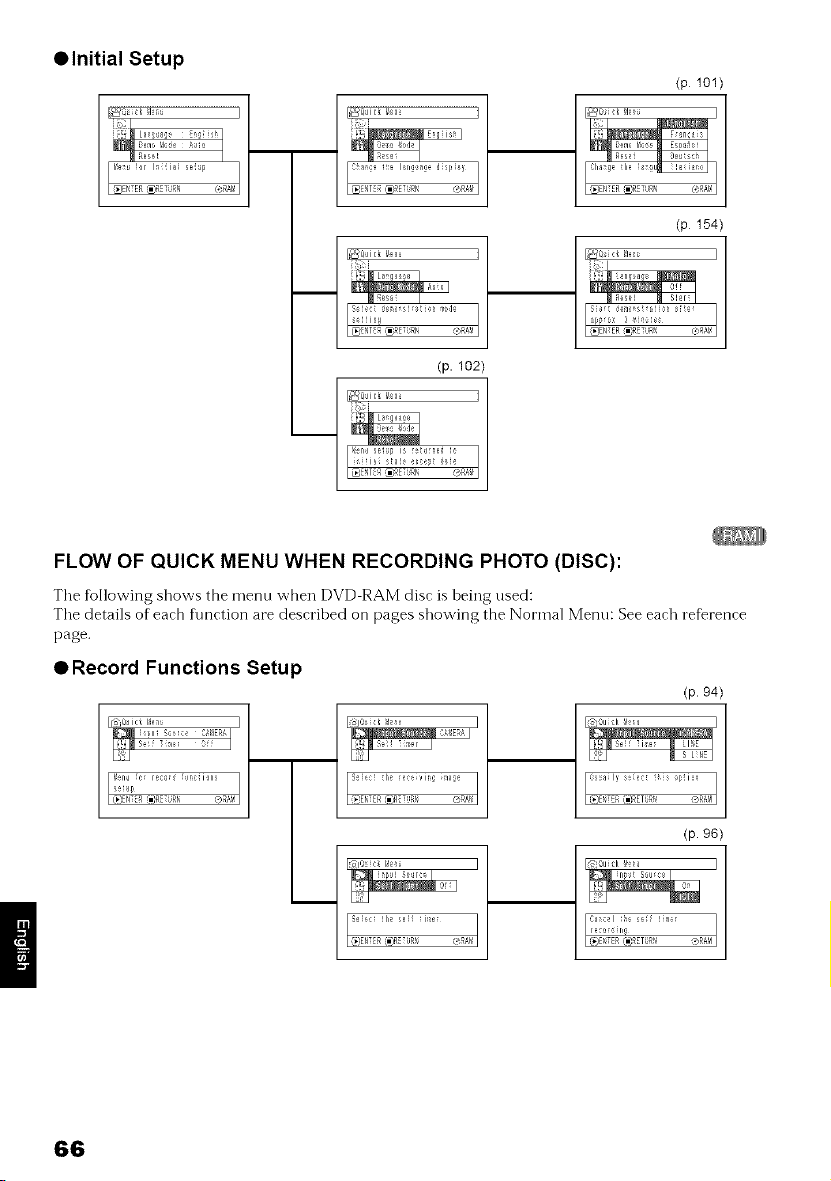
• Initial Setup
_,_t_;_,i,,i_,,2.°,_,_
(p. 102)
FLOW OF QUICK MENU WHEN RECORDING PHOTO (DISC):
Tile following shows the menu when DVD RAM disc is being used:
The details of each f\mction are described on pages showing the Normal Menu: See each reference
page.
• Record Functions Setup
.......a,,,E_Tj
(p. 94)
(p. 96)
66
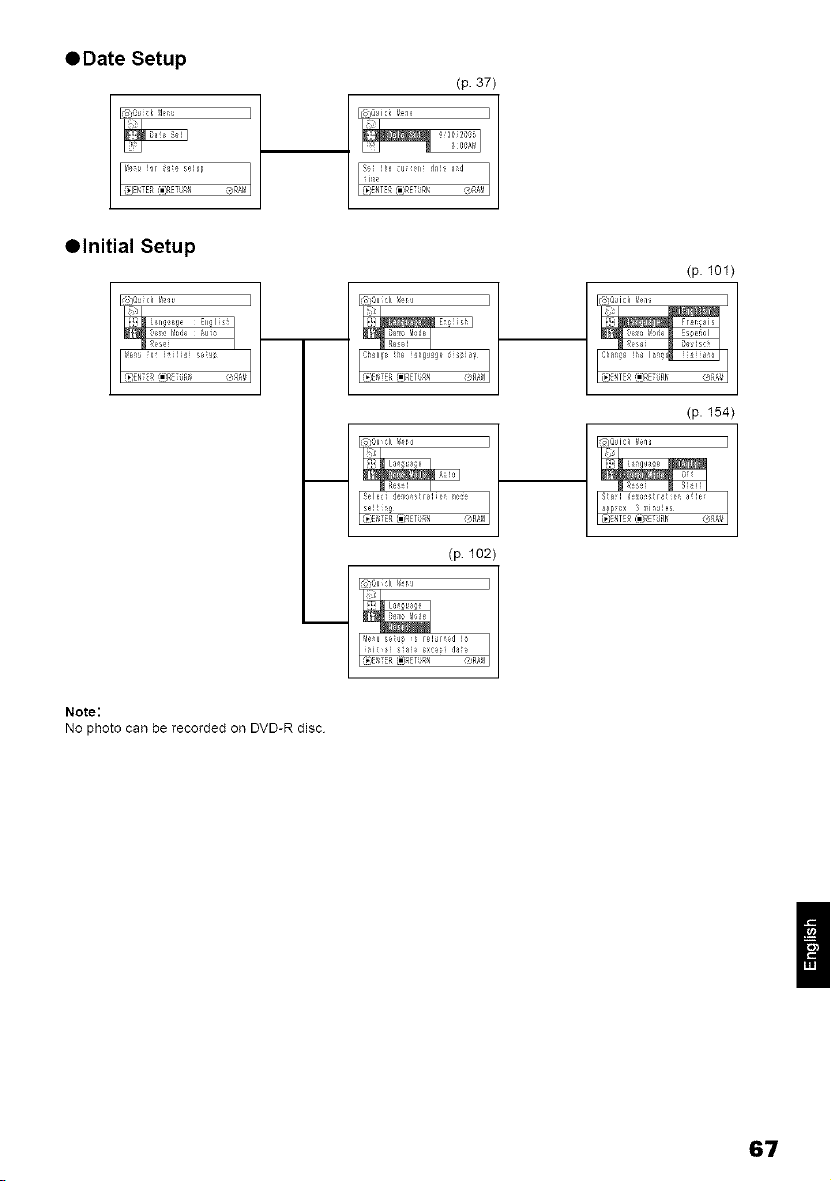
@Date Setup
(p. 37)
@Initial Setup
(p 102)
Note:
No photo can be recorded on DVD-R disc
/
67
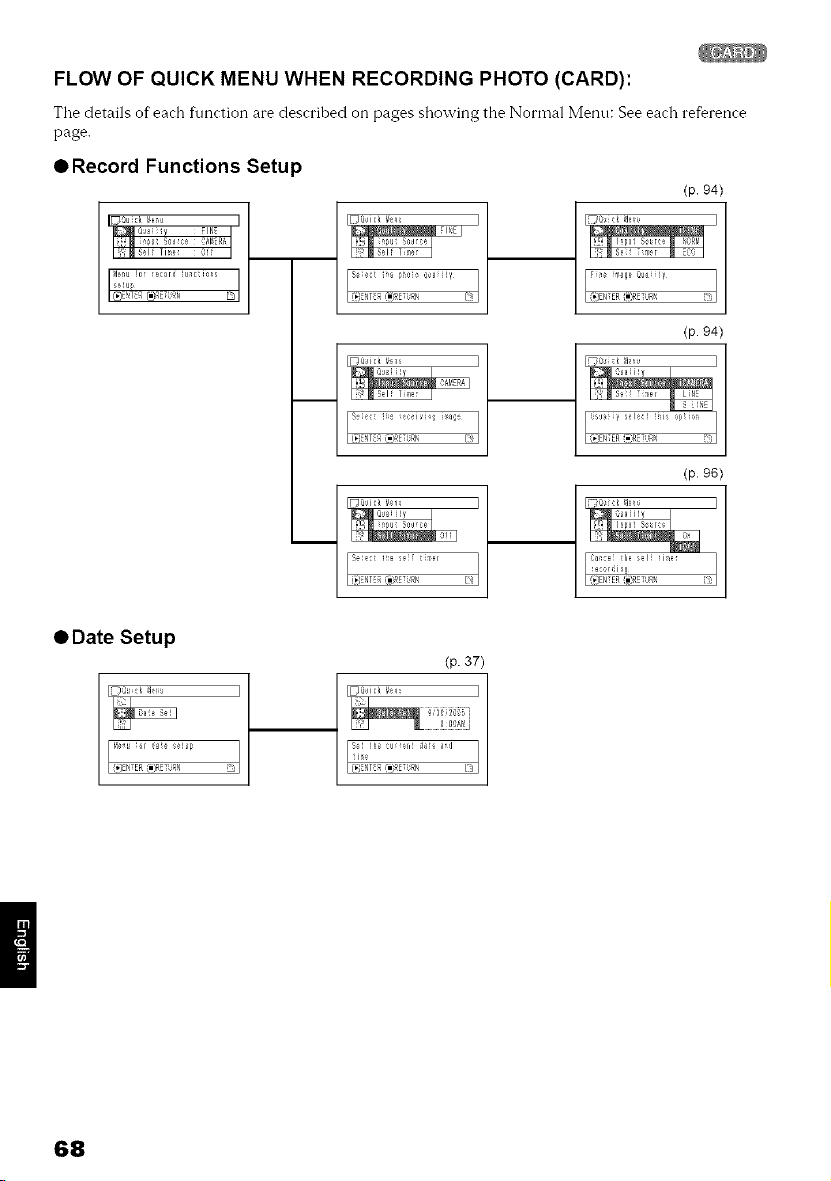
FLOW OF QUICK MENU WHEN RECORDING PHOTO (CARD):
Tile details of"each f\mction are described on pages showing the Normal Menu: See each reference
page.
• Record Functions Setup
IDQui k !I_nJ I
_@ai V FINE I
I!B soJr_ :a_ER_I
I=_ m _el_ Time_ Of_ I
ol
(p. 94)
q D QJick I
set s cei_'i _a, 1
q [ 1
I}:_Se ;'r m _CO I
I
(p. 94)
(p. 96)
• Date Setup
ID:u k a = I
1
(p. 37)
ID@ici Y_I_ I
68
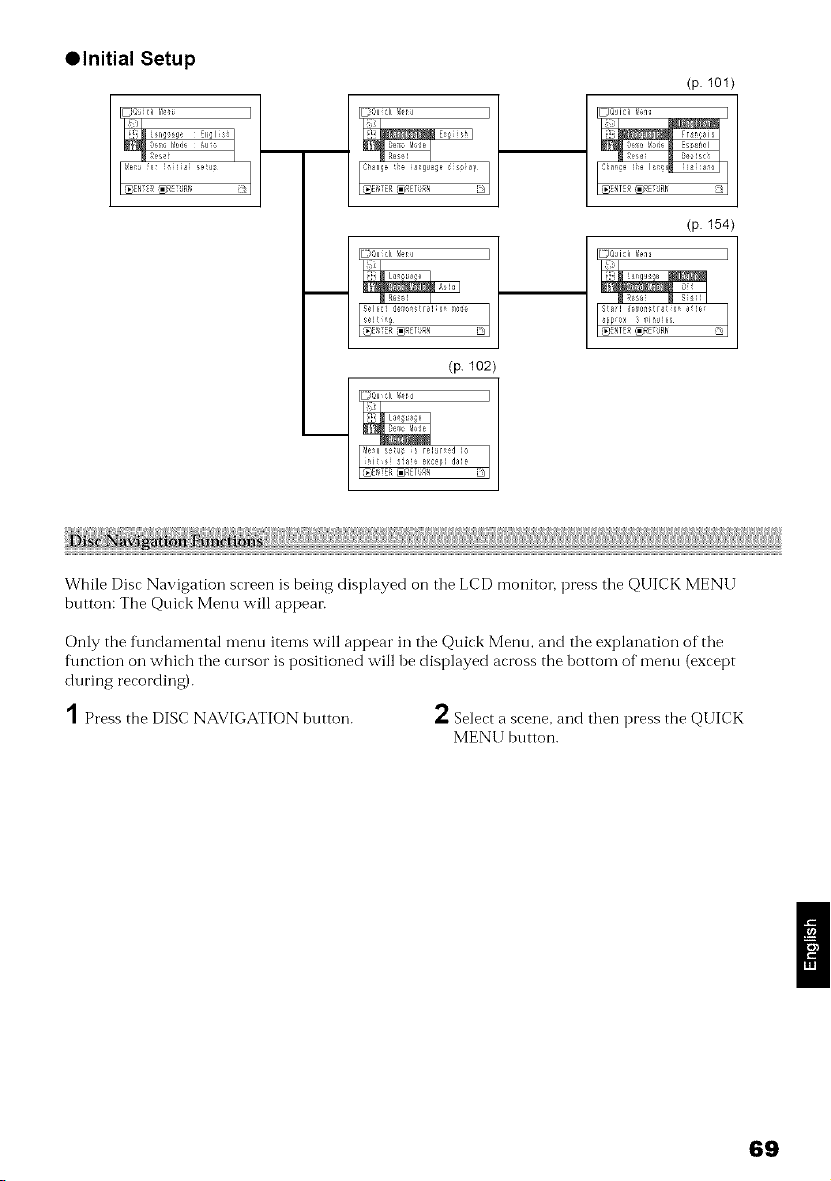
Olnitial Setup
(p. lOl)
_,_NT _ _RE URN
(p. 154)
_o,,Ui;;_,_tr_I........
I....... I
_E_;TER _ETU,% D
(p 102)
While Disc Navigation screen is being displayed on tile LCD monitor, press tile QUICK MENU
button: The Quick Menu will appear.
Only the f\mdamental menu items will appear in the Quick Menu, and the explanation of the
function on which the cursor is positioned will be displayed across the bottom of menu (except
during recording).
1Press the DISC NAVIGATION button.
*" Select a scene, and then press the QUICK
MENII button.
69
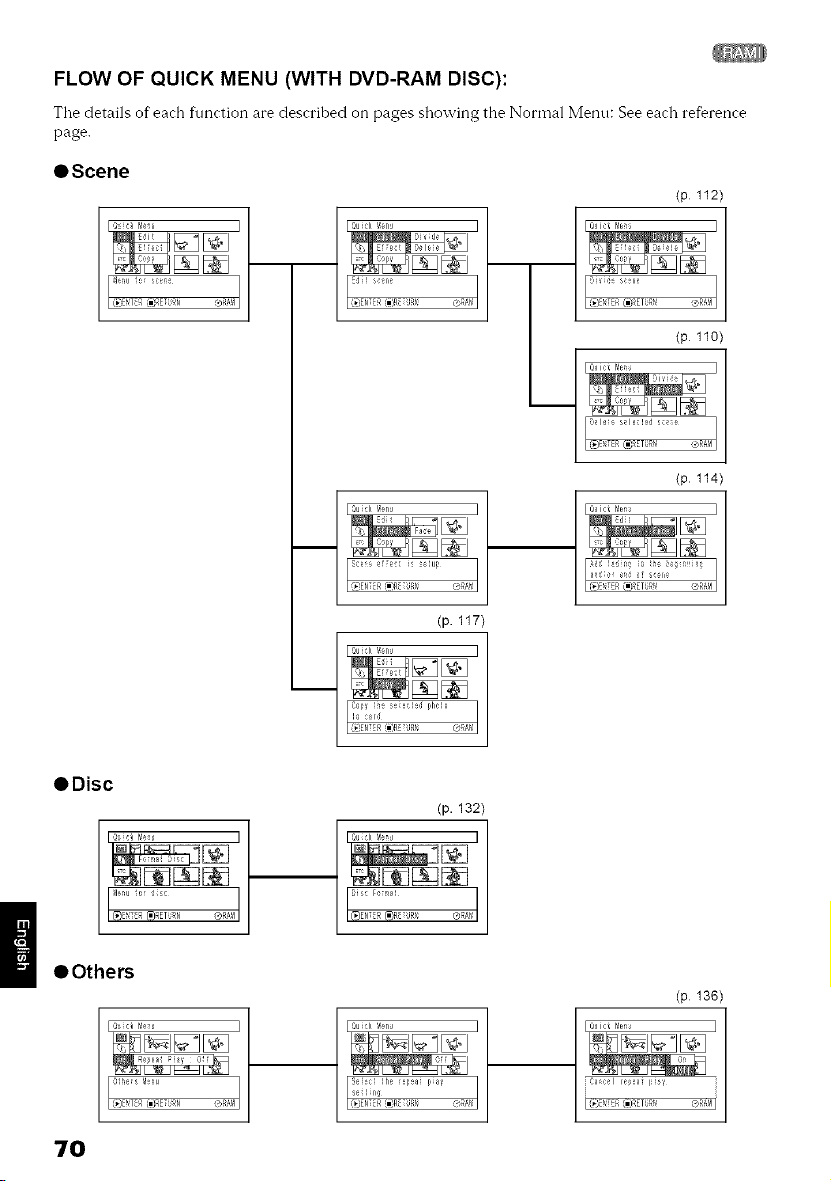
FLOW OF QUICK MENU (WITH DVD-RAM DISC):
Tile details of"each f\mction are described on pages showing the Normal Menu: See each reference
page.
OScene
_1 u or sc_n_
I ('] F<(gR TRli ®R;td
Edi_ s_gl,e
[1;} T R {i)R gR_
q [ Quik /!÷nJ ]
(p. 117)
i_,_i ....... __'_'_
(p 112)
(p llo)
I
ODisc
(p. 132)
I
• Others
(p. 136)
I@il:i I_e I
i caecel _at l)I _,'
i(9 TER (niRETUR_ @RM I
7O
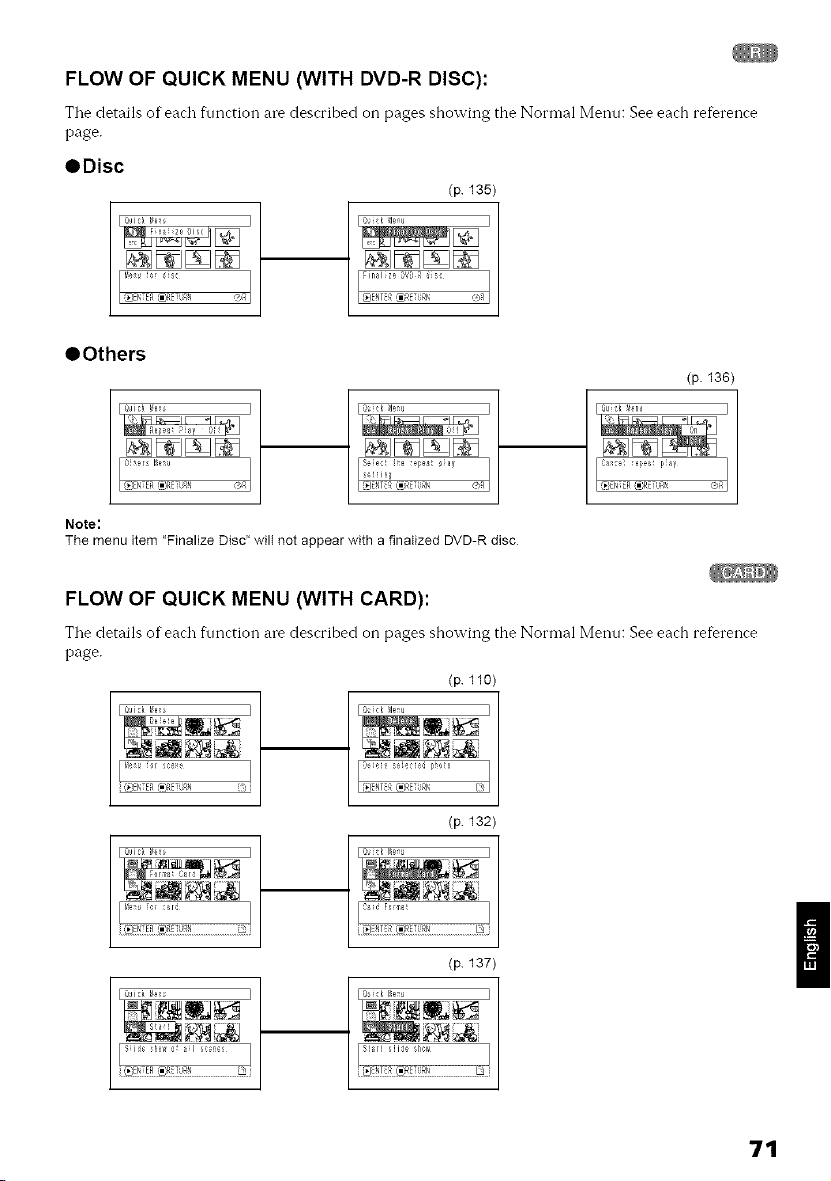
FLOW OF QUICK MENU (WITH DVD-R DISC):
Tile details of each f\mction are described on pages showing the Normal Menu: See each reference
page.
ODisc
(p 135)
IQ k _leu
OOthers
(p. 136)
]
Note"
The menu item "Finalize Disc" wilt not appear with a finalized DVD-R disc
FLOW OF QUICK MENU (WITH CARD):
The details of each ffmction are described on pages showing the Normal Metal: See each reference
page,
(p 110)
IQ k _leu •
(p 132)
(p 137)
]
71
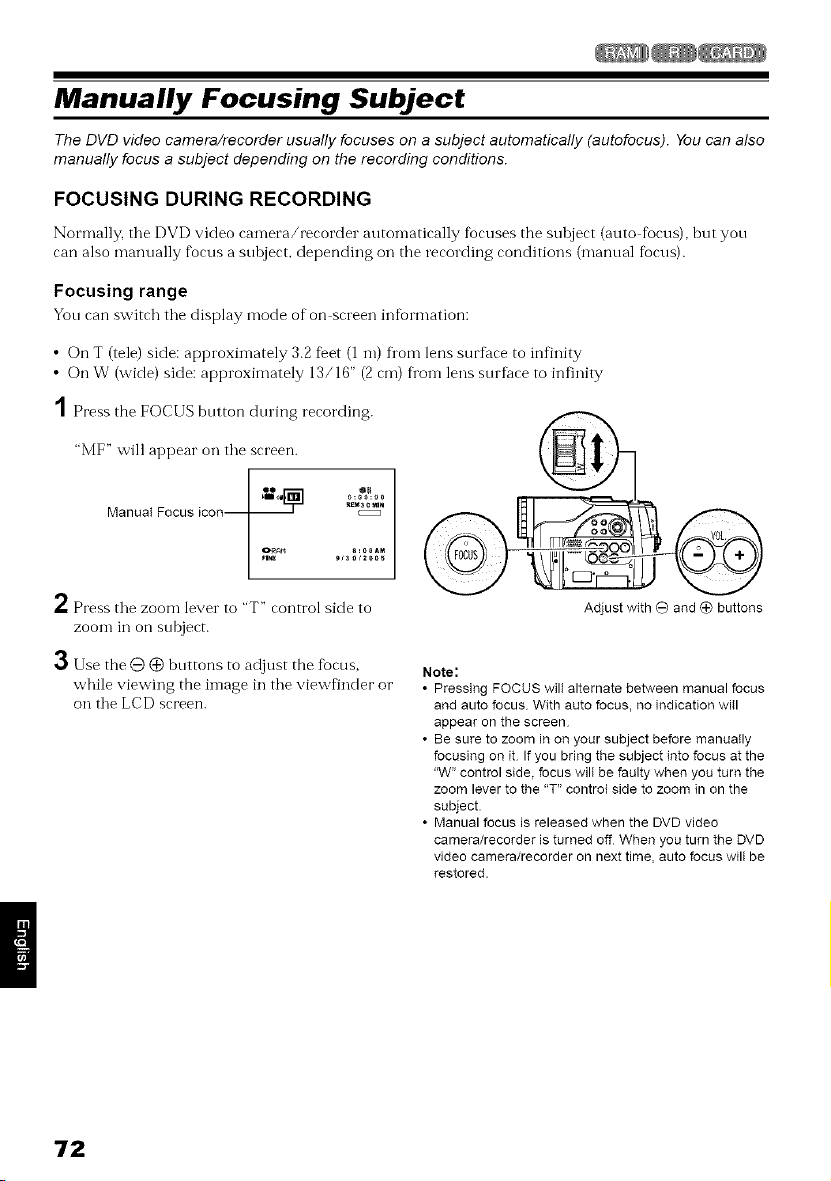
Manually Focusing Subject
The DVD video camera/recorder usually focuses on a subject automatically (autofocus). You can also
manually focus a subject depending on the recording conditions.
FOCUSING DURING RECORDING
Normally. tile DVD video camera/recorder automatically focuses the subject (auto focus), but yon
can also manually focus a subject, depending oil the recording conditions (mannal focus).
Focusing range
Yon can switch tile display mode of on screen infi01"i_lation:
• On T (tele) side: approxin-lately 3.2fFet (1 m) fl'om lens surfime to infinity
• On W (wide) side: approximately 13/16" (2 cm) fl'om lens snrfi_ce to infinity
1 Press the FOCUS button during recording.
"MF" will appear on the screen.
0:&%0
_a0_N
Manual Focus icon--
2 Press the zoom lever to "T" control side to
zoom in on snbject.
3 Use the@ @ bnttons to adjust the tbcus,
while viewing the image in the viewfinder or
on the LCD screen.
Adjust with 0 and @ buttons
Note:
• Pressing FOCUS wilt alternate between manual focus
and auto focus With auto focus, no indication will
appear on the screen
• Be sure to zoom in on your subject before manually
focusing on it If you bring the subject into focus at the
"W" control side, focus wilt be faulty when you turn the
zoom lever to the "T" control side to zoom in on the
subject.
• Manual focus is released when the DVD video
camera/recorder is turned off When you turn the DVD
video camera/recorder on next time, auto focus wilt be
restored.
72
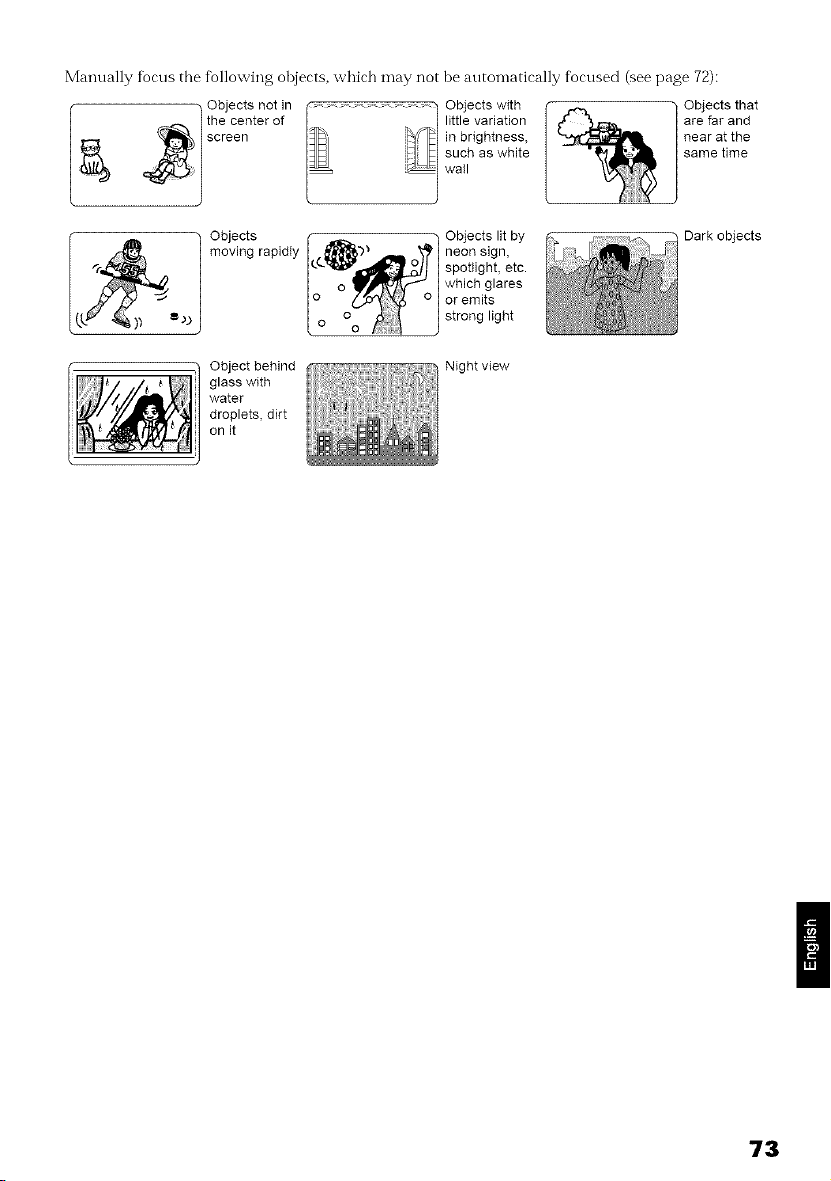
Manually figcus the following objects, which may not be automatically focused (see page 72):
/ Objects not in Objects with
_ / tsheCennterof little variation
in brightness,
such as white
wall
Objects thatare far and
near at the
same time
Objects
moving rapidly
Objects lit by
neon sign,
spotlight, etc.
which glares
or emits
strong light
Dark objects
Object behind
glass with
water
droplets, dirt
on it
Night view
73
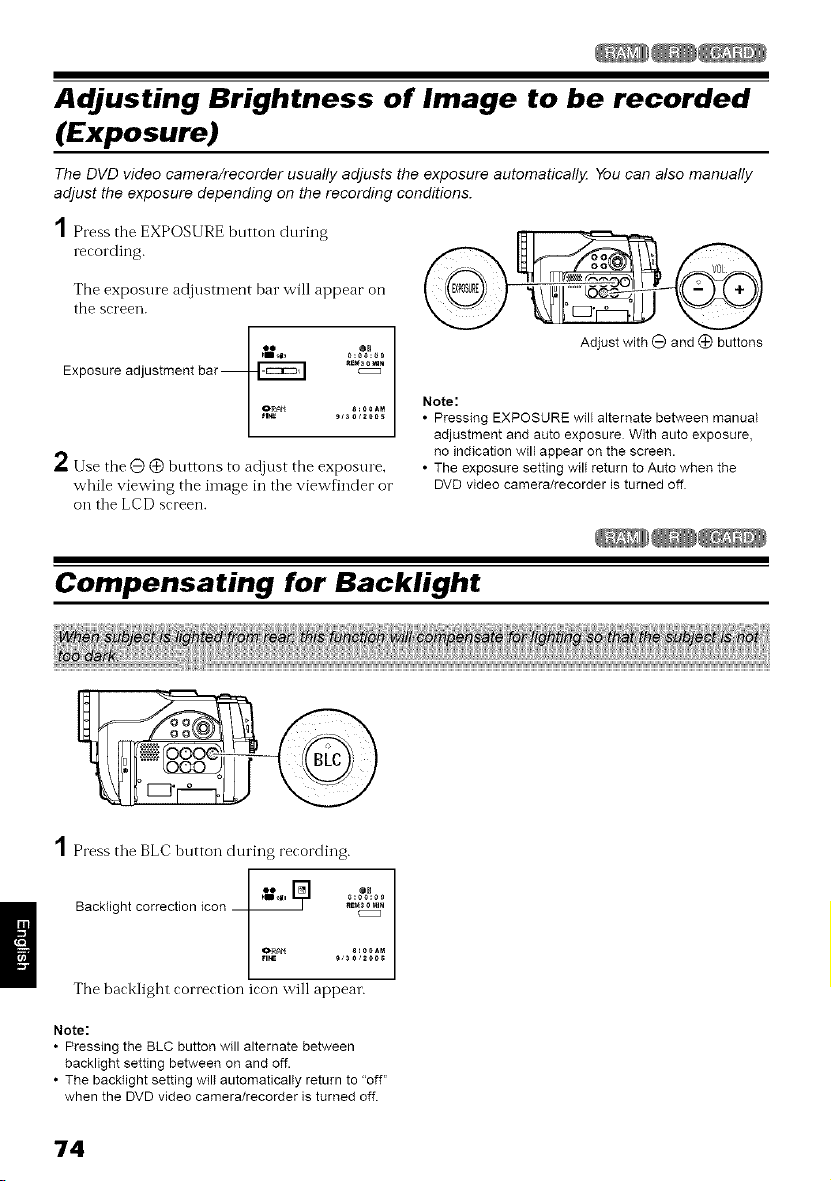
Adjusting Brightness of Image to be recorded
(Exposure)
The DVD video camera/recorder usually adjusts the exposure automatically You can also manually
adjust the exposure depending on the recording conditions.
1Press the EXPOSURE button during
recording.
The exposure adjustnmnt bar will appear on
the screen.
Exposure adjustment bar
2 Use the@ @ buttons to adjust tile exposure,
while viewing the image in tile viewflnder or
oil tlle LCD screen.
Adjust with (_ and (_) buttons
Note:
• Pressing EXPOSURE will alternate between manual
adjustment and auto exposure With auto exposure,
no indication will appear on the screen.
• The exposure setting will return to Auto when the
DVD video camera/recorder is turned off
Compensating for Backlight
Press tile BLC button during recording.
I ,U,,,[_],U..... g%0
Backfight correction icon _ _[MaOMI,
The back]ight correction icon ,,viii appear,
Note:
• Pressing the BLC button will alternate between
backlight setting between on and off.
• The backtight setting wilI automaticalIy return to "off"
when the DVD video camera/recorder is turned off.
74
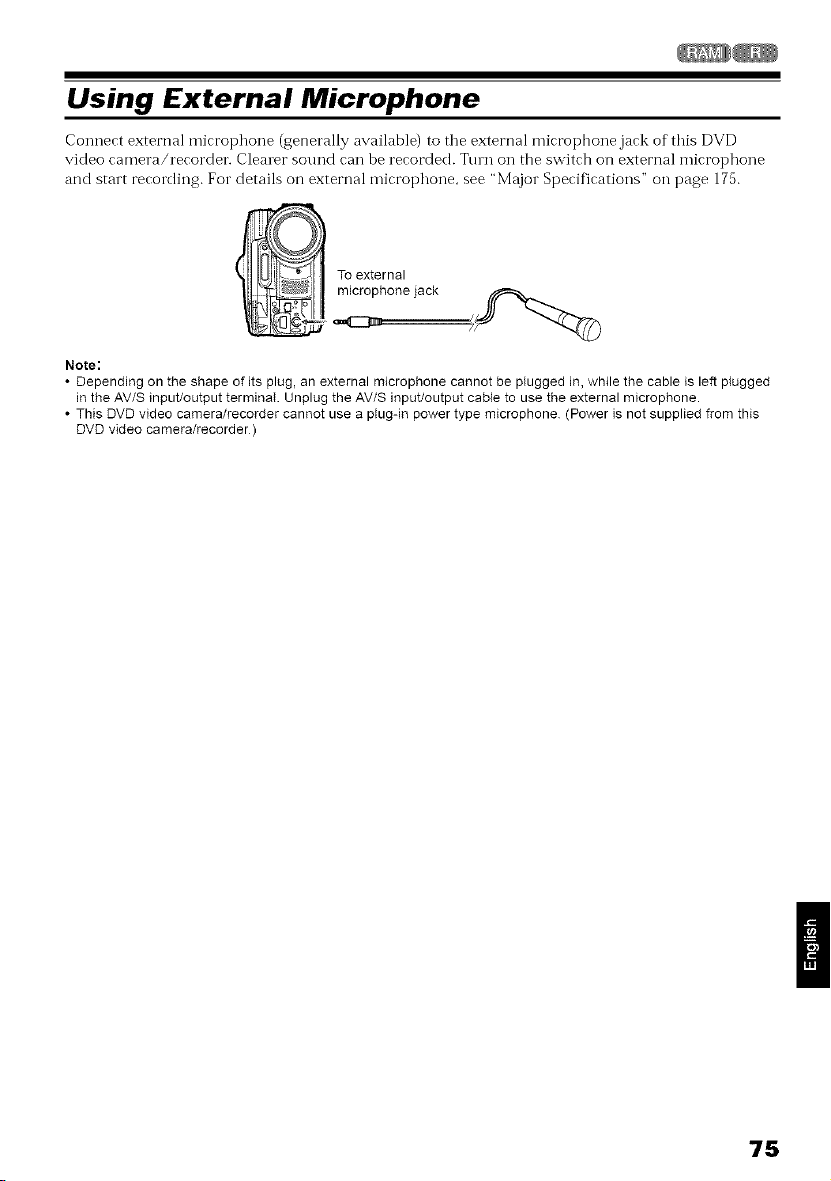
Using External Microphone
Connect external microphone (generally available) to tile external microphone jack of this DVD
video camera/recorder. Clearer sound cai1 be recorded. Tnrn on the switch on external microphone
and start recording. For details on external microphone, see "Major Specifications" on page 175.
To external
microphone jack
Note:
• Depending on the shape of its plug, an external microphone cannot be plugged in, while the cable is left plugged
in the AV/S input/output terminaI. Unplug the AVIS input/output cane to use the external microphone.
• This DVD video camera/recorder cannot use a plug-in power type microphone (Power is not supplied from this
DVD video camera/recorder)
75
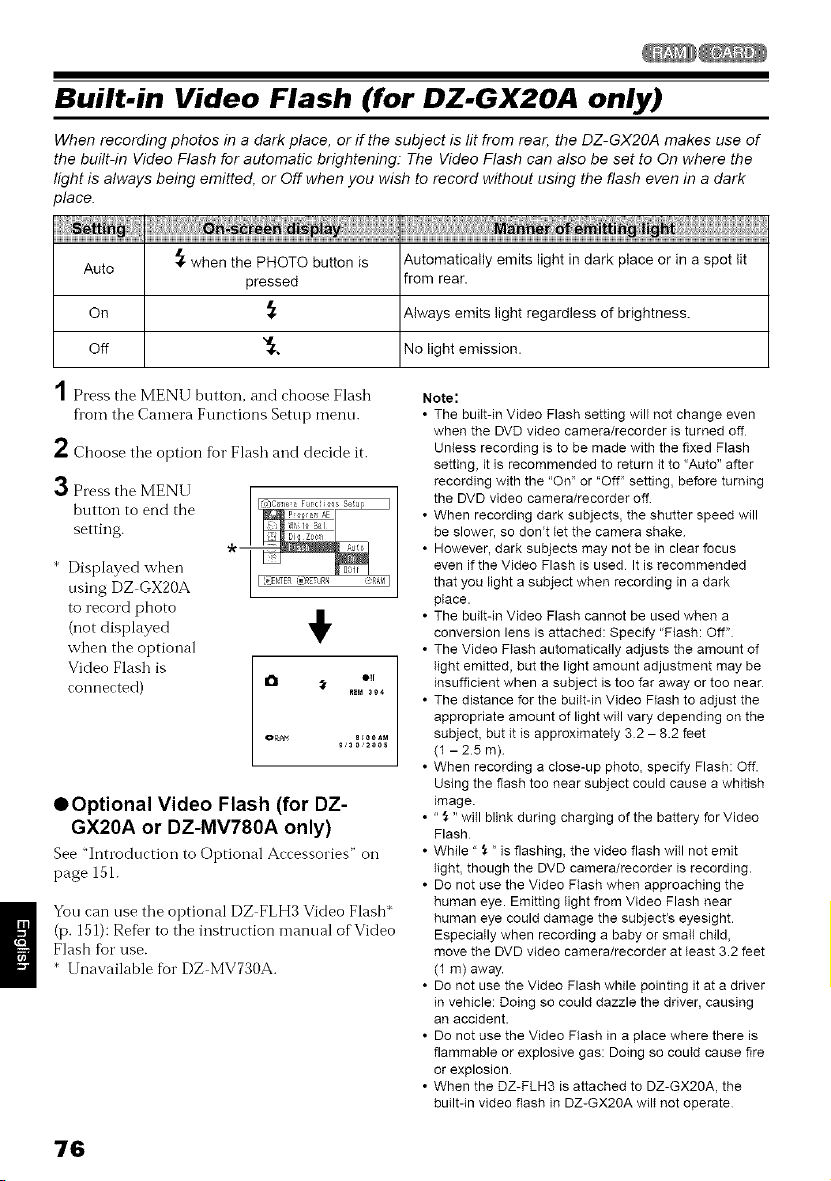
Built-in Video Flash (for DZ-GX20A only)
When recording photos in a dark place, or if the subject is lit from rear, the DZ-GX20A makes use of
the built-in Video Flash for automatic brightening: The Video Flash can also be set to On where the
light is always being emitted, or Off when you wish to record without using the flash even in a dark
place.
em.g o r0e-di
Auto ,_ when the PHOTO button is
pressed
on
off "_.,
0 ,miui _1
Automatically emits light in dark place or in a spot lit
from rear.
Always emits light regardless of brightness.
No light emission.
Press the MENU button, and choose Flash
fl_om tile Camera Functions Setup menu.
2 Choose tile option fbr Flash and decide it.
3 Press the MENU
button to end the
setting.
* Displayed when
using DZ GX20A
to record photo
(not displayed
when the optional
Video Flash is
connected)
_lcm
REM aS4
OR_ 8:00A_
S 30 _OOS
• Optional Video Flash (for DZ-
GX20A or DZ-MV780A only)
See "Introduction to Optional Accessories" on
page 151.
You can use the optional DZ FLH3 Video Flash*
(p. 151): Refer to the instruction manual of Video
Flash fbr use.
* Unavailable fbr DZ MV730A.
Note:
• The built-in Video Flash setting will not change even
when the DVD video camera/recorder is turned off
Untess recording is to be made with the fixed Flash
setting, it is recommended to return it to ':Auto" after
recording with the "On '_or "Off" setting, before turning
the DVD video camera/recorder off
• When recording dark subjects, the shutter speed will
be slower, so don't tet the camera shake
• However, dark subjects may not be in clear focus
even if the Video Flash is used It is recommended
that you light a subject when recording in a dark
place.
• The built-in Video Flash cannot be used when a
conversion lens is attached: Specify "Ftash: Off"
• The Video Flash automatically adjusts the amount of
tight emitted, but the light amount adjustment may be
insufficient when a subject is too far away or too near
• The distance for the buiIt-in Video Ftash to adjust the
appropriate amount of light will vary depending on the
subject, but it is approximateIy 32 - 8.2 feet
(1 -25m)
• When recording a close-up photo, specify Flash: Off.
Using the flash too near subject could cause a whitish
image.
• "f_ "will blink during charging of the battery for Video
Flash
• While " _ " is flashing, the video flash witl not emit
tight, though the DVD camera/recorder is recording.
• Do not use the Video Ftash when approaching the
human eye. Emitting tight from Video Flash near
human eye could damage the subject's eyesight.
Especially when recording a baby or smaIt child,
move the DVD video camera/recorder at teast 3.2 feet
(1 m) away.
• Do not use the Video Flash while pointing it at a driver
in vehicle: Doing so could dazzle the driver, causing
an accident.
• Do not use the Video Flash in a place where there is
flammable or explosive gas: Doing so could cause fire
or explosion
• When the DZ-FLH3 is attached to DZ-GX20A, the
built-in video flash in DZ-GX20A wilt not operate
76
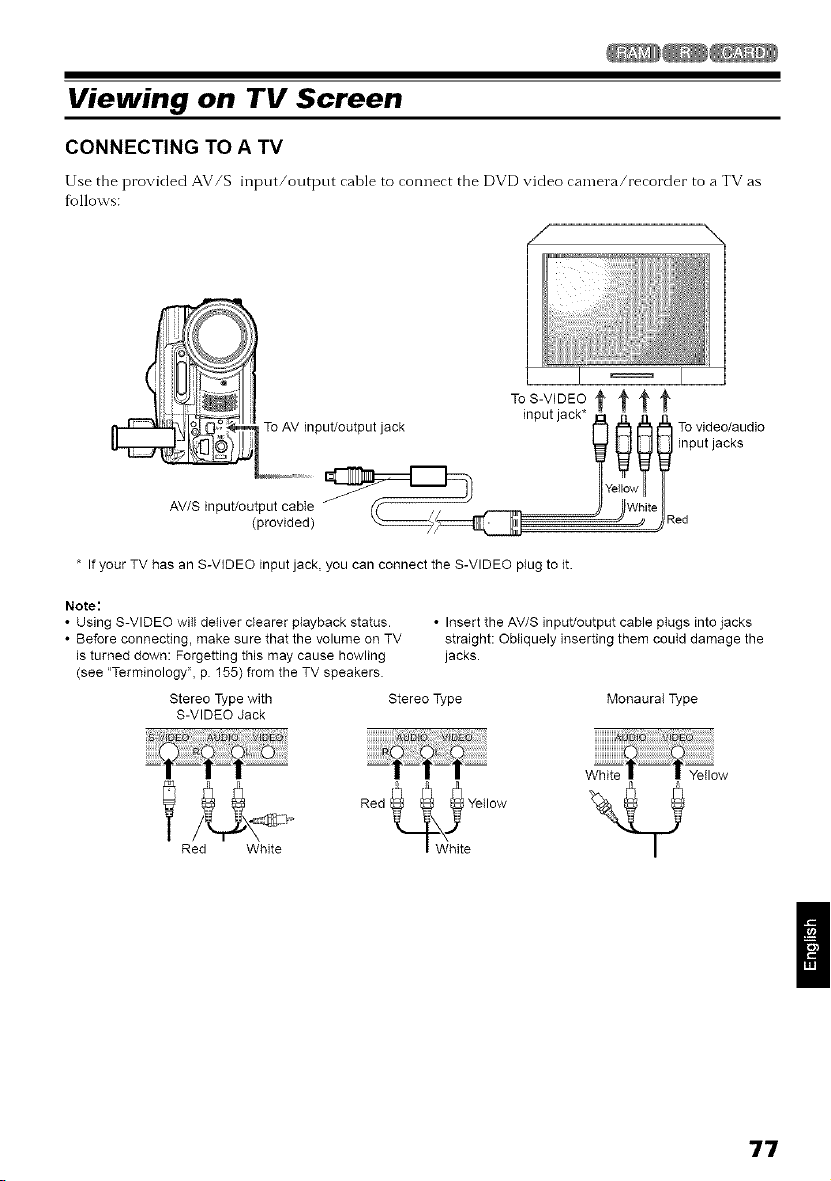
Viewing on TV Screen
CONNECTING TO A TV
Use the provided AV/S input/output cable to connect the DVD video camera/recorder to a TV as
follows:
* If your TV has an S-VIDEO input jack, you can connect the S-VIDEO plug to it
Note:
• Using S-VIDEO wilt deliver clearer playback status • Insert the AV/S input/output cable ptugs into jacks
• Before connecting, make sure that the volume on TV straight: Obliquely inserting them could damage the
is turned down: Forgetting this may cause howling jacks
(see "Terminology", p 155) from the TV speakers
Stereo Type with Stereo Type Monaural Type
S-VIDEO Jack
I R_U_Wh_Ie _ Red _ 9 Yetl°w
l'Wht%
77
VIEWING ON TV SCREEN
1Tt..ntileTVon ,nd tile,np, ,tselecto,"to
"VCR" whichever applicable Video input.
Re%r to the TV instruction manual fur how to
switch tile TV input.
2 Turn tile DVD video camera/recorder on.
The image that the DVD video camera/
recorder is seeing will appear on the TV
sci'een.
You can also monitor tile image on the LCD
screen or viewfinder of the DVD video
C_t I11 el'a / Fec 0 I'd e I\
3Perform playback, recording or editing.
You can per%rm playback, editing or editing
on Disc Navigation while checking on TV
screen.
Note:
• Adjust the volume of sound on TV
• The infrared remote control is useful when operating
the DVD video camera/recorder white viewing an
image on TV screen. However, if you use a Hitachi
VCR, the remote control may inadvertently operate
the VCR if it is near the DVD video camera/recorder.
To prevent this, set the remote control code of the
VCR to a position other than "VCR2".
• Information that the DVD video camera/recorder is
recording wiIt appear on the TV screen: You can aIso
display onty part of information or switch off the
display Refer to "SETTING ON-SCREEN DISPLAY
OUTPUT ON OR OFF (OSD OUTPUT)" on page 97,
and press the DISPLAY button to switch the display
status
• When copy-guarded disc is played back, no image will
appear on TV screen.
• If you use TV with wide mode (aspect ratio 16:9) and
set the TV to the wide mode, the entire Disc
Navigation display may not be displayed on the TV
screen If this happens, release the wide mode setting
on TV (see the TV instruction manual for releasing the
wide mode)
78
Playback on DVD Recorder/Player
PLAYING BACK DVD-RAM DISC
You can use a DVD recorder (see "Terminology'; p. 155) or DVD player that conforms to DVD-RAM to
play back 8 cm DVD-RAM discs recorded on this DVD video camera/recorder.
1Insert tile disc into the DVD recorder/player Note:
and play it back. • When playing back disc on another device, the Disc
Navigation display will be different from the one on
See the instruction n-lanua] fbr DVD this DVD video camera/recorder.
recorder/playei:
PLAYING BACK DVD-R DISC
1 Finalize a recorded DVD R disc.
You need to finalize (see "Tern-linology".
p. 155) a disc to play it back oil DVD player:
See page 135.
No fllrther data can be recorded on finalized
disc.
Note:
Use this DVD video camera/recorder to finalize tile
DVD-Rdisc recorded on the DVD video camera/
recorder.
2 Insert tile disc into the DVD player and play
it back.
Note:
• Do not insert a DVD-R disc that has not been finalized
into any DVD recorder: The disc may be unusable
(except for devices that allow playback of a DVD-R
disc not finalized on this DVD video camera/recorder).
• DVD-R discs recorded on this DVD video camera/
recorder or other 8 cm DVD-R discs can be played
back on other DVD players or other devices
conforming to 8 cm DVD-R, but playback on all DVD
pIayers is not guaranteed.
• Playback may not be possible on some DVD players,
or it may depend on the recorded status of DVD-R
discs: In such cases, play back the DVD-R disc on
this DVD video camera/recorder. Also, pIayback on
DVD players may stop momentarily between scenes
See the instruction n-lanual for DVD player.
79
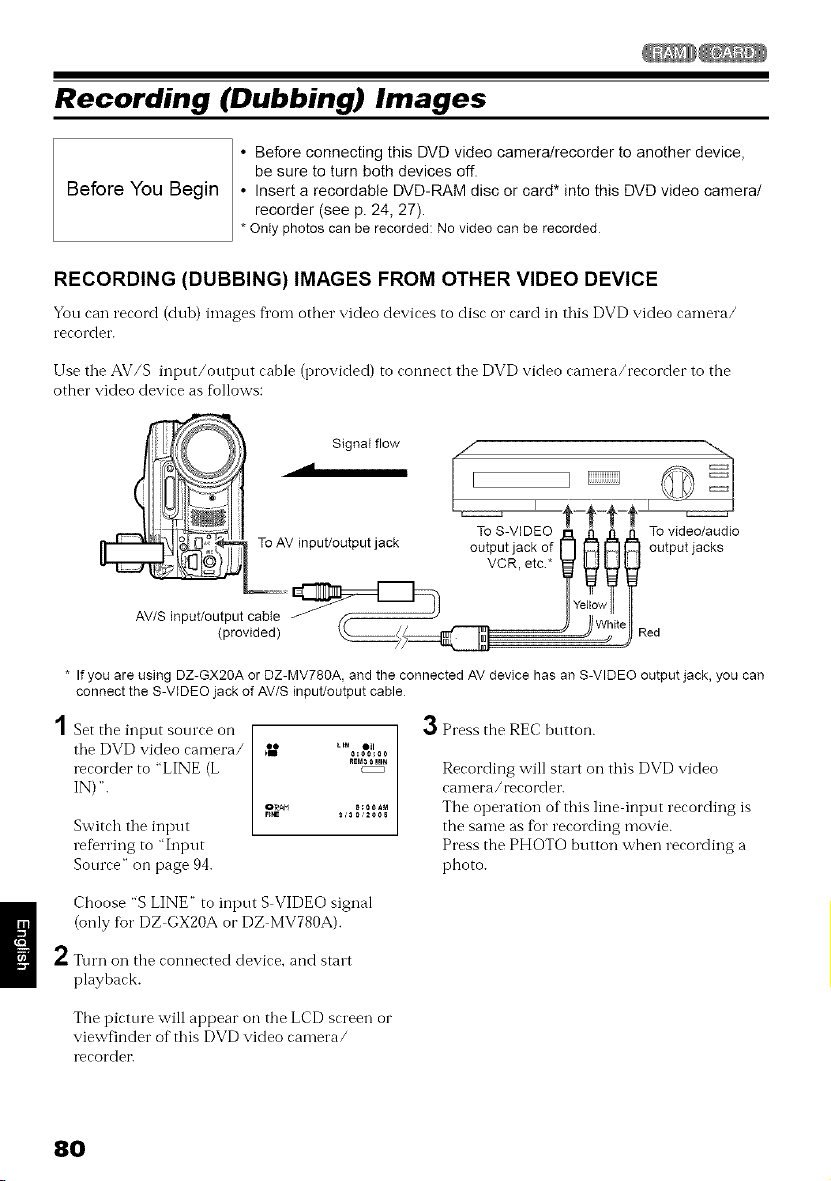
Recording (Dubbing) Images
Before You Begin
• Before connecting this DVD video camera/recorder to another device,
be sure to turn both devices off
• Insert a recordable DVD-RAM disc or card* into this DVD video camera!
recorder (see p 24, 27)
* Onty photos can be recorded: No video can be recorded
RECORDING (DUBBING) IMAGES FROM OTHER VIDEO DEVICE
You can record (dub) images from other video devices to disc o1"card in this DVD video camera/
recorder.
Use the AV/S input/output cable (provided) to connect the DVD video camera/recorder to the
other video device as follows:
Signal flow
To S-VIDEO
To AV input/output jack output jack of
VCR, etc*
AVIS input/output cabt_'_e _
(provided) \t._/!__
* If you are using DZ-GX20A or DZ-MV780A, and the connected AV device has an S-VIDEO output jack, you can
connect the S-VIDEO jack of AV/S input/output cable
Set the input source on
the DVD video camera/
recorder to "LINE (L
IN) ".
Switch the input
referring to "Input
Source" on page 94.
010o:00
R_Ma0MI_
3 Press the REC button.
Recording will start on this DVD video
camera/recorder.
The operation of this line input recording is
the same as tbr recording movie.
Press the PHOTO button when recording a
photo.
Choose "S LINE" to input S VIDEO signal
(only for DZ GX20A or DZ MV780A).
2 sum on the connected device, and start
playback.
The picttlre will appear on the LCD screen or
viewfinder of this DVD video camera/
recorder.
80
Note:
• If you operate the DVD video camera/recorder
connected to another device, always power the
camera/recorder from AC outlet using the AC adapter/
charger.
• If you use a Hitachi VCR, it will be operated by the
remote control provided with the DVD video camera/
recorder When recording an image from a Hitachi
VCR, change the remote control code of the VCR to
other than "VCR2".
• With DZ-GX20A or DZ-MV780A, using S-VIDEO will
enable you to record clearer images.
• The DZ-MV730A cannot record S-VIDEO input.
• Reduce the volume of externat input sound heard
from the built-in speaker: The loud volume may cause
noise to enter the recorded image
• The recorded contents can be played back in the
same manner as when playing back camera images
recorded on this DVD video camera/recorder
• The "input Source" setting wilt return to "CAMERA"
whenever DVD video camera/recorder is turned off.
• Recording of most images is prohibited by the copy-
guard signal to protect the copyright, except for
images recorded on camcorders for personal
enjoyment "COPY PROTECTED" appears in these
images: They cannot be recorded on this DVD video
camera/recorder
Typical copyright protected images include those of
DVD video, LD, recorded video tapes, some parts of
digital satelIite broadcasts, etc
• If a video signat that cannot be read by this DVD
video camera/recorder is present - even in images
recorded on camcorder for personaI enjoyment
without copy-guard signal - the input image may not
be recorded normaIly.
• If the input signal is interrupted by switching the
channel on TV or switching the signal using video
setector (see "Terminology", p. 155), normal recording
cannot be performed.
81
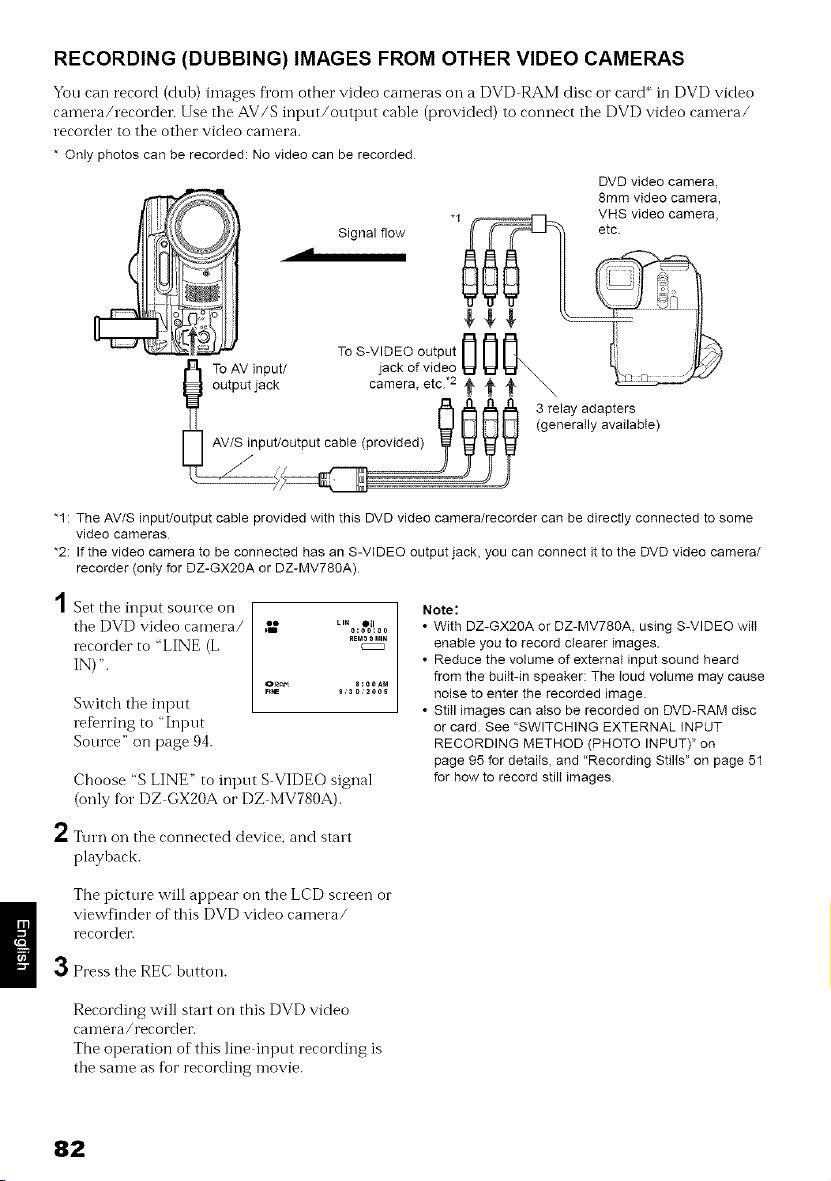
RECORDING (DUBBING) IMAGES FROM OTHER VIDEO CAMERAS
You can record (dub) images fi'om other video cameras oil a DVD RAM disc o1" card '_ in DVD video
camera/recorder. Use tlle AV/S input/output cable (provided) to connect tlle DVD video camera/
recorder to the other video camera.
* Only photos can be recorded: No video can be recorded
DVD video camera,
"1 : The AVIS input/output cable provided with this DVD video camera/recorder can be directly connected to some
video cameras
*2: If the video camera to be connected has an S-VIDEO output jack, you can connect it to the DVD video camera/
recorder (only for DZ-GX20A or DZ-MV780A)
Set the input source on
tlle DVD video camera/
recorder to "LINE (L
IN) ".
Switch tile input
referring to "Input
Source" on page 94.
R_M_0Mt.
CZZZ
OR_M 8_°0AM
Choose "S LINE" to inpnt S VIDEO signal
(only for DZ GX20A or DZ MV780A).
Note:
• With DZ-GX2OA or DZ-MV78OA, using S-VIDEO wilt
enable you to record ctearer images.
• Reduce the volume of external input sound heard
from the buiIt-in speaker: The toud volume may cause
noise to enter the recorded image.
• Still images can also be recorded on DVD-RAM disc
or card See "SWITCHING EXTERNAL INPUT
RECORDING METHOD (PHOTO INPUT)" on
page 95 for detaits, and "Recording Stills" on page 51
for how to record stilt images
2 Turn on the connected device, and start
playhack.
The picture will appear on the LCD screen or
viewfinder of this DVD video camera/
recorder.
3 Press the REC button.
Recording will start on this DVD video
canlera/recordet_
The operation of this line input recording is
tlle same as tbr recording movie.
82
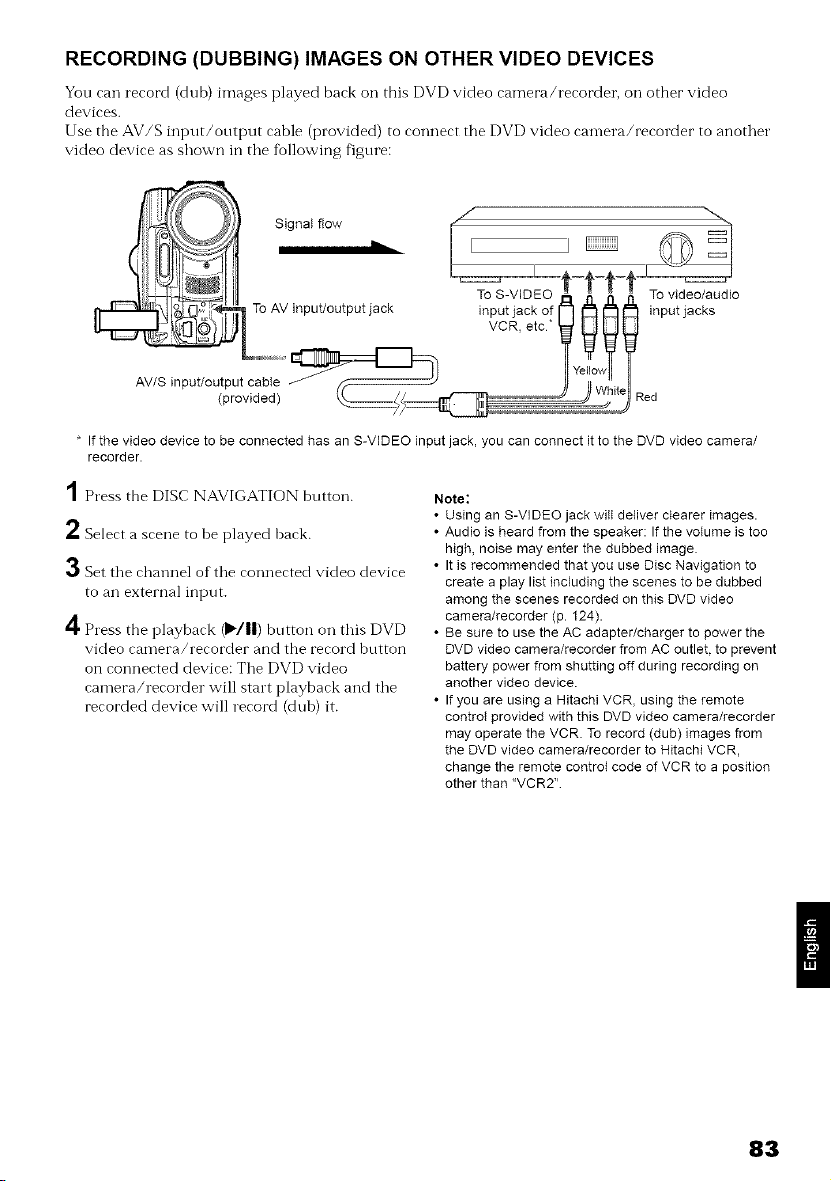
RECORDING (DUBBING) IMAGES ON OTHER VIDEO DEVICES
You can record (dub) images played back on this DVD video camera/recorder, Oil ottmr video
devices.
Use the AV/S input/output cable (provided) to connect the DVD video camera/recorder to another
video device as shown in tile fiollowing figure:
* If the video device to be connected has an S-VIDEO input jack, you can connect it to the DVD video camera/
recorder.
1Press the DISC NAVIGATION button.
*" Select a scene to be played back.
3 Set the channel of the connected video device
to an external input.
4 Press the playback _'/||) button on this DVD
video camera/recorder and the record button
on connected device: The DVD video
camera/recorder will start playback and the
recorded device will record (dub) it.
Note:
• Using an S-VIDEO jack wilt deliver clearer images.
• Audio is heard from the speaker: If the volume is too
high, noise may enter the dubbed image
• It is recommended that you use Disc Navigation to
create a play list including the scenes to be dubbed
among the scenes recorded on this DVD video
camera/recorder (p. 124).
• Be sure to use the AC adapter/charger to power the
DVD video camera/recorder from AC outlet, to prevent
battery power from shutting off during recording on
another video device.
• If you are using a Hitachi VCR, using the remote
control provided with this DVD video camera/recorder
may operate the VCR. To record (dub) images from
the DVD video camera/recorder to Hitachi VCR,
change the remote control code of VCR to a position
other than "VCR2"
83
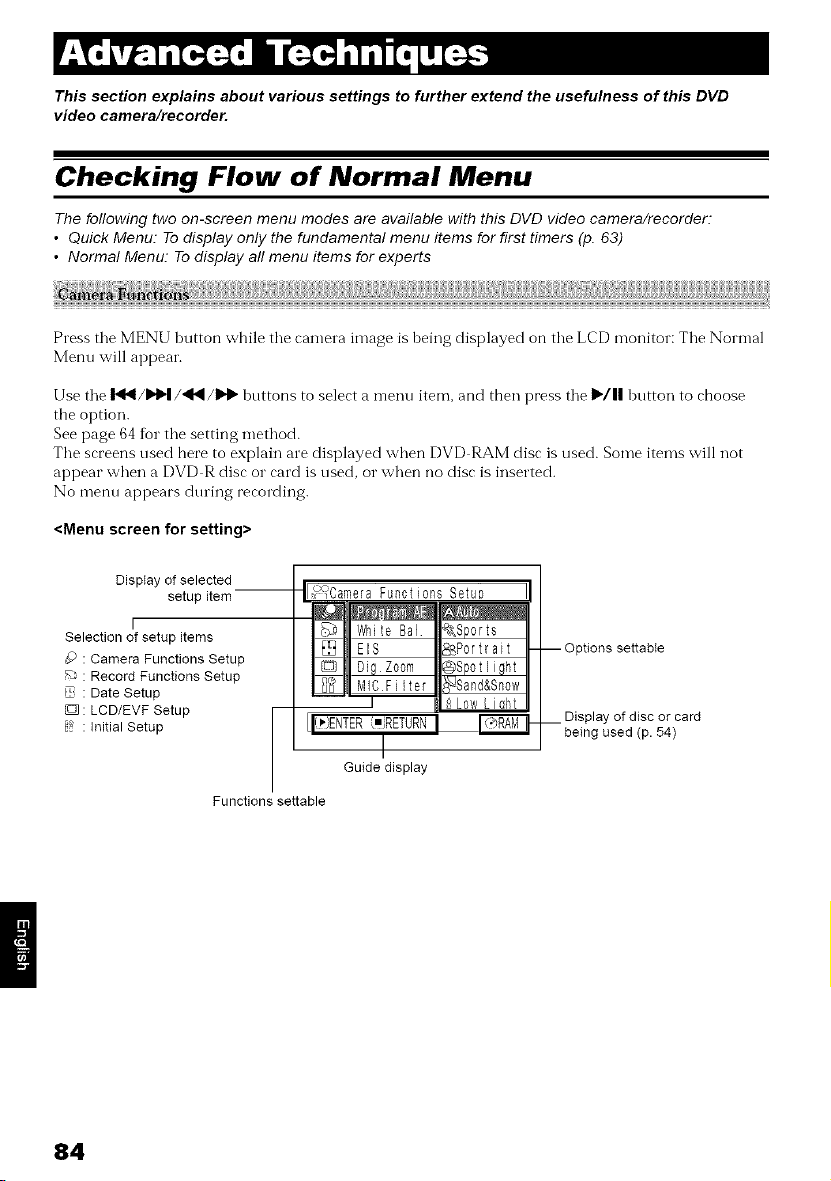
This section explains about various settings to further extend the usefulness of this DVD
video camera/recorder.
Checking Flow of Normal Menu
The following two on-screen menu modes are available with this DVD video camera/recorder:
• Quick Menu: To display only the fundamental menu items for first timers (p. 63)
• Normal Menu. To display all menu items for experts
Press tile MENU button while tile camera image is heing displayed on tile LCD monitor: Tile Normal
Menu will appear.
Use tile I_/I,1_1/_l/IID" buttons to select a menu item, and then press tile )'/11 button to choose
the option.
See page 64 for tile setting method.
Tile screens used here to explain are displayed when DVD RAM disc is used. Some items will not
appear when a DVD R disc o1"card is used, or when no disc is inserted.
No menu appears during recording.
<Menu screen for setting>
Display of selected
setup item
I
Selection of setup items
g) : Camera Functions Setup
_ : Record Functions Setup
: Date Setup
: LCD/EVF Setup
8_ : Initial Setup
It__era Functions Setup
I_1_
_l White Be] _,&Sports
_ EIS %Portrait
h_ Dig Zoorn _Spotlight
_ _ lv11CFilter _Sand&Snow
I 8 LowL i Ohlt
[li _ENTERiIjRETURN
Guide display
Functions settable
I Options settabIe
__ Display of disc or card
being used (p. 54)
84
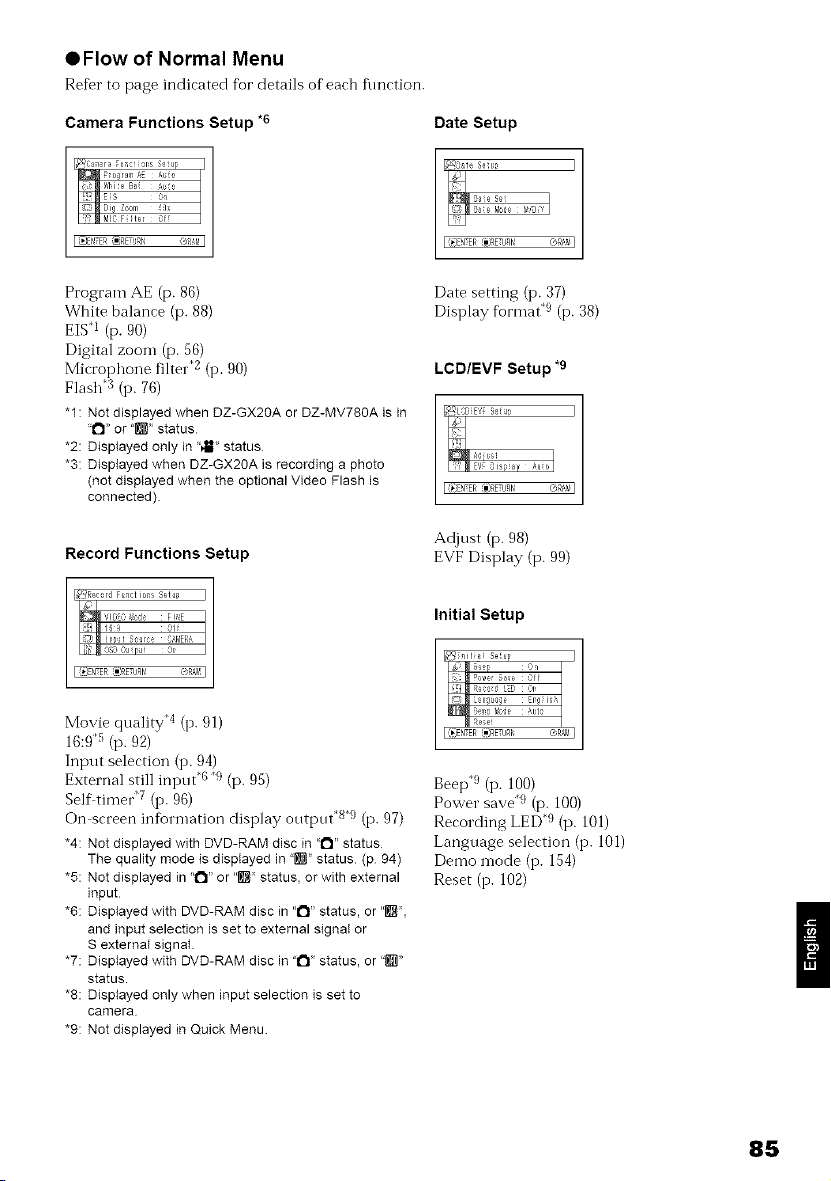
OFIow of Normal Menu
Refer to page indirated fk)r details of'eacb flmrtion.
Camera Functions Setup *6
1_4Cs ra Fu s ols Sei
Proqram _ _{_F
;_=:;! 'VieM!DiQESF terZG0mBa 0i_{_
I _]ENTER_RET Rf_ 'xgt I/ I
Date Setup
I (_sr NTER {IpRETURN @RA_¢ I
Program AE (p. 86)
White balance (p. 88)
EIS .1 (p. 90)
Digital zoom (p. 56)
Microphone filter 2 (i7.90)
Flash 3 (I7. 76)
"1 : Not displayed when DZ-GX20A or DZ-MV780A is in
"O" or "n _'status
*2: Displayed only in ':_ll_'status
*3: Displayed when DZ-GX20A is recording a photo
(not displayed when the optional Video Flash is
connected).
Record Functions Setup
Date setting (i7. 37)
Display fk)rmat .9 (i7. 38)
LCD/EVF Setup *9
]
I' m 'IF is_ay '.uoI
I _J_ER',il;<EURn, eRAVI
Adjust (p. 98)
EVF Display (p. 99)
I!_)ENTER !IC{ETURN ®RAV I
Movie quality 4 (i7. 91)
16:9 5 (i7. 92)
Input selection (i7. 94)
External still input 6 9 (p. 95)
Selfitimer 7 (i7. 96)
On screen information display output *Sff_(p. 97)
*4: Not displayed with DVD-RAM disc in '1_1"status
The quality mode is displayed in "_'_ status (p 94)
*5: Not displayed in "l_l" or "_'_ status, or with external
input
*6: Displayed with DVD-RAM disc in ':l_l" status, or "_'_,
and input selection is set to external signaI or
S external signal.
*7: Displayed with DVD-RAM disc in "l_l _status, or ':_"
status.
*8: Displayed only when input selection is set to
camera
*9: Not displayed in Quick Menu
Initial Setup
F_ _it _; Seep l
alg a_e I¢ish
I(_}N ER _IjREIJRI (tRA_¢I
Beep .9 (i7. 100)
Power save 9 (p. 100)
Recording LED 9 (p. 101)
Language selection (I7. 101)
Demo mode (I7. 154)
Reset (I7. 102)
85
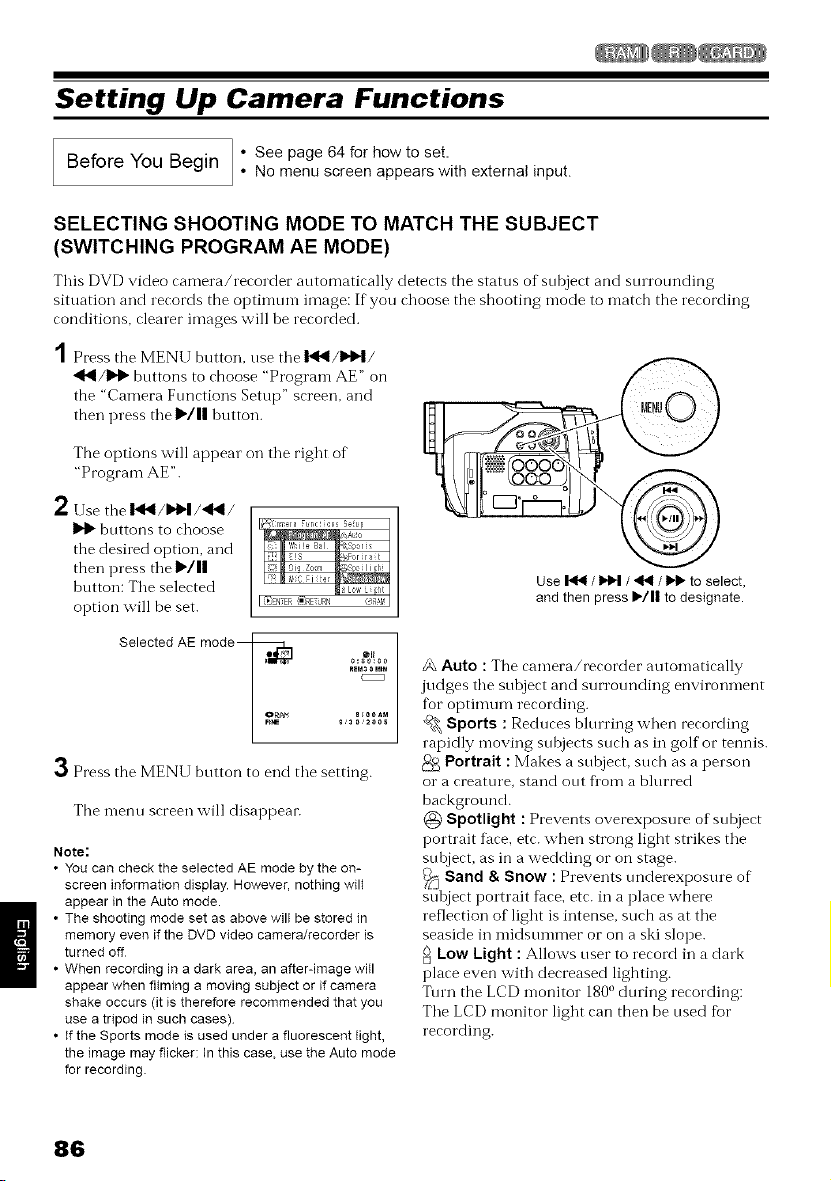
Setting Up Camera Functions
I Before You • See page 64 for how to set
Begin
• No menu screen appears with external input
SELECTING SHOOTING MODE TO MATCH THE SUBJECT
(SWITCHING PROGRAM AE MODE)
This DVD video camera/recorder antomatically detects the stares of subject and surrounding
situation and records the optinmn-i image: If you choose the shooting mode to match the recording
conditions, clearer images will be recorded.
1 Press the MENU button, use the I_1_/_!/
•_I/)H_ buttons to choose "Program AE" on
the "Camera Functions Setup" screen, and
then press the I_/1| button.
The options will appear on the right of
"Program AE".
2Usethe I_1_1/)'t_1/_/
1_ buttons to choose
the desired option, and
then press the I_/11
button: The selected
option will be set.
Selected AE mode-- o_ olt
, 01H_0e
ORAtl 8_0OA_
g'3e'_00s
3Press the MENU button to end the setting.
The n-lenu screen will disappear.
Note:
• You can check the selected AE mode by the on-
screen information display However, nothing will
appear in the Auto mode
• The shooting mode set as above will be stored in
memory even if the DVD video camera/recorder is
turned off
• When recording in a dark area, an after-image will
appear when filming a moving subject or if camera
shake occurs (it is therefore recommended that you
use a tripod in such cases)
• If the Sports mode is used under a fluorescent fight,
the image may flicker: In this case, use the Auto mode
for recording
Use _ / _ / _ / _ to select,
and then press I_/11 to designate
24,Auto : The camera/recorder automatically
judges the subject and surrounding environment
tbr optimum recording.
_ Sports : Reduces blurring when recording
rapidly moving subjects such as in golf or tennis.
Portrait : Makes a subject, such as a person
o1"a creature, stand out from a blurred
background.
@ Spotlight : Prevents overexposure of subject
portrait ti_ce,etc. when strong light strikes the
subject, as in a wedding or on stage.
_._ Sand & Snow : Prevents underexposure of
subject portrait ti_ce,etc. in a place where
reflection of light is intense, such as at the
seaside in midsummer or on a ski slope.
uoLow Light : Allows user to record in a dark
place even with decreased lighting.
Turn the LCD monitor 1800during recording:
The LCD monitor light can then be used for
recording.
86
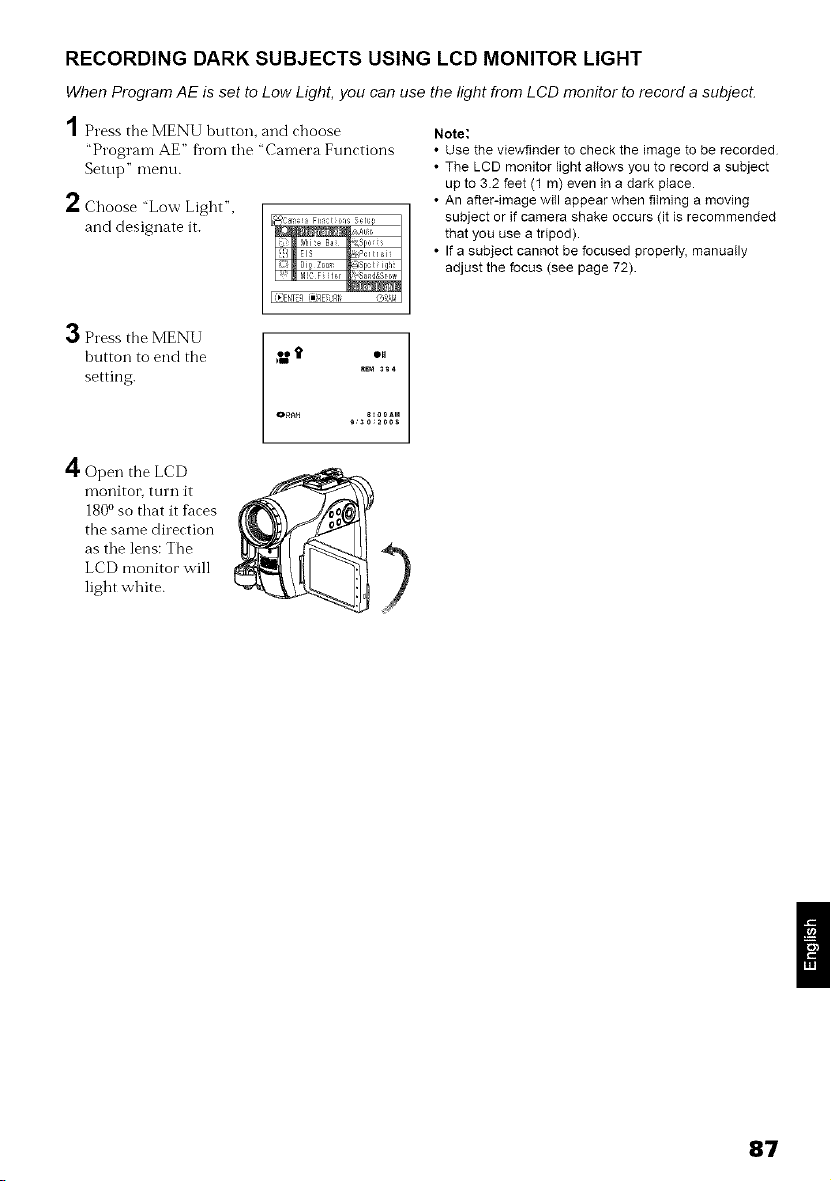
RECORDING DARK SUBJECTS USING LCD MONITOR LIGHT
When Program AE is set to Low Light, you can use the light from L CD monitor to record a subject.
1 Press the MENU button, and choose
"Program AE" fl_omtile "Camera Functions
Setup" menu.
2 Choose "Low Light",
and designate it.
t o,
_ 394
o_At_ 8:_)0AM
a,aO,2OOS
Note:
• Use the viewfinder to check the image to be recorded
• The LCD monitor light allows you to record a subject
up to 3.2 feet (1 m) even in a dark place.
• An after-image wiII appear when filming a moving
subject or if camera shake occurs (it is recommended
that you use a tripod).
• If a subject cannot be focused properly, manually
adjust the focus (see page 72).
,._ Press the MENU
button to end the
setting.
A
_1' Open the LCD
monitor_ turn it
180o so that it faces
the same direction
as the lens: The
LCD monitor will
light white.
87
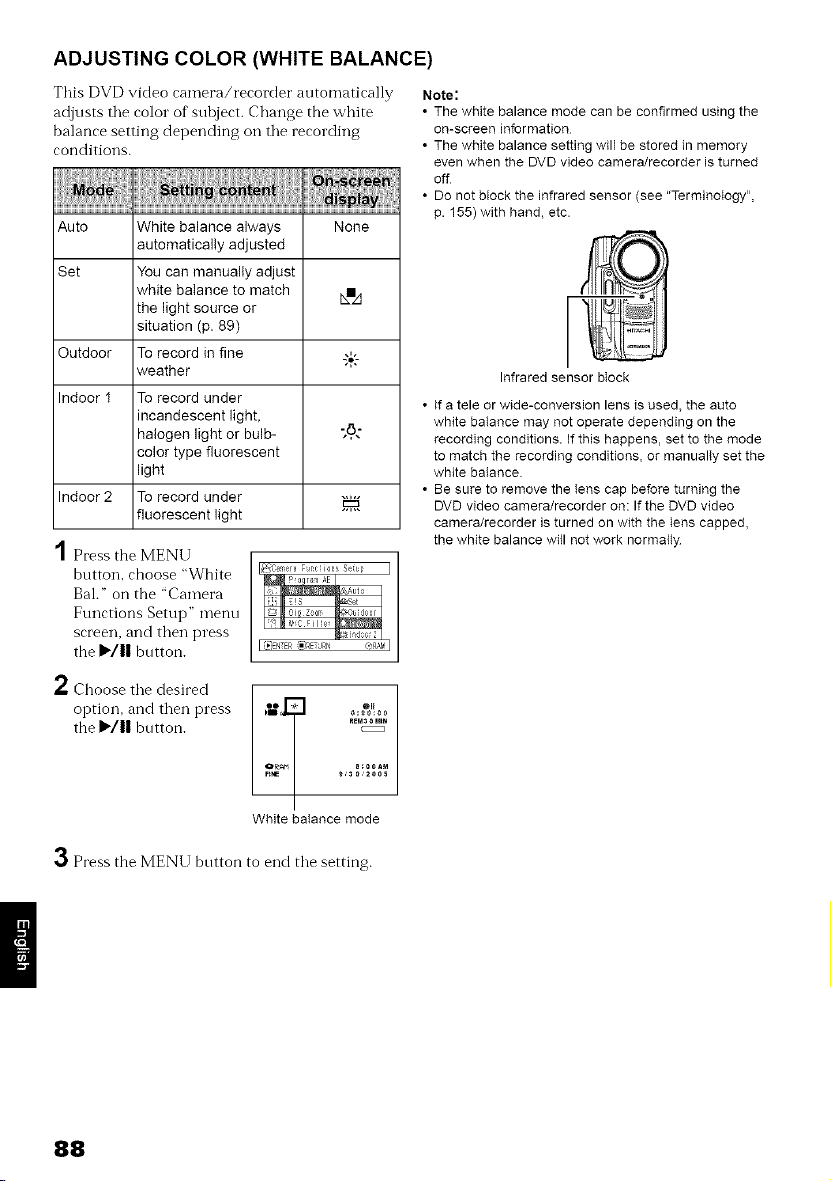
ADJUSTING COLOR (WHITE BALANCE)
This DVD video camera/recorder automatically
adjusts tile color of" subject. Change the white
balance setting depending oil tile recording
conditions.
Auto White balance always None
automatically adjusted
Set You can manually adjust
white balance to match &hA
the light source or
situation (p. 89)
Outdoor To record in fine %,_
weather
Indoor I To record under
incandescent light,
halogen light or bulb- -,8,-
color type fluorescent
light
Indoor 2 To record under
fluorescent light
Note:
• The white balance mode can be confirmed using the
on-screen information
• The white balance setting will be stored in memory
even when the DVD video camera/recorder is turned
off
• Do not block the infrared sensor (see "Terminology",
p. 155) with hand, etc.
A
/ Press the MENU
button, choose "White
Bal." on the "Camera
Functions Setup" menu
screen, and then press
the I"/|| button.
Infrared sensor block
• if a tele or wide-conversion lens is used, the auto
white batance may not operate depending on the
recording conditions. If this happens, set to the mode
to match the recording conditions, or manualIy set the
white batance.
• Be sure to remove the Iens cap before turning the
DVD video camera/recorder on: If the DVD video
camera/recorder is turned on with the Iens capped,
the white balance witl not work normalty
2 Cboose the desired
option, and then press
the I,,/11 button.
ReM_0 MI_
8:00A_
White baIance mode
3 Press the MENU button to end the setting.
88
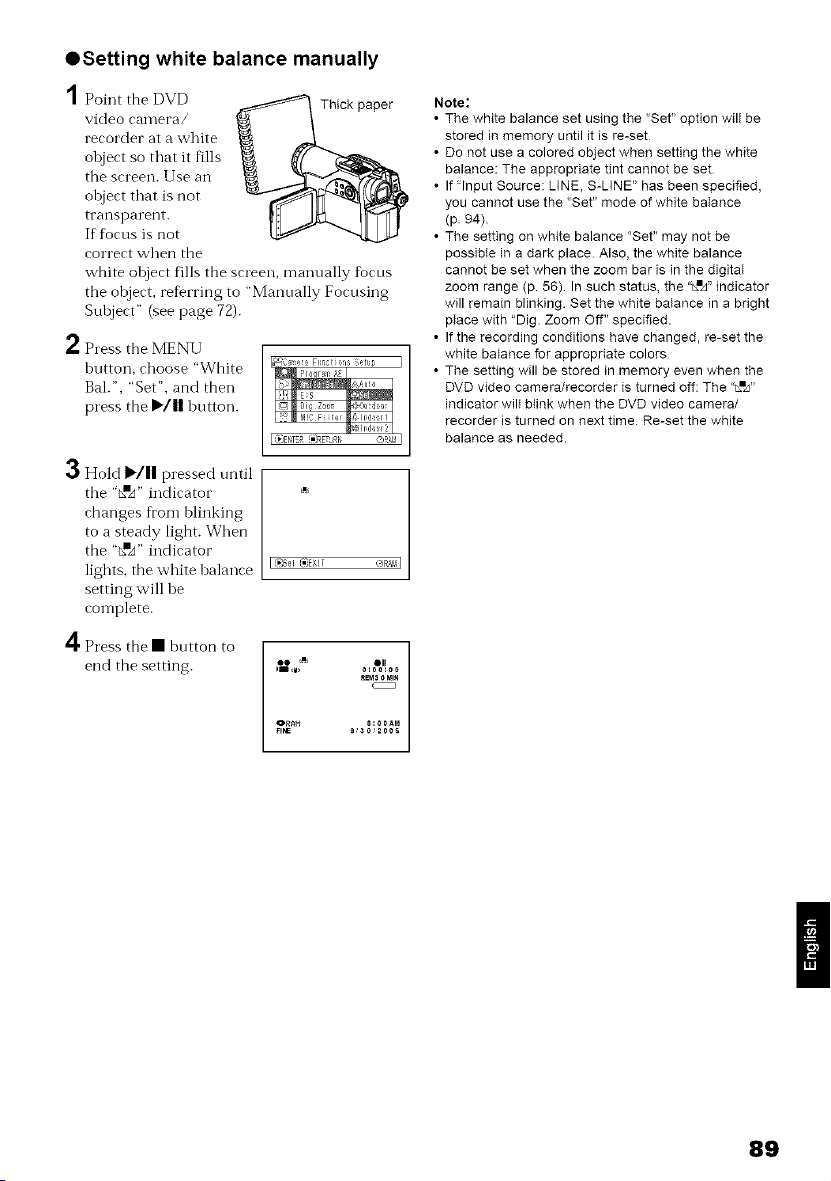
OSetting white balance manually
1 PointtheDVD Thick paper
video camera/
recorder at a white
object so that it fills
the screen. Use an
object that is not
transparent.
If focus is not
correct when the
white object fills the screen, manually focus
the object, referring to "Manually Focusing
Subject" (see page 72).
2 Press the MENU
button, choose "White
Bal.', "Set ", and then
press the I1,./|| button.
3Hold I_/ll pressed until
the "a=A" indicator
changes fi'om blinking
to a steady light. When
the "a=A" indicator
lights, the white balance
setting will be
complete.
4 Press the • button to
end the setting.
I (_=ENTER(_)RETURt O£t4 I
I (_:24_i{_IIEX!T C_RAMI
o 0 _ 011
O_A_ 8100AM
Note:
• The white balance set using the "Set" option wilt be
stored in memory until it is re-set
• Do not use a colored object when setting the white
balance: The appropriate tint cannot be set
• If"lnput Source: LINE, S-LINE" has been specified,
you cannot use the "Set" mode of white balance
(p 94).
• The setting on white balance "Set" may not be
possibIe in a dark place Also, the white balance
cannot be set when the zoom bar is in the digital
zoom range (p. 56) In such status, the "&=,d'indicator
will remain blinking. Set the white balance in a bright
place with "Dig. Zoom Off" specified.
• If the recording conditions have changed, re-set the
white baIance for appropriate colors
• The setting will be stored in memory even when the
DVD video camera/recorder is turned off: The "LRF'
indicator wilt blink when the DVD video camera/
recorder is turned on next time Re-set the white
balance as needed.
89
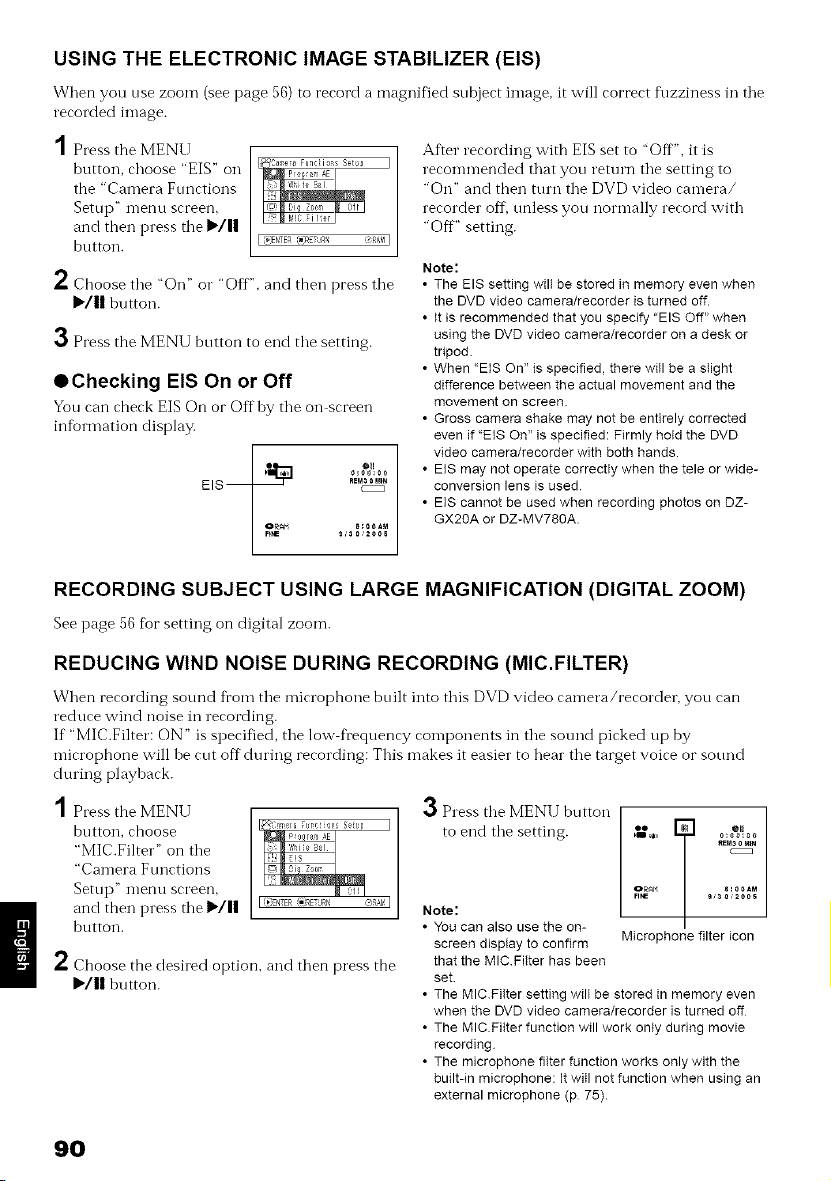
USING THE ELECTRONIC IMAGE STABILIZER (EIS)
When you nse zoom (see page 56) to record a magnified snbject image, it will correct f\lzziness in tile
recorded image.
Press the MENU
button, choose "EIS" on
the "Camera Functions
Setup" inellU screen,
and then press tile I_/||
button.
I [#_ENTER ]_]RETURN ?;RAM I
h Choose tile "Oil" o1""Off", and then press tile
I_III button.
3 Press the MENU button to end tile setting.
OChecking EIS On or Off
You can check EIS On oi"Off by tile on screen
information display.
E IS -- .m_oM,.
OR_I S_0OA_
9,'30'200S
After recording with EIS set to "Off", it is
recommended that you return tile setting to
"On" and then turn tile DVD video camera/
recorder off, unless you normally record with
"Off" setting.
Note;
• The EIS setting wilt be stored in memory even when
the DVD video camera/recorder is turned off.
• It is recommended that you specify "EIS Off" when
using the DVD video camera/recorder on a desk or
tripod
• When "EIS On" is specified, there will be a slight
difference between the actual movement and the
movement on screen.
• Gross camera shake may not be entirely corrected
even if "EIS On" is specified: Firmly hold the DVD
video camera/recorder with both hands.
• EIS may not operate correctly when the tele or wide-
conversion lens is used
• EIS cannot be used when recording photos on DZ-
GX20A or DZ-MV780A.
RECORDING SUBJECT USING LARGE MAGNIFICATION (DIGITAL ZOOM)
See page 56 for setting on digital zoom.
REDUCING WIND NOISE DURING RECORDING (MIC.FILTER)
When recording sound from tile microphone built into this DVD video camera/recorder, you can
reduce wind noise in recording.
If "MIC.Filter: ON" is specified, tile low fl'equency components in tile sound picked up by
microphone will be cut off during recording: This makes it easier to hear tile target voice or sound
during playback.
A
I Press the MENU
button, choose
"MlC.Filter" on tile
"Camera Functions
Setup" nlenu screen,
and then press tile I_III
button.
/. Choose the desired option, and then press the
I,,/II buttoT1.
3 Press the MENU button [ T
to end tile setting. ,V,., 0_g_{00
_Em30 Mm
OR_ 8100AM
Note:
• You can also use the on-
screen display to confirm Microphone filter icon
that the MIC Fitter has been
set
• The MIC Filter setting will be stored in memory even
when the DVD video camera/recorder is turned off
• The MIC Fitter function will work only during movie
recording
• The microphone filter function works only with the
built-in microphone: It will not function when using an
external microphone (p 75).
9O
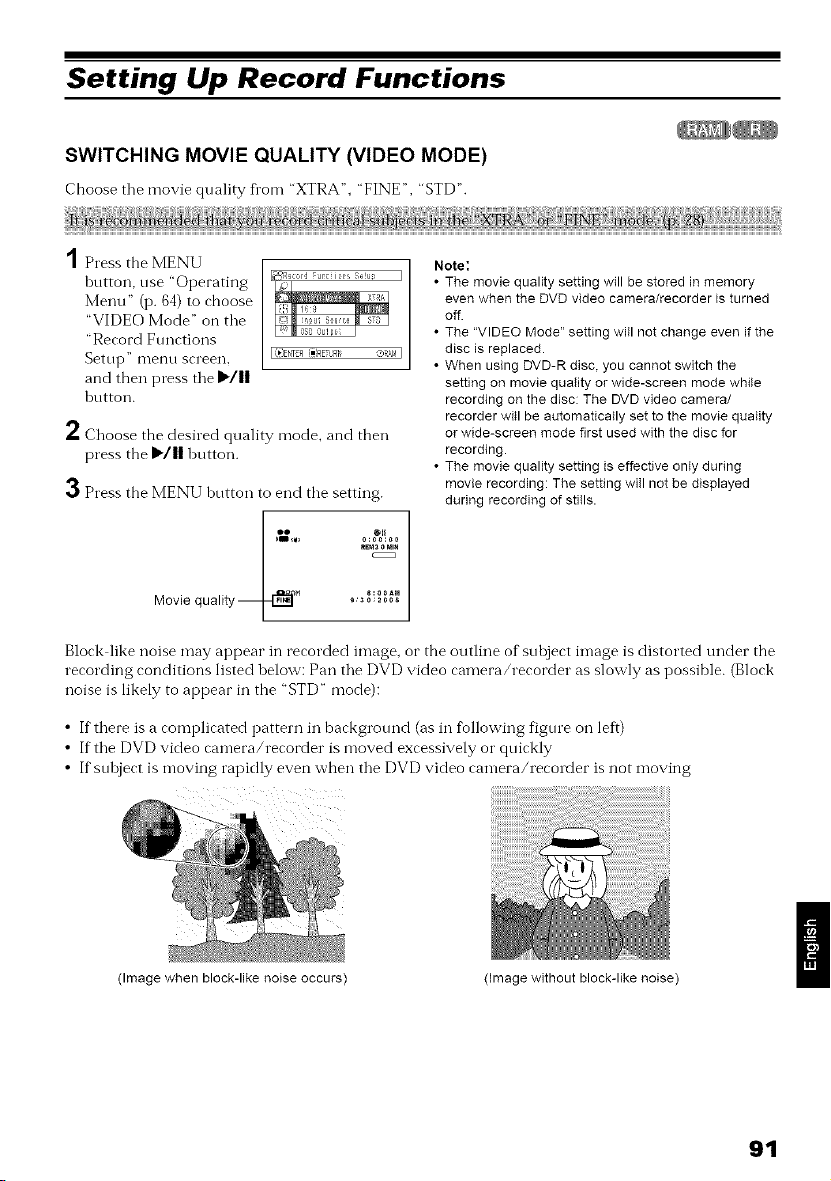
Setting Up Record Functions
SWITCHING MOVIE QUALITY (VIDEO MODE)
Choose tile movie quality h_om "XTRA", "FINE", "STD".
1Press the MENU
hutton, use "Operating
Menu" (p. 64) to choose
"VIDEO Mode" on tile
"Record Functions
Setup" inenu screen,
and then press tile I_/||
button.
2 Choose the desired quality mode, and then
press the I_/|| button.
3 Press the MENU button to end the setting.
8:ooam
Movie qua _ _,_0,_..5
Note:
• The movie quality setting will be stored in memory
even when the DVD video camera/recorder is turned
off.
• The "VIDEO Mode" setting witl not change even if the
disc is replaced.
• When using DVD-R disc, you cannot switch the
setting on movie quatity or wide-screen mode while
recording on the disc: The DVD video camera/
recorder will be automatically set to the movie quality
or wide-screen mode first used with the disc for
recording.
• The movie quality setting is effective onty during
movie recording: The setting will not be displayed
during recording of stills.
Block like noise may appear in recorded image, or the outline of subject image is distorted under the
recording conditions listed below: Pan the DVD video camera/recorder as slowly as possible. (Block
noise is likely to appear in the "STD" mode):
• If there is a complicated pattern in background (as in following figure on left)
• If the DVD video camera/recorder is moved excessively or quickly
• If suloject is moving rapidly even when the DVD video camera/recorder is not moving
(Image when block-like noise occurs) (Image without block-like noise)
91
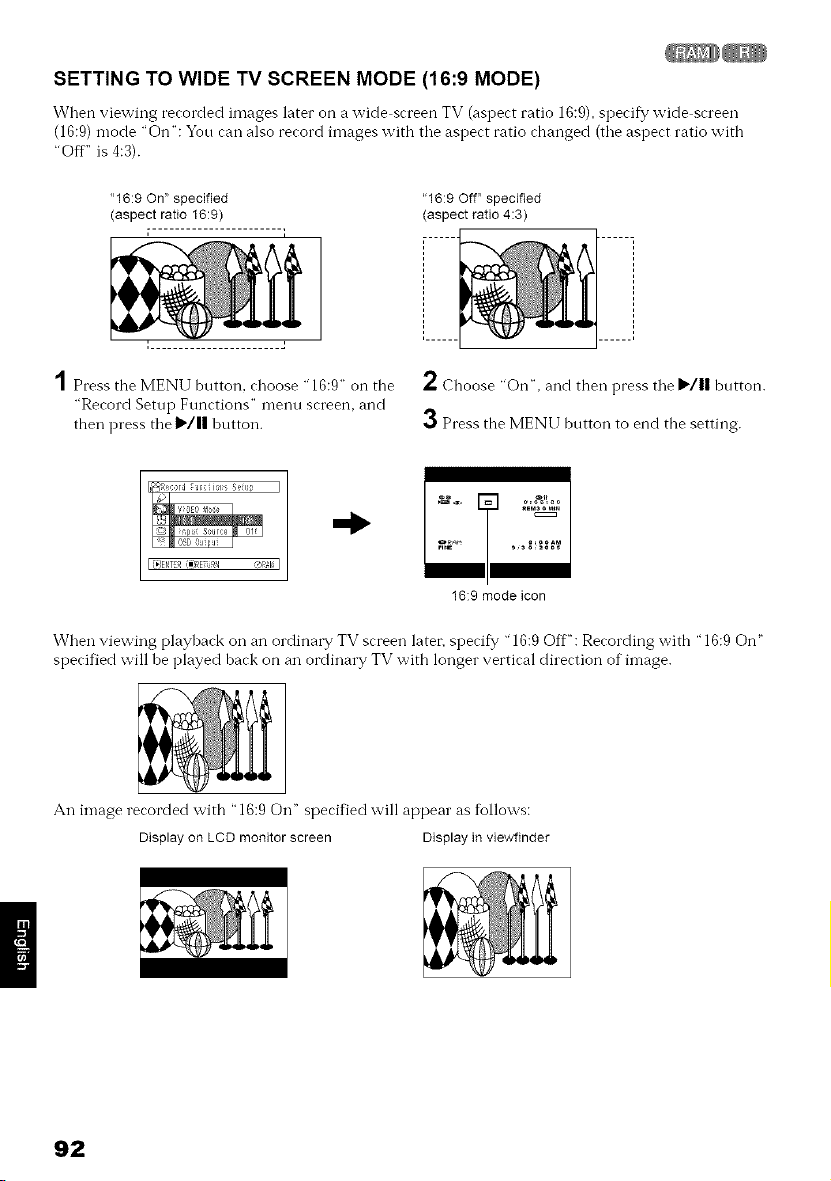
SETTING TO WIDE TV SCREEN MODE (16:9 MODE)
When viewing recorded images later on a wide screen TV (aspect ratio 16:9), specify wide screen
(16:9) mode "On": Yon can also record images with tile aspect ratio changed (tile aspect ratio with
"Off" is 4:3).
"16:9 On" specified
(aspect ratio 16:9)
, ....................... J
"16:9 Off" specified
(aspect ratio 4:3)
1 Press the MENU button, choose "16:9" on the 2 Choose "On", and then press tile I1,./|| bntton.
"Record Setup Functions" menu screen, and
then press the I_/11 button. 3 Press the MENU button to end the setting.
I (_ENTER (_RETiJRN '@RAH I
16:9 mode icon
When viewing playback on an ordinary TV screen later, specity "16:9 Off": Recording with "16:9 On"
specified will be played back on an ordinary TV with longer vertical direction of image.
An image recorded with "16:9 On" specified will appear as %llows:
Display on LCD monitor screen Display in viewfinder
92
Note:
• The 16:9 setting will be kept even after the DVD video camera/recorder is turned off
• The 16:9 mode cannot be used with photo recording, external input, S-VIDEO external input (for DZ-GX20A or
DZ-MV780A only), or "STD '_recording using DVD-R disc.
Once the DVD-R disc has been recorded in the wide-screen mode, you will not be able to switch to recording of
external input or S-VIDEO external input (DZ-GX2OA or DZ-MV780A only) using the same disc
Once the DVD-R disc has been recorded in the normaI (4:3) mode, you witl not be able to switch it to the wide-
screen mode using the same disc
Once a DVD-R disc has been recorded in the 16:9 mode, you will not be abte to switch it to the normal (4:3) mode
using the same disc
Images recorded with "16:9 On '_(aspect ratio 16:9) specified will be played back with the setting used during
recording regardless of the 16:9 setting then being used
The characters of dates and tittes witl be longer in the vertical direction on a wide-screen TV and on the LCD
monitor of this DVD video camera/recorder
When "16:9 On '_is specified, btack bands witl appear across the top and bottom of LCD monitor screen (except on
menu or Disc Navigation screen, or playback image recorded with "16:9 Off" is specified).
The 16:9 setting is not compatible with ID-1/ID-2*.
To view images recorded at 16:9 setting, switch the aspect ratio of your TV: See TV instruction manual for this
switching.
• When using a video selector (see "Terminology", p 155), the TV may not automaticalIy be switched to 16:9 mode
* This system records the aspect ratio (16:9, 4:3) information in void space between video signals.
93
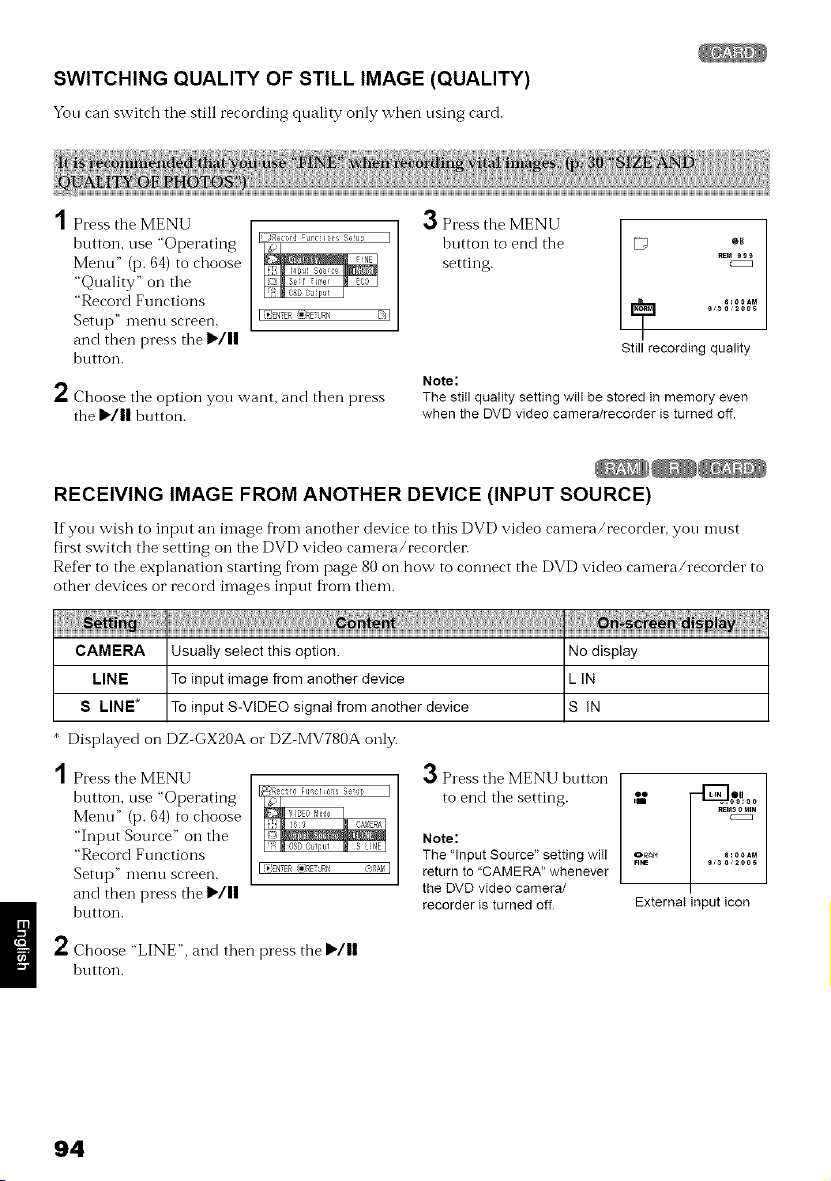
SWITCHING QUALITY OF STILL IMAGE (QUALITY)
You can switch tile still recording quality only when nsing card.
2
Press the MENU
button, use "Operating
Merm" (p. 64) to choose
"Quality" on tile
"Record Functions
Setup" lllenu screen,
and then press tile I_/11
button.
Choose tile option you want, and then press
the _'/|| button.
3Press the MENU I
hutton to end the [_ ®l_
_EM _g_
setting, czz
8:o0aM
Still recording quality
Note:
The etitl quality setting will be stored in memory even
when the DVD video camera/recorder is turned off.
RECEIVING IMAGE FROM ANOTHER DEVICE (INPUT SOURCE)
If you wish to input an image fi'onr another device to this DVD video carnera/recorder, you rnust
first switch tile setting on tile DVD video camera/recorder:
Re%r to tile explanation starting fi"ornpage 80 on how to connect the DVD video camera/recorder to
other" devices or record irnages input fi'om them.
CAMERA Usually select this option.
LINE To input image from another device
S LINE* To input S-VIDEO signal from another device
No display
LIN
S IN
Displayed on DZ GX20A or DZ MV780A only.
Press the MENU
button, use "Operating
Merm" (p. 64) to choose
"Input Source" on tile
"Record Functions
Setup" lllentr screen,
and then press tile I_/||
button.
I _0SD0utput _ SUNEI
I _)ENTER_]IRETUR_4 @RAr_ I
3 Press the MENU hntton
to end tile setting. ,_
Note:
The 'Input Source" setting wiII o_
FI_
returnto "CAMERA" whenever
the DVD video camera/
recorder is turned off
"_g_°°
8:0oaM
,_00s
External input icon
2 Choose "LINE", and then press the l_'/ll
button.
94
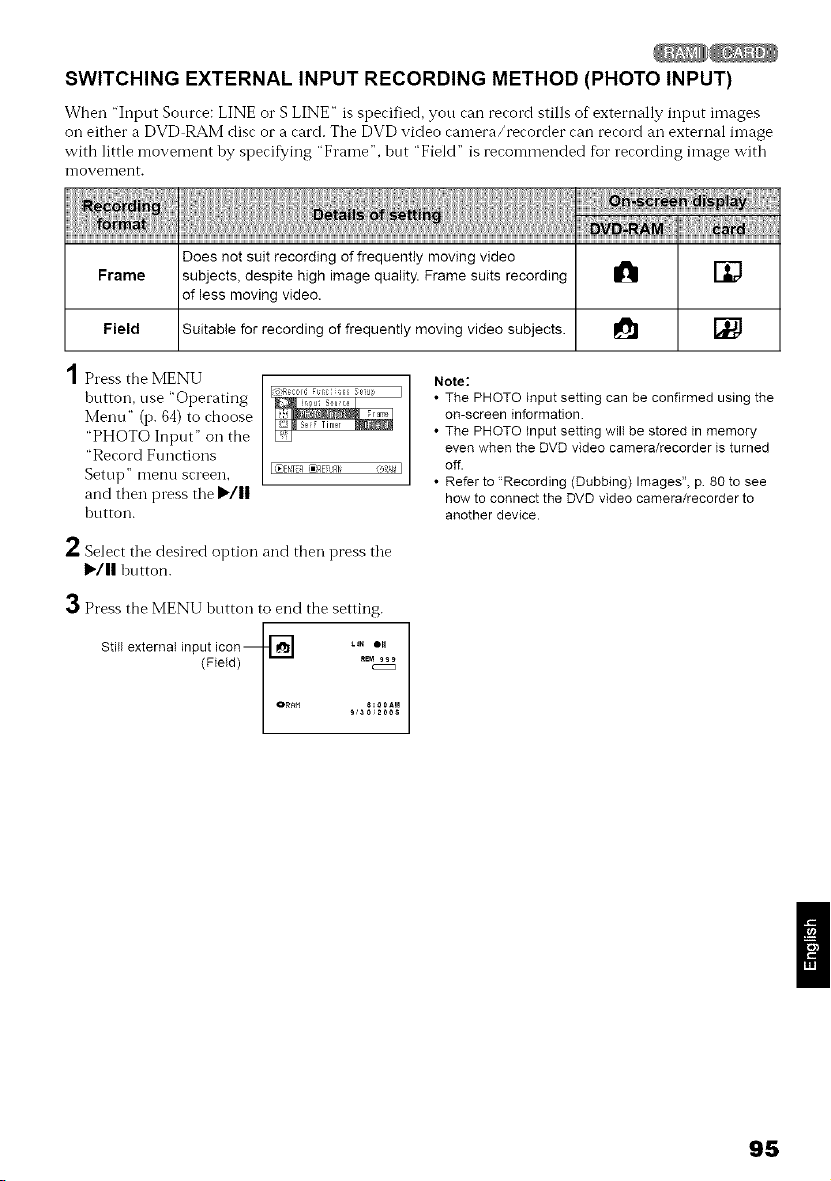
SWITCHING EXTERNAL INPUT RECORDING METHOD (PHOTO INPUT)
When "Input Sourre: LINE o1"S LINE" is sperified, you can record stills of externally input images
oil either a DVD RAM disc or a card. Tile DVD video camera/recorder can record an external image
with little movement by specifying "Frame", but "Field" is recommended for recording image with
iilovement.
Does not suit recording of frequently moving video
1
Frame subjects, despite high image quality. Frame suits recording H
of less moving video.
Field Suitable for recording of frequently moving video subjects. _
1 Press the MENU
hutton, use "Operating
Menu" (p. 64) to choose
"PHOTO Input" on the
"Record Ftmctions
Setup" illenu screen.
and then press tile I1,,/||
hutton.
@ENTER Cm)dETiJRli
/- Select tile desired option and then press tile
I_/ll button.
Note:
• The PHOTO Input setting can be confirmed using the
on-screen information
• The PHOTO Input setting wilt be stored in memory
even when the DVD video camera/recorder is turned
off.
• Refer to "Recording (Dubbing) Images", p 80 to see
how to connect the DVD video camera/recorder to
another device.
3 Press the MENU button to end the setting.
Still external input icon_] L,. o,
i o_n_ s:o 0t,M
95
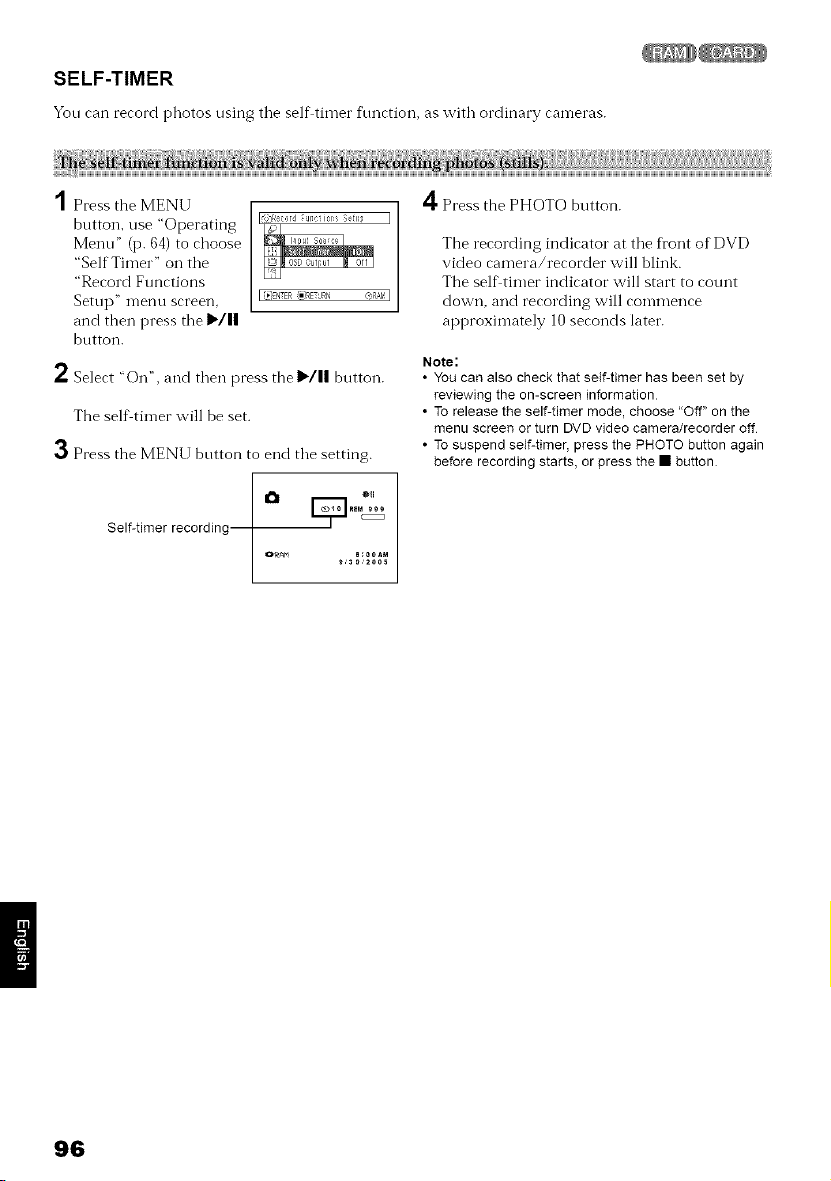
SELF-TIMER
You can record photos using tile self timer function, as with ordinary cairleras.
Press the MENU
button, use "Operating
Menu" (p. 64) to choose
"Self Timer" on tile
"Record Functions
Sett/p" Ii-lentl screen,
and then press tile I_/||
button.
2 Select "On", and then press the 1_/11 button.
The self timer will be set.
3
Press the MENU button to end the setting.
101 E_ ®,,
eeMc_
Self-timer recording
4 Press the PHOTO button.
The recording indicator at the fl'ont of DVD
video camera/recorder will blink.
The self timer indicator will start to count
down, and recording will commence
approximately 10 seconds later.
Note:
• You can also check that self-timer has been set by
reviewing the on-screen information
• To release the self-timer mode, choose "Off" on the
menu screen or turn DVD video camera/recorder off
• To suspend self-timer, press the PHOTO button again
before recording starts, or press the • button
96
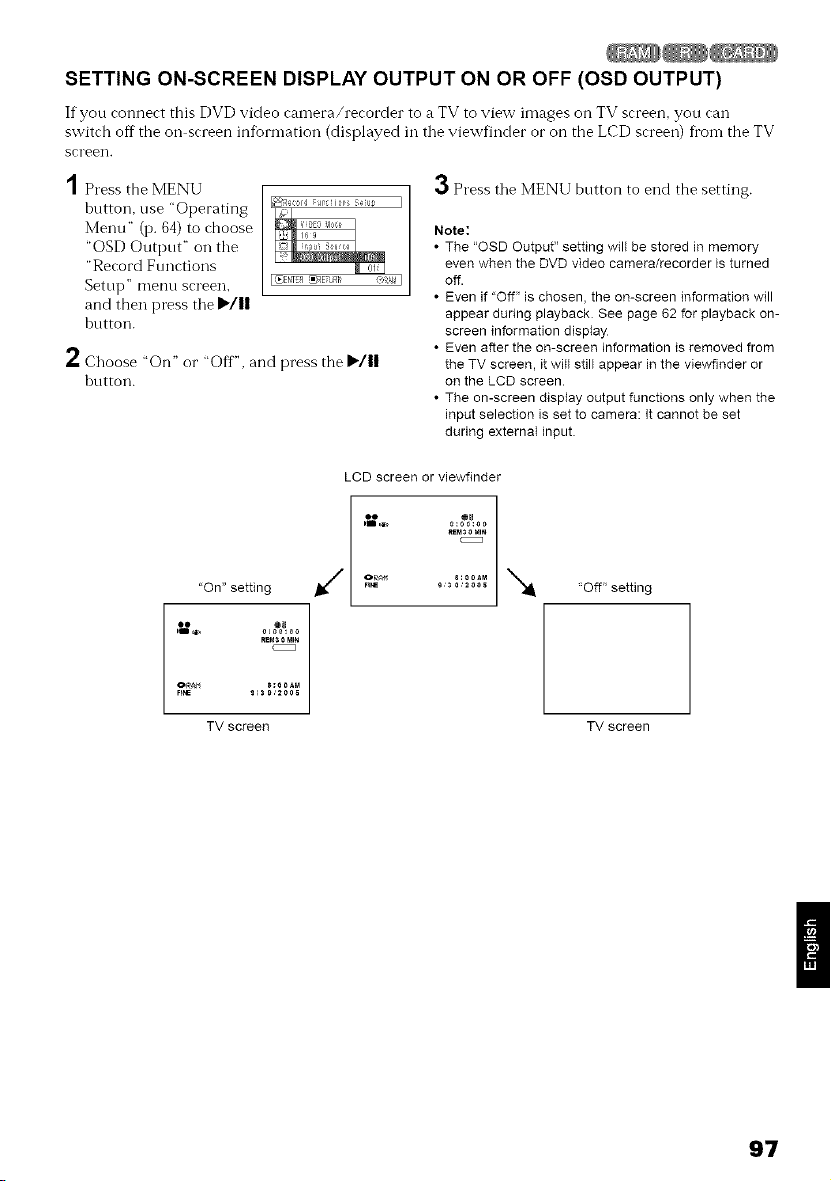
SETTING ON-SCREEN DISPLAY OUTPUT ON OR OFF (OSD OUTPUT)
If you connect this DVD video camera/recorder to a TV to view images on TV screen_ you can
switch off the oil screen infbrmation (displayed in tile viewfinder or on the LCD screen) fi'on-i the TV
screen.
1 Press the MENU
hutton, use "Operating
Menu" (p. 64) to choose
"OSD Output" oil tile
"Record Functions
Setup" illenu screen,
and then press tile I_/||
button.
_R_c,)rd ;ullciial>s S÷{u_ J
OfF I
@ENTER_ETURti #gR_t_l
2 Choose "On" or "Off", and press the I'/11
button.
3 Press tile MENU button to end the setting.
Note:
• The "OSD Output" setting wilt be stored in memory
even when the DVD video camera/recorder is turned
off.
• Even if "Off" is chosen, the on-screen information will
appear during playback See page 62 for playback on-
screen information display
• Even after the on-screen information is removed from
the TV screen, it will still appear in the viewflnder or
on the LCD screen.
• The on-screen display output functions only when the
input selection is set to camera: It cannot be set
during external input.
"On" setting
o:o0:_o
Re_SOMIN
LCD screen or viewfinder
,_ ..... g%0
eEM_0 Mm
C:Z:Z
OR_t4 8:00AM N
"Off" setting
TV screen TV screen
97
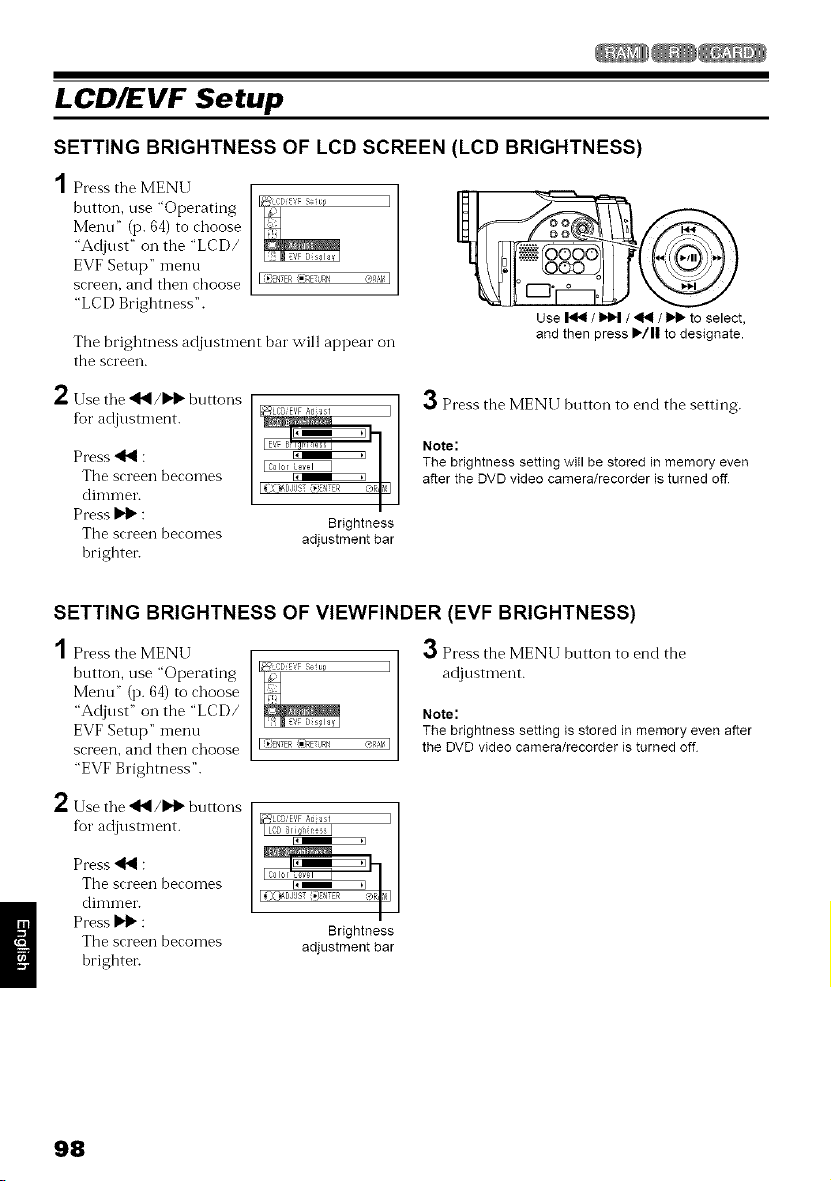
LCD/EVF Setup
SETTING BRIGHTNESS OF LCD SCREEN (LCD BRIGHTNESS)
Press the MENU
button, use "Operating
Menu" (p. 64) to choose
"Adjust" on the "LCD/
EVF Setup" menu
screen, and then choose
"LCD Brightness".
The brightness adjustn-lent bar will appear oil
the screen.
Use _ / _ / _1_ / _ to select,
and then press I_/11 to designate.
2
Use tile _1_1/I"1_buttons
fur adjustnmnt.
Press _ :
The screen becomes
clinm-ler. I--
Press _ :
Brightness
The screen becomes adjustment bar
hrightei:
3 Press the MENU button to end the setting.
Note:
The brightness setting will be stored in memory even
after the DVD video camera/recorder is turned off
SETTING BRIGHTNESS OF VIEWFINDER (EVF BRIGHTNESS)
1Press the MENU
button, use "Operating
Menu" (p. 64) to choose
"Adjust" on the "LCD/
EVF Setup" menu
screen, and then choose
"EVF Brightness".
3 Press the MENU button to end the
adjustment.
2 Use tile _1_1/I"1_buttons
fur adjustment.
Note:
The brightness setting is stored in memory even after
I(_'_,qER',iX,REUR_I ®a_r_I the DVD video camera/recorder is turned off
Press _ :
The screen becomes
dimmer.
Press _ :
The screen becomes
hrightei:
Brightness
adjustment bar
98
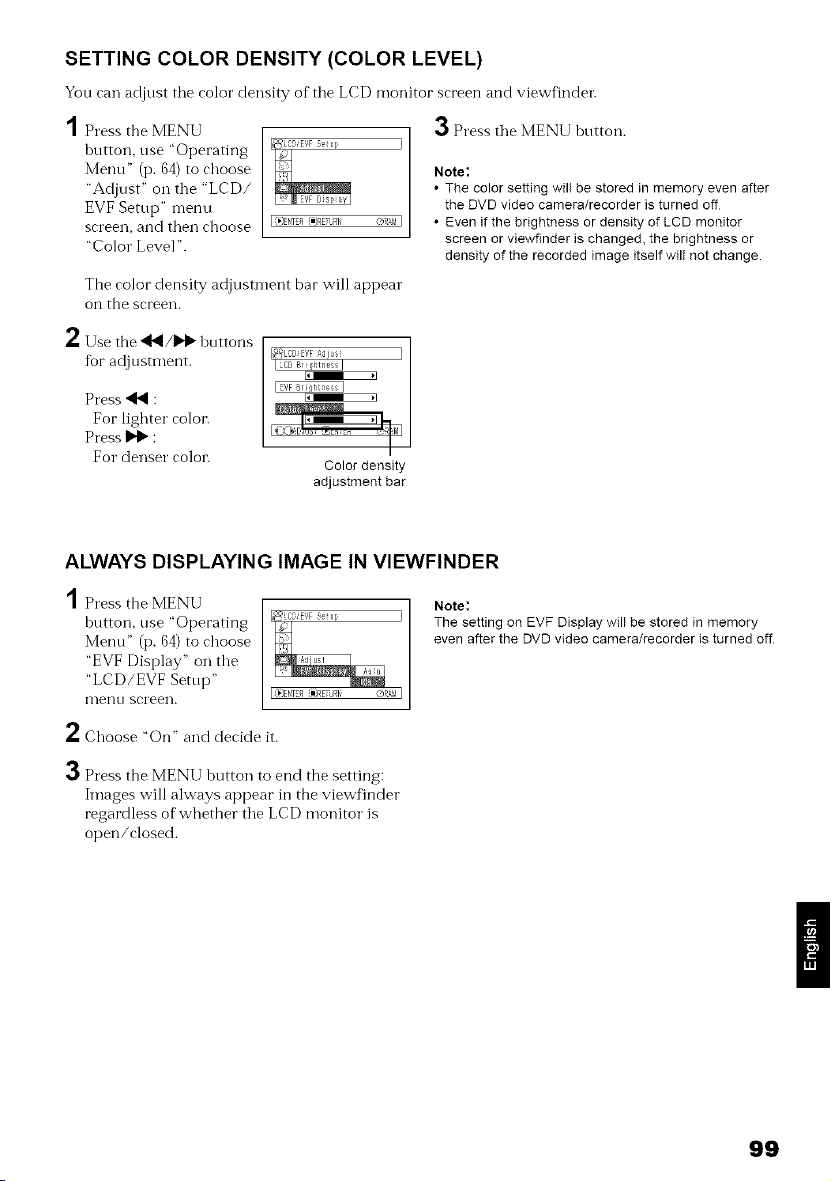
SETTING COLOR DENSITY (COLOR LEVEL)
You can adjust the color density of the LCD monitor screen and viewfinder.
1 Press the MENU
button, use "Operating
Menu" (i7.64) to choose
"Adjust" on the "LCD/
EVF Setup" menu
screen, and then choose
"Color Level".
I (OENE_ (_ETiJRI @R_! I
O Press tile MENU botton.
I
Note;
• The color setth_g will be stored in memory even after
the DVD video camera/recorder is turned off
• Even if the brightness or density of LCD monitor
screen or viewfinder is changed, the brightness or
density of the recorded image itself wilt not change.
The color density adjustnmnt bar will appear
on the screen.
2 Use the '_I/I_D" htlttons
for adjusmlent.
Press _ :
For lighter colo_:
Press _ :
For denser coloi:
Color density
adjustment bar
ALWAYS DISPLAYING IMAGE IN VlEWFINDER
1 Press the MENU
button, use "Operating
Menu" (I7.64) to choose
"EVF Display" on tile
"LCD/EVF Setup"
ITlellt/ screen.
I (I_]ENTER (I=SETiJRI ®R_! I
Note:
The setting on EVF Display will be stored in memory
even after the DVD video camera/recorder is turned off.
2 Choose "On" and decide it.
3 Press the MENU hutton to end the setting:
Images will always appear in the viewfinder
regardless of whether tile LCD monitor is
open/closed.
99
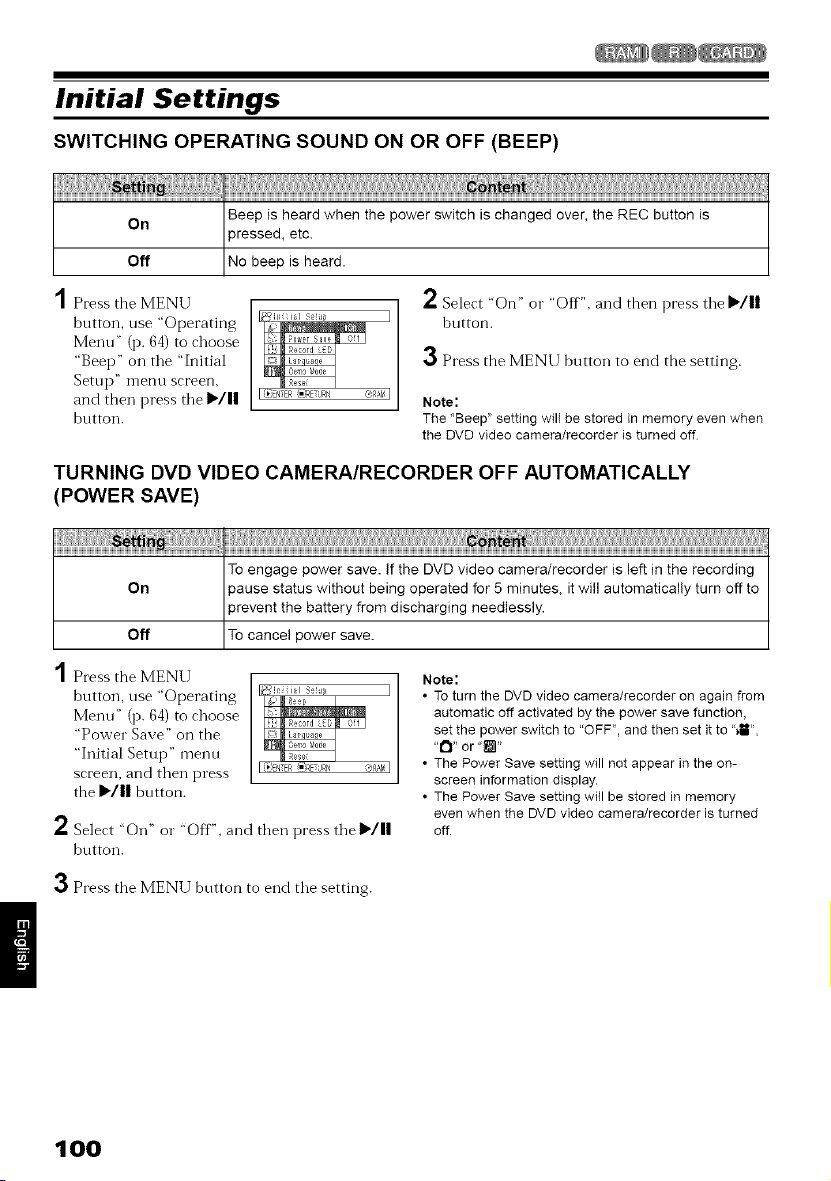
Initial Settings
SWITCHING OPERATING SOUND ON OR OFF (BEEP)
On Beep is heard when the power switch is changed over, the REC button is
)ressed, etc.
Off No beep is heard.
Press the MENU
button, use "Operating
Menu" (p. 64) to choose
"Beep" on the "Initial
Setup" inenu screen,
and then press the I_/||
button.
2 Select "On" o1""Off", and then press tile I_'/||
hutton.
3 Press the MENU button to end the setting.
Note:
The 'Beep" setting wilt be stored in memory even when
the DVD video camera/recorder is turned off
TURNING DVD VIDEO CAMERA/RECORDER OFF AUTOMATICALLY
(POWER SAVE)
To engage power save. If the DVD video camera/recorder is left in the recording
On )ause status without being operated for 5 minutes, it will automatically turn off to
)revent the battery from discharging needlessly.
Off To cancel power save.
2
Press the MENU
button, use "Operating
Menu" (p. 64) to choose
"Power Save" on the
"Initial Setup" menu
screen, and then press
the I_'/|| button.
Select "On" o1""Off". and then press the I_/ll
button.
Note:
• To turn the DVD video camera/recorder on again from
automatic off activated by the power save function,
set the power switch to "OFF", and then set it to "_H",
"(3" or "[]"
• The Power Save setting will not appear in the on-
screen information display.
• The Power Save setting witl be stored in memory
even when the DVD video camera/recorder is turned
off
3Press the MENU button to end the setting.
100
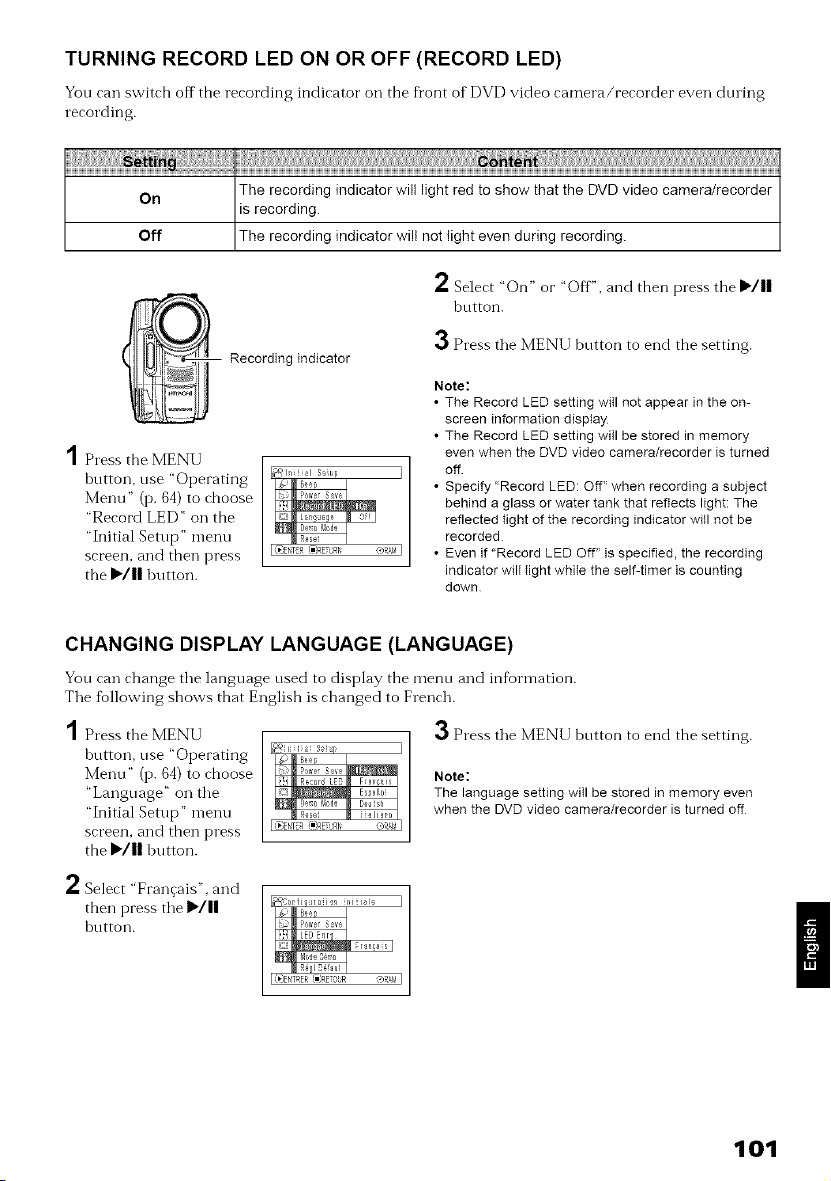
TURNING RECORD LED ON OR OFF (RECORD LED)
You can switch off the recording indicator oil the fl'ont of DVD video camera/recorder even dnring
recording.
On The recording indicator will light red to show that the DVD video camera/recorder
is recording.
Off The recording indicator wilt not light even during recording.
2 Select "On" or "Off", and then press the I_/||
bntton.
'1 Press the MENU
hutton, use "Operating
Menu" (i7. 64) to choose
"Record LED" on the
"Initial Setup" nlentl
screen, and then press
the I_'/|| button.
Recording indicator
3 Press the MENU button to end the setting.
Note:
• The Record LED setting will not appear in the on-
screen information display
• The Record LED setting will be stored in memory
even when the DVD video camera/recorder is turned
off.
• Specify "Record LED: Off" when recording a subject
behind a glass or water tank that reflects light: The
reflected light of the recording indicator will not be
recorded
• Even if "Record LED Off" is specified, the recording
indicator wilt light while the self-timer is counting
down
CHANGING DISPLAY LANGUAGE (LANGUAGE)
You can change the language used to display the menu and information.
The following shows that English is changed to French.
'1 Press the MENU
hutton, use "Operating
Menu" (i7. 64) to choose
"Language" on the
"Initial Setup" menu
screen, and then press
the I_'/|| button.
3 Press the MENU button to end the setting.
2 Select "Fran_ais", and
then press the I_/ll
hntton.
{F)DITER(m_dETiJRI (bR_td
_C,)ltfiq u aii _1 lilac
Note:
The language setting wiII be stored in memory even
when the DVD video camera/recorder is turned off
101
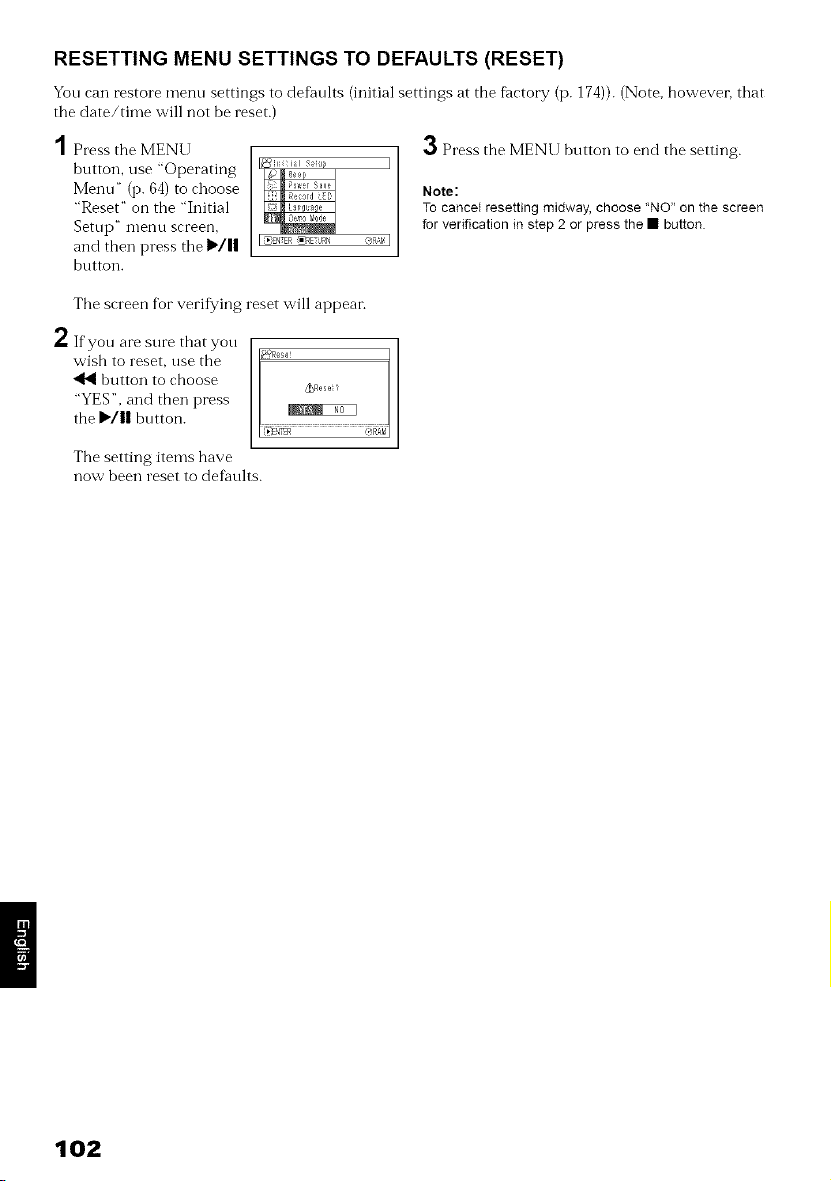
RESETTING MENU SETTINGS TO DEFAULTS (RESET)
Yon can restore menn settings to defi_nlts (initial settings at the factory (p. 174)). (Note, however, that
the date/time will not be reset.)
Press the MENU
button, use "Operating
Menu" (p. 64) to choose
"Reset" on the "Initial
Setup" nlenu screen,
and then press tile I_/||
button.
O Press the MENU button to end the setting.
Rote:
To cancel resetting midway, choose 'NO" on tile screen
for verification in step 2 or press the • button
Tile screen for verifying reset will appear.
h If you are sure that yon
wish to reset, use the
_l button to choose
"YES", and then press
the I_'/|| button.
##Rese_
_Resei?
r;/RA_
The setting items have
now been reset to defi_nlts.
102
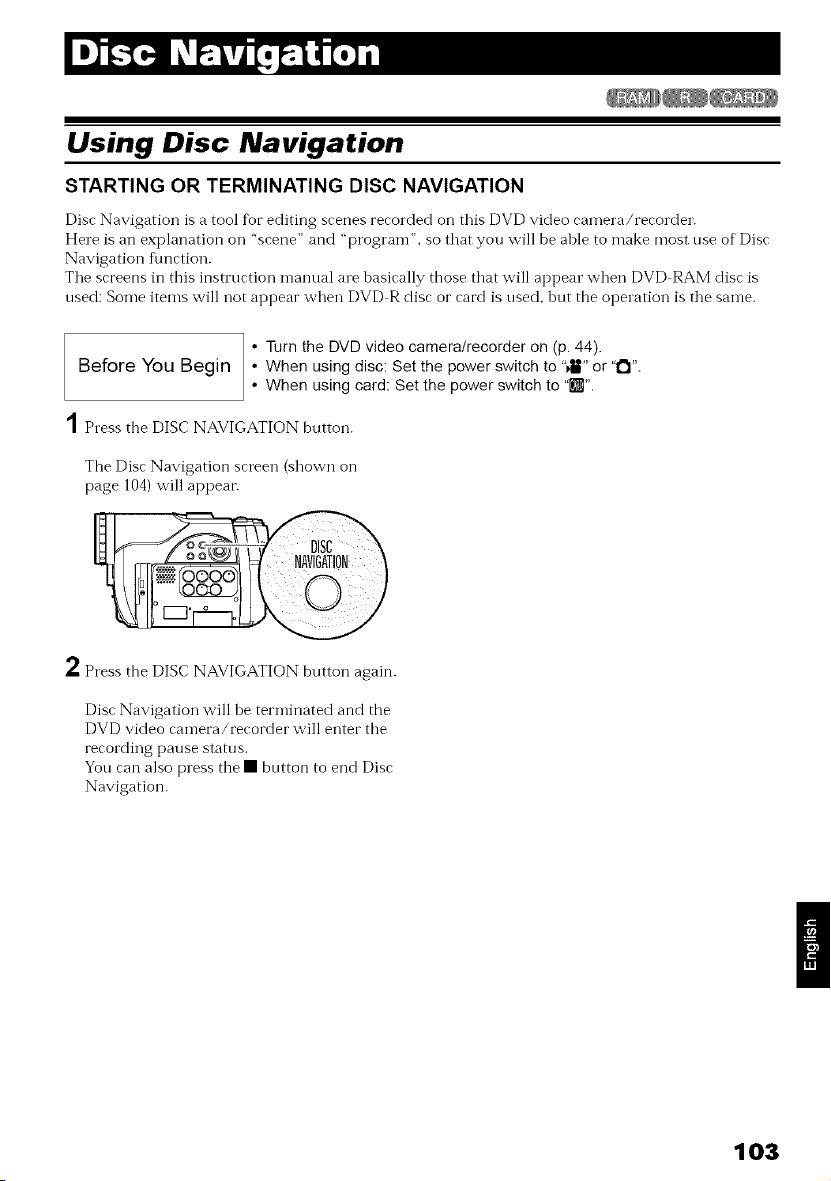
Using Disc Navigation
STARTING OR TERMINATING DISC NAVIGATION
Disc Navigation is a tool fiorediting scenes recorded on this DVD video camera/recorder.
Here is an explanation oil "scene" and "program _',so that you will be able to make most use of Disc
Navigation fhnction.
Tile screens in this instruction manual are basically those that will appear when DVD RAM disc is
used: Some items will :lot appear when DVD R disc or card is used, but the operation is tile same.
• Turn the DVD video camera!recorder on (p 44)
Before You Begin • When using disc: Set the power switch to "4E" or '1_1"
• When using card: Set the power switch to "[]"
1Press the DISC NAVIGATION button.
The Disc Navigation screen 'shown on
page 104) will appear.
2Press the DISC NAVIGATION button again.
Disc Navigation will be terminated and the
DVD video camera/recorder will enter the
recording pause status.
You can also press the • button to end Disc
Navigation.
103
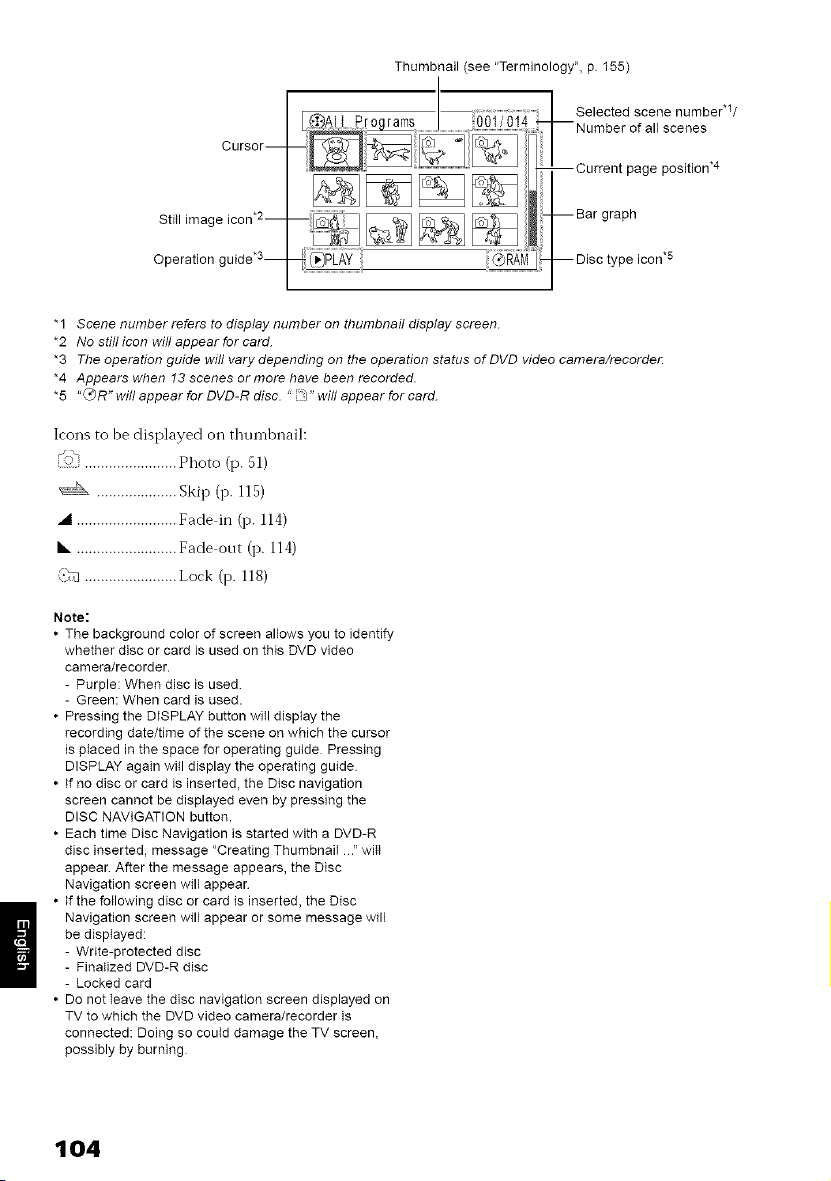
Cursor--
StiII image icon *2-
Operation guide .3-
Thumbnail (see "Terminology", p. 155)
Selected scene number*l/
-- Number of all scenes
--Current page position .4
-- Bar graph
-- Disc type icon .5
"1 Scene number refers to display number on thumbnail display screen.
*2 No still icon wilt appear for card.
*3 The operation guide will varydepending on the operation status of DVD video camera/recorde_
*4 Appears when 13 scenes or more have been recorded.
*5 "C_R" will appear for DVD-R disc. " :_" will appear for card.
Icons to be displayed oil thumbnail:
_i"_.......................Photo (p. 51)
_ .................... Skip (p. 115)
• ......................... Fade in (p. 114)
• ......................... Fade out (p. 114)
(>'c?,....................... Lock (p. 118)
Note:
• The background color of screen allows you to identify
whether disc or card is used on this DVD video
camera/recorder.
- Purple: When disc is used
- Green: When card is used.
• Pressing the DISPLAY button wiII display the
recording date/time of the scene on which the cursor
is ptaced in the space for operating guide Pressing
DISPLAY again will display the operating guide
• If no disc or card is inserted, the Disc navigation
screen cannot be displayed even by pressing the
DISC NAVIGATION button.
• Each time Disc Navigation is started with a DVD-R
disc inserted, message "Creating Thumbnail ." witt
appear After the message appears, the Disc
Navigation screen will appear
• If the following disc or card is inserted, the Disc
Navigation screen will appear or some message will
be displayed:
- Write-protected disc
- Finalized DVD-R disc
- Locked card
• Do not leave the disc navigation screen displayed on
TV to which the DVD video camera/recorder is
connected: Doing so could damage the TV screen,
possibly by burning
104
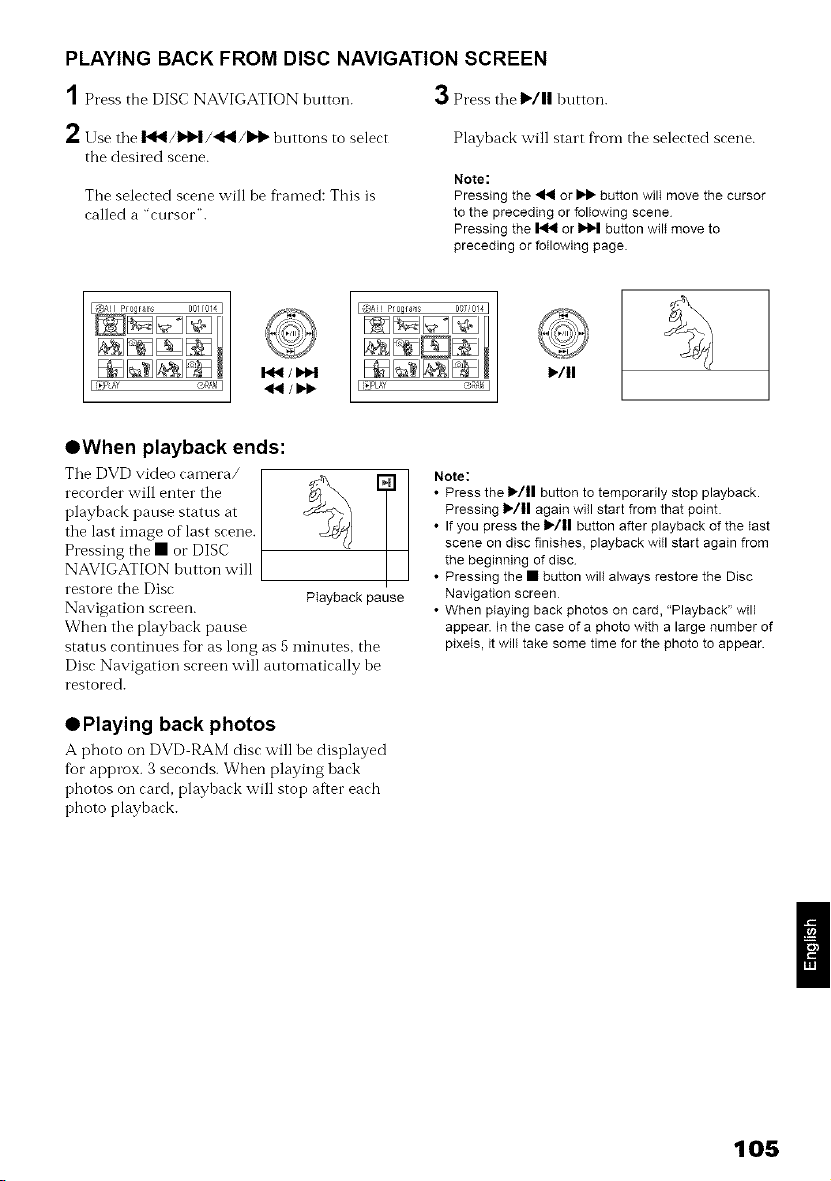
PLAYING BACK FROM DISC NAVIGATION SCREEN
1 Press the DISC NAVIGATION button. 3 Press tile )/ll hutton.
h Use tile I_I_/_D,I/'_II/I_I_ buttons to select
the desired scene.
The selected scene will be fi'amed: This is
called a "cursor".
Playback will start fi'om the selected scene.
Note:
Pressing the _ or _ button wilI move the cursor
to the preceding or following scene
Pressing the _41 or _ button wilt move to
preceding or following page.
I_/II
OWhen playback ends:
Tile DVD video camera/
recorder will enter tile
playback pause status at
tile last image of last scene.
Pressing the • or DISC
NAVIGATION button will
restore the Disc
Navigation screen.
When tile playback pause
status continues for as long as 5 minutes, the
Disc Navigation screen will automatically be
restored.
ED
PIayback pause
OPlaying back photos
A pboto on DVD RAM disc will be displayed
fur approx. 3 seconds. When playing hack
photos on card, playback will stop after each
photo playback.
Note:
• Press the t,/11 button to temporarily stop playback.
Pressing 1_/11 again will start from that point.
• If you press the 1_/11 button after playback of the tast
scene on disc finishes, playback will start again from
the beginning of disc
• Pressing the • button wilt always restore the Disc
Navigation screen
• When playing back photos on card, "Playback" will
appear. In the case of a photo with a large number of
pixeIs, it wilt take some time for the photo to appear.
105
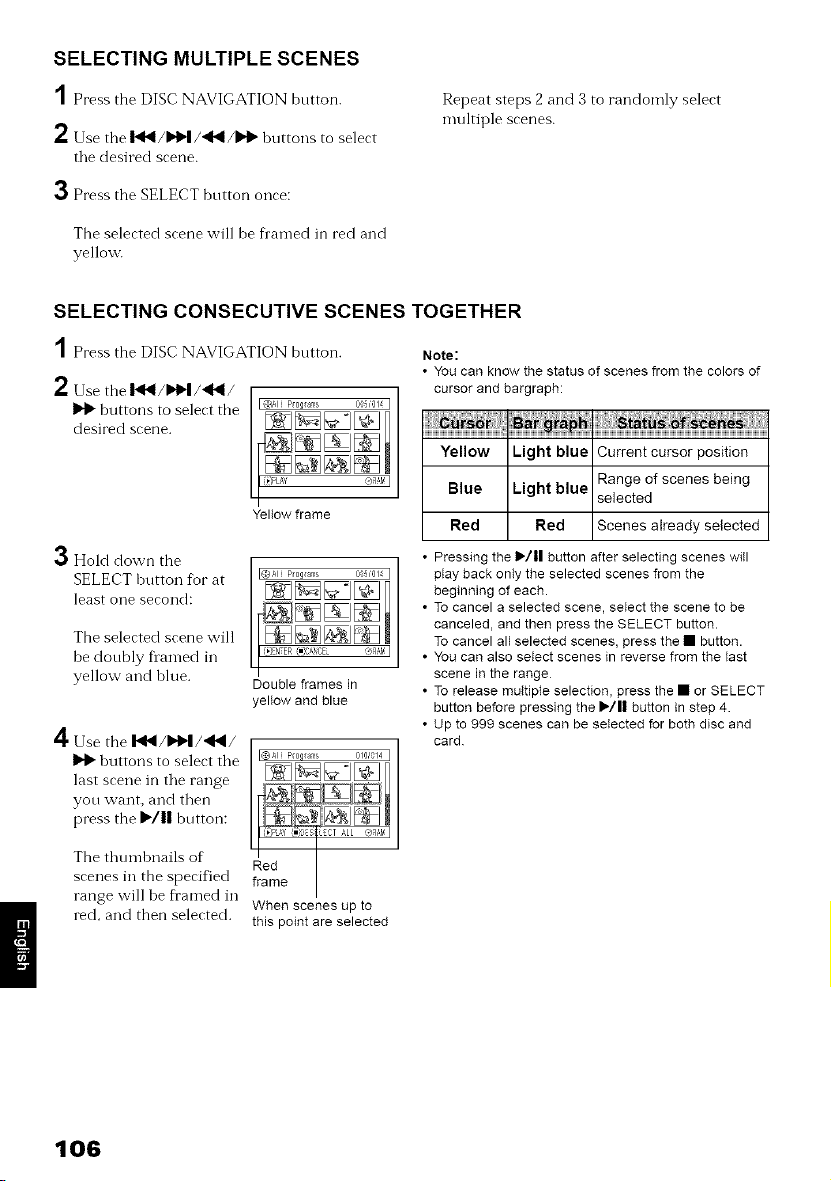
SELECTING MULTIPLE SCENES
1 Press the DISC NAVIGATION button.
2 Use the I_I_/_I/"_(I/II'I) huttons to select
tile desired scene.
3 Press the SELECT button once:
The selected scene will be fl'amed in red and
yellow.
Repeat steps 2 and 3 to randomly select
multiple scenes.
SELECTING CONSECUTIVE SCENES TOGETHER
1 Press the DISC NAVIGATION bntton.
2 Use the I_NI/I_I/_/
buttons to select the
desired scene.
O Hold down the
SELECT hutton for at
least one second:
The selected scene will
be donbly Dan-led in
yellow and hlue.
4 Use the 14NI/_I/_I/
buttons to select tile
last scene in the range
you want, and then
press the I)/11 button:
The thumhnails of
scenes in the specified
range will be fl'amed in
red, and then selected.
Yellow frame
Double frames in
yellow and blue
I_Ali PI0qlams 010/014 I
Red
frame
When scenes up to
this point are selected
Note:
• You can know the status of scenes from the colors of
cursor and bargraph:
Yellow Light blue Current cursor position
Blue Light blue Range of scenes being
selected
Red Red Scenes already selected
• Pressing the 1_/11 button after selecting scenes will
play back only the selected scenes from the
beginning of each.
• To cancel a selected scene, select the scene to be
canceled, and then press the SELECT button.
To cancel all selected scenes, press the • button.
• You can also setect scenes in reverse from the last
scene in the range
• To release muttipte selection, press the • or SELECT
button before pressing the I_/11 button in step 4.
• Up to 999 scenes can be seIected for both disc and
card
106
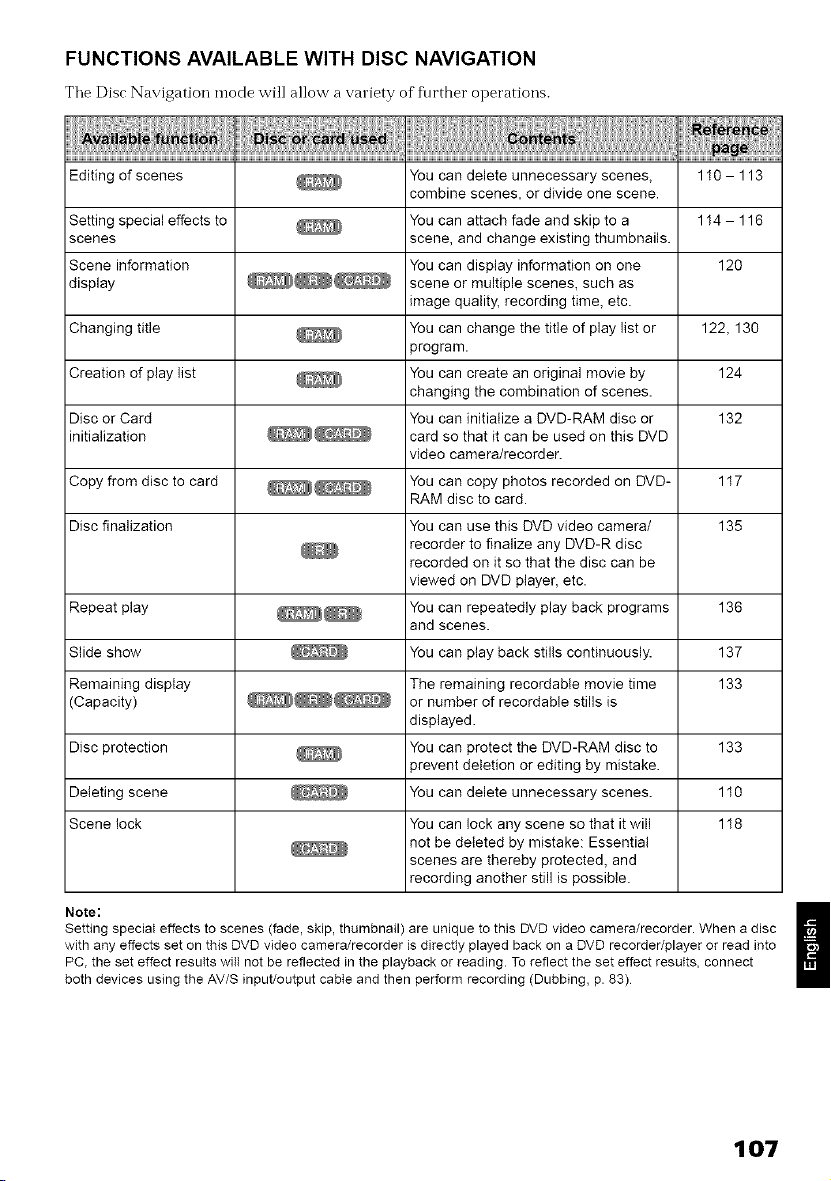
FUNCTIONS AVAILABLE WITH DISC NAVIGATION
Tile Disc Navigation mode will allow a variety of f_lrther operations.
Editing of scenes _ You can delete unnecessary scenes, 1I0 - 113
combine scenes, or divide one scene.
Setting special effects to _ You can attach fade and skip to a 1 I4 - 116
scenes scene, and change existing thumbnails.
Scene information You can display information on one 120
display __ scene or multiple scenes, such as
image quality, recording time, etc.
Changing title _ You can change the title of play list or 122, 130
program.
Creation of play list _ You can create an original movie by 124
changing the combination of scenes.
Disc or Card You can initialize a DVD-RAM disc or 132
initialization __ card so that it can be used on this DVD
video camera/recorder.
Copy from disc to card __ You can copy photos recorded on DVD- 1 I7
RAM disc to card.
Disc finalization You can use this DVD video camera/ 135
recorder to finalize any DVD-R disc
recorded on it so that the disc can be
viewed on DVD player, etc.
Repeat play _ You can repeatedly play back programs 136
and scenes.
Slide show _ You can play back stills continuously. 137
Remaining display The remaining recordabie movie time 133
(Capacity) __ or number of recordab(e stills is
displayed.
Disc protection _ You can protect the DVD-RAM disc to 133
prevent deletion or editing by mistake.
Deleting scene _ You can delete unnecessary scenes. 1 I0
Scene lock You can lock any scene so that it will 1 I8
not be deleted by mistake: Essential
scenes are thereby protected, and
recording another still is possible.
Note: /
Setting special effects to scenes (fade, skip, thumbnail) are unique to this DVD video camera/recorder. When a disc
with any effects set on this DVD video camera/recorder is directty played back on a DVD recorder/player or read into
PC, the set effect results witt not be reflected in the playback or reading. To reflect the set effect results, connect
both devices using the AV/S input/output cabte and then perform recording (Dubbing, p. 83)
107
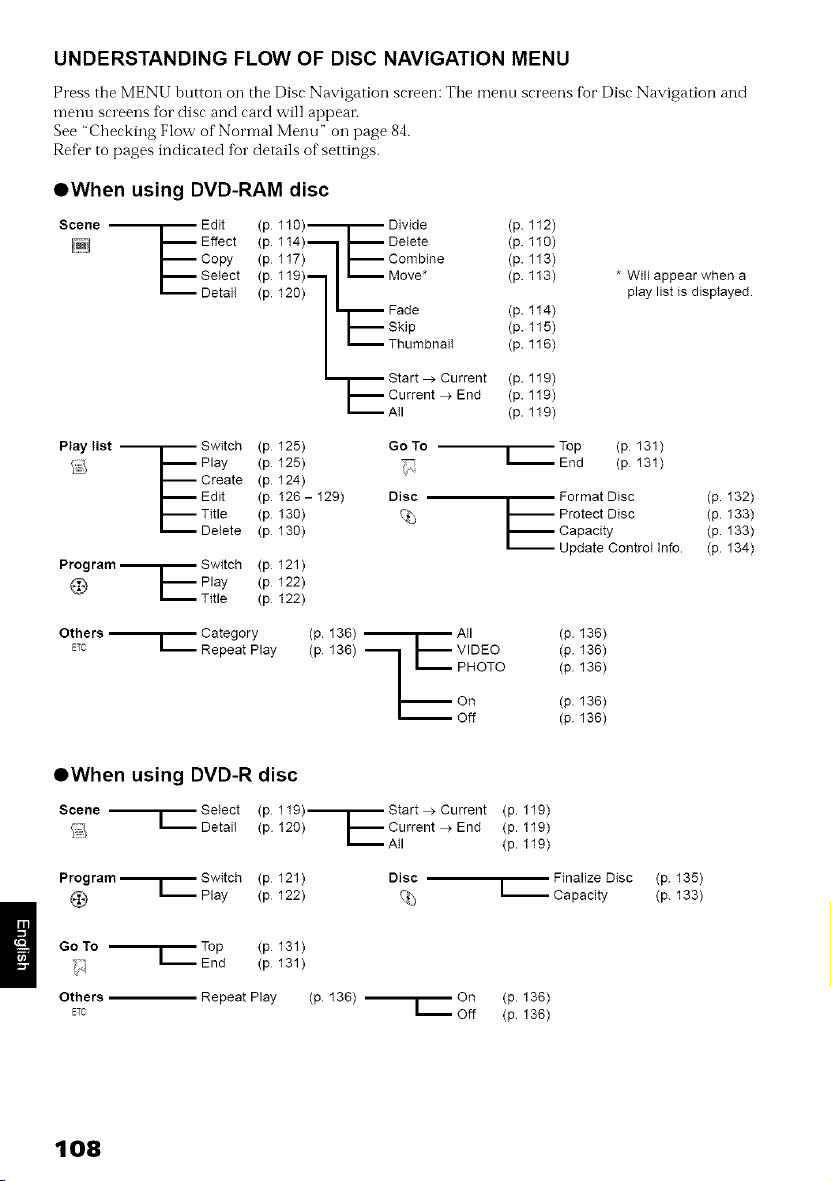
UNDERSTANDING FLOW OF DISC NAVIGATION MENU
Press the MENU button on the Disc Navigation screen: Tile menu screens fbr Disc Navigation and
menu screens fbr disc and card will appear:
See "Checking Flow of Normal Menu" on page 84.
Refer to pages indicated for details of settings.
OWhen using DVD-RAM disc
Scene --3-- Edit (p 110)._1._ Divide (p. 112)
114)._j J,_ Detete (p. 110)
J'_J'_ EffeCtcopy(p(P117) I J_ Combine (p. 113)
J,_Setect (p 119)._j _ Move* (p. 113) * Will appear when a
_DetaiI (p 120) I L[_ Fade (p. 114) play list is dispiayed.
I I_skip (p 115)
I _ ThumbnaiI (p. 116)
L_r_ start > Current (p. 119)
J,_ Current > End (p. 119)
_A{I (p. 119)
Play list _ Switch (p 125) Go To
J,_ Play (p 125)
J._ Create (p 124)
J,_ Edit (p 126- 129) Disc
(p %
_ Title 130)
DeIete (p 130)
Program _ Switch (p 121)
(p 122)
Top (p 131)
End (p 131)
Format Disc (p. 132)
_._ Protect Disc (p. 133)
J,_ Capacity (p. 133)
L Update Control Info. (p. 134)
Others- --Cate0ory,p11338))
ETC _ Repeat Play (p VIDEO
PHOTO
(p. 136)
(p. 136)
(p. 136)
On (p. 136)
Off (p. 136)
OWhen using DVD-R disc
Scene _l,_Setect (p 119),_Start >Current (p. 119)
_ _ DetaiI (p. 120) [_ Current _ End (p. 119)
_Atl (p. 119)
Program._ Switch (p 121)
_ Play (p 122)
GoTo --'j'_ Top (p 131)
"_.2 _ End (p 131)
Others Repeat Play
ETE
(p. 136)
Disc
%
Finalize Disc
-- Capacity
r on (p. 136)
off (p. 136)
(p 135)
(p 133)
108
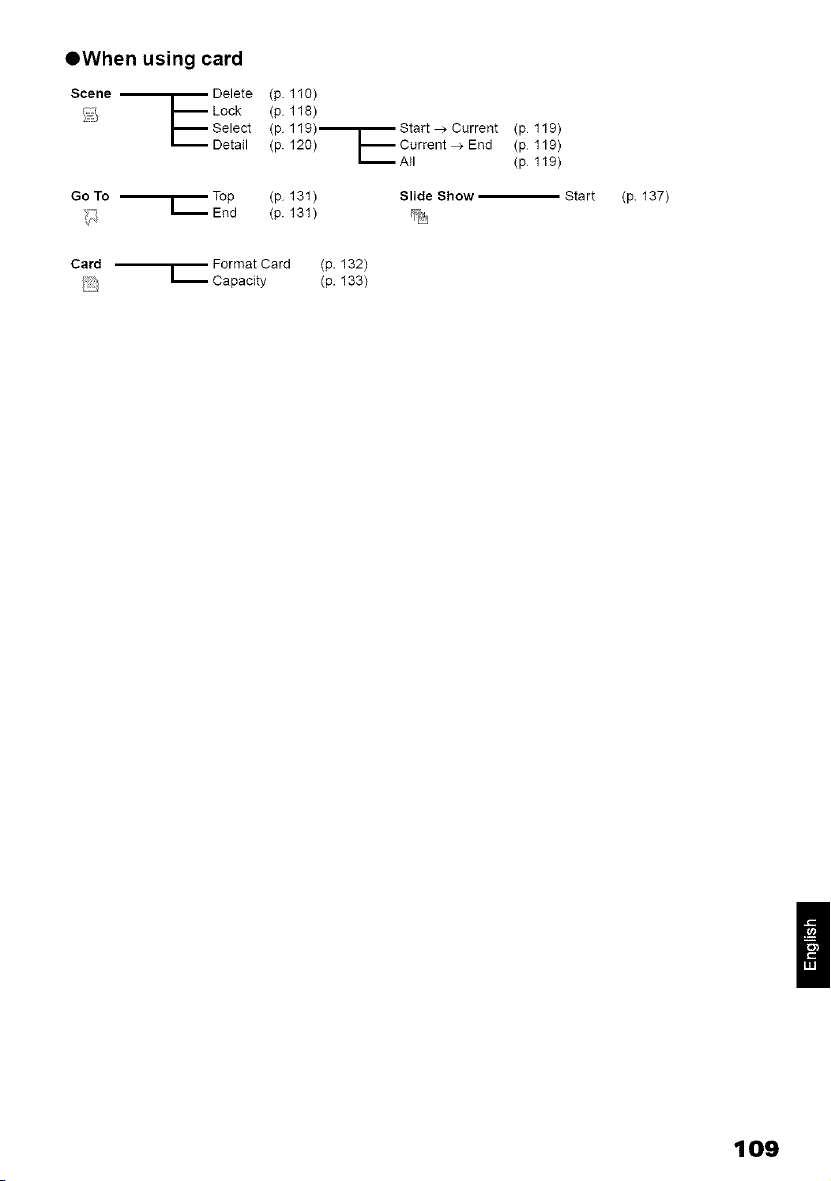
OWhen using card
Scene r Delete (p 110)
_i/ E Lock (p 118)
Select (p 119)'--i-- Start _ Current (p 119)
Detail (p 120) _'_ Current _ End (p 119)
All (p 119)
Go To
Top (p 131)
r
(p 131 )
,_ End
Slide Show
%
Start
Card Format Card (p. 132)
} [-- Capacity (p. 133)
(p 137)
109
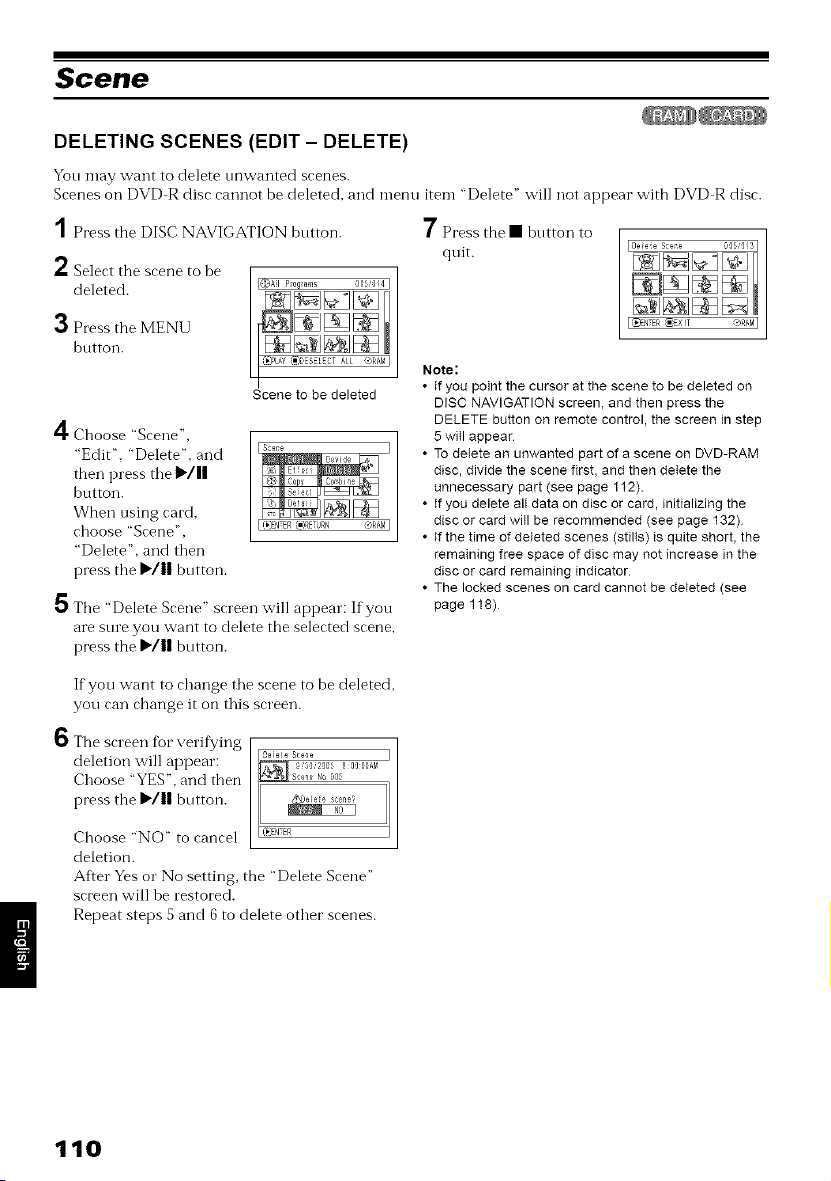
Scene
DELETING SCENES (EDIT - DELETE)
Yon may want to delete unwanted scenes.
Scenes oil DVD R disc cannot be cleleted, and menu item "Delete" will not appear with DVD R disc.
1 Press the DISC NAVIGATION button.
2 Select the scene to be
deleted.
3 Press the MENU
button.
Scene to be deleted
4 Choose "Scene",
"Edit", "Delete", and
then press tile I_/ll
button.
When using card,
choose "Scene", b,e_ER_.,_ETU_N®RA'_'J
"Delete", and then
press the I_'/|| button.
5 The "Delete Scene" screen will appear: If you
are sure you want to delete the selected scene,
press the I_'/|| button.
7 Press the • button to
quit.
I Oe_eie Scene 005,'013 I
I _NTER _X JT ®_M I
Note:
• If you point the cursor at the scene to be deleted on
DISC NAVIGATION screen, and then press the
DELETE button on remote control, the screen in step
5 will appear
• To delete an unwanted part of a scene on DVD-RAM
disc, divide the scene first, and then delete the
unnecessary part (see page 112).
• If you delete all data on disc or card, initializing the
disc or card will be recommended (see page 132)
• If the time of deleted scenes (stills) is quite short, the
remaining free space of disc may not increase in the
disc or card remaining indicator.
• The locked scenes on card cannot be deleted (see
page 118)
If you want to change the scene to be deleted,
you can change it on this screen.
6 The screen %r verif_?ing
deletion will appear:
Choose "YES", and then
press the I_'/|| button.
Choose "NO" to cancel
deletion.
Af'.er Yes or No setting, the "Delete Scene"
screen will be restored.
Repeat steps 5 and 6 to delete other scenes.
110
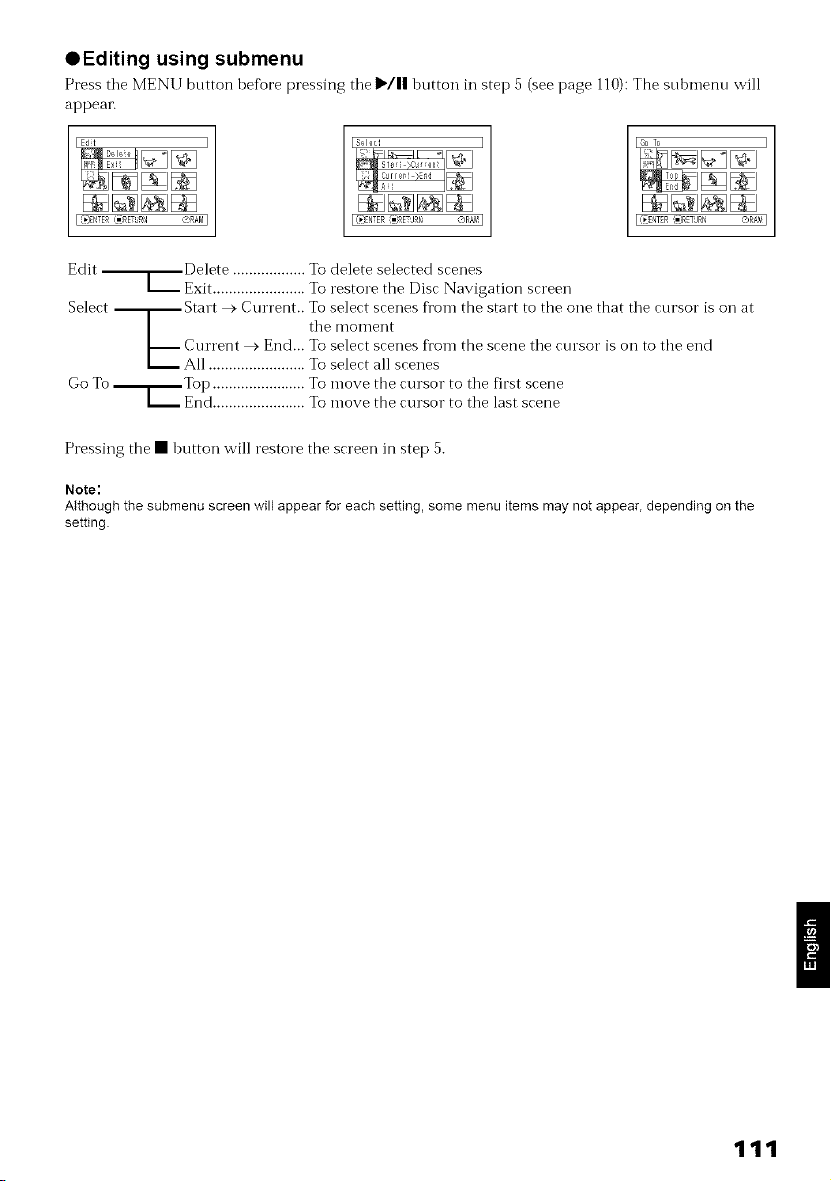
OEditing using submenu
Press the MENU button hefore pressing the Ilqll button in step 5 (see page 110): The snhnmnn will
appear.
Edit ------T_Delete .................. To delete selected scenes
I--.-Exit ....................... TO restore the Disc Navigation screen
Select _ Start > Current.. To select scenes fl'om the start to the one that the cursor is on at
[ tlle moment
[-----Current > End... To select scenes from the scene tlle cursor is on to the end
All ........................ TO select all scenes
Go To .----T-._Top ....................... To move the cursor to tlle first scene
L---End ....................... To move the cursor to tlle last scene
Pressing the • button will restore the screen in step 5.
Note:
Although the submenu screen will appear for each setting, some menu items may not appear, depending on the
setting.
111
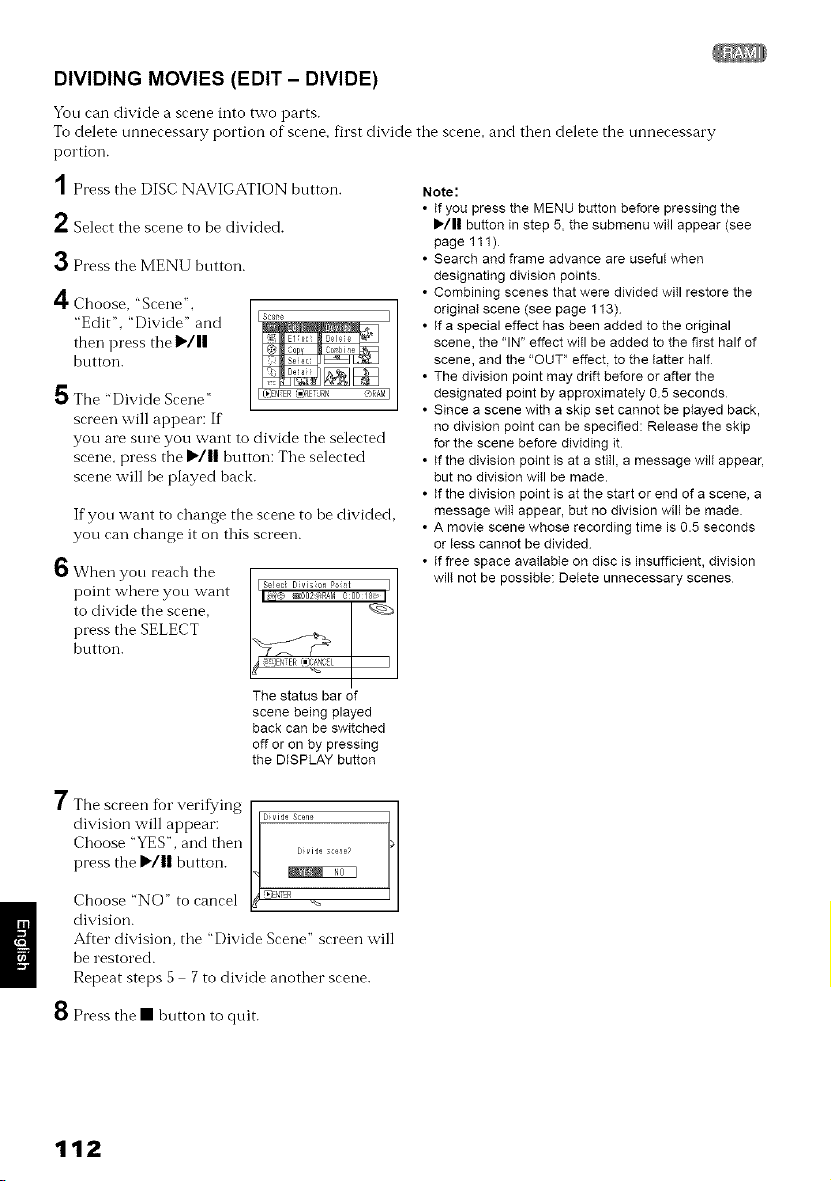
DIVIDING MOVIES (EDIT - DIVIDE)
Yon can divide a scene into two parts.
To delete unnecessary portion of scene, first divide tile scene, and then delete the unnecessary
portion.
'1 Press the DISC NAVIGATION bntton.
2 Select the scene to be divided.
3 Press the MENU bntton.
4Choose, "Scene".
"Edit". "Divide" and
then press the _/||
button.
5 The "Divide Scene" Lt_,_ER{-3_EURN _RAM]
screen will appear: If
you are sure you want to divide the selected
scene, press the I_/1| button: The selected
scene will be played back.
If yon want to change the scene to be divided,
you can change it on this screen.
O When yon reach the
point where you want
to divide the scene,
press the SELECT
button.
I Se!ec Dvis on PO{M I
_ _ _002 R_M 00018 _ I
_!_E!iTER [iJC_NC_L I I
The status bar of
scene being played
back can be switched
off or on by pressing
the DISPLAY button
Note:
• If you press the MENU button before pressing the
I_/|| button in step 5, the submenu wiII appear (see
page 111)
• Search and frame advance are useful when
designating division points.
• Combining scenes that were divided wiII restore the
original scene (see page 113)
• If a special effect has been added to the original
scene, the "IN" effect witl be added to the first half of
scene, and the "OUT" effect, to the tatter half
• The division point may drift before or after the
designated point by approximately 05 seconds
• Since a scene with a skip set cannot be played back,
no division point can be specified: Release the skip
for the scene before dividing it
• ftthe division point is at a still, a message wilt appear,
but no division will be made.
• If the division point is at the start or end of a scene, a
message wilt appear, but no division will be made
• A movie scene whose recording time is 0.5 seconds
or less cannot be divided
• ft free space available on disc is insufficient, division
will not be possible: Delete unnecessary scenes
7 The screen for verifying
division will appear:
Choose "YES", and then
press the I_/|| button.
Choose "NO" to cancel
division.
After division, the "Divide Scene" screen will
be restored.
Repeat steps 5 7 to divide another scene.
8 Press the • button to quit.
112
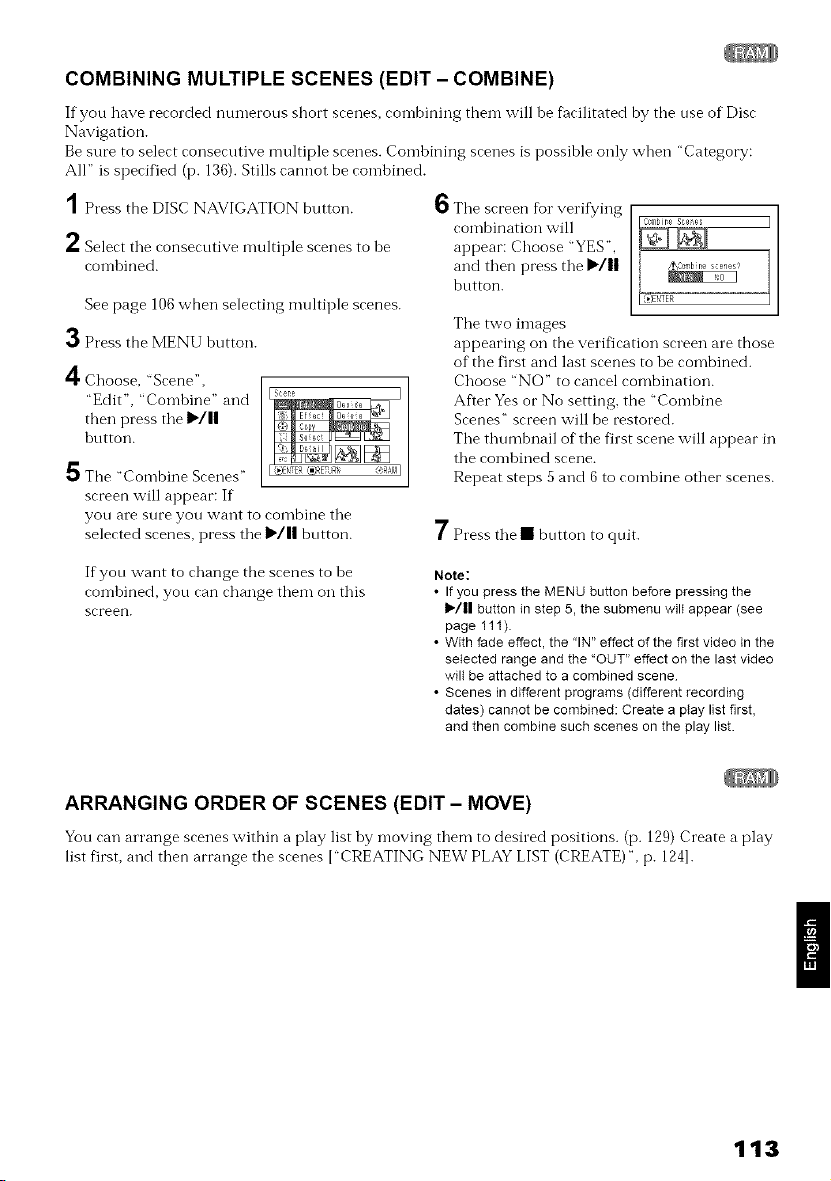
COMBINING MULTIPLE SCENES (EDIT - COMBINE)
If you have recorded numerous short scenes, con-lhining them will be f_cilitated by the use of Disc
Navigation.
Be sure to select consecutive multiple scenes. Comhining scenes is possible only when "Category:
All" is specified (p. 136). Stills cannot be combhled.
'1 Press the DISC NAVIGATION button.
2 Select tile consecutive multiple scenes to be
con-lbined.
See page 106 when selecting multiple scenes.
3 Press the MENU button.
4Choose, "Scene",
"Edit", "Combine" and
then press the )/11
hutton.
5 The "Combine Scenes"
screen will appear: If
you are sure you want to combine the
selected scenes, press the I_/|| button.
6 The screen tor veritying
combination will
appear: Choose "YES",
and then press the I_/||
button.
The two images
appearing on the verification screen are those
of the first and last scenes to be combined.
Choose "NO" to cancel combination.
After Yes or No setting, the "Combine
Scenes" screen will be restored.
The thumhnail of the first scene will appear in
the combined scene.
Repeat steps 5 and 6 to combine other scenes.
7 Press the • button to quit.
If you want to change the scenes to be
con-lbined, you can change them on this
screen.
Note:
• If you press the MENU button before pressing the
1_/|1 button in step 5, the submenu wilt appear (see
page 111).
• With fade effect, the "IN" effect of the first video in the
selected range and the "OUT" effect on the last video
wilt be attached to a combined scene
• Scenes in different programs (different recording
dates) cannot be combined: Create a ptay list first,
and then combine such scenes on the play list.
ARRANGING ORDER OF SCENES (EDIT - MOVE)
You can arrange scenes within a play list by moving them to desired positions. (p. 129) Create a play
list first, and then arrange the scenes I"CREATING NEW PLAY LIST (CREATE)", p. 1241.
113
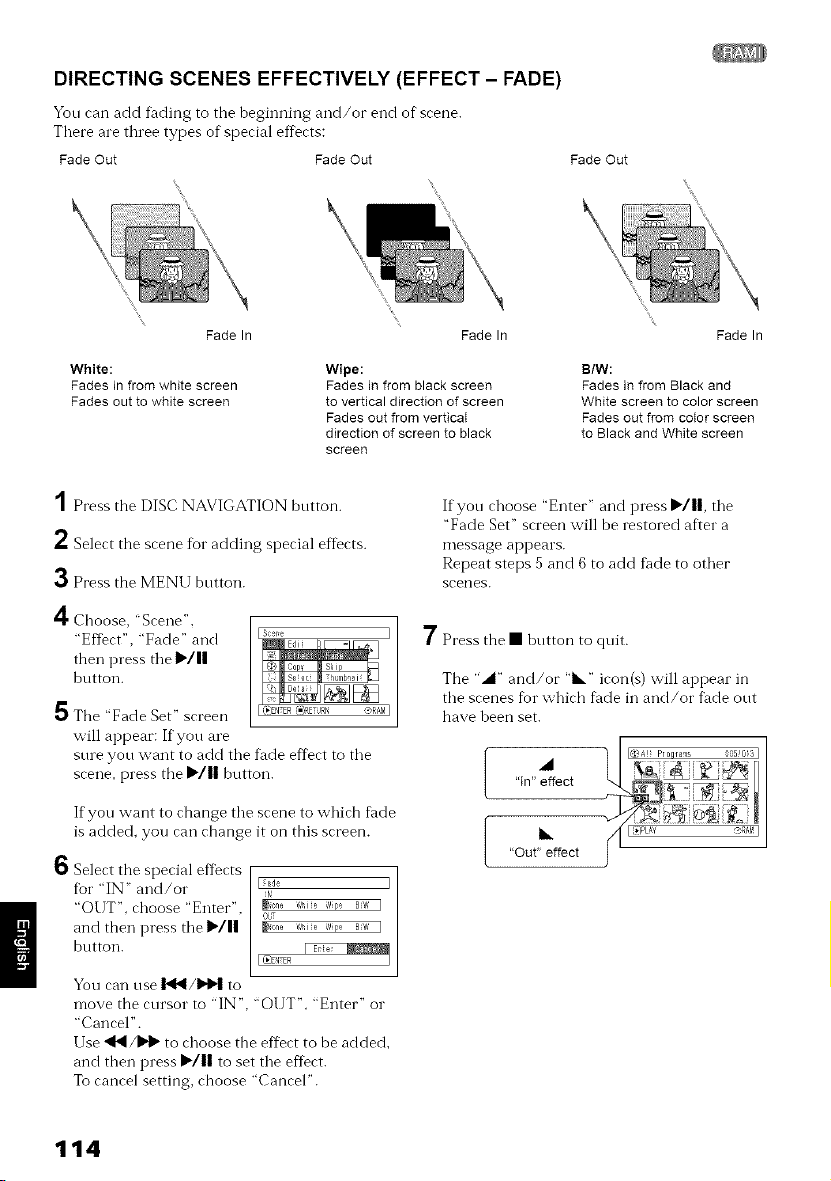
DIRECTING SCENES EFFECTIVELY (EFFECT - FADE)
You can add finding to the beginning and/or end of scene.
There are three types of special effects:
Fade Out Fade Out Fade Out
Fade In Fade In
White:
Fades in from white screen
Fades out to white screen
Wipe:
Fades in from black screen
to vertical direction of screen
Fades oat from verticaI
direction of screen to black
screen
\
\
Fade In
B/W:
Fades in from Black and
White screen to color screen
Fades oat from cotor screen
to Black and White screen
1 Press the DISC NAVIGATION bntton.
2 Select the scene fin" adding special effects.
3 Press the MENU bntton.
4 Choose, "Scene',
"Effect', "Fade" and
then press tile I_/ll
button.
5 The "Fade Set" screen
will appear: If you are
sure you want to add tile titde eft)ct to tile
scene, press the I_'/|| button.
L(}#NTER(_}RETURN _RAM ]
6
If yon want to change tile scene to which titde
is added, you can change it on this screen.
Select the special eftbcts
tbr "IN" and/or
"OUT". choose "Enter",
and then press tile I_/11
button.
You can use 1_14/_1,'1 to
I_ade
iN
_6ne Whi{e Wipe BiW I
_None Whi{e Wipe BiW I
I_NTER
move the cursor to "IN", "OUT", "Enter" or
"Cancel".
Use 'It,I/1_1_to choose the effect to be added,
and then press _'/|| to set tile eftect.
To cancel setting, choose "Cancel".
If you choose "Enter" and press I,,/11, tile
"Fade Set" screen will be restored after a
message appears.
Repeat steps 5 and 6 to add fi_de to other
scenes.
7 Press the • hntton to quit.
The "_1" and/or "•" icon(s) will appear in
the scenes %r which tilde in and/or fi_de out
have been set.
I@A! Pr0qrams S5!03 I
"in" effect
114
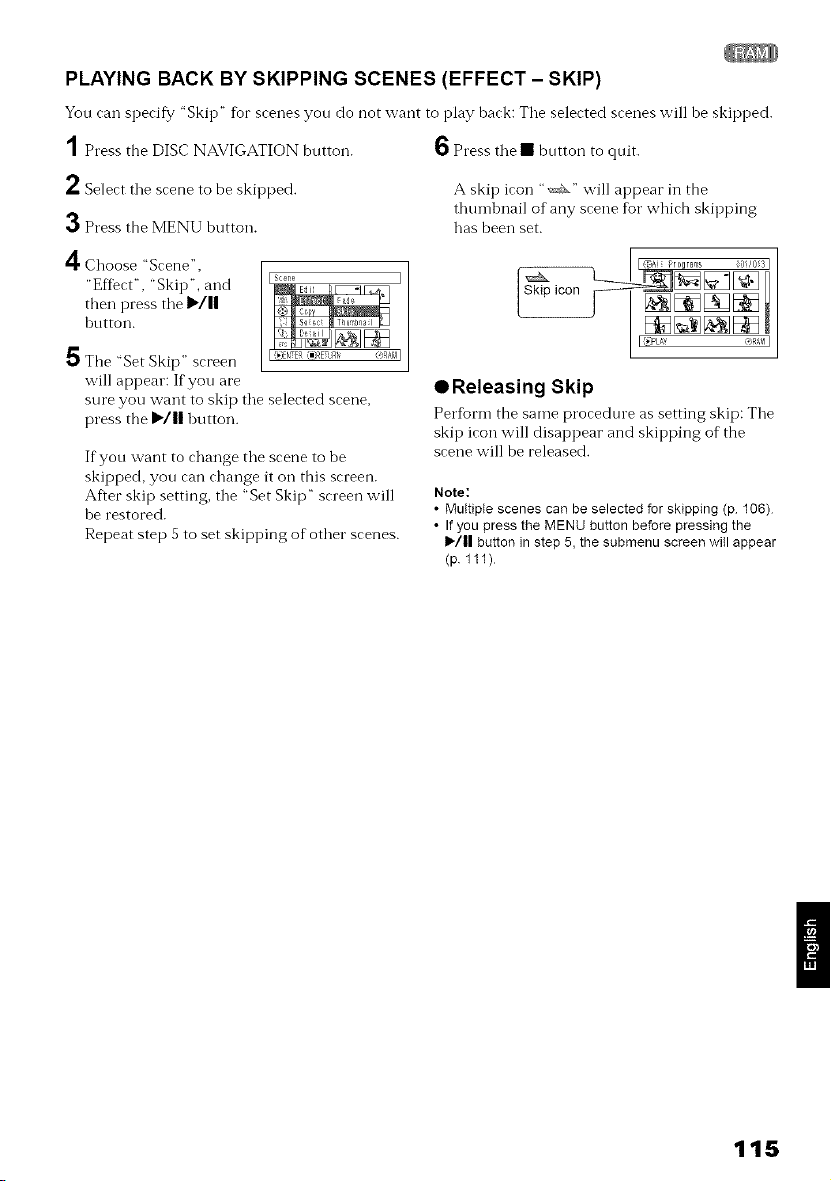
PLAYING BACK BY SKIPPING SCENES (EFFECT - SKIP)
You can specif,/"Skip" for scenes yon do not want to play hack: Tile selected scenes will be skipped.
1 Press the DISC NAVIGATION button.
2 Select tile scene to be skipped.
3 Press the MENU button.
4 Choose "Scene",
"Eff_ct', "Skip", and
then press tile l_lll
button.
6 Press tile • bntton to quit.
A skip icon ",_" will appear in the
thtm-ll)nail of any scene for which skipping
has been set.
5 The "Set Skip" screen
will appear: If you are
sure you want to skip tile selected scene,
press the I_/|| button.
If you want to change tile scene to be
skipped, you can change it on this screen.
Afler skip setting, tile "Set Skip" screen will
he restored.
Repeat step 5 to set skipping of other scenes.
• Releasing Skip
Perfbrm tile same procedure as setting skip: Tile
skip icon will disappear and skipping of the
scene will be released.
Note:
• Muttipte scenes can be selected for skipping (p 106)
• If you press the MENU button before pressing the
1_/|1 button in step 5, the submenu screen will appear
(p 111)
115
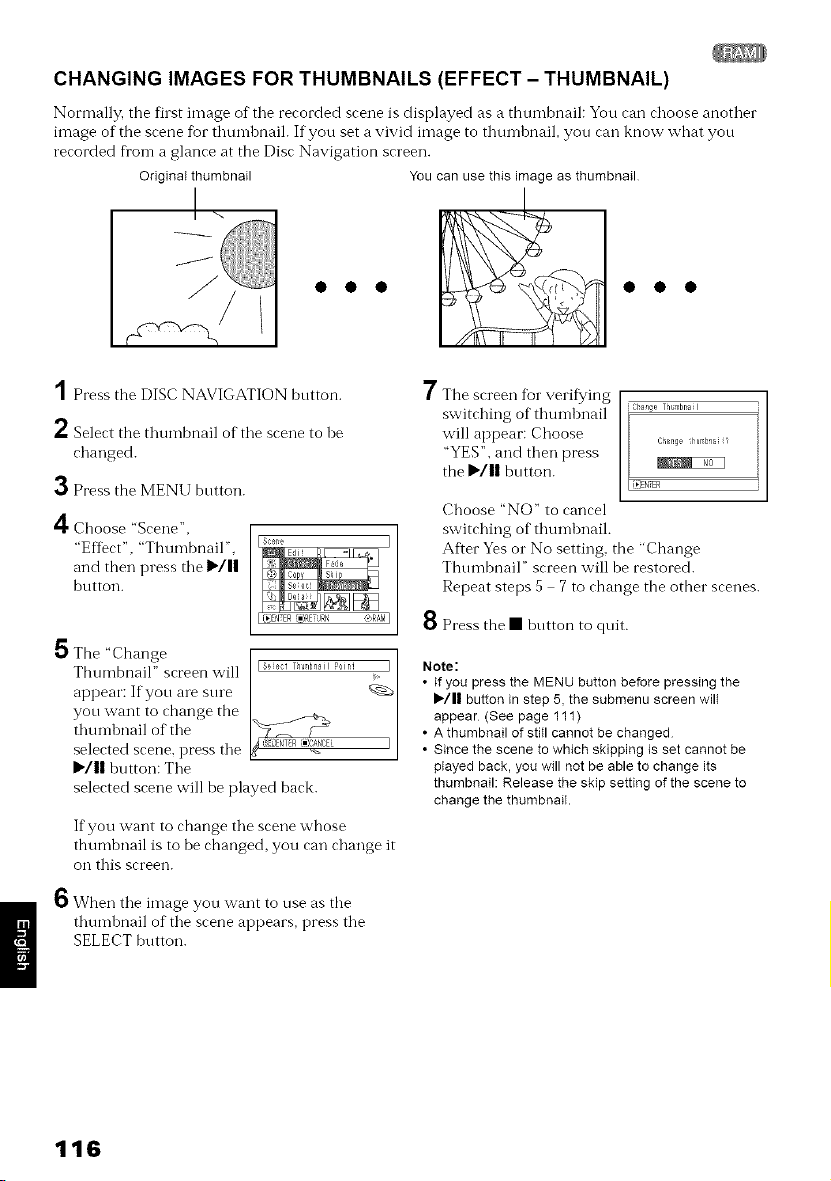
CHANGING IMAGES FOR THUMBNAILS (EFFECT - THUMBNAIL)
Normally. the first image of tile rerorded srene is displayed as a thumbnail: You ran choose another
image of the scene fur thumbnaih If you set a vivid image to thumhnail, you can know what you
recorded fl'om a glance at the Disc Navigation screen.
Original thumbnail You can use this image as thumbnail
'1 Press the DISC NAVIGATION button.
2 Select the thumbnail of the scene to he
changed.
3 Press the MENU button.
4Choose "Scene",
"Eftect', "Thumbnail",
and then press the I_/||
button.
Li_yNTER(@P,EURN (_AAM]
5 The "Change [£;
Thumbnail" screen will p0ini I
appear: If yon are snre
yon want to change the
thun-lhnail of the }_ '3_OENTERII)_NCEL
selected scene, press the
I,'/11hutton: The
selected scene will be played hack.
If you want to change the scene whose
thumbnail is to be changed, you can change it
on this screen.
ID When the image you want to use as the
thumhnail of the scene appears, press the
SELECT button.
/ The screen %1"verifying
switching of thumhnail
will appear: Choose
"YES", and then press
the I_/|| button.
Cban9÷ ThumbnaH
Ch_n_e ihu_bna_?
Choose "NO" to cancel
switching of thumhnail.
Af'.er Yes or No setting, the "Change
Thumbnail" screen will be restored.
Repeat steps 5 7 to change the other scenes.
8 Press the • hntton to quit.
Note:
• If you press the MENU button before pressing the
I_/11 button in step 5, the submenu screen wilt
appear (See page 111)
• A thumbnail of stitl cannot be changed
• Since the scene to which skipping is set cannot be
played back, you will not be able to change its
thumbnail: Release the skip setting of the scene to
change the thumbnail.
116
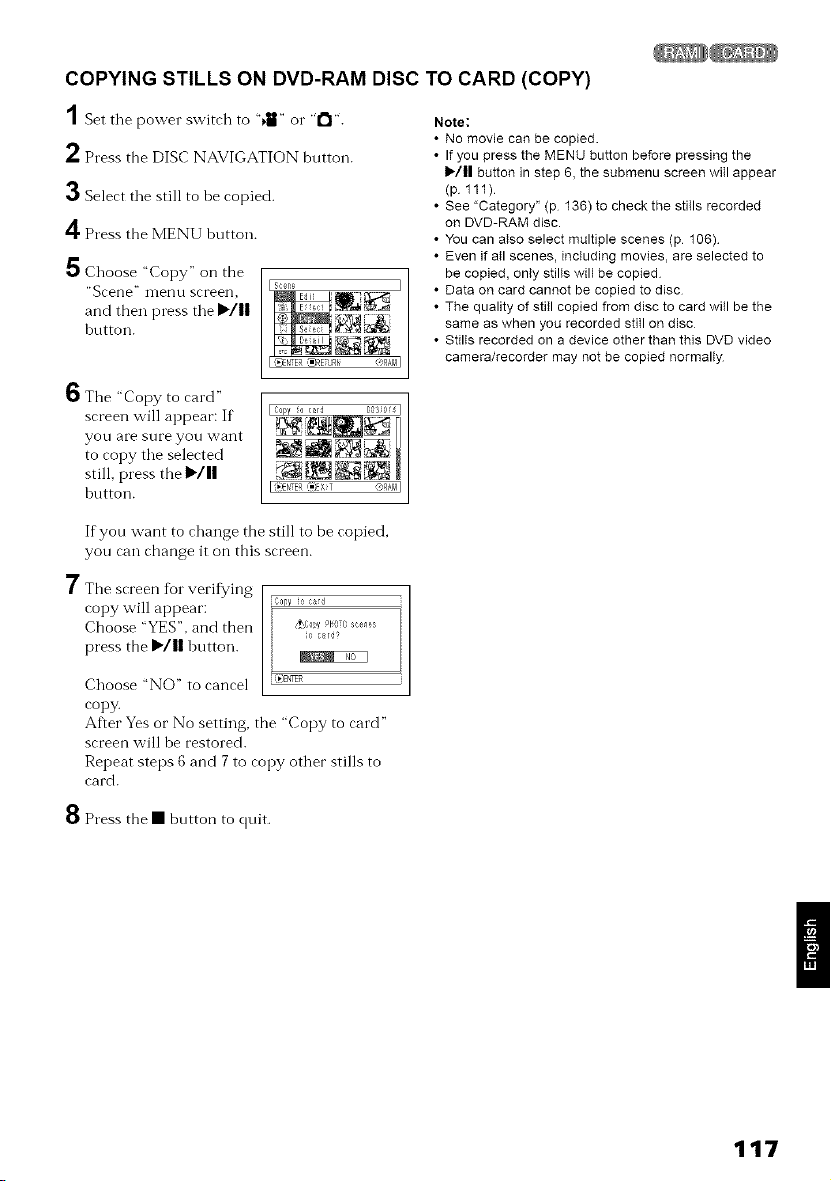
COPYING STILLS ON DVD-RAM DISC TO CARD (COPY)
1Set tile power switch to "_il" o1" "1_1".
2 Press the DISC NAVIGATION button.
3 Select tile still to be copied.
4 Press the MENU button.
5 Choose "Copy" on the
"Scene" iilenu screen,
and then press tile I*/11
button.
Note:
• No movie can be copied.
• If you press the MENU button before pressing the
1_/|| button in step 6, the submenu screen will appear
(p 111)
• See "Category" (p 136) to check the stiIIs recorded
on DVD-RAM disc.
• You can aIso select multiple scenes (p 106)
• Even if all scenes, including movies, are selected to
be copied, only stills will be copied
• Data on card cannot be copied to disc
• The quality of stiil copied from disc to card will be the
same as when you recorded still on disc
• Stills recorded on a device other than this DVD video
camera/recorder may not be copied normally
6 The "Copy to card"
screen will appear: If
yOU are sure you want
to copy tile selected
still, press the I_/||
hutton.
I Copy {0 card DO30f4 1
I ',_ENTER"_XT L_RAMI
If yon want to change the still to be copied,
you can change it on this screen.
7 The screen %1"verif_¢ing
copy will appear:
Choose "YES", and then
press the I*/IIhutton.
Choose "NO" to cancel
copy.
Copy ie cad
_C0py PHOTOsce_s
{0 card?
After Yes or No setting, the "Copy to card"
screen will be restored.
Repeat steps 6 and 7 to copy other stills to
card.
8 Press the • button to quit.
/
117
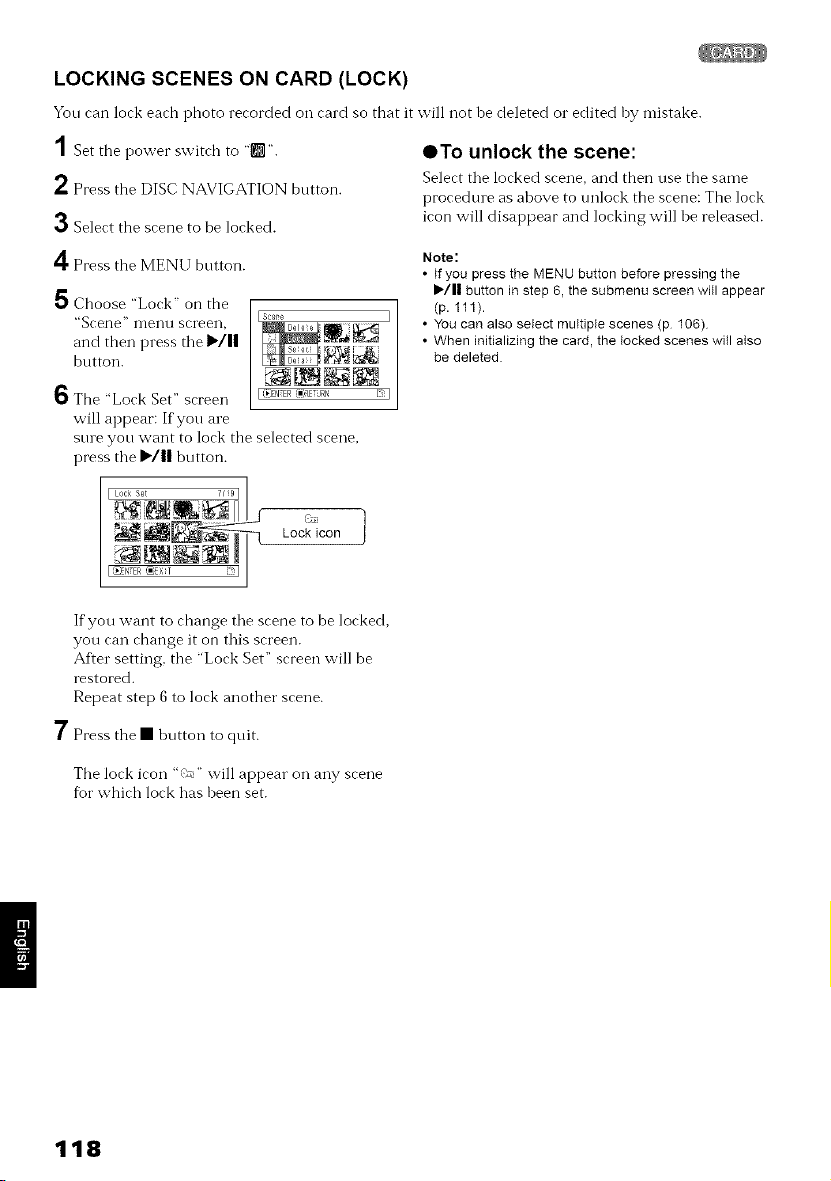
LOCKING SCENES ON CARD (LOCK)
Yon can lock each photo recorded oil card so that it will not he deleted o1"edited hy mistake.
1 Set the power switch to "IINI".
2 Press the DISC NAVIGATION button.
3 Select the scene to be locked.
OTo unlock the scene:
Select tile locked scene, and then use the same
procedure as ahove to unlock the scene: The lock
icon will disappear and locking will be released.
4Press the MENU bntton.
5 Choose "Lock" on the
"Scene" nrenu screen,
and then press tire I_/1|
button.
6The "Lock Set" screen
will appear: If you are
sure you want to lock the selected scene
press tire lq|| button.
[ Lock Set 7/9[ ]
L/icon
_NTER ,_=XT
Isc,_re I
Note:
• If you press the MENU button before pressing the
I_/1| button in step 6, the submenu screen will appear
(p. 111).
• You can also select multiple scenes (p 106)
• When initializing the card, the tocked scenes witl also
be deleted
If you want to change tire scene to be locked,
you cart change it on this screen.
After setting, tire "Lock Set" screen will be
restored.
Repeat step 6 to lock another scene.
7 Press the • huttorl to quit.
The lock icon "c'_" will appear ors arty scene
fur which lock has heen set.
118
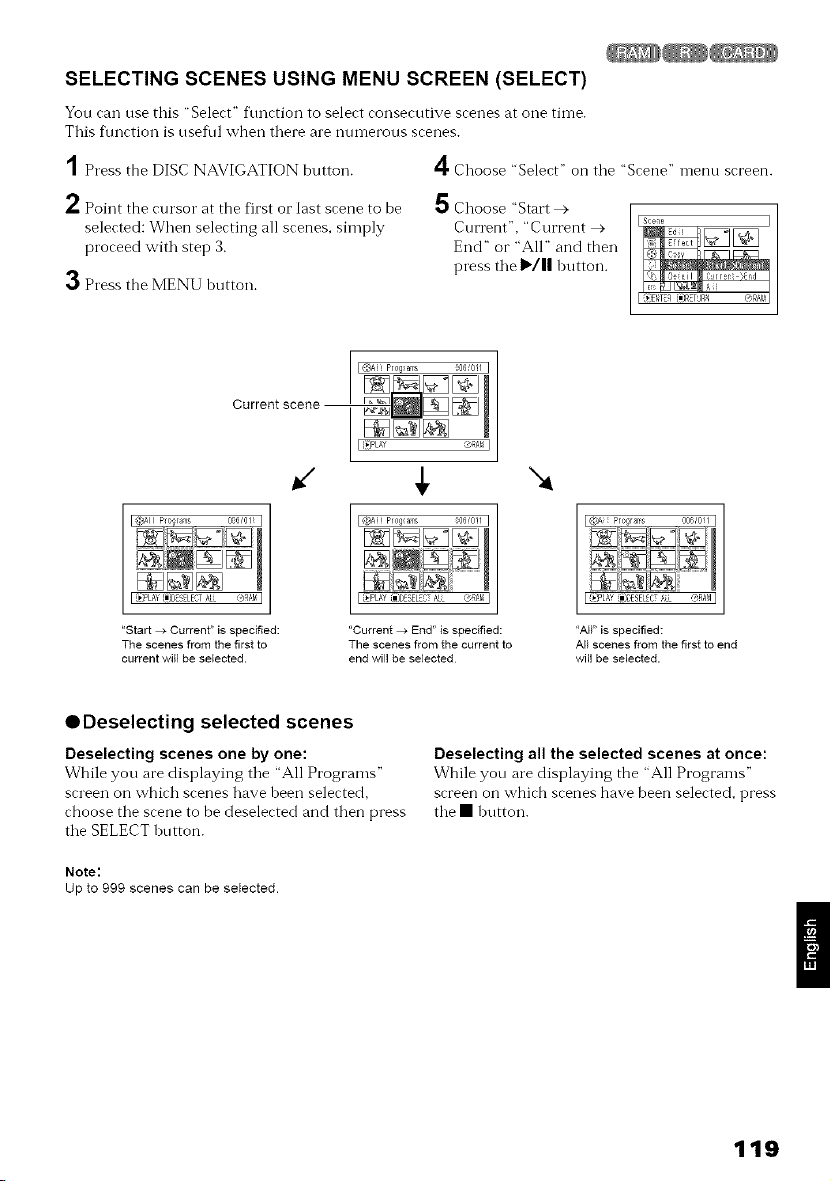
SELECTING SCENES USING MENU SCREEN (SELECT)
You ran nse this "Selert" fnnrtion to selert ronserutive srenes at one time.
This function is nseful when there are mnTlerous scenes.
1 Press the DISC NAVIGATION button. 4 Choose "Select" on the "Scene" menn screen.
Point the cursor at the first or last scene to be
selected: When selecting all scenes, simply
proceed with step 3.
3 Press the MENU hutton.
5Choose "Start >
Current", "Current >
End" or "All" and then
press the I_/|1 hutton.
Current scene --
_11Pl0_ralls
I[ _L_'t'%DESELEfTALL <_RABI
"Start _ Current" is specified:
The scenes from the first to
current will be selected.
I@AJ! PI0q/ams 0061011I
I i_PLAY'm;DESELEUALL @RASqI
"Current _ End" is specified:
The scenes from the current to
end will be selected
"4
[{;@LAv {I=_ESELCTALL @RA_II
"All" is specified:
All scenes from the first to end
will be selected.
ODeselecting selected scenes
Deselecting scenes one by one:
While you are displaying the "All Programs"
screen on which scenes have been selected,
choose the scene to be deselected and then press
the SELECT button.
Note:
Up to 999 scenes can be selected.
Deselecting all the selected scenes at once:
While you are displaying the "All Programs"
screen on which scenes have been selected, press
the • hutton.
119
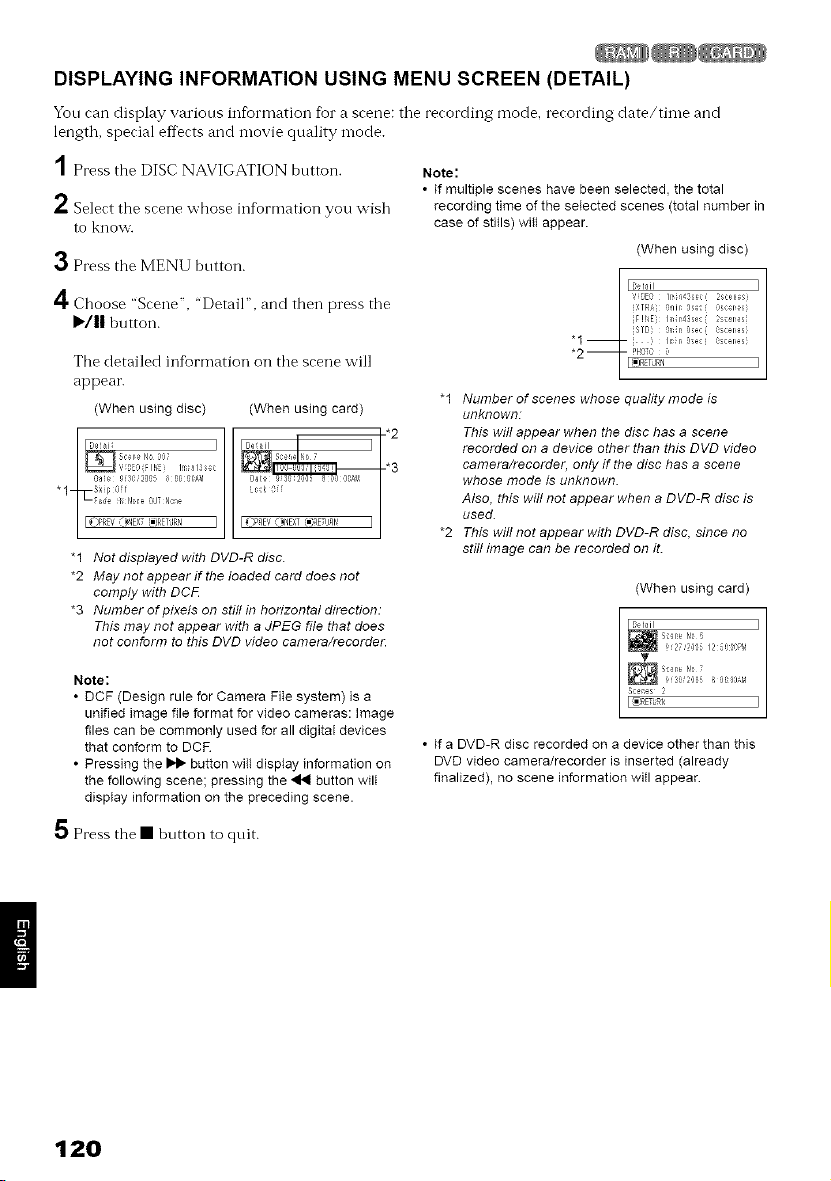
DISPLAYING INFORMATION USING MENU SCREEN (DETAIL)
You can display various intbrmation fior a scene: tile recording mode, recording date/time and
length, special effects and movie quality mode.
A
/ Press the DISC NAVIGATION button.
2 Select the scene whose information you wish
to know.
3 Press the MENU button.
4 Choose "Scene", "Detail", and then press tile
I,,I II button.
Tile detailed infbrmation on tile scene will
appear.
(When using disc) (When using card)
"1-
"1 Not displayed with DVD-R disc.
*2 May not appear if the loaded card does not
comply with DCtE
*3 Number of pixels on still in horizontal direction:
This may not appear with a JPEG file that does
not conform to this DVD video camera/recorde_
Note:
• DCF (Design rule for Camera FiIe system) is a
unified image file format for video cameras: Image
files can be commonly used for all digital devices
that conform to DCR
• Pressing the _ button wiIt display information on
the following scene; pressing the _ button wilI
display information on the preceding scene.
Note:
• if multiple scenes have been selected, the total
recording time of the seIected scenes (total number in
case of stitls) witl appear.
(When using disc)
l _etail
,1 E0 Ii r14 s_(i: 2 12 16s}
XTFt ,il 0s." ,_le
F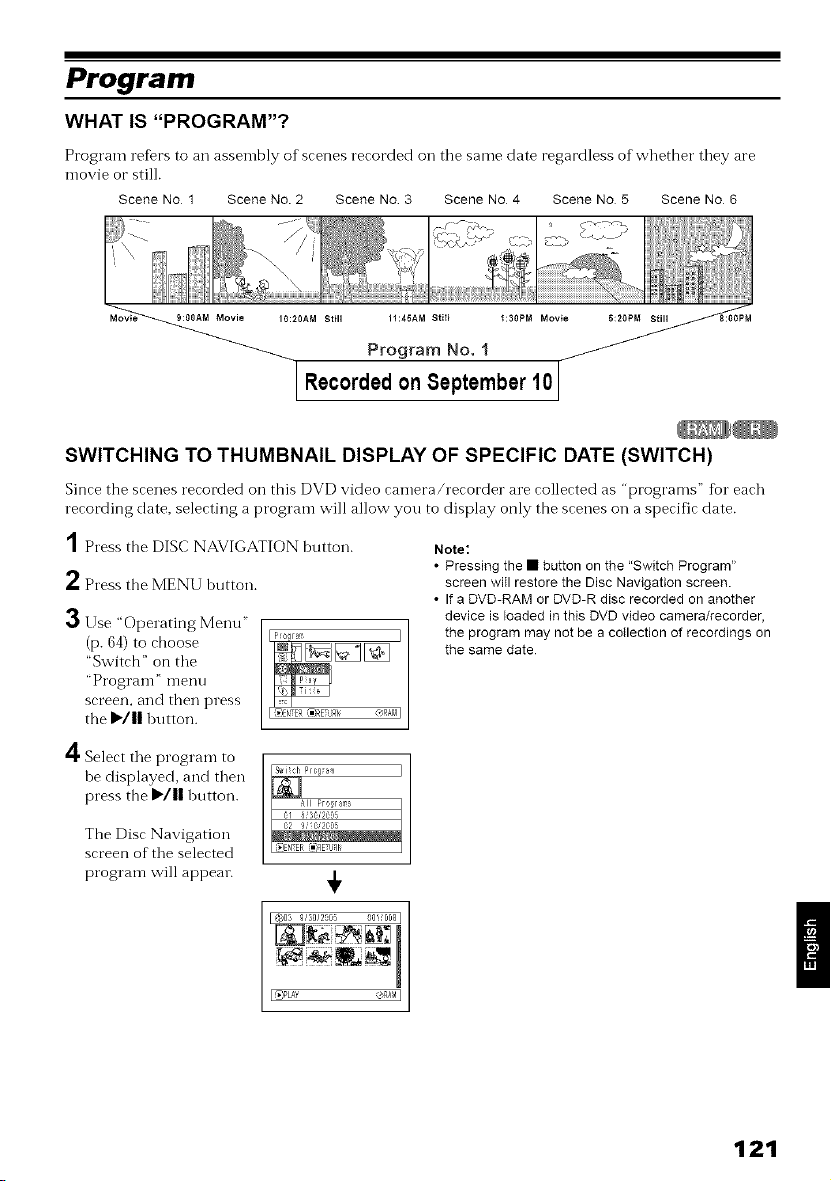
Program
WHAT IS "PROGRAM"?
Program refers to an assembly of scenes recorded oil tile same date regardless of whether they are
movie or still.
Scene No 1 Scene No. 2 Scene No 3 Scene No 4 Scene No 5 Scene No 6
J
Program No. 1
Recordedon September 10
SWITCHING TO THUMBNAIL DISPLAY OF SPECIFIC DATE (SWITCH)
Since the scenes recorded on this DVD video camera/recorder are collected as "programs" for each
recording date, selecting a program will allow you to display only the scenes on a specific date.
1Press the DISC NAVIGATION button.
2Press the MENU button.
3Use "Operating Menu"
(p. 64) to choose
"Switch" on the
"Progl'aIl]" nlenu
screen, and then press
the I_/|| button.
Note:
• Pressing the • button on the "Switch Program"
screen will restore the Disc Navigation screen.
• If a DVD-RAM or DVD-R disc recorded on another
device is loaded in this DVD video camera/recorder,
the program may not be a collection of recordings on
the same date
4Select the program to
he displayed, and then
press the I_/11 button.
The Disc Navigation
screen of the selected
program will appear.
I_PL_Y _RAM I
I
121
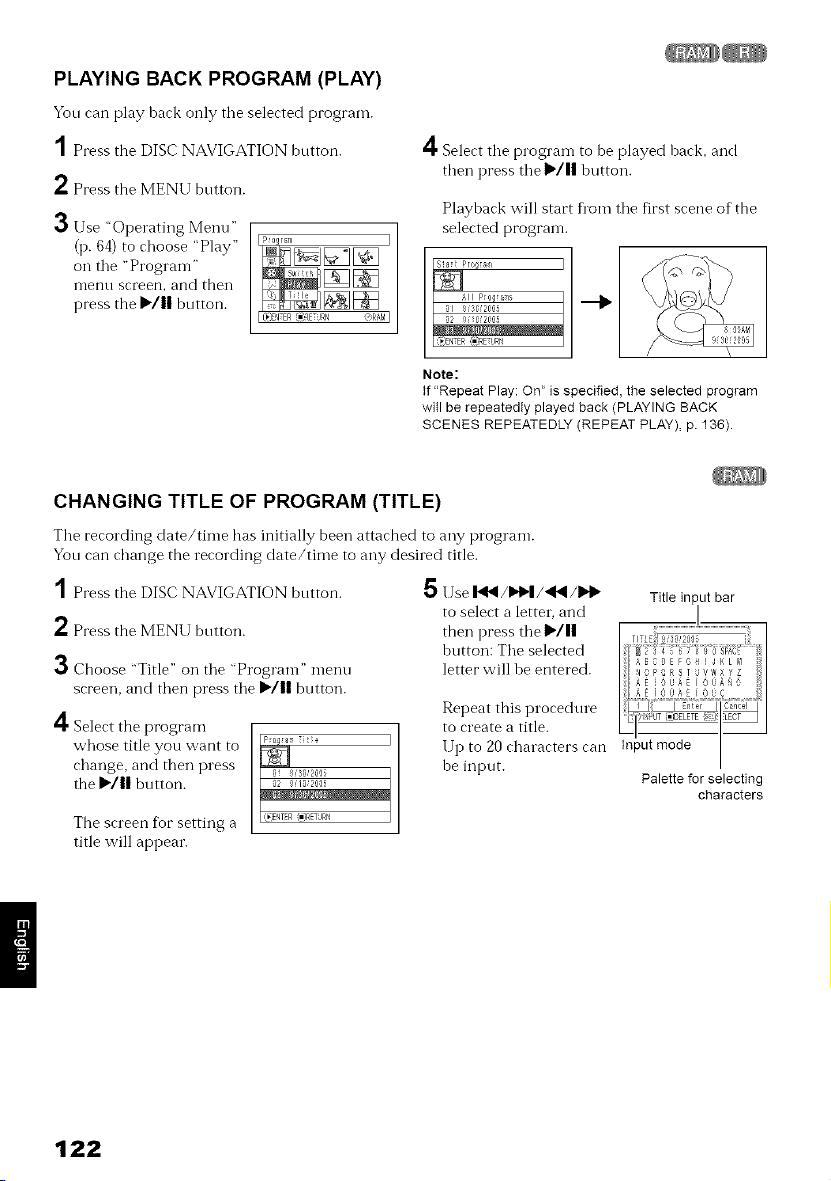
PLAYING BACK PROGRAM (PLAY)
Yon can play hack only tile selected program.
1 Press the DISC NAVIGATION bntton.
2 Press the MENU bntton.
3 Use "Operating Menu"
(p. 64) to choose "Play"
on tile "Program"
I_lenu screen, and then
press the I_/11 button.
L(}ENTER (I_RETUR_I '6R_M J
4 Select tile program to be played hack, and
then press tile I_/11 button.
Playhack will start fl'om tile first scene of the
selected progran-l.
Note:
if "Repeat Play: On" is specified, the selected program
witl be repeatedly played back (PLAYING BACK
SCENES REPEATEDLY (REPEAT PLAY), p. 136).
CHANGING TITLE OF PROGRAM (TITLE)
Tile recording date/time has initially been attached to any program.
Yon can change the recording date/time to any desired title.
1Press the DISC NAVIGATION button. 5
2Press the MENU button.
3Choose "Title" on the "Program" menu
screen, and then press tile I_/11 button.
11
€-I' Select the program
whose title you `,'`,'ant to
change, and then press
the I_/11 button.
The screen for setting a
title ,,',,'illappear.
Use I_N/I_'1/'ql_l/1_ Title input bar
to select a letter, and I
then press the I_/11
hutton: Tile selected
_BCDEFGH!JKLbl
letter will be entered. _o _Rs v,,×rz
AE IOUA_IO'IA4 !
Repeat this procedure I L=A_I_ I
to create a title. ILI '1
lip to 20 characters can Input mode I
be input.
I
Palette for selecting
characters
122
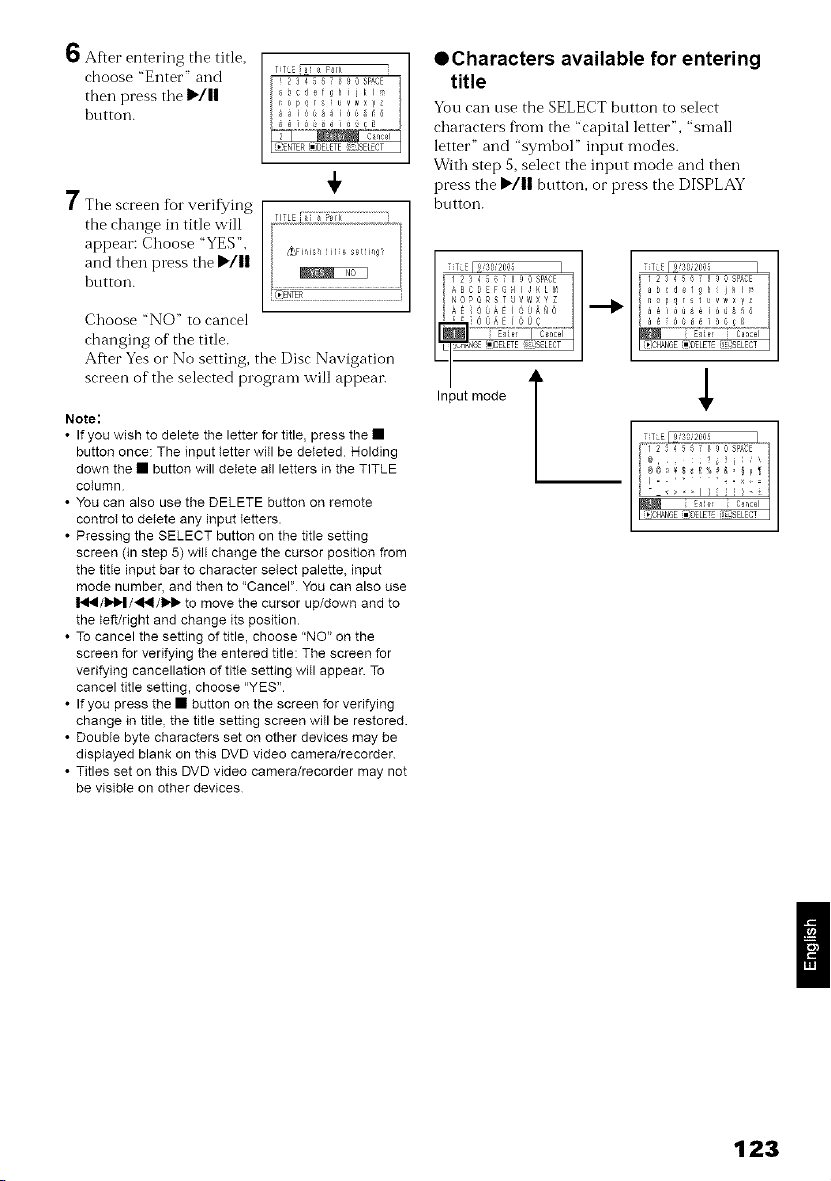
O After entering the title,
choose "Enter" and
then press tile I1_/11
hotton.
TITLE ai a Par_ i
i 7 # T 4'r /, 6 9 0 SPACE
_bcdef_hijklm
TITLE [_]_Fiii ......................
7 The screen %1"verifying
the change in title will
appear: Choose "YES",
and then press tile )"/||
hutton.
Choose "NO" to cancel
changing of the title.
After Yes or No setting, the Disc Navigation
screen of tile selected program will appeai:
Note:
• If you wish to delete the letter for title, press the •
button once: The input letter will be deleted Holding
down the • button will delete all letters in the TITLE
column
• You can also use the DELETE button on remote
controI to detete any input letters.
• Pressing the SELECT button on the title setting
screen (in step 5) will change the cursor position from
the title input bar to character select palette, input
mode number, and then to "Cancel" You can also use
I.,_ll),.ll,.I/.4_/l_i_ to move the cursor up/down and to
the left/right and change its position.
• To cancel the setting of title, choose "NO" on the
screen for verifying the entered title: The screen for
verifying cancellation of title setting will appear. To
cancel title setting, choose "YES".
• If you press the • button on the screen for verifying
change in title, the title setting screen wiII be restored.
• Double byte characters set on other devices may be
displayed blank on this DVD video camera/recorder
• Titles set on this DVD video camera/recorder may not
be visible on other devices
• Characters available for entering
title
You can use the SELECT button to select
characters fl'om the "capital letter", "small
letter" and "symhol" input modes.
With step 5, select the input mode and then
press the )"/|| button, or press the DISPLAY
button.
TTE r so,2,c,s 1 _ TTEI S0,2'C'S I !
I 254 r _, _ _ _ 0 Spg,OE 1254r_ I I 0 SPACE
ABCE'EFGHIJKL_ _ abcdef h kl>
NOPQRSTUV¢IXYZ nepqrstuv,_yz
AE O_AEIOI_0 j_6100S_i60S 6
'3E_mJBEETEr<'JS-LECTJ Lf,_]dHSqGE{=:DELETE_E'SELECT
Inputm°de [ /i._-
I ? 3',/2L:S I
['7 7_Zr _T_ r." S°AE 1
il-- +.× =
_ E_le Cocci J
L(}JGHANGE_=]OELETE,:_[_SELECTJ
I
123
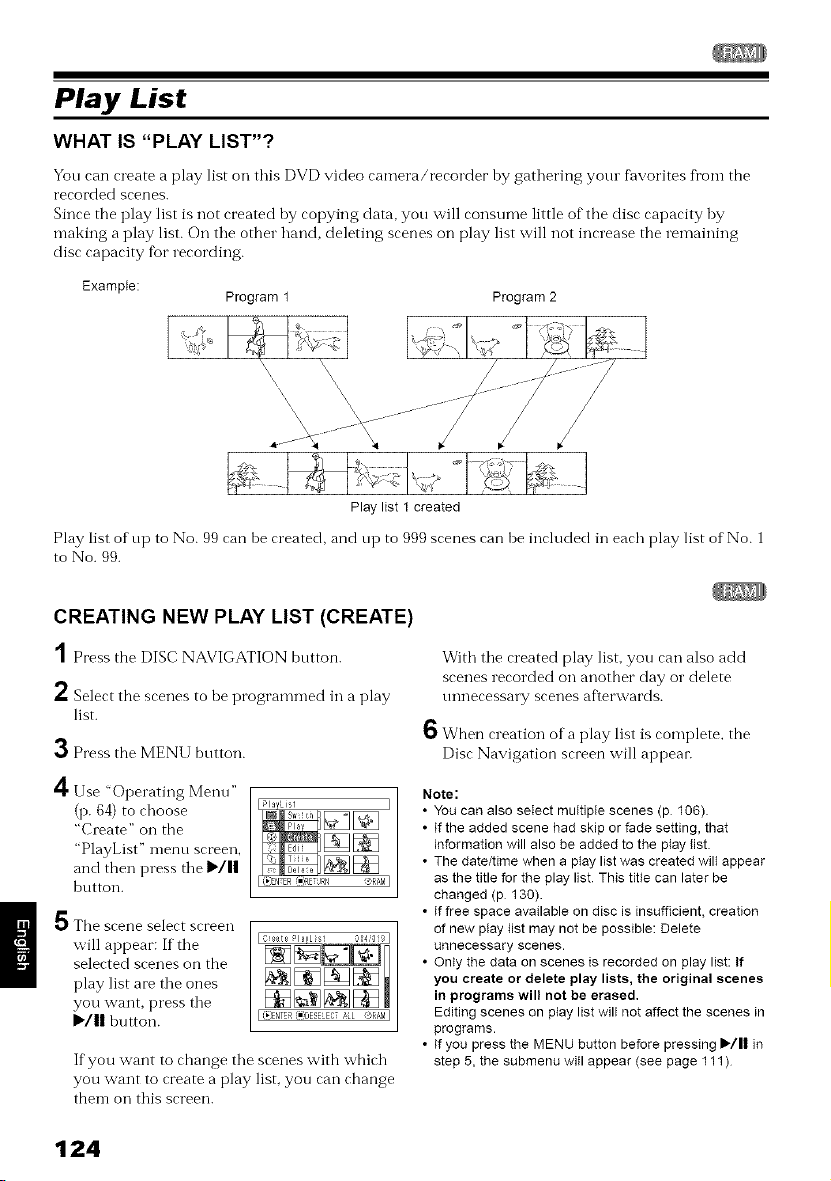
Play List
WHAT IS "PLAY LIST"?
You can create a play list oil this DVD video camera/recorder by gathering your fi_vorites from the
recorded scenes.
Since the play list is not created by copying data, you will consume little of the disc capacity by
making a play list. On tile other hand, deleting scenes on play list will not increase the remaining
disc capacity fbr recording.
Example:
Program 1 Program 2
\
\
\,
\
\\
\
Play list 1 created
Play list of up to No. 99 can he created, and up to 999 scenes can he included in each play list of No. 1
to No. 99.
CREATING NEW PLAY LIST (CREATE)
1 Press the DISC NAVIGATION bntton.
l= Select the scenes to be programmed in a play
list.
3 Press the MENU button.
4
Use "Operating Menu"
(p. 64) to choose
"Create" on the
"PlayList" menu screen,
and then press tile I_/11
button.
Pla' ist I
The scene select screen
will appear: If the
selected scenes on the
play list are the ones
you want, press the
I_III l)utton.
If you want to change tile scenes with which
you want to create a play list, you can change
them on this screen.
With tile created play list, you can also add
scenes recorded on another day or delete
t/nnecessary scenes afl[ervvards.
6 When creation of a play list is complete, the
Disc Navigation screen will appeai:
Note:
• You can also select multiple scenes (p 106)
• If the added scene had skip or fade setting, that
information will also be added to the play Iist.
• The date/time when a ptay list was created wilt appear
as the title for the play list This title can later be
changed (p 130).
• If free space available on disc is insufficient, creation
of new play list may not be possible: Delete
unnecessary scenes.
• Only the data on scenes is recorded on play list: If
you create or delete play lists, the original scenes
in programs will not be erased,
Editing scenes on play list will not affect the scenes in
programs.
• If you press the MENU button before pressing I_/11 in
step 5, the submenu witl appear (see page 111 )
124
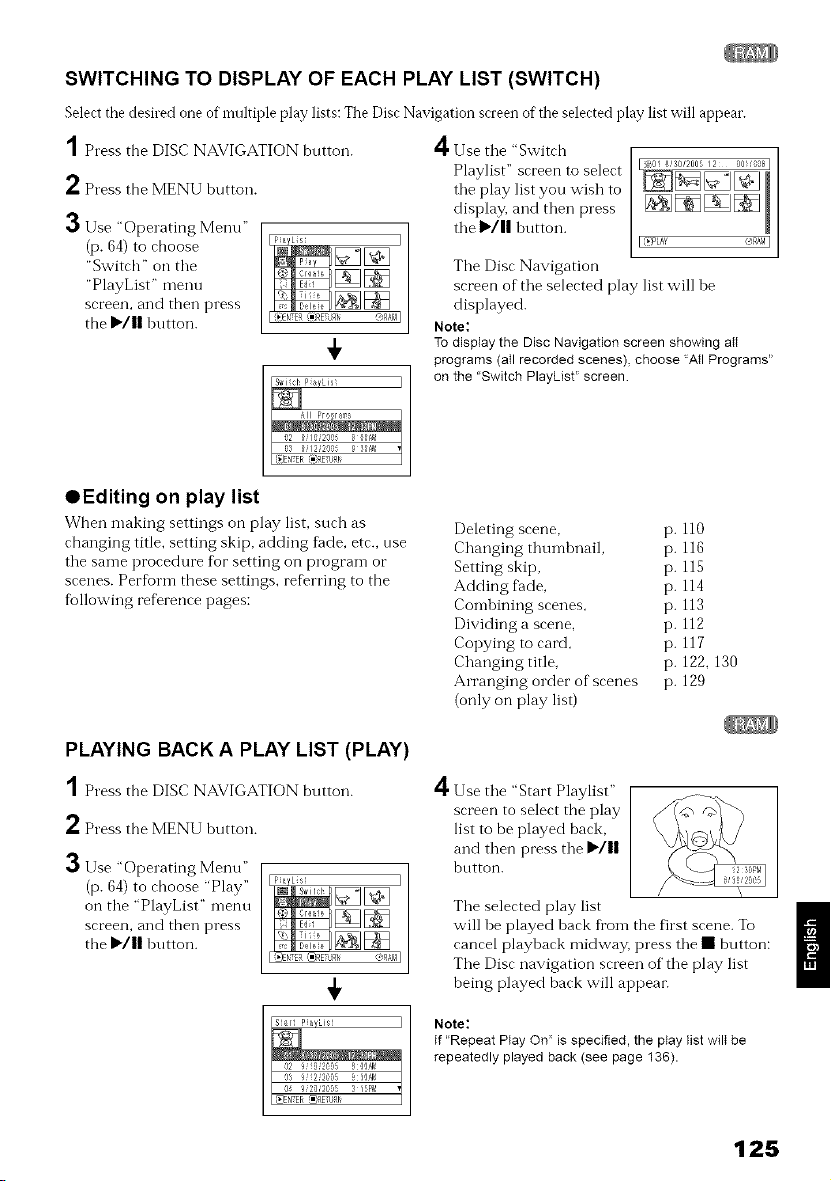
SWITCHING TO DISPLAY OF EACH PLAY LIST (SWITCH)
Select the desired one of multiple play lists: The Disc Navigation screen of the selected play list will appear.
1 Press the DISC NAVIGATION button.
2 Press the MENU button.
3 Use "Operating Menu"
(p. 64) to choose
"Switch" on tile
"PlayList" menu
screen, and then press
the I_'/|| button.
4usetile "Switch
Playlist" screen to select
tile play list you wish to
display, and then press
tile I_/|| button.
I _PLAY <4RAMI
Tile Disc Navigation
screen of tile selected play list will be
displayed.
Note:
To display the Disc Navigation screen showing all
programs (all recorded scenes), choose "All Programs"
on the "Switch PlayList" screen
OEditing on play list
When making settings on play list, such as
changing title, setting skip, adding tilde, etc., use
the same procedure flor setting on program or
scenes. Per%rm these settings, re%rring to the
tbllowing reference pages:
PLAYING BACK A PLAY LIST (PLAY)
1Press the DISC NAVIGATION button.
2 Press the MENU button.
3Use "Operating Menu"
(p. 64) to choose "Play"
on tile "PlayList" menu
screen, and then press
the IWII button.
_NTER _RET RI
Deleting scene, p. 110
Changing thumbnail, p. 116
Setting skip, p. 115
Adding Pade. p. 114
Combining scenes, p. 113
Dividing a scene, p. 112
Copying to card, p. 117
Changing title, p. 122. 130
Arranging order of scenes p. 129
(only on play list)
4Use tile "Start Playlist"
screen to select the play
list to be played back,
and then press tile IWII
button.
Tile selected play list
will be played back fi'om the first scene. TO
II
cancel playback midway, press tile • button:
Tile Disc navigation screen of tile play list
being played back will appear.
Note:
If "Repeat Play On" is specified, the play list wilt be
repeatedly played back (see page 136).
125
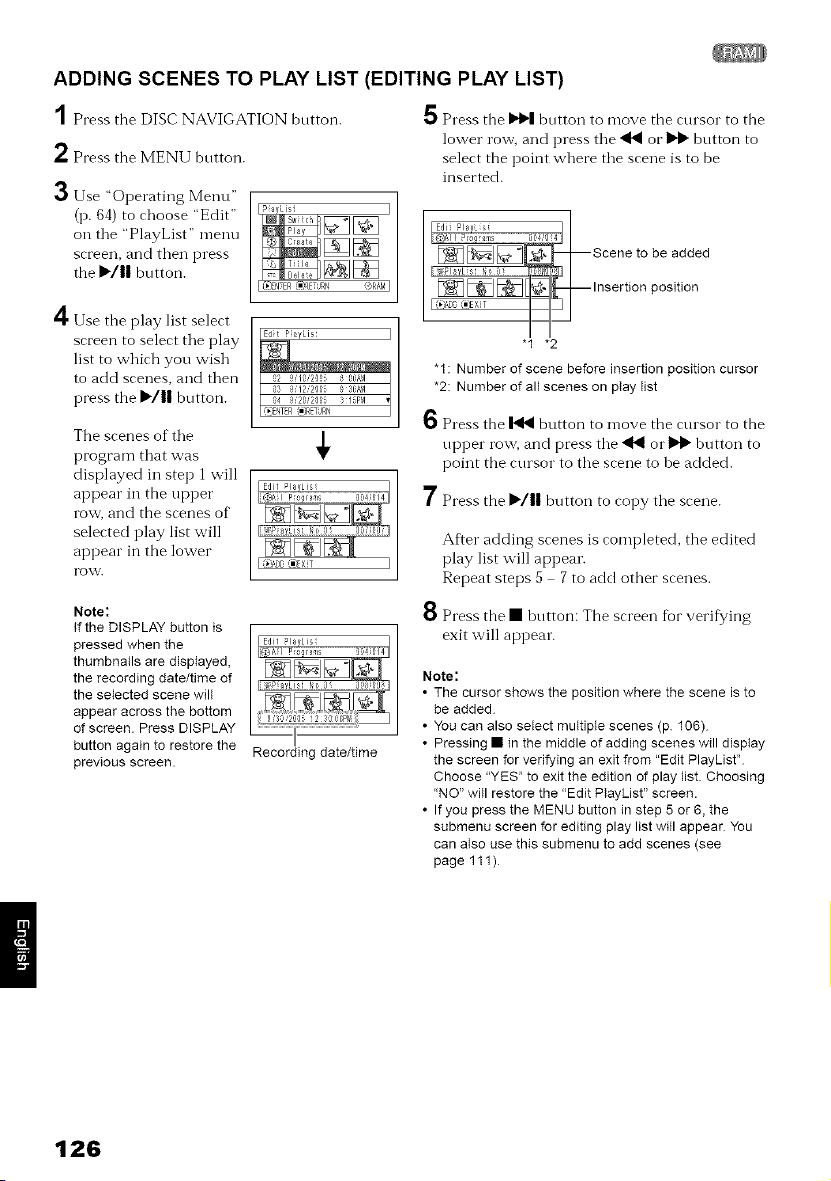
ADDING SCENES TO PLAY LIST (EDITING PLAY LIST)
1
2
3
Press the DISC NAVIGATION button.
Press the MENU bntton.
Use "Operating Menu"
(p. 64) to choose "Edit"
oil tile "PlayList" menu
screen, and then press
the )"/ll button.
5 Press the I,_1 bntton to move the ctusor to the
lower row. and press the _II or I'_ bntton to
select the point where the scene is to be
inserted.
LF_#NTER (re)RETURN ®R_M J
Edt P ayLis 1
4 Use the play list select
screen to select the play
list to which you wish
to add scenes, and then
press the I_/|| button.
The scenes of the
program that was
displayed in step 1 will
appear in the upper
row, and the scenes of"
selected play list will
appear in the lower
l"OX,V.
I{,;;DD(,}EXiT
"1 *2
"1: Number of scene before insertion position cursor
*2: Number of all scenes on play list
6 Press the _ button tO n-love the C'UlSOrtO the
npper row, and press tile _1 o1"_ button to
point tile cursor to the scene to be added.
7 Press the I_/|| button to copy tile scene.
Af'.er adding scenes is completed, the edited
play list will appear.
Repeat steps 5 7 to add other scenes.
Note:
If the DISPLAY button is
pressed when the
thumbnails are displayed,
the recording date/time of
the selected scene wilt
appear across the bottom
of screen. Press DISPLAY
button again to restore the
previous screen.
Recording date/time
8 Press the • bntton: The screen for verifying
exit will appear.
Note:
• The cursor shows the position where the scene is to
be added
• You can also select multiple scenes (p 106)
• Pressing • in the middle of adding scenes will display
the screen for verifying an exit from "Edit PlayList"
Choose "YES" to exit the edition of play list Choosing
"NO" wiII restore the "Edit PIayList" screen.
• If you press the MENU button in step 5 or 6, the
submenu screen for editing play list will appear You
can also use this submenu to add scenes (see
page 111)
126
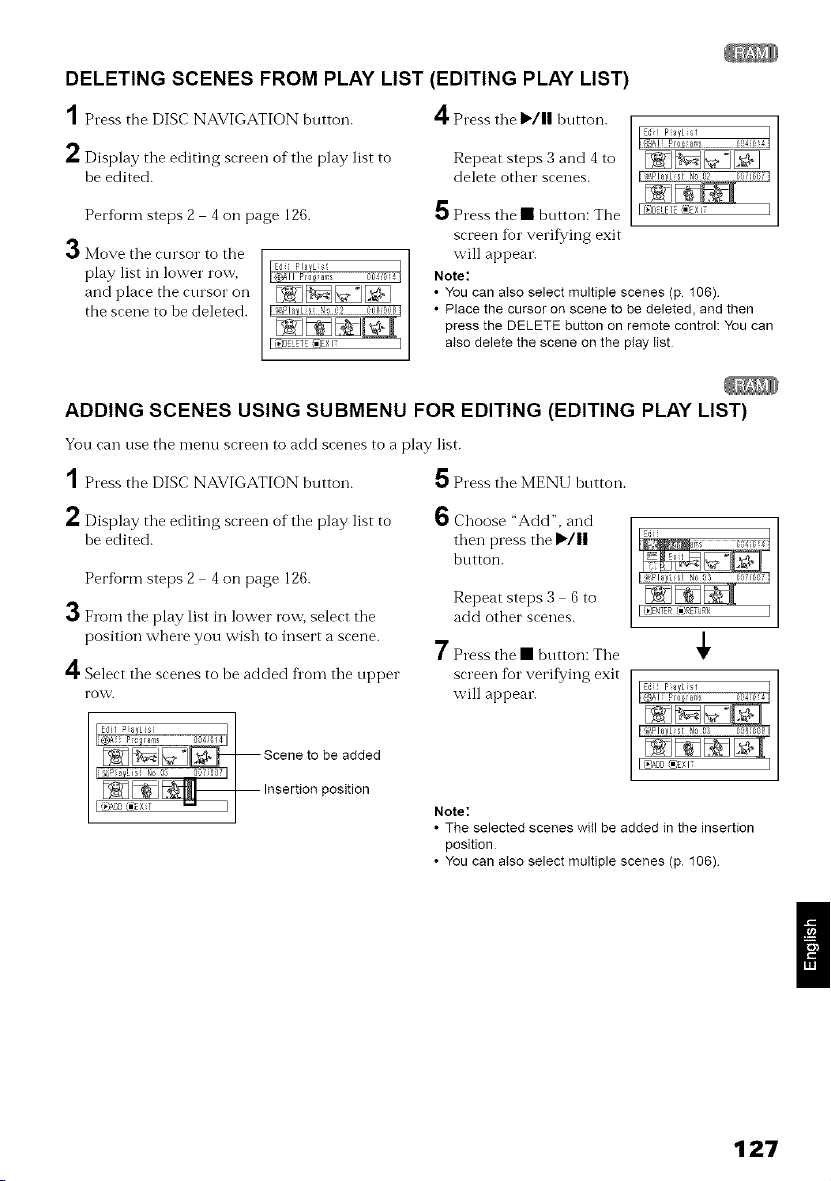
DELETING SCENES FROM PLAY LIST (EDITING PLAY LIST)
1 Press the DISC" NAVIGATION button. 4 Press the I_/11 button.
h Display tile editing screen of tile play list to
he edited.
Per%rm steps 2 4 on page 126.
3 Move tile cursor to the
play list in lower ro_,
and place the cursor oil
the scene to be deleted.
Repeat steps 3 and 4 to
delete other scenes.
5 Press tile • bntton: The
screen for verifying exit
will appear.
Note:
• You can also select multiple scenes (p 106)
• Place the cursor on scene to be deleted, and then
press the DELETE button on remote control: You can
also delete the scene on the play list
ADDING SCENES USING SUBMENU FOR EDITING (EDITING PLAY LIST)
You can use the menu screen to add scenes to a play list.
1Press the DISC NAVIGATION button. 5 Press the MENU hntton.
*" Display the editing screen of the play list to
be edited.
Per%rm steps 2 4 on page 126.
3 From the play list in lower row, select the
position where you wish to insert a scene.
4 Select the scenes to be added fl'om the upper
rovv'.
6Choose "Add", and
then press the ]_/||
button.
Repeat steps 3 6 to
add other scenes.
7Press the • button: The
screen %r verifk/ing exit
will appear.
Note:
• The selected scenes will be added in the insertion
position
• You can also select multiple scenes (p 106)
127
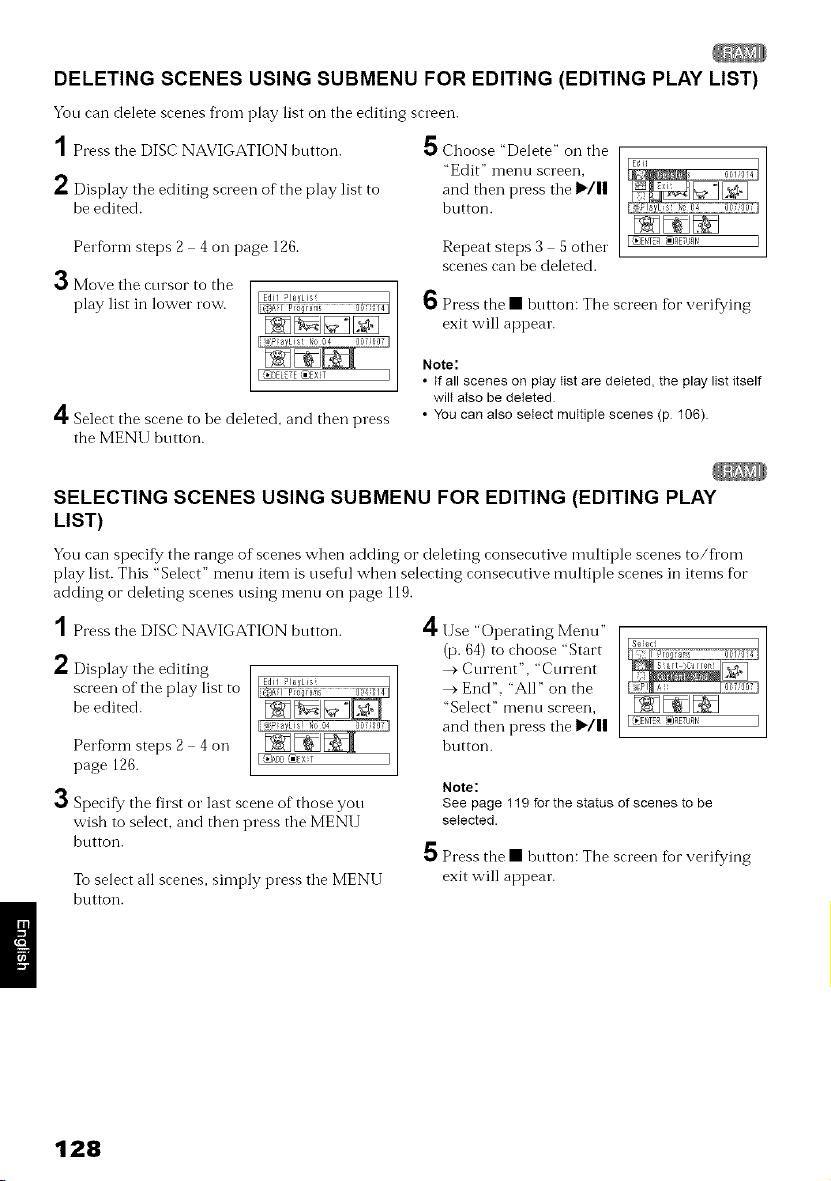
DELETING SCENES USING SUBMENU FOR EDITING (EDITING PLAY LIST)
You can delete scenes fi_om play list on the editing screen.
1 Press the DISC NAVIGATION bntton. 5 Choose 'Delete" on tile
"Edit" n-lenu screen,
2 Display tile editing screen of the play list to and then press tile I1_/11
be edited, button.
Perfbrn-i steps 2 4 on page 126.
3Move tile cnrsor to the
play list in lower row.
Repeat steps 3 5 other
scenes can be deleted.
A
€'t' Select the scene to be deleted, and then press
the MENU button.
6 Press the • bntton: The screen %r verifying
exit will appear.
Note:
• If all scenes on play list are deleted, the play list itself
wilt also be deleted
• You can also select multiple scenes (p 106)
SELECTING SCENES USING SUBMENU FOR EDITING (EDITING PLAY
LIST)
Yon can specify the range of scenes when adding or deleting consecutive multiple scenes to/fl_om
play list. This "Select" menu item is nsefid when selecting consecutive nmltiple scenes in items for
adding or deleting scenes using menu on page 119.
1Press the DISC NAVIGATION button. 4
L Display the editing
screen of the play list to
be edited.
Per%rm steps 2 4 on
page 126. I@_oc,_EXT
O Specify the filst o1" last scene of those yon
wish to select, and then press the MENU
button.
To select all scenes, simply press the MENU
button.
IIse "Operating Menu"
(p. 64) to choose "Start
> Current", "Current
> End". "All" on the
"Select" illetlt/ screen,
and then press the I1_/||
button.
Note:
See page 119 for the status of scenes to be
selected.
5 Press the • bntton: The screen for verifying
exit will appear.
128
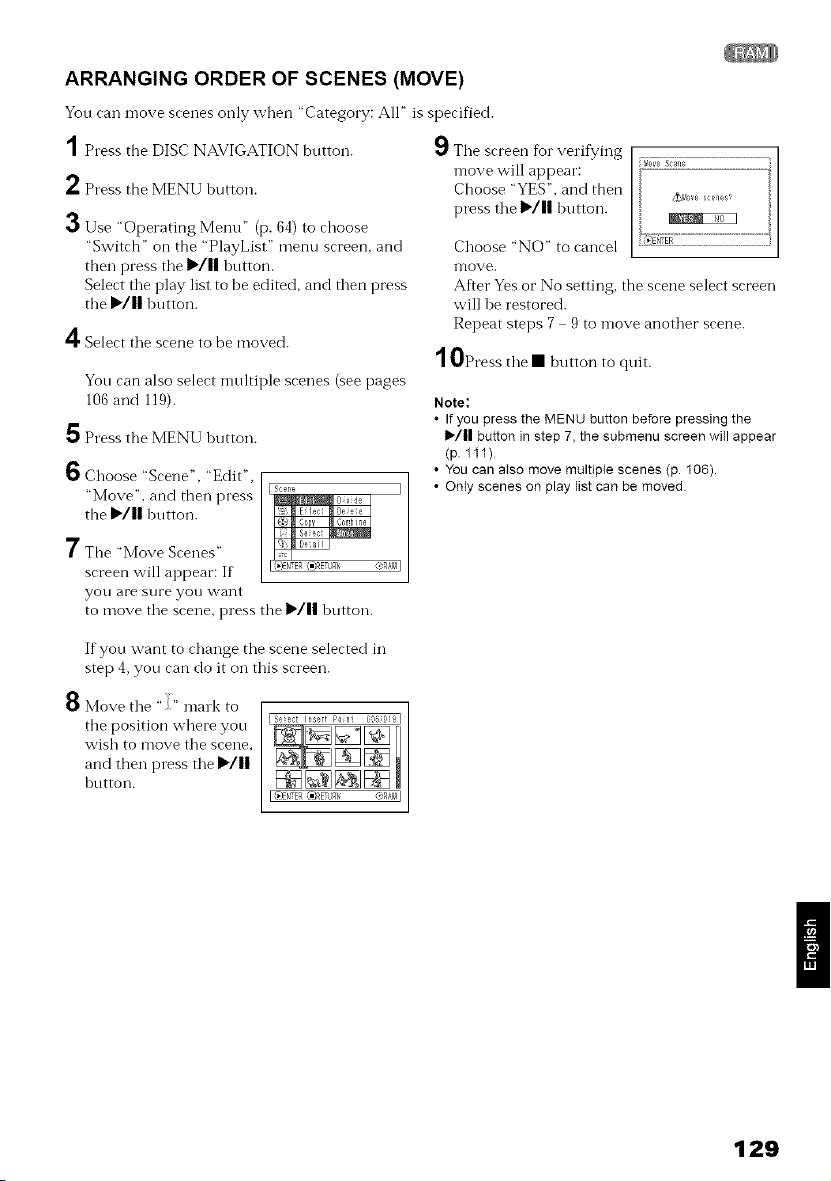
ARRANGING ORDER OF SCENES (MOVE)
You can move scenes only when "Category: All" is specified.
1Press the DISC NAVIGATION button.
2Press the MENU button.
3Use "Operating Menu" (p. 64) to choose
"Switch" on the "PlayList" menu screen, and
then press tile I_/11 button.
Select tile play list to be edited, and then press
tile I_/|| button.
9Tile screen fur verifying
n-love will appear:
Choose "YES". and then
press tile I_/|| button.
4Select the scene to be moved.
Yon can also select n-lnltiple scenes (see pages
106 and 119).
5 Press the MENU button.
!1_Choose "Scene", "Edit",
"Move", and then press
the I_'/|| button.
7Tile "Move Scenes"
screen will appear: If
yOU are sure you want
to move the scene, press tile I_/ll button.
g_,_ ve scenes_
Choose "NO" to cancel
n-love.
After Yes or No setting, the scene select screen
will be restored.
Repeat steps 7 9 to n-loveanother scene.
10Press the • button to quit.
Note:
• If you press the MENU button before pressing the
1_/|1 button in step 7, the submenu screen will appear
(p 111)
• You can also move multiple scenes (p. 106).
• Only scenes on play fist can be moved
If yon want to change tile scene selected in
step 4, yon can do it on this screen.
8 Move tile "" mark to
tile position where you
wish to move the scene_
and then press tile I_'/||
hutton.
129
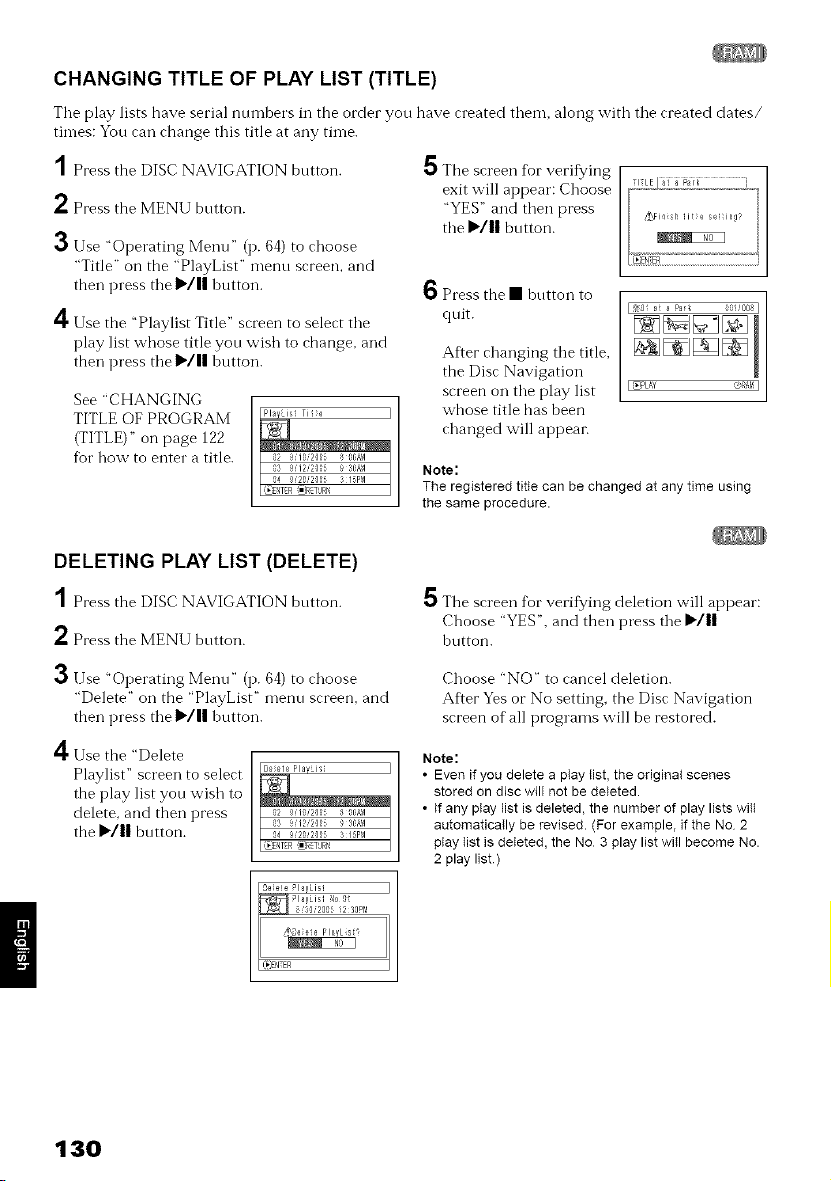
CHANGING TITLE OF PLAY LIST (TITLE)
The play lists have serial numbers in the order you have created them, along with the created dates/
times: You can change this title at any time.
1 Press the DISC NAVIGATION button.
2 Press the MENU button.
3 Use "Operating Menu" (p. 64) to choose
"Title" on the "PlayList" menu screen, and
then press the I_/ll button.
4 Use the "Playlist Title" screen to select the
play list whose title you wish to change, and
then press the I_/1| button.
See "CHANGING
TITLE OF PROGRAM
(TITLE)" on page 122
fbr how to enter a title.
The screen for verifying
exit will appear: Choose
"YES" and then press
the _'/|| button.
[ 50 a a Pa_ 0!!00{1
[ _PLAY ORAl! [
6 Press the • button to
quit.
After changing the title,
the Disc Navigation
screen on the play list
whose title has been
changed will appean
Note:
The registered title can be changed at any time using
the same procedure.
DELETING PLAY LIST (DELETE)
1 Press the DISC NAVIGATION bntton.
2 Press the MENU button.
3
4
Use "Operating Menu" (p. 64) to choose
"Delete" on the "PlayList" menu screen, and
then press the I_/11 button.
Use the "Delete
Playlist" screen to select
the play list you wish to
delete, and then press
the _'/|| button.
5 The screen for veritying deletion will appear:
Choose "YES". and then press the _'/||
hutton.
Choose "NO" to cancel deletion.
After Yes or No setting, the Disc Navigation
screen of all programs will be restored.
Note:
• Even if you delete a play fist, the original scenes
stored on disc will not be deleted.
• If any play list is deleted, the number of play lists wilt
automaticNly be revised. (For example, if the No 2
play list is deleted, the No 3 play list will become No.
2 play list)
130
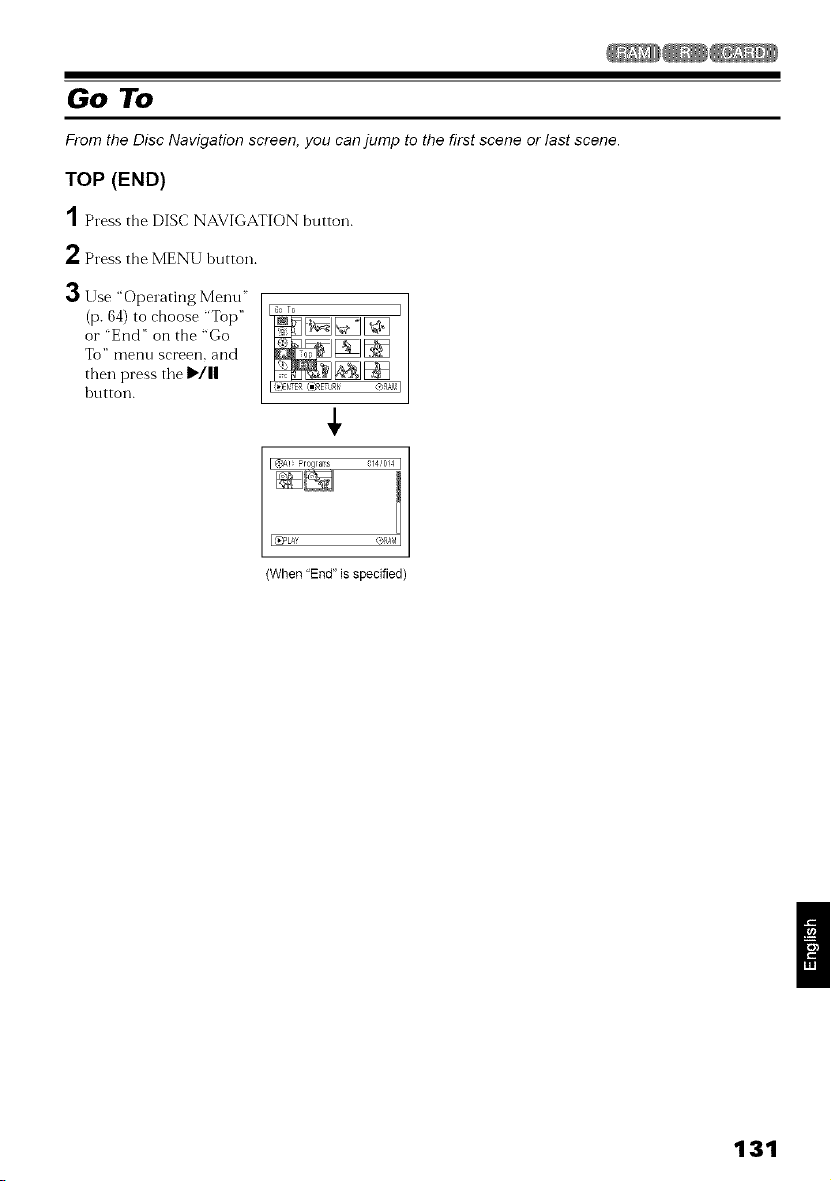
Go To
From the Disc Navigation screen, you can jump to the first scene or last scene.
TOP (END)
1Press the DISC NAVIGATION button.
2 Press the MENU button.
O Use "Operating Menu"
(p. 64) to choose "Top"
or "End" on the "Go
To" Illeiflt/ sci'een, and
then press tile I_/||
hutton.
I_PLA_ (,>Rb_I
(When"End"is specified)
131
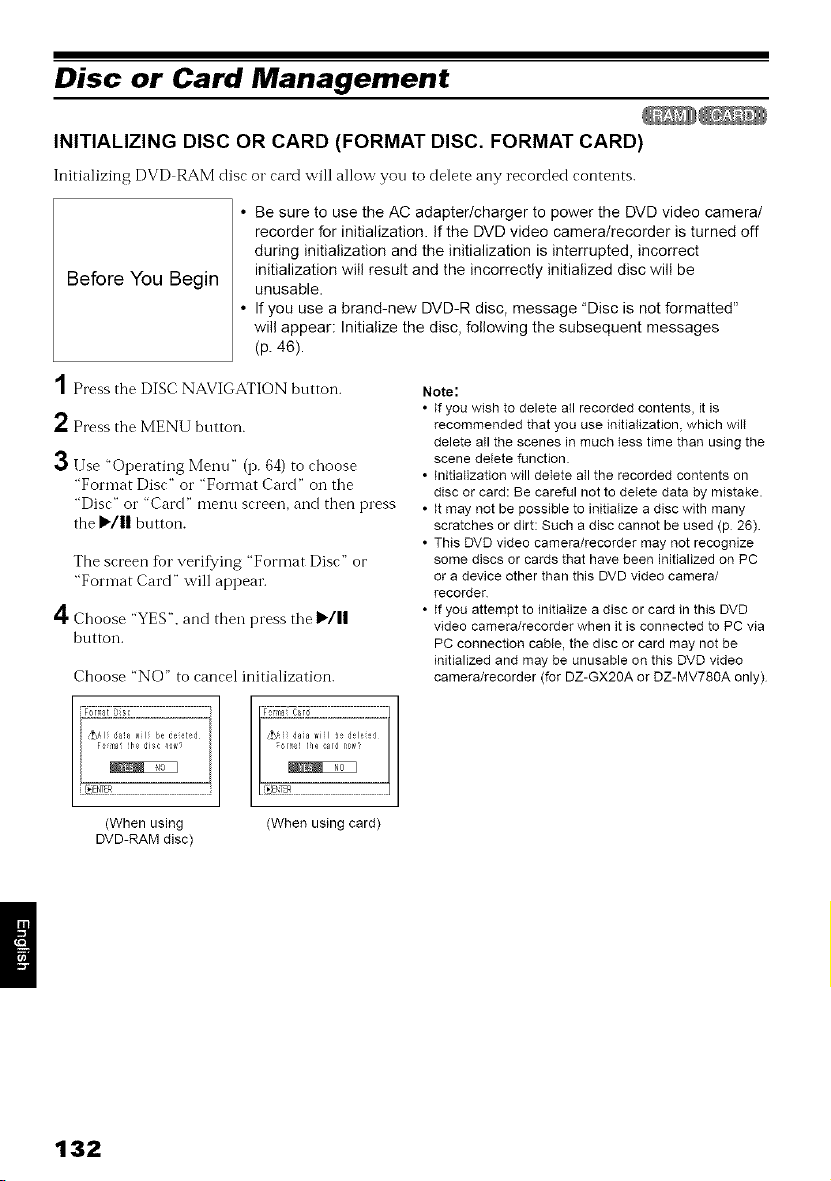
Disc or Card Management
INITIALIZING DISC OR CARD (FORMAT DISC. FORMAT CARD)
Initializing DVD RAM disc o1" card will allow you to delete any recorded contents.
Before You Begin
• Be sure to use the AC adapter/charger to power the DVD video camera/
recorder for initialization. If the DVD video camera/recorder is turned off
during initialization and the initialization is interrupted, incorrect
initialization wiii result and the incorrectly initialized disc will be
unusable.
• If you use a brand-new DVD-R disc, message "Disc is not formatted"
will appear: Initialize the disc, following the subsequent messages
(p. 46).
2
3
Press the DISC NAVIGATION button.
Press the MENU button.
Use "Operating Menu" (p. 64) to choose
"Format Disc" o1""Format Card" on the
"Disc" o1""Card" menu screen, and then press
the )"/|| button.
The screen for verit_fing "Format Disc" or
"Format Card" will appear.
4 Choose "YES", and then press the I1_/||
button.
Choose "NO" to cancel initialization.
Note:
• if you wish to delete all recorded contents, it is
recommended that you use initialization, which wilI
delete aII the scenes in much tess time than using the
scene delete function
• Initialization will deIete all the recorded contents on
disc or card: Be careful not to detete data by mistake.
• it may not be possible to initiaIize a disc with many
scratches or dirt: Such a disc cannot be used (p 26).
• This DVD video camera/recorder may not recognize
some discs or cards that have been initialized on PC
or a device other than this DVD video camera/
recorder
• if you attempt to initiaIize a disc or card in this DVD
video camera/recorder when it is connected to PC via
PC connection cane, the disc or card may not be
initialized and may be unusable on this DVD video
camera/recorder (for DZ-GX2OA or DZ-MV780A only)
iFomst Oisc i
(When using (When using card)
DVD-RAM disc)
132
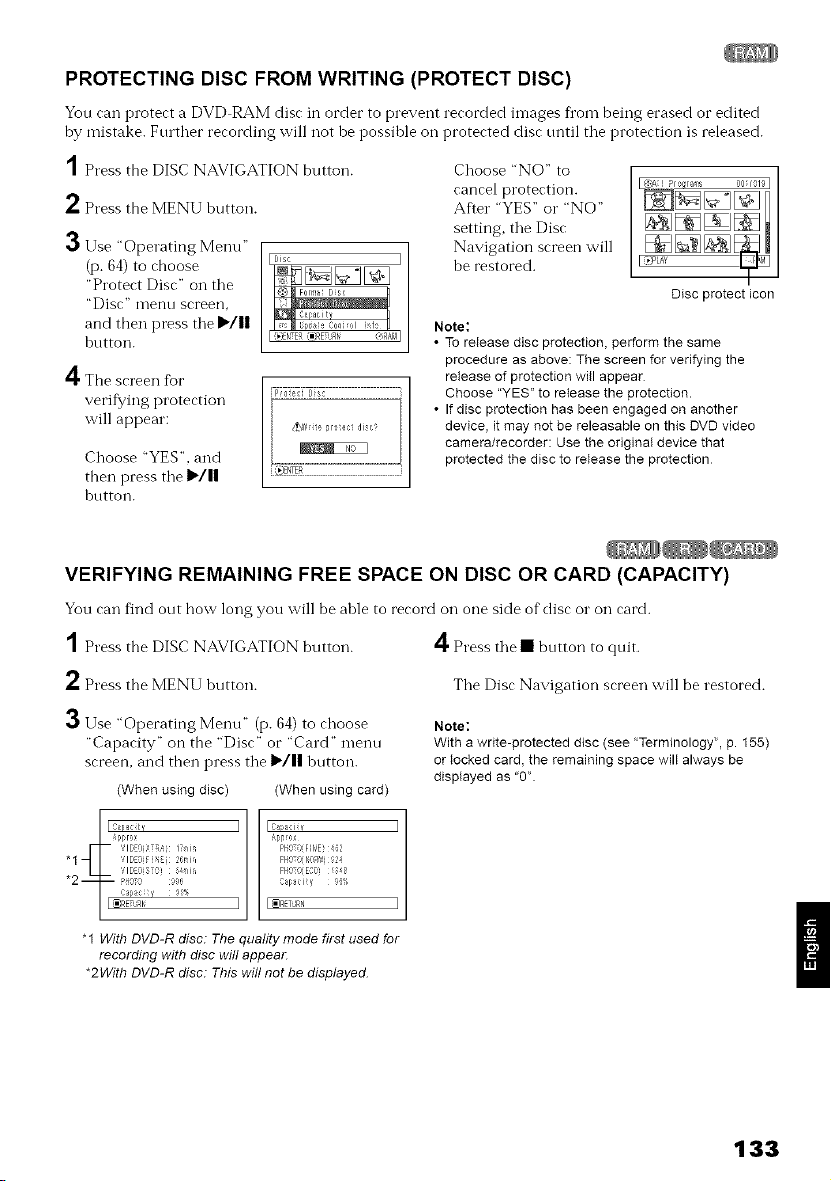
PROTECTING DISC FROM WRITING (PROTECT DISC)
You can protect a DVD RAM disc in order to prevent recorded images fl_ombeing erased or edited
by mistake. Fnrther recording will not be possible oil protected disc nntil tile protection is released.
1 Press the DISC NAVIGATION button.
2 Press the MENU button.
3 Use "Operating Menu"
(p. 64) to choose
"Protect Disc" on the
"Disc" 1]lent/ screen,
and then press the I_'/||
hutton.
4The screen tbr
verif}?ing protection
will appear:
Choose "YES", and
then press tile )/11
hntton.
ITT_ ÷dTs_
Choose "NO" to
cancel protection.
After "YES" o1""NO"
setting, the Disc
Navigation screen will
be restored.
Disc protecticon
Note:
• To release disc protection, perform the same
procedure as above: The screen for vedfying the
release of protection will appear
Choose "YES" to release the protection.
• If disc protection has been engaged on another
device, it may not be releasable on this DVD video
camera/recorder: Use the original device that
protected the disc to release the protection
VERIFYING REMAINING FREE SPACE ON DISC OR CARD (CAPACITY)
You can find ont how long you will be able to record on one side of disc o1"on card.
1 Press the DISC NAVIGATION button.
2 Press the MENU button.
3 Use "Operating Menu" (p. 64) to choose
"Capacity" on the "Disc" or "Card" menu
screen, and then press tile I_/|| button.
(When using disc) (When using card)
4Press tile • bntton to quit.
Tile Disc Navigation screen will be restored.
Note:
With a write-protected disc (see "Terminology", p. 155)
or locked card, the remaining space will always be
displayed as "O"
"1 With DVD-R disc: The quality mode first used for
recording with disc will appear.
*2With DVD-R disc: This will not be displayed.
133
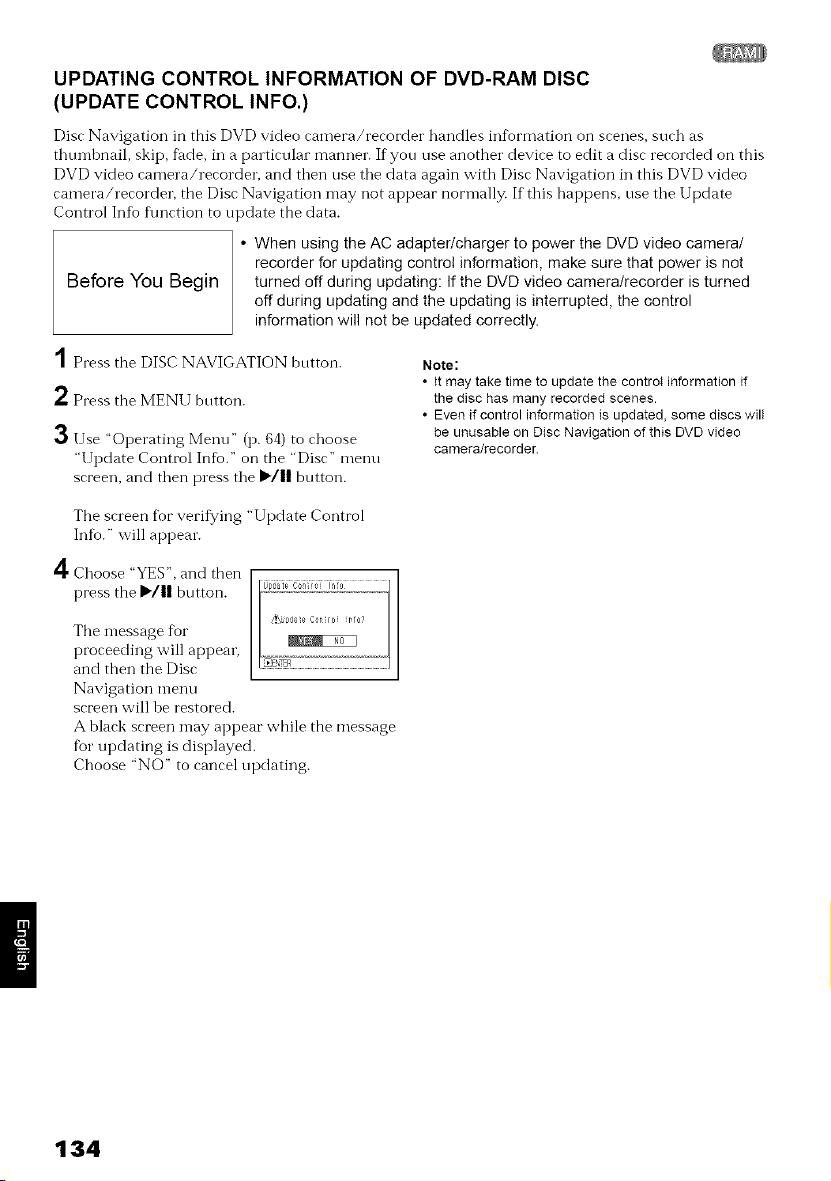
UPDATING CONTROL INFORMATION OF DVD-RAM DISC
(UPDATE CONTROL INFO.)
Disc Navigation in this DVD video camera/recorder handles intkgrmation on scenes, such as
thumbnail, skip, fi_de, in a particular manner. If you use another device to edit a disc recorded on this
DVD video camera/recorder, and then use tile data again with Disc Navigation in this DVD video
camera/recorder, tile Disc Navigation may not appear normally. If this happens, use tile Update
Control Into t\mction to update the data.
Before You Begin
• When using the AC adapter/charger to power the DVD video camera!
recorder for updating control information, make sure that power is not
turned off during updating: If the DVD video camera!recorder is turned
off during updating and the updating is interrupted, the control
information will not be updated correctly.
2
3
Press the DISC NAVIGATION button.
Press the MENU button.
Use "Operating Menu" (p. 64) to choose
"tIpdate Control Into." on the "Disc" menu
screen, and then press tile I_/|| button.
Note:
• It may take time to update the control information if
the disc has many recorded scenes.
• Even if control information is updated, some discs wilt
be unusable on Disc Navigation of this DVD video
camera/recorder
Tile screen tk_rverifying "Update Control
In%." will appear.
4 Choose "YES", and then
press the IP'/II button.
Tile message %r
proceeding will appear,
and then the Disc
Navigation menu
screen will be restored.
A black screen may appear while the message
fbr updating is displayed.
Choose "NO" to cancel updating.
134
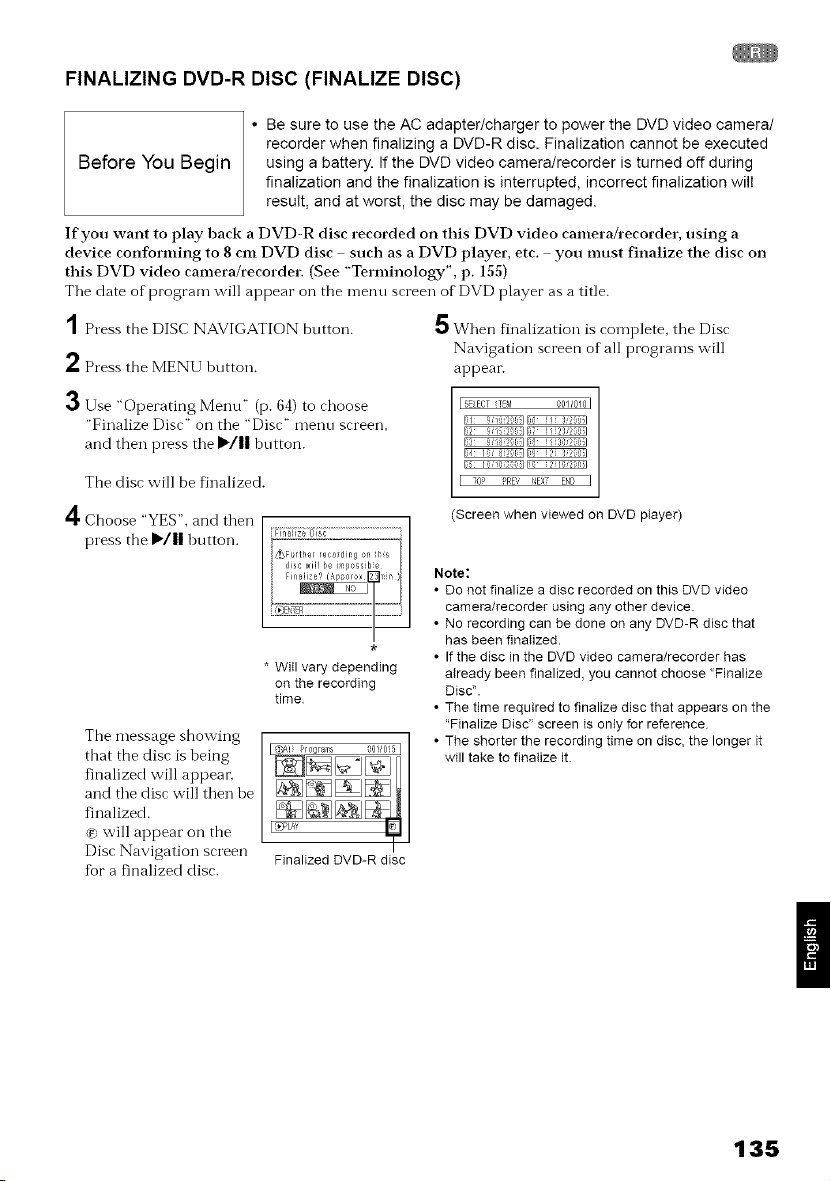
FINALIZING DVD-R DISC (FINALIZE DISC)
Before You Begin
• Be sure to use the AC adapter/charger to power the DVD video camera/
recorder when finalizing a DVD-R disc. Finalization cannot be executed
using a battery. If the DVD video camera!recorder is turned off during
finalization and the finalization is interrupted, incorrect finalization will
result, and at worst, the disc may be damaged.
If you want to play back a DVD-R disc recorded on this DVD video camera&ecorder, using a
device confomfing to 8 cm DVD disc such as a DVD player, etc. you must finalize the disc on
this DVD video camera/recorder. (See "Terminology", p. 155)
Tile date of program will appear on the n-lentl screen of DVD player as a title.
1 Press the DISC NAVIGATION button.
5 When finalization is complete, the Disc
2 Press the MENU button.
3 Use "Operating Menu" (p. 64) to choose
"Finalize Disc" on tile "Disc" menu screen,
and then press tile IP'/|| button.
The disc will be finalized.
4 Choose "YES", and then
press the I_/ll button. ........................................
The message showing
that the disc is being
finalized will appeai;
and tile disc will then be
finalized.
(_ will appear on the
Disc Navigation screen
for a finalized disc.
* Will vary depending
on the recording
time
Finalized DVD-R disc
Navigation screen of all programs will
appear.
r SELECTTEM 001/010 I
-0r _RE_ qEX- EhD I
(Screen when viewed on DVD player)
Note:
• Do not finalize a disc recorded on this DVD video
camera/recorder using any other device.
• No recording can be done on any DVD-R disc that
has been finalized.
• If the disc in the DVD video camera/recorder has
already been finalized, you cannot choose "Finalize
Disc".
• The time required to finalize disc that appears on the
"Finalize Disc" screen is only for reference
• The shorter the recording time on disc, the longer it
will take to finalize it
135
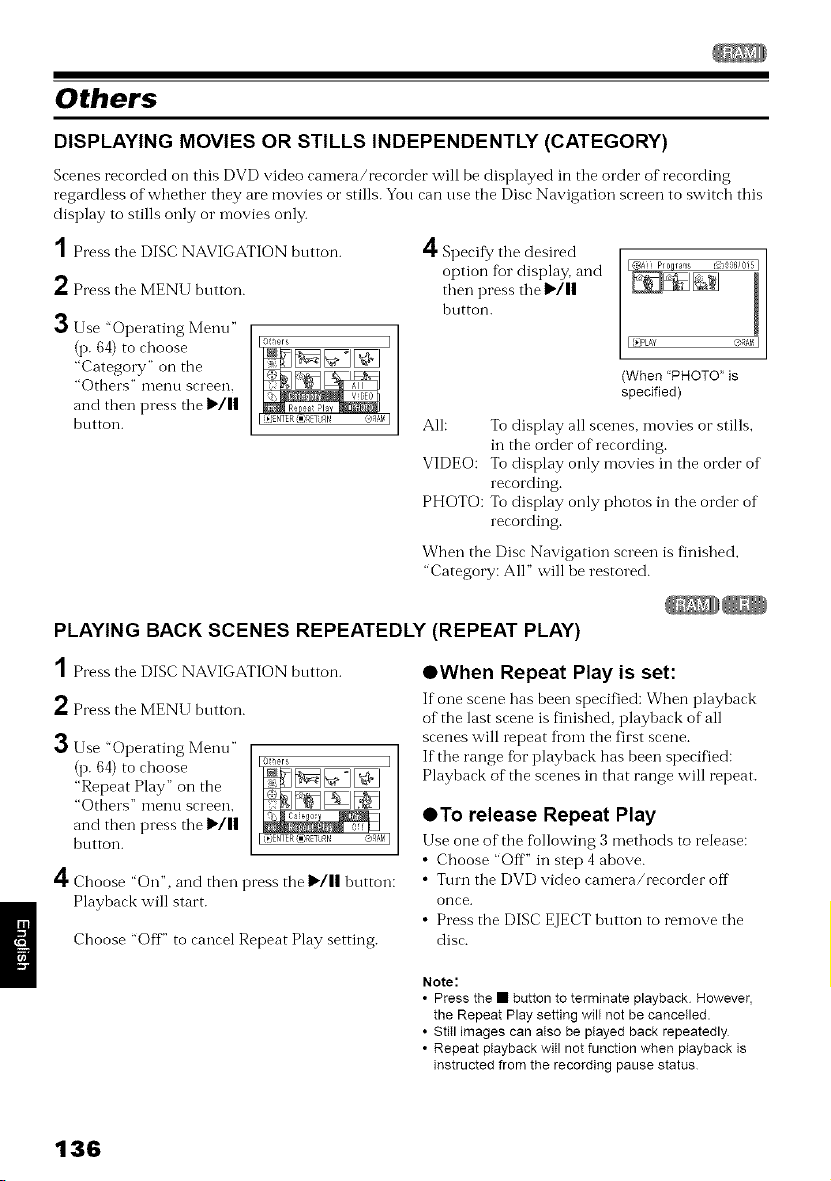
Others
DISPLAYING MOVIES OR STILLS INDEPENDENTLY (CATEGORY)
Scenes recorded on this DVD video camera/recorder will be displayed in tile order of recording
regardless of whether they are movies o1"stills. Yon can nse the Disc Navigation screen to switch this
display to stills only o1"movies only.
1Press the DISC NAVIGATION button.
2Press the MENU bntton.
3Use"Operating Menu"
(p. 64) to choose
"Category" on the
"Others" nlentl screen,
and then press tile I_/11
button.
4 Specity the desired
option tor display, and
then press the I_/11
button.
[ I _SA! ! P oqfa*% r->" 6/0 51
I[£_LAY ®_araI
(When :PHOTO" is
specified)
All: To display all scenes, movies or stills,
in the order of recording.
VIDEO: To display only movies in the order of
recording.
PHOTO: To display only photos in the order of
recording.
When the Disc Navigation screen is finished,
"Category: All" will be restored.
PLAYING BACK SCENES REPEATEDLY (REPEAT PLAY)
1
2
3
4
Press the DISC NAVIGATION bntton.
Press the MENU button.
Use "Operating Menu"
(p. 64) to choose
"Repeat Play" on the
"Others" Illentl screen,
and then press the I_/||
button.
Choose "On", and then press the I_/11 button:
Playback will start.
Choose "Off" to cancel Repeat Play setting.
eWhen Repeat Play is set:
If one scene has been sperified: When playbark
of the last scene is finished, playback of all
scenes will repeat from the first scene.
If the range tbr playback has been specified:
Playback of the scenes in that range will repeat.
eTo release Repeat Play
Use one of the %llowing 3 methods to release:
• Choose "Off" in step 4 above.
• Turn the DVD video camera/recorder off
once.
• Press the DISC EJECT button to remove the
disc.
Note:
• Press the • button to terminate playback However,
the Repeat Play setting will not be cancelled.
•StiII images can aIso be played back repeatedly
• Repeat playback witl not function when playback is
instructed from the recording pause status
136
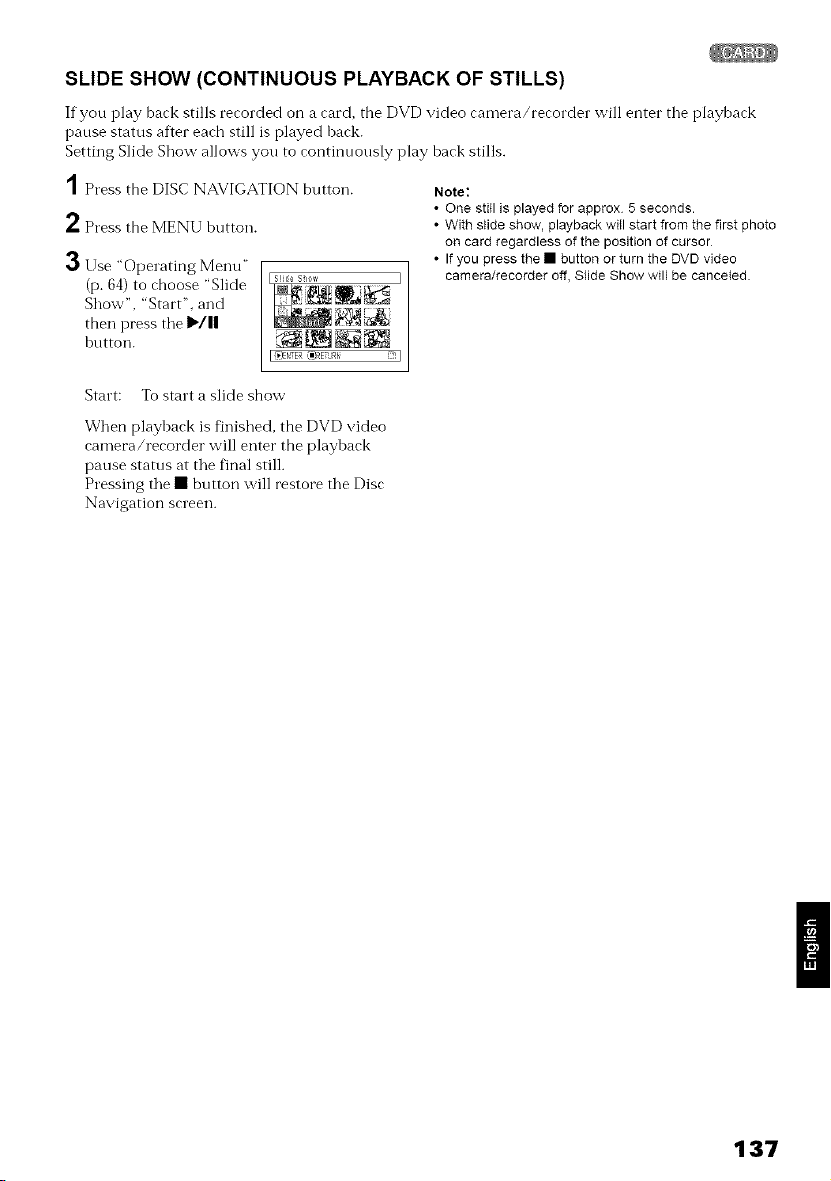
SLIDE SHOW (CONTINUOUS PLAYBACK OF STILLS)
If you play back stills recorded on a card, the DVD video camera/recorder will enter tile playback
pause status after each still is played back.
Setting Slide Show allows you to continuously play back stills.
'1 Press the DISC NAVIGATION button.
2 Press the MENU button.
3 I Ise "Operating Menu"
(p. 64) to choose "Slide
Show", "Start", and
then press tile I_/||
button.
Note:
• One still is played for approx 5 seconds.
• With slide show, playback will start from the first photo
on card regardless of the position of cursor
• If you press the • button or turn the DVD video
camera/recorder off, Slide Show will be canceled
Start: To start a slide show
When playback is finished, the DVD video
camera/recorder will enter the playback
pause status at tile final still.
Pressing tile • button will restore tile Disc
Navigation screen.
137
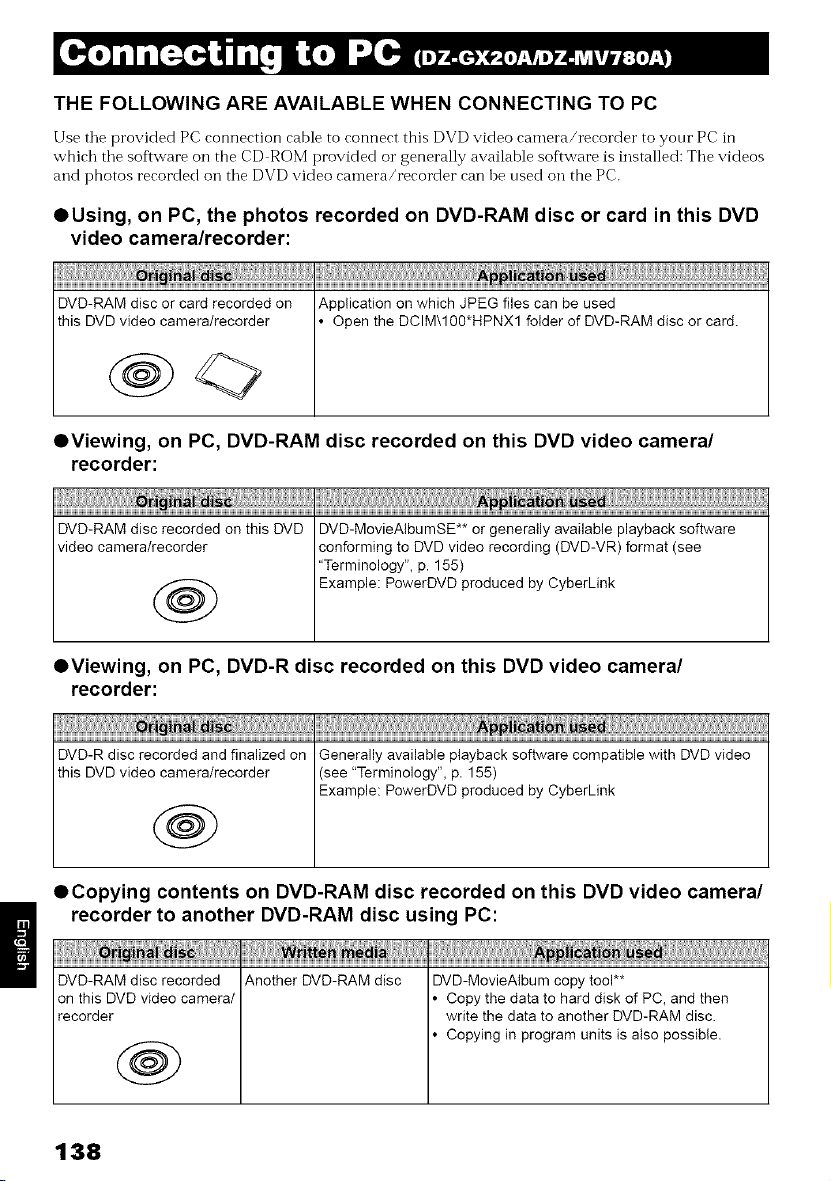
THE FOLLOWING ARE AVAILABLE WHEN CONNECTING TO PC
Use tile provided PC connection cable to connect this DVD video camera/recorder to your PC in
w'hich tile software oi1 tbe CD ROM provided o1" generally available software is installed: Tile videos
and photos recorded oil tile DVD video camera/recorder can be used oil the PC.
OUsing, on PC, the photos recorded on DVD-RAM disc or card in this DVD
video camera/recorder:
DVD-RAM disc or card recorded on Application on which JPEG files can be used
this DVD video camera/recorder Open the DCIM\100*HPNX1 folder of DVD-RAM disc or card.
OViewing, on PC, DVD-RAM disc recorded on this DVD video camera/
recorder:
DVD-RAM disc recorded on this DVD DVD-MovieAIbumSE** or generally available playback software
video camera/recorder conforming to DVD video recording (DVD-VR) format (see
"Terminology", p. 155)
t_ Example: PowerDVD produced by CyberLink
OViewing, on PC, DVD-R disc recorded on this DVD video camera/
recorder:
DVD-R disc recorded and finalized on Generally available playback software compatible with DVD video
this DVD video camera/recorder (see "Terminology", p. 155)
Example: PowerDVD produced by CyberLink
OCopying contents on DVD-RAM disc recorded on this DVD video camera/
recorder to another DVD-RAM disc using PC:
DVD-RAM disc recorded Another DVD-RAM disc DVD-MovieAlbum copy tool**
on this DVD video camera/ Copy the data to hard disk of PC, and then
recorder write the data to another DVD-RAM disc.
Copying in program units is also possible.
@
138
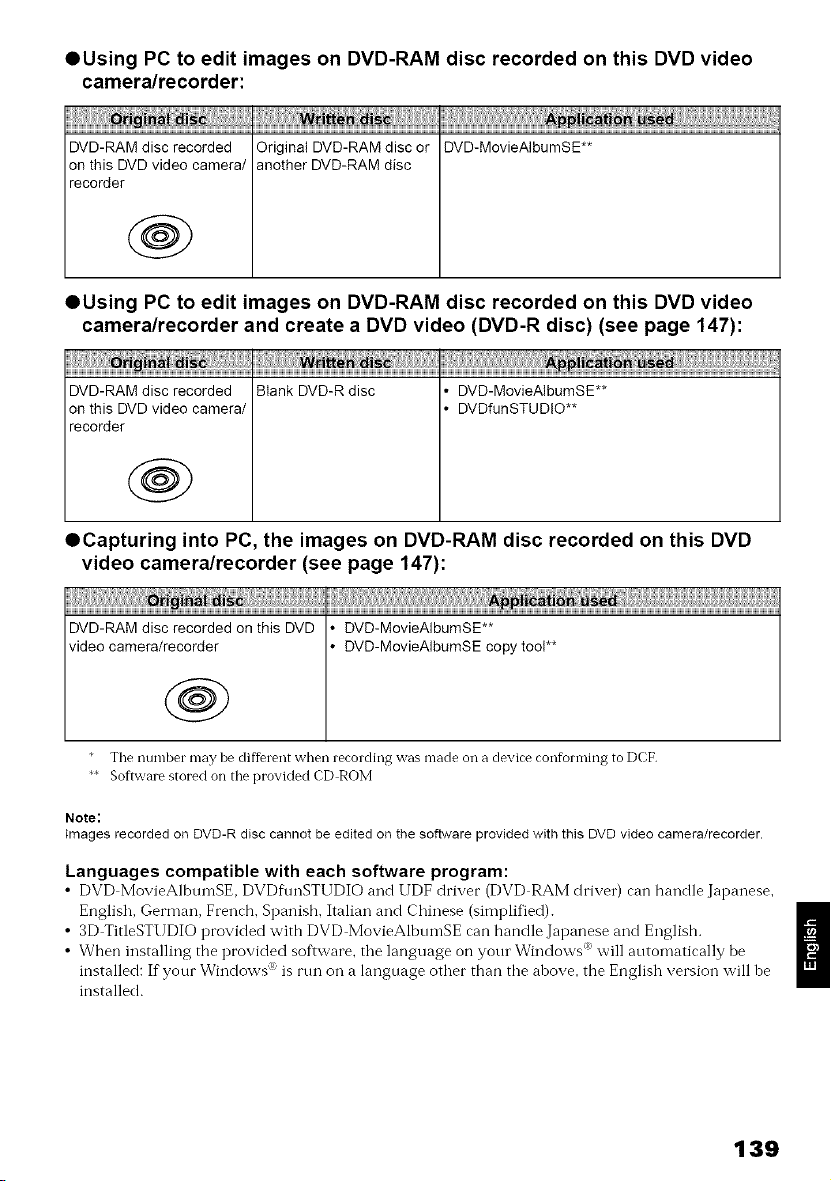
OUsing PC to edit images on DVD-RAM disc recorded on this DVD video
camera/recorder:
DVD-RAM disc recorded Original DVD-RAM disc or DVD-MovieAIbumSE**
on this DVD video camera/ another DVD-RAM disc
recorder
@
OUsing PC to edit images on DVD-RAM disc recorded on this DVD video
camera/recorder and create a DVD video (DVD-R disc) (see page 147):
DVD-RAM disc recorded Blank DVD-R disc DVD-MovieAlbumSE**
on this DVD video camera/ DVDfunSTUDIO**
recorder
@
OCapturing into PC, the images on DVD-RAM disc recorded on this DVD
video camera/recorder (see page 147):
DVD-RAM disc recorded on this DVD DVD-MovieAIbumSE**
video camera/recorder DVD-MovieAIbumSE copy tool**
@
The numbel may be dif{el ent when lecolding was made on a device conforming to DCF,
*_ Software stored on the provided CD ROM
Note:
Images recorded on DVD-R disc cannot be edited on the software provided with this DVD video camera/recorder.
Languages compatible with each software program:
• DVD MovieAlbunlSE, DVDfnnSTUDIO and UDF driver (DVD RAM driver) can handle Japanese,
English, German, French, Spanish, Italian and Chinese (simplified).
• 3D TitleSTUDIO provided with DVD MovieAlbumSE can handle Japanese and English.
!
0/
• When installing the provided software, the language on your Windows i, will automatically be
installed: If your Windows '_' is run on a language other than the ahove, the English version will be
installed.
139
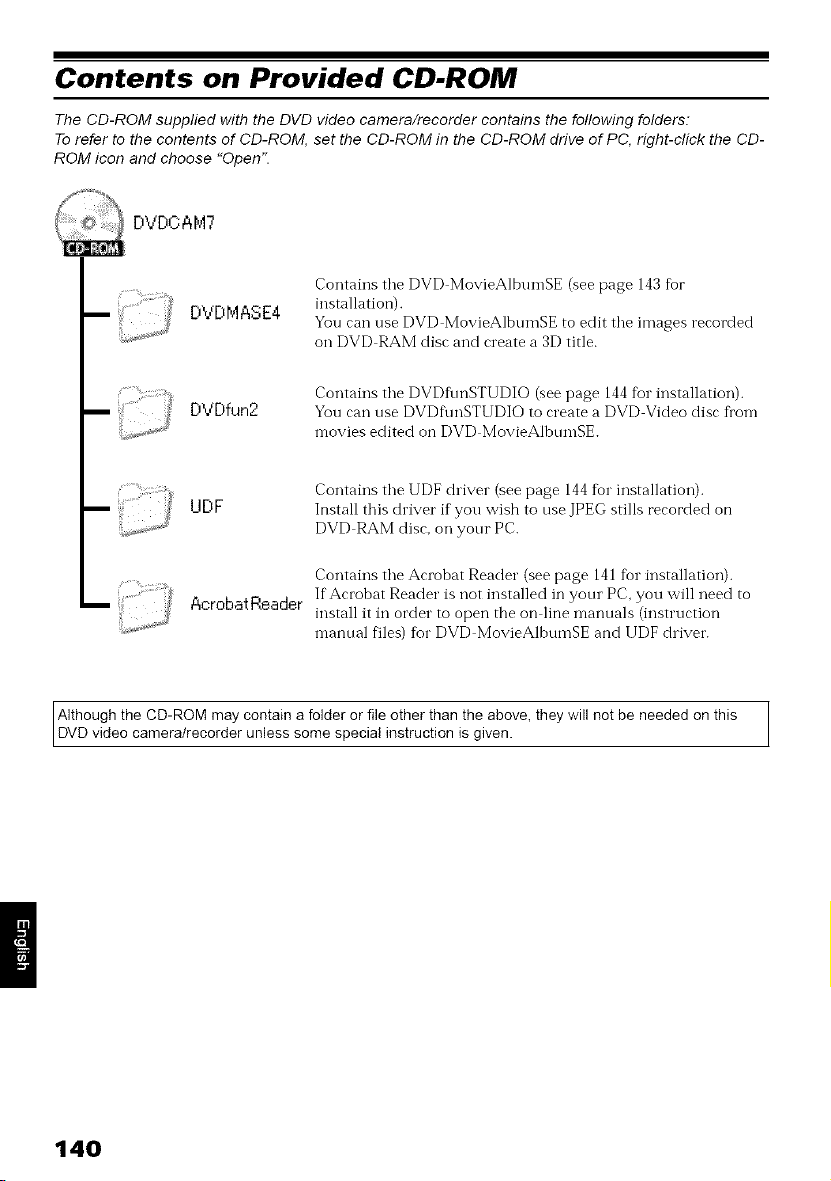
Contents on Provided CD-ROM
The CD-ROM supplied with the DVD video camera/recorder contains the following folders.
To refer to the contents of CD-ROM, set the CD-ROM in the CD-ROM drive of PC, right-click the CD-
ROM icon and choose "Open".
DVDCAM7
DVDMASE4
Contains the DVD MovieAlbumSE (see page 143 fur
installation).
You can use DVD MovieAlbumSE to edit the images recorded
oil DVD RAM disc and create a 3D title.
DVDfun2
Contains tile DVDfonSTUDIO (see page 144 %1"installation).
You can use DVDftmSTUDIO to create a DVD Video disc fi'om
movies edited on DVD MovieAlbnmSE.
UDF
AcrobatReader
Contains the UDF driver (see page 144 for installation).
Install this driver if you wish to use JPEG stills recorded on
DVD RAM disc, on your PC.
Contains the Acrobat Reader (see page 14l for installation).
If Acrobat Reader is not installed in your PC, you will need to
install it in order to open the on line manuals (instruction
manual files) for DVD MovieAlbumSE and IIDF driver.
]
Although the CD-ROM may contain a folder or file other than the above, they will not be needed on this
DVD v deo camera/recorder un ess some spec a nstruct on s g yen. l
140
•DVD-MovieAIbumSE
You can read the instruction marmal using either
of the following procedures:
• Open the PDF file in
DVDMASE 4\manuals\English fblder
contained on the provided CD ROM.
• After installing DVD MovieAlburnSE, open
"Prograrns" or "All Programs" fl'om the
Windows "Start" menu, choose "Hitachi
DVDCAM" and "DVD MovieAlburnSE", and
then open "Instruction Marmal".
• DVDfu nSTU DIO
• After installing DVDflmSTUDIO, open
"Prograrns" o1""All Programs" frorn the
Windows "Start" rnenu, choose "Hitachi
DVDCAM" and "DVDflmSTUDIO", and then
open the electronic instruction marmal in
"Docurnent" fblctei:
To read the above marmal, you will need Adobe
Acrobat Reade1:
If Adobe Acrobat Reader has not been installed
in your PC, start AcrobatReader\gnglish
\AR500ENU. exe on the provided CD ROM to
install it.
• UDF driver (DVD-RAM driver)
• After installing the UDF driver (DVD RAM
driver), open "Prograrns" or 'All Prograrns"
fronr the Windows "Start" menu, choose
"DVD RAM" and "DVD RAM Driver", and
then open "How to use DVD RAM disc".
• Requirements of available PC
• The provided software carmot be used on Windows } 98 o1"Windows _{98 Second Edition.
• OS: Winctows <"_Me / 2000 Professional / XP
•Cornputer: IBM PC/AT cornpatible
• CPU: Intel _{Perltinnr °{lI1800 MHz or higher (Perltiurn °{4 1.8GHz o1"higher is recornmended)
Operation with Pentiurn cornpatihle CPU other than those produced by Intel<'/AMD :_ may not be
supported.
• Memory: At least 256 MB (512 MB or more is recommended)
• Free space on hard disk: At least 400 MB (does not include capacity needed to copy or edit video o1"
photo data)
• CD ROM drive (used to install software)
• Display adapter (video rnenro W of at least 4 MB) and display that can display at least 1024 × 768
pixels and 65,536 colors (16 bit colors), and is compatible with DirectX <_'8.1 or highei:
• DirectSound <_compatible sound card
• USB: One unused port is necessary fur this product (USB2.0 port is recomrnended)
Note:
• Operation is not guaranteed in the following cases:
- Using PC with OS other than Windows {) Me / 2000 Professional / XP installed
- When operated on Pentium ® compatible CPU other than those produced by Intel ® or AMD ®
- When connected via USB hub
• Multiprocessor is not supported
• Even when your PC satisfies the above conditions of available PC, maIfunction may result or restriction in use
may occur, depending on the combination of other software in PC or peripheral devices
II
141
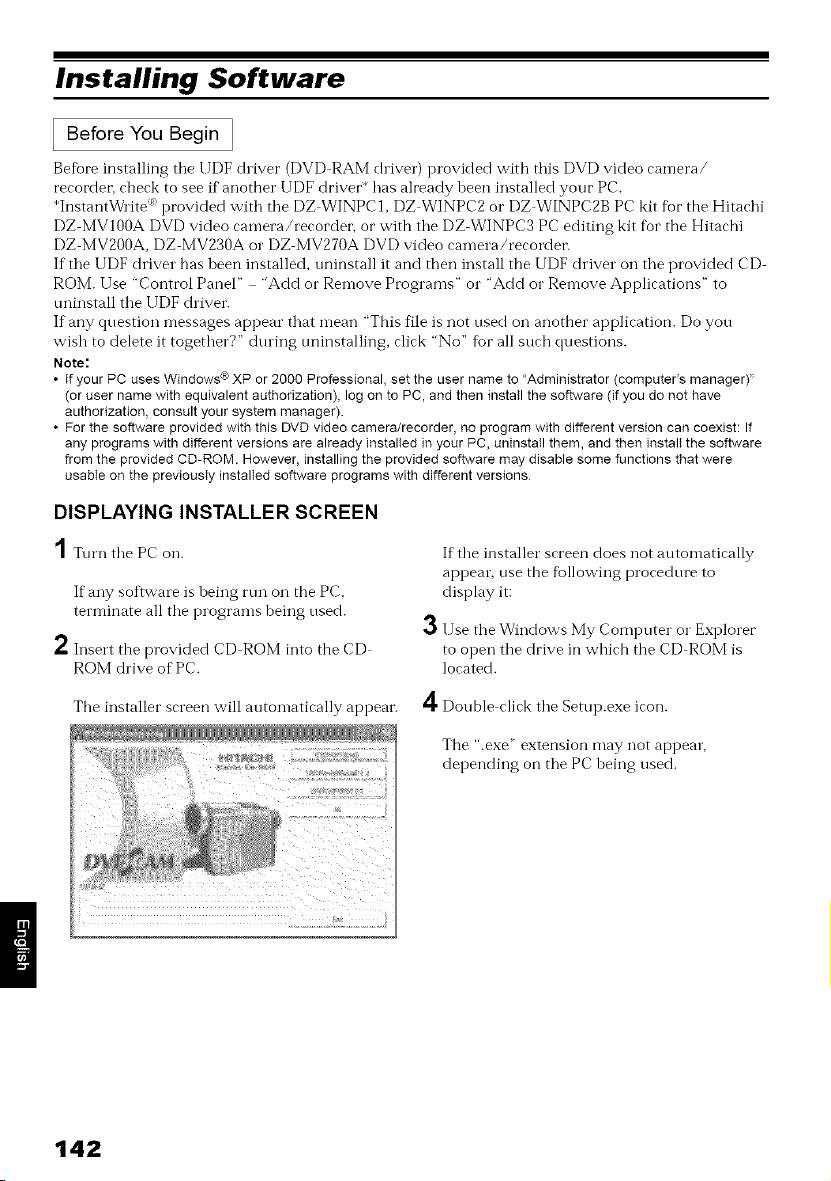
Installing Software
Before You Begin ]
Before installing the UDF driver (DVD RAM driver) provided with this DVD video can-lera/
recorder, check to see if another UDF driver* has already heen installed your PC.
*InstantWrite > provided with the DZ WINPC1, DZ WINPC2 o1"DZ WINPC2B PC kit fur the Hitachi
DZ MVIOOA DVD video camera/recorder, or with the DZ WINPC3 PC editing kit fur the Hitachi
DZ MV2OOA, DZ MV230A o1"DZ MV270A DVD video camera/recordei:
If the UDF driver has been installed, uninstall it and then install the UDF driver on the provided CD
ROM. Use "Control Panel .... Add o1"Remove Programs" o1" "Add o1"Remove Applications" to
unfilstall the l JDF driver.
If any question messages appear that mean "This file is not used on another application. Do you
wish to delete it together?" during uninstalling, click "No" fur all such questions.
Note:
• If your PC uses Windows® XP or 2000 Professional, set the user name to 'Administrator (computer's manager)"
(or user name with equivalent authorization), log on to PC, and then install the software (if you do not have
authorization, consult your system manager)
• For the software provided with this DVD video camera/recorder, no program with different version can coexist: If
any programs with different versions are already instalIed in your PC, uninstaIIthem, and then install the software
from the provided CD-ROM However, installing the provided software may disable some functions that were
usabIe on the previously instalIed software programs with differentversions
DISPLAYING INSTALLER SCREEN
1Turn the PC on.
If any software is heing run on the PC,
tern-linate all tile programs being used.
*" Insert the provided CD ROM into the CD
ROM drive of PC.
If the installer screen does not automatically
appear, use the fbllowing procedure to
display it:
3 Use tile Windows My Computer o1"Explorer
to open tile drive in which the CD ROM is
located.
The installer screen will auton-latically appear. 4Double click tile Setup.exe icon.
The ".exe" extension may not appear,
depending on the PC heing used.
142
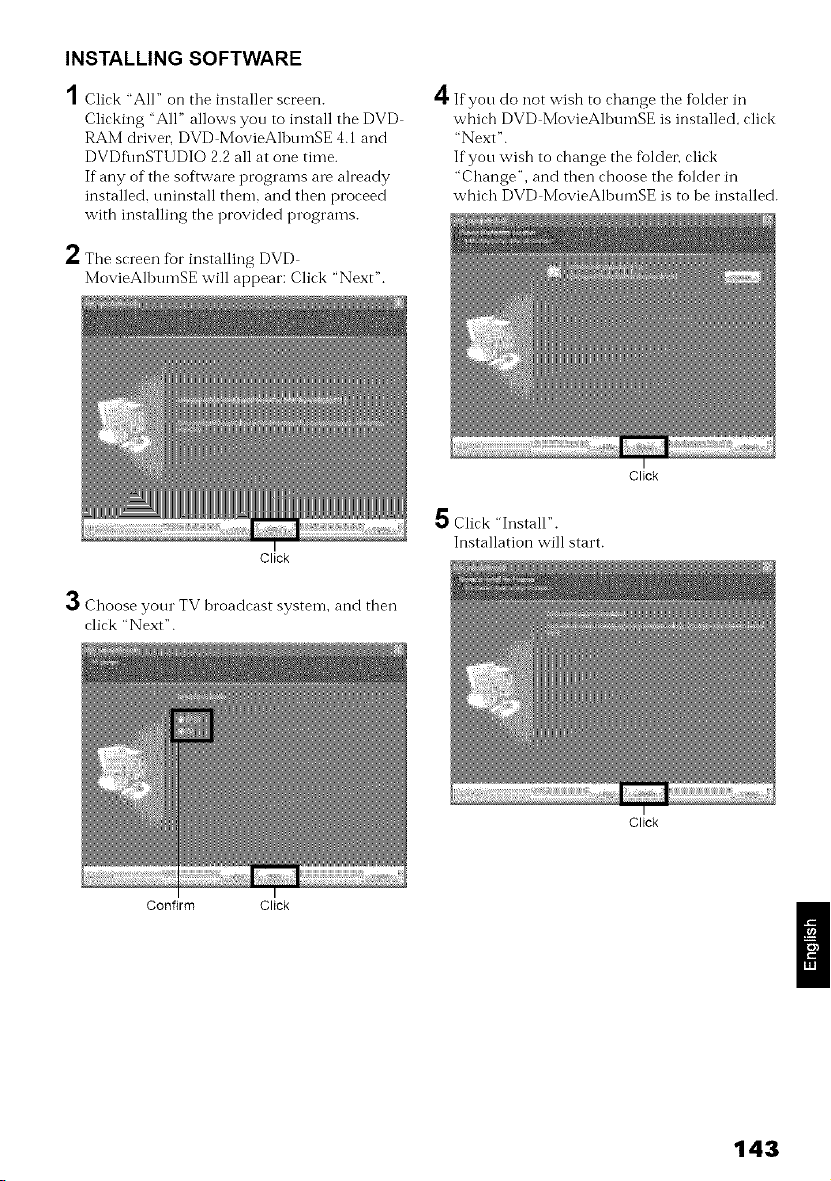
INSTALLING SOFTWARE
,4
/ Click "All" on the installer screen.
Clicking 'All" allows you to install the DVD
RAM driver. DVD MovieAlbumSE 4.1 and
DVDflmSTUDIO 2.2 all at one time.
If any of the software programs are already
installed, uninstall them. and then proceed
with installing the provided programs.
2 The screen %r installing DVD
MovieAlbumSE will appear: Click "Next".
Click
A
€"11'If you do not wish to change the folder in
which DVD MovieAlbumSE is installed, click
"Next".
If you wish to change the tbldet; click
"Change", and then choose the tiolder in
which DVD MovieAlbumSE is to be installed.
Click "Install".
Installation will start.
,._ Choose your TV broadcast systen-l, and then
click "Next".
Click
Click
Confirm Click
143
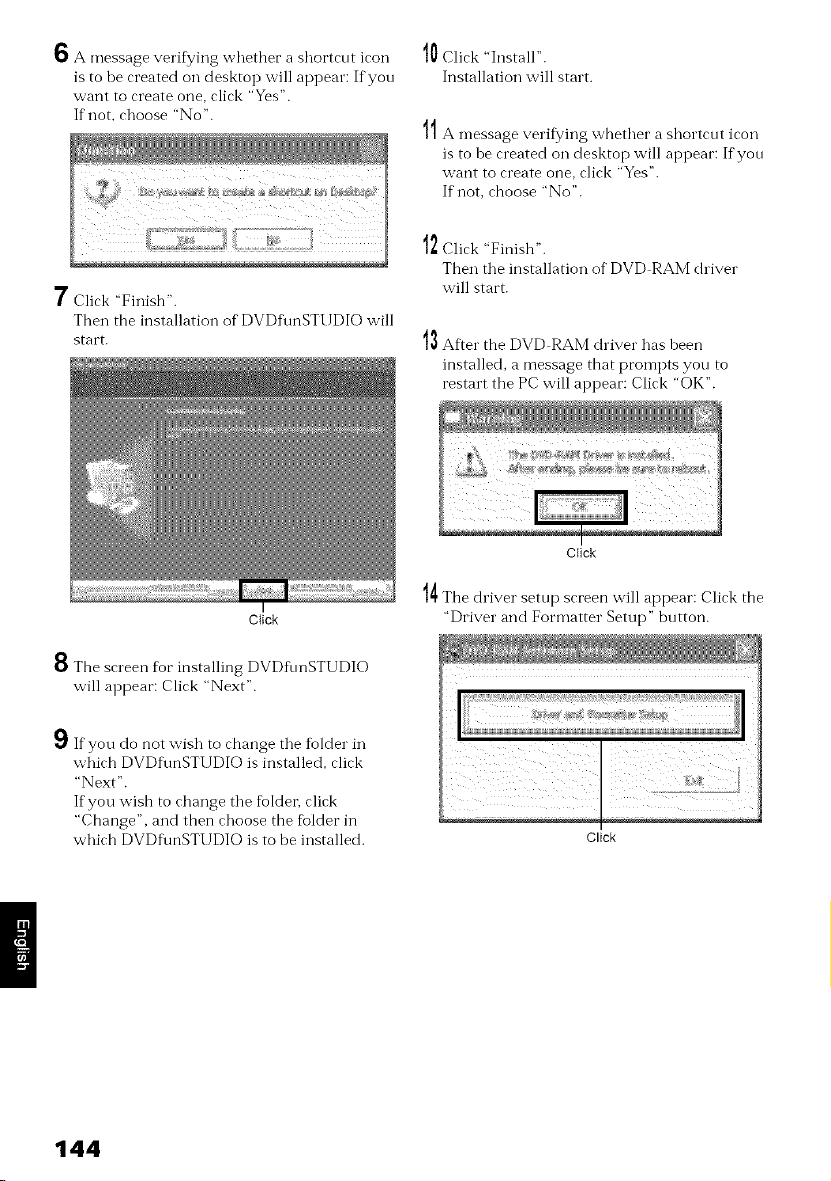
O A message veritying whether a shortcut icon
is to be created oi7 desktop will appear: If you
want to create one, click "Yes".
If not, choose "No'.
7 Click "Finish".
Then the installation of DVDfunSTI.TDIO will
start.
Ciick
10 Click "Install".
Installation will start.
_A
// A message verifying whether a shortcut icon
is to be created on desktop will appear: If yon
want to create one, click "Yes".
If not, choose "No".
12 Click "Finish".
Then the installation of DVD RAM driver
will start.
13 After the DVD RAM driver has been
installed, a message that prompts yon to
restart the PC will appear: Click "OK".
B The screen for installing DVDfhnSTUDIO
will appear: Click "Next".
If you do not wish to change the folder in
which DVDf\mSTUDIO is installed, click
"Next".
If you wish to change the fioldet, click
"Change", and then choose the fblder in
which DVDf\mSTUDIO is to be installed.
CIick
14 The driver setup screen will appear: Click the
"Driver and Formatter Setup" button.
Click
144
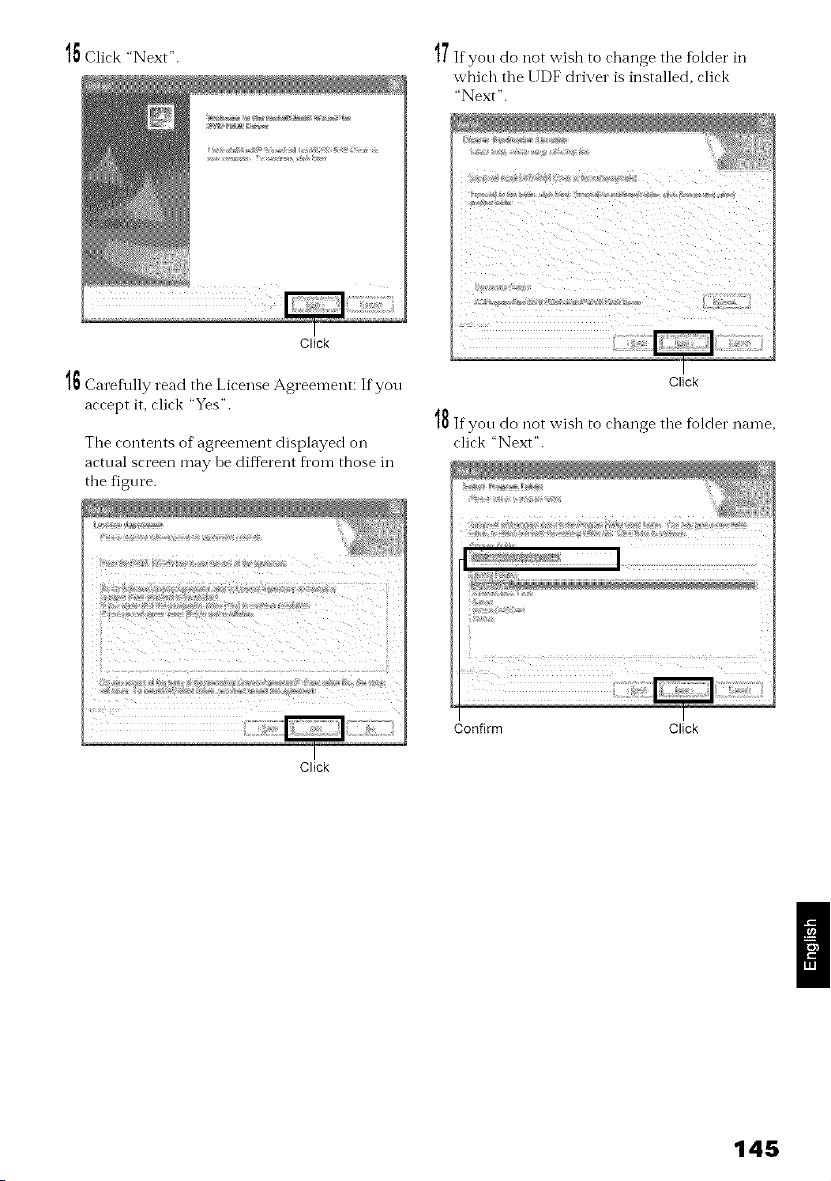
15 Click "Next".
Click
15 Caref\flly read the License Agreement: If you
accept it, click "Yes".
The contents of agreement displayed on
actual screen may be difIerent fl_om those in
the figure.
|/If yon do not wish to change tile folder in
which tile UDF driver is installed, click
"Next".
Click
18 If yon do not wish to change the folder nan-le,
click "Next".
Click
Confirm Click
145
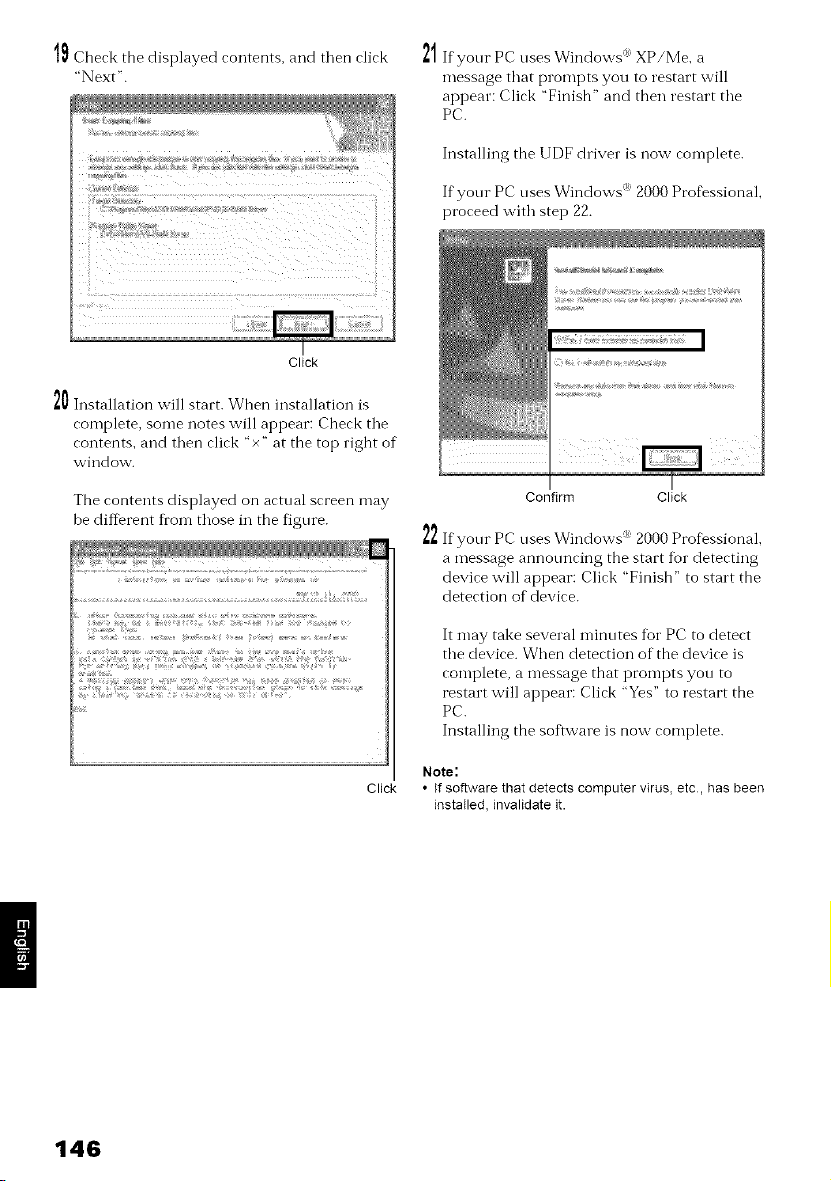
tll Check the displayed contents, and then click
"Next"•
21 Ifyonr PC nses Windows <'_'XP/Me, a
message that prompts you to restart will
appear: Click "Finish" and then restart the
PC.
Installing the UDF driver is now complete.
• ,f,
Ifyonr PC nses Windows 2000 Professional,
proceed with step 22.
Click
20 Installation will start. When installation is
complete, some notes will appear: Check the
contents, and then click "x" at the top right of
window.
The contents displayed on actual screen may
be diftFrent from those in the figure.
Click
22
Confirm Click
If your PC uses Windows _ 2000 Pro%ssionaL
a message announcing the start for detecting
device will appear: Click "Finish" to start the
detection of device•
It may take several minutes f}grPC to detect
the device. When detection of the device is
complete, a message that prompts you to
restart will appear: Click "Yes" to restart the
PC.
Installing the software is now complete.
Note:
• If software that detects computer virus, etc, has been
installed, invalidate it.
146
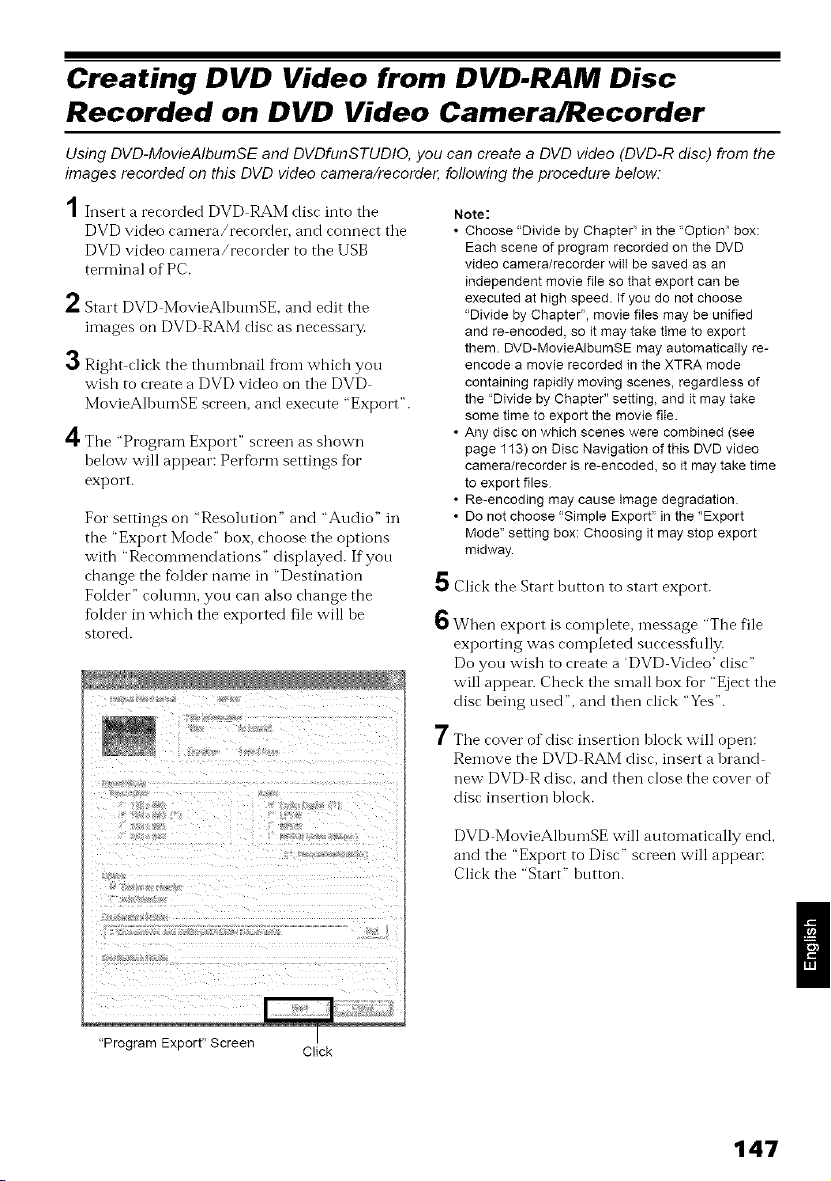
Creating DVD Video from DVD-RAM Disc
Recorded on DVD Video Camera/Recorder
Using DVD-MovieAIbumSE and DVDfunSTUDIO, you can create a DVD video (DVD-R disc) from the
images recorded on this DVD video camera/recorder, following the procedure below.
A
/ Insert a recorded DVD RAM disc into the
DVD video camera/recorder, and connect tile
DVD video camera/recorder to the USB
terminal of PC.
/- Start DVD MovieAlhumSE. and edit the
images on DVD RAM disc as necessary.
3 Right click the tlmmbnail from which you
wish to create a DVD video on the DVD
MovieAlbumSE screen, and execute "Export".
4 The "Program Export" screen as shown
below will appear: Perfbrm settings for
export.
For settings on "Resolution '_and "Audio" in
the "Export Mode" box, choose the options
with "Recommendations" displayed. If you
change the fblder name in "Destination
Folder _'cohmm, you can also change the
folder in which the exported file will be
stored.
Note:
• Choose "Divide by Chapter" in the 'Option" box:
Each scene of program recorded on the DVD
video camera/recorderwilt be saved as an
independent movie file so that export can be
executed at high speed. If you do not choose
"Divide by Chapter", movie files may be unified
and re-encoded, so it may take time to export
them. DVD-MovieAIbumSE may automatically re-
encode a movie recorded in the XTRA mode
containing rapidly moving scenes, regardless of
the 'Divide by Chapter"setting, and it may take
some time to export the movie file.
• Any disc on which scenes were combined (see
page 113) on Disc Navigationof this DVD video
camera/recorder is re-encoded,so it may take time
to export files
• Re-encoding may cause image degradation
• Do not choose "Simple Export" inthe 'Export
Mode" setting box: Choosing it may stop export
midway.
5 Click the Start hutton to start export.
6 When export is complete, message "The file
exporting was completed successfldly.
Do you wish to create a 'DVD Video' disc"
will appem: Check the small box for "Eject the
disc being used", and then click "Yes".
7 The cover of disc insertion block will open:
Remove the DVD RAM disc, insert a brand
new DVD R disc, and then close the cover of
disc insertion block.
DVD MovieAlhumSE will automatically end,
and the 'Export to Disc" screen will appear:
Click the "Start" button.
"Program Export" Screen Click
147
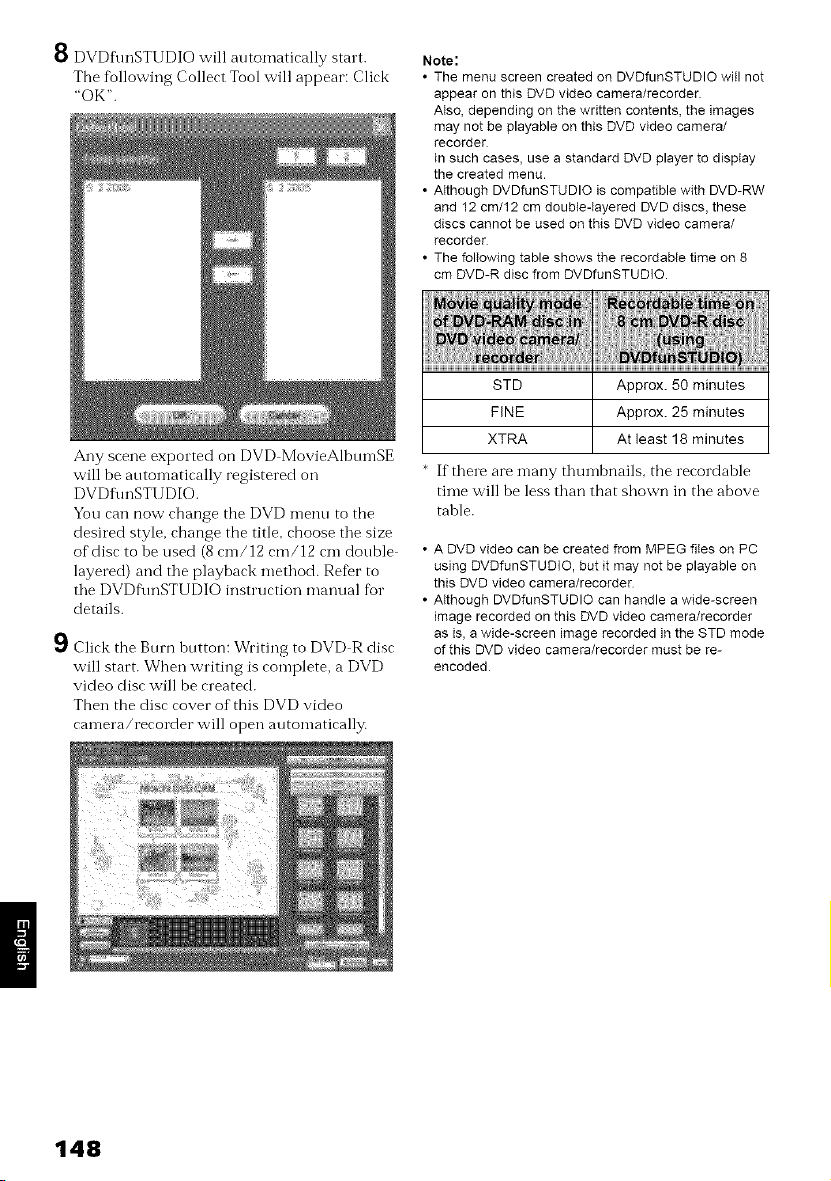
O DVDfunSTIJDIO will automatically start.
The following Collect Tool will appear: Click
"OK".
Note:
• The menu screen created on DVDfueSTUDIO will not
appear on this DVD video camera/recorder
AIso, depending on the written contents, the images
may not be playable on this DVD video camera/
recorder
In such cases, use a standard DVD player to display
the created menu.
• Atthough DVDfunSTUDIO is compatible with DVD-RW
and 12 cm/12 cm double-Iayered DVD discs, these
discs cannot be used on this DVD video camera/
recorder
• The following table shows the recordable time on 8
cm DVD-R disc from DVDfunSTUDIO.
Ally scene exported on DVD MovieAlbumSE
will be automatically registered on
DVDI\mSTI JDIO.
You can now change tbe DVD menu to tbe
desired style, change the title, choose tile size
of disc to he used (8 cm/12 cm/12 cm double "
layered) and the playback method. Refer to
the DVDf\mSTUDIO instruction manual fur
details.
Click the Burn button: Writing to DVD R disc
will start. Wben writing is complete, a DVD
video disc will be created.
Then the disc cover of this DVD video
camera/recorder will open automatically.
STD Approx. 50 minutes
FINE Approx. 25 minutes
XTRA At least 18 minutes
If there are n-lany thumbnails, tbe recordahle
time will he less than that shown in the above
tahle.
A DVD video can be created from MPEG flies on PC
using DVDfunSTUDIO, but it may not be playable on
this DVD video camera/recorder
Atthough DVDfunSTUDIO can handle a wide-screen
image recorded on this DVD video camera/recorder
as is, a wide-screen image recorded in the STD mode
of this DVD video camera/recorder must be re-
encoded
148
Uninstalling Software
To tminstall (delete) any provided software that has been installed, use "Control Panel" to open
"Add or Remove Applications", choose tile applications to be uninstalled fl'om the displayed list of
applications, and then click tile "Change/Remove" button.
Note:
After uninstalling software, be sure to restart the PC.
Cautions When Using DVD Video Camera/
Recorder by Connecting It to PC
Note:
• Do not use Windows ® application to finalize a DVD-R
disc recorded on this DVD video camera/recorder:
The disc wiII become unusable
• When formatting a DVD-RAM disc on Windows ®, use
the UDF2.01 format (20 if 201 cannot be selected)
(see "Terminology" on page 155) Formatting with
other standards could cause the DVD video camera/
recorder to malfunction
• Before processing or editing photos, be sure to copy
the JPEG flies in 100HPNXl folder to the hard disk of
PC.
• Ordinary data on PC can usually be written to DVD-
RAM disc in this DVD video camera/recorder, but
Hitachi does not guarantee the operation.
• Data may be readable or writable from/to storage
media in this DVD video camera/recorder using
software other than that provided with this DVD video
camera/recorder, but Hitachi does not guarantee the
operation.
• If the PC is started from suspend (see "Terminology"
on page 155) (or sleep or standby) with this DVD
video camera/recorder connected to the PC, the DVD
video camera/recorder may not be recognized:
Disconnect the DVD video camera/recorder from PC
once, and restart the PC.
• Multiple DVD video camera/recorders cannot be
simultaneously connected to PC.
• Use a reference of approx. 30 minutes at approx
86°F (30°C) or less for operation when connecting this
DVD video camera/recorder to PC.
- Use a reference of a continuous 30 minutes or less
for write operation when using the DVD-MovieAtbum
copy toot provided with DVD-MovieAIbumSE.
- If the temperature of this DVD video camera/
recorder is too high, writing or reading on this DVD
video camera/recorder may be faulty And in
particular, note that, if an error occurs during writing
to DVD-R disc, the disc will not be usabte. Take care
that the temperature of this DVD video camera/
recorder is not too high.
149
Introduction to Video Editing Software
Tile fkallowing introduces tile sof'Lware (generally available) you can use with PC to edit videos
recorded on this DVD video camera/recordei_ Tile inRn'mation on the product on this page is fk_r
reference only; Hitachi does not guarantee o1" endorse tile operation of a given product. Contact the
software company fur any inqniries on tile specifications and operation requirements of the product.
• For Mac
PIXELA CORPORATION
"Pixe VRF Browser"
InfL_rmation on product: http://www.pixela-1 .com/vrf_browser.htm
You can capture videos recorded on a DVD RAM disc using this DVD video camera/recorder into a
Mac and edit them (capturing videos recorded on DVD R is not possible).
Note:
• This DVD video camera/recorder cannot be connected to a Mac via USB When using a DVD-RAM disc recorded
using this DVD video camera/recorder on Mac, it is recommended that you use the DVD-Multi (or DVD-RAM)
drive of the above PIXELA CORPORATION
• A DVD-RAM disc written using the above software may not be ptayable on this DVD video camera/recorder In
such a case, play it back on a generally avaiIable DVD recorder, DVD player or PC
• The information on this page is as of January, 2005 The name and specifications of a product may change Visit
the above website for the latest information
150
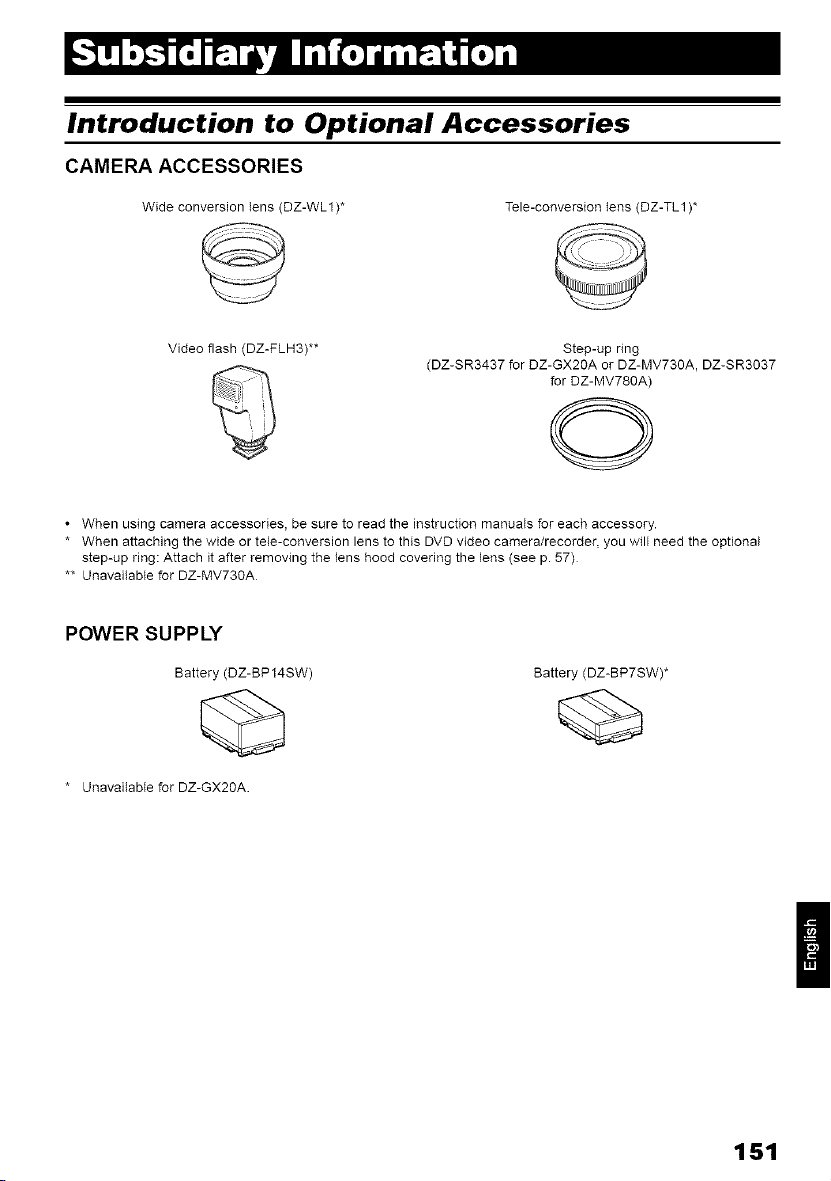
Introduction to Optional Accessories
CAMERA ACCESSORIES
Wide conversion Iens (DZ-WL1)* Tele-conversion tens (DZ-TL1)*
Video flash (DZ-FLH3)** Step-up ring
(DZ-SR3437 for DZ-GX20A or DZ-MV730A, DZ-SR3037
for DZ-MV78OA)
O
• When using camera accessories, be sure to read the instruction manuaIs for each accessory.
* When attaching the wide or tele-conversion lens to this DVD video camera/recorder, you will need the optional
step-up ring: Attach it after removing the lens hood covering the lens (see p. 57)
** Unavaitabte for DZ-MV730A
POWER SUPPLY
Battery (DZ-BP14SW)
* Ueavaitabte for DZ-G×2OA.
Battery (DZ-BP7SW)*
/
151
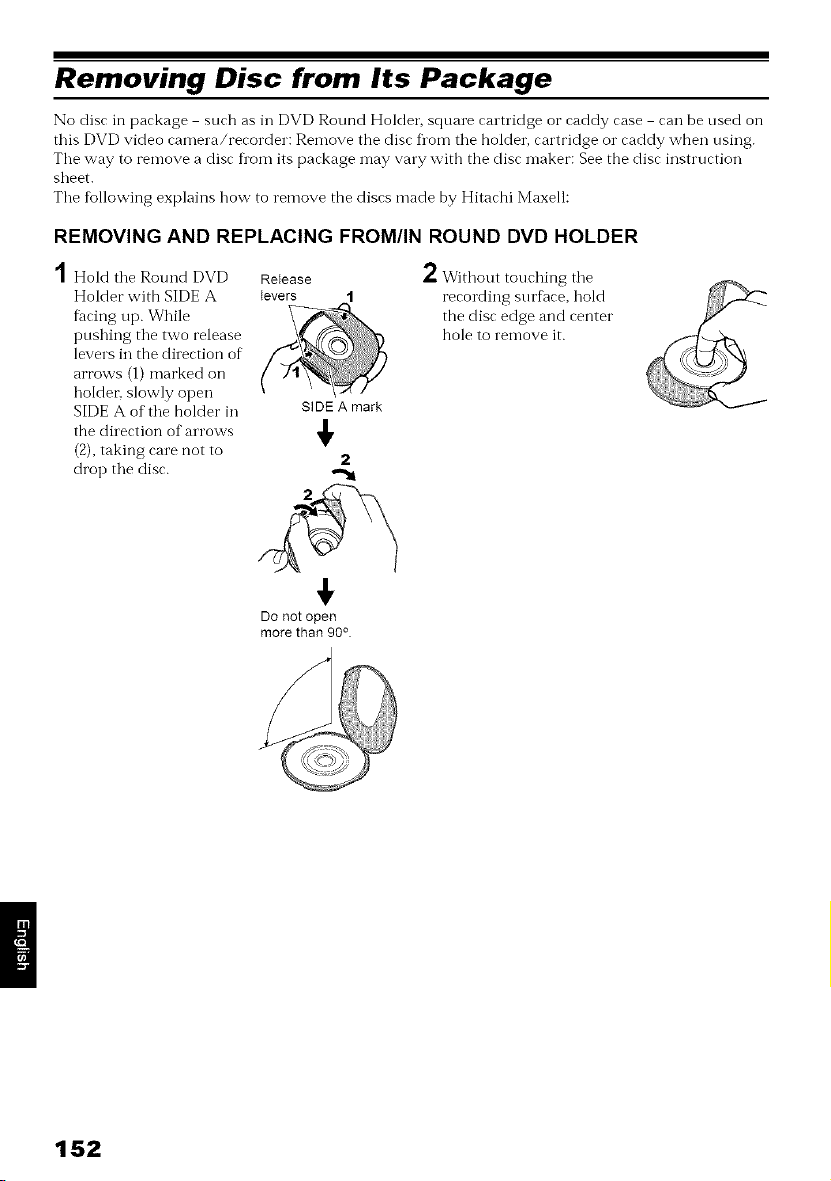
Removing Disc from Its Package
No disc in package such as in DVD Round Holder, square cartridge or caddy case can be used on
this DVD video camera/recorder: Remove the disc Dora tile holder, cartridge or caddy when using.
Tile way to remove a disc fl'om its package may vary with the disc maker: See the disc instruction
sheet.
The following explains how to remove the discs made by Hitachi Maxell:
REMOVING AND REPLACING FROM/IN ROUND DVD HOLDER
Hold tile Round DVD
Holder with SIDE A
f_tcing up. While
pushing tile two release
levers in the direction of
arrows (1) marked on
holder, slowly open
SIDE A of the holder in
the direction of arrows
(2), taking care not to
drop tile disc.
Release L Without touching tile
levers 1 recording surface, hold
the disc edge and center
hole to remove it.
SIDE A mark
$
2
Do not opt
more than 90 °
152
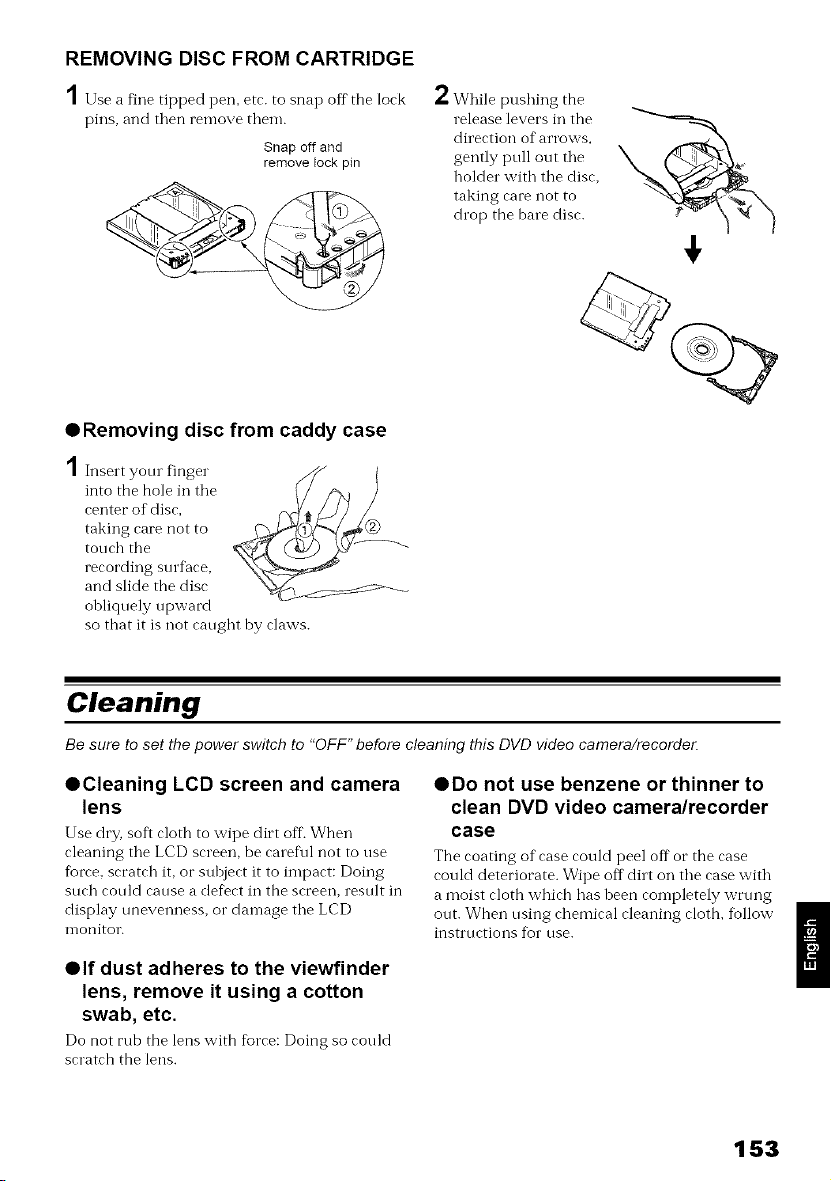
REMOVING DISC FROM CARTRIDGE
1 at netippedpen,etr.tosnapoil"the,ork
pins, and then remove them.
Snap off and
remove Fockpin
eRemoving disc from caddy case
A
/ Insert yonr finger
into the hole in tile
center of disc,
taking care not to
touch tile
recording surflace,
and slide the disc
obliquely upward
so that it is not canght by claws.
l= While pushing the
release levers in the
direction of arrows,
gently pull out tile
holder with tile disc,
taking care not to
drop the bare disc.
€
Cleaning
Be sure to set the power switch to "OFF" before cleaning this DVD video camera/recorde_
• Cleaning LCD screen and camera
lens
Use dry, soft rloth to wipe dirt off. When
cleaning tile LCD screen, be caret\fl not to use
fbrce, scratch it, or subject it to impact: Doing
such could cause a defect in the screen, result in
display unevenness, or damage tile LCD
nlonitor.
• Do not use benzene or thinner to
clean DVD video camera/recorder
case
Tile roating of rase rould peel off or tile rase
could deteriorate. Wipe off dirt on tile case with
a moist cloth which has been completely wrung
out. When using chemical cleaning cloth, fiollow
instructions for use.
elf dust adheres to the viewfinder
lens, remove it using a cotton
swab, etc.
Do not rub tile lens with florre: Doing so rould
scratch the lens.
153
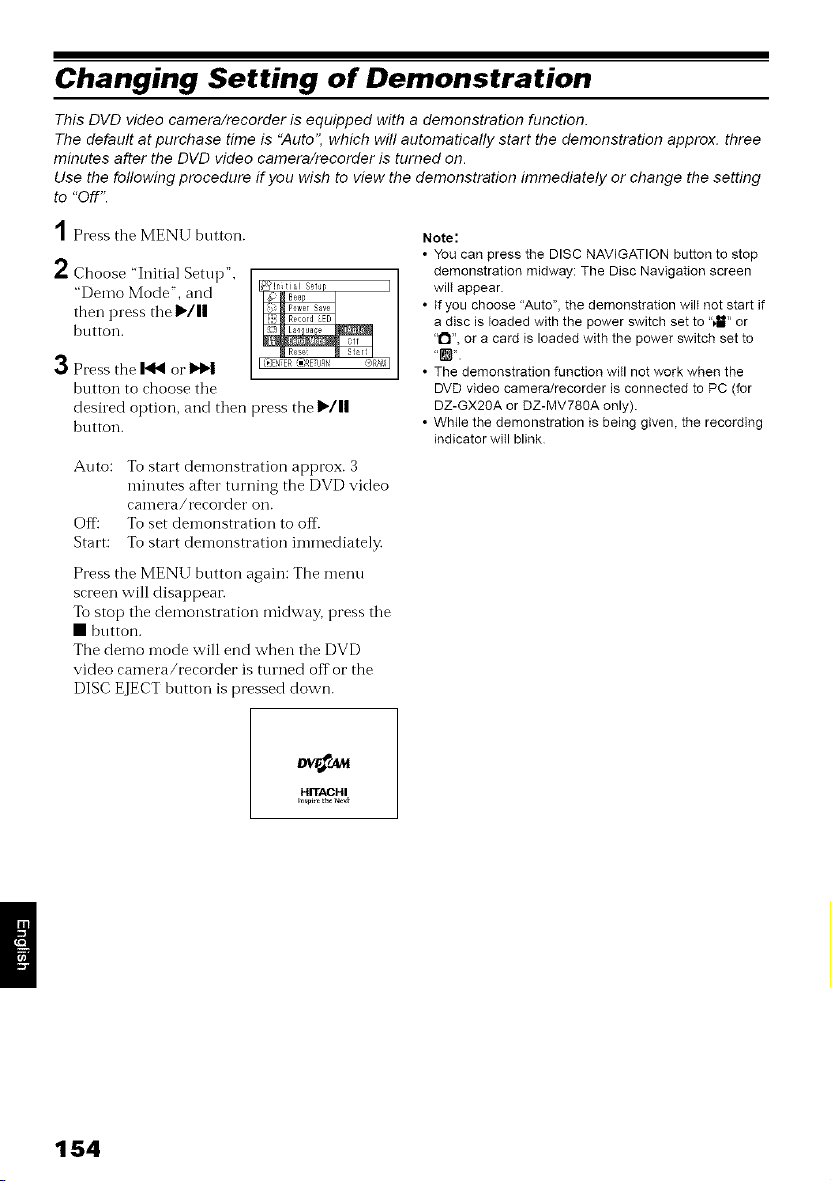
Changing Setting of Demonstration
This DVD video camera/recorder is equipped with a demonstration function
The default at pumhase time is "Auto'; which will automatically start the demonstration approx three
minutes after the DVD video camera/recorder is turned on
Use the following procedure if you wish to view the demonstration immediately or change the setting
to "Off't
1
2
3
Press the MENU button.
Choose "Initial Setup",
"Demo Mode", and
then press tlle I_/||
button.
Press the I_1 or
button to choose tile
desired option, and then press the I_/1|
button.
Auto: To start demonstration approx. 3
minutes after turning the DVD video
can-lera/recorder oil.
Off To set demonstration to off
Start: To start demonstration immediately.
Press the MENU button again: The menu
screen will disappear:
To stop tile demonstration midway, press tile
• button.
The demo mode will end when tile DVD
video camera/recorder is turned off or the
DISC EJECT hutton is pressed down.
Note:
• You can press the DISC NAVIGATION button to stop
demonstration midway: The Disc Navigation screen
wilI appear
• If you choose "Auto", the demonstration wilt not start if
a disc is loaded with the power switch set to "4m'_or
"1_1",or a card is loaded with the power switch set to
• The demonstration function witl not work when the
DVD video camera/recorder is connected to PC (for
DZ-GX20A or DZ-MV780A only)
• While the demonstration is being given, the recording
indicator will blink
HITACHI
154
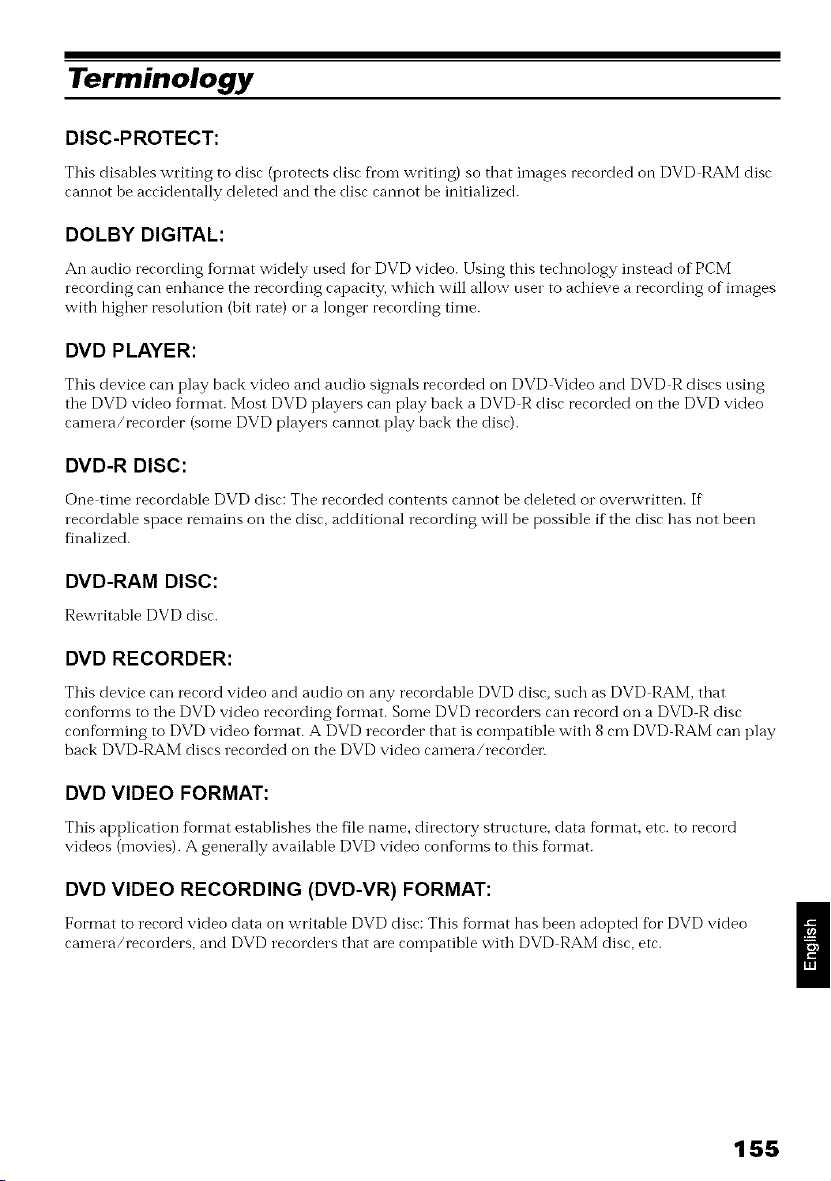
Terminology
DISC-PROTECT:
This disables writing to disc (protects disc from writing) so that images recorded on DVD RAM disc
cannot he accidentally deleted and the disc cannot be initialized.
DOLBY DIGITAL:
An audio recording %rmat widely used for DVD video. Using this technology instead of PCM
recording can enhance the recording capacity, which will allow user to achieve a recording of images
with higher resolution (bit rate) or a longer recording time.
DVD PLAYER:
This device can play back video and audio signals recorded on DVD Video and DVD R discs using
the DVD video fi0rmat. Most DVD players can play hack a DVD R disc recorded on the DVD video
camera/recorder (some DVD p]ayers cannot play back the disc).
DVD-R DISC:
One time recordahle DVD disc: The recorded contents cannot he deleted o1"overwritten. If
recordahle space remains on the disc, additional recording will be possible if the disc has not been
finalized.
DVD-RAM DISC:
Rewritahle DVD disc.
DVD RECORDER:
This device can record video and audio on any recordahle DVD disc, such as DVD RAM, that
confiorms to the DVD video recording fbrmat. Some DVD recorders can record on a DVD R disc
conforming to DVD video fbrmat. A DVD recorder that is compatible with 8 cm DVD RAM can play
back DVD RAM discs recorded on the DVD video camera/recorden
DVD VIDEO FORMAT:
This application fi0rmat establishes the file name, directory structure, data format, etc. to record
videos (movies). A generally available DVD video confi0rms to this format.
DVD VIDEO RECORDING (DVD-VR) FORMAT:
Format to record video data on writable DVD disc': This format has been adopted fur DVD video
camera/recorders, and DVD recorders that are compatible with DVD RAM disc, etc.
/
155
FINALIZE:
This process makes a DVD R disc recorded on this DVD video camera/recorder playahle on a DVD
player, etc. that conforms to 8 cm DVD R: No fllrther recording can be made oil a finalized DVD R
disc.
HOWLING:
This phenomenon occurs as fbllows: When the DVD video camera/recorder is connected to a device,
such as TV, the audio input to the microphone of DVD video camera/recorder is amplified and
output from the speakers of TV, and the signal is again input to the microphone: This is repeated to
fbrm an endless loop of audio signal, and the signal is amplified up to the audio output amplitude
limit of the device. Howling can be prevented by changing the positional relationship between the
DVD video camera/recorder and TV, or by turning down the volume on TV.
INFRARED SENSOR:
This sensor is used to adjust the white balance.
LASER PICKUP BLOCK:
This block emits laser beam to a disc, and then collects the laser beam reflected fl'om the disc to
convert it to an electric signah The block consists of a laser, lens, receiving element, etc.
LINEAR PCM:
Audio recording fbrmat similar to Dolhy Digital: However, linear PCM does not compress an audio
signal, but instead samples it and converts it to a digital signal to be recorded. Therefore, the amotmt
of data used is larger than that of Dolby Digital.
MultiMediaCard:
This is a standard of memory card developed in 1997. The card is 32 mm long x 24 mm wide x 1.4
mm thick, and has 7 pins. It can be inserted into SD memory card slot and used.
SCENE:
Video (movie): "One scene" refers to images recorded fi'om one press of"REC button tmti] recording
is stopped hy pressing the REC button again.
Photo (still): "One scene" refers to a single photo recording by pressing the PHOTO button.
156
SD MEMORY CARD:
This is a standard of memory card developed in 1999. The cald is 32 l_]ii-ilong × 24 ii-ln] wide x 2.1
mm thick, and has 9 pins. Since the SD memo W card was developed based on MultiMediaCard
(MMC), MMC can be inserted into SD memo W card slot and used. Howevei; an SD memory card
cannot be inserted in the slot exclusively fbr MMC.
SLOT-IN TYPE PC:
PC; that has a DVD drive itlto/h'on-i which a DVD is directly inserted or ejected without usitlg a tray.
SUSPENDING PC:
This flmction stores the statt/s of PC before it is turned off It will restart the work fl'om tile status
immediately before PC was turned off, when tile PC is turned on next time.
THUMBNAIL:
This refers to a reduced screen displayed on Disc Navigation in order to identif}? tile recorded in-lage
contents.
UDF2.01 FORMAT:
UDF stands for Universal Disc Format: This is a world standard file fol"inat fk0r optical storage
defined by OSTA*. UDF revision 2.0 or 2.01 has been adopted %r DVD RAM disc to ensure
compatibility with DVD recorders and PCs, as well as DVD video camera/recorders.
* Optional Storage Technology Association: An organization that is promoting writable optical
storage.
VIDEO SELECTOR:
This device can input multiple audio and video signals, and select tile desired audio and video
signals among those input signals, to output them.
/
157
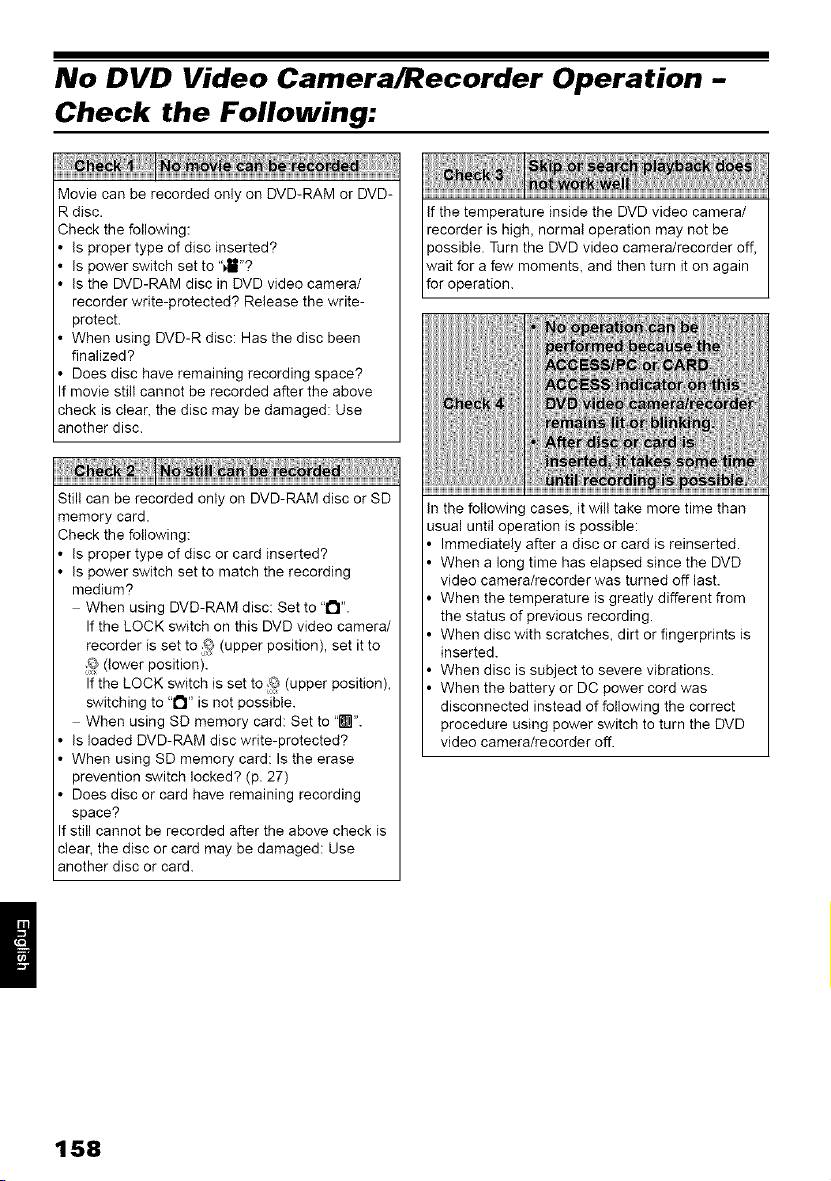
No DVD Video Camera/Recorder Operation -
Check the Following:
Movie can be recorded only on DVD-RAM or DVD-
R disc.
Check the following:
is proper type of disc inserted?
Is power switch set to "411"?
is the DVD-RAM disc in DVD video camera/
recorder write-protected? Release the write-
protect.
When using DVD-R disc: Has the disc been
finalized?
Does disc have remaining recording space?
: movie still cannot be recorded after the above
check is clear, the disc may be damaged: Use
another disc.
Still can be recorded only on DVD-RAM disc or SD
memory card.
Check the following:
(s proper type of disc or card inserted?
(s power switch set to match the recording
medium?
When using DVD-RAM disc: Set to "!'1".
If the LOCK switch on this DVD video camera/
recorder is set to _ (upper position), set it to
_ (lower position).
If the LOCK switch is set to ._q;(upper position),
switching to "!"1" is not possible.
When using SD memory card: Set to "r_".
(s loaded DVD-RAM disc write-protected?
When using SD memory card: Is the erase
prevention switch locked? (p. 27)
Does disc or card have remaining recording
space?
: still cannot be recorded after the above check is
clear, the disc or card may be damaged: Use
another disc or card.
If the temperature inside the DVD video camera/
recorder is high, normal operation may not be
possible. Turn the DVD video camera/recorder off,
wait for a few moments, and then turn it on again
for operation.
(n the following cases, it wil! take more time than
usual until operation is possible:
Immediately after a disc or card is reinserted.
When a long time has elapsed since the DVD
video camera/recorder was turned off last.
When the temperature is greatly different from
the status of previous recording.
When disc with scratches, dirt or fingerprints is
inserted.
When disc is subject to severe vibrations.
When the battery or DC power cord was
disconnected instead of following the correct
procedure using power switch to turn the DVD
video camera/recorder off.
158
Is a fully charged battery attached?
Is the DVD video camera/recorder powered from
AC outlet?
Is DVD video camera/recorder connected to PC
using PC connection cable? (DZ-GX20A/DZ-
MV78OA)
Unplug the PC connection cable.
Does DVD video camera/recorder stop at the
end of the scene to which wipe-out was set and
played back?
Press the DiSC NAVIGATION button.
159
Trouble Messages
A message may appear while you are operating the DVD video camera/recorder. If a message
appears, refer to the following table and take appropriate corrective action.
Messages are arranged in alphabetical order:
(I) Data error in a part
of image file. Repair
data now?
(2) Found en-or in image
file. Repair data now?
(3) Data error in all
image file. Repair all
data now?
(t) Disc is not
formatted. If it formats, it
becomes possible to
use for camera.
(2) However, when you
record from PC
connection terminal,
_lease do not format.
(3) Format the disc
now?
Battery is almost empty.
Replace it.
Cannot combine scene.
It is possible that the system cannot normally complete writing of
file when power is turned off for some reason during recording or
editing (deleting, dividing or combining scenes, or creating play
list). Selecting "YES" will automatically repair the video file, but
even if "NO" is selected, the same message will appear when the
DVD video camera/recorder is turned on next time. (Do not
remove the disc while the DVD video camera/recorder is
recognizing it: Ignoring this will deactivate the file repair function.)
Follow the instructions on screen, taking note of the following
cautions:
• Repair will normally be complete in several minutes, but it may
take longer (up to one hour).
• Be sure to use the AC adapter/charger to power the DVD video
camera/recorder when repairing data: Repair is not possible
using a battery. If a battery has been attached, turn the power
switch off once, connect the AC adapter/charger, and then start
repairing.
• Data may not be repaired, depending on the timing when
power was turned off.
• Data may not be repaired normally if data recorded on another
recorder is mixed in.
• The repaired data may be different from the original recorded
content because of partial deletion of defective portion.
• Since the date/time for repair is added to the repaired data
(only the corrected portion for partial repair), the original date/
time information will be lost.
• Since all movies, and then all stills, are repaired, the order of
recorded contents will be lost in case of message (2) (3) only.
• See "1 on page 166.
DVD-R disc that was not initialized for camera use was inserted.
46
Replace with a charged battery, or use AC adapter/charger to
3ower the DVD video camera/recorder. 39, 43
Unless consecutive scenes are selected, they cannot be
I13
combined.
160
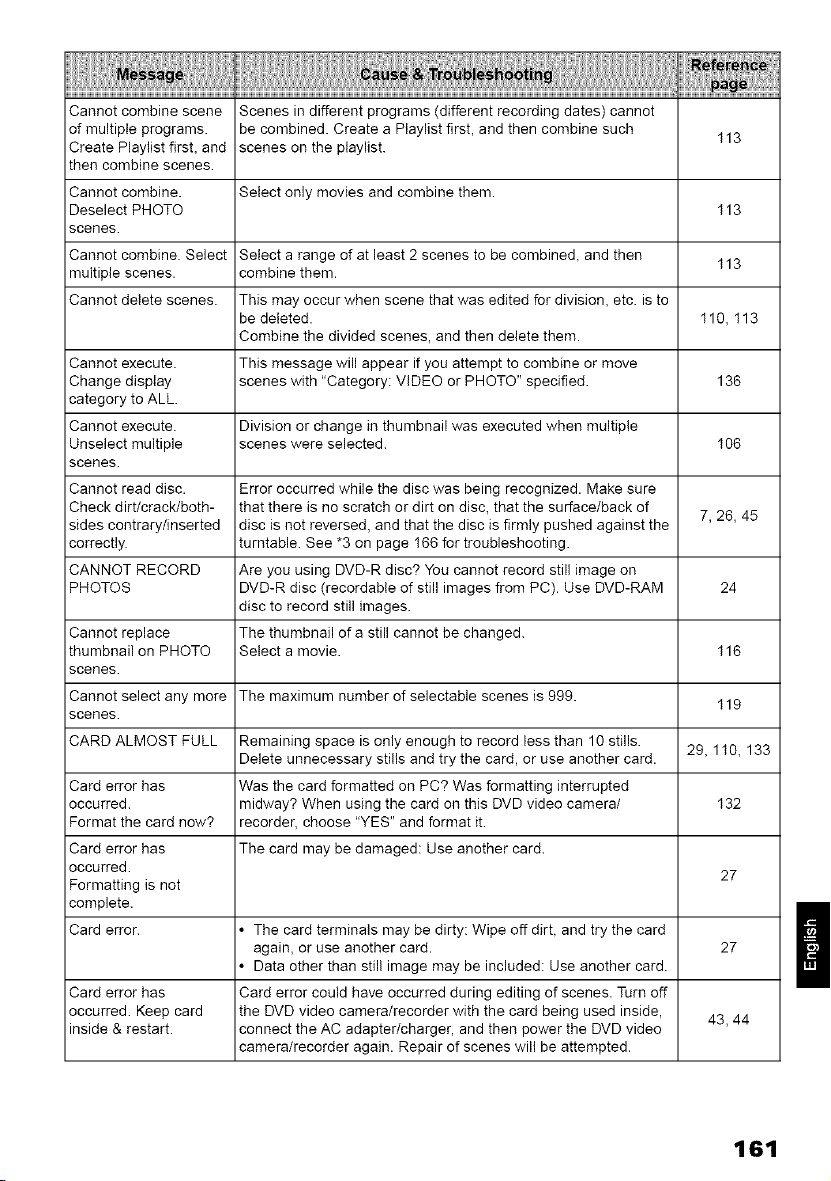
Cannot combine scene Scenes in different programs (different recording dates) cannot
of multiple programs, be combined. Create a Ptaylist first, and then combine such
I13
Create Playlist first, and scenes on the playlist.
then combine scenes.
Cannot combine. Select only movies and combine them.
Deselect PHOTO 113
scenes.
Cannot combine. Select Select a range of at least 2 scenes to be combined, and then
multiple scenes, combine them. 113
Cannot delete scenes. This may occur when scene that was edited for division, etc. is to
be deleted. 110, 113
Combine the divided scenes, and then delete them.
Cannot execute. This message will appear if you attempt to combine or move
Change display scenes with "Category: VIDEO or PHOTO" specified. 136
category to ALL.
Cannot execute. Division or change in thumbnail was executed when multiple
Unselect multiple scenes were selected. I06
scenes.
Cannot read disc. Error occurred while the disc was being recognized. Make sure
Check dirt/crack/both- that there is no scratch or dirt on disc, that the surface/back of 7, 26, 45
sides contrary/inserted disc is not reversed, and that the disc is firmly pushed against the
correctly, turntable. See *3 on page I66 for troubleshooting.
CANNOT RECORD Are you using DVD-R disc? You cannot record still image on
PHOTOS DVD-R disc (recordable of still images from PC). Use DVD-RAM 24
disc to record still images.
Cannot replace The thumbnail of a still cannot be changed.
thumbnail on PHOTO Select a movie. I16
scenes.
Cannot select any more The maximum number of selectable scenes is 999.
I19
scenes.
CARD ALMOST FULL Remaining space is only enough to record less than 10 stills.
Delete unnecessary stills and try the card, or use another card. 29, 1 I0, 133
Card error has Was the card formatted on PC? Was formatting interrupted
occurred, midway? When using the card on this DVD video camera/ I32
Format the card now? recorder, choose "YES" and format it.
Card error has The card may be damaged: Use another card.
occurred. 27
Formatting is not
complete.
Card error. • The card terminals may be dirty: Wipe off dirt, and try the card
again, or use another card. 27
• Data other than stil! image may be included: Use another card.
Card error has Card error could have occurred during editing of scenes. Turn off
occurred. Keep card the DVD video camera/recorder with the card being used inside, 43, 44
inside & restart, connect the AC adapter/charger, and then power the DVD video
camera/recorder again. Repair of scenes wilt be attempted.
161
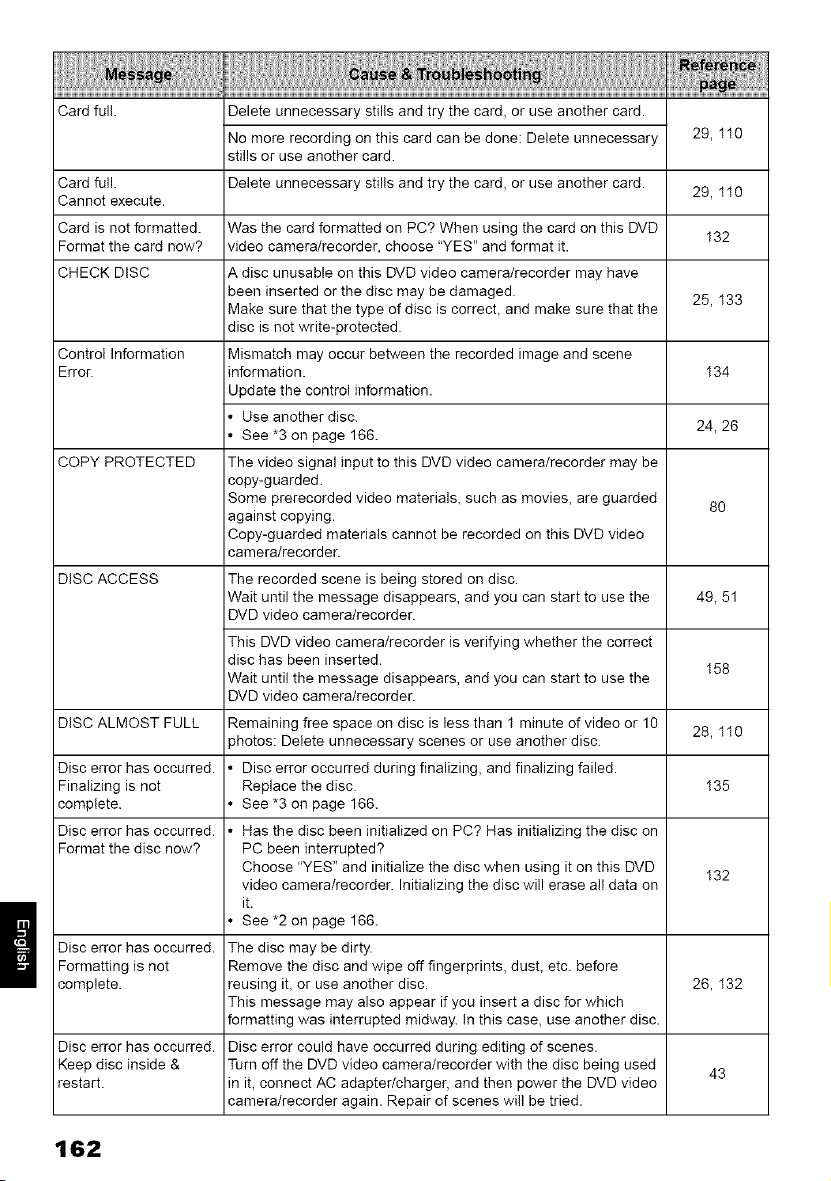
Card ful!. Delete unnecessary stills and try the card, or use another card.
No more recording on this card can be done: Delete unnecessary
stills or use another card.
Delete unnecessary stills and try the card, or use another card.
29, II0
Card full.
Cannot execute. 29, 1 I0
Card is not formatted. Was the card formatted on PC? When using the card on this DVD
I32
Format the card now? video camera/recorder, choose "YES" and format it.
CHECK DiSC A disc unusable on this DVD video camera/recorder may have
been inserted or the disc may be damaged. 25, I33
Make sure that the type of disc is correct, and make sure that the
disc is not write-protected.
Control Information Mismatch may occur between the recorded image and scene
Error. information. I34
Update the control information.
• Use another disc.
• See *3 on page 166. 24, 26
COPY PROTECTED The video signal input to this DVD video camera/recorder may be
copy-guarded.
Some prerecorded video materials, such as movies, are guarded 80
against copying.
Copy-guarded materials cannot be recorded on this DVD video
camera/recorder.
DISC ACCESS The recorded scene is being stored on disc.
Wait until the message disappears, and you can start to use the 49, 51
DVD video camera/recorder.
This DVD video camera/recorder is verifying whether the correct
disc has been inserted. I58
Wait until the message disappears, and you can start to use the
DVD video camera/recorder.
DISC ALMOST FULL Remaining free space on disc is less than I minute of video or 10 28, II0
3hotos: Delete unnecessary scenes or use another disc.
Disc error has occurred. • Disc error occurred during finalizing, and finalizing failed.
Finalizing is not Replace the disc. I35
complete. • See *3 on page 166.
Disc error has occurred. • Has the disc been initialized on PC? Has initializing the disc on
Format the disc now? PC been interrupted?
Choose "YES" and initialize the disc when using it on this DVD I32
video camera/recorder. Initializing the disc will erase all data on
it.
• See *2 on page 166.
Disc error has occurred. The disc may be dirty.
Formatting is not Remove the disc and wipe off fingerprints, dust, etc. before
complete, reusing it, or use another disc. 26, I32
This message may also appear if you insert a disc for which
formatting was interrupted midway, in this case, use another disc.
Disc error has occurred. Disc error could have occurred during editing of scenes.
Keep disc inside & Turn off the DVD video camera/recorder with the disc being used
43
restart, in it, connect AC adapter/charger, and then power the DVD video
camera/recorder again. Repair of scenes will be tried.
162
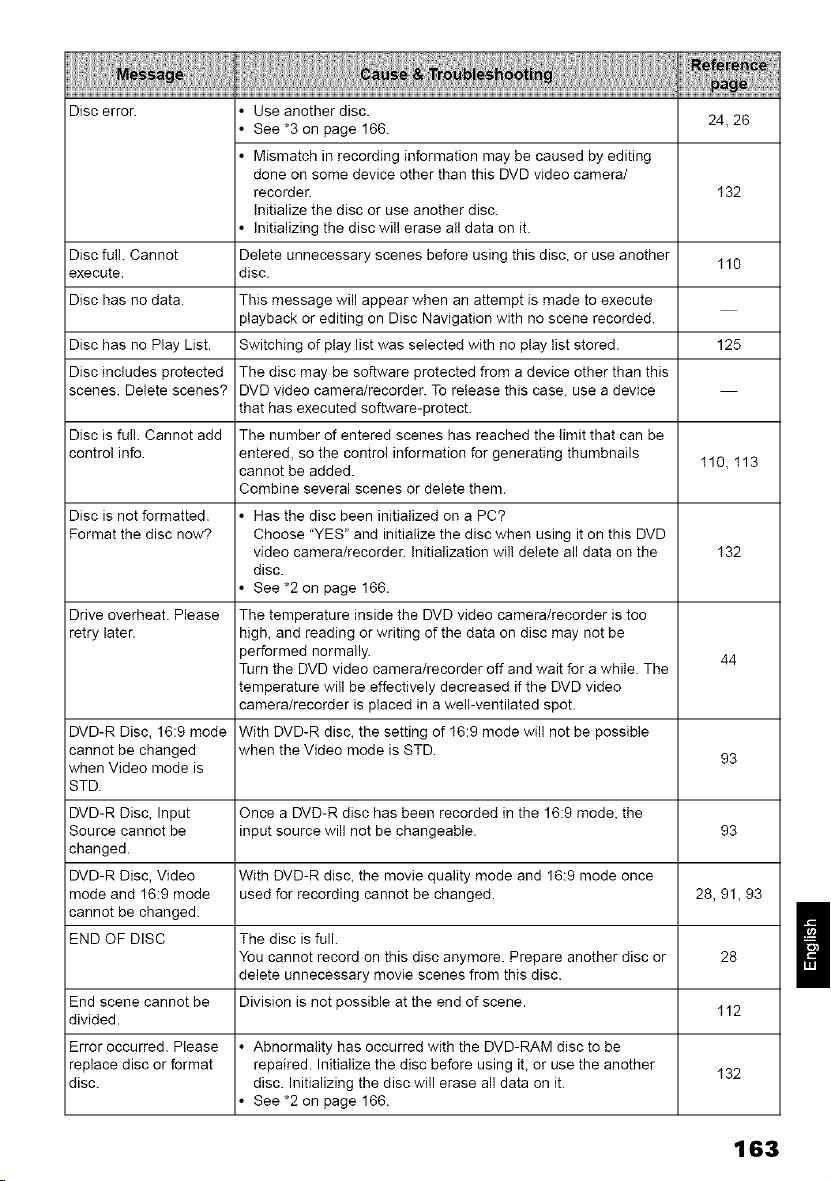
Disc error. • Use another disc.
• See *3 on page 166. 24, 26
• Mismatch in recording information may be caused by editing
done on some device other than this DVD video camera/
recorder. 132
Initialize the disc or use another disc.
• Initializing the disc will erase all data on it.
Disc full. Cannot Delete unnecessary scenes before using this disc, or use another 110
execute, disc.
Disc has no data. This message will appear when an attempt is made to execute
playback or editing on Disc Navigation with no scene recorded.
Disc has no Play List. Switching of play list was selected with no play list stored. 125
Disc includes protected The disc may be software protected from a device other than this
scenes. Delete scenes? DVD video camera/recorder. To release this case, use a device
that has executed software-protect.
Disc is ful!. Cannot add The number of entered scenes has reached the limit that can be
control info. entered, so the control information for generating thumbnails
cannot be added. 110, 113
Combine several scenes or delete them.
Disc is not formatted. • Has the disc been initialized on a PC?
Format the disc now? Choose "YES" and initialize the disc when using it on this DVD
video camera/recorder. Initialization wil! delete all data on the I32
disc.
• See *2 on page 166.
Drive overheat. Please The temperature inside the DVD video camera/recorder is too
retry later, high, and reading or writing of the data on disc may not be
performed normally. 44
Turn the DVD video camera/recorder off and wait for a while. The
temperature will be effectively decreased if the DVD video
camera/recorder is placed in a well-ventilated spot.
DVD-R Disc, 16:9 mode With DVD-R disc, the setting of I6:9 mode will not be possible
cannot be changed when the Video mode is STD. 93
when Video mode is
STD.
DVD-R Disc, Input Once a DVD-R disc has been recorded in the 16:9 mode, the
Source cannot be input source will not be changeable. 93
changed.
DVD-R Disc, Video With DVD-R disc, the movie quality mode and 16:9 mode once
mode and 16:9 mode used for recording cannot be changed. 28, 91, 93
cannot be changed.
END OF DISC The disc is full.
You cannot record on this disc anymore. Prepare another disc or 28
delete unnecessary movie scenes from this disc.
End scene cannot be Division is not possible at the end of scene.
divided. 112
Error occurred. Please • Abnormality has occurred with the DVD-RAM disc to be
replace disc or format repaired. Initialize the disc before using it, or use the another
132
disc. disc. Initializing the disc will erase all data on it.
• See *2 on page 166.
163
/
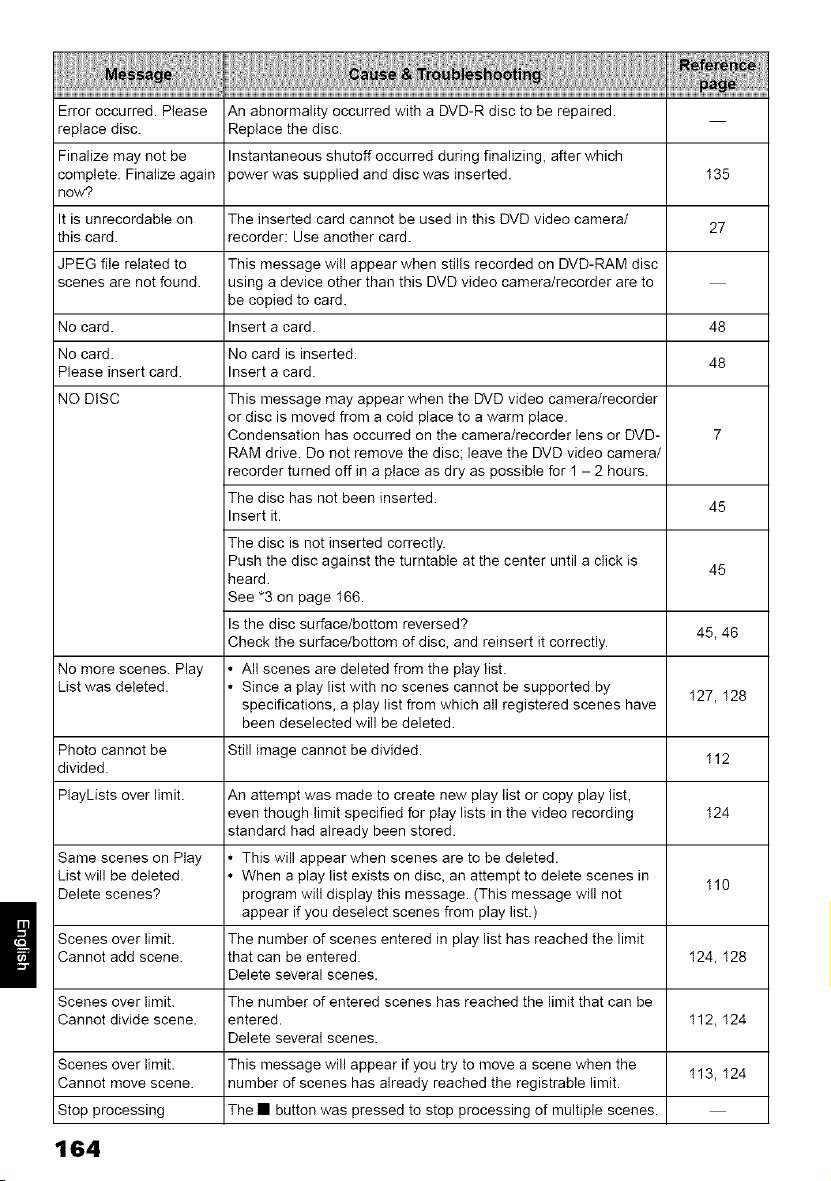
Error occurred. Please An abnormality occurred with a DVD-R disc to be repaired.
replace disc. Replace the disc.
Finalize may not be Instantaneous shutoff occurred during finalizing, after which
complete. Finalize again 3ower was supplied and disc was inserted. I35
now?
It is unrecordable on The inserted card cannot be used in this DVD video camera/
27
this card. recorder: Use another card.
JPEG file related to This message will appear when stills recorded on DVD-RAM disc
scenes are not found, using a device other than this DVD video camera/recorder are to
be copied to card.
No card. Insert a card. 48
No card. No card is inserted.
Please insert card. Insert a card. 48
NO DISC This message may appear when the DVD video camera/recorder
or disc is moved from a cold place to a warm place.
Condensation has occurred on the camera/recorder lens or DVD- 7
RAM drive. Do not remove the disc; leave the DVD video camera/
recorder turned off in a place as dry as possible for 1 - 2 hours.
The disc has not been inserted.
Insert it. 45
The disc is not inserted correctly.
Push the disc against the turntable at the center until a click is
45
heard.
See *3 on page I66.
Is the disc surface/bottom reversed?
Check the surface/bottom of disc, and reinsert it correctly. 45, 46
No more scenes. Play ° All scenes are deleted from the play list.
List was deleted. ° Since a play list with no scenes cannot be supported by
specifications, a play tist from which all registered scenes have I27, I28
been deselected will be deleted.
Photo cannot be Still image cannot be divided. 112
divided.
PlayLists over limit. An attempt was made to create new play list or copy play list,
even though limit specified for play lists in the video recording I24
standard had already been stored.
Same scenes on Play ° This will appear when scenes are to be deleted.
List will be deleted. ° When a play list exists on disc, an attempt to delete scenes in
I10
Delete scenes? program wilt display this message. (This message will not
appear if you deselect scenes from play list.)
Scenes over limit. The number of scenes entered in play list has reached the limit
Cannot add scene, that can be entered. I24, I28
Delete several scenes.
Scenes over limit. The number of entered scenes has reached the limit that can be
Cannot divide scene, entered. 112, I24
Delete several scenes.
Scenes over limit. This message will appear if you try to move a scene when the 113, I24
Cannot move scene, number of scenes has already reached the registrable limit.
Stop processing The • button was pressed to stop processing of multiple scenes.
164
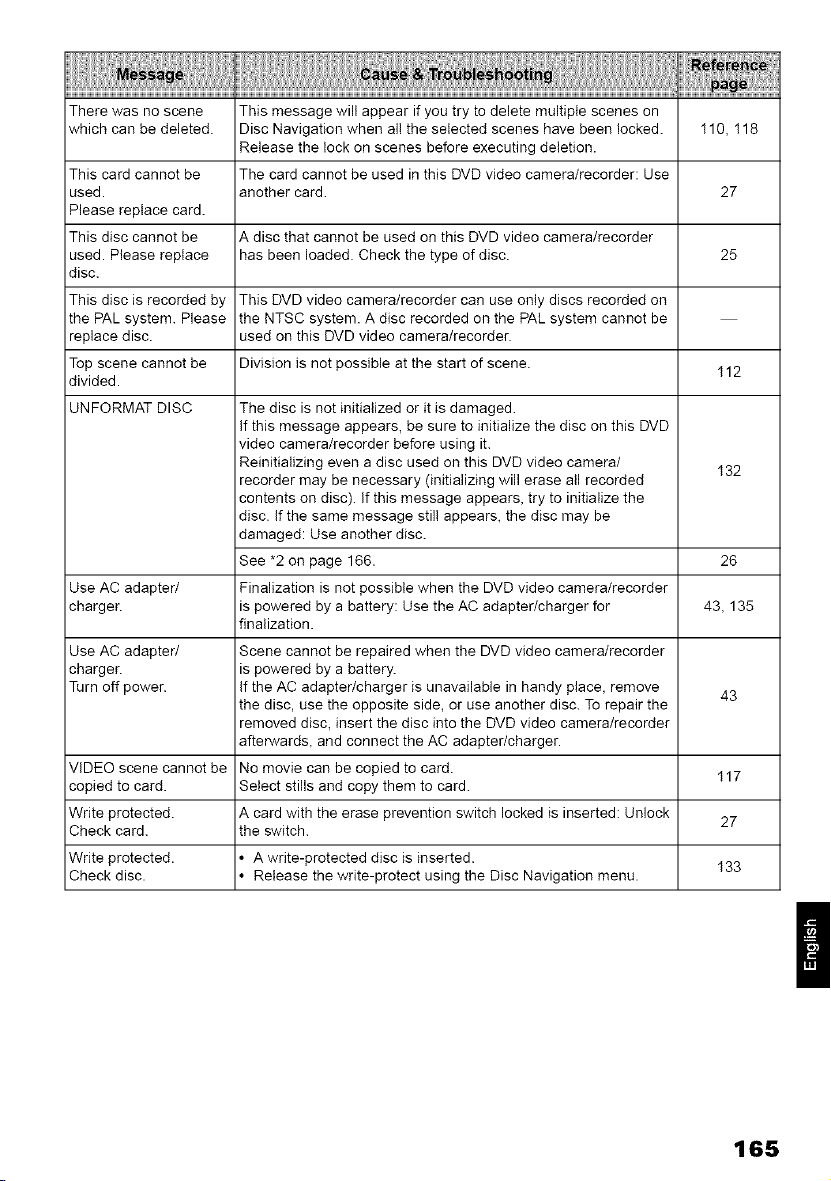
There was no scene This message will appear if you try to delete multiple scenes on
which can be deleted. Disc Navigation when al! the selected scenes have been locked. 110, 118
Release the lock on scenes before executing deletion.
This card cannot be The card cannot be used in this DVD video camera/recorder: Use
used. another card. 27
Please replace card.
This disc cannot be A disc that cannot be used on this DVD video camera/recorder
used. Please replace has been loaded. Check the type of disc. 25
disc.
This disc is recorded by This DVD video camera/recorder can use only discs recorded on
the PAL system. Please the NTSC system. A disc recorded on the PAL system cannot be
replace disc. used on this DVD video camera/recorder.
Top scene cannot be Division is not possible at the start of scene.
I12
divided.
UNFORMAT DISC
Use AC adapter/
charger.
Use AC adapter/
charger.
Turn off powen
VIDEO scene cannot be
copied to card.
Write protected.
Check card.
Write protected.
Check disc.
The disc is not initialized or it is damaged.
if this message appears, be sure to initialize the disc on this DVD
video camera/recorder before using it.
Reinitializing even a disc used on this DVD video camera/
recorder may be necessary (initializing will erase all recorded
contents on disc), if this message appears, try to initialize the
disc. (f the same message stil! appears, the disc may be
damaged: Use another disc.
See *2 on page 166.
Finalization is not possible when the DVD video camera/recorder
is powered by a battery: Use the AC adapter/charger for
finalization.
Scene cannot be repaired when the DVD video camera/recorder
is powered by a battery.
If the AC adapter/charger is unavailable in handy place, remove
the disc, use the opposite side, or use another disc. To repair the
removed disc, insert the disc into the DVD video camera/recorder
afterwards, and connect the AC adapter/charger.
No movie can be copied to card.
Select stills and copy them to card.
A card with the erase prevention switch locked is inserted: Unlock
the switch.
• A write-protected disc is inserted.
• Release the write-protect using the Disc Navigation menu.
132
26
43,135
43
I17
27
I33
/
165
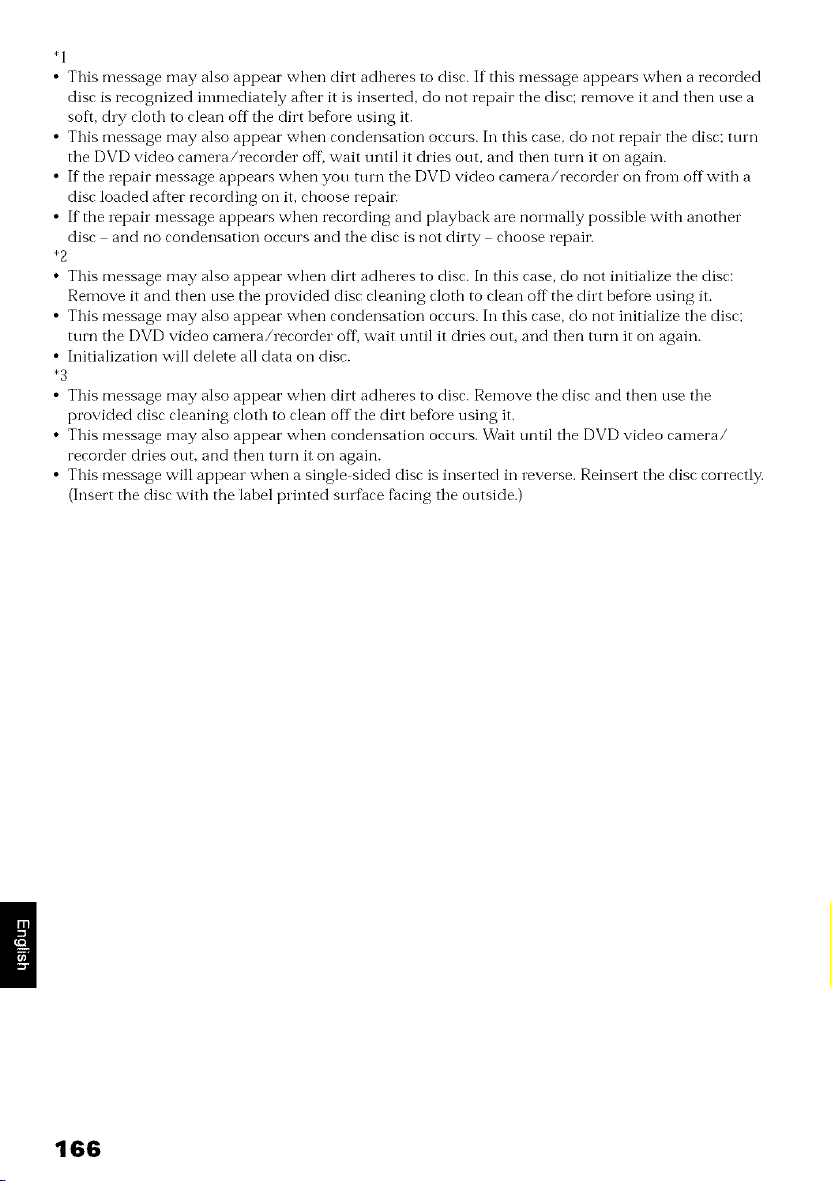
*1
• This message may also appear when dirt adheres to disc. If this message appears when a recorded
disc is recognized immediately after it is inserted, do not repair the disc; remove it and then use a
soft, dry cloth to clean off tile dirt be%re using it.
• This message may also appear when condensation occm's. In this case, do not repair the disc; turn
the DVD video camera/recorder off, wait mltil it dries out, and then turn it on again.
• If the repair message appears when you turn the DVD video camera/recorder on fl'om offwith a
disc loaded after recording on it, choose repaii:
• If the repair message appears when recording and playback are normally possible with another
disc and no condensation occurs and the disc is not dirty choose repaii:
*2
This message may also appear when dirt adheres to disc. In this case, do not initialize the disc:
Remove it and then use the provided disc cleaning cloth to clean off the dirt before using it.
This message may also appear when condensation occurs. In this case, do not initialize the disc;
turn the DVD video camera/recorder off, wait until it dries out, and then turn it on again.
Initialization will delete all data on disc.
*3
This message may also appear when dirt adheres to disc. Remove the disc and then use the
provided disc cleaning cloth to clean off the dirt befigre using it.
This message may also appear when condensation occurs. Wait until the DVD video camera/
recorder dries out, and then tm'n it on again.
This message will appear when a single sided disc is inserted in reverse. Reinsert the disc correctly.
(Insert the disc with the label printed surface facing the outside.)
166
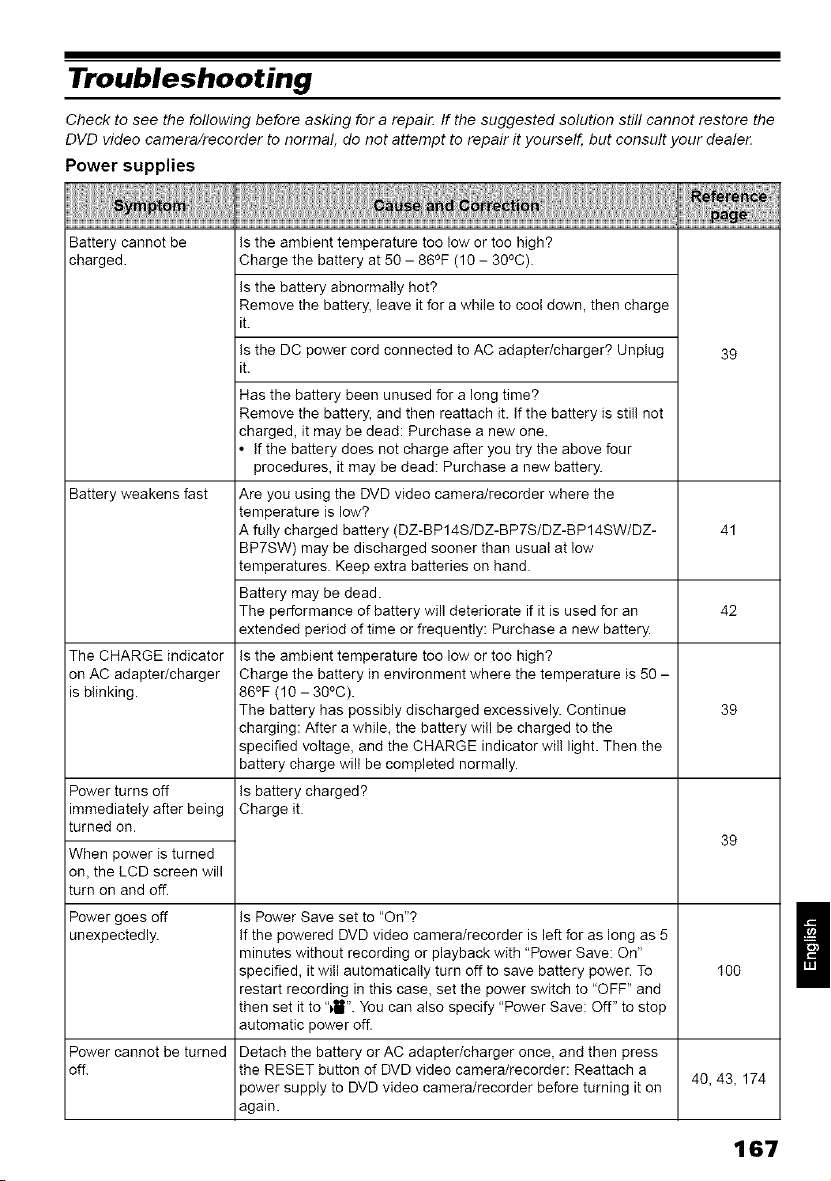
Troubleshooting
Check to see the following before asking for a repai_ If the suggested solution stil! cannot restore the
DVD video camera/recorder to normal, do not attempt to repair it yourself, but consult your dealer.
Power supplies
Battery cannot be
charged.
39
Battery weakens fast
41
42
The CHARGE indicator
on AC adapter/charger
is blinking.
Is the ambient temperature too low or too high?
Charge the battery at 50 - 86°F (10 - 30°C).
Is the battery abnormally hot?
Remove the battery, leave it for a while to cool down, then charge
it.
Is the DC power cord connected to AC adapter/charger? Unplug
it.
Has the battery been unused for a long time?
Remove the battery, and then reattach it. If the battery is stil! not
charged, it may be dead: Purchase a new one.
• If the battery does not charge after you try the above four
procedures, it may be dead: Purchase a new battery.
Are you using the DVD video camera/recorder where the
temperature is low?
A fully charged battery (DZ-BP14S/DZ-BP7S/DZ-BP14SW/DZ-
BP7SW) may be discharged sooner than usual at low
temperatures. Keep extra batteries on hand.
Battery may be dead.
The performance of battery wil! deteriorate if it is used for an
extended period of time or frequently: Purchase a new battery.
Is the ambient temperature too low or too high?
Charge the battery in environment where the temperature is 50 -
86°F (10 - 30°C).
The battery has possibly discharged excessively. Continue
charging: After a while, the battery will be charged to the
specified voltage, and the CHARGE indicator wil! light. Then the
battery charge wilt be completed normally.
Is battery charged?
Charge it.
Power turns off
immediately after being
turned on.
When power is turned
on, the LCD screen will
turn on and off.
Power goes off
unexpectedly.
Is Power Save set to "On"?
If the powered DVD video camera/recorder is left for as long as 5
minutes without recording or playback with "Power Save: On"
specified, it will automatically turn off to save battery power. To
restart recording in this case, set the power switch to "OFF" and
then set it to "411". You can also specify "Power Save: Off" to stop
automatic power off.
Detach the battery or AC adapter/charger once, and then press
the RESET button of DVD video camera/recorder: Reattach a
power supply to DVD video camera/recorder before turning it on
again.
39
39
I 0o
Power cannot be turned
off. 40, 43, 174
167
II
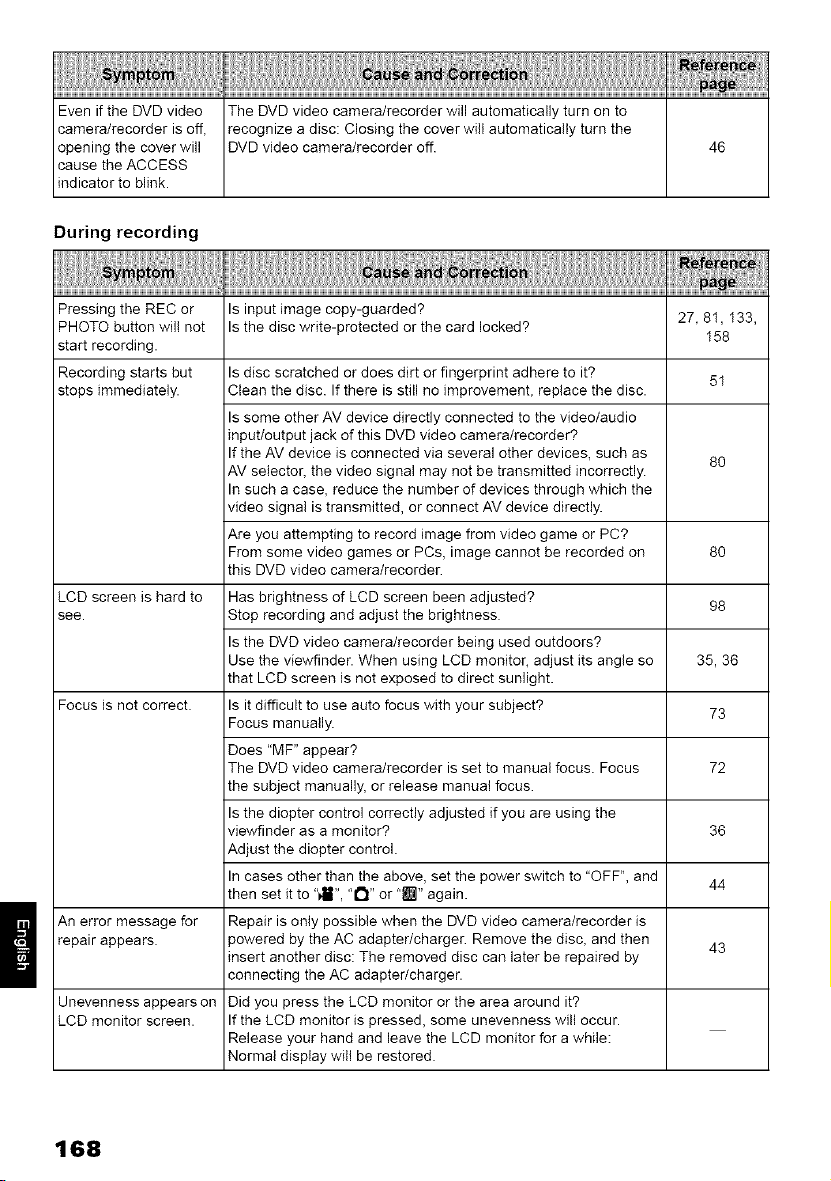
Even if the DVD video The DVD video camera/recorder will automatically turn on to
camera/recorder is off, recognize a disc: Closing the cover witl automatically turn the
opening the cover will DVD video camera/recorder off. 46
cause the ACCESS
indicator to blink.
During recording
Pressing the REC or Is input image copy-guarded? 27, 8I, I33,
PHOTO button wil! not Is the disc write-protected or the card locked?
start recording. I58
Recording starts but Is disc scratched or does dirt or fingerprint adhere to it?
5I
stops immediately. Clean the disc. If there is still no improvement, replace the disc.
Is some other AV device directly connected to the video/audio
input/output jack of this DVD video camera/recorder?
If the AV device is connected via several other devices, such as
80
AV selector, the video signal may not be transmitted incorrectly.
In such a case, reduce the number of devices through which the
video signal is transmitted, or connect AV device directly.
Are you attempting to record image from video game or PC?
From some video games or PCs, image cannot be recorded on 80
this DVD video camera/recorder.
LCD screen is hard to Has brightness of LCD screen been adjusted? 98
see. Stop recording and adjust the brightness.
Is the DVD video camera/recorder being used outdoors?
Use the viewfinder. When using LCD monitor, adjust its angle so 35, 36
that LCD screen is not exposed to direct sunlight.
Focus is not correct. Is it difficult to use auto focus with your subject? 73
Focus manually.
Does "MF" appear?
The DVD video camera/recorder is set to manual focus. Focus 72
the subject manually, or release manual focus.
Is the diopter control correctly adjusted if you are using the
viewfinder as a monitor? 36
Adjust the diopter control.
In cases other than the above, set the power switch to "OFF", and
then set it to "411", "1_1" or "lt_" again. 44
An error message for Repair is only possible when the DVD video camera/recorder is
repair appears, powered by the AC adapter/charger. Remove the disc, and then
43
insert another disc: The removed disc can later be repaired by
connecting the AC adapter/charger.
Unevenness appearson Did you press the LCD monitor or the area around it?
LCD monitor screen. If the LCD monitor is pressed, some unevenness will occur.
Release your hand and leave the LCD monitor for a while:
Normal display witl be restored.
168
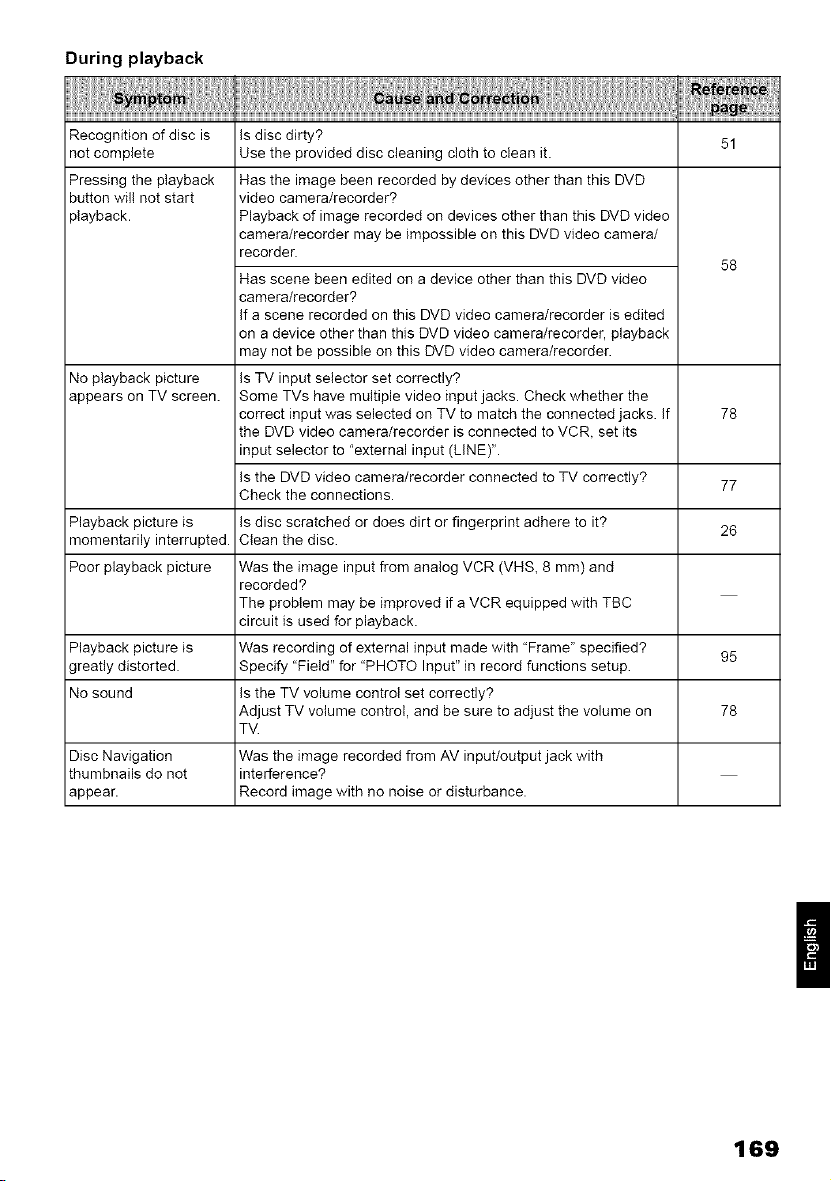
During playback
51
Recognition of disc is
not complete
Pressing the playback
button wil! not start
playback.
58
is disc dirty?
Use the provided disc cleaning cloth to clean it.
Has the image been recorded by devices other than this DVD
video camera/recorder?
Playback of image recorded on devices other than this DVD video
camera/recorder may be impossible on this DVD video camera/
recorder.
Has scene been edited on a device other than this DVD video
camera/recorder?
(f a scene recorded on this DVD video camera/recorder is edited
on a device other than this DVD video camera/recorder, playback
may not be possible on this DVD video camera/recorder.
is TV input selector set correctly?
Some TVs have multiple video input jacks. Check whether the
correct input was selected on TV to match the connected jacks, if
the DVD video camera/recorder is connected to VCR, set its
input selector to "external input (LINE)".
is the DVD video camera/recorder connected to TV correctly?
Check the connections.
is disc scratched or does dirt or fingerprint adhere to it?
Clean the disc.
Was the image input from analog VCR (VHS, 8 mm) and
recorded?
The problem may be improved if a VCR equipped with TBC
circuit is used for playback.
Was recording of external input made with "Frame" specified?
Specify "Field" for "PHOTO Input" in record functions setup.
is the TV volume control set correctly?
Adjust TV volume control, and be sure to adjust the volume on
TV.
Was the image recorded from AV input/output jack with
interference?
Record image with no noise or disturbance.
No playback picture
appears on TV screen.
78
77
Playback picture is 26
momentarily interrupted.
Poor playback picture
Playback picture is 95
greatly distorted.
No sound
78
Disc Navigation
thumbnails do not
appear.
169
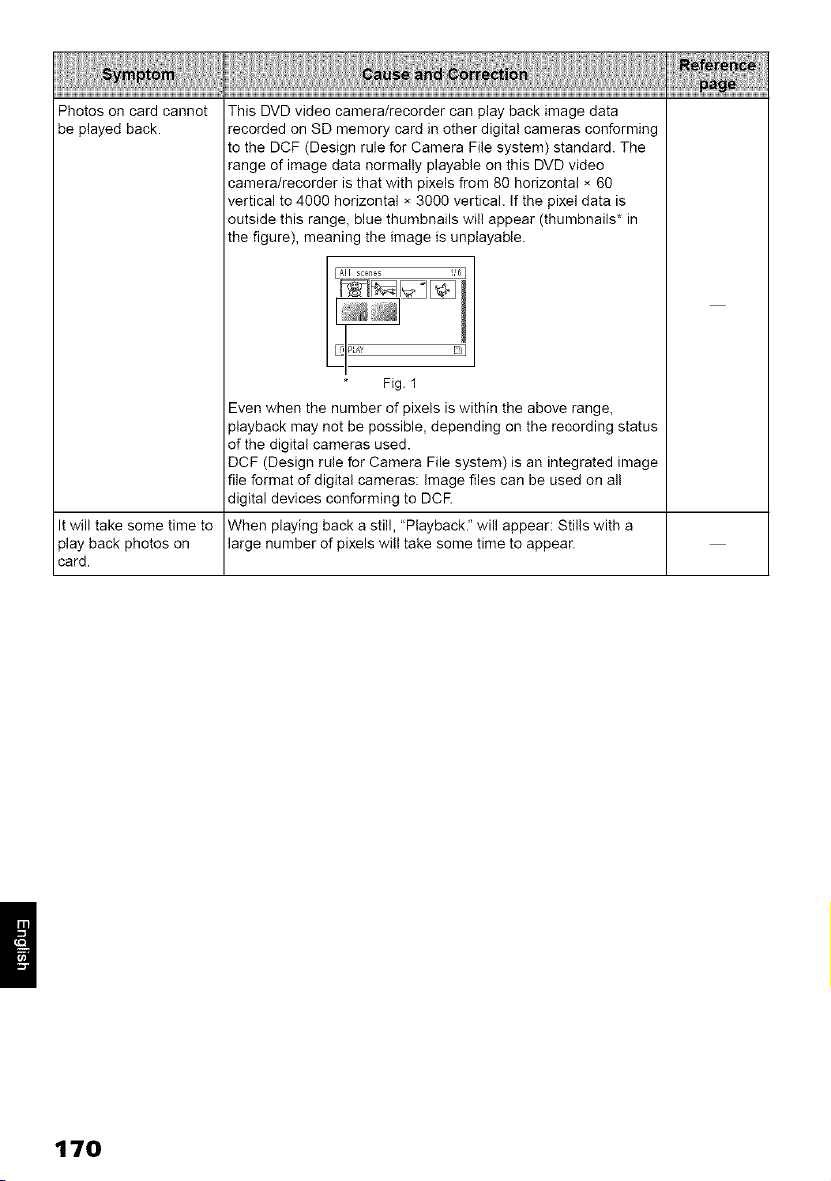
Photos on card cannot
be played back.
This DVD video camera/recorder can play back image data
recorded on SD memory card in other digital cameras conforming
to the DCF (Design rule for Camera File system) standard. The
range of image data normally playable on this DVD video
camera/recorder is that with pixels from 80 horizontal × 60
vertical to 4000 horizontal × 3000 vertical. If the pixel data is
outside this range, blue thumbnails will appear (thumbnails* in
the figure), meaning the image is unplayable.
It wil! take some time to
play back photos on
card.
Fig. 1
Even when the number of pixels is within the above range,
playback may not be possible, depending on the recording status
of the digital cameras used.
DCF (Design rule for Camera File system) is an integrated image
file format of digital cameras: Image files can be used on al!
digital devices conforming to DCE
When playing back a still, "Playback." will appear: Stills with a
large number of pixels will take some time to appear.
170
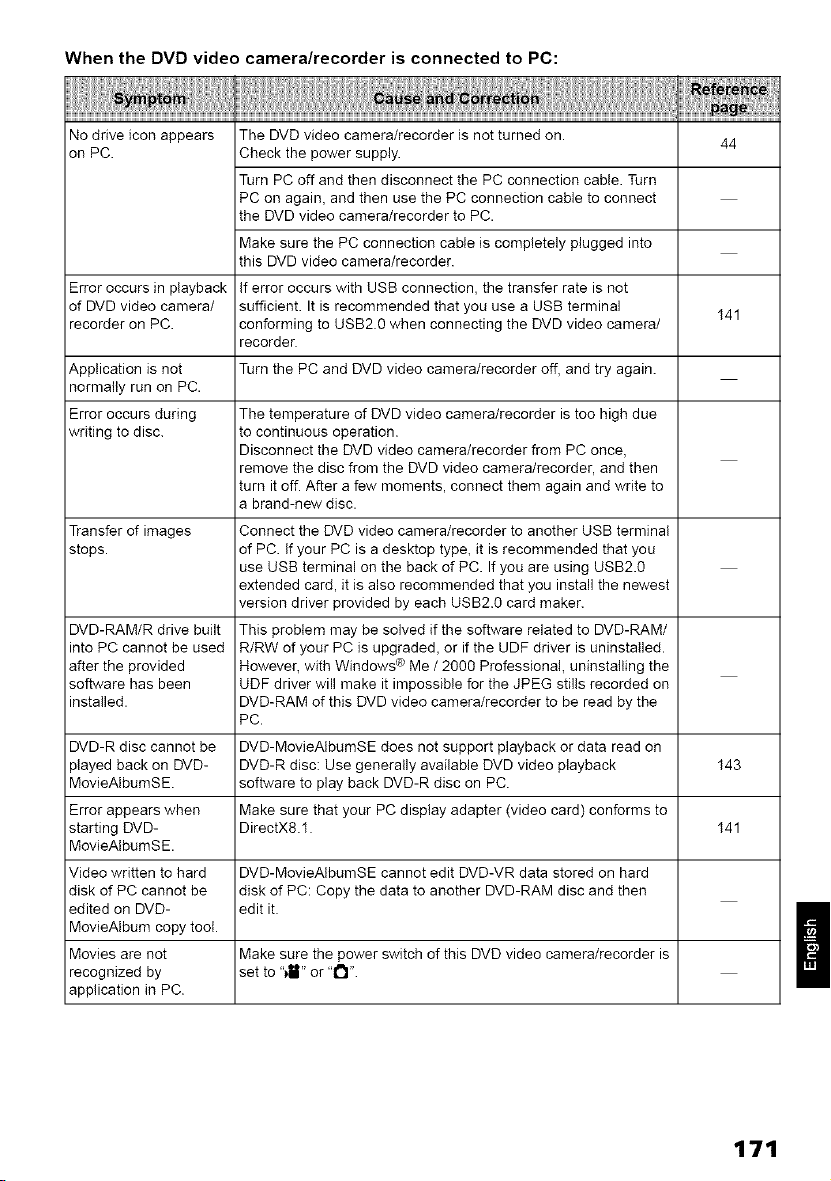
When the DVD video camera/recorder is connected to PC:
No drive icon appears The DVD video camera/recorder is not turned on.
44
on PC. Check the power supply.
Turn PC off and then disconnect the PC connection cable. Turn
PC on again, and then use the PC connection cable to connect
the DVD video camera/recorder to PC.
Make sure the PC connection cable is completely plugged into
this DVD video camera/recorder.
Error occurs in playback If error occurs with USB connection, the transfer rate is not
of DVD video camera/ sufficient. It is recommended that you use a USB terminal
I41
recorder on PC. conforming to USB2.0 when connecting the DVD video camera/
recorder.
Application is not Turn the PC and DVD video camera/recorder off, and try again.
normatty run on PC.
Error occurs during The temperature of DVD video camera/recorder is too high due
writing to disc. to continuous operation.
Disconnect the DVD video camera/recorder from PC once,
remove the disc from the DVD video camera/recorder, and then
turn it off. After a few moments, connect them again and write to
a brand-new disc.
Transfer of images Connect the DVD video camera/recorder to another USB terminal
stops, of PC. If your PC is a desktop type, it is recommended that you
use USB terminal on the back of PC. If you are using USB2.O
extended card, it is also recommended that you install the newest
version driver provided by each USB2.O card maker.
DVD-RAM/R drive built This problem may be solved if the software related to DVD-RAM/
into PC cannot be used R/RW of your PC is upgraded, or if the UDF driver is uninstalled.
after the provided However, with Windows ® Me / 2000 Professional, uninstatling the
software has been UDF driver will make it impossible for the JPEG stills recorded on
installed. DVD-RAM of this DVD video camera/recorder to be read by the
PC.
DVD-R disc cannot be DVD-MovieAtbumSE does not support playback or data read on
played back on DVD- DVD-R disc: Use generally available DVD video playback I43
MovieAlbumSE. software to play back DVD-R disc on PC.
Error appears when Make sure that your PC display adapter (video card) conforms to
starting DVD- DirectX8.1. I41
MovieAlbumSE.
Video written to hard DVD-MovieAtbumSE cannot edit DVD-VR data stored on hard
disk of PC cannot be disk of PC: Copy the data to another DVD-RAM disc and then
edited on DVD- edit it.
MovieAlbum copy tool.
Movies are not Make sure the power switch of this DVD video camera/recorder is
recognized by set to "411"or "1_1".
application in PC.
II
111
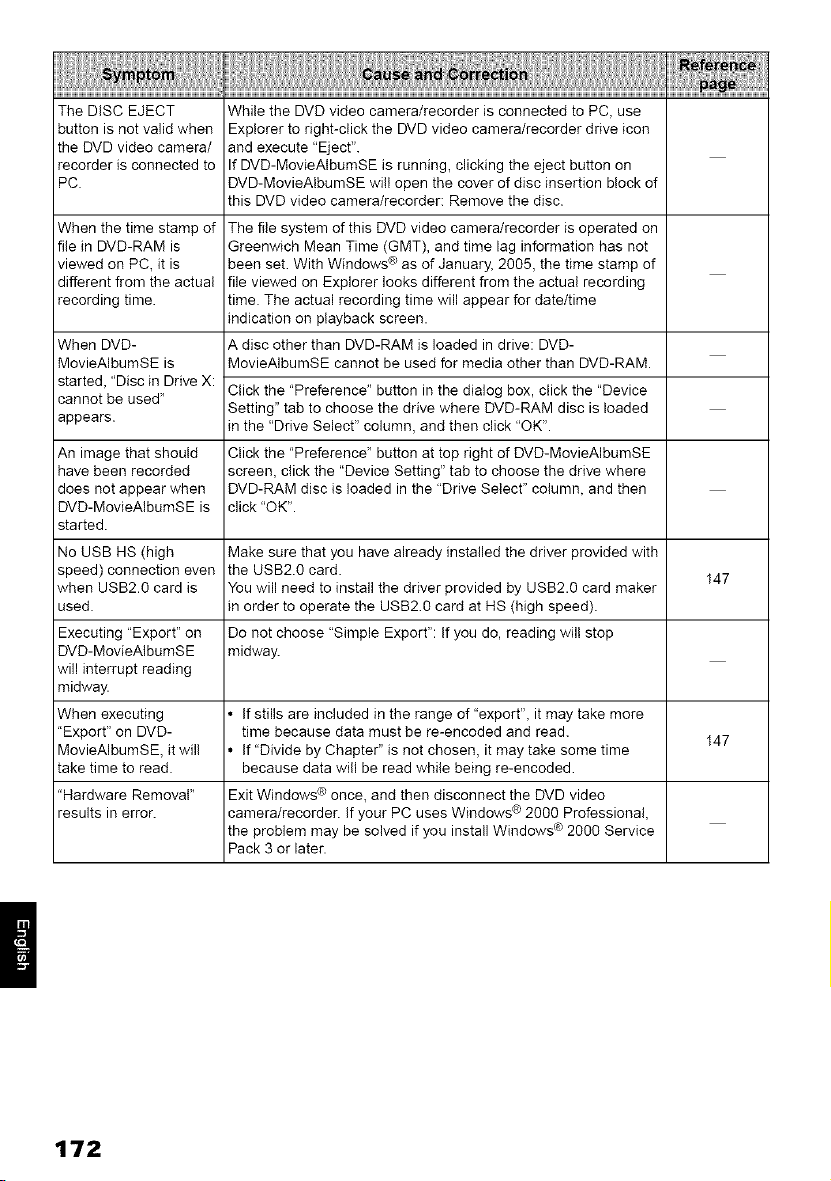
The DISC EJECT While the DVD video camera/recorder is connected to PC, use
button is not valid when Explorer to right-click the DVD video camera/recorder drive icon
the DVD video camera/ and execute "Eject".
recorder is connected to If DVD-MovieAtbumSE is running, clicking the eject button on
PC. DVD-MovieAIbumSE wi!l open the cover of disc insertion block of
this DVD video camera/recorder: Remove the disc.
When the time stamp of The file system of this DVD video camera/recorder is operated on
file in DVD-RAM is Greenwich Mean Time (GMT), and time lag information has not
viewed on PC, it is been set. With Windows ® as of January, 2005, the time stamp of
different from the actual file viewed on Explorer looks different from the actual recording
recording time, time, The actual recording time will appear for date/time
indication on playback screen,
When DVD- A disc other than DVD-RAM is loaded in drive: DVD-
MovieAIbumSE is MovieAIbumSE cannot be used for media other than DVD-RAM
started, "Disc in Drive X:
cannot be used" Click the "Preference" button in the dialog box, click the "Device
Setting" tab to choose the drive where DVD-RAM disc is loaded
appears, in the "Drive Select" column, and then click "OK",
An image that should Click the "Preference" button at top right of DVD-MovieAIbumSE
have been recorded screen, click the "Device Setting" tab to choose the drive where
does not appear when DVD-RAM disc is loaded in the "Drive Select" column, and then
DVD-MovieAlbumSE is click "OK",
started,
No USB HS (high Make sure that you have already installed the driver provided with
speed) connection even the USB2.0 card.
I47
when USB2.0 card is You will need to install the driver provided by USB2.0 card maker
used, in order to operate the USS2.0 card at HS (high speed).
Executing "Export" on Do not choose "Simple Export": If you do, reading wil! stop
DVD-MovieAtbumSE midway.
will interrupt reading
midway,
When executing • If stills are included in the range of "export", it may take more
"Export" on DVD- time because data must be re-encoded and read.
I47
MovieAIbumSE, it wil! • If "Divide by Chapter" is not chosen, it may take some time
take time to read, because data will be read while being re-encoded.
"Hardware Removal" Exit Windows ® once, and then disconnect the DVD video
results in error, camera/recorder. If your PC uses Windows ® 2000 Professional,
the problem may be solved if you install Windows ® 2000 Service
Pack 3 or later,
172
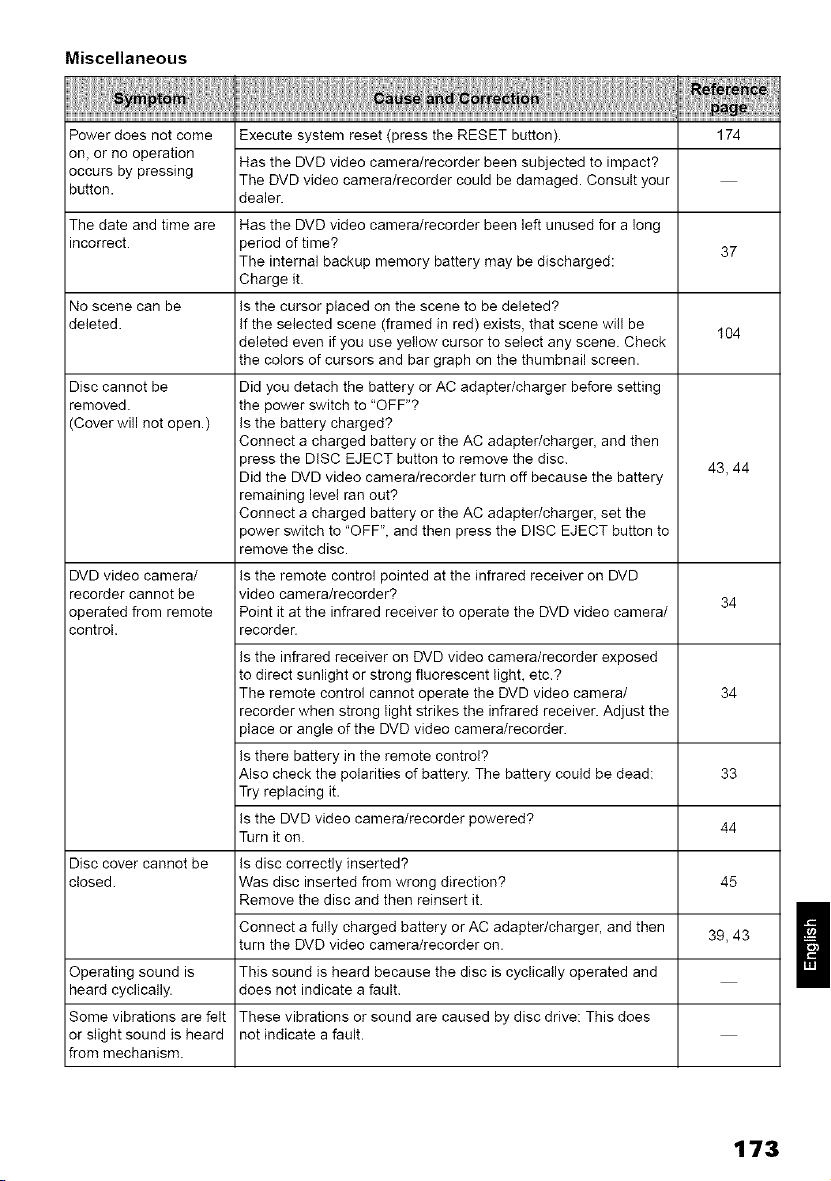
Miscellaneous
Power does not come 174
on, or no operation
occurs by pressing
button.
The date and time are
incorrect. 37
No scene can be
deleted. 104
Disc cannot be
removed.
Cover will not open.)
43, 44
Execute system reset (press the RESET button).
Has the DVD video camera/recorder been subjected to impact?
The DVD video camera/recorder could be damaged. Consult your
dealer.
Has the DVD video camera/recorder been left unused for a long
period of time?
The internal backup memory battery may be discharged:
Charge it.
is the cursor placed on the scene to be deleted?
If the selected scene (framed in red) exists, that scene will be
deleted even if you use yellow cursor to select any scene. Check
the colors of cursors and bar graph on the thumbnail screen.
Did you detach the battery or AC adapter/charger before setting
the power switch to "OFF"?
is the battery charged?
Connect a charged battery or the AC adapter/charger, and then
press the DISC EJECT button to remove the disc.
Did the DVD video camera/recorder turn off because the battery
remaining level ran out?
Connect a charged battery or the AC adapter/charger, set the
power switch to "OFF", and then press the DISC EJECT button to
remove the disc.
is the remote control pointed at the infrared receiver on DVD
video camera/recorder?
Point it at the infrared receiver to operate the DVD video camera/
recorder.
is the infrared receiver on DVD video camera/recorder exposed
to direct sunlight or strong fluorescent light, etc.?
The remote control cannot operate the DVD video camera/
recorder when strong light strikes the infrared receiver. Adjust the
place or angle of the DVD video camera/recorder.
is there battery in the remote control?
Also check the polarities of battery. The battery could be dead:
Try replacing it.
(s the DVD video camera/recorder powered?
Turn it on.
(s disc correctly inserted?
Was disc inserted from wrong direction?
Remove the disc and then reinsert it.
Connect a fully charged battery or AC adapter/charger, and then
turn the DVD video camera/recorder on.
This sound is heard because the disc is cyclically operated and
does not indicate a fault.
These vibrations or sound are caused by disc drive: This does
not indicate a fault.
DVD video camera/
recorder cannot be 34
operated from remote
control.
34
33
44
Disc cover cannot be
closed. 45
39, 43
Operating sound is
heard cyclically.
Some vibrations are felt
or slight sound is heard
from mechanism.
II
173
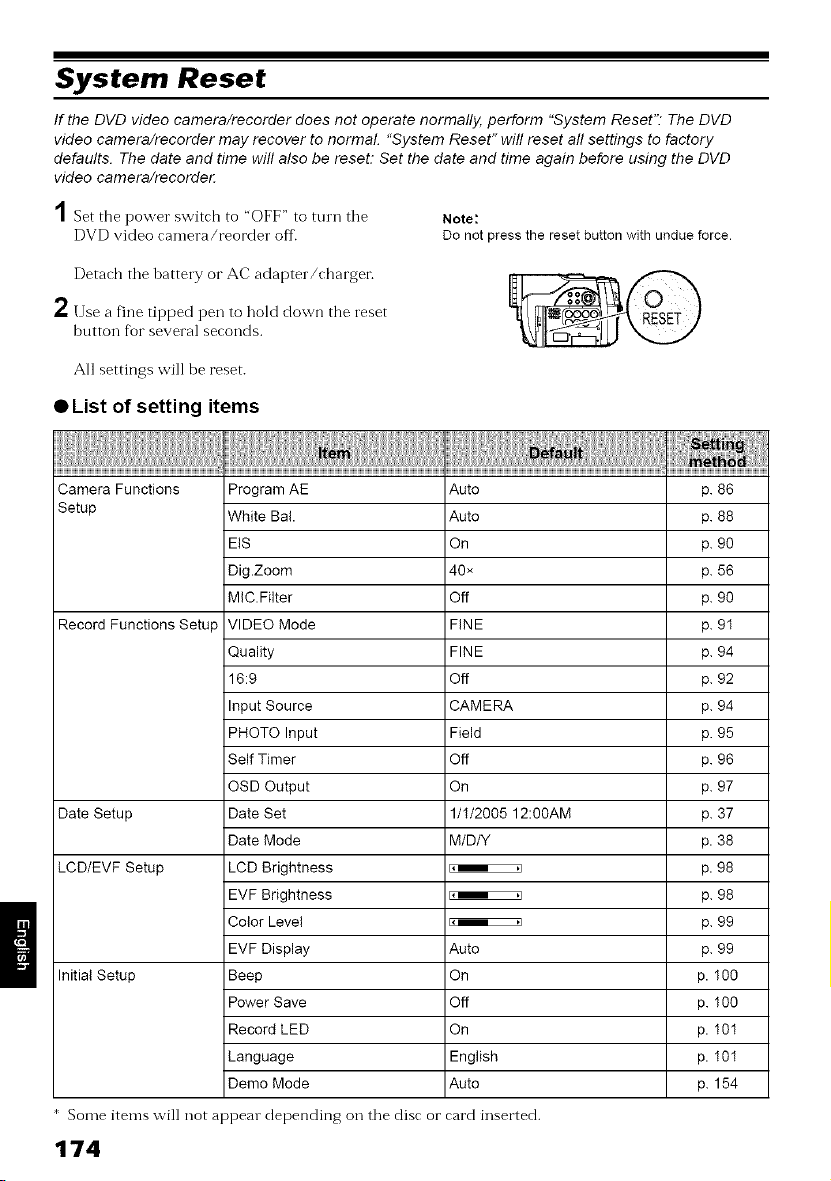
System Reset
If the DVD video camera/recorder does not operate normally, perform "System Reset'? The DVD
video camera/recorder may recover to normal "System Reset" wil! reset aft settings to factory
defaults. The date and time will also be reset: Set the date and time again before using the DVD
video camera/recordett
A
/ Set the power switch to "OFF" to tnrn tile
DVD video camera/reorder off.
Note:
Do not press the reset button with undue force.
Detach tile battery or AC adapter/charger.
2 Use a fine tipped pen to hold down the reset
button for several seconds.
All settings will be reset.
• List of setting items
Camera Functions Program AE Auto p. 86
Setup White Bal. Auto p. 88
EtS On p. 90
Dig.Zoom 40× p. 56
MIC.Filter Off p. 90
Record Functions Setup VIDEO Mode FINE p. 9I
Quality FINE p. 94
16:9 Off p. 92
Input Source CAMERA p. 94
PHOTO Input Field p. 95
Self Timer Off p. 96
OSD Output On p. 97
Date Setup Date Set 1/I/2005 12:O0AM p. 37
Date Mode M/D/Y p. 38
LCD/EVF Setup LCD Brightness _ p. 98
EVF Brightness _ p. 98
Color Level _ p. 99
EVF Display Auto p. 99
Initial Setup Beep On p. I00
Power Save Off p. I00
Record LED On p. I0I
Language English p. I0I
Demo Mode Auto p. 154
Some items will not appear depending oil tile disc or card inserted.
174
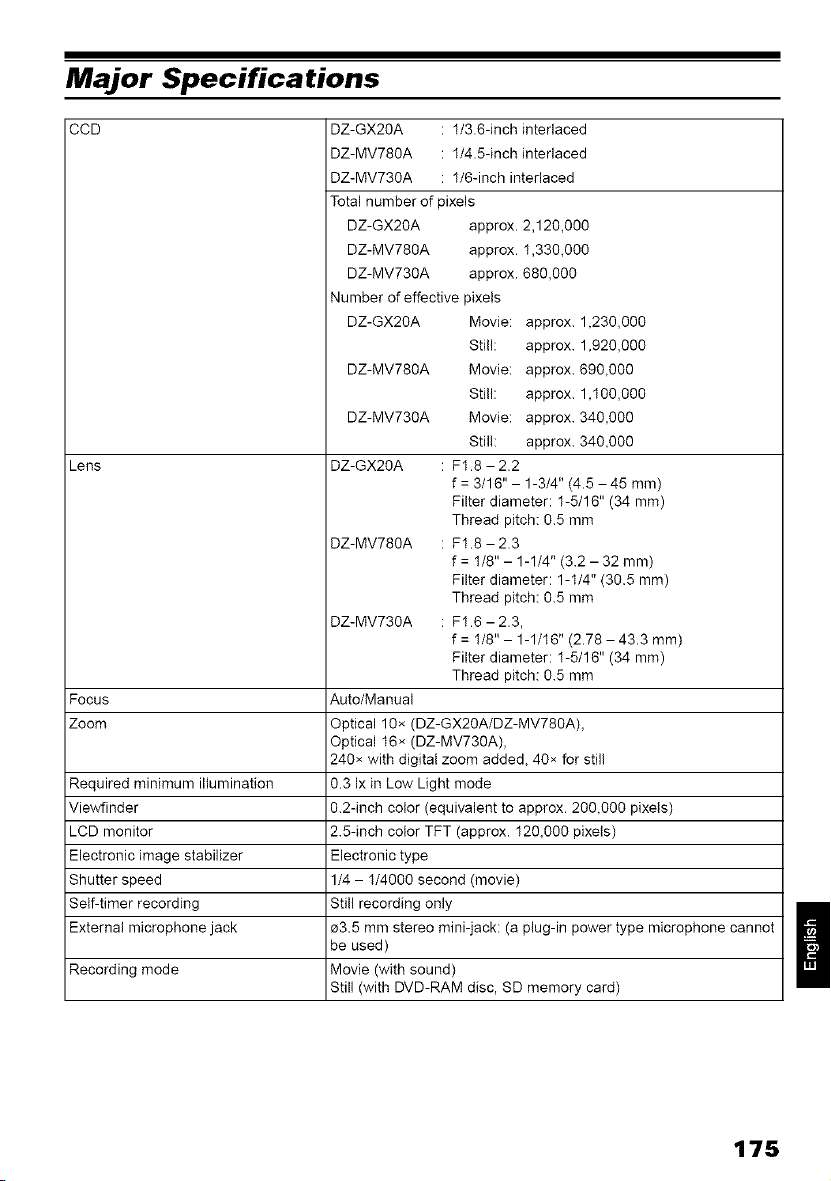
Major Specifications
CCD
Lens
Focus
Zoom
Required minimum illumination
Viewfinder
LCD monitor
Electronic image stabilizer
Shutter speed
Self-timer recording
External microphone jack
Recording mode
DZ-GX20A : 1/3.6-inch interlaced
DZ-MV780A : 1/4.5-inch interlaced
DZ-MV73OA : 1/6-inch interlaced
Total number of pixels
DZ-GX20A approx.
DZ-MV780A approx.
DZ-MV730A approx.
Number of effective pixets
DZ-GX20A Movie:
St)l(:
DZ-MV780A
DZ-MV730A
DZ-GX20A
2,120,000
1,330,000
680,000
approx. 1,230,000
approx. 1,920,000
Movie: approx. 690,000
Still: approx. 1,I00,000
Movie: approx. 340,000
Still: approx. 340,000
: FI.8 - 2.2
f : 3/16"- 1-3/4" (4.5 -45 mm)
Filter diameter: I-5/16" (34 mm)
Thread pitch: 0.5 mm
DZ-MV78OA : FI.8 - 2.3
f = I/8" - 1-1/4" (3.2 - 32 mm)
Filter diameter: 1-t/4" (30.5 mm)
Thread pitch: 0.5 mm
DZ-MV73OA : FI.6 - 2.3,
f = I/8" - 1-1/t6" (2.78 - 43.3 mm)
Filter diameter: I-5/16" (34 mm)
Thread pitch: 0.5 mm
Auto/Manual
Optical 10× (DZ-GX20A/DZ-MV780A),
Optical t6× (DZ-MV73OA),
240× with digital zoom added, 40× for stil!
0.3 Ix in Low Light mode
0.2-inch color (equivalent to approx. 200,000 pixels)
2.5-inch color TFT (approx. I20,000 pixets)
Electronic type
1/4 - 1/4000 second (movie)
Still recording only
zG.5 mm stereo mini-jack: (a plug-in power type microphone cannot
be used)
Movie (with sound)
Still (with DVD-RAM disc, SD memory card)
175
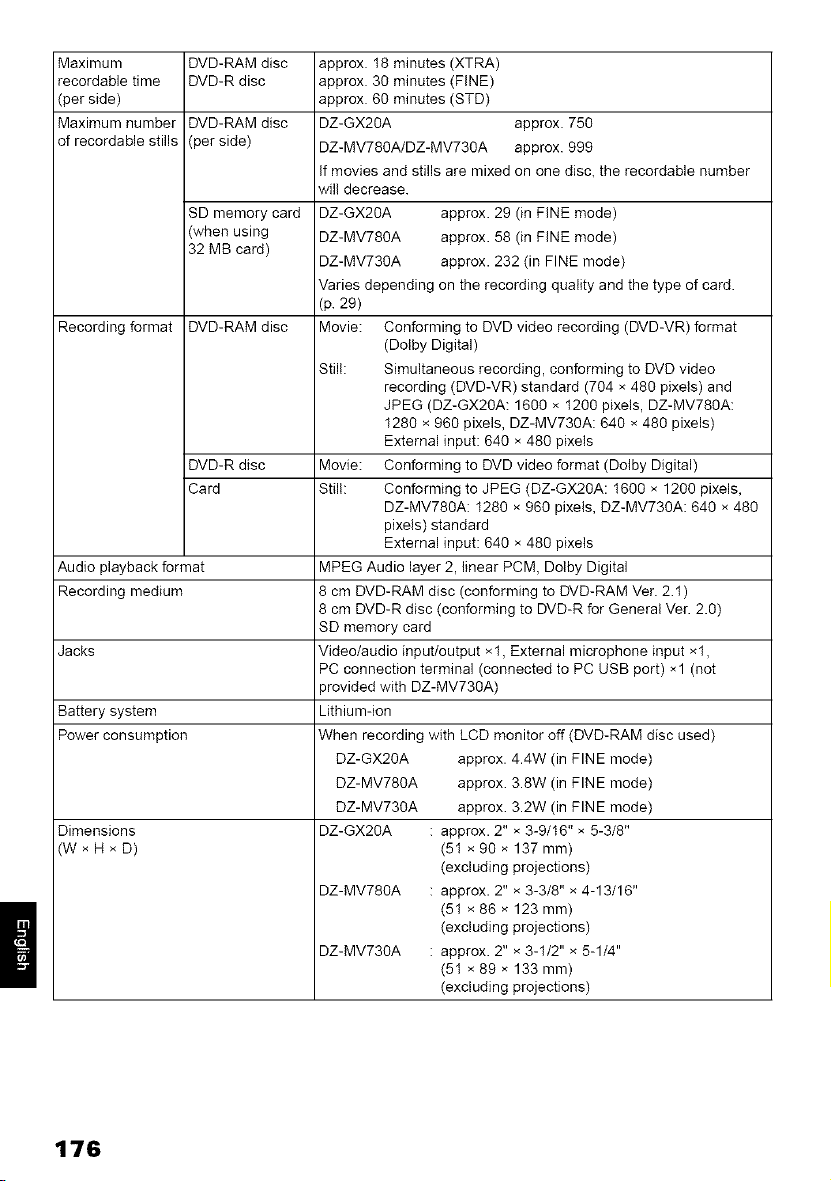
Maximum
recordable time
(per side)
Maximum number
of recordabte stills
Recording format
DVD-RAM disc
DVD-R disc
DVD-RAM disc
(per side)
SD memory card
(when using
32 MB card)
DVD-RAM disc
DVD-R disc
Card
Audio playback format
Recording medium
Jacks
Battery system
Power consumption
Dimensions
(W × H × D)
approx. I8 minutes (XTRA)
approx. 30 minutes (FINE)
approx. 60 minutes (STD)
DZ-GX20A approx. 750
DZ-MV78OA/DZ-MV730A approx. 999
If movies and stills are mixed on one disc, the recordable number
wil! decrease.
DZ-GX20A approx. 29 (in FINE mode)
DZ-MV78OA approx. 58 (in FINE mode)
DZ-MV73OA approx. 232 (in FINE mode)
Varies depending on the recording quality and the type of card.
(p. 29)
Movie: Conforming to DVD video recording (DVD-VR) format
(Dolby Digital)
Still: Simultaneous recording, conforming to DVD video
recording (DVD-VR) standard (704 × 480 pixets) and
JPEG (DZ-GX20A: 1600 × I200 pixels, DZ-MV78OA:
I280 × 960 pixels, DZ-MV73OA: 640 × 480 pixels)
External input: 640 × 480 pixets
Movie: Conforming to DVD video format (Dotby Digital)
Still: Conforming to JPEG (DZ-GX20A: I600 × 1200 pixels,
DZ-MV780A: I280 × 960 pixels, DZ-MV73OA: 640 × 480
pixels) standard
External input: 640 × 480 pixets
MPEG Audio layer 2, linear PCM, Dolby Digital
8 cm DVD-RAM disc (conforming to DVD-RAM Ver. 2.I)
8 cm DVD-R disc (conforming to DVD-R for General Ver. 2.0)
SD memory card
Video/audio input/output ×I, External microphone input ×I,
PC connection terminal (connected to PC USB port) ×1 (not
>rovided with DZ-MV730A)
Lithium-ion
When recording with LCD monitor off (DVD-RAM disc used)
DZ-GX20A approx. 4.4W (in FINE mode)
DZ-MV780A approx. 3.8W (in FINE mode)
DZ-MV730A approx. 3.2W (in FINE mode)
DZ-GX20A : approx. 2" × 3-9/t6" × 5-3/8"
(5I × 90 × 137 mm)
(excluding projections)
DZ-MV780A : approx. 2" × 3-3/8" × 4-13/16"
(5I × 86 × 123 mm)
(excluding projections)
DZ-MV730A : approx. 2" × 3-I/2" × 5-1/4"
(5I × 89 × 133 mm)
(excluding projections)
176
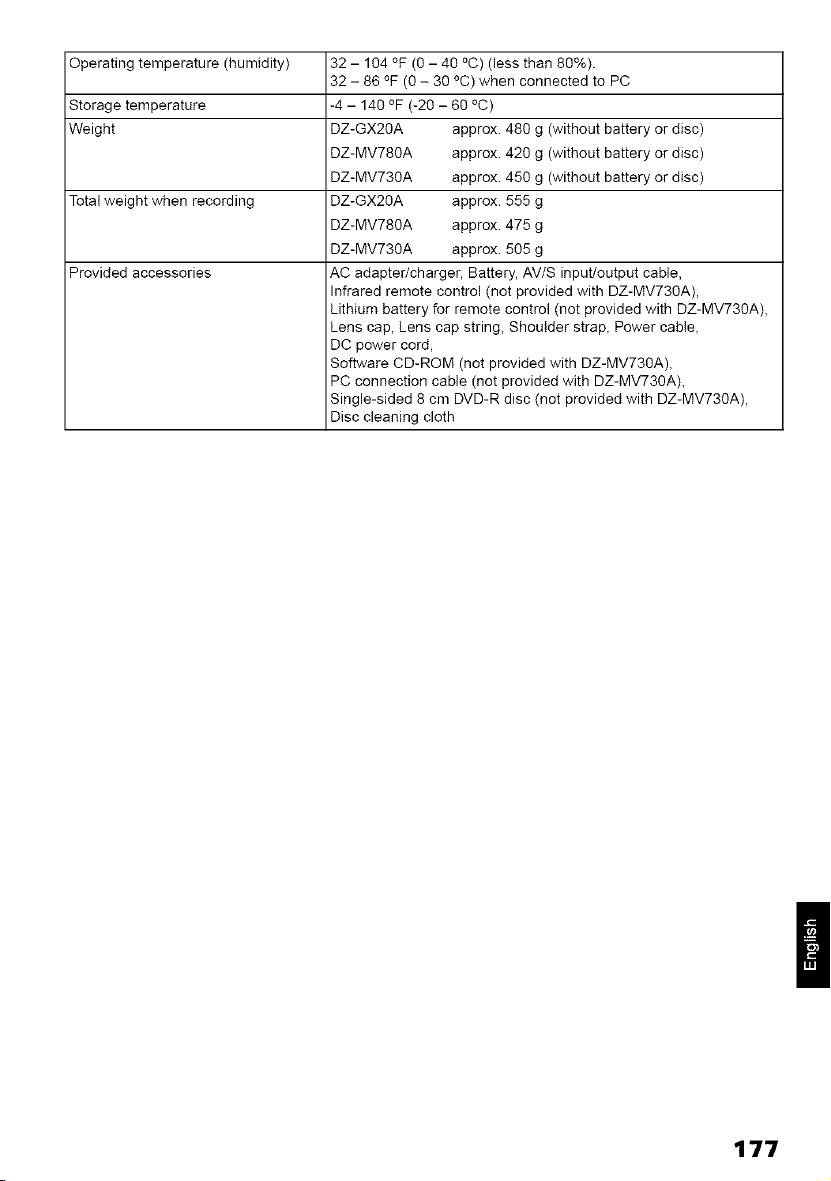
Operating temperature (humidity)
Storage temperature
Weight
Total weight when recording
Provided accessories
32 - 104 °F (0 - 40 °C) (less than 80%).
32 - 86 °F (0 - 30 °C) when connected to PC
-4 - 140 °F (-20 - 60 °C)
DZ-GX20A approx. 480 g (without battery or disc)
DZ-MV78OA approx. 420 g (without battery or disc)
DZ-MV73OA approx. 450 g (without battery or disc)
DZ-GX20A approx. 555 g
DZ-MV78OA approx. 475 g
DZ-MV73OA approx. 505 g
AC adapter/charger, Battery, AV/S input/output cable,
Infrared remote control (not provided with DZ-MV73OA),
Lithium battery for remote control (not provided with DZ-MV73OA),
Lens cap, Lens cap string, Shoulder strap, Power cable,
DC power cord,
Software CD-ROM (not provided with DZ-MV730A),
PC connection cable (not provided with DZ-MV73OA),
Single-sided 8 cm DVD-R disc (not provided with DZ-MV73OA),
Disc cleaning cloth
II
177
To Order in the United States
BY PHONE
Service Hotline: 1-800-HITACHI
(1-800-448-2244)
To Order in the Canada
FOR AUTHORIZED HITACHI SERVICE
FACILITY IN CANADA
Please consult the following telephone number
Service Direct: 1-800-HITACHI
(!-800-448-2244)
TO ORDER ACCESSORIES
(Canada only)
BY PHONE
HITACHI CANADA LTD.
DIGITAL MEDIA DIVISION
2495 Meadowpine Blvd.
Mississauga, Ontario
L5N 6C3
Service Direct: 1-800-HITACHI
(!-800-448-2244)
during business hours
Monday-Friday EST 9:00am - 7:00pm
Saturday EST 9:00am - 5:00pm
Choisissez les articles qui vous conviennent et
passez commande.
Service Direct: 1-800-HITACHI
(1-800-448-2244)
POURCOMMANDERDES
ACCESSOIRES
(Canadaseulement)
PARTELEPHONE
HITACHI CANADA LTD,
DIGITAL MEDIA DIVISION
2495 Meadowpine Blvd.
Mississauga, Ontario
L5N 6C3
Service Direct: 1-800-HITACHI
(1-800-448-2244)
Durant les heures de bureau:
Lundi au vendredi 9:00am -7:00pm (h.n.e)
Samedi 9:00am - 5:00pro (h.n.e)
DECLARATION OF CONFORMITY
with FCC Rules for Electromagnetic Compatibility
Products: DVD VIDEO CAMERA/RECORDER
Models: DZ-GX20A/DZ-MV780A/DZ-MV730A
Trade Name: HITACHI
This device complies with part 15 of FCC Rules.
Operation is subject to the following two conditions: (1) this device may not cause harmful
interference, and (2) this device must accept any interference received, including interference that
may cause undesired operation.
Responsible Party: HITACHI AMERICA, LTD.
HOME ELECTRONICS DIVISION
900 Hitachi Way
Chula Vista, CA 91914-3556 U.S.A
Tel: 6!9-591-5200
178
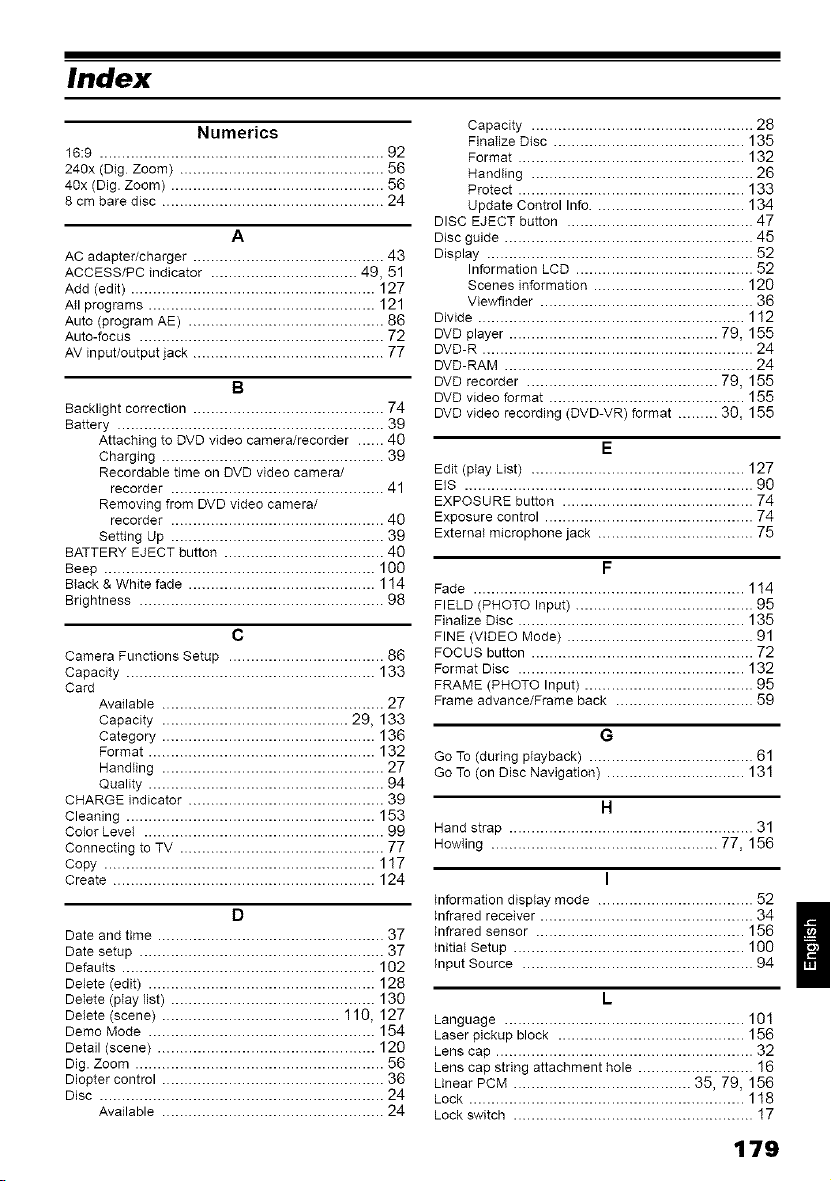
Index
Numerics
16:9 ................................................................ 92
240x (Dig Zoom) .............................................. 56
40x (Dig. Zoom) ................................................ 56
8 cm bare disc .................................................. 24
A
AC adapter/charger ........................................... 43
ACCESS/PC indicator ................................. 49, 51
Add (edit) ....................................................... 127
Atl programs ................................................... 121
Auto (program AE) ............................................ 86
Auto-focus ....................................................... 72
AV input/output jack ........................................... 77
B
Backlight correction ........................................... 74
Battery ............................................................ 39
Attaching to DVD video camera/recorder ...... 40
Charging .................................................. 39
Recordable time on DVD video camera/
recorder ................................................ 41
Removing from DVD video camera/
recorder ................................................ 40
Setting Up ................................................ 39
BATTERY EJECT button .................................... 40
Beep ............................................................. 100
Black & White fade .......................................... 1 !4
Brightness ....................................................... 98
c
Camera Functions Setup ................................... 86
Capacity ........................................................ 133
Card
Available .................................................. 27
Capacity .......................................... 29, 133
Category ................................................ 136
Format ................................................... 132
Handting .................................................. 27
Quality ..................................................... 94
CHARGE indicator ............................................ 39
Cleaning ........................................................ 153
Color Levet ...................................................... 99
Connecting to TV .............................................. 77
Copy ............................................................. 117
Create ........................................................... 124
D
Date and time ................................................... 37
Date setup ....................................................... 37
Defautts ......................................................... 102
Delete (edit) ................................................... 128
Delete (play list) .............................................. 130
Delete (scene) ........................................ 110, 127
Demo Mode ................................................... 154
Detail (scene) ................................................. 120
Dig. Zoom ........................................................ 56
Diopter control .................................................. 36
Disc ................................................................ 24
Available .................................................. 24
Capacity .................................................. 28
FinaIize Disc ........................................... 135
Format ................................................... 132
Handting .................................................. 26
Protect ................................................... 133
Update Control Info .................................. 134
DISC EJECT button .......................................... 47
Disc guide ........................................................ 45
Display ............................................................ 52
Information LCD ........................................ 52
Scenes information .................................. 120
Viewflnder ................................................ 36
Divide ............................................................ 112
DVD player ............................................... 79, 155
DVD-R ............................................................. 24
DVD-RAM ........................................................ 24
DVD recorder ........................................... 79, 155
DVD video format ............................................ 155
DVD video recording (DVD-VR) format ......... 30, 155
E
Edit (play List) ................................................ 127
EIS ................................................................. 90
EXPOSURE button ........................................... 74
Exposure control ............................................... 74
External microphone jack ................................... 75
F
Fade ............................................................. 1 !4
FIELD (PHOTO Input) ........................................ 95
Finalize Disc ................................................... 135
FINE (VIDEO Mode) .......................................... 91
FOCUS button .................................................. 72
Format Disc ................................................... 132
FRAME (PHOTO Input) ...................................... 95
Frame advance/Frame back ............................... 59
G
Go To (during playback) ..................................... 61
Go To (on Disc Navigation) ............................... 131
H
Hand strap ....................................................... 31
HowIing ................................................... 77, 156
I
information display mode ................................... 52
i
Infrared receiver ................................................ 34 /
infrared sensor ............................................... 156
II
Initial Setup .................................................... 100
Input Source .................................................... 94
L
Language ...................................................... 101
Laser pickup block .......................................... 156
Lens cap .......................................................... 32
Lens cap string attachment hole .......................... 16
Linear PCM ........................................ 35, 79, 156
Lock .............................................................. 118
Lock switch ...................................................... ! 7
179
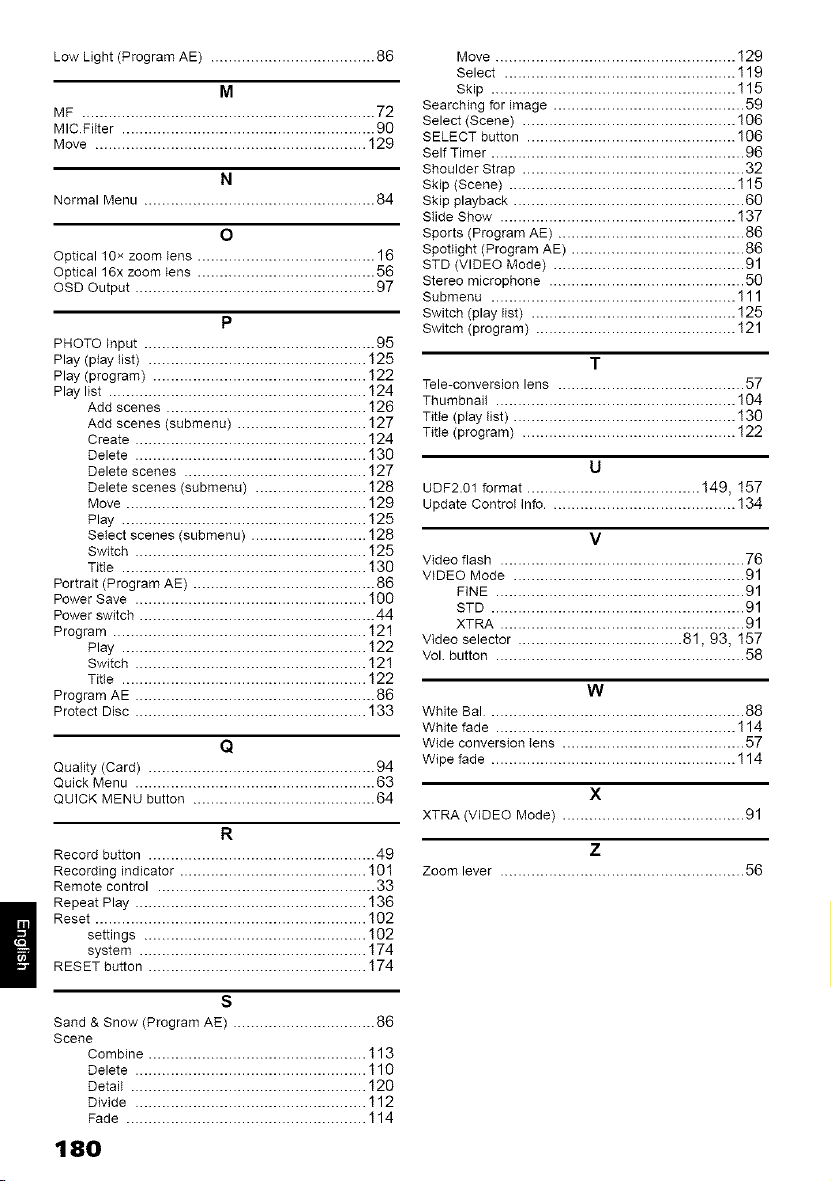
Low Light (Program AE) ..................................... 86
M
MF .................................................................. 72
MIC FiIter ......................................................... 90
Move ............................................................. 129
N
Normal Menu .................................................... 84
o
Optical 10x zoom tens ........................................ 16
Optical 16x zoom lens ........................................ 56
OSD Output ...................................................... 97
P
PHOTO Input .................................................... 95
Play (play tist) ................................................. 125
Play (program) ................................................ 122
Play list .......................................................... 124
Add scenes ............................................. 126
Add scenes (submenu) ............................. 127
Create .................................................... 124
Delete .................................................... 130
Delete scenes ......................................... 127
Delete scenes (submenu) ......................... 128
Move ...................................................... 129
Play ....................................................... !25
Setect scenes (submenu) .......................... !28
Switch .................................................... 125
Title ....................................................... ! 30
Portrait (Program AE) ......................................... 86
Power Save .................................................... 100
Power switch ..................................................... 44
Program ......................................................... 121
Play ....................................................... 122
Switch .................................................... 12 !
TRle ....................................................... 122
Program AE ...................................................... 86
Protect Disc .................................................... 133
Q
Quality (Card) ................................................... 94
Quick Menu ...................................................... 63
QUICK MENU button ......................................... 64
R
Record button ................................................... 49
Recording indicator .......................................... ! 01
Remote control ................................................. 33
Repeat Play .................................................... 136
Reset ............................................................. 102
settings .................................................. !02
system ................................................... 174
RESET button ................................................. !74
s
Sand & Snow (Program AE) ................................ 86
Scene
Combine ................................................. 113
Delete .................................................... 110
Detail ..................................................... 129
Divide .................................................... 112
Fade ...................................................... 114
180
Move ...................................................... ! 29
Select .................................................... 119
Skip ....................................................... ! 15
Searching for image ........................................... 59
Select (Scene) ................................................ 106
SELECT button ............................................... 106
Self Timer ......................................................... 96
Shoulder Strap .................................................. 32
Skip (Scene) ................................................... 115
Skip playback .................................................... 60
Stide Show ..................................................... ! 37
Sports (Program AE) .......................................... 86
Spotlight (Program AE) ....................................... 86
STD (VIDEO Mode) ........................................... 91
Stereo microphone ............................................ 50
Sabmenu ....................................................... 111
Switch (play list) .............................................. ! 25
Switch (program) ............................................. !21
T
Tele-conversion lens .......................................... 57
Thumbnail ...................................................... 104
Titte (play tist) .................................................. 130
Title (program) ................................................ ! 22
u
UDF2.01 format ....................................... 149, !57
Update ControI Info .......................................... 134
v
Video flash ....................................................... 76
VIDEO Mode .................................................... 91
FINE ........................................................ 91
STD ......................................................... 91
XTRA ....................................................... 91
Video selector ..................................... 81,93, 157
Vol button ........................................................ 58
w
White Bal .......................................................... 88
White fade ...................................................... 114
Wide conversion tens ......................................... 57
Wipe fade ....................................................... ! 14
x
XTRA (VIDEO Mode) ......................................... 91
z
Zoom lever ....................................................... 56
Be sure to read the following before opening
the package of CD-ROM
This Agreement will take eflect at the monlent you open the package of the storage device (CD ROM) provided
with this product, if you agree to the terms herein.
If you do not accept the terms of this Agreement. imnlediately lpturn the unopened package of storage mediunl
and enclosed materials (printed mattel5 external package, and all others) to your deale15 or lpturn only the package
of storage medium to your dealer.
Consult your dealer for ally refmKI on the unused product. However; if only the package of storage medium is
returned, no retired is possible.
This License Agreement certifies that you were granted license ill the past.
License Agreement
Article 1 Grant of License
Hitachi, Ltd. grants you tile following rights fbr tile following products (to be referred to as This Sof_wal_"
hereafter) that you have obtained with this Agreement:
(a) You may use This Software only on a single piece of equipment. However, if this equipment cannot be used
because of mechanical problem, you may temporarily use This Software on another piece of equipment.
(b) Although This Soflware contains several components that call be run on computer as independent fkmctions, all
components alp licensed as a single product: You may not, by ally means, use these components on dif{brent
cornptlters at tile same time.
Article 2 Copyrights
Tile copyright_ of This Sof_wal_, attached manual, etc. are owned by Matsushita Electrk Industrial Co., Ltd., and
are protected by copyright laws ill Japan and USA, as well as by other intellectual property and international
properties:
Article 3 Other Rights and Limitations
(a) You may not copy This Sof_wal_ or any of tile printed materials attached, except for dui)lk-ations to provide
back up or storage.
(b) Use of This Sof_wale by third parties is prohibited, whether by transferring, renting, leasing, lending, moving,
or ally other Hleg_tSt/FeS.
(c) You may not decompile or disassemble this Software.
(d) Duplication and/or distribution of ally files on this storage medium for commercial use is prohibited.
Article 4 Quality Assurance
Under no circulnstances will Hitachi, Ltd., Matsushita Electric Industrial Co., Ltd. accept any responsibility flor any
damages you may incur fiom using or being unable to use This Software (including, but not limited to, loss of
business profit, interruption of business, loss of business infbrmation, or other moneta W damages).
Article 5 Termination of Agreement
If you fiul to conlply with tile terms of this Agreement, HitachL Ltd., Matsushita Electric Industrial Co., Ltd. reserve
the right to terminate tile Agreement. Iil such a case. you will be obliged to discard all copies of This Software and
its colnponents.
Article 6 Prioritized License Agreement
When some sof_wale progralns ale installed, tile lkense agleenlents will be displayed (to be lefened to as online
license agreelnent).
II
If tile online license agleement conflicts with this Agleement, tile online license agleelnent shall have a priority.
181

182
Warranty Limitations
The Umited Warranty provided by Hitachi does
not cover:
A Cabinet (exterior finish items), Battery
packs, Accessories, Lens C{eaniegs, Head
Cleanings, DVD Disc Damage, Video Tape
Damage, or Software Modifications.
B Any defect, malfunction, or failure caused
by or resulting from improper service,
maintenance, repair, use of DVD Cleaning
Disks, use of Video Cleaning Cassettes,
software, or from abuse, neglect, accident
or any other cause beyond the control of
Hitachi.
C. Unpacking, set-up or installation,
adjustment of customer operated controls,
user instruction.
D. Any product with Serial Numbers altered or
removed
E New products purchased or service
performed outside of the continental United
States or its possessions
F Product used for a commercial or industrial
purpose
FACIUTY
PRODUCT
Important Notice:
Retain your sales receipt for warranty purposes
Please complete the section below for your records
as it may be needed in the event of loss
Attach your sales receipt to this card.
DVD, V(_ C_m_eorder Products,
AC Ad_tpter Ch_trger
Limited Wm_ranO_Registration
(for your records)
Date of Purchase
Dealer Name
Dealer Address
City State Zip
YOU TH_S WARRANTY GIVES YOU SPECIFIC LEGAL RIGHTS
AND YOU MAY ALSO HAVE OTHER RIGHTS WHICH VARY
FROH STATE TO STATE

Hitachi America, Ltd.
Home Electronics Division
LIMITED WARRANTY
Hitachi America, Ltd., Home Electronics Division
("Hitachi,") warrants this component in duration as
stated below:
+ D VD Produc[s
+ V(_ Produe[s
+ CA_ICORDER Products
AC ADAPTER CHARGER
Conditions of
Hitachi Limited Warranty
These Hitachi Products are warranted to be fre_
of defects in parts and workmanship
purchase by the original owner If this
found to be detective, Hitachi will re
replace defective parts at
orig
warranted for the
Warrant'
odginal purchase,
repair or replacems
charge, subject to the
1 Owner must on of the date of
f Limited Warranty
Sales Receipt Required)
nust be performed by a Hitachi
Facility
warranty is valid only in the U.S.A.
o 90 DAYS LABOR (Carry-in}
1 YEAR PARTS (Except Battery)
For information concerning repairs, operation,
technical assistance or for referral to the location of
your nearest Authorized Service Facility or Parts
Distributor, call: 1-800-HITACHI 1-800-448-224_)
HI LTE
HTACHB PRODUCT
HITACHLCOMITV
(Confirlued on reverse side)
REGISTER YOUR PRODUCT ON-LINE AT
HITACH,COMtTV
OR MA_L IN TO ADDRESS ON THIS CARD.
HITACHI
"In order to allow Hitachi to better serve customer needs, please
complete this card and return it to Hitachi America, Ltd., Home
Electronics Division. Completion of this card is not required in order
to vatidate your Hitachi timited warranty, but would assist us in
developing better services and programs for our customers."
(Please print or type)
Model No.
Serial No. Date of purchase
Customer Name
Customer Address
City State Zip
( )
Phone No.
Dealer name
Dealer address
City State Zip
C_c_
z_
c Q
G_
cD _
cD
r_rG
i3
© cD
3_
m
©
CJ
©
_J
3_
cQ _
_ O
_3
HITACHI CANADA LTD.
DIGITAL MEDIA DIVISION
HITACH! WARRANTY POLICY
HIT&CHI VIDEO PRODU( TS ale guarameed to be flee flora defects ill wolkmaItship and matelial If any f_ihue resultiltg tiom either woikmanship
or material de_ct shoutd occ_ll¸ under llormal and proper/_sage within the period stated Ileletmder _o_lt the origillal provable daze of pu_tlase, such
_ih_e should be repaired at no cost _ the _iyer, provided tl_e de_ctive plo&_ct is b_o_l_lt to a HITACHI 'kUTHORIZED SERVICE Ct-X_TER in
Canada¸
IMPORTAKT: KEEP THIS WARI-L&\TY CARP) A_D ATTACH IT TO YOI_IR BILL OF SAIl- FOR FUTURE USE
WARRANTY PERIOD - i YEAR PARTS AND LABOR
m_der warranty. ;it ;;t;; i;{¸¸¸¸¸ al;; 8¸¸¸
" _,_,_,_,,, _;iii!_;__;;i_ils_ tiiiii_;_,_;_itil}ii!llld!£
....w_X_ "fDOES
1 Prodt.lcts received for repair without sales i deliva_ r_ceipt
showing date of purchase by the original c :_tome } 8 Products used for rental ......
2 Damages caused by mco[re 6 O g nans a a on (se -up), ex e na _g]u _men and a
unauthorized Nterahons, _m ...... normal maintenance needed such as 8!_aning of vid@o
head and lens pickup, or aBy _6ftwar e rr_odiflcation
repair or service
3 Damage caused by fire, !!_d, lightning, acts of 6gd, o_ damage
other events beyond the c_ o] o Hitachi 10 Products sold in Canada by ar{_ ¢{_er org@_ization wh_ is
4 Products purchased C_na# not authorized by Hit4_! Canada Ltd
5 In transit damag$ _!airrl_ improper h_aiing _'_, c_ }er or 11 The replacerneni: f vide_ camera pick@ _l_rneBl if the pick
post offices, up element has be_n 9 _9-exposqd to an i_flB_e source of
gh
e Producf_ or p_ the_$of which have ha# _ ial numbers ..........
defaced ............ 12 Batter[ _p_ he, antenB@s _ _e_ies a d external
....... ..... ...... cabinet and k_s.
I[VlR6RTANT_his n :iieuof all other warranties, or agreements wheiher expresse_ er irrl# :bd, and no _ _rson, dealer
or corn_y is a thorized to change, modify, or extend i{s @_ms in any ma_ whg_s6_ver
HFACHI CANADA LTD
CETTE GAR_NT!_ NE S'APPLIQUE PAS DANS LES CAS SUIVANTS:
1 Produits recus pour reparation sans pre_ve va!i_anf la 7 Produits utilises a des fins commerciales ou insfitutionnelles
garantie 8 Produits utilises pour la IocafioR
2 Dommagesresultantdeneglig_ _vaisusage, 9 InstaJlationoriginale(r6glageinitial),r@glageexterneettout
reparation sans autodsation, cattY,osage inadequat et de
entretien regulier tel que le nettoyage des t_fes video et de
route reparation effectuee par des 8_ntres de service non I'objectif ou foute modification ou tout dommage au Iogiciel
aufhorises par Hitachi
3 Dommages ou pertes echappant a tout contr6Je de la parte
de Hitachi tel que: feu, inondation, foudre, etc
4 ProduJts achefes etfou utilJses a Fext@ieur du Canada
5 Dommages encourus suite a une mauvaise manipulation du
fransporfeur ou de la poste
6 Produits dont le numero de s@ie a ere eNeve, refouche ou
efface
10 Produits vendus au Canada par route autre organisation qui
n'est pas dOment autodsee par Hitachi Canada Ltd
11 Le rempJacement du capteur d'images si ce demier a ete
surexpose a une source de lumi6re intense
12 Batteries, ecouteurs, antennes accessoires et routes les
parties externes telles que boutons et coffret
IMPORTANT: Cette garantie ne peat 6tre modifiee par aucane autre garantie ou entente, ecrite ou verbale Aucune personae,
marchand ou compegnie a'est autods¢ a la changer, la modifier ou a en elargir les clauses d'aucune maniere
HITACHI CANADA LTD

VIDEO PRODUCT
Y-OUR
WARRANTY
PRODUIT VIDEO
VOTRE
GARANTIE
FOR SERVICE CONTACT
1-800-HITACHI
1-800-448-2244
POUR OBTENIR CE SERVICE VEUILLEZ COMPOSER LE
1-800-HITACHI
1-800-448-2244
HITACHI HITACHI
HITACHI CANADA LTD.
DIGITAL MEDIA DIVISION
2495 Meadowpine Blvd. Mississauga, Ontario L5N 603 CANADA
IMPORTANT NOTICE: This warranty will _to product purchased outside
Canada OR sold by any organization other than HITACHI CANADA LTD.
AVIS IMPORTANT: Notre garantie ne couvre Das les produits achetes a I'exterieur du
Canada OU vendus par toute autre organisation que HITACHI CANADA LTD,
iMPORTANT - PLEASE COMPLETE YOUR
WARRANTY REGISTRATION CARD AND MAiL TO
HITACHI
OR
REGISTER YOUR PRODUCT ON - LINE AT:
WWW HITACHI .CA
IMPORTANT-VEUILLEZ REMPLIR VOTRE CARTE DE
GARANTIE ET LA POSTER/i, HITACHI
OU
ENREGISTREZ VOTRE PRODUIT
EN LIGNE A WWW HITACHI.OA
HITACHI
h order to allow Hitachi to better serve customers' needs, please
complete ths card and ret _H1to Hitach Canada Lid Completion of this
card s lot l eq red in order to validate your Hitachi nited warra_lt% but
wo d assist us in developing better services and programs 1or our
customers' (Please prilt ol type)
Afi_ de permettre a Hitachi de mieux _6pondre a_x beso ns de a c ent_le
vet_illez remp_r cette carte et I_ _ioL_rner a Hitach_ Canada Lld I_nest pas
n6cess_ de remplir cette carte pour rapider vorte game]tie lim_tce Hitach_
toute_is else nous aide _ ame_iorer lea services et programmes of_rts
nes clients (F_] ca_ct#_res d imprimerie S V P)
_/odelN_ / N de modele S eri{_'1o / N de serie Date eTpurlbase / Dae d achat
CL_emer s f_rstarid last nameI P_nom et r_omdL_clier_t
CL_omer s address PO Box No i _d_sse _1 casi÷rpostaldud_e111
City) Vil_e Provir_ce _al 0ode J Codepo_s_
_e_hone _ / N_¸de te_eph®e
_}ealers r_ameJ _om du me.hand Dealer_ add_ss / Adres_ d_ marchal_
City) Vil_e Provir_ce _al 0ode J Codepo_s_
W11at_s_ethe _o mosl impo_ta_tfactors thai _nf}_enced_r p_Jrch{,sedec_sio_?
Quels son/Its deL_Xf_deL_rs_esp_Jsimportan/sc_i or_ti_lflue_ce_tre decision d acha_?
Hot_ did you _ear abOL_tt}lis VIDEO PRODUOT?
Comm÷nl avez _L_Sp_isc_n_ssar_ce de_e _RODU_TVIOPO?
Wh_ _he_VlDFO PRODUOTbra_dsd_ _L_cor_s_delb_te_ secedingHitachi?
QLlell÷I_ut_ ma_/_edePRODUCTV_{)E0 a_/_ls e_/visagedacquerira,antd (@ter_OL_I_qitachi?
o_
£
m
m
z_z_
_g2
> N
©o z
>_ _
_m m
m
Z