Instructions for use
32ST220P
Institutional
T elevision
®
TELEVISIO N
Industr y St andards
™
INTRODUCTION
Your Philips Institutional Television tuning system is set to operate in either "Consumer" or "Commercial" type product modes. In the
Consumer mode the tuning system operates as a standard TV, allowing normal initial power ON, channel selection, and volume control
(as well as a variety of select Menu features). Use the supplied remote control to adjust the TV in the Consumer mode. Refer to the
"On-Screen Features (Consumer)" section in this manual for descriptions on the use and operation of Consumer mode Menu controls.
Use a T374AH (RG4172-BK03) remote with its TV Setup, Guest, and Data Communication Mode capabilities to set the TV for the
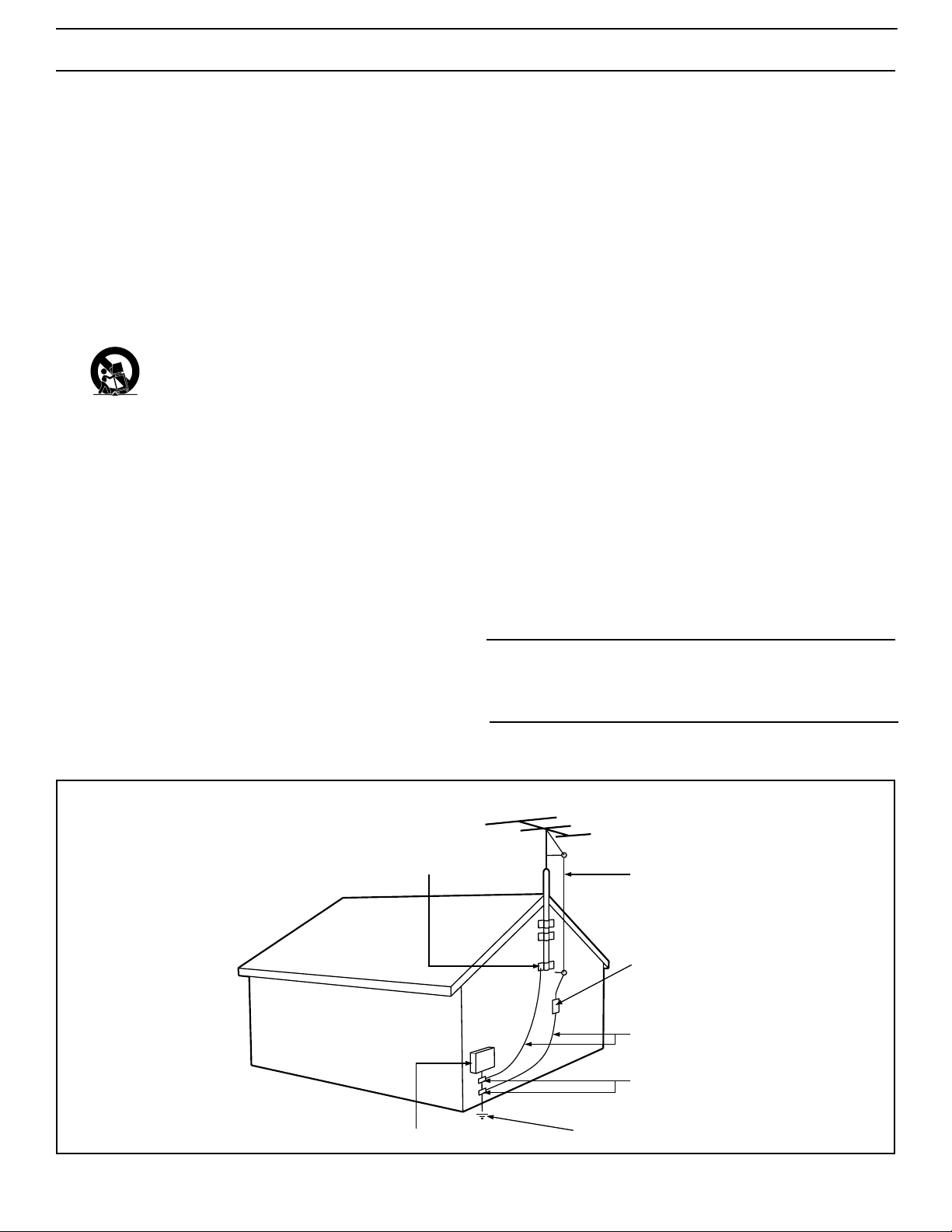
various Commercial mode settings. (Note: On some select Institutional TV models you may also be able to use the buttons at the set to
select a Setup Mode. Again, this may not apply or be available on your current model. Commercial setup and verification procedures
may be performed which are backward compatible with previous Commercial chassis setup remotes. (See T374AH Remote Control
Instructions, part # IB7166E002, for specific operating details.)
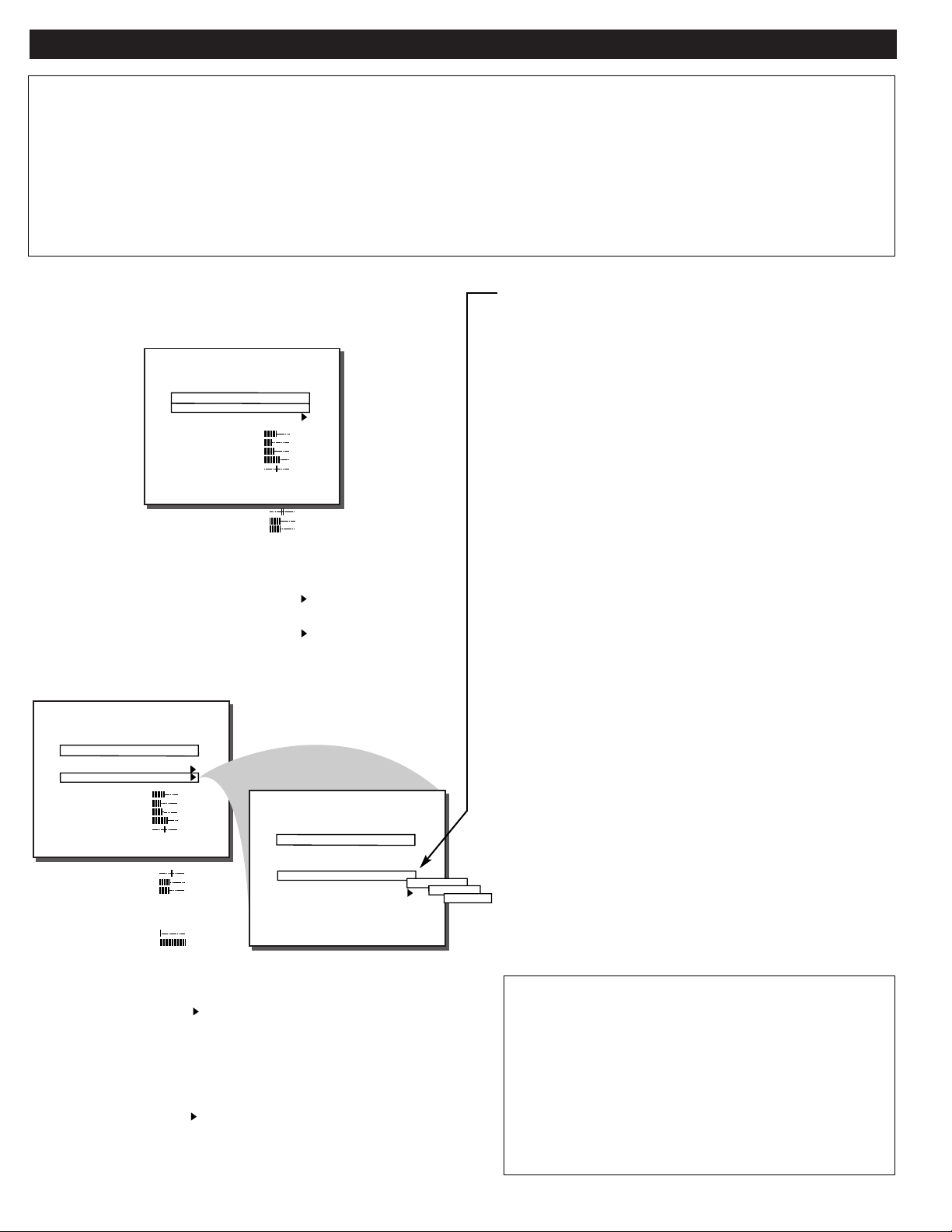
Within the TV SETUP MENU (as selected with the T374AH
remote control) use the “PROPLUS SETUP MENU -
ACCESS LEVEL” control to place the television in either the
CONSUMER, COMMERCIAL, LOCKED, or UNLOCKED
mode.
When CONSUMER is the selected mode, the TV functions
as a standard consumer television (Philips RC-5 system) and
accepts standard remote control commands. Events are
ignored and the television is used for normal TV viewing (in
place of any commercial /professional special event applica-
tions).
When UNLOCKED is the selected mode, the TV functions
the same as in the Consumer Mode. When an event is active,
no menu is available unless the Setup Code or Setup Remote
is used. (Channel selection either is not allowed or is restrict-
ed to the event channel ring - depending upon the event pro-
gramming.)
When COMMERCIAL is the selected mode, the Consumer
menu is limited to three Menu items - CLOSED CAPTION
(CC); SLEEPTIMER; and V-CHIP SETUP. Channel selec-
tion and tuning are also restricted to channels in the standard
channel ring. When an event is active, no menu is available
unless the Setup Code or Setup Remote is used. (Channel
selection either is not allowed or is restricted to the event
channel ring - depending upon the event programming.)
When LOCKED is the selected mode, the TV may be used
only during an event. If no event is active, the TV cannot be
turned ON (unless the Setup Code is used to enter the Setup
Menu or the Setup Remote is used). When an event is active,
no menu is available unless the Setup Code or Setup Remote
is used. (Channel selection either is not allowed or is restrict-
ed to the event channel ring - depending upon the event pro-
gramming.)
Note: Use of various Audio/Video connection jacks, or
other input modes on the rear of the set, is dependent on
whether the TV has a ProVideo Kit1 Expansion, or other
Smart Card Assembly, jackpanel installed. Please refer to
the separate setup and use information that will detail the
various Audio and Video connections possible with these
type modules. Also, please be aware that dependent upon
the type of Smart Card module installed with the set that
certain select “event” program features may be affected or
not be operable.
CONSUMER ONSCREEN MENU
(For basic television Menu and supplied remote operation instructions, refer to
the Onscreen Features (Consumer) section of this owner’s manual.)
COMMERCIAL SETUP MENU
(For Menu control operations and use, refer to the OnScreen Features
(Commercial) section of this owner’s manual.)
CC
V-CHIP SETUP
SLEEPTIMER
SET TIME
CLOCK DISPLAY
EXIT
OFF
ON
12:00 PM
ON
LANGUAGE
CHANNEL INSTALL
CABLE TUNING
BRIGHTNESS
COLOR
CONTRAST
SHARPNESS
TINT
NOISE REDUCTION
SOUND MODE
SAP
AUDIO OUT
MAIN MENU
ENGLISH
ON
34
22
29
40
0
OFF
STEREO
OFF
FIXED
BALANCE
TREBLE
BASS
ULTRA BASS
INCRED STEREO
AVL
VOLUME BAR
AUDIO/VIDEO MUTE
REMINDER
0
31
31
ON
OFF
OFF
ON
BLUE
OFF
TV SETUP MENU
LANGUAGE
CHANNEL INSTALL
PROPLUS SETUP
CABLE TUNING
BRIGHTNESS
COLOR
CONTRAST
SHARPNESS
TINT
NOISE REDUCTION
SOUND MODE
SAP
AUDIO OUT
ENGLISH
ON
34
22
29
40
0
OFF
STEREO
OFF
FIXED
SET TIME
SET DAY
CLOCK DISPLAY
ACCESS LEVEL
EDIT EVENTS
EXIT
PROPLUS SETUP MENU
3:30 PM
FRIDAY
ON
LOCKED
COMMERCIAL
CONSUMER
UNLOCKED
CC
SAVE CC
V-CHIP MENU ITEM
SAVE V-CHIP
V-CHIP SETUP
SLEEPTIMER
SECURITY
EXIT
OFF
OFF
ON
ON
ON
OFF
BALANCE
TREBLE
BASS
ULTRA BASS
INCRED STEREO
AVL
VOLUME BAR
MIN VOLUME
MAX VOLUME
SWITCH ON VOLUME
SWITCH ON CHANNEL
POWER ON
CHANNEL DISPLAY
KEYBOARD LOCK
ESP
AUDIO/VIDEO MUTE
WELCOME MESSAGE
CHANNEL GUIDE
REMINDER
3 DIGIT ENTRY
A/CH A/V SWITCH
0
31
31
ON
OFF
OFF
ON
0
63
STANDARD
STANDARD
STANDARD
ALL
OFF
OFF
BLUE
OFF
ON
OFF
ON
STANDARD
2
SAFETY INSTRUCTIONS - Read before operating equipment
This product was designed and manufactured to meet strict quality and
safety standards. There are, however, some installation and operation pre-
cautions which you should be particularly aware of.
1. Read Instructions - All the safety and operating instructions should
be read before the appliance is operated.
2. Retain Instructions - The safety and operating instructions should
be retained for future reference.
3. Heed Warnings - All warnings on the appliance and in the operating
instructions should be adhered to.
4. Follow Instructions - All operating and use instructions should be
followed.
5. Water and Moisture - The appliance should not be used near water
- for example, near a bathtub, washbowl, kitchen sink, laundry tub,
in a wet basement or near a swimming pool, etc.
6. Carts and Stands - The appliance should be used only with a cart or
stand that is recommended by the manufacturer.
6A. An appliance and cart combination should be moved
with care. Quick stops, excessive force, and uneven sur-
faces may cause the appliance and cart combination to
overturn.
6B. Tilt/Stability - All televisions must comply with recommended inter-
national global safety standards for tilt and stability properties of its
cabinet design.
• Do not compromise these design standards by applying exces-
sive pull force to the front, or top, of the cabinet which could
ultimately overturn the product.
• Also, do not endanger yourself, or children, by placing elec-
tronic equipment/toys on the top of the cabinet. Such items
could unsuspectingly fall from the top of the set and cause
product damage and/or personal injury.
7. Wall or Ceiling Mounting - The appliance should be mounted to a
wall or ceiling only as recommended by the manufacturer.
8. Ventilation - The appliance should be situated so that its location or
position does not interfere with its proper ventilation. For example,
the appliance should not be situated on a bed, sofa, rug, or similar
surface that may block the ventilation openings; or, placed in a built-
in installation, such as a bookcase or cabinet that may impede the
flow of air through the ventilation openings.
9. Heat - The appliance should be situated away from heat sources
such as radiators, heat registers, stoves, or other appliances (includ-
ing amplifiers) that produce heat.
10. Power Sources - The appliance should be connected to a power sup-
ply only of the type described in the operating instructions or as
marked on the appliance.
11. Power-Cord Protection - Power supply cords should be routed so
that they are not likely to be walked on or pinched by items placed
upon or against them, paying particular attention to cords and plugs,
convenience receptacles, and the point where they exit from the
appliance.
12. Cleaning - The appliance should be cleaned only as recommended
by the manufacturer.
13. Power Lines - An outdoor antenna should be located away from
power lines.
14. Outdoor Antenna Grounding - If an outside antenna is connected to
the receiver, be sure the antenna system is grounded so as to pro-
vide some protection against voltage surges and built up static
charges.
Section 810 of the National Electric Code, ANSI/NFPA No. 70-1984,
provides information with respect to proper grounding of the mats
and supporting structure grounding of the lead-in wire to an anten-
na discharge unit, size of grounding connectors, location of antenna-
discharge unit, connection to grounding electrodes and require-
ments for the grounding electrode. See Fig. below.
15. Non-use Periods - The power cord of the appliance should be
unplugged from the outlet when left unused for a long period of time.
16. Object and Liquid Entry - Care should be taken so that objects do not
fall and liquids are not spilled into the enclosure through openings.
17. Damage Requiring Service - The appliance should be serviced by
qualified service personnel when:
A. The power supply cord or the plug has been damaged; or
B. Objects have fallen, or liquid has been spilled into the appliance;
or
C. The appliance has been exposed to rain; or
D. The appliance does not appear to operate normally or exhibits a
marked change in performance; or
E. The appliance has been dropped, or the enclosure damaged.
18. Servicing - The user should not attempt to service the appliance
beyond that described in the operating instructions. All other servic-
ing should be referred to qualified service personnel.
Note to the CATV system installer: This reminder is provided to call the
CATV system installer's attention to Article 820-40 of the NEC that pro-
vides guidelines for proper grounding and, in particular, specifies that the
cable ground shall be connected to the grounding system of the building,
as close to the point of cable entry as practical.
ANTENNA LEAD IN WIRE
ANTENNA DISCHARGE UNIT
(NEC SECTION 810-20)
GROUNDING CONDUCTORS (NEC SECTION 810-21)
GROUND CLAMPS
POWER SERVICE GROUNDING ELECTRODE SYSTEM (NEC ART 250, PART H)
GROUND CLAMP
ELECTRIC SERVICE EQUIPMENT
EXAMPLE OF ANTENNA GROUNDING AS PER NATIONAL ELECTRICAL CODE (NEC)
Example of Antenna Grounding
as per NEC - National Electric Code
3
4
Introduction
Consumer and Commercial Menus.............2
Safety/Precautions.......................................3
Table of Contents.......................................................4
Features......................................................................5
Hooking Up Your TV ................................................6
Basic TV and Remote Control Operation .................7
Using the TV Remote Control...................................8
Onscreen Features (Consumer)
How to Use the On-Screen Menu..........................9
How to Set the TV for Cable TV Operation........10
Channel Installation Control Features:
- Adding Channels in Memory (Auto Program).11
- Adding Channels in Memory (Manually)..........12
- Using the Input Mode Control...........................13
- Using the Channel Label Control......................13
How to Adjust the TV Color................................14
Using the Stereo (& SAP) Control.......................14
Using the Bass, Treble, Balance Controls............15
How to Set the Incredible Stereo Control............15
Using the Automatic Volume Limiter Control.....16
How to Set the Volume Bar Control....................16
How to Set the Audio/Video Mute Control .........17
How to Set the Channel Reminder.......................17
How to Select the Closed Caption Feature .........18
Using the V-Chip or Content Advisory Control...19
- V-Chip TV Ratings Guidelines..........................20
- V-Chip Movie Ratings Guidelines.....................21
Setting the Sleep Timer .......................................22
Using the Set Time Control..................................22
Using the Clock Display Control.........................22
How to Set the On-Screen Language Control .....23
Using the External Speaker Terminals.................23
Using the Audio Output Jacks .............................24
Using the Front Audio/Video Input Jacks ...........24
Remote Control Operation with
Accessory Devices (VCRs, Cable TV
Converters, DVDs, etc.)
Setting the Remote to Work Other Devices ............25
- Direct Number Entry Method ...............................26
- Search Method.......................................................27
- Direct Entry Remote Control Code Numbers..28-29
Using the Remote’s VCR Buttons...........................30
Onscreen Features (Commercial)
Description of Onscreen Controls......................31-33
General Information
Tips if Something Isn’t Working .............................34
Glossary of Television Terms ..................................35
Index ........................................................................35
Limited Warranty ....................................................36
TABLE OF CONTENTS
12
1
2
3
4
5
6
7
8
9
10
11
Know these
safety
symbols
t This “bolt of lightning” indicates uninsulated material within your unit which may cause an electrical shock. For
the safety of everyone in your household, please do not remove the product covering.
s The “exclamation point” calls attention to features for which you should read the enclosed literature closely to
prevent operating and maintenance problems.
WARNING: TO PREVENT FIRE OR SHOCK HAZARD, DO NOTEXPOSE THIS EQUIPMENT TO RAIN OR MOIS-
TURE.
CAUTION: To prevent electric shock, match wide blade of plug to wide slot, and fully insert.
ATTENTION: Pour éviter les chocs électriques, introduire la lame la plus large de la fiche dans la borne correspon-
dante de la prise et pousser jusqu’au fond.
CAUTION
RISK OF ELECTRIC SHOCK
DO NOT OPEN
CAUTION: TO REDUCE THE RISK OF ELECTRIC SHOCK, DO NOT
REMOVE COVER (OR BACK). NO USER-SERVICEABLE PARTS
INSIDE. REFER SERVICING TO QUALIFIED SERVICE PERSONNEL.
Visit our World Wide Web Site at http://www.philipspro.com
NOTE: This owner's manual is used with several differ-
ent television models. Not all features (and drawings)
discussed in this manual will necessarily match those
found with your television set. This is normal and does
not require you contacting your dealer or requesting
service.
Because of continuous product improvements, the informa-
tion mentioned in the documents accompanying your prod-
uct are subject to change without notice.
4

Philips exclusive "Pro Video" control tuning soft-
ware which allows operation of the TV in either
"Consumer" or "Commercial" modes (depending upon
its applied purpose and use).
Audio/Video jack panel for direct connections with
VCRs (or other video accessories) for quality TV pic-
ture and sound playback. Note: Use of various
Audio/Video connection jacks, or input modes (i.e.,
S-VIDEO, etc.), is dependent on whether the TV has a
ProVideo Kit1 Expansion, or other Smart Card
Assembly, jackpanel installed. Please refer to the sep-
arate setup and use information that will detail the
various Audio and Video connections possible with
these type modules. Also, please be aware that
dependent upon the type of Smart Card module
installed with the set that certain select “event” pro-
gram features may be affected or not be operable.
Infrared Remote Control which operates your TV
set and a variety of Infrared (IR) wireless remote con-
trol VCRs, Cable TV Converters, DVDs, and other
accessory equipment.
Standard broadcast (VHF/UHF) or Cable TV
(CATV) channel capability.
Stereo Ready TV with built-in audio amplifier and
twin speaker system for receiving TV programs
broadcast in stereo sound.
Closed Captioning which allows the viewer to read
TV program dialogue or voice conversations as on-
screen text.
Automatic Programming of channels for quick and
easy selection of favorite stations available in your
area.
On-Screen Features (in either English, French, or
Spanish) which show helpful messages for setting of
TV controls.
Parental Control for “Censoring” or blocking out
channels to keep children from watching undesirable
programming. Parental guideline and Movie Rating
settings can also be used as part of the new Content
Advisory Data system available with TV program-
ming.
Automatic Volume Limiter for the control of TV
volume levels during program changes or commercial
breaks.
Sleep Timer which automatically turns off the TV at
preset times.
Copyright © 2000 Philips Consumer Electronics Company. All rights reserved.
FEATURES
As you unpack your TV please note that the fol-
lowing items have been included with your set:
• Owner's Manual
- Safety Tip Information
• Warranty Registration Card
• Remote Control Transmitter
• Batteries for Remote Control Use
Please take a few minutes to complete your regis-
tration card. The serial number for the TV is on
the back of the set.
Refer to the back of this manual for instructions
on the cleaning and care of the TV.
End-of-Life disposal
Your new institutional television and its packag-
ing contain materials that can be recycled and
reused. Specialized companies can recycle your
product to increase the amount of reusable mate-
rials and minimize the amounts which need to be
properly disposed.
Your product also uses batteries which should not
be thrown away when depleted, but should be
handed in and disposed of as small chemical
waste.
Please find out about the local regulations on
how to dispose of your old television, batteries,
and packaging materials whenever you replace
existing equipment.
5
EXTERNAL
SPEAKER
SMART
PLUG
75Ω
ANT/
CABLE
OUT VIDEO LOOP IN
OUT S-VIDEO LOOP IN
IN
R AUDIO LOOP L
OUT
IN
R AUDIO LOOP L
OUT
VIDEO
OUT
EXTERNAL SPEAKERS
88
+ R – – L +
INT
SPEAKERS
EXT
VARIABLE
AUDIO OUTAUDIO OUT
1
2
OR
EXTERNAL
SPEAKER
SMART
PLUG
75Ω
ANT/
CABLE
OUT VIDEO LOOP IN
OUT S-VIDEO LOOP IN
IN
R AUDIO LOOP L
OUT
IN
R AUDIO LOOP L
OUT
VIDEO
OUT
EXTERNAL SPEAKERS
88
+ R + R – – L +
INT
SPEAKERS
EXT
VARIABLEARIABLE
AUDIO OUTAUDIO OUT
IN
OUT
1
AUDIO LOOP
R
L
2
OR
Y
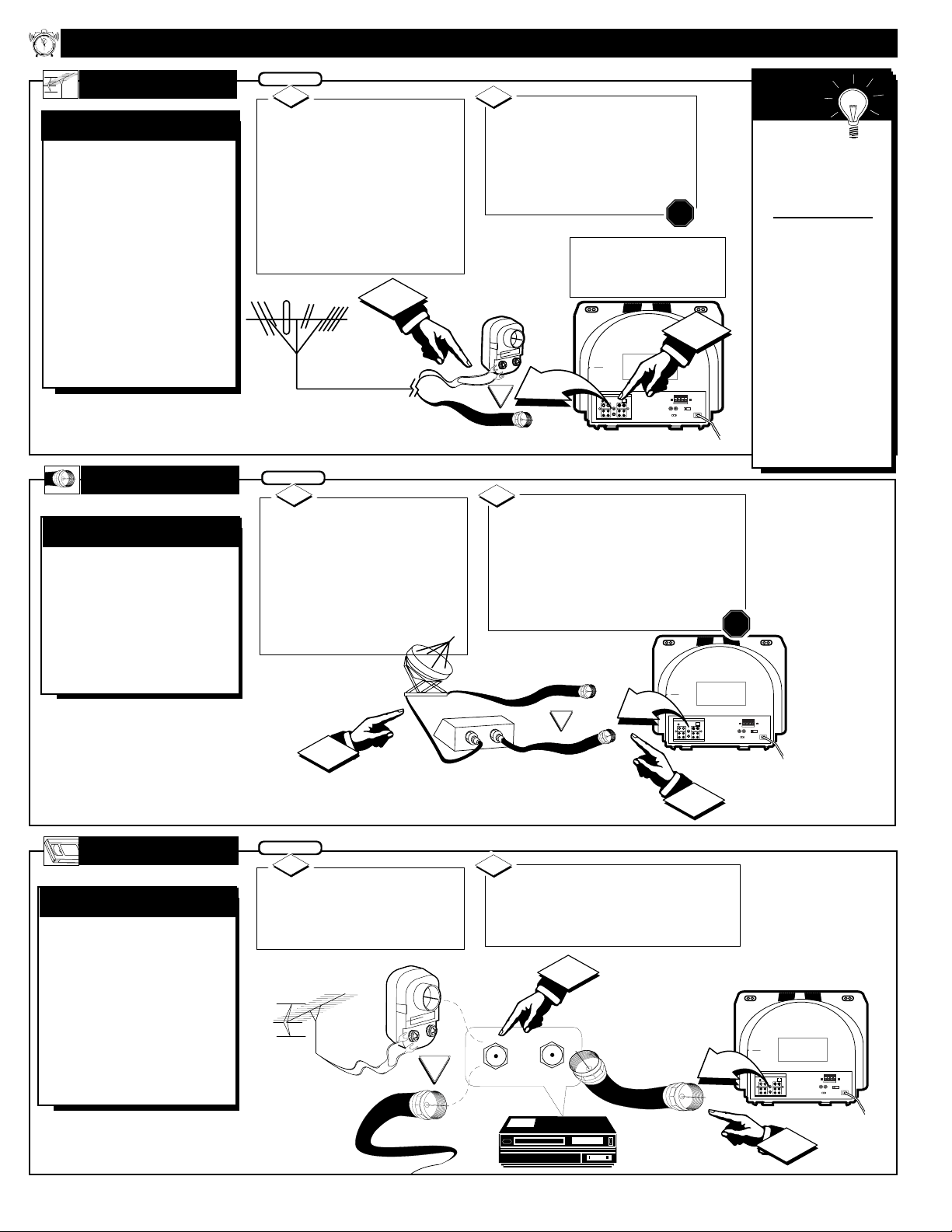
our Cable TV signal
may be a single (75
ohm) cable or a Cable
Converter Box installa-
tion. In either case, the
connection to the TV is
easy.
CABLE INPUT/CONVERTER
If your Cable TV sig-
nal is a single round cable (75
ohm), you're ready to connect
to the TV. Go to step 2.
If you have a Cable
Converter Box: Connect the
Cable TV signal to the IN plug
on the Cable Converter Box.
Connect the Cable TV signal to
the 75Ω ANT/CABLE plug on the TV.
If you have a Cable Converter Box:
Use a round cable (75Ω) to connect the
OUT plug on the Cable Converter Box
to the 75Ω ANT/CABLE plug on the
TV.
2
STOP
BEGIN
1
HOOKING UP
YOUR TV
A
combination (outdoor
or indoor) antenna
receives normal broadcast
channels 2-13 (VHF) and
14-69 (UHF). Your con-
nection to such an antenna
is easy since there is only
one antenna plug (75Ω
ANT/CABLE) on the back
of your TV - and that’s
where the antenna goes.
OUTDOOR/INDOOR
Remember,
set the TV for the
type signal you've
connected (see page
9).
Note: For homes
with separate UHF
and VHF antennas,
you will need an
optional combiner
to connect to the
TV. To order any
optional accessory,
contact your dealer
or call the toll-free
accessory ordering
number (1-800-851-
8885).
SMART
HELP
If your antenna has a
round cable (75 ohm) on the
end, then you're ready to con-
nect it to the TV.
If your antenna has flat twin-
lead wire (300 ohm), you first
need to attach the antenna wires
to the screws on a 300 to 75
ohm adapter.
Push the round end of the
adapter (or antenna) onto the
75Ω ANT/CABLE plug on the
rear of the TV. If the round end
of the antenna wire is threaded,
screw it down tight.
2
STOP
300 to 75Ω
Adapter
Twin Lead Wire
BEGIN
1
Round Cable 75Ω
Combination VHF/UHF Antenna
(Outdoor or Indoor)
Back of TV
Round Cable
75Ω
Cable Converter Box
Cable TV Signal
EXTERNAL
SPEAKER
SMART
PLUG
75Ω
ANT/
CABLE
OUT VIDEO LOOP IN
OUT S-VIDEO LOOP IN
IN
R AUDIO LOOP L
OUT
IN
R AUDIO LOOP L
OUT
VIDEO
OUT
EXTERNALEXTERNAL SPEAKERS
88
+ R + R – – L +
INT
SPEAKERSSPEAKERS
EXT
VARIABLE
AUDIO OUTAUDIO OUT
OR
OUT TO TV
IN FROM ANT.
1
2
T
he basic Antenna, or
Cable, to VCR to TV
connection is shown to the
right. For more informa-
tion on hookups with
Cable Converter Boxes,
refer to your VCR and
Cable Converter Box
Owner's Manuals.
BASIC CONNECTION
Connect your
Antenna or Cable TV signal
to the IN FROM ANT(enna)
plug on the VCR.
Connect the OUT TO TV plug
on the VCR to the 75ΩANT/CABLE
plug on the TV (connecting cable sup-
plied with the VCR).
2
BEGIN
1
Round Cable
75Ω (supplied
with VCR)
VCR
Outdoor VHF/UHF
Antenna
300 to 75Ω
Adapter
Cable TV signal
Back of TV
VCR TO TV
CABLE TV
ANTENNA
Note: Rear view of the model
TV is shown with an optional
ProKit 1 type module installed
for RF Input plug connections.
Back of TV
12
1
2
3
4
5
6
7
8
9
10
11
6
CLOCK
POWER
SLEEP
CC
STATUS/EXIT
A/CH
SMART
SMART
PICTURE
MUTE
CH
VOL
TV
VCR
ACC
TV/VCR
RECORD
SOUND
MENU
SURF
4
6 CH WXYZ
12:00 PM
CHANNEL
VOLUME
POWER
VIDEO L AUDIO R
A V SWITCH
CHANNEL
VOLUME
A V SWITCH
POWER
VIDEO L AUDIO R
2
1
3
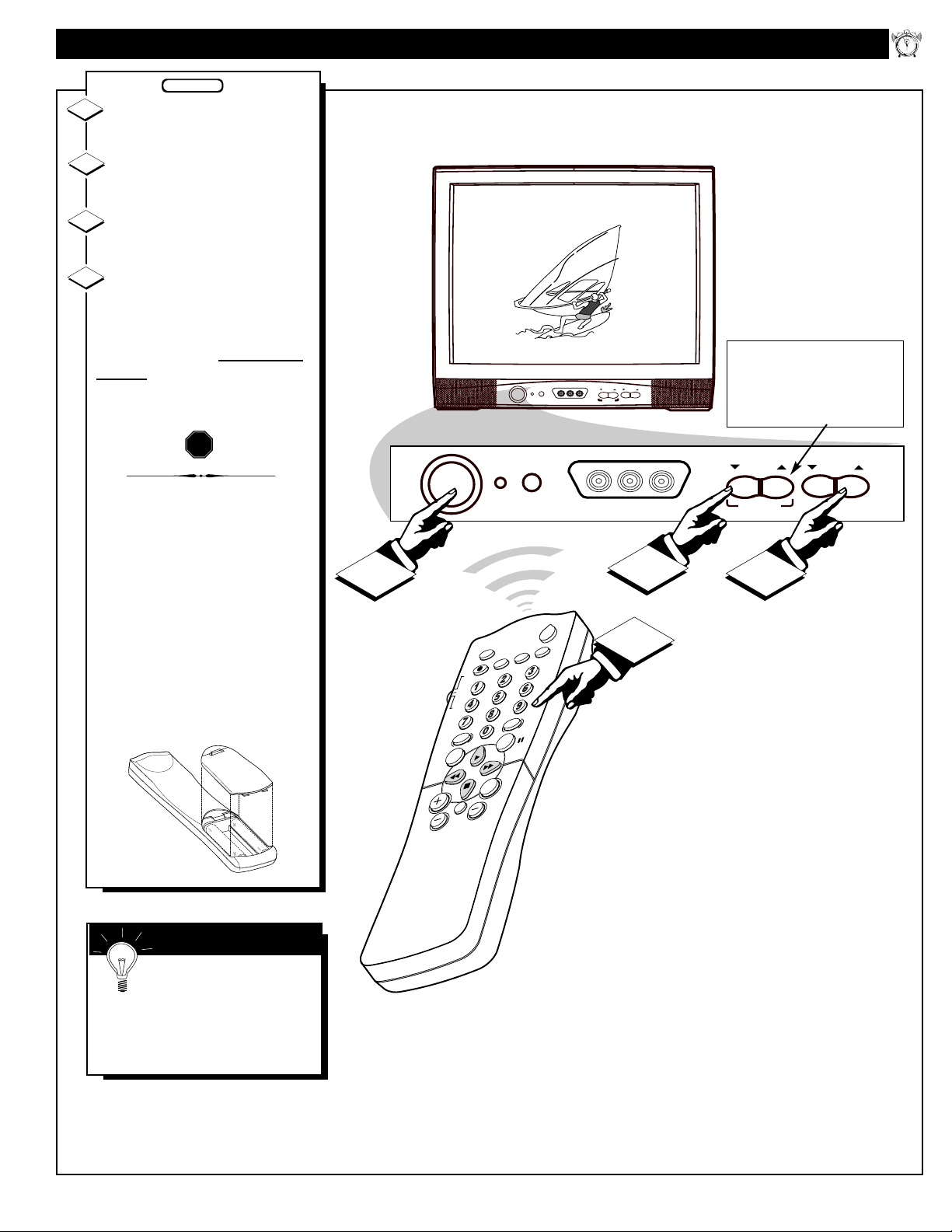
Press the POWER button to
turn on the TV.
Press the VOL(ume) ▲/▼
buttons to adjust the sound level.
Press the CH(annel) ▲/ ▼
buttons to select TV channels.
Point the remote control
toward the remote sensor on
the TV when operating the TV
with the remote.
Note: Always press two number
buttons on the remote when
selecting channels. For example:
press "0," then "6," for channel 6.
To load the supplied batteries
into the remote:
1. Remove the battery
compartment lid on the
back of the remote.
2. Place the batteries (two
AA) in the remote. Be
sure the (+) and (-) ends
of the batteries line up
as marked inside the case.
3. Reattach the battery
compartment lid.
1
2
3
STOP
BASIC TV AND
REMOTE CONTROL OPERATION
Remember, the tuned
channel number will appear
when you change the channel. You
also may press the STATUS button
on the remote control to see the
current channel number.
SMART HELP
BEGIN
4
12
1
2
3
4
5
6
7
8
9
10
11
Note: The ▼VOLUME▲ buttons
can also be pressed simultaneously to
switch the set between Auxiliary and
Antenna input modes or, in
Commercial mode, to display the
Features menu.
7
USING THE TV REMOTE CONTROL
12
1
2
3
4
5
6
7
8
9
10
11
Remember, always point
the remote control toward
the remote sensor on the TV when
operating the TV with the remote.
SMART HELP
POWER
SLEEP
A/CH STATUS/EXIT CC CLOCK
RECORD
TV
VCR
ACC
SMART
SMARTSMART
SOUND
PICTURE
MENU SURF
VOL
CH
MUTE
1
23
4
5
6
7
89
0
TV/VCR
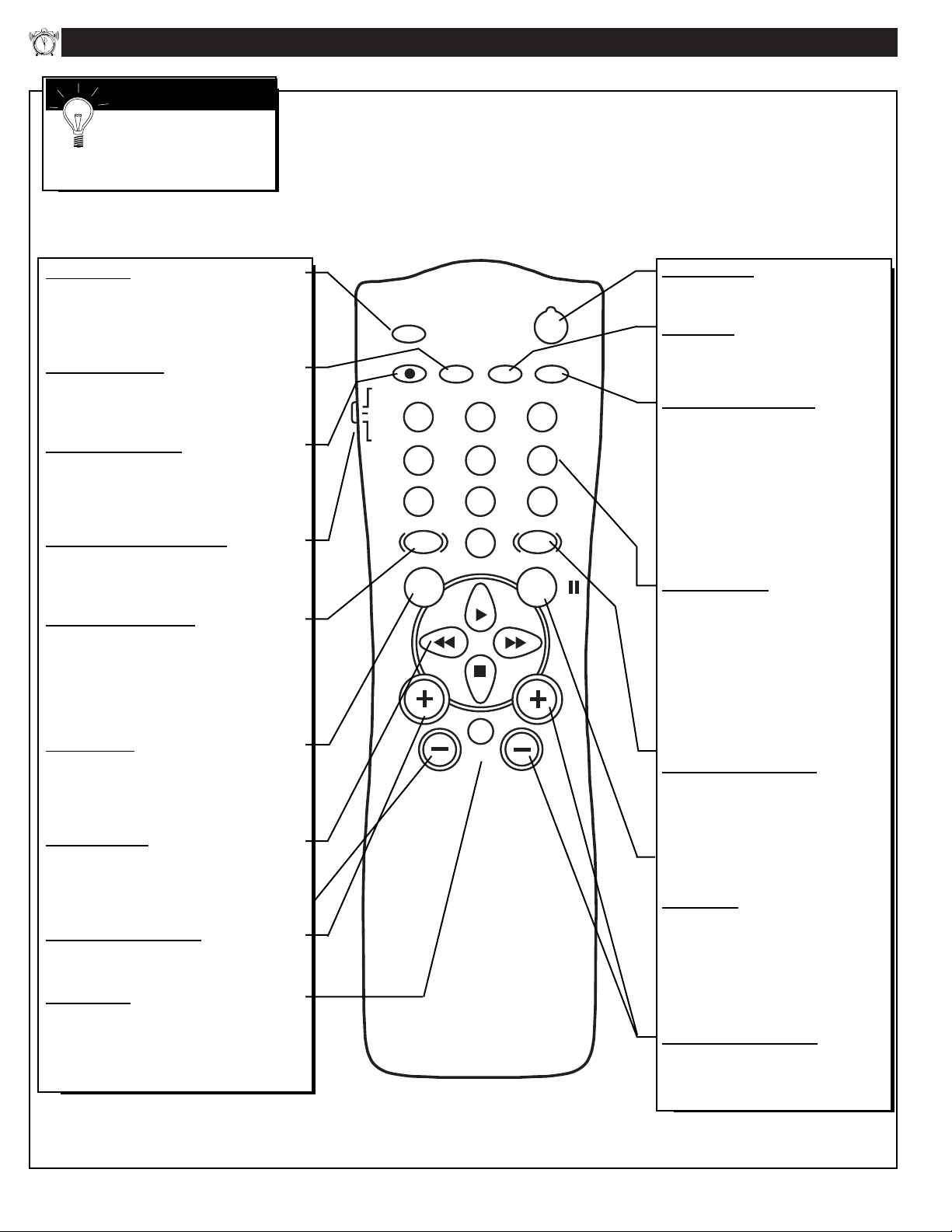
Power Button
Press to turn the TV (or select VCR,
Cable Converter, etc.) ON and OFF.
CC Button
Press to select Closed Caption options
within the menu. (Refer to the Owner’s
Manual for details.)
Clock-TV/VCR Button
Available on select models only, may
not operate or apply to your set.
Press to select TV Clock menu options
With remote switch in the VCR position
press to view the playback of a tape
(VCR indicator will light on front of
VCR). Press again to place the VCR in
the TV mode to view one program
while recording another program (VCR
indicator will go off on the VCR).
Number Buttons
Press the number buttons to select TV
channels. When selecting single digit
channels, press the number of the desired
channel. The TV will pause for a few
seconds then tune to the selected chan-
nel. (Note: you can also press "0" first,
then the desired number.) For channels
"100" and above, you must program the
desired channels into the TV’s channel
memory.
SmartPicture™ Button
Available on select models only, may
not operate or apply to your set.
Press to select from a list of
SmartPicture controls (which are facto-
ry preset picture levels set for different
types of viewing sources and pro-
grams.)
Surf Button
Available on select models only, may
not operate or apply to your set.
Press to quickly select from a series of
previously viewed channels. When the
remote control is in the VCR mode, press
the Surf button to pause the playback of a
video tape.
Channel (+), (–) Buttons
Press to change the tuned channel. Only
channels “saved” into the TV’s program
channel memory ring will be available
for selection.
Sleep Button
Press to set the TV to automatically turn
itself OFF. Also can be used as an Enter but-
ton when sending channel commands to
remote controlled cable converters or VCRs.
Status/Exit Button
Press to see the current channel number on the
TV screen. Also press to clear the TV screen
after control adjustments.
A/CH-Record Button
Press to toggle between the currently viewed
channel and the previously viewed channel.
When in the VCR mode, press to start the
recording of a video tape.
TV/VCR/ACC Mode Switch
Slide to TV position to control TV functions;
VCR to control VCR functions; and ACC for
Cable Converter, DBS, DVD, etc. functions.
SmartSound™ Button
Available on select models only, may not
operate or apply to your set.
Press to select from a list of SmartSound
controls (which are factory preset sound con-
trol levels set for different types of listening
modes and types of programming.)
Menu Button
Press for the onscreen menu to appear. Press
the Menu button repeatedly to move forward
through the current onscreen feature control
selections.
Cursor Buttons
Use these buttons to select and adjust the
TV's onscreen menu. Also used with a VCR
for PLAY, FAST FORWARD, REWIND, and
STOP functions.
Volume (+), (–) Buttons
Press to adjust the TV sound level up and
down.
Mute Button
Press to turn the sound OFF on the TV.
“MUTE” appears onscreen to confirm that no
sound will be heard through through the TV
speakers. Press the Mute button again to
return TV sound to its previous listening level.
8
CHANNEL
VOLUME
POWER
VIDEO L AUDIO R
A V SWITCH
LANGUAGE
CHANNEL INSTALL
CABLE TUNING
BRIGHTNESS
COLOR
CONTRAST
SHARPNESS
TINT
NOISE REDUCTION
MAIN MENU
ENGLISH
ON
34
22
29
40
0
OFF
POWER
SLEEP
A/CH STATUS/EXIT CC CLOCK
RECORD
TV
VCR
ACC
SMART
SMARTSMART
SOUND
PICTURE
MENU SURF
VOL
CH
MUTE
1
23
4
5
6
7
89
0
TV/VCR
2
1
3
4
CHANNEL
CHANNEL RING
INPUT
LABEL
AUTO PROGRAM
EXIT
CHANNEL INSTALLATION
TV 4
DELETED
ANTENNA
( )
F
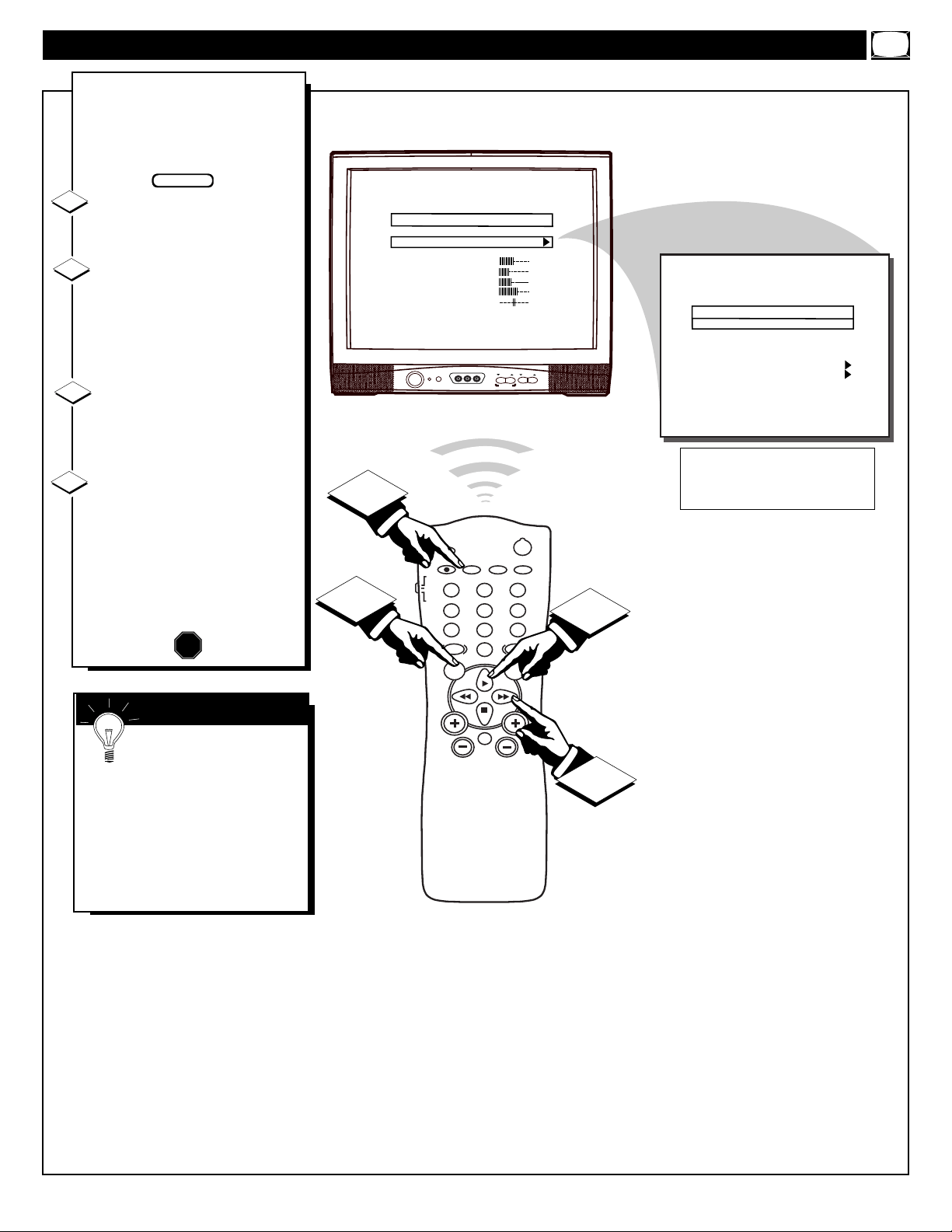
eatures for your TV can be
adjusted from a Menu screen
shown on the TV. Each Menu item
can be adjusted by viewing the
screen and pressing a button.
Press the Menu button on the
remote. The on-screen menu
appears.
Press Menu button repeated-
ly, or use the Cursor (▲) Up and
Down (▼) buttons on the
remote, to select a feature control.
A highlight bar will show the
selected feature.
Press the Cursor Right
(©)
and Left (§ )buttons on the
remote to adjust the selected
onscreen feature control.
Press the STATUS/EXIT but-
ton on the remote to remove the
on-screen menu.
(You can also use the EXIT con-
trol within the onscreen Menu to
remove the Menu from the TV
screen, or wait for the Menu
screen to time out.)
1
2
3
STOP
HOW TO USE THE ON-SCREEN MENU
BEGIN
4
If the on-screen menu
disappears and you are not
finished, press the MENU button.
The on-screen menu will return.
Note: Selection and use for both
the Consumer and Commercial
mode onscreen Menu feature con-
trols will work in basically the
same manner.
SMART HELP
- Consumer Onscreen Menu Mode -
(In other Commercial mode settings (i.e.,
Unlocked, etc.) not all select control
items will appear as shown above.)
9
CHANNEL
VOLUME
POWER
VIDEO L AUDIO R
A V SWITCH
LANGUAGE
CHANNEL INSTALL
CABLE TUNING
BRIGHTNESS
COLOR
CONTRAST
SHARPNESS
TINT
NOISE REDUCTION
MAIN MENU
ENGLISH
ON
34
22
29
40
0
OFF
POWER
SLEEP
A/CH STATUS/EXIT CC CLOCK
RECORD
TV
VCR
ACC
SMART
SMARTSMART
SOUND
PICTURE
MENU SURF
VOL
CH
MUTE
1
23
4
5
6
7
89
0
TV/VCR
1
1
2
3
OFF
M
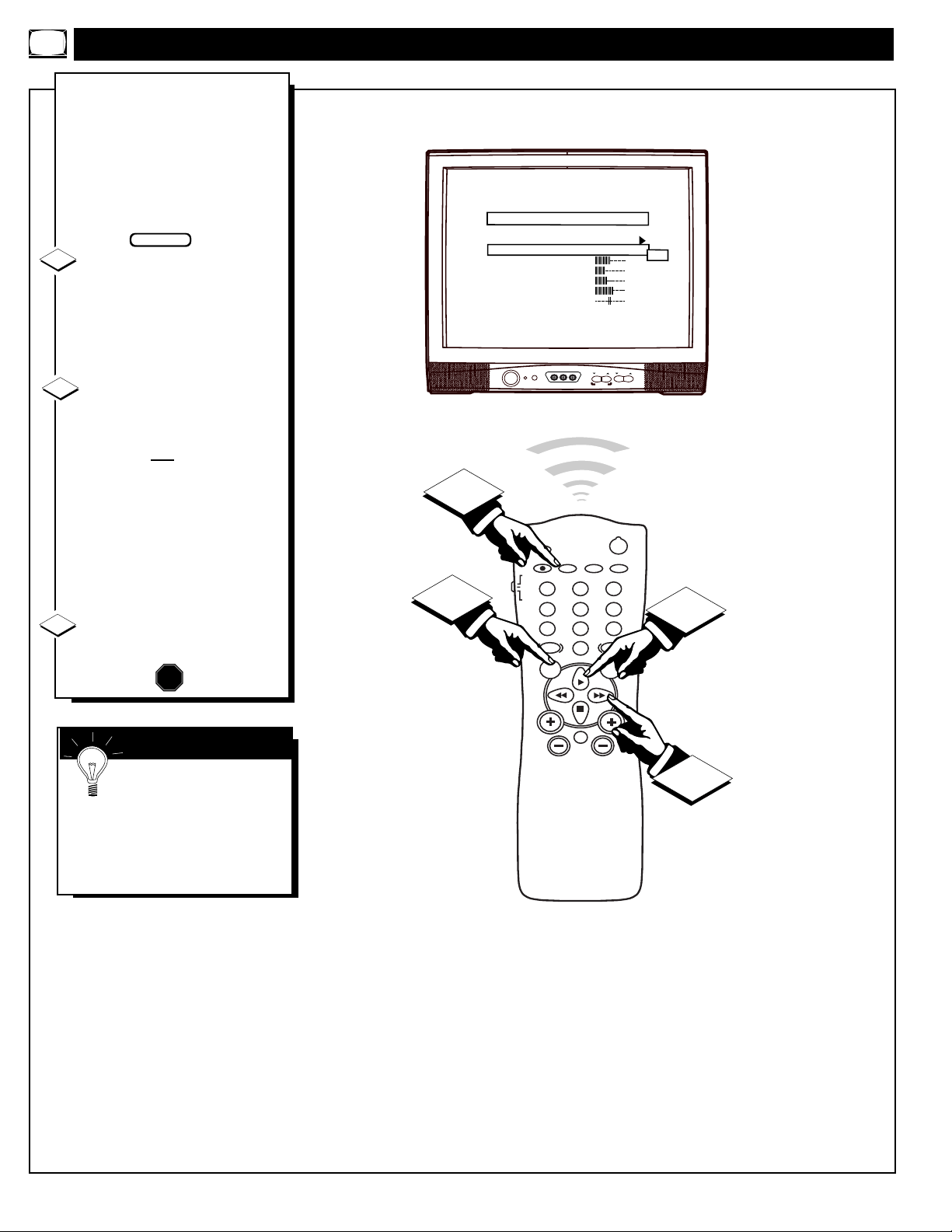
ake sure the TV is set to
pick up either Cable TV
stations or Antenna signals. In
other words, the TV needs to
know whether you’ve connected a
Cable TV signal or a normal
antenna to its 75Ω ANT/CABLE
plug.
With the Menu onscreen
press the Menu button repeat-
edly , or use the Cursor (▲) Up
and Down (▼) buttons, to select
CABLE TUNING with the TV’s
highlight control bar.
Press the Cursor Right
(©)
or Left (§ )button on the
remote to select:
ON - If you DO have Cable
TV connected to the TV.
Channels 1-125 may be
selected. Or, select
OFF -If you have an Antenna
connected to the TV.
Channels 2-69 may be
selected.
Press STATUS/EXIT to
remove the on-screen menu.
1
2
3
STOP
HOW TO SET THE TV FOR CABLE TV OPERATION
Try it out. Press the
CH(annel) +, - buttons to
scan the channels. Remember, the
TV has been set at the factory to
select certain channel numbers.
See the next page to set the TV to
select the channels in your area.
SMART HELP
BEGIN
10
CHANNEL
VOLUME
POWER
VIDEO L AUDIO R
A V SWITCH
LANGUAGE
CHANNEL INSTALL
CABLE TUNING
BRIGHTNESS
COLOR
CONTRAST
SHARPNESS
TINT
NOISE REDUCTION
MAIN MENU
ENGLISH
ON
34
22
29
40
0
OFF
POWER
SLEEP
A/CH STATUS/EXIT CC CLOCK
RECORD
TV
VCR
ACC
SMART
SMARTSMART
SOUND
PICTURE
MENU SURF
VOL
CH
MUTE
1
23
4
5
6
7
89
0
TV/VCR
2
1
3
5
CHANNEL
CHANNEL RING
INPUT
LABEL
AUTO PROGRAM
EXIT
CHANNEL INSTALLATION
TV 4
DELETED
ANTENNA
( )
4
AUTO - PROGRAMMING ACTIVE
PRESS ANY KEY TO STOP
1 2 3 4 5 6 7
8 9 10 11 12 13 14
15 16 17 18 19 20 21
22 23 24 25 26 27 28
29 30 31 32 33 34 35
36 37 38 39 40 41 42
43 44 45 46 47 48 49
50 51 52 53 54 55 56
57 58 59 60 61 62 63
64 65 66 67 68 69 70
71 72 73 74 75 76 77
78 79 80 81 82 83 84
CHANNEL INSTALLATION: ADDING CHANNELS (AUTOPROGRAM)
Y
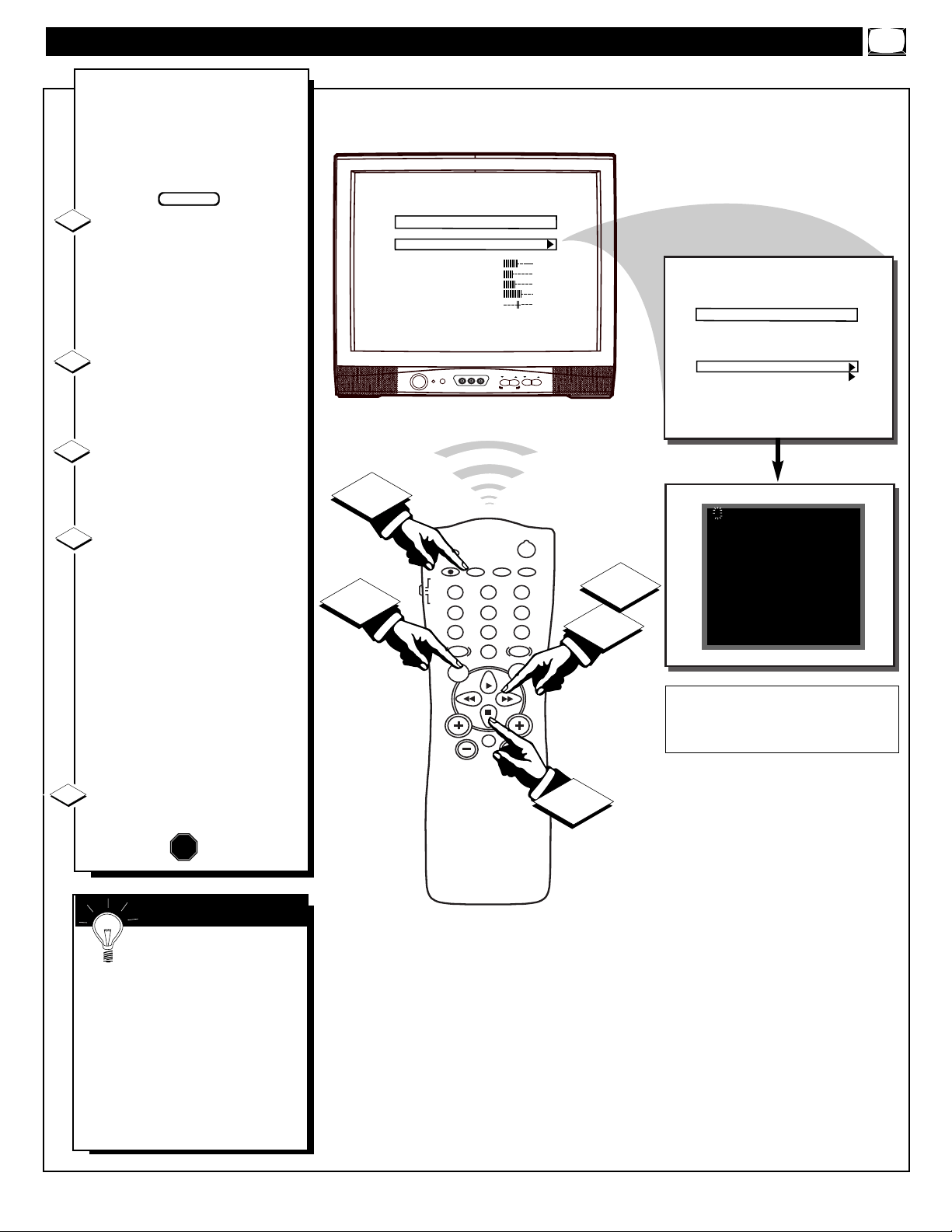
our TV can automatically set
itself for local area (or Cable
TV) channels. This makes it easy
for you to select only the TV sta-
tions in your area when you use
the CH(annel) +, - buttons.
With the Main Menu
onscreen press the Menu button
repeatedly , or use the Cursor
(▲) Up and Down (▼) buttons,
to select CHANNEL INSTALL
with the TV’s highlight control
bar.
Press the Cursor Right (©) or
Left (§ )button on the remote
to select the Channel Installation
control Menu.
Press the Menu, or Cursor
Down (▼), button to select
AUTO PROGRAM with the
highlight control bar.
Press the Cursor Right
(©)
or Left (§ )button on the
remote to start the TV’s automat-
ic search for area channels.
Flashing channel numbers will
count upward on the screen as the
TV looks for channels to "SAVE.”
Press any button (on the TV or
the remote) to stop the channel
search at any time. When the
channel search is completed, the
TV will return to normal channel
viewing and operation.
Press the STATUS button to
remove the on-screen menu.
1
2
3
STOP
“RED” channel numbers have been SAVED to
the TV’s program memory.
“WHITE” channel numbers are not present in
the TV’s program scan memory.
4
SMART HELP
Remember, if you want
to drop any unwanted chan-
nels from the TV's memory, see
the next page to "Manually" add
and delete channels.
Note: As the TV searches for
channels to "SAVE" into memory,
the on-screen display may move
(or jitter slightly). This is normal
operation and does not indicate a
need for service.
BEGIN
5
11
CHANNEL
VOLUME
POWER
VIDEO L AUDIO R
A V SWITCH
POWER
SLEEP
A/CH STATUS/EXIT CC CLOCK
RECORD
TV
VCR
ACC
SMART
SMARTSMART
SOUND
PICTURE
MENU SURF
VOL
CH
MUTE
1
23
4
5
6
7
89
0
TV/VCR
4
1
5
CHANNEL
CHANNEL RING
INPUT
LABEL
AUTO PROGRAM
EXIT
CHANNEL INSTALLATION
TV 4
SAVED
ANTENNA
( )
3
CHANNEL
CHANNEL RING
INPUT
LABEL
AUTO PROGRAM
EXIT
CHANNEL INSTALLATION
TV 4
DELETED
ANTENNA
( )
2
CHANNEL
CHANNEL RING
INPUT
LABEL
AUTO PROGRAM
EXIT
CHANNEL INSTALLATION
TV 1
SAVED
ANTENNA
( )
FRONT
AUX
SVIDEO
A
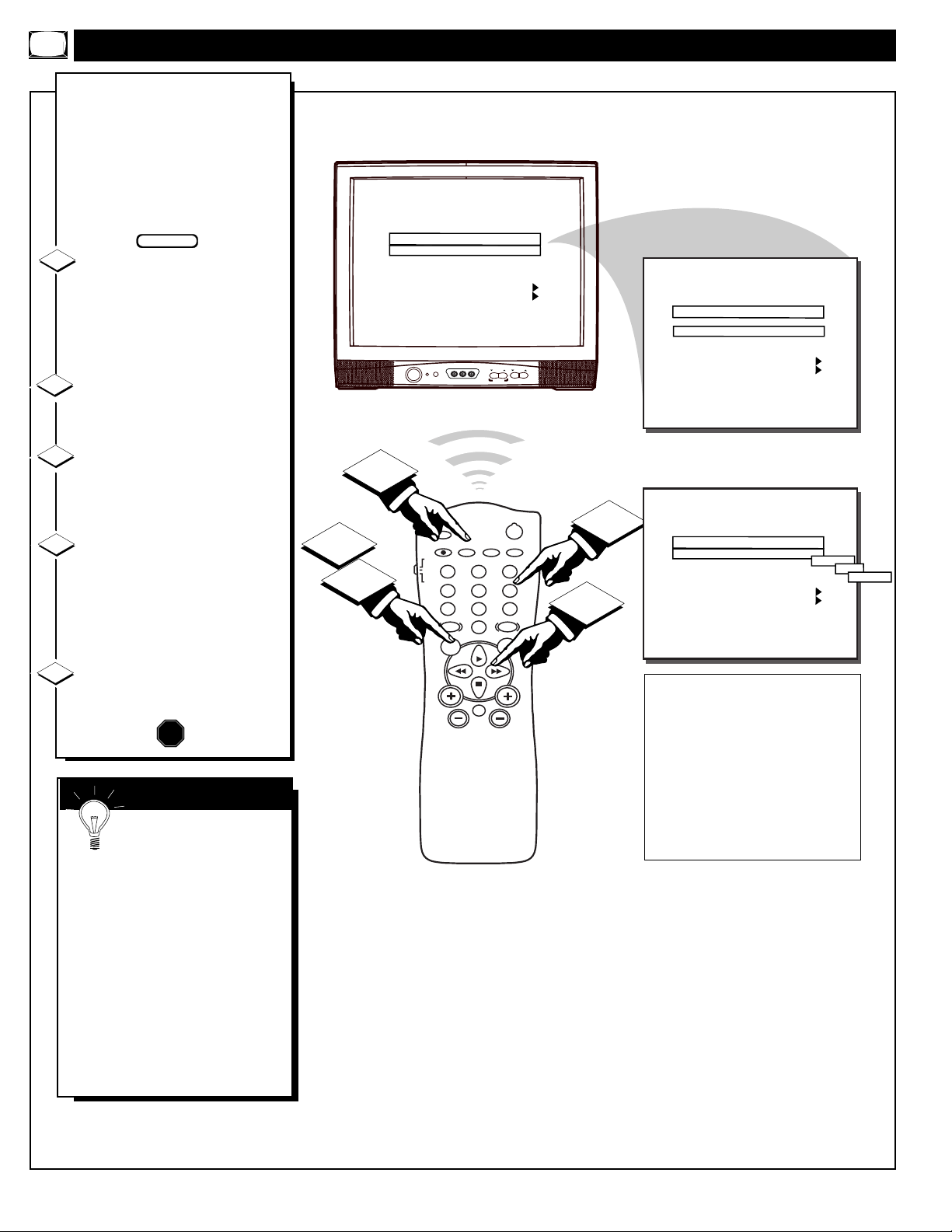
uto Programming (see previ-
ous page) adds all the chan-
nels it can find (on your Antenna
or Cable TV system) into the TV's
memory. You may add other chan-
nels, or drop unwanted channels
from the list of channels in the
TV's memory.
With the Channel
Installation Menu onscreen
press the Menu button, or use
the Cursor (▲) Up and Down
(▼) buttons, to select CHANNEL
with the TV’s highlight control
bar.
Press the Number, or CH(+,-),
buttons to select the channel you
want to SAVE (or DELETE).
Press the Menu, or Cursor
Down (▼), button to select
CHANNEL RING with the high-
light control bar.
Press the Cursor Right
(©) or
Left (§ )button on the remote
to SAVE (or DELETE) the select-
ed channel number into memory.
Repeat steps 2-4 for each channel
you wish to add (or delete).
Press the STATUS/EXIT button
to remove the menu when you are
finished.
1
2
3
4
STOP
CHANNEL INSTALLATION: ADDING CHANNELS (MANUALLY)
SMART HELP
Try it out. Press the
CH(annel) +, - buttons.
The channels you SAVED should
appear. The channels you
DELETED should not appear.
If you need to SAVE (or
DELETE) a channel above 100,
use the CH (+, -) buttons. The
consumer remote control number
buttons can not select channels
above 99 (unless the 3 DIGIT
ENTRY Commercial mode Menu
control has been set to receive
such channel entries).
BEGIN
Remember, you may add the FRONT (A/V);
AUX(iliary); and S-VIDEO inputs into the
TV’s channel scan program memory. Then, by
pressing the CH(annel) +, - buttons you may
quickly select the Audio/Video Input jacks on
the front and rear of the TV.
Select CHANNEL in the onscreen menu, then
press the CH (+, -) buttons to select either
FRONT (A/V)/ AUX(iliary)/ or S-VIDEO
inputs. Note: The AUX(iliary) Video modes
are located between the lowest and highest
channel numbers within the CHANNEL con-
trol.
5
12
CHANNEL
VOLUME
POWER
VIDEO L AUDIO R
A V SWITCH
POWER
SLEEP
A/CH STATUS/EXIT CC CLOCK
RECORD
TV
VCR
ACC
SMART
SMARTSMART
SOUND
PICTURE
MENU SURF
VOL
CH
MUTE
1
23
4
5
6
7
89
0
TV/VCR
2
1
3
CHANNEL
CHANNEL RING
INPUT
LABEL
AUTO PROGRAM
EXIT
CHANNEL INSTALLATION
TV 4
DELETED
ANTENNA
( )
FRONT
AUX
SVIDEO
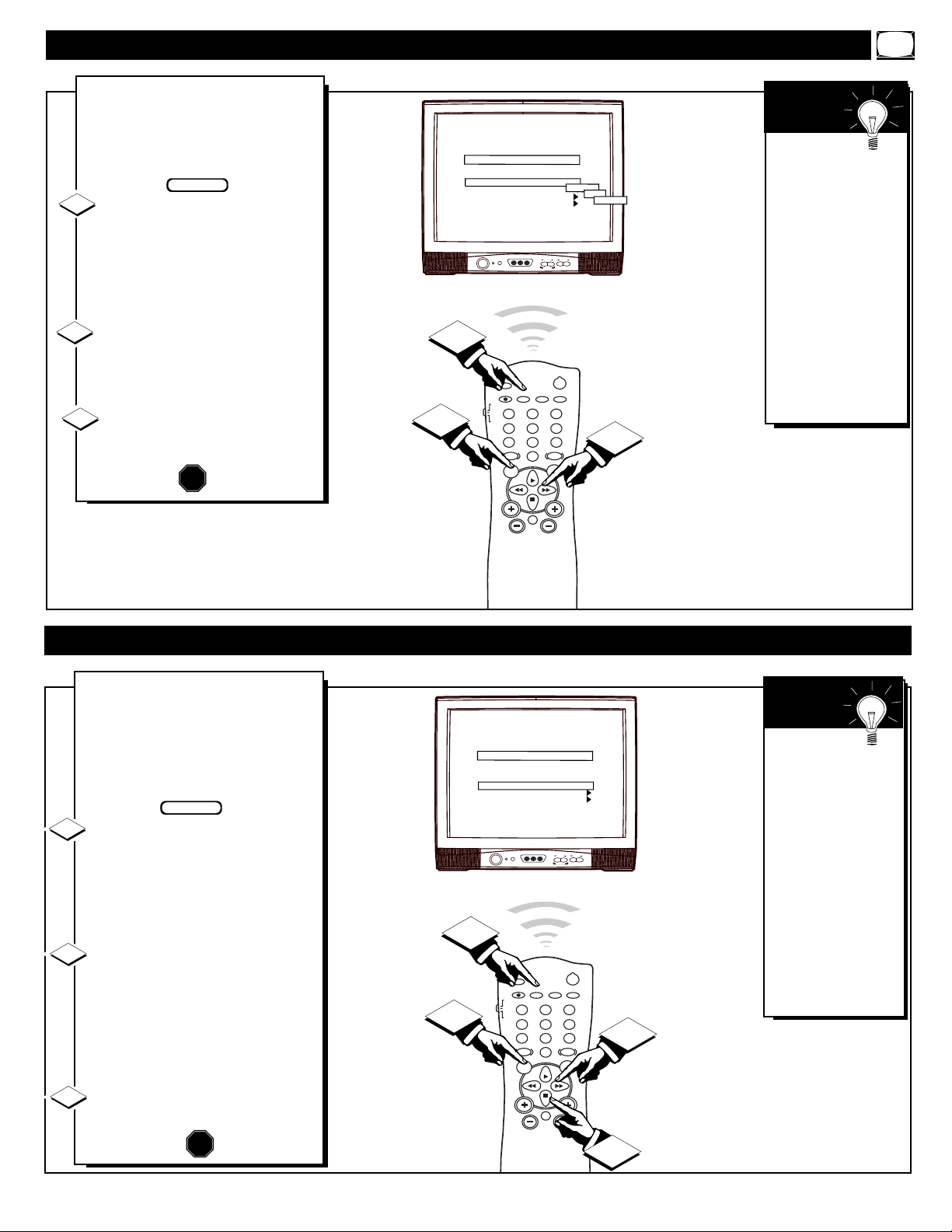
T
he Channel Installation Input
control directs the TV to select
an indicated input source (Auxiliary,
Antenna, Front A/V, etc.) whenever a
specific channel number is tuned.
With the Channel Installation
Menu onscreen press the Menu
button, or use the Cursor (▲) Up
and Down (▼) buttons, to select
INPUT with the TV’s highlight con-
trol bar.
Press the Cursor Right
(©) or
Left (§ )button on the remote to
turn select the desired signal input
mode (Antenna, Front A/V, etc.).
Press the STATUS/EXIT but-
ton to remove the menu.
1
2
STOP
CHANNEL INSTALLATION: INPUT CONTROL
3
Remember,
please refer to the
additional setup and
use information sup-
plied with those
models equipped
with a ProKit 1, or
other Smart Card
Expansion Assembly,
jackpanel. This infor-
mation will detail all
the various Audio
and Video connec-
tions possible with
this type of module.
SMART
HELP
BEGIN
CHANNEL
VOLUME
POWER
VIDEO L AUDIO R
A V SWITCH
POWER
SLEEP
A/CH STATUS/EXIT CC CLOCK
RECORD
TV
VCR
ACC
SMART
SMARTSMART
SOUND
PICTURE
MENU SURF
VOL
CH
MUTE
1
23
4
5
6
7
89
0
TV/VCR
2
1
3
11 WXYZ
CHANNEL
CHANNEL RING
INPUT
LABEL
AUTO PROGRAM
EXIT
CHANNEL INSTALLATION
TV 4
DELETED
ANTENNA
(WXYZ )
2
A
Channel Label can be set for a
symbol, letter, or number callout
(up to eight characters in length)
that will appear with the TV’s
onscreen channel numbers. Example:
WXYZ - for a TV station’s call let-
ters.
With the Channel Installation
Menu onscreen press the Menu
button, or use the Cursor (▲) Up
and Down (▼) buttons, to select
LABEL with the TV’s highlight con-
trol bar.
Press the Cursor Right
(©) or
Left (§ )button on the remote to
select the separate character spaces
within the LABEL control. Use the
Cursor (▲) Up and Down (▼) but-
tons to select the specific letters or
symbols for the highlighted space.
Press the STATUS/EXIT button
to remove the menu when complet-
ed.
1
2
STOP
CHANNEL INSTALLATION: LABEL CONTROL
3
Remember,
if you want to con-
tinue to write new
Labels for additional
channels, just press
the Channel Number
(or the CH +,-) but-
tons with the
LABEL control
highlighted. Then
use the Cursor (▲)
Up and Down (▼)
buttons to select the
characters for the
next channel Label.
SMART
HELP
BEGIN
13
CHANNEL
VOLUME
POWER
VIDEO L AUDIO R
A V SWITCH
LANGUAGE
CHANNEL INSTALL
CABLE TUNING
BRIGHTNESS
COLOR
CONTRAST
SHARPNESS
TINT
NOISE REDUCTION
MAIN MENU
ENGLISH
ON
34
22
29
40
0
ON
POWER
SLEEP
A/CH STATUS/EXIT CC CLOCK
RECORD
TV
VCR
ACC
SMART
SMARTSMART
SOUND
PICTURE
MENU SURF
VOL
CH
MUTE
1
23
4
5
6
7
89
0
TV/VCR
1
2
3
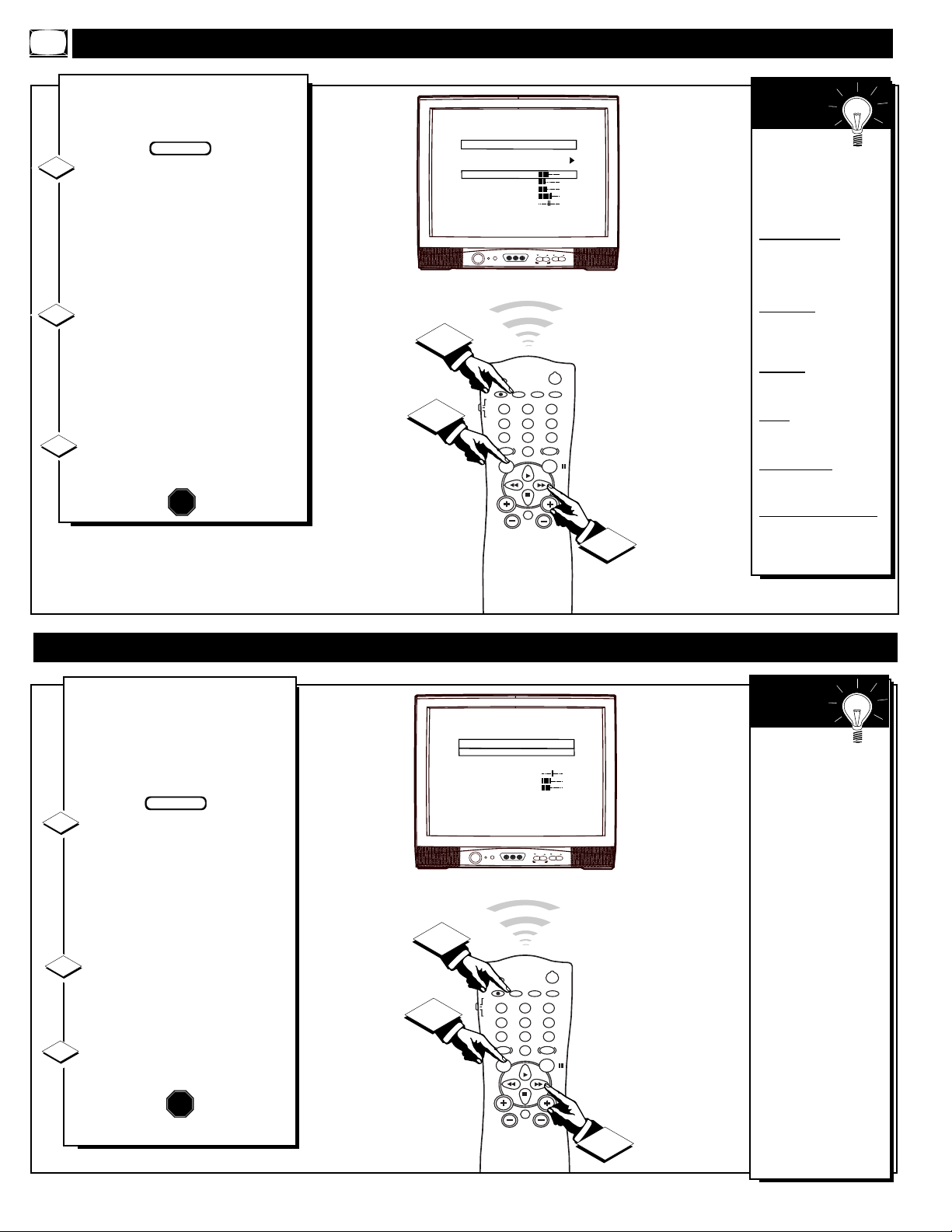
T
o adjust your TV color and pic-
ture controls, select a channel,
then follow these steps:
With the Main Menu onscreen
press the Menu button repeatedly,
or use the Cursor (▲) Up and
Down (▼) buttons, to select the
desired control (BRIGHTNESS,
COLOR, etc.) with the TV’s high-
light control bar.
Press the Cursor Right (©) or
Left (§ ) button on the remote to
adjust the control.
The sliding bar scale, and number
value indicator (0-63), will change
onscreen as adjustments are made.
Press the STATUS/EXIT button
to remove the menu when you are
finished.
1
2
STOP
HOW TO
ADJUST THE TV COLOR
3
Remember,
when the bar scale
is centered, the con-
trols are at normal
levels.
BRIGHTNESS - Press
Cursor (©) or (§ ) until
the darkest parts of the pic-
ture are as bright as you pre-
fer.
PICTURE - Press Cursor
(©) or (§ ) until the light-
est parts of the picture show
good detail.
COLOR - Press Cursor
(©) or (§ ) to add or elimi-
nate color.
TINT - Press Cursor (©)
or (§ ) to obtain natural
skin tones.
SHARPNESS - Press
Cursor (©) or (§ ) to
improve detail in the picture.
NOISE REDUCTION -
Press Cursor (©) or (§ )
to reduce possible signal
noise or interference in the
picture.
SMART
HELP
BEGIN
CHANNEL
VOLUME
POWER
VIDEO L AUDIO R
A V SWITCH
POWER
SLEEP
A/CH STATUS/EXIT CC CLOCK
RECORD
TV
VCR
ACC
SMART
SMARTSMART
SOUND
PICTURE
MENU SURF
VOL
CH
MUTE
1
23
4
5
6
7
89
0
TV/VCR
1
2
3
SOUND MODE
SAP
AUDIO OUT
BALANCE
TREBLE
BASS
ULTRA BASS
INCRED STEREO
AVL
MAIN MENU
STEREO
OFF
FIXED
0
31
31
ON
OFF
OFF
USING THE STEREO & SAP CONTROLS
Y
our TV is able to receive
broadcast stereo TV pro-
grams. The TV is equipped with
an amplifier and twin speaker
system through which the stereo
sound can be heard.
With the Main Menu
onscreen press the Menu but-
ton repeatedly, or use the
Cursor (▲) Up and Down (▼)
buttons, to select the SOUND
MODE control with the TV’s
highlight control bar.
Press the Cursor Right
(©)
or Left (§ ) button on the
remote to turn ON the Stereo
mode.
Press the STATUS/EXIT but-
ton to remove the menu.
1
2
3
Note: Second
Audio Program
(SAP) is part of the
stereo broadcast
system. Sent as an
additional audio
channel SAP can be
heard apart from the
current TV program
sound. TV stations
are free to use SAP
for any number of
purposes, but many
experts believe it
will be used for for-
eign language trans-
lations of TV shows
(or for weather and
news bulletins).
If a SAP signal is
not present with a
selected program
the SAP option can-
not be selected
SMART
HELP
BEGIN
STOP
14
CHANNEL
VOLUME
POWER
VIDEO L AUDIO R
A V SWITCH
POWER
SLEEP
A/CH STATUS/EXIT CC CLOCK
RECORD
TV
VCR
ACC
SMART
SMARTSMART
SOUND
PICTURE
MENU SURF
VOL
CH
MUTE
1
23
4
5
6
7
89
0
TV/VCR
1
1
2
3
BALANCE
TREBLE
BASS
ULTRA BASS
INCRED STEREO
AVL
VOLUME BAR
AUDIO/VIDEO MUTE
REMINDER
MAIN MENU
0
31
31
ON
ON
OFF
ON
BLUE
OFF
HOW TO
SET THE INCREDIBLE STEREO CONTROL
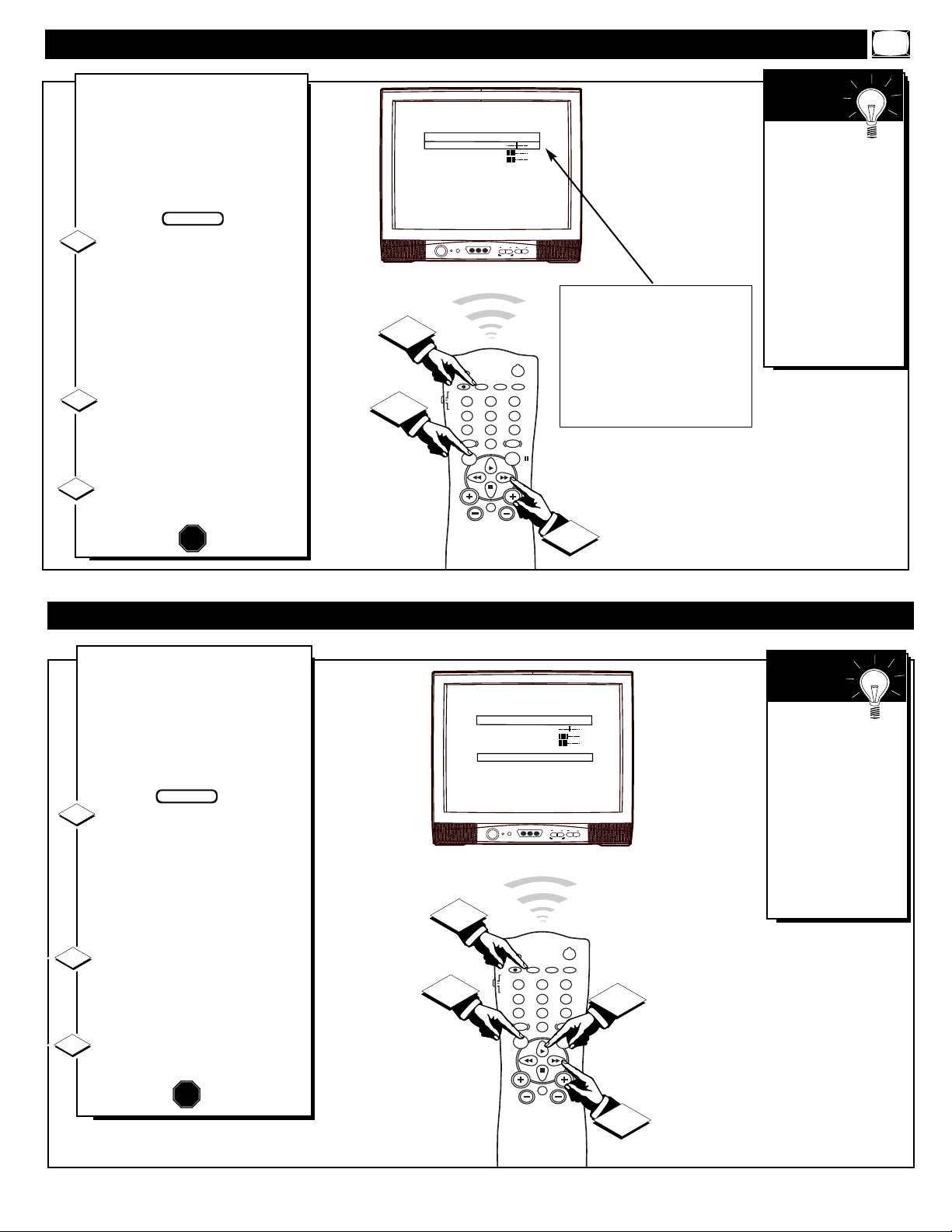
Y
our TV has already been pre-
set at the factory for a full-
time Stereo mode setting. But you
can add even greater depth and
dimension to TV program sound
reception by using the Incredible
Stereo sound control.
With the Main Menu
onscreen press the Menu button
repeatedly , or use the Cursor
(▲) Up and Down (▼) buttons,
to select INCREDIBLE STEREO
with the TV’s highlight control
bar.
Press the Cursor Right (©) or
Left (§ )button on the remote
to turn INCRED. STEREO On
(or Off).
Press the STATUS/EXIT but-
ton to remove the menu.
1
2
3
STOP
BEGIN
Remember,
with the Incredible
Stereo control
turned ON even
monaural (mono)
audio source materi-
al can be heard
through the rear
External Speaker
sound connection
terminals on the TV.
SMART
HELP
CHANNEL
VOLUME
POWER
VIDEO L AUDIO R
A V SWITCH
POWER
SLEEP
A/CH STATUS/EXIT CC CLOCK
RECORD
TV
VCR
ACC
SMART
SMARTSMART
SOUND
PICTURE
MENU SURF
VOL
CH
MUTE
1
23
4
5
6
7
89
0
TV/VCR
1
2
3
BALANCE
TREBLE
BASS
ULTRA BASS
INCRED STEREO
AVL
VOLUME BAR
AUDIO/VIDEO MUTE
REMINDER
MAIN MENU
0
31
31
ON
OFF
OFF
ON
BLUE
OFF
USING THE BASS, TREBLE, BALANCE CONTROLS
Y
our TV has individual sound
adjustment controls. The
speaker BALANCE, TREBLE
(high frequency), and BASS (low
frequency) controls may be used
to adjust the sound quality of TV
programs.
With the Main Menu
onscreen press the Menu but-
ton repeatedly, or use the
Cursor (▲) Up and Down (▼)
buttons, to select the BAL-
ANCE (TREBLE or BASS) con-
trol with the TV’s highlight con-
trol bar.
Press the Cursor Right
(©)
or Left (§ ) button on the
remote to adjust the sound to the
level you prefer.
Press the STATUS/EXIT
button to remove the menu.
1
2
3
BEGIN
STOP
Remember,
Besides normal
BASS sound control
adjustments, you
also can set an Ultra
Bass audio range
control that will cre-
ate an even deeper,
fuller low frequency
playback sound
which can be heard
through your TV
speakers.
SMART
HELP
Note: The sliding bar scale (and number
value indicator) will change onscreen as
sound adjustments are made.
For example: with the BALANCE con-
trol bar scale set to center (0 number
indicator), the sound coming from the
TV’s Left and Right cabinet speakers are
equally balanced. Move the BALANCE
bar scale control to the Right or Left and
sound playback will shift accordingly.
15
CHANNEL
VOLUME
POWER
VIDEO L AUDIO R
A V SWITCH
POWER
SLEEP
A/CH STATUS/EXIT CC CLOCK
RECORD
TV
VCR
ACC
SMART
SMARTSMART
SOUND
PICTURE
MENU SURF
VOL
CH
MUTE
1
23
4
5
6
7
89
0
TV/VCR
1
1
2
3
BALANCE
TREBLE
BASS
ULTRA BASS
INCRED STEREO
AVL
VOLUME BAR
AUDIO/VIDEO MUTE
REMINDER
MAIN MENU
0
31
31
ON
OFF
OFF
ON
BLUE
OFF
VOL
31
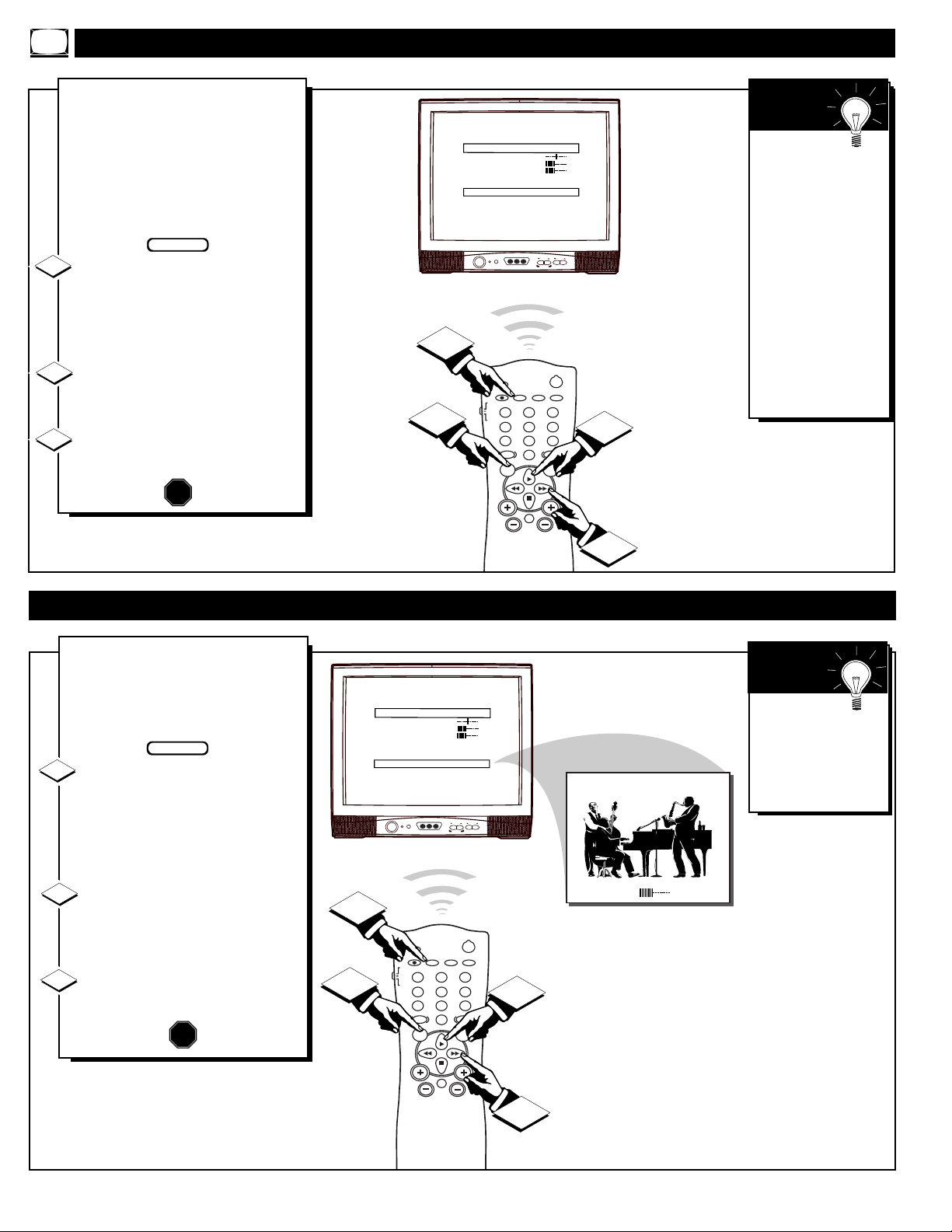
U
se the Volume Bar control to see
the TV’s volume level settings
on the TV screen. The Volume Bar
will appear when the VOL(ume) but-
tons are pressed.
With the Main Menu onscreen
press the Menu button repeatedly ,
or use the Cursor (▲) Up and
Down (▼) buttons, to select VOL-
UME BAR with the TV’s highlight
control bar.
Press the Cursor Right (©) or
Left (§ )button on the remote to
turn VOLUME BAR control On (or
Off).
Press the STATUS/EXIT button
to remove the menu.
1
2
STOP
USING THE TV VOLUME BAR CONTROL
3
Try it out.
Press the VOL(ume)
▲ Up and Down ▼
buttons. The
Volume Bar should
appear onscreen.
SMART
HELP
BEGIN
CHANNEL
VOLUME
POWER
VIDEO L AUDIO R
A V SWITCH
POWER
SLEEP
A/CH STATUS/EXIT CC CLOCK
RECORD
TV
VCR
ACC
SMART
SMARTSMART
SOUND
PICTURE
MENU SURF
VOL
CH
MUTE
1
23
4
5
6
7
89
0
TV/VCR
1
1
2
3
BALANCE
TREBLE
BASS
ULTRA BASS
INCRED STEREO
AVL
VOLUME BAR
AUDIO/VIDEO MUTE
REMINDER
MAIN MENU
0
31
31
ON
OFF
ON
ON
BLUE
OFF
A
utomatic Volume Limiter (AVL)
allows you to preset a desired
volume level that the TV sound will
not go above or exceed. This makes
for an even, more consistent sound
by reducing the “peaks” and “val-
leys” that can occur during commer-
cials and other program breaks.
With the Main Menu onscreen
press the Menu button repeatedly ,
or use the Cursor (▲) Up and
Down (▼) buttons, to select AVL
with the TV’s highlight control bar.
Press the Cursor Right (©) or
Left (§ ) button on the remote to
turn the AVL control On (or Off).
Press the STATUS/EXIT button
to remove the menu.
1
2
STOP
3
BEGIN
USING THE AUTOMATIC VOLUME LIMITER (AVL) CONTROL
Remember,
AVL works for
sound levels com-
ing from the
Antenna/Cable
Input on the rear of
the TV (RF Audio),
or the AUX(iliary)
audio inputs for
models that are
properly equipped
(with jackpanel
expansion kit mod-
ules such as Pro Kit
1).
SMART
HELP
16
CHANNEL
VOLUME
POWER
VIDEO L AUDIO R
A V SWITCH
POWER
SLEEP
A/CH STATUS/EXIT CC CLOCK
RECORD
TV
VCR
ACC
SMART
SMARTSMART
SOUND
PICTURE
MENU SURF
VOL
CH
MUTE
1
23
4
5
6
7
89
0
TV/VCR
1
1
2
3
BALANCE
TREBLE
BASS
ULTRA BASS
INCRED STEREO
AVL
VOLUME BAR
AUDIO/VIDEO MUTE
REMINDER
MAIN MENU
0
31
31
ON
OFF
OFF
ON
BLUE
OFF
OFF
BLACK
AUX
1:15 PM
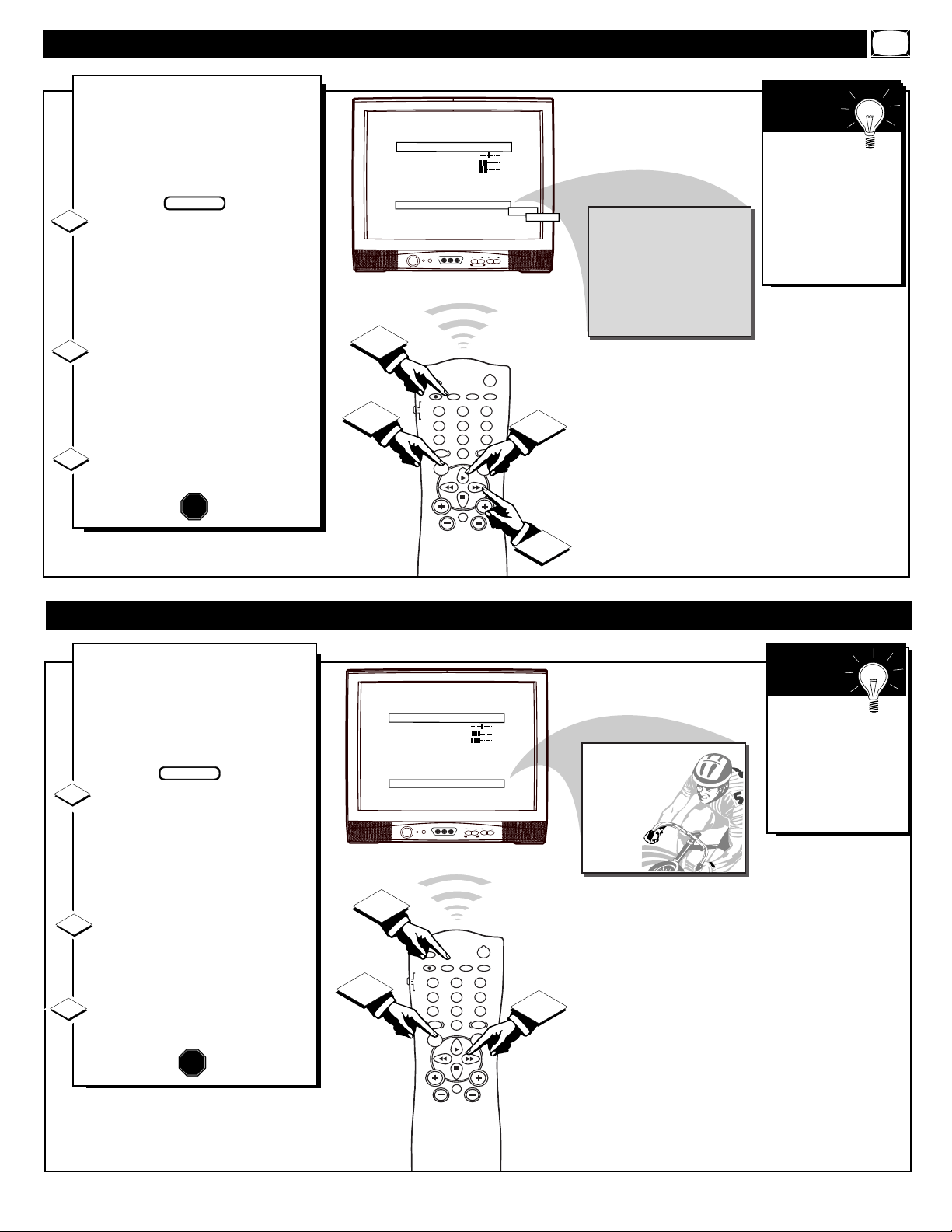
Y
ou can use the Audio/Video Mute
control option to set the back-
ground color for the TV screen
(when the TV is set to a blank chan-
nel that is not receiving an active
video signal).
With the Main Menu onscreen
press the Menu button repeatedly ,
or use the Cursor (▲) Up and
Down (▼) buttons, to select
AUDIO/VIDEO MUTE with the
TV’s highlight control bar.
Press the Cursor Right (©) or
Left
(§ )button on the remote to
set AUDIO/VIDEO MUTE control
to Blue, Black, or Off (normal static
appears with non active channels).
Press the STATUS/EXIT button
to remove the menu.
1
2
STOP
USING THE AUDIO/VIDEO MUTE
3
Try it out.
Press the CH (+, -)
buttons. The TV’s
background screen
will appear in the
selected color for
nonactive TV chan-
nels.
SMART
HELP
BEGIN
Selected Background Color appears
on channels that do not receive a signal.
CHANNEL
VOLUME
POWER
VIDEO L AUDIO R
A V SWITCH
POWER
SLEEP
A/CH STATUS/EXIT CC CLOCK
RECORD
TV
VCR
ACC
SMART
SMARTSMART
SOUND
PICTURE
MENU SURF
VOL
CH
MUTE
1
23
4
5
6
7
89
0
TV/VCR
2
1
3
BALANCE
TREBLE
BASS
ULTRA BASS
INCRED STEREO
AVL
VOLUME BAR
AUDIO/VIDEO MUTE
REMINDER
MAIN MENU
0
31
31
ON
OFF
OFF
ON
BLUE
ON
6 WXYZ
HOW TO SET THE CHANNEL REMINDER
W
ith the Channel Reminder
control On the current channel
number (with a Label callout, if it
also has been previously set) will
remain onscreen during normal TV
operation and use.
With the Main Menu onscreen
press the Menu button repeatedly,
or use the Cursor (▲) Up and
Down (▼) buttons, to select
REMINDER with the TV’s highlight
control bar.
Press the Cursor Right
(©) or
Left (§ ) button on the remote to
turn the REMINDER control On (or
Off).
Press the STATUS/EXIT button
to remove the menu.
BEGIN
1
2
3
The Clock
Display control can
also be used to view
current time settings
onscreen if desired.
(See page 22 for
details).
SMART
HELP
STOP
17
CHANNEL
VOLUME
POWER
VIDEO L AUDIO R
A V SWITCH
POWER
SLEEP
A/CH STATUS/EXIT CC CLOCK
RECORD
TV
VCR
ACC
SMART
SMARTSMART
SOUND
PICTURE
MENU SURF
VOL
CH
MUTE
1
23
4
5
6
7
89
0
TV/VCR
2
3
1
CC
V-CHIP SETUP
SLEEPTIMER
SET TIME
CLOCK DISPLAY
EXIT
LANGUAGE
CHANNEL INSTALL
CABLE TUNING
MAIN MENU
CC-1
ON
12:00 PM
ON
ENGLISH
ON
JOHN: WHY DID THEY MOVE THE MEETING
UP TO THIS WEEK?
MARSHA: I DON'T KNOW, BUT THEY ARE
PUSHING TO CLOSE THE DEAL.
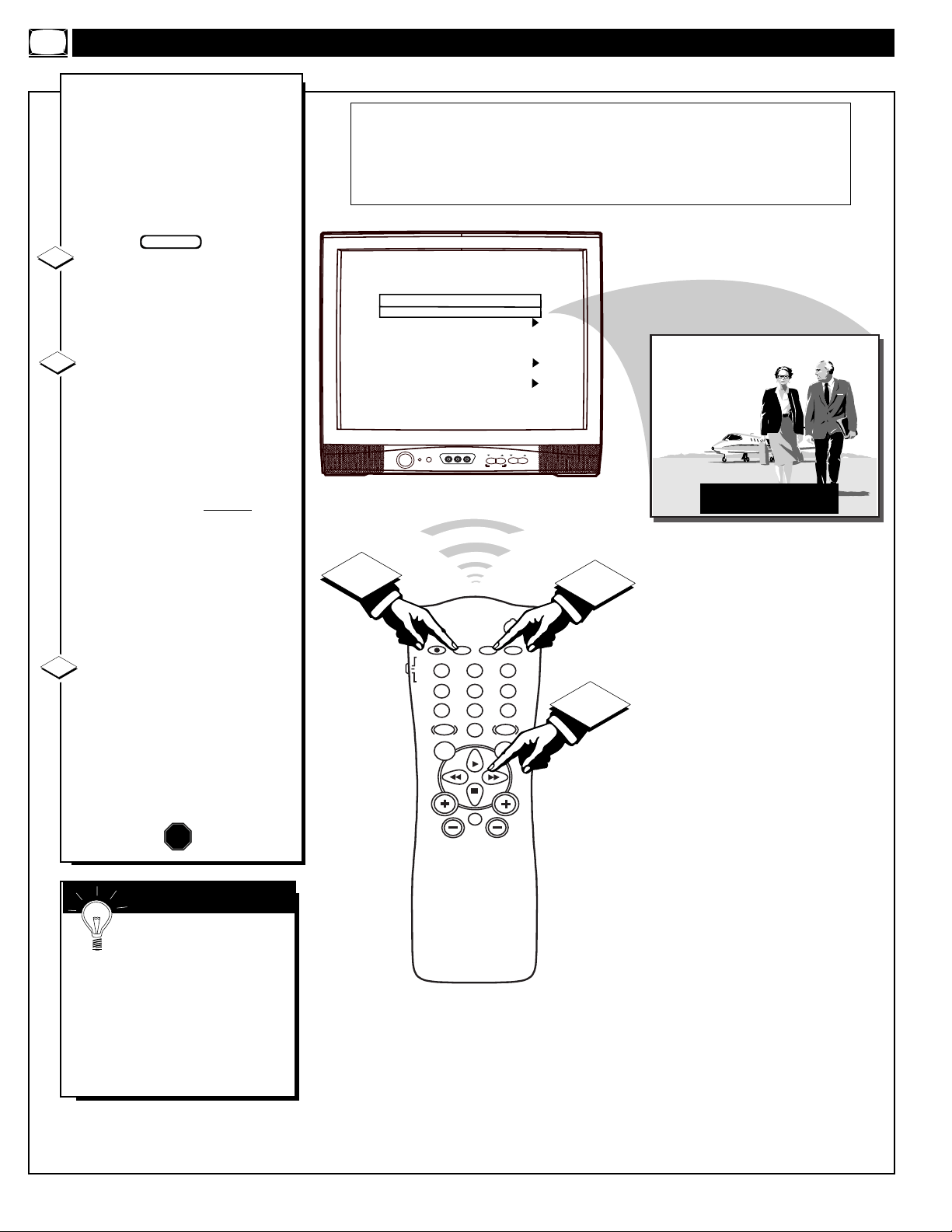
C
losed Captioning allows you to
read the voice content of televi-
sion programs on the TV screen.
Designed to help the hearing
impaired, this feature uses on-
screen "text boxes" to show dia-
logue and conversations while the
TV program is in progress.
Press the CC button on the
remote, or use the Menu button
and Main Menu, to select CC
(Close Caption) with the TV’s
highlight control bar.
Press the Cursor Right (©) or
Left (§ )button on the remote to
select the desired Closed Caption
(CC) mode, for example, CC-1.
CC- 1, 2 modes:
Dialogue and descriptions
for the program appear
on-screen. Note: Usually
CC-1
is the most used mode to view
captioned material.
CC ON MUTE:
Used to set the TV to turn On
the Closed Caption mode
whenever the MUTE button on
remote is pressed.
Press the STATUS/EXIT but-
ton after you select a mode. The
menu will disappear and Closed
Captioning (if available for the cur-
rently selected TV program) will
appear on the TV screen.
To cancel Closed Captioning, select
OFF at step 2 above.
1
2
STOP
HOW TO SELECT THE CLOSED CAPTION FEATURE
3
CLOSE CAPTION (CC-1) mode
Example Display
BEGIN
SMART HELP
Remember, broadcast
stations will often use
spelling abbreviations, symbols,
dropouts, and other grammatical
shortcuts in order to keep pace
with the on-screen action. These
factors vary upon the source of the
captioned text material and do not
indicate a need for TV service.
NOTE: Not all TV programs and product commercials are broadcast with
Closed Caption (CC) information included. Neither are all Closed Caption
modes (CC 1 and CC 2) necessarily being used by a broadcast station during
the transmission of a closed caption program. Refer to your area's TV pro-
gram listings for the stations and times of Closed Caption shows.
CLOSE CAPTION (CC-1) mode
Example Display
18
CHANNEL
VOLUME
POWER
VIDEO L AUDIO R
A V SWITCH
POWER
SLEEP
A/CH STATUS/EXIT CC CLOCK
RECORD
TV
VCR
ACC
SMART
SMARTSMART
SOUND
PICTURE
MENU SURF
VOL
CH
MUTE
1
23
4
5
6
7
89
0
TV/VCR
2
1
3
CC
V-CHIP SETUP
SLEEPTIMER
SET TIME
CLOCK DISPLAY
EXIT
LANGUAGE
CHANNEL INSTALL
CABLE TUNING
MAIN MENU
CC-1
ON
12:00 PM
ON
ENGLISH
ON
MASTER DISABLE
TV RATINGS
MOVIE RATINGS
EXIT
V-CHIP SETUP
ON
OFF
4
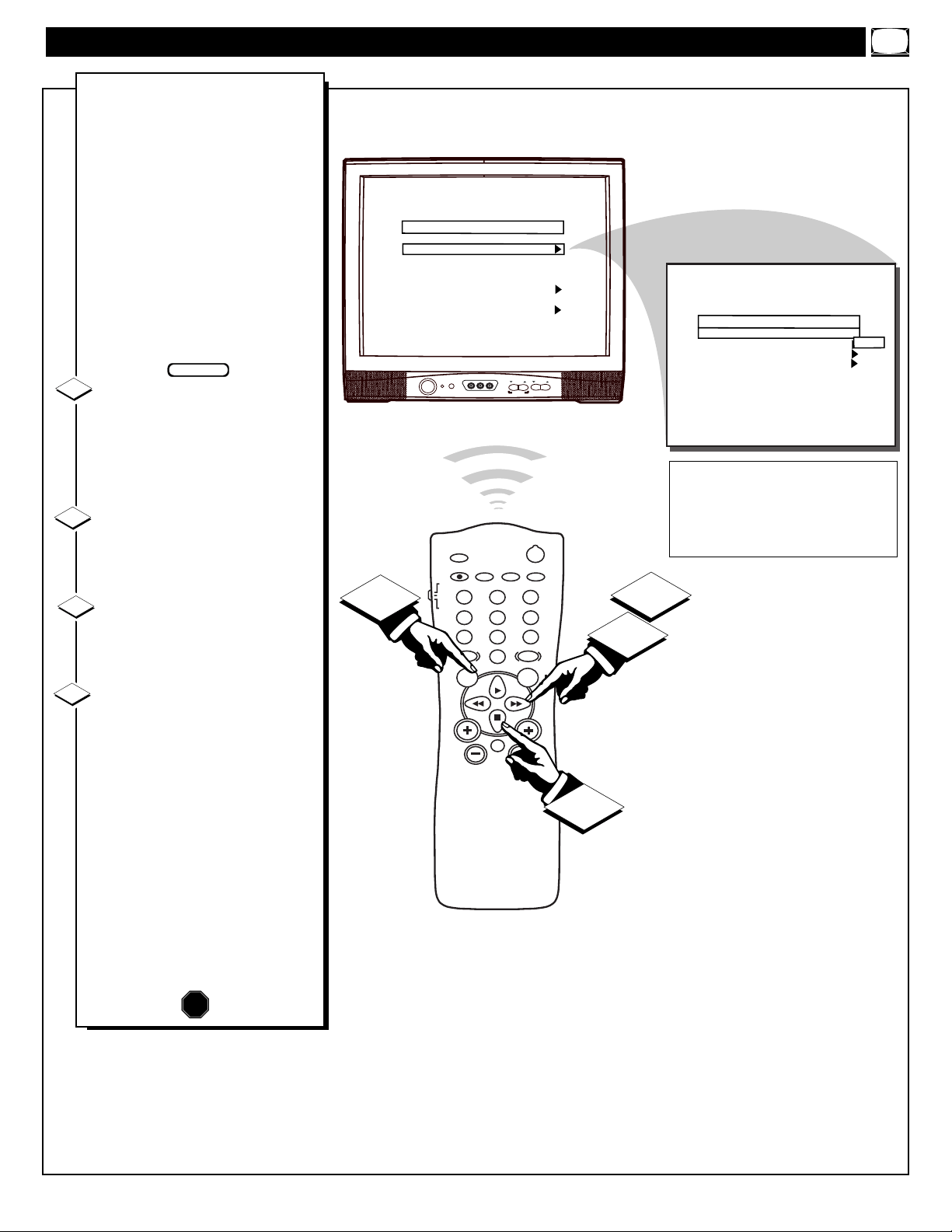
A
new Program Content Advisory
system is available to censor TV
program material for viewing. TV
Ratings and Movie Ratings advisory
data will soon be contained within
the broadcast signals of received TV
programs. When setup by the viewer,
the TV can respond by blocking or
denying access to TV shows (based
on whether the program meets or
exceeds the limitations you select as
viewable). Refer to the following
page sections for explanations on the
different Rating system levels and
their uses.
With the Main Menu onscreen
press the Menu button repeatedly ,
or use the Cursor (▲) Up and
Down (▼) buttons, to select V-
CHIP SETUP with the TV’s high-
light control bar.
Press the Cursor Right
(©) or
Left (§ ) button on the remote to
select the V-CHIP SETUP controls
screen.
Press the Menu button, or use
the Cursor (▲) Up and Down (▼)
buttons, to select the Master Disable
control.
Press the Cursor Right
(©) or
Left (§ ) button to turn the Master
Disable control Off (or On).
With Master Disable in the “OFF”
position: All specific TV and Movie
Rating settings for blocking or cen-
soring of programs will take place.
With Master Disable in the “ON”
position: All specific TV and Movie
Rating settings for blocking or cen-
soring of programs will not take
place (or be disabled).
Continue to the next page for com-
plete details on the specific TV
Rating and Movie Rating settings.
1
2
STOP
USING THE V-CHIP OR CONTENT ADVISORY CONTROL
3
BEGIN
NOTE: In normal Content Advisory
system operation the TV screen will
display a message when program-
ming is blocked by a Movie Rating
or Parental Guideline.
4
19
CHANNEL
VOLUME
POWER
VIDEO L AUDIO R
A V SWITCH
POWER
SLEEP
A/CH STATUS/EXIT CC CLOCK
RECORD
TV
VCR
ACC
SMART
SMARTSMART
SOUND
PICTURE
MENU SURF
VOL
CH
MUTE
1
23
4
5
6
7
89
0
TV/VCR
1
3
2
4
MASTER DISABLE
TV RATINGS
MOVIE RATINGS
EXIT
V-CHIP SETUP
OFF
TV-Y
TV-Y7
TV-G
TV-PG
TV-14
TV-MA
EXIT
TV RATINGS ALL V S L D
[ ]
[ ] [ ]
[ ]
[X ] [ ] [ ] [ ] [ ]
[X ] [ ] [ ] [ ] [ ]
[X ] [ ] [ ] [ ]
5
6
USING THE V-CHIP TV RATINGS CONTROL
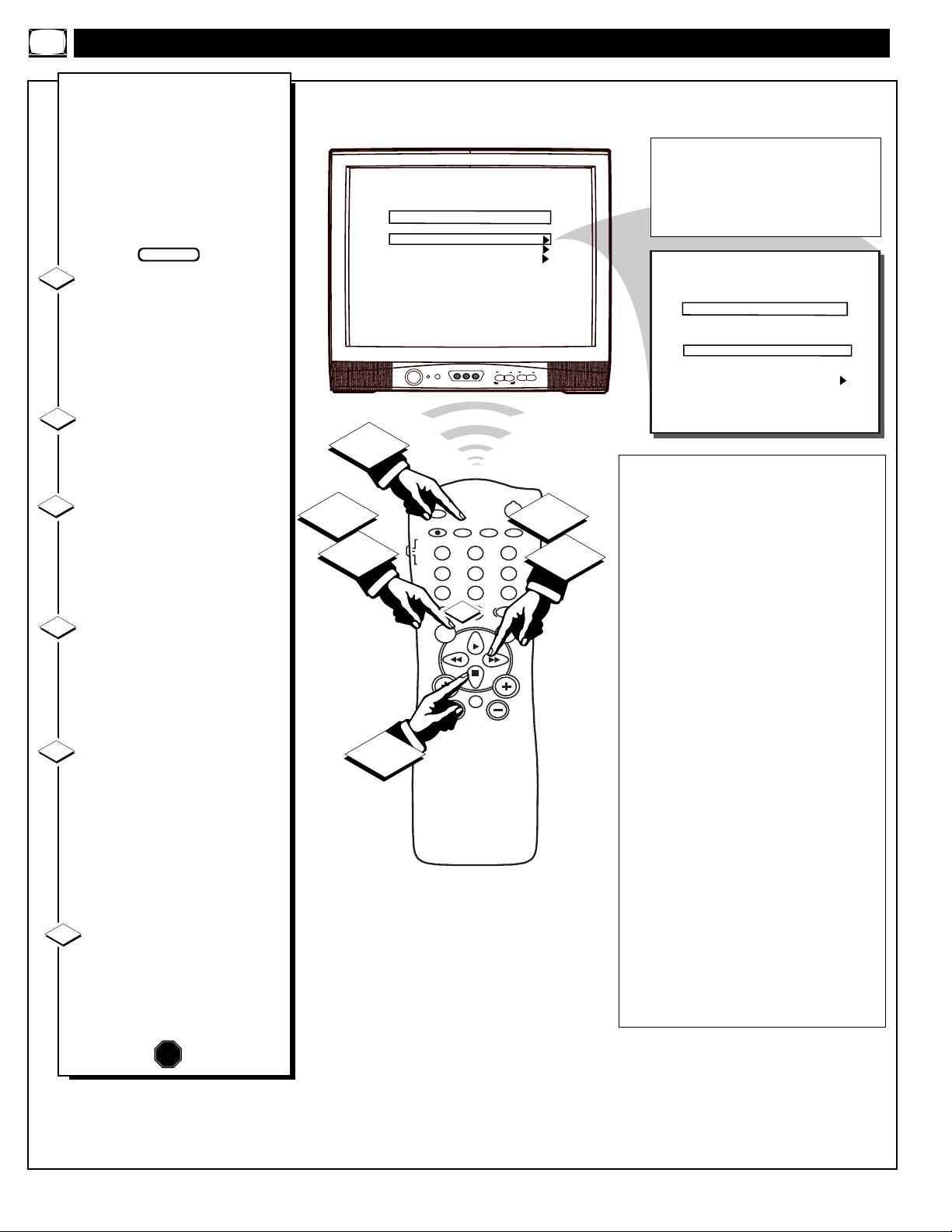
T
he TV Ratings control can be
very specific in the degree and
extent of program material cen-
sored for TV viewing. Sub-settings
fora variety of blocking factors
can be manually switched On or
Off for use within the major TV
Ratings categories (TV-Y7, TV-
PG, etc.).
With the V-CHIP SETUP
Menu onscreen press the Menu
button repeatedly, or use the
Cursor (▲) Up and Down (▼)
buttons, to select TV RATINGS
with the TV’s highlight control
bar.
Press the Cursor Right (©) or
Left (§ ) button on the remote
to use the TV RATINGS selection
chart.
Press the Menu button
repeatedly, or use the Cursor
(▲) Up and Down (▼) buttons,
to select the desired TV RAT-
INGS level. For example, TV-PG.
Press the Cursor Right
(©) but-
ton on the remote to select the
specific category (ALL, V, S, L,
D) within the TV RATING.
A blinking indicator will show
which category bracket is active.
Press the Menu button, or use
Cursor (▲) Up and Down
(▼), on the remote to select (X)
the specific blocking category for
use.
Note: Selecting “ALL” (or indi-
vidually adjusting the V, S, L, D
settings) for any one rating will
set all other higher level ratings to
be automatically blocked as well.
Press STATUS/EXIT to save
the specific TV Rating setting.
Then press the remote control
Cursor buttons to move to the
next category area for setup or
use.
1
2
3
STOP
BEGIN
The TV-Y7; TV-PG; TV-14; and TV-MA guide-
lines also include customized settings for various
additional items such as V (violence), S (sexual
situations), L (coarse language), and D (sugges-
tive dialogue). These additional settings are cate-
gory specific and can be individually selected for
use as desired.
• TV-Y - Appropriate for all children:
Designed for a very young audience, including
children ages 2-6. This type of programming is
not expected to frighten younger children.
• TV-Y7 -Appropriate for children seven
and older:
It may be more appropriate for chil-
dren who have acquired the development skills
needed to distinguish between make-believe and
reality. This programming may include mild fan-
tasy and comic violence.
• TV-G - General Audience:
This type of
programming contains little or no violence, no
strong language, and little or no sexual dialogue
or situations.
• TV-PG - Parental Guidance suggested:
This type of programming contains one or more
of the following: Moderate violence (V), some
sexual situations (S), infrequent coarse language
(L), or some suggestive dialogue (D).
• TV-14 - Unsuitable for children under
14:
This type of programming contains one or
more of the following: intense violence (V),
intense sexual situations (S), strong coarse lan-
guage (L), or intensely suggestive dialogue (D).
• TV-MA - Mature audience only:
This
type of programming contains one or more of the
following: graphic violence (V), explicit sexual
situations (S), or crude indecent language (L).
• (V) - Violence
• (S) - Sexual situations
• (L) - Language
• (D) - Inappropriate dialogue
4
5
5
6
20
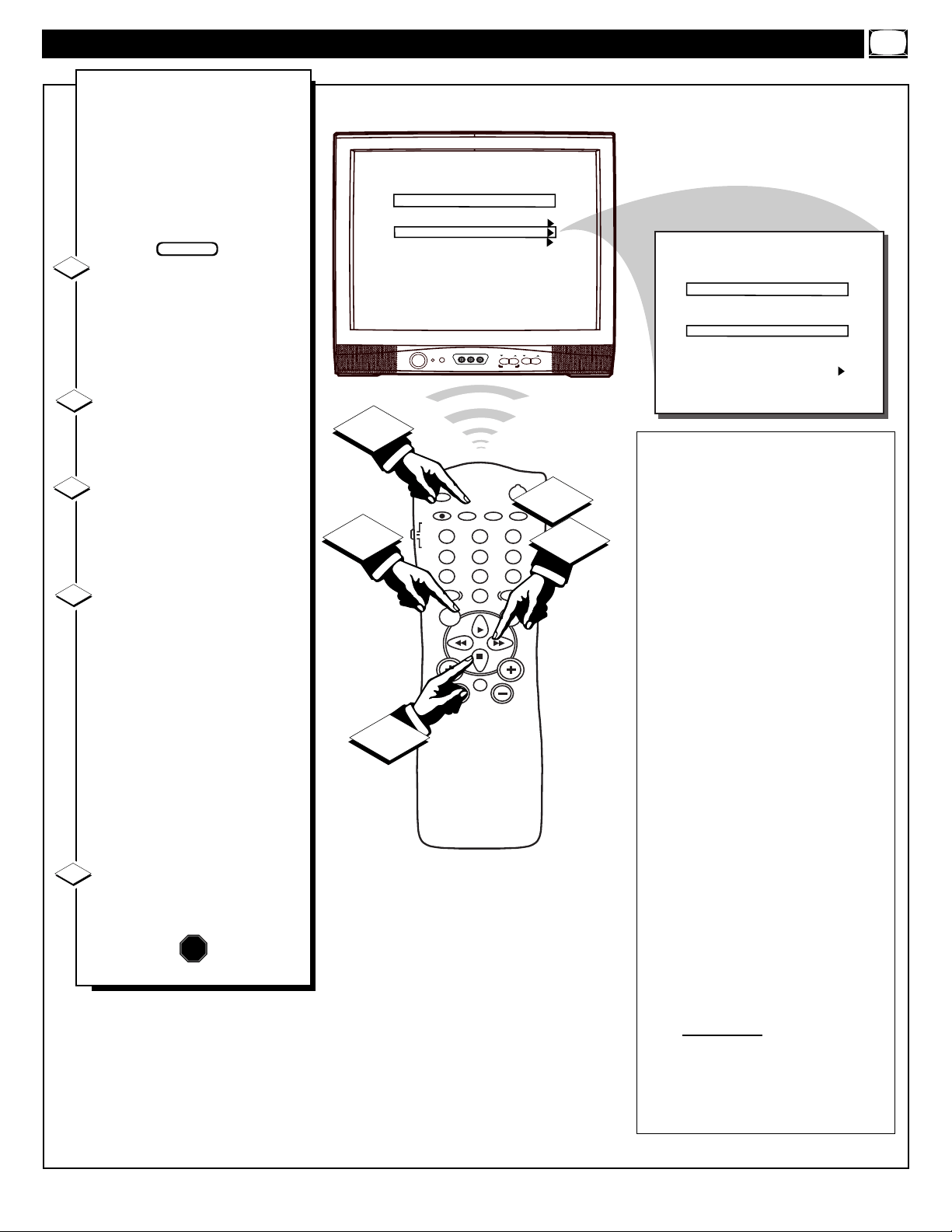
CHANNEL
VOLUME
POWER
VIDEO L AUDIO R
A V SWITCH
POWER
SLEEP
A/CH STATUS/EXIT CC CLOCK
RECORD
TV
VCR
ACC
SMART
SMARTSMART
SOUND
PICTURE
MENU SURF
VOL
CH
MUTE
1
23
4
5
6
7
89
0
TV/VCR
1
3
2
4
MASTER DISABLE
TV RATINGS
MOVIE RATINGS
EXIT
V-CHIP SETUP
OFF
5
G
PG
PG-13
R
NC-17
X
NR
EXIT
MOVIE RATINGS
VIEW
VIEW
VIEW
BLOCKED
BLOCKED
BLOCKED
BLOCKED
USING THE V-CHIP MOVIE RATINGS CONTROL
M
ovie Ratings set viewing
access levels for TV pro-
gramming according to current
Motion Picture Association of
America (MPAA) ratings. These
ratings are similar to the cate-
gories used with the rated movies
appearing in cinema theaters and
with video rental material.
With the V-CHIP SETUP
Menu onscreen press the Menu
button repeatedly, or use the
Cursor (▲) Up and Down (▼)
buttons, to select MOVIE RAT-
INGS with the TV’s highlight
control bar.
Press the Cursor Right (©) or
Left (§ ) button on the remote
to use the MOVIE RATINGS
selection chart.
Press the Menu button
repeatedly, or use the Cursor
(▲) Up and Down (▼) buttons,
to select the desired MOVIE
RATINGS level. For example, R.
Press the Cursor Right
(©) or
Left (§ ) button on the remote
to BLOCK (or VIEW) the select-
ed Movie category.
Note: When a selected Movie
Rating is “BLOCKED” all higher
level ratings are automatically
blocked as well (although each
individual Movie Rating can be
manually selected and turned On
or Off as desired). Programs with
lower than the selected rating
level are allowed for viewing or
unblocked.
Press STATUS/EXIT to save
the Movie Ratings settings and
return to the V-CHIP Setup Menu
screen.
1
2
3
STOP
BEGIN
4
5
• G - General Audience: Most parents
would find this program suitable for all
ages. This type of programming contains lit-
tle or no violence, no strong language, and
little or no sexual dialogue or situations.
• PG - Parental Guidance:
This program-
ming contains material that parents may find
unsuitable for younger children. It may con-
tain one or more of the following: Moderate
violence, some sexual situations, infrequent
coarse language, or some suggestive dialogue.
• PG-13:
This programming contains materi-
al that parents may find unsuitable for
children under the age of 13. It con-
tains one or more of the following: violence,
sexual situations, coarse language, or sugges-
tive dialogue.
• R - Restricted:
This programming is
specifically designed for adults. Anyone
under the age of 17 should only view this
programming with an accompanying parent
or adult guardian. It contains one or more of
the following: intense violence, intense sexual
situations, strong coarse language, or intense-
ly suggestive dialogue.
• NC-17 - No one under 17 admitted:
This type of programming should be viewed
by adults only. It contains graphic violence,
explicit sex, or crude indecent language.
• X - Mature audience only:
This type of
programming contains one or more of the fol-
lowing: very graphic violence, very graphic
and explicit or indecent sexual acts, very
coarse and intensely suggestive language.
• NR - No Rating: Broadcasters can
decide not to encode any kind of content
advisory ratings with their programming.
The NO RATING (NR) Movie category
allows the viewer the option to block any
movie broadcast without content advisory
data included.
21
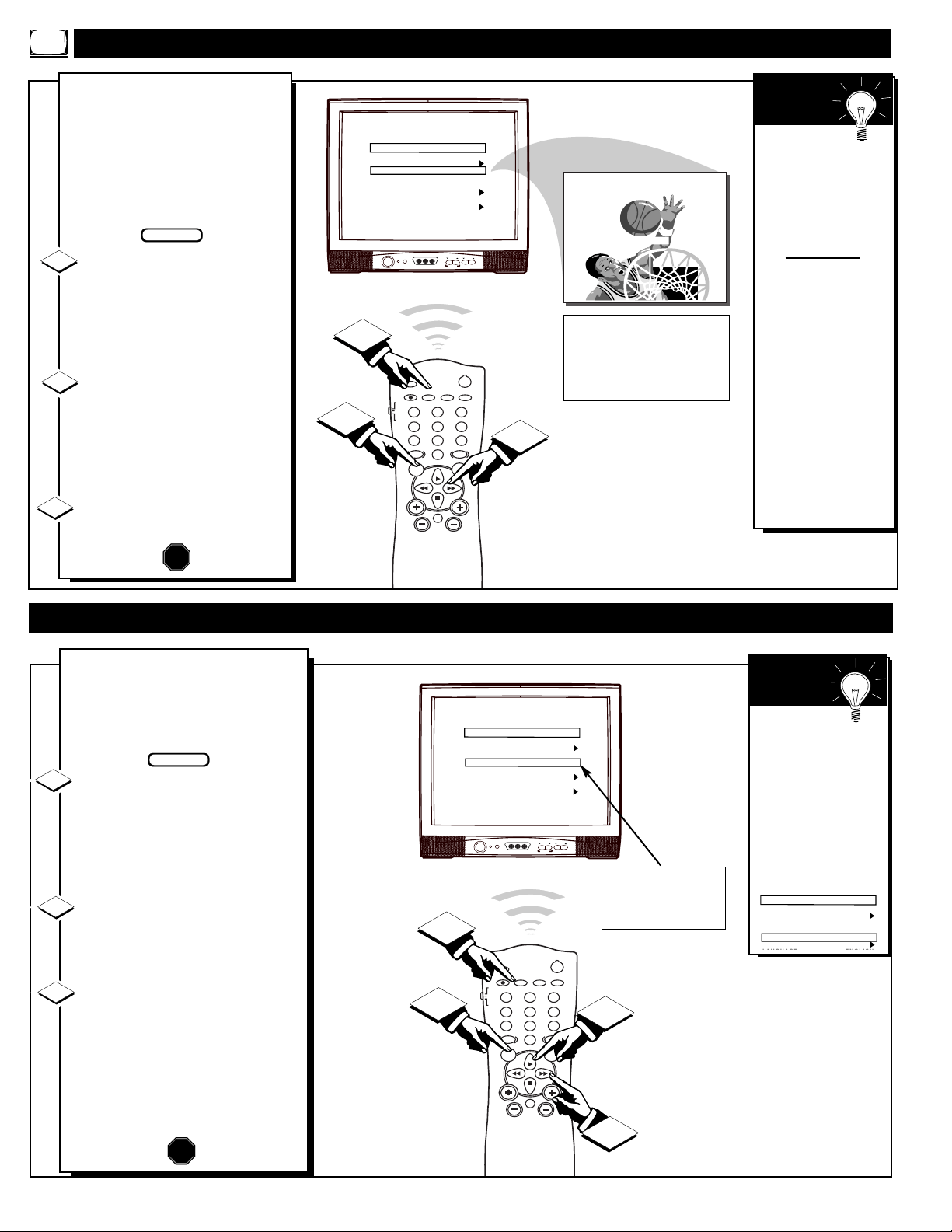
CHANNEL
VOLUME
POWER
VIDEO L AUDIO R
A V SWITCH
POWER
SLEEP
A/CH STATUS/EXIT CC CLOCK
RECORD
TV
VCR
ACC
SMART
SMARTSMART
SOUND
PICTURE
MENU SURF
VOL
CH
MUTE
1
23
4
5
6
7
89
0
TV/VCR
1
1
2
3
CC
V-CHIP SETUP
SLEEPTIMER
SET TIME
CLOCK DISPLAY
EXIT
LANGUAGE
CHANNEL INSTALL
CABLE TUNING
MAIN MENU
OFF
ON
01:45 PM
ON
ENGLISH
ON
Y
our TV has an on-screen clock.
During normal use the clock
appears onscreen with every channel
change (and when the STATUS but-
ton is pressed).
With the Main Menu onscreen
press the Menu button repeatedly ,
or use the Cursor (▲) Up and
Down (▼) buttons, to select SET
TIME with the TV’s highlight con-
trol bar.
Press the Cursor Right (©) or
Left
(§ ) button on the remote to
select the onscreen clock for adjust-
ment.
Press the remote's number but-
tons, or use the Cursor (▲) Up and
Down (▼) buttons, to enter the cur-
rent time. (Press "0" first for single-
digit hour entries.)
Press the STATUS/EXIT button to
remove the menu and start the clock.
1
2
STOP
USING THE SET TIME & CLOCK DISPLAY CONTROLS
3
Remember,
in order for the
clock to appear on
the TV screen, with
channel changes,
etc., the CLOCK
DISPLAY Menu
control must also be
set to the ON posi-
tion.
SMART
HELP
BEGIN
Press the number “1” and
“0”, or use the Cursor
(▲)/(▼), buttons for the
AM/PM clock settings.
CC
V-CHIP SETUP
SLEEPTIMER
SET TIME
CLOCK DISPLAY
EXIT
LANGUAGE
MAIN MENU
OFF
ON
01:45 PM
ON
ENGLISH
CHANNEL
VOLUME
POWER
VIDEO L AUDIO R
A V SWITCH
POWER
SLEEP
A/CH STATUS/EXIT CC CLOCK
RECORD
TV
VCR
ACC
SMART
SMARTSMART
SOUND
PICTURE
MENU SURF
VOL
CH
MUTE
1
23
4
5
6
7
89
0
TV/VCR
2
1
3
6 WXYZ
CC
V-CHIP SETUP
SLEEPTIMER
SET TIME
CLOCK DISPLAY
EXIT
LANGUAGE
CHANNEL INSTALL
CABLE TUNING
MAIN MENU
OFF
15
12:00 PM
ON
ENGLISH
ON
GOODBYE
10 SEC
SETTING THE SLEEP TIMER
H
ave you ever fallen asleep in
front of the TV, only to have
it wake you up at two in the
morning with a test pattern
screeching in your ears? Well,
your TV can save you all that
trouble by automatically turning
itself off.
With the Main Menu
onscreen press the Menu button
repeatedly, or use the Cursor
(▲) Up and Down (▼) buttons,
to select SLEEPTIMER with the
TV’s highlight control bar.
Press the Cursor Right
(©)
or Left (§ ) button on the
remote to select the amount of
time before you want the TV to
shut itself off (between 15 min-
utes and 240 minutes).
Press STATUS/EXIT to
remove the menu.
1
2
3
STOP
Remember,
you can refer to the
Sleeptimer Menu
control to see how
many minutes are
left before the TV
shuts itself off.
To cancel a SLEEP
TIMER setting:
select OFF at step
2; or, pressing a
button on the TV or
remote during the
last minute of the
Sleeptimer count-
down will cancel a
setting; or, turning
the TV off, then on
again, will also can-
cel a setting.
SMART
HELP
BEGIN
An onscreen countdown will
appear on the TV during the last
minute before the set is to shut off.
A “GOODBYE” message will also
show onscreen during the last ten
seconds of the countdown.
22
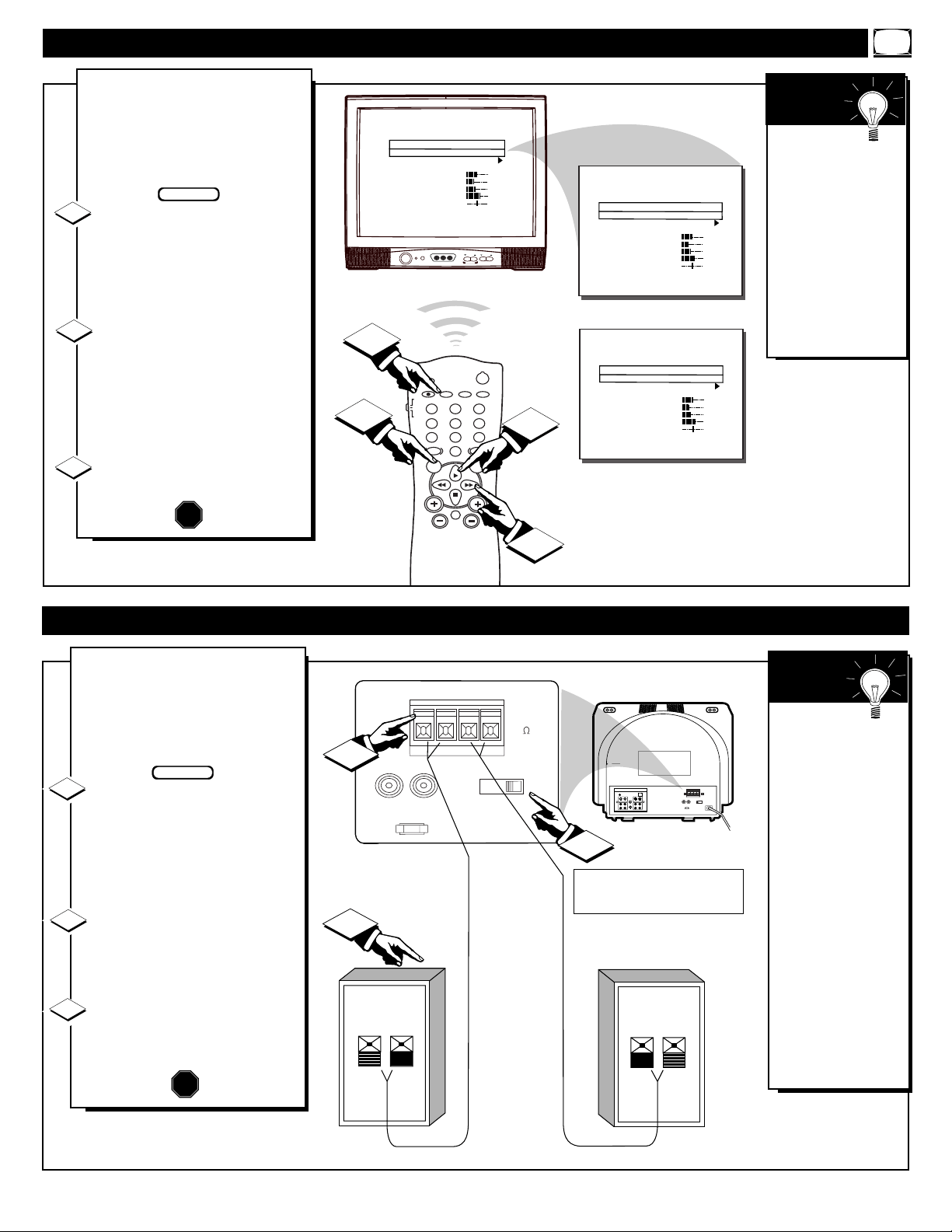
EXTERNAL SPEAKERS
88
+ R – – L +
INT
SPEAKERS
EXT
VARIABLE
AUDIO OUT
+
-
+-
2
3
EXTERNAL
SPEAKER
SMART
PLUG
75Ω
ANT/
CABLE
OUT VIDEO LOOP IN
OUT S-VIDEO LOOP IN
IN
R AUDIO LOOP L
OUT
IN
R AUDIO LOOP L
OUT
VIDEO
OUT
EXTERNALEXTERNAL SPEAKERS SPEAKERS
88
+ R + R – – L +
INTINT
SPEAKERSSPEAKERS
EXTEXT
VARIABLEARIABLE
AUDIO OUTAUDIO OUT
1
Set the SPEAKERS SWITCH on the
rear of the TV to "EXT" POSITION
(to eliminate sound at the set).
USING THE EXTERNAL S
PEAKER TERMINALS
A
set of External Speaker termi-
nals is located on the rear of
the TV. These speaker terminals
allow you to connect optional
external speakers for Right/Left
channel stereo sound.
Connect both external speak-
ers to the correct EXTERNAL
SPEAKER (Left/Right) terminals
on the TV. See Smart Help Note
for additional details on connec-
tions.
Place the external speakers to
maximize the Left and Right
channel stereo sound separation
(within current room dimensions).
Set the SPEAKERS switch
(on the rear of the TV) to the
"EXT(ernal)" position.
1
2
STOP
Remember,
be sure the (+) and
(-) speaker wires
are connected to the
correct R(ight) and
L(eft) speaker ter-
minals on the TV.
Recommended
speakers are 8 ohm,
15 watt minimum.
Note: Lift up on the
(Red & Black)
Speaker Wire
Clamps when
inserting the speak-
er wire into the cor-
rect terminal. Press
the Clamp back
down to secure the
wire in place.
SMART
HELP
BEGIN
3
CHANNEL
VOLUME
POWER
VIDEO L AUDIO R
A V SWITCH
POWER
SLEEP
A/CH STATUS/EXIT CC CLOCK
RECORD
TV
VCR
ACC
SMART
SMARTSMART
SOUND
PICTURE
MENU SURF
VOL
CH
MUTE
1
23
4
5
6
7
89
0
TV/VCR
1
1
2
3
LANGUE
CHANNEL INSTALL
SYNT. DE BANDE
BRILLANCE
COULEUR
CONTRASTE
NETTETE
TEINTE
REDUCTION DU BRUIT
FRANCAIS
MARCHE
34
22
29
40
0
ARRET
IDIOMA
INSTAL. CANALES
SINTONIA DE BANDA
BRILLO
COLOR
CONTRASTE
NITIDEZ
TINTE
REDUCCION DE RUIDO
ESPANOL
SI
34
22
29
40
0
NO
LANGUAGE
CHANNEL INSTALL
CABLE TUNING
BRIGHTNESS
COLOR
CONTRAST
SHARPNESS
TINT
NOISE REDUCTION
MAIN MENU
ENGLISH
ON
34
22
29
40
0
OFF
HOW TO
USE THE ON-SCREEN LANGUAGE OPTION
F
or our French and Spanish
speaking TV owners, an on-
screen LANGUAGE option is
available. You may set the TV's
onscreen menu to appear in either
English, French, or Spanish text.
With the Main Menu
onscreen press the Menu button
repeatedly, or use the Cursor
(▲) Up and Down (▼) buttons,
to select LANGUAGE with the
TV’s highlight control bar.
Press the Cursor Right (©) or
Left (§ ) button on the remote
to select English, French (FRAN-
CAIS), or Spanish (ESPANOL).
Text in the onscreen Menu will
appear in the selected language.
Press STATUS/EXIT to remove
the menu.
1
2
3
STOP
Remember,
the Language con-
trol only makes the
TV's onscreen
Menu items appear
in French or
Spanish text. It does
not change the lan-
guage of other
onscreen text fea-
tures, such as
Closed Captioning.
SMART
HELP
BEGIN
23
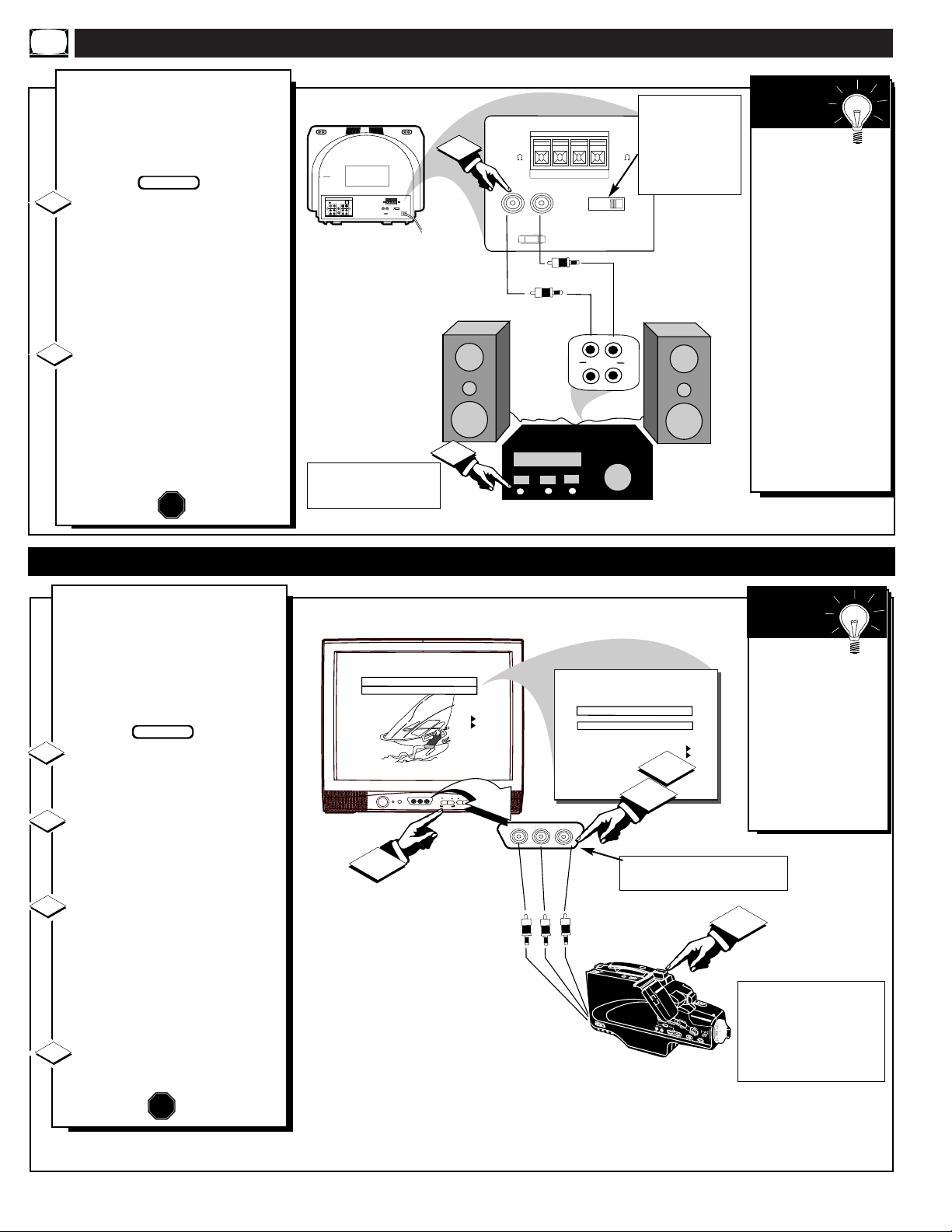
USING THE AUDIO OUTPUT JACKS
EXTERNAL SPEAKERS
88
+ R – – L +
INT
SPEAKERS
EXT
VARIABLE
AUDIO OUT
EXTERNAL
SPEAKER
SMART
PLUG
75Ω
ANT/
CABLE
OUT VIDEO LOOP IN
OUT S-VIDEO LOOP IN
IN
R AUDIO LOOP L
OUT
IN
R AUDIO LOOP L
OUT
VIDEO
OUT
EXTERNALEXTERNAL SPEAKERS SPEAKERS
88
+ R + R – – L +
INTINT
SPEAKERSSPEAKERS
EXTEXT
VARIABLEARIABLE
AUDIO OUTAUDIO OUT
AUX/TV INPUT
PHONO INPUT
R
L
2
1
R
L
W
ould you like to hear TV pro-
grams through your audio hi-
fi system? The TV's Audio Output
jacks offer you this sound playback
option.
Connect the R(ight) and L(eft)
VARIABLE AUDIO OUT jacks
on the TV to the R and L Audio
Input jacks on your amplifier or
sound system.
Set the audio system's volume to
normal listening level.
Turn On the TV and the audio
system. You can now adjust the
sound level coming from the audio
system with the Volume ▲▼ but-
tons on the TV or remote. (Also
see the Smart Help section for fur-
ther audio mode and sound adjust
details.
STOP
1
2
BACK OF TV
AUDIO SYSTEM
AUDIO OUT
(RED/WHITE)
RCA PHONO PLUG
CABLES (NOT
SUPPLIED)
BEGIN
Note: You can
use the TV’s
AUDIO OUT Menu
control to set the
rear Audio Outputs
to operate in either a
Fixed or Variable
sound mode.
“VARIABLE”
allows you to adjust
the playback of pro-
gram sound using
TV’s Volume con-
trol buttons.
“FIXED” is intend-
ed to make sound
adjustments on the
external Audio
System equipment.
SMART
HELP
USING THE FRONT AUDIO/VIDEO INPUT JACKS
CHANNEL
VOLUME
POWER
VIDEO L AUDIO R
A V SWITCH
VIDEO L AUDIO R
CHANNEL
CHANNEL RING
INPUT
LABEL
AUTO PROGRAM
EXIT
CHANNEL INSTALLATION
FRONT
SAVED
FRONT
( )
CHANNEL
CHANNEL RING
INPUT
LABEL
AUTO PROGRAM
EXIT
CHANNEL INSTALLATION
FRONT
DELETED
FRONT
( )
4
2
1
3
F
or more convenient Direct
playback connections the TV's
Front Input jackpanel can be used.
These easily accessed Audio/Video
Inputs allow for quick playback
connections, particularly for view-
ing of Camcorder tape recordings.
Connect the VIDEO OUT jack
from the Camcorder to the VIDEO
IN jack on the front of the TV.
Connect the AUDIO OUT
jacks R(ight) and L(eft) from the
Camcorder to the AUDIO IN jacks
on the front of the TV.
Select the "FRONT" INPUT
source control on the TV.
Note: You can use the A/V
SWITCH buttons on the front of
the TV. (Or, you can Save the
FRONT Inputs as part of the TV’s
Channel Ring. See Smart Help).
Turn the Camcorder ON and
press PLAY to view the tape on
the TV.
1
2
3
4
STOP
FRONT PANELAUDIO/VIDEO
INPUT JACKS
VIDEO IN
(YELLOW)
AUDIO IN
(RED/WHITE)
If you have a single (monaural)
Audio Output Camcorder, "Y"
connectors are available to
complete your connection.
Contact your dealer, or local
electronic parts supply store, to
order optional accessories.
CAMCORDER
PICTURE AND SOUND FROM PLAYBACK
OF CAMCORDER TAPE
BEGIN
AUDIO/VIDEO
OUTPUT JACKS
ON CAMCORDER
Remember,
if you have added
the FRONT Inputs
to the TV's channel
memory ring (see
page 12), you can
just press the
Channel +,- buttons
to select the
FRONT A/V mode.
SMART
HELP
The audio system may have
to be in AUX(iliary) mode
to play sound from the TV.
Sound from the TV's
internal speakers
may be eliminated
by setting the
SPEAKERS switch
on the rear of the set
to EXT.
24
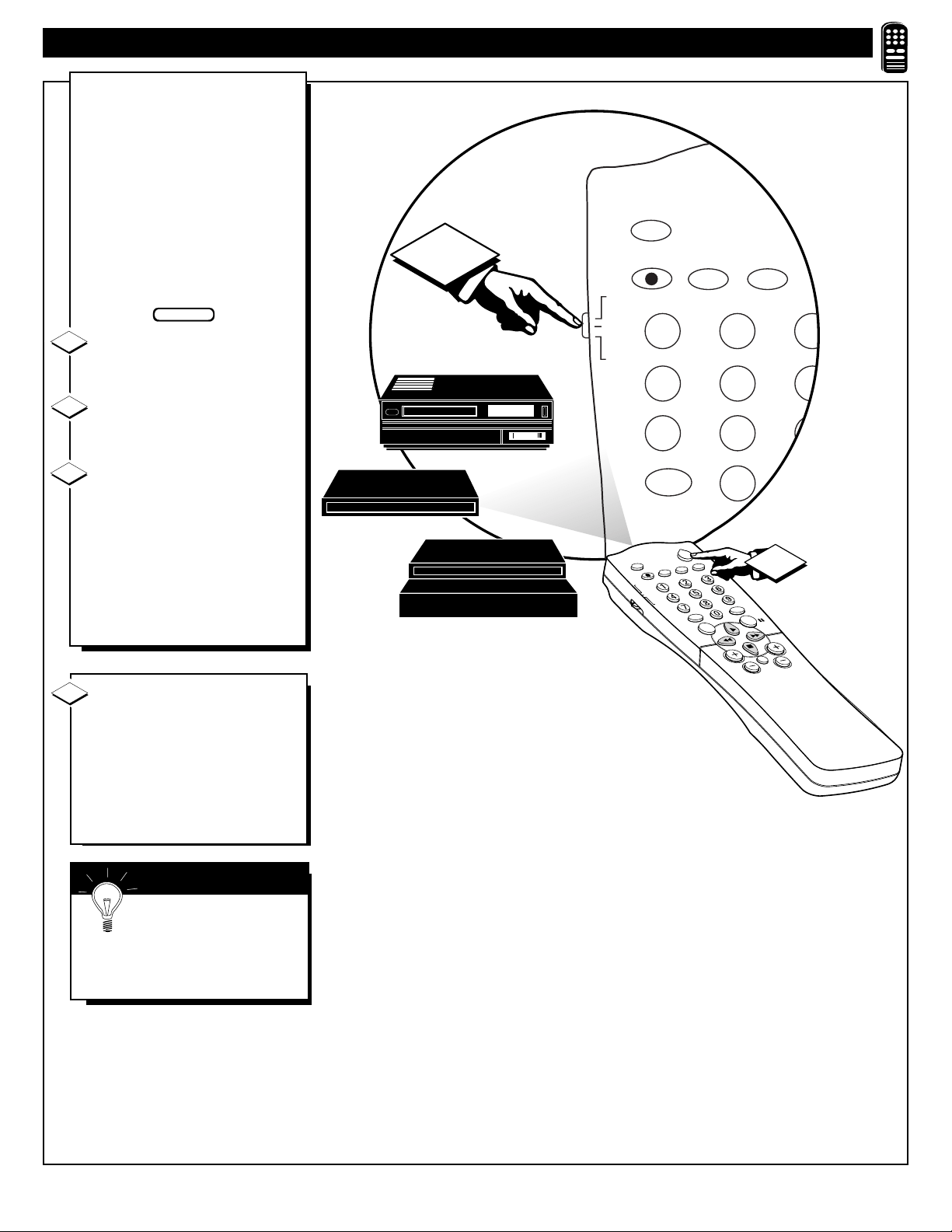
6
1
SLEEP
A/CH STATUS/EXIT CC
SMART
TV
VCR
ACC
1
23
4
5
7
8
0
SLEEP
POWER
A/CH
STATUS/EXIT
CC
CLOCK
TV
VCR
ACC
RECORD
TV/VCR
SMART
PICTURE
VOL CH
MUTE
MENU
SURF
2
SMART
SOUND
RECORD
SOUND
SETTING THE REMOTE CONTROL TO WORK WITH OTHER DEVICES
Y
our remote control is set to
work your TV and many
infrared remote (IR) control
VCRs, Cable Boxes, Satellite
Systems, DBS, DVD, etc.
However, an easy onetime step
may be necessary before the
remote will work your accessory.
Try this initial check to see if
going on to the following section
is necessary.
Place the TV/VCR/ACC
Mode Switch in the proper posi-
tion.
Point the remote control at
the device and press the POWER
button.
Does the remote turn the
device ON?
If YES, stop and try other func-
tion buttons on the remote. If
they also work the device, then
the remote is ready and no fur-
ther steps are needed.
If NO, continue...
1
2
3
Cable Converter
SMART HELP
Remember, if more than
one number is listed, you may
have to try more than the first Three-
Digit code given in order to locate
your Device’s proper remote code.
BEGIN
Satellite Receiver
First look up a THREE-DIGIT
remote control number for your
brand of Device before going
through the simple steps on the
following page.
Find your Accessory Device
Three-Digit Codes listed on
pages 28-29.
1
VCR
25
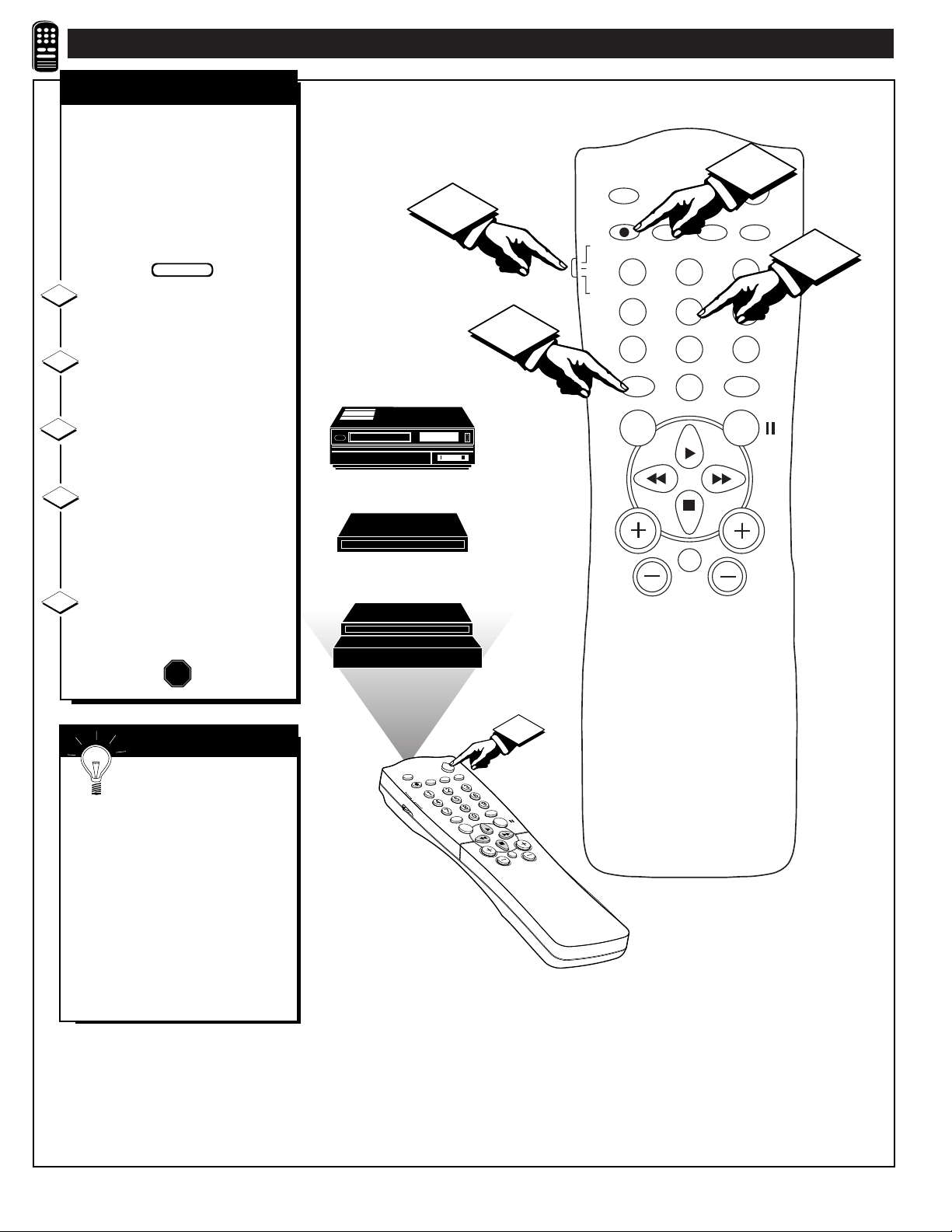
SETTING THE REMOTE CONTROL TO WORK WITH OTHER DEVICES
SLEEP
POWER
A/CH
STATUS/EXIT
CC
CLOCK
TV
VCR
ACC
TV/VCR
RECORD
SMART
VOL CH
MUTE
MENU
SURF
POWER
SLEEP
A/CH STATUS/EXIT CC CLOCK
RECORD
TV
VCR
ACC
MENU SURF
VOL
CH
MUTE
1
23
4
5
6
7
89
0
TV/VCR
1
5
2
3
4
SMART
PICTURE
SOUND
SMART
SOUND
SMART
PICTURE
N
ow that you have looked up
the three-digit Remote Code
Number for your brand of device,
you are ready to follow the sim-
ple steps shown below.
Please read through steps 1-4
before beginning.
Place the TV/VCR/ACC
Mode Switch in the proper posi-
tion.
Press the (A/CH) • RECORD
button on the remote control and
release.
Press the SmartSound button
on the remote within 30 seconds,
then release.
Enter the THREE-DIGIT
REMOTE CODE NUMBER
for your desired device. The
remote is now ready to send
commands to the unit.
Point the remote at the
Device. Press the POWER button
on the remote to turn the unit
ON.
1
2
3
Cable Converter
SMART HELP
Remember, if this doesn’t
work the first time, repeat steps
using the same remote code number.
After a second try and the remote
does not operate your device, see if
there is another three-digit code num-
ber listed for your device and repeat
the steps above using the new num-
ber.
If after repeated attempts the code
number method does not work your
device, try the SEARCH METHOD
on the following page.
BEGIN
Satellite Receiver
or DBS, DVD
VCR
4
5
STOP
Direct Access Method
26
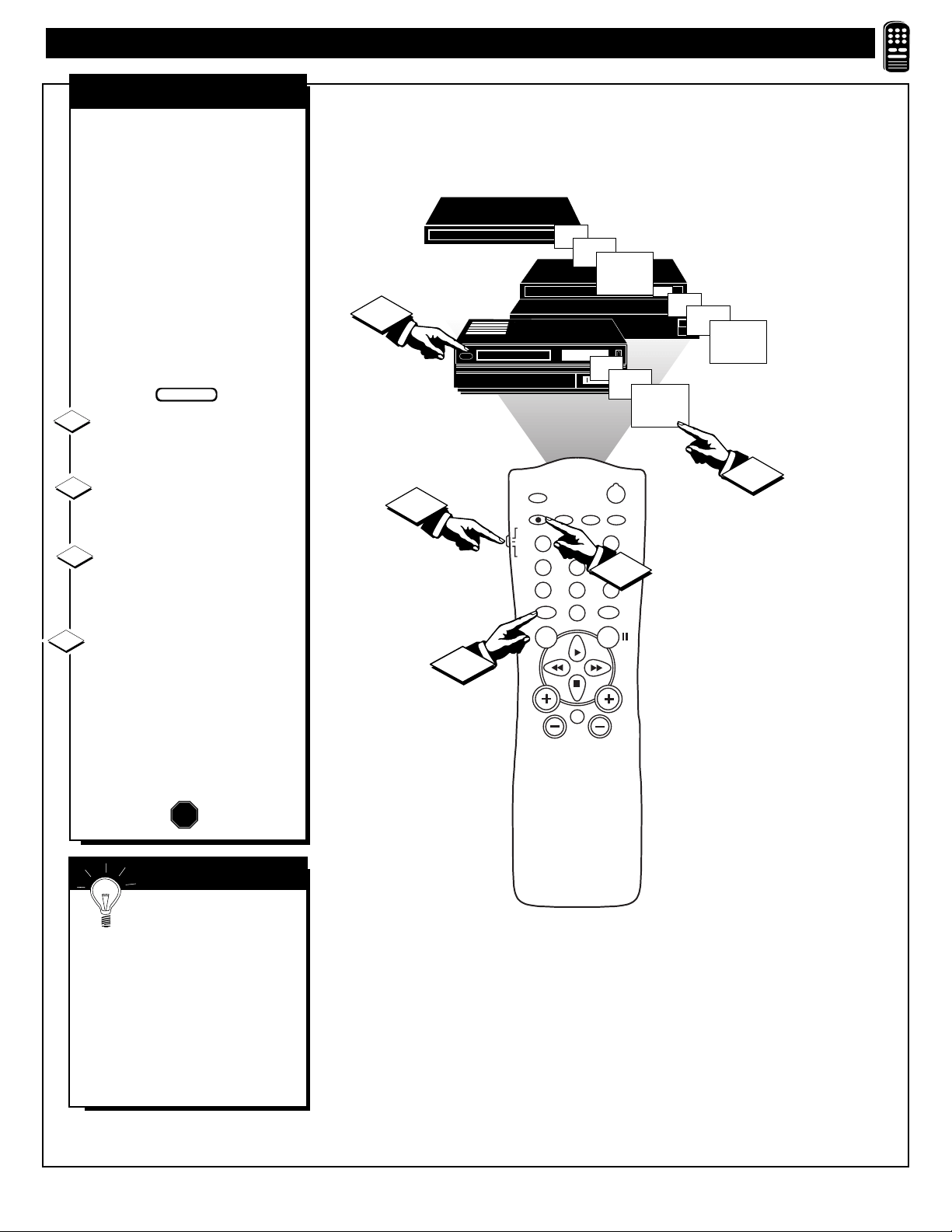
POWER
SLEEP
A/CH STATUS/EXIT CC CLOCK
RECORD
TV
VCR
ACC
SMART
MENU SURF
VOL
CH
MUTE
1
23
4
5
6
7
89
0
TV/VCR
06
07
08
09
06
07
08
09
1
3
4
3
07
08
09
2
SMART
SOUND PICTURE
SETTING THE R
EMOTE CONTROL TO WORK WITH OTHER DEVICES
Y
our TV remote can be set to
work various external devices
such as VCRs, Cable Boxes,
Satellite Receivers, DBS, DVD,
etc. by what is called the search
method.
If the “Remote Code” number
method shown on the previous
pages did not set your remote to
work your external device, then
follow the easy steps listed below.
Please read steps 1-4 before
beginning.
Press the POWER button on
the device your are attempting to
program to turn it ON.
Place the TV/VCR/ACC
Mode Switch in the proper posi-
tion.
Press the (A/CH) •
RECORD and the SMART
SOUND buttons simultaneous-
ly and hold them down.
The device will begin to
change channels after the
remote identifies the correct
code. When the channels start to
change release the A/CH
RECORD and SMART SOUND
buttons. The remote should be
ready to operate the device.
1
2
3
Cable Converter
SMART HELP
This method can take up to
two minutes to complete.
Don’t let the device scan up more
than five channels. If you do the
remote may pass up the right code,
and another two minute search cycle
will have to be repeated.
If no channel change happens within
two minutes, repeat steps 1-4.
Should a channel change still not
occur, the remote will not work with
the desired device.
BEGIN
Satellite Receiver
VCR
4
STOP
Search Method
27

REMOTE CONTROL DIRECT ENTRY CODES
REMOTE
VCR
CODE NO.
Admiral . . . . . . . . . . . . . . . . . . . . . . . .048
Advantz . . . . . . . . . . . . . . . . . . . . . . . .358
Adventure . . . . . . . . . . . . . . . . . . . . . .000
Aiko . . . . . . . . . . . . . . . . . . . . . . . . . .278
Aiwa . . . . . . . . . . .000, 037, 307, 348, 352
Akai . . . . . . .041, 049, 053, 061, 106, 315
Alba . . . . . . . . . . . . . . . . . . . . . . . . . . .352
Amercian High . . . . . . . . . . . . . . . . . .035
Amstrad . . . . . . . . . . . . . . . . . . . .325, 332
Asha . . . . . . . . . . . . . . . . . . . . . . . . . .240
Audiovox . . . . . . . . . . . . . . . . . . . . . . .037
Baird . . . . . . . . . . . . . . . . . . . . . . . . . .107
Beaumark . . . . . . . . . . . . . . . . . . . . . .240
Bell & Howell . . . . . . . . . . . . . . . . . . .104
Blaupunkt . . . . . . . . . . . . . . .003, 006, 154
Brandt . . . . . . . . . . . . . . . . .187, 320, 321
Broksonic . . . . . . .121, 184, 211, 295, 361
Bush . . . . . . . . . . . . . . . . . . . . . . . . . .352
CCE . . . . . . . . . . . . . . . . . . . . . . .072, 278
Calix . . . . . . . . . . . . . . . . . . . . . . . . . .037
Canon . . . . . . . . . . . . . . . . . . . . . . . . .035
Capehart . . . . . . . . . . . . . . . . . . . . . . .020
Carver . . . . . . . . . . . . . . . . . . . . .081, 146
Citizen . . . . . . . . . . . . . . . . . . . . .037, 278
Colt . . . . . . . . . . . . . . . . . . . . . . . . . . .072
Combitach . . . . . . . . . . . . . . . . . . . . . .352
Craig . . . . . . . . . . .037, 047, 072, 240, 271
Curtis Mathes . . . . . . . . . . . .035, 041, 060
Cybermax . . . . . . . . . . . . . . . . . .051, 240
Daewoo . . . . . . . . . . . . . . . .020, 045, 276
Daytron . . . . . . . . . . . . . . . . . . . . . . . .020
Denon . . . . . . . . . . . . . . . . . . . . . . . . .042
Dynatech . . . . . . . . . . . . . . . . . . . . . . .000
Electrophonic . . . . . . . . . . . . . . . . . . . .037
Emerex . . . . . . . . . . . . . . . . . . . . . . . .032
Emerson . . . .000, 002, 036, 037, 043, 061
. . . . . . . . . .068, 088, 121, 164, 208, 209,
. . . . . . . . . . .211, 212, 278, 295, 361, 479
Ferguson . . . . . . . . . . . . . . .107, 320, 321
Fisher . . . . . . . . . . . . . .047, 054, 066, 104
Fuji . . . . . . . . . . . . . . . . . . . . . . .033, 035
Funai . . . . . . . . . . . . . . . . . . . . . . . . . .000
GE . . . . . . . . . . . . . . . .035, 060, 065, 202
Garrard . . . . . . . . . . . . . . . . . . . . . . . .000
Go Video . . . . . . . . . . . . . . .232, 279, 432
Gold Star . . . . . . . . . . . . . . . . . . .037, 038
Gradiente . . . . . . . . . . . . . . . . . . .000, 406
Grundig . . . . . . . . . . . .003, 007, 195, 347
HI-Q . . . . . . . . . . . . . . . . . . . . . . . . . .047
Harley Davidson . . . . . . . . . . . . . . . . .000
Harman/Kardon . . . . . . . . . . . . . .038, 075
Harwood . . . . . . . . . . . . . . . . . . .068, 072
Headquarter . . . . . . . . . . . . . . . . . . . . .046
Hinari . . . . . . . . . . . . . . . . . . . . .004, 352
Hitachi . . . . . . . . . . . . .000, 004, 041, 042,
. . . . . . . . . . . . . . . . . . .065, 105, 168, 235
Ingersol . . . . . . . . . . . . . . . . . . . . . . . .004
JVC . . . . . . . .008, 041, 067, 208, 384, 486
Jensen . . . . . . . . . . . . . . . . . . . . . . . . .041
KEC . . . . . . . . . . . . . . . . . . . . . . .037, 278
KLH . . . . . . . . . . . . . . . . . . . . . . . . . .072
Kenwood . . . . . . . . . . .038, 041, 067, 384
Kodak . . . . . . . . . . . . . . . . . . . . .035, 037
LXI . . . . . . . . . . . . . . . . . . . . . . . . . . .037
Lloyd’s . . . . . . . . . . . . . . . . . . . . .000, 206
REMOTE
VCR
CODE NO.
Loewe . . . . . . . . . . . . . . . . . . . . . . . . .004
Logik . . . . . . . . . . . . . . . . . . . . . .004, 072
MEI . . . . . . . . . . . . . . . . . . . . . . . . . . .035
MGA . . . . . . . . . . . . . . . . . . . . . .043, 061
MGN Technology . . . . . . . . . . . . . . . .240
MTC . . . . . . . . . . . . . . . . . . . . . .000, 240
Magnavox . . . . . . .000, 035, 081, 146, 181
Marta . . . . . . . . . . . . . . . . . . . . . . . . . .037
Matsui . . . . . . . . . . . . . . . . .004, 348, 352
Matsushita . . . . . . . . . . . . . .035, 162, 454
Memmorex . . . . . . . . . . . . . . . . . . . . .307
Memorex . . . . . . .000, 035, 037, 039, 046,
. . . . . . . . . . .047, 048, 104, 240, 266, 307
Metz . . . . . . . . . . . . . . . . . . . . . .003, 347
Minolta . . . . . . . . . . . . . . . . . . . .042, 105
Mitsubishi . . .043, 061, 067, 075, 173, 443
Motorola . . . . . . . . . . . . . . . . . . .035, 048
Multitech . . . . . . . . . . . . . . . . . . .000, 072
NAD . . . . . . . . . . . . . . . . . . . . . . . . . .058
NEC . . . . . . . . . . .036, 040, 041, 067, 104
Nikko . . . . . . . . . . . . . . . . . . . . . . . . .037
Nikon . . . . . . . . . . . . . . . . . . . . . .034, 253
Noblex . . . . . . . . . . . . . . . . . . . . . . . . .240
Nordmende . . . . . . . . . . . . . .297, 320, 321
Okano . . . . . . . . . . . . . . . . . . . . . . . . .346
Olympus . . . . . . . . . . . . . . . . . . .035, 226
Optimus . . . . . . . . . . . .037, 048, 058, 104,
. . . . . . . . . . . . . . . . . . . . . .162, 432, 454
Optonica . . . . . . . . . . . . . . . . . . . . . . .062
Orion . . . . . . . . . .004, 295, 348, 352, 479
Panasonic . . . . . . . . . .035, 077, 162, 225,
. . . . . . . . . . . . . . . . . . . . . .226, 378, 454
Penney . . . . . . . . . . . . .035, 037, 038, 040,
. . . . . . . . . . . . . . . . . . . . . .042, 065, 105
Pentax . . . . . . . . . . . . . . . . .042, 065, 105
Philco . . . . . . . . . . . . . . . . . . . . . . . . .035
Philips . . . . . . . . . .035, 062, 081, 110, 403
Pilot . . . . . . . . . . . . . . . . . . . . . . . . . . .037
Pioneer . . . . . . . . . . . . . . . . . . . . .058, 067
Portland . . . . . . . . . . . . . . . . . . . . . . . .020
Profax . . . . . . . . . . . . . . . . . . . . . . . . .322
Profitronic . . . . . . . . . . . . . . . . . . . . . .240
Protec . . . . . . . . . . . . . . . . . . . . . . . . .072
Pulsar . . . . . . . . . . . . . . . . . . . . . .039, 051
Quarter . . . . . . . . . . . . . . . . . . . . . . . .046
Quartz . . . . . . . . . . . . . . . . . . . . . . . . .046
Quasar . . . . . . . . . . . . .035, 077, 162, 454
RCA . . . . . . . . . . . . . .042, 060, 065, 077,
. . . . . . . . . . . . . . . . . . .105, 106, 149, 202
Radio Shack . . . . . . . . . . . . . . . . .000, 037
Radix . . . . . . . . . . . . . . . . . . . . . . . . . .037
Randex . . . . . . . . . . . . . . . . . . . . . . . .037
Realistic . . . . . . . .000, 035, 037, 045, 047
. . . . . . . . . . . . . . . . . . 048, 062, 066, 104
Ricoh . . . . . . . . . . . . . . . . . . . . . .034, 253
Runco . . . . . . . . . . . . . . . . . . . . . . . . .039
SEG . . . . . . . . . . . . . . . . . . . . . . . . . . .322
SEI . . . . . . . . . . . . . . . . . . . . . . . . . . .004
STS . . . . . . . . . . . . . . . . . . . . . . . . . . .042
Saba . . . . . . . . . . . . . . . . . . .297, 320, 321
Saisho . . . . . . . . . . . . . . . . . . . . . . . . .004
Salora . . . . . . . . . . . . . . . . . . . . . . . . .075
Samsung . . . . . . . . . . . .045, 051, 053, 240
Sanky . . . . . . . . . . . . . . . . . . . . . .039, 048
Sansui . . . . . . . . . . . . . .000, 041, 067, 271
REMOTE
VCR
CODE NO.
Sanyo . . . . . . . . . .046, 047, 104, 240, 268
Saville . . . . . . . . . . . . . . . . . . . . . . . . .352
Scott . . . . . . .043, 045, 121, 164, 211, 212
Sears . . . . . . . . . .000, 035, 037, 042, 046,
. . . . . . . . . . . . . . .047, 054, 066, 104, 105
Sharp . . . . . . . . . . . . . . . . . . . . . .046, 062
Shintom . . . . . . . . . . . . . . . . . . . . . . . .072
Shogun . . . . . . . . . . . . . . . . . . . . .051, 240
Shoral . . . . . . . . . . . . . . . . . . . . . . . . .004
Siemens . . . . . . . . . . . . . . . . . . . . . . . .003
Singer . . . . . . . . . . . . . . . . . . . . . . . . .072
Sinudyne . . . . . . . . . . . . . . . . . . . . . . .004
Sony . . . . . . . . . .000, 011, 022, 032, 033,
. . . . . . . . . . . . . . . . . . .034, 035, 253, 275
Sunkel . . . . . . . . . . . . . . . . . . . . . . . . .348
Sunpak . . . . . . . . . . . . . . . . . . . . . . . .253
Sylvania . . . .000, 035, 043, 081, 103, 110
Symphonic . . . . . . . . . . . . . . . . . . . . . .000
TMK . . . . . . . . . . . . . . . . . .036, 208, 240
Tatung . . . . . . . . . . . . . . . . . . . . . . . . .041
Teac . . . . . . . . . . . . . . . . . . . . . . .000, 041
Technics . . . . . . . . . . . . . . . . . . . .035, 162
Teknika . . . . . . . . . . . . . . . .000, 035, 037
Telefunken . . . . . . . . . . . . . .187, 320, 321
Tansal . . . . . . . . . . . . . . . . . . . . . . . . .322
Thomas . . . . . . . . . . . . . . . . . . . . . . . .000
Thomson . . . . . . . . . . . . . . . . . . . . . . .320
Toshiba . . . . . . . . .043, 045, 066, 212, 366
Totavision . . . . . . . . . . . . . . . . . .037, 240
Towada . . . . . . . . . . . . . . . . . . . . . . . .322
Unitech . . . . . . . . . . . . . . . . . . . . . . . .240
Universum . . . . . . . . . . . . . . . . . . . . . .325
Vactor . . . . . . . . . . . . . . . . . . . . . . . . .045
Vactor Research . . . . . . . . . . . . . .038, 040
Video Concepts . . . . . . . . . .040, 045, 061
Videosonic . . . . . . . . . . . . . . . . . . . . . .240
Wards . .000, 035, 042, 047, 048, 060, 062,
. . . . . . . . . . .072, 081, 149, 161, 212, 240
XR-1000 . . . . . . . . . . . . . . .000, 035, 072
Yamaha . . . . . . . . . . . . . . . . . . . . . . . .038
Zenith . . . . . . . . . . . . . .000, 033, 034, 039
CABLE REMOTE
CONVER
TOR CODE NO.
ABC . . . . . . . . . . . . . .001, 003, 007, 008,
. . . . . . . . . . . . . . . . . . .011, 013, 014, 017
Aliegio . . . . . . . . . . . . . . . . . . . . . . . .153
Andover . . . . . . . . . . . . . . . . . . . . . . . .544
Antronix . . . . . . . . . . . . . . . . . . . . . . .022
Archer . . . . . . . . . . . . . . . . . . . . .022, 153
Balcor . . . . . . . . . . . . . . . . . . . . . . . . .056
British Telecom . . . . . . . . . . . . . . . . . .105
Cable Star . . . . . . . . . . . . . . . . . . . . . .056
Cablatenna . . . . . . . . . . . . . . . . . . . . . .022
Cabletime . . . . . . . . . . .161, 271, 377, 448
Cableview . . . . . . . . . . . . . . . . . . . . . .022
Century . . . . . . . . . . . . . . . . . . . . . . . .153
Citizen . . . . . . . . . . . . . . . . . . . . . . . . .153
Clyde . . . . . . . . . . . . . . . . . . . . . . . . . .086
Colour Voice . . . . . . . . . . . . . . . .025, 031
Comtec . . . . . . . . . . . . . . . . . . . . . . . .274
Comtronics . . . . . . . . . . . . . . . . . . . . .040
Contec . . . . . . . . . . . . . . . . . . . . . . . . .019
Cryptovision . . . . . . . . . . . . . . . . . . . .600
Deceat . . . . . . . . . . . . . . . . . . . . . . . . .423
28

REMOTE CONTROL DIRECT ENTRY CODES
CABLE REMOTE
CONVER
TOR CODE NO.
Eastern . . . . . . . . . . . . . . . . . . . . .002, 274
Everquest . . . . . . . . . . . . . . . . . . .015, 040
Filmnet . . . . . . . . . . . . . . . . . . . . . . . .443
Focus . . . . . . . . . . . . . . . . . . . . . . . . . .400
France Telecom . . . . . . . . . . . . . . . . . .451
GC Electronics . . . . . . . . . . . . . . . . . .056
GEC . . . . . . . . . . . . . . . . . . . . . . . . . .086
Ganard . . . . . . . . . . . . . . . . . . . . . . . . .153
Gemini . . . . . . . . . . . . . . . . .015, 070, 242
General Instrument . . . . . . . .011, 276, 476
Gold Star . . . . . . . . . . . . . . . . . . . . . . .040
Grundig . . . . . . . . . . . . . . . . . . . . . . . .529
Hamlin . . . . . . . . . . . . .009, 020, 034, 259
Hitachi . . . . . . . . . . . . . . . . . . . . . . . . .011
Hytex . . . . . . . . . . . . . . . . . . . . . . . . . .007
Jasco . . . . . . . . . . . . . . . . . . . . . . . . . .153
Jerrold . . . . . . . . . . . . .003, 011, 012, 014,
. . . . . . . . . . . . . . . . . . .015, 024, 276, 476
M.N.E. T. . . . . . . . . . . . . . . . . . . . . . . .443
MNet . . . . . . . . . . . . . . . . . . . . . . . . . .443
Macon . . . . . . . . . . . . . . . . . . . . . . . . .033
Magnavox . . . . . . . . . . . . . .027, 032, 334
Memorex . . . . . . . . . . . . . . . . . . . . . . .000
Movie Time . . . . . . . . . . . . . . . . . . . . .063
NSC . . . . . . . . . . . . . . . . . . . . . . .063, 070
Oak . . . . . . . . . . . . . . . . . . . . . . .007, 019
Optimus . . . . . . . . . . . . . . . . . . . . . . . .021
Panasonic . . . . . . . . . . . . . . .000, 021, 107
Paragon . . . . . . . . . . . . . . . . . . . . . . . .000
Philips . .025, 027, 031, 153, 242, 290, 334
Pioneer . . . . . . . . . . . . . . . . . . . . .533, 753
Popular Mechanics . . . . . . . . . . . . . . . .400
Pulsar . . . . . . . . . . . . . . . . . . . . . . . . .000
RCA . . . . . . . . . . . . . . . . . . . . . . . . . .021
Radio Shack . . . . . . . . . . . . . . . . . . . .015
Recoton . . . . . . . . . . . . . . . . . . . . . . . .400
Regal . . . . . . . . . . . . . . . . . . . . . .020, 259
Regency . . . . . . . . . . . . . . . . . . . . . . . .002
Rembrandt . . . . . . . . . . . . . . . . . .011, 070
Runco . . . . . . . . . . . . . . . . . . . . . . . . .000
SL Marx . . . . . . . . . . . . . . . . . . . . . . .040
Salora . . . . . . . . . . . . . . . . . . . . . . . . .382
Samsung . . . . . . . . . . . . . . . . . . . . . . .040
Satbox . . . . . . . . . . . . . . . . . . . . . . . . .375
Scientific Atlanta . . . . . . . . .008, 017, 477
Signal . . . . . . . . . . . . . . . . . . . . .015, 040
Signature . . . . . . . . . . . . . . . . . . . . . . .011
Sprucer . . . . . . . . . . . . . . . . . . . . . . . .021
Star Sight . . . . . . . . . . . . . . . . . . . . . . .542
Starcom . . . . . . . . . . . . . . . . . . . .003, 015
Stargate . . . . . . . . . . . . . . . . . . . .015, 040
Starquest . . . . . . . . . . . . . . . . . . . . . . .015
Sylvania . . . . . . . . . . . . . . . . . . . . . . . .001
TV85 . . . . . . . . . . . . . . . . . . . . . . . . . .063
Tandy . . . . . . . . . . . . . . . . . . . . . . . . .258
Tele+1 . . . . . . . . . . . . . . . . . . . . . . . . .443
Teleservice . . . . . . . . . . . . . . . . . . . . . .281
Teleview . . . . . . . . . . . . . . . . . . . . . . .040
Texscan . . . . . . . . . . . . . . . . . . . . . . . .001
Timeless . . . . . . . . . . . . . . . . . . . . . . .274
Tocom . . . . . . . . . . . . . . . . .012, 013, 059
Toshiba . . . . . . . . . . . . . . . . . . . . . . . .000
Tudl . . . . . . . . . . . . . . . . . . . . . . . . . . .286
Tusa . . . . . . . . . . . . . . . . . . . . . . . . . . .015
Unike . . . . . . . . . . . . . . . . . . . . . .022, 153
CABLE REMOTE
CONVER
TOR CODE NO.
United Artists . . . . . . . . . . . . . . . . . . . .007
United Cable . . . . . . . . . . . . . . . . . . . .003
Universal . . . . . . . . . . .022, 056, 153, 191
Videoway . . . . . . . . . . . . . . . . . . . . . .250
Viewstar . . . . . . . . . . . . . . . .027, 063, 258
Visi Cable+ . . . . . . . . . . . . . . . . . . . . .461
Westminster . . . . . . . . . . . . . . . . . . . . .105
Wolsey Gaine . . . . . . . . . . . . . . . . . . .544
Zenith . . . . . . . . . . . . . . . . . .000, 054, 525
Zentek . . . . . . . . . . . . . . . . . . . . . . . . .400
REMOTE
DBS
CODE NO.
Alpha Star . . . . . . . . . . . . . . . . . . . . . .772
Echostar . . . . . . . . . . . . . . . . . . . . . . . .775
HTS . . . . . . . . . . . . . . . . . . . . . . . . . . .775
Hitachi . . . . . . . . . . . . . . . . . . . . . . . . .819
Hughes Network System . . . . . . . . . . .749
Jerrold . . . . . . . . . . . . . . . . . . . . . . . . .627
Magnavox . . . . . . . . . . . . . . . . . .722, 724
Memorex . . . . . . . . . . . . . . . . . . . . . . .724
Panasonic . . . . . . . . . . . . . . . . . . . . . .701
Philips . . . . . . . . . . . . . . . . . . . . .722, 724
Primestar . . . . . . . . . . . . . . . . . . . . . . .627
RCA . . . . . . . . . . . . . . . . . . . . . . . . . .566
Sony . . . . . . . . . . . . . . . . . . . . . . . . . .639
Toshiba . . . . . . . . . . . . . . . . . . . . . . . .790
Uniden . . . . . . . . . . . . . . . . . . . . . . . . .724
REMOTE
Satellite
CODE NO.
AST . . . . . . . . . . . . . . . . . . . . . . . . . . .351
Akai . . . . . . . . . . . . . . . . . . . . . . . . . . .515
Alba . . . . . . . . . . . . . . . . . . .352, 515, 613
Aldea . . . . . . . . . . . . . . . . . . . . . . . . . .288
Amstrad . . . .080, 252, 345, 461, 509, 689
Ankaro . . . . . . . . . . . . . . . . .220, 288, 369
Anitron . . . . . . . . . . . . . . . . . . . . . . . .183
Armstrong . . . . . . . . . . . . . . . . . . . . . .243
Astra . . . . . . . . . . . . . . . . . . . . . . . . . .108
Avalon . . . . . . . . . . . . . . . . . . . . . . . . .396
Axis . . . . . . . . . . . . . . . . . . . . . . . . . . .369
BT . . . . . . . . . . . . . . . . . . . . . . . .515, 668
Beko . . . . . . . . . . . . . . . . . . . . . . . . . .189
Best . . . . . . . . . . . . . . . . . . . . . . . . . . .369
Boca . . . . . . . . . . . . . . . . . . . . . .243, 513
Bush . . . . . . . . . . . . . . . . . . . . . . . . . .067
Cambridge . . . . . . . . . . . . . . . . . .344, 515
Channel Master . . . . . . . . . . . . . . . . . .362
Commlink . . . . . . . . . . . . . . . . . . . . . .288
Connexions . . . . . . . . . . . . . . . . . . . . .396
Conrad . . . . . . . . . . . . . . . . . . . . . . . . .607
Crown . . . . . . . . . . . . . . . . . . . . . . . . .243
DDC . . . . . . . . . . . . . . . . . . . . . . . . . .362
DNT . . . . . . . . . . . . . . . . . . . . . . . . . .396
Echostar . . . . . . . . . . . . . . . . . . . . . . . .396
Farguson . . . . . . . . . . . .067, 183, 189, 336
Fidelity . . . . . . . . . . . . . . . . . . . . . . . .252
Finiux . . . . . . . . . . . . . . . . . . . . .108, 397
Fuba . . . . . . . . . . . . . . . . . . . . . . .369, 396
G-Bat . . . . . . . . . . . . . . . . . . . . . . . . . .183
Galaxis . . . . . . . . . . . . . . . . . . . . . . . .286
Gooding . . . . . . . . . . . . . . . . . . . . . . . .571
Grundig . . . . . . . . . . . .173, 189, 571, 750
Hinari . . . . . . . . . . . . . . . . . . . . . . . . .183
REMOTE
Satellite
CODE NO.
Hirschmann . . . . . . . . . . . . . . . . .397, 573
Houston . . . . . . . . . . . . . . . . . . . . . . . .668
Huth . . . . . . . . . . . . . . . . . . .220, 243, 268
ITT . . . . . . . . . . . . . . . . . . . . . . . . . . .108
Intervision . . . . . . . . . . . . . . . . . . . . . .592
JVC . . . . . . . . . . . . . . . . . . . . . . .515, 571
Kathrein . . . . . . . . . . . .092, 504, 622, 658
La Sat . . . . . . . . . . . . . . . . . . . . .513, 607
Lennox . . . . . . . . . . . . . . . . . . . . . . . .592
Lupus . . . . . . . . . . . . . . . . . . . . . . . . .369
Luxor . . . . . . . . . . . . . . . . . . . . . .108, 573
Manhatten . . . . . . . . . . . . . . . . . . . . . .592
Maspro . . . . . . . . . . . . . . . . .092, 336, 750
Matsui . . . . . . . . . . . . . . . . . . . . . . . . .571
Mediamarkt . . . . . . . . . . . . . . . . . . . . .248
Minerva . . . . . . . . . . . . . . . . . . . . . . . .571
Mintec . . . . . . . . . . . . . . . . . . . . . . . . .576
Morgan’s . . . . . . . . . . . . . . . . . . .243, 513
Newhaus . . . . . . . . . . . . . . . . . . . . . . .220
Nikko . . . . . . . . . . . . . . . . . . . . . .360, 713
Nokia . . . . . . . . . . . . . . . . . .108, 397, 573
Nordmende . . . . . . . . . . . . . . . . . . . . .362
Orbitech . . . . . . . . . . . . . . . . . . . . . . . .501
Pace . . . . . . . . . . .067, 183, 336, 455, 791
Paliadium . . . . . . . . . . . . . . . . . . . . . .571
Palsat . . . . . . . . . . . . . . . . . . . . . . . . . .501
Philips . . . . . . . . . . . . .200, 292, 571, 750
Phonotrend . . . . . . . . . . . . . . . . . .288, 592
Plasmatic . . . . . . . . . . . . . . . . . . . . . . .442
Proset . . . . . . . . . . . . . . . . . . . . . . . . .288
Quadral . . . . . . . . . . . . . . . . . . . .362, 628
RFT . . . . . . . . . . . . . . . . . . . . . . .220, 288
Radix . . . . . . . . . . . . . . . . . . . . . . . . . .396
SAT . . . . . . . . . . . . . . . . . . . . . . .351, 461
SEG . . . . . . . . . . . . . . . . . . . . . . . . . . .369
Saba . . . . . . . . . . . . . . . . . . . . . . . . . . .336
Salora . . . . . . . . . . . . . . . . . . . . . . . . .108
Satec . . . . . . . . . . . . . . . . . . . . . . . . . .183
Schwaiger . . . . . . . . . . . . . . . . . .183, 504
Seemann . . . . . . . . . . . . . . . .396, 578, 626
Skymaster . . . . . . . . . . . . . . . . . .288, 626
Sony . . . . . . . . . . . . . . . . . . . . . . . . . .704
Star Trak . . . . . . . . . . . . . . . . . . . . . . .421
Strong . . . . . . . . . . . . . . . . . . . . . . . . .421
Sunstar . . . . . . . . . . . . . . . . . . . . . . . .513
Tantec . . . . . . . . . . . . . . . . . . . . . . . . .336
Techni Sat . . . . . . . . . . . . . . . . . .262, 501
Teleka . . . . . . . . . . . . . . . . . . . . .243, 613
Tonna . . . . . . . . . . . . . . . . . . . . . . . . .668
Triad . . . . . . . . . . . . . . . . . . . . . . . . . .351
Universum . . . . . . . . . . . . . . . . . . . . . .571
Vtech . . . . . . . . . . . . . . . . . . . . . . . . . .351
Wisi . . . . . . . . . . . . . . . . . . . . . . .351, 396
REMOTE
DVD
CODE NO.
Kenwood . . . . . . . . . . . . . . . . . . . . . . .534
Mitsubishi . . . . . . . . . . . . . . . . . . . . . .521
Panasonic . . . . . . . . . . . . . . . . . . . . . .490
Philips . . . . . . . . . . . . . . . . . . . . . . . . .539
Pioneer . . . . . . . . . . . . . . . . . . . . . . . .550
RCA . . . . . . . . . . . . . . . . . . . . . . . . . .522
Sony . . . . . . . . . . . . . . . . . . . . . . . . . .552
Toshiba . . . . . . . . . . . . . . . . . . . . . . . .503
29
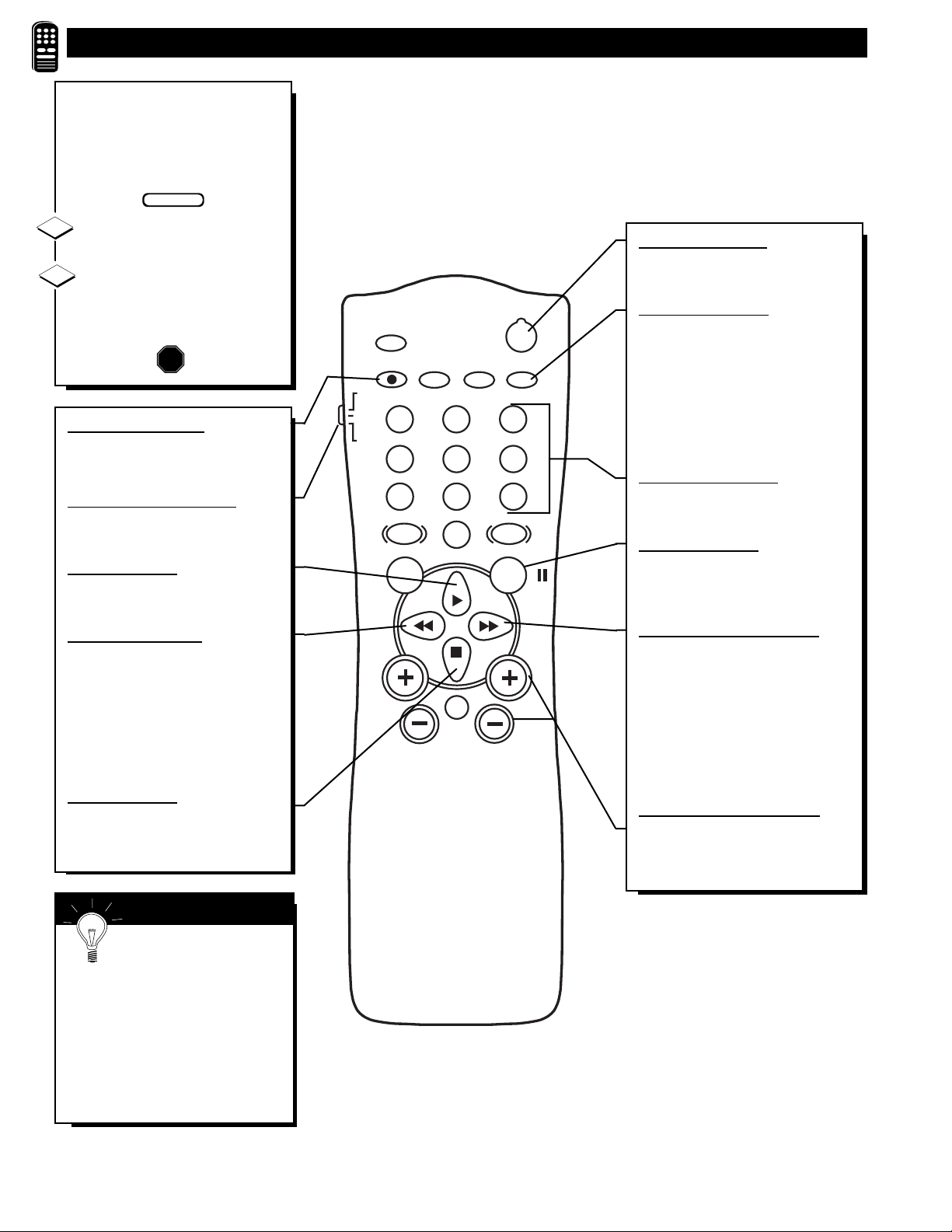
POWER
SLEEP
A/CH STATUS/EXIT CC CLOCK
RECORD
TV
VCR
ACC
SMART
SMARTSMART
SOUND
PICTURE
MENU SURF
VOL
CH
MUTE
1
23
4
5
6
7
89
0
TV/VCR
USING THE REMOTE’S VCR BUTTONS
W
hen using the TV remote
with a VCR, first make cer-
tain it is set to control your VCR
(by the REMOTE CODE or
SEARCH method).
Set the TV/VCR/ACC mode
switch to VCR on the remote.
Point the top of the remote
toward the front of the VCR
(remote sensor window) when
pressing the buttons.
1
2
SMART HELP
Remember, the VCR but-
tons on the remote will not
operate your VCR if those features
are not found on your VCR remote
control.
Note: All VCR functions (particularly
Search, Rewind, Fast Forward, etc.)
will operate the same as with the orig-
inal VCR remote control provided
with the VCR.
BEGIN
STOP
POWER BUTTON
Press to turn the VCR ON and
OFF.
TV/VCR BUTTON
Press while in the VCR mode (VCR
indicator on the front of the unit
will light) to view the playback of a
tape. Press again to place in the TV
position (VCR indicator light will
go off) to view one program while
recording another program.
NUMBER BUTTON
Press buttons for direct VCR
channel selections.
P
AUSE BUTTON II
Press to temporarily stop the tape
during a playback or recording.
Press again to release Pause.
FAST FOR
WARD BUTTON
©©
Press to rapidly advance the tape.
For some VCR’s you may need
to press the STOP button first,
then the FAST FORWARD but-
ton. In playback mode hold the
button down to view the picture
moving rapidly in the forward
direction.
CHANNEL +/– BUTTONS
Press to scan up or down through
the VCR channel numbers.
RECORD BUTTON ●
Hold the (A/CH) • RECORD button
down to begin a VCR recording.
VCR SYSTEM SWITCH
Set in the VCR position to send
remote commands to the VCR.
PLAY BUTTON ©
Press to begin playback of a
video tape.
REWIND BUTTON §§
Press to rewind tapes. For some
VCR’s the STOP button may
have to be pressed first, then
REWIND. In playback mode
hold down the button to view
picture moving rapidly in
reverse.
STOP BUTTON ■
Press to stop the motion of a tape
in playback, rewind, fast for-
ward, etc.
30
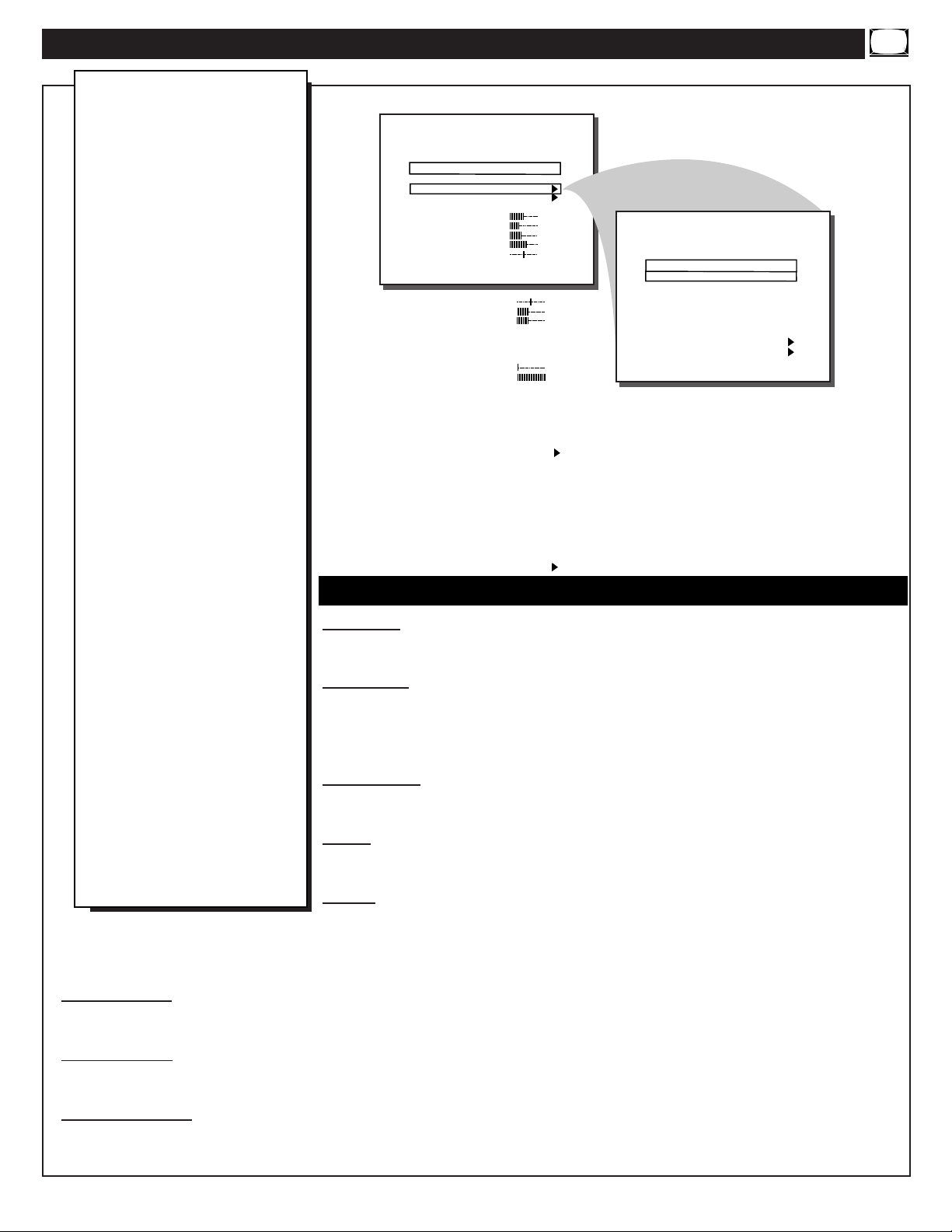
CHANNEL - When highlighted, enter the desired channel number using the Number but-
tons you wish to edit. The following control items, contained within the Channel
Installation menu, will effect the chosen channel.
USER RING - When highlighted, press the Cursor Right (©) or Left (§ ) buttons on the
remote to choose SAVED (or DELETED). When SAVED is selected, the channel will
remain or be added to the TV’s program memory. When DELETED is selected, the channel
will be dropped from the TV’s program memory and will not appear when the TV channels
are scanned (using the Channel +,- buttons).
EVENT RING - When highlighted, press the Cursor Right (©) or Left (§ ) buttons on the
remote to choose SAVED (or DELETED). When SAVED is selected, the channel will
remain or be added to the channels that can be selected during an event.
INPUT - When highlighted, press the Cursor Right (©) or Left (§ ) buttons on the remote
to select ANTENNA, FRONT, AUX, or S-VIDEO input signal options. The Input control
directs the TV to select the specific indicated input whenever this channel is tuned.
LABEL - When highlighted, press the Cursor Right (©) button on the remote to select the
first character space area. Then press the Cursor Up (▲) and Down (▼) buttons to scroll
through the list of available letter characters/numbers/& symbols provided for your labeling use. Press the Cursor Right
(©) button to
highlight the next character space and continue to repeat the process until the complete label or channel title has been entered. The
Channel Label will appear in the corner of the TV screen beside the selected channel number.
VIDEO BLANK - When highlighted, press the Cursor Right (©) or Left (§ ) buttons to turn the VIDEO BLANK control ON (or
OFF). When ON, no video will be shown when this specific channel is tuned. When OFF, normal viewing of video for this specific
channel will take place.
AUDIO BLANK - When highlighted, press the Cursor Right (©) or Left (§ ) buttons to turn the AUDIO BLANK control ON (or
OFF). When ON, no sound will be heard through the TV speakers when the channel is tuned. When OFF, normal sound playback
will be heard for the selected channel.
AUTO PROGRAM - When highlighted, press the Cursor Right (©) or Left (§ ) buttons to begin an automatic channel search for
all available received signal programs. Any channels found will be SAVED i n the TV’s program memory. These channels can then
be selected for viewing by pressing the Channel (+,-) buttons.
DESCRIPTION OF ON-SCREEN CONTROLS (COMMERCIAL MODE)
COMMERCIAL SETUP MENU
TV SETUP MENU
LANGUAGE
CHANNEL INSTALL
PROPLUS SETUP
CABLE TUNING
BRIGHTNESS
COLOR
CONTRAST
SHARPNESS
TINT
NOISE REDUCTION
SOUND MODE
SAP
AUDIO OUT
ENGLISH
ON
34
22
29
40
0
OFF
STEREO
OFF
FIXED
CHANNEL
USER RING
EVENT RING
INPUT
LABEL
VIDEO BLANK
AUDIO BLANK
AUTO PROGRAM
EXIT
CHANNEL INSTALLATION
TV 1
SAVED
DELETED
ANTENNA
CHAN 001
OFF
OFF
( )
CC
SAVE CC
V-CHIP MENU ITEM
SAVE V-CHIP
V-CHIP SETUP
SLEEPTIMER
SECURITY
EXIT
OFF
OFF
ON
ON
ON
OFF
BALANCE
TREBLE
BASS
ULTRA BASS
INCRED STEREO
AVL
VOLUME BAR
MIN VOLUME
MAX VOLUME
SWITCH ON VOLUME
SWITCH ON CHANNEL
POWER ON
CHANNEL DISPLAY
KEYBOARD LOCK
ESP
AUDIO/VIDEO MUTE
WELCOME MESSAGE
CHANNEL GUIDE
REMINDER
3 DIGIT ENTRY
A/CH A/V SWITCH
0
31
31
ON
OFF
OFF
ON
0
63
STANDARD
STANDARD
STANDARD
ALL
OFF
OFF
BLUE
OFF
ON
OFF
ON
STANDARD
CHANNEL INSTALLATION SUB-MENU
D
epending on the model
and its features, some or
all of the display functions
and features described here
will be valid. Note: Certain
features which are found in
both the Commercial and
Consumer modes may be
selected and adjusted in the
same manner (for example:
Language, Cable Tuning,
Brightness etc.). Many of
these shared onscreen Menu
features are already described
and explained in detail in the
preceding Consumer mode
sections.
To perform setup operations
for the TV Setup Commercial
modes, a T374AH remote with
its TV Setup, Guest, and Data
Communication Mode capa-
bilities can be used. To set the
TV to Commercial or
Consumer mode, select a
mode in the ACCESS LEVEL
option of the PROPLUS
SETUP MENU. Note: For
some select Institutional
Television models the buttons
on the front of the TV can also
be used to select Commercial
mode settings. Other
Commercial setup and verifi-
cation procedures may also be
performed from the T374AH
remote. (See T374AH Remote
Control Instructions, part #
IB7166E002, for details.)
31
LANGUAGE - See page 23 on the use of the English/Francais/or
Espanol Menu language option control. Note: This control is intend-
ed for onscreen Menu items. The language of Labels, Closed
Captioning, and other Channel Guide information will not change.
CHANNEL INSTALL - See previous page for details on Sub-
Menu containing Program Channel, Input, Label, A/V Blank, and
Auto Program controls.
PROPLUS SETUP - See page 2 and 33 for detail use of the Sub-
Menu containing Access Level (Consumer, Commercial, Locked,
Unlocked) and Event programming controls.
CABLE TUNING - See page 10 on the use of the Cable TV chan-
nel selection mode control.
COLOR ADJUST CONTROLS - See page 14 for adjustments of
Brightness, Contrast, Noise Reduction, etc. picture controls.
AUDIO ADJUST CONTROLS - See page 14 for sound control
adjustments (Bass, Balance, etc.). Page 15 for Incredible Stereo.
Page 16 for Automatic Volume Limiter and Volume Bar.
MIN VOLUME (Minimum Volume) - Highlight MIN VOLUME,
then press the Cursor Right (©) or Left (§ ) buttons to set the min-
imum allowable volume level for TV sound.
MAX VOLUME (Maximum Volume) - Highlight MAX VOL-
UME, then press the Cursor Right (©) or Left (§ ) buttons to set
the maximum allowable volume for TV sound.
SWITCH ON VOLUME - Highlight SWITCH ON VOLUME,
then press the Cursor Right (©) button to select a desired volume
level. The volume will be at the preset level every time you turn on
the TV. If STANDARD is selected, the last volume level will be
used.
SWITCH ON CHANNEL - Use this feature to have the TV tune
to the same channel (or signal source) every time you turn ON the
TV. Highlight SWITCH ON CHANNEL, then press the Cursor
Right (©) or Left (§ ) buttons to select FRONT, AUX, S-VIDEO,
STANDARD, or any channel 1 - 125. (You can also use the
Number buttons to select a channel.) If STANDARD is selected, the
last viewed channel will be used.
POWER ON - Highlight POWER ON, then press the Cursor Right
(©) or Left (§ ) buttons to select FORCED. This disables the
POWER button on the front of the TV. The TV is now activated
when the AC power cord is plugged into an outlet. With a consumer
remote, the TV will not turn ON or OFF. In the STANDARD mode,
The TV will return to normal operation.
CHANNEL DISPLAY - Highlight CHANNEL DISPLAY, then
press the Cursor Right (©) or Left (§ ) buttons to select ALL,
NONE, NUMBER, or LABEL. “NONE” disables any on-screen
displays, except SLEEP TIMER and MUTE. NONE also disables
the consumer remote’s Number or Channel +,- buttons for channel
selection. “ALL” allows the Channel Number, Channel Label, or
Channel Guide to appear. “NUMBER” allows only the Channel
Number to be displayed onscreen. “LABEL” allows the onscreen
Label to appear as set under the Channel Installation Menu control.
KEYBOARD LOCK - Highlight KEYBOARD, then press the
Cursor Right (©) or Left (§ ) buttons to select ON (or OFF).
“OFF” disables all the buttons on the front panel of the TV from
manual operation. “ON” enables all buttons on the front of the TV
to operate.
ESP - Energy Saving Programmability (ESP) allows you to select
an amount of time (in hours) before the TV will automatically turn
OFF. The TV must remain on continuously during the amount of
time you select. If the power is switched off, the ESP timer will be
reinitialized. Highlight ESP, then press the Cursor Right (©) or Left
(§ ) buttons to select the number of hours (1 - 99) before the TV
turns OFF. (You may also use the Number buttons to enter the num-
ber of hours).
AUDIO/VIDEO MUTE - See page 17 for details on how the TV
screen color can be set for blanked out channels.
WELCOME MESSAGE - Highlight WELCOME MESSAGE,
then press the Cursor Right (©) or Left (§ ) buttons to display the
Welcome Message sub-menu. Within this Menu the Message can
be turned ON or OFF. Two lines of information (LINE 1, LINE 2)
can be displayed onscreen when the TV is powered ON. Use the
Cursor Up (▲) and Down (▼) buttons to scroll the characters,
symbols, and numbers available for the message. “CLEAR” will
cancel any message written.
CHANNEL GUIDE - Highlight CHANNEL GUIDE, then press
the Cursor Right (©) or Left (§ ) buttons to select OFF, ON, or
POWER ON. If you select POWER ON, the Channel Guide (a list
of channels that are labeled) will appear when you turn the TV ON.
The Channel Guide will appear also when you press the CH GDE
button on the remote. If you select ON, the Channel Guide will
appear only when you press CH GDE. (Also, if you select POWER
ON or ON, make sure DISPLAYS is set to ALL.) If you select OFF,
the Channel Guide will not appear when you press CH GDE.
Remember, only the programmed channels that are Labeled (within
the Channel Installation Menu) will appear in the Channel Guide.
REMINDER - Highlight REMINDER, then press the Cursor Right
(©) or Left (§ ) buttons to select ON. The current channel number,
and Label (if assigned), will appear onscreen at all times. (Make
sure CHANNEL DISPLAY control is set to ALL and Closed
Captioning is set to OFF. The “OFF” position allows the channel
number to appear briefly when the channel is selected, then it will
disappear.
3 DIGIT ENTRY - Highlight 3 DIGIT ENTRY, then press the
Cursor Right (©) or Left (§ ) buttons to select ON (or OFF).
“ON” allows three digit channel number entries in order to select
channels above 99.
A/CH A/V SWITCH - Highlight A/CH A/V SWITCH, then press
the Cursor Right (©) or Left (§ ) buttons to select ON (or OFF).
“ON” allows the A/CH button on the remote to also select signal
input sources (ANTENNA, FRONT, AUX, S-VIDEO). “OFF” sets
A/CH to switch only between the last viewed and current channel
selections.
CC (Closed Captioning) - See page 18 for setup and use of
Closed Caption mode viewing. Note: CC1 is the captioned mode
used most often by broadcasters. CC ON MUTE will automatically
display the Closed Caption mode when the remote’s MUTE button
is pressed.
SAVE CC - Highlight SAVE CC, then press the Cursor Right (©)
or Left (§ ) buttons to select ON (or OFF). “ON” will save the CC
mode you have selected, even if the TV Power is turned OFF.
“OFF” will turn off the selected CC mode when the TV is turned
OFF.
V-CHIP MENU ITEM - Highlight V-CHIP MENU ITEM, then
press the Cursor Right (©) or Left (§ ) buttons to select ON (or
OFF). “ON” allows for V-CHIP control items to be shown in the
Features Menu. “OFF” will not display the V-CHIP control options.
DESCRIPTION OF ON-SCREEN CONTROLS (COMMERCIAL) CONTINUED
32
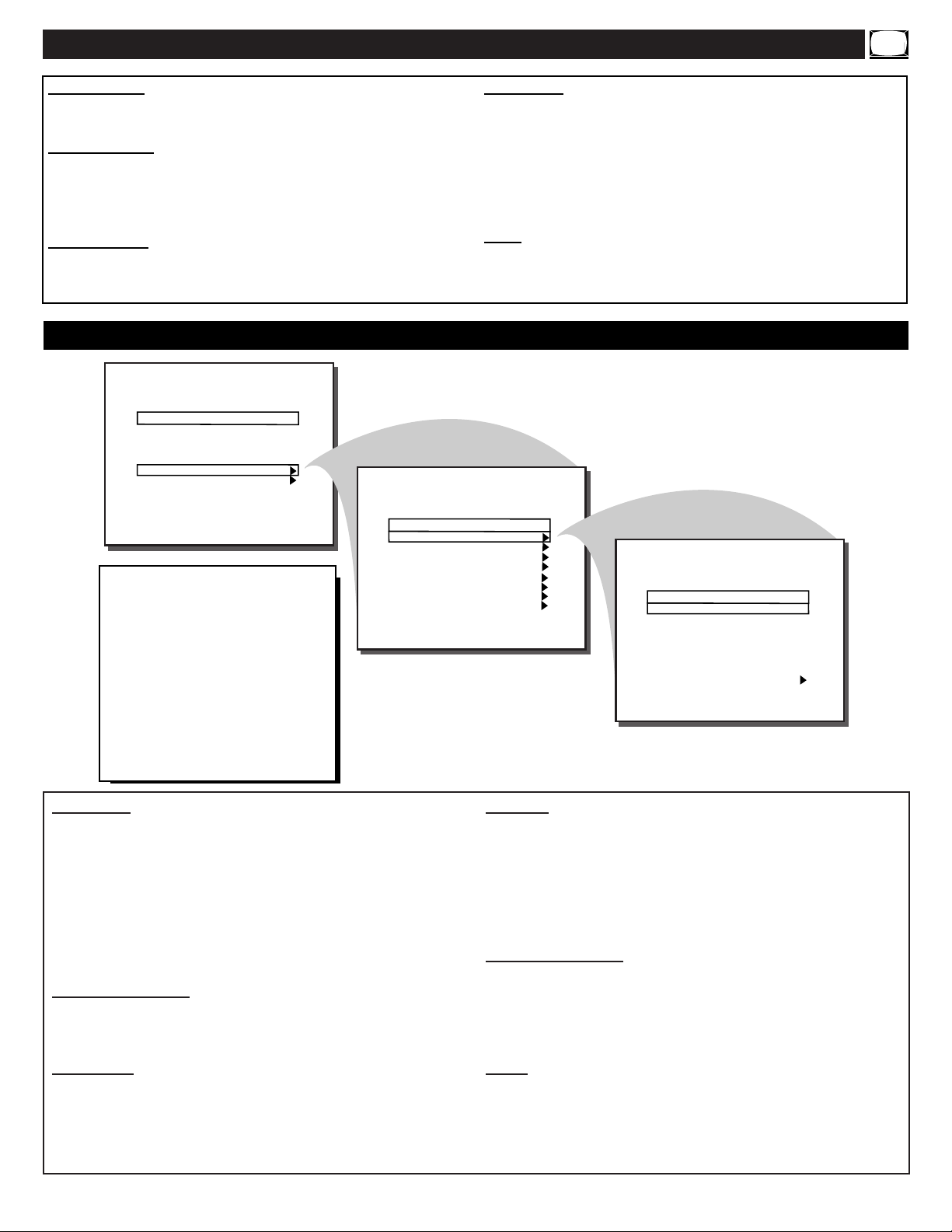
EVENT 1-7 - Highlight an Event, for example, EVENT 1. Then,
press the Cursor Right (©) or Left (§ ) buttons. You may now set
the ON TIME, OFF TIME, CHANNEL, and DAYS ACTIVE
for the specific Event 1. To adjust the ON/OFF TIME items, use
the Cursor Right (©) or Left (§ ) buttons to highlight the desired
hour and minute number space, then use the Cursor ▲ / ▼ but-
tons to set each item. (Note: The Channel Number buttons on the
remote can also be used to set the time. Press 1 for AM setting,
press 0 for PM setting.) Repeat this procedure to set the ON/OFF
TIME, CHANNEL, and select DAYS for each desired Event.
EVENT
ENABLED
- Highlight EVENT ENABLED, then press
the Cursor Right (©) or Left (§ ) buttons to place the specific
Event program settings into the TV’s memory (ON). “OFF” will
not allow the Event settings to take place.
CHANNEL - This feature allows you to choose the channel to
which the TV will tune for the Event. Highlight CHANNEL, then
press the Cursor Right (©) or Left (§ ) buttons to select FRONT,
AUX, S-VIDEO, or a channel between 1-125. (You may also use
the Number buttons to select a channel.)
POWER - Highlight POWER, then press the Cursor Right (©)
or Left (§ ) buttons to select FORCED or STANDARD. This
feature is similar to the POWER ON feature in the TV Setup
menu, but this feature only operates during an Event. When
FORCED is selected, the TV will ignore any commands during
an Event. (POWER ON in the Setup menu must be set to STAN-
DARD.) When STANDARD is selected, the TV will operate nor-
mally.
AVAILABLE RING - Highlight AVAILABLE RING, then press
the Cursor Right (©) or Left (§ ) buttons to select EVENT,
NONE, or USER. This either saves the selected channel number
into either one of the existing CHANNEL INSTALLATION
“EVENT” or “USER” program memory rings (see page 31), or
places the channel as a nonselectable “NONE” category.
EXIT - To return to previous ProPlus Menu Setup screens, high-
light EXIT, then press the Cursor Right (©) or Left (§ ) buttons
to move back one Menu screen at a time.
DESCRIPTION OF O
N-SCREEN CONTROLS (COMMERCIAL) CONTINUED
SAVE V-CHIP - Highlight SAVE V-CHIP, then press the Cursor
Right (©) or Left (§ ) buttons to select ON (or OFF). “ON”will
save the current V-CHIP control settings within the TV’s memory.
V-CHIP SETUP - Highlight V-CHIP SETUP, then press the Cursor
Right (©) or Left (§ ) buttons to select the V-CHIP sub-menu. Use
the various TV and Movie Ratings system settings to block or cen-
sor the viewing of TV programming. See pages 19-21 for further
details on the Ratings settings and their use.
SLEEPTIMER - See page 22 for details on setting the TV to auto-
matically shut itself OFF (according to preset time intervals of 15-
240 minutes).
SECURITY - Highlight SECURITY, then press the Cursor Right
(©) or Left (§ ) buttons to select STANDARD (or HIGH). Note:
The Security control item will not be in the Menu when using the
Consumer remote, but (when “STANDARD” security level has
been selected) a consumer remote button sequence (31, 97, 53,
MUTE) can be used to access to the SETUP MENU. With “HIGH”
security level selected, access to the SETUP MENU is only allowed
with a commercial Setup Remote.
EXIT - Highlight EXIT, then press the Cursor Right (©) or Left
(§) buttons to select YES. The onscreen menu will disappear. The
onscreen menu also disappears after 60 seconds if there has been no
use of the displays.
PROPLUS SETUP EDIT EVENTS SUB-MENU
EVENT 1
EVENT 2
EVENT 3
EVENT 4
EVENT 5
EVENT 6
EVENT 7
EXIT
EVENT MENU
SET TIME
SET DAY
CLOCK DISPLAY
ACCESS LEVEL
EDIT EVENTS
EXIT
PROPLUS SETUP MENU
3:30 PM
FRIDAY
ON
LOCKED
EVENT ENABLED
ON TIME
OFF TIME
DAYS ACTIVE
CHANNEL
POWER
AVAILABLE RING
EXIT
EVENT 1
ON
11:00 AM
1:00 PM
-MT--F-
TV 10
FORCED
USER
E
VENT MENU - Allows access
to another sub-menu where
event specific settings are made.
The Menu control options set up
and allow for programmed opera-
tion of TV controls for up to seven
separate and specific events. Each
of the individual events can be set
for Day(s) of the week, Turn On
time, Turn Off time and preset
channel selection.
33
TIPS IF SOMETHING ISN'T WORKING
• Check the TV power cord. Unplug the TV, wait 10 seconds, then reinsert plug into
outlet and push POWER button again.
• Check to be sure outlet is not on a wall switch.
• Check MODE access in Setup Menu (see page 2) for correct operation mode. Also
check POWER ON and KEYBOARD controls for commercial users.
• Check antenna connections on the rear of the TV. Are they properly secured to the
antenna plug on the TV?
• Check the CABLE TUNING control for correct position. Check A/V MUTE, ACCESS
LEVEL, VIDEO BLANK, and EVENT MENU controls for correct setting in Setup
Menu for commercial users.
• Check INPUT (under CHANNEL INSTALLATION in CONSUMER mode) for correct
position. FRONT, AUX, or S-VIDEO positions without a supplied video signal source
will result in a blank screen.
• Check batteries. Replace with AA Heavy Duty (Zinc Chloride) or Alkaline batteries
if necessary.
• Clean the remote and the remote sensor window on the TV.
• Check the TV power cord. Unplug the TV, wait 10 seconds, then reinsert plug into
outlet and push POWER button again.
• Check to be sure TV outlet is not on a wall switch.
• Check the VOLUME buttons. Check AUDIO BLANK and MAX VOL in Setup
Menu for commercial users.
• Check the MUTE button on the remote control.
• Check the SPEAKER on-screen Menu control and EXTERNAL SPEAKER switch on
rear of TV. OFF position will eliminate sound at the set.
• If attempting auxiliary equipment hook-ups, check audio jack connections.
• Repeat channel selection.
• Add desired channel numbers (CHANNEL RING control) into TV memory.
• Check CABLE TUNING ON/OFF control for correct position.
P
lease make these simple
checks before calling for
service. Theses tips can save you
time and money since charges for
TV installation and adjustment of
customer controls are not cov-
ered under your warranty.
No Power
No Picture
No Sound
Remote Does Not
Work
TV Displays Wrong
Channel or No
Channels Above 13
This TV is equipped with protective circuitry that shuts the TV off in case of moderate
power surges. Should this occur turn the TV back on by pressing the POWER button
once or twice, or unplug (wait 10 seconds) and then replug the power cord at the AC
outlet. This feature is NOT designed to prevent damage due to high power surges such
as those caused by lightning, which is not covered by your warranty.
Cleaning and Care
• To avoid possible shock hazard be sure the TV is unplugged from the electrical outlet before cleaning.
• When cleaning the TV screen, take care not to scratch or damage the screen surface (avoid wearing jewelry or using
anything abrasive). Wipe the front screen with a clean cloth dampened with water. Use even, easy, vertical strokes when
cleaning.
• Gently wipe the cabinet surfaces with a clean cloth or sponge dampened in a solution of cool clear water. Use a clean
dry cloth to dry the wiped surfaces.
• Occasionally vacuum the ventilation holes or slots in the cabinet back.
• Never use thinners, insecticide sprays, or other chemicals on or near the cabinet, as they might cause permanent marring
of the cabinet finish.
CAUTION: A video source (such as a video game, Compact Disc Interactive - CDI, or
TV information channel) which shows a constant non-moving pattern on the TV screen
can cause picture tube damage. When your TV is continuously used with such a source,
the pattern of the non-moving portion of the game (CDI, etc.) could leave an image per-
manently on the picture tube. When not in use, turn the video source OFF. Regularly
alternate the use of such video sources with normal TV viewing.
34

GLOSSARY OF TELEVISION TERMS
Coaxial Cable - A single solid antenna wire normally matched with a
metal plug (F-type) end connector that screws (or pushes) directly
onto a 75 Ohm input found on the Television or VCR.
Closed Caption - Broadcast standard which allows you to read the
voice content of television programs on the TV screen. Designed to
help the hearing impaired this feature uses on-screen "text boxes" to
show dialogue and conversations while the TV program is in progress.
BNC Connector - A twist-lock connector for various types of RG-
type coaxial cables. Also referred to as Bayonet Nut Coupler.
Display - An on screen message or graphics that helps the user operate
and adjust his Television feature controls. See On Screen Displays
(OSD).
Direct Audio/Video Inputs - Located on the rear of the TV, these
connectors (RCA phono type plug) are used for the input of audio and
video signals. Designed for use with VCRs (or other accessories) in
order to receive higher picture resolution and offer sound connection
options.
Event - Defines operation of the TV control system. Each event can
be programmed for the day(s) of the week; turn ON time; turn OFF
time; and channel.
Multichannel Television Sound (MTS) - The broadcast standard that
allows for stereo sound to be transmitted with the TV picture.
On Screen Displays (OSD) - Refers to the wording or messages gen-
erated by the television (or VCR) to help the user with specific feature
controls (color adjustment, programming, etc.).
Menu - An onscreen listing of feature controls shown on the Television
screen that are made available for user adjustments.
Programming - The procedure of adding or deleting channel numbers
into the Television’s memory circuits. In this way the Television “remem-
bers’’ only the locally available or desired channel numbers and skips
over any unwanted channel numbers.
Remote Sensor Window - A window or opening found on the Television
control panel through which infrared remote control command signals are
received.
Second Audio Program (SAP) - Another or additional audio channel
provided for in the Multichannel Television Sound (MTS) broadcast stan-
dard. The most frequently proposed use for SAP is the simultaneous
bilingual broadcast of TV program material.
Setup Code - Special sequence of button presses used to access the
Setup Menu when the Setup Remote is not available.
Setup Remote - Remote control transmitter used by installer to set up
commercial functions and modes of operation.
Status - Allows the user to quickly confirm what channel number is cur-
rently being viewed. Status can also be used to clear the Television of on
screen displays or information (rather than waiting for the displays to
“time out” or automatically disappear from the screen).
Twin Lead Wire - The more commonly used name for the two strand
300 Ohm antenna wire used with many indoor and outdoor antenna sys-
tems. In many cases this type of antenna wire requires an additional
adapter (or balun) in order to connect to the 75 Ohm Input terminals of
more recent Televisions and VCRs.
INDEX
Accessories/Optional...................................................................2, 5, 6
Adapter Connector...................................................................6, 23, 24
Add/Delete Channels..............................................................11-12, 31
Alternate Channel (A/CH)...................................................................8
Audio/Video Input Jacks .......................................................2, 5, 6, 24
Battery Installation...............................................................................8
Cable TV Connections/Settings....................................................6, 10
Channel Display .....................................................................7, 13, 17
Channel Program Memory.................................................2, 11-12, 31
Channel Reminder .............................................................................17
Closed Captioning..............................................................................18
Clock Set and Display .......................................................................22
Controls/TV .........................................................................................7
Controls/Remote..............................................................................7, 8
Features................................................................................................5
First Time Use .................................................................................7, 8
Glossary TV Terms............................................................................35
Input Control................................................................................13, 24
Inputs/Audio and Video.........................................................2, 5, 6, 24
Language Option................................................................................23
Memory/Program Channels ...............................................2, 11-12, 31
Menu Button....................................................................................8, 9
Minus(-)/Plus (+) Buttons................................................................7, 8
Output (Audio) Jacks.........................................................................24
Precautions/Safety .........................................................................3, 34
Programming Channels......................................................2, 11-12, 31
ProPlus Setup.................................................................................2, 31
Remote Control.....................................................................7-8, 25-30
Requesting Service ......................................................................34, 36
RF Coaxial Cable................................................................................ 6
Safety/Precautions .........................................................................3, 34
Sensor (Remote) ..................................................................................7
Setup Modes ..................................................................................2, 31
Sleep Timer........................................................................................22
Speaker Terminal Connections..........................................................23
Status Button....................................................................................8, 9
Stereo .................................................................................................14
Tips for Service..................................................................................34
V-Chip Content Advisory.............................................................19-21
VCR/TV Connections..........................................................................6
Volume Bar Control...........................................................................16
Warranty.............................................................................................36
35

C O L O R T E L E V ISIO N
O ne Year Free Labor
O ne Year Free Service on Parts (Two Years Free Service on C olor Picture Tube)
This product can be repaired in-home.
L IMIT E D W A R R A N T Y
W H O IS C O V ER E D ?
You must have proof of purchase to receive warranty service. A sales
receipt or other document showing that you purchased the product is
considered proof of purchase.
W H A T IS C O V E RE D ?
W arranty coverage begins the day you buy your product. For one year
thereafter, all parts will be repaired or replaced, and labor is free.
From one to two years from the day of purchase
, you pay for the
replacement or repair of all parts except the picture tube, and for all
labor charges. After two years from the day of purchase, you pay for
the replacement or repair of all parts, and for all labor charges. All
parts, including repaired and replaced parts, are covered only for the
original warranty period. W hen the warranty on the product expires,
the warranty on all replaced and repaired parts also expires.
W H A T IS E X C L U DE D ?
Your warranty does not cover:
¥ labor charges for installation or setup of the product, adjustment of
customer controls on the product, and installation or repair of
antenna systems outside of the product.
¥ product repair and/or part replacement because of misuse, acci-
dent, unauthorized repair or other cause not within the control of
Philips Consumer Electronics C ompany.
¥ reception problems caused by signal conditions or cable or antenna
systems outside the unit.
¥ a product that requires modification or adaptation to enable it to
operate in any country other than the country for which it was
designed, manufactured, approved and/or authorized, or repair of
products damaged by these modifications.
¥ incidental or consequential damages resulting from the product.
(Some states do not allow the exclusion of incidental or consequen-
tial damages, so the above exclusion may not apply to you. This
includes, but is not limited to, prerecorded material, whether copy-
righted or not copyrighted.)
W H E R E IS SE R V IC E A V A IL A B L E ?
W arranty service is available in all countries where the product is offi-
cially distributed by Philips C onsumer Electronics C ompany. In coun-
tries where Philips C onsumer Electronics Company does not distribute
the product, the local Philips service organization will attempt to pro-
vide service (although there may be a delay if the appropriate spare
parts and technical manual(s) are not readily available).
MA K E SU R E Y O U K E E P...
Please keep your sales receipt or other document showing proof of
purchase. Attach it to this ownerÕs manual and keep both nearby.
Also keep the original box and packing material in case you need to
return your product.
B EFO R E RE Q U E ST IN G S E R V IC E ...
Please check your ownerÕs manual before requesting service.
Adjustments of the controls discussed there may save you a service call.
T O G E T W A R R A N T Y SE R V IC E IN U .S.A .,
PU E R T O R IC O O R U .S. V IR G IN ISL A N D S...
Contact a Philips factory service center (see enclosed list) or author-
ized service center to arrange repair.
(In U.S.A., Puerto Rico and U.S. Virgin Islands, all implied warranties,
including implied warranties of merchantability and fitness for a particu-
lar purpose, are limited in duration to the duration of this express war-
ranty. But, because some states do not allow limitations on how long
an implied warranty may last, this limitation may not apply to you.)
T O G E T W A R R A N T Y SE R V IC E IN C A N A D A ...
Please contact Philips at:
1-800-661-6162 (French Speaking)
1-800-363-7278 (English Speaking)
(In Canada, this warranty is given in lieu of all other warranties. N o
other warranties are expressed or implied, including any implied war-
ranties of merchantability or fitness for a particular purpose. Philips is
not liable under any circumstances for any direct, indirect, special, inci-
dental or consequential damages, howsoever incurred, even if notified
of the possibility of such damages.)
R E ME MB E R ...
Please record the model and serial numbers found on the product
below. Also, please fill out and mail your warranty registration card
promptly. It will be easier for us to notify you if necessary.
MODEL # ___________________________________________
SERIAL # ___________________________________________
This warranty gives you specific legal rights. You may have other rights which vary from state/province to state/province.
Philips Service C om pany, P.O . B ox 2976, L ongview, T X 75606, (903) 242-4800
36
3135 125 21431