i
Trademarks
Autel
®
, MaxiSys
®
, MaxiDAS
®
, MaxiScan
®
, MaxiTPMS
®
, MaxiRecorder
®
, and MaxiCheck
®
are trademarks of Autel Intelligent Technology Corp., Ltd., registered in China, the United
States and other countries. All other marks are trademarks or registered trademarks of
their respective holders.
Copyright Information
No part of this manual may be reproduced, stored in a retrieval system or transmitted, in
any form or by any means, electronic, mechanical, photocopying, recording, or otherwise
without the prior written permission of Autel.
Disclaimer of Warranties and Limitation of Liabilities
All information, specifications and illustrations in this manual are based on the latest
information available at the time of printing.
Autel reserves the right to make changes at any time without notice. While information of
this manual has been carefully checked for accuracy, no guarantee is given for the
completeness and correctness of the contents, including but not limited to the product
specifications, functions, and illustrations.
Autel will not be liable for any direct, special, incidental, indirect damages or any economic
consequential damages (including lost profits).
IMPORTANT
Before operating or maintaining this unit, please read this manual carefully, paying extra
attention to the safety warnings and precautions.
For Services and Support:
pro.autel.com
www.autel.com
1-855-288-3587/1-855-AUTELUS (North America)
0086-755-86147779 (China)
For details, please refer to the Service Procedures in this manual.

ii
Safety Information
For your own safety and the safety of others, and to prevent damage to the device and
vehicles upon which it is used, it is important that the safety instructions presented
throughout this manual be read and understood by all persons operating or coming into
contact with the device.
There are various procedures, techniques, tools, and parts for servicing vehicles, as
well as in the skill of the person doing the work. Because of the vast number of test
applications and variations in the products that can be tested with this equipment, we
cannot possibly anticipate or provide advice or safety messages to cover every
circumstance. It is the automotive technician’s responsibility to be knowledgeable of the
system being tested. It is crucial to use proper service methods and test procedures. It
is essential to perform tests in an appropriate and acceptable manner that does not
endanger your safety, the safety of others in the work area, the device being used, or
the vehicle being tested.
Before using the device, always refer to and follow the safety messages and applicable
test procedures provided by the manufacturer of the vehicle or equipment being tested.
Use the device only as described in this manual. Read, understand, and follow all
safety messages and instructions in this manual.
Safety Messages
Safety messages are provided to help prevent personal injury and equipment damage.
All safety messages are introduced by a signal word indicating the hazard level.
DANGER
Indicates an imminently hazardous situation which, if not avoided, will result in death or
serious injury to the operator or to bystanders.
WARNING
Indicates a potentially hazardous situation which, if not avoided, could result in death or
serious injury to the operator or to bystanders.
Safety Instructions
The safety messages herein cover situations Autel is aware of. Autel cannot know,
evaluate or advise you as to all of the possible hazards. You must be certain that any
condition or service procedure encountered does not jeopardize your personal safety.
DANGER
When an engine is operating, keep the service area WELL VENTILATED or attach a
building exhaust removal system to the engine exhaust system. Engines produce

iii
carbon monoxide, an odorless, poisonous gas that causes slower reaction time and
can lead to serious personal injury or loss of life.
Do Not Turn the Volume Up Too Loud When Using Headphones
Listening at high volumes that over-stimulate the ear for long periods of time may result
in loss of hearing.
SAFETY WARNINGS:
⚫ Always perform automotive testing in a safe environment.
⚫ Wear safety eye protection that meets ANSI standards.
⚫ Keep clothing, hair, hands, tools, test equipment, etc. away from all moving or hot
engine parts.
⚫ Operate the vehicle in a well-ventilated work area, for exhaust gases are
poisonous.
⚫ Put the transmission in PARK (for automatic transmission) or NEUTRAL (for
manual transmission) and make sure the parking brake is engaged.
⚫ Put blocks in front of the drive wheels and never leave the vehicle unattended
while testing.
⚫ Be extra cautious when working around the ignition coil, distributor cap, ignition
wires and spark plugs. These components create hazardous voltages when the
engine is running.
⚫ Keep a fire extinguisher suitable for gasoline, chemical, and electrical fires nearby.
⚫ Do not connect or disconnect any test equipment while the ignition is on or the
engine is running.
⚫ Keep the test equipment dry, clean, free from oil, water or grease. Use a mild
detergent on a clean cloth to clean the outside of the equipment as necessary.
⚫ Do not drive the vehicle and operate the test equipment at the same time. Any
distraction may cause an accident.
⚫ Refer to the service manual for the vehicle being serviced and adhere to all
diagnostic procedures and precautions. Failure to do so may result in personal
injury or damage to the test equipment.
⚫ To avoid damaging the test equipment or generating false data, make sure the
vehicle battery is fully charged and the connection to the vehicle DLC is clean and
secure.
⚫ Do not place the test equipment on the distributor of the vehicle. Strong
electro-magnetic interference can damage the equipment.

iv
CONTENTS
1 USING THIS MANUAL ................................................................................................... 1
CONVENTIONS ................................................................................................................... 1
2 GENERAL INTRODUCTION .......................................................................................... 3
MAXISYS DISPLAY TABLET ................................................................................................. 3
VCI – J2534 ECU PROGRAMMING DEVICE.......................................................................... 7
ACCESSORIES KIT ............................................................................................................. 9
3 GETTING STARTED .................................................................................................... 12
POWER UP ..................................................................................................................... 12
POWER DOWN................................................................................................................. 15
4 DIAGNOSTICS ............................................................................................................. 17
ESTABLISH VEHICLE COMMUNICATION ............................................................................... 17
GETTING STARTED .......................................................................................................... 21
VEHICLE IDENTIFICATION .................................................................................................. 23
NAVIGATION .................................................................................................................... 26
MAIN MENU .................................................................................................................... 29
DIAGNOSIS ...................................................................................................................... 30
PROGRAMMING AND CODING ............................................................................................ 42
GENERIC OBD II OPERATIONS.......................................................................................... 45
EXIT DIAGNOSTICS .......................................................................................................... 48
5 SERVICE ...................................................................................................................... 50
OIL RESET SERVICE ........................................................................................................ 50
ELECTRIC PARKING BRAKE (EPB) SERVICE ....................................................................... 51
TIRE PRESSURE MONITORING SYSTEM (TPMS) SERVICE ................................................... 51
BATTERY MANAGEMENT SYSTEM (BMS) SERVICE .............................................................. 52
STEERING ANGLE SENSOR (SAS) SERVICE ....................................................................... 52
DIESEL PARTICLE FILTER (DPF) SERVICE .......................................................................... 53
IMMOBILIZER (IMMO) SERVICE ......................................................................................... 54
6 MAXIFIX ....................................................................................................................... 55
NAVIGATION .................................................................................................................... 55
OPERATIONS ................................................................................................................... 58
7 SHOP MANAGER ........................................................................................................ 63
VEHICLE HISTORY ............................................................................................................ 64
WORKSHOP INFORMATION ................................................................................................ 66
CUSTOMER MANAGER ...................................................................................................... 66

v
8 DATA MANAGER ......................................................................................................... 70
OPERATIONS ................................................................................................................... 70
9 SETTINGS .................................................................................................................... 74
OPERATIONS ................................................................................................................... 74
10 UPDATE ....................................................................................................................... 79
11 VCI MANAGER ............................................................................................................. 81
BT PAIRING .................................................................................................................... 82
12 REMOTE DESK ............................................................................................................ 83
OPERATIONS ................................................................................................................... 83
13 SUPPORT .................................................................................................................... 85
PRODUCT REGISTRATION ................................................................................................. 85
SUPPORT SCREEN LAYOUT............................................................................................... 85
MY ACCOUNT .................................................................................................................. 86
USER COMPLAINT ............................................................................................................ 87
DATA LOGGING................................................................................................................ 89
COMMUNITIES ................................................................................................................. 89
TRAINING CHANNELS ....................................................................................................... 91
FAQ DATABASE .............................................................................................................. 91
14 ACADEMY .................................................................................................................... 93
15 QUICK LINK ................................................................................................................. 94
16 MAXISCOPE ................................................................................................................ 95
17 DIGITAL INSPECTION ................................................................................................. 96
ADDITIONAL ACCESSORIES ............................................................................................... 97
OPERATIONS ................................................................................................................. 100
18 MAINTENANCE AND SERVICE ................................................................................ 102
MAINTENANCE INSTRUCTIONS ......................................................................................... 102
TROUBLESHOOTING CHECKLIST ...................................................................................... 102
ABOUT BATTERY USAGE ................................................................................................ 103
SERVICE PROCEDURES .................................................................................................. 104
19 COMPLIANCE INFORMATION .................................................................................. 107
20 WARRANTY ............................................................................................................... 109
12-MONTH LIMITED WARRANTY ...................................................................................... 109

1
1 Using This Manual
This manual contains device usage instructions.
Some illustrations shown in this manual may contain modules and optional equipment
that are not included in your system.
Conventions
The following conventions are used.
Bold Text
Bold text is used to highlight selectable items such as buttons and menu options.
Example:
⚫ Tap OK.
Notes and Important Messages
Notes
A NOTE provides helpful information such as additional explanations, tips, and
comments.
Example:
NOTE
New batteries reach full capacity after approximately 3 to 5 charging and discharging
cycles.
Important
IMPORTANT indicates a situation which, if not avoided, may result in damage to the
tablet or vehicle.
Example:
IMPORTANT
Keep the cable away from heat, oil, sharp edges and moving parts. Replace damaged
cables immediately.

2
Hyperlink
Hyperlinks or links that take you to other related articles, procedures, and illustrations
are available in electronic documents. Blue italic text indicates a selectable hyperlink
and blue underlined text indicates a website link or an email address link.
Illustrations
Illustrations used in this manual are samples, and the actual testing screen may vary for
each vehicle being tested. Observe the menu titles and on-screen instructions to make
correct option selection.
Procedures
An arrow icon indicates a procedure.
Example:
➢ To use the camera:
1. Tap the Camera button. The camera screen opens.
2. Focus the image to be captured in the view finder.
3. Tap the blue circle. The view finder now shows the captured picture and
auto-saves the taken photo.
3
2 General Introduction
The MaxiSys
®
MS908S Pro Diagnostic Platform is an evolutionary smart solution for
specialized automotive diagnosis. Utilizing the powerful Cortex A7+A15 six-core
processor, and a 9.7 inch LED capacitive touch screen, combined with the best
possible coverage of OE-level diagnostics, and based on the revolutionary
multitask-capable Android Operating system, the MaxiSys organizes information with
test instrumentation to help you diagnose symptoms, codes, and customer complaints
easily, quickly and efficiently.
There are two main components to the MaxiSys system:
⚫ MaxiSys Display Tablet – the central processor and monitor for the system.
⚫ Vehicle Communication Interface (VCI) – the device for accessing vehicle data.
This manual describes the construction and operation of these devices and how they
work together to deliver diagnostic solutions.
MaxiSys Display Tablet
Functional Description
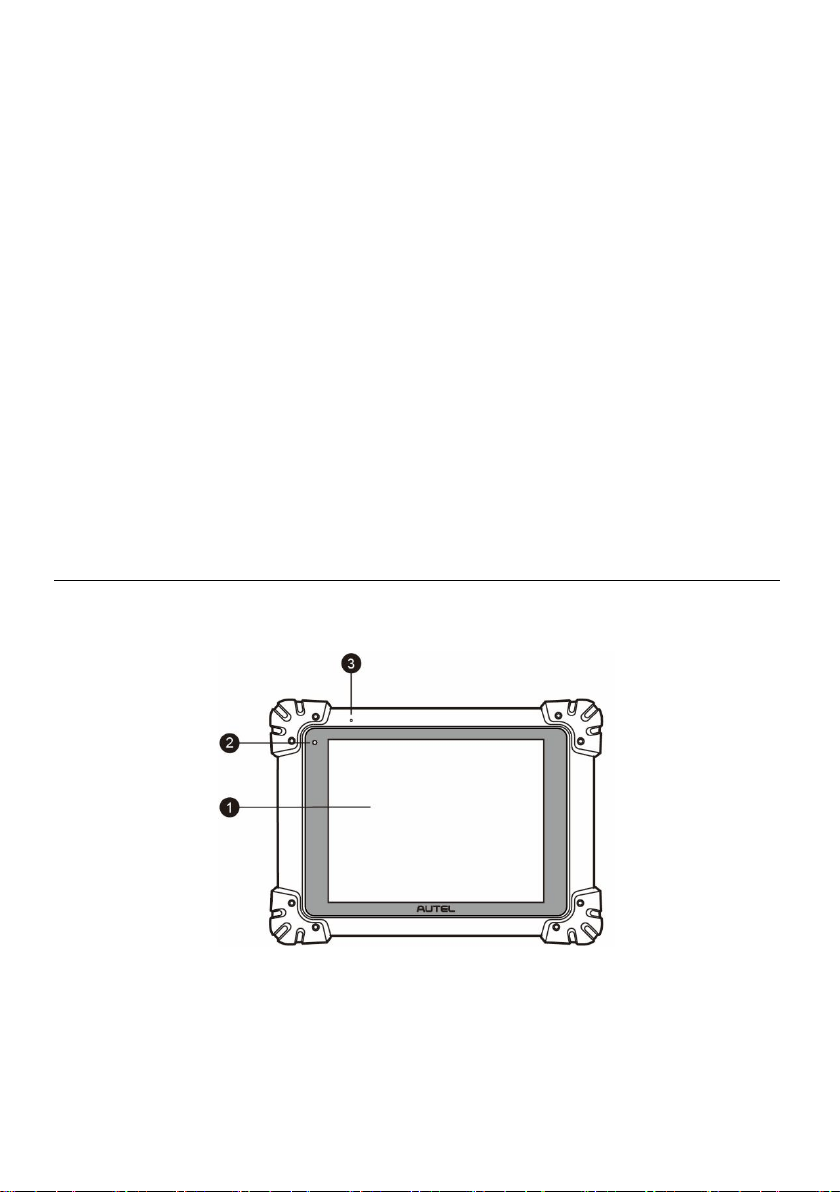
Figure 2-1 MaxiSys Tablet Front View
1. 9.7” LED Capacitive Touch Screen
2. Ambient Light Sensor – detects ambient brightness.
3. Microphone
4
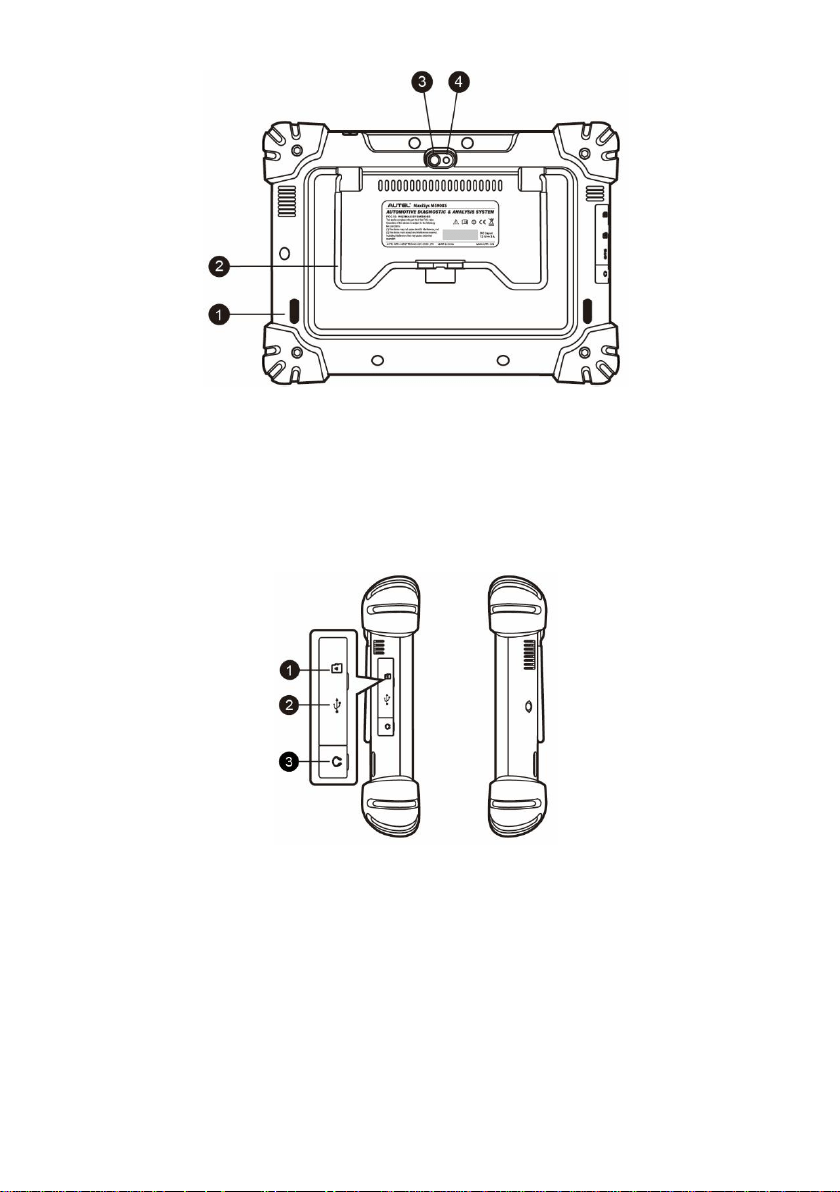
Figure 2-2 MaxiSys Tablet Back View
1. Audio Speaker
2. Collapsible Stand – extends from the back to allow hands-free viewing of the tablet
at a 30 degree angle.
3. Camera Lens
4. Camera Flash
Figure 2-3 MaxiSys Tablet Left Side
1. Mini SD (Secure Digital) Card Slot
2. Mini USB (Universal Serial Bus) Port (it cannot be used at the same time with the
No. 4 USB Port in Figure 2-4 MaxiSys Tablet Top View)
3. Head Phone Jack

5
Figure 2-4 MaxiSys Tablet Top View
1. DC Power Supply Input Port
2. HDMI (High-Definition Multimedia Interface) Port
3. USB Port
4. USB Port (it cannot be used at the same time with the Mini USB Port in Figure 2-3
MaxiSys Tablet Left Side)
5. Lock/Power Button – long press to turn on and off MaxiSys, or short press to lock
the screen.
Power Sources
The tablet can receive power from any of the following sources:
⚫ Internal Battery Pack
⚫ AC/DC Power Supply
⚫ Vehicle Power
IMPORTANT
Please charge the battery with the ambient temperature between 0°C and 45°C. If
charge the battery when the temperature is out of range, the battery may catch on fire.
Internal Battery Pack
The tablet can be powered with the internal rechargeable battery, which if fully charged
can provide sufficient power for about 7.5 hours of continuous operation.
AC/DC Power Supply
The tablet can be powered from a wall socket using the AC/DC power adapter. The
AC/DC power supply also charges the internal battery pack.
Vehicle Power
The tablet can be powered from the cigarette lighter or other suitable power port on the
test vehicle through a direct cable connection. The vehicle power cable connects to the
DC power supply port on the top side of the display unit.
6
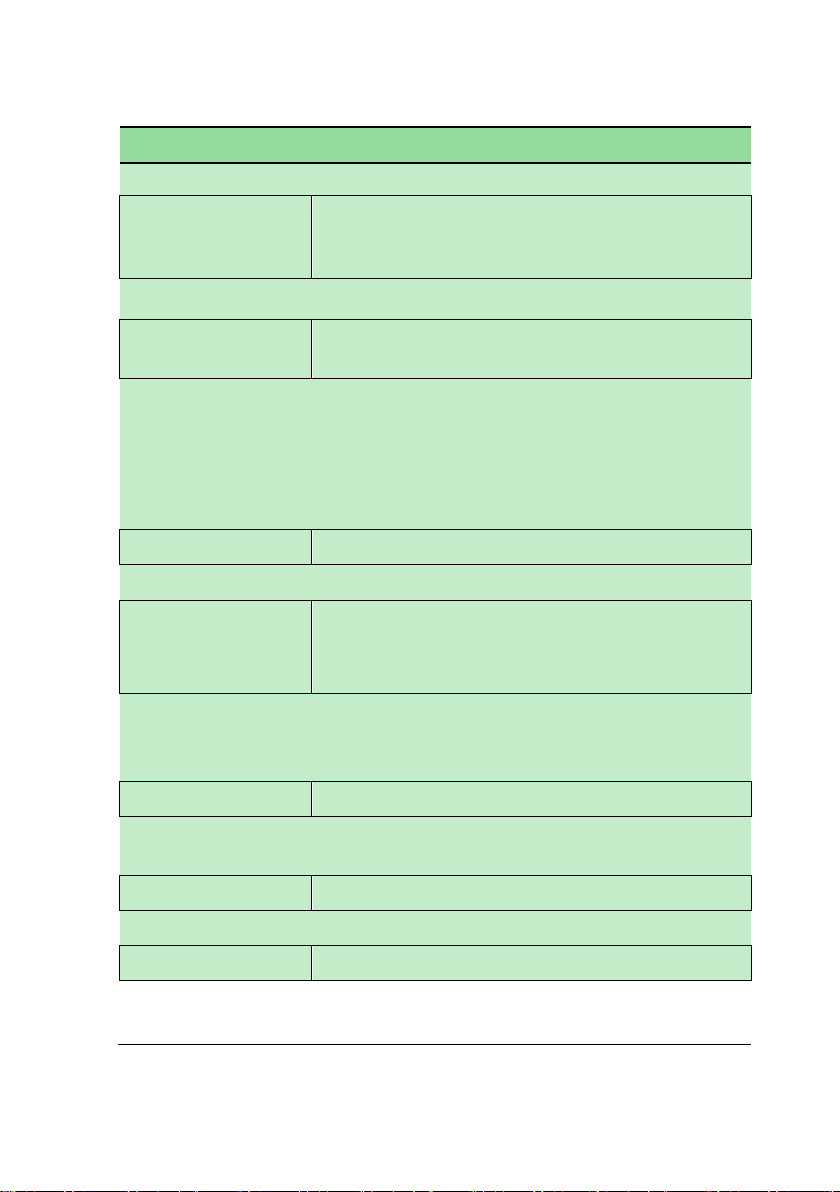
Technical Specifications
Table 2-1 Tablet Specifications
Item
Description
Operating System
Android
TM
4.4.2, KitKat
Processor
Samsung Exynos Six-core Processor (1.3GHz
Quad-core ARM Cortex-A7 + 1.7GHz Dual-core
ARM Cortex-A15)
Memory
2GB RAM & 64GB On-board Memory
Display
9.7 inch LED capacitive touch screen with 1024x768
resolution
Connectivity
Wi-Fi (802.11 a/b/g/n/ac)
USB: 2.0
BT v.2.1 + EDR
SD Card (Support up to 32GB)
HDMI
Camera (rear)
8.0 Megapixel, AF with Flashlight
Sensors
Gravity Accelerometer, Ambient Light Sensor (ALS)
Audio
Input/Output
Microphone
Dual Speakers
3-Band 3.5 mm stereo/standard headset jack
Power and Battery
11000 mAh 3.7 V lithium-polymer battery
Charging via 12 V AC/DC power supply with the
temperature between 0°C and 45°C
Input Voltage
12 V (9-24 V)
Power
Consumption
6.5 W
Operating Temp.
0 to 50°C (32 to 122°F)
Storage Temp.
-20 to 60°C (-4 to 140°F)
Dimensions (WxHxD)
300 mm (11.81”) x 220 mm (8.66”) x 50 mm (1.97”)
Weight
NW: 1.42 kg (3.13 lb.)
GW: 8.052 kg (17.75 lb.)

7
Item
Description
Protocols
ISO 9142-2, ISO 14230-2, ISO 15765-4, K/L-Line,
Flashing Code, SAE-J1850 VPW, SAE-J1850 PWM,
CAN ISO 11898, Highspeed, Middlespeed,
Lowspeed and Singlewire CAN, GM UART, UART
Echo Byte Protocol, Honda Diag-H Protocol, TP 2.0,
TP 1.6, SAE J1939, SAE J1708, Fault-Tolerant CAN
VCI – J2534 ECU Programming Device
Functional Description
Figure 2-5 J2534 ECU Programming Device
1. DC Power Supply Input Port
2. Vehicle Data Connector
3. Vehicle LED
⚫ Flashes green when the device is communicating with the vehicle’s system
IMPORTANT
Do not disconnect the programming device while this status light is on! If the flash
programming procedure is interrupted while the vehicle’s ECU is blank or only partially
programmed, the module may be unrecoverable.
4. Connection LED
⚫ Lights solid green when the device is properly connected with the tablet via the
USB cable
⚫ Lights solid blue when the device is connected with the tablet via wireless (BT)
connection
5. Power LED
⚫ Lights solid green when the device is powered on
⚫ Blinks red when system failure occurs

8
⚫ Lights amber automatically at power up when the device is self-testing
6. USB Port
J2534 Programming Capability
The J2534 ECU Programming Device is a SAE J2534-1 & -2 compliant PassThru
programming interface device. Using the updated OEM software, it is capable of
replacing the existing software/firmware in the Electronic Control Units (ECU),
programming new ECUs and fixing software-controlled drivability issues and emission
issues.
Communication
The J2534 ECU programming device supports BT and USB communications. It can
transmit vehicle data to the tablet with or without a physical connection. The working
range of the transmitter through BT communication is 210 feet (about 70 m). A signal
lost due to moving out of range automatically restores itself when the tablet unit is
brought closer to the VCI unit.
Power Sources
The J2534 programming device can receive power from both of the following sources:
⚫ Vehicle Power
⚫ AC/DC Power Supply
Vehicle Power
The J2534 programming device operates on 12-volt vehicle power, which it receives
through the vehicle data connection port. The device powers on whenever it is
connected to an OBD II/EOBD compliant data link connector (DLC). For non OBD
II/EOBD compliant vehicles, the device can be powered from a cigarette lighter or other
suitable power port on the test vehicle using the auxiliary power cable.
AC/DC Power Supply
The J2534 programming device can be powered from a wall socket using the AC/DC
power adapter.
Technical Specifications
Table 2-2 J2534 ECU Programming Device Specifications
Item
Description
Communications
Wireless BT V2.1 + EDR
USB 2.0

9
Item
Description
Wireless Frequency
Wireless BT V2.1+EDR, 2.4GHz
Input Voltage Range
12 VDC to 24 VDC
Supply Current
170 mA @ 12 VDC
100 mA @ 24 VDC
Operating Temp.
0°C to 60°C (ambient)
Storage Temp.
-65°C to 100°C (ambient)
Dimensions (L x W x H)
149 mm (5.87”) x 86 mm (3.38”) x 35 mm (1.28”)
Weight
290 g (0.64 lb.)
NOTE
For additional information, please refer to the accompanied user manual for the J2534
ECU Programming Device.
Accessories Kit
Main Cable
The VCI device can be powered through the Main Cable when connected to an OBD
II/EOBD compliant vehicle. The Main Cable connects the VCI device to the vehicle’s
data link connector (DLC), through which the VCI device can transmit vehicle data to
the tablet.
Figure 2-6 Main Cable – 1.5 m in length
OBD I Adapters
The OBD I adapters are for Non-OBD II vehicles. The adapter used depends on the
type of vehicle being tested. The most common adapters are shown(Some adapters
are optional, please contact your distributor for details).

10
Benz-14
(EU Only)
Chrysler-16
(America Only)
BMW-20
Kia-20
Nissan-14
GM/Daewoo-12
Honda-3
Mitsubishi/Hyund
ai-12+16
BMW Ethernet
Cable
Benz-38
VW/Audi-2+2
Other Accessories
Standard 2.0 USB Cable
Connects the tablet to the VCI unit.
Mini USB Cable
Connects the tablet to the Windows-based PC.
AC/DC External Power Adapter
Connects the tablet to the external DC power port for
power supply.
Ethernet Serial Cable
Connects the tablet to the VCI unit.
Cigarette Lighter
Provides power to the tablet or the J2534
programming device through connection to the
vehicle’s cigarette lighter receptacle, as some

11
non-OBD II vehicles cannot provide power via the
DLC connection.
Clipper Cable
Provides power to the tablet or the J2534
programming device through connection to the
vehicle’s battery.
Lighter Fuse x2
A safety device for the cigarette lighter.
USB Ethernet Adapter
Connects the device to an Ethernet network.

12
3 Getting Started
Make sure the tablet has sufficient power or is connected to the external power supply
(see Power Sources on page 5).
Power Up
Long press the Lock/Power button on the top right side of the tablet to switch the unit on.
The power LED will illuminate green. The system boots up and displays the lock screen.
Press and drag the inner ring to the edge of the circle to unlock the screen; the MaxiSys
Job Menu is shown.
Figure 3-1 Sample MaxiSys Job Menu
1. Application Buttons
2. Locator and Navigation Buttons
3. Status Icons
NOTE
The screen is locked by default upon startup. It is recommended to lock the screen
when not in use to protect information in the system and conserve the power.
Almost all operations on the tablet are controlled through the touch screen. The touch
screen navigation is menu driven, which allows you to quickly locate the test procedure,
or data that you need, through a series of choices and questions. Detailed descriptions
of the menu structures are found in the chapters for each application.

13
Application Buttons
The table below briefly describes each of the applications in the MaxiSys system.
Table 3-1 Applications
Name
Button
Description
Diagnostics
Accesses the unit’s diagnostics functions. See
Diagnostics on page 17.
Service
Accesses special functions menu. See Service on
page 50 for details.
MaxiFix
Launches the MaxiFix platform that provides the
most compatible and abundant repair techniques
and diagnostics database. See MaxiFix on page 55.
Shop
Manager
Accesses Shop Manager database to store
workshop, consumer information and vehicle test
history. See Shop Manager on page 63.
Data
Manager
Accesses the organization system for saved data
files. See Data Manager on page 70.
Settings
Accesses the system settings menu and general
tablet menu. See Settings on page 74.
Update
Accesses system software update menu. See
Update on page 79.
VCI
Manager
Accesses VCI connection menu. See VCI Manager
on page 81.
Support
Launches the Support platform that synchronizes
Autel’s online service base station with the MaxiSys
tablet. See Support on page 85.
Academy
Accesses technical tutorials and training articles
about the device or vehicle diagnostic techniques.
See Academy on page 93 for details.
Remote
Desk
Configures your unit to receive remote support using
the TeamViewer application. See Remote Desk on
page 83.
Quick Link
Provides associated website bookmarks to allow
quick access to product update, service, support
and other information. See Quick Link on page 94.

14
Name
Button
Description
MaxiScope
Configures the unit to operate as an automotive
oscilloscope to perform electrical and electronic
circuit tests and monitor signal activities. See
MaxiScope
on page
95.
Digital
Inspection
Configures the unit to operate as a video scope
device by connecting to an Imager head cable for
close vehicle inspections. See Digital Inspection on
page 96.
Locator and Navigation Buttons
Operations of the Navigation buttons at the bottom of the screen are described in the
table below:
Table 3-2 Locator and Navigation Buttons
Name
Button
Description
Locator
Indicates the location of the screen. Swipe the
screen left or right to view the previous or next
screen.
Back
Returns to the previous screen.
Android Home
Returns to Android System’s Home screen.
Recent Apps
Displays a list of applications that are currently
working. Tap an app icon to launch. To remove
an app, swipe it to the right.
Browser
Launches the Chrome Internet browser.
Camera
Opens the camera with short press; takes and
saves screenshot image with long press. The
saved files are auto-stored in the Data Manager
application for later reviews. See Data Manager
on page 70.
Display &
Sound
Allows you to adjust the brightness of the screen
and the volume of the audio output.
MaxiSys Home
Returns to MaxiSys Job Menu.

15
Name
Button
Description
VCI
Opens the VCI Manager application. The check
at the bottom right corner indicates the tablet is
communicating with the VCI, an X will display if
the tablet is not connected to VCI.
MaxiSys
Shortcut
Returns to the Diagnostics screen.
Service
Returns to the Service screen.
➢ To use the camera:
1. Tap the Camera button. The camera screen opens.
2. Focus the image to be captured in the view finder.
3. Tap the inner blue circle. The view finder now shows the captured picture and
auto-saves the taken photo.
4. Tap the thumbnail image on the top right corner of the screen to view the
stored image.
5. Tap the Back or Home button to exit the camera application.
Refer to Android documentation for additional information.
System Status Icons
These are the standard status icons of the Android operating system. Your MaxiSys
display tablet is a fully functional Android Pad. Refer to Android documentation for
additional information.
Power Down
All vehicle communications must be terminated before shutting down the tablet. A
warning message displays if a shutdown is attempted while the tablet is communicating
with the vehicle. Forcing a shut down while the tablet is communicating may lead to
ECM problems on some vehicles. Please exit the Diagnostics application before
shutting off the tablet.
➢ To power down the MaxiSys tablet:
1. Long press the Lock/Power Button.
2. Tap Power off option.
3. Tap OK.

16
Reboot System
In case of system crash, long press the Lock/Power button and tap Reboot to restart
the system.

17
4 Diagnostics
The Diagnostics application can access the electronic control module of various vehicle
control systems, such as engine, transmission, antilock brake system (ABS), airbag
system (SRS) and more.
Establish Vehicle Communication
The Diagnostics operations require connecting the MaxiSys MS908S Pro Diagnostic
Platform to the test vehicle through the VCI device using the main cable and test
adapters (for non-OBD II vehicles). To establish proper vehicle communication to the
tablet, you need to perform the following steps:
1. Connect the VCI device to the vehicle’s DLC for both communication and power
source.
2. Connect the VCI device to the tablet via BT pairing, or USB connection.
3. When the above steps are completed, check the VCI navigation button at the
bottom bar on the screen, if a green check displays at the lower right corner, the
MaxiSys MS908S Pro Diagnostic Platform is ready to start vehicle diagnosis.
Vehicle Connection
The method used to connect the VCI device to a vehicle’s DLC depends on the
vehicle’s configuration as follows:
⚫ A vehicle equipped with an On-board Diagnostics Two (OBD II) management
system supplies both communication and 12-volt power through a standardized
J-1962 DLC.
⚫ A vehicle not equipped with an OBD II management system supplies
communication through a DLC connection, and in some cases supplies 12-volt
power through the cigarette lighter receptacle or a connection to the vehicle
battery.
OBD II Vehicle Connection
This type of connection only requires the main cable without any additional adapter.
➢ To connect to an OBD II vehicle
1. Connect the main cable’s female adapter to the Vehicle Data Connector on the
VCI device, and tighten the captive screws.

18
2. Connect the cable’s 16-pin male adapter to the vehicle’s DLC, which is
generally located under the vehicle dash.
NOTE
The vehicle’s DLC is not always located under the dash; refer to the user manual of the
test vehicle for additional connection information.
Non-OBD II Vehicle Connection
This type of connection requires both the main cable and a required OBD I adapter for
the specific vehicle being serviced.
There are three possible conditions for Non-OBD II vehicle connection:
⚫ DLC connection supplies both communication and power.
⚫ DLC connection supplies communication and power is to be supplied via the
cigarette lighter connection.
⚫ DLC connection supplies communication and power is to be supplied via
connection to the vehicle battery.
➢ To connect to a Non-OBD II Vehicle
1. Connect the main cable’s female adapter to the Vehicle Data Connector on the
VCI device, and tighten the captive screws.
2. Locate the required OBD I adapter and connect its 16-pin jack to the main
cable’s male adapter.
3. Connect the attached OBD I adapter to the vehicle’s DLC.
NOTE
Some adapters may have more than one adapter or may have test leads instead of an
adapter. Whatever the case, make the proper connection to the vehicle’s DLC as
required.
➢ To connect the cigarette lighter
1. Plug the DC power connector of the cigarette lighter into the DC power supply
input port on the device.
2. Connect the male connector of the cigarette lighter into the vehicle’s cigarette
lighter receptacle.
➢ To connect the clipper cable
1. Connect the tubular plug of the clipper cable to the male connector of the
cigarette lighter.
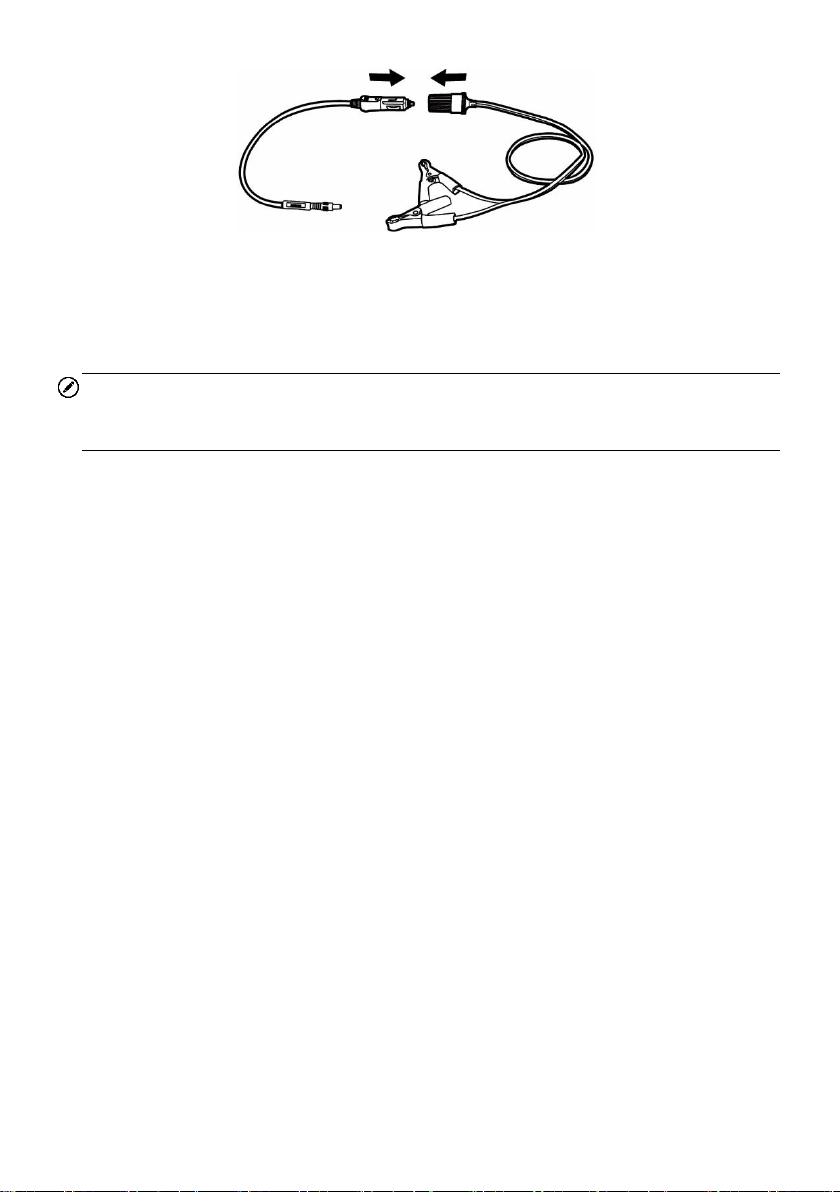
19
Figure 4-1 Connection between Cigarette Lighter and Clipper Cable
2. Plug the DC power connector of the cigarette lighter into the DC power supply
input port of the J2534 programming device.
3. Connect the clipper cable to the vehicle’s battery.
NOTE
After the VCI device is successfully connected to the vehicle, the Power LED on the
device illuminates, and a brief beep sound will be heard.
VCI Connection
After the VCI device is properly connected to the vehicle, the Power LED on the VCI
device illuminates solid green light, and is ready to establish communication with the
tablet.
The J2534 ECU Programming Device, which comes with the MaxiSys MS908S Pro tool
kit, supports 2 communication methods with the tablet: BT, and USB.
Pairing Up via BT
Among all methods, BT pairing is recommended as the first choice for the
communication between the tablet and the VCI device. The working range for BT
communication is about 210 feet (70 m); this means you can perform vehicle diagnosis
freely around the workshop with greater convenience.
If you use more than one VCI device to connect to the test vehicles when customers
are many, you can perform vehicle diagnosis on various vehicles conveniently, by
pairing the tablet separately to each of the VCI devices connected to the different test
vehicles, via BT, without the need to repeat the plugging and unplugging procedure,
which is unavoidable through traditional wired connection, thus saves you more time
and provides more efficiency.
➢ To pair up the tablet with the VCI device via BT
1. If not already done, power up the tablet.
2. Select the VCI Manager application from the MaxiSys Job Menu.
3. When the VCI Manager application is opened, the device automatically starts
scanning for available VCI devices around for BT pairing. The found devices

20
are listed in the Setting section on the right side of the screen.
NOTE
If no VCI device is found, this may indicate that the signal strength of the transmitter is
too weak to be detected. In this case try to get closer to the device, or reposition the
VCI device, and remove all possible objects that may cause signal interference. When
done, tap the Scan button at the top right corner to start searching again.
4. Depending on the VCI type you use, the device name may display as Maxi
suffixed with a serial number. Select the required device for pairing.
5. When pairing is successfully done, the connection status displayed to the right
of the device name is shown as Paired.
6. Wait for a few seconds, and the VCI button on the system Navigation bar at
the bottom of the screen shall display a green tick icon, indicating the tablet is
connected to the VCI device, and is ready to perform vehicle diagnosis.
Refer to BT Pairing on page 82 for additional information.
USB Cable Connection
The USB cable connection is a simple and quick way to establish communication
between the tablet and the VCI device. After properly connecting the USB cable from
the tablet to the VCI device, the VCI navigation button at the bottom bar of the screen
shows a green tick icon in a few seconds, and the USB LED on the VCI device
illuminates solid green light, indicating the connection between the devices is
successful.
The MaxiSys diagnostic platform is now ready to perform vehicle diagnosis.
NOTE
Since the USB connection provides the most stable and fastest communication, it is
highly recommended to apply this communication method when operating ECU
programming or coding. When all the two communication methods are applied at the
same time, the MaxiSys system will use the USB communication as the default priority.
No Communication Message
A. If the tablet is not connected to the VCI device, an “Error” message displays. An
“Error” message indicates the tablet is not communicating with the VCI device, and
so cannot gain access to the vehicle control module. In this case, you need to do
the following check-ups:
⚫ Check if the VCI device is powered on.
⚫ In case of wireless connection, check if the network is configured correctly, or
if the right device has been paired.
⚫ If during the diagnosis process, communication is suddenly interrupted due to

21
the loss of signal, check if there are any objects that causes signal
interruption.
⚫ Check if the VCI device is properly positioned. It is recommended to put the
VCI device with the front side up.
⚫ Try standing closer to the VCI device to obtain more stable signals, and faster
communication speed. In case of wired connection, check the cable
connection between the tablet and the VCI device.
⚫ Check if the green LED on the VCI device is illuminated for BT or USB.
⚫ Check if the Error LED on the VCI device is on, this may indicate there is a
communication error between the devices, in this case try re-establishing the
connection again; if this does not work, there may be a hardware problem with
the device, in this case contact for technical support.
B. If the VCI device is unable to establish a communication link, a prompt message
displays with check instructions. The following conditions are the possible causes
for this massage to display:
⚫ The VCI device is unable to establish a communication link with the vehicle.
⚫ You’ve selected a system for testing that the vehicle is not equipped with.
⚫ There is a loose connection.
⚫ There is a blown vehicle fuse.
⚫ There is a wiring fault on the vehicle, or the data cable or adapter.
⚫ There is a circuit fault in the data cable or adapter.
⚫ Incorrect vehicle identification was entered.
Getting Started
Prior to first use of the Diagnostics application, the VCI device must be synchronized
with the tablet to establish a communication link. See VCI Manager on page 81.
Vehicle Menu Layout
When the VCI device is properly connected to the vehicle, and paired to the tablet, the
platform is ready to start vehicle diagnosis. Tap on the Diagnostics application button
on the MaxiSys Job Menu, the screen then opens the Vehicle Menu.

22
Figure 4-2 Sample Vehicle Menu Screen
1. Top Toolbar Buttons
2. Manufacturer Buttons
Top toolbar Buttons
The operations of the Toolbar buttons at the top of the screen are listed and described
in the table below:
Table 4-1 Top Toolbar Buttons
Name
Button
Description
Home
Returns to the MaxiSys Job Menu.
VIN Scan
Touching this button opens a dropdown list; tap
Auto Detect for auto VIN detection; tap Manual
Input to enter VIN manually.
All
Displays all the vehicle makes in the vehicle
menu.
History
Displays the stored test vehicle history records.
This option provides you direct access to the
previously tested vehicle recorded during
previous test sessions. See Vehicle History on
page 64.
USA
Displays the USA vehicle menu.
Europe
Displays the European vehicle menu.
23
Name
Button
Description
Asia
Displays the Asian vehicle menu.
Domestic
Displays the Domestic vehicle menu.
Search
Touching this button opens the virtual keyboard,
allowing you to manually enter the specific
vehicle make required.
Cancel
Touching this button exits the search screen, or
cancels an operation.
Manufacturer Buttons
The Manufacturer buttons display the various vehicle logos and the brand names.
Select the required manufacturer button after the VCI device is properly connected to
the test vehicle to start a diagnostic session.
The small envelop icon displays beside the vehicle brand name is tappable, touching
which displays an attached PDF file, showing relevant information, such as vehicle
coverage and function list etc. for the corresponding vehicle make.
Vehicle Identification
The Maxisys diagnostic system supports four methods for Vehicle Identification.
1. Auto VIN Scan
2. Manual VIN Input
3. Manual Vehicle Selection
4. OBD Direct Entry
Auto VIN Scan
The MaxiSys diagnostic system features the latest VIN-based Auto VIN Scan function
to identify CAN vehicles in just one touch, which allows the technician to quickly detect
vehicles, scan all the diagnosable ECUs on every vehicle and run diagnostics on the
selected system.
➢ To perform Auto VIN Scan
1. Tap the Diagnostics application button from the MaxiSys Job Menu. The
Vehicle Menu displays.
2. Tap the VIN Scan button on the top toolbar.
3. Select Auto Detect. The tester starts VIN scanning on the vehicle’s ECU.
Once the test vehicle is successfully identified, the system will guide you to the

24
Vehicle Diagnostics screen directly.
Figure 4-3 Sample Vehicle Diagnostics Screen
In some cases when users have selected the vehicle brand instead of performing Auto
VIN Scan in the first place, the system still provides an option for vehicle VIN scan.
Figure 4-4 Sample Vehicle Selection Screen
Select Automatic Selection and the system will proceed to acquire VIN information
automatically or allow users to input the VIN manually.
Manual VIN Input
For some vehicles that do not support the Auto VIN Scan function, the MaxiSys
diagnostic system allows you to enter the vehicle VIN manually, or simply take a photo
of the VIN sticker for quick vehicle identification.

25
➢ To perform Manual VIN Input
1. Tap the Diagnostics application button from the MaxiSys Job Menu. The
Vehicle Menu displays.
2. Tap the VIN Scan button on the top toolbar.
3. Select Manual Input.
4. Tap the input box and enter the correct VIN.
Figure 4-5 Manual VIN Input
5. Tap Done. The vehicle will be identified in a few seconds, and once the
matching is successful, the system will guide you to the Vehicle Diagnostics
screen directly (Figure 4-3).
6. Tap Cancel to exit Manual Input.
Manual Vehicle Selection
When the vehicle’s VIN is not automatically retrievable through the vehicle's ECU, or
the specific VIN is unknown, you can choose to select the vehicle manually.
Step-by-step Vehicle Selection
This mode of vehicle selection is menu driven; you simply follow the screen prompts
and make a series of choices. Each selection you make advances you to the next
screen. A Back button at the lower right corner of the screen returns you to the
previous screen. Exact procedures may vary somewhat by various vehicles being
serviced.
Alternative Vehicle Identification
Occasionally, you may identify a test vehicle that the tester does not recognize; the
database does not support, or has some unique characteristics that prevent it from
communicating with the tester through the normal channels. In these instances, you are
provided with the OBD direct entry, through which you can perform generic OBD II or
EOBD tests. See Generic OBD II Operations on page 45 for additional information.
26
Navigation
This section describes how to navigate the Diagnostics interface and select test
options.
Diagnostics Screen Layout
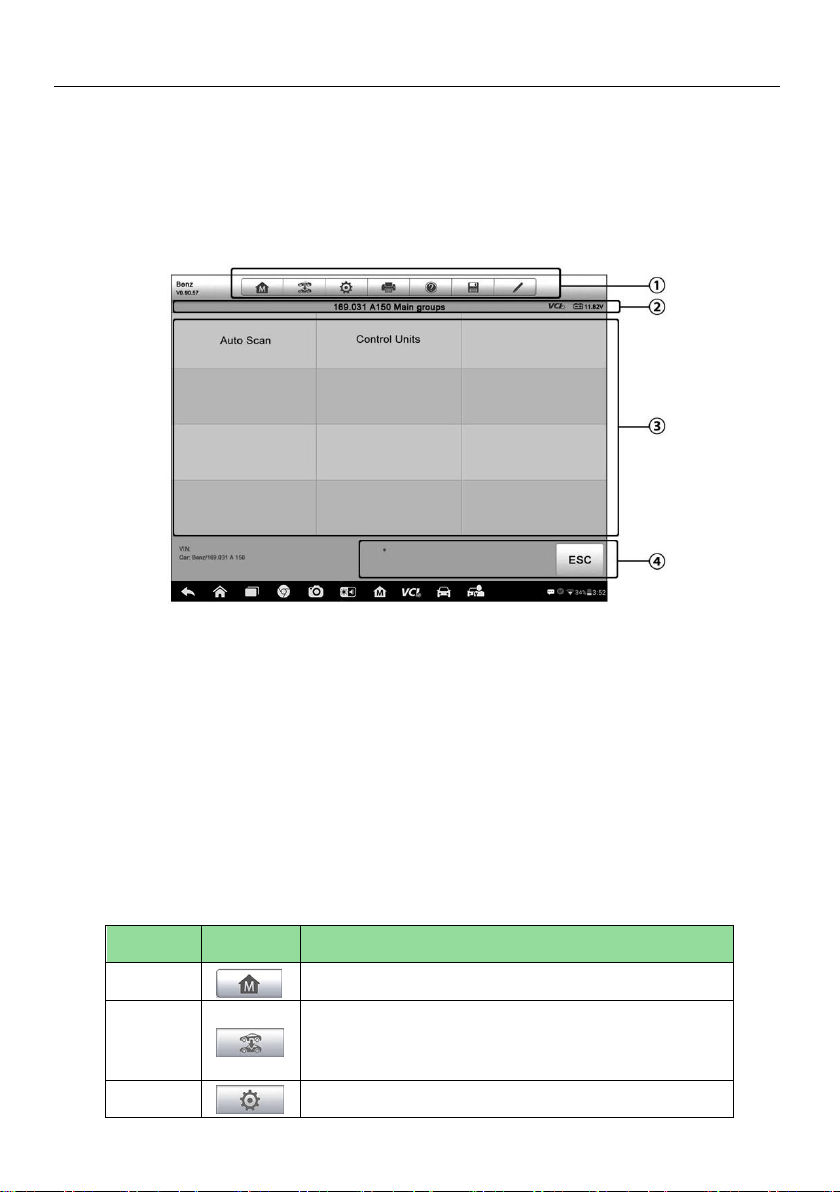
The Diagnostics screens typically include four sections.
Figure 4-6 Sample Diagn ostics Screen
1. Diagnostics Toolbar
2. Status Information Bar
3. Main Section
4. Functional Buttons
Diagnostics Toolbar
The Diagnostics Toolbar contains a number of buttons that allow you to print or save
the displayed data and make other controls. The table below provides a brief
description for the operations of the Diagnostics toolbar buttons:
Table 4-2 Diagnostics Toolbar Buttons
Name
Button
Description
Home
Returns to the MaxiSys Job Menu.
Vehicle
Swap
Exits the diagnostic session and returns to the
vehicle menu screen to select another vehicle for
testing.
Settings
Opens the setting screen. See Settings on page 74.

27
Name
Button
Description
Print
Saves and prints a copy of the displayed data. See
Print on page 75.
Help
Provides instructions or tips for operations of
various diagnostic functions.
Save
Taps it to open a submenu, on which there are 3
options available to save the displayed data.
⚫ Tap Save This Page to take a screenshot
image
⚫ Tap Save All Data to save a PDF file (mostly
used to save data that cover more than 1 page)
⚫ Tap Start Saving to record a video clip (only
available for recording Live Data or special
graph data)
All saved data are stored in the Data Manager
application for later reviews. See Data Manager on
page 70.
Data
Logging
Records the communication data and ECU
information of the test vehicle. The saved data can
be reported and sent to the technical center via the
Internet.
Go to the Support application to follow up the
processing progress, see Data Logging on page 89.
Send
Taps it to submit the Data Logging report to the
technical center via the Internet.
➢ To print data in Diagnostics
1. Tap the Diagnostics application button from the MaxiSys Job Menu. The
Print button on the diagnostic toolbar is available throughout the whole
Diagnostics operations.
2. Tap Print and a drop-down menu appears.
a) Print This Page – prints a screenshot copy of the current screen.
b) Print All Page – prints a PDF copy of all displayed data.
3. A temporary file will be created and sent to the computer for printing.
4. When the file is transferred successfully, a confirmation message displays.
NOTE
Make sure the tablet is connected to the computer network, either via WiFi or LAN,
before printing. For more instructions on printing, see Print on page 75 for details.

28
➢ To submit Data Logging reports in Diagnostics
1. Tap the Diagnostics application button from the MaxiSys Job Menu. The Data
Logging button on the diagnostic toolbar is available throughout the whole
Diagnostics operations.
2. Tap the Data Logging button. The button displays blue during the active
recording process.
3. Tap the Data Logging button again to finish recording. A submission form will
display to let you fill in the report information.
4. Tap the Send button to submit the report form via the Internet, a confirmation
message displays when sending is successful.
Status Information Bar
The Status Information Bar at the top of the Main Section displays the following items:
1. Menu Title – indicates the menu subject of the Main Section.
2. VCI Icon – indicates the communication status between the tablet and the VCI
device.
3. Battery Icon – indicates the battery status of the vehicle.
Main Section
The Main Section of the screen varies depending on the stage of operations. The Main
Section can show vehicle identification selections, the main menu, test data, messages,
instructions and other diagnostic information.
Functional Buttons
The displayed Functional Buttons at this section of the screen varies depending on the
stage of operations. They can be used to navigate, save or clear the diagnostic data,
exit scanning as well as make other functional controls. The functions of these buttons
will be introduced respectively in the following sections of the corresponding test
operations.
Screen Messages
Screen messages appear when additional input is needed before proceeding. There
are mainly three types of on-screen messages as to their purposes: Confirmation,
Warning, and Error.
Confirmation Messages
This type of messages usually displays as an “Information” screen, which informs you
when you are about to perform an action that cannot be reversed or when an action has
been initiated and your confirmation is needed to continue.

29
When a user-response is not required to continue, the message displays briefly before
automatically disappearing.
Warning Messages
This type of messages informs you when completing the selected action may result in
an irreversible change or loss of data. The typical example for this is the “Erase Codes”
message.
Error Messages
Error messages inform you when a system or procedural error has occurred. Examples
of possible errors include a disconnected cable or communication interruption due to
certain reasons.
Making Selections
The Diagnostics application is a menu driven program that presents a series of choices
one at a time. As you select from a menu, the next menu in the series displays. Each
selection narrows the focus and leads to the desired test. Use your fingertip or the
stylus pen to make menu selections.
Main Menu
The Diagnostics application allows you to establish a data link to the electronic control
system of the test vehicle via the VCI device for vehicle diagnosis, service or
programming. You can operate functional tests, retrieve vehicle diagnostic information
such as trouble codes, event codes and live data, and perform ECU reprogramming, for
various vehicle control systems, such as engine, transmission, ABS and more.
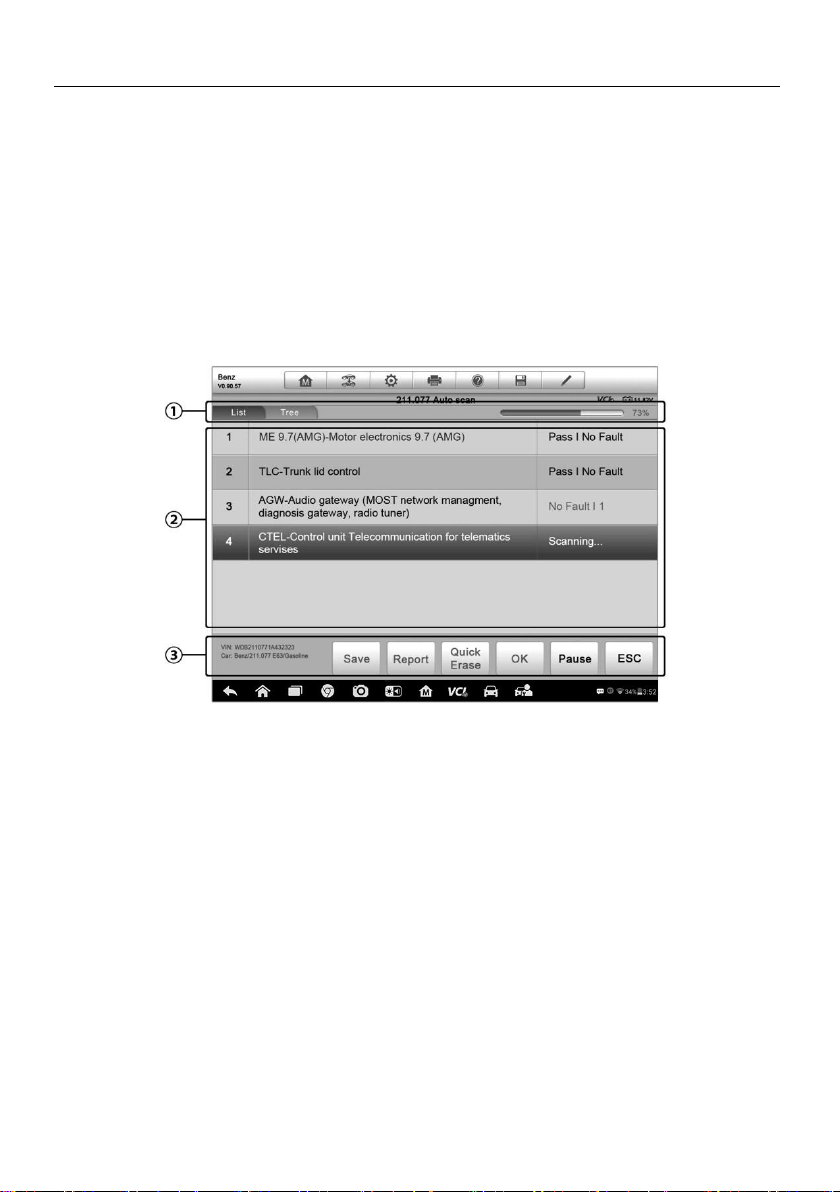
The Vehicle Diagnostics screen (Figure 4-3) has three main options:
1. Diagnosis – a comprehensive section which includes all available functions:
reading, clearing, saving and printing diagnostic information, as well as performing
active tests and special functions.
2. Service – a separate section designed to perform vehicle scheduled service and
maintenance, such as to reset the service lights and perform calibration for various
systems.
3. Programming/Coding – a separate section designed for quick access to ECU
reprogramming operations.
After a section is selected and the tablet establishes communication with the vehicle via
the VCI device, the corresponding function menu or selection menu displays.
30
Diagnosis
There are two options available when accessing the Diagnosis section:
1. Auto Scan – starts auto scanning for all the available systems on the vehicle
2. Control Units – displays a selection menu of all available control units of the test
vehicle.
Auto Scan
The Auto Scan function performs a comprehensive scanning over all the systems on
the vehicle’s ECU in order to locate fault systems and retrieve DTCs. The sample
operation interface of Auto Scan displays as below:
Figure 4-7 Sample Auto Scan Operation Screen
1. Navigation Bar
2. Main Section
3. Functional Buttons
Navigation Bar
1. List Tab – displays the scanned data in list format
2. Tree Tab – display the scanned data in system distribution diagram format
3. Progress Bar – indicates the test progress
Main Section
A. List Tab
Column 1 – displays the system numbers.
Column 2 – displays the scanned systems.
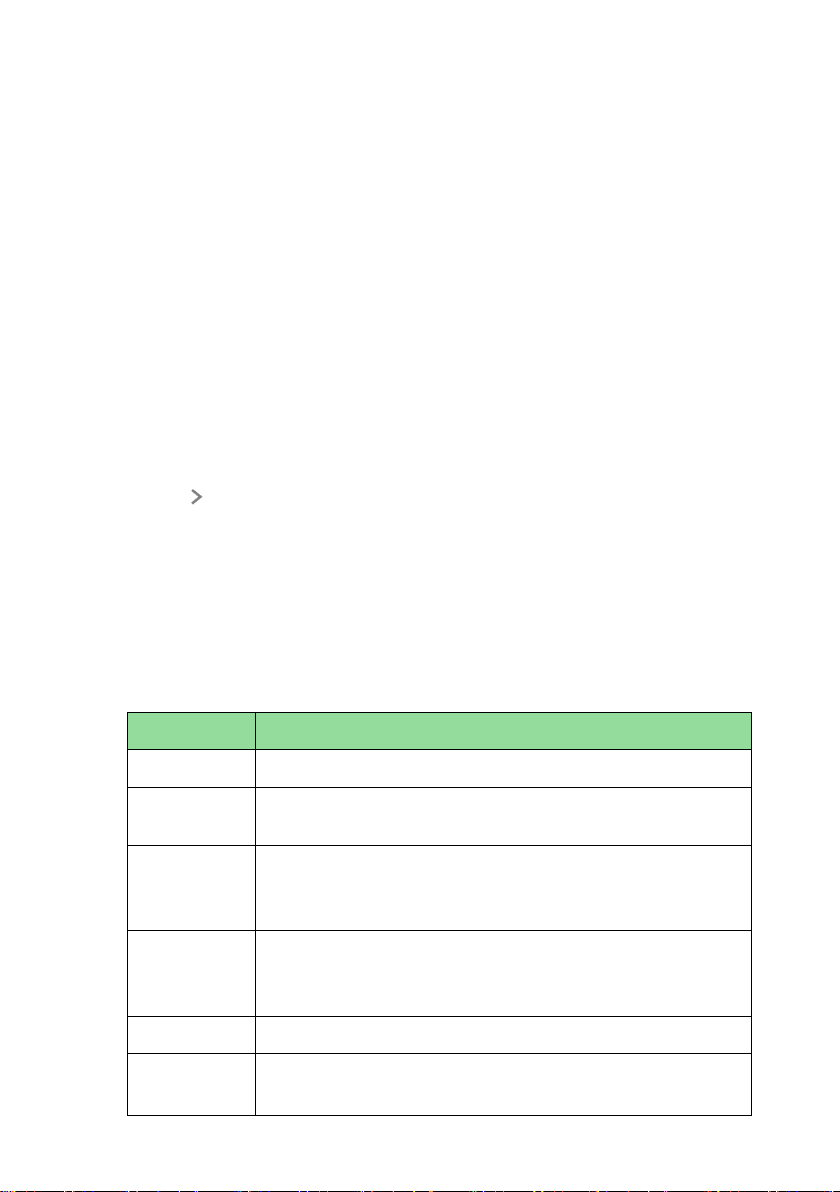
31
Column 3 – displays the diagnostic marks indicating different conditions of the test
result.
-!-: Indicates that the scanned system may not support the code reading
function, or there is a communication error between the tester and the control
system.
-?-: Indicates that the vehicle control system has been detected, but the
tester cannot accurately locate it.
Fault | #: Indicates there is/are detected fault code(s) present; “#” indicates
the number of the detected faults.
Pass | No Fault: Indicates the system has passed the scanning process
and no fault has been detected.
B. Tree Tab
The tree tab screen displays a system distribution diagram of the vehicle control
modules. The scanned system which has passed scanning with no fault is shown in
blue font; whereas the scanned system that has been detected with fault present is
shown in red font.
➢ Tab the button to the right of the system item, on which you want to perform
further diagnosis and other test activities. A Function Menu screen (Figure 4-8)
shall then display.
Functional Buttons
The table below provides a brief description of the Functional Buttons’ operations in
Auto Scan:
Table 4-3 Functional Buttons in Auto Scan
Name
Description
Back
Returns to the previous screen or exit Auto Scan.
Pause
Suspends scanning and changes to show the Continue
button.
OK
Confirms the test result, and continues to the system
diagnosis after selecting the required system by tapping the
item in the Main Section.
Quick Erase
Deletes codes. A warning message screen will display to
inform you of possible data loss when this function is
selected.
Report
Displays the diagnostic data in the report form.
Save
Saves the diagnostic session as a history record, this allows
you to quickly restore access to the test systems.

32
Control Units
This option allows you to manually locate a required control system for testing through
a series of choices. Simply follow the menu driven procedure, and make proper
selection each time; the program will guide you to the diagnostic function menu after a
few choices you’ve made.
Figure 4-8 Sample Function Menu Screen
The Function Menu options vary slightly for different vehicles. The function menu may
include:
⚫ ECU Information – provides the retrieved ECU information in detail. Selecting
opens an information screen.
⚫ Read Codes – displays detailed information of DTC records retrieved from the
vehicle control module.
⚫ Erase Codes – erases DTC records and other data from the ECM.
⚫ Live Data – retrieves and displays live data and parameters from the vehicle’s
ECU.
⚫ Active Test – provides specific subsystem and component tests. This selection
may appear as Actuators, Actuator Test, or Function Tests and the tests options
vary depending on the manufacturer and model.
⚫ Special Functions – provides component adaptation or variant coding functions for
custom configurations, and also allows you to reprogram adaptive values for
certain components after making repairs. Depending on the test vehicle, this
selection may sometimes appear as Control Unit Adaptations, Variant Coding,
Configuration or something similar.

33
NOTE
With the diagnostic toolbar on top of the screen throughout the whole diagnostic
procedures, you are allowed to make various controls of the diagnostic information at
any time, such as printing and saving the displayed data, get help information, or
perform data logging.
➢ To perform a diagnostic function
1. Establish communication with the test vehicle via the VCI device.
2. Identify the test vehicle by selecting from the menu options.
3. Select the Diagnosis section.
4. Locate the required system for testing by Auto Scan or through menu driven
selections in Control Units.
5. Select the desired test from the Function Menu.
ECU Information
This function retrieves and displays the specific information for the tested control unit,
including unit type, version numbers and other specifications. The sample ECU
Information screen displays as below:
Figure 4-9 Sample ECU Information Screen
1. Diagnostics Toolbar Buttons – see Table 4-2 Diagnostics Toolbar Buttons on page
26 for detailed descriptions of the operations for each button.
2. Main Section – the left column displays the item names; the right column displays
the specifications or descriptions.
3. Functional Button – in this case, only a Back (or ESC) button is available; tap it to
exit after viewing.

34
Read Codes
This function retrieves and displays the DTCs from the vehicle’s control system. The
Read Codes screen varies for each vehicle being tested, on some vehicles, freeze
frame data can also be retrieved for viewing. The sample Read Codes screen displays
as below:
Figure 4-10 Sample Read Codes Screen
1. Diagnostics Toolbar Buttons – see Table 4-2 Diagnostics Toolbar Buttons on page
26 for details.
2. Main Section
⚫ Column 1 – displays the retrieved codes from the vehicle.
⚫ Column 2 – indicates the status of the retrieved codes.
⚫ Column 3 – detailed descriptions for the retrieved codes.
3. Functional Button
⚫ Help – tap it to view the detailed information of the selected DTC.
⚫ Freeze – only available when freeze frame data is available for viewing;
Selecting displays a data screen, which looks very similar to the Read Codes
interface, therefore same operation method may be applied.
⚫ Search – tap it to search the selected DTC related information on the Internet.
⚫ ESC – tap it to return to the previous screen or exit the function.
Erase Codes
After reading the retrieved codes from the vehicle and certain repairs have been carried
out, you can decide to erase the codes from the vehicle using this function. Before
performing this function, make sure the vehicle’s ignition key is in the ON (RUN)
position with the engine off.

35
➢ To erase codes
1. Tap Erase Codes from the Function Menu.
2. A warning message displays to inform you of data loss when this function is
applied.
a) Tap Yes to continue. A confirming screen displays when the operation is
successfully done.
b) Tap No to exit.
3. Tap ESC on the confirming screen to exit Erase Codes.
4. Check the Read Codes function again to ensure the operation is successful.
Live Data
When this function is selected, the screen displays the data list for the selected module.
The data available for any control module varies from one vehicle to another. The
parameters display in the order that they are transmitted by the ECM, so expect
variation among vehicles.
Gesture scrolling allows you to quickly move through the data list. Touch the screen
and drag your finger up or down to reposition the parameters being displayed if the data
populates more than one screen. The figure below displays a typical Live Data screen:
Figure 4-11 Sample Live Data Screen
1. Diagnostics Toolbar Buttons – tap the drop-down button at the top center of the
screen displays the toolbar buttons. See Table 4-2 Diagnostics Toolbar Buttons on
page 26 for detailed descriptions of the operations for each button.
2. Main Section
⚫ Name Column – this column displays the parameter names.
a) Check Box – tap the check box at the left side of the parameter name to

36
make selection of an item. Tap the check box again to deselect the item.
b) Drop-down Button – tap the drop-down button at the right side of the
parameter name to open a submenu, which provides optional modes by
which to display the data.
⚫ Value Column – displays the values of the parameter items.
⚫ Range Column – displays the minimum and the maximum limit value.
⚫ Unit Column – displays the unit for the parameter values.
➢ To change the Unit mode, tap the Setting button on the top toolbar and
select a required mode. See Unit on page 74.
3. Display Mode
There are four types of display modes available for data viewing, allowing you to view
various types of parameters in the most suitable way for better data check-ups.
Tap the drop-down button on the right side of the parameter name opens a submenu.
There are 4 buttons to configure the data display mode, plus one Help button on the
right, active when additional information is available for your reference.
Each parameter item displays the selected mode independently.
Analog Gauge Mode – displays the parameters in form of an analog meter graph
Text Mode – the default mode that displays the parameters in texts and shows in
list format.
NOTE
Reading of status parameters, such as a switch reading, which are mostly in word form,
such as ON, OFF, ACTIVE, and ABORT can only be displayed in Text Mode. Whereas
reading of value parameters, such as a sensor reading, can be displayed in text mode
and graph modes.
Waveform Graph Mode – displays the parameters in waveform graphs.
When displaying this mode, three control buttons will appear on the right side of
the parameter item, allowing you to manipulate the display status.
⚫ Text Button – resumes Text Display Mode.
⚫ Scale Button – changes the scale values, which are displayed below the
waveform graph. There are four scales available: x1, x2, x4 and x8.
⚫ Zoom-in Button – taps once to display the selected data graph in full screen.
Digital Gauge Mode – displays the parameters in form of a digital gauge graph.
Full Screen Display – this option is only available in the waveform graph mode,
and mostly used in Graph Merge status for data comparison. There are three
control buttons available on the top right side of the screen under this mode.
⚫ Edit Button – tap to open an edit window, on which you can set the waveform
color and the line thickness displayed for the selected parameter item.

37
⚫ Scale Button – tap to change the scale values, which are displayed below the
waveform graph. There are four scales available: x1, x2, x4 and x8.
⚫ Zoom-out Button – tap to exit full screen display.
➢ To edit the waveform color and line thickness in a data graph
1. Select 1 to 3 parameter items to display in Waveform Graph mode.
2. Tap the Zoom-in Button on the right to display the data graph in full screen.
3. Tap the Edit Button, an edit window appears.
4. Select a parameter item on the left column.
5. Select a desired sample color from the second column.
6. Select a desired sample line thickness from the right column.
7. Repeat steps 4-6 to edit the waveform for each parameter item.
8. Tap Done to save the setting and exit, or tap Cancel to exit without saving.
4. Functional Buttons
The operations of all the available functional buttons on the Live Data screen are
described below:
Back – returns you to the previous screen or exit the function.
Record – starts recording the retrieved live data; the recorded data is then stored
as a video clip in the Data Manager application for future reviews. This function
could be triggered automatically at preset threshold value or manually as you
choose, and the triggering mode and record duration can be configured in the
Setting mode of Live Data.
Freeze – displays the retrieved data in freeze mode.
⚫ Previous Frame – moves to the previous frame in the freeze data.
⚫ Next Frame – moves to the next frame in the freeze data.
Resume – this button displays when the Record or Freeze function is applied.
Tapping this button stops data recording, or exit freeze data mode, and resumes
normal data display mode.
Flag – this button displays when the Record function is applied. Tapping this button
sets flags for the recorded data at points wherever you choose, when playing back
the recorded video clip later in Data Manager, the preset flag will enable a popup to
allow input of text to take notes.
Clear Data – tap button to clear all previously retrieved parameter values at a
cutting point whenever you choose.
To Top – moves a selected data item to the top of the list.
Graph Merge – tap button to merge selected data graphs (for Waveform Graph
Mode only). This function is very useful when making comparison for different
parameters.
38
NOTE
This mode supports Graph Merge for 2 to 3 parameter items only, select no less than 2
or more than 3 items each time when making graph merge.
➢ To cancel Graph Merge mode, tap the drop-down button on the right side of the
parameter name, and select a data display mode.
Show Selected/Show All – tap button to exchange between the two options;
one displays the selected parameter items, the other displays all the available
items.
Setting – tap button to open a setting screen, which allows you to set the
trigger mode, recording duration, and various threshold values for data
recording, and make other controls.
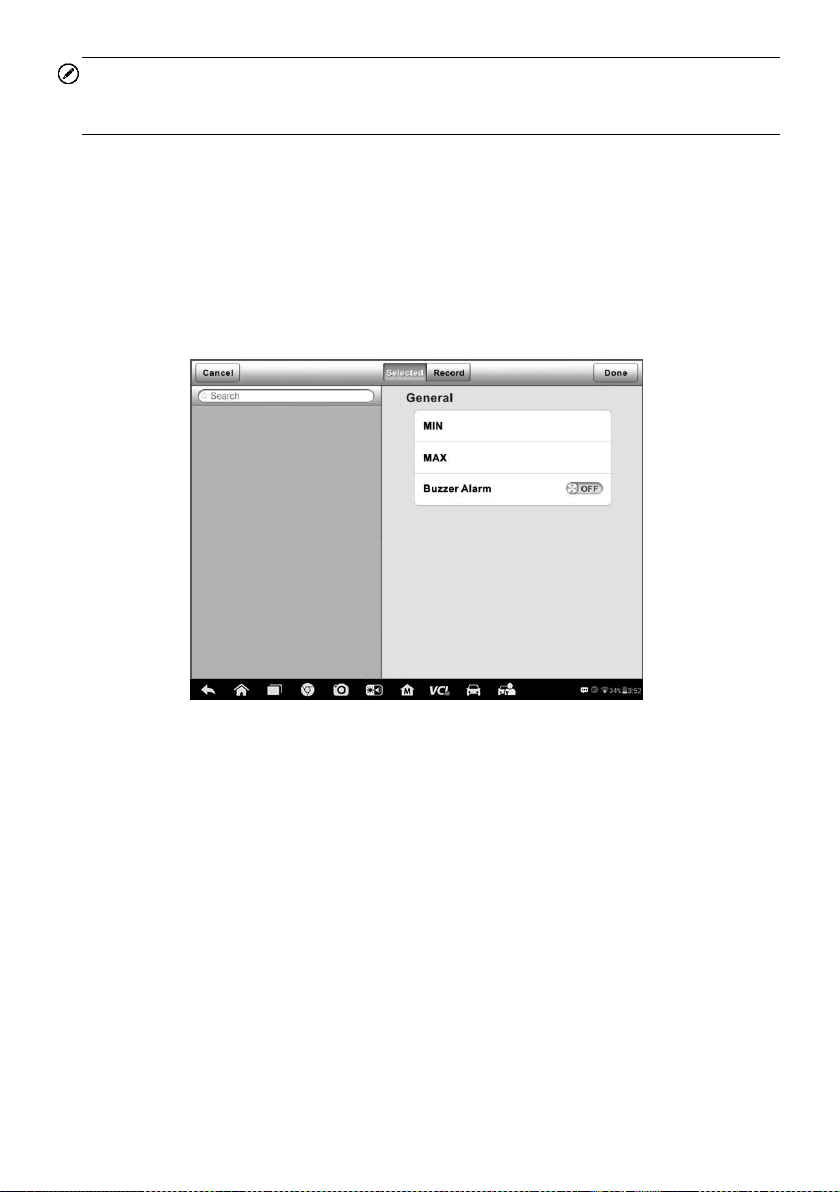
Figure 4-12 Sample Setting Mode in Live Data
There are four navigation buttons on top of the Setting mode screen.
⚫ Range – displays the configuration screen on which you can set the
threshold values, an upper limit and a lower limit, for triggering the buzzer
alarm. This function is only applied to the Waveform Graph display mode.
a) MIN – tap button to open a virtual keyboard to enter the required
lower limit value.
b) MAX – tap button to open a virtual keyboard to enter the required
upper limit value.
c) Buzzer Alarm – switches the alarm on and off. The alarm function
makes a beep sound as a reminder whenever the data reading
reaches the preset minimum or maximum point.
➢ To set threshold limits for the parameter values
1. Tap the Setting button at the bottom of the Live Data screen.
2. Tap the Range navigation button.

39
3. Select a parameter item on the left column, or enter the item name in
the Search bar.
4. Tap on the right side of the MIN button, and enter the required
minimum value.
5. Tap on the right side of the MAX button, and enter the required
maximum value.
6. Tap the ON/OFF button on the right side of the Buzzer Alarm button
to turn it on or off.
7. Tap Done to save the setting and return to the Live Data screen; or
tap Cancel to exit without saving.
If the threshold limits are successfully set, two horizontal lines now
appear on each of the data graphs (when Waveform Graph Mode is
applied) to indicate the alarming point. The threshold lines are shown
in different colors than the waveform of the parameters for distinction.
⚫ Record – displays the configuration screen for Record Setting, on which
you can set the trigger type, duration and trigger point for the data
recording function.
a) Trigger Type – sets the trigger mode for data recording, mainly of two
kinds: Manual and Auto. There are four options available:
1) Manual – allows you to manually start and stop data recording.
2) DTC – auto triggers data recording when any DTC is detected.
3) DTC Check Mode – auto triggers data recording when certain
pre-selected DTC types are detected.
4) Parameter – auto triggers data recording when any parameter
value reaches the preset threshold.
b) Duration – sets the recording time (for Auto trigger mode only).
c) Trigger Point – reserves a relative percentage of a record length
before the data recording start point for reference (for Auto trigger
mode only).
➢ To perform setting for live data record
1. Tap the Setting functional button at the bottom of the Live Data
screen.
2. Tap the Record navigation button.
3. Tap the button on the right of Trigger Type bar and select the
required trigger mode.
4. Tap the button on the right of Duration bar and select a length of
time.
5. Tap the button on the right of Trigger Point bar and select a
relative percentage of a record length to be reserved before the data
recording start point.

40
6. Tap Done to save the setting and return to the Live Data screen; or
tap Cancel to cancel without saving and exit Setting.
⚫ Done – confirms and saves the setting, and returns you to the Live Data
screen.
⚫ Cancel – cancels the setting operation, and returns you to the Live Data
screen.
Active Test
The Active Test function is used to access vehicle-specific subsystem and component
tests. Available test vary by manufacturer, year, and model, and only the available tests
display in the menu.
During an active test, the tester outputs commands to the ECU in order to drive the
actuators. This test determines the integrity of the system or parts by reading ECU data,
or by monitoring the operation of the actuators, such as switching a solenoid, relay, or
switch, between two operating states.
Selecting Active Test opens a menu of test options that varies by make and model.
Selecting a menu option activates the test. Follow all screen instructions while
performing tests. How and what information is presented on the screen varies
according to the type of test being performed. Some toggle and variable control tests
display Active Test Controls at the top of the screen with data stream information below,
or vice versa.
Figure 4-13 Sample Active Test Screen
The functional buttons at the lower right corner of the Active Test screen manipulate the
test signals. The operational instructions are displayed on the main section of the test
screen. Simply follow the on-screen instructions and make appropriate selections to
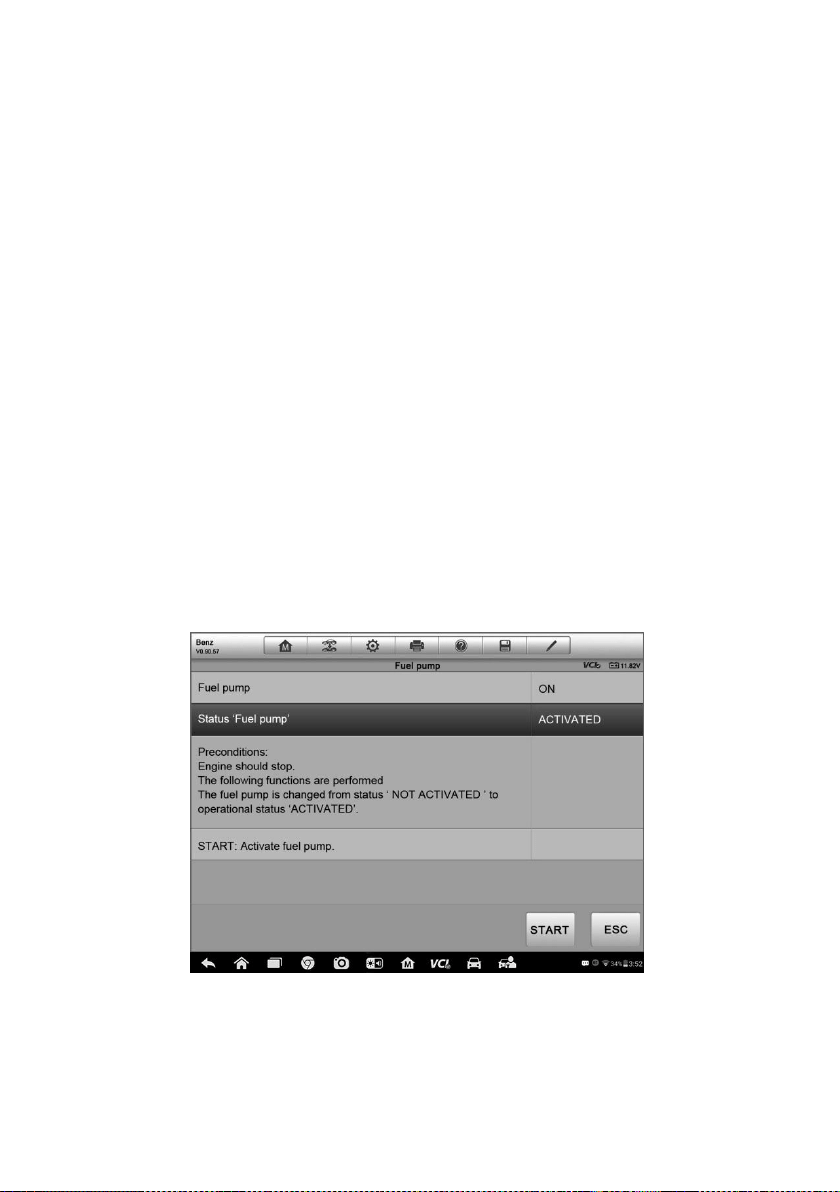
41
complete the tests. Each time when an operation is successfully executed, message
such as “Command Finished”, “Activation Successful”, or something similar displays.
Tap the ESC functional button to exit the test when finished.
Special Functions
These functions perform various component adaptations, allowing you to recalibrate or
configure certain components after making repairs or replacement.
The main section of the Adaptation Operation screen displays a list of operational and
vehicle status information, which mainly consists of four parts:
1. The first part in the top line shows the description of the operation being performed,
and the execution status is displayed on the right, such as Completed, or Activated,
etc.
2. The second part shows the preconditions or requirements for executing the
operation being selected.
3. The third part displays the current conditions of the vehicle control module being
learned for comparison to the preconditions suggested by the second part. If the
current condition of the control module is out of the suggested limit value, you must
adjust the vehicle condition to meet the requirement.
4. The last part displays the instruction of how to use the functional button at the
lower right corner of the screen to manipulate the teach-in operations.
Figure 4-14 Sample Adaptation Operation Screen
Read the information carefully and check the vehicle condition accordingly, when you
are sure that the vehicle is ready to perform the adaptation, simply follow the instruction
provided to make appropriate selections. When the operation is done, an execution
status message such as Completed, Finished or Successful, displays.

42
Tap the ESC button to exit the function.
Programming and Coding
Since the introduction of OBD II and leading up to modern Hybrids and EVs, computers
and software in cars have been expanding at an exponential rate. In-car software is
becoming one of the leading needs for service, and updating software may be the only
way to fix some of these issues:
⚫ Drivability
⚫ Fuel Efficiency
⚫ Power Loss
⚫ Fault Codes
⚫ Durability of Mechanical Parts
The Programming and Coding function is used to re-flash the vehicle control modules,
it allows you to update the computer software on the vehicle to the latest version, as
well as to reprogram adaptive data for certain components after making repairs or
replacements.
NOTE
The programming function can only be applied through connection with the J2534
programming device, which serves as a PassThru interface to establish communication
with and transfer data to the vehicle’s ECU.
Available programming or coding operations vary by the test vehicle, and only the
available operations display in the menu.
There are two general types of programming operations:
A. Coding – also known as Teach-in Program, Component Adaptation or something
similar, is used to reprogram adaptive data for vehicle control modules after repairs
or replacements of vehicle parts.
B. Reprogramming Operations – downloads new version of software subscription
from the online server database through Internet access (this procedure is done
automatically when the tablet is connected to the Internet, so there is no need to
check for software subscriptions yourself), and reprograms the newest software
version to the vehicle’s ECU.
NOTE
Ensure that the tablet is connected to the Internet before applying the ECU
programming function, so that the tablet is able to obtain access to the manufacturer’s
server for update service.

43
Selecting the Programming or Coding function opens a menu of operation options that
varies by make and model. Selecting a menu option either shows a programming
interface or opens another menu of additional choices. Follow all screen instructions
while performing the programming or coding operations. How and what information is
presented on the screen varies according to the type of operation being performed.
Variant Coding
Figure 4-15 Sample Variant Coding Screen
The main section of the Variant Coding screen displays a list of vehicle components
and the coding information that mainly consists of three parts:
1. The top line on the list displays the instruction of how to use the functional button at
the lower right corner of the screen to manipulate the coding operations.
2. The second part under the top line of the list displays all available systems for
coding on the left side, and the coding data or value on the right side.
3. The bottom line of the main section displays the functional buttons, which allows
you to manipulate the operation.
Check the vehicle condition and the coding information carefully, and use the functional
button to edit Codes for the corresponding components, tap Send when you finish edit
for all the items. When the operation is done, an execution status message such as
Completed, Finished or Successful, may display.
Tap the ESC button to exit the function.
Reprogramming Operation
Typical reprogramming operations require you to input and validate VIN number first.
Tap the input box and enter the correct number, the programming interface then
displays.

44
Figure 4-16 Sample Reprogramming Operation Screen
The main section of the reprogramming interface provides you certain hardware
version, and current software versions’ information, as well as the information of the
newest software versions to be programmed to the control units.
Throughout the programming procedure, a series of on-screen operational instructions
will display to guide you through.
Carefully read the on-screen information and follow the instruction to execute the
programming procedure.
Re-flash Errors
IMPORATANT
When reprogramming onboard, always make sure the vehicle battery is fully charged
and in good working condition. During reprogramming, there is a risk of having the
operation failure if voltage falls below the proper operation voltage. Sometimes a failed
operation can be recovered, but there is a chance that failed reprogramming could ruin
the control module. We recommend connecting an external battery charger to the
vehicle to ensure a successful operation.
Occasionally a flash update procedure may not complete properly. Common causes of
flash errors include poor cable connections between the tablet, VCI, and vehicle,
turning off the vehicle ignition switch before the flash procedure is complete, or low
vehicle battery voltage.
If the process crashes, recheck all the cable connections to assure good
communications and reinitialize the flash procedure. The programming procedure will
automatically repeat if the previous operation does not succeed.

45
Generic OBD II Operations
A fast-access option for OBD II/EOBD vehicle diagnosis is available on the Vehicle
Menu screen. This option presents a quick way to check for DTCs, isolate the cause of
an illuminated malfunction indicator lamp (MIL), check monitor status prior to emissions
certification testing, verify repairs, and perform a number of other services that are
emissions-related. The OBD direct access option is also used for testing OBD II/EOBD
compliant vehicles that are not included in the Diagnostics database. Functions of the
diagnostics toolbar buttons at the top of the screen are the same as those available for
specific vehicle diagnostics. See Table 4-2 Diagnostics Toolbar Buttons on page 26 for
details.
General Procedure
➢ To access the OBD II/EOBD diagnostics functions
1. Tap the Diagnostics application button from the MaxiSys Job Menu. The
Vehicle Menu displays.
2. Tap the EOBD button. There are two options to establish communication with
the vehicle.
⚫ Auto Scan – select it to establish communication using each protocol in
order to determine which one the vehicle is broadcasting on.
⚫ Protocol – select it to open a submenu of various protocols. A
communication protocol is a standardized way of data communication
between an ECM and a diagnostic tool. Global OBD may use several
different communication protocols.
3. Select a specific protocol if the Protocol option is selected. Wait for the OBD II
Diagnostic Menu to appear.
Figure 4-17 Sample OBD II Diagnostic Menu

46
NOTE
Tap the button beside the protocol name to display additional protocol information.
4. Select a function option to continue.
⚫ DTC & FFD
⚫ I/M Readiness
⚫ Live Data
⚫ O2 Sensor Monitor
⚫ On-Board Monitor
⚫ Component Test
⚫ Vehicle Information
⚫ Vehicle Status
NOTE
Some functions are supported only on certain vehicles.
Function Descriptions
This section describes the various functions of each diagnostic option:
DTC & FFD
When this function is selected, the screen displays a list of Stored Codes and Pending
Codes. When the Freeze Frame data of certain DTCs are available for viewing, a
snowflake button will display on the right side of the DTC item. The Erase Codes
function can be applied by tapping the functional button at the lower bottom of the
screen.
Figure 4-18 Sample DTC & FFD Screen

47
⚫ Stored Codes
Stored codes are the current emission related DTCs from the ECM of the vehicle.
OBD II/EOBD Codes have a priority according to their emission severity, with
higher priority codes overwriting lower priority codes. The priority of the code
determines the illumination of the Malfunction Indicator Light (MIL) and the codes
erase procedure. Manufacturers rank codes differently, so expect to see
differences between vehicles.
⚫ Pending Codes
These are codes whose setting conditions were met during the last drive cycle, but
need to be met on two or more consecutive drive cycles before the DTC actually
sets. The intended use of this service is to assist the service technician after a
vehicle repair and after clearing diagnostic information, by reporting test results
after a single driving cycle.
a) If a test failed during the driving cycle, the DTC associated with that test is
reported. If the pending fault does not occur again within 40 to 80 warm-up
cycles, the fault is automatically cleared from memory.
b) Test results reported by this service do not necessarily indicate a faulty
component or system. If test results indicate another failure after additional
driving, then a DTC is set to indicate a faulty component or system, and the
MIL is illuminated.
⚫ Freeze Frame
In most cases the stored frame is the last DTC that occurred. Certain DTCs, those
that have a greater impact on vehicle emission, have a higher priority. In these
cases, the highest priority DTC is the one for which the freeze frame records are
retained. Freeze frame data includes a “snapshot” of critical parameter values at
the time the DTC is set.
⚫ Erase Codes
This option is used to clear all emission related diagnostic data such as, DTCs,
freeze frame data and manufacturer specific enhanced data from the vehicle’s
ECM, and resets the I/M Readiness Monitor Status for all vehicle monitors to Not
Ready or Not Complete status.
A confirmation screen displays when the clear codes option is selected to prevent
accidental loss of data. Select Yes on the confirmation screen to continue, or No to
exit.
I/M Readiness
This function is used to check the readiness of the monitoring system. It is an excellent
function to use prior to having a vehicle inspected for compliance to a state emissions
program. Selecting I/M Readiness opens a submenu with two choices:
⚫ Since DTCs Cleared – displays the status of monitors since the last time the DTCs
are erased.

48
⚫ This Driving Cycle – displays the status of monitors since the beginning of the
current drive cycle.
Live Data
This function displays the real time PID data from ECU. Displayed data includes analog
inputs and outputs, digital inputs and outputs, and system status information broadcast
on the vehicle data stream.
Live data can be displayed in various modes, see Live Data on page 35 for detailed
information.
O2 Sensor Monitor
This option allows retrieval and viewing of O2 sensor monitor test results for the most
recently performed tests from the vehicle’s on-board computer.
The O2 Sensor Monitor test function is not supported by vehicles that communicate
using a controller area network (CAN). For O2 Sensor Monitor tests results of
CAN-equipped vehicles, refer to On-Board Monitor.
On-Board Monitor
This option allows you to view the results of On-Board Monitor tests. The tests are
useful after servicing or after erasing a vehicle’s control module memory.
Component Test
This service enables bi-directional control of the ECM so that the diagnostic tool is able
to transmit control commands to operate the vehicle systems. This function is useful in
determining how well the ECM responds to a command.
Vehicle Information
The option displays the vehicle identification number (VIN), the calibration identification,
and the calibration verification number (CVN), and other information of the test vehicle.
Vehicle Status
This item is used to check the current condition of the vehicle, including communication
protocols of OBD II modules, retrieved codes amount, status of the Malfunction
Indicator Light (MIL), and other additional information may be displayed.
Exit Diagnostics
The Diagnostics application remains open as long as there is an active communication
with the vehicle. You must exit the diagnostics operation interface to stop all
communications with the vehicle before closing the Diagnostics application.

49
NOTE
Damage to the vehicle electronic control module (ECM) may occur if communication is
disrupted. Make sure the all connections, such as data cable, USB cable, and wireless
or wired network, are properly connected at all times during testing. Exit all tests before
disconnecting the test cable or powering down the tool.
➢ To exit the Diagnostics application
1. From an active diagnostic screen, tap the Back or ESC functional button to
exit a diagnostic session step-by-step; Or
2. Tap the Vehicle Swap button on the diagnostics toolbar to return to the
Vehicle Menu screen.
3. From the vehicle menu screen, tap the Home button on the top toolbar; or tap
the Back button on the navigation bar at the bottom of the screen. Or
4. Tap the Home button on the diagnostics toolbar to exit the application directly
to the MaxiSys Job Menu.
Now, the Diagnostics application is no longer communicating with the vehicle and it is
safe to open other MaxiSys applications, or exit the MaxiSys Diagnostic System and
return to the Android System’s Home screen.

50
5 Service
The Service section is specially designed to provide quick access to the vehicle
systems for various scheduled service and maintenance tasks. The typical service
operation screen is a series of menu driven executive commands. Follow on-screen
instructions to select appropriate execution options, enter correct values or data, and
perform necessary actions. The application will display detailed instructions to complete
selected service operations.
After entering each special function, the screen will display two application choices:
Diagnosis and Hot Functions. The Diagnosis enables the reading and clearing of
codes which is sometimes necessary after completing certain special functions. Hot
Functions consists of sub functions of the selected special function.
Figure 5-1 Sample Service Menu
Several most commonly used services are described in this chapter.
Oil Reset Service
Perform reset for the Engine Oil Life system, which calculates an optimal oil life change
interval depending on the vehicle driving conditions and climate. The Oil Life Reminder
must be reset each time the oil is changed, so the system can calculate when the next
oil change is required.
NOTE
1. Always reset the engine oil life to 100% after every oil change.

51
2. All required work must be carried out before the service indicators are reset.
Failure to do so may result in incorrect service values and cause DTCs to be stored
by the relevant control module.
3. For some vehicles, the scan tool can reset additional service lights such as
maintenance cycle and service interval. On BMW vehicles for example, service
resets include engine oil, spark plugs, front/rear brakes, coolant, particle filter,
brake fluid, micro filter, vehicle inspection, exhaust emission inspection and vehicle
checks.
Electric Parking Brake (EPB) Service
This function has a multitude of usages to maintain the electronic braking system safely
and effectively. The applications include deactivating and activating the brake control
system, assisting with brake fluid control, opening and closing brake pads, and setting
brakes after disc or pad replacement.
EPB Safety
It can be dangerous to perform Electric Parking Brake (EPB) system maintenance, so
before you begin the service work, please keep these rules in mind.
✓ Ensure that you are fully familiar with the braking system and its operation before
commencing any work.
✓ The EPB control system may be required to be deactivated before carrying out any
maintenance/diagnostic work on the brake system. This can be done from the tool
menu.
✓ Only perform maintenance work when the vehicle is stationary and on level
ground.
✓ Ensure that the EPB control system is reactivated after the maintenance work has
been completed.
NOTE
Autel accepts no responsibility for any accident or injury arising from the maintenance
of the Electric Parking Brake system.
Tire Pressure Monitoring System (TPMS) Service
This function allows you to quickly look up the tire sensor IDs from the vehicle’s ECU,
as well as to perform TPMS replacement and reset procedures after tire sensors are
replaced.

52
Battery Management System (BMS) Service
The Battery Management System (BMS) allows the tool to evaluate the battery charge
state, monitor the close-circuit current, register the battery replacement, activate the
rest state of the vehicle, and charge the battery via the diagnostic socket.
NOTE
1. This function is not supported by all vehicles.
2. The sub functions and actual test screens of the BMS may vary by vehicle, please
follow the on-screen instructions to make correct option selection.
The vehicle may use either a sealed lead-acid battery or an AGM (Absorbed Glass Mat)
battery. Lead acid battery contains liquid sulphuric acid and can spill when overturned.
AGM battery (known as VRLA battery, valve regulated lead acid) also contains
sulphuric acid, but the acid is contained in glass mats between terminal plates.
It is recommended that the replacement aftermarket battery has the same
specifications, such as capacity and type, as the exiting battery. If the original battery is
replaced with a different type of battery (e.g. a lead-acid battery is replaced with an
AGM battery) or a battery with a different capacity (mAh), the vehicle may require
reprogramming of the new battery type, in addition to, performing the battery reset.
Consult the vehicle manual for additional vehicle-specific information.
Steering Angle Sensor (SAS) Service
Steering Angle Sensor Calibration permanently stores the current steering wheel
position as the straight-ahead position in the steering angle sensor EEPROM.
Therefore, the front wheels and the steering wheel must be set exactly to the
straight-ahead position before calibration. In addition, the vehicle identification number
(VIN) is also read from the instrument cluster and stored permanently in the steering
angle sensor EEPROM. On successful completion of calibration, the steering angle
sensor fault memory is automatically cleared.
Calibration must always be carried out after the following operations:
⚫ Steering wheel replacement
⚫ Steering angle sensor replacement
⚫ Any maintenance that involves opening the connector hub from the steering angle
sensor to the column
⚫ Any maintenance or repair work on the steering linkage, steering gear or other
related mechanism
⚫ Wheel alignment or wheel track adjustment
⚫ Accident repairs where damage to the steering angle sensor or assembly, or any
part of the steering system may have occurred

53
NOTE
1. Autel accepts no responsibility for any accident or injury arising from servicing the
SAS system. When interpreting DTCs retrieved from the vehicle, always follow the
manufacturer’s recommendation for repair.
2. All software screens shown in this manual are examples, actual test screens may
vary by test vehicle. Pay attention to the menu titles and onscreen instructions to
make correct option selections.
3. Before starting procedure, make sure vehicle has an ESC button. Look for button
on dash.
Diesel Particle Filter (DPF) Service
The Diesel Particle Filter (DPF) function manages DPF regeneration, DPF component
replacement teach-in and DPF teach-in after replacing the engine control unit.
The ECM monitors driving style and selects a suitable time to employ regeneration.
Cars driven a lot at idling speed and low load will attempt to regenerate earlier than cars
driven more with higher load and speed. In order for regeneration to take place, a
prolonged high exhaust temperature must be obtained.
In the event of the car being driven in such a way that regeneration is not possible, i.e.,
frequent short journeys, a diagnostic trouble code will eventually be registered in
addition to the DPF light and “Check Engine” indicators displaying. A service
regeneration can be requested in the workshop using the diagnostic tool.
Before performing a forced DPF regeneration using the tool, check the following items:
⚫ The fuel light is not on.
⚫ No DPF-relevant faults are stored in system.
⚫ The vehicle has the specified engine oil.
⚫ The oil for diesel is not contaminated.
IMPORTANT
Before diagnosing a problem vehicle and attempting to perform an emergency
regeneration, it is important to obtain a full diagnostic log and read out relevant
measured value blocks.
NOTE
1. The DPF will not regenerate if the engine management light is on, or there is a
faulty EGR valve.
2. The ECU must be re-adapted when replacing the DPF and when topping up the
fuel additive Eolys.

54
3. If the vehicle needs to be driven in order to perform a DPF service, a second
person is needed for the function. One person should drive the vehicle while the
other person observes the screen on the Tool. Do not attempt to drive and observe
the scan tool at the same time. This is dangerous and puts your life and the lives of
other motors and pedestrians at risk.
Immobilizer (IMMO) Service
An immobilizer is an anti-theft mechanism that prevents an automobile’s engine from
starting unless the correct ignition key or other device is present. This device prevents
thieves from starting the car by a method known as hot wiring. Most new vehicles have
an immobilizer as standard equipment. An important advantage of this system is that it
doesn’t require the car owner to activate it; it operates automatically. An immobilizer is
considered as providing much more effective anti-theft protection than an audible alarm
alone; many auto insurance companies offer lower rates for vehicles that are equipped
with an immobilizer.
As an anti-theft device, an immobilizer disables one of the systems needed to start a
car's engine, usually the fuel supply or the ignition. This is accomplished by radio
frequency identification between a transponder in the ignition key and a device called a
radio frequency reader in the steering column. When the key is placed in the ignition,
the transponder sends a signal with a unique identification code to the reader, which
relays it to a receiver in the vehicle's computer control module. If the code is correct, the
computer allows the fuel supply and ignition systems to operate and start the car. If the
code is incorrect or absent, the computer disables the system, and the car will be
unable to start until the correct key is placed in the ignition.
The IMMO service can disable a lost vehicle key and program the replacement key fob.
One or more replacement key fobs can be programmed.

55
6 MaxiFix
The MaxiFix application launches the online troubleshooter database, which not only
provides you virtually all common diagnostic trouble code (DTC) database for most
vehicles, but also serves as a forum allowing you to network with other MaxiSys users,
and gives you access to a vast database of repair and diagnostic tips along with proven
fixes.
While the MaxiFix provides the abundant troubleshooter information available, the
database keeps growing with daily troubleshooting resources by recording the reported
solution cases, and the advisory reports of the MaxiSys users from all over the world.
Information in the MaxiFix database is organized into a series of diagnostic tips that are
designed to quickly lead you to the root cause of a particular problem on the test vehicle,
which will help you quickly find solutions for various diagnostic problems.
Navigation
You need to register the device to your online account before launching the MaxiFix
platform, see Product Registration on page 85 for details.
Figure 6-1 Sample MaxiFix Home Page
The MaxiFix screen layout consists of three main areas:
1. The Header – the tool bar across the top of the screen which allows you to select
vehicles and perform searches.

56
2. The Main Screen – located at the center of the screen displaying content based on
the vehicle attributes and keywords specified. The tabs on the main screen vary in
accordance with the section selected on the Navigation Menu, allowing you to
switch between functions.
3. The Navigation Menu – the main menu at the bottom of the screen, which provides
you access to different sections of MaxiFix.
The Header
The Header at the top of the screen, features:
⚫ A Select Vehicle button to open the vehicle identification window, and vehicle
information bar, for example “2014>Hyundai> Accord Coupe > L4-2.4L (K24W1)”.
⚫ A search field to find relevant information by entering keywords, codes, or
problems.
Select Vehicle Button
The “Select Vehicle” button on the Header allows you to specify the vehicle that you
want to reference on MaxiFix, by selecting each of the vehicle attribute from a
sequence of option lists. This feature helps to filter out the searches that allow only the
information that applies to the identified vehicle to display.
NOTE
All attributes must be specified to make a complete vehicle selection for the most
efficient search results.
➢ To select a vehicle
Follow the procedure below to select a vehicle:
1. If you haven’t already done so, click the “Select Vehicle” button on the Header.
2. Select the year of the vehicle from the list.
3. Select the make of the vehicle from the list.
4. Select the model of the vehicle from the list.
5. Select the submodel of the vehicle from the list.
6. Select the engine of the vehicle from the list.
After completing the vehicle selection procedure, the identified vehicle is shown on the
Header.
Terminology
MaxiFix Tip
A MaxiFix Tip provides practical information of a real fix of a specific vehicle repair
issue with detailed descriptions. It is combined with proven fix and vehicle specific data,

57
and filed into an all-in-one information source to provide you with quick and easy repair
solutions.
On MaxiFix community you can find Tips or share your own Tip to help other
community members solve vehicle issues.
➢ To search for a MaxiFix Tip
1. Select a Vehicle.
a) Click the “Select Vehicle” button on the Header at the top of the page.
b) Select the year of the vehicle from the list.
c) Select the make of the vehicle from the list.
d) Select the model of the vehicle from the list.
e) Select the submodel of the vehicle from the list.
f) Select the engine of the vehicle from the list.
After completing the vehicle selection procedure, the identified vehicle is shown on the
Header.
2. Enter a Search Term.
MaxiFix has an exclusive one-stop lookup that helps you find all of MaxiFix
resources by one click. Simply enter a search term into the search bar on the
Header to begin the search.
3. Proven Results!
The powerful MaxiFix database gives you proven results! The typical MaxiFix
Tips combine actual workshop fixes and data that may include:
a) OBDII Fault Codes description and reference – helps in diagnostic
assessment by making clear the nature of an automotive problem so that
beginner and advanced technicians can make effective repairs.
b) Real Fix Tips – provides repair tips from actual shop practices and are
presented in an easy to understand Complaint, Cause, Correction
format.
If you still can’t find the information you want, you can ask the MaxiFix
community for help by clicking “Ask” on the Navigation Menu at the bottom of
the screen.
Adopted!
The “Adopted!” icon that displays at the top right side of a Tip page indicates that the
related Tip has been adopted by at least one technician in the community. If a tip has
helped you to solve a repair problem, you are encouraged to give an Adopted! count to
the tip. The “Adopted!” count helps you easily identify the tips are really helpful for
repairing vehicle issues. You can also post a comment about how the tip has helped
you as reference to other members.

58
Operations
The Navigation Menu is at the bottom of the screen. Selecting the items on the
Navigation Menu allows you to switch between the main sections on MaxiFix. These
main sections include:
⚫ Home – displays all questions posed and allows you to enter your specific question
about one or multiple vehicle makes.
⚫ Search Fix – allows you to search for information from all available resources on
MaxiFix, including: Open Questions, Tips, and Real Fixes, and displays search
results.
⚫ Ask – allows you to ask a question to the community.
⚫ My MaxiFix – displays all your posts including Questions and Fixes in the
community, and allows you to view your personal profile, select your vehicle
preference, and share your tips.
⚫ My Messages – displays a list of message notifications which is relevant to your
activities in the Question section.
⚫ Support – opens the FAQ page, or a message box for contacting Customer Service
by email.
Home
At the bottom of the screen, Home is the first option on the Navigation Menu. Tap to
open your MaxiFix home page. There is a list of questions posted on the community,
and you can scroll down the page to the bottom and view more questions by tapping
“View More”. Click on any question and you will be linked to the detailed page in the
Ask section.
You can configure your main screen to display questions only related to the vehicle
makes you are interested in, by clicking the “Filter” button on the main page of Home,
and select the desired vehicle makes. This filter can be canceled anytime by clicking
the “Remove All Filters” button, and the default setting will be restored to display
questions about all vehicle makes.
Search Fix Features
Search Fix, the second option on the Navigation Menu at the bottom of the screen,
presents search results for the specified vehicle. Search results are listed in various
categories:
⚫ All – includes all search results, including related Questions, Tips, and Real Fixes
to your search.
⚫ Questions – presents a list of open Question discussed in the community that may
be pertinent to your search.

59
⚫ Tips – presents a list of Tips that directly correlate to your search criteria. Select a
Tip from the list to open and review the complete Tip.
⚫ Real Fixes – presents a list of Tips that have been collected from actual shop
repair orders and are presented in an easy-to-understand Complaint, Cause, and
Correction format.
Ask
Ask, the third option on the Navigation Menu at the bottom of the screen, allows you to
ask a question about a particular vehicle repair issue in the community.
➢ To ask a MaxiFix Question
1. If not already done, click Select Vehicle on the Header to specify the vehicle
you are asking about.
2. Click Ask on the Navigation Menu at the bottom of the screen to open the Ask
page.
3. On the Ask page find Ask for Help, fill in the following sections to ask a
question.
The Ask page has four sections:
⚫ Subject – this is where you enter a brief subject for the question.
⚫ My Question – asks a clear and concise question that you want to ask the
community. Be sure to be descriptive and concise when asking your
question.
⚫ Problem Description – describes how the vehicle is behaving.
⚫ Repair History – includes any previous diagnostic tests that you
performed, including the results of the tests. Also list any parts that were
replaced during previous diagnostic work.
Tap the “Cancel” button to cancel your question and return to the Ask page
Tap the “Submit” button to post your question to the community.
Tap the “Attach File” button to include images or reference files with your question.
You are requested to select one Adopted Answer from all of the responses and then
close the question. For details, please refer to My Messages section.
My MaxiFix
My MaxiFix, the fourth option on the Navigation Menu at the bottom of the screen,
opens your personal MaxiFix page. To access the features on My MaxiFix page you
can select from the tabs:
⚫ My Questions – opens a list with links to the opened questions that you have

60
posted to the community
⚫ My Cases – opens a list with links to the closed questions and tips that you have
contributed to the community.
⚫ Marked Posts – opens a list with links to Tips and discussions that you are actively
participating in.
⚫ My Profile – allows you to view your Autel account information including: your Autel
ID, personal information, MaxiFix score, phone number and register time, and edit
your portrait.
⚫ Vehicle Preference – used to set up a list of preferred vehicles. The preferred list
allows you to limit the choices that displayed on the “Select Vehicle” list to specific
years, and makes. Click “Set Year” or “Set Make” to set your preferred models. The
preferred makes will also be displayed in the “Filter” options on the Home page.
⚫ Share a Tip – allows you to share your personal repair experience with the
community.
Click My MaxiFix on the Navigation Menu at the bottom of the screen, to display all
questions and tips that you have contributed to the community.
Create a Tip
A “Tip” is a concise and complete description of the fix for a particular vehicle repair
issue.
➢ To create a new MaxiFix Tip
1. Select My MaxiFix from the Navigation Menu.
2. Select Select Vehicle from the Header and enter the identifying attributes of
the vehicle you are writing the Tip about.
3. On the My MaxiFix page find Share a Tip; click this link to open the My Tips
page.
4. Enter the Tip subject in the Subject field.
5. Compose your Tip in the Description field. Include as much information as
possible, while keeping the information concise and to the point. A Tip should
provide accurate information that is reader-friendly.
Use the Cancel button at the right-side bottom of the page to cancel your tip and
return to the My MaxiFix page.
Or, use the Submit button at the right-side bottom of the page to contribute your tip
to the community.
Use the Attach File button at the left-side bottom of the page to include images or
other supporting data with your question.

61
View Profile Information
You can view your personal profile by clicking on your account ID or “My Profile” in My
MaxiFix section or edit portrait where applicable, and visit other community members’
profile by clicking their portrait. Information included in your profile determines how you
are presented to the community, and what type of information will be sent to you from
the community.
My Messages
My Messages, the fifth option on the Navigation Menu at the bottom of the screen,
shows a list of message notification which is relevant to your activities in the Question
section. A notification icon will appear on the top-right corner of “My Messages” if there
is any new or unread message in the Question section. The number on the notification
icon indicates the total number of the new and unread messages. The displayed
number will be reduced correspondingly after viewing. The message notification will
appear under the following two conditions:
1. Your question or answer is replied by other MaxiFix community members.
2. Your answer is marked as the “Adopted!” by the MaxiFix community member who
asked the question.
Tap My Messages, select and open the message you want to read from the list. If your
problem is solved according to the reply, you should select one Adopted Answer and
close the question. If your answer is marked as “Adopted!”, the prompt “Adopted! + 4”
will be displayed permanently.
Tap Clear to delete all message notifications.
Select “Adopted Answers”
Members are requested to select one Adopted Answer from all of the responses on “My
Messages” page before closing a question. The community members who provided the
Adopted Answer are rewarded with scores for their contribution.
About Adopted Answer:
⚫ Only one answer can be selected as “Adopted Answer”.
⚫ Answers can only be rated by the MaxiFix member who asked the question.
Close a Question
When a repair question that you've posted to the community is resolved, you are
encouraged to write down the case as a way to share a good solution. This will help the
other MaxiFix members to find useful information for practical fix.

62
To close a question, you need to select the question’s response message from the
message list on “My Messages” page first, then tap “Adopted Answer” and select
“Close Question”. Tap the “Cancel” button to cancel your submission and return to My
Messages page. It is strongly recommended to share your repair solutions before
closing a question. Your question will be converted to a MaxiFix Community Tip after
closing.
Score Rewarding System
1. A score of 4 is awarded if your answer is selected as the “Adopted Answer”.
2. A score of 3 is awarded when you close a question.
3. A score of 2 is awarded if your closed question is marked as "Adopted!" by no less
than 20 community members.
4. A score of 1 is awarded if your answer is selected as the "Adopted Answer" for a
closed question that is marked as "Adopted!" by no less than 20 community
members.
5. A score of 1 is awarded to each of the first three respondents.
Support
Support, the last option on the Navigation at the bottom of the screen, opens a page
that provides two ways to gain support from MaxiFix:
1. A message form to contact the administrator of MaxiFix.
2. A Frequently Asked Questions (FAQ) link that answers the most frequent questions
we hear from MaxiFix community members.
If you wish to contact the administrator of this site please use the contact form. Select
“Support” from the Navigation Menu to open the comment window. To allow the
administrator to respond to your question or issue, the following information should be
provided:
⚫ Your name
⚫ A contact email address
⚫ A contact phone number
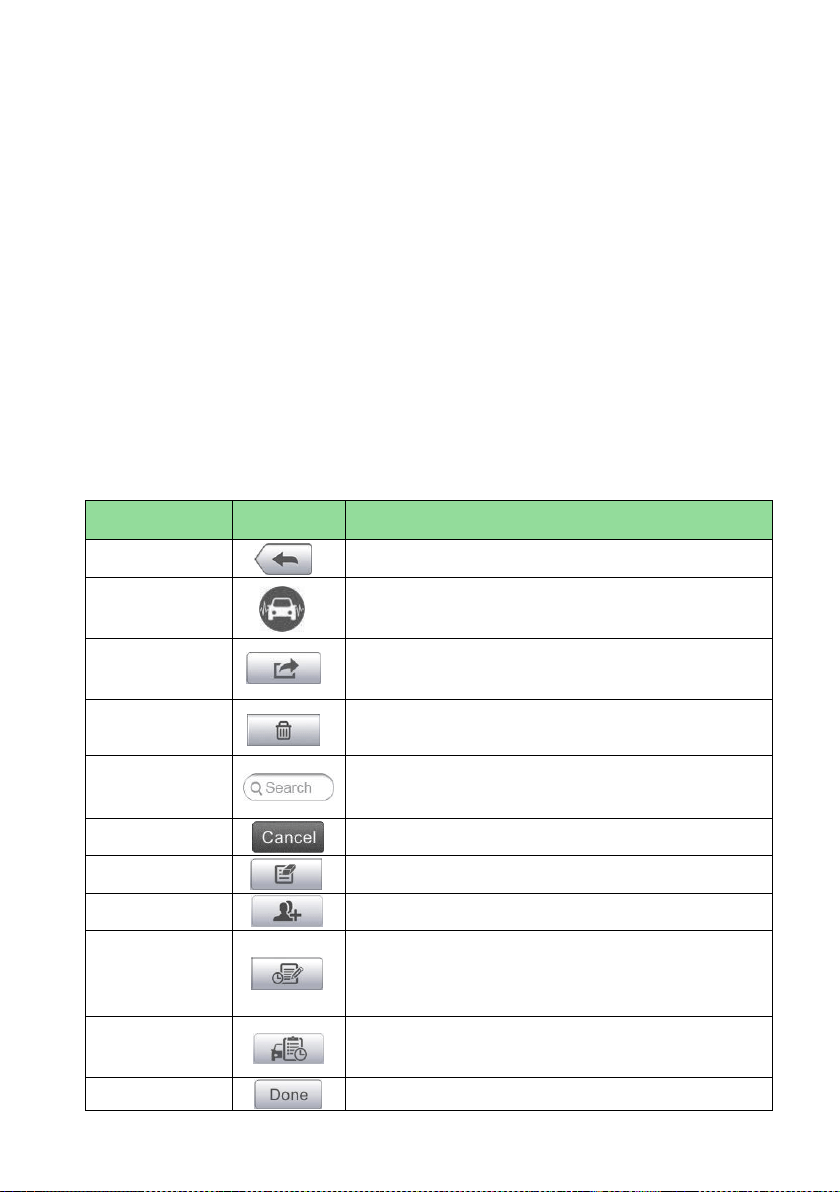
63
7 Shop Manager
The Shop Manager application helps you manage the workshop information, customer
information records, and keep test vehicle history records, which can help in dealing
with daily workshop business and improves customer service. There are three main
functions available:
⚫ Vehicle History
⚫ Workshop Information
⚫ Customer Manager
The operations of these functions of the Shop Manager application are mainly
manipulated by the toolbar buttons, which are listed and described in the table below:
Table 7-1 Top Toolbar Buttons in Shop Manager
Name
Button
Description
Back
Return to the previous screen.
Diagnostics
Tap to display the Diagnostics screen to activate a
direct test session.
Enter Edit
Tap to display the editing toolbar to print or delete
the selected file.
Delete
Tap to delete the selected vehicle record item from
the list.
Search
Quickly locates the vehicle record by entering the
vehicle name or test path.
Cancel
Tap to cancel edit or file search.
Edit
Tap to edit information for the displayed file.
Add Account
Tap to create a new customer account file.
History Notes
Tap to open a note form, which allows you to
create audio record, attach picture or video, or edit
text notes.
Vehicle
History
Tap to open the Vehicle History screen that
displays the correlated test vehicle records.
Done
Save the file when complete editing.
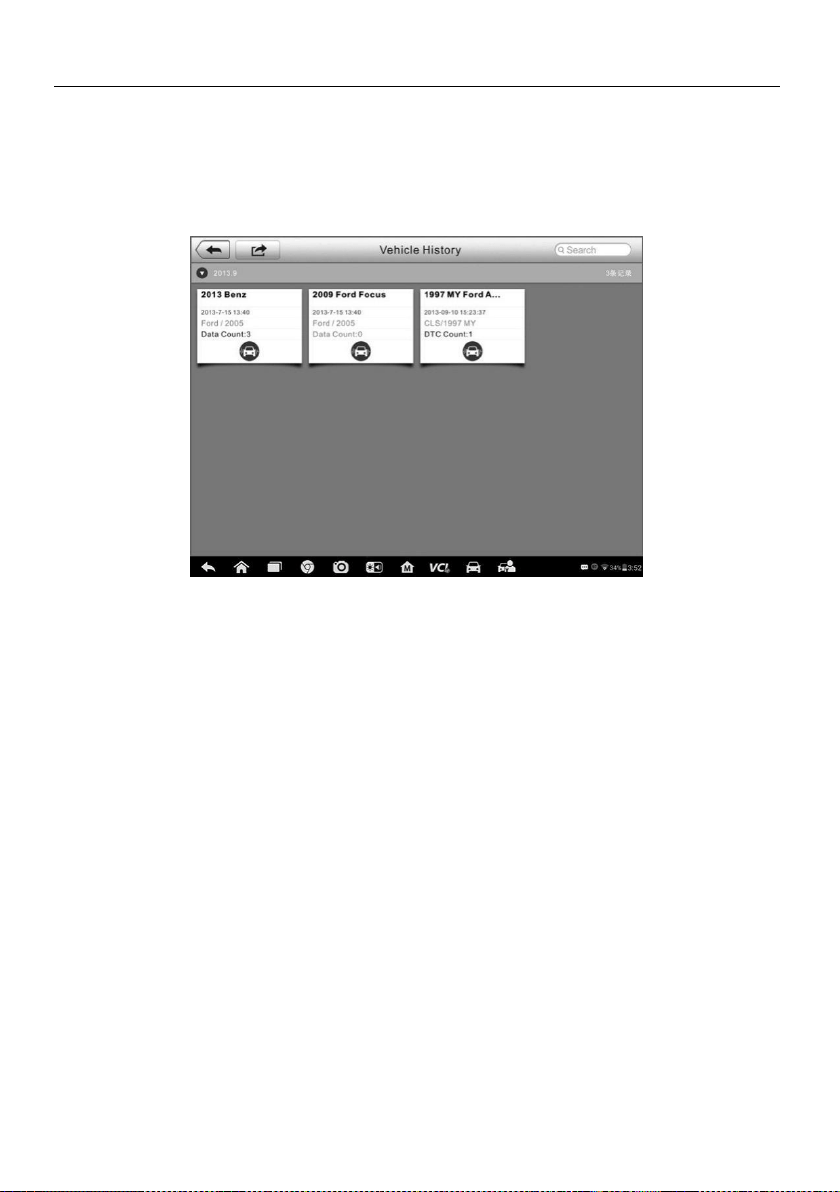
64
Vehicle History
This function stores records of test vehicle history, including vehicle information and the
retrieved DTCs from previous diagnostic sessions. Test information is summarized and
displayed in an easy-to-view table listing. The Vehicle History also provides direct
access to the previously tested vehicle and allows you to restart a diagnostic session
without the need to do vehicle identification again.
Figure 7-1 Sample Vehicle History Screen
1. Top Toolbar Buttons – navigation and application controls.
2. Main Section – displays all the vehicle history records.
➢ To activate a test session for the recorded vehicle
1. Tap Shop Manager on the MaxiSys Job Menu.
2. Select Vehicle History.
3. Tap Diagnostics at the bottom of the thumbnail of a vehicle record item. Or,
4. Select a vehicle record item by tapping the thumbnail.
5. A Historical Test record sheet displays, check the recorded information of the
recorded test vehicle, and tap the Diagnostics button on the upper right corner.
6. The vehicle’s Diagnostics screen displays and a new diagnostic session is
activated, see Diagnosis on page 30 for detailed instructions on vehicle
diagnostic operations.
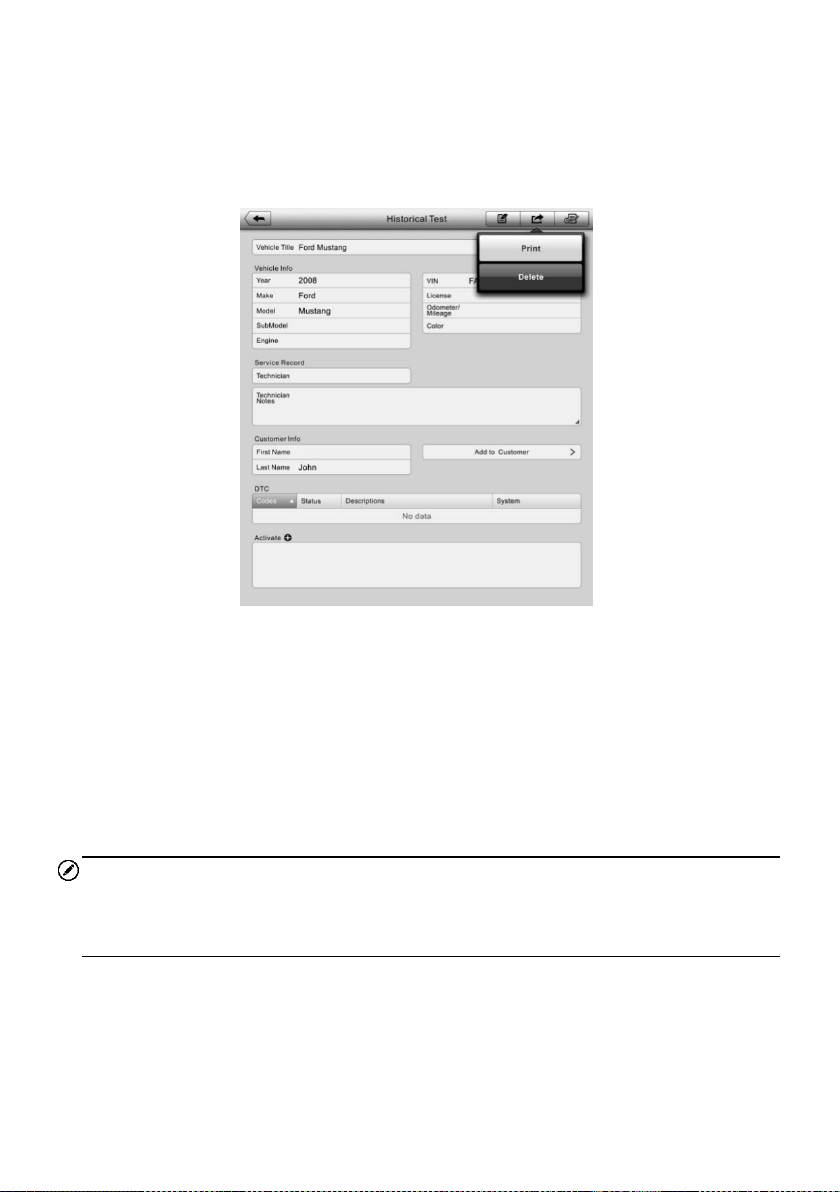
65
Historical Test Record
The Historical Test record of the tested vehicle is a detailed data form, which includes
all general information of the vehicle such as vehicle year, make and model and the
diagnostic trouble codes retrieved from the previous test sessions, as well as other
service details that can be added manually by the technician himself.
Figure 7-2 Sample Historical Test Record Sheet
➢ To edit the Historical Test record
1. Tap Shop Manager on the MaxiSys Job Menu.
2. Select Vehicle History.
3. Select the specific vehicle history record thumbnail from the main section. The
Historical Test record will display.
4. Tap Edit to start editing.
5. Tap on each item to input information or attach files or images.
NOTE
The vehicle VIN number, license number or customer account information are
correlated by default. Adding one of these IDs will automatically be associated with the
other ID on the test record.
6. Tap Add to Customer to correlate the Historical Test record sheet to an
existing customer account, or add a new associated account to be correlated
with the test vehicle record. See Customer Manager on page 66 for more
information.
7. Tap Done to save the updated record, or tap Cancel to exit without saving.
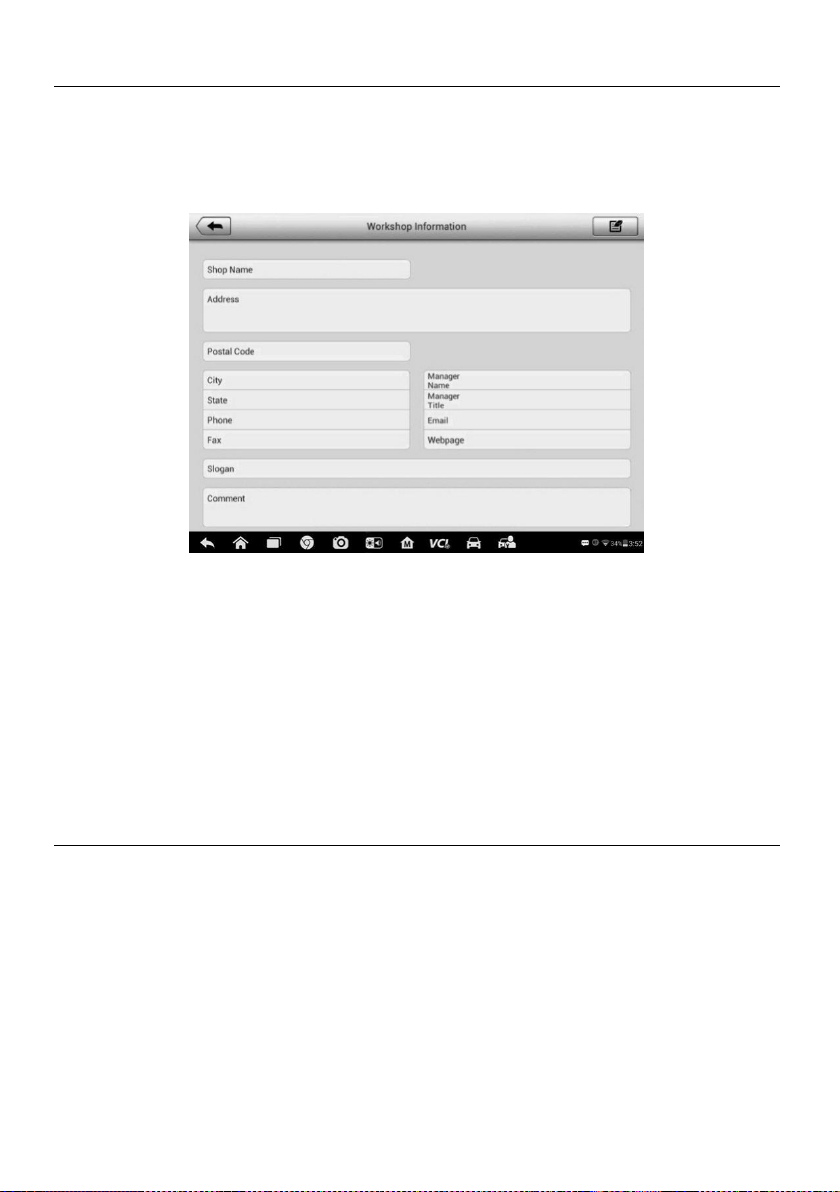
66
Workshop Information
The Workshop Information form allows you to input, edit, and save the detailed
workshop information, such as shop name, address, phone number and other remarks,
which, when printing vehicle diagnostic reports and other associated test file, will
display as the header of the printed documents.
Figure 7-3 Sample Workshop Information Sheet
➢ To edit the Workshop Information sheet
1. Tap the Shop Manager application on the MaxiSys Job Menu.
2. Select Workshop Information.
3. Tap the Edit button on the top toolbar.
4. Tap on each field to input the appropriate information.
5. Tap Done to save the updated workshop information record, or tap Cancel to
exit without saving.
Customer Manager
The Customer Manager function allows you to create and edit customer accounts. It
helps you to save and organize all customer information accounts that are correlated
with the associated test vehicle history records.
➢ To create a customer account
1. Tap the Shop Manager application on the MaxiSys Job Menu.
2. Select Customer Manager.
3. Tap the Add Account button. An empty information form displays, tap each
field to input the appropriate information.

67
NOTE
The items that must be filled are indicated as required fields.
4. Tap the photo frame beside the Name chart to add a photo. A sub menu
displays, select Take Photo to take a new photo for the account, or select
Choose Photo to choose from the existing files.
5. Some customers may have more than one vehicle for service; you can always
add new vehicle information to the account. Tap Add New Vehicle
Information, and then fill in the vehicle information. Tap the button to
cancel.
6. Tap Done to save the account, or tap Cancel to exit without saving.
➢ To edit a customer account
1. Tap Shop Manager on the MaxiSys Job Menu.
2. Select Customer Manager.
3. Select a customer account by tapping the corresponding name card. A
Customer Information record displays.
4. Tap Edit on the top toolbar to start editing.
5. Tap on the input field to edit or amend information, and enter updated
information.
6. Tap Done to save the updated information, or tap Cancel to exit without
saving.
➢ To delete a customer account
1. Tap Shop Manager on the MaxiSys Job Menu.
2. Select Customer Manager.
3. Select a customer account by tapping the corresponding name card. A
Customer Information record displays.
4. Tap Edit on the top toolbar to start editing.
5. Tap Delete Customer Information. A confirmation message displays.
6. Tap OK to confirm the command, and the account is deleted. Tap Cancel to
cancel the request.
History Notes
The History Notes function allows you to add audio and video records, text notes and
photos, for the associated customer account, helpful when dealing with repeat
customers. The note-keeping function is a good method to organize customer and
vehicle data. This option will display once a customer record is filed.
➢ To access History Notes
1. Tap Shop Manager on the MaxiSys Job Menu.
2. Select Customer Manager or Vehicle History.

68
3. Select a customer account by tapping the corresponding name card. A
Customer Information sheet displays (if Customer Manager is selected). Or,
select a vehicle history record to open the Historical vehicle record (if Vehicle
History is selected).
4. Tap the History Notes button on the top bar. The History Notes screen
displays.
Figure 7-4 Sample History Notes Screen
1. Functional Buttons – navigation and function controls.
2. Main Section – displays the note list on the left column and the detail
information of the selected note on the right column。
Table 7-2 Function Buttons in History Notes
Name
Button
Description
Back
Return to the previous screen.
Delete
Tap to delete the selected note.
Search
Quickly locates a note by entering related text.
Cancel
Tap to cancel edit or file search.
Edit
Tap to open an edit window to edit notes and
attach files.
Add Notes
Tap to add new note in History Notes.
Audio
Record
Tap to start audio recording.
Add Photos
Tap to locate and add image to History Notes.
Take a Video
Tap to record a video and add the file to
History Notes.

69
Name
Button
Description
Take a Photo
Take a photo and add the file to History Notes.
Save
Save notes.
➢ To add a note in History Notes
1. Access History Notes.
2. Tap Add Notes. An edit window displays.
3. Tap on the Title bar to input a note title.
4. Tap on the blank space below to edit a text note or remark.
5. Select a function button on the top to add files in any form you choose.
6. Tap Save to save the note; tap Discard or Cancel to exit without saving.

70
8 Data Manager
The Data Manager application is used to store, print, and review the saved files. Most
operations are controlled through the toolbar.
Selecting the Data Manager application opens the file system menu. Different file types
are sorted separately under different options.
Figure 8-1 Sample Data Manager Main Screen
Operations
Data Manager Operations are based on toolbar controls, details are explained in the
following sections.
Image Files
The Image section is a JPG database containing all captured screenshot images.

71
Figure 8-2 Sample Image Database Screen
1. Toolbar Buttons – used to edit, print and delete the image files. See Table 8-1
Toolbar Buttons in JPG Database on page 71 for detailed information.
2. Main Section – displays the stored images.
Table 8-1 Toolbar Buttons in JPG Database
Name
Button
Description
Back
Return to the previous screen.
Enter Edit
Tap to display the editing toolbar to print,
delete or view image information.
Cancel
Tap to close the editing toolbar or cancels file
search.
Search
Quickly locates the image file by entering the
vehicle name, test path, file name or file info.
Info
Tap to open a window displaying the detail
information of the image.
Print
Tap to print the selected image.
Delete
Tap to delete the selected image.
➢ To edit image information
1. Select Data Manager from the MaxiSys Job Menu.
2. Select Image to access the JPG database.
3. Select an image to display it in full screen.
4. Tap the screen once to display the editing toolbar.
5. Tap Info to open a window displaying the image information.
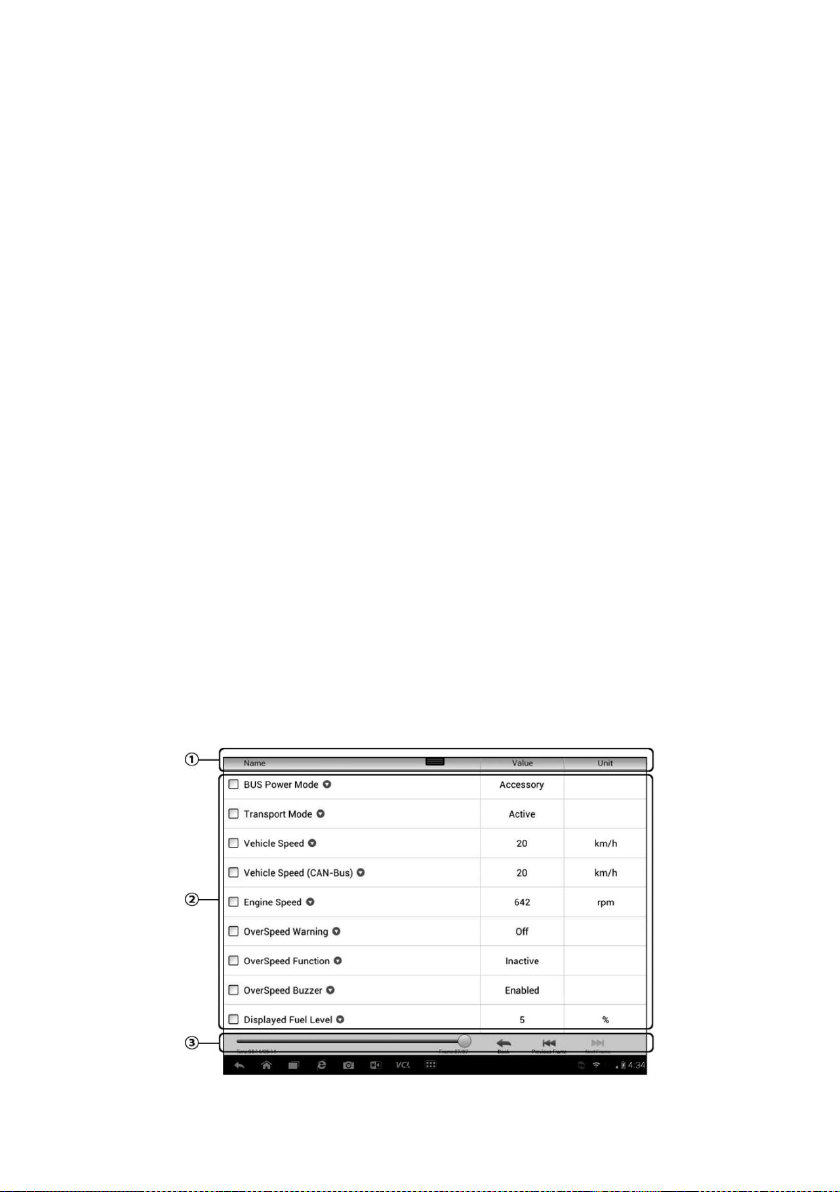
72
6. Tap Edit on the top right corner of the window. The editing screen displays.
7. Edit the image information by entering the new file name, and file information.
8. Tap Done to save the information and exit, or tap Cancel to exit without
saving.
➢ To delete selected images
1. Select Data Manager from the MaxiSys Job Menu.
2. Select Image to access the JPG database.
3. Tap the Enter Edit button to display the editing toolbar.
4. Select the images that need to be deleted by tapping the thumbnail images,
the selected thumbnail displays a check mark at the bottom right corner.
5. Tap the Delete button, and then Delete Selected, now the selected images
are deleted.
PDF Files
The PDF section stores and displays all PDF files of saved data. After entering the PDF
database, select a PDF file to view the stored information.
This section uses the standard Adobe Reader application for file viewing and editing.
Please refer to the associated Adobe Reader manual for more detailed instructions.
Review Data
The Review Data section allows you to playback the recorded data frames of live data
streams.
On the Review Data main screen, select a record file to playback.
Figure 8-3 Sample Data Playback Screen

73
1. Drop-down Toolbar – tap the button at the top center of the screen to open the
Drop-down Toolbar.
2. Main Section – displays the recorded data frames.
3. Navigation Toolbar – allows you to manipulate data playback.
Use the Navigation Toolbar buttons to playback the record data from frame to frame.
Tap Back to exit data playback.
Apps Uninstall
This section allows you to manage the firmware applications installed on the MaxiSys
Diagnostics System. Selecting this section opens a managing screen, on which you
can check all the available vehicle diagnostic applications.
Select the vehicle firmware you want to delete by tapping on the car brand icon, the
selected item will display a blue check mark at the upper right corner. Tap the Delete
button on the top bar to delete the firmware from the system database.
Data Logging
The Data Logging section allows you to launch Support platform directly to view all
records of all sent or unsent (saved) data loggings on the diagnostic system. For more
details, please refer to Data Logging on Page 89.

74
9 Settings
Selecting Settings application opens a setup interface, on which you can adjust default
setting and view information about the MaxiSys system. The following options are
available for the MaxiSys system settings:
⚫ Unit
⚫ Language
⚫ Printing Setting
⚫ Wired Network
⚫ Notification Center
⚫ Multitask
⚫ Auto Update
⚫ System Settings
⚫ About
Operations
This section describes the operation procedures for the settings.
Unit
This option allows you to adjust the measurement unit for the diagnostic system.
➢ To adjust the unit setting
1. Tap the Settings application on the MaxiSys Job Menu.
2. Tap the Unit option on the left column.
3. Select the required measurement unit, Metric or English. A check mark will
display to the right of the selected unit.
4. Tap the Home button on the top left corner to return to the MaxiSys Job Menu.
Or select another setting option for the system setup.
Language
This option allows you to adjust the display language for the MaxiSys system.
➢ To adjust the language setting
1. Tap the Settings application on the MaxiSys Job Menu.

75
2. Tap the Language option on the left column.
3. Select the required language. A check mark will display to the right of the
selected language.
4. Tap the Home button on the top left corner to return to the MaxiSys Job Menu.
Or select another setting option for the system setup.
Print
Printing Setting
This option allows you to print any data or information anywhere and anytime either via
PC network or WiFi.
➢ To setup the printer connection
1. Tap Settings on the MaxiSys Job Menu.
2. Tap Printing Setting on the left column.
3. Tap the Print via Network item to activate the printing function, which enables
the device to send files to the printer through the PC via WiFi or Ethernet
connection.
4. Tap Home on the top left corner to return to the MaxiSys Job Menu. Or select
another setting option for the system setup.
Printing Operations
➢ To install the MaxiSys Printer driver program
1. Download Maxi PC Suite from www.autel.com > Supports & Updates >
Firmware & Downloads > Update Client, and install to a Windows-based PC.
2. Double click on Setup.exe item.
3. Select the installation language and the wizard will load.
4. Follow the instructions on the screen and Click Next to continue.
5. Click Install and the printer driver program will be installed onto the computer.
6. Click Finish to complete the installation.
NOTE
The MaxiSys Printer runs automatically after the installation.
This section describes how to receive file from the MaxiSys tablet and perform printing
through the computer:
➢ To perform printing through the computer
1. Make sure the tablet is connected to the computer network, either via WiFi or
LAN, before printing.
2. Run the MaxiSys Printer program on the computer.

76
3. Click Test Print to make sure the printer is working successfully.
4. Tap the Print button on the toolbar of the tablet. A test document will be sent to
the computer.
⚫ If the Auto Print option in the MaxiSys Printer is selected, the MaxiSys
Printer will print the received document automatically.
⚫ If the Auto Print option is not selected, click Open PDF File button to
view all the temporary files. Select the file(s) to print and click Print.
NOTE
Make sure the computer installed with the Printing Services program is connected to a
printer.
Wired Network
This option allows you to enable or disable the wired network connectivity, as well as to
perform Ethernet configuration.
➢ To operate Ethernet configuration
1. Tap Settings on the MaxiSys Job Menu.
2. Tap Wired Network on the left column.
3. Tap ON/OFF to enable the Wired Network connection. If the connectivity is
enabled the button turns blue, or if disabled the button turns gray.
4. Tap the button to the right of the Ethernet Configuration option, a setup
window displays.
5. Select a connection type:
⚫ DHCP – obtains the LAN IP address automatically.
⚫ Static IP – allows manual input of IP address.
a. If Static IP is selected, you need to enter the IP values manually.
NOTE
If you are not sure about the specific IP address values, please contact your network
administrator.
b. Tap Save to save the Ethernet configuration setting; or tap Cancel to exit
without saving.
c. Tap the Home button on the top left corner to return to the MaxiSys Job
Menu. Or select another setting option for the system setup.
Notification Center
This option allows you to turn the Notification Center function on or off. The Notification
Center function configures the MaxiSys tablet to receive regular online messages from

77
the server for system update notifications or other service information via the Internet. It
is highly recommended to keep this function on all the time, so you won’t miss out any
new update for MaxiSys or event from Autel. Internet access is required for receiving
online messages.
➢ To enable the Notification Center function
1. Tap Settings on the MaxiSys Job Menu.
2. Tap Notification Center on the left column.
3. Tap ON/OFF to enable or disable the Notifications function. If the function is
enabled the button displays blue, or if disabled the button displays gray.
4. Tap Home on the top left corner to return to the MaxiSys Job Menu. Or select
another setting option for the system setup.
When the Notification Center function is turned on, and new messages are received by
the MaxiSys device, a notification message displays on the MaxiSys Job Menu. Press
on the message bar and drag it down to display a list of received messages. Slide the
list up or down to view additional messages if present.
Tap a specific message to launch the corresponding application. For example, if you
tap on an Update notification message, the Update application will be launched.
Multitask
The Multitask option allows you to turn the Multitask function on or off. The Multitask
feature enables you to browse and navigate more freely among different applications
on the MaxiSys system. Tap the Multi Task button, the Multi Task menu displays all
active applications.
➢ To enable the Multitask function
1. Tap Settings on the MaxiSys Job Menu.
2. Tap Multitask on the left column.
3. Tap ON/OFF to enable or disable the Multitask function. If the function is
enabled the button displays blue, or if disabled the button displays gray.
4. Tap Home on the top left corner to return to the MaxiSys Job Menu. Or select
another setting option to configure another system setting.
Auto Update
This option allows you to set the specific time for updating software automatically.
There are three update options: OS Update, MaxiSys Update and Vehicle Update.
Tap ON/OFF to enable Auto Update. If the connectivity is enabled the button turns blue,
or if disabled the button turns gray. Then set the time of the day for updating. If a

78
specific time is set, the selected software will be automatically updated at this specific
time.
System Settings
This option provides you a direct access to the Android background system setting
interface, on which you can adjust various system settings for the Android system
platform, regarding wireless and networks settings, various device settings such as
sound and display, as well as system security settings, and check the associated
information about the Android system. Refer to Android documentation for additional
information.
About
The About option provides information of the MaxiSys diagnostic device including the
product name, version, hardware, and serial number.
➢ To check the MaxiSys product information in About
1. Tap the Settings application on the MaxiSys Job Menu.
2. Tap the About option on the left column. The product information screen
displays on the right.
3. Tap the Home button on the top left corner to return to the MaxiSys Job Menu,
or select another setting option for the system setup, after viewing.

79
10 Update
The internal programming of the MaxiSys Diagnostic System, known as the firmware,
can be updated using the Update application. Firmware updates increase the MaxiSys
applications’ capabilities, typically by adding new tests, new models, or enhanced
applications to the database.
The display device automatically searches for available updates for all of the Maxisys
components when it is connected to the Internet. Any updates that are found can be
downloaded and installed on the device. This section describes installing an update to
the MaxiSys Diagnostic System firmware. A notification message displays if an update
is available when the Notifications function is enabled in the Settings application (See
Notification Center on page 76).
Figure 10-1 Sample Update Screen
1. Navigation and Controls
⚫ Home Button – returns to the MaxiSys Job Menu.
⚫ Update All – available updates for all tablet systems.
⚫ Search Bar – searches specific update item by inputting the file name, for
example: a specific vehicle manufacturer.
2. Status Bar
⚫ Left Side – displays the MaxiSys device model information and serial number
⚫ Right Side – displays an update progress bar indicating the completion status
3. Main Section
⚫ Left Column – displays vehicle logos and update firmware version information.

80
⚫ Middle Column – displays a brief introduction about the new changes to the
firmware operation or capabilities. Tap button to display an information
screen to view more details, and tap the dim area around to close the window.
⚫ Right Column – according to the operation status of each firmware item, the
button displays differently.
a) Tap Update to update the selected item.
b) Tap Pause to suspend the updating procedure.
c) Tap Continue to go on updating the suspended update.
➢ To update the firmware
1. Power up the tablet, and ensure that it is connected to a power source and has
a steady Internet connection.
2. Tap the Update application button from the MaxiSys Job Menu; or tap the
update notification message when received. The Update application screen
displays.
3. Check all available updates:
⚫ If you decide to update all the items, tap the Update All button.
⚫ If you only want to update some individual items, tap the Update button
on the right column of the specific item.
4. Tap the Pause button to suspend the updating process. Tap Continue to
resume the update and the process will continue from the pause point.
5. When the updating process is completed, the firmware will be installed
automatically. The new version will replace the older version.
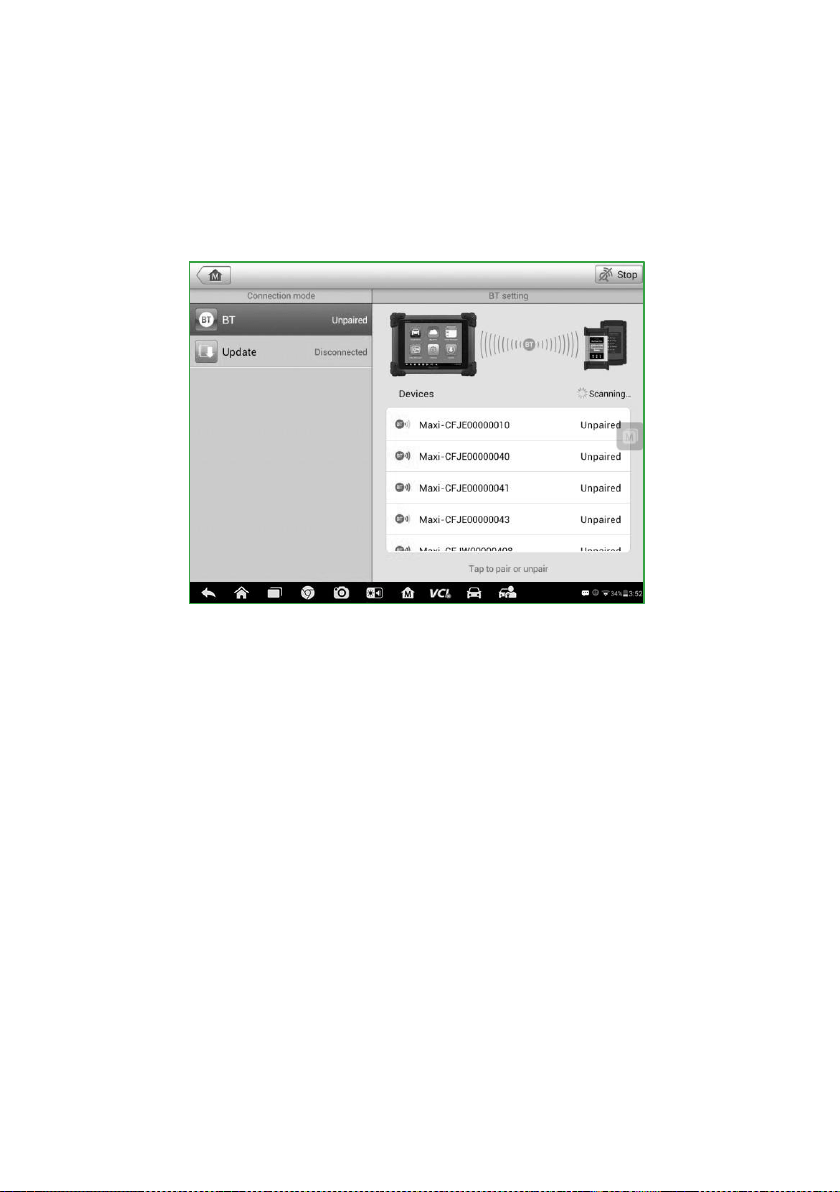
81
11 VCI Manager
This application allows you to pair the tablet with the VCI device, MaxiFlash Elite and to
check the communication status.
Figure 11-1 Sample VCI Manager Screen
1. Connection Mode – there are two connection modes available for selection. The
connection state is displayed alongside.
⚫ BT Pairing – when paired to a wireless device, the connection state displays
as Paired; otherwise it displays as Unpaired.
⚫ Update (for VCI software only) – updates VCI software via Internet through the
MaxiSys tablet networking using USB connection.
➢ Select a connection mode to manage and set up connection.
2. Settings – this section allows you to manage wireless pairing or set up network
connection.
⚫ BT Setting – searches and displays the type and partial serial number for all of
the devices available for pairing. Tap a required device to start pairing. The BT
status icon displayed to the left of the device name indicates the received
signal strength.
⚫ Ethernet Setting – allows you to perform network configuration.

82
BT Pairing
The VCI device needs to be either connected to a vehicle or to an available power
source, so that it is powered up during the synchronization procedure. Make sure the
tablet has a charged battery or is connected to an AC/DC power supply.
➢ To pair the VCI device with the tablet
1. Power on the tablet.
2. Connect the 26-pin end of the data cable to the J2534 ECU Programming
Device’s vehicle data connector.
3. Connect the 16-pin end of the data cable to the vehicle data link connector
(DLC).
4. Tap VCI Manager on the MaxiSys Job Menu of the tablet.
5. Select BT, short for Bluetooth, from the connection mode list.
6. Tap Scan at the top right corner. Now the device starts searching for available
pairing units.
7. Depending on the VCI type you use, the device name may display as Maxi
suffixed with a serial number. Select the required device for pairing.
8. When pairing is successfully done, the connection status displayed to the right
of the device name is shown as Paired.
9. Wait a few seconds, and the VCI button on the system Navigation bar at the
bottom of the screen shall display a green tick icon, indicating the tablet is
connected to the VCI device.
10. Tap the paired device listing again to unpair it.
11. Tap Back on the top left to return to the MaxiSys Job Menu.
NOTE
A VCI device can be paired to only one tablet each time, and once it’s been paired, the
device will not be discoverable for any other unit.
Before update the VCI software, please make sure the tablet network connection is
stable.
➢ To update the VCI device software
1. Power on the tablet.
2. Connect the VCI device to the tablet via USB.
3. Tap VCI Manager on the MaxiSys Job Menu of the tablet.
4. Select Update from the connection mode list.
5. The current version and the latest version of the VCI software will be displayed
after a few seconds, click Update Now to update the VCI software if available.
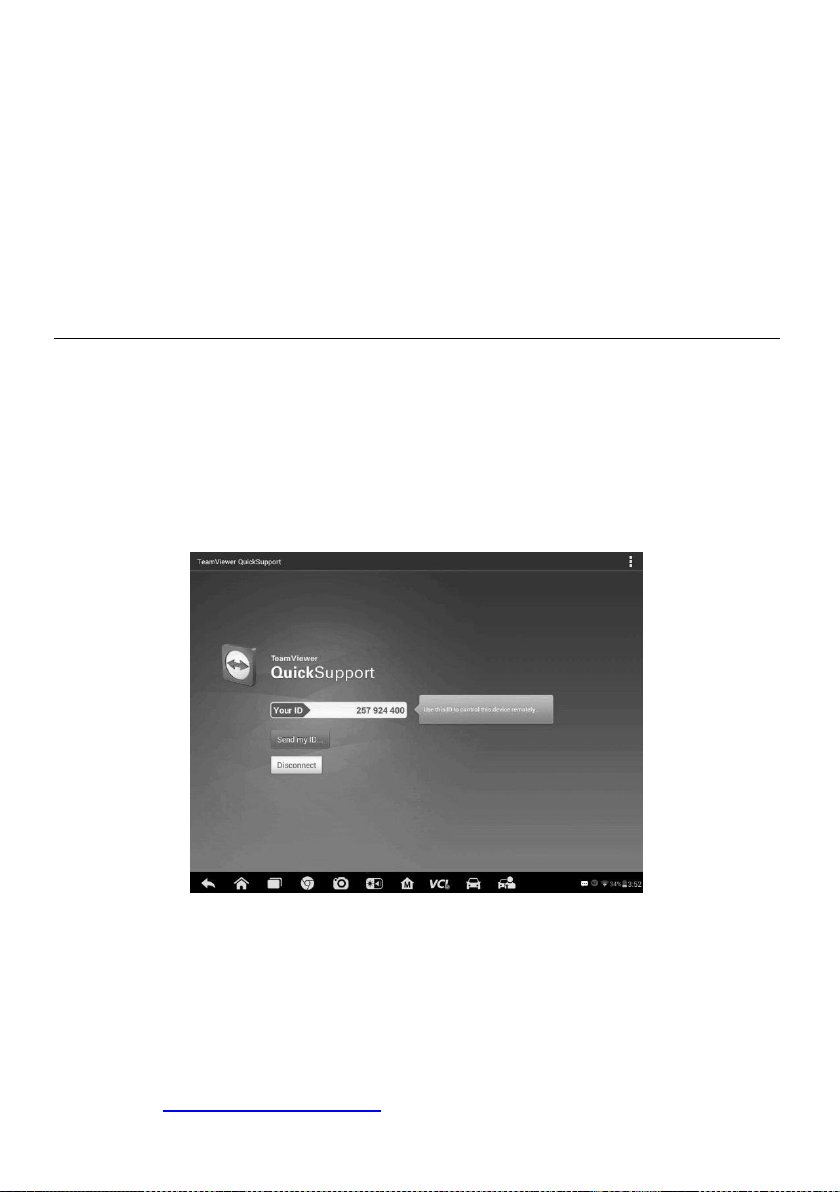
83
12 Remote Desk
The Remote Desk application launches the TeamViewer Quick Support program, which
is a simple, fast and secure remote control interface. You can use the application to
receive ad-hoc remote support from Autel’s support centre, colleagues, or friends, by
allowing them to control your MaxiSys tablet on their PC via the TeamViewer software.
Operations
If you think of a TeamViewer connection as a phone call, the TeamViewer ID would be
the phone number under which all TeamViewer Clients can be reached separately.
Computers and mobile devices that run TeamViewer are identified by a globally unique
ID. The first time the Remote Desk application is started, this ID is generated
automatically based on the hardware characteristics and will not change.
Make sure the tablet is connected to the Internet before launching the Remote Desk
application, so that the tablet is able to receive remote support from the third party.
Figure 12-1 Sample Remote Desk Screen
➢ To receive remote support from a partner
1. Power on the tablet.
2. Tap the Remote Desk application on the MaxiSys Job Menu. The
TeamViewer interface displays and the device ID is generated and shown.
3. Your partner must install the Remote Control software to his/her computer by
downloading the TeamViewer full version program online
(http://www.teamviewer.com). Start the software on his/her computer at the

84
same time, in order to provide support and take control of the tablet remotely.
4. Provide your ID to the partner, and wait for him/her to send you a remote
control request.
5. A message displays to ask for your confirmation to allow remote control on
your device.
6. Tap Allow to accept, or tap Deny to reject.
Refer to the associated TeamViewer documents for additional information.

85
13 Support
This application launches the Support platform which synchronizes Autel’s online
service base station with the MaxiSys display tablet. In order to synchronize the device
to your online account, you need to register the product through the Internet when you
use it for the first time. The Support application is connected to Autel’s service channel
and online communities that provides the quickest way for problem solutions, allowing
you to submit complaints or send help requests to obtain direct service and support.
Product Registration
In order to get access to the Support platform and obtain update and other services
from Autel, you are required to register the MaxiSys Diagnostic Device the first time you
use it.
➢ To register the diagnostic device
1. Visit the website: http://pro.autel.com.
2. If you have an Autel account, Sign In with your account ID and password.
3. If you are a new member to Autel, click on the Create Autel ID button on the
left side to create an ID.
4. Enter the required information in the input fields, and click Get Verification
Code button to get the verification code for email validation.
5. The online system will automatically send a verification code to the registered
email address. Input the code in the Verification Code field and fill in the other
input fields, read through Autel’s Terms and Conditions and click on Agree,
and then click Create Autel ID at the bottom. A product registration screen will
display.
6. The device’s serial number and password is located in the About section of the
Settings application on the tablet.
7. Select your product model, enter the product serial number and password on
the Product Registration screen, and click Submit to complete the registration
procedure.
Support Screen Layout
The Support application interface is navigated by 4 simple buttons on the top navigation
bar, operation of each is described below in turn from left to right:
⚫ Home Button – returns to the MaxiSys Job Menu.

86
⚫ Back – returns to the previous screen, each press takes you one step backwards.
⚫ Forward – each press moves forward one screen until you’ve reached the last
screen visited.
⚫ Refresh – reloads and updates the screen.
Figure 13-1 Sample Support Application Screen
The main section of the Support screen is divided into two sections. The narrow column
on the left is the main menu; selecting one subject from the main menu displays the
corresponding functional interface on the right.
My Account
The My Account screen displays the comprehensive information of the user and the
product, which is synchronized with the online registered account, including User Info,
Device Info, Update Info and Service Info.
Personal Info
The User Info and Device Info are both included under the Personal Info section.
⚫ User Info – displays detailed information of your registered online Autel account,
such as your Autel ID, Name, Address and other contact information.
⚫ Device Info – displays the registered product information, including the Serial
Number, Registration Date, Expire Date, and Warranty Period.
Update Info
The Update Info section displays a detailed record list of the product’s software update
history, including the product serial number, software version or name, and the update
time.

87
Service Info
The Service Info section displays a detailed record list of the device’s service history
information. Every time the device has been sent back to Autel for repair, the device’s
serial number and the detailed repair information, such as the fault type, changed
components, or system reinstallation will be recorded and updated to the associated
online product account that will be synchronized to the Service Info section.
User Complaint
The User Complaint screen allows you to establish a new complaint case, as well as to
view historical complaint records.
Screen Layout
Figure 13-2 Sample Complaint Screen
The User Complaint screen consists of two parts.
1. Option Bar
⚫ Period Filter – displays only the complaint records within the defined period on
the list
⚫ Status Filter – displays the corresponding complaint records according to the
selected case status
⚫ New Complaint Button – starts a new complaint case.
2. Complaint List
The complaint list normally displays all the complaint records of all time and all
status by default. The summary information for each complaint item includes the
Subject Name, Ticket ID, User’s Account ID, Date, and the Case Status.
There are four kinds of the case status:

88
⚫ Open – indicates the complaint case has been started but not processed yet
⚫ Suspended – indicates the complaint case is being processed
⚫ Waiting Customer Reply – indicates the complaint has been replied to by the
service personnel, and requires feedback from the customer
⚫ Closed – indicates the complaint case has been processed, solved, and
ended
➢ To view the detailed complaint session, tap the button on the right side of
the case item.
➢ To establish a new complaint session
1. Register the product online.
2. Tap Support on the MaxiSys Job Menu. The device information is
automatically synchronized with the online account.
3. Tap Complaint on the Main Menu.
4. Tap New Complaint at the upper right corner. A selection menu with a
category of service channels displays.
5. Select your target service channel and click Next to continue. A standard
complaint form displays, on which you are allowed to enter detailed
information, such as personal information, vehicle information, and device
information, you can also attach image or PDF files with the form.
6. Enter in each input field the appropriate information. To settle the complaint
more efficiently, it is recommended to complete the form with as much as
detail as possible.
7. Select the required processing time on the last section according to the
urgency of the case.
8. Tap Submit to send the completed form to Autel’s online service center, or tap
Reset to refill it. The submitted complaints will be carefully read and handled
by the service personnel.
➢ To make a reply in a complaint session
1. Register the product online.
2. Tap Support on the MaxiSys Job Menu. The device information is
automatically synchronized with the online account. Tap Complaint on the
Main Menu.
3. Select an existing complaint case item on the record list by tapping the
button on its right side. The screen displays the complaint session details.
4. Tap the Post Reply button on the upper right side after viewing, to make a
reply. An edit screen will display.
5. Input the content in the input field, and if necessary, upload an attached file.
6. Tap Submit to post the reply.
7. Tap the States selection drop-down menu to reset a case state.
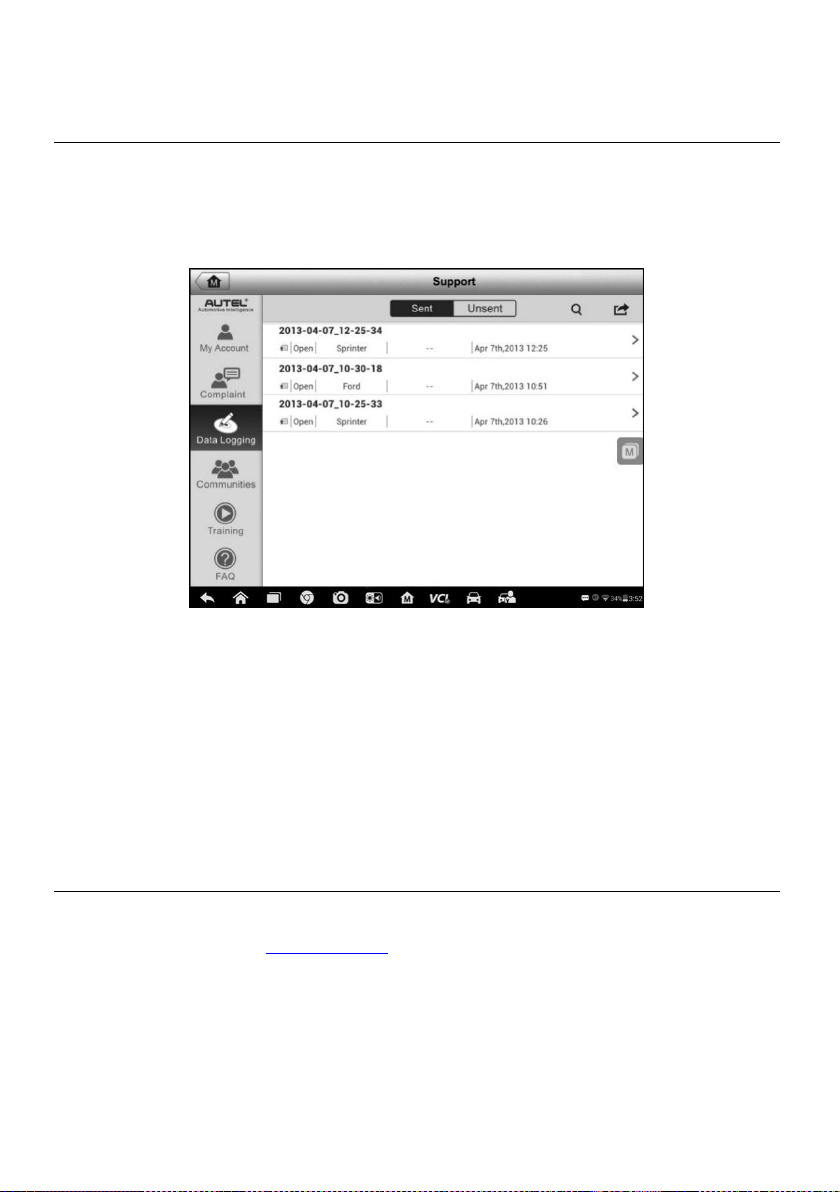
89
8. Tap the Update button to commit the newest update.
Data Logging
The Data Logging section keeps records of all sent or unsent (saved) data loggings on
the diagnostic system. The support personnel will receive and process the submitted
reports through the Support platform. The solution will be sent back within 48 hours.
You may continue to correspond with Support until the issue is resolved.
Figure 13-3 Sample Data Logging Screen
➢ To make a reply in a Data Logging session
1. Tap on the Sent tag to view the list of submitted data loggings.
2. Select the latest message from Support.
3. Tap on the input field on the bottom of the screen, and enter your reply. Or tap
the Audio button to record a voice message, or tap the camera button to take a
screenshot.
4. Tap Send to deliver your message to Support.
Communities
The Communities section launches and synchronizes with the Technical Forums on
Autel’s official website www.autel.com, where you can discuss technical topics or share
information with other members of Autel’s online community.
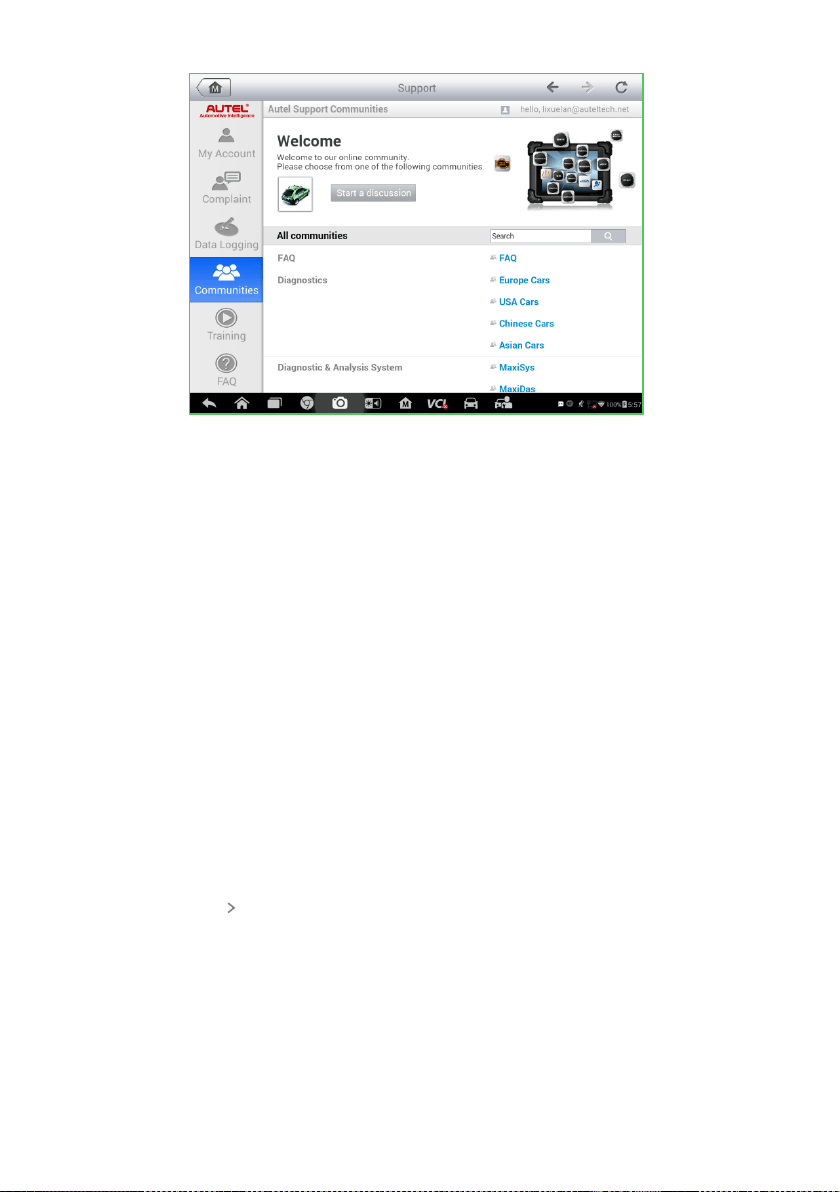
90
Figure 13-4 Sample Communities Home Screen
➢ To start a discussion
1. Tap Start a discussion on the Communities Home screen. A list of the major
forums is displayed.
2. Based on your interest, select a discussion topic. For example, if you are
going to ask a question about the MaxiSys tablet, tap MaxiSys to start a
discussion.
3. Input text in the space provided.
4. Select a category or edit tags for the discussed post. This will help members
with similar interest to find your post.
5. Tap OK to submit the post.
➢ To join and reply to a discussion post
1. Select a forum group that you are interested in, whether by the product or by
the features, on the Communities Home screen. A list of the latest posts is
displayed.
2. Select a specific category on the Categories menu to better pinpoint the topics
you are most interested with.
3. Tap the button on the right side of the topic item to view the discussion. The
posts contents are displayed.
4. Browse through all the posts by sliding the screen up and down. Tap Go to
original post when reaching the end of the discussion to return to the first
post.
5. Tap Reply to reply to a specific post, or tap Reply to original post to join and
continue the whole discussion.
6. Enter your comment in the input field, and tap OK to submit your post.
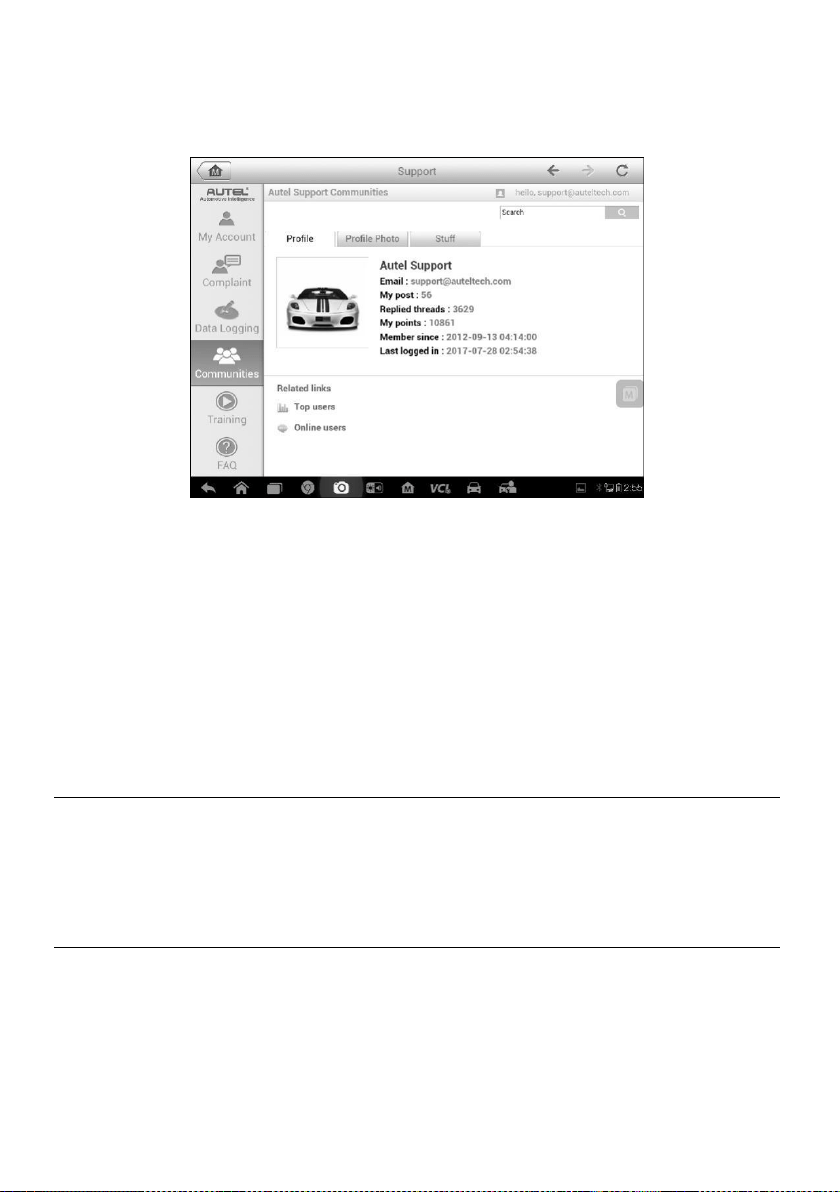
91
User Profile
The User Profile section allows you to set a profile photo, check your member status
and other information, as well as to review your posts in the communities.
Figure 13-5 Sample User Profile Screen
Tap the profile photo on the Communities screen to open the User Profile.
⚫ Profile – displays the user’s personal information and member status. The
Related links allow you to check the Top Users (ranked according to their points
and levels) in the communities, and to connect with other users.
⚫ Profile Photo – allows you to select an image to set as your profile photo to be
displayed in the communities.
⚫ Stuff – displays all the discussions you’ve posted on various forums.
Training Channels
The Training section provides quick links to Autel’s online video accounts. Select a
video channel by language to see all available Autel online tutorial videos on such
topics as product usage techniques and vehicle diagnostics practices.
FAQ Database
The FAQ section provides you comprehensive and abundant references for all kinds of
questions frequently asked and answered about the use of Autel’s online member
account, and shopping and payment procedures.
⚫ Account – displays questions and answers about the use of Autel’s online user
account.

92
⚫ Shopping & Payment – displays questions and answers about online product
purchase and payment methods or procedures.

93
14 Academy
Autel provides various tutorial articles and technical bulletins produced by top-notch
technicians and product experts. Please view the materials that are saved on the tablet
or view technical articles from our online forum by clicking the links displayed under this
application.
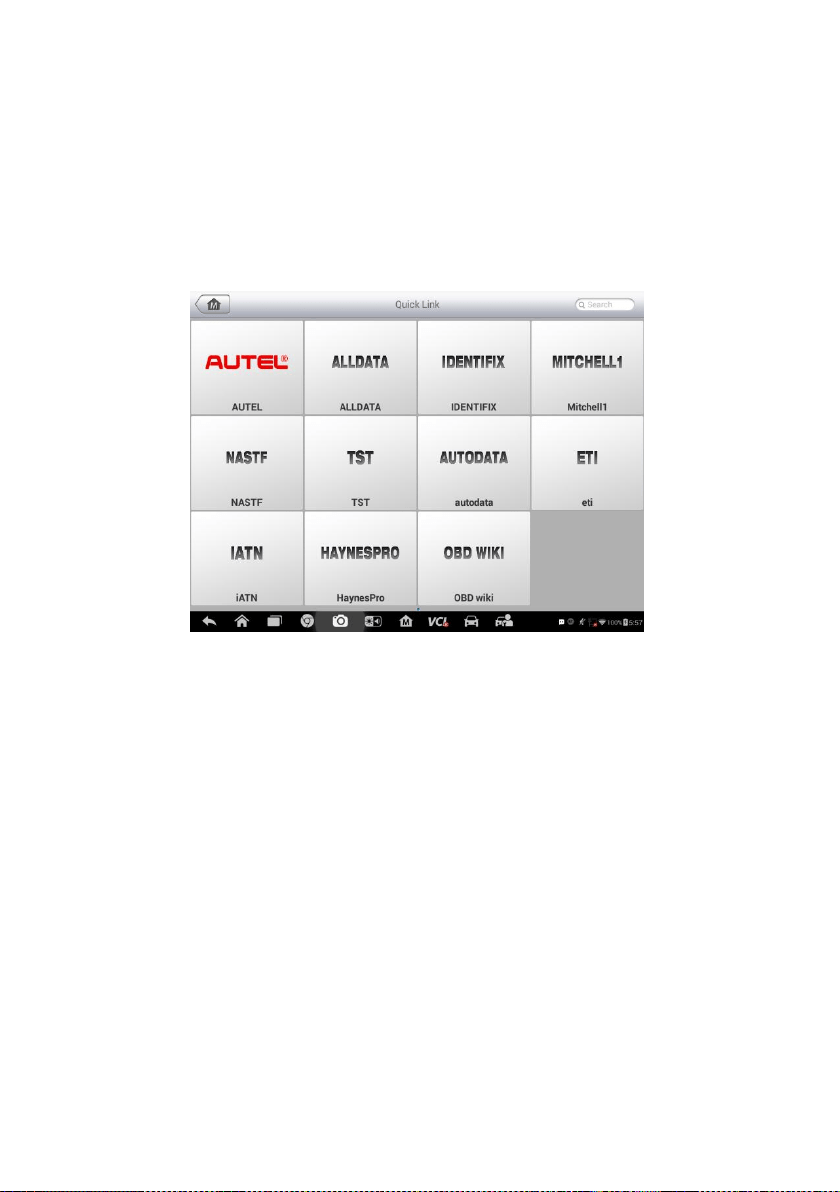
94
15 Quick Link
The Quick Link application provides you with convenient access to Autel’s official
website and many other well-known sites in automotive service, which offers you
abundant information and resources, such as technical help, knowledge base, forums,
training, and expertise consultations.
Figure 15-1 Sample Quick Link Screen
➢ To open a quick link
1. Tap Quick Link on the MaxiSys Job Menu. The Quick Link application screen
displays.
2. Select a website thumbnail from the main section. The Chrome browser is
launched and the selected website is opened.
3. Now you can start exploring the website!

95
16 MaxiScope
The MaxiScope application configures the MaxiSys Diagnostic Device to operate as an
automotive oscilloscope when used in combination with the MaxiScope module. This
function provides all the features needed for performing electrical and electronic circuit
tests as well as monitoring signal activities on any modern vehicles, which shows you
what is really going on with a vehicle’s electrical system
Please download the latest user manual for Autel MaxiScope device from
www.autel.com.

96
17 Digital Inspection
The Digital Inspection application configures the MaxiSys Diagnostic Device to operate
as a digital video scope by simply connecting the tablet to a Digital Inspection Camera.
This function allows you to examine difficult-to-reach areas normally hidden from sight,
with the ability to record digital still images and videos, which offers you an economical
solution to inspect machinery, facilities, and infrastructure in a safe and quick way.
WARNINGS & IMPORTANTS:
Follow these instructions to reduce the risk of injury from electric shock, entanglement
and other causes and prevent tool damage.
⚫ Do not place the image head and cable into anything or anywhere that may contain
a live electric charge or moving parts, which increases the risk of electric shock or
entanglement injuries.
⚫ Do not use the image head cable to modify surroundings, clear pathways or
clogged areas.
⚫ When inspection is completed, carefully withdraw the imager head cable from the
inspection area.
⚫ The image head cable are waterproof to a depth of 3m (10’), greater depths may
cause leakage into the imager head cable and cause electric shock or damage the
tool.
⚫ The working temperature of the imager head is between 32 °F (0 °C) and 113 °F
(45 °C).
Check-Ups:
✓ FOR AUTOMOBILES: Ensure the automobile is not running during inspection.
Metal and liquid under the hood may be hot. Don’t get oil or gas on the imager
head.
✓ FOR PIPES: If you suspect a metal pipe could contain an electric charge, have a
qualified electrician to check the pipe before using.
✓ FOR WALLS: For inspecting the inside walls, be sure to shut off the circuit breaker
to the whole house before using the tool.
✓ WORK AREA: Ensure the work area has sufficient light.

97
Additional Accessories
The Digital Inspection Camera and its fittings are the additional accessories. Both sizes
(8.5 mm and 5.5 mm) of the imager head are optional and available for purchase along
with the standard MaxiSys tool kit.
Digital Inspection Camera
Figure 17-1 Digital Inspection Camera
1. Removable Imager Head Cable – connects to the tool when performing digital
inspections for image and video viewing.
2. Handgrip – ergonomically designed handle for comfortable grips and agile
operation.
3. USB Cable – connects the Digital Inspection Camera to MaxiSys tablet.
Imager Head Accessories
Figure 17-2 8.5mm Imager Head Accessories

98
1. Magnet – picks up small metal objects, such as dropped rings or screws.
2. Hook – unclogs obstacles and picks up wires in the pipes or confined areas.
3. Mirror – helps to look around corners and see the unreachable areas.
Figure 17-3 5.5mm Imager Head Accessories
1. Mirror – helps to look around corners and see the unreachable areas.
2. Magnet – picks up small metal objects, such as dropped rings or screws.
Accessory Assembly
For 8.5mm Imager Head
The three accessories, including the Magnet, Hook, and Mirror, can be attached to the
Imager Head with the same manner described below:
1. Hold the accessory and the imager head.
2. Slip the end of the accessory over the imager head and then fix the accessory.
For 5.5mm Imager Head
The two accessories, including the Magnet and Mirror, can be attached to the Imager
Head with the same manner described below:

99
1. Hold the accessory and the imager head.
2. Screw the thread part of the accessory over the imager head to fix the accessory.
Technical Specifications
Table 17-1 Specifications
Item
Description
Optimal Viewing
Distance
1" to 14" (2.54cm to 35.56cm) with 8.5mm
diameter imager head
3/8" to 12" (0.95cm to 30cm) with 5.5mm
diameter imager head
Image Capture
JPG images (640x480) AVI videos (320 x 240)

100
Item
Description
Operating Temperature
Main Unit: 0°C to 55°C (ambient)
Cable: -10°C to 70°C
Storage Temperature
-20°C to 75°C (ambient)
Waterproof
Imager head and cable to 1m
Weigh
0.3 kg with 8.5 mm diameter imager head
0.2 kg with 5.5 mm diameter imager head
Operations
Before performing the Digital Inspection application, the Imager Head Cable must be
connected to the tablet through the USB port. Install the correct imager head
accessories for use in the appropriate application.
NOTE
When in operation, the imager head cable can be bent into a certain shape. This may
help you operate the cable into confined areas.
➢ To take pictures using the Digital Inspection application
1. Connect the Imager Head Cable to the USB port on the top side of the tablet.
2. If not already done, power up the tablet.
3. Tap the Digital Inspection application on the MaxiSys Job Menu. The Digital
Inspection application interface displays, showing a camera operating screen.
The default camera is now the Imager head.
4. Select the camera icon at the lower right corner to take photos.
5. Focus the image to be captured in the view finder by adjusting and properly
locating the imager head cable.
6. Tap the blue ring on the operating screen. The view finder now displays the
captured picture and auto-saves the taken photo.
7. Tap the thumbnail image on the top right corner of the screen to view the
stored image, slide the screen left and right to view the images one by one.
8. Tap on the selected image and the edit toolbar instantly displays.
9. Tap the appropriate button to share, delete, or edit the image.
10. Tap the Back or Home button on the Navigation bar at the bottom of the
screen to exit the Digital Inspection application.
➢ To record a video using the Digital Inspection application
1. Connect the Imager Head Cable to the USB port on the top side of the tablet.
2. If not already done, power up the tablet.

101
3. Tap the Digital Inspection application on the MaxiSys Job Menu. The Digital
Inspection application interface displays, showing a camera operating screen.
The default camera is now the Imager head.
4. Select the video icon at the lower right corner to record a video.
5. Properly locate the imager head cable to focus the inspection scene for
recording.
6. Tap the red ring on the operating screen to start recording.
7. Tap the red circle again to stop recording. The recorded video is automatically
saved to the system Gallery.
8. Tap the thumbnail image on the top right corner to review the recorded video.
9. Tap the Play button to play the video.
10. Tap on the selected video and the edit toolbar instantly displays.
11. Tap the appropriate button to share, delete, or edit the video.
12. Tap the Back or Home button on the Navigation bar at the bottom of the
screen to exit the Digital Inspection application.
➢ To configure various settings for the work mode of the imager head
1. Tap button at the bottom edge of the circle.
2. Select each item to make appropriate adjustments.
For more tips and detailed information about the camera application, please refer to
associated Android documentations.

102
18 Maintenance and Service
To ensure that the tablet and the combined VCI unit perform at their optimum level, we
advise that the product maintenance instructions covered in this section is read and
followed.
Maintenance Instructions
The following shows how to maintain your devices, together with precautions to take.
⚫ Use a soft cloth and alcohol or a mild window cleaner to clean the touch screen of
the tablet.
⚫ Do not use any abrasive cleansers, detergent, or automotive chemicals to the
tablet.
⚫ Maintain the devices in dry conditions and keep them within normal operating
temperatures.
⚫ Dry your hands before using the tablet. The touch screen of the tablet may not
work if the touch screen is moist, or if you tap the touch screen with wet hands.
⚫ Do not store the devices in humid, dusty or dirty areas.
⚫ Check the housing, wiring, and connectors for dirt and damage before and after
each use.
⚫ At the end of each work day, wipe the device housing, wiring, and connectors clean
with a damp cloth.
⚫ Do not attempt to disassemble your tablet or the VCI unit.
⚫ Do not drop or cause severe impact to the devices.
⚫ Use only authorized battery chargers and accessories. Any malfunction or damage
caused by the use of unauthorized battery charger and accessories will void the
limited product warranty.
⚫ Ensure that the battery charger does not come in contact with conductive objects.
⚫ Do not use the tablet beside microwave ovens, cordless phones and some medical
or scientific instruments to prevent signal interference.
Troubleshooting Checklist
A. When the tablet does not work properly:
⚫ Make sure the tablet has been registered online.
⚫ Make sure the system software and diagnostic application software are

103
properly updated.
⚫ Make sure the tablet is connected to the Internet.
⚫ Check all cables, connections, and indicators to see if the signal is being
received.
B. When battery life is shorter than usual:
⚫ This may happen when you are in an area with low signal strength. Turn off
your device if is not in use.
C. When you cannot turn on the tablet:
⚫ Make sure the tablet is connected to a power source or the battery is charged.
D. When you are unable to charge the tablet:
⚫ Your charger maybe out of order. Contact your nearest dealer.
⚫ You may be attempting to use the device in an overly hot/cold temperature.
Charge the device in a cooler or warmer area.
⚫ Your device may have not been connected to the charger properly. Check the
connector.
NOTE
If the problems persist, please contact Autel’s technical support personnel or your local
selling agent.
About Battery Usage
Your tablet is powered by a built-in Lithium-ion Polymer battery. This means that, unlike
other forms of battery technology, you can recharge your battery while some charge
remains without reducing your tablet’s autonomy due to the “battery memory effect”
inherent in those technologies.
DANGER
The built-in Lithium-ion Polymer battery is factory replaceable only; incorrect
replacement or tampering with the battery pack may cause an explosion.
⚫ Do not use a damaged battery charger.
⚫ Do not disassemble or open crush, bend or deform, puncture or shred.
⚫ Do not modify or remanufacture, attempt to insert foreign objects into the battery,
expose to fire, explosion or another hazard.
⚫ Use only the included charger and USB cables. Failure to use Autel-authorized
charger and/or USB cables, may result in device malfunction or failure.
⚫ Use of an unqualified battery or charger may present a risk of fire, explosion,
leakage, or another hazard.
⚫ Avoid dropping the tablet. If the tablet is dropped, especially on a hard surface, and
the user suspects damage, take it to a service center for inspection.

104
⚫ The closer you are to your network’s wireless router, the longer your tablet usage
time because less battery power is consumed for the connection.
⚫ The battery recharging time varies depending on the remaining battery capacity.
⚫ Battery life inevitably shortens over time.
⚫ Since overcharging may shorten battery life, remove the tablet from its charger
once it is fully charged. Unplug the charger, once charging is complete.
⚫ Leaving the tablet in hot or cold places, especially inside a car in summer or winter,
may reduce the capacity and life of the battery. Always keep the battery within
normal temperatures.
Service Procedures
This section introduces information for technical support, repair service, and application
for replacement or optional parts.
Technical Support
If you have any question or problem on the operation of the product, please contact us.
AUTEL NORTH AMERICA
⚫ Phone: 855-AUTEL-US (855-288-3587) Monday-Friday 9am-6pm EST
⚫ Website: www.autel.com
⚫ Email: [email protected]
⚫ Address: 175 Central Avenue, Suite 200, Farmingdale, New York, USA 11735
AUTEL EUROPE
⚫ Phone: 0049 (0) 61032000522
⚫ Website: www.autel.eu
⚫ Email: [email protected], [email protected]
⚫ Address: Robert-Bosch-Strasse 25, 63225, Langen, Germany
AUTEL CHINA HQ
⚫ Phone: 0086-755-86147779
⚫ Website: www.autel.com
⚫ Email: [email protected]
⚫ Address: 6th-10th floor, Building B1, Zhiyuan, Xueyuan Road, Xili, Nanshan,
Shenzhen, 518055, China.
AUTEL SOUTH AMERICA

105
⚫ Phone: (+507) 308-7566
⚫ Website: www.autel.com/es
⚫ Email: [email protected], [email protected]
⚫ Address: Office 103, Building 3845, International Business Park, Veracruz,
Panamá Pacífico, Panamá
AUTEL AUSTRALIA
⚫ Phone: 03 9480 2978 / +61 476293327
⚫ Website: www.autel.com.au
⚫ Email: [email protected]
⚫ Address: 155 Islington Street, Melbourne, Collingwood, VIC 3066
For technical assistance in other markets, please contact your local selling agent.
Repair Service
If it becomes necessary to return your device for repair, please download the repair
service form from www.autel.com, and fill in the form. The following information must be
included:
⚫ Contact name
⚫ Return address
⚫ Telephone number
⚫ Product name
⚫ Complete description of the problem
⚫ Proof-of-purchase for warranty repairs
⚫ Preferred method of payment for non-warranty repairs
NOTE
For non-warranty repairs, payment can be made with Visa, Master Card, or with
approved credit terms.
Send the device to your local agent, or to the below address:
6th-10th Floor, Building B1, Zhiyuan,
Xueyuan Road, Xili, Nanshan,
Shenzhen, 518055, China

106
Other Services
You can purchase the optional accessories directly from Autel’s authorized tool
suppliers, and/or your local distributor or agent.
Your purchase order should include the following information:
⚫ Contact information
⚫ Product or part name
⚫ Item description
⚫ Purchase quantity

107
19 Compliance Information
FCC Compliance FCC ID: WQ8MAXISYSMS908S
This equipment has been tested and found to comply with the limits for a Class B digital
device, pursuant to Part 15 of the FCC Rules. These limits are designed to provide
reasonable protection against harmful interference in a residential installation. This
equipment generates uses and can radiate radio frequency energy and, if not installed
and used in accordance with the instructions, may cause harmful interference to radio
communications. However, there is no guarantee that interference will not occur in a
particular installation. If this equipment does cause harmful interference to radio or
television reception, which can be determined by turning the equipment off and on, the
user is encouraged to try to correct the interference by one or more of the following
measures:
⚫ Reorient or relocate the receiving antenna.
⚫ Increase the separation between the equipment and receiver.
⚫ Consult the dealer or an experienced radio/TV technician for help.
This device complies with part 15 of the FCC Rules. Operation is subject to the
following two conditions:
(1) This device may not cause harmful interference, and
(2) this device must accept any interference received, including interference that may
cause undesired operation.
Changes or modifications not expressly approved by the party responsible for
compliance could void the user’s authority to operate the equipment.
SAR:
The radiated output power of this device is below the FCC radio frequency exposure
limits. Nevertheless, the device should be used in such a manner that the potential for
human contact is minimized during normal operation.
The exposure standard for wireless devices employs a unit of measurement known as
the Specific Absorption Rate, or SAR. The SAR limit set by the FCC is 1.6 W/Kg. Tests
for SAR are conducted using standard operating positions accepted by the FCC with
the device transmitting at its highest certified power level in all tested frequency bands.
Although the SAR is determined at the highest certified power level, the actual SAR
level of the device while operating can be well below the maximum value. This is
because the device is designed to operate at multiple power levels so as to use only the

108
power required to reach the network. To avoid the possibility of exceeding the FCC
radio frequency exposure limits, human proximity to antenna should be minimized.

109
20 Warranty
12-Month Limited Warranty
Autel Intelligent Technology Corp., Ltd. (the Company) warrants to the original retail
purchaser of this MaxiSys Diagnostic Device that should this product or any part
thereof during normal usage and under normal conditions be proven defective in
material or workmanship that results in product failure within twelve (12) months period
from the date of purchase, such defect(s) will be repaired, or replaced (with new or
rebuilt parts) with Proof of Purchase, at the Company’s option, without charge for parts
or labor directly related to the defect(s).
The Company shall not be liable for any incidental or consequential damages arising
from the use, misuse, or mounting of the device. Some states do not allow limitation on
how long an implied warranty lasts, so the above limitations may not apply to you.
This warranty does not apply to:
a) Products subjected to abnormal use or conditions, accident, mishandling, neglect,
unauthorized alteration, misuse, improper installation or repair or improper storage;
b) Products whose mechanical serial number or electronic serial number has been
removed, altered or defaced;
c) Damage from exposure to excessive temperatures or extreme environmental
conditions;
d) Damage resulting from connection to, or use of any accessory or other product not
approved or authorized by the Company;
e) Defects in appearance, cosmetic, decorative or structural items such as framing
and non-operative parts.
f) Products damaged from external causes such as fire, dirt, sand, battery leakage,
blown fuse, theft or improper usage of any electrical source.
IMPORTANT
All contents of the product may be deleted during the process of repair. You should
create a back-up copy of any contents of your product before delivering the product for
warranty service.