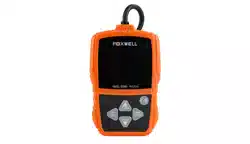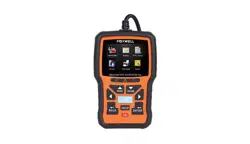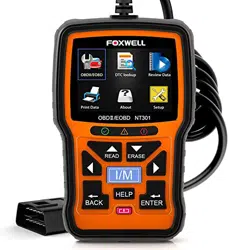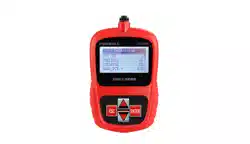

NT200E OBDII/EOBD Code Reader User’s Guide_English Version_V1.0
1
Table of Contents
1. Safety Information
....................................................................................................................
3
1.1 Important Safety Instructions...................................................................
3
2. Introduction
............................................................................................................................... 4
2.1 About the Code Reader
.............................................................................
4
3. OBDII/EOBD Diagnosis
........................................................................................................
14
3.1 Reading DTCs...........................................................................................
17
3.2 Clearing DTCs
...........................................................................................
20

NT200E OBDII/EOBD Code Reader User’s Guide_English Version_V1.0
2
3.3 Viewing Datastream
.................................................................................
23
3.4 Viewing Freeze Data...............................................................................
25
3.5 Reading I/M Readiness Status Data
....................................................
28
3.6 Reading Vehicle Information
..................................................................
34
3.7 Exiting Test
.................................................................................................
38
4. Updating the Code Reader...................................................................................................39
5. Troubleshooting
..................................................................................................................... 46

NT200E OBDII/EOBD Code Reader User’s Guide_English Version_V1.0
3
1. Safety Information
For your safety, and to prevent damage to the equipment and vehicles, read this manual
thoroughly before operating your NT200E code reader. The safety messages presented
below and throughout this user manual are reminders to the operator to exercise extreme
care when using this device. Always refer to and follow safety messages and test
procedures provided by the manufacturer of the vehicle or equipment being tested. Read,
understand and follow all safety messages and instructions in this manual.
1.1 Important Safety Instructions
Always use this code reader as described in the user manual, and follow all safety
messages.
Do not route the test cable in a manner that would interfere with driving controls.
Do not exceed voltage limits between inputs specified in this user manual.

NT200E OBDII/EOBD Code Reader User’s Guide_English Version_V1.0
4
Always wear ANSI approved goggles to protect your eyes from propelled objects
as well as hot or caustic liquids.
Keep a dry chemical fire extinguisher suitable for gasoline, chemical and electrical
fires in work area.
Make sure to turn off ignition before connecting or disconnecting the code reader.
2. Introduction
The NT200E has been developed by leading industry experts. It is specially designed to
read/clear codes, read live data, retrieve freeze data and request vehicle information on
OBDII/EOBD compliant cars, SUVs, light-duty trucks and mini-vans sold worldwide since
1996.
2.1 About the Code Reader
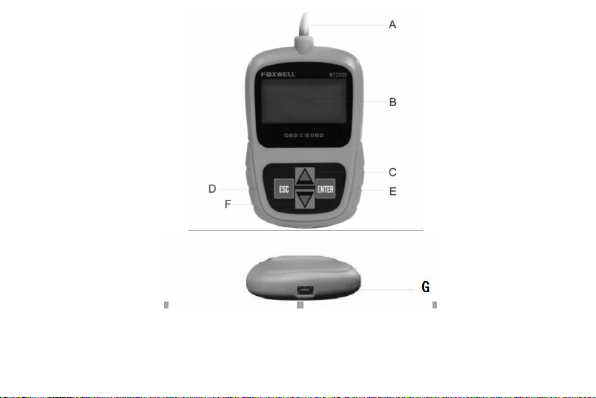
2.1.1Code Reader Controls
NT200E OBDII/EOBD Code Reader User’s Guide_English Version_V1.0
5

NT200E OBDII/EOBD Code Reader User’s Guide_English Version_V1.0
6
A. OBD II Cable - provides communication for vehicle DLC.
B. LCD Display - shows menus, test results and operation tips.
C. UP Key - moves selection up.
D. ESC Key - returns to previous screen or level.
E. ENTER Key - confirms an action or enter system setup menu from home screen
F. DOWN Key - moves selection down
G.
USB Port – provides a USB connection for the PC or laptop.
2.1.2Specifications
1.Display:Backlit, 128 x 64 pixel display with contrast adjustment.
2.Working Temperature: 0 to 60℃ (32 to 140℉)
3.Storage Temperature: -20 to 70℃ (-4 to 158℉)
4.Power: 8-18 Volts powered by vehicle battery
5.Dimensions(L*W*H): 120*75*20mm (4.7*2.96*0.78in)
6.Weight: 300g

NT200E OBDII/EOBD Code Reader User’s Guide_English Version_V1.0
7
2.1.3 Display Indicators
Below is a list indicators used to help navigate through menus.
1 $ Indicates the control unit number.
2 Indicates more than one screen of information is available.
2.1.4 System Setup
System Setup allows you to:
● Select menu languages.
● Change measurement unit.
● Adjust display contrast.
√ System Setup settings remain until changes to the existing setups are made.
NT200E OBDII/EOBD Code Reader User’s Guide_English Version_V1.0
8
To do system setup:
1. Press the UP/DOWN key to enter System Setup from home screen.
√ Follow on-screen instructions to program the code reader to meet your specific
needs.
2.1.5 Changing Language
√ The code reader is set to display English menus by default.
System Setup
Language
Measurement Unit
Contrast
NT200E OBDII/EOBD Code Reader User’s Guide_English Version_V1.0
9
To change menu language:
1. Use the UP/DOWN key to pick Language from System Setup screen.
2. Press the ENTER key to confirm.
3. Use the UP/DOWN key to select desired language
System Setup
Language
Measurement Unit
Contrast
NT200E OBDII/EOBD Code Reader User’s Guide_English Version_V1.0
10
4. Press the ENTER key to save language setting and return.
2.1.6 Changing Measurement Unit
√ Metric is the default measurement unit.
To change measurement unit:
1. Use the UP/DOWN key to select Measurement Unit from System Setup
screen.
2. Press the ENTER key to confirm.
Language
English
Espanol
Francais
NT200E OBDII/EOBD Code Reader User’s Guide_English Version_V1.0
11
3. Use the UP/DOWN key to select desired measurement unit.
System Setup
Language
Measurement Unit
Contrast
Measurement Unit
English
Metric
NT200E OBDII/EOBD Code Reader User’s Guide_English Version_V1.0
12
4. Press the ENTER key to save measurement setting and return.
2.1.7 Adjusting Display Contrast
To adjust display contrast:
1. Use the UP/DOWN key to select Contrast from System Setup screen.
2. Press the ENTER key to confirm.
3. Use the UP/DOWN key to adjust contrast.
System Setup
Language
Measurement Unit
Contrast
NT200E OBDII/EOBD Code Reader User’s Guide_English Version_V1.0
13
4. Press the ENTER key to save contrast setting and return.
2.1.8 Exiting System Setup
To quit system setup:
1. Use the ESC key to quit system setup
Contrast
Contrast (30%)
[UP/Down Key] – Adjust
[ENTER] – Save
NT200E OBDII/EOBD Code Reader User’s Guide_English Version_V1.0
14
3. OBDII/EOBD Diagnosis
Diagnostic Menu allows you to:
● Read DTCs.
● Clear DTCs.
● View live datastream.
● View freeze data.
System Setup
Language
Measurement Unit
Contrast

NT200E OBDII/EOBD Code Reader User’s Guide_English Version_V1.0
15
● Retrieve vehicle information.
√ The code reader detects the communication protocol when it is connected to the
vehicle and uses the protocol throughout the testing until another vehicle is
diagnosed.
√ If the code reader fails to communicate with the vehicle a “Communication
Error!” message displays. Make sure the OBDII connector is securely attached,
and the ignition key is on. Turn vehicle key to off for 10 seconds, then on. If the
problem still exists, refer to “Error Messages” on page 18 of Troubleshooting.
√ When the code reader links to a vehicle, it checks the status of I/M Monitors, and
gives a summary report on the display as illustrated below.

NT200E OBDII/EOBD Code Reader User’s Guide_English Version_V1.0
16
√ If the vehicle is equipped with more than one computer module (for example a
powertrain control module [PCM] and a transmission control module [TCM]), the
code reader identifies them by their identification names (ID) assigned by the
manufacturer (i.e. Engine or A/T).
√ Use the UP/DOWN key to select a control module where the data may be
retrieved when more than one module is detected.
System Status
Code Found 3
Monitors N/A 4
Monitors OK 4
Monitors INC 3
NT200E OBDII/EOBD Code Reader User’s Guide_English Version_V1.0
17
√ To view information of other control units quit the current test and select another
module.
3.1 Reading DTCs
The Read Codes function is used to read DTCs (stored codes), which are used to
help identify the cause of a trouble or troubles with a vehicle, and pending codes from
the vehicle’s control modules.
Control Module
Engine
A/T

NT200E OBDII/EOBD Code Reader User’s Guide_English Version_V1.0
18
√ When emission-related or drivability fault occurs the control module illuminates
the malfunction indicator lamp (MIL).
√ Pending Codes are also referred to as continuous monitor or maturing codes
that indicate intermittent faults. If the fault does not occur within a certain
number of drive cycles (depending on vehicle), the code clears from memory. If
fault occurs a specific number of times, the code matures into a DTC and the
MIL illuminates or blinks.
√ This function can be performed with KOEO or KOER.
To read codes from vehicle control modules:
1. Press the ENTER key to start diagnosis from home screen.
2. Use the DUP/DOWN key to select Read Codes from Diagnostic Menu
screen.
NT200E OBDII/EOBD Code Reader User’s Guide_English Version_V1.0
19
3. Press the ENTER key to confirm.
4. View DTCs and their definitions.
$10 1/2
P0101 Generic
Mass or Volume Air
Flow A Circuit Range
/ Performance
Diagnostic Menu
Read Codes
Clear Codes
Datastream
Freeze Data

NT200E OBDII/EOBD Code Reader User’s Guide_English Version_V1.0
20
√ If no DTCs are present a message stating “No (Pending) Codes Found” is
displayed.
√ If any manufacturer specific or enhanced codes are detected, a “Manufacturer
specific codes are found! Press any key to select vehicle make!” message
displays prompting you to select a vehicle make before viewing DTC(s).
√ If the manufacturer of the vehicle being tested is not listed, select Other.
5. Press the ESC key to return to Diagnostic Menu screen.
3.2 Clearing DTCs
The Clear Codes function is used to delete DTCs and I/M Readiness data from vehicle’s
control module(s). It may also erase freeze data, and set monitors to incomplete or not
ready.
√ Perform Clear Codes function only after systems have been checked
completely.
√ After servicing the vehicle, erase stored DTCs and verify no codes have been
NT200E OBDII/EOBD Code Reader User’s Guide_English Version_V1.0
21
reset. If a DTC returns, the problem has not been fixed or other faults are
present.
√ Depending on which monitor sets a code, the vehicle may need to be driven and
the monitor run before concluding that the fault has been repaired.
√ This function is performed with KOEO. Do not start the engine.
To erase codes from vehicle control modules:
1. Use the UP/DOWN key to select Clear Codes from Diagnostic Menu screen.
2. Press the ENTER key to confirm.
Diagnostic Menu
Read Codes
Clear Codes
Datastream
Freeze Data
NT200E OBDII/EOBD Code Reader User’s Guide_English Version_V1.0
22
3. If codes and diagnostic results are to be cleared, press the ENTER key directly.
√ If codes and test data are not to be deleted, select ESC, and a “Command
Canceled!” message displays prompting to press any key to return to
Diagnostic Menu.
4. Wait a few seconds until a “Codes Cleared!” message shows indicating codes
have been cleared successfully.
√ If the code reader fails to clear the codes, a “Clear Error! Turn Key on with
Clear Code
Are You Sure to
Clear Codes?
<YES> NO

NT200E OBDII/EOBD Code Reader User’s Guide_English Version_V1.0
23
Engine off!” message displays.
5. Wait a few seconds or press any key to return to Diagnostic Menu.
3.3 Viewing Datastream
The Datastream function allows real time viewing of the vehicle’s electronic control unit’s
PID data, including sensor data, operation of switches, solenoids and relays.
To view live datastream:
1. Use the UP/DOWN key to select Datastream from Diagnostic Menu screen.
NT200E OBDII/EOBD Code Reader User’s Guide_English Version_V1.0
24
2. Press the ENTER key to confirm.
3. View PIDs on code reader. Use the UP/DOWN key when more than one screen
of information is retrieved
Diagnostic Menu
Read Codes
Clear Codes
Datastream
Freeze Data
NT200E OBDII/EOBD Code Reader User’s Guide_English Version_V1.0
25
√ Some vehicles may not support this function, and a “Not Support This Function!”
message display.
4. Press the ESC key to return.
3.4 Viewing Freeze Data
The Freeze Data function is used to view freeze frame data, a snapshot of vehicle
Datastream
DTC_CNT 2
LOAD_PCT % 0.0
ETC ℉ 171
RPM/min 0
NT200E OBDII/EOBD Code Reader User’s Guide_English Version_V1.0
26
operating conditions recorded by the on-board computer at the time of an
emission-related fault.
√ If codes were cleared, freeze data may not be stored in vehicle memory
depending on vehicle.
To view freeze frame data:
1. Use the UP/DOWN key to select Freeze Data from Diagnostic Menu screen
2. Press the ENTER key to confirm.
Diagnostic Menu
Read Codes
Clear Codes
Datastream
Freeze Data
NT200E OBDII/EOBD Code Reader User’s Guide_English Version_V1.0
27
3. View freeze frame data on screen. If more than one screen of information is
retrieved, use the UP/DOWN key to view additional data.
√ If no freeze frame is detected, a “No Freeze Data Found!” message displays.
√ Some vehicles may not support this function, and a “Not Support This Function!”
message display.
4. Press the ESC key to return to Diagnostic Menu.
Freeze Data
DTCFRZF P0157
FUELSYS1 OL
FUELSYS2 OL
LOAD_PCT % 0.0

NT200E OBDII/EOBD Code Reader User’s Guide_English Version_V1.0
28
3.5 Reading I/M Readiness Status Data
The I/M Readiness function is used to view a snapshot of the operations for the emission
system on OBDII/EOBD vehicles.
√ I/M Readiness is a useful function used to check if all monitors are OK or N/A.
√ The vehicle’s computer performs tests on the emission system during normal
driving conditions. After a specific amount of drive time (each monitor has
specific driving conditions and time required), the computer’s monitors decide if
the vehicles emission system is working correctly. When the monitor’s status is:
● OK - vehicle was driven enough to complete the monitor.
● INC (Incomplete) - vehicle was not driven enough to complete the monitor.
● N/A (Not Applicable) - vehicle does not support that monitor.
√ I/M Readiness function is performed with the KOER or KOEO.
√ There are two types of I/M Readiness tests:
● Since DTCs Cleared - shows status of the monitors since the DTCs were last
NT200E OBDII/EOBD Code Reader User’s Guide_English Version_V1.0
29
cleared.
● This Drive Cycle - shows status of monitors since the start of the current drive
cycle.
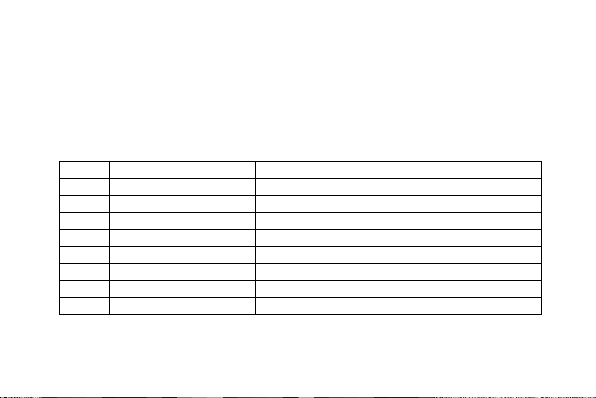
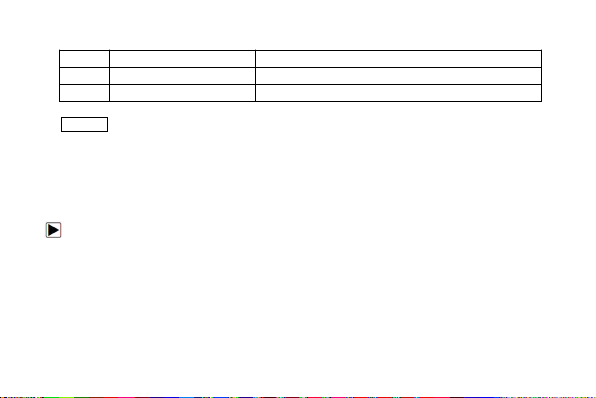
√ Below is a list of abbreviations and names of OBD II monitors supported by the
code reader.
No.
Abbreviation
Name
1
Misfire Monitor
Misfire Monitor
2
Fuel System Mon
Fuel System Monitor
3
Comp. Component
Comprehensive Components Monitor
4
Catalyst Mon
Catalyst Monitor
5
Htd Catalyst
Heated Catalyst Monitor
6
Evap System Mon
Evaporative System Monitor
7
Sec Air System
Secondary Air System Monitor
8
A/C Refrig Mon
Air Conditioning Refrigerant Monitor
NT200E OBDII/EOBD Code Reader User’s Guide_English Version_V1.0
30
9
Oxygen Sens Mon
Oxygen Sensor Monitor
10
Oxygen Sens Htr
Oxygen Sensor Heater Monitor
11
EGR System Mon
Exhaust Gas Recirculation System Monitor
NOTE Not all monitors are supported by all vehicles.
To retrieve I/M Readiness Status data:
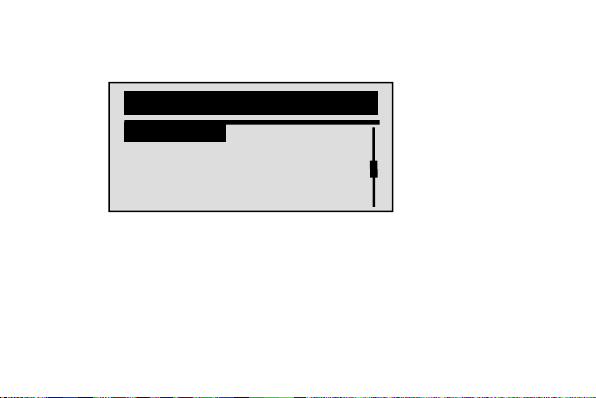
1. Use the UP/DOWN key to select I/M Readiness from Diagnostic Menu
screen.
NT200E OBDII/EOBD Code Reader User’s Guide_English Version_V1.0
31
2. Press the ENTER key to confirm.
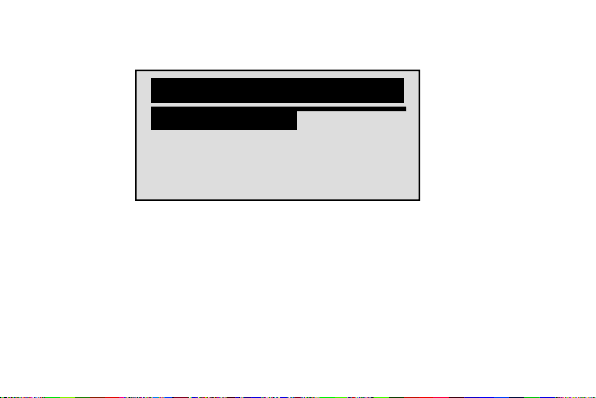
√ If vehicle supports both types of monitors, please see the following screen:
Diagnostic Menu
I/M Readiness
Vehicle Information
NT200E OBDII/EOBD Code Reader User’s Guide_English Version_V1.0
32
√ Use the UP/DOWN key to select a monitor type and press the ENTER key to
confirm.
3. Depending on readiness test, one of these 2 screens will be present.
I/M Readiness
Since DTCs Cleared
This Drive Cycle
NT200E OBDII/EOBD Code Reader User’s Guide_English Version_V1.0
33
Or
Since DTCs Cleared
MIL Status OFF
Misfire Monitor N/A
Fuel System Mon N/A
Comp. Component OK
This Drive Cycle
MIL Status OFF
Misfire Monitor N/A
Fuel System Mon N/A
Comp. Component OK

NT200E OBDII/EOBD Code Reader User’s Guide_English Version_V1.0
34
√ If more than one screen of information is retrieved, use the UP/DOWN key to
view additional data.
√ Some vehicle may not support this function, and a “Not Support This Function!”
message displays.
4. Press the ESC key to return to Diagnostic Menu.
3.6 Reading Vehicle Information
The Vehicle Information function is used to request the vehicle’s VIN number,
calibration ID(s) which identifies software version in vehicle control module(s), calibration
verification numbers (CVN(s)) and in-use performance tracking on model year 2000 and
newer OBD II compliant vehicles.
√ CVNs are calculated values required by OBD II regulations. They are reported to
check if emission-related calibrations have been changed. Multiple CVNs may
be reported for a control module. It may take several minutes to do the CVN
NT200E OBDII/EOBD Code Reader User’s Guide_English Version_V1.0
35
calculation.
√ In-use performance tracking tracks performance of key readiness monitors.
To request vehicle information:
1. Use the DOWN key to select Vehicle Information from Diagnostic Menu
screen.
2. Press the ENTER key to confirm.
3. Wait a few seconds or press ENTER key to continue.
Diagnostic Menu
I/M Readiness
Vehicle Information
NT200E OBDII/EOBD Code Reader User’s Guide_English Version_V1.0
36
√ Some vehicles may not support this function, and a “Not Support This Function!”
message displays.
4. Use the UP/DOWN key to select an available item from Vehicle Information
screen.
Vehicle Information
Turn Key on
with Engine off!
Any key to continue.
NT200E OBDII/EOBD Code Reader User’s Guide_English Version_V1.0
37
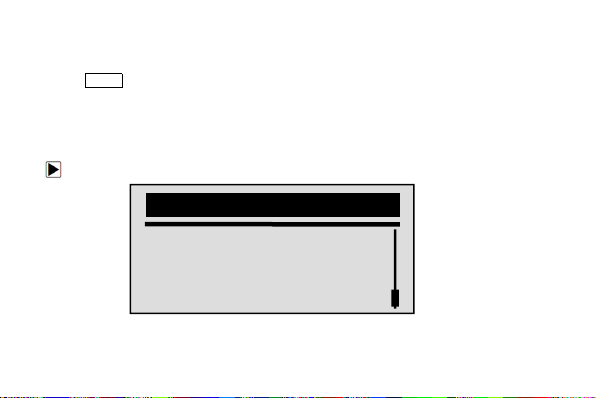
5. Press the ENTER key to view retrieved information.
Vehicle Information
Calibration ID
Cal. Verif. Number
Calibration ID
Cal ID1:
09G927750EK_0706
NT200E OBDII/EOBD Code Reader User’s Guide_English Version_V1.0
38
6. Press the ESC key return.
NOTE Not all data is supported by all vehicles.
3.7 Exiting Test
To exit the OBDII test:
1. Use the ESC key to return to Diagnostic Menu screen.
Diagnostic Menu
I/M Readiness
Vehicle Information

NT200E OBDII/EOBD Code Reader User’s Guide_English Version_V1.0
39
2. Press the ENTER key to confirm.
3. Press the ESC key to quit the test
4.Updating the Code Reader
NT Wonder is an extremely easy-to-use that is used to update NT200E code reader. Also,
it enables you to search DTC, read the manuals as well set up the language and style of
the application.
This section illustrates how to use NT Wonder to perform its functions:
●
Updating the Code Reader
● Printing
● Searching DTC
●
Read the manuals
● Update tool settings
NT200E is able to be updated to keep you stay current with the latest development of

NT200E OBDII/EOBD Code Reader User’s Guide_English Version_V1.0
40
diagnosis.
√ The update of NT200E consists of two parts: program upgrade and DTC
upgrade.
√ To update the code reader, you need following tools:
● NT200E Code Reader
● Update Tool Downloaded in Our Website
● PC or Laptop with USB Ports and Internet Explorer
● USB Cable
√ To be able to use update tool, PC or laptop must meet the following minimum
requirements:
● Operation System: Win98/NT, Win ME, Win2000, Win XP, VISTA and
Windows 7.
● CPU: Intel PIII or better
● RAM: 64MB or better
● Hard Disk Space: 30MB or bigger
● Display: 800*600 pixel, 16 byte true color display or better
● Internet Explorer 4.0 or newer

NT200E OBDII/EOBD Code Reader User’s Guide_English Version_V1.0
41
IMPORTANT Do not disconnect the code reader from computer, or power off
the computer during the process of updating.
To update the code reader:
1. Download the update tool NT wonder and update files from our website and
save the applications and files in computer disk.
2. Unzip the update tool file. Follow instructions on computer screen to install the
tool and driver.
3. Double click the desktop icon to launch the application.
4. Click Setting and select the language you want to update.
5. Connect NT200E to computer with the USB cable provided.
6. When NT200E enters the Update Mode, the application would detect it
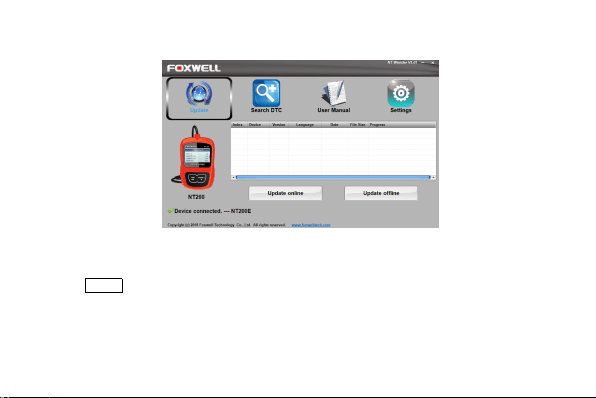
automatically
NT200E OBDII/EOBD Code Reader User’s Guide_English Version_V1.0
42
Figure 4-1 Sample Update Mode Screen
NOTE
After entering update mode successfully, there are two different ways for you to

NT200E OBDII/EOBD Code Reader User’s Guide_English Version_V1.0
43
update the device.
● Update online: With internet connection, the tool NT Wonder automatically
detects the software version of the code reader and read the latest software
version from the server. If any new diagnosis software found, it will
automatically upgrade your NT200E. Otherwise a prompt of new version not
detected displays.
● Update offline:Update files will be automatically stored in your computer hard
drive with every successful online update. When picking Update offline, the
update tool NT Wonder will detect these local files automatically and display
them in a list. Ticking one of them will lead to an update process, which
eliminates the need to download any file.
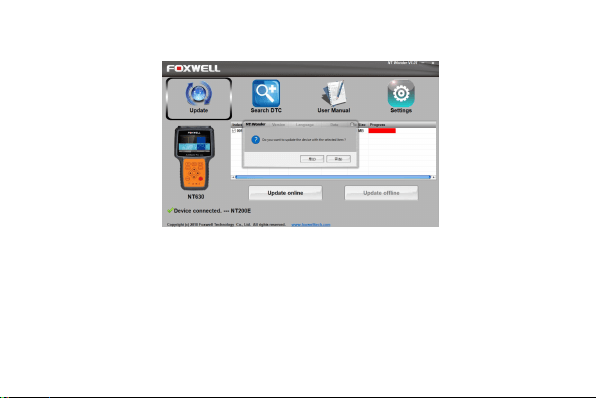
1. Click <Update online> or <Update offline>to start updating according to the
software version conditions.
NT200E OBDII/EOBD Code Reader User’s Guide_English Version_V1.0
44
Figure 4-2 Sample Update Process Screen
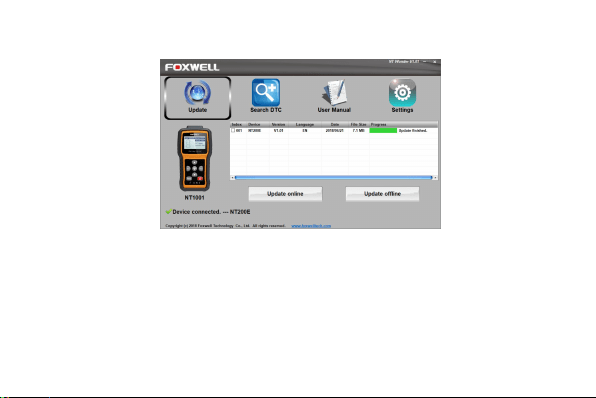
2. A Update Finished Message displays when the update is completed.
NT200E OBDII/EOBD Code Reader User’s Guide_English Version_V1.0
45
Figure 4-3 Sample Update Done Screen

NT200E OBDII/EOBD Code Reader User’s Guide_English Version_V1.0
46
5. Troubleshooting
5.1 Error Message
When a “Communication Error!” message displays, please check the following:
● Verify ignition key is in the ON position.
● Make sure the code reader is correctly attached to vehicle’s Data Link
Connector (DLC).
● Check DLC for cracked or recessed pins, or for any substance that could
prevent a good electrical connection.
● Check NT200E’s OBDII connector for bent or broken pins.
● Make sure the vehicle is OBDII/EOBD compliant.
● Cycle the vehicle key to OFF for 10s and then back to ON.
● Verify battery voltage is at least 8.0V with KOEO.
● Verify that the control module is not defective.

NT200E OBDII/EOBD Code Reader User’s Guide_English Version_V1.0
47
5.2 Code Reader Does Not Power Up
If the NT200E will not power up, communicate with vehicle’s control module, or functions
incorrectly in any other way, do the following:
● Check DLC for broken or bent pins and clean the pins if need be.
● Make sure NT200E is correctly connected to the vehicle’s DLC.
● Verify battery voltage is at least 8.0V with KOEO.