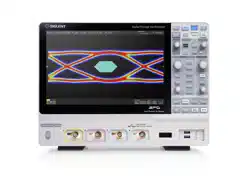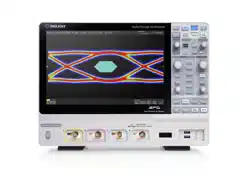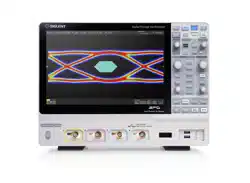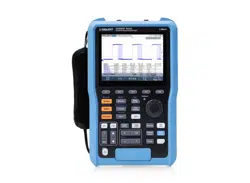
SigScopeLab
Oscilloscope on PC
UserManual
EN02A

Introduction
SigScopeLab is a professional time-domain signal analysis and oscilloscope control software running on
the Windows operating system. This user manual aims to provide installation and easy operation tutorials for
SigScopeLab. Please read this manual carefully before using the software.
Installation and Operation
PC Requirements
Unless otherwise specified, all specifications must meet the following conditions:
Minimum Requirements
Operating System
Windows 10 or later 64-bit operating system
Processor
Intel® CoreTM i5 Processor or better
Memory
8 GB RAM or better
Hard Disk
600MB or more available free space
Display Resolution
Minimum 1280x720, recommended 1920x1080
Virtual Memory
4GB(Advanced version 25GB) or more of available virtual memory
Method to modify the default virtual memory size:
Installing Software
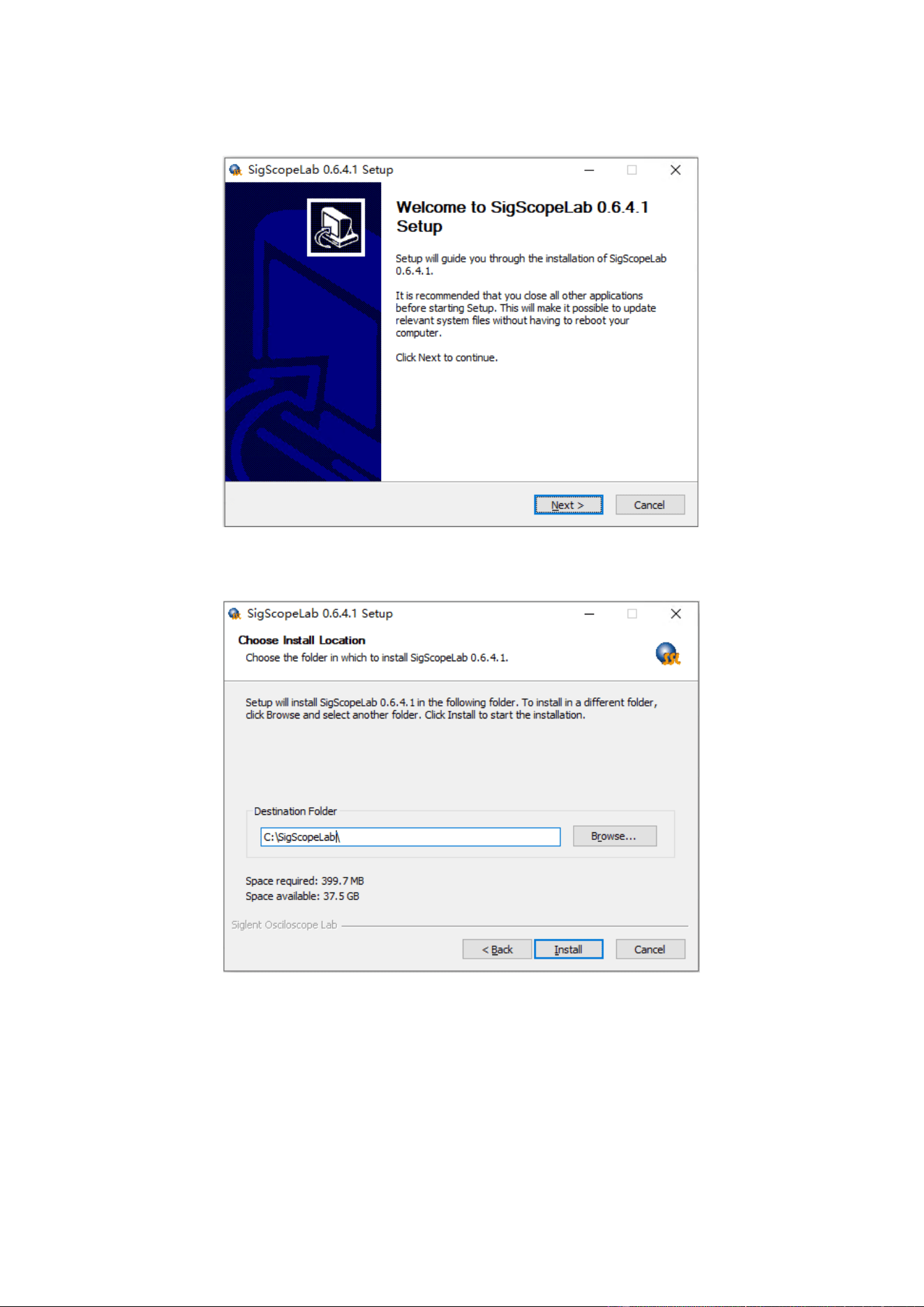
1. Double click on the installation program "SigScopeLab.exe" and click "Next" in the installation interface.
2. Select the installation path, which defaults to "C:\SigScopeLab", and click "Install" to the next step.
3. Finish the installation, checking "Run SigScopeLab" will immediately execute the program.
Running Software
There are multiple ways to run SigScopeLab software:
Double click on the SigScopeLab icon on the PC desktop.
Find SigScopeLab in the Start menu and click the icon to run it.
Double click the icon in the installation path to run.
Quick Start
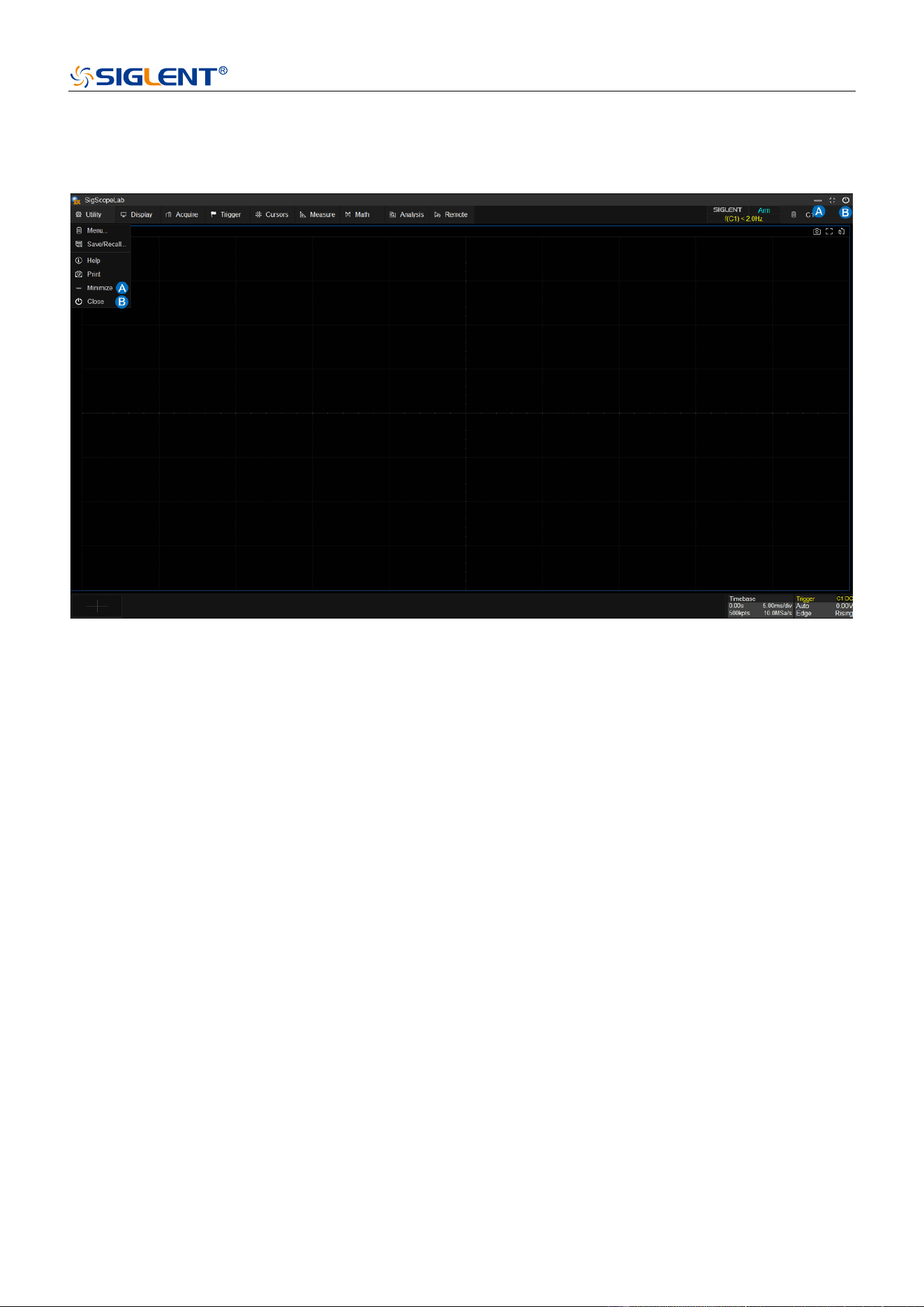
Minimize and Exit Software
A. Software minimization
B. Exit software
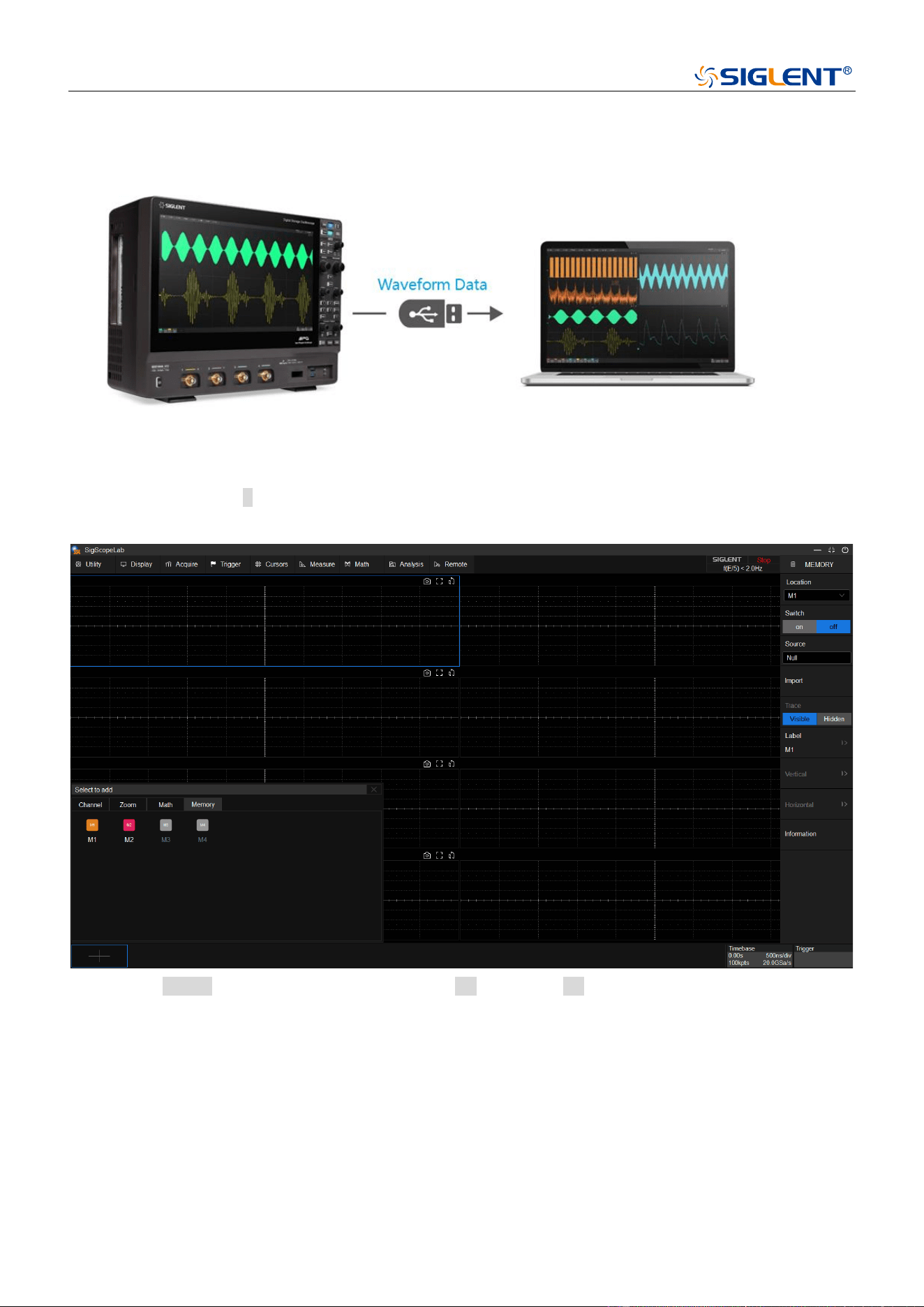
Waveform Data Offline Analysis
Firstly, export binary waveform files from any SDS-series oscilloscope and place them in any computer
accessible location via a USB flash drive or network server.
Then click on the icon + in the bottom left corner of SigScopeLab software, select any available Memory
channel (M1~M2) in the pop-up source box, and the menu bar on the right side of Memory will pop up.
Click on the source in the right menu bar, select the file icon in the file tab in the pop-up box, and open the
waveform file on the PC through the file browser. The sample files provided by the software are located in the
installation path directory:” C:\SigScopeLab\storage\local\”。
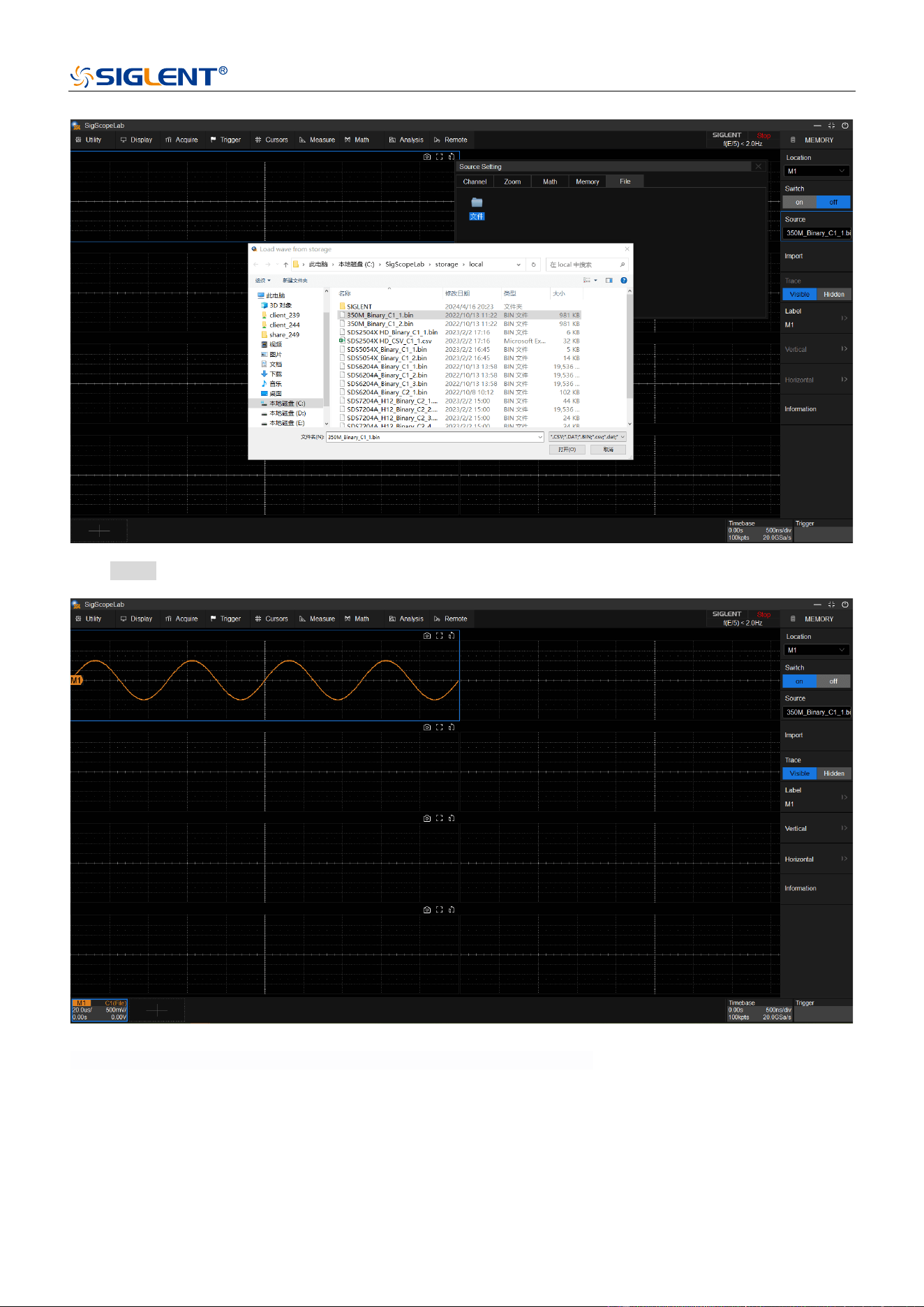
Click Import, the imported waveform will be drawn on the screen.
Users can then perform local offline analysis on the Memory waveforms. The local analysis operation method
is consistent with the oscilloscope operation. SigScopeLab supports all functions such as Math, Measurement,
Cursor, Decode, Save/Recall that can run offline, and user can also adjust the multi window display effect
according to their own needs.
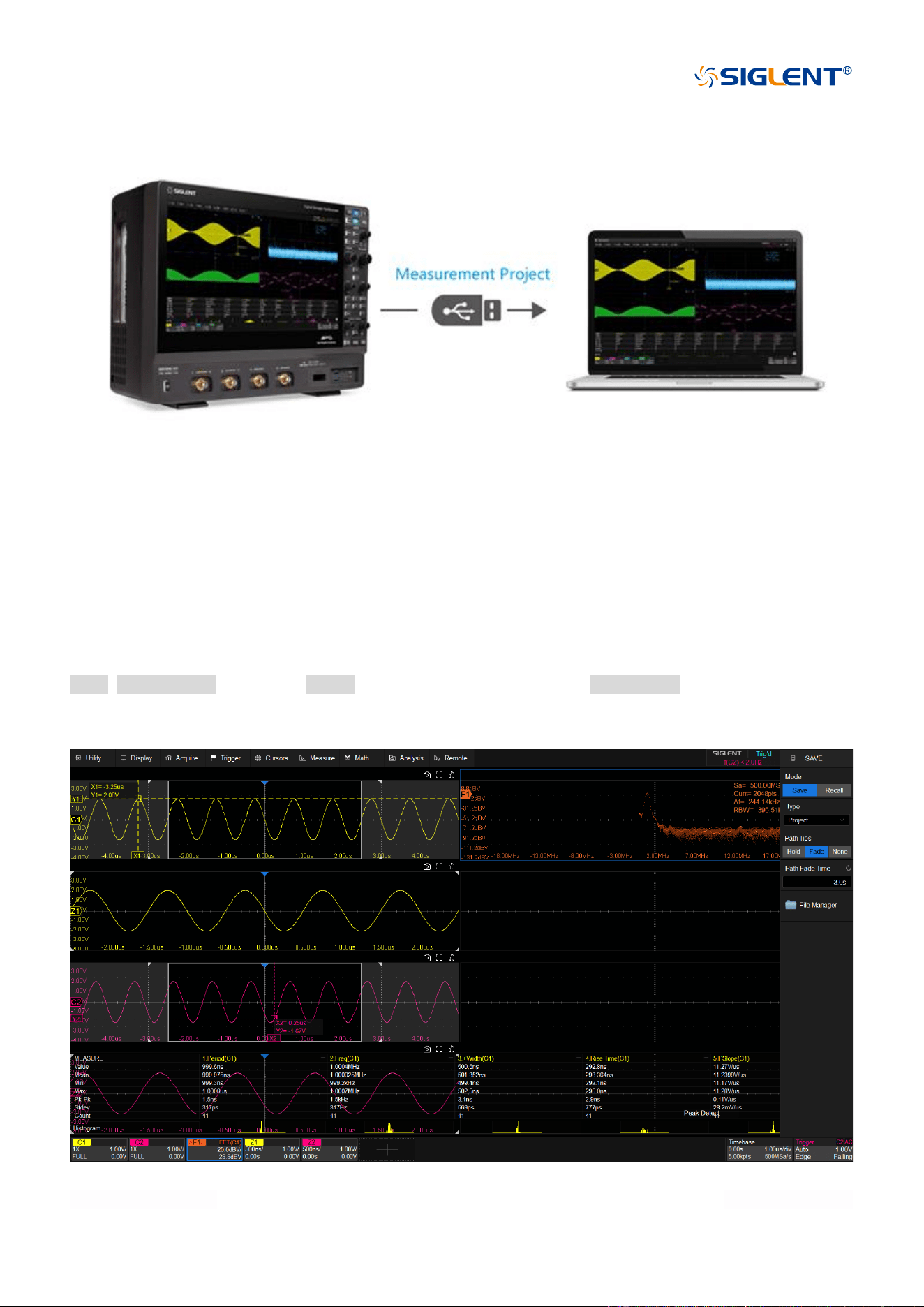
Measurement Project Offline Analysis
To further enhance the convenience of offline analysis, we also supports quick save and recall project. These
projects enable the preservation of a comprehensive measurement environment. Upon importing a
measurement project into SigScopeLab, it facilitates the complete restoration of parameters, including
channels, data, and measurement configurations, thereby enabling a seamless recreation of the previous
measurement scenario.
To save a project: on SigScopeLab and SDS-series oscilloscopes that support project saving, click on
Utility>Save/Recall…, then select Project as the save type, and next open File Manager to specify the save path
and project name (xx.spro).
To recall a project: on SigScopeLab and SDS-series oscilloscopes that support project recalling, click on

Utility>Save/Recall…, then select Project as the recall type, and next open File Manager to access the
project file located in the project path.
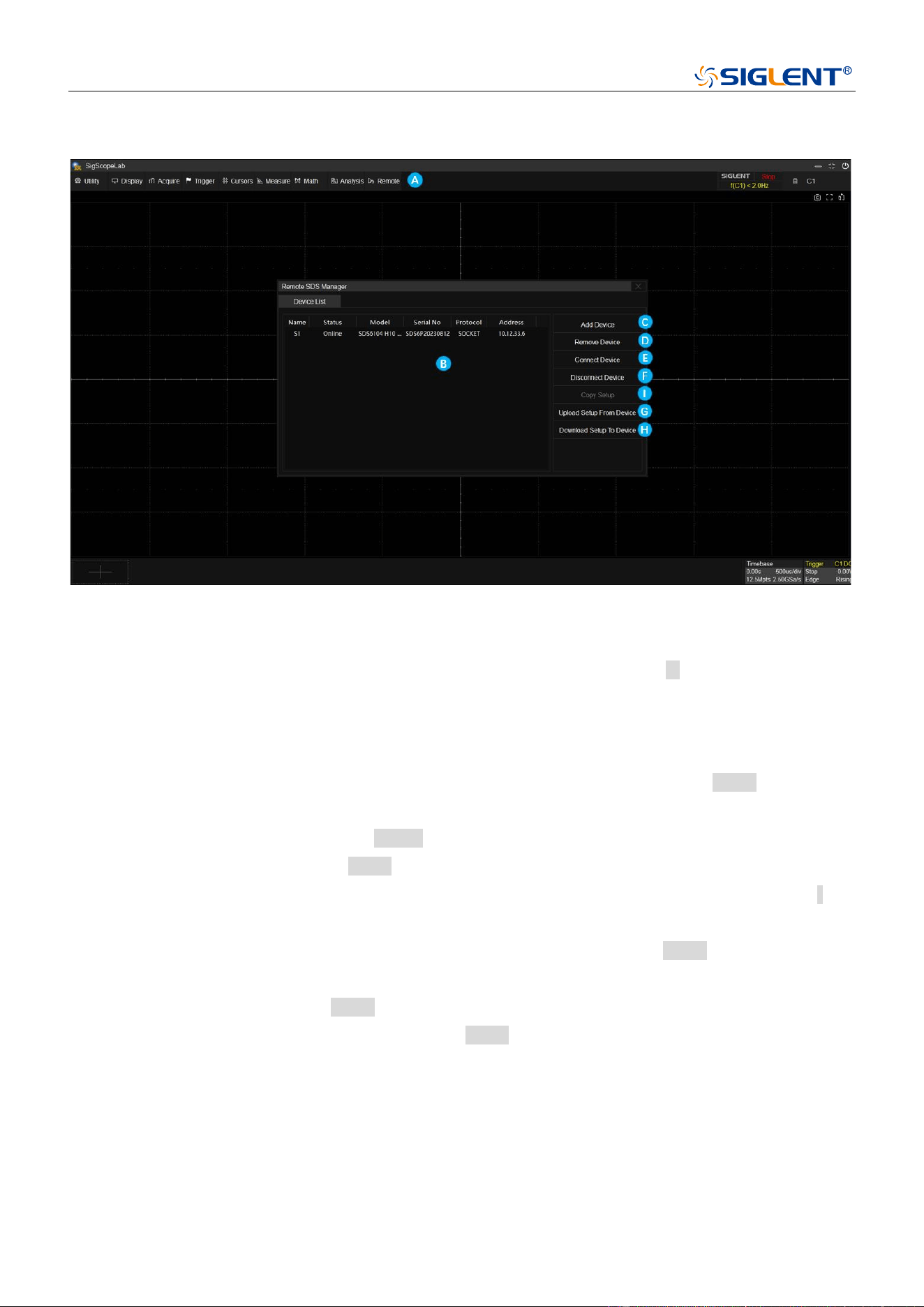
Remote Oscilloscope Management
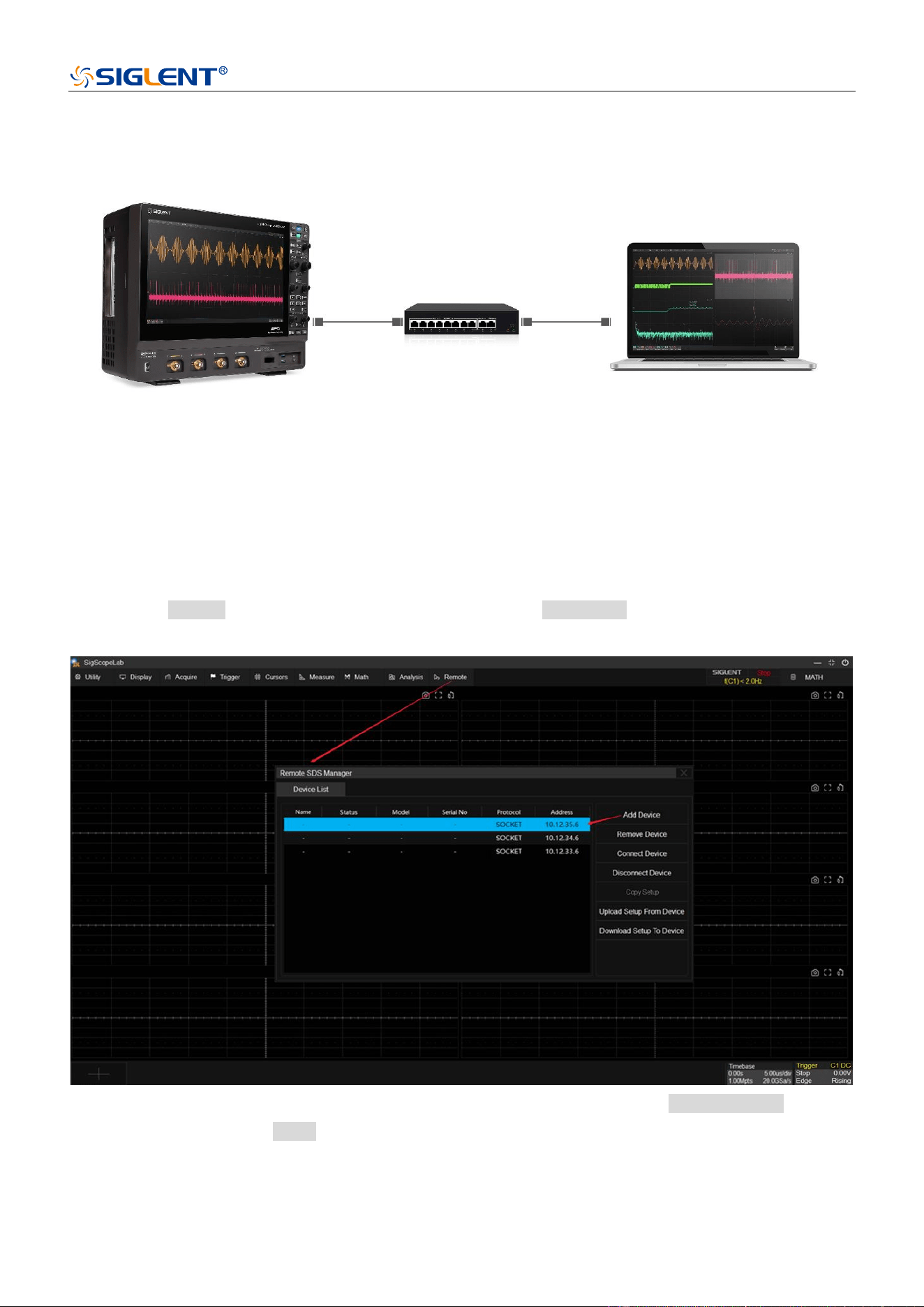
A. Remote Oscilloscope Manager
B. List of added oscilloscope information
C. Add Device – Add the oscilloscope to the device list with an initial state of -, indicating that it is not
connected.
D. Remove Device – Remove the selected oscilloscope from the device list.
E. Connect Device – Switch the selected oscilloscope from an unconnected state to a connected state.
After successful connection, the device status is updated to online, and remote
control of the device takes effect.
If a device in an online state does not respond (shut down or disconnected), it will
switch to an offline state.
F. Disconnect Device – Switches the selected oscilloscope from connected state to unconnected (-)
state, rendering remote control of the device ineffective.
G. Upload Setup From Device – Synchronize oscilloscope setup selected as online to SigScopeLab.
H. Download Setup To Device – Synchronize the setup from SigScopeLab to oscilloscope selected as
online.
I. Copy Setup - Synchronize setup between two online oscilloscopes (currently not supported)
Acquire Waveform Data to PC Online for Analysis
In this scenario, SigScopeLab only controls remote acquisition and does not control remote analysis and
measurement. SigScopeLab fetchs waveform data from the remote device online after controlling the
acquisition, and then performs local data analysis. Please refer to the following steps:
Step 1: Ensure that the network connection between the SDS device and the PC is OK, which can be
determined by ping the IP address or accessing the SDS webpage.
Step 2: Click Remote, in the device management interface, click Add Device to add the IPv4 address of the
SDS device that needs to be connected.
Step 3: Click to select the item of device list to be connected, then continue to click Connect Device. After the
device status is updated to online, local analysis can be performed with the waveform data acquired in real
time from the device.
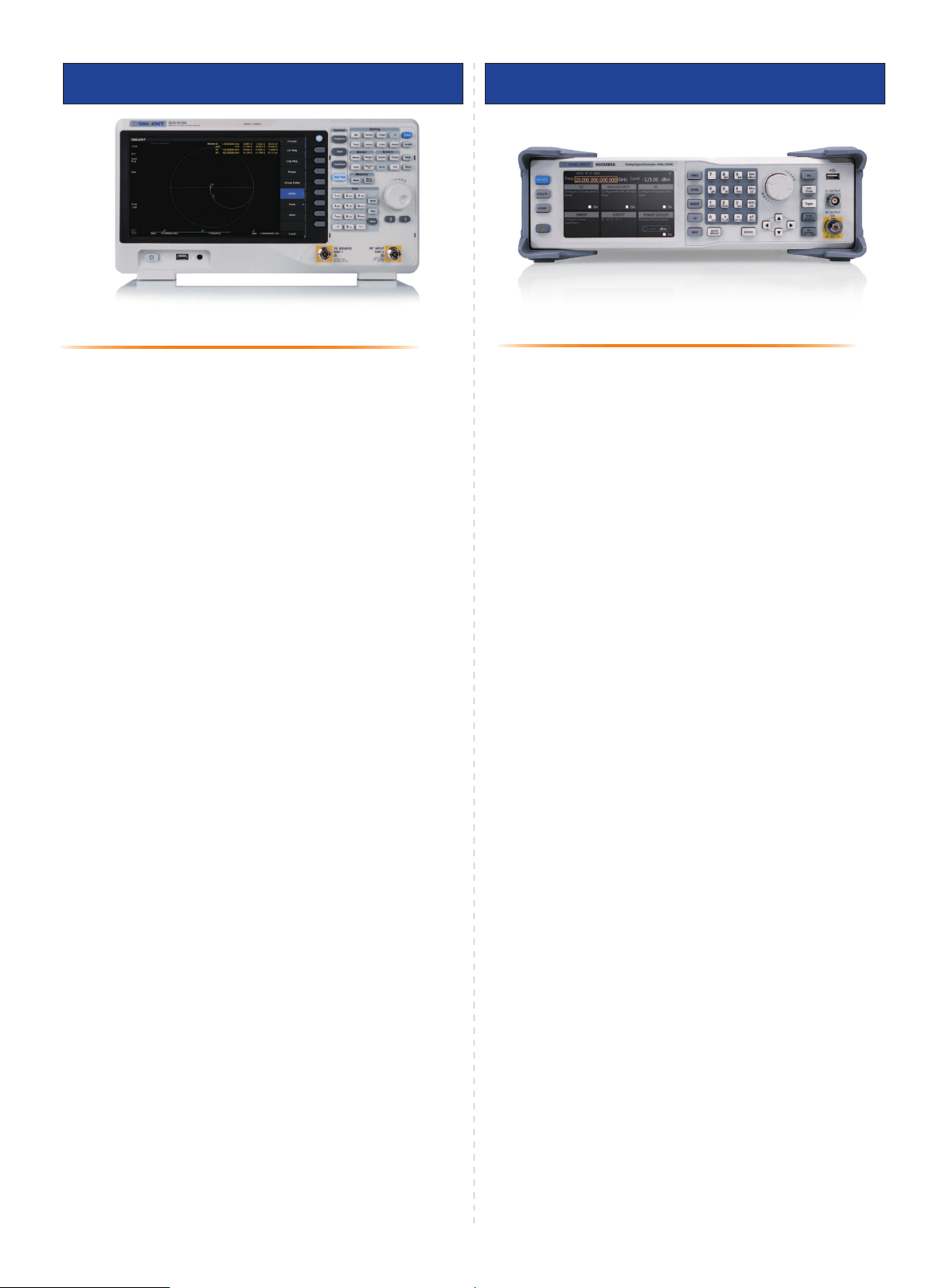
The construction of a remote acquisition system for a single oscilloscope has been completed. Any acquire
settings made by users on SigScopeLab will be synchronized to the remote device, and users can also choose
to download setup to the device or upload setup to SigScopeLab.
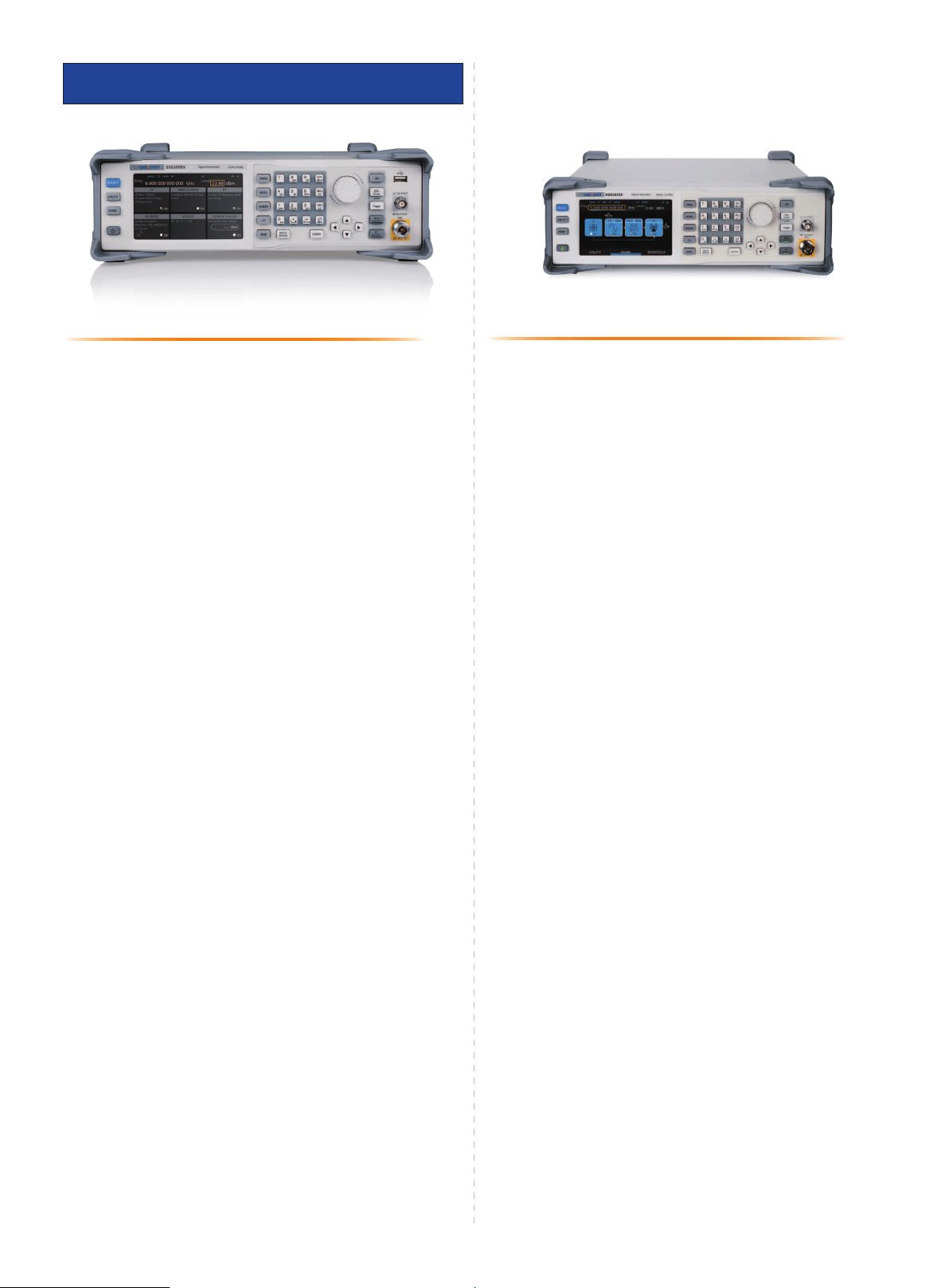
Online Multi-Oscilloscope Acquisition System
If you need to build a remote acquisition system with multiple oscilloscopes, please continue with steps 4&5.
SigScopeLab supports combining multiple machines of the same model and vertical resolution into a multi
oscilloscope remote acquisition system.
Step 4: Click to select another device to connect to, then continue clicking on Connect Device and wait for the
device status to update to online.
Step 5: Click on the icon + in the bottom left corner of the software, and in the pop-up source box, you can
see that the device name description has been added to distinguish the channels of different devices. Click
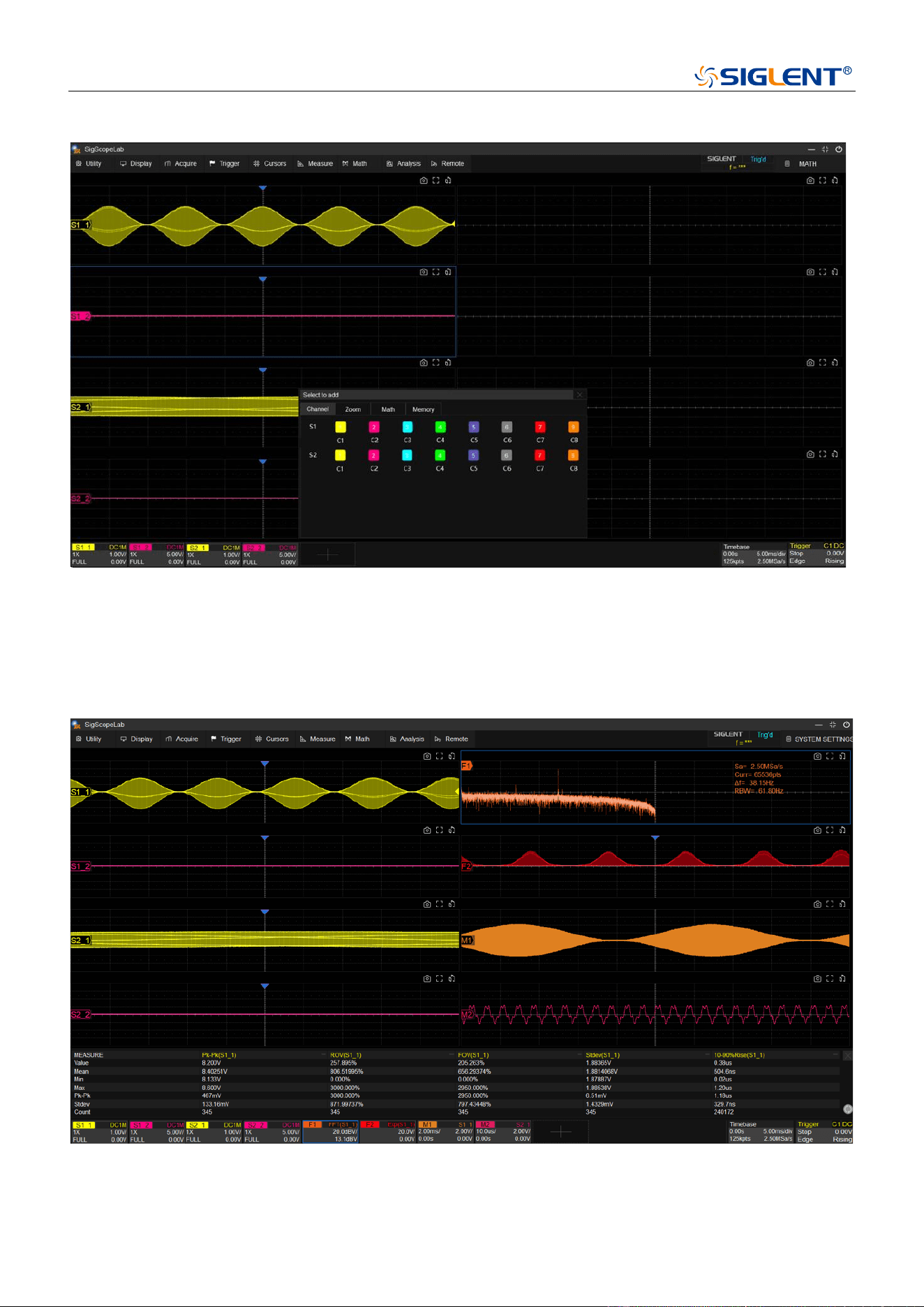
on the channel you want to open.
Next: Continue with analysis work, consistent with the operation of a single device. Please note that the format
of the source channel is oscilloscope name+channel number, such as "S1-1".
Same Analysis and Measurement Operation as A Siglent Oscilloscope
Same platform as the SDS software, for the supported measurement and analysis functions, SigScopeLab
and SDS devices have identical interaction. Multi window mode provided, where users can measure and

observe waveforms and analysis in different windows according to their needs, making it more flexible.
The SigScopeLab and Siglent touchscreen models have identical user interactions in terms of functionality, so
the operation methods for each function can be found in the oscilloscope user manual, which will not be
elaborated here.

About SIGLENT
SIGLENT is an international high-tech company, concentrating on R&D, sales,
production and services of electronic test & measurement instruments.
SIGLENT first began developing digital oscilloscopes independently in 2002.
After more than a decade of continuous development, SIGLENT has extended
its product line to include digital oscilloscopes, isolated handheld
oscilloscopes, function/arbitrary waveform generators, RF/MW signal
generators, spectrum analyzers, vector network analyzers, digital multimeters,
DC power supplies, electronic loads and other general purpose test
instrumentation. Since its first oscilloscope was launched in 2005, SIGLENT
has become the fastest growing manufacturer of digital oscilloscopes. We
firmly believe that today SIGLENT is the best value in electronic test &
measurement.
Headquarters:
SIGLENT Technologies Co., Ltd
Add: Bldg No.4 & No.5, Antongda Industrial
Zone, 3rd Liuxian Road, Bao'an District,
Shenzhen, 518101, China
Tel: + 86 755 3688 7876
Fax: + 86 755 3359 1582
Email: sales@siglent.com
Website: int.siglent.com
North America:
SIGLENT Technologies America, Inc
6557 Cochran Rd Solon, Ohio 44139
Tel: 440-398-5800
Toll Free: 877-515-5551
Fax: 440-399-1211
Email: info@siglentna.com
Website: www.siglentna.com
Europe:
SIGLENT Technologies Germany GmbH
Add: Staetzlinger Str. 70
86165 Augsburg, Germany
Tel: +49(0)-821-666 0 111 0
Fax: +49(0)-821-666 0 111 22
Email: info-eu@siglent.com
Website: www.siglenteu.com
Follow us on
Facebook: SiglentTech