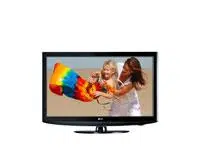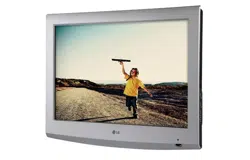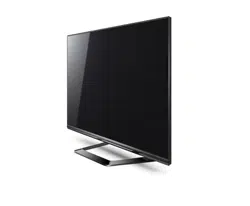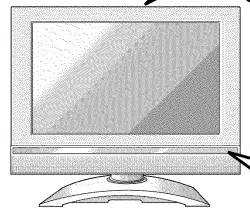

LCD
ColorTelevision
OWNER'SMANUAL
MODELS : RU-17LZ20/21/22
RU-23LZ20/21/22
, before operating your set.
number of the set.
cover and quote this
require service.
Warning
CAUTION
WARNING:
TO REDUCE THE RISK OF ELECTRIC SHOCK DO NOT REMOVE COVER (OR BACK). NO USER
SERVICEABLE PARTS INSIDE. REFER TO QUALIFIED SERVICE PERSONNEL.
The lightning flash with arrowhead symbol, within an equilateral triangle, is intended to alert the user to
the presence of uninsulated "dangerous voltage" within the product's enclosure that may be of suffi-
cient magnitude to constitute a risk of electric shock to persons.
The exclamation point within an equilateral triangle is intended to alert the user to the presence of
important operating and maintenance (servicing) instructions in the literature accompanying the appli-
ance.
WARNING:
TO PREVENT FiRE OR SHOCK HAZARDS, DO NOT EXPOSE THIS PRODUCT TO RAIN OR MOISTURE.
NOTE TO CABLE/TV INSTALLER:
This reminder is provided to call the CATV system installer's attention to Article 820-40 of the National Electric
Code (U.S.A.). The code provides guidelines for proper grounding and, in particular, specifies that the cable
ground shall be connected to the grounding system of the building, as close to the point of the cable entry as prac-
tical.
REGULATORY INFORMATION
This equipment has been tested and found to comply with the limits for a Class B digital device, pursuant to Part
15 of the FCC Rules. These limits are designed to provide reasonable protection against harmful interference in
a residential installation. This equipment generates, uses and can radiate radio frequency energy and, if not
installed and used in accordance with the instructions, may cause harmful interference to radio communications.
However, there is no guarantee that interference will not occur in a particular installation. If this equipment does
cause harmful interference to radio or television reception, which can be determined by turning the equipment off
and on, the user is encouraged to try to correct the interference by one or more of the following measures:
- Reorient or relocate the receiving antenna.
- Increase the separation between the equipment and receiver.
- Connect the equipment into an outlet on a circuit different from that to which the receiver is connected.
- Consult the dealer or an experienced radie/TV technician for help.
Any changes or modifications not expressly approved by the party responsible for compliance could void the
user's authority to operate the equipment.
CAUTION:
Do not attempt to modifythis product in any way without written authorization from LG EIectronicsCorporation.
Unauthorized modification could void the user's authority to operate this product.
2
SafetyInstructions
S
Important safeguards for you and your new product
Your product has been manufactured and tested with your safety in mind. However, improper use can result in potential elec-
trical shock or fire hazards. To avoid defeating the safeguards that have been built into your new product, please read and
observe the following safety points when installing and using your new product, and save them for future reference.
Observing the simple precautions discussed in this booklet can help you get many years of enjoyment and safe operation
that are built into your new product.
This product complies with all applicable U.S. Federal safety requirements, and those of the Canadian Standards
Association.
1. Read Instructions 9. Attachments
All the safety and operating instructions should be read Do not use attachments not recommended by the product
before the product is operated, manufacturer as they may cause hazards.
2. Follow Instructions
All operating and use instructions should be followed.
3. Retain Instructions
The safety and operating instructions should be retained for
future reference.
4, Heed Warnings
All warnings on the product and in the operating instructions
should be adhered to.
10. Ventilation
Slots and openings in the cabinet are provided for ventilation
and to ensure reliable operation of the product and to protect
it from overheating, and these openings must not be blocked
or covered. The openings should never be blocked by plac-
ing the product on a bed, sofa, rug, or other similar surface.
This product should not be placed in a built-in installation
such as a bookcase or rack unless proper ventilation is pro-
vided or the manufacturer's instructions have been adhered
to.
5. Cleaning
Unplug this product from the wail outlet before cleaning. Do
not use liquid cleaners or aerosol cleaners. Use a damp
cloth for cleaning.
6. Water and Moisture
Do not use this product near water, for example, near a bath
tub, wash bowl, kitchen sink, or laundry tub, in a wet base-
ment, or near a swimming pool.
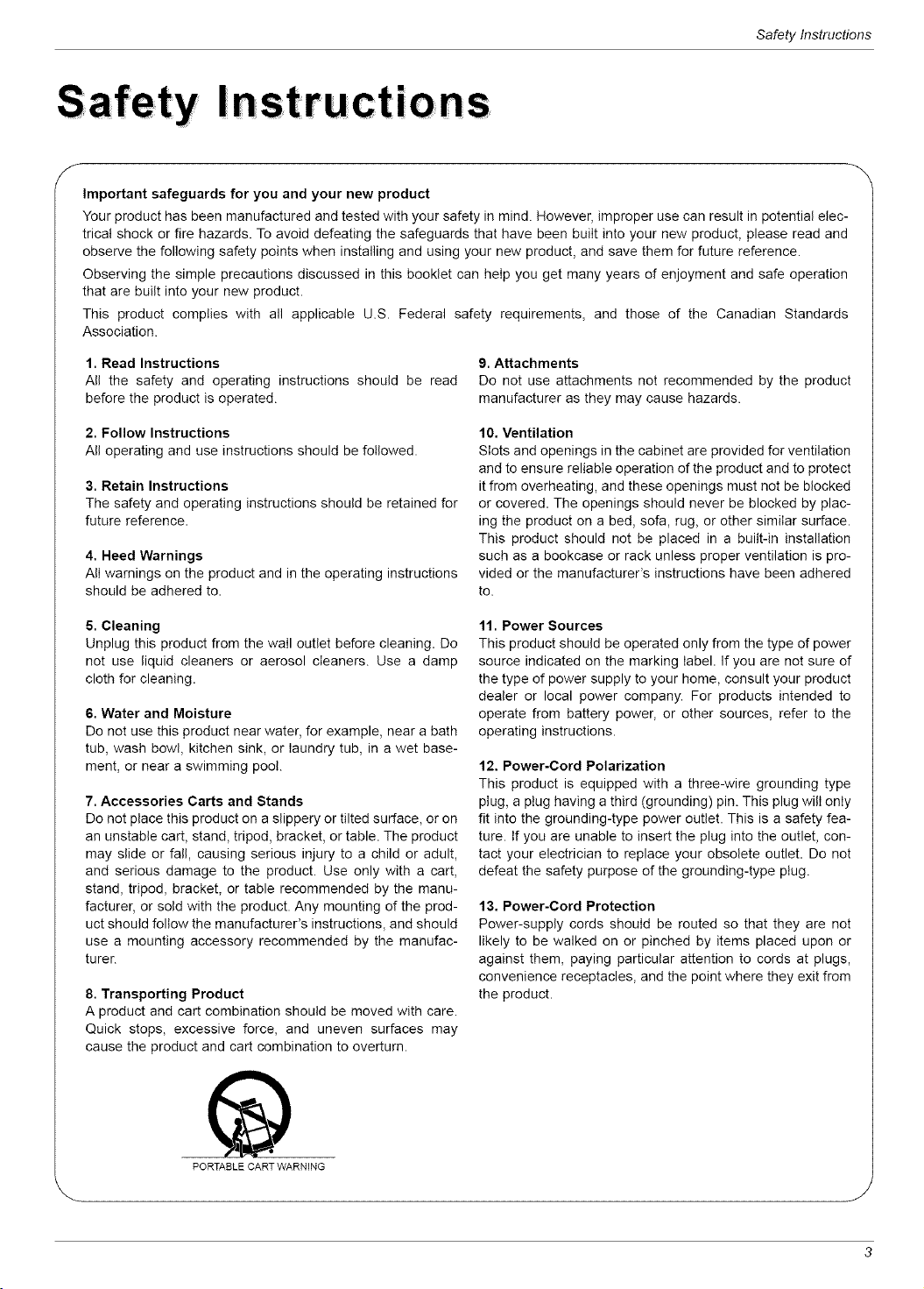
7. Accessories Carts and Stands
Do not place this product on a slippery or tilted surface, or on
an unstable cart, stand, tripod, bracket, or table. The product
may slide or fall, causing serious injury to a child or adult,
and serious damage to the product. Use only with a cart,
stand, tripod, bracket, or table recommended by the manu-
facturer, or sold with the product. Any mounting of the prod-
uct should follow the manufacturer's instructions, and should
use a mounting accessory recommended by the manufac-
turer.
8. Transporting Product
A product and cart combination should be moved with care.
Quick stops, excessive force, and uneven surfaces may
cause the product and cart combination to overturn.
PORTABLE CART WARNING
11. Power Sources
This product should be operated only from the type of power
source indicated on the marking label. If you are not sure of
the type of power supply to your home, consult your product
dealer or local power company. For products intended to
operate from battery power, or other sources, refer to the
operating instructions.
12, Power-Cord Polarization
This product is equipped with a three-wire grounding type
plug, a ptug having a third (grounding) pin. This plug will only
fit into the grounding-type power outlet. This is a safety fea-
ture. If you are unable to insert the plug into the outlet, con-
tact your electrician to replace your obsolete outlet. Do not
defeat the safety purpose of the grounding-type plug.
13, Power-Cord Protection
Power-supply cords should be routed so that they are not
likely to be walked on or pinched by items placed upon or
against them, paying particular attention to cords at plugs,
convenience receptacles, and the point where they exit from
the product.
j
3
SafetyInstructions
Safety Instruct io ns co ntinued
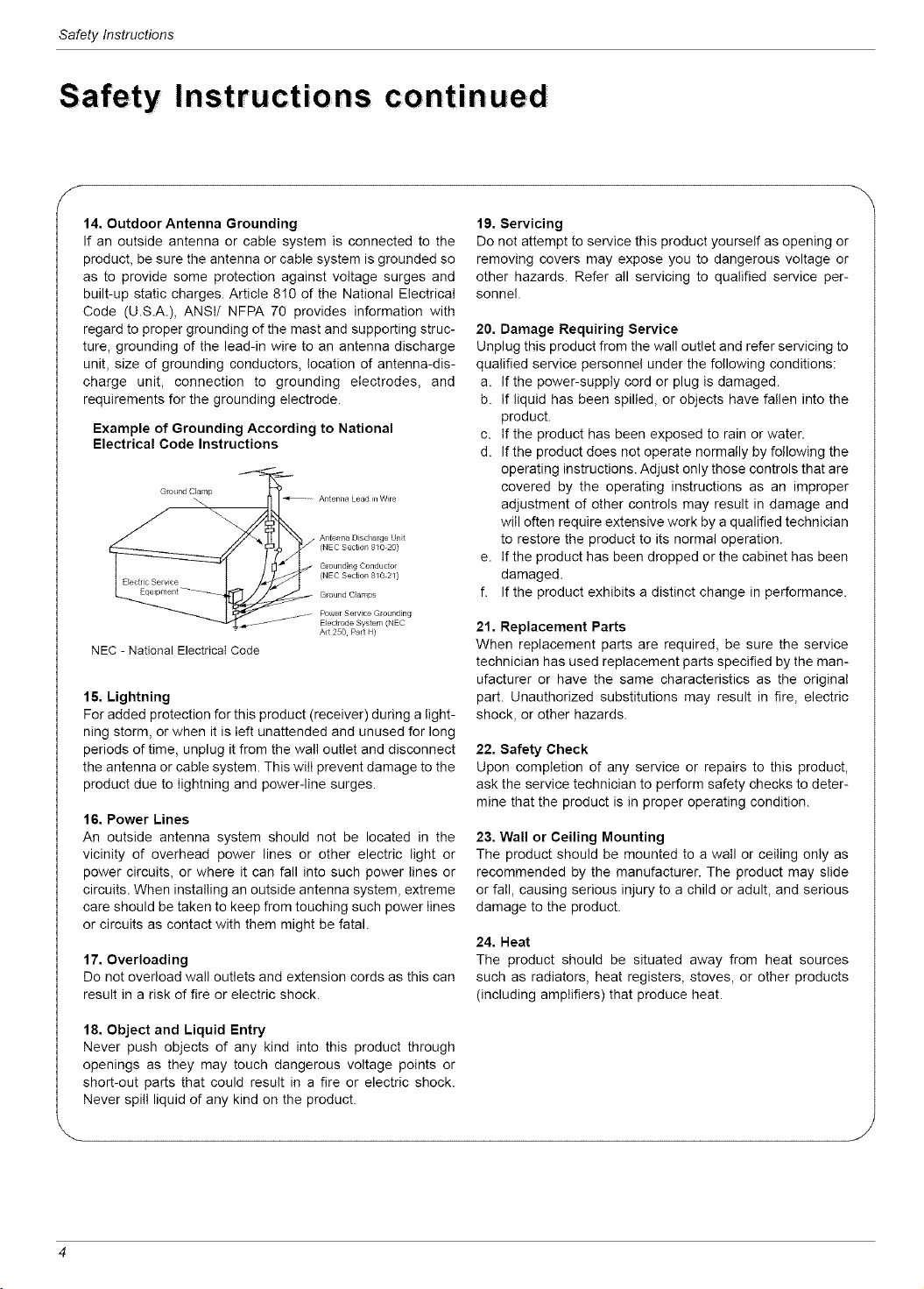
14. Outdoor Antenna Grounding
If an outside antenna or cable system is connected to the
product, be sure the antenna or cable system is grounded so
as to provide some protection against voltage surges and
built-up static charges. Article 810 of the National Electrical
Code (U.S.A.), ANSI/ NFPA 70 provides information with
regard to proper grounding of the mast and supporting struc-
ture, grounding of the lead-in wire to an antenna discharge
unit, size of grounding conductors, location of antenna-dis-
charge unit, connection to grounding electrodes, and
requirements for the grounding electrode.
Example of Grounding According to National
Electrical Code Instructions
GigLrnd Clamp
_ _- Antenna Leadin Wire
I (NEC SectioE, 810 20)
Grounding Conductor
(NEC Section 810 2I)
Ground CJamps
__ -- Power Sel vice Grounding
Electrode System (NEC
A_t 250 Part H)
NEC - National Electrical Code
15, Lightning
For added protection for this product (receiver) during a light-
ning storm, or when it is left unattended and unused for long
periods of time, unplug itfrom the wall outlet and disconnect
the antenna or cable system. This will prevent damage to the
product due to lightning and power-line surges.
16. Power Lines
An outside antenna system should not be located in the
vicinity of overhead power lines or other electric light or
power circuits, or where it can fall into such power lines or
circuits. When installing an outside antenna system, extreme
care should be taken to keep from touching such power lines
or circuits as contact with them might be fatal.
17. Overloading
Do not overload wall outlets and extension cords as this can
result in a risk of fire or electric shock.
18, Object and Liquid Entry
Never push objects of any kind into this product through
openings as they may touch dangerous voltage points or
short-out parts that could result in a fire or electric shock.
Never spill liquid of any kind on the product.
19, Servicing
Do not attempt to service this product yourself as opening or
removing covers may expose you to dangerous voltage or
other hazards. Refer all servicing to qualified service per-
sonnel.
20. Damage Requiring Service
Unplug this product from the wall outlet and refer servicing to
qualified service personnel under the following conditions:
a. If the power-supply cord or plug is damaged.
b. If liquid has been spilled, or objects have fallen into the
product.
c. If the product has been exposed to rain or water.
d. If the product does not operate normally by following the
operating instructions. Adjust only those controls that are
covered by the operating instructions as an improper
adjustment of other controls may result in damage and
will often require extensive work by a qualified technician
to restore the product to its normal operation.
e. If the product has been dropped or the cabinet has been
damaged.
f. If the product exhibits a distinct change in performance.
21. Replacement Parts
When replacement parts are required, be sure the service
technician has used replacement parts specified by the man-
ufacturer or have the same characteristics as the original
part. Unauthorized substitutions may result in fire, electric
shock, or other hazards.
22. Safety Check
Upon completion of any service or repairs to this product,
ask the service technician to perform safety checks to deter-
mine that the product is in proper operating condition.
23. Wall or Ceiling Mounting
The product should be mounted to a wail or ceiling only as
recommended by the manufacturer. The product may slide
or fall, causing serious injury to a child or adult, and serious
damage to the product.
24, Neat
The product should be situated away from heat sources
such as radiators, heat registers, stoves, or other products
(including amplifiers) that produce heat.
Contents
Warnings ..................................... 2
Safety Instructions ............................. 3-4
Introduction
Controls and Connection Options .......... 6-7
Remote Control Key Functions .............. 8
Installation
Accessories / Power Connections ............ 9
Kensington Security System ................ 9
Installation Instruction ...................... 10
External Equipment Connections .......... 11-!4
Antenna Connection ..................... 11
VCR Setup ............................ 12
Cable TV Setup ........................ !2
External AN Source Setup ................ 12
DVD Setup ............................ 13
DTV Setup ............................ 13
Using Headphones ...................... 13
PC Setup ............................. 14
Operation
TV Operation Overview .................... !5
Menu Language Selection .................. 15
Channel Menu Options
Memorizing the Channels with EZ Scan ...... 16
Add/Delete Channels with Ch.edit ........... 16
Fine Tuning Adjustment .................. 16
Favorite Channels Setup .................. 16
Picture Menu Options
EZ Video ............................. 17
Manual Picture Control ................... 17
Auto Color Control Adjustment ............. 17
Manual Color Temperature Control .......... 18
DRP (Digital Reality Picture) ............... 18
Picture Format Setup .................... 18
Sound Menu Options
EZ Audio ............................. 19
Equalizer Adjustments ................... 19
Sound Balance ......................... !9
AVL (Auto Volume Leveler) ................ 19
Sound Selection in PC mode .............. 20
Stereo/SAP Broadcasts Setup ............. 20
Time Menu Options
Auto Clock Setup ....................... 21
Manual Clock Setup ..................... 21
On/Off Timer Setup ..................... 22
Sleep Timer Setup ...................... 22
Special Menu Options
Closed Captions ........................ 23
Captions .............................. 24
Caption/Text ........................... 24
Key Lock ............................. 24
Auto Off .............................. 24
Lock Menu Options
Lock Menu Setup ....................... 26
RGB-PC Menu Options
Auto Config. Adjustment .................. 27
Horizontal/Vertical Position Adjustments ...... 27
Phase/Clock Adjustments ................. 27
PIP (Picture-in-Picture) Feature
Watching PIP/Double Window .............. 28
TV Program Selection for PIP .............. 28
Using PiP Still Function .................. 28
PIP Size .............................. 28
Moving the PIP ......................... 28
Swapping the PiP ....................... 29
Selecting an Input Signal Source for PiP ...... 29
POP (Picture-out-of-Picture: Channel Scan) ...29
Troubleshooting Checklist ...................... 30
Maintenance ................................. 31
Product Specifications ......................... 32
Your LG Limited Warranty .................... 35~3G
After reading this manual, keep it handy for future reference.
Introduction
Introduction
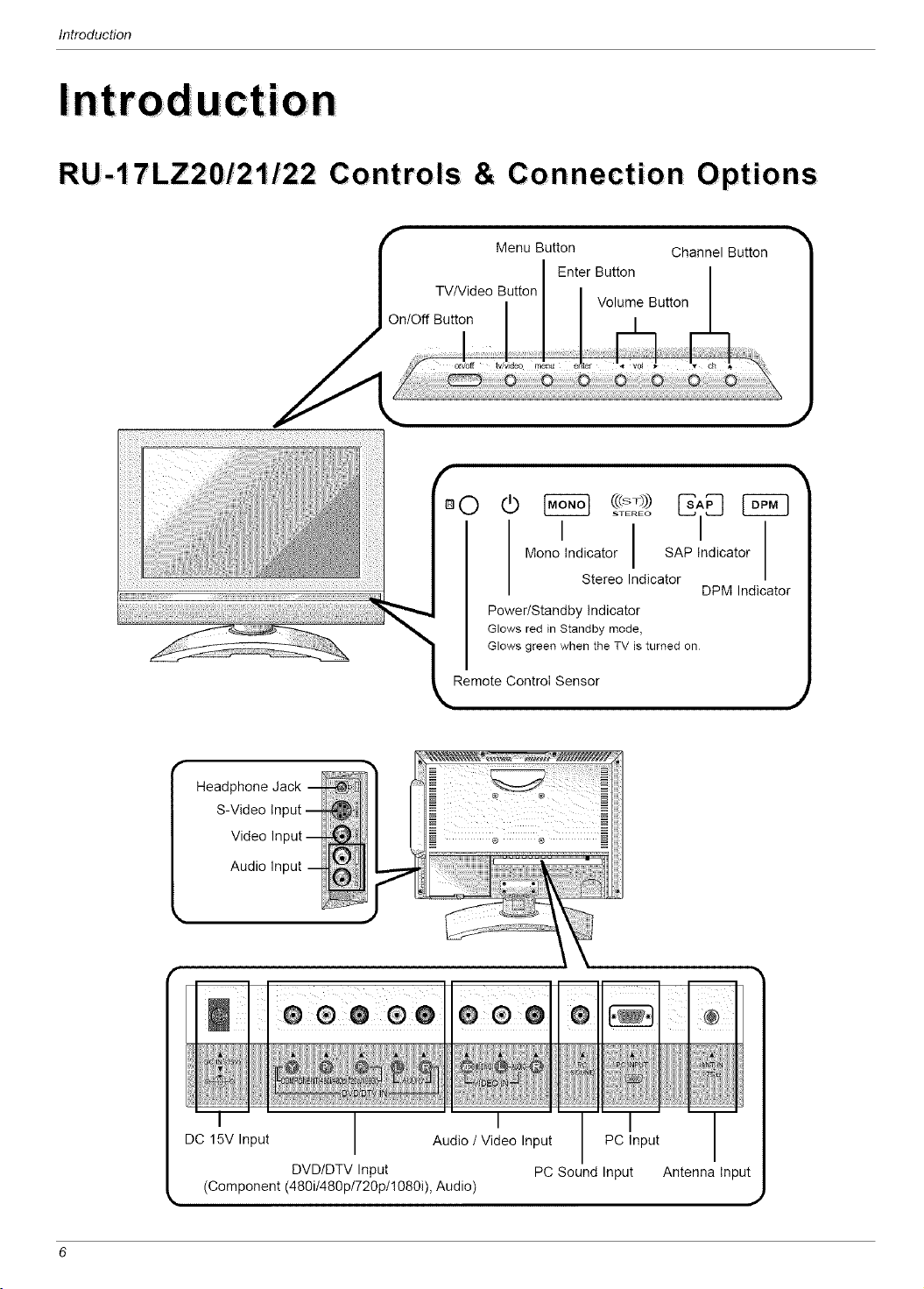
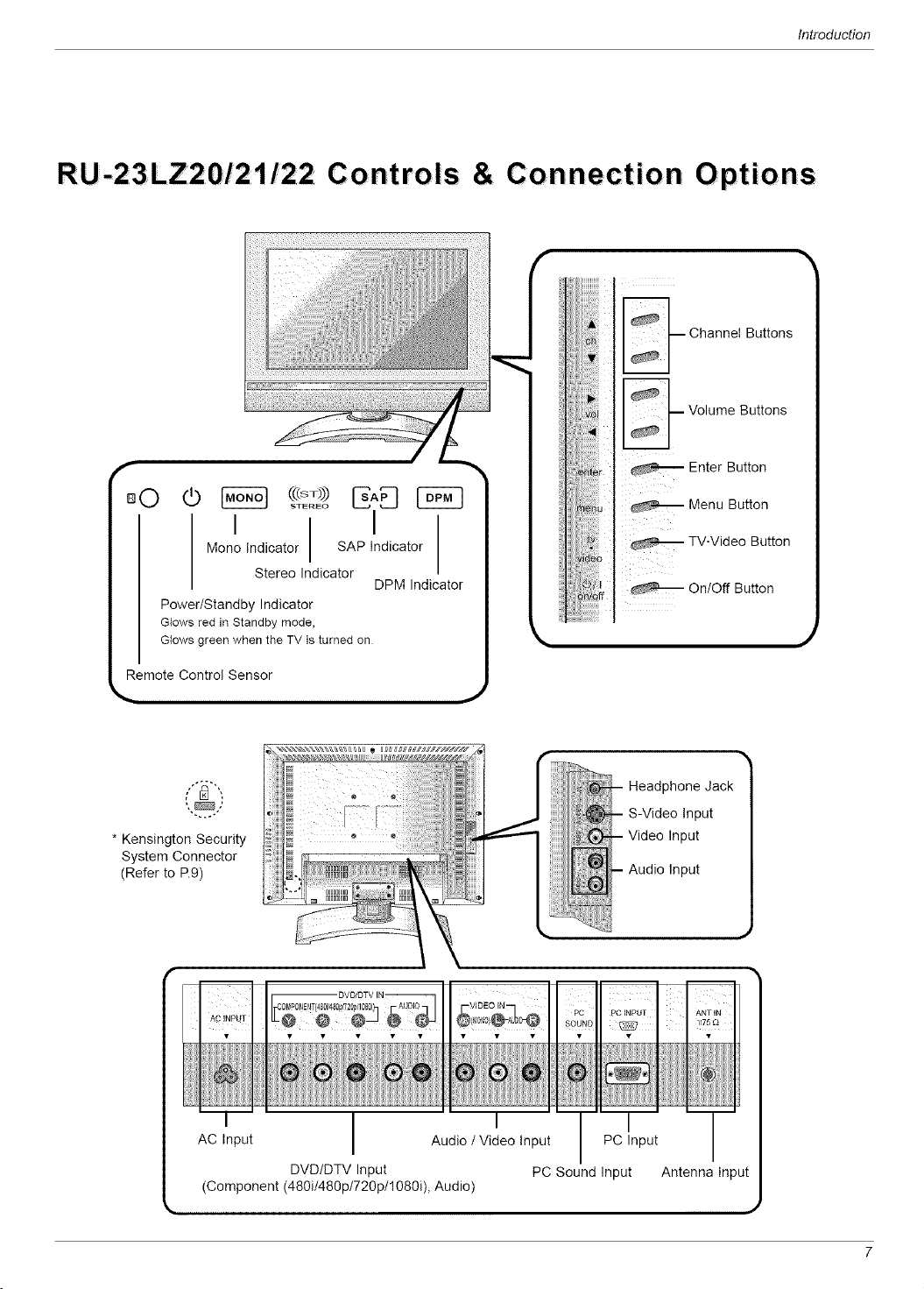
RU-17 LZ20/21 /2 2 Co ntroIs & Co nnection Options
Menu Button
Channel Button
O
0 _ _ _iB !
' I
Mono Indicator SAP Indicator
Stereo Indicator
DPM Indicator
Power/Standby Indicator
Glows red JnStandby mode,
Glows greenwhen the TV isturned on
Remote Control Sensor
Headphone Jack --
S-Video Input-
Video Input-
Audio Input --
I
DC 15V Input Audio/Video Input PC Input
DVD/DTV Input PC Sound Input Antenna Input
(Component (480it480p/720p/1080i), Audio)
)
Introduction
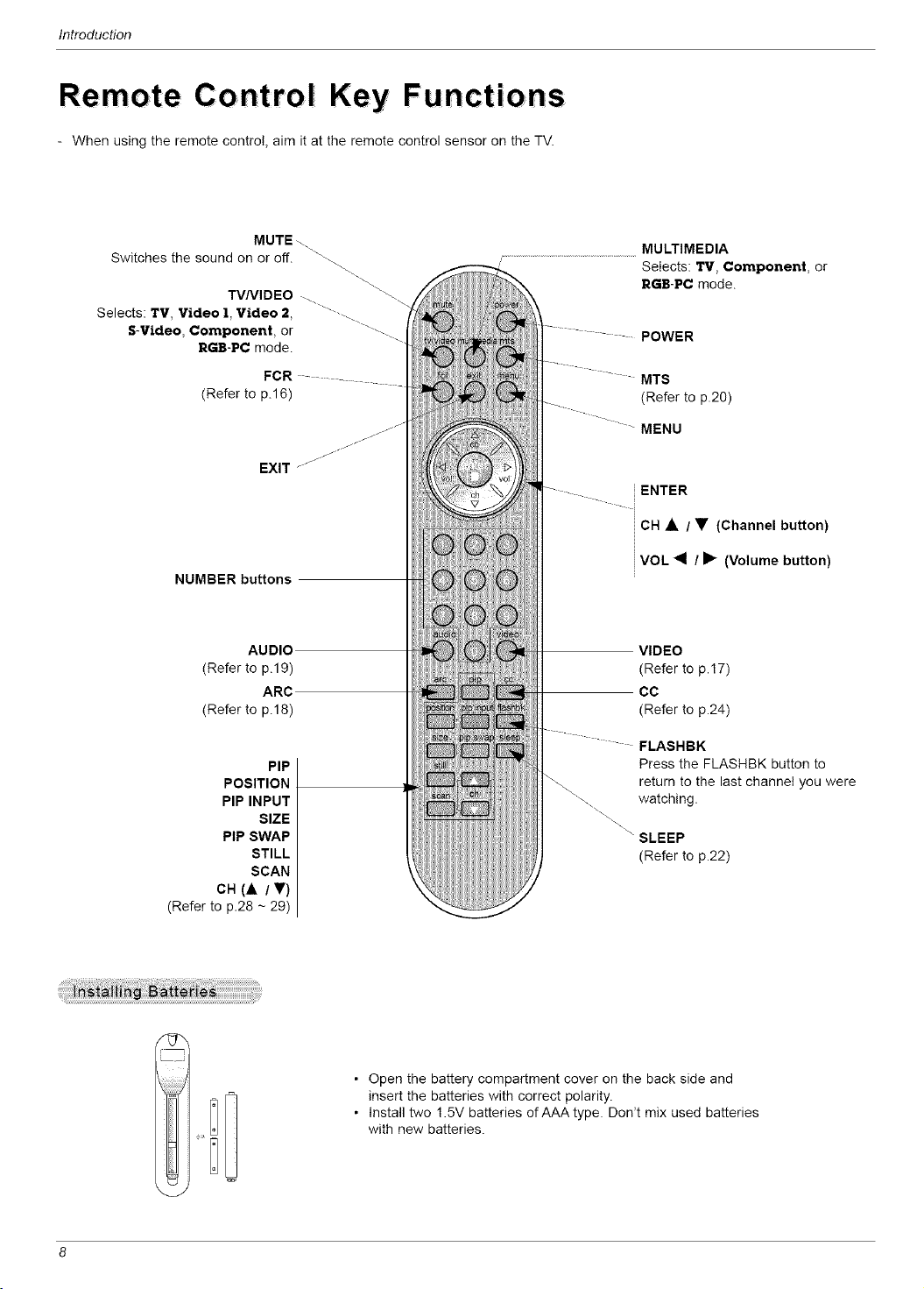
RU-23LZ20/21 /2 2 Cont roIs & Co nnect ion O ptions
i I
Mono Indicator SAP Indicator
Stereo Indicator
DPM Indicator
Power/Standby Indicator
Glows red in Standbymode,
Glows green when the TV is turned on
Remote Control Sensor
,J
m
-- Channel Buttons
rot Volume Buttons
_n_r Enter Button
_u _ Menu Button
TV-Video Button
On/Off Button
* Kensington Security
System Connector
(Refer to P.9)
I IAC Input Audio / Video Input PC Input
DVD/DTV Input PC Sound Input
(Component (480i/480p/720p/1080i), Audio)
Antenna Input
J
Introduction
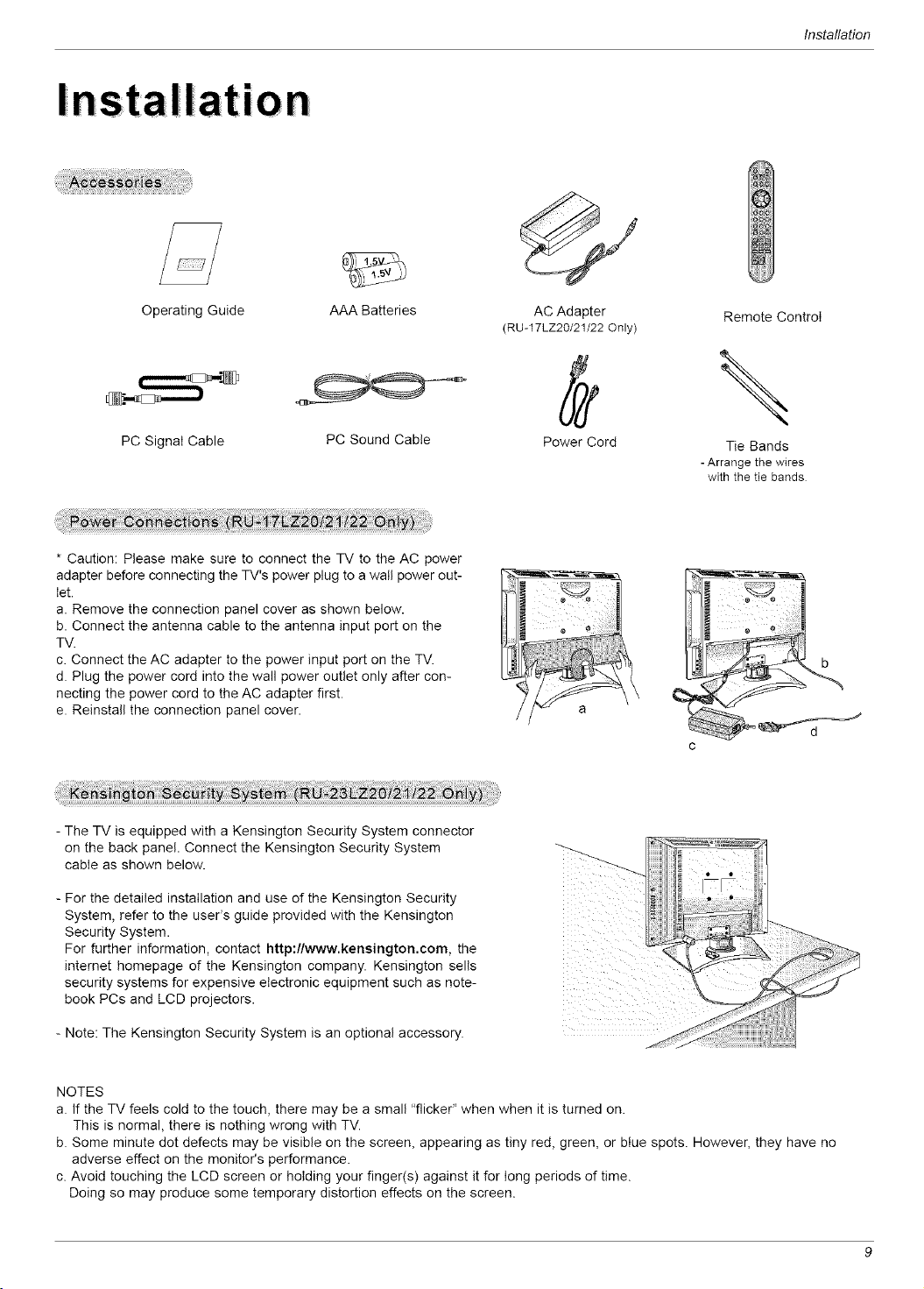
Re mote Co ntroI Key Funct io ns
- When using the remote contro!, aim it at the remote control sensor on the TV.
MUTE\
Switches the sound on or off. "-.\
-\
TV/VIDEO "\
Selects: TV, Video 1, Video 2, "---.
S-Video, Component, or
RGB-PC mode.
FCR ....
(Refer to p.16)
NUMBER buttons
AUDIO
(Refer to p.19)
ARC
(Refer to p.18)
PIP
POSITION
PIP INPUT
SIZE
PIP SWAP
STILL
SCAN
CH (& / V)
(Refer to p.28 - 29)
MULTIMEDIA
'......................................................................................Selects: TV, Component, or
RGB-PC mode.
POWER
MTS
(Refer to p.2O)
MENU
ENTER
_CH • / • (Channel button)
VOL _1 / I_ (Volume button)
VIDEO
(Refer to p.17)
CC
(Refer to p.24)
FLASHBK
Press the FLASHBK button to
return to the last channel you were
watching.
SLEEP
(Refer to p.22)
• Open the battery compartment cover on the back side and
insert the batteries with correct polarity.
• Install two 1.5V batteries of AAA type. Don't mix used batteries
with new batteries.
Installation
I
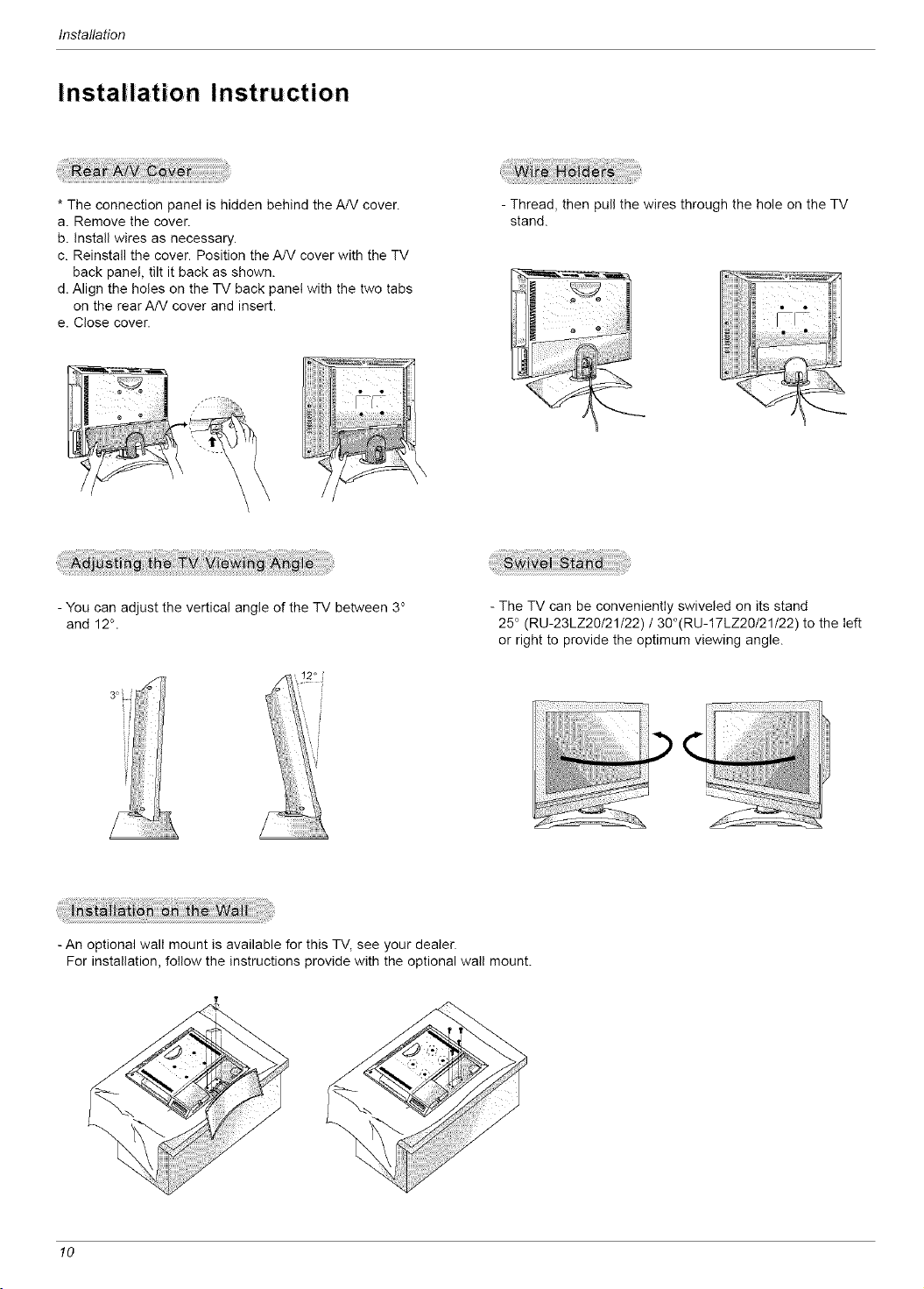
Operating Guide
PC Signal Cable
AAA Batteries
PC Sound Cable
AC Adapter
(RU-17LZ20/21/22 Only)
Power Cord
Remote Controi
\
Tie Bands
- Arrange the wires
with thetie bands
* Caution: Please make sure to connect the TV to the AC power
adapter before connecting the TV's power plug to a watl power out-
Iet.
a. Remove the connection panel cover as shown below.
b. Connect the antenna cable to the antenna input port on the
TV.
c. Connect the AC adapter to the power input port on the TV.
d. Plug the power cord into the wall power outlet only after con-
necting the power cord to the AC adapter first.
e. Reinstall the connection panel cover.
The TV is equipped with a Kensington Security System connector
on the back panel. Connect the Kensington Security System
cable as shown below.
- For the detailed installation and use of the Kensington Security
System, refer to the user's guide provided with the Kensington
Security System.
For further information, contact http://www.kensington.com, the
internet homepage of the Kensington company. Kensington sells
security systems for expensive electronic equipment such as note-
book PCs and LCD projectors.
- Note: The Kensington Security System is an optional accessory.
NOTES
a. If the TV feels cold to the touch, there may be a small "flicker" when when it is turned on.
This is normal, there is nothing wrong with TV.
b. Some minute dot defects may be visible on the screen, appearing as tiny red, green, or btue spots. However, they have no
adverse effect on the monitor's performance.
c. Avoid touching the LCD screen or holding your finger(s) against it for Iong periods of time.
Doing so may produce some temporary distortion effects on the screen.
Installation
Installation Instruction
* The connection panei is hidden behind the A/V cover.
a. Remove the cover.
b. install wires as necessary.
c. Reinstall the cover. Position the A/V cover with the TV
back panel, tilt it back as shown.
d. Align the holes on the TV back panel with the two tabs
on the rear A/V cover and insert.
e. Close cover.
- Thread, then pull the wires through the hole on the TV
stand.
- You can adjust the vertical angle of the TV between 3°
and 12°.
- The TV can be conveniently swiveled on its stand
25° (RU-23LZ20/21t22) / 30°(RU-17LZ20/21/22) to the left
or right to provide the optimum viewing angle.
- An optional wall mount is available for this TV, see your dealer.
For installation, follow the instructions provide with the optional wail mount.
10
Installation
Ext ernaI EquiDment Connections
- This manual mainly explains the features for the RU-17LZ20/21/22.
- For optimum picture quality, adjust antenna direction.
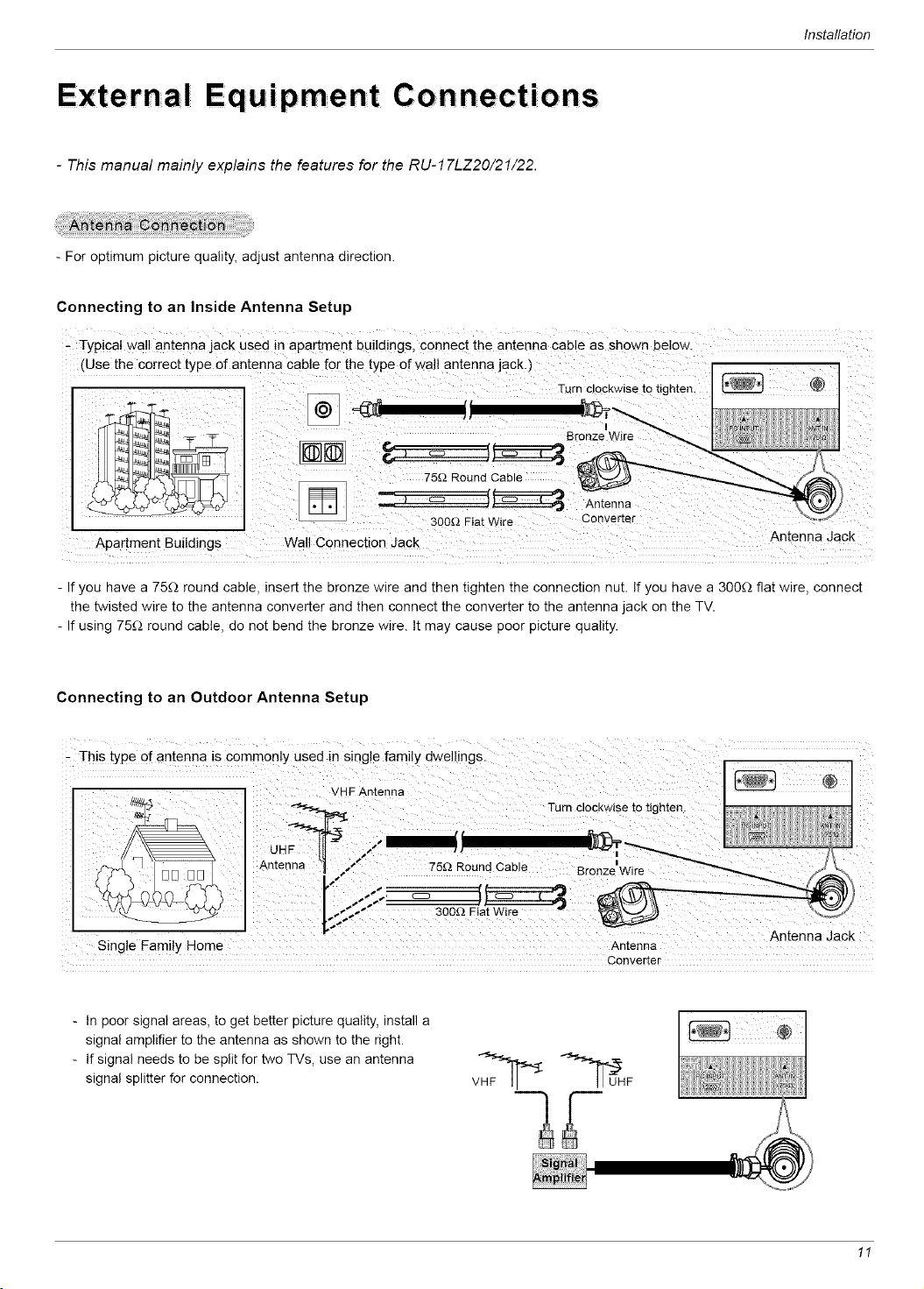
Connecting to an Inside Antenna Setup
Typica! Wa!! antenna jack Used in apartment buildings, Connect the antenna Cable as shown below.
(Use the correct type of antenna cable for the type of wall antenna jack.)
Turn c!ockwise to tighten. @
- If you have a 75£_ round cable, insert the bronze wire and then tighten the connection nut. If you have a 300£_ flat wire, connect
the twisted wire to the antenna converter and then connect the converter to the antenna jack on the TV.
- If using 75£_ round cable, do not bend the bronze wire. It may cause poor picture quality.
Connecting to an Outdoor Antenna Setup
- This type of antenna is commonly used in single family dwellings.
Single Family Home
VHFAntenna
UH _-
Antenna "_ ,,/
Turn clockwise to tighten.
Antenna
75_2Round Cable
300_._FiatWire
Antenna Jack
Converter
- In poor signal areas, to get better picture quality, install a
signal amplifier to the antenna as shown to the right.
- If signal needs to be split for two TVs, use an antenna
signal splitter for connection.
11
Installation
External Equipment Connections Continued
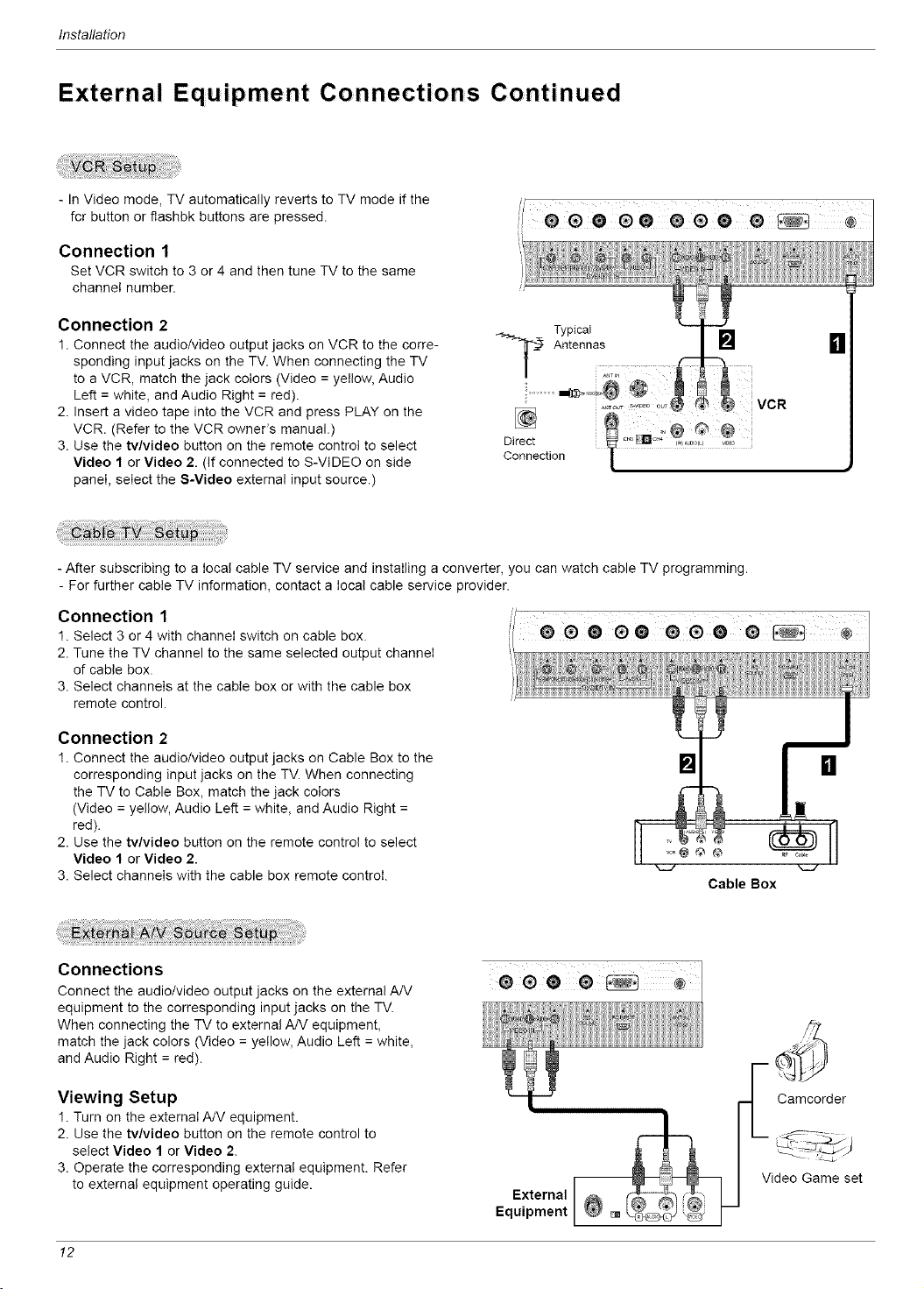
- In Video mode, TV automatically reverts to TV mode if the
fcr button or flashbk buttons are pressed.
Connection 1
Set VCR switch to 3 or 4 and then tune TV to the same
channel number.
Connection 2
1. Connect the audio/video output jacks on VCR to the corre-
sponding input jacks on the TV. When connecting the TV
to a VCR, match the jack colors (Video = yellow, Audio
Left = white, and Audio Right = red).
2. Insert a video tape into the VCR and press PLAY on the
VCR. (Refer to the VCR owner's manual.)
3. Use the tv/video button on the remote control to select
Video 1 or Video 2. (If connected to S-VIDEO on side
panel, select the S-Video external input source.)
TypicaI
"_'_ Antennas [] _1
Direct
Connection
- After subscribing to a local cable TV service and installing a converter, you can watch cable TV programming.
- For further cable TV information, contact a local cable service provider.
Connection 1
1. Select 3 or 4 with channeI switch on cable box.
2. Tune the TV channel to the same selected output channei
of cable box.
3. Select channels at the cable box or with the cable box
remote control.
Connection 2
1. Connect the audio/video output jacks on Cable Box to the
corresponding input jacks on the TV. When connecting
the TV to Cable Box, match the jack colors
(Video = yellow, Audio Left = white, and Audio Right =
red).
2. Use the tv/video button on the remote control to select
Video I or Video 2.
3. Select channels with the cable box remote control.
[] n
Cable Box
Connections
Connect the audio/video output jacks on the external AN
equipment to the corresponding input jacks on the TV.
When connecting the TV to external A/V equipment,
match the jack colors (Video = yellow, Audio Left = white,
and Audio Right = red).
Viewing Setup
1. Turn on the external A/V equipment.
2. Use the tv/video button on the remote control to
select Video 1 or Video 2.
3. Operate the corresponding external equipment. Refer
to external equipment operating guide.
External
Equipment
Camcorder
Video Game set
12
Installation
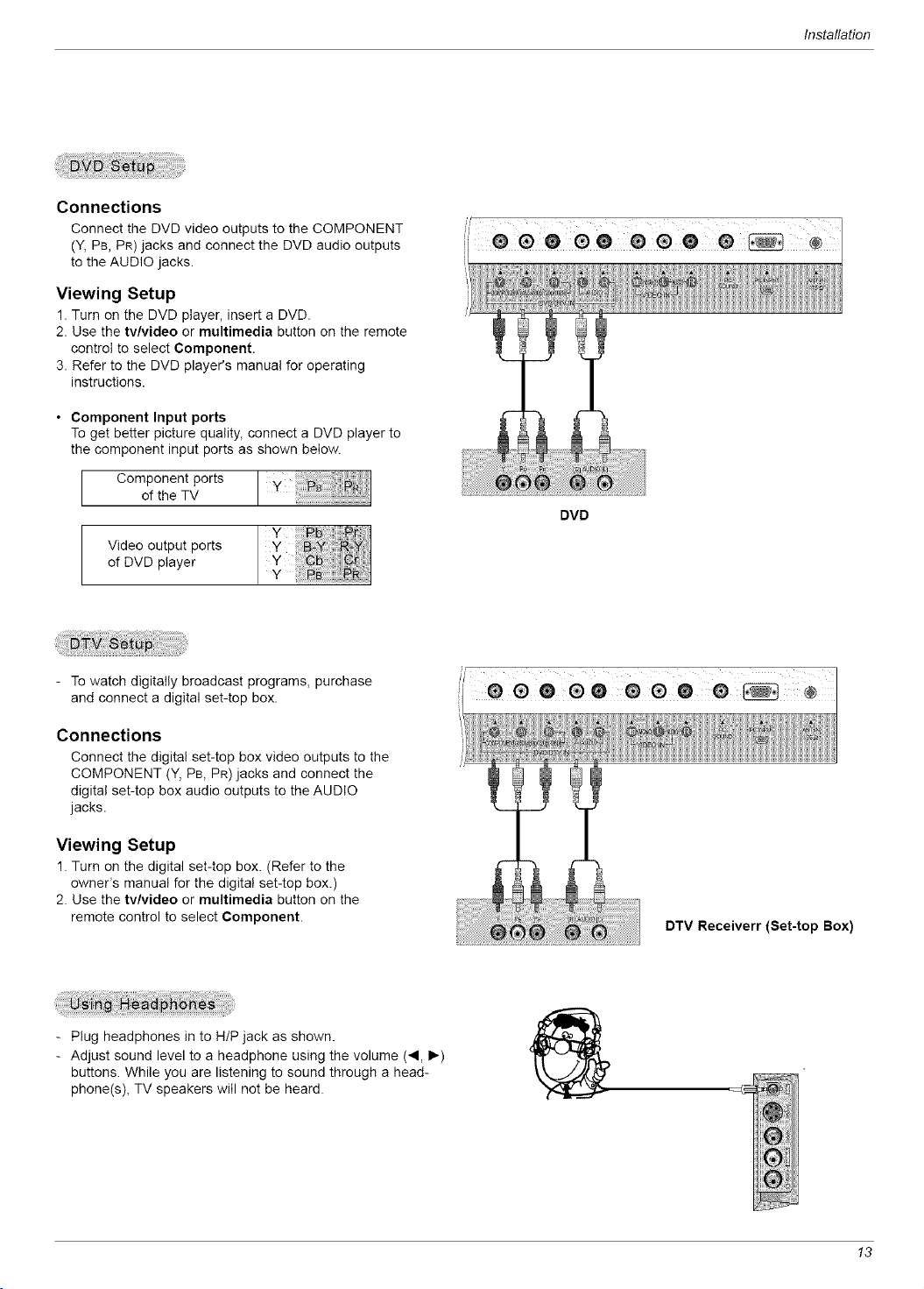
Connections
Connect the DVD video outputs to the COMPONENT
(V, PB, PR) jacks and connect the DVD audio outputs
to the AUDIO jacks.
Viewing Setup
1. Turn on the DVD player, insert a DVD.
2. Use the tv/video or multimedia button on the remote
control to select Component.
3. Refer to the DVD player's manual for operating
instructions.
• Component Input ports
To get better picture quality, connect a DVD player to
the component input ports as shown below.
Componentports y
ofthe TV
Video output ports
of DVD player
DVD
- To watch digitally broadcast programs, purchase
and connect a digital set-top box.
Connections
Connect the digital set-top box video outputs to the
COMPONENT (Y, PB, PR) jacks and connect the
digital set-top box audio outputs to the AUDIO
jacks.
Viewing Setup
1. Turn on the digital set-top box. (Refer to the
owner's manual for the digital set-top box.)
2. Use the tv/video or multimedia button on the
remote control to select Component.
//e e®e® ee®
DTV Receiverr (Set-top Box)
- Plug headphones in to H/P jack as shown.
- Adjust sound level to a headphone using the volume (._, I_)
buttons. While you are listening to sound through a head-
phone(s), TV speakers will not be heard.
13
Installation
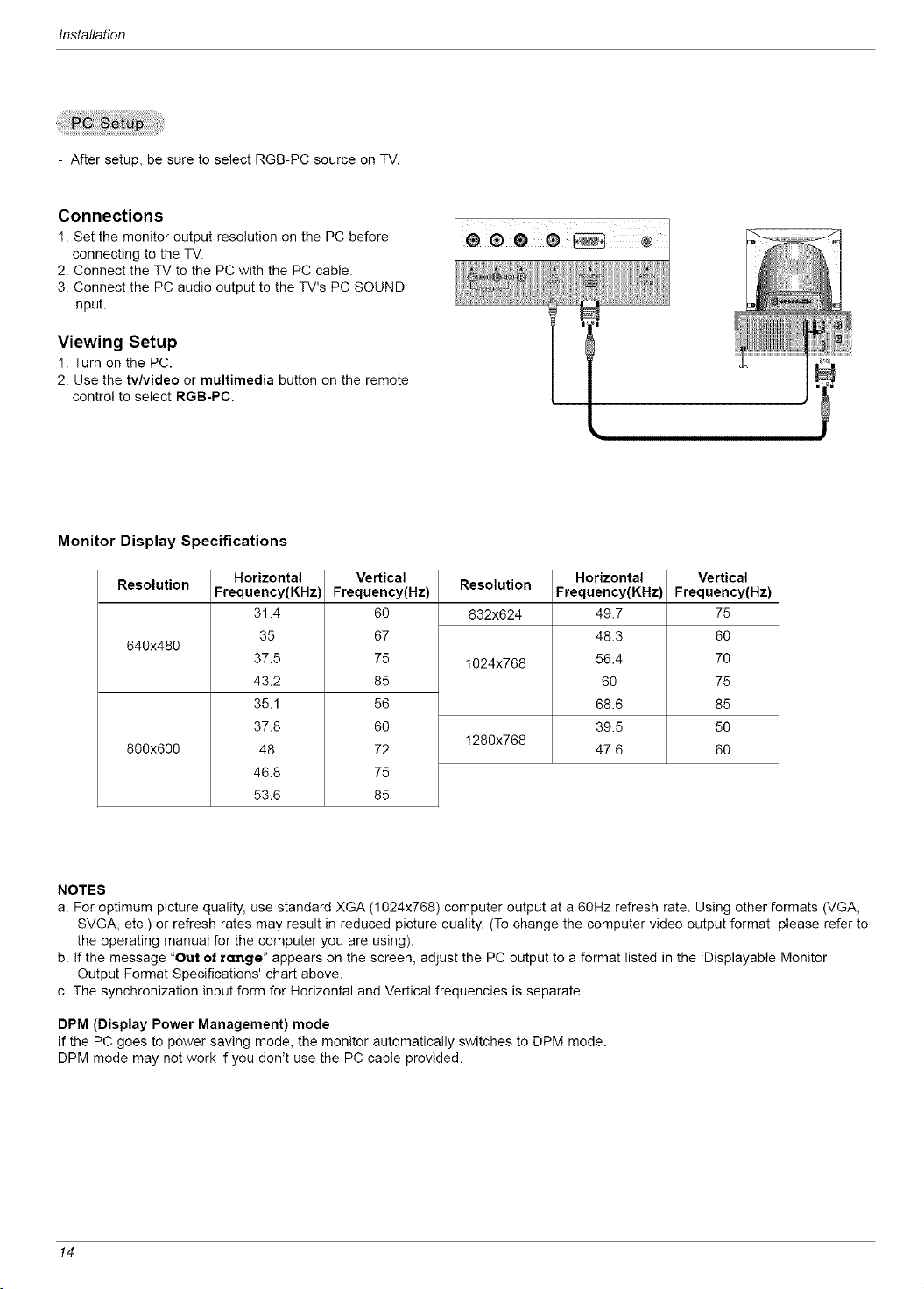
- After setup, be sure to select RGB-PC source on TV.
Connections
1. Set the monitor output resolution on the PC before
connecting to the TV.
2. Connect the TV to the PC with the PC cable.
3. Connect the PC audio output to the TV's PC SOUND
input.
Viewing Setup
1. Turn on the PC.
2. Use the tv/video or multimedia button on the remote
control to select RGB-PC.
!
Monitor Display Specifications
Resolution Resolution
832x624
640x480
800x600
Horizontal
Frequency(KHz)
31.4
35
37.5
43.2
35.1
37.8
48
46.8
53.6
Ve_ical
Frequency(Hz)
60
67
75
85
56
60
72
75
85
1024x768
1280x768
Horizontal
Frequency(KHz)
49.7
48.3
56.4
60
68.6
39.5
47.6
Vertical
Frequency(Hz)
75
6O
7O
75
85
5O
6O
NOTES
a. For optimum picture quality, use standard XGA (1024x768) computer output at a 60Hz refresh rate. Using other formats (VGA,
SVGA, etc.) or refresh rates may result in reduced picture quality. (To change the computer video output format, please refer to
the operating manual for the computer you are using).
b. If the message "Out of range" appears on the screen, adjust the PC output to a format listed in the 'Displayabte Monitor
Output Format Specifications' chart above.
c. The synchronization input form for Horizontal and Vertical frequencies is separate.
DPM (Display Power Management) mode
If the PC goes to power saving mode, the monitor automatically switches to DPM mode.
DPM mode may not work if you don't use the PC cable provided.
14
Operation
TV Operation Overview
1. First, make all equipment connections. Plug the AC Adapter into the TV, then plug the AC Adapter into a power
outlet. At this time, the TV is switched to standby mode.
• In standby mode, press the power, ch (A•), Iv/video, multimedia or number button on the remote con-
trol or on/oil, ch (A,•), tv/video located on the TV to turn the TV on.
2. Select the viewing source by pressing tv/video or multimedia repeatedly.
• Note: See page 16 if you have not auto programmed the TV to receive channels in your local broadcast area.
3. After viewing, press the power button on the remote control or on/oil located on the TV. The TV reverts to
standby mode.
NOTE
• If you want to turn the TV off, press the on/off button located on the TV. If you intend to be away on vacation,
disconnect the power plug from the wall power outlet.
Menu Language SeIect ion
- The menus can be shown on the screen in the selected language. First select your language.
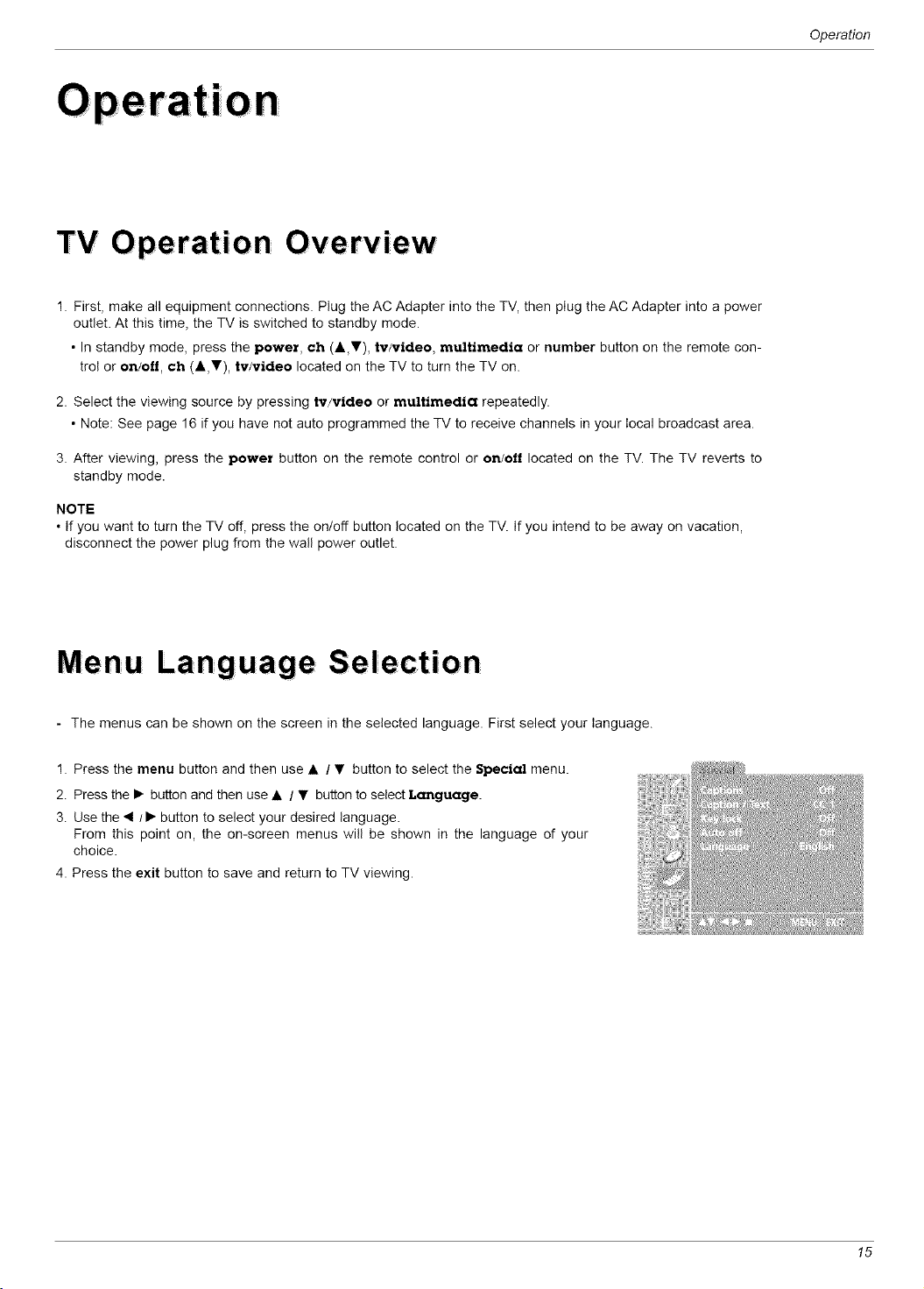
1. Press the menu button and then use • / • button to select the Special menu.
2. Press the I_ button and then use • / • button to select Language.
3. Use the _1t1_ button to select your desired language.
From this point on, the on-screen menus will be shown in the language of your
choice.
4. Press the exit button to save and return to TV viewing.
15
Operation
ChanneI Menu 0 pt ions
- For EZ scan to work, the programming source must be connected to the TV and the TV must be receiving programming signals
either over-the-air or from a cable-type service provider.
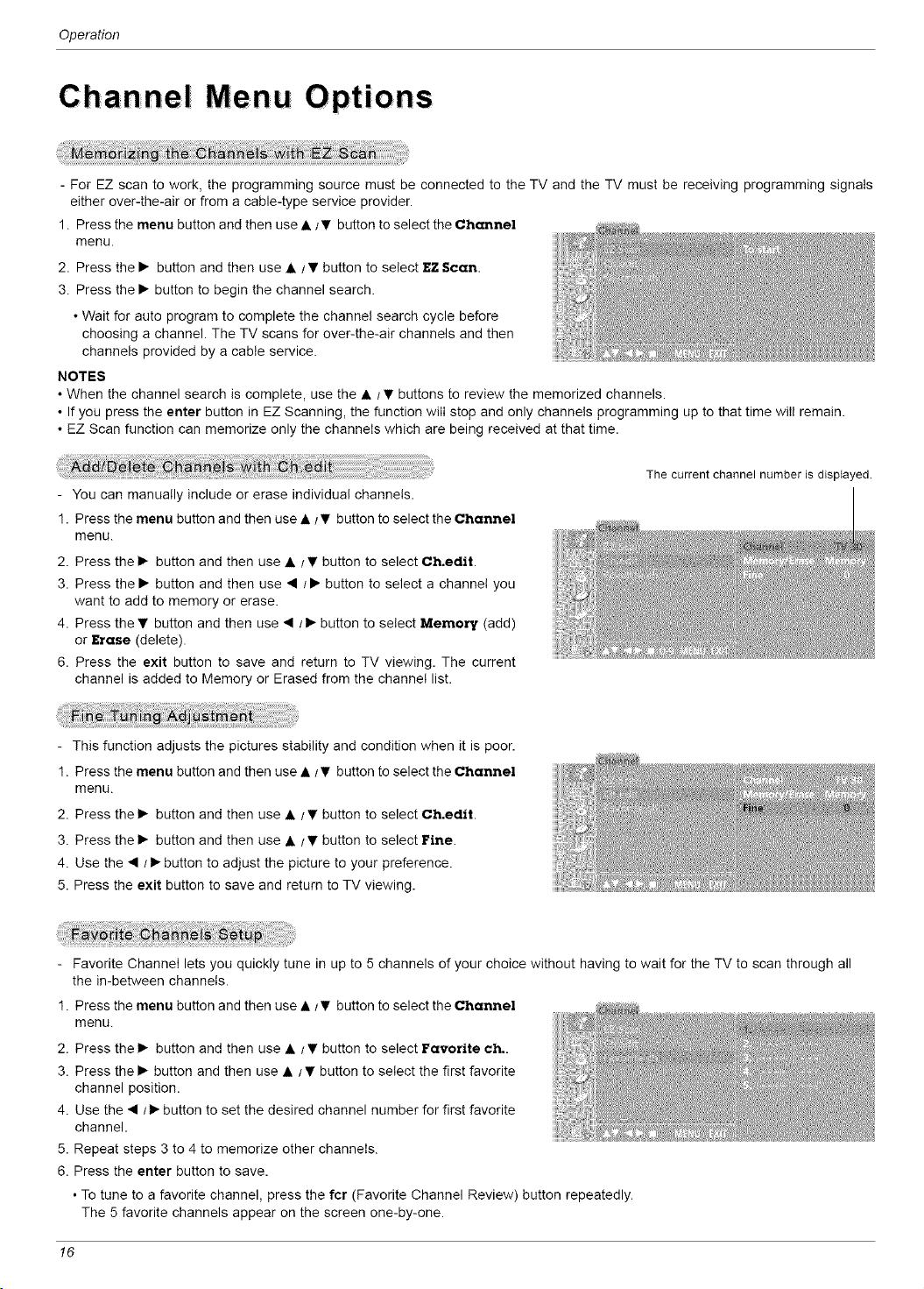
1. Press the menu button and then use • /• button to select the Channel
menu.
2. Press the • button and then use • /• button to select EZ Scan.
3. Press the • button to begin the channel search.
• Wait for auto program to complete the channel search cycle before
choosing a channel. The TV scans for over-the-air channels and then
channels provided by a cable service.
NOTES
• When the channel search is complete, use the • / • buttons to review the memorized channels.
• If you press the enter button in EZ Scanning, the function will stop and only channels programming up to that time will remain.
• EZ Scan function can memorize only the channels which are being received at that time.
- You can manually include or erase individual channels.
1. Press the menu button and then use • i• button to select the Channel
menu.
2. Press the • button and then use • / • button to select Ch.edtt.
3. Press the • button and then use • / • button to select a channel you
want to add to memory or erase.
4. Press the • button and then use • l• button to select Memory (add)
or Erase (delete).
6. Press the exit button to save and return to TV viewing. The current
channel is added to Memory or Erased from the channel list.
The current channel number is displayed
- This function adjusts the pictures stability and condition when it is poor.
1. Press the menu button and then use •/• button to select the Channel
menu.
2. Press the • button and then use • t • button to select Ch.edtt.
3. Press the • button and then use • t • button to select Fine.
4. Use the • /• button to adjust the picture to your preference.
5. Press the exit button to save and return to TV viewing.
- Favorite Channel lets you quickly tune in up to 5 channels of your choice without having to wait for the TV to scan through all
the in-between channels.
1. Press the menu button and then use •/• button to select the Channel
menu.
2. Press the • button and then use • t • button to select Favorite ch..
3. Press the • button and then use • / • button to select the first favorite
channel position.
4. Use the • t• button to set the desired channel number for first favorite
channel.
5. Repeat steps 3 to 4 to memorize other channels.
6. Press the enter button to save.
• To tune to a favorite channel, press the fcr (Favorite Channel Review) button repeatedly.
The 5 favorite channels appear on the screen one-by-one.
16
Operation
Pict ure Menu 0 pt ions
- This function adjusts the TV for the best picture appearance.
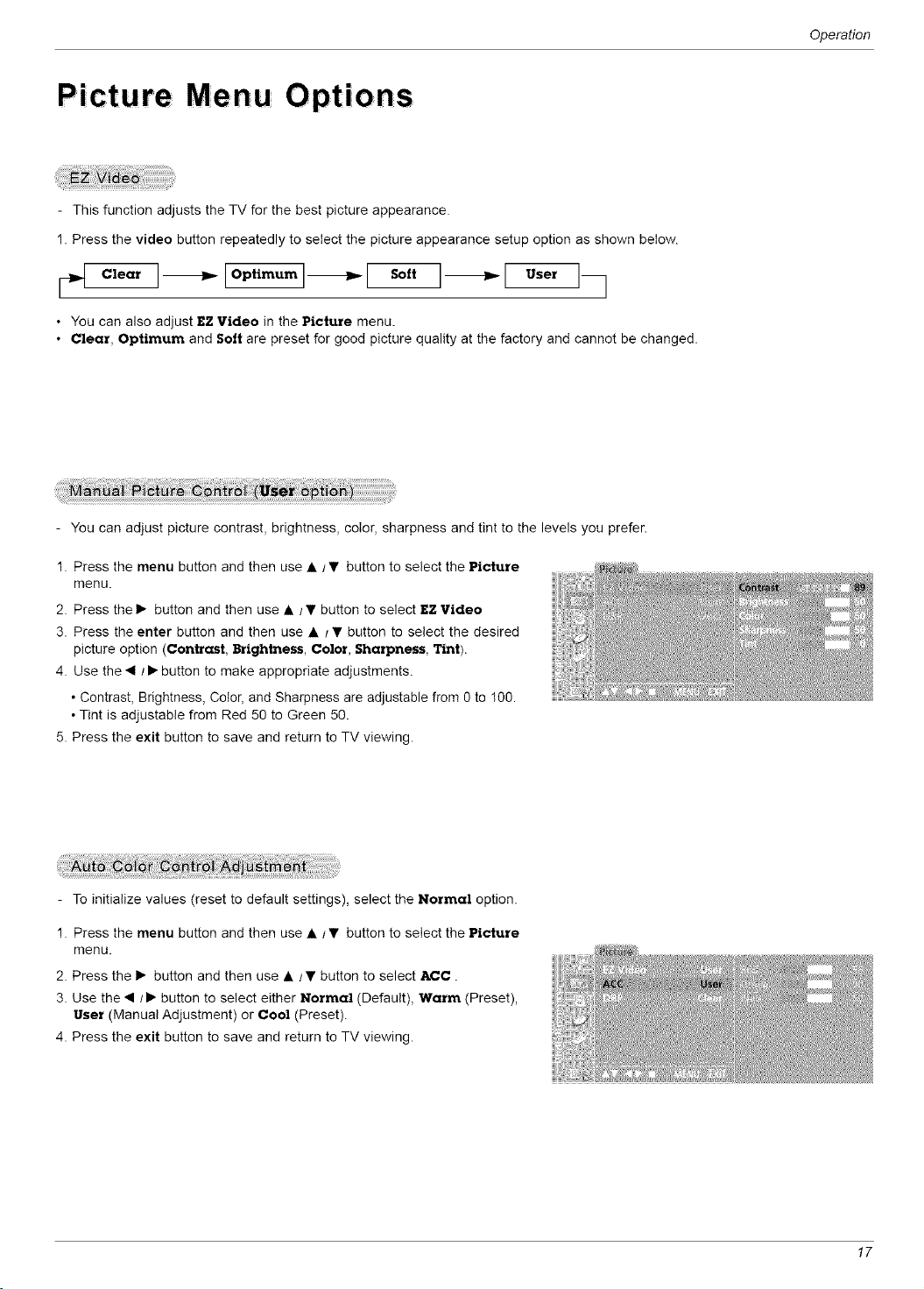
1. Press the video button repeatedly to select the picture appearance setup option as shown below.
so,tI--"[ °'°'
• You can also adjust EZ Video in the Picture menu.
• Clear, Optimum and Sott are preset for good picture quality at the factory and cannot be changed,
You can adjust picture contrast, brightness, color, sharpness and tint to the levels you prefer.
1. Press the menu button and then use •/• button to select the Picture
menu.
2. Press the • button and then use • /• button to select EZ Video
3. Press the enter button and then use • i • button to select the desired
picture option (Contrast, Brightness, Color, Sharpness, Tint).
4. Use the • i• button to make appropriate adjustments.
• Contrast, Brightness, Color, and Sharpness are adjustable from 0 to 100.
• Tint is adjustable from Red 50 to Green 50.
5. Press the exit button to save and return to TV viewing.
- To initialize values (reset to default settings), select the Normal option.
1. Press the menu button and then use • l• button to select the Picture
menu.
2. Press the • button and then use • / • button to select ACC.
3. Use the • /• button to select either Normal (Default), Warm (Preset),
User (Manual Adjustment) or Cool (Preset).
4. Press the exit button to save and return to TV viewing.
17
Operation
Picture Menu Options Continued
- You can adjust red, green, or blue to any color temperature you prefer.
1. Press the menu button and then use •/• button to select the Picture
menu.
2. Press the • button and then use • / • button to select ACC.
3. Press the enter button and then use • / • button to select Red,
Green or Blue.
4. Use the • /• button to make appropriate adjustments.
• The adjustment range of Red, Green, and Blue is 0 -100.
5. Press the exit button to save and return to TV viewing.
- Improves picture outline in dark areas.
1. Press the menu button and then use • /• button to select the Picture menu.
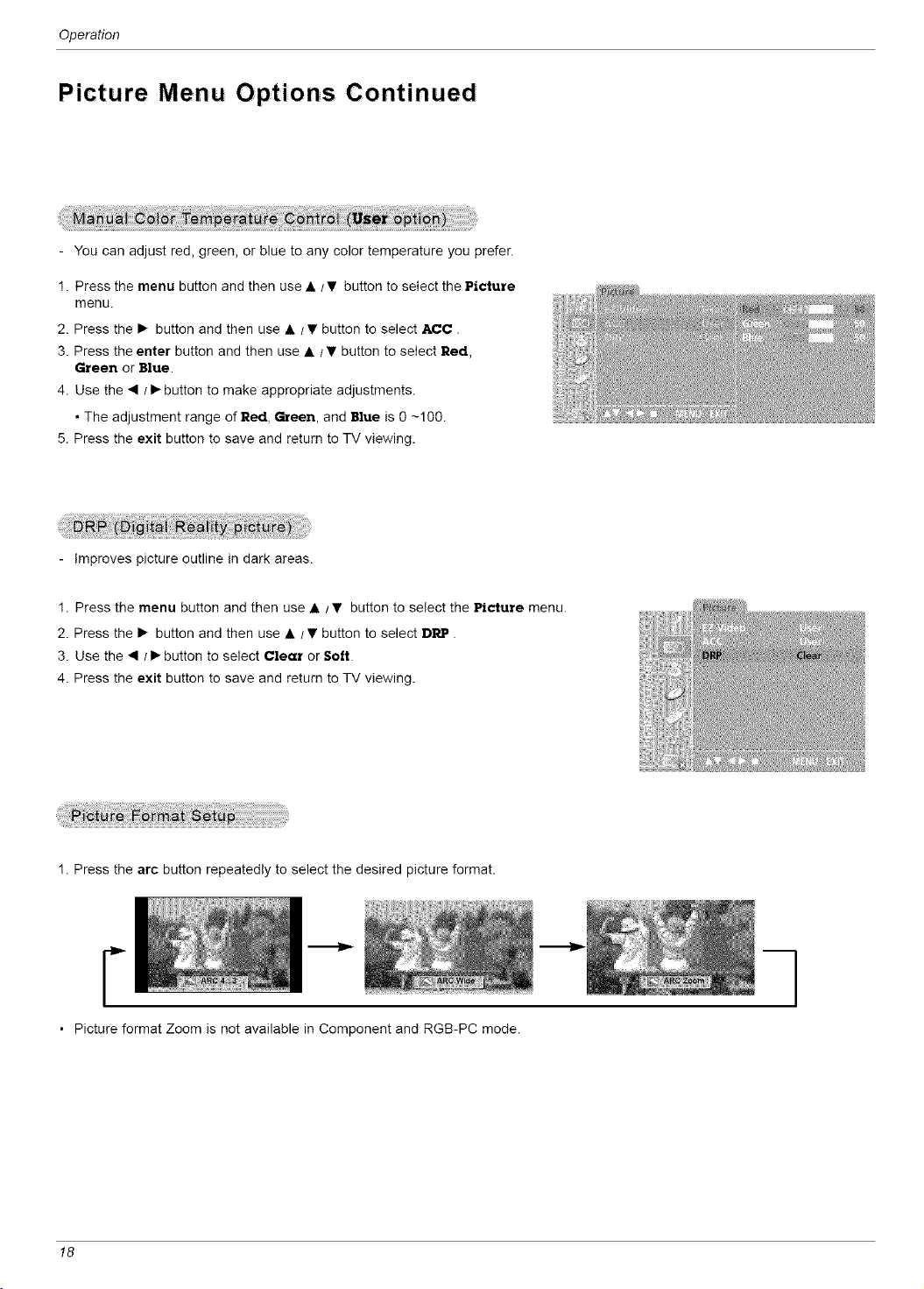
2. Press the • button and then use • / • button to select DRP.
3. Use the • /• button to select Clear or Soil.
4. Press the exit button to save and return to TV viewing.
1. Press the arc button repeatedly to select the desired picture format.
F
• Picture format Zoom is not available in Component and RGB-PC mode.
18
Operation
So und Men u 0 pti ons
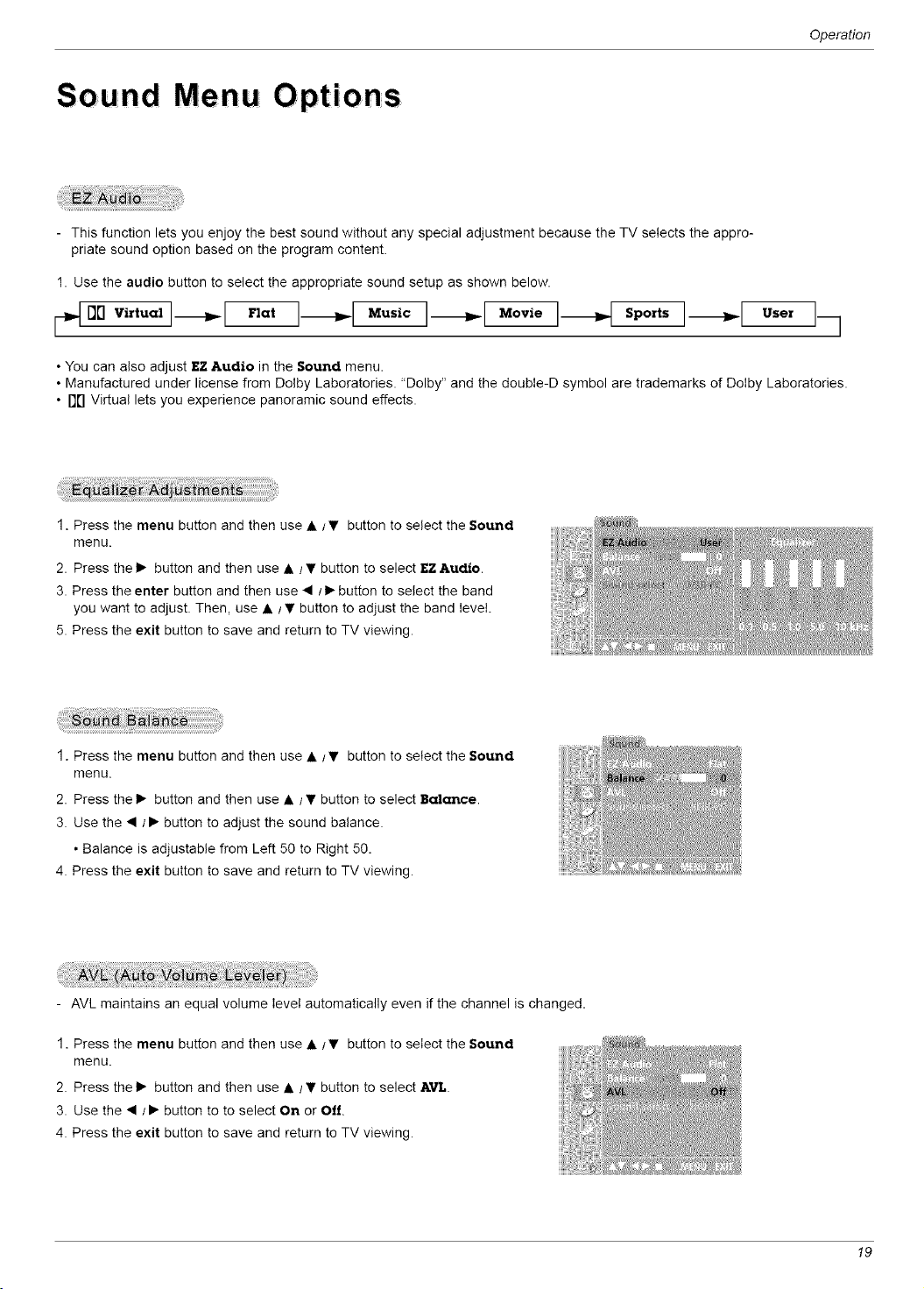
- This function lets you enjoy the best sound without any special adjustment because the TV selects the appro-
priate sound option based on the program content.
1. Use the audio button to select the appropriate sound setup as shown below.
_oov,.u,,,]---.-I F,..,3---.4,,,u,,c]_[ ,,,.,°I_ spo,,,]---.-I ,,,e,17
• You can also adjust EZ Audio in the Sound menu.
• Manufactured under license from Dolby Laboratories. "Dolby" and the double-D symbol are trademarks of Dolby Laboratories.
• D0 Virtual lets you experience panoramic sound effects.
1. Press the menu button and then use •/Y button to select the Sound
menu.
2. Press the I_ button and then use • /• button to select EZ Audio.
3. Press the enter button and then use • /1_button to select the band
you want to adjust. Then, use • / • button to adjust the band level.
5. Press the exit button to save and return to TV viewing.
1. Press the menu button and then use •/Y button to select the Sound
menu.
2. Press the I_ button and then use • /• button to select Balance.
3. Use the • /• button to adjust the sound balance.
• Balance is adjustable from Left 50 to Right 50.
4. Press the exit button to save and return to TV viewing.
- AVL maintains an equal volume level automatically even if the channel is changed.
1. Press the menu button and then use •/Y button to select the Sound
menu.
2. Press the I_ button and then use • /• button to select AYL.
3. Use the • /• button to to select On or Off
4. Press the exit button to save and return to TV viewing.
19
Operation
Sound Menu Options Continued
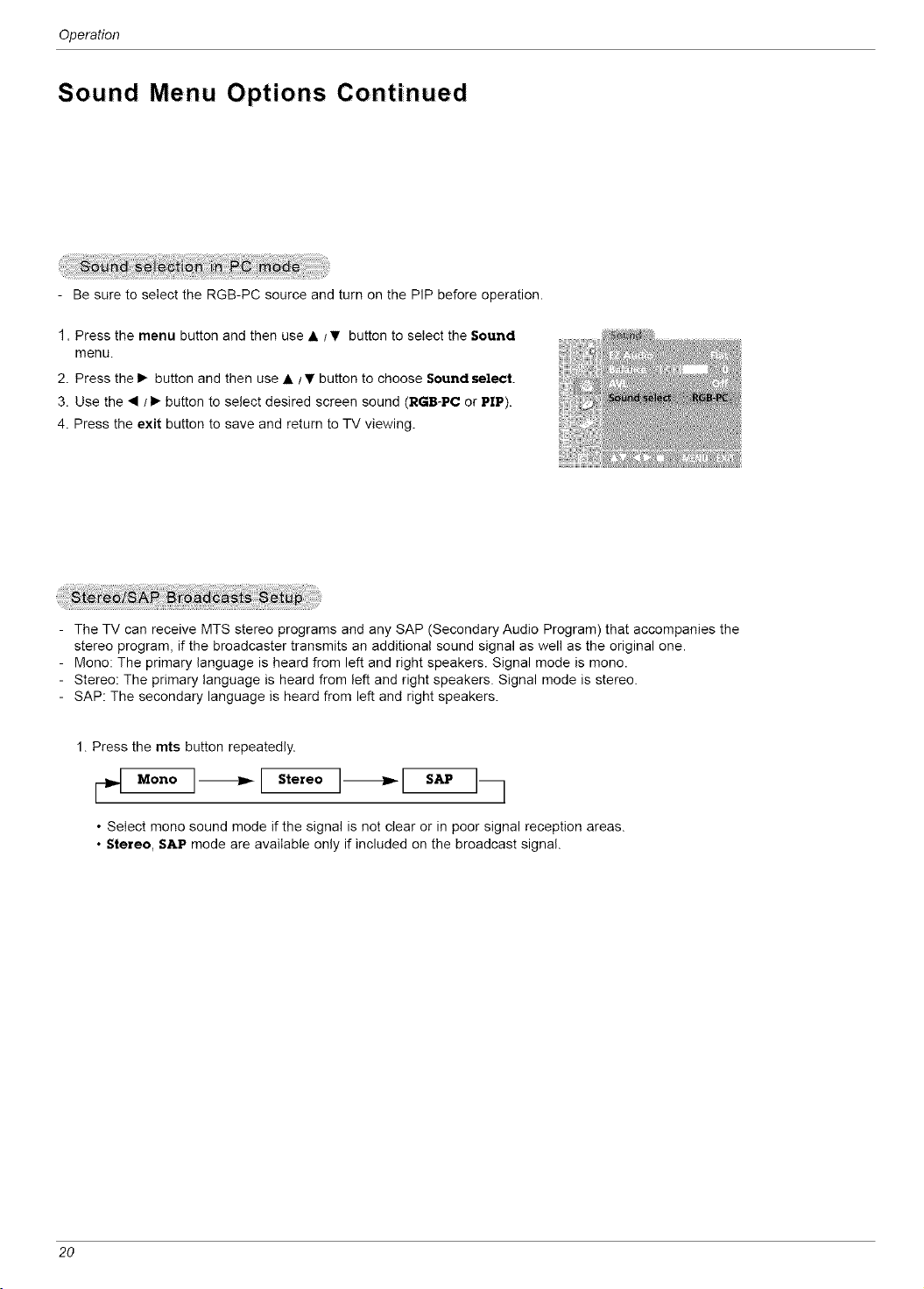
- Be sure to select the RGB-PC source and turn on the PIP before operation.
1. Press the menu button and then use •/_!' button to select the Sound
menu.
2. Press the I_ button and then use •/V button to choose Sound select.
3. Use the •/1_ button to select desired screen sound (RGB-PC or PIP).
4. Press the exit button to save and return to TV viewing.
- The TV can receive MTS stereo programs and any SAP (Secondary Audio Program) that accompanies the
stereo program, if the broadcaster transmits an additional sound signal as well as the original one.
- Mono: The primary language is heard from left and right speakers. Signal mode is mono.
- Stereo: The primary language is heard from left and right speakers. Signal mode is stereo.
- SAP: The secondary language is heard from left and right speakers.
Press the rots button repeatedly.
¢4 onoI--,-I't°r°°I-- l "
• Select mono sound mode if the signal is not clear or in poor signal reception areas.
• Stereo, SAP mode are available only if included on the broadcast signal.
20
Time Menu 0 ptions
Operation
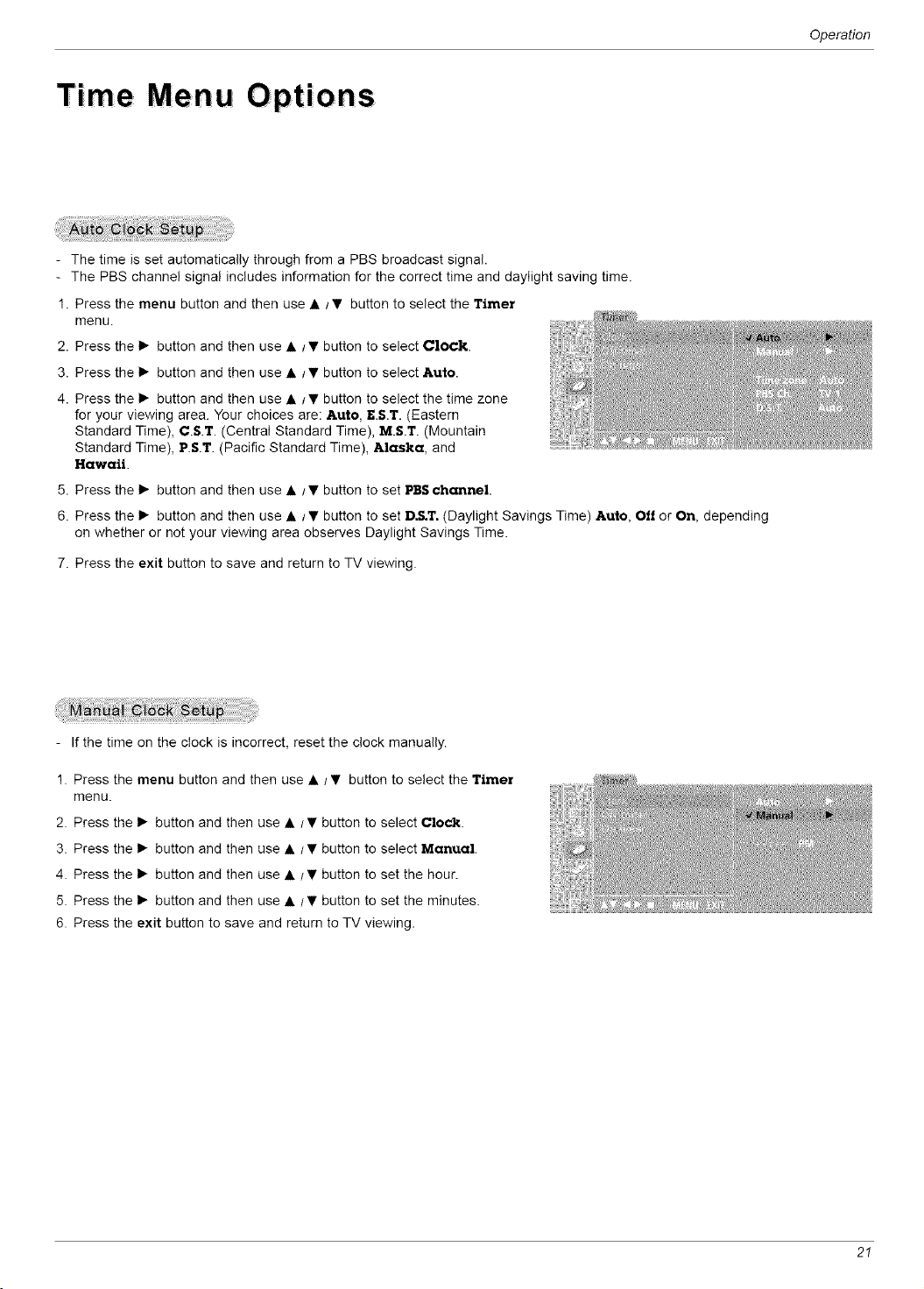
- The time is set automatically through from a PBS broadcast signal.
- The PBS channel signal includes information for the correct time and daylight saving time.
1. Press the menu button and then use • /• button to select the Timer
menu.
2. Press the I_ button and then use • t • button to select Clock.
3. Press the I_ button and then use • t • button to select Auto.
4. Press the I_ button and then use • t • button to select the time zone
for your viewing area. Your choices are: Auto, EST. (Eastern
Standard Time), C.S.T. (Central Standard Time), M.S.T. (Mountain
Standard Time), P.S.T. (Pacific Standard Time), Alaska, and
Hawaii.
5. Press the I_ button and then use • / • button to set PBS channel.
6. Press the I_ button and then use • t• button to set D.S.T. (Daylight Savings Time) Auto, Off or On, depending
on whether or not your viewing area observes Daylight Savings Time.
7. Press the exit button to save and return to TV viewing.
- If the time on the clock is incorrect, reset the clock manually.
1. Press the menu button and then use • /• button to select the Timer
menu.
2. Press the I_ button and then use • t • button to select Clock.
3. Press the I_ button and then use • t • button to select Manual,
4. Press the I_ button and then use • / • button to set the hour.
5. Press the I_ button and then use • /• button to set the minutes.
6. Press the exit button to save and return to TV viewing,
21
Operation
Time Menu Options Continued
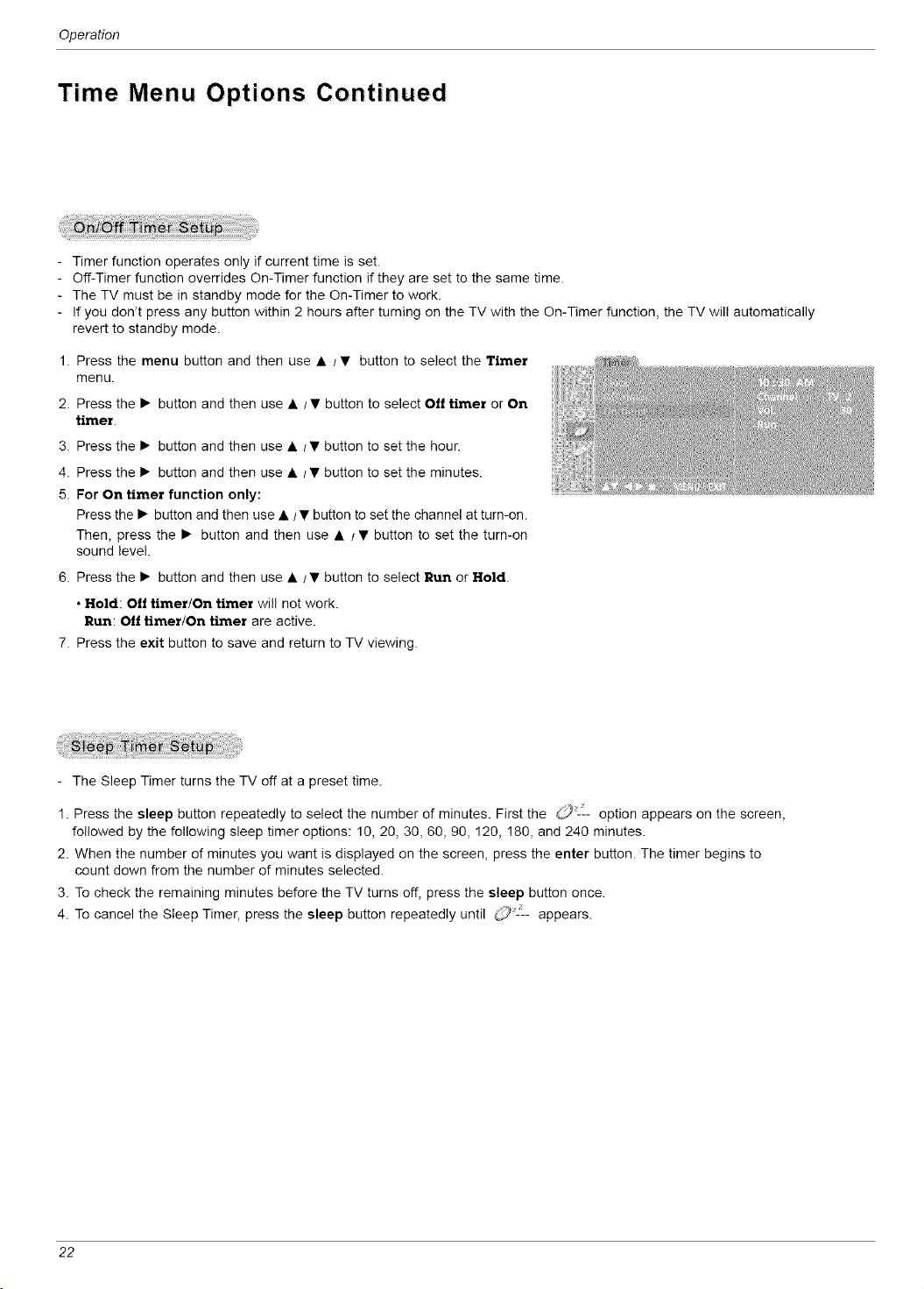
- Timer function operates only if current time is set.
- Off-Timer function overrides On-Timer function if they are set to the same time.
- The TV must be in standby mode for the On-Timer to work.
- If you don_t press any button within 2 hours after turning on the TV with the On-Timer function, the TV will automatically
revert to standby mode.
1. Press the menu button and then use • / • button to select the Timer
menu.
2. Press the • button and then use • / • button to select Off timer or On
timer
3. Press the • button and then use • /• button to set the hour.
4. Press the • button and then use • /• button to set the minutes.
5. For On timer function only:
Press the • button and then use • / • button to set the channel at turn-on.
Then, press the • button and then use • / • button to set the turn-on
sound level.
6. Press the • button and then use • /• button to select Run or Hold.
• Hold: Oft timer/On timer will not work.
Run: Off timer/On timer are active.
7. Press the exit button to save and return to TV viewing.
- The Sleep Timer turns the TV off at a preset time.
1. Press the sleep button repeatedly to select the number of minutes. First the O L_-- option appears on the screen,
followed by the following sleep timer options: 10, 20, 30, 60, 90, 120, !80, and 240 minutes.
2. When the number of minutes you want is displayed on the screen, press the enter button. The timer begins to
count down from the number of minutes selected.
3. To check the remaining minutes before the TV turns off, press the sleep button once.
4. To cancel the Sleep Timer, press the sleep button repeatedly until z-L- appears.
22
Operation
Speci a I Menu Opt ions
Closed Captions
Closed captioning is a process which converts the audio portion of a television program into written words which then appear as sub-
titles on the television screen. Closed captions allow viewers to read the dialogue and narration of television programs.
Using Closed Captions
Captions are the subtitles of the dialogue and narration of television programs. For prerecorded
programs, program dialogue can be arranged into captions in advance. Its possible to caption a
live program by using a process called real-time captioning, which creates captions instantly.
Real-time captioning is normally done by professional reporters using a machine shorthand sys-
tem and computer for translation into English.
Captioning is an effective system for the hearing-impaired, and it can also aid in teaching lan-
guage skills.
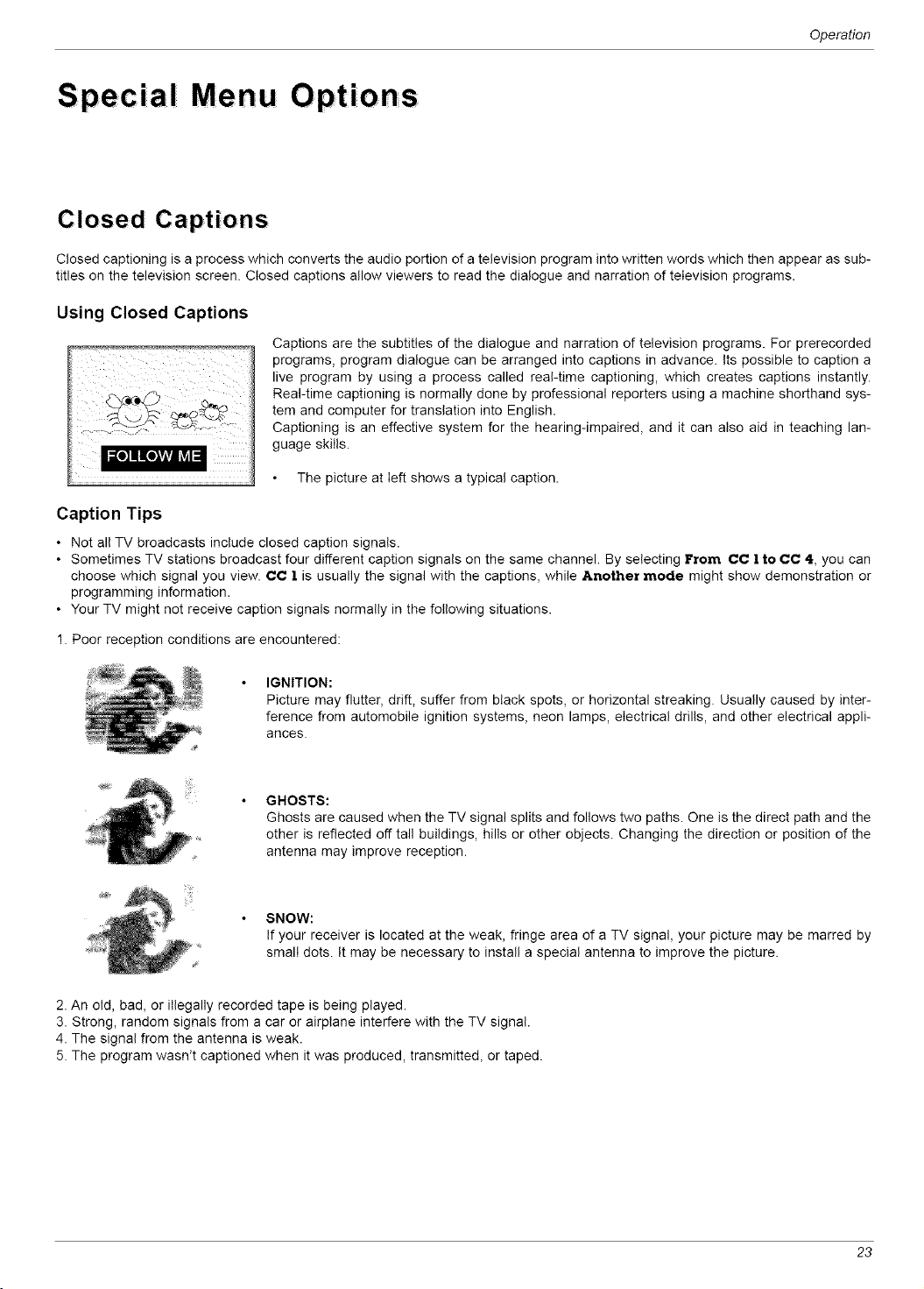
The picture at left shows a typical caption.
Caption Tips
• Not all TV broadcasts include closed caption signals.
• Sometimes TV stations broadcast four different caption signals on the same channel. By selecting From CC 1to CC 4, you can
choose which signal you view. CC 1 is usually the signal with the captions, while Another mode might show demonstration or
programming information.
• Your TV might not receive caption signals normally in the following situations.
1. Poor reception conditions are encountered:
IGNITION:
Picture may flutter, drift, suffer from black spots, or horizontal streaking. Usually caused by inter-
ference from automobile ignition systems, neon lamps, electrical drills, and other electrical appli-
ances.
GHOSTS:
Ghosts are caused when the TV signal splits and follows two paths. One is the direct path and the
other is reflected oft tall buildings, hills or other objects. Changing the direction or position of the
antenna may improve reception.
SNOW:
If your receiver is located at the weak, fringe area of a TV signal, your picture may be marred by
small dots. It may be necessary to install a special antenna to improve the picture.
2. An old, bad, or illegally recorded tape is being played.
3. Strong, random signals from a car or airplane interfere with the TV signal.
4. The signal from the antenna is weak.
5. The program wasn't captioned when it was produced, transmitted, or taped.
23
Operation
Special Menu Options Continued
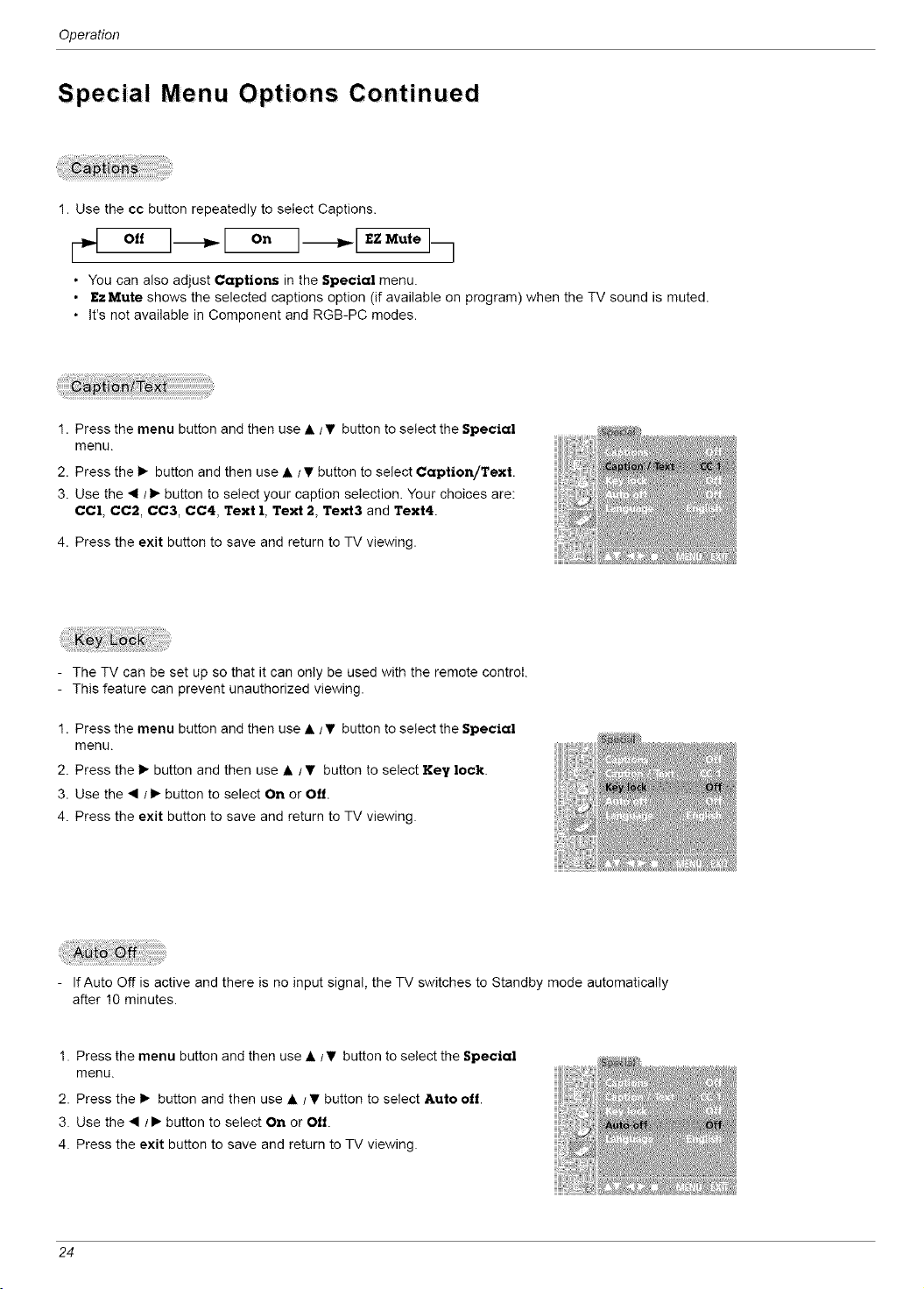
1. Use the cc button repeatedly to select Captions.
o,,I-.-I o°
• You can also adjust Captions in the Special menu.
• EzMute shows the selected captions option (if available on program) when the TV sound is muted.
• It's not available in Component and RGB-PC modes.
1. Press the menu button and then use •/V button to select the Special
menu.
2. Press the • button and then use •/V button to select Caption/Text
3. Use the •/• button to select your caption selection. Your choices are:
CC1, CC2, CC3, CC4, Text 1, Text 2, Text3 and Text4.
4. Press the exit button to save and return to TV viewing.
iiiiiiiii! :f !ii'ii ii i
i////ii!U!,_!iiiiii
ill iiiiii!4_ii:!4_
ili i_
iiiiiili!i:!i!_9
- The TV can be set up so that it can only be used with the remote control.
- This feature can prevent unauthorized viewing.
1. Press the menu button and then use •/V button to select the Special
menu.
2. Press the • button and then use • / • button to select Key loci{.
3. Use the • /• button to select On or Off
4. Press the exit button to save and return to TV viewing.
- IfAuto Off is active and there is no input signal, the TV switches to Standby mode automatically
after 10 minutes.
1. Press the menu button and then use • IV button to select the Special
menu.
2. Press the I,- button and then use • t• button to select Auto off.
3. Use the • / • button to select On or Off.
4. Press the exit button to save and return to TV viewing.
24
Operation
Loc k Men u Optio ns
Parental Control can be used to block specific channels, ratings and other viewing sources.
The Parental Control Function (V-Chip) is used to block program viewing based on the ratings sent by the broadcast station. The
default setting is to allow all programs to be viewed. Viewing can be blocked by the type of program and by the categories chosen
to be blocked. It is also possible to block all program viewing for a time period. To use this function, the following must be set :
1. Ratings and categories to be blocked.
2. Set a password
3. Enable the lock
V-Chip rating and categories
Rating guidelines are provided by broadcast stations. Most television programs and television movies can be blocked by TV
Rating and/or Individual Categories. Movies that have been shown at the theaters or direct-to-video movies use the Movie Rating
System (MPAA) only.
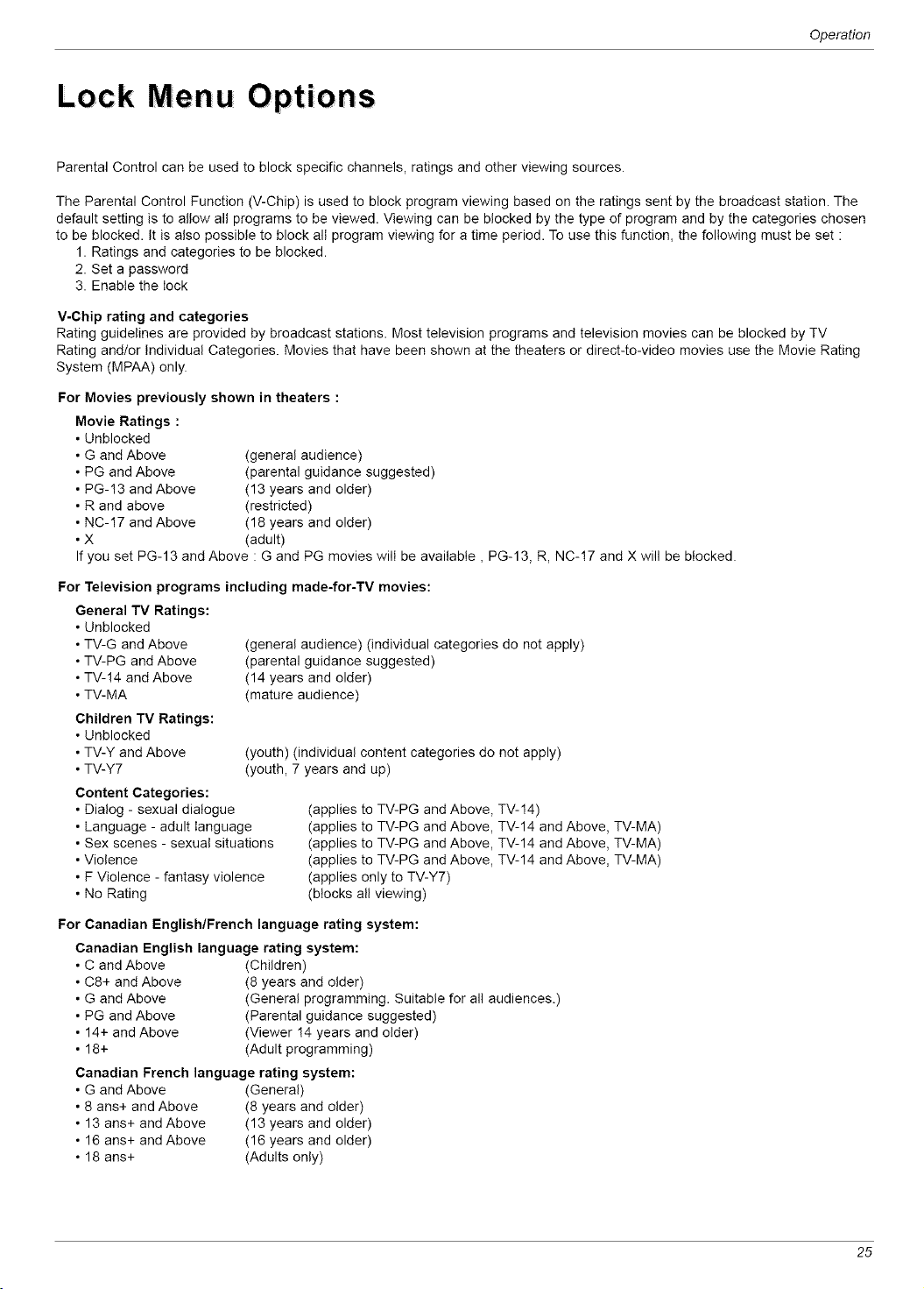
For Movies previously shown in theaters :
Movie Ratings :
• Unblocked
• G and Above
• PG and Above
• PG-13 and Above
• R and above
• NC-17 and Above
.X
(general audience)
(parental guidance suggested)
(13 years and older)
(restricted)
(18 years and older)
(adult)
If you set PG-13 and Above : G and PG movies will be available, PG-13, R, NC-!7 and X will be blocked.
For Television programs including made-for-TV movies:
General TV Ratings:
• Unblocked
• TV-G and Above
• TV-PG and Above
• TV-!4 and Above
• TV-MA
Children TV Ratings:
• Unblocked
• TV-Y and Above
• TV-Y7
Content Categories:
• Dialog - sexual dialogue
• Language - adult language
• Sex scenes - sexual situations
• Violence
• F Violence - fantasy violence
• No Rating
(general audience) (individual categories do not apply)
(parental guidance suggested)
(14 years and older)
(mature audience)
(youth) (individual content categories do not apply)
(youth, 7 years and up)
(applies to TV-PG and Above, TV-14)
(applies to TV-PG and Above, TV-14 and Above, TV-MA)
(applies to TV-PG and Above, TV-14 and Above, TV-MA)
(applies to TV-PG and Above, TV-14 and Above, TV-MA)
(applies only to TV-Y7)
(blocks all viewing)
For Canadian English/French language rating system:
Canadian English language rating system:
C and Above (Children)
C8+ and Above (8 years and older)
G and Above (General programming. Suitable for all audiences.)
PG and Above (Parental guidance suggested)
14+ and Above (Viewer !4 years and older)
18+ (Adult programming)
Canadian French language rating system:
• G and Above (General)
• 8 ans+ and Above (8 years and older)
• 13 ans+ and Above (13 years and older)
• 16 ans+ and Above (16 years and older)
• 18 arts+ (Adults only)
25
Operation
Lock Menu Options Continued
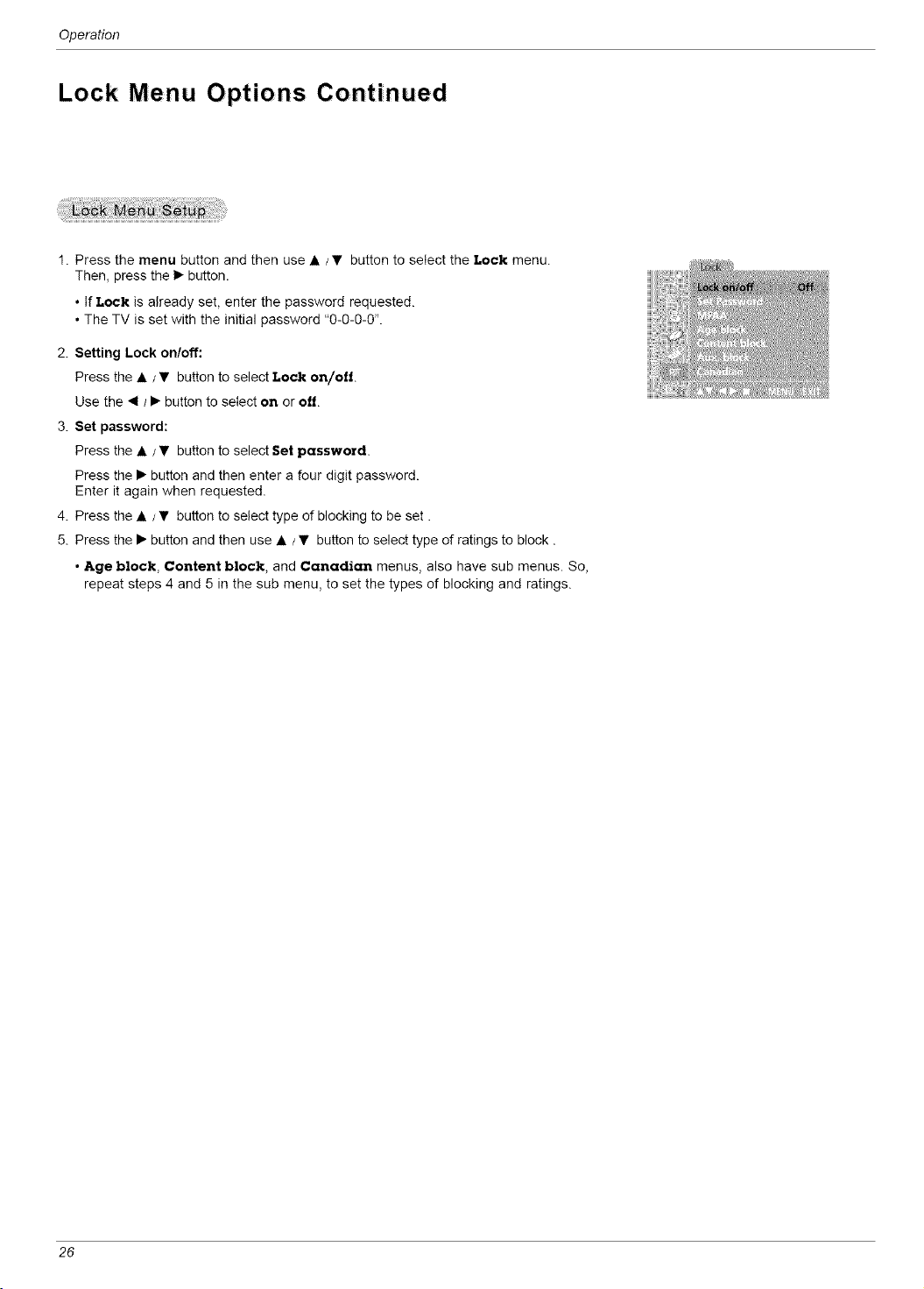
1. Press the menu button and then use • /• button to select the Lock menu.
Then, press the • button.
• If Lock is already set, enter the password requested.
• The TV is set with the initial password "0-O-O-0".
2. Setting Lock on/off:
Press the • / • button to select Lock on/oil.
Use the _1/• button to select on or off
3. Set password:
Press the • / • button to select Set password.
Press the • button and then enter a four digit password.
Enter it again when requested.
4. Press the • /• button to select type of blocking to be set.
5. Press the • button and then use • /• button to select type of ratings to block.
• Age block, Content block, and Canadian menus, also have sub menus. So,
repeat steps 4 and 5 in the sub menu, to set the types of blocking and ratings.
26
RGB-P C Menu 0 ptio ns
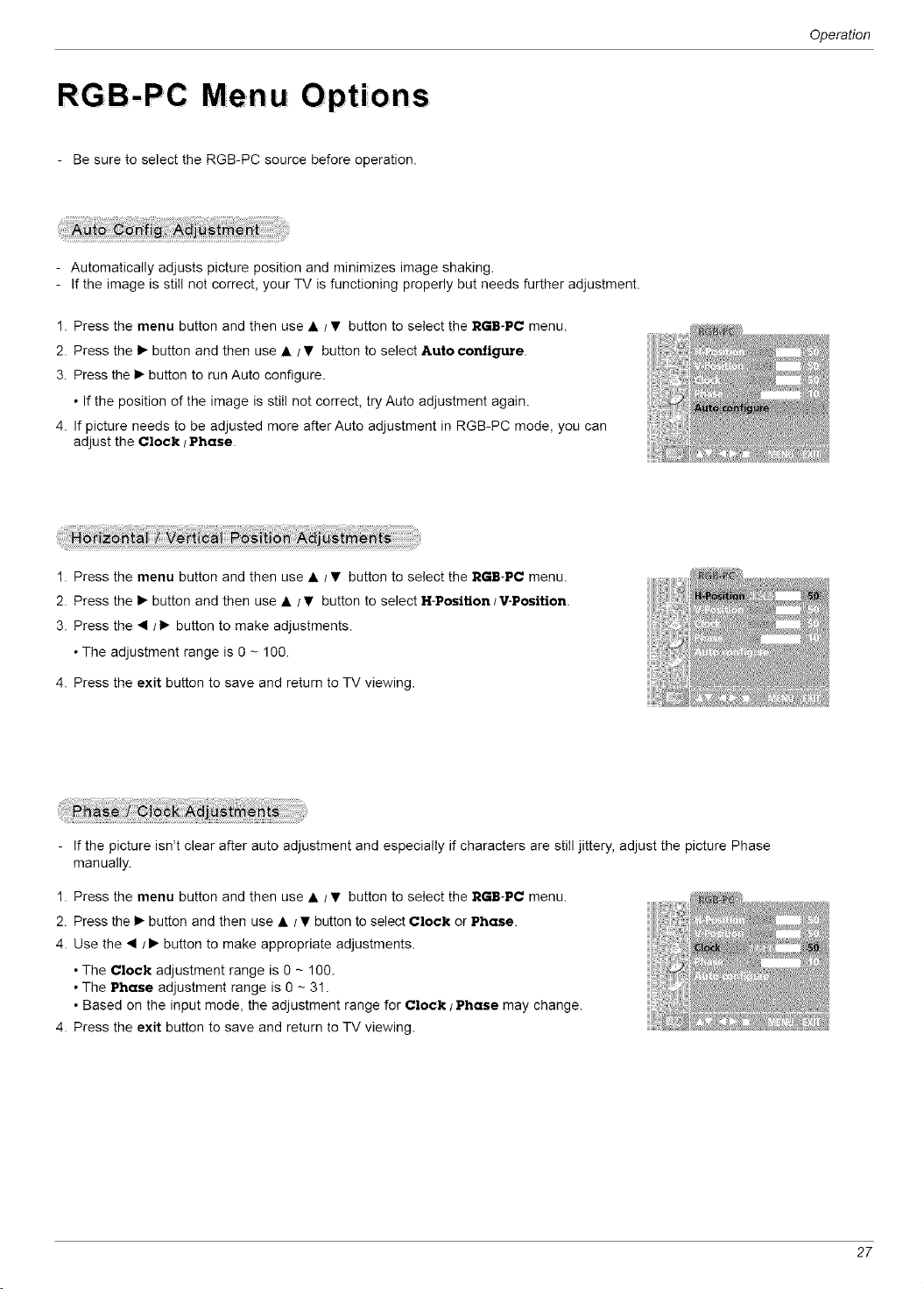
- Be sure to select the RGB-PC source before operation.
Operation
- Automatically adjusts picture position and minimizes image shaking.
- If the image is still not correct, your TV is functioning properly but needs further adjustment.
1. Press the menu button and then use • /• button to select the RGB-PC menu.
2. Press the • button and then use • / • button to select Auto configure.
3. Press the • button to run Auto configure.
• If the position of the image is still not correct, try Auto adjustment again.
4. If picture needs to be adjusted more after Auto adjustment in RGB-PC mode, you can
adjust the Clock / Phase.
1. Press the menu button and then use • /• button to select the RGB-PC menu.
2. Press the • button and then use • / • button to select H-Position / V-Position
3. Press the _1/• button to make adjustments.
• The adjustment range is 0 - 100.
4. Press the exit button to save and return to TV viewing.
- If the picture isn't clear after auto adjustment and especially if characters are still jittery, adjust the picture Phase
manually.
1. Press the menu button and then use • /• button to select the RGB-PC menu.
2. Press the • button and then use • / • button to select Clock or Phase.
4. Use the • /• button to make appropriate adjustments.
• The Clock adjustment range is 0 - 100.
• The Phase adjustment range is 0 - 31.
• Based on the input mode, the adjustment range for Clock / Phase may change.
4. Press the exit button to save and return to TV viewing.
27
Operation
PIP (P ict ure-i n- Pict ure) Feature
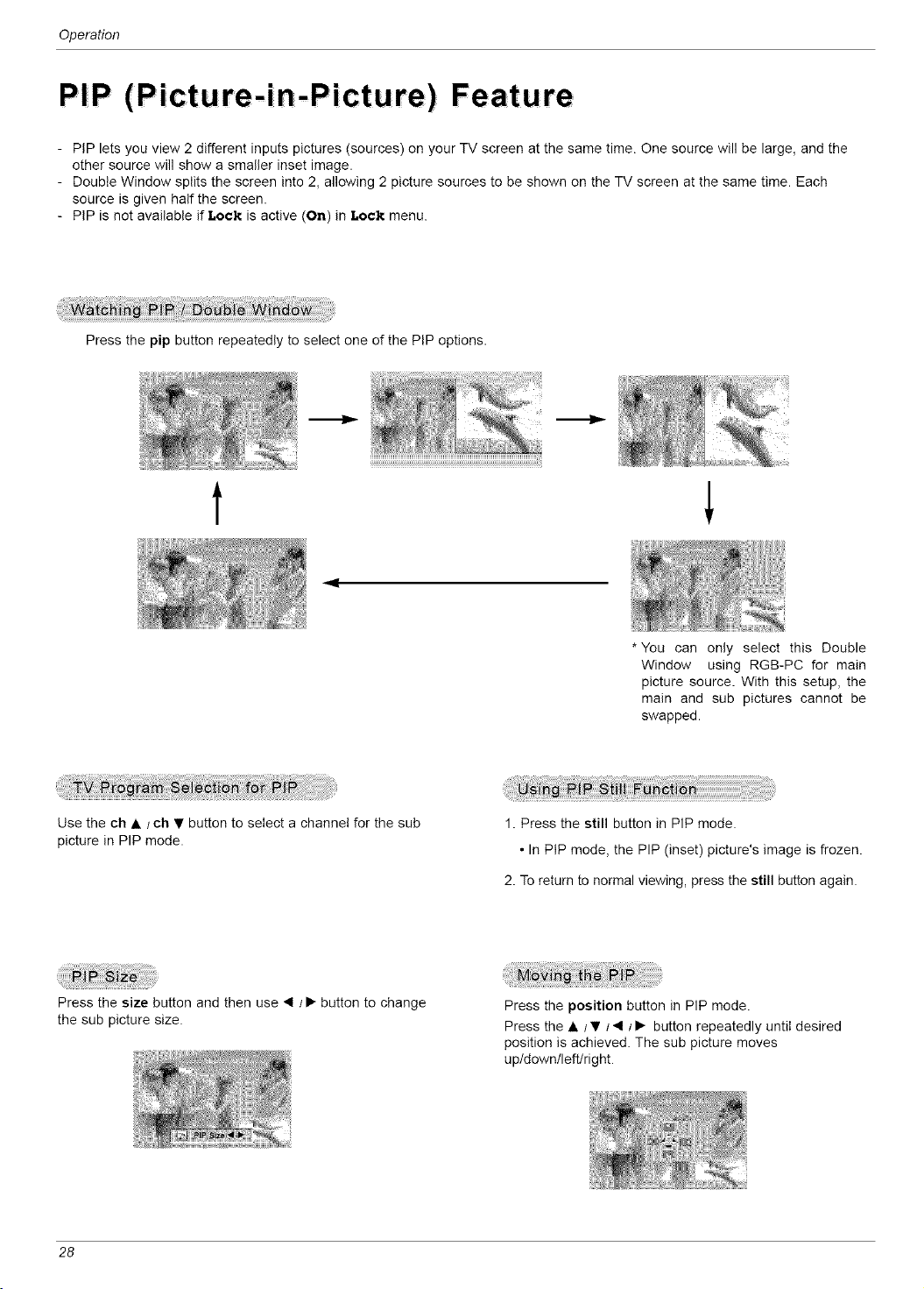
- PiP lets you view 2 different inputs pictures (sources) on your TV screen at the same time. One source will be large, and the
other source will show a smaller inset image.
- Double Window splits the screen into 2, allowing 2 picture sources to be shown on the TV screen at the same time. Each
source is given half the screen.
- PIP is not available if Lock is active (On) in Lock menu.
Press the pip button repeatedly to select one of the PIP options.
--la.--
t
4
*You can only select this Double
Window using RGB-PC for main
picture source. With this setup, the
main and sub pictures cannot be
swapped.
Use the ch • / ch • button to select a channel for the sub
picture in PIP mode.
1. Press the still button in PIP mode.
• In PIP mode, the PIP (inset) picture's image is frozen.
2. To return to normal viewing, press the still button again.
Press the size button and then use _1 /I_ button to change
the sub picture size.
Press the position button in PIP mode.
Press the • /• t_l/1_ button repeatedly until desired
position is achieved. The sub picture moves
up/down/left!right.
28
Operation
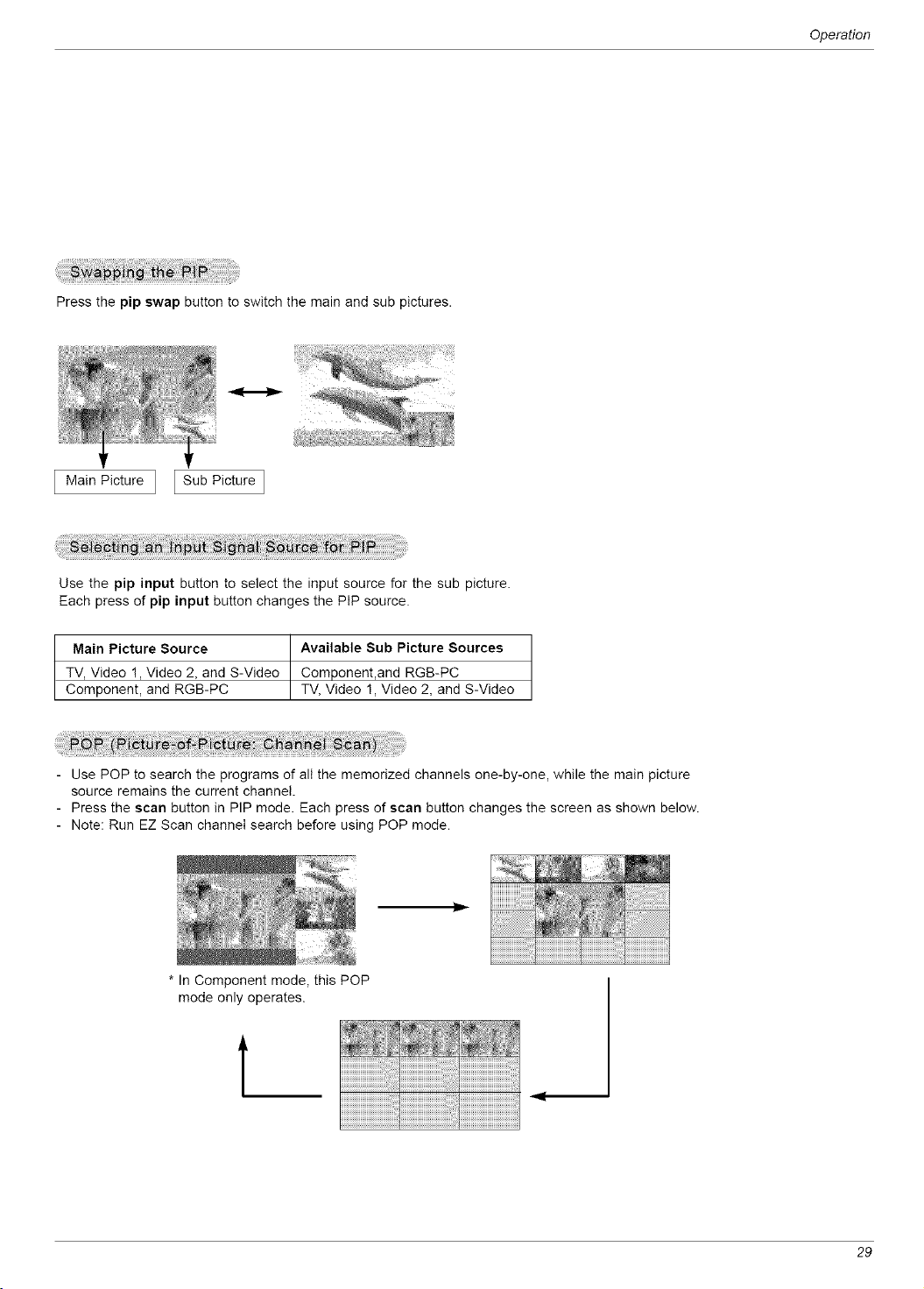
Pressthepipswapbuttontoswitchthemainandsubpictures.
Main Picture ] [ Sub Picture ]
Use the pip input button to select the input source for the sub picture.
Each press of pip input button changes the PIP source.
Main Picture Source Available Sub Picture Sources
TV, Video !, Video 2, and S-Video Component,and RGB-PC
Component, and RGB-PC TV, Video 1, Video 2, and S-Video
Use POP to search the programs of all the memorized channels one-by-one, while the main picture
source remains the current channel.
- Press the scan button in PIP mode. Each press of scan button changes the screen as shown below.
- Note: Run EZ Scan channel search before using POP mode.
* In Component mode, this POP
mode only operates.
T
29
Troubleshooting Checklist
TroubIeshooting CheckIist
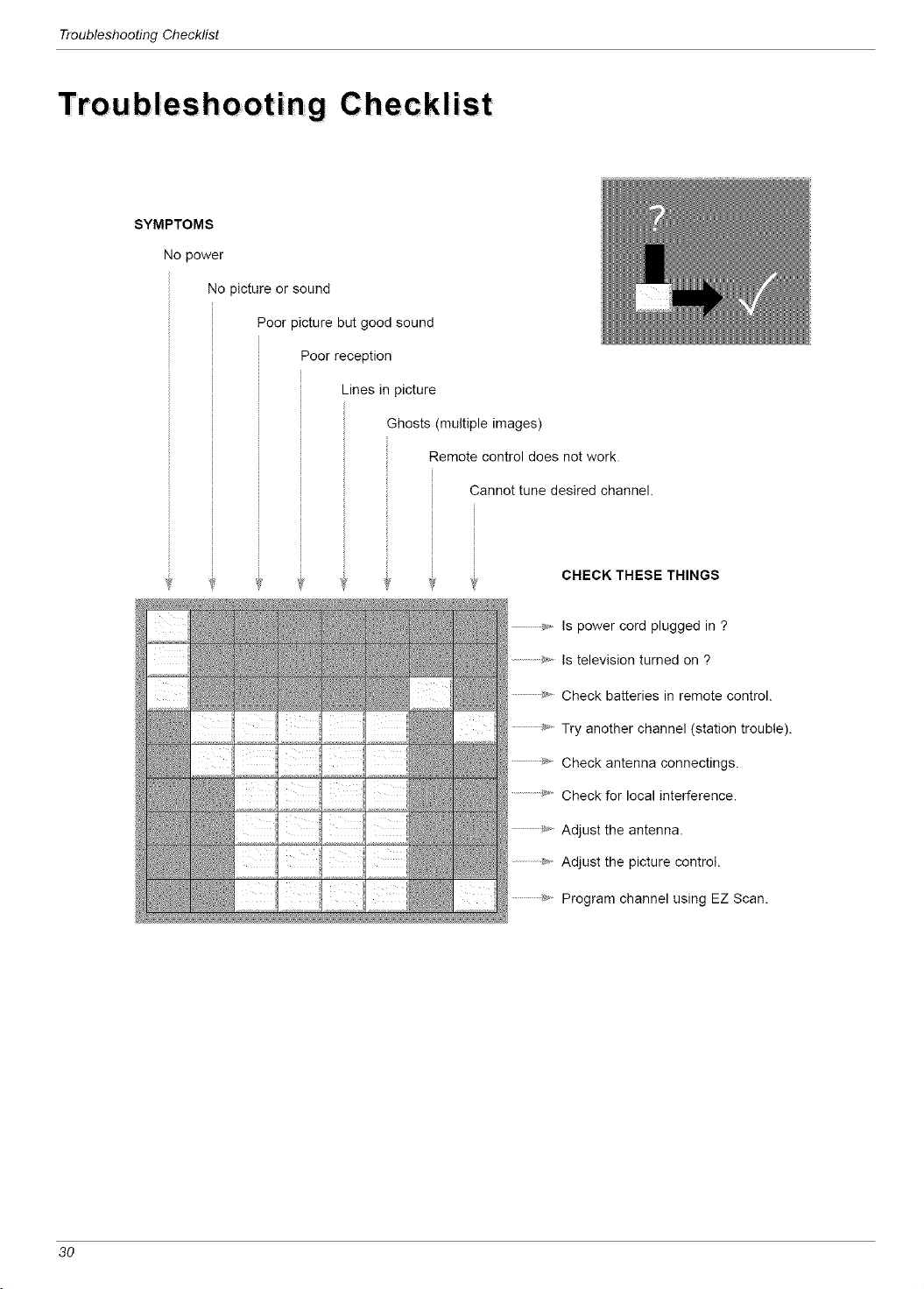
SYMPTOMS
No power
No picture or sound
Poor )icture but good sound
Poor reception
Lines in picture
Ghosts (multiple images)
Remote control does not work.
Cannot tune desired channel.
v
CHECKTHESETHINGS
................_J_Is power cord plugged in ?
................_,,, Is television turned on ?
_ Check batteries in remote control.
...................._'" Try another channel (station trouble).
..................._ Check antenna connectings.
..................._'_"Check for local interference.
...................._, Adjust the antenna.
..............**_,Adjust the picture control.
.................._.o Program channel using EZ Scan.
30
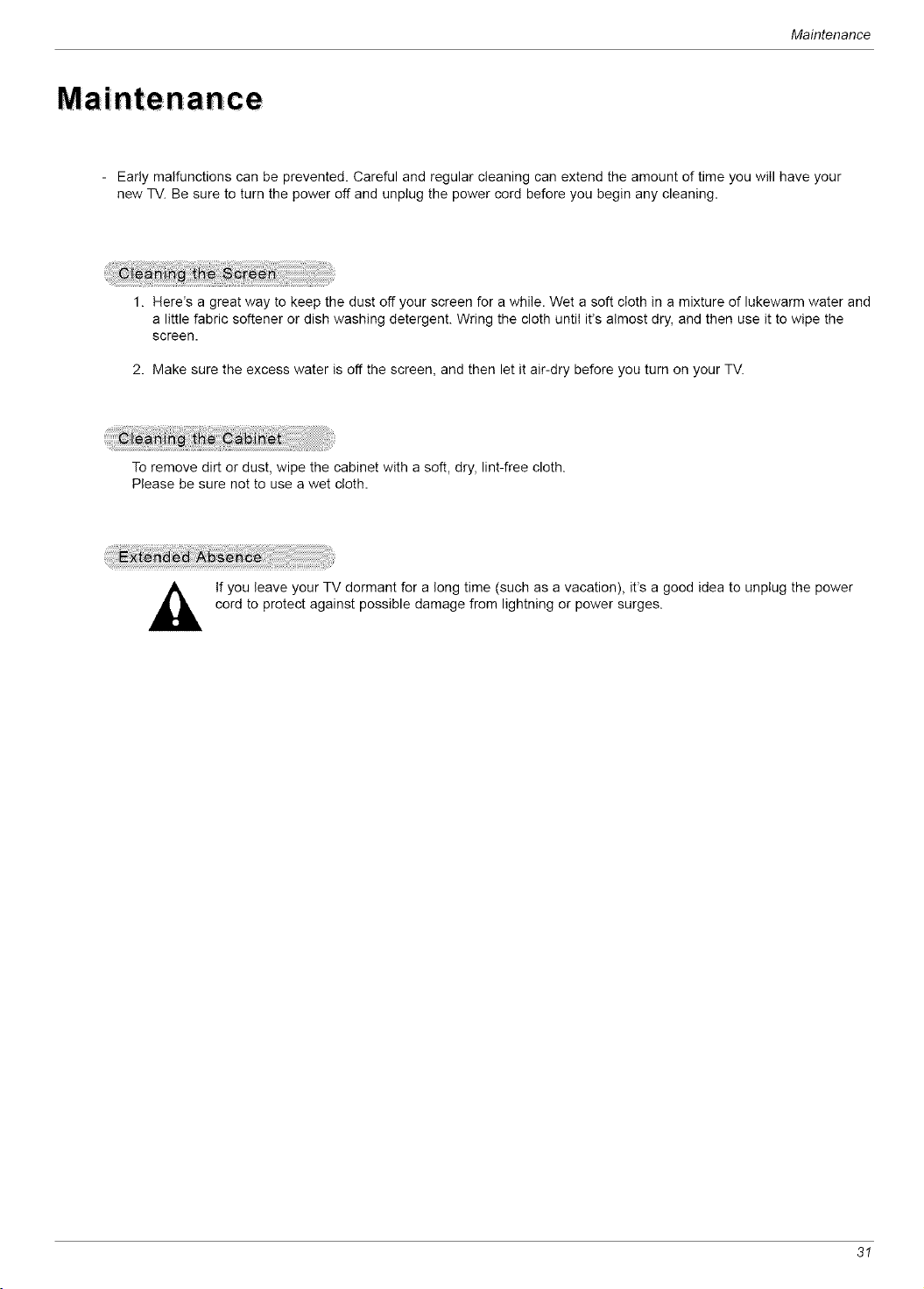
Maintenance
- Early malfunctions can be prevented. Careful and regular cleaning can extend the amount of time you will have your
new TV. Be sure to turn the power off and unplug the power cord before you begin any cleaning.
1. Herds a great way to keep the dust off your screen for a while. Wet a soft cloth in a mixture of lukewarm water and
a little fabric softener or dish washing detergent. Wring the cloth until it's almost dry, and then use it to wipe the
screen.
2. Make sure the excess water is off the screen, and then let it air-dry before you turn on your TV.
To remove dirt or dust, wipe the cabinet with a soft, dry, lint-free cloth.
Please be sure not to use a wet cloth.
If you leave your TV dormant for a long time (such as a vacation), it% a good idea to unplug the power
cord to protect against possible damage from lightning or power surges.
3!
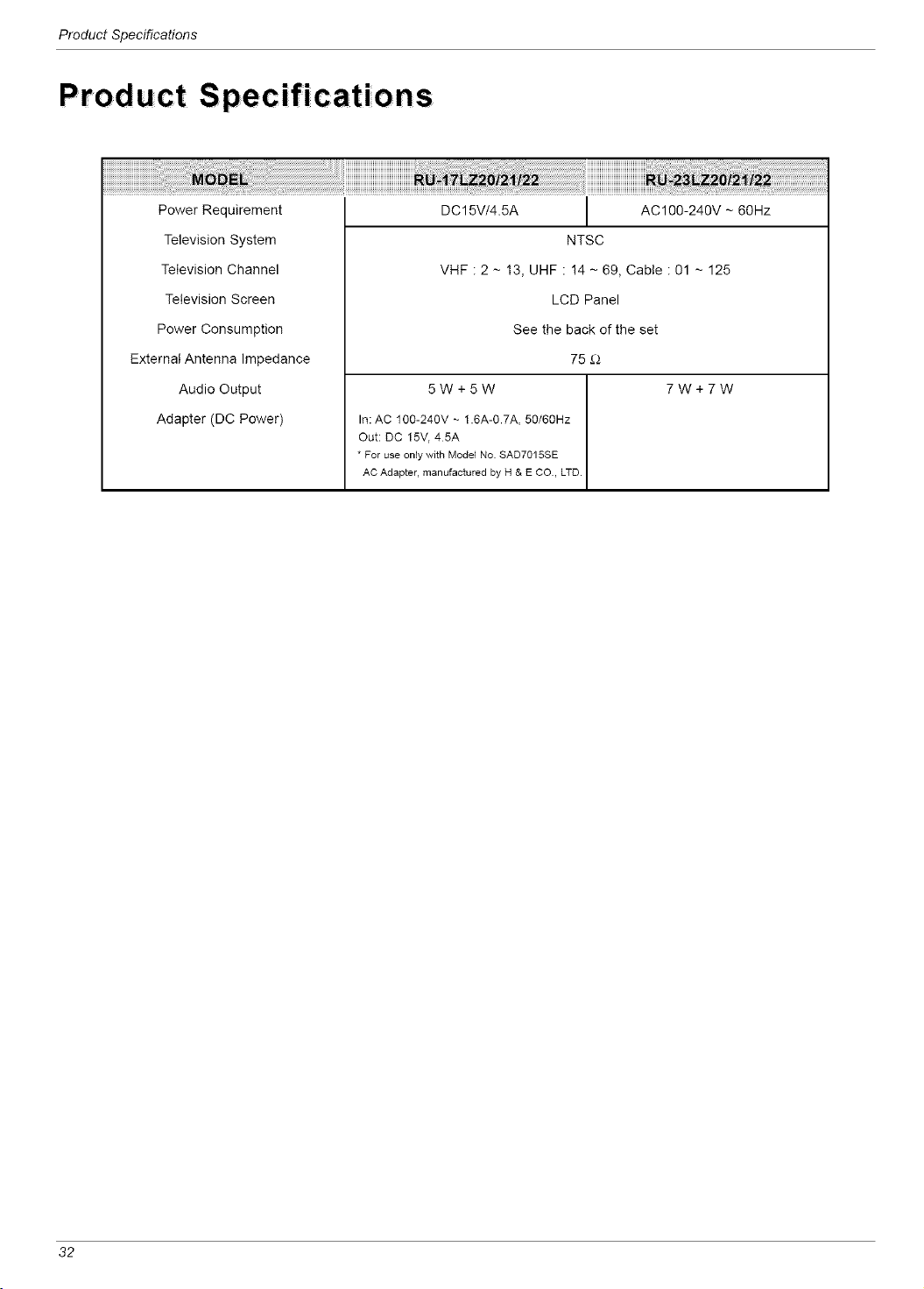
ProductSpecifications
Product Specifications
Power Requirement
Television System
Television Channel
Television Screen
Power Consumption
External Antenna Impedance
Audio Output
Adapter (DC Power)
DC15V/4.5A AC100-240V - 60Hz
NTSC
VHF : 2 - 13, UHF : !4 - 69, Cable : 01 - 125
LCD Panel
See the back of the set
75 _
5W+5W 7W+7W
In: AC 100-240V ~ 1.6A-0.7A, 50/60Hz
Out: DC 15V, 45A
* For use onby with Model No. SAD7015SE
AC Adapter, manufactured by H & E CO., LTD.
32

Notes
Notes
33
Notes
Notes
34
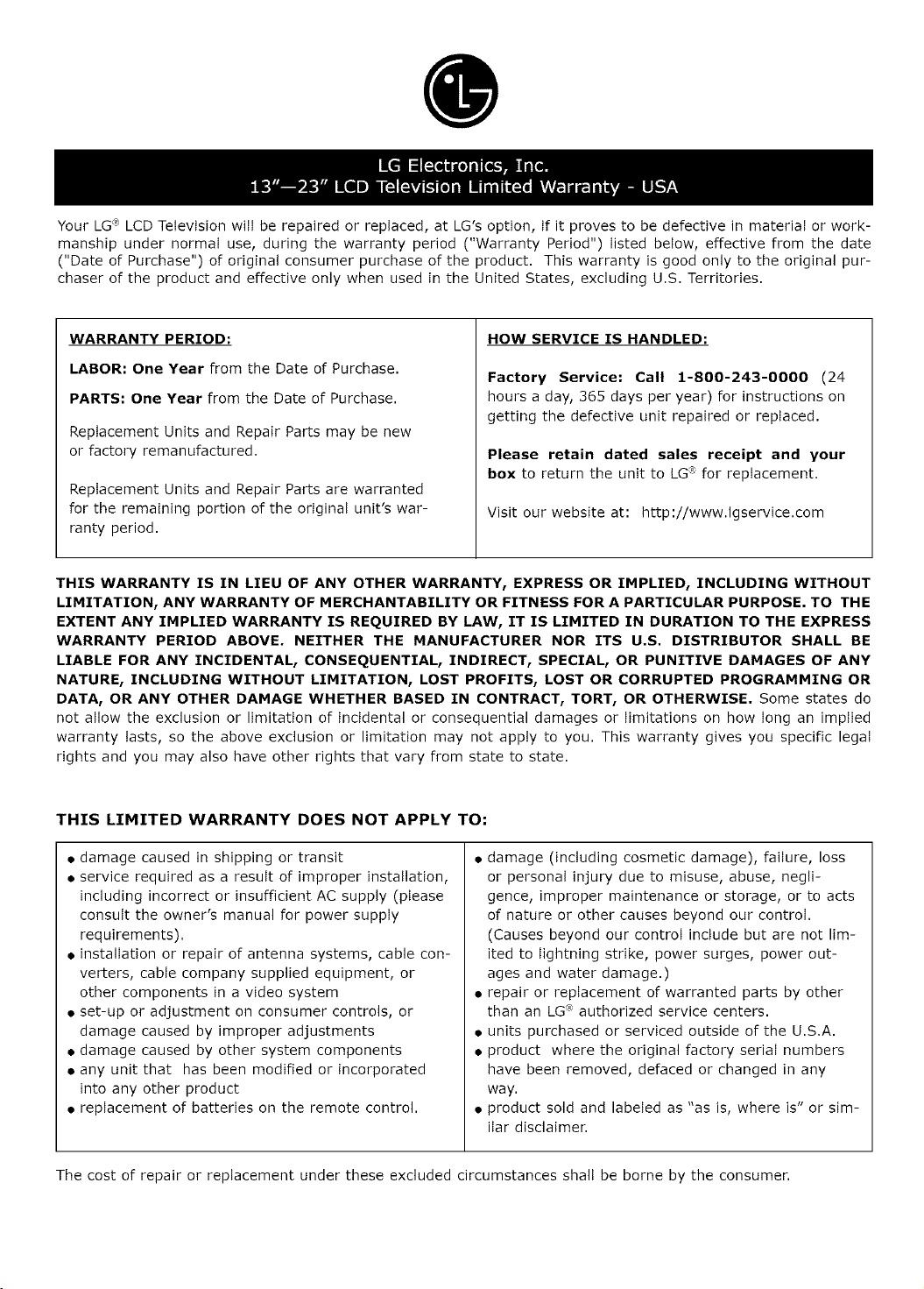
Your LG_' LCD Television wiii be repaired or replaced, at LG's option, if it proves to be defective in material or work-
manship under normal use, during the warranty period ("Warranty Period") listed below, effective from the date
("Date of Purchase") of original consumer purchase of the product. This warranty is good only to the original pur-
chaser of the product and effective only when used in the United States, excluding U.S. Territories.
WARRANTY PERIOD:
LABOR: One Year from the Date of Purchase.
PARTS: One Year from the Date of Purchase.
Replacement Units and Repair Parts may be new
or factory remanufactured.
Replacement Units and Repair Parts are warranted
for the remaining portion of the original unit's war-
ranty period.
HOW SERVICE IS HANDLED:
Factory Service: Call 1-8OO-243-0OOO (24
hours a day, 365 days per year) for instructions on
getting the defective unit repaired or replaced.
Please retain dated sales receipt and your
box to return the unit to LG® for replacement.
Visit our website at: http://www.lgservice.com
THIS WARRANTY IS IN LIEU OF ANY OTHER WARRANTY, EXPRESS OR IMPLIED, INCLUDING WITHOUT
LIMITATION, ANY WARRANTY OF MERCHANTABILITY OR FITNESS FOR A PARTICULAR PURPOSE. TO THE
EXTENT ANY IMPLIED WARRANTY IS REQUIRED BY LAW, IT IS LIMITED IN DURATION TO THE EXPRESS
WARRANTY PERIOD ABOVE. NEITHER THE MANUFACTURER NOR ITS U.S. DISTRIBUTOR SHALL BE
LIABLE FOR ANY INCIDENTAL, CONSEQUENTIAL, INDIRECT, SPECIAL, OR PUNITIVE DAMAGES OF ANY
NATURE, INCLUDING WITHOUT LIMITATION, LOST PROFITS, LOST OR CORRUPTED PROGRAMMING OR
DATA, OR ANY OTHER DAMAGE WHETHER BASED IN CONTRACT, TORT, OR OTHERWISE. Some states do
not allow the exclusion or limitation of incidental or consequential damages or limitations on how Iong an implied
warranty lasts, so the above exclusion or limitation may not apply to you. This warranty gives you specific legal
rights and you may also have other rights that vary from state to state.
THIS LIMITED WARRANTY DOES NOT APPLY TO:
• damage caused in shipping or transit
• service required as a result of improper installation,
including incorrect or insufficient AC supply (please
consult the owner's manual for power supply
requirements).
• installation or repair of antenna systems, cable con-
verters, cable company supplied equipment, or
other components in a video system
• set-up or adjustment on consumer controls, or
damage caused by improper adjustments
• damage caused by other system components
• any unit that has been modified or incorporated
into any other product
• replacement of batteries on the remote control.
• damage (including cosmetic damage), failure, loss
or personal injury due to misuse, abuse, negli-
gence, improper maintenance or storage, or to acts
of nature or other causes beyond our control.
(Causes beyond our control include but are not lim-
ited to lightning strike, power surges, power out-
ages and water damage.)
• repair or replacement of warranted parts by other
than an LG® authorized service centers.
• units purchased or serviced outside of the U.S.A.
• product where the original factory serial numbers
have been removed, defaced or changed in any
way.
• product sold and labeled as "as is, where is" or sim-
ilar disclaimer.
The cost of repair or replacement under these excluded circumstances shall be borne by the consumer.
CUSTOMER INTERACTIVE CENTER NUMBERS
To obtain Customer Assistance, Product Call 1-800-243-0000 (24 hours a day, 365 days per
Information, or Dealer or Authorized year) and select the appropriate option from the menu.
Service Center location: Or visit our website at: http://www.lgservice.com
CONCERNING PIXEL FUNCTIONALITY: An LCD Television contains hundreds of thousands of individual pixels.
LCD displays typically contain a small number of pixels that do not function normally. Your display has been inspect-
ed and is in compliance with manufacturer's specifications, indicating that any pixel defects do not effect the oper-
ation or use of your display.
BEFORE CALLING FOR SERVICE:
Please have your product model number, serial number, and the date of purchase available.
Under some circumstances you may be asked to provide a reserve deposit to the LG® Service Center, using a
credit card number as surety for advanced shipment. Your credit card will not be charged if you return the defec-
tive unit within 10 working days.
If a replacement unit is received, please use the carton and packaging from that unit in returning the defective
unit to the LG'_ Service Center,
Parts and service in accordance with the LG® warranty is our responsibility and will be provided without charge.
Other service requirements will be at the owner's expense. If you have problems in obtaining satisfactory war-
ranty service, write OFcall the LG'_"Customer Interactive Service.
To assure proper credit and avoid unnecessary charges, you must obtain a Return Authorization before returning
any product to the Factory Service Center. Contact the Customer Interactive Center for details.
Service for your LG_ Television is provided through LG Electronics Alabama, Inc., the authorized LG® Service
Center for the United States.
TO CONTACT LG ELECTRONICS BY HAIL:
LG® Customer Interactive Center
P. O. Box 240007
201 .]ames Record Road
Huntsville, Alabama 35824
Aqq-N: CIC
LG_' LCD Televisions are marketed and distributed in the United States by:
LG Electronics Corporation, 2000 HilIbrook Drive, Lincolnshire, IL 60069.
P/N : 3828VA0387E,_b_(ML027C)