®
User Guide
English ( 2 – 48 )
Appendix
English ( 49 - 52 )
2
User Guide (English)
Introduction
Box Contents
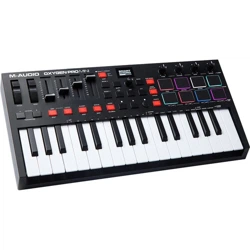
Oxygen Pro Mini
USB Cable
Software Download Card
Quickstart Guide
Safety & Warranty Manual
Support
For the latest information about this product (system requirements, compatibility information,
etc.) and product registration, visit m-audio.com.
For additional product support, visit m-audio.com/support.
Setup
Connection
To start using your Oxygen Pro Mini keyboard, you need to connect your equipment, get your
software properly configured, and then set the keyboard’s operation Mode.
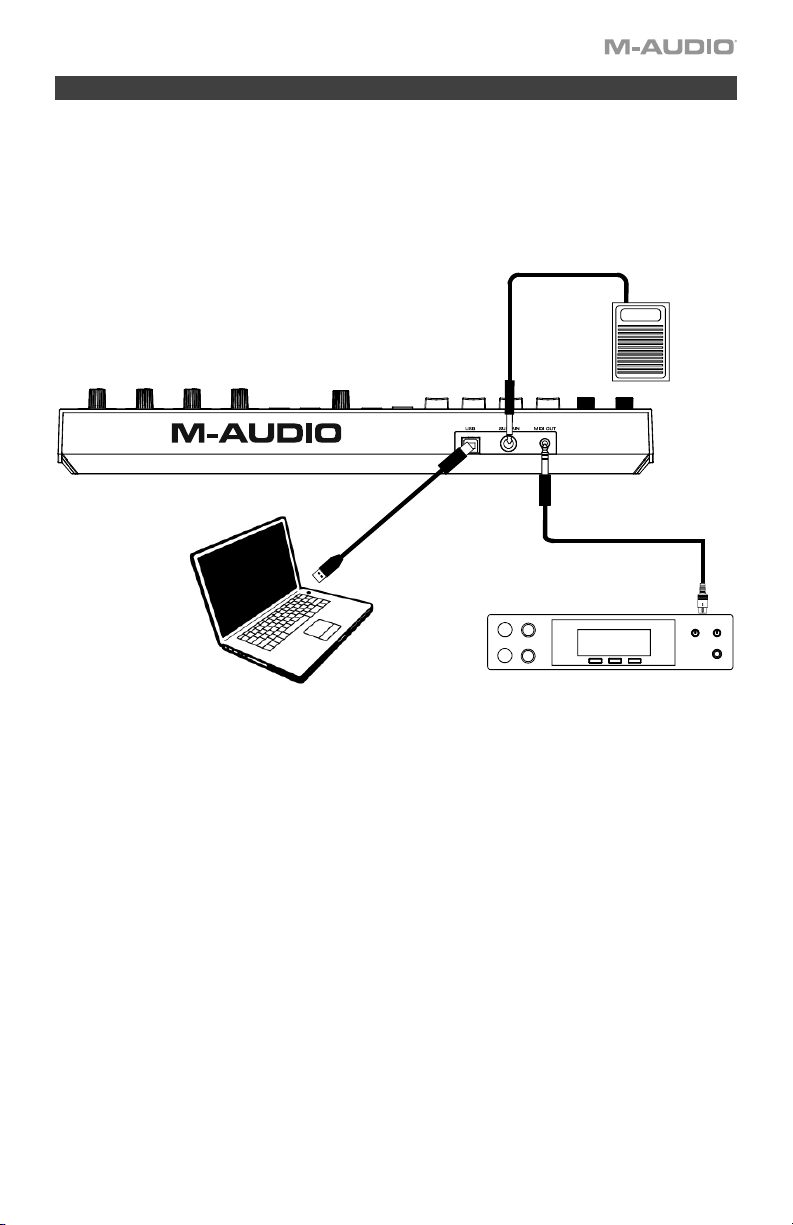
To connect your Oxygen Pro Mini keyboard to your computer, use the included USB
cable. Plug the USB-B end of the cable into the keyboard and the USB-A end of the cable into
your computer (or into a USB hub connected to your computer).
Note: In addition to sending data, the USB cable powers the keyboard. If you will be
connecting your Oxygen Pro Mini keyboard to a USB hub that has other devices connected to
it, then we recommend using a powered USB hub.
4
Initial Setup
Initial Setup - DAW Setup
Your Oxygen Pro Mini has the ability to control all of your DAW's faders, buttons, knobs, and
pads, as well as all of your virtual instrument controls. In order to have these controls set
properly, we'll first need to get your Oxygen Pro Mini to set to the correct DAW.
1. Press and hold the DAW Button to open the DAW Select menu on the Display.
2. Turn the Select/Scroll Encoder to cycle through the available DAWs on the Display. As
you turn the Encoder, the currently selected DAW will update on the Display. The User
option enables you to map custom DAW controls to the keyboard, as described in the
Basic Concepts section.
3. When the DAW you want is shown on the Display, press the Select/Scroll Encoder to
confirm your selection.
Note: To exit out of DAW Selection Mode without changing the currently selected DAW,
press the Back Button.
Most DAWs will automatically recognize the Oxygen Pro Mini keyboard, and automatically
configure your Oxygen Pro Mini’s controls as a control surface in DAW mode, and virtual
instrument controller in Preset mode.
If your DAW does not automatically configure your Oxygen Pro Mini keyboard, please follow
the setup steps listed in the Oxygen Pro Mini DAW Setup Guides.
Initial Setup – Virtual Instrument/Plugin Setup
Now that you've selected the correct DAW, we'll set your Oxygen Pro Mini to work with all of
the Virtual Instrument plugins included with your Oxygen Pro Mini, and any other Virtual
Instrument plugins you may have.
1. Press and hold the PRESET Button to open the PRESET Select menu on the Display.
2. Turn the Select/Scroll Encoder to cycle through the available Presets on the Display. As
you turn the Encoder, the currently selected Preset will appear on the Display. You can
create your own custom virtual instrument presets, as described in the Basic Concepts
section.
3. When the Preset you want is shown on the Display, press the Select/Scroll Encoder to
confirm your selection.
Note: To exit out of Preset Selection Mode without changing the currently selected Preset,
press the Back Button.
There are Presets for all of the Virtual Instruments included with your Oxygen Pro Mini. For
Virtual Instruments that aren’t included with your Oxygen Pro Mini, we suggest using MPC
Beats as a plugin wrapper in your favorite DAW, and the Oxygen Pro Mini’s MPC PI preset.
MPC Beats opens as a plugin in all mainstream DAWs to merge the best of all DAW worlds.
This gives you the freedom to use MPC Beats as a soft synth/Virtual Instrument plugin
wrapper, enabling you to have all of your Oxygen Pro Mini’s controls auto-mapped to your
favorite soft synth/Virtual Instrument plugin.
To download the included MPC Beats software, follow the instructions on the included
software download card.

5
Initial Setup – Hardware Synth
If you will be using your Oxygen Pro Mini keyboard with a hardware synth rather than your
computer, connect the keyboard’s MIDI Out port to a TRS 3.5 mm to 5 Pin DIN Female - Type
A cable, and connect that to a synth with a standard 5-pin MIDI cable. Then make sure that
your keyboard is set to operate with one of its custom presets selected (as instructed in the
Basic Concepts section) and that the keyboard is set to send MIDI data from the 5-pin MIDI
out port in the Global Settings. In order to use an external hardware synth, you will need to
connect the keyboard to a computer, laptop, or to a powered USB hub.
Your Oxygen Pro Mini gives you the option select what messages will be sent from its 5-pin
MIDI output. You can choose USB to send only messages from your connected PC to an
external hardware synth, KEYS to send only messages from your Oxygen Pro Mini to an
external hardware synth, or KEYS/USB to send messages from your connected PC and the
keyboard to an external hardware synth. In order to have these controls set properly please
use the following steps:
1. Press and hold the SHIFT button and press the MODE/GLOBAL button entering into the
GLOBAL EDIT mode
2. In the GLOBAL EDIT menu use the ENCODER to scroll to MIDI OUT. Once you have
MIDI OUT highlighted, press the ENCODER to enter into MIDI OUT selection. Then use
the ENCODER to select what messages you want sent from your Oxygen Pro Mini’s 5-pin
MIDI Out.
a. OFF: No messages sent from the 5-pin output.
b. KEYS: All controls, keys, and pad messages from the Oxygen Pro Mini will be sent
from the 5-pin output.
c. USB: Only messages received on the Oxygen Pro Mini’s MIDI Port 2 from a connected
PC will be sent from the 5-pin MIDI out.
d. KEYS/USB: Messages from the Oxygen Pro Mini and the Oxygen Pro Mini’s MIDI Port
2 from a connected PC will be sent from the 5-pin output.
3. Once you have selected your MIDI OUT setting, press the BACK button to exit out of the
GLOBAL EDIT menu.
6
Installing Your Included Software
We recommend registering your Oxygen Pro Mini on m-audio.com and downloading the Oxygen
Pro Software Manager. Follow the instructions on your included Software Download Card to
access the Oxygen Pro Software Manager
DAWs and Virtual Instruments
In the Software Manager you'll have access to all of your included software.
We've included 3 DAWs, MPC Beats, Pro Tools | First M-Audio Edition, and Ableton Live Lite
with your Oxygen Pro Mini keyboard so you can get started making music with professional software
right out of the box. Additionally, we’ve included a set of MPC Beats Expansion Packs and AIR
virtual instrument plugins for you to use with your DAW.
To download the included MPC Beats, Pro Tools | First M-Audio Edition, or Ableton Live Lite
DAW software, AIR virtual instrument plugins, and MPC Beats Expansion Packs, register your
Oxygen Pro Mini on m-audio.com and download the Oxygen Pro Mini Software Manager. The
Oxygen Pro Mini Software Manager will gude you step-by-step on downloading and installing all
of your included software.
Preset Editor
To download the included Preset Editor software, follow the instructions in the Oxygen Pro Mini
Software Manager. The Preset Editor software can be used to create custom DAW and Preset
mappings for you to load onto your Oxygen Pro Mini keyboard. For more information on operating
the keyboard with one of the custom DAW or Presets, see the following section and the Basic
Concepts section. The Preset Editor also comes with its own Editor User Guide.
MPC Beats
To download the included MPC Beats software, follow the instructions in the Oxygen Pro
Software Manager. MPC Beats is an intuitive to use DAW and soft synth/Virtual Instrument plugin
wrapper built on the legacy of the legendary AKAI Pro MPC hardware and innovative MPC2 desktop
software, MPC Beats empowers new beat makers with all the tools to create excellent sounding
beats and more.
For complete integration with existing DAWs, MPC Beats opens as a plugin in all mainstream DAWs
to merge the best of all DAW worlds. This gives you the freedom to use MPC Beats as a soft
synth/Virtual Instrument plugin wrapper, enabling you to have all of your Oxygen Pro Mini controls
auto-mapped to your favorite soft synth/Virtual Instrument plugin.
7
Setting the Keyboard’s Operation Mode
Once you’ve set up Oxygen Pro Mini to work with your DAW, it’s time to set the keyboard’s
operation Mode. By choosing the operation Mode, you can set the keyboard to automatically
coordinate with your DAW’s features or set it to work as a personally customized controller. With
these two Modes, Oxygen Pro Mini gives you the option to quickly switch between controlling a
plugin to controlling your DAW with just the touch of a button.
The two operation Modes determine the function of the MIDI keyboard’s editable controls:
• DAW: In DAW Mode, the keyboard’s controls will be automatically mapped to faders, buttons,
knobs, and pads in your DAW.
• Preset: In Preset Mode, the keyboard’s editable controls can be set to functions that you design
yourself. A number of individual preset mappings can be created and then saved to the
keyboard’s internal memory for you to load at a later time.
To set the keyboard to operate in DAW Mode, press the DAW/Preset Button. The button will be
lit to show that DAW Mode is selected.
To change which DAW your keyboard is set to control:
1. Press and hold the DAW/Preset Button to open the DAW Select menu on the Display.
2. Turn the Select/Scroll Encoder to cycle through the available DAWs on the Display. As you turn
the encoder, the currently selected DAW will update on the Display. The User option enables
you to map custom DAW controls to the keyboard, as described in the Basic Concepts section.
3. When the DAW you want is shown on the Display, press the Select/Scroll Encoder to confirm
your selection.
Note: To exit out of DAW Mode without changing the currently selected DAW, press the Back
Button.
To set the keyboard to operate in Preset Mode, press the DAW/Preset Button. The button will be
lit to show that Preset Mode is selected.
To change the currently selected preset:
1. Press and hold the DAW/Preset Button to open the Preset Select menu on the Display.
2. Turn the Select/Scroll Encoder to cycle through the available Presets on the Display. As you
turn the encoder, the currently selected Preset will update on the Display.
3. When the preset you want is shown on the Display, press the Select/Scroll Encoder to confirm
your selection. See the Basic Concepts section for more information on mapping Presets.
8
Features
Top Panel
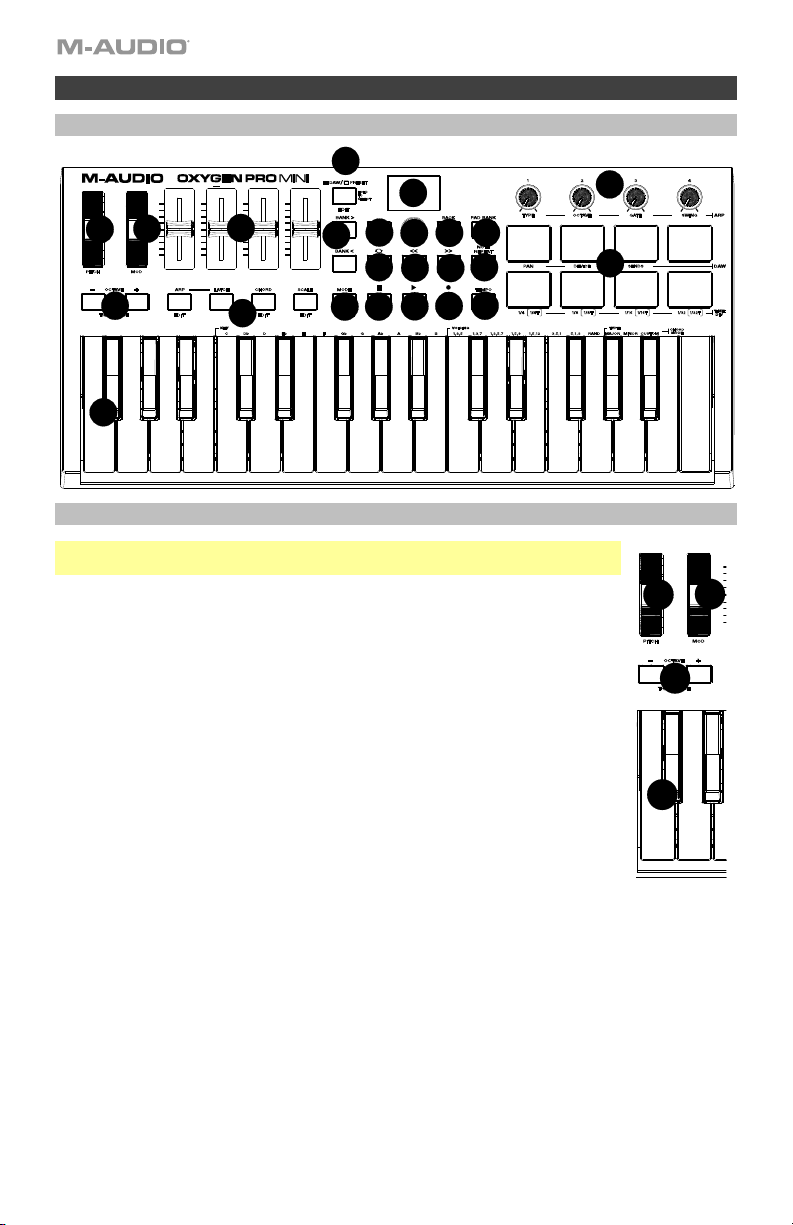
Keybed/Octave/Wheels
Note: Text below accompanying keyboard controls indicates secondary functions that
can be accessed by pressing SHIFT while using the control.
1. Keybed: This velocity-sensitive keybed is the primary method of sending Note
On/Off MIDI data.
Hold Shift and press keys C2–Bb3 to edit Chord Mode settings. See Basic
Concepts to learn more about this feature.
2. OCTAVE: Press these buttons to adjust the pitch range of the keys up or down
one octave. Hold Shift and press these buttons to adjust the pitch range of the
keys up or down one semitone. The keyboard can be raised up to four octaves
or lowered down to three octaves from its default octave range and a total of
twelve semitones from its default transposition.
To reset Oxygen Pro Mini to its default octave range and transposition (F2–C5
on the keybed), press the Octave - and Octave + Buttons simultaneously.
3. PITCH: Roll this wheel up and down from the center position to bend the pitch
of the keyboard while playing. The default range of the pitch-bend will vary
between software synths. The wheel is spring mounted and will return to the
center position when released.
4. MOD: Move this wheel to send continuous controller data—MIDI CC #01
(modulation), by default.
1
2
3
4
1
2
3
4
5
6
7
8
9
10
11
12
13
14
15
16
17
18
19
21
22
23
24
20
9
Central Functions
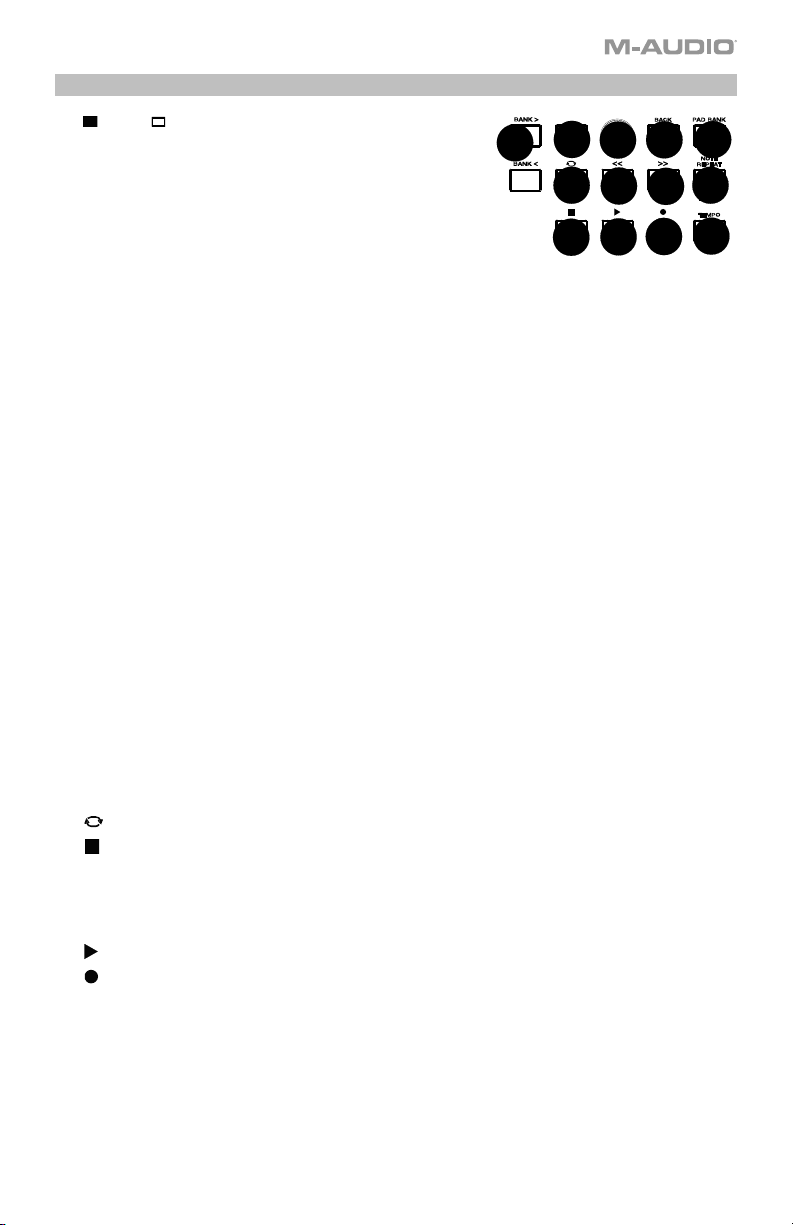
5. DAW / PRESET [EDIT] Button: Press this button to
set Oxygen Pro Mini to operate in DAW Mode or Preset
Mode. When in DAW Mode, this button’s LED will be
brightly lit. When in Preset Mode, this button’s LED will
will be off. Hold Shift and press this button to edit a
Preset or User DAW. After editing the Preset or User
DAW, press this button again to save your changes to the
User DAW or Preset. Press and hold the button to open
the DAW/Preset Select menu on the Display.
See Setting the Keyboard’s Operation Mode for more information on DAW/Preset Mode. See
the Basic Concepts section for information on mapping presets.
6. Display: The main Display screen shows the status of the last used control. Use this screen to
monitor parameter levels as you adjust controls on the keyboard. Also, use the Display along
with the Select/Scroll Encoder to view and edit keyboard settings.
7. Select/Scroll Encoder: If you are entered into one of the Display’s Edit menus, turn this
encoder to change settings/parameters and press the encoder to confirm a selection.
If you are not viewing any of the edit menus, turning the encoder and pressing the encoder will
each function as separate MIDI controls. When operating with a DAW, the assigned controls will
be predetermined. When operating with a preset or the User DAW selected, the controls can be
edited.
8. BACK: If entered into one of the Display’s Edit menus, press this button to go back to the main
Display screen. To delete a character while editing the Display name, hold Shift and press this
button.
If you are not viewing one of the Edit menus, this button will be assigned to control. When
operating with a DAW, the assigned control will be predetermined. When operating with a preset
or the User DAW selected, the control can be edited.
When editing a Preset or DAW name press the Shift button and the Back button to delete a
letter.
9. SHIFT: Hold the Shift Button while moving or pressing controls or buttons on the keyboard to
access their secondary functions.
10. <<: Depending on what screen is selected in your DAW, this button will either rewind the open
song or move down in the active window. Some DAWs may require pressing the SHIFT button and
<< Button to move down in the active window.
11. >>: Depending on what screen is selected in your DAW, this button will either fast forward the
open song or move up in the active window. Some DAWs may require pressing the SHIFT button
and >> Button to move up in the active window.
12. Loop: Press this button to activate/deactivate the loop function in your DAW.
13. Stop: Press this button to stop the open song in your DAW.
Double-press this button to stop the open song and return the playhead to the beginning of the
song.
Press Shift and this button to send a MIDI panic message to turn off all Note messages and
return all controls to zero.
14. Play: Press this button to play the song in your DAW.
15. Record: Press this button to activate recording in your DAW.
16. BANK >, BANK <: If operating in DAW Mode or one of the custom presets, use these buttons to
switch the currently selected bank for the Faders, Knobs, Pads, and Function Buttons. There
is a total of 8 banks in DAW Mode and 2 banks in Preset Mode. Press Shift and the Bank >
button to lock the Shift modifier ARP knob controls. This is useful for changing ARP parameters
during a live performance. To return the knobs or pads to their normal mode, press the Shift
button and the Bank >.
7
8
9
10
11
12
13
14
15
16
17
18
19
10
17. TEMPO: Tap this button to set Oxygen Pro Mini’s tempo or press and hold it to pull up the
Tempo Edit menu on the Display, where you can use the Select/Scroll Encoder to manually
enter the tempo and choose to sync Oxygen Pro Mini’s tempo with your DAW. The tempo
setting affects the keyboard’s arpeggiator and note repeat functions. See the Basic Concepts
section for more details.
18. NOTE REPEAT [LATCH]: Press this button to activate the note repeat function for the Pads. To
latch or unlatch the note repeat function, hold Shift and then press this button. See the Basic
Concepts section for more details on note repeat.
19. Pad Bank: Press this button to switch to a different pad bank. There are two pad banks
available.
Pads/Knobs
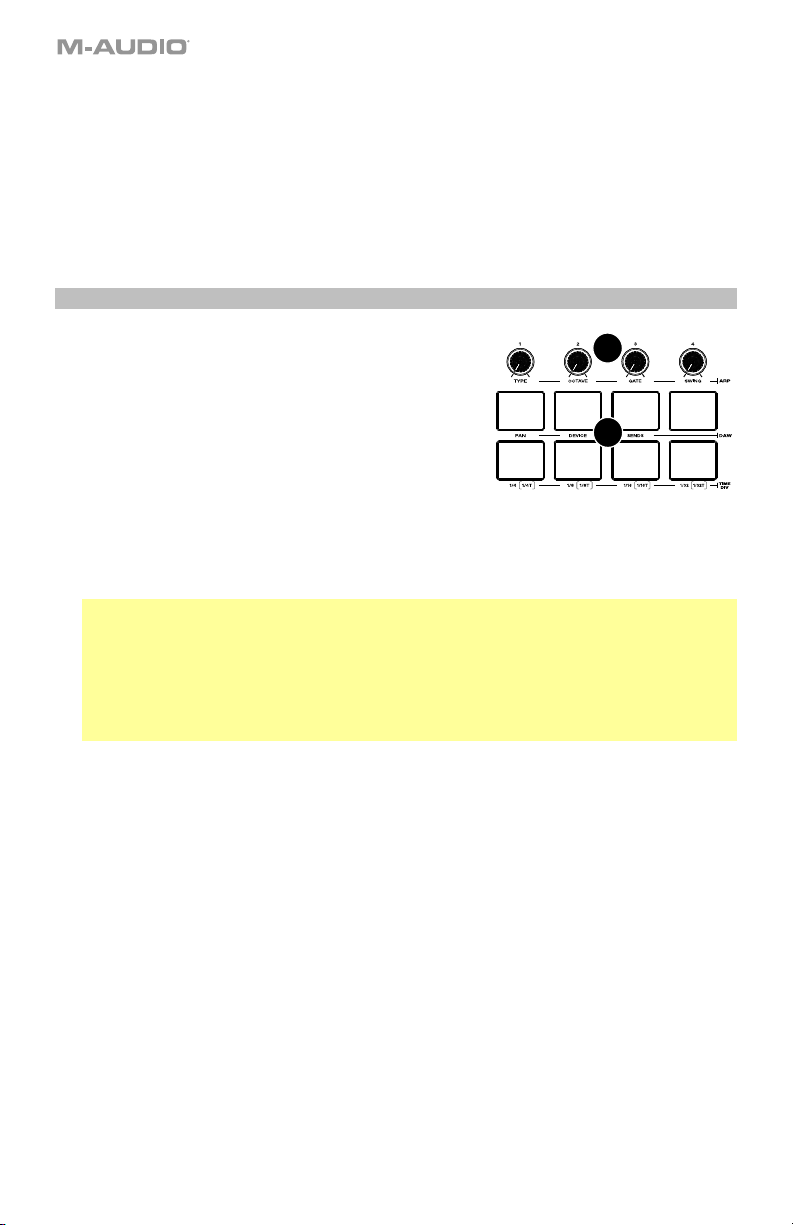
20. Pads (8): Use these velocity-sensitive pads to send MIDI
Note On/Off messages or perform other MIDI
assignments (if using a preset or the User DAW). While
Note Repeat is active, use the Select/Scroll Encoder to
change the current Time Division setting of the
Arpeggiator and pad Note Repeat.
21. Knobs: Turn these knobs left/right to perform their
assigned controls. When operating with a DAW, the
assigned controls will be predetermined. When operating
with a preset or the User DAW selected, the controls can
be edited.
See the Basic Concepts section to learn how to change the predetermined assignments of the
Knobs when operating in DAW Mode with a DAW selected.
Hold Shift while turning Knobs 1–4 to edit arpeggiator settings.
Important: Both the Faders and Knobs are enabled with “soft takeover.” This means that if you
switch banks, a fader or knob will not work until it is positioned at the current value of the newly
selected software control. For example, if you move Fader 1 in Bank 1 and then switch to Bank
2, physical Fader 1 will not affect software Fader 5 until the physical fader is positioned at the
current value of software Fader 5. This feature allows you to make changes in one bank and then
switch banks without making unwanted changes to the new bank’s controls. The Display will
show a checkered value meter if a Fader or Knob needs to be moved before it can “take over”
its assigned control.
21
20
11
Faders/Buttons
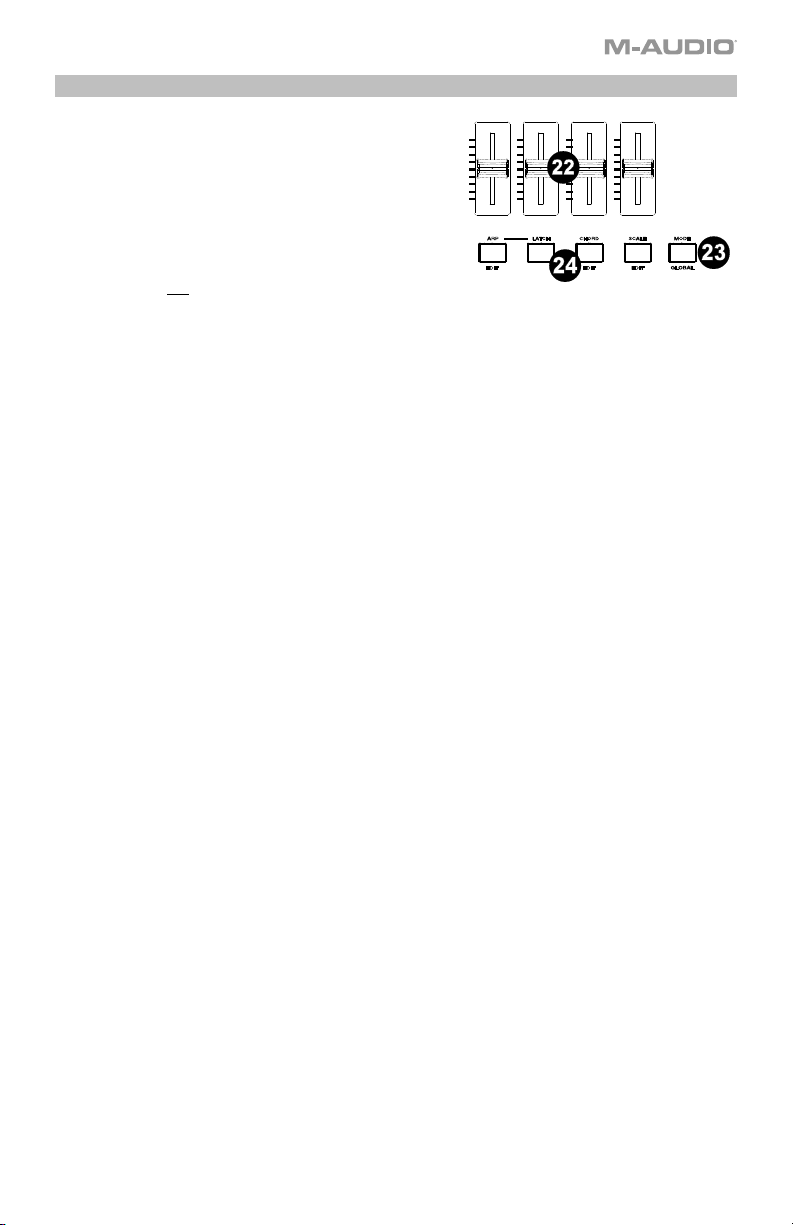
22. Faders (4): Push these faders up/down to perform
their assigned controls. When operating with a DAW,
the assigned controls will be predetermined. When
operating with a preset or DAW selected, the controls
can be edited.
23. MODE: Press the Mode Button to activate one of the
secondary Modes for the Function Buttons. When
the Mode Button is lit it will activate the DAW or MIDI
functionality of the Function buttons. When the Mode
Button is not lit it will enable the silkscreened
functions of the Function Buttons. When the
keyboard is set to operate in DAW Mode, the available
secondary Modes for the Function Buttons are Rec,
Select, Mute, and Solo; in these Modes, the buttons
perform predetermined DAW channel Record Arm,
Track Select, Mute, and Solo functions. When the
keyboard is set to operate in Preset Mode, the
available secondary Mode for the Function Buttons is
MIDI, in which the buttons perform MIDI controls that
are predetermined in one of the custom presets.
The Mode Button LED indicates which Mode the Function Buttons are in.
Hold Shift and press the Mode Button to access the keyboard’s Global Settings menu (see
Global Settings Menu. In the Global Settings menu, by changing the BUTTON selection, you
can change what the Function Buttons control in DAW mode (Rec, Select, Mute, or Solo).
24. Function Buttons (1–4): When the Function Buttons are set to their primary Mode, they will
control the keyboard’s internal functions, as described below:
ARP: Press this button to activate the arpeggiator. Hold Shift and press this button to edit the
arpeggiator’s settings.
LATCH: Press this button to toggle the arpeggiator between momentary and latch Mode.
CHORD: Press this button to activate Chord Mode. Hold Shift and press this button to edit
the Chord Mode settings.
SCALE: Press this button to activate Scale Mode. Hold Shift and press this button to edit the
Scale Mode settings.
12
Rear Panel
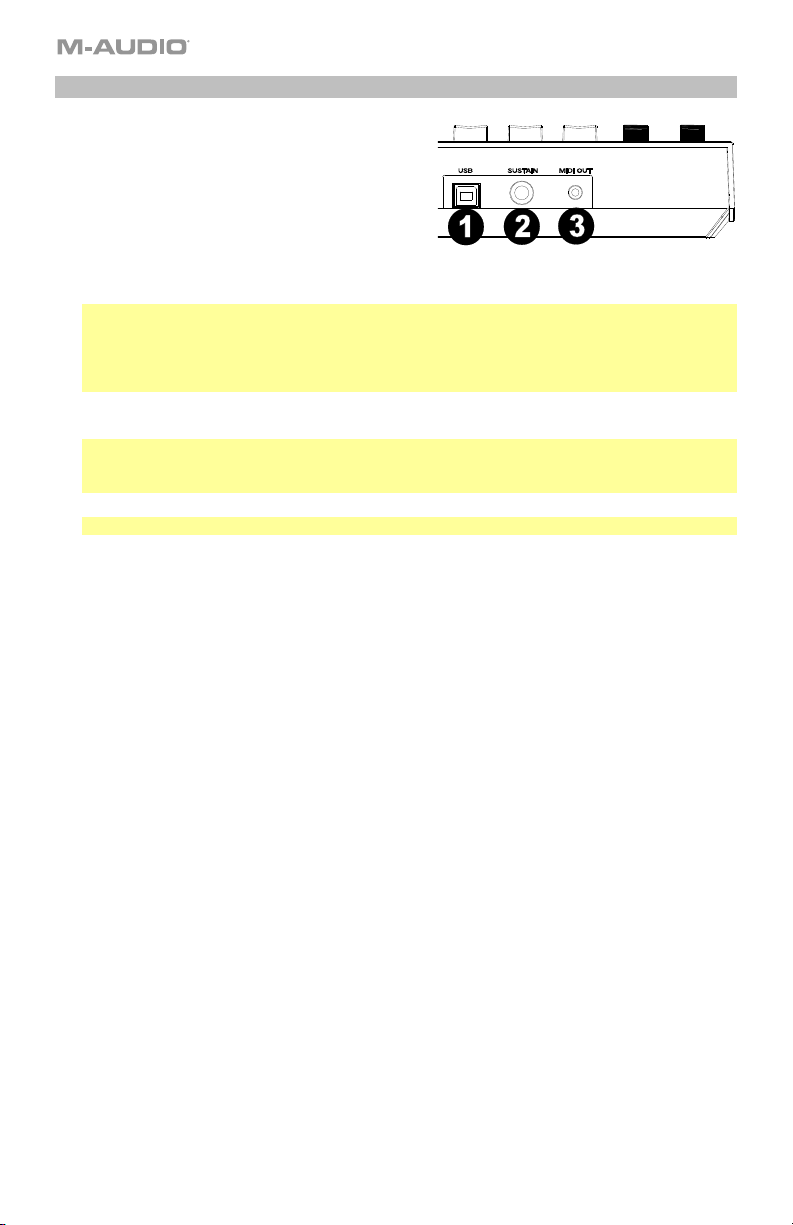
1. USB: When connected to a computer, the USB
port delivers power to the keyboard and transmits
MIDI data.
2. SUSTAIN: This input accepts a momentary-
contact foot pedal (not included). When pressed,
the pedal by default will sustain the sound you
are playing without you having to keep your
fingers pressed down on the keys. The sustain
pedal input can be remapped to perform a
custom MIDI assignment.
Note: The polarity of the sustain pedal is determined by the keyboard upon startup. When an
Oxygen Pro Mini keyboard is powering up, the sustain pedal is assumed to be in the "up" (Off)
position. It is important that the sustain pedal is not in the down position before starting up the
keyboard, as the pedal will then operate in reverse, and notes will sustain when the pedal is not
pressed.
3. MIDI OUT: Use a 1/8” TRS to 5-pin MIDI cable (sold separately) to connect this port to a
hardware synth or other MIDI device.
Note: The MIDI output port can send MIDI from the Oxygen Pro Mini, your connected computer,
or both. Go into the Global Settings (see Global Settings Menu) to set what is sent to the MIDI
Out.
Note: Please use a TRS 3.5 mm to 5 Pins DIN Female - Type A cable
13
Basic Concepts
This section gives an overview of some fundamental concepts that will help you understand
and use your Oxygen Pro Mini keyboard.
Keyboard
Octaves and Transposition
Tempo Control
Note Repeat/Latch Button
Presets
DAW and Preset Mode
SHIFT
Back Button
Encoder and Encoder Button
Mode Button
ARP and Latch Control
Smart Chord Control
Smart Scale Control
DAW Knob Control
ARP Knob Control
Each section contains links to other relevant sections of this guide, which we recommend
reading, as well.
Keyboard
The keyboard is velocity-sensitive and can access the full range of 127 available MIDI notes
across 10 octaves.
Pressing SHIFT and one of the labeled keys allows users to quickly edit chord functionality or
change the global channel.
14
Octaves and Transposition
By using the Key Octave –/+ buttons, the keyboard can access the full range of 127 available
MIDI notes (10 octaves). Additionally, you can transpose the keyboard up to 12 semitones (1
octave) in either direction.
To change the octave of the keyboard, use the Key Octave –/+ buttons to lower or raise the
octave, respectively. The display will temporarily show OCT and the current octave shift.
Oxygen Pro Mini’s keyboard can be shifted 4 octaves down or 5 octaves up.
To change the transposition of the keyboard, press and hold Shift, and then use the Key
Octave –/+ buttons to lower or raise the keybed by one one, respectively. The display will
temporarily show TRANS and the current transposition (-12 to 12).
Tempo Control
To edit the Tempo button, press the Tempo button. You can either repeatedly tap the TEMPO
button to enter in the tempo, or press and hold the TEMPO button to enter into the TEMPO
EDIT mode. Once in the TEMPO EDIT mode you can scroll through the available parameter
values using the Encoder. Select what parameter you would like to edit by pressing the
Encoder.
Clock Source “CLOCK”: Selects whether the tempo is sent from the keyboard’s internal
tempo or synced to an external DAW.
Available Values: Internal, External
BPM ###.: 20.00 – 240.00
BPM .#: .0 – .9
Note: Clock messages are sent and received on Oxygen Pro Mini’s Port 1 (Oxygen Pro
##/USB MIDI).
Note Repeat/Latch Button
When this button is pressed and held it will activate the Pad’s Note Repeat/Roll functionality.
If SHIFT and this button are pressed together, then that will activate the Note Repeat button’s
Latch feature.
While Note Repeat is active, the Select/Scroll Encoder can be used to change the current
Time Division setting of the Arpeggiator and pad Note Repeat:
• 1/4
• 1/4T
• 1/8
• 1/8T
• 1/16
• 1/16T
• 1/32
• 1/32T
Note: You can also use SHIFT and the 1/4, 1/8, 1/16, and 1/32 Pads to change tempos. To
access the triplet functionality of a Time Division Pad, double press the desired Time Division
Pad.
15
Presets
A preset is a saved collection of assignments for your Oxygen Pro Mini’s controls, channel
settings, etc. You can store up to 14 Preset presets in Oxygen Pro Mini’s internal memory,
enabling you to use a dedicated preset for each virtual instrument, or project/session.
Along with the included DAW presets you can store your own DAW preset in Oxygen Pro
Mini’s internal memory, enabling you to create and use your own dedicated DAW preset for
your digital audio workstation (DAW).
We recommend registering your Oxygen Pro Mini’s on m-audio.com and downloading the
Oxygen Pro Software Manager.
In the Software Manager you'll have access to all of your included software as well as the
Oxygen Pro Mini Preset Editor. The Preset Editor gives you a visual and intuitive way to edit
the various messages that Oxygen Pro Mini’s controls send to your computer without having
to use the hardware interface. The Preset Editor enables you to save and load custom
presets from your computer.
To select a Preset preset on the Oxygen Pro Mini, press and hold the DAW/PRESET
button when the button is in Preset Mode (button unlit) until the Preset Selection screen
appears on the OLED, then turn the Encoder to scroll to a preset, and then press the Encoder
to select your desired preset.
To select a DAW preset on the Oxygen Pro Mini, press and hold the DAW/PRESET button
when the button is in DAW Mode (button lit) until the DAW preset Selection screen appears on
the OLED, then turn the Encoder to scroll to a DAW preset, and then press the Encoder to
select your desired preset.
Important: If you power off your Oxygen Pro Mini keyboard without saving/storing your
preset, you will lose any assignments or changes you have made.
DAW and Preset Mode
Once you’ve set up your Oxygen Pro Mini keyboard to work with your DAW, it’s time to set the
keyboard’s operation Mode, Preset or DAW. By choosing the operation Mode, you can quickly
switch between the Oxygen Pro Mini controlling your DAW’s controls when DAW mode is
active to controlling a soft synth/Virtual Instrument when Preset mode is active.
These two operation Modes determine the function of the MIDI keyboard’s editable controls:
• DAW: In DAW Mode, the keyboard’s controls will be mapped to faders, buttons, knobs,
and in some cases pads in your DAW.
• Preset: In Preset Mode, the keyboard’s controls will be mapped to faders, buttons, knobs,
and pads in your selected Virtual Instrument. The keyboard’s editable controls can be set
to functions that you design yourself. A number of individual preset mappings can be
created and then saved to the keyboard’s internal memory for you to load at a later time.
16
To set the keyboard to operate in DAW Mode, press the DAW/Preset Button. The button
LED will be lit to show that DAW Mode is selected.
To change which DAW your keyboard is set to control:
1. Press and hold the DAW Button to open the DAW Select menu on the Display.
2. Turn the Select/Scroll Encoder to cycle through the available DAWs on the Display. As
you turn the Encoder, the currently selected DAW will update on the Display. The User
option enables you to map custom DAW controls to the keyboard, as described in the
Basic Concepts section.
3. When the DAW you want is shown on the Display, press the Select/Scroll Encoder to
confirm your selection.
Note: To exit out of DAW Mode without changing the currently selected DAW, press the
Back Button.
Most DAWs will automatically recognize the Oxygen Pro Mini keyboard, and automatically
configure your Oxygen Pro Mini’s ontrols as a control surface in DAW mode, and virtual
instrument controller in Preset mode.
If your DAW does not automatically configure your Oxygen Pro Mini keyboard, please follow
the setup steps listed in the Oxygen Pro Mini DAW Setup Guides.
To set the keyboard to operate in Preset Mode, press the DAW/Preset Button. The LED
will be off to show that Preset Mode is selected.
To change the currently selected preset:
1. Press and hold the Preset Button to open the Preset Select menu on the Display.
2. Turn the Select/Scroll Encoder to cycle through the available Presets on the Display. As
you turn the Encoder, the currently selected Preset will update on the Display.
3. When the preset you want is shown on the Display, press the Select/Scroll Encoder to
confirm your selection.
There are Presets for all of the Virtual Instruments included with your Oxygen Pro Mini. For
Virtual Instruments that are not included with your Oxygen Pro Mini, we suggest using MPC
Beats as a plugin wrapper in your favorite DAW, and the Oxygen Pro Mini’s MPC PI preset.
MPC Beats opens as a plugin wrapper in all mainstream DAWs to merge the best of all DAW
worlds. This gives you the freedom to use MPC Beats as a soft synth/Virtual Instrument plugin
wrapper, enabling you to have all of your Oxygen Pro Mini’s controls auto-mapped to your
favorite soft synth/Virtual Instrument plugin.
To download the included MPC Beats software, follow the instructions on the included
software download card.
17
SHIFT Button
When this button is pressed and held it will enable you to select SHIFT modifier functions of
the keyboard.
Back Button
When in any of the keyboard’s available editing modes, this button will send a message to go
back to a previous menu. When not in any of the edit modes, this button will send a separate
MIDI, Mackie or Mackie/HUI message in DAW mode. When in PRESET mode, this button will
send a separate user editable MIDI message when preset 1-14 is selected.
When SHIFT is pressed and held with this button it will delete the currently selected letter
when saving a User Preset Name, or User DAW Name.
Encoder and Encoder Button
When in any of the keyboard’s available editing modes this Encoder is used for scrolling
through selections when turned left and right and will enter when pressed. When in DAW
Mode this Encoder will send separate Up/Down or Left/Right messages (depending on the
DAW), and Enter messages. In Preset mode this Encoder will either send the same message
as the DAW Encoder assignment or send Program or CC messages.
When NOTE REPEAT is active the Encoder will be used for selecting NOTE REPEAT and
ARP time division settings.
Mode Button
The Mode button’s LED will be lit to show that the Fader Buttons secondary function is active.
The secondary function is dependent on what mode the keyboard is in, DAW or Preset, and
what “Button” selection is active in the Global functions, Record, Solo, Mute, or Select. In
Preset and DAW mode, the fader buttons silkscreened options will always be available for
selection. In DAW mode, the fader buttons silkscreened options will be available for selection,
as well as track Record (Record arm), Select, Mute, and Solo. In Preset mode, the fader
buttons silkscreened options will be available for selection, as well as user editable MIDI
messages.
DAW Mode
• Off/No LED: Fader Buttons will activate the following options:
o ARP On/Off, ARP Edit Enter/Exit
o ARP Latch On/Off
o Smart Chord On/Off, Chord Edit Enter/Exit
o Smart Scale On/Off, Scales Edit Enter/Exit
• Rec/Mode LED lit: Fader Buttons will activate Record Arm MIDI, Mackie, or Mackie/HUI
messages for the associated button’s current channel in your DAW.
• Select/Mode LED lit: Fader Buttons will activate Track Select MIDI, Mackie, or
Mackie/HUI messages for the associated button’s current channel in your DAW.
• Mute/Mode LED lit: Fader Buttons will activate Mute MIDI, Mackie, or Mackie/HUI
messages for the associated button’s current channel in your DAW.
• Solo/Mode LED lit: Fader Buttons will activate Solo MIDI, Mackie, or Mackie/HUI
messages for the associated button’s current channel in your DAW.
18
Preset Mode
• Off/No LED: Fader Buttons will activate the following options:
o ARP On/Off, ARP Edit Enter/Exit
o ARP Latch On/Off
o Chord On/Off, Chord Edit Enter/Exit
o Scales On/Off, Scales Edit Enter/Exit
• MIDI/Mode LED lit: Fader Buttons will send predetermined MIDI messages when in a
factory preset, or any user assignable MIDI message when in the user presets.
ARP and ARP LATCH Control
On the Oxygen Pro Mini, when this button is pressed, it will activate the keyboard’s internal
arpeggiator. The arpeggiator’s rate is based on the current Tempo and Time Division settings
– Tempo settings are editable using the Tempo button. Time Division settings can be
accessed by pressing and holding the Note Repeat button and turning the Encoder or by
pressing and holding the Shift button, and pressing Pads 5 - 8.
To activate the ARP Latch functionality on the Oxygen Pro Mini, press the ARP Latch button.
If the ARP button is active, then the ARP button will be lit to show that the ARP is active. If
ARP Latch is active the ARP Latch button will be lit.
Note: You can also sync the Arpeggiator to either the current Tempo’s BPM setting, or an
external MIDI Clock source. The clock source can be edited in Preset Edit Mode and
selecting/pressing the Tempo button. Arpeggiator functionality is available in the 2 keyboard
modes, DAW, PRESET.
19
Smart Chord Control
On the Oxygen Pro Mini, when this button is pressed, it will activate the keyboard’s internal
Smart Chord functionality. The Smart Chord functionality can function on notes being played
on the keyboard or pads depending on the selection in the GLOBAL SETTINGS menu. When
Smart Chord mode is active a single key press will play a chord as selected in the current
Smart Chord Edit options. This functionality is available in the 2 keyboard modes, DAW,
PRESET.
Smart Scale Control
On the Oxygen Pro Mini, when this button is pressed, it will activate the keyboard’s internal
Smart Scale functionality. The current scale is based on the current Smart Scale settings (in
the Smart Scale Edit menu). The Smart Scale functionality will only function on notes being
played on the keyboard only. When Smart Scale Mode is active, keys will only play notes in
the key of the current key and scale selection. This functionality is available in the 2 keyboard
modes, DAW, PRESET.
DAW Knob Control
Using the SHIFT button and Pads 1-3 will enable you to change the function of knobs in DAW
mode.
DAW Mode
• Pan: Will change the knobs function to control the channel pan knobs in your DAW.
• Device: Will change the knobs function to control the currently selected channel’s plugin
controls in your DAW.
Note: Not all DAWs support Device control.
• Sends: Will change the knobs function to control the currently selected channel’s send
controls in your DAW.
Note: Not all DAWs support Sends control.
ARP Knob Control
Using the SHIFT button and Knobs 1-4 will enable you to change the function of knobs to
control the functions of the Arpeggiator.
Arp Knob Controls
• Type: Will change what order the notes will be played back in the ARP.
• Octave: Will change the octave range of the ARP.
• Gate: Will change the length of the ARP’s notes.
• Swing: Will change how much the ARPs Tempo will swing.
Note: You can lock and unlock your ARP knob controls to always be active by pressing SHIFT
and BANK >.
20
Preset Edit Mode
When SHIFT is pressed and held and the DAW/PRESET button is pressed, it will enter into
editing the Preset or User DAW. Press the Encoder on “Preset” and the preset controls will be
available for editing.
The default parameter to be edited will be the current Preset’s Pitch Wheel assignment.
However, once a different control is moved, or pressed, for example Knob 1, it will activate
that selected control for editing.
Storing a Preset
To store a Preset:
1. Press SHIFT and the DAW/Preset button to enter Edit Mode. The OLED will display
“EDIT” in the top row, and depending on the current DAW/Preset mode selection, will have
Preset or DAW highlighted in the second row.
Note: When Preset or DAW is highlighted you can turn the Encoder to change from
editing DAW or Preset mode, changing the current selection.
2. Press the Encoder to enter into either DAW or Preset edit mode.
3. Edit a control.
4. Press the DAW/Preset button.
5. The display will show “SAVE?” with the following selections available:
• Cancel: Selecting Cancel will revert any changes made.
• Replace: Selecting Replace will write over the currently selected preset.
• Save As: Selecting “Yes” to Save As enable you to choose what number
“LOCATION” the preset will be and edit/change what the preset’s name “NAME” is.
The last available selection in the Save As screen is Save. Pressing “Yes” on the Save
screen will save your new preset.
Note: When editing a preset name, use the Shift button and the Encoder to scroll to a letter
you want to edit and release Shift to select the current letter. To erase a letter in a preset
name, press SHIFT and the Back button.
Channel Definitions
Channel:
Select the global channel (Global) to use the channel assigned in the GLOBAL SETTING
menu, or a specific channel (Channel 1–16).
• Global: Will send on the global MIDI channel. The Global MIDI channel is assigned in the
GLOBAL EDIT SETTINGS menu.
• Channel 1–16: Will send on a specific MIDI channel.
21
Editable Preset Controls
Pitch Wheel
To edit the Pitch Wheel control when in Preset Edit Mode, move the Pitch Wheel. You can
scroll through the available parameter values using the Encoder. Select what parameter you
would like to edit by pressing the Encoder.
Channel: The Pitch Wheel will send its messages over this channel. Select the global channel
(Global), or a specific channel (Channel 1–16).
Available Values: Global, 1-16
Minimum Value: The wheel’s minimum position will correspond with this value. You can
reverse the wheel’s polarity by making this value larger than the Max value.
Available Values: 0-127
Maximum Value: The wheel’s maximum position will correspond with this value. You can
reverse the wheel’s polarity by making this value smaller than the Min value.
Available Values: 0-127
Modulation Wheel
To edit the Modulation Wheel control when in Preset Edit Mode, move the Modulation Wheel.
You can scroll through the available parameter values using the Encoder. Select what
parameter you would like to edit by pressing the Encoder.
Channel: The Mod Wheel will send its messages over this channel. Select the global channel
(Global), or a specific channel (Channel 1–16).
Available Values: Global, 1-16
CC: The Mod wheel will send its MIDI messages using this CC number.
Available Values: 0-127
Minimum Value: The wheel’s minimum position will correspond with this value. You can
reverse the wheel’s polarity by making this value larger than the Max value.
Available Values: 0-127
Maximum Value: The wheel’s maximum position will correspond with this value. You can
reverse the wheel’s polarity by making this value smaller than the Min value.
Available Values: 0-127
22
Fader
To edit the Fader control when in Preset Edit Mode, move the Fader. You can scroll through
the available parameter values using the Encoder. Select what parameter you would like to
edit by pressing the Encoder.
Channel: The Fader will send its messages over this channel. Select the global channel
(Global), or a specific channel (Channel 1–16).
Available Values: Global, 1-16
CC: The fader will send its MIDI messages using this CC number.
Available Values: 0-127
Minimum Value: The fader’s minimum position will correspond with this value. You can
reverse the fader’s polarity by making this value larger than the Maximum value.
Available Values: 0-127
Maximum Value: The fader’s maximum position will correspond with this value. You can
reverse the fader’s polarity by making this value smaller than the Minimum value.
Available Values: 0-127
Knobs
To edit one of the Knobs when in Preset Edit Mode, move a Knob. You can scroll through the
available parameter values using the Encoder. Select what parameter you would like to edit by
pressing the Encoder.
Channel: The knob will send its messages over this channel. Select the global channel
(Global), or a specific channel (Channel 1–16).
Available Values: Global, 1-16
CC: The knob will send its MIDI messages using this CC number.
Available Values: 0-127
Minimum Value: The knob’s minimum position will correspond with this value. You can
reverse the knob’s polarity by making this value larger than the Maximum value.
Available Values: 0-127
Maximum Value: The knob’s maximum position will correspond with this value. You can
reverse the knob’s polarity by making this value smaller than the Minimum value.
Available Values: 0-127
23
Fader Buttons
To edit one of the Fader Buttons when in Preset Edit Mode, press a fader button. You can
scroll through the available parameter values using the Encoder. Select what parameter you
would like to edit by pressing the Encoder.
Channel: The fader button will send its messages over this channel. Select the global channel
(Global), or a specific channel (Channel 1–16).
Available Values: Global, 1-16
Mode “MODE”:
• CC
“CC”: The fader button will send its MIDI messages using this CC number.
• CC Cycle
“CC CYCLE”: The fader button will send the value with this CC number when
you press it, one at a time, cycling through them with each press.
• CC Inc/Dec
“CC INC/DC”: The fader button will send the next (Increment) or previous
(Decrement) value number in the range of values when you press it.
• Program
“PROGRAM”: The fader button will send this program number when you press
it.
• Program Cycle
“PRG CYCL”: The fader button will send the value with this Program
number when you press it, one at a time, cycling through them with each press.
• Program Inc/Dec
“PG IN/DC”: The fader button will send the next (Increment) or previous
(Decrement) program number in the range of programs when you press it.
• Note
“NOTE”: The fader button will send its MIDI messages using this Note number.
When set to CC, these are the available parameters:
CC: The fader button will send its MIDI messages using this CC number.
Available Values: 0-127
Press: The fader button will send the MIDI CC number with this value when you press it.
Available Values: 0-127
Release: The fader button will send the MIDI CC number with this value when you release it.
Available Values: 0-127
When set to CC Cycle, these are the available parameters:
CC: The fader button will send its MIDI messages using this CC number.
Available Values: 0-127
Press: The fader button will send the MIDI CC number with this value when you press it.
Available Values: 0-127
Release: The fader button will send the MIDI CC number with this value when you release it.
Available Values: 0-127
24
Values: The fader button will send the value with this CC number when you press it, one at a
time, cycling through them with each press.
Available Values:
• 2 Values
• 3 Values
• 4 Values
First Value:
Available Values: 0-127
Second Value:
Available Values: 0-127
Third Value:
Available Values: 0-127
Last:
Available Values: 0-127
When set to CC IN/DC, these are the available parameters:
CC: The fader button will send its MIDI messages using this CC number.
Available Values: 0-127
Type: The fader button will send the next (Increment) or previous (Decrement) value number
in the range of values when you press it.
Min: The lowest value in the range of values will correspond with this setting.
Available Values: 0-127
Max: The highest value in the range of values will correspond with this setting.
Available Values: 0-127
When set to Program, these are the available parameters:
Program: The fader button will send this program number when you press it.
Available Values: 0-127
MSB: The fader button will send this Bank MSB (Most Significant Byte) number when you
press it.
Available Values: 0-127
25
LSB: The fader button will send this Bank LSB (Least Significant Byte) number when you press
it.
Available Values: 0-127
When set to Program Cycle, these are the available parameters:
Values: The fader button will cycle through this many Program values (one at a time) when you
press it: 2 Values, 3 Values, or 4 Values.
Available Values:
• 2 Values
• 3 Values
• 4 Values
First: The fader button will send this Program message first when you press it.
Available Values: 0-127
Second: The fader button will send this Program message second when you press it.
Available Values: 0-127
Third: The fader button will send this Program message third when you press it.
Available Values: 0-127
Last: The fader button will send this Program message last when you press it.
Available Values: 0 – 127
When set to Program IN/DC (PG IN/DC), these are the available parameters:
Type: The fader button will send the next (Increment) or previous (Decrement) value number
in the range of values when you press it.
Min: The lowest Program value in the range of values will correspond with this setting.
Available Values: 0-127
Max: The highest Program value in the range of values will correspond with this setting.
Available Values: 0-127
When set to Note, these are the available parameters:
Note: The fader button will send its MIDI messages using this Note number.
Available Values: C-2 – G8
Latch: When set to Latch On, the fader button will send one value when pressed and a
different value when pressed a second time, alternating between the two values with each
press. When set to Latch Off, the fader buttons will send one value when pressed and one
value when released.
Available Values: On/Off
26
Note On: When Latch is active, the fader button will send the MIDI note number with this
velocity when you press it to turn it on.
Available Values: 0-127
Note Off: When Latch is active, the fader button will send the MIDI note number with this
velocity when you press it to turn it off.
Available Values: 0-127
Sustain Pedal
To edit the Sustain Pedal when in Preset Edit Mode, press a connected Sustain Pedal. You
can scroll through the available parameter values using the Encoder. Select what parameter
you would like to edit by pressing the Encoder.
Channel: The Sustain Pedal will send its messages over this channel. Select the global
channel (Global), or a specific channel (Channel 1–16).
Available Values: Global, 1-16
CC: The Sustain Pedal will send its MIDI messages using this CC number.
Available Values: 0-127
Press: The Sustain Pedal will send the MIDI CC number with this value when you press it.
Available Values: 0-127
Release: The Sustain Pedal will send the MIDI CC number with this value when you release it.
Available Values: 0-127
Latch: When set to Latch On, the Sustain Pedal will send one value when pressed and a
different value when pressed a second time, alternating between the two values with each
press. When set to Latch Off, the Sustain Pedal will send one value when pressed and one
value when released.
Available Values: On/Off
27
Pads
To edit one of the Pads when in Preset Edit Mode, press a Pad. You can scroll through the
available parameter values using the Encoder. Select what parameter you would like to edit by
pressing the Encoder.
Channel: The pad will send its messages over this channel. Select the global channel (Global),
or a specific channel (Channel 1–16).
Available Values: Global, 1-16
Color 1: Select the primary color that you want to assign to the pad.
Available Values: Off “OFF”, Chartreuse “CHAR.”, Green “GREEN”, Aquamarine “AQUA”,
Cyan “CYAN”, Azure “AZURE”, Blue “BLUE”, Violet “VIOLET”, Magenta “MAGENTA”, Rose
“ROSE”, Red “RED”, Orange “ORANGE”, Yellow “YELLOW”, White “WHITE”.
Color 2: Select the secondary color that you want to assign to the pad.
Available Values: Off “OFF”, Chartreuse “CHAR.”, Green “GREEN”, Aquamarine “AQUA”,
Cyan “CYAN”, Azure “AZURE”, Blue “BLUE”, Violet “VIOLET”, Magenta “MAGENTA”, Rose
“ROSE”, Red “RED”, Orange “ORANGE”, Yellow “YELLOW”, White “WHITE”.
Mode “MODE”:
• Note
“NOTE”: The pad will send its MIDI messages using this Note number.
• CC
“CC”: The pad will send its MIDI messages using this CC number.
• CC Cycle
“CC CYCLE”: The pad will send the value with this CC number when you press
it, one at a time, cycling through them with each press.
• CC Inc/Dec
“CC INC/DC”: The pad will send the next (Increment) or previous
(Decrement) value number in the range of values when you press it.
• Program
“PROGRAM”: The pad will send this program number when you press it.
• Program Cycle
“PRG CYCL”: The pad will send the value with this Program number
when you press it, one at a time, cycling through them with each press.
• Program Inc/Dec
“PG IN/DC”: The pad will send the next (Increment) or previous
(Decrement) program number in the range of programs when you press it.
When set to Note, these are the available parameters:
Note: The pad will send its MIDI messages using this Note number.
Available Values: C-1 – G9
Latch: When set to Latch On, the pad will send one value when pressed and a different value
when pressed a second time, alternating between the two values with each press. When set to
Latch Off, the pads will send one value when pressed and one value when released.
Available Values: On/Off
Note On: When Latch is active, the pad will send the MIDI note number with this velocity when
you press it to turn it on.
Available Values: 0-127
28
Note Off: When Latch is active, the pad will send the MIDI note number with this velocity
when you press it to turn it off.
Available Values: 0-127
When set to CC, these are the available parameters:
CC: The pad will send its MIDI messages using this CC number.
Available Values: 0-127
Press: The pad will send the MIDI CC number with this value when you press it.
Available Values: 0-127
Release: The pad will send the MIDI CC number with this value when you release it.
Available Values: 0-127
When set to CC Cycle, these are the available parameters:
CC: The pad will send its MIDI messages using this CC number.
Available Values: 0-127
Press: The pad will send the MIDI CC number with this value when you press it.
Available Values: 0-127
Release: The pad will send the MIDI CC number with this value when you release it.
Available Values: 0-127
Values: The pad will send the value with this CC number when you press it, one at a time,
cycling through them with each press.
Available Values:
• 2 Values
• 3 Values
• 4 Values
First Value:
Available Values: 0-127
Second Value:
Available Values: 0-127
Third Value:
Available Values: 0-127
Last:
Available Values: 0-127
29
When set to CC IN/DC, these are the available parameters:
CC: The pad will send its MIDI messages using this CC number.
Available Values: 0-127
Type: The pad will send the next (Increment) or previous (Decrement) value number in the
range of values when you press it.
Min: The lowest value in the range of values will correspond with this setting.
Available Values: 0-127
Max: The highest value in the range of values will correspond with this setting.
Available Values: 0-127
When set to Program, these are the available parameters:
Program: The pad will send this program number when you press it.
Available Values: 0-127
MSB: The pad will send this Bank MSB (Most Significant Byte) number when you press it.
Available Values: 0-127
LSB: The pad will send this Bank LSB (Least Significant Byte) number when you press it.
Available Values: 0-127
When set to Program Cycle, these are the available parameters:
Values: The pad will cycle through this many Program values (one at a time) when you press
it: 2 Values, 3 Values, or 4 Values.
Available Values:
• 2 Values
• 3 Values
• 4 Values
First: The pad will send this Program message first when you press it.
Available Values: 0-127
Second: The pad will send this Program message second when you press it.
Available Values: 0-127
Third: The pad will send this Program message third when you press it.
Available Values: 0-127
Last: The pad will send this Program message last when you press it.
Available Values: 0-127
30
When set to Program IN/DC (PG IN/DC), these are the available parameters:
Type: The pad will send the next (Increment) or previous (Decrement) value number in the
range of values when you press it.
Min: The lowest Program value in the range of values will correspond with this setting.
Available Values: 0-127
Max: The highest Program value in the range of values will correspond with this setting.
Available Values: 0-127
Encoder Turn
To edit the turn functionality of the Encoder when in Preset Edit Mode, press and hold the
SHIFT button and move the ENCODER. You can scroll through the available parameter values
using the Encoder. Select what parameter you would like to edit by pressing the Encoder.
Channel: The Encoder will send its messages over this channel. Select the global channel
(Global), or a specific channel (Channel 1–16).
Available Values: Global, 1-16
Message:
• Same as DAW “DAW”: This assignment will match the message assigned to the Oxygen
Pro Mini’s current DAW selection's Encoder.
• Program Cycle “PRG CYCL”: This is useful for selecting between different presets in
software or external MIDI hardware. Select from 2-4 program messages.
• Program Inc/Dec
“PG IN/DC”: This is useful to scroll through multiple program
messages.
• CC Cycle
“CC CYCLE”: This useful for controlling from 2 - 4 CC values, as seen on a
button or virtual instrument control with 2-4 parameters. Select from 2-4 values.
• CC Inc/Dec
“CC IN/DC”: This is useful for scrolling through several CC values.
• CC Relative
“CC RELTV”: This is useful for controlling endless Encoders in software.
Select from Right 65, Left 63; Right 63, Left 65; Right 127, Left 01; Right 01, Left 127.
When set to Program Cycle, these are the available parameters:
Values: The Encoder will cycle through this many Program values (one at a time) when you
turn it: 2 Values, 3 Values, or 4 Values.
Available Values:
• 2 Values
• 3 Values
• 4 Values
First: The Encoder will send this Program message first when you press it.
Available Values: 0-127
Second: The Encoder will send this Program message second when you press it.
Available Values: 0-127
31
Third: The Encoder will send this Program message third when you press it.
Available Values: 0-127
Last: The Encoder will send this Program message last when you press it.
Available Values: 0-127
When set to Program IN/DC (PG IN/DC), these are the available parameters:
Type: The Encoder will send the next (Increment) or previous (Decrement) value number in
the range of values when you turn it.
Minimum: The lowest Program value in the range of values will correspond with this setting.
Available Values: 0-127
Maximum: The highest Program value in the range of values will correspond with this setting.
Available Values: 0-127
When set to CC Cycle, these are the available parameters:
CC: The Encoder will send its MIDI messages using this CC number.
Available Values: 0-127
Values: The Encoder will send the value with this CC number when you turn it, one at a time,
cycling through them with each notch.
Available Values:
• 2 Values
• 3 Values
• 4 Values
First: The Encoder will send the MIDI CC number with this value when you first turn it.
Available Values: 0-127
Second: The Encoder will send the MIDI CC number with this value at the second notch of the
turn.
Available Values: 0-127
Third: The Encoder will send the MIDI CC number with this value at the third notch of the turn.
Available Values: 0-127
Last: The Encoder will send the MIDI CC number with this value at the final notch of the turn.
Available Values: 0-127
When set to CC IN/DC, these are the available parameters:
CC: The Encoder will send its MIDI messages using this CC number.
Available Values: 0-127
32
Min: The lowest value in the range of values will correspond with this setting.
Available Values: 0-127
Max: The highest value in the range of values will correspond with this setting.
Available Values: 0-127
When set to CC Relative, these are the available parameters:
CC: The Encoder will send its MIDI messages using this CC number.
Available Values: 0-127
Type: The Encoder will send a value number in the range of values when you turn it left or
right.
Available Values:
• Right 65, Left 63
• Right 63, Left 65
• Right 127, Left 01
• Right 01, Left 127
33
Encoder Press
To edit the press functionality of the Encoder when in Preset Edit Mode, press and hold the
SHIFT button and press the ENCODER. You can scroll through the available parameter values
using the Encoder. Select what parameter you would like to edit by pressing the Encoder.
Channel: The Encoder will send its messages over this channel. Select the global channel
(Global), or a specific channel (Channel 1–16).
Available Values: Global, 1-16
Assign:
• Same as DAW “DAW”: This assignment will match the message assigned to the Oxygen
Pro Mini’s current DAW selection's Encoder press.
• CC: When set to CC, the Encoder press will send standard MIDI CC messages to your
virtual instrument.
• Program: The Encoder will send its MIDI messages using the selected Program number
and MSB and LSB values.
When set to CC, these are the available parameters:
CC: The Encoder will send its MIDI messages using this CC number.
Available Values: 0-127
Press: The Encoder will send the MIDI CC number with this value when you press it.
Available Values: 0-127
Release: The Encoder will send the MIDI CC number with this value when you release it.
Available Values: 0-127
When set to Program, these are the available parameters:
Program: The Encoder will send this program number when you press it.
Available Values: 0-127
MSB: The Encoder will send this Bank MSB (Most Significant Byte) number when you press it.
Available Values: 0-127
LSB: The Encoder will send this Bank LSB (Least Significant Byte) number when you press it.
Available Values: 0-127
34
Back Button
To edit the functionality of the Back button when in Preset Edit Mode, press and hold the
SHIFT button and press the Back button. You can scroll through the available parameter
values using the Encoder. Select what parameter you would like to edit by pressing the
Encoder.
Channel: The Back button will send its messages over this channel. Select the global channel
(Global), or a specific channel (Channel 1–16).
Available Values: Global, 1-16
Assign:
• Same as DAW “DAW”: This assignment will match the message assigned to the Oxygen
Pro Mini’s current DAW selection's Back button.
• CC: When set to CC, the Back button will send standard MIDI CC messages to your
virtual instrument.
• Program: The Back button will send its MIDI messages using the selected Program
number and MSB and LSB values.
When set to CC, these are the available parameters:
CC: The Back buton will send its MIDI messages using this CC number.
Available Values: 0-127
Press: The Back button will send the MIDI CC number with this value when you press it.
Available Values: 0-127
Release: The Back button will send the MIDI CC number with this value when you release it.
Available Values: 0-127
When set to Program, these are the available parameters:
Program: The Back button will send this program number when you press it.
Available Values: 0-127
MSB: The Back button will send this Bank MSB (Most Significant Byte) number when you
press it.
Available Values: 0-127
LSB: The Back button will send this Bank LSB (Least Significant Byte) number when you press
it.
Available Values: 0-127
35
Saving a Preset
To store a Preset:
1. Press SHIFT and the DAW/Preset button to enter Edit Mode. The OLED will display
“EDIT” in the top row, and depending on the current DAW/Preset mode selection, will have
Preset or DAW highlighted in the second row.
Note: When Preset or DAW is highlighted you can turn the Encoder to change from
editing DAW or Preset mode, changing the current selection.
2. Press the Encoder to enter into either DAW or Preset edit mode.
3. Edit a control.
4. Press the DAW/Preset button.
5. The display will show “SAVE?” with the following selections available.
• Cancel: Selecting Cancel will revert any changes made.
• Replace: Selecting Replace will write over the currently selected preset.
• Save As: Selecting “Yes” to Save As enable you to choose what number
“LOCATION” the preset will be and edit/change what the preset’s name “NAME” is.
The last available selection in the Save As screen is Save. Pressing “Yes” on the
Save screen will save your new preset.
Note: When editing a preset name, use the Encoder to scroll to a letter you want to edit and
press the Encoder to select the current letter. To erase a letter in a preset name, press SHIFT
and the Back button.
36
DAW Edit Mode
When SHIFT is pressed and held and the DAW/PRESET button is pressed, it will enter into
editing the Preset or User DAW. Press the Encoder on “DAW” and the DAW controls will be
available for editing.
The default parameter to be edited will be the current User DAW’s Fader 1 assignment.
However, once a different control is moved, or pressed, for example Knob 1, it will activate
that selected control for editing.
Storing a User DAW
To store a User DAW:
1. Press SHIFT and the DAW/Preset button to enter Edit Mode. The OLED will display
“EDIT” in the top row, and depending on the current DAW/Preset mode selection, will have
Preset or DAW highlighted in the second row.
Note: When Preset or DAW is highlighted you can turn the Encoder to change from
editing DAW or Preset mode, changing the current selection.
2. Press the Encoder to enter into either DAW or Preset edit mode.
3. Edit a control.
4. Press the DAW/Preset button.
5. The display will show “SAVE?” with the following selections available.
• Cancel: Selecting Cancel will revert any changes made.
• Replace: Selecting Replace will write over the currently selected preset.
• Save As: Selecting “Yes” to Save As enable you to edit/change what the DAW’s
name “NAME” is. The last available selection in the Save As screen is Save. Pressing
“Yes” on the Save screen will save your new User DAW.
Note: When editing a DAW name, use the Shift button and the Encoder to scroll to the letter
you want to edit and release the Shift button to select the current letter. To erase a letter in a
DAW name, press SHIFT and the Back button.
Fader
To edit the Fader control when in DAW Edit Mode, move the Fader. You can scroll through the
available parameter values using the Encoder. Select what parameter you would like to edit by
pressing the Encoder.
Channel: The Fader will send its messages over this channel. Select the global channel
(Global), or a specific channel (Channel 1–16).
Available Values: Global, 1-16
Message “MESSAGE”:
• Mackie
“Mackie”: When set to Mackie Control, you can use the fader with a DAW that
responds to Mackie Control mode.
• Mackie/HUI
“MACK/HUI”: When set to Mackie/HUI, you can use the fader with a DAW
that responds to HUI mode.
• CC “CC”: The fader will send its MIDI messages using this CC number.
37
CC: The fader will send its MIDI messages using this CC number.
Available Values: 0-127
Knobs
To edit one of the Knobs when in Preset Edit Mode, move a Knob. You can scroll through the
available parameter values using the Encoder. Select what parameter you would like to edit by
pressing the Encoder.
Channel: The Knob will send its messages over this channel. Select the global channel
(Global), or a specific channel (Channel 1–16).
Available Values: Global, 1-16
Message “MESSAGE”:
• Mackie
“Mackie”: When set to Mackie Control, you can use the knob with a DAW that
responds to Mackie Control mode.
• Mackie/HUI
“MACK/HUI”: When set to Mackie/HUI, you can use the knob with a DAW
that responds to HUI mode.
• CC “CC”: The fader will send its MIDI messages using this CC number.
CC: The knob will send its MIDI messages using this CC number.
Available Values: 0-127
38
Pads
To edit one of the Pads when in DAW Edit Mode, press a Pad. You can scroll through the
available parameter values using the Encoder. Select what parameter you would like to edit by
pressing the Encoder.
Channel: The pad will send its messages over this channel. Select the global channel (Global),
or a specific channel (Channel 1–16).
Available Values: Global, 1-16
Color 1: Select the primary color that you want to assign to the pad.
Available Values: Off “OFF”, Chartreuse “CHAR.”, Green “GREEN”, Aquamarine “AQUA”,
Cyan “CYAN”, Azure “AZURE”, Blue “BLUE”, Violet “VIOLET”, Magenta “MAGENTA”, Rose
“ROSE”, Red “RED”, Orange “ORANGE”, Yellow “YELLOW”, White “WHITE”.
Color 2: Select the secondary color that you want to assign to the pad.
Available Values: Off “OFF”, Chartreuse “CHAR.”, Green “GREEN”, Aquamarine “AQUA”,
Cyan “CYAN”, Azure “AZURE”, Blue “BLUE”, Violet “VIOLET”, Magenta “MAGENTA”, Rose
“ROSE”, Red “RED”, Orange “ORANGE”, Yellow “YELLOW”, White “WHITE”.
Type “TYPE”:
• Note
“NOTE”: The pad will send its MIDI messages using this Note number.
• CC
“CC”: The pad will send its MIDI messages using this CC number.
• Same as Preset
“PRESET”: When set to PRESET, the pads will send the same message
assigned to the pads when in Preset mode.
When set to Note, these are the available parameters:
Note: The pad will send its MIDI messages using this Note number.
Available Values: C-1 – G9
When set to CC, these are the available parameters:
CC: The pad will send its MIDI messages using this CC number.
Available Values: 0-127
Encoder Turn
To edit the turn functionality of the Encoder when in DAW Edit Mode, press and hold the
SHIFT button and move the ENCODER. You can scroll through the available parameter values
using the Encoder. Select what parameter you would like to edit by pressing the Encoder.
Channel: The Encoder will send its messages over this channel. Select the global channel
(Global), or a specific channel (Channel 1–16).
Available Values: Global, 1-16
39
Message:
• Mode: This will specify what message will be sent when the Encoder is turned.
o CC Relative: This is useful to send standard MIDI CC messages to your DAW.
o CC Inc/Dec: This is useful for scrolling through several CC values.
o Mackie Up/Down: This is useful to scroll up/down in a DAW that responds to
Mackie Control Mode.
o Mackie Left/Right: This is useful to scroll left/right in a DAW that responds to
Mackie Control Mode.
o HUI Up/Down: This is useful to scroll up/down in a DAW that responds to HUI
mode.
o HUI Left/Right: This is useful to scroll left/right in a DAW that responds to HUI
mode.
• CC Relative Type: The Encoder will send a value number in the range of values when
you turn it left or right.
• Right 65, Left 63
• Right 63, Left 65
• Right 127, Left 01
• Right 01, Left 127
• CC: Selects the MIDI CC value that will be sent when the Encoder is turned.
40
Encoder Press
To edit the press functionality of the Encoder when in DAW Edit Mode, press and hold the
SHIFT button and press the ENCODER. You can scroll through the available parameter values
using the Encoder. Select what parameter you would like to edit by pressing the Encoder.
Channel: The Encoder will send its messages over this channel. Select the global channel
(Global), or a specific channel (Channel 1–16).
Available Values: Global, 1-16
Message:
• Mode: This will specify what message will be sent when the Encoder is turned.
o CC: When set to CC, the Encoder will send standard MIDI CC messages to your
DAW.
o Mackie: When set to Mackie Control, you can use the Encoder with a DAW that
responds to Mackie Control mode.
o Mackie/HUI: When set to Mackie/HUI, you can use the Encoder with a DAW that
responds to HUI mode.
• CC: Selects the MIDI CC value that will be sent when the Encoder is pressed.
41
Back Button
To edit the functionality of the Back button when in DAW Edit Mode, press and hold the SHIFT
button and press the Back button. You can scroll through the available parameter values
using the Encoder. Select what parameter you would like to edit by pressing the Encoder.
Channel: The Back button will send its messages over this channel. Select the global channel
(Global), or a specific channel (Channel 1–16).
Available Values: Global, 1-16
Message:
• Mode: This will specify what message will be sent when the Back button is pressed.
o CC: When set to CC, the Back button will send standard MIDI CC messages to your
DAW.
o Mackie: When set to Mackie Control, you can use the Back button with a DAW that
responds to Mackie Control mode.
o Mackie/HUI: When set to Mackie/HUI, you can use the Back button with a DAW
that responds to HUI mode.
• CC: Selects the MIDI CC value that will be sent when the Back button is pressed.
42
Bank < and > Buttons
To edit the functionality of the Bank < or > buttons when in DAW Edit Mode, press and hold
the SHIFT button and press the BANK < or BANK > button. You can scroll through the
available parameter values using the Encoder. Select what parameter you would like to edit by
pressing the Encoder.
Channel: The Bank < or > button will send its messages over this channel. Select the global
channel (Global), or a specific channel (Channel 1–16).
Available Values: Global, 1-16
Message:
• Mode: This will specify what message will be sent when the Bank < or > button is
pressed.
o CC: When set to CC, the Bank < or > button will send standard MIDI CC messages
to your DAW.
o Mackie: When set to Mackie Control, you can use the Bank < or > button with a
DAW that responds to Mackie Control mode.
o Mackie/HUI: When set to Mackie/HUI, you can use the Bank < or > button with a
DAW that responds to HUI mode.
• CC: Selects the MIDI CC value that will be sent when the Bank < or > button is pressed.
• Down: The Bank < or > button will send this CC value when you press it.
• Up: The Bank < or > button will send this CC value when you release it.
43
Transport Control Buttons
To edit the functionality of the <<, >>, Loop, Stop, Play or Record buttons when in DAW Edit
Mode, press the <<, >>, Loop, Stop, Play or Record button. You can scroll through the
available parameter values using the Encoder. Select what parameter you would like to edit by
pressing the Encoder.
Channel: The <<, >>, Loop, Stop, Play or Record buttons will send their messages over this
channel. Select the global channel (Global), or a specific channel (Channel 1–16).
Available Values: Global, 1-16
Message:
• Mode: This will specify what message will be sent when the <<, >>, Loop, Stop, Play or
Record button is pressed.
o CC: When set to CC, the <<, >>, Loop, Stop, Play or Record button will send
standard MIDI CC messages to your DAW.
o Mackie: When set to Mackie Control, you can use the <<, >>, Loop, Stop, Play or
Record button with a DAW that responds to Mackie Control mode.
o Mackie/HUI: When set to Mackie/HUI, you can use the <<, >>, Loop, Stop, Play or
Record button with a DAW that responds to HUI mode.
• CC: Selects the MIDI CC value that will be sent when <<, >>, Loop, Stop, Play or Record
button is pressed.
44
DAW/Preset Button
Editing the DAW/Preset button requires pressing and holding the SHIFT button and pressing
the DAW/Preset button. You can then scroll through the available parameter values using the
Encoder. Select what parameter you would like to edit by pressing the Encoder.
Note: What some parameter values are set to will affect what parameters are available for
editing. For example, if the Button’s Mode parameter is changed from Mackie to CC, it will
change the editable parameters to CC parameters.
Channel: The DAW/Preset button will send its messages over this channel. Select the global
channel (Global), or a specific channel (Channel 1–16).
Available Values: Global, 1-16
Assignment “ASSIGN”:
• Mackie “MACKIE”: When set to Mackie Control, you can use the button with a DAW that
responds to Mackie Control mode. This will not send a message when this is selected.
• Mackie/HUI “MACK/HUI”: When set to Mackie/HUI, you can use the button with a DAW
that responds to HUI mode. This will not send a message when this is selected.
• CC
“CC”: The button will send its MIDI messages using this CC number.
When set to CC, these are the available parameters:
CC: The DAW/Preset button will send its MIDI messages using this CC number.
Available Values: 0-127
45
Saving a User DAW
To store a User DAW:
1. Press SHIFT and the DAW/Preset button to enter Edit Mode. The OLED will display
“EDIT” in the top row, and depending on the current DAW/Preset mode selection, will have
Preset or DAW highlighted in the second row.
Note: When Preset or DAW is highlighted you can turn the Encoder to change from
editing DAW or Preset mode, changing the current selection.
2. Press the Encoder to enter into either DAW or Preset edit mode.
3. Edit a control.
4. Press the DAW/Preset button.
5. The display will show “SAVE?” with the following selections available.
• Cancel: Selecting “Yes” to Cancel will revert any changes made.
• Replace: Selecting “Yes” to Replace will write over the currently selected preset.
• Save As: Selecting “Yes” to Save As enable you to edit/change what the DAW’s
name “NAME” is. The last available selection in the Save As screen is Save. Pressing
“Yes” on the Save screen will save your new User DAW.
Note: When editing a DAW name, use the Shift button and the Encoder to scroll to the
letter you want to edit and release the Shift button to select the current letter. To erase a
letter in a DAW name, press SHIFT and the Back button.
46
Advanced Settings
ARP and Latch Buttons
When the ARP button is pressed, it will activate the keyboard’s internal arpeggiator. The
arpeggiator’s rate is based on the current Tempo and Time Division settings – Tempo settings
are editable using the Tempo button. Time Division settings can be accessed by pressing the
SHIFT button and pressing Pads 5 -8 1/4, 1/8, 1/16, 1/32 or holding the Note Repeat button
and turning the Encoder.
To activate the ARP Latch functionality, press the ARP LATCH button.
Note: You can also sync the Arpeggiator to either the current Tempo’s BPM setting, or an
external MIDI Clock source. The clock source can be edited in Preset Edit Mode and
selecting/pressing the Tempo button. Arpeggiator functionality is available in the 2 keyboard
modes, DAW, PRESET.
Note: You can change the Time Division settings to triplets by pressing the Time Division pads
twice. For example, if you wanted the arppegiator to play 1/16
th
note triplets you would press
the 1/16 pad twice. The 1/16 pad would blink/flash to show that triplets were active.
To edit the arpeggiator, press SHIFT and the ARP button.
To edit the arpeggiator's type, click the Encoder in Type, and select the desired setting
from the menu. The mode determines how the arpeggiated notes are played back:
• Up: Notes will sound from the lowest to the highest.
• Down: Notes will sound from the highest to lowest.
• Inclusive: Notes will sound from the lowest to the highest, and then back down. The
lowest and highest notes will sound twice at the directional change.
• Exclusive: Notes will sound from the lowest to the highest, and then back down. The
lowest and highest notes will sound only once at the directional change.
• Order: Notes will sound in the order they were pressed.
• Random: Notes will sound in random order.
• Chord: Notes will sound in a chord.
To set the arpeggiator's octave range, click the Encoder in Octave, and select the desired
value: 1, 2, or 3 octaves. The Octave range determines how many octaves in the ARP will be
played from a single key press. The more octaves, the more notes will be played by a single
key.
To set the arpeggiator’s gate, click the Encoder in Gate, and select the desired value from
5-100.The gate range determines how long a note in the will be played in the arp. The shorter
the gate, the shorter the note.
To set the arpeggiator's swing, click the Encoder in Swing, and select the desired setting
between 50% and 75%. The swing range determines how much deviation there will be from
the patterned notes. The higher the swing, the larger the time deviation.
Select Channel, to set what channel the ARP split will send on.
47
Smart Chord Button
When this button is pressed, it will activate the keyboard’s internal Smart Chord functionality.
The Smart Chord functionality can function on notes being played on the keyboard or pads, or
both depending on the selection in the GLOBAL SETTINGS menu. When Smart Chord mode
is active a single key press will play a chord as selected in the current Smart Chord Edit
options. This functionality is available in the 2 keyboard modes, DAW, PRESET.
To edit the Smart Chord settings, press SHIFT and the CHORD button.
Mode:
• Smart mode lets you select the key of the song (ex. C Major). When a key is pressed on
the physical keyboard, a chord will play in that key.
• Custom mode lets you input a custom chord. Once a chord has been input, press a key
on the physical keyboard to play a chord. To create a Custom chord, press the Encoder
into the Custom field, then either use the Encoder to select the desired note, or press a
key for the notes you would like to enter. There are 6 available Notes in Custom chord
mode.
o Note 1: The first note in the custom Chord.
o Note 2: The second note in the custom Chord.
o Note 3: The third note in the custom Chord.
o Note 4: The fourth note in the custom Chord.
o Note 5: The fifth note in the custom Chord.
o Note 6: The sixth note in the custom Chord.
• KEY: Selects what key Smart Chord is in.
• Type: Selects what scale the chord will use, Major or Minor.
• Voicing: This lets you choose what fingerings are active in Smart Chord mode.
You can also edit parameters quickly using the keyboard’s keys, while pressing and holding
the SHIFT button.
• Chan: Select the global channel (Global) or a specific channel (Channel 1–16).
Smart Scale Button
When this button is pressed, it will activate the keyboard’s internal Smart Scale functionality.
The current scale is based on the current Smart Scale settings (in the Smart Scale Edit menu).
The Smart Scale functionality will only function on notes being played on the keyboard. When
Smart Scale Mode is active, keys will only play notes in the key of the current key and scale
selection. This functionality is available in the 2 keyboard modes, DAW, PRESET.
To edit the Smart Scale settings, press SHIFT and the SCALE button.
• KEY: Selects what key Smart Scale is in.
• SCALE: Selects what scale Smart Scale will use. Press the Encoder on Scale and select
what scale you want to apply:
Chromatic, Major, Dorian, Phrygian, Lydian,
Mixolydian, Minor Harmonic, Locrian, Minor, Minor Melodic, Pentatonic Major,
Pentatonic Minor, Blues, Altered Dominant, Diminished Whole Half, and Whole
Tone.
• Chan: Select the global channel (Global) or a specific channel (Channel 1–16).
48
Global Settings Menu
Use the Global Settings Menu on the Display to customize some of the keyboard’s default controls.
These settings apply to the keyboard in both DAW and Preset Mode, and any changes made from
the Global Settings Menu will be saved after the keyboard is turned off.
To enter the Global Settings Menu, hold Shift and press the Mode Button. Use the Select/Scroll
Encoder to adjust settings.
To exit the Global Settings Menu, press the Back Button.
The Global Settings to select from are:
Button: This button setting determines what message the channel fader buttons will send when in
DAW mode.
• Record: Select this function for the button to send channel Record arm messages when the
MODE button is lit.
• Solo: Select this function for the button to send channel Solo messages when the MODE
button is lit.
• Mute: Select this function for the button to send channel Mute messages when the MODE
button is lit.
• Track Select: Select this function for the button to send Track Select messages when the
MODE button is lit.
Global MIDI Channel (G. CHAN.): Select a default global MIDI channel from 1-16 to have the
keyboard send MIDI notes and messages on that channel.
Program Change (PROG): Select a program change number from 0-127 to have the keyboard send
an outgoing MIDI message to select a MIDI program on a connected MIDI hardware or to a software
through a USB connection.
BANK MSB (B. MSB): Send a Bank Select message from 0-127 to access patches on your MIDI
hardware or software that responds to MSB messages.
BANK LSB (B. LSB): Send a Bank Select message from 0-127 to access patches on your MIDI
hardware or software that responds to LSB messages.
Keyboard Octave (KEY OCT.): Select the keyboard’s octave range from -4 to +5.
Keyboard Transpose (K. TRANS): Select the keyboard’s transpose range from -12 to +12.
Keyboard Sensitivity (K. SENS.): Select the keybed’s sensitivity setting from Low, Medium, High,
Linear, Fixed 64, Fixed 100, Fixed 127.
Pad Sensitivity (PD SENS.): Select the pads sensitivity setting from Low, Medium, High, Linear,
Fixed 64, Fixed 100, Fixed 127, From 64 or 127; Fixed 64, 100, or 127; Fixed 32, 64, 100, 127.
5 -Pin MIDI Output Messages “MIDI OUT”: This field determines whether the 5-pin MIDI DIN
connector on the rear panel will send MIDI data from just the Oxygen Pro Mini’s controls, pads, and
keys (Keys), just from MIDI data received from a USB connected PC (USB), the Oxygen Pro Mini’s
controls, pads, keys and connected PC (Keys/USB) or no MIDI data is sent (Off).
Chord Mode: This field determines whether when Chord mode is active it will activate Chord Mode
for the Keys, Pads, or Pads and Keys.
MIDI Out: Select whether MIDI data from the keys and/or the USB port is sent to the MIDI output or
not. Select from Off, Keys, USB, or Keys and USB.
49
Appendix (English)
Velocity Curves
Keyboard Sensitivity
K.SENS. will appear in the display when you are selecting the keyboard velocity curve.
Oxygen Pro Mini Display Description
Low This is a low-sensitivity setting, useful for
playing notes with mostly low velocities.
Medium This is a medium-sensitivity setting (the
default), useful for playing with an average
amount of force.
High This is a high-sensitivity setting, useful for
playing notes with mostly high velocities.
Linear This is a linear curve. The velocity of the
note will be proportional to the amount of
force.
Fixed 64
All notes will have a fixed velocity of 64.
Fixed 100
All notes will have a fixed velocity of 100.
Fixed 127
All notes will have a fixed velocity of 127.
50
Pad Sensitivity
PD.SENS. will appear in the display when you are selecting the pads’ velocity curve.
Oxygen Pro Mini Display Description
Low This is a low-sensitivity setting, useful for
playing notes with mostly low velocities.
Medium This is a medium-sensitivity setting (the
default), useful for playing with an
average amount of force.
High This is a high-sensitivity setting, useful for
playing notes with mostly high velocities.
Linear This is a linear curve. The velocity of the
note will be proportional to the amount of
force.
Fixed 64
All notes will have a fixed velocity of 64.
Fixed 100
All notes will have a fixed velocity of 100.
Fixed 127
All notes will have a fixed velocity of 127.
From 64 - 127 All notes will have a velocity starting from
64 to 127, depending on the amount of
force.
Fixed 64, 100, 127
All notes will have a velocity of 64, 100, or
127, depending on the amount of force.
Fixed 32, 64, 100, 127
All notes will have a velocity of 32, 64, 100,
or 127, depending on the amount of force.
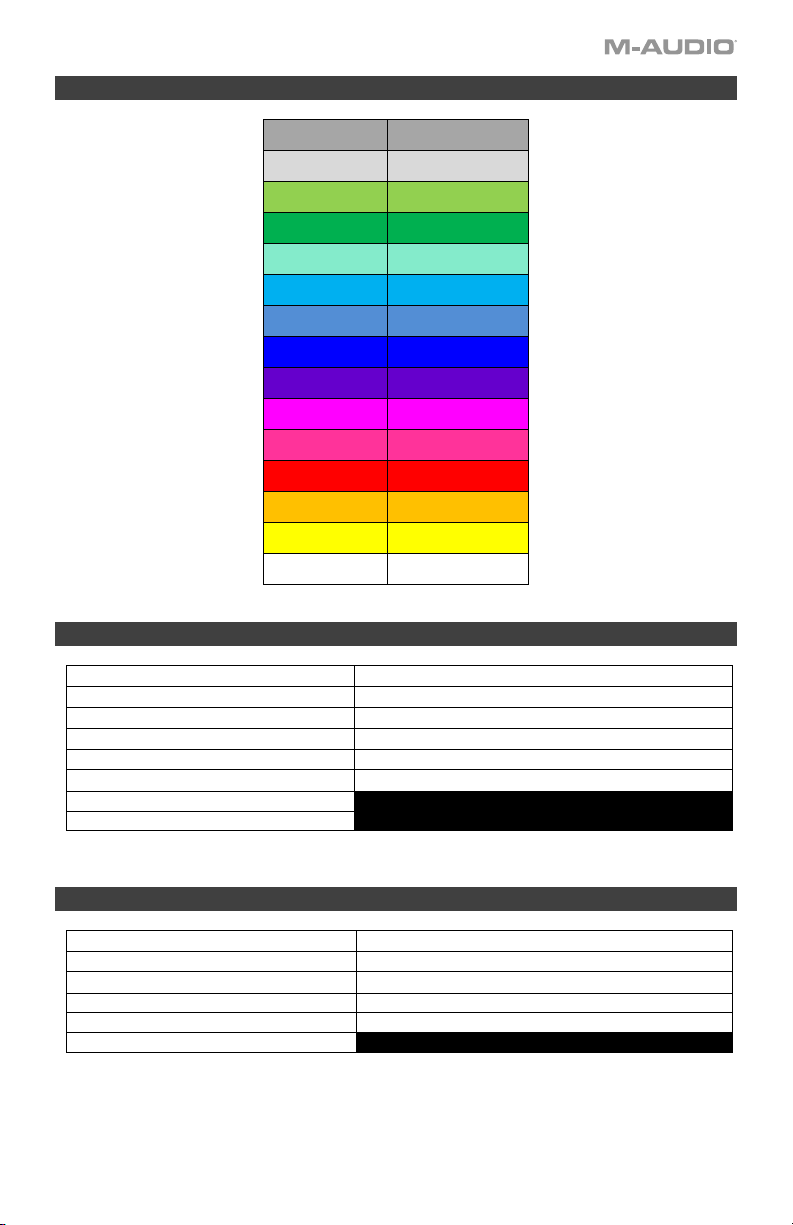
51
Pad LED Color List
NAME COLOR
OFF
LED OFF
CHAR.
CHARTREUSE
GREEN
GREEN
AQUA
AQUAMARINE
CYAN
CYAN
AZURE
AZURE
BLUE
BLUE
VIOLET
VIOLET
MAGENTA
MAGENTA
ROSE
ROSE
RED
RED
ORANGE
ORANGE
YELLOW
YELLOW
WHITE
WHITE
Preset List
1. MPC Pl (MPC Plugin) 9. Preset
2. Hybrid (Hybrid 3) 10. Preset
3. MiniGrd (MiniGrand) 11. Preset
4. Velvet 12. Preset
5. Xpand (Xpand!2) 13. Preset
6. Vacuum 14. Preset
7. Boom
8. DB33
DAW List
1. Ableton (Ableton Live) 7. Logic
2. MPC (MPC Beats) 8. Reaper
3. Pro Tools 9. Reason
4. Bitwig 10. FL St. (FL Studio)
5. Studio 1 (Studio One) 11. User DAW
6. Cubase
52
MIDI Ports
Oyxgen Pro Mini Output Ports
Messages Windows macOS
Preset Mode Controls,
Keys, Pads, Timing Clock
Messages
Oxygen Pro ## USB MIDI
DAW Mode Controls, Pads
MIDIOUT3 (Oxygen Pro ##)
MACKIE/HUI
Preset Editor
MIDIOUT4 (Oxygen Pro ##)
EDITOR
Oyxgen Pro Mini Input Ports
Messages Windows macOS
Timing Clock Messages In
Oxygen Pro ##
USB MIDI
5-Pin MIDI DIN In
MIDIIN2 (Oxygen Pro ##)
MIDI DIN
DAW LED control, and
Mackie/HUI Heartbeat
Messages
MIDIIN3 (Oxygen Pro ##)
MACKIE/HUI
Preset Editor
MIDIIN4 (Oxygen Pro ##)
EDITOR
Factory Reset
To restore your Oxygen Pro Mini’s controls, Presets, and DAWs to their factory default settings
power off the Oxygen Pro Mini’s, then press and hold the Octave + and – buttons and power
on the Oxygen Pro Mini’s.
Technical Specifications
Specifications are subject to change without notice.
Trademarks & Licenses
M-Audio and AIR Music Technology a trademark of inMusic Brands, Inc., registered in the U.S. and other countries.
AAX, Avid, and Pro Tools are registered trademarks of Avid Technology, Inc. in the U.S. and other countries.
Ableton is a trademark of Ableton AG.
Apple Store, iPad and macOS are trademarks or service marks of Apple Inc., registered in the U.S. and other countries.
Windows is a registered trademark of Microsoft Corporation in the United States and other countries.
All other product names, company names, trademarks, or trade names are those of their respective owners.
Power
via USB port
MIDI Connector
TRS 3.5 mm to 5 Pins DIN Female - Type A cable
Dimensions
(width x depth x height)
15.8” x 7.52” x 2.56”
401 mm x 190 mm x 60 mm
Weight
2.65 lbs. / 1.2 kg
53

m-audio.com
All other product names, company names, trademarks, or trade names are those of their respective owners.
Manual Version 1.1