
2208_Rev02
www.lg.com
Copyright © 2022 LG Electronics Inc. All Rights Reserved.
MODEL
XG7QBK
XG7QGR
OWNER’S MANUAL
Portable Bluetooth
Speaker
Please read this manual carefully before operating your set and retain it for future
reference.
2
Portable Bluetooth Speaker Quick
Guide
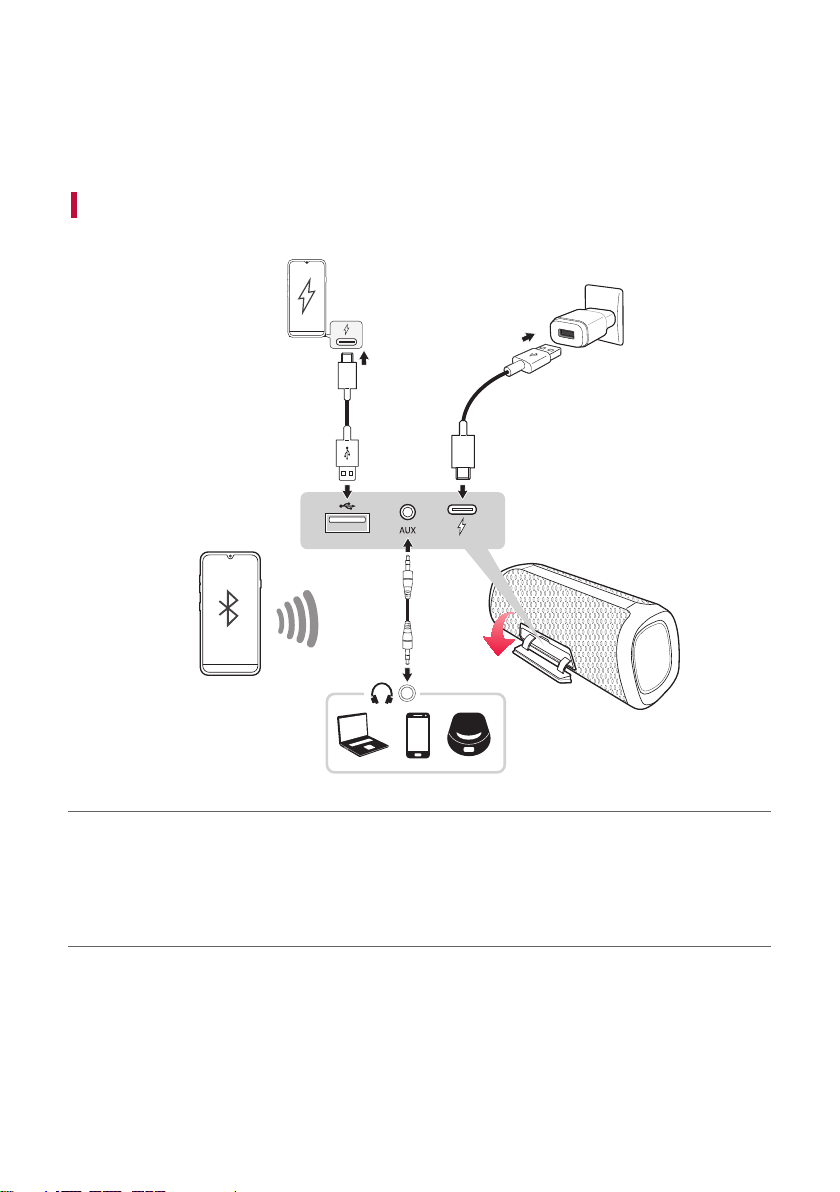
Connecting and Using the Speaker
d
a
c
5 V 0 2 A
b
a Charge the speaker before using it by opening the rear cover and
connect the speaker to an AC adapter (not supplied).
3
b Charging a smartphone ([ See “Charging a smartphone” on
page 24.)
A Press the Power
button on the speaker to turn it on.
You can only charge your smartphone in Bluetooth mode.
B Open the back cover of the speaker and connect the smartphone to the
(5 V 0 2 A) terminal via the
USB cable. The smartphone starts to be charged.
c Connecting to an External Device ([ See “Connecting via 3.5
mm Stereo Cable” on page 22.)
A Press the Power
button on the speaker to turn it on.
B Open the back cover of the speaker and connect the external device to the AUX terminal via a 3.5 mm stereo
cable.
C Turn the external device on and start playing.
d Connect the speaker to a smartphone via Bluetooth ([ See
“Connecting Smartphone to the Speaker via Bluetooth” on page
10.)
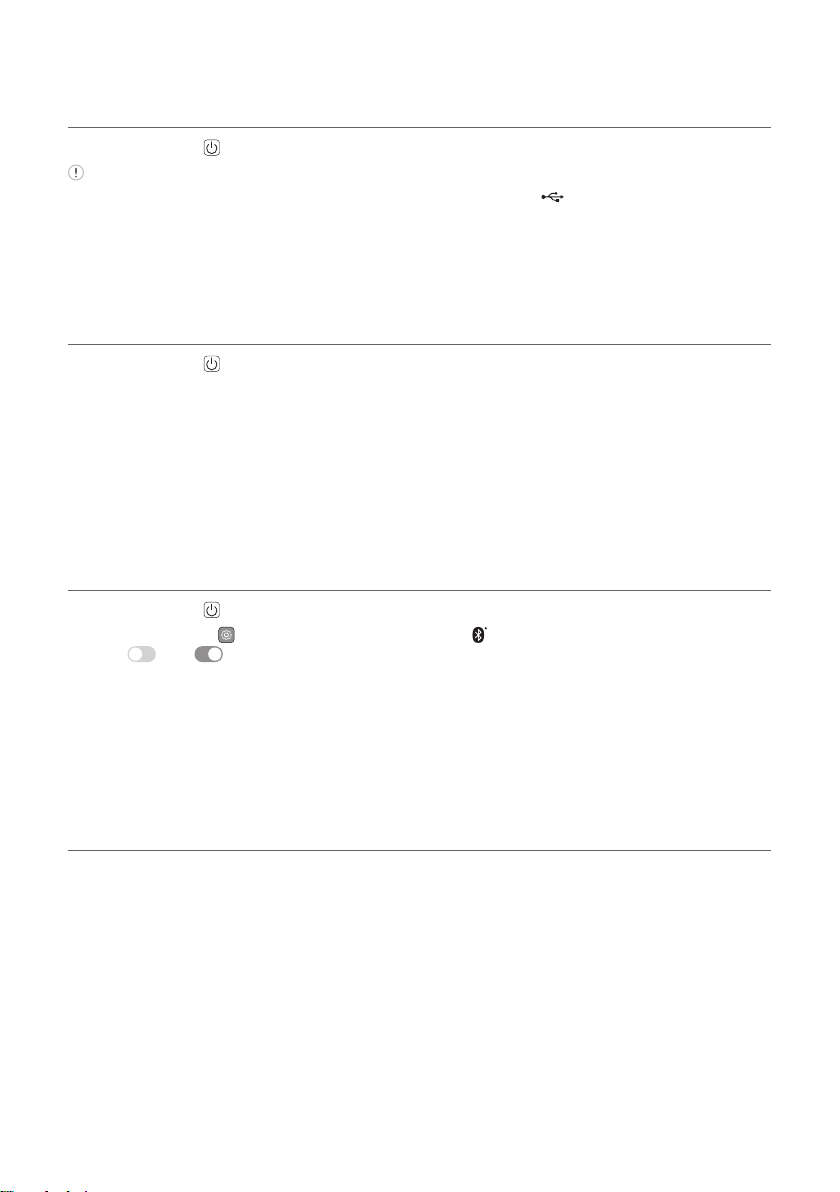
A Press the Power
button on the speaker to turn it on. Bluetooth LED blinks.
B Press the Settings
button on the smartphone and select Bluetooth. Turn on the Bluetooth function.
(Off > On )
C Find "LG-XG7Q (XX)" on the device list on the smartphone and connect to it. Once the smartphone is
connected via Bluetooth, the Bluetooth LED will turn on.
D On the smartphone, play a music of your choice.
e Connecting the LG XBOOM App ([ See “Installing app”, “Using
the Wireless Party Link” on page 16, 18.)
A Find the LG XBOOM app on the Google Play or App Store and install it on your smartphone.
B Run the LG XBOOM app and use more features. (EQ, Wireless Party Link, Lighting, Sleep Timer, Setting etc.)

4
Table of Contents
Portable Bluetooth Speaker Quick
Guide
2 Connecting and Using the Speaker
Exploring the Product
5 Top
7 Back
Charge
8 Charging the Battery
9 Checking Battery Status
Connecting to Bluetooth
10 Connecting Smartphone to the Speaker via
Bluetooth
13 Connecting Two Bluetooth Devices to the
Speaker
14 Talking on the Phone Hands-free
15 Using Voice command
Connecting to the LG XBOOM
App
16 Installing app
18 Using the Wireless Party Link
Connecting to an External Device
22 Connecting via 3.5 mm Stereo Cable
Additional Functions
23 Setting Sound Effects
24 Charging a smartphone
26 Resetting the Speaker
26 Resetting Bluetooth
27 Using Auto Power Management
28 Using Auto power - on.
28 Voice feedback function
Safety Precautions
29 Safety and Regulatory
Before Reporting Product
Malfunction
32 Troubleshooting
Appendix
33 Specications
34 Registered Trademarks and Licenses
35 Handling the Product
5
Exploring the Product
To p
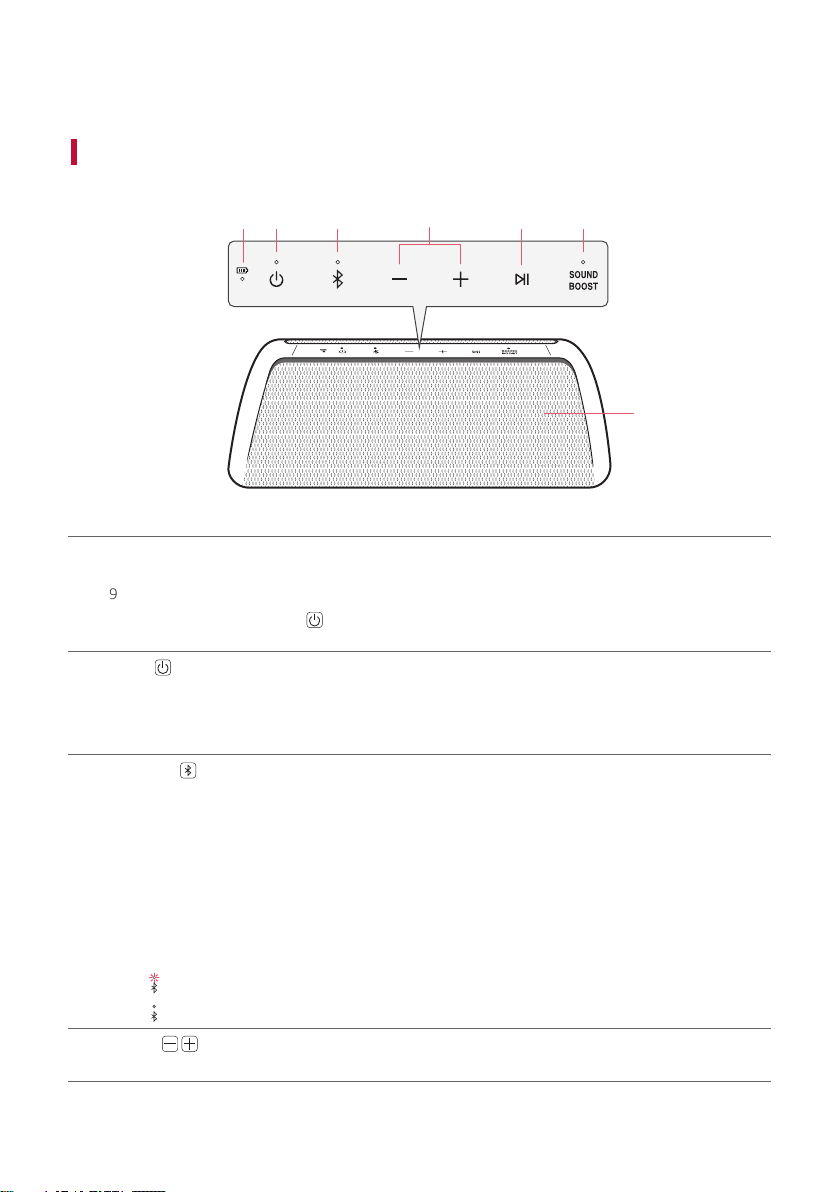
b c da e f
g
a
Battery LED
Please check the battery charging level and battery status. ([ See “Checking Battery Status” on page
9.)
• Press and hold the Power
button for 2 seconds to check the battery level while the power or the
speaker is on.
b
Power
Turns the speaker on or off.
Power LED
Indicates the power status.
c
Bluetooth
You can change the Bluetooth settings.
• Connecting an additional smartphone: Press and hold the button for 2 seconds. ([ See “Connecting
Two Bluetooth Devices to the Speaker” on page 13.)
• Changing from AUX to Bluetooth: Press the button.
• Resetting Bluetooth: Press and hold the button for 7 seconds. ([ See “Resetting Bluetooth” on
page 26.)
Bluetooth LED
Indicates the Bluetooth connection status.
•
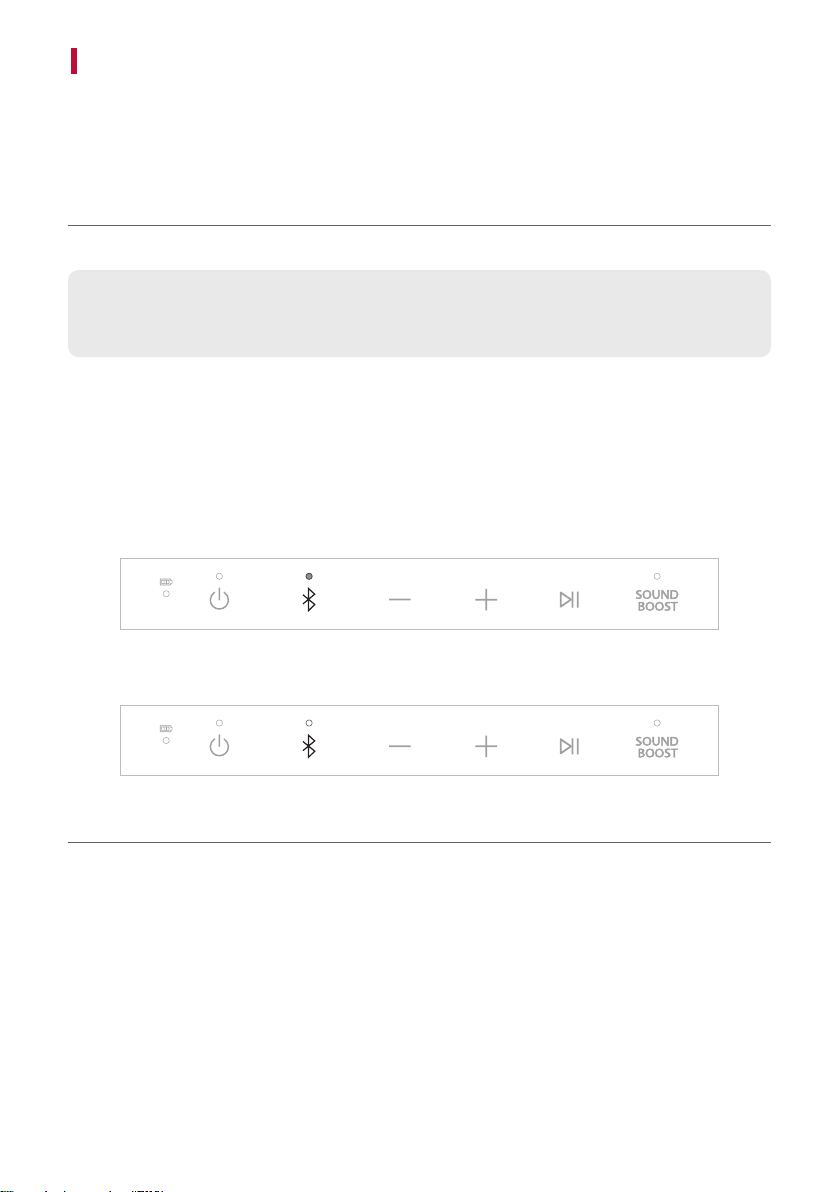
: Blinks in white / Ready for Bluetooth device connection.
•
: Turns on in white / Connected to a Bluetooth device.
d
Volume
This adjusts the speaker volume.
6
e
Play/Pause
In AUX function, press the button to mute.
While Bluetooth is connected, press the button to operate the Bluetooth device.
• Play/Pause: Press the button.
• Moving to the next music: Press the button twice quickly.
• Moving to the previous music: Press the button three times quickly.
• Using the Hands-Free function: Press the button in Bluetooth function when you receive a call from
a device connected via Bluetooth. ([ See “Talking on the Phone Hands-free” on page 14)
• Using the Voice command: Press and hold the button for 2 seconds. ([ See “Using Voice command”
on page 15)
f
SOUND BOOST
SOUND
BOOST
Changes sound effect. ([ See “Setting Sound Effects” on page 23)
SOUND BOOST LED
You can check the selected sound effect.
g
Microphone
You can use the voice command and Hands-Free function while the speaker is connected to Bluetooth.
7
Back
a
e
5 V 0 2 A
b c d
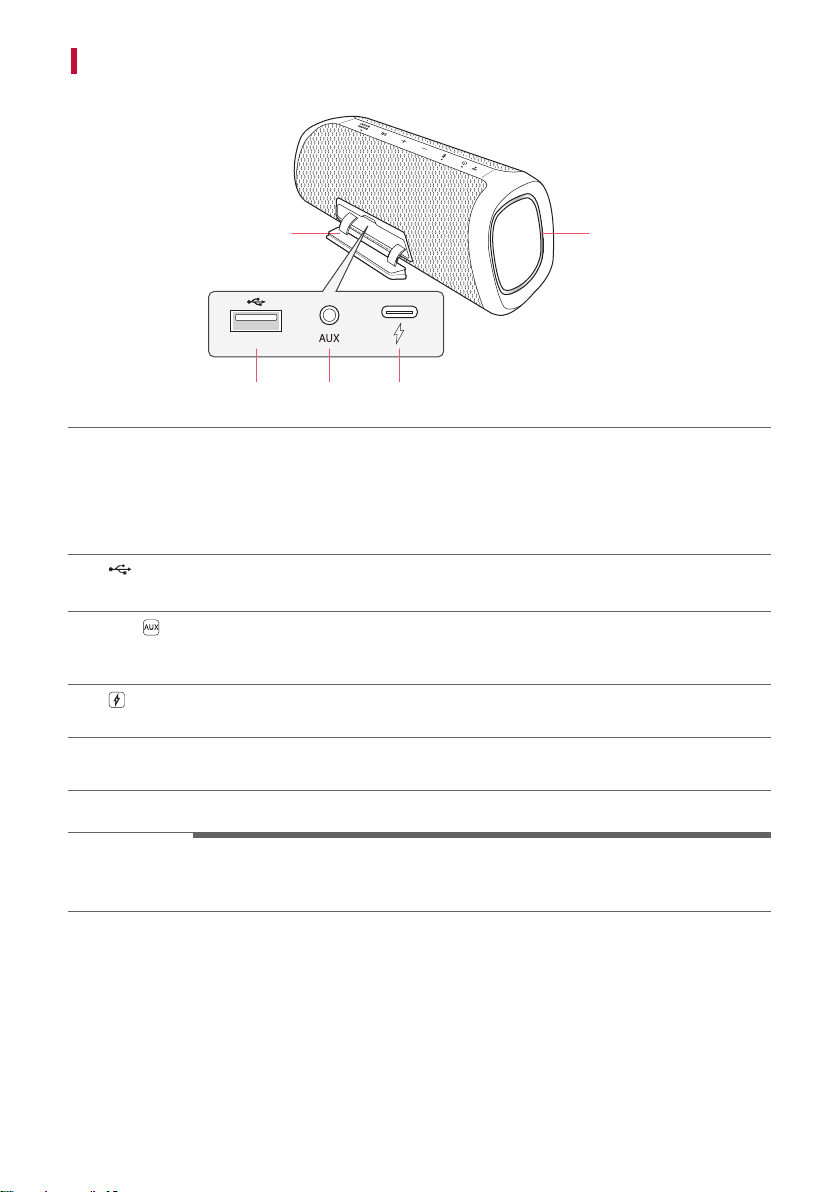
a
Back Cover
Make sure to fully close the back cover after use.
• Ingress Protection: IP67
- Solid: The unit is dust-tight.
- Liquid: Protection against being immersed in 1 meter (3.28 Feet) of water.
b
(DC OUT 5 V 0 2 A)
You can charge a smartphone.
c
AUX
You can connect the product to a portable external device with a 3.5 mm stereo cable and start enjoying
music.
d
(DC IN)
Plug in a USB (C-Type) cable to charge the speaker battery.
e
Side Lighting LED
You can change the effect of Side Lighting and turn it on or off in the LG XBOOM app.
> CAUTION
Be careful not to drop the speaker. Mechanical shock may cause deterioration of water-resistant and dust-
resistant performance.
8
Charge
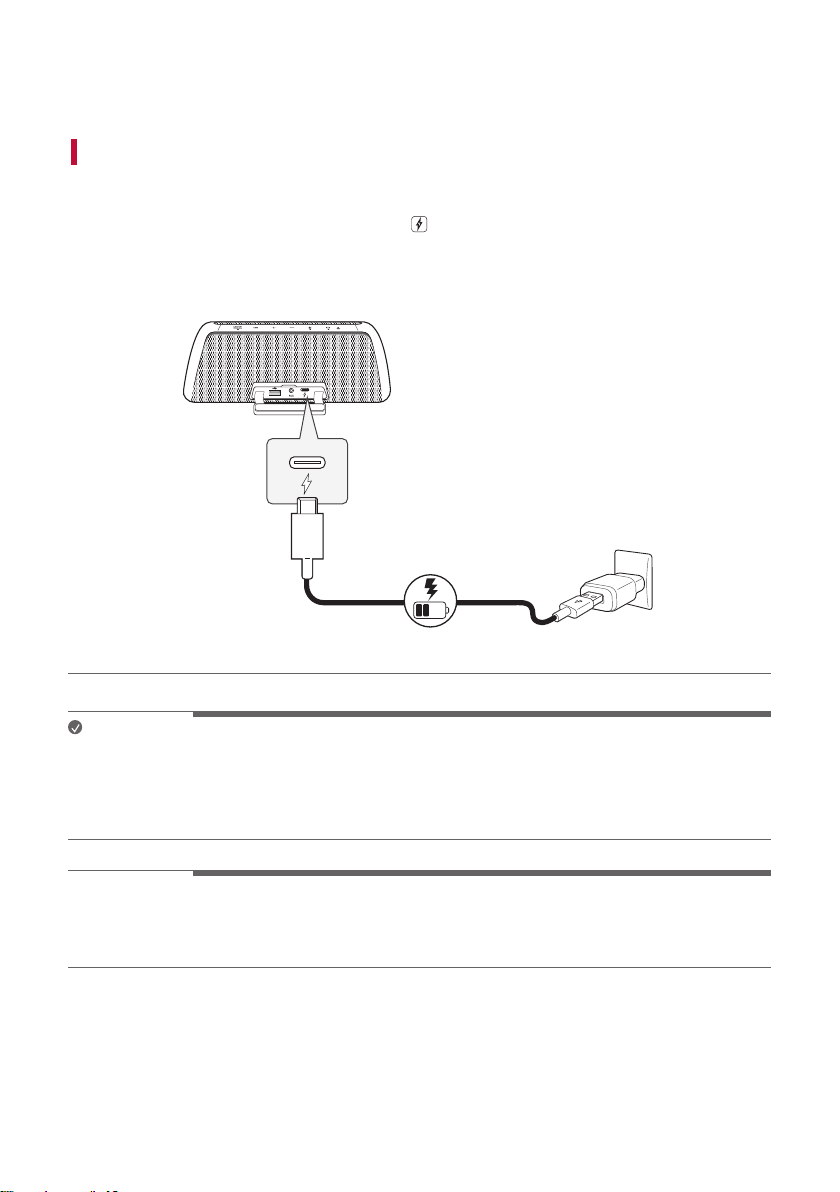
Charging the Battery
Thespeakerisabuilt-inbattery.Makesuretochargethebatterysufcientlybeforeuse.
a Open the back cover and connect the USB cable to
(DC IN) port of the speaker.
b Connect the supplied USB cable to the AC adapter (not supplied).
c Plug the AC adapter into an AC outlet.
5 V 0 2 A
a
b
c
Note
• It takes about 5 hours to fully charge the speaker. The charging time may differ depending on the battery
status or the speaker operation status.
• Once the battery is fully charged, you can use the speaker for about 24 hours.
- Operation time may vary depending on the battery or operation status.
> CAUTION
AC adapter is not supplied. It is recommended that you use the 5 V AC adapter approved by LG Electronics Inc.
(more than 2 A) with this speaker because of danger of explosion. If you do not use the recommended adapter,
charging is unavailable or charging time may differ.
9
Checking Battery Status
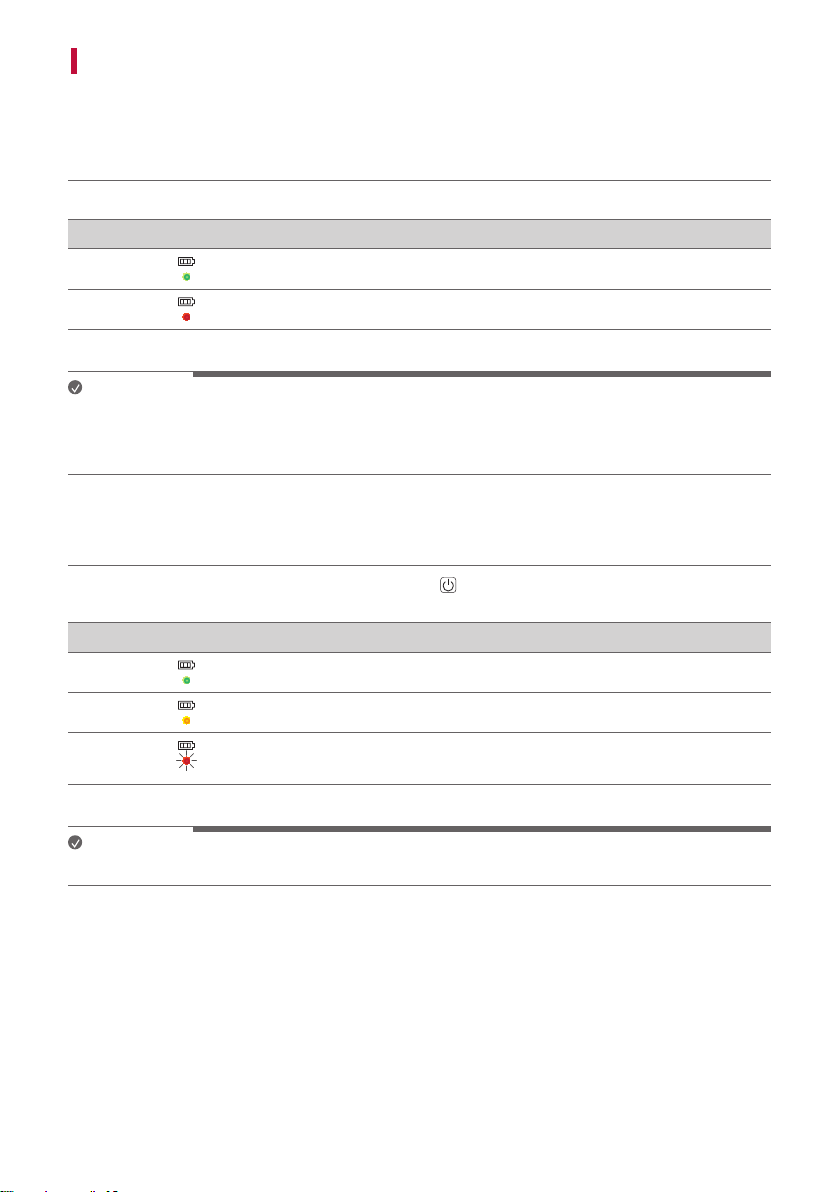
Charging Status
Once the battery charging starts, the battery LED indicates the charging status.
LED LED Status / Battery Status
It is green. / Charging is complete.
It is red. / Charging is in progress.
Note
• Playing tracks while charging may lengthen the charging time.
• When the speaker’s battery is fully charged with the power off, the battery LED lights up green for 15 seconds
and then off.
Use Status
When you turn on the speaker or press and hold the Power
button for 2 seconds, the battery LED is turned on
for 3 seconds according to the battery status.
LED LED Status / Battery Status
Turns on in green. / The battery level is above 70 %.
Turns on in amber. / The battery level is between 10~70 %.
Itblinksredcontinuouslyandyoucanhearanoticationsoundonce./
The battery level is below 10 %, and the battery needs to be charged.
Note
• The battery status cannot be checked while charging.
10
Connecting to Bluetooth
Connecting Smartphone to the Speaker via Bluetooth
You can play tracks or run a music app on a Bluetooth device and enjoy the sounds through the speaker.
Please check the following rst.
• The speaker’s Bluetoothspecicationsareasfollows:
- Bluetooth version: 5.1
- Bluetooth codec: SBC, AAC
• This product supports Bluetooth devices such as smartphones and laptops. How to connect the
devices to the speaker may differ depending on device types and models. For information on how to
connect the device, refer to the user manual of the external device to be connected.
Select the [Bluetooth] menu on the smartphone's Settings screen. The menu access method may differ
depending on the smartphone manufacturer and model.
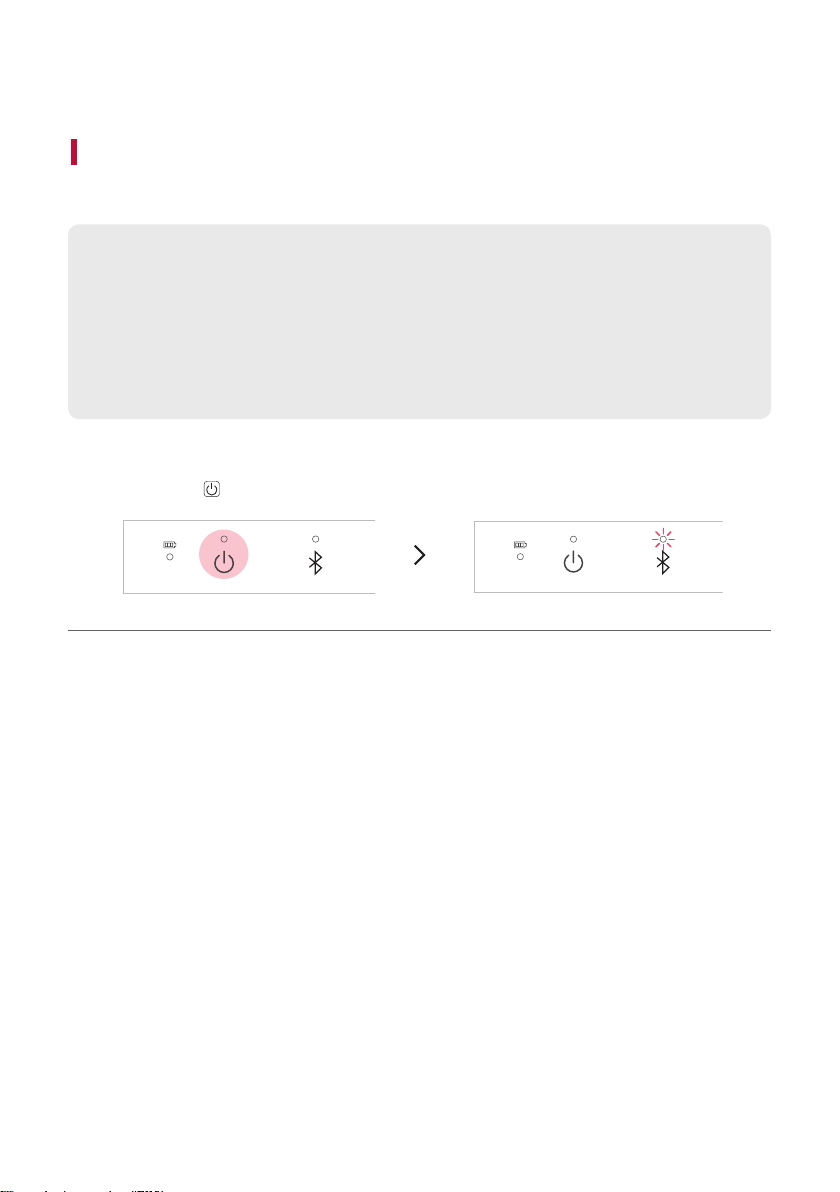
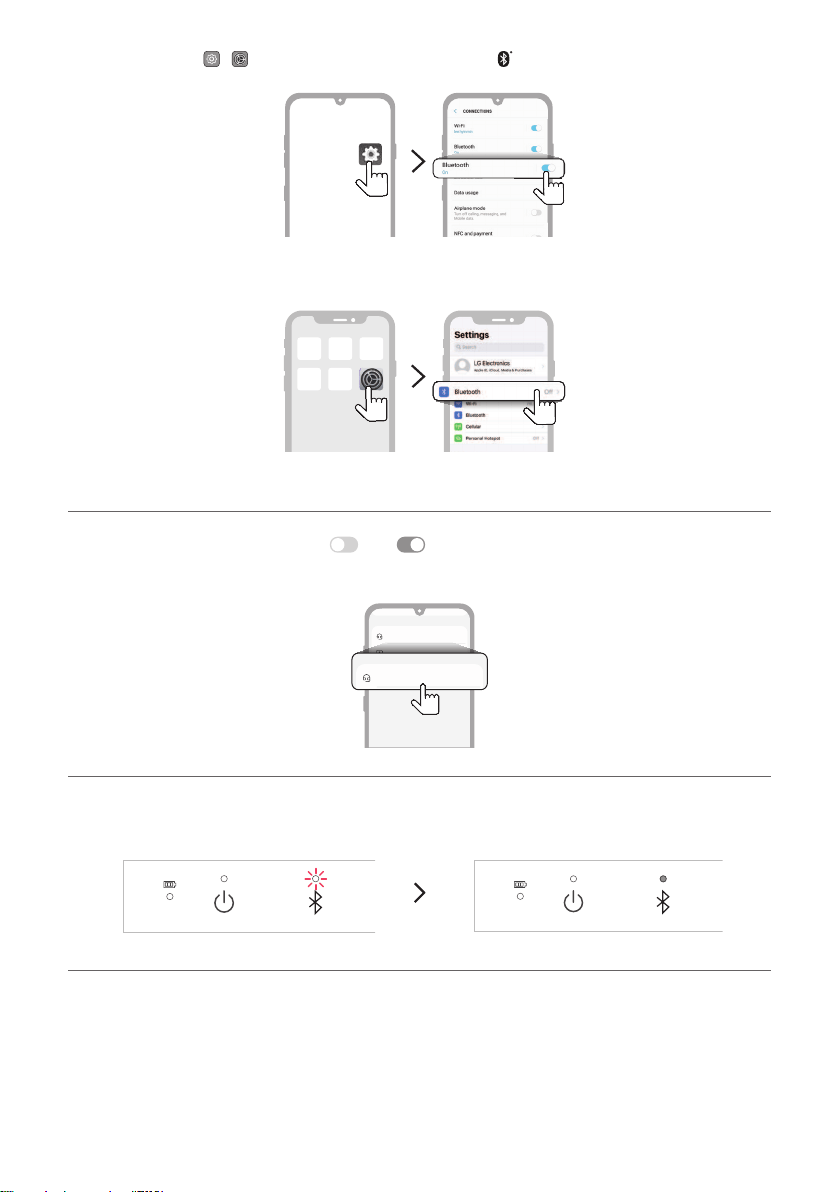
a Press the Power
button on the speaker to turn it on. Bluetooth LED blinks.
11
b Tap the Setting (
/ ) button on your smartphone and select Bluetooth.
(Android Phone)
(iPhone)
c Turn on the Bluetooth function. (Off > On )
d You will see a list of connectable devices on the smartphone screen. Find and tap “LG-XG7Q (XX)".
LG-XG7Q (XX)
Bluetooth devices
LG Smart Phone
Bluetooth devices
AVAILABLE DEVICES
LG-XG7Q (XX)
AVAILABLE DEVICES
e Once the speaker and the smartphone are connected via Bluetooth, Bluetooth LED will turn on with the
sound.
12
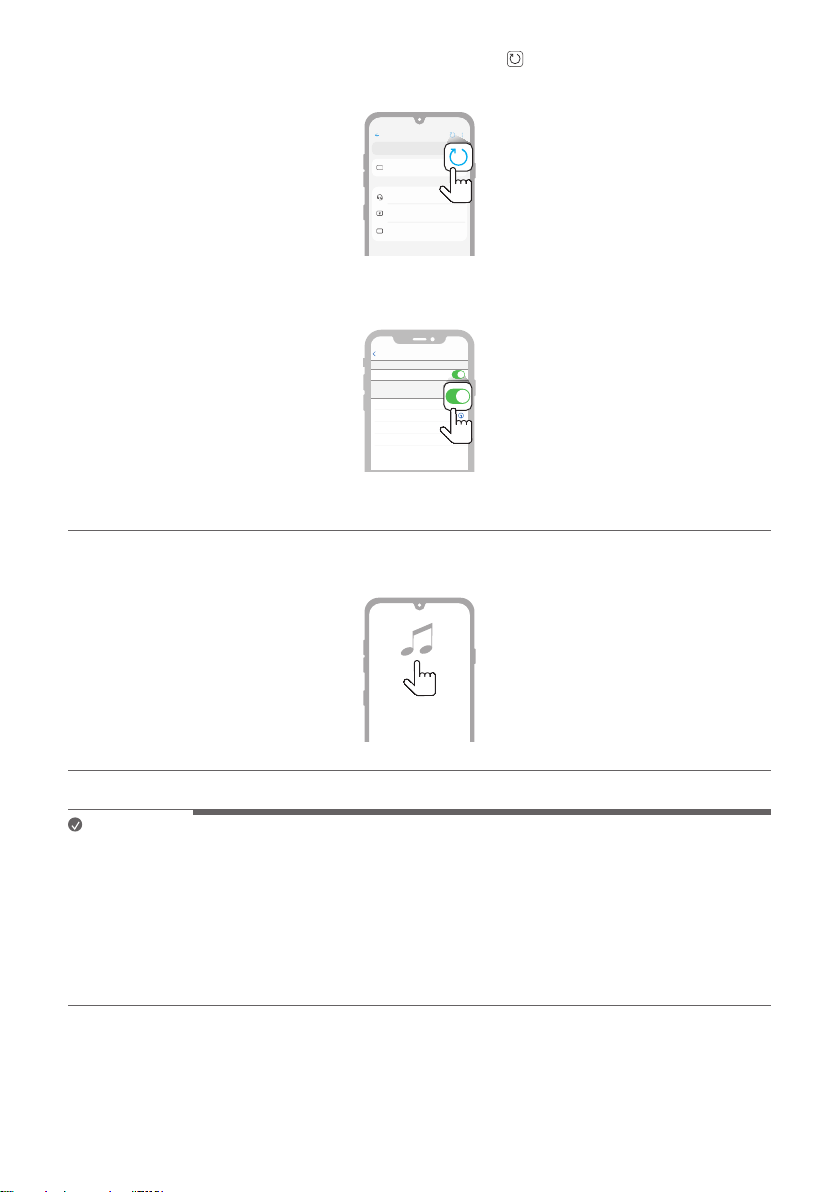
f If "LG-XG7Q (XX)" does not appear on the list, tap on the Refresh
icon on an Android phone or restart
Bluetooth on an iPhone.
Bluetooth
Speaker
Bluetooth devices
LG Smart Phone
Bluetooth devices
On
AVAILABLE DEVICES
(Android Phone)
Not Connected
LG Speaeker1
Not Connected
Not Connected
Not Connected
Settings
LG Speaeker2
LG Speaeker3
LG Speaeker4
MY DEVICES
Now discoverable as “iPhone”
Bluetooth
Bluetooth
(iPhone)
g Select and play a track on the smartphone.
Note
• XX are the last two digits of the Bluetooth address. An example would be “LG-XG7Q (08)”.
• The closer the Bluetooth device is to the speaker, the better connection you will get.
• If no Bluetooth device is connected to the speaker, the Bluetooth LED blink. Connect the device again.
• Adjust the volume of the Bluetooth device to an appropriate level when using it.
• When the product is charging, if you try to connect to the product via the Bluetooth device with a connection
history, the product will automatically turn on and connect to the Bluetooth device. You can control this
function in the LG XBOOM app. ([ See “Using Auto power - on.” on page 28.)
13
Connecting Two Bluetooth Devices to the Speaker
Multi phone pairing
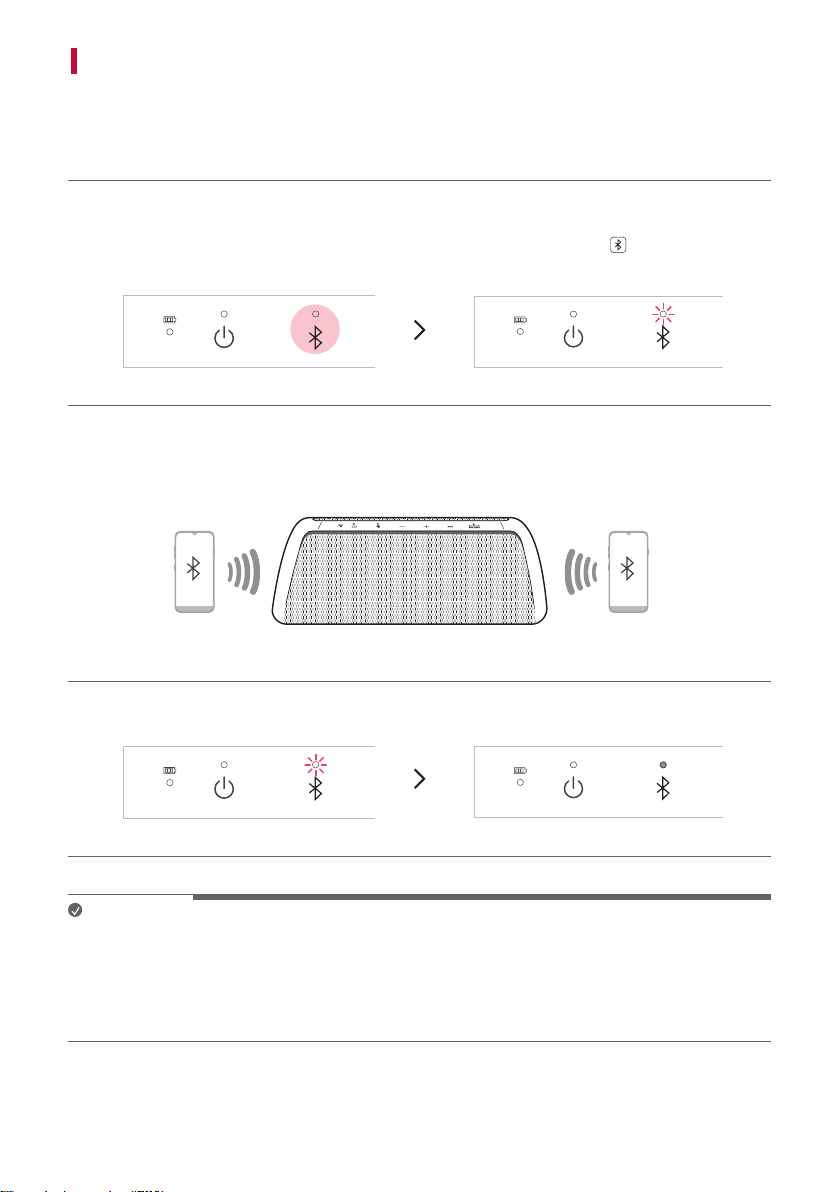
a Connect one Bluetoothdevicetothespeakerrst.([ See “Connecting Smartphone to the Speaker via
Bluetooth” on page 10.)
b When the Bluetooth device and speaker are connected, press and hold Bluetooth
button for 2 seconds.
Then Bluetooth LED blinks with the sound. The speaker is changed to multi phone pairing mode.
c Connect a different Bluetooth device to the speaker within 1 minute. ([ See “Connecting Smartphone to
the Speaker via Bluetooth” on page 10.)
d Once both the Bluetooth devices are connected to the speaker, the Bluetooth LED turns on.
Note
• Up to two Bluetooth devices can be connected to the speaker at the same time.
• When two Bluetooth devices are connected at the same time, the speaker channels the sounds of only one of
them.Youneedtostoptheplaybackontherstdevicetoplaythesoundsoftheotherone.
• If you turn the speaker off and back on while two Bluetooth devices are connected, only the device connected
later is automatically connected.
14
Talking on the Phone Hands-free
a Connect a smart device to the speaker. ([ See “Connecting Smartphone to the Speaker via Bluetooth” on
page 10.)
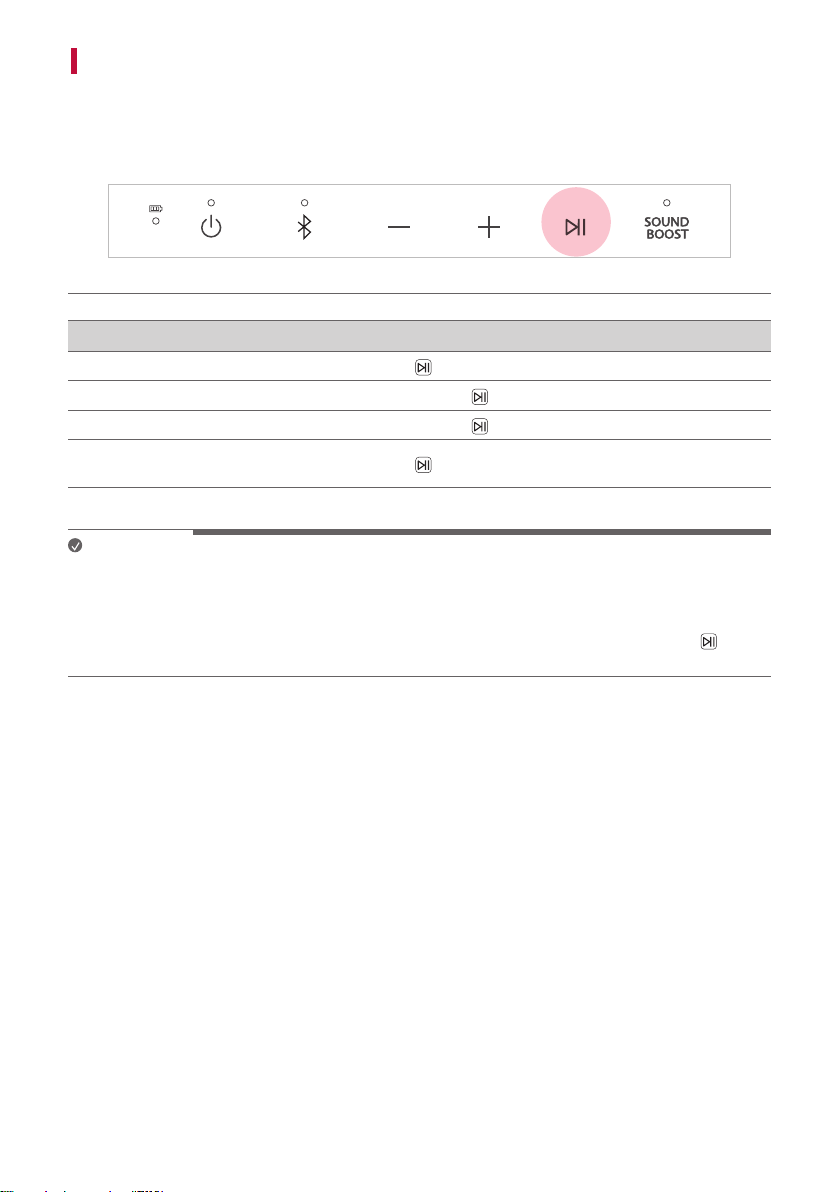
b You can use the Hands-Free function by operating as in the table below.
Function How to Use
Receiving phone call
Press the Play/Pause
button.
Ending phone call
Press and hold the Play/Pause
button for 2 seconds.
Declining incoming call
Press and hold the Play/Pause
button for 2 seconds.
Muting voice while taking on
the phone
Press the Play/Pause
button.
Note
• While this function is being used, the voice command function is disabled.
• If both of the smartphones connected via Multi phone pairing are simultaneously used for phone call, the
hands-free function may not work properly.
• SOUND BOOST LED blinks during a phone call indicates that voice is muted. Press the Play/Pause
button
to cancel muting.
15
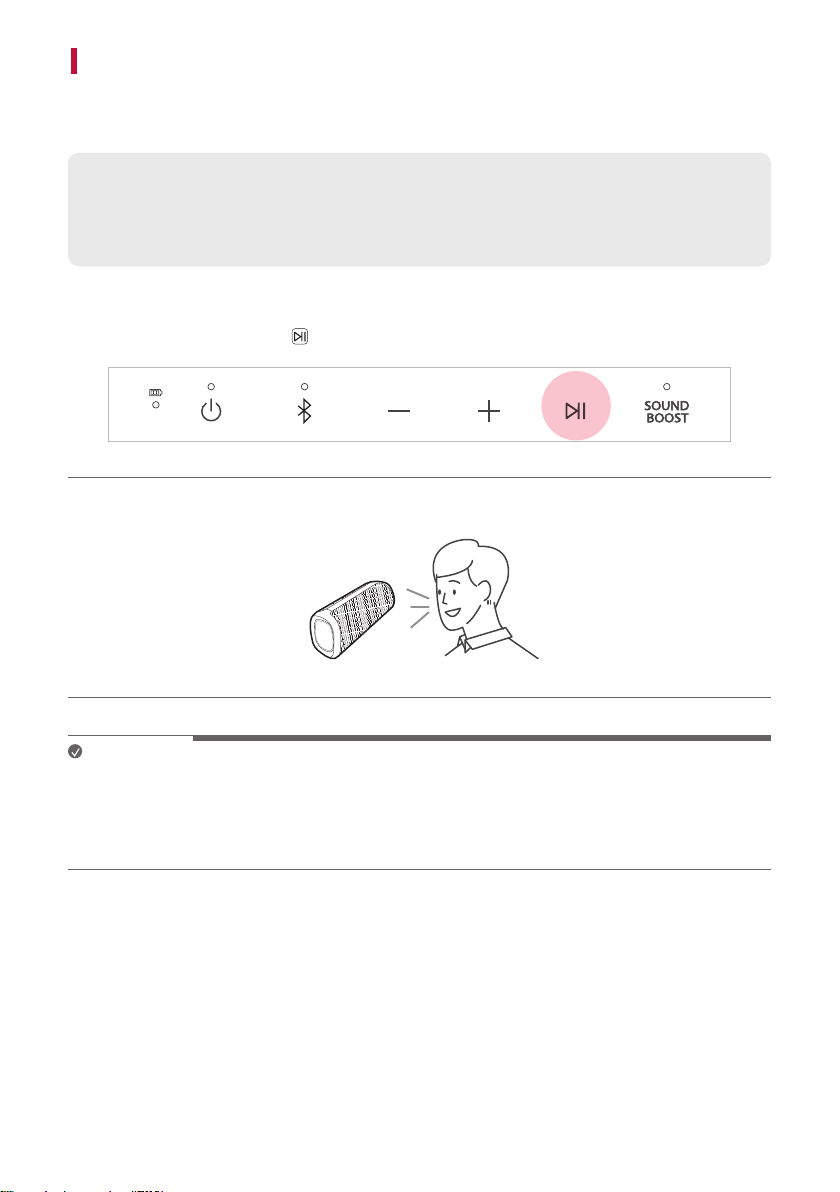
Using Voice command
You can turn on the Google Assistant or Siri function on your smartphone and use voice command through the
speaker’s microphone.
Please check the following rst.
• Use a smart device that provides a voice command function.
• This function may not work depending on the Bluetooth device.
a Connect the smartphone to the speaker via Bluetooth. ([ See “Connecting Smartphone to the Speaker via
Bluetooth” on page 10.)
b Press and hold the Play/Pause
button for 2 seconds.
c Say a desired voice command for Google Assistant or Siri close to the speaker’s microphone.
Note
• While the hands-free function is being used, this function is disabled.
• If the voice command time limit is exceeded on the smartphone, the function is disabled automatically.
• Android devices may not support this function in some countries according to Google policies.
• If voice command does not work, check the smartphone.
16
Connecting to the LG XBOOM App
Installing app
Use the various functions of the speaker on the LG XBOOM app.
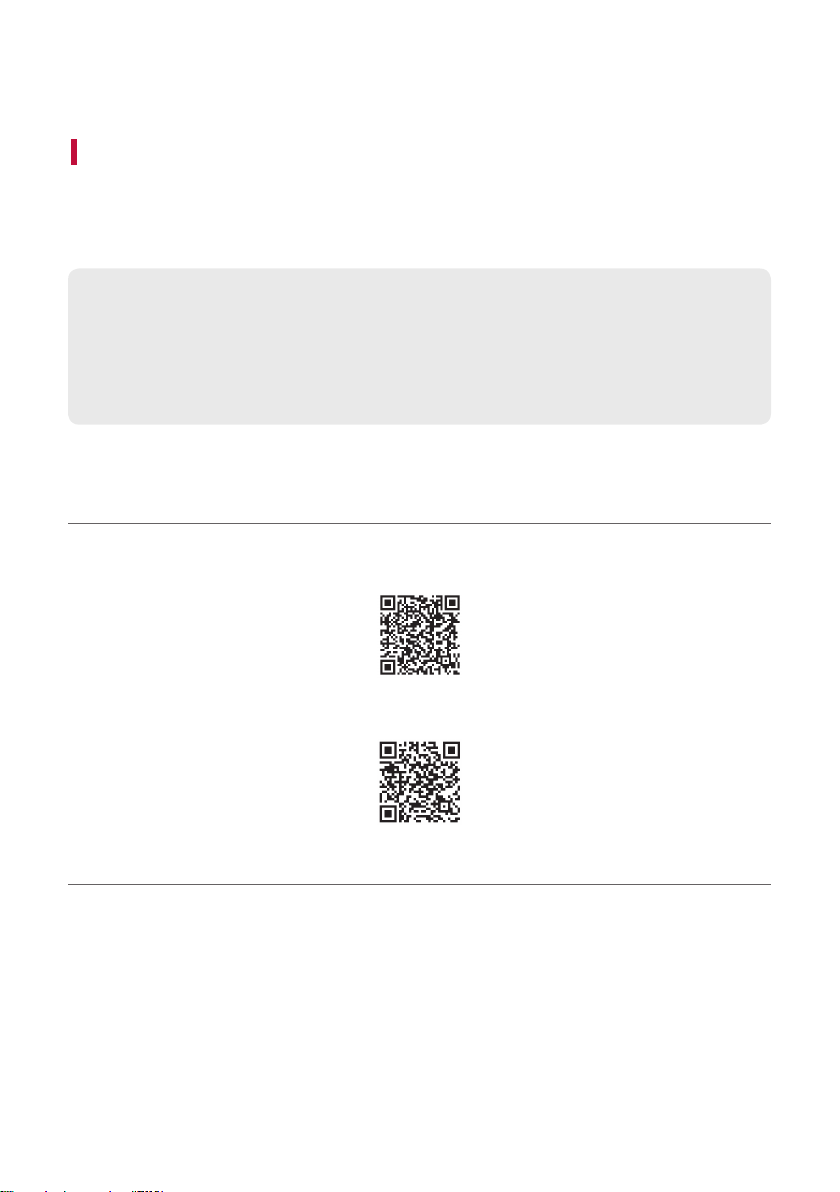
To install the LG XBOOM app, scan the QR code with an app or install LG XBOOM on the Google Play or App
Store.
Please check the following rst.
• The LG XBOOM app is available in the versions listed below.
- Android OS: Version 5.0 or higher
- iOS OS: Version 10 or higher
- Minimum supported versions for each OS may change later.
Downloading with a QR code
a Scan the QR code with a QR code scan app.
b You will be directed to the page where you can download the LG XBOOM app. Tap the app to install it.
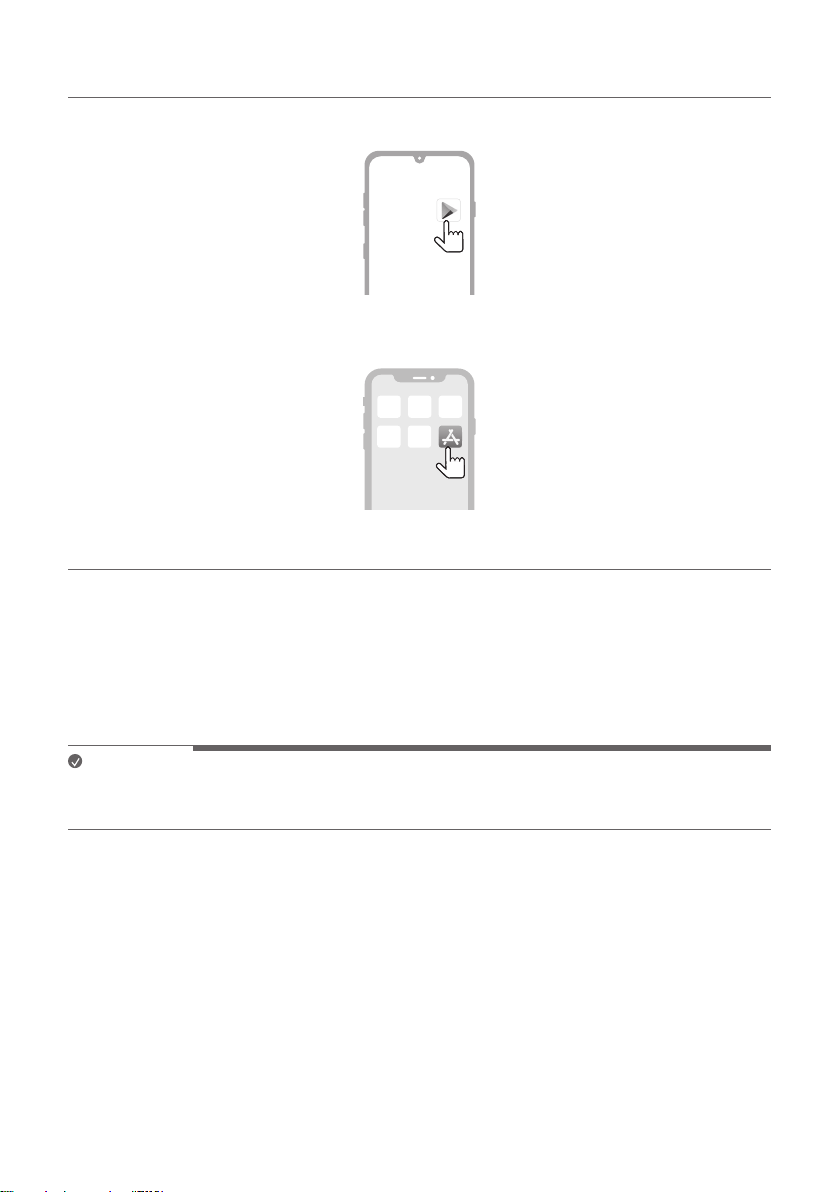
(Android Phone OS)
(iPhone OS)
17
Downloading in Google Play or App Store
a Find the LG XBOOM app on the Google Play or App Store and install it on your smartphone.
(Android™ Phone)
(iPhone)
b Connect the smartphone to the speaker via Bluetooth. ([ See “Connecting Smartphone to the Speaker via
Bluetooth” on page 10.)
c Open the LG XBOOM app installed on the smartphone.
d Follow the instructions on the LG XBOOM app. Agree to the Terms of Service, notice windows, access
settings, etc.
e Start using the various functions on the LG XBOOM app.
Note
• The menu access method may differ depending on the smartphone manufacturer and OS.
• Google, Android and Google Play are trademarks of Google LLC.
18
Using the Wireless Party Link
You can connect multiple speakers in the LG XBOOM app's Wireless Party Link. There are two ways for using the
Wireless Party Link: Dual mode and Multi mode.
Dual mode
Wireless Party Link Dual mode lets you enjoy stereo sound with the same two speakers.
Please check the following rst.
• The same two speakers are needed. (E.g. XG7Q and XG7Q)
a Connectthespeakerandasmartphonerst.([ See “Connecting Smartphone to the Speaker via Bluetooth”
on page 10.)
b Tap the Wireless Party Link in the LG XBOOM app.
c Tap the Dual mode and connect another speaker following the instructions.
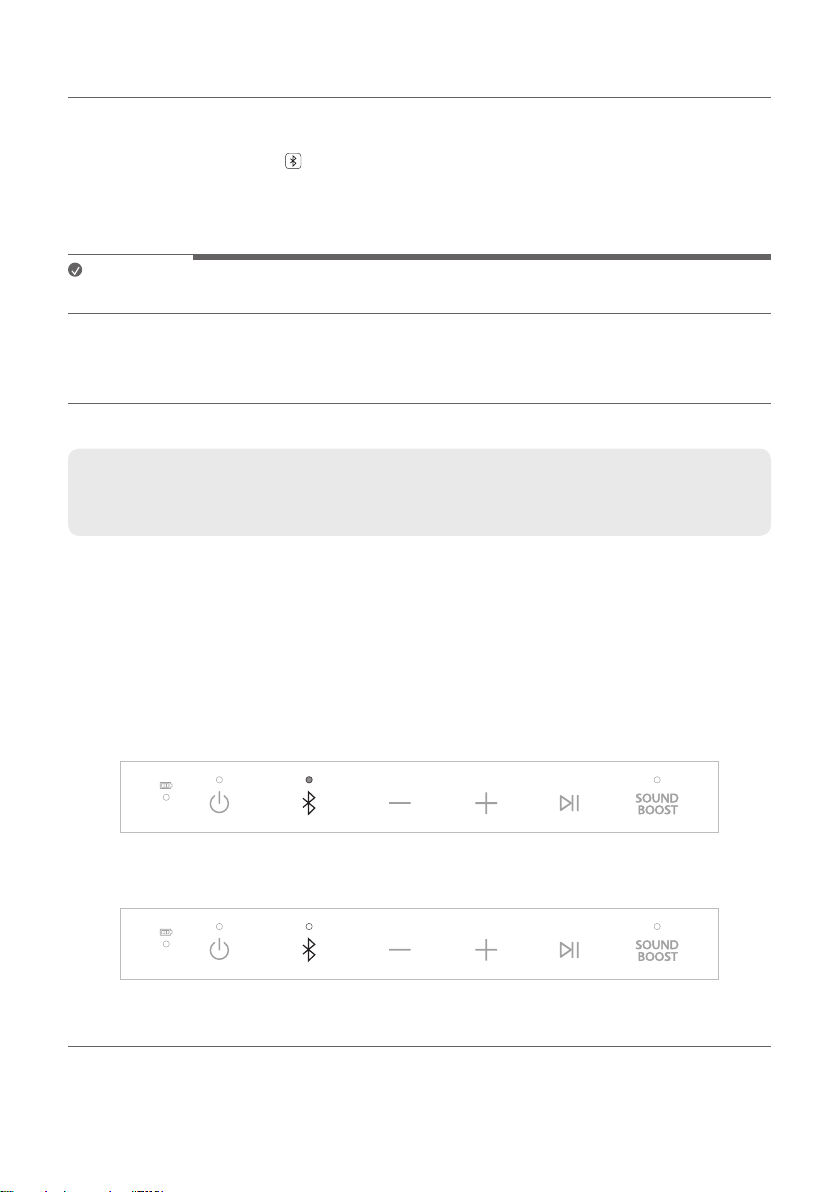
d You can see the Dual mode LED on the speakers.
• Main speaker: Bluetooth LED turns on and output Left channel sound.
• Other speaker: Bluetooth LED turns off and output Right channel sound.
(Main speaker)
(Other speaker)
19
Connecting to your TV via Dual mode
a Follow the aforementioned instructions to connect two speakers via Dual mode. ([ See “Dual mode” on
page 18.)
b Press and hold the Bluetooth
button on the main speaker for 2 seconds. Then Bluetooth LED will blink
for 60 seconds.
c IntheTVsettings,ndandselectthemainspeakerwithin60seconds.YoucanlistentotheTVsound
through two speakers.
Note
• When using in dual mode with a TV, you cannot control the speakers with the LG XBOOM app.
Multi mode
Wireless Party Link Multi mode lets you enjoy more powerful sound with multiple speakers.
Please check the following rst.
• You can connect multiple LG Bluetooth speakers. (XG9Q/XG7Q/XG5Q and XO3Q)
a Connectthespeakerandasmartphonerst.([ See “Connecting Smartphone to the Speaker via Bluetooth”
on page 10.)
b Tap the Wireless Party Link in the LG XBOOM app.
c Tap the Multi mode and toggle the function on.
d Search for nearby speakers and select the speakers you want to connect to.
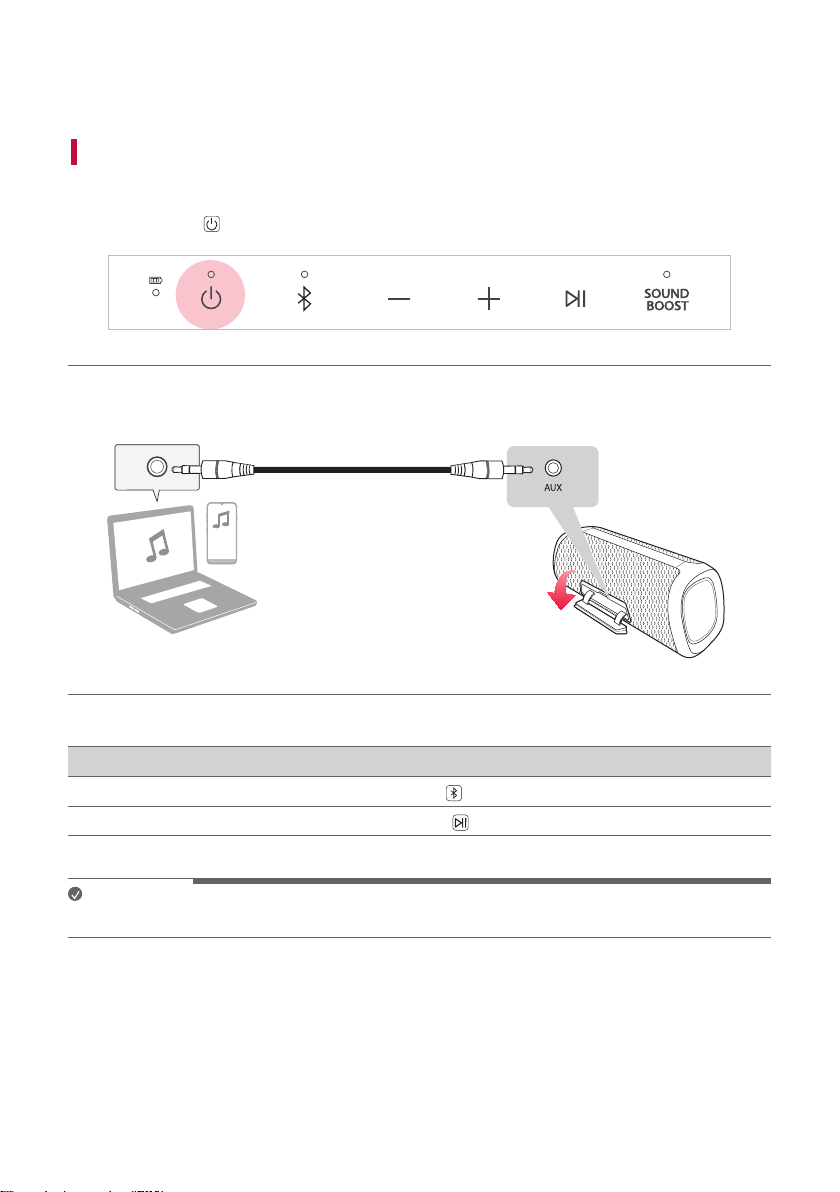
e You can see the Multi mode LED on the speakers.
• Main speaker: Bluetooth LED turns on and the speaker outputs sound.
• Other speakers: Bluetooth LED turns off and speakers output sound in sync with the main speaker.
(Main speaker)
(Other speaker)

20
Note
• The Main speaker connects only one Bluetooth device.
• When using Dual/Multi mode to connect multiple speakers, the multi phone pairing connection is not
supported.
• When you turn the speakers off and on again, the speakers do not automatically reconnect.
• You can only use the Main speaker for calls or voice commands.
• If you connect a 3.5 mm stereo cable in Dual/Multi mode, Dual/Multi mode is canceled and then change to AUX
function.
• When you connect multiple speakers in Dual/Multi mode in AUX function, it will change to Bluetooth function.
• To change the connected Bluetooth device in Dual/Multi mode, press and hold the Bluetooth
button for 2
seconds. When you hear a beep sound and the Bluetooth LED blinks, connect to the desired Bluetooth device.
• Keep the distance between the speakers as close as possible each other.
• Depending on the network environment, this function may not work well.
• The screen of a device such as a TV and the sound from the speaker may not match.
• When multiple speakers are connected in Multi mode, volume and EQ linkage between the Main speaker and
Other speakers is not available.
• When connecting Dual/Multi mode, to express various colors, the party mode's color does not change to the
same as the connected device.

21
Interworking multiple speakers
This speaker interworks with other LG Bluetooth speakers such as XG9Q/XG7Q/XG5Q and XO3Q.
Dual mode
Same model
(e.g. XG7Q/XG7Q)
Main/Other
Volume O
EQ O
Lighting O
Auto Power Management O
Sleep Timer O
Multi mode
Same series
(XG9Q/XG7Q/XG5Q)
Main/Other
Lighting O
Auto Power Management O
Sleep Timer O
Multi mode
Other series
(XG9Q/XG7Q/XG5Q/XO3Q)
Main/Other
Lighting X
Auto Power Management X
Sleep Timer O
22
Connecting to an External Device
Connecting via 3.5 mm Stereo Cable
You can connect the speaker and various external devices via a 3.5 mm stereo cable to enjoy the music.
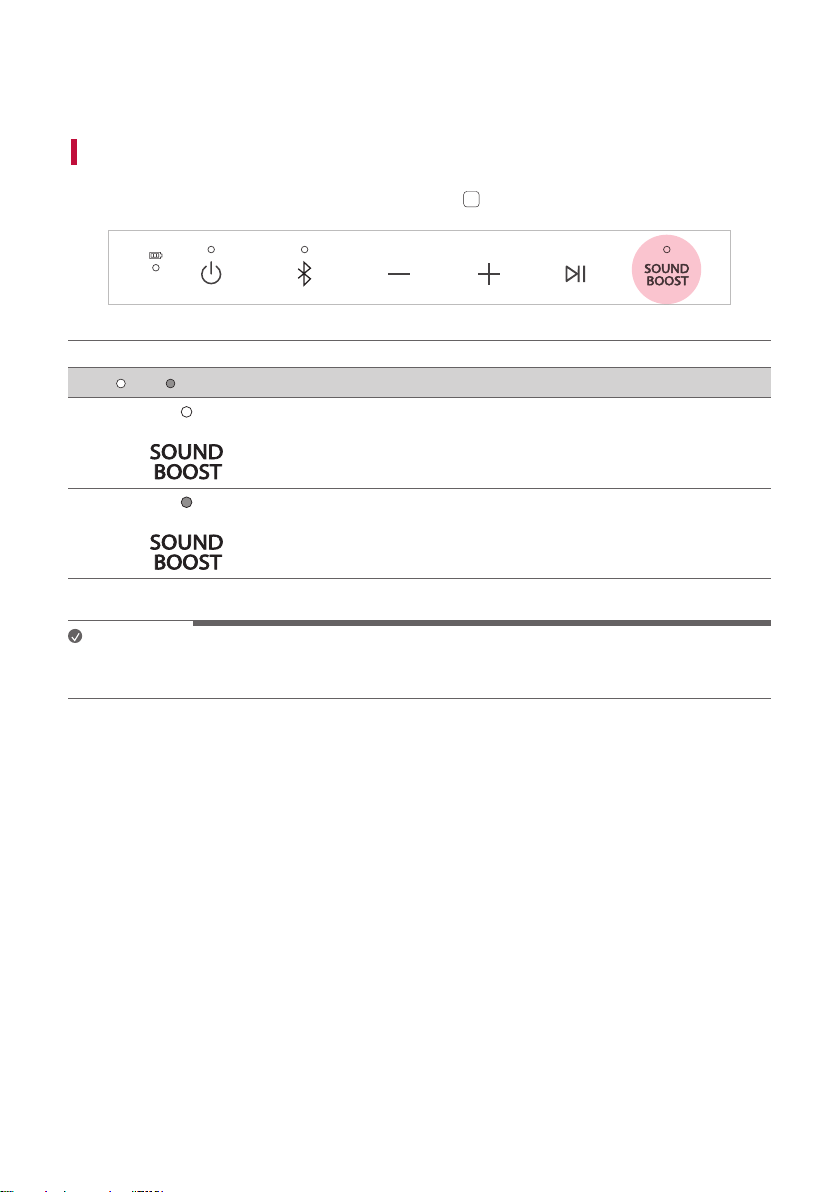
a Press the Power
button on the speaker to turn it on.
b Open the back cover of the speaker and connect the external device to the AUX terminal via a 3.5 mm stereo
cable.
c Turn the external device on and start playing.
Function How to Use
Changing AUX to Bluetooth
Press the Bluetooth
button.
Mute
Press the Play/Pause
button.
Note
• Prepare a 3.5 mm stereo cable. If you do not have a 3.5 mm stereo cable, you can purchase one separately.
23
Additional Functions
Setting Sound Effects
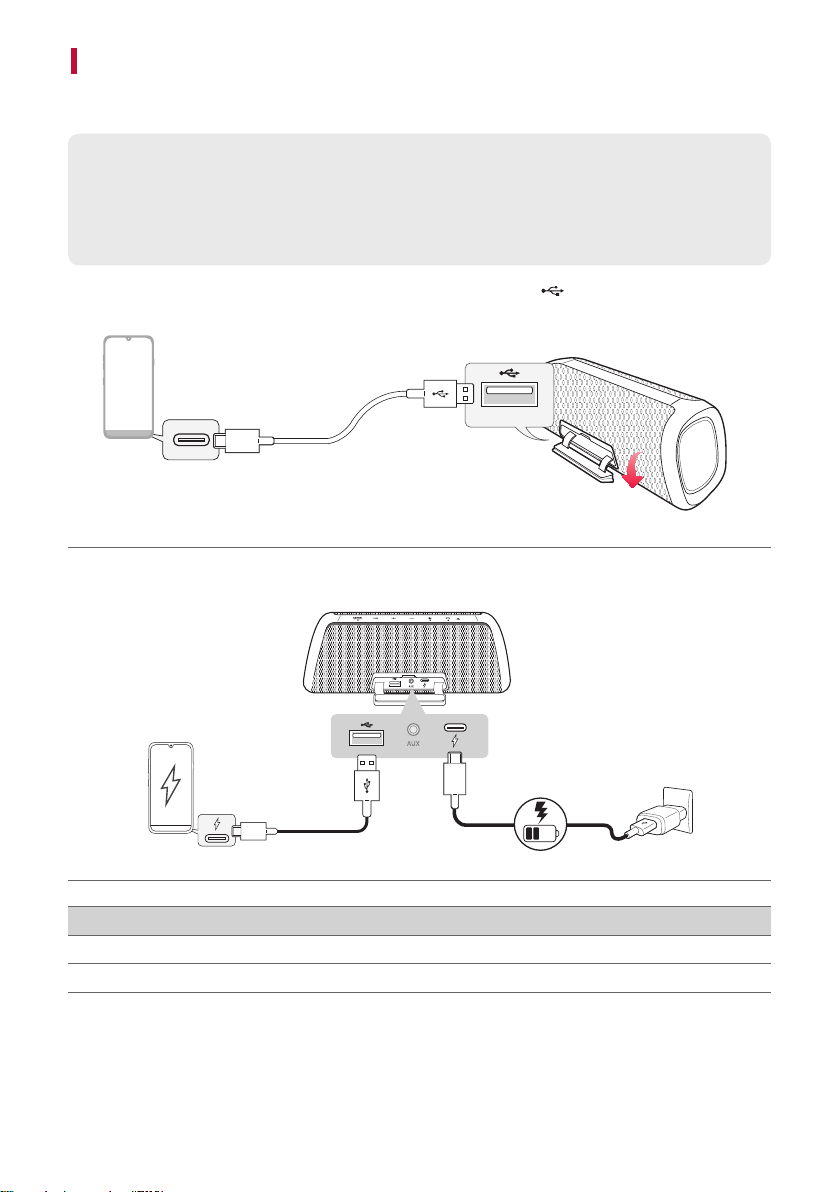
You can select a desired sound effect by using SOUND BOOST
SOUND
BOOST
button.
LED ( Off / On) Function / Description
Standard/YoucanenjoyHigh-delitysoundwithbalancedandnatural.
SOUNDBOOST/Youcanenjoythewidesoundeldandpowerfulsound.
Note
• Becausene-tunesoundtoprovideoptimalhigh-qualitysound,Itmightbealittledifferencebetweensound
effect modes.
24
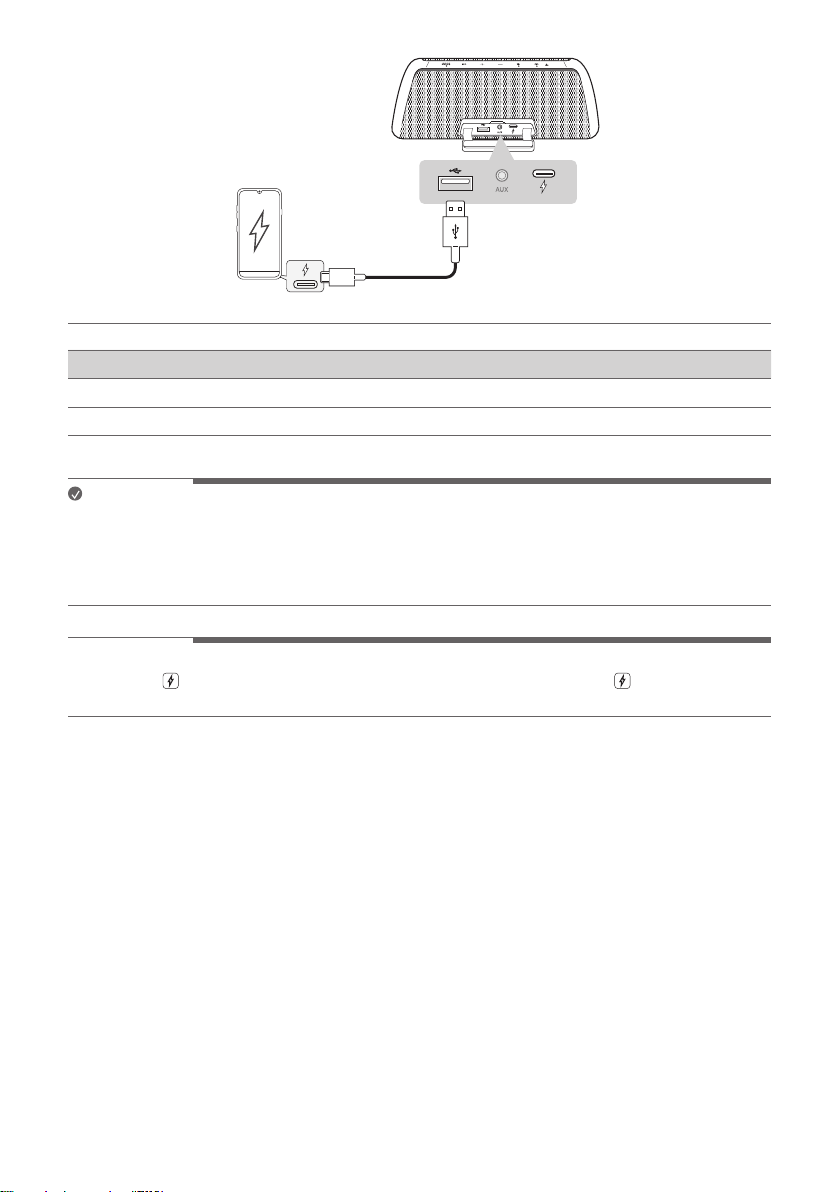
Charging a smartphone
Use the USB cable to charge your smartphone like a spare battery for the speaker.
Please check the following rst.
• The method of charging your smartphone differs depending on the device. Refer to your smartphone's
manual.
• You can only charge your smartphone in Bluetooth mode.
a Open the back cover of the speaker and connect the smartphone to the
(5 V 0 2 A) terminal via a USB
cable type (C to A cable, it is provided). The smartphone starts to be charged.
5 V 0 2 A
b Depending on whether the speaker is charging or not, the smartphone can be charged.
5 V 0 2 A
5 V 0 2 A
Power input / Speaker status Smartphone charging
Connected / Power On O
Connected / Power Off O
25
5 V 0 2 A
5 V 0 2 A
Power input / Speaker status Smartphone charging
Disconnected / Power On O*
Disconnected / Power Off X
Note
• When charging the smartphone by speaker, the battery of speaker is consumed.
• Devices other than smartphone can not be charged.
• *If the Auto Power Management function is enabled when the power input is disconnected, the smartphone is
not charged when the speaker is turned off.
> CAUTION
Do not use the
(DC IN) terminal of the speaker to charge the smartphone. Using the (DC IN) port
connected to your smartphone will charge the speaker from the phone's battery depleting it rapidly.
26
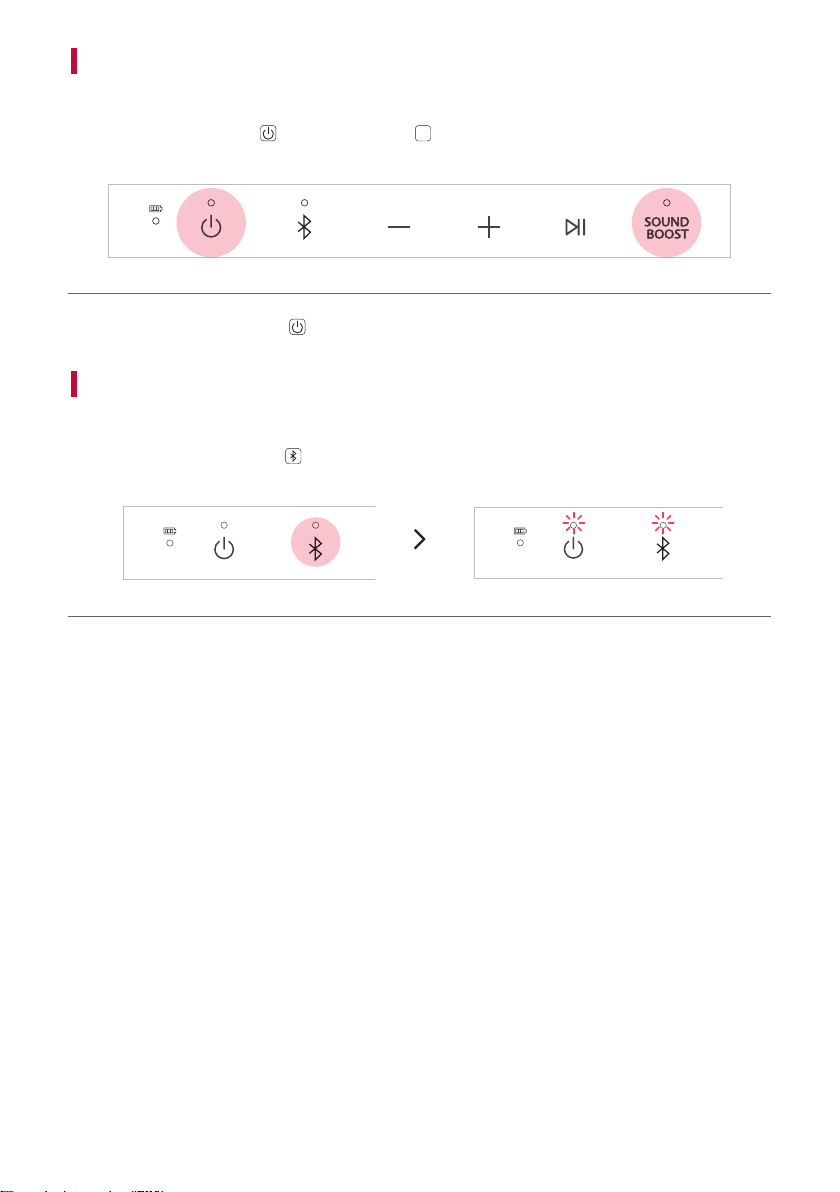
Resetting the Speaker
You can reset the speaker when it operates improperly.
a Press and hold the Power
and SOUND BOOST
SOUND
BOOST
buttons on the speaker for 7 seconds simultaneously.
Then the speaker will turn off automatically.
b Turn on by pressing the Power button.
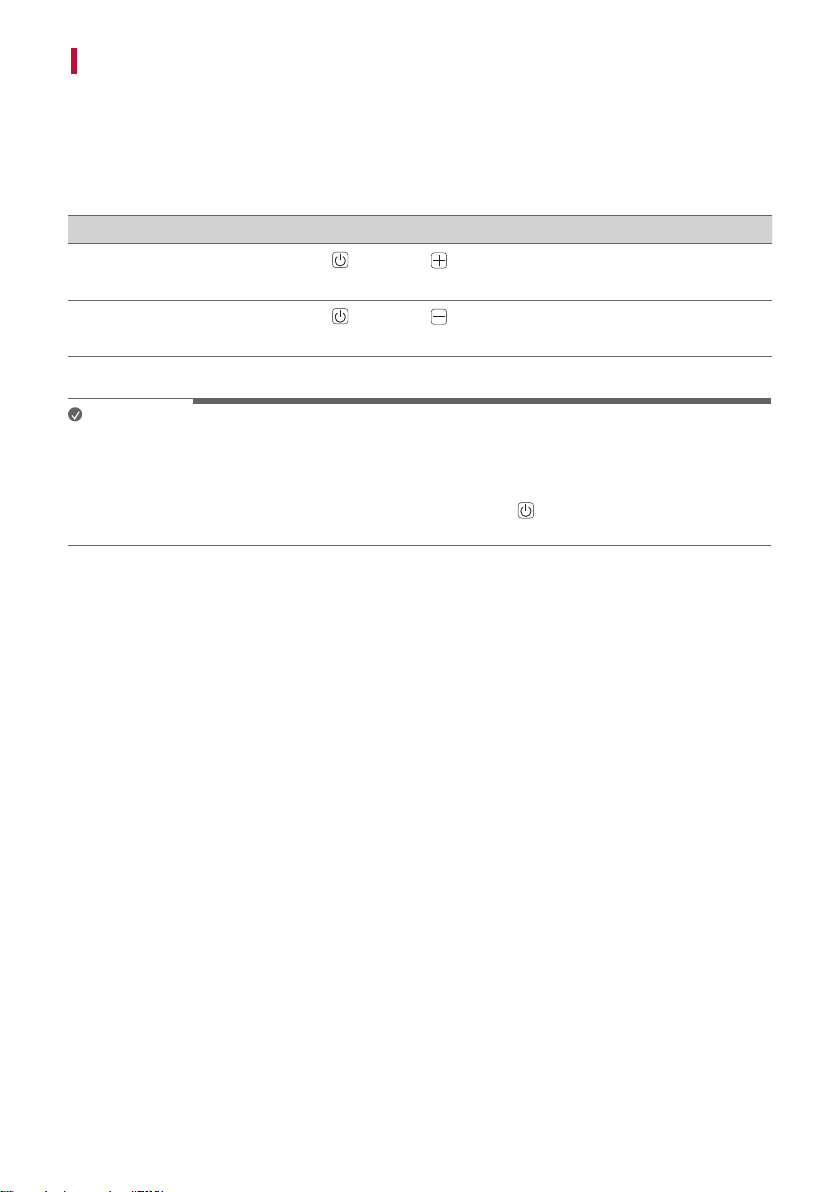
Resetting Bluetooth
Resetting Bluetooth initializes all the Bluetooth and speaker connections as well as the user settings.
a Press and hold the Bluetooth
button on the speaker for 7 seconds. Power LED and Bluetooth LED will
blink four times.
b Connect the smart device to the speaker via Bluetooth. ([ See “Connecting Smartphone to the Speaker
via Bluetooth” on page 10.)
27
Using Auto Power Management
• When the charging cable is plugged in: If there is no input signal or button operation, the speaker turns off
automatically after 15 minutes.
• When the charging cable is not plugged in: If there is no input signal or button operation, the speaker turns off
automatically after 6 hours.
The Auto Power Management function can be enable or disable as shown below.
Function How to Use
Enable
Press and hold Power
and Volume buttons for 2 seconds simultaneously.
• The PowerLEDwillblinkvetimeswithbeepsound.
Disable
Press and hold Power
and Volume buttons for 2 seconds simultaneously.
• The PowerLEDwillblinkvetimeswithbeepsound.
Note
• You can enable or disable this function on the LG XBOOM app.
• When using the Wireless Party Link, the Auto Power Management time works for 15 minutes (plugged in) or 6
hours (not plugged in) depending on the charging cable connection status of the Main speaker.
• If this function is disabled, the speaker turns off only when the Power
button is pressed or the battery is
discharged.
28
Using Auto power - on.
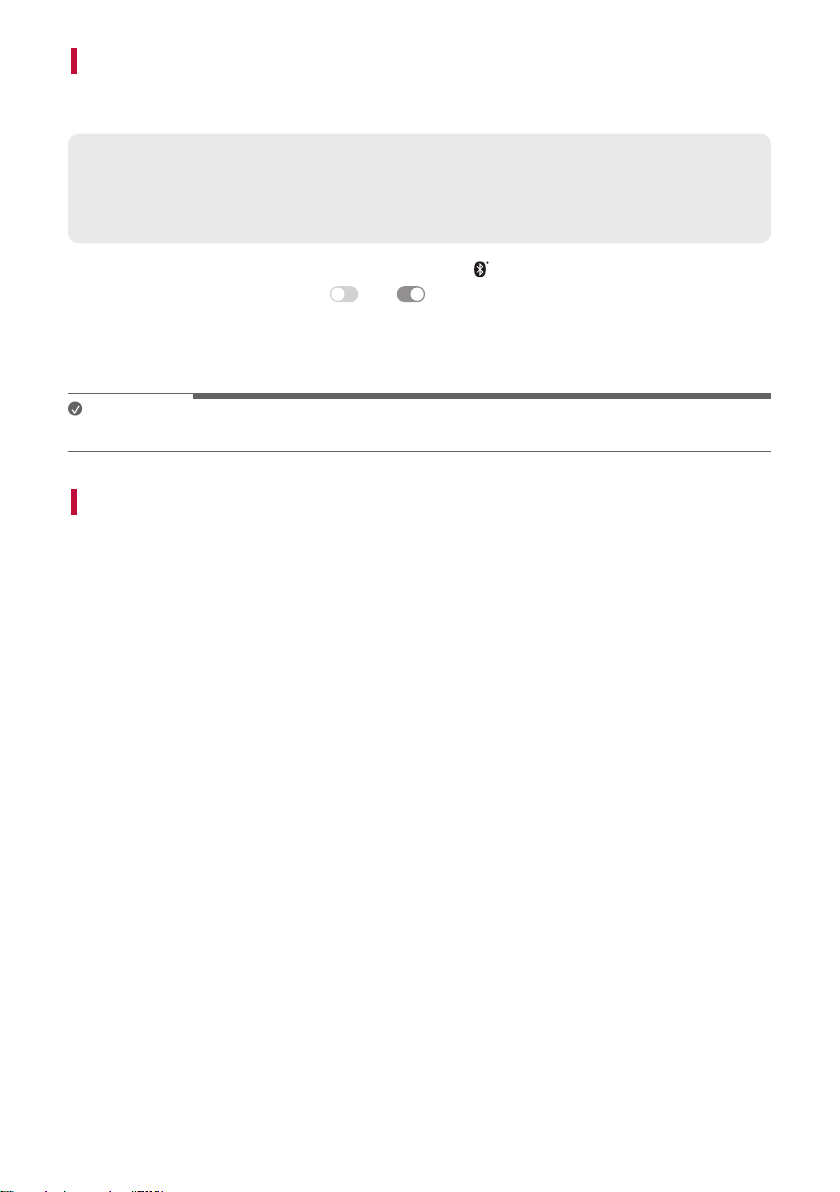
You can easily use the speaker with your Bluetooth device.
Please check the following rst.
• The speaker has a history of Bluetooth connection with the Bluetooth device.
• The speaker is charging and the power is off.
a Tap the Setting button on your Bluetooth device and select
Bluetooth.
b Turn on the Bluetooth function. (Off
> On )
c You will see a list of connectable devices on the Bluetooth device screen. Find and tap “LG-XG7Q (XX)".
d The speaker power is turned on automatically. Then the Bluetooth device and the speaker are connected
automatically.
Note
• You can turn this function on and off with the LG XBOOM app only.
Voice feedback function
When you select a function or sound, the current status of the product is guided by voice. (English voice only.)
You can turn this function on and off with the LG XBOOM app only.
29
Safety Precautions
Safety and Regulatory
CAUTION
RISK OF ELECTRIC SHOCK
DO NOT OPEN
CAUTION: TO REDUCE THE RISK OF ELECTRIC SHOCK DO NOT REMOVE COVER (OR BACK) NO USER-
SERVICEABLE PARTS INSIDE. REFER SERVICING TO QUALIFIED SERVICE PERSONNEL.
Thislightningashwitharrowheadsymbolwithinanequilateraltriangleisintendedto
alert the user to the presence of uninsulated dangerous voltage within the product’s
enclosurethatmaybeofsufcientmagnitudetoconstituteariskofelectricshockto
persons.
The exclamation point within an equilateral triangle is intended to alert the user to the
presence of important operating and maintenance (servicing) instructions in the literature
accompanying the product.
WARNING:
• TO PREVENT FIRE OR ELECTRIC SHOCK HAZARD, DO NOT EXPOSE THIS PRODUCT TO RAIN OR MOISTURE.
• Donotinstallthisequipmentinaconnedspacesuchasabookcaseorsimilarunit.
CAUTION:
• Do not use high voltage products around this product. (ex. Electrical swatter) This product may malfunction due
to electrical shock.
• Nonakedamesources,suchaslightedcandles,shouldbeplacedontheapparatus.
• Do not block any ventilation openings. Install in accordance with the manufacturer’s instructions. Slots and
openings in the cabinet are provided for ventilation and to ensure reliable operation of the product and to
protect it from over heating. The openings should never be blocked by placing the product on a bed, sofa, rug or
other similar surface. This product shall not be placed in a built-in installation such as a bookcase or rack unless
proper ventilation is provided or the manufacturer’s instruction has been adhered to.
• Theapparatusshouldnotbeexposedtowater(drippingorsplashing)andnoobjectslledwithliquids,suchas
vases, should be placed on the apparatus.
• Forsafetymarkinginformationincludingproductidenticationandsupplyratings,pleaserefertothemain
label on the bottom or the other surface of the product.

30
CAUTION concerning the Power Cord
The Power Plug is the disconnecting device. In case of an emergency, the Power Plug must remain readily
accessible.
Checkthespecicationpageofthisowner’smanualtobecertainofthecurrentrequirements.
Do not overload wall outlets. Overloaded wall outlets, loose or damaged wall outlets, extension cords, frayed power
cords, or damaged or cracked wire insulation are dangerous. Any of these conditions could result in electric shock
orre.Periodicallyexaminethecordofyourdevice,andifitsappearanceindicatesdamageordeterioration,unplug
it, discontinue use of the device, and have the cord replaced with an exact replacement part by an authorized
service center.
Protect the power cord from physical or mechanical abuse, such as being twisted, kinked, pinched, closed in a door,
or walked upon. Pay particular attention to plugs, wall outlets, and the point where the cord exits the device.
CAUTION when using this product in environments of low humidity
• It may cause static electricity in environments of low humidity.
• It is recommended to use this product after touching any metal object which conducts electricity.

31
For models using a battery
This device is equipped with a portable battery or accumulator.
CAUTION:Riskofreorexplosionifthebatteryisreplacedbyanincorrecttype.
For models using a built-in battery
Do not store or transport at pressures lower than 11.6 kPa (0.116 bar) and at above 15,000 m (9.32 miles)
altitude.
• Replacement of a battery with an incorrect type that can defeat a safeguard (for example, in the case of some
lithium battery types);
• Disposalofabatteryintoreorahotoven,ormechanicallycrushingorcuttingofabattery,thatcanresultin
an explosion;
• Leaving a battery in an extremely high temperature surrounding environment that can result in an explosion or
theleakageofammableliquidorgas;and
• Abatterysubjectedtoextremelylowairpressurethatmayresultinanexplosionortheleakageofammable
liquid or gas.
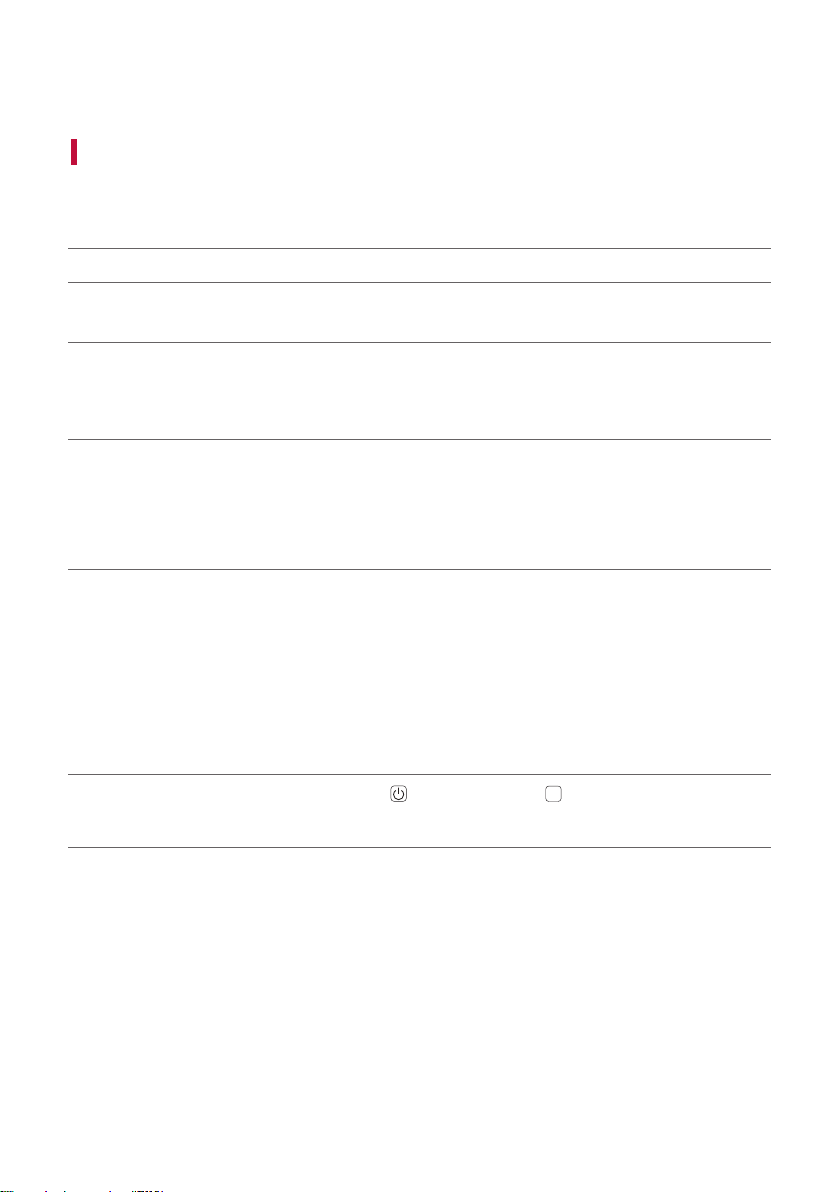
Symbols
: Alternating current (AC).
0 : Direct current (DC).
: This is a class II equipment.
1 : Standby power state.
! : The power is turned on.
: Danger voltage.
32
Before Reporting Product Malfunction
Troubleshooting
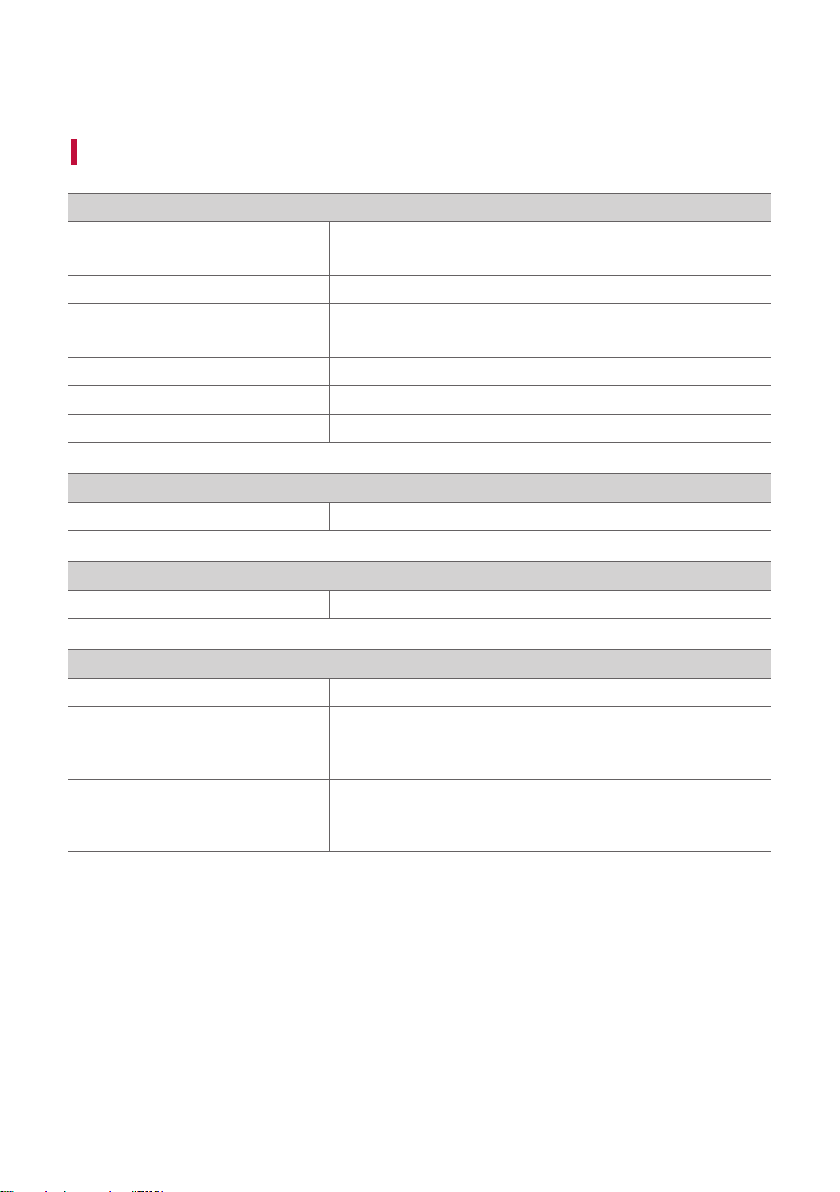
If you experience the following issues while using the product, please perform several checks, as they may not be
malfunctions.
Symptom Cause and Solution
Power is not
supplied.
• The battery is discharged. Recharge the battery.
• Connect the speaker to the charging adapter.
There is no
sound or
the sound is
distorted.
• The volume of the speaker or the smart device may be set to the minimum. Adjust the
volume on the speaker or the smart device appropriately.
• Turning on the volume to the maximum on the external device may result in distorted
sounds. Lower the volume on the external device.
Bluetooth
connection
failed.
• Turn off the Bluetooth setting and on again on the Bluetooth device.
• Check if the Bluetooth setting is enabled.
• Make sure that there is no obstacle between the speaker and the Bluetooth device.
• Bluetooth pairing may fail depending on the Bluetooth device type and the
surrounding environment.
The device does
not operate
normally.
• Battery discharge may cause the Bluetooth information to be deleted. If the speaker’s
power supply is blocked, previous settings may not be saved.
• Use this product in a place where the temperature and humidity are not too high or
low. If the problem continues, contact LG Electronics’ Customer Service Center.
• Power LED and Bluetooth LED blink when the speaker malfunction occurs and the
speaker does not operate normally. Turn the power off and then on again.
• If a problem occurs while charging the battery of the product, the battery LED
alternates between red and amber and charging stops. Unplug the adapter from the
outlet.
The above
solutions do
not work.
• Press and hold the Power
and SOUND BOOST
SOUND
BOOST
buttons on the speaker for 7
seconds simultaneously. ([ See “Resetting the Speaker” on page 26.)
33
Appendix
Specifications
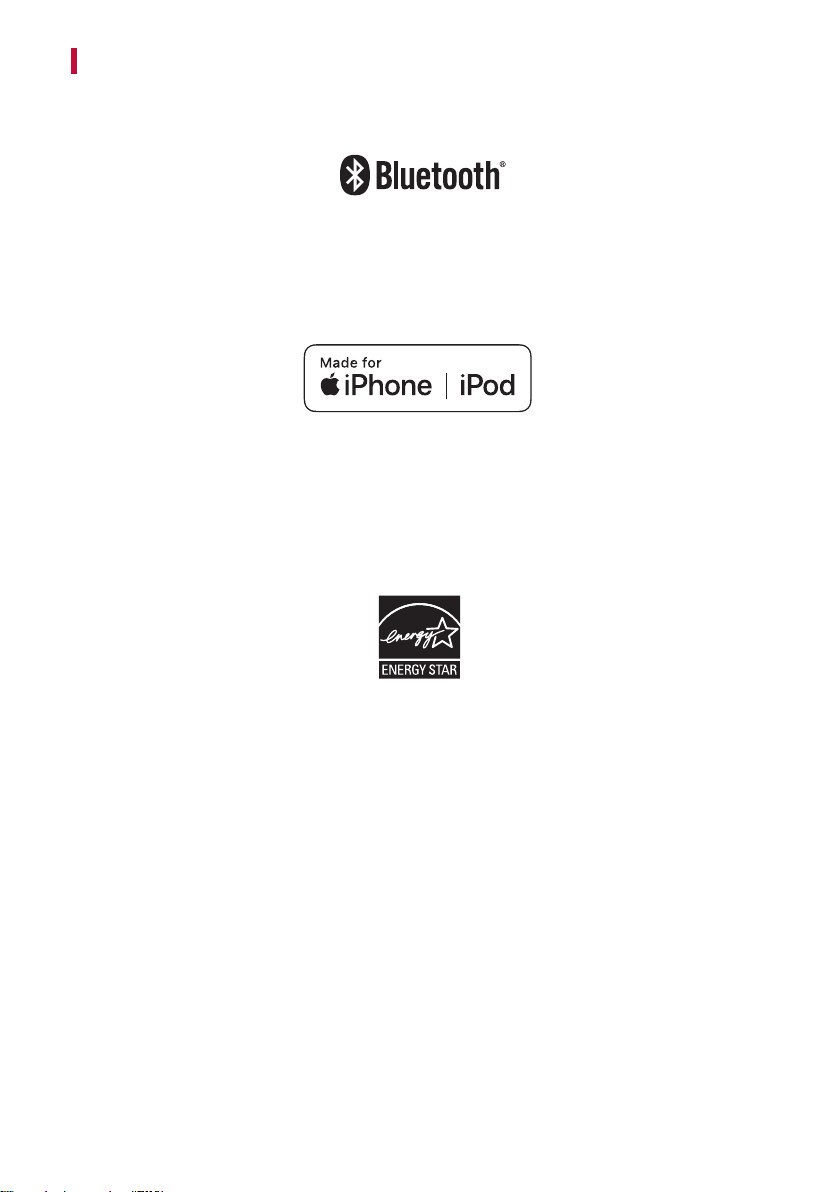
General
Power Supply
5 V 0 2 A (AC adapter)
Built-in rechargeable battery
Power consumption Refer to the main label.
Dimensions (W x H x D)
Approx. 261 mm x 98 mm x 95 mm
(10.3 inch x 3.9 inch x 3.7 inch)
Temperature 5 °C - 35 °C (41 °F to 95 °F)
Humidity 5 % - 60 % RH
Ingress Protection IP67
Input
AUX (Portable in) 0.5 Vrms (3.5 mm stereo terminal) × 1
Output
USB
5 V 0 2 A (USB port for charging the smartphone) × 1
Battery
Battery capacity 3900 mAh
Operating time
About 24 hours
Operation time may vary depending on the battery or operation
status.
Charging time
5 hours or lower
Charging time may vary depending on the battery or operation
status.
• Designandspecicationsaresubjecttochangewithoutnotice.
34
Registered Trademarks and Licenses
All trademarks and trade names are the property of their respective owners.
The Bluetooth® word mark and logos are registered trademarks owned by the Bluetooth SIG, Inc. and any use of
such marks by LG Electronics is under license.
Other trademarks and trade names are those of their respective owners.
“Made for iPhone,” and “Made for iPod” mean that an electronic accessory has been designed to connect
specicallytoiPhone,oriPod,respectively,andhasbeencertiedbythedevelopertomeetAppleperformance
standards. Apple is not responsible for the operation of this device or its compliance with safety and regulatory
standards. Please note that the use of this accessory with iPhone or iPod may affect wireless performance.
The system is compatible with the latest iOS. Depending on your iPhone/iPod software version, you may not
control your iPhone/iPod from the unit.

35
Handling the Product
When shipping the Product
Please save the original shipping carton and packing materials. If you need to ship the product, for maximum
protection, re-pack the product as it was originally packed at the factory.
Keeping the exterior surfaces clean
• Do not use volatile liquids such as insecticide spray near the product.
• Wiping with strong pressure may damage the surface.
• Do not leave rubber or plastic products in contact with the product for a long period of time.
Cleaning the product
To clean the product, use a soft, dry cloth. If the surfaces are extremely dirty, use a soft cloth lightly moistened
with a mild detergent solution. Do not use strong solvents such as alcohol, benzine, or thinner, as these might
damage the surface of the product.