ENGLISH
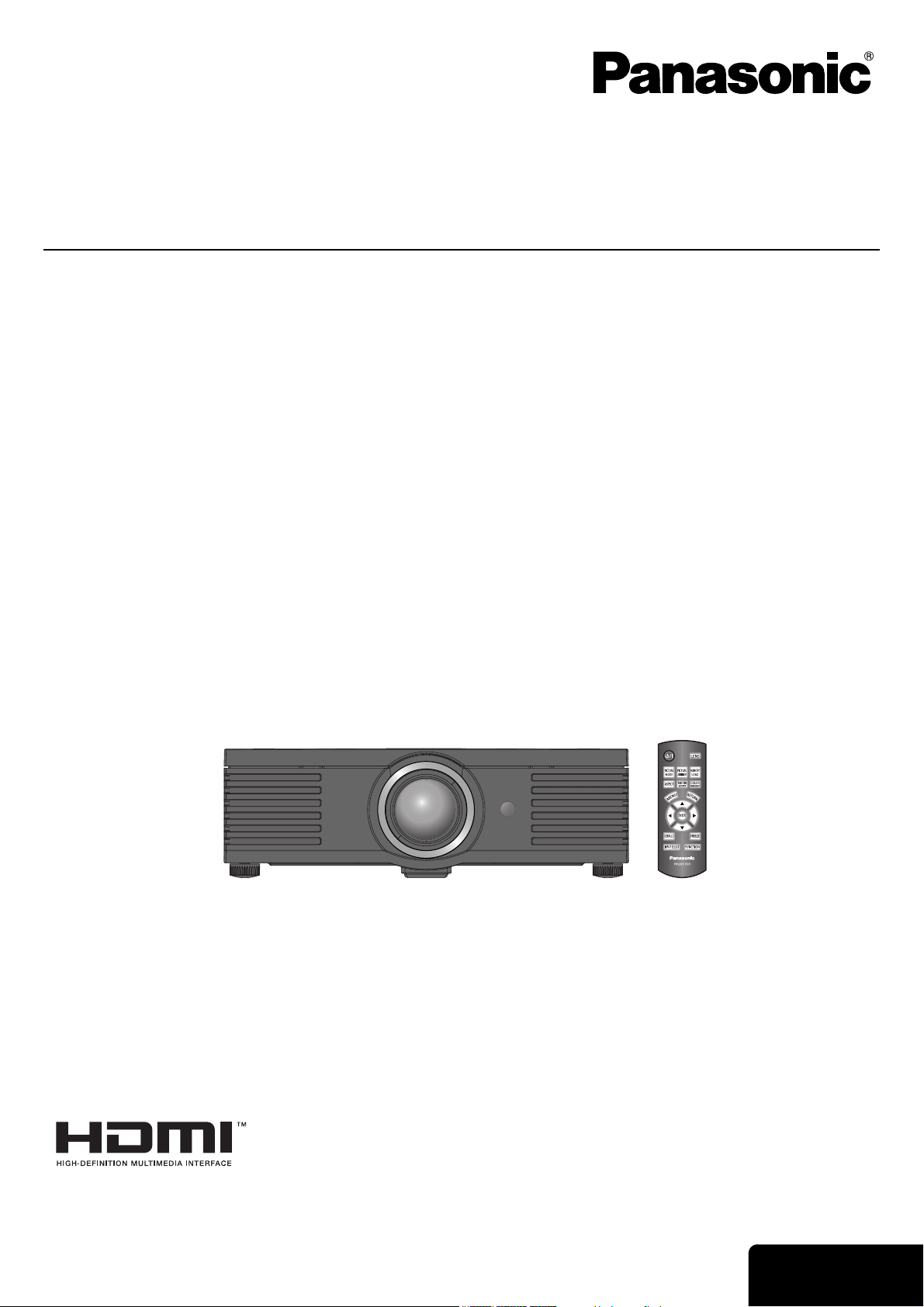
Operating Instructions
LCD Projector
Model No. PT-AE3000U
Before operating this product, please read the instructions carefully and save this manual for future use.
TQBJ0277-1
Important
Information
2 - ENGLISH
Important Safety Notice
Dear Panasonic Customer:
The following information should be read and understood as it provides details, which will enable you to operate the
projector in a manner which is both safe to you and your environment, and conforms to legal requirements regarding
the use of projectors. Before connecting, operating or adjusting this projector, please read these instructions
completely and save this booklet with the projector for future reference. We hope it will help you to get the most out
of your new product, and that you will be pleased with your Panasonic LCD projector.
The serial number of your product may be found on its bottom. You should note it in the space provided below and
retain this booklet in case service is required.
Model number: PT-AE3000U
Serial number:
WARNING: TO REDUCE THE RISK OF FIRE OR ELECTRIC SHOCK, DONOT EXPOSE THIS PRODUCT
TO RAIN OR MOISTURE.
Power Supply: This LCD Projector is designed to operate on 100 V - 240 V, 50 Hz/60 Hz AC, house current
only.
CAUTION: The AC power cord which is supplied with the projector as an accessory can only be used for
power supplies up to 125 V, 7 A. If you need to use higher voltages or currents than this, you will
need to obtain a separate 250 V power cord. If you use the accessory cord in such situations, fire
may result.
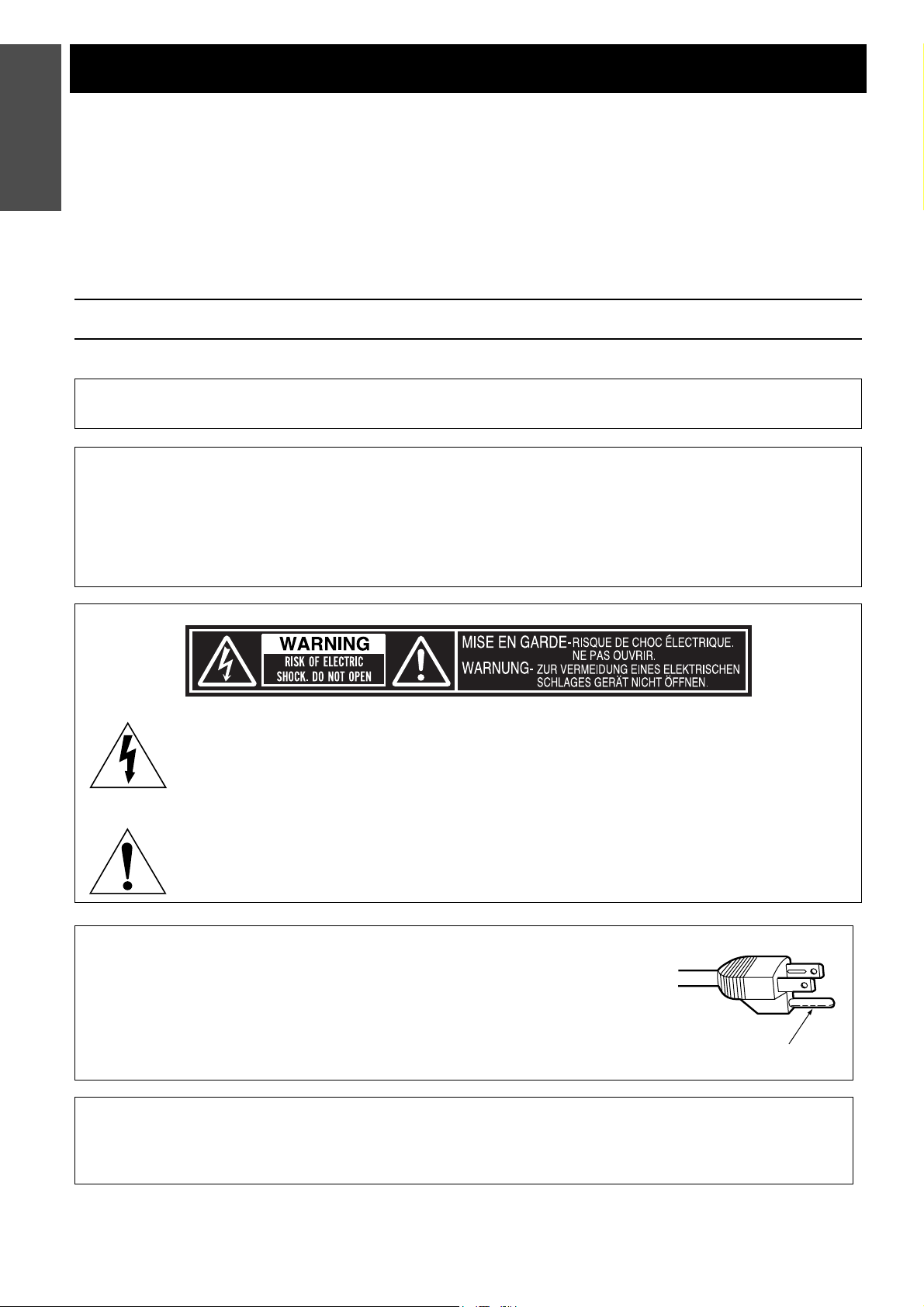
The lightning flash with arrowhead symbol, within an equilateral triangle, is intended to alert the
user to the presence of uninsulated “dangerous voltage” within the product’s enclosure that may
be of sufficient magnitude to constitute a risk of electric shock to persons.
The exclamation point within an equilateral triangle is intended to alert the user to the presence of
important operating and maintenance (servicing) instructions in the literature accompanying the
product.
CAUTION: This equipment is equipped with a three-pin grounding-type power
plug. Do not remove the grounding pin on the power plug. This plug
will only fit a grounding-type power outlet. This is a safety feature. If
you are unable to insert the plug into the outlet, contact an
electrician. Do not defeat the purpose of the grounding plug.
NOTICE: This product has a High Intensity Discharge (HID) lamp that contains mercury. Disposal may be
regulated in your community due to environmental considerations. For disposal or recycling
information, please contact your local authorities, or the Electronic Industries Alliance: http://
www.eiae.org
Do not remove
Important
Information
Important Safety Notice
ENGLISH - 3
Information on Disposal in other Countries outside the European Union
These symbols are only valid in the European Union.
If you wish to discard this product, please contact your local authorities or dealer and ask for the correct
method of disposal.
WARNING:
This equipment has been tested and found to comply with the limits for a Class B digital device, pursuant to Part
15 of the FCC Rules. These limits are designed to provide reasonable protection against harmful interference in
a residential installation. This equipment generates, uses and can radiate radio frequency energy and, if not
installed and used in accordance with the instructions, may cause harmful interference to radio
communications. However, there is no guarantee that interference will not occur in a particular installation. If this
equipment does cause harmful interference to radio or television reception, which can be determined by turning
the equipment off and on, the user is encouraged to try to correct the interference by one or more of the
following measures:
- Reorient or relocate the receiving antenna.
- Increase the separation between the equipment and receiver.
- Connect the equipment into an outlet on a circuit different from that to which the receiver
is connected.
- Consult the dealer or an experienced radio/TV technician for help.
FCC CAUTION: To assure continued compliance, use only shielded interface cables when
connecting to computers or peripheral devices. Any unauthorized
changes or modifications to this equipment will void the users authority to
operate.
Pursuant to at the directive 2004/108/EC, article 9(2)
Panasonic Testing Center
Panasonic Service Europe, a division of Panasonic Marketing Europe GmbH
Winsbergring 15, 22525 Hamburg, F.R. Germany
WARNING: Not for use in a computer room as defined in the Standard for the Protection
of Electronic Computer/Data Processing Equipment, ANSI/NFPA 75.
Declaration of Conformity
Model Number: PT-AE3000U
Trade Name: Panasonic
Responsible party: Panasonic Corporation of North America
Address: One Panasonic Way, Secaucus, New Jersey 07094
Telephone number: (888) 411 - 1996
This device complies with Part 15 of the FCC Rules. Operation is subject to the following two conditions: (1)
This device may not cause harmful interference, and (2) this device must accept any interference received,
including interference that may cause undesired operation.
4 - ENGLISH
Contents
J Quick steps
Important Information
Important Safety Notice........................................ 2
Precautions with regard to safety ....................... 6
WARNINGS.................................................................6
CAUTIONS..................................................................7
Cautions when transporting.........................................8
Cautions when installing..............................................9
Cautions on use ..........................................................9
Accessories ...............................................................10
Preparation
About Your Projector.......................................... 11
Remote control ..........................................................11
Projector body ...........................................................12
Getting Started
Setting up............................................................. 14
Screen size and throw distance.................................14
Projection method......................................................15
Front leg adjusters and throwing angle .....................15
Lens shift and positioning..........................................16
Connections ........................................................ 18
Before connecting to the projector.............................18
Connecting example: COMPONENT IN/S-VIDEO IN/
VIDEO IN...................................................................18
Connecting example: HDMI IN/COMPUTER IN........18
Basic Operation
Switching the projector on/off ........................... 19
Power cord ................................................................19
Power indicator..........................................................20
Switching on the projector .........................................21
Switching off the projector .........................................21
Projecting an image ............................................ 22
Selecting the input signal...........................................22
Positioning the image ................................................22
Remote control operation .................................. 23
Operating range ........................................................23
Managing the lens control settings ............................23
Switching the picture mode .......................................23
Adjusting the image...................................................23
Loading a saved setting ............................................24
Switching the aspect ratio..........................................24
Adjusting the signal condition with a waveform .........24
Setting your own color profile ....................................26
Resetting to the factory default settings ....................28
Capturing an image ...................................................28
Switching the input signal..........................................28
Using the assigned function as shortcut....................28
2. Connect with other devices
See “Connections” on page 18.
1. Set up your projector
See “Setting up” on page 14.
3. Prepare the remote control
See “Remote control” on page 11.
4. Start projecting
See “Switching the projector on/off” on
page 19.
5. Adjust the image
See “Menu Navigation” on page 29.
PreparationGetting StartedBasic OperationSettingsMaintenanceAppendix
ENGLISH - 5
Contents
Important
Information
Settings
Menu Navigation ..................................................29
Navigating through the MENU .................................. 29
Main menu and sub-menu ........................................ 30
PICTURE menu.....................................................32
PICTURE MODE....................................................... 32
CONTRAST .............................................................. 32
BRIGHTNESS........................................................... 32
COLOR ..................................................................... 32
TINT .......................................................................... 32
SHARPNESS ............................................................ 32
COLOR TEMPERATURE ......................................... 33
DYNAMIC IRIS.......................................................... 33
WAVEFORM MONITOR ........................................... 33
SPLIT ADJUST ......................................................... 33
ADVANCED MENU................................................... 34
MEMORY SAVE ....................................................... 36
MEMORY LOAD ....................................................... 36
MEMORY EDIT......................................................... 36
SIGNAL MODE ......................................................... 36
POSITION menu ...................................................37
H-POSITION ............................................................. 37
V-POSITION ............................................................. 37
DOT CLOCK ............................................................. 37
CLOCK PHASE......................................................... 37
ASPECT.................................................................... 37
WSS .......................................................................... 39
OVER SCAN ............................................................. 39
KEYSTONE............................................................... 39
AUTO SETUP ........................................................... 39
LENS CONTROL...................................................40
ZOOM/FOCUS.......................................................... 40
LENS MEMORY LOAD............................................. 40
LENS MEMORY SAVE ............................................. 40
LENS MEMORY EDIT .............................................. 41
H-AREA POSITION .................................................. 41
V-AREA POSITION................................................... 41
FUNCTION BUTTON.............................................42
BUTTON ................................................................... 42
OPTION menu.......................................................43
INPUT GUIDE ........................................................... 43
OSD DESIGN............................................................ 43
OSD POSITION ........................................................ 43
BACK COLOR........................................................... 43
STARTUP LOGO ...................................................... 43
AUTO SEARCH ........................................................ 43
HDMI SIGNAL LEVEL............................................... 43
FRAME RESPONSE................................................. 43
INSTALLATION......................................................... 44
SLEEP....................................................................... 44
HIGH ALTITUDE MODE ........................................... 44
LAMP POWER.......................................................... 44
LAMP RUNTIME ....................................................... 44
Maintenance
TEMP and LAMP Indicators ............................... 45
Managing the indicated problems............................. 45
Care and Replacement ....................................... 46
Cleaning the projector............................................... 46
Replacing the lamp unit ............................................ 47
Troubleshooting.................................................. 49
Appendix
Technical Information......................................... 50
List of compatible signals.......................................... 50
Serial terminal........................................................... 51
Specifications............................................................ 54
Ceiling mount bracket safeguards ............................ 56
Dimensions ............................................................... 57
Trademark acknowledgements................................. 57
Index..................................................................... 58

Important
Information
6 - ENGLISH
Precautions with regard to safety
If you notice smoke, strange smells or noise coming
from the projector, disconnect the power plug from
the wall outlet.
Do not continue to use the projector in such cases,
otherwise fire or electric shocks could result.
Check that no more smoke is coming out, and then
contact an Authorized Service Center for repairs.
Do not attempt to repair the projector yourself, as this
can be dangerous.
Do not install this projector in a place which is not
strong enough to take the full weight of the
projector.
If the installation location is not strong enough, it may
fall down or tip over, and severe injury or damage
could result.
Installation work (such as ceiling suspension)
should only be carried out by a qualified technician.
If installation is not carried out correctly, there is the
danger that injury or electric shocks may occur.
Do not use other than an authorized ceiling mount
bracket.
If foreign objects or water get inside the projector, or
if the projector is dropped or the cabinet is broken,
disconnect the power plug from the wall outlet.
Continued use of the projector in this condition may
result in fire or electric shocks.
Contact an Authorized Service Center for repairs.
The wall outlet shall be installed near the equipment
and shall be easily accessible.
Unplug the power plug from the wall outlet
immediately when problem occurred.
Do not overload the wall outlet.
If the power supply is overloaded (for example, by
using too many adapters), overheating may occur
and fire may result.
Never attempt to modify or disassemble the
projector.
High voltages can cause fire or electric shocks.
For any inspection, adjustment and repair work,
please contact an Authorized Service Center.
Clean the power plug regularly to prevent it from
becoming covered in dust.
If dust builds up on the power plug, the resulting
humidity can damage the insulation, which could
result in fire. Pull the power plug out from the wall
outlet and wipe it with a dry cloth.
If not using the projector for an extended period of
time, pull the power plug out from the wall outlet.
Do not handle the power plug with wet hands.
Failure to observe this may result in electric shocks.
Insert the power plug securely into the wall outlet.
If the plug is not inserted correctly, electric shocks or
overheating could result.
Do not use damaged plugs or loose wall outlet.
Do not place the projector on top of surfaces which
are unstable.
If the projector is placed on top of a surface which is
sloped or unstable, it may fall down or tip over, and
injury or damage could result.
Do not place the projector into water or let it become
wet.
Failure to observe this may result in fire or electric
shocks.
Do not do anything that might damage the power
cord or the power plug.
Do not damage the power cord, make any
modifications to it, place it near any hot objects, bend
it excessively, twist it, pull it, place heavy objects on
top of it or wrap it into a bundle.
If the power cord is used while damaged, electric
shocks, short-circuits or fire may result.
Ask an Authorized Service Center to carry out any
repairs to the power cord that might be necessary.
Do not place the projector on soft materials such as
carpets or sponge mats.
Doing so may cause the projector to overheat, which
can cause burns, fire or damage to the projector.
Do not place liquid containers on top of the
projector.
If water spills onto the projector or gets inside it, fire
or electric shocks could result.
If any water gets inside the projector, contact an
Authorized Service Center.
Do not insert any foreign objects into the projector.
Do not insert any metal objects or flammable objects
into the projector or drop them onto the projector, as
doing so can result in fire or electric shocks.
Do not allow the + and - terminals of the batteries to
come into contact with metallic objects such as
necklaces or hairpins.
Failure to observe this may cause the batteries to
leak, overheat, explode or catch fire.
Store the batteries in a plastic bag and keep them
away from metallic objects.
WARNINGS

Precautions with regard to safety
ENGLISH - 7
Important
Information
Do not touch the leaked liquid from the batteries.
If you touch the leaked liquid, it may hurt your skin.
Immediately wash away the liquid with water and
seek medical advice.
If you get the leaked liquid in your eye, it may cause
blindness or damage. Never rub your eye, and
immediately wash away the liquid with water and
seek medical advice.
During a thunderstorm, do not touch the projector or
the cable.
Electric shocks can result.
Do not use the projector in a bath or shower.
Fire or electric shocks can result.
Do not place your skin into the light beam while the
projector is being used.
Strong light is emitted from the projector’s lens. If you
place directly into this light, it can hurt or damage
your skin.
Do not look into the lens while the projector is being
used.
Strong light is emitted from the projector’s lens. If you
look directly into this light, it can hurt and damage
your eyes.
Be especially careful not to let young children look
into the lens. In addition, turn off the power and
disconnect the power plug when you are away from
the projector.
Do not place your hands or other objects close to the
air exhaust port.
Heated air comes out of the air exhaust port. Do not
place your hands or face, or objects which cannot
withstand heat close to this port [allow at least
50 cm (20") of space], otherwise burns or damage
could result.
Replacement of the lamp is recommended to be
carried out by a qualified technician.
The lamp has high internal pressure. If improperly
handled, explosion might result.
The lamp can easily become damaged if struck
against hard objects or dropped, and injury or
malfunctions may result.
When replacing the lamp, allow it to cool for at least
one hour before handling it.
The lamp cover gets very hot, and touching it can
cause burns.
Before replacing the lamp, be sure to disconnect the
power plug from the wall outlet.
Electric shocks or explosions can result if this is not
done.
Do not allow infants or pets to touch the remote
control unit.
Keep the remote control unit out of the reach of
infants and pets after using it.
Do not cover the air intake port or the air exhaust
port.
Doing so may cause the projector to overheat, which
can cause fire or damage to the projector.
Do not place the projector in narrow, badly ventilated
places such as closets or bookshelves.
Do not place the projector on cloth or papers, as
these materials could be drawn into the air intake
port.
Do not set up the projector in humid or dusty places
or in places where the projector may come into
contact with oily smoke or steam.
Using the projector under such conditions may result
in fire, electric shocks or plastic deterioration. The
plastic deterioration may cause the falling down of
the projector which is mounted on the ceiling.
Do not set up the projector in a high temperature
environment, such as near a heater or in direct
sunlight.
Failure to observe this may result in fire, malfunction
or plastic deterioration.
Do not set up the projector outdoors.
The projector is designed for indoor use only.
When disconnecting the power cord, hold the plug,
not the cord.
If the power cord itself is pulled, the cord will become
damaged, and fire, short-circuits or serious electric
shocks may result.
Always disconnect all cables before moving the
projector.
Moving the projector with cables still attached can
damage the cables, which could cause fire or electric
shocks to occur.
Do not place any heavy objects on top of the
projector.
Failure to observe this may cause the projector to
become unbalanced and fall, which could result in
damage or injury.
CAUTIONS

Precautions with regard to safety
8 - ENGLISH
Important
Information
Do not short-circuit, heat or disassemble the
batteries or place them into water or fire.
Failure to observe this may cause the batteries to
overheat, leak, explode or catch fire, and burns or
other injury may result.
When inserting the batteries, make sure the
polarities (+ and -) are correct.
If the batteries are inserted incorrectly, they may
explode or leak, and fire, injury or contamination of
the battery compartment and surrounding area may
result.
Use only the specified batteries.
If incorrect or different kinds of batteries are used,
they may explode or leak, and fire, injury or
contamination of the battery compartment and
surrounding area may result.
Do not mix old and new batteries.
If the batteries are used mixing old and new, they
may explode or leak, and fire, injury or contamination
of the battery compartment and surrounding area
may result.
Remove the used batteries from the remote control
promptly.
If you leave used batteries in the remote control for
an extended period of time, it may cause liquid
leaking, abnormal internal temperature rising or
explosion.
If not using the projector for an extended period of
time, disconnect the power plug from the wall outlet
and remove the batteries from the remote control.
If dust builds up on the power plug, the resulting
humidity may damage the insulation, which could
result in fire.
Keeping or leaving the remote control with batteries
inside may cause insulation deterioration, electrical
leakage or explosion which could result in fire.
Do not put your weight on this projector.
You could fall or the projector could break, and injury
may result.
Be especially careful not to let young children stand
or sit on the projector.
Disconnect the power plug from the wall outlet as a
safety precaution before carrying out any cleaning.
Electric shocks can result if this is not done.
If the lamp has broken, ventilate the room
immediately. Do not touch or bring your face close
to the broken pieces.
Failure to observe this may cause the user to absorb
the gas which was released when the lamp broke and
which contains nearly the same amount of mercury
as fluorescent lamps, and the broken pieces may
cause injury.
If you believe that you have absorbed the gas or that
the gas has got into your eyes or mouth, seek
medical advice immediately.
Ask your dealer about the replacement of the lamp
unit and check the inside of the projector.
Ask an Authorized Service Center to clean inside the
projector at least once a year.
If dust is left to build up inside the projector without
being cleaned out, it can result in fire or problems
with operation.
It is a good idea to clean the inside of the projector
before the season for humid weather arrives. Ask
your nearest Authorized Service Center to clean the
projector when required. Please discuss with the
Authorized Service Center regarding cleaning costs.
We are constantly making efforts to preserve and maintain a clean environment. Please take non repairable
units back to your dealer or a recycling company.
Do not subject the projector to excessive vibration
or shocks.
The projector lens needs to be handled with care.
Cover the lens with the lens cover when transporting
the projector.
When transporting the projector, hold the body at
the bottom securely.
Do not hold the front leg adjusters or the top cover to
move the projector, as this may damage the
projector.
Cautions when transporting

Precautions with regard to safety
ENGLISH - 9
Important
Information
Avoid setting up in places which are subject to
vibration or shocks.
The internal parts can be damaged, which may cause
malfunctions or accidents.
Avoid setting up in places which are subject to
sudden temperature changes, such as near an air
conditioner or lighting equipment.
The life of the lamp may be shortened or the projector
may be turned off. See “TEMP indicator” on page 45.
Do not set up the projector near high-voltage power
lines or near motors.
The projector may be subject to electromagnetic
interference.
If installing the projector to the ceiling, ask a
qualified technician or an Authorized Service Center
to carry out all installation work.
You will need to purchase the separate installation kit
(Model No. ET-PKE2000, ET-PKE1000S).
Furthermore, all installation work should only be
carried out by a qualified technician.
See “Ceiling mount bracket safeguards” on page 56
for the safety cable installation.
If using this projector at high elevations 1 400 -
2 700 m (4 593 - 8 858 ft) sea level, set the HIGH
ALTITUDE MODE to ON. See “HIGH ALTITUDE
MODE” on page 44.
Failure to observe this may result in malfunctions or
the life of the lamp or the other components may be
shortened.
In order to get the best picture quality
Draw curtains or blinds over any windows and turn off
any lights near the screen to prevent outside light or
light from indoor lamps from shining onto the screen.
Do not touch the surfaces of the lens with your bare
hands.
If the surface of the lens becomes dirty from
fingerprints or anything else, this will be magnified
and projected onto the screen. Moreover, when not
using the projector, attach the lens cover.
Liquid crystal panel
Do not project the same image for long periods of
time, as this may remain as an afterimage on the
liquid crystal panel. Display the white screen test
pattern for more than an hour to remove it. See
“ZOOM/FOCUS” on page 40.
The liquid crystal panel of the projector is built with
very high precision technology to provide fine picture
details. Occasionally, a few stuck pixels may appear
on the screen as fixed points of blue, green or red. It
is recommended to switch off the projector once and
try after 1 hour later again. Please note that this does
not affect the performance of your LCD.
The projector has a high pressure mercury lamp and
that is characterized as follows.
The brightness of the lamp depends on the duration
of use.
The lamp may explode or shorten the lamp life by
shocks or chipping damage.
The lamp may explode only occasionally after using
the projector.
The lamp may explode if using the projector after the
instructed lamp replacement timing.
When the lamp exploded, it emits the internal smoke-
like gas.
The lamp life depends on individual lamp
characteristics, usage condition and the installation
environment. Especially the consecutive use of the
projector for more than 10 hours, or the frequent
switching on or off may greatly affect on the lamp life.
Optical components
If you use the projector consecutively 6 hours every
day, the optical components may need to be replaced
in less than 1 year.
Cautions when installing
Cautions on use
Precautions with regard to safety
10 - ENGLISH
Important
Information
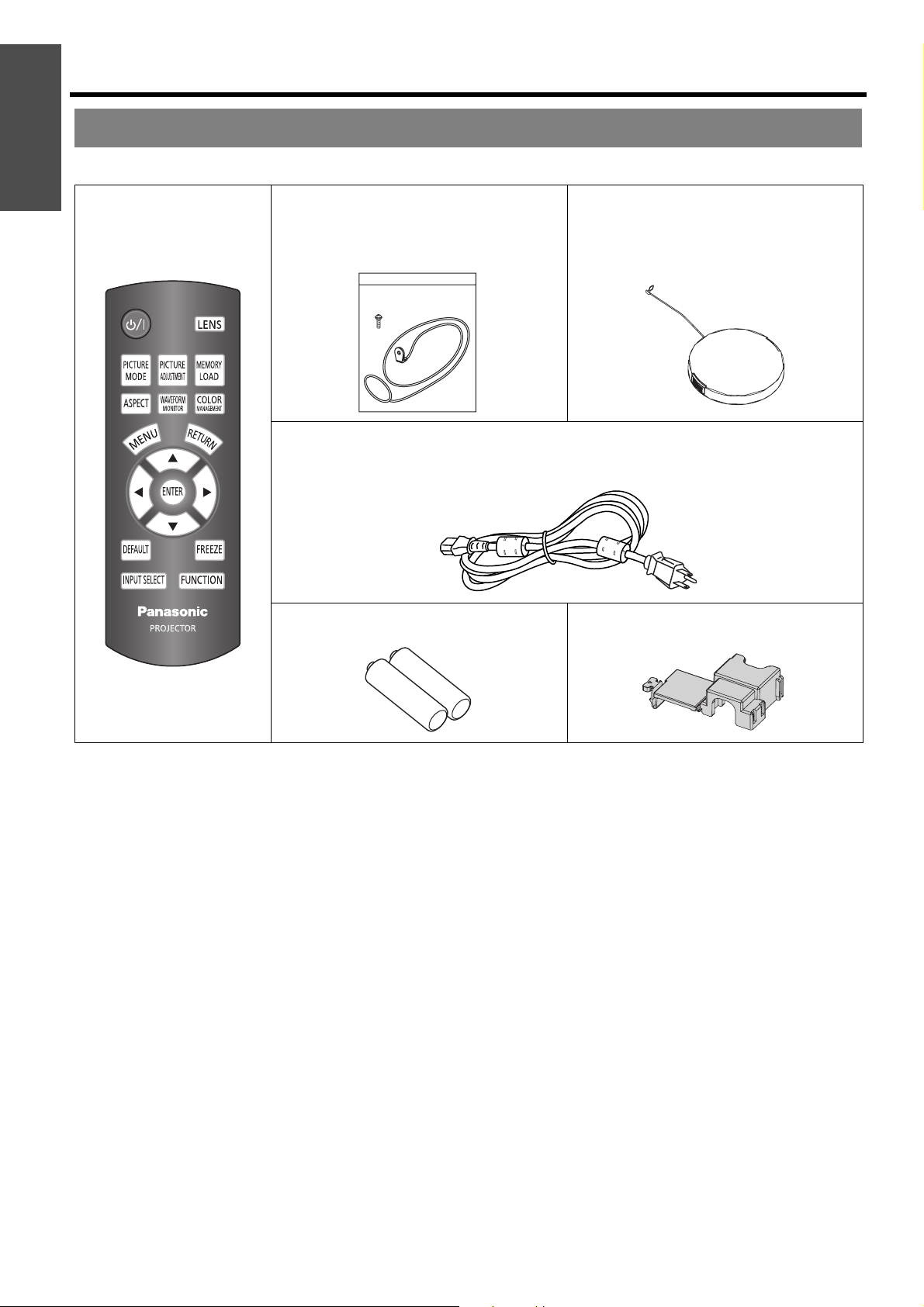
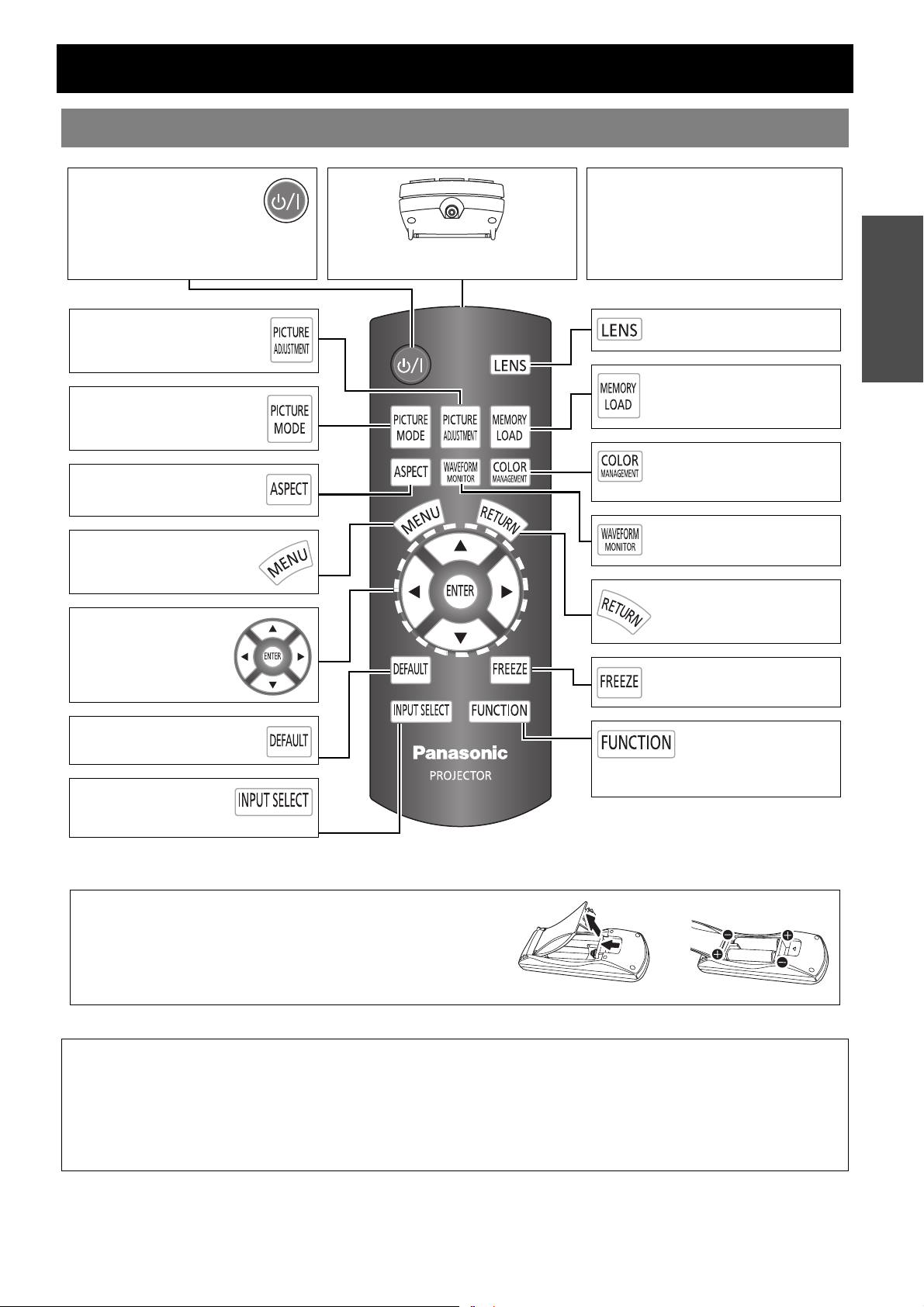
Make sure the following accessories are provided with your projector.
* The protectors for enclosed products, such as a plug
cover or foam cartons, must be treated properly.
* Contact to an Authorized Service Center for lost
accessories.
Accessories
Remote control for
PT-AE3000U (x1)
N2QAYB000316
Safety cable
TTRA0141
Attachment screw (x1)
Safety cable (x1)
Lens cover (x1)
TXFKK01VKF5
(Attached to the projector by default.)
Power cord (x1)
K2CG3FH00017
3 m (9'10")
AA batteries for remote control (x2) Power cord secure lock (x1)
TTRA0184
ENGLISH - 11
Preparation
About Your Projector
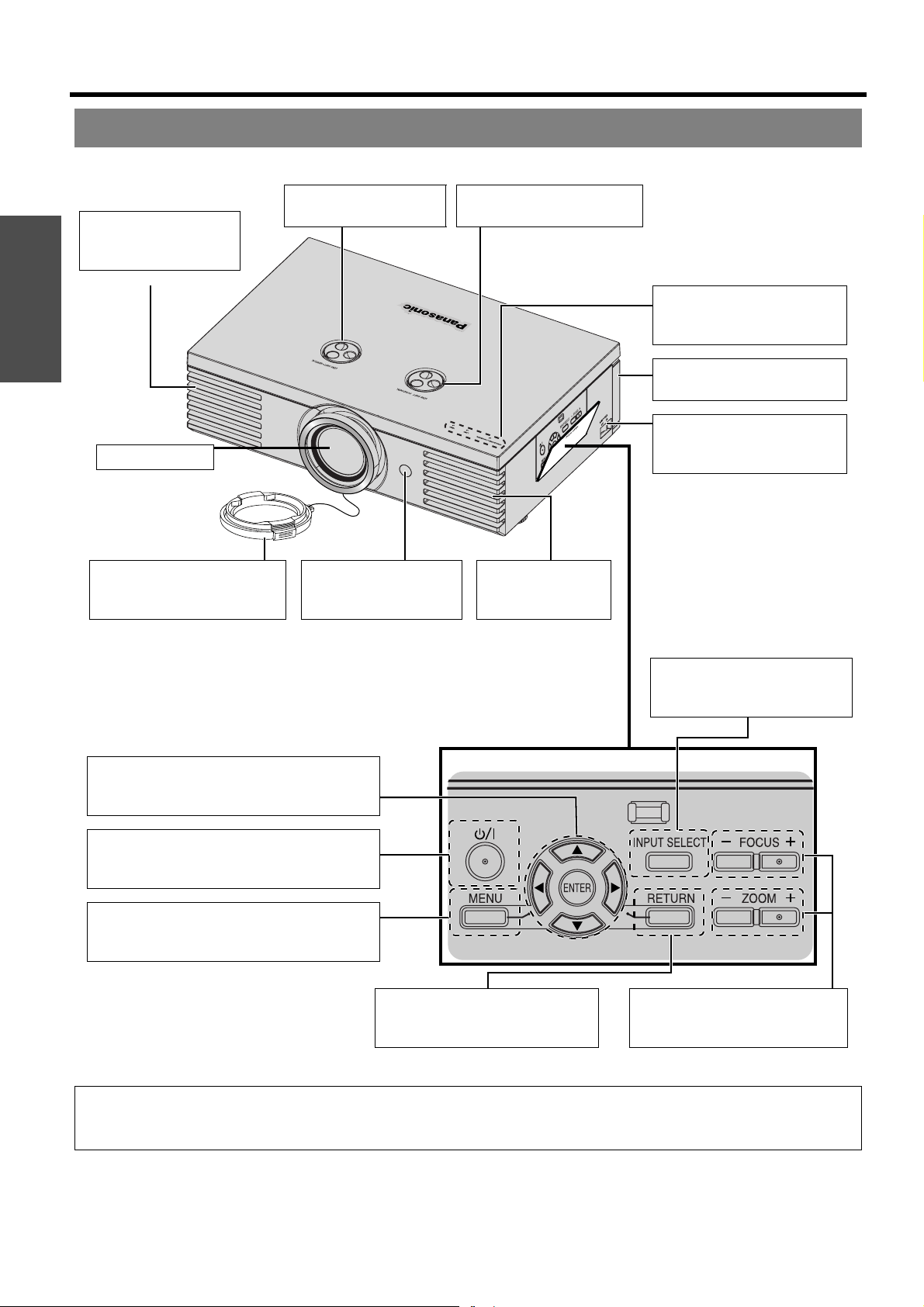
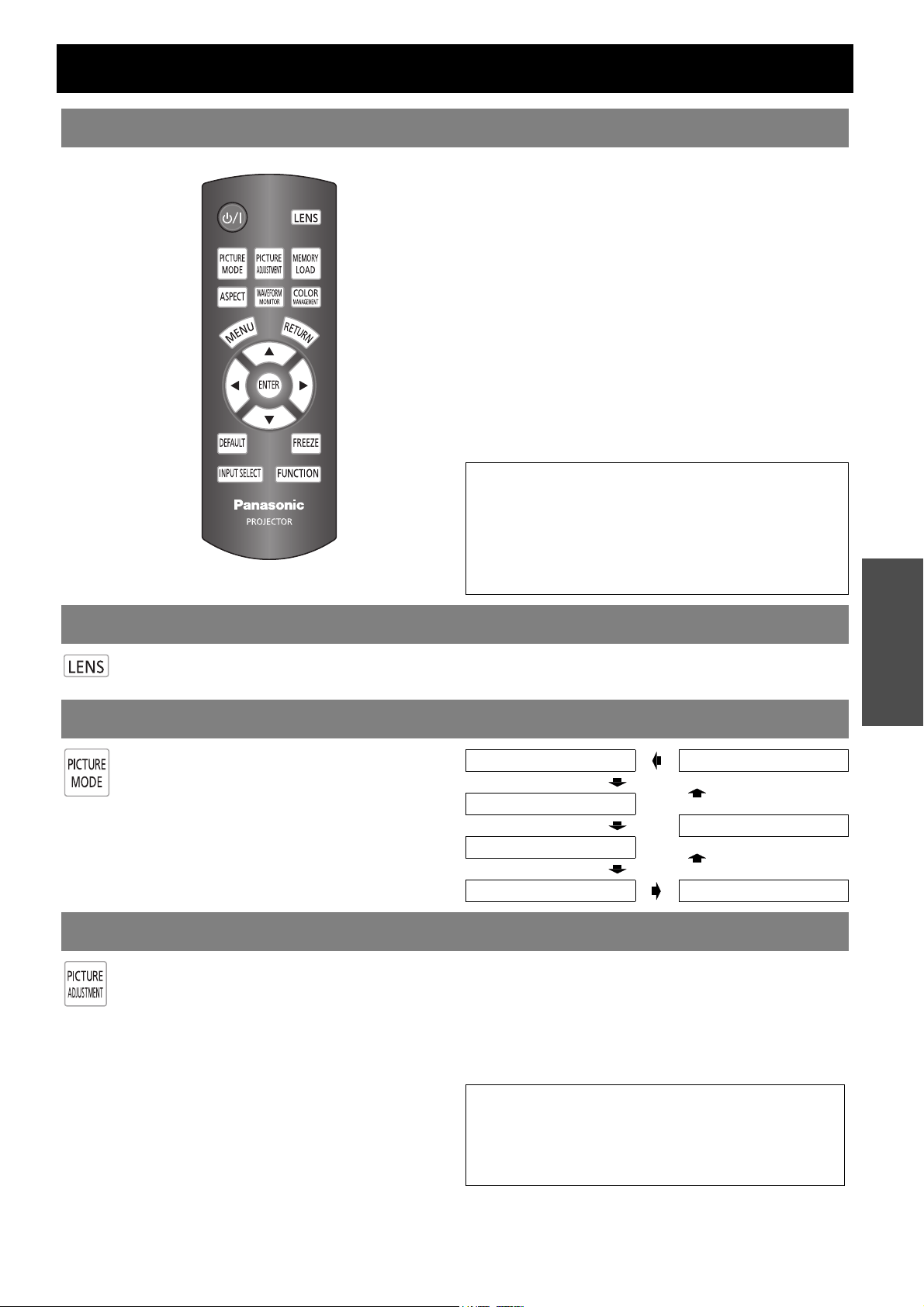
Remote control
NOTE:
• Do not drop the remote control.
• Avoid contact with liquids or moisture.
• Use manganese batteries or alkaline batteries with the remote control.
• Do not attempt to modify or disassemble the remote control. Contact an Authorized Service Center for repairs.
• Do not keep pressing the remote control buttons as this may shorten battery life.
• See “Remote control operation” on page 23.
Battery compartment
1. Press the tab and lift up the cover.
2. Insert the batteries according to the polarity diagram indicated
inside.
Power button
While the MAIN POWER
button is on, switch between
standby mode and projection
mode. (page 21)
Remote control signal emitter
Emit remote control signal. (page 23)
Button backlight
When any button is pressed, the button
backlight is lit. Without any operation, it
gets darker after 5 seconds and goes off
after next 5 seconds.
Display the PICTURE menu
or ADVANCED MENU.
(page 23)
Switch to cycle through the
PICTURE MODE. (page 23)
Switch to cycle through the
aspect ratio. (page 24)
Display the main menu or
return to the previous menu.
(page 29)
Navigate through the
menus with FGIH,
and activate the menu
item with the ENTER
button. (page 29)
Reset some of the settings to
the factory default. (page 28)
Switch to cycle through
the input method.
(page 28)
Display the LENS CONTROL
menu. (page 23)
Display the MEMORY LOAD
menu. (page 24)
Display the COLOR
MANAGEMENT menu.
(page 26)
Display the input waveform.
(page 24)
Return to the previous
menu. (page 29)
Capture the projected image
as a still image. (page 28)
Activate the assigned
function from the menu
options for shortcut.
(page 42)
Preparation
About Your Projector
12 - ENGLISH
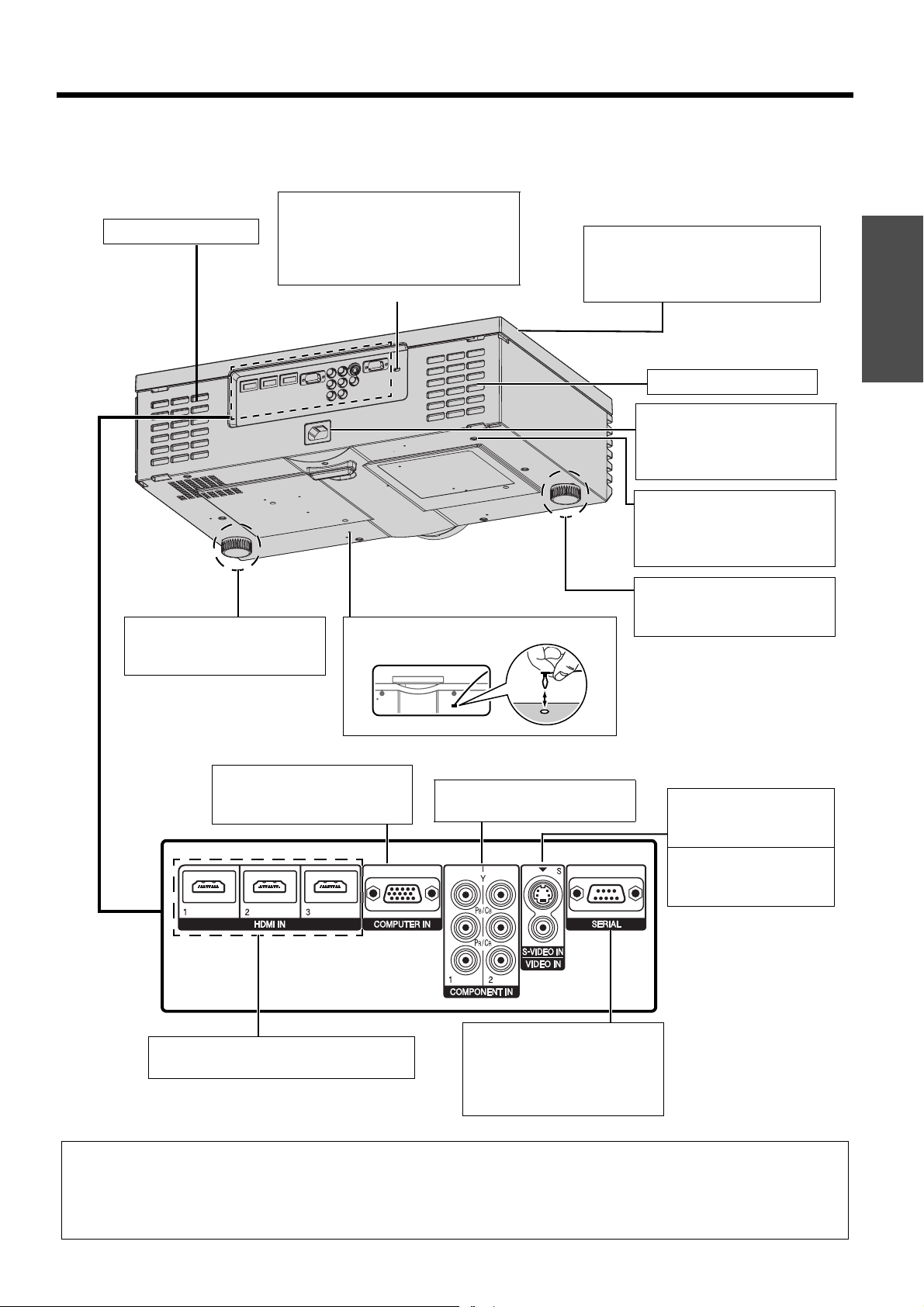
J Top and front view
Projector body
NOTE:
• Do not cover the ventilation openings or place anything within 50 cm (20") of them as this may cause damage or injury.
• While the projector is not in use, keep the lens cover attached to protect the lens.
(Push to open/close the cover.)
RETURN
Return to the previous menu.
(page 29)
FOCUS and ZOOM
Adjust the focus and size of the
image. (page 22)
Navigate through the menus with F G H I,
and activate the menu item with the ENTER
button. (page 29)
Power
While the MAIN POWER is on, switch between
standby mode and projection mode. (page 21)
MENU
Display the main menu.
Return to the previous menu. (page 29)
Air exhaust port
Heated air comes out of
this opening.
Projection lens
Lens shift dial • Vertical
(page 16)
Lens shift dial • Horizontal
(page 16)
Lens cover
Protects the projection lens
from dust or dirt.
Remote control signal
receptor
(page 23)
Air exhaust port
Heated air comes
out of this opening.
Power/LAMP/TEMP
indicators
(page 20/page 45)
Air filter
(page 46)
MAIN POWER
Switch the projector on/off.
(page 21)
INPUT SELECT
Switch to cycle through the
input method. (page 22)
Preparation
About Your Projector
ENGLISH - 13
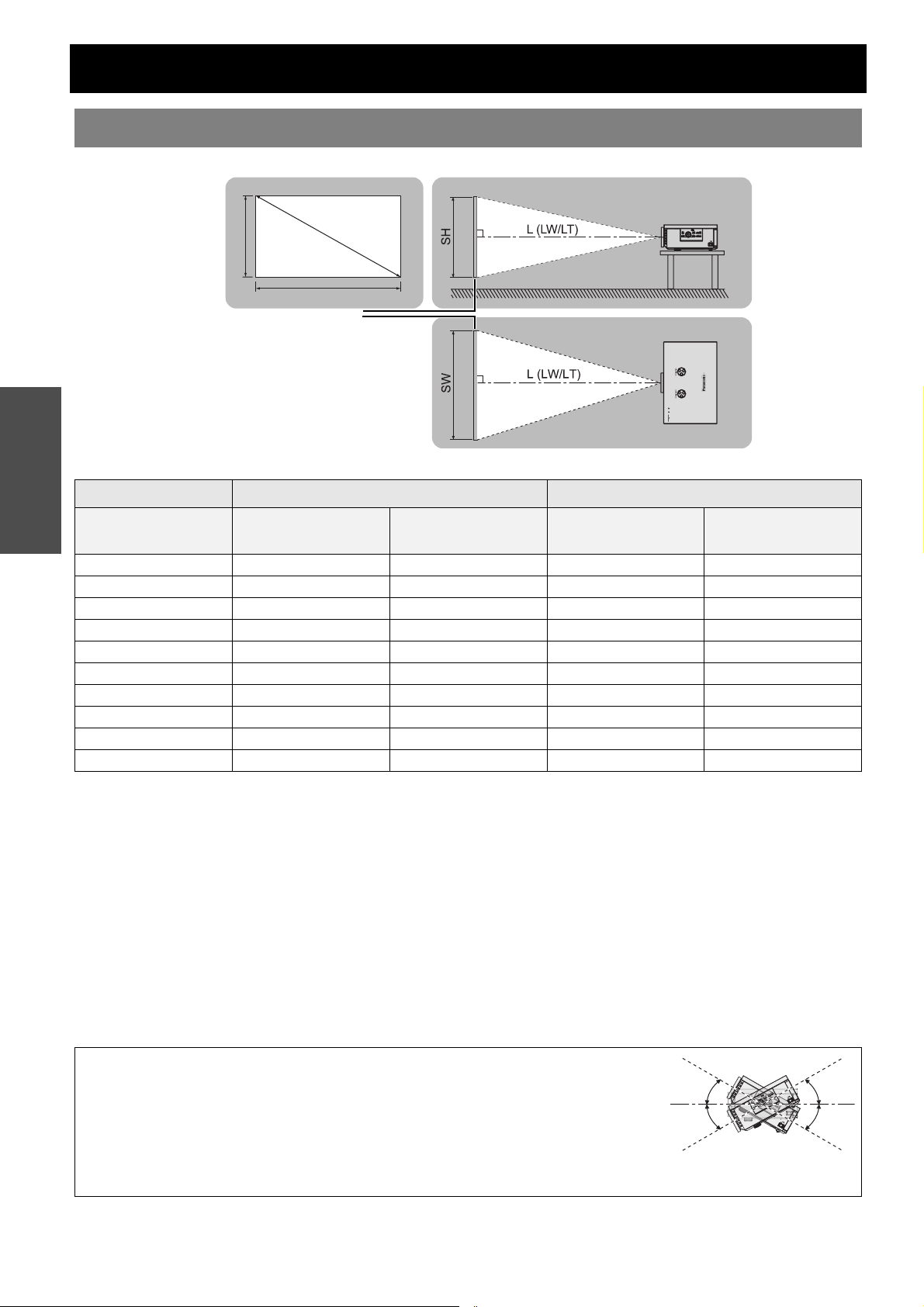
J Back and bottom view
NOTE:
• Do not cover the ventilation openings or place anything within 50 cm (20") of them as this may cause damage or injury.
• The projector should only be used with the attached power cord to ensure optimum performance and avoid damage to the
projector.
• Do not open the top cover other than replacing the lamp unit.
Connecting
terminals
(page 18)
Air intake port
Security lock
Attach the commercial shackle lock
which is provided with the projector.
Compatible with the Kensington
MicroSaver Security System.
Top cover
Hold the top cover at the back corner
and slightly push up to open.
(page 47)
Air intake port
AC IN
Connect the power cord to
supply electronic power to the
projector. (page 19)
Safety cable attachment point
Attach the safety cable when
mounted on the ceiling.
(page 56)
COMPUTER IN
Connect an RGB signal cable
from your PC.
S-VIDEO IN
Connect a S-VIDEO
signal cable.
VIDEO IN
Connect an RCA
composite video cable.
COMPONENT IN
Connect YPBPR signal cables.
Lens cover attachment holeFront leg adjusters
Screw up/down to adjust the
projection angle. (page 15)
Front leg adjusters
Screw up/down to adjust the
projection angle. (page 15)
SERIAL
Connect a compatible cable for
controlling the projector
remotely via your computer.
(page 51)
HDMI IN
Connect HDMI signal cables.
Getting Started
14 - ENGLISH
Setting up
You can adjust the projection size with 2.0x zoom lens. Calculate and define the throw distance as follows.
All measurements and the calculation results bellow are approximate and may differ from the actual measurements.
J Calculation methods for screen dimensions
You can calculate more detailed screen dimension from the screen diagonal.
16 : 9 size
Screen width (SW) and screen height (SH)
SW (m)= SD (m) x 0.872 SH (m) = SD (m) x 0.490
Minimum distance (LW) and maximum distance (LT)
LW (m) = SD (m) x 1.189 - 0.04 LT (m) = SD (m) x 2.378 - 0.05
2.35 : 1 size
Screen width (SW) and screen height (SH)
SW (m)= SD (m) x 0.920 SH (m) = SD (m) x 0.392
Minimum distance (LW) and maximum distance (LT)
LW (m) = SD (m) x 1.256 - 0.04 LT (m) = SD (m) x 1.899 - 0.05
Screen size and throw distance
Throw distance (16 : 9) Throw distance (2.35 : 1)
Screen Diagonal
(SD)
Minimum distance
(LW)
Maximum distance
(LT)
Minimum distance
(LW)
Maximum distance
(LT)
1.02 m (40") 1.2 m (3'11'') 2.3 m (7'6'') 1.3 m (4'3'')
1.27 m (50") 1.5 m (4'11'') 2.9 m (9'6'') 1.6 m (5'2'') 2.3 m (7'6'')
1.52 m (60") 1.8 m (5'10'') 3.5 m (11'5'') 1.9 m (6'2'') 2.8 m (9'2'')
1.78 m (70") 2.1 m (6'10'') 4.1 m (13'5'') 2.2 m (7'2'') 3.3 m (10'9'')
2.03 m (80") 2.4 m (7'10'') 4.7 m (15'5'') 2.6 m (8'6'') 3.8 m (12'5'')
2.29 m (90") 2.7 m (8'10'') 5.3 m (17'4'') 2.9 m (9'6'') 4.2 m (13'9'')
2.54 m (100") 3.0 m (9'10'') 5.9 m (19'4'') 3.2 m (10'5'') 4.7 m (15'5'')
3.05 m (120") 3.6 m (11'9'') 7.2 m (23'7'') 3.8 m (12'5'') 5.7 m (18'8'')
3.81 m (150") 4.5 m (14'9'') 9.0 m (29'6'') 4.8 m (15'8'') 7.1 m (23'3'')
5.08 m (200") 6.0 m (19'8'') 12.0 m (39'4'') 6.4 m (20'11'') 9.6 m (31'5'')
NOTE:
• Do not use the projector at a raised or a horizontally tilted position as it may cause
malfunction of the projector.
• Make sure the projector lens surface is parallel with the screen. You can tilt the projector
body less than approximately ± 30° vertically. Overtilting may result in shortening the
component’s life.
• For the best quality of the projection image, install a screen where sun light or room light
does not shine directly onto the screen. Close window shades or curtains to block the lights.
S
D
SW
SH
Screen
Projected image
(Shown as 16:9 size)
-30°
+30°
Getting Started
Setting up
ENGLISH - 15
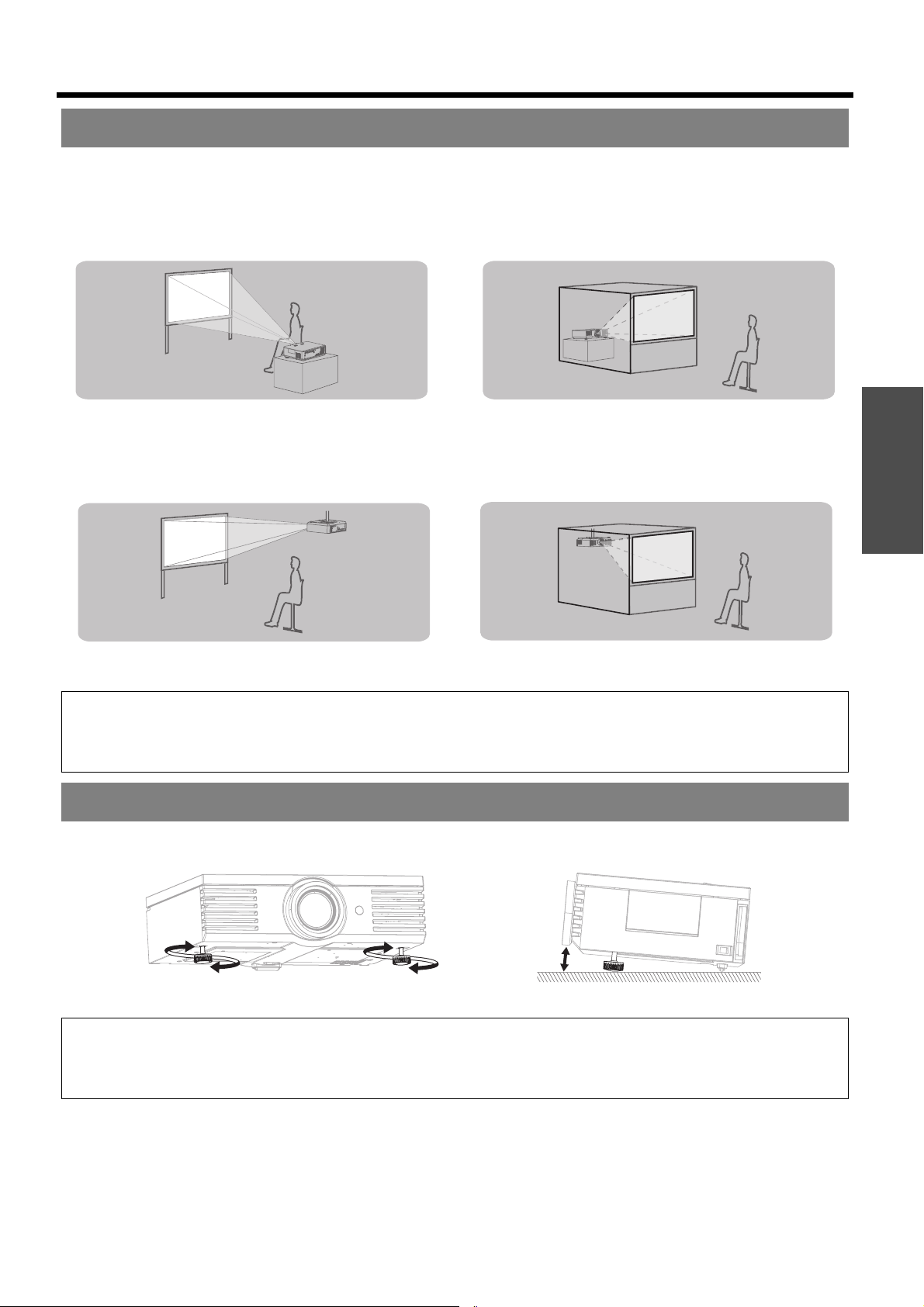
You can use the projector with any of the following 4 projection methods. To set the desired method in the projector,
See “INSTALLATION” on page 44.
You can screw up/down the front leg adjusters to control the angle of the projector for adjusting the throwing angle.
See “Positioning the image” on page 22.
Projection method
J Setting on a desk/floor and
projecting from front
J Setting on a desk/floor and
projecting from rear
INSTALLATION: FRONT/DESK INSTALLATION: REAR/DESK
J Mounting on the ceiling and
projecting from front
J Mounting on the ceiling and
projecting from rear
INSTALLATION: FRONT/CEILING INSTALLATION: REAR/CEILING
NOTE:
• A translucent screen is required for rear projection.
• When mounting the projector on the ceiling, the optional ceiling mount bracket (ET-PKE2000, ET-PKE1000S) is required.
• See “Ceiling mount bracket safeguards” on page 56.
Front leg adjusters and throwing angle
NOTE:
• Heated air comes out of the air exhaust port. Do not touch the air exhaust port directly.
• If keystone distortion occurs, see “KEYSTONE” on page 39.
• Screw up the front leg adjusters, and an audible click will be heard as the limit.
Getting Started
Setting up
16 - ENGLISH
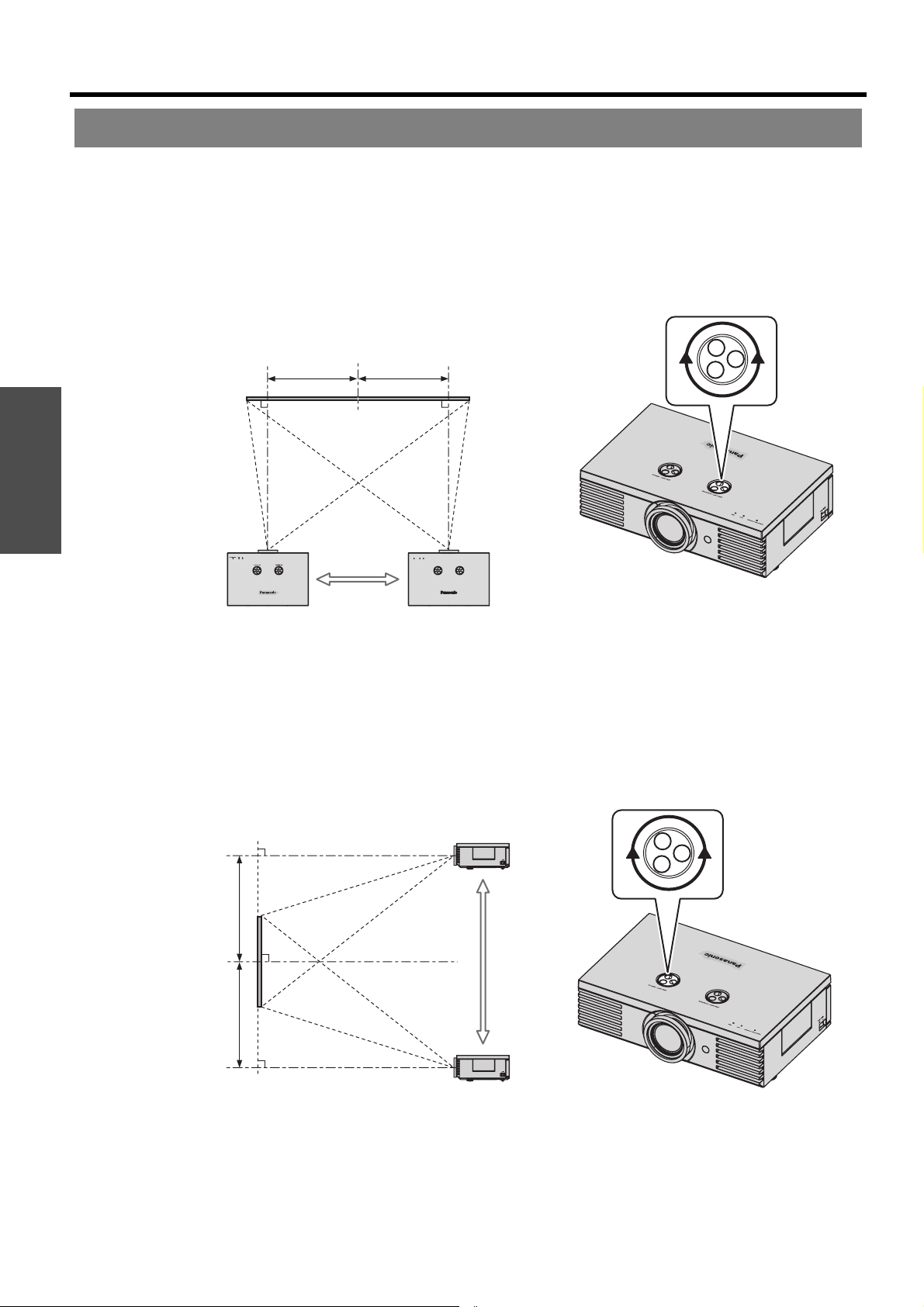
If the projector is not positioned right in front of the center of the screen, you can adjust the projected image position
by moving the lens shift dials within the shift range of the lens.
J Adjusting the lens shift dials
Q Horizontal shift
You can place the projector where the projector lens is up to 40% horizontally off-center from the screen and
then adjust the image position with the Lens shift dial • Horizontal.
Q Vertical shift
You can place the projector where the projector lens is up to 100% vertically off-center from the screen and
then adjust the image position with the Lens shift dial • Vertical.
Lens shift and positioning
Turning the dial clockwise:
Image moves to the right
Up to about 40 %
of the projection
Turning the dial counterclockwise:
Image moves to the left
Up to about 40 %
of the projection
Up to about 100 %
of the projection
Up to about 100 %
of the projection
Turning the dial counterclockwise:
Image moves to the bottom
Turning the dial clockwise:
Image moves to the top
Getting Started
Setting up
ENGLISH - 17
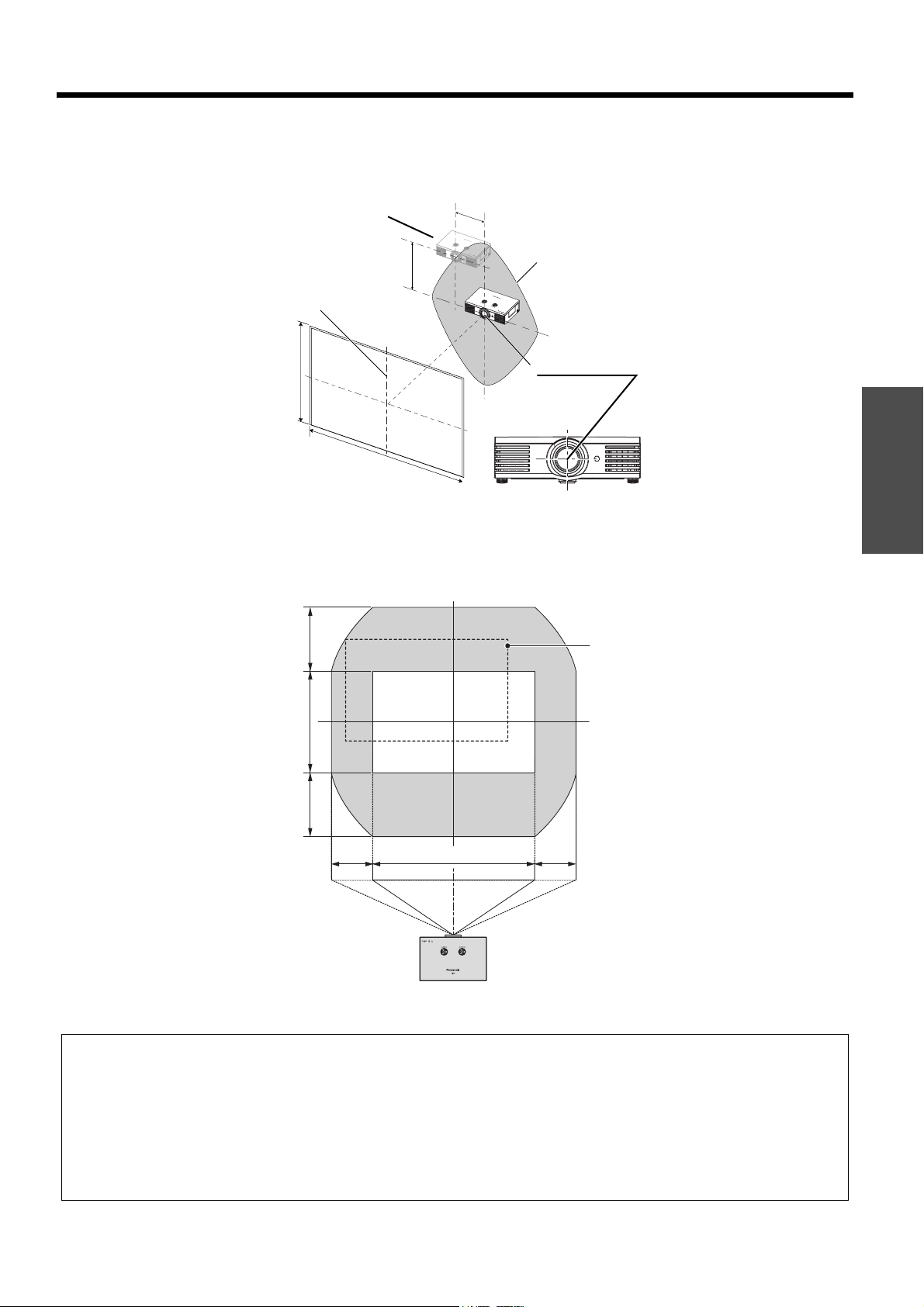
J Projector location range
You can determine where to locate the screen and the projector by considering the lens shift possibilities.
Q When the screen position is fixed
Q When the projector position is fixed
NOTE:
• When the projector is located right in front of the center of the screen and the lens shift dials is centered, you will get the
best quality of the projection image.
• When the Lens shift dial • Vertical is at the vertical limit of the shift range, you cannot turn the dial to the horizontal limit,
likewise when the Lens shift dial • Horizontal is at the horizontal limit of the shift range, you cannot turn the dial to the
vertical limit.
• When the projector is tilted and adjusting KEYSTONE, the center of the screen and the lens need to be realigned.
• Do not force the lens shift dials to turn as this may damage the projector. Turning the dials maximum limit is 4 or 5 times
from the default position.
H
V
SH
SW
Placement
Center of lens
Vertical center of
screen
Projector
Screen
100%
100%
40% 40%
Projector
Shift range
SH
SW
Getting Started
18 - ENGLISH
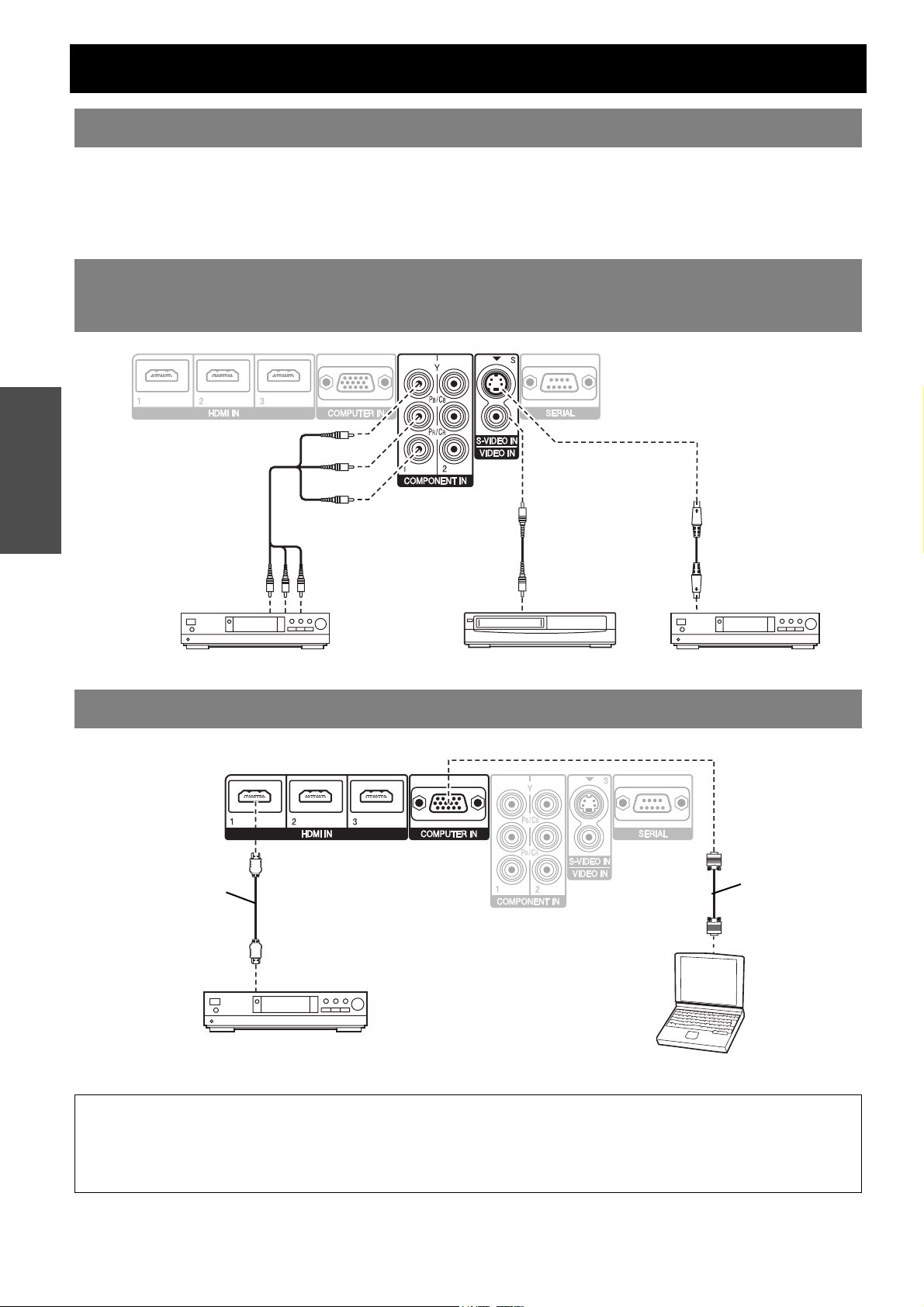
Connections
Read and follow the operating and connecting instructions of each peripheral device.
The peripheral devices must be turned off.
Use cables that match each peripheral device to be connected.
Confirm the type of video signals. See “List of compatible signals” on page 50.
Audio cables must be connected from each peripheral device directly to the audio reproduction system.
\
Before connecting to the projector
Connecting example: COMPONENT IN/S-VIDEO IN/
VIDEO IN
Connecting example: HDMI IN/COMPUTER IN
NOTE:
• Make sure the HDMI cable is adapted to your HDMI device for proper performance.
• A compatible cable is required for an HDMI 1 080p signal.
• It is possible to connect with DVI devices via a HDMI/DVI conversion adapter, but some equipment may not project the
image properly or other problems could be encountered. See “Serial terminal” on page 51.
DVD player Video player DVD player
To COMPONENT
video output
To VIDEO output
To S-VIDEO output
RGB signal cable
(Commercial item)
HDMI cable
(RP-CDHG100: Optional))
To HDMI output
DVD player
Computer
ENGLISH - 19
Basic Operation
Switching the projector on/off
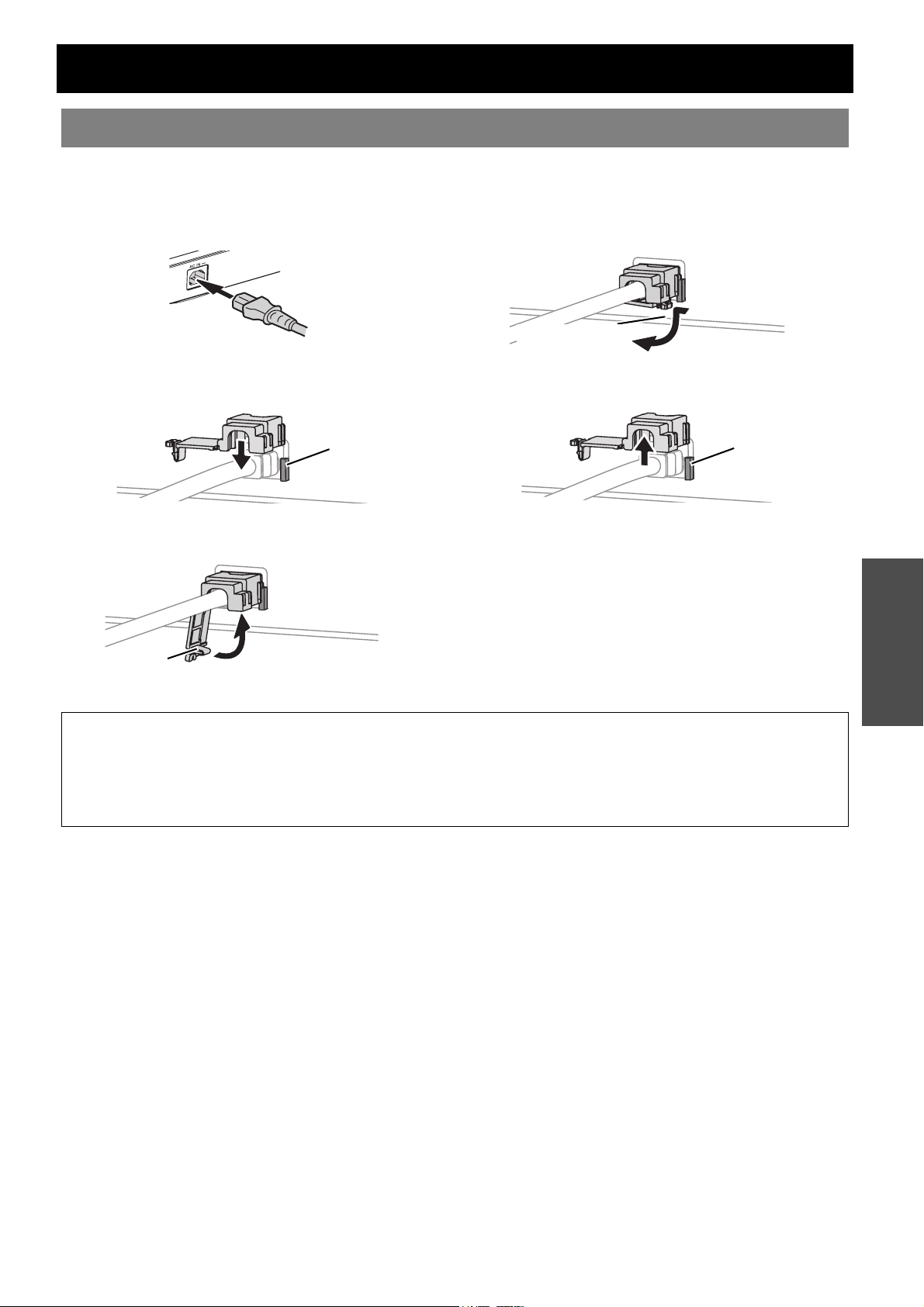
J Connecting
1. Make sure the shape of the power plug and the
AC IN terminal on the back of the projector match,
then push the plug all the way in.
2. Align the side of the power cord secure lock with
the side guide rail of the AC IN terminal of the
projector and slide it in.
3. Place the latch to the latch catcher and press until
it clicks.
4. Connect the power cord to a wall outlet.
J Disconnecting
1. Unplug the power cord from the wall outlet.
2. Depress the latch and slide the cover off.
3. Slide the power cord secure lock up along the side
guide rail and remove.
4. Hold the plug and unplug the power cord from the
AC IN terminal on the back of the projector.
Power cord
Rail guide
Latch
Latch
Rail guide
NOTE:
• Do not use other than the provided power cord.
• Ensure all the input devices are connected and turned off before connecting the power cord.
• Do not force the connector as this may damage the projector and/or the power cord.
• Dirt or dust build-up around plugs may cause fire or electrical hazards.
• Switch off the power to the projector when not in use.
Basic Operation
Switching the projector on/off
20 - ENGLISH
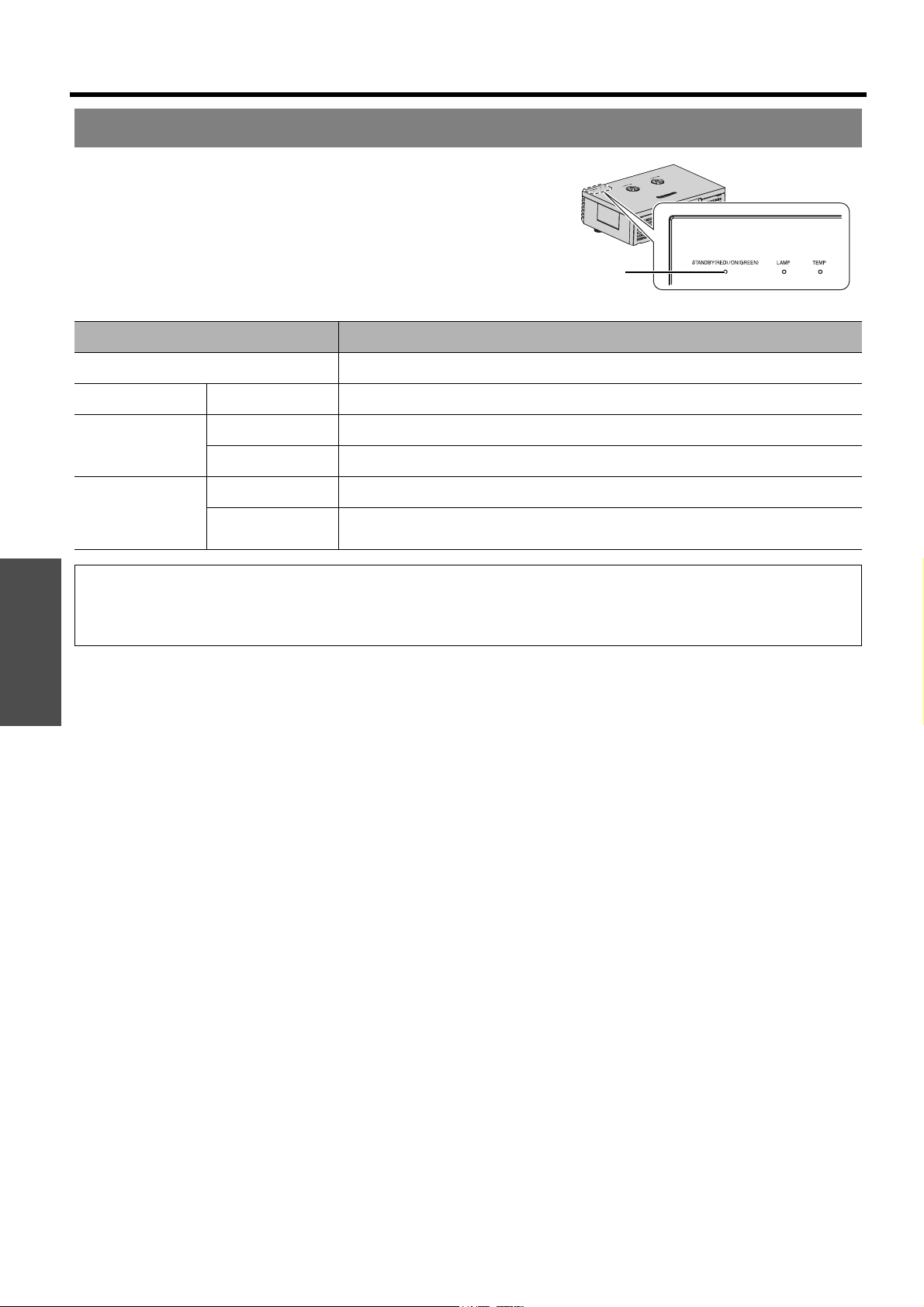
Power indicator informs you the status of the power.
When the TEMP indicator is flashing, the power
indicator will not light.
Power indicator
Power indicator
Indicator status Status
No illumination or flashing The MAIN POWER button is switched off.
Red Lit The MAIN POWER button is switched on and the projector is in standby mode.
Green
Flashing The power button is switched on and the projector is getting ready to project.
Lit Projecting.
Orange
Lit The power button is switched off and the projector is cooling the lamp.
Flashing
The power button is switched on again when cooling the lamp and recovering to
projection mode. Recovery may take a while.
NOTE:
• See “TEMP indicator” on page 45.
• While the projector is cooling the lamp, do not switch the MAIN POWER button off or unplug the power cord.
• The electric consumption in standby mode is 0.08 W.
Basic Operation
Switching the projector on/off
ENGLISH - 21
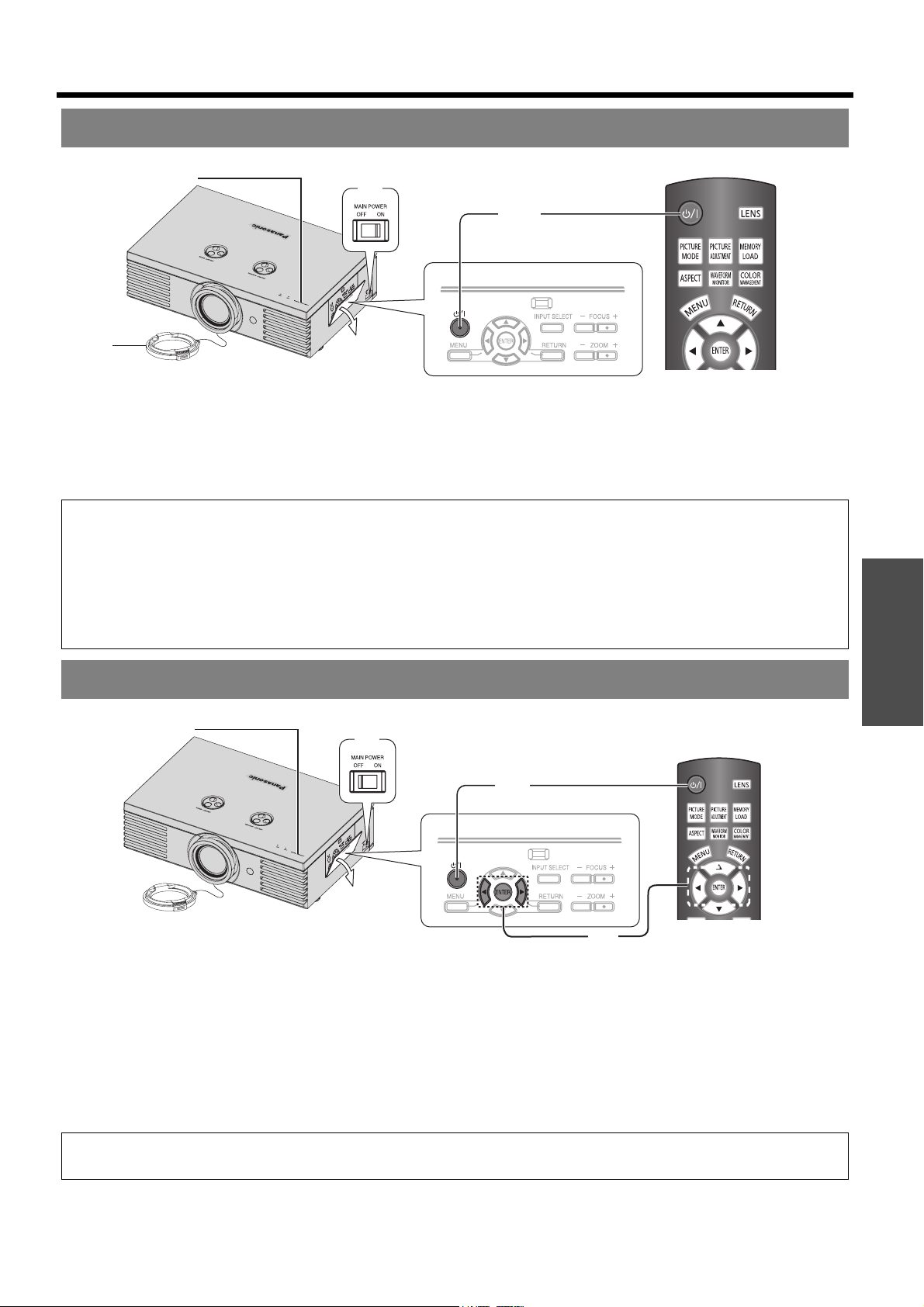
1. Remove the lens cover from the lens.
2. Switch the MAIN POWER button on.
The power indicator lights up in red.
3. Press the power button.
The power indicator lights up in green after flashing
for a while.
The STARTUP LOGO is displayed on the screen.
See “STARTUP LOGO” on page 43.
1. Press the power button.
The confirmation screen is displayed.
To return to the projection, press any button except
the power button.
2. Press the power or ENTER button.
The power indicator lights up in orange while cooling
the lamp, then illuminates red when it is ready to
switch off the MAIN POWER button.
3. Switch off the MAIN POWER button on the left
side of the projector.
4. Attach the lens cover.
Switching on the projector
(1)
(1)
(3)
(3)
(2)
(2)
Power indicator
NOTE:
• When the internal cooling fan is operating, some operational sound may be heard. The loudness of the operational sound
depends on the external temperature.
• You can reduce the operational sound by setting the LAMP POWER in OPTION menu to the ECO-MODE. See “LAMP
POWER” on page 44.
• When starting up the projector, some small rattling or tinkling sound may be heard, or the display may flicker for the
characteristics of the lamp. Those are normal and will not affect the performance of the projector.
• Do not attempt to modify the lens cover which may cause burns, fire or damage to the projector.
Switching off the projector
(3)
(3)
(1)
(1)
(2)
(2)
Power indicator
NOTE:
• Press the power button twice or for a long duration to switch the power off.
22 - ENGLISH
Basic Operation
Projecting an image
1. Switch on the connected devices.
Press the play button of the required device.
2. Press the INPUT SELECT button to select the
required input method if needed. See “Switching
the input signal” on page 28.
The image will be projected on the screen.
1. Press the ASPECT button to select the required
aspect mode. See “Switching the aspect ratio” on
page 24.
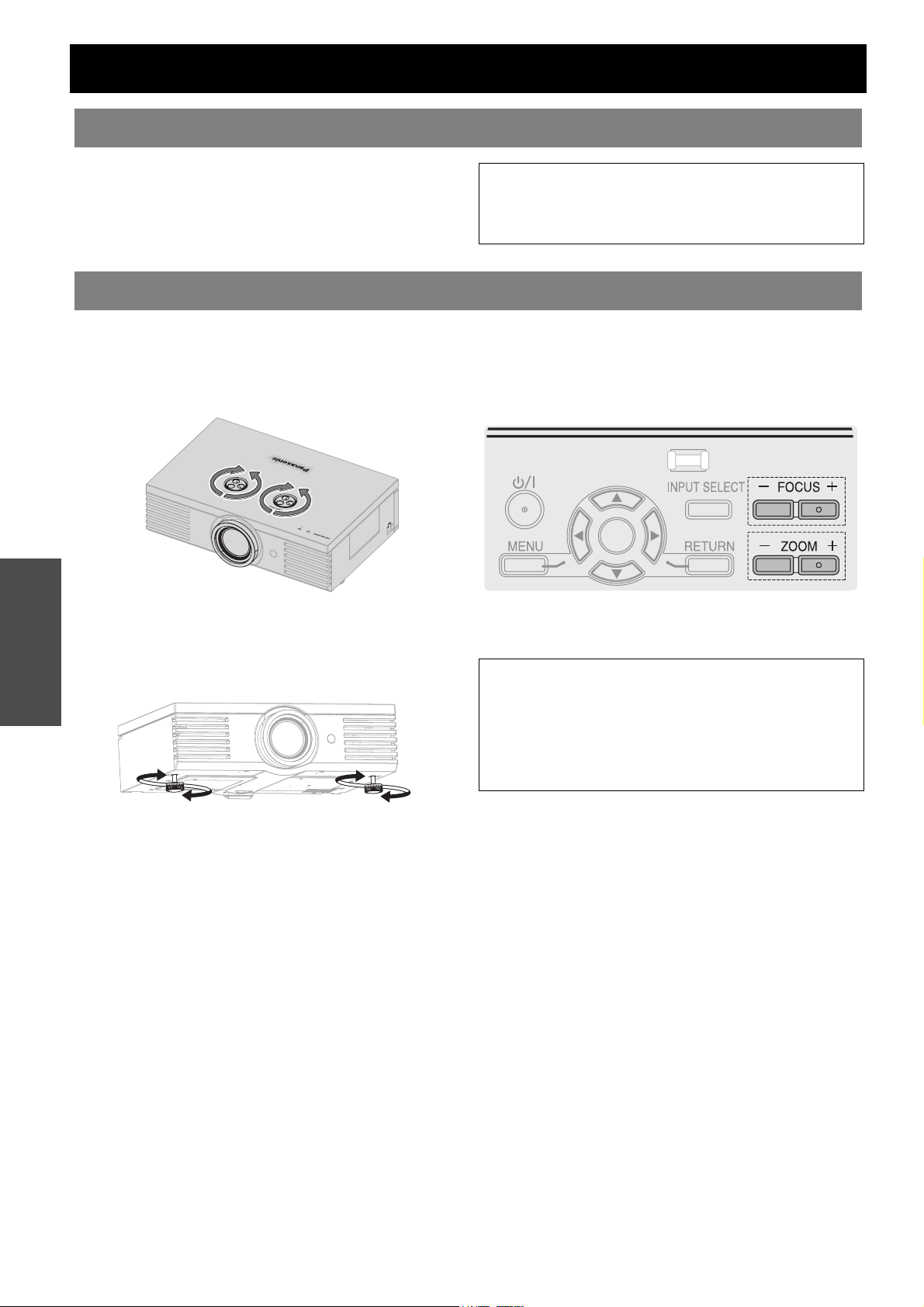
2. Adjust the projected image with the lens shift dials.
See “Lens shift and positioning” on page 16.
3. Adjust the angle of the projector.
Screw down the front leg adjusters and adjust the
angle vertically.
See “Front leg adjusters and throwing angle” on
page 15.
4. Adjust the focus and the projected image size.
Press +/- of the FOCUS and ZOOM buttons to
adjust.
Press the LENS button to adjust the focus and zoom
by the remote control. See “LENS CONTROL” on
page 40.
Selecting the input signal
NOTE:
• AUTO SEARCH is ON as default and the signal from
the connected devices is detected automatically. See
“AUTO SEARCH” on page 43.
Positioning the image
NOTE:
• Do not touch the air exhaust port as this may cause
burns or injury.
• If keystone distortion occurs, see “KEYSTONE” on
page 39.
• If you adjust the focus, you may need to adjust the size
of the image by pressing the ZOOM button again.
ENGLISH - 23
Basic Operation
Remote control operation
You can operate the projector with the remote control
within the remote range 7 m (22'11").
Q Facing to the projector
Ensure the remote control emitter is facing to the
remote control signal receptor on front/back of the
projector and press the required buttons to
operate.
Q Facing to the screen
Ensure the remote control emitter is facing to the
screen and press the required buttons to operate
the projector. The signal will be reflected off the
screen. The operating range may differ due to the
screen material. This function may not be effective
with a translucent screen.
You can adjust the focus and zoom of the
projected image, and save the settings. Press
the LENS button to display the LENS CONTROL menu.
See “LENS CONTROL” on page 40.
You can switch the preset picture mode
settings by pressing the PICTURE MODE
button. Press the button until the required
setting is selected. See “PICTURE MODE” on
page 32.
You can display the PICTURE and
ADVANCED MENU menu items in called up
style by pressing the PICTURE ADJUSTMENT
button. Press the button to switch between
PICTURE and ADVANCED MENU menu.
Press F G to select the required menu item
and I H to adjust.
Q PICTURE menu items
PICTURE MODE, CONTRAST, BRIGHTNESS,
COLOR, TINT, SHARPNESS, COLOR
TEMPERATURE and DYNAMIC IRIS
Q ADVANCED MENU items
GAMMA, CONTRAST, BRIGHTNESS, COLOR
MANAGEMENT, x.v.Color, FRAME CREATION,
DETAIL CLARITY, NR, MPEG NR, CINEMA
REALITY and TV-SYSTEM
Operating range
NOTE:
• Do not let strong light shine onto the signal receptor.
The remote control may malfunction under strong light
such as fluorescent.
• If there are any obstacles between the remote control
and the remote control signal receptor, the remote
control may not operate correctly.
Managing the lens control settings
Switching the picture mode
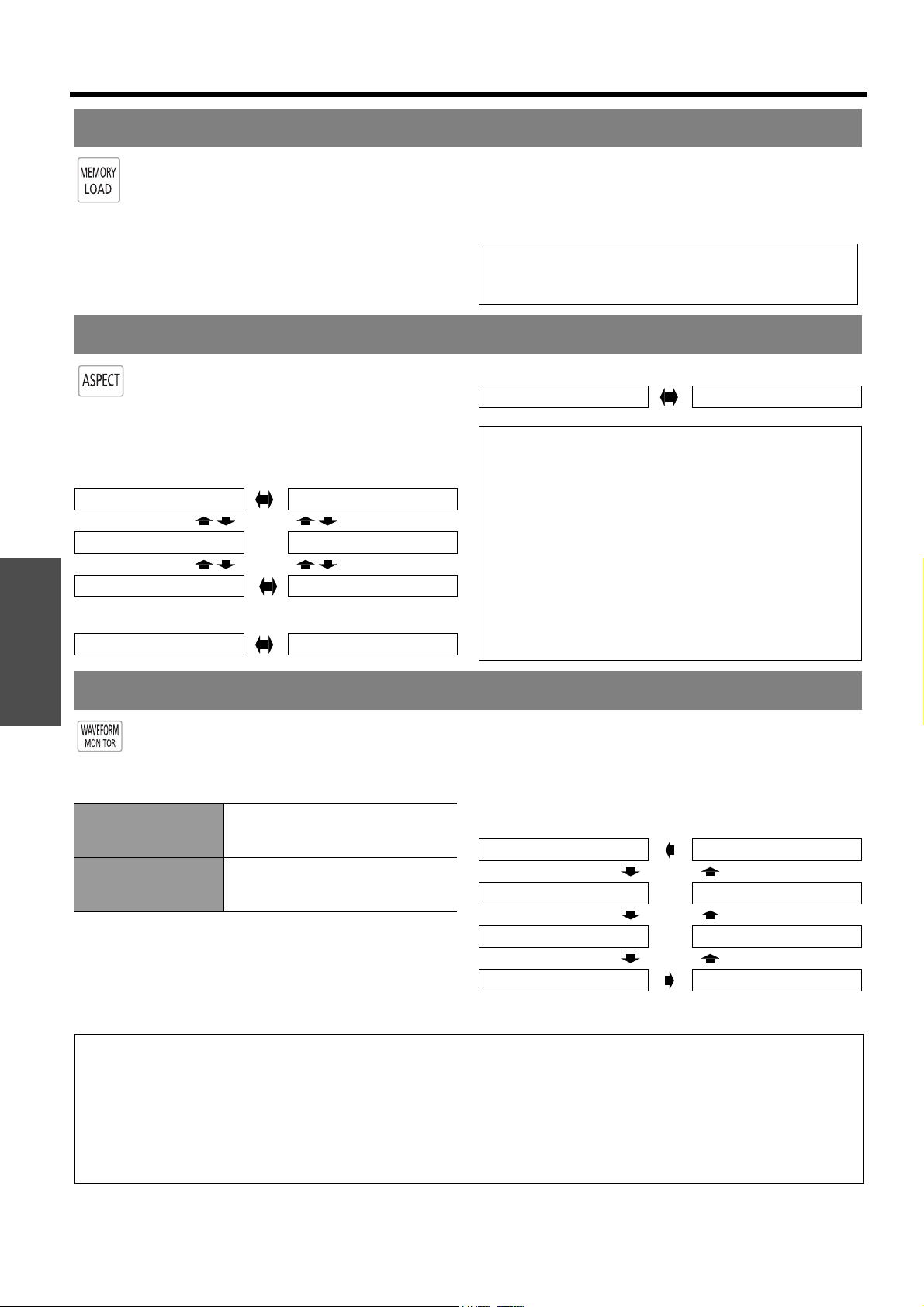
NORMAL CINEMA3
DYNAMIC
CINEMA2
COLOR1
COLOR2 CINEMA1
Adjusting the image
NOTE:
• For each menu item description, see “PICTURE
menu” on page 32.
• The screen will be cleared after 7 seconds without
any operation.
Basic Operation
Remote control operation
24 - ENGLISH
You can access saved settings instantly. See
“MEMORY LOAD” on page 36.
1. Select the required setting from MEMORY1 - 16.
Undefined setting will not be displayed.
2. Press the ENTER button to activate the selected
setting.
The aspect ratio will be selected automatically,
or you can switch it manually by pressing the
ASPECT button. Press the button several
times to cycle through the different aspect type
as follows. See “ASPECT” on page 37.
Q VIDEO/S-VIDEO/COMPONENT (YPBPR)
Q COMPUTER (RGB)
Q HDMI
You can display the image brightness and
contrast level of the input signal with a
waveform. See “WAVEFORM MONITOR” on
page 33.
J Displaying the waveform
1. Press the WAVEFORM button and display the
waveform monitor.
Press the WAVEFORM button again to escape from
the waveform mode.
2. Press ENTER button until the required waveform
option is displayed.
In FULL SCAN mode, press F G I H to change
the waveform position.
In SINGLE LINE SCAN mode, press F G to select
the required line position.
Loading a saved setting
NOTE:
• If you have not saved any settings, MEMORY1 - 16 will
not be displayed.
Switching the aspect ratio
4:3 JUST
16:9 ZOOM2
14:9 ZOOM1
4:3 16:9
4:3 16:9
NOTE:
• If you project an image with an unmatched aspect ratio,
the image may distort or some portions may be
cropped. Select an aspect ratio which preserves the
intention of the image creator.
• The order of aspect type is defined not only by the input
method but also by the input signals. See “List of
compatible signals” on page 50.
• If you project a copyrighted image enlarged or distorted
by using ASPECT function in commercial use in a
public place, such as a restaurant or hotel, you might
infringe on the copyright of the creator which is
protected by copyright law.
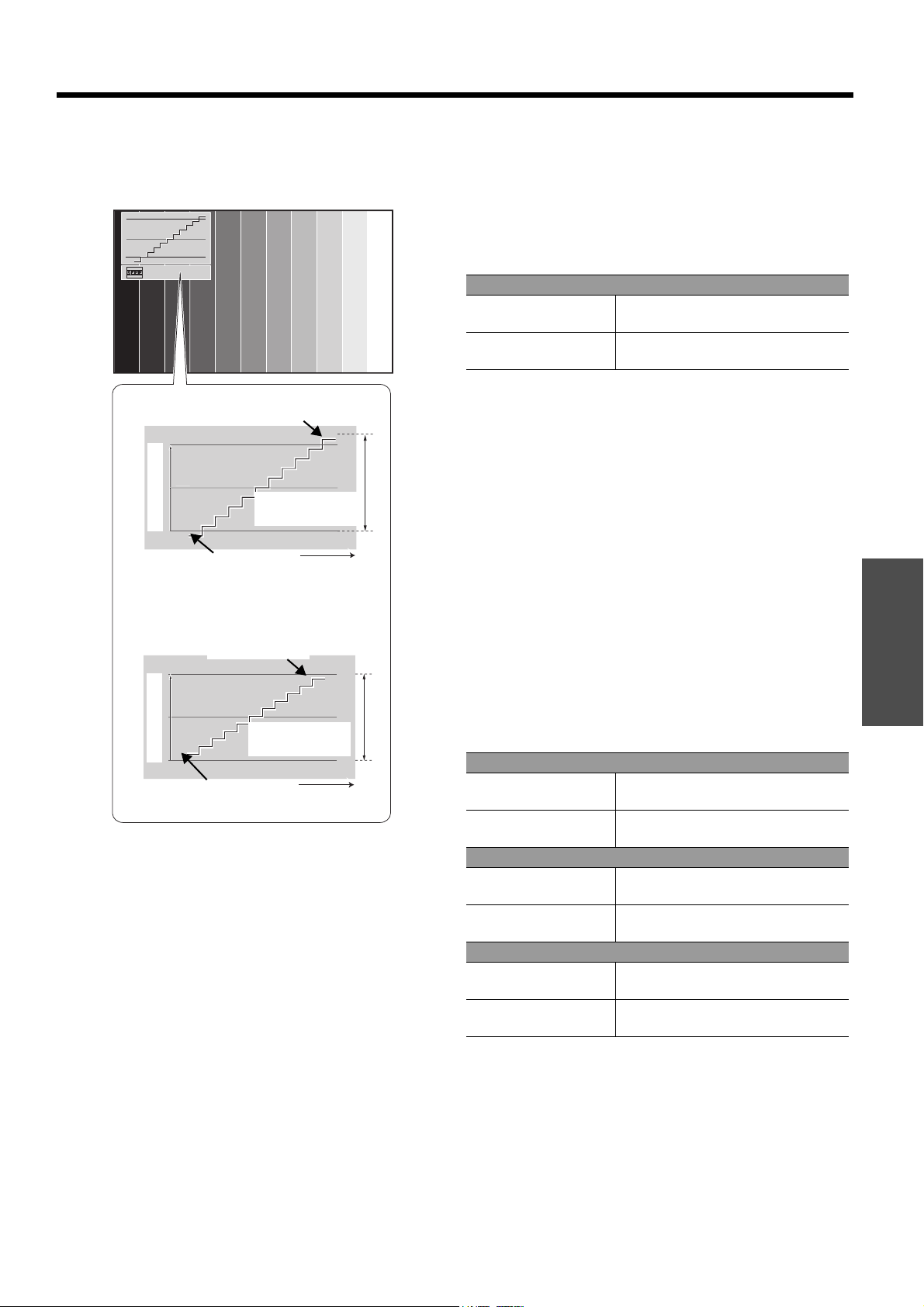
Adjusting the signal condition with a waveform
FULL SCAN
Monitoring the waveform of
brightness and contrast of the whole
image.
SINGLE LINE SCAN
Monitoring the waveform of
brightness and contrast in each
horizontal line of the image.
FULL SCAN(Y) SINGLE LINE SCAN(B)
FULL SCAN(R) SINGLE LINE SCAN(G)
FULL SCAN(G) SINGLE LINE SCAN(R)
FULL SCAN(B) SINGLE LINE SCAN(Y)
NOTE:
•In SINGLE LINE SCAN mode, the position of the waveform monitor depends on the position of the selected line.
• You can display the main menu by pressing the MENU button and adjust the menu items.
• The called up menu items displayed position depends on the position of the waveform monitor.
• You can activate AUTO ADJUST of the WAVEFORM menu by pressing the DEFAULT button.
• The signal which is lower than 0% in the waveform will be displayed as same as 0% on the projected image.
• While the waveform is displayed, the image is displayed without the COLOR MANAGEMENT adjustment.
• When adjusting the KEYSTONE of the POSITION menu while the waveform is displayed, x.v.Color will be deactivated.
Basic Operation
Remote control operation
ENGLISH - 25
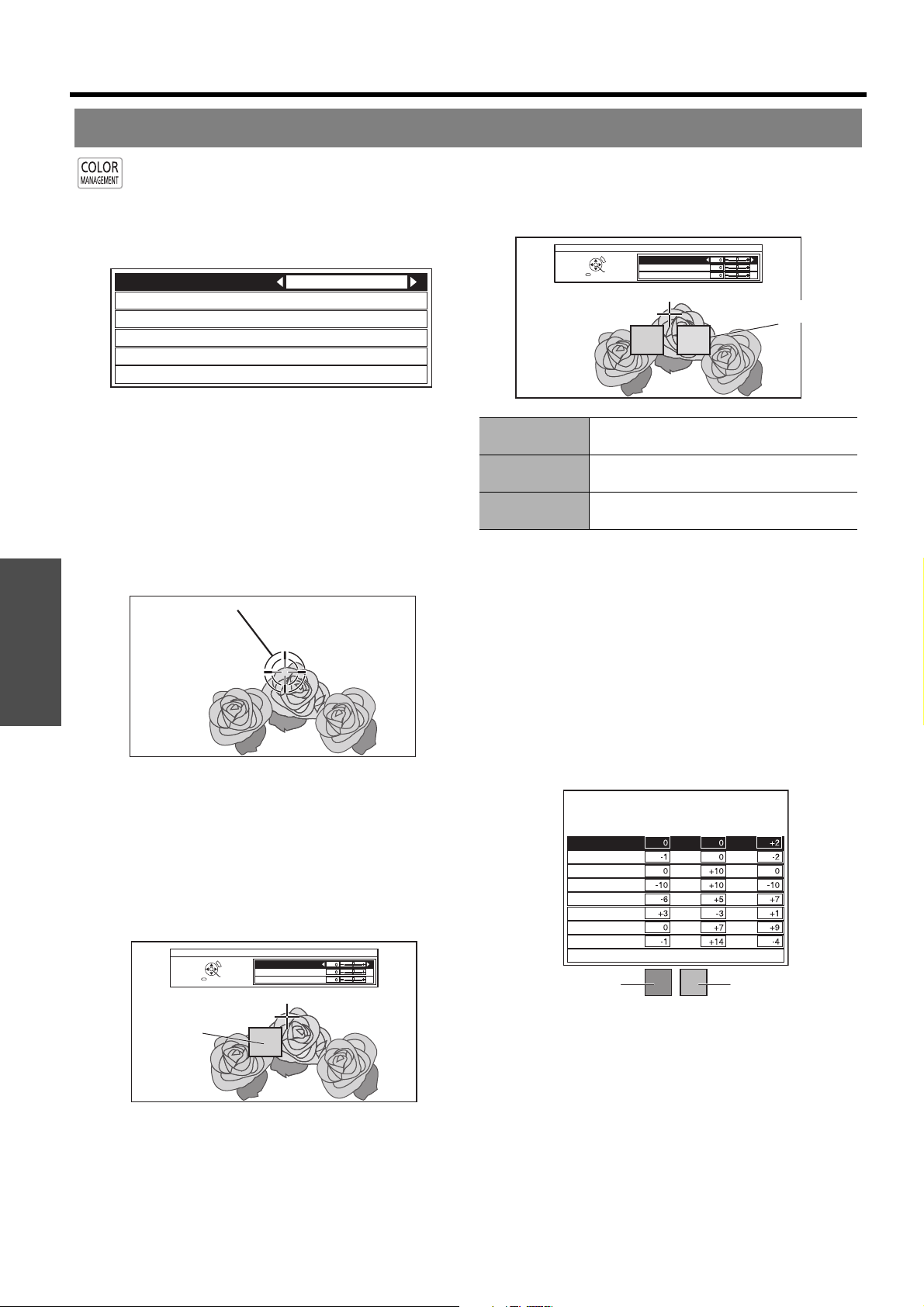
J Adjustment example
Project a commercial test signal for picture
adjustment on the screen and press the
WAVEFORM button.
Q Adjusting with luminance options
1. Press the ENTER button several times to display
FULL SCAN(Y)/SINGLE LINE SCAN(Y).
In SINGLE LINE SCAN mode, select the required
adjusting point by pressing F G.
2. Press the PICTURE ADJUSTMENT button and
display the BRIGHTNESS by pressing
F G.
When ADVANCED MENU is displayed, press the
button again to switch to the PICTURE menu.
3. Adjust by pressing I H.
Adjust the bottom line of the waveform to 0 % (0 or
7.5 IRE).
Setting range: -32 to +32
4. Press F G to display the CONTRAST.
5. Adjust by pressing I H.
Adjust the up line of the waveform to 100 %
(100 IRE).
Setting range: -64 to +64
Q Adjusting with RGB options
1. Press the ENTER button several times to display
the required R/G/B waveform option.
In SINGLE LINE SCAN mode, select the required
adjusting point by pressing F G.
2. Press the PICTURE ADJUSTMENT button and
display the BRIGHTNESS R/BRIGHTNESS G/
BRIGHTNESS B by pressing
F G.
When PICTURE menu is displayed, press the button
again to switch to the ADVANCED MENU.
3. Adjust by pressing I H.
Adjust the bottom line of the waveform to 0 % (0 or
7.5 IRE).
Setting range: -16 to +16
4. Press F G to display the CONTRAST R/
CONTRAST G/CONTRAST B.
5. Adjust by pressing I H.
Adjust the up line of the waveform to 100 %
(100 IRE).
Setting range: -32 to +32
100%
50%
0%
100%
5
0
%
0%
100%
5
0
%
0%
ENTER
ENTER
Image
displayable area
Adjust to 100%
Adjust to 0%
Monitor position
Image
displayable area
Adjust to 100%
Adjust to 0%
Monitor position
Signal level
Signal level
With COMPUTER (except 1080) or
HDMI (Expand)
FULL SCAN(Y)/SINGLE LINE SCAN(Y)
BRIGHTNESS
Adjust the bottom line of the
waveform to 0 % (0 or 7.5 IRE)
CONTRAST
Adjust the top line of the waveform to
100 % (100 IRE)
FULL SCAN(R)/SINGLE LINE SCAN(R)
BRIGHTNESS R
Adjust the bottom line of the
waveform to 0 % (0 or 7.5 IRE)
CONTRAST R
Adjust the top line of the waveform to
100 % (100 IRE)
FULL SCAN(G)/SINGLE LINE SCAN(G)
BRIGHTNESS G
Adjust the bottom line of the
waveform to 0 % (0 or 7.5 IRE)
CONTRAST G
Adjust the top line of the waveform to
100 % (100 IRE)
FULL SCAN(B)/SINGLE LINE SCAN(B)
BRIGHTNESS B
Adjust the bottom line of the
waveform to 0 % (0 or 7.5 IRE)
CONTRAST B
Adjust the top line of the waveform to
100 % (100 IRE)
Basic Operation
Remote control operation
26 - ENGLISH
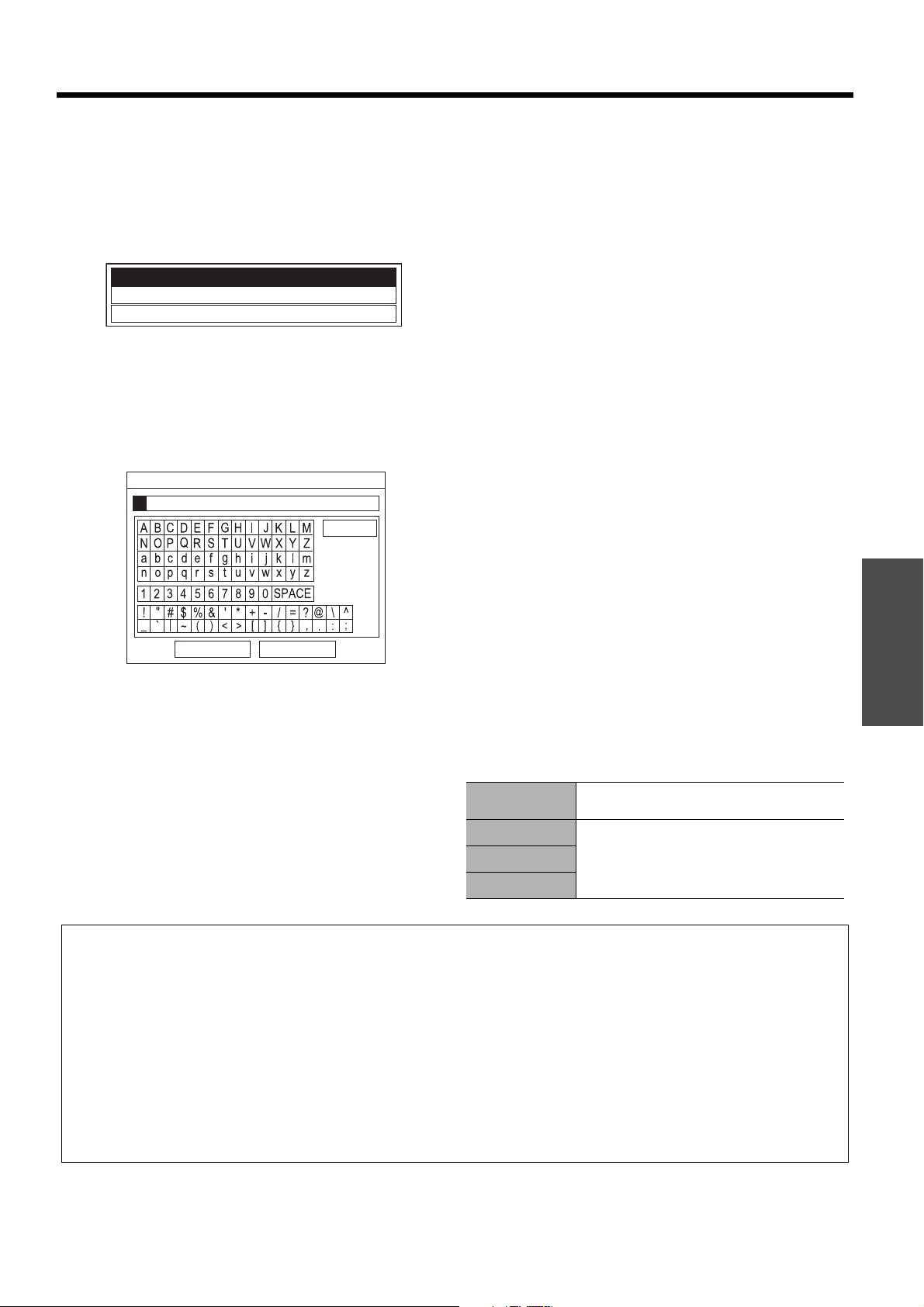
You can adjust a selected color individually and
save and retrieve under the PICTURE MODE
setting. Press the COLOR MANAGEMENT
button to open the menu. See “COLOR
MANAGEMENT” on page 35.
J Create a new profile
Q Adjusting the selected color
Select a color and adjust COLOR, TINT and
BRIGHTNESS.
1. Select the CURSOR menu and press ENTER.
The projected image is captured, and the target
cursor is displayed.
When the LOG is fully stored, the target cursor will
not be displayed.
2. Move the cursor with F G I H to the required
place to select a color and press ENTER.
The color at the center of the target cursor is
sampled and the sample box is displayed on the left
of the cursor. The menu items are displayed on the
upper part of the screen.
You may fail to adjust when the very edge point of
the projection area is selected as sample.
3. Select a menu item and the I H to adjust each
item level.
The result box is displayed on the right of the cursor
and shows the adjusted color.
4. Press ENTER to store the adjusted result.
“PROCESSING” is displayed for a few seconds and
the result is stored in LOG.
You can store up to 8 logs under LOG for each
PICTURE MODE setting.
5. Press MENU or RETURN to return to the previous
menu.
Repeat the steps above to store more adjustment.
Q Managing stored logs
You can edit or delete the stored logs of the
selected PICTURE MODE.
1. Select LOG and press ENTER.
The LOG menu is displayed.
2. Select the required log from 1 - 8 or ALL DELETE,
and press ENTER.
Select CHANGE to edit the log.
The cursor menu is displayed and you can readjust
the color.
Select DELETE to delete the log.
The confirmation screen will be displayed. Select OK
to delete.
When you select ALL DELETE, the "DELETE ALL
LOG." screen is displayed. Select OK to delete all
logs. The PROFILE setting will be set to NORMAL.
Setting your own color profile
NORMAL
PROFILE SAVE
PROFILE DELETE
PROFILE NAME CHANGE
LOG
CURSOR
PROFILE
Target cursor
SELECT
CURSOR
RETURN
ENTER
DEFAULT
COLOR
TINT
BRIGHTNESS
Sampled color
COLOR
Adjust the vividness of the color.
Setting range: -30 to +30
TINT
Adjust the color tone.
Setting range: -30 to +30
BRIGHTNESS
Adjust the brightness of the color.
Setting range: -20 to +20
SELECT
CURSOR
RETURN
ENTER
DEFAULT
COLOR
TINT
BRIGHTNESS
Adjusted color
PICTURE MODE : CINEMA1
POINT1
POINT2
POINT3
POINT4
POINT5
POINT6
POINT7
POINT8
ALL DELETE
Sampled color Adjusted color
Basic Operation
Remote control operation
ENGLISH - 27
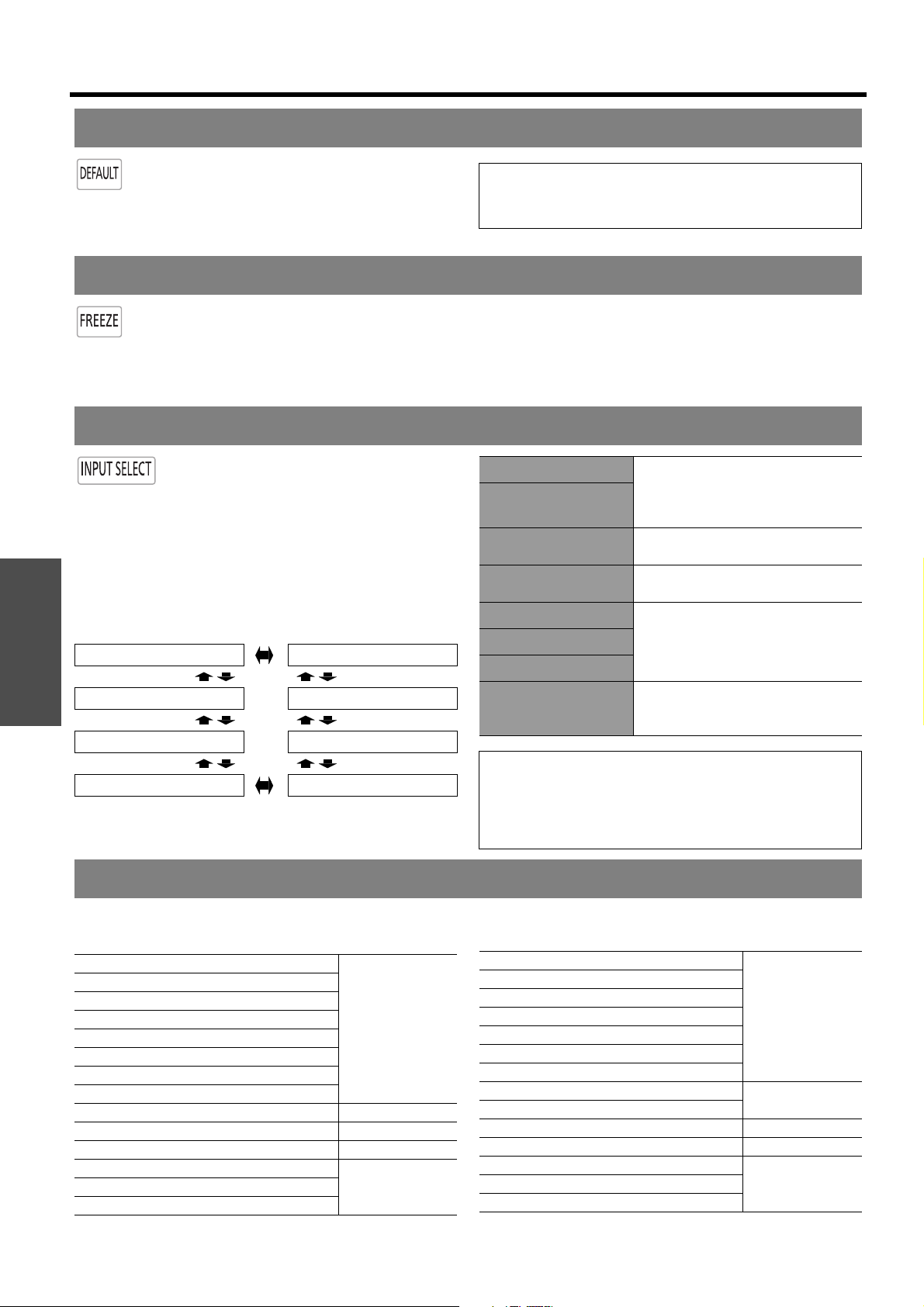
Q Saving a log setting as a profile
Return to the COLOR MANAGEMENT menu and
save the stored log as a profile. Make sure that the
PICTURE MODE is not switched.
1. Select the PROFILE SAVE menu and press the
ENTER button.
The PROFILE SAVE menu is displayed. You can
save the profile as USER1, USER2 and USER3.
2. Press the ENTER button to save the profile.
The confirmation screen is displayed. Press ENTER
again to save.
3. Name the profile.
Use F G I H to specify the location of the required
character to enter and press the ENTER button.
You can enter up to 14 characters.
4. Repeat step 3 until you finish the text line.
Move cursor to ALL DELETE and press the ENTER
button to delete all the entered text line.
Press the DEFAULT button to delete the last entered
character or indicated with cursor in the text box.
To insert a character in the entered text line, move
the cursor to the text box to select the required place
and press G then perform step 3.
5. Select OK and press the ENTER button to set the
entered text as a name.
Press the ENTER button without entering any text to
keep the default name.
Q Deleting the saved profiles
You can delete the profiles from PROFILE
DELETE menu.
1. Select PROFILE DELETE and press the ENTER
button.
2. Select the required profile or ALL DELETE and
press the ENTER button.
The confirmation screen will be displayed and select
OK.
3. Press the ENTER button.
Q Changing the profile names
You can change the name of the profiles from the
PROFILE NAME CHANGE menu.
1. Select PROFILE NAME CHANGE and press the
ENTER button.
2. Select the required profile and press the ENTER
button.
3. Rename the profile.
Use F G I H to specify the location of the required
character to enter and press the ENTER button.
4. Select OK and press the ENTER button to set the
entered text as a name.
Q Loading saved profiles
When profiles are loaded under the PICTURE
MODE setting, you can keep them as you defined
until the PROFILE is set to NORMAL.
1. Select the required PICTURE MODE and press
the ENTER button.
2. Press the COLOR MANAGEMENT button and
select the PROFILE menu.
The profile settings of the selected PICTURE MODE
will be displayed.
3. Select the required profile and press the ENTER
button.
USER3
USER2
USER1
OK CANCEL
ALL DELETE
PROFILE NAME INPUT
NORMAL
Return to the default setting of the
PICTURE MODE menu.
USER1
Defined profile settings.
USER2
USER3
NOTE:
• LOG and PROFILE SAVE are not displayed before you apply COLOR MANAGEMENT.
• When the LOG is fully stored, the CURSOR will not be displayed.
• If you load a profile with a different attribute mode of the profile, the CURSOR and PROFILE SAVE menus will not be
displayed.
• The approximate colors will be adjusted at the same time. If you adjust the exact same color differently, both colors will
affect each other and you might get unexpected results.
• White, Black and Grey are not adjustable.
• If you escape the COLOR MANAGEMENT menu or attempt to perform another menu action before you save the
adjusted profile, the confirmation screen will be displayed.
• If you switch the input signal before you save the profile, the setting will be cancelled without notice.
• When HDMI signal is selected, COLOR MANAGEMENT is not available with the COLOR1 setting of the PICTURE
MODE.
Basic Operation
Remote control operation
28 - ENGLISH
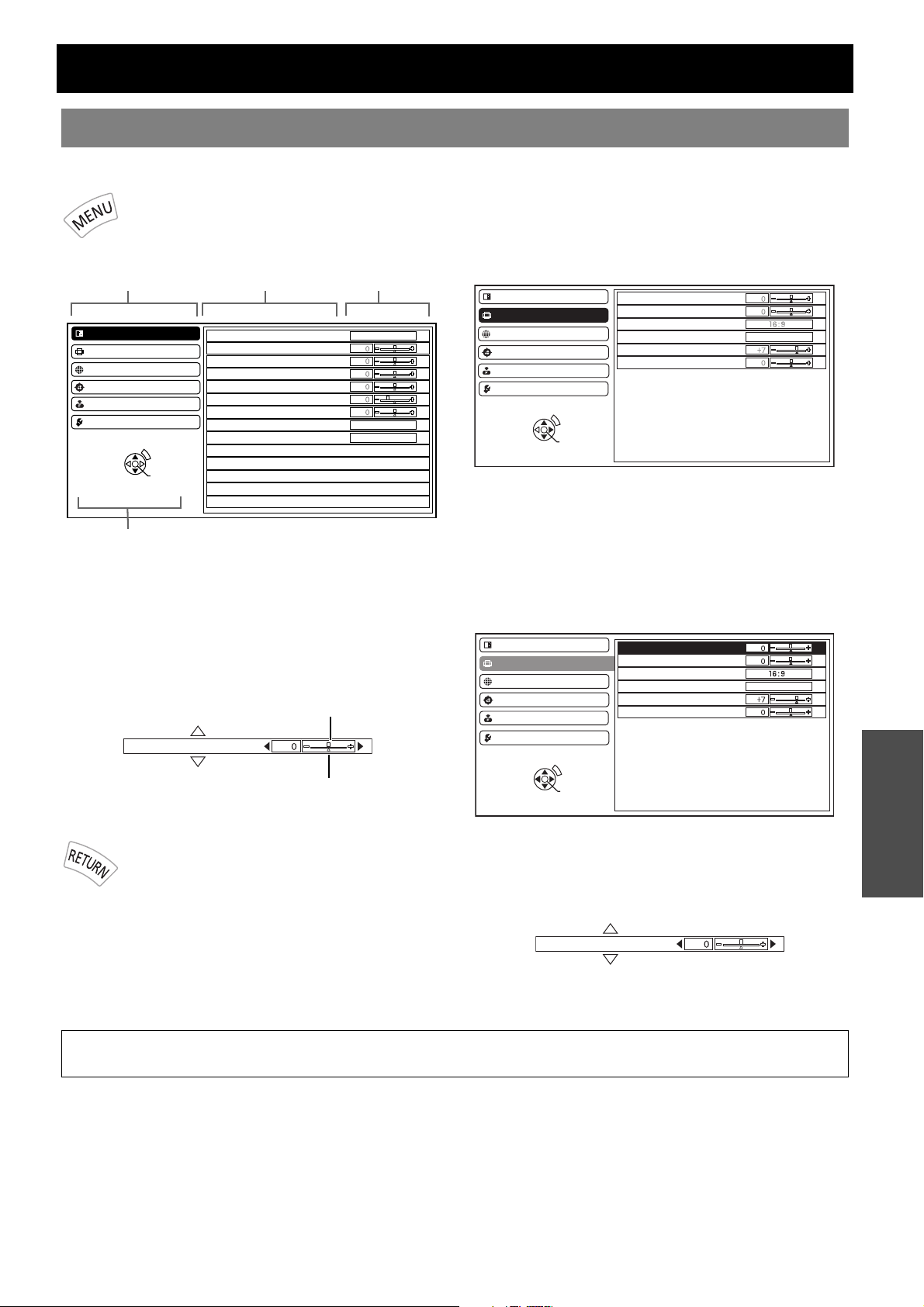
You can reset most of the customized settings
to the factory defaults by pressing DEFAULT
button of the remote control. Display the
required sub-menu or the menu items and
press the button again.
Press the FREEZE button to capture the
image, and you can see it as a still picture while
the AV equipment are continuing. Press the
FREEZE button again to escape and return to
the continuing image.
While displaying the frozen image, you can enter the
AREA SELECT mode of the SPLIT ADJUST menu by
pressing the ENTER button. See “SPLIT ADJUST” on
page 33.
You can switch the input method manually
by pressing the INPUT SELECT button.
Press the button several times or press I
H to cycle through the input methods as
follows. The actual projected image will be
changed in a while.
The graphical guidance will be displayed on the upper
right of the projected image and you can confirm the
selected input method which is highlighted in yellow. See
“INPUT GUIDE” on page 43.
You can access the assigned function in FUNCTION BUTTON menu as shortcut. See “FUNCTION BUTTON” on
page 42.
Resetting to the factory default settings
NOTE:
• Some menu items are not available to reset by pressing
the DEFAULT button. Adjust each menu item manually.
Capturing an image
Switching the input signal
COMPONENT 1 IN COMPONENT 2 IN
COMPUTER IN S-VIDEO IN
HDMI 3 IN VIDEO IN
HDMI 2 IN HDMI 1 IN
COMPONENT 1 IN
COMPONENT (YP
BPR) signals
from the equipment connected to
COMPONENT IN 1/
COMPONENT IN 2.
COMPONENT 2 IN
S-VIDEO IN
S-VIDEO signal from the equipment
connected to S-VIDEO IN.
VIDEO IN
VIDEO signal from the equipment
connected to VIDEO IN.
HDMI 1 IN
HDMI signal from the equipment
connected to HDMI IN 1/HDMI IN 2/
HDMI IN 3.
HDMI 2 IN
HDMI 3 IN
COMPUTER IN
COMPUTER (RGB) signal from the
equipment connected to
COMPUTER IN.
NOTE:
• If you select an unplugged input method, the guidance
will blink on and off several times.
• See “List of compatible signals” on page 50.
• See “Connections” on page 18.
Using the assigned function as shortcut
HDMI 1 IN
page 28
HDMI 2 IN
HDMI 3 IN
COMPUTER IN
COMPONENT 1 IN
COMPONENT 2 IN
S-VIDEO IN
VIDEO IN
BLANK page 42
AUTO SETUP page 39
CONTRAST page 32
CONTRAST R
page 34CONTRAST G
CONTRAST B
NORMAL
page 32
DYNAMIC
COLOR1
COLOR2
CINEMA1
CINEMA2
CINEMA3
SPLIT ADJUST
page 33
WAVEFORM AUTO ADJUST
LENS MEMORY LOAD page 40
BRIGHTNESS page 32
BRIGHTNESS R
page 34BRIGHTNESS G
BRIGHTNESS B
ENGLISH - 29
Settings
Menu Navigation
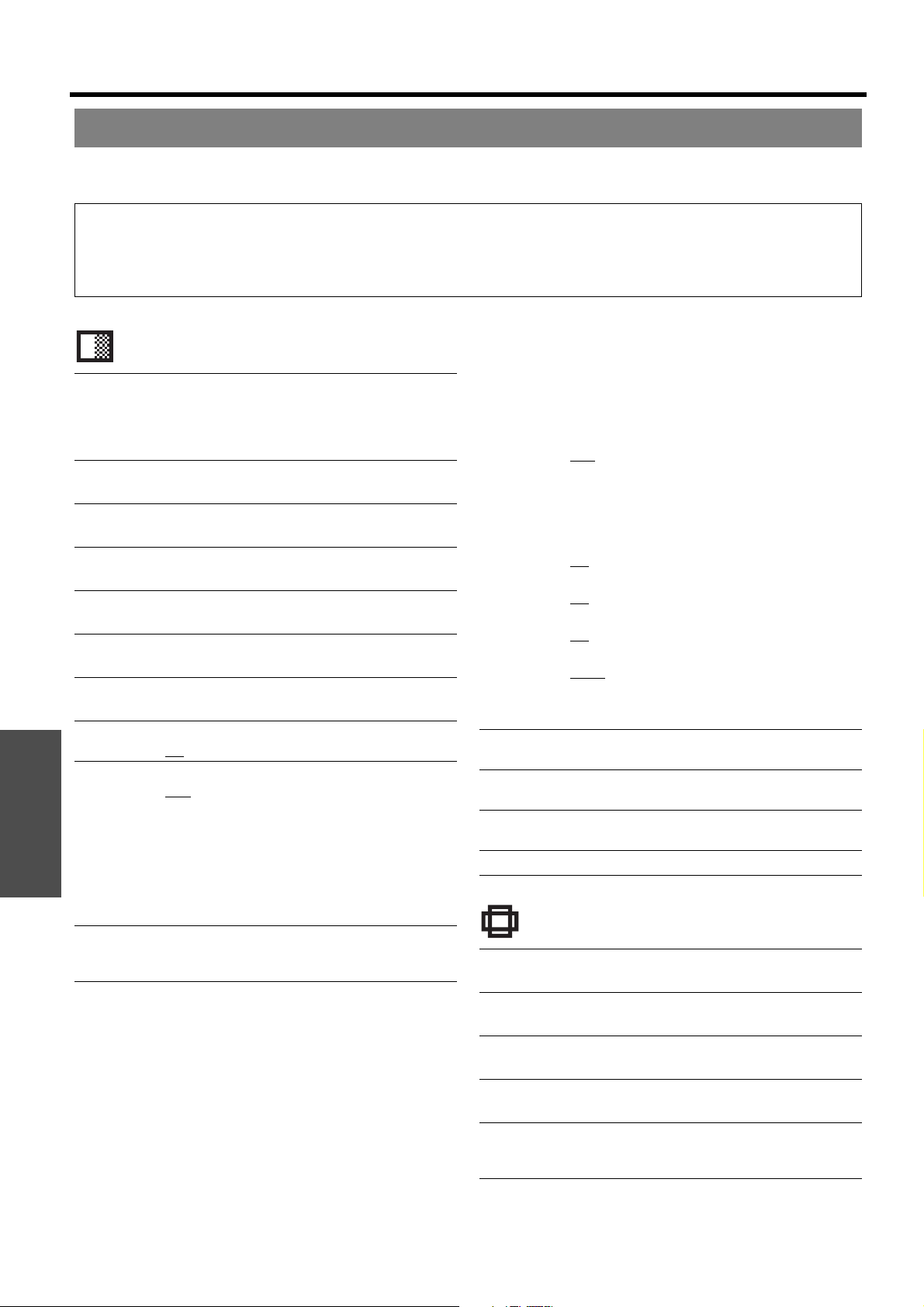
J Displaying the main menu
Press the MENU button to display the main
menu and the operating guidance.
J Adjusting with the bar scale
items
The triangle mark under the bar indicates factory
default setting and the square indicates the current
setting.
J Returning to the previous menu
Press the MENU or RETURN button to return
to the previous menu. Press repeatedly to
escape from the menu mode and return to the
projection.
J Operating procedure
1. Press F G to scroll to the required main menu
item and press the ENTER button to select.
The selected item is highlighted in orange and the
sub-menu is displayed on the right.
See “Main menu and sub-menu” on page 30.
2. Press F G to scroll to the required sub-menu item
and press I H or the ENTER button to adjust.
The selected item is called up and the other menu
items disappear from the screen. The Called up item
will disappear after 5 seconds without any operation
and return to the menu mode.
If there is a lower level, the next level will be
displayed.
3. Press I H to adjust or set the selected item.
For items using a bar scale, the current settings are
displayed on the left of the bar scale.
You can cycle through the options of an item by
pressing I H.
4. Press the MENU or RETURN button to return to
the previous menu.
Navigating through the MENU
ENTER
PICTURE MODE
CONTRAST
BRIGHTNESS
COLOR
TINT
SHARPNESS
COLOR TEMPERATURE
DYNAMIC IRIS
WAVEFORM MONITOR
ADVANCED MENU
SPLIT ADJUST
MEMORY SAVE
MEMORY LOAD
MEMORY EDIT
PICTURE
POSITION
LANGUAGE
FUNCTION BUTTON
LENS CONTROL
OPTION
SELECT
NORMAL
ON
OFF
RETURN
Main menu
Sub-menu
Current
settings
Operating guidance
Contains the required buttons to adjust the settings.
BRIGHTNESS
Current setting
Default
PICTURE
POSITION
OPTION
ENTER
SELECT
H-POSITION
V-POSITION
ASPECT
WSS
OVER SCAN
KEYSTONE
ON
LANGUAGE
RETURN
LENS CONTROL
FUNCTION BUTTON
PICTURE
POSITION
LANGUAGE
OPTION
ENTER
SELECT
H-POSITION
V-POSITION
ASPECT
WSS
OVER SCAN
KEYSTONE
ON
RETURN
LENS CONTROL
FUNCTION BUTTON
BRIGHTNESS
NOTE:
• See “Resetting to the factory default settings” on page 28 to reset each menu item.
Settings
Menu Navigation
30 - ENGLISH
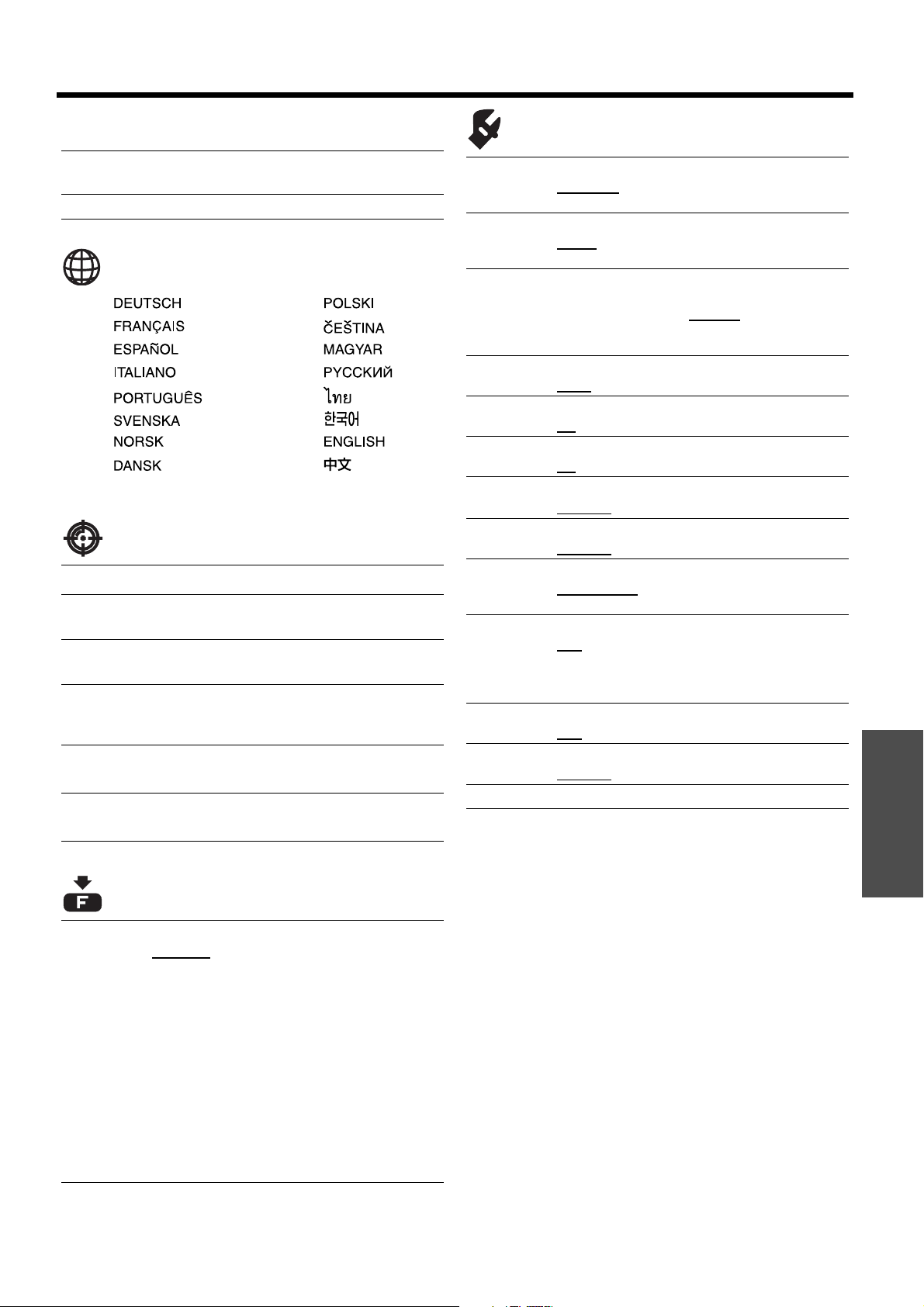
The menu options are structured and categorized. You can navigate through the menu with F G H I buttons. See
“Menu Navigation” on page 29.
PICTURE
POSITION
Main menu and sub-menu
NOTE:
• The underlined items are factory default settings.
• Some default settings vary by the selected input signal.
• Sub-menu items vary according to the selected input signal.
• Some settings are adjustable without any signals.
PICTURE MODE page 32
NORMAL DYNAMIC
COLOR1 COLOR2
CINEMA1 CINEMA2
CINEMA3
CONTRAST page 32
(Default: 0)
BRIGHTNESS page 32
(Default: 0)
COLOR page 32
(Default: 0)
TINT page 32
(Default: 0)
SHARPNESS page 32
(Default: 0)
COLOR TEMPERATURE page 33
(Default: 0)
DYNAMIC IRIS page 33
ON OFF
WAVEFORM MONITOR page 33
OFF
FULL SCAN(Y) FULL SCAN(R)
FULL SCAN(G) FULL SCAN(B)
SINGLE LINE SCAN(Y)
SINGLE LINE SCAN(R)
SINGLE LINE SCAN(G)
SINGLE LINE SCAN(B)
MONITOR POSITION
AUTO ADJUST
SPLIT ADJUST page 33
AREA SELECT SPLIT ADJUST MODE
NORMAL REVERSE
ADVANCED MENU page 34
GAMMA
GAMMA HIGH (Default: 0)
GAMMA MID (Default: 0)
GAMMA LOW (Default: 0)
CONTRAST
CONTRAST R (Default: 0)
CONTRAST G (Default: 0)
CONTRAST B (Default: 0)
BRIGHTNESS
BRIGHTNESS R (Default: 0)
BRIGHTNESS G (Default: 0)
BRIGHTNESS B (Default: 0)
G
F
NR (Noise Reduction)
(Default: 0)
MPEG NR
(Default: 0)
FRAME CREATION
OFF MODE1 MODE2
COLOR MANAGEMENT
PROFILE CURSOR
LOG PROFILE SAVE
PROFILE DELETE PROFILE NAME CHANGE
x.v.Color
ON OFF
DETAIL CLARITY
ON OFF
CINEMA REALITY
ON OFF
TV-SYSTEM
AUTO
NTSC NTSC 4.43
PAL PAL-M
PAL-N SECAM
MEMORY SAVE page 36
MEMORY1 - 16
MEMORY LOAD page 36
MEMORY1 - 16
MEMORY EDIT page 36
MEMORY DELETE MEMORY NAME CHANGE
SIGNAL MODE page 36
H - POSITION page 37
(Default: 0)
V - POSITION page 37
(Default: 0)
DOT CLOCK page 37
(Default: 0)
CLOCK PHASE page 37
(Default: 0)
ASPECT page 37
4:3 16:9 14:9 ZOOM1
ZOOM2 JUST
WSS page 39
G
Menu Navigation
ENGLISH - 31
Settings
LANGUAGE
LENS CONTROL
FUNCTION BUTTON
OPTION
F
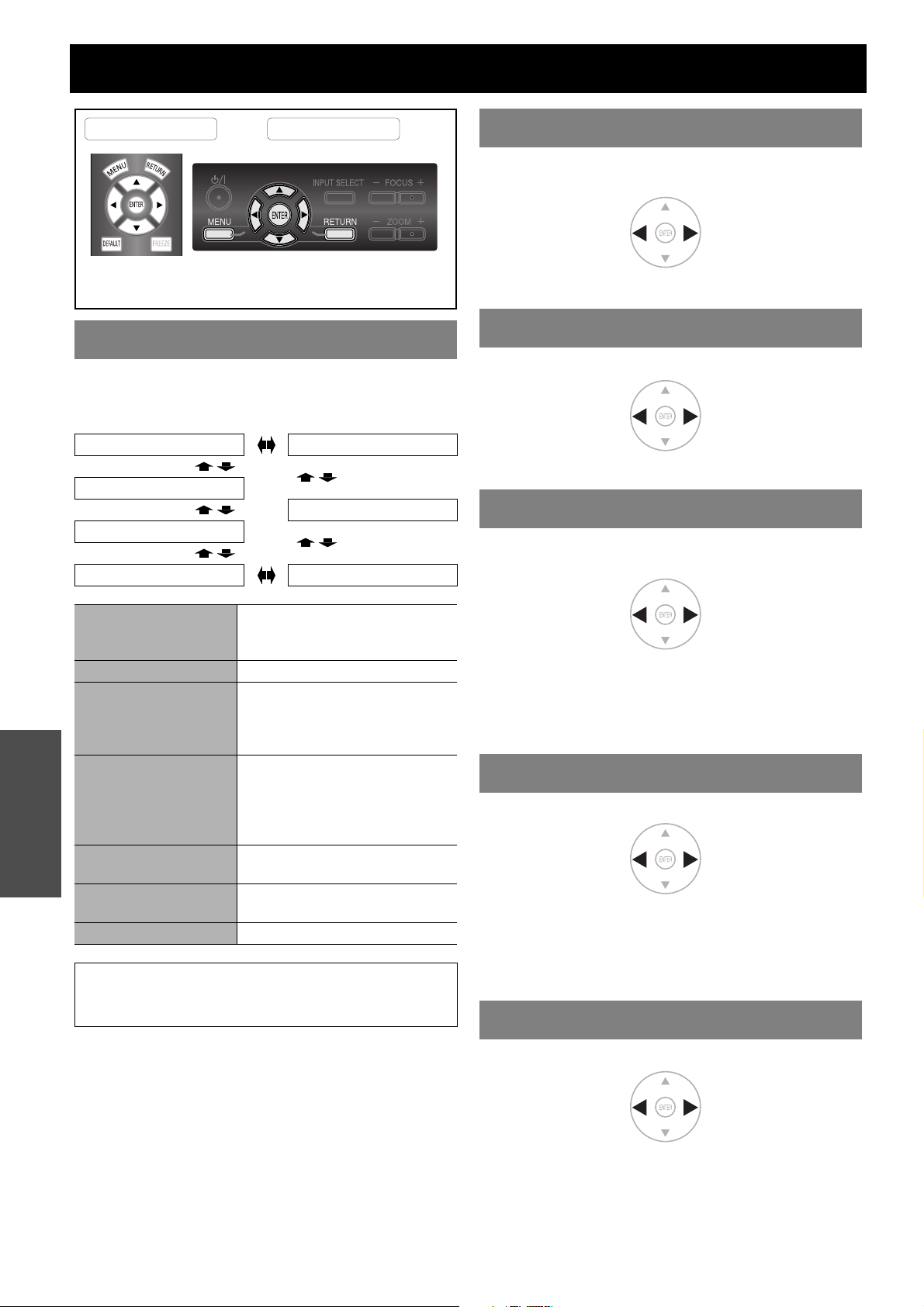
OVER SCAN page 39
KEYSTONE page 39
(Default: 0)
AUTO SETUP page 39
ZOOM/FOCUS page 40
LENS MEMORY LOAD page 40
LENS MEMORY 1 - 3
LENS MEMORY SAVE page 40
LENS MEMORY 1 - 3
LENS MEMORY EDIT page 41
LENS MEMORY DELETE
LENS MEMORY NAME CHANGE
H-AREA POSITION page 41
(Default: 0)
V-AREA POSITION page 41
(Default: 0)
BUTTON page 42
HDMI 1 IN HDMI 2 IN
HDMI 3 IN COMPUTER IN
COMPONENT 1 IN COMPONENT 2 IN
S-VIDEO IN VIDEO IN
BLANK AUTO SETUP
CONTRAST CONTRAST R
CONTRAST G CONTRAST B
NORMAL DYNAMIC
COLOR1 COLOR2
CINEMA1 CINEMA2
CINEMA3 SPLIT ADJUST
WAVEFORM AUTO ADJUST
LENS MEMORY LOAD
BRIGHTNESS BRIGHTNESS R
BRIGHTNESS G BRIGHTNESS B
INPUT GUIDE page 43
DETAILED SIMPLE
OFF
OSD DESIGN page 43
TYPE1 TYPE2
TYPE3
OSD POSITION page 43
UPPER LEFT UPPER CENTER
UPPER RIGHT CENTER
LOWER LEFT LOWER CENTER
LOWER RIGHT
BACK COLOR page 43
BLUE BLACK
STARTUP LOGO page 43
ON OFF
AUTO SEARCH page 43
ON OFF
HDMI SIGNAL LEVEL page 43
NORMAL EXPAND
FRAME RESPONSE page 43
NORMAL FAST
INSTALLATION page 44
FRONT/DESK FRONT/CEILING
REAR/DESK REAR/CEILING
SLEEP page 44
OFF
15 MIN. 20 MIN. 25 MIN. 30 MIN.
35 MIN. 40 MIN. 45 MIN. 50 MIN.
55 MIN. 60 MIN.
HIGH ALTITUDE MODE page 44
OFF ON
LAMP POWER page 44
NORMAL ECO-MODE
LAMP RUNTIME page 44
32 - ENGLISH
Settings
PICTURE menu
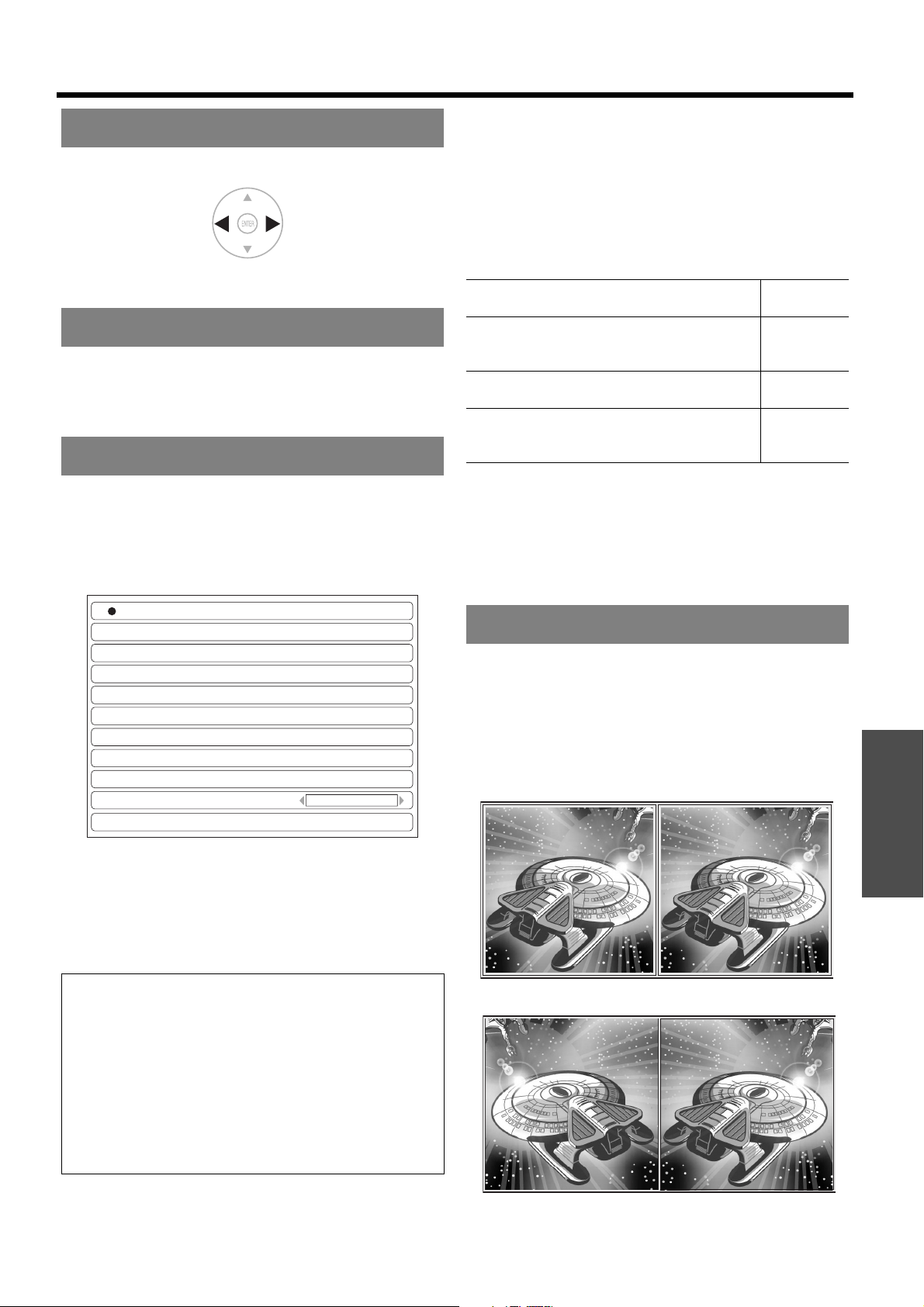
Depending on the projection environment, you can use
these preset parameter settings to optimise image
projection. Press I H to cycle through the options.
You can adjust the contrast of the projected image.
Adjust the BRIGHTNESS in advance if necessary.
Setting range: -64 to +64
You can adjust the brightness of the projected image.
Setting range: -32 to +32
You can adjust the color saturation of the projected
image.
Setting range: -32 to +32
When COMPUTER signal is connected, only available
with the following signals.
1 125 (1 080)/60i 1 125 (1 080)/50i
1 125 (1 080)/60p 1 125 (1 080)/50p
You can adjust the skin tone in the projected image.
Setting range: -32 to +32
When COMPUTER signal is connected, only available
with the following signals.
1 125 (1 080)/60i 1 125 (1 080)/50i
1 125 (1 080)/60p 1 125 (1 080)/50p
You can adjust the sharpness of the projected image.
Setting range will vary according to the selected input
signal.
PICTURE MODE
NORMAL CINEMA3
DYNAMIC
CINEMA2
COLOR1
COLOR2 CINEMA1
NORMAL
Setting for a general image, such
as sports programme or TV
games
DYNAMIC Bright and sharp setting
COLOR1
Setting for HDTV standard in ITU-
R BT. 709 and color temperature
6 500 K at the default setting of
the PICTURE menu items.
COLOR2
Setting for DCDM standard
(SMPTE431-2) and color
temperature 6 300 K at the
default setting of the PICTURE
menu items.
CINEMA1
Setting tuned by top Hollywood
colorists
CINEMA2
Deeper and more rich color
setting
CINEMA3 Vivid and crisp color setting
NOTE:
• It may take for a while until the selected mode is
stabilised.
Remote control Control panel
See “Navigating through the MENU” on page 29.
See “Main menu and sub-menu” on page 30.
CONTRAST
BRIGHTNESS
COLOR
TINT
SHARPNESS
HigherLower
BrighterDarker
DarkerLighter
More
greenish
More
reddish
More
sharp
Less
sharp
PICTURE menu
ENGLISH - 33
Settings
You can adjust the white balance of the projected image.
Setting range: -6 to +6
You can switch automatic adjustment of the lamp and
the lens iris on/off.
ON: Automatic adjustment
OFF: No adjustment
You can monitor whether or not the luminance level of
the input signal is in the recommended range by
displaying it in the waveform monitor. If the waveform is
not in the range, adjust it for the best quality. See
“Adjusting the signal condition with a waveform” on
page 24.
1. Press F G to move to the required waveform
style.
2. Press ENTER to select.
The WAVEFORM MONITOR will be displayed.
See “Adjusting the signal condition with a waveform”
on page 24.
J MONITOR POSITION
When the FULL SCAN is selected, press F G I
H to adjust the position of the monitor.
See “Adjusting the signal condition with a waveform”
on page 24.
J AUTO ADJUST
You can switch on/off the automatic adjustment
system in each items.
1. Press F G and select the required item.
2. Press I H and switch on/off.
3. Press F G and select START AUTO ADJUST
and press the ENTER button.
The confirmation screen will be displayed.
4. Press I H and select OK.
5. Press the ENTER button.
You can perform image adjustment for some PICTURE
menu items while displaying a certain area of the frozen
image in a split window.
Q SPLIT ADJUST MODE
Select the required split style from NORMAL and
REVERSE in the SPLIT ADJUST MODE menu.
NORMAL
REVERSE
COLOR TEMPERATURE
DYNAMIC IRIS
WAVEFORM MONITOR
NOTE:
• When the WAVEFORM MONITOR is set to OFF, the
AUTO ADJUST is not displayed.
• The waveform of the WAVEFORM MONITOR will not
be displayed correctly with a noisy equipment or
source.
•The WAVEFORM MONITOR adjusts the signal level
based on the reference signal which consists of 0% and
100%. The over scanned reference signal which runs
off the edge of the screen, below 0% or over 100%
signal level will not be adjusted correctly.
More
bluish
Less
bluish
OFF
FULL SCAN(Y)
FULL SCAN(R)
FULL SCAN(G)
FULL SCAN(B)
SINGLE LINE SCAN(Y)
SINGLE LINE SCAN(R)
SINGLE LINE SCAN(G)
SINGLE LINE SCAN(B)
MONITOR POSITION
UPPER LEFT
AUTO ADJUST
BLACK LEVEL ADJUST
Adjust the black level of luminance (Y) to 0%.
ON
WHITE LEVEL ADJUST
Adjust the white level of luminance (Y) to
100%.
ON
RGB ADJUST (BLACK)
Adjust the black level of colors (R/G/B) to 0%.
OFF
RGB ADJUST (WHITE)
Adjust the white level of colors (R/G/B) to
100%.
OFF
SPLIT ADJUST
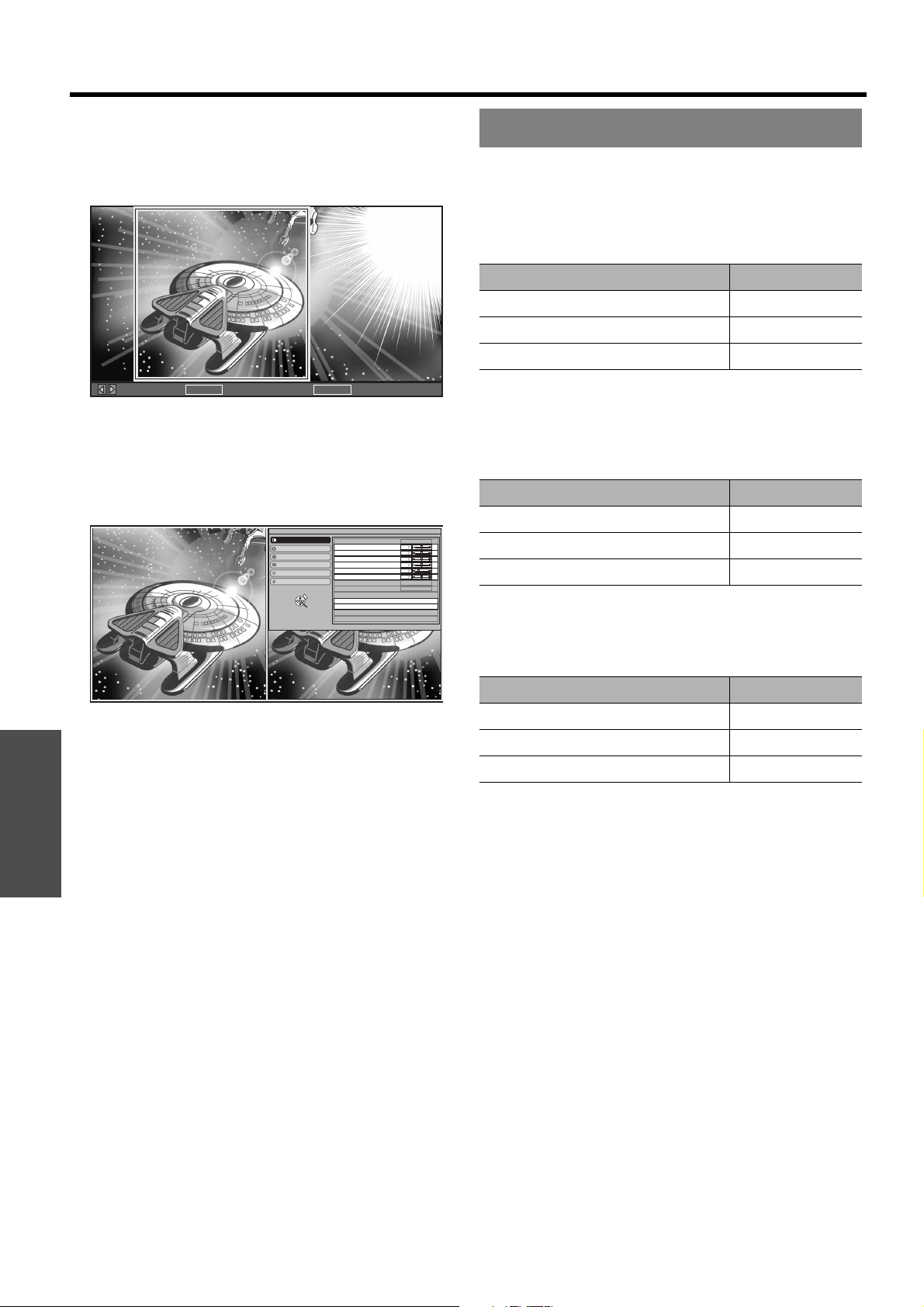
Settings
PICTURE menu
34 - ENGLISH
Q Adjusting the image in a split window
1. Select AREA SELECT and press the ENTER
button.
The image will be frozen and the area cursor will be
displayed.
2. Press I H to move the area cursor to select the
area of interest and press the ENTER button.
The selected frozen image will be displayed in a split
window.
3. Press the MENU to display the PICTURE menu on
the right.
4. Adjust the required PICTURE menu items.
Only the highlighted menu items are adjustable.
Sub-menu items vary according to the selected input
signal. See “Main menu and sub-menu” on page 30.
5. Press the MENU/RETURN button several times to
escape from the menu.
6. Press the ENTER button.
The confirmation screen will be displayed. Select OK
to finish the adjustment.
7. Press the ENTER button.
Press the ENTER button again to return to the AREA
SELECT.
Press the RETURN button to escape from the SPLIT
ADJUST mode.
You can perform more detailed image adjustment
manually.
J GAMMA
You can adjust linear intensity at 3 levels. Press
I H to increase/decrease 1 point.
Setting range: -8 to +8
J CONTRAST
You can adjust the amount of contrast of individual
RGB colors. Press I H to increase/decrease
1 point.
Setting range: -32 to +32
J BRIGHTNESS
You can adjust the brightness of individual RGB
colors. Press I H to increase/decrease 1 point.
Setting range: -16 to +16
J NR (Noise Reduction)
You can adjust the automatic noise reduction
system level. Press I H to change the level.
Setting range: 0 to +3
MOVE AREA GO TO SPLIT ADJUSTENTER GO TO FREEZE SCREENRETURN
ENTER
PICTURE MODE
CONTRAST
BRIGHTNESS
COLOR
TINT
SHARPNESS
COLOR TEMPERATURE
DYNAMIC IRIS
WAVEFORM MONITOR
ADVANCED MENU
SPLIT ADJUST
MEMORY SAVE
MEMORY LOAD
MEMORY EDIT
PICTURE
POSITION
LANGUAGE
FUNCTION BUTTON
LENS CONTROL
OPTION
SELECT
NORMAL
ON
OFF
RETURN
ADVANCED MENU
Levels Default setting
GAMMA HIGH 0
GAMMA MID 0
GAMMA LOW 0
RGB Default setting
CONTRAST R 0
CONTRAST G 0
CONTRAST B 0
RGB Default setting
BRIGHTNESS R 0
BRIGHTNESS G 0
BRIGHTNESS B 0
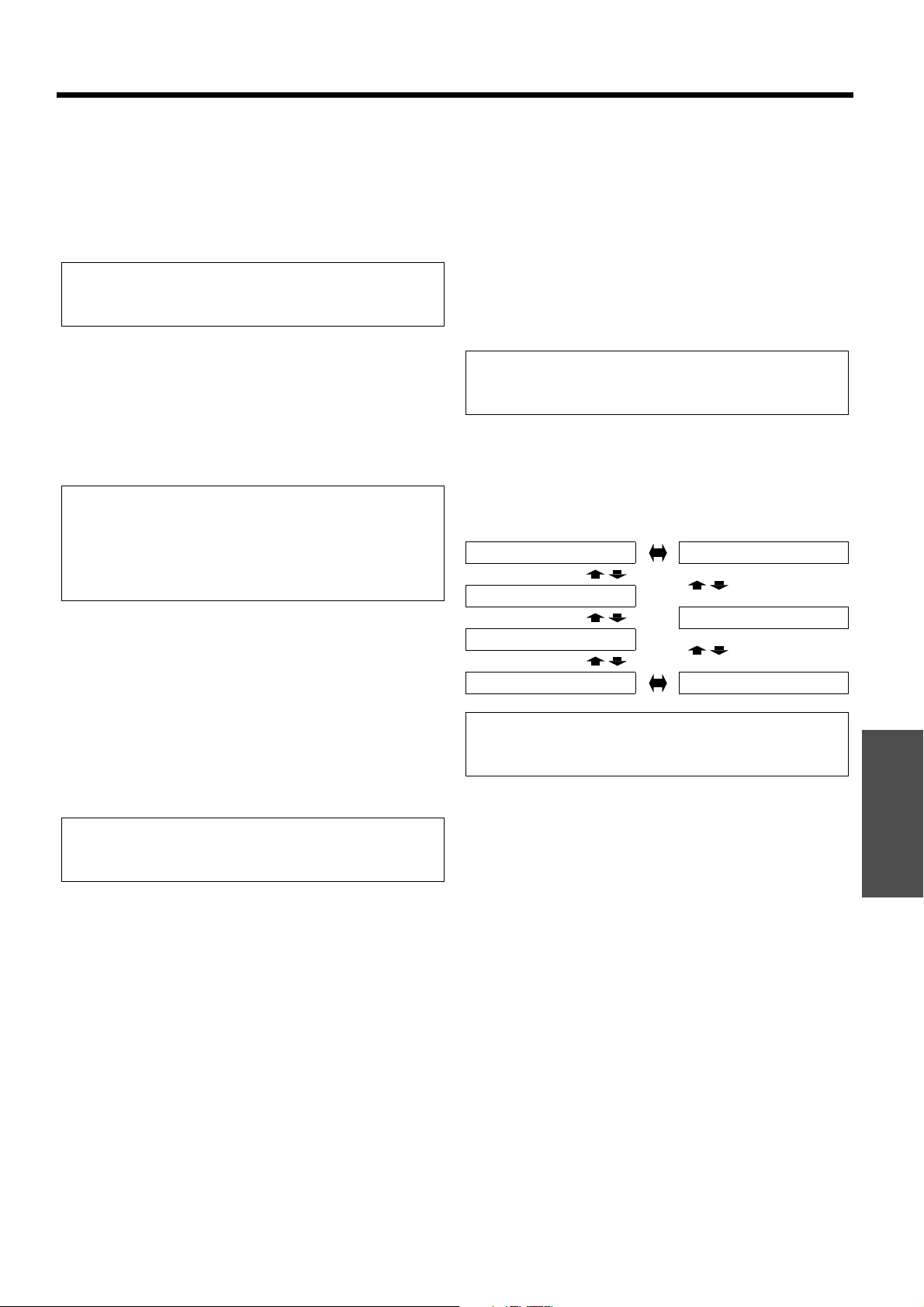
PICTURE menu
ENGLISH - 35
Settings
J MPEG NR
You can adjust the automatic noise reduction
system level for MPEG format images. The system
minimise block noise and mosquito noise to
eliminate jagged edges, providing an overall
smoother image. Press I H to change the level.
Setting range: 0 to +3
J FRAME CREATION
You can activate the rendering system for fast
motion frames with fewer afterimage. Press I H
to select the required option.
OFF Deactivate
MODE1 Setting for a standard image
MODE2 Setting for a moving image
J COLOR MANAGEMENT
You can manage your own defined color settings.
See “Setting your own color profile” on page 26.
J x.v.Color
You can switch on/off the automatic adjustment
system for signals which comply with International
Standard xvYCC.
ON: Active
OFF:Deactive
J DETAIL CLARITY
You can switch the automatic detail clarity system
on/off.
ON: Active
OFF: Deactive
J CINEMA REALITY
You can switch the automatic image synchroniser
on/off for 24 frames a second images, such as
movies. Press I H to select the required setting.
ON: Active
OFF: Deactive
J TV-SYSTEM
When the video signal is changed, the setting
switches automatically.
You can switch the setting manually to match the
video data. Press I H to cycle through the
options.
NOTE:
• MPEG NR system is not available with COMPUTER/
HDMI (VGA60) signals.
NOTE:
• With some of the images, it might be difficult to see a
difference in result.
• The image might look slower with the MODE2 setting.
When the result does not meet your requirement, select
MODE1 or deactivate the system.
NOTE:
• x.v.Color adjustment system is available only with
HDMI signals in COLOR1 of PICTURE MODE menu.
NOTE:
• CINEMA REALITY is effective only with interlace
signals.
AUTO NTSC
SECAM
NTSC 4.43
PAL-N
PAL-M PAL
NOTE:
• AUTO setting will select from NTSC/NTSC 4.43/PAL/
PAL60/PAL-M/PAL-N/SECAM.
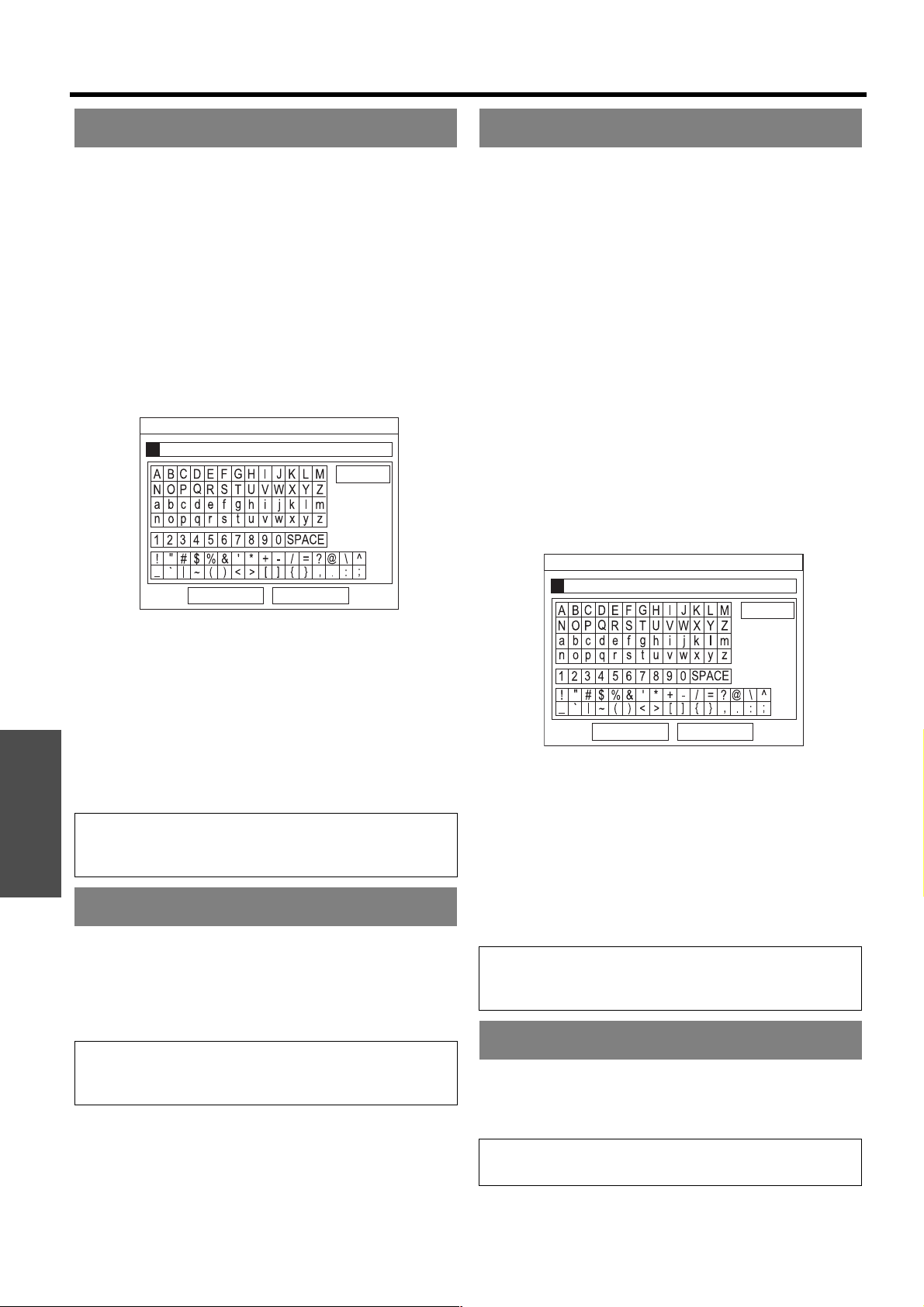
Settings
PICTURE menu
36 - ENGLISH
You can save and name the adjusted PICTURE menu
settings for instant access from MEMORY LOAD menu.
1. Adjust the items in PICTURE menu.
2. Select MEMORY SAVE and press the ENTER
button.
3. Select the required memory setting and press the
ENTER button.
The confirmation screen will be displayed. Select OK
and press the ENTER button.
Indicated with
★ is in use, and ✩ is empty.
4. Name the memory setting.
Use F G I H to specify the location of the required
character to enter and press the ENTER button.
You can enter up to 16 characters.
5. Repeat step 4 until you finish the text line.
Move the cursor to ALL DELETE and press the
ENTER button to delete all the entered text line.
Press the DEFAULT button to delete the last entered
character or indicated with cursor in the text box.
To insert a character in the entered text line, move
the cursor to the text box to select the required place
and press G then perform step 4.
6. Select OK and press the ENTER button to set the
entered text as a name.
You can access the saved settings instantly. See
“Loading a saved setting” on page 24.
1. Select a setting from MEMORY1 - 16.
Undefined settings will not be selectable.
2. Press ENTER to activate.
You can edit the named memory settings.
Q Deleting a memory setting
1. Select MEMORY DELETE and press the ENTER
button.
2. Select the required memory setting and press the
ENTER button.
If you select ALL DELETE, you can delete all of the
saved memory settings.
3. Select OK in the confirmation screen and press the
ENTER button.
Q Changing the name of the memory
setting
1. Select MEMORY NAME CHANGE and press the
ENTER button.
2. Select the required memory setting and press the
ENTER button.
3. Rename the memory setting.
Use F G I H to specify the location of the required
character to enter and press the ENTER button.
You can enter up to 16 characters.
4. Repeat step 2 until you finish the text line.
Move the cursor to ALL DELETE and press the
ENTER button to delete all the entered text line.
Press the DEFAULT button to delete the last entered
character or indicated with cursor in the text box.
To insert a character in the entered text line, move
the cursor to the text box to select the required place
and press G then perform step 2.
5. Select OK and press the ENTER button to set the
entered text as a name.
The current selected signal will be displayed. This is
available with signals from COMPUTER IN/
COMPONENT IN/HDMI IN only.
MEMORY SAVE
NOTE:
• If you leave the text box empty and save, the default
memory number will stay as a name.
MEMORY LOAD
NOTE:
• If you have not saved any settings, MEMORY1 - 16 will
not be displayed.
OK CANCEL
ALL DELETE
MEMORY NAME INPUT
MEMORY EDIT
NOTE:
• If you have not saved any settings, MEMORY1 - 16 will
not be displayed.
SIGNAL MODE
NOTE:
• See “List of compatible signals” on page 50.
OK CANCEL
ALL DELETE
MEMORY NAME INPUT
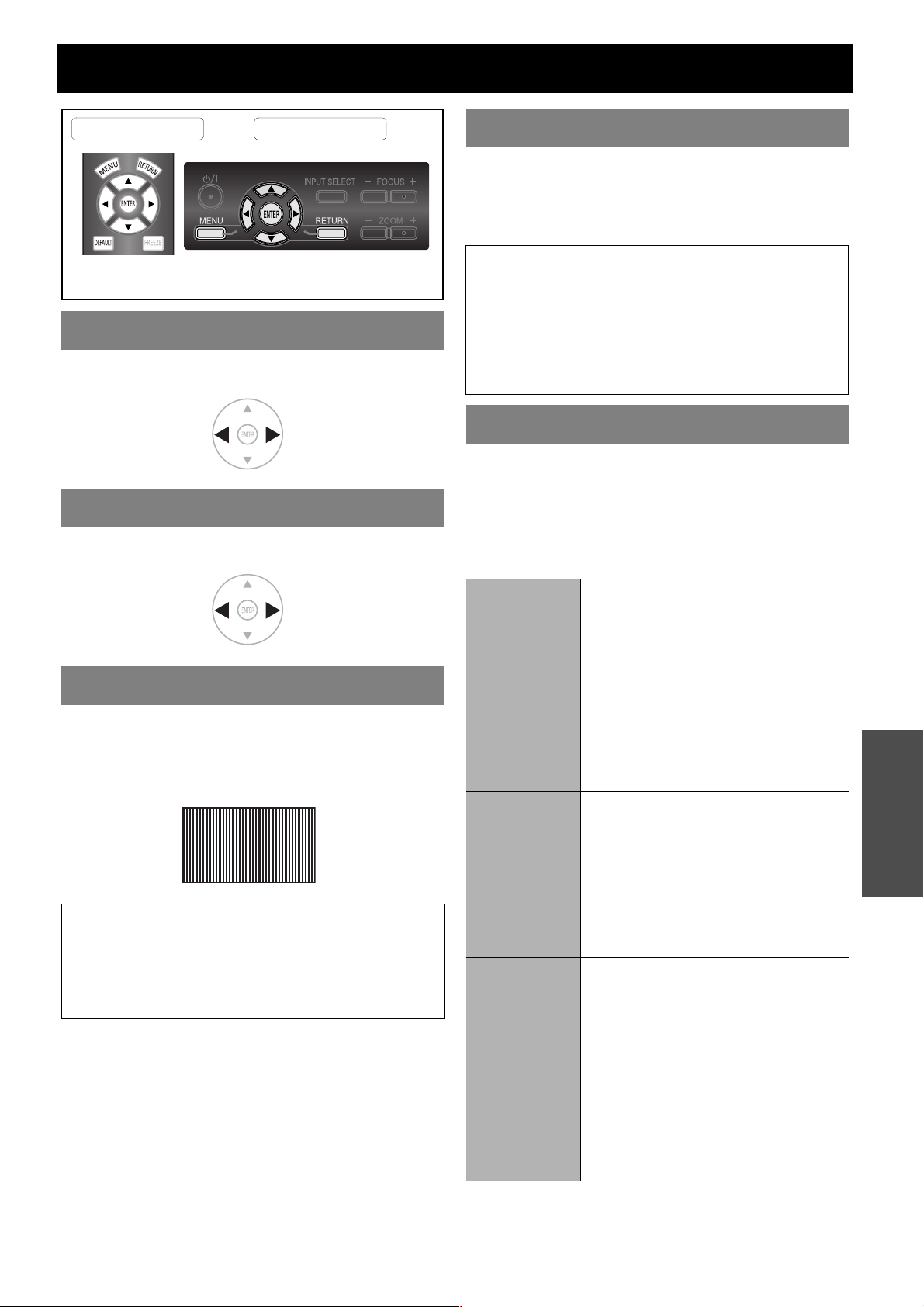
ENGLISH - 37
Settings
POSITION menu
You can move the projected image horizontally for fine
adjustment.
You can move the projected image vertically for fine
adjustment.
If you have interference patterns of the projected image,
which is sometimes referred to as moire or noise, you
can minimize it by pressing I H to adjust the clock
frequency. (Available with signals from COMPUTER IN
only)
If you require further adjustment for the same reason as
the DOT CLOCK adjustment, you can fine adjust the
timing of the clock. Press I H to adjust. (Available with
signals from COMPUTER IN/COMPONENT IN only)
You can switch the aspect ratio manually when needed.
J Aspect ratio depend on signals
Press I H to cycle through the aspect ratio
options. The cycle pattern depends on the
connected signals.
H-POSITION
V-POSITION
DOT CLOCK
NOTE:
• If the projecting signal’s dot clock frequency is higher
than 150 MHz, the adjustment may not make a
difference.
• DOT CLOCK needs to be adjusted before adjusting the
CLOCK PHASE.
Remote control Control panel
See “Navigating through the MENU” on page 29.
See “Main menu and sub-menu” on page 30.
Move
right
Move left
Move up
Move
down
CLOCK PHASE
NOTE:
• If the projecting signal’s dot clock frequency is higher
than 150 MHz, the adjustment may not make a
difference.
• Available signals from COMPONENT IN:
1 125 (1 080)/60i, 1 125 (1 080)/50i, 1 125 (1 080)/60p,
1 125 (1 080)/50p, 1 125 (1 080)/24p, 750 (720)/60p,
750 (720)/50p.
ASPECT
VIDEO/
S-VIDEO
4:3 \ 16:9 \ s16:9 \ JUST \ ZOOM
\ AUTO
NTSC, NTSC 4.43, PAL-M, PAL60
signals
4:3 \ 16:9 \ s16:9 \ 14:9 \ ZOOM1
\ ZOOM2 \ JUST
PAL, PAL-N, SECAM signals
COMPUTER
(RGB)
4:3 \ 16:9
VGA, SVGA, XGA, SXGA, MXGA signals
Not switchable with WIDE480/600/720/
768/768-2/800/900 signals
HDMI
4:3 \ 16:9 \ s16:9 \ H - FIT \ V - FIT
\ ZOOM
1 125 (1 080)/50i, 1 125 (1 080)/60i,
1 125 (1 080)/50p, 1 125 (1 080)/60p,
1 125 (1 080)/24p, 750 (720)/50p and
750 (720)/60p signals
4:3 \ 16:9 \ s16:9 \ JUST \ ZOOM
525i (480i), 625i (576i), 525p (480p) and
625p (576p) signals
COMPONENT
(YPBPR)
4:3 \ 16:9 \ s16:9 \ 14:9 \ ZOOM1
\ ZOOM2 \ JUST
625i (576i), 625p (576p) signals
AUTO \ 4:3 \ 16:9 \ s16:9 \ JUST
\ ZOOM
525i (480i), 525p (480p) signals
4:3 \ 16:9 \ s16:9 \ H - FIT \
V - FIT \ ZOOM
1 125 (1 080)/50i, 1 125 (1 080)/60i,
1 125 (1 080)/50p, 1 125 (1 080)/60p,
1 125 (1 080)/24p, 750 (720)/50p,
750 (720)/60p signals
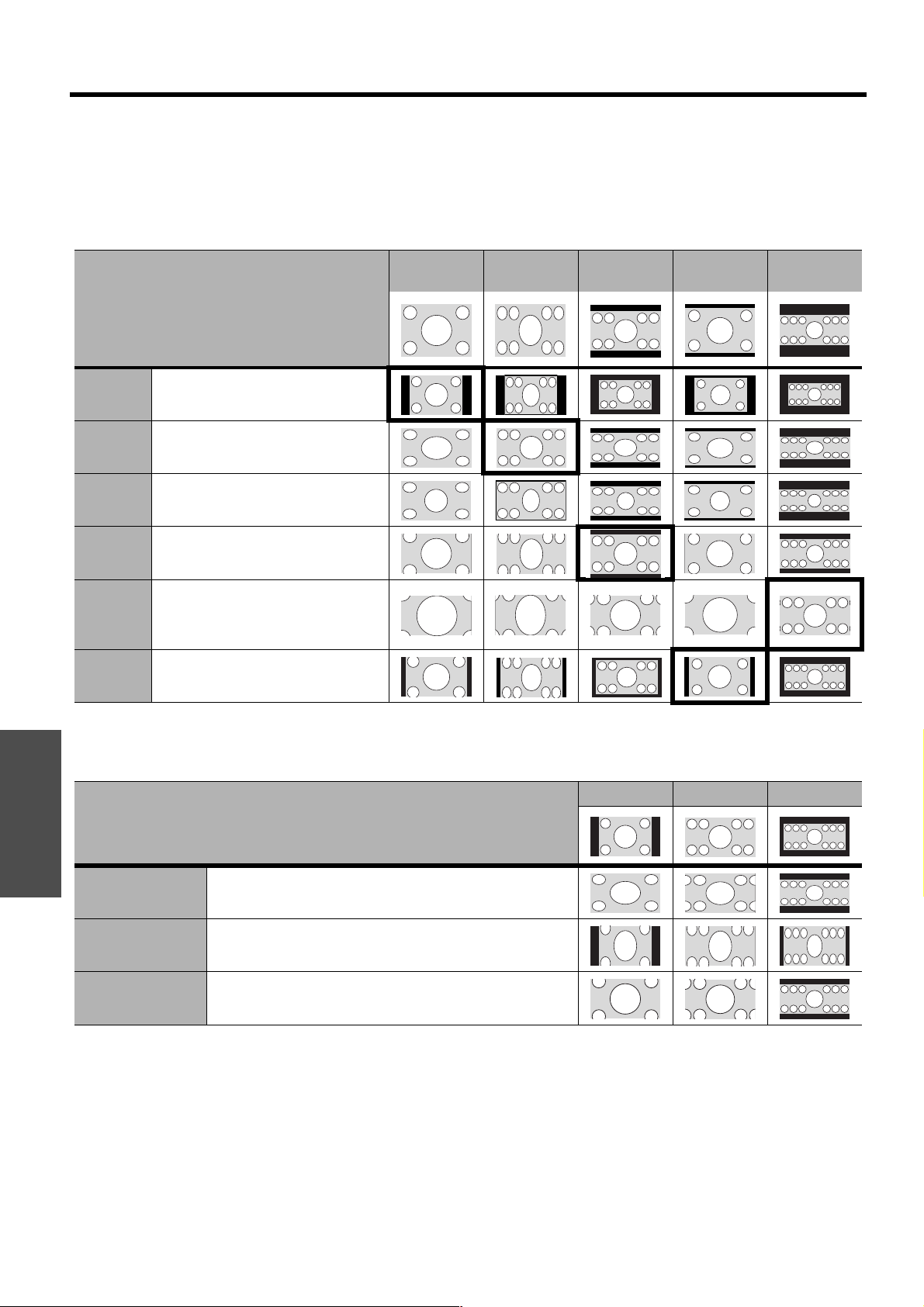
Settings
POSITION menu
38 - ENGLISH
J Aspect ratio options and projection example
If you apply the aspect ratio options to the projected image, the result will be as follows. The result may differ
due to the input signals. See “Switching the aspect ratio” on page 24.
Q VIDEO/S-VIDEO/COMPONENT
Not available with 1 125 (1 080)/50i, 1 125 (1 080)/60i, 1 125 (1 080)/50p, 1 125 (1 080)/60p, 1 125 (1 080)/
24p, 750 (720)/50p and 750 (720)/60p signals.
Q COMPONENT signals
Available with 1 125 (1 080)/50i, 1 125 (1 080)/60i, 1 125 (1 080)/50p, 1 125 (1 080)/60p, 1 125 (1 080)/24p,
750 (720)/50p and 750 (720)/60p signals
Original size
4:3
Squeeze
signal
16:9
Letter box
14:9
Letter Box
2.35:1
Cinescope
4:3 Projects at 4:3.
16:9 Adjusts horizontally to 16:9.
JUST
Adjusts horizontally to fit 16:9. Closer
to edge, more enlarged. Not available
with COMPUTER signals.
ZOOM/
ZOOM1
Adjusts to 16:9 size while preserving
original ratio. Escape the menu mode
and press FG to adjust vertically.
ZOOM2
Adjusts to cinescope size not
including letter box. Escape the menu
mode and press FG to adjust
vertically.
14:9 Adjusts to 14:9.
Original Size
4:3 16:9 Cinescope
H - FIT Adjusts horizontally to 16:9.
V - FIT
Adjusts to 16:9 vertically. Escape and press F G to scroll
the image to adjust the edge vertically.
ZOOM
Adjusts to 16:9 size with preserving original ratio. Escape
the menu mode and press FG to adjust vertically.
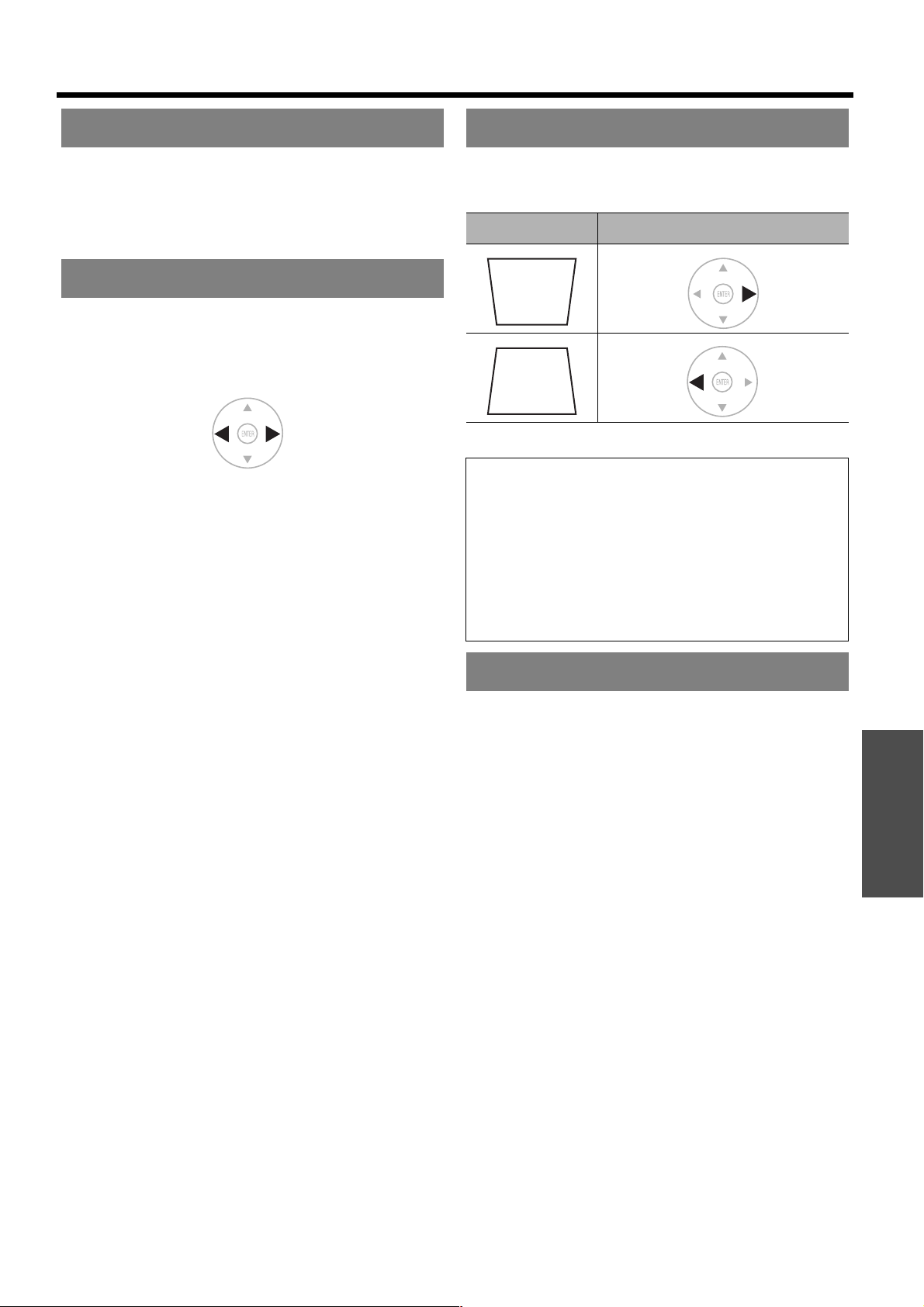
POSITION menu
ENGLISH - 39
Settings
WSS (Wide Screen Signalling) detects if a PAL/
625p (576p)/625i (576i) signal is input and that signal
has an identification signal, and switch the aspect ratio
to required setting automatically. You can switch the
system off manually.
If the 4 edges of an image is partly dropped, you can use
this function to adjust and project it properly.
Setting range: 0 to +10
OVER SCAN is not available with COMPUTER
signals.
If the projector is aligned non-perpendicularly to the
screen, or if the projection screen has an angled surface,
you can correct the keystone vertically.
Setting range: -32 to 32
You can adjust V - POSITION, H - POSITION, DOT
CLOCK and CLOCK PHASE automatically when
connecting via COMPUTER IN. Press ENTER to adjust
these at the same time.
WSS
OVER SCAN
Enlarge
Shrink
KEYSTONE
Image Operation
NOTE:
• You can correct the distortion ± 30 degrees from the
vertical plane. For a better quality image, installing the
projector with minimum distortion is recommended.
• Some distortion may be retained for the lens shift
adjustment.
• The distortion of the main menu screen is not
correctable.
• The result of the keystone correction will affect the
aspect ratio and the size of the image.
AUTO SETUP
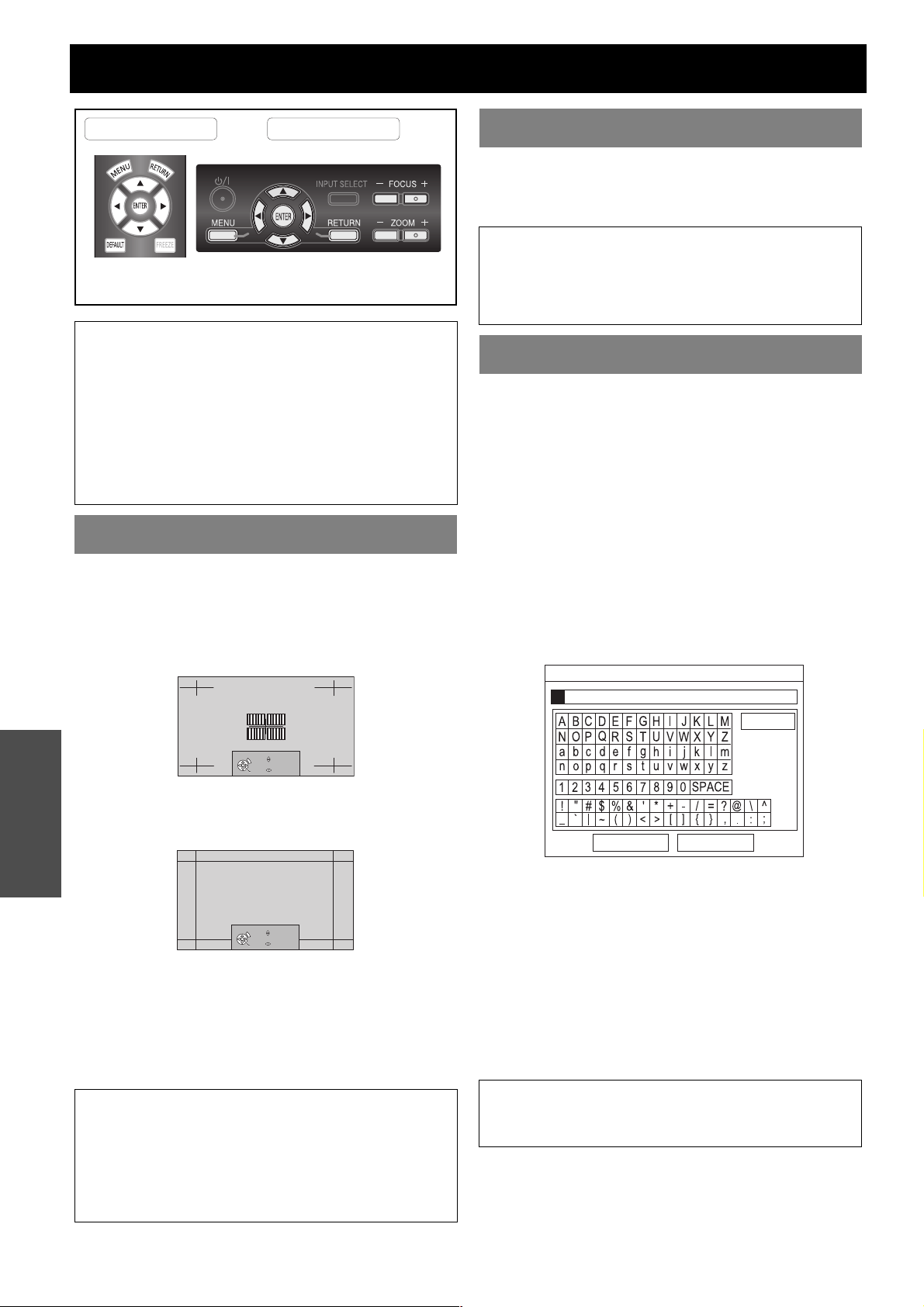
40 - ENGLISH
Settings
LENS CONTROL
You can use the 2 different test patterns to adjust the
focus and zoom of the image. See “Lens shift and
positioning” on page 16.
1. Press ENTER to display test pattern 1.
Press F G to adjust the focus and I H to adjust
the zoom.
2. Press ENTER to display test pattern 2.
Press F G to adjust the focus and I H to adjust
the zoom.
3. Press ENTER to display the projected image.
You can confirm the adjustment is fit to the projected
image.
4. Press MENU or RETURN to return to the previous
menu, or press repeatedly to escape the menu
mode.
You can access the saved lens control settings instantly.
1. Select a setting from LENS MEMORY 1 - 3.
2. Press the ENTER button to activate.
You can save and name the adjusted ZOOM/FOCUS,
H-AREA POSITION and V-AREA POSITION settings in
memory.
1. Adjust ZOOM/FOCUS, H-AREA POSITION and
V-AREA POSITION.
2. Select the LENS MEMORY SAVE and press the
ENTER button.
3. Select the required memory setting and press the
ENTER button.
4. The confirmation screen will be displayed. Select
OK and press the ENTER button.
Indicated with ★ is in use, and ✩ is empty.
5. Name the lens memory setting.
Use F G I H to specify the location of the required
character to enter and press the ENTER button.
6. Repeat step 5 until you finish the text line.
You can enter up to 16 characters.
Move the cursor to ALL DELETE and press the
ENTER button to delete all the entered text line.
Press the DEFAULT button to delete the last entered
character or indicted with the cursor in the text box.
To insert a character in the entered text line, move
the cursor to the text box to select the required place
and press G then perform step 5.
7. Select OK and press the ENTER button to set the
entered text as a name.
NOTE:
• The saved lens memory adjustment accuracy is not
guaranteed.
• If the memorized ZOOM/FOCUS adjustment is not
accurate enough, adjust the ZOOM/FOCUS menu
again.
• If the power supply is stopped while loading or saving
the lens memory, saved adjusted settings may differ
from the original after restart the projector. Adjust the
ZOOM/FOCUS menu again.
ZOOM/FOCUS
NOTE:
• When the projector and/or the screen is tilted, adjust
the focus at the center of the image. The upper and
lower edge might be out of focus.
• When the image is distorted in keystone, adjust the
KEYSTONE in POSITION menu. See “KEYSTONE” on
page 39.
Remote control Control panel
See “Navigating through the MENU” on page 29.
See “Main menu and sub-menu” on page 30.
RETURN
FOCUS
ZOOM
ENTER
RETURN
FOCUS
ZOOM
ENTER
LENS MEMORY LOAD
NOTE:
• The option that contains no saved adjustment will not
be displayed.
• If there is no saved setting, the LENS MEMORY LOAD
menu will not be selectable.
LENS MEMORY SAVE
NOTE:
• If you leave the text box empty and save, the
default memory number will stay as a name.
OK CANCEL
ALL DELETE
LENS MEMORY NAME INPUT
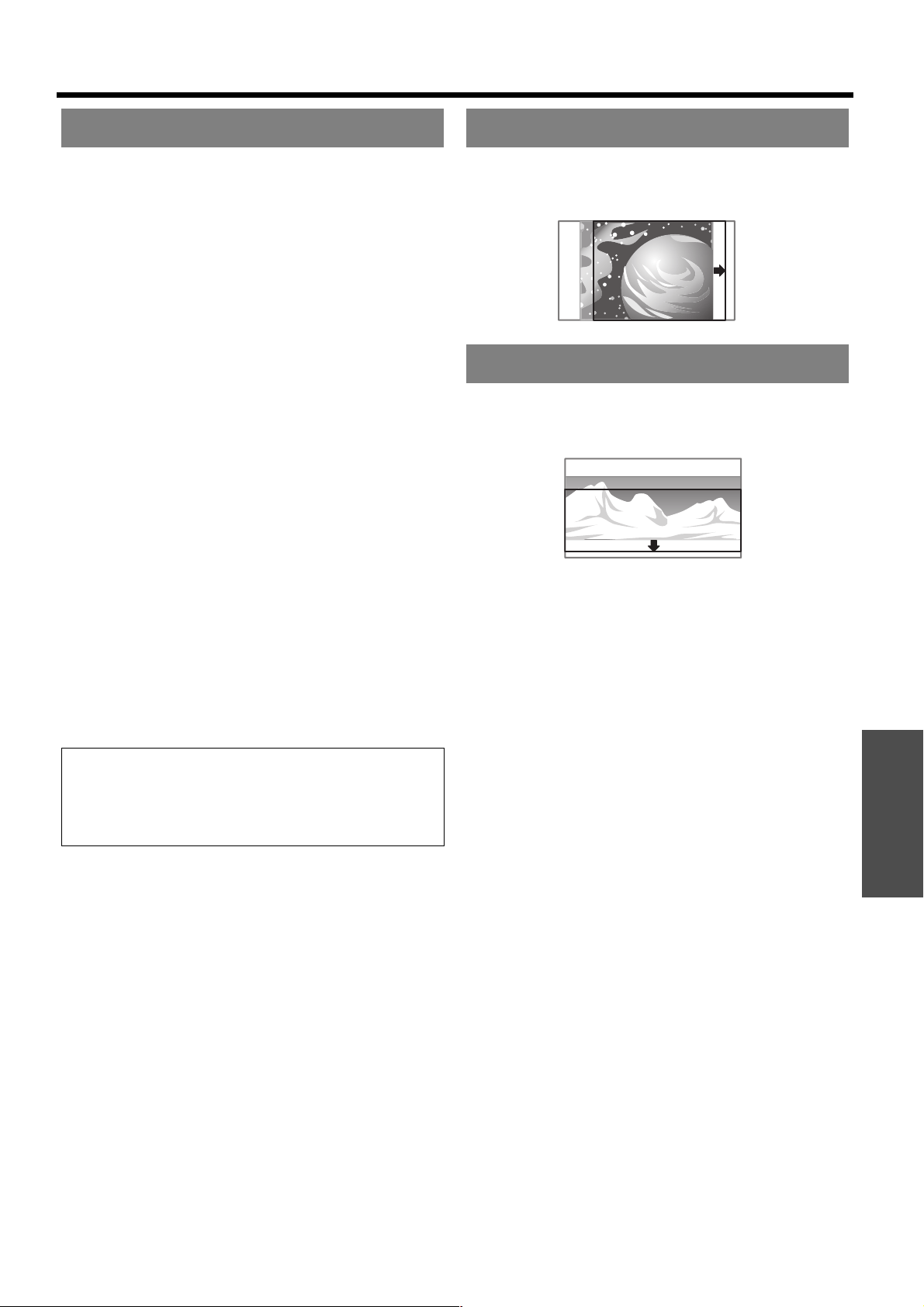
LENS CONTROL
ENGLISH - 41
Settings
You can edit named lens memory settings.
Q Deleting a memory setting
1. Select LENS MEMORY DELETE and press the
ENTER button.
2. Select the required lens memory setting and press
the ENTER button.
3. If you select ALL DELETE, you can delete all of
the saved lens memory settings.
4. Select OK in the confirmation screen and press the
ENTER button.
Q Changing the name of the memory
setting
1. Select LENS MEMORY NAME CHANGE and
press the ENTER button.
2. Select the required lens memory setting and press
the ENTER button.
3. Rename the lens memory setting.
Use F G I H to specify the location of the required
character to enter and press the ENTER button.
4. Repeat step 2 until you finish the text line.
You can enter up to 16 characters.
Move the cursor to ALL DELETE and press the
ENTER button to delete all the entered text line.
Press the DEFAULT button to delete the last entered
character or indicted with the cursor in the text box.
To insert a character in the entered text line, move
the cursor to the text box to select the required place
and press G then perform step 2.
5. Select OK and press the ENTER button to set the
entered text as a name.
You can move the frame area horizontally, such as
aligning the right or left frame edge to the screen edge.
Press I H to move the frame.
You can move the frame area vertically, such as aligning
the up or bottom frame edge to the screen edge. Press
I H to move the frame.
LENS MEMORY EDIT
NOTE:
• The option that contains no saved adjustment will not
be displayed
• If you leave the text box empty and save, the default
memory name will stay as a name.
H-AREA POSITION
V-AREA POSITION
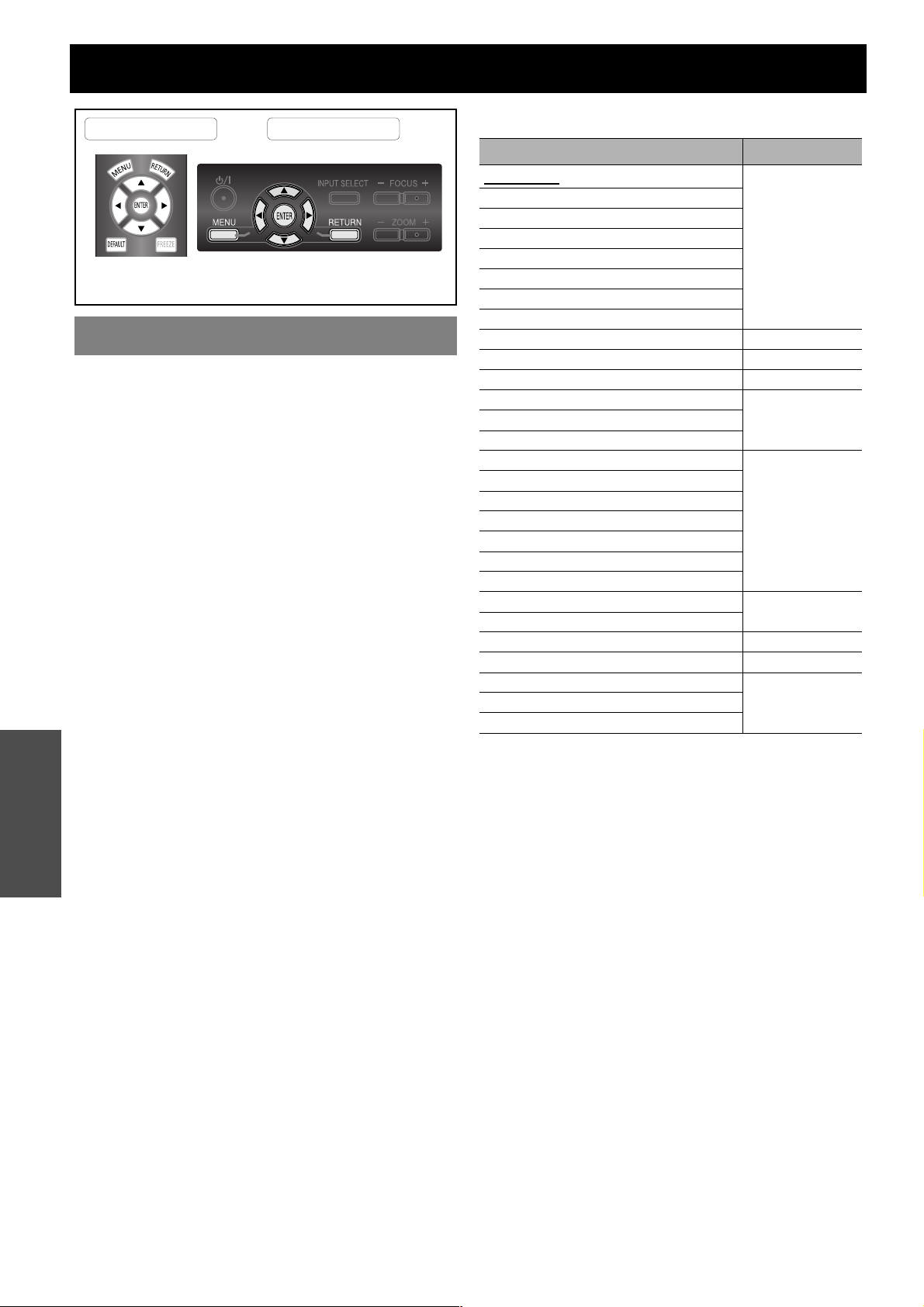
42 - ENGLISH
Settings
FUNCTION BUTTON
You can assign certain menu option to the FUNCTION
button as shortcut. Press F G I H to select the
required menu options and press the ENTER button.
Q BLANK function
You can stop the projection temporarily for
electrical power save while the input source is
stopped. Press any button to escape from the
blank mode.
Q Assignable functions
BUTTON
Remote control Control panel
See “Navigating through the MENU” on page 29.
See “Main menu and sub-menu” on page 30.
Functions Refer
HDMI 1 IN
*1
*1.The underlined item is factory default setting.
page 28
HDMI 2 IN
HDMI 3 IN
COMPUTER IN
COMPONENT 1 IN
COMPONENT 2 IN
S-VIDEO IN
VIDEO IN
BLANK -
AUTO SETUP page 39
CONTRAST page 32
CONTRAST R
page 34CONTRAST G
CONTRAST B
NORMAL
page 32
DYNAMIC
COLOR1
COLOR2
CINEMA1
CINEMA2
CINEMA3
SPLIT ADJUST
page 33
WAVEFORM AUTO ADJUST
LENS MEMORY LOAD page 40
BRIGHTNESS page 32
BRIGHTNESS R
page 34BRIGHTNESS G
BRIGHTNESS B
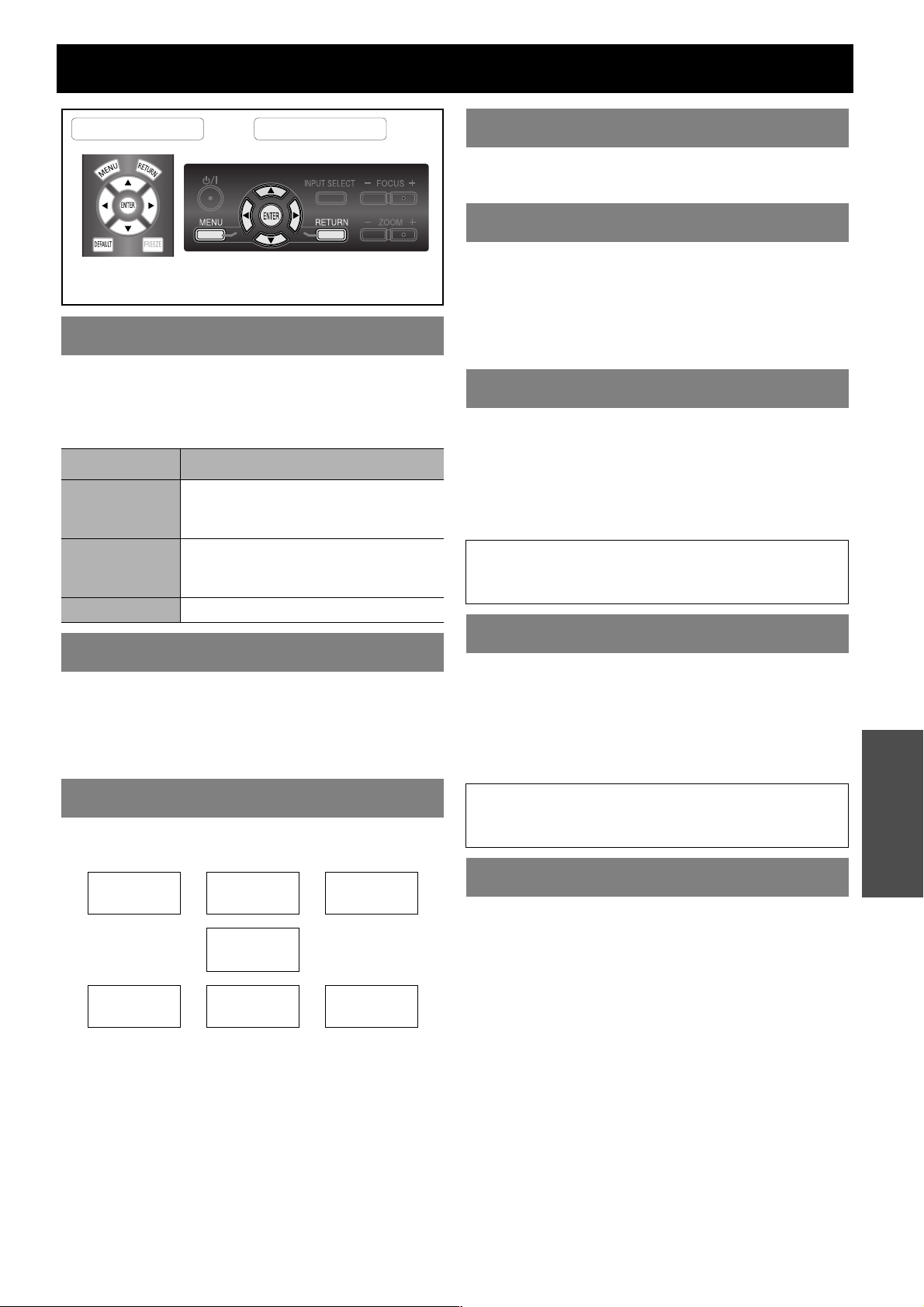
ENGLISH - 43
Settings
OPTION menu
When you change the input method, the guidance
appears in the upper right corner of the screen. The
following display methods are available. Press I H to
cycle through the options.
You can change the background color of the menu.
Press I H to cycle through the options.
TYPE1 Semi transparent black
TYPE2 Solid blue
TYPE3 Semi transparent dark blue
You can change the displaying position of the menu.
Press I H to cycle through the options.
You can choose a screen color from BLUE or BLACK
for when the projector is in idle. Press I H to select.
You can switch the logo on/off that is displayed when
starting up the projector. Press I H to select the
required option. STARTUP LOGO will be displayed for
15 seconds.
ON Active
OFF Deactive
When the projector is turned on, the input terminals are
detected and an input signal is selected automatically.
You can switch the system on/off. Press I H to cycle
through the options.
ON Active
OFF Deactive
When an HDMI IN is selected, you can switch the HDMI
signal NORMAL or EXPAND to display the image. Press
I H to select an option.
NORMAL For general HDMI equipment
EXPAND For HDMI equipment with expanded
signals.
You can minimise the time delay of image displayed for
the progressive signals.
NORMAL Prioritise the image quality
FAST Prioritise the frame response
INPUT GUIDE
Options Function
DETAILED
Display the input method graphically.
The INPUT GUIDE will go out after
3 seconds without any operation.
SIMPLE
Display the input method by text. The
INPUT GUIDE will disappear after
3 seconds without any operation.
OFF Turn off the guidance.
OSD DESIGN
OSD POSITION
UPPER
LEFT
UPPER
CENTER
UPPER
RIGHT
CENTER
LOWER
LEFT
LOWER
CENTER
LOWER
RIGHT
Remote control Control panel
See “Navigating through the MENU” on page 29.
See “Main menu and sub-menu” on page 30.
BACK COLOR
STARTUP LOGO
AUTO SEARCH
NOTE:
• When no signal is detected, the last used input will be
selected.
HDMI SIGNAL LEVEL
NOTE:
• HDMI SIGNAL LEVEL is not available with some
equipment.
FRAME RESPONSE
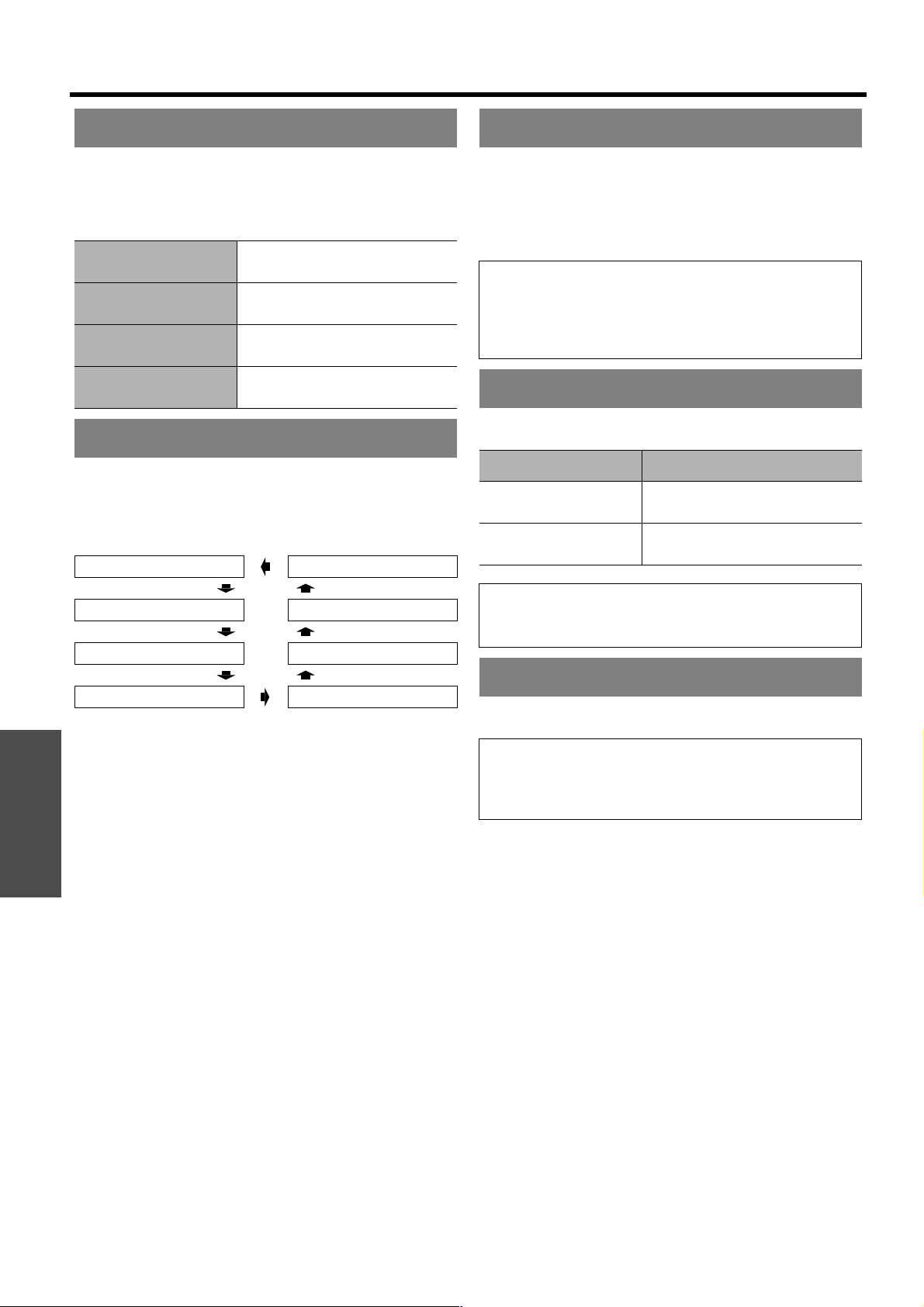
Settings
OPTION menu
44 - ENGLISH
When installing the projector, select the projection
method according to the projector position. Press I H
to cycle through the options. See “Projection method” on
page 15.
You can select the required duration of time and set the
off timer to turn off the power of the projector
automatically. 3 minutes before turn-off, the countdown
of minutes will be displayed in the lower right corner.
Press I H to cycle through the options.
If you use the projector at high elevation, the HIGH
ALTITUDE MODE setting need to be ON to set the fan
speed high. Press I H to select the required option.
OFF The fan speed is low.
ON The fan speed is high.
You can adjust the power of the lamp to save on
electricity, prolong the lamp life and reduce the noise.
You can check how long the lamp has been used.
INSTALLATION
FRONT/DESK
Setting on a desk/floor and
projecting from front
FRONT/CEILING
Mounting on the ceiling and
projecting from front
REAR/DESK
Setting on a desk/floor and
projecting from rear
REAR/CEILING
Mounting on the ceiling and
projecting from rear
SLEEP
OFF 240MIN.
60MIN. 210MIN.
90MIN. 180MIN.
120MIN. 150MIN.
HIGH ALTITUDE MODE
NOTE:
• At 1 400 - 2 700 m (4 593 - 8 858 ft) above sea level,
the setting must be ON.
• The loudness of fan noise depends on the HIGH
ALTITUDE MODE setting.
LAMP POWER
Options Function
NORMAL
When higher luminance is
required.
ECO-MODE
When lower luminance is
sufficient.
NOTE:
• When no input signal is detected, the function is
disabled.
LAMP RUNTIME
NOTE:
• LAMP RUNTIME is a relevant matter for lamp
replacement timing. See “Replacing the lamp unit” on
page 47.
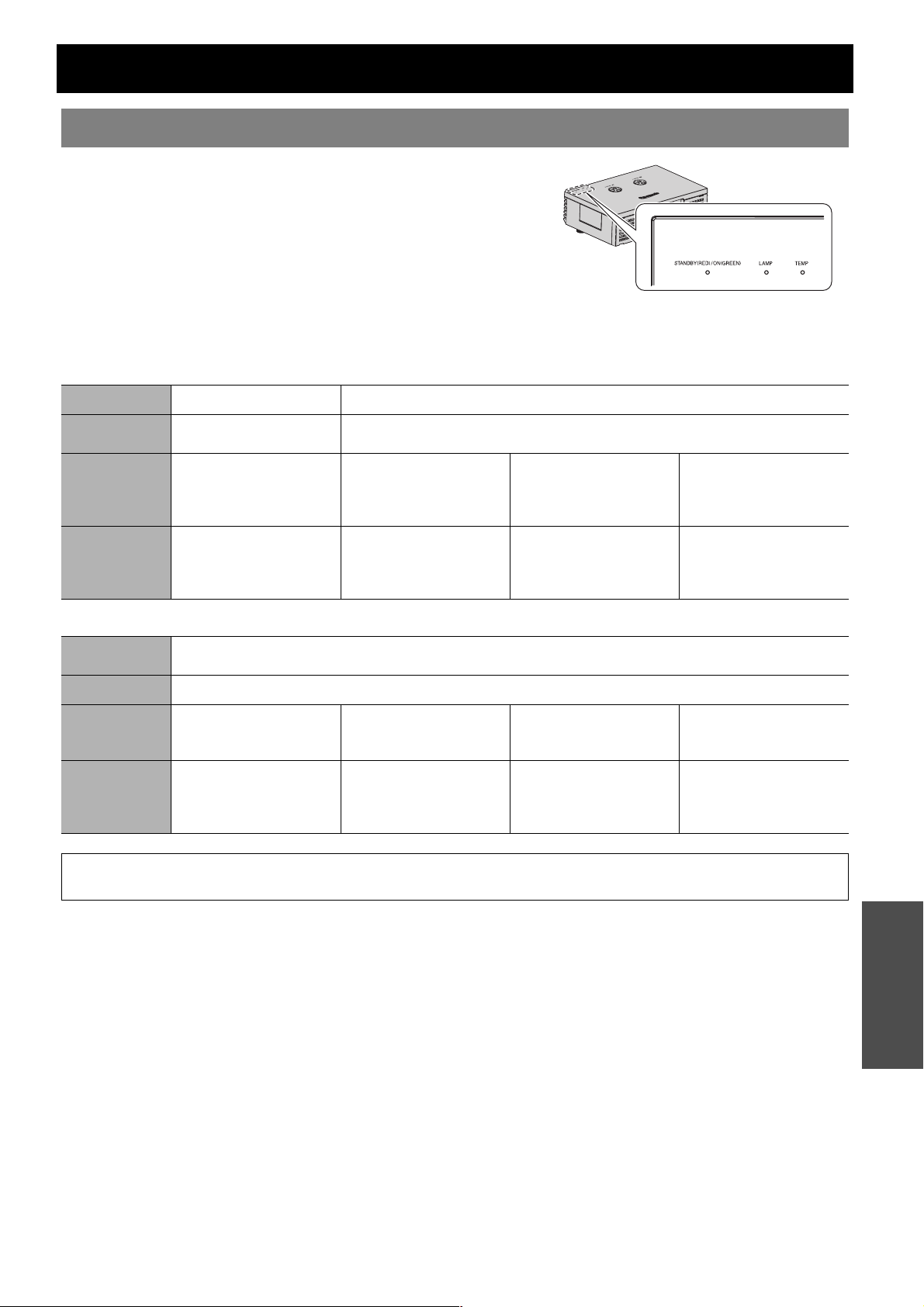
ENGLISH - 45
Maintenance
TEMP and LAMP Indicators
If a problem should occur with the projector, the LAMP and/or TEMP
indicators will inform you. Manage the indicated problems as follows.
1. Confirm the status of all indicators and projector, and switch off
the projector in proper way.
2. Find out the cause of the problem by status of the LAMP and/or
TEMP indicators.
3. Follow the following instruction for each indication and solve the
problem.
4. Turn on the projector in the correct way and confirm the
indicator is not indicating a problem any longer.
J LAMP indicator
J TEMP indicator
Managing the indicated problems
Indicator
Illuminating red Flashing red
Problem
LAMP RUNTIME has
reached 1 800 hours.
Lamp circuit failure, abnormal function or lamp unit is damaged.
Cause
The lamp unit will run out
soon and needs to be
replaced.
The MAIN POWER is
switched on again before
the lamp unit is cooled
enough.
Lamp circuit failure,
abnormal function.
The lamp unit is
damaged.
Remedy
See “Replacing the lamp
unit” on page 47.
Let the lamp unit cool
down and turn on the
MAIN POWER after
90 seconds.
Contact an Authorized
Service Center.
See “Replacing the lamp
unit” on page 47.
Indicator
Illuminating red while projecting and the alert will be displayed.
Flashing red and the power button is turned off.
Problem
The temperature inside and/or outside the projector is abnormally high.
Cause
The ventilation openings
are covered.
The room temperature is
too high.
The air filter is excessively
dirty and the ventilation is
poor.
The projector is located at
high elevations (above
1 400 - 2 700 m).
Remedy
Remove the object(s)
from the ventilation
openings or clear around
the projector.
Reinstall the projector in a
temperature controlled
place. See page 54.
Replace the air filter in the
proper method. See
page 46.
Turn on the projector and
set the HIGH ALTITUDE
MODE to ON.
See page 44.
NOTE:
• If no problem is found or the problem remains, do not turn on the projector. Instead contact an Authorized Service Center.
Power LAMP TEMP
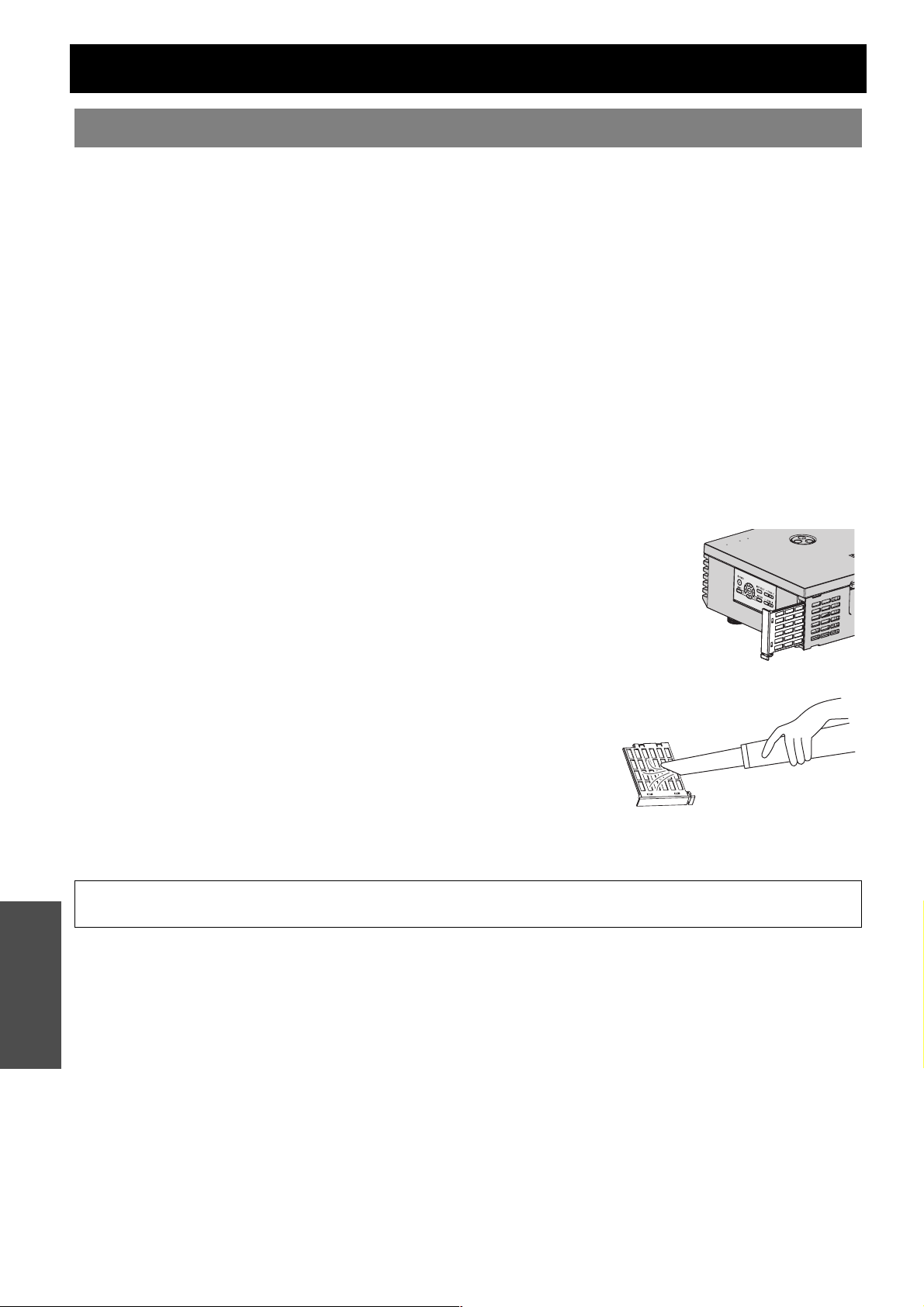
46 - ENGLISH
Maintenance
Care and Replacement
J Before cleaning the projector
Switch off the MAIN POWER switch in proper way and disconnect the power plug from the wall outlet.
Unplug all the cables from the projector.
J Cleaning the outer surface of the projector
Wipe off dirt and dust gently with a soft cloth.
If it is difficult to remove the dirt, soak a cloth in water, wring the cloth well and then wipe the projector. Dry off the
projector with dry cloth.
Do not use petroleum benzine, thinner, any alcoholic solvent, kitchen detergents or chemical clothes. Failure to observe
these may result in altered or damaged surface of the projector.
J Cleaning the lens surface
Wipe off dirt and dust gently with a lint-free cloth.
Make sure no dirt or dust remains on the surface of the lens. It will be enlarged and projected onto a screen.
J Cleaning the air filter
If the air filter is excessively dirty, the internal temperature of the projector increases and may cause
malfunction. Clean the air filter regularly every 100 hours of usage.
1. Place a finger at the bottom of the air filter.
2. Slightly push up and pull out the air filter to remove.
3. Vacuum dirt and dust from the air filter.
Do not wash the air filter.
4. Place and slightly slide in the air filter in the air intake port to attach.
Make sure the air filter clicks into the place.
J Replacing the air filter
The air filter should be replaced when cleaning is ineffective and when replacing the lamp unit. A replacement
air filter (TXFKN01VKF5) is provided with a replacement lamp unit, ET-LAE1000. Contact an Authorized
Service Center for the optional air filter.
Cleaning the projector
NOTE:
• Do not use the projector without attaching the air filter.
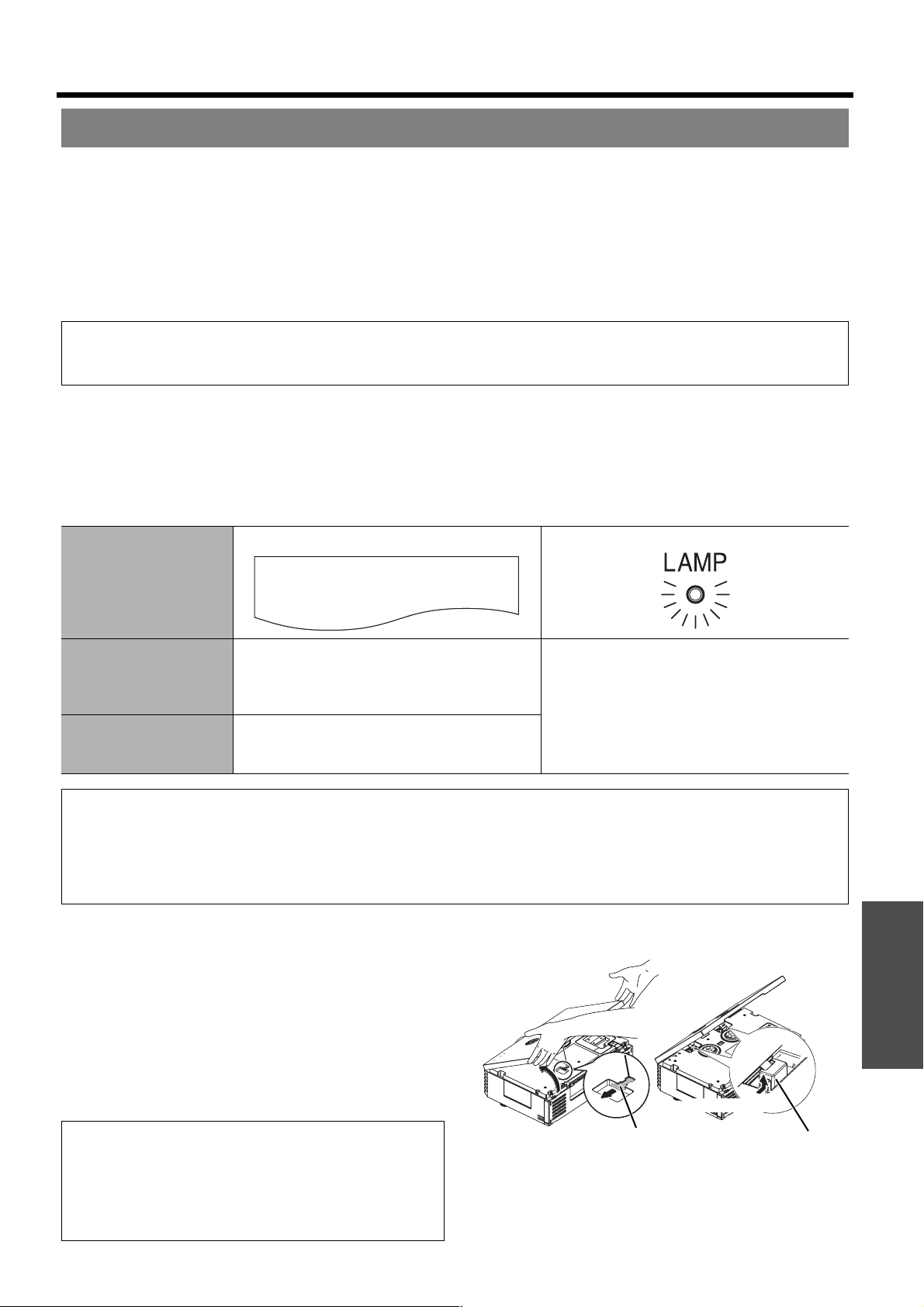
Care and Replacement
ENGLISH - 47
Maintenance
J Before replacing the lamp unit
Switch off the MAIN POWER button in proper way and disconnect the power plug from the wall outlet.
Wait for more than 1 hour and make sure the lamp unit and the surroundings are cooled enough.
Unplug all the cables from the projector.
Prepare a Phillips-head screwdriver.
Contact an Authorized Service Center to purchase a replacement lamp unit (ET-LAE1000).
When the projector is mounted on the ceiling, do not work directly under the projector or put your face closer to the
projector.
J When to replace the lamp unit
The lamp unit is consumable and the brightness decreases by duration of usage. The LAMP indicator will
inform you of the replacement timing at 1 800 hours, and at 2 000 hours, the projector will be turned off. Those
figures are rough guidance and might be shortened by the usage conditions, characteristics of the lamp unit,
environmental conditions, and so on. You can check the duration of usage time using LAMP RUNTIME in the
OPTION menu.
J Opening the top cover
1. Hold at the back corner of the top cover and
slightly push up to open.
2. Unhook the top cover safety hook from the
projector.
3. Hold the top cover up and press the sides of each
hinge parts to remove.
When the projector is mounted on the ceiling,
removing the hinge parts is not required.
4. Remove the top cover aside.
Replacing the lamp unit
NOTE:
• Prior to replacing the lamp unit, allow it to cool down to prevent the risk of burns, damage and other hazards.
• Do not attempt replacement with an unauthorized lamp unit.
Indication
On screen LAMP indicator
Over 1 800 hours
“REPLACE LAMP” is displayed on the upper left
of the screen for 30 seconds.
To clear the screen immediately, press any
button.
Illuminates red.
Over 2 000 hours
“REPLACE LAMP” is displayed on the upper left
of the screen, and it will stay until you respond.
To clear the screen, press any button.
NOTE:
• The guide times, 1 800 and 2 000 hours, are rough estimates based on certain conditions and are not guaranteed time.
The estimated condition is: LAMP POWER in OPTION menu set to NORMAL.
• To prolong the lamp life, set the LAMP POWER in OPTION menu to ECO-MODE. See “LAMP POWER” on page 44.
• For more information about the lamp unit, such as guaranteed time, see the instructions which is provided with the lamp
unit.
REPLACE LAMP
NOTE: When the projector is mounted on
the ceiling:
• Place yourself at back side of the projector, then open
and close the top cover.
• Do not work directly under the projector or put your face
closer to the projector.
Press here
Hinge partsTop cover safety hook
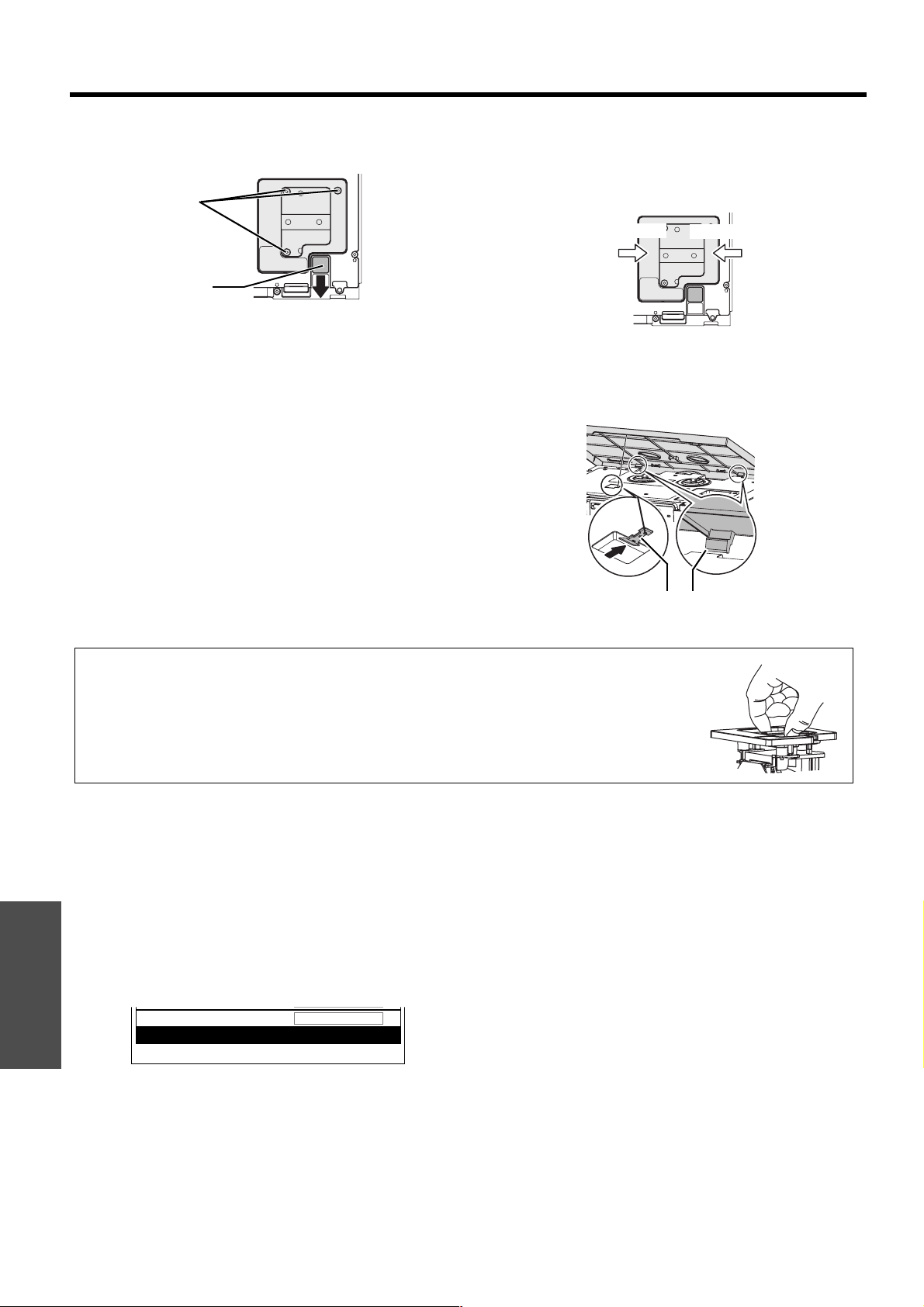
Maintenance
Care and Replacement
48 - ENGLISH
J Removing and replacing the lamp unit
1. Use a Phillips screwdriver to loosen the 3 lamp unit
fixing screws until the screws turn freely.
2. Hold the handle of the lamp unit and release the
lamp unit lock.
3. Pull out the lamp unit gently from the projector.
4. Replace the new lamp unit while making sure that
the direction of insertion is correct.
Press the top of the lamp unit and make sure the unit
is installed securely.
5. Tighten the lamp unit fixing screws securely with a
Phillips screwdriver.
J Attaching the top cover
1. Attach the hinge parts of the top cover to the
projector and press slightly until it clicks.
When the projector is mounted on the ceiling,
attaching the hinge parts is not required.
2. Hook the top cover safety hook to the projector.
3. Hooking the tabs of the top cover to the front of the
projector and lift down slowly.
4. Press the back corner of the top cover gently until
it clicks.
Make sure to hook the top cover safety hook to the
body.
J Resetting the LAMP RUNTIME
If the lamp usage time has passed 2 000 hours (when LAMP POWER has been set to NORMAL), the
projector will switch to standby mode after approximately 10 minutes of operation. The resetting procedure
should thus be completed within 10 minutes.
1. Connect the power cord to the projector and a wall
outlet, and switch the MAIN POWER on.
2. Switch the power button.
3. Press the MENU button to display the menu.
4. Press F G to select OPTION and press ENTER.
5. Press F G to select LAMP RUNTIME.
6. Press and hold the ENTER button for
approximately 3 seconds.
7. The confirmation screen will be displayed and
select OK.
8. Switch off the power button to reset the duration of
the LAMP RUNTIME.
9. Confirm the duration of time in LAMP RUNTIME is
reset to "0".
Lamp unit
fixing screws
Lamp unit lock
Press here
Press here
Top cover safety hook Hinge part
NOTE:
• Be sure to install the lamp unit and the top cover of the projector securely. If they are not
securely installed, it may cause the protection circuit to operate so that the power cannot be
turned on.
• Grip the handle and keep the lamp unit paralleled when you remove the lamp unit.
• Do not switch the power on while the top cover is opened.
• When the projector is mounted on the ceiling, keep the lamp unit paralleled up and remove.
STANDARD
1820H
LAMP POWER
LAMP RUNTIME
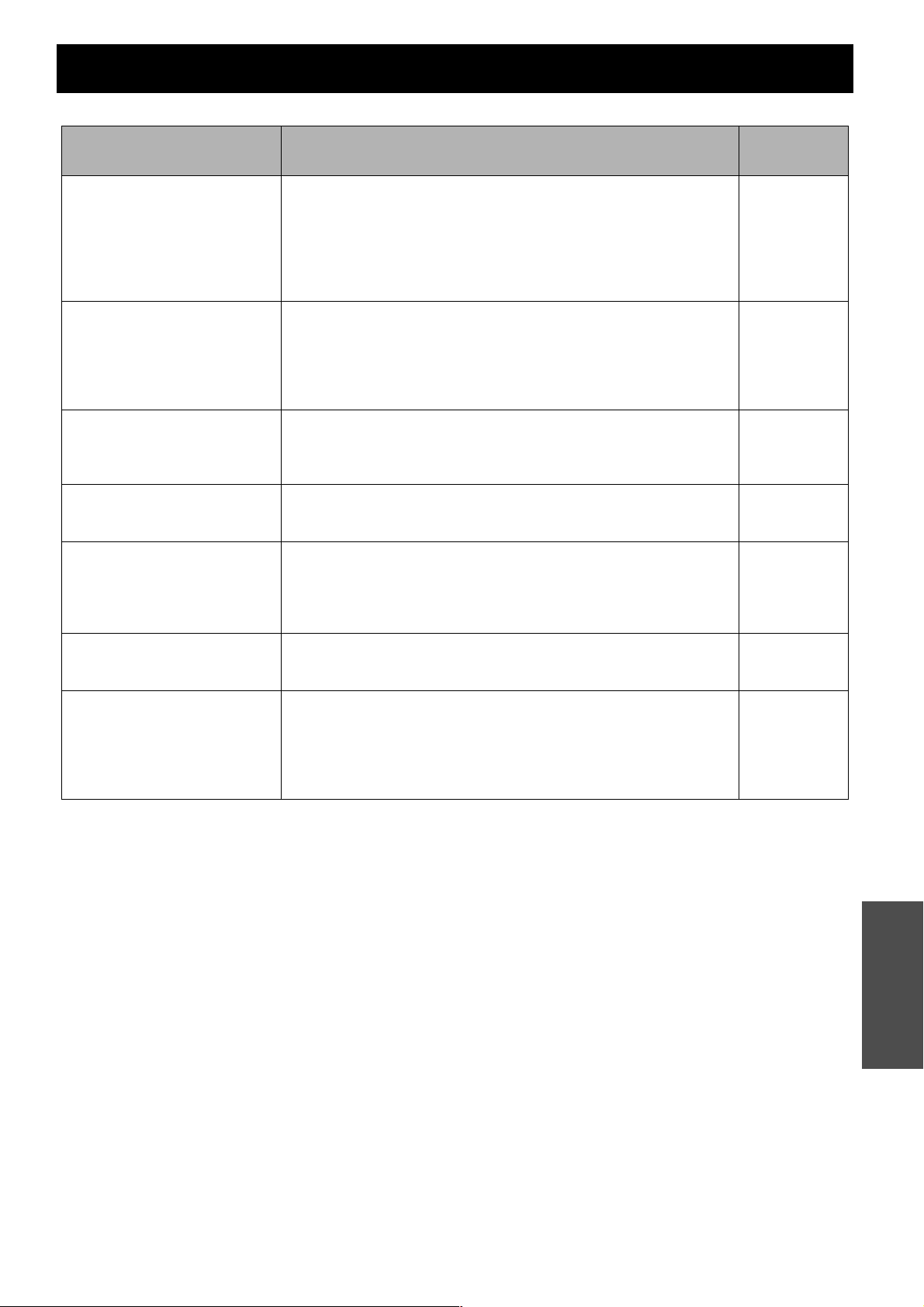
ENGLISH - 49
Maintenance
Troubleshooting
Should any problem persist, contact your dealer.
Problem Cause
Reference
page
Power does not turn on.
The power cord may not be connected.
The MAIN POWER switch is turned off.
No electric supply is at the wall outlet.
TEMP indicator is lit or flashes.
LAMP indicator is lit or flashes.
The lamp unit cover has not been securely installed.
The circuit breakers have tripped.
19
21
19
45
45
47
-
No picture appears.
The video signal input source may not be connected to a terminal
properly.
The input selection setting may not be correct.
The BRIGHTNESS adjustment setting may be at the minimum setting.
The SHUTTER function may be in use.
The lens cover may still be attached to the lens.
18
28
32
42
12
The picture is fuzzy.
The lens focus may not have been set correctly.
The projector may not be at the correct distance from the screen.
The lens may be dirty.
The projector may be tilted too much.
22
14
46
16
The color is pale or grayish.
COLOR or TINT adjustment may be incorrect.
The equipment which is connected to the projector may not be
adjusted correctly.
32
-
The Remote control does
not operate.
The batteries may be weak.
The batteries may not have been inserted correctly.
The remote control signal receptor on the projector may be
obstructed.
The remote control unit may be out of the operation range.
-
11
23
23
The picture does not
display correctly.
The signal format (TV-SYSTEM) may not have been set correctly.
There may be a problem with the VCR or other signal source.
A signal which is not compatible with the projector is being input.
35
-
50
Picture from a computer
does not appear.
The cable may be longer than the optional cable.
The external video output from a laptop computer may not be correct.
(You may be able to change the external output settings by pressing
the [Fn] + [F3] or [Fn] + [F10] keys simultaneously. The actual method
varies depending on the type of computer; refer to the documentation
provided with your computer for further details.)
-
-
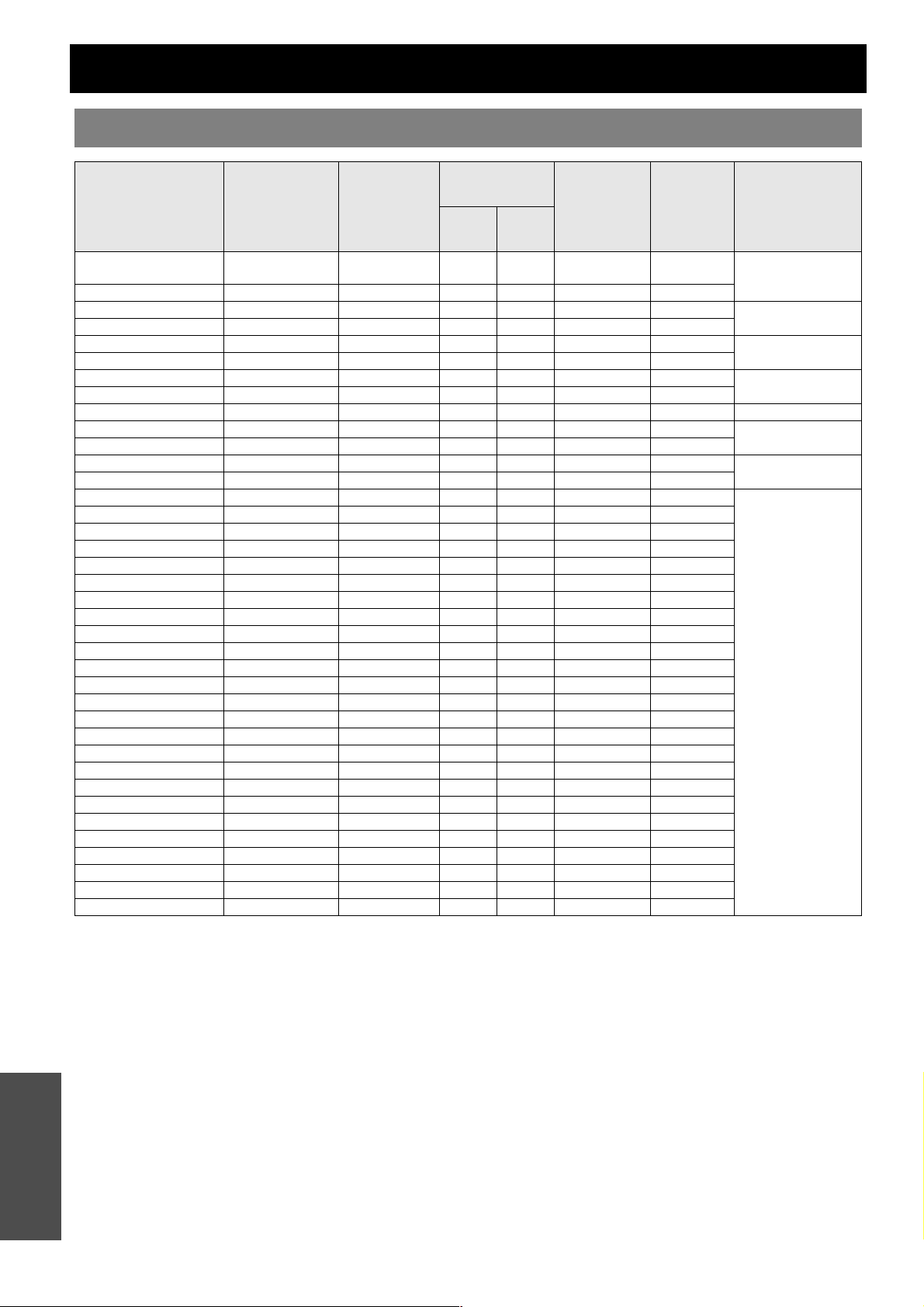
50 - ENGLISH
Appendix
Technical Information
List of compatible signals
Mode Display
Display
resolution
(dots)
*1
*1. The “i” appearing after the resolution indicates an interlaced signal.
Scanning
frequency
Dot clock
frequency
(MHz)
Picture
quality
*2
*2. The following symbols are used to indicate picture quality.
AA Maximum picture quality can be obtained.
A Signals are converted by the image processing circuit before picture is projected.
Terminals
H
(kHz)
V (Hz)
NTSC/NTSC 4.43/
PAL-M/PAL60
- 720 x 480i 15.7 59.9 - A
VIDEO/S-VIDEO
PAL/PAL-N/SECAM - 720 x 576i 15.6 50.0 - A
525i (480i) 525i 720 x 480i 15.7 59.9 13.5 A
COMPONENT
625i (576i) 625i 720 x 576i 15.6 50.0 13.5 A
525p (480p) 525p 720 x 483 31.5 59.9 27.0 A
COMPONENT/HDMI
625p (576p) 625p 720 x 576 31.3 50.0 27.0 A
1 125 (1 080)/60i 1 125/60i 1 920 x 1 080i 33.8 60.0 74.3 AA
COMPONENT/
HDMI/COMPUTER
1 125 (1 080)/50i 1 125/50i 1 920 x 1 080i 28.1 50.0 74.3 AA
1 125 (1 080)/24p 1 125/24p 1 920 x 1 080 27.0 24.0 74.3 AA COMPONENT/HDMI
1 125 (1 080)/60p 1 125/60p 1 920 x 1 080 67.5 60.0 148.5 AA
COMPONENT/
HDMI/COMPUTER
1 125 (1 080)/50p 1 125/50p 1 920 x 1 080 56.3 50.0 148.5 AA
750 (720)/60p 750/60p 1 280 x 720 45.0 60.0 74.3 AA
COMPONENT/HDMI
750 (720)/50p 750/50p 1 280 x 720 37.5 50.0 74.3 AA
VGA480 VGA60 640 x 480 31.5 59.9 25.2 A
COMPUTER
VGA75 640 x 480 37.5 75.0 31.5 A
VGA85 640 x 480 43.3 85.0 36.0 A
VGA138 640 x 480 72.1 138.0 62.3 A
SVGA SVGA55 800 x 600 35.2 56.3 36.0 A
SVGA60 800 x 600 37.9 60.3 40.0 A
SVGA70 800 x 600 48.1 72.2 50.0 A
SVGA75 800 x 600 46.9 75.0 49.5 A
SVGA85 800 x 600 53.7 85.1 56.3 A
WIDE720 WIDE720 1 280 x 720 45.1 60.1 76.5 AA
XGA XGA60 1 024 x 768 48.4 60.0 65.0 A
XGA70 1 024 x 768 56.5 70.1 75.0 A
XGA75 1 024 x 768 60.0 75.0 78.8 A
XGA85 1 024 x 768 68.7 85.0 94.5 A
XGA89 1 024 x 768 72.1 89.0 99.2 A
WIDE768 WIDE768 1 280 x 768 45.3 56.5 76.2 A
MXGA MXGA70 1 152 x 864 64.0 71.2 94.2 A
MXGA75 1 152 x 864 67.5 74.9 108.0 A
SXGA SXGA60 1 280 x 1 024 64.0 60.0 108.0 A
SXGA60+ SXGA60+ 1 400 x 1 050 65.1 59.9 122.4 A
WIDE768-2 WIDE768-2 1 360 x 768 48.8 59.8 74.3 A
WIDE800 WIDE800 1 280 x 800 49.7 59.8 83.5 A
WIDE900 WIDE900 1 440 x 900 55.9 59.8 106.5 A
WIDE1080/60 WIDE1080/60 1 920 x 1 080 66.5 59.9 138.5 AA
WIDE1080/50 WIDE1080/50 1 920 x 1 080 55.6 49.9 141.5 AA
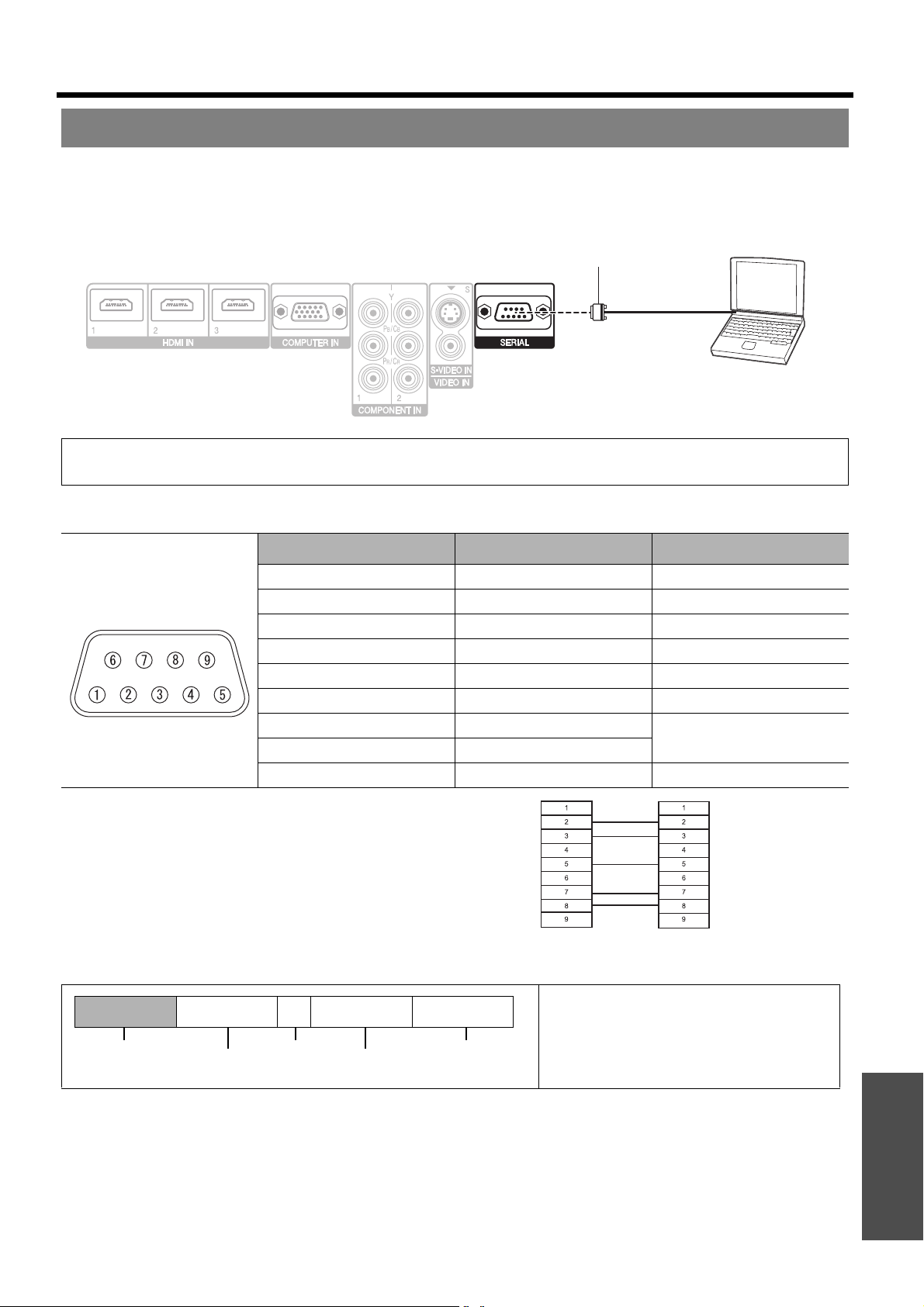
Technical Information
ENGLISH - 51
Appendix
The serial connector which is on the connector panel of the projector conforms to the RS-232C interface
specification, so that the projector can be controlled by a personal computer which is connected to this connecter.
J Connection
J Pin assignments and signal names
J Cable specifications
(When connected to a personal computer)
J Basic format
The projector can not receive any command for 10 seconds after the lamp is switched on. Wait 10 seconds
before sending the command.
If sending multiple commands, check that a response has been received from the projector for one
command before sending the next command.
When a command which does not require parameters to be sent, the colon (:) is not required.
If an incorrect command is sent from the personal computer, the ER401 command will be sent from the
projector to the personal computer.
Serial terminal
NOTE:
• You must use only an RS-232C Serial Interface Cable with a ferrite core, type ET-ADSER.
Pin No. Signal name Contents
A NC
B TXD Transmitted data
C RXD Received data
D NC
E GND Earth
F NC
G RTS
Connected internally
H CTS
I NC
The data streaming from the computer will
start with STX, and proceed to Command,
Parameter and end with ETX. You can
add the required parameter.
D-sub 9 pin (male)
Computer
Serial terminal (female)
NC
NC
NC
NC
NC
NC
NC
NC
Projector
PC (DTE)
STX Command : Parameter ETX
Start byte
(02h)
1 byte End
(03h)
3 bytes
1 byte -
4 bytes
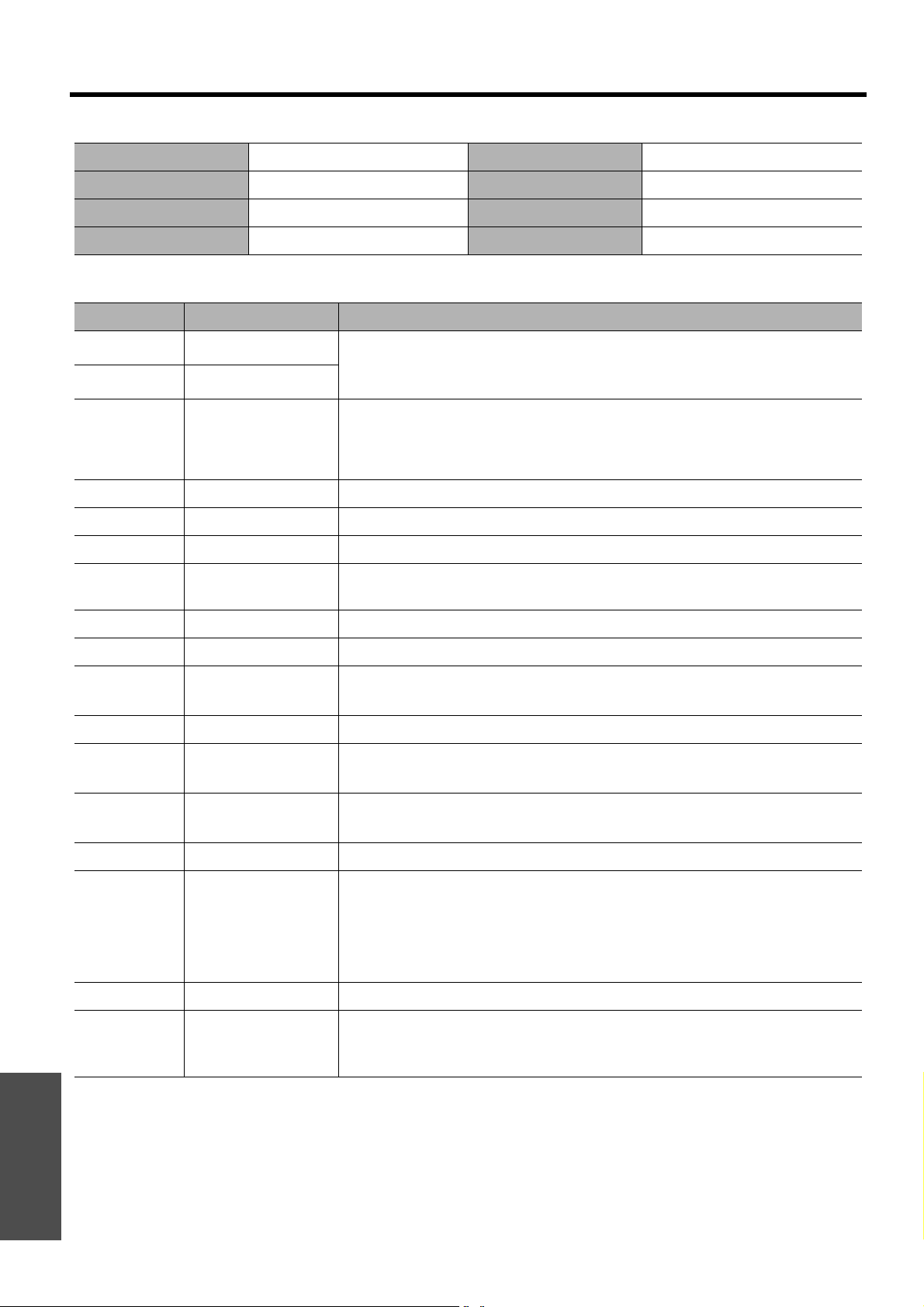
Appendix
Technical Information
52 - ENGLISH
J Communication settings
J Control commands
Signal level RS-232C Character length 8 bits
Sync. method Asynchronous Stop bit 1 bit
Baud rate 9 600 bps X parameter None
Parity None S parameter None
Command Control contents Remarks
PON
POWER ON
In standby mode, all commands other than the PON command are ignored.
The PON command is ignored during lamp ON control.
POF
POWER OFF
If a PON command is received while the cooling fan is operating after the lamp has switched
off, the lamp is not turned back on again straight away in order to protect the lamp.
IIS
INPUT
Parameter:
CP1 = COMPONENT1 IN
SVD = S-VIDEO IN
HD1 = HDMI1 IN
HD3 = HDMI3 IN
CP2 = COMPONENT2 IN
VID = VIDEO IN
HD2 = HDMI2 IN
RG1 = COMPUTER IN
OMN
MAIN Displaying the main menu.
OEN
ENTER Activating the selected items in the menu mode.
OBK
RETURN Returning to the previous menu or escaping from the menu mode.
OCU/OCD/
OCL/OCR
Navigation buttons
OCU = F button
OCD = G button
OCL = I button
OCR = H button
OLE
LENS Activating the LENS CONTROL menu.
OST
DEFAULT Resetting to the factory default setting. (page 28)
OFZ
FREEZE
Freezing the projected screen.
Parameter:
0 = OFF 1 = ON
FC1
FUNCTION BUTTON Activates the function that is assigned to the FUNCTION button of the remote control.
OOT
SLEEP
Setting the duration of time to turn off the power automatically. (See “SLEEP” on page 44.)
0 = OFF 1 = 60min. 2 = 90min. 3 = 120min. 4 = 150min.
5 = 180min. 6 = 210min. 7 = 240min.
OSH
BLANK
Turning off the projection temporarily.
Send the command to switch between ON and OFF.
Do not send the command consecutively.
OVM
PICTURE Activating the PICTURE menu. Send the command to switch menu items. (page 23)
OWM
WAVEFORM
Activating the WAVEFORM.
Parameter:
0 = OFF
1 = FULL SCAN (Y)
2 = FULL SCAN (R)
3 = FULL SCAN (G)
4 = FULL SCAN (B)
(page 24)
5 = SINGLE LINE SCAN (Y)
6 = SINGLE LINE SCAN (R)
7 = SINGLE LINE SCAN (G)
8 = SINGLE LINE SCAN (B)
VS1
ASPECT Switching the aspect ratio. (page 24)
VPM
PICTURE MODE
Switching the PICTURE MODE. (page 23)
Parameter:
NOR = NORMAL DYN = DYNAMIC CL1 = COLOR1 CL2 = COLOR2
CN1 = CINEMA1 CN2 = CINEMA2 CN3 = CINEMA3
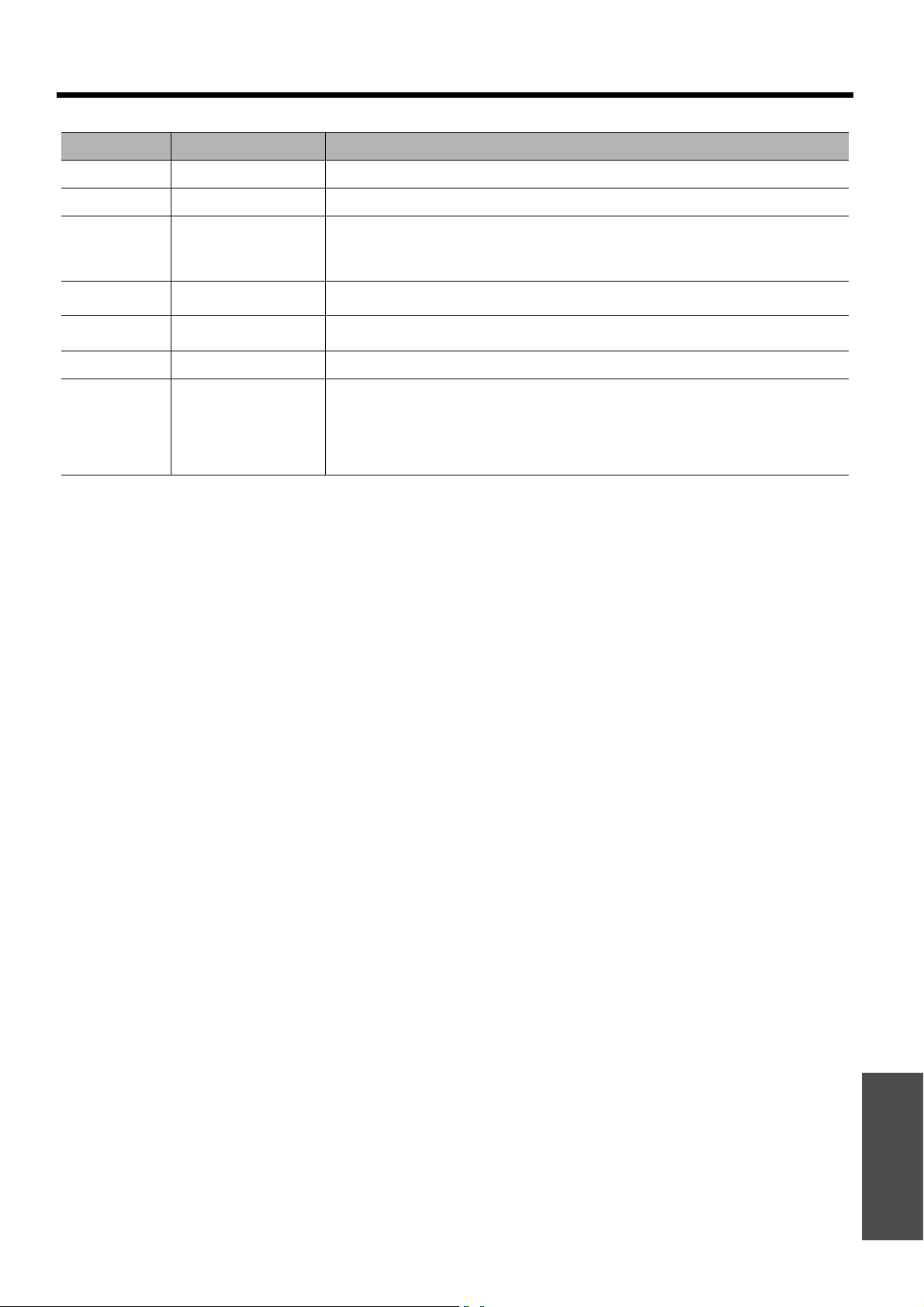
Technical Information
ENGLISH - 53
Appendix
J Inquiry commands
Command Control contents Parameter
QPW
Power status 000 = OFF 001 = ON
QFZ
FREEZE status 0 = OFF 1 = ON
QIN
INPUT signal status
CP1 = COMPONENT1 IN
SVD = S-VIDEO IN
HD1 = HDMI1 IN
HD3 = HDMI3 IN
CP2 = COMPONENT2 IN
VID = VIDEO IN
HD2 = HDMI2 IN
RG1 = COMPUTER IN
QOT
OFF TIMER status
0 = OFF 1 = 60min. 2 = 90min. 3 = 120min. 4 = 150min.
5 = 180min. 6 = 210min. 7 = 240min.
QPM
PICTURE MODE status
NOR = NORMAL DYN = DYNAMIC CL1 = COLOR1 CL2 = COLOR2
CN1 = CINEMA1 CN2 = CINEMA2 CN3 = CINEMA3
QSH
BLANK status 0 = OFF
1 = ON
QWM
WAVEFORM status
Parameter:
0 = OFF
1 = FULL SCAN (Y)
2 = FULL SCAN (R)
3 = FULL SCAN (G)
4 = FULL SCAN (B)
5 = SINGLE LINE SCAN (Y)
6 = SINGLE LINE SCAN (R)
7 = SINGLE LINE SCAN (G)
8 = SINGLE LINE SCAN (B)
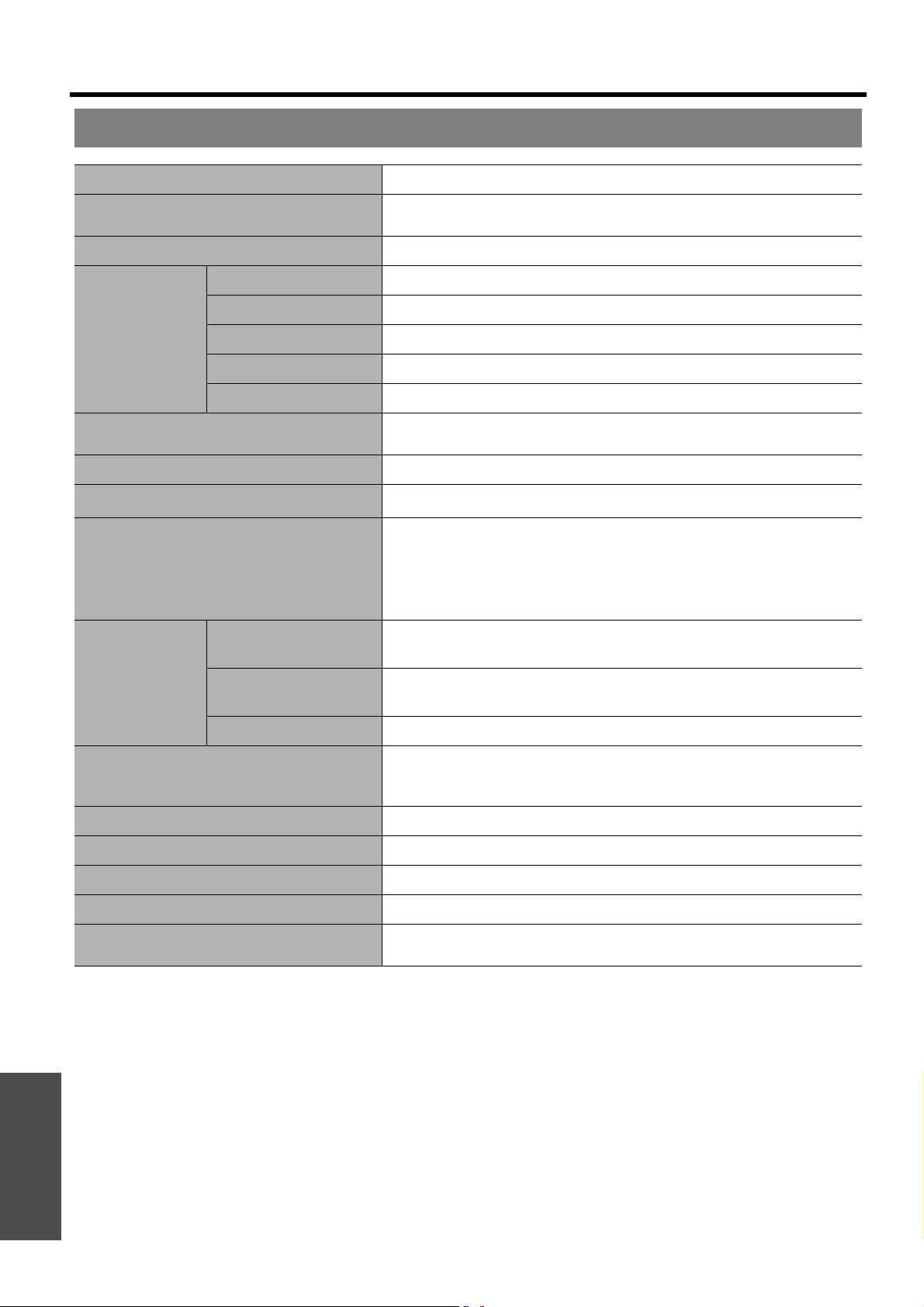
Appendix
Technical Information
54 - ENGLISH
Specifications
Power supply AC 100 - 240 V 50 Hz/60 Hz
Power consumption
Less than 240 W
During standby (when fan is stopped): 0.08 W (at 220 V)
Amps 3.0 A - 1.6 A
LCD panel
Panel size (diagonal) 0.74 type (17.78 mm)
Aspect ratio 16 : 9
Display method 3 transparent LCD panels (RGB)
Drive method Active matrix method
Pixels 2 073 600 (1 920 x 1 080) x 3 panels
Lens
Motorized zoom (2x)/Motorized focus
F 1.9 - 3.1, f 22.4 mm - 44.8 mm
Lamp UHM lamp (165 W)
Luminosity
*1
*1. Measurement, measuring conditions and method of notation all comply with ISO 21118 international standards.
1 600 lm
Operating environment
Temperature
0 °C - 40 °C (32 °F - 104 °F)
When the HIGH ALTITUDE
MODE (page 44) is set to ON:
0 °C - 35 °C (32 °F - 95 °F)
Humidity 20% - 80% (no condensation)
Scanning
frequency
*2
(for RGB signal)
*2. See “List of compatible signals” on page 50 for available signals.
Horizontal scanning
frequency
30 kHz - 70 kHz
Vertical scanning
frequency
50 Hz - 87 Hz
Dot clock frequency Less than 150 MHz
COMPONENT (YPBPR) signals
525i (480i), 525p (480p), 625i (576i), 625p (576p), 750 (720)/60p,
750 (720)/50p, 1 125 (1 080)/60i, 1 125 (1 080)/50i,
1 125 (1 080)/60p, 1 125 (1 080)/50p, 1 125 (1 080)/24p
Color system 7 (NTSC/NTSC 4.43/PAL/PAL-M/PAL-N/PAL60/SECAM)
Projection size 40" - 200" (1 016 mm - 5 080 mm)
Throw distance 1.2 m - 12 m (3'11" - 39'4")
Screen aspect ratio 16 : 9
Installation
FRONT/DESK, FRONT/CEILING, REAR/DESK, REAR/CEILING
(Menu selection method)
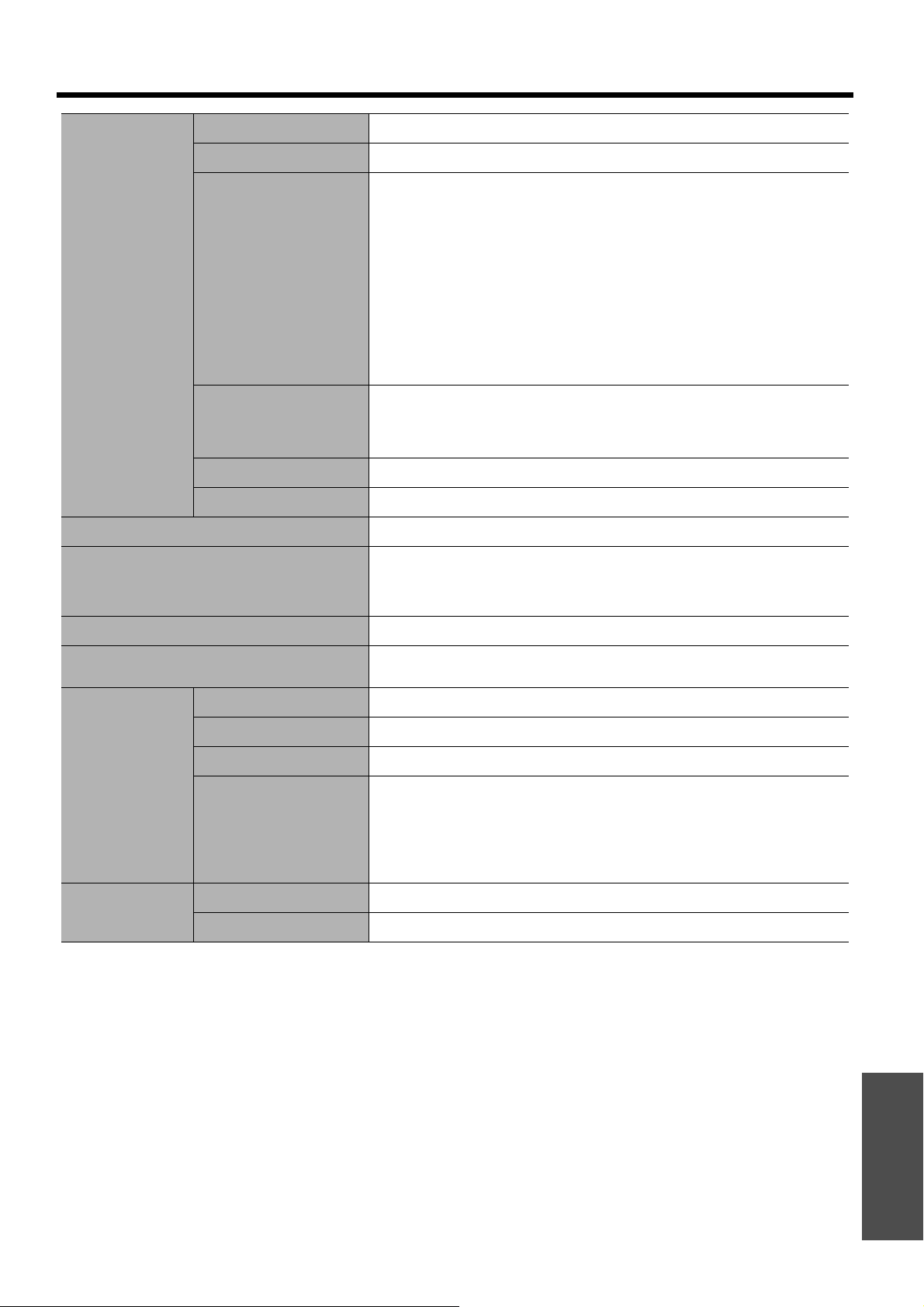
Technical Information
ENGLISH - 55
Appendix
Terminals
S-VIDEO IN
Single - line, Mini DIN 4p Y: 1.0 V [p-p], C: 0.286 V [p-p], 75
Ω
VIDEO IN
Single - line, RCA pin jack1.0 V [p-p], 75
Ω
COMPUTER IN
Single - line, D - sub HD 15-pin (female)
Selectable for input and output by menu operation.
R.G.B.
0.7 V [p-p], 75
Ω
G.SYNC
1.0 V [p-p], 75
Ω
HD/SYNC
TTL high impedance, automatic
positive/negative polarity
compatible
VD
TTL high impedance, automatic
positive/negative polarity
compatible
COMPONENT IN
Y, P
B/CB, PR/CR Dual - line, RCA pin jack x 3
Y:
1.0 V [p-p] (including sync), 75 Ω
PB/CB, PR/CR
0.7 V [p-p], 75 Ω
HDMI IN Triple - line, 19-pin HDMI connector (HDCP compliant)
SERIAL D-sub 9-pin RS-232C compatible
Cabinet Moulded plastic (PC+ABS)
Dimensions
Width 460 mm (18 -3/32")
Height 130 mm (5 -3/32")
Length 300 mm (11 -25/32")
Weight
Approx. 7.3 kg (16.09 lbs.)
*1
*1. Average value. Each product has an individual variability in weight.
Certifications
UL60950-1
FCC Class B
C-UL
ICES-003
Remote control
Power supply 3 V DC (AA battery x 2)
Operating range Approx. 7 m (23') (when operated directly in front of signal receptor)
Weight 125 g (4.4 ozs.) (including batteries)
Dimensions
Width 48 mm (1 -7/8")
Length 138 mm (5 -13/32")
Height
28.35 mm (1 -3/32") (not
including surface projection
parts)
Options
Cable cover ET-PCE2000
Ceiling bracket ET-PKE2000/ET-PKE1000S
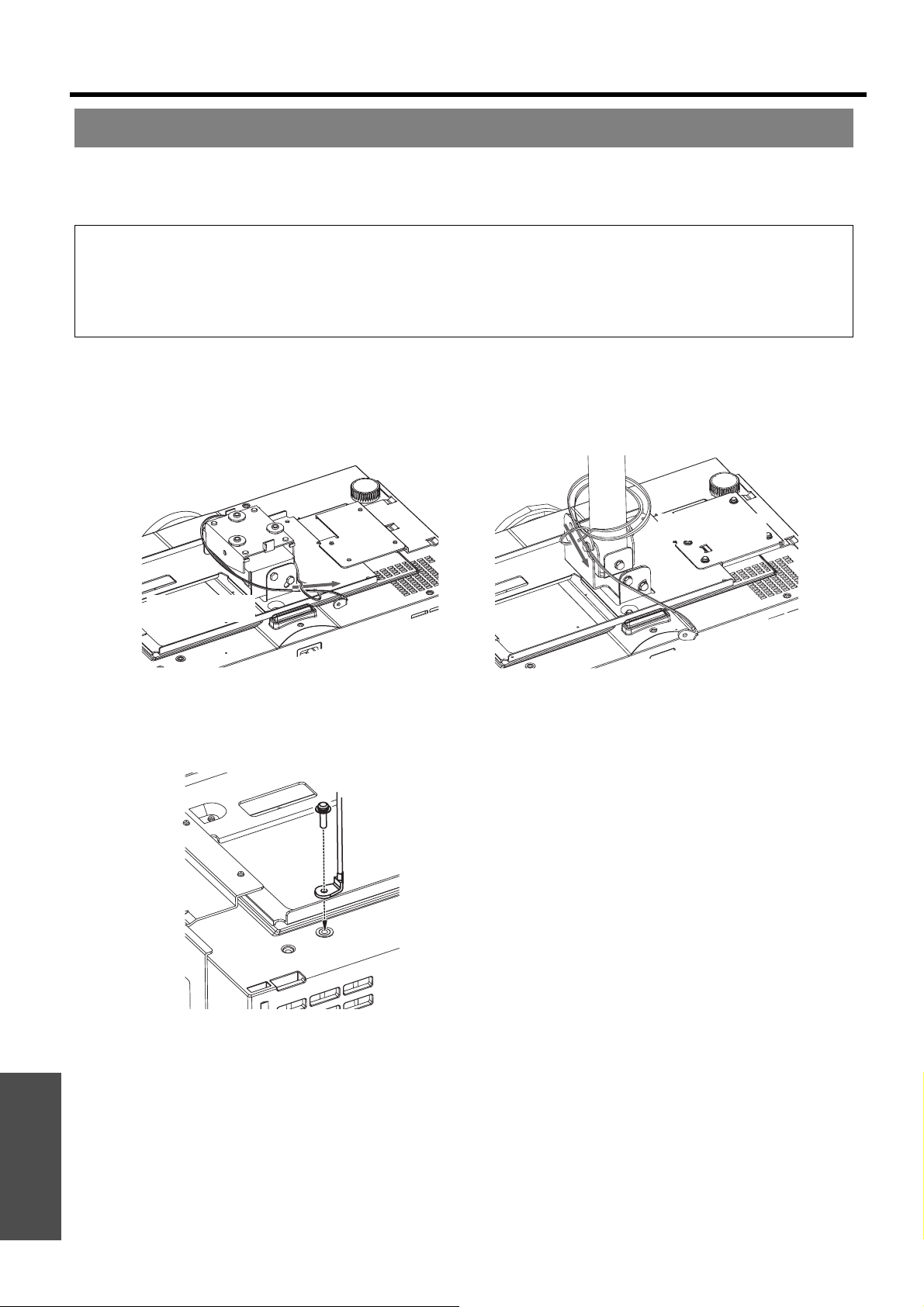
Appendix
Technical Information
56 - ENGLISH
The projector and the ceiling mount bracket are designed for sufficiently safety however, make sure the safety cable
provided with the projector is installed and attached to the bottom of the projector when mounting on the ceiling for
safety and security.
J Installing the safety cable
1. Install the ceiling mount bracket according to the Installation Instructions.
2. Loop the security cable around the ceiling mount bracket with less slack.
Lace the cable of the end with a latch through the loop on the other end of the cable.
3. Attach the latch on to the bottom of the projector with a provided screw.
Torque: 1.25±0.2 N·m
Ceiling mount bracket safeguards
NOTE:
• Even if it is during guarantee period, the manufacturer is not responsible for any hazard or damage caused by using a
ceiling mount bracket which is not purchased from an authorized distributors, or environmental conditions.
• Make sure to use a torque driver and do not use an electrical screwdriver or an impact screwdriver.
• Installation work of the ceiling mount bracket should only be carried by a qualified technician.
• Remove an unused ceiling mount bracket promptly.
* Indicated above is ET-PKE1000S.
Loop once
Loop twice
* Indicated above is ET-PKE2000
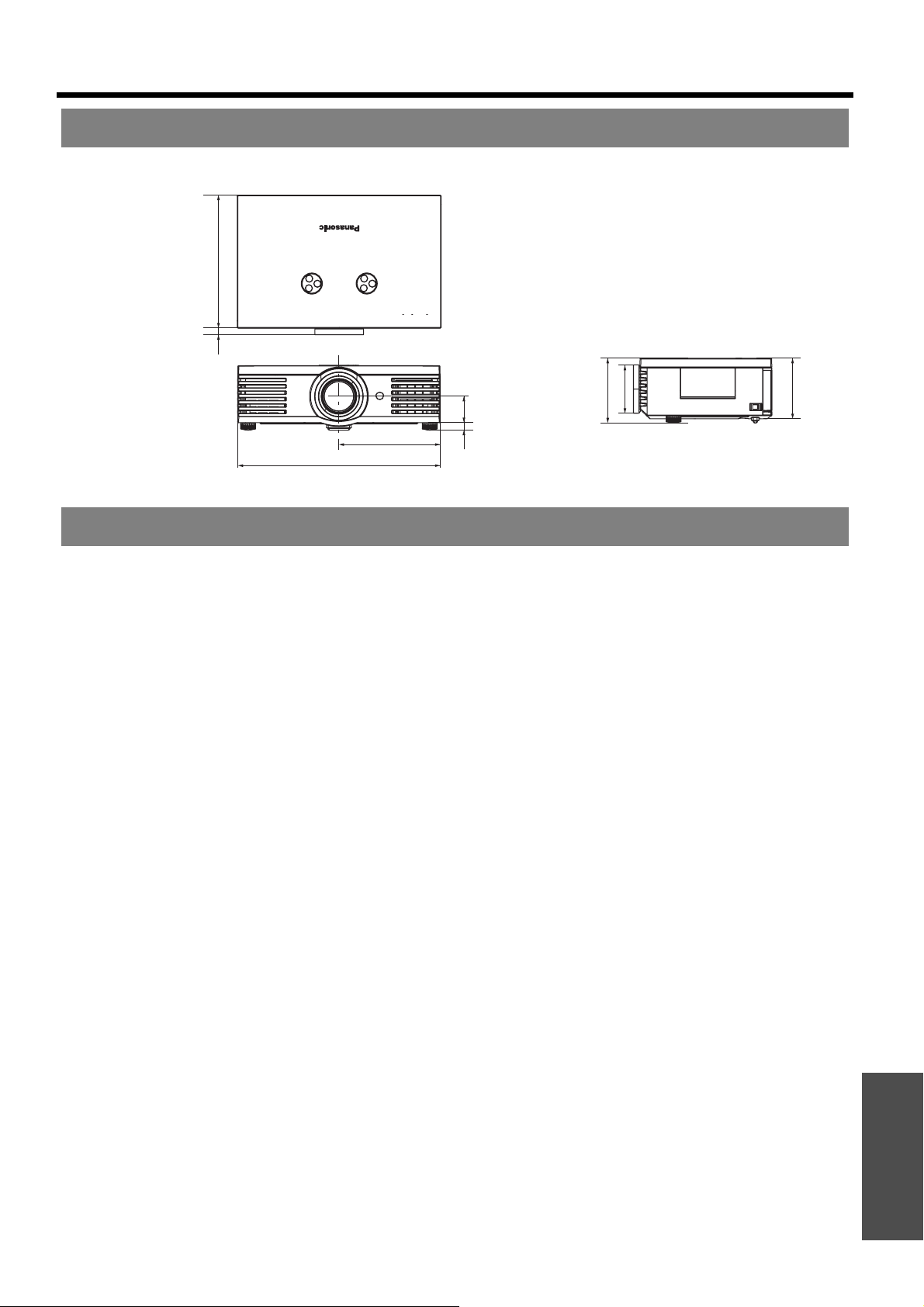
Technical Information
ENGLISH - 57
Appendix
VGA and XGA are trademarks of International Business Machines Corporation.
S-VGA is a registered trademark of the Video Electronics Standards Association.
HDMI, the HDMI logo and High-Definition Multimedia Interface are trademarks or registered trademarks of
HDMI Licensing LLC.
The font used in the on-screen displays is a Ricoh bitmap font, which is manufactured and sold by Ricoh
Company, Ltd.
All other trademarks are the property of the various trademark owners.
Dimensions
Trademark acknowledgements
300 (11-23/32)
460 (18 -3/32)
230 (9 -1/32)
15 (19/6)
147 (5 -25/32)
60 (2 -5/16)
116
(4 -9/16)
130
17 (-21/32)
Unit: mm

58 - ENGLISH
Appendix
Index
A
AC IN ......................................................................13
Accessories ..............................................................10
ADVANCED MENU ...................................................34
Air exhaust port ........................................................12
Air filter ....................................................................12
Replacing ...........................................................46
Air intake port ...........................................................13
ASPECT ..................................................................37
Remote control button .........................................11
Remote control function .......................................24
AUTO SEARCH ........................................................43
AUTO SETUP ..........................................................39
B
BACK COLOR ..........................................................43
Batteries
Accessory
..........................................................10
Compartment .....................................................11
BLANK ....................................................................42
BRIGHTNESS
ADVANCED MENU .............................................34
PICTURE menu ..................................................32
BUTTON ..................................................................42
C
Ceiling mount bracket ................................................56
CINEMA REALITY ....................................................35
Cleaning ..................................................................46
CLOCK PHASE ........................................................37
COLOR ....................................................................32
COLOR MANAGEMENT ...........................................35
Remote control button .........................................11
Remote control function .......................................26
COLOR TEMPERATURE ..........................................33
COMPONENT IN
Connection .........................................................18
Terminal ............................................................13
COMPUTER IN
Connection .........................................................18
Terminal ............................................................13
Connections .............................................................18
CONTRAST
ADVANCED MENU .............................................34
PICTURE menu ..................................................32
D
DEFAULT
Remote control button
.........................................11
Remote control function .......................................28
DETAIL CLARITY .....................................................35
Dimensions ..............................................................57
DOT CLOCK ............................................................37
DYNAMIC IRIS .........................................................33
E
ENTER
Control panel button ............................................12
Remote control button .........................................11
F
FOCUS
Control panel button
............................................12
LENS CONTROL menu .......................................40
FRAME CREATION ..................................................35
FRAME RESPONSE .................................................43
FREEZE
Remote control button
.........................................11
Remote control function .......................................28
Front leg adjusters ............................................. 13, 15
FUNCTION
Remote control button ........................................ 11
Remote control function ...................................... 28
FUNCTION BUTTON
Main menu ........................................................ 42
Remote control buttons ....................................... 11
Remote control function ...................................... 28
G
GAMMA .................................................................. 34
H
H-AREA POSITION .................................................. 41
HDMI IN
Connection
........................................................ 18
Terminal ............................................................ 13
HDMI SIGNAL LEVEL .............................................. 43
HIGH ALTITUDE MODE ........................................... 44
H-FIT ...................................................................... 38
H-POSITION ........................................................... 37
I
INPUT GUIDE ......................................................... 43
INPUT SELECT
Control panel button ........................................... 12
Remote control button ........................................ 11
Remote control function ...................................... 28
INSTALLATION
POSITION menu ................................................ 44
Projection method .............................................. 15
J
JUST ...................................................................... 38
K
KEYSTONE ............................................................. 39
L
LAMP
Indicator ............................................................ 12
Indicator status .................................................. 45
LAMP POWER ........................................................ 44
LAMP RUNTIME ................................................ 44, 48
Lamp unit
Replacing
.......................................................... 47
LENS
Remote control button
........................................ 11
Remote control function ...................................... 23
LENS CONTROL
Main menu ........................................................ 40
Remote control button ........................................ 11
Lens cover .............................................................. 12
Accessory ......................................................... 10
Attachment hole ................................................. 13
LENS MEMORY
EDIT ................................................................. 41
LOAD ............................................................... 40
SAVE ............................................................... 40
Lens shift
Lens shift dial • Horizontal
................................... 12
Lens shift dial • Vertical ....................................... 12
M
MAIN POWER ......................................................... 12
MEMORY EDIT ....................................................... 36
MEMORY LOAD ...................................................... 36
Remote control button ........................................ 11
Remote control function ...................................... 24
MEMORY SAVE ...................................................... 36

Appendix
Index
ENGLISH - 59
MENU
Control panel button
............................................12
Remote control button .........................................11
Remote control function .......................................29
Menu
Main menu .........................................................30
Navigation ..........................................................29
Sub-menu ..........................................................30
MPEG NR ................................................................35
N
Navigation buttons
Control panel button ............................................12
Remote control button .........................................11
NR (Noise Reduction) ................................................34
O
OPTION menu ..........................................................43
OSD DESIGN ...........................................................43
OSD POSITION ........................................................43
OVER SCAN ............................................................39
P
PICTURE .................................................................32
Remote control button .........................................11
Remote control function .......................................23
PICTURE ADJUST
Remote control button
.........................................11
Remote control function .......................................23
PICTURE MODE ......................................................32
Remote control button .........................................11
Remote control function .......................................23
POSITION ................................................................37
Power
Control panel button ............................................12
Indicator .............................................................12
Indicator status ...................................................20
Remote control button .........................................11
Power cord
Accessory
..........................................................10
Connecting .........................................................19
Power cord secure lock ........................................10, 19
R
Remote control .........................................................11
Accessory ..........................................................10
Operating range ..................................................23
Operation ...........................................................23
Signal emitter .....................................................11
Signal receptor ...................................................12
RETURN
Control panel button ............................................12
Remote control button .........................................11
Remote control function .......................................29
S
Safety cable .............................................................56
Accessory ..........................................................10
Attachment point .................................................13
Screen size ..............................................................14
Calculation methods ............................................14
Security lock .............................................................13
SERIAL
Basic format
...................................................... 51
Cable specifications ........................................... 51
Communication settings ...................................... 52
Connection ........................................................ 51
Control commands ............................................. 52
Inquiry commands .............................................. 53
Pin assignments ................................................ 51
Terminal ............................................................ 13
SHARPNESS .......................................................... 32
SLEEP .................................................................... 44
Specifications .......................................................... 54
SPLIT ADJUST ........................................................ 33
STARTUP LOGO ..................................................... 43
S-VIDEO IN
Connection ........................................................ 18
Terminal ............................................................ 13
T
Technical Information ............................................... 50
TEMP
Indicator ............................................................ 12
Indicator status .................................................. 45
Throw distance ........................................................ 14
Throwing angle ........................................................ 15
TINT ....................................................................... 32
Top cover .......................................................... 13, 47
Troubleshooting ....................................................... 49
TV-SYSTEM ............................................................ 35
V
V-AREA POSITION .................................................. 41
VIDEO IN
Connection ........................................................ 18
Terminal ............................................................ 13
V-FIT ...................................................................... 38
V-POSITION ............................................................ 37
W
WAVEFORM MONITOR ........................................... 33
Remote control button ........................................ 11
Remote control function ...................................... 24
WSS ....................................................................... 39
X
xvColor ................................................................... 35
Z
ZOOM
ASPECT menu .................................................. 38
Control panel button ........................................... 12
LENS CONTROL menu ...................................... 40
ZOOM/FOCUS ........................................................ 40
ZOOM1 ................................................................... 38
ZOOM2 ................................................................... 38

Printed in Japan
S0908-2108C